
DISCLAIMER
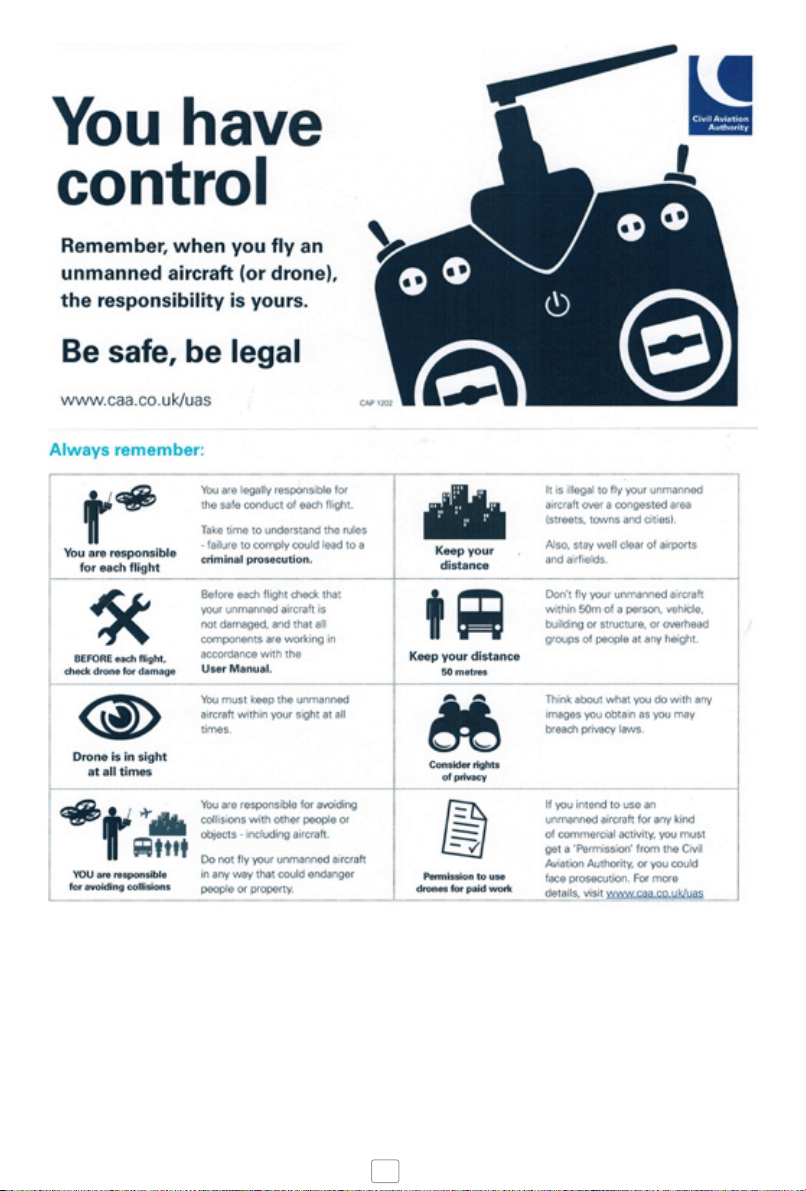
Please read Instructions and Disclaimer carefully before operation. This product is not
suitable for people under the age of 14. By using this product you hereby agree to this
disclaimer. You agree that you are responsible for your own conduct while using this
product and agree to never use this product in a way that infringes personal privacy,
local laws and regulations. Extreme Fliers shall not be held liable for any damage or
legal responsibilities and/or accidents resulting from the use of this product. Full
guidance is available on www.microdrone.co.uk
BRITISH CLVIL AVIATION AUTHORITY
1
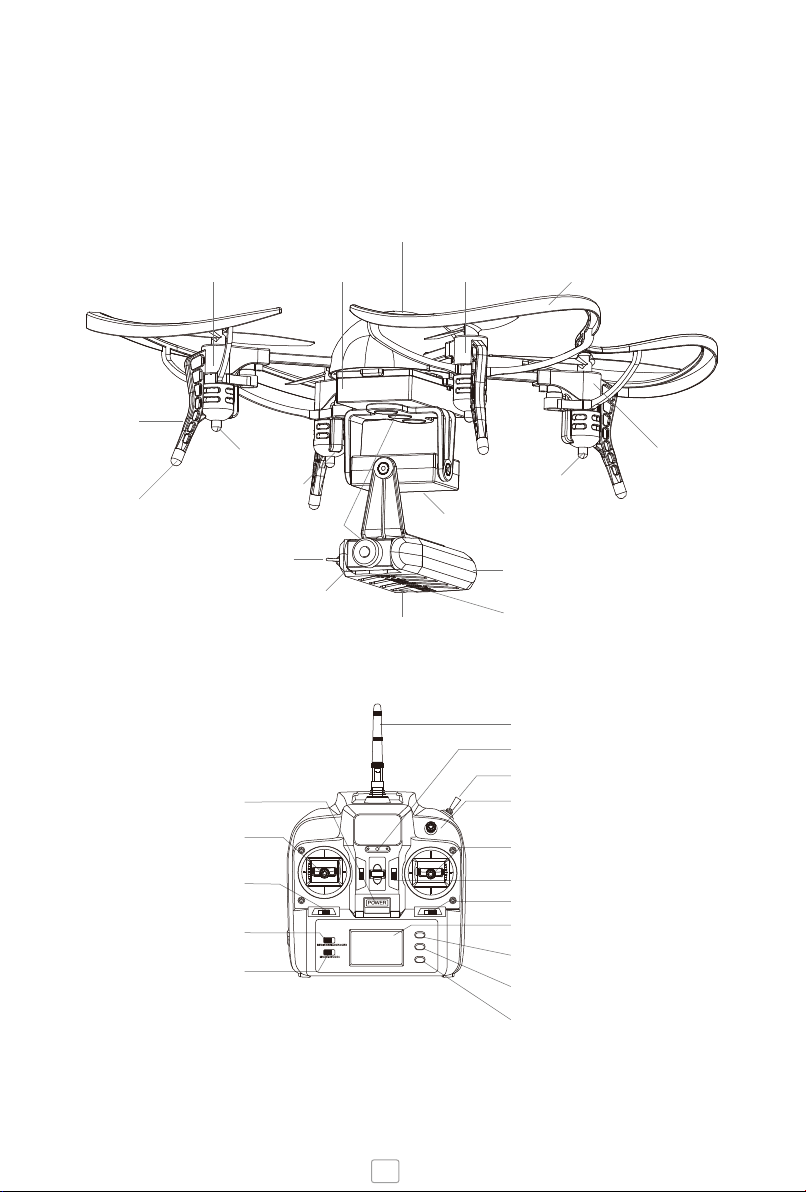
Left control stick
Sideways banking
Sideways Trim
Standard & Stunt mode
Power switch
Mode 2 / Mode 4
Speed setting
Power indicator
Antenna
Propeller Guards (optional) Motor Arm ABattery
Shell / Flight Controller
Motor Arm C
Blue LED (back)
White LED (front)
Landing legs
Rubber tips
Motor Arm B
Motor Arm D
Magnetic Connector
Camera Antenna
Camera Module
Swivelling lens
Wired Connection Port
SD Card slot (optional)
Micro Gimbal (coming 2016)
Inverted (fly upside down)
Turning trim
LCD screen
Pitch Trim forwards/backwards
Right control stick
forwards/backwards, left/right
Record Video,
start/stop for each press
Activate Smart Orientation
(see guidelines)
Remote Controller
(Transmitter) Return Home (see guidelines)
MICRO DRONE 3.0: Flight in the Palm of Your Hand
HANDSET
The Micro Drone 3.0 is your personal Drone, bringing together sophisticated
technology in a small size Device. Whether you’re an expert pilot or first timer, it gives
users a taste of features you would normally find in a larger system, which is safe, fun,
easy to use, that anyone can fly.
Inverted flying requires Inverted Blades. Be sure to install these before attempting
to Invert.
Always set the Home Point when activating Return Home and Smart Orientation.
2
QUICK START GUIDE
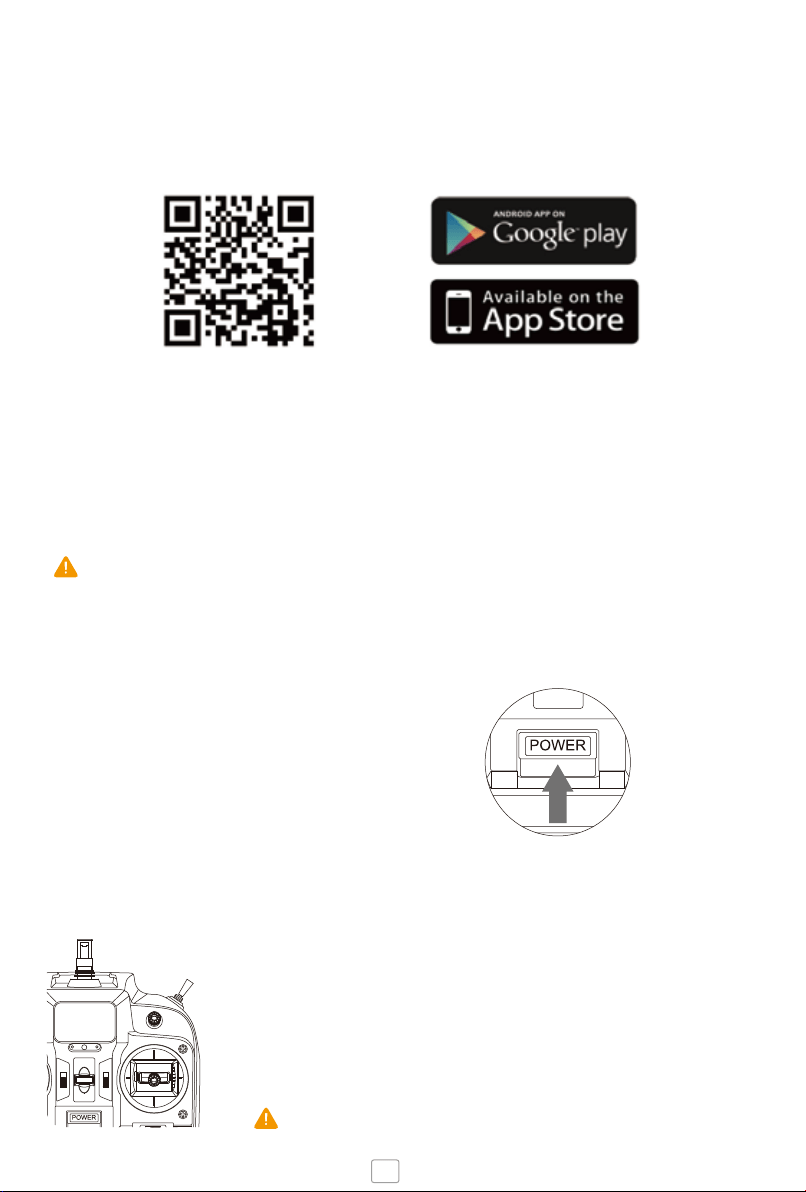
1. DOWNLOAD THE APP
2. CHECK / INSTALL BLADES
www.microdrone.co.uk/app
Watch training videos
4. CHOOSE SPEED SETTING
MICRO DRONE 3.0 Watch training videos
Check you have the correct blades attached, Inverted flying Blades or Regular
Blades (default)
3. SET UP TRANSMITTER
Power on the handset
(4 x AA Batteries required).
Place the Drone on a flat, open ground
with front facing away from you.
Do not mix Inverted and Regular blades.
Check the clockwise and counter clockwise blade has been correctly installed on
the corresponding motor arm.
Slow – ideal for beginners
Fast – highly responsive
Insane – suitable for expert users
3
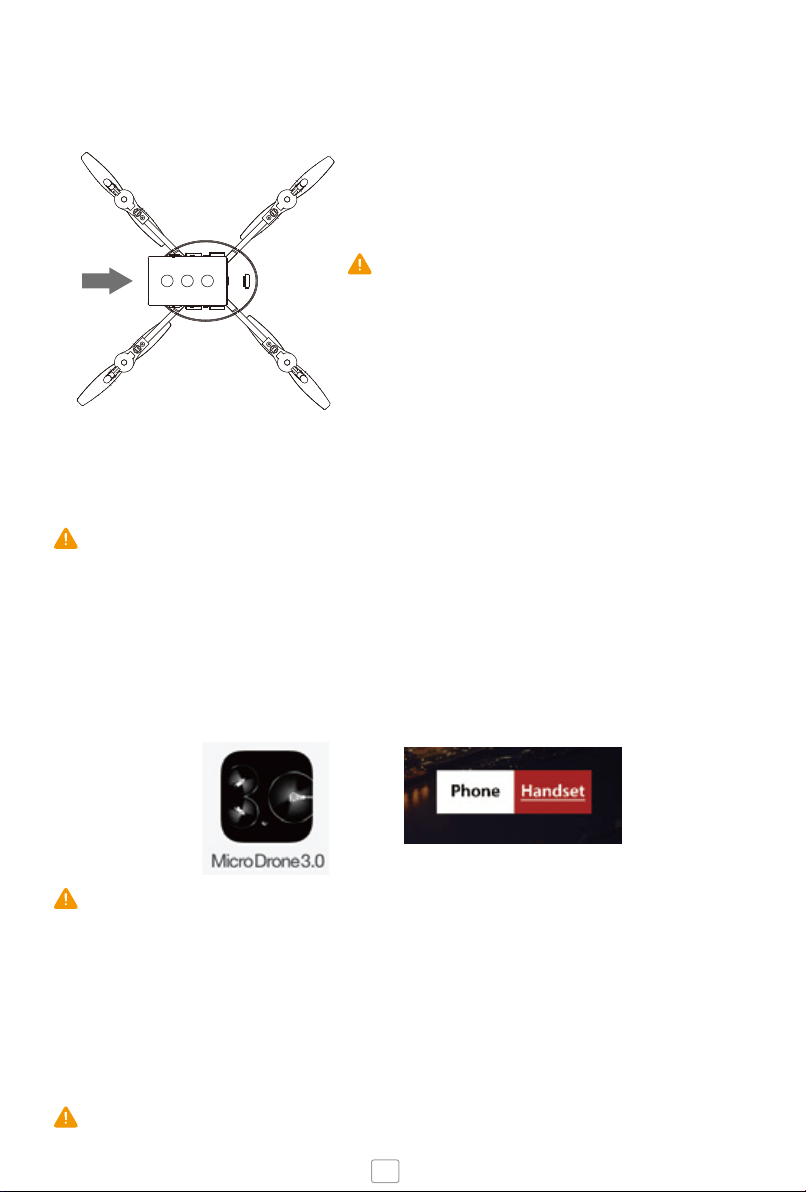
5. POWER ON DRONE
Insert the battery by sliding into position and attach the Camera with magnetic
connection.
Do not force the battery
Pins may bend - carefully realign if necessary
6. SYNC THE DRONE
Wait until the blinking LEDs turn solid, then push the throttle stick up and down once.
Check blades spin freely by applying a little power.
7. LAUNCH THE APP
Search and connect to Micro Drone 3.0 WiFi
Enter the Fly Screen
Select Handset or Phone in App Settings
Place Smartphone into Flight Mode to prevent notifications and incoming calls
causing disruptions
8. SET GYRO HOME POINT
Place Drone in the direction you intend to fly.
When Drone and Handset is Synced, hold both control sticks to the bottom right
corner for 5 seconds.
Essential for Smart Orientation and Return Home functionality.
4
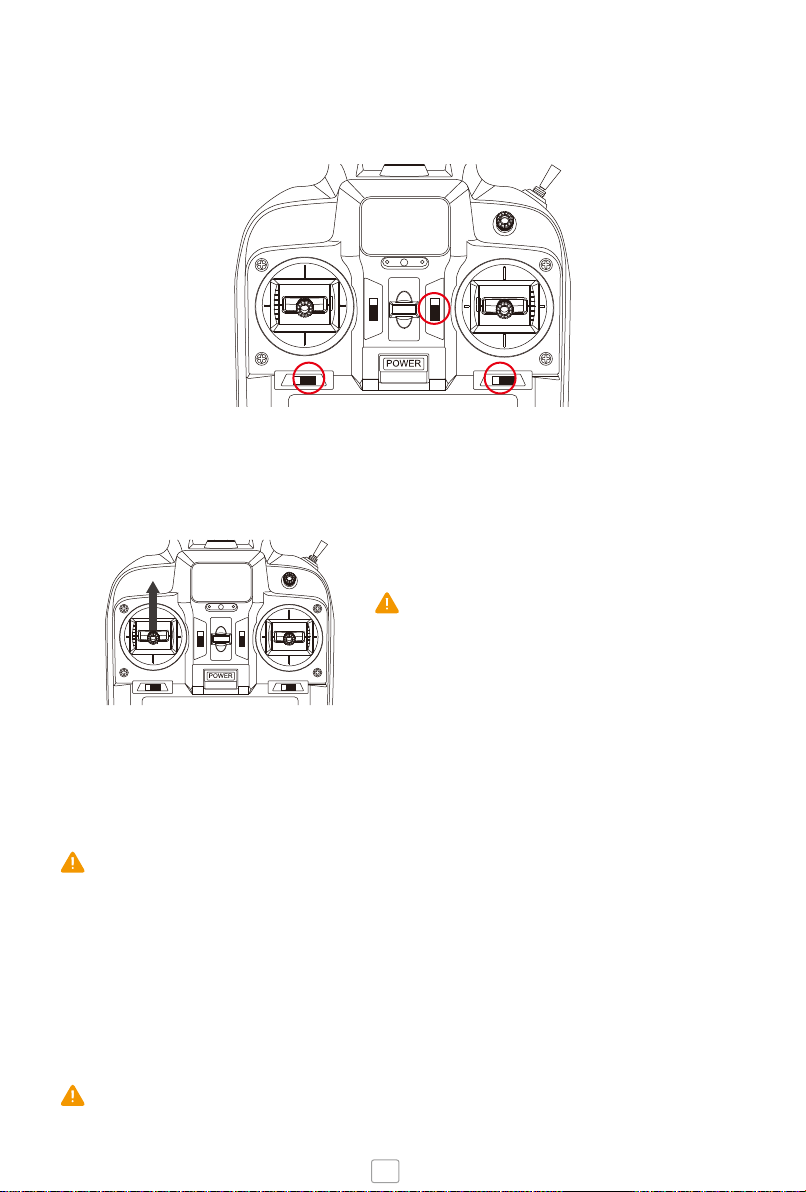
9. SET TRIM SETTINGS
Trim settings should be set to the centre point for balanced flying, indicated by
long beep.
10. TAKE OFF
Push the left throttle stick up slowly to take off
Gently toggle the left right control sticks
to learn basic navigation
Keep low altitude and use wide open
space for first flight
12. LANDING
To land, hover over a level ground and gently lower the throttle to descend.
After landing remove Camera and disconnect Battery.
Never approach or touch the Drone while blades are spinning.
Always cut the power using Controller/App first.
11. PHOTOS AND VIDEOS
Shoot photos or videos using the Micro Drone App, or Handset Function button.
Requires SD Card (Class 6 or above) to store footage on board the Drone.
To use Handset for activating Camera, connect the camera module using Wired
Connection Port.
5
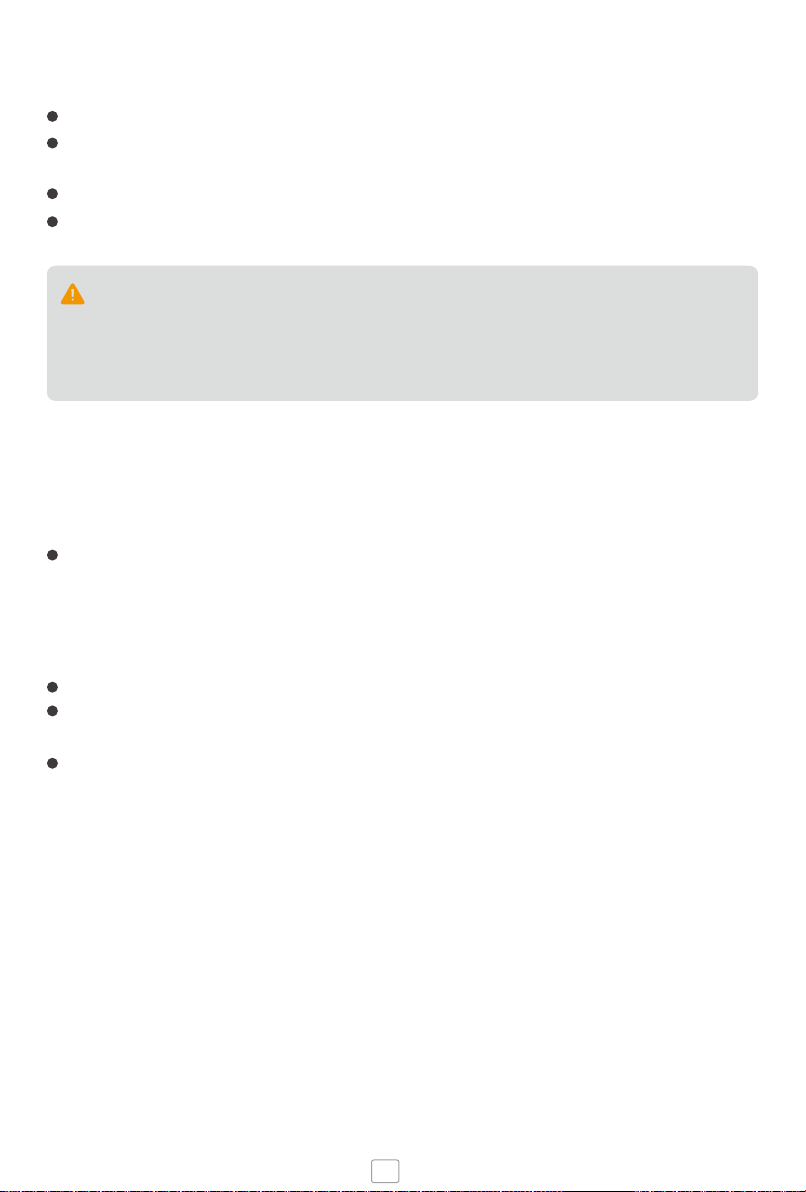
To ensure steady flight, set the 3 trimmers to fine tune the controls. The trim
buttons are located aside to the left and right control sticks to set the turning,
forward / backward pitch and side to side banking. Each time you click the trim
button you will hear a beep, a long beep indicates that the trim is set to the centre.
Note the trim buttons change depending on if it’s in mode 2 or mode 4.
Push the throttle up to around quater or half way and Micro Drone will take off.
We recommend removing the propeller guards when attaching the Camera or
Camera/Gimbal.
We do not recommend using the Inverted Blades with the Camera.
OPERATING TIPS
Connect the USB charger to any USB plug such as a computer or wall charger.
Disconnect the battery from Micro Drone then connect to the USB charger jack,
the red light on the charger will flash to indicate charging.
When charging is finished, the red light will turn solid green.
Full charge takes about 60 mins.
1.Batteries should be removed from the handset before storing.
2.Always use new batteries in the handset to maintain a good connection.
Functions may not work when less than 50% capacity.
3.Never charge unattended.
NOTES ON CHARGING
6
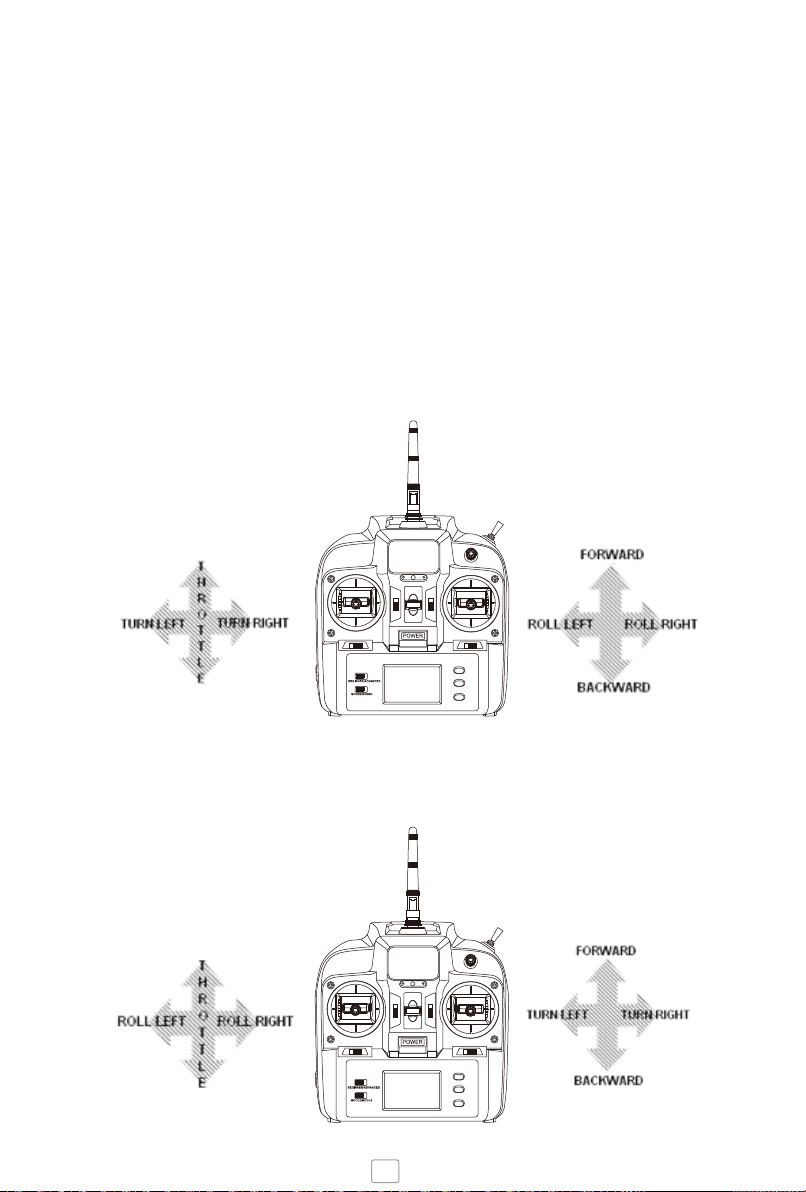
Mode 2
Mode 4
MODE 2 AND MODE 4: Explanation
Once you’ve learned to fly Micro Drone or any kind of Helicopter on a certain
transmitter Mode, the chances are that you’ll stick with that same mode throughout
your flying days. Re-learning to fly on a different mode is essentially the same as
starting from sctatch, so we’ve made it with the two most common flight controls and
outlined how these work for Micro Drone.
The transmitter modes for Micro Drone echo the ones for R/C Airplanes (in terms of
turning). With that in mind we have designed Micro Drone with Mode 2 and Mode 4
industry standards making it user friendly for first time users or for Radio Control pilots
accustomed to professional flying. The handset allows you to switch between Mode 2
and Mode 4. The slider is located at the bottom/left.
7
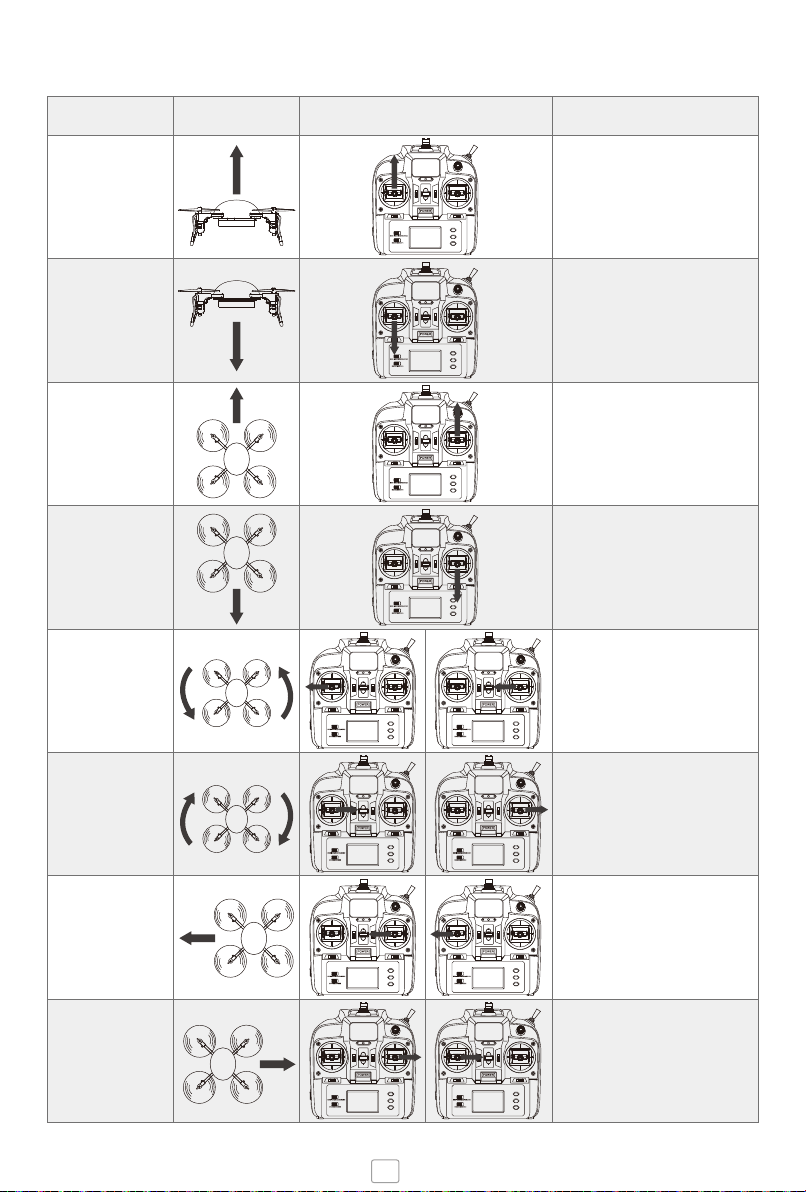
Direction
Up
Down
Forward
Backward
Turn Left
Turn Right
Banking (roll)
to the Left
Banking (roll)
to the Right
Drone Mode 2 Mode 4 Notes
For first flight power up to
around 60% throttle then ease
off to the hover position. Practice
hovering at 1-2 metres
Avoid landing on surfaces that
are hard, dusty or wet.
Do not land near people or
objects that could collide or
cause damage to the aircraft.
Push the navigation stick slowly
to prevent the Drone from
sudden movements.
Aim to fly in a straight line, cross
wind may alter the course,
toggle the roll stick to maintain
trajectory if necessary.
Look at the White LED lights as
reference for the Front of the
Drone as you turn.
If the front of the Drone rotates
to face you (nose in), the
navigational controls will feel
opposite to your position.
The roll stick controls the Drone’s
Left and Right tilt. When filming,
avoid roll to capture quality level
footage.
The further you push the control
stick, the further the Drone will
tilt, up to a 40 degree angle.
FLIGHT OPERATIONS
8
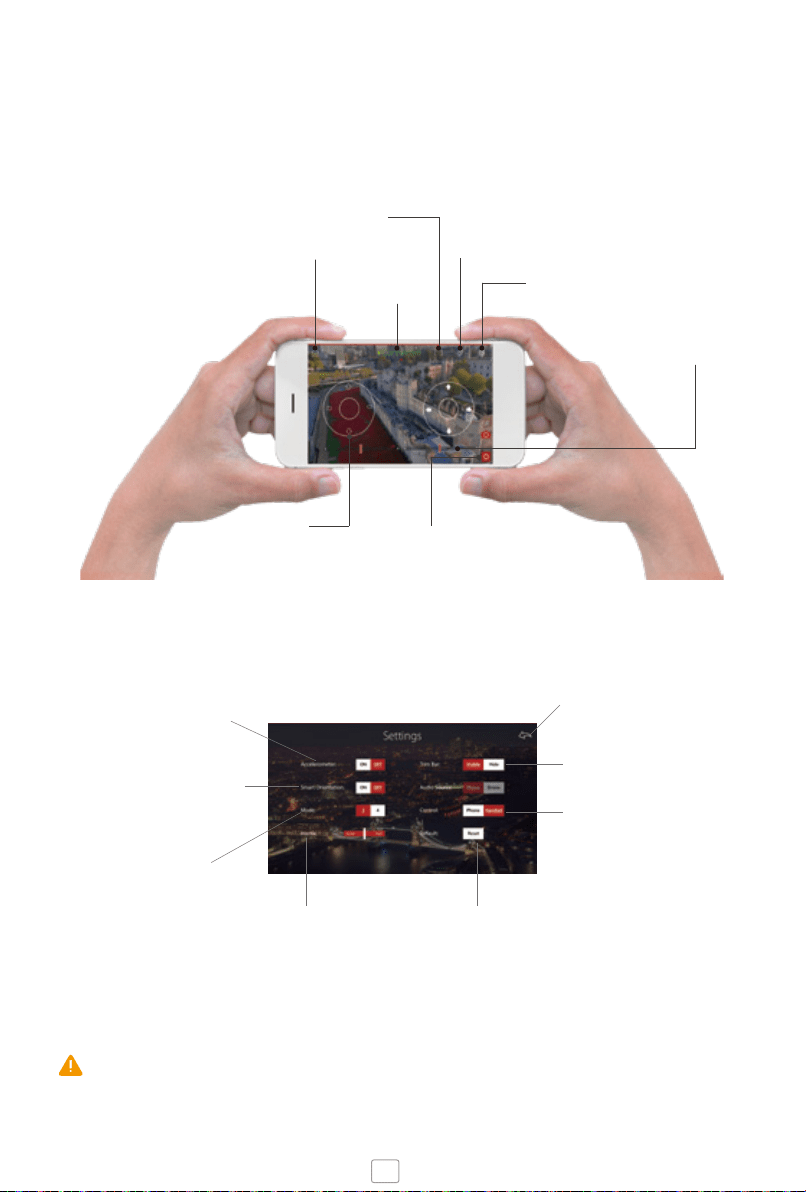
ACCELEROMETER
Switch on to control the Drone by tilting your smartphone.
Once activated, tap and hold the right touchpad then tilt.
Release the touchpad to hover.
HOME SCREEN
Training Videos
Review Footage
SCREEN VIEW
Full Screen or 3D
Split Screen for FPV
SOCIAL INTEGRATION
Coming in 2016
TRIM BARS
Adjust the Pitch, Roll and
Yaw. Tap the centre point
to reset.
TOUCH PAD
Control the Drone via your
Smartphone or Handset,
touch anywhere on the
screen.
PHOTO – tap once to take a photo
VIDEO – tap once to start recording
and again to stop recording.
SETTINGS
Swipe up to hide
menu bar
SMART ORIENTATION
Align the Drone and Smartphone
controls to fly on a locked heading
MODE
Switch the flight screen touchpad
between Mode 2 and Mode 4
BACK
To the flight screen
TRIM BAR
Hide the Trim bar from
the flight screen
CONTROL
Tap Phone to control the Drone
via Smartphone WiFi or Handset
(default) to control via the 2.4ghz
Radio Handset
SPEED SETTING
Slide the bar to adjust the speed
setting to your preference
RESET
To the Default settings
FULLY-FEATURED ACCOMPANYING APP
Micro Drone 3.0 has a companion App that is feature rich and intuitively designed. It
can be used for First Person View via the live streaming video as well as control of the
Drone and collecting, managing and sharing your videos.
iOS has some weird connection issue we couldn't figure out - when connecting
iPhone to the Drone's WiFi, you might notice it connects, disconnects then
reconnects again after 5 seconds (after that it's fine)
Check periodically for new updates and features on the App Store and Google Play
(iOS and Android)
9
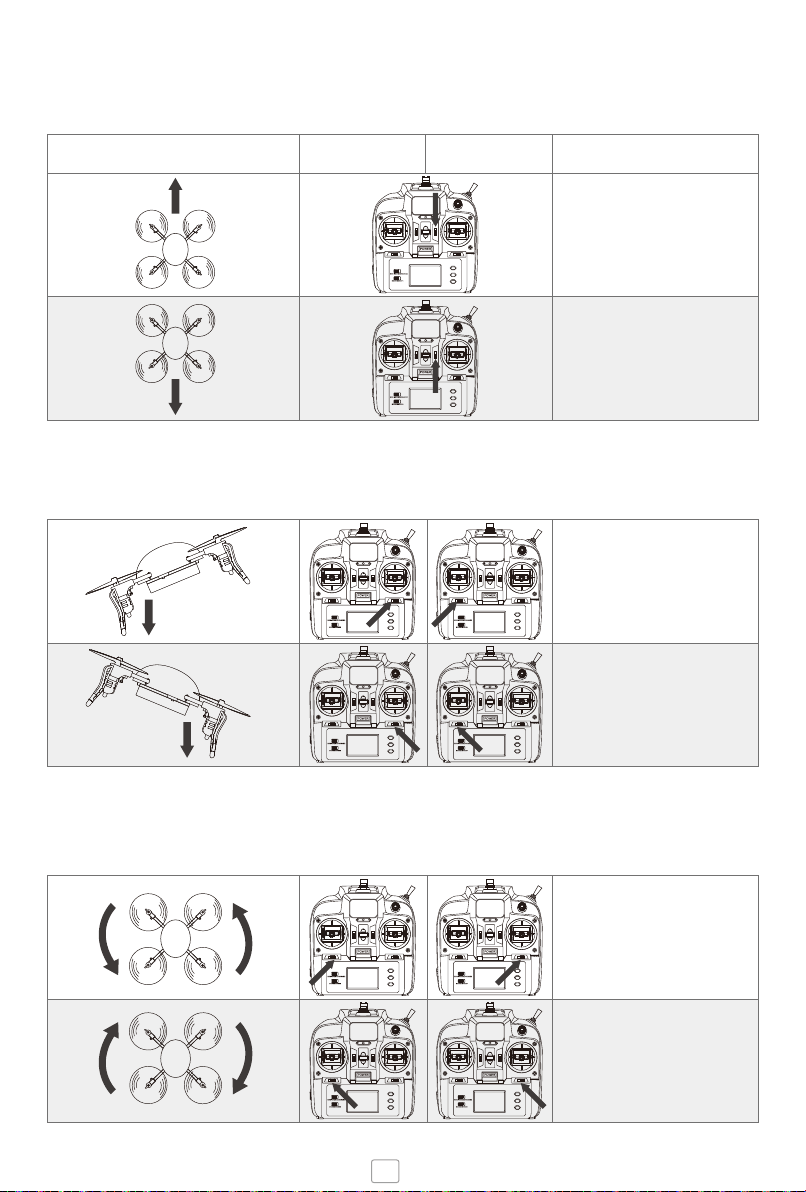
TRIMMER FUNCTIONS
Forward and Backwards Trim
Direction Mode 2 Mode 4 Action Required
If Micro Drone drifts forward, click
the trim down until balanced.
If Micro Drone drifts backward,
click trim up until balanced.
Banking Trim (roll side to side)
If Micro Drone drifts to the left,
click the trim to the right until
balanced.
If Micro Drone drifts to the right,
click the trim to the left until
balanced.
Turning Trim (rotating clockwise or counter-clockwise)
If Micro Drone drifts to the left,
click the trim to the right until
balanced.
If Micro Drone drifts to the right,
click the trim to the left until
balanced.
10
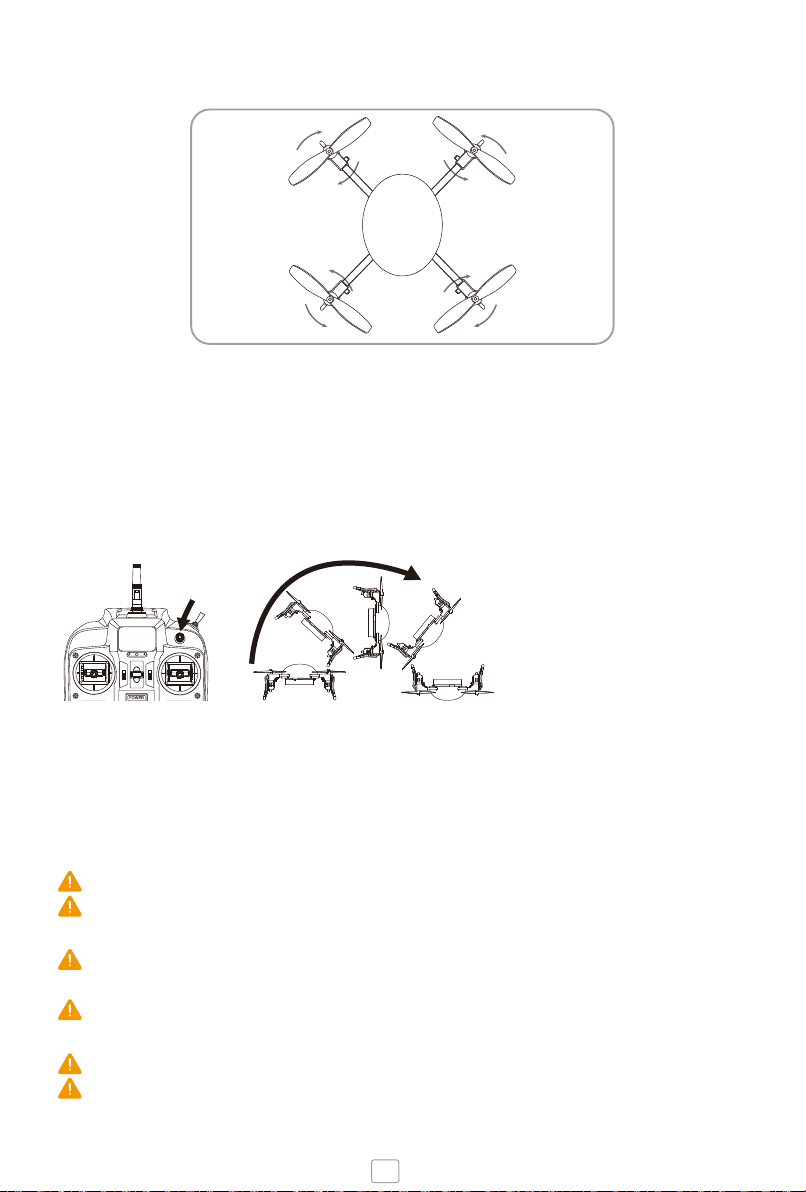
To activate inverted mode in the air,
flick the top right corner switch. The
Drone will flip over and the motors will
immediately go into reverse, to provide
opposite thrust.
MOTOR DIAGRAM
INVERTED FLYING
Clockwise
Left Right
Clockwise
Counterclockwise
Front
(black blades)
Counterclockwise
Arm A
Arm D
Arm B
Arm C
Back
(red blades)
Ensure the Correct Blade is fitted to correct Clockwise or Counterclockwise motor arm.
When fitting White and Grey Inverted blades: White A fits Arm A, White B fits Arm B, Grey
B fits Arm C, Grey A fits Arm D.
You can also place the Drone upside down to take off from the ground or by hand.
Inverted mode will be activated automatically. Requires inverted blades (White/Grey)
to use inverted mode. Blade must be correctly installed (White A / B at the front, Grey
A / B at the back).
We recommend having adequate flying experience before using this feature.
Activating inverted with regular blades can result in serious damage to the
Motors, Structure and Flight Board.
When the Drone is upside down, the controls will be reversed with the Blue
LEDs becoming the Front.
Take care to ensure blades do not hit the ground, always land the Drone in the
correct non-inverted orientation.
Activate inverted at least 3m from the ground with plenty of room.
Using Inverted blades reduces lifting capacity and flight time, use regular
blades for high performance.
11
SMART ORIENTATION
RESET THE GYROS
This feature unlocks the orientation so that the navigation is not determined by the
direction which the Drone is facing.
In standard mode with Smart Orientation off, the drone has a front and a back,
determined by the Black / Red blades or White / Blue LEDs, so when you navigate
forwards, it moves in the direction that the front is facing (ie if the black blades are
facing you, it moves towards you). This can be difficult to make out when the Drone is
a long distance away. Smart orientation helps with this.
Setting up Smart Orientation
When pairing the Drone, you must position the quadcopter such that its front points
away from you. Once paired it’s forward position will be fixed, every direction
Forward/Backward/Left/Right will be set from this. Activate by pressing the button
once, the red light will indicate it is on.
When you take off with the Drone facing forward from you, the micro-controller
continuously adjusts the navigation so that even when you turn the Drone 90 degrees
to the left/right, it will still go forward/backward on the fixed axis you set at the
beginning.
Smart orientation is useful for learning to fly the Drone, sending it out over long
distance and more convenient for shooting video (as the Drone moves in fixed lines,
allowing you to focus on the video and shoot panning shots while rotating the Drone
at the same time).
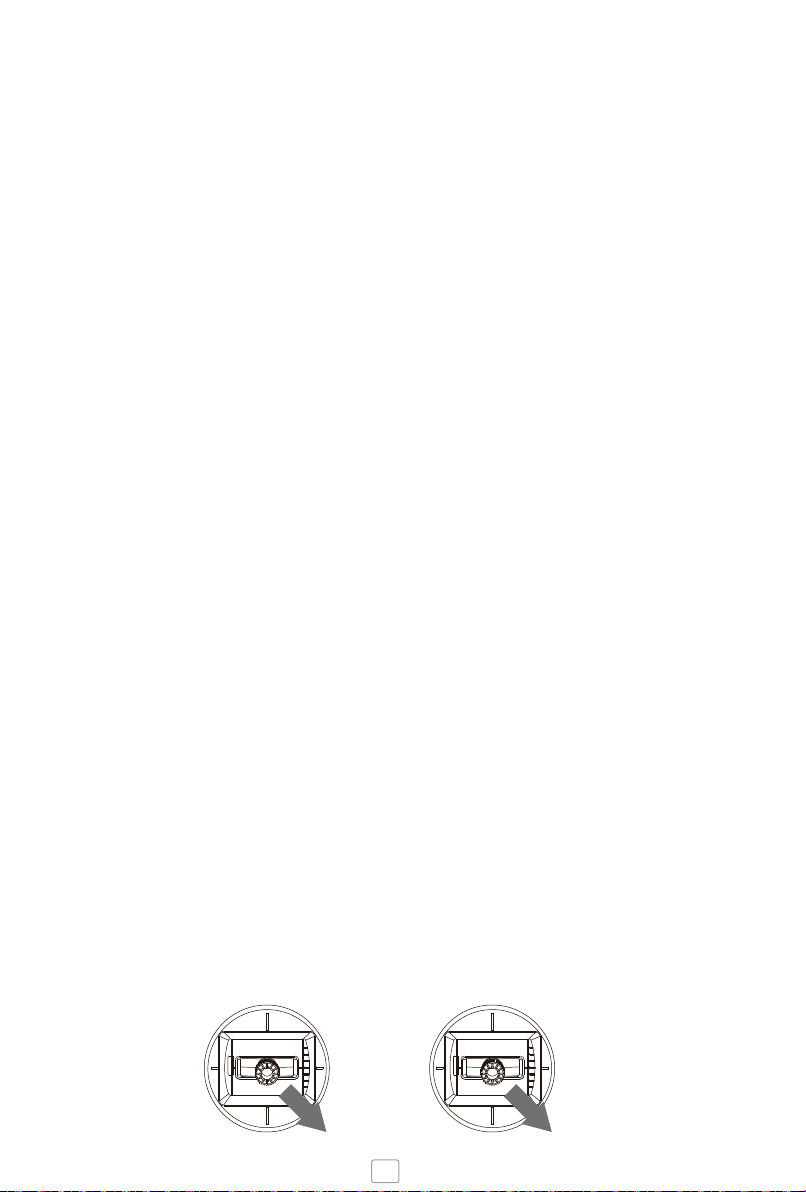
In the event of the Gyro loosing orientation, unstable flight, or drifting, the Gyros may
need resetting.
Together: push the left control stick to the bottom right corner and push the right stick
to the bottom right corner. Hold for 5 seconds and the Drone’s LEDs will flash rapidly
to indicate recalibration.
12
RETURN HOME
Users are advised to familiarise themselves with this feature before use. Unlike a GPS
return home system, this uses a programmed method that memorises it’s start
heading and is designed to help pilots return the Drone on a straight axis when you
have lost control.
For this to work correctly, when pairing the Drone, you must position the Drone on the
ground such that its front points away from you on the line you wish it to return.
This function is based on the assumption that the user is flying the Drone in front of
them. Hold down the Return home button and the Drone will fly back towards the
pilot in a straight line on a fixed axis, let go of the button and the Drone will stop
returning.
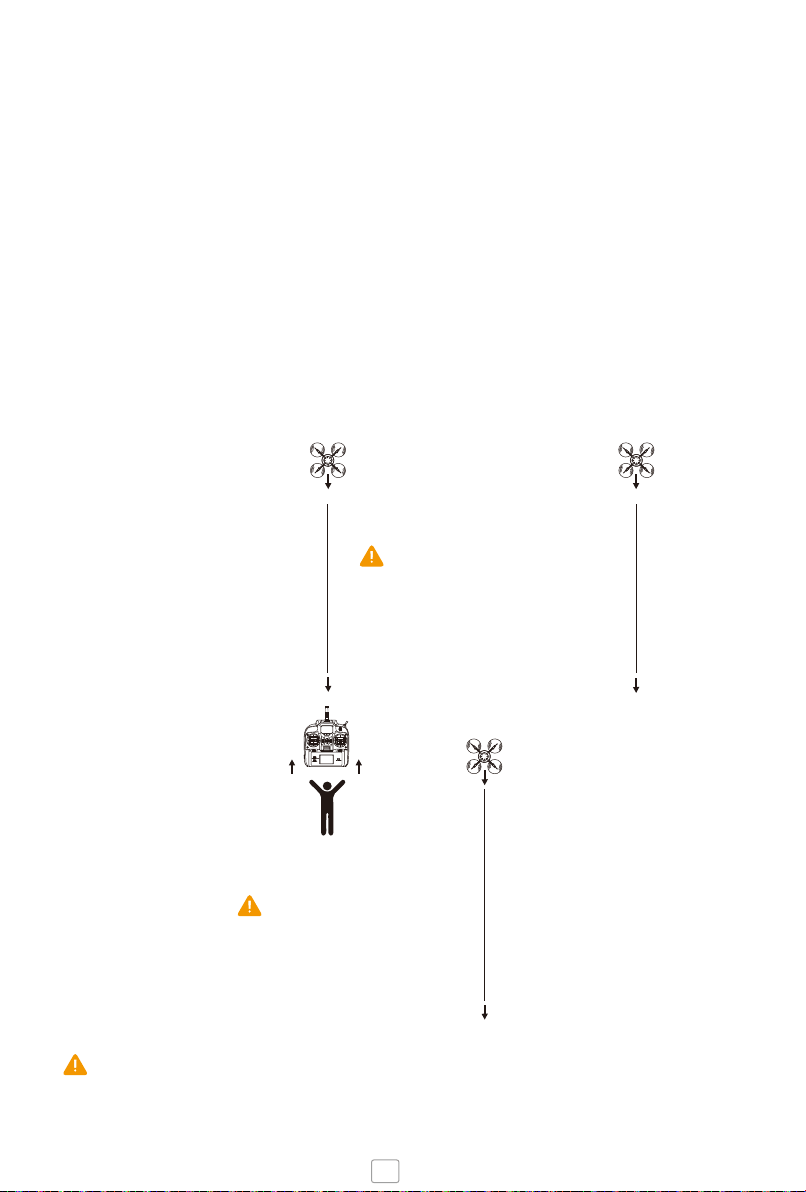
When Drone is directly ahead
of the pilot, will return in a
straight line.
When Drone is ahead but over to
the right of the pilot, it will return in
a straight line and end up to the
right side(use the side-to-side
control stick to move the Drone
inline with the pilot).
When Drone is behind the
pilot, it will continue to fly
in a straight line away from
the pilot. Always fly ahead
of you when using Return
home.
Use the roll stick depending on where the Drone is located in relation to you.
The altitude stick must continue to be controlled while using return home.
Select a faster Return speed by selecting one of the Speed Settings.
13
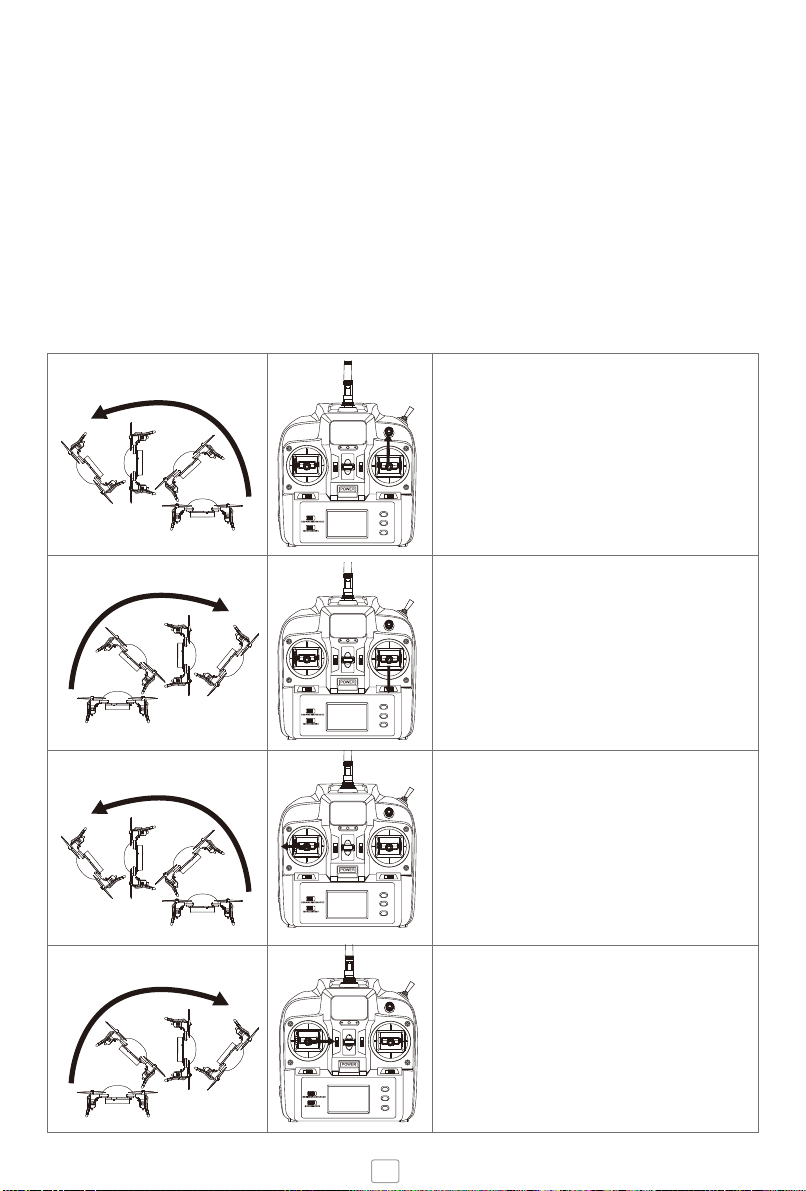
Forward rolls
Backward rolls
Left rolls
Right rolls
Push the throttle up then push the right stick up to
roll forward. Gently ease off to recover to the hover
position.
Push the throttle up then push the right stick down to
roll backwards. Gently ease off to recover to the hover
position.
Push the throttle up then push the banking stick left
to roll left. Gently ease off to recover to the hover
position.
Push the throttle up then push the banking stick right
to roll right. Gently ease off to recover to the hover
position.
MID AIR FLIPS
Aggressive Maneuvers and Flips
Micro Drone can perform mid-air flips with a specially designed, preprogramned
algorithm. To activate this, it must be switched into Stunt Mode, slide to the right.
WARNING: in Stunt Mode, moving the control sticks will perform aggressive
maneuvers and could cause Micro Drone to crash if not controlled carefully. If doing
for the first time, we suggest familiarising yourself with the controls before attempting
this. Hover Micro Drone at least 3 metres from the ground then push the control sticks
in the direction you want to flip. Switch back in to Standard Mode for regular flying.
14

TROUBLESHOOTING / FAQ’s
Inspect the Drone before every flight and replace any parts that are damaged.
Change any blades that are bent, chipped or broken.
See our troubleshooting page on www.microdrone.co.uk/faq
GET INVOLVED
Drone technology is developing at a rapid pace and we encourage you to get involved
as we continue building Micro Drone and this exciting hobby.
Find out about upcoming events, such as Battle of the Drones, Maker Events, First
Person View racing meetups and other activities. Details and information will be
posted on the Extreme Fliers Facebook page.
15
Happy Flying
Extreme Toys Ltd
12 Deer Park Road
London SW19 3FB
www.extremefliers.co.uk
www.microdrone.co.uk
customerserivce@extremefliers.co.uk