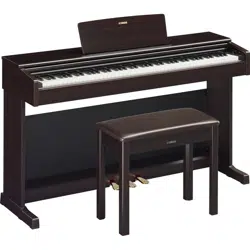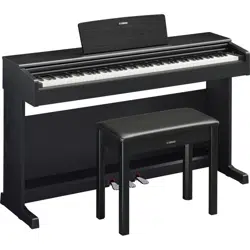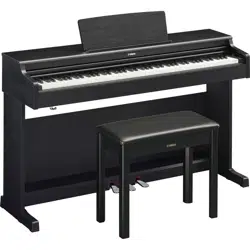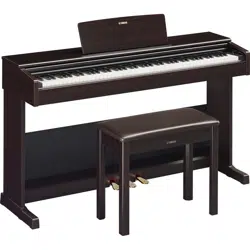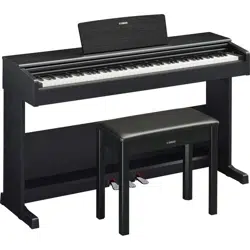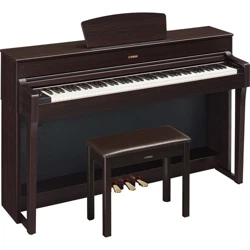

Owner’s Manual
Mode d’emploi
Before using the instrument, be sure to read “PRECAUTIONS” on pages 5-6.
For information on assembling the instrument, refer to the instructions at the end of this
manual.
Avant d’utiliser l’instrument, lisez attentivement la section « PRÉCAUTIONS D’USAGE »
aux pages 5 et 6.
Pour plus d’informations sur l’assemblage de l’instrument, reportez-vous aux instructions
figurant à la fin de ce manuel.
EnglishFrançais
FR
EN
YDP
-
184
SPECIAL MESSAGE SECTION
This product utilizes batteries or an external power
supply (adapter). DO NOT connect this product to any
power supply or adapter other than one described in
the manual, on the name plate, or specifically recom-
mended by Yamaha.
WARNING: Do not place this product in a position
where anyone could walk on, trip over, or roll anything
over power or connecting cords of any kind. The use of
an extension cord is not recommended! If you must
use an extension cord, the minimum wire size for a 25’
cord (or less) is 18 AWG. NOTE: The smaller the AWG
number, the larger the current handling capacity. For
longer extension cords, consult a local electrician.
This product should be used only with the components
supplied or; a cart, rack, or stand that is recommended
by Yamaha. If a cart, etc., is used, please observe all
safety markings and instructions that accompany the
accessory product.
SPECIFICATIONS SUBJECT TO
CHANGE:
The information contained in this manual is believed to
be correct at the time of printing. However, Yamaha
reserves the right to change or modify any of the spec-
ifications without notice or obligation to update existing
units.
This product, either alone or in combination with an
amplifier and headphones or speaker/s, may be capa-
ble of producing sound levels that could cause perma-
nent hearing loss. DO NOT operate for long periods of
time at a high volume level or at a level that is uncom-
fortable. If you experience any hearing loss or ringing
in the ears, you should consult an audiologist.
IMPORTANT: The louder the sound, the shorter the
time period before damage occurs.
Some Yamaha products may have benches and / or
accessory mounting fixtures that are either supplied
with the product or as optional accessories. Some of
these items are designed to be dealer assembled or
installed. Please make sure that benches are stable
and any optional fixtures (where applicable) are well
secured BEFORE using.
Benches supplied by Yamaha are designed for seating
only. No other uses are recommended.
NOTICE:
Service charges incurred due to a lack of knowledge
relating to how a function or effect works (when the unit
is operating as designed) are not covered by the manu-
facturer’s warranty, and are therefore the owners
responsibility. Please study this manual carefully and
consult your dealer before requesting service.
ENVIRONMENTAL ISSUES:
Yamaha strives to produce products that are both user
safe and environmentally friendly. We sincerely believe
that our products and the production methods used to
produce them, meet these goals. In keeping with both
the letter and the spirit of the law, we want you to be
aware of the following:
Battery Notice:
This product MAY contain a small non-rechargeable
battery which (if applicable) is soldered in place. The
average life span of this type of battery is approxi-
mately five years. When replacement becomes neces-
sary, contact a qualified service representative to
perform the replacement.
This product may also use “household” type batteries.
Some of these may be rechargeable. Make sure that
the battery being charged is a rechargeable type and
that the charger is intended for the battery being
charged.
When installing batteries, never mix old batteries with
new ones, and never mix different types of batteries.
Batteries MUST be installed correctly. Mismatches or
incorrect installation may result in overheating and bat-
tery case rupture.
Warning:
Do not attempt to disassemble, or incinerate any bat-
tery. Keep all batteries away from children. Dispose of
used batteries promptly and as regulated by the laws in
your area. Note: Check with any retailer of household
type batteries in your area for battery disposal informa-
tion.
Disposal Notice:
Should this product become damaged beyond repair,
or for some reason its useful life is considered to be at
an end, please observe all local, state, and federal reg-
ulations that relate to the disposal of products that con-
tain lead, batteries, plastics, etc. If your dealer is
unable to assist you, please contact Yamaha directly.
NAME PLATE LOCATION:
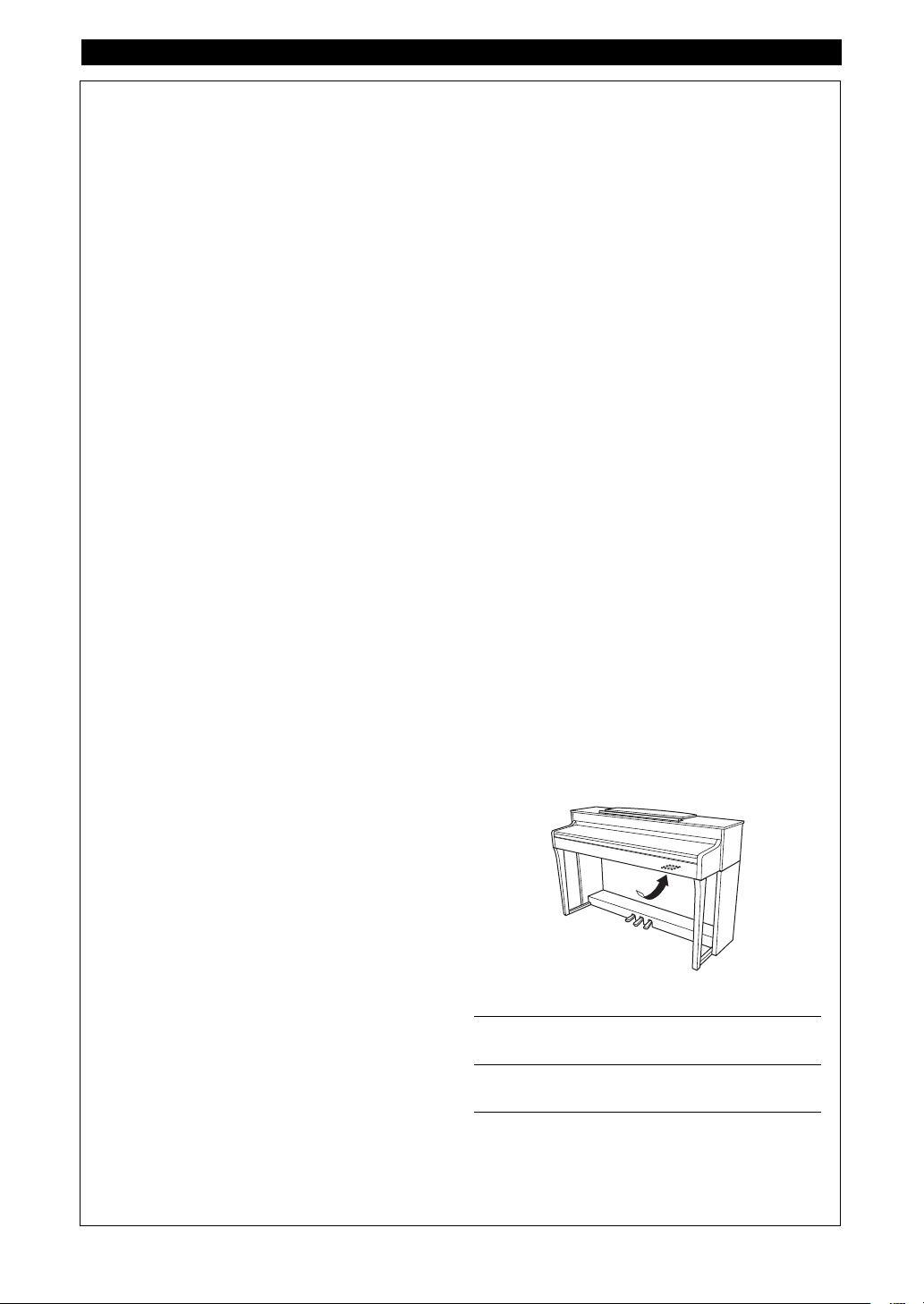
The name plate is located on the bottom of the product.
The model number, serial number, power require-
ments, etc., are located on this plate. You should
record the model number, serial number, and the date
of purchase in the spaces provided below and retain
this manual as a permanent record of your purchase.
Model
Serial No.
Purchase Date
PLEASE KEEP THIS MANUAL
92-BP (bottom)
For YDP-184
YDP-184 Owner’s Manual
2
* This applies only to products distributed by YAMAHA CORPORATION OF AMERICA. (FCC DoC)
COMPLIANCE INFORMATION STATEMENT
(DECLARATION OF CONFORMITY PROCEDURE)
Responsible Party : Yamaha Corporation of America
Address : 6600 Orangethorpe Ave., Buena Park, Calif. 90620
Telephone : 714-522-9011
Type of Equipment : Digital Piano
Model Name : YDP-184
This device complies with Part 15 of the FCC Rules.
Operation is subject to the following two conditions:
1) this device may not cause harmful interference, and
2) this device must accept any interference received including interference that may cause undesired operation.
See user manual instructions if interference to radio reception is suspected.
For YDP-184
For the instrument and the AC adaptor
1. IMPORTANT NOTICE: DO NOT MODIFY
THIS UNIT!
This product, when installed as indicated in the
instructions contained in this manual, meets FCC
requirements. Modifications not expressly approved
by Yamaha may void your authority, granted by the
FCC, to use the product.
2. IMPORTANT: When connecting this product to
accessories and/or another product use only high
quality shielded cables. Cable/s supplied with this
product MUST be used. Follow all installation
instructions. Failure to follow instructions could void
your FCC authorization to use this product in the
USA.
3. NOTE: This product has been tested and found to
comply with the requirements listed in FCC
Regulations, Part 15 for Class “B” digital devices.
Compliance with these requirements provides a
reasonable level of assurance that your use of this
product in a residential environment will not result in
harmful interference with other electronic devices.
This equipment generates/uses radio frequencies
and, if not installed and used according to the
instructions found in the users manual, may cause
interference harmful to the operation of other
electronic devices. Compliance with FCC regulations
* This applies only to products distributed by YAMAHA CORPORATION OF AMERICA. (class B)
does not guarantee that interference will not occur in
all installations. If this product is found to be the
source of interference, which can be determined by
turning the unit “OFF” and “ON”, please try to
eliminate the problem by using one of the following
measures:
Relocate either this product or the device that is
being affected by the interference.
Utilize power outlets that are on different branch (circuit
breaker or fuse) circuits or install AC line filter/s.
In the case of radio or TV interference, relocate/
reorient the antenna. If the antenna lead-in is 300
ohm ribbon lead, change the lead-in to co-axial type
cable.
If these corrective measures do not produce
satisfactory results, please contact the local retailer
authorized to distribute this type of product. If you can
not locate the appropriate retailer, please contact
Yamaha Corporation of America, Electronic Service
Division, 6600 Orangethorpe Ave, Buena Park,
CA90620
The above statements apply ONLY to those products
distributed by Yamaha Corporation of America or its
subsidiaries.
FCC INFORMATION (U.S.A.)
YDP-184 Owner’s Manual
3
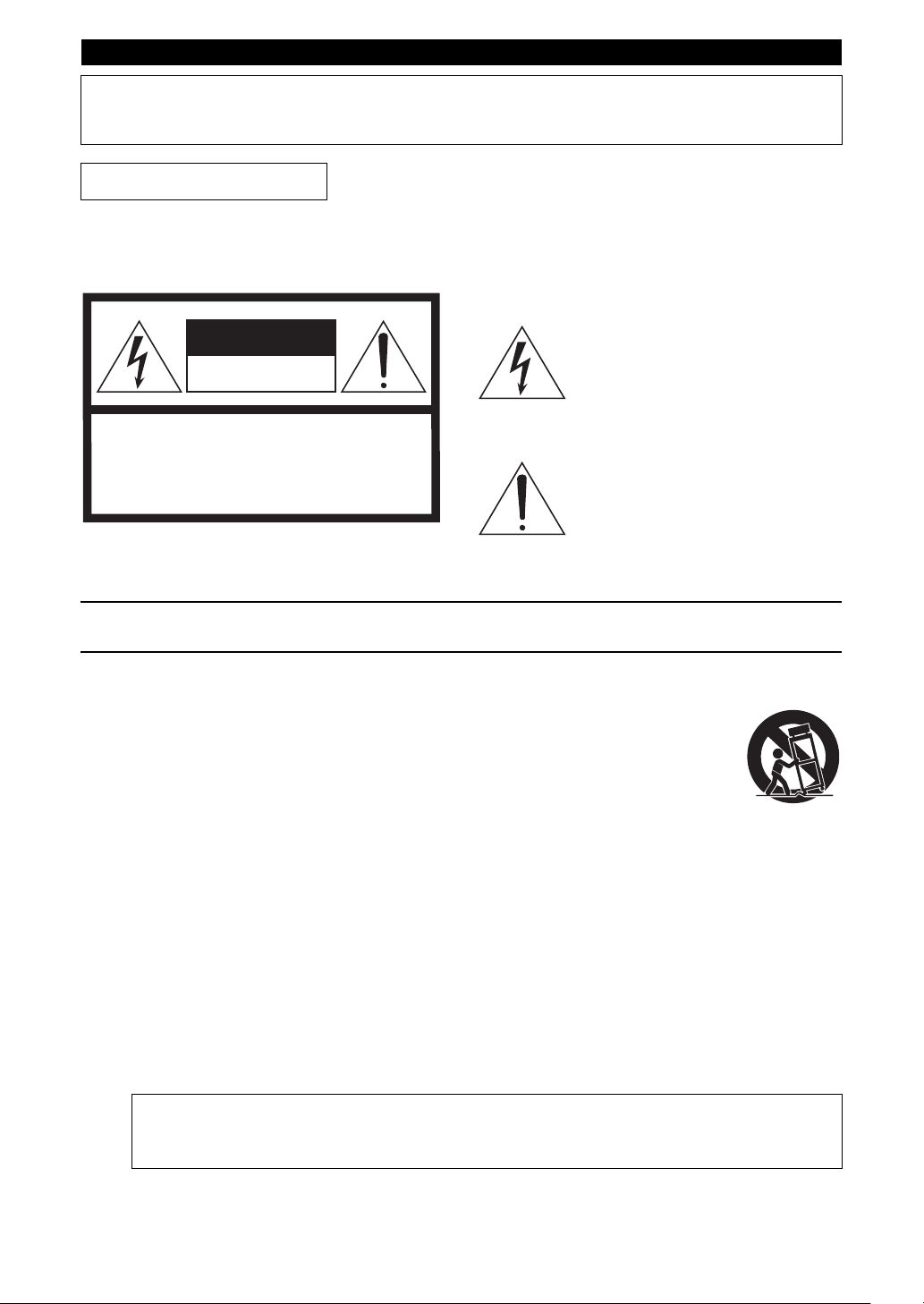
Explanation of Graphical Symbols
The lightning flash with arrowhead symbol
within an equilateral triangle is intended to
alert the user to the presence of uninsulated
“dangerous voltage” within the product’s
enclosure that may be of sufficient magnitude
to constitute a risk of electric shock to
persons.
The exclamation point within an equilateral
triangle is intended to alert the user to the
presence of important operating and
maintenance (servicing) instructions in the
literature accompanying the product.
IMPORTANT SAFETY INSTRUCTIONS
1 Read these instructions.
2 Keep these instructions.
3 Heed all warnings.
4 Follow all instructions.
5 Do not use this apparatus near water.
6 Clean only with dry cloth.
7 Do not block any ventilation openings. Install in
accordance with the manufacturer’s instructions.
8 Do not install near any heat sources such as
radiators, heat registers, stoves, or other
apparatus (including amplifiers) that produce
heat.
9 Do not defeat the safety purpose of the polarized
or grounding-type plug. A polarized plug has two
blades with one wider than the other. A
grounding type plug has two blades and a third
grounding prong. The wide blade or the third
prong are provided for your safety. If the provided
plug does not fit into your outlet, consult an
electrician for replacement of the obsolete outlet.
10 Protect the power cord from being walked on or
pinched particularly at plugs, convenience
receptacles, and the point where they exit from
the apparatus.
11 Only use attachments/accessories specified by
the manufacturer.
12 Use only with the cart, stand,
tripod, bracket, or table specified
by the manufacturer, or sold with
the apparatus. When a cart is
used, use caution when moving
the cart/apparatus combination
to avoid injury from tip-over.
13 Unplug this apparatus during lightning storms or
when unused for long periods of time.
14 Refer all servicing to qualified service personnel.
Servicing is required when the apparatus has
been damaged in any way, such as power-supply
cord or plug is damaged, liquid has been spilled
or objects have fallen into the apparatus, the
apparatus has been exposed to rain or moisture,
does not operate normally, or has been dropped.
(UL60065_03)
CAUTION: TO REDUCE THE RISK OF
ELECTRIC SHOCK, DO NOT REMOVE
COVER (OR BACK). NO USER-SERVICEABLE
PARTS INSIDE. REFER SERVICING TO
QUALIFIED SERVICE PERSONNEL.
CAUTION
RISK OF ELECTRIC SHOCK
DO NOT OPEN
WARNING
TO REDUCE THE RISK OF FIRE OR ELECTRIC SHOCK, DO NOT EXPOSE THIS APPARATUS TO RAIN OR
MOISTURE.
For the AC adaptor
YDP-184 Owner’s Manual
This device complies with Part 15 of the FCC Rules. Operation is subject to the following two conditions:
(1) this device may not cause harmful interference, and (2) this device must accept any interference received, includ-
ing interference that may cause undesired operation.
CAN ICES-3 (B)/NMB-3(B)
(can_b_02)
(fcc_sengen)
4
5
YDP-184 Owner’s Manual
PRECAUTIONS
PLEASE READ CAREFULLY BEFORE PROCEEDING
Please keep this manual in a safe and handy place for future reference.
WARNING
• This AC adaptor is designed for use with only Yamaha electronic instruments. Do
not use for any other purpose.
• Indoor use only. Do not use in any wet environments.
CAUTION
• When setting up, make sure that the AC outlet is easily accessible. If some
trouble or malfunction occurs, immediately turn off the power switch of the
instrument and disconnect the AC adaptor from the outlet. When the AC adaptor
is connected to the AC outlet, keep in mind that electricity is flowing at the
minimum level, even if the power switch is turned off. When you are not using
the instrument for a long time, make sure to unplug the power cord from the wall
AC outlet.
WARNING
Always follow the basic precautions listed below to avoid the possibility of serious injury or even death from electrical
shock, short-circuiting, damages, fire or other hazards. These precautions include, but are not limited to, the
following:
• Do not place the power cord near heat sources such as heaters or radiators. Also,
do not excessively bend or otherwise damage the cord, or place heavy objects on
it.
• Only use the voltage specified as correct for the instrument. The required voltage
is printed on the name plate of the instrument.
• Use the specified adaptor (page 107) only. Using the wrong adaptor can result in
damage to the instrument or overheating.
• Use only the supplied power cord/plug.
• Check the electric plug periodically and remove any dirt or dust which may have
accumulated on it.
• This instrument contains no user-serviceable parts. Do not open the instrument
or attempt to disassemble or modify the internal components in any way. If it
should appear to be malfunctioning, discontinue use immediately and have it
inspected by qualified Yamaha service personnel.
• Do not expose the instrument to rain, use it near water or in damp or wet
conditions, or place on it any containers (such as vases, bottles or glasses)
containing liquids which might spill into any openings. If any liquid such as
water seeps into the instrument, turn off the power immediately and unplug the
power cord from the AC outlet. Then have the instrument inspected by qualified
Yamaha service personnel.
• Never insert or remove an electric plug with wet hands.
• Do not put burning items, such as candles, on the unit. A burning item may fall
over and cause a fire.
• When one of the following problems occur, immediately turn off the power switch
and disconnect the electric plug from the outlet. Then have the device inspected
by Yamaha service personnel.
- The power cord or plug becomes frayed or damaged.
- It emits unusual smells or smoke.
- Some object has been dropped into the instrument.
- There is a sudden loss of sound during use of the instrument.
For AC adaptor
For YDP-184
Power supply/AC adaptor
Do not open
Water warning
Fire warning
If you notice any abnormality
DMI-5 1/2
6
YDP-184 Owner’s Manual
CAUTION
Always follow the basic precautions listed below to avoid the possibility of physical injury to you or others, or damage
to the instrument or other property. These precautions include, but are not limited to, the following:
• Do not connect the instrument to an electrical outlet using a multiple-connector.
Doing so can result in lower sound quality, or possibly cause overheating in the
outlet.
• When removing the electric plug from the instrument or an outlet, always hold
the plug itself and not the cord. Pulling by the cord can damage it.
• Remove the electric plug from the outlet when the instrument is not to be used for
extended periods of time, or during electrical storms.
• Read carefully the attached documentation explaining the assembly process.
Failure to assemble the instrument in the proper sequence might result in
damage to the instrument or even injury.
• Do not place the instrument in an unstable position where it might accidentally
fall over.
• When transporting or moving the instrument, always use two or more people.
Attempting to lift the instrument by yourself may damage your back, result in
other injury, or cause damage to the instrument itself.
• Before moving the instrument, remove all connected cables, to prevent damage
to the cables or injury to anyone who might trip over them.
• When setting up the product, make sure that the AC outlet you are using is easily
accessible. If some trouble or malfunction occurs, immediately turn off the power
switch and disconnect the plug from the outlet. Even when the power switch is
turned off, electricity is still flowing to the product at the minimum level. When
you are not using the product for a long time, make sure to unplug the power
cord from the wall AC outlet.
• Before connecting the instrument to other electronic components, turn off the
power for all components. Before turning the power on or off for all components,
set all volume levels to minimum.
• Be sure to set the volumes of all components at their minimum levels and
gradually raise the volume controls while playing the instrument to set the
desired listening level.
• Do not insert a finger or hand in any gaps on the key cover or instrument. Also
take care that the key cover does not pinch your finger.
• Never insert or drop paper, metallic, or other objects into the gaps on the key
cover, panel or keyboard. This could cause physical injury to you or others,
damage to the instrument or other property, or operational failure.
• Do not rest your weight on, or place heavy objects on the instrument, and do not
use excessive force on the buttons, switches or connectors.
• Do not use the instrument/device or headphones for a long period of time at a
high or uncomfortable volume level, since this can cause permanent hearing
loss. If you experience any hearing loss or ringing in the ears, consult a
physician.
• Do not place the bench in an unstable position where it might accidentally fall
over.
• Do not play carelessly with or stand on the bench. Using it as a tool or stepladder
or for any other purpose might result in accident or injury.
• Only one person should sit on the bench at a time, in order to prevent the
possibility of accident or injury.
• For benches that can be adjusted, do not adjust the bench height while sitting on
the bench, since this can cause excessive force to be imposed on the adjustment
mechanism, possibly resulting in damage to the mechanism or even injury.
• If the bench screws become loose due to extensive long-term use, tighten them
periodically using the specified tool in order to prevent the possibility of accident
or injury.
• Keep special watch over any small children so that they don’t fall off the rear of
the bench. Since the bench does not have a backrest, unsupervised use may
result in accident or injury.
Always turn the power off when the instrument is not in use.
Even when the [ ] (Standby/On) switch is in standby status (power lamp is off), electricity is still flowing to the instrument at the minimum level.
When you are not using the instrument for a long time, make sure you unplug the power cord from the wall AC outlet.
Power supply/AC adaptor
Assembly
Location
Connections
Handling caution
Using the bench (If included)
Yamaha cannot be held responsible for damage caused by improper use or modifications to the instrument, or data that is lost or destroyed.
DMI-5 2/2

7
YDP-184 Owner’s Manual
NOTICE
To avoid the possibility of malfunction/ damage to the
product, damage to data, or damage to other property,
follow the notices below.
Handling
• Do not use the instrument in the vicinity of a TV, radio, stereo
equipment, mobile phone, or other electric devices.
Otherwise, the instrument, TV, or radio may generate noise.
When you use the instrument along with an application on
your iPhone or iPad, we recommend that you set that device’s
“Airplane Mode” to “ON” and then the Wi-Fi setting to “ON”
in order to avoid noise caused by communication.
• Do not expose the instrument to excessive dust or vibrations,
or extreme cold or heat (such as in direct sunlight, near a
heater, or in a car during the day) to prevent the possibility of
panel disfiguration, damage to the internal components or
unstable operation. (Verified operating temperature range:
5° – 40°C, or 41° – 104°F.)
• Do not place vinyl, plastic or rubber objects on the
instrument, since this might discolor the panel or keyboard.
Maintenance
• When cleaning the instrument, use a soft and dry/slightly
damp cloth. Do not use paint thinners, solvents, alcohol,
cleaning fluids, or chemical-impregnated wiping cloths.
• During extreme changes in temperature or humidity,
condensation may occur and water may collect on the surface
of the instrument. If water is left, the wooden parts may
absorb the water and be damaged. Make sure to wipe any
water off immediately with a soft cloth.
• When cleaning the bench, use a soft and dry cloth (or, if
necessary, one that is slightly damp). Do not use paint
thinners, solvents, alcohol, cleaning fluids, or chemical-
impregnated wiping cloths.
Saving data
• Some of the data of this instrument (page 92) and the Song
data saved to the internal memory of this instrument
(page 49) are retained when the power is turned off. However,
the saved data may be lost due to some failure, an operation
mistake, etc. Save the Song data to a USB flash drive or an
external device such as a computer (page 69). Before using a
USB flash drive, make sure to refer to page 68.
• To protect against data loss through USB flash drive damage,
we recommend that you save your important data onto spare
USB flash drive or an external device such as a computer as
backup data.
Information
About copyrights
• Copying of the commercially available musical data including
but not limited to MIDI data is strictly prohibited except for
your personal use.
• This product incorporates and bundles contents in which
Yamaha owns copyrights or with respect to which Yamaha has
license to use others’ copyrights. Due to copyright laws and
other relevant laws, you are NOT allowed to distribute media
in which these contents are saved or recorded and remain
virtually the same or very similar to those in the product.
* The contents described above include a computer program,
Accompaniment Style data, MIDI data, WAVE data, voice
recording data, a score, score data, etc.
* You are allowed to distribute medium in which your
performance or music production using these contents is
recorded, and the permission of Yamaha Corporation is not
required in such cases.
About functions/data bundled with the
instrument
• Some of the preset songs have been edited for length or
arrangement, and may not be exactly the same as the original.
• This device is capable of using various types/formats of music
data by optimizing them to the proper format music data for
use with the device in advance. As a result, this device may
not play them back precisely as their producers or composers
originally intended.
• The bitmap fonts used in this instrument have been provided
by and are the property of Ricoh Co., Ltd.
About this manual
• The illustrations and LCD screens as shown in this manual
are for instructional purposes only, and may appear
somewhat different from those on your instrument.
• iPhone, iPad, iPod touch are trademarks of Apple Inc.,
registered in the U.S. and other countries.
• The company names and product names in this manual are
the trademarks or registered trademarks of their respective
companies.
Tuning
• Unlike an acoustic piano, this instrument does not need to be
tuned by an expert (although the pitch can be user-adjusted to
match other instruments). This is because the pitch of digital
instruments is always maintained perfectly.
8
YDP-184 Owner’s Manual
Included Accessories
Owner’s Manual (this book)
“50 Classical Music Masterpieces” (Music Book)
Online Member Product Registration
You will need the PRODUCT ID on the sheet in order to fill out the User Registration form.
Power cord*, AC adaptor*
Bench*
War ra nty *
* May not be included depending on your area. Check with your Yamaha dealer.
About the Manuals
This instrument has the following documents and instructional materials.
Included Documents
Owner’s Manual (this book)
This document explains how to use the instrument.
• Introduction:
This section explains how to set up and start using your instrument. Setup is so simple, you can start
playing right away.
• Main Operations:
This section explains various functions useful for your practice, such as Preset Song playback and Song
recording.
• Detailed Settings:
This section explains how to make detailed settings for the instrument’s various functions. Refer to this
section as necessary.
• Appendix:
This section introduces Message List, a description of Preset Voices, and other reference material.
9
YDP-184 Owner’s Manual
Online Materials (Downloadable from the web)
iPhone/iPad Connection Manual
Explains how to connect the instrument to smart devices, such as iPhone, iPad, etc.
Computer-related Operations
Includes instructions on connecting this instrument to a computer, and operations related to transferring
song data.
MIDI Reference
Contains the MIDI-related information.
To obtain these manuals, access the Yamaha Downloads.
Yamaha Downloads
http://download.yamaha.com/
The model number, serial number, power requirements, etc., may be found on
or near the name plate, which is at the bottom of the unit. You should note this
serial number in the space provided below and retain this manual as a
permanent record of your purchase to aid identification in the event of theft.
Model No.
Serial No.
The name plate
is located on the
bottom of the
unit.
(bottom_en_01)
10
YDP-184 Owner’s Manual
Features
page22
page36
page48
page49
This instrument features a piano Voice created with samples of the Yamaha CFX flagship concert grand piano, as well as
the incredibly realistic keyboard feel that recreates the sensation of playing an acoustic instrument. By using a similar
hammer mechanism (with no springs) as is found in a grand piano, the GH3 keyboard action reproduces the touch of
an acoustic instrument, from the heavier feel in the lower register to the lighter touch in the upper octaves. It also
features a three-sensor configuration which accurately senses and interprets the behavior of the keyboard to create a
response and feel very much like that of a grand piano. Moreover, the VRM function simulates the luscious resonance
effect on acoustic pianos—where the sound of one string causes sympathetic vibration in other strings and the
soundboard. You can customize the piano sound (in a special “Piano Room” setting group) by adjusting various
parameters such as string resonance, damper resonance and touch response.
When headphones are connected, the piano sounds are automatically adjusted to impart a natural sound distance
sensation. Altogether, this instrument deliver widely variegated and rich sounds that are faithful to actual acoustic
pianos.
Also built into this instrument are 50 classical music for mastering the piano. You can simply enjoy listening to these
built-in Songs, or use them for separate right-hand/left-hand practicing.* With simple arrangements, original
compositions, and everything in between, all levels of ability are covered. We have also assigned one of four difficulty
levels to each song so you can easily find the most suitable ones to play and enjoy.
*The part on/off function is available only for MIDI songs that have both right- and left-hand parts.
Playing along with one of the twenty basic rhythms built into the instrument is a great way to add excitement to your
performances. They feature a variety of different patterns from jazz, popular music, and the like, to give you what you
need to make playing more fun and lively.
The instrument lets you save your performance to internal memory or a USB flash drive (sold separately). You can
record your performance as a MIDI file. MIDI recording is ideal for making independent tracks—for example,
recording a right-hand part to Track 1 first, and then a left-hand part to Track 2—allowing you to create pieces that
would be difficult to play live with both hands together.
Full-scale piano performance
Song playback for both listening enjoyment
and practice purposes
Twenty different rhythms
Recording your performances

11
YDP-184 Owner’s Manual
Table of Contents
PRECAUTIONS ....................................................5
NOTICE ......................................................................7
Information ................................................................7
Included Accessories ..................................................8
About the Manuals .....................................................8
Features .....................................................................10
Introduction 12
Panel Controls and Terminals .................................12
Control Panel .......................................................................12
Getting Started — Playing the Piano .......................14
Turning the Power On or Off .............................................14
Music Rest .............................................................................16
Setting the Volume — [MASTER VOLUME] ..................17
Using Headphones ...............................................................18
Using the Pedals ....................................................................19
Basic Operations on Display ....................................20
Main Operations 22
Playing Various Musical Instrument Sounds (Voices)
....................................................................................22
Selecting Voices from the panel directly ...........................22
Selecting Voices ....................................................................23
Customizing the Sound and the Touch Response of Piano
Voices (Piano Room) ...........................................................24
Enhancing and Customizing the Sound ............................27
Playing Two Voices Simultaneously (Dual) .....................29
Splitting the Keyboard Range and Playing Two Different
Voices (Split Mode) ..............................................................30
Using Dual and Split Simultaneously ................................31
Playing Duo ...........................................................................32
Using the Metronome ..........................................................33
Playing Back Songs ...................................................36
Listening to the Voice Demos .............................................37
Playback of Songs .................................................................38
Playing a One-hand Part — Part Cancel Function ..........41
Playing Back a Song Repeatedly .........................................42
Adjusting the Volume Balance ...........................................45
Useful Playback Functions ..................................................47
Playing the Keyboard along with Rhythm Playback 48
Recording Your Performance ..................................49
Recording Methods ..............................................................49
Quick MIDI Recording ........................................................50
MIDI Recording — Independent Tracks ..........................52
MIDI Recording to the USB Flash Drive ..........................54
Other Recording Techniques ..............................................56
Handling Song Files .................................................60
Song Types and File Operation Limitations .................... 60
Basic Song File Operation ................................................... 61
Deleting Files — Delete ....................................................... 62
Copying Files — Copy ......................................................... 63
Moving Files — Move ......................................................... 64
Renaming Files — Rename ................................................. 65
Connections ..............................................................66
Connectors ............................................................................ 66
Connecting USB Devices (USB [TO DEVICE] Terminal)
................................................................................................. 68
Connecting to a Computer (USB [TO HOST] Terminal)
................................................................................................. 69
Connecting External MIDI Devices (MIDI Terminals) . 69
Connecting to an iPhone/iPad (USB [TO DEVICE],
USB [TO HOST] and MIDI Terminals) ........................... 70
Detailed Settings 77
Basic Operations .......................................................77
Voice Menu ...............................................................78
Song Menu ................................................................82
Metronome/Rhythm Menu ......................................85
Recording Menu .......................................................86
System Menu .............................................................87
Appendix 94
Preset Voice List .......................................................94
Song List ...................................................................96
50 Classics ............................................................................. 96
Rhythm List ..............................................................97
Message List ..............................................................98
Troubleshooting .....................................................100
Keyboard Stand Assembly ......................................102
Assembly Precautions ....................................................... 102
Specifications ..........................................................106
Index .......................................................................108
12
YDP-184 Owner’s Manual
Introduction
Panel Controls and Terminals
Control Panel
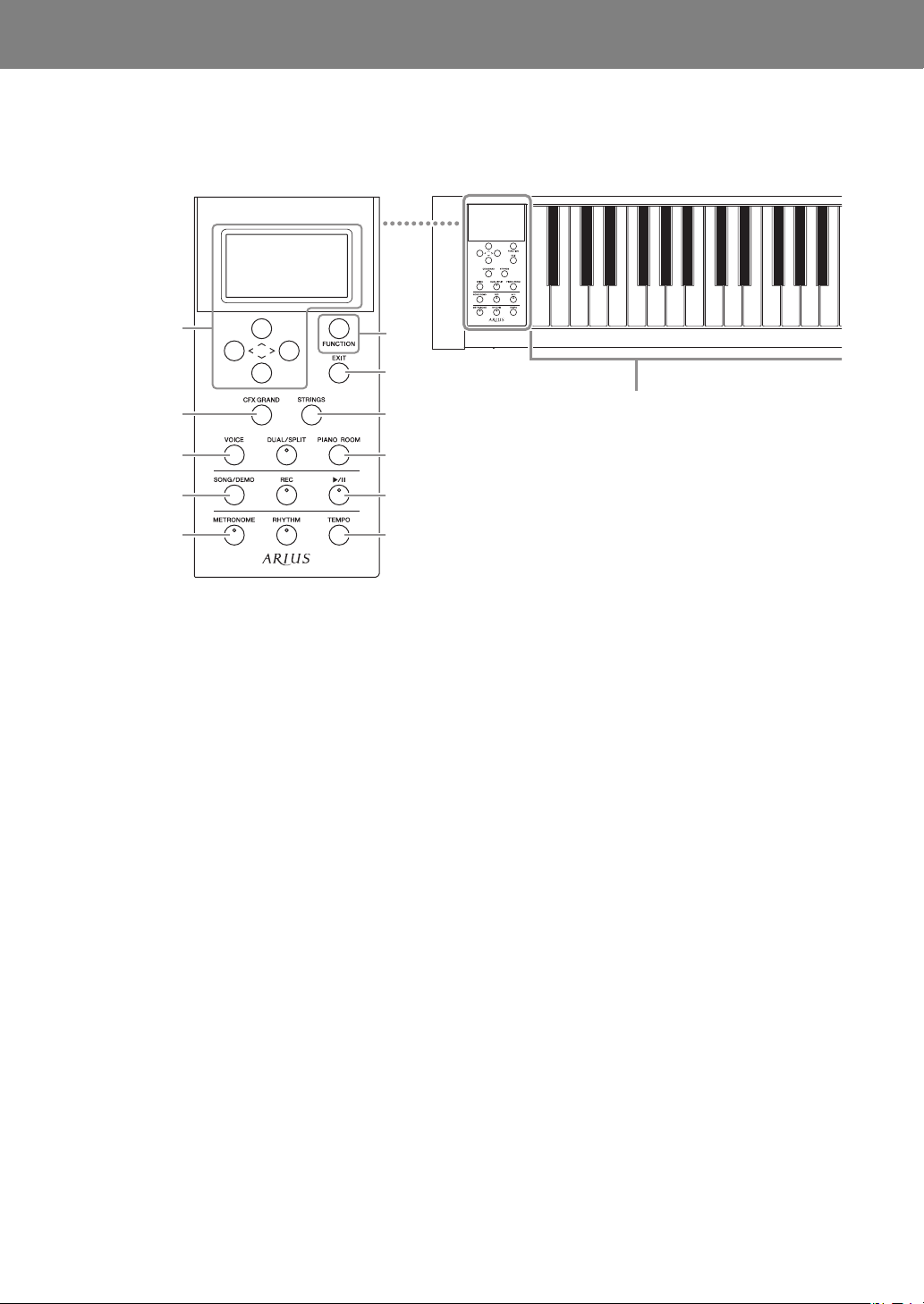
1[P] (Standby/On) switch.................... page 15
For turning the power on or setting it to standby.
2[MASTER VOLUME] slider ............... page 17
For adjusting the overall volume.
3[u]/[d]/[<]/[>] buttons, display......... page 20
For selecting an item or setting a value using the
buttons corresponding to the display indication.
4[FUNCTION] button.......................... page 77
Pressing this button alternates the displays among
“Voice” menu, “Song” menu, “Metronome/Rhythm”
menu, “Recording” menu and “System” menu, from
which you can make detailed settings for the related
functions.
5[EXIT] button ..................................... page 20
Pressing this button exits from the current display, or
returns to the Voice or Song display.
6[CFX GRAND] button........................ page 22
For selecting the “CFX Grand” Voice.
7[STRINGS] button .............................. page 22
For selecting the “Strings” Voice.
8[VOICE] button .................................. page 23
Calls up the Voice list display.
9[DUAL/SPLIT] button................. pages 29, 30
For playing two Voices simultaneously, or different
Voices on the left- and right-hand sections of the
keyboard.
)[PIANO ROOM] button..................... page 24
Calls up the Piano Room display where you can
select an optimum piano sound and adjust the touch
response.
![SONG/DEMO] button ...................... page 36
Calls up Song List for selecting a demo Song or a
Song to playback or edit.
@[REC] button....................................... page 49
For recording your keyboard performance.
#[R/K](Play/Pause) button.................. page 38
For alternately playing back and pausing the Preset
Songs or your recorded material.
$[METRONOME] button..................... page 33
For using the metronome functions.
%[RHYTHM] button............................. page 48
For using the rhythm functions.
^[TEMPO] button ................................ page 33
For setting the tempo.
A-1 B-1 C0 D0 E0 F0 G0 A0 B0 C1 D1 E1 F1 G1 A1 B1
5
7
)
6
8
3
99
#!
@@
^$
%%
1
2
4
Each key has a note name; for example, the
lowest (farthest left) key on the keyboard
corresponds to A-1, and the highest
(farthest right) key to C7.
Panel Controls and Terminals
13
YDP-184 Owner’s Manual
C2 D2 E2 F2 G2 A2 B2 C3 D3 E3 F3 G3 A3 B3 C4 D4 E4 F4 G4 A4 B4 C5 D5 E5 F5 G5 A5 B5 C6 D6 E6 F6 G6 A6 B6 C7
9
@
%
11
22
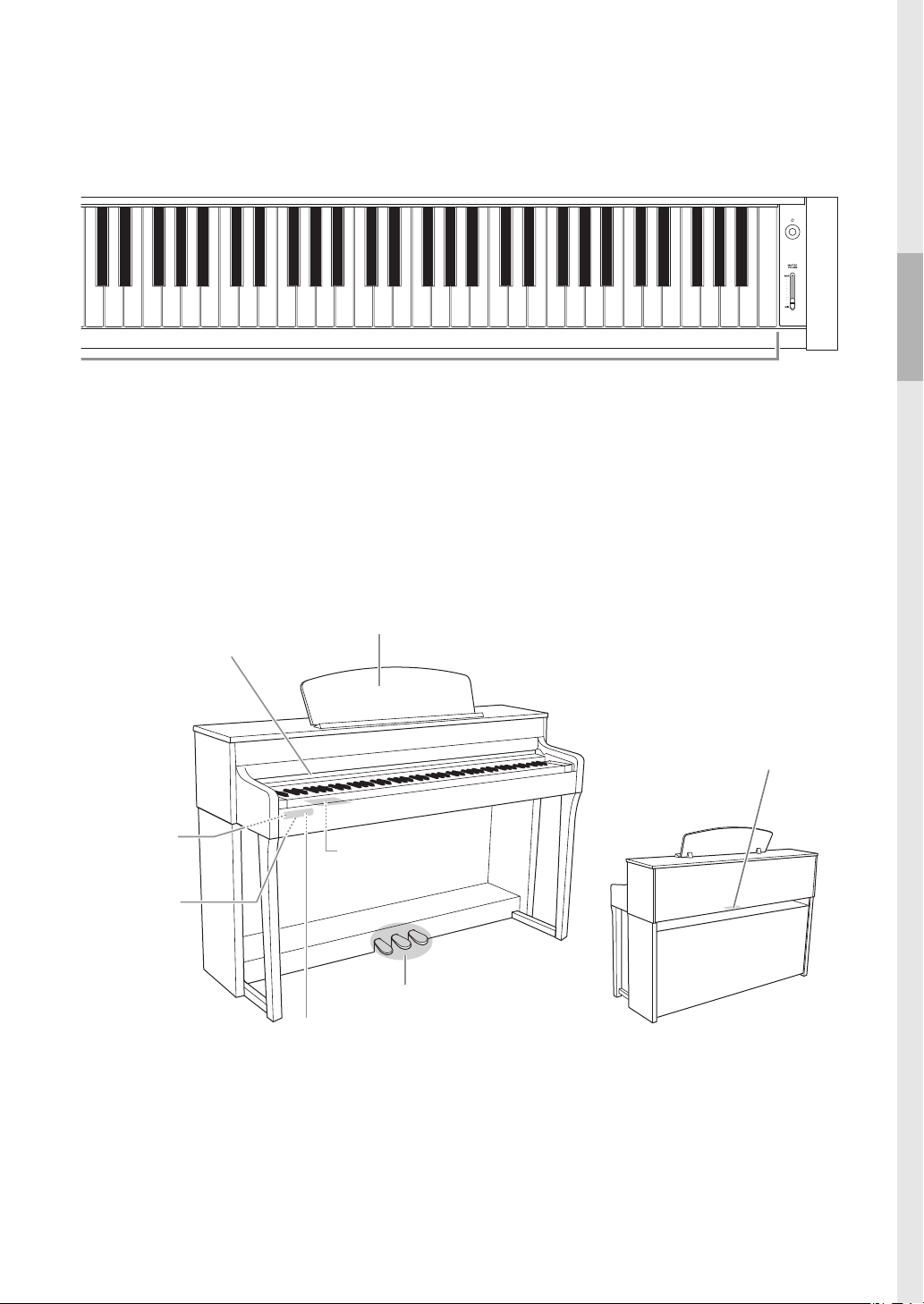
Music rest (page 16)
Key cover (page 14)
Pedals (page 19)
USB
[TO DEVICE]
terminal
(page 68)
[PHONES] jacks (page 18)
Terminal panel
(page 66)
DC IN jack (page 14)
Terminal panel
(page 66)
14
YDP-184 Owner’s Manual
Getting Started — Playing the Piano
This section explains how to set up and start using your instrument. Setup is so
simple, you can start playing right away.
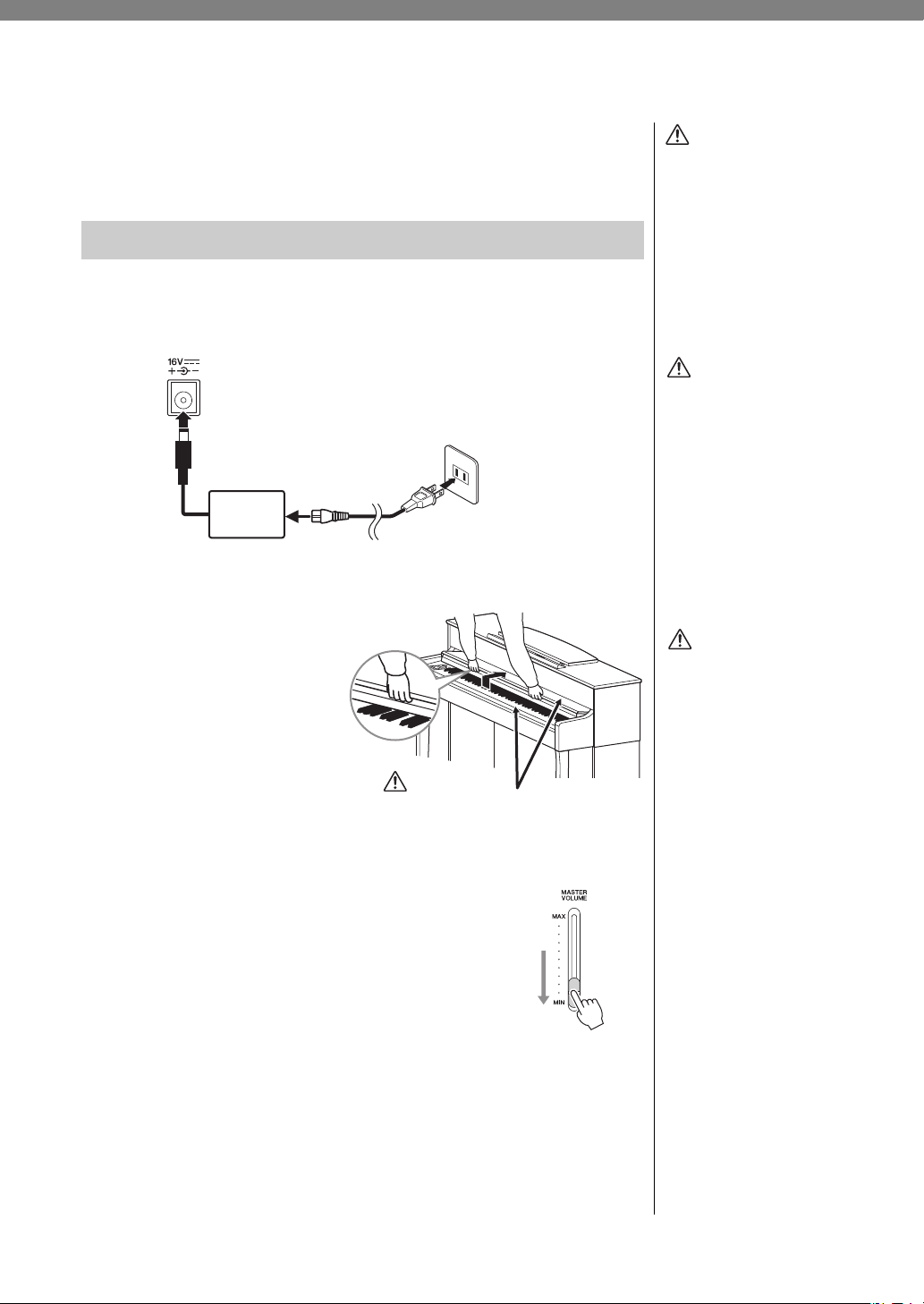
1. Connect the power cord and AC adaptor.
Connect the plugs of the AC adaptor in the order shown in the illustration.
2. Open the key cover.
Lift the cover slightly, then
push and slide it to the end.
3. Turn down the [MASTER VOLUME]
slider at the right end of the front panel
to “MIN.”
Turning the Power On or Off
WARNING
Use the specified adaptor
(page 107) only. The use of
other adaptors may result in
irreparable damage to both
the adaptor and the
instrument.
NOTE
When disconnecting the power
cord/AC adaptor, first turn off
the power, then follow this
procedure in reverse order.
AC
adaptor
AC outlet
DC IN jack (page 13)
Power cord
DC plug
AC plug
1-1
1-2
1-3
CAUTION
• Do not place objects such
as pieces of paper or metal
on top of the key cover.
Small objects placed on
the key cover may fall
inside the unit when the
cover is opened and may
be nearly impossible to
remove. This could cause
electric shock, short
circuit, fire or other serious
damage to the instrument.
• Hold the cover with both
hands when opening or
closing it. Do not release it
until it is fully opened or
closed. Be careful to avoid
catching fingers (yours or
others, especially
children’s) between the
cover and the unit.
Be careful to avoid catching your fingers
when opening or closing the cover.
CAUTION
CAUTION
When setting up the product,
make sure that the AC outlet
you are using is easily
accessible. If some trouble or
malfunction occurs,
immediately turn off the
power switch and disconnect
the plug from the outlet.
15
YDP-184 Owner’s Manual
Getting Started — Playing the Piano
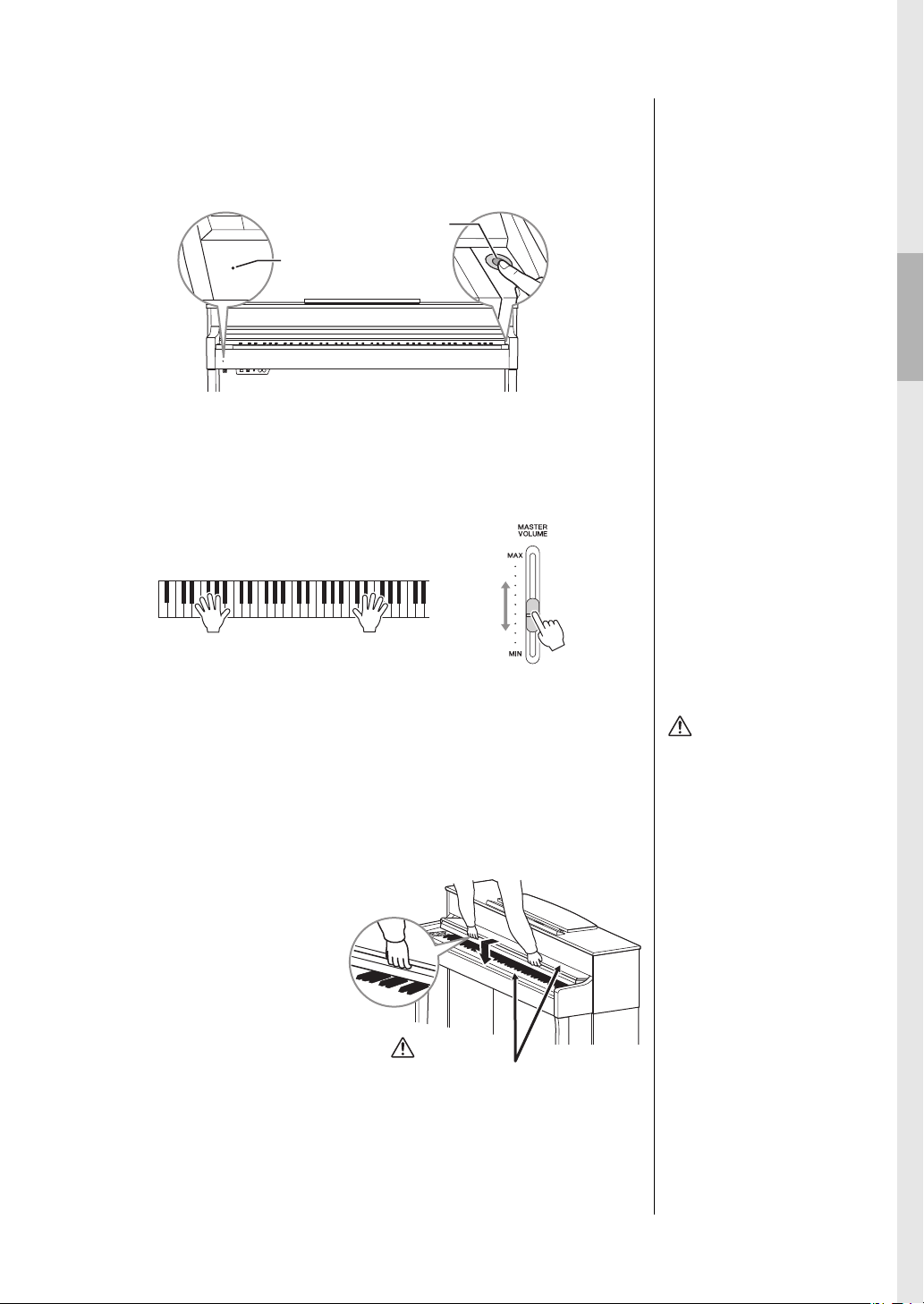
4. Press the [P] (Standby/On) switch at the right end of the
front panel to turn the power on.
The display located at the left end of the front panel and the power indicator
located below the left end of the keyboard both light up.
5. Play the keyboard.
While playing the keyboard, adjust the volume level by using the [MASTER
VOLUME] slider. For details, refer to “Setting the volume — [MASTER
VOLUME]” on page 17.
6. After you use the instrument, press and hold the
[P] (Standby/On) switch for a second to turn the power
off.
The display and the power indicator are turned off.
7. Close the key cover.
Slide the cover toward you
and gently lower the cover
over the keys.
NOTICE
Press only the [P] (Standby/
On) switch when turning the
power on. Any other
operations, such as pressing
the keys, buttons or pedals may
cause the instrument to
malfunction.
[P] (Standby/On) switch
The power indicator
lights up.
CAUTION
Even when the instrument is
turned off, electricity is still
flowing to the instrument at
the minimum level. When you
are not using the instrument
for a long time or during
electrical storms, make sure
you unplug the AC power
plug from the wall AC outlet.
Be careful to avoid catching your fingers
when opening or closing the cover.
CAUTION
16
YDP-184 Owner’s Manual
Getting Started — Playing the Piano
Auto Power Off function
To prevent unnecessary power consumption, this instrument features an Auto
Power Off function that automatically turns the power off if the instrument is
not operated for a specified period of time. The amount of time that elapses
before the power is automatically turned off is approximately 30 minutes by
default; however, you can change the setting (page 90).
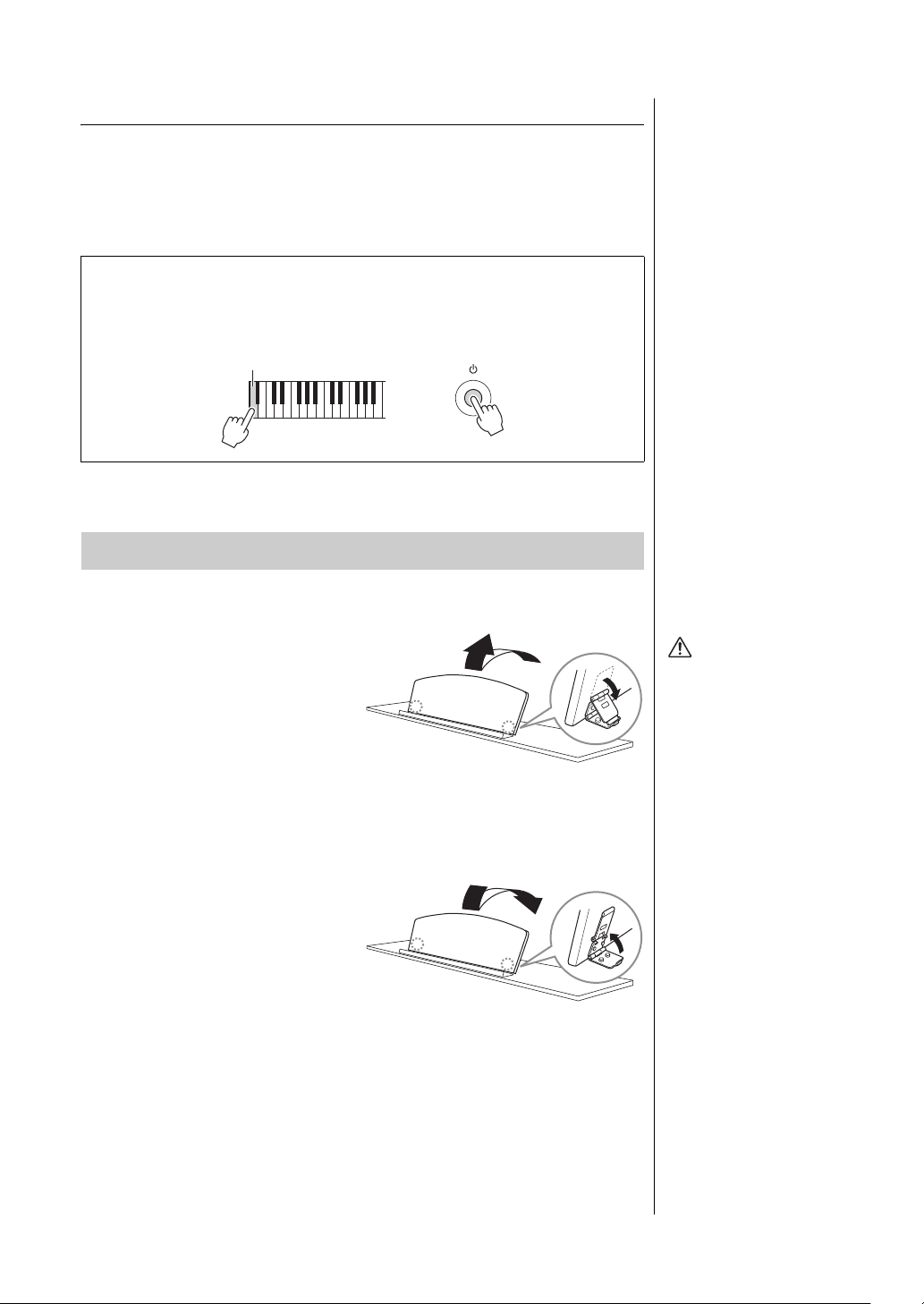
To raise the music rest:
1.
Pull the music rest up and toward
yourself as far as it will go.
2. Flip down the two metal
supports at the left and right on
the rear of the music rest.
3. Lower the music rest so that the
metal supports latch into place.
To lower the music rest:
1. Pull the music rest toward
yourself as far as it will go.
2. Raise the two metal supports
(at the rear of the music rest).
3. Gently lower the music rest
backward until it is all the way
down.
NOTICE
• Any data which are not saved
will be lost if the power
automatically turns off. Make
sure to save your data before
this happens.
• Depending on the instrument
status, the power may not
turn off automatically, even
after the specified period of
time elapses. Always turn off
the power manually when the
instrument is not in use.
Disabling Auto Power Off (simple method)
Turn the power on while holding down the lowest key on the keyboard. An
“Auto power off disabled” message appears briefly and Auto Power Off is
disabled.
Music Rest
+
The lowest key
CAUTION
Do not try to use the music
rest in a half-raised position.
Also, when raising or
lowering the music rest, do
not release your hands from
the music rest until it is all
the way up or down.
17
YDP-184 Owner’s Manual
Getting Started — Playing the Piano
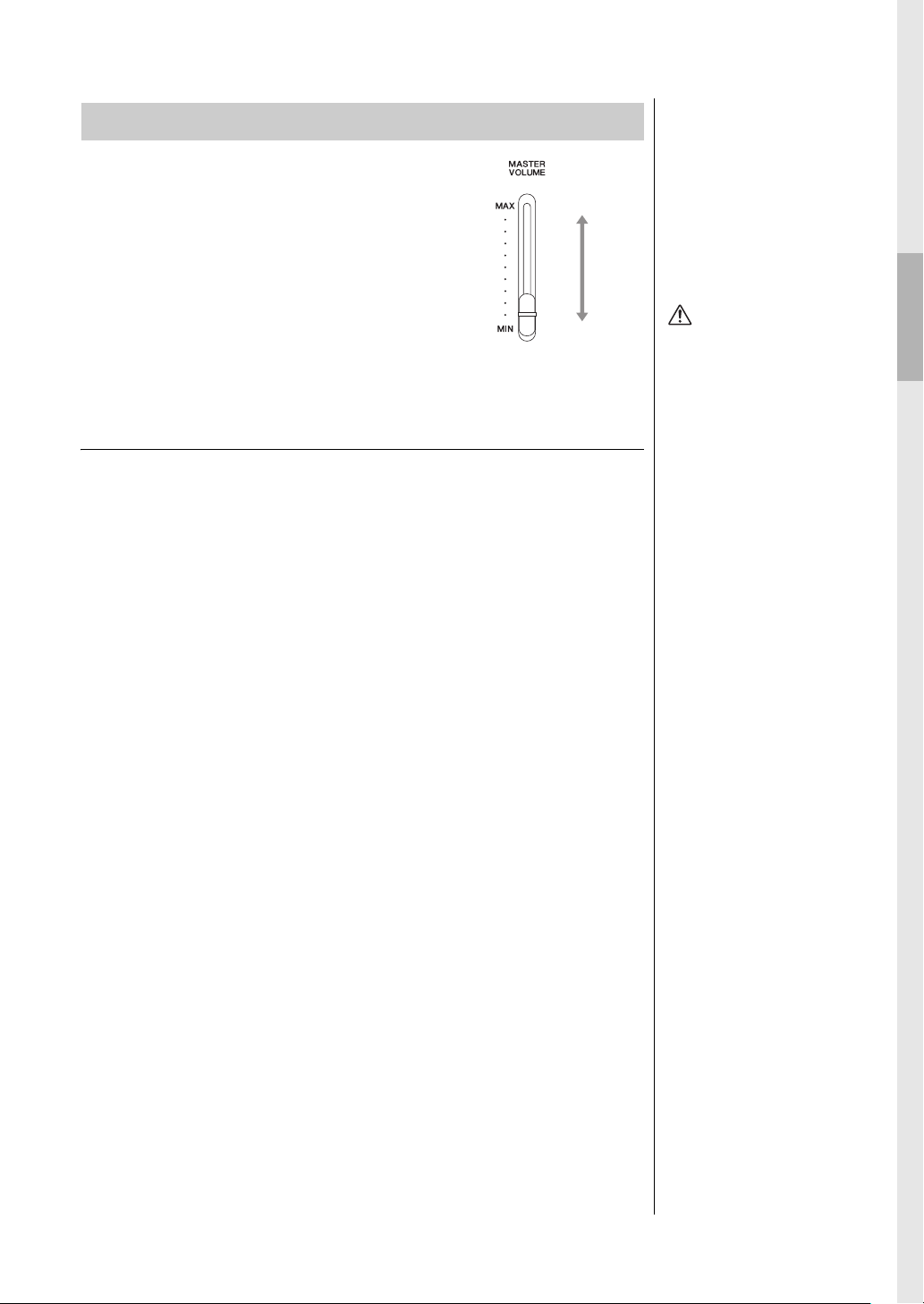
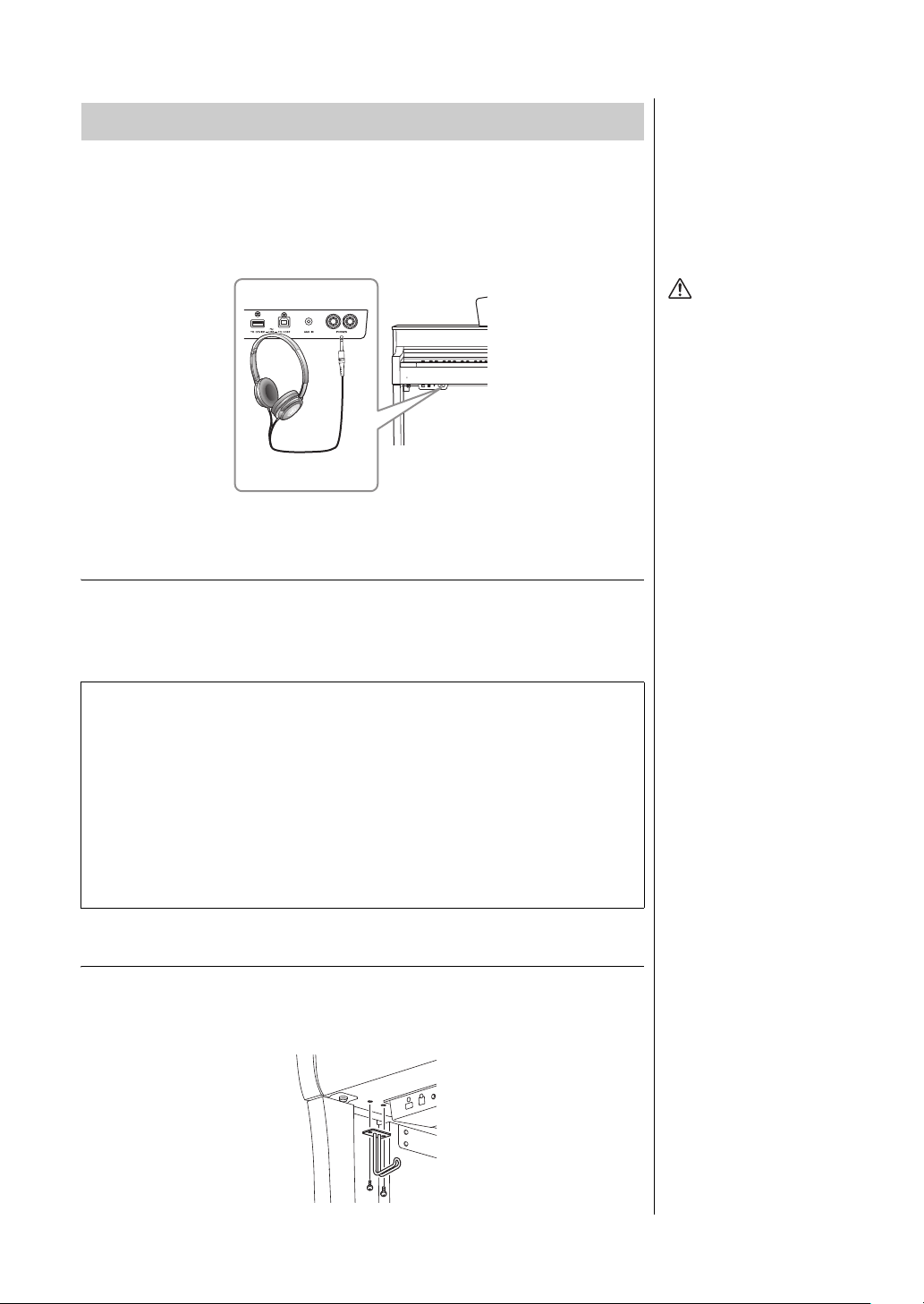
To adjust the volume, use the [MASTER VOLUME]
slider located at the right of the panel. Play the
keyboard to actually produce sound while you
adjust the volume.
Intelligent Acoustic Control (IAC)
IAC is a function which automatically adjusts and controls the sound quality
according to the overall volume of the instrument. Even when the volume is
low, it permits both low sounds and high sounds to be clearly heard. IAC is
effective only from the sound output of the instrument speakers.
You can set the IAC setting On or Off via the “System” menu display: Press the
[FUNCTION] button repeatedly to call up the “System” menu display →
“Sound”
“IAC.” The default setting for this function is “On.”
Setting the Volume — [MASTER VOLUME]
Decreases
the level.
Increases
the level.
Master Volume: The
volume level of the entire
keyboard sound.
Adjusting the [MASTER
VOLUME] slider also affects
the output level of the
[PHONES] jacks and the
output level of the AUX OUT
jacks.
CAUTION
Do not use the instrument at
a high volume level for a long
period of time, or your
hearing may be damaged.
NOTE
“System” menu display
(page 87)
18
YDP-184 Owner’s Manual
Getting Started — Playing the Piano
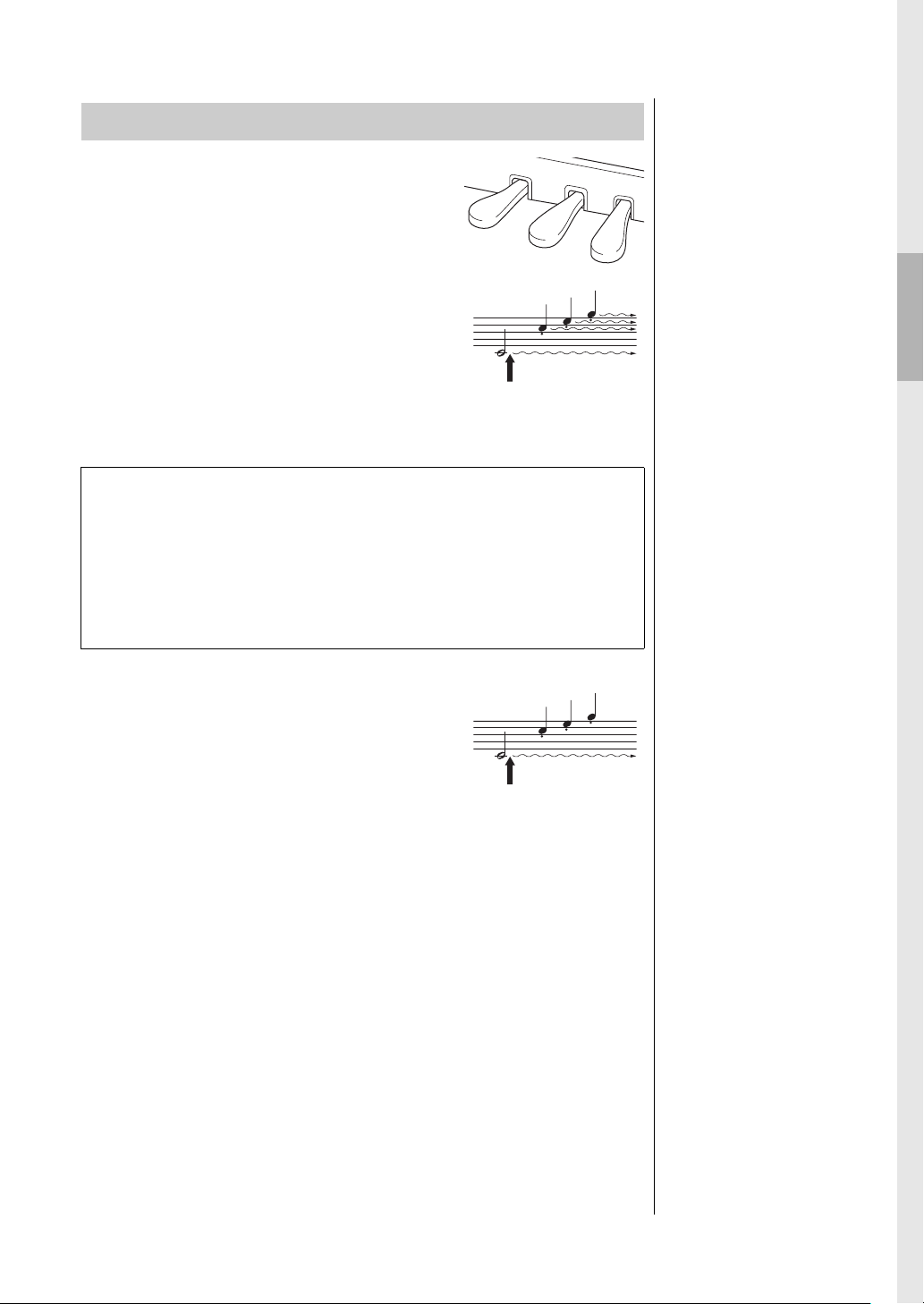
Connect a pair of headphones to one of the [PHONES] jacks. When the
headphones are plugged into either of the [PHONES] jacks, the internal
speaker system is automatically shut off. Two [PHONES] jacks are provided.
Two sets of standard stereo headphones can be plugged in. (If you are using
only one pair of headphones, you can plug them into either of these jacks.)
Reproducing the Natural Sensation of Sound Distance
—Stereophonic Optimizer
The Stereophonic Optimizer is an effect which reproduces natural sound distance
like the sound from a piano as it is, even though you hear it on headphones. When a
Voice in the Piano group is selected, connecting the headphones automatically
enables the Stereophonic Optimizer.
Using the headphone hanger
You can conveniently hang the headphones on the instrument when not using
them. Install the headphone hanger using included two screws (4 × 10 mm) as
shown in the illustration.
Using Headphones
CAUTION
Do not use headphones at a
high volume for an extended
period of time. Doing so may
cause hearing loss.
Standard stereo
phone plug
Underside of keyboard
NOTE
Voices in the Piano group are
those contained in the “Piano”
category in the Preset Voice
List (page 94). For details
about selecting Voices, refer to
page 22.
When headphones are connected, the Voices in the Piano group automatically
change to the sound enhanced with the Stereophonic Optimizer, by the default
settings. Since these sounds are optimized for listening with headphones, we
recommend that you set this function to “OFF” in the following situation.
• Playing the piano sound of this instrument with an external powered speaker
system, while monitoring the sound output from this instrument on connected
headphones.
You can set this setting On or Off via the “System” menu display. Press the
[FUNCTION] button repeatedly to call up the “System” menu display: “Sound” →
“SP Optimizer” (page 88).
NOTICE
Do not hang anything other
than the headphones on the
hanger. Otherwise, the
instrument or the hanger may
be damaged.
NOTE
Before connecting an external
powered speaker system, be
sure to read “Connections”
(page 66).
19
YDP-184 Owner’s Manual
Getting Started — Playing the Piano
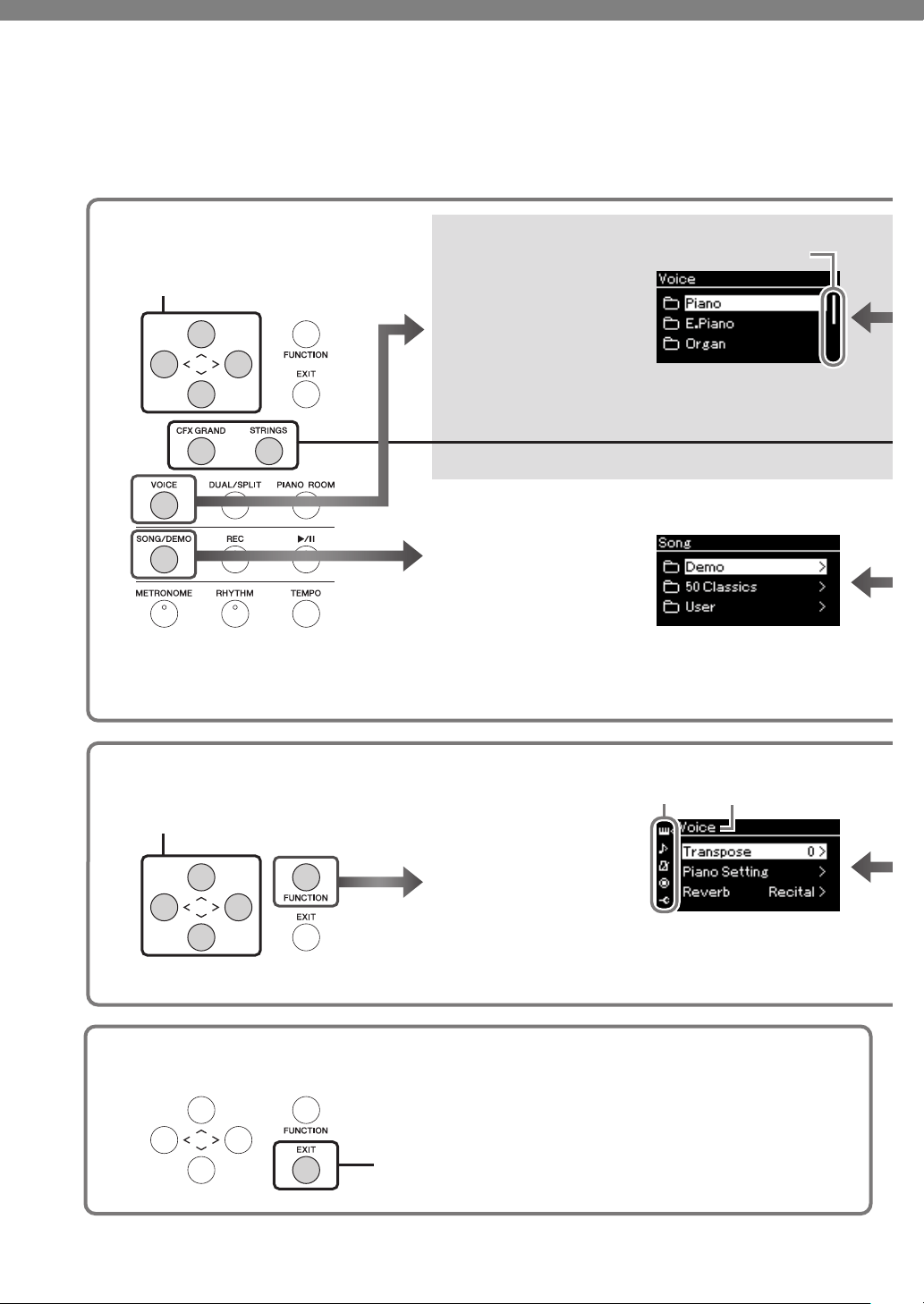
This instrument is equipped with three foot pedals:
damper pedal (right), sostenuto pedal (center), and
soft pedal (left).
Damper pedal (right pedal)
When you press the damper pedal, the notes you play
have a longer sustain.
When you select a Voice in the Piano group, pressing
the damper pedal activates the VRM (page 25) to
accurately recreate the unique resonance of an acoustic
grand piano’s soundboard and strings.
Sostenuto pedal (center pedal)
If you play a note or chord on the keyboard and press
the sostenuto pedal while holding the note(s), the
notes will sustain as long as the pedal is held. All
subsequent notes will not sustain.
Soft pedal (left pedal)
The soft pedal reduces the volume and slightly changes the timbre of notes played
while the pedal is pressed. The soft pedal will not affect notes that are already
playing when it is pressed. In order to apply this effect, play notes after pressing the
pedal.
Keep in mind that this pedal function will be changed from the Soft pedal
depending on the selected Voice. When the “Mellow Organ” is selected, pressing
and releasing this pedal switches between “fast” and “slow” of the Rotary Speaker
speed (“Rotary Speed” on page 79). When the Vibraphone is selected, this pedal
switches Vibrato on and off (“VibeRotor” on page 79).
Using the Pedals
When you press the damper
pedal here, the notes you
play before you release the
pedal have a longer sustain.
NOTE
Voices in the Piano group are
those contained in the “Piano”
category in the Preset Voice
List (page 94). For details
about selecting Voices, refer to
page 22.
NOTE
You can assign other functions
to each pedal by using “Pedal
Assign” in “Voice” menu
display (page 80).
Half-pedal function
This instrument also has a Half-pedal function which allows you to use half-damper
techniques, in which the damper is pressed somewhere between all the way down and all
the way up. In this half-damper state (on a real piano), the damper felts only partially
mute the strings. The Half-pedal function on the instrument lets you delicately and
expressively control the damper muting, and create subtle nuances in your performance,
by finely controlling the point at which pressure on the pedal affects the damper muting.
This can be set via the “System” menu display: Press the [FUNCTION] button repeatedly
to call up the “System” menu display: “Pedal”
“Half Pedal Point” (page 88).
When you press the sostenuto
pedal here while holding the
note(s), the notes will sustain as
long as you hold the pedal.
NOTE
While the sostenuto (center)
pedal is held, a sustained (non-
decaying) type of Voice such
as strings or organ may sound
continuously without decay
after the notes have been
released.
NOTE
The center pedal or left pedal
can also be used as a [R/K]
(Play/Pause) button. You can
assign this function via the
“System” menu display: Press
the [FUNCTION] button
repeatedly to call up the
“System” menu display:
“Pedal” “Play/Pause”
(page 88).
20
YDP-184 Owner’s Manual
Basic Operations on Display
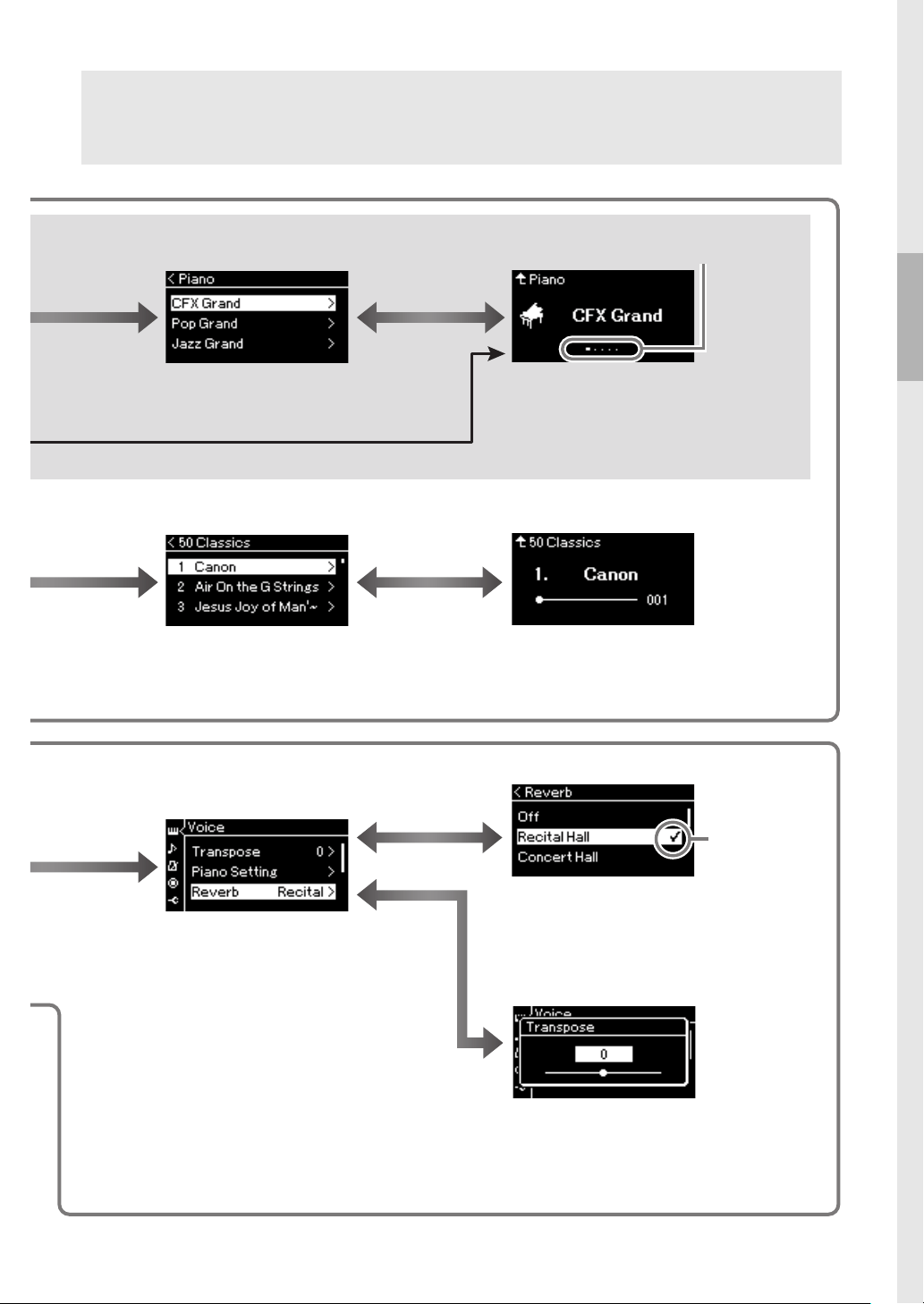
On the screen display, you can call up three main functions: Voice, Song and Demo. In addition, various
detailed settings can be made, for even greater playability and performance potential.
1.
1.
2.
2.
1.
2.
Select a Voice, Song or
Demo Song
When this is shown here,
you can scroll through the
display vertically.
Press the [EXIT] button to return to the Voice display or the Song display,
depending on which display was previously shown.
While the pop-up window is shown, pressing the [EXIT] button returns to
the previously shown display.
Select from the list, or change the display.
Selecting Voices
Press the [VOICE] button
to call up the Voice List
display.
Press the [u] or [d] button
to select a Voice group.
Selecting Song/Demo
Press the [SONG/DEMO]
button to call up the Song
category list.
Detailed Settings
Select from the list, or change the display.
Menu icon Menu name
Press the [u] or [d] button
to select a Song category.
Press the [FUNCTION]
button repeatedly to
select the desired menu.
Press the [
u] or [d] button
to select a parameter of the
current menu.
Return to the Voice/Song display
Basic Operations on Display
21
YDP-184 Owner’s Manual
Voi c e: Instrument sound for playing from the keyboard. In addition to the Piano sounds, a wide variety of other musical
instrument sounds are available.
Song: A piece of music for listening enjoyment or for playing back and practicing along with.
Demo: Voice Demos let you experience the characteristics of the Voices.
3.
4.
3.
3.
4.
4.
4.
Selecting a value from a list
[r] to select a Voice.
[l] to return.
[r] to select a Voice.
[u] to return.
This indicates the current
position in the Voice group.
Press the [
u
] or [
d
] button to select a Voice.
Press the [u] and [d] buttons simultaneously
to select the first Voice in the list.
Play the keyboard.
Press the [
l
] or [
r
] button to select the previous
or next Voice. Press the [
l
] and [
r
]
simultaneously to select the first Voice in the
Voice group.
Voice display
[r] to select a Song.
[l] to return.
[r] to select a Song.
[u] to return.
Press the [u] or [d] button to select
a Song.
Press the [R/K] (Play/Pause)
button to playback the Song.
Use the [l] or [r] button to select the
previous or next bars.
Song display
[r] to detailed
settings.
[EXIT] to return
to the previous
display.
[r] to detailed settings.
[l] to return.
Adjusting the value on the
slider pop-up window
Press the [l] or [r] button to adjust the
value, press the [EXIT] button to close the
pop-up window.
To reset the default value, press the [
l
] and [
r
]
buttons simultaneously.
Press the [u] or [d]
button to select a
parameter.
A checkmark is
shown at the right of
the selection.
Use the [u][d] buttons or the [r] button
to select a setting.
Press the [l] button to return to the previous
display.
Note that the hierarchy depth
differs depending on the
selected parameter.
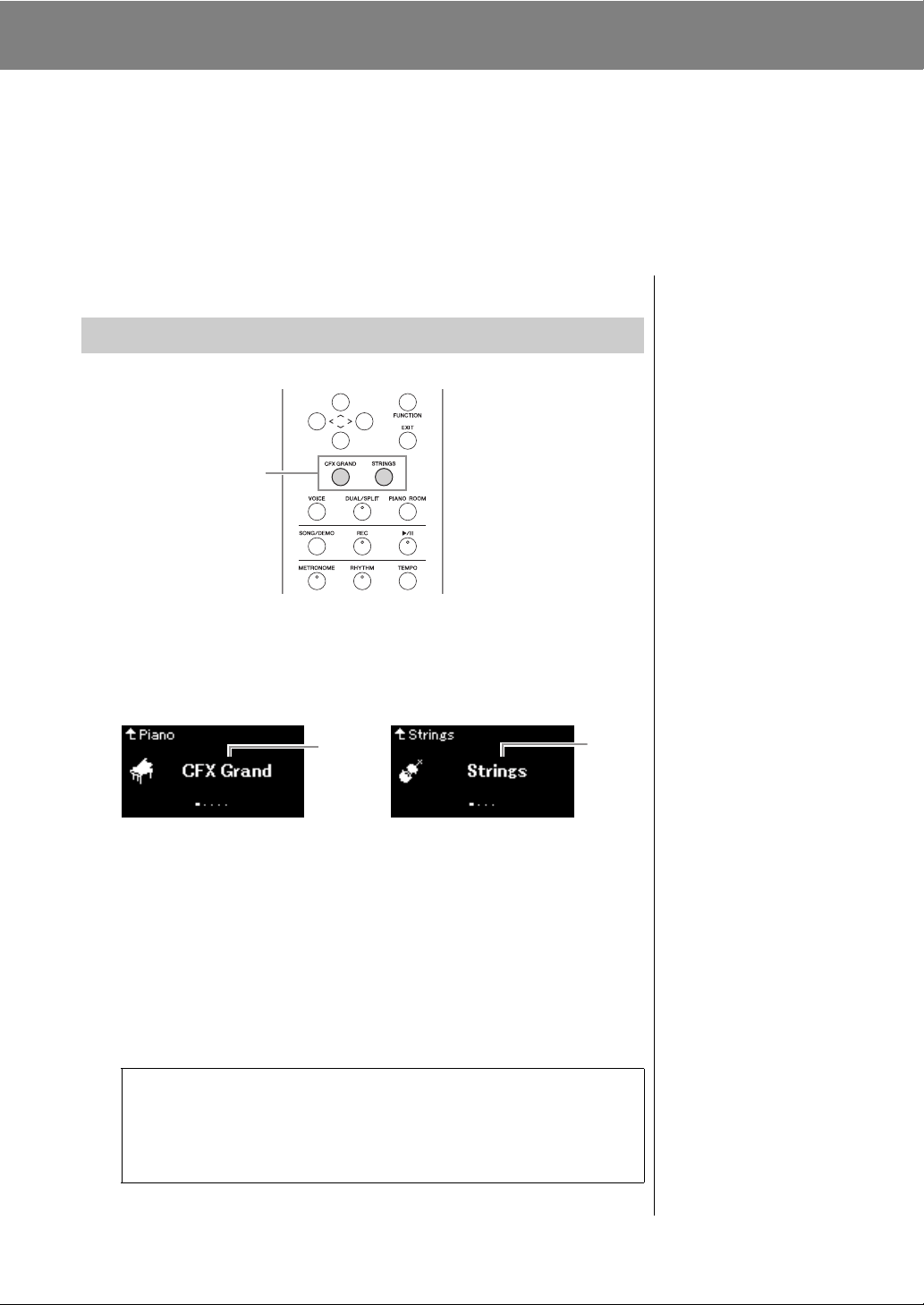
You can select the “CFX Grand” and the “Strings” Voices
directly from the control panel buttons.
22
YDP-184 Owner’s Manual
Main Operations
Playing Various Musical Instrument Sounds
(Voices)
This instrument put the sound of renewed Yamaha's CFX concert grand piano sound with a wide dynamic
range for maximum expressive control.
In addition to the wonderfully realistic piano sounds, you can select and play other musical instrument
sounds.
1. Press the [CFX GRAND] button or the [STRINGS] button.
A Voice is called up from the selected Voice button and its name appears
on the Voice display.
CFX Grand
Yamaha’s CFX concert grand piano sound with a wide dynamic range for
maximum expressive control. Suitable for playing in any music genre and
style.
Strings
Stereo-sampled, large-scale strings ensemble with realistic reverb. Try
combining this Voice with piano in the Dual mode (page 94).
2. Play the Keyboard.
Selecting Voices from the panel directly
1
Voice display
Voice
name
Voice
name
Voice display
NOTE
You can hear and experience
the characteristics of the
Voices by listening to the Demo
Songs for each Voice
(page 37).
Selecting Other Voices
Press the [l][r] buttons to select other Voices than “CFX Grand” and
“Strings.” You can also select the other Voices by pressing the [VOICE]
button (page 23).
23
YDP-184 Owner’s Manual
Playing Various Musical Instrument Sounds (Voices)
The Voices of the instrument are conveniently divided into groups of
instrument types. Select a desired Voice and play the piano.
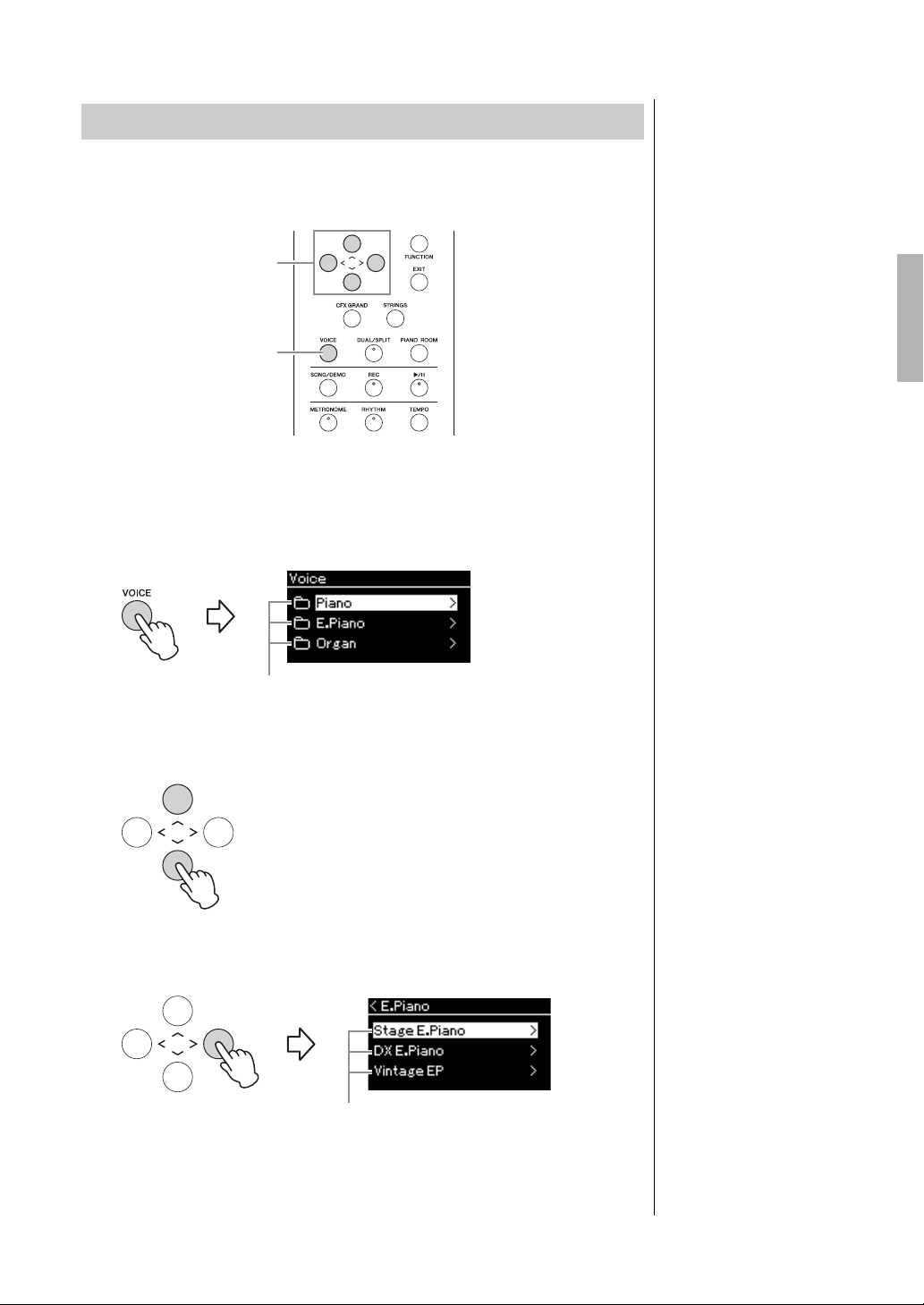
1. Press the [VOICE] button to call up the Voice List display.
Voice groups are listed in the display. The currently selected Voice is
highlighted.
2. Use the [u]/[d] buttons to select the Voice group.
Highlight the Voice group name you want to use.
3. Press the [r] button.
The Voices in the selected group are listed in the display.
Selecting Voices
NOTE
To hear and experience the
characteristics of the Voices,
listen to the Demo Songs for
each Voice (page 37).
NOTE
Touch Response (page 87) will
not be applied to some Voices.
For information about the
Voices to which Touch
Response can be applied,
refer to the “Preset Voice List”
on page 94.
NOTE
For information about the
Voices, refer to the “Preset
Voice List” (page 94).
2, 3, 4
1
Voice group
Voice List display
NOTE
Press the [<] button to return to
the Voice List for selecting the
Voice Group.
Voice
24
YDP-184 Owner’s Manual
Playing Various Musical Instrument Sounds (Voices)
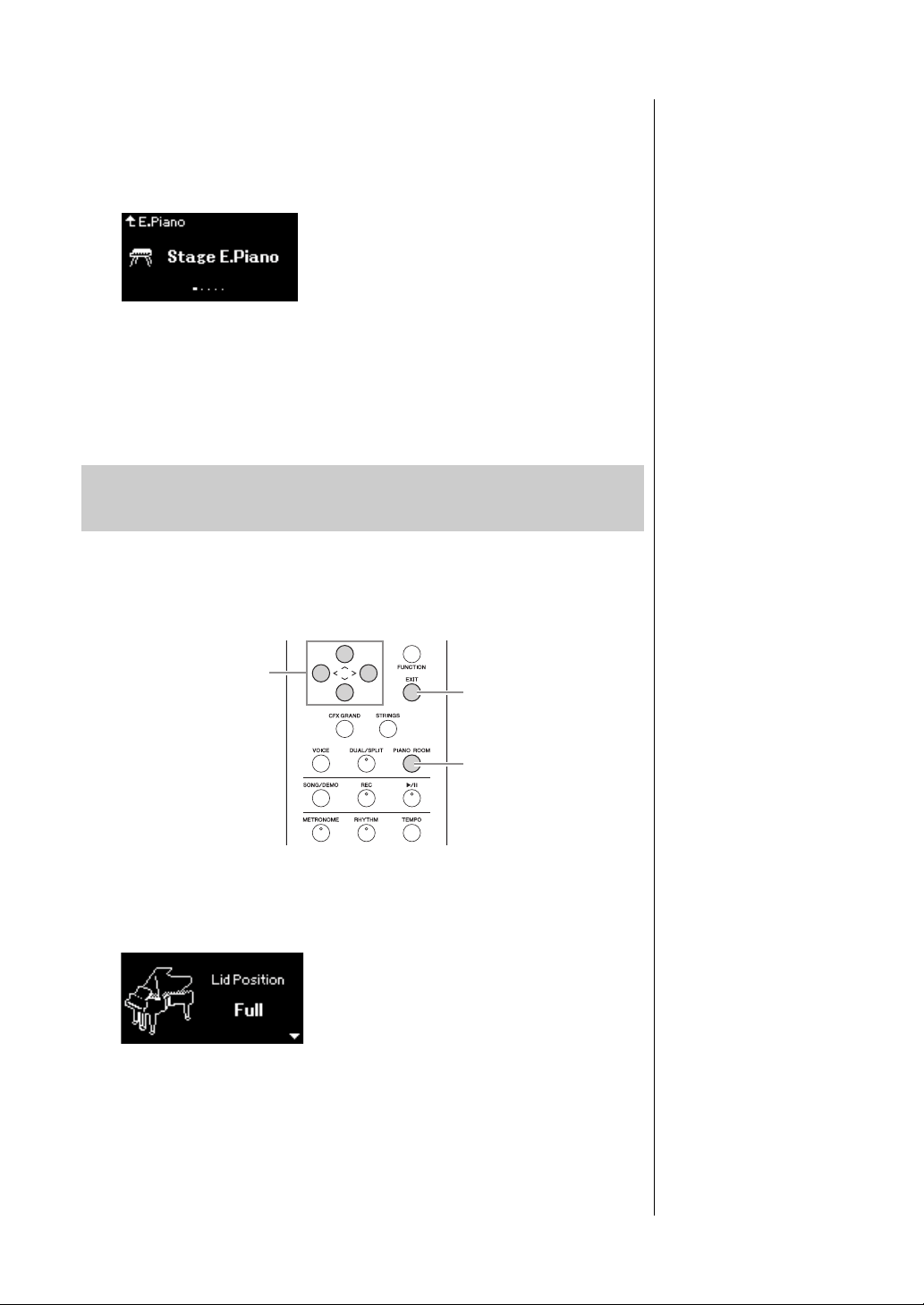
4. Use the [u]/[d] buttons to scroll through the Voice list,
and then press the [r] button to select the desired Voice.
The currently selected Voice name is shown in the display.
You can select other Voices in order using the [
l
]/[
r
] buttons via the
Voice di spl ay.
Press the [
u
] button to go back to the Voice List display.
5. Play the keyboard.
You can adjust the detailed settings of Voices in the Piano group in the Piano
Room. Try creating a custom piano sound by adjusting the various parameters
such as lid position, string resonance, damper resonance and so on.
1. Press the [PIANO ROOM] button to call up the Piano
Room display.
2. Press the [u]/[d] buttons to select items (page 25).
3. Press the [l]/[r] buttons to change the settings (page 25).
4.
Press the [EXIT] button to exit from the Piano Room display.
Voice display
NOTE
You can specify the Touch
Response (how the sound
responds to the way you play
the keys). You should adjust
this setting according to the
specific Voice you’re playing or
the particular Song you’re
performing, as desired. You
can make the settings via the
“System” menu display: Press
the [FUNCTION] button
repeatedly to select the
“System” menu display
“Keyboard” “Touch”
(page 87).
Customizing the Sound and the Touch Response of
Piano Voices (Piano Room)
2, 3
1
4
NOTE
You can adjust the Touch
Response for the Voices in the
Piano group from the Piano
Room display “Touch”
(page 25).
NOTE
If a Voice other than in the
Piano group is selected,
pressing the [PIANO ROOM]
button changes it to “CFX
Grand.”
NOTE
Pressing the [PIANO ROOM]
button disables the Dual/Split/
Duo functions.
Piano Room display
25
YDP-184 Owner’s Manual
Playing Various Musical Instrument Sounds (Voices)
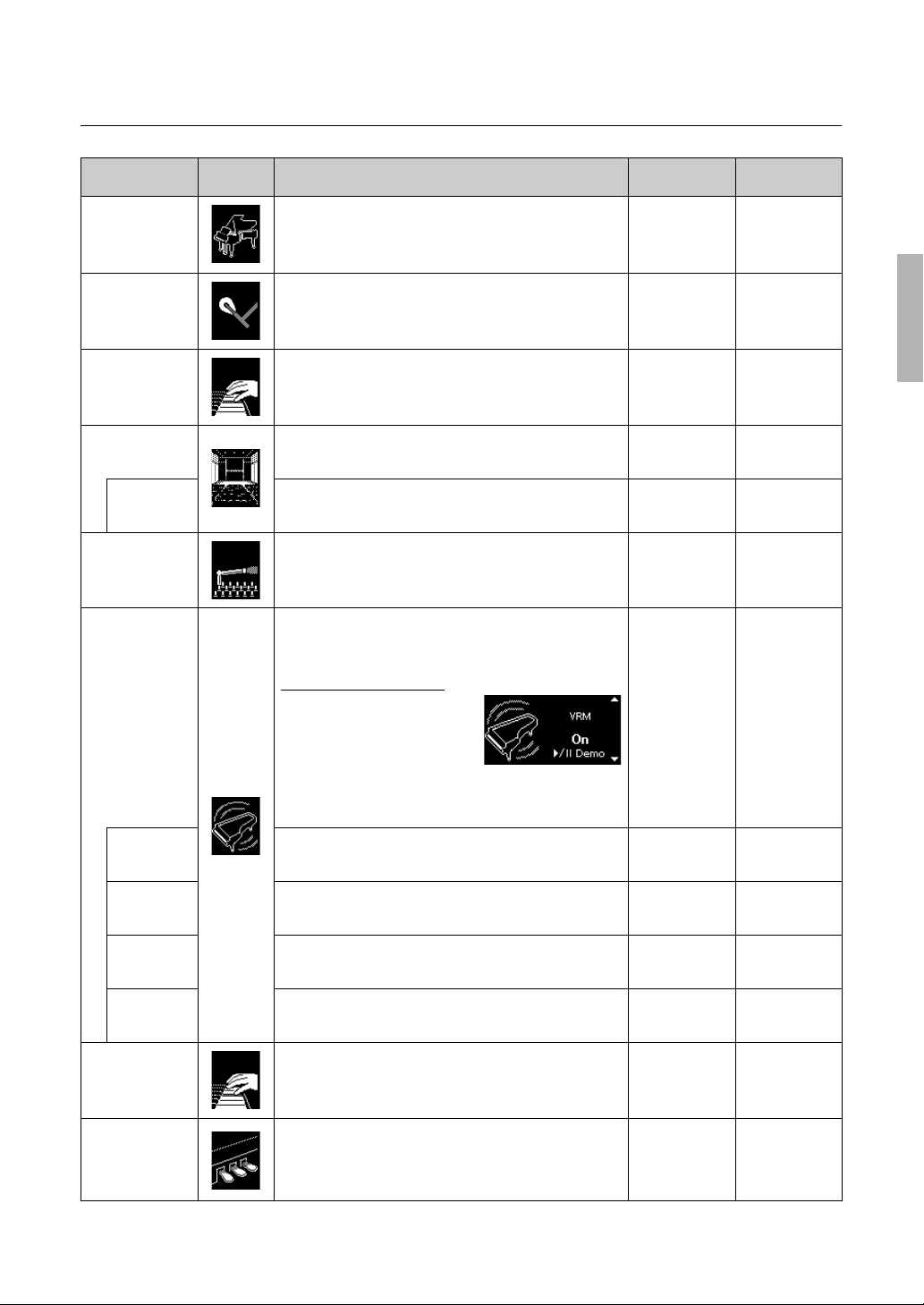
What you can do in the Piano Room
Item Icon Descriptions
Default
settings
Setting Range
Lid Position Determines how much the Lid is opened. Full Full, Half, Close
Brightness Adjusts the brilliance of sound. Differs
depending on
the Voice.
0 – 10
Touch Determines how the sound responds to your playing
strength. You should adjust this setting according to the
specific Voice you’re playing or the particular Song you’re
performing, as desired.
Medium Soft2, Soft1,
Medium, Hard1,
Hard2, Fixed
Reverb Determines the Reverb type which is applied to all the entire
sound including the keyboard performance, Song playback
and MIDI data input from an external MIDI device.
Differs
depending on
the Voice.
Refer to the
Reverb Type
List (page 81)
Reverb
Depth
Adjusts the Reverb depth. When “Reverb” is set to “off” or a
value of “0,” no effect is produced.
Differs
depending on
the Voice.
0 – 127
Master Tune Fine tunes the pitch of the entire instrument. This function is
useful when you play this instrument along with other
instruments or CD music.
A3 = 440.0 Hz A3 = 414.8 Hz –
466.8 Hz
(approx. 0.2 Hz
steps)
VRM Turns the VRM effect on/off. For information about the VRM
function, refer to page 26. For details about the Piano Voices
compatible with VRM, refer to the “Preset Voice List” on
page 94.
Listening to the VRM Demo
You can hear the difference of
VRM On/Off by pressing the [R/K]
(Play/Pause) button while VRM On/
Off display is being displayed.
If you press the [
R/K] (Play/Pause)
button while VRM is On, the Demo
Song of VRM On will play back. If you press the [R/K] (Play/
Pause) button while VRM Off, the Demo Song of VRM Off will
play back.
On On, Off
Damper Res. Determines the depth of the string resonance effect which is
applied when the damper pedal is pressed. This parameter
can be set when VRM is on.
50 – 10
String Res. Determines the depth of the string resonance effect which is
applied when a note on the keyboard is pressed. This
parameter can be set when VRM is on.
50 – 10
Aliquot Res. Adjusts the sympathetic vibrations of the Aliquot resonance
effect. For details about Aliquot, refer to “What is Aliquot?”
(page 26).
50 – 10
Body Res. Adjusts the resonance of the piano itself, i.e. soundboard, the
sides, the frame and so on. This parameter can be set when
VRM is on.
50 – 10
Key Off Sample Determines the volume of the key-off sound (the subtle sound
that occurs when you release a key) which is available only
for some Voices. For Voices to which this effect is applied,
refer to the Voice List (page 94).
50 – 10
Half Pedal Point Specify the point to which you must depress the right pedal
before the effect of “Sustain Continuously” begins to be
applied. This setting applies only to the “Sustain
Continuously” effect (page 81) that is assigned to the right
pedal.
0
-2 (effective with
the shallowest
press) – 0 – +4
(effective with the
deepest press)

26
YDP-184 Owner’s Manual
Playing Various Musical Instrument Sounds (Voices)
What is VRM?
The VRM (Virtual Resonance Modeling) function uses sophisticated physical
modeling to simulate the actual string resonance sound that occurs when the
damper pedal on a real piano is pressed or keys are played and held.
On an actual acoustic piano, if you press the damper pedal and play a key, not
only does the string of the pressed key vibrate, it also causes other strings and
the soundboard to vibrate, with each influencing the rest, creating a rich and
brilliant resonance that sustains and spreads. The VRM (Virtual Resonance
Modeling) technology featured in this instrument reproduces the complicated
interaction of both string and soundboard resonance faithfully using a virtual
musical instrument (physical modeling), and makes the sound more like a real
acoustic piano. Since instantaneous resonance is made at the moment according
to the state of the keyboard or pedal, you can vary the sound expressively by
changing the timing of your pressing the keys, and the timing and depth of your
pressing the pedal.
What is Aliquot?
Aliquot is a stringing method for pianos that uses extra, un-struck strings in the
upper octaves to enhance the tone. These strings sympathetically vibrate with
other strings in an acoustic piano, resonating with overtones, and adding
richness, brilliance and complex color to the sound. Since they do not have a
damper, they will continue sounding even after you release your hands from the
keyboard.
27
YDP-184 Owner’s Manual
Playing Various Musical Instrument Sounds (Voices)
Applying the following effects gives you greater and richer expressive
capabilities.
Brilliance
For adjusting the brightness of the sound. This setting is applied commonly to
all parts (keyboard Voices/Song/MIDI).
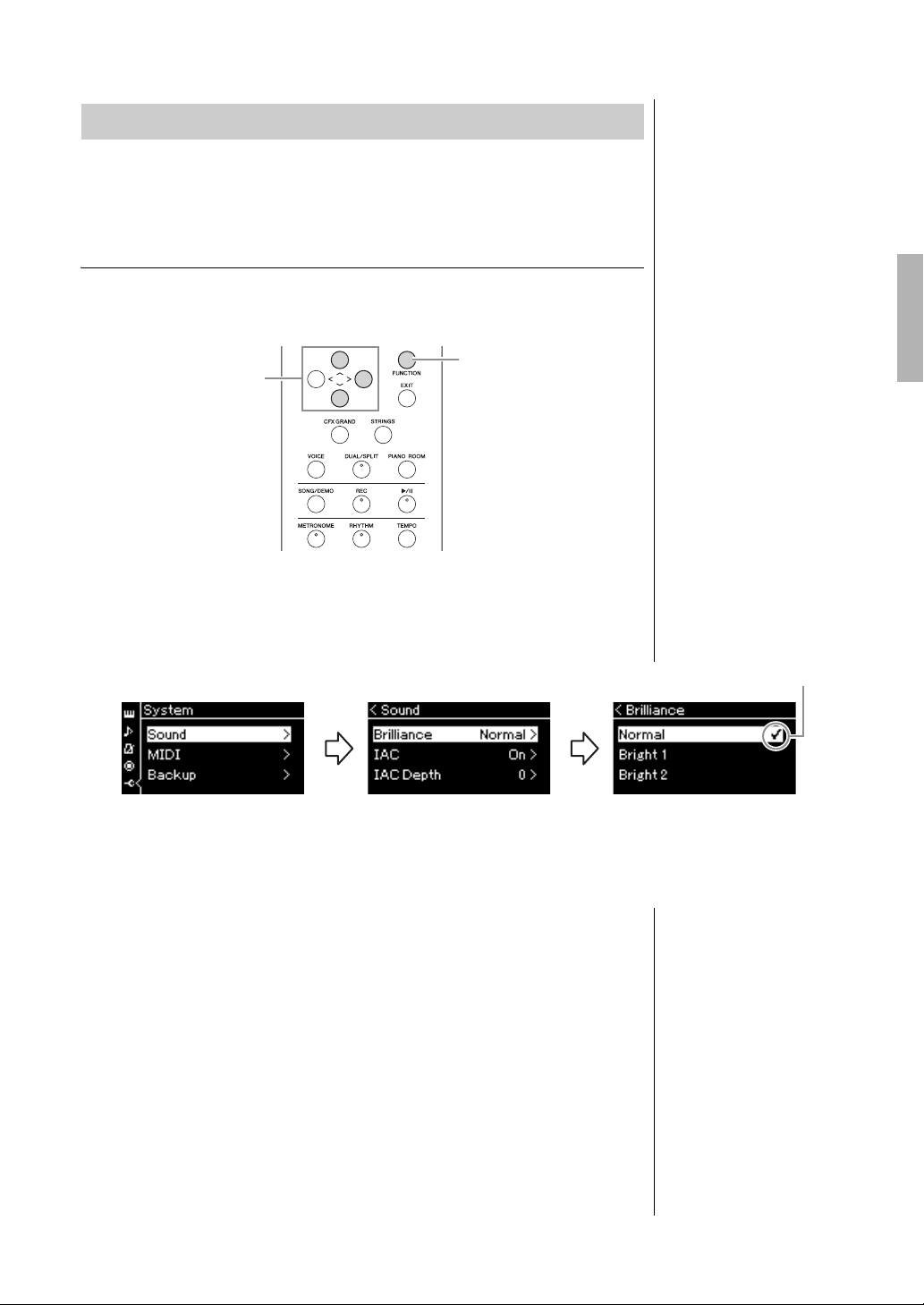
1. Press the [FUNCTION] button repeatedly to call up the
“System” menu display, then select the highlighted item in
each display as illustrated below.
Use the [u]/[d] buttons to select the desired tonality in the Brilliance
display. To reset to the default setting, press the [u] and [d] buttons
simultaneously.
•Mellow 1 – 3
Soft and mellow tone. The sound becomes more mellow and rounder as
the number increases.
• Normal
Standard tone.
•Bright 1 – 3
Bright tone. The sound becomes brighter as the number increases.
Enhancing and Customizing the Sound
1
1
“System” menu display
1-1. Use the [u]/[d] buttons
to select “Sound.”
1-2. Press the [>] button to
call up the next display.
1-3. Use the [u]/[d] buttons
to select “Brilliance.”
1-4. Press the [>] button to
call up the next display.
1-5. Use the [u]/[d] buttons
to select the value.
Checkmark
Sound display Brilliance display
Default setting: Normal
NOTE
If you select Bright 1 – 3 as the
type of brilliance, the volume
level will increase slightly.
Under this condition, if you
raise the [MASTER VOLUME]
slider setting, the sound may
become distorted. If this
happens, lower the volume
accordingly.

28
YDP-184 Owner’s Manual
Playing Various Musical Instrument Sounds (Voices)
Reverb
This control adds reverberation to the sound by simulating the natural
reverberation of a concert hall. The ideal Reverb type is automatically selected
whenever you select a Voice, but you can select any of the available Reverb types.
To select a desired Reverb type, use the “Voice” menu display: “Reverb”
(page 78). You can also select the Reverb type for Voices in the Piano group
from the Piano Room display (page 25).
This setting is applied commonly to all parts (keyboard Voices/Song/MIDI).
Chorus
This control adds warmth and spaciousness to the sound. The ideal Chorus
type is automatically selected whenever you select a Voice, but you can select
any of the available Chorus types.
To select a desired Chorus type, use the “Voice” menu display: “Chorus”
(page 78).
This setting is applied commonly to all parts (keyboard Voices/Song/MIDI).
Effects
This instrument features a wide variety of Effects, letting you apply
enhancements such as Echo or Tremolo to the selected Voice for your keyboard
performance. You can select any of the available Effect types from the “Voice”
menu display: “Voice Edit” “Effect” (page 79).
NOTE
You can adjust the Reverb
depth for the selected Voice
from the “Voice” menu display:
“Voice Edit” “Reverb Depth”
(page 79).
NOTE
You can adjust the Chorus
depth for the selected Voice
from the “Voice” menu display:
“Voice Edit” “Chorus Depth”
(page 79).
NOTE
When you want to apply the
Chorus effect to a Voice whose
Chorus type is set to off by
default, set the Chorus type to
something other than “Off,”
then set the Chorus depth
value as desired (greater than
“0”).
29
YDP-184 Owner’s Manual
Playing Various Musical Instrument Sounds (Voices)
Two Voices can be played simultaneously. You can create warm and richly
textured Voices by using Voices from different groups simultaneously in a layer,
or by using Voices in the same group.
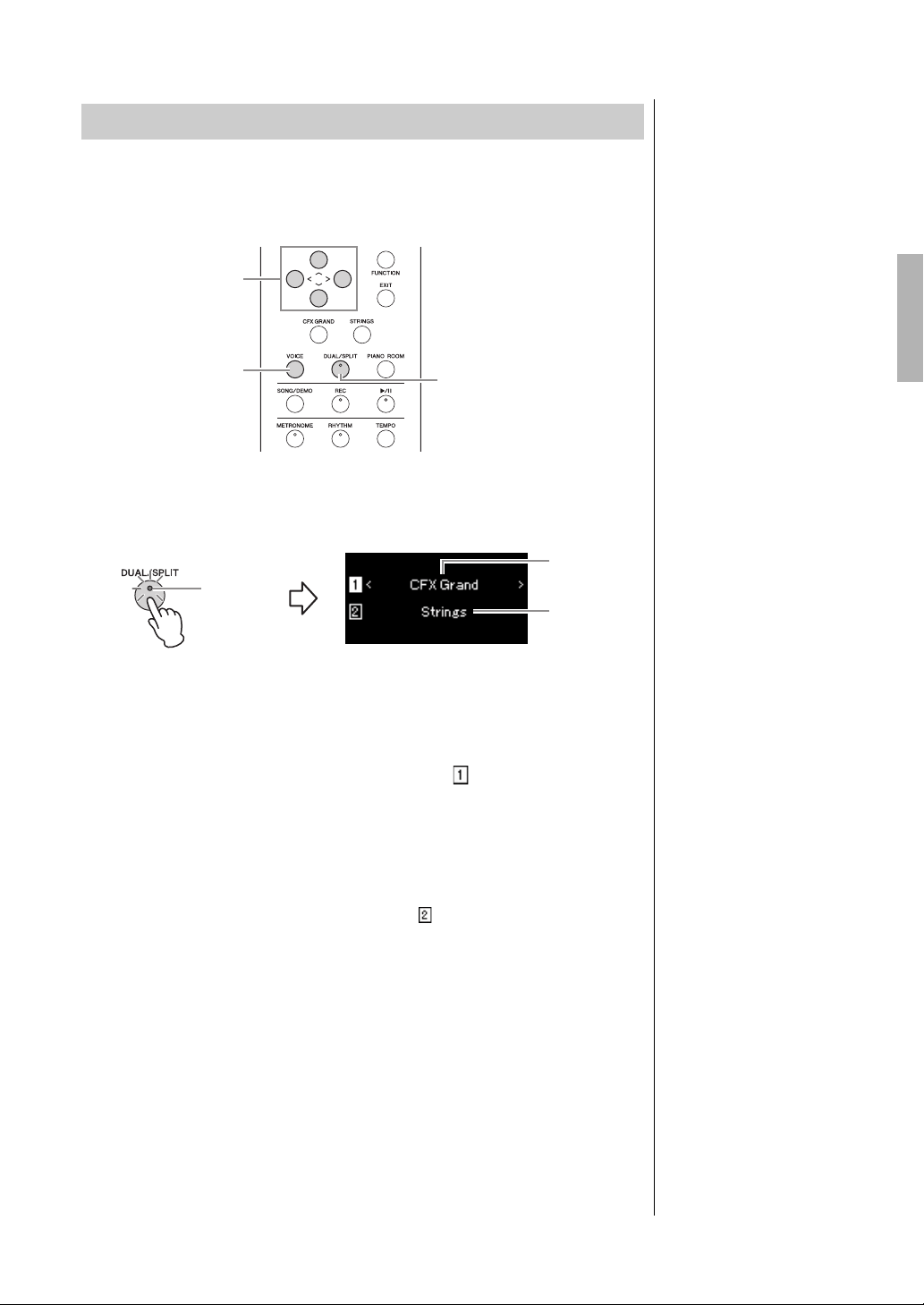
1. To enter the Dual mode, press the [DUAL/SPLIT] button
once so that the lamp lights in red.
The Voice which is displayed at top is Voice 1, and the one at bottom is
Voice 2.
2. Select the Voices for layering.
2-1. Use the [u]/[d] buttons to highlight (Voice 1) in the
display.
2-2. Use the [l]/[r] buttons or the [VOICE] button to select the
desired Voice.
If you use the [VOICE] button to call up the Voice List display, press the
[r] button to select a Voice, and then return to the previous display.
Use the [u]/[d] buttons to highlight (Voice 2), select a Voice in the
same way.
3. Play the keyboard.
4. To exit from the Dual mode, press the [DUAL/SPLIT]
button repeatedly to turn the lamp off.
Playing Two Voices Simultaneously (Dual)
2
2
1, 4
Voice 1
Voice 2
Lit in red
NOTE
You can also enter the Dual
mode pressing the [CFX
Grand] button and the
[STRINGS] button
simultaneously.
30
YDP-184 Owner’s Manual
Playing Various Musical Instrument Sounds (Voices)
Split mode enables you to play two different Voices on the keyboard—one with
your left hand and another with your right.
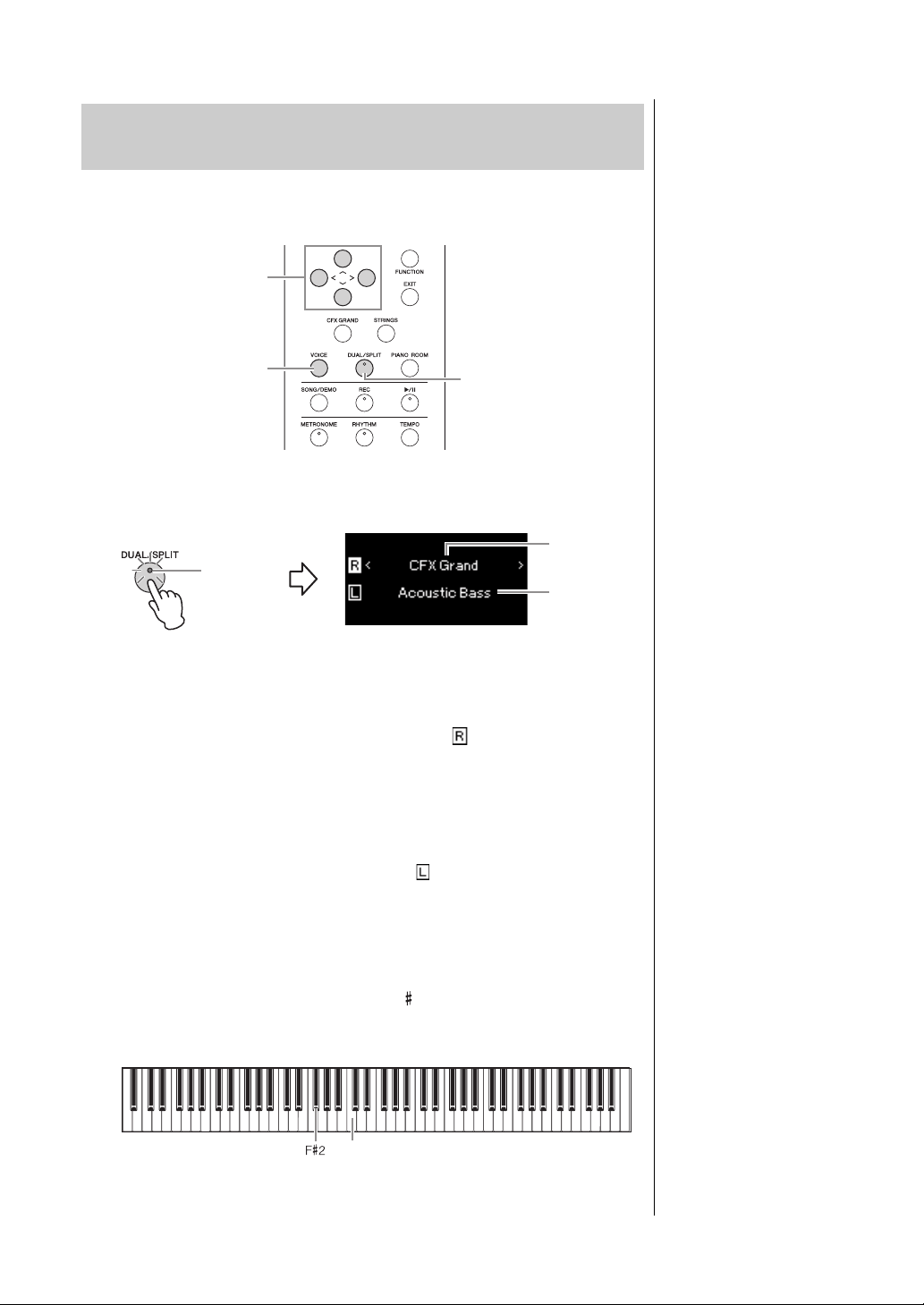
1. To enter the Split mode, press the [DUAL/SPLIT] button
repeatedly to light it in green.
The Voice which is displayed at top is Voice R, and the one at bottom is
Voice L.
2. Select a Voice for the right-hand area and left-hand area.
2-1. Use the [u]/[d] buttons to highlight (Voice R) in the
display.
2-2. Use the [l]/[r] buttons or the [VOICE] button to select the
desired Voice.
If you use the [VOICE] button to call up the Voice List display, press the
[r] button to select a Voice, and then return to the previous display.
Use the [u]/[d] buttons to highlight (Voice L), and select a Voice in
the same way.
3. Play the keyboard.
Changing the Split Point
You can change the Split Point (the border between the right- and left-
hand ranges) from the default setting “F 2” to any other key. While in the
Split mode, hold down the [DUAL/SPLIT] button, and press the key you
wish to assign as the Split Point.
4. To exit from the Split mode, press the [DUAL/SPLIT]
button repeatedly so that the lamp turns off.
Splitting the Keyboard Range and Playing Two
Different Voices (Split Mode)
2
2
1, 3, 4
Voice R
Voice L
Lit in green
NOTE
The specified Split Point key is
included in the left-hand range.
NOTE
The Split Point can also be set
via the “System” menu display:
Press the [FUNCTION] button
repeatedly to call up the
“System” menu display
“Keyboard” “Split Point”
(page 87).
Center “C”
31
YDP-184 Owner’s Manual
Playing Various Musical Instrument Sounds (Voices)
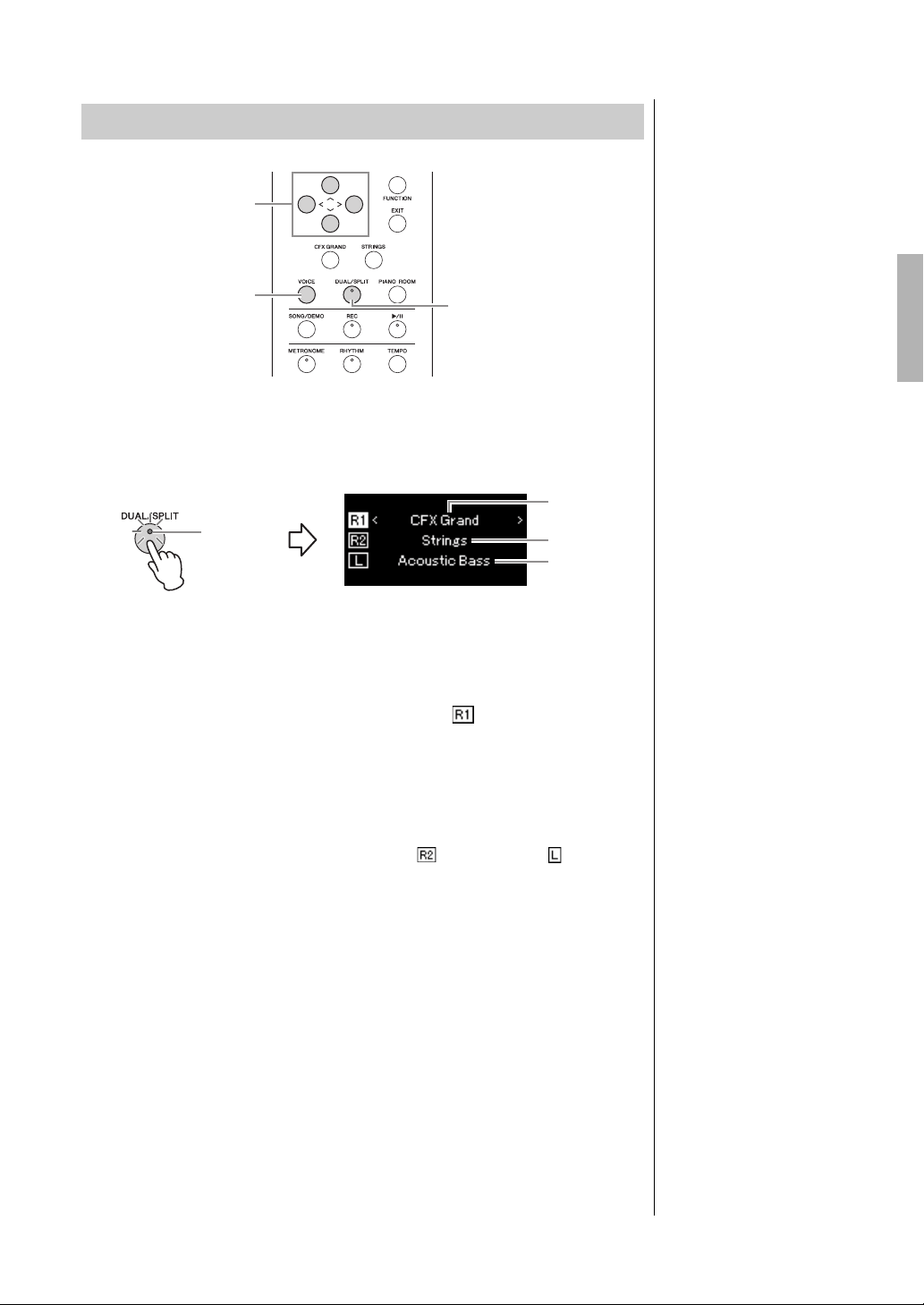
1. To enter the Dual and Split modes simultaneously, press
the [DUAL/SPLIT] button repeatedly so that the lamp
lights in orange.
The Voice which is displayed at top is Voice R1, and the one in the middle
is Voice R2, and the one at bottom is Voice L.
2. Select the Voices for layering and for the left-hand area.
2-1. Use the [u]/[d] buttons to highlight (Voice R1) in the
display.
2-2. Use the [<]/[>] buttons or the [VOICE] button to select the
desired Voice.
If you use the [VOICE] button to call up the Voice List display, press the
[r] button to select a Voice, and then return to the previous display.
Use the [u]/[d] buttons to highlight (Voice R2) and (Voice L),
and select Voices in the same way.
3. Play the keyboard.
4. Press the [DUAL/SPLIT] button to exit from the Dual and
Split mode.
The lamp of the [DUAL/SPLIT] button turns off.
Using Dual and Split Simultaneously
2
2
1, 4
Voice R1
Voice R2
Lit in orange
Voice L
NOTE
The specified Split Point key is
included in the left-hand range.
NOTE
For the information on setting
the Split Point, refer to page 30.
32
YDP-184 Owner’s Manual
Playing Various Musical Instrument Sounds (Voices)
This function allows two different players to play the instrument, one on the
left and the other on the right. This is convenient for practicing duets over the
same octave range.
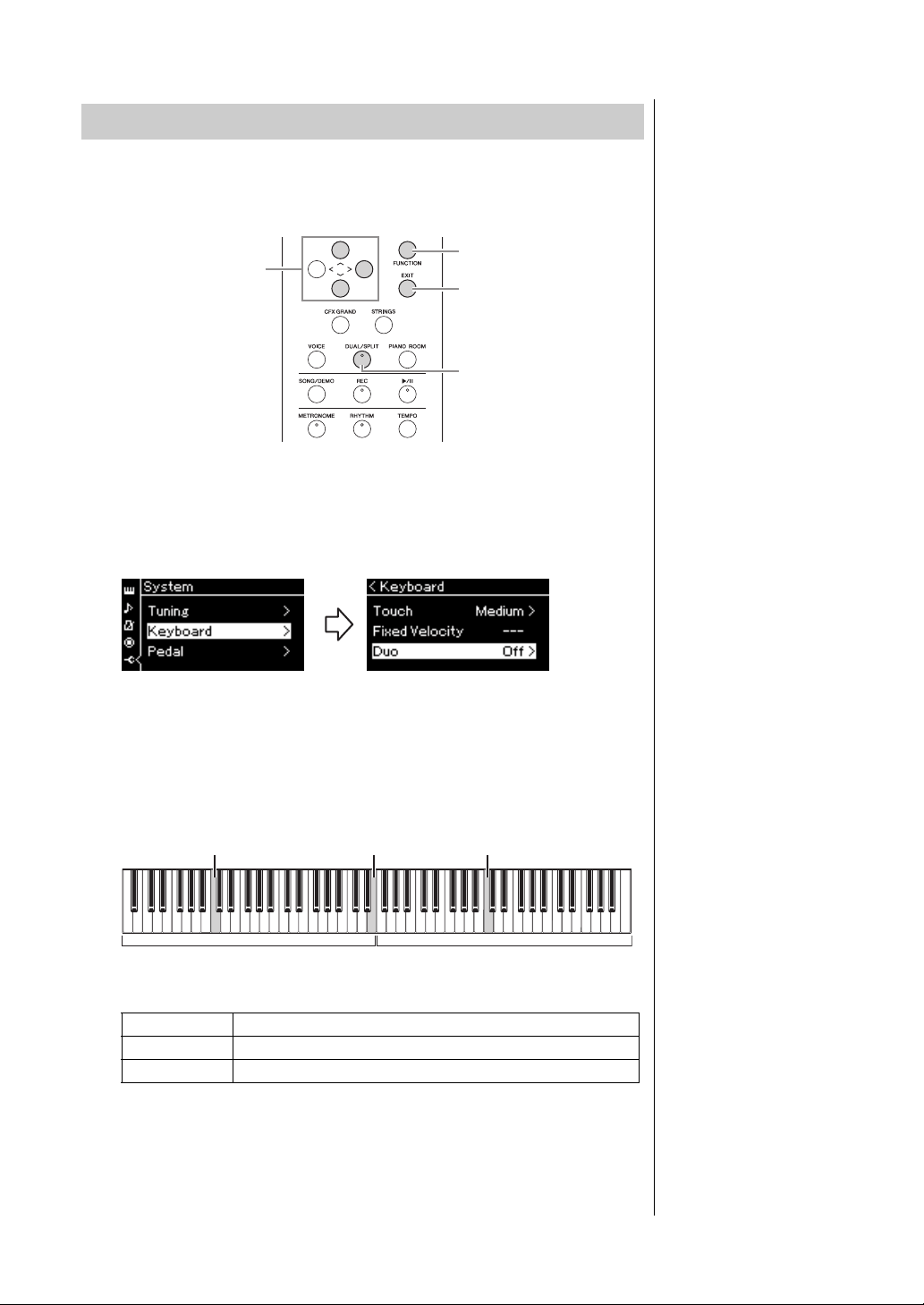
1. Press the [FUNCTION] button repeatedly to call up the
“System” menu display, and then select the highlighted
item in each display as illustrated below.
The keyboard is divided into two sections, with the E3 key as the Split
Point.
The pedal function changes as follows.
Playing Duo
1
2
1
4
“System” menu display
1-1. Use the [u]/[d] buttons
to select “Keyboard.”
1-2. Press the [>] button to
call up the next display.
1-3. Use the [u]/[d] buttons
to select “Duo.”
1-4. Press the [>] button to
select “On.”
Keyboard display
NOTE
While Duo is on, the Reverb,
VRM and Stereophonic
Optimizer functions are
disabled (page 18).
NOTE
The specified Split Point key is
included in the left-hand range.
Right Pedal Damper pedal for the right-hand range
Center Pedal Damper pedal for both the right-hand and left hand ranges
Left Pedal Damper pedal for the left-hand range
Left section
Split Point E3Equivalent to C3 (middle C) Equivalent to C3 (middle C)
Right section
33
YDP-184 Owner’s Manual
Playing Various Musical Instrument Sounds (Voices)
2. Press the [EXIT] button to exit from the menu display.
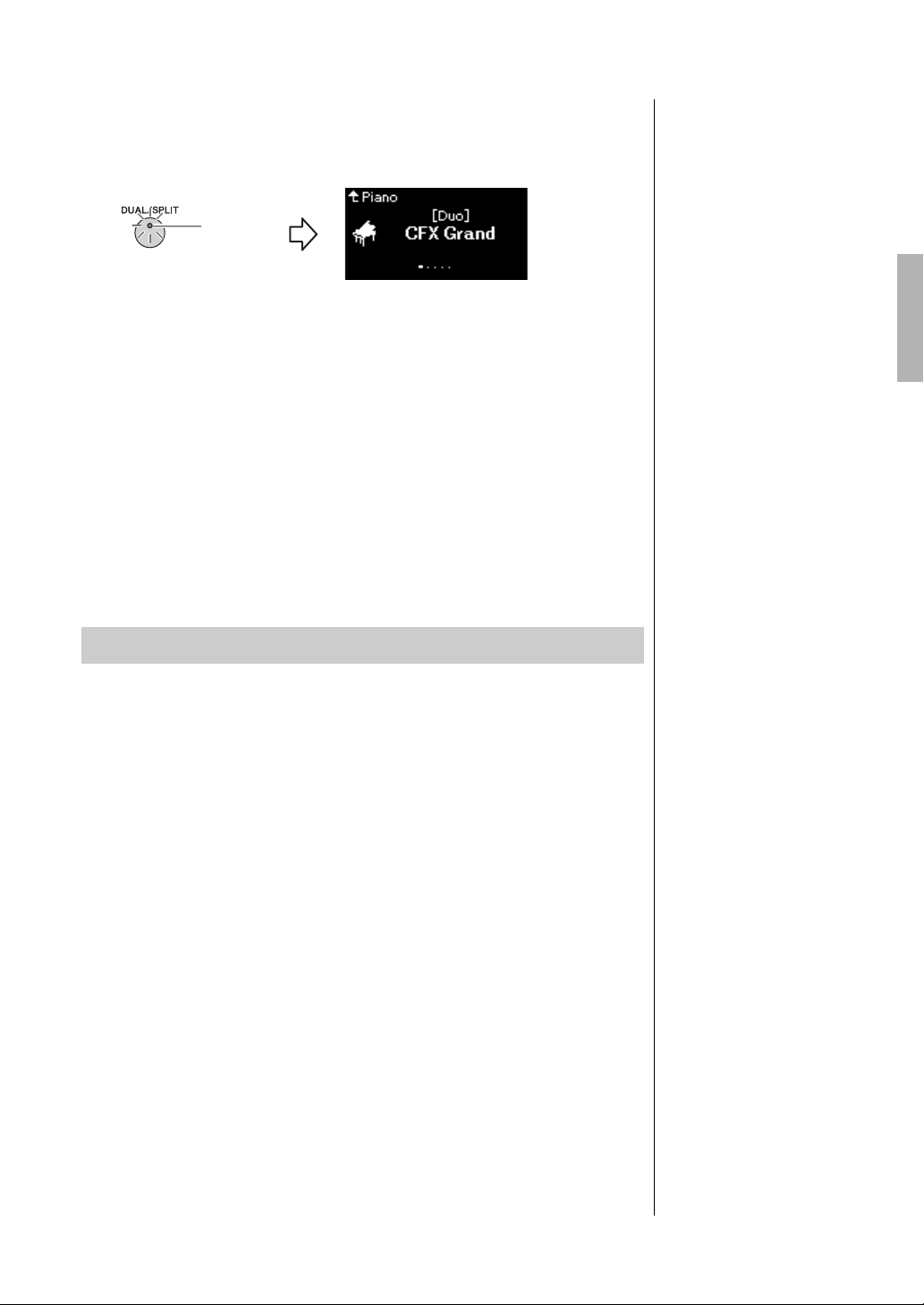
When Duo is on, the [DUAL/SPLIT] button is lit in green and the [Duo]
is shown on the Voice display.
3. Play the keyboard.
The sound of left-hand range is emitted from the left, the sound of right-
hand range is emitted from the right.
4. Press the [DUAL/SPLIT] button to exit from the Duo
mode.
You can also exit from the Duo mode by following either of the
instructions below.
• Press any of the [CFX GRAND], [STRINGS], [PIANO ROOM]
buttons.
• Repeat the same procedure from step 1 to set it to “Off.”
The instrument has a built-in metronome (a device that keeps an accurate
tempo)—a convenient tool for practice.
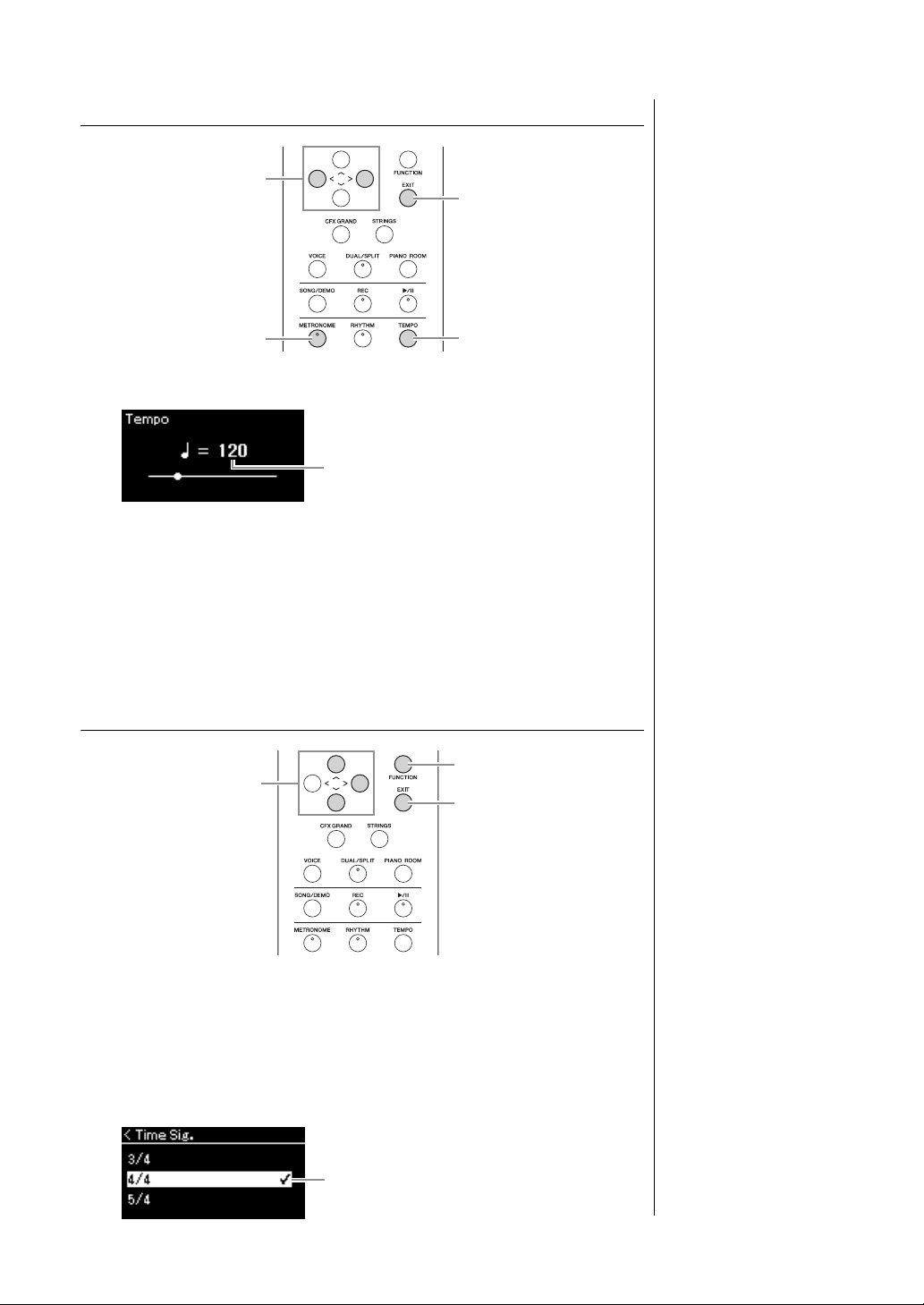
1. Press the [METRONOME] button to start the metronome.
This calls up the Tempo display, from which you can adjust the tempo.
For details, see next section.
2. Press the [METRONOME] button to stop the metronome.
To close the Tempo display, press the [EXIT] button.
Using the Metronome
Lit in green
NOTE
You can set the metronome
volume, BPM and so on from
the “Metronome/Rhythm” menu
display (page 85).
34
YDP-184 Owner’s Manual
Playing Various Musical Instrument Sounds (Voices)
Adjusting the Tempo
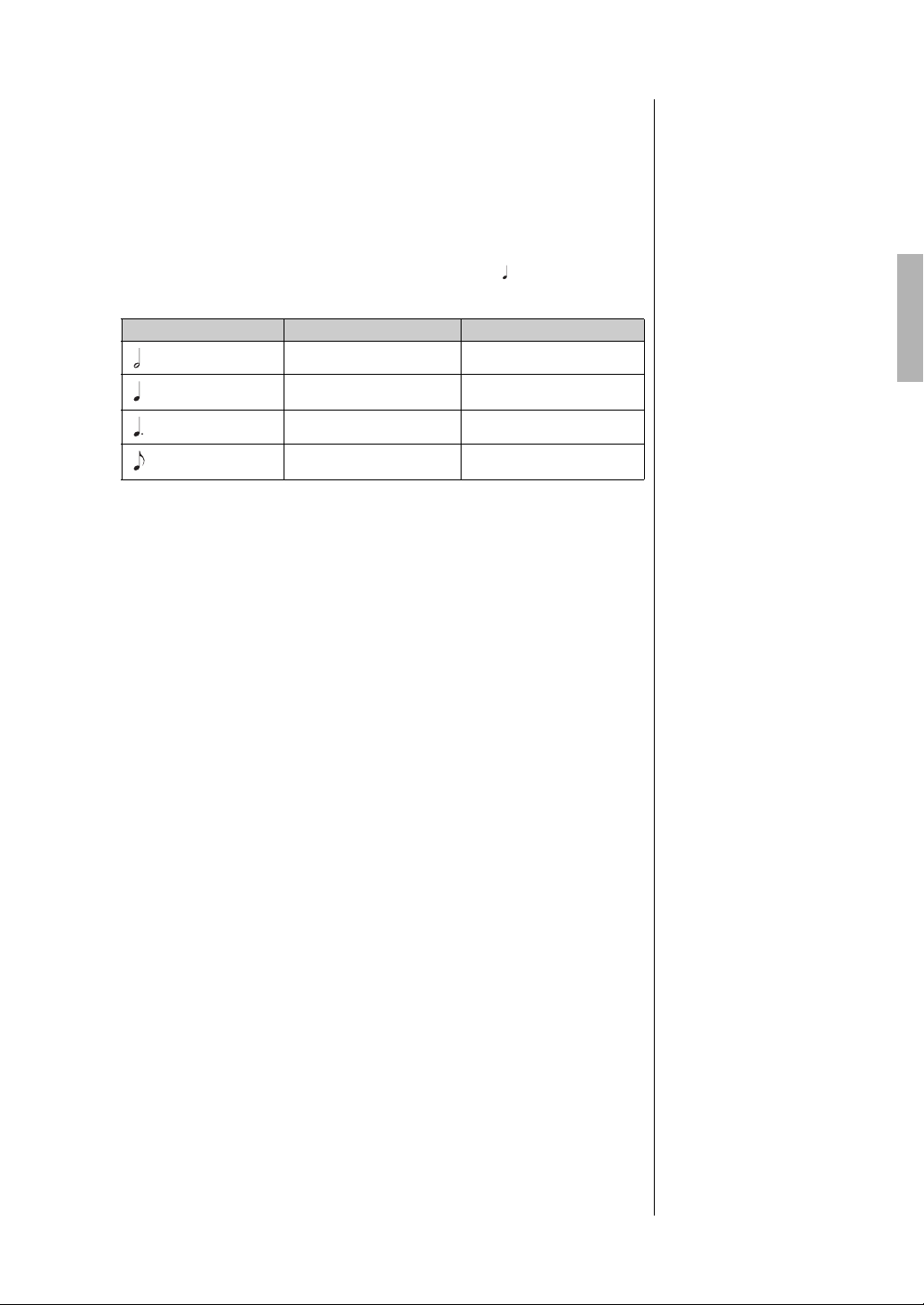
1. Press the [TEMPO] button to call up the Tempo display.
2. Use the [<]/[>] buttons to adjust the tempo.
You can adjust the tempo value (number of beats per minute) using the
[<]/[>] buttons. To reset the tempo to the default setting, press the [<]
and [>] buttons simultaneously.
3. Press the [EXIT] button to close the Tempo display.
Setting the metronome time signature
1. Press the [FUNCTION] button repeatedly to call up the
“Metronome/Rhythm” menu display.
2. Use the [u]/[d] buttons to select “Time Sig.” and then
press the [r] button.
2
3
1
Metronome
NOTE
For information on setting the
time signature, refer to
page 34.
Tempo value
2, 3
5
1
Time Signature
Time Signature display
35
YDP-184 Owner’s Manual
Playing Various Musical Instrument Sounds (Voices)
3. Use the [u]/[d] buttons to select the desired time
signature.
Setting range: 2/2, 1/4, 2/4, 3/4, 4/4, 5/4, 6/4, 7/4, 3/8, 6/8, 7/8, 9/8, 12/8
Default setting: 4/4 (Selecting a MIDI Song will change the tempo value to
that specified in the selected MIDI Song data.)
Tempo indication and Setting range
Tempo is displayed as “note type=xxx” (For example: =120). Selecting
the Time Signature changes the available parameters as follows.
* When the tempo value of the selected MIDI Song is outside the setting range on the instrument,
the value will be changed to fit within the setting range.
* Note type will be fixed to quarter note as long as the “BPM” parameter in the “Metronome/Rhythm”
menu display is set to “Crotchet” regardless of the Time Signature you set.
4. Turn the “Bell” setting on.
For details, refer to “Bell” in the “Metronome/Rhythm” menu (page 85).
The Metronome plays back according to the selected Time Signature with
the Bell sound on the first beat of each measure.
5. Press the [EXIT] button to close the “Metronome/
Rhythm” menu display.
Note type Time Signature Setting range
2/2 3 – 250
1/4, 2/4, 3/4, 4/4, 5/4,6/4, 7/4 5 – 500
6/8, 9/8, 12/8 4 – 332 (even numbers only)
3/8, 7/8 10 – 998 (even numbers only)
and 999
Half note
Quarter note
Dotted quarter note
Eighth note
Note type
The length of one beat
Metronome detailed
settings
You can set the metronome
volume, BPM and so on from
the “Metronome/Rhythm” menu
display (page 85).

36
YDP-184 Owner’s Manual
Playing Back Songs
This instrument can play Preset Songs, Songs you recorded on this instrument. In addition to listening to
these Songs, you can play the keyboard as the Song plays back.
You can play back the following types of Songs in this instrument.
• Preset Voice Demo Songs (Voice Demo).
•P
reset Songs: 50 classical Preset Songs (“50 Classics”)
• Your own recorded Songs (see page 49 for instructions on recording)
• Commercially available MIDI Song data: SMF (Standard MIDI File)
The maximum size for playback on this instrument is approx. 500KB per single
MIDI Song.
MIDI Songs
A MIDI Song is comprised of your keyboard performance information and is not a
recording of the actual sound itself. The performance information refers to which
keys are played, at what timing, and at what strength—just as in a musical score.
Based on the recorded performance information, the tone generator (of the
instrument, etc.) outputs the corresponding sound. A MIDI Song uses a small
amount of data capacity in comparison to an Audio song, and allows you to easily
change aspects of the sound, such as Voices used, etc.
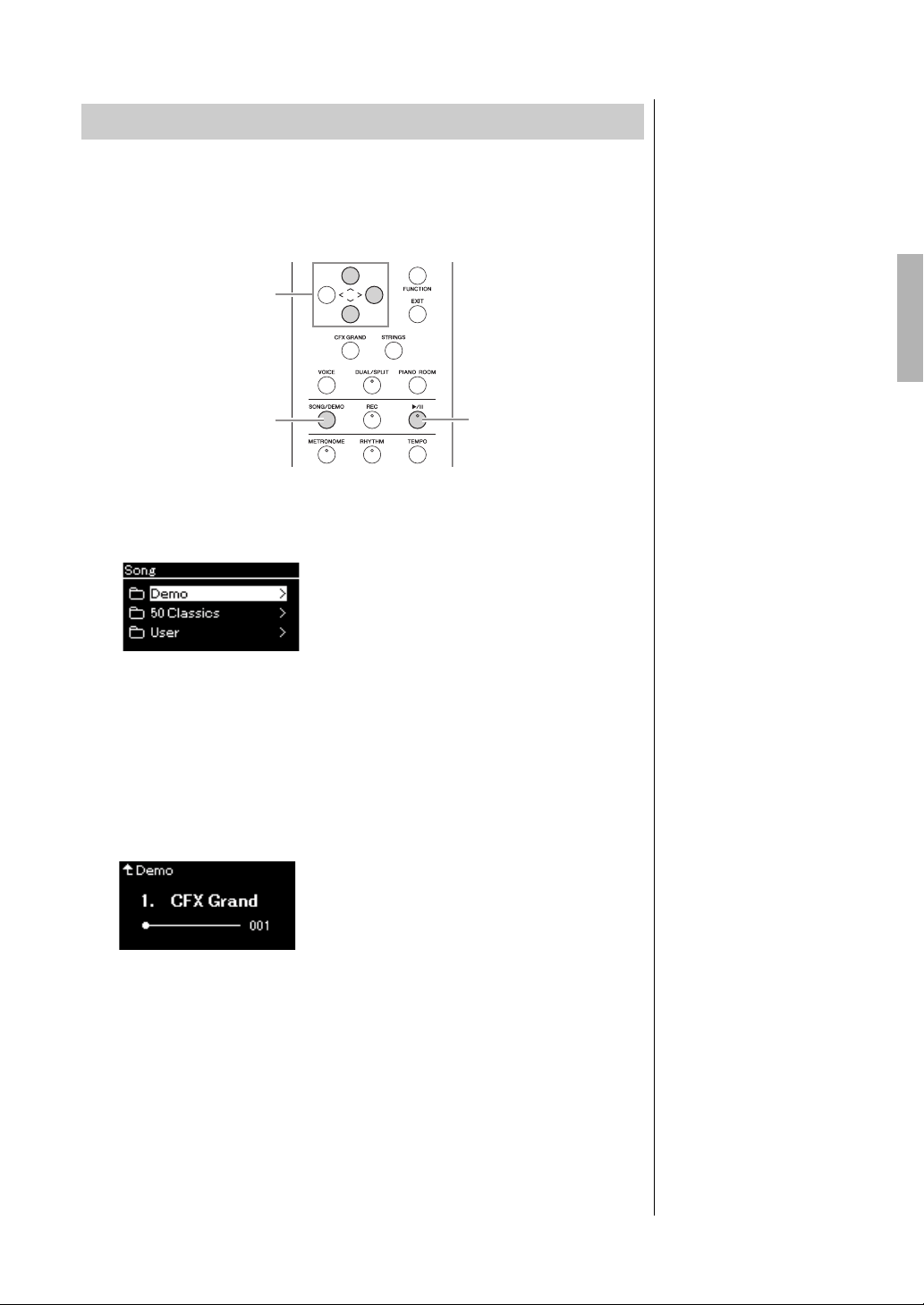
37
YDP-184 Owner’s Manual
Playing Back Songs
For each Voice group, the instrument contains several Demo recordings that
showcase the special characteristics of the corresponding Voices. For
information about the Voices which feature Demos that can be played back,
refer to the “Preset Voice List” on page 94.
1. Press the [SONG/DEMO] button to call up the Song list
display.
2. Use the [u]/[d] buttons to select “Demo,” and then press
the [r] button to call up the next display.
3. Use the [u]/[d] buttons to select the desired Voice Demo,
and then press the [r] button to call up the Demo display.
The currently selected Voice Demo name is shown in the display.
4. Press the [R/K] (Play/Pause) button to start playback.
5. Press the [R/K] (Play/Pause) button again to stop
playback.
The Piano Demo stops automatically when Piano Demo playback reaches
the end.
Selecting Other Demos
Press the [u] button to return to the Song list display, then repeat steps 3
– 4 of this section.
Listening to the Voice Demos
1
4, 5
2, 3, 4
Demo display
NOTE
Recording operations cannot
be used during Voice Demo
playback.
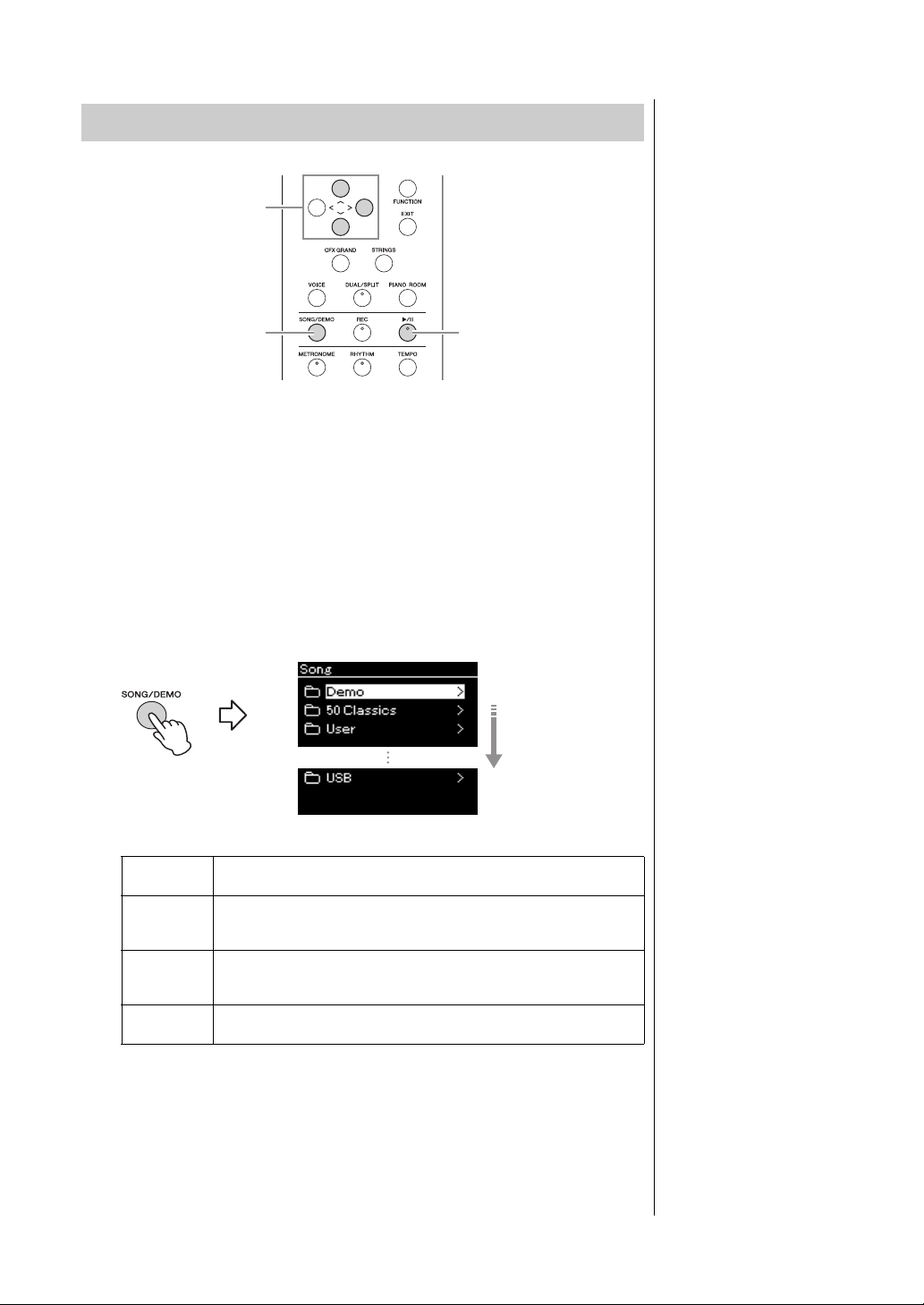
38
YDP-184 Owner’s Manual
Playing Back Songs
1. If you want to play back a Song in a USB flash drive,
connect the USB flash drive containing Song data to the
USB [TO DEVICE] terminal beforehand.
2. Press the [SONG/DEMO] button to call up the Song List
display, then select the desired category using [u]/[d]
buttons.
Select the desired one from “50 Classics,” “User” or “USB” referring to the
category descriptions below.
Playback of Songs
NOTE
The instrument can
automatically select a Song file
saved in the root directory of
the USB flash drive as soon as
the USB flash drive is
connected. For instructions,
refer to “USB Autoload” on
page 90.
2
5, 6
2, 3, 4
NOTE
Before using a USB flash drive,
be sure to read “Connecting
USB Devices (USB [TO
DEVICE] terminal)” on
page 68.
Demo
Voice Demos let you experience the characteristics of the Voices
(MIDI Song) (page 37).
50 Classics
50 classical Preset Songs (MIDI Songs). For these Songs, see the music
book “50 Classical Music Masterpieces,” included with this instrument.
For details, refer to the “Song List” on page 96.
User
MIDI Songs which have been recorded and saved to the instrument by
using the Record function (page 49), and MIDI Songs which have been
copied/moved to the instrument using File operations (page 60).
USB
MIDI Songs saved to the USB flash drive by recording them with this
instrument, or MIDI Songs saved to the USB flash drive.
Song category
[d] button
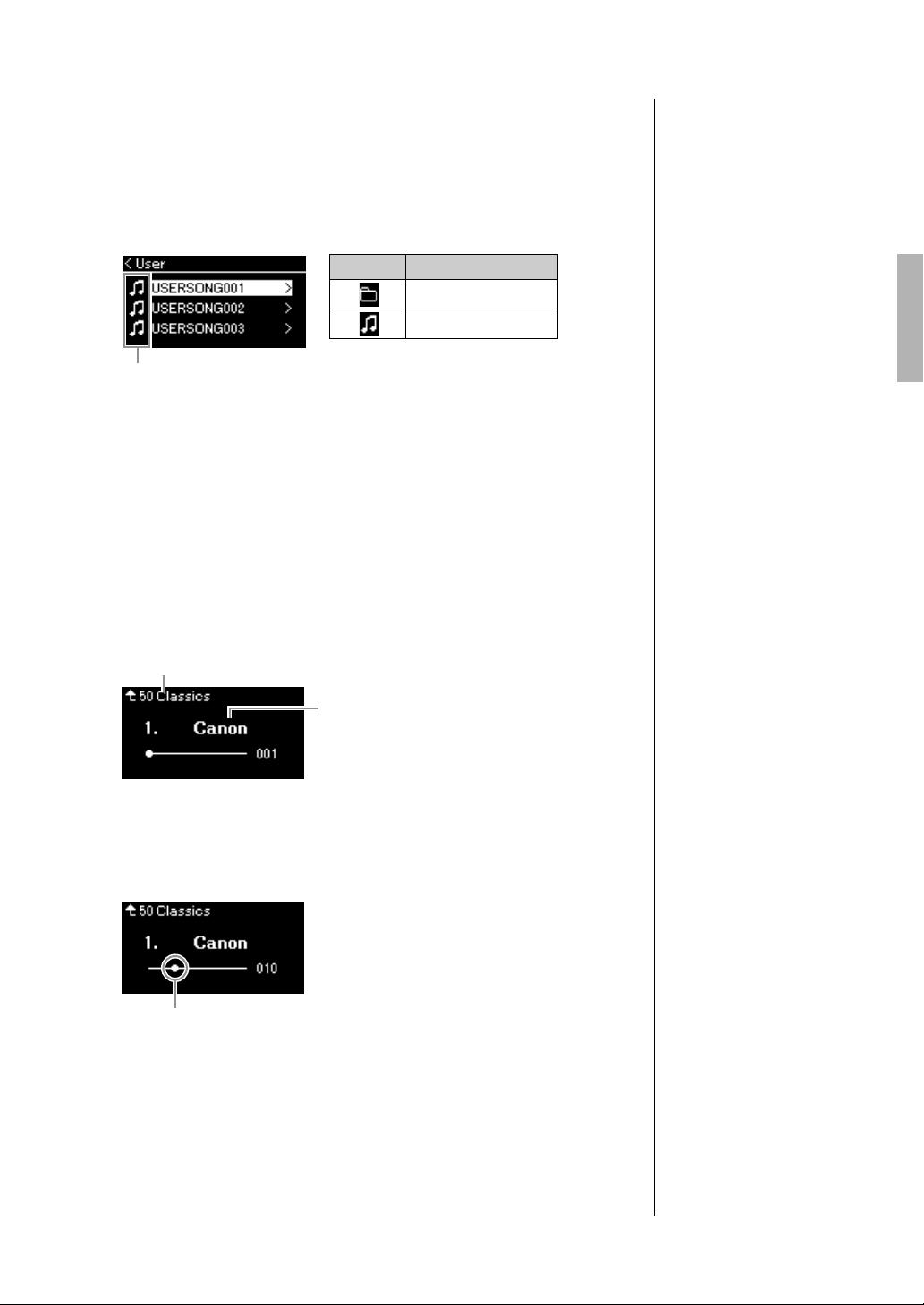
39
YDP-184 Owner’s Manual
Playing Back Songs
3. Press the [>] button to display the Songs in the specified
category, and then select a desired Song using the [u]/[d]
buttons.
When “User” or “USB” category is selected, the icon indicating Song
types are shown to the left of the Song name.
To select a recorded Song saved to USB flash drive:
When you record a Song and save it to a USB flash drive, the recorded
Song will automatically be saved to the USER FILES folder on a USB flash
drive. If you want to select the Song from the USER FILES folder, select
USB in step 2, and USER FILES folder in step 3.
4. Press the [>] button to select the desired Song.
The Song display is shown letting you to see the currently selected Song
name and its category name.
5. Press the [R/K] (Play/Pause) button to start playback.
The current position of the Song playback will be shown.
You can play the keyboard along with Song playback. You can also change
the Voice for your keyboard performance. To adjust the volume balance
between your keyboard performance and MIDI Song playback, set the
appropriate Volume parameters individually in the “Song” menu display
(page 45).
NOTE
Press the [<] button to return to
the category/folder.
Icon
Song List
icon Data format
Folder
MIDI Songs
NOTE
“NoSong” will be shown in the
display when no data exists in
that folder.
When Songs cannot be
read from a USB flash drive
If the song cannot be read, you
may need to change the
character for the Song name in
the “Character List” (page 91).
NOTE
Press the [u] button to return to
the Song list.
Song name
Song display
Category name
NOTE
When the Song title is too long
to be displayed, press the [d]
button to see the full title.
Song display
Current position
NOTE
If a Song has been selected,
the original tempo of the Song
is used, and the Metronome
setting (page 33) will be
ignored.
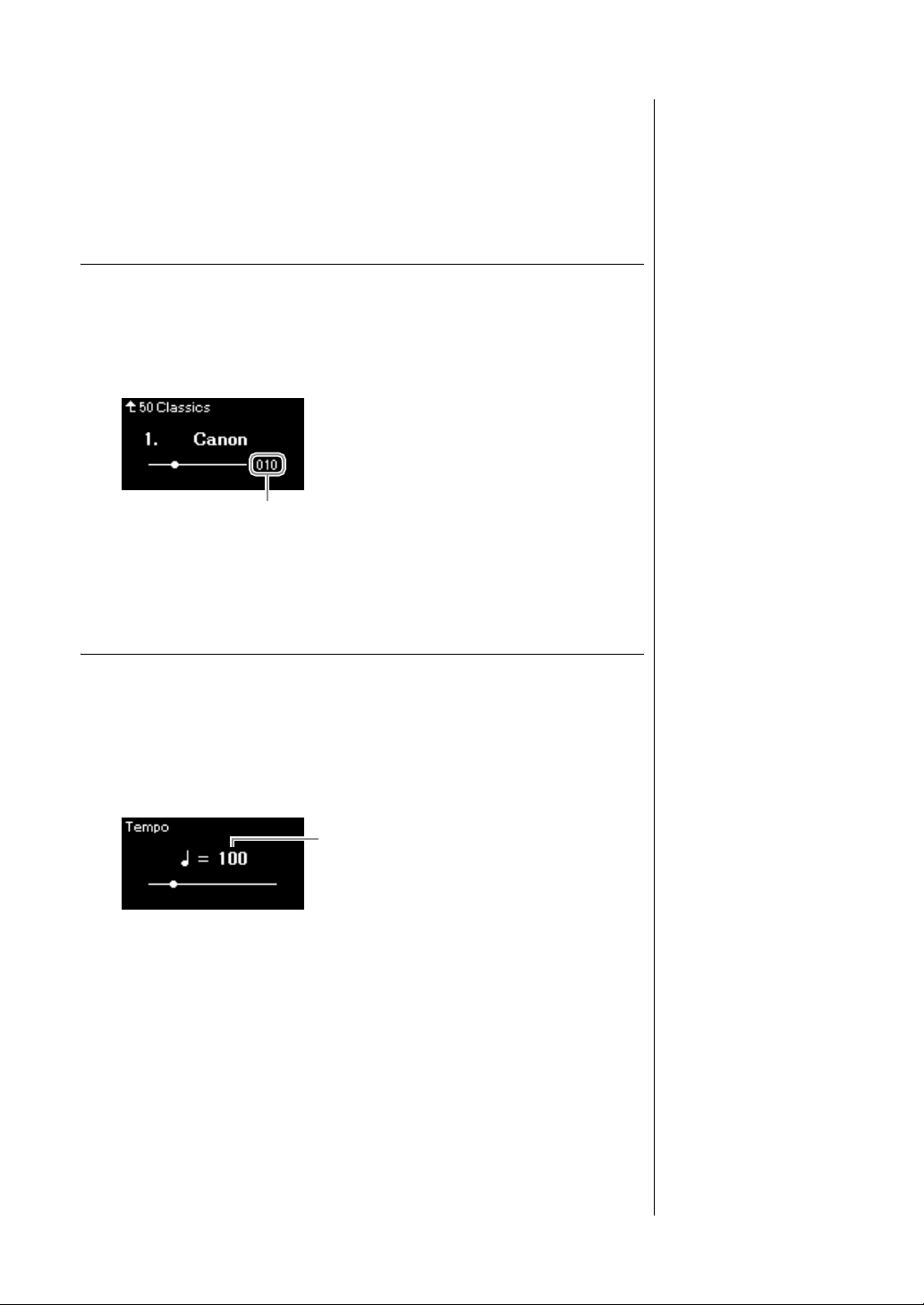
40
YDP-184 Owner’s Manual
Playing Back Songs
6. Press the [R/K] (Play/Pause) button again to stop
playback.
Even if you don’t press the [R/K] (Play/Pause) button, the Song stops
automatically when Song playback reaches the end.
Rewind/Fast forward
1. Use the [<] and [>] buttons to move back or forth through
the Song (in bars or seconds), while the Song display is
shown.
Holding one of the buttons scrolls backward/forward continuously.
Pressing the [<] and [>] buttons simultaneously returns to the top
position of the Song.
Adjusting the tempo
You can adjust the playback tempo of a Song.
1. Press the [TEMPO] button to call up the Tempo display.
Press the [TEMPO] button during Song playback or while the Song
display is shown.
2. Change the Tempo value using the [<]/[>] buttons.
The original tempo of the current Song can be recalled by pressing the [<]
and [>] buttons simultaneously.
The tempo range differs depending on the Time Signature for a selected
Song. Available setting values may only include even numbers (multiples
of 2), depending on the Time Signature. For more information, refer to
page 35.
3. Press the [EXIT] button to exit from the Tempo display.
NOTE
Useful playback functions are
described on pages 41 – 47.
NOTE
Pressing the [<] and [>]
buttons simultaneously returns
to the top position of the Song.
Song display
Measure number
MIDI Song
Te mp o
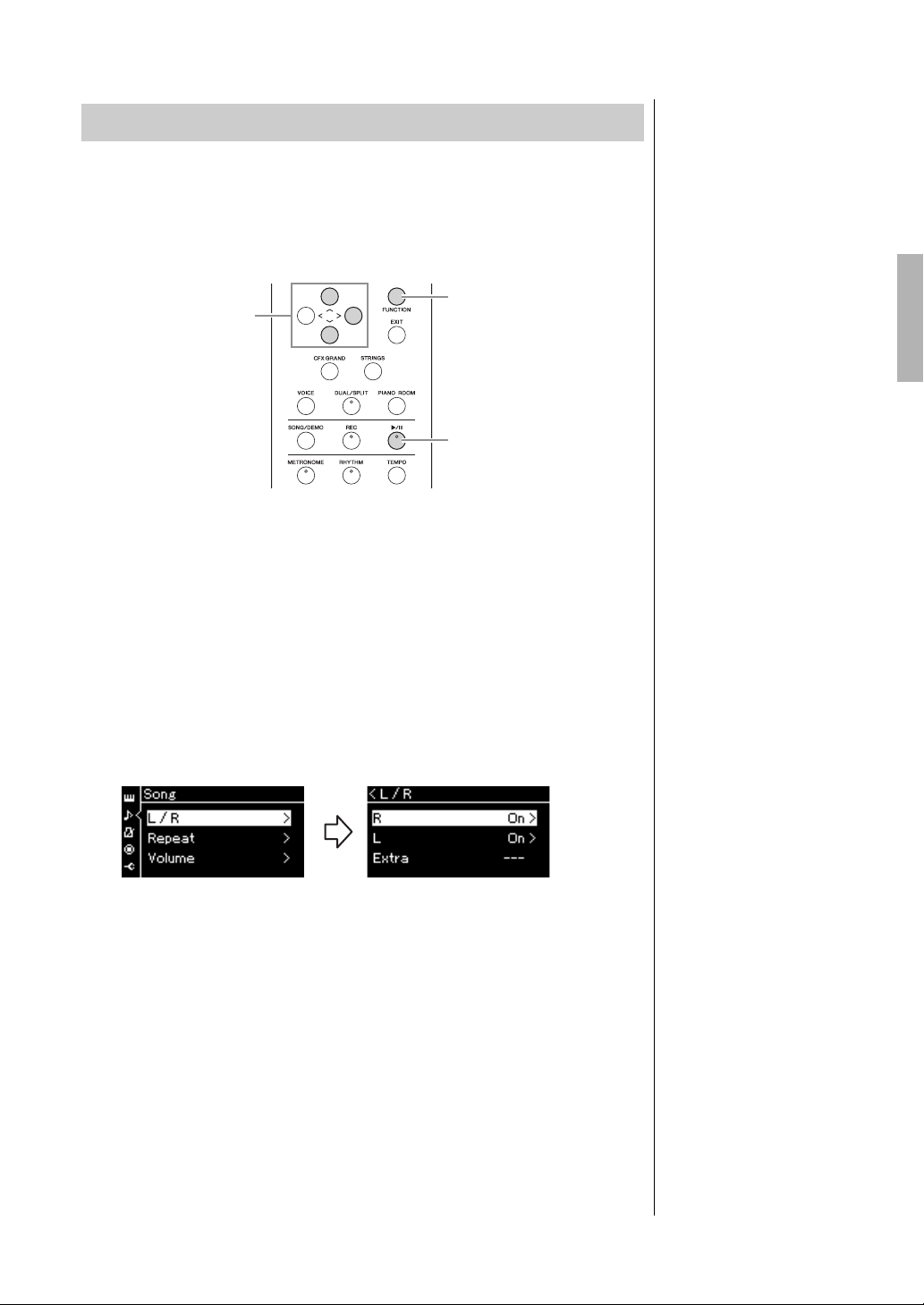
41
YDP-184 Owner’s Manual
Playing Back Songs
Some MIDI Songs, such as Preset Songs, are divided into right-hand and left-
hand parts. By using such Song data, you can practice the left hand by turning
on only the right-hand part, and practice the right hand by turning on only the
left-hand part—allowing you to practice parts separately for easy mastery of
difficult material.
1. Select a Song for practicing.
For instructions, refer to page 38.
2. Select a part you want to practice, then set the part to off.
Press the [FUNCTION] button repeatedly to call up the “Song” menu
display, then select the highlighted item in each display as illustrated
below.
In the “L/R” display, select the part (track) you want to mute for
practicing. Select “R” for practicing the right-hand part, or “L” for the left-
hand part.
3. Use the [>] button to select “Off” for the selected part.
4. Press the [R/K] (Play/Pause) button to start playback.
Play and practice the part you just muted.
5. Press the [R/K] (Play/Pause) button again to stop
playback.
Even if you don’t press the [R/K] (Play/Pause) button, the Song stops
automatically when Song playback reaches the end.
Playing a One-hand Part — Part Cancel Function
4, 5
2
2, 3
NOTE
The parts can be turned on or
off even during playback.
NOTE
Usually, Channel 1 is assigned
to “R,” Channel 2 is assigned
to “L,” and Channels 3 – 16 are
assigned to “Extra.” However,
the assignments may differ
depending on the particular
Song. Channels assigned to
“Extra” cannot be set to on or
off individually.
NOTE
Some songs in “50 Classics”
are duet songs. Refer to
page 96 about part
assignment for the duet songs.
NOTE
Whenever you select another
MIDI Song, both parts are
automatically turned on.
“Song” menu display
2-1. Use the [u]/[d] buttons
to select “L/R.”
2-2. Press the [>] button to
call up the next display.
2-3. Use the [u]/[d] buttons
to select desired track.
L/R display
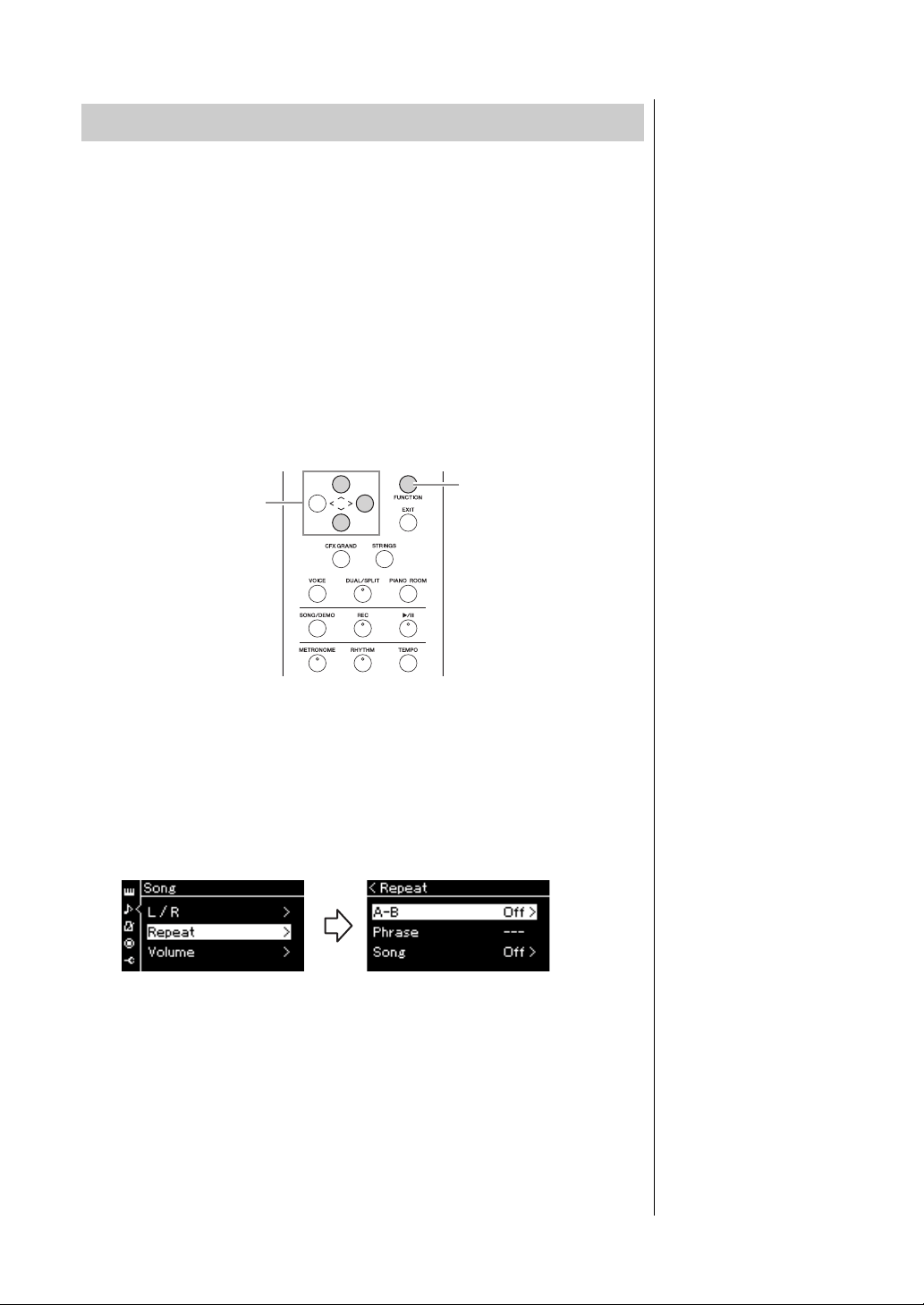
42
YDP-184 Owner’s Manual
Playing Back Songs
There are three Repeat items as follows. These are convenient for repeatedly
practicing difficult phrases. It is a good idea to use this function and the Part
Cancel function (above) for practicing difficult phrases.
• AB Repeat ............. Play a MIDI Song repeatedly by designating a specific
range within the Song.
• Phrase Repeat...... Play a MIDI Song repeatedly by designating a phrase or
phrases within the Song.
• Song Repeat.......... Play a MIDI Song repeatedly, or play all MIDI Songs
saved in a designated folder repeatedly in order or in
random order.
The explanations here apply only to AB Repeat and Song Repeat. For Phrase
Repeat, refer to page 82.
1. Select a Song to be played back.
For instructions, refer to page 38.
2. Call up the Repeat display.
Press the [FUNCTION] button repeatedly to call up the “Song” menu
display. Select “Repeat,” then press the [>] button.
3. In the Repeat display, select a desired item using the [u]/
[d] buttons, then press the [>] button.
If you want to set AB Repeat, select “A – B.”
If you want to set Song Repeat, select “Song.”
4. Set in the appropriate setting display.
•AB Repeat .................See below.
•Song Repeat...............See page 44.
Playing Back a Song Repeatedly
2
2, 3, 4
“Song” menu display Repeat display
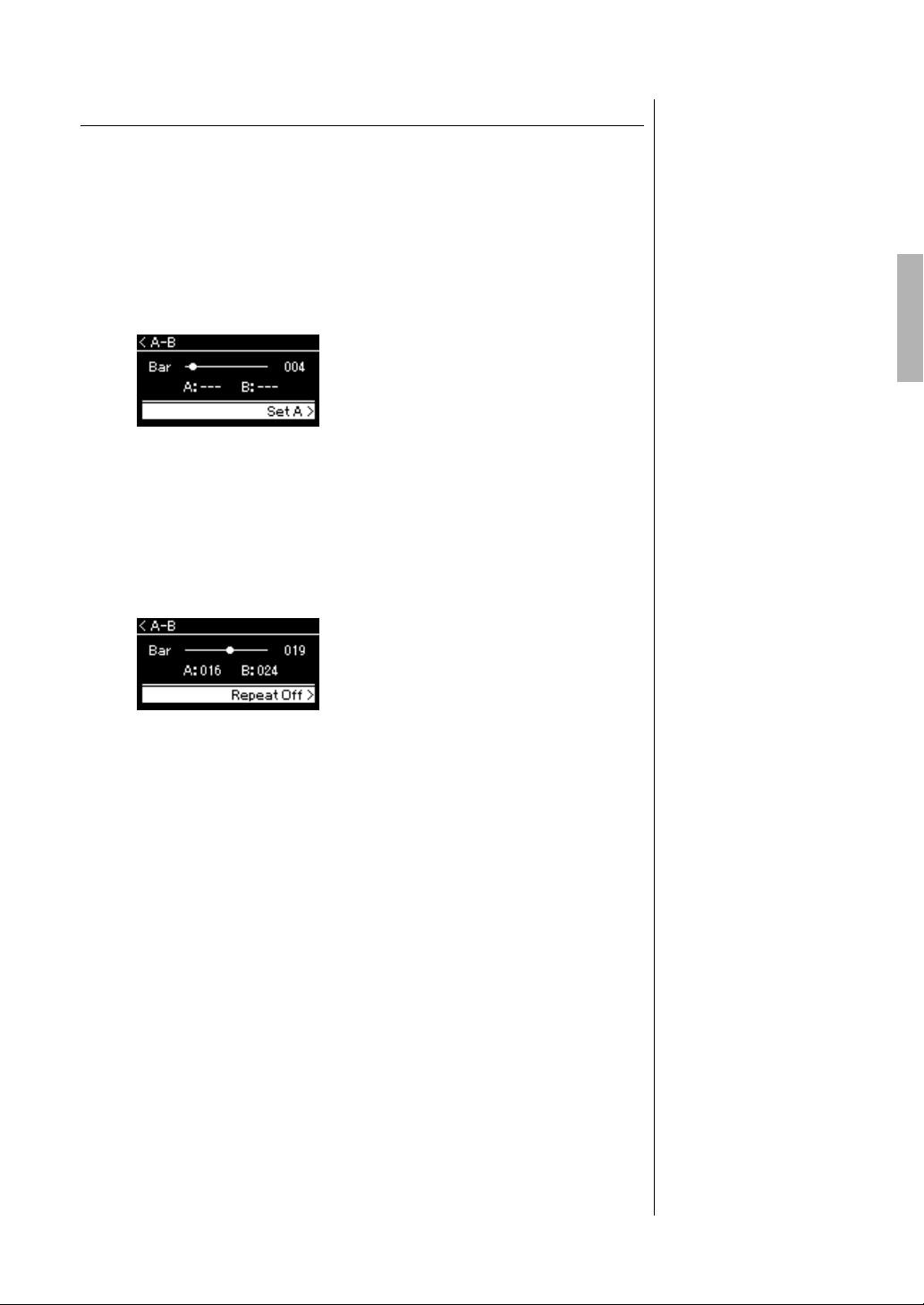
43
YDP-184 Owner’s Manual
Playing Back Songs
AB Repeat setting
Specify the repeat range.
4-1. Press the [R/K] (Play/Pause) button to start Song
playback.
4-2. Press the [>] button at the starting point (A) of the range
to be repeated.
4-3. Press the [>] button again at the ending point (B).
After an automatic lead-in (to help guide you into the phrase), the
range from Point A to Point B is played back repeatedly.
5.
To turn off the Repeat function, press the [>] button
while “Repeat Off” is highlighted, or select another Song
.
A – B display
Specifying the top of a
Song as Point A
Specify Point A before starting
playback, then start playback
and specify Point B.
Specifying the end of a
Song as Point B
Specifying only Point A results
in repeat playback between
Point A and the Song end (as
Point B).
NOTE
You can also specify the repeat
range by the following
procedure.
1 Highlight the measure
number using the [u] button,
then fast-forward the Song to
Point A using the [<]/[>]
buttons.
2 Highlight “Set A” using the
[d] button, then press the [>]
button.
After specifying Point A, the
display for specifying Point
B is called up.
3 Specify Point B in the same
way as Point A.
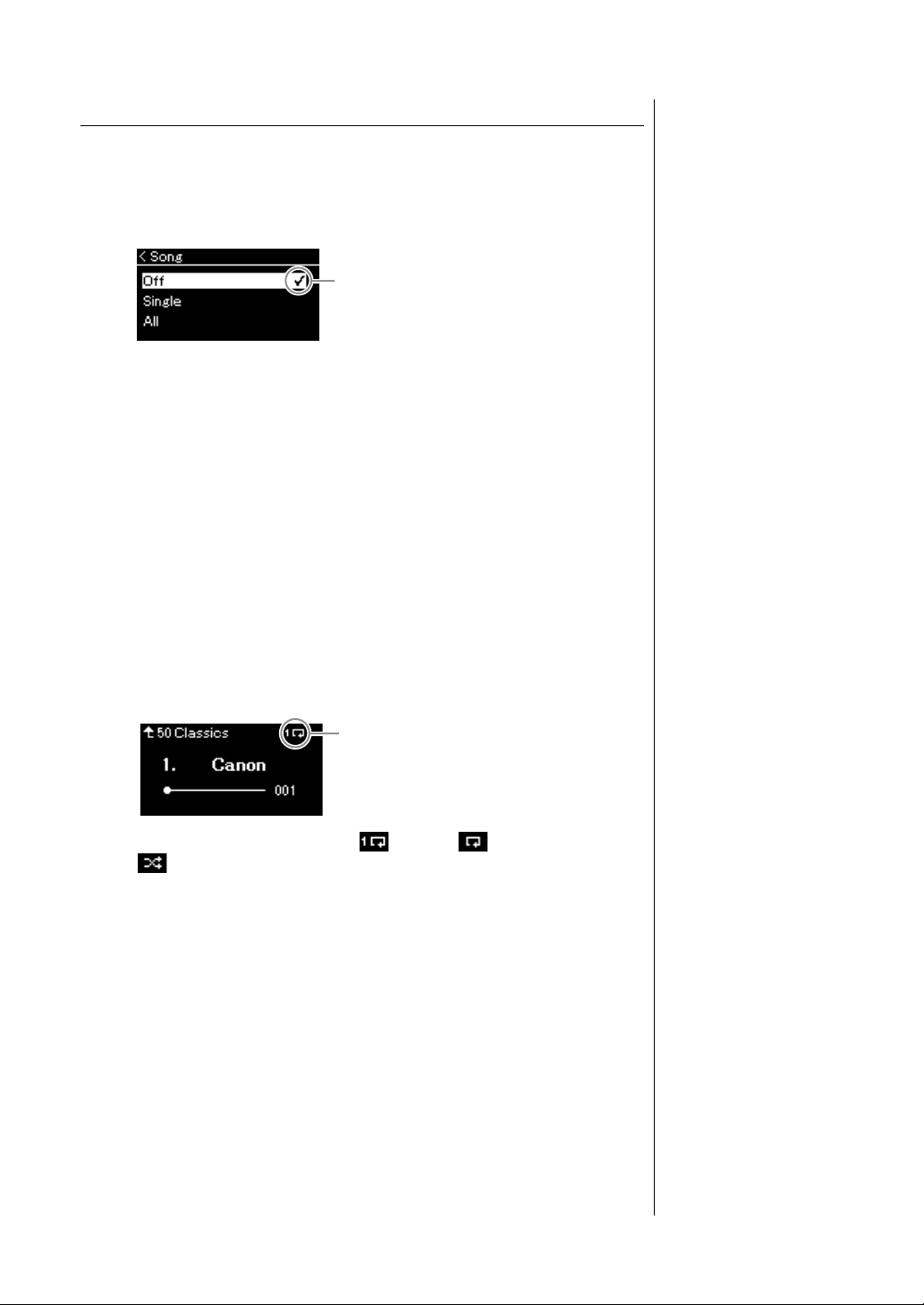
44
YDP-184 Owner’s Manual
Playing Back Songs
Song Repeat setting
4-1. Select the desired Repeat type using the [u]/[d] buttons
in the setting display.
• Off:
Disables repeated playback.
•Single:
Plays through the selected file repeatedly.
•All:
Continuously plays back all Songs within a designated range in order.
•Random:
Continuously plays back all Songs within a designated range in
random order.
4-2. Press the [R/K] (Play/Pause) button to start Repeat
playback.
Icons corresponding to each Repeat setting are shown on the Song
display.
While the Repeat setting is on, (Single), (All), or
(Random) is shown in the upper right corner of the Song display.
5. To turn off the Repeat function, press the [R/K] (Play/
Pause) button again to stop playback, and then select
“Off ” in step 4-1.
Setting display
Checkmark
Icon
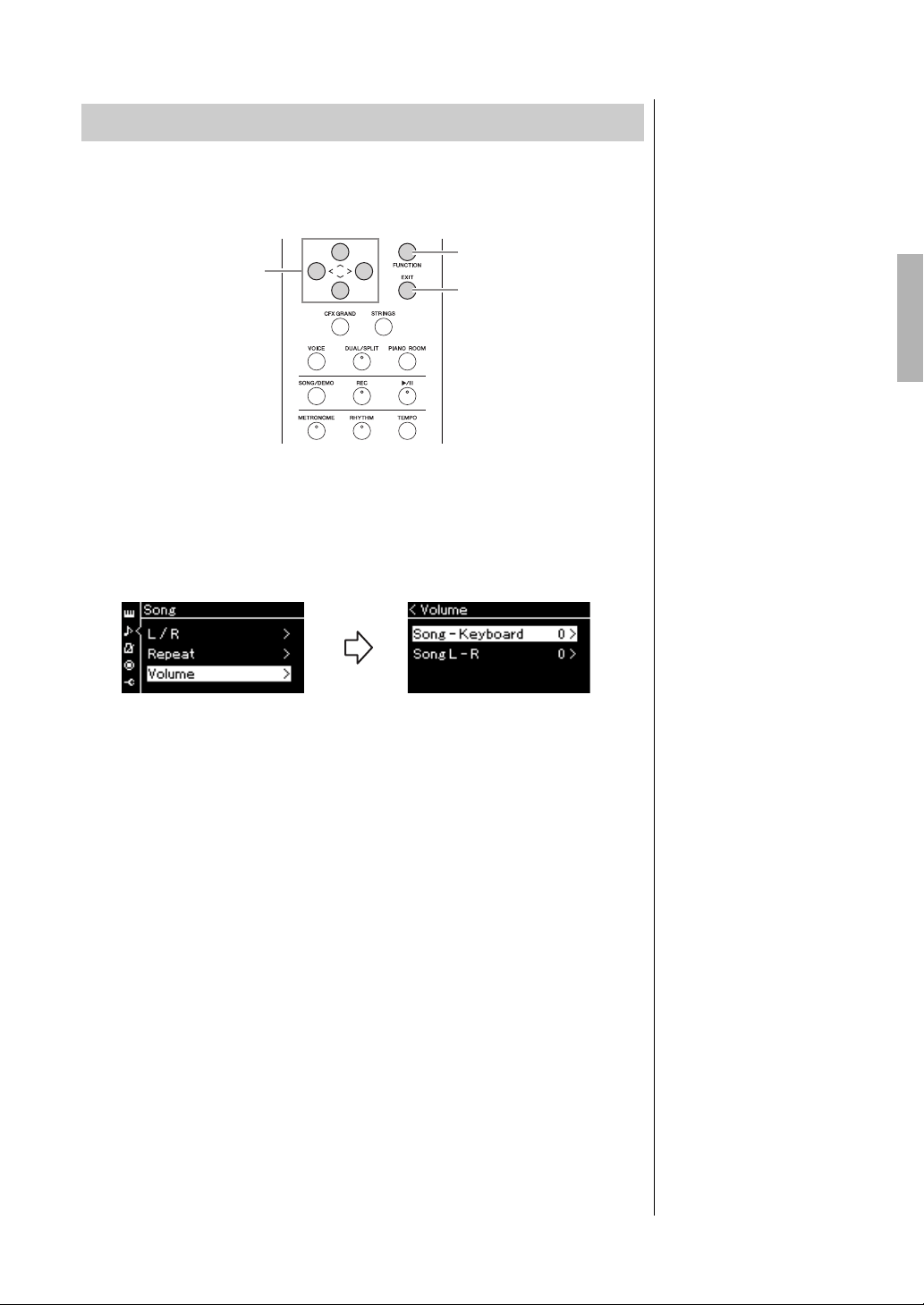
45
YDP-184 Owner’s Manual
Playing Back Songs
You can adjust the Volume balance between the Song playback and the sound
you are playing on the keyboard, or between the Right and Left parts of the
selected Song.
Select the desired Song beforehand. For instructions, refer to page 38.
1. Press the [FUNCTION] button repeatedly to call up the
“Song” menu display. Select “Volume,” and then press the
[>] button.
2. Select “Song – Keyboard” or “Song L – R” using the [u]/
[d] buttons, then press the [>] button to call up the setting
display.
•Song – Keyboard
Adjust the Volume balance between the MIDI Song playback and the
sound you are playing on the keyboard.
•Song L – R
Adjust the Volume balance between the Right and Left parts of the
selected MIDI Song.
Adjusting the Volume Balance
4
1
1, 2, 3
“Song” menu display
NOTE
Some commercially available
music data contain extremely
high volumes. When using
such data (MIDI Song), adjust
the “Song – Keyboard” setting.
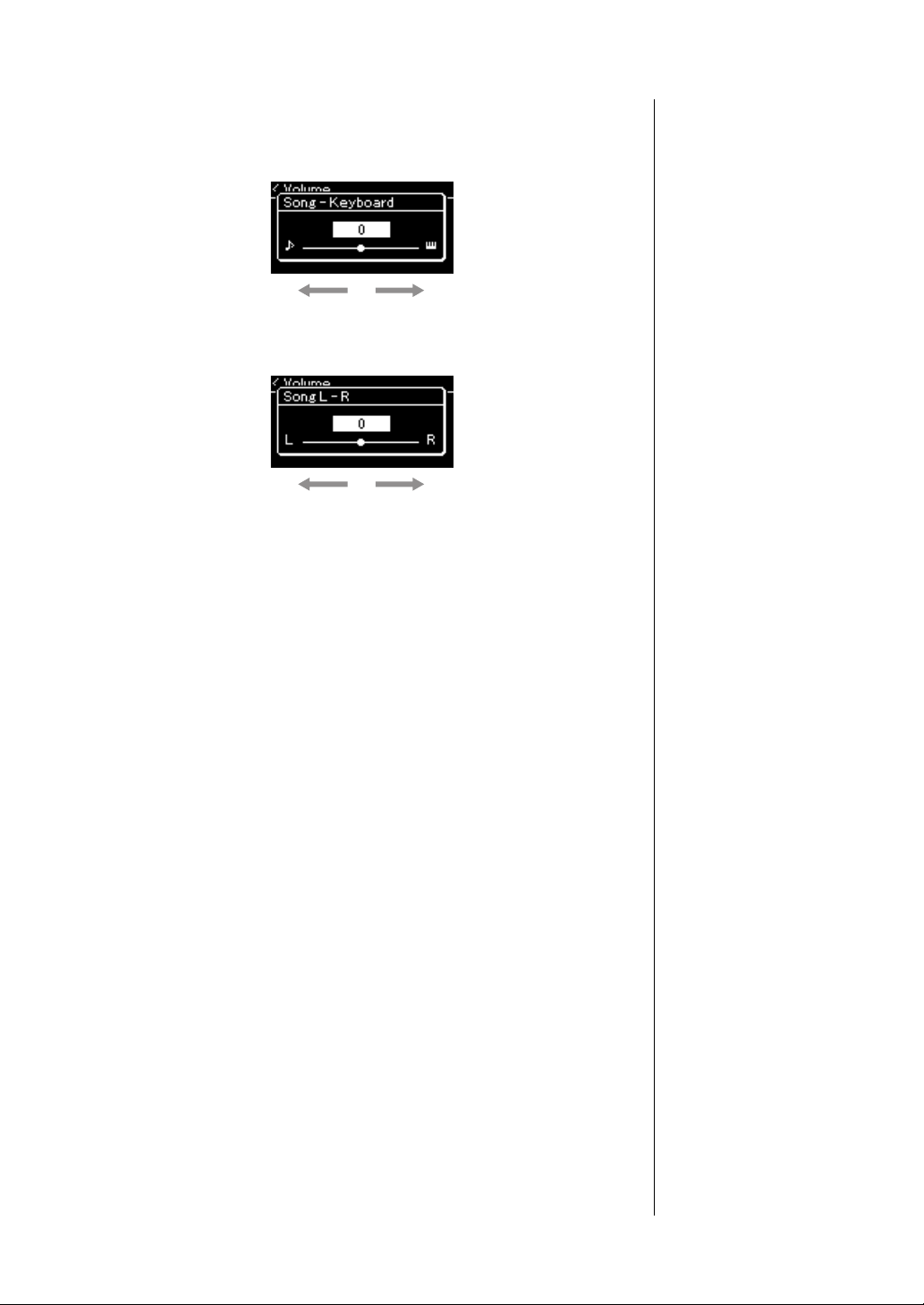
46
YDP-184 Owner’s Manual
Playing Back Songs
3. Adjust the Volume balance by using the [<]/[>] buttons.
In the case of “Song – Keyboard”:
In the case of “Song L – R”:
4. Press the [EXIT] button twice to exit from the “Song”
menu display.
Whenever you select another MIDI Song, the setting for “Song L – R” is
restored to its default setting. As for “Song – Keyboard” selecting another
Song will not reset the value.
The Song playback volume will be lower.The volume of your playing will be lower.
R part volume will be lower. L part volume will be lower.
NOTE
The selected parameters of
“Song – Keyboard” will be
maintained (Backup Setting)
even when the power is turned
off. Make sure not to set the
volume levels to minimum.
Otherwise the sound of
keyboard or songs will not be
played. You can change the
settings to maintain the
selected parameter or not. For
details, refer to “Backup
Setting” on page 92.

47
YDP-184 Owner’s Manual
Playing Back Songs
Starting/pausing playback by using a pedal
You can assign the Song Play/Pause function (equivalent to the [R/K] (Play/
Pause) button) to the center or the left pedal in the “System” menu. Press the
[FUNCTION] button repeatedly to call up the “System” menu display, and then
select “Pedal” → “Play/Pause” to make the assignment.
This is convenient for starting or pausing playback when you are performing
and can’t take your hands from the keyboard.
Transposing the pitch of a Song
You can shift the pitch of Song playback up or down in semitone intervals. You
can change the settings via the “Song” menu display: Press the [FUNCTION]
button repeatedly to call up the “Song” menu display → “Transpose” (page 82).
Useful Playback Functions
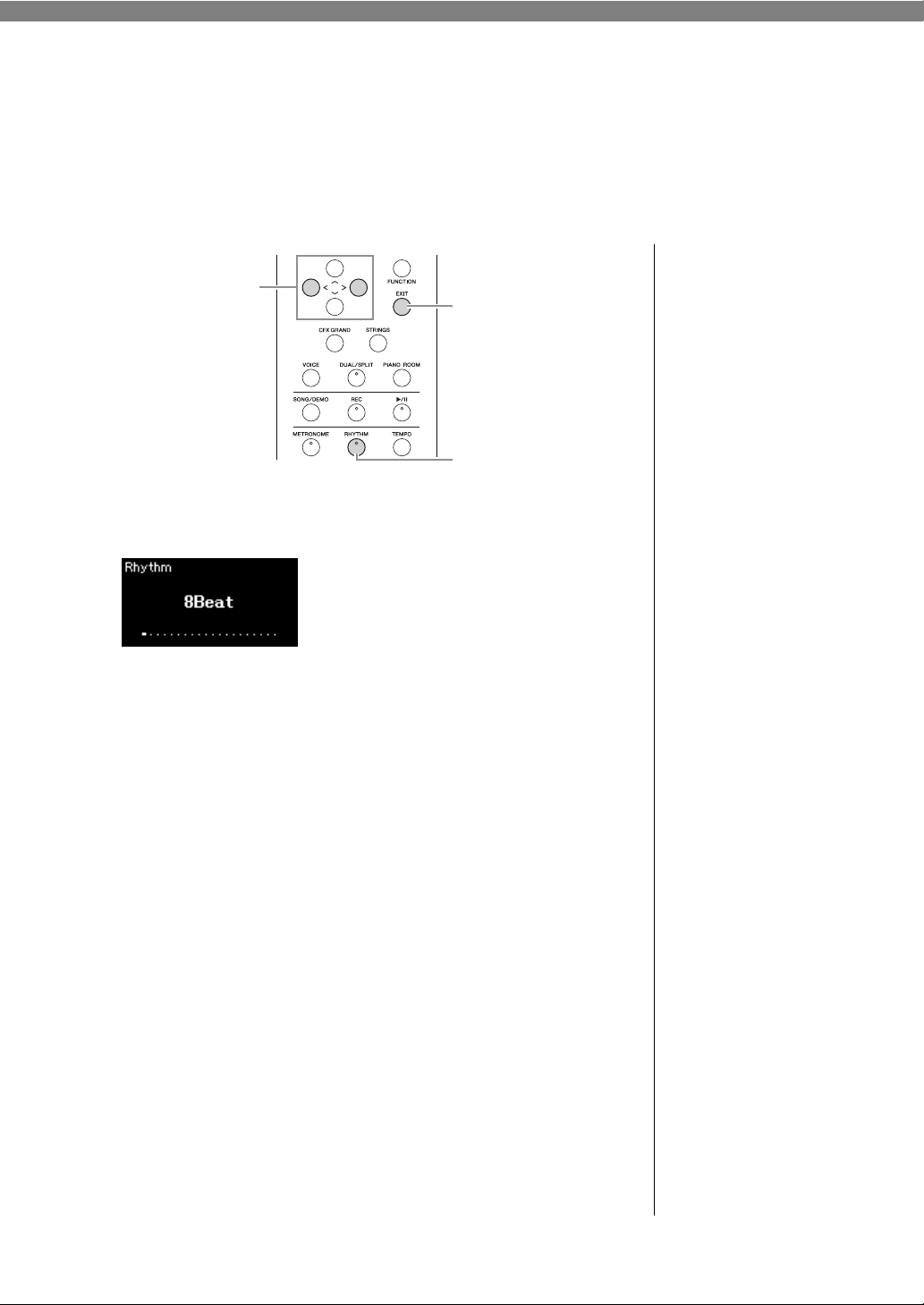
48
YDP-184 Owner’s Manual
Playing the Keyboard along with Rhythm
Playback
This instrument features various rhythm patterns. In time with the Rhythm playback, you can enjoy your
keyboard performance.
1. Press the [RHYTHM] button to start Rhythm playback.
Intro playback starts followed by the Rhythm playback.
2. Use the [<]/[>] buttons to call up the desired Rhythm.
For details on the available Rhythms, refer to the Rhythm List (page 97).
3. Play the keyboard along with Rhythm playback.
4. To stop Rhythm playback, press the [RHYTHM] button
again.
The Rhythm will automatically stop after the Ending is played.
5. Press the [EXIT] button to exit from the Rhythm display.
5
2
1, 4
About the Rhythm Tempo
• The Rhythm tempo is
equivalent to that set for the
Metronome (page 33).
• Although you set the Rhythm
tempo, selecting a MIDI Song
will change the tempo value
to that specified in the
selected MIDI Song data.
Detailed Settings for the
Rhythm
From the “Metronome/Rhythm”
menu display (page 85), you
can set detailed parameters,
such as Rhythm volume and
Sync Start, with which pressing
a key will start Rhythm
playback.
NOTE
The Rhythm display cannot be
called up during the Song
playback or recording.
To set the Intro/Ending on
or off
“Intro” and “Ending” allow you
to vary the arrangement of the
accompaniment. You can set
“Intro” and “Ending” on/off via
“Intro” or “Ending” in the
“Metronome/Rhythm” menu
display (page 85).

49
YDP-184 Owner’s Manual
Recording Your Performance
This instrument allows you to record your performance to the instrument or a USB flash drive as an SMF
(format 0) MIDI file. If you want to re-record a specific section or edit parameters such as Voice, use this
method. Also you can record your performance to each Track one by one. This instrument allows you to
record approximately 500 KB of data per Song.
This chapter covers the following four methods.
• Quick MIDI Recording ......................................................... page 50
This method lets you start recording most quickly. Your performance will be
recorded and saved to the “User” category in this instrument’s internal
memory.
• MIDI Recording — Independent Tracks .............................. page 52
This lets you record the right, left and extra parts separately. Since you can
record the left part while playing back the right, this is useful for recording both
parts of a duet. Since you can record up to sixteen parts separately, record the
performance of each instrument part one by one and create fully orchestrated
compositions.
• MIDI Recording to the USB Flash Drive .............................. page 54
This method is useful when you want to overwrite the already recorded MIDI
Song in the USB flash drive or create a New MIDI Song on the USB flash drive.
Recording Methods
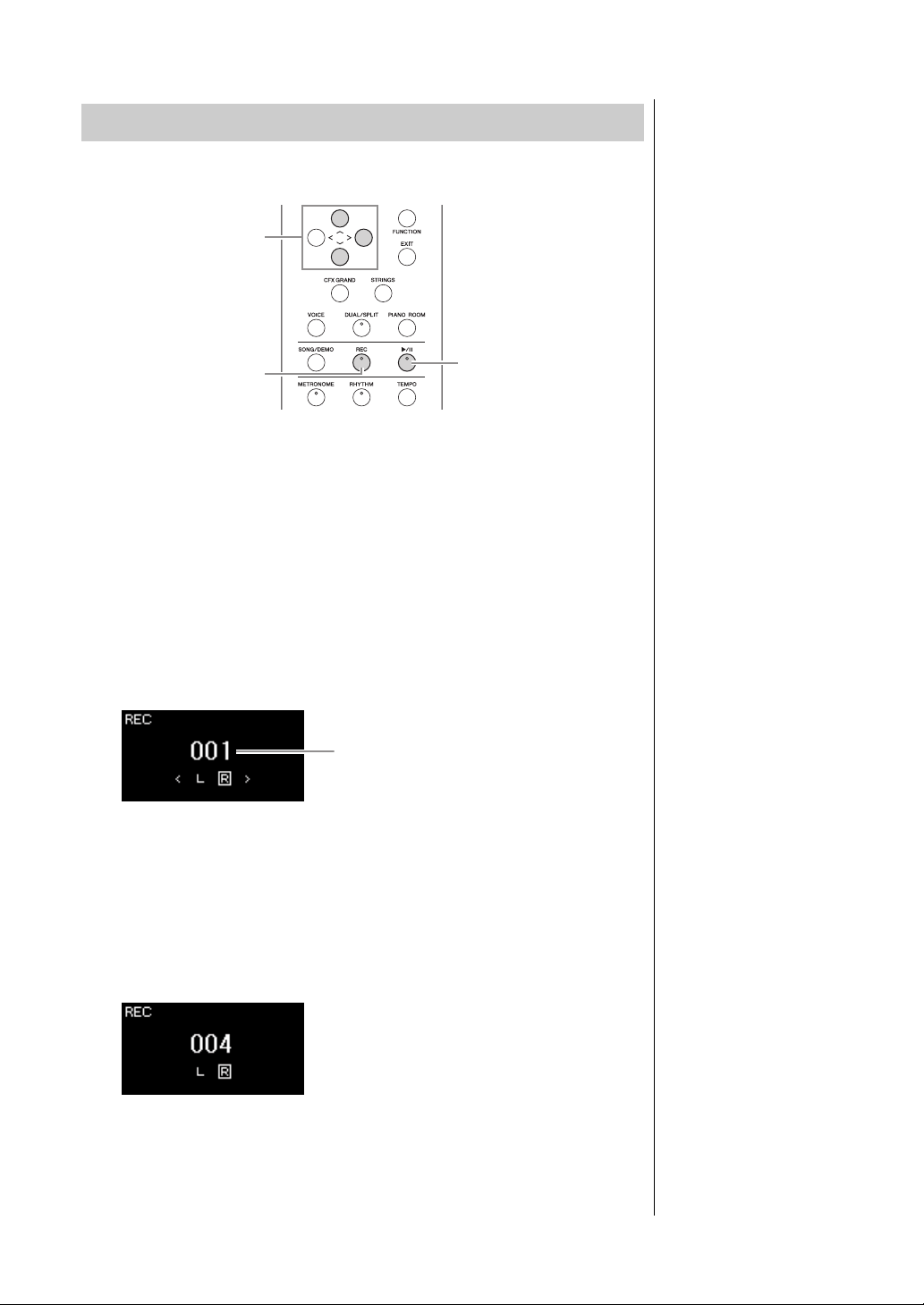
50
YDP-184 Owner’s Manual
Recording Your Performance
This method is the quickest way to start recording.
1. Make the necessary settings such as Voice selection and
time signature.
Before starting the Recording operation, select a Voice (page 23) for your
keyboard performance, turn Dual/Split/Duo on or off as desired, set the
time signature of the Metronome/Rhythm (page 33), then select a
Reverb/Chorus/Effect type as desired.
2. Press the [REC] (Record) button to enter the Recording
mode.
The blank new Song for recording is automatically set.
The [R/K] (Play/Pause) button will flash at the current tempo.
To exit from the Recording mode, press the [REC] (Record) button again.
3. Play the keyboard to start recording.
When you wish to record an empty section at the start of the Song, press
the [R/K] (Play/Pause) button to start recording.
Quick MIDI Recording
3, 6
5
2, 4
NOTE
If you want to record the left-
hand and right-hand parts
individually, refer to “MIDI
Recording—independent
Tracks” (page 52), since the
Recording method here
assumes that both the left and
right parts are being recorded
together.
Using the Metronome/
Rhythm
You can use the Metronome/
Rhythm while recording. While
the Metronome sound cannot
be recorded, the Rhythm
sound can. Make sure to start
enter the Recording mode
before starting Rhythm
playback, since entering the
Recording mode during
playback of the Rhythm stops
its playback.
NOTE
The “Song – Keyboard” Volume
Balance (page 45) will not be
recorded.
NOTE
With MIDI recording, the
performance will be recorded
to Track 1. However, in the
Dual/Split/Duo mode, the
tracks assigned for recording
and the tracks actually used for
recording are different. For
details refer to “Recording
Track Assignment” on page 52.
Mode:
A mode is a status under which
you can execute a certain
function. In Recording mode,
you can record Songs.
NOTE
Pressing and holding the [REC]
button for a second will call up
the display which lists the
Recording Target Songs. In this
case, select “New Song” then
press the [>] button referring to
the table on page 54.
To start recording as soon
as a Rhythm starts:
When a Rhythm (page 48) is
selected, press the [RHYTHM]
button to start Rhythm
playback and MIDI recording
simultaneously.
Measure number
REC display
REC display (during recording)
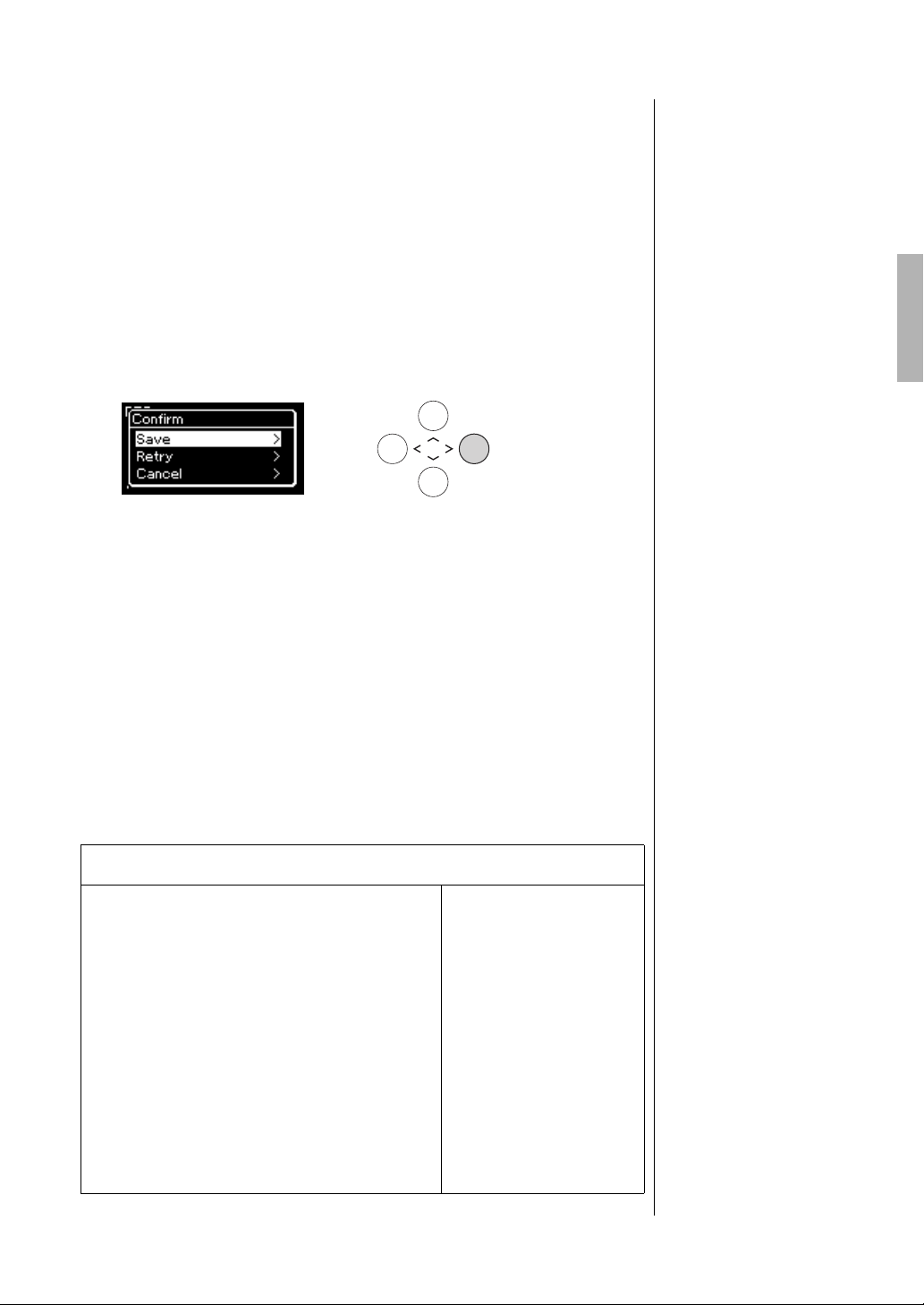
51
YDP-184 Owner’s Manual
Recording Your Performance
4. After you finish your performance, press the [REC]
(Record) button again to stop recording.
This operation exits from the Recording mode and calls up the display for
saving the recorded performance data.
5. If you want to save the recorded performance, press the [>]
button to execute the Save operation while “Save” is
highlighted.
After the Save operation is completed, the display shows “Save
Completed” then returns to the Song display. The recorded Song will be
named “USERSONGxxx” (xxx: number) and saved in the “User”
category.
• If you are not satisfied with your performance and want to record
again, highlight “Retry” then press the [>] button. Try recording again
from step 3.
• If you do not want to save the recorded data, highlight “Cancel” then
press the [>] button.
6. To hear the recorded performance, press the [R/K] (Play/
Pause) button.
NOTICE
The recorded MIDI Song will be
lost if you change to another
Song or you turn the power off
without executing the Save
operation.
Renaming the recorded
Song
The recorded Songs are
named automatically, but you
can rename Songs as you like
(page 65).
Data that can be recorded to MIDI Songs
Data for each Track
• Note data (your keyboard performance)
•Voice selection
• Pedal operations (Damper/Soft/Sostenuto)
•Reverb Depth
•Chorus Depth
•Effect Depth
• Sound brightness — “Brightness”
• Resonance effect setting — “HarmonicContent”
•Octave
• Volume setting for each Voice — “Volume”
•Pan for each Voice
•Detune
•Touch Sensitivity
Data commonly for all
Tracks
•Scale
•Tempo
•Time Signature
• Reverb Type
•Chorus Type
•Effect Type
NOTE
Parameter settings other than
Voice and Tempo, such as note
data, pedal (Damper/Soft/
Sostenuto) data, octave setting
and time signature, cannot be
changed after recording.
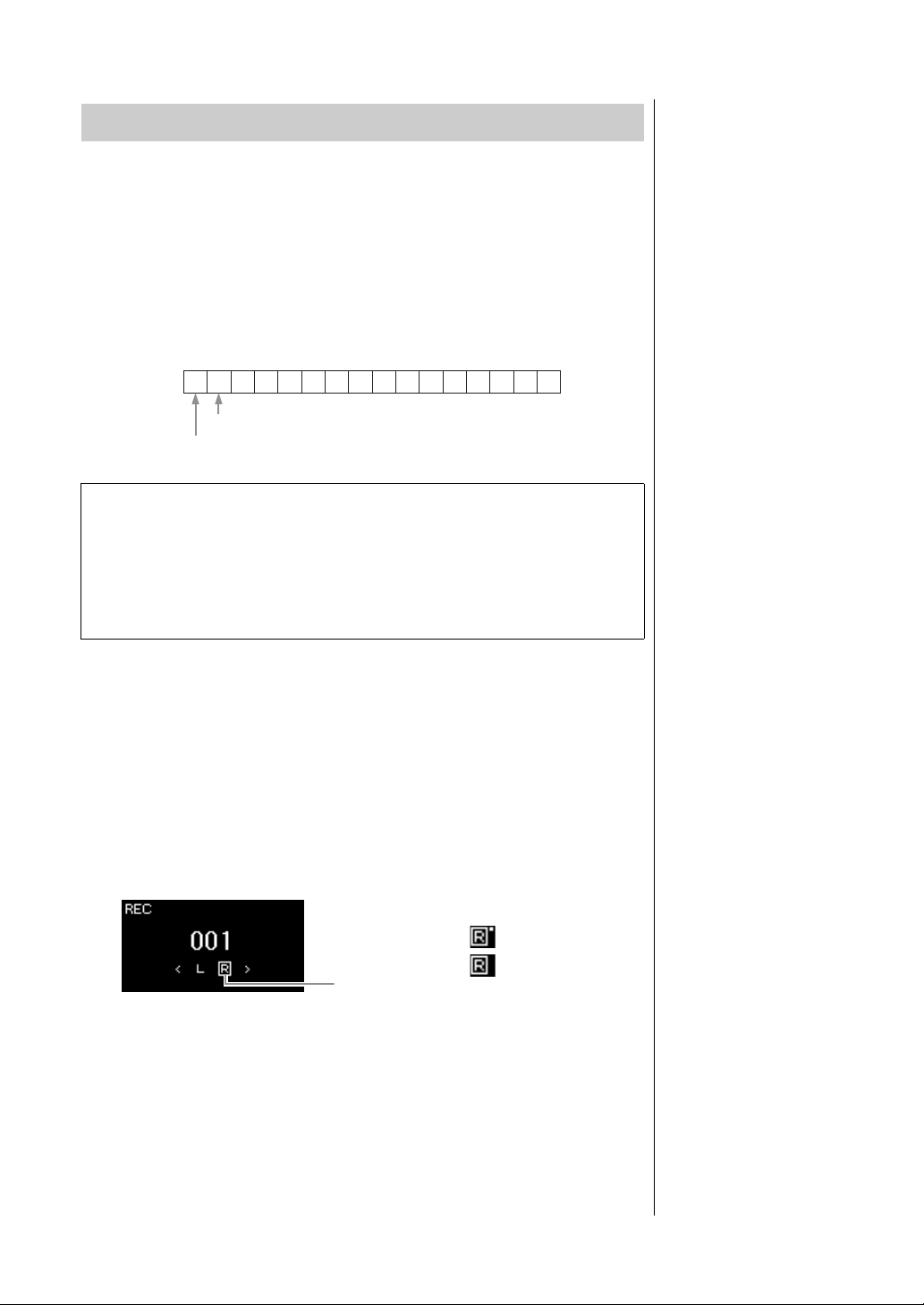
52
YDP-184 Owner’s Manual
Recording Your Performance
With MIDI Recording, you can create a MIDI Song consisting of 16 tracks by
recording your performance to each track one by one. In recording a piano
piece, for example, you can record the right-hand part to Track 1 then record
the left-hand part to Track 2, allowing you create a complete piece which may
be difficult to play live with both hands together. To record a performance with
Rhythm playback, for example, record Rhythm playback to Tracks 9 – 10, then
record melodies to Track 1 while listening to the already recorded Rhythm
playback. In this way, you can create an entire Song which would otherwise be
difficult, or even impossible, to play live.
1. Execute the same operations as in step 1 and step 2 on
page 50 to enter the Recording mode with a new blank
Song selected.
2. Use the [<]/[>] buttons to select a Recording Track.
When you want to record the right-hand part, highlight “R” (Track 1).
When you want to record the left-hand part, highlight “L” (Track 2).
Alternately, when you want to record your performance to Tracks 3 – 16,
call up the desired one by pressing the [<]/[>] buttons repeatedly.
3. Play the keyboard to start recording.
4. After you finish your performance, press the [REC]
(Record) button to stop recording.
This operation exits from the Recording mode and calls up the display for
saving the recorded performance data.
MIDI Recording — Independent Tracks
NOTE
If you want to record your
performance to the USB flash
drive or you want to add the
recording to the MIDI Song in
the USB flash drive, refer to
“MIDI Recording to the USB
flash drive” (page 54).
NOTE
Rhythm cannot be added to a
recorded Song. When you want
to record Rhythm, make sure to
record the Rhythm playback
first.
When you want to record a new track of an already recorded
MIDI Song:
After selecting the target MIDI Song (steps 1 – 4 on pages 38 – 39), press and hold
the [REC] (Record) button for a second to call up the display which lists the
Recording Target Songs, select the 4th item (the selected MIDI Song), press the [>]
button, then go to step 2 described on this page.
12345678910111213141516
Example:
Right-hand part
Left-hand part
NOTE
If you record your performance
with both hands to R then to L,
both are played back at the
same time as a single Song.
Recording Track
Assignment
When Dual/Split/Duo is on, only
the R1 Voice performance will
be recorded to the selected
Track, and the R2 Voice
performance will be recorded
to the Track number which is 6
plus the selected Track, and
the L Voice performance of
Split/Duo will be recorded to
the Track number which is 3
plus the selected Track.
Rhythm playback will be
recorded to Tracks 9/10.
NOTICE
Note that recording your
performance to a Track
containing data will overwrite
the previously recorded data.
Recording Track
Track Data Status
Contains data.
Contains no data.
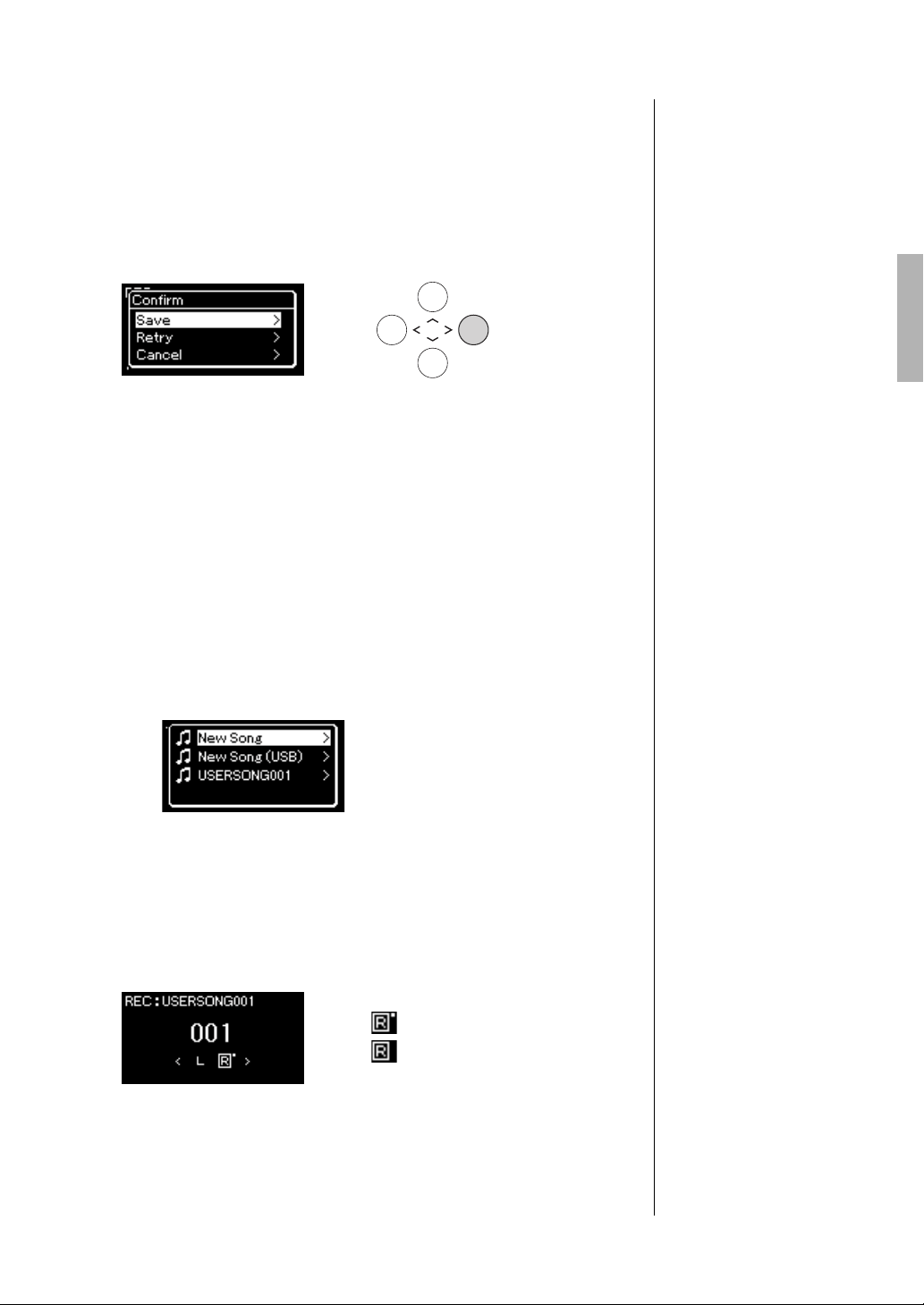
53
YDP-184 Owner’s Manual
Recording Your Performance
5. If you want to save the recorded performance, press the [>]
button to execute the Save operation while “Save” is
highlighted.
After the Save operation is completed, the display shows “Save
Completed” then returns to the Song display. The recorded Song will be
named “USERSONGxxx” (xxx: number) and saved in the “User”
category.
• If you are not satisfied with your performance and want to record
again, highlight the cursor to “Retry” then press the [>] button. Try
recording again from step 3.
• If you do not want to save the recorded data, highlight “Cancel” then
press the [>] button.
6. To hear the recorded performance, press the [R/K] (Play/
Pause) button.
7. To record another Track, enter the Song Recording mode
again.
7-1. Press and hold the [REC] (Record) button for a second.
The Recording Target Songs will be listed on the display.
7-2. Use the [d] button to select existing MIDI Song (at the
bottom of the list), then press the [>] button.
You can check whether or not each Track contains recorded data by the
mark appears in upper right of each Track.
Track Data Status
8. Record your performance to another track by repeating
steps 2 – 6 of this section.
In step 2, select a track which has no recorded data. In step 3, play the
keyboard while listening to the already recorded data.
NOTICE
The recorded MIDI Song will be
lost if you change to another
Song or you turn the power off
without executing the save
operation.
Renaming the recorded
Song
The recorded Songs are
named automatically, but you
can rename Songs as desired
(page 65).
Contains data.
Contains no data.
NOTICE
Note that recording your
performance to a Track
containing data will overwrite
the previously recorded data.
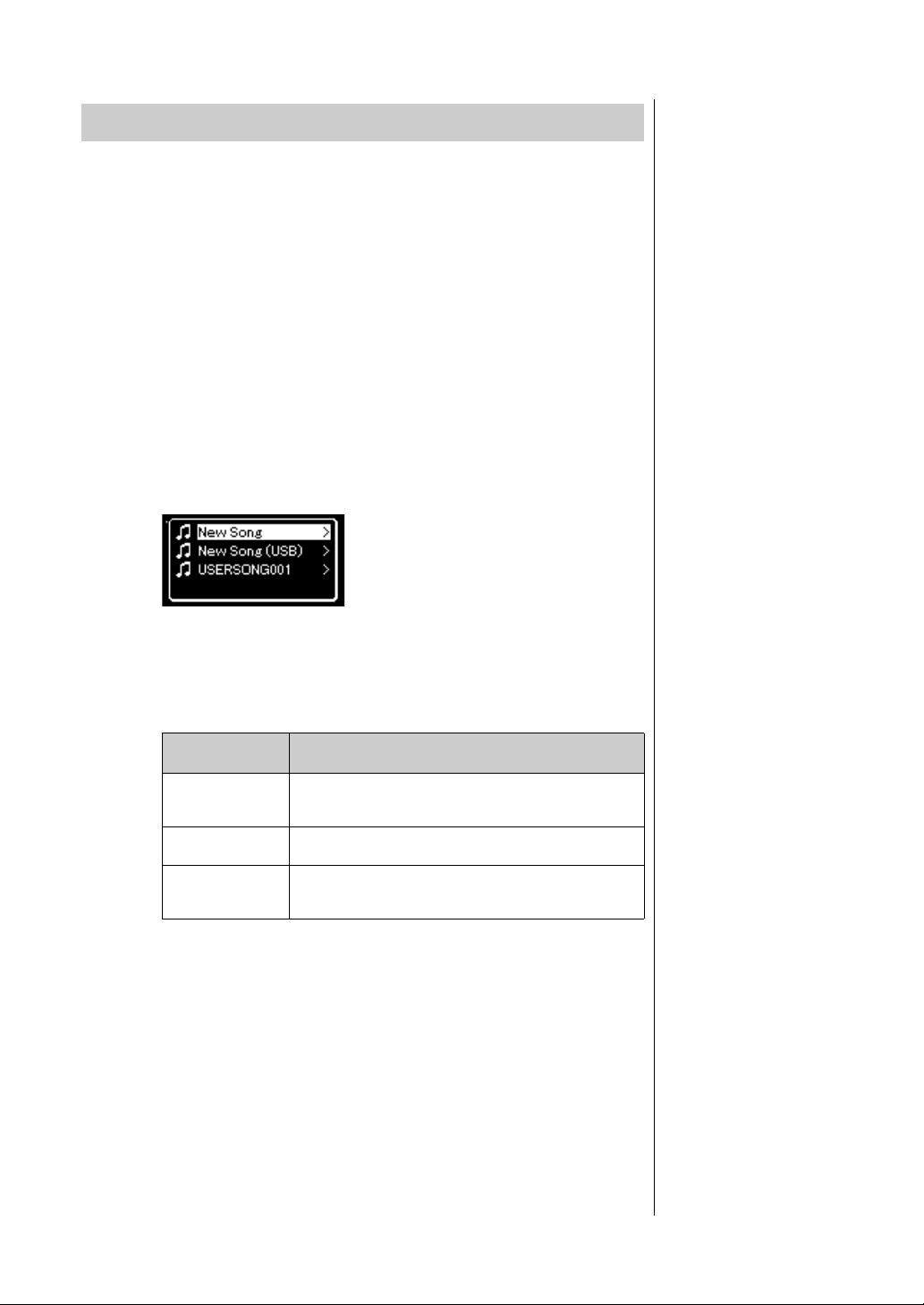
54
YDP-184 Owner’s Manual
Recording Your Performance
These instructions describe how to overwrite an already recorded MIDI Song
in the USB flash drive or how to create a New MIDI Song on the USB flash
drive.
1. Connect the USB flash drive to the USB [TO DEVICE]
terminal.
2. Select a MIDI Song as Recording target, then enter the
Recording mode.
2-1. If you want to record an additional Track to the already
recorded MIDI Song, select the desired MIDI Song in the USB
flash drive. If you want to record from scratch, skip this step.
2-2. Press and hold the [REC] (Record) button for a second to call
up the display which lists the Recording Target Songs.
2-3. From the Recording Target Songs, select “New Song (USB)”
or the MIDI Song selected in step 2-1 (3rd item below) using
the [u]/[d] buttons, then press the [>] button to enter the
Recording mode.
* Can be selected only when the USB flash drive is connected to the USB [TO DEVICE]
terminal.
** Will not be shown when an already recorded MIDI Song is not selected in step 2-1 above,
or when a Preset Song or Protected Song is selected in step 2-1.
MIDI Recording to the USB Flash Drive
NOTE
To connect a USB flash drive,
be sure to read the section
“Connecting USB Devices
(USB [TO DEVICE] terminal)”
on page 68.
NOTE
Before starting the Recording
operation, check the remaining
memory capacity of the USB
flash drive. “System” menu:
“Utility” “USB Properties”
(page 90).
Recording Target
Song
Description
New Song Select this when you want to record your performance to a
blank MIDI Song and save to “User” category in this
instrument’s internal memory.
New Song (USB)* Select this when you want to record your performance to a
blank MIDI Song and save to the USB flash drive.
xxxxx (MIDI Song
selected in step 2-1
above)**
Select this when you want to record additionally to/overwrite
the currently selected MIDI Song.

55
YDP-184 Owner’s Manual
Recording Your Performance
3. Execute the Recording operation, then save the recorded
performance.
• When you want to record additionally to the currently
selected MIDI Song, or record to a specified track on a
blank MIDI Song:
Execute steps 2 – 8 in “MIDI Recording—Independent Tracks” on
page 52.
• When you want to quick record to a blank MIDI Song:
Execute steps 3 – 6 in “Quick MIDI Recording” on page 50.
NOTICE
Note that recording your
performance to a Track
containing data will overwrite
the previously recorded data.
NOTE
The time signature and tempo
cannot be changed when
replacing the part of an
existing MIDI Song.
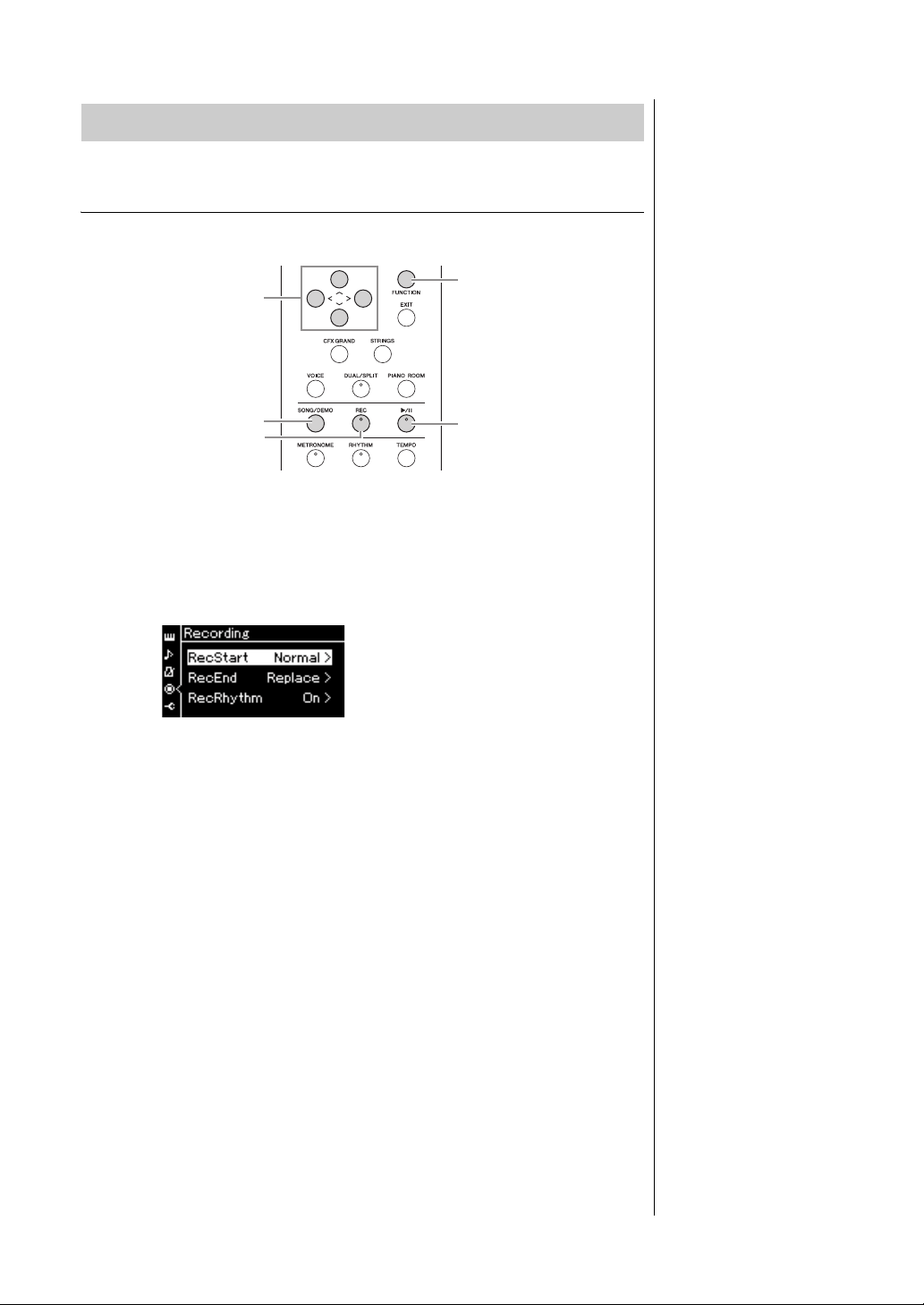
56
YDP-184 Owner’s Manual
Recording Your Performance
Re-recording a MIDI Song in parts
You can re-record a specific range of the MIDI Song.
1. Set the parameters which determine how recording starts
and stops.
1-1. Press the [FUNCTION] button repeatedly to call up the
“Recording” menu display.
1-2. Use the [u]/[d] buttons to select “RecStart,” then select the
value which determines how recording starts by using the [>]
button.
•Normal
The already recorded data will be replaced with the new one as soon
as recording starts.
• KeyOn
The already recorded data will be maintained until you press a key,
and actual recording starts as soon as you press a key.
1-3. Use the [u]/[d] buttons to select “RecEnd,” then select the
value which determines how recording stops by using the [>]
button.
•Replace
The data after the point you stop recording will also be erased.
•PunchOut
The data after the point you stop recording will remain.
2. Press the [SONG/DEMO] button to call up the Song List
display.
Other Recording Techniques
4, 7, 10
1
1, 4, 5, 6
2
5, 8

57
YDP-184 Owner’s Manual
Recording Your Performance
3. Select the desired MIDI Song.
For instructions, refer to page 38.
4. Specify the start point you wish to re-record.
Use the [<]/[>] buttons to move the playback position (measure number)
to the desired point. Alternately, press the [R/K] (Play/Pause) button to
start playback, then press the [R/K] button again slightly prior to the
desired point.
If necessary, select the settings (Voice and other parameters).
Select the desired settings, if you wish to change the previous ones.
5. Press and hold the [REC] (Record) button for a second to
call up the display which lists the Recording Target Songs,
then select the Song selected in step 3, then press the [>]
button to enter the recording mode.
6. Use the [<]/[>] buttons to select a Track for re-recording.
7. Play the keyboard or press the [R/K] (Play/Pause) button
to start recording.
8. Press the [REC] (Record) button to stop recording.
9. Save the recorded performance by following step 5 on
page 53.
10.To hear the recorded performance, press the [R/K] (Play/
Pause) button.
NOTE
The time signature cannot be
changed when replacing the
part of an existing Song.
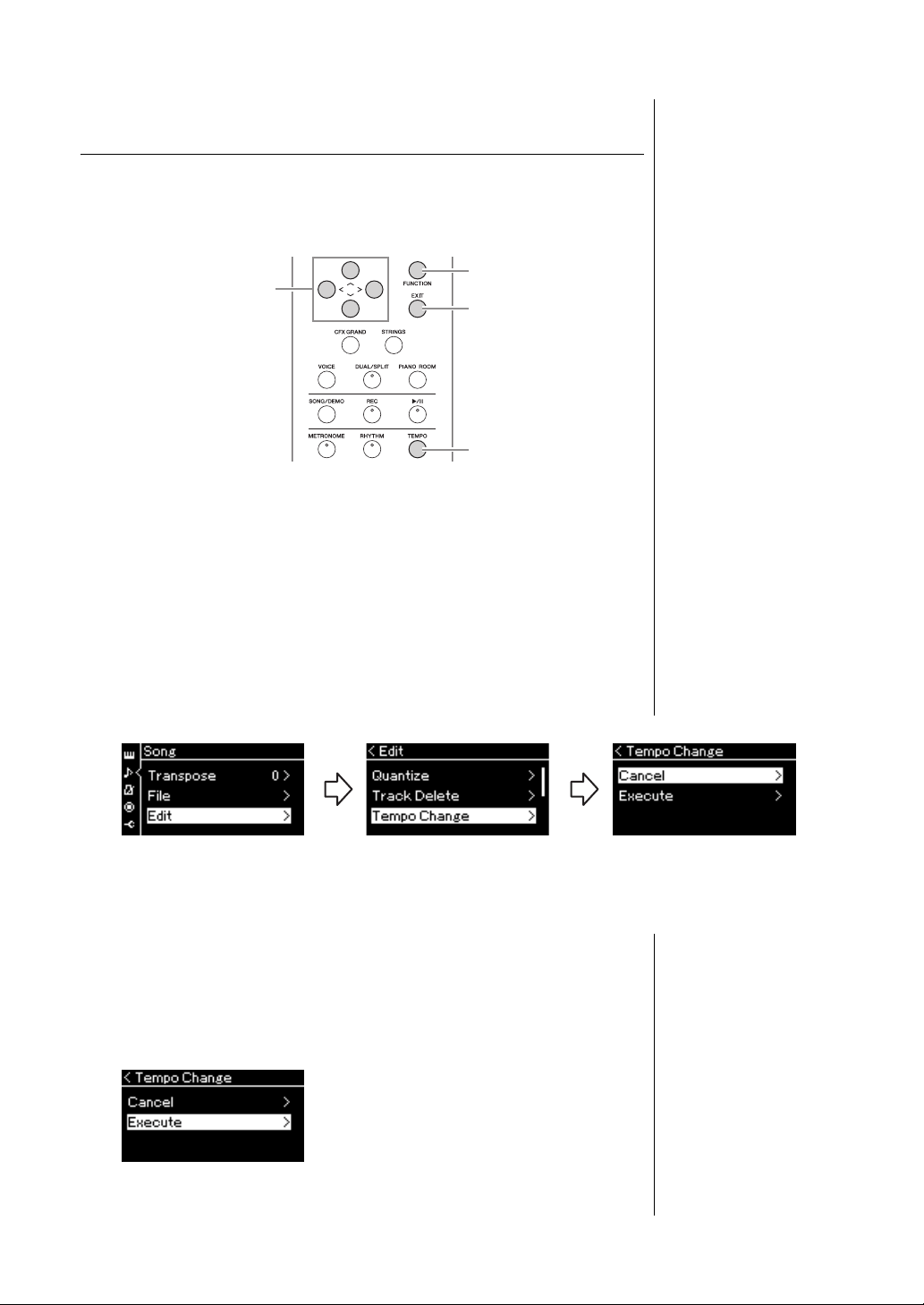
58
YDP-184 Owner’s Manual
Recording Your Performance
Changing the tempo or the Voice of a previously
recorded MIDI Song
You can change the tempo and Voice after recording to change a feel or to set a
more suitable tempo.
To change the tempo:
1. Select the MIDI Song you wish to change.
For instructions, refer to page 38.
2. Press the [TEMPO] button to call up the Tempo display,
then set the desired Tempo.
For instructions, refer to page 34.
3. Press the [FUNCTION] button repeatedly to call up the
“Song” menu display, then select the highlighted item in
each display as illustrated below.
4. Apply the selected Tempo value to the current MIDI Song
data.
Press the [d] button to highlight “Execute,” then press the [>] button to
apply the new Tempo value to the current MIDI Song data.
When this operation is completed, “Completed” is shown on the display,
and the Tempo Change display will be restored after a while.
3
2
5
3, 4
“Song” menu display
3-1. Use the [u]/[d] buttons
to select “Edit.”
3-2. Press the [>] button to
call up the next display.
3-3. Use the [u]/[d] buttons
to select “Tempo Change.”
3-4. Press the [>] button to call up
the next display.
Edit display Tempo Change display
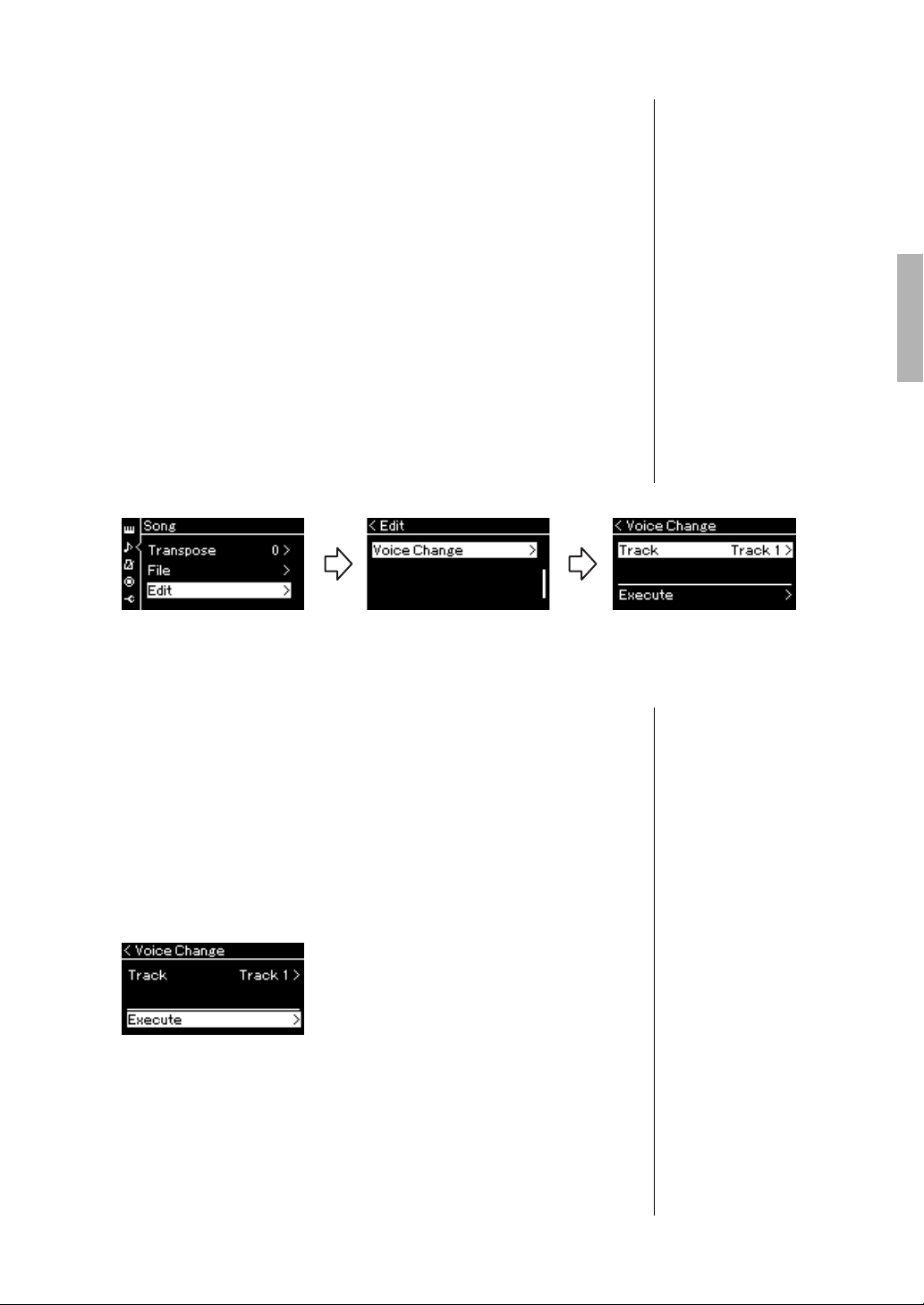
59
YDP-184 Owner’s Manual
Recording Your Performance
5. Press the [EXIT] button to exit from the “Song” menu
display.
To change the Voice:
1. Select the MIDI Song you wish to change.
For instructions, refer to page 38.
2. Select the desired Voice.
For instructions, refer to page 23.
3. Press the [FUNCTION] button repeatedly to call up the
“Song” menu display, then select the highlighted item in
each display as illustrated below.
4.
Press the [>] button to call up the setting display, then select
the desired Track using the [
u
]/[
d
] buttons.
5. Apply the Voice selected in step 2 for the Track selected in
step 4 to the current MIDI Song data.
Press the [<] button to return to the Voice Change display. Press the [d]
button to highlight “Execute,” then press the [>] button to apply the new
Voice to the current MIDI Song data.
When this operation is completed, “Completed” is shown on the display,
and the Voice Change display will be restored after a while.
6. Press the [EXIT] button to exit from the “Song” menu
display.
“Song” menu display
3-1. Use the [u]/[d] buttons
to select “Edit.”
3-2. Press the [>] button to
call up the next display.
3-3. Use the [u]/[d] buttons
to select “Voice Change.”
3-4. Press the [>] button to
call up the next display.
Edit display Voice Change display
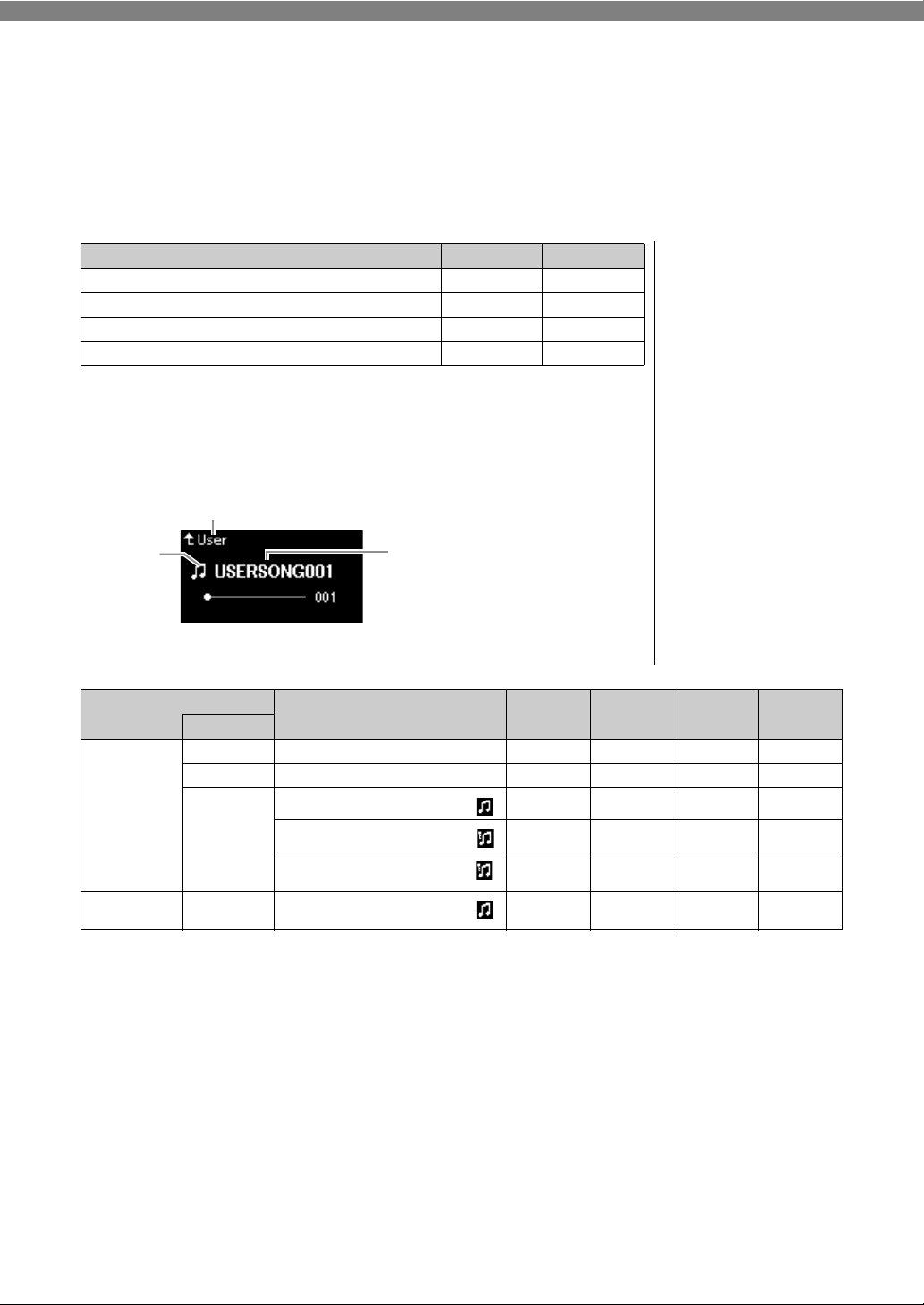
60
YDP-184 Owner’s Manual
Handling Song Files
The “File” menu in the “Song” menu display (page 82) enables you to apply various operations to Song files
— Songs you recorded on this instrument or commercially available Songs.
To
connect a USB flash drive, be sure to read the section “Precautions when using the USB [TO DEVICE]
terminal” on page 68.
Song Types and File Operation Limitations
Song types are indicated as the category name and icon in the Song display. The
following chart shows the Song type and restrictions on File operations.
* The icon appears only when you select a Song in the “User” or “USB” category.
: Yes, ×: No
* There are two types of Songs: original and edited. Original and edited Songs should be saved in the same folder. If not, playback cannot be done.
Operation File menu Page
Deleting files Delete pages 61, 62
Copying files Copy pages 61, 63
Moving files Move pages 61, 64
Renaming files Rename pages 61, 65
File
A file contains a group of data.
On this instrument, a Song file
includes Song data and a Song
name.
Restrictions for protected
Songs
Commercially available Song
data may be copy protected to
prevent illegal copying or
accidental erasure.
Song name
Icon*
Category name
Data Location
Song Type
Deleting
files
Renaming
files
Copying
files
Moving
files
Category
Instrument Demo Demo (Voice Demo) ××××
50 Classics 50 classical Preset Songs ××××
User Your own recorded Songs (MIDI)
MIDI Songs with protect applied ××
MIDI Songs with Yamaha’s
proprietary protect applied
×
USB flash drive
device
USB MIDI Songs
*
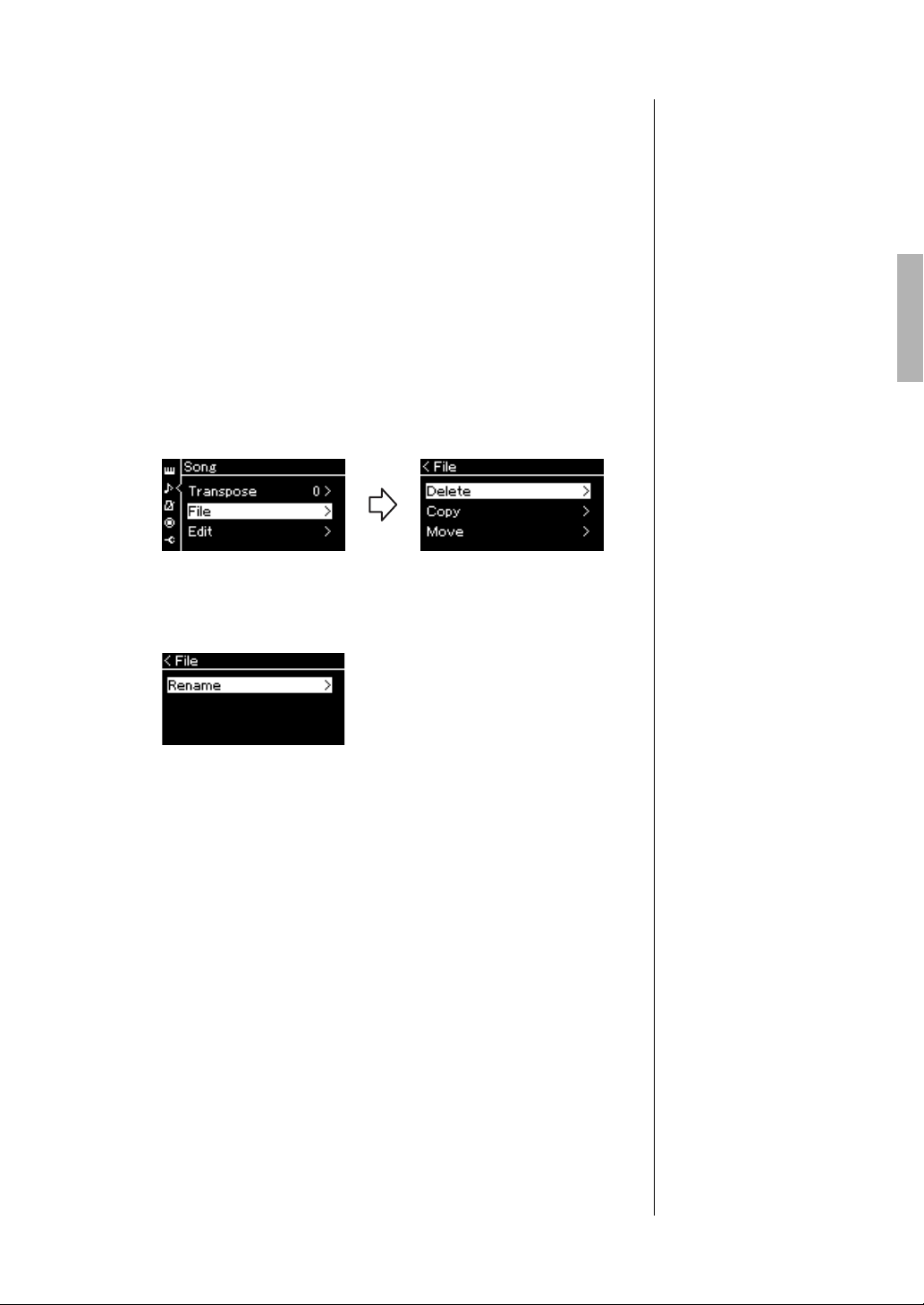
61
YDP-184 Owner’s Manual
Handling Song Files
Basic Song File Operation
Song files can be handled via the instructions shown below.
1. Connect the appropriate USB flash drive containing the
desired files to the USB [TO DEVICE] terminal.
2. Select a Song for handling.
For information on selecting a Song, see page 38.
3. Call up the File mode.
3-1. Press the [FUNCTION] button repeatedly to call up the
“Song” menu display. Use the [u]/[d] buttons to select “File”
then press the [>] button.
3-2. Select the desired operation from “Delete,” “Copy,” “Move” or
“Rename.”
From here, if you wish to close the File mode, press the [EXIT] button
once or twice.
4. Execute the selected operation.
For specific instructions, refer to the corresponding section.
• Delete....................................page 62
• Copy......................................page 63
• Move .....................................page 64
• Rename ................................page 65
During operation, messages (information, confirmation, etc.) may be
shown on the display. For explanations and details, refer to “Message List”
on page 98.
5. Press the [EXIT] button to close the File mode.
“Song” menu display
For example: Renaming files
NOTICE
Do not disconnect the USB
flash drive during file handling
or when a USB flash drive is
mounted. Doing so may delete
all data in the USB flash drive
and the instrument.
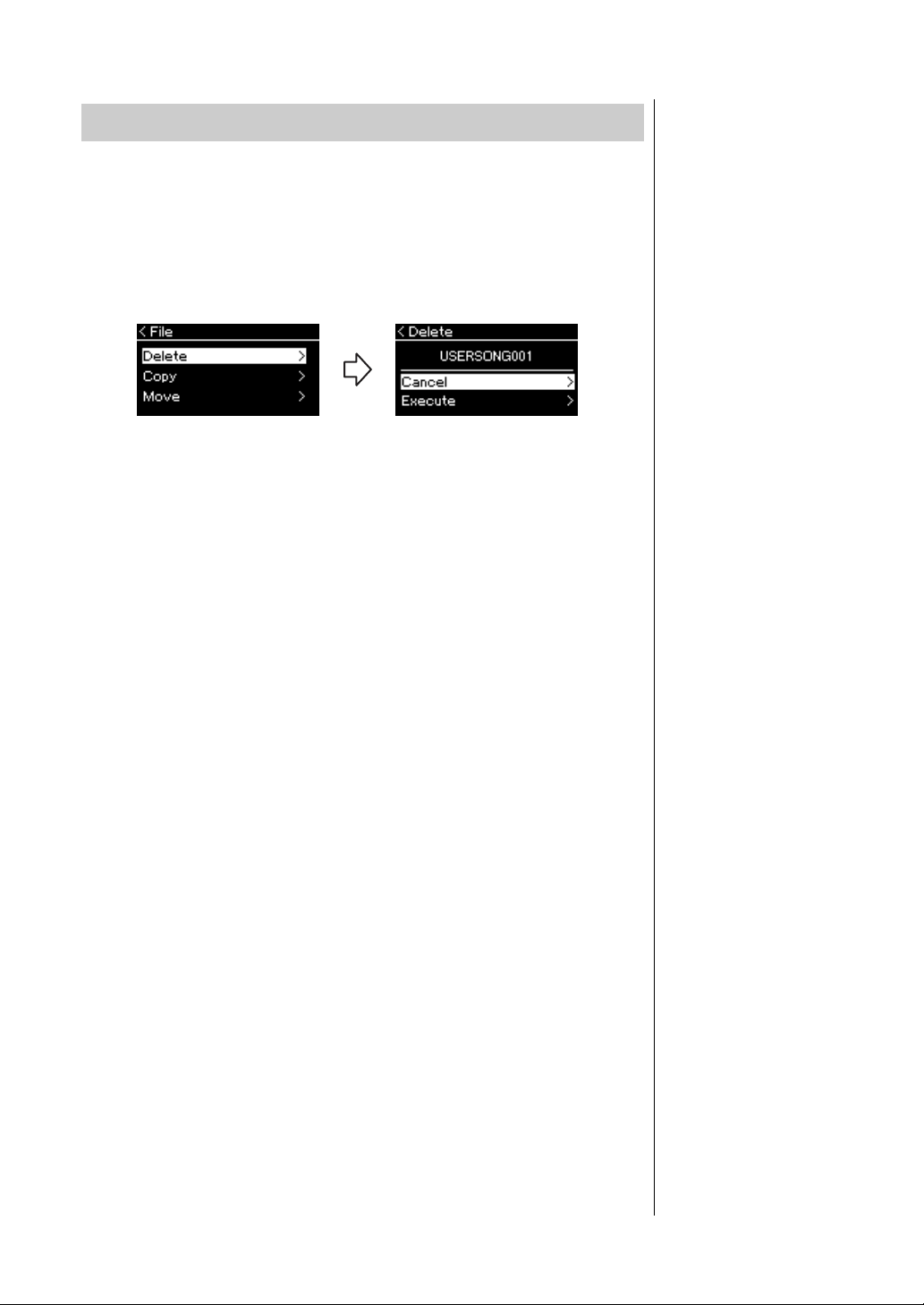
62
YDP-184 Owner’s Manual
Handling Song Files
For details about Song types which can be deleted, refer to page 60.
See page 61 for information on basic operations.
The following is a detailed procedure of step 4 on that page.
4-1. While “Delete” is highlighted, press the [>] button to call
up the setting display.
4-2. Highlight “Execute” by pressing [d] button, and then
press the [>] button.
After the Song is deleted, the display returns to the Song List display.
Deleting Files — Delete
NOTICE
Do not turn off the power or
eject the USB flash drive while
“Executing” is shown in the
display.
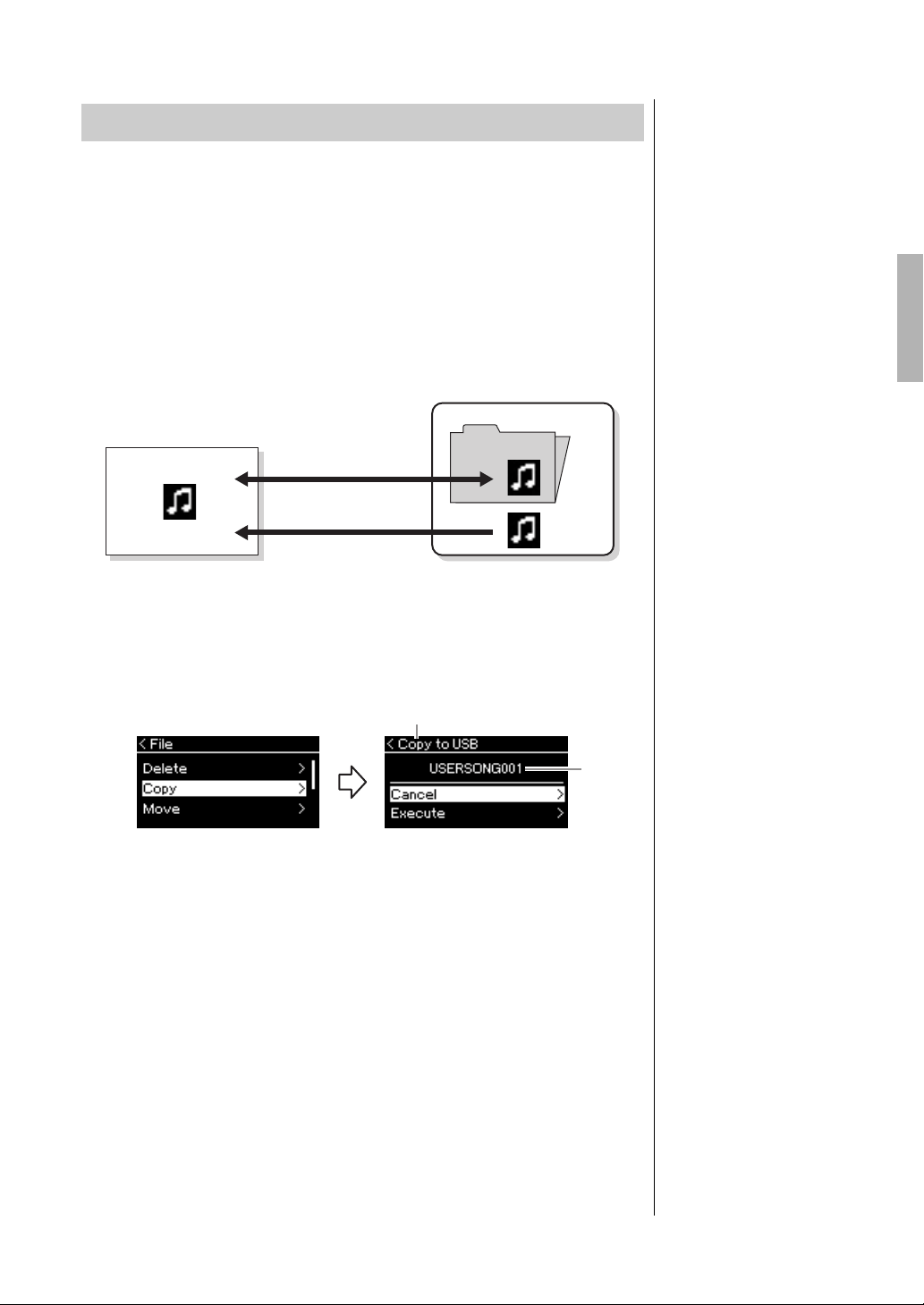
63
YDP-184 Owner’s Manual
Handling Song Files
For details about Song types which can be copied, refer to page 60.
Range of the Copy/Move operation
As for a MIDI Song in the “User” category in the instrument, you can Copy/
Move it only to the USER FILES folder on a USB flash drive. Selecting a MIDI
Song from “User” for copying/moving automatically specifies the USER FILES
folder as the destination.
As for a MIDI Song in a USB flash drive, you can Copy/Move it to the “User”
category in the instrument.
See page 61 for information on basic operations.
The following is a detailed procedure of step 4 on that page.
4-1. While “Copy” is highlighted, press the [>] button to call
up the setting display.
4-2. Highlight “Execute” by pressing [d] button, then press
the [>] button.
The selected Song will be copied to the destination with the same name
as the copy source file.
Copying Files — Copy
USER FILES folder
If the USB flash drive device
plugged into the instrument
contains no USER FILES folder,
one will be created
automatically when you format
or record a Song to that device.
The recorded Song will then be
saved in that folder.
NOTE
Please note that the copy
features are intended for your
personal use only.
NOTE
Folders cannot be copied.
Root:
The highest level of a
hierarchical structure. This
indicates an area which does
not belong to a folder.
Instrument
USB flash drive
User
Can be copied/moved.
Can be copied/moved.
Root
USER FILES
folder
File
name
Copy destination
Copy destination:
“USB” will be shown when the
copy destination is the USB
flash drive or “User” when the
instrument is the copy
destination. A file copied to the
USB flash drive is stored to the
USER FILES folder on it.
NOTE
A message appears when a
Song with the same name
already exists in the copy
destination. Select “Overwrite”
when you want to overwrite the
selected Song, or “Cancel” to
cancel by using the [
u]/[d]
buttons, and then press the [>]
button.
NOTICE
Overwrite operations erase any
existing data of the copy
destination file and overwrite
with data of the copy source
file.
NOTICE
Do not turn off the power or
eject the USB flash drive while
“Executing” is shown in the
display.
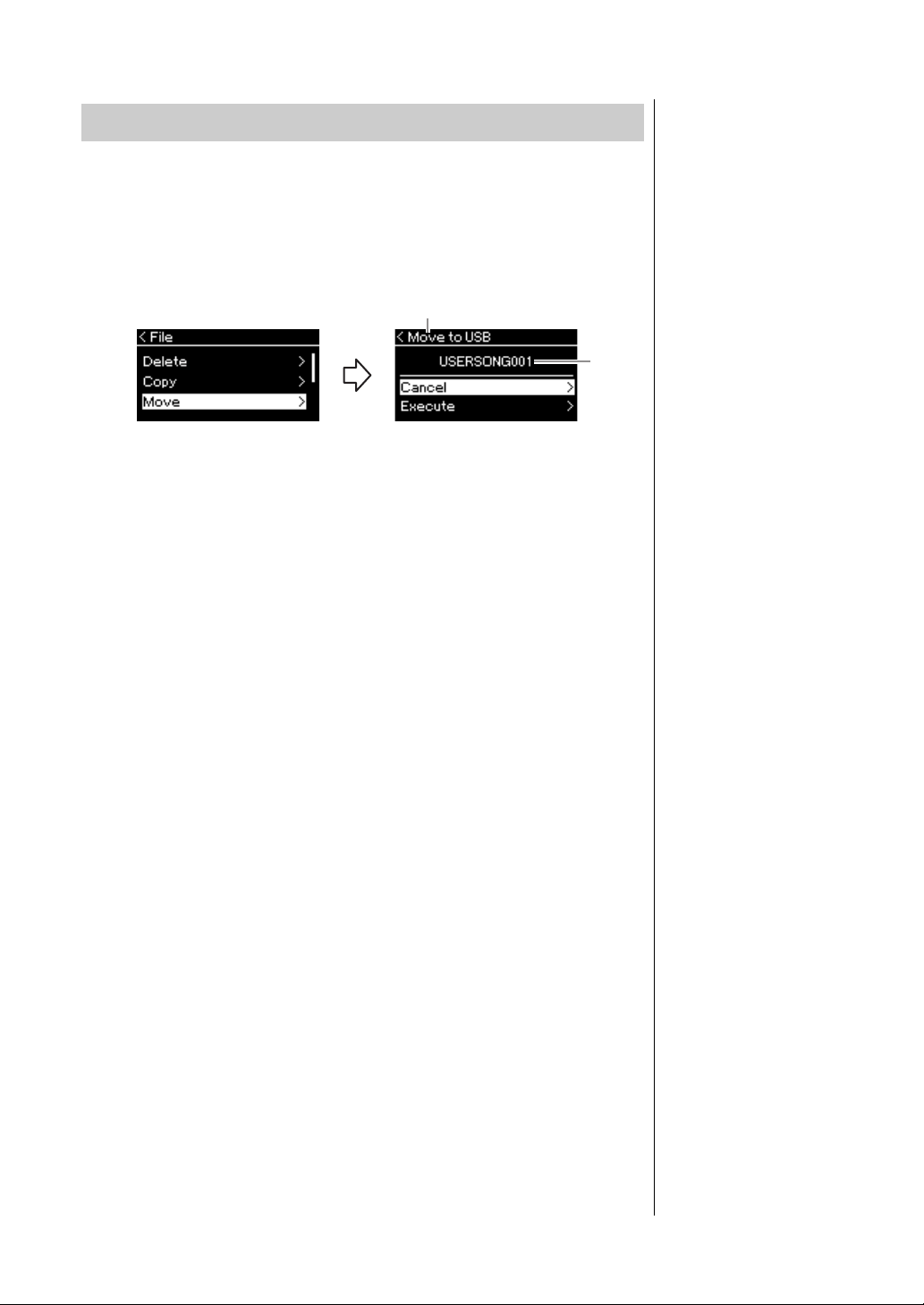
64
YDP-184 Owner’s Manual
Handling Song Files
For details about Song types which can be moved, refer to page 60.
See page 61 for information on basic operations.
The following is a detailed procedure of step 4 on that page.
4-1. While “Move” is highlighted, press the [>] button to call
up the setting display.
4-2. Highlight “Execute” by pressing the [d] button, then
press the [>] button.
The selected Song will be moved to the destination and the display
returns to the Song list display.
Moving Files — Move
Move destination
“USB” will be shown when the
move destination is the USB
flash drive or “User” when the
instrument is the move
destination. A file moved to the
USB flash drive is stored to the
USER FILES folder on it.
NOTE
A message appears when a
Song with same name already
exists in the move destination.
Select “Overwrite” when you
want to overwrite the selected
Song, or “Cancel” to cancel by
using the [u]/[d] buttons, then
press the [>] button.
NOTICE
Overwrite operations erase any
existing data of the move
destination file and overwrite
with data of the move source
file.
NOTICE
Do not turn off the power or
eject the USB flash drive while
“Executing” is shown in the
display.
Move destination
File
name
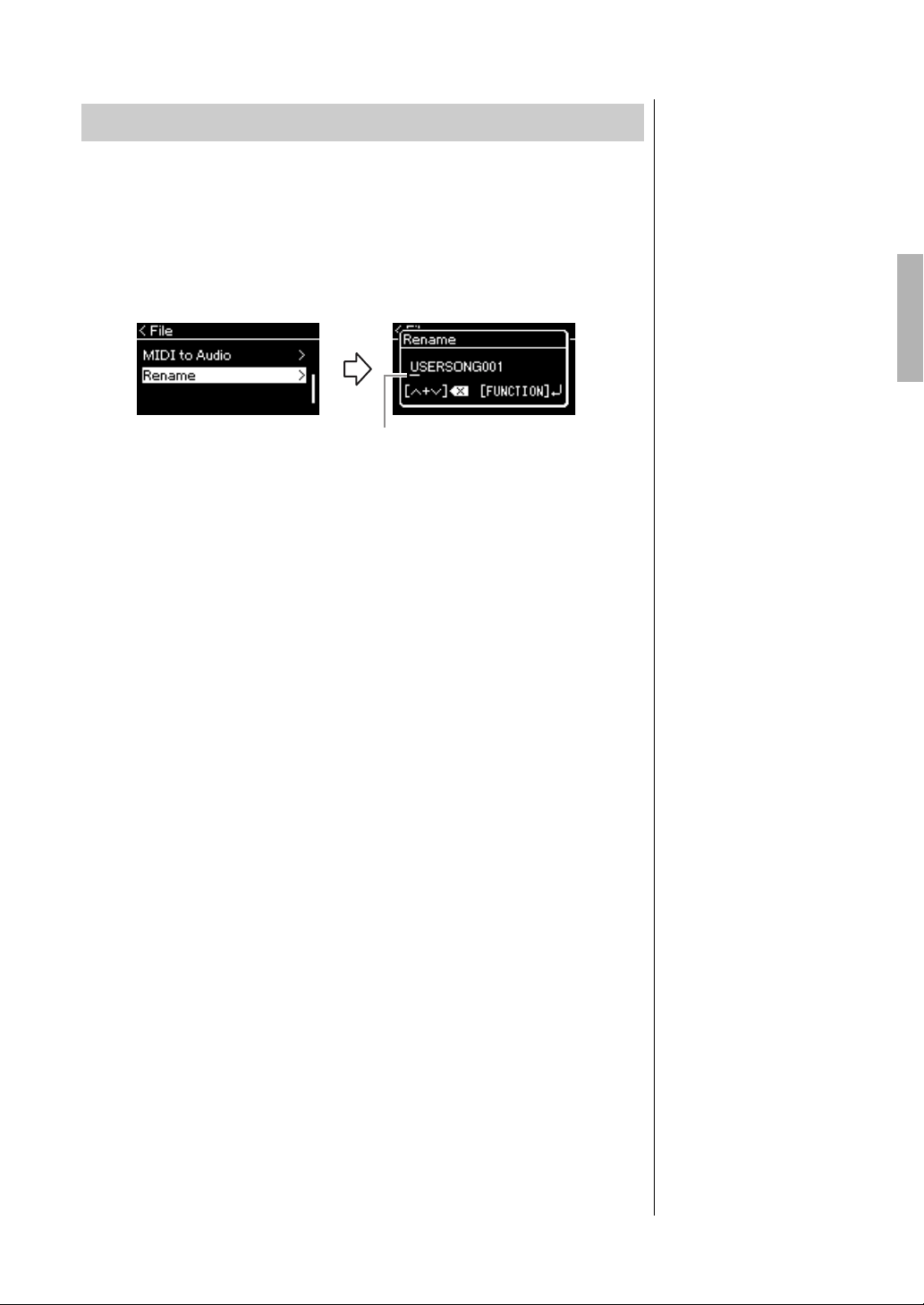
65
YDP-184 Owner’s Manual
Handling Song Files
For details about Song types which can be renamed, refer to page 60.
See page 61 for information on basic operations.
The following is a detailed procedure of step 4 on that page.
4-1. While “Rename” is highlighted, press the [>] button to
call up the setting display.
4-2. Assign a name to the Song.
Use the [<]/[>] buttons to move the highlight (underline).
Use the [u]/[d] buttons to change the character at the current cursor
position. Pressing both buttons simultaneously will delete the character
at the current cursor position.
A Song name can contain up to 46 characters. Characters which extend
beyond the display capacity and are not visible can be viewed by
moving the highlight by using the [<]/[>] buttons.
4-3. Press the [FUNCTION] button.
After the Song is renamed, the display returns to Song List display
where the renamed Song can be selected.
Renaming Files — Rename
Cursor
NOTE
For information about the
character types available for
the Song name, refer to
“Character List” on page 91.
NOTICE
Do not turn off the power or
eject the USB flash drive while
“Executing” is shown in the
display.
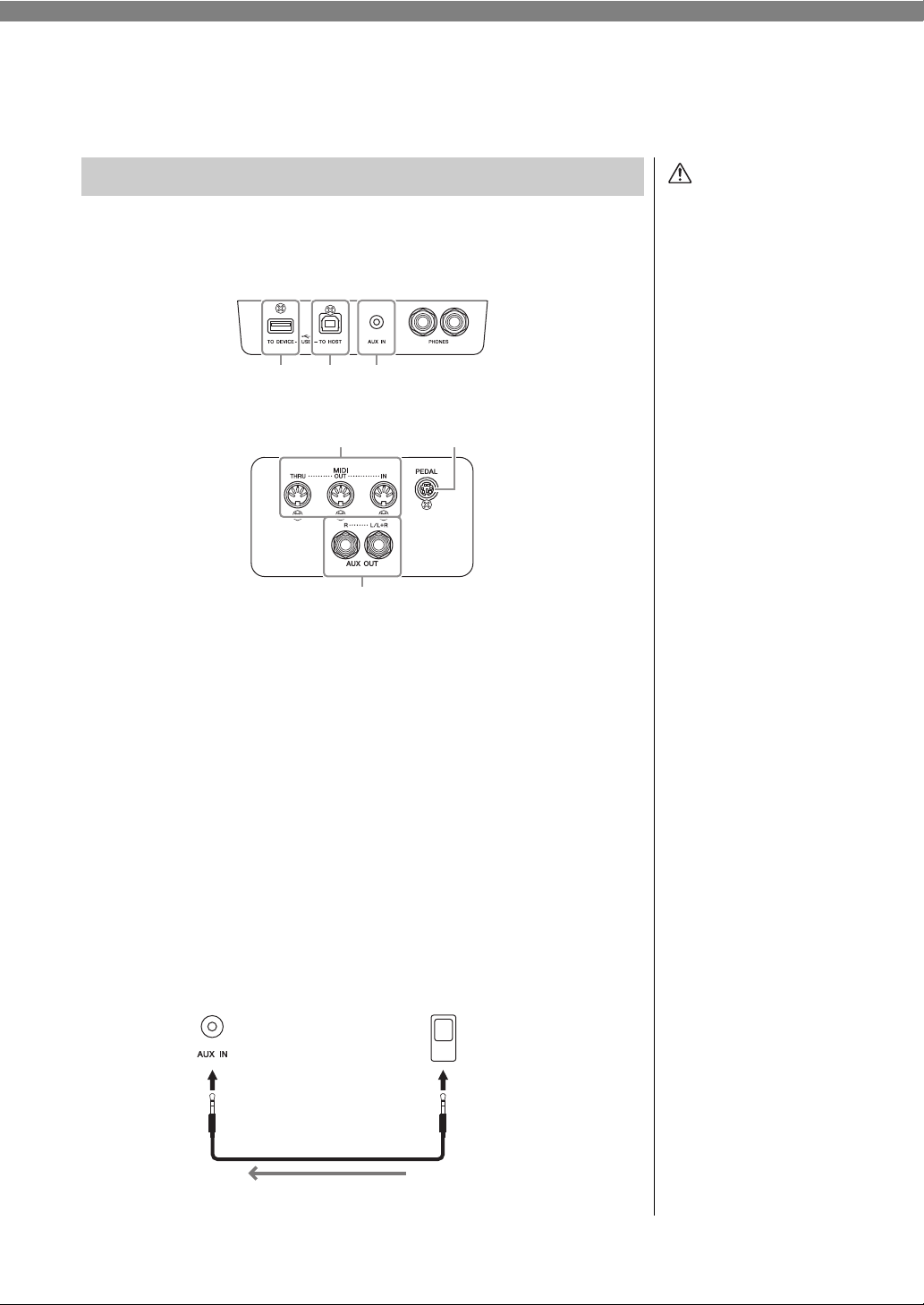
66
YDP-184 Owner’s Manual
Connections
For information about location of these connectors, refer to “Panel Controls
and Terminals” on page 13.
1USB [TO DEVICE] terminal
This terminal allows connection to USB flash drive or to the iPhone/iPad via an
accessory sold separately. Refer to “Connecting USB Devices (USB [TO
DEVICE] terminal)” on page 68 and “Connecting to an iPhone/iPad” on
page 70.
2USB [TO HOST] terminal
This terminal allows connection to a personal computer or to the iPhone/iPad
via an accessory sold separately. Refer to “Connecting a computer” on page 69
and “Connecting to an iPhone/iPad” on page 70.
3[AUX IN] jack
You can connect the headphone jack of a portable audio player to the
instrument’s [AUX IN] jack, letting you hear the sound of that audio player
through the built-in speakers of the instrument.
Connectors
CAUTION
Before connecting the
instrument to other
electronic components, turn
off the power of all the
components. Also, before
turning any components on
or off, make sure to set all
volume levels to minimum
(0). Otherwise, damage to the
components, electrical
shock, or even permanent
hearing loss may occur.
123
46
5
Terminals under the keyboard
Bottom (rear view)
Right
(higher-key side)
Left
(lower-key side)
NOTE
There are two different types of
USB terminals on the
instrument: USB [TO DEVICE]
and USB [TO HOST]. Take care
not to confuse the two
terminals and the
corresponding cable
connectors. Be careful to
connect the proper plug in the
proper direction.
NOTICE
When the instrument’s [AUX IN]
jack is connected to an external
device, first turn on the power to
the external device, then to the
instrument. Reverse this order
when you turn the power off.
NOTE
The instrument’s [MASTER
VOLUME] setting affects the
input signal from the [AUX IN]
jack.
NOTE
Use audio cables and adaptor
plugs having no (zero)
resistance.
This instrument
Phone plug (stereo mini) Phone plug (stereo mini)
Portable audio player
Audio cable
Headphone jack
Audio signal
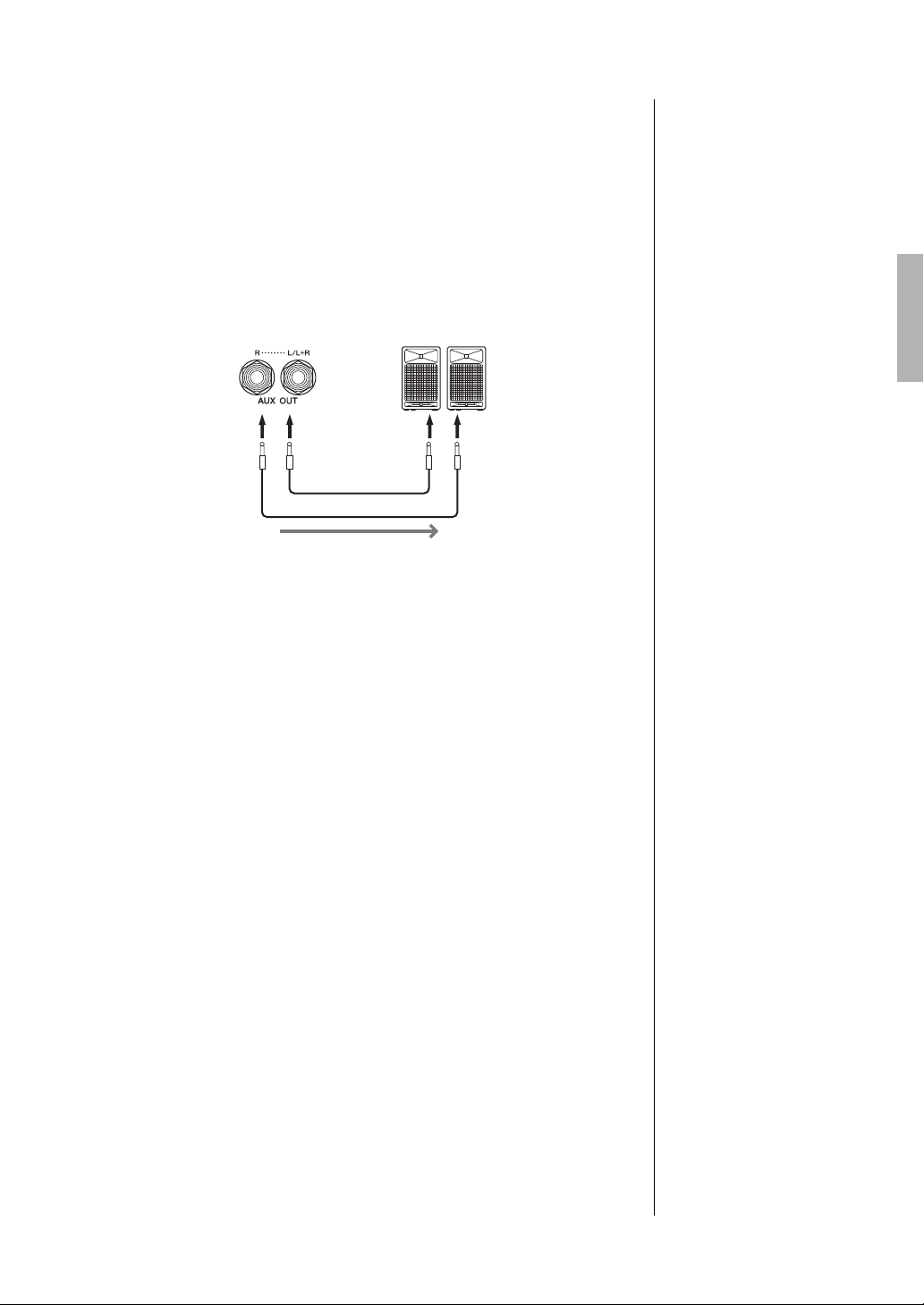
67
YDP-184 Owner’s Manual
Connections
4MIDI [IN], [OUT], [THRU] terminals
Use MIDI cables to connect external MIDI devices to these connectors. Refer
to “Connecting External MIDI Devices” on page 69 for more information.
Also, you can connect the iPhone/iPad via an accessory sold separately. Refer to
“Connecting to an iPhone/iPad” on page 70.
5AUX OUT [R] [L/L+R] jacks
These jacks let you connect the instrument to external powered speaker
systems, for playing in larger venues at higher volumes.
The instrument’s [MASTER VOLUME] setting will affect the sound that is
output from AUX OUT jacks. When the instrument’s AUX OUT jacks are
connected to an external speaker and you want to turn off the speaker sound of
the instrument, switch the “speaker” parameter to off via the “System” menu:
“Utility” “Speaker” (page 90).
6[PEDAL] jack
This jack allows connection to the pedal cord (page 104).
NOTE
Use only the [L/L+R] jack for
connection with a monaural
device.
NOTICE
• To avoid possible damage,
first turn on the power to the
instrument, then to the
external device. When turning
off the power, first turn off the
power to the external device,
then to the instrument. Since
this instrument’s power may
automatically be turned off
due to the Auto Power Off
function (page 16), turn off
the power to the external
device, or disable Auto Power
Off when you do not intend to
operate the instrument.
• Do not route the output from
the AUX OUT jacks to the
[AUX IN] jack. If you make
this connection, the signal
input at the [AUX IN] jack is
output from the AUX OUT
jacks. These connections
could result in a feedback
loop that will make normal
performance impossible, and
may even damage the
equipment.
NOTE
Use audio cables and adaptor
plugs having no (zero)
resistance.
NOTE
When you are monitoring the
sound output via the AUX OUT
jacks from headphones
connected to the instrument,
we recommend that you set the
Stereophonic Optimizer
function to off. For details, refer
to page 18.
This instrument
AUX OUT Input jack
Powered speaker
Audio cable
Phone plug (standard) Phone plug (standard)
Audio signal
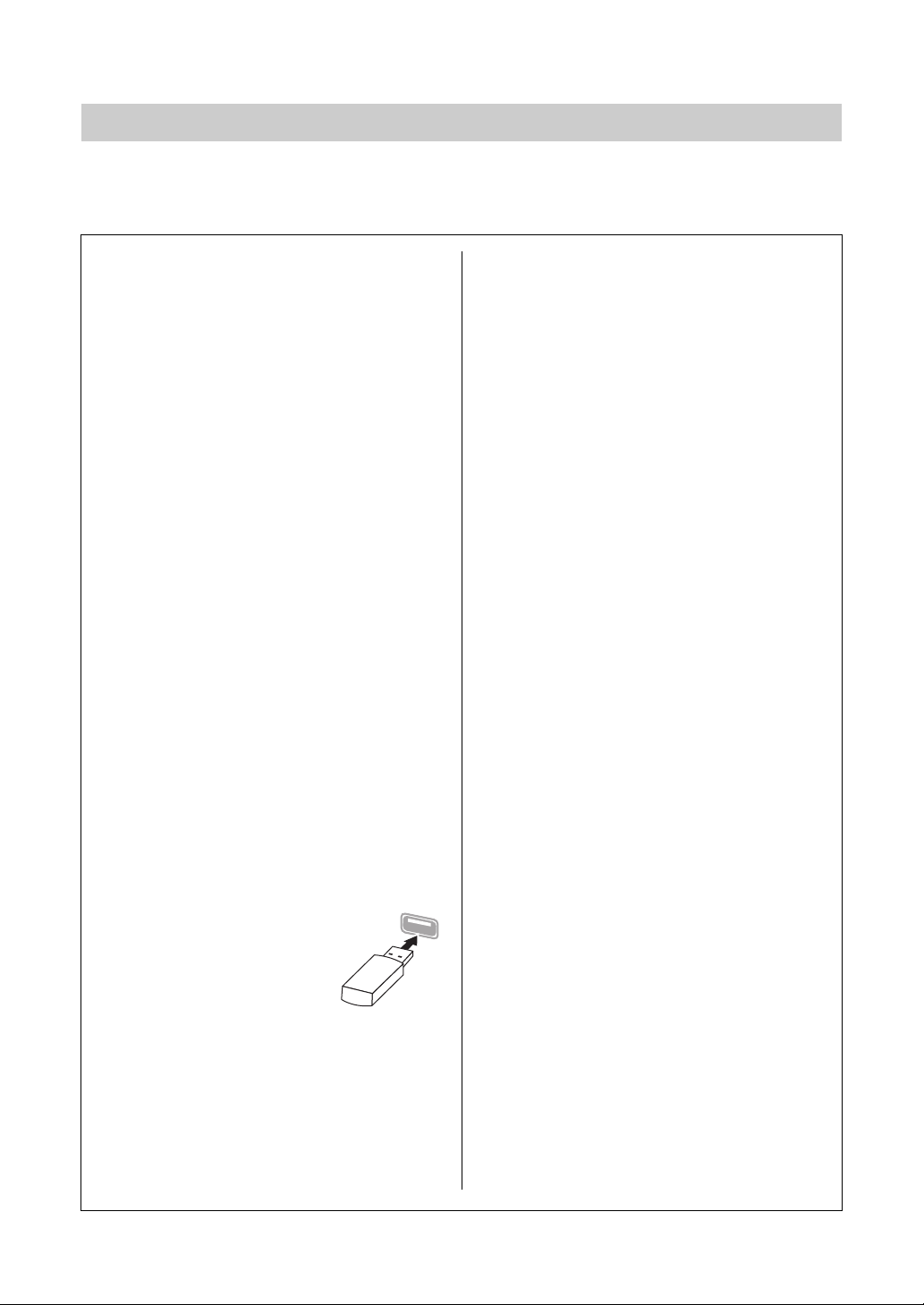
68
YDP-184 Owner’s Manual
Connections
You can connect a USB flash drive or a USB wireless LAN adaptor (sold separately) to the USB [TO DEVICE]
terminal. You can save data you’ve created on the instrument to the USB flash drive (pages 60, 92), or you can
connect the instrument to a smart device such as an iPad via wireless LAN (page 70).
Connecting USB Devices (USB [TO DEVICE] Terminal)
Precautions when using the USB
[TO DEVICE] terminal
This instrument features a built-in USB [TO DEVICE]
terminal. When connecting a USB device to the
terminal, be sure to handle the USB device with care.
Follow the important precautions below.
NOTE
For more information about the handling of USB devices, refer
to the owner’s manual of the USB device.
Compatible USB devices
•USB flash drive
•USB hub
• USB wireless LAN adaptor UD-WL01 (sold separately;
may not be available in some areas)
Other USB devices such as a computer keyboard or
mouse cannot be used.
The instrument does not necessarily support all
commercially available USB devices. Yamaha cannot
guarantee operation of USB devices that you purchase.
Before purchasing a USB device for use with this
instrument, please visit the following web page:
http://download.yamaha.com/
Although USB devices 2.0 to 3.0 can be used on this
instrument, the amount of time for saving to or
loading from the USB device may differ depending
on the type of data or the status of the instrument.
USB 1.1 devices cannot be used on this instrument.
NOTE
The rating of the USB [TO DEVICE] terminal is a maximum of
5V/500mA. Do not connect USB devices having a rating
above this, since this can cause damage to the instrument
itself.
Connecting a USB device
When connecting a USB device to
the USB [TO DEVICE] terminal,
make sure that the connector on
the device is appropriate and that
it is connected in the proper
direction.
NOTICE
• Avoid connecting or disconnecting the USB device during
playback/recording and file management operations (such
as Save, Copy, Delete and Format), or when accessing the
USB device. Failure to observe this may result in “freezing”
of the operation of the instrument or corruption of the USB
device and the data.
• When connecting then disconnecting the USB device (and
vice versa), make sure to wait a few seconds between the
two operations.
NOTE
• If you intend to connect two or three devices at the same
time to a terminal, you should use a bus-powered USB hub.
Only one USB hub can be used. If an error message
appears while using the USB hub, disconnect the hub from
the instrument, then turn on the power of the instrument and
re-connect the USB hub.
• Do not use an extension cable when you connect a USB
device.
Using USB Flash Drives
By connecting the instrument to a USB flash drive,
you can save data you’ve created to the connected
device, as well as read data from the connected USB
flash drive.
Number of USB flash drives that can be
used
Only one USB flash drive can be connected to the
USB [TO DEVICE] terminal. (If necessary, use a USB
hub. The number of USB flash drives that can be used
simultaneously with musical instruments even when
a USB hub is used is only one.)
Formatting a USB flash drive
You should format the USB flash drive only with this
instrument (page 89). A USB flash drive formatted on
another device may not operate properly.
NOTICE
The format operation overwrites any previously existing data.
Make sure that the USB flash drive you are formatting does not
contain important data. Proceed with caution, especially when
connecting multiple USB flash drive.
To protect your data (write-protect)
To prevent important data from being inadvertently
erased, apply the write-protect provided with each
USB flash drive. If you are saving data to the USB
flash drive, make sure to disable write-protect.
Turning off the instrument
When turning off the instrument, make sure that the
instrument is NOT accessing the USB flash drive by
playback/recording or file management (such as
during Save, Copy, Delete and Format operations).
Failure to do so may corrupt the USB flash drive and
the data.
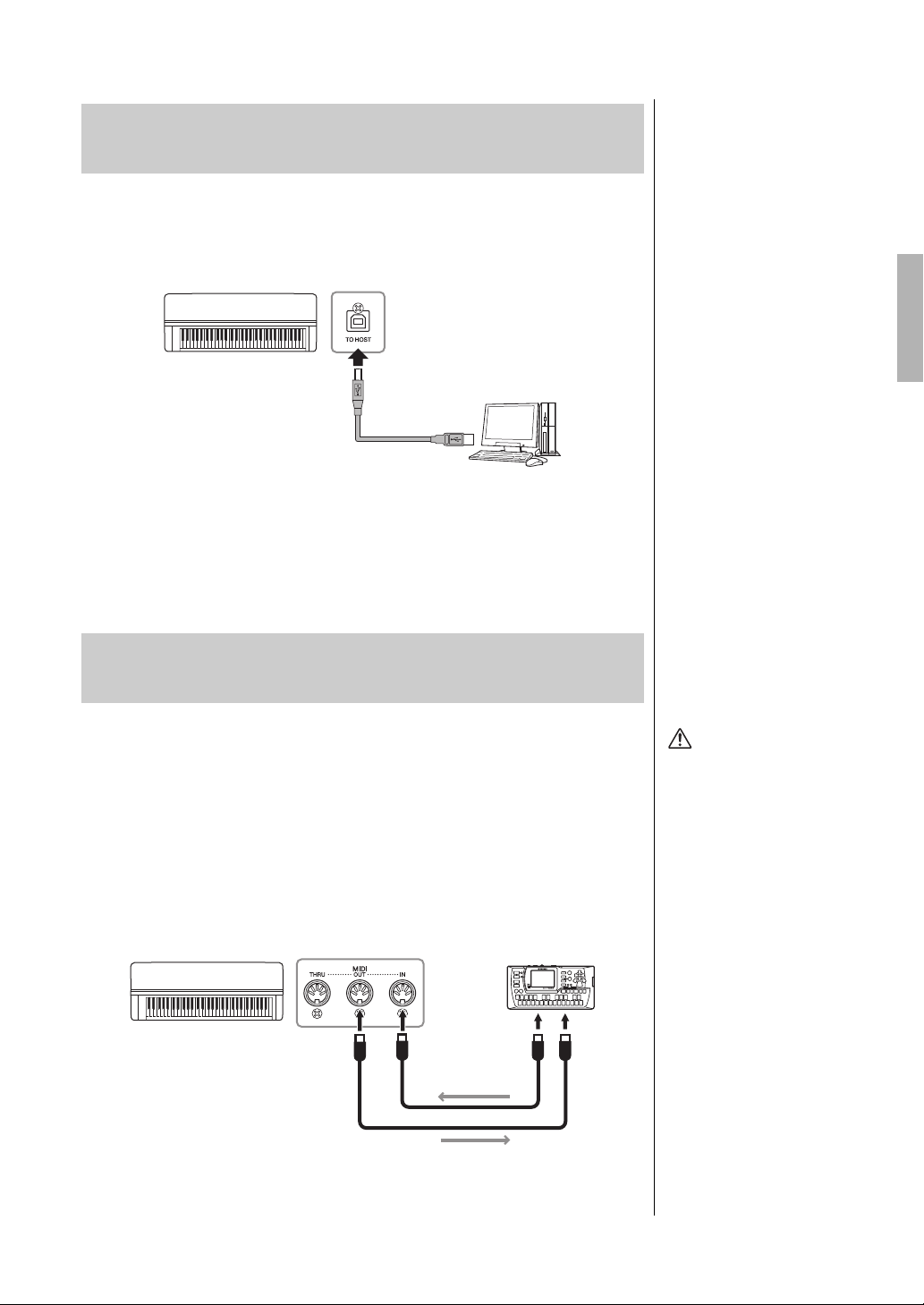
69
YDP-184 Owner’s Manual
Connections
By connecting a computer to the USB [TO HOST] terminal, you can transfer
data between the instrument and the computer via MIDI.
For details on using a computer with this instrument, refer to the “Computer-
related Operations” on the website (page 9).
Files that can be transferred to/from the computer
• MIDI Songs recorded on this instrument (page 49): file extension = .mid (SMF
Format 0, Format 1)
• Backup files (page 92)
• External Songs: file extension = .mid (SMF Format 0, Format 1)
The sophisticated MIDI functions give you powerful tools to expand your
music performance and creation possibilities. Use the MIDI terminals and
standard MIDI cables to connect external MIDI devices (keyboard, sequencer,
etc.)
• MIDI [IN] .......... Receives MIDI messages from another MIDI device.
• MIDI [OUT]......Transmits MIDI messages generated on this instrument to
another MIDI device.
• MIDI [THRU]...Simply relays the MIDI messages received at MIDI IN.
Connecting to a Computer (USB [TO HOST]
Terminal)
NOTICE
Use an AB type USB cable of
less than 3 meters. USB 3.0
cables cannot be used.
NOTE
• The instrument will begin
transmission a short time
after the USB connection is
made.
• When using a USB cable to
connect the instrument to
your computer, make the
connection directly without
passing through a USB hub.
• For information on setting up
your sequence software,
refer to the owner’s manual of
the relevant software.
Connecting External MIDI Devices (MIDI
Ter mi na ls )
This instrument
USB [TO HOST] terminal
USB cable
Computer
CAUTION
Before connecting the
instrument to other MIDI
devices, turn off the power of
all the components.
NOTE
For details about MIDI, refer to
“MIDI Basics” downloadable
from the Yamaha website
(page 9).
NOTE
Since MIDI data that can be
transmitted or received varies
depending on the type of MIDI
device, check the MIDI Data
Format to find out what MIDI
data and commands your
devices can transmit or
receive. The MIDI Data Format
is contained in the “MIDI
Reference” downloadable from
the Yamaha website (page 9).
This instrument
MIDI IN MIDI IN
MIDI OUT
MIDI OUT
MIDI receive
MIDI transmit
External MIDI device

70
YDP-184 Owner’s Manual
Connections
You can connect a smart device such as an iPhone or iPad to this instrument
via the USB wireless LAN adaptor UD-WL01 (sold separately; may not be
available in some areas). By using appropriate apps on your smart device, you
can take advantage of convenient functions and get more enjoyment out of this
instrument.
• For details on connections, refer to the “iPhone/iPad Connection Manual” on
the website (page 9).
• For information about the compatible smart devices and apps, access the
following page:
http://www.yamaha.com/kbdapps/
Connection with the USB wireless LAN adaptor
(UD-WL01*)
*UD-WL01 (sold separately) may not be available depending on your area.
Start wireless connection according to the instructions in the “iPhone/iPad
Connection Manual” on the website, then make sure to make appropriate
setups from the following instructions: “Display the Networks and connecting
to the access point,” “Automatic Setup by WPS,” “Manual Setup” or
“Connecting by the Accesspoint Mode.” Refer to pages 73 – 76 in this Owner’s
Manual, then set up as required.
Connecting to an iPhone/iPad (USB [TO DEVICE],
USB [TO HOST] and MIDI Terminals)
NOTE
• Before using the USB [TO
DEVICE] terminal, be sure to
read “Precautions when
using the USB [TO DEVICE]
terminal” on page 68.
• When you use the instrument
along with an application on
your iPhone/iPad, we
recommend that you first set
“Airplane Mode” to “ON” then
set “Wi-Fi” to “ON” on your
iPhone/iPad in order to avoid
noise caused by
communication.
NOTICE
Do not place your iPhone/iPad
in an unstable position. Doing
so may cause the device to fall
and result in damage.
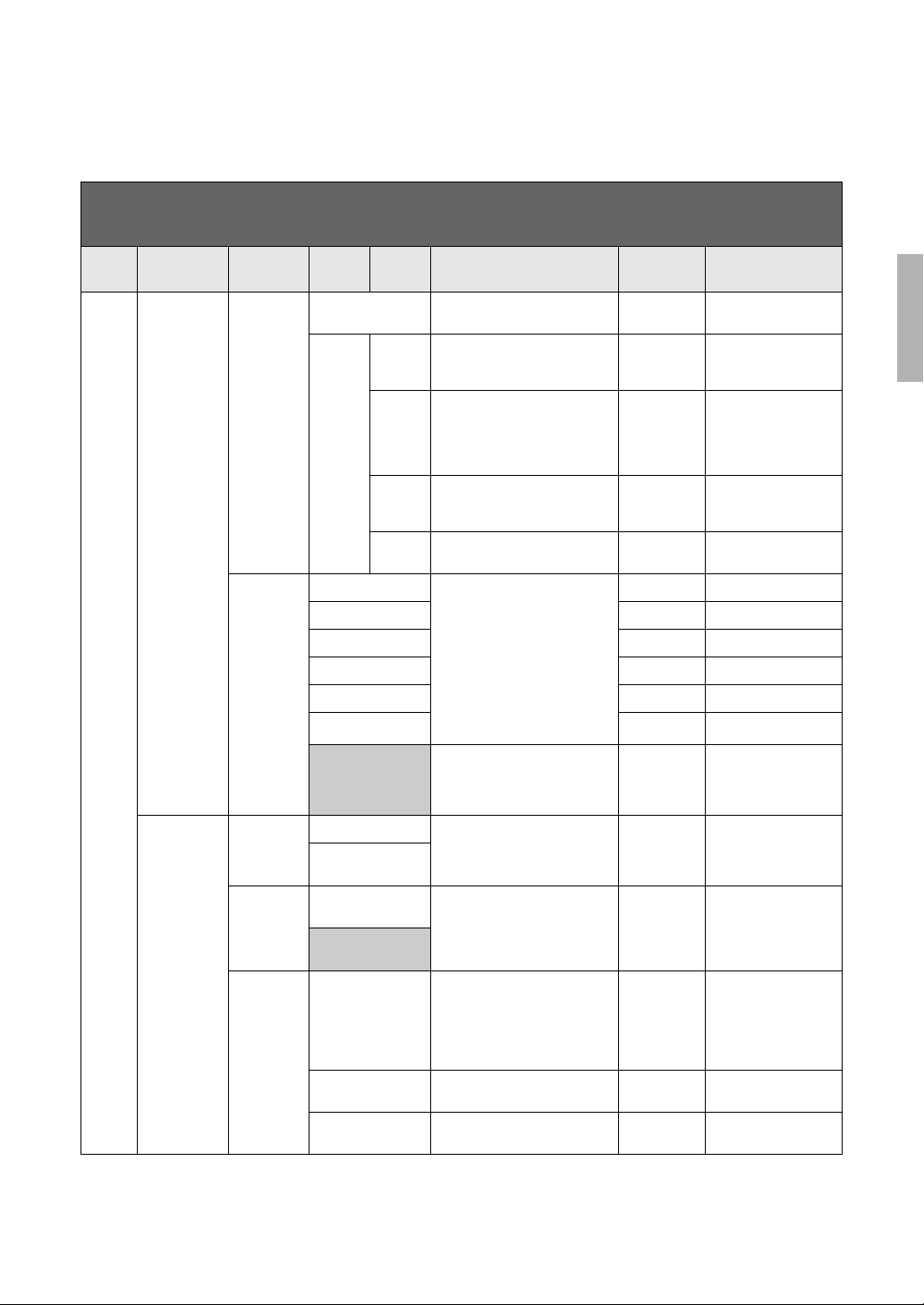
71
YDP-184 Owner’s Manual
Connections
The following menu is shown only when you connect the USB wireless LAN adaptor to the USB [TO
DEVICE] terminal on this instrument.
Menus marked with * differ in the Wireless LAN Mode parameters between the two modes: “Infrastructure” and “Accesspoint.” The default setting for the Wireless
LAN Mode is “Infrastructure.”
To call up the desired parameter:
Press the [FUNCTION] button several times to select “System” menu, then use the [u]/[d]/[<]/[>] buttons to select the desired
parameter.
[>]
[<]
[>]
[<]
[>]
[<]
[>]
[<]
[>]
[<]
Description
Default
setting
Setting range
Utility Wireless LAN*
(In the
“Infrastructure”
mode)
Select
Network
(Networks) Connect to an access point by
selecting the network.
––
Other SSID Set the SSID. – Up to 32 characters (half
size), alphanumeric
characters, marks
Security Set the Security. None None, WEP,
WPA-PSK (TKIP),
WPA-PSK (AES),
WPA2-PSK (AES),
WPA/WPA2 mixed PSK
Password Set the Password. – Up to 64 characters (half
size), alphanumeric
characters, marks
Connect Connect using the settings in
“Other” display.
––
Detail DHCP Set the wireless LAN detailed
settings. IP Address, Subnet
Mask, Gateway, DNS Server1,
DNS Server2 can be set when
DHCP is set to Off while cannot be
set when DHCP set to On. Use the
[<]/[>] buttons to select each
octet in the entry display, then
enter the value using the [u]/[d]
buttons. To finalize the setting,
press the [FUNCTION] button.
On On/Off
IP Address 0.0.0.0 0.0.0.0-255.255.255.255
Subnet Mask 0.0.0.0 0.0.0.0-255.255.255.255
Gateway 0.0.0.0 0.0.0.0-255.255.255.255
DNS Server1 0.0.0.0 0.0.0.0-255.255.255.255
DNS Server2 0.0.0.0 0.0.0.0-255.255.255.255
Save Save the settings in the “Detail”
display. Move the highlight to
“Save,” then press the [>] button
to execute the Saving.
––
Wireless LAN
Option
Wireless LAN
Mode
Infrastructure Mode Determines whether the access
point is used for wireless LAN
connection (Infrastructure Mode)
or not (Accesspoint Mode).
Infrastructure
Mode
–
Accesspoint Mode
Initialize Cancel Initialize the settings in the
wireless LAN display. Move the
highlight to “Execute,” then press
the [>] button to execute the
initialization.
Cancel –
Execute
Detail Host Name Set the Host name. [YDP-184]-
[xxxxxx (MAC
address lower
6 figure)]
Up to 57 characters (half
size) including
alphanumeric
characters, the
“_” (underscore) and
“-” (hyphen) character.
Mac Address Display the MAC address of the
USB wireless LAN adaptor.
––
Status Display the error code of network
function.
––
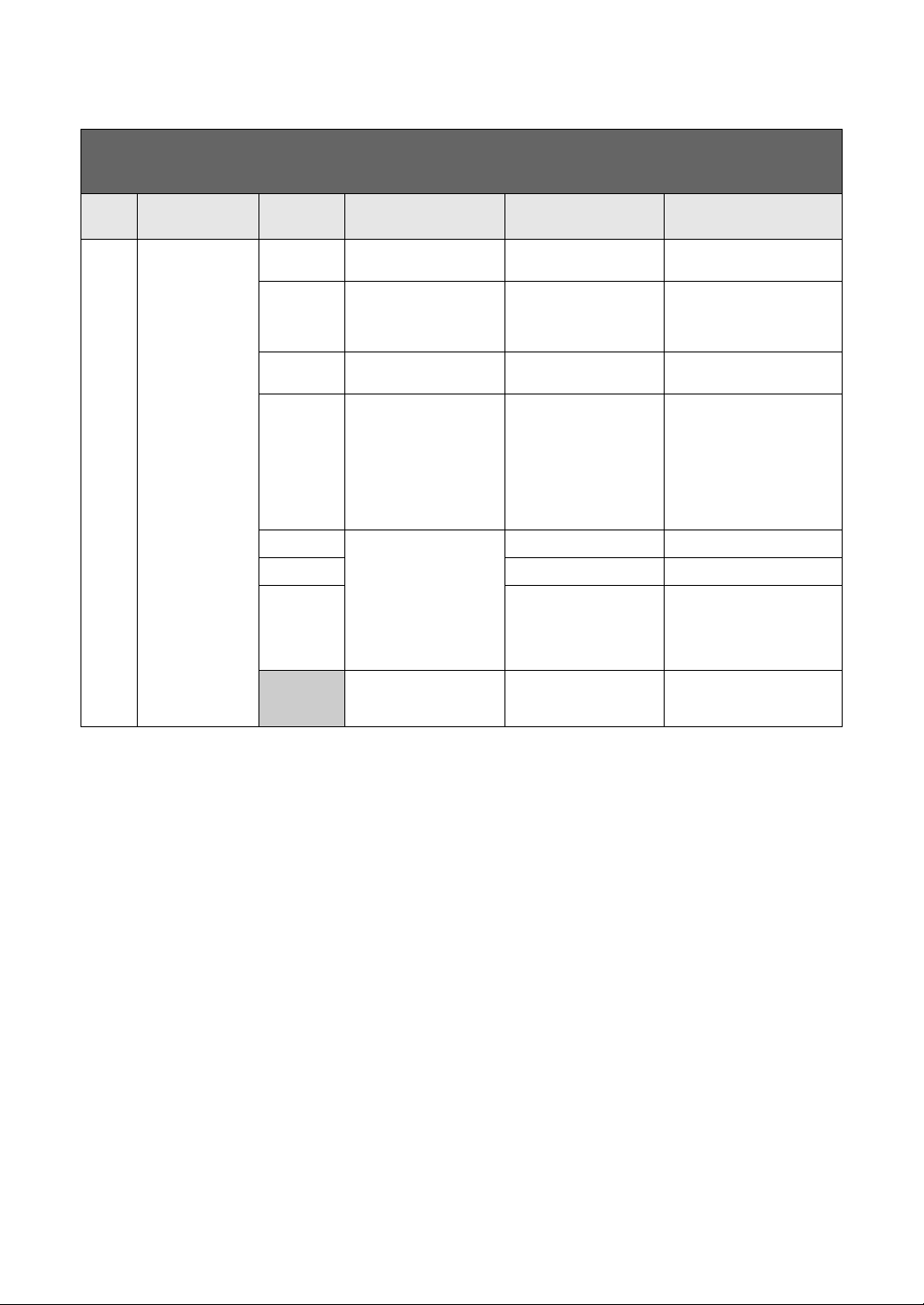
72
YDP-184 Owner’s Manual
Connections
Wireless LAN in the Accesspoint Mode
To call up the desired parameter:
Press the [FUNCTION] button several times to select “System” menu, then use the [u]/[d]/[<]/[>] buttons to select the desired
parameter.
[>]
[<]
[>]
[<]
[>]
[<]
Description Default setting Setting range
Utility Wireless LAN* (In the
“Accesspoint” mode)
SSID Set the SSID as an access
point.
ap-[YDP-184]-[xxxxxx (MAC
address lower 6 figure)]
Up to 32 characters (half size),
alphanumeric characters, marks
Security Set the Security as an
access point.
WPA2-PSK (AES) None, WEP, WPA-PSK (TKIP),
WPA-PSK (AES),
WPA2-PSK (AES),
WPA/WPA2 mixed PSK
Password Set the Password as an
access point.
00000000 Up to 64 characters (half size),
alphanumeric characters, marks
Channel Set the channel as an
access point.
11 Differs depending on the USB
wireless LAN adaptor models.
• Models for United States and
Canada: 1 – 11
• Others: 1 – 13
When no USB wireless LAN
adaptor is connected, setting
range is channels 1 – 13.
DHCP Server Set the IP address related
settings.
On On, Off
IP Address 192.168.0.1 192. 168. 0-255. 1-254.
Subnet Mask 255.255.255.0 255.255.0.0, 255.255.128.0,
255.255.192.0, 255.255.224.0,
255.255.240.0, 255.255.248.0,
255.255.252.0, 255.255.254.0,
255.255.255.0
Save Save the settings you set in
the Wireless LAN display (in
the “Accesspoint” mode)
––

73
YDP-184 Owner’s Manual
Connections
Displaying the Wireless LAN Networks and
connecting to a Network
Make sure to connect the USB wireless LAN adaptor (sold separately) to the
USB [TO DEVICE] terminal, otherwise the displays for setup below will not be
shown.
1. Press the [FUNCTION] button repeatedly to call up the
“System” menu display, then select the highlighted item in
each display as illustrated below.
2. Press the [>] button to call up the network list.
For a network with a lock icon , you need to enter the proper
password.
3. Connect the instrument to the Network.
3-1. Select the desired network, then press the [>] button.
The name of the selected network will be fully shown in the display,
letting you confirm this is the network you want to use.
3-2. Press the [>] button.
• For a network without a lock icon:
Connecting starts.
• For a network with a lock icon:
You need to enter the proper password. For details on how to enter
characters, refer to the “Renaming files” on page 65. After entering the
password, press the [FUNCTION] button to finalize the setting. This
operation starts connecting automatically.
When connection is done successfully, “Completed” is shown in the
display, and returns to the “Select Network” display.
4. Connect the iPhone/iPad to the access point.
Refer to the “iPhone/iPad Connection Manual” on the website (page 9).
“System” menu display
1-1. Use the [u]/[d] buttons
to select “Utility.”
1-2. Press the [>] button to
call up the next display.
1-3. Use the [u]/[d] buttons
to select “Wireless LAN.”
1-4. Press the [>] button to
call up the next display.
1-5. Use the [u]/[d] buttons
to select “Select
Network.”
Utility display Wireless LAN display
NOTE
If no signal from the access
point is received, the access
point cannot be listed. Also,
closed access points cannot
be listed.
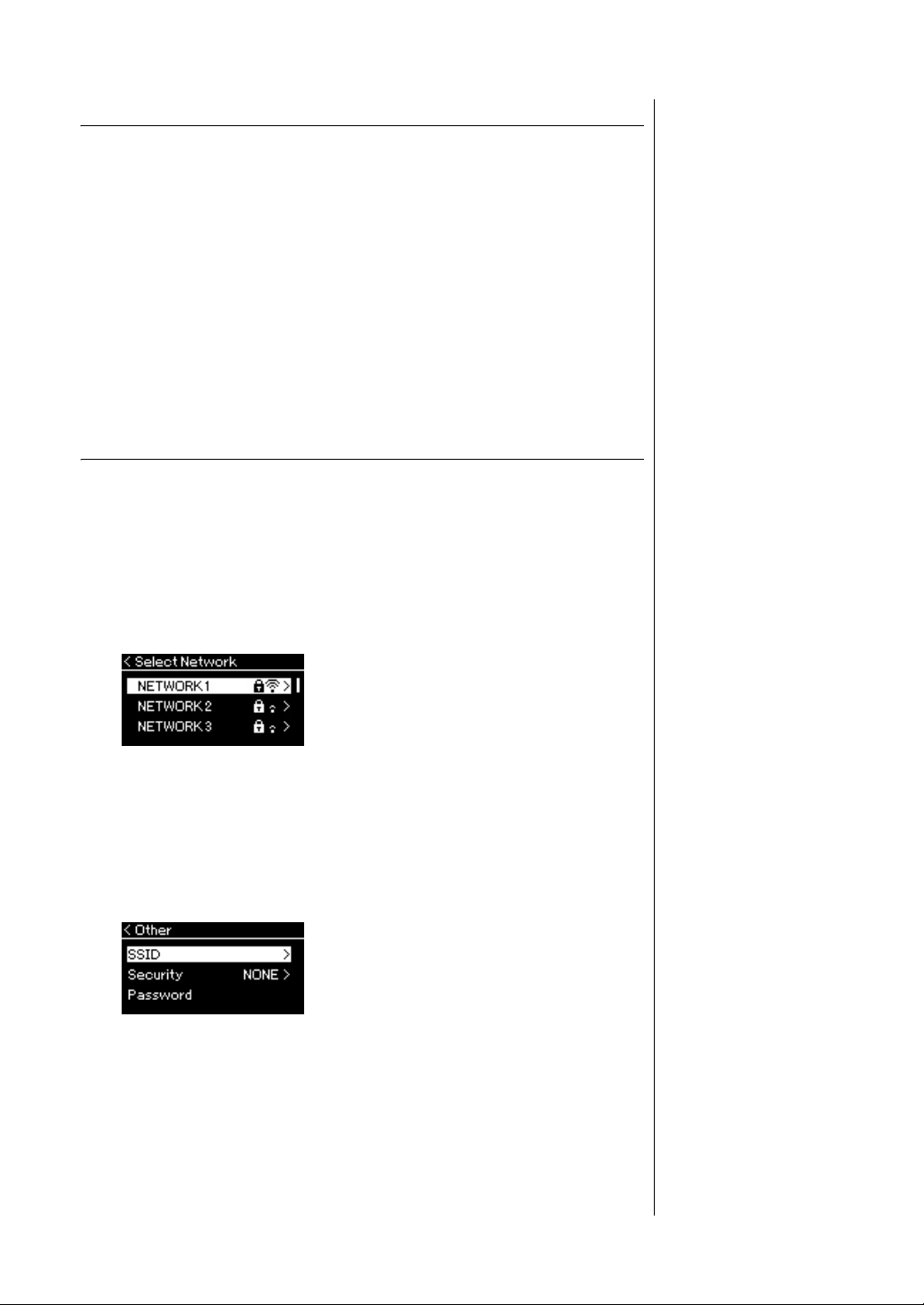
74
YDP-184 Owner’s Manual
Connections
Automatic Setup by WPS
Please make sure to connect the USB wireless LAN adaptor (sold separately) to
the USB [TO DEVICE] terminal, otherwise the displays for setup will not be
shown.
If your access point supports WPS, you can easily connect the instrument to
access point by WPS, without making settings, such as password input, etc.
Press the WPS button on the USB wireless LAN adaptor more than 3 seconds,
and press the WPS button on your access point within two minutes.
When connection is done successfully, “Completed” is shown in the display,
and the Voice display will be shown.
Finally, connect the iPhone/iPad to the access point referring to the “iPhone/
iPad Connection Manual” on the website (page 9).
Manual Setup
Make sure to connect the USB wireless LAN adaptor (sold separately) to the
USB [TO DEVICE] terminal, otherwise the displays for setup will not be
shown.
1. To call up the network list, perform steps 1 – 2 in the
“Displaying the Wireless LAN Networks and connecting to
a Network” (page 73).
2. Select “Other” at the bottom of the network list, then press
the [>] button.
3. Set the SSID, Security and Password to the same as the
settings on the access point.
3-1. Select the “SSID” then press the [>] button to call up the
display for SSID input, then enter the SSID.
For details on how to enter the characters, refer to “Renaming files” on
page 65. After entering the SSID, press the [FUNCTION] button to
finalize the setting. Operation returns to the “Other” display.
NOTE
WPS setup is not available
while the instrument is in the
following modes or conditions:
• While a Song or a Demo
Song is playing back or
being paused temporarily, or
while the instrument is in the
Song Recording mode.
• When Wireless LAN mode is
set to “Accesspoint Mode” in
the “System” menu.
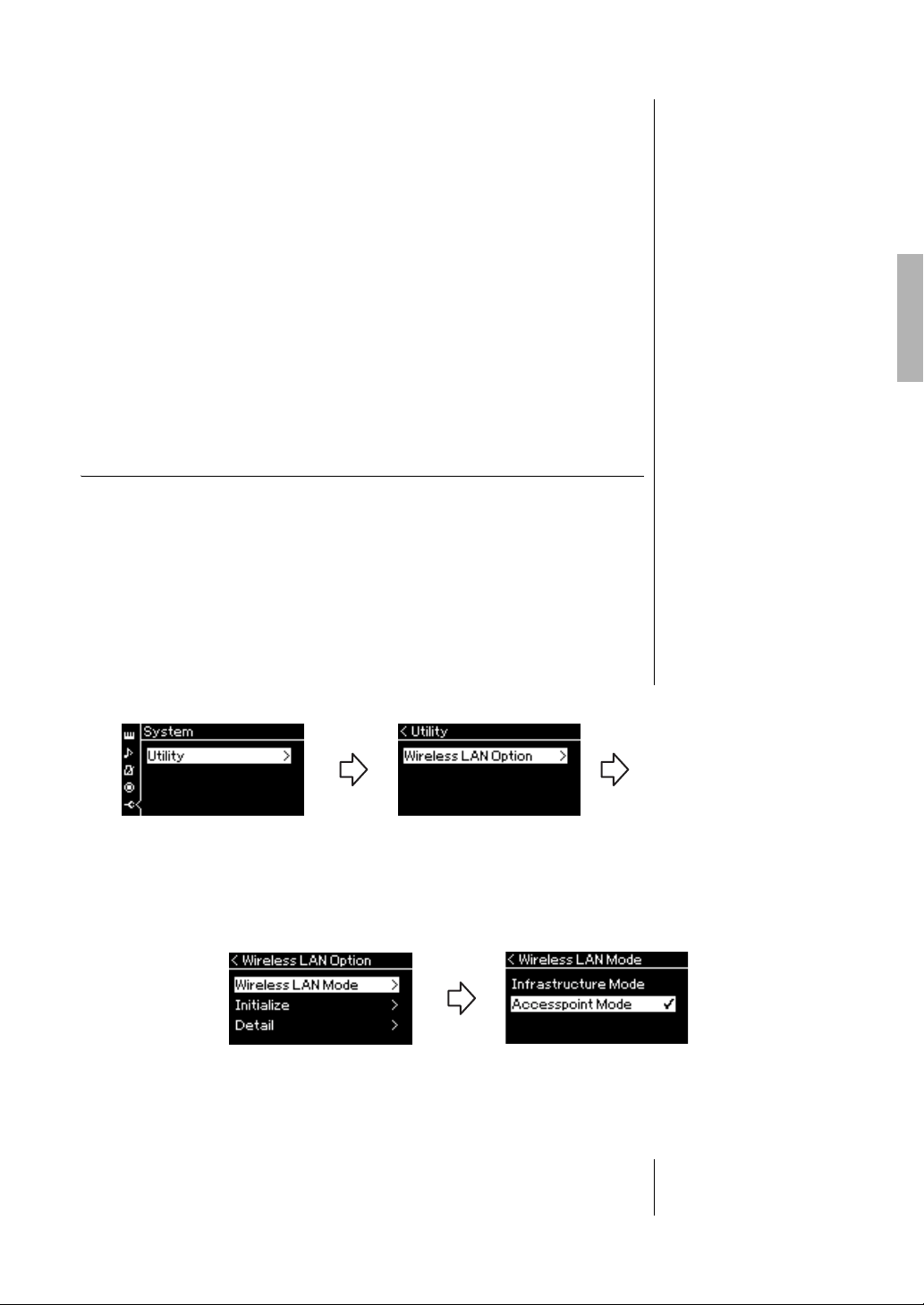
75
YDP-184 Owner’s Manual
Connections
3-2. Select “Security” then press the [>] button to call up the
Security list. Select the security then return to the “Other”
display by pressing the [<] button.
3-3. Select “Password,” then set the password in the same way as
SSID.
4. Select “Connect >” at the bottom of the display shown in
step 3, then press the [>] button to start connecting.
When connection is done successfully, “Completed” is shown in the
display, and returns to the “Select Network” display.
5. Connect the iPhone/iPad to the access point.
Refer to the “iPhone/iPad Connection Manual” on the website (page 9).
Connecting by the Accesspoint Mode
Please make sure to connect the USB wireless LAN adaptor (sold separately) to
the USB [TO DEVICE] terminal, otherwise the displays for setup will not be
shown.
1. Switch the instrument to the “Accesspoint Mode.”
Press the [FUNCTION] button repeatedly to call up the “System” menu
display, then select the highlighted item in each display as illustrated
below.
When mode change is done successfully, “Completed” is shown in the
display, operation returns to the Wireless LAN Mode display.
NOTE
The password cannot be set
when you select “none” for the
security setting.
NOTE
This cannot be used to connect
to the internet or another
wireless LAN device.
“System” menu display
1-1. Use the [u]/[d] buttons
to select “Utility.”
1-2. Press the [>] button to
call up the next display.
1-3. Use the [u]/[d] buttons to
select “Wireless LAN Option.”
1-4. Press the [>] button to call up
the next display.
1-5. Use the [u]/[d] buttons to
select “Wireless LAN Mode.”
1-6. Press the [>] button to call
up the next display.
Utility display
Wireless LAN Option display
1-7. Use the [u]/[d] buttons to
select “Accesspoint Mode.”
Wireless LAN Mode display
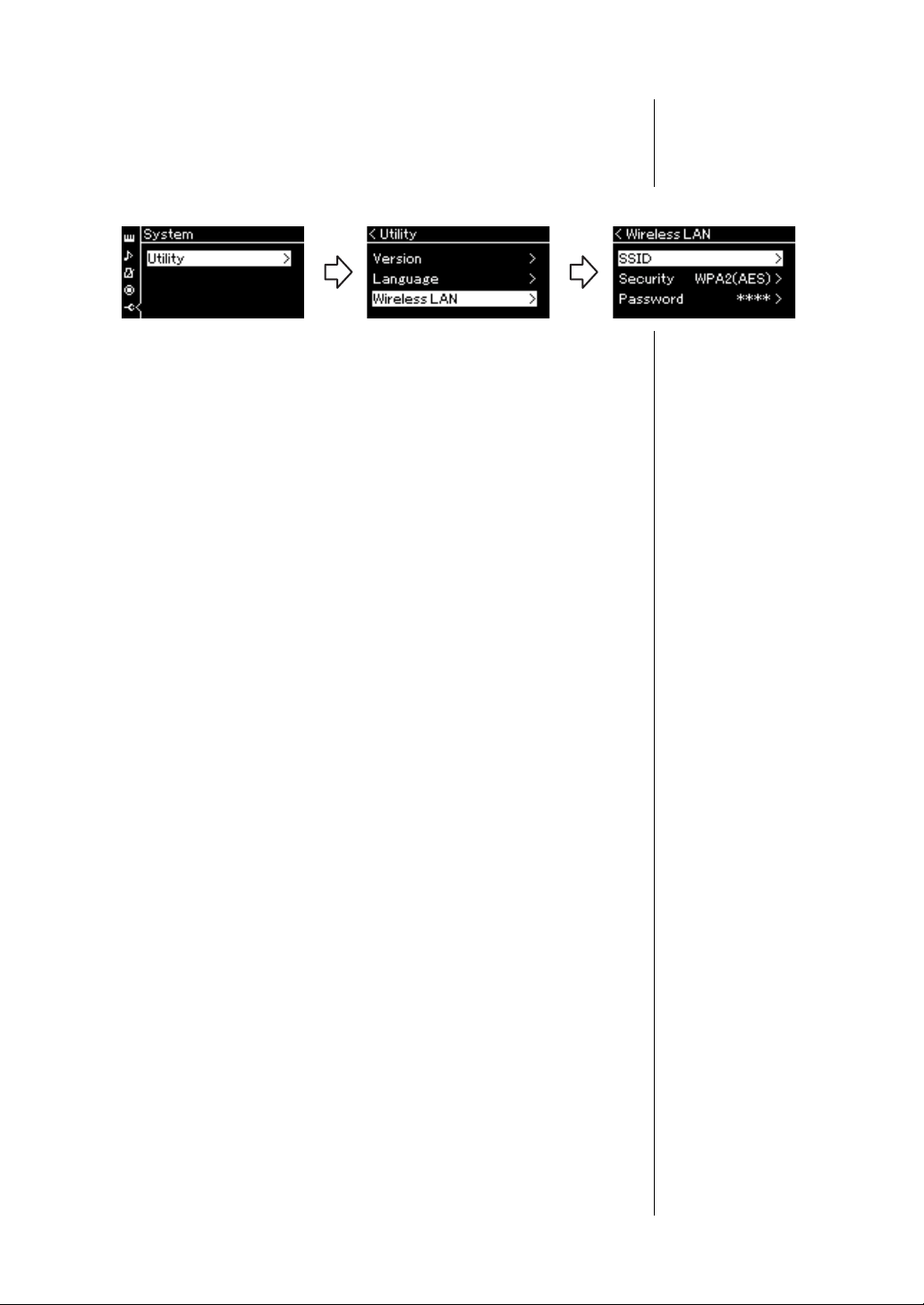
76
YDP-184 Owner’s Manual
Connections
2. Set SSID, Security, Password and Channel.
2-1. From the “System” menu display, select the highlighted item
in each display as illustrated below.
2-2. Set the SSID, Security, Password and Channel.
Select and enter each value/setting in the same way as in step 3 in
“Manual Setup.” For the setting range for each item, refer to the table on
page 72.
3. Save the setting.
Select “Save >” at the bottom of the Wireless LAN display, then press the
[>] button to start saving.
When saving is done successfully, “Completed” is shown in the display,
and operation returns to the Utility display.
4. Connect the iPhone/iPad to the instrument (as an access
point).
Refer to the “iPhone/iPad Connection Manual” on the website (page 9).
“System” menu display Utility display Wireless LAN display
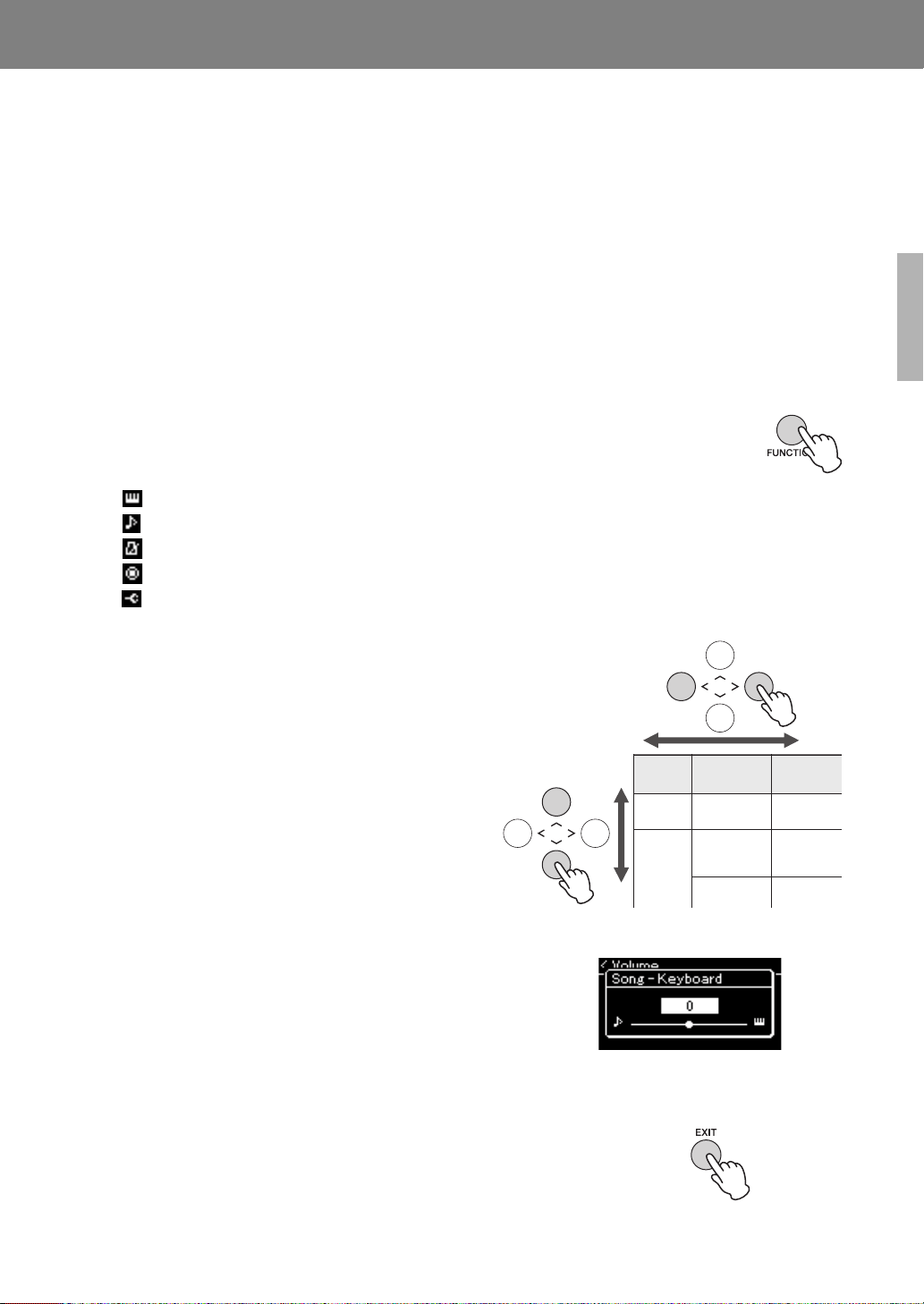
77
YDP-184 Owner’s Manual
Detailed Settings
Pressing the [FUNCTION] button gives you access to a variety of important settings for Voices, Song
playback, Metronome, Song recording and the entire system of this instrument.
Basic Operations
1. As necessary, make the Voice settings or select a Song.
• If you want to edit Voice-related parameters (by calling up the “Voice” menu), select a Voice. If you
want to edit parameters related to the R1/R2/L Voices, such as volume balance, turn on Dual/Split/
Duo, then select the desired Voices.
• If you want to set Song playback parameters, such as Repeat, select a Song.
• If you want to edit your recorded MIDI Song data (by calling up Edit in the “Song” menu), select
the recorded MIDI Song.
2. Press the [FUNCTION] button several times to select the desired menu.
Pressing the [FUNCTION] button repeatedly will call up the following menu displays in
order, according to the vertical menu at the left of the display.
“Voice” menu (page 78)
“Song” menu (page 82)
“Metronome/Rhythm” menu (page 85)
“Recording” menu (page 86)
“System” menu (page 87)
3. Use the [u]/[d]/[<]/[>] buttons to select
the desired parameter.
While referring as needed to the parameter list on
each page listed in step 2, use the [u]/[d] buttons to
navigate through the display vertically and use the
[<]/[>] buttons to navigate through display
horizontally.
4. On the display called up in step 3, select a
value or execute the operation.
Most displays allow you to select a value by simply
using the [u]/[d] buttons, although some, such as
Edit in the “Song” menu and Backup in the “System”
menu, let you execute an operation.
If a pop-up window is shown, set the value with the
[<]/[>] buttons, then exit from the window using the
[EXIT] button.
Also, when the selected parameter provides only two
options (on and off, for example), simply pressing the
[>] button will alternate the value between the two
options.
5. To exit from the menu display, press the [EXIT] button.
[>]
[<]
[>]
[<]
[>]
[<]
L/R* R, L, Other –
Repeat A – B* (Setting display
Phrase* Phrase Mark
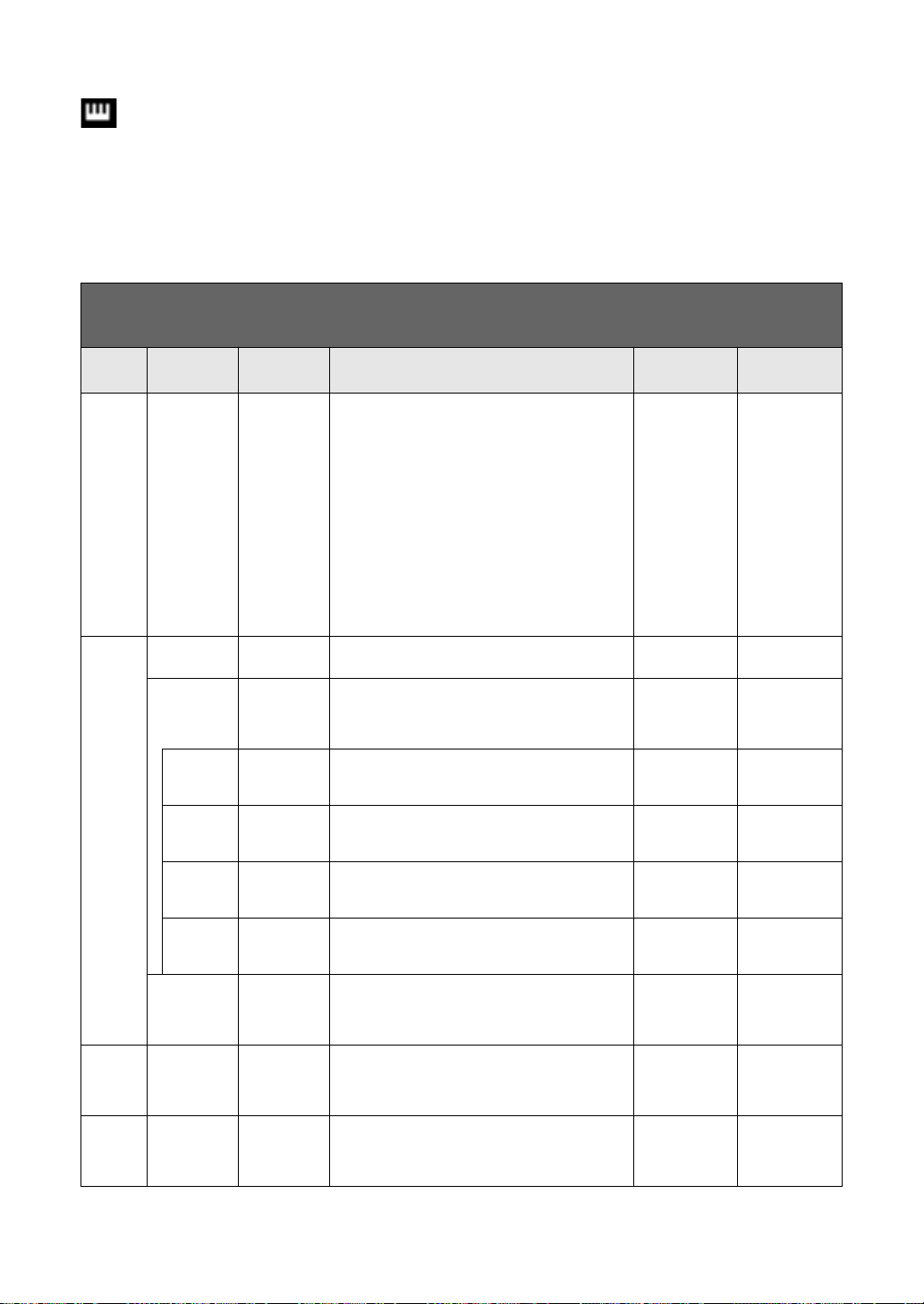
Voice Menu
78
YDP-184 Owner’s Manual
Voice Menu
This menu lets you edit or set various parameters related to keyboard performance, such as Voice
parameters. By turning on Dual/Split/Duo, you can make the settings for each Voice or each Voice
combination. While playing the keyboard and hearing the sound, change a parameter value to find your
desired sound. Note that you should turn on Dual/Split/Duo before calling up the “Voice” menu display.
NOTE
Parameters with * are shown only when Dual/Split/Duo is on.
To call up the desired parameter:
Turn on Dual, Split or Duo as necessary, select Voices as necessary, press the [FUNCTION] button several times to select
“Voice” menu, then use the [u]/[d]/[<]/[>] buttons to select the desired parameter.
[>]
[<]
[>]
[<]
[>]
[<]
Description Default setting Setting range
Transpose (Pop-up
window)
– Shifts the pitch of the entire keyboard up or down in
semitone intervals to facilitate playing in difficult key
signatures, and to let you easily match the pitch of the
keyboard to the range of a singer or other instruments.
For example, if you set this parameter to “5,” playing key
C produces pitch F. In this way, you can play the F major
song as if it were in C major.
NOTE
The setting here will not affect Song playback. If you want to
transpose Song playback, use the Transpose parameter in
the “Song” menu (page 82).
NOTE
Your keyboard performance data will be transmitted with the
transposed note numbers while MIDI note numbers received
from an external MIDI device or computer will not be affected
by the Transpose setting.
0 -12 (-1 octave) – 0
(normal pitch) –
+12 (+1 octave)
Piano
Setting
Lid Position (Setting
display)
Determines how much the Lid is opened. Full Full, Half, Close
VRM – Turns the VRM effect on/off. For the information about the
function of VRM, refer to page 26. For details about the
Piano Voices compatible with VRM, refer to the “Preset
Voice List” on page 94.
On On, Off
Damper
Res.
(Setting
display)
Determines the depth of the string resonance effect
which is applied when the damper pedal is pressed. This
is available only when VRM is on.
50 – 10
String Res. (Setting
display)
Determines the depth of the string resonance effect
which is applied when a note on the keyboard is
pressed. This is available only when VRM is on.
50 – 10
Aliquot Res. (Setting
display)
Adjusts the sympathetic vibrations of Aliquot. This is
available only when VRM is on. For details, refer to “What
is Aliquot?” (page 26).
50 – 10
Body Res. (Setting
display)
Adjusts the resonance of the soundboard, the sides, the
frame, and the grand piano itself. This is available only
when VRM is on.
50 – 10
Key Off Sample (Setting
display)
Determines the volume of the key-off sound (the subtle
sound that occurs when you release a key) which is
available only for some Voices. For Voices to which this
effect is applied, refer to the Voice List (page 94).
5 0 – 10
Reverb (Setting
display)
– Determines the Reverb type which is applied to all the
entire sound including the keyboard performance, Song
playback and MIDI data input from an external MIDI
device.
Differs depending
on the Voice or
Voice
combination.
Refer to the
Reverb Type List
(page 81)
Chorus (Setting
display)
– Determines the Chorus type which is applied to all the
entire sound including the keyboard performance, Song
playback and MIDI data input from an external MIDI
device.
Differs depending
on the Voice or
Voice
combination.
Refer to the
Chorus Type List
(page 81)
Voice Menu
79
YDP-184 Owner’s Manual
Voice Edit (Voice names)* Octave Shifts the pitch of the keyboard up and down in octave
steps. This parameter can be set for each Voices when
Dual/Split/Duo is on.
Differs depending
on the Voice or
Voice
combination.
-2 (two octaves
lower) – 0 (no
pitch shift) – +2
(two octaves
higher)
Volume Adjusts the volume for each of the R1/R2/L Voices. This
lets you adjust the balance between the R1/R2/L Voices
when Dual/Split/Duo is on.
Differs depending
on the Voice or
Voice
combination.
0 – 127
Reverb Depth Adjusts the Reverb depth for each of the R1/R2/L Voices.
This lets you adjust the balance between the R1/R2/L
Voices when Dual/Split/Duo is on. The “0” setting will
produce no effect.
NOTE
When a VRM Voice is used for several parts simultaneously,
unexpected sounds may result since the Reverb depth for a
part which has priority will become the common setting for the
parts. During Song playback, setting for a Song part is used
(priority order: Ch. 1, Ch. 2...Ch. 16), while the setting for a
keyboard part is used when Song playback is stopped
(priority order: R1, L and R2 Voices).
Differs depending
on the Voice or
Voice
combination.
0 – 127
Chorus Depth Adjusts the Chorus depth for each of the R1/R2/L Voices.
This lets you adjust the balance between the R1/R2/L
Voices when Dual/Split/Duo is on. The “0” setting will
produce no effect.
NOTE
When a VRM Voice is used for several parts simultaneously,
unexpected sounds may result since the Chorus depth for a
part which has priority will become the common setting for the
parts. During Song playback, setting for a Song part is used
(priority order: Ch. 1, Ch. 2...Ch. 16), while the setting for a
keyboard part is used when Song playback is stopped
(priority order: R1, L and R2 Voices).
Differs depending
on the Voice or
Voice
combination.
0 – 127
Effect In addition Reverb and Chorus, another Effect can be
applied to the R1/R2/L Voices of the keyboard
independently. Note that this Effect type can be selected
for up to two Voices.
Differs depending
on the Voice or
Voice
combination.
Refer to the Effect
Type List
(page 81).
Rotary Speed Available only for the Voice of which the Effect Type is set
to “Rotary.” This parameter determines the rotation
speed of the Rotary Speaker effect.
Differs depending
on the Voice or
Voice
combination.
Fast, Slow
VibeRotor Available only for the Voice of which the Effect Type is set
to “VibeRotor.” This parameter turns on or off the
VibeRotor effect.
Differs depending
on the Voice or
Voice
combination.
On, Off
VibeRotor
Speed
Available only for the Voice of which the Effect Type is set
to “VibeRotor.” This parameter determines the speed of
the Vibraphone vibrato effect.
Differs depending
on the Voice or
Voice
combination.
1 – 10
Effect Depth Adjusts the Effect depth for each of the R1/R2/L Voices.
Note that some Effect types do not allow you to adjust the
depth.
Differs depending
on the Voice or
Voice
combination.
1 – 127
Pan Adjusts the stereo pan position for each of the R1/R2/L
Voices.
Differs depending
on the Voice or
Voice
combination.
L64 (leftmost) – C
(center) – R63
(rightmost)
To call up the desired parameter:
Turn on Dual, Split or Duo as necessary, select Voices as necessary, press the [FUNCTION] button several times to select
“Voice” menu, then use the [u]/[d]/[<]/[>] buttons to select the desired parameter.
[>]
[<]
[>]
[<]
[>]
[<]
Description Default setting Setting range
Voice Menu
80
YDP-184 Owner’s Manual
Voice Edit (Voice names)* Harmonic Cont Produces a distinctive “peaky” tone by raising the
Resonance value of the Filter. This parameter can be set
for each of the R1/R2/L Voices when Dual/Split/Duo is on.
NOTE
Harmonic content may have little audible effect or not be
applied to some Voices.
Differs depending
on the Voice or
Voice
combination.
-64 – +63
Brightness Adjusts the brightness of the R1/R2/L Voices
independently.
Differs depending
on the Voice or
Voice
combination.
-64 – +63
Touch Sens. Determines the degree to which the volume level
changes in response to your touch on the keyboard (how
hard you play). Since the volume level of some Voices
such as Harpsichord and Organ do not change
regardless of how you play the keyboard, the default
setting for these Voices is 127.
Differs depending
on the Voice or
Voice
combination.
0 (softest) – 64
(largest changes in
the level) – 127
(which produces the
loudest volume
regardless of how
you play the
keyboard)
RPedal Turns the Right pedal function on or off for each of the
R1/R2/L Voices. This parameter is useful when you want
to ensure, for example, that the pedal function affects the
right-hand performance but does not affect the left-hand
performance.
Differs depending
on the Voice or
Voice
combination.
On, Off
CPedal Turns the Center pedal function on or off for each of the
R1/R2/L Voices. This parameter is useful when you want
to ensure, for example, that the pedal function affects the
right-hand performance but does not affect the left-hand
performance.
Differs depending
on the Voice or
Voice
combination.
On, Off
LPedal Turns the Left pedal function on or off for each of the R1/
R2/L Voices. This parameter is useful when you want to
ensure, for example, that the pedal function affects the
right-hand performance but does not affect the left-hand
performance.
Differs depending
on the Voice or
Voice
combination.
On, Off
Pedal
Assign
Right (Setting
display)
Assigns one of various functions (other than the original
one) to the Right pedal.
SustainCont Refer to the Pedal
Function List
(page 81).
Center (Setting
display)
Assigns one of various functions (other than the original
one) to the Center pedal.
Sostenuto Refer to the Pedal
Function List
(page 81).
Left (Setting
display)
Assigns one of various functions (other than the original
one) to the Left pedal.
Rotary Speed
(Mellow Organ),
Vibe Rotor
(Vibraphone), Soft
(other Voices)
Refer to the Pedal
Function List
(page 81).
Balance* Volume
R2 – R1*
(Pop-up
window)
Adjusts the volume balance between R1 and R2 Voices
when Dual is on. After adjusting this with the [<]/[>]
buttons, press the [EXIT] button to exit from the pop-up
window.
Differs depending
on the Voice or
Voice
combination.
R2+10 – 0 –
R1+10
Volume L – R* (Pop-up
window)
Adjusts the volume balance between the left and right
keyboard sections when Split/Duo is on. After adjusting
via the [<]/[>] buttons, press the [EXIT] button to exit
from the pop-up window.
Differs depending
on the Voice or
Voice
combination.
L+10 – 0 – R+10
Detune* (Pop-up
window)
Detunes the R1 Voice and R2 Voice in Dual mode to
create a thicker sound.
On the display, move the slider rightward via the [>]
button will raise the R1 Voice pitch and lower the R2
Voice pitch, and vice versa. After adjusting this, press the
[EXIT] button to exit from the pop-up window.
Differs depending
on the Voice or
Voice
combination.
R2+20 – 0 –
R1+20
To call up the desired parameter:
Turn on Dual, Split or Duo as necessary, select Voices as necessary, press the [FUNCTION] button several times to select
“Voice” menu, then use the [u]/[d]/[<]/[>] buttons to select the desired parameter.
[>]
[<]
[>]
[<]
[>]
[<]
Description Default setting Setting range
Voice Menu
81
YDP-184 Owner’s Manual
Reverb Type List
Chorus Type List
Effect Type List
Pedal Function List
Off No effect
Recital Hall Simulates clear reverberation in a mid-sized hall suitable for piano recital.
Concert Hall Simulates brilliant reverberation in a large hall for public orchestra performances.
Chamber Simulates the elegant reverberation in a small room suitable for chamber music.
Cathedral Simulates the solemn reverberation in a high-ceiling stone-made cathedral.
Club Simulates the lively reverberation in a jazz club or a small bar.
Plate Simulates the bright sound of vintage reverb equipment used in recording studios.
Off No effect
Chorus Adds a rich, spacious sound.
Celeste Adds swell and a spacious sound.
Flanger Adds swell effects similar to the sound of an ascending or descending jet plane.
Off No effect
DelayLCR Delay applied at left, center, and right positions.
DelayLR Delay applied at left and right positions.
Echo Echo-like delay
CrossDelay Left and right delays cross each other in alternation.
Symphonic Adds a rich and deep acoustic effect.
Rotary Adds the vibrato effect of a rotary speaker.
Tremolo The volume level changes in rapid cycles.
VibeRotor The vibrato effect of a vibraphone.
AutoPan The sound pans left to right and back and forth.
Phaser The phase changes periodically, swelling the sound.
AutoWah The center frequency of the wah filter changes periodically.
Function Description
Available pedal
(O: Can be assigned, X: Cannot)
Left pedal
Center pedal
Right pedal
Sustain (Switch) On/off switch type damper O O O
Sustain
Continuously *
Damper that sustains the sound proportionately to how deeply you press
the pedal (page 19)
XXO
Sostenuto Sostenuto (page 19) O O O
Soft Soft (page 19) O O O
Expression* A function that lets you create changes in dynamics (volume) as you play X X O
PitchBend Up* A function that smoothly raises the pitch X X O
PitchBend Down* A function that smoothly lowers the pitch X X O
Rotary Speed Changes the rotational speed of the Mellow Organ rotary speaker
(switches between fast and slow each time you press the pedal)
OOO
VibeRotor Switches the vibraphone vibrato on/off (switches on/off each time you
press the pedal)
OOO
Song Menu
82
YDP-184 Owner’s Manual
Song Menu
This menu lets you set various parameters related to Song playback and edit the Song data with a single
touch.
NOTE
• When using the “Edit” menu, select a MIDI Song other than the preset Song.
• Execute is a function that edits or changes the current Song data. Note that pressing the [>] button will actually change the Song data.
To call up the desired parameter:
Select a Song as necessary, press the [FUNCTION] button several times to select “Song” menu, then use the [u]/[d]/[<]/[>]
buttons to select the desired parameter.
[>]
[<]
[>]
[<]
[>]
[<]
Description Default setting Setting range
L/R R, L, Extra – Turns on (Play) or off (Mute) each of the Song tracks.
For details, refer to page 41.
On On, Off
Repeat A – B (Setting display) Lets you play back a specified range (from Point A to B)
of the current Song repeatedly. For instructions, refer to
page 42.
Off On, Off
Phrase Phrase Mark This parameter is available only when a MIDI Song
containing the Phrase Mark. By specifying a Phrase
number here, you can play back the current Song from
the mark point, or to play back the corresponding
phrase repeatedly. If you start Song playback with a
Phrase set to “On,” the countdown starts, followed by
repeated playback of the specified phrase or phrases
until you press the [R/K] (Play/Pause) button.
000 000 – the last
phrase number of
the Song
Repeat Off On (repeat
playback)/Off (no
repeat)
Song (Setting display) By setting this parameter, you can play back only a
specific Song, or specific Songs in order repeatedly or
randomly. For details, refer to page 42.
Off Off, Single, All,
Random
Volume Song –
Keyboard
(Pop-up
window)
Adjusts the volume balance between the Song
playback sound and keyboard performance.
0 Key+64 – 0 –
Song+64
Song L – R (Pop-up
window)
Adjusts the volume balance between the right-hand
part left-hand parts of Song playback.
0 L+64 – 0 – R+64
Transpose (Setting display) – Shifts the pitch of Song playback up or down in
semitone intervals. For example, if you set this
parameter to “5,” a Song created in C major will be
played back in F major.
NOTE
The Transpose setting will not affect the audio signals input
from the [AUX IN] jack.
NOTE
MIDI Song playback data will be transmitted with the
transposed note numbers while MIDI note numbers
received from an external MIDI device or computer will not
be affected by the Transpose setting.
0 -12 (-1 octave) – 0
(normal pitch) –
+12 (+1 octave)
File Delete Cancel Deletes a specific Song. For details about Song types
which can be deleted, refer to page 60.
––
Execute ––
Copy Cancel Copies a specific MIDI Song then saves it to a different
location. For details about Song types which can be
copied, refer to page 60.
––
Execute ––
Move Cancel Moves a MIDI Song to a different location. For details
about Song types which can be moved, refer to
page 60.
––
Execute ––
Rename (Setting display) Edits a Song name. For details about Song types which
can be renamed, refer to page 60.
––
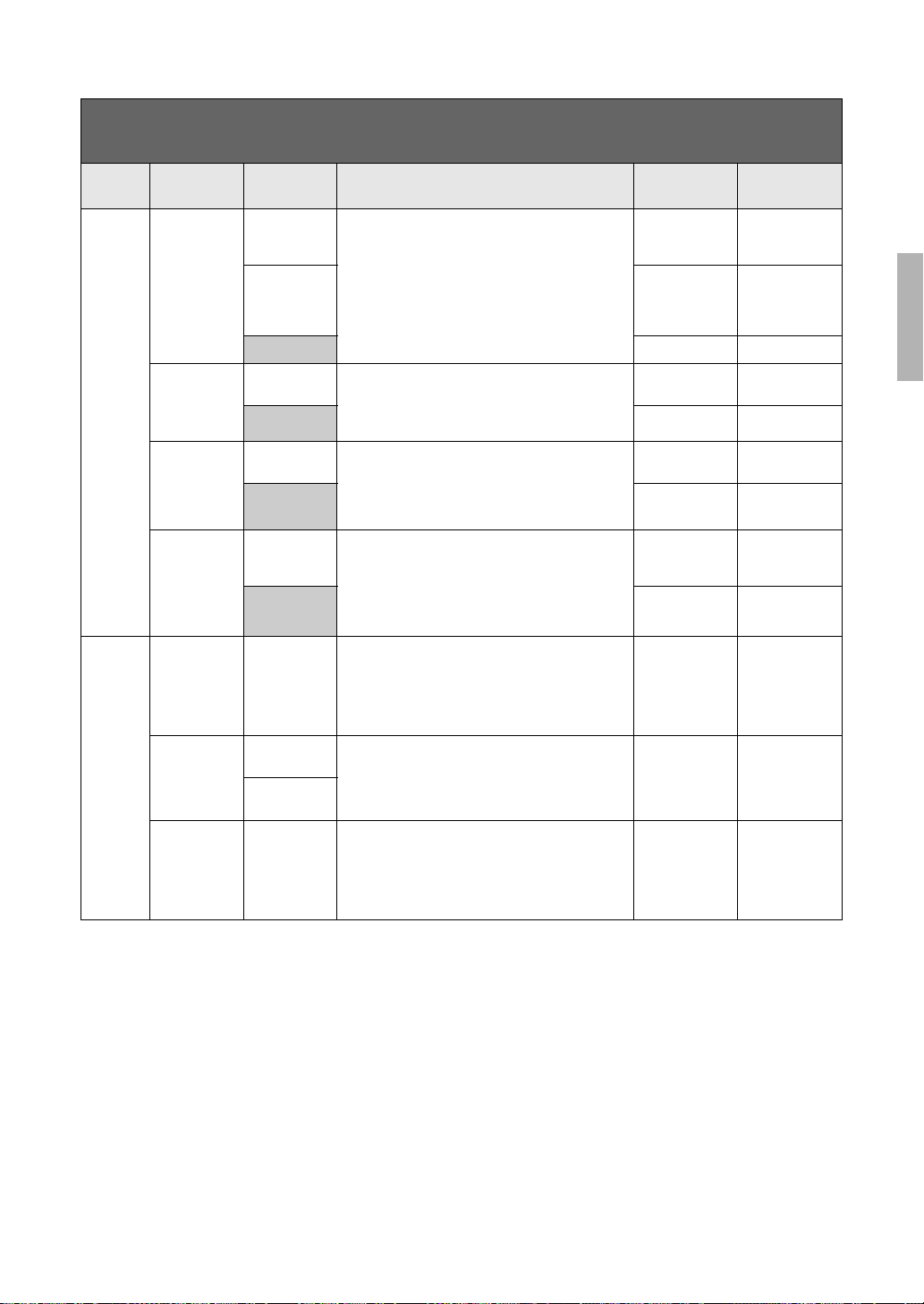
Song Menu
83
YDP-184 Owner’s Manual
NOTE
Tempo of Song playback can be set on the display called up by pressing the [TEMPO] button. For instructions, refer to page 40.
Edit Quantize Quantize The Quantize function allows you to align all the notes in
the current MIDI Song to the correct timing, such as 8th
note or 16th note.
1. Set the Quantize value to the smallest notes in the
MIDI Song.
2. Set the Strength value which determines how
strongly the notes will be quantized.
3. Move the highlight to “Execute” then press the
[>] button to actually change the MIDI Song data.
1/16 Refer to “Quantize
setting range.”
(page 84)
Strength 100% 0% – 100%
Refer to “Strength
setting range.”
(page 84)
Execute ––
Track Delete Track Deletes a specific track data of the current MIDI Song.
1. Select the desired track to be deleted.
2. Move the highlight to “Execute,” then press the
[>] button to actually delete the specified track data.
Track 1 Track 1 – Track 16
Execute ––
Tempo Change Cancel Changes the tempo value of the current MIDI Song as
data. Before calling up the “Song” menu display, set the
desired Tempo value for changing.
Move the highlight to “Execute,” then press the [>] button
to actually change the Tempo value as MIDI Song data.
Differs depending
on the Song
–
Execute ––
Voice Change Track Changes the Voice of a specific track in the current
MIDI Song to the current Voice as data.
1. Select a track of which the Voice will be changed.
2. Move the highlight to “Execute,” then press the
[>] button to actually change the Voice as MIDI Song
data.
Track 1 Track 1 – Track 16
Execute ––
Others Quick Play – This parameter enables you to specify whether a Song
that starts from the middle of a bar, or a Song with a
silence prior to the first note, should be played from the
first note or from the top of the bar (rest or blank). This
parameter is useful for a MIDI Song that starts with a
short one-or two-beat pick-up or lead-in.
On On, Off
Track Listen Track This lets you play back only the selected Track to listen
to its contents. To do this, select a Track, move the
highlight to “Start,” then press and hold the [>] button to
start playback from the first note. Playback continues
while holding the [>] button.
Track 1 Track 1 – Track 16
Start
Play Track – This parameter enables you to specify the tracks for
playing back on this instrument. When “1&2” is
selected, only tracks 1 and 2 will be played back, while
tracks 3 to 16 will be transmitted via MIDI. When “All” is
selected, all tracks will be played back on this
instrument.
All All, 1&2
To call up the desired parameter:
Select a Song as necessary, press the [FUNCTION] button several times to select “Song” menu, then use the [u]/[d]/[<]/[>]
buttons to select the desired parameter.
[>]
[<]
[>]
[<]
[>]
[<]
Description Default setting Setting range
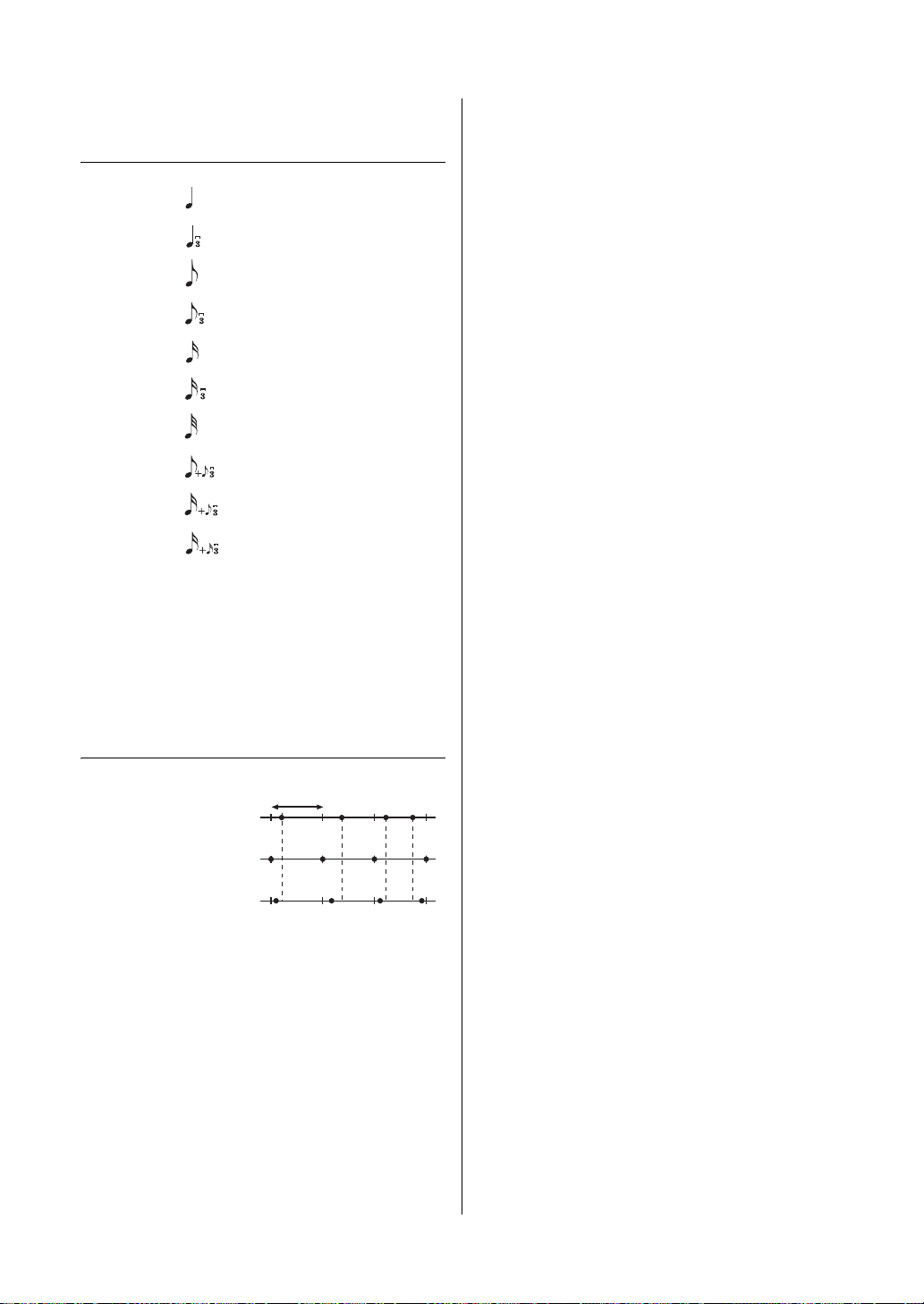
84
YDP-184 Owner’s Manual
Song Menu
Quantize Supplementary
Quantize setting range
The three Quantize settings marked with asterisks (*) are exceptionally
convenient, since they allow you to quantize two different note values
at the same time. For example, when the straight eighth notes and
eighth notes triplet are contained in the same part, if you quantize by
straight eighth notes, all notes in the part are quantized to straight
eighth notes—completely eliminating any triplet feel. However, if you
use the eighth note + eighth note triplet setting, both the straight and
triplet notes will be quantized correctly.
Strength setting range
1/4................
1/8................
1/16..............
1/6................
1/12..............
1/24..............
1/8+1/12.......
1/16+1/24.....
1/32..............
1/16+1/12.....
quarter note
quarter note triplet
eighth note
eighth note triplet
sixteenth note
sixteenth note triplet
thirty-second note
eighth note + eighth note triplet*
sixteenth note + eighth note triplet*
sixteenth note + sixteenth triplet*
Original data
Quantizing strength = 100
Quantizing strength = 50
Quarter-note length
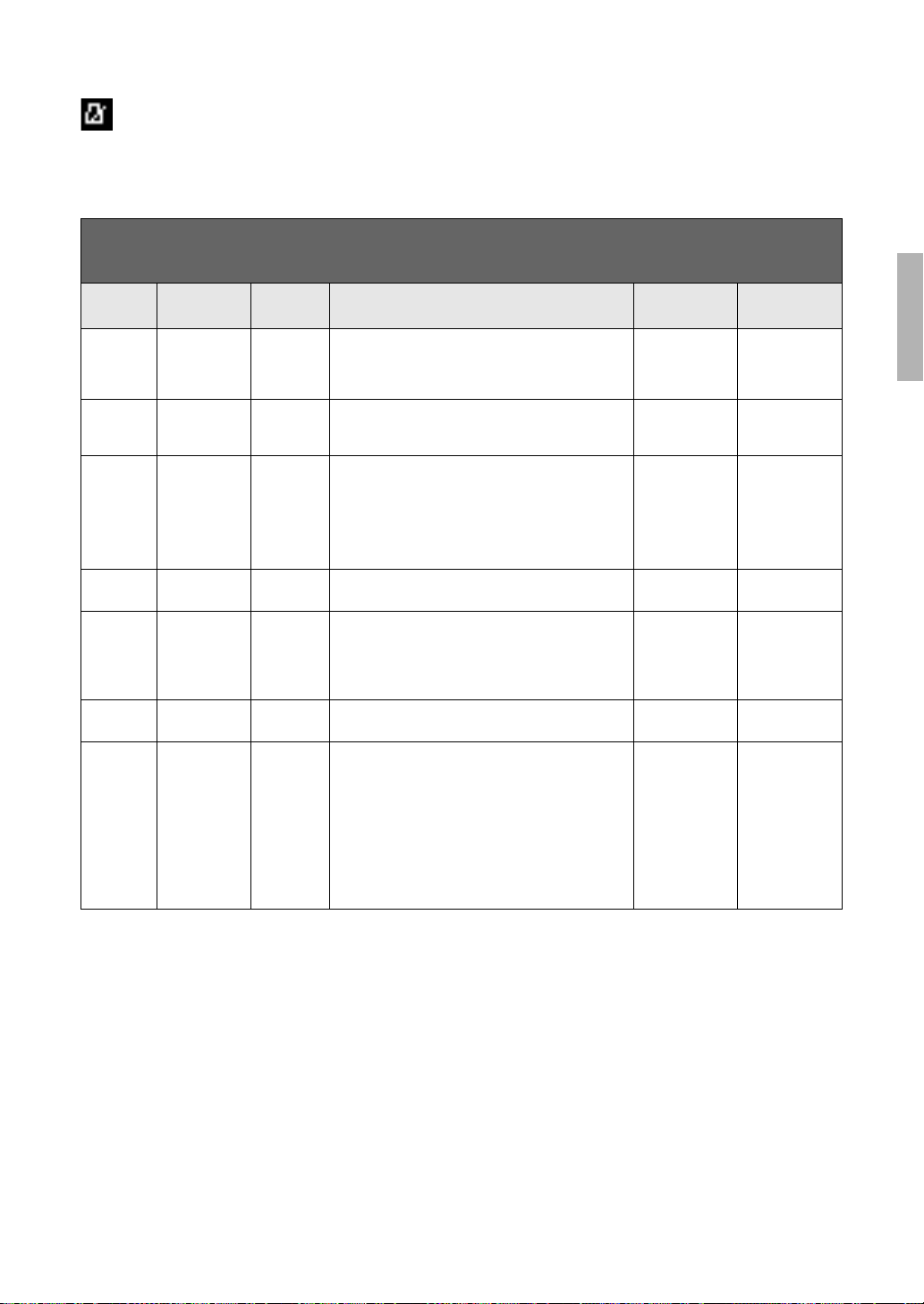
Metronome/Rhythm Menu
85
YDP-184 Owner’s Manual
Metronome/Rhythm Menu
This menu lets you set the volume and tempo indication format of the Metronome (page 33) or Rhythm
(page 48). In addition, you can set the bell sound of the Metronome to play back at the first beat and adjust
parameters related to Rhythm playback variation.
Setting the Tempo
Tempo of Metronome/Rhythm can be set on the display called up by pressing the [TEMPO] button. For
details on setting the Tempo for the Metronome or Rhythm, refer to page 34.
To call up the desired parameter:
Press the [FUNCTION] button several times to select “Metronome/Rhythm” menu, then use the [u]/[d] buttons to select the
desired parameter.
[>]
[<]
[>]
[<]
[>]
[<]
Description Default setting Setting range
Time
Signature
(Setting display) – Determines the time signature of the metronome. When
you select or playback MIDI Songs, this will automatically
be changed to the time signature of the selected songs.
4/4 2/2, 1/4, 2/4, 3/4,
4/4, 5/4, 6/4, 7/4,
3/8, 6/8, 7/8, 9/8,
12/8
Volume (Pop-up
window)
– Determines the volume of the Metronome or Rhythm. You
can adjust the volume balance between the keyboard
performance and Metronome/Rhythm playback.
82 0 – 127
BPM – – Determines whether the note type of the tempo indication
is affected by the Metronome Time Signature (page 34)
or not (crotchet). When “Time Sig.” is selected, the
denominator of the Time Signature is shown as the note
type of the tempo indication. (The dotted quarter note is
shown as the note type of the tempo indication only when
the Time Signature is set to “6/8,” “9/8,” or “12/8.”)
Time Sig. Time Sig.,
Crotchet
Bell – – Determines whether or not the bell sound is played back
at the first beat of the specified Time Signature.
Off On, Off
Intro – – Determines whether the Intro is played back or not
before the Rhythm pattern is started.
NOTE
During Song playback, the Intro cannot be played back even
if you start the Rhythm with this parameter set to “On.”
On On, Off
Ending – – Determines whether the Ending is played back or not
before the Rhythm pattern is stopped.
On On, Off
SyncStart – – When this is set to “On,” you can start Rhythm playback
also by pressing any note on the keyboard.
When you want to use this function, follow the instructions
below:
1. Set this function to on.
2. Press the [RHYTHM] button to enter the Synchro start
standby mode.
The [RHYTHM] button flashes.
3. Press any key to start with the rhythm.
Off On, Off
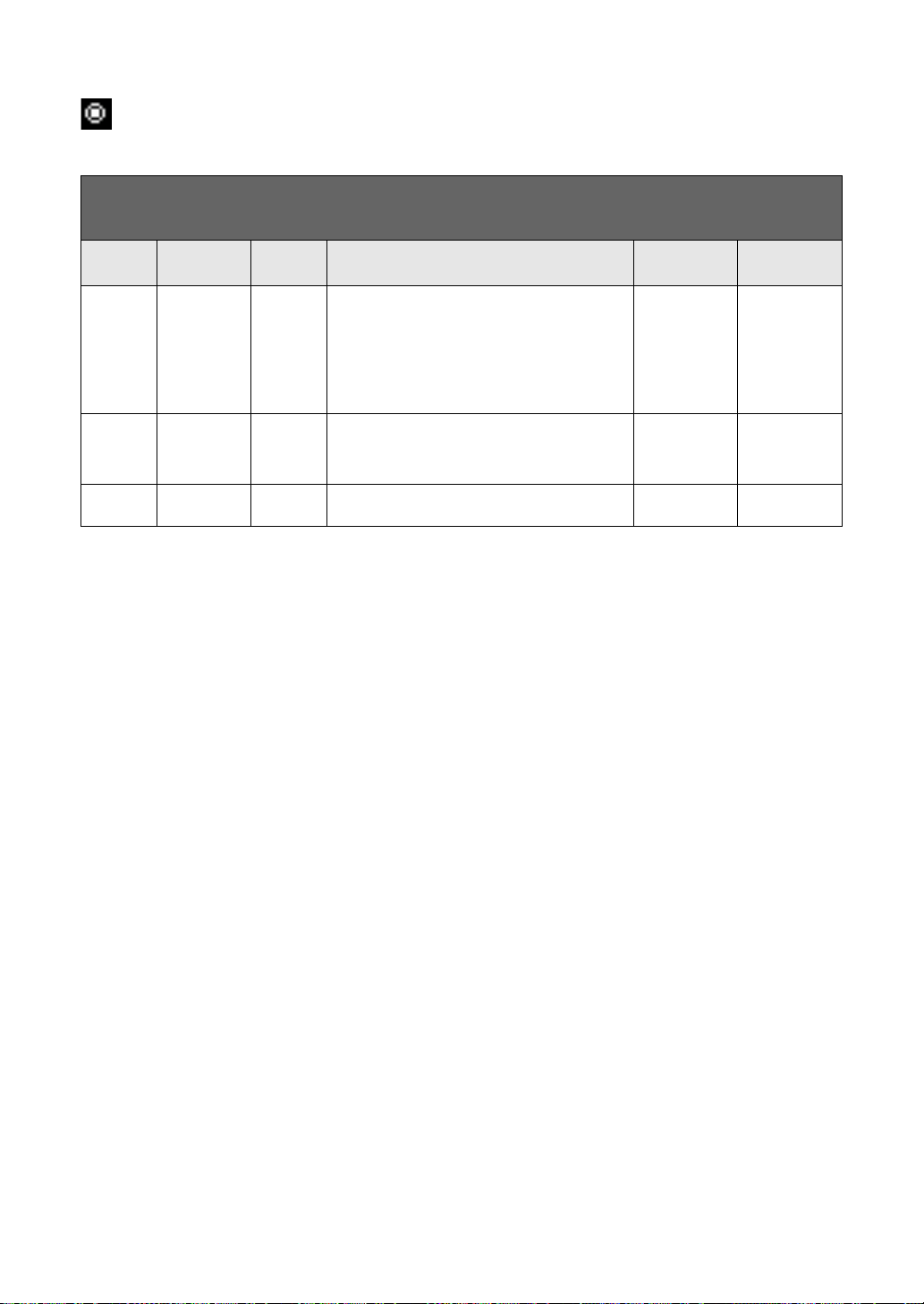
Recording Menu
86
YDP-184 Owner’s Manual
Recording Menu
This menu lets you make detailed settings related to MIDI Recording (page 49).
To call up the desired parameter:
Press the [FUNCTION] button several times to select “Recording” menu, then use the [u]/[d] buttons to select the desired
parameter.
[>]
[<]
[>]
[<]
[>]
[<]
Description Default setting Setting range
RecStart – – This parameter, which is used when you overwrite the
already recorded MIDI Song, determines when the actual
MIDI Recording starts after you execute the Recording
Start operation. When set to “Normal,” actual recording
will starts as soon as you execute the Recording Start
operation. When set to “KeyOn,” actual recording starts
as soon as you press any key after you execute the
Recording Start operation.
Normal Normal, KeyOn
RecEnd – – This parameter, which is used when you overwrite the
already recorded MIDI Song, determines whether the
existing data after the point at which you stop recording
will be erased or not.
Replace Replace,
PunchOut
RecRhythm – – Determines whether or not Rhythm playback will be
recorded during MIDI Recording.
On On, Off
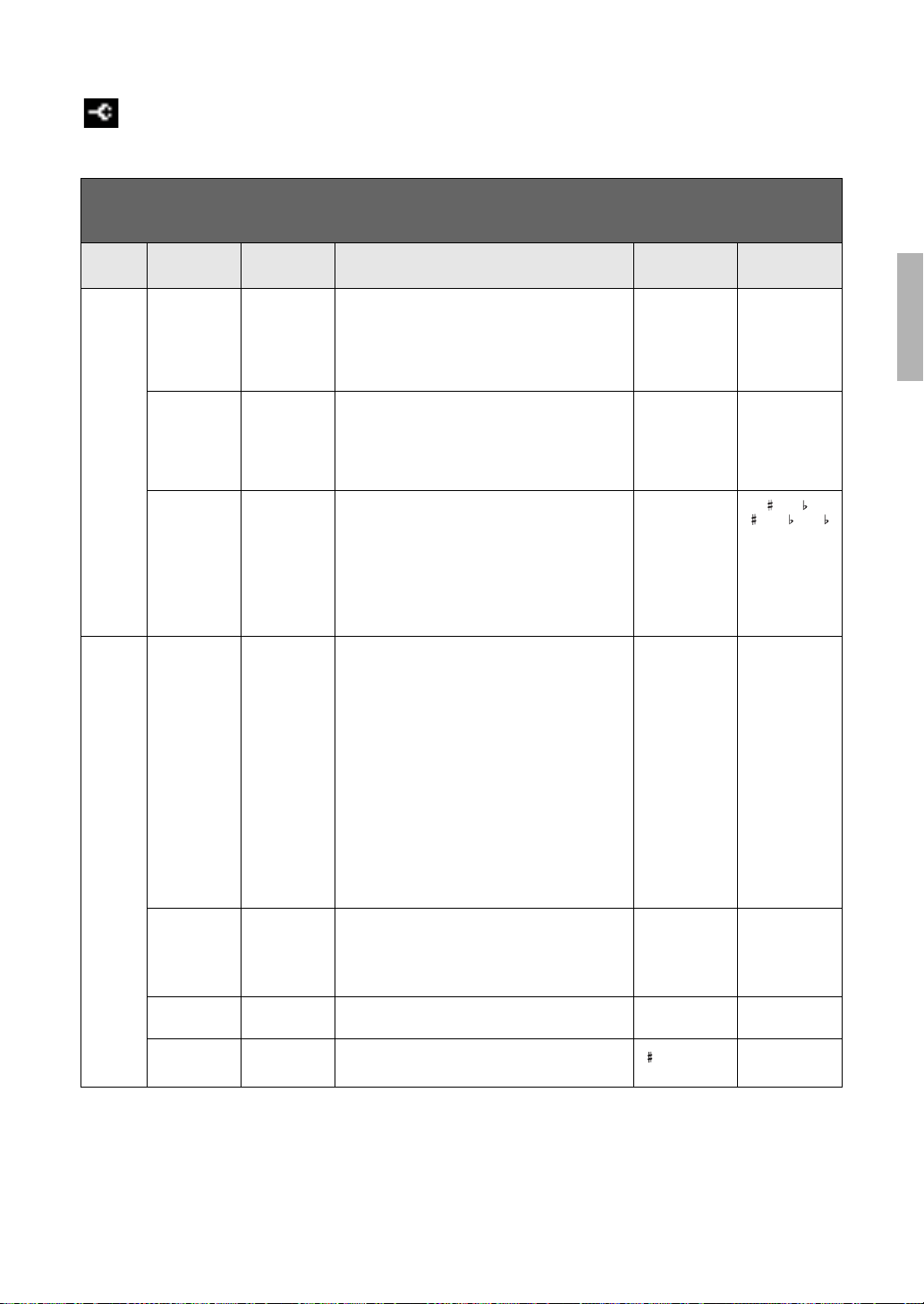
System Menu
87
YDP-184 Owner’s Manual
System Menu
This menu lets you make the overall settings applied to the entire instrument.
To call up the desired parameter:
Press the [FUNCTION] button several times to select “System” menu, then use the [u]/[d]/[<]/[>] buttons to select the desired
parameter.
[>]
[<]
[>]
[<]
[>]
[<]
Description Default setting Setting range
Tuning Master Tune (Pop-up
window)
Fine tunes the pitch of the entire instrument. This
function is useful when you play this instrument along
with other instruments or CD music.
NOTE
These settings will not be applied to the Drum Kit Voices.
Also, these settings will not be recorded to a MIDI Song.
A3 = 440.0 Hz A3 = 414.8 Hz –
466.8 Hz (approx.
0.2 Hz steps)
Scale Tune (Setting display) Modern acoustic pianos are tuned almost exclusively in
equal temperament, which divides one octave into
twelve equal intervals. Likewise, this digital piano
employs equal temperament, but it can be changed at
the touch of a button to play in historical temperaments
used in the 16th to 19th centuries.
Equal
Temperament
Refer to the
“Scale Tune List”
(page 91)
Base Note (Setting display) Determines the base note for the Scale selected above.
When the base note is changed, the pitch of the
keyboard is transposed, yet maintains the original pitch
relationship between the notes. This setting is
necessary when Scale Tune is set to something other
than “Equal Temperament.”
NOTE
When Scale Tune is set to “Equal Temperament,” “---” is
shown on the display and this parameter cannot be edited.
C C, C , D, E , E, F,
F , G, A , A, B ,
B
Keyboard Touch (Setting display) Determines how the sound responds to your playing
strength. This setting does not change the weight of the
keyboard.
• Soft2: Produces relatively high volume even with light
playing strength. Best for players with a light touch.
• Soft1: Produces high volume with moderate playing
strength.
• Medium: Standard Touch Sensitivity.
• Hard1: Requires moderately strong playing for high
volume.
• Hard2: Requires strong playing to produce high
volume. Best for players with a heavy touch.
• Fixed: No touch response. The volume level will be the
same regardless of how hard you play the keys.
NOTE
The setting here will not be recorded to a MIDI Song and not
be transmitted as MIDI messages.
Medium Soft 2, Soft 1,
Medium, Hard 1,
Hard 2, Fixed
Fixed Velocity (Pop-up
window)
Determines the velocity with which you play the keys
when Touch (above) is set to “Fixed.”
NOTE
The setting here will not be recorded to a MIDI Song and not
be transmitted as MIDI messages.
64 1 – 127
Duo (Setting display) Splits the keyboard into two ranges, allowing you to play
duets over the same octave range (page 32).
Off On, Off
Split Point (Setting display) Determines the Split Point (the boundary between the
right-hand and left-hand keyboard areas).
F 2 (Split),
E3 (Duo)
A-1 – C7
System Menu
88
YDP-184 Owner’s Manual
Pedal Half Pedal Point (Pop-up
window)
Here you can specify the point to which you must
depress the right pedal before the assigned effect
begins to be applied. This setting applies only to the
“Sustain Continuously” effect is assigned.
0 -2 (effective with
the shallowest
press) – 0 – +4
(effective with the
deepest press)
Soft Pedal
Depth
(Pop-up
window)
Determines how deeply the Soft pedal effect is applied.
This parameter is available only for the pedal to which
“Soft” (page 81) is assigned.
51 – 10
Pitch Bend
Range
(Pop-up
window)
Determines the range of the pitch bend that is produced
via the pedal in semitone steps. This setting is available
only for the pedal to which “Pitch Bend Up” or “Pitch
Bend Down” (page 81) is assigned.
NOTE
For some Voices, the pitch may not be changed according to
the Pitch Bend Range value set here.
2 0 – +12 (pressing
the pedal will
raise/lower the
pitch by 12
semitones
[1 octave])
Play/Pause (Setting display)
Assigns the [R/K] (Play/Pause) button’s function to one
of the Left pedal and Center pedal. If a value other than
“Off” is selected here, the corresponding pedal’s
function assigned in the “Voice” menu (page 80) is
disabled.
Off Off, Left, Center
Sound Brilliance (Setting display) Adjusts the brilliance of Voices played via the entire
keyboard.
Normal Mellow 1 – 3,
Normal,
Bright 1 – 3
IAC – Turns the IAC effect on or off. For details about IAC,
refer to page 17.
On On, Off
IAC depth (Pop-up
window)
Determines the depth of the IAC. The higher the value,
the more clearly the low/high sounds at lower volume
levels.
0-3 – +3
SP Optimizer – Turns the Stereophonic Optimizer function (when
headphones are connected) on or off. When the
function is on and headphones are connected, the
sound enhanced with the Stereophonic Optimizer,
allowing you to enjoy more realistic sound (page 18).
On On, Off
MIDI MIDI OUT (Setting display) Determines the MIDI channel on which the MIDI
messages generated via the keyboard performance will
be transmitted from the MIDI [OUT] or USB [TO HOST]
terminal. When Dual/Split/Duo is on, the MIDI channels
are assigned as follows.
• Performance via the R1 Voice = n (setting value)
• Performance via the R2 Voice = n+2
• Performance via the L Voice = n+1
Ch1 Ch1 – Ch16, Off
(not transmitted)
MIDI IN (Setting display) Determines which part of the instrument will be
controlled by each channel data of the MIDI messages
coming from the MIDI [IN] and USB [TO HOST] terminal.
• Song: Song part is controlled by the MIDI messages.
• Keyboard: The entire keyboard is controlled
regardless of the Dual/Split/Duo setting.
• R1: The keyboard performance via the R1 Voice is
controlled.
• L: The keyboard performance via the L Voice is
controlled.
• R2: The keyboard performance via the R2 Voice is
controlled.
• Off: No part is controlled.
“Song” for each of
all MIDI channels
For each MIDI
channel:
•Song
•Keyboard
•R1
•L
•R2
•Off
To call up the desired parameter:
Press the [FUNCTION] button several times to select “System” menu, then use the [u]/[d]/[<]/[>] buttons to select the desired
parameter.
[>]
[<]
[>]
[<]
[>]
[<]
Description Default setting Setting range
System Menu
89
YDP-184 Owner’s Manual
MIDI Local Control – “Local Control On” is a state in which this instrument
produces the sound from its tone generator when you
play the keyboard. In “Local Control Off” state, the
keyboard and the tone generator are cut off from each
other. This means that even if you play the keyboard,
this instrument will produce no sound. Instead, the
keyboard data can be transmitted via MIDI to a
connected MIDI device or computer, which can
produce the sound. The “Local Control Off” setting is
useful when you wish to play only an external sound
source while playing the keys on this instrument.
On On, Off
Receive Param. (Setting display) Determines which types of MIDI messages can be
received or recognized by this instrument.
MIDI message types:
Note on/off, Control Change, Program Change, Pitch
Bend, System Exclusive
On (for all the
MIDI messages)
On, Off (for each
MIDI message)
Transmit Param. (Setting display) Determines which types of MIDI messages can be
transmitted from this instrument.
MIDI message types:
Note on/off, Control Change, Program Change, Pitch
Bend, SystemRealTime, System Exclusive
On (for all the
messages)
On, Off (for each
message)
Initial Setup Cancel Transmits the current panel settings such as Voice
selection to a connected MIDI device or computer.
Before you start recording your performance to a
connected MIDI device or computer, execute this
operation to record the current panel settings at the
beginning of your performance data. It causes that the
same panel settings are called up when the recorded
performance is played back.
Operation:
Move the highlight to “Execute,” then press the [>]
button to transmit the panel settings as MIDI messages.
––
Execute
Backup Backup Setting – For instructions about these functions, refer to pages 92
– 93.
––
Backup –
Restore –
Factory Set –
Utility USB Format Cancel This lets you format or initialize the USB flash drive
connected to the USB [TO DEVICE] terminal.
NOTICE
Executing the Format operation will delete all data saved in
the USB flash drive. Save important data to a computer or
another storage device.
NOTE
When connecting the USB flash drive to the USB [TO DEVICE]
terminal, a message prompting you to execute the Format
operation may appear. If such a case occurs, execute the
Format operation.
Operation
Move the highlight to “Execute,” then press the [>]
button to start the Format operation. After Formatting is
completed, a message appears then the instrument
returns to the Utility display after a while.
NOTICE
Never turn off the power or disconnect the USB flash drive
while “Executing” is shown in the display.
––
Execute
To call up the desired parameter:
Press the [FUNCTION] button several times to select “System” menu, then use the [u]/[d]/[<]/[>] buttons to select the desired
parameter.
[>]
[<]
[>]
[<]
[>]
[<]
Description Default setting Setting range
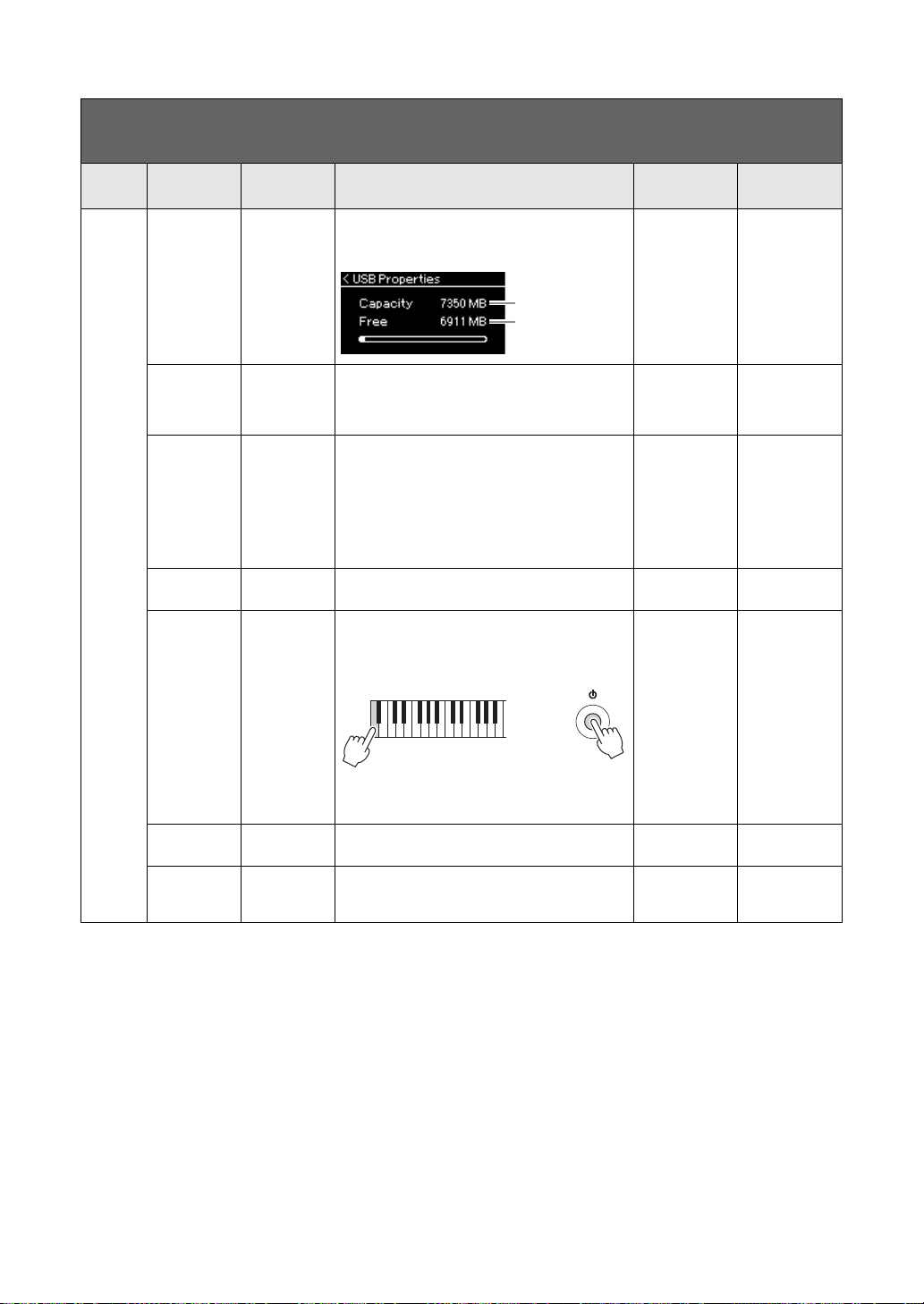
System Menu
90
YDP-184 Owner’s Manual
Utility USB Properties – Shows the amount of free space and entire memory in
the USB flash drive connected to the USB [TO DEVICE]
terminal.
––
USB Autoload – When this is set to “On,” the Song saved in the root
directory can be selected (shown on the display)
automatically as soon as the USB flash drive is
connected to the USB [TO DEVICE] terminal.
Off On, Off
Speaker (Setting display) Lets you switch the speaker on/off.
• Normal
The speaker will sound only if headphones are not
connected.
• On
The speaker will always sound.
• Off
The speaker will not sound.
Normal Normal, On, Off
Contrast (Pop-up
window)
Adjusts the contrast of the display. 0 -5 – +5
Auto Power Off (Setting display) Lets you set the amount of time that elapses before the
power is turned off by Auto Power Off function
(page 16). To disable Auto Power Off, select “Off.”
Disabling Auto Power Off
30 (minutes) Off, 5, 10, 15, 30,
60, 120 (minutes)
Version – Displays the model name and the firmware version of
this instrument.
––
Wireless LAN,
Wireless LAN
Option
– Refer to page 71. – –
To call up the desired parameter:
Press the [FUNCTION] button several times to select “System” menu, then use the [u]/[d]/[<]/[>] buttons to select the desired
parameter.
[>]
[<]
[>]
[<]
[>]
[<]
Description Default setting Setting range
Amount of
free space
Amount of
entire memory
+
Turn the power on while holding down the lowest key
on the keyboard. A message appears briefly and Auto
Power Off is disabled.
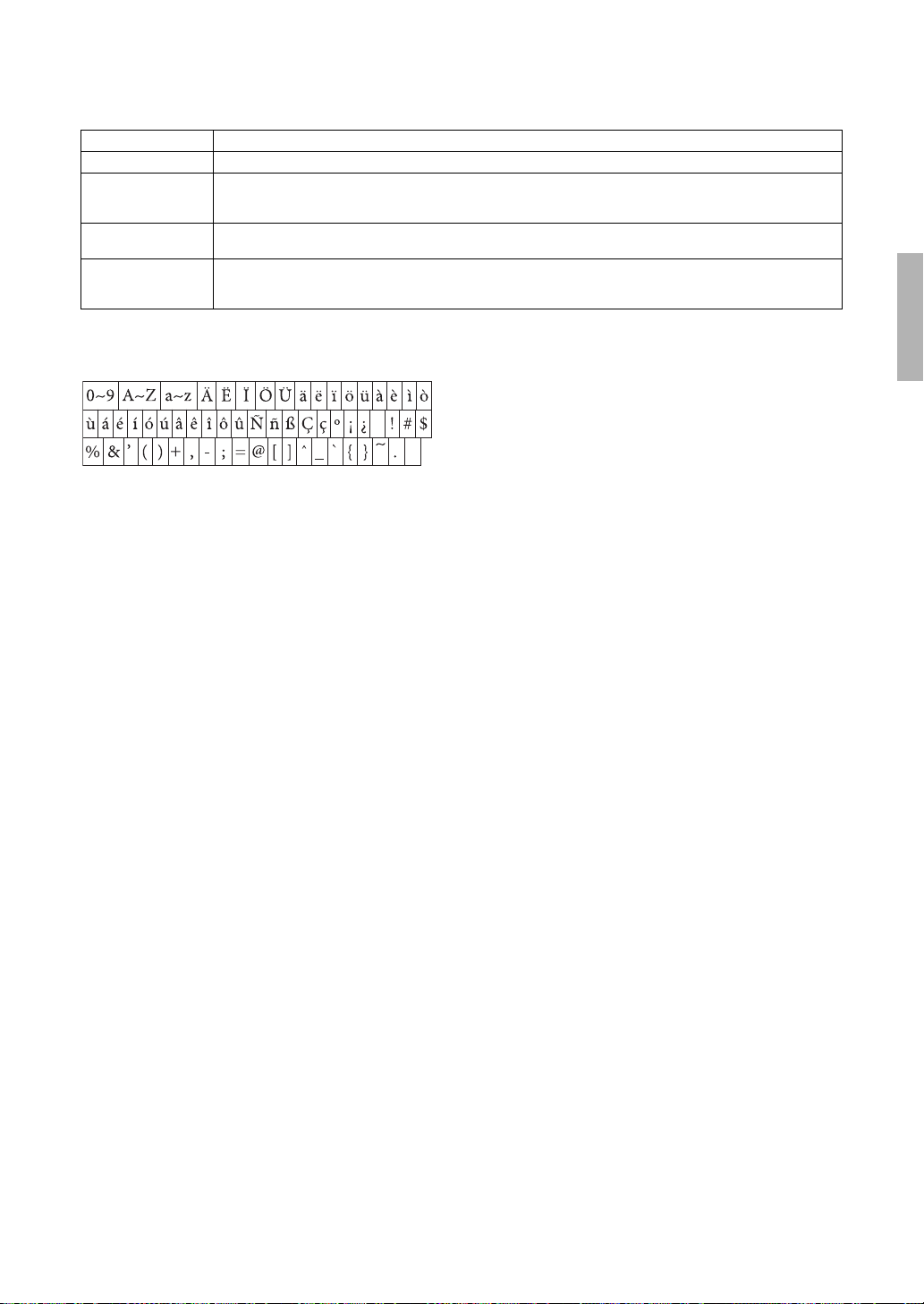
System Menu
91
YDP-184 Owner’s Manual
Scale Tune List (Temperament List)
Character List (International)
Equal Temperament One octave is divided into twelve equal intervals. Currently most popular piano tuning scale.
PureMajor/PureMinor Based on natural overtones, three major chords using these scales produce a beautiful, pure sound.
Pythagorean This scale was devised by Pythagoras, the famous Greek philosopher and is created from a series of perfect fifths,
which are collapsed into a single octave. The 3rd in this tuning is slightly unstable, but the 4th and 5th are beautiful and
suitable for some leads.
MeanTone This scale was created as an improvement on the Pythagorean scale, by making the major third interval more “in tune.”
It was especially popular from the 16th century to the 18th century. Handel, among others, used this scale.
Werckmeister/
Kirnberger
These scales combine Mean Tone and Pythagorean in different ways. With these scales, modulation changes the
impression and feel of the Songs. They were often used in the era of Bach and Beethoven. They are also often used now
to reproduce the music of that era on harpsichords.

92
YDP-184 Owner’s Manual
System Menu
This lets you set whether some settings of the Backup
Setting (below) are maintained or not when the power
is turned off. The Backup Setting consists of two
groups, “Voice” (including Voice related settings such
as Voice selection) and “Other” (including various
settings such as Song Repeat and Tuning), which can
be set individually.
1. Press the [FUNCTION] button several times
to select “System” menu.
2. Use the [u]/[d] buttons to select “Backup,”
use the [>] button to call up the next display,
then use the [u]/[d] buttons to select
“Backup Setting.”
3. Use the [>] then the [u]/[d] buttons to select
“Voice,” then use the [>] button to select “On”
or “Off.”
Each “Voice” contains the following settings:
• Voice selection for R1, R2 and L
• All the parameters other than Transpose in the
“Voice” menu
4. Use the [u]/[d] buttons to select “Other,”
then use the [>] button to select “On” or
“Off.”
The “Other” contains the following settings:
• In the “Song” menu: Song Repeat, Song-Keyboard,
Quick Play, Play Track
• In the “Metronome/Rhythm” menu: Volume, BPM,
Bell On/Off, Intro, Ending
• In the “System” menu: Tuning, Keyboard (except
“Duo”), Pedal, Sound, MIDI
5. Press the [EXIT] button to exit from the
“System” menu display.
This lets you save data on internal memory to the
connected USB flash drive as a backup file (named
“ydp-184.bup”). This backup file can be loaded to the
instrument via the Restore function (page 93) for
future.
NOTICE
• It may take 1 – 2 minutes to complete this operation. Never turn
off the power during this operation (while “Executing” is shown).
Doing so could result in damage to the data.
• If the same backup file (ydp-184.bup) is already saved in the
USB flash drive, this operation will overwrite or replace this file
with new one.
1. Connect the USB flash drive to the USB [TO
DEVICE] terminal.
2. Press the [FUNCTION] button several times
to select “System” menu.
3. Use the [u]/[d] buttons to select “Backup,”
use the [>] button to call up the next display,
then use the [u]/[d] buttons to select
“Backup.”
4. Use the [>] button to call up the next display,
then use the [u]/[d] buttons to select
“Execute.”
5. Press the [>] button to execute the Backup
operation.
6. Press the [EXIT] button to exit from the
“System” menu display.
NOTE
When you want to restore the settings in the backup file, execute
the Restore function.
NOTE
Protected Songs cannot be backed up.
Backup Setting
(Selecting parameters maintained even when the
power is turned off)
Data and settings maintained even when the
power is turned off
• User MIDI Song (saved in this instrument’s
“User” memory)
• Utility (“System” menu)
•Backup Setting (explained here)
Backup
(Saving the Backup file for internal data)
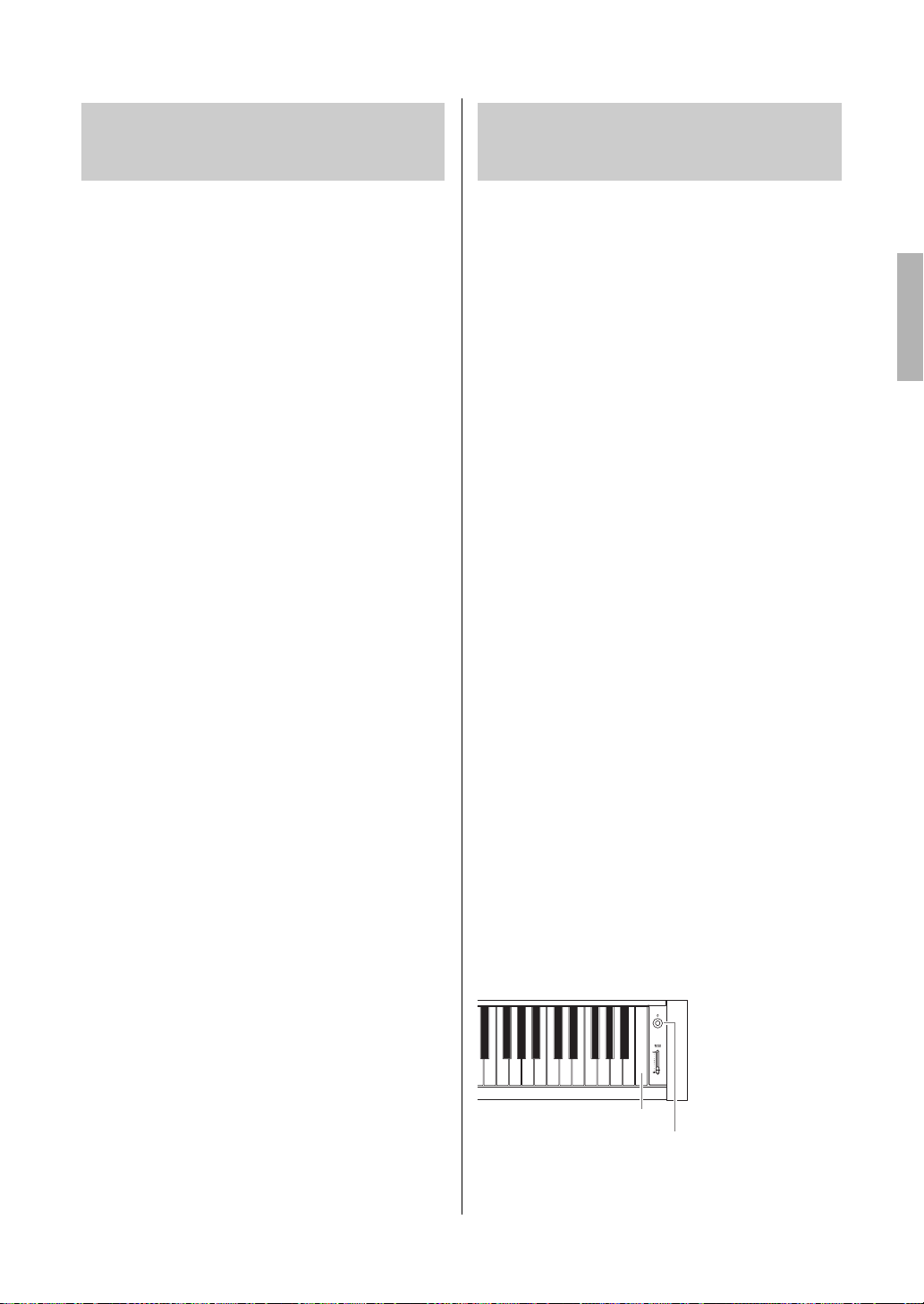
System Menu
93
YDP-184 Owner’s Manual
This lets you load the backup file (ydp-184.bup) saved
via the Backup function (page 92) to the instrument
on.
NOTICE
• It may take 1 – 2 minutes to complete this operation. Never turn
off the power during this operation (while “Executing” is shown).
Doing so could result in damage to the data.
• If Protected Songs or recorded Songs reside on “User” memory,
make sure to move the Songs to the USB flash drive by following
the instructions page 64 before executing this operation. If you
do not, the Songs will be deleted via this operation.
1. Connect the USB flash drive containing the
Backup file to the USB [TO DEVICE]
terminal.
2. Press the [FUNCTION] button several times
to select “System” menu.
3. Use the [u]/[d] buttons to select “Backup,”
use the [>] button to call up the next display,
then use the [u]/[d] buttons to select
“Restore.”
4. Use the [>] button to call up the next display,
then use the [u]/[d] button select “Execute.”
5. Press the [>] button to execute the Restore
operation.
A message indicating that the operation is
completed appears, then the instrument will restart
after a while.
This lets you reset this instrument to its factory
default settings which refers to the initial setting
preprogrammed when shipped from the factory, and
is called up when you first turn on the power to this
instrument.
Note that the following points.
• This operation resets the Backup Setting (page 92) to the
default setting.
• This operation will not delete the Songs saved in the User
folder.
NOTICE
Never turn off the power during this operation (while “Factory set
executing” is shown). Doing so could result in damage to the data.
1. Press the [FUNCTION] button several times
to select “System” menu.
2. Use the [u]/[d] buttons to select “Backup,”
use the [>] button to call up the next display,
then use the [u]/[d] buttons to select
“Factory Set.”
3. Use the [>] button to call up the next display,
then use the [u]/[d] buttons to select
“Execute.”
4. Press the [>] button to execute the Restore
operation.
A message indicating that the operation is
completed appears, then the instrument will restart
after a while.
Alternate method for restoring the default
settings
Press and hold down the white key on the right end
(C7) and press the [P] (Standby/On) switch to turn
on the power to this instrument. This operation will
not delete the Songs in the User folder.
Restore
(Restarting the instrument with the Backup file
loaded)
Factory Set
(Restarting the instrument with the initial
factory settings loaded)
[P] Standby/On switch
C7
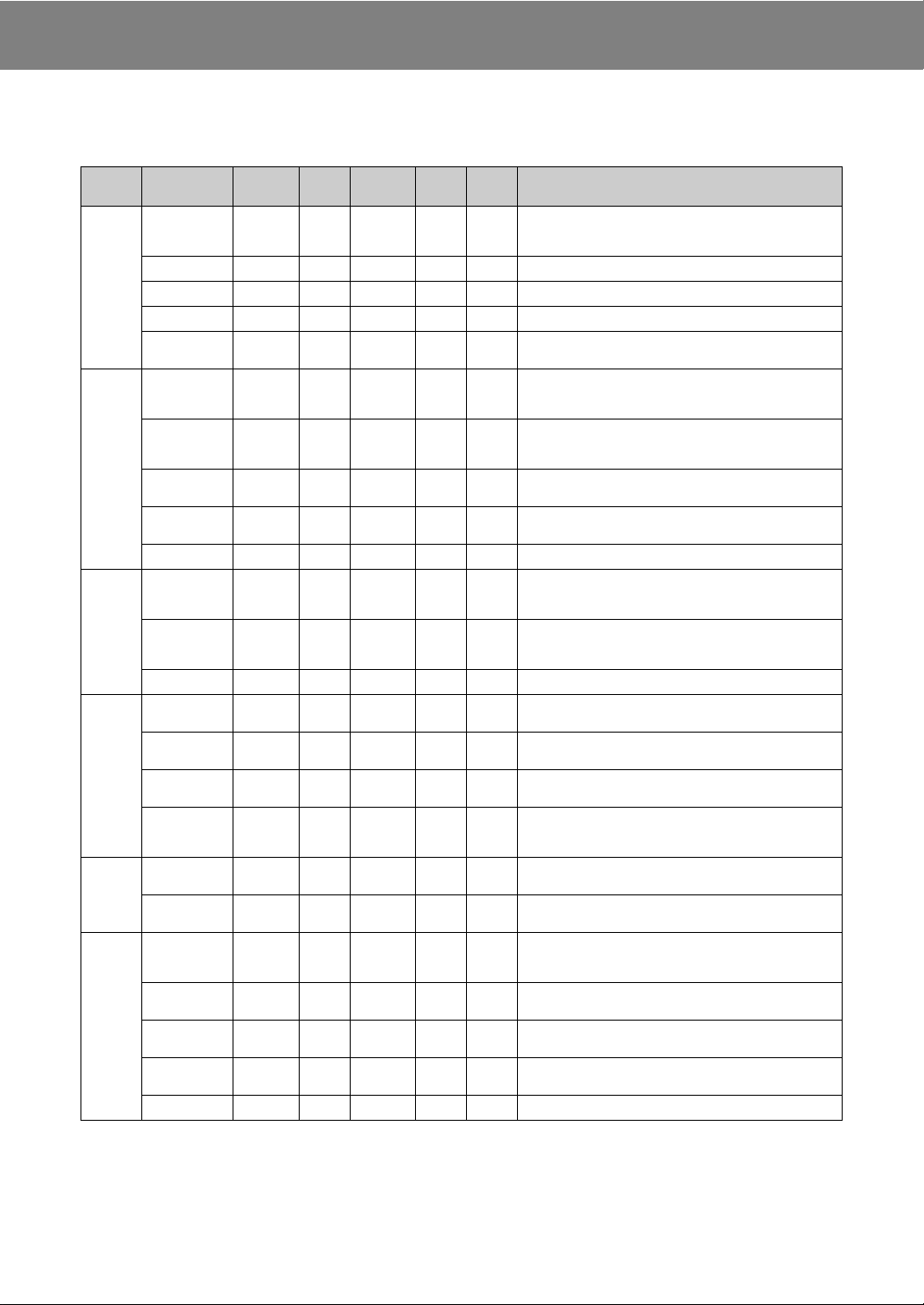
94
YDP-184 Owner’s Manual
Appendix
Preset Voice List
VRM
Simulated string resonance sound with physical modeling when the damper pedal is pressed or keys are pressed.
Key-off Sampling
Samples of the very delicate noises that are produced when keys are released.
Voice
Group
Voice Name
Stereo
Sampling
Touch
Sense
Key-off
Sampling
VRM
Voice
Demo
Voice description
Piano CFX Grand
(1)
Yamaha’s CFX concert grand piano sound with a wide dynamic
range for maximum expressive control. Suitable for playing in any
music genre and style.
Pop Grand — A slightly brighter piano sound. Good for popular styles.
Jazz Grand — — A piano sound with unique tonal character. Good for jazz styles.
Rock Grand — A bright-sounding piano. Ideal for rock styles.
HonkyTonk Pf — — A honky-tonk style piano. Enjoy a tonal character that is quite
different than a grand piano.
E.Piano Stage E.Piano — — The sound of an electric piano using hammer-struck metallic
“tines.” Soft tone when played lightly, and an aggressive tone
when played hard.
DX E.Piano — —— An electronic piano sound produced by an FM synthesizer. The
tone will change as you vary your playing touch. Ideal for popular
music.
Vintage EP — — A different type of electric piano sound than Stage E.piano.
Widely used in rock and popular music.
Soft EP — ——An electric piano with a characteristic panning effect. Good for
playing quiet ballads.
Phaser EP — ——A distinctive phaser effect makes this ideal for fusion styles.
Organ Organ Principal ———
(2)
This Voice features the combination of pipes (8'+4'+2') of a
principal (brass instrument) organ. It is suitable for Baroque
church music.
Jazz Organ ———— The sound of a “tonewheel” type electric organ. Sampled with
Rotary SP effect, its rotation speed is slow. Often heard in jazz
and rock idioms.
Mellow Organ ————
—
A mellow electric organ sound. Ideal for calmer songs.
Strings Strings —— Stereo-sampled, large-scale strings ensemble with realistic
reverb. Try combining this Voice with piano in the Dual mode.
Slow Strings ——
—
The sound of a string ensemble, with a slow attack. Suitable for
use in Dual mode with piano or electric piano.
Choir — —— A big, spacious choir Voice. Perfect for creating rich harmonies in
slow pieces.
Synth Pad — —— A warm, mellow, and spacious synth sound. Ideal for sustained
parts in the background of an ensemble, or for use in Dual mode
with piano or electric piano.
Bass Acoustic Bass — —— The sound of a finger-plucked upright bass. Frequently used in
jazz and Latin music.
Electric Bass — —— The sound of an electric bass. Frequently used in jazz, rock, and
popular music.
Others Harpsichord 8' — —
(3)
The sound of the instrument frequently used in baroque music.
Variations in playing touch will not affect the volume, and a
characteristic sound will be heard when you release the key.
Harpsi. 8'+4' — ——A harpsichord with an added upper octave. Produces a more
brilliant sound.
Vibraphone —— A Vibraphone sound, sampled in stereo. Its spacious and clear
sound is ideal for popular music.
Nylon Guitar —— Stereo-sampled, nylon-string guitar with natural reality. Suitable
for any style of musics.
Steel Guitar — ———A bright steel-string guitar sound. Ideal for popular music.

Preset Voice List
95
YDP-184 Owner’s Manual
The Voice Demos with () listed above are short rearranged excerpts of the original compositions. All other Demo Songs are Yamaha original (© Yamaha
Corporation).
Voice group Voice name Title Composer
(1)
Piano CFX Grand Impromptu No.1 op.29 F. F. Chopin
(2)
Organ Organ Principal Herr Christ, der ein'ge Gottes-Sohn, BWV 601 J. S. Bach
(3)
Others Harpsichord 8' Concerto a cembalo obbligato, 2 violini, viola e continuo No.7, BWV 1058 J. S. Bach
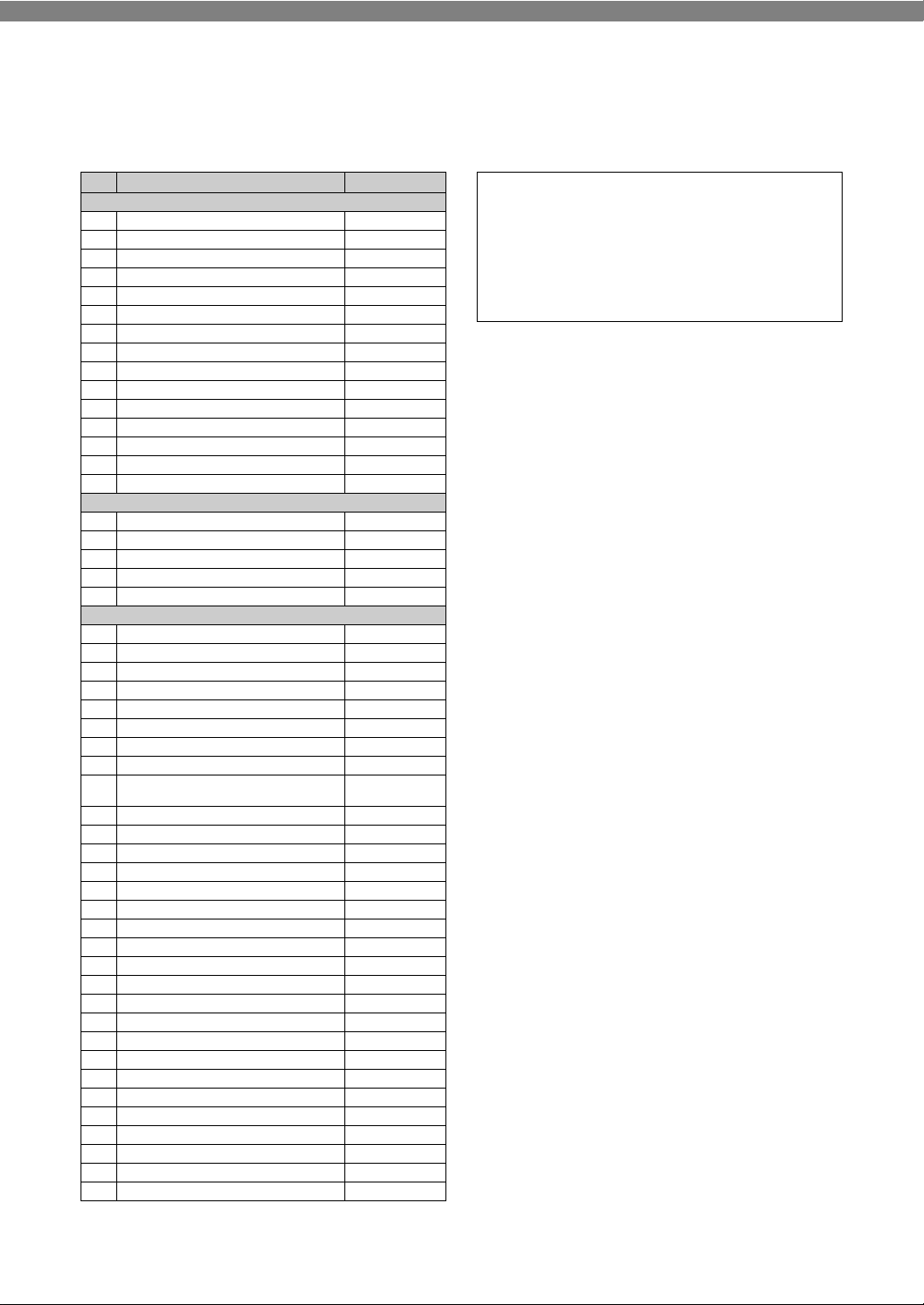
96
YDP-184 Owner’s Manual
Song List
50 Classics
No. Song Title Composer
Arrangements
1 Canon D dur J. Pachelbel
2 Air On the G Strings J. S. Bach
3 Jesus, Joy of Man’s Desiring J. S. Bach
4 Twinkle, Twinkle, Little Star Traditional
5 Piano Sonate op.31-2 “Tempest” 3rd mov. L. v. Beethoven
6 Ode to Joy L. v. Beethoven
7 Wiegenlied op.98-2 F. P. Schubert
8 Grande Valse Brillante F. F. Chopin
9 Polonaise op.53 “Héroïque” F. F. Chopin
10 La Campanella F. Liszt
11 Salut d’amour op.12 E. Elgar
12 From the New World A. Dvořák
13 Sicilienne G. U. Fauré
14 Clair de lune C. A. Debussy
15 Jupiter (The Planets) G. Holst
Duets
16 Menuett (Eine kleine Nachtmusik K.525) W. A. Mozart
17 Menuett G dur L. v. Beethoven
18 Marcia alla Turca L. v. Beethoven
19 Piano Concerto No.1 op.11 2nd mov. F. F. Chopin
20 The Nutcracker Medley P. I. Tchaikovsky
Original Compositions
21 Prelude (Wohltemperierte Klavier I No.1) J. S. Bach
22 Menuett G dur BWV Anh.114 J. S. Bach
23 Piano Sonate No.15 K.545 1st mov. W. A. Mozart
24 Turkish March W. A. Mozart
25 Piano Sonate op.13 “Pathétique” 2nd mov. L. v. Beethoven
26 Für Elise L. v. Beethoven
27 Piano Sonate op.27-2 “Mondschein” 1st mov. L. v. Beethoven
28 Impromptu op.90-2 F. P. Schubert
29 Frühlingslied op.62-6 J. L. F.
Mendelssohn
30 Fantaisie-Impromptu F. F. Chopin
31 Etude op.10-3 “Chanson de l’adieu” F. F. Chopin
32 Etude op.10-12 “Revolutionary” F. F. Chopin
33 Valse op.64-1 “Petit chien” F. F. Chopin
34 Nocturne op.9-2 F. F. Chopin
35 Nocturne KK4a-16/BI 49 [Posth.] F. F. Chopin
36 Träumerei R. Schumann
37 Barcarolle P. I. Tchaikovsky
38 La prière d’une Vierge T. Badarzewska
39 Liebesträume No.3 F. Liszt
40 Blumenlied G. Lange
41 Humoresque A. Dvořák
42 Arietta E. H. Grieg
43 Tango (España) I. Albéniz
44 The Entertainer S. Joplin
45 Maple Leaf Rag S. Joplin
46 La Fille aux Cheveux de Lin C. A. Debussy
47 Arabesque No.1 C. A. Debussy
48 Cakewalk C. A. Debussy
49 Je te veux E. Satie
50 Gymnopédies No.1 E. Satie
About Duet Songs
The song Nos.16 – 20 are duet songs.
The right-hand part is for the right hand of the first
player, the left-hand part is for the left hand of the
first player, and Extra part is for the both hands of
the second player.
97
YDP-184 Owner’s Manual
Rhythm List
Category No. Name
Pops&Rock 1 8Beat
2 16Beat
3 Shuffle1
4 Shuffle2
5 Shuffle3
6 8BeatBallad
7 6-8SlowRock
Jazz 8 Swing
9 SwingFast
10 Five-Four
11 JazzWaltz
Latin 12 Samba
13 BossaNova
14 Rumba
15 Salsa
16 Tango
Kids&Holiday 17 2-4Kids
18 6-8March
19 ChristmasSwing
20 Christmas3-4
98
YDP-184 Owner’s Manual
Message List
Some message display remains open. In this case, press the [EXIT] button to close message display.
Message Meaning
Access error The operation has failed. The following causes can be considered. If the following are not responsible, the
file may be damaged.
• The file operation is wrong. Follow the instructions in “Handling Song Files” (page 60) or “Backup”/
“Restore” (pages 92 – 93).
• The connected USB flash drive is not compatible with this instrument. For information on compatible USB
flash drive, see page 68.
• The protected Song on which you attempted the operation is defective.
Cannot be executed The operation has failed. The following causes can be considered. Solve the causes, and try again.
• The file operation you attempted cannot be executed to Preset Songs. For information on the limitation of
handling Song files, see page 60.
• The Song file operation cannot be made to an empty Song file (page 50) or NoSong.
NoSong: This is displayed when you select a folder which does not contain any Songs.
Change to Current Tempo This message indicates that you are applying the current tempo to the selected Song.
Change to Current Voice This message indicates that you are changing the Voice of the Song with the current Voice.
Completed This message indicates that the operation is completed. Go on to the next step.
Completed
Restart now
Restore is completed. The instrument is automatically turned on again.
Copy completed to USB/
USERFILES/
This message appears when the copy operation to the “USER FILES” folder on a USB flash drive is
completed.
Copy completed to User This message appears when the copy operation to the “User” on this instrument is completed.
Device removed This message appears when the USB flash drive is removed from the instrument.
Duplicate name This message indicates that an identically named file already exists. Rename the file (page 65).
Executing The instrument is executing the operation. Wait until the message disappears, then go on to the next step.
Factory set executing
Memory Song excluded
The default settings (except the Songs in the “User”) have been restored (page 93).
This message also appears if you press and hold down the C7 key and turn on the power to the instrument.
FactorySet Completed
Restart
Factory set is completed. The instrument is then restarted.
Incompatible device This message appears when an incompatible USB flash drive is connected. Use a device whose
compatibility has been confirmed by Yamaha (page 68).
Internal hardware error A malfunction has occurred in the instrument. Contact your nearest Yamaha dealer or authorized distributor.
Last power off invalid
Checking memory
This message appears when the power is turned on after turning off the power while handling a Song file
(page 60) or saving a backup file (page 92). The internal memory is being checked while this message
appears. If the internal settings are damaged, they will be reset to the default settings. If the Songs in the
“User” are damaged, they will be deleted.
Maximum no. of devices
exceeded
The number of devices exceed the limitation. Up to two USB devices can be connected simultaneously. For
details, see page 68.
Memory full Since the capacity and the number of files in the “User”/USB flash drive are full, the operation cannot be
completed. Delete some Songs in the “User”/USB flash drive or move Songs to another USB flash drive,
and try again.
Move completed to USB/
USERFILES/
This message appears when the move operation to the “USER FILES” folder on a USB flash drive is
completed.
Move completed to User This message appears when the move operation to “User” on the instrument is completed.
No device A USB flash drive was not connected to the instrument when you attempted to perform a device-related
operation. Connect the device, and try again.
No response
from USB device
The instrument cannot communicate with the connected USB device. Redo the connection (page 68). If
you still see this message, the USB device may be damaged.
Notice:
Protected Song
This message appears when you attempt to handle the Protected Song. For information on the limitation of
file operations, see page 60.
Please wait The instrument is processing the data. Wait until the message disappears, then go on to the next step.
Protected device This message appears when you attempt a file operation (page 60), record your performance or save the
data on a read-only USB flash drive. Cancel the read-only setting, if possible, and try again. If you still see
this message, the USB flash drive is internally protected (such as commercially available music data). You
cannot make the file operation or record your performance to such a device.
Message List
99
YDP-184 Owner’s Manual
Protected Song You attempted a file operation to a Protected Song or read-only file. Data of those types have handling
limitations (page 60), and also cannot be used for editing (page 56). Use a read-only file after cancelling
the read-only setting.
Remaining space
on drive is low
Since the remaining space on the “User”/USB flash drive is low, delete any unnecessary files (page 62)
before recording.
Same file name exists This message appears to prompt you to confirm if overwriting or not when executing a Copy/Move
operation.
Song error This message appears, if a problem is found with the Song data when you select a Song or while the Song
is playing. In this case, reselect the Song, and try again to play back. If the message still appears, the Song
data may have been damaged.
Song too large The size of Song data exceeds the limitation. The following causes can be considered.
• The Song size you attempt to play back exceeds the limitation. The limitation for playback is approx.
500KB.
• The Song size exceeds the limitation during recording. The limitation for recording is approx. 500KB. The
recording will end automatically and the recorded data before the end is saved.
System limit This message appears when the number of files exceeds the system limit. The maximum number of files
and folders which can be saved in a folder is 250. Try again after deleting/moving the unnecessary file(s).
This data format is not
supported
This message appears when you attempted to load a Song of unsupported format to this instrument. Refer
to the page 36 about supported Song formats.
Unformatted device This message appears when you attempt to use an unformatted USB flash drive. Format it (page 89), and
try again.
Unsupported device This message appears when an unsupported USB flash drive is connected. Use a device whose
compatibility has been confirmed by Yamaha (page 68).
USB device
overcurrent error
Communication with the USB device has been cut off because of an abnormal power surge to the device.
Disconnect the USB device from the USB [TO DEVICE] terminal and turn the [P] (Standby/On) switch of
the instrument standby and on again.
USB hub
hierarchical error
The USB hub is connected in two layers. USB hub use is limited to one layer.
USB power consumption
exceeded
A
bus-powered USB hub is usually recommended. When this message appears, however, use a self-powered
USB hub (with its own power source) and turn the power to on, or use a device whose compatibility
has been
confirmed by Yamaha (page 68).
Wrong device The file operation cannot be made to the connected USB flash drive. The following causes can be
considered.
• The USB flash drive in not formatted. Format it (page 89), and try again.
• The number of files exceeds the system limit. The maximum number of files and folders which can be
saved in a folder is 250. Try again after deleting/moving the unnecessary file(s).
Wrong name The Song name is not appropriate. This message appears during the “Renaming files” (page 65) operation
because of the following causes. Rename the Song correctly.
• No character has been input.
• You used a period or space at the beginning/ending of a Song name.
Message Meaning
100
YDP-184 Owner’s Manual
Troubleshooting
When a message is displayed, refer to the “Message List” (page 98) for troubleshooting aid.
Problem Possible Cause and Solution
The instrument does not turn
on.
The instrument has not been plugged in properly. Securely insert the female plug into the socket on the
instrument, and the male plug into a proper AC outlet (page 14).
A click or pop is heard when
the power is turned on or off.
This is normal when electrical current is being applied to the instrument.
The power is automatically
turned off.
This is normal and due to the Auto Power Off function. If necessary, set the parameter of the Auto Power Off
function (page 90).
The message “USB device
overcurrent error” is shown
and the USB device does not
respond.
Communication with the USB device has been shut down because of the overcurrent to the USB device.
Disconnect the device from the USB [TO DEVICE] terminal, then turn on the power of the instrument.
Noise is heard from the
speakers or headphones.
The noise may be due to interference caused by the use of a mobile phone in close proximity to the instrument.
Turn off the mobile phone, or use it further away from the instrument.
Noise is heard from the
instrument’s speakers or
headphones when using the
instrument with the
application on iPhone/iPad.
When you use the instrument along with the application on your iPhone/iPad, we recommend that you set that
device’s “Airplane Mode” to “ON” and then the Wi-Fi setting to “ON” on your iPhone/iPad in order to avoid noise
caused by communication.
The overall volume is low, or
no sound is heard.
The Master Volume is set too low; set it to an appropriate level using the [MASTER VOLUME] slider (page 17).
The volume level for the keyboard performance is set too low. Adjust the volume balance to increase the
keyboard volume via the “Song” menu display: “Volume” “Song - Keyboard” (page 45).
Headphones are connected when the Speaker setting is “Normal” (page 90). Disconnect the headphone plug.
The Speaker setting is “Off.” Set the Speaker to “Normal” via the “System” menu display: “Utility” “Speaker”
(page 90).
Local Control is “Off.” Set Local Control “On” via the “System” menu display: “MIDI” “Local Control” (page 89).
“Expression” is assigned to the right pedal. Assign any function other than “Expression” to the pedal (page 80)
via the “Voice” menu display: “Pedal Assign” “Right” (page 80).
The speakers do not switch
off when a pair of
headphones is connected to
the [PHONES] jack.
The Speaker setting is “On.” Set the speaker setting to “Normal” via the “System” menu display: “Utility”
“Speaker” (page 90).
Pedals do not function. The pedal cord may not be securely connected to the [PEDAL] jack. Be sure to insert the pedal cord all the way
until the metal part of the cord plug disappears from view (page 104).
The keyboard volume is
lower than the Song playback
volume.
The volume level for the keyboard performance is set too low. Adjust the volume balance to increase the
keyboard volume via the “Song” menu display: “Volume” “Song - Keyboard” (page 45).
The buttons do not respond. While you are using a function, some buttons not used for the function are disabled. If the Song is playing, stop
playback. Otherwise, press the [EXIT] button to return to the Voice or Song display, Then, perform the desired
operation.
Higher or lower notes do not
sound correctly when the
transpose or octave setting is
made.
This instrument can cover the range of C -2 – G8 when you set the transposition or octave. If notes lower than C
-2 are played, the sound is moved one octave higher. If notes higher than G8 are played, the sound is moved
one octave lower.
Performance in Dual/Split/
Duo mode is not recorded, or
part data is lost
unexpectedly.
Switching to Dual/Split/Duo mode in the middle of the Song is not recorded. Also, the recording part for the Voice
2 (Dual mode) or the left Voice (Split/Duo mode) is automatically assigned (page 52). If the assigned part
already has data, the data will be overwritten and deleted when you record.
Depending on the selected
Voice, the keyboard sound in
Duo mode may be output
from only one speaker.
This is because the default pan setting differs depending on the Voice.
Change the settings from the “Voice” menu “Voice Edit” “Voice name” “Pan” (page 79).
The Song title is not correct. If the song cannot be read, you may need to change the character for the Song name. For information about the
character types available for the Song name, refer to “Character List” (page 91).
Menu display cannot be
called up.
When Song is being played back, menu display other than “Voice” menu and “Song” menu will not appear. Stop
the Song by pressing the [R/K] (Play/Pause) button. Also, in the recording ready mode, only “Recording” menu
display will appear.

Troubleshooting
101
YDP-184 Owner’s Manual
Rhythm does not start. “SynchStart” setting is on. Set “SynchStart” off in the “Metronome/Rhythm” menu display.
The contents of the Wireless
LAN is not shown in the
display even though the USB
wireless LAN adaptor is
connected.
Disconnect the USB wireless LAN adaptor and connect it again.
Sound input via the [AUX IN]
jack is interrupted.
The Noise Gate function of this instrument cuts unwanted noise from the input sound. However, this may result in
wanted sounds also being cut, such as the soft decay sound of a piano. This is normal and not a sign of
malfunction.
Problem Possible Cause and Solution
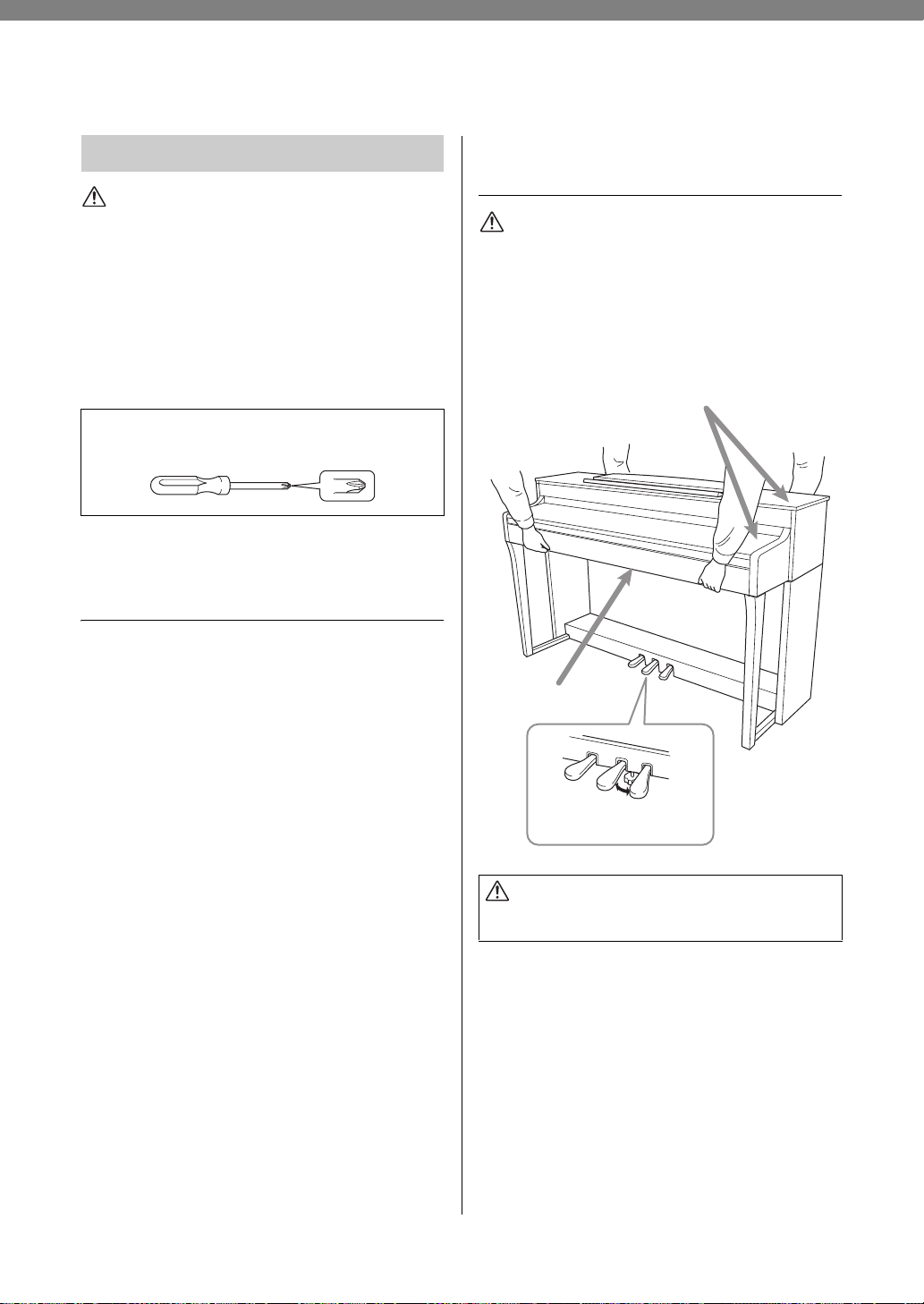
102
YDP-184 Owner’s Manual
Keyboard Stand Assembly
CAUTION
• Assemble the unit on a hard and flat floor with ample space.
• Be careful not to confuse parts, and be sure to install all
parts in the correct orientation. Please assemble the unit in
accordance with the sequence given below.
• Assembly should be carried out by at least two persons.
• Be sure to use only the included screws of the specified
sizes. Do not use any other screws. Use of incorrect screws
can cause damage or malfunction of the product.
• Be sure to tighten all screws upon completing assembly of
the unit.
• To disassemble the unit, reverse the assembly sequence
given below.
After completing the assembly,
please check the following.
• Are there any parts left over?
Review the assembly procedure and correct any errors.
• Is the instrument clear of doors and other
movable fixtures?
Move the instrument to an appropriate location.
• Does the instrument make a rattling noise
when you shake it?
Tighten all screws.
• Does the pedal box rattle or give way when you
step on the pedals?
Turn the adjuster so that it is set firmly against the
floor.
• Are the pedal and power cords inserted
securely into the sockets?
Check the connection.
When Moving the Instrument
After Assembly
CAUTION
• When moving the instrument after assembly, always hold
the bottom of the main unit.
• Do not hold the key cover or top portion. Improper handling
can result in damage to the instrument or personal injury.
NOTICE
Rotate the adjuster under the pedal until it separates from the floor
surface. Contact with the adjuster can result in damage to the floor
surface.
Tr an sp o rt ing
If you move to another location, refer to the “Transporting” on
page 105.
Assembly Precautions
Have a Phillips-head (+) screwdriver of the
appropriate size ready.
CAUTION
If the unit creaks or is otherwise unsteady when you play on the
keyboard, refer to the assembly diagrams and retighten all screws.
Do not hold here.
Hold here.
Rotate the adjuster under the pedal
until it separates from the floor
surface.
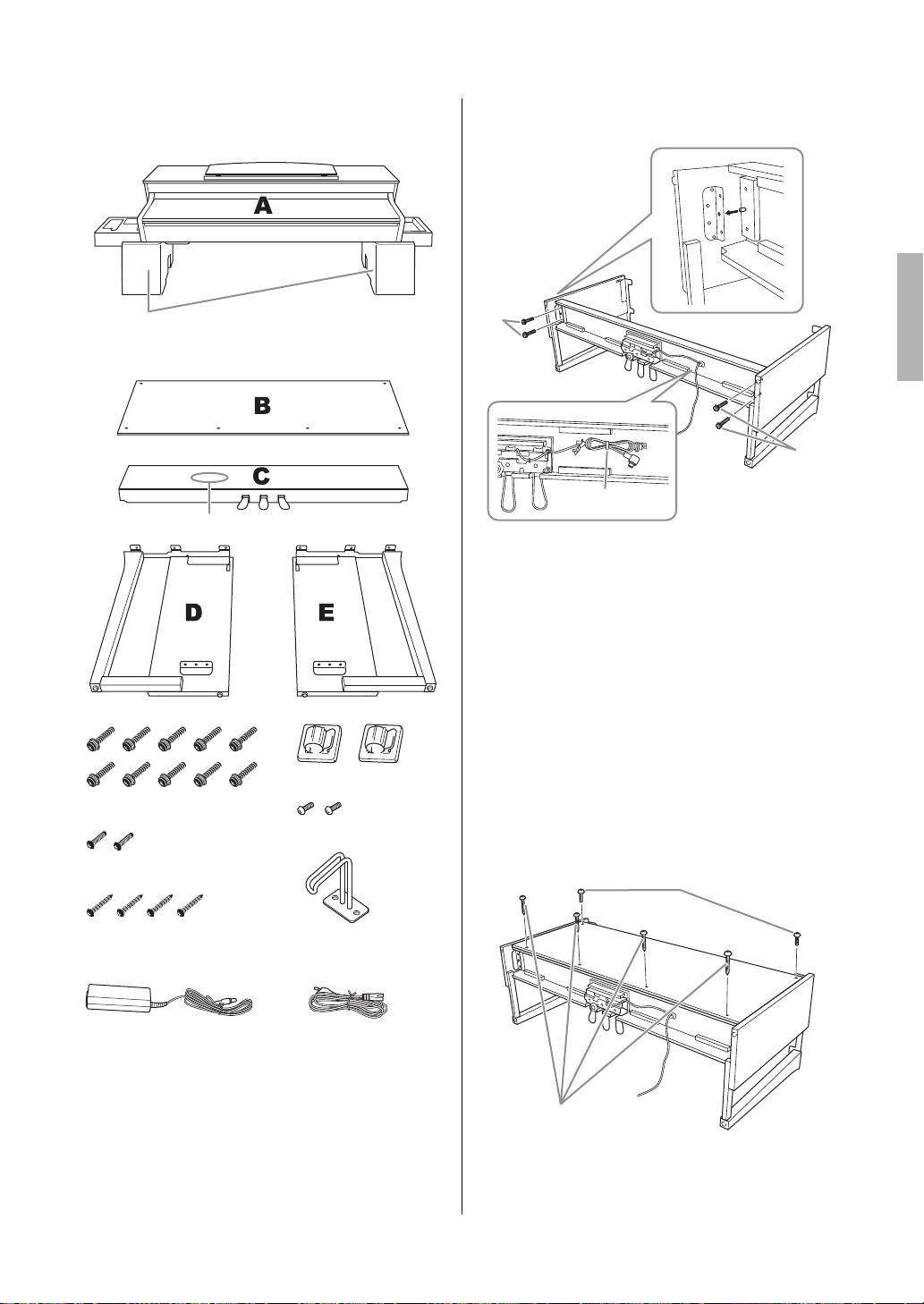
Keyboard Stand Assembly
103
YDP-184 Owner’s Manual
Remove all parts from the package and make sure
you have all of the items.
1. Attach C to D and E.
1-1. Untie and straighten out the bundled pedal
cord. Do not discard the vinyl tie. You will
need it later in step 5.
1-2. Insert the protrusions into the holes on the
brackets, then attach D and E to C by
tightening the four thick screws (6 × 20 mm).
2. Attach B.
Depending on the model of digital piano you
purchased, the surface color of one side of B may
be different from the other side. If so, position B
so that the side similar in color to D and E faces
the player.
Foamed styrol pads
Remove foamed styrol pads from the package, position them on
the floor, then place A on top of them. Position the pads so that
they will not hide the connectors on the bottom of A.
Bundled pedal cord inside
6 × 20 mm thick screws × 10
4 × 12 mm thin screws × 2
4 × 20 mm tapping screws × 4
Cord holders × 2
4 × 10 mm thin screws × 2
Headphone hanger
Power cord
AC adaptor
1-2
1-2
1-2
1-1
DD
EE
CC
2-1, 2-3
2-2
D
B
E
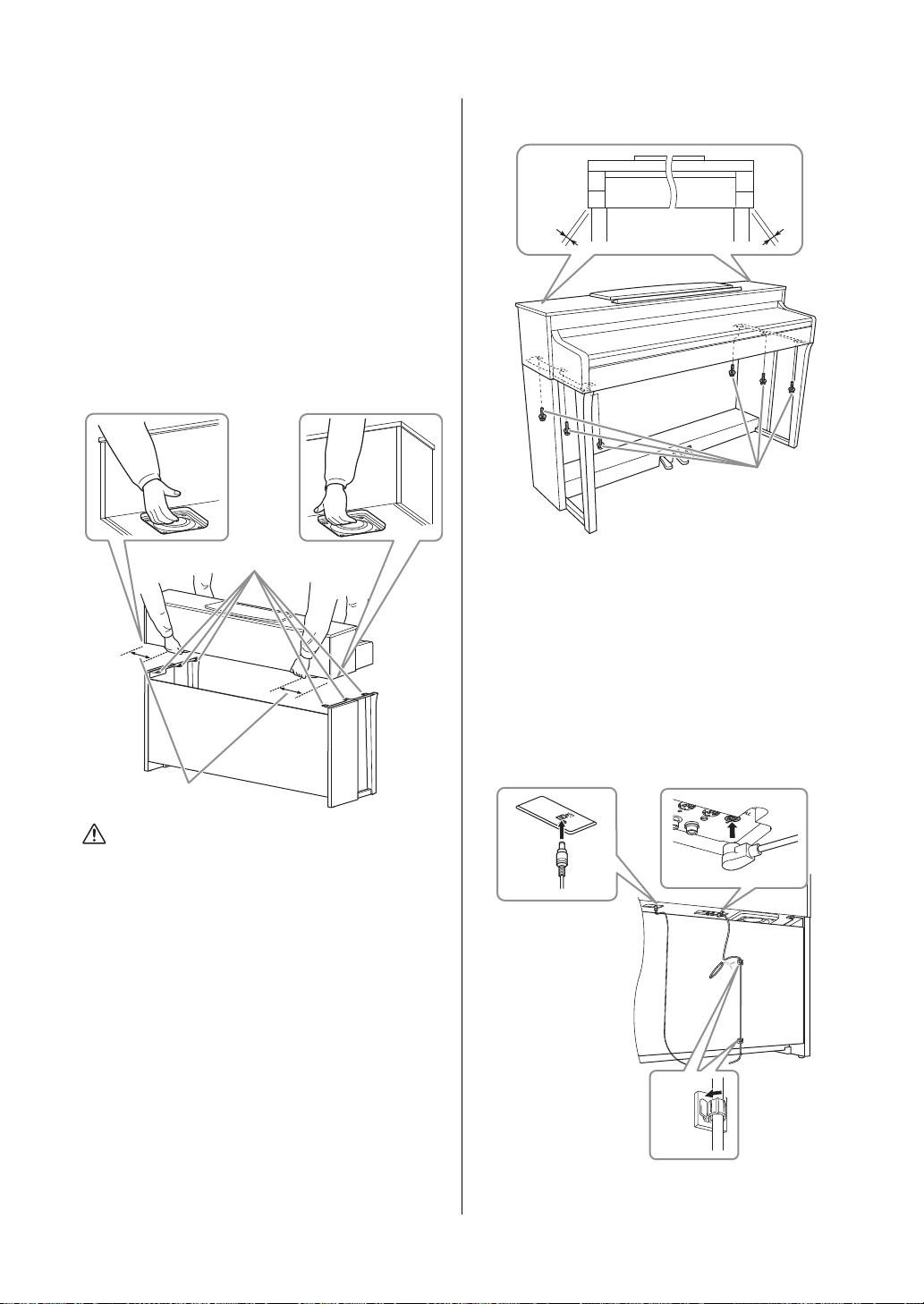
Keyboard Stand Assembly
104
YDP-184 Owner’s Manual
2-1.
Align the screw holes on the upper side of B
with the bracket holes on D and E, then attach
the upper corners of B to D and E by finger-
tightening two thin screws (4 × 12 mm).
2-2. Secure the bottom end of B using four
tapping screws (4 × 20 mm).
2-3. Securely tighten the screws on the top of B
that were attached in step 2-1.
3. Mount A.
Be sure to place your hands at least 15 cm away from
either end of the main unit when positioning it.
CAUTION
• Be extra careful not to drop the main unit or let your fingers
be pinched by it.
• Do not hold the main unit in any position other than the
position specified above.
4. Secure A.
4-1. Adjust the position of A so that the left and
right ends of A will project beyond D and E
equally (as seen from the front).
4-2. Secure A by tightening six thick screws (6 ×
20mm) from the front.
5. Connect the pedal cord and AC
adaptor.
A
At least 15 cm
Align the screw holes.
AA
AA
4-1
4-2
5-1
5-3
5-2
5-5
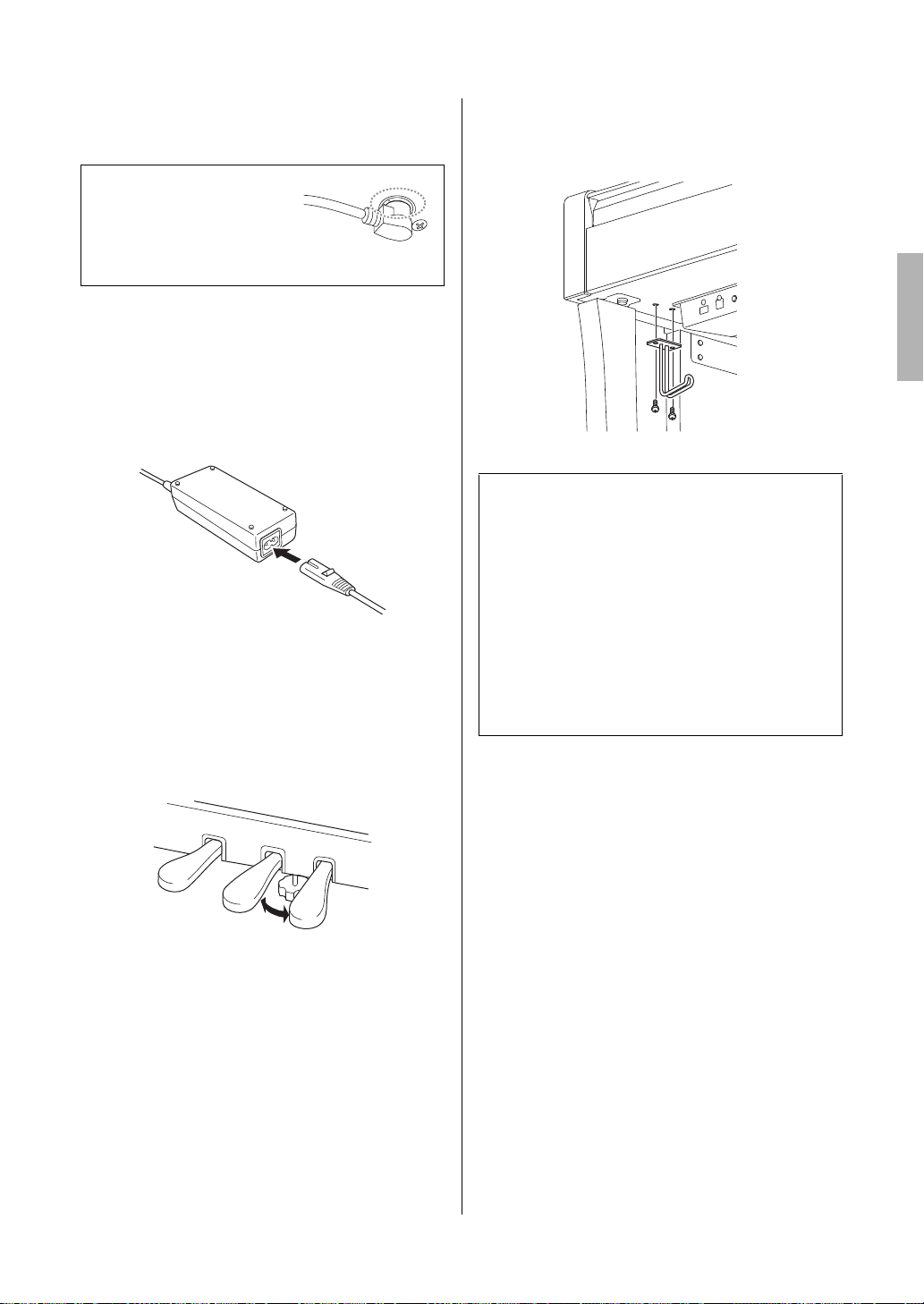
Keyboard Stand Assembly
105
YDP-184 Owner’s Manual
5-1. Insert the plug of the pedal cord into the
pedal connector.
5-2. Attach the cord holders to the rear panel as
shown, then clip the cord into the holders.
5-3. Use a vinyl tie to take up any slack in the
pedal cord.
5-4. Connect one end of the power cord to the
AC adaptor.
5-5. Insert the DC plug of the AC adaptor into
the DC IN jack.
6. Set the adjuster.
Rotate the adjuster until it comes in firm contact
with the floor surface.
7. Attach the headphone hanger.
Use the two thin screws (4 × 10 mm) to attach the
hanger as shown in the illustration.
Insert the pedal cord securely
until the metal part of the cord
plug disappears from view.
Otherwise, the pedal may not
function properly.
PEDAL
Transporting
If you move to another location, you can transport
the instrument along with other belongings. You can
move the unit as it is (assembled) or you can
disassemble the unit down to the condition it was in
when you first took it out of the box. Transport the
keyboard horizontally. Do not lean it up against a
wall or stand it up on its side. Do not subject the
instrument to excessive vibration or shock. When
transporting the assembled instrument, make sure all
screws are properly tightened and have not been
loosened by moving the instrument.
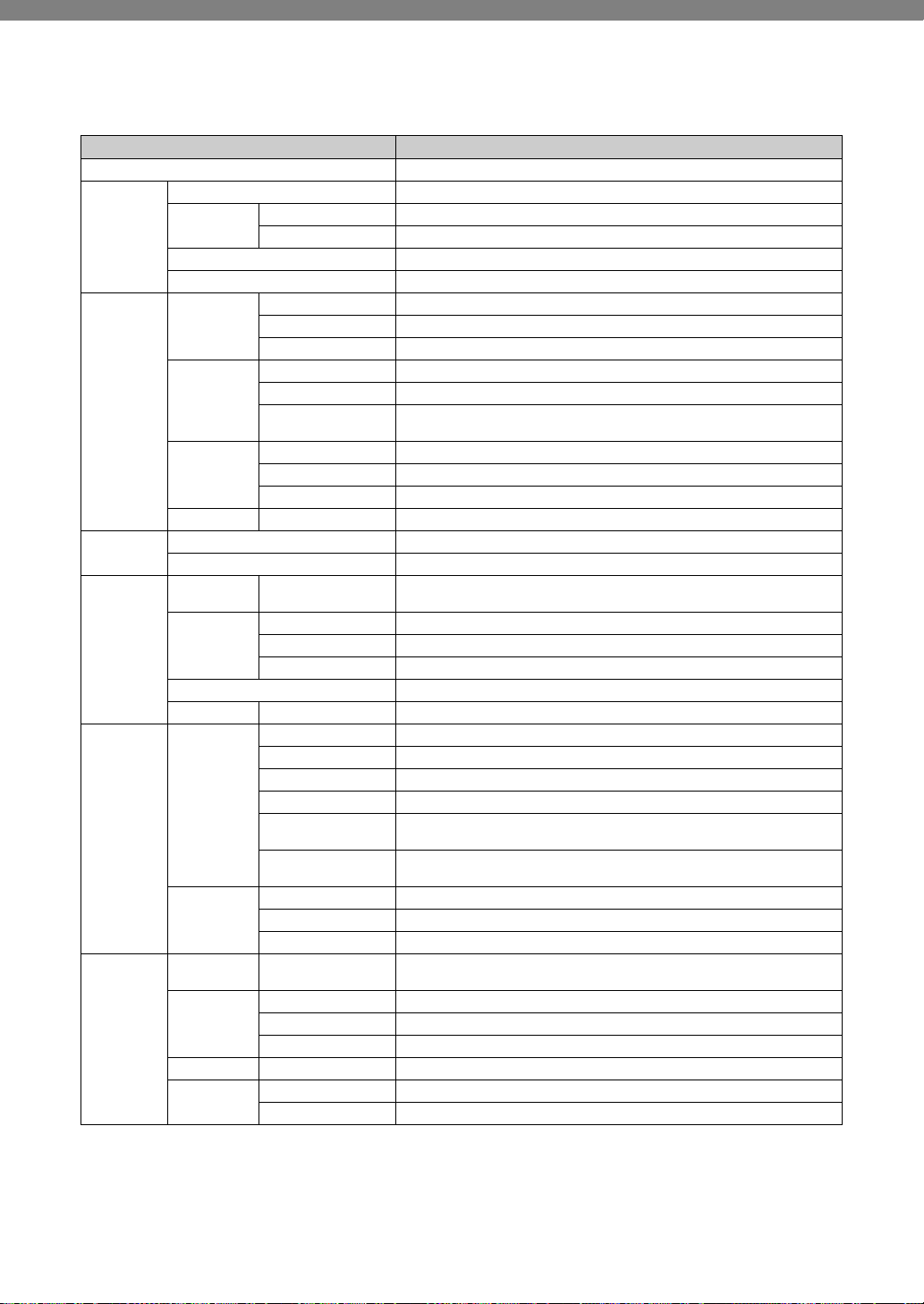
106
YDP-184 Owner’s Manual
Specifications
Items YDP-184
Product Name Digital Piano
Size/Weight Width 1461 mm (57-1/2")
Height With music rest closed 927 mm (36-1/2")
With music rest raised 1081 mm (42-9/16")
Depth 459 mm (18-1/16")
Weight 56.0 kg (123 lbs., 7 oz.)
Control
Interface
Keyboard Number of Keys 88
Type GH3 (Graded Hammer 3) keyboard: synthetic ebony and ivory keytops
Touch Response Hard2/Hard1/Medium/Soft1/Soft2/Fixed
Pedal Number of Pedals 3
Half Pedal Yes (Damper)
Assignable Functions Sustain (Switch), Sustain Continuously, Sostenuto, Soft, Expression, Pitch Bend
Up, Pitch Bend Down, Rotary Speed, Vibe Rotor, Song Play/Pause
Display Type Full Dots LCD
Size 128 x 64 dots
Language English
Panel Language English
Cabinet Key Cover Style Sliding
Music Rest Yes
Voices Tone
Generation
Piano Sound Yamaha CFX
Piano Effects VRM Yes
Key-off Samples Yes
Smooth Release Yes
Polyphony 256
Preset Number of Voices 24
Effects Types Reverb 6 types
Chorus 3 types
Brilliance 7 types
Effect 11 types
Intelligent Acoustic
Control (IAC)
Yes
Stereophonic
Optimizer
Yes
Functions Dual Yes
Split Yes
Duo Yes
Songs (MIDI) Preset Number of Preset
Songs
14 Voice Demo Songs + 50 Classics
Recording Number of Songs 250
Number of Tracks 16
Data Capacity Approx. 500KB/Song
Playback Data Capacity Approx. 500KB/Song
Format Playback SMF (Format 0, Format 1)
Recording SMF (Format 0)
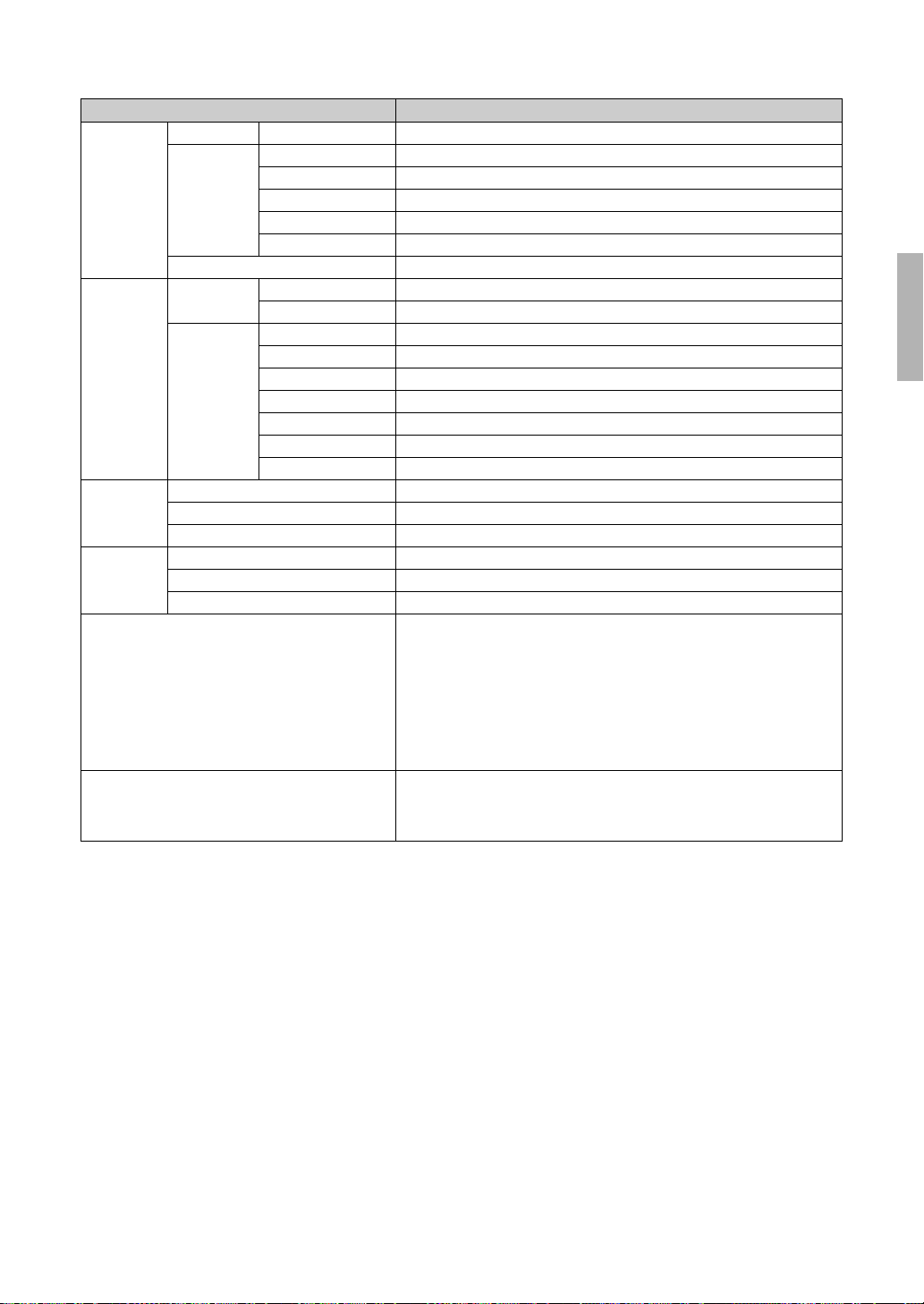
Specifications
107
YDP-184 Owner’s Manual
The contents of this manual apply to the latest specifications as of the publishing date. To obtain the latest manual, access the Yamaha
website then download the manual file. Since specifications, equipment or separately sold accessories may not be the same in every
locale, please check with your Yamaha dealer.
*1: Power consumption is described on or near the name plate, which is at the bottom of the unit. For details about the name plate
location, refer to page 9.
Functions Rhythms Preset 20
Overall
Controls
Metronome Yes
Tempo Range 5 – 500
Transpose -12 – 0 – +12
Tuning 414.8 – 440.0 – 466.8 Hz (approx. 0.2Hz increments)
Scale Type 7 types
Piano Room Yes
Storage and
Connectivity
Storage Internal Memory Total maximum size approx. 1.5MB
External Device USB flash drive
Connectivity DC IN 16V
Headphones Standard stereo phone jack (x 2)
MIDI [IN] [OUT] [THRU]
AUX IN Stereo Mini
AUX OUT [L/L+R] [R]
USB TO DEVICE Yes
USB TO HOST Yes
Sound
System
Amplifiers 30W x 2
Speakers 16 cm x 2
Acoustic Optimizer Yes
Power Supply AC Adaptor PA-300C or an equivalent recommended by Yamaha
Power Consumption 20W (When using PA-300C AC adaptor)
Auto Power Off Yes
Included Accessories •Owner’s Manual
•Warranty*
•“50 Classical Music Masterpieces” Music Book
•Online Member Product Registration
•Bench*
•Power cord*/AC power adaptor*: PA-300C or an equivalent recommended by
Yamaha
*May not be included depending on your area. Check with your Yamaha
dealer.
Separately Sold Accessories
(May not be available depending on your area.)
•Headphones HPH-150/HPH-100/HPH-50
•AC power adaptor: PA-300C or an equivalent recommended by Yamaha
•USB Wireless LAN Adaptor UD-WL01
•Wireless MIDI Adaptor MD-BT01/UD-BT01
Items YDP-184

108
YDP-184 Owner’s Manual
Index
Numerics
50 Classics .................................................................. 38, 96
A
AB Repeat ..........................................................................43
AC adaptor ........................................................................14
Access point ......................................................................75
Aliquot ...............................................................................26
Aliquot Resonance (Aliquot Res.) .................................25
Assembly .........................................................................102
Auto Power Off ................................................................16
B
Backup ...............................................................................92
Backup Setting ..................................................................92
Bell ......................................................................................85
Body Resonance (Body Res.) ..........................................25
Brightness ..........................................................................25
Brilliance ............................................................................27
C
Chorus ...............................................................................28
Chorus Type List ..............................................................81
Computer ..........................................................................69
Computer-related Operations ..........................................9
Connections ......................................................................66
Contrast .............................................................................90
Copy ...................................................................................63
D
Damper pedal ...................................................................19
Damper Resonance (Damper Res.) ...............................25
Delete .................................................................................62
Demo .................................................................................37
Detailed Settings ...............................................................77
Display ...............................................................................20
Dual ....................................................................................29
Duo .....................................................................................32
E
Edit (Song) ........................................................................83
Edit (Voice) .......................................................................79
Effect ..................................................................................28
Effect Depth ......................................................................79
Effect Type List .................................................................81
Ending ................................................................................48
F
Factory Set .........................................................................93
Fast forward ......................................................................40
File Operation ...................................................................60
Format (instrument) .......................................................93
Format (USB flash drive) ................................................89
H
Half Pedal Point ...............................................................25
Half-pedal .........................................................................19
Headphones ......................................................................18
I
IAC .....................................................................................17
Initial Setup .......................................................................89
Intro ...................................................................................48
iPhone/iPad ......................................................................70
iPhone/iPad Connection Manual ....................................9
K
Key cover .....................................................................14, 15
Key Off Sample .................................................................25
L
Lid Position .......................................................................25
Local Control ....................................................................89
M
Master Tune ......................................................................25
MASTER VOLUME ........................................................17
Message List ......................................................................98
Metronome .......................................................................33
Metronome/Rhythm menu ............................................85
MIDI ..................................................................................88
MIDI Reference ..................................................................9
MIDI Song ........................................................................36
Move ..................................................................................64
Music Rest .........................................................................16
N
Network .............................................................................73
O
Octave ................................................................................79

109
YDP-184 Owner’s Manual
Index
P
Part Cancel ........................................................................41
Pedal ............................................................................ 19, 88
Pedal Function List ..........................................................81
Piano Room ......................................................................24
Piano Setting .....................................................................78
Pitch Bend .........................................................................88
Playback (Rhythm) ..........................................................48
Playback (Song) ................................................................38
Power .................................................................................14
Power cord ........................................................................14
R
Recording ..........................................................................49
Recording menu ...............................................................86
Rename ..............................................................................65
Repeat ................................................................................42
Restore ...............................................................................93
Reverb ......................................................................... 25, 28
Reverb Type List ...............................................................81
Rewind ...............................................................................40
Rhythm ..............................................................................48
Rhythm List .......................................................................97
S
Save (Backup file) .............................................................92
Scale Tune .........................................................................91
Soft pedal ...........................................................................19
Song ............................................................................. 36, 60
Song category ....................................................................38
Song List ............................................................................96
Song menu ........................................................................82
Song Repeat .......................................................................44
Sostenuto pedal ................................................................19
Sound .................................................................................88
Speaker ...............................................................................90
Split ....................................................................................30
Split Point ..........................................................................30
Stereophonic Optimizer ..................................................18
String Resonance (String Res.) .......................................25
System menu .....................................................................87
T
Tempo ................................................................................34
Tempo (Song) ...................................................................40
Time signature ..................................................................34
Touch .................................................................................25
Track ..................................................................................52
Transpose (Keyboard) .....................................................78
Transpose (Song) .............................................................82
Troubleshooting .............................................................100
Tuning ...............................................................................87
U
USB Autoload ...................................................................90
USB flash drive .................................................................68
USB Format ......................................................................89
USB Properties .................................................................90
User ....................................................................................38
Utility .................................................................................89
V
Version ..............................................................................90
Voice List ...........................................................................94
Voice menu .......................................................................78
Volume ..............................................................................17
Volume (Metronome) .....................................................85
Volume (MIDI Song) ......................................................45
Volume balance ................................................................45
VRM .............................................................................25, 26
VRM Demo .......................................................................25
W
Wireless LAN ...................................................................70
WPS ...................................................................................74
Yamaha Global Site
https://www.yamaha.com/
Yamaha Downloads
http://download.yamaha.com/
Manual Development Group
© 2017 Yamaha Corporation
Published 05/2017 MWZC*.*- **A0
Printed in Indonesia
ZW03800