USER GUIDE

-
1
-
Copyright
© 2022 GIGA-BYTE TECHNOLOGY CO., LTD. All rights reserved.
The trademarks mentioned in this manual are legally registered to their respective
owners.
Disclaimer
Information in this manual is protected by copyright laws and is the property of
GIGABYTE.
Changes to the specications and features in this manual may be made by
GIGABYTE without prior notice.
No part of this manual may be reproduced, copied, translated, transmitted,
or published in any form or by any means without GIGABYTE’s prior written
permission.
•
In order to assist in the use of this monitor, carefully read the User Guide.
•
For more information, check on our website at:
https://www.gigabyte.com
The terms HDMI and HDMI High-Denition Multimedia
Interface, and the HDMI Logo are trademarks or registered
trademarks of HDMI Licensing Administrator, Inc. in the United
States and other countries.

-
2
-
Safety Precautions
Read through the following Safety Precautions before using the monitor.
•
Only use the accessories that are provided with the monitor or that which are
recommended by the manufacturer.
•
Keep the plastic packaging bag for the product in a place that cannot be
reached by children.
•
Before connecting the monitor to the power outlet, make sure that the voltage
rating of the power cable is compatible with the power specification in the
country where you are located.
•
The power cord plug must be connected to a properly wired and grounded
power outlet.
•
Do not touch the plug with wet hands, otherwise easily cause electric
shock.
•
Place the monitor in a stable and well-ventilated place.
•
Do not place the monitor near any heat sources such as electric radiators or
direct sunlight.
•
The holes or openings on the monitor are for ventilation. Do not cover or
block the ventilation holes with any objects.
•
Do not use the monitor near water, drinks, or all types of liquids. Failure to do
so may result in electric shock or damage to the monitor.
•
Make sure to unplug the monitor from the power outlet before cleaning.
•
As the screen surface is easy to be scratched, avoid touching the surface with
any hard or sharp object.
•
Use a soft lint-free cloth instead of a tissue to wipe the screen. You may use a
glass cleaner to clean the monitor if required. However, never spray the cleaner
directly onto the screen.
•
Disconnect the power cable if the monitor is not being used for a long period
of time.
•
Do not attempt to disassemble or repair the monitor yourself.

-
3
-
Stability Hazard Precautions
The product may fall, causing serious personal injury or death. To prevent injury, this
product must be securely attached to the oor/wall in accordance with the installa-
tion instructions.
Many injuries, particularly to children, can be avoided by taking simple precautions
such as:
•
ALWAYS use stands or installation methods recommended by the
manufacturer of the product set.
•
ALWAYS use furniture that can safely support the product.
•
ALWAYS ensure the product is not overhanging the edge of the supporting
furniture.
•
ALWAYS educate children about the dangers of climbing on furniture to reach
the product or its controls.
•
ALWAYS route cords and cables connected to your product so they cannot be
tripped over, pulled or grabbed.
•
NEVER place the product on tall furniture (for example, cupboards or
bookcases) without anchoring both the furniture and the product to a
suitable support.
•
NEVER place the product on cloth or other materials that may be located
between the product and supporting furniture.
•
NEVER place items that might tempt children to climb, such as toys and
remote controls, on the top of the product or furniture on which the product
is placed.
•
If the existing product is going to be retained and relocated, the same
considerations as above should be applied.
•
To prevent personal injury or damage to the product caused by tipping over
due to earthquakes or other shocks, make sure to install the product in a
stable location and take measures to prevent falling.
User Comfort Recommendations
The following are some tips for comfortable viewing of your monitor:
•
Optimal viewing distances for monitors range from approximately 510 mm to
760 mm (20 in to 30 in).
•
A general guideline is to position the monitor such that the top of the screen
is at or slightly below your eye-height when you are comfortably seated.
•
Use adequate lighting for the type of work you are performing.
•
Take regular and frequent breaks (at least for 10 minutes) every 30 minutes.
•
Be sure to periodically look away from your monitor screen and focus on a far
object for at least 20 seconds during the breaks
•
Eye exercise can help reduce eye strain. Repeat these exercises frequently: (1)
look up and down (2) slowly roll your eye (3) move your eyes diagonally.

-
4
-
Content
INTRODUCTION ............................................................................................. 5
Unpacking ..................................................................................................................................................... 5
Package Contents ....................................................................................................................................... 7
Product Overview ....................................................................................................................................... 8
GETTING STARTED ........................................................................................ 10
Installing the Stand Base .......................................................................................................................... 10
Lift the monitor ............................................................................................................................................ 15
Adjusting the Viewing Angle .................................................................................................................. 16
Pivot mode .................................................................................................................................................... 20
Instructions for thread trimmer ring .................................................................................................... 22
Installing a Wall-Mount Bracket (Optional) ........................................................................................ 23
Making Connections .................................................................................................................................. 25
USING THE DEVICE ........................................................................................ 26
Turning the Power On/O ....................................................................................................................... 26
User Comfort Recommendations ......................................................................................................... 27
OPERATIONS .................................................................................................. 29
Quick Menu ................................................................................................... 29
Congure the Device Settings ............................................................................................................... 36
APPENDICES .................................................................................................. 47
Specications ............................................................................................................................................... 47
Supported Timing List ............................................................................................................................... 48
Troubleshooting .......................................................................................................................................... 49
Basic Care ....................................................................................................................................................... 50
Notes on USB Charging ............................................................................................................................ 50
GIGABYTE Service Information .............................................................................................................. 50
SAFETY INFORMATION ................................................................................. 51
Regulatory Notices ..................................................................................................................................... 51
-
5
-
INTRODUCTION
Unpacking
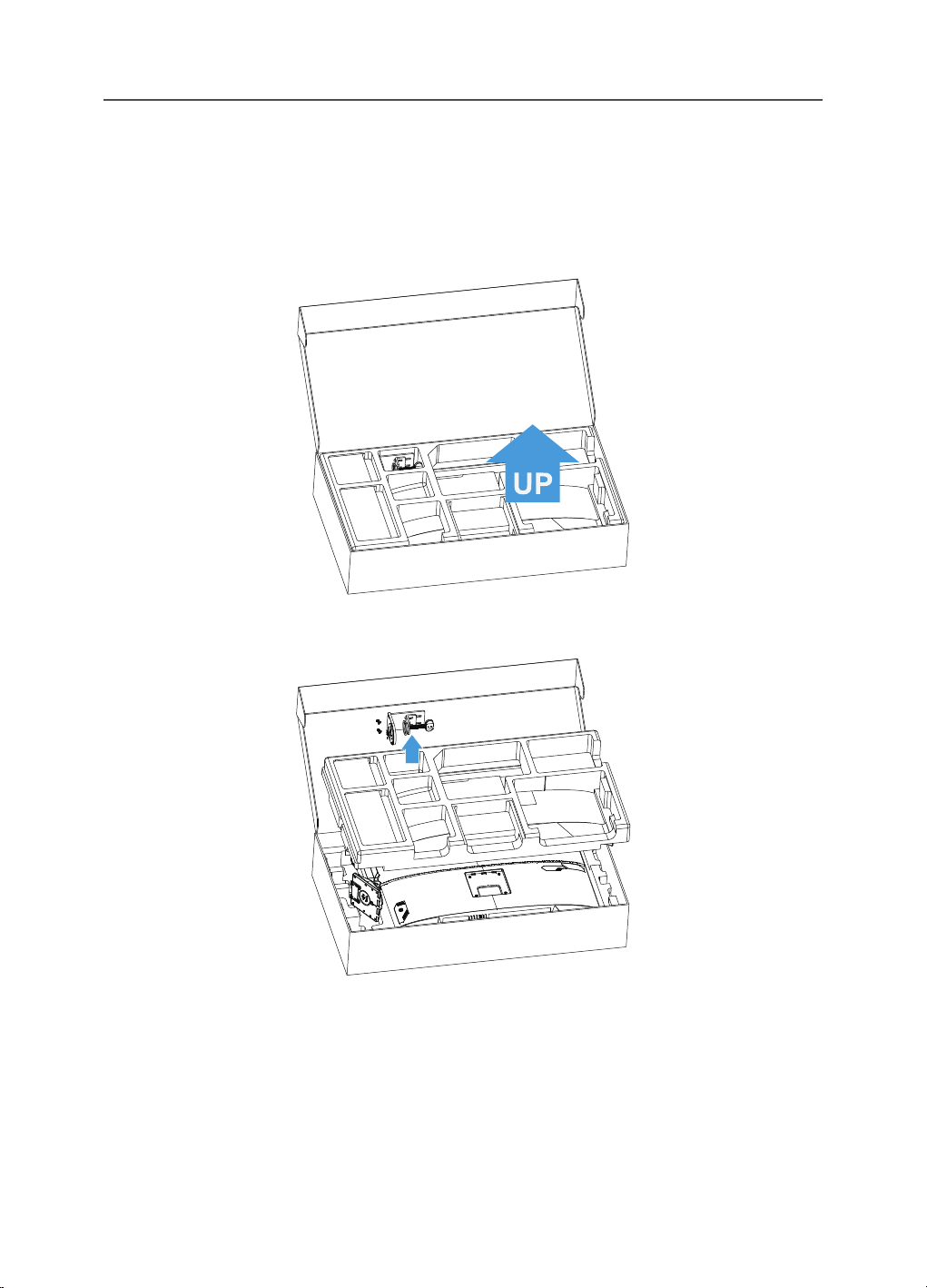
1. Open the upper cover of the packaging box. Then observe the unpacking
instruction attached on the inner cover. Making sure the box is in the
correct orientation, carefully lay the box on the stable surfacepen.
2. Remove the items from the upper EPS foam.
-
6
-
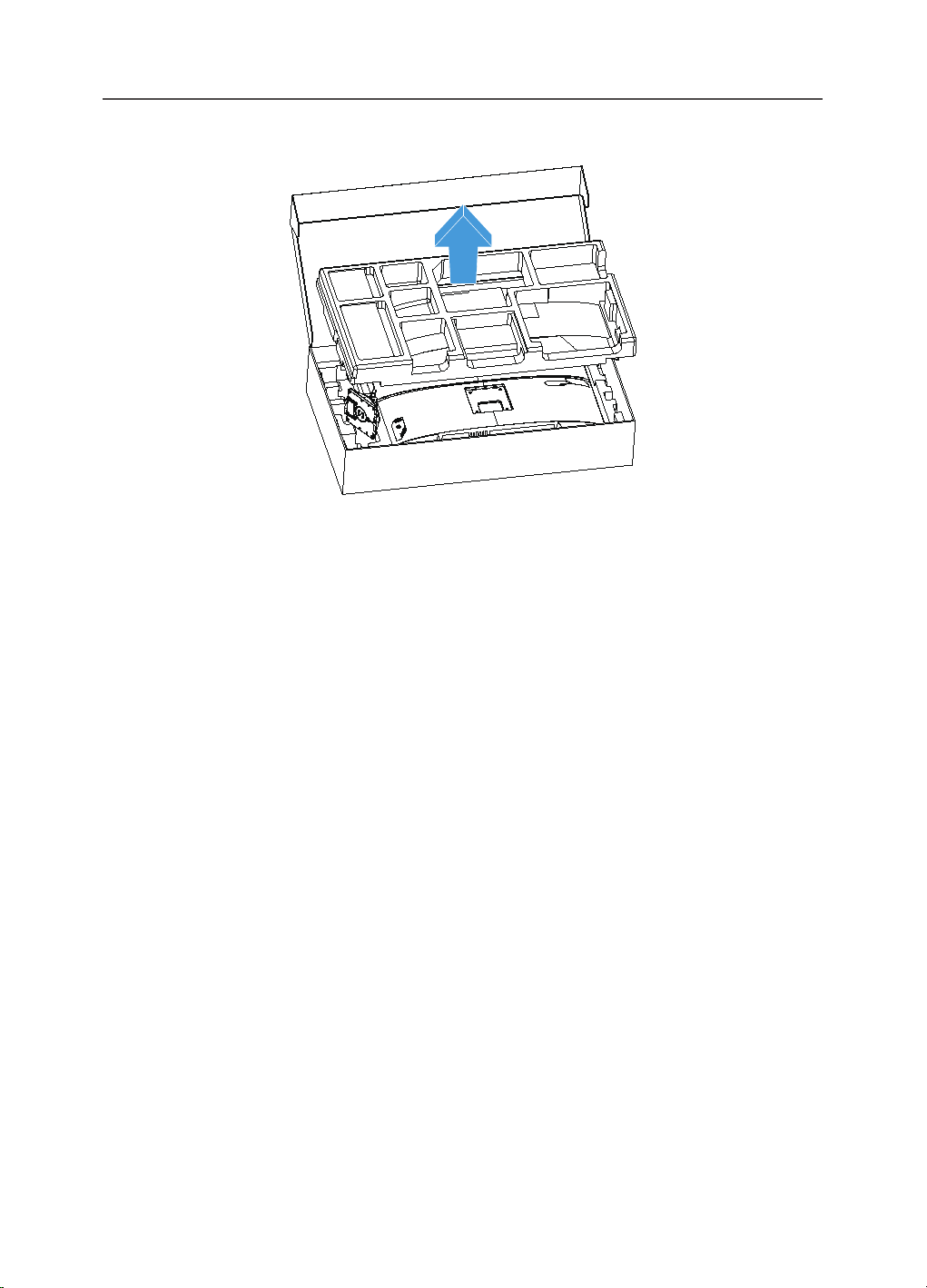
3. Remove the upper EPS foam. Then you can remove the stand from the lower EPS
foam.
-
7
-
Package Contents
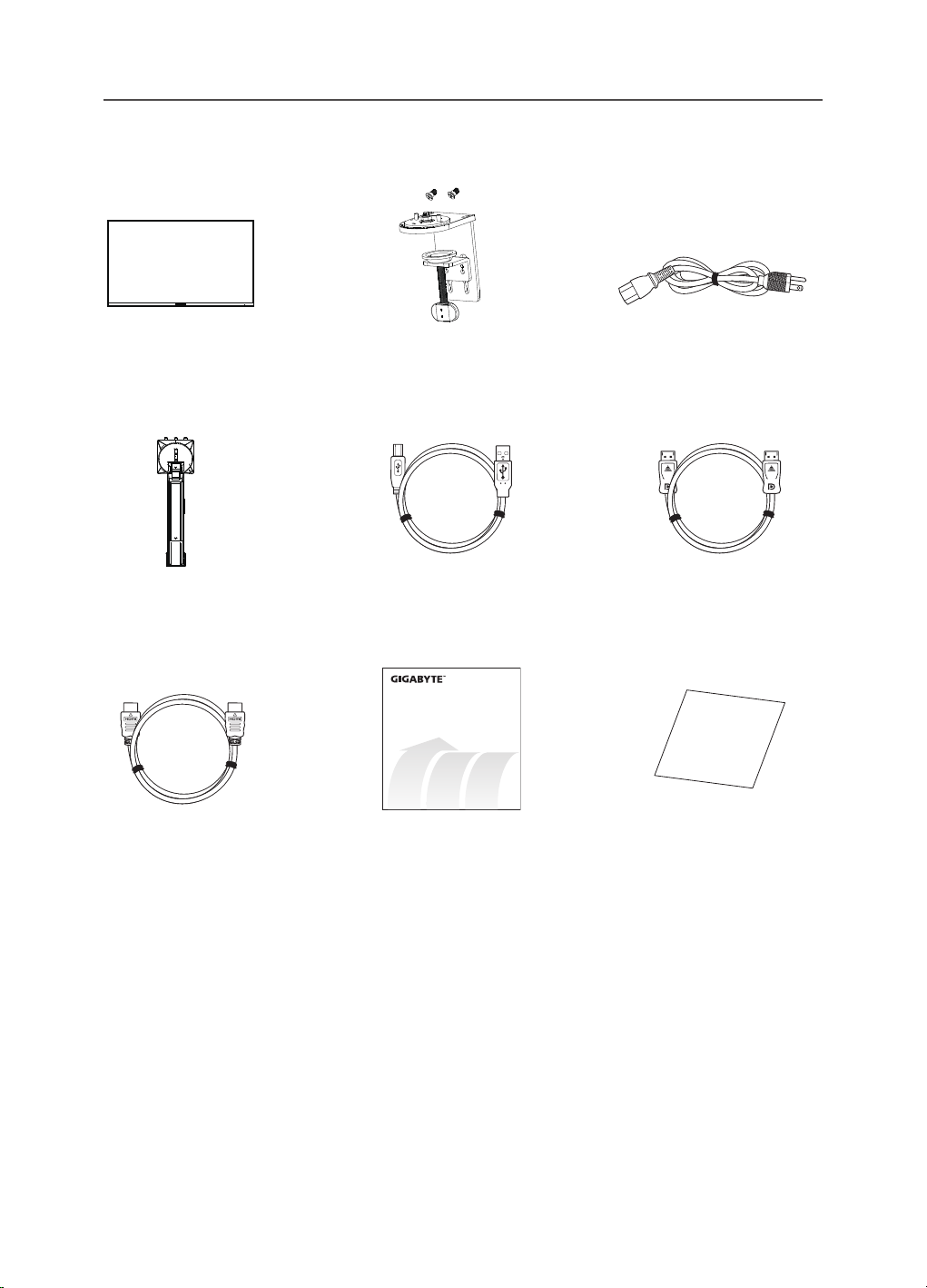
The following items come with your packaging box. If any of them is missing, please
contact your local dealer.
Monitor Clamp Power Cable
HDMI Cable
USB CableArm DP Cable
Multilingual
Installation
Guide
Warranty Card
Quick Start Guide Warranty Card
Note: Please keep the packaging box and packing materials for future transporta-
tion of the monitor.
-
8
-
Product Overview
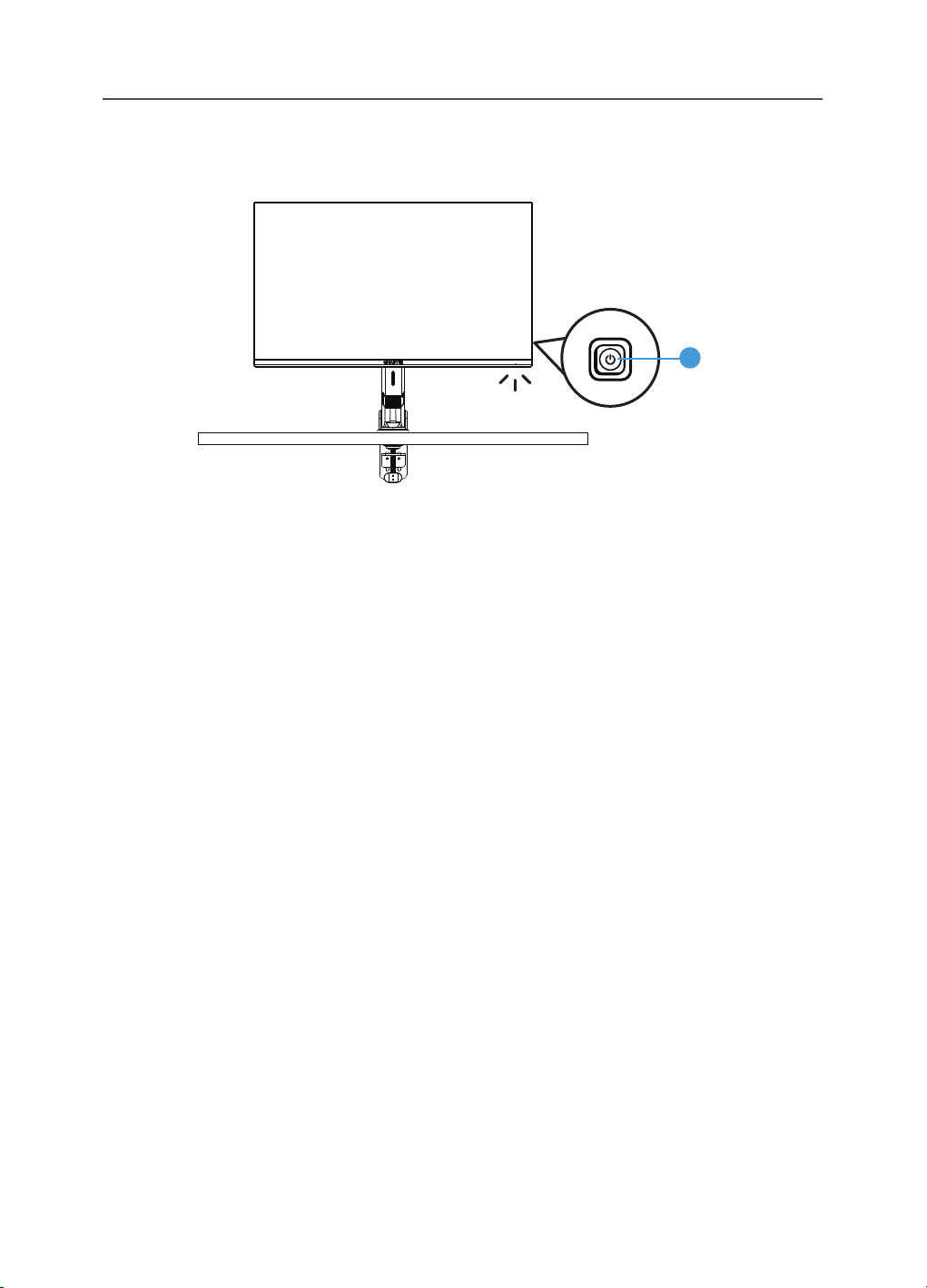
Front View
1
1 Control button
-
9
-
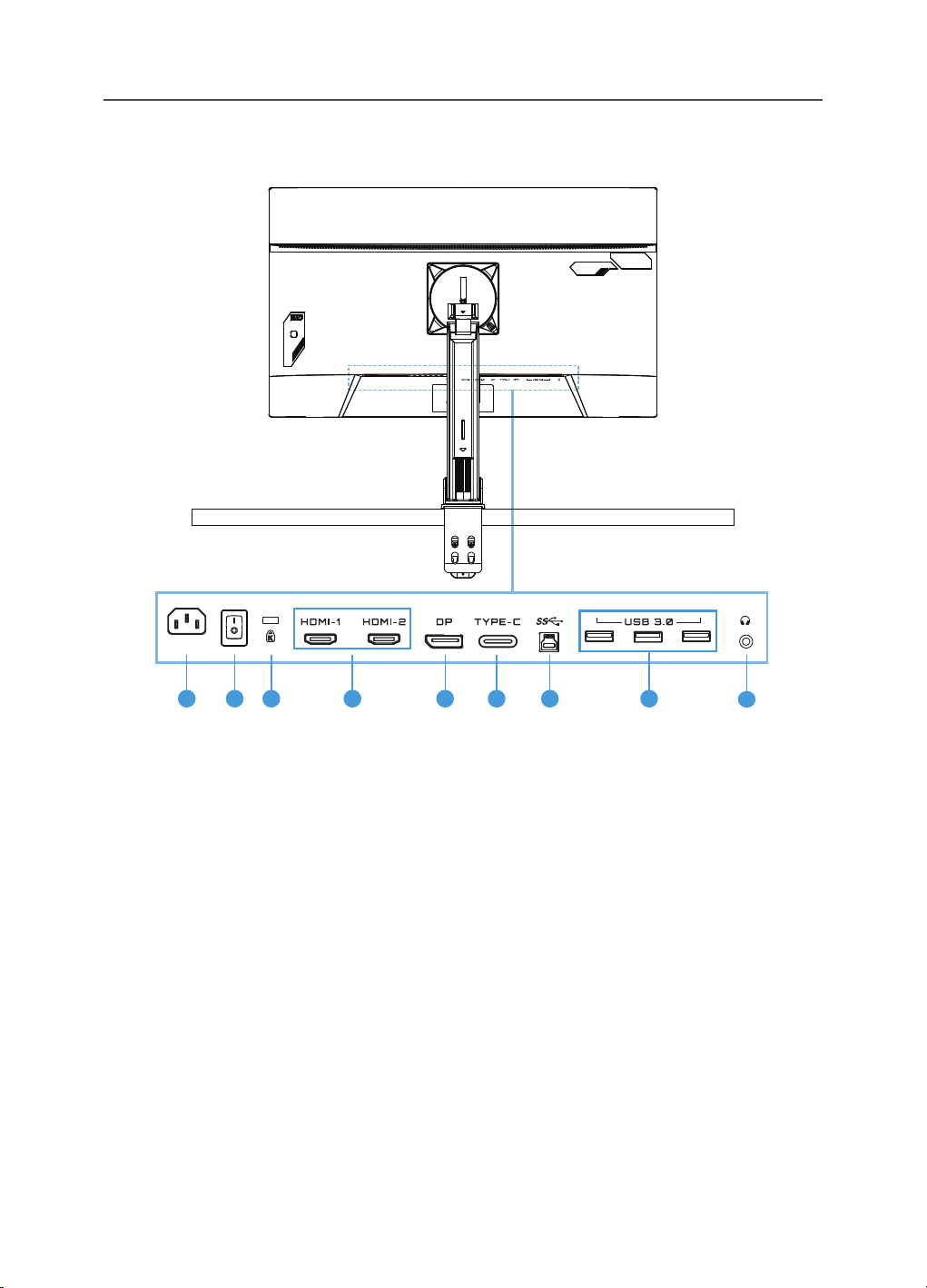
Rear View
9
76541 2 3 8
1 AC IN jack
2 AC power switch
3 Kengsington lock
4 HDMI ports (x2)
5 DisplayPort
6 Type-C port
7 USB upstream port
8 USB 3.0 ports (x3)
9 Headphone jack
-
10
-
GETTING STARTED
Installing the Stand Base
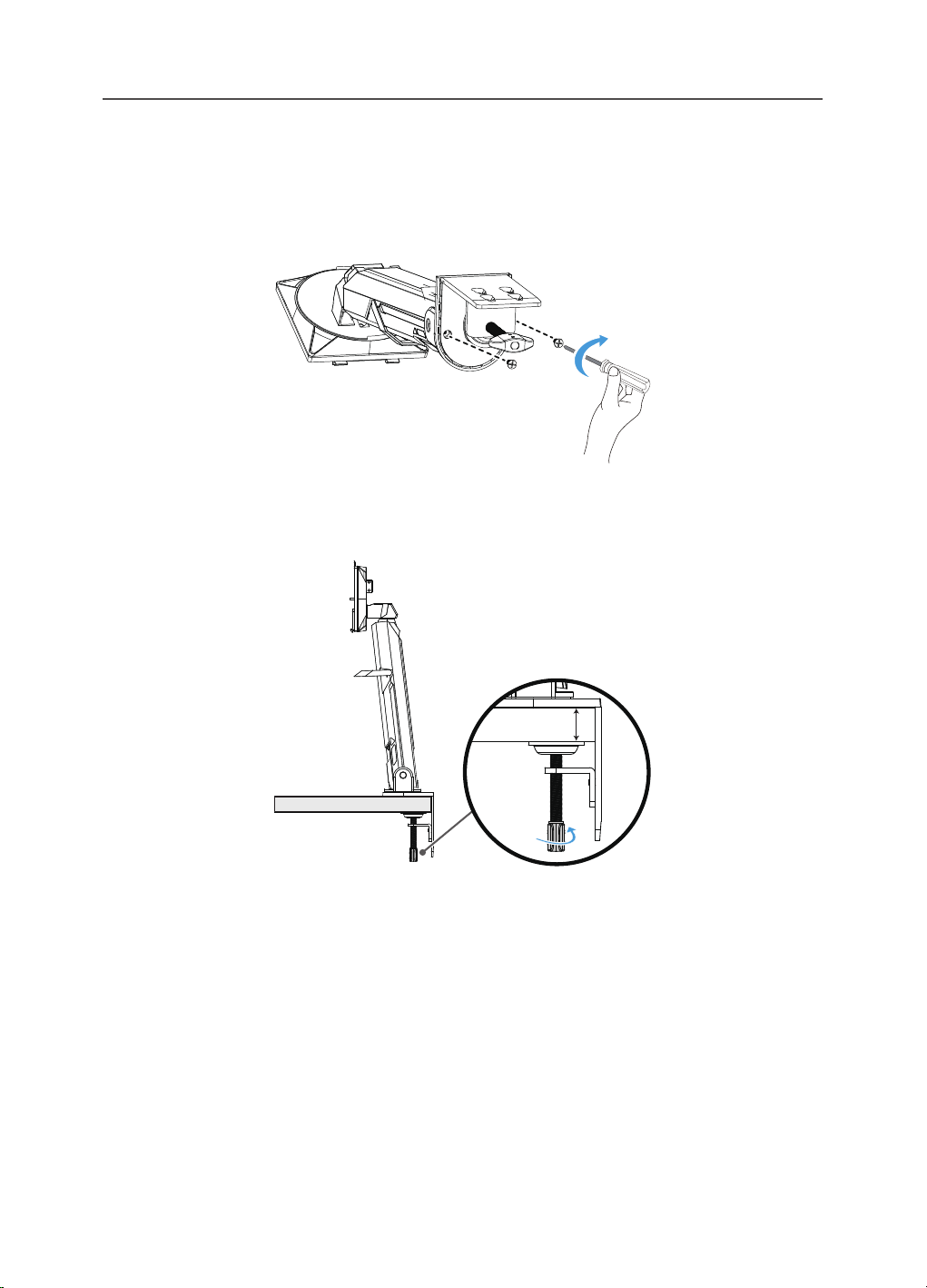
1.
Align the monitor base with the stando underneath the stand. Then lift the
screw ring and turn it clockwise to secure the monitor base in place.
2.
The Desk Mount Kit attaches the monitor to surfaces up to 70 mm thick. Before
starting, make sure you have enough room to t the entire clamp and the surface
is sturdy and at.
15~70mm
Note: We recommend that you cover the table surface with soft cloth to prevent damage to
the monitor.
-
11
-
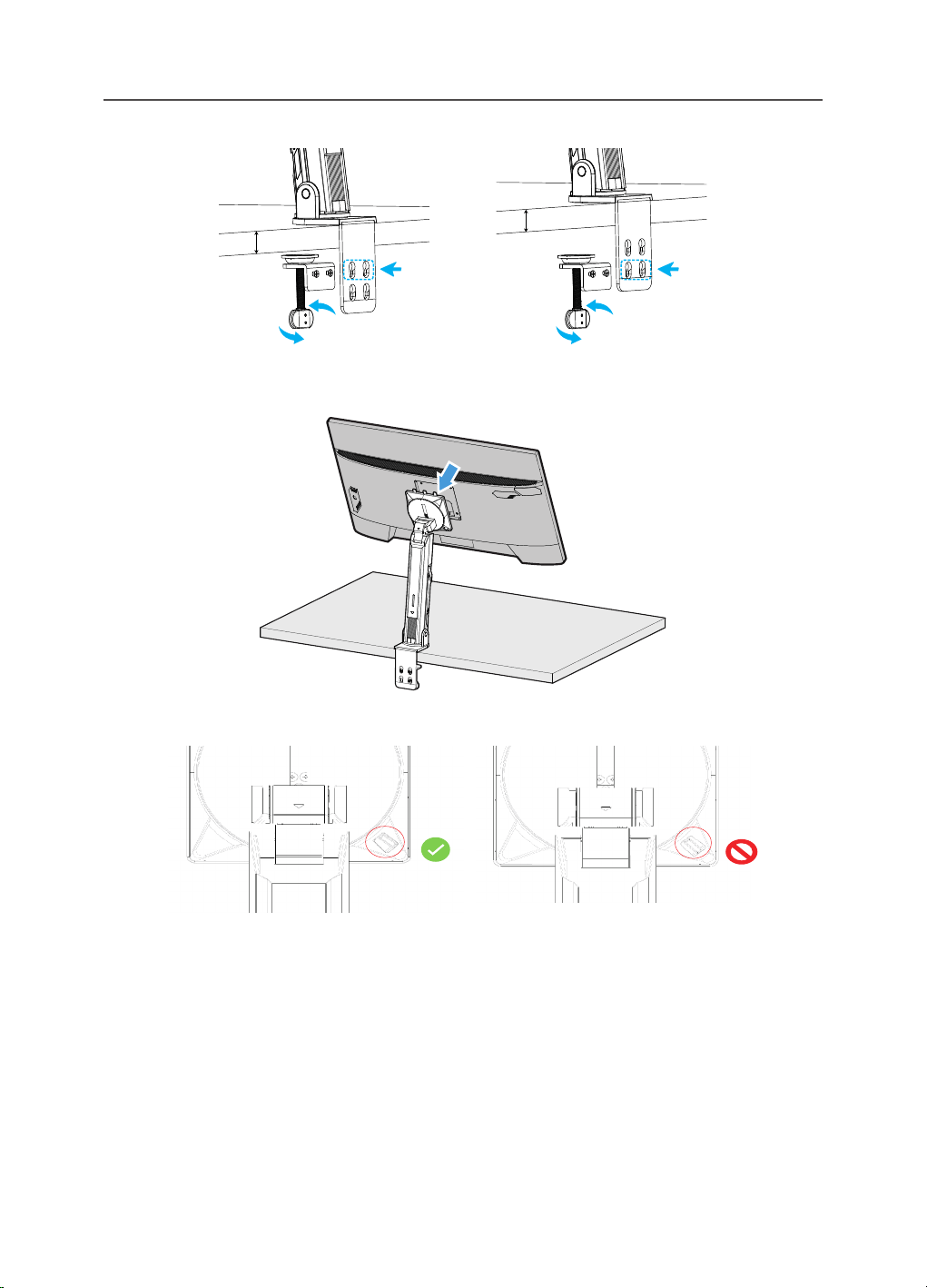
3.
Two-stage quick installation corresponding to desktop thickness.
20~30mm
30~70mm
4.
Align and slide the hooks of the stand into the mounting slots on the rear of the
screen.
5.
Please make sure the knob is clamped in place.
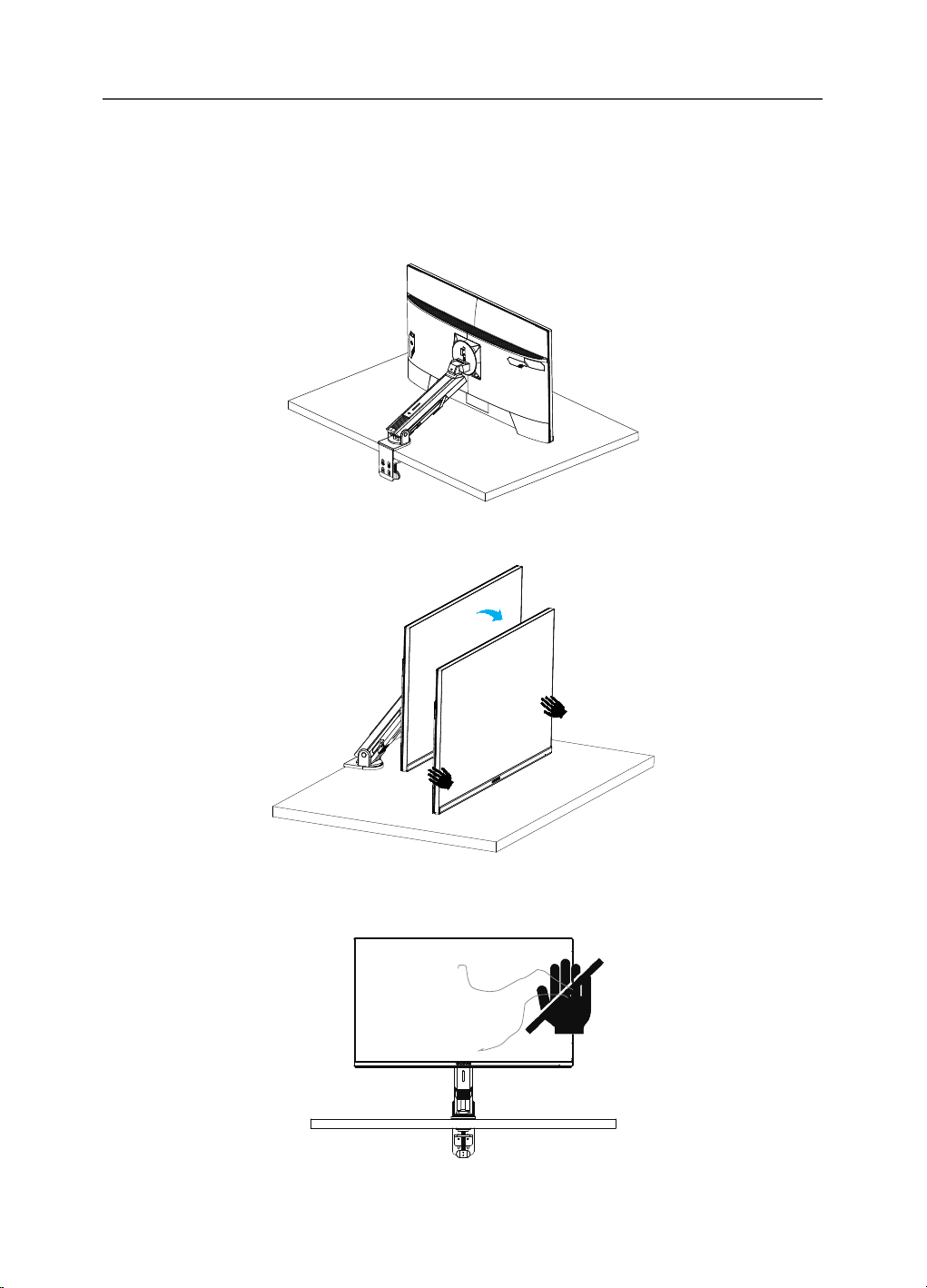
-
12
-
CAUTION!
The C-clamp accessory is designed to be used with this monitor only. Using
this accessory with any other product may result in damage and/or injury.
Make sure the mounting surface is at and strong enough to handle the
monitor. Do not install on glass surfaces.
Improper installation may cause property damage and/or personal injury.
1. When adjusting the screen position, hold the left and right sides of the screen to
avoid damaging the screen by pressing the front side of the screen.
2. When adjusting the Monitor, please hold the Monitor border.
Do not press the front of the Monitor to avoid damage caused by pressing the
screen.
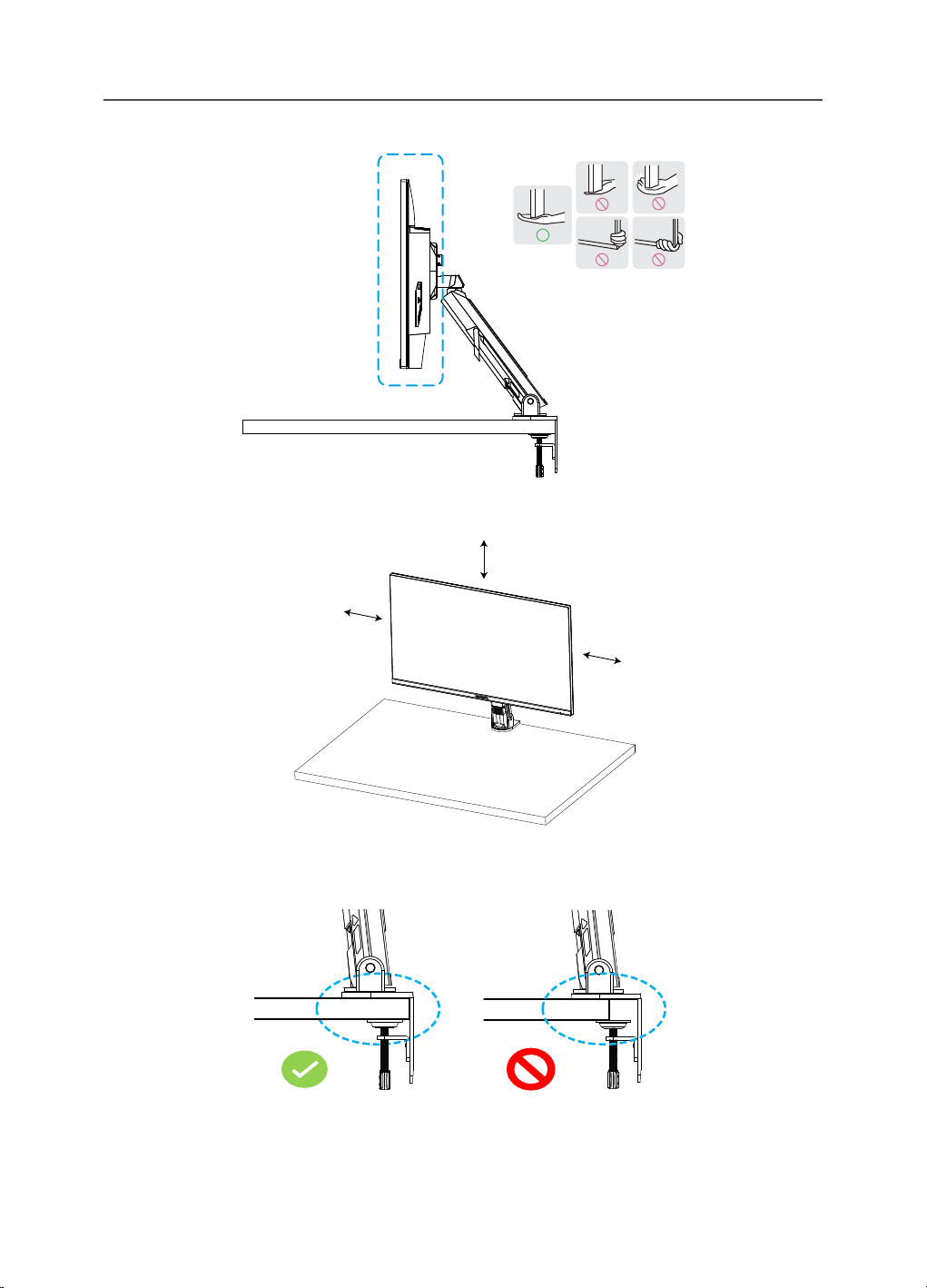
-
13
-
3. When moving the Monitor, hold the border of the Monitor to avoid pressing the
front of the Monitor or damaging the screen.
4. Make sure there is adequate ventilation when placing the product. A rise in
internal temperature may cause ame and damage the product.
A
A
A
5. Corresponding desktop thickness: 15
≦
T
≦
70mm;Table clamp should be
attached to the table, the adjustment disc should be completely clamped on the
bottom of the table.
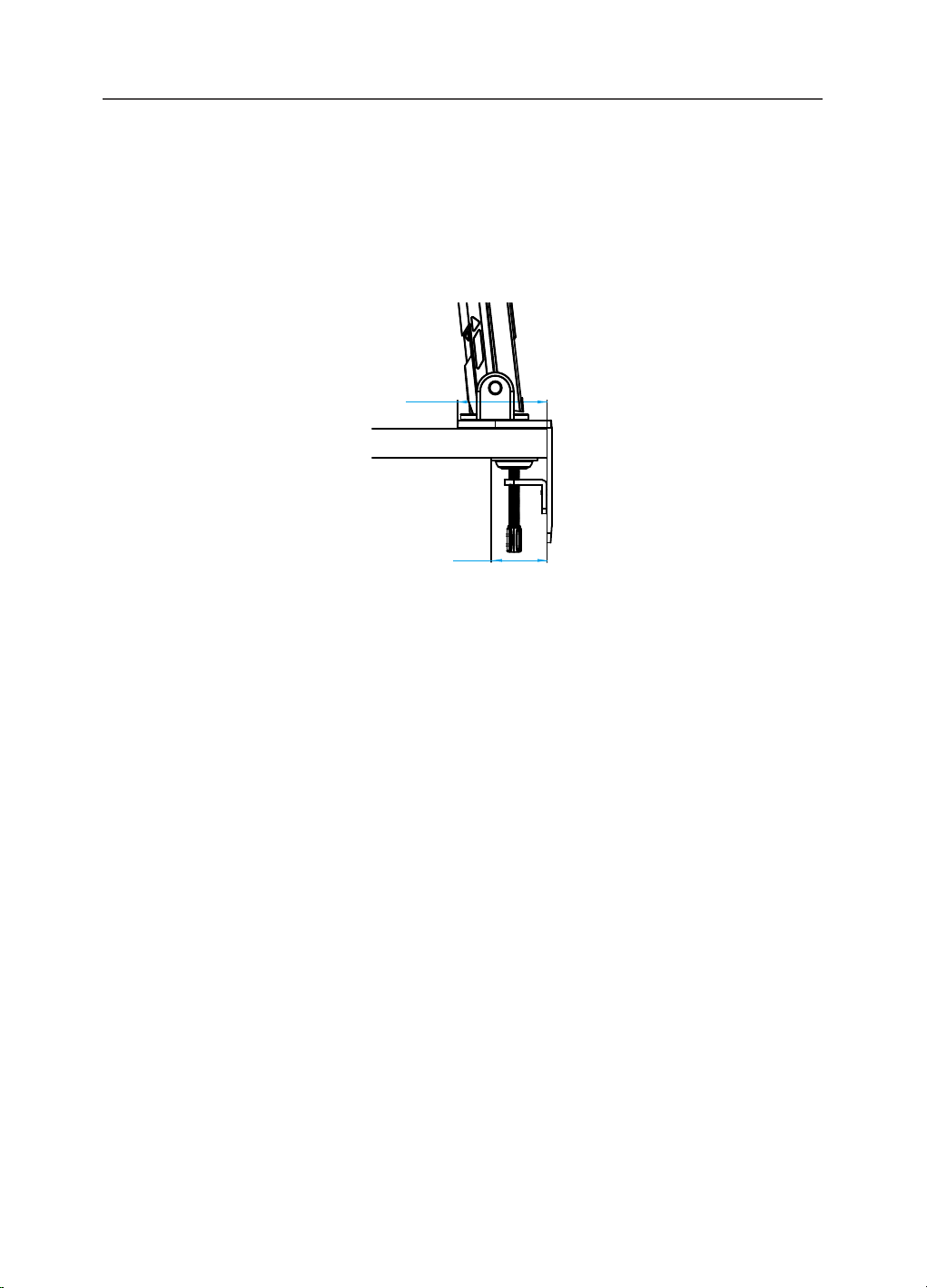
-
14
-
6. Ensure that the required installation space on or under the desktop is sucient.
Before installing the desktop, ensure that the strength of the table is sucient
to bear the weight of the product.Mounting a product on a table made of glass
or other fragile materials may cause damage to the table top, and mounting a
bracket may cause bracket marks to form on the table top.
On the table: 80 x 95 mm (W x D)
Under the desktop: 70 x 65 mm (W x D)
Table distance from the wall distance:
≧
5mm
65
95.00
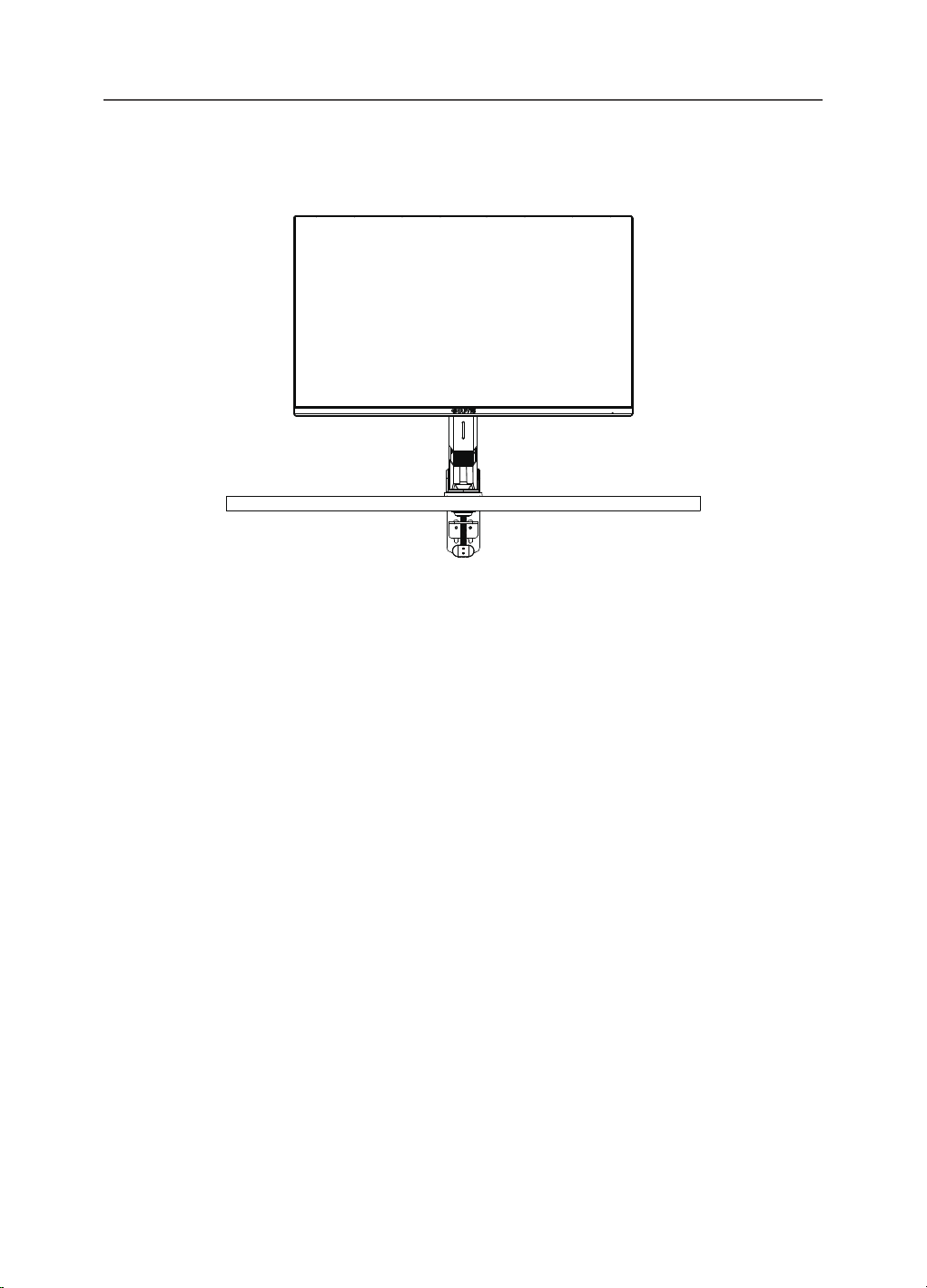
-
15
-
Lift the monitor
Carefully lift the monitor, turn it over and place it upright on its stand on a at
even surface.Remove the foam wrap from the monitor.
Note: Consider keeping the box and packaging in storage for use in the future when you may
need to transport the monitor. The tted foam packing is ideal for protecting the monitor
during transport.
-
16
-
Adjusting the Viewing Angle
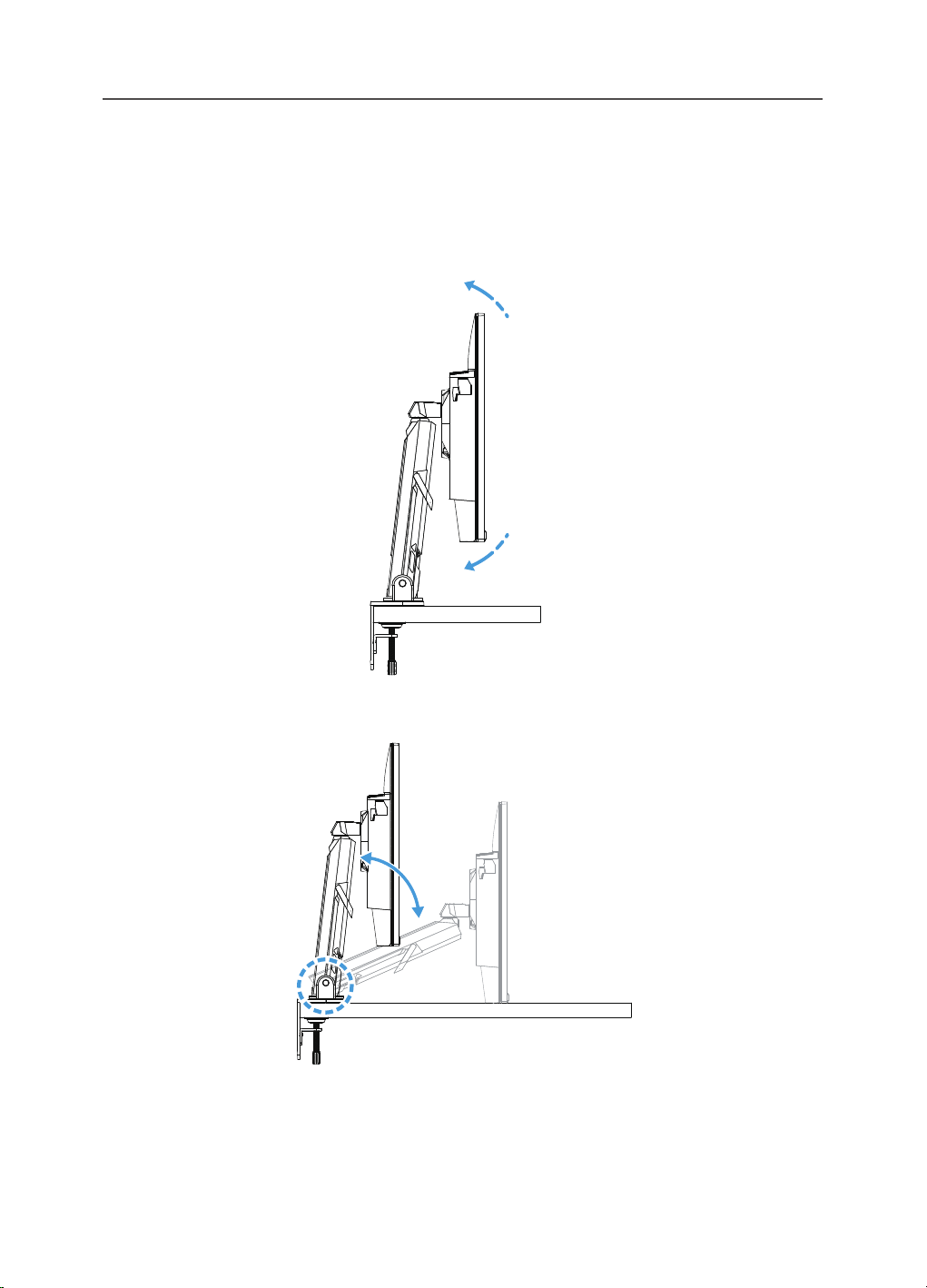
Note: Hold the monitor base so that the screen does not topple when you make the
adjustment.
Adjusting the Tilt Angle
Tilt the screen forward or backward to the desired viewing angle (-5˚ to 25˚).
25°
-5°
Tilt the Stand forward or backward to the desired viewing angle (23.7˚ to
83.7˚).
60°
-
17
-
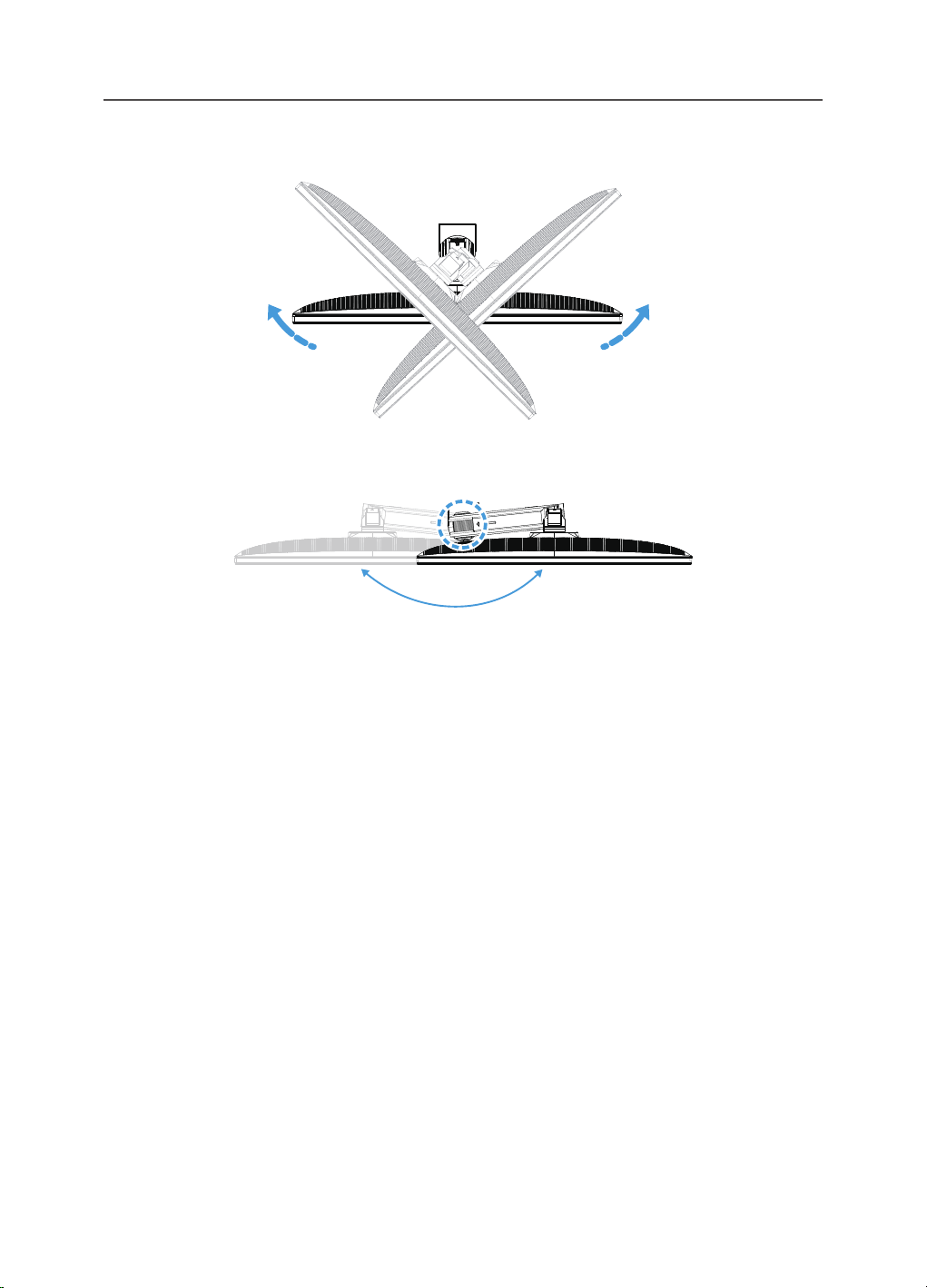
Adjusting the Swivel Angle
Swivel the screen to the left or right for the desired viewing angle (±100˚).
100°
-100°
Swivel the Stand to the left or right for the desired viewing angle (±170˚).
±170°
-
18
-
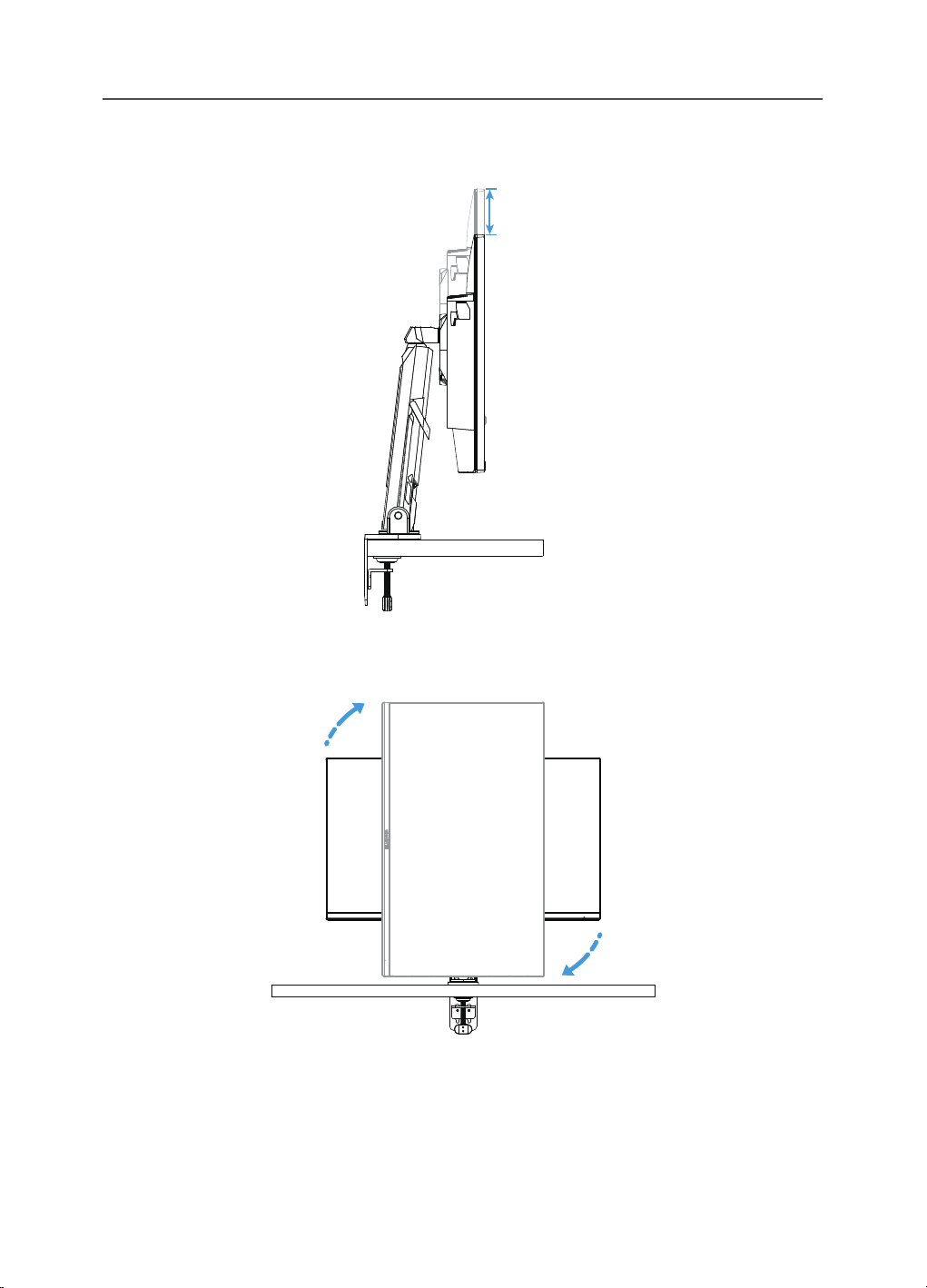
Changing the Screen Orientation
Raise the screen to the highest position (50mm).
50mm
Note: Before making the height adjustment, make sure you have removed the safety plate
from the stand.
R
otate the monitor (90˚ clockwise) to portrait orientation.
90°
90°

-
19
-
CAUTION!
When adjusting the bracket, please be careful not to place your hands/head
on the joint or the moving part of the bracket.
When adjusting the bracket, pay attention to the objects under the Monitor.
When adjusting the support, do not move the Monitor away from the desktop to avoid
security problems.
-
20
-
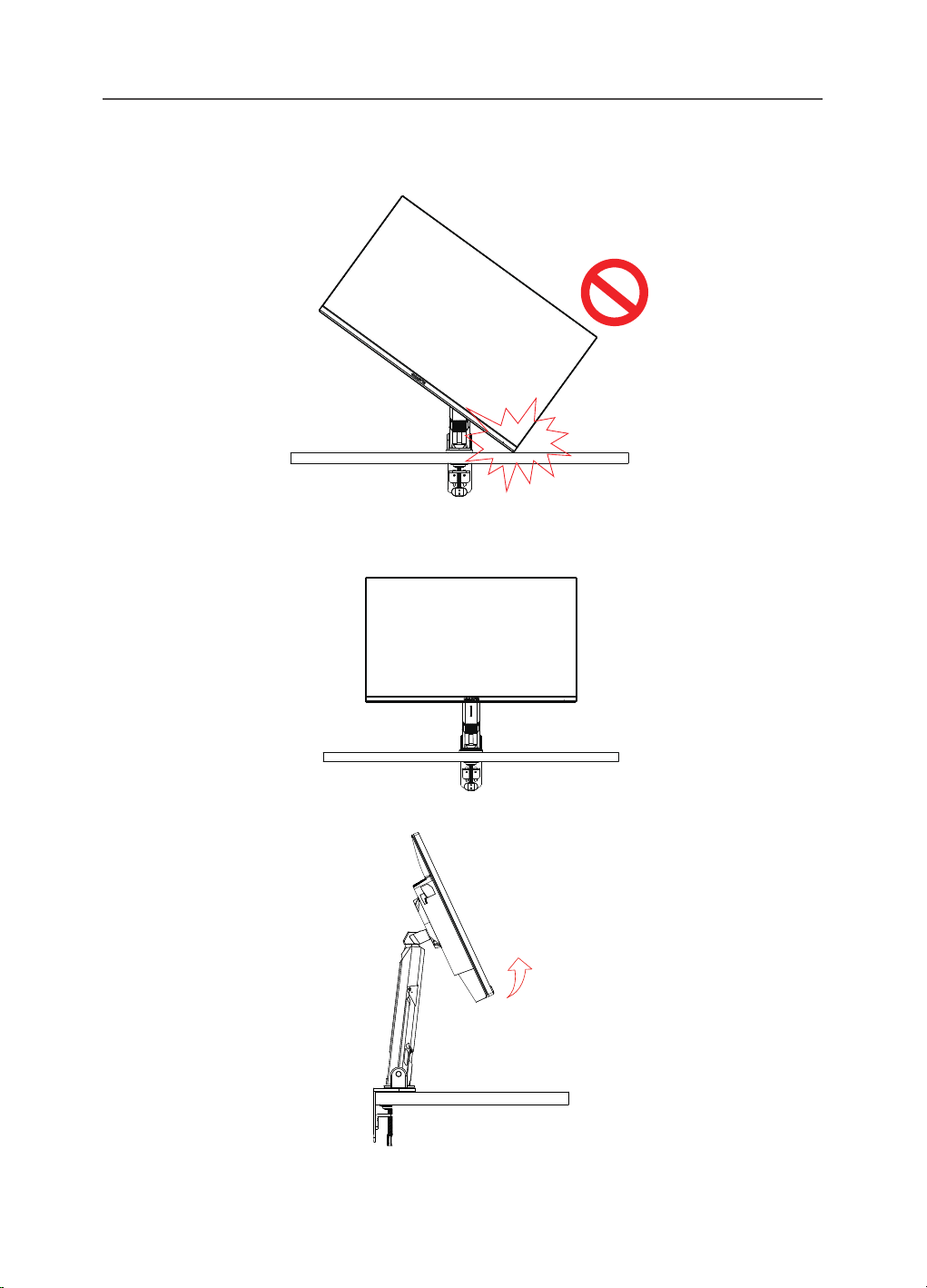
Pivot mode
When using Pivot mode, do not directly spin fast, but switch mode as follows.
Pivot mode Conversion step
1. Raise Monitor to the highest point.
2. Adjust the Monitor tilt Angle to the highest point (as shown).
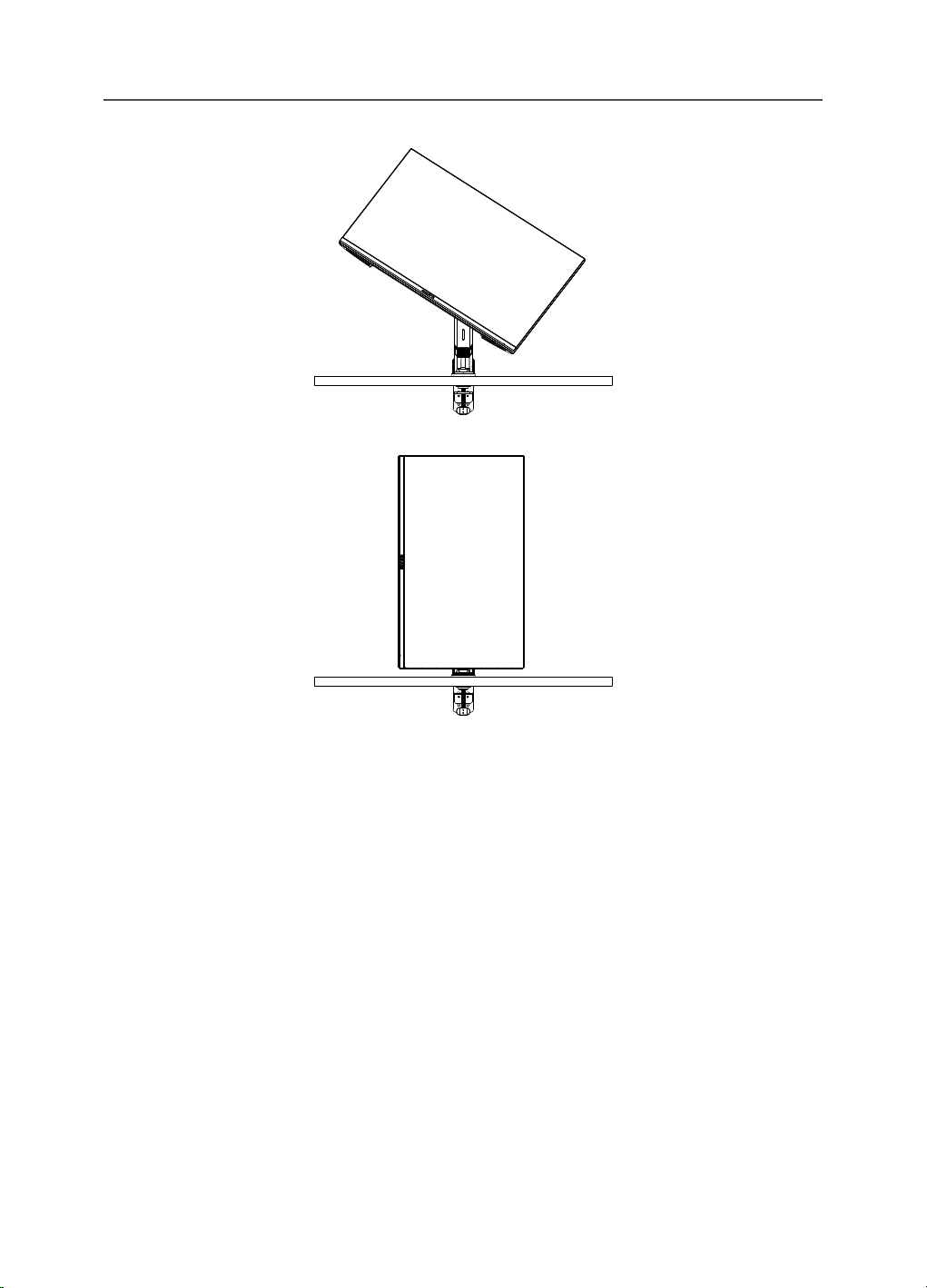
-
21
-
3. Rotate Monitor clockwise (as shown in gure).
4. After 90 degrees rotation,Complete the Pivot mode (as shown).
-
22
-
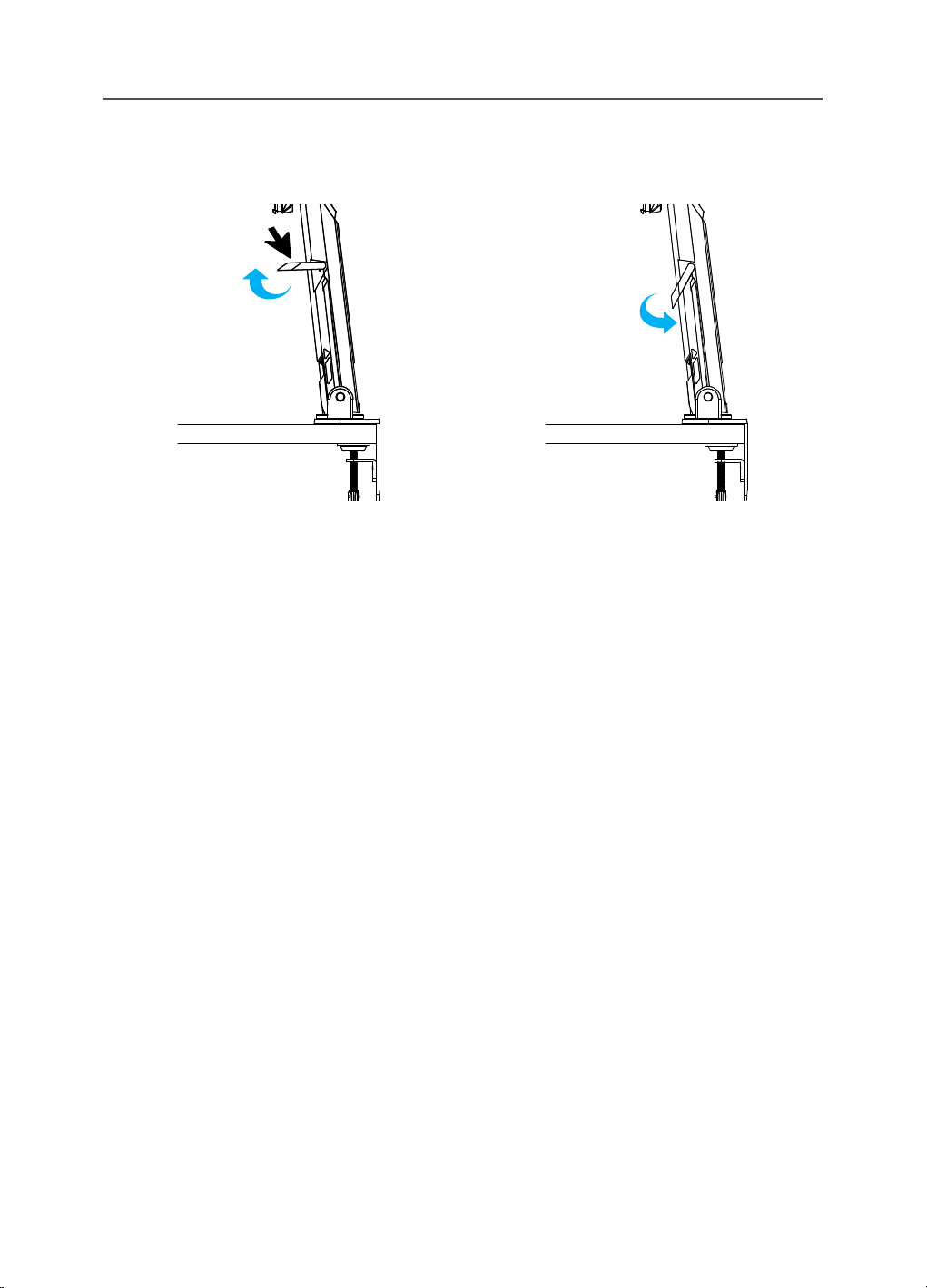
Instructions for thread trimmer ring
After unscrewing the wire in the direction of gure A, the wire is threaded
into the wire ring and xed in the direction of gure B.
A B

-
23
-
Installing a Wall-Mount Bracket (Optional)
Use only the 100 x 100 mm wall mount kit recommended by the
manufacturer.
1.
Push the locking clips inward to detach the stand from the monitor.
2.
Remove the stand.
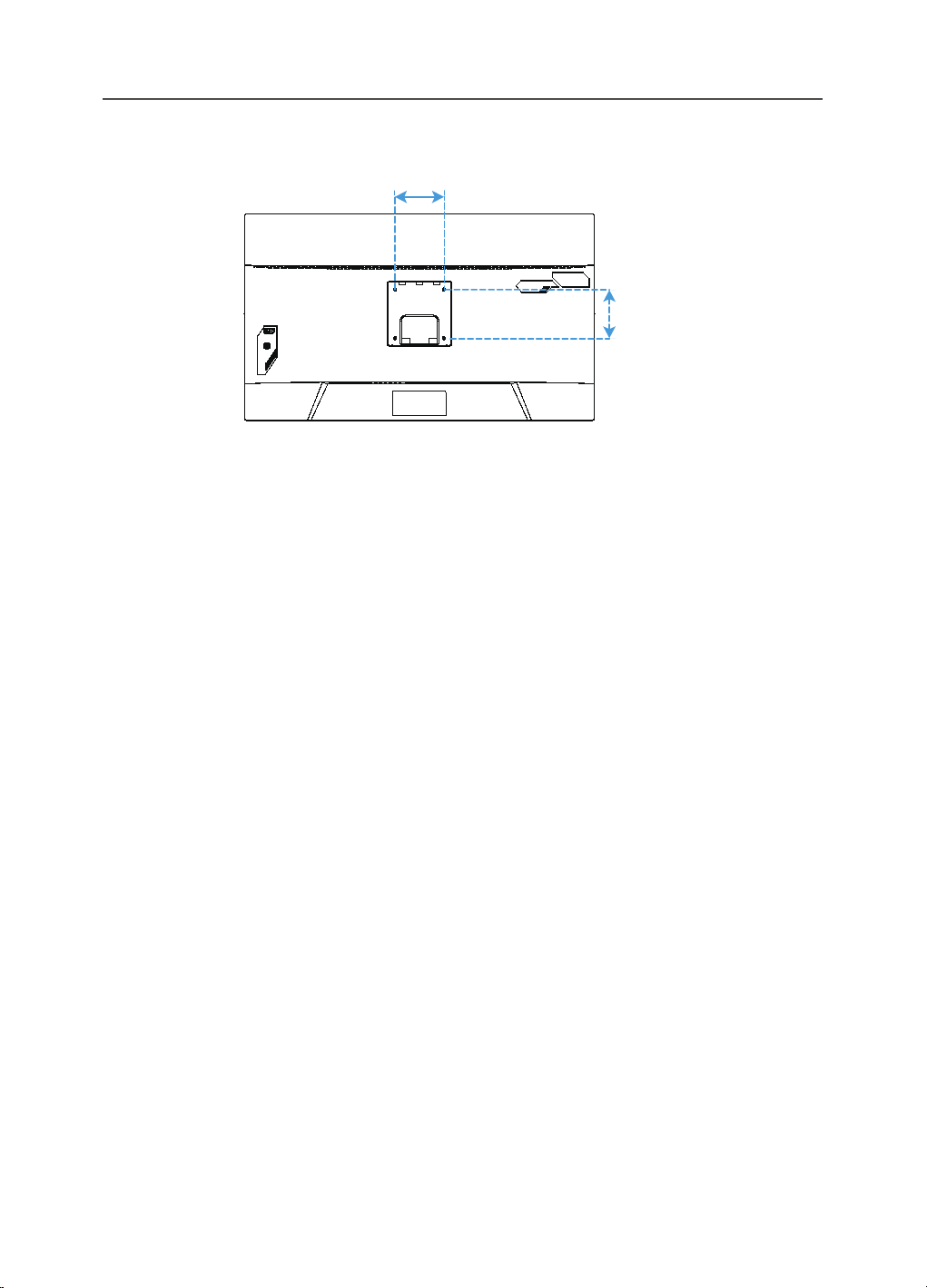
-
24
-
3.
Attach the mounting bracket to the mounting holes at the rear of the monitor.
Then use the screws to secure the bracket in place.
100 mm
100 mm
Note: To mount the monitor on the wall, refer to the installation guide that is included in the
wall-mount bracket kit. VESA Mounting Screw M4 x 8mm minimum.

-
25
-
Making Connections
1
1
2
4
3
5
USB 3.0PDHDMI-1 HDMI-2
6
7
1 Power cable
2 HDMI cable
3 DisplayPort cable
4 Type-C cable
5 USB (A-Male to B-Male) cable
6 USB cable
7 Headphone cable
-
26
-
USING THE DEVICE
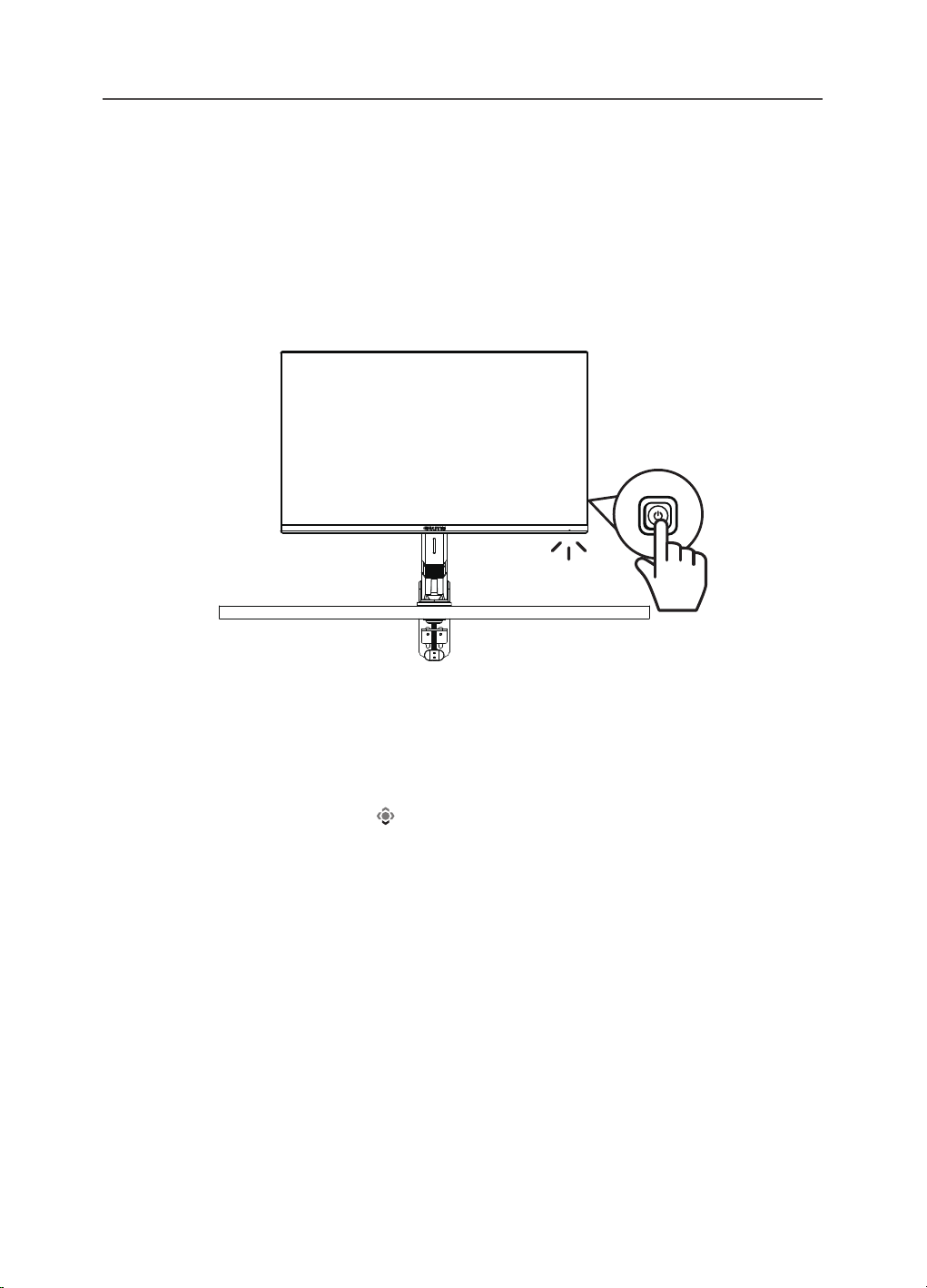
Turning the Power On/O
Make sure the power switch next to the AC power input jack is switched to ON.
Power On
1. Connect one end of the power cable to the AC IN jack at the rear of the monitor.
2. Connect other end of the the power cable to a power outlet.
3. Press the Control button to turn on the monitor. The Power LED will light in
white, indicating the monitor is ready to use.
Power O
Press the Control button for 2 seconds to turn o the monitor.
Note: When the Main menu appears on the screen, you can also turn o the monitor by
moving the
Control button down ( ). Refer to page 31

-
27
-
User Comfort Recommendations
The Monitor adopts Flicker-Free technology which clears the eye visible monitor
icker and prevents users from suering eye strain and fatigue.
The following are some tips for comfortable viewing of your monitor:
•
Optimal viewing distances for monitors range from approximately 510 mm to
760 mm (20” to 30”).
•
A general guideline is to position the monitor such that the top of the screen
is at or slightly below your eye-height when you are comfortably seated.
•
Use adequate lighting for the type of work you are performing.
•
Take regular and frequent breaks (at least for 10 minutes) every half- hour.
•
Be sure to periodically look away from your monitor screen and focus on a far
object for at least 20 seconds during the breaks.
•
Eye exercise can help reduce eye strain. Repeat these exercises frequently: (1)
look up and down (2) slowly roll your eye (3) move your eyes diagonally.
-
28
-
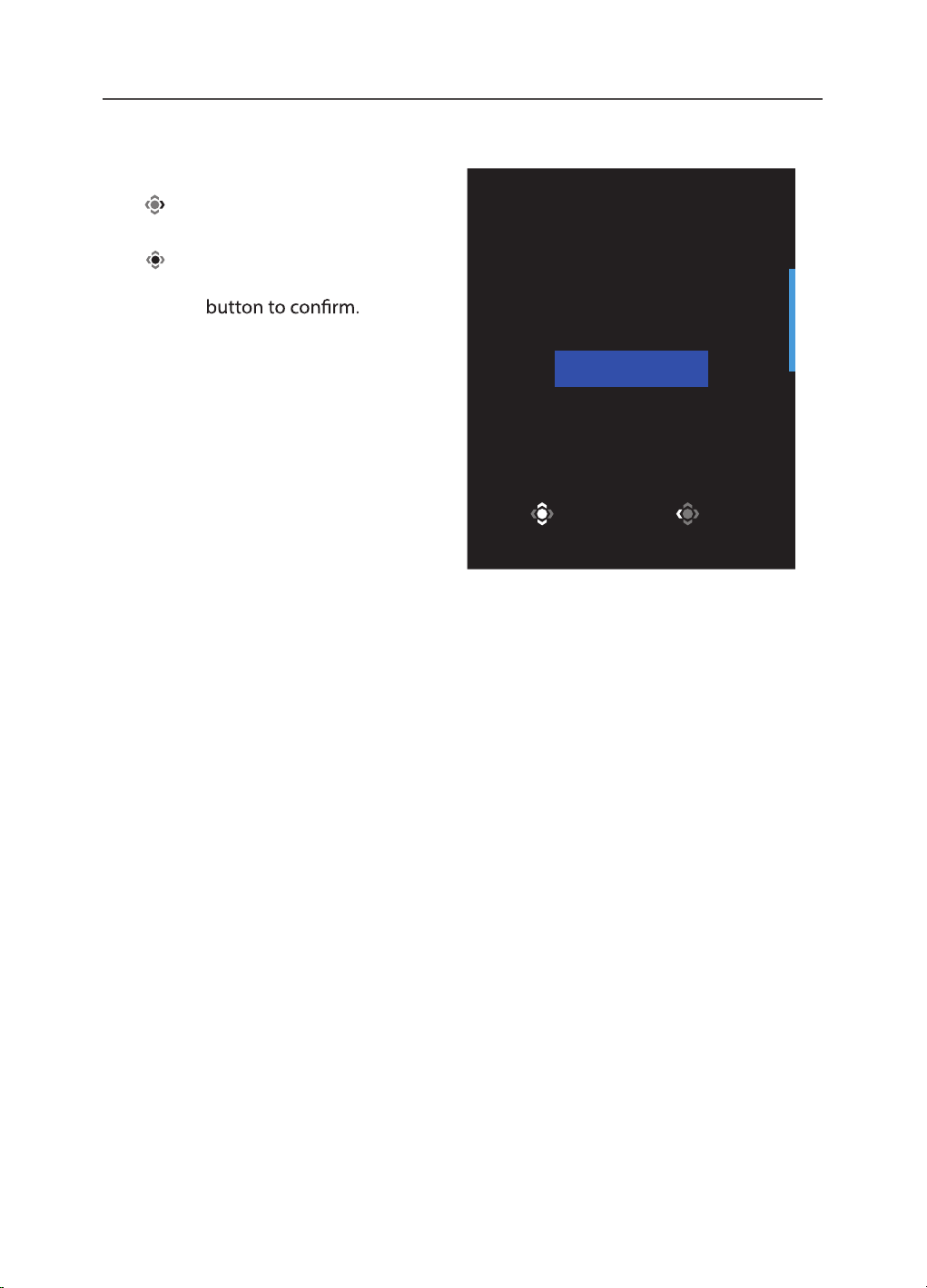
Selecting the Input Source
1.
2.
Move the Control button right
( ) to enter the Input menu.
Select Exit
Input
DisplayPort
HDMI 1
HDMI 2
Move the Control button center
( ) to select the desired
input source. Then press the
Control
Type-C
-
29
-
OPERATIONS
Quick Menu
Hot Key
By default, the
Control button has been assigned with the specic function.
Note: To change the preset hot key function, refer to the “Quick Switch” section on page 43.
To access the hot key function, do the following:
•
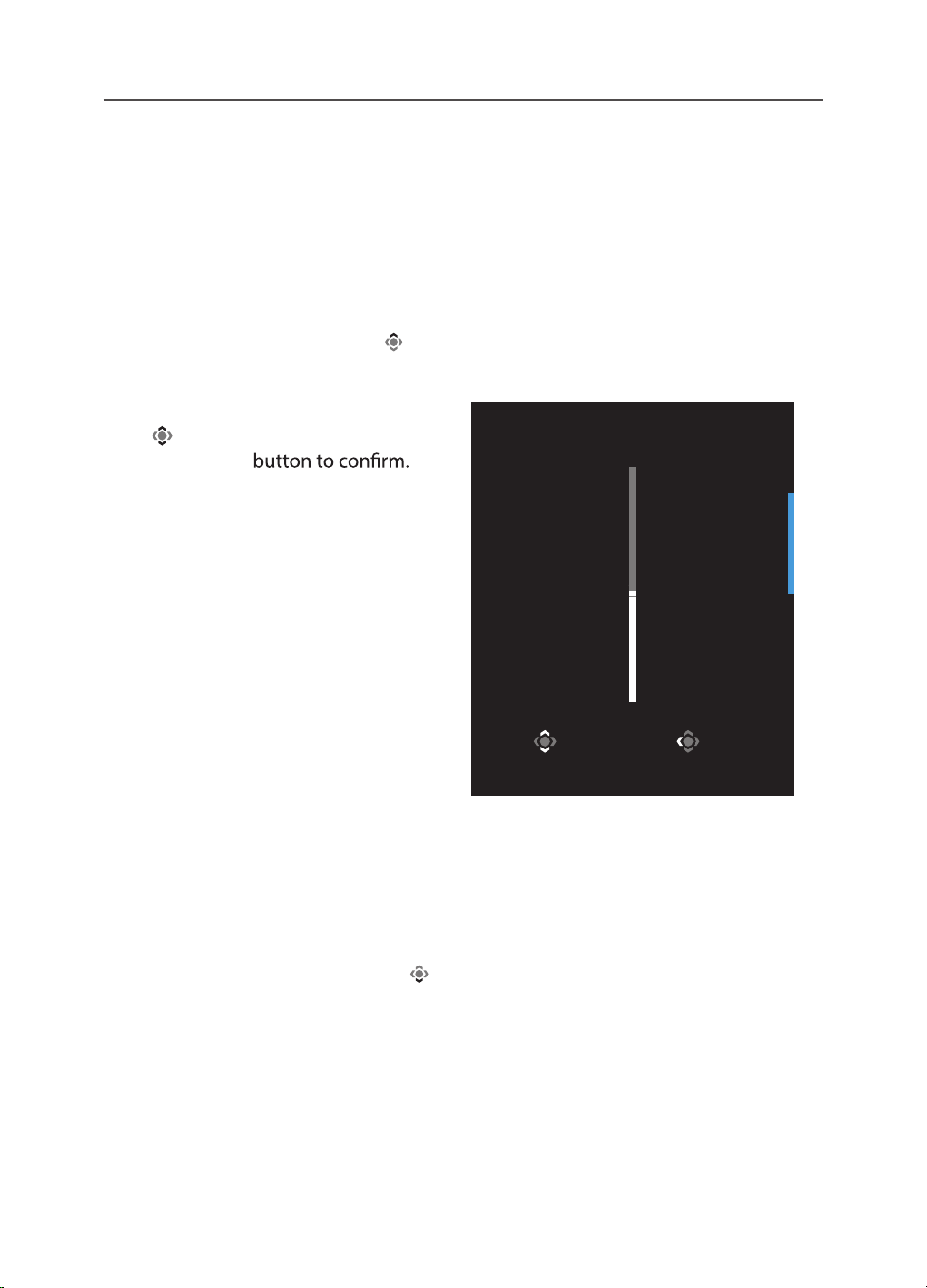
Move the
Control button up ( ) to enter the Black Equalizer
menu.
Adjust Exit
Black Equalizer
10
Move the Control button up/down
(
) to adjust the setting and press
the
Control
•
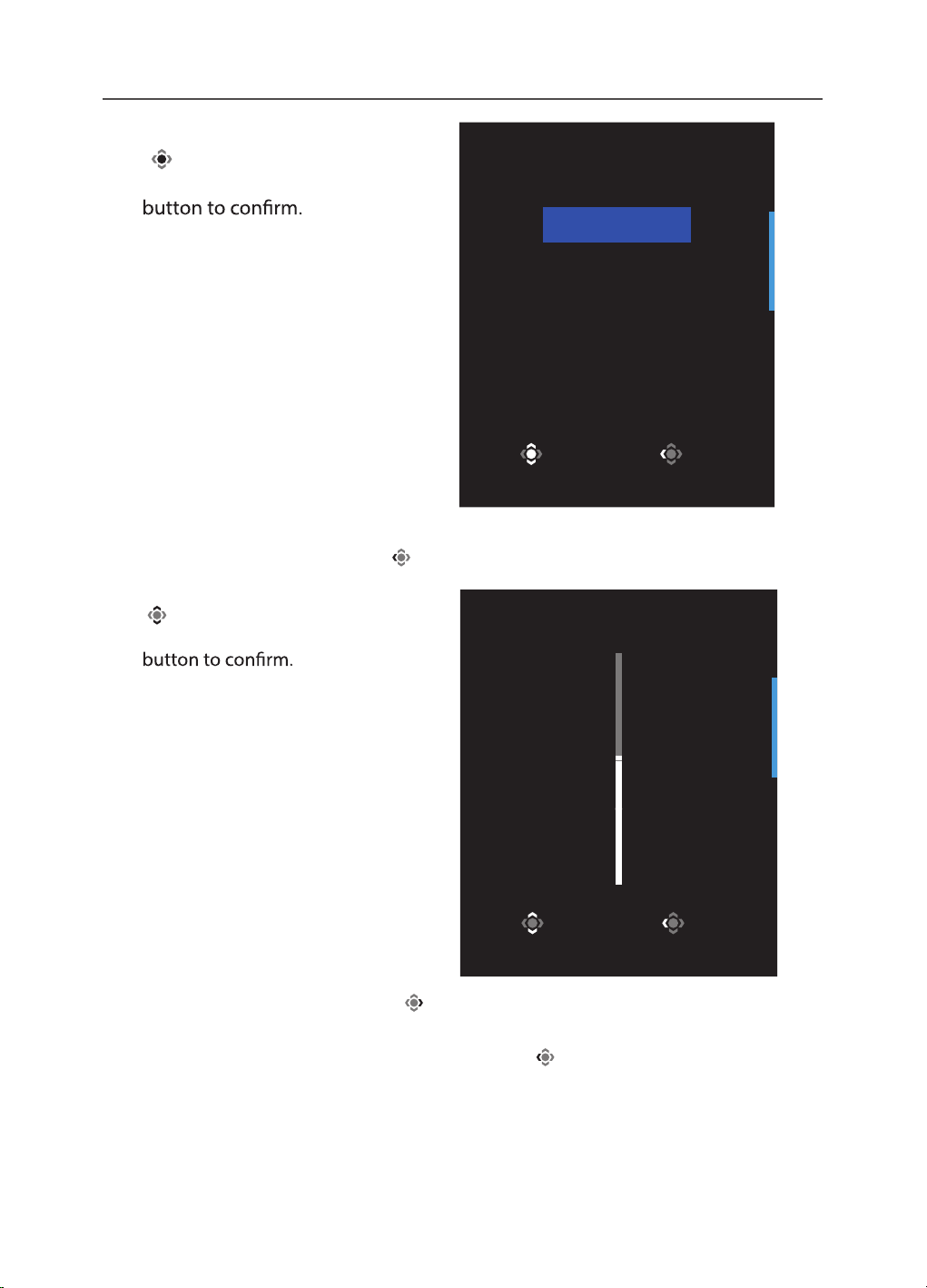
Move the
Control button down ( ) to enter the Picture Mode
menu.
-
30
-
Move the Control button center
(
) to select the desired option
and press the
Control
Select Exit
Picture Mode
Standard
FPS
RTS/RPG
Movie
Reader
sRGB
•
Move the
Control button left ( ) to enter the Volume menu.
Move the Control button up/down
(
) to adjust the headphone
volume level and press the
Control
Adjust Exit
Volume
50
•
Move the
Control button right ( ) to enter the the Input menu. Refer to the
“Selecting the Input Source” section.
Note: To close the menu, move the
Control button left
(
)
.
-
31
-
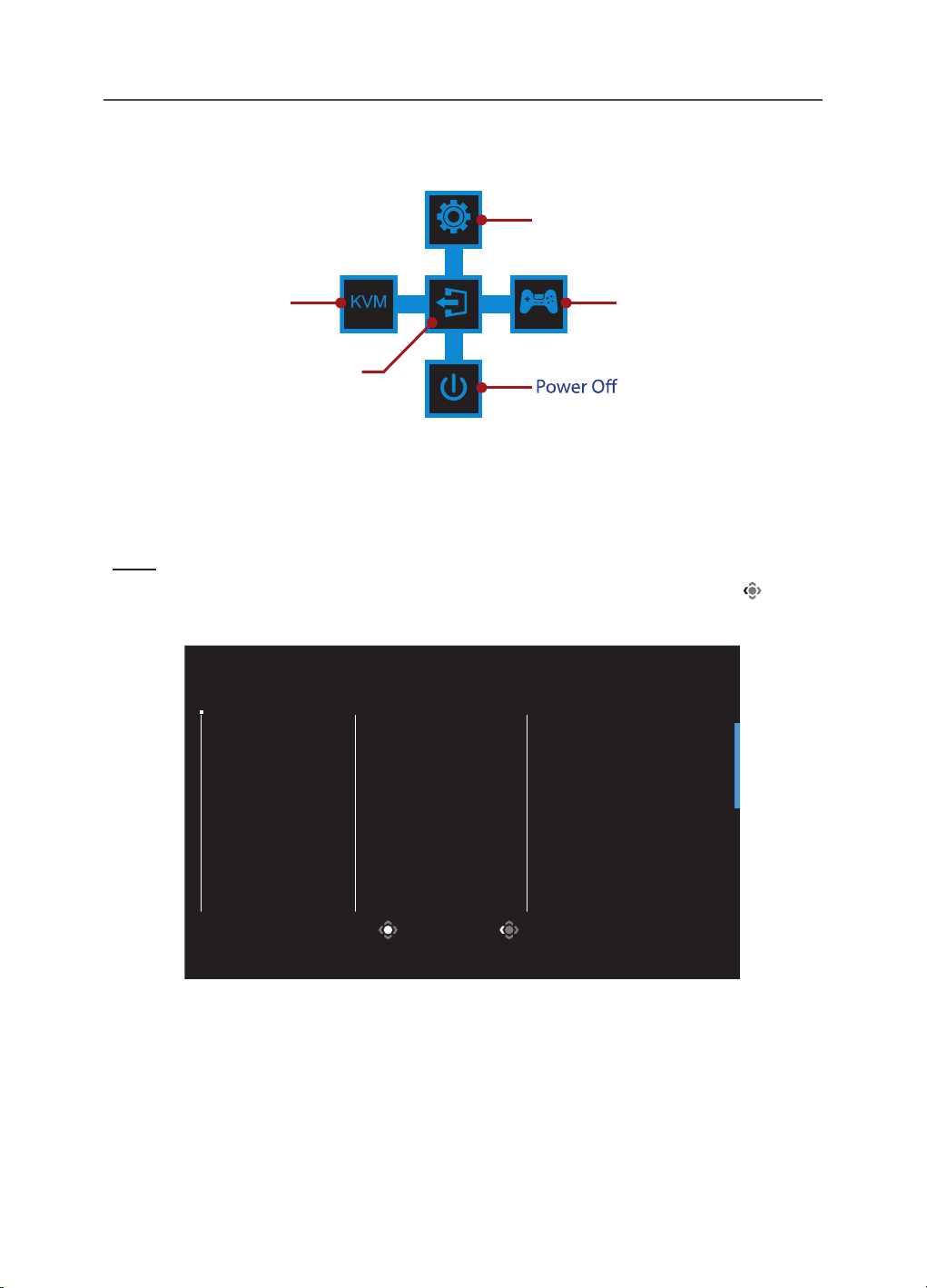
Function Key Guide
•
Press the
Control button to display the Main menu.
EXIT
SETTING
POWER OFF
GAME ASSISTMULTI TASK
Game Assist
Settings
KVM
(Multi Task)
Exit
Then use the Control button to select the desired function and congure
the related settings.
KVM
When the Main menu appears on the screen, move the
Control button left ( ) to
enter the KVM menu.
Select Exit
KVM
KVM Switch
KVM Wizard
KVM ON
KVM Reset
•
KVM Switch: Switch the input source that has been assigned to USB-B or
Type-C connection in the KVM Wizard settings.
When there are several input signals connected to the device, a message
box will appear on the screen once the system detected USB Type-C input
signal.
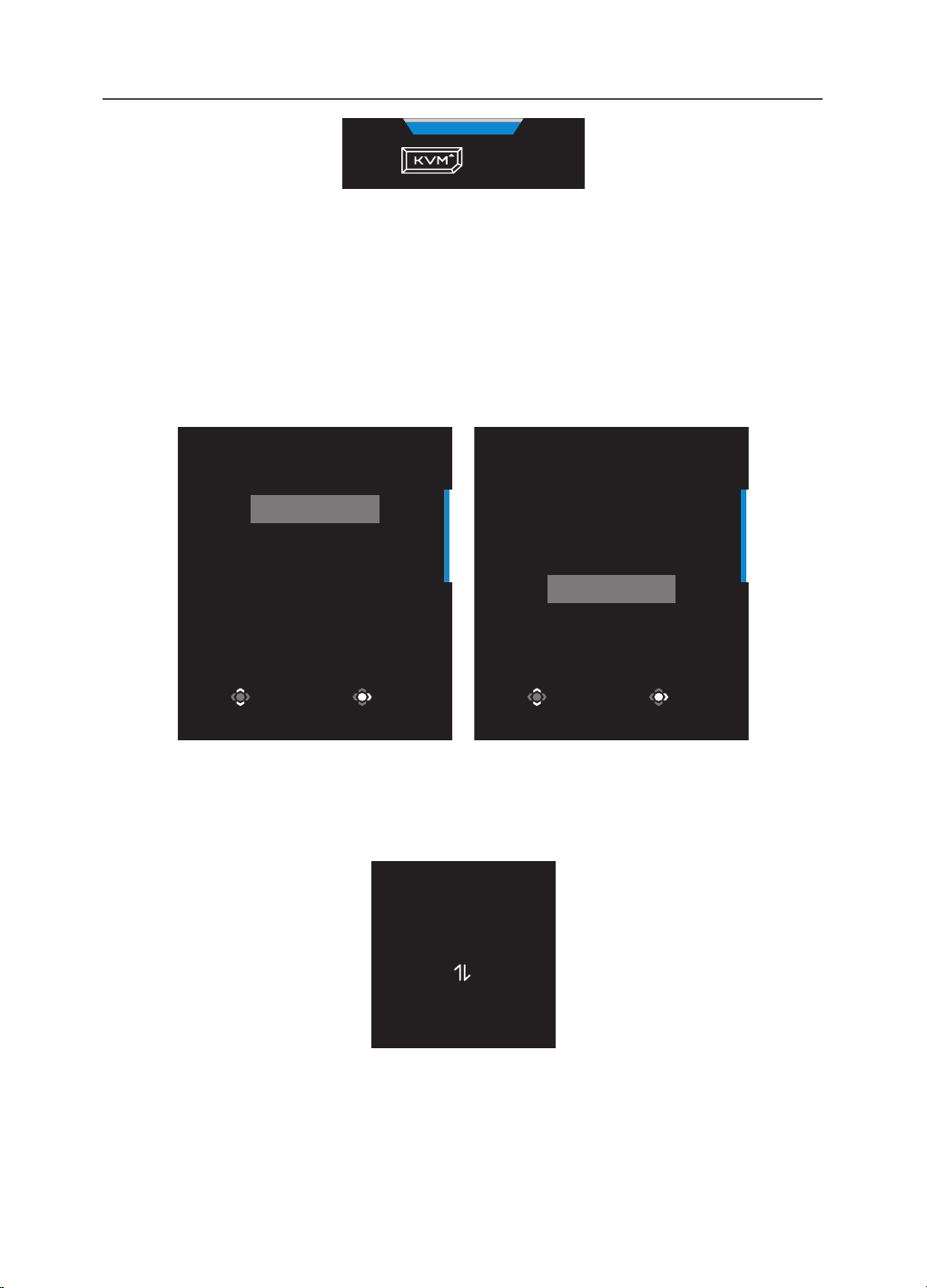
-
32
-
KVM
Press to switch device.
To switch to USB Type-C input source, simply press the KVM button or the Control
button.
However, when there is no input signal from currently selected input source, the
system will return to the previous connected input source.
Note:
This option will be disabled if the KVM button function is disabled (KVM
OFF).
•
KVM Wizard: Congure the KVM related settings.
Set the input source to be bound with USB Type-B connection rst, and
then following with USB Type-C connection.
Select USB-B Display
HDMI 1
HDMI2
DisplayPort
Type-C
Select Enter
Select TYPE-C Display
HDMI 1
HDMI2
DisplayPort
Type-C
Select Enter
USB-B Display Selection TYPE-C Display Selection
Note:
If you set the USB-B Display setting to Type-C, the TYPE-C Display menu
option will automatically be disabled. You will then see the KVM status in the KVM
Wizard page as below.
KVM Status
USB-B : Type-C
Type-C : N/A
•
KVM ON/OFF: Enable/Disable the KVM button function.
√ Select ON to enable the KVM button function. Once the system
detected USB Type-C input signal, a message box will appear on the
screen.
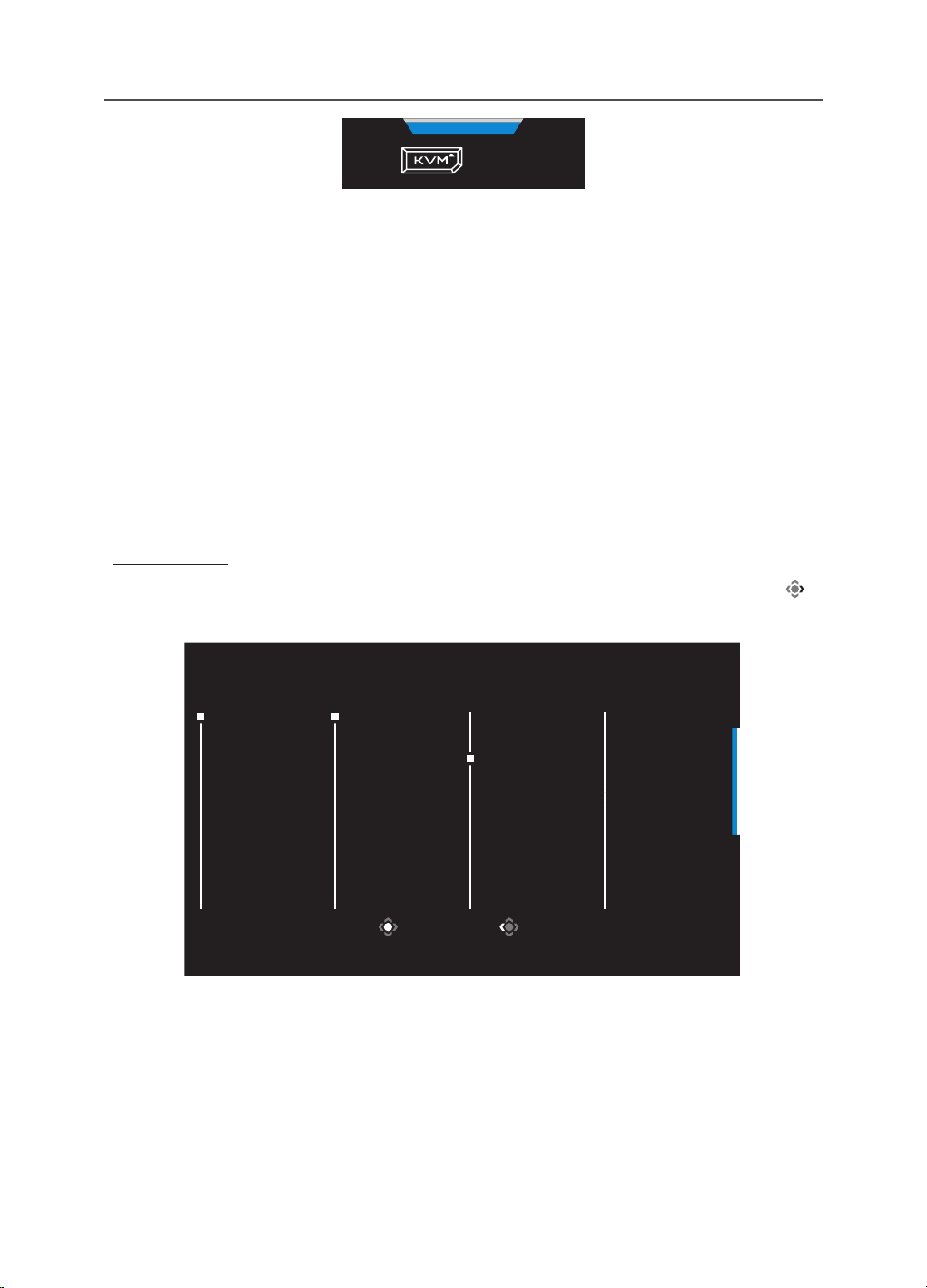
-
33
-
KVM
Press to switch device.
Press the KVM button or the Control button to switch to USB Type-C
input source.
Note:
When the KVM button function is enabled, the KVM ON will be
displayed on the left panel.
√ Select OFF to disable the KVM button function.
Note:
When the KVM button function is disabled, the KVM OFF will be
displayed on the left panel.
•
KVM Reset: Restore the KVM default settings.
√ HDMI 1 input source is bound with USB Type-B connection.
√ USB Type-C input source is bound with USB Type-C connection.
√ The KVM ON/OFF function is set to ON.
Game Assist
•
When the Main menu appears on the screen, move the
Control button right ( )
to enter the Game Assist menu.
Select Exit
GameAssist
GAME INFO
Display
Alignment
Crosshair
Dashboard
Gaming Timer
Gaming Counter
Refresh Rate
Info Location
OFF
Count Up
Count Down
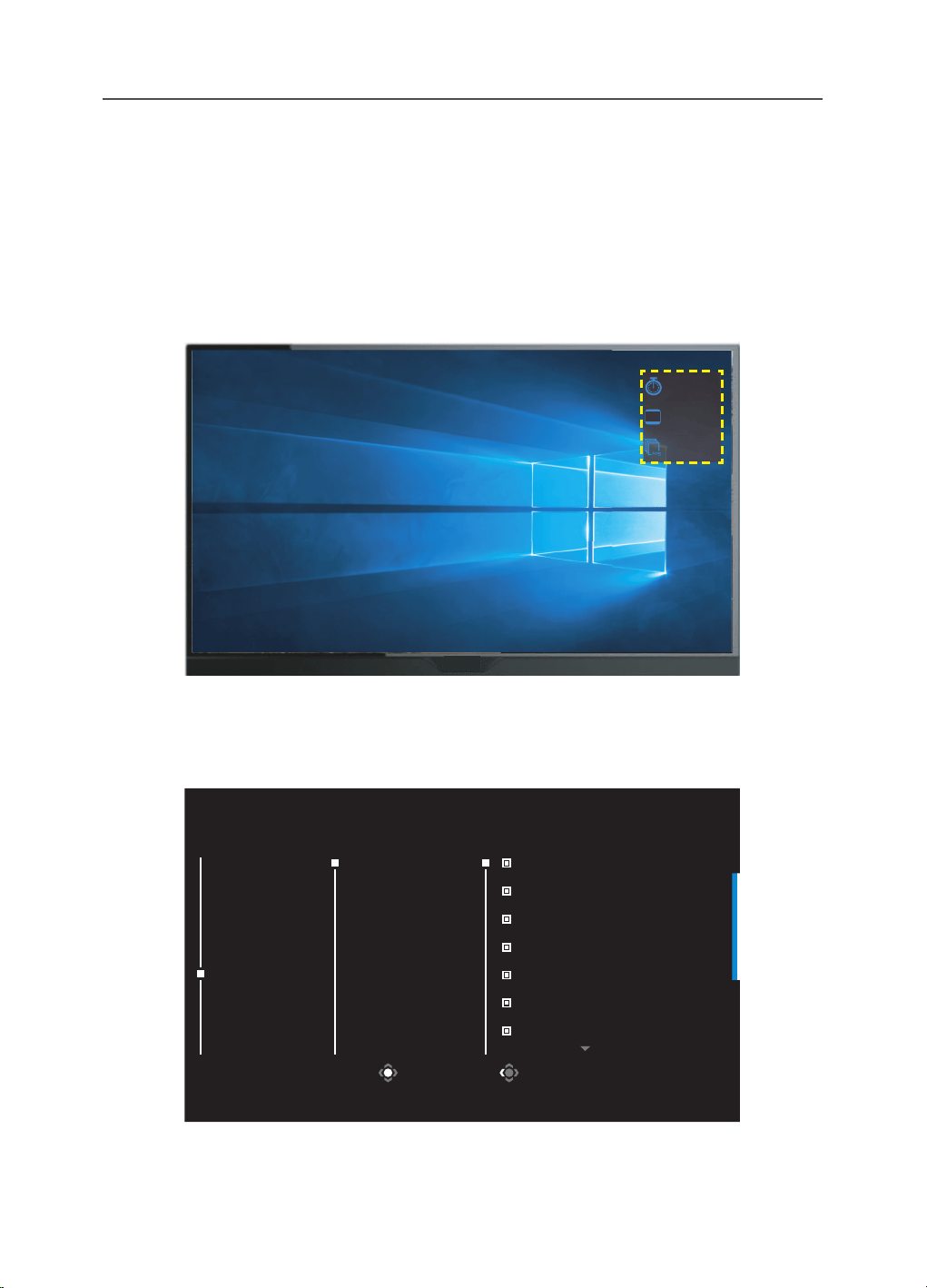
-
34
-
•
Game INFO: Congure the FPS (First Person Shooting) game related
settings.
√ Select Gaming Timer to select countdown timer mode. To disable this
function, set the setting to OFF.
√ Select Gaming Counter or Refresh Rate to enable/disable the gaming counter
or real-time refresh rate setting.
√ Select Info Location to specify the location of the information to be
shown on the screen.
60
00:00
00
144
00
4
5
•
Crosshair: Select the desired crosshair type to suit your gaming
environment. It makes aiming much easier.
•
Dashboard: Congure the dashboard settings.
Select Exit
GameAssist
CPU Temperature
CPU Frequency
CPU Fan Speed
CPU Usage Rate
GPU Temperature
GPU Frequency
GPU Fan Speed
GAME INFO
Display
Alignment
Crosshair
Dashboard
ON
OFF
Dashboard Location
√ ON: Enable the function. Then select the desired option(s) to be shown
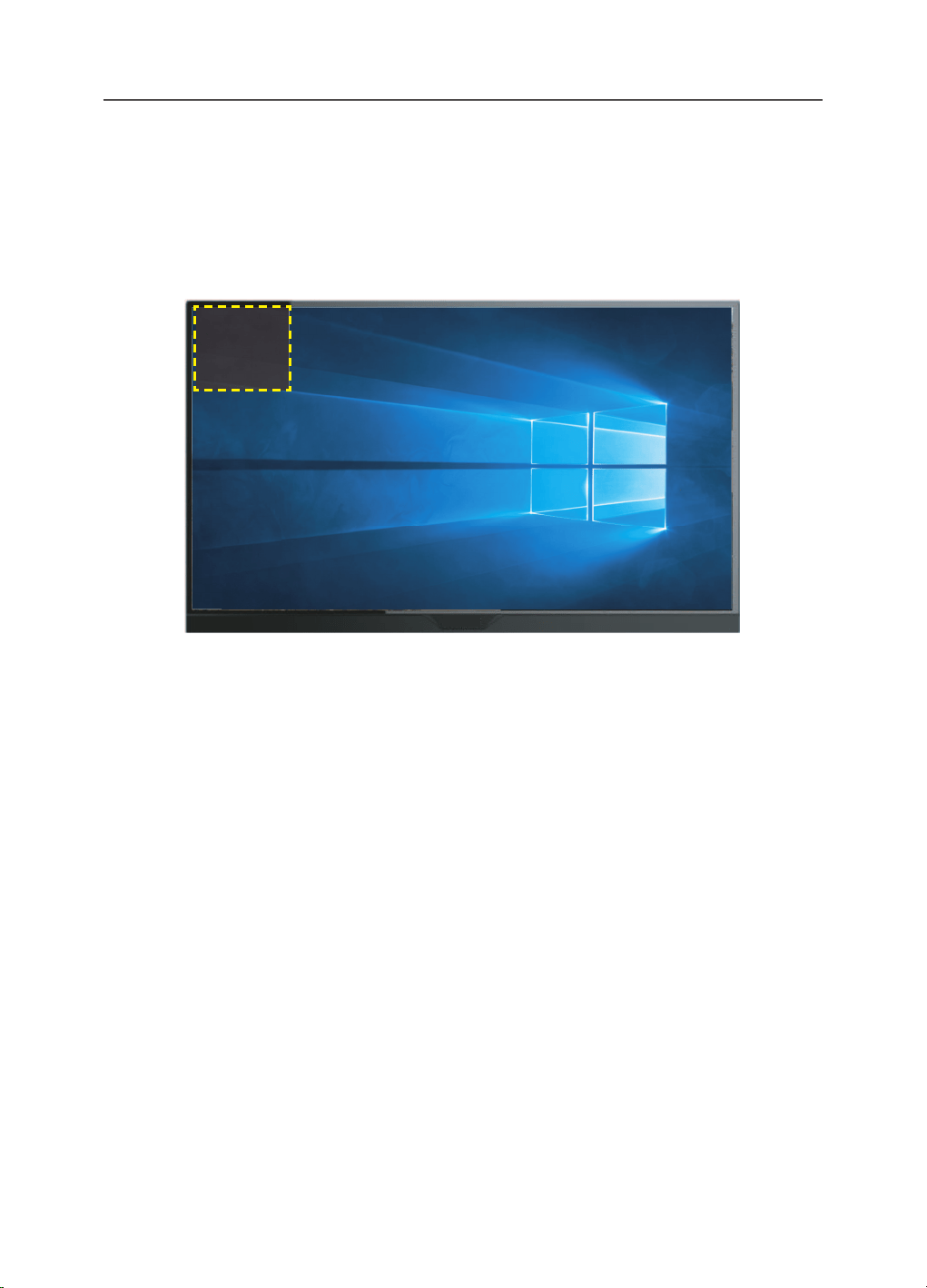
-
35
-
on the screen.
√ OFF: Disable the function.
√ Dashboard Location: Specify the location of the Dashboard information
to be shown on the screen. Once the Dashboard conguration is
complete, it will transfer the system data to the SOC through the USB
port and display the value of the selected function(s) on the screen.
AORUS Mouse DPI
CPU temperature
CPU frequency
CPU fan Speed
CPU usage Rate
GPU temperature
GPU frequency
GPU fan speed
GPU usage rate
Note: Make sure the USB cable is properly connected to the USB upstream port of the
monitor and the USB port of your computer.
•
Display Alignment: When the function is enabled, it displays the alignment lines
on the four sides of the screen, providing handy tool for you to line up multiple
monitors perfectly.
-
36
-
Congure the Device Settings
When the Main menu appears on the screen, move the
Control button up ( ) to
enter the Settings menu.
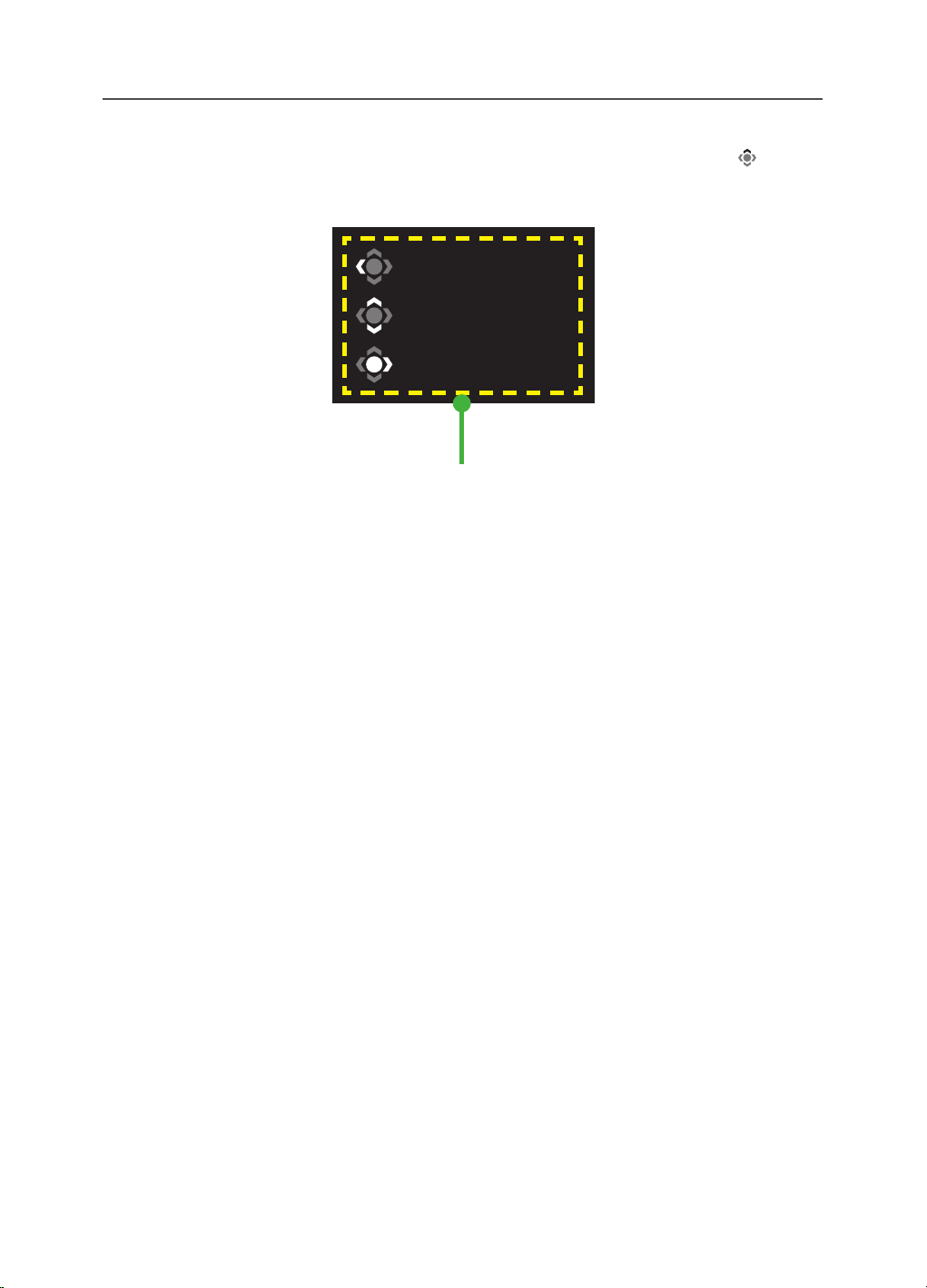
Note: Use the
Control button to navigate through the menu and make adjustments.
Exit
Move/Adjust
Enter/Confirm
Button Guide
-
37
-
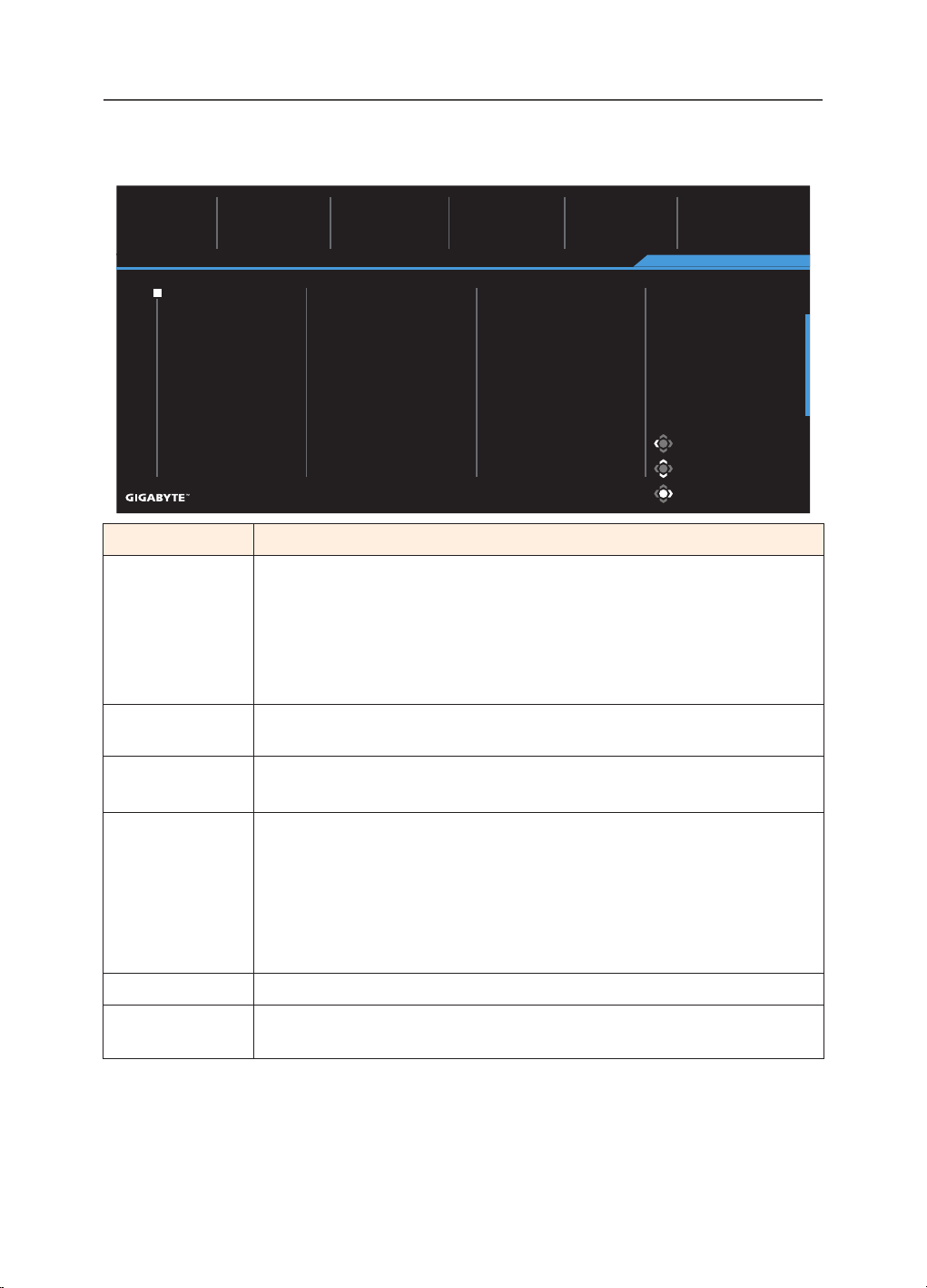
Gaming
Congure the game related settings.
Exit
Move/Adjust
Enter/Confirm
Picture Mode Standard
Resolution Black Equalizer Aim Stabilizer Overdrive Refresh Rate
2560x1440 10 OFF Balance 60 HZ
AMD FreeSync
Premium Pro
ON
Gaming
Picture
Display
System
PIP/PBP
Language
Reset All
Aim Stabilizer sync
Black Equalizer
Super Resolution
Display Mode
Overdrive
AMD FreeSync Premium Pro
Save Settings
Item Description
Aim Stabilizer
sync
When this function is enabled, it reduces the motion blur in a fast
moving games.
Note: This function is not available under the following conditions:
- when the frequency setting is lower than 100Hz.
- when the FreeSync function is activated.
Black
Equalizer
Adjust the brightness of the black areas.
Super
Resolution
Sharpen the low resolution images.
Display Mode Select the aspect ratio of the screen.
•
Full: Scale the input image to ll the screen. Ideal for 16:9
aspect images.
•
Aspect: Display the input image without geometric distortion
lling as much of the screen as possible.
Note: This option is not compatible with FreeSync and PIP/ PBP functions.
Overdrive Improve the response time of the LCD monitor.
AMD FreeSync
Premium Pro
When this function is enabled, it eliminates the screen lag and
tearing while playing games.
-
38
-
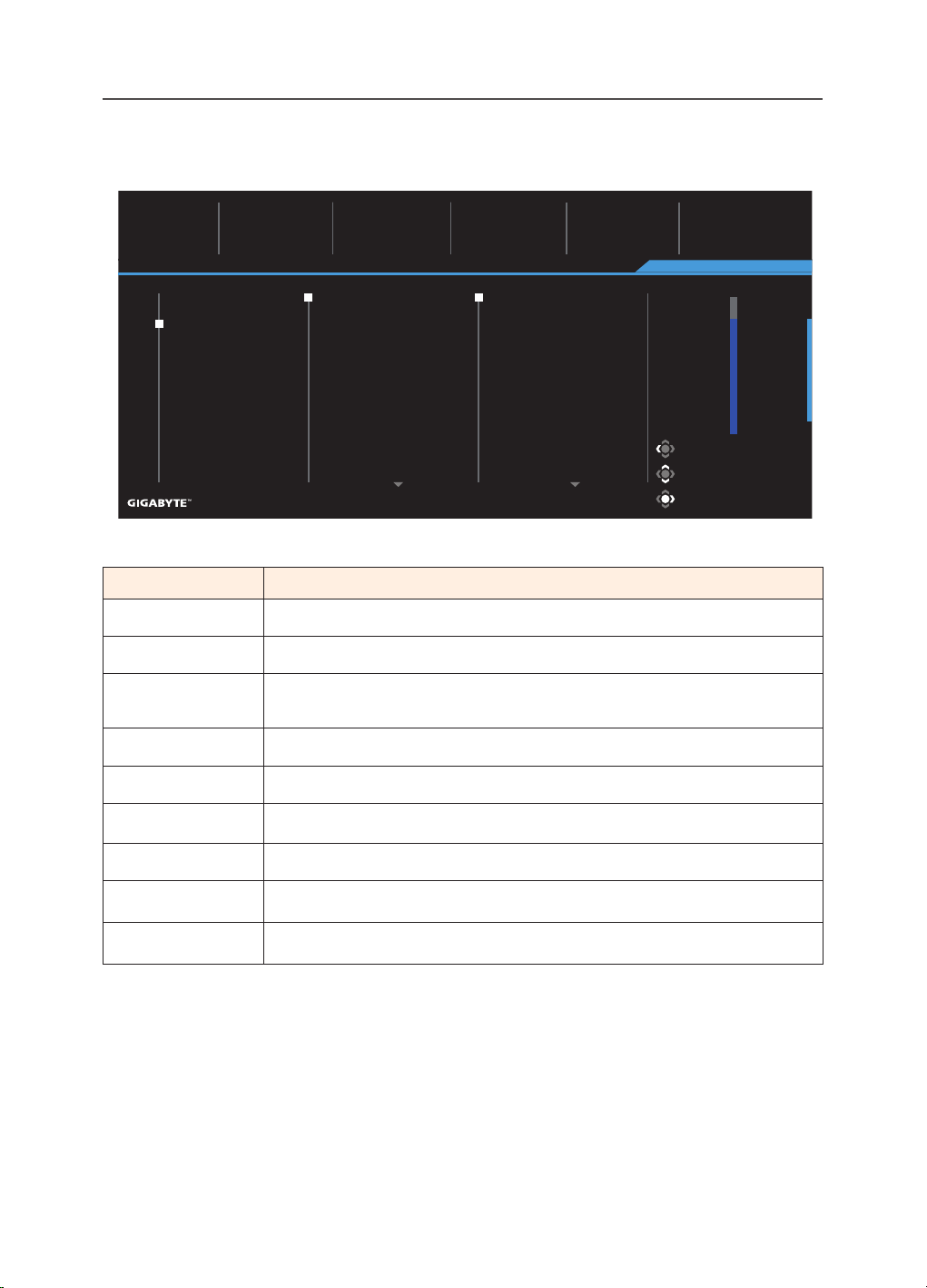
Picture
Congure the image related settings.
Exit
Move/Adjust
Enter/Confirm
Picture Mode Standard
SDR Brightness Contrast Sharpness Gamma Color Temperature
85 50 5 OFF Normal
Gaming
Picture
Display
System
PIP/PBP
Language
Reset All
Save Settings
85
Brightness
Contrast
Color Vibrance
Sharpness
Gamma
Color Temperature
FPS
Standard
RTS/RPG
Movie
Reader
sRGB
Custom 1
6 axis Color
Item Description
Standard For editing documents or browsing websites.
FPS For playing FPS (First Person Shooting) games.
RTS/RPG For playing RTS (Real-Time Strategy) or RPG (Role-Playing Game)
games.
Movie For watching movies.
Reader For viewing documents.
sRGB For viewing photos and graphics on the computer
.
Custom 1 Customized picture mode settings.
Custom 2 Customized picture mode settings.
Custom 3 Customized picture mode settings.
Note:
The Monitor use low blue light panel and compliance with TÜV Rheinland Low
Blue Light Hardware Solution at factory reset/default setting mode (Brightness: 70,
Contrast: 50, CCT: 6500, Preset mode: Standard mode).
-
39
-
Exit
Move/Adjust
Enter/Confirm
Picture Mode Standard
HDR Brightness Contrast Sharpness Gamma Color Temperature
85 50 5 OFF Normal
Gaming
Picture
Display
System
PIP/PBP
Language
Reset All
Save Settings
Light Enhance
Dark Enhance
HDR
Color Enhance
Reset Picture
Local Dimming
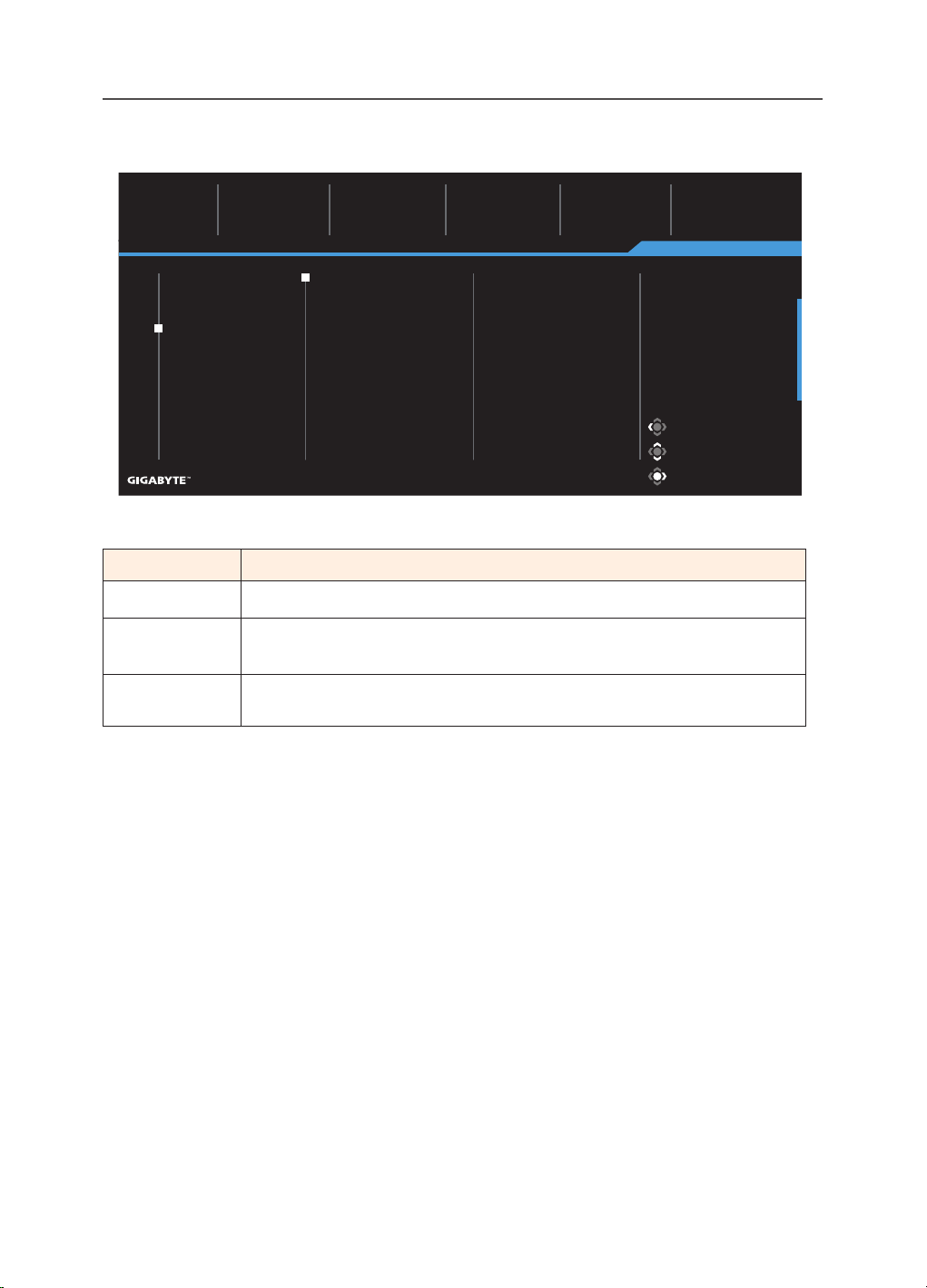
Item Description
HDR Light Enhance: Enhance the Brightness performance.
Color Enhance: Enhance the Color performance.
Dark Enhance: Enhance the Darkness performance.
Local Dimming: Improve the blackness of images displayed on the
monitor.
Reset Picture: Reset all Picture settings to the default settings.
Note:
The HDR Enhance function will appear after HDR turns on. And the Picture
Mode list will be replaced until the HDR turns o.
-
40
-
Display
Congure the display screen related settings.
Exit
Move/Adjust
Enter/Confirm
Picture Mode Standard
SDR Brightness Contrast Sharpness Gamma Color Temperature
85 50 5 OFF Normal
Gaming
Picture
Display
System
PIP/PBP
Language
Reset All
Save Settings
HDMI 1
HDMI 2
Type-C
DisplayPort
RGB PC Range
Input
Overscan
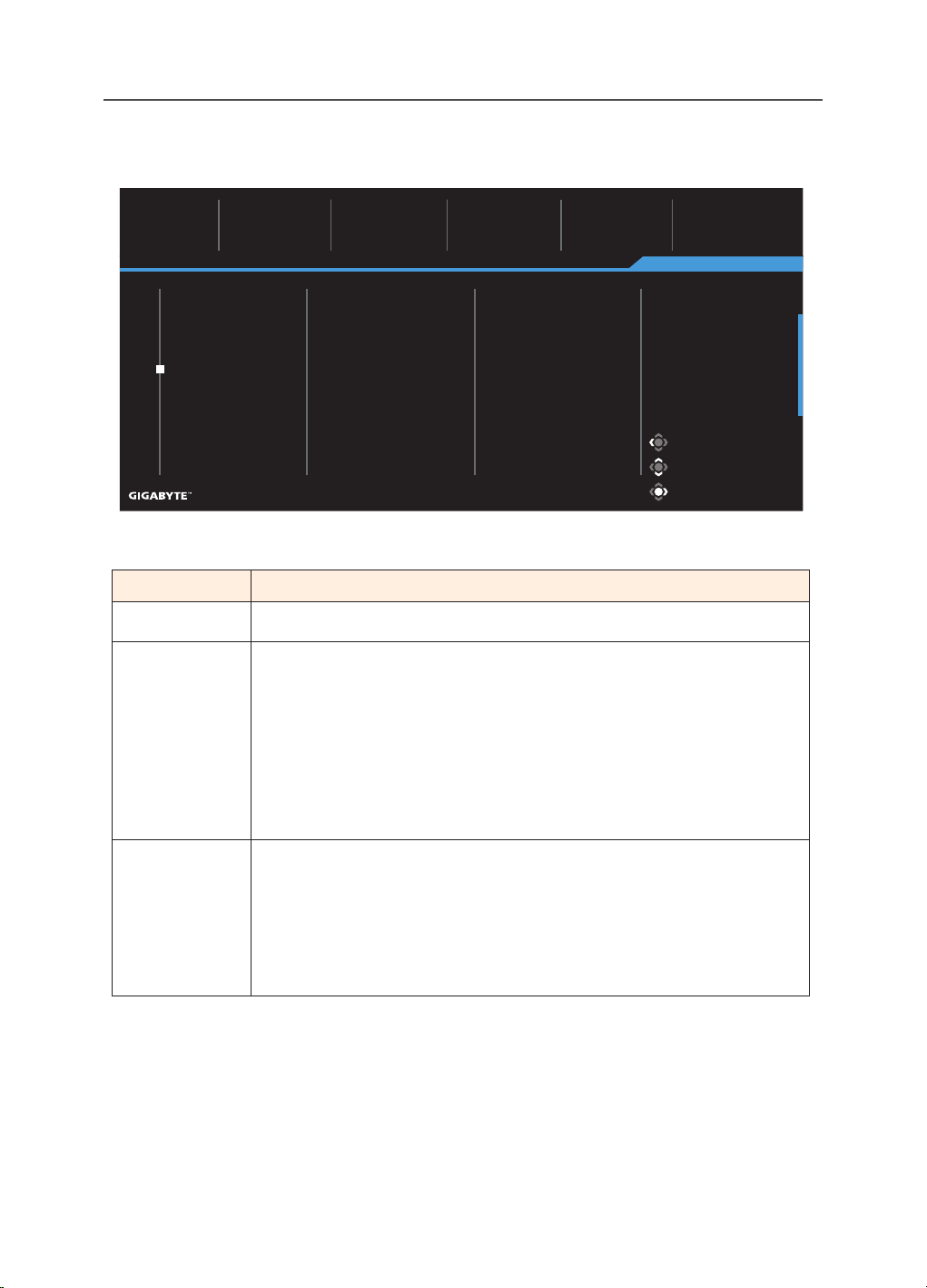
Item Description
Input Select the input source.
RGB PC Range Select an appropriate RGB range setting or let the monitor to
detect it automatically.
OverScan When this function is enabled, it slightly enlarges the input
image to hide the outermost edges of the image.
-
41
-
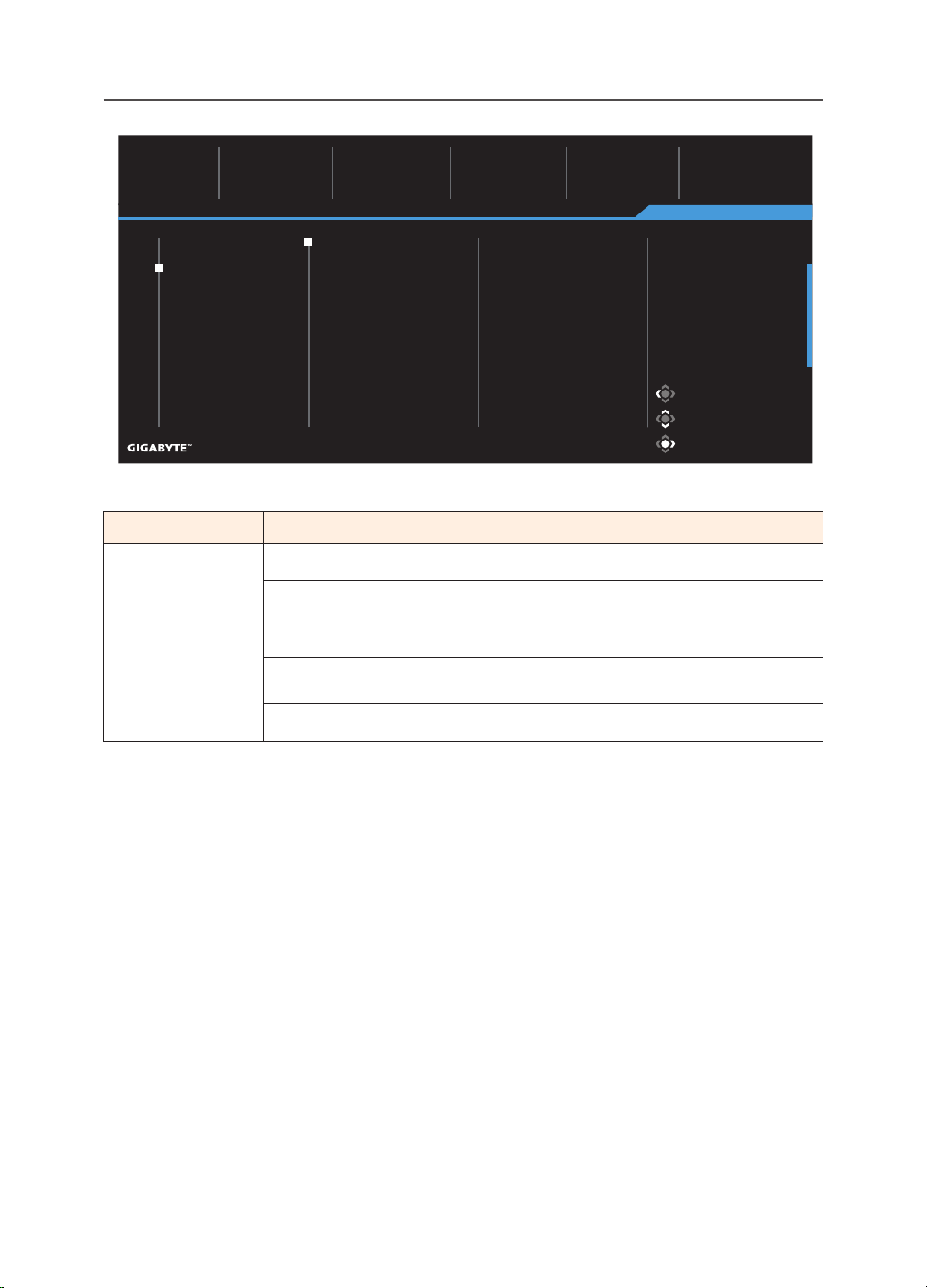
PIP/PBP
Congure the multi-picture related settings.
Exit
Move/Adjust
Enter/Confirm
Picture Mode Standard
SDR Brightness Contrast Sharpness Gamma Color Temperature
85 50 5 Gamma 3 Normal
Gaming
Picture
Display
PIP/PBP
System
Language
Reset All
Save Settings
OFF
PIP
PBP
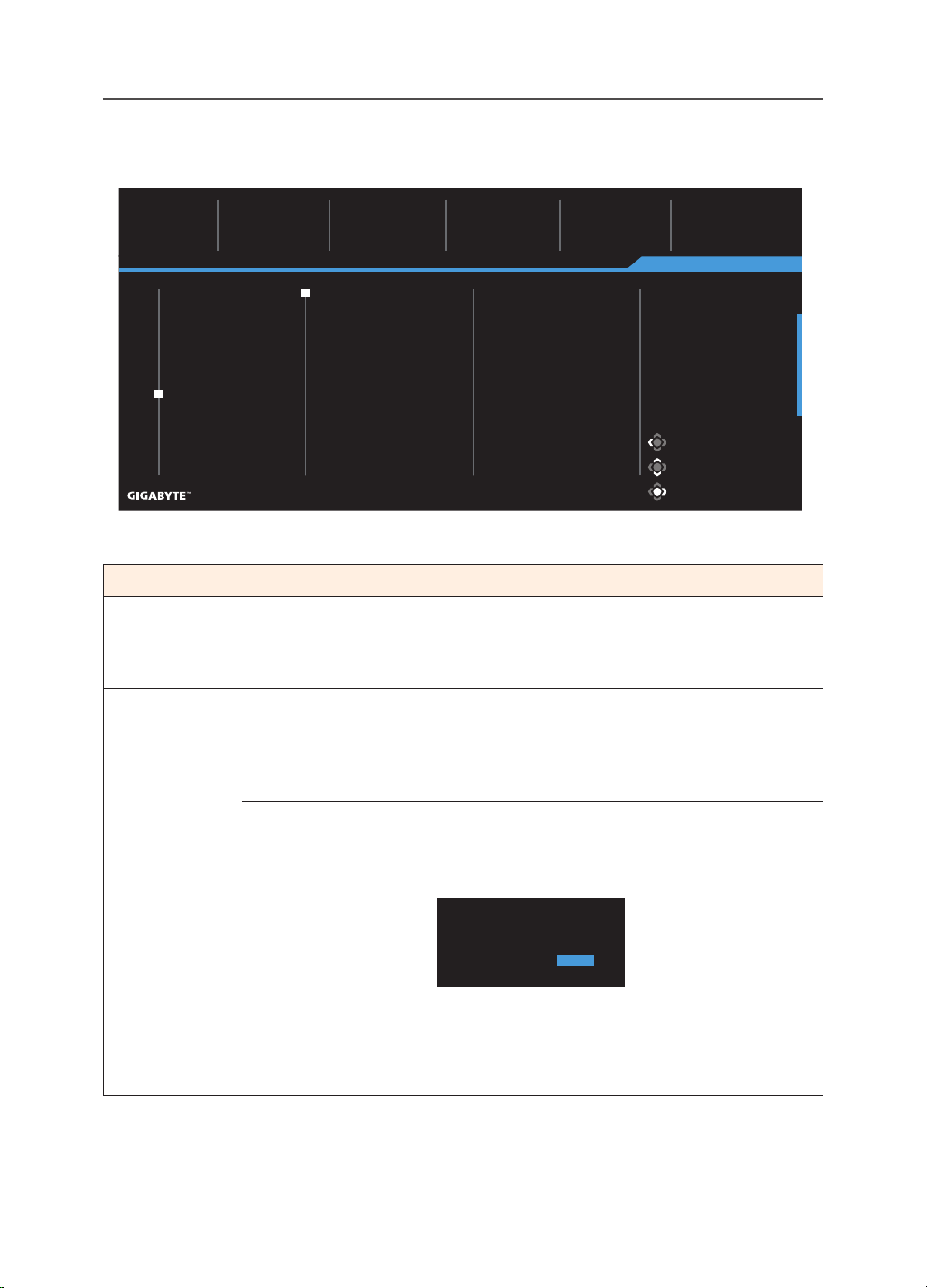
Item Description
OFF Disable the PIP/PBP function.
PIP Split the screen into 2 parts (main window and inset window).
• Source: Change the input source for the inset window.
• PIP Size: Adjust the inset window size.
• Location: Move the inset window position.
• Display Switch: Swap the two windows.
• Audio Switch: Select which audio source you want to hear the
sound from.
PBP Display 1x1 split screen (left and right windows).
• Source: Change the input source for the right window.
• PBP Mode: Select the aspect ratio of the windows.
• Display Switch: Swap the two windows.
• Audio Switch: Select which audio source you want to hear the
sound from.
-
42
-
System
Congure the system related settings.
Exit
Move/Adjust
Enter/Confirm
Picture Mode Standard
SDR Brightness Contrast Sharpness Gamma Color Temperature
85 50 5 OFF Normal
Gaming
Picture
Display
PIP/PBP
System
Language
Reset All
Save Settings
Volume
Mute
OSD Setting
Audio
Quick Switch
Other Settings
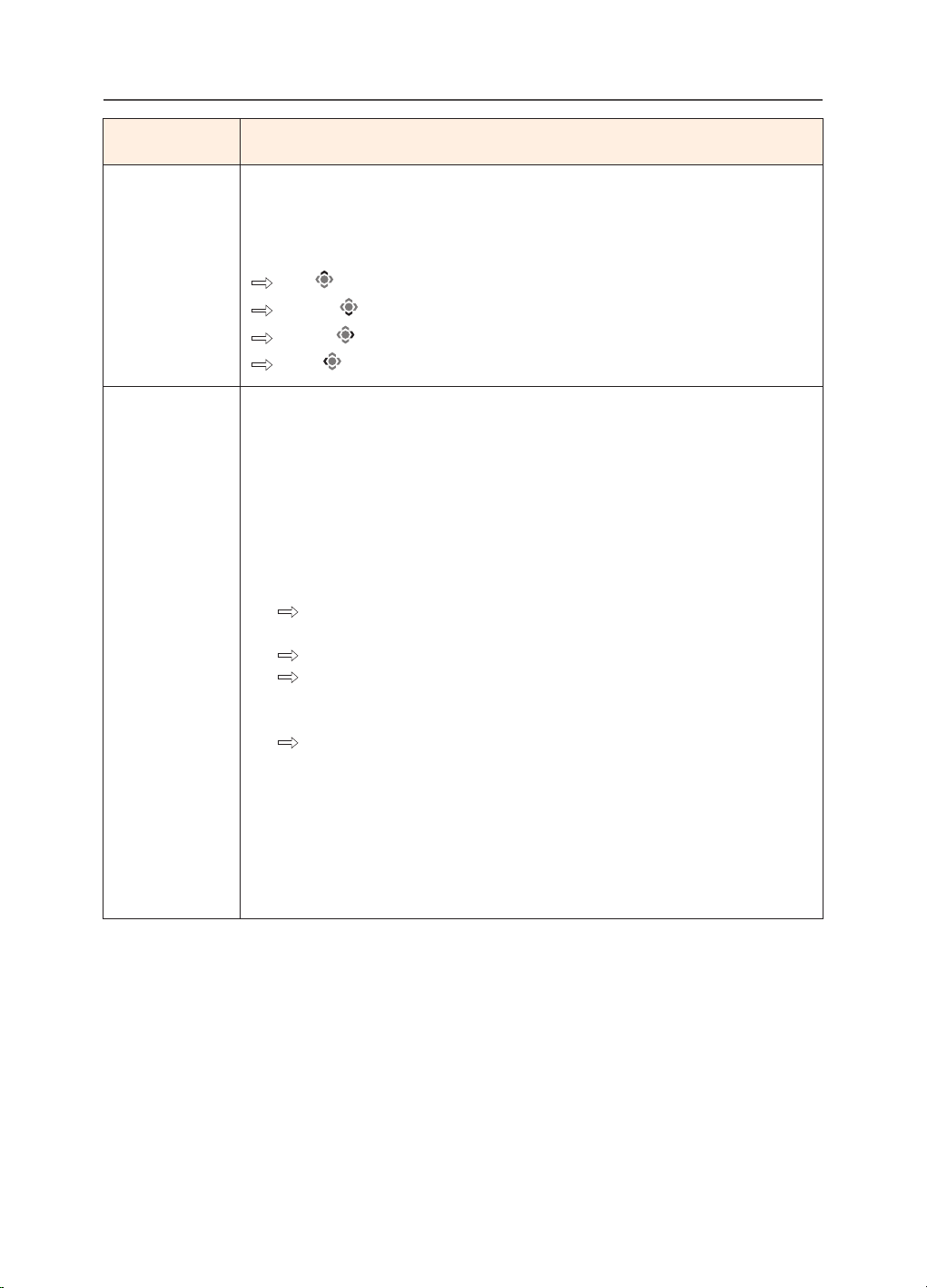
Item Description
Audio Congure the headphone settings.
• Volume: Adjust the volume level.
• Mute: Enable/Disable the mute function.
OSD Settings Congure the on-screen display (OSD) menu related settings.
• Display Time: Set the length of time the OSD menu remains
on the screen.
• OSD Transparency: Adjust the OSD menu transparency.
• OSD Lock: When this function is enabled, no OSD adjustment is
allowed.
Note: To disable the OSD lock function, press the
Control key. When the
message appears on the screen, select Yes to conrm.
The button is locked,
confirm to unlock OSD.
No Yes
• OSD Size: Select the size of the OSD.
• OSD Pivot:
0: The OSD UI remains in the original location.
-90: Rotate the OSD UI 90 degrees counterclockwise.
-
43
-
Item Description
Quick Switc
h Assign the function of the hot keys.
Available options: Aim Stabilizer sync, Black Equalizer, KVM Switch,
Volume, Input, Contrast, Brightness, and Picture Mode.
The default setting of the hot keys as below:
Up
( )
: Black Equalizer
Down ( ): Picture Mode
Right
( )
: Input
Left
( ): Volume
Other Settings • Resolution Notice: When this function is enabled, the current
resolution message will appear on the screen when the monitor
switches to another input source.
• Input Auto Switch: When this function is enabled, it
automatically switches to an available input source.
• Auto Power O: When this function is enabled, the monitor
will automatically turn o after a certain amount of time.
• LED Indicator:
By default, the LED indicator is set to Always ON.
Always ON: The Power LED lights white during operation
and lights on and o in standby mode(with 1 sec interval).
Always OFF: Turn o the Power LED.
Standby ON: The Power LED remains o during
operation and lights on and o in standby mode(with 1 sec
interval).
When the power supply is switched o, the Power LED
will remain o.
• Standby Charge: When this function is enabled, increase
Type-C charging wattage when the screen is in standby
mode.
• Type-C Compatibility: Compat with device which does not
support DSC when turn this option into ON.
• HDMI2.1: Set the HDMI version to 2.1 or 2.0.
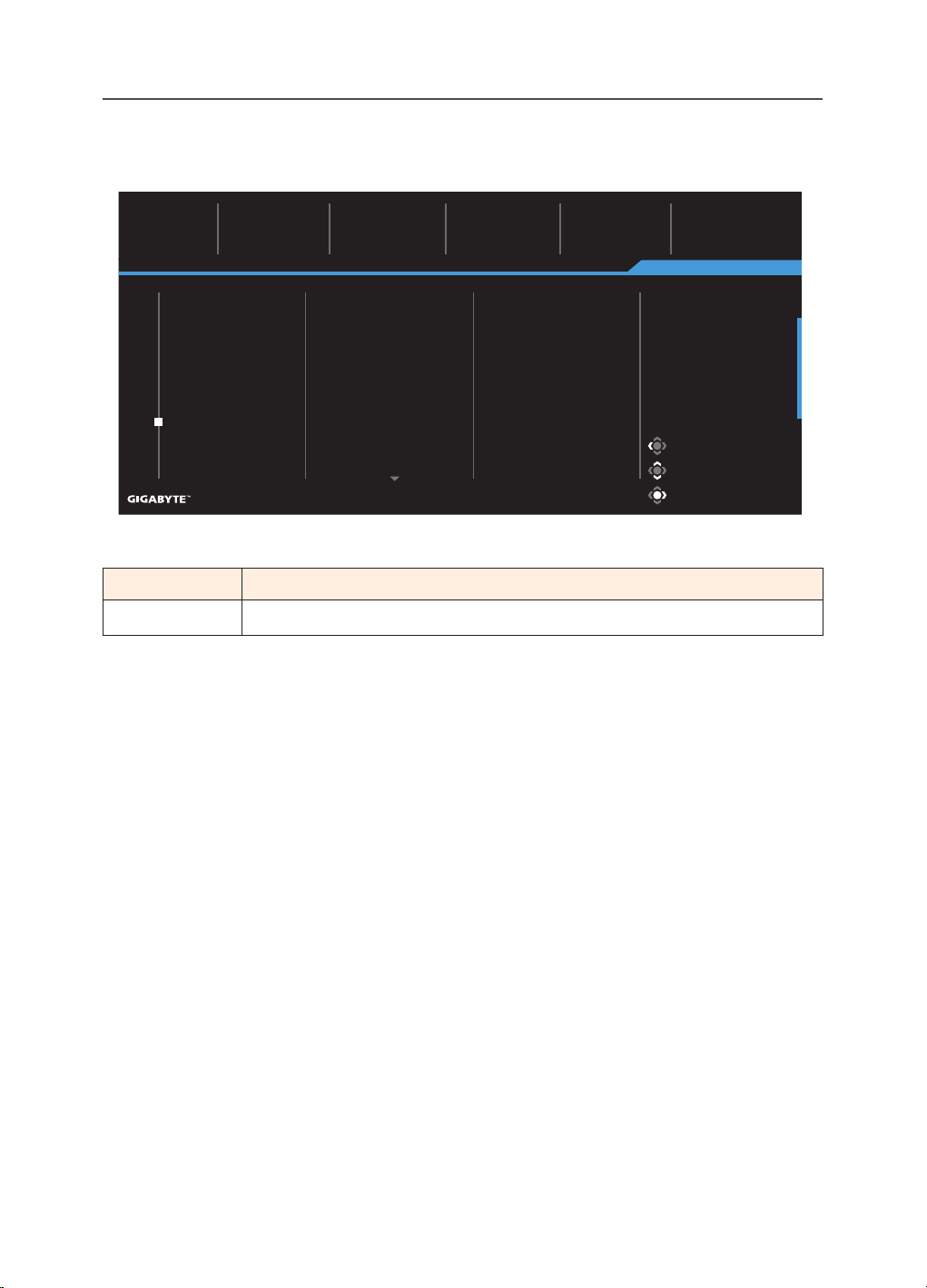
-
44
-
Language
Exit
Move/Adjust
Enter/Confirm
Picture Mode Standard
SDR Brightness Contrast Sharpness Gamma Color Temperature
85 50 5 OFF Normal
Gaming
Picture
Display
PIP/PBP
System
Language
Reset All
Save Settings
繁中
English
简中
Deutsch
Français
日本語
Pусский
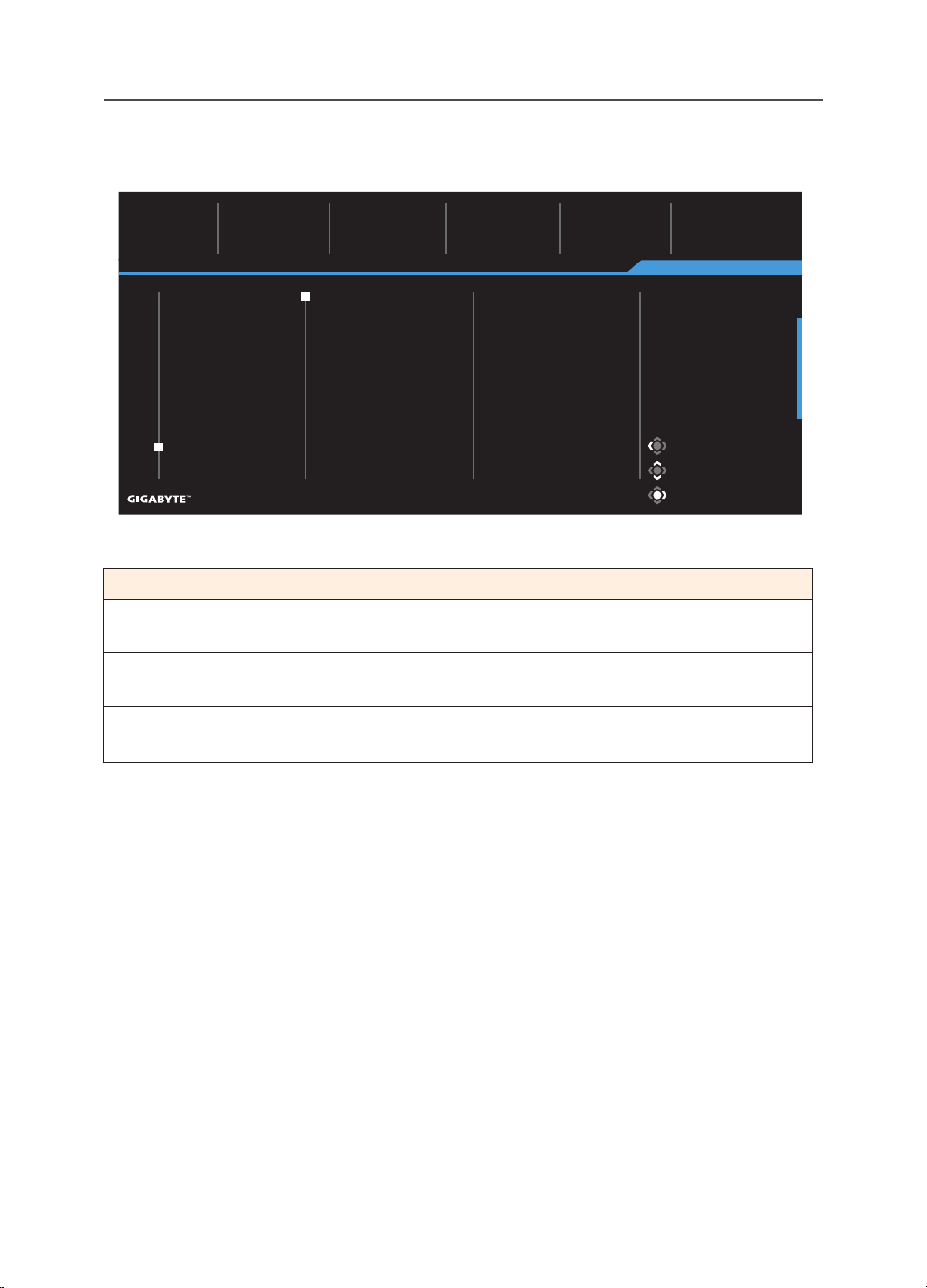
Item Description
Language Select an available language for the OSD menu.
-
45
-
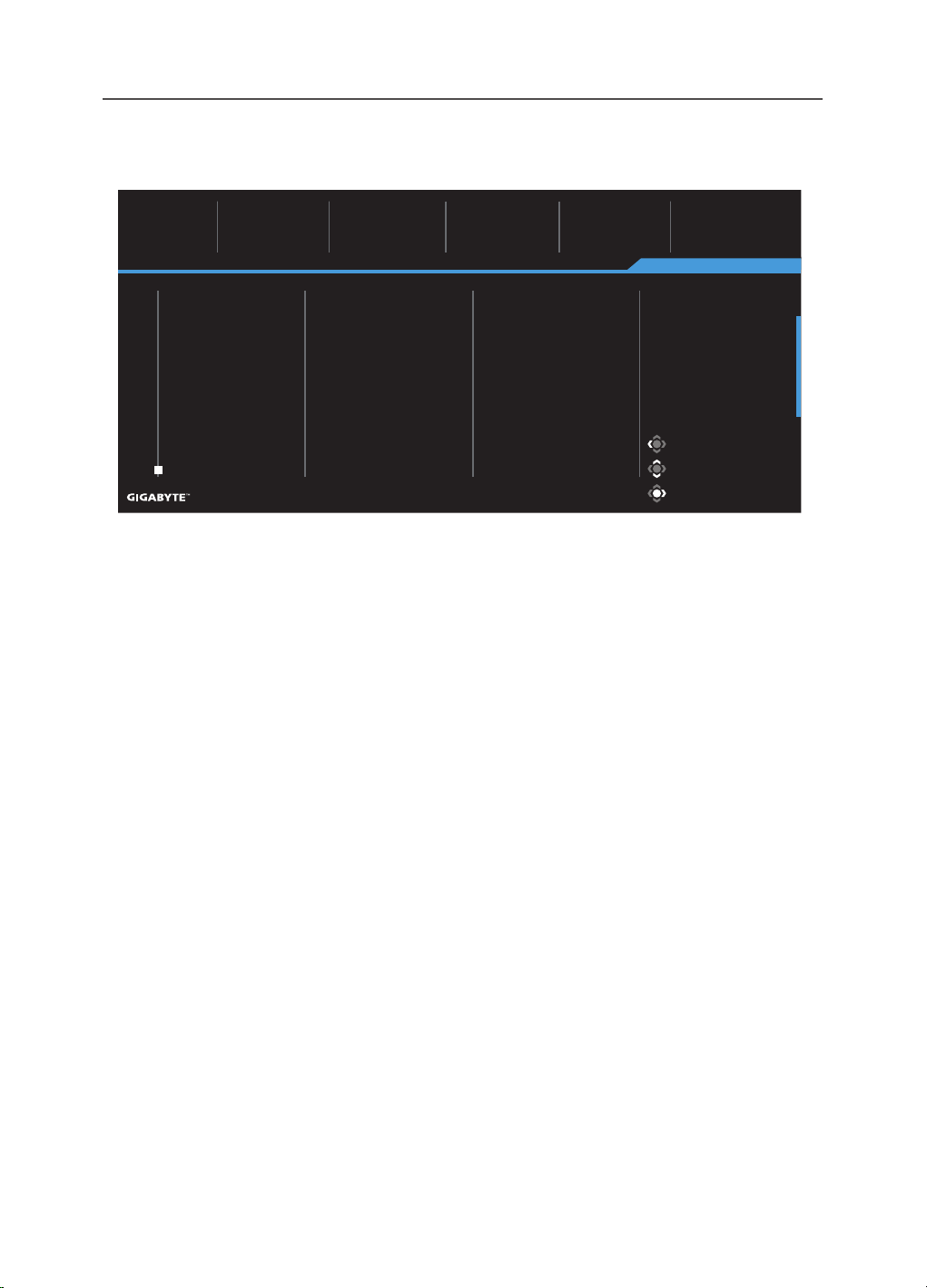
Save Settings
Save all data.
Exit
Move/Adjust
Enter/Confirm
Picture Mode Standard
SDR Brightness Contrast Sharpness Gamma Color Temperature
85 50 5 OFF Normal
Gaming
Picture
Display
PIP/PBP
System
Language
Reset All
Save Settings
Save
Load
Setting2
Setting1
Setting3
Item Description
Setting1 After selecting, the Save and Load menu will appear for the player
to choose.
Setting2 After selecting, the Save and Load menu will appear for the player
to choose.
Setting3 After selecting, the Save and Load menu will appear for the player
to choose.
-
46
-
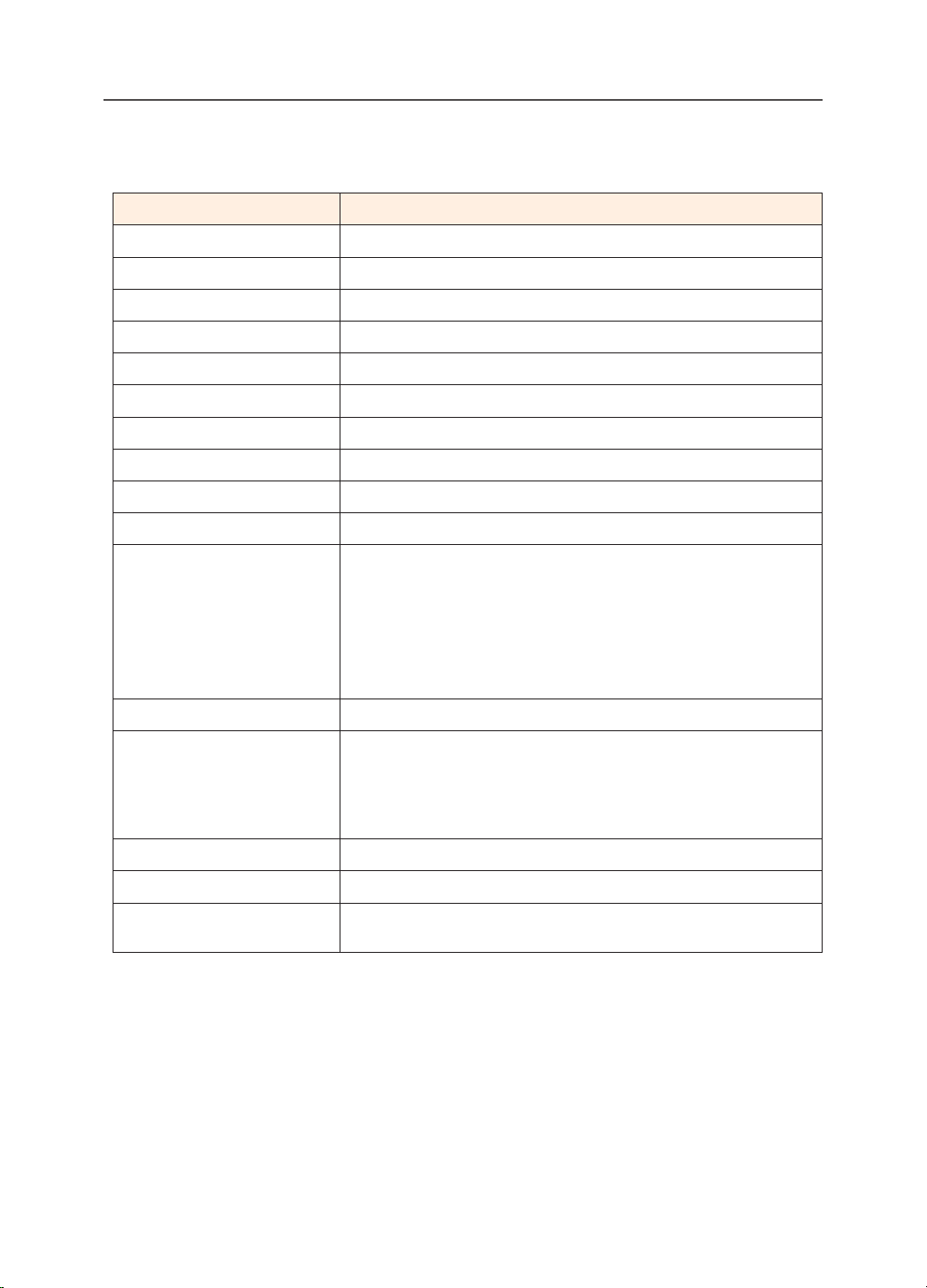
Reset All
Restore the monitor to its factory default settings.
Exit
Move/Adjust
Enter/Confirm
Picture Mode Standard
SDR Brightness Contrast Sharpness Gamma Color Temperature
85 50 5 OFF Normal
Gaming
Picture
Display
PIP/PBP
System
Language
Reset All
Save Settings
-
47
-
APPENDICES
Specications
Item Specications
Panel Size 32-inch
Aspect Ratio 16:9
Resolution 3840 x 2160
LED Life 30000 hours (min.)
Pixel Pitch 0.181(H) x 0.181(V)
Brightness 350 nits (typ.) / 400 nits (peak)
Contrast Ratio 1000:1 (typ.)
Color Depth 1.073G(8Bit+FRC)
Active Display area 697.3056(H) x 392.2344(V)
Viewing Angle 178°(H)/178°(V)
Input/Output Terminals • 2x HDMI2.1
• 1x DP 1.4 (w/DSC)
• 1x Headphone
• 1x USB Type-C
(5V/3A,9V/2A,
12V/1.5A,15V/1A)
• 3x
USB3.0(downstream
5V/1.5A)
• 1x USB upstream
Power Supply AC 100 ~ 240V at 50/60Hz
Power Consumptions • On: 44W
• Standby: 0.5W
• O: 0.3W
Note: The test condition follows CEC standards.
Dimensions (W x H x D) 715.8 x 587.7 x 221 mm(with stand)
Weight 10.53 kg (Net)
Temperature Range
(operation)
0°C to 40°C
Note: Specications subject to change without notice.
For Notebooks and other devices that require more than 18 W of power, it is recommended to
charge your device by another power source.
-
48
-
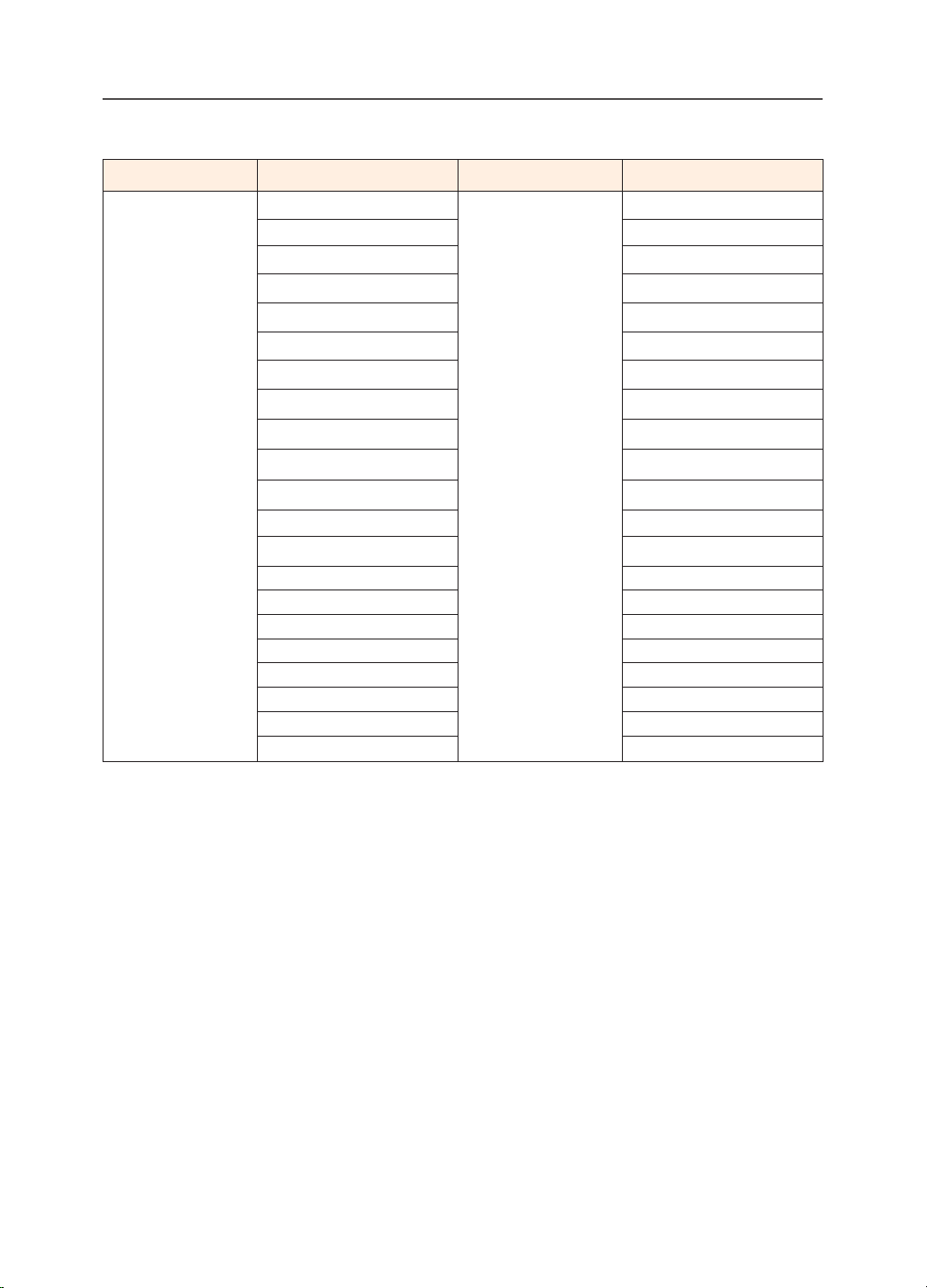
Supported Timing List
Port UHD Port UHD
HDMI
640x480@60Hz DP 640x480@60Hz
640x480@75Hz 640x480@75Hz
720x480@60Hz 720x480@60Hz
800x600@60Hz 800x600@60Hz
800x600@75Hz 800x600@75Hz
1024x768@60Hz 1024x768@60Hz
1024x768@75Hz 1024x768@75Hz
1280x720@60Hz 1280x720@60Hz
1280x720@120Hz 1280x720@120Hz
1920x1080@24Hz 1920x1080@60Hz
1920x1080@60Hz 1920x1080@120Hz
1920x1080@120Hz 1920x1080@144Hz
1920x2160@60Hz 1920x2160@60Hz
1920x1080@144Hz 2560x1440@60Hz
2560x1440@60Hz 2560x1440@120Hz
2560x1440@100Hz 2560x1440@144Hz
2560x1440@120Hz 3840x2160@60Hz
3840x2160@24Hz 3840x2160@120Hz
3840x2160@60Hz 3840x2160@144Hz
3840x2160@120Hz
3840x2160@144Hz
-
49
-
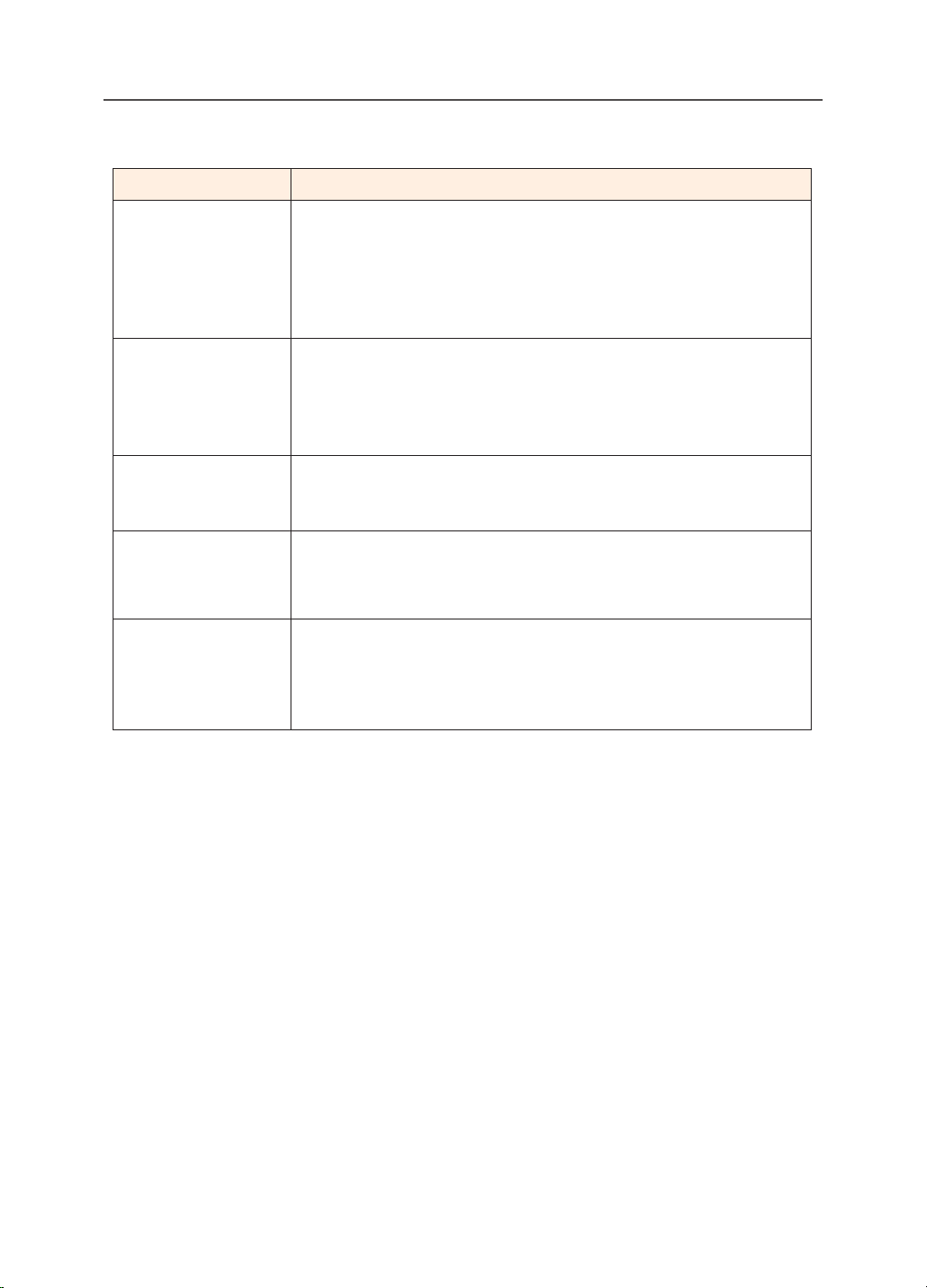
Troubleshooting
Problem Possible Solution(s)
No power • Make sure the power cable is properly connected
to the power source and the monitor.
• Check the cable and plug to make sure they are not
broken.
• Make sure the monitor is turned on.
No image appears
on the screen
• Make sure the monitor and the computer are properly
connected and both devices are turned on.
• Make sure you have selected the correct input
source. Refer to page 28 or 40 .
The image
does not ll the
entire screen
•
Try dierent Display Mode (aspect ratio) setting.
Refer to page 37 .
The colors are
distorted
• Make sure the input signal cable is properly connected.
• Congure the image related settings. Refer to the “Picture”
section.
No sound or
volume is low
• Make sure the headphone cable is properly connected.
• Adjust the volume level. Refer to page 30 or 42 .
• Check the Audio Source setting.
• Adjust your computer sound related settings.
Note: If the problem persists, please contact our customer service for further assistance.
-
50
-
Basic Care
When the screen becomes dirty, do the following to clean the screen:
•
Wipe the screen with your soft, lint-free cloth to remove any residual dust.
•
Spray or apply the cleaning uid onto a soft cloth. Then wipe the screen
gently with the damp cloth.
Note:
•
Make sure that the cloth is damp, but not wet.
•
When wiping, avoid applying excessive pressure on the screen.
•
Acidic or abrasive cleaners can damage the screen.
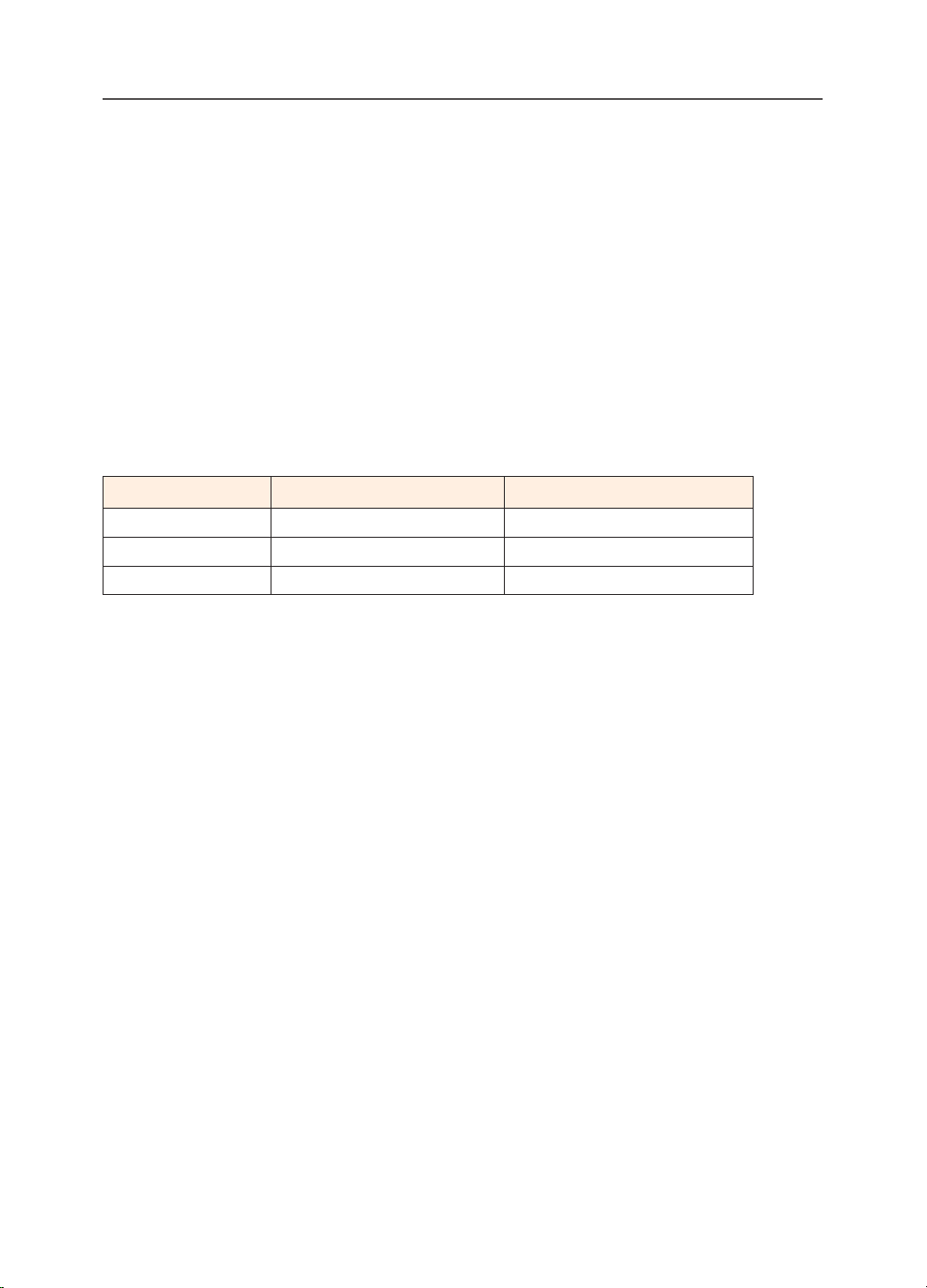
Notes on USB Charging
The following devices are not compatible with BC 1.2 of CDP mode. When the Hub
is connected to a PC, these devices cannot be charged using the USB cable.
Vendor Device PID/VID
Apple iPad PID_129A/VID_05AC
Samsung GALAXY Tab2 10.1 PID_6860/VID_04E8
Samsung GALAXY TabPro PID_6860/VID_04E8
GIGABYTE Service Information
More service information, please visit GIGABYTE ocial website:
https://www.gigabyte.com/

-
51
-
SAFETY INFORMATION
Regulatory Notices
United States of America, Federal Communications Commission Statement
Supplier’s Declaration of Conformity
47 CFR § 2.1077 Compliance Information
Product Name: LCD monitor
Trade Name: GIGABYTE
Model Number: M32U AE
Responsible Party – U.S. Contact Information: G.B.T. Inc.
Address: 17358 Railroad street, City Of Industry, CA91748
Tel.: 1-626-854-9338
Internet contact information: https://www.gigabyte.com
FCC Compliance Statement:
This device complies with Part 15 of the FCC Rules, Subpart B, Unintentional
Radiators. Operation is subject to the following two conditions: (1) This device
may not cause harmful interference, and (2) this device must accept any
interference received, including interference that may cause undesired operation.
This equipment has been tested and found to comply with the limits for a Class
B digital device, pursuant to Part 15 of the FCC Rules. These limits are designed
to provide reasonable protection against harmful interference in a residential
installation. This equipment generates, uses and can radiate radio frequency energy
and, if not installed and used in accordance with manufacturer’s instructions,
may cause harmful interference to radio communications. However, there is
no guarantee that interference will not occur in a particular installation. If this
equipment does cause harmful interference to radio or television reception, which
can be determined by turning the equipment o and on, the user is encouraged to
try to correct the interference by one or more of the following measures:
•
Reorient or relocate the receiving antenna.
•
Increase the separation between the equipment and receiver.
•
Connect the equipment to an outlet on a circuit dierent from that to which the
receiver is connected.
•
Consult the dealer or an experienced radio/TV technician for help
-
52
-
Canadian Department of Communications Statement
This digital apparatus does not exceed the Class B limits for radio noise emissions
from digital apparatus set out in the Radio Interference Regulations of the Canadian
Department of Communications. This class B digital apparatus complies with
Canadian ICES-003.
Avis de conformité à la réglementation d’Industrie Canada
Cet appareil numérique de la classe B est conforme à la norme NMB-003 du Canada.
European Union (EU) CE Declaration of Conformity
This device complies with the following directives: Electromagnetic Compatibility
Directive 2014/30/EU, Low-voltage Directive 2014/35/EU, ErP Directive 2009/125/EC,
RoHS directive (recast) 2011/65/EU & the 2015/863 Statement.
This product has been tested and found to comply with all essential requirements of
the Directives.
European Union (EU) RoHS (recast) Directive 2011/65/EU & the European
Commission Delegated Directive (EU) 2015/863 Statement
GIGABYTE products have not intended to add and safe from hazardous substances
(Cd, Pb, Hg, Cr+6, PBDE, PBB, DEHP, BBP, DBP and DIBP). The parts and components
have been carefully selected to meet RoHS requirement. Moreover, we at GIGABYTE
are continuing our eorts to develop products that do not use internationally banned
toxic chemicals.
European Union (EU) Community Waste Electrical & Electronic Equipment (WEEE)
Directive Statement
GIGABYTE will fulll the national laws as interpreted from the 2012/19/EU WEEE (Waste
Electrical and Electronic Equipment) (recast) directive. The WEEE Directive species
the treatment, collection, recycling and disposal of electric and electronic devices and
their components. Under the Directive, used equipment must be marked, collected
separately, and disposed of properly.
WEEE Symbol Statement
The symbol shown below is on the product or on its packaging, which
indicates that this product must not be disposed of with other waste.
Instead, the device should be taken to the waste collection centers for
activation of the treatment, collection, recycling and disposal procedure.
.
For more information about where you can drop o your waste equipment for
recycling, please contact your local government oce, your household waste
disposal service or where you purchased the product for details of environmentally
safe recycling.

-
53
-
End of Life Directives-Recycling
The symbol shown below is on the product or on its packaging, which
indicates that this product must not be disposed of with other waste.
Instead, the device should be taken to the waste collection centers
for activation of the treatment, collection, recycling and disposal
procedure.
Déclaration de Conformité aux Directives de l’Union européenne (UE)
Cet appareil portant la marque CE est conforme aux directives de l’UE suivantes:
directive Compatibilité Electromagnétique 2014/30/UE, directive Basse Tension
2014/35/UE, directive 2009/125/CE en matière d’écoconception, la directive RoHS II
2011/65/UE & la déclaration 2015/863.
La conformité à ces directives est évaluée sur la base des normes européennes
harmonisées applicables.
European Union (EU) CE-Konformitätserklärung
Dieses Produkte mit CE-Kennzeichnung erfüllen folgenden EU-Richtlinien: EMV-
Richtlinie 2014/30/EU, Niederspannungsrichtlinie 2014/30/EU, Ökodesign-Richtlinie
2009/125/EC, RoHS-Richtlinie 2011/65/EU erfüllt und die 2015/863 Erklärung.
Die Konformität mit diesen Richtlinien wird unter Verwendung der entsprechenden
Standards zurEuropäischen Normierung beurteilt.
CE declaração de conformidade
Este produto com a marcação CE estão em conformidade com das seguintes Diretivas
UE: Diretiva Baixa Tensão 2014/35/EU; Diretiva CEM 2014/30/EU; Diretiva Conceção
Ecológica 2009/125/CE; Diretiva RSP 2011/65/UE e a declaração 2015/863.
A conformidade com estas diretivas é verificada utilizando as normas europeias
harmonizadas.
CE Declaración de conformidad
Este producto que llevan la marca CE cumplen con las siguientes Directivas de la
Unión Europea: Directiva EMC 2014/30/EU, Directiva de bajo voltaje 2014/35/EU,
Directiva de Ecodiseño 2009/125/EC, Directiva RoHS 2011/65/EU y la Declaración
2015/863.
El cumplimiento de estas directivas se evalúa mediante las normas europeas
armonizadas.
Deklaracja zgodności UE Unii Europejskiej
Urządzenie jest zgodne z następującymi dyrektywami: Dyrektywa kompatybilności
elektromagnetycznej 2014/30/UE, Dyrektywa niskonapięciowej 2014/35/UE,
Dyrektywa ErP 2009/125/WE, Dyrektywa RoHS 2011/65/UE i dyrektywa2015/863.
Niniejsze urządzenie zostało poddane testom i stwierdzono jego zgodność z
-
54
-
wymaganiami dyrektywy.
ES Prohlášení o shodě
Toto zařízení splňuje požadavky Směrnice o Elektromagnetické kompatibilitě
2014/30/EU, Směrnice o Nízkém napětí 2014/35/EU, Směrnice ErP 2009/125/ES,
Směrnice RoHS 2011/65/EU a 2015/863.
Tento produkt byl testován a bylo shledáno, že splňuje všechny základní požadavky
směrnic.
EK megfelelőségi nyilatkozata
A termék megfelelnek az alábbi irányelvek és szabványok követelményeinek, azok
a kiállításidőpontjában érvényes, aktuális változatában: EMC irányelv 2014/30/
EU, Kisfeszültségű villamos berendezésekre vonatkozó irányelv2014/35/EU,
Környezetbarát tervezésről szóló irányelv 2009/125/EK, RoHS irányelv 2011/65/EU és
2015/863.
Δήλωση συμμόρφωσης ΕΕ
Είναι σε συμμόρφωση με τις διατάξεις των παρακάτω Οδηγιών της Ευρωπαϊκής
Κοινότητας: Οδηγία 2014/30/ΕΕ σχετικά με την ηλεκτρομαγνητική συμβατότητα,
Οοδηγία χαμηλή τάση 2014/35/EU, Οδηγία 2009/125/ΕΚ σχετικά με τον οικολογικό
σχεδιασμό, Οδηγία RoHS 2011/65/ΕΕ και 2015/863.
Η συμμόρφωση με αυτές τις οδηγίες αξιολογείται χρησιμοποιώντας τα ισχύοντα
εναρμονισμένα ευρωπαϊκά πρότυπα.
Japan Class 01 Equipment Statement
安全にご使用いただくために
接地接続は必ず電源プラグを電源につなぐ前に行って下さい。
また、接地接続を外す場合は、必ず電源プラグを電源から切り離してから行って下さい。
Japan VCCI Class B Statement
クラス
B VCCI
基準について
この装置は、クラス B 情報技術装置です。この装置は、家庭環境で使用することを目的として
いますが、この装置がラジオやテレビジョン受信機に近接して使用されると、受信障害を引き
起こすことがあります。
取扱説明書に従って正しい取り扱いをして下さい。
VCCI-B
-
55
-
China RoHS Compliance Statement
中国《废弃电器电子产品回收处理管理条例》提示性说明
为了更好地关爱及保护地球,当用户不再需要此产品或产品寿命终止时,请遵守
国家废弃电器电子产品回收处理相关法律法规,将其交给当地具有国家认可的回
收处理资质的厂商进行回收处理。
环保使用期限
Environment-friendly use period
10
此标识指期限(十年),电子电气产品中含有的有害物质在正常使
用的条件下不会发生外泄或突变,电子电气产品用户使用该电子电
气产品不会对环境造成严重污染或对其人身、财产造成严重损害的
期限。
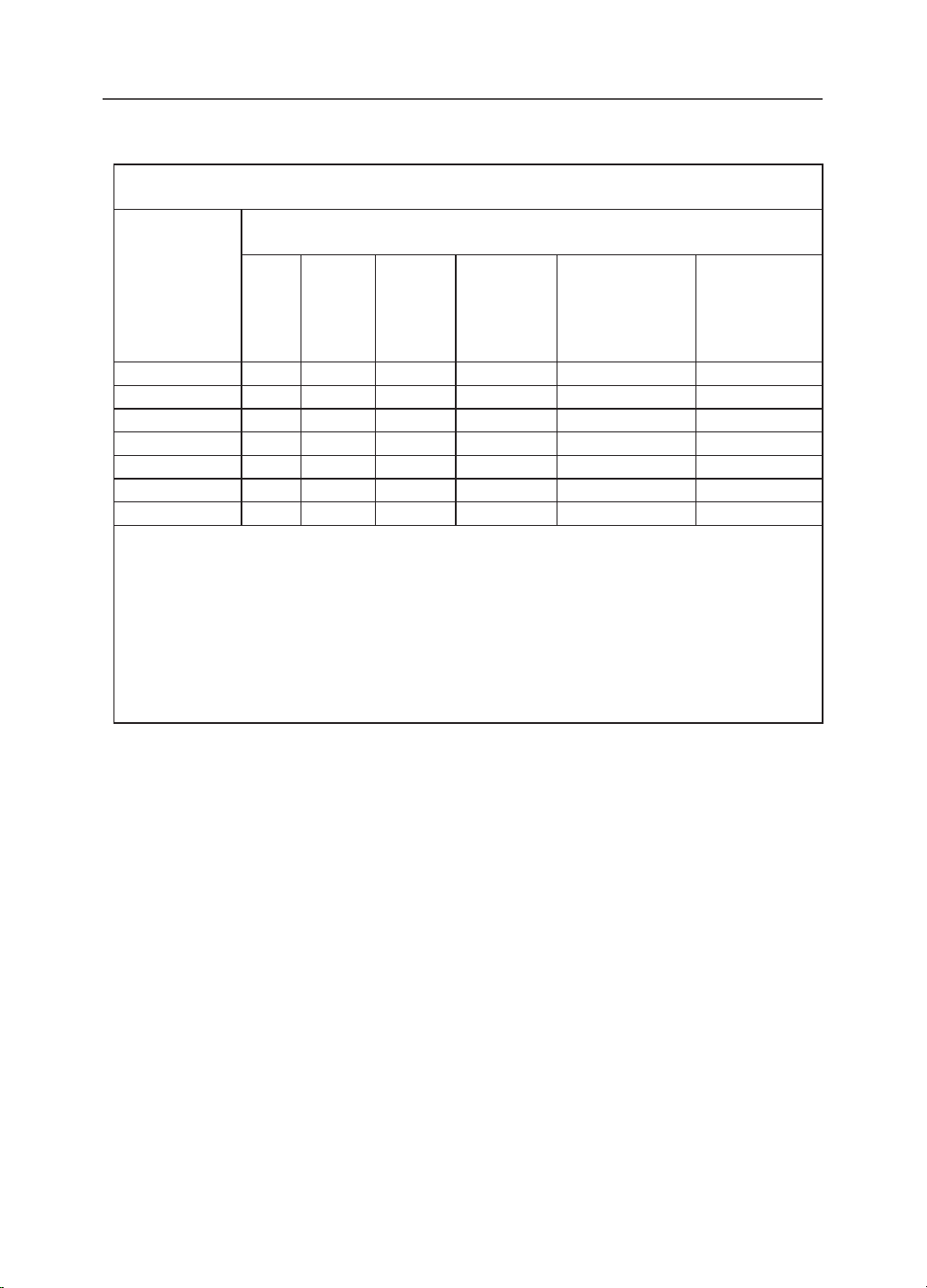
产品中有害物质名称及含量 :
部件名称
有害物质
铅
(Pb)
汞
(Hg)
鎘
(Cd)
六价铬
(Cr
+6
)
多溴联苯
(PBB)
多溴二苯醚
(PBDE)
印刷电路板及其电子组件X○○○○○
液晶面板X○○○○○
外壳○○○○○○
外部信号连接头及线材X○○○○○
本表格依据 SJ/T 11364 的规定编制。
This table is prepared in compliance with the requirements of SJ/T 11364
○ : 表示该有害物质在该部件所有均质材料中的含量均在 GB/T 26572 规定的限量要求以
下。
X: 表示该有害物质至少在该部件的某一均质材料中的含量超出 GB/T 26572 规定的限量要
求。
-
56
-
限用物質含有情況標示聲明書
Declaration of the Presence Condition of the Restricted Substances Marking
設備名稱:液晶顯示器 型號(型式):
M32U AE
Equipment name Type designation (Type)
單元
Unit
限用物質及其化學符號
Restricted substances and its chemical symbols
鉛
Lead
(Pb)
汞
Mercury
(Hg)
鎘
Cadmium
(Cd)
六價鉻
Hexavalent
chromium
(Cr
+6
)
多溴聯苯
Polybrominated
biphenyls
(PBB)
多溴二苯醚
Polybrominated
diphenyls ethers
(PBDE)
塑料外框○○○○○○
後殼○○○○○○
液晶面板-○○○○○
電路板組件-○○○○○
底座○○○○○○
電源線-○○○○○
其他線材-○○○○○
備考1.〝超出 0.1 wt %〞及〝超出0.01 wt %〞係指限用物質之百分比含量超出百分比含量
基準值。
Note 1:〝Exceeding 0.1 wt %〞 and 〝exceeding 0.01 wt %〞 indicate that the percentage content
of the restricted substance exceeds the reference percentage value of presence condition.
備考2.〝○〞係指該項限用物質之百分比含量未超出百分比含量基準值。
Note 2:〝○〞 indicates that the percentage content of the restricted substance does not exceed
the percentage of reference value of presence.
備考3.〝-〞係指該項限用物質為排除項目。
Note 3:The 〝-〞 indicates that the restricted substance corresponds to the exemption