
2
Welcome to your new
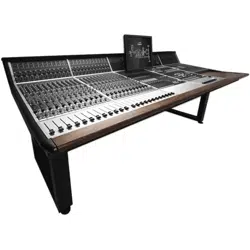
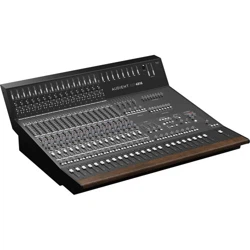
Audient ASP4816-HE

3
4
2
5
6
6
7
7
8
8
9
11
10
13
12
13
14
15
17
19
18
21
19
20
21
22
23
24
25
26
27
28
28
29
30
31
32
33
34
34
35
36
37
38
39
40
41
41
42
42
43
43
44
2
45
46
46
48
49
52
55
61
Contents
Introduction
Overview
Console Functions
How to use this Manual
Console Layout
Input Pod
Unpacking
In-line Architecture
Routing and Auxiliaries
Service and Repair
Solo
Equaliser
Ventilation
Metering
Short Fader (SF)
Power-Up
Typical Configuration
Flip and Pan
Audio Interfaces
Dimensions
Specifications
Long Fader (LF)
Input Connectors
Studio Speakers and Foldback
Control Room Monitoring
Oscillator
Solo
Compressor
Using ASP4816-HE
Block Diagrams
Glossary
Warranty
Introduction
Stereo Inputs
Stereo Input Connectors
In-line Architecture
Line I/PS 17-14 and SUB-Groups
Monitor Inputs
Tracking
Mix Outputs
Mixing
Talkback
Bus and Subgroup Output
Aux Masters
Connectors
Bus Masters Trim
Master Meters
Integration Port
Master Fader
Mix Processing
SUB-Group/Line Input 17-24
Headphone Output
Control Room Connectors
Studio/Foldback Connectors
Aux Connectors
SUB-GRP Insert/17-24 Connectors

4
Introduction

5
Thank you for selecting this Audient product.
We hope that your new ASP4816-HE console will provide an intuitive, ergonomic and tactile path
to analogue enlightenment.
ASP4816-HE is a small format analogue console with a big heart. Small in stature, yet not in
functionality, it provides an impressive array of connectivity, signal conditioning, routing, summing,
processing and monitoring capability in one beautiful, tidy package.
ASP4816 HE will adapt to become the centre of your creative work flow, equally suited to the
project studio or high-end professional environment.
Lets take a look!
How to use this manual
This manual has been divided into sections for your convenience.
The first section introduces ASP4816-HE and provides an overview of the control surface and
where to find things. The following sections provide detailed information regarding each function,
operation of controls and how they relate to each other. Along the way a number of handy tips
and suggestions will oer up possible uses and applications for the console during creative use.

6
Unpacking
Your Audient ASP4816-HE console has been carefully and meticulously tested and inspected before
dispatch. Please check for any signs of transit damage. If any signs of mishandling are found
please notify the carrier and inform your dealer immediately. The packaging should include the
console, an IEC power cord and this manual.
Important Safety Instructions
Please read all of these instructions and save them for later reference before connecting ASP4816
HE to the mains and powering up the console. To prevent electrical shock and fire hazard follow
all warnings and instructions marked on the ASP4816-HE. This unit is connected via its IEC power
cord to the mains safety earth.
NEVER OPERATE THIS CONSOLE WITH THIS EARTH CONNECTION REMOVED.
Internal Switch Mode Power Supply & Mains Fuse
ASP4816 utilises an internal switch-mode power supply that is very quiet and passively cooled with
plenty of current capability and headroom. This switch-mode design will accept any A.C line
voltage from 90V to 264V. Please ensure your A.C mains line voltage is within this specification.
Consult a qualified technician if you suspect diculties.
Do NOT attempt to tamper with the power supply or mains voltages
- HAZARDOUS TO HEALTH.
Always replace the mains fuse with the correct value - T2A slow blow.
Service and Repair
The console uses a complex internal pcb sandwich arrangement making field service only possible
by a qualified technician. If any technical issues do arise with your console, please contact your
dealer as soon as possible to arrange for technical support. Do not attempt to fix the console
unless qualified to do so. See the warranty section provided at the end of this manual for details
of your cover.
However, if you do need to access the inside of the console, the mechanical design allows for easy
entry. If you do need to access the inside of the console for any reason please power down the
device and disconnect the IEC power cord before proceeding.
All audio path PCBs are panel mounted to the control surface, with the I/O connector PCBs mounted
to the rear of the chassis base. The switch mode power supply, and power distribution PCB are
mounted to the chassis base. PCBs are linked via ribbon cables or small cable runs. As such the
console can be opened without stress or strain on internal wiring or components.

7
4 x M6 bolts located underneath the armrest allow this to be lifted o. The control surface
module is also held in place with 4 M6 bolts located on the underside of the chassis. Once
these are removed the control surface module can be hinged up using the hand hold cut-outs
in the front surface of the module (just like a car bonnet!). A 45cm long prop is recommended
to support the control-surface module, freeing both hands for whatever issue you may be
attempting to solve!
Ventilation
Care should be taken not to obstruct the series of ventilation holes in the metalwork of the console.
The desk is designed to release heat and take adequate air flow via these holes to ensure longevity
of performance. These are located underneath the armrest, in the sides of the console and meter
bridge.
If mounting the console into some form of studio furniture or desk, please ensure a sucient air
gap at these locations.
Lexan overlay
The front panel of the ASP4816-HE features a rugged under-surface printed polycarbonate
overlay. Exposure to direct sunlight for extended periods of time should be avoided as this can
have a detrimental eect on the overlay panel and the control knobs. However, at least the panel
legending will not wear o like some of the silk screened or engraved products of yesteryear!
Power-up
On power up, please check that the power rail indicators for +48v d.c and +/-18v d.c light on the
right hand side of the console.
8
Audio interfaces
The ASP4816-HE has been designed and developed to provide highly robust system integration
interfaces, allowing worry-free system hook-up under the most demanding situations.
Inputs and outputs are implemented using advanced electronically balanced or ground sensing
topologies and are fitted with extensive RFI rejection networks. All signal interfaces are also fully
protected against accidental misuse e.g. by the connection of phantom powered cables.
Pin conventions
Signal interfaces are provided on either metal shell locking XLR, TRS Jack or 25 pin D Sub connectors.
XLR Pin 1 is connected to the chassis safety ground. XLR Pin 2 is designated as signal positive
and Pin 3 as signal negative.
To unbalance the outputs of the ASP4816-HE Pin 3 should be connected to Pin 1 at the output of the
console. Similarly, inputs from unbalanced sources should be connected via twin screened cables
with the Pin 3 connection tied to the screen at the unbalanced source.
All DB25 Connectors on the console use Tascam Standard Pinouts.
Screen connections
In order to maintain optimum audio performance it is important that screens are properly
connected at both ends of cable runs. In this way the electromagnetic shield provided by the
equipment chassis and the cable screens will be optimised to reject interference.
It is recommended that only high quality braided screen cables are used to avoid compromising
audio performance.
Dimensions
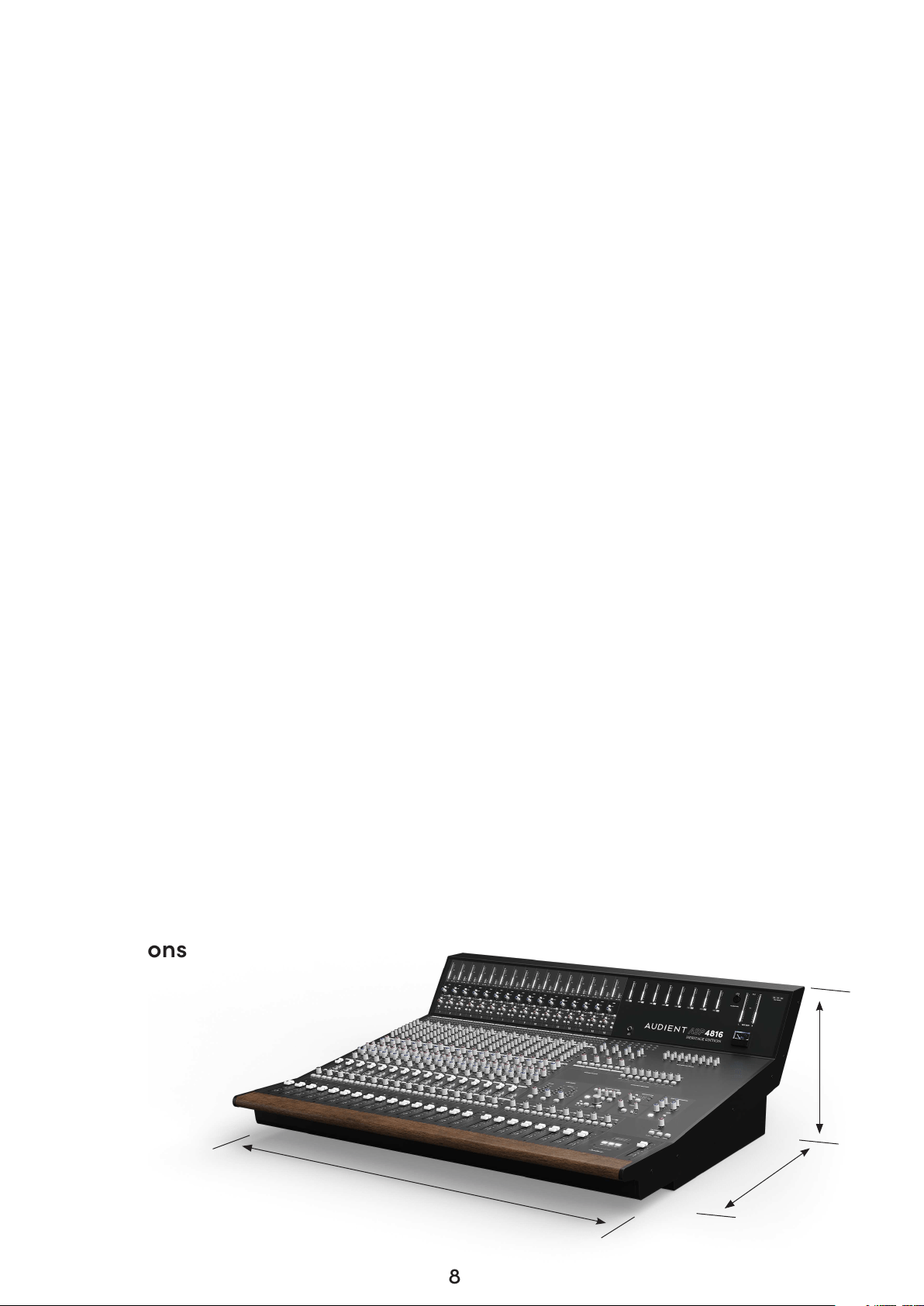
1090mm
995mm
335mm

9
Technical Specifications
Frequency Response
MIC INPUT TO MIX OUTPUT
LINE INPUT TO MIX OUTPUT
<+0,-0.3dB 20Hz-20kHz
@6-40dB gain.
<+0,-0.3dB 20Hz-20kHz
@0dB gain.
THD and Noise at +20dB Output
MIC XLR INPUT TO ANY OUTPUT
LINE INPUT TO ANY OUTPUT
TAPE INPUT TO ANY OUTPUT
< 0.005% at 1kHz
< 0.005% at 1kHz
< 0.003% at 1kHz
Noise
Crosstalk and Mute Attenuation at 1kHz
MIC CMRR
MIC EIN (20-20KHZ, 150R SOURCE)
BUS NOISE (NO INPUTS ROUTED)
BUS NOISE (36 INPUTS ROUTED)
SHORT FADER MUTE
LONG FADER MUTE
MIX ASSIGN
BUS ASSIGN
< 0.005% at 1kHz
< 0.005% at 1kHz
< 0.003% at 1kHz
>90dB
>90dB
>90dB
>90dB
70dB (Min Gain)
75dB (Max Gain)
Maximum Input
MIC
LINE
INSERT RETURN
>+21dBu (Min Gain)
+30dBu (Min Gain)
>+21dBu
Maximum Output Into 2K OHMS
MIX OUTPUT
BUS OUTPUT
AUX OUTPUT
INSERT SEND
MONITOR, STUDIO, F/B OUTPUTS
+126dBu
+126dBu
+126dBu
+120dBu
+120dBu

10
Overview
11
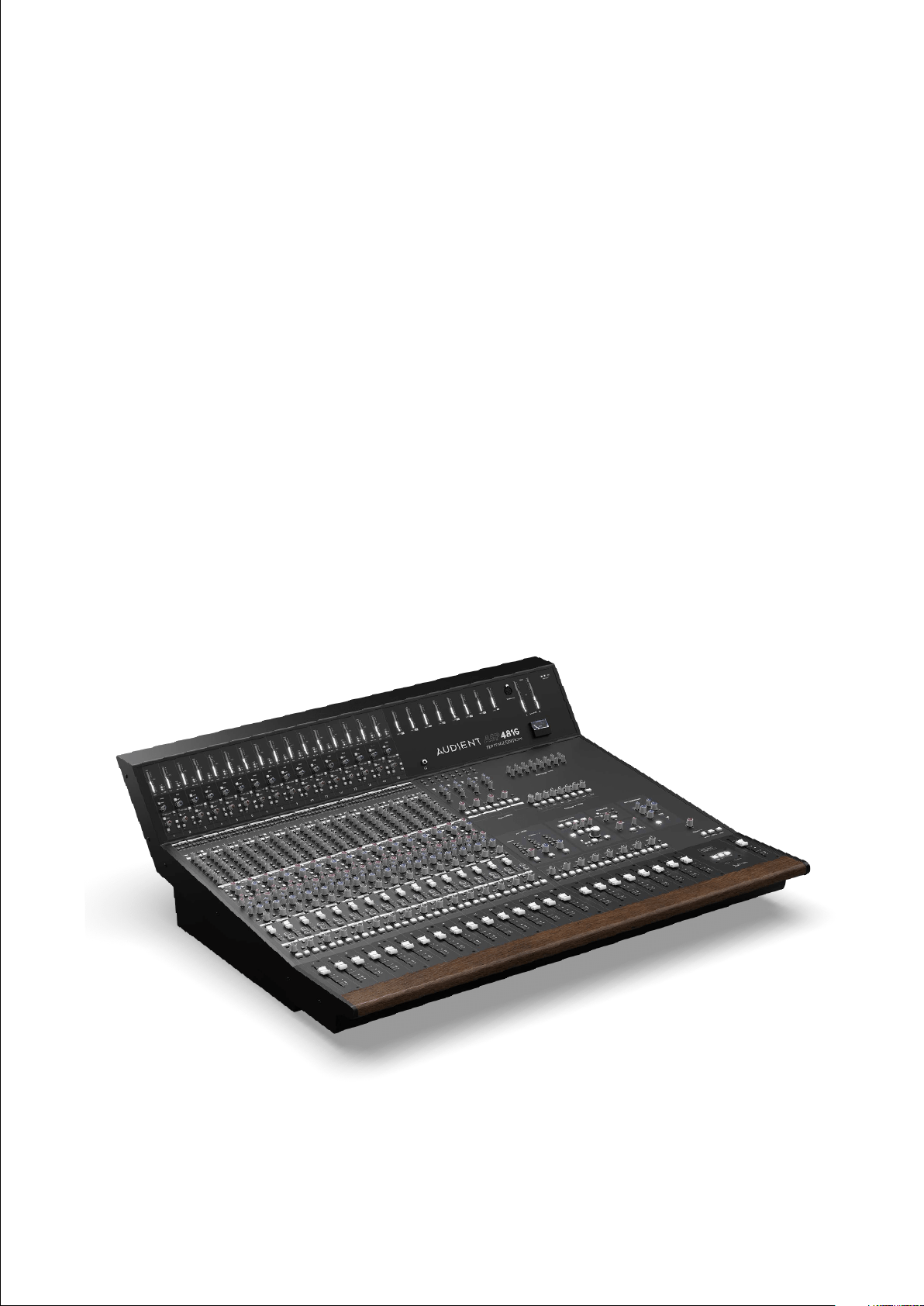
ASP4816-HE’s many features include 16 channels of Class-A discrete microphone pre-amplifiers as
used in our world renowned ASP8024-HE console, guaranteeing outstanding sonic transparency
and detail.
When combined with high resolution bar graph metering, input conditioning, comprehensive cue
monitoring options, ASP4816-HE is right at home in a tracking environment.
A rear panel full of high quality locking XLR and TRS connectors ensures it is simple and quick to
integrate your favourite outboard and existing microphone pre-amplifiers.
However, ASP4816-HE is equally comfortable as a mixing tool - with up to 6 selectable aux sends,
inserts and dedicated DAW returns, 8 sub-groups with inserts, 16 main output buses, classic Audient
summing, VCA Mix Bus Processor and high quality monitor controls complete with mono, dim,
phase and comprehensive monitoring configurations - any eventuality is covered.
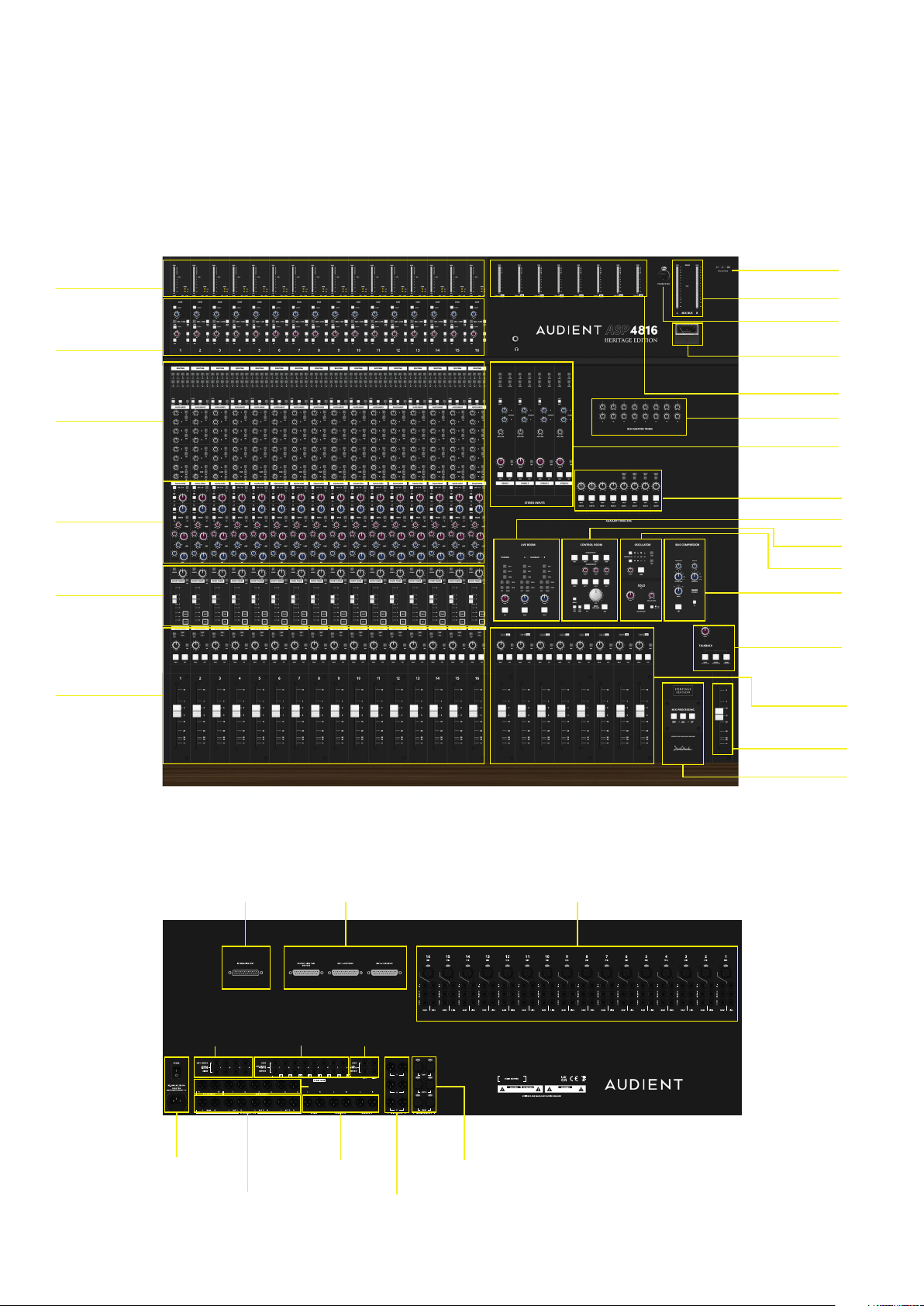
12
Console Layout
Channel Inputs
Channel Meters
Channel Auxes
Channel EQ
Short Fader
Long Fader
BUS Sub-Group/
Line 17 - 24 Outputs
Integration
Port
Mains Inlet/
Power Switch
Control Room
Outputs
Studio/Foldback
Outputs
Monitor
Inputs
Mix
Outputs
Channel
Connectors
PSU Status
Master Meters
T/B Mic XLR
Sub-Group/Line
I/P 17-24 Meters
Analogue Gain
Reduction Meter
Stero Inputs
Bus Trims
Aux Master
Studio & Foldback
Monitoring
Oscillator
Compressor
Mix Processing
Talkback
Mix Fader
Sub-Group/Line
I/P 17-24 Faders
AUX Outputs
Stereo Inputs Mix Inserts
Sub-grp Insert/
Line Input 17-24
Connectors

13
In-line Architecture
ASP4816-HE has an In-line architecture. This means that the ‘channel path’ and the ‘monitor path’
are both included in the same physical strip.
Because the two signal paths are integrated in this way, in-line consoles have sometimes been
seen as confusing. However, great care has been taken in the cosmetic and ergonomic design of
the ASP4816-HE to make the two paths easily distinguishable from one another. Light areas of the
control surface and light switches are associated with the short fader (SF) or channel path while
darker areas of the control surface are associated with the long fader (LF) or monitoring path.
For the remainder of this manual the signal paths will be referred to as the LF and the SF paths.
As a default condition the Mic/Line input feeds the SF path while the DAW return signal uses the
LF path.
This assignment can be reversed using the FLIP switch. To identify which mode has been selected
back lit legends indicate the signal source for each path.
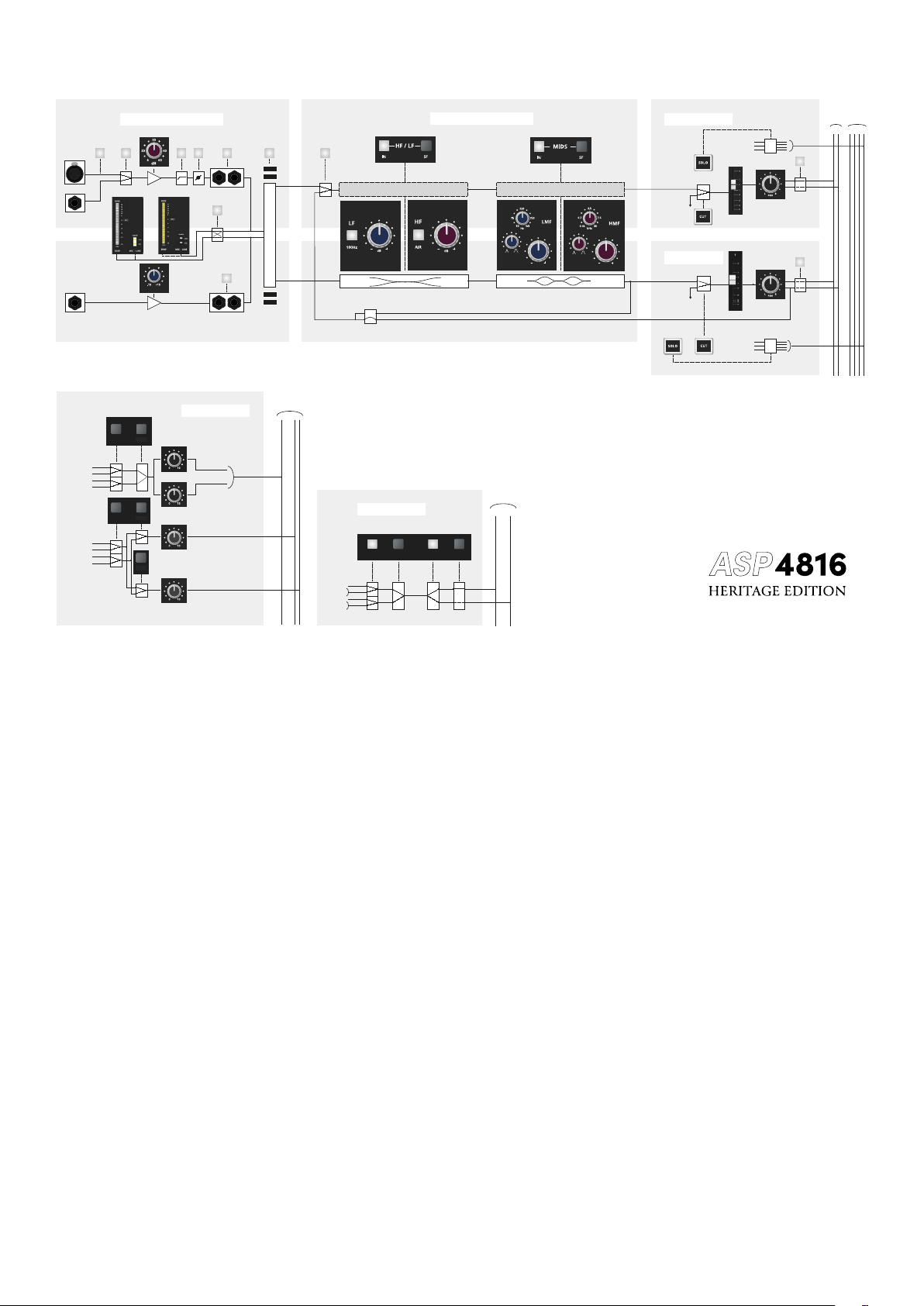
Path Swapping
As just discussed, the ASP4816 HE’s In-Line architecture provides huge operational flexibility and
power. The block diagram on the next page shows the SF and LF (short and long fader) paths. The
FLIP switch is at the input of both paths and determines whether the MIC/LINE or the DAW input is
used for a particular path. The normal position for all switches on the console is UP and with the
FLIP switch in this position the DAW signal is routed through the LF path as shown.
By studying the diagram it can be seen that the MIC/LINE input is routed through the SF path but
that when the FLIP switch is pressed this situation is reversed and the DAW signal is now routed
through the SF path.
There are switches labelled SF associated with both the HF/LF equaliser and the MID equaliser.
Again the normal position of these switches is UP, placing the equalisers in the LF path. By pressing
the SF switches the equaliser sections can be moved over to the SF path. Thus it is possible to have
the entire equaliser in either the LF or SF path or one section of the equaliser in each path. This
situation could be useful when both the LF and SF paths are used for mixdown. If recordings are to
be made with equalisation then the equalisers should be placed in the SF path.
Note in this situation that you will hear the eect of the equalisation and it will be recorded. When
the equaliser is in the LF path you will hear the changes but they will not be recorded. They will only
be recorded if a stereo recording is made, as will be the case when mixing the title. It is possible
to source the auxiliaries from the SF path by pressing the SF switch associated with each pair of
auxiliaries. The auxiliaries can further be selected to be either pre or post fader for whichever path
they are in.
14
Solo
Pressing a solo button on a channel with either PFL or AFL selected allows either the PFL or AFL
signal for that channel to be heard on the monitors and viewed on the stereo output meters.
Associated with the solo switch is the SOLO-IN-FRONT control and this allows the relative level of
the solo’d signal and the stereo mix to be adjusted. It is therefore possible to hear a channel in
isolation or with some amount of the mix behind it. Solo-in-Place is an extension of the AFL and
PFL facilities. If SIP is selected on the master module the signal on the main stereo bus will be
replaced by the AFL (Post Pan) signal of the solo’d channel. This is the equivalent of cutting all other
channels except the one you want to check, but is achieved by just a single button push.
Note that if you are recording when Solo in Place is used this will be recorded!
For this reason the SIP switch is illuminated alerting users to possible danger. The most likely use
for SIP will be just before a mix when equalisation is being set up. It is often easier to adjust the
equalisation on a solo’d channel but it is essential to check how it sounds when in the mix.
0
-4
-8
-12
-16
-20
-24
-28
-32
-36
SIG
0VU
+ 48v
MIC
DAW
LINE HI PASS
PHASE
REV
INSERT
IN FLIP
SOURCE
LINK
PRE
POST
SF PRE
SF LEFT
SF RIGHT
LF PRE
LF LEFT
LF RIGHT
2
1
A
B
AUXILIARY BUSES
LF PRE
LF PRE
LF POST
LF POST
SF POST
LF POST
SF PRE
SF PRE
SF LEFT
LF LEFT
SF POST
SF POST
SF RIGHT
LF RIGHT
1-8 9-16
MIX
BUSES
L R
SOLO
BUSES
CUE
1-6 A B
SOURCE
MTR
DAW
DAW
MIC
MIC
INSERT
IN
0
dB
MIX
MIX
PRE
PRE
SF
PAN
LF
SHIFT
1-8
(9-16)
PRE
SF
SF
INPUTS
ROUTING
AUXILIARIES
INPUTS AND METERING
EQUALISERS
SHORT FADER
LONG FADER
LINE
INPUTS

15
Metering
Metering is extremely important as it can determine whether or not a signal is too low in level,
in which case it may be noisy, or too high in level in which case it may suer distortion. The
aim of the meters is to assist in setting the signal level between the two extremes of noise and
distortion.
A signal level that is too high clips meaning that the smooth waveform abruptly changes when
the electronics runs out of headroom. Normally a visual indication of impending clipping is
given before the audible eects become apparent.
At the other extreme, if there is insucient signal, any noise present will be amplified along
with the signal when it is eventually brought up to the correct level. There are no indicators
warning you of this condition - only the fact that the signal is not “peaking” to any extent on
the meter.
To aid this situation the ASP4816-HE has input and output meters. DAW input levels can
be monitored on a 20 segment meter, while microphone input levels can be monitored on
a 3 segment meter. Provision is made for the function of these meters to be reversed, as,
particularly when tracking, it may be desirable to observe the input signal on the large meter.
16
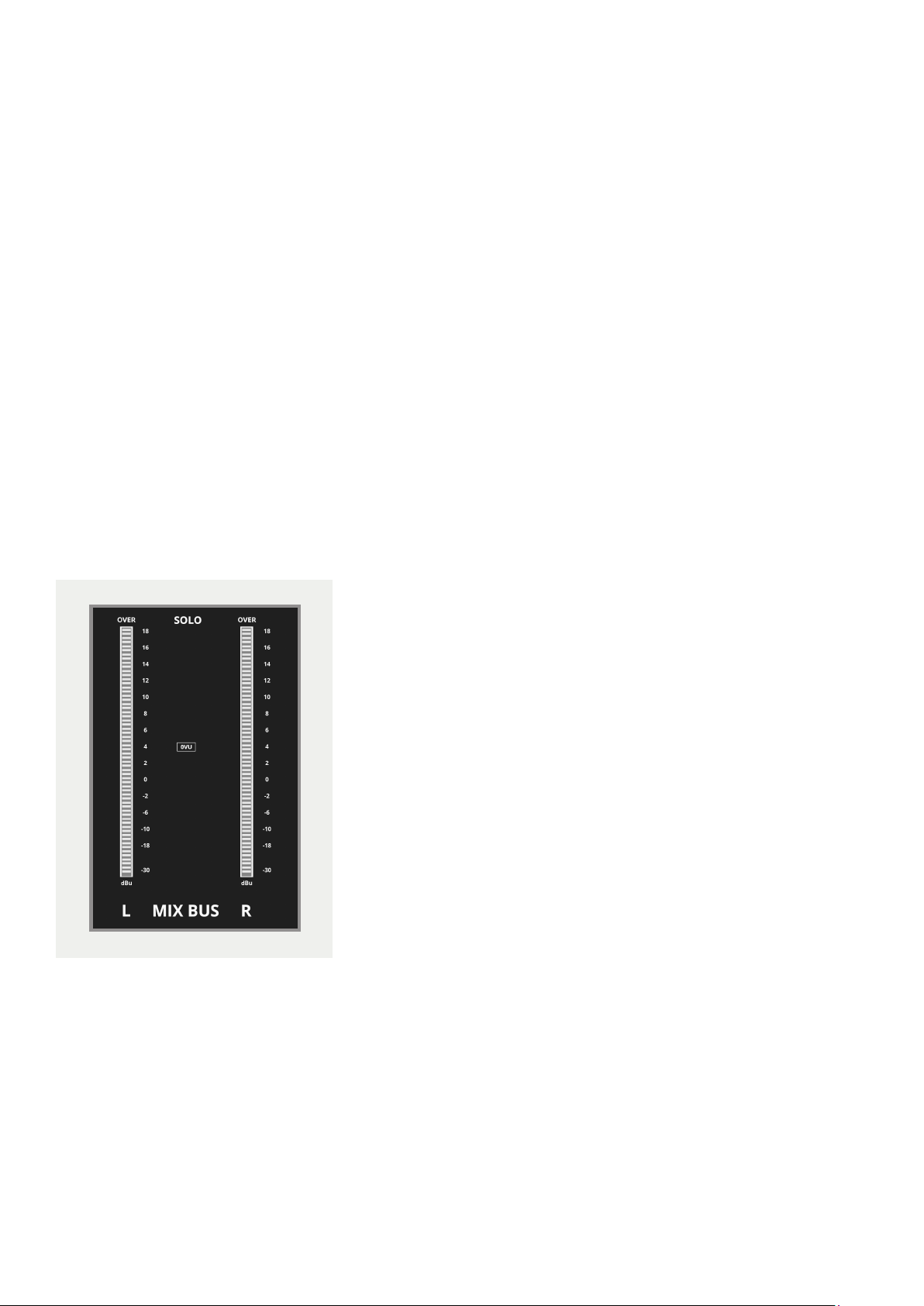
Meters on the ASP4816-HE use the dBu scale. The max level is 18dBU and therefore your converters
should be aligned to 0dBFS = +18dBu.
0VU is calibrated to a nominal operating level of +4dBu. Which in turn is relative to a typical EBU
calibration of +18dBu = 0dBFS. 0dBFS is your absolute maximum digital level (full scale) and should
be avoided at all costs - digital clipping is not a pleasant sound.
14 dB of headroom is very useful as most music sources (except for the huge dynamic range of an
orchestra) have crest factors (the dierence between average (RMS) and peak level) of around
12-20 dB. ASP4816 therefore provides ample headroom for your beautifully crisp transient sources.
Meters are provided for :
Main Stereo Output (30 segment)
Line Inputs 17-24/Sub-group Outputs (20 segment)
DAW Inputs (20 segment)
MIC/LINE Inputs (3 segments)

17
Foldback
Performers
BUS OUTS
Insert Sends
Headphone Amp
Stereo Monitor Outs
Main, ALT1, ALT2, ALT3
DAW INS
Insert Returns

18
Console Functions
19
Input Pod
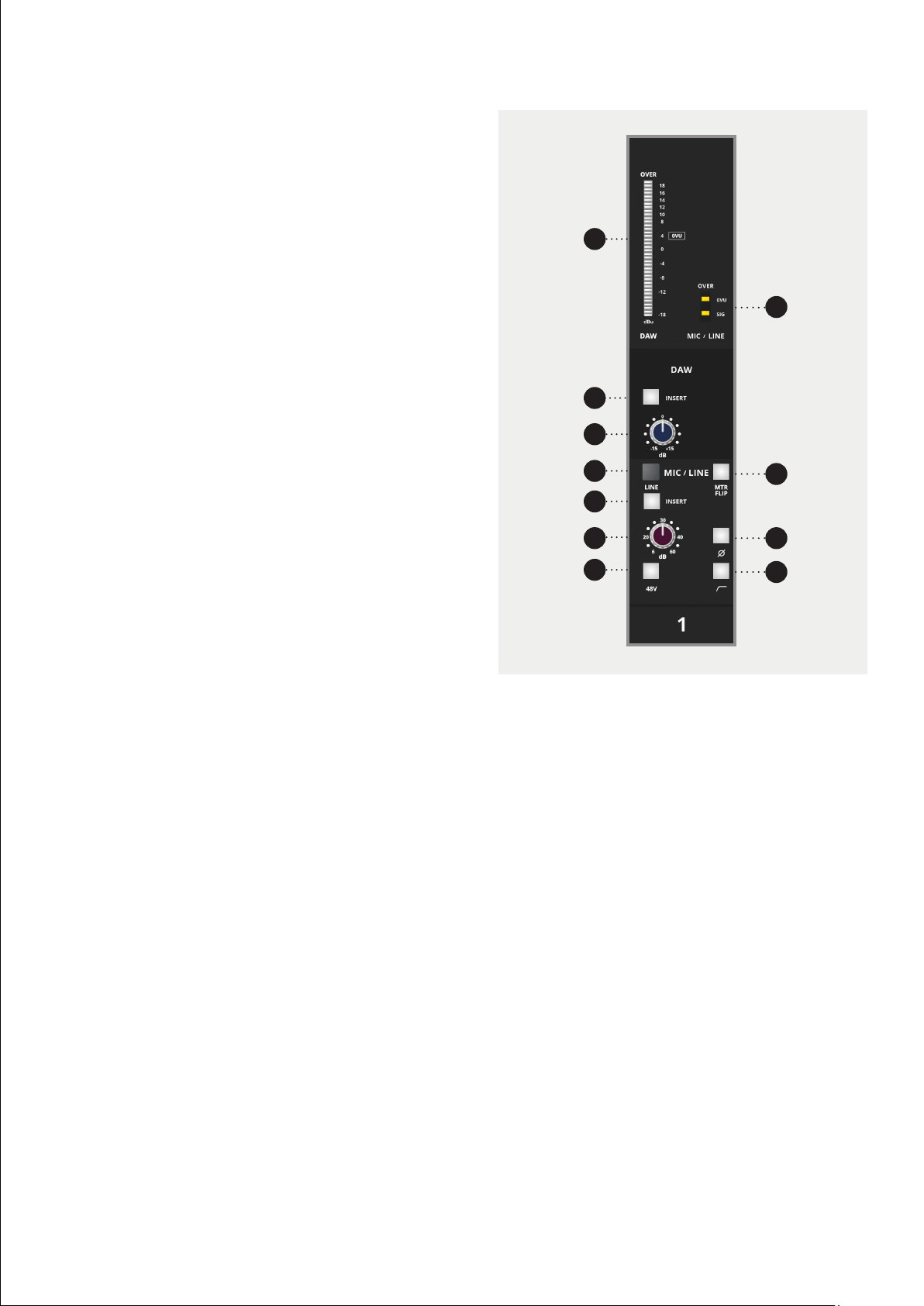
The input pod is the gateway to the remainder of
the signal processing of the console. There are three
inputs, a mutually exclusive microphone and line
input, and a tape input.
The mic/line input normally sends signal to the SF or
short fader signal path of the console while the DAW
input normally sends signal through the LF or long
fader path of the console unless this is reversed by
the FLIP switch.
There are two meters associated with the inputs, a
20 segment +18dBU peak reading meter showing
the DAW input signal and a 3 segment peak reading
meter gives an indication of the mic/line level.
Both the MIC/LINE and the DAW inputs have insert
points which can be switched in and out of circuit.
The Mic Input has a gain control range of +6dB to
+60dB and the Line Input has a range of -14dB to
+40dB. Switches allow for Phantom Power, Polarity
Reversal and High Pass filtering - enabling rumble
and sources alignment issues to be easily dealt with.
The DAW input has a trim control with a range of
±15dB.
1 20 Segment meter (normally monitoring the DAW
(normally monitoring the DAW input)
2 3 Segment meter (normally monitoring the Mic/
(normally monitoring the Mic/Line input)
3 INSERT IN places an insert point in the DAW path
4 DAW Input TRIM control
5 MIC/LINE switch - press down to select the line
input.
6 MTR - press to show the mic/line input on the large
meter and the DAW input on the small meter.
7 INSERT IN - places an insert point in the MIC/LINE
path.
8 Mic/Line GAIN Control
9 Ø Polarity (Phase) Reverse Switch
10 48V Phantom Power Switch. Turn the loudspeakers
down before switching this on or o!
11 High Pass Filter Switch. A high pass filter can be
used to get rid of any unwanted low frequencies
that may be present such as air conditioning
rumble.
8
7
5
4
3
6
2
1
10
11
9
20
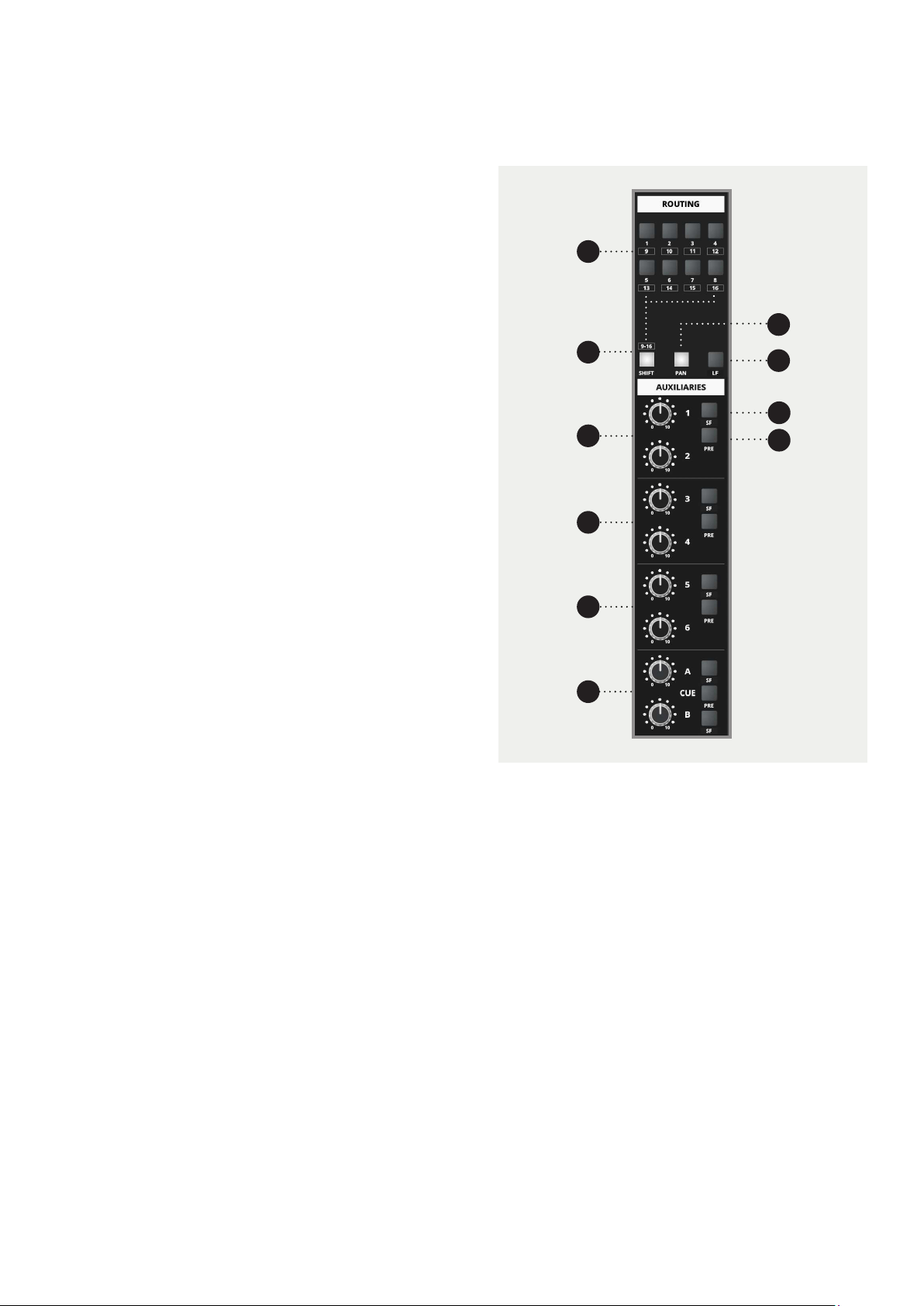
1 ROUTING SWITCHES select the bus outputs that
the SF signal is sent to. The first eight switches also
route to the 8 sub-groups
2 SHIFT gives access to bus outputs 9-16.
3 PAN allows the signal to be panned across odd
and even buses.
4 LF replaces the SF signal being sent to the routing
switches with the signal from the LF signal path.
5 LEVEL adjusts the level sent to an auxiliary output.
6 SF allows the signal feeding the auxiliary to be
taken from the SF signal path.
7 PRE allows the auxiliary signal to be taken pre
fader instead of the normal situation where it is
taken post fader.
8 CUE A and B are identical in operation to the others
but can be individually switched into the SF path.
Routing and Auxiliaries
The routing section takes the signal from the SF path
and routes it to the bus outputs which in turn are
usually connected to the inputs of a DAW or other
recording device. Buses 1 to 8 also have a parallel
path and feed the 8 sub-groups. These can be used
to pre mix channels together for final mix down or as
sends to a DAW or other recording device.
There are 16 bus outputs accessed by 8 routing
buttons and a SHIFT button.
Routing can be to multiple outputs and if odd and
even outputs are selected panning can be used to
place the signal within a stereo image.
The LF switch moves the routing from the SF path over
to the LF path and can be useful for track bouncing.
If PAN is down and routing is again selected for odd
and even buses then the post fade post pan LF signal
is sent to the bus outputs selected.
There are 8 auxiliary outputs. The Auxiliaries can be
switched to the SF path.
Cue A and B work in the same manner as the other
auxiliaries but are intended mainly for use as sends
to the FOLDBACK system.
1
2
3
4
5
5
5
7
6
8
21
Equaliser
The equaliser is split into two sections - one for
high and low frequencies (HF/LF) and the other for
middle frequencies (MIDS). Both sections can be
switched in and out independently and switched
into the SF signal path independently.
The HF section has a boost/cut range of 15dB. The
frequency can be switched - 10kHz with the switch
up and 18kHz with the switch depressed.
The LF section has a boost/cut range of 15dB and
a shelving characteristic. The frequency can be
switched - 50Hz with the switch up and 100Hz with
the switch depressed.
The high mid section (HMF) has three controls.
The boost/cut range is 15dB and the frequency
of operation can be varied from 450Hz to 20kHz.
A Q control allows for a very sharp and narrow
characteristic or for a more gentle characteristic
covering a wider range of frequencies.
The low mid section (LMF) has three controls.
The boost/cut range is 15dB
and
the frequency
of operation can be varied from 50Hz to 1.5kHz.
A Q control allows for a very sharp and narrow
characteristic or for a more gentle characteristic
covering a wider range of frequencies.
The actual Q range is between 3.8 (0.4 Octave) and
0.65 (2 octaves).
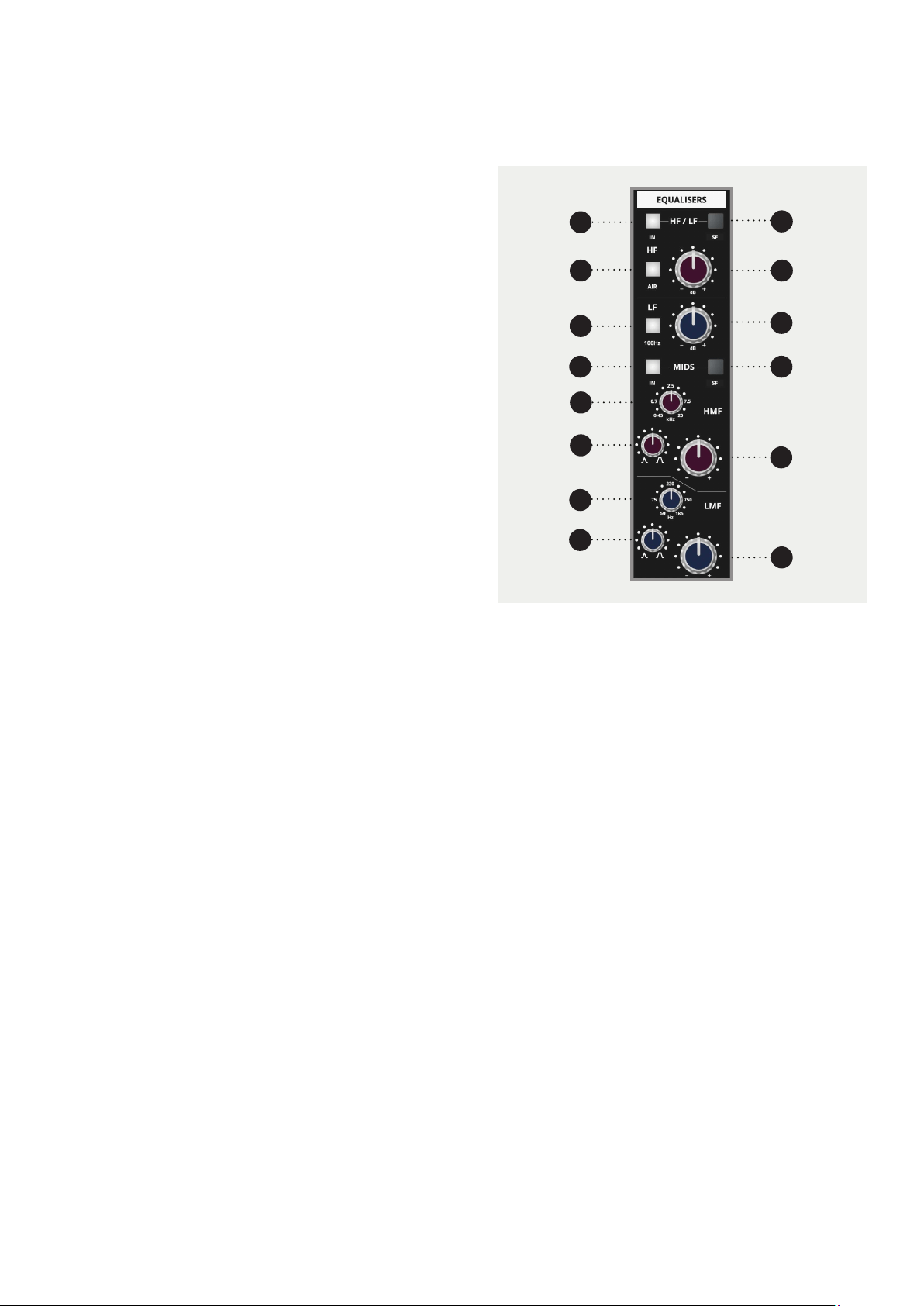
1 HF/LF Section. This places the HF/LF equaliser in
circuit.
2 SF places the HF/LF equaliser in the SF signal path
where it can be used to treat a signal before it is
recorded.
3 AIR allows the frequency of the HF equaliser to
be selected.
4 HF boost/cut control.
5 100Hz allows the frequency of the LF equaliser
to be selected.
6 LF boost/cut control.
7 MIDS Section. This places the MIDS equaliser in
circuit.
8 SF places the MIDS equaliser in the SF signal
path where it can be used to treat a signal before
being recorded.
9 This controls the centre FREQUENCY of the high
mid equaliser.
10 HIGH MID boost/cut control.
11 HIGH MID Q control.
12 This controls the centre FREQUENCY of the low
mid equaliser.
13 LOW MID boost/cut control.
14 LOW MID Q control.
1
3
2
4
5
7
6
8
10
11
12
14
9
13
22
Short Fader (SF)
There are 3 back illuminated indicators showing the
selected input to the SF path. This can be changed
between Mic/Line and DAW using the FLIP switch.
LF Source allows the source for the SF path to be
taken from the LF path. This could be used during
mixdown to send the LF signal through the SF path
up to the routing matrix where the bus outputs can
be used as additional eect sends. Normally this
signal is derived after the long fader (POST LF) but it
can be made PRE LF by changing an internal link on
the circuit board. Please contact Audient Support for
further information on changing this internal link.
The source switching occurs before the equaliser
so it is possible to equalise the SF signal which has
been taken from the LF path by switching either one
or both equaliser sections into the SF path. (If this is
done then the equaliser section is no longer available
in the LF path).
The SF PAN control allows panning across the bus
outputs when pan is selected on the routing section
of the strip.
MIX allows the SF signal to be routed to the stereo
mix bus and allows the SF path to be used as an
additional input during mixdown.
The short fader is designed for use with 10dB of gain
in hand allowing the signal to be boosted or reduced
in level if required.
The SOLO switch allows the channel to be auditioned
through the AFL/PFL or Solo in Place facilities.
CUT allows the SF signal path to be muted.
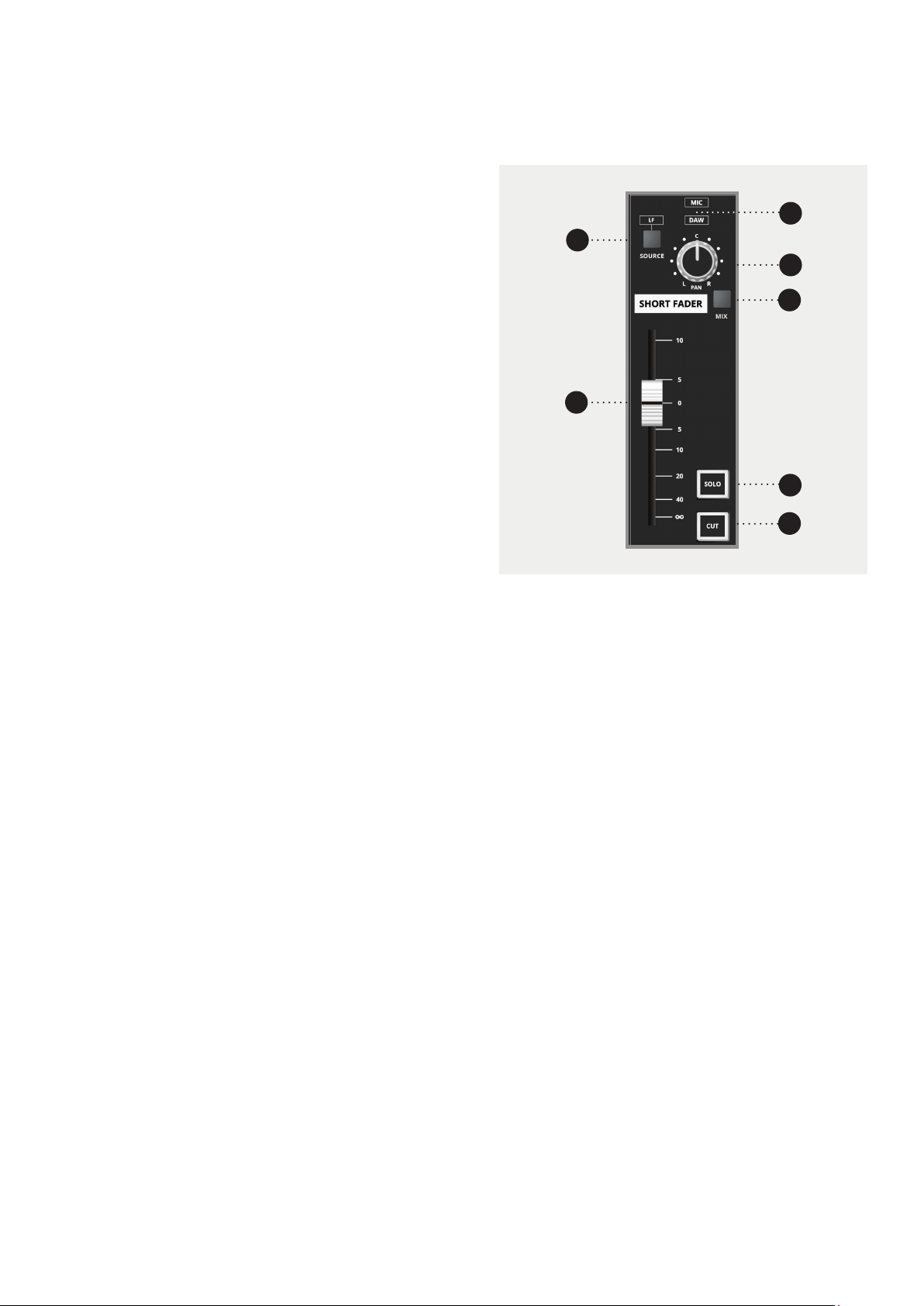
1 SOURCE selects the post fade LF signal as the
input to the SF signal path, over-riding the MIC or
DAW selection from the Flip switch. By altering a
link on the circuit board this signal can be made
pre fade. The LF legend will illuminate when the
switch is pressed and the MIC/DAW indicator will
blank.
2 MIC/DAW. These back lit indicators show whether
the MIC/LINE or the DAW input is selected to the
SF path. Only one will be illuminated and it can be
changed by using the FLIP switch.
3 This is the PAN control for the SF signal enabling it
to be panned across odd and even buses.
4 MIX routes the SF signal to the stereo mix bus. It is
good practice to unroute any channels which are
not needed. This will reduce mix amp noise.
5 This is the SHORT FADER which controls the level
of the SF signal.
6 SOLO allows the SF signal to be heard on the
monitors and viewed on the master meters. If
Solo In Place is selected it will replace the console
output.
7 CUT allows the SF signal path to be muted. This
may help to reduce noise in a mix if a channel is
not in use for a period of time.
1
3
2
4
5
7
6
23
Flip and Pan
The FLIP switch allows the MIC/LINE input and the
DAW input to be reversed. Normally the DAW input
feeds the LF signal path - with FLIP pressed it will
feed the SF signal path. The MIC/LINE input normally
feeds the SF signal path and with FLIP pressed it will
feed the LF signal path. Illuminated indicators in each
section show which input is selected to the LF and SF
paths.
The PAN control pans the LF signal across the stereo
mix bus and the MIX switch assigns the LF signal to
the stereo bus.
The SOLO switch allows the long fader signal to be
auditioned through the AFL/PFL or Solo in Place
facilities.
CUT allows the LF signal path to be muted. Page 33
gives more detail regarding the long fader used to
control the level of the LF signal path.
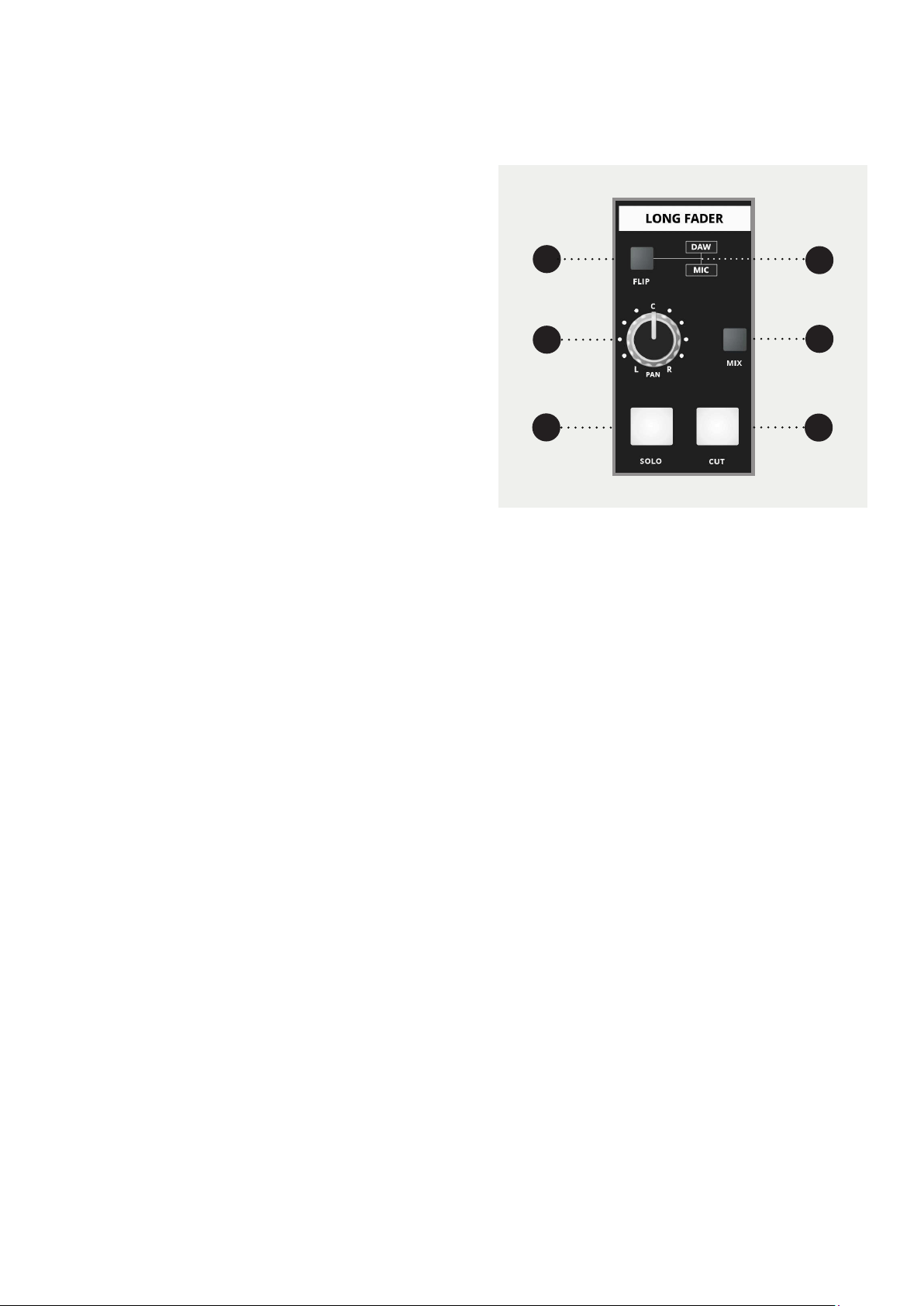
1 FLIP swaps the inputs between the LF and SF paths.
2 These back lit indicators show whether the MIC/
LINE or the DAW input is selected to the LF path.
Only one will be illuminated and it can be changed
by using the FLIP switch.
3 MIX allows the LF signal to be routed to the stereo
mix bus. Normally this switch should be pressed but
it is good practice to unroute any channels which
are not needed as this will help to reduce mix amp
noise.
4 This is the PAN control for the LF signal enabling it
to be panned across the stereo bus
5 SOLO allows the LF signal to be heard on the
monitors and viewed on the master meters or, if
Solo in Place is selected, it will replace the console
output.
6 CUT allows the LF signal path to be muted. This
may help to reduce the noise in a mix when a
channel is not in use for a period of time.
1
3
2
4
5
6
24
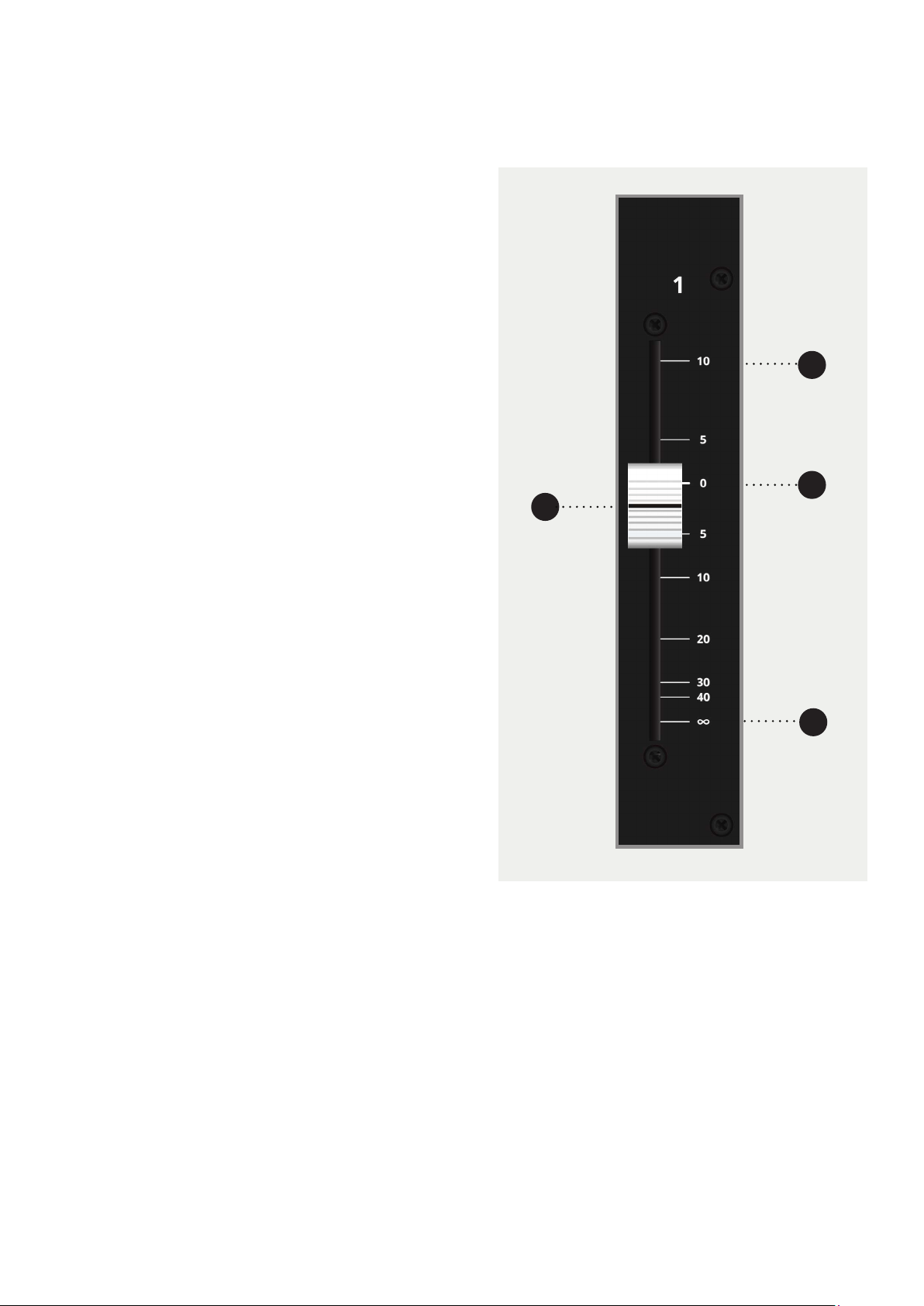
Long Fader (LF)
Located close to the operator this fader operates on
the LF signal path and is therefore mainly used for
creating the monitor mix and the final stereo mix for
the title.
The fader is expected to operate around the 0dB
mark with 10dB of gain in hand allowing the signal to
be increased or decreased in level.
When level setting start with the fader in this position
then adjust the input sensitivity control for the correct
level to optimise the gain structure.
1 This is the LONG FADER which controls the level of
the LF signal.
2 This is the +10dB mark. The fader is fully open at
this point and introducing 10dB of gain into the
signal path.
3 This is the 0dB mark. This is the normal operation
position for the fader.
4 With the fader here the signal path is closed and
no signal will pass.
1
3
2
4

25
Input Connectors
1 MICROPHONE INPUT. Microphones or other low
levels inputs can be connected to this input.
2 LINE INPUT. This input can be selected in place
of the microphone input. Like the DAW input it is
suitable for high level line sources.
3 MIC/LINE INSERT SEND . This is the insert point
send output for the microphone and line input.
Signal is always present here and can be used
as an additional output. Only the Mic/Line signal
will appear here and it is not aected by the Flip
switch.
4 MIC/LINE INSERT RETURN. When the insert point
is in use the signal from the external processing
equipment should be connected here.
5 DAW INPUT. The output of the DAW should be
connected here although the input is suitable for
any high level line source.
6 DAW INSERT SEND. This is the insert point send
output for the DAW input. Signal is always present
here and this can be used as an additional output.
Only the DAW signal will appear here and it is not
aected by the Flip switch.
7 DAW INSERT RETURN. When the insert point is
in use the signal from the external processing
equipment should be connected here.
The rear mounted connector panel is where the input,
output and insert point connectors are located.
The microphone input uses an XLR connector while
the line input, DAW input and the insert sends and
returns use Tip, Ring and Sleeve jacks.
1
3
2
4
5
7
6
26
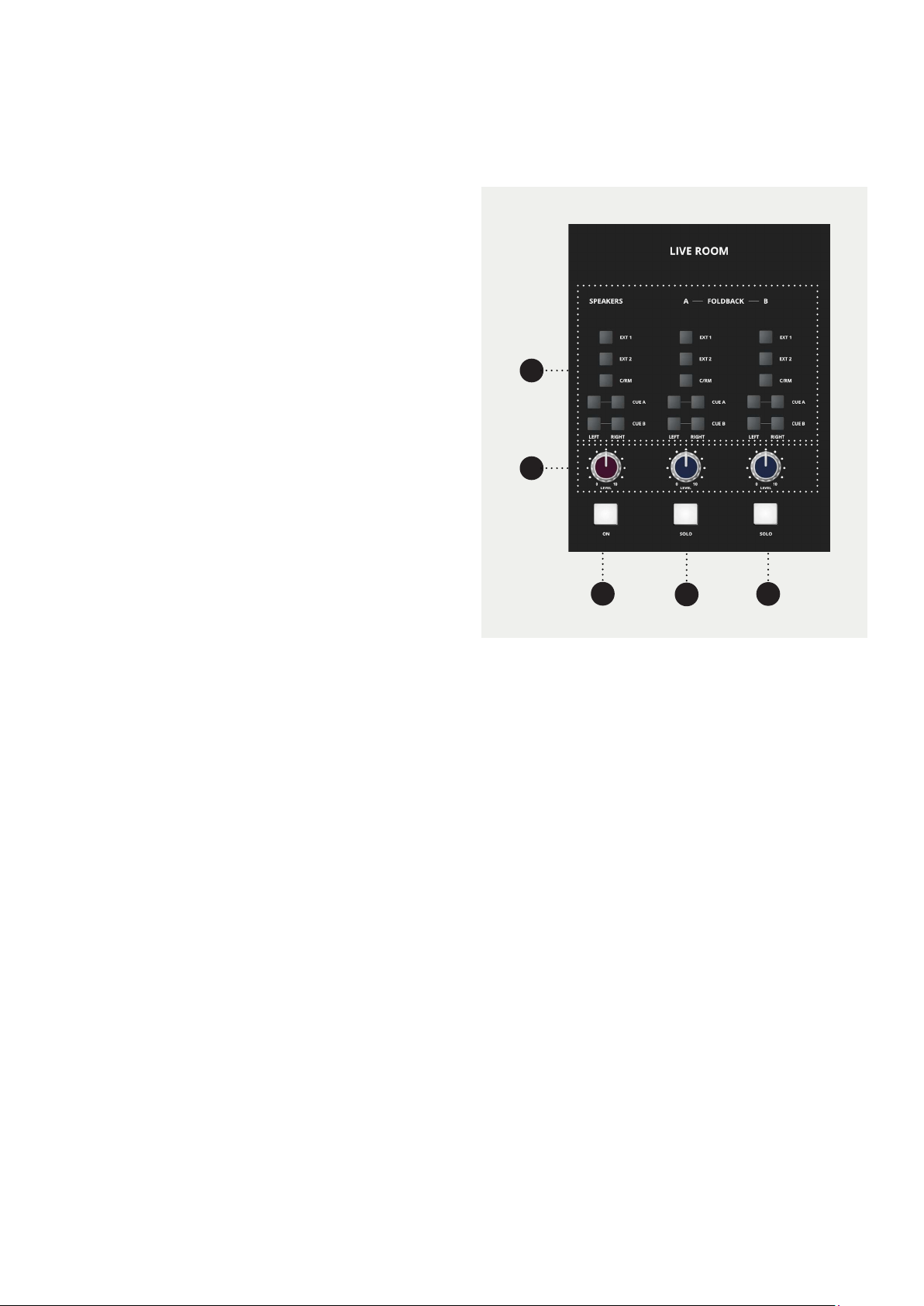
Studio Speakers and Foldback
This section of the master module looks after the
STUDIO LOUDSPEAKER and FOLDBACK outputs of
the console. In every case the same sources are
available :
EXT 1
EXT 2
CONTROL ROOM (C/RM)
AUXILIARY A (CUE A)
AUXILIARY B (CUE B)
EXT 1 and 2 are taken from the External inputs found
on the rear of the Console and can be used to input
signals from devices such as CD Players, Phones...
etc.
C/RM selects the control room monitor output as
the source. This is used to provide a playback of
the MIX to the studio speakers, or to set up a quick
foldback mix, perhaps with a little help from the Aux
A and Aux B buses.
CUE A and CUE B are mono sources which can be
independently selected to the left and right sides of
the studio speaker or foldback outputs.
Each output has a level control. The studio
loudspeaker has a ON switch and the FOLDBACK
outputs have SOLO switches. These enable the
foldback mix to be created or checked in the control
room. This is always AFL.
1 SOURCE SELECT. These select the signals to be sent
to the studio loudspeakers and foldback.
2 The LEVEL controls set the Studio Loudspeaker and
Foldback levels.
3 Speakers ON switch. This activates the Studio
Loudspeaker.
4 FOLDBACK 1 SOLO switch. Allows foldback 1 to be
checked on the control room monitoring system.
5 FOLDBACK 2 SOLO switch. Allows foldback 2 to be
checked on the control room monitoring system.
1
2
3 4
5
27
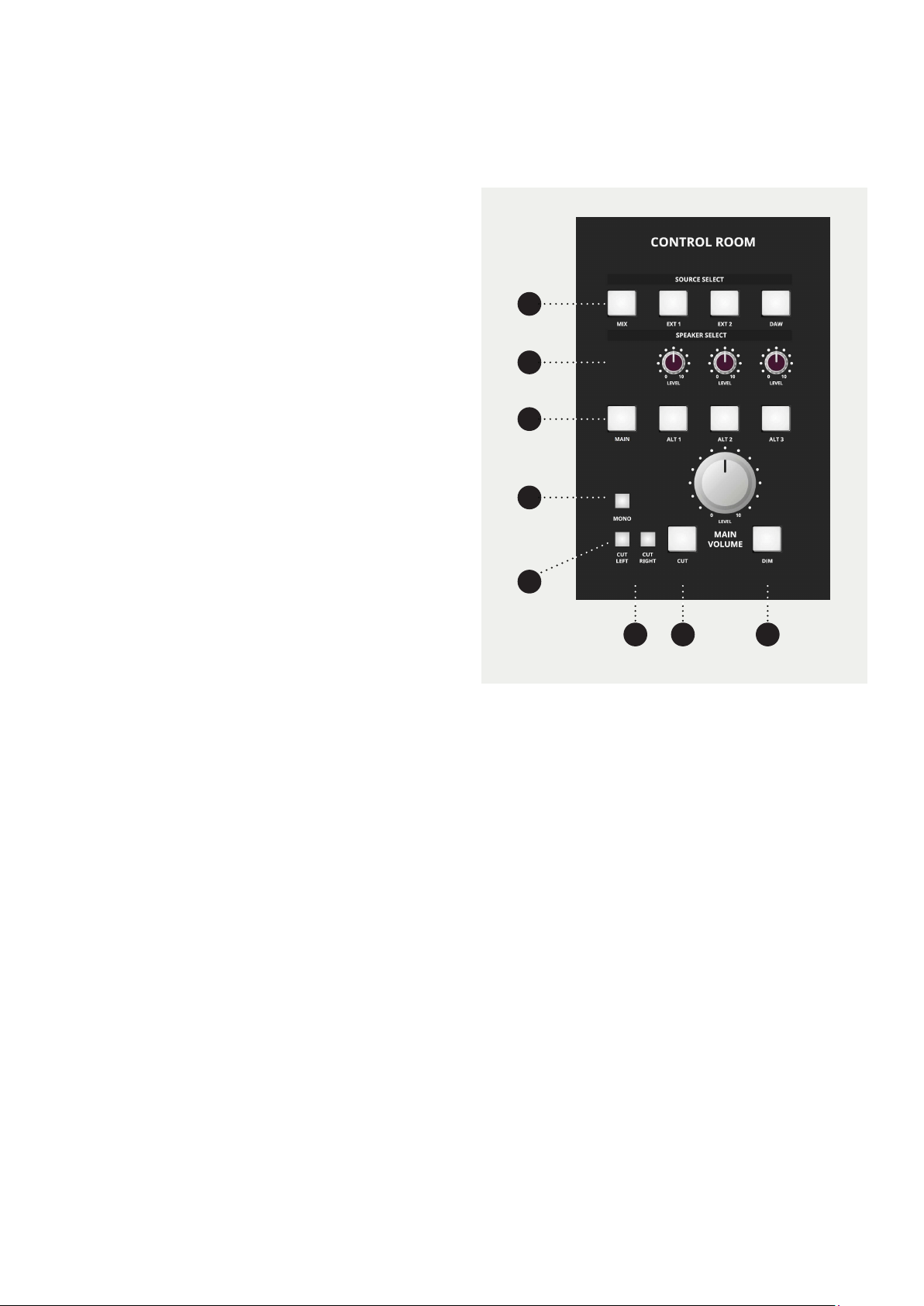
Control Room Monitoring
The Control Room Monitoring system is one of the
most used systems in a studio. Typically there are
several sets of loudspeakers with a main pair and
one or more alternate pairs. These are sometimes
referred to as Near, Far and Mid field monitors
depending on their proximity to the listening
position.
The ASP4816 provides for 4 pairs of loudspeakers,
a MAIN pair and ALTERNATE 1, 2 and 3. Source
selection is made from either the MIX or DAW, EXT
1 and 2.
ALT 3 will also feed the Headphone Output found
on the Master Meter Pod.
The Main Volume will control the level of the Main
and ALT outputs. Each ALT Output has its own
volume trim so you can easily match the levels of
your various monitors
Associated with the main loudspeakers are some
further controls allowing the left and right outputs
to be independently or simultaneously CUT, the
monitoring system to be placed in MONO mode, or
for the output to be dimmed to a lower level.
1
2
3
4
5
6
7 8
1 SOURCE SELECT buttons.
2 LEVEL controls for the alternate loudspeakers.
3 SPEAKER SELECT buttons.
4 Main Loudspeaker LEVEL Control.
5 MONO button allowing the signal to be checked for
mono compatibility.
6 CUT buttons allowing independent cutting of the left
and right speakers.
7 DIM allows the speakers to be reduced in level by a
pre-set amount (15dB).
8 CUT allows the speakers to be completely silenced.
28
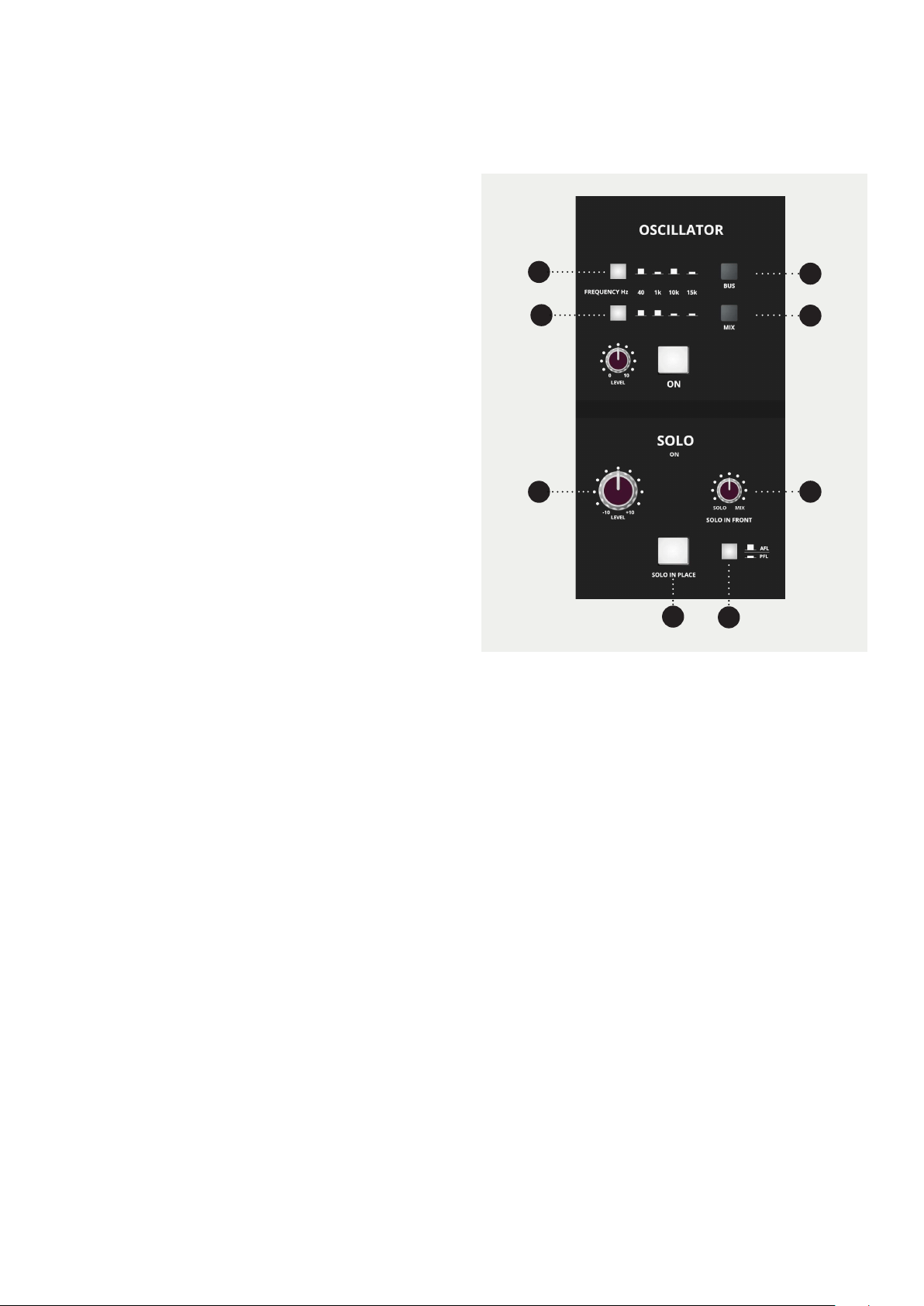
Oscillator & Solo
1 Oscillator FREQUENCY selection switches. Frequencies
of 40Hz, 1kHz, 10kHz or 15kHz can be selected using
the two switches.
2 Oscillator ROUTING switches. These route the
oscillator signal directly to either the buses 1-16 or
the stereo mix bus.
3 Oscillator LEVEL Control.
4 Oscillator ON switch. During normal operation of the
console ensure that the oscillator is switched OFF.
5 SOLO level control.
6 SOLO IN FRONT alters the ratio of the SOLO signal
to the MIX signal making it possible to listen to the
SOLO’d signal in isolation or combined with some
amount of the stereo mix.
7 The SIP switch switches the console into SOLO IN
PLACE mode. This means that the solo signal will
replace the mix signal at the stereo output of the
console.
8 This selects either PFL or AFL mode. This switch is not
eective in SOLO IN PLACE mode.
Oscillator
The built-in Oscillator is designed for aligning tape
machines but also is very useful for checking signal
routing or checking speakers. The 4 frequency
oscillator can be assigned either to buses 1-16 or to
the stereo mix bus. The level is adjustable and when
not in use the oscillator should be completely turned
o.
Solo
This is the master control area for the AFL/PFL and
SOLO IN PLACE system. If SIP is not illuminated
then the console will be in either AFL or PFL mode
depending upon the PFL/AFL switch.
PFL allows pre fade signals to be auditioned on
the monitors and viewed on the master meters
by pressing the SOLO button on the appropriate
channel strip.
AFL allows the post fade post pan signals to be
auditioned on the monitors and viewed on the
master meters by pressing the SOLO button on the
appropriate channel strip.
The Solo in Front control adjusts the relative level
of the solo signal and the mix signal allowing the
solo’d channel to be heard in isolation or with some
amount of the mix.
SIP mode allows the post pan signal to be auditioned
by switching the solo’d channels onto the console
output and muting the stereo mix for the duration
of the solo. Since this happens on the mix output,
solo in place should not be used during mixing but
is very helpful when setting up the mix.
1
3
5
6
4
2
7
8
29
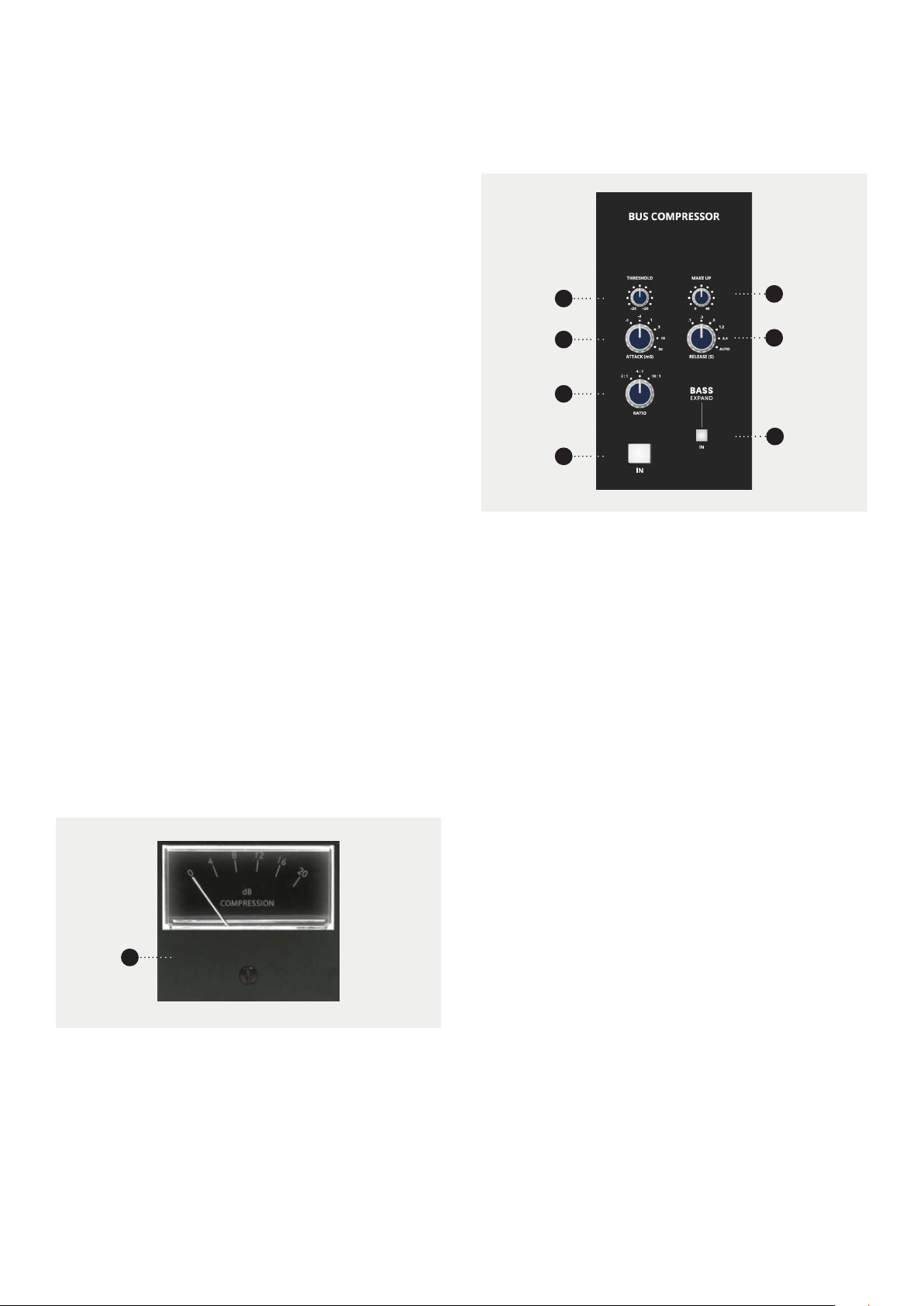
Compressor
A compressor can be switched into the main stereo
signal path when required. Note that it is located after
the mix insert point but before the main fader.
The compressor characteristics are optimised for use in
mix processing while many of the parameters remain
under the control of the engineer.
Threshold, Gain Make Up, Attack, Release and Ratio
are all adjustable while the entire processor can be
switched out of circuit when not required.
A bar-graph meter indicates the amount of compression
applied to the signal. When compression is taking place
this should show some very healthy activity. Please do
not try to over compress the mix output as the results
will sound terrible. Sometimes only a small amount
of movement on the meter is required to ‘glue’ a mix
together.
A good use of the compressor may be to limit peak
signals by setting a highish threshold with a high ratio.
Thus when the threshold is reached the signal is barely
allowed to increase beyond it.
1 An Analogue Gain Reduction meter indicating the
amount of gain reduction taking place.
2 THRESHOLD control for determining the level where
compression starts. Threshold can be set between
-20dBu and +20dBu.
3 ATTACK controls the speed with which the compressor
reacts. Attack is adjustable in 6 steps from 0.1 to 30ms.
4 RATIO determines the amount of compression used
once the signal is above the threshold level. For
example a ratio of 2:1 means that the output will rise
1dB for every 2dB rise in input level.
Ratios of 4:1 and 10:1 are also available.
5 MAKEUP is a gain control. When a signal is
compressed the level is reduced. A gain make up
stage restores the peak level after the dynamic range
has been reduced. 40dB of gain is available.
6 RELEASE controls the speed at which the compressor
allows the gain to return to normal when the signal
drops below the threshold level. Release is available
from 0.1s to 2.4s in 5 steps with an additional AUTO
setting.
7 The IN switch puts the compressor into circuit.
8 BASS EXPAND; adds a 350Hz high pass filter to the
sidechain meaning low frequencies don’t cause the
Compressor to activate. This stops bass frequencies
from ‘pumping’ and gives a more full, consistent
low-end.
1
2
3
4
7
6
8
5
30
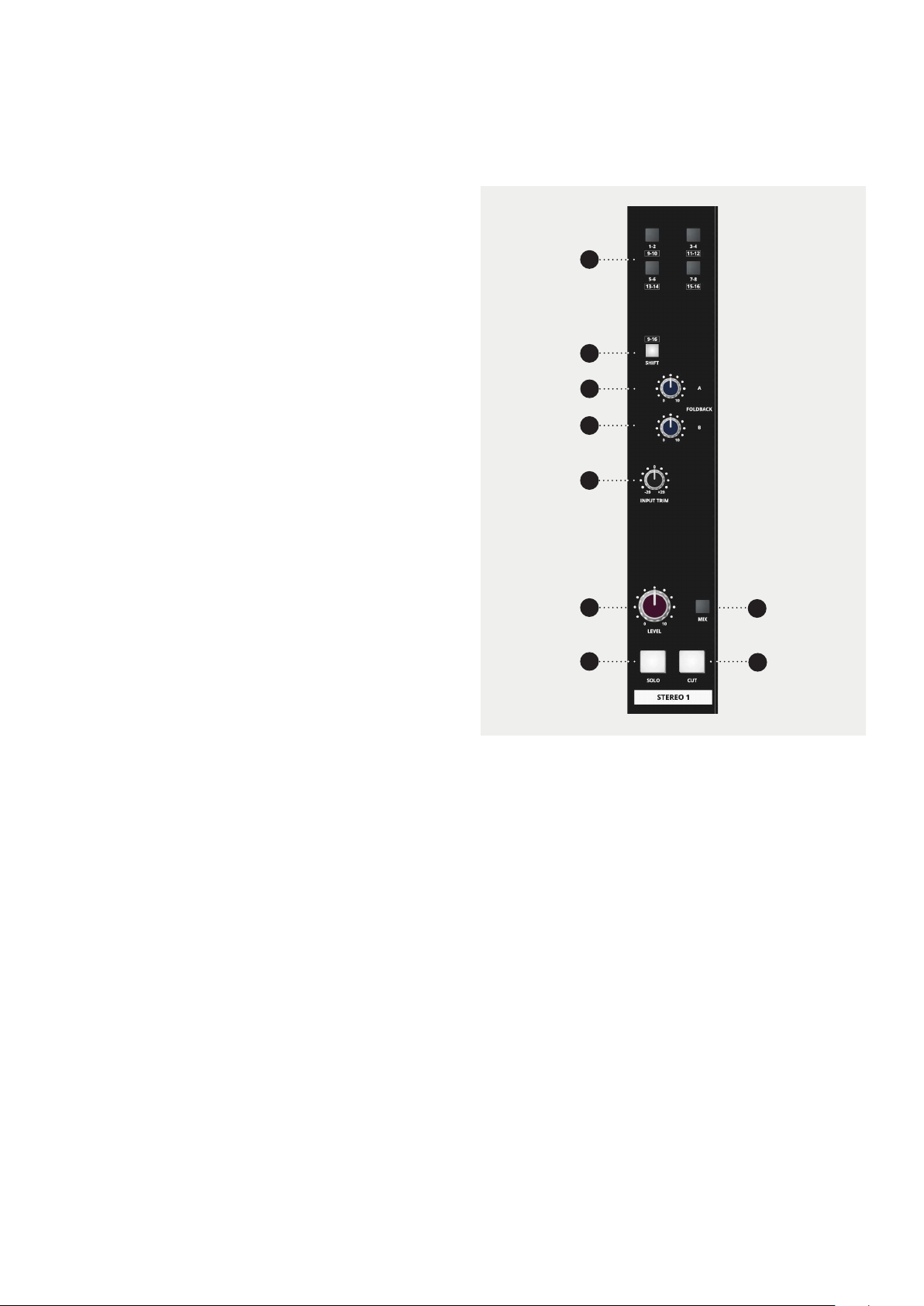
Stereo Inputs
The Stereo inputs allow signals to be brought back into
the console (returned) from an eect unit without using
up a complete channel strip. Often stereo signals can
only be routed to the stereo mix, however, the ASP4816
HE stereo inputs allow routing back to the multi-track
in addition to the mix. This means that eects can be
recorded on the multi-track.
Routing to the foldback system is also possible using
F/B A and F/B B allowing performers to hear any
reverberation or other eect.
A gain trim with 20 dB of range, rotary fader, solo and
cut switch complete the facilities on the input.
The stereo channels eectively increase the number
of inputs on the console that are available especially
during a mix down.
1 ROUTING SWITCHES allowing the input signal to be
sent to the DAW or other recording device.
2 SHIFT button working with the routing switches to
give access to tracks 9-16.
3 F/B A allows the input signal to be fed to Foldback A.
4 F/B B allows the input signal to be fed to Foldback B.
5 TRIM control to compensate for dierent input levels.
This has a range of ±20dB.
6 Rotary FADER allowing the input signal to be faded
up or down as required.
7 MIX allows the input signal to be sent to the stereo
mix bus.
8 SOLO allows the input signal to be auditioned
depending upon the selected solo mode.
9 CUT is used to mute the signal or simply remove any
noise contribution from the return when not in use.
1
2
7
3
4
5
6
8
9
31
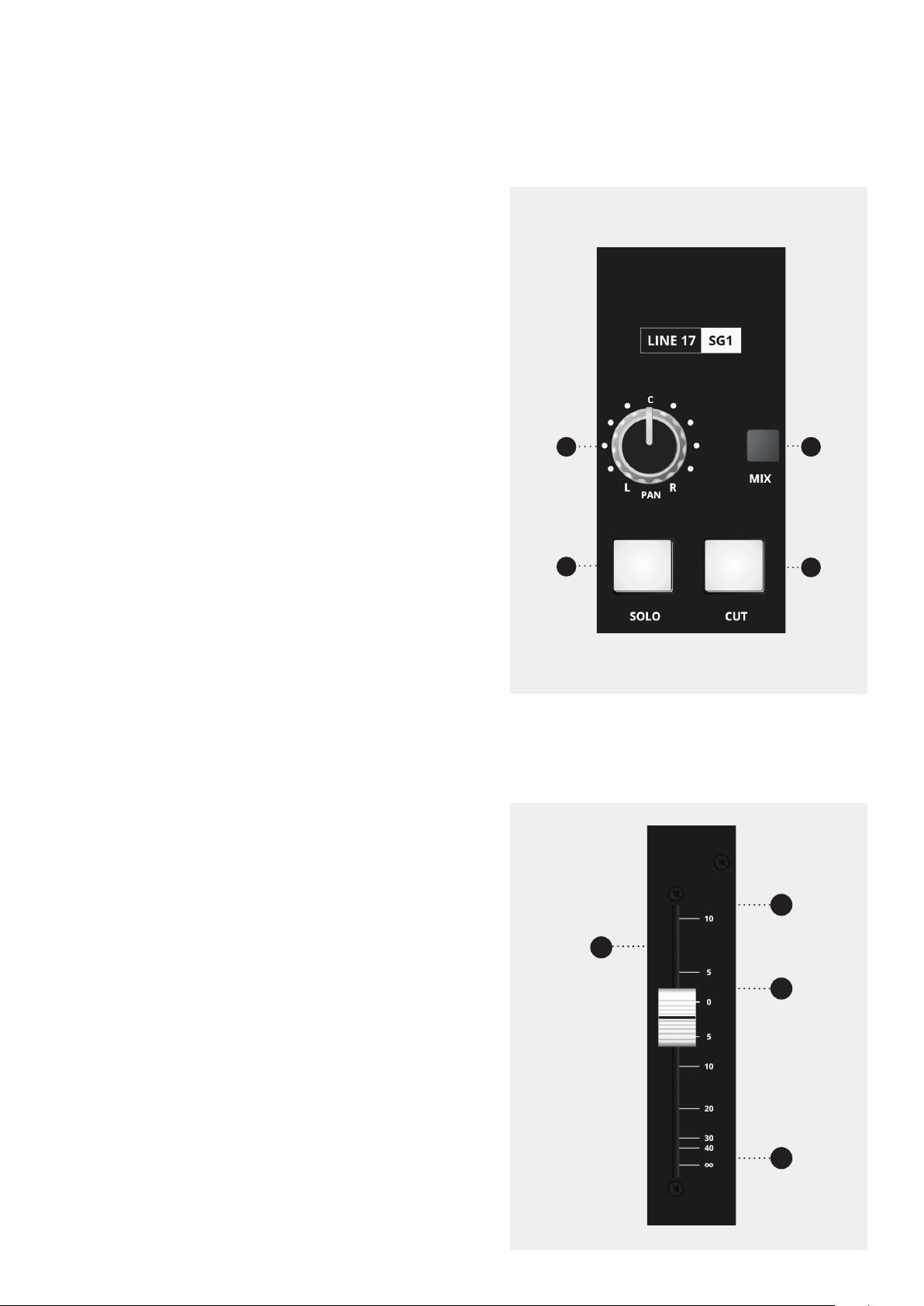
In addition to routing signal to the bus outputs for
recording, the first eight multi-track buses are also
fed to 8 sub-group outputs. Each sub-group has a
PAN control, SOLO and CUT switches and a fader
controlling the bus output level. The sub-groups have
insert points located on the rear panel of the console
allowing external processing to be patched in when
called for. The MIX switch assigns the sub-group to
the stereo mix bus and allows the sub-groups to be
used in mix down. The Sub-Groups can also be used
as 8 additional line inputs at mix down. This is done by
feeding signal into the Insert Return Connections on
the rear of the console
1
3
2
4
Line I/Ps 17-24 and SUB-GRP Outputs
Line I/Ps 17-24 and SUB-GRP Faders
1 The PAN knob pans the sub-group signal across the
stereo bus.
2 MIX allows the sub-group to be assigned to the stereo
mix bus and hence the main console output.
3 SOLO allows the sub-group signal to be auditioned
depending upon the selected pan mode.
4 CUT mutes the sub-group output.
The 8 sub-group/Line input 17-24 faders are located
in the centre of the console, close to the operator, and
control the sub-group output levels. These outputs are
directly available at the rear of the console or they
may be used to feed the stereo mix bus simply by
pressing the mix buttons.
1 The SUB-GROUP FADER sets the level of the sub-
group output signal.
2 This is the +10db mark. The fader is fully open at this
point and introducing 10dB of gain into the signal
path.
3 This is the 0dB mark which is the normal operation
position for the fader.
4 With the fader here the signal path is closed and no
signal will pass.
1
3
2
4
32
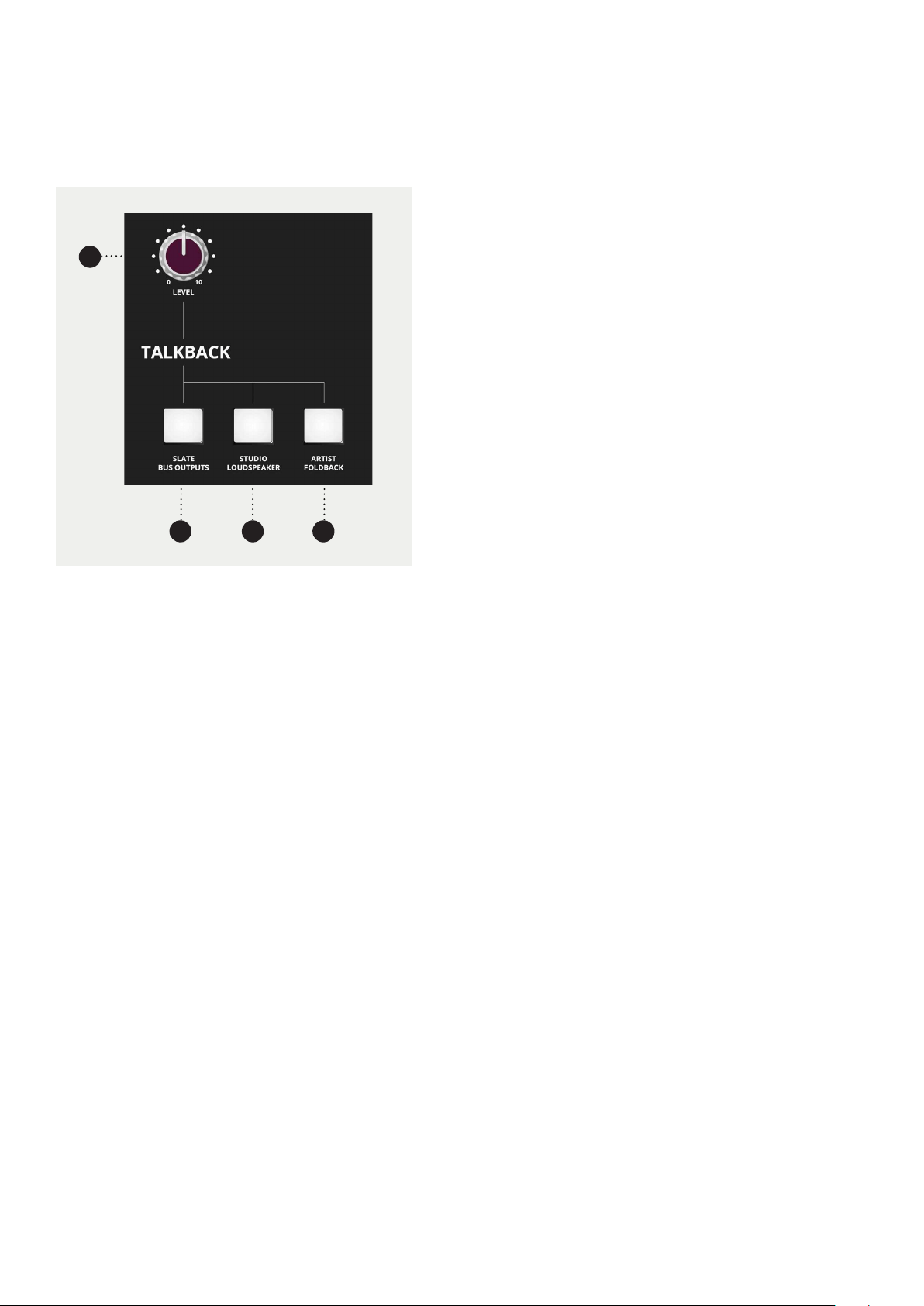
Talkback
The Talkback Microphone input has 48v Phantom
enabled by default so condenser mics can be used. This
can be disabled by removing an internal link. Contact
Audient support for more information.
The FB and SLS can be remotely switched using the
footswitch jacks found on the rear of the console.
To make use of this, you need to purchase a latching
foot switch that shorts the Tip to Ground.
1 The LEVEL control adjusts the talkback level.
2 Pressing SLATE BUS OUTPUTS allows talkback to
the bus outputs. This allows track identification
information, for example, to be recorded.
3 Pressing STUDIO LOUDSPEAKERS allows you to talk
via a set of speakers in the live room
4 Pressing ARTIST FOLDBACK allows you to send
talkback to the two foldback outputs.
In all cases pressing a talkback key will cause the
control room monitors to dim. This helps prevent
feedback, makes the talkback more intelligible but
does not aect the console outputs.
1
3
42

33
Aux Masters
The auxiliary masters control the overall level of
the auxiliary outputs. A balance or mix can thus be
created by using the controls on the channel strips
and the overall level adjusted by using the auxiliary
master control. The auxiliary outputs can be solo’d
so that a balance can be created by listening to the
output.
A typical mixing situation may require that the LF
and SF paths feed the same eect device.
Although an auxiliary send can be assigned to either
of the two paths they naturally cannot access both
paths at the same time. By linking auxiliaries this
problem is overcome and if the auxiliary 3 signals
need to be combined with those on Auxiliary 1 this
can be achieved by simply using the link facility. The
following combinations are possible:
AUXs 3 and 5 can be linked to AUX 1.
AUX s 4 and 6 can be linked to AUX 2.
1 AUXILIARY MASTER LEVEL controls the overall
auxiliary output.
2 SOLO button used to audition the auxiliary output.
This is always AFL.
3 The LINK button is used when it is required to combine
signals from dierent auxiliaries into a common
signal. The leftmost auxiliary becomes the overall
master, thus if auxiliary 3 is linked to auxiliary 1 then
the output of auxiliary 1 should be used as the master
output.
1
2
3
34
Bus Master Trim
Master Fader
The master fader is used to control the stereo output
of the console. Unlike the channel faders it is calibrated
with the 0dB mark at the top as the main purpose of this
fader is to create a fade out at the end of a title.
The master fader is used to control the stereo output
of the console. Unlike the channel faders it is calibrated
with the 0dB mark at the top as the main purpose of this
fader is to create a fade out at the end of a title.
Under normal operating conditions the fader should
always be set at maximum. If it has to be pulled back a
significant distance it indicates that the levels to the mix
bus are too high and should be reduced.
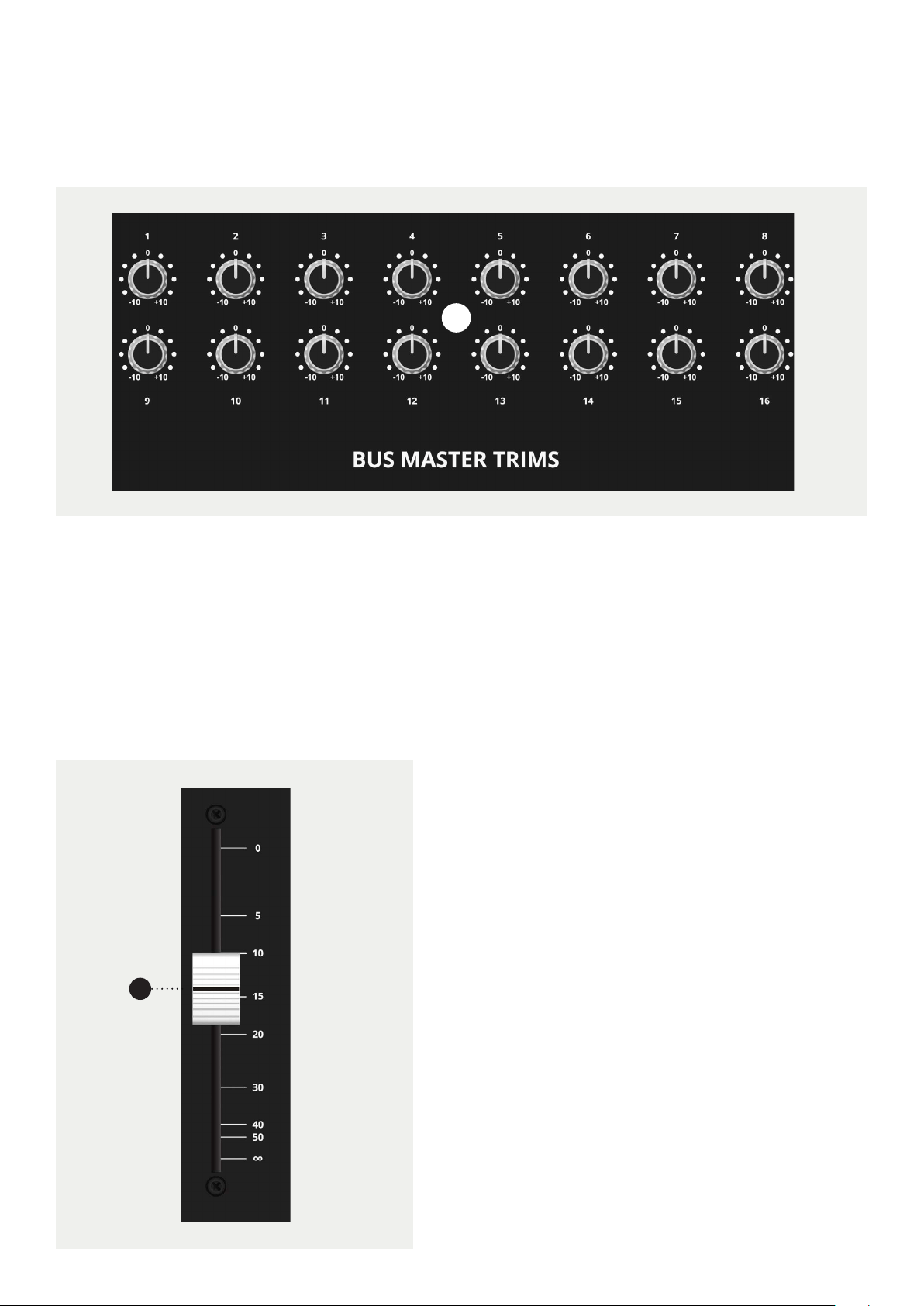
1 BUS MASTER TRIM controls the overall level of
a bus output.
The BUS MASTER TRIMS are the final stage of level
control over the signals routed to the bus outputs. Each
bus output has a trim with a range of ±10dB.
1
1
35
Mix Processing
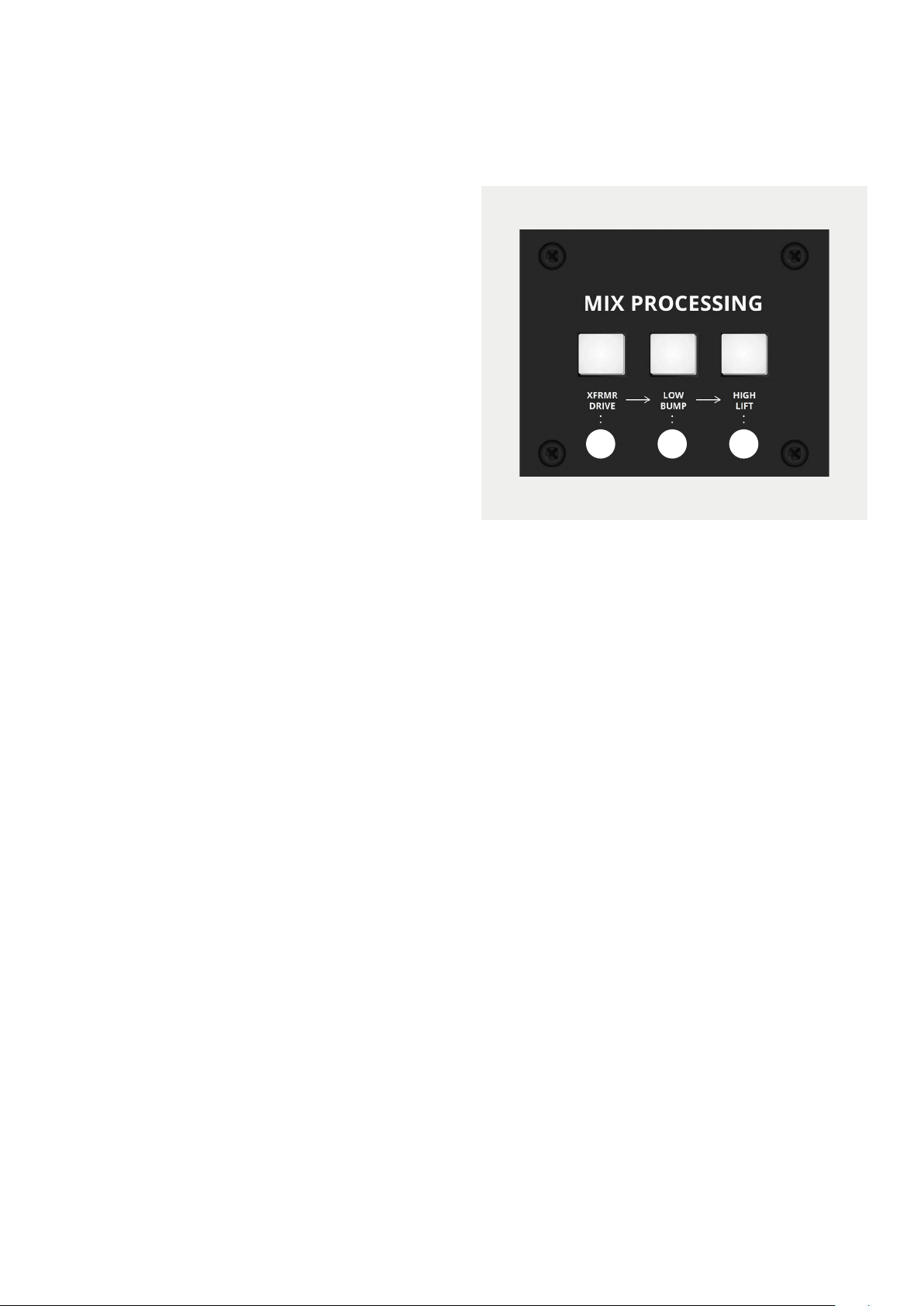
1. XFRMR DRIVE, introduces two Carnhill Output
transformers to the console, giving you the
fat punchy sound transformers are known for.
The two transformers are driven by a circuit
inspired by David’s time at Advision Studios.
When engaging the XFRMR Drive stage, listen for
extra punch, especially in the low end. You should
find that reverbs and room mics open up and the
sound stage will get wider and more pronounced.
2. LOW BUMP adds a slight boost to the low-end,
around 60Hz, which helps push the kick and bass
through the mix and keep the track glued together.
3. HIGH LIFT adds a slight boost, this time to
frequencies around 20kHz. This adds a little bit of
‘Air’ to the mix which makes cymbals sparkle, and
adds clarity to vocals.
Note: Low Bump and High Lift are part of the mix bus
processor circuit and will only aect the mix when the
XFRMR drive is engaged
We would recommend adding the XFRMR Drive
halfway through a mix and then mixing into it, adding
the Low Bump and High Lift as needed to add a little
sweetness to the mix.
21 3
36
Control Room Connectors
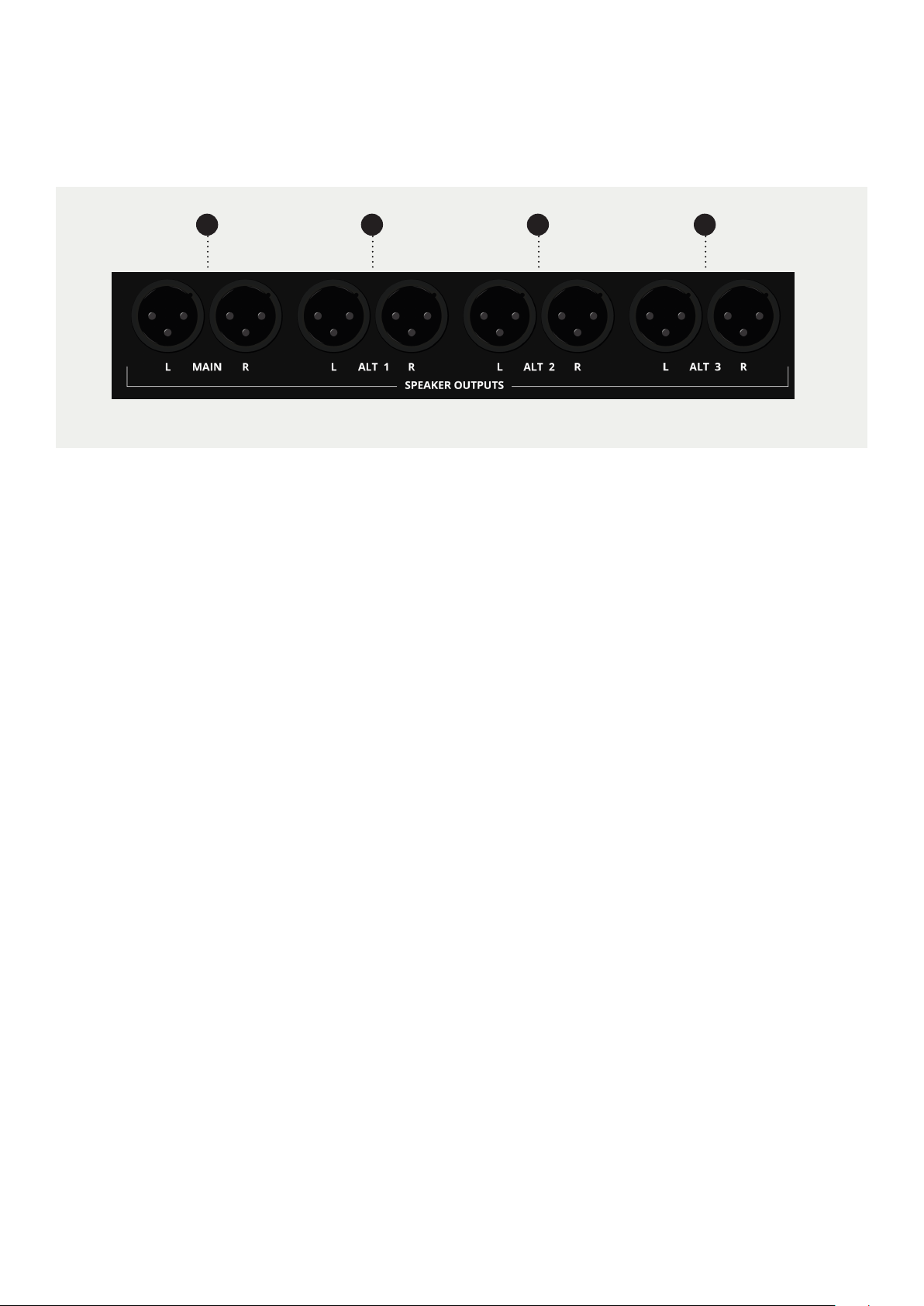
1 MAIN Control room loudspeaker output.
2 ALTERNATIVE 1 loudspeaker Output.
3 ALTERNATIVE 2 loudspeaker Output.
4 ALTERNATIVE 3 loudspeaker Output.
These are the connectors for the control room
loudspeakers. There is a main output and 3
alternative outputs which can be selected from the
control surface of the console. Each output is stereo,
having a left and right connector.
The console does not contain any power
amplification and these outputs should be
connected into a suitable power amplifier for the
loudspeakers in use.
The speakers may of course be self powered in
which case connection should be made to the
inputs on the loudspeakers.
21 3 4
37
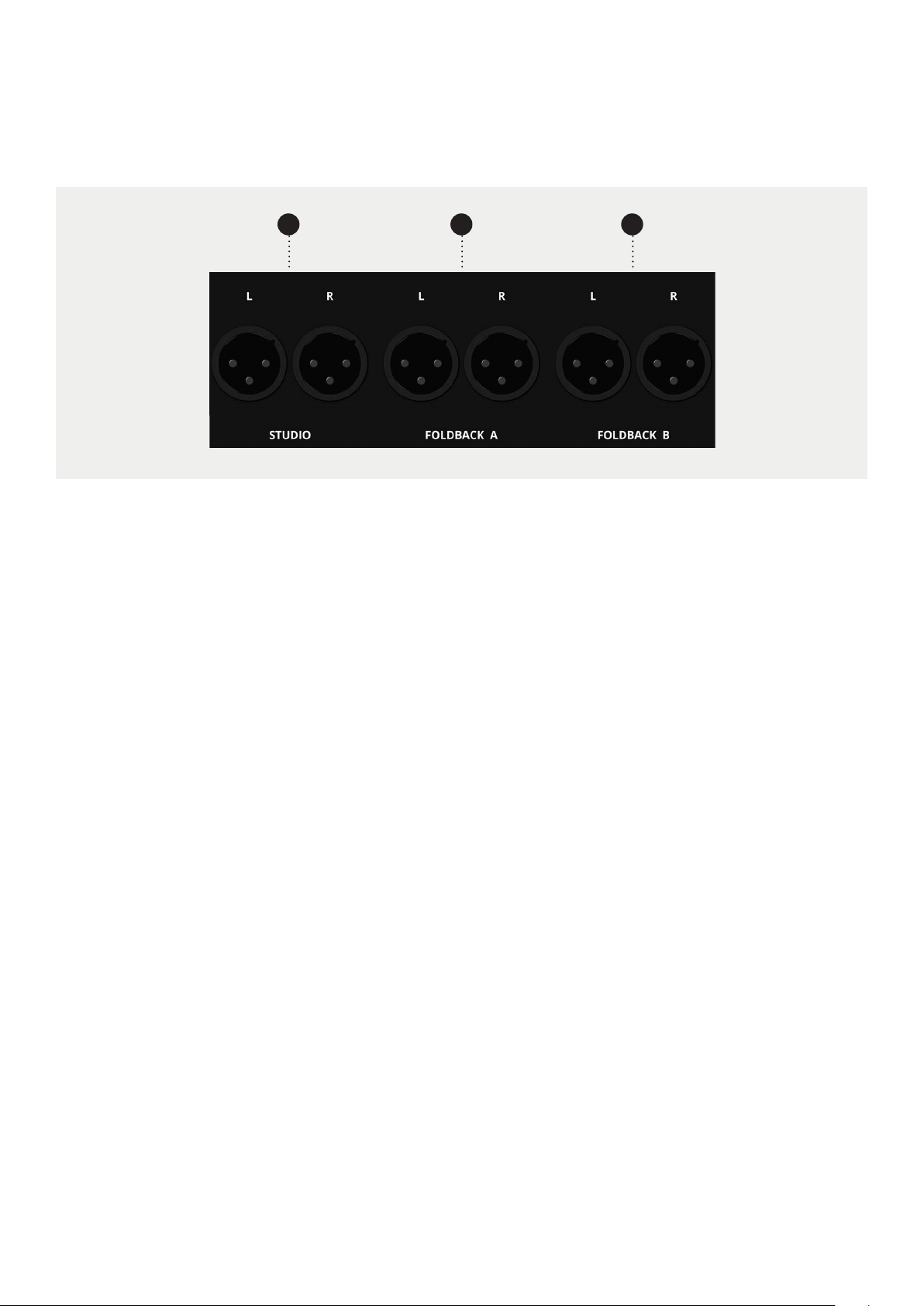
1 STUDIO LOUDSPEAKER . These carry the outputs to
the studio loudspeaker system. The output depends
upon the selection made on the control surface of
the console.
2 FOLDBACK A output. Foldback is normally used as a
feed to headphones. The output depends upon the
selection made on the control surface of the console.
3 FOLDBACK B output. Foldback is normally used as a
feed to headphones. The output depends upon the
selection made on the control surface of the console.
Studio/Foldback Connectors
321
These are the XLR connectors for the Studio
Loudspeaker and the two foldback outputs. Each
output is stereo, having a left and right connector.
The console does not contain any power
amplification and these outputs should be
connected into a suitable power amplifier for the
loudspeakers or headphones in use.
The speakers may of course be self powered in
which case connection should be made to the
inputs on the loudspeakers.
38
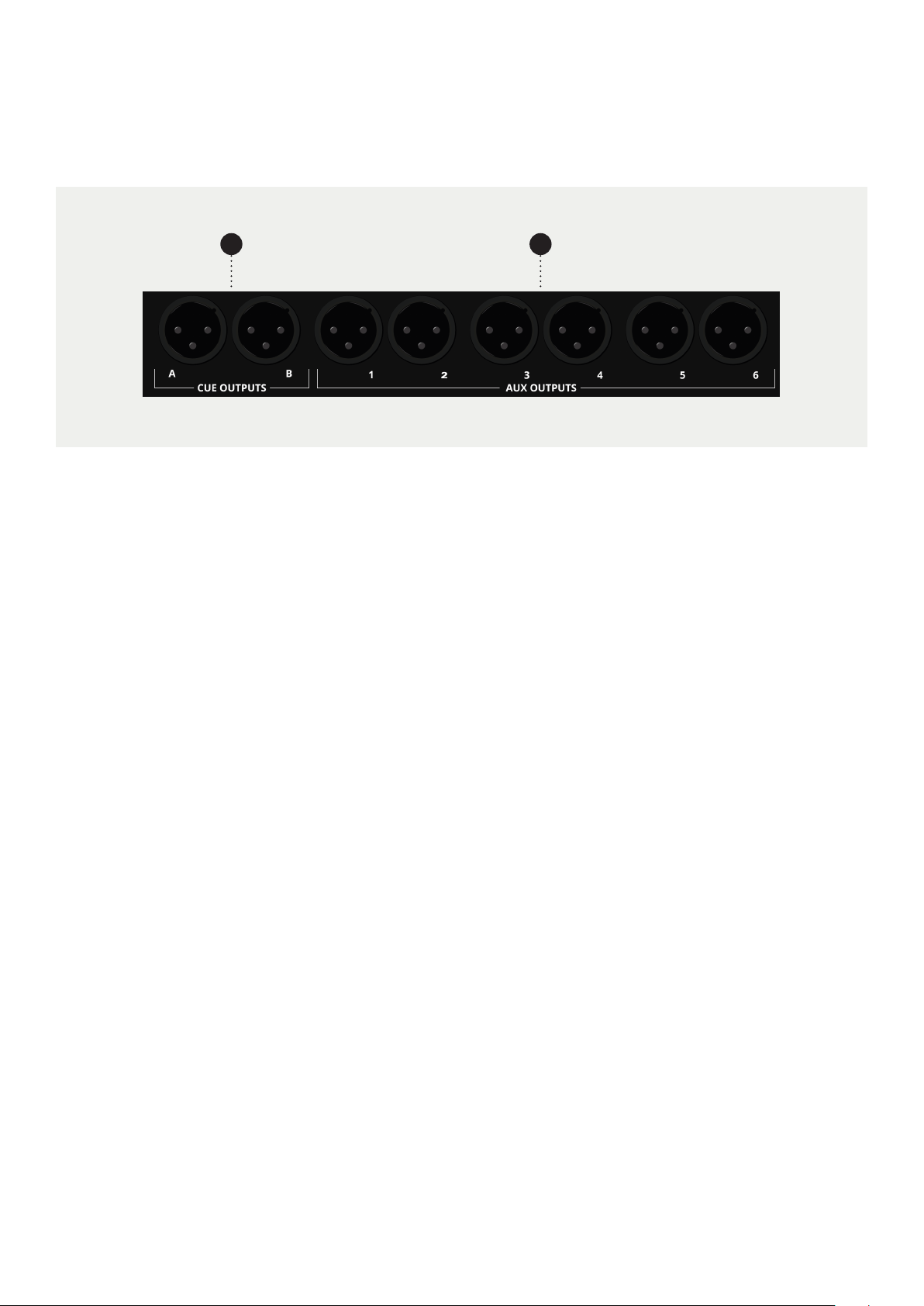
1 CUE A and CUE B outputs. These auxiliaries are
normally used as feeds to the foldback system by
selecting them on the control surface of the console.
They can also be used as additional eects sends.
2 AUXILIARY 1 and 2 outputs. The remaining auxiliary
outputs are identical.
Aux Connectors
1 2
The auxiliary outputs are typically used to send to
eect units such as reverberation units. They are
line level fully balanced outputs.
39
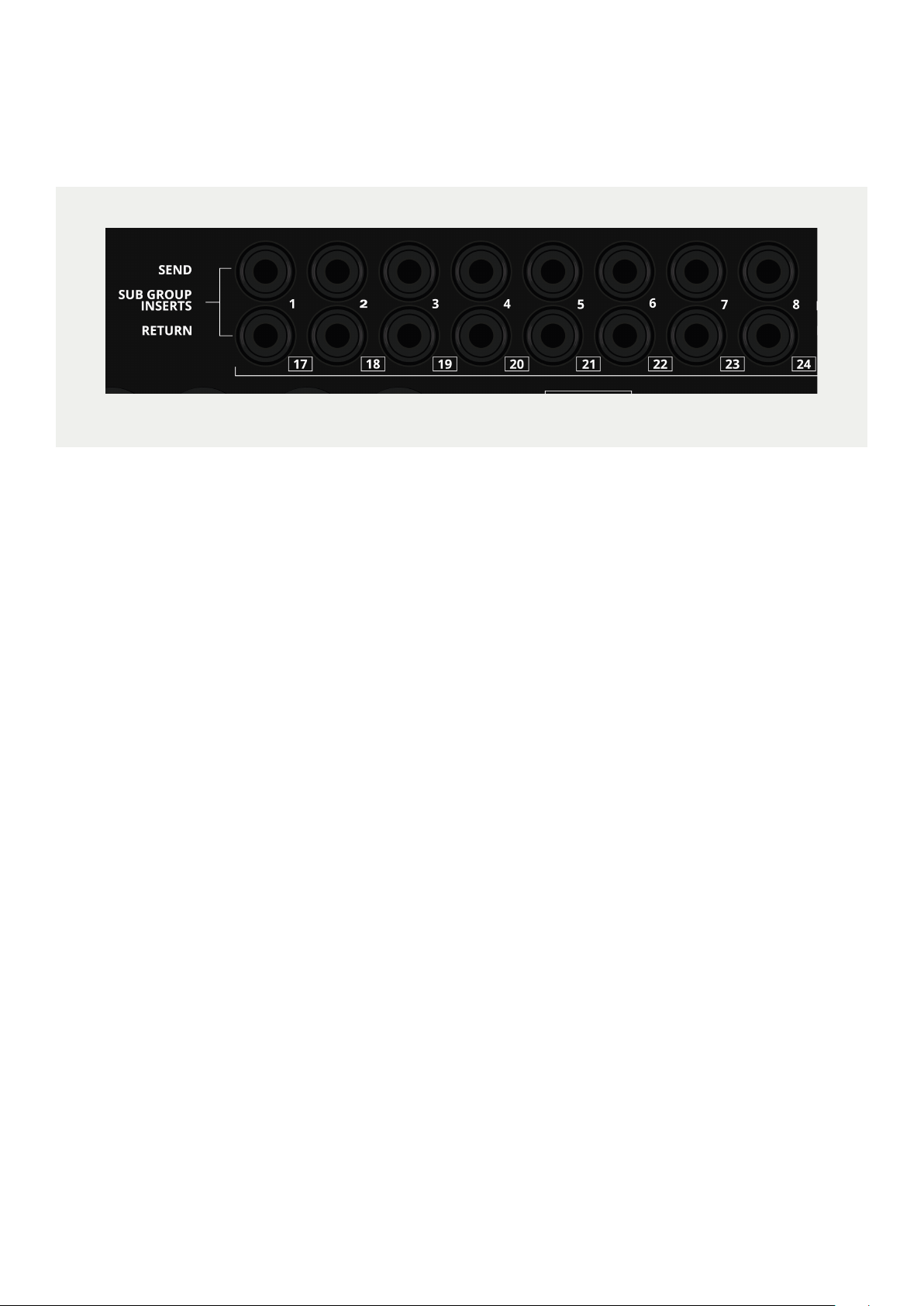
SUB-GRP Insert/Line Input 17-24 Connectors
This panel carries the connectors for the sub-group
insert points. There are 8 sub-groups and each insert
point has a send output and a return input.
Signal is always present on the send output. If required
the insert returns could be used as very basic inputs to
the stereo mix bus during mixdown, from a submixer or
sampler etc.
The insert return jacks can also be used to provide 8
additional line inputs to the mix. These are designated
as Line inputs 17-24.
Note that the additional line inputs are not available if
the insert return is also being used.
40
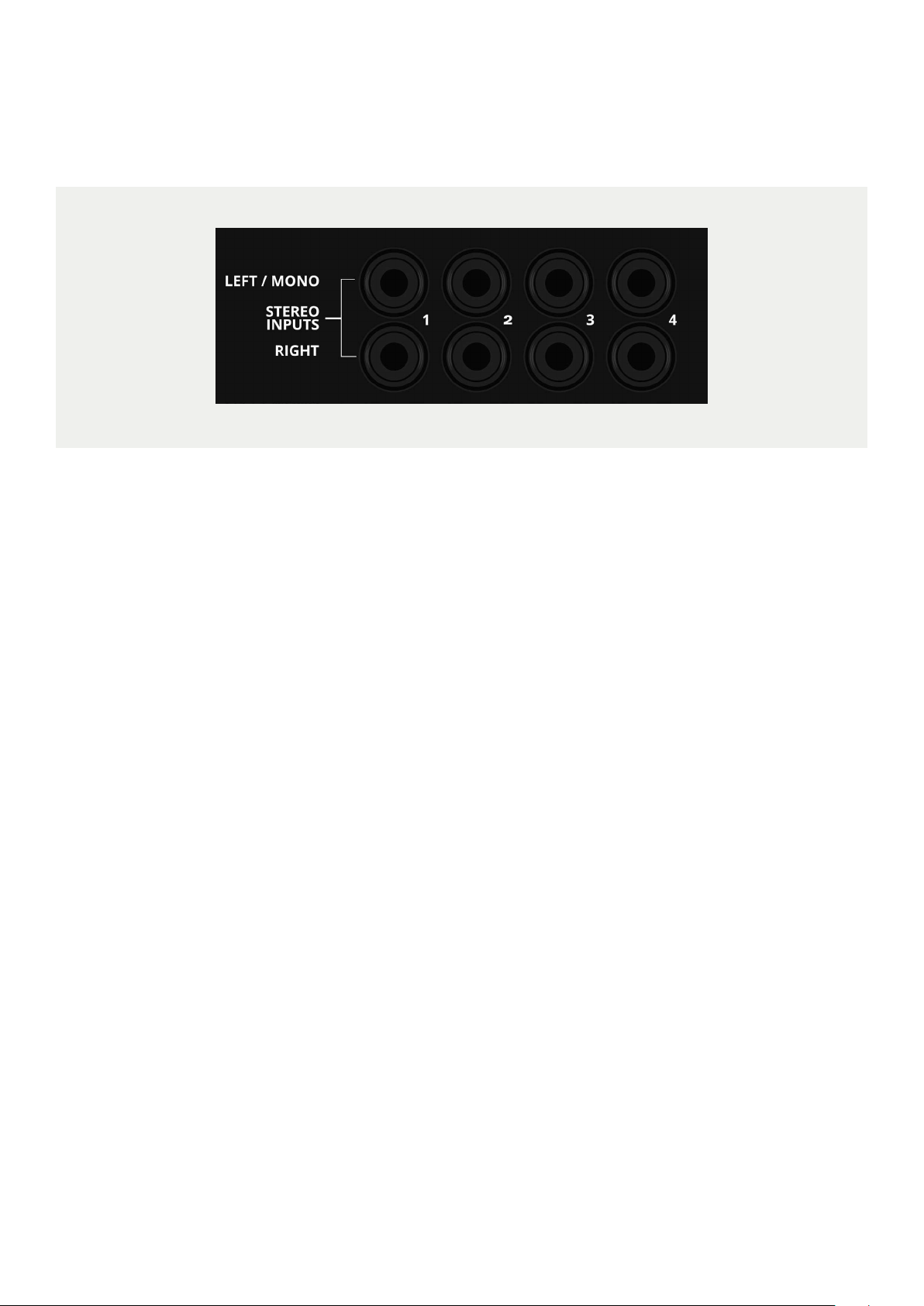
Stereo Input Connectors
This panel carries the input TRS jacks for the stereo
inputs located on the master section of the console.
There are 4 returns each with a left and a right input.
If a mono source is used then it should be plugged into
the left input. This is normalled over to the right input
causing the signal to travel through the left and right
signal paths of the return. If a plug is inserted into the
right input the normalled connection is broken.
41
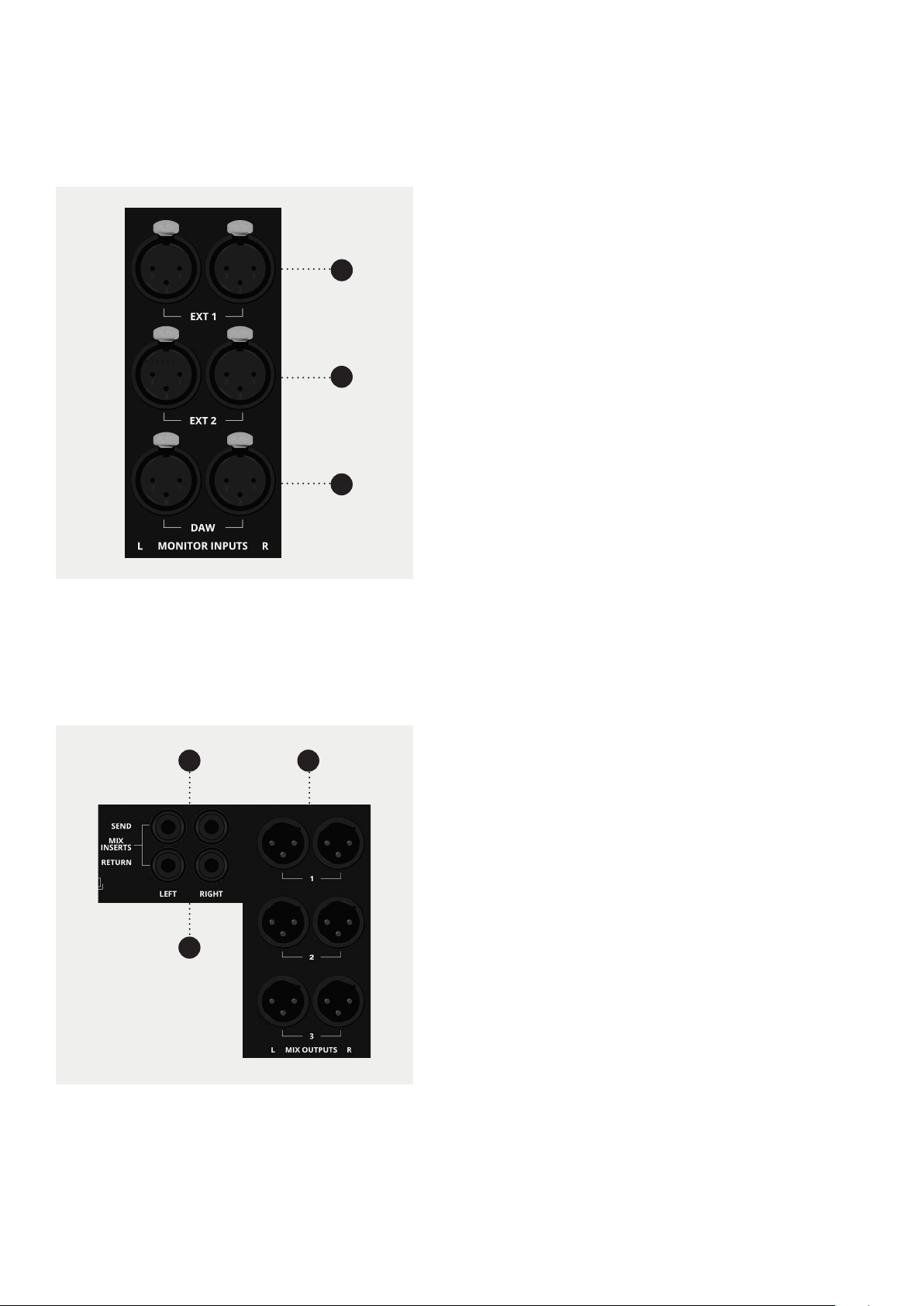
Monitor Inputs
Mix Outputs
This panel carries the connectors for the external inputs
to the monitoring system.
All three inputs are available as sources to the control
room monitoring system while the first two can be used
as sources for the studio monitoring system and the
foldback system.
There are 3 sets of stereo output connectors enabling
the connection of 3 stereo recording machines.
The outputs can be used for many purposes of course.
Associated with the outputs are the mix insert points.
They allow a final mix processor to be inserted into the
MIX path, and are located before the MIX compressor/
limiter.
1 Input for DAW
2 Input for EXT 1
3. Input for EXT 2.
1 MIX INSERT SEND jacks. There is a separate send
output for the left and right mix.
2 MIX INSERT RETURN jacks. There is a separate return
input for the left and right mix.
3 MIX OUTPUT (Stereo Output) connectors. There
are three sets of connectors which can all be used
simultaneously.
1
1
3
3
2
2
42
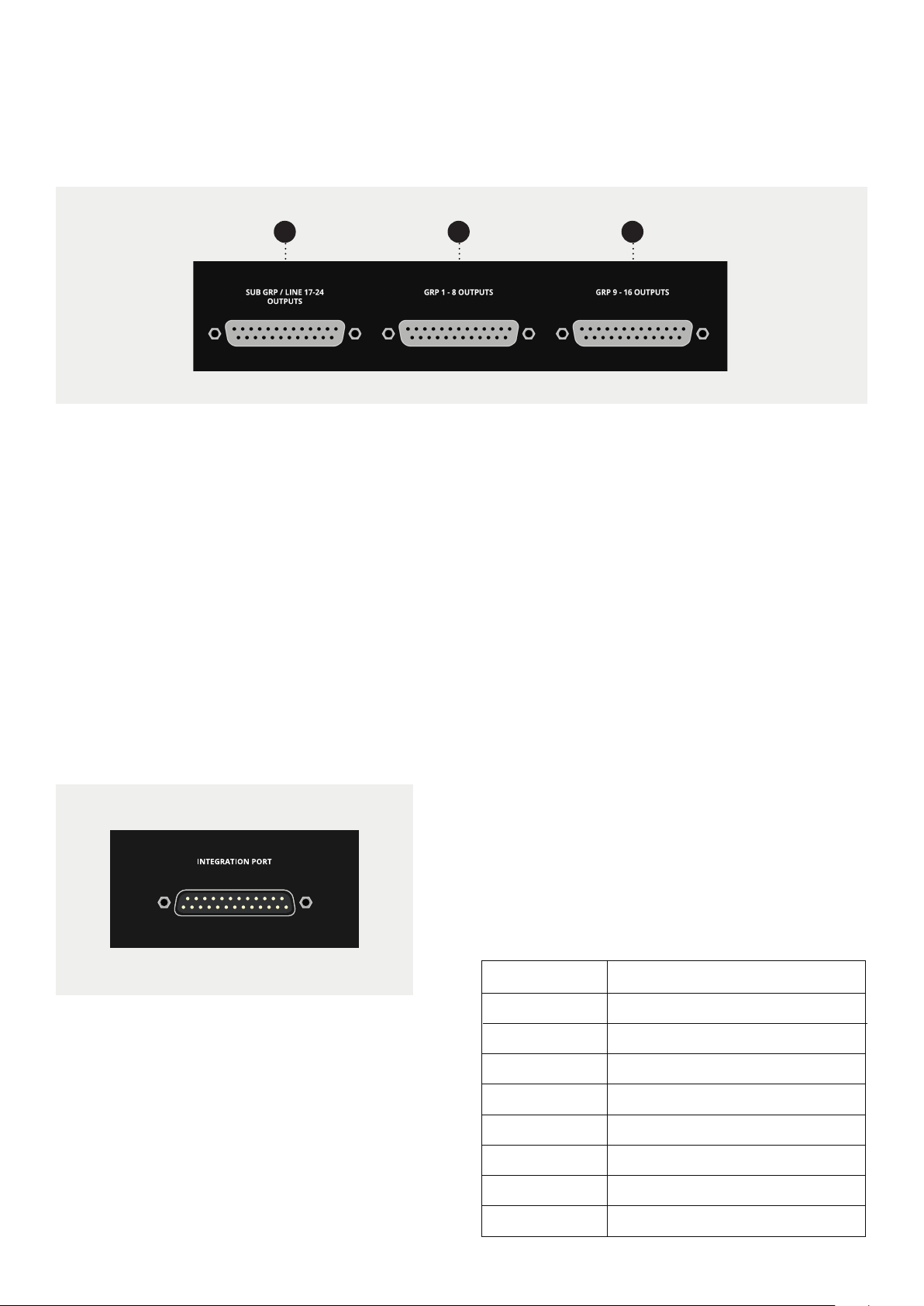
BUS, SUB-Group/Line 17-24 Output Connectors
1 SUB-GROUP/LINE 17-24 OUTPUT CONNECTOR
2 CONNECTOR for BUS outputs 1 through 8.
3 CONNECTOR for BUS outputs 9 through 16.
2 31
Rather than having individual connectors for each bus
and sub-group output it is much more convenient (and
quicker to make a connection) if they are on D-sub
multi-pole connectors.
The bus sends are split across 2 connectors with each
carrying the bus outputs for 8 tracks. The sub-group/
line 17-24 outputs are on a third connector.
The Remote DIM and SOLO DC will output approximately
12V when active and can be used to trigger settings on a
compatible External Monitor Controller.
The Integration port uses a Tascam Standard pinout.
The channel assignment is as below:
Integration Port
On the Rear of the Console, you will find the
Integration Port allowing you to synchronize the
console with an external monitor controller. This
port provides a copy of the Control Room Output,
a Stereo Guide track which is fed from AUX 5+6, as
well as DC outputs to synchronize the SOLO and
DIM status of the Console with an external Monitor
Controller.
Channel No.
1
Control Room Output Left
2
Control Room Output Right
3
Guide Track Output Left
4
Guide Track Output Right
5
Remote DIM DC
6
Remote SOLO DC
7
Not Used
8
Not Used
Output

43
The Master Meters
Headphone Output
Metering has been addressed on the input modules
although there are also meters associated with the
master functions on the console.
The output meters show the output levels of the sub-
groups and also the stereo output. If problems are
indicated here with the level being either too high or
low then it is most likely that the problem is further
back in the signal path. Follow our procedure for
gain setting to see if this remedies the situation.
1 Power Supply Status Indicators for the +18V, -18V
and 48V power rails.
2 Left and Right Peak Reading Main Output Meters.
3 Over Indicators, when illuminated the signal is in
danger of being clipped and the level should be
reduced. A level of +20dBu will bring the OVER
indicator on. Maximum or 0dBFS is indicated at
a signal level of +18dBu, corresponding to full
modulation on a digital recorder.
4 0VU. When the signal is at a level of +4dBu the bars
should be illuminated up to this point. Note that this
is not meant to be normal operating level because
the meters are peak reading.
5 Talkback Microphone Connector. If talkback is to be
used then a microphone should be plugged in here.
6 Solo Indicator. This lights when a SOLO button has
been pressed on the console.
1
3
2
4
65
On the Master Meter Pod you will find a High-
Fidelity Headphone output, designed for critical
listening purposes. The headphone output uses
an advanced output buer, so can drive any
headphones without issue.
The headphone output is taken from ALT Output
3 and the volume is controlled using the master
volume control, plus the ALT 3 trim.
44
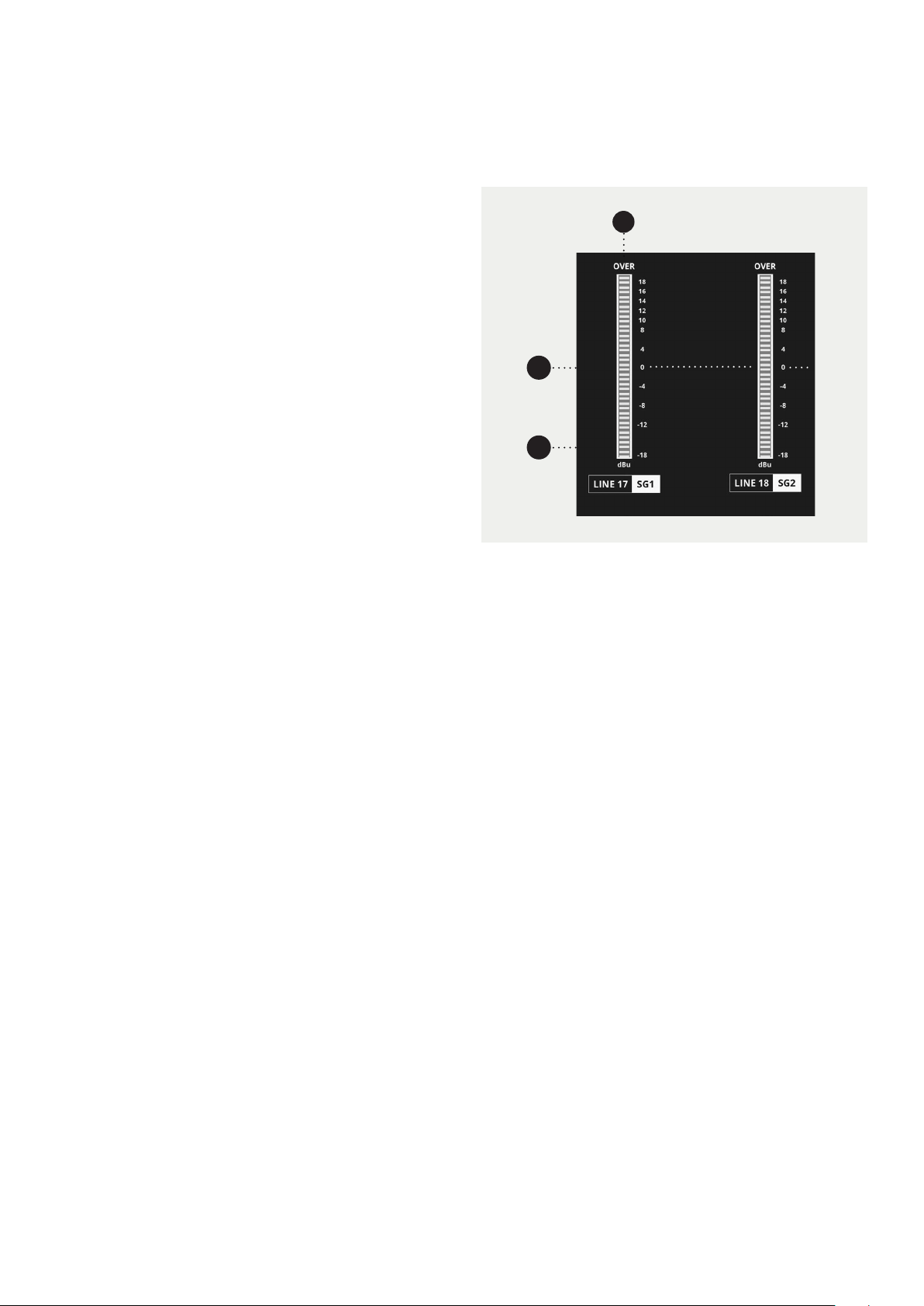
There are 8 sub-group outputs meters on the
console (only 2 have been shown for clarity). The
sub-groups are accessed in parallel with the main
bus outputs and only the first 8 buses therefore
have a corresponding sub-group.
The sub-groups are able to feed the stereo mix and
also have their own outputs located on the rear
panel of the console.
The sub-group outputs can be directly used to feed
a DAW or other recording device.
The sub-group insert returns can also be used to
access line inputs 17-24, which share access to the
same routing and level controls as the sub-groups
themselves.
A typical use for the sub-groups would be during
mixdown when a number of signals are to be
combined to one fader for simpler control. If the
signals are on the LF path then they must first of
all be sent to the routing matrix by pressing the
button in the routing section. By routing the signals
to buses 1 through 8 they will also be routed to the
sub-groups.
The SUB-Group/Line Input 17-24 Meters
1 Sub-group Meter. There are 8 peak reading sub-
group meters - 1 for each sub-group output.
2 Over Indicator. When illuminated the signal is in
danger of being clipped and the level should be
reduced. Like the main meters this will illuminate
with a signal level of +20dBu. 0dBFS is indicated at
a level of +18dBu, which normally corresponds to full
modulation on a digital recorder.
3 0VU. When the signal is at a level of +4dBu the bars
should be illuminated up to this point. Note that this
is not meant to be normal operating level because
the meters are peak reading.
1
3
2

45
Using ASP4816-HE

46
Introduction
Recording is generally a three-stage process made up of the tracking stage, the editing stage, and
then the mixing stage. The tracking stage consists of capturing the audio onto a storage medium.
Traditionally audio was captured onto multi-track tape, however now the majority of people will
use a Digital Audio Workstation (DAW) such as Logic or Pro Tools.
The editing stage involves preparing audio for mixing, this usually involves everything from
trimming, editing and fading audio, to tuning parts and more. This is where the monitoring section
of the console really comes into its own, allowing you to quickly solo and cut channels out of your
monitoring mix.
The third stage of the process involves returning the recorded tracks from your DAW back into the
console. Using the faders and EQs, you can mix the audio until the individual tracks come together
as a collective whole.
Once you are happy with your mix, you can combine it into a stereo mix using the analogue mix
bus processing of the ASP4816 HE. Summing can also be done in your DAW but you may find that
summing through the console adds a little more colour and punch to the overall mix.
In-line Architecture
The ASP4816 uses an inline architecture, which means the Mic/Line Inputs and the DAW Returns
are both situated on the same channel strip; these two paths are known as the Short Fader (SF)
and the Long Fader (LF) paths. The inline architecture allows you to split the various sections of the
channel strip between the two signal paths.
For example, you could use the Shelf EQs to add a high-frequency boost to a vocal during tracking
and then use the Cue sends to send the same Mic/Line signal to a fold-back mix. At the same time,
you could be using the Parametric EQs to cut out a room noise on the DAW Return path and using
one of the Auxiliaries to send the DAW return signal to a reverb unit.
To split the channel strip, each section has a button that allows you to place it on either the LF path
or the SF path. The bus routing switches by default are on the SF path, while the Auxiliaries, Cues,
and EQs default to the LF path. Furthermore, it is possible to flip the two signal paths so that Mic/
Line signal is sent to the LF path and the DAW Returns are sent to the SF path.

47
Tracking
A new project usually starts o with a blank session in your DAW. The first step is to get a signal into
the console from the microphone or instrument. To do this, connect the microphone or instrument
to the Mic/Line Inputs of your console. If you are using the TRS Line Input, press down the Line
button on the channel you are using.
If you are using a microphone that requires +48V Phantom Power then make sure that the grey
‘+48V’ button is engaged. You should always mute that channel, and your Speaker and Headphone
Output before engaging Phantom Power as there can be a loud popping noise. By default, the
large Channel Meters show the level of the LF path, pressing the MTR button will flip this to allow
you to accurately see the level of the inputs.
To set the level, turn the Gain Knob, making sure to avoid overloading the channel (indicated with
the OVER light above the meter).
The Multi-Track Buses
For simple sessions, it is typical to route the SF channel path to its corresponding Multi-track Output
using the Bus Routing Matrix. This sends the signal to your recording device. To control the amount
of level being sent to the output simply bring up the Short Fader to a point where you get a healthy
signal into your recording device.
Setting the fader at 0dB means that the signal isn’t boosted or attenuated when it is sent to the
Multi-track Outputs, which is ideal for most situations. However, you can also use the Short Fader
in a more creative manner.
This isn’t applicable to all recording scenarios, but when used well, can give you a warm, punchy
sound that is great on drums and guitars. In a similar vein, you can use the Short Fader to reduce
the output, allowing you to increase the gain of the preamp. Although the Audient preamp design
is relatively clean, it does start to tighten up and get slightly ‘warmer’ as you start to push it harder.
Again, while this isn’t suitable for all situations, it can be a great way of adding additional richness
or body to a recording.
Monitoring Recorded Tracks
To monitor your recorded tracks from your DAW bring up the Long Faders and press the Long
Fader Mix button. This sends the audio to the Mix Bus which is then sent to the monitors. This
enables you to monitor what is happening in your DAW on the Long Faders and lets you start
building a mix as you’re tracking, all without making changes to your input signals.

48
Foldback
You can use ASP4816-HE’s two Cue Mixes, to allow musicians to hear the live input and click/
guide tracks from your session. To bring a click/guide track onto the console, it needs to be sent
to the DAW Returns on a channel (or multiple channels). This brings the signal onto the LF path
of that channel. To help keep your session easy to navigate, it is recommended that you keep the
guide tracks separate from the recording channels (e.g. bring them in on the last channels on the
console).
To send the click/guide track, turn up the Cue Mix knobs on the channels you want to send. The
Cue Mix knobs default to the LF path, so to send the live input to the artist, make sure the SF button
is engaged next to the Cue mix knobs. Use the Cue Mix Solo button found on the Master Section to
monitor what will be sent to the artist, and then ensure the Cue Mix Master is turned up.
The Cue Mix can be routed to the Foldback Output using the “Live Room and Foldback Section” of
the Master Section. Press the Cue buttons under Foldback 1 to assign the Cue Mix to the Foldback
Output. It is possible to create a stereo foldback signal using the two cue mixes, using Cue A as the
left channel, and Cue B as the right channel.
Tracking with Eects
When tracking, it is possible to make use of the console EQ and the channel Inserts, allowing you
to commit EQ and eects as you record. To insert an eect on a channel, press the Insert Active
button in the Mic/Line section of the channel strip.
For EQ, ensure that the SF and IN buttons are engaged on the EQ band that you want to use. It is
possible to split the Shelf and Parametric EQs between the Long and Short Faders by sending only
one to the SF path.
Monitoring Recorded Tracks
To monitor your recorded tracks from your DAW bring up the Long Faders and press the Long
Fader Mix button. This sends the audio to the Mix Bus which is then sent to the monitors. This
enables you to monitor what is happening in your DAW on the Long Faders and lets you start
building a mix as you’re tracking, all without making changes to your input signals.

49
Mixing
Getting Audio From DAW to Console
Recorded tracks should be brought back onto the console using the DAW Returns, which come
in on the Long Faders by default. Provided that the MTR flip buttons are disengaged, the signal
should appear on the long meters for each active channel strip.
Engage the Mix buttons for the Long Faders and bring up the faders to 0dB for channels that are
in use. Signals should now appear on the main meters in the master section, and you should be
able to hear the recorded tracks.
Subgroups
ASP4816 has eight subgroups, which allows you to group certain tracks together and give you
control over their overall level (drums channels for example). Sub Groups can be set by using
the first eight buttons of the Bus Routing Matrix at the top of the channels, ensuring that the Bus
Routing is flipped to the LF path by pressing the LF button next to the switch matrix.
To create a stereo sub-mix, press the Follow Pan button. This causes the odd Multi-track Buses to
take signals from the left side and the even numbers from the right. For example, on each channel,
you would press down a pair of Multitrack buttons such as 1 and 2. Any channel that is panned fully
left will appear on Sub Group 1, and any channel panned fully right appears on Sub Group 2, with
channels panned in between being split between Sub Groups.
Adding EQ to Tracks
EQ can be added to channels to allow them to sit better together in a mix, or just for creative
eects. To do this, press the IN button on the band of EQ you want to add to the channel. For more
broad equalization, the Shelving EQs are best and allow you to add additional low-end or high
frequencies to that track.
The Parametric EQs allow you to sweep frequencies and adjust the bandwidth of the EQ. This
gives you more control over what is being cut or boosted and is great for surgical cuts of problem
frequencies.

50
John Hardy 990C+ Mix Bus Op-amps
When sending audio to the Mix Bus, you’ll be sending your audio through a pair of discrete John
Hardy 990C+ Op-amps as part of the summing circuit. This provides a number of benefits over the
monolithic op-amps you may find on other consoles. Firstly, the noise floor of the Mix Bus with the
990C+ op-amps is vanishingly low, even when summing a large number of channels.
Furthermore, the discrete design of the op-amps allows for a lightning-fast transient response,
giving you an incredible amount of detail and punch and providing that “3D” sound that will bring
your mixes to life.
Using the Mix Bus Processing
The introduction of the XFRMR Drive, Low Bump, and High Lift allows you to add weight and life
to your mixes. This processing is added to the signal chain before the Mix Bus Insert and the Mix
Bus Compressor.
We usually recommend adding XFRMR drive around halfway through the Mixing Process, just
after you’ve got your levels and pans set how you want them.
The Low Bump and High Lift are usually best added towards the end of the Mixing Process to add
emphasis but really can be added at any point since they are such wideband EQ changes.
Remember that the processing may not work with all program material so always experiment and
use your ears when using the processing to get the best results.

51
Inserts & Auxiliaries (Using Outboard Equipment)
There are a few dierent ways to connect outboard equipment to the desk, depending on how you
want the outboard to aect your audio. The first way is to add the outboard gear in the channel
insert point. This means the outboard can only aect the channel it is placed on. Connect your
outboard gear between the insert send and return, then press the ‘Insert In’ on the DAW inputs to
send the signal through the gear.
The Sub Groups can also have gear inserted in the same way, useful when wanting to process
a group of channels as a whole. Another way of using outboard eects is to use the auxiliaries.
This allows you to send multiple channels of audio to the same piece of outboard gear, while not
aecting the original audio.
The Aux Send level knobs allow you to alter the amount of signal being sent to the auxiliary from
each channel. The output of the outboard can be fed back into the console either through an
unused input channel, or one of the Stereo EFX Inputs.
When using an Auxiliary, ensure that the corresponding Aux Master is turned up in the Master
Section of the console. The Aux Master Solo buttons can be used to monitor what is being sent to
the outboard gear.

52
Block Diagrams
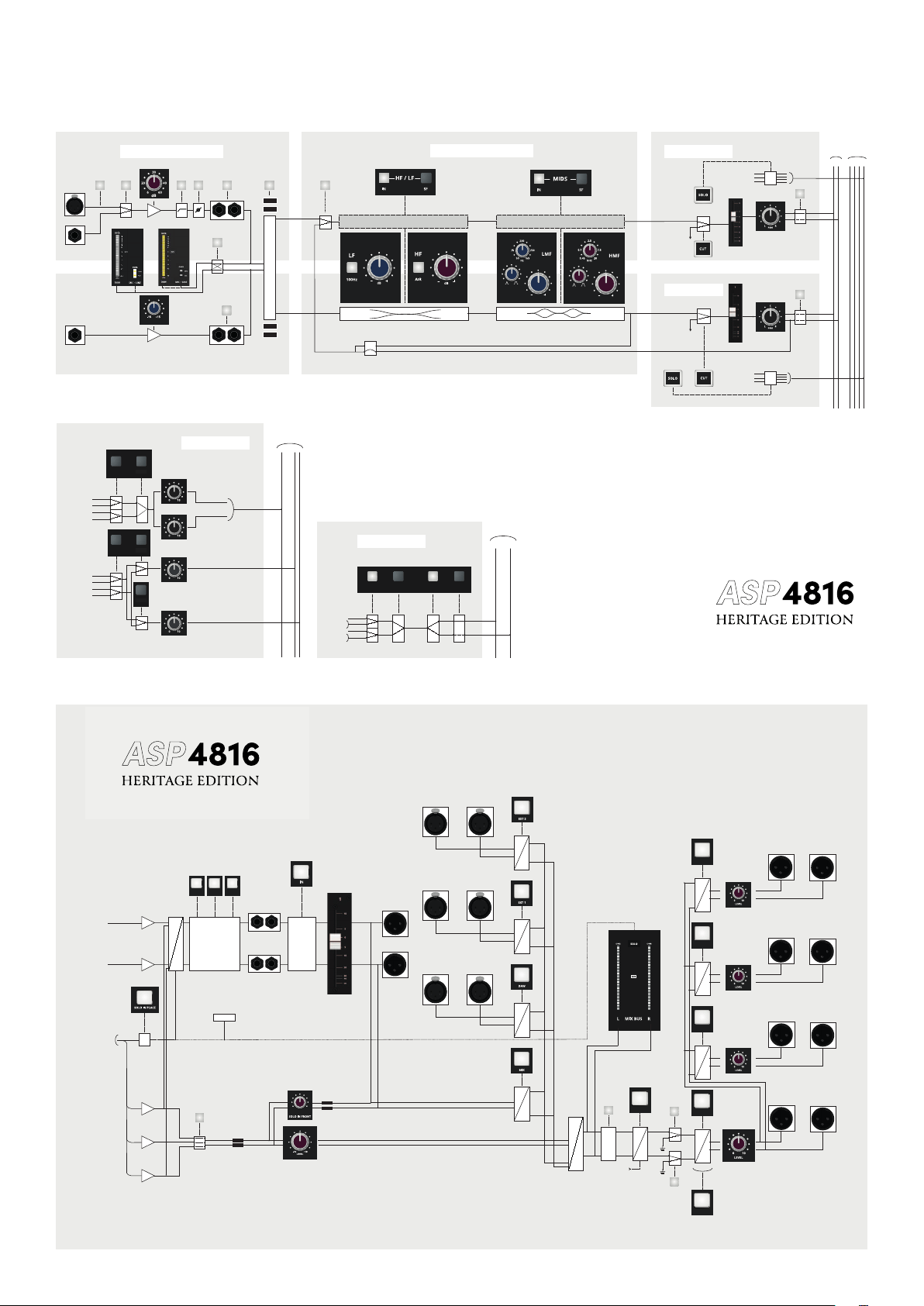
53
0
-4
-8
-12
-16
-20
-24
-28
-32
-36
SIG
0VU
+ 48v
MIC
DAW
LINE HI PASS
PHASE
REV
INSERT
IN FLIP
SOURCE
LINK
PRE
POST
SF PRE
SF LEFT
SF RIGHT
LF PRE
LF LEFT
LF RIGHT
2
1
A
B
AUXILIARY BUSES
LF PRE
LF PRE
LF POST
LF POST
SF POST
LF POST
SF PRE
SF PRE
SF LEFT
LF LEFT
SF POST
SF POST
SF RIGHT
LF RIGHT
1-8 9-16
MIX
BUSES
L R
SOLO
BUSES
CUE
1-6 A B
SOURCE
MTR
DAW
DAW
MIC
MIC
INSERT
IN
0
dB
MIX
MIX
PRE
PRE
SF
PAN
LF
SHIFT
1-8
(9-16)
PRE
SF
SF
INPUTS
ROUTING
AUXILIARIES
INPUTS AND METERING
EQUALISERS
SHORT FADER
LONG FADER
LINE
SOLO
Σ
Σ
Σ
Σ
Σ
SIP
RELAY
SOLO
RELAY
LIMITER
COMPRESSOR
DC
LEFT
RIGHT
MIX
RIGHT
LEFT INSERT
ALT 3 MONITORS
EXT 2
MIX BUSES
AFL L
AFL R
PFL
SOLO BUSES
FROM T/B
CONTROL ROOM SPEAKERS
2 -TRACKS
RIGHT INSERT
LEFT RIGHT
EXT 1
LEFT
RIGHT
DAW
LEFT
RIGHT
MIX
LEFT
LEFT
RIGHT
ALT 2 MONITORS
LEFT
RIGHT
ALT 1 MONITORS
LEFT
RIGHT
MAIN MONITORS
LEFT
RIGHT
MAIN
CUT
ALT 1
ALT 2
ALT 3
DIM
MONO
PFL
CUT
LEFT
CUT
RIGHT
dBu dBu
-10
-18
-30
-6
-2
0
2
8
10
4
6
12
14
16
18
-10
-18
-30
-6
-2
0
2
8
10
4
6
12
14
16
18
SOLO
MIX
HERITAGE BUS
PROCESSING
XFRMR
DRIVE
LOW
BUMP
HIGH
LIFT
MASTERS PART 2
INPUTS
MASTER PART 1
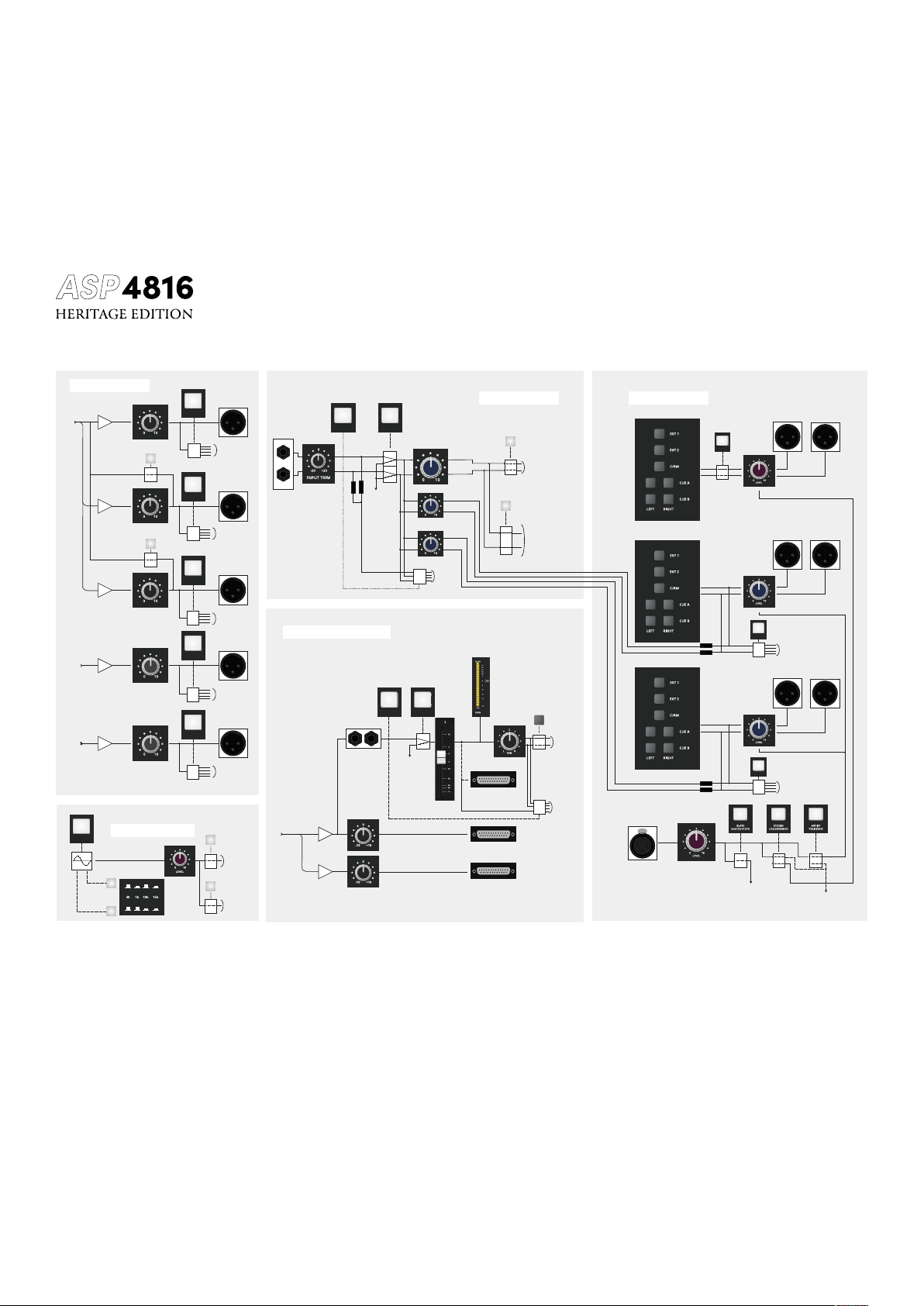
54
STEREO INPUTS
AUX BUSES
FOLDBACK
CUTSOLO
ON
SOLO
SOLO
SHIFT
F/B A
F/B B
FREQUENCY
Hz
SUB GROUPS 1-8
1-8
(9-16)
RIGHT
LEFT
1-8
9-16
AUX 1
AUX
BUSES
AUX 3
AUX 5
AUX BUS A
AUX BUS B
SPEAKERS
FOLDBACK A
FOLDBACK B
SPEAKERS
FOLDBACK A
FOLDBACK B
LEFT
RIGHT
TO DIM RELAY
TO MULTITRACK
& MIX BUSES
TO SOLO BUSES
TO SOLO
BUSES
TO SOLO BUSES
TO MIX BUSES
TO MIX
BUSES
TO MIX
BUSES
TO SOLO BUSES
TO SOLO BUSES
TO SOLO
BUSES
TO SOLO BUSES
SUB GROUP INSERT
TO SOLO BUSES
TO SOLO BUSES
Σ
Σ
Σ
Σ
Σ
Σ
Σ
TO
MULTITRACK
BUSES
TO
MULTITRACK
BUSES
MULTITRACK
BUSES
MIX
MIX
BUS
OSCILLATOR
MULTITRACK BUSES
LEFT
RIGHT
LEFT
RIGHT
ON
T/B
BUSES 1-8
BUSES 9-16
MIX
CUTSOLO
SOLO
SOLO
SOLO
SOLO
SOLO
LINK TO AUX 2
LINK TO AUX 1
FADAR
MASTER PART 2

55
Glossary

56
AFL
This allows after fade (post fade) signals to be heard on the monitors and viewed on the main
stereo meters.
Auxiliaries
Sometimes known as auxiliary sends these are used as secondary mix buses. The mixes created
on these buses are then used to feed eect units or are fed back to the performers as a foldback
feed. Every channel has access to the auxiliary mixes and the contribution of any channel can
be varied by using the appropriate auxiliary level control. Auxiliaries can be switched pre or post
fader and be allocated to either the SF or LF signal paths.
Auxiliary Master
Associated with every auxiliary there is an auxiliary master control to give overall level control
rather than having to adjust the contribution from every channel.
Bus Master
Inputs are assigned to bus outputs through a routing matrix, enabling one or many inputs to be
assigned to the same bus. The bus outputs usually correspond to inputs on the DAW or other
recording device. Each bus then has a mixing amplifier whose gain can be controlled by the Bus
Master Trim. This allows the level to a multi-track input to be raised or lowered without having
to adjust the individual level of each channel routed to that track. The faders can still be used to
adjust the relative levels of channels.
Cut
The cut or mute control is used to silence (mute) a signal path when it is not in use. This removes
the noise contribution from that source leading to a quieter mix. There are cut switches in both the
SF and LF signal paths.
Dim
This allows the control room loudspeaker levels to be reduced by a pre-set amount. Dim will be
brought into action automatically when talkback is used preventing howl round.

57
Equaliser
Equalisers are what would be referred to as tone controls on consumer equipment. Equalisers are
divided into a number of bands - 4 in this case. There is scope to adjust high and low frequencies
and two bands of middle (mid) frequencies. The high and low frequency sections are shelving
and the turnover frequency is switchable. The middle frequency sections are peaking and the
frequency of the peak (or dip) is adjustable. It is also possible to alter the Q of the mid sections with
a pot, making the Q continuously variable between two values. In-line consoles often have the
facility for the equaliser to be split such that it can be used partly in the channel path and partly in
the monitor path. The SF switches on ASP4816-HE equalisers allow the HF/LF and MID equalisers
to be independently switched into the SF signal path.
Flip
Flip allows the inputs to the signal paths to be swapped. Normally the LF path will carry the DAW
input, however, with FLIP pressed it will carry the MIC/LINE input while the DAW input will travel
through the SF path.
Foldback
Foldback is a mix that is returned to the performers in the studio in order that they can play in time
with what is already recorded. It could simply be the console stereo output although more usually
it is taken from a pair of auxiliary buses allowing a dierent mix to be created. Talkback may also
be included on the foldback outputs enabling communication with the artists.
In-line
This refers to a type of console which contains two signal paths within a channel strip. The channel
signal path is used to feed a DAW or other recording device while the monitor path is used to
carry the output of the DAW (or other recording device) through to the stereo mix bus. In-line
consoles can be more compact than split consoles or can carry more channels for a given size.
The possibility of switching signals between the two paths and of sharing facilities between the
paths makes the in-line concept a very attractive one.

58
Insert points
Insert points allow the signal path to be broken allowing the insertion of some signal processing
device. The device inserted is then in series with the signal path. When not required the device can
either be switched out using the INSERT switch or unplugged from the console.
LF
The Long fader is normally used to feed the mix. The lighter areas of the channel strips are areas
used for the LF signal path. There may be a dark switch labelled SF allowing that facility to be
switched into the SF or short fader path.
Line
The line input is a high level, high input impedance input intended for high level sources such as
the outputs of a DAW or other recording device, sampler etc.
Mic
The microphone input is a low level, low impedance input intended for use by low output devices
such as microphones. This contrasts with the line input which is intended for use by equipment with
high output levels, such as a DAW line output for example.
Mix
This allows signal to be routed to the stereo mix bus which is the main output of the console. This
routing can be applied to both the SF and LF signal paths and is particularly useful during mix
down when as many inputs as possible are often required.

59
Pan
Short for panoramic potentiometer this control places a mono source signal onto the stereo bus.
The proportion of signal fed to the left and right buses is variable (using the pan control) and alters
the spatial position of an instrument within the mix. Thus a number of channels can all be panned
to dierent spatial positions. Generally low frequency instruments such as kick drums are panned
centrally as they are omnidirectional and for a given SPL the speakers are being driven at a lower
level leading to less distortion. Signals can also be panned across odd and even bus outputs
allowing them to recorded in stereo.
Q
Q is an indication of the frequency range or bandwidth over which a peaking equaliser will be
eective. Low Qs aect a wide range of frequencies while high Qs aect a much narrower range
of frequencies. It thus allows an equalisation adjustment to be targeted to maximise the eect
where required while at the same time minimising changes where they are not wanted. Generally
high Qs sound less pleasant than low Qs.
Routing
This is the process of selecting to which bus output of the console the signal should be routed.
Routing can be to multiple tracks and if an odd/even combination is selected then panning can be
used to record a stereo signal.
SF
The Short fader is normally used to feed the inputs to a DAW or other recording device. It therefore
controls the recorded level of the signal. When SF appears by a control or group of controls it
means that these functions can be switched into the short fader (or channel fader) path.

60
Shift
This allows the number of routing switches to be reduced by doubling the function of each switch.
With Shift unpressed routing is possible to tracks 1 through 8. With Shift pressed routing to tracks 9
through 16 is possible.
Solo in place
This is a method of previewing the signal in a channel and works by cutting all the signals feeding
the stereo bus other than the one(s) being solo’d. This is a destructive process and does aect the
stereo or mix output of the console.
Stereo Bus
This is usually the main bus in the console and provides the output to whatever stereo recording
device is in use. The stereo output is also used as the main monitor source allowing the output of
the multi-track to be heard and the balance of the individual tracks in the mix to be adjusted.

61
Warranty Statement
Your ASP4816-HE comes with a manufacturer’s warranty for three years from the date of despatch
to the end user.
The warranty covers faults due to defective materials used in manufacture and faulty workmanship
only.
During this warranty period Audient will repair or at its discretion replace the faulty unit provided
it is returned carriage paid to an authorised Audient service centre. We will not provide warranty
repair if in our opinion the fault has resulted from unauthorised modification, misuse, negligence,
act of God or accident.
We accept a liability to repair or replace your ASP4816-HE as described above. We do not accept
any additional liability. This warranty does not aect any legal rights you may have against the
person who supplied this product – it is additional to those rights.
Warranty Limitations
This warranty does not cover damage resulting from accident or misuse. The warranty is void
unless repairs are carried out by an authorised service centre. The warranty is void if the unit
has been modified other than at the manufacturer’s instruction. The warranty does not cover
components which have a limited life, and which are expected to be periodically replaced for
optimal performance. We do not warrant that the unit shall operate in any other way than as
described in this manual.
Audient Ltd
Aspect House
Herriard
Hampshire
RG25 2PN
United Kingdom
Tel: +44 (0) 1256 381944
audient.com
Warranty