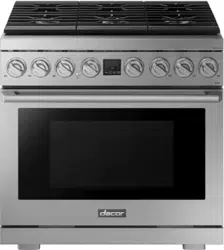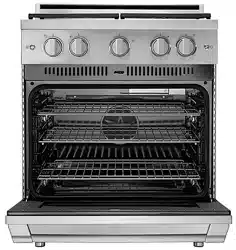
Use and Care Manual
Discovery
®
Range
Models: DYRP48DS and DYRP48D-C-S
Table of Contents
Important Safety Instructions ........................................................1
Getting to Know Your Range ..........................................................4
Setting Up Your Range .......................................................................8
Operating the Cooktop ...................................................................14
Basic Oven Operation ......................................................................17
Deluxe Oven Features .....................................................................25
Additional Features ........................................................................... 43
Cooking Tips ..........................................................................................44
Parts and Accessories .....................................................................45
Care and Cleaning ..............................................................................46
Before You Call for Service ...........................................................52
Warranty and Service .......................................................................55
© Copyright 2014 Dacor Inc. All rights reserved.
1
Important Safety Instructions
Installer: Leave these instructions with the appliance.
Customer: Read this use and care manual completely
before using this appliance. Save it for future reference.
For service and warranty information see page 55.
If you have any questions, call:
Dacor Customer Service
(800) 793-0093 (U.S.A. and Canada)
Monday — Friday 6:00 a.m. to 5:00 p.m. Pacic Time
Web site: www.dacor.com
Have the complete model and serial number for your
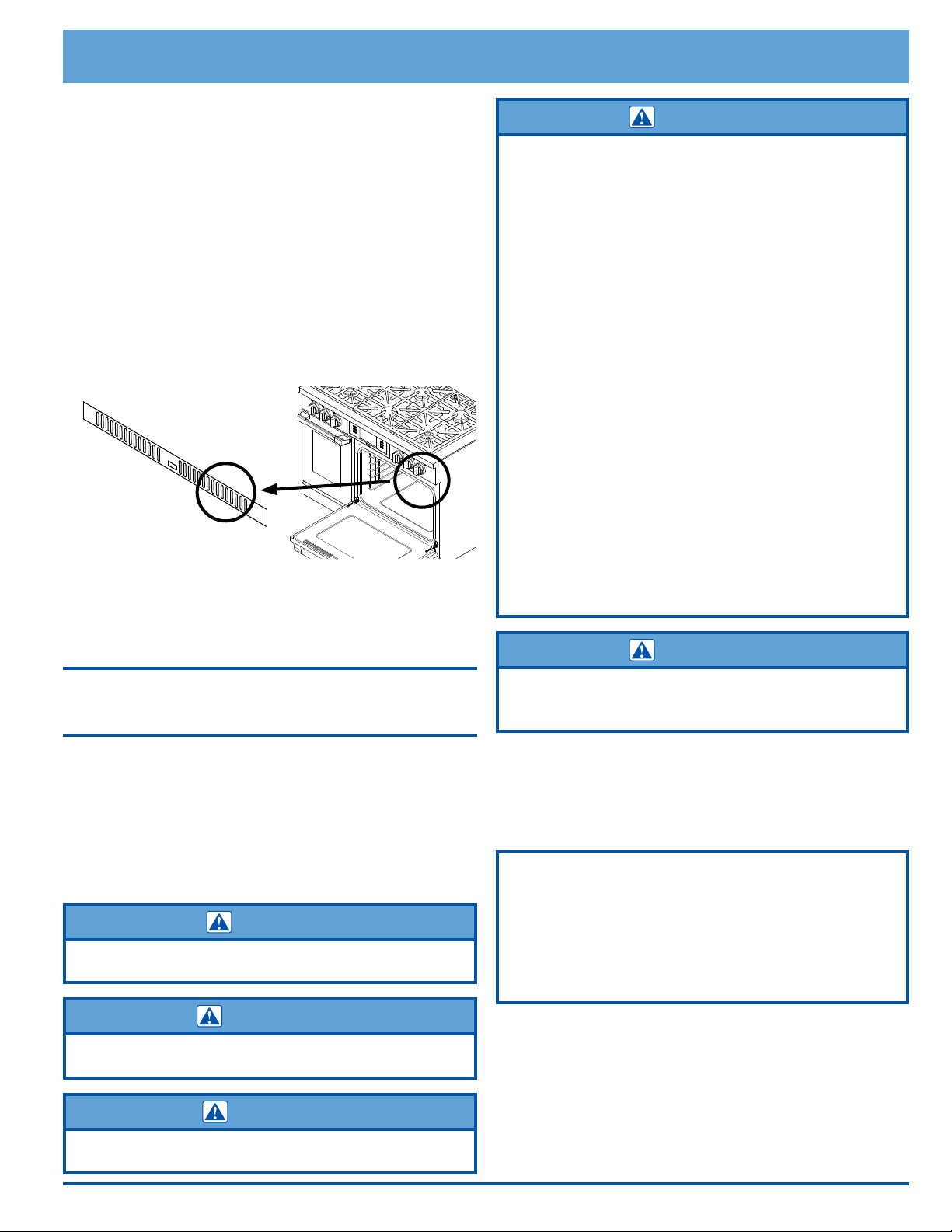
appliance available. The numbers are found on the appli-
ance data plate, located inside the grill, inside the right
door. Write these numbers below for future reference.
Model number __________________________________
Serial number __________________________________
Date of purchase ________________________________
Important Information About
Safety
The Important Safety Instructions and warnings in
this manual cannot cover all possible problems and condi-
tions that can occur. Use common sense and caution when
installing, maintaining or operating this appliance.
Always contact the Dacor Customer Service Team about
problems or conditions that you don’t understand.
Safety Symbols and Labels
DANGER
Immediate hazards that WILL result in severe personal injury or
death.
WARNING
Hazards or unsafe actions that COULD result in severe personal
injury or death.
CAUTION
Hazards or unsafe actions that COULD result in minor personal
injury or property damage.
WARNING
If the information in this manual is not followed
exactly, a fire or explosion may result causing
property damage, personal injury or death.
- Do not store or use gasoline or other
flammable vapors and liquids in the vicinity of
this or any other appliance.
- WHAT TO DO IF YOU SMELL GAS
• Do not try to light any appliance.
• Do not use any phone in your building.
• Immediately call your gas supplier from
a neighbor’s phone. Follow the gas
supplier’s instructions.
• If you cannot reach your gas supplier, call
the fire department.
• Installation and service must be performed
by a qualified installer, service agency or
the gas supplier.
- Installation and service must be performed by
a qualified installer, service agency or the gas
supplier.
WARNING
WARNING - NEVER use this appliance as a space heater to
heat or warm the room. Doing so may result in carbon monoxide
poisoning and overheating of the appliance.
Since Dacor continuously improves the quality and perfor-
mance of our products, we may need to make changes to
the appliance without updating this manual.
Visit www.dacor.com to download the latest version of this
manual.
State of California Proposition 65 Warning: The burning of
gas cooking fuel generates some by-products that are on the list
of substances which are known by the State of California to cause
cancer or reproductive harm. California law requires businesses
to warn customers of potential exposure to such substances. To
minimize exposure to these substances, always operate this unit
according to the use and care manual, ensuring you provide good
ventilation when cooking with gas.
READ AND SAVE THESE
INSTRUCTIONS
View data plate
through grate
2
Important Safety Instructions
• If you receive a damaged product, immediately contact your
dealer or builder. Do not install or use a damaged appliance.
• Make sure that the range has been properly installed
and grounded by a qualified installer according to the
accompanying installation instructions. Have the installer
show you the location of the circuit breaker panel or fuse
box so that you know where and how to turn off power to the
range.
• Do not install, repair or replace any part of the range unless
specifically recommended in the literature accompanying it. A
qualified service technician should perform all other service.
• If the range is near a window, do not use long curtains as
window treatment. The curtains could blow over the cooktop
and create a fire hazard.
• Before performing any type of service, make sure that power
to the range is turned off at the circuit breaker panel or fuse
box.
• Some versions of this appliance are equipped with a
four-prong grounding plug for your protection against shock
hazard and should be plugged directly into a properly
grounded receptacle. Do not cut or remove the grounding
prong from this plug.
• WARNING - NEVER cover any slots, holes or passages in
the oven bottom or cover an entire rack with materials such
as aluminum foil. Doing so blocks air flow through the range
and may cause carbon monoxide poisoning. Aluminum foil
linings may also trap heat, causing a fire hazard.
• Only use the range for cooking tasks expected of a home
appliance as outlined in this manual. This range is not
intended for commercial use.
• DO NOT TOUCH THE SURFACES OF THE RANGE
DURING OR IMMEDIATELY AFTER USE.
• Never Leave Surface Units Unattended at High Heat
Settings – Boil-over causes smoking and greasy spill-overs
that may ignite.
• Make sure individuals who use the range are able to operate
it properly.
• Never allow anyone, including children to sit, stand or climb
on any part of the appliance, including the doors. Doing so
may cause tipping, damage, serious injury or death.
• Do not leave children alone or unattended in the area
around the appliance. Do not allow children to play with
the controls, pull on the handles or touch other parts of the
appliance.
• Do not store items of interest to children above the range.
Children could be burned or injured while climbing on the
appliance.
• Do not attempt to use this appliance in the event of a power
failure.
• Clean the appliance thoroughly before operating it for the
first time.
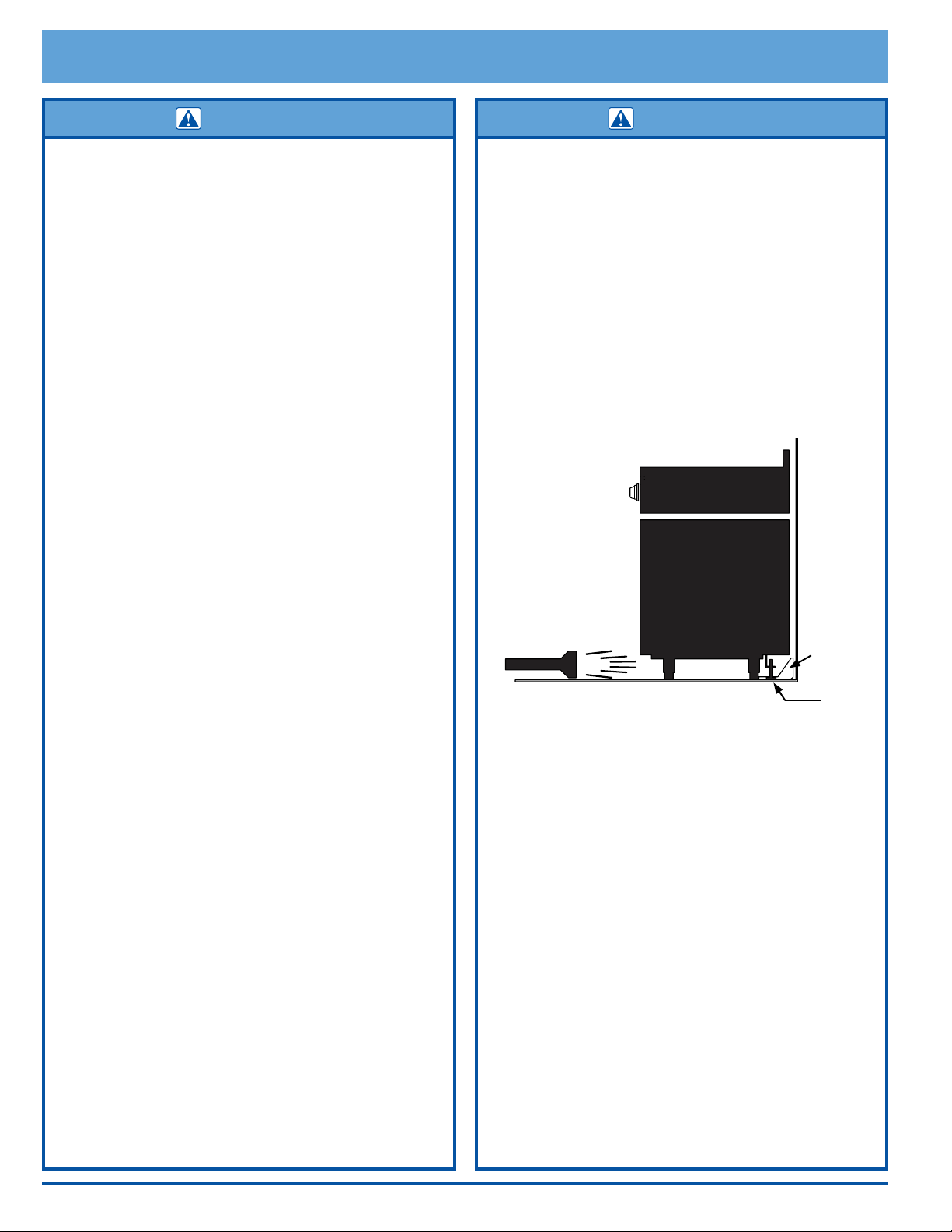
WARNING
Tip-over hazard:
• A child or adult can tip the range and be killed.
• Verify that the anti-tip bracket has been properly attached
to the floor or wall as directed in the installation instructions.
Using a flashlight, verify that the range’s anti-tip foot is
engaged with the anti-tip bracket as shown below.
• After moving the range, be sure to re-engage the rear leg
with the floor or wall mounted anti-tip bracket as shown
below.
• Do not operate the range without the anti-tip foot engaged
with the anti-tip bracket.
• Failure to follow these instructions can result in death or
serious burns to children and adults.
• Do not tamper with the controls.
• Do not cover the burners and grates with anything except
properly selected utensils. Decorative covers may cause a
fire hazard or damage to the range if a burner is accidentally
turned on with the cover in place.
• Do not heat unopened food containers such as baby food
jars and cans. Pressure build up may cause the container to
burst and cause injury.
• Keep flammable items, such as paper, cardboard, plastic
and cloth away from the burners and other hot surfaces. Do
not place such items in the oven. Do not allow pot holders to
touch hot surfaces or gas burners.
• Do not wear loose or hanging apparel while using the range.
Do not allow clothing to come into contact with the interior of
the oven or the cooktop and surrounding areas during and
immediately after use.
• Do not use towels or bulky cloth as pot holders.
• Do not hang flammable or heat sensitive objects over the
range.
• To reduce the possibility of fire, do not use the ovens for
storage.
WARNING
Anti-tip
bracket
Anti-tip
foot

3
Important Safety Instructions
• To avoid the possibility of fire, do not leave the range
unattended when using the cooktop.
• Clean and maintain the range regularly as instructed in this
manual. Keep the entire range, ventilation filters and range
hoods free of grease that could catch fire.
• Use Proper Pan Size – This appliance is equipped with
one or more surface units of different size. Select utensils
having flat bottoms large enough to cover the surface unit
heating element. The use of undersized utensils will expose
a portion of the heating element to direct contact and may
result in ignition of clothing. Proper relationship of utensil to
burner will also improve efficiency.
• Use cookware only for its intended purpose. Check the
manufacturer’s recommendations before use to determine
if a utensil is suitable for use in an oven or on a cooktop.
Certain types of glass, ceramic and earthenware are not
suitable for use with a range. Personal injury or damage may
result from the improper use of cookware.
• Select cookware carefully. Use utensils of the proper size,
material and construction for the particular type of cooking
being done. Utensils need to be large enough to contain
the desired quantity of food without boil-overs or spill-overs.
Choose pans with easy to hold handles that will stay cool
while cooking. Do not use utensils with loose handles. Avoid
using pans that are too heavy to lift safely.
• When deep fat frying:
- Be certain that the pan is large enough to contain the
desired volume of food without overflow caused by the
bubbling of the fat. Never leave a deep fat fryer unattended.
- Avoid frying moist or frost-covered foods. Foods with high
water content may cause spattering or spilling of the hot fat.
- Heat fat slowly, and stir together any combination of oils
and fats prior to applying heat. Utilize a deep fat frying
thermometer to avoid heating the fat to temperatures above
the flash point.
• Do not touch the outside surfaces of the range during the
Self Clean cycle. They will be hot.
• Exercise caution when opening the oven doors. Let hot air or
steam escape before looking or reaching inside.
• Use extreme caution if adding water to food. Steam can
cause serious burns or scalds.
• Use only dry pot holders when removing food and cookware
from the ovens. Wet pot holders can cause steam burns.
• Make sure that all the cooktop parts are dry before lighting a
burner.
• Turn the knobs to the OFF position prior to removing them
from the valve stems.
• The cooktop should never be operated without the knobs
and trim rings in place.
WARNING
CAUTION
• Do not allow acids (citrus juices, tomato sauces, etc.) to
remain on the oven’s surfaces. The porcelain finish may
stain or pit.
• Never use the cooktop surface as a cutting board.
• Do not try to remove heavy spills with a sharp object such
as a knife or metal spatula. Sharp objects may scratch the
range’s surfaces.
• To prevent damage, remove the meat probe from the oven
when it is not being used.
• Do not line the ovens with aluminum foil or other materials.
These items can melt or burn up during self cleaning and
cause permanent damage to the ovens.
• Always ensure that the light fixture lens covers are in place
when using the ovens. The lens covers protect the light
bulbs from breakage caused by high oven temperatures or
mechanical shock.
• Non-stick coatings, when heated, can be harmful to birds.
Remove birds to a separate, well-ventilated room during
cooking.
• For your safety, do not use the ovens to cook without the
convection filters installed. When the filter is not installed, the
spinning fan blades at the back of the oven are exposed.
• Do not allow food to sit in the oven for more than one hour
before or after cooking. Eating spoiled food can result in
food poisoning.
• Do not leave objects, such as aluminum foil, the meat probe
or cookie sheets on the bottom of the ovens. Do not allow
the broil elements on the ceiling of the oven chambers to be
covered up. Do not line the ovens with aluminum foil or other
materials. Doing so may cause the oven or the items in it to
overheat, creating a fire hazard or causing property damage.
TO REDUCE THE RISK OF INJURY TO PERSONS IN THE
EVENT OF A RANGE TOP GREASE FIRE:
a. SMOTHER FLAMES with a close-fitting lid, cookie sheet
or metal tray, then turn off the burner. BE CAREFUL TO
PREVENT BURNS. If the flames do not go out immediately,
EVACUATE AND CALL THE FIRE DEPARTMENT.
b. NEVER PICK UP A FLAMING PAN - you may be burned.
c. DO NOT USE WATER, including wet dish cloths or towels -
a violent steam explosion may result.
d. Use a fire extinguisher ONLY if:
◊YouhaveaClassABCextinguisher,andyoualreadyknow
how to operate it.
◊Thefireissmallandcontainedintheareawhereitstarted.
◊Thefiredepartmentisbeingcalled.
◊Youcanfightthefirewithyourbacktoanexit.
WARNING
4
Getting to Know Your Range
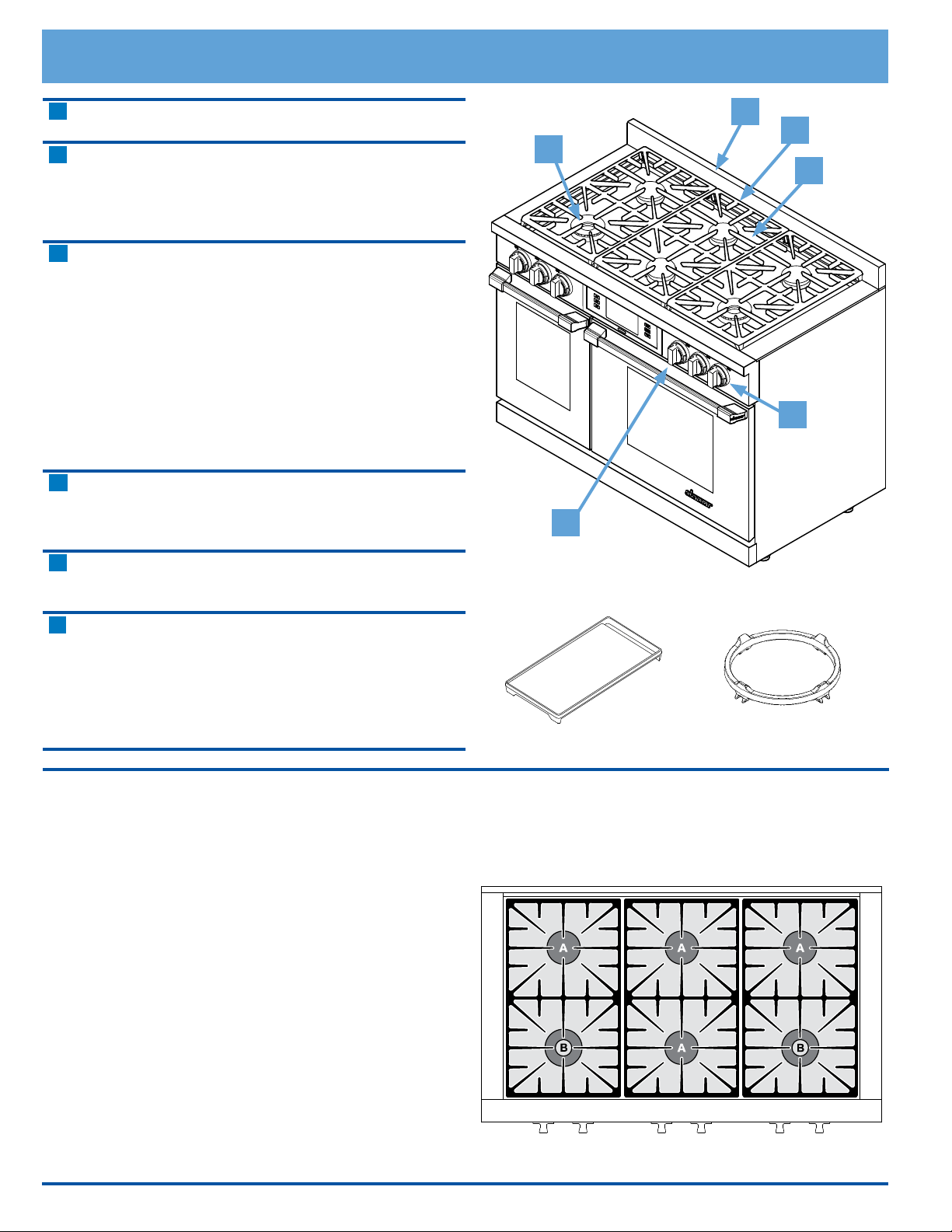
Burner Locations
A. 800* to 15000 BTU standard burner
B. 800* to 18000 BTU SimmerSear burner
Special Cooktop Features
Perma-Flame™: The Perma-Flame instant re-ignition fea-
ture automatically re-lights a burner quickly if it goes out.
With Perma-Flame, your cooking experience is uninter-
rupted because the ame is re-ignited at the same level
as when it went out.
Smart Flame™: Smart Flame technology reduces the tem-
perature under the ngers of the porcelain-coated cast
iron grates. Smart-Flame extends grate life and protects
the nish.
SimmerSear™: Dacor’s exclusive precision burner control
system. It allows you to cook with a wide range of heat
settings, from simmer to sear.
A Spill tray The spill tray catches any food that
falls through the cooktop grates.
B Grates The porcelain coated cast iron
grates support the cooking utensils
during cooking. They are remov-
able to allow the area below to be
cleaned easily.
C Burners There are two different types of
burners on your range. See the
diagram below for heat output and
location. The range generates a
spark to light the burner when you
turn the knob to HIGH. The Gaskets
under the burners prevent spilled
liquids from leaking into the range’s
internal parts. The range comes
with two sets of burner caps, brass
and porcelain (black), to suit your
taste.
D Burner knobs Use the knobs to turn on the burn-
ers and adjust the ame size. The
corresponding knob illuminates
when a burner is on.
E Trim rings Located behind each knob. They
prevent liquids from getting into
the range’s internal parts.
F Backguard The range comes with the standard
island trim package. The optional
backguard comes in two sizes, 3”
(shown) or 9”. It protects the wall
from the effects of heat and splat-
tering grease. See the installation
instructions.
Included Cooktop Accessories
Griddle (1) WOK Ring (1)
* Effective
B
C
A
E
F
D
5
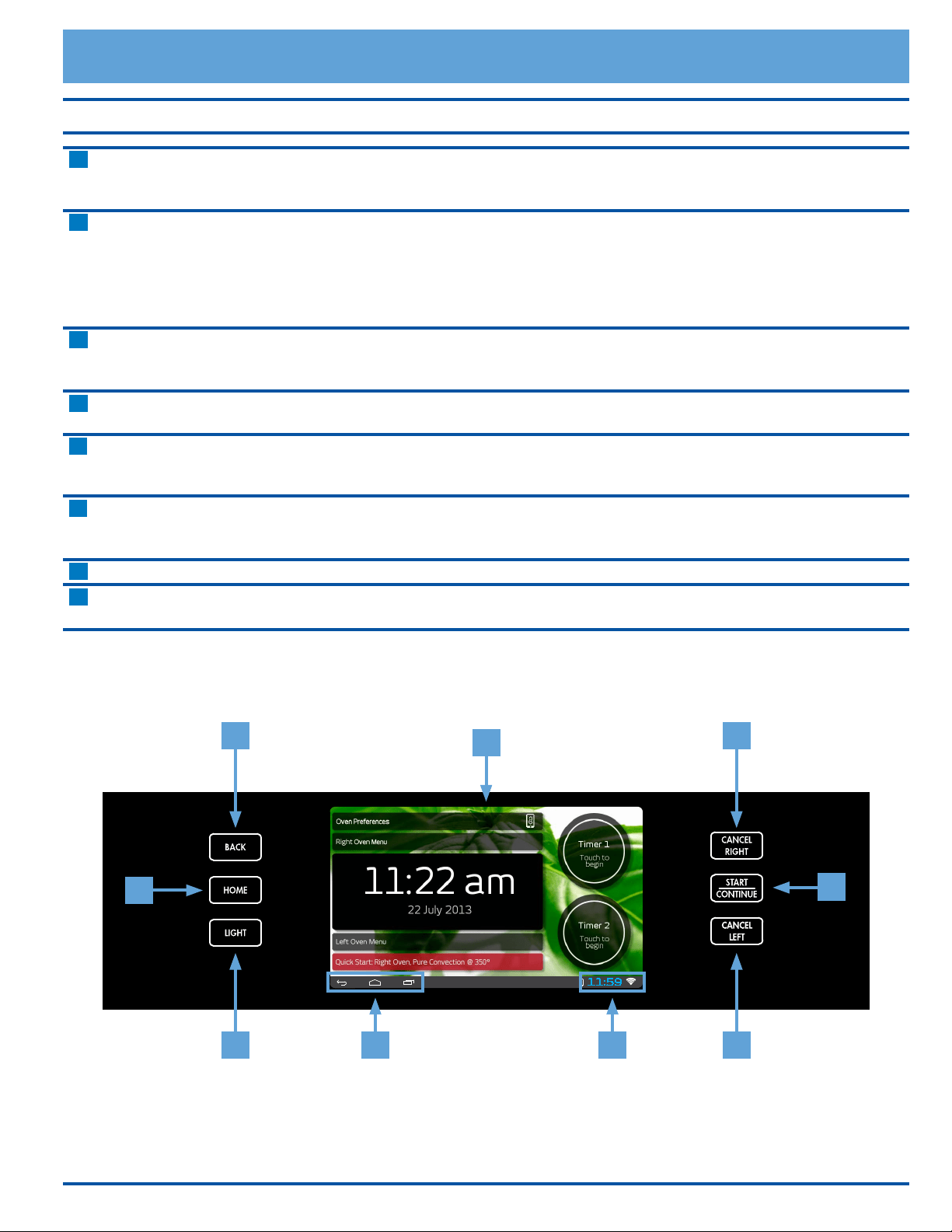
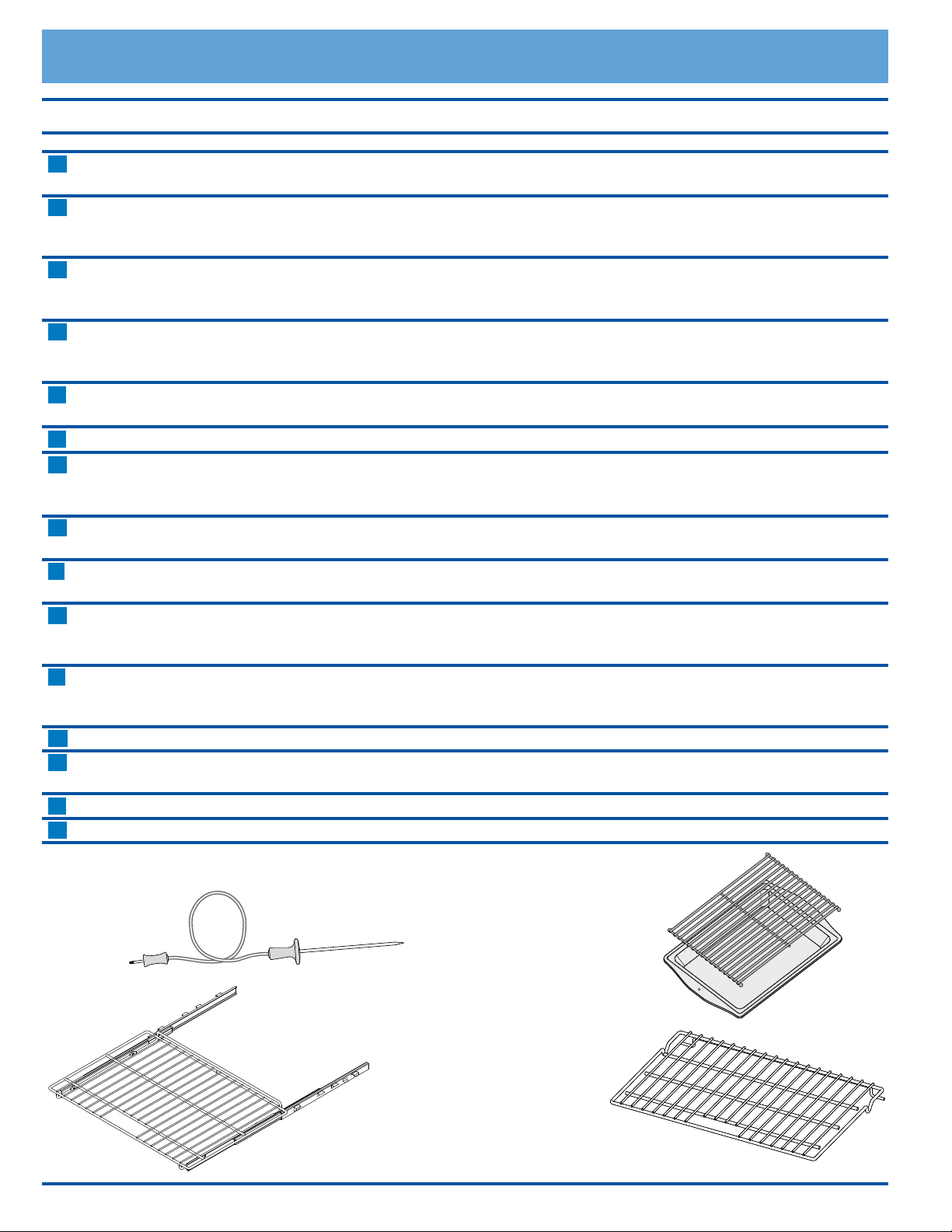
Oven Control Panel Layout
Control Panel
A Touch display The touch display allows you to navigate and select the various features and func-
tions of the oven. It can be set to dim after 5 minutes of non-use (see Energy
Saving Mode, page 11).
B HOME key Touch this key to go back to the oven home screen on the touch display, except
when the oven home screen is already displayed. When you touch the HOME key
when the oven home screen is already displayed, the display jumps to the Android
home screen. When the Android home screen is displayed, touch HOME again to
return to the oven home screen. IMPORTANT: Touching the HOME key does not
turn off the oven once started, even if the oven status is not currently displayed.
C BACK key Touch this key to go back one menu on the touch display. IMPORTANT: Touching
the BACK key does not turn off the oven once started, even if the oven status is
not currently displayed.
D START · CONTINUE key Touch this key (or Start on the touch display) to start the oven after selecting the
desired settings. See page 19.
E CANCEL RIGHT key Use this key to turn off the right oven. This key sets all temperature settings for
the right oven back to zero and turns off any right oven features that are currently
in use. It also activates the lock-out feature (see page 21).*
F CANCEL LEFT key Use this key to turn off the left oven. This key sets all temperature settings for the
left oven back to zero and turns off any left oven features that are currently in use.
It also activates the lock-out feature (see page 21).*
G LIGHT key If you need to turn the oven lights on or off, touch the light key.
H Android system keys Touching these keys on the touch screen allows you to navigate the Android
operating system and settings. See page 43 for more details.
* NOTE: This key does not turn off the timers. The timers do not control the functions of either oven.
Getting to Know Your Range
11:59
H
B
C E
A
H
FG
D
6
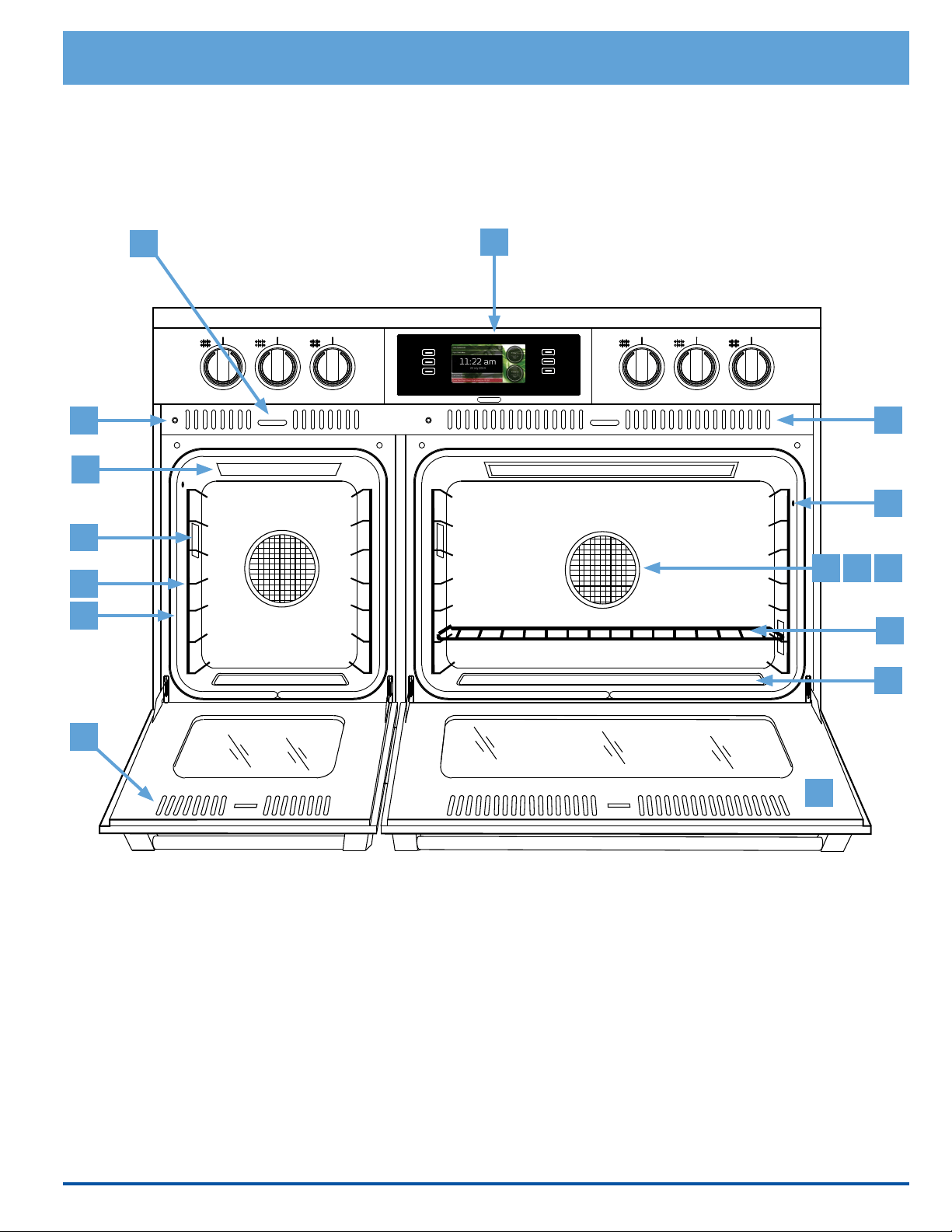
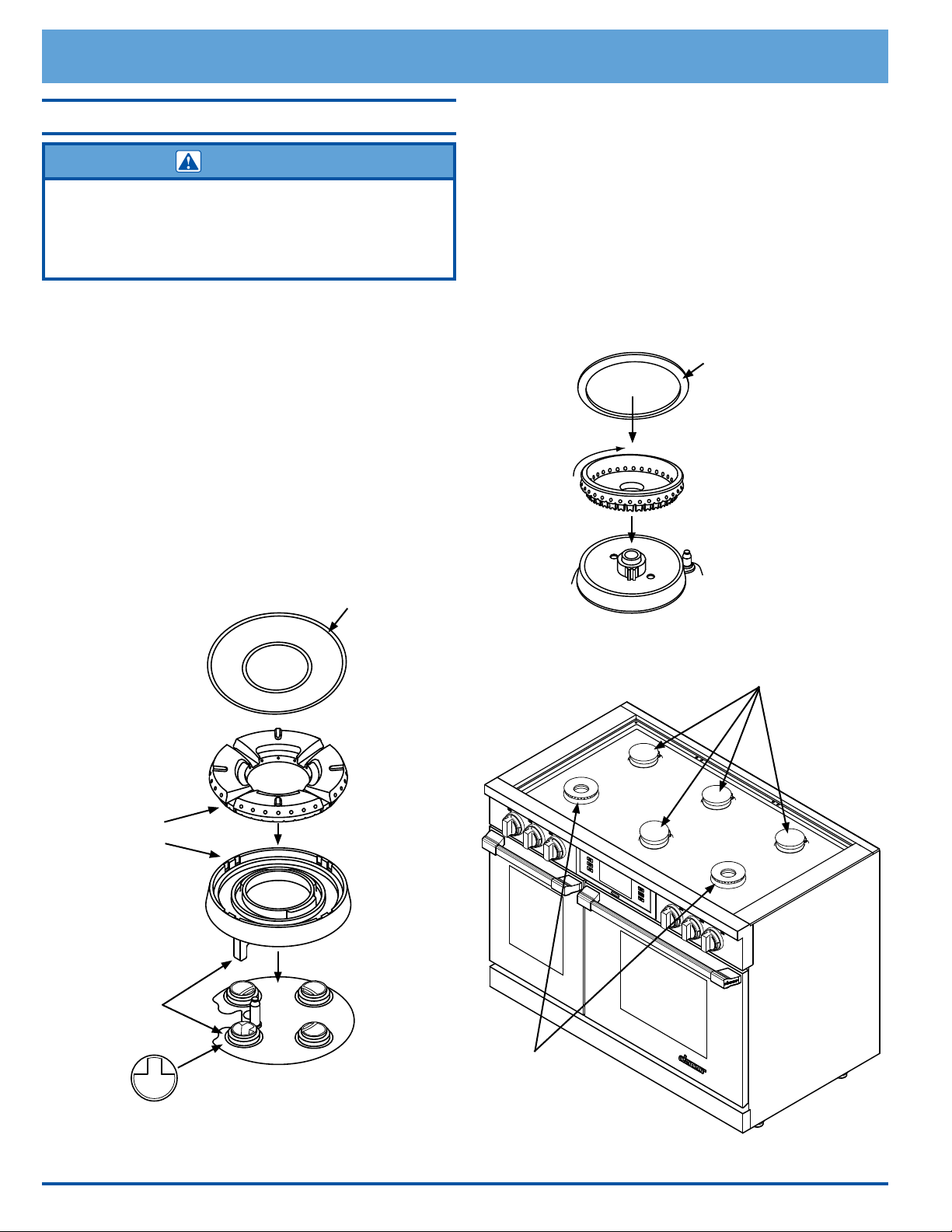
A Control panel The oven control panel consists of touch keys and a touch display. Use the control
panel to control all the oven’s features (sometimes called modes).
B Air intake/
exhaust slots
The range draws air in through the intake slots to cool its internal parts. The air
comes out through the exhaust vent under the range. Do not block or cover the air
intake or exhaust slots.
C Meat probe connector When you use the meat probe, insert the skewer into the meat and plug the other
end into this connector. See the Using the Meat Probe section on page 32 for
proper operation.
D Oven lights The lights inside the oven chambers allow you to easily see the food inside. Touch the
light key on the control panel to turn them on. The bulbs are 12 volt, 20 Watt, halo-
gen.
E Rack supports There are seven sets of rack supports inside each oven chamber. They support the
adjustable oven racks. They are numbered from the bottom up.
F Door gasket The door gasket prevents heat from escaping when the door is closed.
G Self Clean latch The Self Clean latch automatically locks the oven door during the Self Clean process.
The door latches for your safety. There are very high temperatures inside the oven
during the Self Clean process.
H Broil elements The broil elements are located on the ceiling of the oven chambers. They are the
source of top heat. The broil elements in the right oven are behind a glass panel.
J Convection fan The convection fan circulates heated air through the oven chamber during the convec-
tion cooking process. The convection lter covers it.
K Convection element The convection element heats the air that is circulated through the oven chamber by
the convection fan during the convection cooking process. The convection lter covers
it.
L Convection lter The convection lter covers the convection fan. It helps prevent the transfer of taste
from one food to another when you are cooking a whole meal. It also keeps the oven
cleaner and covers the moving fan blades for safety purposes.
M Oven rack Your range comes with a set of GlideRack™ oven racks and a set of standard racks.
N Bake element Hidden below the oor of each oven chamber is the bake element. It is the source of
bottom heat.
P Oven Door Your oven is equipped with Dacor's SoftShut™ door system.
R Oven Door Switch The door switch controls the oven light(s) and self clean process.
Getting to Know Your Range
Parts of the Oven
Included Accessories
GlideRack™ Oven
Rack
(2 Large, 2 Small)
Broil Pan with
Grill (1 Set)
Meat Probe (1)
Standard Oven Rack
(1 Large, 1 Small)
7
Getting to Know Your Range
5
LK
F
E
B
H
M
N
P
J
D
C
R
G
B
A
8
Setting Up Your Range
Cooktop Assembly
WARNING
To avoid the chance of fire, explosion or carbon monoxide
poisoning, do not attempt to use your range without the burners
completely and properly assembled. The burner rings spread the
flame evenly around the burner cap. The burner rings must be
properly seated for proper burner lighting and operation.
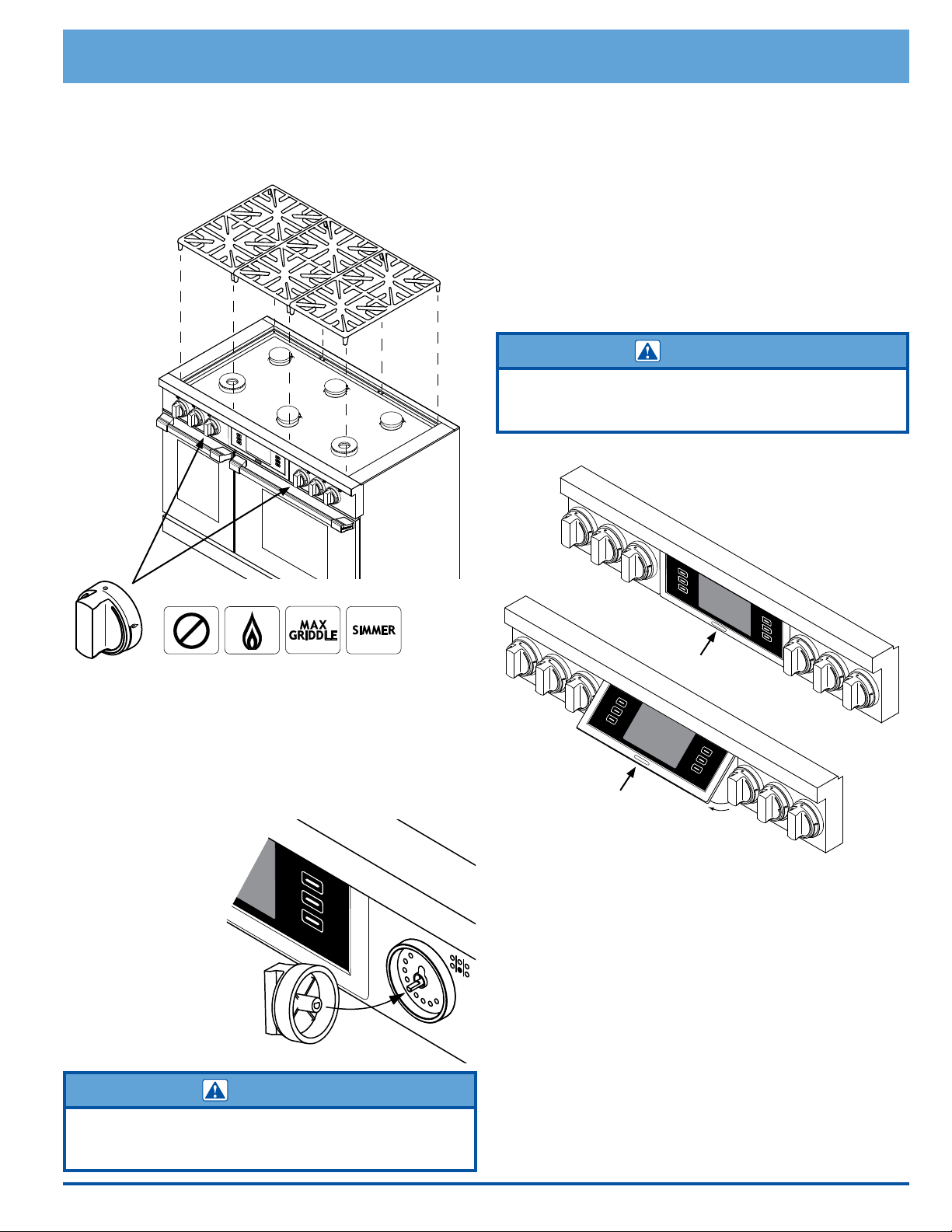
SimmerSear Burner Assembly
1. Put the burner heads in place as shown below. The
locating tab on the burner head goes in the keyed
hole as shown.
2. Put the burner rings on the burner heads. Match the
tabs on the bottom of the ring to the slots on the
burner head. Twist each ring back and forth slightly to
make sure it is properly seated.
3. Put the burner caps on top of the burner rings. You
may use either the supplied brass or porcelain caps.
The ridge around the bottom edge of the cap goes
around the top of the burner ring.
Standard Burner Assembly
4. Put the burner rings on the burner bases as shown
below. The bottom of the burner ring ts inside the
top of the burner base.
5. Turn the ring until it drops into place. Twist each ring
back and forth slightly to make sure it is properly
seated.
6. Put either the brass or porcelain burner caps on top of
the burner rings. The ridge around the bottom edge of
the cap goes around the top of the burner ring.
SimmerSear
burners
Keyed hole
Standard
burners
Burner base
Burner base
Burner ring
Burner ring
Burner head
Tabs
Slots
Step
Step
Step
Step
Step
Step
Ridge on bottom of
burner cap
Ridge on bottom of
burner cap
Put locating tab
into keyed hole
Burner Locations
9
Setting Up Your Range
Grates
Gently set the grates on top of the spill tray. Put the legs
of each grate into the corresponding dimples.
Installing the Burner Knobs
There are two different types of knobs for the range. The
knobs for the center burners have the words MAX GRID-
DLE on them.
1. Put the knobs with MAX GRIDDLE written on them
onto the inner (center burner) valve shafts (see
location above).
When installing the
knobs, align the
“D” shaped open-
ing on the back of
the knob with the
end of the valve
shaft. Carefully
push the knob on
until it stops.
2. Put the remaining
knobs on the outer
valve shafts.
CAUTION
Installing the range knobs in the wrong position may result in
damage to the griddle included with the range. The knobs for the
center burners are marked with the maximum griddle settings.
Control Panel Position
The control panel can be swiveled to a 50° angle for
easier viewing and use.
To pivot the control panel:
• Push in on the bottom center of the control panel. The
control panel will pivot up.
To put the control panel back in the vertical
position:
• Push in on the bottom center until it locks into the
vertical position.
CAUTION
When changing the control panel position, push in only in the
middle. If you push in on the right or left side you may damage
the pivot mechanism.
Press here
Press here
10
Control Panel/Display Settings
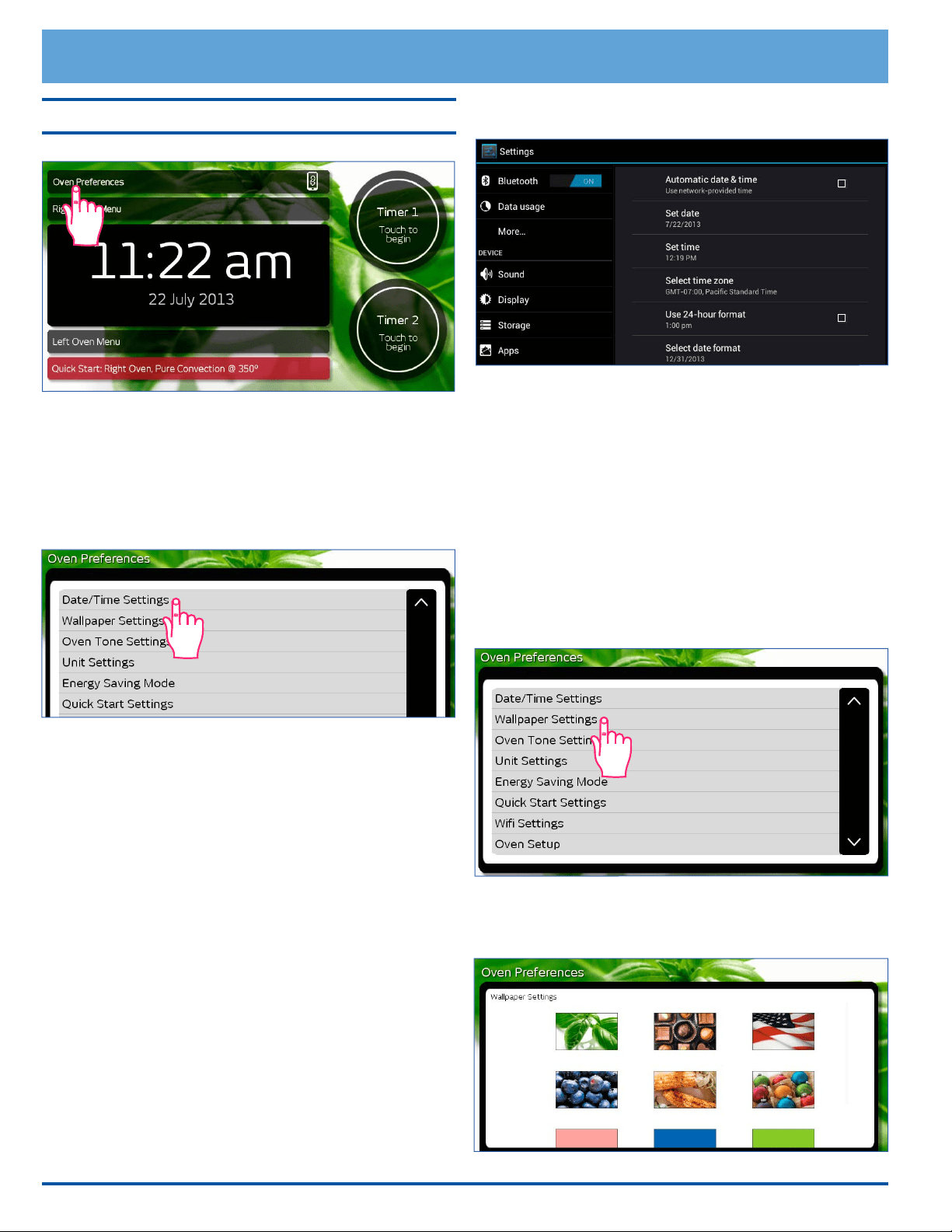
• Touch Oven Preferences on the oven home screen.
• The Oven Preferences menu will be displayed. Use
the up (∧) and down (∨) arrows to view all of the vari-
ous options.
Date/Time Settings Menu
1. From the Oven Preferences menu, touch Date/
Time Settings.
2. Touch one of the following selections:
◊ Automatic date & time - Touch to check or un-
check. This setting is preferred unless WiFi inter-
net service is not available. If WiFi internet service
is not available, use the Set date and Set time
functions below to set the time and date manually.
◊ Set date (manual) - Use to manually set the date
only when Automatic date & time (above) is un-
checked. Touch the up
(∧) and down (∨) arrows to
select the date, then touch Set.
◊ Set time (manual)- Use to manually set the time
only when Automatic date & time (above) is un-
checked. Touch the up (∧) and down (∨) arrows to
select the date, then touch Set.
◊ Select time zone - Touch and “drag” to scroll up
or down to the various time zones. Tap to select.
◊ Use 24-hour format - Touch to check or un-
check. When checked, the oven is set to 24 hour
time, also known as military time. For example,
1:36 PM = 13:36 military time.
◊ Select date format - Touch to select the pre-
ferred date format shown on the display.
3. Touch BACK on the control panel to save.
4. Touch HOME to return to the oven home screen.
IMPORTANT: The above menu makes changes to
Android system operations, not just the oven cooking
operations.
Wallpaper Settings (background)
You can select from several different patterns to custom-
ize the background of the touch display.
To change the wallpaper:
1. From the Oven Preferences menu, touch Wallpaper
Settings.
2. Touch and “drag” up and down to see the entire selec-
tion. To select, touch the desired graphic. NOTE: The
available backgrounds vary with software version.
Setting Up Your Range
11
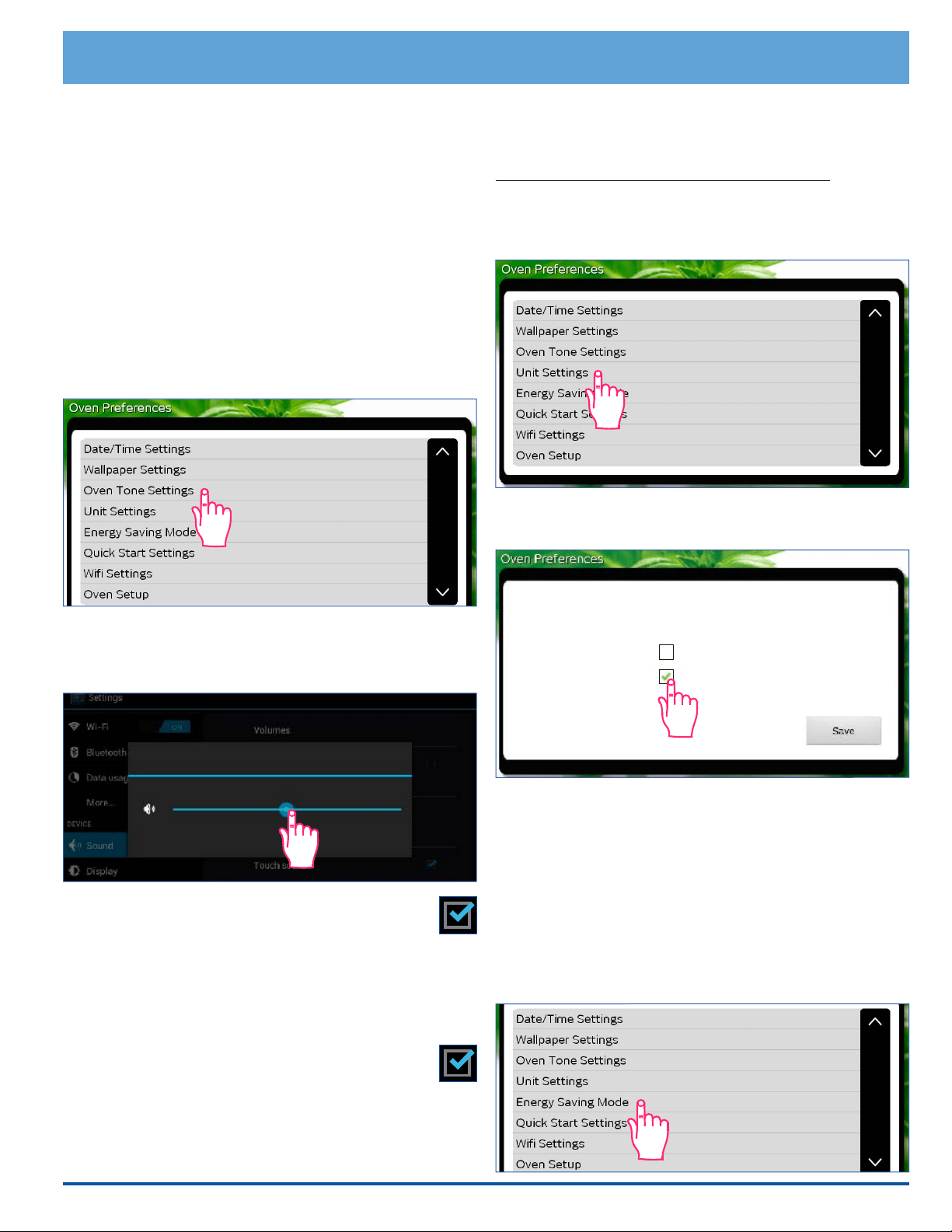
Unit Settings (Temperature Scale)
You can select the temperature scale (Fahrenheit or Cel-
sius) the range uses to display the cooking temperature.
The range is preset at the factory to Fahrenheit.
To change the temperature scale:
1. From the Oven Preferences menu, touch Unit Set-
tings.
2. Touch the check box for the desired setting, “F” or “C”
then touch SAVE.
3. Touch HOME to return to the oven home screen.
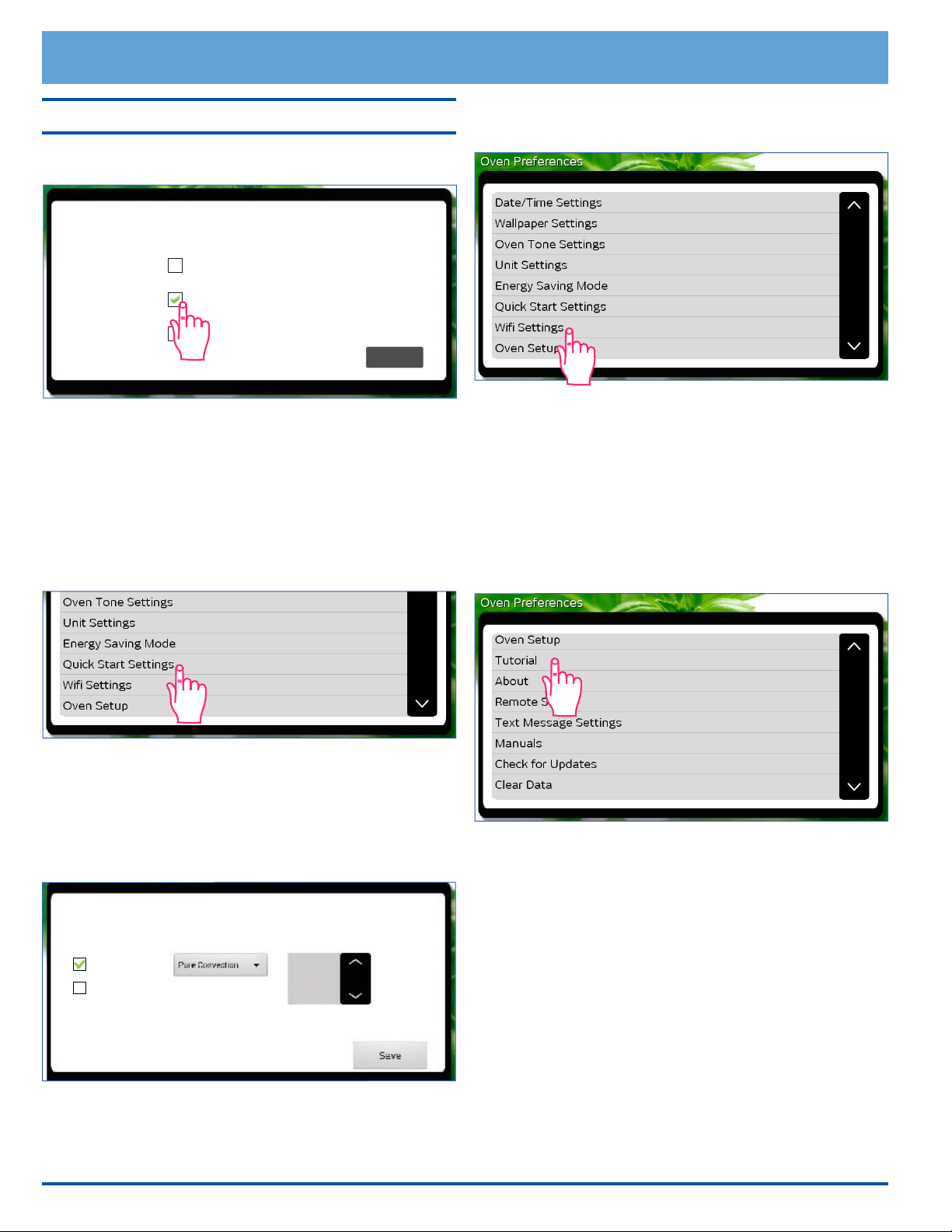
Energy Saving Mode
The oven home screen can be set to stay on constantly
or dim after 15 minutes of non-use. When energy saving
mode is on, touch the screen to reactivate the oven home
screen.
To change the energy saving setting:
1. From the Oven Preferences menu, touch Energy
Saving Mode.
Setting Up Your Range
3. Touch HOME on the control panel to return to the
oven home screen.
Oven Tone Settings
The volume of the various sounds may be adjusted or
silenced. A tone or click sounds any time you touch any
of the keys or when various error conditions exist. A
tone also sounds when a timer is done counting (see
page 26) or whenever the oven noties the user it has
performed certain functions, for example, preheating is
complete.
To turn off, adjust or silence the various oven
tones:
1. From the Oven Preferences menu, touch Oven
Tone Settings.
2. Touch to select one of the following:
◊ Volumes - Displays the master volume control.
Touch and drag left or right to adjust.
◊ Silent mode - Touch to check or un-check.
When checked, all oven sounds are silenced
(the volume control is set to 0).
◊ Default notication - Touch to select the default
Android system tones (does not change tones
emitted during cooking operations). Touch the
desired tone (a sample will play).
◊ Touch sounds - Touch to check or un-
check. When checked, click sound on con-
trol panel keys is enabled.
3. Touch OK to exit.
4. Touch HOME to return to the oven home screen.
F° Fahrenheit
Unit Settings
C° Celsius
Volumes
Music, video, games & other media
OK
12
Setting Up Your Range
Control Panel/Display Settings (cont.)
2. Touch the check box for NO Sleep, Light Sleep or
Deep Sleep, then touch Save.
3. Touch HOME to return to the oven home screen.
Quick Start Settings
The Quick Start mode, selected from the oven home
screen may be set to your own personal preferences.
To change the Quick Start setting:
1. From the Oven Preferences menu, touch Quick
Start Settings.
2. Touch the Right or Left Oven check box to select the
oven that Quick Start will control (see below).
3. Touch the down arrow
(∨) under Cooking Mode to
select a cooking mode (see below). Touch and “drag”
up and down to see the entire selection of cooking
modes. To select, tap the desired mode.
4. Touch the up (∧) and down (∨) Temperature arrows
to select the cooking temperature, then touch Save.
5. Touch HOME to return to the oven home screen.
WiFi Settings
See page 43 for instructions on WiFi set up.
Oven Setup
Select this option if the initial oven setup was skipped the
rst time power to the range was turned on.
Tutorial
From the Oven Preferences menu, touch Tutorial to
access the oven tutorial. This is the same tutorial that
comes up on the touch display the rst time power to the
range is turned on.
• Touch BACK to exit to the Oven Preferences screen.
• Touch HOME to return to the oven home screen.
About (System Information)
From the Oven Preferences menu, touch About to
view:
• The Android operating system revision
• The Dacor software version
• The range serial number
• The range model number
Remote Set Up
For remote operation set up, see page 40.
Energy Saving Settings
NO Sleep
Save
Display fully lit at all times
Light Sleep
Display lit 50% when idle for 15 min
Deep Sleep
Display all black when idle for 15 min
Quick Start Settings
Cooking Mode
Right Oven
Temperature
325
temp
Left Oven
13
Setting Up Your Range
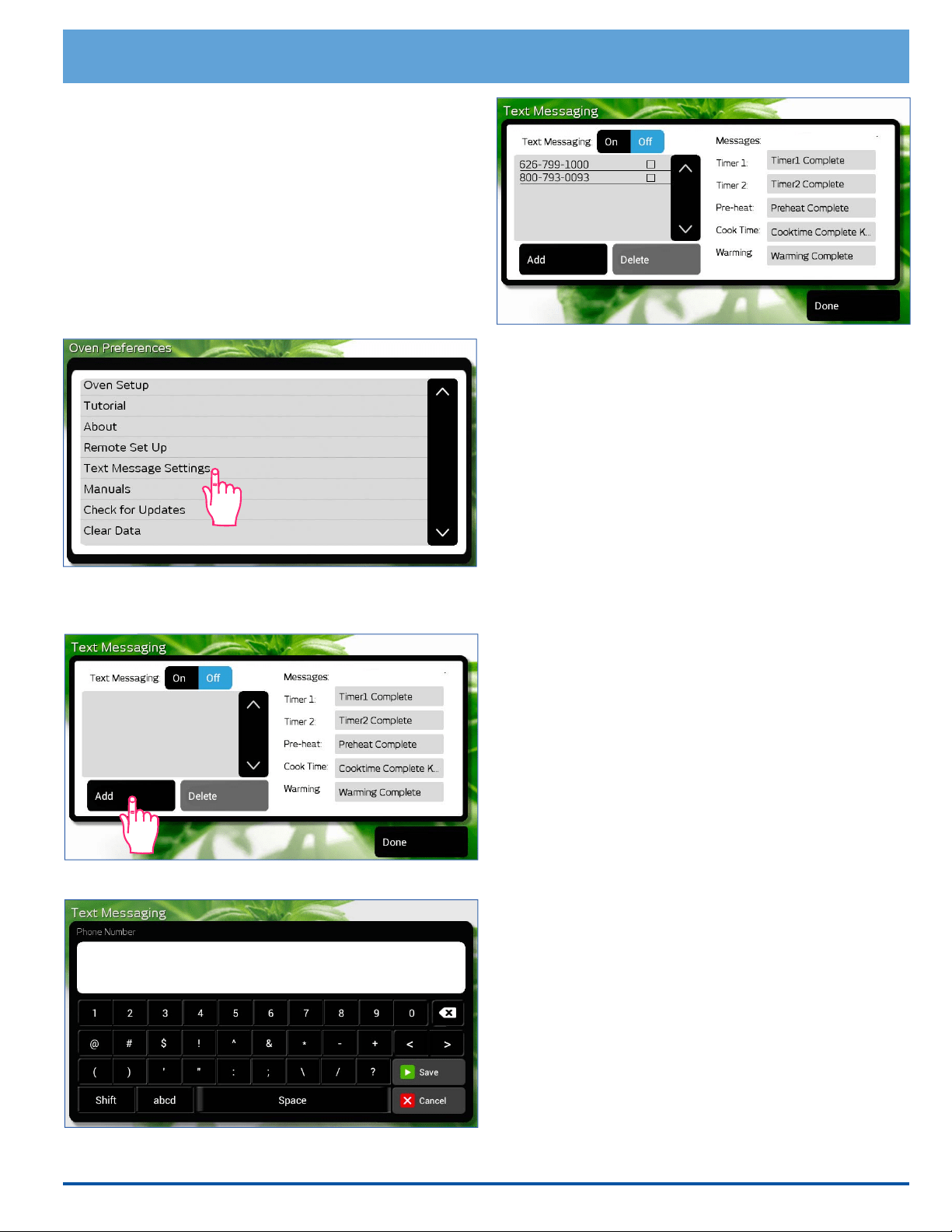
Text Message Settings
You can set the oven to send text messages when the fol-
lowing events occur:
• One of the timers has nished counting down.
• Preheat cycle completed (food can be placed in the
oven).
• Cook Time feature completed (see page 30).
• Keep Warm mode completed (oven is off).
From the Oven Preferences menu, touch Text Message
Settings.
To add phone numbers to be texted:
1. Touch Add. The text messaging keyboard will appear.
2. Enter the new phone number, then touch Done.
3. Touch the appropriate wireless provider for the phone.
To delete phone numbers
1. Touch the number to be deleted (not the check box).
2. Touch Delete.
To turn on text messaging:
1. Touch On on the text messaging screen (On is blue
when texting is enabled).
2. Touch the check boxes next to the phone numbers
to select/deselect which phone numbers with receive
texts (blue indicates texting is on for that phone
number).
To turn off text messaging:
1. Touch Off on the text messaging screen (Off is blue
when texting is disabled).
To change the message that is sent:
1. Touch the message (on the right side of the screen).
2. Enter the new message on the keyboard.
3. Touch Done.
Manuals
This option allows you to view the range manuals on the
touch display. From the Oven Preferences menu, touch
Manuals to access.
Check for Updates
This option allows you to update the oven application soft-
ware to the latest version.
1. From the Oven Preferences menu, touch Check for
Updates. The screen will jump to the Google Play
Store download page.
2. If a newer version of the oven application software
is available, Install will appear on the display (touch
Install to continue). If Uninstall appears on the dis-
play, the latest version of software is already installed.
Touch HOME on the control panel to exit.
14
Setting Up Your Range
Control Panel/Display Settings (cont.)
Clear Data
This option clears the user data entered during the setup
process. Use this function if you need to enter new user
information, for example, when the range is sold to a new
owner. After the data is cleared, the screen jumps imme-
diately to Oven Setup so that the new user data can be
entered.
Operating the Cooktop
WARNING
• Keep the area around the cooktop clear and free of combustible materials, gasoline and other flammable vapors and liquids.
• Do not obstruct the flow of combustion and ventilation air around the burner grate edges.
• Always check the position of the control knobs to make sure the cooktop is off when you are finished cooking.
• Do not operate the cooktop without all the burner components in place. If the burner ring and cap are not properly seated, the burner
may not operate correctly. See page 8 for assembly instructions.
• Never light the burners with a match or other open flame.
IMPORTANT:
• Avoid spills as much as possible. The porcelain surfaces of the grates, spill trays and burner caps are acid-resistant but
not acid-proof. Some foods can cause permanent damage if allowed to remain on porcelain surfaces.
• To keep the burners operating properly, keep the burner igniters, burner rings and burner caps clean and dry. See page
49 for cleaning instructions.
Selecting the Cookware
CAUTION
Cookware with rough bottoms can cause permanent damage to
the coated surfaces.
For overall safety and best performance, select the cor-
rect cooking utensil for the food being cooked. Improperly
selected cooking utensils will not cook evenly or efciently.
Use cookware that:
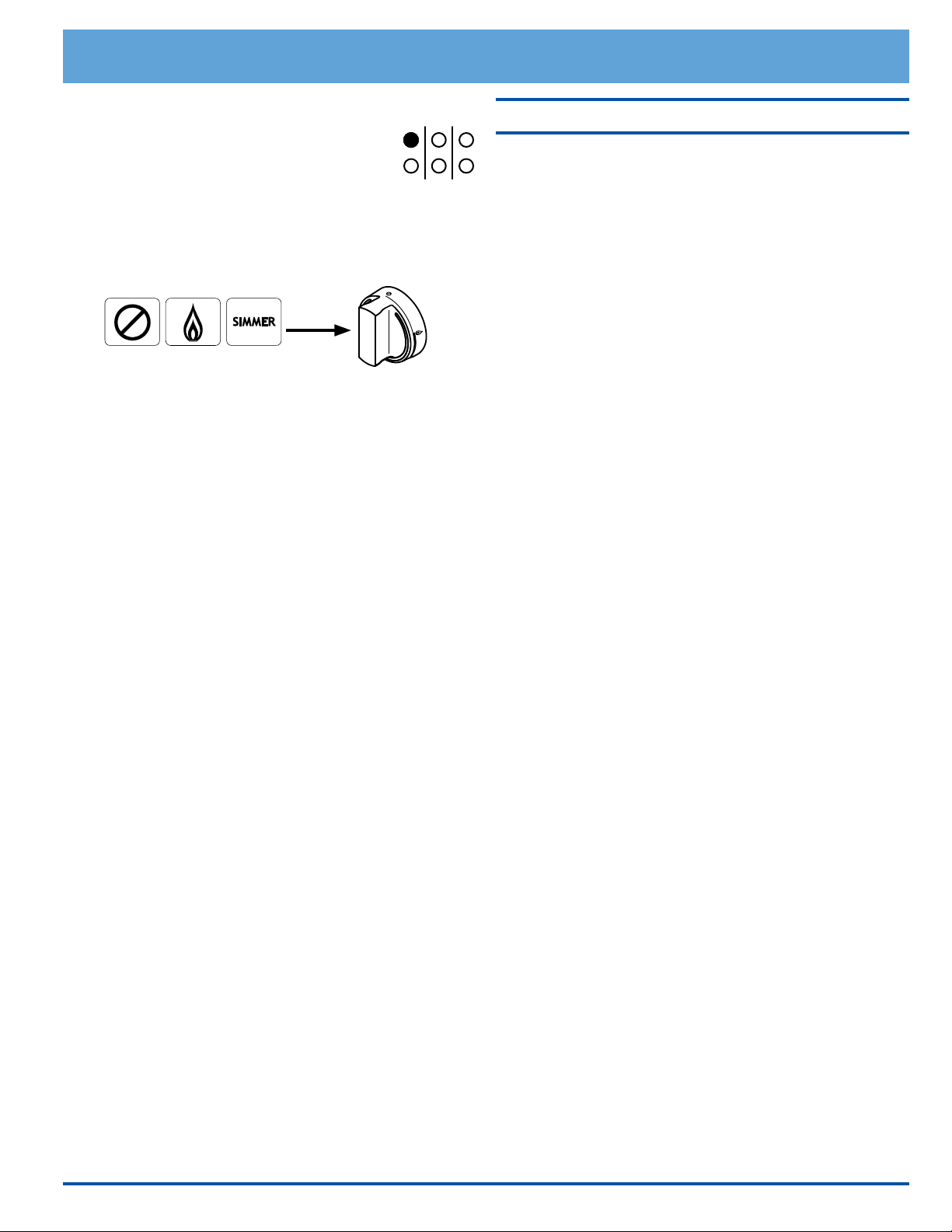
• Has at, smooth bottoms and is well balanced
• Has tight tting lids to keep heat, odors and steam in
X
X
• From the Oven Preferences menu, touch Clear
Data. Touch Clear Application Data to continue or
Ok to cancel.
WARNING
• To avoid burns and scalding, always turn pan handles to
a position where they cannot be easily hit. Also, handles
should not extend over adjacent burners. Always set utensils
gently onto the grates and center them so that they are
well-balanced.
• Do not drag cookware across the grates. Sliding may damage
the finish. Lift utensils to reposition them. Do not drop them on
the grate.
• To avoid burns or fire hazard, reduce the flame level if it
extends beyond the bottom of the utensil. A flame that extends
up the sides of the utensil is potentially dangerous.
15
To Light a Burner:
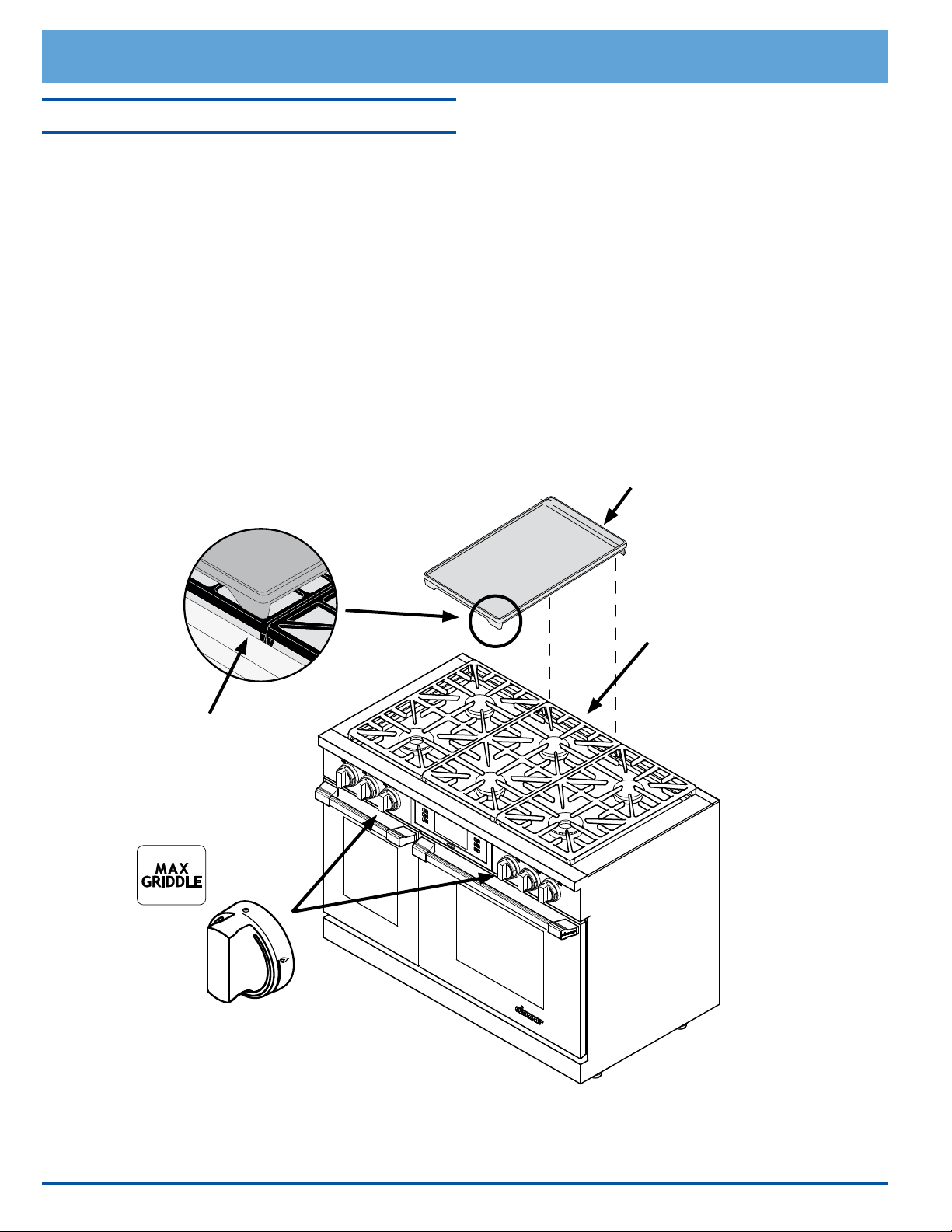
Each burner control knob has a small diagram
next to it to tell you which burner it operates.
1. Push in on the knob and turn it counter-
clockwise to the HIGH position. The igniter for the
burner will spark repeatedly until it lights. The spark
makes a “clicking” sound. The burner should light
within four seconds.
2. The ame should burn evenly around the perimeter
of the burner, except underneath each grate support
nger, where the ame height is reduced by Dacor’s
Smart Flame feature. A normal ame is steady and
blue in color. Foreign material in the gas line, especially
in new construction, may cause an orange ame during
initial operation. This will disappear with further use.
Small yellow tips on the ends of the ames are normal
when using LP gas.
3. If a burner does not ignite, the igniter continues to
spark or if the ame is not spread evenly around the
burner cap, see the Before You Call for Service section
on page 30.
4. Place the cooking utensil on the grate.
5. Adjust the ame to the level necessary to perform the
desired cooking process.
IMPORTANT: When the cooktop is cool, the igniter may
continue to spark if the control knob is set to the LOW
position. The burner will stop sparking when warm. The
tendency to spark when cold can be reduced by operating
the burner at a higher ame setting for about 60 seconds.
After 60 seconds, lower the ame to cook. The burner will
also warm up faster if a utensil is placed on the grate. The
igniter will also spark automatically if the ame is distorted
by a draft or by the household ventilation system. Elimi
-
nate any drafts or reduce the ventilation blower speed to
reduce this type of
problem.
OFF LOWHIGH
Operating the Cooktop
Cooktop Tips
Dacor’s SimmerSear feature allows you precision control
of the ame. The larger the burner size, the wider the
range of control. See page 4 for the heat ranges of the
different burners.
• Food cooks just as quickly at a gentle boil as it does at
a vigorous, rolling boil. Maintaining a higher boil than
necessary wastes energy and cooks moisture, food
avor and nutrients out of the food.
• Use a low or medium ame when cooking with uten-
sils that are poor conductors of heat, such as glass,
ceramic or cast iron. Reduce the ame until it covers
approximately 1/3 of the utensil diameter. Doing so
will ensure even heating and reduce the likelihood of
burning or scorching the food.
16
Operating the Cooktop
Using the Griddle
For best results, allow the griddle to preheat for about 10
minutes before you start to cook.
1. Before using the griddle for the rst time, wash it in
hot, soapy water. Rinse it and allow it to dry thor-
oughly. See page 51.
2. With all of the burners off and the range cool to the
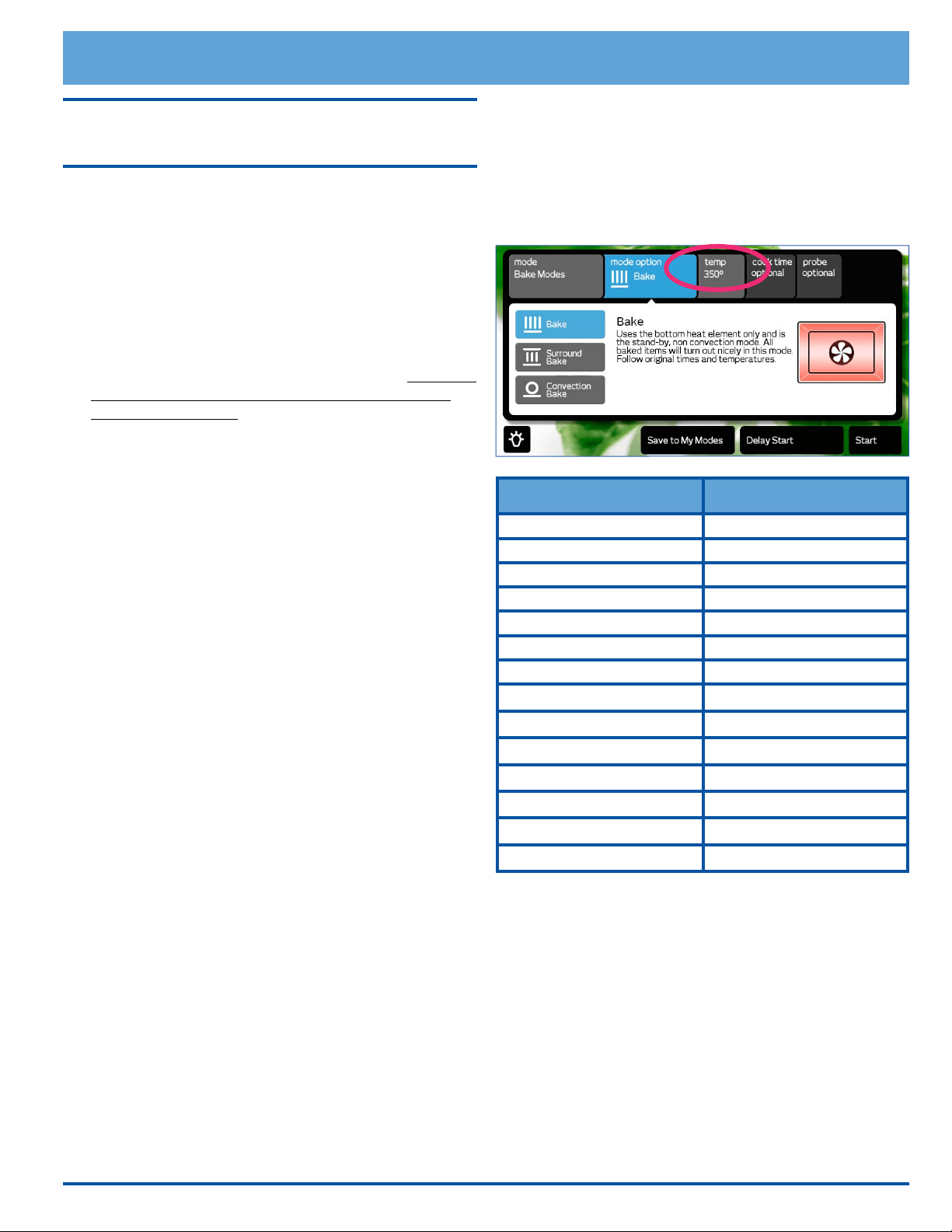
touch, put the griddle over the top of the center grate
on the range*. The grease trap goes toward the back
of the range. Fit the tabs that stick out of the bottom
of the feet into the inside corners of the grate. When
it is correctly installed, the griddle will rest securely
about 1/2” above the top surface of the grate. It may
rock slightly, which is normal.
3. Turn the center front burner knob to the light (HIGH)
position. Once lit, turn the knob to the MAX GRIDDLE
position, or lower if desired. DO NOT keep the burner
knobs higher than the MAX GRIDDLE setting after
they are lit!
4. Repeat step 3 for the center rear burner knob.
During cooking be careful with metal utensils on the sur-
face because they can scratch the non-stick coating.
Clean the griddle after each use. See page 51 for
instructions.
* The center grate has burners of the same size in the
front and back for even heating.
Line up griddle on
corners of grate
Put the griddle
over the center
burners only!
Do not turn burners higher than the
MAX GRIDDLE setting when using
the griddle!
Grease trap
toward back
17
Basic Oven Operation
Important Things to Know Before
Operation
• Dacor recommends turning the ovens on for one hour
at 500°F (260°C) to burn off any residual oils used
during the manufacturing process. Any of these oils
left on the inner parts can cause an undesirable smell
the rst few times the ovens are used.
• When you use an oven in one of the convection,
bake or roast modes, it preheats automatically. The
preheat cycle rapidly brings the oven chamber up to
the proper cooking temperature. Wait for the oven
to nish preheating (Insert Food appears on the
display) before placing the food in the oven. Excessive
browning will occur if you put the food in the oven
while it is preheating.
• While an oven is preheating the actual oven tempera-
ture will appear on the display, next to the tempera-
ture setting. It takes several minutes to preheat the
oven. Preheat time depends on the temperature set-
tings. The time may be longer depending on the type
of electrical supply in your community. There is no
preheat cycle for any of the broil modes.
• After you pull food out of the oven, it will continue to
cook. This process is called “carry-over.” The larger
the portion of food, the longer it will cook. It is best
to let meat rest for 10 to 15 minutes after it comes
out of the oven before carving. Doing so will allow the
meat to retain its juices and make it easier to carve.
• After you turn off an oven, the cooling fans may con-
tinue to run until the internal parts have cooled down.
• Broil modes do not work with the meat probe con-
nected.
• This unit has been tested and found to comply with
the limits for a class B digital device, pursuant to
Part 15 of the FCC rules. These limits are designed to
provide reasonable protection against harmful inter-
ference in a residential installation. This unit gener-
ates, uses and can radiate radio frequency energy
and, if not installed and used in accordance with the
instructions, may cause harmful interference to radio
communications. However there is no guarantee that
interference will not occur in a particular installation.
If this unit does cause harmful interference to radio
or television reception, which can be determined by
turning the unit off and on, the user is encouraged to
try to correct the interference by one or more of the
following measures:
◊ Reorient or relocate the receiving antenna.
◊ Increase the distance between the unit and
receiver.
◊ Connect the unit into an outlet or a circuit differ-
ent from that to which the receiver is connected.
Preset Temperature Settings
The oven has a suggested preset temperature setting for
each of the cooking modes to reduce the need to always
enter the temperature each time you cook. See the table
below. You have the choice (in most cooking modes) of
cooking at the preset cooking temperature or selecting a
different one. See Starting the Oven.
Cooking Mode Preset Temperature
Bake 350°F (176°C)
Broil 550°F (287°C)
Convection Bake 325°F (162°C)
Convection Broil 550°F (287°C)
Convection Roast 350°F (176°C)
Defrost 130°F (54°C)
Dehydrate 125°F (51°C)
Max Broil 550°F (287°C)*
Pure Convection 325°F (162°C)
Pure Convection Sear 350°F (176°C)**
Proof 110°F (43°C)
Roast 375°F (190°C)
Surround Bake 350°F (176°C)
Warm/Hold 150°F (65°C)
* The preset temperature for Max Broil is not adjustable.
** The temperature for Pure Convection Sear is 75°F
(42°C) higher than the set temperature for the rst 15
minutes of cooking.
18
Basic Oven Operation
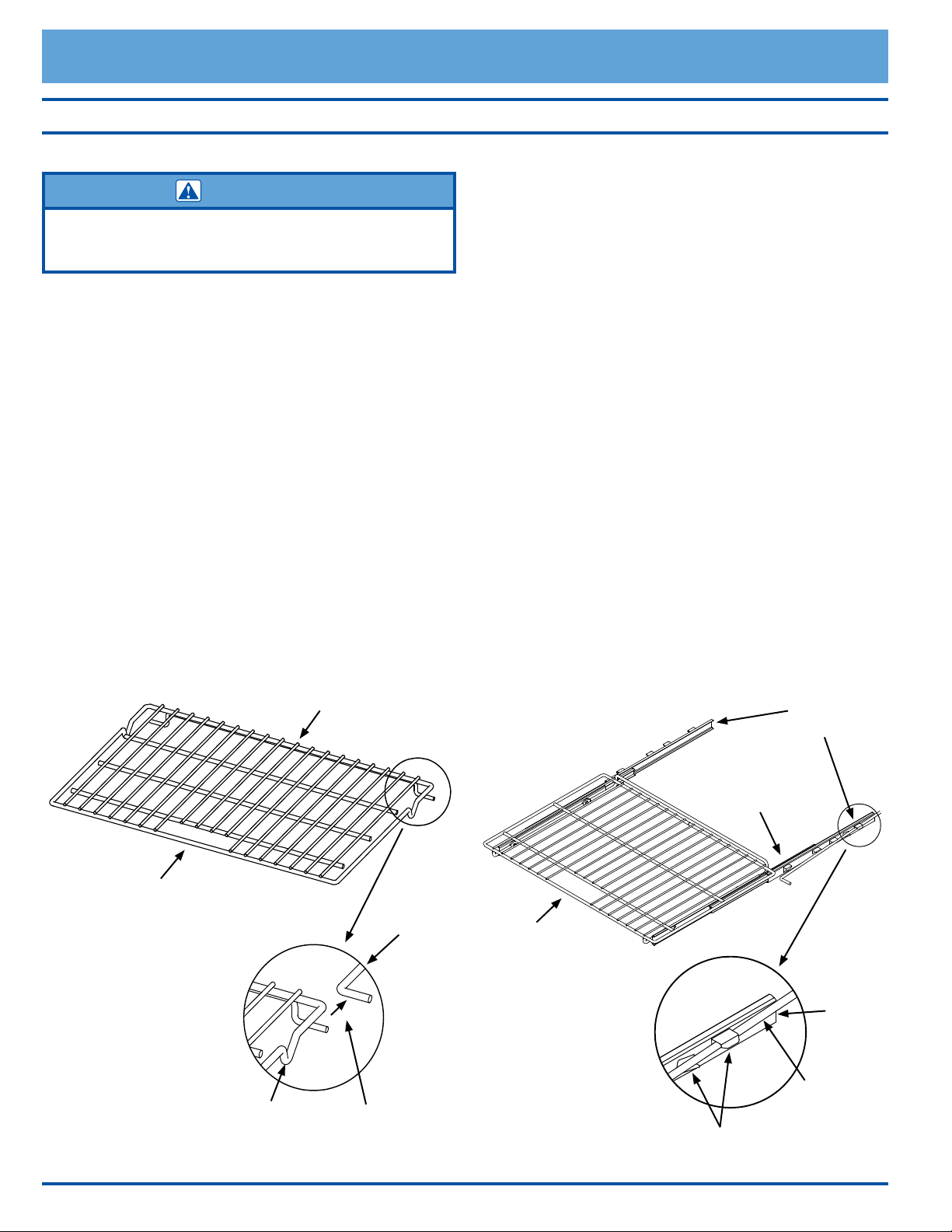
Oven Racks
Standard
Rack
Back of rack
Front of rack
Safety
notch
Slide oven rack
supports into slots
on the rack
Rack
support
GlideRack
Oven Rack
Back of
guide
Oven rack
support
Rack
guides
Front of
rack
Slide oven rack supports
between back safety clips
Lift front safety
clips over rack
supports
You may use either rack type on any level inside the oven.
WARNING
To reduce the chance of burns, position the oven racks when the
oven is cool. If you must reposition a rack when the oven is hot,
use pot holders.
To insert a standard oven rack...
1. Insert the end of the rack with the safety notches into
the oven rst.
2. Attach both sides of the rack to the rack supports in
the oven as shown in the diagram below.
3. Begin to slide the rack in, and then, lift up so that the
safety notches clear the ends of the rack supports.
4. Push the rack all the way in with both hands.
To remove a standard oven rack...
• Grasp it with both hands and pull gently straight out
toward you until it stops.
• To remove the rack completely, lift the front of the
rack up about six inches and continue to pull it out.
Lifting the rack releases the safety notches. The
safety notches reduce the chances of a rack coming
out of the oven accidentally.
To insert a GlideRack oven rack...
Your oven also comes with Dacor GlideRack oven racks.
You can pull a GlideRack oven rack out further than a
standard rack and still support heavy pots and pans full of
food. It is great for heavier foods and the optional Dacor
baking stone.
1. Align both sets of safety clips (right and left) on the
back of the rack guides with the oven rack supports as
shown below. NOTE: The diagram below shows instal-
lation with the rack guides extended but, the rack
may be installed with or without the guides extended,
whichever is easier.
2. Begin to slide the rack in, lifting the front safety clips
over the front of the oven rack supports.
3. Push the rack all the way in.
4. Grasp the rack in the center of the front and pull. The
rack should come forward while the guides remain in
place.
To remove a GlideRack oven rack...
• Grasp the rack with both hands and pull it gently
straight out toward you until it stops.
• Lift up until the front safety clips just clear the front
of the rack supports on the oven. Continue to pull out.
Moving the end of the rack back and forth slightly, left
to right, as you pull, will make it easier to remove.
19
Basic Oven Operation
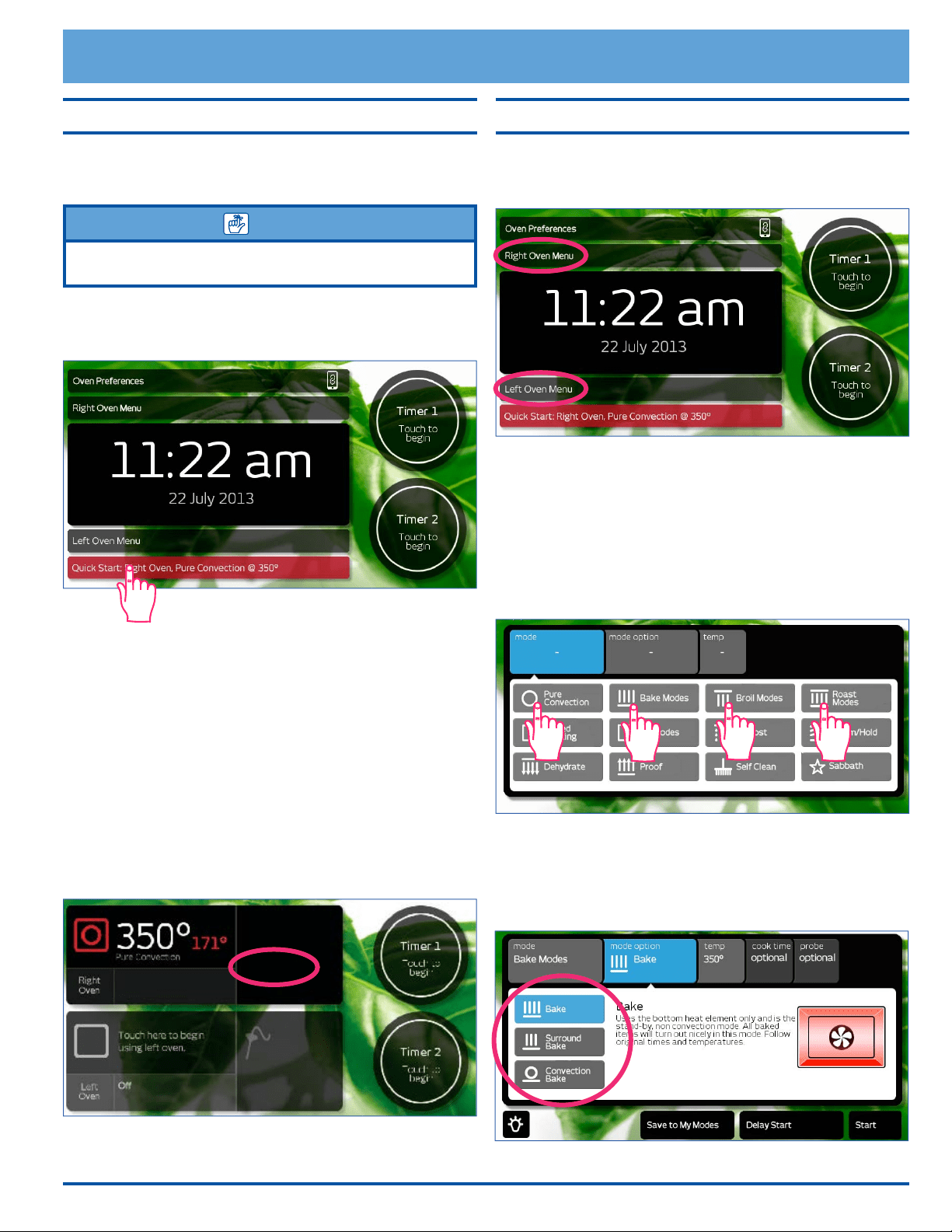
Starting the Oven - Quick Start
The quick start feature allows you to start cooking quickly.
Using the main menu (see next section), allows you more
cooking options and features.
NOTE
You can change quick start mode to your favorite cooking
settings. See page 12 for set up.
1. Adjust the racks to the appropriate level.
2. Touch Quick Start. The quick start settings will
appear on the display.
3. If quick start is set to one of the broil modes, insert
the food in the oven. If quick start is set for a convec-
tion, bake or roast mode, wait to insert the food to
avoid excessive browning during preheat.
4. Touch START. The oven temperature setting appears
in white and the actual temperature appears in red, as
shown below.
If Preheating appears on the display, wait for pre-
heat to complete (Insert Food appears on the
display). When Insert Food appears on the display,
place the food in the oven, or touch START to main-
tain the oven temperature until you are ready to put
the food in the oven.
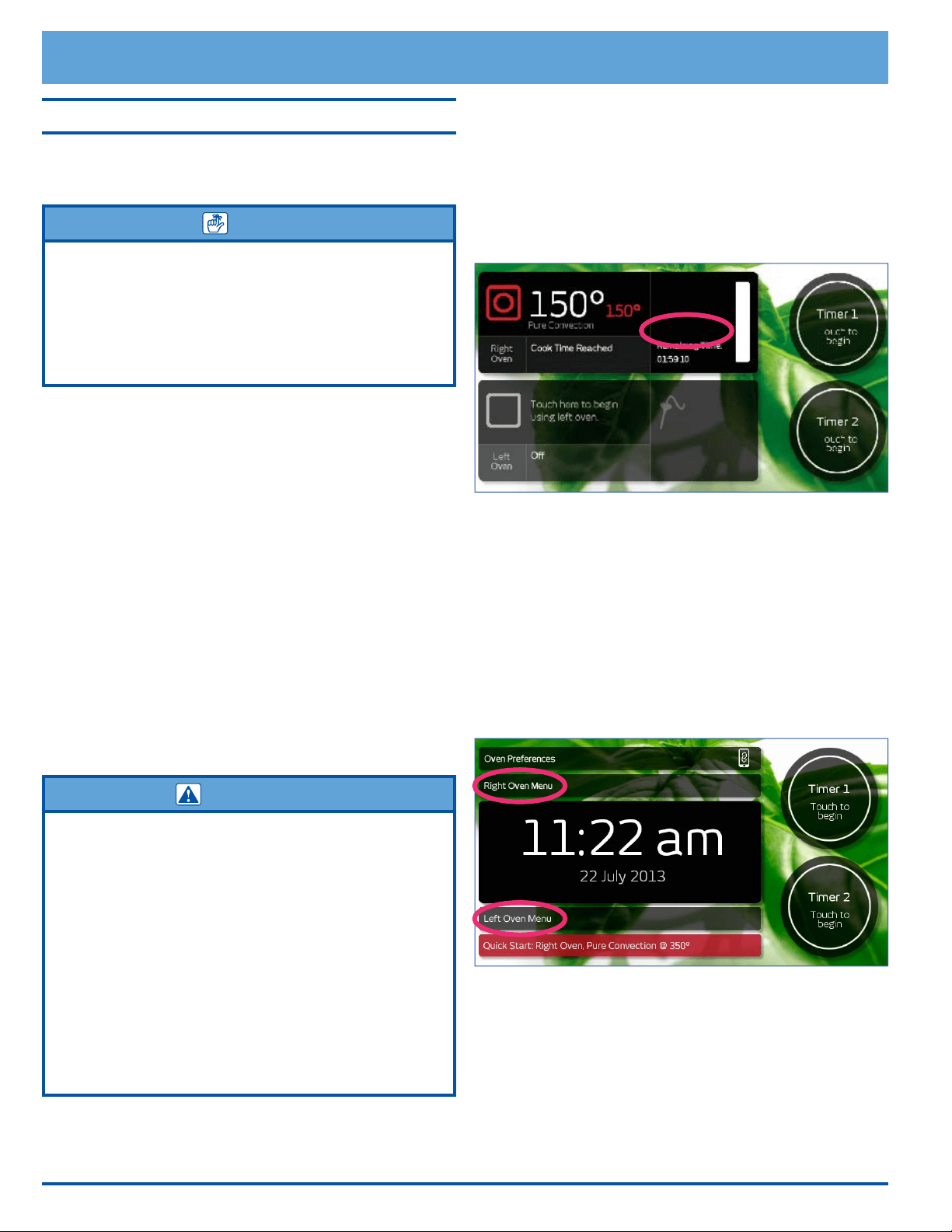
5. To turn off the oven touch CANCEL RIGHT or
CANCEL LEFT on the control panel.
Starting the Oven - Main Menu
1. Adjust the racks to the appropriate level.
2. Touch Right or Left Oven Menu to select the oven to
be used.
3. The main cooking menu will appear on the display.
Touch the best type of cooking mode for the type of
food to be cooked on the main menu:
◊ Pure Convection modes
◊ Bake modes
◊ Broil modes
◊ Roast modes
For additional cooking features see Deluxe Oven
Features.
4. Touch the desired sub-mode. When you touch each
sub-mode, a description of that mode appears on the
display.
continued...
Preheating...
20
8. To turn off the oven, touch CANCEL RIGHT or
CANCEL LEFT on the control panel.
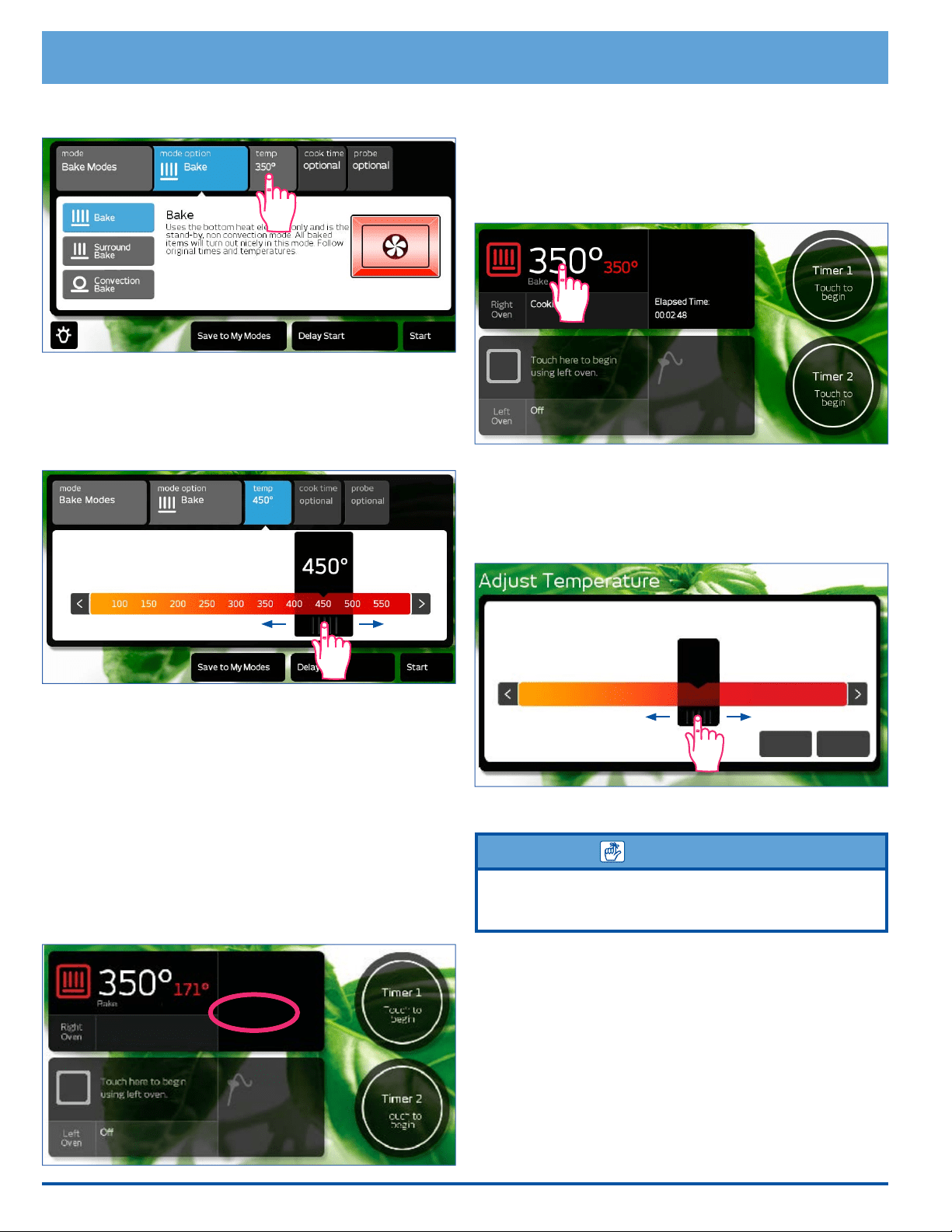
Changing the Temperature
To change to a different temperature while the oven is on:
1. Touch the temperature setting on the display.
2. The temperature adjustment bar will appear. Touch
and slide the pointer back and forth to select the
desired cooking temperature. Touch the arrows on
either end of the adjustment bar to make minor
adjustments.
3. Touch Start.
IMPORTANT
If you increase the temperature by more than 50°F (28°C), to
reach the new temperature, the oven needs to preheat. Remove
the food from the oven to prevent excessive browning.
Basic Oven Operation
5. If you want to change the preset cooking tempera-
ture, touch temp.
The temperature adjustment bar will appear. Touch
and slide the pointer back and forth to select the
desired cooking temperature. Touch the arrows on
either end of the adjustment bar to make minor
adjustments.
6. If using one of the broil modes, insert the food in the
oven. If using a convection, bake or roast mode, wait
to insert the food to avoid excessive browning during
preheat.
7. Touch START. The oven temperature setting appears
in white and the actual temperature appears in red, as
shown below.
If Preheating appears on the display, wait for pre-
heat to complete (Insert Food appears on the
display). When Insert Food appears on the display,
place the food in the oven, or touch START to main-
tain the oven temperature until you are ready to cook.
Preheating...
100 150 200 300 400 450 500
Cancel Start
550350
350°
250
21
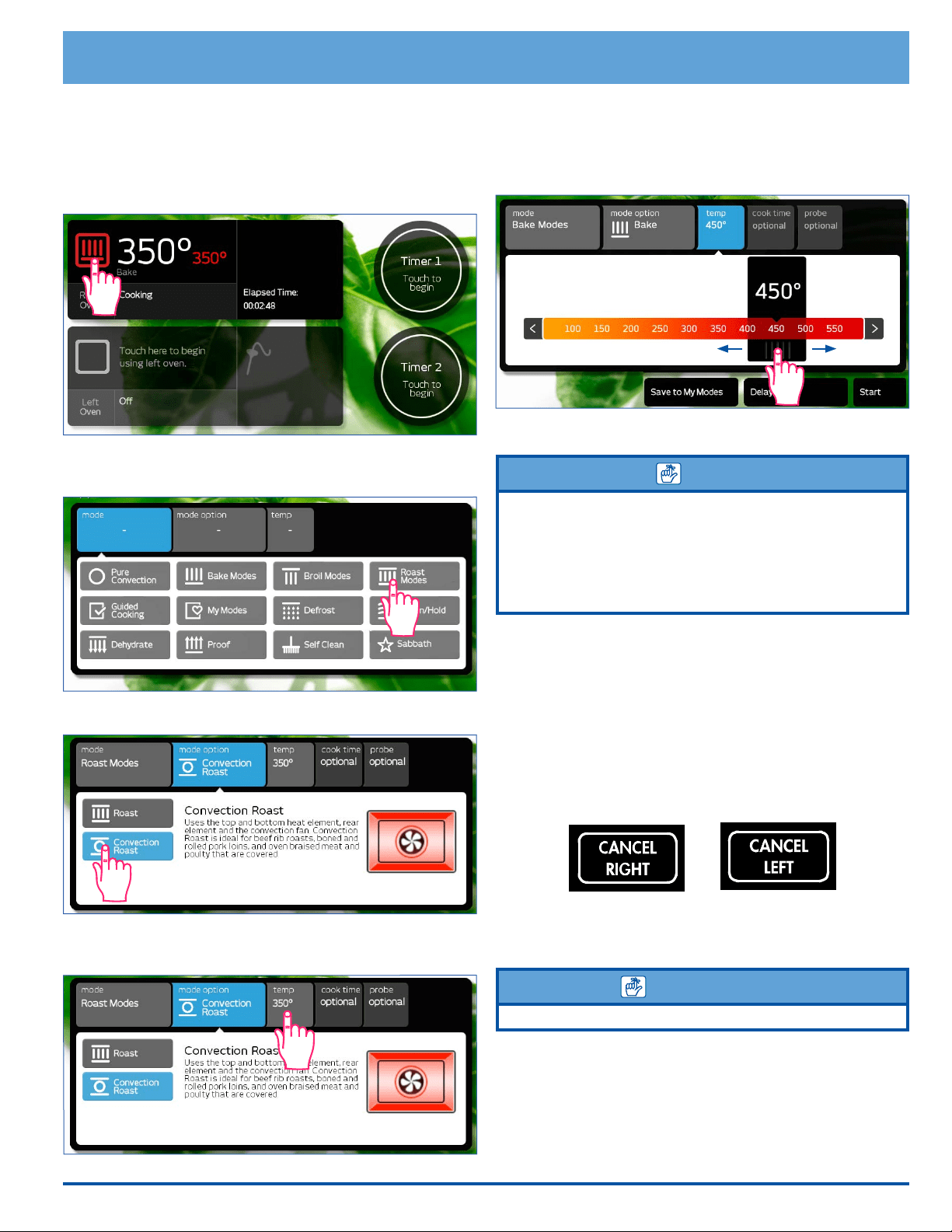
The temperature adjustment bar will appear. Touch
and slide the pointer back and forth to select the
desired cooking temperature. Touch the arrows on
either end of the adjustment bar to make minor
adjustments.
5. Touch Start.
NOTE
• Since you have restarted the oven during this process, Insert
Food may appear on the display. Touch Start to clear the
message.
• If you increase the temperature by more than 50°F (28°C),
remove the food from the oven to prevent excessive
browning.
Lock-Out Feature
If you want to disable the control panel when
the oven is not in use:
• Touch and hold the CANCEL RIGHT or CANCEL LEFT
key on the control panel for about ve seconds. The
control panel keys will stop working and Locked will
appear on the display. Only the CANCEL RIGHT,
CANCEL LEFT and oven light keys will remain func-
tional.
• To reactivate the control panel, touch and hold the
CANCEL RIGHT or CANCEL LEFT key for about ve
seconds.
IMPORTANT
Using the lock-out feature turns off the timers if they are in use.
Basic Oven Operation
Changing the Oven Cooking Mode
To change to a different cooking mode while the oven is
on, for example to change from Bake to Convection Roast:
1. Touch the current cooking mode icon that appears on
the touch display, left of the temperature setting.
2. The main cooking menu will appear on the display.
Touch the new desired cooking mode.
3. Touch the sub-mode.
4. If you want to change the preset temperature, touch
temp.
22
Understanding the Various Oven
Modes
Your Oven's Two Pure Convection
Mode
s
• Pure Convection
• Pure Convection Sear
About Pure Convection
Pure Convection uses the convection element
and fan. The uniform air circulation provided by
Pure Convection allows you to use more oven
capacity at once. Use this mode for single rack baking,
multiple rack baking, roasting, and preparation of com-
plete meals. Many foods, such as pizzas, cakes, cookies,
biscuits, mufns, rolls and frozen convenience foods can
be successfully prepared on two or three racks at a time.
Pure Convection is also good for whole roasted duck, lamb
shoulder and short leg of lamb.
IMPORTANT
As a general rule, modes that utilize convection have cooking
times that are about 25% shorter. You may want to set the timer
15 minutes before the shortest stated time and add more time if
necessary.
Some recipes, especially those that are homemade, may
require adjustment and testing when converting from
standard to convection baking. If you are unsure how to
convert a recipe, begin by preparing the recipe using the
standard bake settings.
If the food is not cooked to your satisfaction during this
rst convection trial, adjust one recipe variable at a time
(such as cooking time, rack position or temperature) and
repeat the convection test. If necessary, continue adjust-
ing one recipe variable at a time until you get satisfactory
results.
Basic Oven Operation
For multiple rack baking...
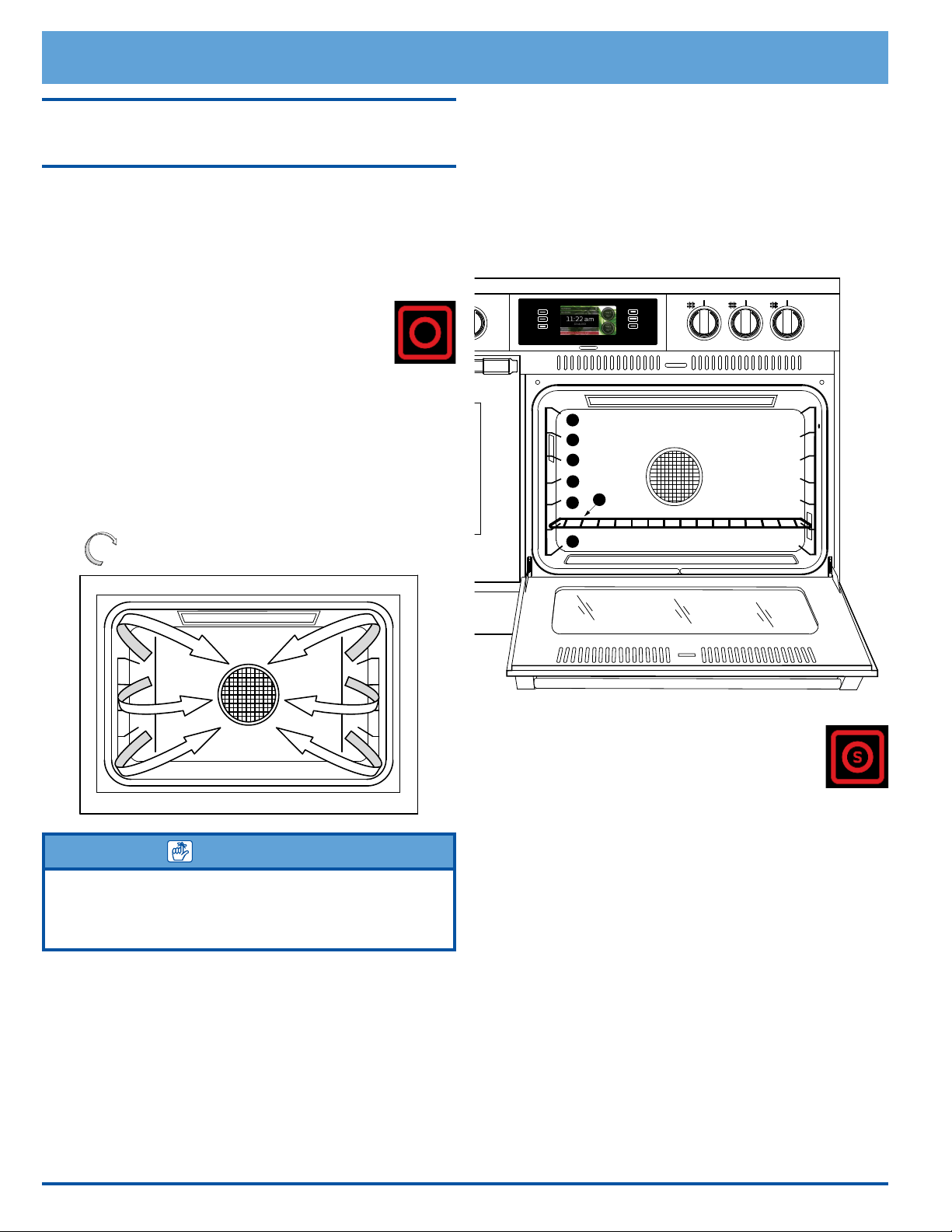
• Typically, when baking on two racks with your oven,
use rack positions #3 and #5 (counting from the
bottom up). When baking on three racks, use rack
positions #2, #4 and #6.
• When adapting a single rack recipe to multiple rack
baking, it may be necessary to add to the baking time
due to the extra bulk of the food in the oven.
Pure Convection Sear
Pure Convection sear uses the convection ele-
ment and fan. In Pure Convection Sear mode,
the oven cooks the meat 75°F (42°C) higher than
the set temperature for the rst 15 minutes. The result-
ing browning process sears the surface of the meat to
keep the natural juices from escaping. This mode is best
for game hens, chickens, stuffed and un-stuffed turkeys,
turkey breasts, pork tenderloin and pork loins.
AIR FLOW
1
2
3
4
5
7
6
23
Basic Oven Operation
Your Oven's Three Bake Modes
• Bake
• Surround Bake
• Convection Bake
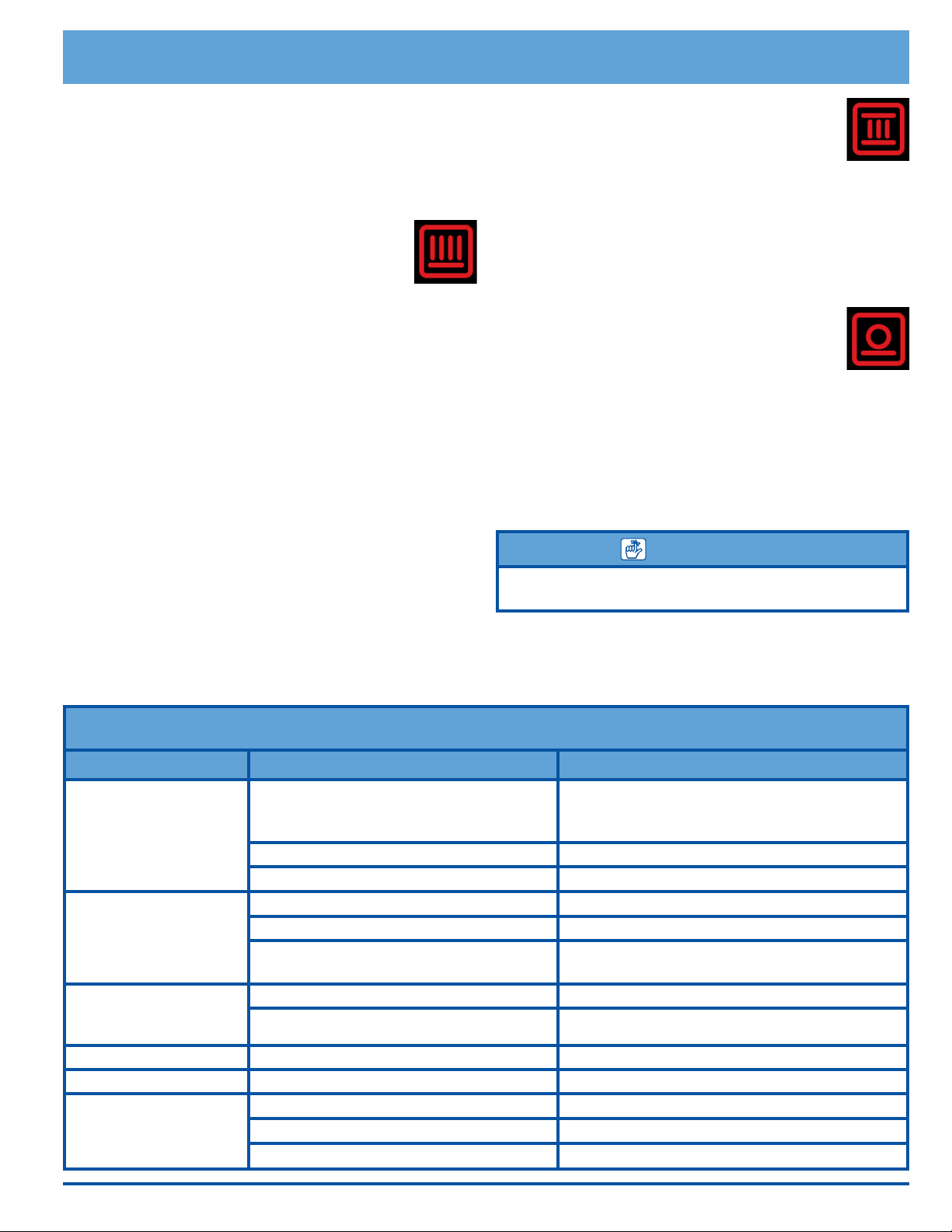
Bake
Uses only the bake element. This mode is the
stand-by, non-convection mode. All baked
items will turn out nicely in this mode.
Tips for Using Bake Mode
• For best results, use a single rack. See page 44 for
suggested rack positions for various foods. For cook-
ing on multiple racks, Dacor recommends using one of
the convection modes.
• Follow your recipe’s original cooking time and tem-
perature.
• Do not open the oven door frequently during baking.
Look through the oven door window to check the
progress of baking whenever possible.
• Use the timers to determine baking time.
• Wait until the shortest recommended baking time
before checking the food. For most baked goods, a
wooden toothpick placed in the center should come
clean when the food is done.
Surround Bake
Surround Bake uses both the bake element and
a broil element. This mode is best for angel-
food cake, fruit cobblers, quick breads, soufés
and cheesecakes baked in a water bath. Egg-leavened
items turn out best in this mode because they still get a
nice rise without over-browning or curdling. Thick bat-
tered breads, such as banana bread, bake well in this
mode because they cook through while providing the cor-
rect amount of browning.
Convection Bake
Convection Bake uses both the bake element
and the convection element and fan. Use this
mode for single rack convection baking. The
combination of the convection fan and bottom heat source
is best for fruit crisps, custard pies, double-crusted fruit
pies, quiches, yeast breads in a loaf pan and popovers.
Also, items baked in a deep ceramic dish or earthen-
ware clay pots are best in this mode. Most of these items
cook in a deep pan and require browning on the top and
bottom.
IMPORTANT
Modes that utilize convection tend to have a cooking time that is
about 25% shorter.
Adjust and test cooking times for your recipes, especially
those that are homemade, when converting from standard
to convection baking. See the Pure Convection section on
page 22 for additional guidelines.
Common Problems When Using the Bake Mode
Problem May be caused by What to do
Cookies burn on the
bottom.
Oven door opened too often. Set timer to shortest recommended cooking
time and check food when timer beeps. Use
door window to check food.
Incorrect rack position used. Change rack position.
Dark, heat absorbing cookie sheets used. Use shiny, reective cookie sheets.
Cookies are too brown
on top.
Rack position being used is too high. Change rack position.
Food placed in oven during preheat. Wait until oven is preheated.
Incorrect baking mode being used. See Starting the Oven - Main Menu on page
19 for guidelines.
Cakes burn on the sides
or are not done in the
center.
Oven temperature too high. Reduce oven temperature.
Dark, heat absorbing cake pans used. Use shiny, reective cake pans.
Cakes crack on top. Oven temperature too high. Reduce oven temperature.
Cakes are not level. Oven and/or oven rack not level. Level oven and rack as needed.
Pies burn around the
edges or are not done
in the center.
Oven temperature too high. Reduce oven temperature.
Dark, heat absorbing pans used. Use shiny, reective pans.
Oven and/or rack over-crowded. Reduce number of pans.
24
Basic Oven Operation
Understanding the Various Oven
Modes (cont.)
Your Oven's Three Broil Modes
• Broil
• Max Broil
• Convection Broil
WARNING
• Do not attempt to use the broil modes without the oven door
completely closed.
• To avoid damage to the meat probe, remove it from the
oven when using any of the broil modes. If the meat probe is
connected the broil modes will not start (an error signal will
appear on the display).
Broiling is a quick, avorful way to prepare many foods,
including steaks, chicken, chops, hamburgers and sh.
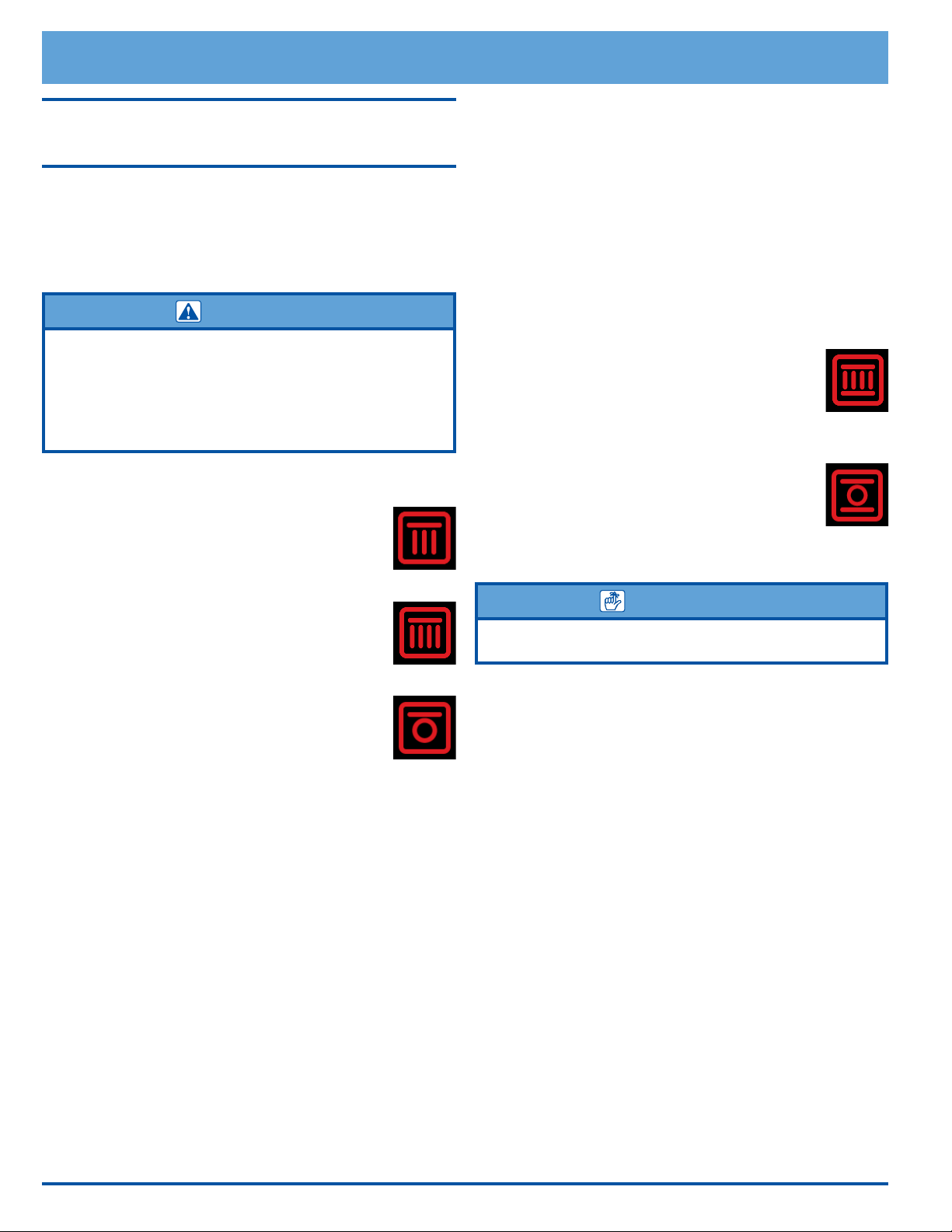
Broil
Broil mode uses the broil element. The tempera-
ture level is adjustable. It is best for broiling
smaller amounts of food.
Max Broil
Max Broil uses the broil element at the highest
temperature setting (temperature is not adjust-
able). It is best for larger quantities of food.
Convection Broil
Convection Broil uses a combination of the
convection element and fan and a broil element.
It is best for items that do not need to be ipped such as,
thinner cuts of meat, sh and garlic bread.
Broiling Tips
• To reduce the chance of overcooking, use rack posi-
tions 1 through 4. Results will vary based on the type
of food being broiled and the rack position used.
• It is normal and necessary for some smoke to be
present to give the food a broiled avor.
• Setting the timer is recommended to time the broiling
process.
• Always use a broiler pan and grill to provide drainage
for excess fat and grease. Doing so will reduce spat-
ter, smoke and are-ups.
• Start with a room temperature broiler pan for even
cooking.
• Use tongs or a spatula to turn and remove meats.
Never pierce meat with a fork because the natural
juices will escape.
• Broil food on the rst side for a little more than half of
the recommended time, then season and turn. Season
the second side just before removing the food from
the oven.
• To prevent sticking, lightly grease the broiler grill.
Excess grease will result in heavy smoke. For easier
cleaning, remove the broiler pan and grill when
removing the food.
Your Oven's Two Roast Modes
• Roast
• Convection Roast
Roast
Roast mode uses both the bake element and
a broil element. It is best for half and whole
cooked hams, rack of veal, and rack of lamb. When brais-
ing in the oven, cover foods with foil if necessary.
Convection Roast
Convection Roast uses a combination of the con-
vection element and fan, a broil element and the
bake element. It is best for rib roasts, turkeys, chickens,
etc.
IMPORTANT
Modes that utilize convection tend to have cooking time
that is about 25% shorter.
As with other convection modes, adjust and test cooking
times for your recipes, especially those that are home-
made. See the Pure Convection section on page 22 for
additional guidelines.
Roasting Tips
• All baking modes can be used to roast in your oven.
However, the Convection Roast mode is recommended
to produce meats that are deliciously seared on the
outside and succulently juicy on the inside, more
quickly. Foods that are exceptional, when prepared in
the Convection Roast mode, include: beef, pork, ham,
lamb, turkey, chicken and cornish hens.
• Always roast meats fat side up in a shallow pan, using
a roasting rack. Always use a pan that ts the size of
the food being prepared. The broiler pan and grill that
come with the oven, can be used in most cases. No
basting is required when the fat side is up. Do not add
water to the pan. It will cause a steamed effect.
• Poultry should be placed breast side up on a rack in a
shallow pan that ts the size of the food. Again, the
broiler pan and grill that come with the oven can be
used. Brush poultry with melted butter, margarine or
oil before and during roasting.
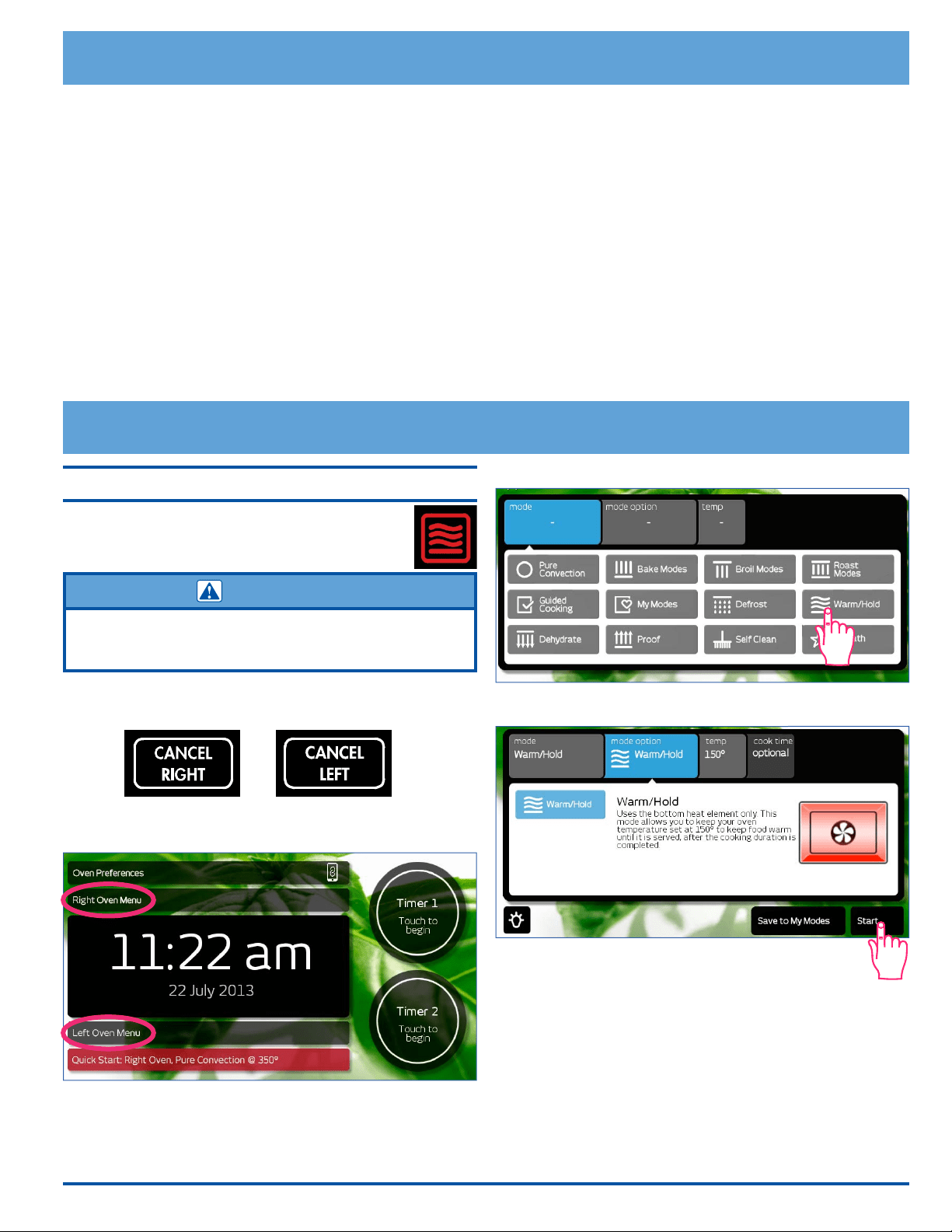
25
3. Touch Warm/Hold on the main menu.
4. Touch Start.
Basic Oven Operation
• When using the roast mode, do not use pans with tall
sides. They interfere with the circulation of heated air
over the food.
• If using a meat thermometer, insert the probe halfway
into the center of the thickest portion of the meat.
For poultry, insert the thermometer probe between
the body and leg into the thickest part of the inner
thigh. To ensure an accurate reading, the tip of the
probe should not touch bone, fat or gristle. Check
the meat temperature 2/3 of the way through the
recommended roasting time. After reading the meat
thermometer once, insert it 1/2 inch further into the
meat, then take a second reading. If the second tem-
perature registers below the rst, continue cooking
the meat.
• Remove meats from the oven when the thermometer
registers 5 to 10°F (3 to 6°C) below the desired tem-
perature. The meat will continue to carry-over.
• Allow roasts to stand 15 to 20 minutes after roasting
in order to make carving easier.
• Roasting times always vary according to the size,
shape and quality of meats and poultry. Less tender
cuts of meat are best prepared in Bake mode and may
require moist cooking techniques. Use your favorite
cookbook recipes.
• Reduce spatter by lining the bottom of the roasting
pan with lightly crushed aluminum foil.
Warm/Hold
This mode allows you to keep your food warm at
150
°
F (65
°
C) until you are ready to serve, after
the food is done cooking.
WARNING
To avoid potential sickness and the spoiling of food, do not allow
food temperature to drop below 140°F (60°C). Below 140°F
bacteria can develop.
1. When the food is done cooking, touch CANCEL
RIGHT or CANCEL LEFT.
2. Touch Right or Left Oven Menu to select the oven to
be used.
Deluxe Oven Features
26
Timers
WARNING
The timers on your range do not turn the oven on or off. They
are only for timing purposes. When you want to turn the oven off
automatically, use the Delay Start/Cook Time Features (see
page 30).
IMPORTANT
Touching
CANCEL RIGHT or CANCEL LEFT
does NOT
reset or stop the timers.
Your range is equipped with two built-in
timers...
• You can use both of them at the same time.
• You can time from 1 minute to 99 hours and 59 minutes.
• The timers can be set to count up or count down.
To use the timers on your range...
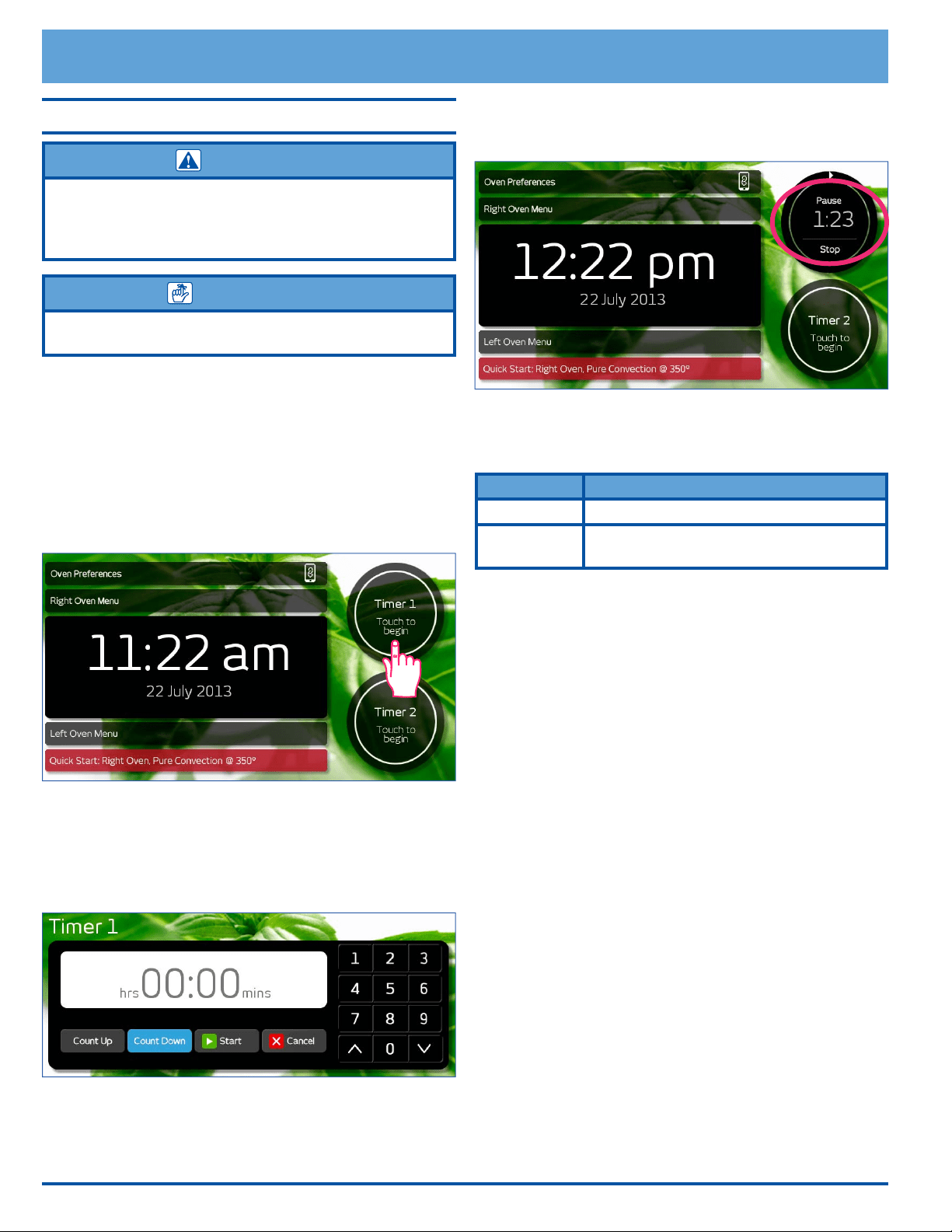
1. Touch Timer 1 or Timer 2 on the oven home screen.
2. Enter the hours and minutes to be timed on the keypad
that appears on the touch display. You can also touch
the up (∧) and down (∨) keys to make small adjustments
to the time. NOTE: Touch Cancel to clear the display
and re-enter the hours and minutes, or touch Cancel a
second time to return to the oven home screen.
3. Touch Count Up or Count Down. If you touch Count
Up, the timer will start at 00:00 and count up to the time
entered in step 2. If you touch Count Down, the timer
will start at the time entered and count down to 00:00.
4. Touch START.
5. The display will return to the oven home screen and the
timer count will be displayed.
When the timer is done counting, the timer display will
ash and a tone will sound. The alarms for Timer 1 and
Timer 2 have different patterns.
Timer Alarm Pattern
1 1 second on, 1 second off, repeat
2
1 second on, 1 second off,
1 second on, 2 seconds off, repeat
To turn off the alarm tone, touch stop for the appropriate
timer on the touch display.
While the timer is running...
• You can touch Timer 1 Stop or Timer 2 Stop on the
display to stop and clear the timer.
• You can touch Timer 1 Pause or Timer 2 Pause on the
display to pause the count up/down. Touch Continue to
resume counting up/down.
Deluxe Oven Features
27
Deluxe Oven Features
Defrosting
The oven uses the convection element and fan for this
process.
WARNING
To avoid food poisoning, cook meats immediately after defrosting
them.
To defrost foods
1. Adjust the racks to the appropriate level.
2. For best results put the food on an alumi-
num surface. Place the food on the center of the oven
rack.
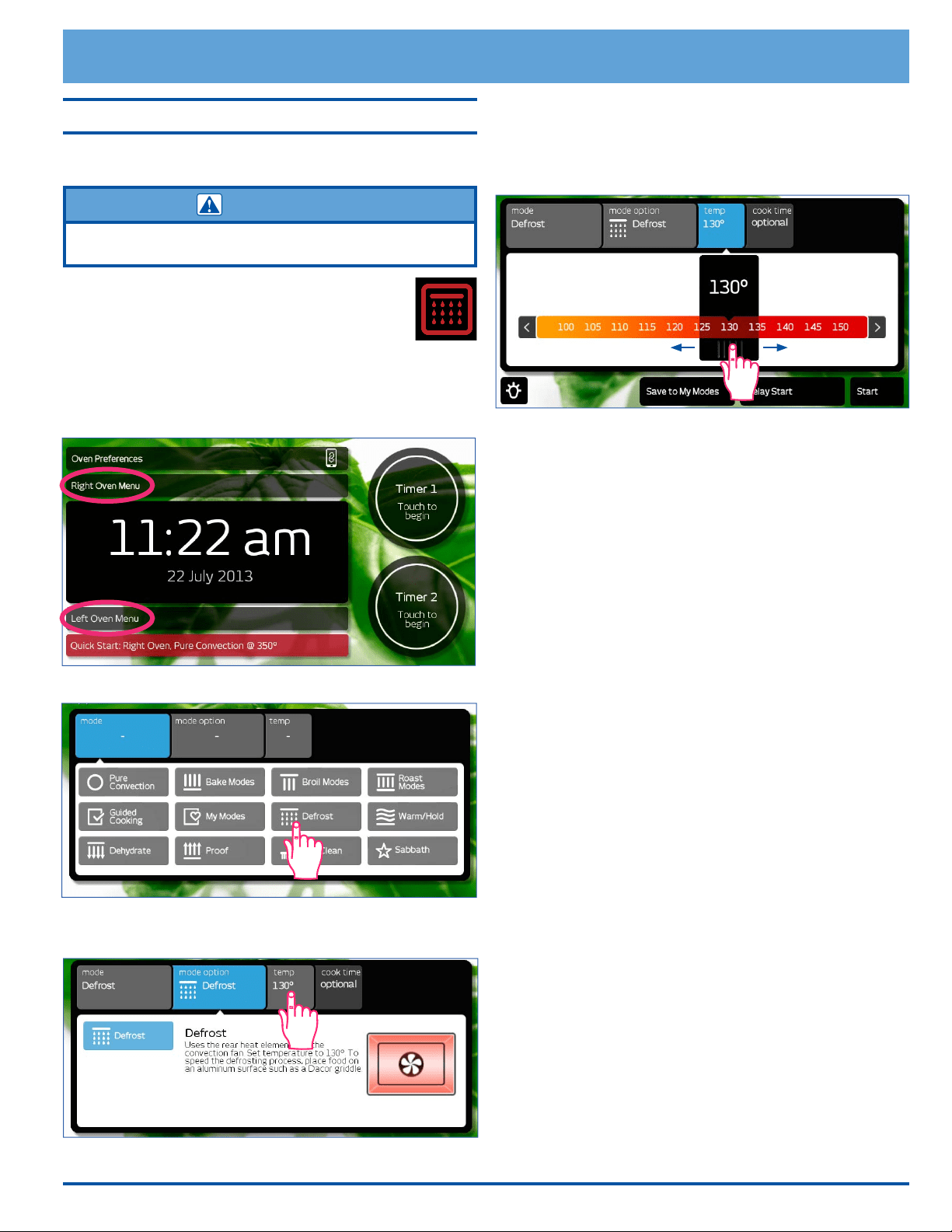
3. Touch Right or Left Oven Menu to select the oven to
be used.
4. Touch Defrost on the main menu.
5. If you want to change the preset temperature, touch
temp.
The temperature adjustment bar will appear. Touch
and slide the pointer back and forth to select the
desired defrost temperature. Touch the arrows on
either end of the adjustment bar to make minor
adjustments.
6. Touch Start.
Defrosting Tips
• Food that takes an exceptional amount of time to
defrost will not defrost well in a convection oven.
• You should not defrost anything that would normally
take over two hours to thaw. The food will begin to
spoil because the defrost temperature is not high
enough to cook the food.
• If you have a partially defrosted turkey, rib roast or
other large cut of meat, you may continue to defrost
it in the oven. If wing tips and legs begin to dry out
when you defrost poultry, you may wrap the tips with
aluminum foil.
• If you are defrosting a small cut of meat, lay it on a
at cookie sheet with a one inch rim to catch juices as
the meat thaws.
• Thick, frozen casseroles such as lasagna will not
defrost well in the oven. Instead, defrost according to
the food manufacturer’s suggestions. You can defrost
casseroles in a refrigerator overnight. You should
leave the food in its original container and keep it
covered.
• You can bake some foods from frozen. Some exam-
ples are: pizza, frozen pastries, croissants, cookies,
etc. Before baking frozen food, allow the oven to
preheat.
28
Deluxe Oven Features
Dehydrating
The oven uses the convection element and fan for this
process.
To dehydrate foods
1. Adjust the racks to the appropriate level.
2. Prepare the food as recommended, then
place it on a drying rack. Place the food on the center
of the oven rack.
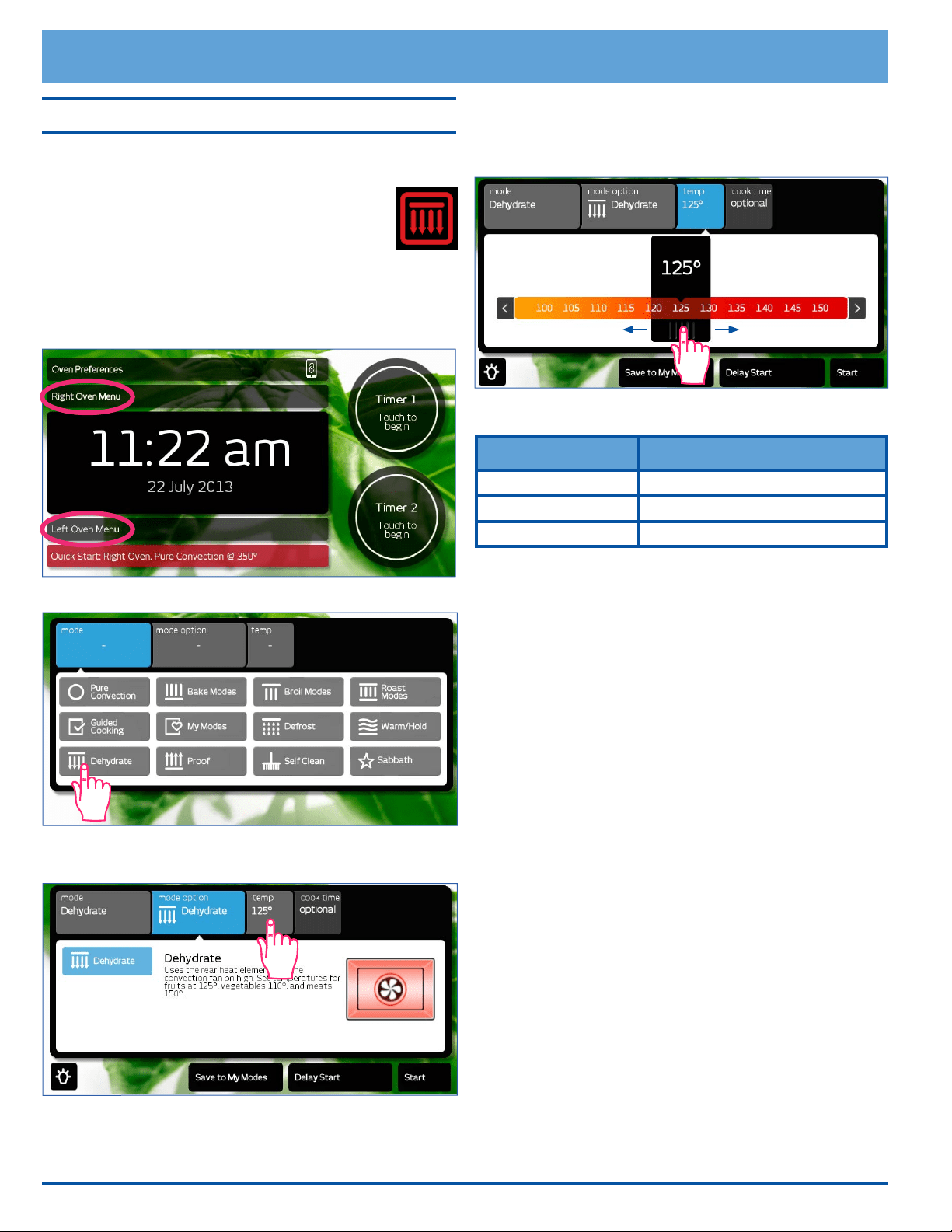
3. Touch Right or Left Oven Menu to select the oven to
be used.
4. Touch Dehydrate on the main menu.
5. If you want to change the preset temperature, touch
temp.
The temperature adjustment bar will appear. Touch
and slide the pointer back and forth to select the
desired dehydrate temperature. Touch the arrows on
either end of the bar to make minor adjustments.
6. Touch Start.
Food Type Dehydrating Temperature
Fruit 125°F (52°C)
Meat 150°F (65°C)
Vegetables 110°F (43°C)
Recommended Dehydrate Temperatures
Dehydrating Tips
Equipment Recommended:
• Half sheet pan or jelly roll pan with ½ inch rim all the
way around
• Baking rack that ts inside the half sheet pan
• Cheesecloth
• 4 quart sauce pot with lid
• Steamer basket that ts inside four quart saucepan.
One that is perforated and opens up will work well.
• Slotted spoon
• Paper towels
• A sharp knife
When you dehydrate...
1. Wash and remove excess moisture from all fruits and
vegetables before dehydrating.
2. Cut fruits and vegetables into uniform pieces.
3. You can add honey, spices, lime juice or orange juice
to give the fruit a different avor.
4. It is best to dehydrate on a baking rack with a pan
underneath to catch any juices. If the fruit is small,
use cheesecloth over the rack. If you use a rack, it
will allow for maximum air circulation around the fruit.
The cheesecloth will prevent the fruit from sticking to
the rack.
5. Place the food onto the center of the oven rack.
29
Deluxe Oven Features
Solving Discoloration Problems
To prevent darkening during dehydration and storage, you
should steam blanch apples, apricots, peaches, nectar-
ines, pears or foods that will oxidize.
To steam blanch:
1. Add 1 inch of water to a four quart sauce pot. Insert
the steam basket and place the fruit in it.
2. Cover the pot and steam for 1 to 2 minutes.
3. Remove with a slotted spoon and dab with a paper
towel to remove excess moisture before dehydrating.
Apples, pears, pineapples and some other fruits will brown
or darken during dehydration. To prevent discoloration,
dip fruits in pineapple juice or lemon juice after steam
blanching.
Creating a Candied Effect
To give the fruit a candied effect and to help retain color,
blanch them in a simple syrup. You can candy the fruits
mentioned above as well as gs and plums. The basic
ratio for a simple syrup is one cup of sugar to one cup of
water. Add these ingredients to a four quart stock pot and
bring to a boil. Stir until all the sugar dissolves. Remove
the saucepan from the cooktop and allow it to cool. Dip
fruit into the simple syrup after it has cooled.
Preventing Tough Skins when Dehydrating
You should water blanch items with tough skins such as
grapes, prunes, dark plums, cherries, gs and some types
of berries. Water blanching these types of fruit will crack
the skins so that moisture can escape and dehydration
can be done more effectively.
To water blanch...
1. Bring 2 quarts of water to boil in a four quart sauce
pot.
2. Drop the fruit in the water for 1 to 2 minutes, or until
the skin begins to crack.
3. Remove the fruit with a slotted spoon and dab dry
with a paper towel before dehydrating. The pit can be
left inside or removed half way through the dehydrat-
ing process.
Proofing
You can use the oven to proof yeasted doughs.
The oven uses the bake element for this pro-
cess. This mode allows dough to rise more
quickly in a warm, draft-free environment.
1. Adjust the racks to the appropriate level.
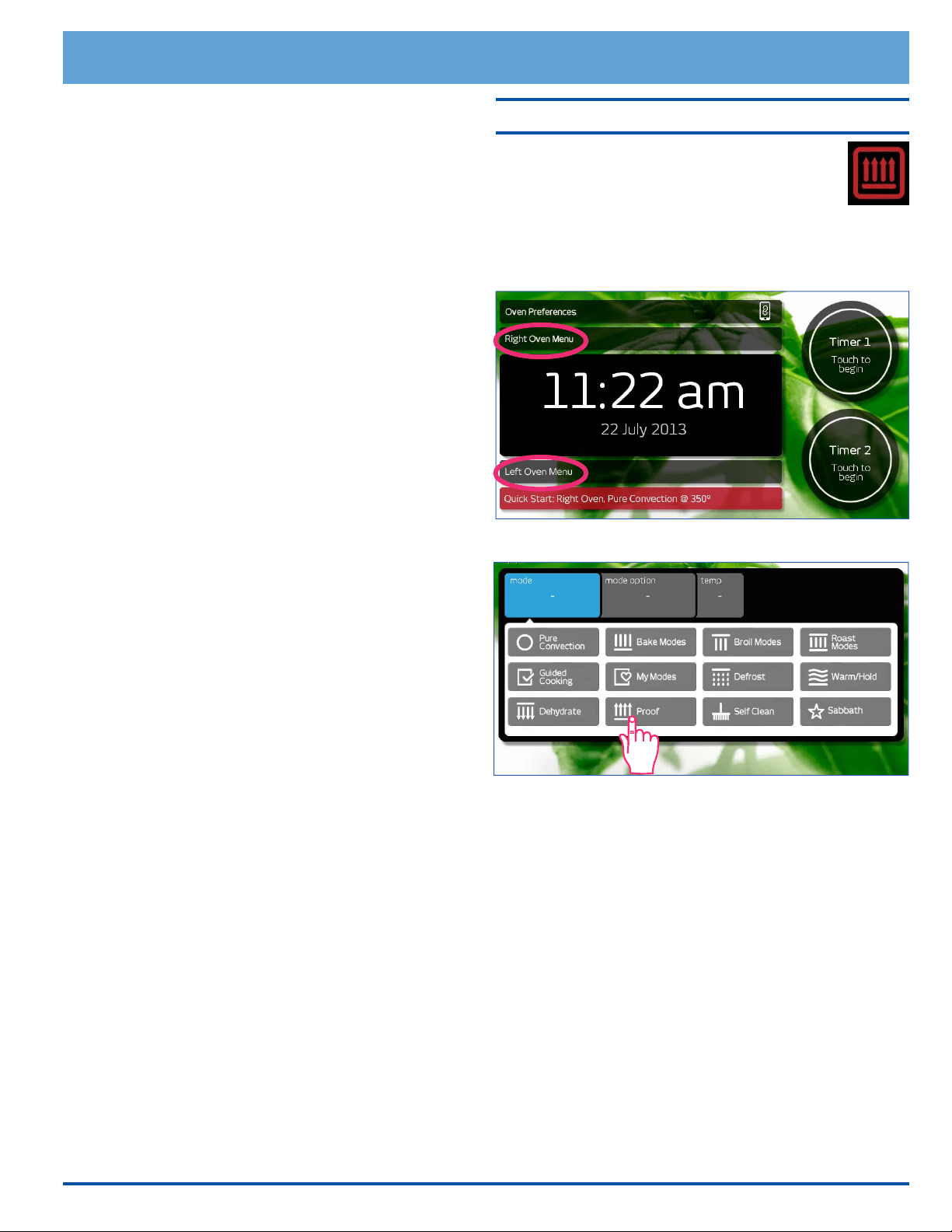
2. Touch Right or Left Oven Menu to select the oven to
be used.
3. Touch Proof on the main menu.
4. Touch Start.
5. Place the dough in a greased bowl inside of the oven.
Cover it with either a damp cloth or plastic wrap
coated with a nonstick spray.
6. Turn on the oven lights.
7. Set the timer for the amount of rise time in the recipe.
30
Deluxe Oven Features
Delay Start/Cook Time Features
If you want to set the oven to automatically turn itself on
and off at a later time, you can use the Delay Start/Cook
Time features.
NOTE
• Delay Start cannot be used with any of the broil modes,
Warm/Hold mode and Proof mode.
• Cook Time cooking cannot be used in Sabbath mode or any
of the broil modes.
• Use of the Cook Time feature and the meat probe at the
same time is not recommended because one can conflict with
the timing of the other.
Things to Know About the Delay Start/
Cook Time Features
• Delay Start determines when the oven turns on and
Cook Time determines when the oven turns off. You
can use them together or independently to:
◊ Turn the oven on and off automatically (use both
features).
◊ Turn the oven on automatically and leave it on
until you turn it off manually (use Delay Start
only).
◊ Turn the oven on manually and turn it off auto-
matically (use Cook Time only).
• You may use the timers while using the Delay Start/
Cook Time features. The timers do not effect the
Delay Start/Cook Time settings.
• Delay Start and Cook Time can be canceled at any
time by touching CANCEL RIGHT or CANCEL LEFT.
WARNING
Food safety is an important consideration when using the
Delay
Start/Cook Time
features. To avoid potential sickness and the
spoiling of food, take the following steps:
• Avoid using foods that will spoil while waiting for the oven to
start cooking. Typical foods to avoid include: those containing
eggs and dairy products, cream soups and cooked or
uncooked meats, poultry and fish.
• Do not allow foods to remain in the oven after it turns
completely off. When the temperature drops below
140°F (60°C), bacteria can develop (after Keep Warm mode).
•
If cooking will not begin immediately, place only very cold or
frozen food into the oven. Most unfrozen foods should never
stand in the oven for more than two hours before cooking
begins.
About Keep Warm Mode
• When you set the oven to stop cooking using Cook
Time, the oven will go into Keep Warm mode at the
end of the cook time you have set. As this happens,
the control panel will beep for 30 seconds and Keep
Warm will appear on the display. In keep warm
mode, the oven will keep the temperature at 150°F
(65°C) for two hours.
• After 2 hours, Mode Completed will appear on the
display and the oven will shut off completely.
• Touch CANCEL RIGHT or CANCEL LEFT to clear
Keep Warm mode and turn the oven all the way off or
to clear the display after the mode is completed.
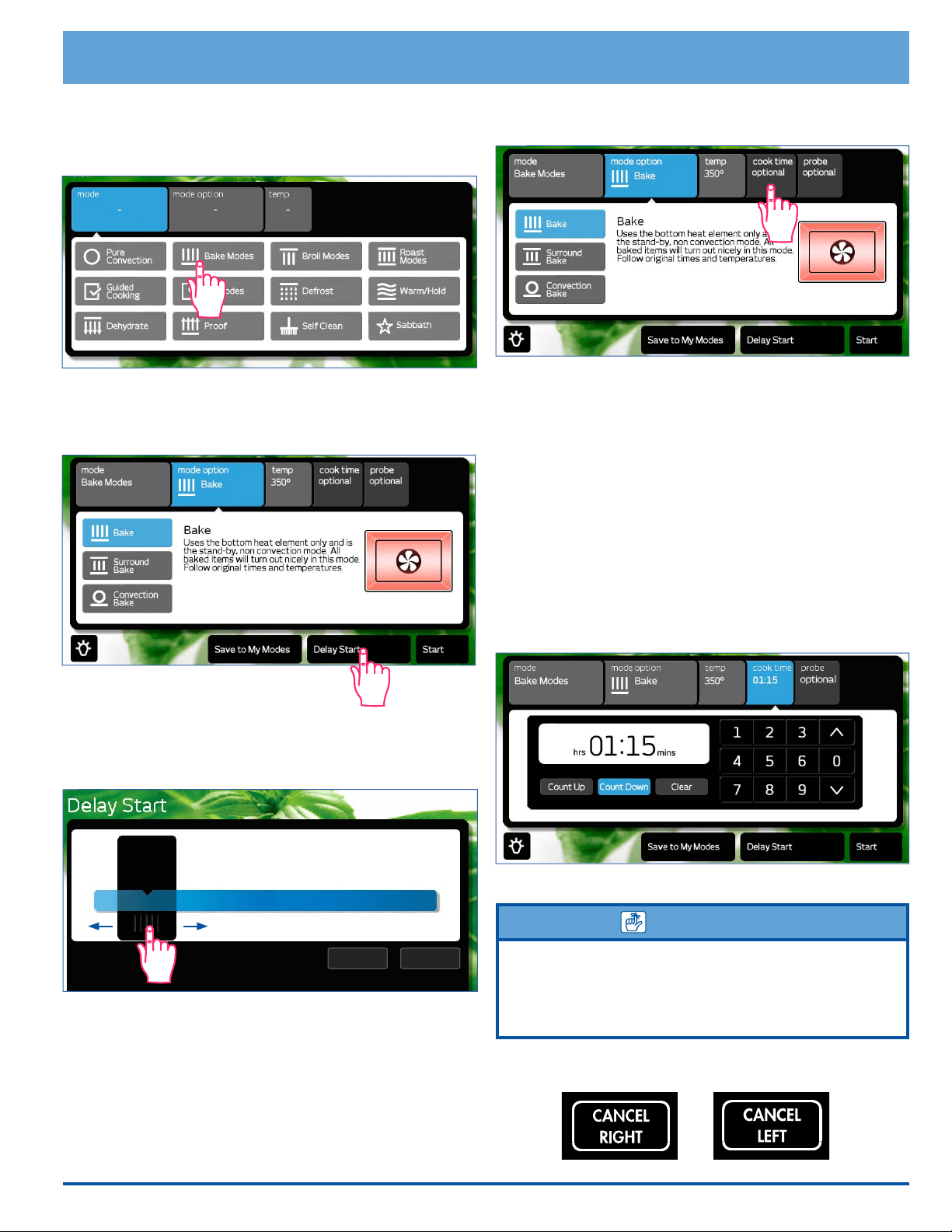
Using the Start Time/Cook Time Features
1. Adjust the racks to the appropriate level and place the
food in the oven.
2. Touch Right or Left Oven Menu to select the oven to
be used.
Keep Warm
31
Deluxe Oven Features
3. Select the desired cooking mode, sub-mode and tem-
perature according to the Starting the Oven - Main
Menu section on page 19, but before touching
Start, perform steps 4 and/or 5 below.
4. If you want to turn the oven on immediately skip to
step 5.
◊ Touch Delay Start.
◊ The time adjustment bar appears. Touch and slide
the pointer back and forth to select the desired
start time.
◊ Touch Set Delay.
◊ If you want the oven to run continuously until
you shut it off manually, go to step 6. Otherwise,
touch Start.
5. Set the Cook Time:
◊ Touch cook time.
◊ Enter the Cook Time in hours and minutes on the
keypad that appears on the touch display. You can
also touch the up (∧) and down (∨) arrows to make
small adjustments to the time. NOTE: Touching
Clear once clears the display and allows you to
re-enter the time.
◊ Touch Count Up or Count Down. If you touch
Count Up, the display will start at 00:00 and count
up to the time entered. If you touch Count Down,
the display will start at the time entered and count
down to 00:00.
The oven will cook for the amount of cook time set
wether it is turned on manually or automatically using
Delay Start.
6. Touch Start.
IMPORTANT
Preheat is disabled when using Delay Start. Therefore, the
additional time required to heat the oven must be included in the
amount of cook time. For cooking temperatures of 350°F (175°C)
and below, add about 13 minutes to the cook time. Increase the
cook time as the temperature increases above 350°F (175°C).
To cancel the Delay Start/Cook Time settings, touch
CANCEL RIGHT or CANCEL LEFT.
Start Time
12:26 pm
0 1 2 3 4 5 6 7 8 9 10 11 12
Set Delay Cancel Delay
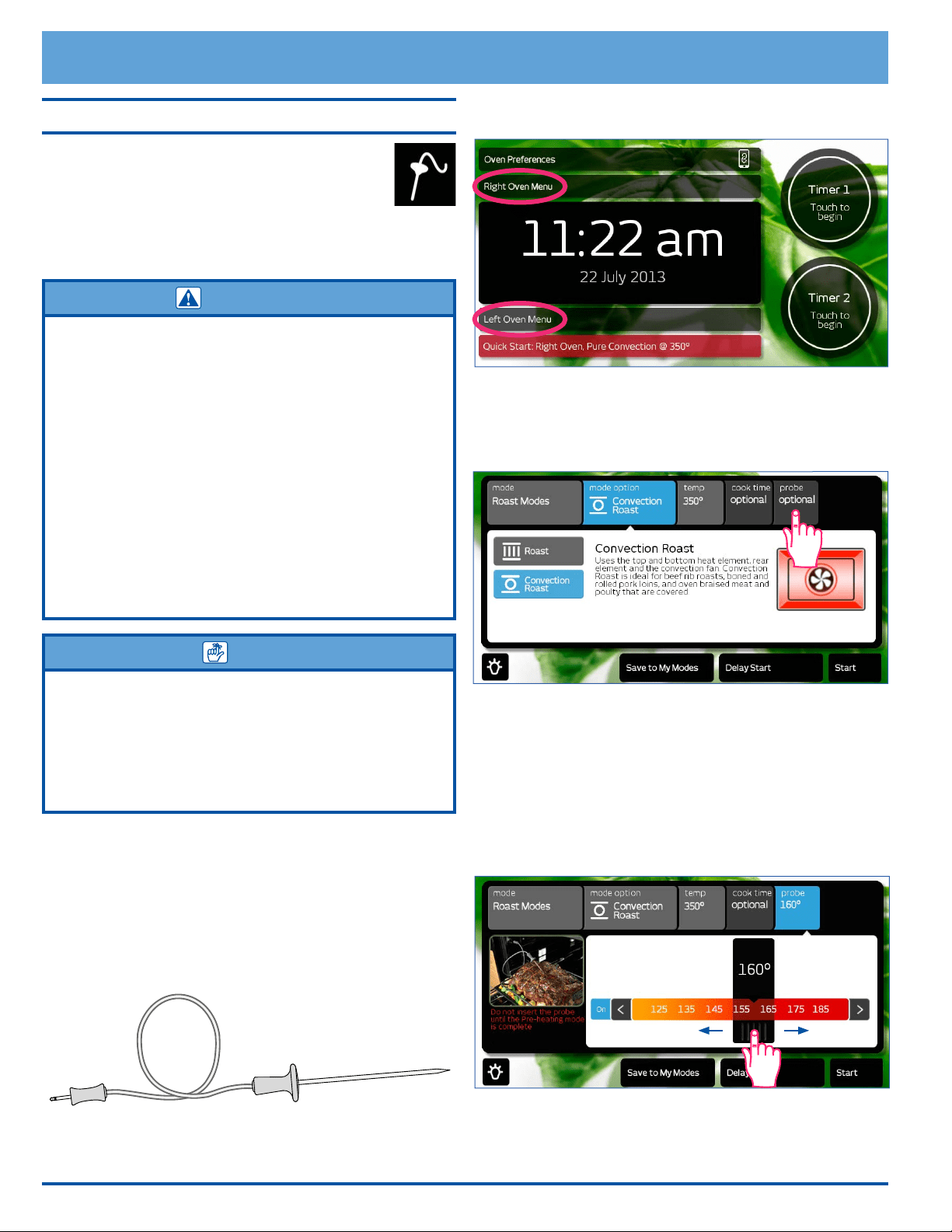
32
Deluxe Oven Features
Using the Meat Probe
When you cook foods like roasts and poultry,
the internal temperature is the best way to tell
when the food is properly cooked. The oven’s
meat probe is an easy way to take the guess-
work out of roasting. You can use it to cook food to the
exact temperature you desire. The probe can be set from
125°F (51°C) to 185°F (85°C).
WARNING
• To avoid the possibility of burns, use hot pads to handle,
connect, and unplug the meat probe when the oven is hot.
• Use the handles to insert and remove the meat probe’s
skewer and to connect it to the oven. Pushing or pulling
on either end of the cable could damage the meat probe.
To avoid breaking the meat probe, make sure the food is
completely defrosted before inserting the skewer.
• Do not allow foods to remain in the oven after it turns
completely off. When the temperature drops below
140°F (60°C), bacteria can develop (after Keep Warm mode).
•
To prevent damage, never leave the meat probe inside the
oven when it is not being used, especially during the Self
Clean cycle.
• Using a meat probe other than the one provided with your
range may result in damage to the probe and/or the oven.
NOTE
• The meat probe does not work with Broil, Max Broil,
Convection Broil and Sabbath modes. Plugging in the meat
probe when using one of these modes will cause an error
signal to appear on the display.
• Use of the meat probe and Cook Time feature at the same
time is not recommended because one can conflict with the
timing of the other.
To use the meat probe...
1. Prepare the meat for cooking prior to setting the
oven. Insert the meat probe skewer into the center
of the meat. Make sure that the skewer is not inside
any fatty portions of the meat and does not touch any
bones. The point should rest in the thickest part of
the meat. When you are cooking fowl, the tip of the
skewer should rest toward the center of the bird.
2. Adjust the racks to the appropriate level to allow the
meat to t in the oven.
3. Touch Right or Left Oven Menu to select the oven to
be used.
4. Select the desired cooking mode, sub-mode and tem-
perature according to the Starting the Oven - Main
Menu section on page 19.
5. Touch probe.
6. The probe temperature adjustment bar will appear.
Touch and slide the pointer back and forth to select
the desired "cook to" (target) temperature. Touch-
ing the arrows on either end of the adjustment bar
allows you to make minor adjustments. Use the USDA
Minimum Safe Cooking Temperature Chart on
page 34 as a guideline for the type of meat you are
cooking. NOTE: Touch ON/OFF if you change your
mind and want to cancel probe operation.
7. Touch START.
Plug
Skewer
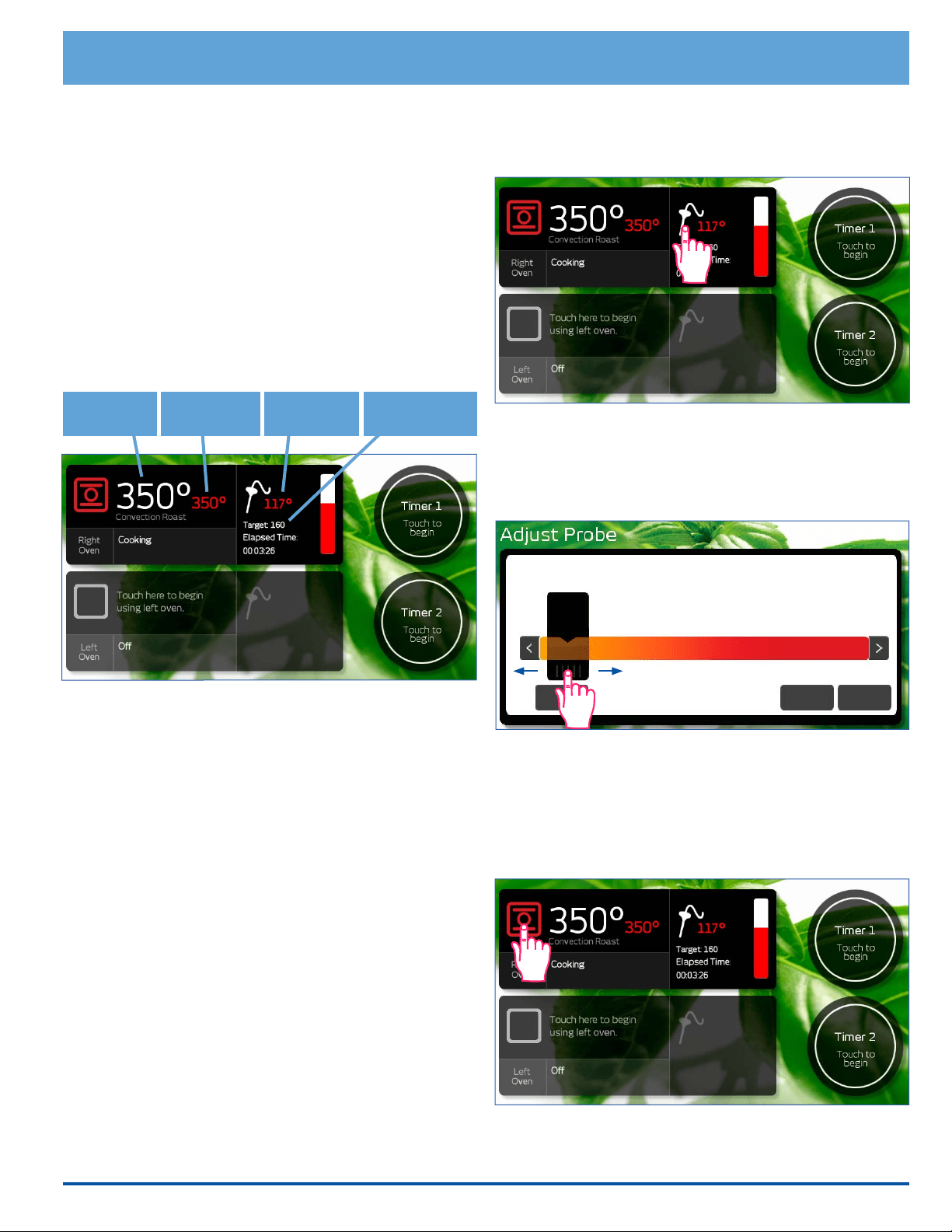
33
Deluxe Oven Features
8. Allow the oven to preheat before placing the food in
the oven.
9. Once the oven has preheated (Insert Food appears),
put the meat in the oven using pot holders. Insert the
meat probe plug into the connector inside the oven
and close the door. If you forget to connect the meat
probe, an error message will appear on the display.
The meat probe function will automatically cancel
after 2 minutes if the meat probe is not connected.
10. Touch START. If you do not touch START, the probe
mode will not start.
◊ When the meat probe is in use, the oven will auto-
matically control the cooking time. During cook-
ing, four temperatures appear on the display.
◊ The oven will continue to cook until the meat's
internal temperature reaches the "cook to"
(target) temperature you have selected.
◊ When the meat is done, the oven will go into Keep
Warm mode. As this happens, the control panel
will beep for 30 seconds and Keep Warm will
appear on the display. In keep warm mode, the
oven will keep the temperature at 150°F (65°C)
for two hours.
◊ After 2 hours, Mode Completed will appear on
the display and the oven will shut off completely.
11. Touch CANCEL RIGHT or CANCEL LEFT to clear
Keep Warm mode and turn the oven all the way off or
to clear the display after the mode is completed.
To change the meat probe temperature
during cooking...
1. Touch the probe icon.
2. The probe temperature adjustment bar will appear.
Touch and slide the pointer back and forth to select
the desired "cook to" (target) temperature. Touch the
arrows on either end of the adjustment bar to make
minor adjustments.
3. Touch START.
To change the cooking mode during meat
probe cooking...
1. Touch the cooking mode icon, left of the temperature
setting.
continued...
125°
Disable Cancel Start
125 135 145 155 165 175 185
Probe actual
temperature
Probe "cook to"
temperature
Actual oven
temperature
Set oven
temperature
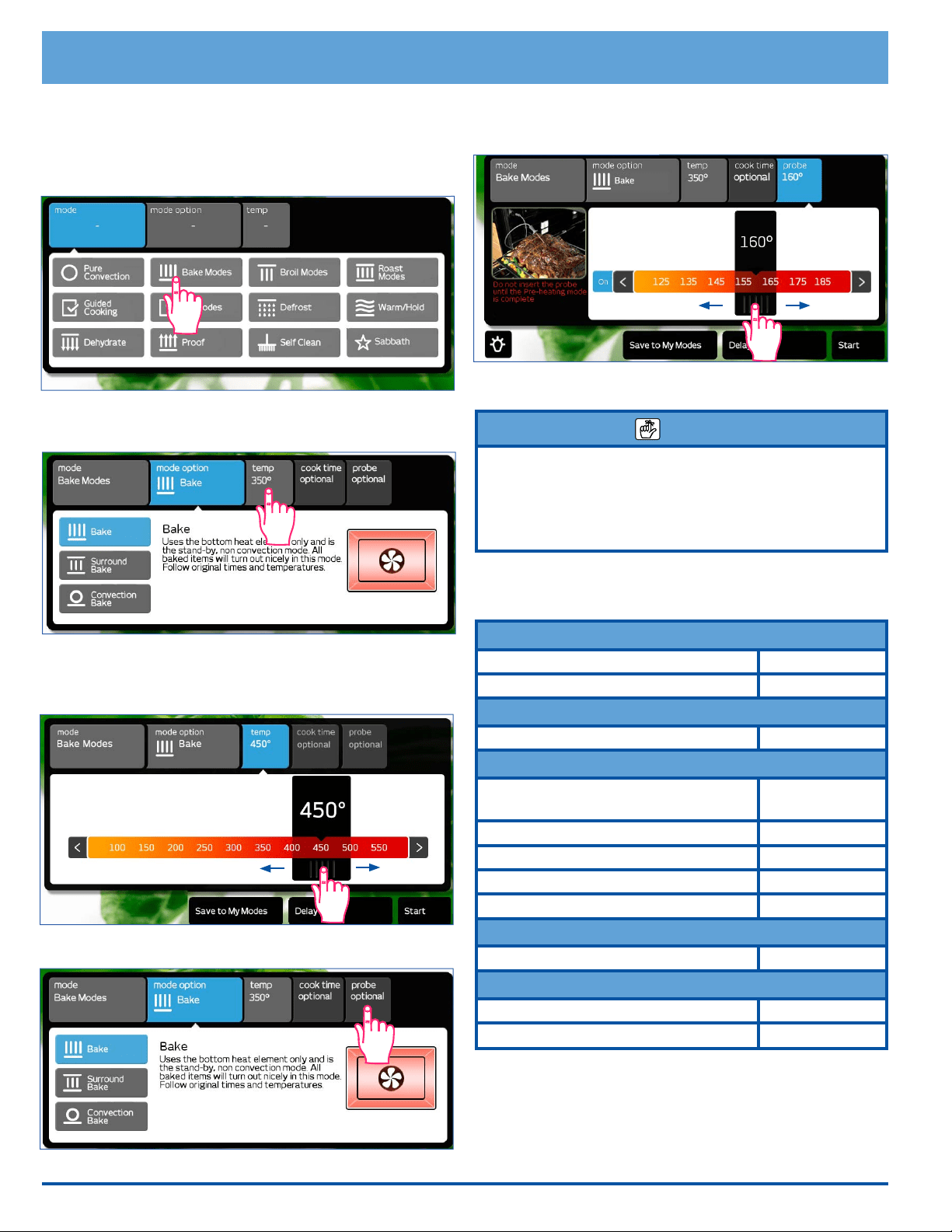
34
Deluxe Oven Features
Changing the cooking mode during meat
probe cooking (cont.)
2. The main cooking menu will appear. Touch the new
desired cooking mode (and sub-mode).
3. If you want to cook at a temperature different from
the preset temperature, touch temp.
Touch and slide the pointer back and forth to select
the desired cooking temperature. Touch the arrows on
either end of the bar to make minor adjustments.
4. Touch probe.
5. Touch and slide the pointer on the probe temperature
adjustment bar back and forth to select the desired
"cook to" (target) temperature.
6. Touch Start.
NOTE
• Since you have restarted the oven during this process, Insert
Food may appear on the display. Touch Start to clear the
message.
• If you increase the temperature by more than 50°F (28°C),
remove the food from the oven to avoid excessive browning.
USDA Minimum Safe Internal Cooking
Temperatures for Various Foods
Ground Meat and Meat Mixtures
Beef, pork, veal, lamb 160°F (71°C)
Turkey, chicken 165°F (76°C)
Fresh Beef, Veal and Lamb
Steaks, roasts, chops 145°F (65°C)
Poultry
Chicken and turkey, whole
(temperature taken in thigh)
165°F (76°C)
Poultry breasts, roast 165°F (76°C)
Poultry thighs, legs, wings 165°F (76°C)
Duck and goose 165°F (76°C)
Stufng (cooked alone or in bird) 165°F (76°C)
Fresh Pork
Fresh pork 160°F (71°C)
Ham
Fresh (raw) 160°F (71°C)
Cooked (reheat) 140°F (60°C)
NOTE: The minimum safe internal cooking temperatures
are subject to change. There are changes in bacteria and
the temperatures required to eradicate them. For the
most current information, contact the USDA.
USDA Meat and Poultry Hot Line: Phone: (800) 535-4355
www.fsis.usda.gov
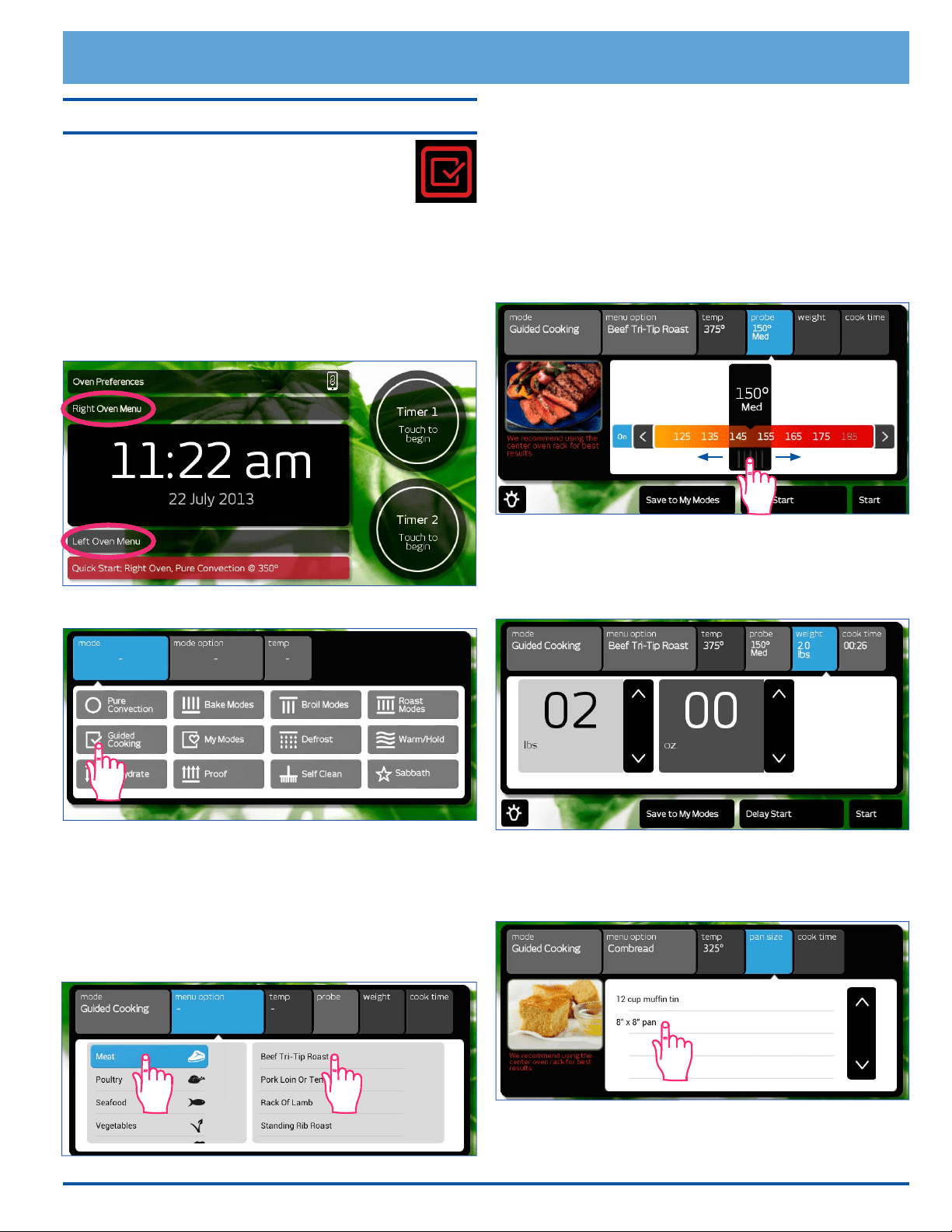
35
Guided Cooking
The oven is equipped with the convenience of
the Dacor Guided Cooking System. The Dacor
Guided Cooking System takes a lot of the guess-
work out of cooking. You select the type of food,
and the oven will set the temperature, the mode and
show you the amount of time required to cook.
How to Use Guided Cooking:
1. Before you turn on the oven, position the racks.
2. Touch Right or Left Oven Menu to select the oven to
be used.
3. Touch Guided Cooking.
4. Select the category of food you want to cook. For
example, Meat (touch and drag to view options fur-
ther down the list).
5. When you select the category, the oven will list sev-
eral specic types of food for you to pick from. Touch
to select the specic type of food. The oven will deter-
mine the optimal mode and cooking temperature.
For Meats, Poultry and Seafood:
After you select the type of meat, you can choose to cook
using the meat probe or to cook by weight.
• To use the meat probe, touch and slide the pointer
back and forth to select how well the meat is to be
cooked Touch the arrows on either end to make minor
adjustments. Touch Start. Insert the meat probe into
the meat according to the instructions on page 32.
Insert the meat into the oven and connect the meat
probe when instructed on the display.
• To cook by weight, touch the ON/OFF key next to the
meat probe temperature slider (shown above) after
selecting the specic meat type. T
ouch the up (∧) and
down (∨) arrows to select the weight. Touch Start.
For Breads, Deserts and Other items:
• Touch Pan Size, then touch the type of cookware
being used on the touch display.
• Touch Start.
Deluxe Oven Features
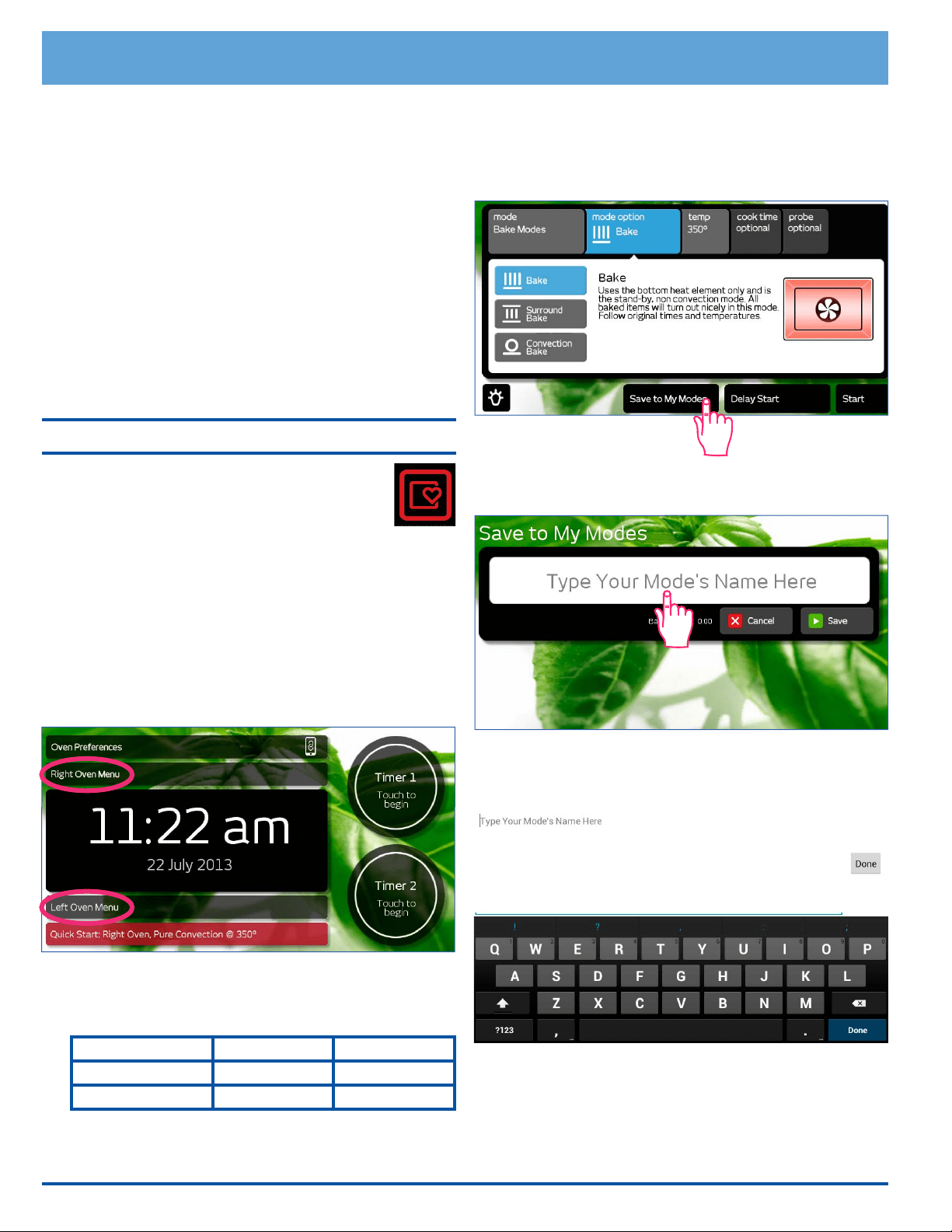
36
Deluxe Oven Features
Important Tips for Using Dacor Guide
• For best results, follow the helpful instructions on the
display.
• The oven will preheat when you touch Start and
instruct you to place the food in the oven when pre-
heat is complete.
• When the oven is through cooking for the amount of
time indicated, the oven will reduce the temperature
to 150°F (65°C) to keep the food warm for two hours
(“Keep Warm” appears on the display).
• At the end of the keep warm cycle, the oven will turn
off and Mode Completed will appear on the display.
• As with all other cooking modes, to turn off the oven
touch CANCEL RIGHT or CANCEL LEFT.
My Modes
The My Modes feature allows you to save the
oven settings for dozens of your favorite recipes.
Once you save the settings, the oven remem-
bers them and you can use them to automati-
cally set the temperature, meat probe and cooking time
so that you don’t have to look them up.
You save the settings after you select the feature you
want to use, but just before touching Start.
To save the oven settings for your favorite
recipe:
1. Touch Right or Left Oven Menu to select the oven to
be used.
2. The main cooking menu will appear on the display.
Select the mode for the settings you want to save.
You may select from:
Convection Modes Bake Modes Broil Modes
Roast Modes Defrost Warm/Hold
Dehydrate Proof
3. If you select a Convection, Bake, Broil or Roast mode,
select the sub-mode (for example Convection Roast).
4. Touch temp and select the cooking temperature if you
want. You may also set cook time, (meat) probe and
Delay Start.
5. Just before you touch Start, touch Save to My
Modes on the display.
6. Touch the white area labeled Type Your Mode's
Name Here on the touch display.
7. The keyboard will appear on the display. Enter the
name you want to use to remember the cook settings
you are saving, then touch Done.
8. Touch Save. NOTE: The saved settings will not be lost
in the event of a power outage.
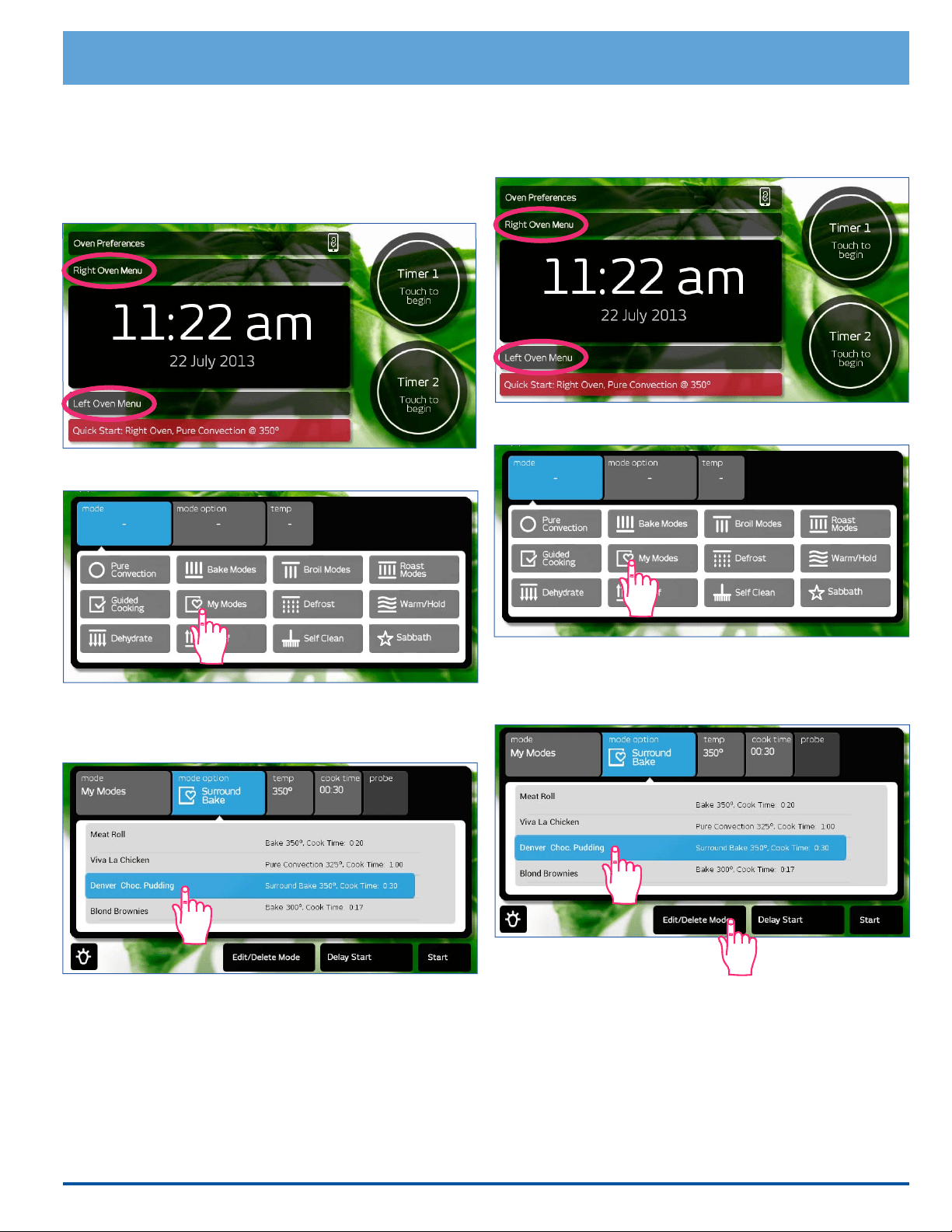
37
To delete a mode that you have previously
saved:
1. Touch Right or Left Oven Menu.
2. Touch My Modes.
3. Touch the stored cooking mode you want to delete on
the display.
4. Touch Edit/Delete Mode.
5. Touch Conrm Delete.
6. Touch HOME to return to the oven home screen.
continued...
How to use the oven settings you have
saved
1. Adjust the racks to the appropriate level.
2. Touch Right or Left Oven Menu to select the oven to
be used.
3. Touch My Modes.
4. Touch the desired, stored cooking mode on the dis-
play. Touch and drag to see additional entries not
shown on the display.
5. Touch Start.
Deluxe Oven Features
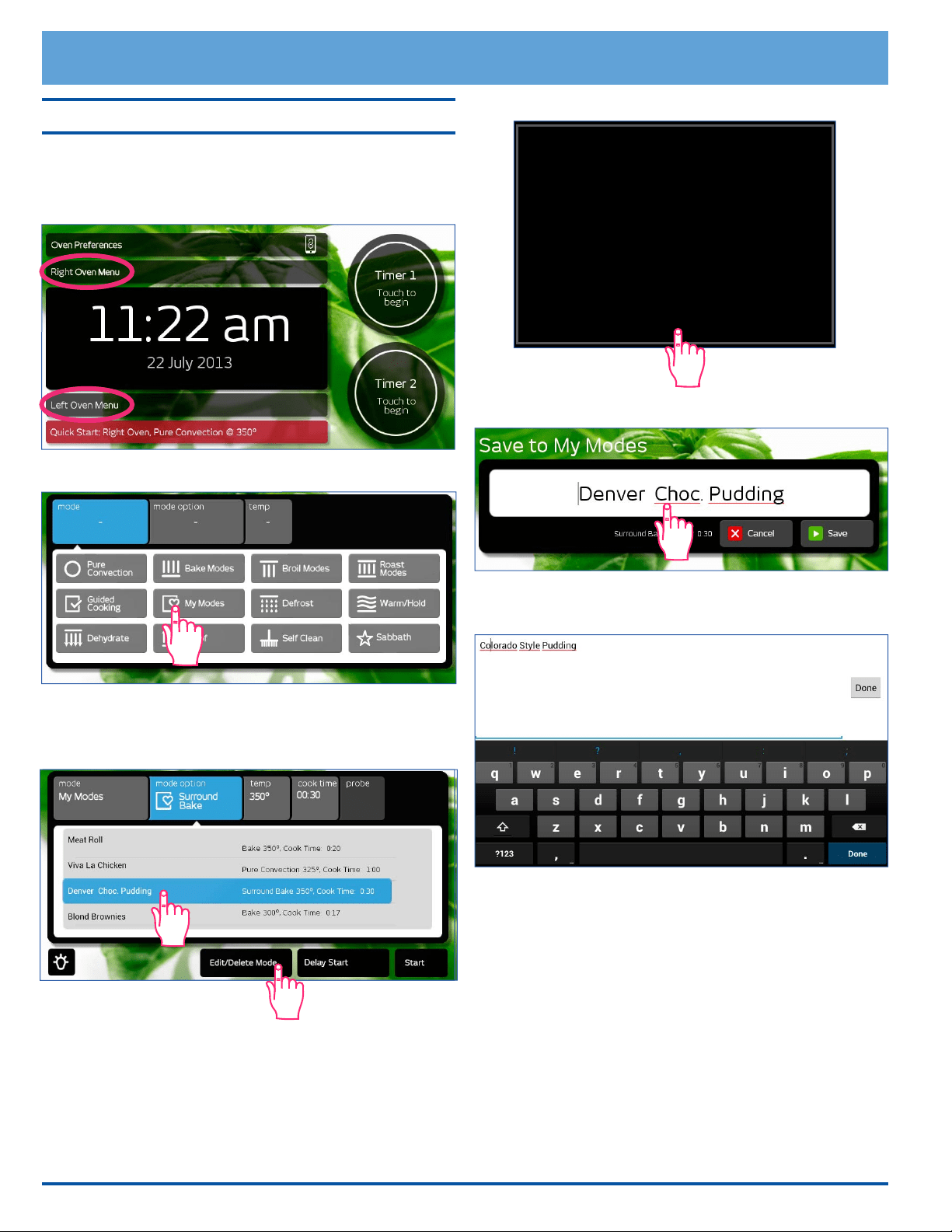
38
Deluxe Oven Features
My Modes (cont.)
To Change the name of a mode that you
have previously saved:
1. Touch Right or Left Oven Menu.
2. Touch My Modes.
3. Touch the stored cooking mode you want to edit the
name for on the display.
4. Touch Edit/Delete Mode.
5. Touch Edit Mode.
6. Touch the white area containing the current name.
7. Use the keyboard to edit the name of the saved mode,
then touch Done.
8. Touch Save.
Would you like to Delete this mode,
Confirm
Cancel
Delete
Edit
Mode
or Edit the mode name?
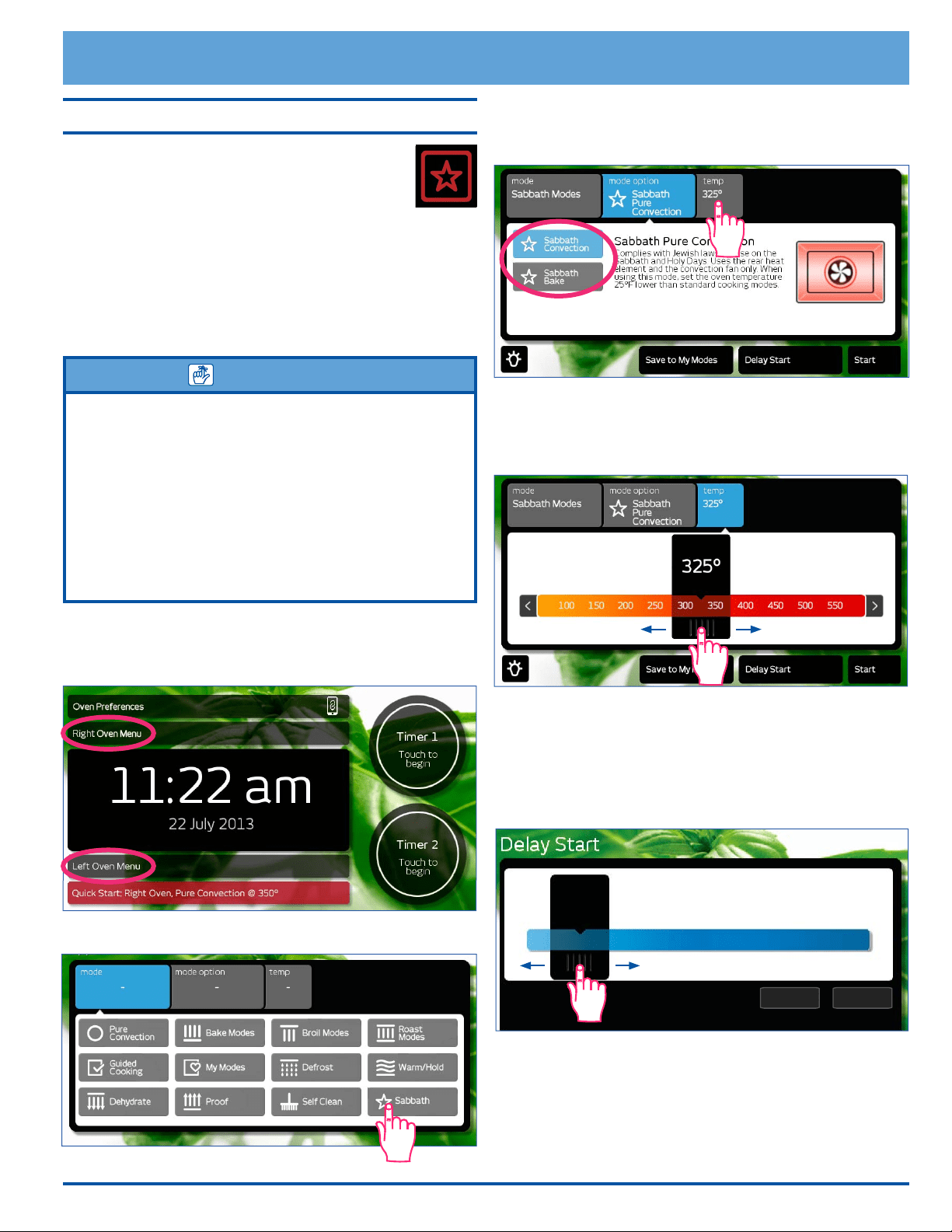
39
Deluxe Oven Features
Sabbath Mode
The Sabbath mode complies with Jewish laws for
use on the Sabbath and Holy Days. This feature
allows the oven to perform two types of cooking,
Pure Convection and Bake.
When the oven is set to Sabbath mode, it disables the fol-
lowing features:
• The oven lights
• All keys, except RIGHT, LEFT, CANCEL RIGHT,
CANCEL LEFT, START · CONTINUE and the tem-
perature up and down arrows.
IMPORTANT
• Sabbath Mode and the cooking temperature appear on the
display when Sabbath mode is in operation.
• You cannot use one oven in normal mode when the other
oven is running in Sabbath mode.
• Sabbath mode will not work with the meat probe connected
(the meat probe symbol will flash).
• If one or both timers are running, the oven cancels timer
operation when Sabbath mode is selected.
• You may want to use a rack thermometer to keep track of the
oven temperature.
Using Sabbath Mode
1. Touch Right or Left Oven Menu to select the oven to
be used.
2. Touch Sabbath.
3. Touch Sabbath Convection or Sabbath Bake.
4. If you want to change the preset cooking tempera-
ture, touch temp.
Touch and slide the pointer on the temperature
adjustment bar to select the desired cooking tempera-
ture. Touch the arrows on either end of the adjust-
ment bar to make minor adjustments.
5. If you do not want to delay the starting of the oven
skip to step 6. If you want to delay the start of the
oven, touch Delay Start on the touch display.
Touch and slide the pointer on the Delay Start adjust-
ment bar to select the start time. Touch Set Delay to
activate.
6. Touch Start.
The CANCEL RIGHT and CANCEL LEFT keys on the
range remain active so that you can turn off the ovens.
continued...
Start Time
12:26 pm
0 1 2 3 4 5 6 7 8 9 10 11 12
Set Delay Cancel Delay
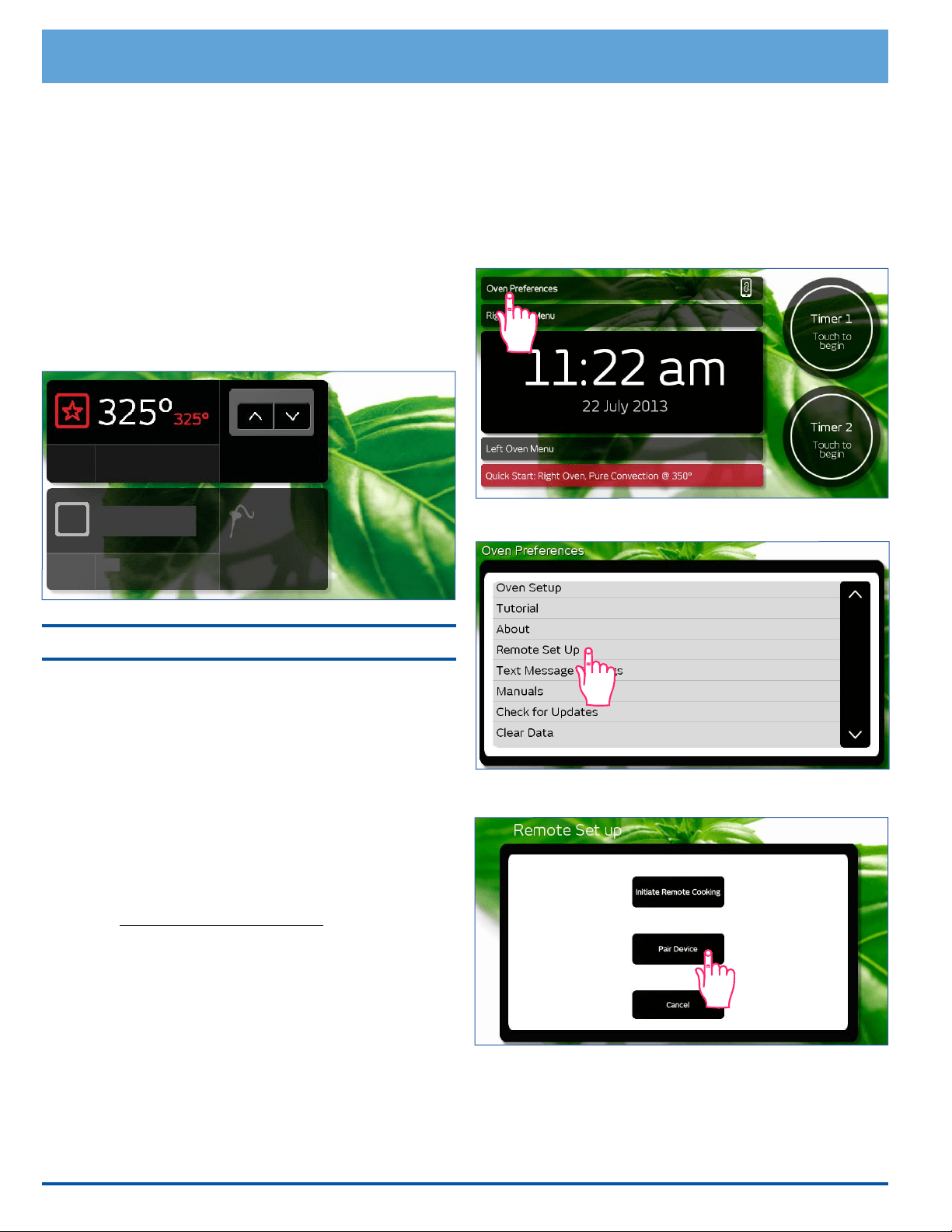
40
Things to Know about Sabbath Mode
• To start the other oven, touch “Touch here to begin
using right/left oven” (see picture), then follow
steps 2 to 6 on the previous page.
• When the oven is cooking, touching the up (∧) and
down (∨) arrows (see picture), tells the oven to raise
the temperature by 25°F (14°C). In compliance with
Jewish law, the bake elements will be adjusted ran-
domly when these keys are touched and no changes
will be seen on the display.
• You can store a variety of different Sabbath settings
using the My Modes feature (see page 36) and
then, select the one you want to use each time.
Remote Operation
The ovens are designed for remote control operation and
monitoring using compatible mobile devices.
Compatible Mobile Devices
• Android mobile device with Android 4.0 or later oper-
ating system and Google Play Store app installed.
• Apple mobile device with iOS 6.0 or later operating
system.
Initial Set-up - Android Mobile Device
1. If you have not already done so, set up a Google Play
Store account.
2. Go to: http://play.google.com/store and click Sign in.
3. Open the Google Play Store app on your mobile
Android device.
4. Search the word Dacor.
5. Select the Dacor iQ Remote app, then select
Install.
Initial Set-up - Apple Mobile Device
1. Go to the Apple App Store on your mobile Apple
device.
2. Search the word Dacor.
3. Download and install the Dacor iQ Remote app.
Pairing Mobile Device(s) to the Oven
Before remote control operation can be enabled, the
desired mobile device(s) must rst be paired (linked) with
the range. The mobile device and the oven must be con-
nected to the same WiFi network during pairing. There
is virtually no limit to the number of devices that can be
connected to the oven at once.
1. On the range touchscreen, touch Oven Preferences.
2. Touch Remote Set Up.
3. Touch Pair Device.
Deluxe Oven Features
Pure Convection
Touch here to begin
using left oven.
Temperature +/- 25°
Temperature adjustment will
randomly take place within 2
minutes and will not display
on the screen.
Right
Oven
Off
Left
Oven
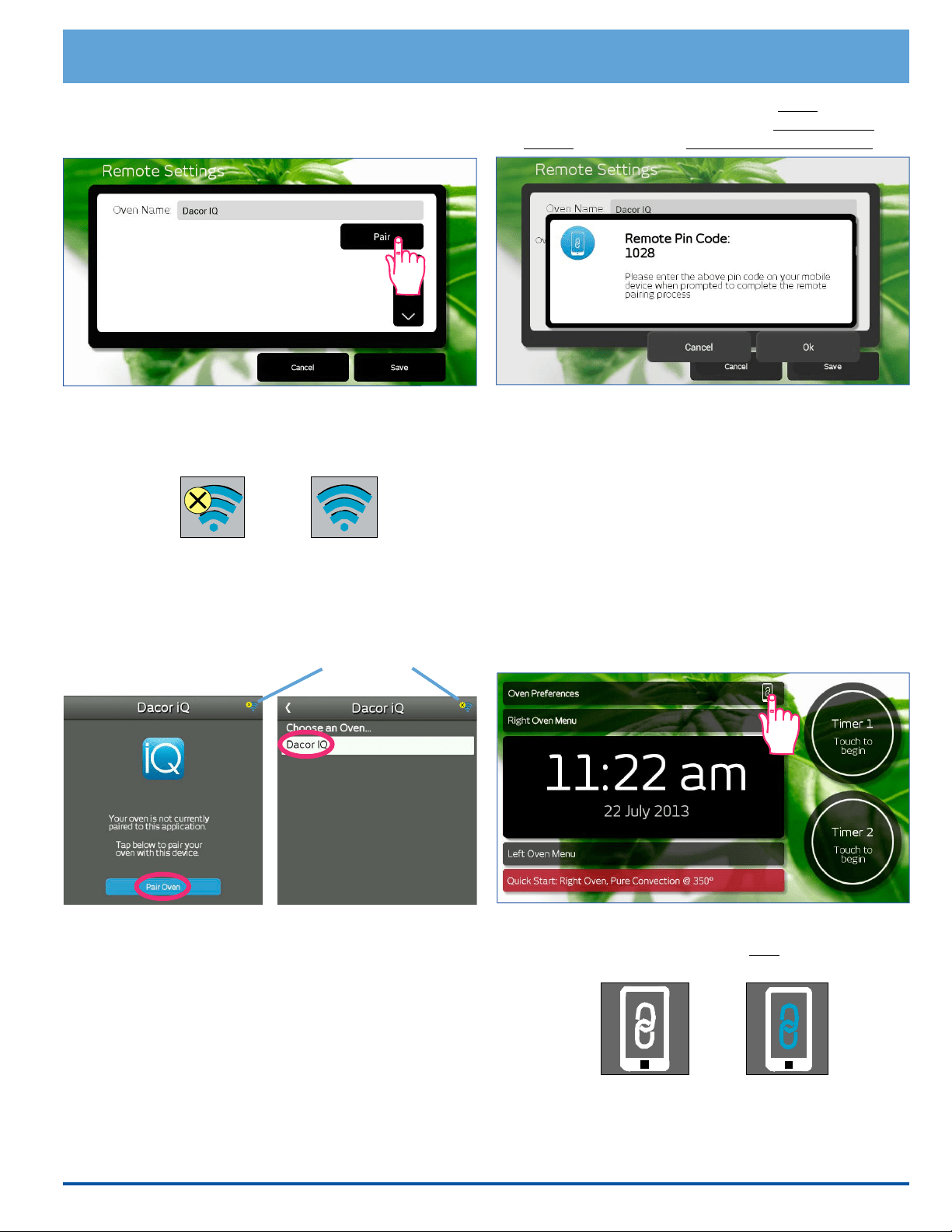
41
4. Touch Pair. The display will indicate that the range is
visible to local mobile devices and the amount of time
you have to pair to the mobile device.
5. Run the Dacor iQ Remote App on the mobile device.
The following icons indicate pairing status (they DO
NOT indicate WiFi connection status).
6. On the mobile device, select Pair Oven,
then select the range under Choose an Oven.
Deluxe Oven Features
7. A pin number should appear on the range display.
Enter the pin number that appears on the mobile
device, then touch OK on the range touch display.
8. Touch Save on the range touch display.
Enabling Remote Control Oven Operation
Once your compatible devices are paired and remote
control is enabled, any of them may be used to control
the ovens on a "rst come, rst served basis." The rst
device to initiate a command, will have control of the
ovens, while all other paired devices will be able to (only)
monitor oven operations. When the oven is shut off, either
manually or remotely, the mobile device continues to have
control of the oven until remote control is disabled at the
oven.
1. Make sure the oven doors are closed, then touch the
remote icon on the oven touch display.
2. Touch Yes when prompted. The remote icon on
the oven touch display will turn blue indicating that
remote operation is enabled.
continued...
Status icon
Mobile Device
NOT Paired yet
Mobile Device
Paired
Remote control
enabled
Remote control
disabled
Remote Icon on Oven Touch Display
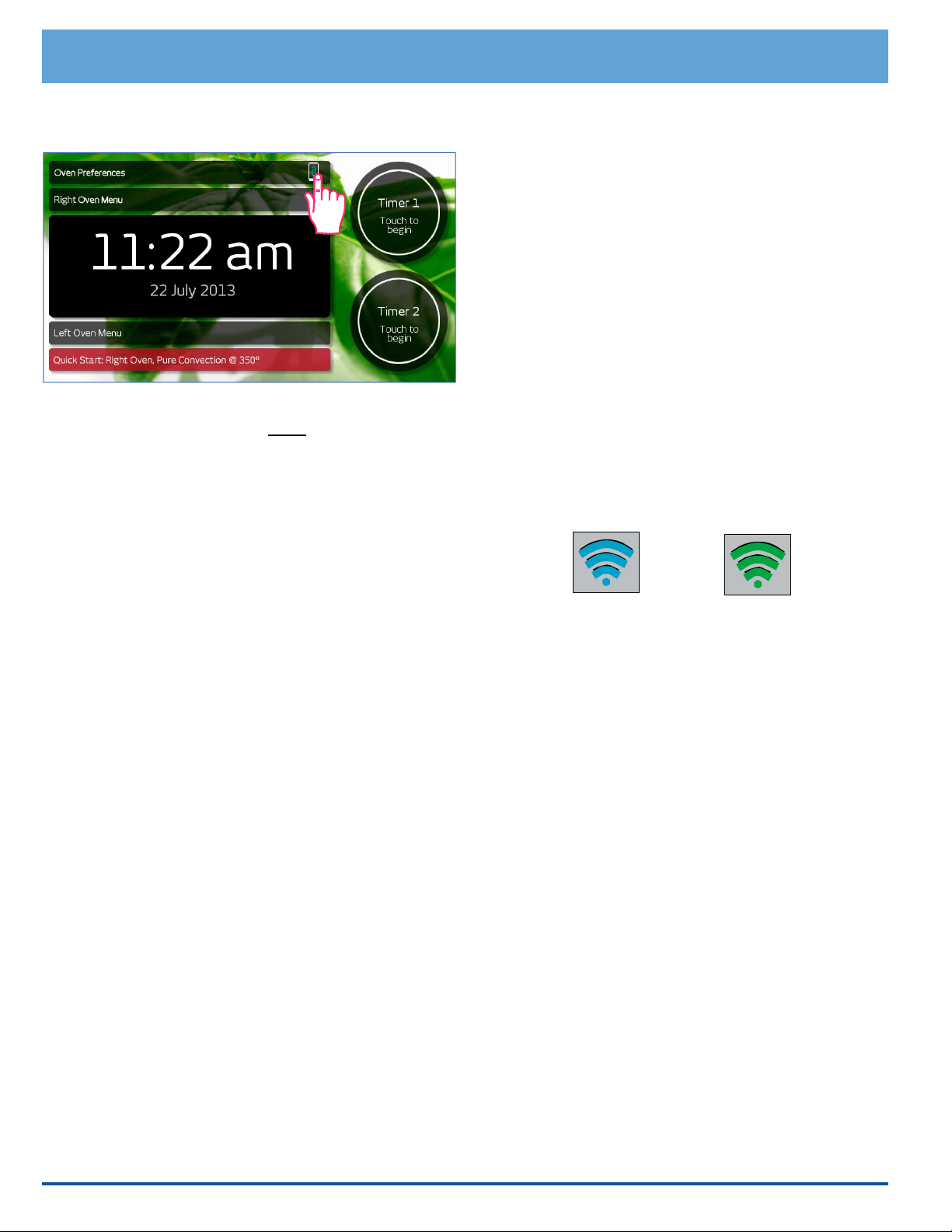
42
Deluxe Oven Features
Disabling Remote Control Operation
1. Touch the remote icon on the range's touch display.
2. Touch Yes when prompted. The remote icon on the
oven touch display will turn white indicating that
remote operation is disabled.
Important Things to Know About Remote
Operation:
• The mobile device and the range must be connected
to the same WiFi network during pairing. Once the
mobile device is paired to the range, it may be used
to control the ovens from anywhere an internet con-
nection is available.
• All mobile devices paired with the range may monitor
oven operations, even if remote control operation is
not enabled.
• During remote control, the ovens may be controlled
via the mobile device or at the range touch screen.
• The oven doors must be closed to initiate remote
control. After pairing with the mobile device, if an
oven door is opened before it is started via the mobile
device, remote control operation will terminate (the
remote icon on the oven turns white). Also, if one
oven is already in use under remote control, and the
other oven door is opened, remote operation will
terminate for that oven, while remote operation will
continue for the oven already in use.
• Normally remote operation can be disabled only from
the range. The only way to disable remote control
from the mobile device is to un-pair it (in the Remote
Settings menu).
• If the mobile device is powered off, it will still be
paired with the range when powered on again. If
remote control was in use, it will still be active.
• The color on the mobile device status on icon indi-
cates whether a particular remote device is set to
remote control or monitor only.
Mobile device has
remote control
Mobile device
can monitor only
Mobile Device Status Indicator
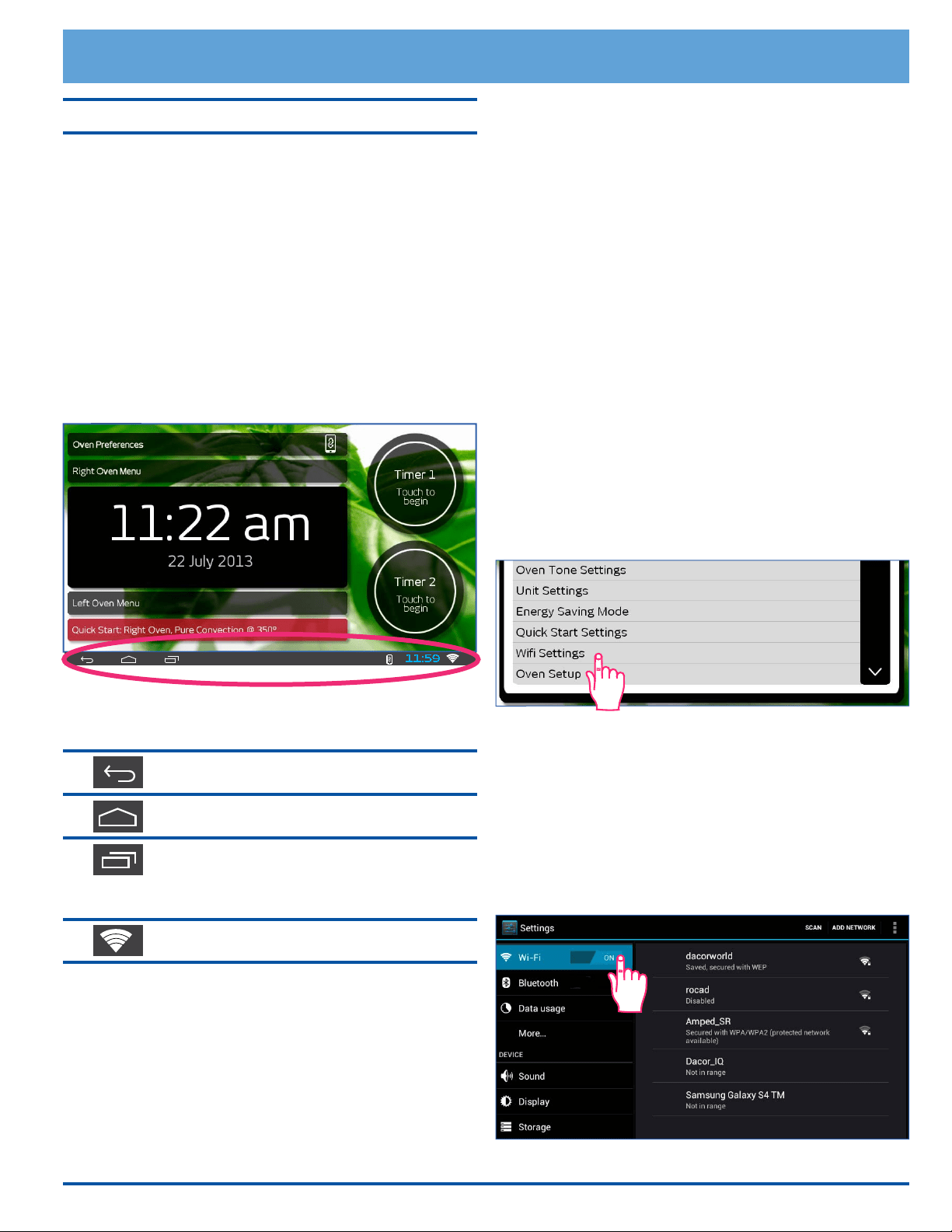
43
Android Operating System
In addition to the Dacor Cooking App (application), you
can access the many features of the Android operating
system on your range, including:
• Accessing and browsing web sites on the internet.
• Downloading and running Android apps, in addition to
the standard apps that come with your range.
• Downloading and playing music and videos.
All this can be done while the ovens are cooking.
Android Touch Keys/Icons
The Android touch keys and icons appear in the Android
navigation and status bar at the bottom of the touch dis-
play.
Listed below are the most often used keys and icons, and
what they mean:
Back - Touch this key to go back one
screen on the Android operating system.
Home (Android) - Touch to go to the
Android operating system home screen.
Active Apps - Touch to show a list of all
active Android apps, including the Dacor
Cooking App. Touch the return (∨) icon to
return to the main navigation bar.
WiFi - Indicates WiFi connection is active.
Using the Android Operating System
• To access the Android operating system, touch the
Android home icon on the bottom left of the touch dis-
play, or when the oven home screen appears on the
display, touch the HOME key on the control panel.
• To return to the oven home screen (Dacor iQ Cooking
App), touch the HOME key on the control panel.
• Touch the time display, on the bottom right, to access
the Android operating system setup menu.
Android Apps
Your range comes with the following applications pre-
loaded. They appear on the Android home screen. Touch
the app icon to launch:
• Dacor iQ Cooking App - Takes you to the oven home
screen. This app starts automatically when the range
is powered up, after a power failure or when you
restart the computer (touch and hold HOME and
BACK keys for 5 seconds).
• Dacor.com - Starts the web browser and takes you
to the Dacor web site. Once started, you can use the
browser to access other web sites as well.
• Playstore - Starts the web browser and takes you to
the Google Play web site. From Google Play, you can
download apps, music, videos and more.
• Calender - A standard calender application that allows
you to schedule events, appointments and reminders.
• Gmail - Allows access to Googlemail email accounts.
WiFi Settings
The WiFi Settings can be accessed through the Oven
Preferences menu,
or by using the Android status bar (see picture on left). If
using the time display on the status bar (bottom right),
touch the time display, touch the pop-up menu that
appears, then touch WiFi.
• If WiFi is OFF, touch the ON/OFF key and slide to the
right to turn ON (see below).
• To connect the range's Android operating system to
your network, touch the network name and follow the
prompts to nish connecting.
• Touch BACK twice to return to the oven home screen.
Additional Features
11:59
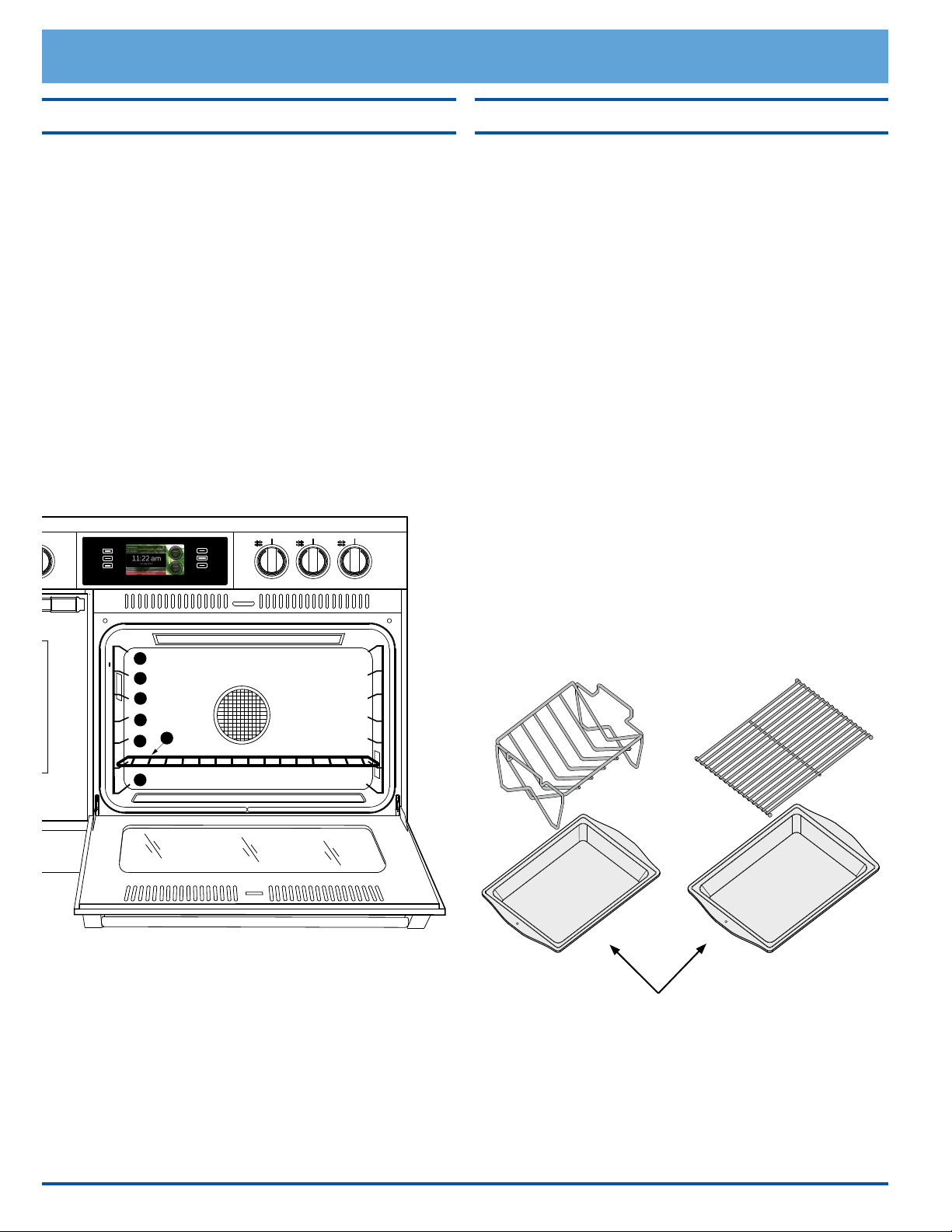
44
The Best Use of Bake Ware
• You should bake cakes, quick breads, mufns and
cookies in shiny, reective pans for light, golden
crusts. Avoid old, darkened, warped, dented, stainless
steel and tin-coated pans. They heat unevenly and will
not give good baking results.
• Use medium gauge aluminum sheets with low sides
when preparing cookies, biscuits and cream puffs.
Dacor cookie sheets (optional), with their low proles,
will give you the best results.
• Bake most frozen foods in their original foil contain-
ers, placed at on a cookie sheet. Follow the package
recommendations.
• When using glass bake ware, reduce the recipe tem-
perature by 25°F (14°C), except when baking pies or
yeast breads. Follow the standard recipe baking time
for pies and yeast breads.
• Use the pan size and type recommended by the recipe
for best results.
• For roasting, Dacor’s optional “V” shaped rack and
broil/roast pan works best to allow air circulation
around the food.
• Dacor’s roasting pan works particularly well and two
of them will t side by side in the oven.
Optional Broil and Roast Pan Kit
(AORPVR)
OR
Deep dish broil-roast ban
(one per kit)
“V” shaped rack
Grill
Cooking Tips
Food Placement
• Typically, when baking on two racks with the oven,
use rack positions #3 and #5 (counting from the
bottom up). When baking on three racks, use rack
positions #2, #4 and #6.
• Turn pans on the racks so that the long sides run left
to right, as you face them.
• When you are cooking a food item that is very heavy,
use a Dacor GlideRack oven rack. You can pull it out
further than a conventional rack, making it easier to
check the food, stir or add ingredients.
• Heavier roasting pans and dishes will cook better on
rack position #1.
• When using a baking stone, use rack position #3 for
best results. If you put a baking stone on a GlideRack
oven rack, instead of one of the standard oven racks,
you can pull the stone out of the oven further, making
pizza easier to remove.
1
2
3
4
5
7
6
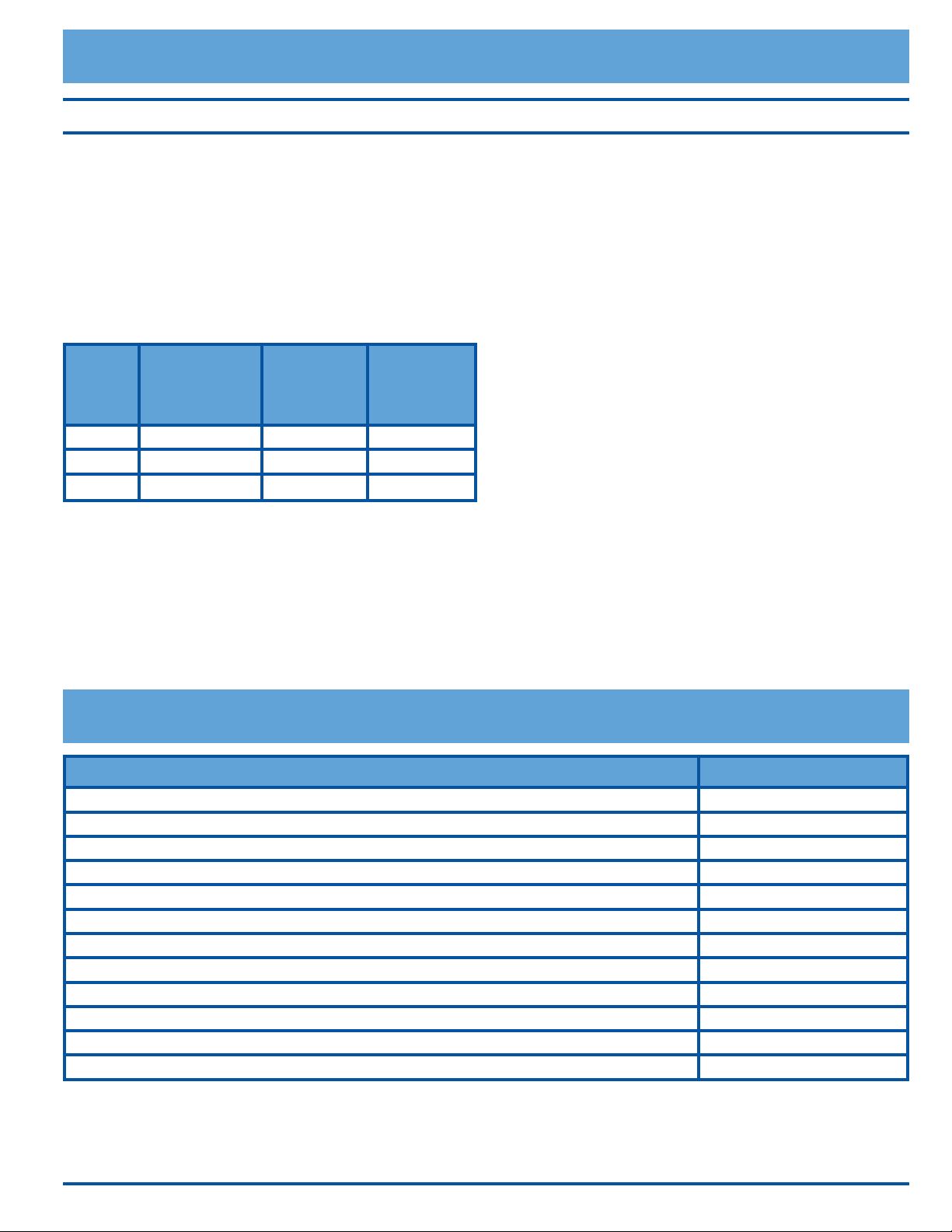
45
Cooking Tips
Parts and Accessories
High Altitude Cooking
Due to the lower atmospheric pressure at higher alti-
tudes, foods tend to take longer to cook. Therefore, recipe
adjustments should be made in some cases. In general,
no recipe adjustment is necessary for yeast-risen baked
goods, although allowing the dough or batter to rise twice
before the nal pan rising develops a better avor. Try
making the adjustments below for successful recipes. Take
note of the changes that work best and mark your reci-
pes accordingly. You may also consult a cookbook on high
altitude cooking for specic recommendations.
Altitude
(feet)
Baking Powder
for each tea-
spoon, decrease
by:
Sugar for each
teaspoon,
decrease by:
Liquid, for
each cup add:
3000 5-10% 10 - 25% 5-10%
5000 10% 10% 20%
7000 25% 20% 20 - 25%
Description Dacor Part Number
Halogen light bulb (12 Volt, 20 Watt) 100429
Meat probe 72723
Standard broil pan 82107
Grill for standard broil pan 82108
Standard type oven rack (right oven) 107745
Standard type oven rack (left oven) 107741
GlideRack type oven rack (right oven) 701938
GlideRack type oven rack (left oven) 701937
Large capacity roast/broil pan with “V” shaped rack AORPVR
Pizza baking stone ABS16
Cooktop Griddle AG30
Cooktop Searing Grill AEGR30
To order parts or accessories, contact your Dacor dealer or visit www.everythingdacor.com.
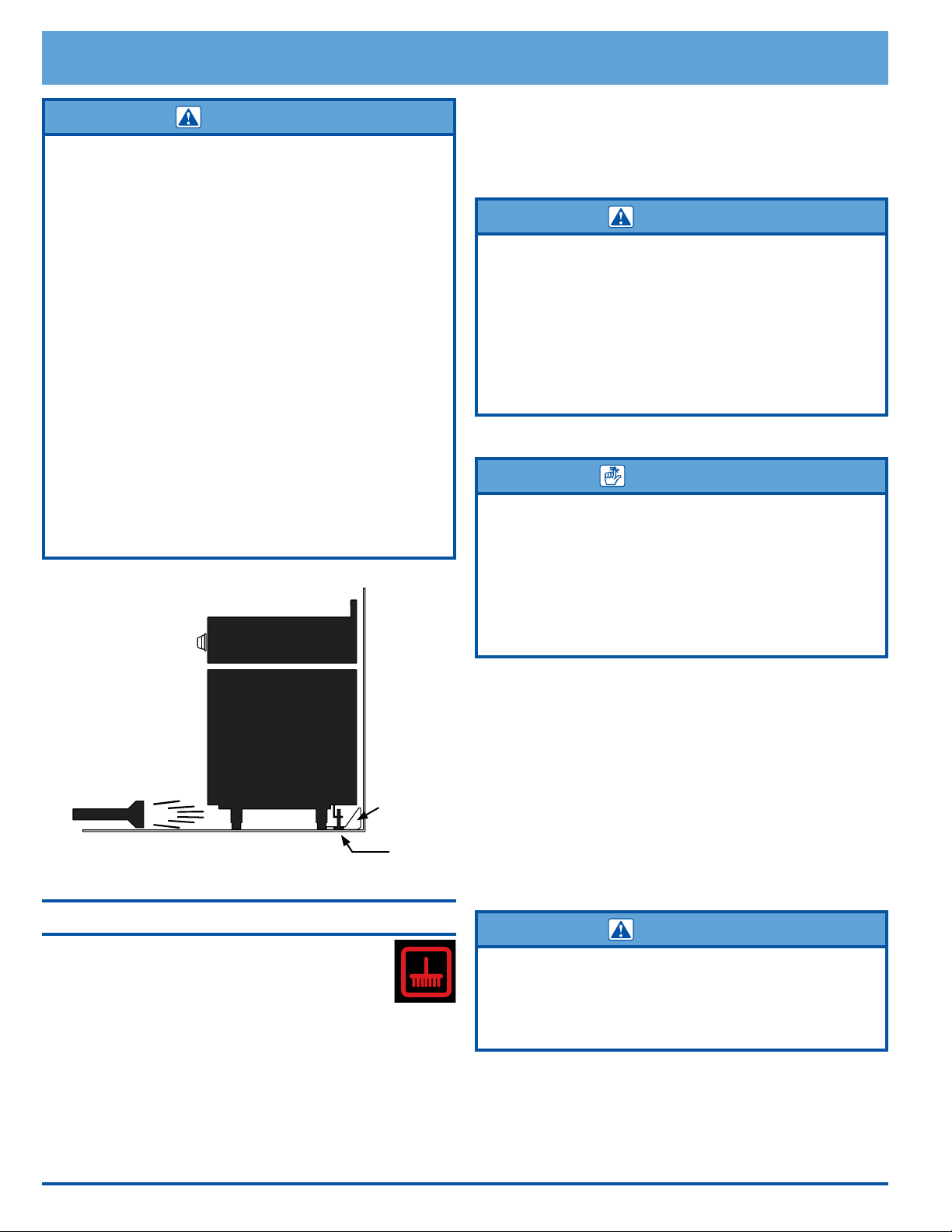
46
WARNING
• Clean only the parts of the range listed in this manual. Clean
them only in the manner specified.
• To avoid dangerous fumes or damage to your range’s
surfaces and accessories, use only the types of cleaning
solutions specified in this manual.
• To avoid burns, turn off the burners and the oven. Make sure
that all parts are cool before cleaning.
• To prevent damage, do not use abrasive or corrosive
cleaners or applicators such as steel wool or scouring pads,
on any part of the range unless instructed to do so. Use only
a sponge, soft cloth, fibrous or plastic brush or nylon cleaning
pad for cleaning the surfaces of your range.
• Do not use a steam cleaner to clean the range. Steam could
penetrate the electrical components and cause a short circuit.
• Do not try to remove heavy spills with a sharp object such
as a knife or metal spatula. Sharp objects may scratch your
range’s surfaces.
• Ensure that the anti-tip bracket is engaged after the range is
moved out for cleaning. Use a flashlight to look underneath
the range and verify that the anti-tip bracket covers the
anti-tip foot when the range is moved back into place.
Oven Self Clean Feature
About the Self Clean Cycle
• The oven will run better and produce better
baked goods when it is clean. During Self
Clean, the oven is heated to a very high temperature
which burns off any deposits on the surfaces of the
oven. Self-cleaning eliminates the need for manual
scrubbing of interior surfaces. The Self Clean process
takes about 3 hours total.
• It is normal for the oven to emit smoke during the
rst few Self Clean cycles. It is also normal for the
oven to emit popping sounds during self-cleaning.
Care and Cleaning
• Self Clean mode will not function if the meat probe
is connected. Also Self Clean will not start when the
oven is already over 400°F (204°C). Wait for the oven
to cool below 400°F before starting the Self Clean
cycle.
WARNING
• Always wipe up excess grease and other food spills with a
damp cloth prior to using the Self Clean cycle. Doing so will
minimize smoke and increase efficiency. See proper cleaning
instructions on this page.
• Do not touch the outside surfaces of the oven during the Self
Clean cycle. They will be hot.
• CAUTION: DO NOT LEAVE FOOD, COOKING UTENSILS,
OVEN RACKS, THE CONVECTION FILTER, ETC., IN THE
OVEN DURING THE SELF-CLEAN CYCLE.
How to Use the Self Clean Feature
IMPORTANT
• The oven lights do not operate while the oven is in Self Clean
mode to protect them from damage.
• Attempting to use Self Clean with the meat probe connected
will cause an error signal to appear on the display.
• The control panel will only allow one oven chamber to be
self-cleaned at a time due to the amount of power consumed.
Also, you cannot cook in one oven while the other is in Self
Clean mode.
1. Before self-cleaning an oven, remove the racks, the
convection lter, all cookware (pots, pans, forks, etc.),
the meat probe, foil and any other loose objects from
the oven chamber. See page 51 for lter cleaning
instructions.
2. Clean soil from the porcelain surfaces of the door
outside of the door gasket. Rinse surfaces well with
a solution of vinegar and water, then wipe dry. Heav-
ily soiled areas may be cleaned with a non-scratching
scouring pad.
3. Clean the door gasket by dabbing it with a solution of
water and mild soap.
WARNING
• Take extreme caution when cleaning the door gasket.
Rubbing or displacing it may damage the tight door seal
required for proper cooking and self-cleaning.
• Do not try to force the door open after it is locked. Damage to
the door or latch may result.
4. Turn on kitchen fans or vents to help remove odors
during the Self Clean cycle.
5. Make sure the oven door is shut.
Anti-tip
bracket
Anti-tip
foot
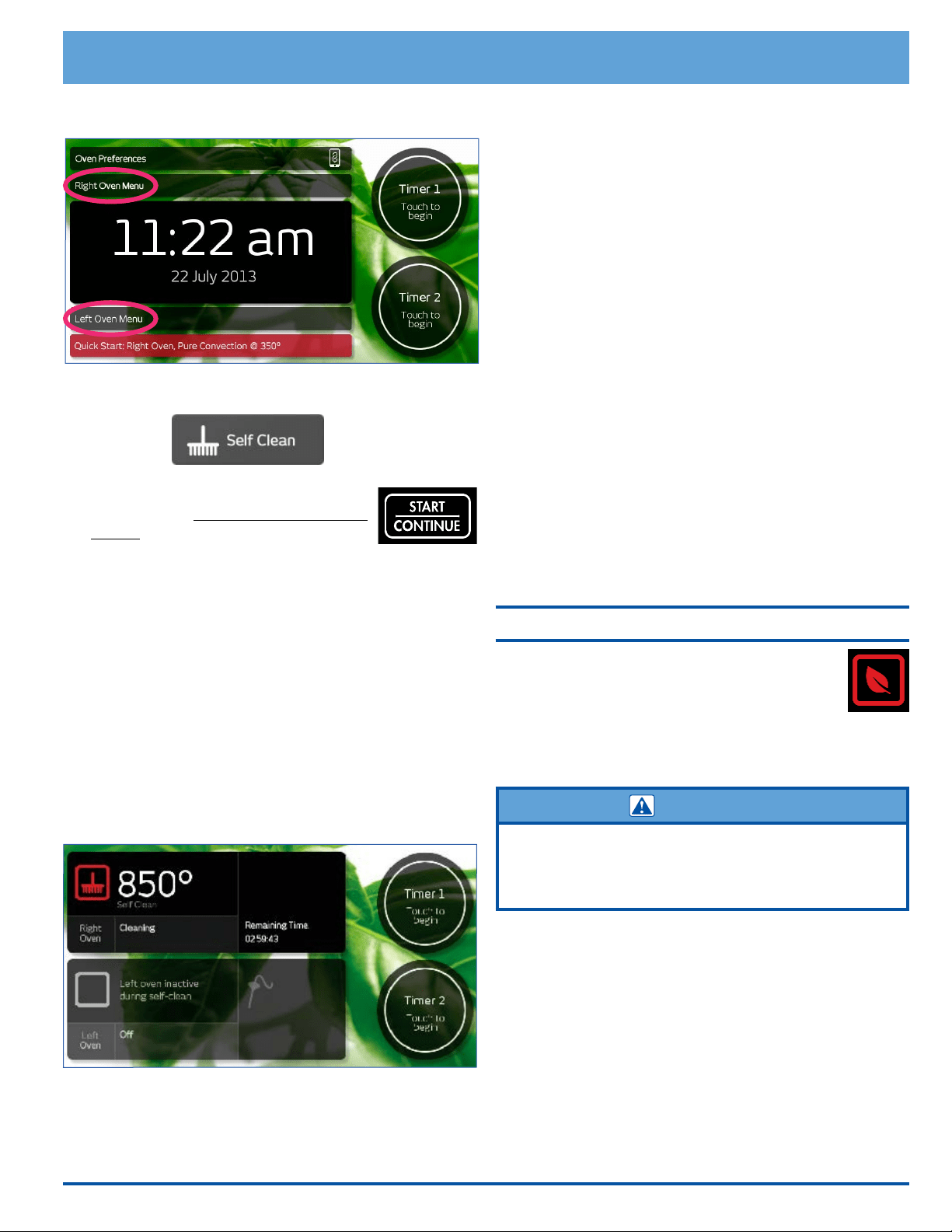
47
Care and Cleaning
6. Touch Right or Left Oven Menu to select the oven to
be cleaned.
7. Touch Self Clean on the main menu.
8. Touch START · CONTINUE on the
control panel (to the right of the touch
display).
The control panel automatically locks the oven door
during self-cleaning. The latch prevents the door from
being opened since the high interior oven tempera-
tures can easily cause injury. If the door is not shut,
an error message will appear on the display. To cor-
rect the problem, touch CANCEL RIGHT or CANCEL
LEFT and wait approximately one minute, then close
the door. When the door is properly closed, start the
Self Clean process again.
The display shows the Self Clean cycle status:
◊ Cleaning indicates that Self Clean is in process.
◊ Door is Locked indicates that the door is latched.
◊ Cooling indicates that the oven is in the "cooling
down" portion of the Self Clean process.
If you want to stop the Self Clean cycle, touch CANCEL
RIGHT or CANCEL LEFT. Keep in mind that the oven
door will remain locked until it is safe enough to open.
Door is Locked will disappear from the display when the
door lock is released. You will still need to exercise caution
when the door lock is released because the inside of the
oven may still be hot.
After the Self Clean cycle is complete...
• The door latch will release when the inside has cooled
down. Cooling and Door is Locked will disappear
from the display. Exercise caution because the oven
will still be hot at the time the door lock is released.
• Reinstall the convection lter and oven racks before
using the oven.
• You may notice a powder ash residue in the bottom of
the oven after self-cleaning. This condition is normal.
Use a damp cloth or sponge to wipe up the residue
after the oven cools down.
Self-cleaning Tips
• If any soil remains in the oven after the Self Clean
cycle is done, you may repeat the cycle if you want.
• Self Clean the oven regularly to prevent excessive soil
build-up. Doing so will make the Self Clean cycle work
better and reduce smoke and odors.
GreenClean Cleaning System
The GreenClean cleaning feature is a quick,
simple, steam clean process used to clean light
soil inside the ovens. Green Clean allows you to
save time and energy over the Self Clean pro-
cess, which should be used for heavier soil build up. Also,
unlike the Self Clean process, the Green Clean process
may be performed on both ovens at the same time.
WARNING
• To avoid steam burns, do not pour water into an oven when
it is hot.
• The water remaining inside the oven will still be hot to the
touch when the door is opened after the process is complete.
1. Remove all utensils from the oven.
2. Making sure the oven is cool, pour 1 1/2 cups of water
(preferably distilled) into the recessed portion of the
oven oor. For slightly heavier build up, you may mix
a teaspoon of hand dishwashing soap into the water
prior to pouring.
continued...
Door is Locked
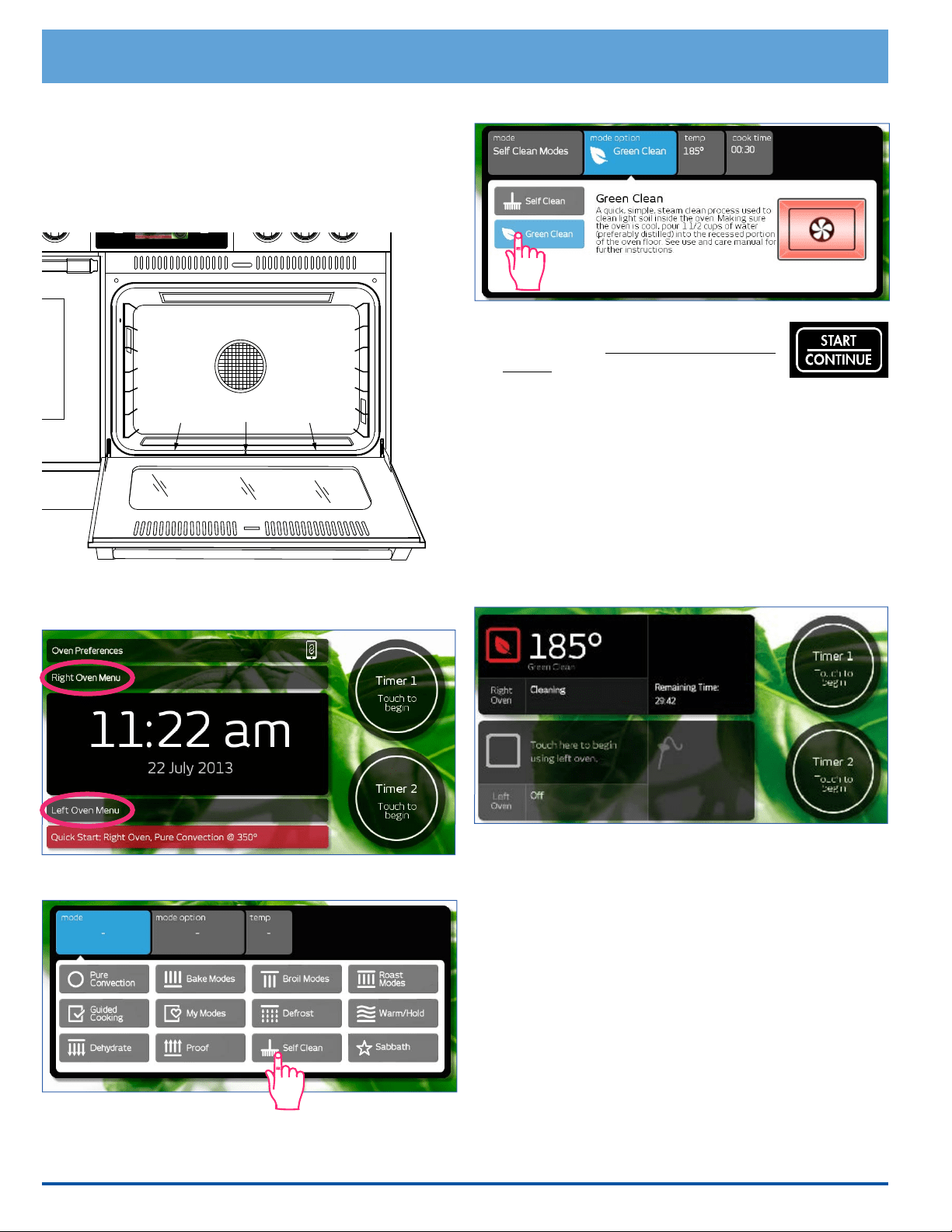
48
GreenClean Feature (cont.)
3. Fold a dish towel in half and insert the end (double
thickness) between the door and the door gasket
(right to left) to catch water that may dribble out
during the process. Lay the rest of the towel just
inside on the oven oor.
4. Close the oven door and touch Right or Left Oven
Menu to select the oven to be cleaned.
5. Touch Self Clean on the main menu.
6. Touch Green Clean.
7. Touch START · CONTINUE on the
control panel (to the right of the touch
display). The control panel automati-
cally locks the oven door during clean-
ing. The latch prevents the door from being opened
to avoid the chance of steam burns. If the door is not
shut, an error message will appear on the display.
To correct the problem, touch CANCEL RIGHT or
CANCEL LEFT and wait approximately one minute,
then close the door. When the door is properly closed,
start the Green Clean process again.
The display shows the GreenClean cycle status:
◊ Cleaning indicates that GreenClean is in process.
◊ Door is Locked indicates that the door is latched.
8. After about 30 minutes the control panel will beep,
indicating the process is complete. Touch CANCEL
RIGHT or CANCEL LEFT to clear the screen.
◊ Using a soapy sponge, wipe down the inside of
the door window rst. Then carefully sponge
out the remaining water from the inside of the
oven. Scrub the inside of the oven with the soapy
sponge until grease and soil is remove from the
surfaces inside. Lime deposits can be removed
with a cloth soaked in vinegar.
◊ Make sure all surfaces are dry after cleaning by
wiping down the oven with paper towels. Leave
the door partially open to allow any left over con-
densation to escape.
◊ Repeat the process any time soil begins to build
up inside.
Care and Cleaning
Insert end of towel here
Door is Locked
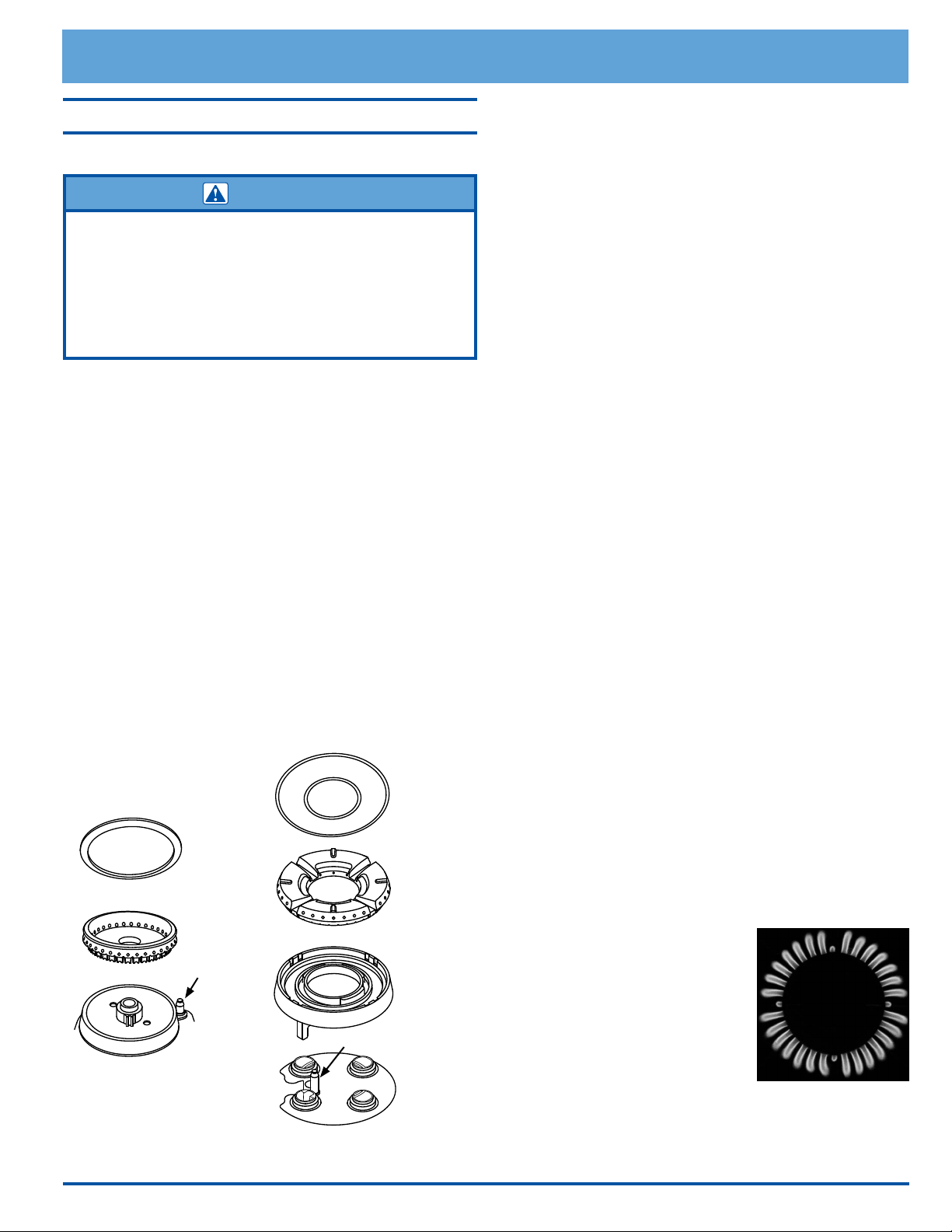
49
Cleaning the Exterior
Cleaning the Cooktop
CAUTION
• After cleaning the burners, reassemble all of the burner parts
before attempting to operate the cooktop.
• Always dry the cooktop parts completely before use.
• Do not clean the cooktop grates, burner parts or WOK ring in
a dishwasher. They will be damaged.
• Use care while cleaning the igniters. The porcelain is fragile
and can crack or break.
To keep the cooktop looking and operating its best, clean it after
every use. Also, quickly wipe up spills that occur while cooking.
Be careful not to touch any hot areas. Spills that remain on hot
burner parts will be very difcult to clean, especially if allowed to
burn on. Certain types of food, such as tomatoes, citrus juices,
vinegar, alcohol and milk can damage the nishes if you allow
them to stand for any length of time.
IMPORTANT: The cooktop is exposed to extremely high tem-
peratures. The grates are put under a lot of stress when hot
utensils are placed on them. In addition, the cooktop parts are
occasionally exposed to acidy food spill-overs. These severe
operating conditions, cause the porcelain enamel parts on the
cooktop to undergo a change in appearance over time. If you
care for and clean these parts carefully, you will slow down, but
not eliminate, the aging process.
Cooktop Disassembly
• When the cooktop is cool, remove the grates from the
top of the range.
• Lift the burner caps and burner rings off of the burners.
Remove the burner heads from the SimmerSear burners.
Cleaning the Grates, Spill Tray and WOK Ring.
• The grates, spill tray and WOK ring are coated with a
porcelain nish. For everyday cleaning, use a soft cloth or
non-abrasive pad with warm soapy water to clean all of the
porcelain parts.
• If necessary, tough stains may be removed by applying full
strength sprays such as Simple Green, Ajax All-Purpose
Cleaner or Formula 409. To minimize wear, use the mildest
cleaner needed to get the surface clean.
• For extremely stubborn stains, you may use a mildly abra-
sive cleaner or applicator, such as Soft Scrub, Bon Ami,
S.O.S. pads or other soap-lled steel wool pads. Use these
cleaners with extreme care and only on occasion.
Aggressive or extensive use of these types of abrasives
will damage the nish. Finish damage due to the use of
abrasives is not covered under your warranty.
Cleaning the Burner Components and Igniters
IMPORTANT: The igniter will not work properly if the burner
cap, burner ring, burner base or the igniter itself are not clean.
Dirty or wet igniters may not spark at all.
1. After disassembling the burners, check for any dirt or grime
deposited on the individual parts, including the igniters.
2. Use a rm tooth brush to gently clean completely around
the igniter, including all of the metal top and porcelain base.
Do not use water to clean the igniters. If necessary, use a
small amount of rubbing alcohol to help dissolve grime.
3. Examine the burner rings. Remove anything stuck in the
holes with a straightened paper clip, wire or needle. Be
careful not to scratch or damage the ring and cap. Do not
distort the shape of the burner ring holes.
4. Clean all the burner parts, including the burner bases, with
window cleaner or rubbing alcohol. Use a cleaning brush
with plastic bristles or a rm tooth brush. When done, rinse
the parts well with clean water. Dry all the parts thoroughly
before re-assembling them.
5. Reassemble the cooktop according to the burner and grate
assembly instructions starting on page 8. Test the burn-
ers after reassembling them. When the burners are installed
properly, the ame will be steady. It will also have a sharp,
blue inner cone that will vary in length proportional to the
burner size. To increase grate life the Smart Flame feature
reduces the ame height under the grate ngers. If the
ame is uneven, be sure that all the burner parts are prop-
erly positioned, then check for any remaining dirt or grime
on the burner parts or igniter.
If erratic sparking (clicking) is still
present, make sure the igniter
is completely dry. If the unit still
exhibits problems after drying, call
your local Dacor Authorized Service
Agent.
Care and Cleaning
Burner base
Burner base
SimmerSear BurnersStandard Burners
Igniter
Igniter
Burner ring
Burner ring
Burner head
Burner cap
Burner cap
Normal Flame
50
Removing the Range from the Wall for
Cleaning
1. Turn the gas supply valve to the off position.
2. Turn off power to the range at the circuit breaker
panel or fuse box.
3. Pull the range out from the wall.
Replacing the Range after Cleaning
1. Push the range back into the operating position.
Make sure the anti-tip bracket is engaged (see inside
cover).
2. Turn on power to the range at the circuit breaker
panel or fuse box.
3. Turn the gas supply valve to the on position.
Stainless Steel Surfaces
CAUTION
Always wipe stainless steel (silver colored) surfaces with the
grain. To prevent scratching, do not use abrasive cleaners or
scrubbers on stainless steel surfaces.
Using a soft cloth, clean metal surfaces with a mild solu-
tion of detergent and warm water. Rinse and dry with a
soft, lint-free cloth.
Cleaning Chrome Surfaces
CAUTION
To prevent scratching, do not use abrasive cleaners or scrubbers
on metal surfaces.
Using a soft cloth, clean metal surfaces with a mild solu-
tion of detergent and warm water. Rinse and dry with a
soft, lint-free cloth.
Glass (Interior and Exterior)
Use a mild glass cleaner to remove nger prints on glass
surfaces. You can also clean glass surfaces with Dacor
Cooktop Cleaning Creme. Use it according to the direc-
tions on the package.
You may scrub the oven light lens with the rough side of a
sponge and warm, soapy water. Be careful not to scratch
the lens.
Control Panel
CAUTION
Do not use abrasive cleaners or scrubbers on the control panel.
They will permanently damage the finish.
To avoid turning the oven on while
cleaning the control panel, activate the
lock-out feature. Touch and hold your
nger on the CANCEL RIGHT key for
ve seconds. The keys will be disabled and Locked will
appear on the display.
Clean the control panel with the soft side of a sponge
dampened with a mild solution of detergent and warm
water. Dry the control panel completely with a soft, lint-
free cloth.
To re-activate the control panel, touch and hold your
nger on the CANCEL RIGHT key for ve seconds.
Knobs and Trim Rings
CAUTION
• Do not soak the knobs in water or put them in the
dishwasher.
• Do not remove the trim rings from the range. Clean only the
outside edges of the trim rings. If you get moisture inside the
trim rings, damage to the knob lights or other parts of the
range can occur.
• Installing the range knobs in the wrong position may result
in damage to the griddle included with the range. The knobs
for the center burners are marked with the maximum griddle
settings.
• To prevent damage, do not use abrasive or corrosive
cleaners or applicators.
• Wash the knobs regularly with a solution of warm
soapy water. Dacor recommends hand dishwashing
liquid.
• Turn the knobs to the off position to remove them for
cleaning or replacement.
• Grasp each knob and pull straight back, off of the
valve shaft.
• Clean the outside edges of the trim rings while the
knobs are removed. Wipe them with a soft damp rag.
• To replace the knobs, align the “D” shaped opening on
the back of the knob with the end of the valve shaft.
Carefully push the
knob on until it stops.
Make sure you put the
two knobs with the
words “MAX GRIDDLE”
on the center burner
valve stems (closest to
the control panel).
Care and Cleaning
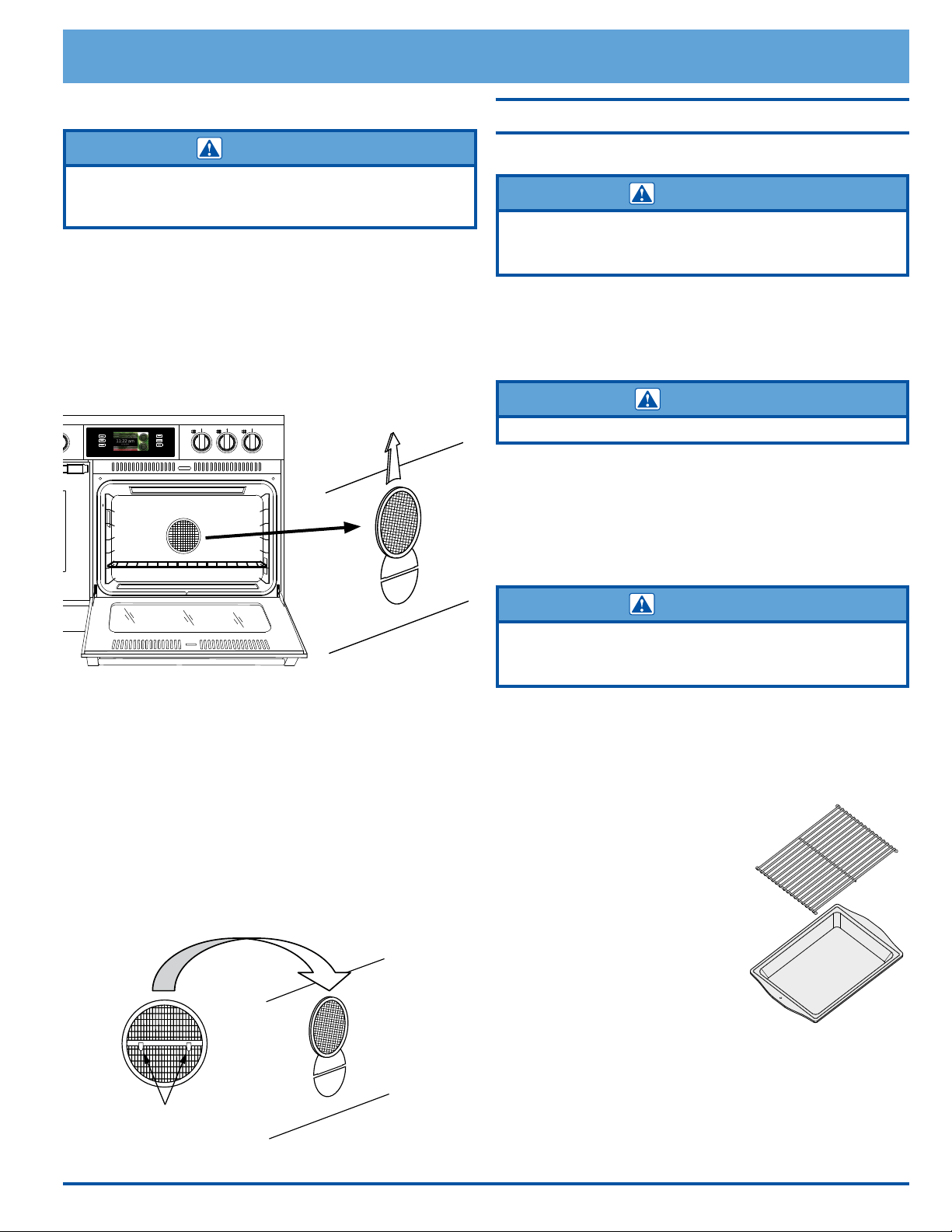
51
Care and Cleaning
Convection Filters
WARNING
For your safety and proper oven performance, re-install the
filter before using an oven to cook. If you don’t, the spinning fan
blades at the back of the oven will be exposed.
The convection lters are located in the back of each oven
chamber. Clean the lters regularly. If you allow them to
become clogged, the oven’s convection cooking modes
will not work properly. You also need to remove the lters
during the Self Clean cycle.
Removing the oven’s convection filters...
When the oven is cool, put your ngers around the edges
of each lter and gently push up.
To clean the filters...
Soak them in hot, soapy water. Rinse well. You may also
place them in a dishwasher on the top rack. Dry them
before re-installing.
Installing the oven’s convection filters...
Carefully hook the metal clips on the back of each lter
over the metal bar across the fan hole. Make sure the
lter is centered over the hole. Be careful not to scratch
the porcelain surfaces with the back of the lter.
Cleaning the Interior
Door Gaskets
WARNING
Take extreme caution when cleaning the door gaskets.
Rubbing or displacing them may damage the tight door
seal required for proper cooking and self-cleaning.
Clean the door gaskets by dabbing them with a solution
of water and mild soap. Do not scrub or they will become
damaged.
Oven Racks
CAUTION
To prevent damage, do not Self Clean the oven racks.
To clean the oven racks, apply a solution of detergent
and hot water. When you need to clean heavy soil, use a
scouring pad such as steel wool with plenty of water. You
may also use a solution of one cup of ammonia to two
gallons of water.
Meat Probe
WARNING
• To prevent damage, do not immerse the meat probe in water.
• The meat probe will not function properly if the plug the
connects to the oven is wet.
The meat probe is constructed of silicone handles, a wire,
a plug and a stainless steel skewer. To clean the skewer,
use a scouring pad and hot, soapy water. When you clean
the handles, wipe them with a soft sponge soaked with a
solution of detergent and warm water. Dry thoroughly.
Broil Pan
The broil pan has a porcelain
enamel nish. When you clean it,
use a solution of detergent and
hot water. If the broil pan is heav-
ily soiled, use a scouring pad with
plenty of water. Rinse it well after
cleaning.
Cleaning the Griddle
Clean the griddle after each use.
Wash it thoroughly in hot soapy
water to avoid stains from grease build-up. The griddle is
coated with a non-stick coating for easy cleaning. Warm
water and liquid detergent are all that are needed for
cleaning. Remove stubborn spots with a non-abrasive
plastic mesh pad. To prevent scratching, do not use abra-
sives or abrasive cleaners. Use the soft side of a sponge
to scrub it. Dry it with a lint-free cloth.
Clips
1
2
3
4
5
7
6
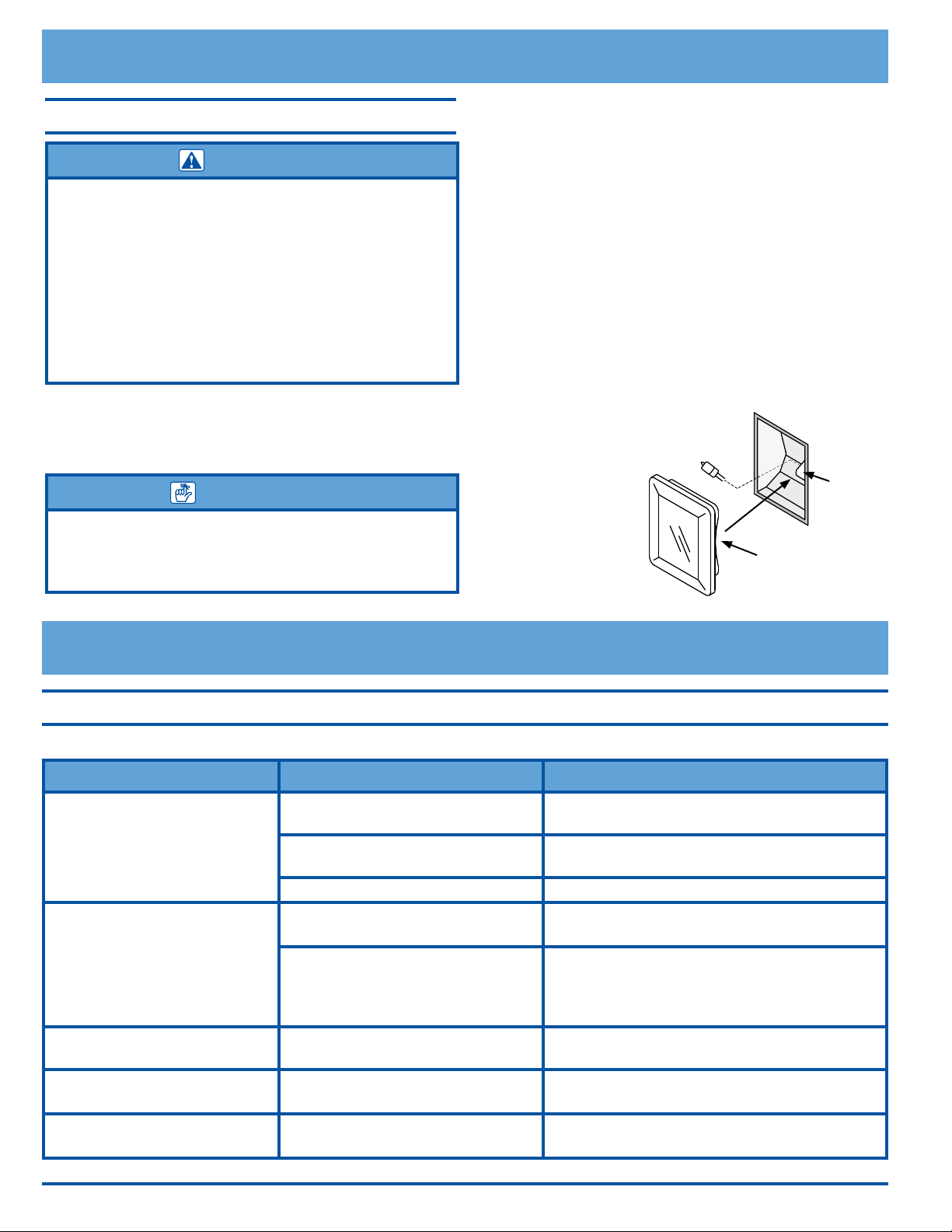
52
To replace the light bulbs...
1. Replace the light bulb only with Dacor part number
100429. See page 45 for ordering information.
2. Turn off power to the range at the circuit breaker
panel or fuse box.
3. Hold your hand under the lens for support and gently
pry it loose using a spatula or table knife. Pull the lens
cover straight out.
4. Grasp the old bulb and pull it straight out of the
socket.
5. Using a glove, insert the new bulb into the socket.
6. As you reinstall the lens cover, line up the cutout on
the inside rim with the light socket. Gently press it
into its original position.
7. Turn the power
to the oven back
on at the circuit
breaker panel or
fuse box.
Before You Call for Service
Replacing the Light Bulbs
WARNING
• To prevent electrical shock and/or personal injury, make
certain that the oven and light bulbs are cool and that power
to the range has been turned off at the circuit breaker panel
or fuse box before replacing the light bulbs.
• Always make sure the lens covers are in place when using
the ovens. The lens covers protect the light bulbs from
breakage caused by high temperatures or mechanical shock.
• Replacing the lens cover without lining up the cutout with the
light socket will damage the light fixture.
• Do not use a screwdriver to remove the lens.
Light bulb replacement is considered to be a homeowner
maintenance operation. If the lights do not work, before
replacing them, please consult page 53 of the Before
You Call For Service section.
IMPORTANT
Do not touch the replacement halogen light bulbs with
your ngers. Halogen bulbs are sensitive to the oils
from your hand. The oils from your hand will stick to
the bulb and cause it to burn out faster than normal.
Light
bulb
Light
socket
Cutout on inside
rim of lens
Problem Solution Guide - Oven
NOTE: See Common Problems When Using the Bake Mode on page 23 for problems with cooking food.
Problem May Be Caused By What to Do
Nothing works. Control panel is
not lit.
Range not connected to electrical
power.
Have a licensed electrician connect the range
to properly wired electrical connection.
Power to range is off. Turn on power at circuit breaker or fuse box.
Check for tripped breaker or blown fuse.
Power outage. Contact power company.
Nothing works/control panel
does not respond. Control
panel is lit.
Control panel locked (Locked
appears on display).
Touch CANCEL RIGHT or CANCEL LEFT key
for 5 seconds to reactivate control panel.
Range's computer needs to be
restarted.
To restart computer, touch and hold BACK
key, continue to hold BACK as you touch and
hold the HOME key. Hold both keys for 5 sec-
onds, until computer restarts.
Control panel, blank, dim or
only time and date is shown.
Energy saving mode activated. See page 11 to change settings or touch
display to reactivate.
Normal screen is missing from
display.
Android operating system is show-
ing.
Touch Dacor Cooking or HOME to return to
oven home screen.
No sound(s). Volume turned down. Adjust volume controls. See Oven Tone Set-
tings on page 11.
Care and Cleaning

53
Before You Call for Service
Problem May Be Caused By What to Do
Oven will not heat. Oven setting not correct. Touch CANCEL RIGHT or CANCEL LEFT, then
follow instructions in Basic Oven Operation
section.
Oven set for Delay Start. Oven will turn on automatically at the preset
time. Touch CANCEL RIGHT or CANCEL LEFT
to return to normal operation.
Attempting to broil with the meat
probe connected.
Broil modes will not work when meat probe is
connected. Disconnect meat probe.
Door open during preheat or when
using one of the broil modes.
Oven will not heat with door open during pre-
heat and Broil. Close door.
Oven does not Self Clean/
Green Clean.
Oven door not shut tightly. Check for obstructions. Shut door tightly.
Oven not set properly. Follow instructions in Care and Cleaning sec-
tion.
Meat probe connected. Oven will not start Self Clean cycle when meat
probe is connected. Disconnect and remove
meat probe.
Oven temperature over 400°F
(204°C).
Control panel does not allow Self Clean to
start when oven is over 400°F (204°C). Wait
for oven to cool, then start Self Clean.
Oven door will not open. Oven is set to Self Clean. Check display. If Locked symbol appears on
display, oven door cannot be opened. Wait for
oven to complete Self Clean or touch CANCEL
RIGHT or CANCEL LEFT. Door will unlock
once oven has cooled.
Oven lights will not work. Oven in Self Clean mode. Lights do not work when oven is in Self Clean
mode. See page 46.
Oven in Sabbath mode. Lights do not work when oven is in Sabbath
mode. See page 39.
Light bulbs burned out. Replace light bulbs.
Oven lights will not turn off. Light key is set to on. Touch light key to turn lights off.
Door ajar. Make sure both doors are completely shut.
Sabbath mode does not work. Meat probe connected. Oven will not start Sabbath mode when meat
probe is connected. Disconnect and remove
meat probe.
Oven goes into Keep Warm
mode too quickly after meat
probe is connected.
Meat probe connector is still wet
after cleaning.
Dry the metal portion of the plug that con-
nects to the oven using a soft dry rag.
Cooling fan continues to run
after oven has been turned off.
Normal operation. The cooling fan may run for a while after the
oven is turned off, until the internal parts have
cooled.
Time on display not correct. Clock not set to automatic or WiFi
internet service not available.
See Clock/Date Settings on page 10.
Control panel does not “beep”
when touching the keys on the
control panel and when the
timer runs down to zero.
Control panel tones disabled. Enable control panel tones. See Oven Tone
Settings on page 11.
Timers do not work. Oven set to Sabbath mode Normal operation. Timers are not operational
when oven is in Sabbath mode.
continued...
54
Before You Call for Service
Problem Solution Guide - Oven (cont.)
Problem May Be Caused By What to Do
Timers will not stop. Using CANCEL RIGHT or CANCEL
LEFT to turn off timers.
The timers cannot be canceled by using these
keys. See page 26 for proper operation.
Foods over or under cook. Incorrect cooking time or tempera-
ture.
Follow instructions in Basic Oven Operation
section.
Cannot connect to WiFi, net-
work.
WiFi network turned off. Check to make sure you can connect to the
WiFi router with another wireless device at
close range. If you cannot connect, check to
make sure that the router is on and working
properly.
Weak signal. Check to make sure WiFi network is within
range of oven. Access WiFi settings as
instructed on page 43. If the WiFi system
does not appear on the settings menu or has a
weak signal, move the WiFi router close to the
oven to see if the signal improves. If not, call
for service.
WiFi connection intermittent. See weak signal, above.
Problem Solution Guide - Cooktop
Igniters do not spark. Power not supplied to unit. Have electrician connect range to properly
wired electrical connection.
Power to range is off. Turn power on at junction box. Check for
tripped circuit breaker or blown fuse.
Wet or dirty igniter. Clean according to Care and Cleaning sec-
tion.
Power outage. Contact power company.
No ame. Igniter not working (no clicking
sound).
Clean according to Care and Cleaning sec-
tion.
Wet or dirty igniter. Clean and dry according to Care and Clean-
ing section.
Gas is turned off. Make sure the gas supply valve is in the on
position.
Gas supply interrupted. Contact gas company.
Flame is distorted, yellow or
very large.
Burner ring or burner cap is dirty
or clogged.
Clean and dry according to Care and Clean-
ing section.
Burner ring or burner cap not prop-
erly positioned.
Make sure burner is assembled according to
the Setting Up Your Range section.
Range set up to use a different
type of gas (Natural or LP) or set
up for different altitude.
Have qualied service technician check to
make sure that the range is set up for the
type of gas and the correct altitude.
Gas regulator is not installed or
faulty.
Have qualied service technician check the
gas regulator.
55
Warranty and Service
Getting Help
Before you request service:
1. Review the Before You Call for Service section of this manual (see page 52).
2. Use the helpful tips found in our Problem Solution Guide.
3. Become familiar with the warranty terms and conditions of your product.
4. If none of these tips or suggestions resolves your problem, call our Customer Service Center
at the number below.
Dacor’s Customer Service Center is available 6:00
a.m. – 5:00 p.m. Pacic Time
For warranty repairs or questions and for Dacor Distinctive Service (DDS) in the US and Canada
Phone: (800) 793-0093, extension 2822
For non-warranty repairs or questions in the US and Canada
Phone: (800) 793-0093, extension 2813
Contact us through our web site at:
www.dacor.com/contact-us
Replacement Parts
Replacement parts my be ordered through your dacor dealer, or contact Dacor Customer Service at (800) 793-0093,
extension 2813.
Problem May Be Caused By What to Do
Igniter continues to spark
(click) after ame ignites.
Burner is cold. Burners may continue to spark for up to 60
seconds when cold and set to low. See Oper-
ating the Cooktop section for more informa-
tion on how to minimize.
Flame distorted by air draft. Minimize any air drafts around the range.
Close nearby windows.
Wet or dirty igniter. Clean and dry according to Care and Clean-
ing section.
Burner ring or burner cap is dirty. Clean and dry according to Care and Clean-
ing section.
Burner ring or burner cap not prop-
erly positioned.
Make sure burner is assembled according to
the Setting Up Your Range section.
Flame goes out at low setting. Air intake holes obstructed. Check to make sure air holes above knobs are
not blocked.
Low gas pressure. Contact gas company.
Before You Call for Service

56
Warranty and Service
Warranty
What Is Covered
CERTIFICATE OF WARRANTIES: DACOR RANGES
WITHIN THE FIFTY STATES OF THE U.S.A., THE DIS-
TRICT OF COLUMBIA, AND CANADA:
FULL ONE-YEAR WARRANTY
The warranty applies only to the Dacor appliance sold to the rst
use purchaser, starting from the date of original retail purchase
or closing date for new construction, whichever period is longer.
Warranty is valid on products purchased brand new from a Dacor
Authorized Dealer, or other seller authorized by Dacor.
If your Dacor product fails to function within one year of the
original date of purchase, due to a defect in material or work-
manship, Dacor will remedy it without charge to you.
All cosmetic damage (such as scratches on stainless steel, paint/
porcelain blemishes, etc.) to the product or included acces-
sories must be reported to Dacor within 60 days of the original
purchase date to qualify for warranty coverage. Consumable
parts such as lters and light bulbs are not covered and are the
responsibility of the purchaser.
LIMITATIONS OF COVERAGE
Service will be provided by a Dacor designated service company
during regular business hours. Please note service providers are
independent entities and are not agents of Dacor.
Dealer display and model home display products with a pro-
duction date greater than 5 years, products sold “As Is,” and
products installed for non-residential use, which include but are
not limited to religious organizations, re stations, bed & break-
fast, and spas carry a one year parts warranty only. All delivery,
installation, labor costs, and other service fees are the responsi-
bility of the purchaser.
Warranty will be null and void on product that has altered,
defaced, or missing serial numbers and tags.
The owner must provide proof of purchase or closing statement
for new construction upon request. All Dacor products must be
accessible for service.
Warranty is null and void if non-ETL or non-CUL approved prod-
uct is transported from the U.S.A.
OUTSIDE THE FIFTY STATES OF THE U.S.A., THE
DISTRICT OF COLUMBIA, AND CANADA:
LIMITED FIRST YEAR WARRANTY
If your Dacor product fails to function within one year of the
original date of purchase due to a defect in material or work-
manship, Dacor will furnish a new part, F.O.B. factory to replace
the defective part.
All delivery, installation, labor costs and other service fees are
the responsibility of the purchaser.
What Is Not Covered
• Slight color variations may be noticed because of differences
in painted parts, kitchen lighting, product placement, and
other factors; this warranty does not apply to color varia-
tion.
•
Service calls to educate the customer on proper use and
care of the product.
• Service fees for travel to islands and remote areas, which
include but are not limited to, ferries, toll roads or other
travel expenses.
• Consequential or incidental damage, including but not
limited to food or medicine loss, time away from work or
restaurant meals.
• Failure of the product when used for commercial, business,
rental or any application other than for residential consumer
use.
• Failure of the product caused by improper product installa-
tion.
•
Replacement of house fuses, fuse boxes or resetting of
circuit breakers.
• Damage to the product caused by accident, re, ood,
power interruption, power surges or other acts of God.
• Liability or responsibility for damage to surrounding prop-
erty including cabinetry, oors, ceilings and other structures
or objects around the product.
• Breakage, discoloration, or damage to glass, metal surfaces,
plastic components, trim, paint or other cosmetic nish
caused by improper usage, care, abuse or neglect.
Out of Warranty
Should you experience a service issue beyond the standard war-
ranty period, please contact us. Dacor reviews each issue and
customer concern to provide the best possible solution based on
the circumstances.
THE REMEDIES PROVIDED IN THE ABOVE EXPRESS WARRAN-
TIES ARE THE SOLE AND EXCLUSIVE REMEDIES. THEREFORE,
NO OTHER EXPRESS WARRANTIES ARE MADE, AND OUTSIDE
THE FIFTY STATES OF THE UNITED STATES, THE DISTRICT
OF COLUMBIA AND CANADA, ALL IMPLIED WARRANTIES,
INCLUDING BUT NOT LIMITED TO, ANY IMPLIED WARRANTY OF
MERCHANTABILITY OR FITNESS FOR A PARTICULAR USE OR
PURPOSE, ARE LIMITED IN DURATION TO ONE YEAR FROM THE
DATE OF ORIGINAL PURCHASE. IN NO EVENT SHALL DACOR
BE LIABLE FOR INCIDENTAL EXPENSE OR CONSEQUENTIAL
DAMAGES. IN THE EVENT DACOR PREVAILS IN ANY LAWSUIT,
DACOR SHALL BE ENTITLED TO REIMBURSEMENT OF ALL COSTS
AND EXPENSES, INCLUDING ATTORNEY’S FEES, FROM THE
DACOR CUSTOMER. NO WARRANTIES, EXPRESS OR IMPLIED,
ARE MADE TO ANY BUYER FOR RESALE.
Some states do not allow limitations on how long an implied
warranty lasts, or do not allow the exclusion or limitation of
inconsequential damages, therefore the above limitations or
exclusions may not apply to you. This warranty gives you spe-
cic legal rights, and you may also have other rights that vary
from state to state.


Dacor ● 14425 Clark Avenue, City of Industry, CA 91745 ● Phone: (800) 793-0093 ● Fax: (626) 403-3130 ● www.dacor.com
Dacor.com
Part No. 108105 Rev. B
Software Version 1.1.123