User Manual
2023.04
v1.0
2
©
2023 DJI All Rights Reserved.
Searching for Keywords
Search for keywords such as “battery” and “install” to nd a topic. If you are using Adobe
Acrobat Reader to read this document, press Ctrl+F on Windows or Command+F on Mac
to begin a search.
Navigating to a Topic
View a complete list of topics in the table of contents. Click on a topic to navigate to that
section.
Printing this Document
This document supports high resolution printing.
This document is copyrighted by DJI with all rights reserved. Unless otherwise authorized by
DJI, you are not eligible to use or allow others to use the document or any part of the document
by reproducing, transferring or selling the document. Users should only refer to this document
and the content thereof as instructions to operate DJI UAV. The document should not be used
for other purposes.
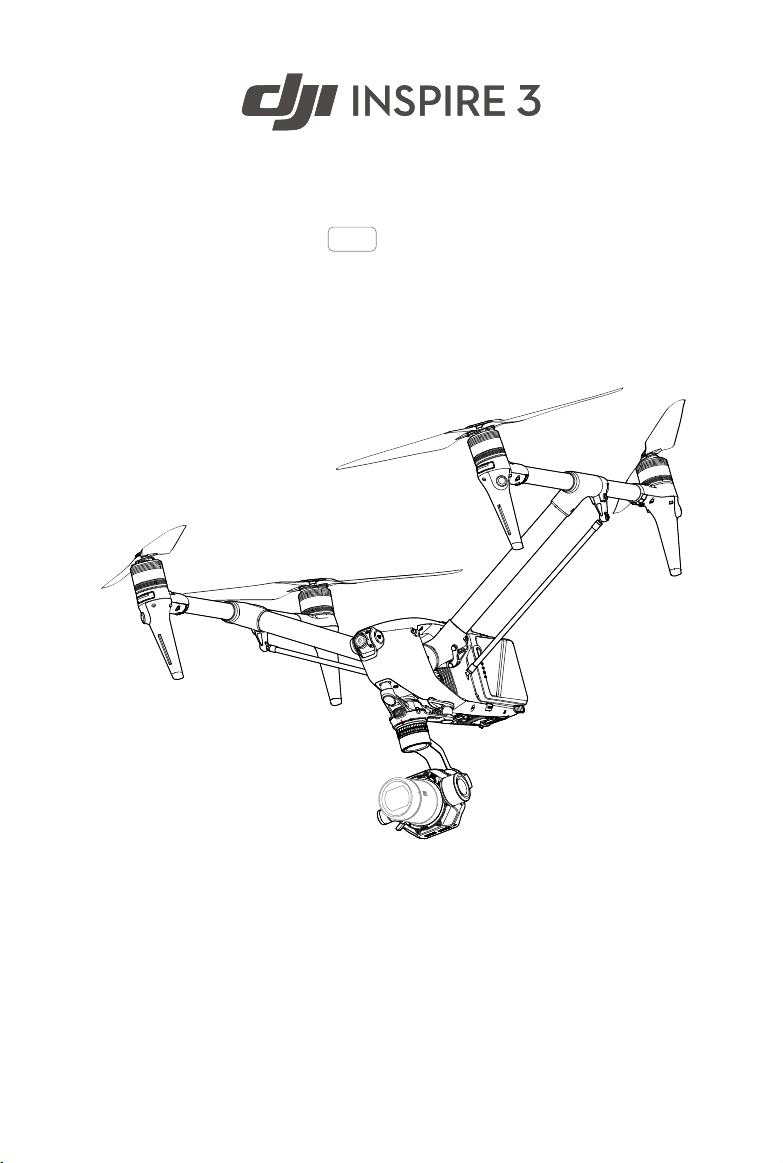
DJI Inspire 3
User Manual
©
2023 DJI All Rights Reserved.
3
Using This Manual
Legends
Important Hints and Tips
Read Before Use
DJI
TM
provides users with tutorial videos and the following documents.
1. Safety Guidelines
2. Quick Start Guide
3. User Manual
It is recommended to watch all the tutorial videos and read the Safety Guidelines before using
for the rst time. Prepare for your rst ight by reviewing the quick start guide and refer to this
manual for more information.
Tutorial Videos
Go to the address below or scan the QR code to watch the DJI Inspire 3 tutorial videos, which
demonstrate how to use the Inspire 3 safely.
Downloading DJI Assistant 2
Download and install DJI ASSISTANT
TM
2 (Inspire Series) using the link below:
https://www.dji.com/inspire-3/downloads
• The operating temperature of this product is -20° to 40° C (-4° to 104° F). It does
not meet the standard operating temperature for military-grade application (-55° to
125° C/-67° to 257° F), which is required to endure greater environmental variability.
Operate the product appropriately and only for applications that meet the operating
temperature range requirements of that grade.
https://www.dji.com/inspire-3/video

4
©
2023 DJI All Rights Reserved.
Contents
Legends 3
Read Before Use 3
Tutorial Videos 3
Downloading DJI Assistant 2 3
Product Profile 8
Introduction 9
Using for the First Time 10
Activating and Charging the Batteries 10
Preparing the Aircraft 10
Preparing the Remote Controller 14
Activating the Aircraft 14
Firmware Update 14
Overview 15
Aircraft 15
Remote Controller 16
Accessory Options (Sold Separately) 20
Aircraft 21
Aircraft Profile 22
Flight Modes 22
Aircraft Power Button/Indicators 24
Aircraft Indicators 25
Aircraft Landing Gears 26
Travel Mode Switching 26
Intelligent Landing Gear 27
Return to Home 28
Smart RTH 28
Low Battery RTH 31
Failsafe RTH 32
Vision Systems and Infrared Sensing System 35
Detection Range 35
Using the Vision System 37
Flight Recorder 39
Aircraft FPV Camera 39
Aircraft Antennas 40
Aircraft RTK 40

DJI Inspire 3
User Manual
©
2023 DJI All Rights Reserved.
5
Propellers 42
Expansion Ports 44
Intelligent Battery Charging Hub 45
Charging Hub Overview 46
Paired Charging of Batteries 47
Charging Modes 48
Using the Charging Hub 48
Charging Hub LED Indicators 49
Intelligent Battery 50
Introduction 51
Battery Features 51
Using the Battery 53
Using the Paired Batteries 53
Mounting/Removing the Battery 53
Hot Battery Replacement 54
Powering On/Off and Checking the Battery Level 54
Warming the Battery 55
Battery Storage 56
Gimbal Camera 57
Overview 58
X9-8K Air Gimbal Camera 59
Camera Specifications 59
Storing Photos and Videos 61
Camera Operation 62
Gimbal 63
Controllable Rotation Range 63
Gimbal Operation 64
Remote Controller 65
Preparing the Remote Controller 66
Mounting the WB37 Intelligent Battery 66
Mounting the Dongle 67
Using the Strap and Waist Support 67
Adjusting the Sticks 68
Adjusting the Antennas 68

DJI Inspire 3
User Manual
6
©
2023 DJI All Rights Reserved.
Starting and Activating the Remote Controller 69
User Interface 70
Home Screen 70
Screen Gestures 70
Shortcut Settings 71
Video Transmission 72
Remote Controller LEDs and Alert 73
Charging the Remote Controller and Checking the Battery Level 74
Linking the Remote Controller and Control Stick Modes 76
Buttons Overview 79
RTH Button 79
L1/L2/L3/R1/R2/R3 Buttons 79
Button Customization and Combinations 79
Aircraft Control Button 80
Flight Mode Switch (N/S/F) 81
Calibrating the Compass 81
HDMI Settings 81
Dual Control Mode 81
DJI Professional Ecosystem 84
DJI Video Transmitter 85
DJI High-Bright Remote Monitor 85
DJI Three-Channel Follow Focus 87
DJI Master Wheels 87
Typical Application Scenarios 88
DJI Pilot 2 App 91
Homepage 92
Gimbal Camera View 95
Introduction 95
Top Bar 97
Navigation Display 98
Camera Quick Settings Panel 100
Advanced Camera Settings Panel 101
Monitoring Settings 101
Storage Settings 102
Other Settings 103

DJI Inspire 3
User Manual
©
2023 DJI All Rights Reserved.
7
Waypoint Pro 106
Spotlight Pro 108
FPV Camera View 110
Full Screen Mode 111
Map View 111
Health Management System (HMS) 112
Flight 114
Flight Environment Requirements 115
Operating the Aircraft Responsibly 116
Flight Limits and GEO Zones 117
GEO (Geospatial Environment Online) System 117
Flight Limits 117
Flight Altitude and Distance Limits 117
GEO Zones 118
Calibrating the Compass 119
Pre-Flight Checklist 120
Auto Takeoff/Auto Return to Home 121
Starting/Stopping the Motors 121
Flight Test 122
Appendix 123
Appendix 124
Specifications 124
Firmware Update 131
Using DJI Pilot 2 131
Using DJI Assistant 2 (Inspire Series) 132
Storage and Transportation and Maintenance 133
Trolley Case 134
Using the Trolley Case for Storage 134
Trolley Case Lock 135
Troubleshooting Procedures 136
Risk and Warnings 136
Disposal 136
C3 Certification 137
FAR Remote ID Compliance Information 142
After-Sales Information 143

8
©
2023 DJI All Rights Reserved.
Product Prole
This chapter introduces the major
features of the product.

DJI Inspire 3
User Manual
©
2023 DJI All Rights Reserved.
9
Product Prole
Introduction
DJI INSPIRE
TM
3 is a cinematic-grade aerial shooting system equipped with the DJI ZENMUSE
TM
X9-8K Air gimbal camera, which consists of the aircraft, the gimbal camera, and the remote
controller using the DJI Pilot 2 app.
The aircraft integrates a multi-redundancy ight controller system, horizontal omnidirectional
vision system, infrared sensing system, and night-vision ight system allowing for hovering and
ying indoors as well as outdoors and automatic Return to Home while avoiding obstacles in
all directions. It is integrated with a centimeter-level RTK module, which can help to provide
accurate positioning of up to centimeter-level.
With the 3-axis gimbal stabilization system, the Zenmuse X9-8K Air gimbal camera supports
dual native ISO and recording at up to 8K 75fps ProRes RAW or 8K 25fps CinemaDNG as well as
4K 120fps video.
[1]
The DL-mount supports various DJI DL lenses.
The lightweight body and classic streamlined shape allow for sucient power redundancy to
improve ight maneuverability. And the newly designed transformational body can guarantee
an unobscured gimbal camera view when ying at high speed so that the gimbal camera can
move freely to record more breathtaking videos.
The DJI RC Plus remote controller features O3 Pro video transmission and transmits up to two
HD liveviews from the aircraft to the remote controller. With the DJI Pilot 2 app designed for
DJI Inspire 3, users can view images and data using the camera view in real time. The remote
controller comes with a wide range of aircraft and gimbal controls as well as customizable
buttons, which can easily control the aircraft and operate the camera.
[1] CinemaDNG and ProRes RAW formats will be available when the appropriate license is purchase and applied.
DJI Inspire 3
User Manual
10
©
2023 DJI All Rights Reserved.
Using for the First Time
Activating and Charging the Batteries
The Intelligent Batteries and remote controller internal battery require activation before rst use.
The remote controller cannot be powered on before activating the internal battery.
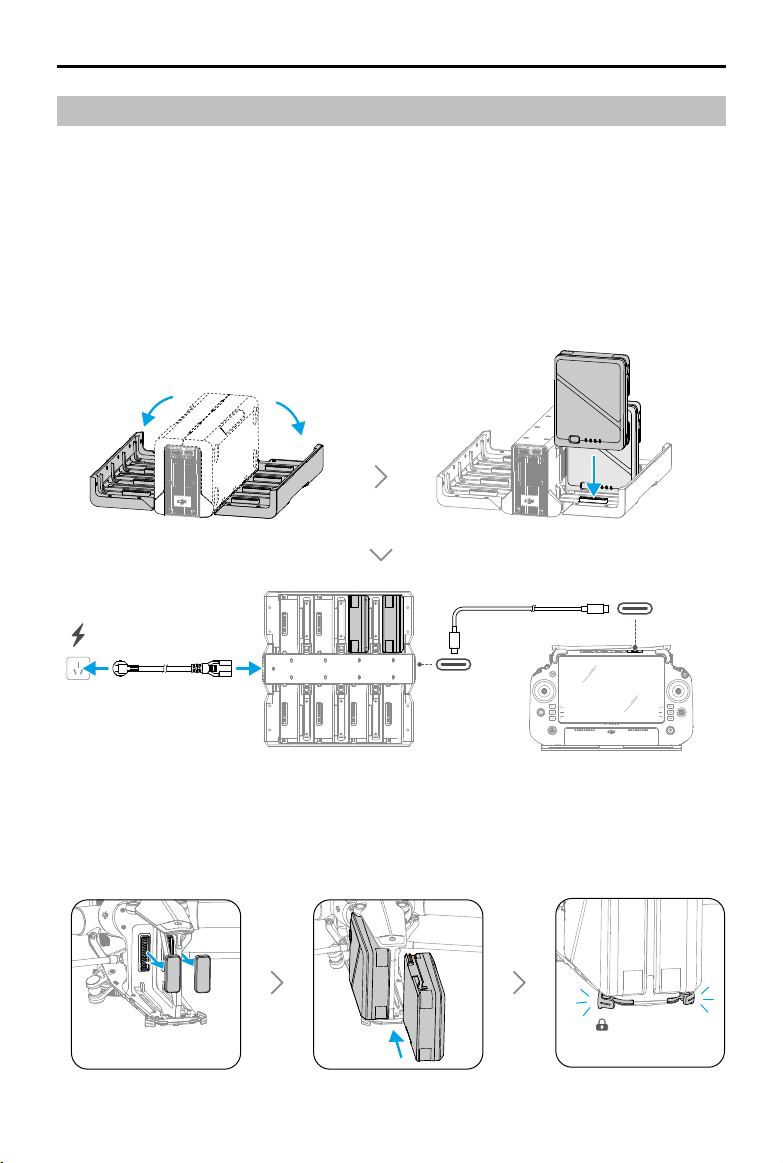
Insert the Intelligent Batteries into the charging hub, connect the charging hub to the remote
controller using the USB-C to USB-C high-speed data cable, and then connect the charging hub
to a power outlet. The Intelligent Battery is activated after the charging hub is connected to the
power outlet. The battery level LEDs start to ash to indicate that the remote controller internal
battery is activated.
Preparing the Aircraft
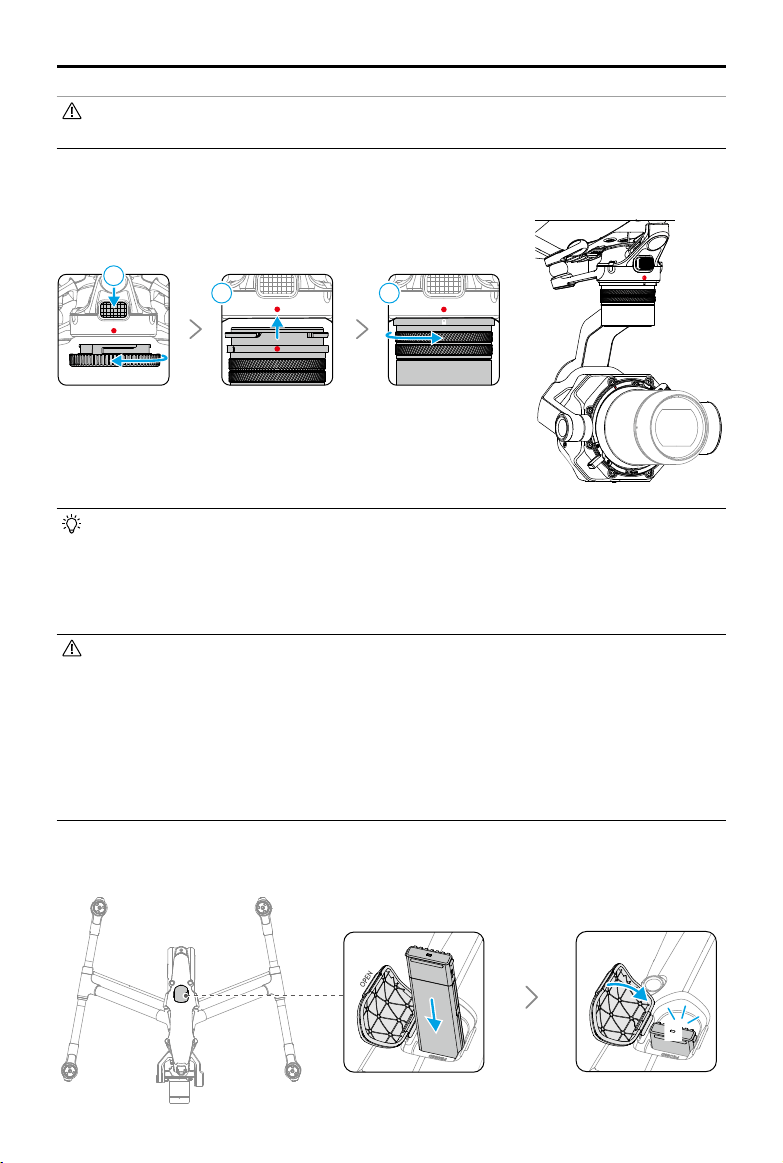
1. Remove the protective covers from the aircraft battery compartment, and insert two
activated Intelligent Batteries. Make sure the batteries are mounted rmly.
65W OUT
DJI Inspire 3
User Manual
©
2023 DJI All Rights Reserved.
11
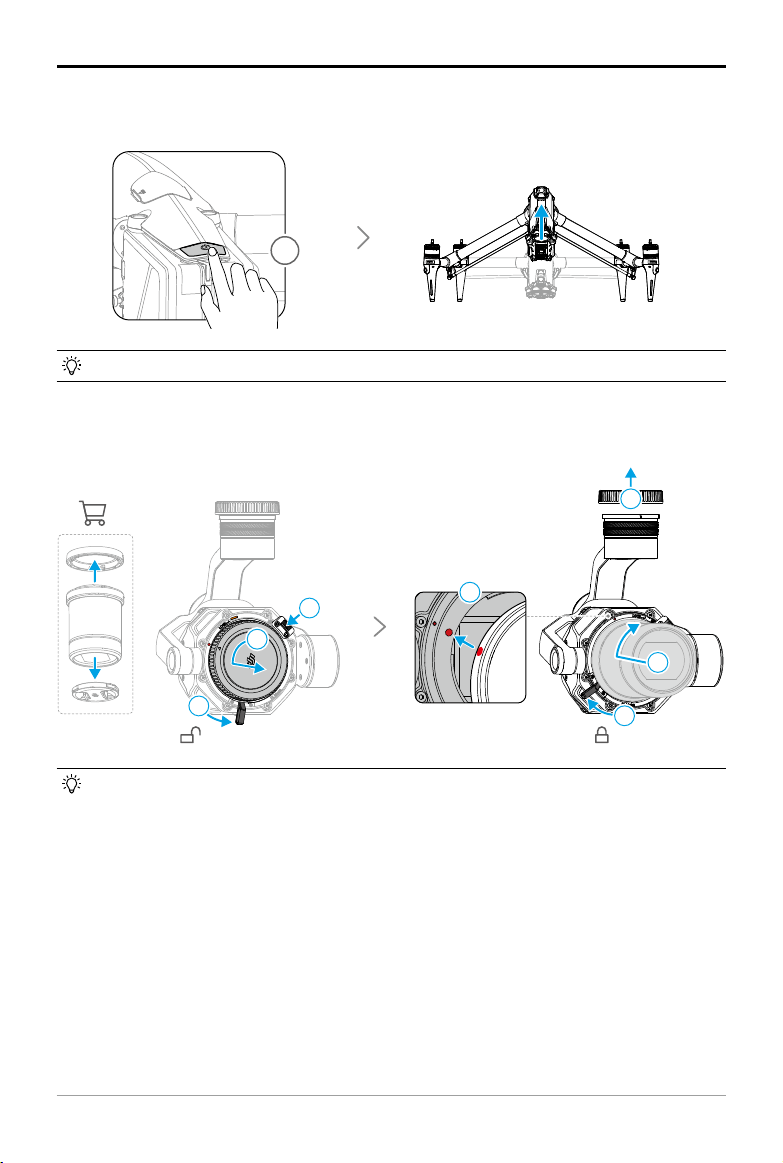
2 Press the power button a minimum of ve times to transform the aircraft to Landing mode,
and power on
.
At this time, the indicators of the power button light up sequentially.
• Make sure that the lens locking lever is in the unlocked position and that both red dots
on the lens mount are aligned before mounting the camera lens.
• DO NOT press the lens release button while mounting the camera lens.
• Always toggle the lens locking lever to cover the orange mark on the camera until the
lever is tight and secure after mounting the camera lens. Otherwise, lens vibration may
occur during ight.
• Pay attention to sand, dust, and water when disassembling the gimbal camera or
replacing the lens. Make sure to operate in a dust-free environment, as dust that enters
the gimbal camera lens mount or lens may cause scratches and aect use.
• Follow the instructions in this manual to properly mount the replacement supported
lenses and related accessories to avoid damage caused by improper operation.
• Clean the surface of the camera lens with a soft, dry, clean cloth. DO NOT use
substances containing alcohol, benzene, thinners, or other flammable substances to
clean or maintain the camera.
• Press, and then press and hold the power button to power on the aircraft.
3. Remove the protective covers of the lens and gimbal camera lens mount. Install the lens (sold
separately) to the gimbal camera and remove the gimbal connector cover.
5
×
2
1
3
1
1
3
4
2
2
2
DJI Inspire 3
User Manual
12
©
2023 DJI All Rights Reserved.
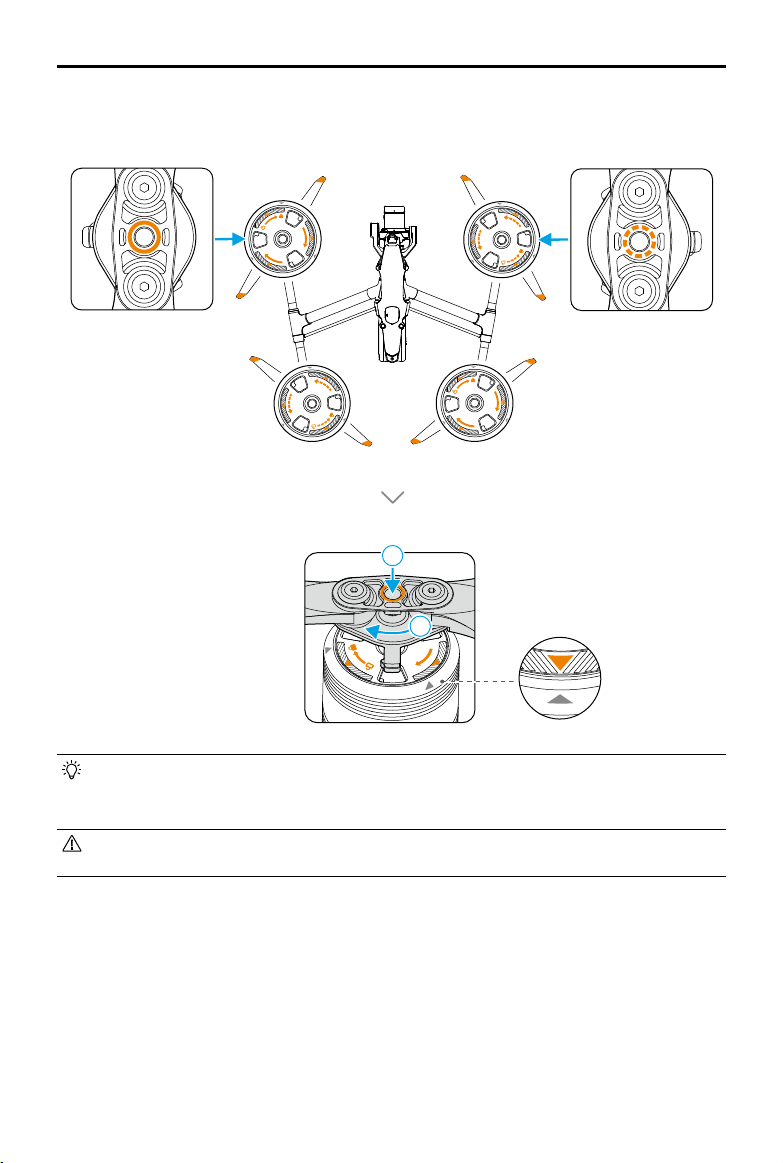
• Make sure to hold the gimbal rmly when removing or mounting it.
• Make sure that the gimbal connector on the aircraft is correctly positioned when
mounting, otherwise the gimbal camera will not mount.
• To remove the gimbal camera, hold down the gimbal camera detach button on the
aircraft and rotate the gimbal camera to detach it.
• DO NOT disassemble the gimbal without authorization.
• Precision elements in the gimbal may be damaged by a collision or impact, which
may cause the gimbal to function abnormally. Make sure to protect the gimbal from
damage.
• The gimbal dampers and the connector between the gimbal and the aircraft are
delicate. Keep them away from damage. Contact DJI Support or a DJI authorized dealer
for further assistance if necessary. Read the maintenance manual for more information
on how to replace the gimbal damper.
5. Insert the DJI PROSSD into the aircraft. The indicator on the DJI PROSSD turns on, indicating
that it is correctly inserted.
• DO NOT expose the camera lens to a strong energy source such as the sun, lava, or
laser beams. Otherwise, it will cause damage to camera.
4. Remove the protective cover on the aircraft and install the gimbal camera to the aircraft.
2
1
3
1
1
3
4
2
2
2
DJI Inspire 3
User Manual
©
2023 DJI All Rights Reserved.
13
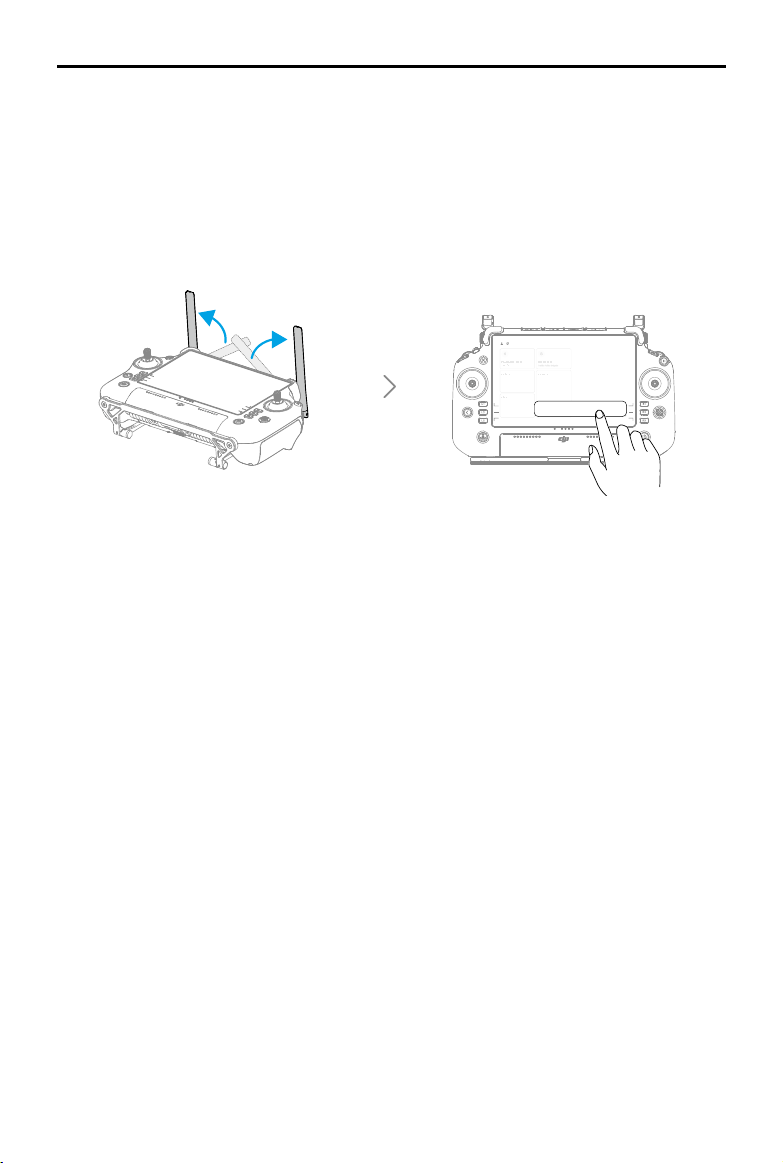
6. After aligning the propeller and the motor installation mark, respectively insert the four
propellers into the motors, and then press and rotate to lock.
• Make sure the quick-release propeller adapter is rotated to install in place, and the
propeller adapter springs back with the top of the motor shaft.
• Before removing the propeller, rst press down the propeller adapter.
• Be aware of the sharp edges of the propellers when examining, mounting, or removing
the propellers.
1
2
DJI Inspire 3
User Manual
14
©
2023 DJI All Rights Reserved.
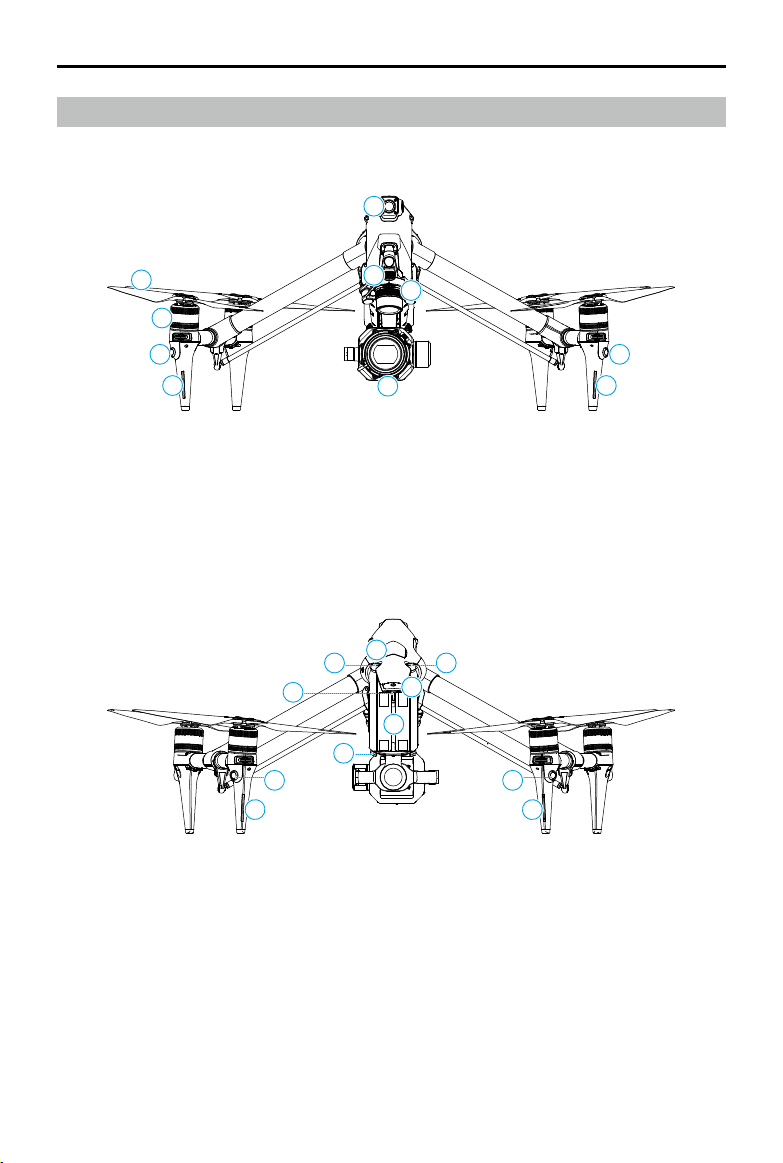
Preparing the Remote Controller
The remote controller is already linked to the aircraft when it is purchased together as part of a
combo.
The remote controller requires activation before first use, and an internet connection is
required for activation. Press, and then press and hold the power button to power on the
remote controller. Follow the on-screen prompts to activate the remote controller.
When powered o, press the power button to check the battery level.
Activating the Aircraft
The aircraft requires activation before first use. After powering on the aircraft and remote
controller, follow the on-screen prompts to activate the aircraft using DJI Pilot 2. An internet
connection is required for activation.
Firmware Update
A prompt will appear in DJI Pilot 2 when new firmware is available. It is recommended to
update the rmware whenever prompted to do so, in order to ensure the best possible user
experience.
Prepare To Fly
Prohibited areas
Limit fly
Fire Rescue
Academy
Album
Air Line
Enter Camera View
R2
DJI Inspire 3
User Manual
©
2023 DJI All Rights Reserved.
15
Overview
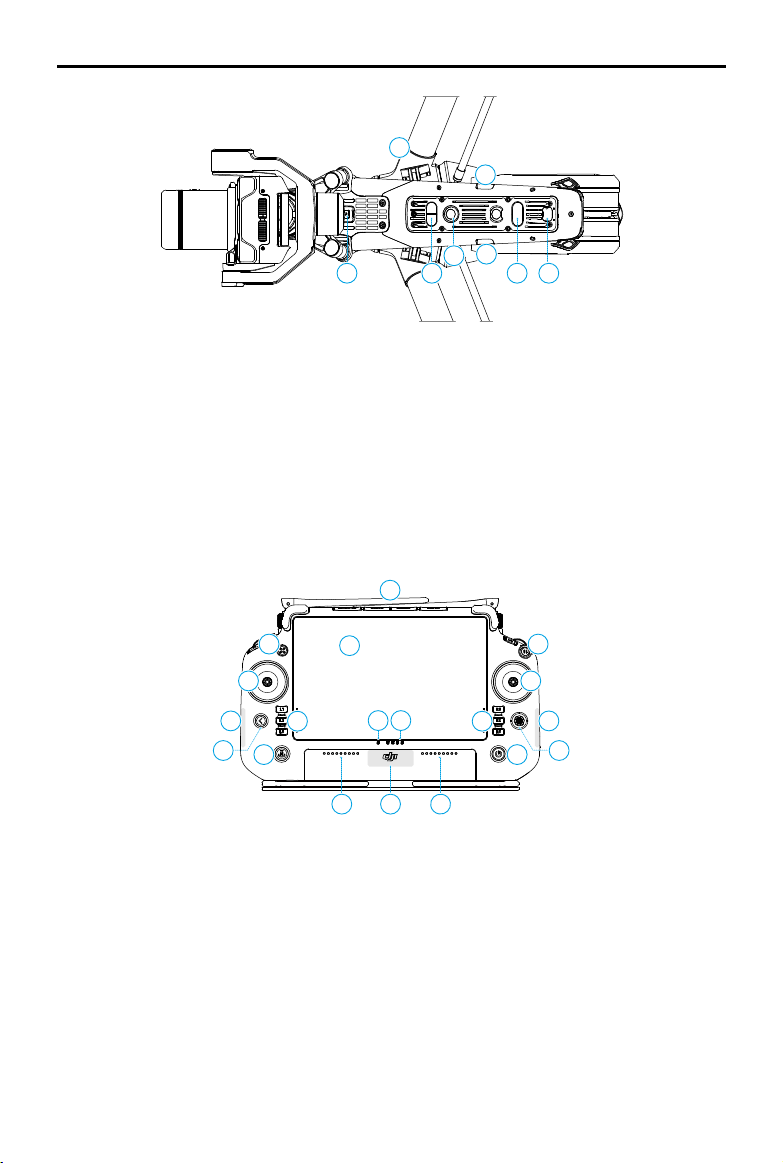
Aircraft
1. Front LED Indicators
2. Horizontal Omnidirectional Vision
System
3. Motors
4. Propellers
5. FPV Camera
6. Gimbal Release Button
7. Gimbal Camera Quick-Release Port
8. Gimbal Camera
9. Rear LED Indicators
10. Horizontal Omnidirectional Vision
System
11. Aircraft Power Button/Indicator
12. DJI PROSSD Slot
13. Upward Vision System
14. Y-Shape LED Indicator
15. Intelligent Batteries
16. Battery Release
8
7
6
5
3
2 2
4
1 1
15
14
12
9 9
10 10
11
1313
16
DJI Inspire 3
User Manual
16
©
2023 DJI All Rights Reserved.
17. USB-C Assistant Port
18. Downward Infrared Sensing System
19. Downward Vision System
20. USB-C Port
21. Timecode Input Port
22. Auxiliary Light
23. Expansion Port
24. Transformation Mechanism
Remote Controller
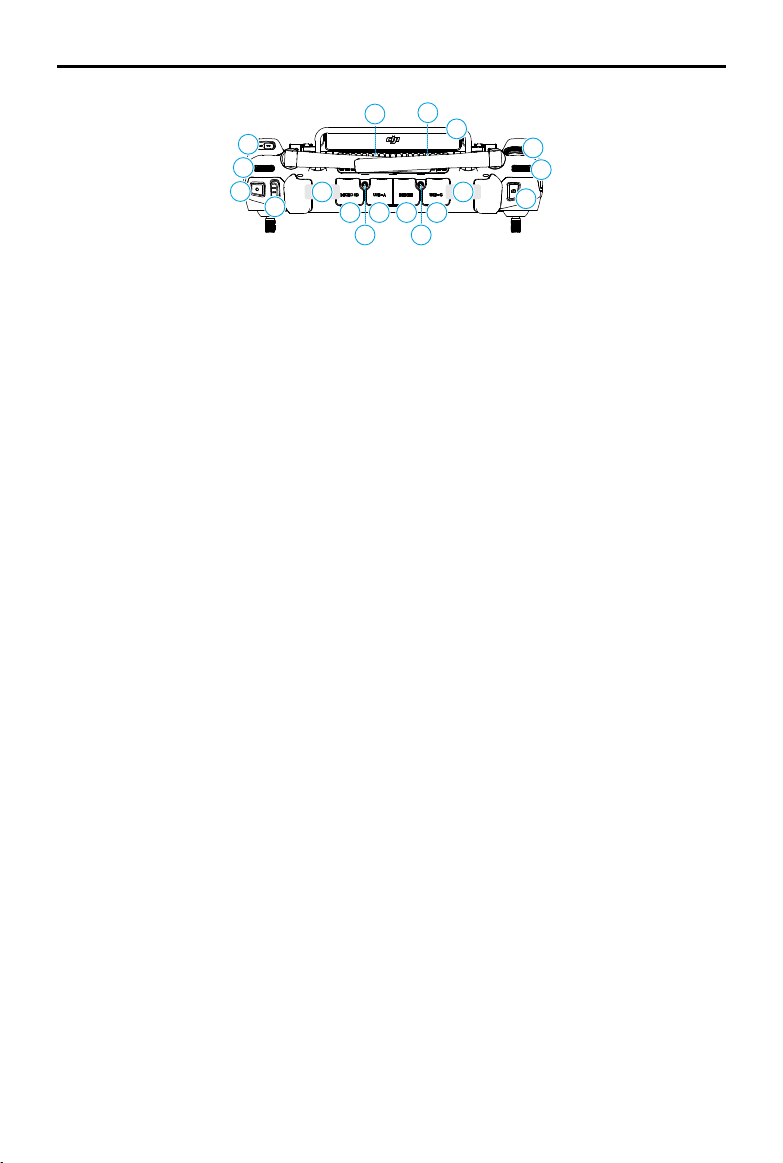
1. External RC Antennas
Transmit control and video wireless signals between the remote controller and the aircraft.
2. Touchscreen
Displays system and app views and supports up to 10 touch points. Make sure the
touchscreen is clean, and completely dry before use. Otherwise, viewing and touch eects
may be aected.
3. Aircraft Control Button
The aircraft control button is used to take control of the aircraft and indicate the aircraft
control status. Refer to Guide on the home screen for more information.
8
13
5
5
7
7
1
4
4
3
15
2
10
11
9
9
12
6
14
24
20
2
1
23
22
18
19
17

DJI Inspire 3
User Manual
©
2023 DJI All Rights Reserved.
17
4. Control Sticks
Control stick mode can be set in DJI Pilot 2.
5. Internal
Wi-Fi
Antennas
DO NOT block the Wi-Fi antennas during usage. Otherwise, the signal may be aected.
6. Back/Function Button
Press once to return to the previous screen. Press twice to return to the home screen. Use
the back button and another button to activate combination buttons. Refer to Guide on the
home screen for more information.
7. L1/L2/L3/R1/R2/R3 Buttons
Go to camera view in DJI Pilot 2 to view the specic functions of these buttons.
8. Return to Home (RTH) Button
Press and hold to initiate RTH. Press again to cancel RTH.
9. Microphones
DO NOT block the microphones during usage.
10. Status LEDs
Indicates the remote controller status. Refer to Remote Controller LEDs and Alert section or
Guide on the home screen for more information.
11. Battery Level LEDs
Displays the current battery level of the remote controller. Refer to Remote Controller LEDs
and Alert section for more information.
12. Internal GNSS Antennas
DO NOT block the internal GNSS antennas during usage. Otherwise, the positioning
accuracy may be aected.
13. Power Button
Press once to check the current battery level. Press, and then press and hold for two
seconds to power the remote controller on or o. When the remote controller is powered
on, press once to turn the touchscreen on or o.
14. 5D Button
View the default 5D button functions in DJI Pilot 2. Refer to Guide on the home screen for
more information.
15. Flight Pause Button
Press once to have the aircraft brake and hover in place (only when GNSS or Vision Systems
are available).
DJI Inspire 3
User Manual
18
©
2023 DJI All Rights Reserved.
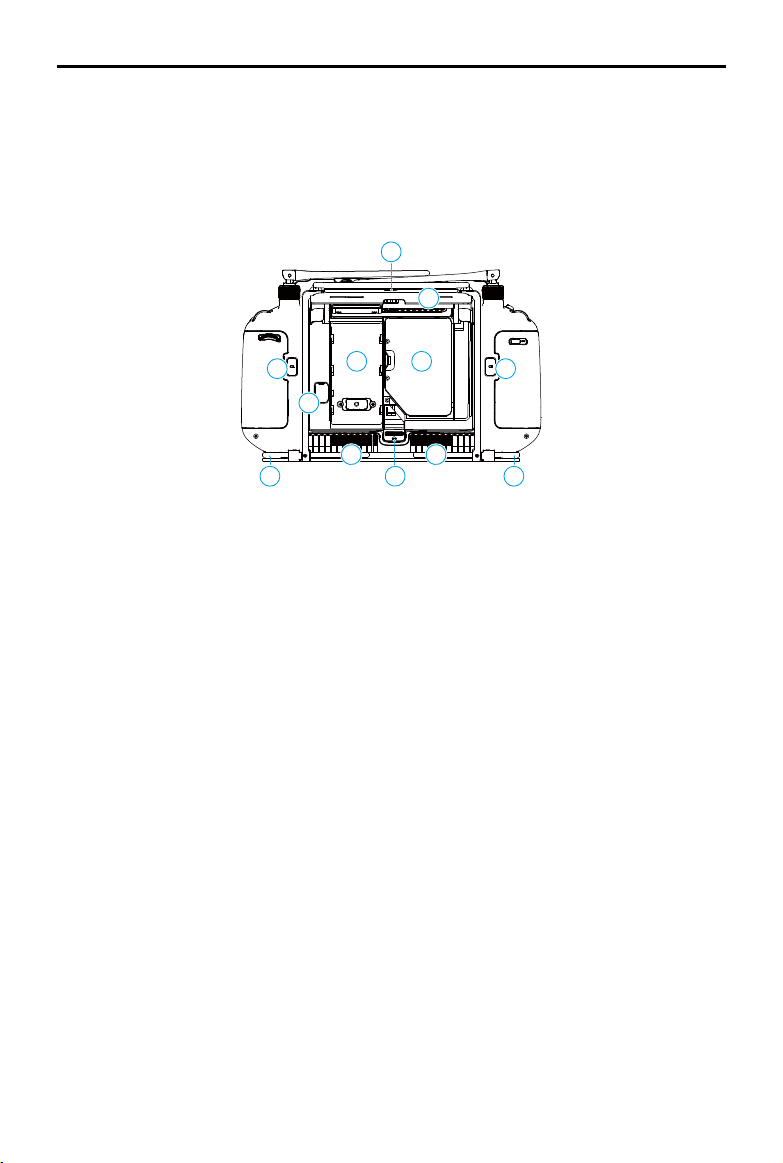
16. C3 Button
Customize functions in DJI Pilot 2.
17. Left Dial
Controls the tilt of the gimbal.
18. Record Button
Press once to start or stop recording.
19. Flight Mode Switch
Switch between dierent ight modes. Users can switch between the Normal, Sport, and
Function modes. The Function mode can be congured in the app.
20. Internal RC Antennas
Transmit aircraft control and video wireless signals. DO NOT block the internal RC antennas
during usage. Otherwise, the signal may be aected.
21. microSD Card Slot
For inserting a microSD card.
22. USB-A Port
Users can connect the remote controller to the TB51 intelligent battery charging hub to
update the charging hub rmware. Users can also insert third-party devices, such as a USB
ash drive or a memory card.
23. HDMI Port
For outputting HDMI signals to external monitor.
24. USB-C Port
For charging the remote controller by connecting to the charging hub.
25. Focus/Shutter Button
Press the button halfway down for autofocus, and all the way down to take a photo.
26. Right Dial
Controls the pan of the gimbal.
27. Scroll Wheel
After pressing the designated side button on the screen, turn the scroll wheel to adjust the
camera parameters. Read the Camera Operation section of the Gimbal Camera for more
information. It can be set in DJI Pilot 2.
16
17
18
19
25
26
27
28
3
0
29
21
22
23
24
31 31
2
0
2
0
DJI Inspire 3
User Manual
©
2023 DJI All Rights Reserved.
19
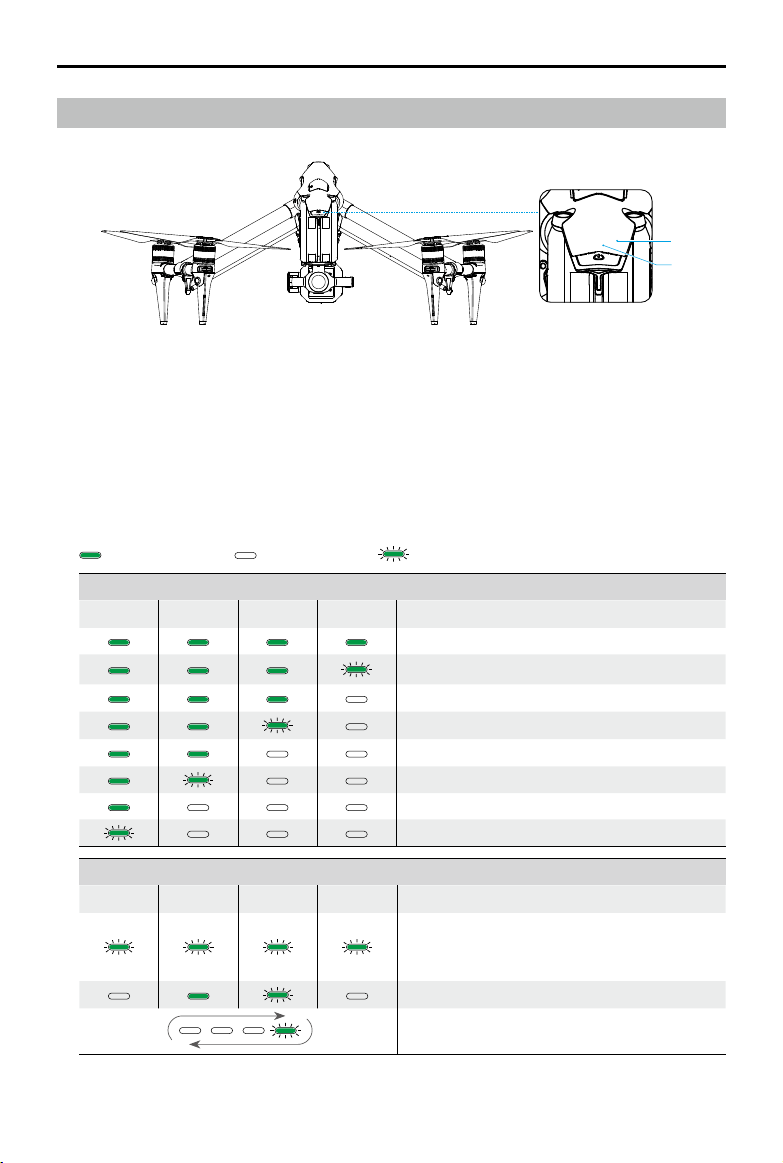
28. Handle
29. Speaker
30. Air Vent
For heat dissipation. DO NOT block the air vent during usage.
31. Reserved Mounting Holes
For mounting external devices.
32. C1 Button
Customize functions in DJI Pilot 2.
33. C2 Button
Customize functions in DJI Pilot 2.
34. Rear Cover
35. Battery Release Button
36. Battery Compartment
For installing WB37 Intelligent Battery (excluded).
37. Rear Cover Release Button
38. Alarm
39. Air Intake
For heat dissipation. DO NOT block the air intake during usage.
40. Dongle Compartment
For inserting dongle to the USB-C connector.
41. Waist Support
For connecting the remote controller strap.
34
32
4
1
4
1
36
35
33
37
38 39
4
0
31

DJI Inspire 3
User Manual
20
©
2023 DJI All Rights Reserved.
Accessory Options (Sold Separately)
DJI DL Lens
DJI Zenmuse X9-8K Air gimbal camera is equipped with a DL mount supporting to install with a
DJI DL lens. Read the Gimbal Camera chapter for installation and more information.
DJI Professional Ecosystem
DJI Inspire 3 can be used with other DJI products, such as DJI Video Transmitter, DJI High-Bright
Remote Monitor, DJI Three-Channel Follow Focus, and DJI Master Wheels, to form a professional
lm ecosystem. Read the DJI Professional Ecosystem chapter for more information.

©
2023 DJI All Rights Reserved.
21
Aircraft
This chapter introduces the major
features of the aircraft.

DJI Inspire 3
User Manual
22
©
2023 DJI All Rights Reserved.
Aircraft
Aircraft Prole
The Inspire 3 aircraft mainly consists of the ight control system, communication system, vision
system, image processing system, propulsion system, transformation mechanism, and power
and battery system. This chapter provides a detailed introduction to the aircraft components
and functions.
Flight Modes
Flight modes can be switched via the Flight Mode switch on the remote controller.
N-mode (Normal)
The aircraft utilizes GNSS and the forward, backward, lateral, upward, and downward vision
systems, and infrared sensing system to locate and stabilize itself. When the GNSS signal is
strong, the aircraft uses GNSS to locate and stabilize itself. When the GNSS is weak, but the
lighting and other environmental conditions are sucient, the aircraft uses the vision systems
to locate and stabilize itself. When obstacle sensing is enabled and the lighting and other
environment conditions are sucient, the maximum ight speed of the aircraft will be 15 m/s
and the maximum tilt angle of the aircraft will be 35°. When the GNSS signal is weak and the
lighting and other environmental conditions are insucient, the aircraft cannot hover precisely
and can only maintain its altitude.
S-mode (Sport)
The aircraft utilizes the GNSS and downward vision system to hover precisely. By adjusting the
gain and expo settings, the maximum ight speed of the aircraft can be increased to 26 m/s.
When in S-mode, obstacle sensing in the four horizontal directions will be disabled, and the
aircraft cannot detect or bypass obstacles in these directions. The upward and downward vision
systems work normally to achieve the precise hover positioning.
F-mode (Function)
Function mode can be set to T-mode (Tripod mode) or A-mode (Attitude mode) in DJI Pilot 2.
T-mode is based on N-mode. The ight speed is limited to allow easier control of the aircraft.
Attitude mode must be used with caution.
• Obstacle sensing is disabled in S-mode, which means the aircraft cannot sense and
brake to avoid obstacles automatically. Pay attention to the surrounding environment
and obstacles on the route when ying the aircraft in S-mode.
• Note that when flying in S-mode, the flight speed of the aircraft will greatly increase
compared with that in N-mode (Normal). The braking distance will increase signicantly.
When ying in a windless environment, a minimum braking distance of 55 m (180 ft) is
required.
• A minimum braking distance of 15 m (49 ft) is required in windless conditions while the
aircraft is ascending and descending when in S-mode.

DJI Inspire 3
User Manual
©
2023 DJI All Rights Reserved.
23
A-mode (Attitude mode)
In Attitude mode, the vision systems and some intelligent features are disabled. The aircraft
cannot position itself or brake automatically in this mode and is easily affected by its
surroundings, which may result in horizontal shifting. Use the remote controller to control and
position the aircraft. Fly with caution.
• DO NOT switch from N-mode to either S-mode or F-mode unless you are suciently
familiar with the aircraft behavior under each flight mode. Make sure to turn on
Multiple Flight Modes in DJI Pilot 2 before switching from N-mode to other modes.
• Avoid ying in areas where the GNSS signal is weak or in narrow and conned spaces.
Otherwise, the aircraft will be forced to enter Attitude mode, leading to potential ight
hazards. Land the aircraft in a safe place as soon as possible.
DJI Inspire 3
User Manual
24
©
2023 DJI All Rights Reserved.
Aircraft Power Button/Indicators
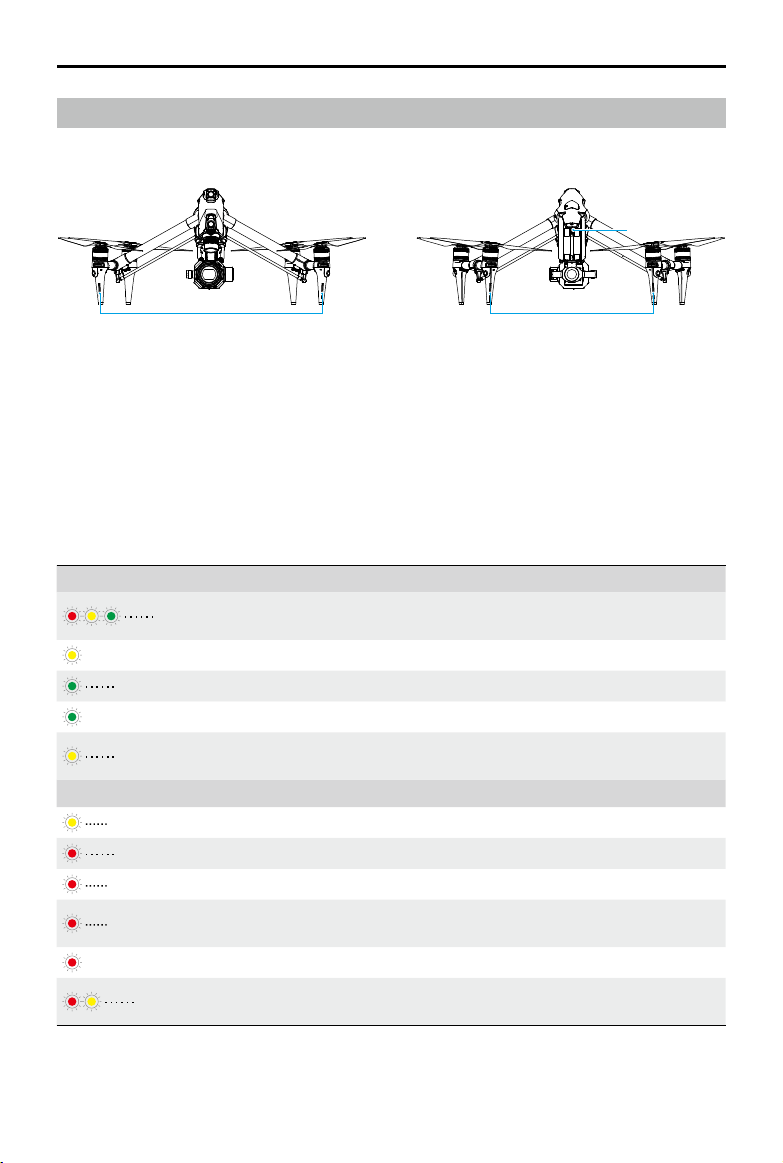
1. Power Button (after mounting the intelligent batteries):
a. Press the power button once to check the current aircraft battery level.
b. Press, and then press and hold for two seconds to power the aircraft on or o.
c. Press the power button a minimum of ve times to unlock or enter the travel mode.
2. Indicators: display the current aircraft battery level or the aircraft status.
The Battery Level Indicators will also show the current battery level during discharging. The
indicators are dened below.
: LED is on. : LED is o. : LED is ashing.
Battery Level
LED1 LED2 LED3 LED4 Battery Level
88%~100%
75%~87%
63%~74%
50%~62%
38%~49%
25%~37%
13%~24%
0%~12%
Aircraft Status
LED1 LED2 LED3 LED4 Description
Aircraft status error. Connect to the remote
controller, run DJI Pilot 2, and tap HMS to
diagnose the error.
Aircraft rmware is updating.
Aircraft and remote controller are linking.
1
2
DJI Inspire 3
User Manual
©
2023 DJI All Rights Reserved.
25
Aircraft Indicators
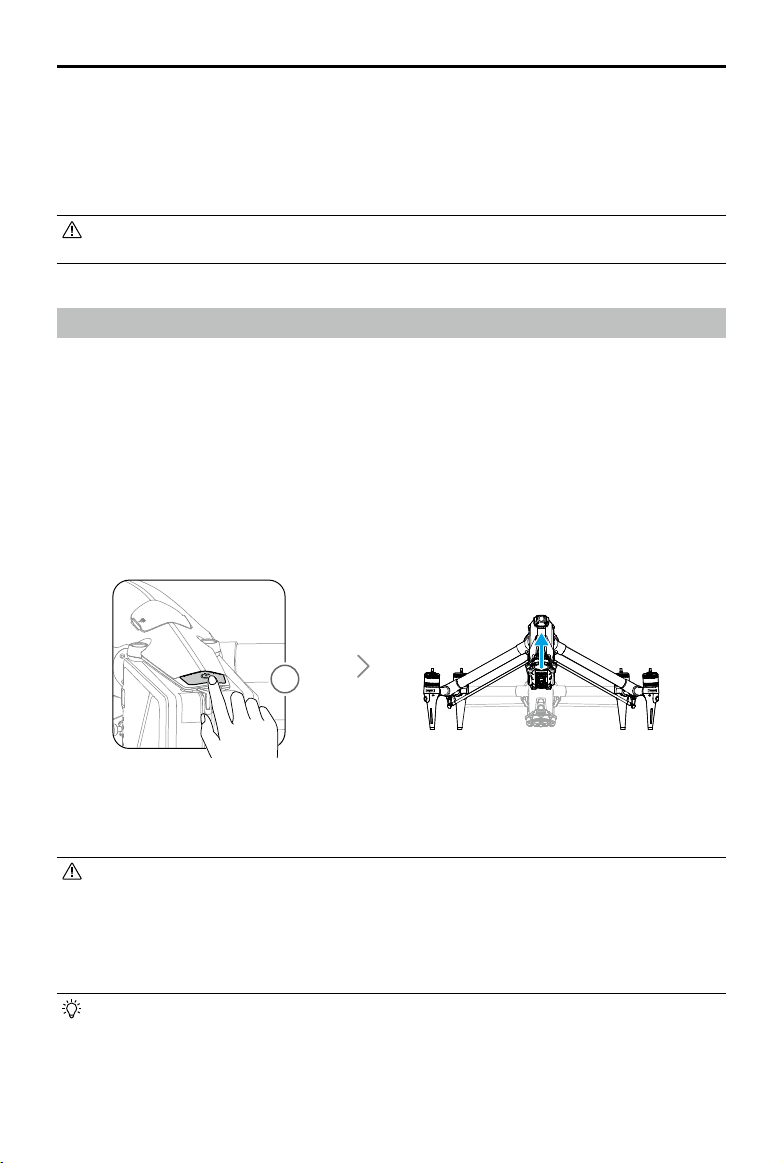
The aircraft has front LED, rear LED, and Y-shape LED indicators.
1. Front LED Indicators
2. Rear LED Indicators
3. Y-shape LED Indicator
When the aircraft is powered on but the motors are not running, the front LEDs glow solid red
to display the orientation of the aircraft.
When the aircraft is powered on but the motors are not running,
the rear LEDs display
the status of the ight control system. Refer to the table below for more information about the
aircraft status indicators.
Normal States
Blinks red, yellow, and green
alternately
Powering on and performing self-diagnostic
tests
×4 Blinks yellow four times Warming up
Blinks green slowly GNSS enabled
×2 Blinks green twice repeatedly Vision systems enabled
Blinks yellow slowly
GNSS and vision systems disabled (Attitude
mode enabled)
Warning States
Blinks yellow quickly Remote controller signal lost
Blinks red slowly Low battery level, takeo is disabled *
Blinks red quickly Critically low battery
Blinks red quickly (when
performing CSC)
IMU error
—
Solid Red Critical error *
Blinks red and yellow
alternately
Compass calibration required
* If the aircraft cannot takeoff while the rear indicator is blinking red slowly or solid red, connect to the
remote controller, run DJI Pilot 2, and view the details.
3
1 2
DJI Inspire 3
User Manual
26
©
2023 DJI All Rights Reserved.
Entering Travel Mode: remove the gimbal camera with the aircraft powered on, press the power
button a minimum of ve times, wait for the aircraft to enter travel mode, and power o. Press
the battery release before removing a battery.
• After pressing the power button a minimum of five times with the gimbal camera
attached to the aircraft, the aircraft will enter travel mode once the gimbal camera is
removed. The aircraft cannot transform from landing mode to travel mode with the
gimbal camera attached.
• Keep your hands away from the transformation mechanism during the aircraft
transformation.
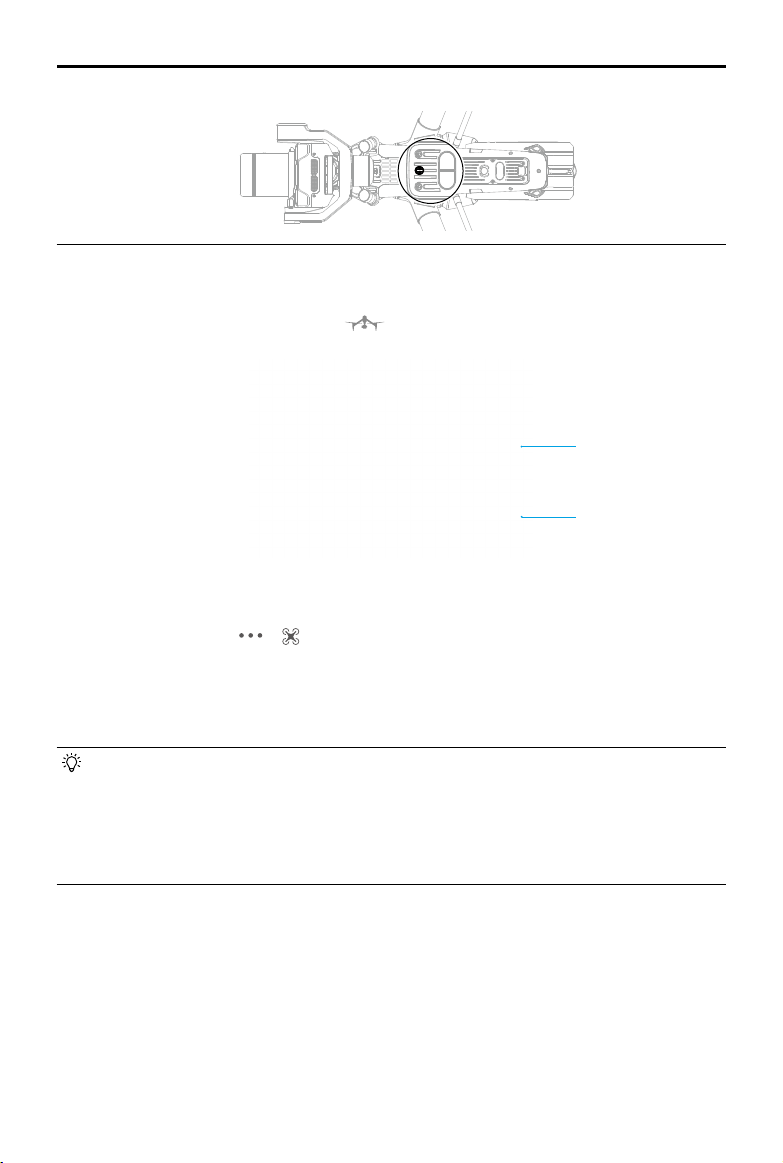
• For the situations that need to adjust the landing gear manually, insert the crossing-end
of the included screwdriver into the small hole on the bottom of the aircraft, and slowly
rotate the gear of the servo gearbox.
After the motor starts,
the front LEDs blink red and green alternately and the rear LEDs blink
green. The green lights indicate the aircraft is a UAV and the red lights indicate the heading and
position of the aircraft.
The Y-shaped LED is used to assist in indicating the direction of the aircraft rear. After the
aircraft is powered on, the Y-shaped LED will display solid green.
• Lighting requirements vary depending on the region. Observe local laws and
regulations.
Aircraft Landing Gears
The aircraft is in travel mode before delivery. Follow the steps below to transform it to landing
mode before rst use.
Travel Mode Switching
Place the aircraft on a at surface (such as a table) before switching between travel mode and
landing mode.
Unlocking Travel Mode: after mounting the batteries, press the power button a minimum of ve
times to transform the aircraft form travel mode to landing mode, and power on.
5
×
DJI Inspire 3
User Manual
©
2023 DJI All Rights Reserved.
27
1. Intelligent Landing Gear Switch: when enabled, the aircraft will automatically raise or lower
the landing gear during takeo or landing. When disabled, it is recommended to go to the
camera view and tap > > Land Gear Settings to enable Precision Landing so that
downward obstacle avoidance is turned on. Once the landing gear is raised during landing,
the aircraft will automatically brake at 1 m above the ground to protect the gimbal camera.
2. Landing Gear Transformation Buttons: during ight, tap the buttons to raise or lower the
landing gear.
• The landing gear can also raise or lower by pressing the R1 button on the remote
controller. Read the Gimbal Camera View Introduction in the DJI Pilot 2 App chapter for
more details.
• The landing gear will be automatically locked when the aircraft stays on the ground,
unlock it in the Landing Gear Settings in app before using the remote controller or app
to operate the landing gear, if necessary.
1
2
Intelligent Landing Gear
Go to the DJI Pilot 2 camera view and tap to display the intelligent landing gear switch.

DJI Inspire 3
User Manual
28
©
2023 DJI All Rights Reserved.
Return to Home
Return to Home (RTH) brings the aircraft back to the last recorded Home Point when the
positioning system is functioning normally. There are three types of RTH: Smart RTH, Low
Battery RTH, and Failsafe RTH. The aircraft automatically ies back to the Home Point and lands
when Smart RTH is initiated, the aircraft enters Low Battery RTH, or the signal between the
remote controller and the aircraft is lost during ight.
GNSS Description
Home
Point
1
0
The rst location where the aircraft receives a strong to moderately
strong GNSS signal (indicated by a white icon) will be recorded as the
default Home Point. The Home Point can be updated before takeo
as long as the aircraft receives another strong to moderately strong
GNSS signal. If the signal is weak, the Home Point will not be updated.
DJI Pilot 2 will give a voice prompt when the Home Point is set.
Smart RTH
If the GNSS signal is suciently strong, Smart RTH can be used to bring the aircraft back to the
Home Point. Smart RTH is initiated either by tapping in DJI Pilot 2 or by pressing and holding
the RTH button on the remote controller until it beeps. During the RTH process, the remote
controller will emit a "beep" sound. Press the RTH button or the flight pause button on the
remote controller or tap the stop icon on the camera view in DJI Pilot 2 to exit the RTH. After
exiting RTH, users will regain control of the aircraft.
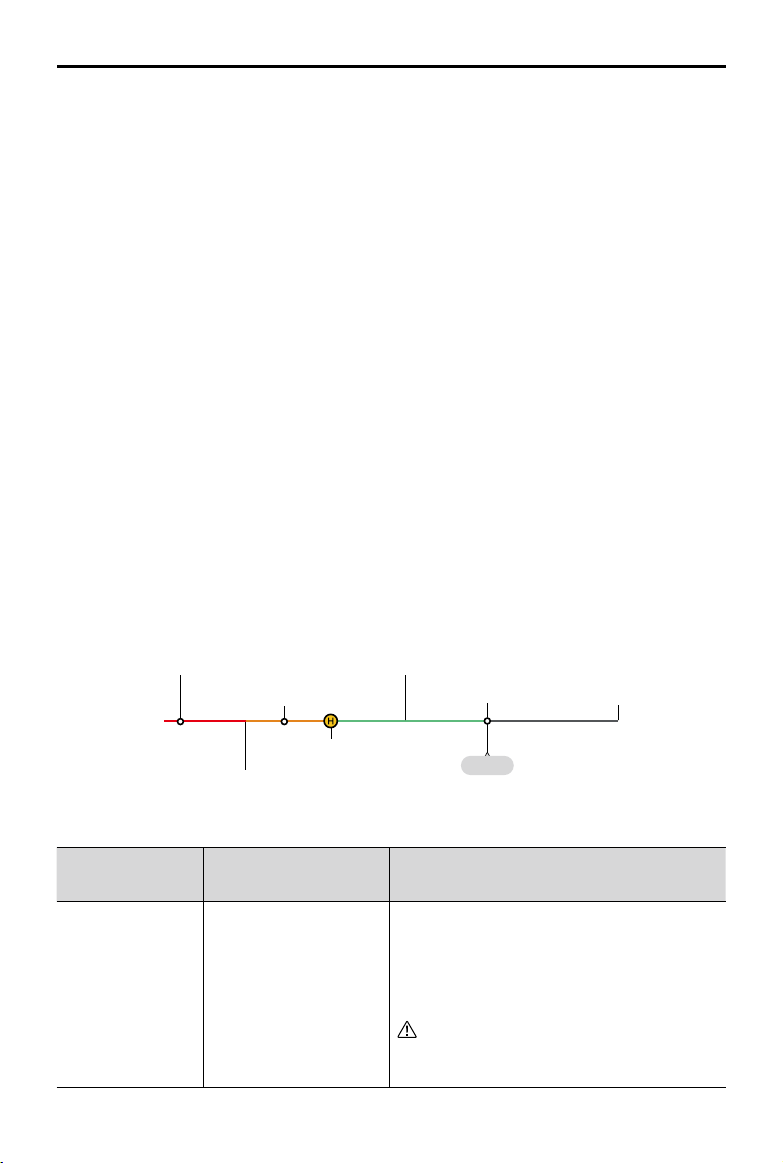
Advanced RTH
Advanced RTH is enabled if the lighting is sucient and the environment is suitable for vision
systems when Smart RTH is triggered. The aircraft will automatically plan the best RTH path,
which will be displayed in the DJI Pilot 2 app and will adjust according to the environment.
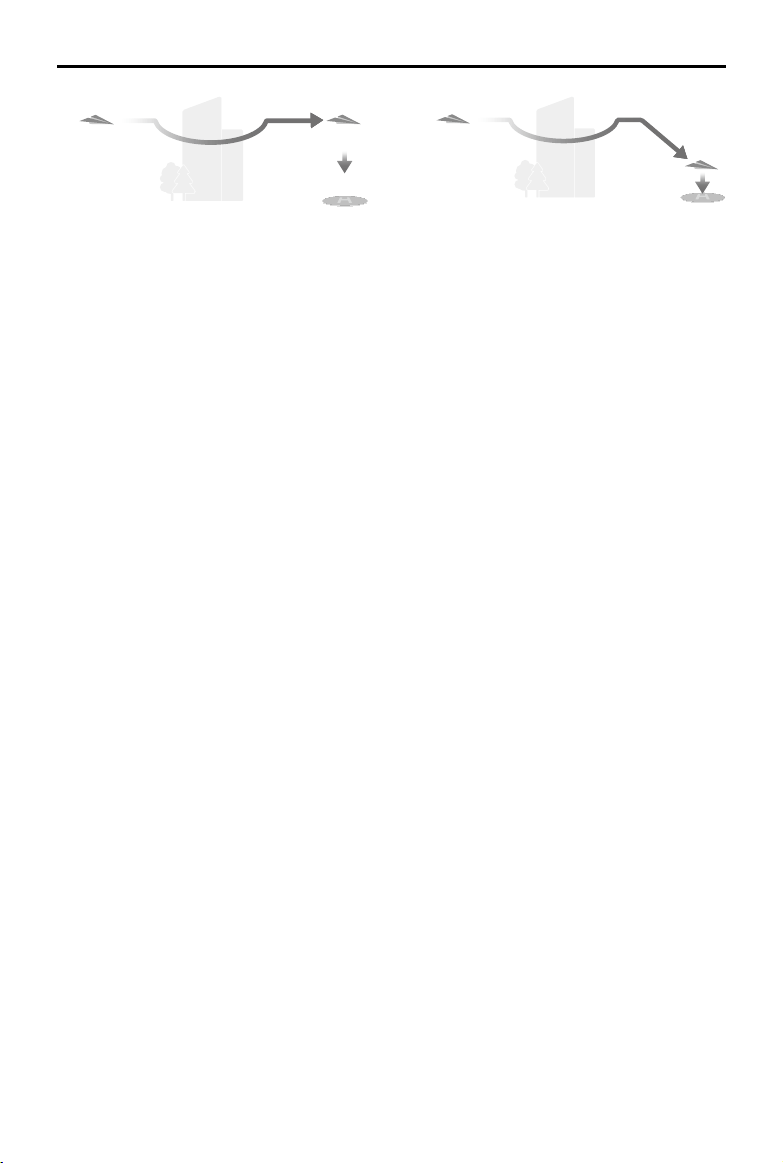
RTH Settings
RTH settings are available for Advanced RTH. Go to the camera view in DJI Pilot 2, tap > ,
and then set Return to Home to Preset or Optimal.
1. Preset: when the aircraft is at a distance of 20 to 50 m from the Home Point when RTH
begins, the aircraft will not ascend to the RTH Altitude and instead returns to home using
the best path at the current altitude. If the aircraft is further than 50 m from the Home Point
when RTH begins, the aircraft will plan the RTH path, fly to an open area while avoiding
obstacles, ascend to the RTH Altitude, and return to home using the best path.
When the aircraft is near the Home Point, the aircraft will descend while ying forward if the
current altitude is higher than the RTH Altitude.
2. Optimal: regardless of the RTH Altitude settings, the aircraft automatically plans the optimal
RTH path and adjusts the altitude according to environmental factors such as obstacles
and transmission signals. The optimal RTH path means the aircraft will travel the shortest
distance possible, reducing the amount of battery power used and increasing ight time.
DJI Inspire 3
User Manual
©
2023 DJI All Rights Reserved.
29
Advanced RTH Procedure
1. The Home Point is recorded.
2. Advanced RTH is triggered.
3. The aircraft brakes and hovers in place.
a. The aircraft lands immediately if it is less than 20 m from the Home Point when RTH
begins.
b. If the aircraft is farther than 20 m from the Home Point when RTH begins, the aircraft will
plan the best path according to the RTH settings and y to the Home Point while avoiding
obstacles and GEO zones. The aircraft front will always point in the same direction as the
ight direction.
4. The aircraft will fly automatically according to the RTH settings, environment, and
transmission signal during RTH.
5. The aircraft lands and the motors stop after reaching the Home Point.
Straight Line RTH
The aircraft will enter Straight Line RTH when the lighting is not sucient and the environment
is not suitable for Advanced RTH.
Straight Line RTH Procedure:
1. The Home Point is recorded.
2. Straight Line RTH is triggered.
3. The aircraft brakes and hovers in place.
a. If the aircraft is farther than 50 m from the Home Point when RTH begins, the aircraft rst
ascends to a height of 20 m (this step is skipped if the current height is higher than 20 m),
then the aircraft adjusts its orientation and ascends to the preset RTH altitude and ies to
the Home Point. If the current altitude is higher than the RTH altitude, the aircraft will y
to the Home Point at the current altitude.
b. If the aircraft is at a distance of 20 to 50 m from the Home Point when RTH begins, the
aircraft rst ascends to a height of 20 m (this step is skipped if the current height is higher
than 20 m), then the aircraft adjusts its orientation and ies to the Home Point. If the
current altitude is lower than 5 m when RTH begins, the aircraft will ascend to 5 m and y
to the Home Point.
c. The aircraft lands immediately if it is less than 20 m from the Home Point when RTH
begins.
4. The aircraft lands and the motors stop after reaching the Home Point.
Preset Optimal

DJI Inspire 3
User Manual
30
©
2023 DJI All Rights Reserved.
• During Advanced RTH, the aircraft will adjust the flight speed automatically to suit
environmental factors such as wind speed and obstacles.
• The aircraft cannot avoid small or ne objects such as tree branches or power lines. Fly
the aircraft to an open area before using Smart RTH.
• Set Advanced RTH as Preset if there are power lines or towers that the aircraft cannot
avoid on the RTH path and make sure the RTH Altitude is set higher than all obstacles.
• The aircraft will brake and return to home according to the latest settings if the RTH
settings are changed during RTH.
• If the max altitude is set below the current altitude during RTH, the aircraft will descend
to the max altitude and return to home.
• The RTH Altitude cannot be changed during RTH.
• If there is a large dierence in the current altitude and the RTH altitude, the amount
of battery power used cannot be calculated accurately due to wind speeds at dierent
altitudes. Pay extra attention to the battery power and warning prompts in DJI Pilot 2.
• Advanced Smart RTH will not be available if the lighting condition and environment is
not suitable for vision systems during takeo or RTH.
• During Advanced RTH, the aircraft will enter Straight Line RTH if the lighting condition
and environment are not suitable for vision systems and the aircraft cannot avoid
obstacles. An appropriate RTH altitude must be set before entering RTH.
• When the remote controller signal is normal during Advanced RTH, the pitch stick
can be used to control the flight speed, but the orientation and altitude cannot be
controlled and the aircraft cannot be own left or right. Acceleration uses more power.
The aircraft cannot avoid obstacles if the flight speed exceeds the effective sensing
speed. The aircraft will brake and hover in place and exit from RTH if the pitch stick is
pulled all the way down. The aircraft can be controlled after the pitch stick is released.
• When the remote controller signal is normal during Straight Line RTH, the ight speed
and altitude can be controlled using the remote controller, but the orientation of the
aircraft cannot be controlled and the aircraft cannot be own left or right. The aircraft
cannot avoid obstacles if the pitch stick is used to accelerate and the flight speed
exceeds the eective sensing speed. When the aircraft is ascending or ying forward,
push the control stick in the opposite direction to exit RTH. Release the control stick to
regain control of the aircraft. If the aircraft reaches the max altitude while it is ascending
during RTH, the aircraft stops and returns to the Home Point at the current altitude.
• The aircraft will hover in place if it reaches the max altitude while it is ascending after
detecting obstacles in front.
• The aircraft will brake during Straight Line RTH when it is less than 50 m from the Home
Point and detects an object.
DJI Inspire 3
User Manual
©
2023 DJI All Rights Reserved.
31
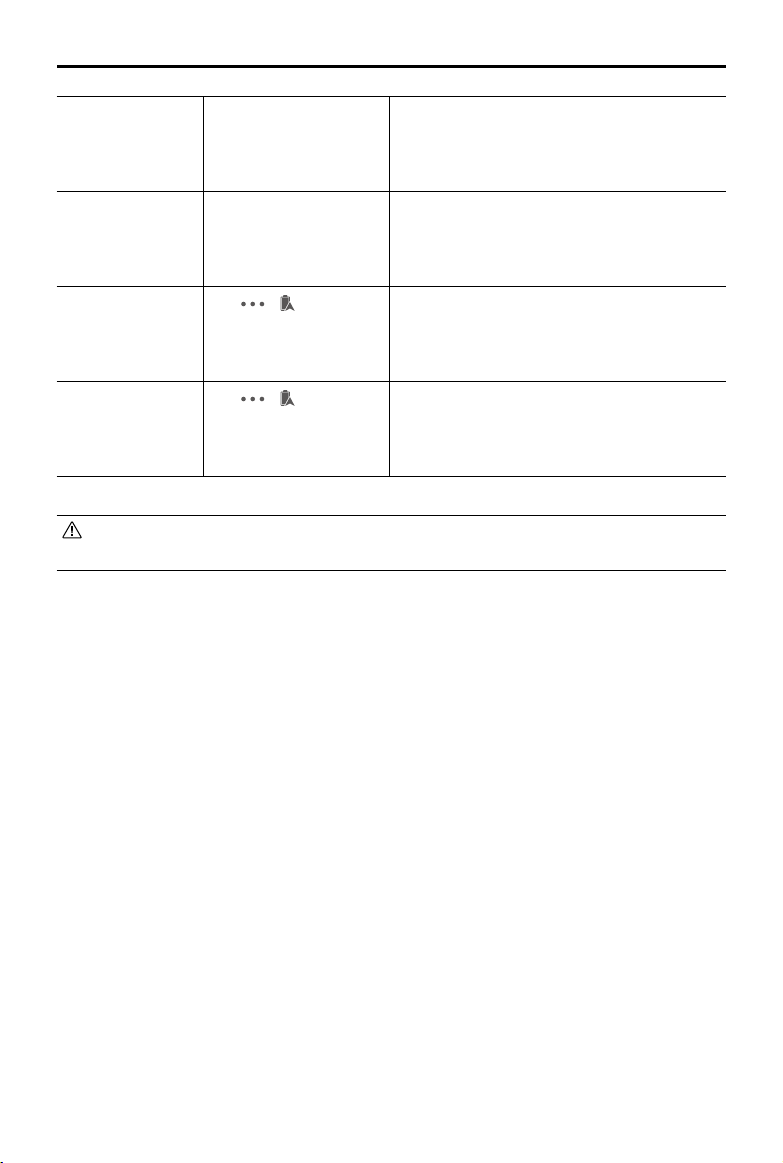
Low Battery RTH
When the Intelligent Battery level is too low and there is not enough power to return home,
land the aircraft as soon as possible.
To avoid unnecessary danger caused by insufficient power, the aircraft will automatically
calculate if it has enough power to y to the Home Point from its current location. A warning
prompt will appear in DJI Pilot 2 when the battery level is low and only has enough power to
complete an RTH ight.
The aircraft will automatically fly to the Home Point if no action is taken after a 10-second
countdown. Cancel RTH by pressing the RTH button or the ight pause button on the remote
controller.
If the countdown of the low battery RTH is canceled, after 60 seconds from the last countdown,
once the current battery level becomes lower than the Smart RTH battery level, the app will
display a countdown for 10 seconds. If RTH is canceled following the warning, the Intelligent
Battery may not have enough power for the aircraft to land safely, which may lead to the
aircraft crashing or being lost.
The aircraft will land automatically if the current battery level can only support the aircraft long
enough to descend from its current altitude. Auto landing cannot be canceled, but the remote
controller can be used to alter the horizontal movement and the speed of descent of the aircraft
during landing. If there is sucient power, the throttle stick can be used to make the aircraft
ascend at a speed of 1 m/s.
During auto landing, move the aircraft horizontally to nd an appropriate place to land as soon
as possible. The aircraft will fall if the user keeps pushing the throttle stick upward until the
power is depleted.
Battery Level Indicator
Power required to
return home
Critical Low battery
level warning
Low battery
level warning
Auto landing
Sufficient battery
level
Remaining flight time
12:29
Battery Level
Warning
Implication Flight
Low Battery RTH
The remaining battery
level is only enough for
the aircraft to y to the
Home Point safely.
If RTH is selected, the aircraft will y to
the Home Point automatically and landing
protection will be enabled. Users can regain
control of the aircraft and land it manually
during RTH.
The warning will not appear again
after choosing not to use RTH. Decide
carefully and ensure ight safety.
DJI Inspire 3
User Manual
32
©
2023 DJI All Rights Reserved.
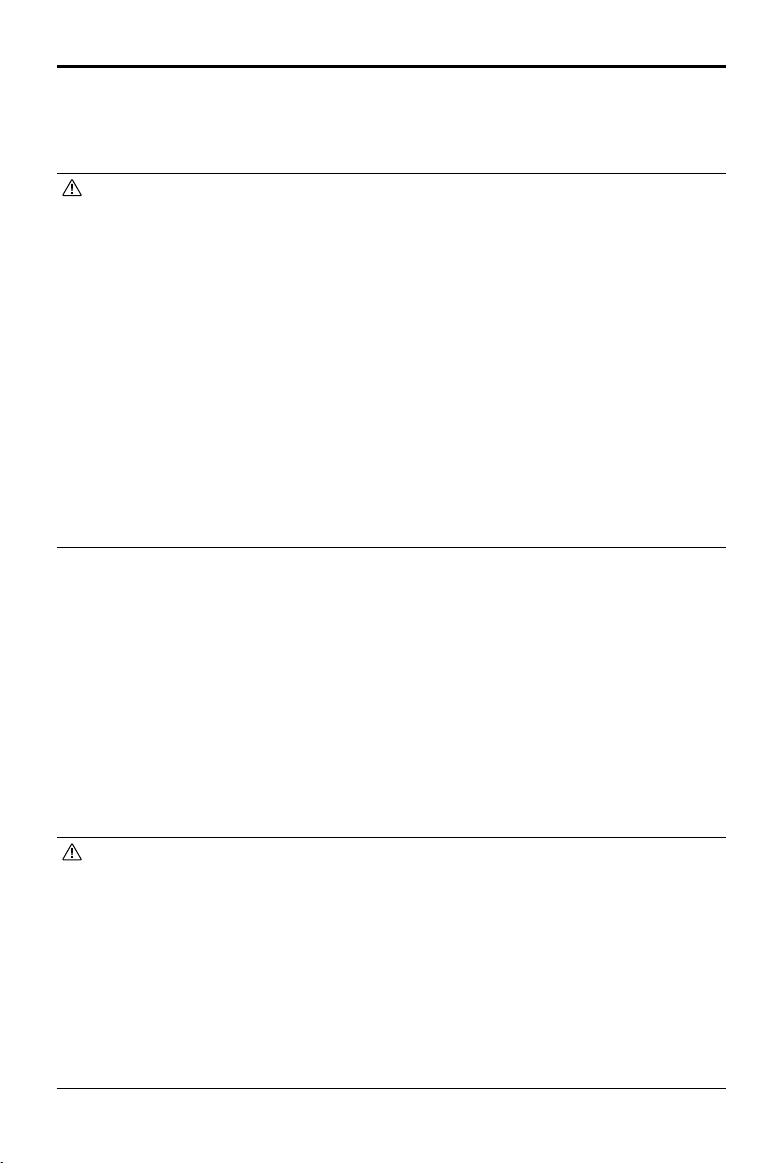
Auto Landing
The remaining battery
level is only enough for
the aircraft to descend
from its current altitude.
The aircraft will land automatically and
landing protection will be enabled.
Estimated
Remaining Flight
Time
The estimated
remaining ight time of
the aircraft is based on
its current battery level.
/
Low Battery Level
Warning
Tap > in camera
view to set the low
battery level threshold
value.*
Long beeps will sound from the remote
controller. The user can still control the
aircraft.
Critical Low
Battery Level
Warning
Tap > in camera
view to set the critical
low battery level
threshold value.*
Short beeps will sound from the remote
controller. The user can still control the
aircraft. It is unsafe to continue ying the
aircraft. Land immediately.
* The threshold value is dierent from that of Low Battery RTH or auto landing.
• The colored zones and the estimated remaining ight time on the battery level indicator
are automatically adjusted according to the aircraft’s current location and status.
Failsafe RTH
The action of the aircraft when the remote controller signal is lost can be set to RTH, land, or
hover in DJI Pilot 2. If the Home Point was successfully recorded and the compass is functioning
normally, Failsafe RTH automatically activates after the remote controller signal or the
command and control link is lost for more than six seconds.
When the lighting is sufficient and the vision systems are working normally, DJI Pilot 2 will
display the RTH path that was generated by the aircraft before the remote controller signal was
lost and return to home using Advanced RTH according to the RTH settings. The aircraft will
remain in RTH even if the remote controller signal is restored. DJI Pilot 2 will update the RTH
path accordingly.
When the lighting is not sucient and the vision systems are not available, the aircraft will enter
Original Route RTH.
Original Route RTH Procedure:
1. Original Route RTH is triggered.
2. The aircraft brakes and hovers in place.
a. If the aircraft is farther than 50 m from the Home Point, the aircraft adjusts its orientation
and ies backward for 50 m on its original ight route before entering Straight Line RTH.
b. If the aircraft is at a distance of 20 to 50 m from the Home Point, it enters Straight Line
RTH.
c. The aircraft lands immediately if it is less than 20 m from the Home Point when RTH
begins.
DJI Inspire 3
User Manual
©
2023 DJI All Rights Reserved.
33
3. The aircraft lands and the motors stop after reaching the Home Point.
The aircraft will enter or remain in Straight Line RTH if the remote controller signal is restored
during RTH.
• The aircraft may not be able to return to the Home Point normally if the GNSS signal is
weak or unavailable. The aircraft may enter Attitude mode if the GNSS signal becomes
weak or unavailable after entering Failsafe RTH. The aircraft will hover in place for a
while before landing.
• It is important to set a suitable RTH altitude before each ight. Launch DJI Pilot 2 and
set the RTH altitude. The default RTH altitude is 100 m.
• The aircraft cannot avoid obstacles during Failsafe RTH if the vision systems are
unavailable.
• GEO zones may aect the RTH. Avoid ying near GEO zones.
• The aircraft may not be able to return to a Home Point when the wind speed is too high.
Fly with caution.
• Be aware of small or ne objects (such as tree branches or power lines) or transparent
objects (such as water or glass) during RTH. Exit RTH and control the aircraft manually
in an emergency.
• RTH may not be available in some environments even if the vision systems are working.
The aircraft will exit RTH in such cases.
Landing Protection
If the user triggers RTH or auto landing using the remote controller or the app, Landing
Protection will activate during Smart RTH. When the aircraft begins to land, Landing Protection
is enabled.
1. During Landing Protection, the aircraft will automatically detect and carefully land on
suitable ground.
2. If the ground is determined unsuitable for landing, the aircraft will hover and wait for pilot
conrmation.
3. If Landing Protection is not operational, DJI Pilot 2 will display a landing prompt when the
aircraft descends to 1 m from the ground. Tap conrm or push the throttle stick all the way
down and hold for one second, and the aircraft will land.
• Landing protection will not work in the following circumstances:
a. When the downward vision system is disabled.
b. When the user is operating the pitch/roll/throttle stick (landing protection will be
reactivated when the control stick is not in use).
c. When the positioning system is not functioning properly (such as position drift
errors).
d. When the vision system needs calibrating. When the lighting is too dim for the vision
system to operate.
e. If no valid observation data is obtained and the ground conditions cannot be
detected, the aircraft will descend to 1 m above the ground and hover pending
conrmation by the user to land.

DJI Inspire 3
User Manual
34
©
2023 DJI All Rights Reserved.
Precision Landing
The aircraft automatically scans and attempts to match the terrain features below during RTH.
The aircraft will land when the current terrain matches the Home Point. A prompt will appear in
DJI Pilot 2 if the terrain match fails.
• Landing Protection is activated during Precision Landing.
• The performance of Precision Landing is subject to the following conditions:
a. The Home Point must be recorded upon takeo and must not be changed during
ight. Otherwise, the aircraft will have no record of the terrain features of the Home
Point.
b. During takeo, the aircraft must ascend at least 7 m before moving horizontally.
c. The Home Point terrain features must remain largely unchanged.
d. The terrain features of the Home Point must be suciently distinctive. Terrain such
as a snow-covered eld is not suitable.
e. The lighting conditions must not be too light or too dark.
• The following actions are available during Precision Landing:
a. Pull the throttle stick down to accelerate landing.
b. Move the control sticks in any direction apart from the throttle direction to stop
Precision Landing. The aircraft will descend vertically after the control sticks are
released, and landing protection is enabled.
DJI Inspire 3
User Manual
©
2023 DJI All Rights Reserved.
35
Vision Systems and Infrared Sensing System
The aircraft is equipped with both an infrared sensing system and forward, backward, lateral,
upward, and downward vision systems.
The upward and downward vision systems consist of two cameras, and the forward, backward,
and lateral vision systems consist of four cameras in total.
The infrared sensing system consists of two infrared modules. The downward vision system and
infrared sensing system help the aircraft maintain its current position, hover more precisely,
and y indoors or in other environments where GNSS is unavailable.
In addition, the auxiliary bottom light located on the underside of the aircraft improves visibility
for the downward vision system in weak light conditions.
1. Horizontal Omnidirectional Vision
System
2. Upward Vision System
3. Downward Infrared Sensing
System
4. Downward Vision System
1 1
2
3
4
Detection Range
Forward Vision System
Precision Measurement Range: 1.5-48 m
Eective Sensing Speed: ≤15 m/s
FOV: 90° (horizontal, landing gears raised)
72° (horizontal, landing gears lowered), 103° (vertical)
Backward Vision System
Precision Measurement Range: 1.5-48 m
Eective Sensing Speed: ≤15 m/s
FOV: 90° (horizontal), 103° (vertical)
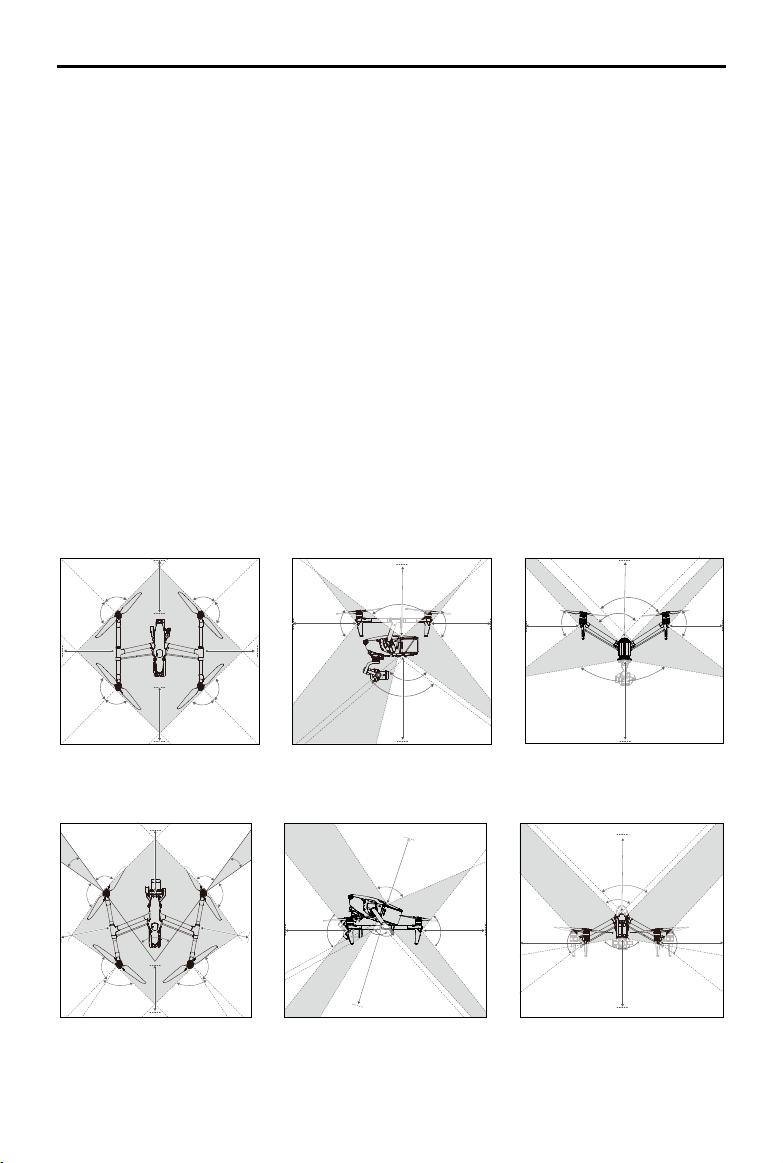
DJI Inspire 3
User Manual
36
©
2023 DJI All Rights Reserved.
0.3-18 m
103°
130°
0.2-13 m
100°
1.5-48 m
103°
1.5-48 m
130°
90°
90°
0.2-13 m
85°
85°
1.5-42 m
1.5-42 m
0.3-18 m
160°
1.5-48 m
1.5-48 m
90°
90°
90°
90°
90°
90°
90°
90°
1.5-42 m 1.5-42 m
Lateral Vision System
Precision Measurement Range: 1.5-42 m
Eective Sensing Speed: ≤15 m/s
FOV: 90° (horizontal), 85° (vertical)
Upward Vision System
Precision Measurement Range: 0.2-13 m
Eective Sensing Speed: ≤6 m/s
FOV: 100° (front and back), 90° (left and right)
Downward Vision System
Precision Measurement Range: 0.3-18 m
Precision Measurement Range: 0.5-30 m
Eective Sensing Speed: ≤6 m/s
FOV (for vision obstacle avoidance): 130° (front and back), 160° (left and right)
FOV (for vision positioning or ground detection): 90° (front and back), 70° (left and right)
Landing Gear Raised
Landing Gear Lowered
1.5-48 m
1.5-48 m
1.5-42 m
1.5-42 m
90°
90°
90°
90°
90°
72°
90°
81°
19.28°
19.28°
81°
0.3-18 m
130°
130°
0.2-13 m
100°
103°
1.5-48 m
1.5-48 m
103°
90°
90°
0.2-13 m
1.5-42 m
85°
85°
1.5-42 m
0.3-18 m
160°

DJI Inspire 3
User Manual
©
2023 DJI All Rights Reserved.
37
• Omnidirectional obstacle sensing is available in the horizontal direction when the
landing gear is raised. When the landing gear is lowered, there are two 20° sensor blind
spots at the front left and right of the aircraft that may aect obstacle sensing. See the
diagram above. Fly with caution.
• The gray area is the blind spot of the vision system, where the aircraft cannot detect
objects. Fly with caution.
• The various gimbal rotation and the lens length will change the FOV of the downward
vision system, and the blind spot of the downward vision system will change
accordingly. Fly with caution.
Using the Vision System
The positioning function of the downward vision system is applicable when GNSS signals are
unavailable or weak. It is automatically enabled in N-mode or T-mode.
The horizontal omnidirectional and upward vision systems will activate automatically when
the aircraft is powered on if the aircraft is in N-mode or T-mode, and Obstacle Avoidance is
set to Brake in DJI Pilot 2. The aircraft can actively brake when detecting obstacles when using
the horizontal omnidirectional, and upward vision systems. The horizontal omnidirectional
and upward vision systems work best with adequate lighting and clearly marked or textured
obstacles. Due to inertia, users must make sure to brake the aircraft within a reasonable
distance.
• Pay attention to the ight environment. The vision system and infrared sensing system
only work in certain scenarios and cannot replace human control and judgment. During
a ight, always pay attention to the surrounding environment and the warnings in DJI
Pilot 2, and be responsible for and maintain control of the aircraft at all times.
• Obstacle Avoidance is disabled during the landing gear transformation. Fly with caution.
• The aircraft cannot avoid moving obstacles such as people, animals, or vehicles. Fly with
caution.
• The downward vision systems work best when the aircraft is at an altitude from 0.5 to
30 m if there is no GNSS available. Extra caution is required if the altitude of the aircraft
is above 30 m as the vision positioning performance may be aected.
• The auxiliary bottom light can be set in DJI Pilot 2. If set to Auto, it is automatically
enabled when the environment light is too weak. Note that the vision system
performance may not be restored to the best state. Fly with caution if the GNSS signal
is weak.
• The vision system may not work properly over water. Therefore, the aircraft may not
be able to actively avoid water below it when landing. It is recommended to maintain
flight control at all times, make reasonable judgments based on the surrounding
environment, and avoid over-relying on the downward vision system.

DJI Inspire 3
User Manual
38
©
2023 DJI All Rights Reserved.
• The vision system cannot work properly over surfaces without clear pattern variations
or where the light is too weak or too strong. The vision system cannot work properly in
the following situations:
a. Flying near monochrome surfaces (e.g., pure black, white, red, or green) or those
without clear texture or those with highly repetitive textures (e.g., small bricks of the
same color).
b. Flying near surfaces with strong reflected light or images (e.g., water, ice, or
transparent surfaces).
c. Flying near moving surfaces or objects (e.g., crowds of people or swaying reeds,
shrubs, or grass).
d. Flying in an area with frequent and drastic lighting changes.
e. Flying near extremely dark (< 10 lux) or extremely bright (> 40,000 lux) surfaces.
f. Tiny obstacles (e.g., iron wiring, cables, and tree branches).
g. The lens is dirty (e.g., from raindrops or ngerprints).
h. In low-visibility environments less than 100 m (e.g., heavy fog or snow).
• Be alert when in control of the aircraft instead of relying on the obstacle avoidance
function provided by the vision systems and the infrared sensing system.
• Obstacle avoidance cannot detect certain obstacles such as iron wiring, cables, tree
branches, blind spots, and mirrored surfaces. Keep the aircraft within VLOS and pay
close attention to the ight. Use the liveview to help operate the aircraft and manually
avoid obstacles in a timely manner.
• If the aircraft is involved in a collision, it may be necessary to ship the aircraft to DJI to
calibrate the vision systems. DO NOT hang or place anything in an area that will block the
vision systems, infrared sensing systems, and their observation range.
• Make sure that the sensor lens is clear and free of stains. Check the following before
each takeo:
a. Make sure there are no stickers or any other obstructions over the glass of the
infrared sensing systems and vision systems.
b. Use soft cloth if there is any dirt, dust, or water on the glass of the vision systems
and infrared sensing system. DO NOT use any cleaning product that contains
alcohol.
c. Contact DJI Support if there is any damage to the lenses of the infrared sensing and
vision systems.
• If the aircraft attitude angle is larger than 30° or the speed exceeds 15 m/s, the infrared
sensing systems cannot detect obstacles in time for the aircraft to brake and hover at a
safe distance.
• Be aware of the blind spots (marked gray) of the vision systems and infrared sensing
systems. Aircraft cannot sense obstacles that are out of the detection range. The
infrared sensor observation range is from 0.1 to 10 m.
• DO NOT obstruct the infrared sensing system.
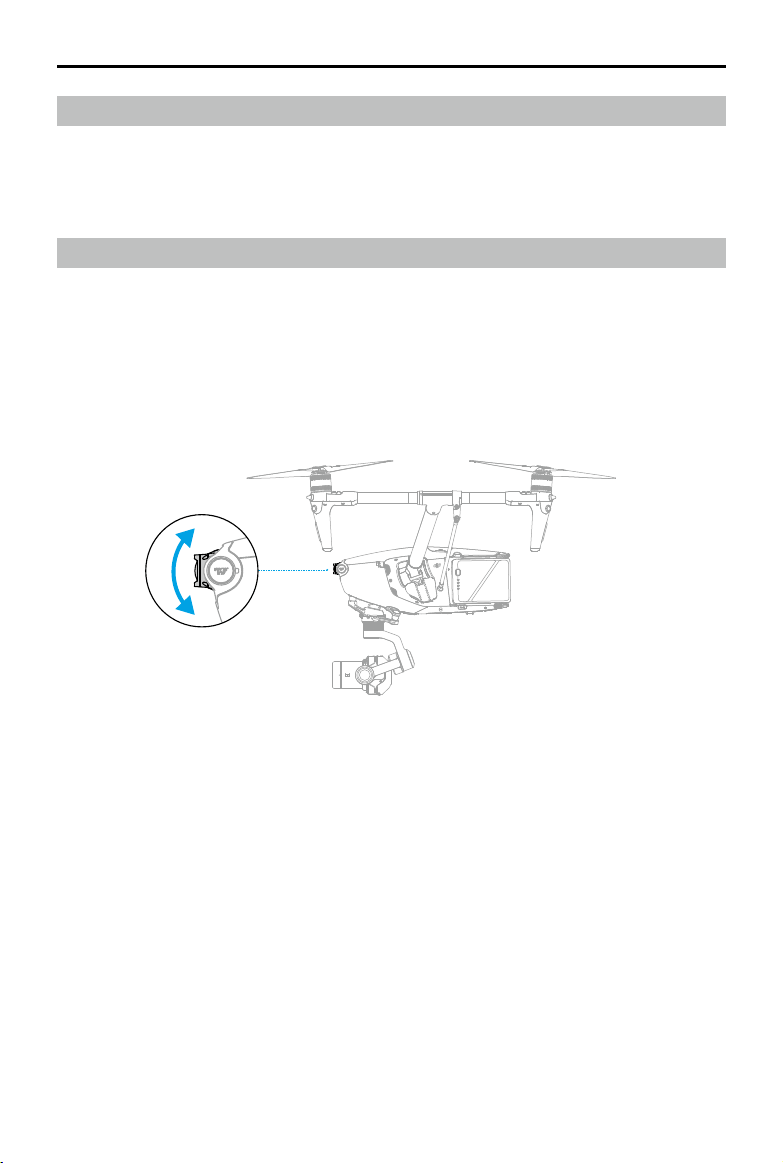
DJI Inspire 3
User Manual
©
2023 DJI All Rights Reserved.
39
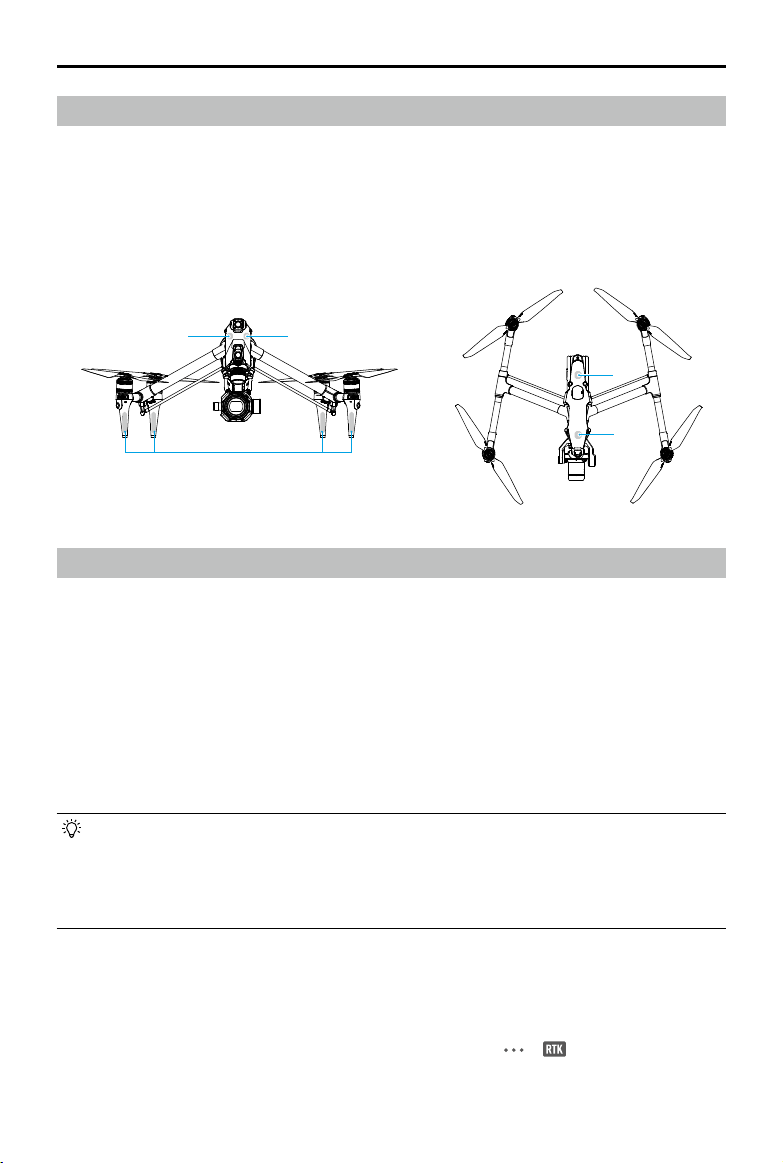
+45°
-60°
Flight Recorder
Flight data including flight telemetry, aircraft status information, and other parameters are
automatically saved to the internal data storage of the aircraft. The data can be accessed using
DJI Assistant 2 (Inspire Series). Follow the instructions in the DJI Assistant 2 to export the ight
record.
Aircraft FPV Camera
DJI Inspire 3 aircraft is equipped with an FPV camera using a 1/1.8" sensor, which can optimize
images in poor lighting conditions at night. Using the 161° FOV, it helps the pilot to have better
visibility of the ight environment and y safely.
When the landing gear is raised and the aircraft is flying horizontally, the controllable range
of the gimbal tilt is from -60° to +45°. When the landing gear is lowered or the aircraft is tilted,
the controllable range of the gimbal tilt up or down will be changed due to the inuence of the
angle of the propeller blade.
DJI Inspire 3
User Manual
40
©
2023 DJI All Rights Reserved.
Aircraft Antennas
DO NOT cover or block any antenna during usage to avoid affecting communication or
positioning performance.
1. Internal O3 Pro Video Transmission Antennas
2. Internal DJI AirSense Antennas
3. Internal RTK Antennas
Aircraft RTK
RTK Module Introduction
The built-in RTK module of the aircraft supports three types of global positioning systems
including BeiDou, GPS and Galileo, which can withstand strong magnetic interference from
metal structures and high-voltage lines, ensuring safe and stable ight. When used with a D-RTK
2 High Precision GNSS Mobile Station (sold separately) or a Custom
Network RTK service, more
accurate positioning data can be obtained. *
* Both D-RTK 2 High Precision GNSS Mobile Station and D-RTK 2 High Precision GNSS Mobile Station for
Matrice Series are supported.
• The RTK positioning needs to be in an environment with good GNSS signal (outdoors in
an open area without obstacles) to ensure high-precision positioning. The RTK solution
is xed to converge to centimeter-level accuracy.
• RTK positioning accuracy is aected by the atmospheric situation, and it cannot be xed
when ionosphere ickering or large errors occur.
Enabling/Disabling RTK
Ensure that the RTK function is enabled and the RTK service type is correctly set (D-RTK 2
Mobile Station or Custom Network RTK) before each use. Otherwise, RTK cannot be used for
positioning. Go to the camera view in the DJI Pilot 2 app, tap > to check the settings.
Make sure to disable the RTK function if not in use. Otherwise, the aircraft will not be able to
take o when there is no dierential data.
1
22
3
3

DJI Inspire 3
User Manual
©
2023 DJI All Rights Reserved.
41
• RTK positioning can be enabled and disabled during ight. Remember to select an RTK
service type rst.
• Switching the RTK service type is not supported during ight.
• If the RTK positioning function is enabled when using Waypoint Pro, the same RTK
service type must be used for the same ight route type to avoid positioning deviation.
• If the RTK service type is D-RTK 2 Mobile Station, make sure that the location accuracy
of the base station is up to centimeter level, and congure the location coordinates of
the D-RTK 2 Mobile Station.
DJI D-RTK 2 Mobile Station
1. Refer to the D-RTK 2 High Precision GNSS Mobile Station User Guide (available from https://
www.dji.com/inspire-3/downloads) to set up the D-RTK 2 Mobile Station and link the aircraft
and the station. Power on the D-RTK 2 Mobile Station and switch to the Broadcast mode of
Inspire 3.
2. In the RTK settings in the app, select D-RTK 2 Mobile Station as the RTK service type, connect
to the mobile station by following the on-screen instructions, and wait for the system to
search for satellites. In the RTK settings, when the status of the aircraft positioning in the
status table shows FIX, it indicates that the aircraft has obtained and used dierential data
from Network RTK.
3. D-RTK 2 Mobile Station communication distance: 12 km (NCC/FCC), 6 km (SRRC/CE/MIC).
4. The D-RTK 2 Mobile Station can only provide relatively high-precision location services. If
absolute location accuracy is required, it is necessary to calibrate the absolute location of the
mobile station and ensure the installation accuracy of the mobile station.
Custom Network RTK
To use Custom Network RTK, make sure that the remote controller has a Wi-Fi connection.
Custom Network RTK can be used to replace the D-RTK 2 Mobile Station. Connect the Custom
Network RTK account to the designated NTRIP server to send and receive dierential data. Keep
the remote controller turned on and connected to the internet when using this function.
1. Make sure that the remote controller is connected to the aircraft and the internet.
2. Go to the camera view in the DJI Pilot 2 app, tap > . Select Custom Network RTK as the
RTK service type and ll in the required information, and then tap Save.
3. Wait to connect to the NTRIP server. In the RTK settings, when the status of the aircraft
positioning in the status table shows FIX, it indicates that the aircraft has obtained and used
dierential data from Custom Network RTK.
DJI Inspire 3
User Manual
42
©
2023 DJI All Rights Reserved.
Propellers
Read the Using for the First Time section for propeller installation information.
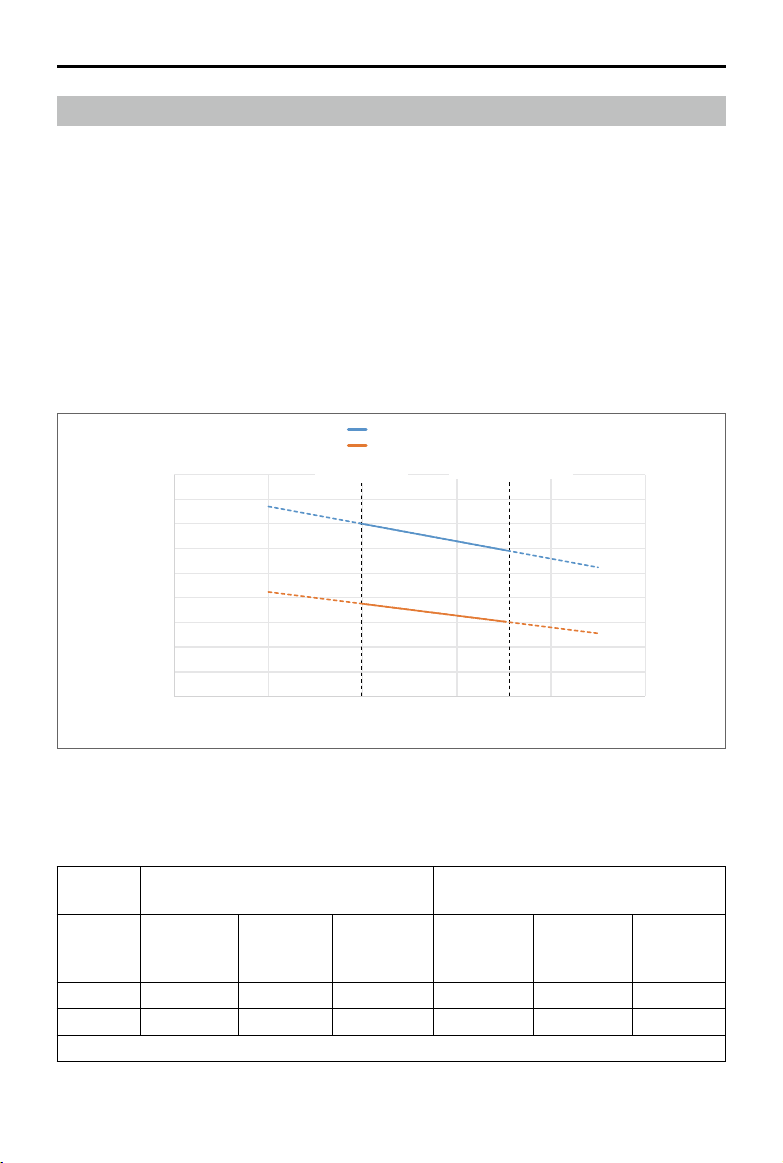
DJI Inspire 3 aircraft supports both the 1671 Foldable Quick-Release Propellers and the 1676
Foldable Quick-Release Propellers for High Altitude (sold separately). * Refer to the diagram
below to choose the appropriate propellers according to the aircraft weight (includes gimbal
camera, two batteries, lens, PROSSD, and propellers) and the expected maximum ight altitude.
The service ceiling is the theoretical maximum altitude that the aircraft can y at normally, on
the condition that the wind speed does not exceed 14 m/s when ying and 12 m/s when taking
off or landing. The aircraft braking and acceleration capabilities will be reduced when flying
near the service ceiling. Use the Foldable Quick-Release Propellers for High Altitude when ying
at altitudes higher than 3,000 m (9,842.5 ft) above sea level.
* Not available in some countries and regions.
Flight Altitude (m)
Takeo Weight (kg)
Inspire 3 Service Ceiling
1676 Foldable Quick-Release Propellers for High Altitude
1671 Foldable Quick-Release Propellers
0
1000
2000
3000
4000
5000
6000
7000
8000
9000
3.6 3.8 4 4.2 4.4
4.6
Aircraft Weight Max Takeoff Weight
When attached with certain payloads and either the Foldable Quick-Release or the Foldable
Quick-Release Propellers for High Altitude, the weight of the aircraft varies and the recommended
takeo and ying altitude also varies. The following typical data was tested in an environment
with a gentle breeze and are for reference only.
Using the Foldable Quick-Release
Propellers
Using the Foldable Quick-Release
Propellers for High Altitude
Takeo
weight
(kg)
Minimum
takeo
altitude (m)
Maximum
takeo
altitude (m)
Maximum
Service
Ceiling (m)
Minimum
takeo
altitude (m)
Maximum
takeo
altitude (m)
Maximum
Service
Ceiling (m)
4 0 3200 3700 3000 6500 7000
4.3 0 2500 3000 1900 5400 5900
Maximum ight altitude after takeo is according to the national regulations.

DJI Inspire 3
User Manual
©
2023 DJI All Rights Reserved.
43
• Compared with the ordinary propellers, if high altitude propellers are used to fly at
altitudes lower than 3,000 m (9,842.5 ft) above sea level, the motor temperature rises
higher, which may reduce motor life or even damage it. Therefore, use high altitude
propellers only at the recommended altitude or under suitable working conditions.
• Only use ocial DJI propellers. DO NOT mix propeller types.
• Purchase additional propellers if necessary.
• Make sure that the propellers and motors are installed securely, and are unfolded
before each ight.
• Make sure that all propellers are in good condition before each ight. Make sure that
all propellers are in good condition before each ight. DO NOT use aged, chipped, or
broken propellers. Power o the aircraft before examining or replacing any propellers.
• Regularly check the wear of the propeller adapter jaws. If the wear thickness of the
propeller adapter jaws exceeds 0.5 mm (about 1/4 of the original thickness), it must be
replaced before use. It is recommended to check the propellers once a month.
• To avoid injury, stay away from rotating propellers or motors.
• Wipe the propellers dry before each flight where the surrounding temperature is
approximately 0° C (32° F) to avoid the propellers from being frozen. Make sure the
propellers DO NOT have any ice on them before and after each ight. Remove any ice
found on the propellers before ight. Fly with caution. Return to home and land the
aircraft as soon as possible if a motor overload warning prompt appears in the app.
• After use, make sure to store the propellers in strict accordance with the requirements.
Failure to store the propellers correctly may result in damage to the trolley case or
deformation of the propellers. Read the Trolley Case section for the propellers storage
information.
DJI Inspire 3
User Manual
44
©
2023 DJI All Rights Reserved.
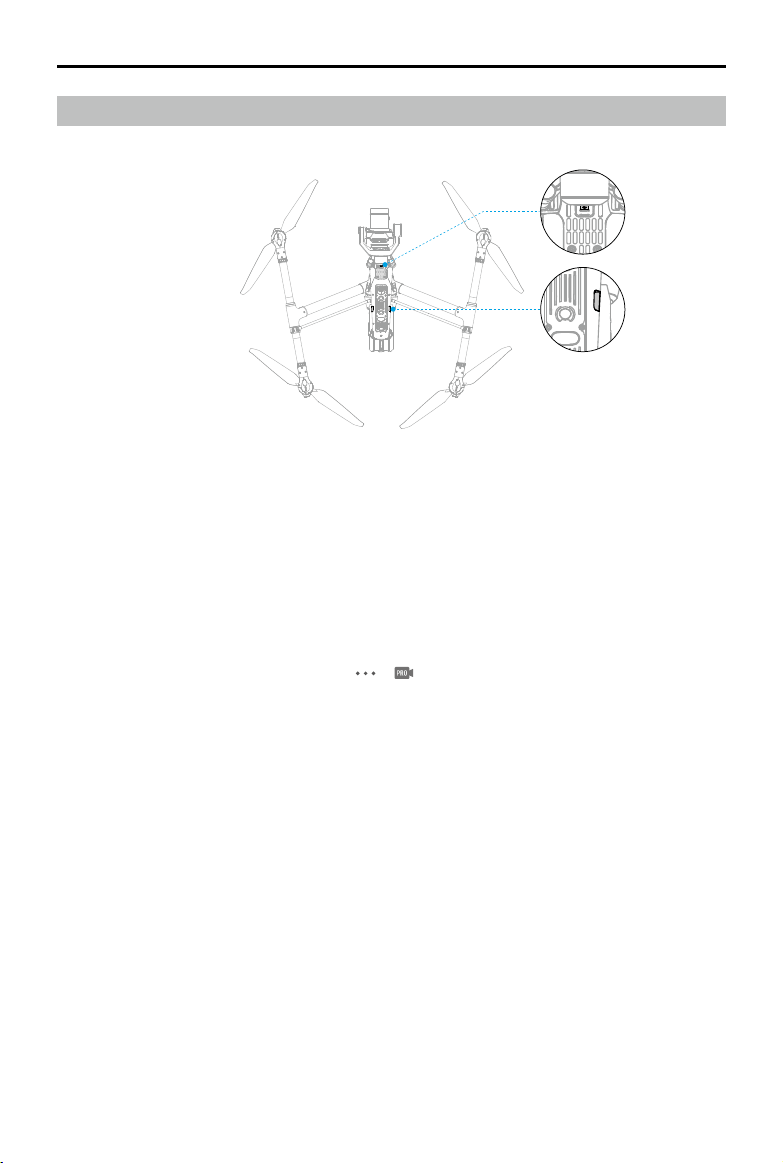
1. Timecode Input Port
2. USB-C Assistant Port
Timecode Input Port
Use a time code synchronizer with a 3.5mm audio jack (sold separately). Follow the steps below
to synchronize the time code of the camera.
1. Power on the remote controller and the aircraft.
2. Go to the DJI Pilot 2 camera view, tap > > Camera Advanced Settings panel, set the
timecode running mode to Free and the mode to Jam Sync.
3. Make sure that the timecode synchronizer and the camera parameters (counting mode and
project frame rate) are the same.
4. Insert the timecode synchronizer into the timecode input port on the bottom of the aircraft.
5. When the EXT icon is displayed on the timecode in the app, the synchronization is successful.
USB-C Assistant Port
Connect the USB-C assistant port on the aircraft to a computer, and run DJI Assistant 2 to
update the aircraft firmware. When connecting, make sure that there is no interference
between the data cable and the gimbal camera rotation, especially the rotation of the gimbal
pan.
1
2
Expansion Ports

©
2023 DJI All Rights Reserved.
45
Intelligent Battery
Charging Hub
This chapter introduces the features of
Intelligent Battery Charging Hub.
DJI Inspire 3
User Manual
46
©
2023 DJI All Rights Reserved.
Intelligent Battery Charging Hub
Charging Hub Overview
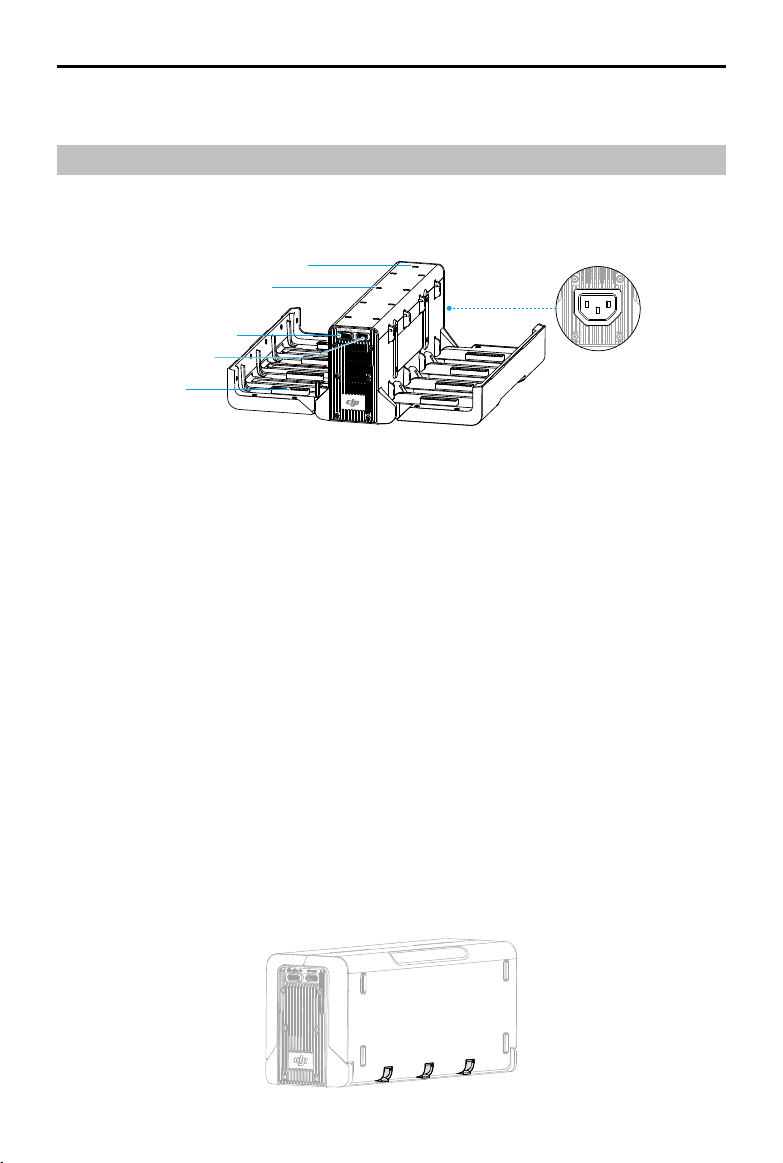
The DJI TB51 Intelligent Battery Charging Hub features eight TB51 battery ports and one USB-C
charging port. It can charge two TB51 batteries and one DJI RC Plus simultaneously.
1. System Status LED
2. Charging Port Status LEDs
3. Charging Mode Switch
4. USB-C Charging Port
5. TB51 Battery Port
6. Power Port
Warnings
• Keep liquids away from the inside of the charging hub.
• DO NOT block the air vent of the charging hub during charging. Make sure the vent is well-
ventilated and able to dissipate heat.
• The charging hub is only compatible with the TB51 battery. DO NOT use the charging hub
with any other battery models.
• Place the charging hub on a at and stable surface when in use. Make sure the device is
properly insulated to prevent re hazards.
• DO NOT attempt to touch the metal terminals on the battery port of the charging hub. Clean
the metal terminals with a clean, dry cloth if there is any noticeable buildup when powered
o.
• Carefully insert the battery after aligning the battery and the charging hub ports to avoid
battery damage.
• Keep your ngers away from the cover connection point when opening the charging hub to
avoid injury.
1
2
3
4
5
6
DJI Inspire 3
User Manual
©
2023 DJI All Rights Reserved.
47
Paired Charging of Batteries
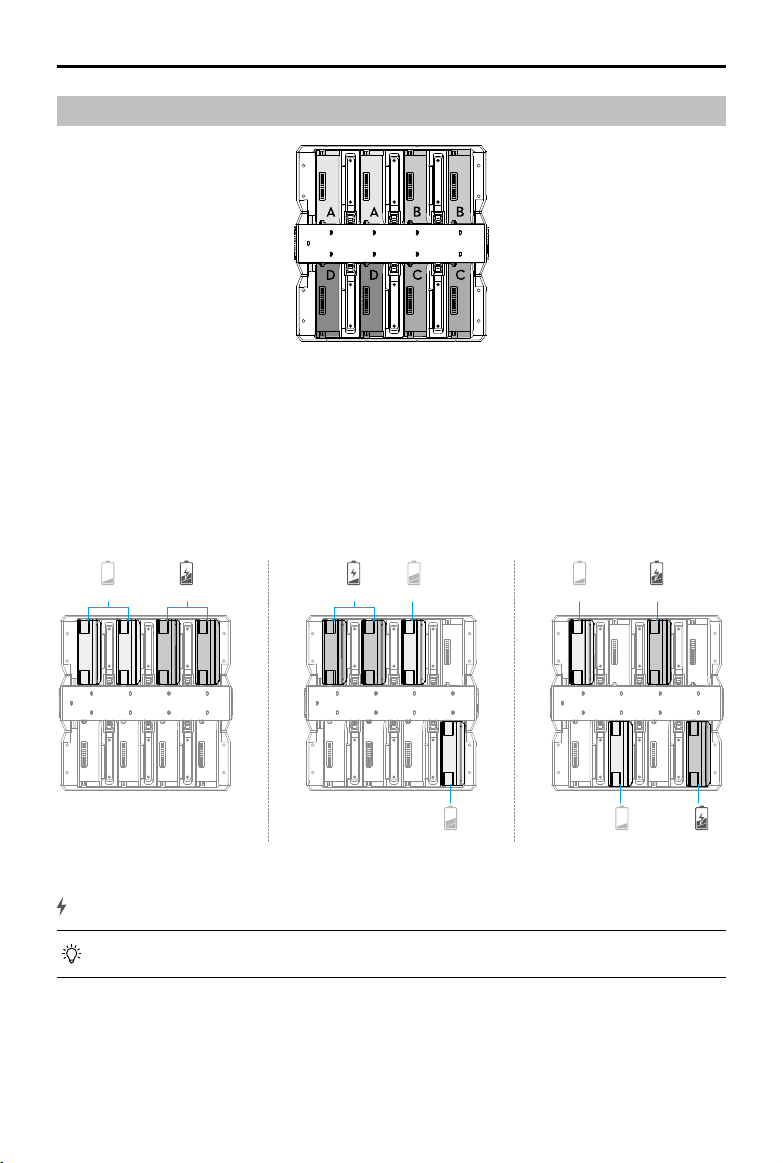
The charging hub will prioritize paired battery ports and charge the batteries according to the
diagram. There are four pairs in the sequence of A, B, C, and D.
a. Where there are multiple battery pairs, the pair with the highest power will be charged rst.
(Figure a)
b. Between paired and singular batteries, paired batteries will be charged rst. (Figure b)
c. If none of the batteries are paired, the two batteries with the highest power will be charged
rst. (Figure c)
Battery that will charge rst.
• When the power of the paired batteries is not the same, the charging hub will charge
the one with less power rst.
20% 40%
10%
30%
30%10%
30%
30%
10%
Figure a Figure b Figure c
DJI Inspire 3
User Manual
48
©
2023 DJI All Rights Reserved.
Charging Modes
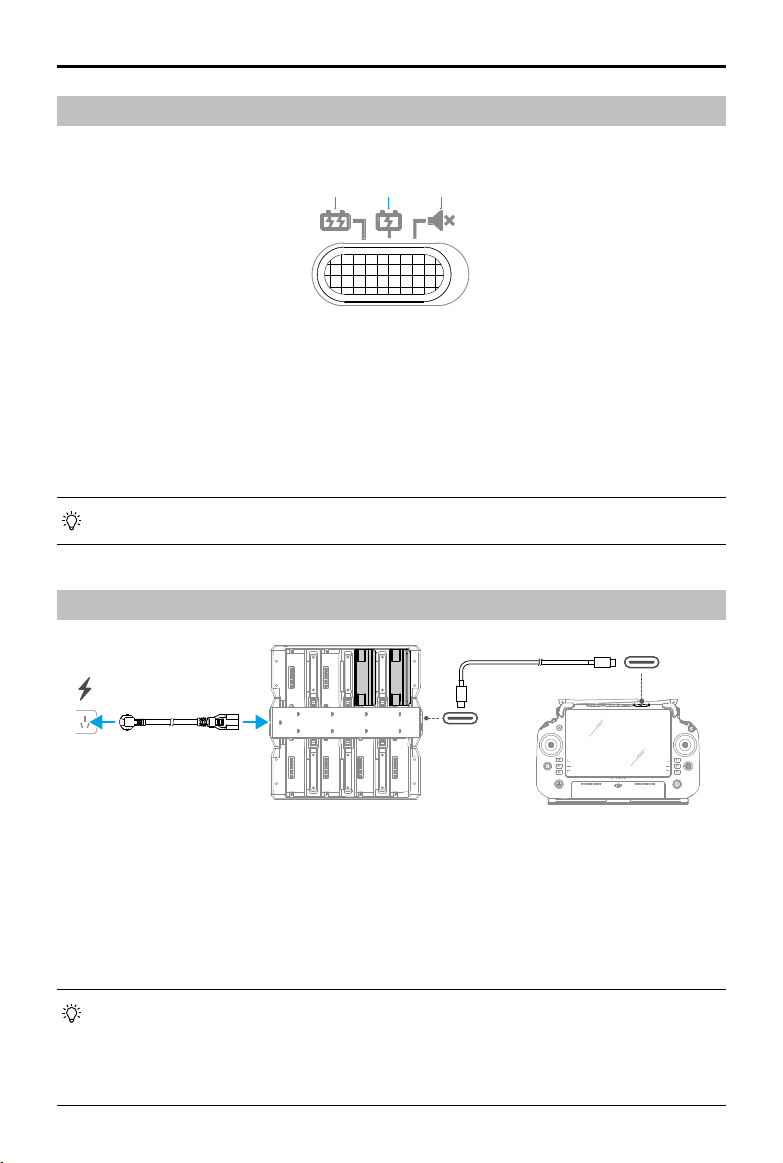
Toggle the charging mode switch to select from three types of charging modes.
1. Fast Mode: each battery pair is charged to 90% in sequence, then to 100% together. It takes
approximate 35 minutes to charge one battery pair to 90%, and approximate 160 minutes to
charge four battery pairs to 100%.
2. Standard Mode: each battery pair is charged to 100% in sequence. It takes approximate 55
minutes to charge one battery pair to 100%.
3. Silent Mode: each battery pair is charged to 100% in sequence at a slower rate. It takes
approximate 80 minutes to charge one battery pair to 100%.
• In silent mode, if the temperature is high or the air vent is blocked, the fan noise may
still be loud in order to meet the charging and heat dissipation requirements.
Using the Charging Hub
1. Open the charging hub, insert the batteries, and toggle the switch to select a charging mode.
2. Connect the charging hub to a power outlet using an AC cable to charge the batteries.
Connect the USB-C port of the charging hub to the DJI RC Plus remote controller to charge
the remote controller.
3. Remove the batteries from the charging hub when charging is complete and then disconnect
the AC cable.
• When the temperature of a battery is below 10° C (50° F), the charging hub will
automatically warm up to 18° C (64.4° F) before charging.
• The charging hub cannot charge the batteries when the battery temperature is above
45° C (113° F). During charging, the charging hub will stop charging the batteries if the
battery temperature exceeds 50° C (122° F).
1 2 3
65W OUT
DJI Inspire 3
User Manual
©
2023 DJI All Rights Reserved.
49
Charging Hub LED Indicators
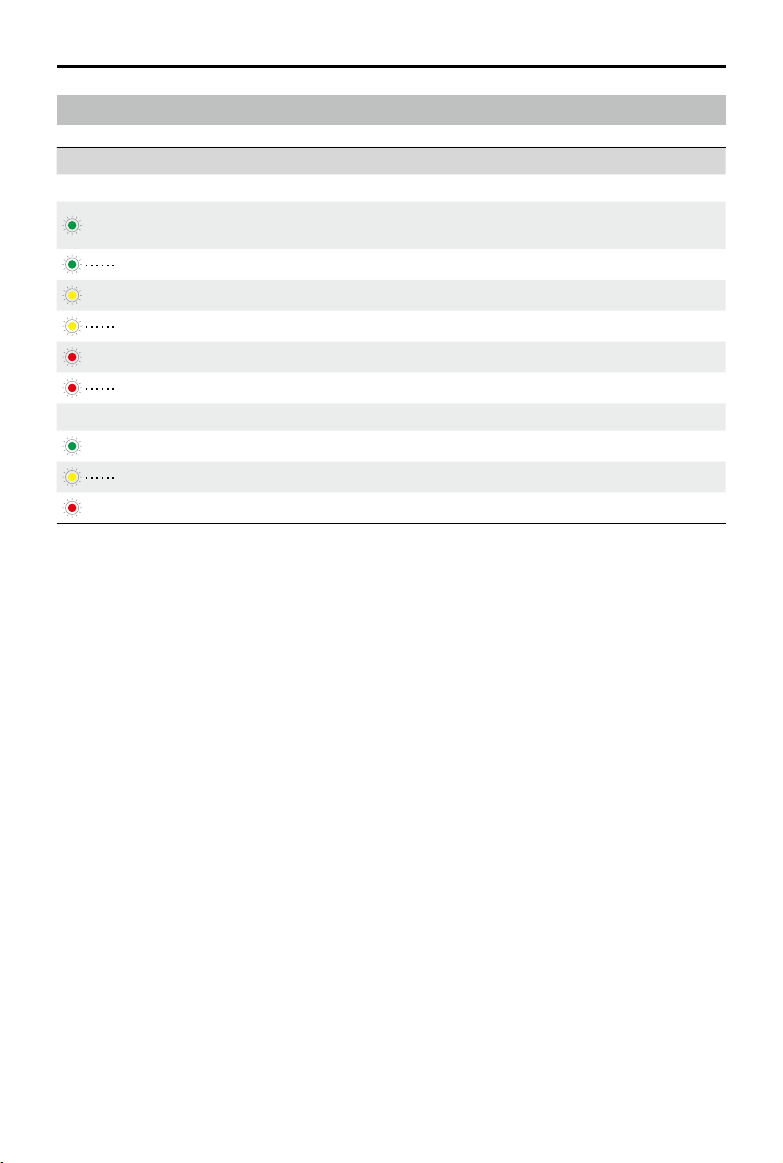
LED Indicator Description
Charging Status
—
Solid green
Charging complete (in Fast Mode, batteries are charged to 90%,
and fully charged after all the LEDs are solid green)
Blinks green Charging, while the ashing speed indicates the charging speed
—
Solid yellow Waiting to charge
Blinks yellow Battery warming up/cooling down
—
Solid red Charging port error *
Blinks red Re-insert the battery after cleaning the battery charging port
System Status
—
Solid green Working normally
Blinks yellow Firmware updating
—
Solid red System error *
* Connect to the remote controller, run DJI Pilot 2, and tap HMS to diagnose the error.

50
©
2023 DJI All Rights Reserved.
Intelligent Battery
This chapter introduces the features of
Intelligent Battery.

DJI Inspire 3
User Manual
©
2023 DJI All Rights Reserved.
51
Intelligent Battery
Introduction
The TB51 Intelligent Battery is equipped with high-energy battery cells and uses an advanced
battery management system to power the aircraft. Only use a DJI-approved charging device to
charge the Intelligent Battery. The rmware for the Intelligent Battery is included in the aircraft
rmware. Make sure the rmware of all intelligent batteries is updated to the latest version.
Battery Features
The Intelligent Battery has the following features:
1. Battery Level Display: the battery level LEDs display the current battery level.
2. Battery Self-discharge: will be triggered if the battery level is higher than 60%. Discharging
the battery level to 60% can extend battery life.
3. Battery Cell Balanced: the voltage of the battery cells are automatically balanced to avoid
overcharge of over-discharge.
4. Overcharge Protection: the battery stops charging automatically once fully charged.
5. Temperature Detection: prevents any damage, the battery only charges when the
temperature is between -20° to 45° C (-4° to 113° F).
6. Overcurrent Protection: the battery stops charging if an excess current is detected.
7. Over-Discharge Protection: ensures ight safety and allow users to have as much time as
possible to deal with emergencies, over-discharge protection is disabled to allow continuous
output. Pay attention to the remaining battery level during flight and land or Return to
Home immediately when prompted to do so in the app. Otherwise, the battery may be
dangerously over-discharged. Charging an over-discharged battery may be a re hazard.
To prevent this, the battery will be locked and can no longer be charged or used. When the
battery is not used in ight, over-discharge protection will be enabled once the battery level
is lower than 5% to avoid battery damage.
8. Short Circuit Protection: the power supply is automatically cut off if a short circuit is
detected.
9. Battery Cell Damage Protection: the app will display a warning prompt when a damaged
battery cell is detected.
10. Hibernation Mode: the battery will be in Hibernation mode when not in use to save power.
The battery will enter Deep Hibernation mode once the power is too low. At this time, the
battery LEDs will not function after pressing the battery level button. Insert the battery into
the charging hub to charge for activation.
11. Communication: information about the voltage, capacity, and current of the battery is
transmitted to the aircraft.
12. Warming up: ensures the battery operates normally at a low temperature. Refer to the
Warming the Battery section for more information.

DJI Inspire 3
User Manual
52
©
2023 DJI All Rights Reserved.
• Refer to the user manual, safety guidelines, and battery labels before use. Users shall
take full responsibility for all operations and usage.
• If only one battery is usable after takeo, land the aircraft promptly and replace the
battery.
• Use batteries provided by DJI. DO NOT use other batteries.
• DO NOT drop or damage the battery. DO NOT place heavy objects on the battery or the
charging hub.

DJI Inspire 3
User Manual
©
2023 DJI All Rights Reserved.
53
Using the Battery
Using the Paired Batteries
Charge and discharge the two batteries together to optimize ight performance and
maximize battery life.
After the batteries are inserted and the aircraft is powered on and
there is a huge dierence between their battery life, the app will display a prompt alerting the
user. In this case, it is recommended to replace the batteries with similar performance before
use.
Before use, the two batteries can be marked with a battery pairing sticker. The recommended
area to place the sticker is shown in the diagram below.
• DO NOT attach the sticker in other places, so as not to aect the installation and use of
the battery.
Mounting/Removing the Battery
Read the Using for the First Time section for the battery installation information.
After use, toggle the battery release to unlock and remove the battery from the battery
compartment.
1 2 3 4
5 6 7 8
1 2 3 4
5 6 7 8
Sticker
• Always use a clean, dry cloth when cleaning the battery terminals. Otherwise, this may
cause poor contact, resulting in energy loss or failure to charge.
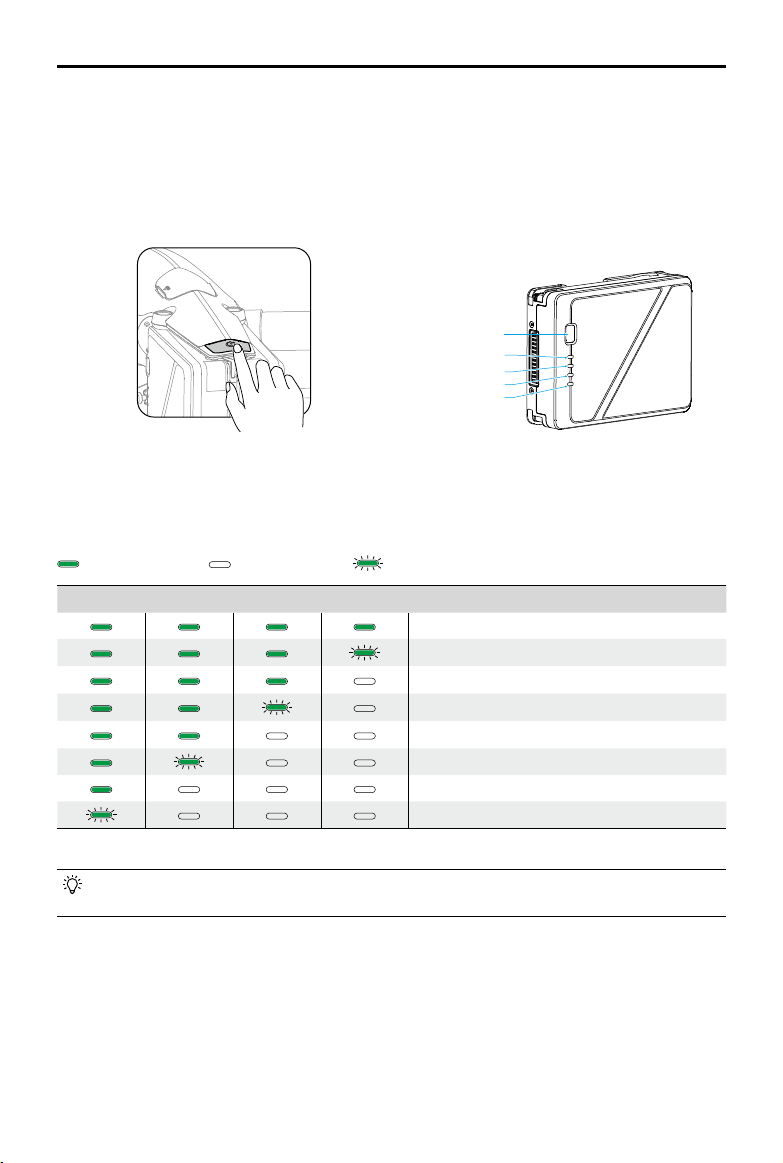
DJI Inspire 3
User Manual
54
©
2023 DJI All Rights Reserved.
Powering On/O and Checking the Battery Level
Install the batteries in the aircraft before powering on or o.
Power on/o: press the power button, then press and hold for two seconds. The indicator can
show current battery level after the aircraft is powered on. The indicator turns off after the
aircraft is powered o.
Battery Level Button
LED4
LED3
LED2
LED1
Press the battery level button to check the current battery level when the power supply is o.
After powering on, check the current battery level in the top bar of the app.
The Battery Level Indicators will also show the current battery level during discharging. The
indicators are dened below.
: LED is on. : LED is o. : LED is ashing.
LED1 LED2 LED3 LED4 Battery Level
88%~100%
75%~87%
63%~74%
50%~62%
38%~49%
25%~37%
13%~24%
0%~12%
• Regularly check the battery level and battery cycle counts. The battery is rated for 200
cycles. It is not recommended to continue to use afterward.
Hot Battery Replacement
After landing, the aircraft does not have to be powered o for replacement of its batteries. First,
insert a fully charged battery and wait for three seconds before inserting another battery.
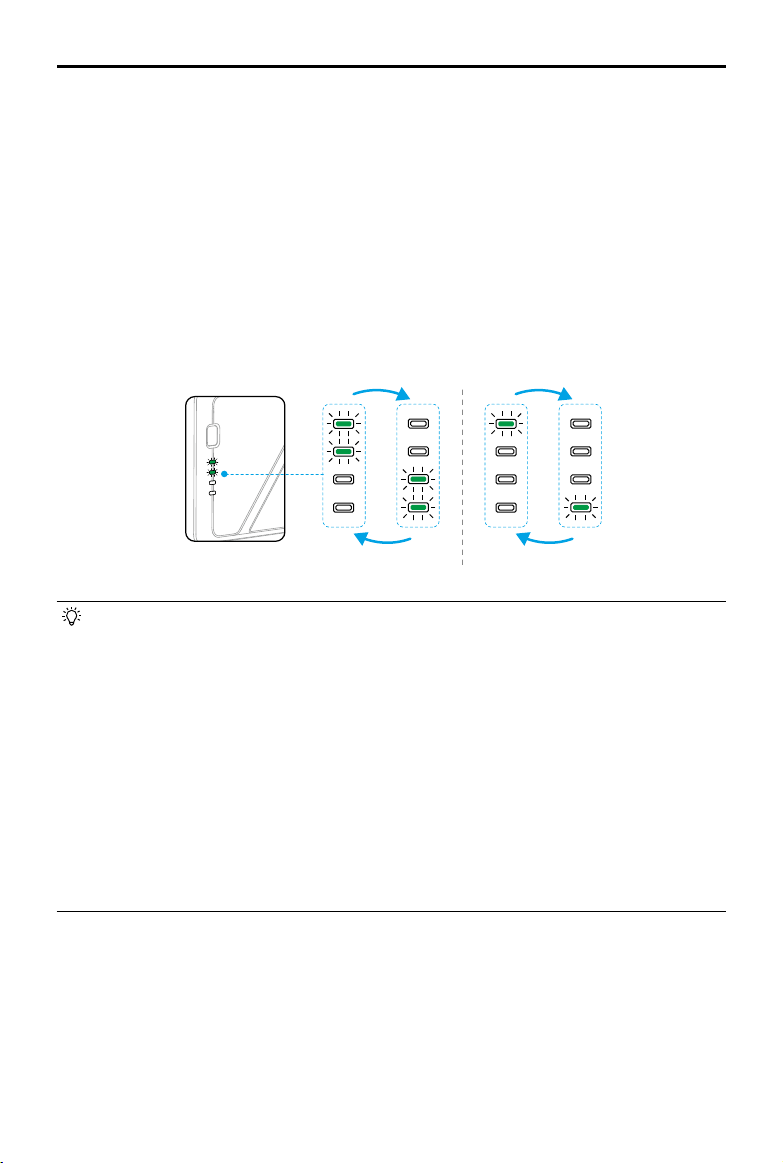
DJI Inspire 3
User Manual
©
2023 DJI All Rights Reserved.
55
Warming the Battery
The battery has a built-in self-heating feature for when operating in low-temperature conditions:
1. When the battery temperature is lower than 18° C (64.4° F), self-heating starts once the
battery is inserted into the aircraft and powered on.
2. If the battery is not inserted into the aircraft, press and hold the battery level button for ve
seconds to initiate self-heating. The battery will continue to keep warm with a temperature
between 18° and 20° C (64.4° and 68° F) for approximately 30 minutes. Press and hold the
battery level button for ve seconds to stop self-heating.
3. If the battery is at a temperature below 10° C (50° F), the charging hub will warm up the
battery once it is inserted in the powered-on charging hub.
4. When the battery is warming up and staying warm the battery level LEDs will blink as follows.
• At a temperature below 10° C (50° F), battery resistance increases and voltage
decreases signicantly, which in turn reduces battery capacity and performance. Make
sure that the battery is fully charged and the cell voltage is 4.4 V before use.
• When the DJI Pilot 2 app shows a critically low battery level warning, it is recommended
to stop ying immediately and land the aircraft in an appropriate place. During auto
landing, users can still use the remote controller to control aircraft orientation and push
the throttle stick to lift the aircraft.
• In extremely cold temperatures, the battery temperature may not be high enough for
it to operate, even after warming up. In such scenarios, increase the insulation of the
battery.
• To ensure optimal performance, keep the temperature of the batteries above 18° C
(64.4° F) before ight.
• In low temperatures, the preheating period may be longer. It is recommended to
insulate the batteries in advance to shorten the preheating period.
Warming up Keeping warm
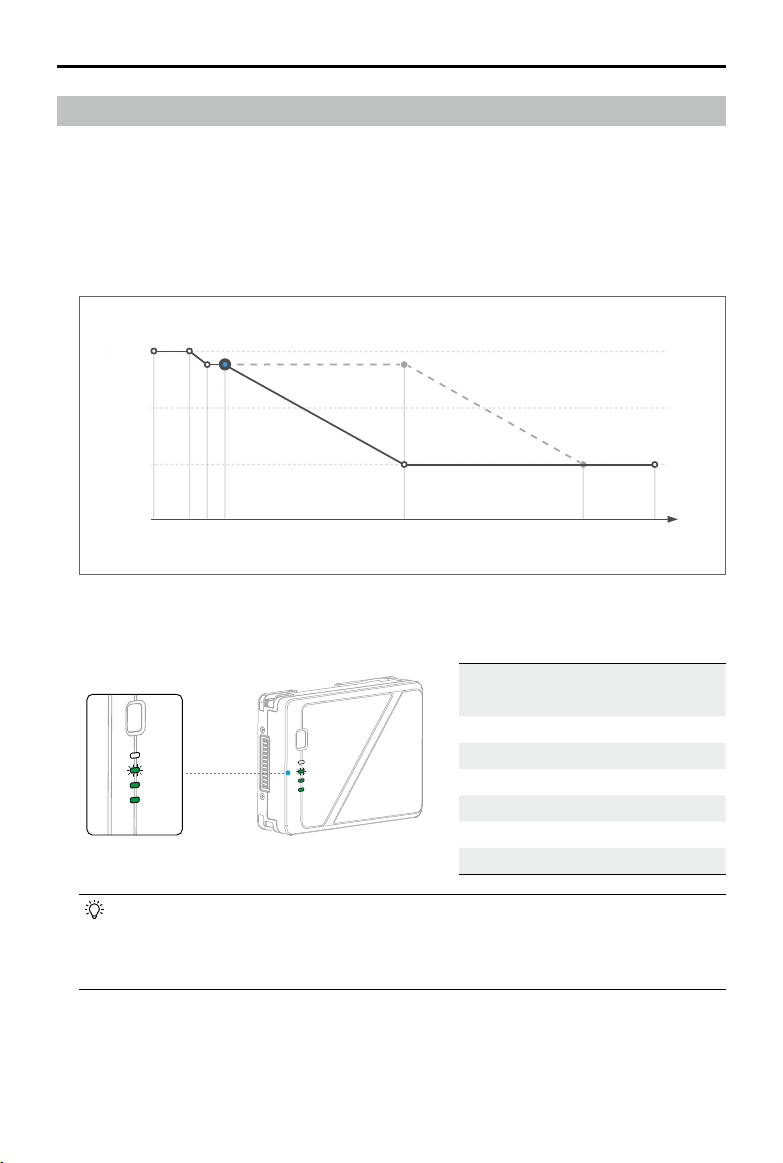
DJI Inspire 3
User Manual
56
©
2023 DJI All Rights Reserved.
3. Storing batteries at proper levels can extend battery life. It is recommended to store the
battery at 60% (the battery level LEDs display two solid LEDs and one blinking).
• The battery may be damaged once it exceeds the maximum storage period. The
battery should no longer be used.
• The actual maximum storage period will vary slightly due to the batteries being part
of dierent production batches and stored in dierent environment.
127210
60%
100%
96%
Battery
Day
Battery Storage
1. It is recommended to store the battery separately in a dry environment at room temperature
of approximately 25° C (77° F). DO NOT insert the battery into the aircraft or the charging
hub for storage.
2. Battery self-discharge will be triggered if the battery level is higher than 60%. Discharging
the battery level to 60% can extend battery life. The battery self-discharge strategy is shown
below.
Battery Level Max Storage Period
(Day)
0% 20
5% 40
10% 60
20% 120
40% 200
60% 280

©
2023 DJI All Rights Reserved.
57
Gimbal Camera
This chapter introduces the features of
gimbal camera.
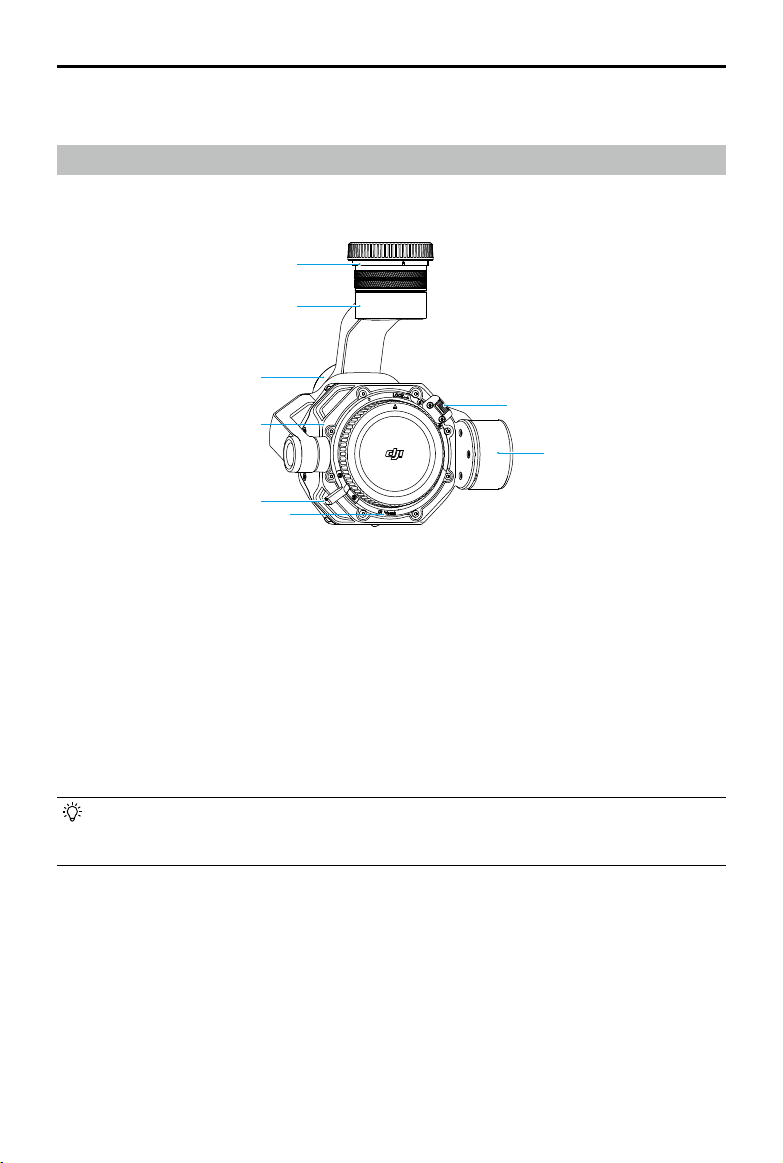
DJI Inspire 3
User Manual
58
©
2023 DJI All Rights Reserved.
Gimbal Camera
Overview
Read the Using for the First Time section for the lens and gimbal installation information.
1. Gimbal Camera Quick-Release Port
Remove the protective cap before
mounting onto the aircraft.
2. Pan Motor
For controlling the pan axis.
3. Roll Motor
For controlling the roll axis.
4. Camera
5. Lens Locking Lever
6. Lens Mount
Attach the lens after removing the lens
cap.
7. Tilt Motor
For controlling the tilt axis.
8. Lens Release Button
1
2
3
4
5
6
7
8
• The Zenmuse X9-8K Air gimbal camera supports DL-mount lenses. The descriptions
and diagrams in this document are using the DJI DL lens as an example. Refer to the
DJI DL Lens User Guide for more information.
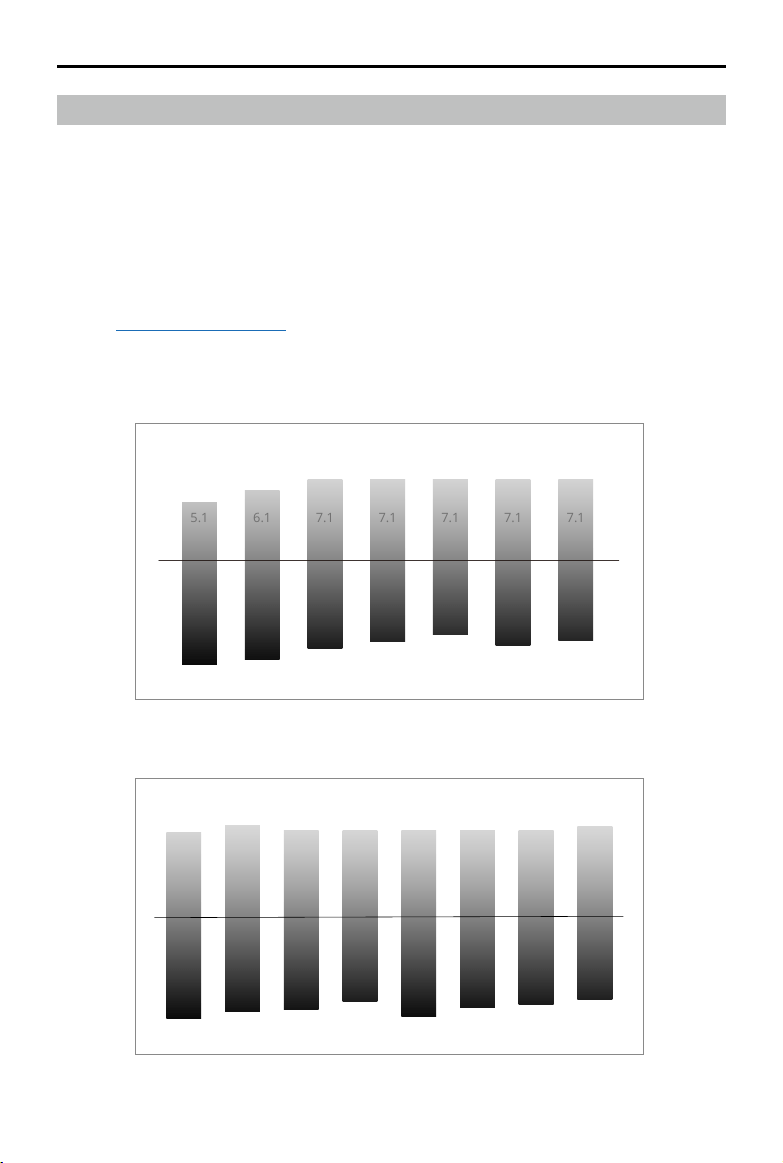
DJI Inspire 3
User Manual
©
2023 DJI All Rights Reserved.
59
When recording at above 8K 30fps video
6.1 6.7 6.3 6.3 6.3 6.3 6.3 6.6
8
7.4
7.3
6.7
7.8
7.1
6.9
6.5
EI200 EI320
(native)
EI400 EI800 EI1600
(native)
EI3200 EI4000 EI6400
13.0
Stops
14.1
Stops
13.4
Stops
13.2
Stops
13.1
Stops
14.1
Stops
14.1
Stops
13.6
Stops
X9-8K Air Gimbal Camera
The X9-8K Air camera supports recording at up to 8K 75fps ProRes RAW video and capturing
44MP photos. The camera has 12+ stops of dynamic range when recording at above 30fps video
and dual native ISO of 320/1600, and 14+ stops of dynamic range when recording at 30fps video
or below and dual native ISO of 800/4000.
Camera Specications
Recording Specications
Refer to Recording Specications in the Specications section for more information.
EI Grayscale
When recording at 8K 30fps video or below
EI 200 EI 400 EI 800
(native)
EI 4000
(native)
EI 1600 EI 3200 EI 6400
14.1
Stops
14.7
Stops
14.7
Stops
14.1
Stops
13.5
Stops
14.5
Stops
14.0
Stops
9
5.1
8.6
6.1
7.6
7.1
7
7.1
6.4
7.1
7.4
7.1
6.9
7.1

DJI Inspire 3
User Manual
60
©
2023 DJI All Rights Reserved.
Image Sensor Resolution
CinemaDNG Full Frame 8.1K 17:9 - 8192x4320
CinemaDNG Full Frame 8K 16:9 - 7680×4320
CinemaDNG Full Frame 4.1K 17:9 - 4096×2160
CinemaDNG Full Frame 4K 16:9 - 3840×2160
CinemaDNG Super 35 5.5K 17:9 - 5568×2952
CinemaDNG Super 35 5.2K 16:9 - 5248×2952
Apple ProRes RAW Full Frame 8.1K 17:9 - 8192×4320
Apple ProRes RAW Full Frame 8K 16:9 - 7680×4320
Apple ProRes RAW Full Frame 8K 2.39:1 - 8192×3424
Apple ProRes RAW Full Frame 4.1K 17:9 - 4096×2160
Apple ProRes RAW Full Frame 4K 16:9 - 3840×2160
Apple ProRes RAW Super 35 5.5K 17:9 - 5568×2952
Apple ProRes RAW Super 35 5.2K 16:9 - 5248×2952
Apple ProRes 422HQ Full Frame 8.1K 17:9 - 8192×4320
Apple ProRes 422HQ Full Frame 8K 16:9 - 7680×4320
Apple ProRes 422HQ Full Frame 4.1K 17:9 - 4096×2160
Apple ProRes 422HQ Full Frame 4K 16:9 - 3840×2160
Apple ProRes 422HQ Super 35 4K 17:9 - 4096×2160
Apple ProRes 422HQ Super 35 4K 16:9 - 3840×2160
H.264 Full Frame 4.1K 17:9 - 4096×2160
H.264 Full Frame 4K 16:9 - 3840×2160
H.264 Super 35 4.1K 17:9 - 4096×2160
H.264 Super 35 4K 16:9 - 3840×2160
Image Sensor Size
CinemaDNG Full Frame 8.1K 17:9 - 36×19 mm
CinemaDNG Full Frame 8K 16:9 - 33.8×19 mm
CinemaDNG Full Frame 4.1K 17:9 - 36×19 mm
CinemaDNG Full Frame 4K 16:9 - 33.8×19 mm
CinemaDNG Super 35 5.5K 17:9 - 24.5×12.98 mm
CinemaDNG Super 35 5.2K 16:9 - 23.1×12.98 mm
Apple ProRes RAW Full Frame 8.1K 17:9 - 36×19 mm
Apple ProRes RAW Full Frame 8K 16:9 - 33.8×19 mm
Apple ProRes RAW Full Frame 8K 2.39:1 - 36×15.06 mm
Apple ProRes RAW Full Frame 4.1K 17:9 - 36×19 mm
Apple ProRes RAW Full Frame 4K 16:9 - 33.8×19 mm

DJI Inspire 3
User Manual
©
2023 DJI All Rights Reserved.
61
Apple ProRes RAW Super 35 5.5K 17:9 - 24.5×12.98 mm
Apple ProRes RAW Super 35 5.2K 16:9 - 23.1×12.98 mm
Apple ProRes 422HQ Full Frame 8.1K 17:9 - 36×19 mm
Apple ProRes 422HQ Full Frame 8K 16:9 - 33.8×19 mm
Apple ProRes 422HQ Full Frame 4.1K 17:9 - 36×19 mm
Apple ProRes 422HQ Full Frame 4K 16:9 - 33.8×19 mm
Apple ProRes 422HQ Super 35 4K 17:9 - 24.5×12.98 mm
Apple ProRes 422HQ Super 35 4K 16:9 - 23.1×12.98 mm
H.264 Full Frame 4.1K 17:9 - 36×19 mm
H.264 Full Frame 4K 16:9 - 33.8×19 mm
H.264 Super 35 4.1K 17:9 - 24.5×12.98 mm
H.264 Super 35 4K 16:9 - 23.1×12.98 mm
Storing Photos and Videos
Read the Using for the First Time section for the DJI PROSSD installation information.
The included DJI PROSSD 1TB supports internal recording of the highest format and the footage
can be read in the computer directly through the provided USB-C to USB-C high-speed data
cable. No card reader is required.
DJI PROSSD Use Notes
• To ensure stability and reliability during recording, DJI Inspire 3 does not support third-party
SSDs.
• To format the DJI PROSSD, insert the DJI PROSSD into the aircraft, and format it in the app.
• To ensure high-standard recording performance, it is not recommended to write data to the
DJI PROSSD using a third-party device (such as computers or iPads). If there is any writing
operation in these ways, it is recommended to format it through the aircraft before use.
• It is recommended to format the DJI PROSSD before recording videos and taking photos.
Before formatting, make sure to export the existing material on the DJI PROSSD.
• DO NOT remove the DJI PROSSD or power o the aircraft when initiating or formatting the
DJI PROSSD, or during video recording.
• Make sure to export photos and videos from the DJI PROSSD at a temperature ranging from
-10° to 40° C (14° to 104° F).
• Store the DJI PROSSD with the environment temperature ranging from -40° to 80° C (-40° to
176° F).
• Note that the capacity of DJI PROSSD is 1 TB while the actual capacity is 935 GB.
• DO NOT cover the metal surface of the DJI PROSSD (with stickers) to ensure heat dissipation.
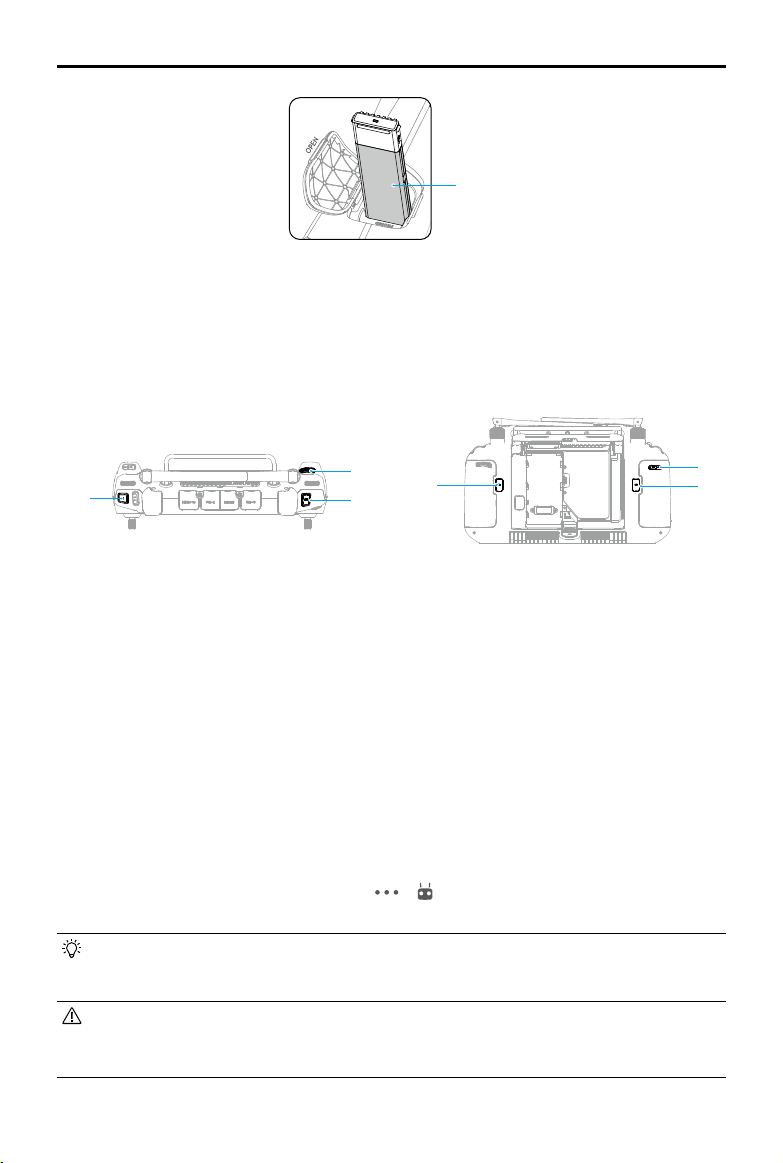
DJI Inspire 3
User Manual
62
©
2023 DJI All Rights Reserved.
Camera Operation
Controlling the Camera with the Remote Controller
The following buttons and scroll wheel on the remote controller can be used to control the
camera remotely.
1. Focus/Shutter Button
Press halfway down to auto-focus and press all the way down to take a photo. The photo
mode can be set in DJI Pilot 2.
2. Record Button
Press once to start or stop recording.
3. Scroll Wheel
After being enabled by the buttons on the side of the screen, the camera parameters can be
adjusted by turning the scroll wheel. Default settings are:
a. Press the L1 button to enable the scroll wheel to adjust the EI or ISO.
b. Press the L2 button to enable the scroll wheel to adjust the Shutter.
c. Press the L3 button to enable the scroll wheel to adjust the Iris.
4. C1/C2/C3 Buttons (customizable)
Enter the camera view in DJI Pilot 2, tap > to select Customize RC Buttons. Set the
functions of the C1, C2, and C3 buttons for quick and easy control of the camera.
• Make sure to power o the aircraft correctly. Otherwise, the camera parameters will
not be saved and any recorded videos may be aected. DJI is not responsible for any
loss caused by an image or video recorded in a way that is not machine-readable.
• DO NOT store the gimbal camera near a heat source such as a heater.
• DO NOT allow the camera to come into contact with, or become immersed in, water or
other liquids. Wipe the camera dry with a soft, absorbent cloth if it gets wet.
2
4
4
3
1
4
Metal surface
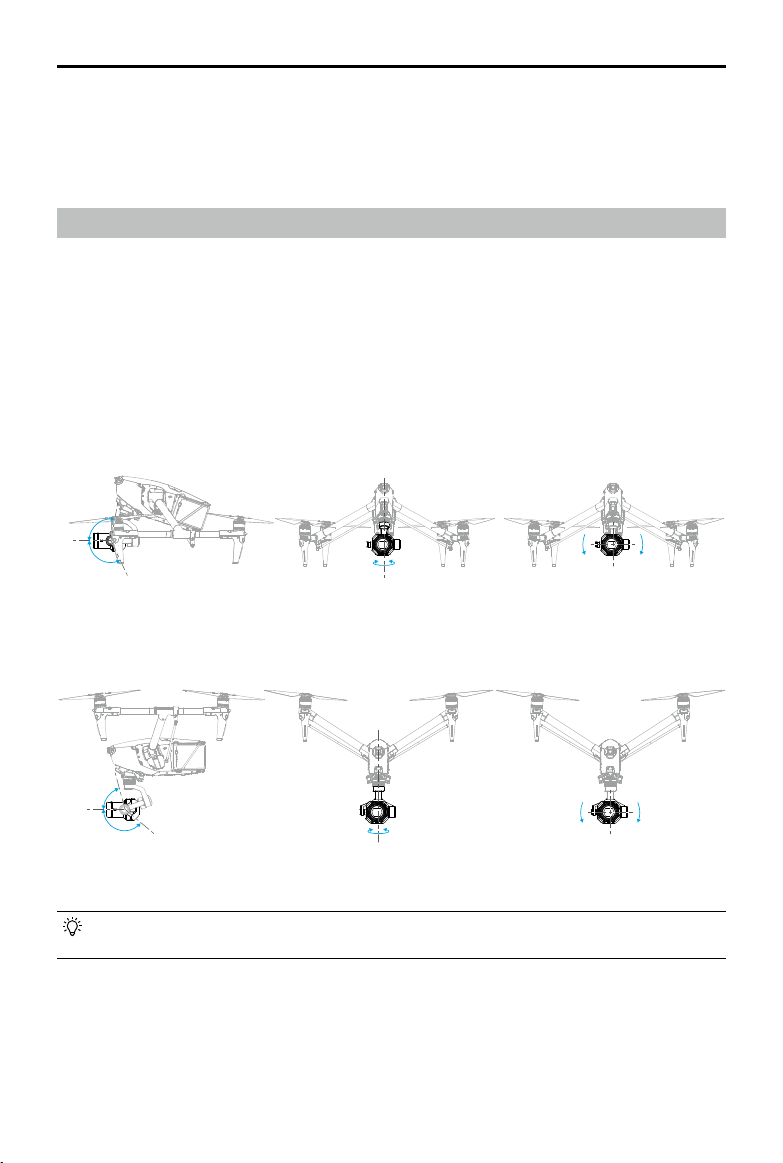
DJI Inspire 3
User Manual
©
2023 DJI All Rights Reserved.
63
Controllable rotation range when landing gear raised
• The controllable rotation range of gimbal tilt is -90° to +30° if the gimbal tilt limit
extension is disabled in the app.
-300°+300°
+20° -20°
+100°
0°
-115°
Tilt
Tilt
Pan
Pan
Roll
Roll
+75°
0°
-140°
-300°+300°
+20° -20°
Controlling the Camera with DJI Pilot 2
For information about how to control the camera in DJI Pilot 2, refer to the Gimbal Camera View
section in the DJI Pilot 2 App chapter.
Gimbal
Controllable Rotation Range
The 3-axis gimbal stabilizes the camera, allowing the user to capture clear and steady images
and videos when in ight. Refer to the gure below for the tilt, pan, and roll range of the gimbal.
Tilt: -115° to +100° (landing gear lowered); -140° to 75° (landing gear raised)
Roll: ±20°
Pan: ±300°
Controllable rotation range when landing gear lowered
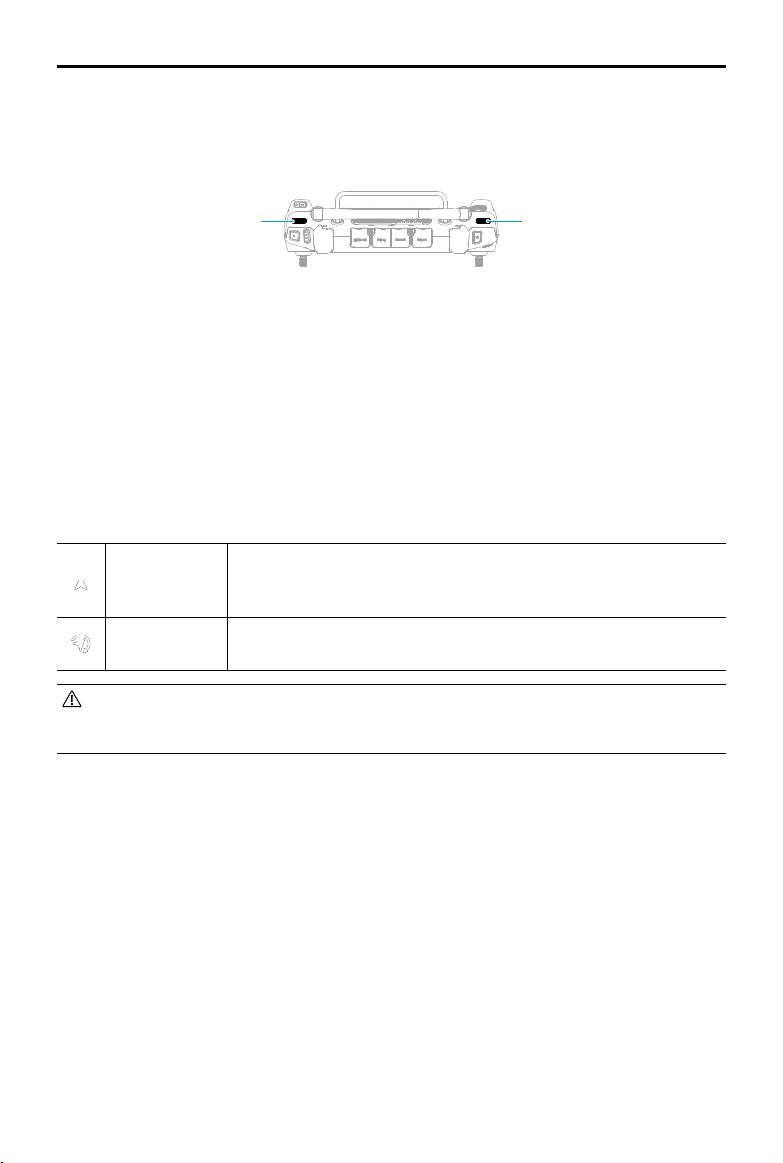
DJI Inspire 3
User Manual
64
©
2023 DJI All Rights Reserved.
Gimbal Operation
Controlling the Gimbal with the Remote Controller
1. Left Dial
The left dial controls the gimbal tilt. Dial left, the gimbal will tilt downward. Dial right, the
gimbal will tilt upward.
2. Right Dial
The right dial controls the gimbal pan. Dial left, the gimbal pan will rotate to the left. Dial
right, the gimbal pan will rotate to the right.
Gimbal Mode
The gimbal can work in two modes for dierent shooting needs.
Follow Mode
When the aircraft rotates horizontally, the gimbal rotates accordingly
with the angle between the gimbal pan and the aircraft heading
unchanged.
Free Mode
When the aircraft rotates horizontally, the gimbal orientation does
not follow the rotation of the aircraft.
• Make sure that there is nothing obstructing the gimbal. DO NOT tap or knock the
gimbal after the aircraft is powered on. Launch the aircraft from open and at ground
to protect the gimbal during takeo.
1
2

©
2023 DJI All Rights Reserved.
65
Remote Controller
This chapter introduces the features of
Remote Controller.
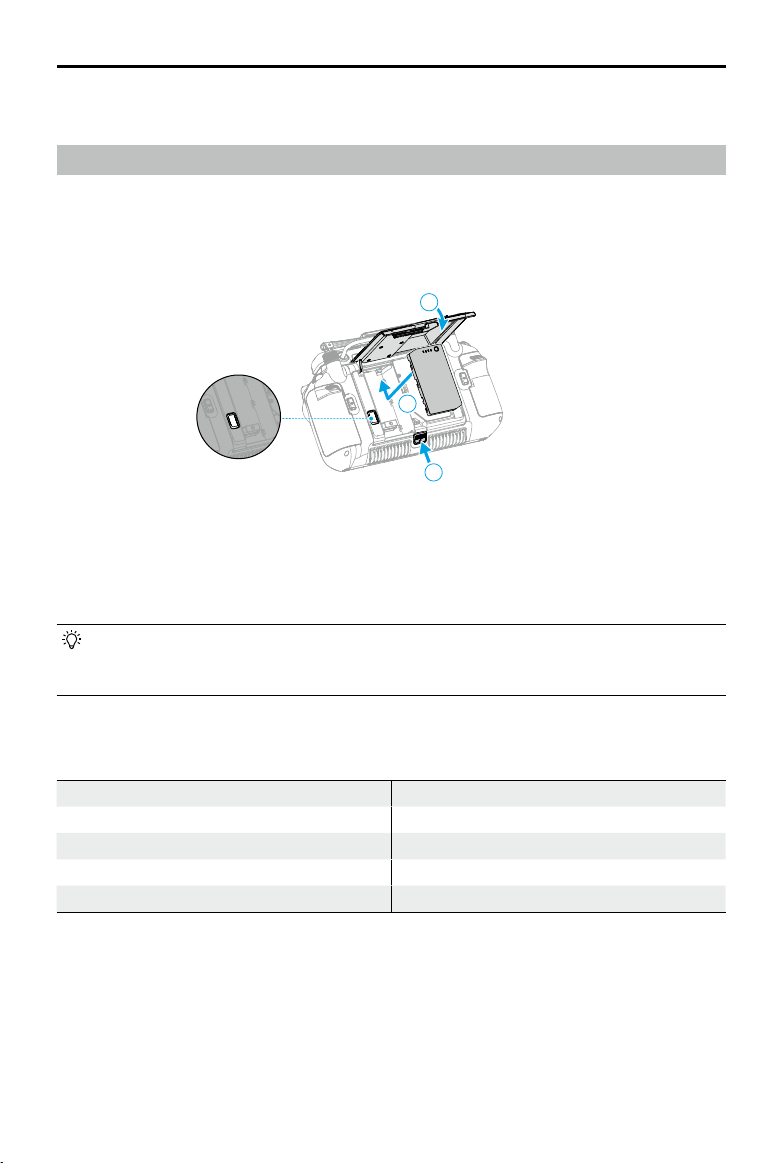
DJI Inspire 3
User Manual
66
©
2023 DJI All Rights Reserved.
Remote Controller
Preparing the Remote Controller
Mounting the WB37 Intelligent Battery
A WB37 Intelligent Battery (excluded) can be mounted onto the remote controller in the
following steps.
1. Push the rear cover release button to the end to open the rear cover.
2. Insert the WB37 battery into the battery compartment and push it to the top. There will be a
clicking sound to indicate the battery is installed rmly.
3. Close the rear cover.
• To remove the WB37 battery, press and hold the battery release button and push the
battery downward.
• Refer to the WB37 Intelligent Battery Safety Guidelines for more information.
WB37 Intelligent Battery Specications
Capacity 4920 mAh
Voltage 7.6 V
Battery Type Li-ion
Energy 37.39 Wh
Chemical System LiCoO2
1
2
3
Battery Release Button
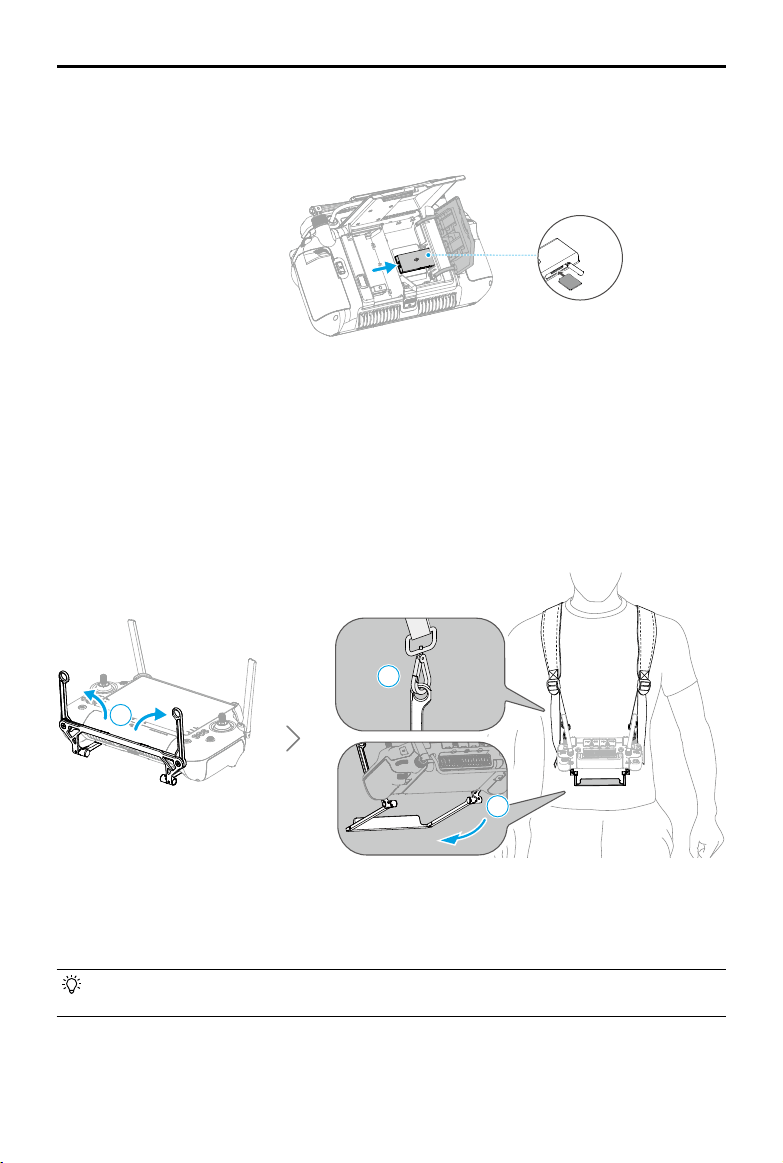
DJI Inspire 3
User Manual
©
2023 DJI All Rights Reserved.
67
1. Push the rear cover release button to the end to open the rear cover. Remove the screws to
open the dongle compartment.
2. Insert the dongle into the USB-C connector. Close the dongle compartment.
3. Attach the dongle compartment with the screws. Close the rear cover.
Using the Strap and Waist Support
A strap can be mounted onto the waist support by following the steps below.
Mounting the Dongle
A Dongle (excluded) can be mounted onto the remote controller in the following steps.
1. Unfold the two handles.
2. Wear the strap, and attach the strap hooks to the handle holes.
3. Unfold the waist support.
• After use, hold the remote controller with one hand, unlock the strap hooks with the
other hand to remove the remote controller, and then take o the strap.
1
2
3
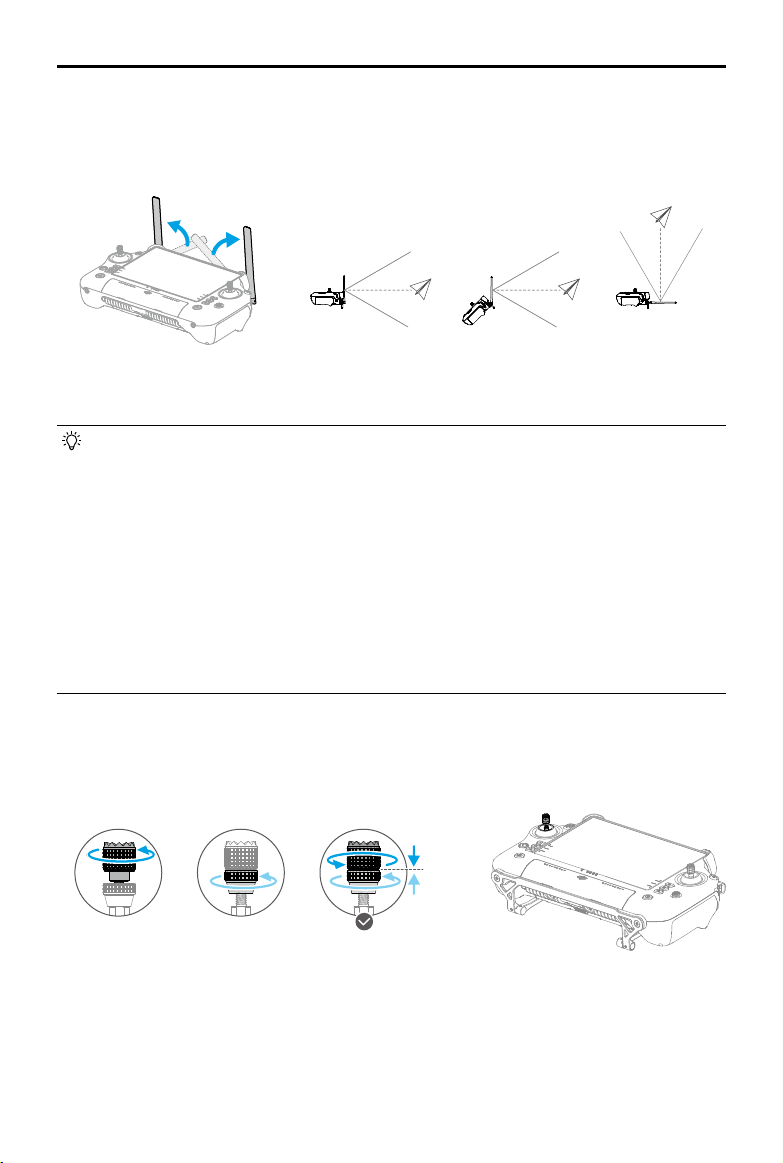
DJI Inspire 3
User Manual
68
©
2023 DJI All Rights Reserved.
Adjust the direction of the external RC antennas and make sure their flat side is facing the
aircraft, so that the controller and aircraft are within the optimal transmission zone.
• DO NOT overstretch the antennas to avoid damage. Contact DJI Support to repair
the remote controller if the antennas are damaged. A damaged antenna will greatly
decrease performance of the remote controller and might aect ight safety.
• During flight, DO NOT use other 2.4 GHz, 5.1 GHz or 5.8 GHz communication
devices in the same frequency band at the same time, so as not to interfere with the
communication signal of the remote controller. Such as enable the mobile phone Wi-Fi.
If the remote controller must be connected to Wi-Fi during the ight, view the signal
strength information of HD settings in the app. Set the Wi-Fi frequency to the frequency
band with the most interference (it is recommended to set the Wi-Fi frequency to the
2.4 GHz band as it may have the most interference).
• A prompt will appear in DJI Pilot 2 if the transmission signal is weak during ight. Adjust
the antennas to make sure that the aircraft is in the optimal transmission range.
Adjusting the Sticks
Adjust the sticks to a suitable position as shown in the diagram according to personal habit.
Adjusting the Antennas
Lift and adjust the antennas. The strength of the remote controller signal is affected by the
position of the antennas.
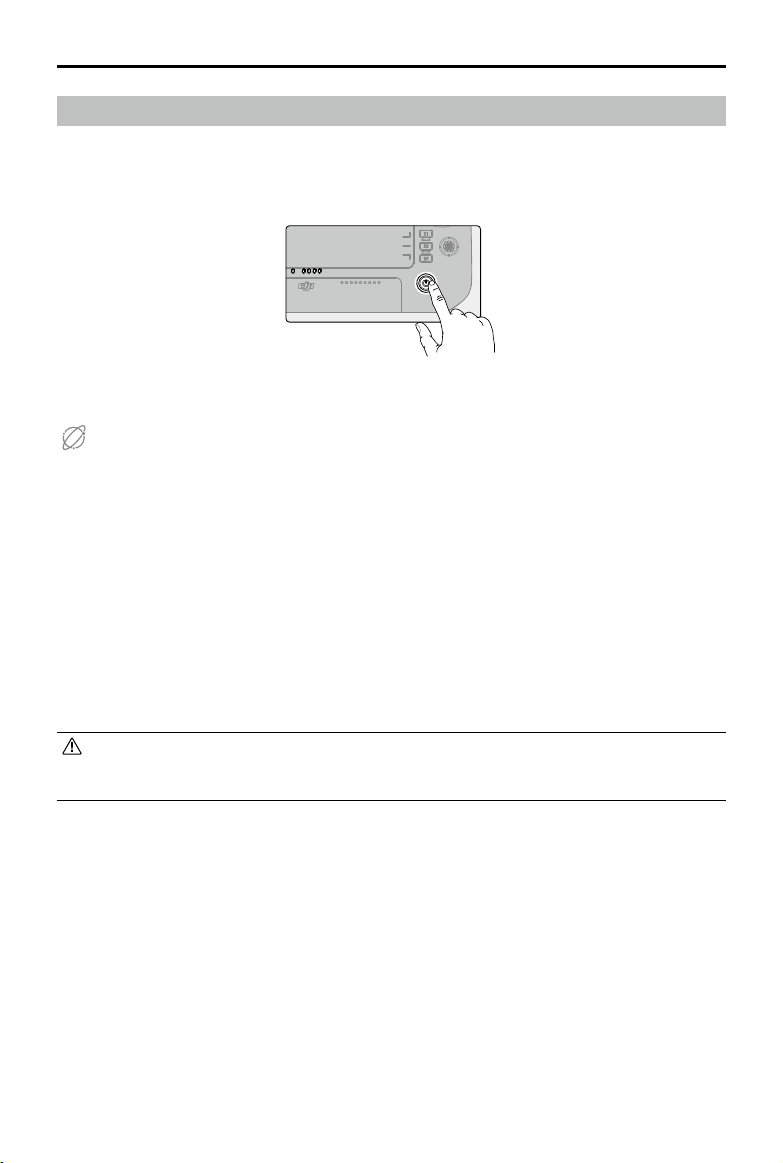
DJI Inspire 3
User Manual
©
2023 DJI All Rights Reserved.
69
Activating the Remote Controller
Internet
The remote controller needs to be activated before first use. Make sure the
remote controller has access to the internet during activation.
Follow the steps below to activate the remote controller:
1. Power on the remote controller. Select a language option and tap Next. Read the Terms of
Use and Privacy Policy carefully and tap Agree, then select your country/region.
2. Connect to a Wi-Fi network to access the internet. Then set the time zone, date, and time.
3. If you have a DJI account, log in with your password. If you are a new user, create a DJI
account and log in.
4. After logging in, tap Activate on the activation interface.
5. A prompt will appear on the screen, indicating that the remote controller is activated.
6. After activating the remote controller, choose if you would like to join the DJI Product
Improvement Project. Join this project to help DJI better understand your needs.
• Check the internet connection if the activation fails. Make sure internet access is
available and try activating the remote controller again. Contact DJI Support if the
activation fails multiple times.
Starting and Activating the Remote Controller
Powering On/O
Press once and then press and hold for two seconds to power the remote controller on or o.
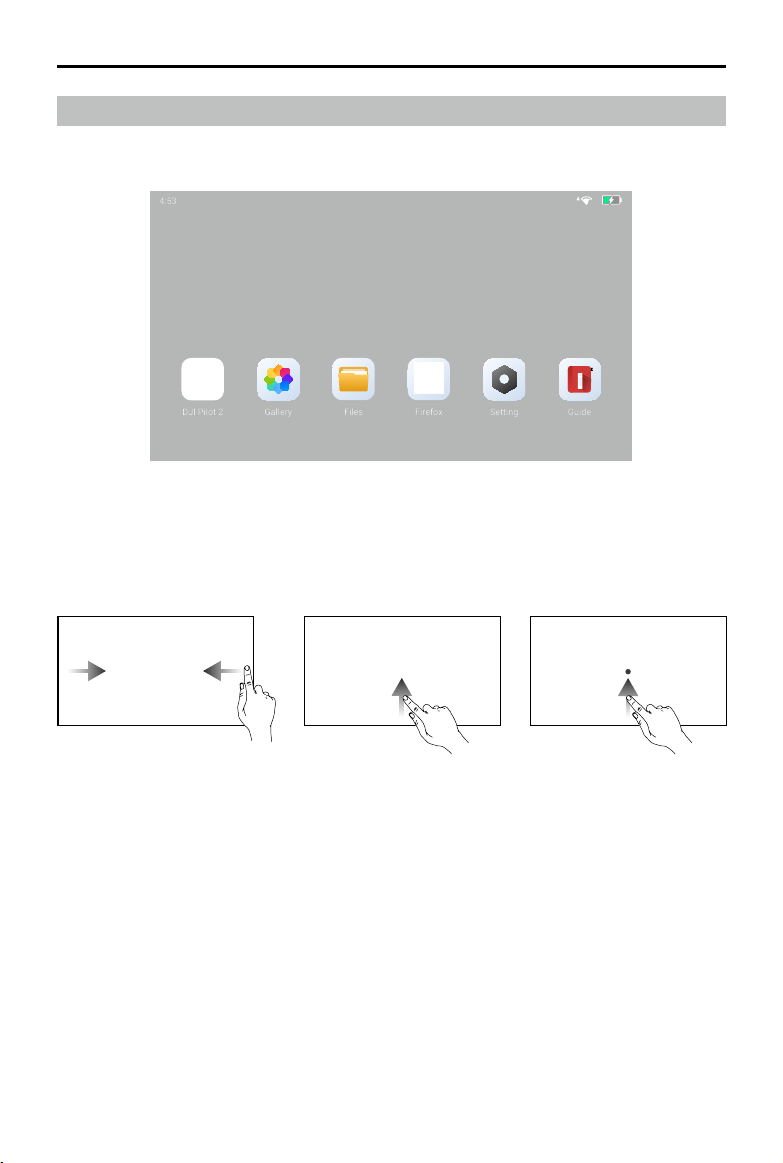
DJI Inspire 3
User Manual
70
©
2023 DJI All Rights Reserved.
User Interface
Home Screen
4:53
5
DJI Pilot 2
Firefox
Guide
Setting
Gallery
Files
After powering on the remote controller, Time, Wi-Fi Signal, Battery Level, and applications will
be display on the home screen.
Screen Gestures
Access recently opened
apps:
slide up from the
bottom and hold.
Return to the previous
screen:
Slide from the left
or right to the center of the
screen.
Return to the home
screen:
slide up from the
bottom.
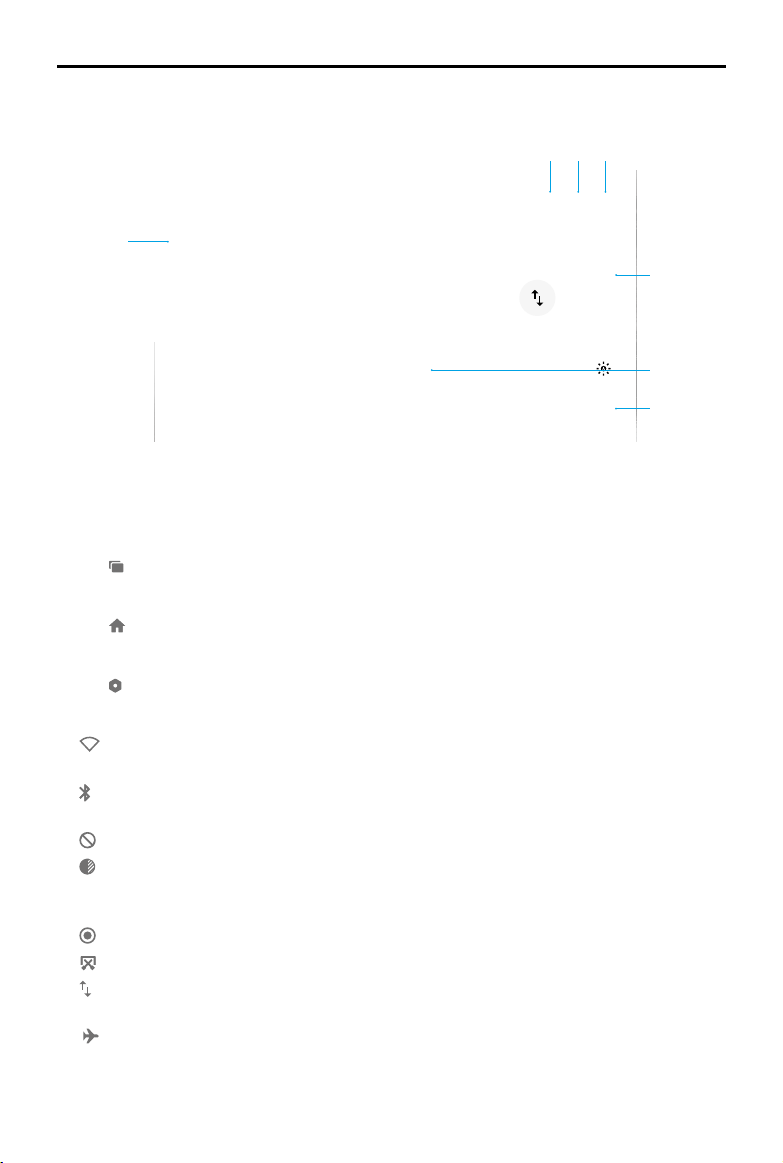
DJI Inspire 3
User Manual
©
2023 DJI All Rights Reserved.
71
Shortcut Settings
Wi-Fi
Bluetooth
Do Not Dis
Enhanced Di
Notifications
3:05
PM
Mondy
Apr 18, 2022
Screenshot Mobile dat Airplane mo
Record Screen
1
2 3 4
5
6
7
1. Notications
View system or app notications.
2. Recent
Tap to view and switch to recently opened apps.
3. Home
Tap to return to the home screen.
4. System Settings
Tap to access system settings.
5. Shortcuts
Tap to enable or disable Wi-Fi. Tap and hold to enter settings and connect to or add a
Wi-Fi network.
Tap to enable or disable Bluetooth. Tap and hold to open settings and connect with nearby
Bluetooth devices.
Tap to enable Do Not Disturb mode. In this mode, system prompts will be disabled.
Display enhancement. Once enabled, the display brightness is enhanced to assist in
shooting. However, there are dierences between the source and display eect, while the
source photo or video taken by the aircraft is not aected.
Tap to start screen recording.
Tap to screenshot the screen.
Tap to turn mobile data on or o. Tap and hold to set mobile data and diagnose network
connection status.
Tap to enable Airplane mode. Wi-Fi, Bluetooth, and mobile data will be disabled.
DJI Inspire 3
User Manual
72
©
2023 DJI All Rights Reserved.
6. Adjust Brightness
Slide the bar to adjust brightness. Tap to adjust to auto brightness mode. Tap or slide
the bar to switch to manual brightness mode.
7. Adjust Volume
Slide the bar to adjust volume and tap to mute. Note that after muting, all sounds of the
remote controller will be completely disabled, including related alarms sounds. Please turn
on mute with caution.
Video Transmission
Using a Single Remote Controller
The DJI Inspire 3 aircraft uses O3 Pro video transmission technology, which supports two
simultaneous HD video transmissions. For the FPV camera, the video transmission resolution
is 1080p, and the default frame rate is 60fps. For the gimbal camera, the video transmission
resolution can be up to 4K with the frame rate of up to 30fps, and the frame rate can be up to
60fps if using the 1080p resolution.
• The 4K resolution video transmission of DJI Inspire 3 can only be enabled when the
recording frame rate is not higher than 30fps.
• The video transmission resolution does not support automatic adjustment. Since the
4K resolution video transmission is highly dependent on the video transmission bit
rate, when the video transmission bit rate is lower than 10Mbps, it is recommended to
manually adjust the resolution to 1080p.
• When the communication quality is poor, the frame rate of the FPV camera video
transmission and the gimbal camera will automatically adjust so as to improve
the display quality. After the communication quality improves, the frame rate will
automatically adjust to the default frame rate.
• In order to ensure ight safety, when the communication quality is poor, priority will be
given to video transmission of the FPV camera.
Using Dual Remote Controllers
When using dual remote controllers, the aircraft will continuously and automatically calculate
the communication quality between the two remote controllers and the aircraft, automatically
adjust the bit rate of the video transmission to ensure that both remote controllers can well
receive the signal.
• The maximum transmission distance when using dual remote controllers is reduced by
20% compared to the transmission of a single remote controller.
• When using dual remote controllers, make sure that the antennas of both remote
controllers are pointing to the aircraft (refer to the Adjusting the Antennas section for
details), and there is no obstruction between each remote controller and the aircraft.
Otherwise, the one with the poor signal may impair the communication quality of the
other.
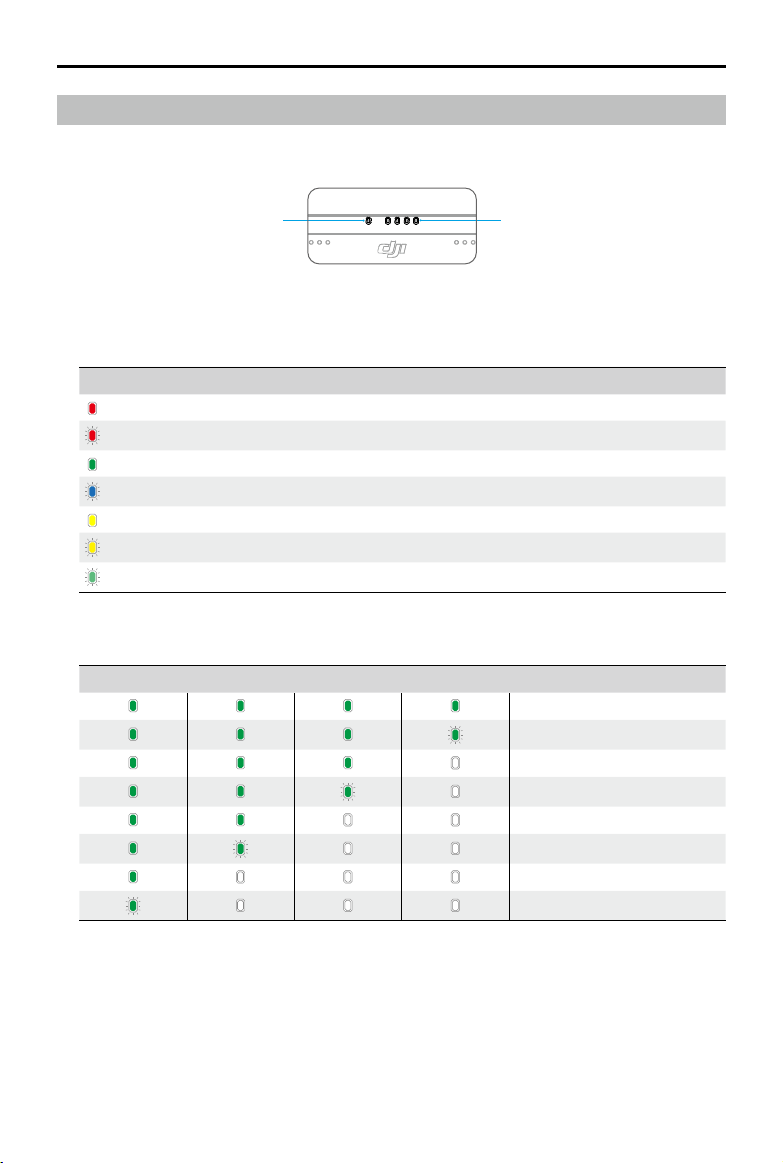
DJI Inspire 3
User Manual
©
2023 DJI All Rights Reserved.
73
Remote Controller LEDs and Alert
Remote Controller LEDs
1
2
1. Status LEDs
The status LED indicates the status of the remote controller, the aircraft, and the link
between them.
Blinking Patterns Descriptions
Solid red Disconnected with aircraft
Blinking red Low aircraft battery level
Solid green Connected with aircraft
Blinking blue The remote controller is linking to an aircraft
Solid yellow Firmware update failed
Blinking yellow Low remote controller battery level
Blinking cyan Control sticks not centered
2. Battery Level LEDs
The battery level LEDs indicate the battery level of the remote controller.
Battery Level LEDs Battery Level
88%~100%
75%~87%
63%~74%
50%~62%
38%~49%
25%~37%
13%~24%
0%~12%
Remote Controller Alert
The remote controller vibrates or beeps twice to indicate an error or warning. For detailed
information, see the real-time prompts on the touchscreen or in DJI Pilot 2. Swipe down from the
top of the screen to open Shortcut Settings and turn on Mute mode to disable all voice alerts.
Any voice prompts and alerts will be disabled in Mute mode, including alerts during RTH and
low battery alerts for the remote controller or aircraft. Use with caution.
DJI Inspire 3
User Manual
74
©
2023 DJI All Rights Reserved.
Charging the Remote Controller and Checking the Battery Level
Charging the Remote Controller
Read the Using the Charging Hub section for more information.
It takes approximately 2 hours
to fully charge the remote controller internal battery.
• It is recommended to use the charging hub for charging. Otherwise, use a certified
USB-C charger with a maximum rated power of 65 W and maximum voltage of 20 V
such as the DJI 65W Portable Charger.
• Fully discharge and charge the remote controller every three months. The battery
depletes when stored for an extended period.
• If a WB37 battery is installed in the remote controller, the WB37 battery will be charged
at the same time.
• The remote controller cannot be powered on before activating the internal battery.
• Make sure to use the included USB-C to USB-C high-speed data cable for optimal
charging.
Charging Options
A. The internal battery of the remote controller can be charged with a charging device or
the inserted external WB37 battery. It takes approximately two hours to fully charge the
internal battery with a charging device. The internal battery can be charged up to 50% with
the external battery. Charging with the external battery is not possible after the remote
controller is powered o.
B. Duration for fully charging a WB37 battery with 0% power:
a. When mounted on the remote controller and the internal battery level is 0%, it takes
approximately 2 hours while fully charging the internal battery.
b. When mounted on the remote controller and the internal battery level is 100%, it takes
approximately 1 hour and 10 minutes.
• The charging time may vary with the ambient temperature.
Charging Mechanism
A. When the remote controller is connected with both a charging device and an external
battery, the remote controller will be powered by the charging device.
B. When the external battery is mounted and the remote controller is not connected with a
charging device, the remote controller will be powered by the external battery. When the
external battery is depleted, the remote controller will be powered by the internal battery.
Checking the Battery Level
Checking the Internal Battery Level
Press the power button once to check the current battery level.
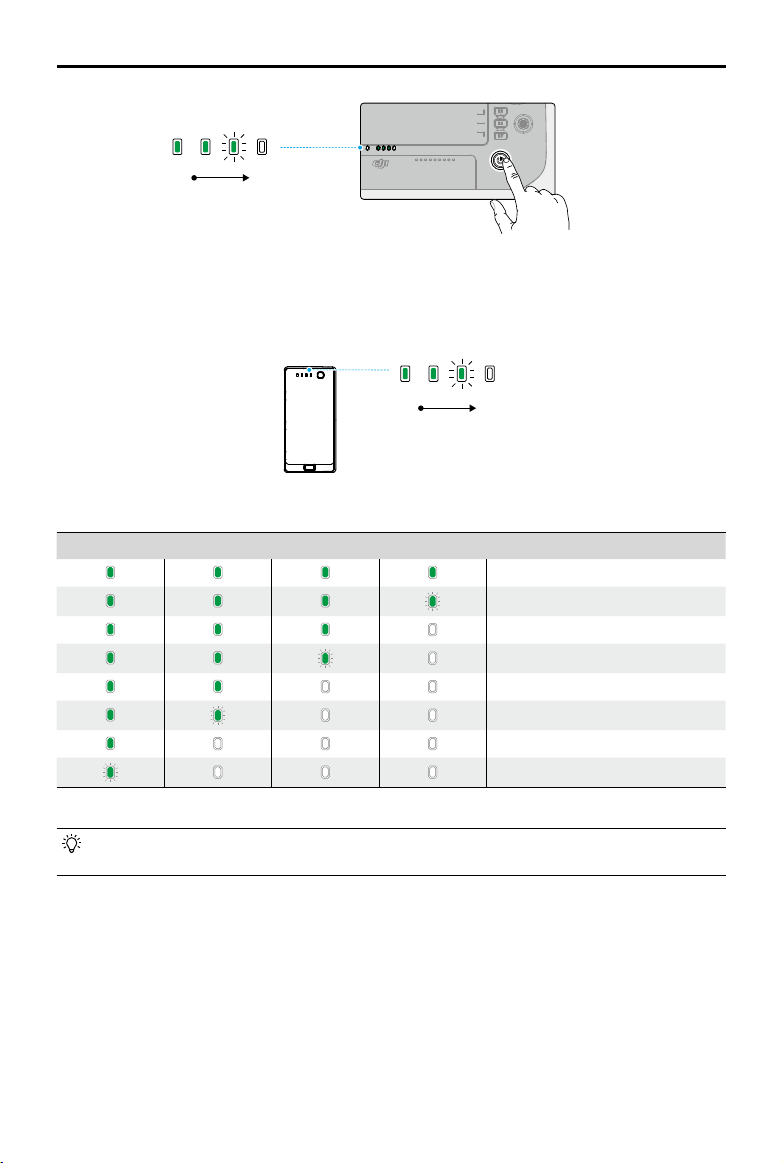
DJI Inspire 3
User Manual
©
2023 DJI All Rights Reserved.
75
Checking the External Battery Level
Press the button on the external battery, and the LEDs will indicate the current battery level of
the external battery.
The battery level LEDs indicate the battery level of the WB37 battery.
Battery Level LEDs Battery Level
88%~100%
75%~87%
63%~74%
50%~62%
38%~49%
25%~37%
13%~24%
0%~12%
• Alternatively, go to the home screen of the remote controller and check the battery
levels of both the internal and external batteries on the status bar.
Low High
High
Low
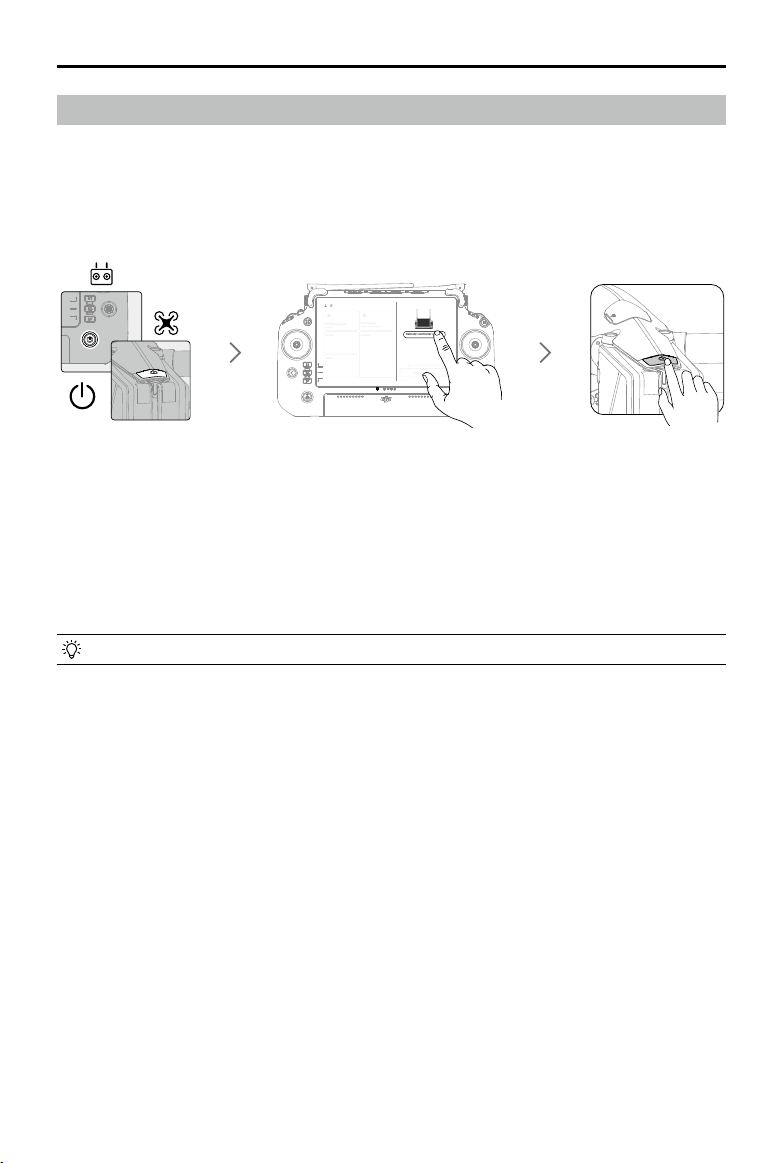
DJI Inspire 3
User Manual
76
©
2023 DJI All Rights Reserved.
Linking the Remote Controller and Control Stick Modes
Linking the Remote Controller
The remote controller is already linked to the aircraft when it is purchased together as part of
a combo. Otherwise, follow the steps below to link the remote controller and the aircraft after
activation.
1. Power on the aircraft and the remote controller.
2. Run DJI Pilot 2 and tap Link Remote Controller to link. The status LED of the remote
controller will blink blue, and the remote controller will beep during linking.
3. Press and hold the power button on the aircraft for at least five seconds. The aircraft
power indicator will blink and will beep twice to indicate linking has started. When linking is
successful, the aircraft rear indicators will blink green while the remote controller will beep
twice, and the remote controller status LEDs will turn solid green.
• Make sure the remote controller is within 50 cm (1.6 ft) of the aircraft during linking.
New database for safty available
Prepare To Fly
Prohibited areas
Limit fly
Fire Rescue
Traffic Police Brigade
Academy
Album
Air Line
Remote Controller Linking

DJI Inspire 3
User Manual
©
2023 DJI All Rights Reserved.
77
Control Stick Modes
The control sticks can be operated in Mode 1, Mode 2, or Mode 3, as shown below. The default
control stick mode is Mode 2. In this manual, Mode 2 is used as an example to illustrate how to
use the control sticks.
Up
Down
Turn RightTurn Left
RightLeft
Forward
Backward
Left Stick Right Stick
Right Stick
Left Stick
Turn RightTurn Left
Up
Down
RightLeft
Forward
Backward
Right Stick
Up
Down
Forward
Backward
Left Stick
Turn RightTurn Left
RightLeft
Mode 1
Mode 2
Mode 3
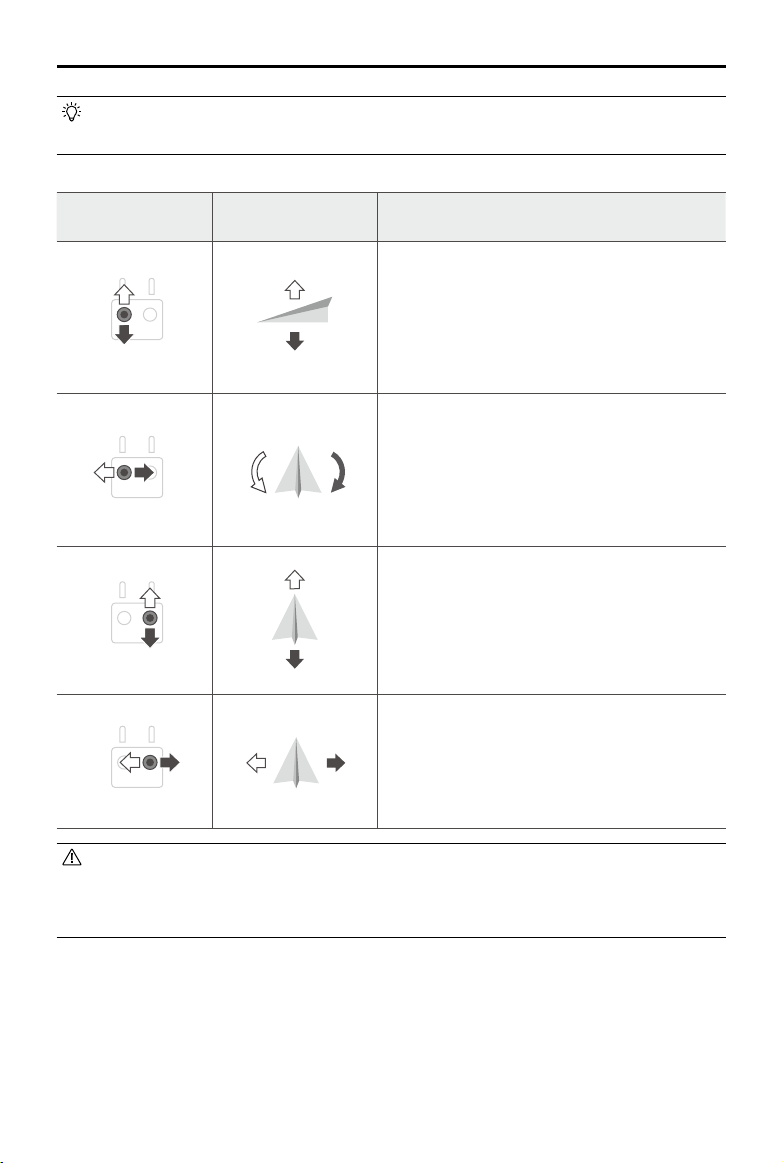
DJI Inspire 3
User Manual
78
©
2023 DJI All Rights Reserved.
Center position: control sticks are centered.
Moving the control stick: control sticks are pushed away from the center.
Remote Controller
(Mode 2)
Aircraft Remarks
Moving the left stick up or down (throttle stick)
changes the aircraft’s altitude. Push the stick up
to ascend and down to descend. The more the
stick is pushed away from the center position,
the faster the aircraft will change altitude.
Push the stick gently to prevent sudden and
unexpected changes in altitude.
Moving the left stick to the left or right (pan
stick) controls the orientation of the aircraft.
Push the stick left to rotate the aircraft counter-
clockwise and right to rotate the aircraft
clockwise. The more the stick is pushed away
from the center position, the faster the aircraft
will rotate.
Moving the right stick up and down (pitch stick)
changes the aircraft’s pitch. Push the stick up
to fly forward and down to fly backward. The
more the stick is pushed away from the center
position, the faster the aircraft will move.
Moving the right stick to the left or right (roll
stick) changes the aircraft’s roll. Push the stick
left to fly left and right to fly right. The more the
stick is pushed away from the center position,
the faster the aircraft will move.
• Keep the remote controller away from magnetic materials such as magnets and
loudspeaker boxes to avoid magnetic interference.
• To avoid damage to the control sticks, it is recommended that the remote controller be
stored in the trolley case when being carried or transported.
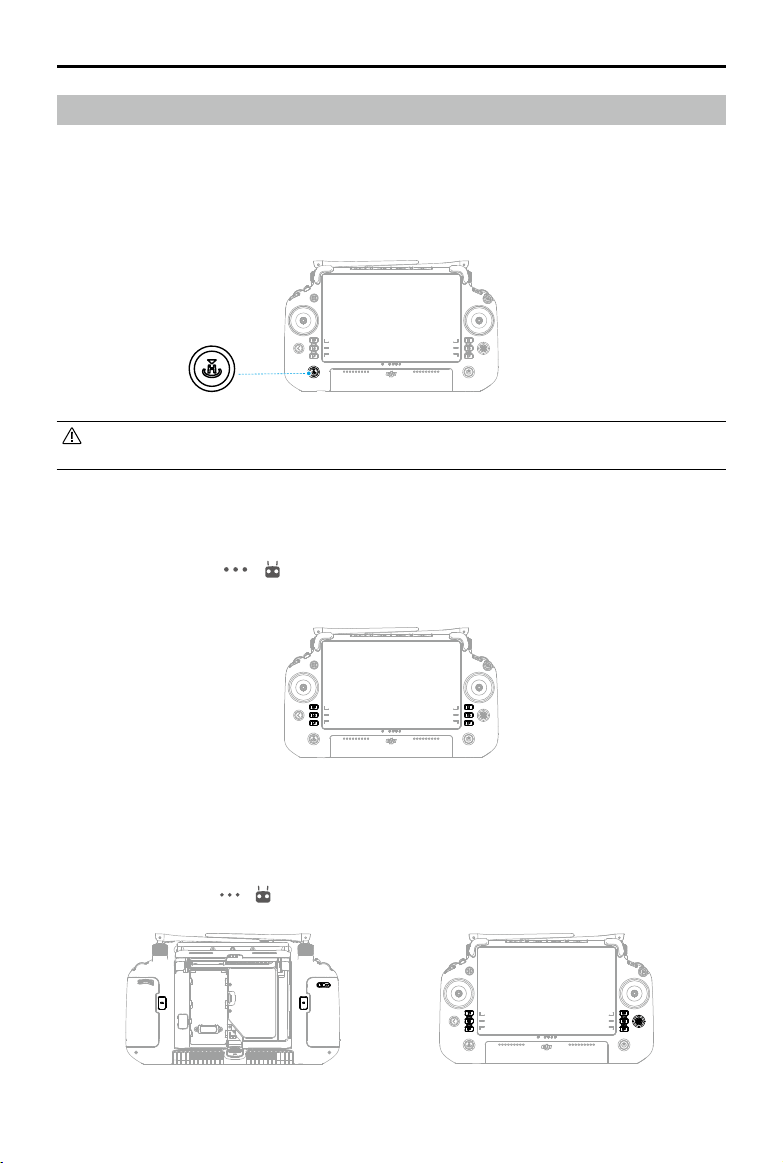
DJI Inspire 3
User Manual
©
2023 DJI All Rights Reserved.
79
Buttons Overview
RTH Button
Press and hold the RTH button until the remote controller beeps twice to start RTH. The aircraft
will y to the last updated Home Point. Press the button again to cancel RTH and regain control
of the aircraft.
• In Dual Control mode, the users cannot start or cancel RTH using the RTH button on the
remote controller that does not have aircraft control.
L1/L2/L3/R1/R2/R3 Buttons
Find the descriptions of these button functions next to the L1/L2/L3/R1/R2/R3 buttons after
running DJI Pilot 2. Tap > > Customize RC Buttons to hide the description of the buttons
on both sides of the screen.
Button Customization and Combinations
Customizable Buttons
The L1, L2, L3, R1, R2, R3, C1, C2, C3, and 5D buttons are customizable. Open DJI Pilot 2 and
enter camera view, tap > to congure the functions of these buttons.
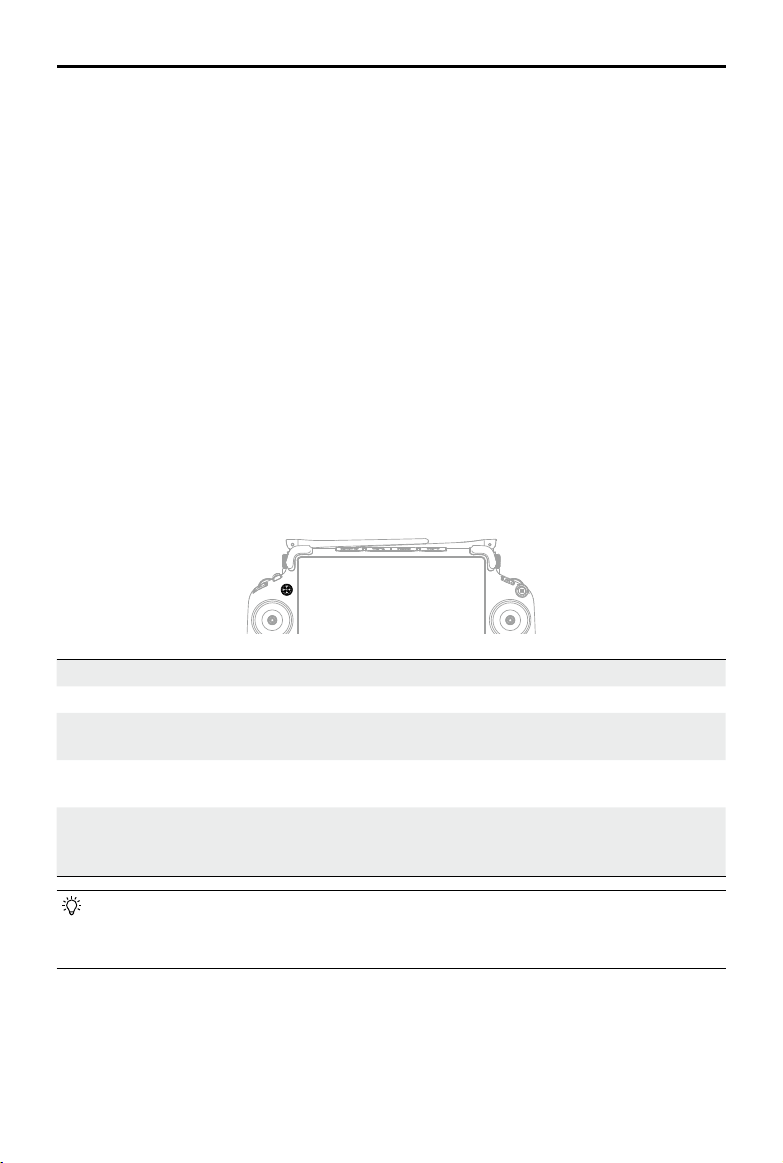
DJI Inspire 3
User Manual
80
©
2023 DJI All Rights Reserved.
Combination Buttons
Some frequently-used features can be activated by using combination buttons. To use
combination buttons, hold the back button and operate the other button in the combination. In
actual use, enter the home screen of the remote controller, and tap Guide to quickly check all
available combination buttons.
Aircraft Control Button
When using dual remote controllers, the aircraft control button is used to take control of the
aircraft and indicate the aircraft control status. When the aircraft control is not locked by any
remote controller:
A. If the aircraft control button is green, press and hold the aircraft control button to lock the
aircraft control. The aircraft control button will turn blue when the aircraft control is locked.
B. If the aircraft control button is white, press the aircraft control button to lock the aircraft
control. The aircraft control button will turn blue when the aircraft control is locked.
Press the aircraft control button again to unlock the control of the aircraft. An unlock prompt
will appear in the app. Once unlocked, the other remote controller is able to gain and lock the
control of the aircraft.
Button Color Description
Red The remote controller is not linked to an aircraft.
Solid green The remote controller is linked to an aircraft and has control of the
aircraft.
Solid blue Aircraft control is locked and the remote controller has control of the
aircraft.
White The remote controller is linked to the aircraft without control of the
aircraft. If the aircraft control is locked by another operator, the aircraft
control button will ash after it is pressed.
• Only the remote controller with aircraft control can be used to start or cancel RTH.
• When the remote controller has full control, the control sticks are used for controlling
the aircraft and the dials for adjusting gimbal movement.
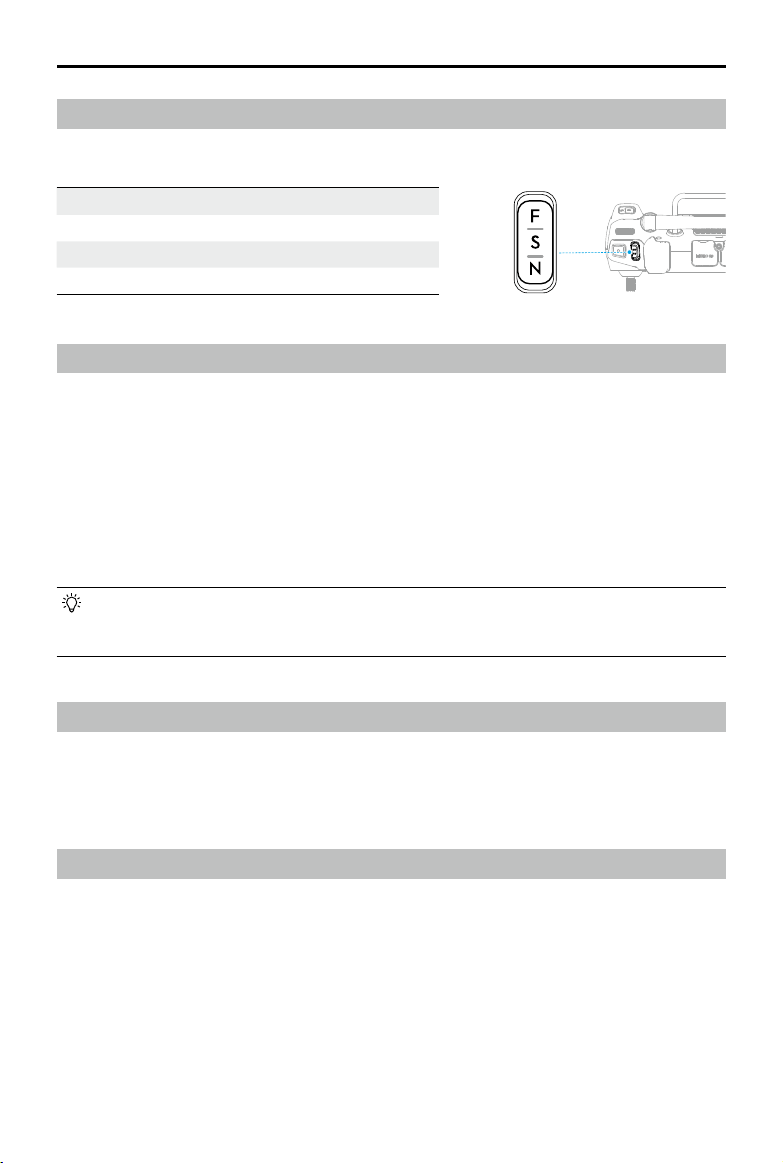
DJI Inspire 3
User Manual
©
2023 DJI All Rights Reserved.
81
Icon Flight Mode
F F-mode (Function)
S S-mode (Sport)
N N-mode (Normal)
Calibrating the Compass
The compass may need to be calibrated after the remote controller is used in areas with
electromagnetic interference. A warning prompt will appear if the compass of the remote
controller requires calibration. Tap the warning prompt to start calibration. In other cases,
follow the steps below to calibrate the remote controller.
1. Enter the home screen.
2. Open Settings, swipe up, and select Compass.
3. Follow the diagram on the screen to calibrate the remote controller.
4. The user will receive a prompt when the calibration is successful.
• If the remote controller compass is working normally, “Calibration Success” will be
prompted after entering the calibration view. It is not necessary to perform the
calibration.
HDMI Settings
The touchscreen can be shared with a display screen via an HDMI cable. The resolution can be
set in Settings, Display, and then HDMI or in Camera View, HD settings, and then Video Output
Resolution in the app.
Dual Control Mode
Inspire 3 supports Dual Control mode which allows two pilots to operate an aircraft
simultaneously with remote controllers A and B. In this mode, both remote controllers have
equal control of the aircraft. The roles of both remote controllers operating the aircraft are not
assigned in advance. Instead, either pilot may gain control of the aircraft or the gimbal camera
as needed, allowing for more exibility during the operation.
Control over the aircraft is independent of control over the gimbal camera. When a remote
controller gains control of the aircraft or the gimbal camera, the user can use the remote
controller to operate the aircraft or control the movement of the gimbal camera respectively.
Flight Mode Switch (N/S/F)
Toggle the switch to select a ight mode. Read the Flight Modes section for more information.
DJI Inspire 3
User Manual
82
©
2023 DJI All Rights Reserved.
• In Dual Control mode, the aircraft can be connected with a DJI RC Plus remote controller
and a DJI High-Bright Remote Monitor. Read the DJI Professional Ecosystem section for
more information on the DJI High-Bright Remote Monitor.
Setting Dual Control Mode
Before using Dual Control mode, the pilot needs to link the aircraft with both remote controllers
A and B. Follow the steps below to link the remote controllers.
1. Launch DJI Pilot 2.
2. Enter the home screen and tap Remote Controller A/B to activate linking. During linking,
the status LED of the remote controller will blink blue and the remote controller will beep.
Press and hold the power button on the aircraft for at least ve seconds. The aircraft power
indicator will blink and beep twice to indicate that linking has started. When linking is
successful, the aircraft rear LED indicators will blink green, the remote controller beeps twice,
and the remote controller status LED turns solid green.
3. After that, the aircraft control button on the remote controller will turn green or blue,
and the user can take control of the aircraft, while the aircraft control button of the other
remote controller will turn white. Tap gimbal camera icon on the camera view in DJI Pilot 2
to gain control of the gimbal camera.
• Link the two remote controllers one by one. Make sure to link remote controller A with
the aircraft rst, and then link remote controller B.
Using Dual Control Mode
1. Make sure both remote controllers are linked and connected with the aircraft before using
Dual Control mode. By default, the rst remote controller connected with the aircraft gains
control of both the aircraft and the gimbal camera, while the second remote controller is
not given any control.
2. When a remote controller has control of a device, whether it is the aircraft or the gimbal
camera, the pilot can control the device by pushing the control sticks, turning the dial,
pressing the shortcut buttons, or tapping the app user interface. The operation is the same
as using a single remote controller. However, when a remote controller does not have
control of a device, the pilot is unable to control the device. Only the remote controller with
control of the aircraft can be used to start or cancel RTH.
3. Either pilot can take over control of a device as needed. The aircraft control button will turn
blue when aircraft control is locked. Tap gimbal camera icon on the gimbal camera view in
DJI Pilot 2 to gain control of the gimbal camera. The control sticks are used for operating the
gimbal if the remote controller only has control over the gimbal camera. When the remote
controller has full control, the control sticks are used for controlling the aircraft and the
dials for adjusting gimbal movement.
4. In Dual Control mode, an aircraft control transfer mechanism will be triggered if the remote
controller with aircraft control is disconnected from the aircraft. When this happens, the
connected remote controller will receive a notication that the user may manually take over
aircraft control. If the pilot of the connected remote controller chooses not to take over
aircraft control, the aircraft will automatically perform the failsafe action. If the pilot of the

DJI Inspire 3
User Manual
©
2023 DJI All Rights Reserved.
83
connected remote controller does not choose either option within a specied time period,
the aircraft will also activate the failsafe action.
5. When the disconnected remote controller reconnects to the aircraft during the ight, if the
aircraft control is not taken over by the connected remote controller, the aircraft control will
be resumed to the remote controller before disconnection by default.
6. Only the remote controller with control of the gimbal camera can be used to adjust relevant
settings for the gimbal and camera, and to download or playback media les.
7. Under normal circumstances, the pilots of both remote controllers can adjust ight-related
settings, such as for the flight controller system, vision systems, batteries, and video
transmission. However, if aircraft control is locked, only the remote controller with aircraft
control can be used to adjust these settings.
8. Other non-ight-related operations can be performed using either remote controller.
9. The pilot of remote controller B cannot adjust settings for custom network RTK.
10. Remote controller A can be used to update the firmware of all modules at once when
connected with the aircraft, but remote controller B can only be used to update the
rmware of remote controller B.
11. Uploading Logs Using DJI Pilot 2: the operator can upload the logs of both the aircraft
and remote controller A through remote controller A, and can upload the logs of remote
controller B through remote controller B.
12. Remote controller B cannot be used to update the Fly Safe database.

84
©
2023 DJI All Rights Reserved.
DJI Professional
Ecosystem
This chapter introduces on how to form DJI
Professional Ecosystem with the other DJI
products.
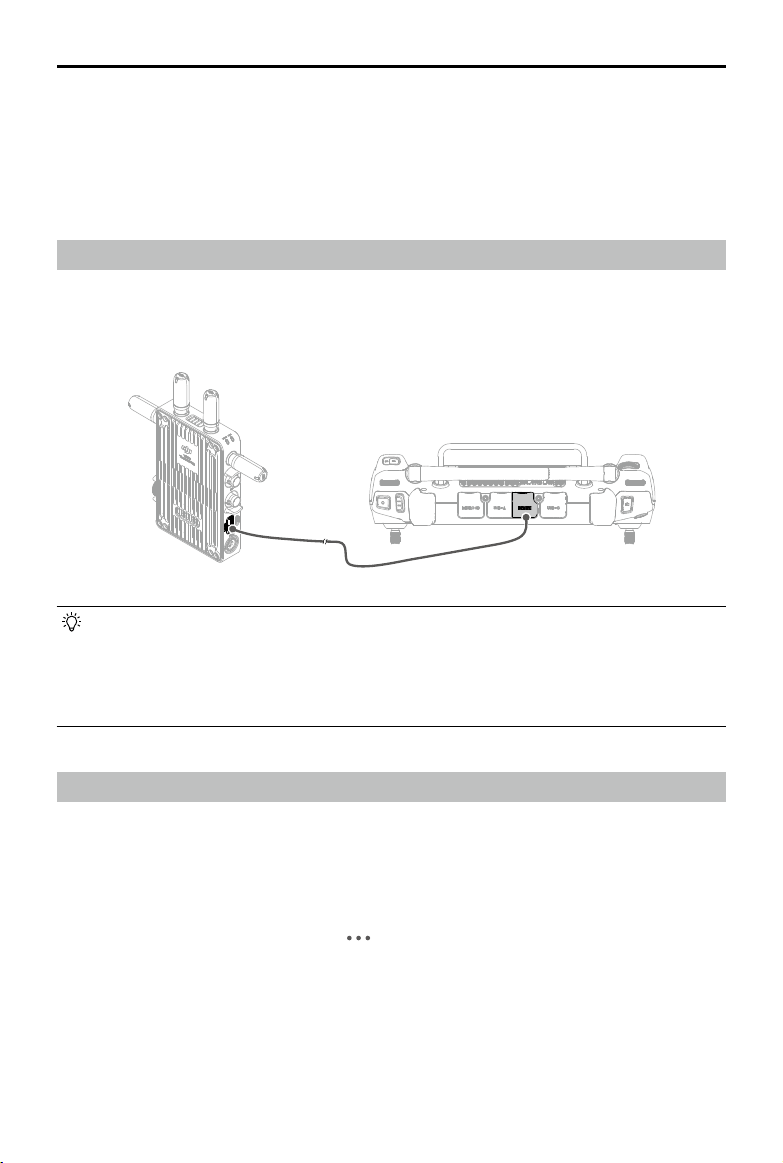
DJI Inspire 3
User Manual
©
2023 DJI All Rights Reserved.
85
• Read the DJI Video Transmitter User Guide for more information.
• When using the remote controller with the video transmitter, keep a distance of at least
50 cm between them to avoid signal interference. If the remote controller signal still has
interference, set the channel mode of the video transmitter to the DFS channel. Read
the DJI High-Bright Remote Monitor User Guide for more information.
DJI High-Bright Remote Monitor
In Dual Control mode, the aircraft can link with a DJI RC Plus remote controller and a DJI High-
Bright Remote Monitor, while the monitor can be used to observe the liveview and adjust the
parameters.
Linking
1. Power on the remote monitor. Tap to enter System Settings, and then Connection
Settings. Select Control Mode, set the monitor as Control Monitor B, and tap Link to Control
Monitor B to enter linking status.
2. Press and hold the power button on the aircraft for at least ve seconds. The aircraft power
indicator will blink and beep twice to indicate that linking has started. When linking is
successful, the aircraft rear indicators will blink green while the remote monitor will show a
connected status.
DJI Professional Ecosystem
DJI Inspire 3 can be used with other DJI products (sold separately), such as DJI Video Transmitter,
DJI High-Bright Remote Monitor (abbreviated as remote monitor), DJI Three-Channel Follow
Focus, and DJI Master Wheels to form a professional lm ecosystem.
DJI Video Transmitter
Connection: connect the remote controller with the DJI Video Transmitter using an HDMI cable.
Usage: once connected, the liveview will be available to display on the remote monitors after
linking the remote monitor to the video transmitter.

DJI Inspire 3
User Manual
86
©
2023 DJI All Rights Reserved.
1. Remote Monitor Battery Level
2. Aircraft Battery Level
3. Connected Devices Status (such as DJI
Three-Channel Follow Focus, and DJI
Master Wheels)
4. Remote Monitor SD Card Storage Display
5. Video Transmission Signal Strength and
Bitrate
6. Recording Parameters
7. MF Readings
8. Exposure Assist/Focus Assist Settings
9. Current Reel Information
10. Recording Button, Timecode and Current
Storage Path
11. Remote Monitor System Settings
12. Navigation Display
• Read the DJI High-Bright Remote Monitor User Guide to learn more usage information.
1 2 3 4 5 6
7
891011
12
• Even if the remote monitor is selected as Control Monitor A, the remote monitor will
also work as Control Monitor B after being linked to the aircraft.
• Make sure the remote monitor is within 50 cm of the aircraft during linking.
Remote Monitor Liveview
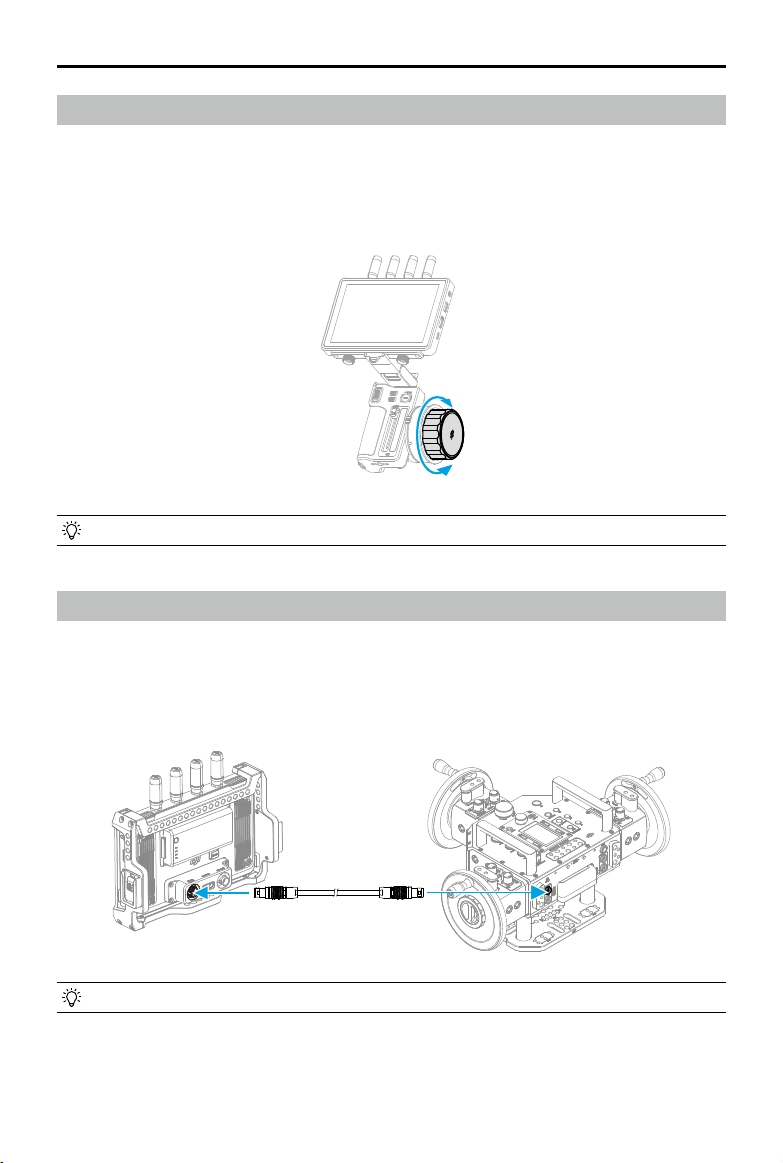
DJI Inspire 3
User Manual
©
2023 DJI All Rights Reserved.
87
DJI Three-Channel Follow Focus
Mounting and Checking: mount the remote monitor with DJI Three-Channel Follow Focus, and
then power on the remote monitor.
Usage: use the focus knob on the DJI Three-Channel Follow Focus to control the focus of the X9-
8K Air camera lens.
• Read the DJI Master Wheels User Guide for more information.
• Read the DJI Three-Channel Follow Focus User Guide for more information.
DJI Master Wheels
Connection: mount the DJI Remote Monitor Expansion Plate to the remote monitor. Connect
any one of the DC-OUT port on DJI Master Wheels to the DC-IN port on the expansion plate
using the DJI High-Bright Remote Monitor Controller Cable.
Usage: once connected, use the wheels to control gimbal rotation.
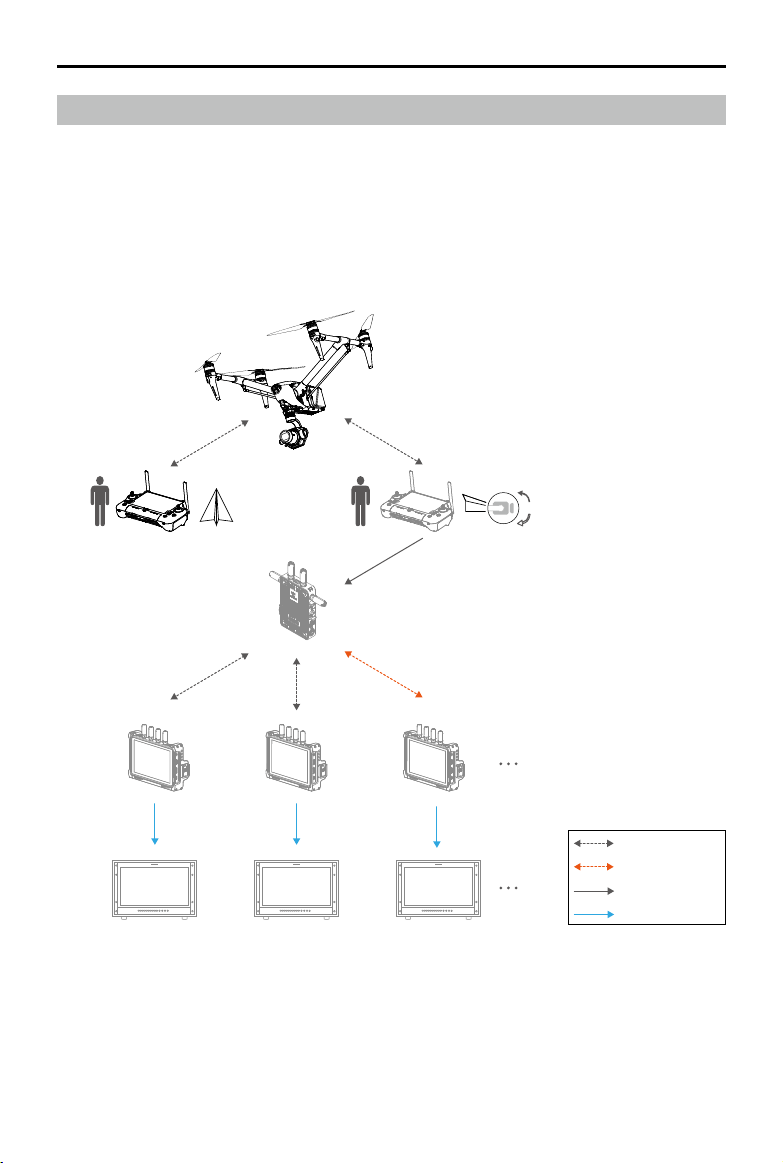
DJI Inspire 3
User Manual
88
©
2023 DJI All Rights Reserved.
Typical Application Scenarios
DJI Inspire 3 and the above DJI products can perform in various application scenarios. It allows
two or three persons to operate the aircraft and gimbal while others view the liveview using
third-party wireless monitors.
Scenario 1: using dual remote controllers to control the aircraft and the gimbal. It is applied
to 2-person shooting, while the focus is adjusted using the remote controller dial by the aerial
gimbal operator. It allows others to view the liveview from the third-party monitors wirelessly.
O3 Pro
Broadcast Mode
HDMI
HDMI/SDI
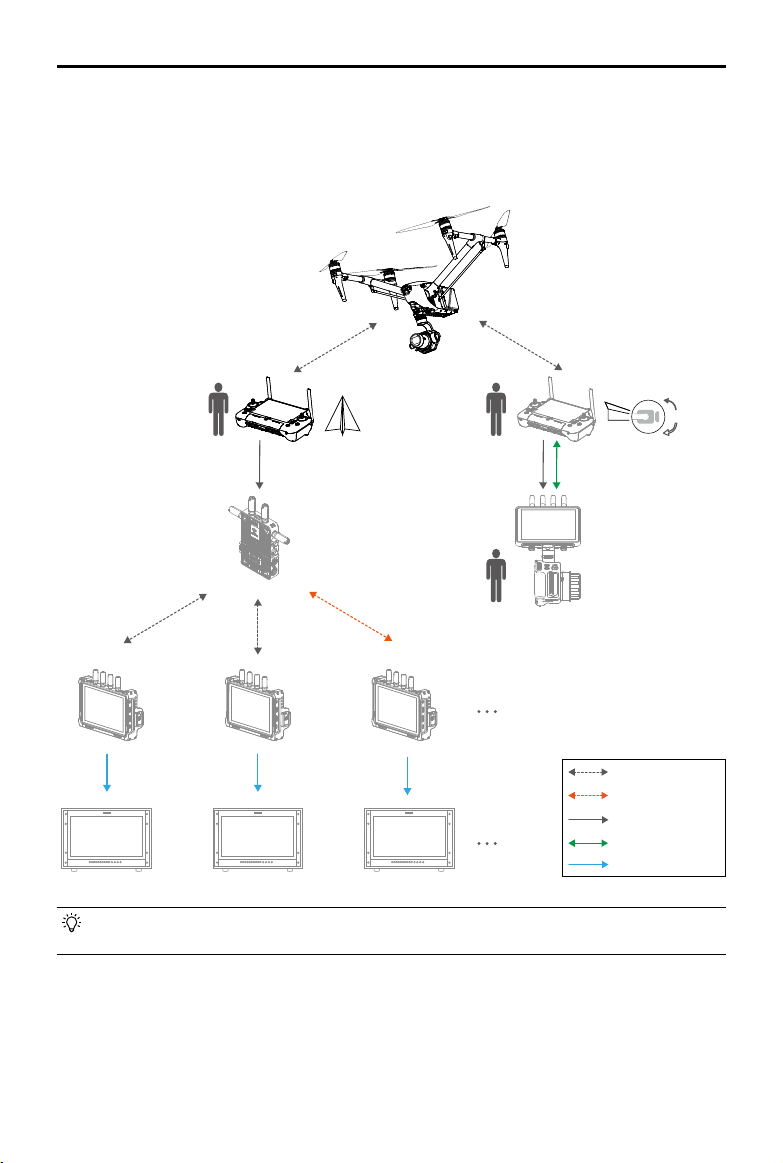
DJI Inspire 3
User Manual
©
2023 DJI All Rights Reserved.
89
Scenario 2: using dual remote controllers to control the aircraft and the gimbal. It is applied to
3-person shooting, while the focus is adjusted using the three-channel follow focus connected
to the remote monitor by the focus puller. This allows others to view the liveview from the
third-party monitors wirelessly.
O3 Pro
Broadcast Mode
HDMI
USB-A to USB-C
HDMI/SDI
USB-A
USB-c
• Make sure to use the USB-A port when connecting the remote controller to the remote
monitor.
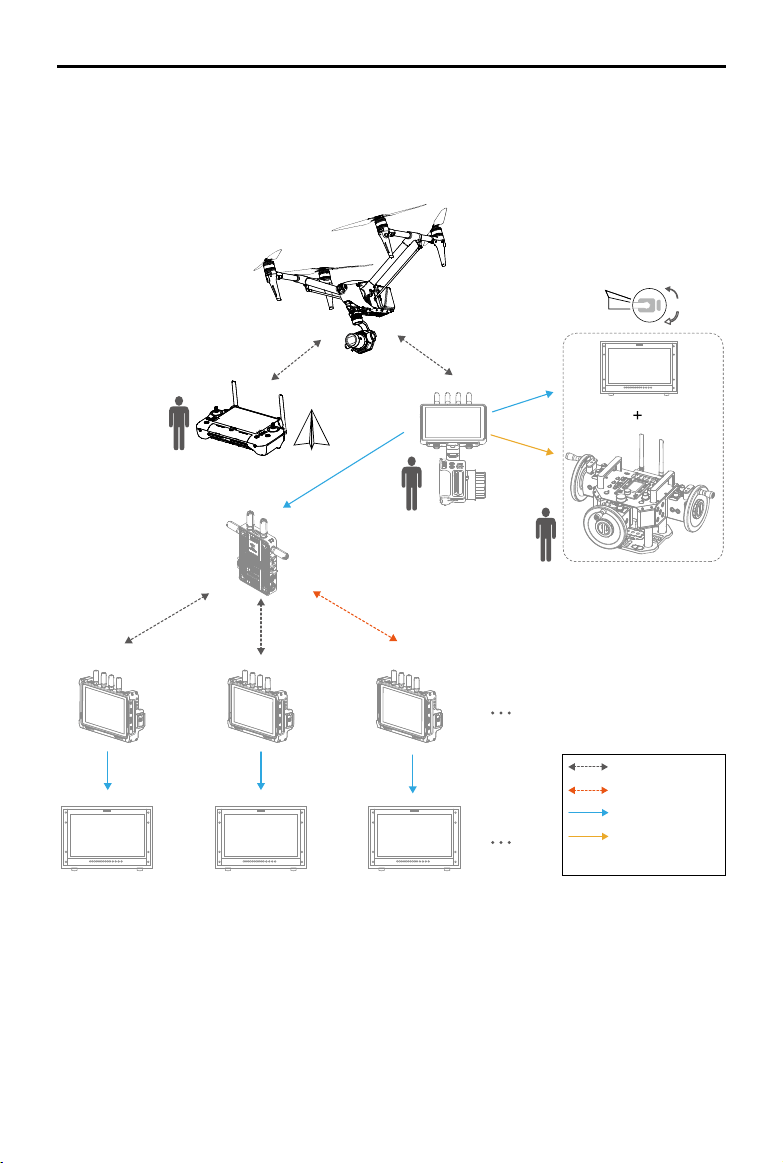
DJI Inspire 3
User Manual
90
©
2023 DJI All Rights Reserved.
Scenario 3: using a remote controller, a video transmitter, a three-channel follow focus, and
multiple remote monitors. It is applied to 2-person or 3-person shooting, while the focus is
adjusted by the focus puller. It allows others to view the liveview from the third-party monitors
wirelessly or via wired connection.
The following solutions can also be selected for connecting with the remote monitor:
1. Left Hand Grip (gimbal control), Right Hand Grip (focus adjustment)
2. Three-Channel Follow Focus (focus adjustment)
3. Master Wheels (gimbal control)
O3 Pro
Broadcast Mode
HDMI/SDI
DJI High-Bright
Remote Monitor
Controller Cable

©
2023 DJI All Rights Reserved.
91
DJI Pilot 2 App
This chapter introduces the features of
DJI Pilot 2.
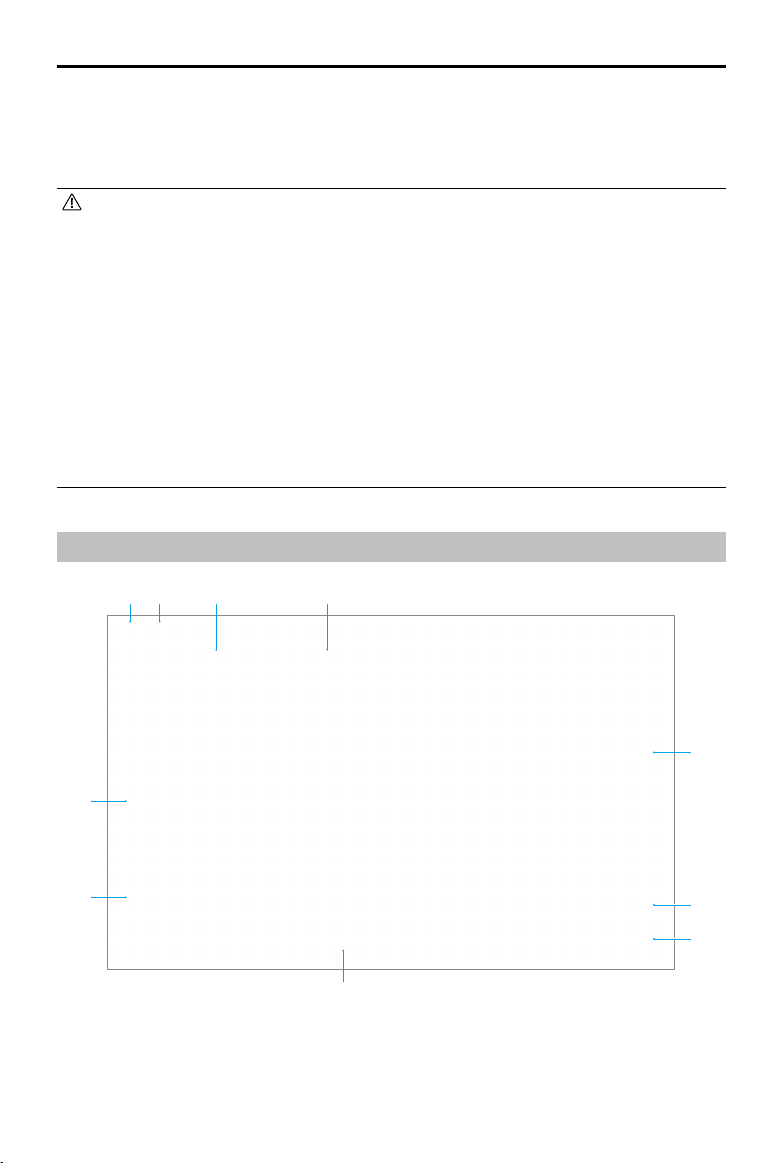
DJI Inspire 3
User Manual
92
©
2023 DJI All Rights Reserved.
DJI Pilot 2 App
The DJI Pilot 2 app integrates various professional functions for simple and ecient operations.
The camera parameters can be set using the camera setting panel.
• The use of the app is subject to DJI Pilot 2 Terms of Use and DJI Privacy Policy. Read
them carefully in the DJI Pilot 2 app.
• Read all the DJI Pilot 2 app safety prompts, warning messages, and disclaimers carefully.
Familiarize yourself with relevant regulations in your area. You are solely responsible
for being aware of all relevant regulations and ying in a way that is compliant.
a. Read and understand the warning messages before resetting the Home Point.
b. Read and understand the warning messages and disclaimers before setting the
altitude beyond the default limit.
c. Read and understand the warning messages and disclaimer before switching
between ight modes.
d. Understand that the failsafe is how the aircraft will perform when disconnected
from the remote controller, and the failsafe cannot be canceled before reconnecting
to the remote controller. The default failsafe setting is Return-to-Home (RTH).
Homepage
1 2 3 4
5
6
7
8
9
10
1. Prole
Tap to view ight records, download oine maps, manage GEO Zone unlocking, read help
documentation, select a language, and view app information.

DJI Inspire 3
User Manual
©
2023 DJI All Rights Reserved.
93
2. Data and Privacy
Tap to manage network security modes, manage app cache, and clear DJI device logs.
3. GEO Zone Map
Tap to view the GEO Zone map and check if the location is a restricted or authorization
zone. Users can also check the maximum ight altitude by selecting the altitude zone.
a. Tap to update the GEO Zone database of the remote controller if an update is available.
b. Tap to update the GEO Zone database of the aircraft if an update is available.
c. Tap to enter and manage the unlocking certicate. If the aircraft is already connected
to the remote controller, users can select the unlocking certicate directly to unlock the
aircraft.
4. Livestream
The corresponding live URL and connection status will be displayed if connected to a
livestream service such as RTMP or RTSP.
5. Flight Route Library
Tap to enter the ight route library. Users can create and view all ight tasks. Flight tasks
can be imported and exported in batches to the remote controller or another external
mobile storage device.
6. Album
Tap to view photos and videos of the aircraft and the local video cache of the remote
controller. Support to save photos from the aircraft to the remote controller. Only videos
cache of the remote controller can be viewed if the remote controller is disconnected from
the aircraft.
7. Academy
Tap to view Inspire 3 Tutorials, Flight Tips, and Case Studies, and download User Manuals to
the remote controller.
a
b
c
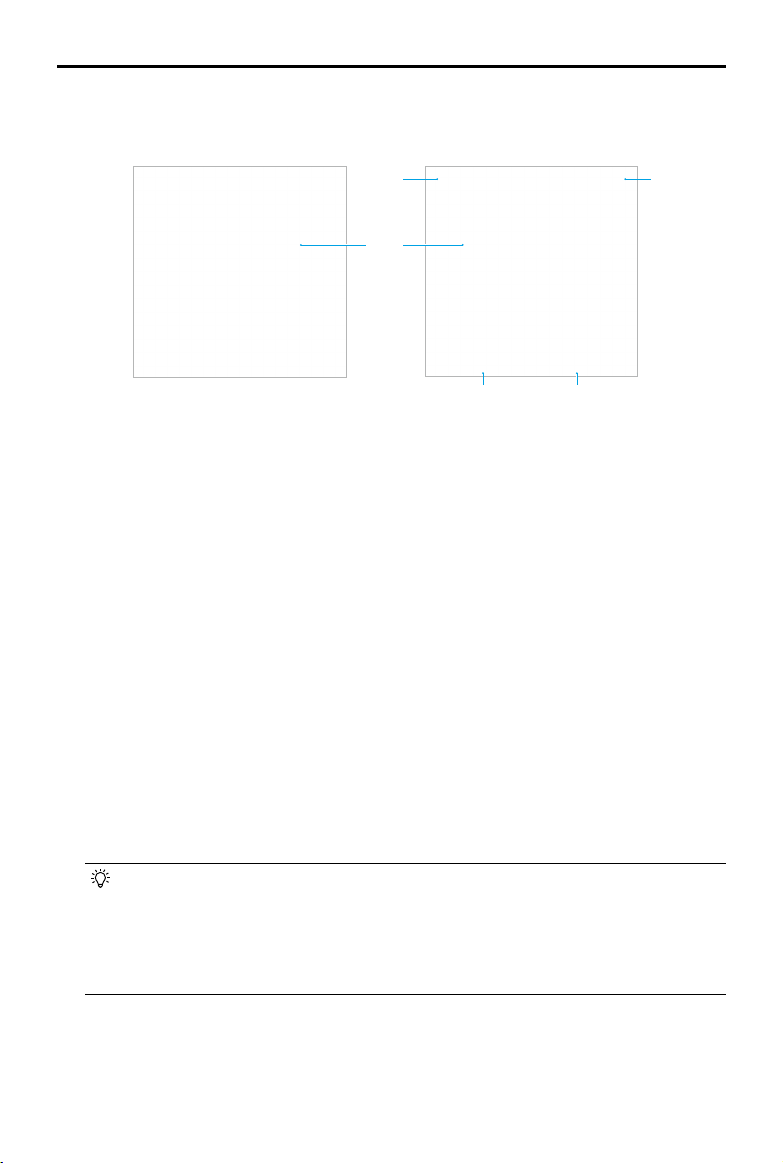
DJI Inspire 3
User Manual
94
©
2023 DJI All Rights Reserved.
8. Health Management System
Displays the health status of the aircraft, remote controller, and payload.
a
b
c
de
a. If the current remote controller is not connected to the aircraft, a picture of the remote
controller will be displayed. Tap to link the remote controller to the aircraft, the aircraft
model and picture will be displayed after it is connected.
b. If the payload is abnormal, the payload name will appear in yellow or red. Tap to view
the error information of the payload.
c. The current remote controller role is displayed as A or B. Tap to view the information of
the remote controller or switch the remote controller role.
d. The health status of the aircraft and the remote controller is displayed here. Tap to
enter the Health Management System view. Read the Health Management System (HMS)
section for more details.
e. The maintenance information of the current aircraft is displayed here. If the aircraft has
DJI Care Pro, its validity period will also be shown. Tap to view the device information,
including cycle count, ight duration, ight history, activation time, ight mileage, etc.
9. Firmware Update Shortcut
If an update is necessary, a prompt will appear notifying the user that new firmware is
available or a consistent rmware update is needed for the aircraft and remote controller.
Inconsistent firmware versions will affect flight safety. The app will prioritize consistent
rmware updates. Tap the prompt to enter the rmware update page.
• A consistent firmware update is required when the firmware versions of some
modules of the aircraft are inconsistent with the compatible version of the system.
In a typical consistent firmware update situation, the aircraft, remote controller,
and the batteries that are installed will be updated to the latest version. Any other
batteries need to be updated separately. When these batteries are used, a prompt
will appear requiring a consistent rmware update to ensure ight safety.
10. Enter Camera View
Tap to enter FPV camera view or gimbal camera view. Refer to the Gimbal Camera View and
FPV Camera View sections for more details.

DJI Inspire 3
User Manual
©
2023 DJI All Rights Reserved.
95
Gimbal Camera View
Introduction
After tapping Enter Camera View on the homepage of the DJI Pilot 2 app, the X9-8K Air gimbal
camera view will display as the main view for the rst time of use.
a. Displays the current camera exposure parameters, including ISO (photo) / EI (video),
shutter speed/angle, aperture, and EV/M.M.
b. Displays the current color information.
In photo mode: displays white balance, including color temperature and color tone.
In video mode: displays white balance and recording LUT.
1
2
3
4
5
6
7
8
9
10
11
12
131415
16
17
18
19
20
21
22
1. Live view from X9-8K Air gimbal camera.
2. Top Bar: displays product information such as aircraft status, ight mode, and signal quality.
Refer to the Top Bar section for more details.
3. Camera Parameters: displays the current parameters of the camera, which can be adjusted
in the Camera Quick Settings Panel. When using the remote controller shortcut keys to
enable the Scroll Wheel to adjust exposure parameters, the corresponding parameter
values will be highlighted in yellow.
a b c d e
f
g
h

DJI Inspire 3
User Manual
96
©
2023 DJI All Rights Reserved.
c. Displays the current encoding format.
In photo mode: displays the frame, storage format, and photo resolution.
In video mode: displays the frame, video encoding, resolution and frame ratio, and
frame rate (project frame rate/sensor frame rate in S&Q mode).
d. Displays the le name of the photo or video currently being shot or about to be shot, the
remaining photo number/recording time, and the remaining capacity.
e. Displays the current lens focal length.
f. Displays the current timecode. The timecode display format is “hour: minute: second:
non-drop frame” or “hour: minute: second; drop frame”.
g. Displays the current focus mode. Tap to switch to AFS or MF.
h. AE lock switch.
4. Playback: tap to enter the aircraft album to view the photos or videos in the aircraft SSD
and the local video cache of the remote controller. Among them:
JPEG: supports to be downloaded and played back.
RAW: supports to be downloaded, but only thumbnail played back.
J+R: only JPEG photos are supported to be downloaded and played back.
5. Photo/Video Mode Settings: tap to switch between photo and video modes and select
dierent shooting options.
6. Shutter/Record Button: tap to take a photo or start or stop recording.
7. Gimbal Slider: displays the tilt angle of the gimbal.
8. Camera Quick Settings Panel: tap to set the camera exposure, color, and recording
specications. Read the Camera Quick Settings Panel section for more information.
9. MF Scrollbar: used for manual focus operation.
10. By default, press the R1 button to lower or raise the landing gear.
11. By default, press the R2 button to switch between the camera view and the map view.
12. By default, press the R3 button to switch between the gimbal camera view and the FPV
camera view.
13. Assistant Camera View: tap to switch the main camera view to the FPV camera view or the
gimbal camera view. Supports zooming out.
14. OSD Parameters: displays the horizontal distance, vertical distance, horizontal speed, and
vertical speed.
Horizontal distance: displays the horizontal distance between the aircraft and the Home
Point.
Vertical distance: displays the altitude of the aircraft relative to the takeo point.
Horizontal speed: displays the current horizontal speed of the aircraft.
Vertical Speed: displays the current vertical speed of the aircraft.
15. Navigation Display: displays aircraft, gimbal status, remote controller, Home Point, and
obstacle avoidance information. Read the Navigation Display section for more information.
16. By default, press the L3 button to enable the Scroll Wheel to adjust the Iris.
17. By default, press the L2 button to enable the Scroll Wheel to adjust the Shutter.

DJI Inspire 3
User Manual
©
2023 DJI All Rights Reserved.
97
18. By default, press the L1 button to enable the Scroll Wheel to adjust the EI/ISO.
19. Spotlight Pro: tap to enable Spotlight Pro to lock the camera orientation and look at the
selected target. Read the Spotlight Pro section for more information.
20. Waypoint Pro: tap to enter the ight rout library, users can view and edit the ight route or
create new ight routes. Read the Waypoint Pro section for more information.
21. Gimbal Mode: displays that the current state of the gimbal is Follow mode. Tap to switch to
the Free mode. Refer to the Gimbal Camera section for a detailed description of each mode.
22. Auto Takeo/Auto RTH: tap the / icon then long press to enable Auto Takeo/Auto RTH.
• Tap anywhere on the screen and hold until a blue circle appears, drag the circle in any
direction and the gimbal will rotate or tilt accordingly.
• Observe the focus frame color to learn the current focus status in AF mode.
Top Bar
1. Back: tap to return to the home screen of the DJI Pilot 2 app.
2. System Status Bar: displays aircraft ight status and various warning messages. If an alert
appears during ight, it will be displayed in the system status bar and continue ashing. Tap
to view the message, and the ashing will stop.
3. Flight status:
a. The flight statuses include standby, preparing to take off, ready to go, manual flight,
returning to home, landing, forced landing, and vision positioning.
b. When the aircraft is in vision positioning, standby, or manual ight status, the current
ight mode will be displayed, including N, S, A, and T modes.
4. Intelligent Battery Information: displays the battery level and remaining ight time of the
Intelligent Battery. Dierent battery levels are represented by dierent colors. When the
battery level is lower than the warning threshold, the battery icon on the right turns red,
reminding the user to land the aircraft as soon as possible and replace the batteries.
5. Landing Gear: displays the current landing gear status, tap to set the intelligent landing
gear.
6. Obstacle Avoidance Status: displays the current obstacle avoidance status of the aircraft
vision systems.
a. White: obstacle avoidance is enabled and is functioning normally.
b. Gray: obstacle avoidance is disabled.
c. Red: obstacle avoidance is enabled but failed.
7. GNSS Positioning Status: displays the number of searched satellites. When the aircraft
RTK module is disabled, the RTK icon will turn gray. When enabled, the RTK icon will turn
1 2
3
5 6 7 8 9 104

DJI Inspire 3
User Manual
98
©
2023 DJI All Rights Reserved.
white. Tap the GNSS positioning status icon to view the RTK mode and GNSS positioning
information.
8. Signal Strength: displays the O3 Pro signal quality. Three white bars indicate strong signal
strength, two yellow bars for medium signal strength, and a red bar for poor signal quality.
If the signal is lost, it displays a disconnected red icon.
9. Intelligent Battery Level: displays the battery level of the aircraft. Tap to view battery level,
voltage, and temperature.
10. Settings: tap to open the Settings menu to set the parameters of each module. Congure
the settings by following the corresponding instructions in app.
a. Flight Control System Settings: include Home Point settings, multiple flight mode
switch, flight mode, return to home, RTH altitude, maximum altitude, distance limit
switch, maximum flight distance, landing gear settings, sensor status, gain & expo
tuning, signal lost action, coordinated turn switch, and target scanning switch.
b. Sensing System Settings: include obstacle avoidance mode, obstacle avoidance
switch, and vision positioning switch.
c. Remote Controller Settings: include remote controller channel, control stick mode,
remote controller calibration, customizable RC buttons, notes for side buttons switch,
and linking.
d. Video Transmission Settings: include work frequency, signal strength, video output
type, video display mode, and video output resolution.
e. Intelligent Battery Settings: include battery information, Smart RTH switch, low battery
warning thresholds, and time to battery self-discharge.
f. Gimbal Settings: include gimbal pitch, pan and roll settings, gimbal pitch limit
extension switch, gimbal calibration, and adjust gimbal.
g
. RTK Settings: include RTK positioning switch, RTK service type, and their
corresponding settings and status displays.
h. Advanced Camera Settings: include Monitoring, Storage, and Others.
i. General Settings: include map selection, show ight trajectory switch, unit settings,
LED settings and ESC beeping switch.
Navigation Display
1
2
3 4
5
6
7
8
8
8

DJI Inspire 3
User Manual
©
2023 DJI All Rights Reserved.
99
1. Tap to switch to the map view.
2. Gimbal Pan: displays the orientation of the gimbal relative to the aircraft in real time. The
icon rotates with the gimbal.
3. Displays north direction.
4. Remote Controller Orientations:
a. Displays the position of the Home Point relative to the aircraft location. When the Home
Point horizontal distance exceeds 16 m, the Home Point icon will stay on the edge of the
Navigation Display.
b. When the relative distance between the Home Point and the remote controller is no
more than 5 meters, only the Home Point will be displayed in Navigation Display. When
the relative distance is more than 5 meters, the remote controller will be displayed as
a blue dot to indicate its position. When the horizontal distance between the remote
controller and the aircraft exceeds 16 meters, the remote controller position icon will
stay on the edge of the Navigation Display.
c. The pointer on the blue dot can be used to indicate the direction the remote controller is
facing when the compass of the remote controller is functioning properly. If the signal is
poor during ight, point the arrow of the remote controller in Navigation Display to the
direction of the aircraft.
5. Tap to zoom out.
6. Display the next waypoint during a Waypoint Pro ight task.
7. Display the current Home Point.
8. Obstacle Information: displays the obstacle information in vertical and horizontal directions,
obstacle avoidance switch status, vision system working status, and aircraft behavior.
No obstacle information displays if both obstacle avoidance and the obstacle information
display are disabled. NA shows that the vertical obstacle avoidance failed to work. TOF
shows that the upward and downward vision systems failed to work, but infrared sensing
system is functioning normally.
Once an obstacle is detected in the horizontal direction, the obstacle will be indicated by a
frame icon. Once an obstacle is detected in the vertical direction, an obstacle distance will
appear in the top or bottom right corner. When the aircraft reaches the warning distance,
the icon will glow orange, and the remote controller will emit long beeping sounds. When
the aircraft reaches the obstacle braking distance, the icon will glow red, and the remote
controller will emit short beeping sounds. Both the obstacle braking distance and the
warning distance can be set in DJI Pilot 2. Follow the prompted instructions in the app to set
them.

DJI Inspire 3
User Manual
100
©
2023 DJI All Rights Reserved.
Camera Quick Settings Panel
Tap to enter the Camera Quick Settings panel and set the exposure for photos and videos
and the image parameters.
1. Tap to set the photo or video exposure parameters. Tap to switch between shutter
angle and shutter speed.
2. Tap to set the image parameters such as white balance, sharpen, and noise reduction.
Recording LUT, and monitoring LUT can also be set in video mode.
3. Tap to set the photo and video parameters.
In Photo mode: set the photo format.
In Video mode, set the frame, recording codec, resolution, FPS, and enable or disable
S&Q.
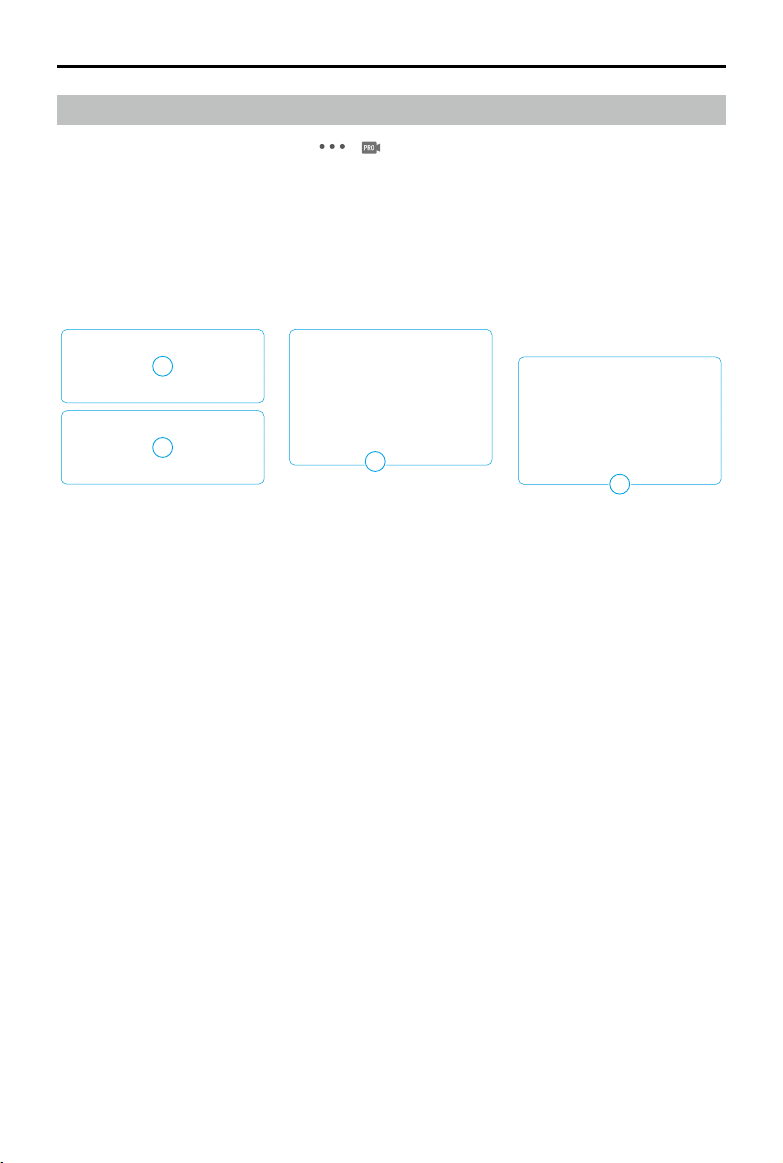
DJI Inspire 3
User Manual
©
2023 DJI All Rights Reserved.
101
1. Exposure Assistant: tap to enable the Histogram, Waveform, and Zebra Stripes (Histogram
and Waveform cannot be enabled at the same time).
a. Histogram: displays a histogram in the camera view after enabled.
b. Waveform: indicates the bright and dark relation of the image using waveform. The
waveform from left to right indicates the color of the image from left to right. The
brightness will be shown as a waveform. The waveform is divided into four grids. The top
grids indicate overexposure and the bottom grids indicate pure black.
c. Zebra Stripes: the area will be displayed in zebra stripes if the exposure exceeds the set
level after being enabled.
2. Display Assistant: includes frame guide, safety zone, gridlines, and center mark.
a. Frame Guide: the frame guide can be enabled or disabled in the liveview and the settings
will not affect the recorded footage. The Frame Guide is only used to monitor the
liveview and adjust the frame. The Frame Guide is set to o by default. Inspire 3 contains
dierent aspect ratios for movie, TV, and web standards. Set the frame guide ratio and
transparency after enabled.
b. Safety Zone: the safety zone is enabled by default. The safety zone is helpful when
adjusting the frame, allowing users to reserve space for added information such as
captions or icons. Set the safety zone ratio and transparency after enabled.
c. Tap to select the gridline mode.
d. Center Marker: indicates the center position of the liveview. Select the center marker and
set the color after enabled.
3. Focus Assistant: auxiliary tools for focusing.
a. MF Zoom in Focus Area: after enabling, the focus frame area can be automatically
enlarged when using MF mode.
b. Peak Focus: after enabling, the focus area will be shown in sharp focus but will not aect
the recorded footage. Set the peaking mode, peaking color and peaking level.
Advanced Camera Settings Panel
Enter the DJI Pilot 2 camera view, tap > and then Advanced Camera Settings panel to set
monitoring, storage, and other settings.
Monitoring Settings
Tap to set exposure assistant, display assistant, and focus assistant.
1
3
2
2

DJI Inspire 3
User Manual
102
©
2023 DJI All Rights Reserved.
Storage Settings
Tap to set the reel information and DJI PROSSD.
1. Reel Information Settings:
a. Camera No.: tap to set the camera number, which can be set from A to Z. The camera
number will be included in the footage name.
b. Next Reel Count: tap to set the next reel count of the next storage device. The setting
range is 1 to 999 and the next reel count will be included in the name of the recorded
footage.
In the following scenarios, the camera will recognize the storage device as new storage.
The current next reel count will be used in the next reel count when the recording begins
and continue from the previous reel count.
The selected storage did not record anything in this camera using this camera number.
The selected storage is empty after formatting.
c. Clip: displays the last recorded clip number with the camera using the current camera
number. The clip number range is 0000 to 9999 and cannot be set. The folder name of
the footage consists of the camera number, reel count, and the sux of the Inspire 3
serial number.
The file name of the footage consists of the camera number, reel count, clip number,
date, and the Inspire 3 serial number.
If the recording exceeds 3 hours, the footage will be stored as a new le, and the name of
the le will be stored as the following clip number.
B021C0001...
B021C0002...
B021C0001_211212_BD13.MOV
Year
Clip
Reel Count
Camera No
Month
SN
Date

DJI Inspire 3
User Manual
©
2023 DJI All Rights Reserved.
103
1. Timecode
a. Timecode: displays the current aircraft timecode. EXT icon indicates that there is an
external timecode synchronizer connected to the aircraft.
b. Run Mode
The Run mode can be set to Free Run or Recording Run. When set to Free Run, the time
code will add one frame for every frame the sensor generates regardless of whether
the camera is recording or not. When the project frame rate is dierent from the sensor
frame rate, the camera will automatically switch to Recording Run as the time code frame
rate cannot match the sensor frame rate. When set to Recording Run, the time code will
2. Storage Information:
a. DJI PROSSD: displays remaining capacity and total capacity.
b. Tap to format the DJI PROSSD.
Other Settings
Tap to set timecode, lens, LUT, metering mode, and anti-icker.
1
2
3
4
5
6
a
b
c
d
e
f
g

DJI Inspire 3
User Manual
104
©
2023 DJI All Rights Reserved.
only add one frame for every frame generated by the sensor during recording and the
time code will be continuous throughout all recorded footage.
c. Mode
Mode can be set to Preset or Jam Synced.
Preset can be selected in both run modes. In Preset mode, tap TC settings or Reset TC
to customize the initial value. Jam Synced can only be selected in Free Run mode and
requires connecting an external timecode synchronizer to the aircraft.
d. Count Mode
Count mode can be set to Drop Frame or Non-Drop Frame. In Drop Frame mode, the
timecode will skip the first two frames of each minute except every 10th minute. The
Drop Frame will be used when the project frame rate is 29.97fps or a multiple of 29.97fps.
In Non-Drop Frame mode, the timecode will count every frame the sensor generates.
e. Timecode settings.
f. Show TC on Camera View
Tap to enable the timecode display on the liveview.
g. Reset Timecode
Tap to reset the timecode.
2. Lens Prole
Tap to view the lens model and calibration status. Focus calibration is available.
3. LUT Settings
Supports custom LUT. Tap LOOK to select and manage a LUT. Inspire 3 supports up to 16
LUT les to read and display.
a. LOOK
Supports custom LUT from the user. The custom LUT will be applied when LOOK is
selected.
b. Import LUT
To add a LUT le, select import and select the LUT le.
Copy the 33 point 3D LUT le name with .CUBE to the root directory of the storage and
attach the storage to the main body. Only use letters or numbers to name the LUT le
and DO NOT use special characters or spaces. Make sure the storage has been formatted
before saving the custom LUT.
a
b
c

DJI Inspire 3
User Manual
©
2023 DJI All Rights Reserved.
105
c. Delete LUT
To delete a LUT le, select the le, tap delete, and then cancel to check the updated list.
4. Metering Mode
Tap to set to average metering or spot metering.
5. Anti-icker
Anti-icker is only available in Photo mode, which can be set to O, Auto, 50Hz, or 60Hz.
6. Reset Camera Settings
Tap to reset the camera settings.

DJI Inspire 3
User Manual
106
©
2023 DJI All Rights Reserved.
Waypoint Pro
Instruction
Waypoint Pro can be used to plan the flight route for the aircraft in advance. By manually
adding waypoints or enabling Auto Add Waypoint on to create a ight route, and editing the
waypoints, the aircraft can y to all waypoints and complete preset actions to realize automatic
ight.
Waypoint Pro provides two modes, including Repeatable Routes and 3D Dolly. During the
Repeatable Routes mode, the aircraft can automatically y on the same route and automatically
maintain all preset parameters such as the ight altitude, ight speed, and gimbal angle. During
the 3D Dolly mode, the aircraft can be controlled by the remote controller to y on the same
route. Unlike the Repeatable Routes mode, the 3D Dolly mode can maintain the same flight
route at all times and exibly control the aircraft to move forward and backward on the preset
route repeatedly.
Waypoint Pro Usage
Tap to open the Waypoint Pro setting panel in either camera view or map view. Camera view
is used as the example.
1. After takeo, if the aircraft status displayed on the top bar is manual ight, tap to show
the Flight Route Library panel, and tap to create a new flight route. Waypoints can be
added using the method below.
A. Manual Add Waypoint: press the C1 button on the remote controller to create a waypoint,
and press the C2 button on the remote controller to delete the current waypoint.
B. Auto Add Waypoint: after enabling Auto Add Waypoint, DJI Pilot 2 will regularly record the
aircraft position, orientation, gimbal angle, and other information according to the set
time interval and create waypoints accordingly.
2. View the recent ight route list . Tap to open the ight route editor if a ight route needs
to be edited. Read the Flight Route Editor section for more information.
3. Select the desired flight route from the flight route list. Tap to enter the waypoint Pro
1
2
3
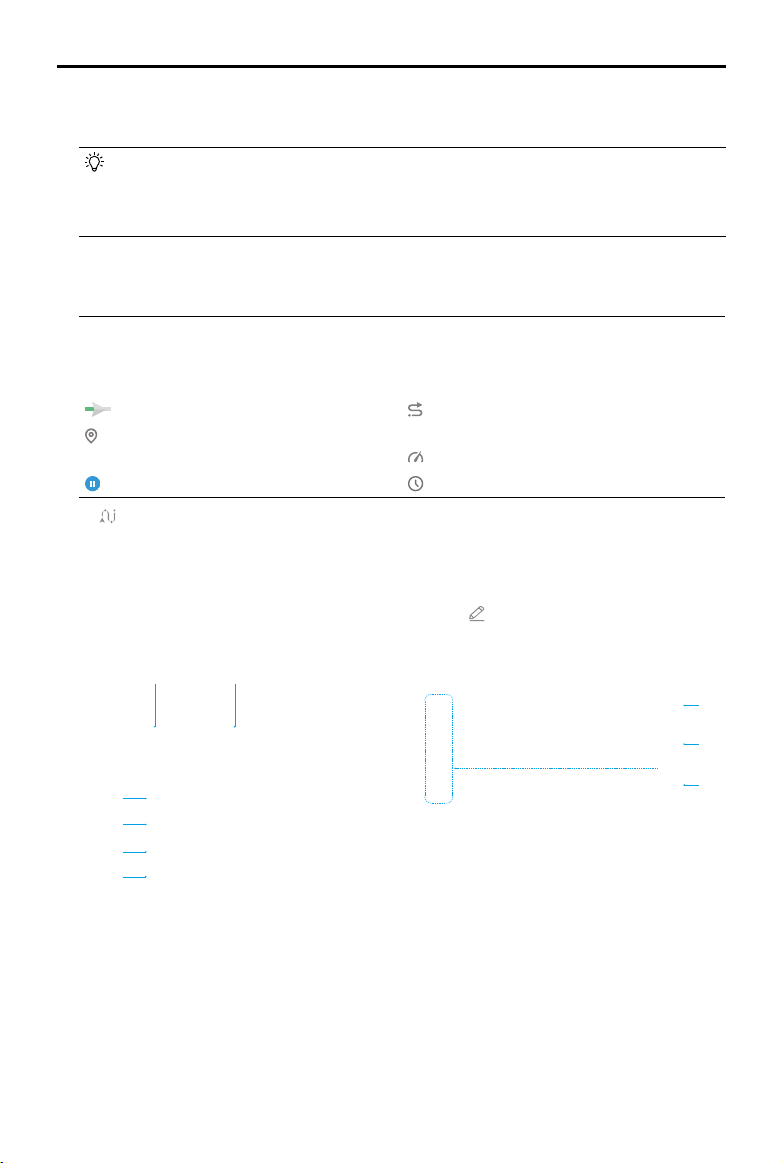
DJI Inspire 3
User Manual
©
2023 DJI All Rights Reserved.
107
settings panel, select the Repeatable Routes mode or 3D Dolly mode, and set the parameters
accordingly.
• When using 3D Dolly, Control Mode can be set as Auto or Manual. In Auto mode,
the aircraft will automatically maintain the preset aircraft orientation and the gimbal
pan and tilt according to the route position. In Manual mode, users can control the
aircraft orientation and the gimbal pan and tilt using the control sticks and dials.
4. Tap Start to begin and execute the ight route mission, the ight route progress panel will
be displayed in the liveview accordingly. Use the Repeatable Routes mode display as an
example.
Flight route execution progress
Completed waypoint number/Total
waypoint number
Tap to pause the ight
Completed ight route length/Total ight
route length
Flight route speed
Elapsed time/Estimate total time
5. Tap in the camera view to exit the ight.
Flight Route Editor
After selecting a ight route in the ight route library, tap to open the ight route editor on
the map view.
1. Waypoint Editing Switch on Map: tap to enable adding waypoint and dragging waypoint on
map. Tap this icon again to disable editing the waypoints.
2. Reverse Flight Route: tap to reverse the ight route by swapping the start and endpoint.
1
2
3
4
5
6
7
8 9
DJI Inspire 3
User Manual
108
©
2023 DJI All Rights Reserved.
3. Clear Waypoints: tap to clear all the added waypoints.
4. Delete Selected Waypoints: tap to delete the selected waypoints.
5. Flight Route Settings: ight route settings are applied to the entire route.
6. Individual Waypoint Settings: select a waypoint and set the parameters applied to the
waypoint.
7. General Settings: set other parameters such as the ight route name and altitude mode.
8. Save: tap to save the ight route.
9. Flight Route Information: displays the ight route length, waypoint number, estimated ight
time, and photo quantity.
Spotlight Pro
Instruction
Spotlight Pro uses the vision systems to recognize and predict so as to keep the target in the
view. At this time, the gimbal will automatically adjust the camera and keep it facing the target.
The mode supports the capturing of both stationary and moving subjects. Moving subjects
specically refer to vehicles, boats, and people, which can be automatically identied.
When the gimbal is in Follow Mode: when the aircraft rotates horizontally, the gimbal rotates
accordingly with the angle between the gimbal pan and the aircraft heading unchanged. When
using the control sticks to move the aircraft: move the roll stick to circle the subject, pitch stick
to alter the distance from the subject, throttle stick to change the altitude, and yaw stick to
adjust the frame.
When the gimbal is in Free Mode: when the aircraft rotates, the gimbal orientation is pointing to
the target all the time without following the rotation of the aircraft.
In Spotlight Pro mode, when the vision systems are working normally and the obstacle
avoidance is set to Brake in the app, the aircraft will hover if an obstacle is detected. Note:
obstacle avoidance is disabled in Sport mode.
• It is recommended to only track vehicles, boats, and people (but not children). Fly with
caution when tracking other subjects.
• In supported moving subjects, vehicles refer to cars and small to medium-sized yachts.
• The tracking subject may inadvertently swap to another subject if they pass nearby to
each other.
• Spotlight Pro is unavailable when the aircraft is on the ground.

DJI Inspire 3
User Manual
©
2023 DJI All Rights Reserved.
109
1
2
3
4
Spotlight Pro Usage
1. Enabling Spotlight Pro:
tap to enable or disable Spotlight Pro.
2. Selecting the Target:
a. Drag-Select Target: after enabling Spotlight Pro, tap and drag on the screen to select a
target. If the target is too small or not identied, drag-select target may fail.
b. Tap-Select Target: after enabling the Target Scanning in the Flight Control Settings, the
target will be identied and displayed in the app, tap to track the target.
3. Tracking the Target:
after selecting the target, tap the Track button next to the target
frame or press the C2 button on the remote controller to start tracking the target.
4. Tap to reselect the target.
• When the target is blocked or beyond the screen, the app will predict the target
position and track the position.

DJI Inspire 3
User Manual
110
©
2023 DJI All Rights Reserved.
• Gimbal mode can be switched during tracking:
Follow Mode: the movements of the aircraft in Free Mode are as shown below:
Roll Stick: move to change the aircraft’s rotation around the target.
Pitch Stick: move to change the aircraft’s distance from the target.
Throttle Stick: move to change the aircraft’s altitude.
Yaw Stick: move to adjust the horizontal view.
Gimbal Pitch Dial: move to adjust the vertical view.
Free Mode: the gimbal pan dial adjusts the horizontal view, and the gimbal pitch
adjusts the vertical view. Read the Control Stick Modes section in the Remote
Controller chapter for more information on how to control the aircraft.
FPV Camera View
When switching the FPV camera to work as the main view, the FPV camera liveview is displayed.
1. Articial Horizon: displays the current horizon position.
2. Aircraft Heading Indicator: displays the tilt angle of the aircraft body.
1 2

DJI Inspire 3
User Manual
©
2023 DJI All Rights Reserved.
111
1. GEO Zone Map Layers: tap to view all GEO Zone layers and enable or disable the GEO Zones
layer display on the map.
2. Recenter View: tap to center the remote controller location in the view.
3. Map Lock: when enabled, the map cannot be rotated. When disabled, the map can be
rotated freely.
4. Map Layer Selection: tap to select a satellite or street map (standard mode) according to
operational requirements.
5. Clear Flight Trajectory: tap to clear the ight trajectory of the aircraft.
1
2
3
4
5
Full Screen Mode
In the gimbal camera view or the FPV camera view, slide two fingers down on the screen to
enter or exit the Full Screen mode.
Map View
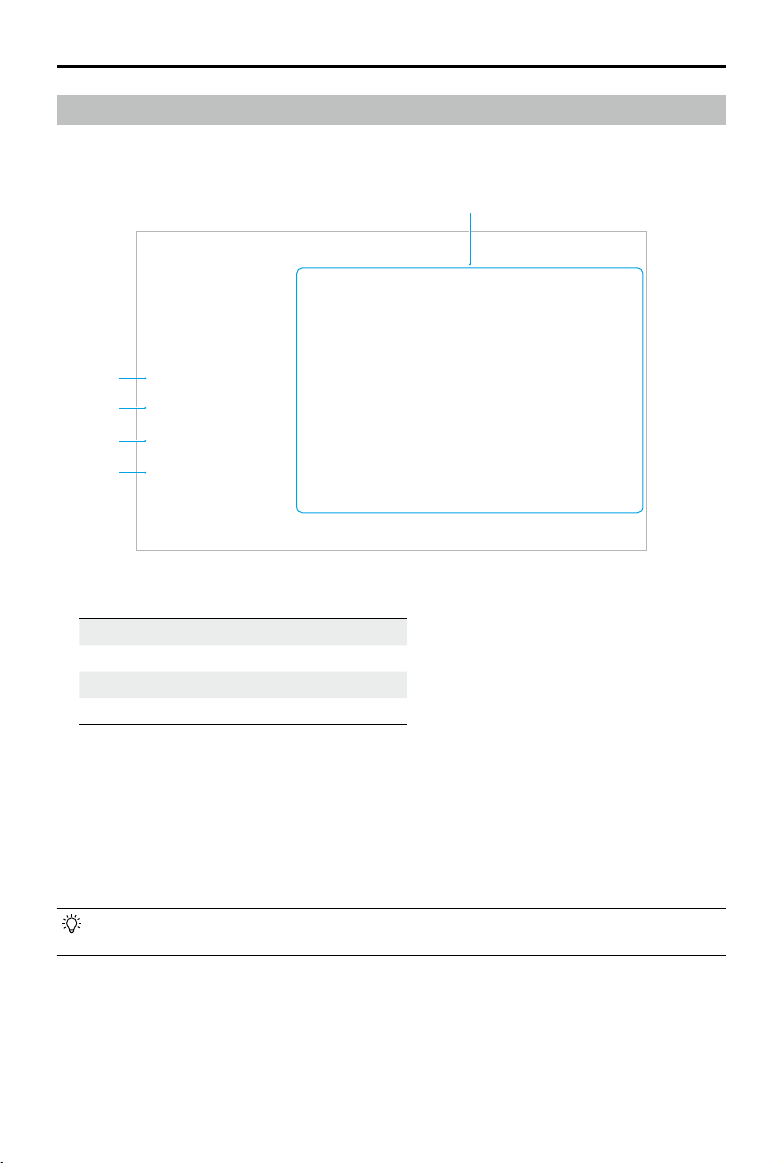
DJI Inspire 3
User Manual
112
©
2023 DJI All Rights Reserved.
Health Management System (HMS)
The HMS system includes Error Diagnosis, DJI Care Pro, Basic Service, Firmware Update, and
Manage Logs.
2
3
4
5
1
1. Error Diagnosis: for checking the current status of each aircraft module. Users can solve
issues by following the corresponding prompted instructions.
Color Status
Green Normal
Orange Caution
Red Warning
2. DJI Care Pro: relevant information can be viewed if the device is bound to DJI Care Pro.
3. Basic Service: users can view historical ight data and refer to the maintenance manual to
determine if maintenance is required.
4. Firmware Update: tap to enter the Firmware Update page.
5. Manage Logs: displays the remote controller and aircraft log data of recent ights. Users can
assist by exporting and saving the relevant logs locally or uploading them directly to the DJI
Support cloud to help DJI Support solve issues.
• Manage Logs is available for the batteries and battery hub (the battery hub must be
connected to the remote controller via the USB-C to USB-A data cable).

DJI Inspire 3
User Manual
©
2023 DJI All Rights Reserved.
113
Battery Hub Status and Log Management
To check the battery hub status in HMS in DJI Pilot 2, connect the battery hub to the remote
controller via a USB-C to USB-A data cable. The user can also update the battery hub and
battery rmware and export the battery hub and battery logs in batches.
Checking the Battery Hub Status
Run DJI Pilot 2, tap HMS to check the status of the battery hub and batteries. If a warning
appears, tap it for more detailed information and follow the prompted instructions to resolve
the issue.
Exporting the Battery Hub Logs
1. Run DJI Pilot 2, tap HMS, then Manage Logs, and select Battery Hub Logs.
2. Check the logs of the battery hub and all batteries.
3. Tap Upload Log and follow the prompted instructions to upload the selected logs.

114
©
2023 DJI All Rights Reserved.
Flight
This chapter introduces the safe ight
practices and ight restrictions.

DJI Inspire 3
User Manual
©
2023 DJI All Rights Reserved.
115
Flight
Make sure to have training and practice before operating any actual flight. Practice with the
simulator in DJI Assistant 2 or fly under the guidance of experienced professionals. Pick a
suitable area to fly in according to the following flight requirements and restrictions. Fly the
aircraft below 120 m (400 ft). Any flight altitude higher than that may violate local laws and
regulations. Make sure you understand and comply with the local laws and regulations before
ying. Read the Safety Guidelines carefully to understand all safety precautions before ying.
Flight Environment Requirements
• DO NOT fly the aircraft in severe weather conditions, including strong winds (speeds
exceeding 14 m/s), sandstorms, snow, rain, smog, hail, lightning, tornadoes, or hurricanes.
• Only y in open areas. Tall structures and large metal structures may aect the accuracy of
the onboard compass and GNSS system. It is recommended to keep the aircraft at least 5 m
away from structures.
• Avoid obstacles, crowds, high voltage power lines, trees, and bodies of water. It is
recommended to keep the aircraft at least 3 m above water.
• Minimize interference by avoiding areas with high levels of electromagnetism such as
locations near power lines, base stations, electrical substations, and broadcasting towers.
• Aircraft and battery performance is subject to environmental factors such as air density and
temperature. DO NOT y the aircraft higher than 3,800 m (12,467 ft) above sea level when
using the foldable quick-release propellers, or higher than 7,000 m (22,965 ft) above sea level
when using the foldable quick-release propellers for high altitude. *
• Aircraft cannot use GNSS within the polar regions. Use the vision system when ying in such
locations.
• DO NOT take o from moving objects such as cars, ships, and airplanes.
• To avoid aecting the motor service life, DO NOT take o or land the aircraft on sandy or
dusty areas.
• DO NOT use the aircraft, remote controller, battery, and charging hub near accidents, res,
explosions, oods, tsunamis, avalanches, landslides, earthquakes, dust, or sandstorms.
• Use the charging hub in a temperature range of -20° to 40° C (-4° to 104° F).
• Operate the aircraft, battery, remote controller, and charging hub in a dry environment.
• DO NOT use the aircraft in dusty or humid environments.
• DO NOT use the charging hub in humid environments.
• Make sure the temperature and humidity is suitable for the gimbal camera during usage.
• This product shall not be used in potentially explosive atmosphere.
* Measured in a gentle breeze with the gimbal camera and lens installed on the aircraft. The value provided
should be used for reference only.

DJI Inspire 3
User Manual
116
©
2023 DJI All Rights Reserved.
Operating the Aircraft Responsibly
Observe the following rules to avoid non-compliant behaviour, serious injury, and property
damage:
• DO NOT operate in the vicinity of manned aircraft. DO NOT interfere with the operations of
manned aircraft. Be alert and avoid other aircraft at all times. Land immediately if necessary.
• DO NOT fly the aircraft in venues of major events, including but not limited to sporting
events and concerts.
• DO NOT y the aircraft without authorization in areas prohibited by local laws. Prohibited
areas include airports, national borders, major cities and densely populated areas, venues
of major events, areas where emergencies have occurred (such as forest res), and locations
with sensitive structures (such as nuclear power plants, power stations, hydropower plants,
correctional facilities, heavily traveled roads, government facilities, and military zones).
• DO NOT y the aircraft above the authorized altitude.
• Keep your aircraft within visual line of sight (VLOS).
• DO NOT use the aircraft to carry illegal or dangerous goods or payloads.
• Make sure you understand the nature of your flight operation (such as for recreation,
public, or commercial use) and have obtained the corresponding approval and clearance
from the related government agencies before ight. Consult with your local regulators for
comprehensive denitions and specic requirements. Note that remote controlled aircraft
may be banned from conducting commercial activities in certain countries and regions.
Check and follow all local laws and ordinances before ying as those rules may dier from
those stated here.
• Respect the privacy of others when using the camera. DO NOT conduct surveillance
operations such as video recording or capturing images of any person, entity, event,
performance, exhibition, or property without authorization or where there is an expectation
of privacy, even if the image or video is captured for personal use.
• Be advised that in certain areas, the recording of images and videos from events,
performances, exhibitions, or commercial properties by means of a camera may contravene
copyright or other legal rights, even if the image or video was shot for personal use.
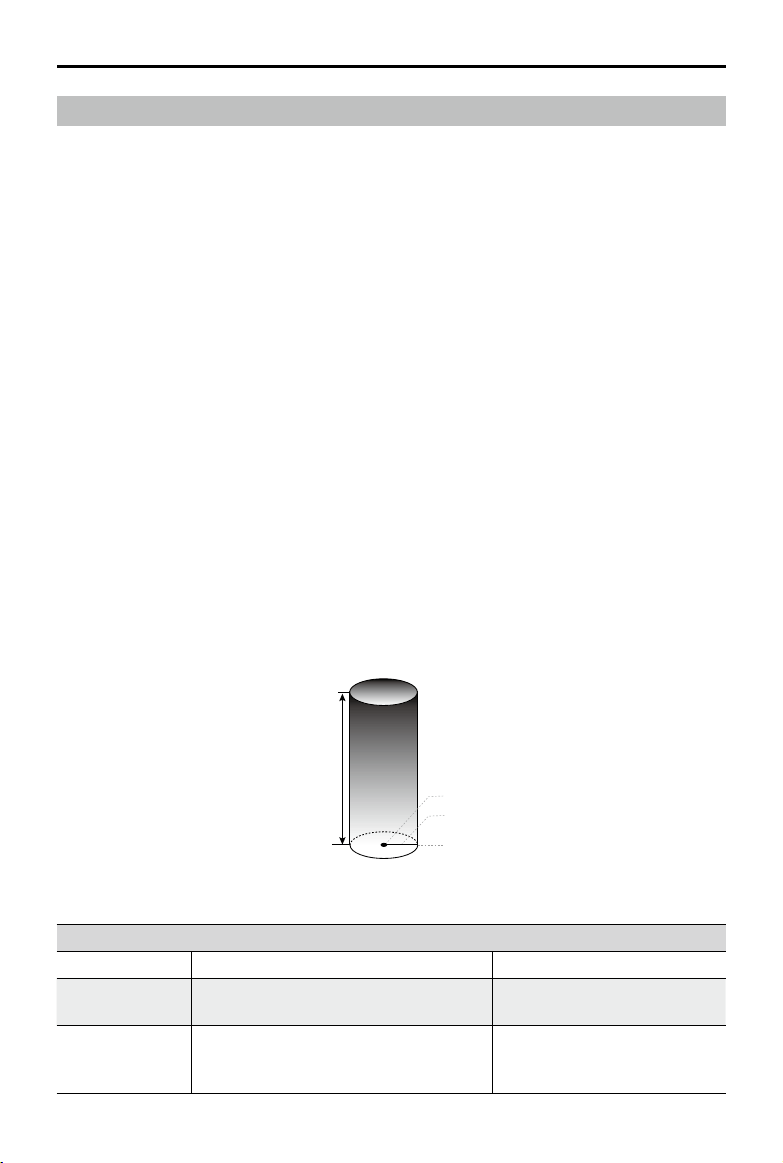
DJI Inspire 3
User Manual
©
2023 DJI All Rights Reserved.
117
Maximum Altitude
Max Distance
Home Point
Height of aircraft
when powered on
Home Point not manually updated during ight
Strong GNSS Signal
Restriction Prompt in DJI Pilot 2
Max Altitude
Altitude of the aircraft cannot exceed the
value set in DJI Pilot 2.
Aircraft approaching max ight
altitude. Fly with caution.
Max Distance
The straight-line distance from the
aircraft to the Home Point cannot exceed
the max ight distance set in DJI Pilot 2.
Aircraft approaching max ight
distance. Fly with caution.
Flight Limits and GEO Zones
GEO (Geospatial Environment Online) System
DJI’s Geospatial Environment Online (GEO) System is a global information system that provides
real-time information on ight safety and restriction updates and prevents UAVs from ying
in restricted airspace. Under exceptional circumstances, restricted areas can be unlocked to
allow ights in. Prior to that, the user must submit an unlocking request based on the current
restriction level in the intended ight area.
The GEO system may not fully comply with local laws and regulations. Users shall be responsible
for their own ight safety and must consult with the local authorities on the relevant legal and
regulatory requirements before requesting to unlock a flight in a restricted area. For more
information about the GEO system, visit https://y-safe.dji.com.
Flight Limits
For safety reasons, ight limits are enabled by default to help users operate this aircraft safely.
Users can set ight limits on height and distance. Altitude limits, distance limits, and GEO zones
function concurrently to manage flight safety when GNSS is available. Only altitude can be
limited when GNSS is unavailable.
Flight Altitude and Distance Limits
Maximum flight altitude restricts the aircraft flight altitude, while maximum flight distance
restricts the aircraft ight radius around the Home Point. These limits can be set using the DJI
Pilot 2 app for improved ight safety.
DJI Inspire 3
User Manual
118
©
2023 DJI All Rights Reserved.
Weak GNSS Signal
Restriction Prompt in DJI Pilot 2
Max Altitude
When the GNSS signal is weak, namely
when the GNSS icon is yellow or red, and
the ambient light is too dark, the max
altitude is 3 m (9.84 ft). The max altitude
is the relative altitude measured by the
infrared sensor. When the GNSS signal is
weak but the ambient light is sufficient,
the max altitude is 30 m (98.43 ft).
Aircraft approaching max ight
altitude. Fly with caution.
Max Distance No limit N/A
• In the case where an aircraft exceeds a specified limit, the pilot can still control the
aircraft but is unable to y the aircraft any closer to the restricted area.
• For safety reasons, DO NOT y aircraft near airports, highways, railway stations, metro
stations, city centers, or other sensitive areas. Only fly the aircraft in areas that are
within your direct line of sight.
• Fly no higher than 120 m (400 ft) above ground level and stay away from any
surrounding obstacles.
• To y above the default altitude limit, accept the disclaimer prompt to enable the new
altitude limit.
• Flight altitude restrictions vary in different regions. DO NOT fly above the maximum
altitude set forth in your local laws and regulations.
GEO Zones
All GEO zones are listed on the DJI official website at https://fly-safe.dji.com and may be
updated at any time. GEO zones are divided into different categories and include locations
such as airports, ying elds where manned aircraft operate at low altitudes, borders between
countries, and sensitive locations such as power plants.
There will be prompts in the DJI Pilot 2 app to y in GEO zones.
• The settings and alerts provided by DJI on operations within GEO Zones are only to
assist the user in ensuring ight safety and DO NOT guarantee full compliance with all
local laws and regulations. Before each ight, the user is responsible for seeking advice
on the relevant local laws, regulations, and requirements for the safety of their own
aircraft.
• Flight-related functions will be aected to varying extent when the aircraft is near or
inside a GEO Zone. This includes but is not limited to the aircraft slowing down, being
unable to create a Home Point or ight task, and interruption of a ight task.
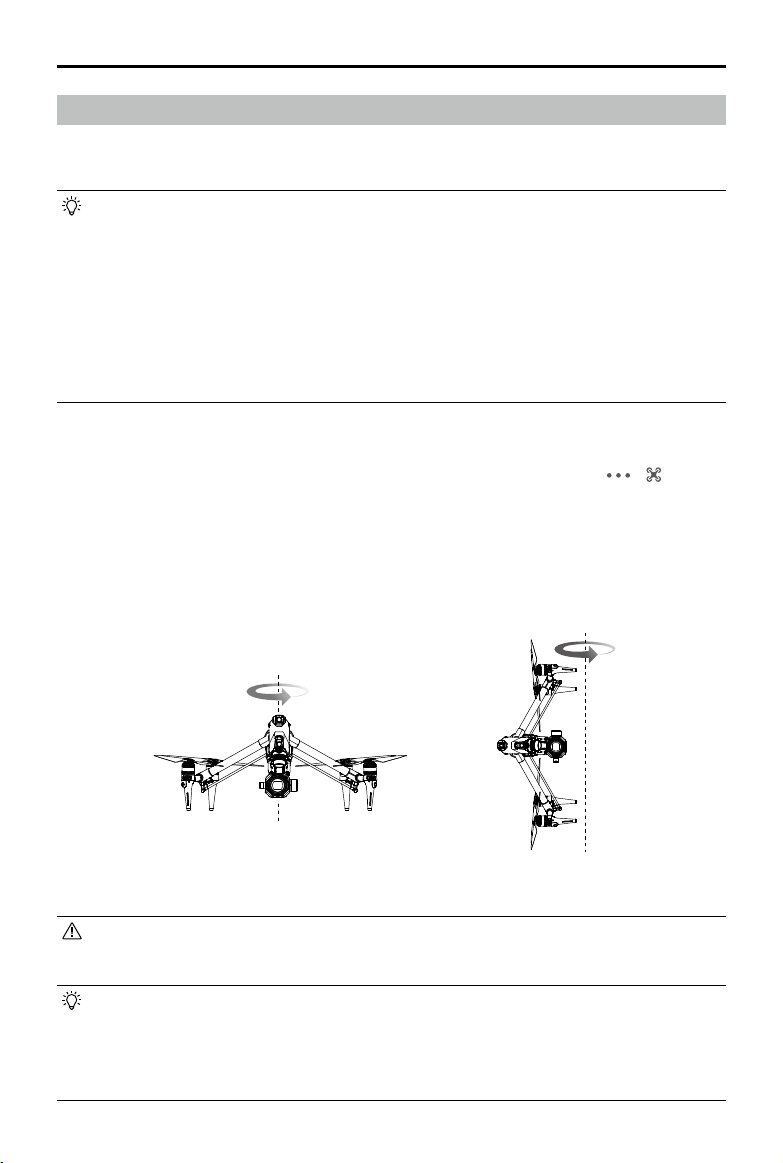
DJI Inspire 3
User Manual
©
2023 DJI All Rights Reserved.
119
Calibrating the Compass
Only calibrate the compass when prompted to do so by the DJI Pilot 2 app or the aircraft rear
indicators. Observe the following rules when calibrating the compass:
• It is recommended to calibrate the compass to ensure the quality of the images and
videos when features require high aircraft orientation accuracy, such as long-time
exposure during hovering.
• DO NOT calibrate the compass in locations with strong magnetic interference, such as
near magnets, parking lots, or construction sites with underground reinforced concrete
structures.
• DO NOT carry ferromagnetic materials such as mobile phones during calibration.
• DJI Pilot 2 will display a prompt if the compass is aected by strong interference after
calibration is complete. Follow the displayed instructions to resolve the compass issue.
Calibration Procedure
Perform the calibration in an open area and follow the steps below to complete the calibration.
1. Run the DJI Pilot 2 app and enter the camera view on the home screen. Tap > > Sensor
Status, then Compass, and Calibrate Compass to start the calibration. The aircraft rear LED
indicators will glow in solid yellow, which indicates that the calibration has started.
2. Hold the aircraft horizontally 1.5 m (4.92 ft) above the ground and rotate the aircraft 360
degrees. The aircraft rear LED indicators will glow in solid green.
3. Hold the aircraft vertically and rotate the aircraft 360 degrees.
4. Re-calibrate the aircraft if the aircraft rear LED indicators blink red.
• If the aircraft rear LED indicators blink red and yellow alternately after the calibration is
complete, it indicates strong interference in the current location. Move your aircraft to a
dierent location and try again.
• A prompt will appear in DJI Pilot 2 if compass calibration is required before takeo. The
prompt will disappear after the calibration is complete.
• If the compass calibration is complete, place the aircraft on the ground. If the prompt
appears again in DJI Pilot 2, try moving the aircraft to a different location before
recalibrating the compass.

DJI Inspire 3
User Manual
120
©
2023 DJI All Rights Reserved.
Pre-Flight Checklist
1. Only use genuine parts that are in good condition. DO NOT modify or alter the aircraft,
its components, or parts. Make sure that when installing any external devices that the
total weight of the aircraft does not exceed the maximum takeo weight. In addition, the
external device must be installed in a location so that the center of gravity is maintained
within the range of the aircraft top shell to keep the aircraft stable and that the vision
systems, the infrared sensing systems, and the auxiliary lights are not blocked.
2. Make sure all devices, such as remote controller and intelligent batteries, are fully charged.
3. Ensure there are no foreign objects such as water, oil, soil, or sand inside of the aircraft
or its components. The air vents of the aircraft, the cooling holes of the camera, and the
ventilation holes of the motor are not blocked.
4. Make sure the propellers are securely mounted and not damaged or deformed. DO NOT
use chipped or broken propellers.
5. Make sure the aircraft motors are clean and in good condition. Rotate the propeller to
examine the motor and make sure the motor can rotate smoothly without abnormal sound.
Otherwise, stop using the aircraft immediately and contact DJI Support.
6. Make sure the camera lens is clean and in good condition and the gimbal can rotate
unobstructed.
7. Make sure the lenses of the vision systems, gimbal camera, FPV camera, the glass of the
infrared sensors, and the auxiliary lights are clean and not blocked in any way.
8. Make sure the covers of ports have been closed rmly.
9. Make sure the ight area is outside any GEO zones, and ight conditions are suitable for
ying the aircraft.
10. Place the aircraft on open and at ground. Make sure there are no obstacles, buildings, or
trees nearby and that the aircraft is 5 m away from the pilot. The pilot should be facing the
rear of the aircraft.
11. Make sure that the ESC is beeping after powering on the aircraft.
12. Make sure DJI Pilot 2 is properly running to assist with the ight. Without the ight data
recorded by the DJI Pilot 2 app in certain situations (including the loss of your aircraft), DJI
may not be able to provide aftersales support to you or assume liability.
13. Make sure DJI Pilot 2 and the aircraft rmware have been updated to the latest version.
14. If required before a ight, follow the prompts in the app to x any abnormalities with the
ESCs.
15. Make sure that the DJI Pilot 2 app displays at least 6 satellites.
16. Check if the Remote ID is up to date and working.
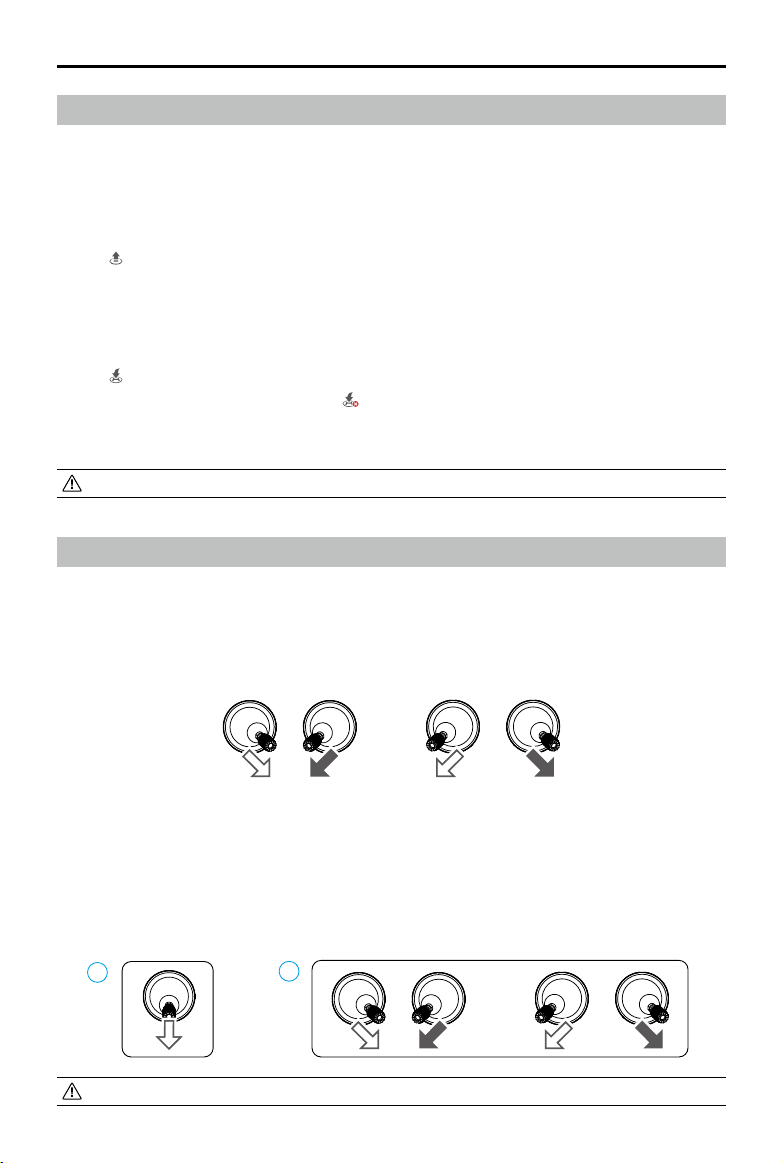
DJI Inspire 3
User Manual
©
2023 DJI All Rights Reserved.
121
Auto Takeo/Auto Return to Home
Auto Takeo
Use the Auto Takeo function:
1. Launch DJI Pilot 2 and enter the gimbal camera view.
2. Complete all steps in the pre-ight checklist.
3. Tap . If conditions are safe for takeo, press and hold the button to conrm.
4. The aircraft will takeo and hover approx. 1.2 m (3.9 ft) above the ground.
Auto Return to Home
Use the Auto RTH function:
1. Tap . If conditions are safe to land, press and hold the button to conrm.
2. Auto RTH can be canceled by tapping .
3. If the Downward Vision System is working normally, Landing Protection will be enabled.
4. Motors will stop automatically after landing.
• Choose the proper place for landing.
Starting/Stopping the Motors
Starting the Motors
A Combination Stick Command (CSC) is used to start the motors. Push both sticks to the inner
or outer bottom corners to start the motors. Once the motors start spinning, release both sticks
simultaneously.
Stopping the Motors
The motors can be stopped in two ways:
Method 1: When the aircraft has landed, push the throttle stick down and hold. The motors will
stop after three seconds.
Method 2: When the aircraft has landed, push the throttle stick down, and perform the same
CSC used to start the motors. Release both sticks once the motors have stopped.
1
2
• If the motor is started unexpected, use CSC to stop motors immediately.
DJI Inspire 3
User Manual
122
©
2023 DJI All Rights Reserved.
Flight Test
Takeo/Landing Procedures
1. Place the aircraft in an open, at area with the aircraft rear facing towards the user.
2. Power on the remote controller and the aircraft.
3. Launch DJI Pilot 2 and enter the camera view.
4. Wait for the aircraft self-diagnostics to complete. If DJI Pilot 2 does not prompt any irregular
warning, the user can start the motors.
5. Push the throttle stick up slowly to takeo.
6. To land, hover over a level surface and push the throttle stick down to descend.
7. After landing, push the throttle down and hold. The motors will stop after three seconds.
8. Power o the aircraft before the remote controller.
Post-Flight Checklist:
• Make sure to perform a visual inspection so that the aircraft, remote controller, gimbal
camera, Intelligent Batteries, and propellers are in good condition. Contact DJI support
if any damage is noticed.
• Make sure that the camera lens and vision system sensors are clean.
• Make sure to store aircraft correctly before transporting it.
• Land the aircraft immediately at a safe location if prompted to do so in DJI Pilot 2.
• Make sure to operate the aircraft within the transmission range of the remote
controller. Otherwise, the remote controller and aircraft may be disconnected, and
failsafe will be triggered (default setting is RTH). Press the RTH button on the remote
controller to initiate RTH (default failsafe setting) instead of powering o the remote
controller.
• Tall buildings may adversely affect the failsafe function. Therefore, it is important to
set an appropriate failsafe altitude before each ight. The RTH altitude is related to the
Home Point. Make sure the RTH altitude is higher than any obstacle in the area.
• The aircraft cannot avoid obstacles during failsafe RTH when there is insufficient
light. Exit RTH and use the remote controller to control the aircraft when the remote
controller signal is normal.
• During RTH, continue to check the liveview and the aircraft altitude in case failsafe is
disabled due to the GNSS signal being week.
• The Home Point can be updated manually. Make sure to avoid setting the Home Point
inside or near a building to prevent collisions during RTH or landing.
• Return to Home and land the aircraft if an ESC warning prompt appears in DJI Pilot 2
concerning temperature, voltage, or an overload. When Return to Home is initiated, pay
attention to the ight status display in DJI Pilot 2 to ensure ight safety.

©
2023 DJI All Rights Reserved.
123
Appendix

DJI Inspire 3
User Manual
124
©
2023 DJI All Rights Reserved.
Appendix
Specications
Aircraft
Model T740
Aircraft Weight Approx. 3,995 g (includes gimbal camera, two batteries,
lens, PROSSD, and propellers)
Max Takeo Weight 4,310 g
Hovering Accuracy Range Vertical:
±0.1 m (with vision positioning)
±0.5 m (with GNSS positioning)
±0.1 m (with RTK positioning)
Horizontal:
±0.3 m (with vision positioning)
±0.5 m (with GNSS positioning)
±0.1 m (with RTK positioning)
RTK Positioning Accuracy (RTK x) 1 cm + 1 PPM (horizontal)
1.5 cm + 1 PPM (vertical)
Max Angular Velocity Pitch: 200°/s
Roll: 200°/s
Yaw: 150°/s
Max Tilt Angle N Mode: 35°
S Mode: 40°
A Mode: 35°
T Mode: 20°
Emergency Brake: 55°
Max Ascent Speed
[1]
8 m/s
Max Descent Speed
[1]
Vertical: 8 m/s
Tilt: 10 m/s
Max Horizontal Speed
[1]
94 kph
Max Service Ceiling Above Sea
Level
[2]
Standard Propellers: 3800 m
High-Altitude Propellers: 7000 m
Max Wind Resistance
[3]
Takeo/land: 12 m/s
In-ight:14 m/s
Max Hovering Time
[4]
Approx. 25 minutes
Max Flight Time
[5]
Approx. 28 minutes (landing gear lowered)
Approx. 26 minutes (landing gear raised)
Motor Model DJI 3511s
Global Navigation Satellite System GPS + Galileo + BeiDou

DJI Inspire 3
User Manual
©
2023 DJI All Rights Reserved.
125
Propeller Model Standard Propellers: DJI 1671
High-Altitude Propellers: DJI 1676
Operating Temperature -20° to 40° C (-4° to 104° F)
Diagonal Distance Landing Gear Raised: 695 mm
Landing Gear Lowered: 685 mm
Travel Mode Dimensions Height: 176 mm
Width: 709.8 mm
Length: 500.5 mm
Gimbal Camera
Sensor 35mm full-frame CMOS
Max Resolution Photo: 8192×5456
Video: 8192×4320
Video Resolution Refer to Recording Specications
Supported Lens DL 18mm F2.8 ASPH Lens
DL 24mm F2.8 LS ASPH Lens
DL 35mm F2.8 LS ASPH Lens
DL 50mm F2.8 LS ASPH Lens
Photo Format JPG, DNG
Video Format MOV, CinemaDNG
Operation Mode Capture, Record, Playback
Exposure Mode P, A, S, M
Shutter Type Electronic shutter
Shutter Speed 8-1/8000 s
White Balance AWB
MWB (2000K-10000K)
ISO Range Photo
ISO: 100-25600
Video
EI: 200-6400
Anti-icker Capture Mode: Auto, 50 Hz, 60 Hz, OFF
Angular Vibration Range Hovering: ±0.002°
Flying: ±0.004°
Installation Method Quick release
Mechanical Range Tilt:
-128° to +110° (landing gear lowered)
-148° to +90° (landing gear raised)
Roll: -90° to +230°
Pan: ±330°

DJI Inspire 3
User Manual
126
©
2023 DJI All Rights Reserved.
Controllable Range Tilt (landing gear lowered):
Before gimbal tilt limit extension: -90° to +30°
After gimbal tilt limit extension: -115° to +100°
Tilt (landing gear raised):
Before gimbal tilt limit extension: -90° to +30°
After gimbal tilt limit extension: -140° to +75°
Roll: ±20°
Pan: ±300°
Max Control Speed With DJI RC Plus:
Tilt: 120°/s
Roll: 180°/s
Pan: 270°/s
With DJI Master Wheels:
Tilt: 432°/s
Roll: 432°/s
Pan: 432°/s
Weight Approx. 516 g (without lens)
Video Transmission
Video Transmission System O3 Pro
Live View Quality FPV Camera: Up to 1080p/60fps
Gimbal Camera: Up to 1080p/60fps, 4K/30fps
Max Live Video Bitrate 50 Mbps
Max Transmission Distance
[6]
Single Control Mode:
FPV Camera: approx. 15 km (FCC), 8 km (CE/SRRC/MIC)
Gimbal Camera (1080p/60fps live feeds): approx. 13 km
(FCC), 7 km (CE/SRRC/MIC)
Gimbal Camera (4K/30fps live feeds): approx. 5 km (FCC),
3 km (CE/SRRC/MIC)
Dual-Control Mode:
FPV Camera: approx. 12 km (FCC), 6.4 km (CE/SRRC/MIC)
Gimbal Camera (1080p/60fps live feeds): approx.
11.2 km (FCC), 5.6 km (CE/SRRC/MIC)
Gimbal Camera (4K/30fps live feeds): approx. 4 km (FCC),
2.4 km (CE/SRRC/MIC)
Lowest Latency
[7]
FPV Camera: 90 ms
Gimbal Camera: 90 ms
Operating Frequency
[8]
2.4000-2.4835 GHz
5.150-5.250 GHz (CE: 5.170-5.250 GHz)
5.725-5.850 GHz
Transmitter Power (EIRP) 2.4 GHz: <33 dBm (FCC), <20 dBm (CE/SRRC/MIC)
5.1 GHz: <23 dBm (CE)
5.8 GHz: <33 dBm (FCC), <30 dBm (SRRC), <14 dBm (CE)
Battery
Model TB51 Intelligent Battery

DJI Inspire 3
User Manual
©
2023 DJI All Rights Reserved.
127
Capacity 4280 mAh
Nominal Voltage 23.1 V
Type Li-ion
Chemical System LiCoO2
Energy 98.8 Wh
Weight Approx. 470 g
Operating Temperature -20° to 40° C (-4° to 104° F)
Charging Temperature
[9]
-20° to 40° C (-4° to 104° F)
Max Charging Power 411 W
Charge via Aircraft Not supported
Battery Charging Hub
Input 100-240 V AC, max 8 A
Output 26.4 V, 7.8 A
Total Rated Output 476 W, including 65W PD fast charging of USB-C port
Charging Time
[10]
Fast Mode: Approx. 35 minutes to 90%
Standard Mode: Approx. 55 minutes to 100%
Silent Mode: Approx. 80 minutes to 100%
Charging Temperature -20° to 40° C (-4° to 104° F)
Weight Approx. 1,680 g
Memory Card
Memory Card Type DJI PROSSD 1TB
Sensing
Forward Measurement Range: 1.5-48 m
Eective Sensing Speed: ≤15 m/s
FOV:
Horizontal 90°, Vertical 103° (landing gear raised)
Horizontal 72°, Vertical 103° (landing gear lowered)
Backward Measurement Range: 1.5-48 m
Eective Sensing Speed: ≤15 m/s
FOV: Horizontal 90°, Vertical 103°
Lateral Measurement Range: 1.5-42 m
Eective Sensing Speed: ≤15 m/s
FOV: Horizontal 90°, Vertical 85°
Upward Measurement Range: 0.2-13 m
Eective Sensing Speed: ≤6 m/s
FOV: Front and Back 100°, Left and Right 90°
Downward Measurement Range: 0.3-18 m
Eective Sensing Speed: ≤6 m/s
FOV: Front and Back 130°, Left and Right 160°

DJI Inspire 3
User Manual
128
©
2023 DJI All Rights Reserved.
Operating Environment
[11]
Forward, Backward, Left, Right and Upward: surfaces
with discernible patterns and adequate lighting (lux >15)
Downward: surfaces with discernible patterns and
diffuse reflectivity >20% (e.g., walls, trees, people);
adequate lighting (lux >15)
ToF Infrared Sensor Measurement
Range
0-10 m
Remote Controller
Model RM700B
Operating Time Built-in Batteries: approx. 3.3 hours
Built-in Batteries Plus External Battery: approx. 6 hours
Operating Frequency
[8]
2.4000-2.4835 GHz
5.725 GHz-5.850 GHz
Video Output Port HDMI
Power Supply Built-in batteries or external battery
Coordinated Operation Supports dual controls and coordination between
multiple operators
Power Consumption 12.5 W
Operating Temperature -20° to 50 °C (-4° to 122° F)
Storage Temperature -30° to 45° C (-22° to 113° F) (within one month)
-30° to 35° C (-22° to 95° F) (one to three months)
-30° to 30° C (-22° to 86° F) (three months to one year)
Battery Built-in Battery: 3250mAh-7.2V (a set)
External Battery: WB37 Intelligent Battery
Wi-Fi Protocol Wi-Fi 6
Wi-Fi Operating Frequency 2.4000-2.4835 GHz
5.150-5.250 GHz
5.725-5.850 GHz
Wi-Fi Transmitter Power (EIRP) 2.4 GHz: <26 dBm (FCC), <20 dBm (CE/SRRC/MIC)
5.1 GHz: <26 dBm (FCC), <23 dBm (CE/SRRC/MIC)
5.8 GHz: <26 dBm (FCC/SRRC), <14 dBm (CE)
Bluetooth Protocol Bluetooth 5.1
Bluetooth Operating Frequency 2.4000-2.4835 GHz
Bluetooth Transmitter Power (EIRP) < 10 dBm
App
App DJI Pilot 2
FPV Camera
FOV 161°
Resolution 1920×1080@60fps

DJI Inspire 3
User Manual
©
2023 DJI All Rights Reserved.
129
[1] Measured when ying in a windless environment at sea level, with gimbal camera and lens attached to
the aircraft and without other accessories. This data is for reference only.
[2] Measured in an environment with light wind with the gimbal camera and lens attached to the aircraft and
without other accessories. This data is for reference only.
[3] Measured when ying at sea level, with gimbal camera and lens attached to the aircraft and without other
accessories. This data is for reference only.
[4] Measured when hovering in a windless environment at sea level with gimbal camera and lens attached to
the aircraft and without other accessories, with landing gear raised, and recording 4K/24fps H.264 (S35)
video until the battery reached 0%. This data is for reference only. Please refer to the actual values in the
app.
[5] Measured when ying forward at a constant speed of 36 kph in a windless environment at sea level, with
gimbal camera and lens attached to the aircraft and without other accessories, and recording 4K/24fps
H.264 (S35) video until the battery reached 0%. This data is for reference only. Please refer to the actual
values in the app.
[6] Measured in an unobstructed outdoor environment free of interference, with gimbal camera and lens
attached to the aircraft and without other accessories. The above data shows the farthest communication
range for one-way, non-return ights under each standard. During your ight, please pay attention to
reminders in the app.
[7] The lowest latency of the gimbal camera was measured when recording 4K/60fps ProRes RAW video. The
lowest latency of the FPV camera was measured with strong video transmission signals.
[8] In some countries and regions, the 5.1 and 5.8GHz frequencies are prohibited, or the 5.1GHz frequency is
only allowed for indoor use. Please refer to local laws and regulations.
[9] If the temperature of the battery is lower than 10° C (50° F), the battery will trigger an auto-heating
function. Charging in a low-temperature environment below 0° C (32° F) may shorten battery life.
[10] Tested at a room temperature of 25° C (77° F) and in a well-ventilated environment. In Fast mode, each
battery pair is charged to 90% in sequence, and then eight batteries are charged together to 100%.
[11] Obstacle sensing is disabled while the landing gear is in the process of being raised or lowered.
Recording Specications
130
©
2023 DJI All Rights Reserved.
Codec Fov Sensor Resolution
Sensor FPS/Rate
23.976 24 25 29.97 30 48 50 59.94 60
* Choose after enabling S&Q mode
72 75 96 100 119.88 120
Cinema DNG FF 8192×4320 17 : 9 849MBps 849MBps 885MBps
7680×4320 16 : 9 796MBps 796MBps 829MBps
4096×2160 17 : 9 212MBps 212MBps 221MBps 265MBps 265MBps 425MBps 442MBps 531MBps 531MBps 637MBps 663MBps 849MBps 885MBps
3840×2160 16 : 9 199MBps 199MBps 207MBps 249MBps 249MBps 399MBps 415MBps 498MBps 498MBps 597MBps 872MBps 796MBps 829MBps
S35 5568×2952 17 : 9 394MBps 394MBps 411MBps 493MBps 493MBps 789MBps 822MBps
5248×2952 16 : 9 372MBps 372MBps 387MBps 465MBps 465MBps 744MBps 775MBps
ProRes RAW FF 8192×4320 17 : 9 425MBps 425MBps 442MBps 265MBps 265MBps 425MBps 442MBps 531MBps 531MBps
7680×4320 16 : 9 398MBps 398MBps 415MBps 249MBps 249MBps 398MBps 415MBps 498MBps 498MBps
8192×3424 2.39 : 1 505MBps 526MBps
4096×2160 17 : 9 106MBps 106MBps 111MBps 133MBps 133MBps 212MBps 221MBps 265MBps 265MBps 319MBps 332MBps 425MBps 442MBps 265MBps 265MBps
3840×2160 16 : 9 100MBps 100MBps 104MBps 124MBps 124MBps 199MBps 207MBps 249MBps 249MBps 299MBps 311MBps 398MBps 415MBps 249MBps 249MBps
S35 5568×2952 17 : 9 198MBps 198MBps 206MBps 247MBps 247MBps 395MBps 412MBps 494MBps 494MBps
5248×2952 16 : 9 186MBps 186MBps 194MBps 232MBps 232MBps 372MBps 387MBps 465MBps 465MBps
ProRes 422
HQ
FF 8192×4320 17 : 9 377MBps 377MBps 393MBps 471MBps 471MBps
7680×4320 16 : 9 352MBps 352MBps 396MBps 442MBps 442MBps
4096×2160 17 : 9 94MBps 94MBps 98MBps 118MBps 118MBps 189MBps 197MBps 236MBps 236MBps 283MBps 295MBps 377MBps 393MBps 471MBps 471MBps
3840×2160 16 : 9 88MBps 88MBps 92MBps 111MBps 111MBps 177MBps 184MBps 221MBps 221MBps 265MBps 265MBps 354MBps 369MBps 442MBps 442MBps
S35 4096×2160 17 : 9 94MBps 94MBps 98MBps 118MBps 118MBps 189MBps 197MBps 236MBps 236MBps
3840×2160 16 : 9 88MBps 88MBps 92MBps 111MBps 111MBps 177MBps 184MBps 221MBps 221MBps
H.264 FF 4096×2160 17 : 9 19MBps 19MBps 19MBps 19MBps 19MBps 26MBps 26MBps 26MBps 26MBps 38MBps 38MBps 38MBps 38MBps 38MBps 38MBps
3840×2160 16 : 9 19MBps 19MBps 19MBps 19MBps 19MBps 26MBps 26MBps 26MBps 26MBps 38MBps 38MBps 38MBps 38MBps 38MBps 38MBps
S35 4096×2160 17 : 9 19MBps 19MBps 19MBps 19MBps 19MBps 26MBps 26MBps 26MBps 26MBps
3840×2160 16 : 9 19MBps 19MBps 19MBps 19MBps 19MBps 26MBps 26MBps 26MBps 26MBps
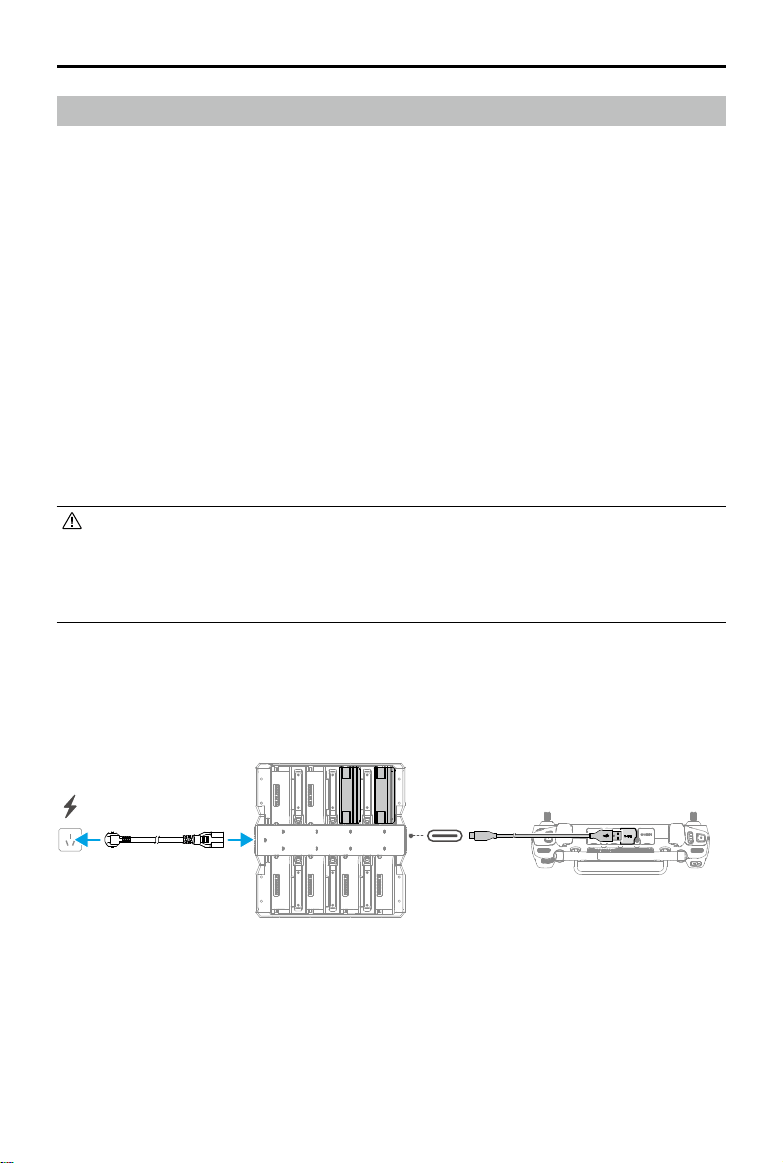
DJI Inspire 3
User Manual
©
2023 DJI All Rights Reserved.
131
Firmware Update
Use DJI Pilot 2 or DJI Assistant 2 (Inspire Series) to update the remote controller, aircraft, and
other connected DJI devices.
Using DJI Pilot 2
Aircraft and Remote Controller
1. Power on the aircraft and remote controller. Ensure the aircraft is linked to the remote
controller, the battery level is higher than 25%, and the remote controller is connected to the
internet.
2. Run DJI Pilot 2. A prompt will appear on the homepage if new rmware is available. Tap to
enter the Firmware Update page.
3. Tap Update All, and DJI Pilot 2 will download the firmware and update the aircraft and
remote controller.
4. The aircraft and remote controller will automatically restart after the firmware update is
completed.
• Make sure the remote controller battery level is higher than 25% before updating. The
update takes approximately 15 minutes (depending on network strength). Make sure
the remote controller is connected to the internet during the update.
• The gimbal camera and the TB51 Intelligent Batteries inserted into the aircraft will be
updated to the latest rmware version.
Charging Hub and Intelligent Batteries
Use the DJI Pilot 2 app to update the rmware of the battery hub as well as up to eight TB51
Batteries at the same time.
1. Insert the TB51 batteries into the battery ports and supply power of the charging hub.
2. Connect the charging hub USB-C port to the remote controller USB-A port using a USB-C to
USB-A data cable.
3. Power on the remote controller and make sure it is connected to the internet.
4. Run DJI Pilot 2. If a version update is available, the homepage will prompt that the charging
hub rmware update is required. Tap the prompt to enter the charging hub update page.
65W OUT
DJI Inspire 3
User Manual
132
©
2023 DJI All Rights Reserved.
5. Tap Update All to begin the update, which takes approximately 10 minutes. The update is
completed when the update success prompt appears.
• During a firmware update, DO NOT insert or remove the batteries to avoid battery
update failure.
• During a firmware update, DO NOT unplug the USB-C to USB-A data cable to avoid
rmware update failure.
Using DJI Assistant 2 (Inspire Series)
DJI Assistant 2 (Inspire Series) supports the updating of the remote controller and aircraft but
not the charging hub. Use the DJI Pilot 2 app to update the charging hub.
Aircraft and Remote Controller
1. Connect the remote controller or aircraft to the USB-A port of the PC with a USB-C to USB-A
data cable one by one, as the assistant software does not support the updating of multiple
DJI devices at the same time.
2. Make sure the computer is connected to the internet and the DJI device is powered on with a
battery level higher than 25%.
3. Run the assistant software, log in with your DJI account, and enter the main view.
4. Tap the rmware update button on the left side.
5. Select the firmware version and click to update. The firmware will be downloaded and
updated automatically.
6. The DJI device will restart automatically, when the Update Successful prompt appears and
the device update is completed.
• The battery rmware is included in the aircraft rmware. Be sure to update all batteries.
• Make sure that the battery levels of the aircraft and remote controller are higher than
25% before updating.
• Make sure the DJI devices are connected properly to the computer during an update.
• During the update process, it is normal for the gimbal to go limp, the aircraft LED
indicators to blink, and the aircraft to reboot. Wait for the update to complete.
• Make sure to keep the aircraft away from people and animals during a firmware
update, system calibration, or parameter conguration.
• For safety, make sure you are using the latest rmware version.
• After the firmware update is completed, the remote controller and the aircraft may
become disconnected. Reconnect the devices if necessary.
• DO NOT use other Hardware and Software than specied by the manufacturer.

DJI Inspire 3
User Manual
©
2023 DJI All Rights Reserved.
133
Storage and Transportation and Maintenance
• DO NOT store the product in a humid or dusty area. Ideally, the aircraft shall be stored in a
cool and dry place at room temperature of 25° C (77° F), and direct sunlight shall be avoided.
• DO NOT store the gimbal camera in humid or dusty areas. The recommended environmental
humidity range is 20-90% RH.
• The storage temperature of the product (excluding TB51 Intelligent Batteries) is from -35° to
40° C (-31° to 104° F).
• Remove the gimbal camera from the aircraft when storing or transporting for an extended
period. Otherwise, the gimbal damper may be damaged.
• Make sure the aircraft is in travel mode when transporting. It is recommended to use the
trolley case whenever transporting the aircraft.
• It is recommended to perform regular maintenance for aircraft. Check every part of the
aircraft after any crash or collision. If you have any problems or questions, please contact DJI
Support or a DJI authorized dealer.
• Maintain the product after using for an extended period in order to keep the product in
the best condition possible and reduce potential safety hazards. The frequency of how
often maintenance should be performed depends on how often the product is used.
Maintenance must be performed at least once every six months. The regular life of the
transformation mechanism is more than 3 years. The internal gear box and grease of the
steering gear supporting to raise or lower the landing gear will have a certain degree of
wear and consumption in approximately six months. So it is normal that the sound during
transformation becomes louder after time. If there are any problems or questions, contact
DJI Support to purchase and replace.
• DO NOT lubricated the aircraft frame arms.
• DO NOT touch the dust-proof cover outside the screw rod.
• DO NOT lubricated the hinge.
• Refer to the maintenance manual for more information.
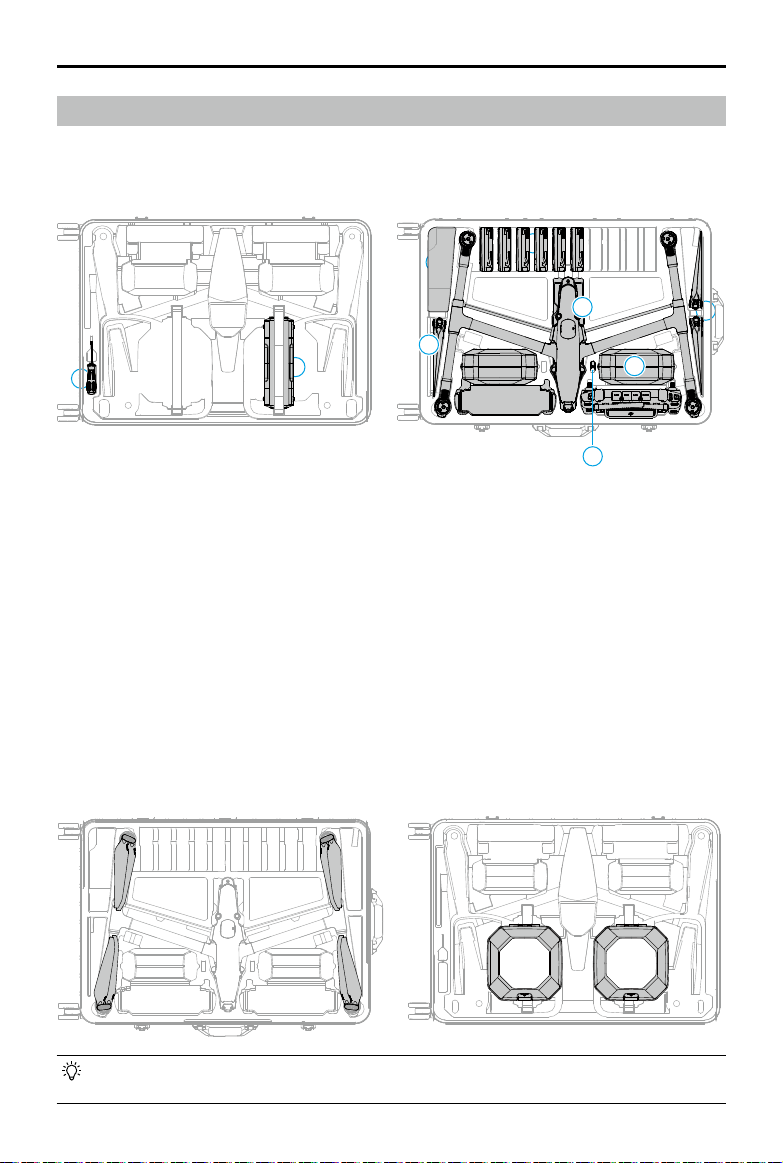
DJI Inspire 3
User Manual
134
©
2023 DJI All Rights Reserved.
1. Screwdriver
2. Changing Hub (bind belts when placed)
3. Intelligent Batteries
4. Remote Controller Strap/Documents
5. Aircraft Body
6. Foldable Quick-Release Propellers
7. Gimbal Camera Box (included gimbal
camera)
8. Cables/Gimbal Dampers
9. Remote Controller
10. DJI PROSSD
11. Lens Box
Trolley Case
Using the Trolley Case for Storage
Regular Storage: the status of the product out of box is as below.
1
10
2
6
7
3
8
4
9
6
5
11
Storing the Aircraft Mounted with Propellers: the aircraft mounted with propellers storage is
only suitable for temporary transfers. Make sure to store it according to the diagram below to
avoid propeller or trolley case damage. For long-term storage, it is recommended to remove
and fold the propeller, and place it in the corresponding storage compartment of the trolley
case.
Storing the Gimbal Camera and the Lens Boxes: place them into the trolley case and bind the
belts.
• After storing the gimbal camera and the lens boxes, the charging hub cannot be placed
in the trolley case.
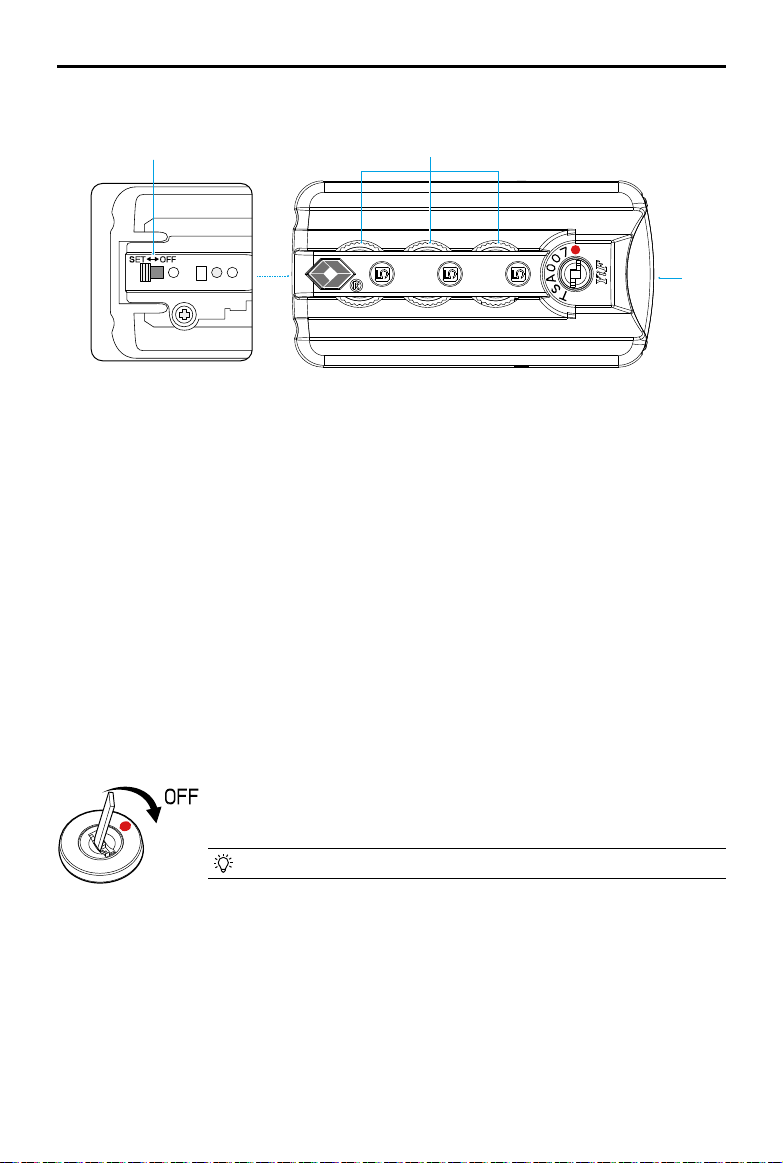
DJI Inspire 3
User Manual
©
2023 DJI All Rights Reserved.
135
Trolley Case Lock
Setting the Combination Code
The combination code is original 000. Follow the steps below to reset the combination code:
1. Toggle the resettable switch on the rear of the lock to SET.
2. Adjust the dials to the set a personal combination code.
3. Toggle the resettable switch to OFF to nish setting.
4. Make sure to memorize the new combination code well.
Using the Combination Code
1. Adjust the dials to the correct numbers and press the button to open the lock.
2. Press down the lock and adjust the dials to the numbers randomly to lock the trolley case.
2
1. Resettable Switch
2. Dials
3. Button
3
If the lock cylinder is opened, use a tool to turn it to the red dot position
by the direction of the arrow to lock it again.
Any tool that can be inserted in the lock cylinder is OK.
1

DJI Inspire 3
User Manual
136
©
2023 DJI All Rights Reserved.
Troubleshooting Procedures
1. Why can the battery not be used before the rst ight?
The battery must be activated by charging before using it for the rst time.
2. How to solve the gimbal drift issue during ight?
Calibrate IMU and compass in DJI Pilot 2. If the problem persists, contact DJI Support.
3. No function
Check if the Intelligent Batteries and the remote controller are activated by charging. If the
problems persist, contact DJI Support.
4. Power-on and start-up problems
Check if the battery has power. If yes, contact DJI Support if it cannot be started normally.
5. SW update issues
Follow the instructions in the user manual to update the rmware. If the rmware update
fails, restart all the devices and try again. If the problem persists, contact DJI Support.
6. Procedures to reset to factory default or last known working conguration
Use the DJI Pilot 2 app to reset to factory default.
7. Shutdown and power-o problems
Contact DJI Support.
8. How to detect careless handling or storage in unsafe conditions
Contact DJI Support.
Risk and Warnings
When the aircraft detects a risk after powering on, there will be a warning prompt on DJI Pilot 2.
Pay attention to the list of situations below.
1. If the location is not suitable for takeo.
2. If an obstacle is detected during ight.
3. If the location is not suitable for landing.
4. If the compass and IMU experience interference and need to be calibrated.
5. Follow the on-screen instructions when prompted.
Disposal
Observe the local regulations related to electronic device when dispose the aircraft and remote
controller.
DJI Inspire 3
User Manual
©
2023 DJI All Rights Reserved.
137
Battery Disposal
Dispose of the batteries in specific recycling containers only after a complete discharge. DO
NOT dispose of the batteries in regular trash containers. Strictly follow the local regulations
regarding the disposal and recycling of batteries.
Dispose of a battery immediately if it cannot be powered on after over-discharging.
If the battery level button on the battery is disabled and the battery cannot be fully discharged,
contact a professional battery disposal/recycling agency for further assistance.
C3 Certication
Inspire 3 is complied with C3 certication, there are some requirements and restrictions when
using Inspire 3 in European Economic Area (EEA, i.e. EU plus Norway, Iceland and Liechtenstein).
UAS Class C3
Sound Power Level 98 dB(A)
Maximum Propeller Speed 7100 RPM
Maximum Dimensions (with payload
installed and propellers rotating)
Landing gear raised: 860.7×927.71×508.85 mm
Landing gear lowered: 860.7×927.71×508.85 mm
MTOM Statement
The MTOM of Inspire 3 (Model T740), including two batteries, gimbal camera, lens (with
balancing ring and hood), DJI PROSSD and four propellers, is not larger than 4310 g to comply
with C3 requirement.
Users must follow the instructions below to comply with the MTOM C3 requirements.
Otherwise, the aircraft cannot be used as a C3 UAV:
1. DO NOT add any other payload to the aircraft, make sure that the MTOM is not larger than
4310 g for any ight.
2. DO NOT use any non-qualied replacement parts, such as intelligent batteries or propellers,
etc.
3. DO NOT retrot the aircraft.
Direct Remote ID
1. Transport Method: Wi-Fi Beacon.
2. Method of uploading the UAS Operator Registration Number to the aircraft: Enter DJI Pilot 2
> GEO Zone Map > UAS Remote Identication, and then upload UAS Operator Registration
Number.

DJI Inspire 3
User Manual
138
©
2023 DJI All Rights Reserved.
List of Items, Including Qualied Accessories
Part Weight Dimension
Zenmuse X9-8K Air Gimbal Camera Approx.516 g 127.5×120.6×156.0 mm
DL 18mm F2.8 ASPH Lens Approx. 182 g Φ64.5×62.8 mm
DL 24mm F2.8 LS ASPH Lens Approx. 178 g Φ55.0×71.2 mm
DL 35mm F2.8 LS ASPH Lens Approx. 179 g Φ55.0×71.2 mm
DL 50mm F2.8 LS ASPH Lens Approx. 182 g Φ55.0×71.2 mm
DL Lens ND4 Filter (Φ46mm) Approx. 9 g Φ46 mm
DL Lens ND8 Filter (Φ46mm) Approx. 9 g Φ46 mm
DL Lens ND16 Filter (Φ46mm) Approx. 9 g Φ46 mm
DL Lens ND32 Filter (Φ46mm) Approx. 9 g Φ46 mm
DL Lens ND64 Filter (Φ46mm) Approx. 9 g Φ46 mm
DL Lens ND128 Filter (Φ46mm) Approx. 9 g Φ46 mm
Balancing Ring Approx. 9 g Φ46 mm
DL Lens Protector (Φ46mm) Approx. 9 g Φ46 mm
Inspire 3 Foldable Quick-Release Propeller Approx. 12.7 g 40.6×18 cm
PROSSD 1TB Approx. 45.5 g 96×29.4×10.3 mm
TB51 Intelligent Battery Approx.470 g 117.3×90×33.3 mm
TB51 Intelligent Battery Charging Hub Approx.1680 g 84×97×243.1 mm (folded)
List of Spare and Replacement Parts
Inspire 3 Foldable Quick-Release Propellers (Pair) (Model: DJI 1671)
TB51 Intelligent Battery (Model: TB51-4280-23.1)
Remote Controller Warnings
The remote controller indicator will glow red after disconnecting from the aircraft for more than
two seconds.
DJI Pilot 2 will prompt a warning after disconnecting from the aircraft.
There will be an alert if the remote controller is not used for ve minutes while it is powered
on but the touchscreen is o and it is not connected to the aircraft. It will automatically power
o after a further 30 seconds. Move the control sticks or perform any other remote controller
action to cancel the alert.
• Avoid interference between the remote controller and other wireless device. Make sure to
turn o the Wi-Fi on nearby mobile devices. Land the aircraft as soon as possible if there is
interference.
• DO NOT operate the aircraft if lighting conditions are too bright or dark when using a remote
controller to monitor the flight. Users are responsible for correctly adjusting the display
brightness when using the remote controller in direct sunlight during ight operation.
• Release the control sticks or press the ight pause button if an unexpected operation occurs.
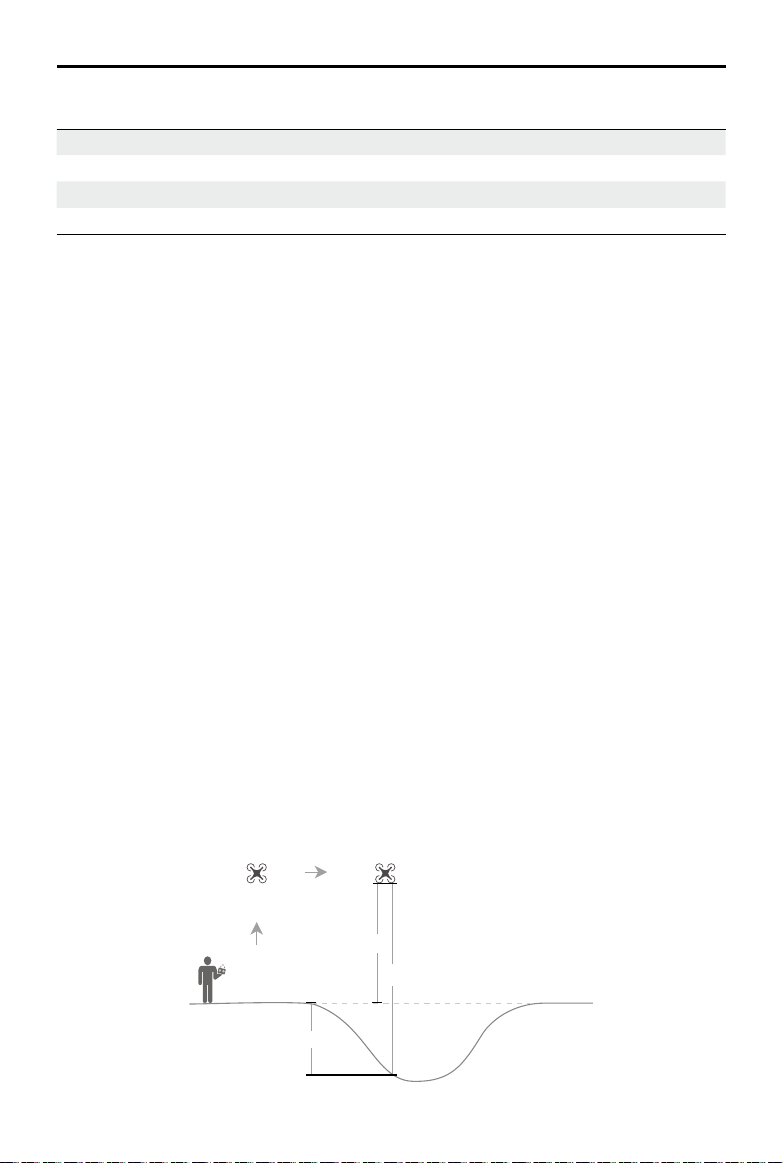
DJI Inspire 3
User Manual
©
2023 DJI All Rights Reserved.
139
Firmware Version Information
Aircraft Firmware v01.00.00.10
Remote Controller Firmware v01.04.03.00
TB51 Intelligent Battery v04.01.00.51
DJI Pilot 2 v5.0.1.10
Refer to the Inspire 3 Release Notes for more rmware update information for traceability.
www.dji.com/inspire-3/downloads
GEO Awareness
Drone Geo-Zones and DJI Geo Zones
DJI is committed to maintaining a safe flying environment. This includes abiding by local
regulations and Unmanned Geographical Zones (UGZs) dened by EU national authorities. DJI
has its own Geospatial Environment Online system (GEO) with broader geographical zones,
including regulated areas where ight may raise concerns. DJI's GEO system has been running
successfully for many years, eectively protecting ight safety and public safety in the absence
of ocial UGZ databases.
In the future, DJI Geo zones will coexist with EU UGZs, as UGZs are still not available in many
countries. Users are responsible for checking local regulations and for any flight restrictions
where they intend to operate.
The GEO zones mentioned in the manual and DJI ocial website refers to the DJI Geo zones and
Geo fencing function, not the UGZs for Geo awareness function required by regulations.
AGL (Above Ground Level) Statement
The vertical limits of Geo-awareness may use the AMSL altitude or the AGL height. The choice
between these two references is specied individually for each UGZ. Neither AMSL altitude nor
the AGL height is supported by this product. H (Height) appears in the app camera view, which
is the height from the aircraft takeo point to the aircraft. The height above the takeo point
may be used as an approximation but may dier more or less from the given altitude/height for
a specic UGZ. The remote pilot remains responsible for not breaching the vertical limits of the
UGZ.
Takeoff
AGL (not supported)
H
Height error
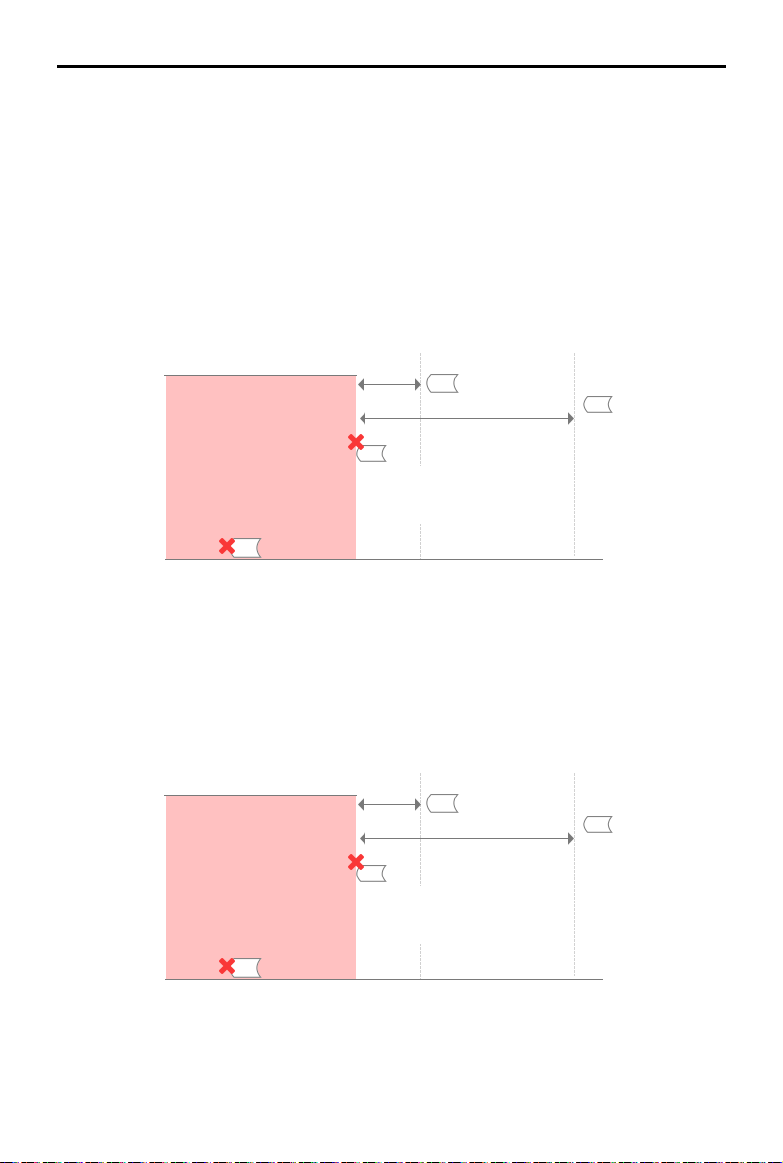
DJI Inspire 3
User Manual
140
©
2023 DJI All Rights Reserved.
DJI Geo Zones with Geo Fencing Function
DJI Geo zones are divided into seven categories with only ve of them taking eect. If more than
one restriction is set at the same position, the alert generated is in the following order:
Restricted Zones > Authorization Zones > Altitude Zones > Enhanced Warning Zones > Warning
Zones
Restricted Zones
Appear red in the DJI app. Users will be prompted with a warning message, and flight is
prevented. UA (Unmanned Aircraft) cannot y or takeo in these zones. Restricted Zones may
be unlocked, to unlock contact [email protected] or go to Unlock A Zone at https://fly-safe.dji.
com/.
Authorization Zones
Appear blue in the app. Users will be prompted with a warning message, and ight is limited by
default. UA cannot y or takeo in these zones unless authorized. Authorization Zones may be
unlocked by authorized users using a DJI veried account.
Restricted Zone
Warning message appears
Limit maximum speed
Ground
When approaching:
1. Warning message appears
2. Cannot fly in the zone
3. Users can apply on the DJI official
website after manual approval
When taking off:
1. Warning message appears
2. Cannot take off
3. Users can apply on the DJI official website after manual approval
100 m
20 m
Authorization Zone
Warning message appears
Limit maximum speed
Ground
When approaching:
1. Warning message appears
2. Cannot fly in the zone
3. Users can apply on the DJI App with a
phone number
100 m
20 m
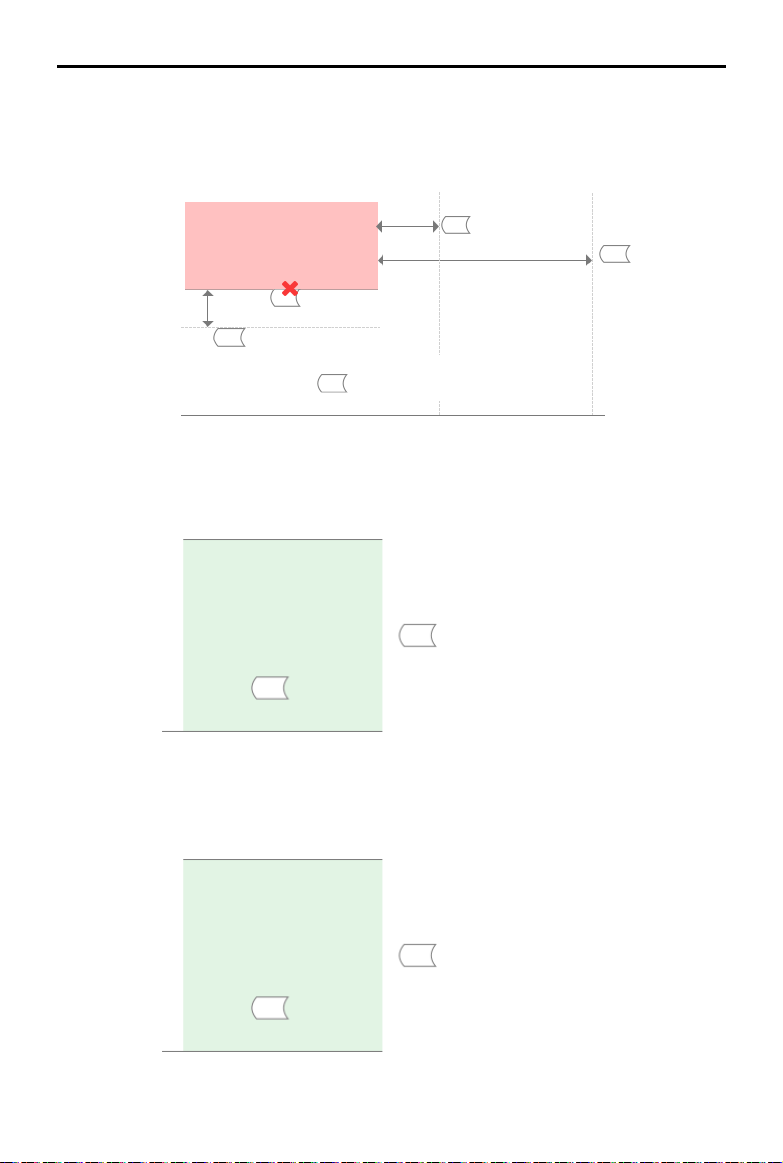
DJI Inspire 3
User Manual
©
2023 DJI All Rights Reserved.
141
Enhanced Warning Zones
A warning message will prompt users when the drone reaches the edge of the zones.
Warning Zones
A warning message will prompt users when the drone reaches the edge of the zones.
Altitude Zones
Altitude zones are zones with a limited altitude and appear in gray on the map. When
approaching, users will receive a warning message in the app.
Altitude Zone
20 m
100 m
10 m
Warning message appears
Limit maximum speed
Limit maximum speed
1. UA can take off and fly into these zones in
specific height with a warning message
2. User can apply for permission on the DJI
official website after manual approval
Ground
Limited altitude
Ground
1. UA can take off and fly into these zones with a warning
message which needs user confirmation
Enhanced Warning
Zone
Ground
1. UA can take off and fly into these zones with a warning
message
Warning Zones
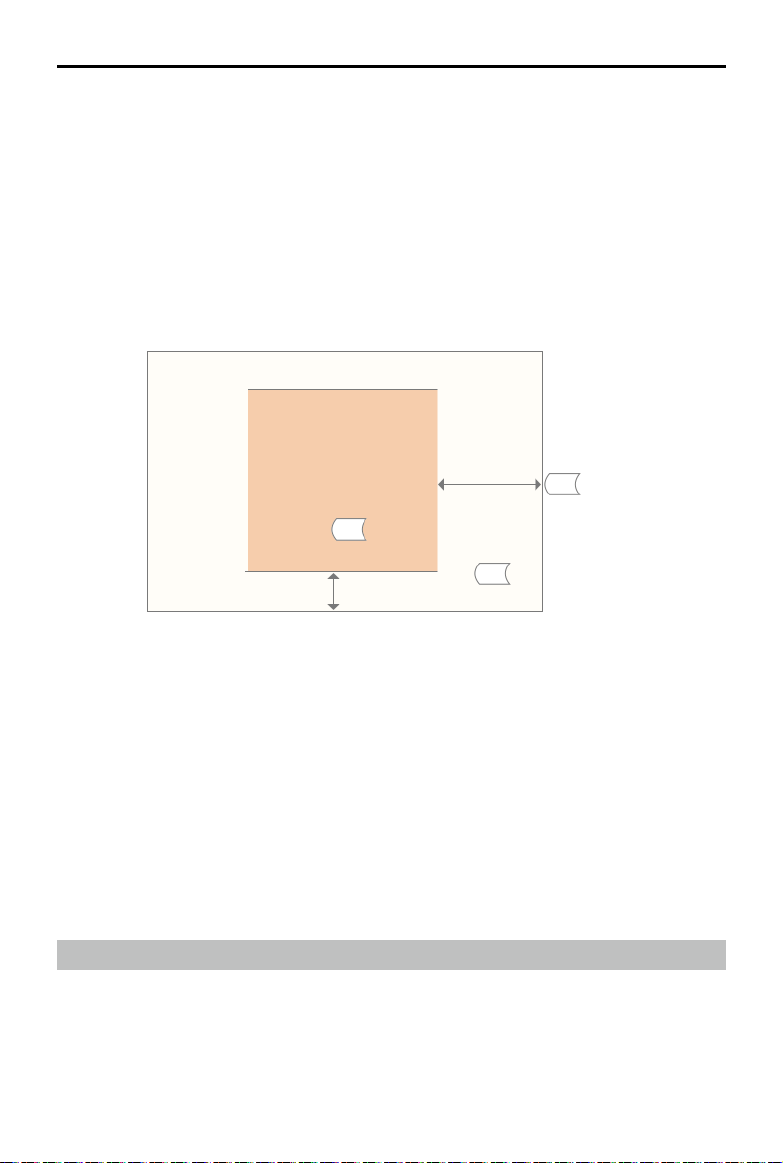
DJI Inspire 3
User Manual
142
©
2023 DJI All Rights Reserved.
Regulatory Restricted Zones
Due to local regulations and policies, ights are prohibited within the scope of some special
areas. (Example: Prisons)
Approved Zones for Light UAVs (China):
For Approved Zones, pilots of light UAVs ying at an altitude of 120 m or less are not required to
obtain permission to y. Pilots who are planning to y medium-sized UAVs in Approved Zones
at an altitude higher than 120 m, or in GEO Zones other than Approved Zones, must obtain
permission via UTMISS before taking o.
UGZ Zone for Geo-awareness function
EASA Notice
Make sure to read the Drone Information Notices document included in the package before
use.
Go to the address below for more EASA notice information for traceability.
https://www.easa.europa.eu/en/document-library/general-publications/drones-information-
notices
Original Instructions
This manual is provided by SZ DJI Technology, Inc., and the content is subject to change.
Lobby of T2, DJI Sky City, No. 53 Xianyuan Road, Xili Community, Xili Street, Nanshan District,
Shenzhen, China, 518057.
FAR Remote ID Compliance Information
The aircraft complies with the requirements of 14 CFR Part 89:
• The aircraft automatically initiates a pre-flight self-test (PFST) of the Remote ID system
before takeo and cannot take o if it does not pass the PFST
[1]
. The results of the PFST of
the Remote ID system can be viewed in a DJI ight control app such as DJI Pilot 2.
• The aircraft monitors the Remote ID system functionality from pre-ight to shut down. If the
Enhanced Warning
Zone
(EU UGZ Zones)
220 m
40 m
1. UA can take off and fly into EU UGZ
Zones and its nearby area with a
warning message
Nearby area

DJI Inspire 3
User Manual
©
2023 DJI All Rights Reserved.
143
Remote ID system malfunctions or has a failure, an alarm information will be displayed in a
DJI ight control app such as DJI Pilot 2.
• The user shall keep the DJI ight control app running in the foreground and always allow it
to obtain the location information of the remote controller.
[1] The pass criterion for PFST is that the hardware and software of the Remote ID required-data source and
transmitter radio in the Remote ID system are functioning properly.
After-Sales Information
Visit https://www.dji.com/support to learn more about after-sales service policies, repair
services, and support.
This content is subject to change.
https://www.dji.com/inspire-3/downloads
If you have any questions about this document, please
contact DJI by sending a message to [email protected].
DJI and INSPIRE are trademarks of DJI.
Copyright © 2023 DJI All Rights Reserved.
WE ARE HERE FOR YOU
Contact
DJI SUPPORT