
User’s Guide
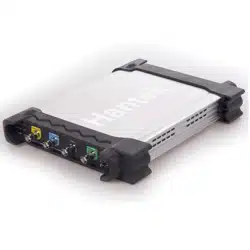
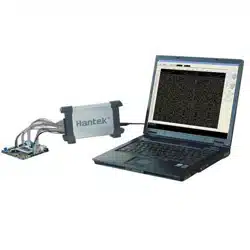
Hantek4032L
PC USB Logic Analyzer
www.hantek.com

Content
General safety summary ............................................................................... 1
Introduction .................................................................................................... 2
Chapter 1 Getting started .............................................................................. 3
1.1 System Requirements .......................................................................................... 4
1.2 Installing Software ................................................................................................ 5
1.3 Installing Driver .................................................................................................... 8
1.4 User Interface .................................................................................................... 11
Chapter 2 Menu ............................................................................................ 12
2.1 File ..................................................................................................................... 13
2.2 View ................................................................................................................... 13
2.3 Setup ................................................................................................................. 14
2.4 Analyzer ............................................................................................................. 14
2.5 Help ................................................................................................................... 15
Chapter 3 Advanced .................................................................................... 16
3.1 Control Panel ..................................................................................................... 17
3.2 Bus Panel ........................................................................................................... 18
3.3 Waveform Panel ................................................................................................. 20
3.4 Measurement Panel ........................................................................................... 22
3.5 Export Data ........................................................................................................ 23
Chapter 4 Bus Plug-in ................................................................................. 24
4.1 Summary ............................................................................................................ 25
4.2 Example ............................................................................................................. 27
Chapter 5 Trigger ......................................................................................... 30
5.1 Base Trigger Setup ............................................................................................ 31
5.2 Advance Trigger Setup ....................................................................................... 33
5.3 Immediately Trigger ........................................................................................... 33
Appendix ...................................................................................................... 34
Hardware Specification ............................................................................................ 35
Channels .................................................................................................................. 36
Block Diagram .......................................................................................................... 37
Cleaning and maintenance ...................................................................................... 38

Logic Analyzer
Hantek4032L
General safety summary
Understand the following safety precautions to avoid injuries and to prevent
damage to the product or the product of any product link. To avoid possible
dangers, be sure to use the product in accordance with the regulations.
Only qualified personnel to perform maintenance procedures.
Prevent fire and personal injury.
Use the right power cord. Only the country in which the authorized use of
this product for the power line.
Correctly inserted. Probe or test voltage wire connected to the source,
please do not plug.
Products will be grounded. This product through the power of the
grounding wire grounding. To avoid electric shocks, grounding conductor
must be connected to. In this connection the import or export of products
before the end, be sure to correct grounding for this product.
Properly connected probe. Probe the ground with the same potential. Do
not connect high-voltage ground.
See all the terminals rating. To avoid excessive current fire and the
impact, see the product of all the ratings and tags; please connect
products in the product manual inspection prior to understand the detailed
ratings information.
Do not run the product if you open the cover or panel.
Avoid the exposed circuit. Do not connect power after contact with the
exposed joints and components.
Suspected products to failure do not operate. If you suspect that this
product has been a failure, can be qualified maintenance personnel to be
checked.
Maintain proper ventilation.
Do not operate in the humid environment.
Do not flammable and explosive environment operation.
Please keep the product clean and dry surface.
User’s Manual 1

Logic Analyzer
Hantek4032L
Introduction
The Hantek4032L is a sophisticated 32-channel logic analyzer used for testing,
analysis, and troubleshooting of digital circuits. It is equipped with features
found only in more expensive bench type instruments. The use of advanced
large-scale integrated circuits, integrated USB 2.0, CPLD, FPGA,
high-frequency digital circuitry, and other advanced technology, make the
Hantek4032L to be portable, and easy-to-use. The Hantek4032L is very
suitable for electronic measurement engineers, college students in scientific
research and development and teaching assistants.
The User’s Manual describes in detail the operation of the Hantek4032L as
well as installation of the software.
The device has a sufficient number of input channels and is capable of
simultaneously observing a lot of information or data flow direction control
information, and in some way of capturing narrow pulse interference.
It has the feature of delayed ability to capture the required observation points
around the waveform, in a variety of digital information capture function.
The Hantek4032L has intuitive and flexible displays to facilitate dynamic
analysis, can transform the information, and the user can use the binary,
decimal, hexadecimal or ASCII that information to facilitate the repair process
and debug.
It can be triggered in a variety of ways, can display a very long data stream, on
the basis of the analysis of that part of the information to make accurate
positioning, and capture appropriate information for software analysis by using
its tracking function trigger operation procedures. For hardware, trigger
function can be detected in the system and that the interference and Burr.
The Hantek4032L has reliable Burr detection ability. As competition in digital
circuit, the signal crosstalk, interference and power coupling factors, often
mixed with irregular signal in the burr, which will run from an incorrect circuit.
User’s Manual 2

Logic Analyzer
Hantek4032L
Chapter 1 Getting started
This chapter focuses on the following topics:
System Requirements
Installing Software
Installing Driver
User Interface
User’s Manual 3

Logic Analyzer
Hantek4032L
1.1 System Requirements
Minimum System Requirements
Operating System
Windows XP/Vista/Win 7
Memory
128MB
Graphic Card
Microsoft DirectX supported
Screen resolution: 1024x768
Color depth: 16bit
User’s Manual 4
Logic Analyzer
Hantek4032L
1.2 Installing Software
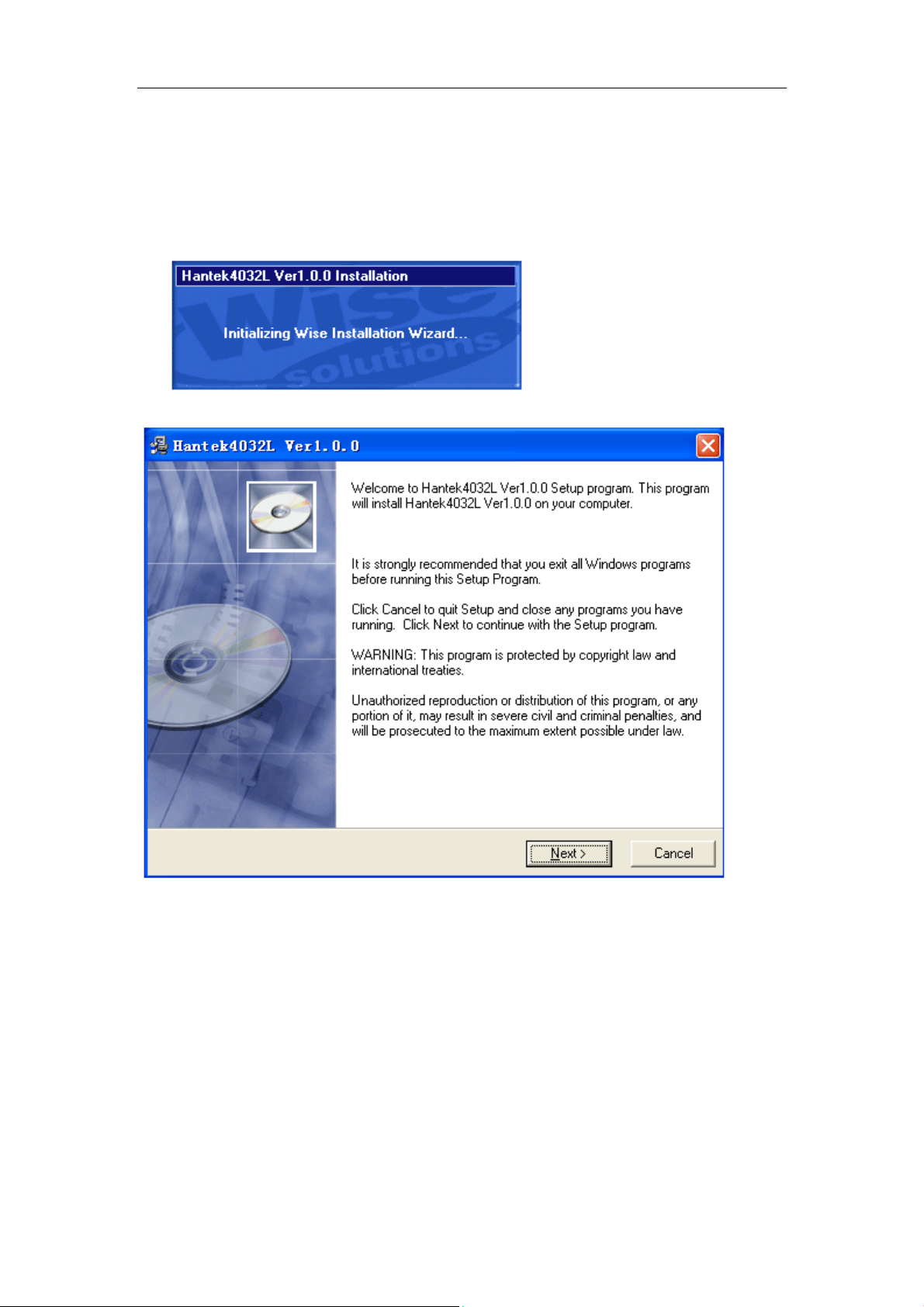
1. While in Windows, insert the installation CD into the CD-ROM drive.
2. The installation should start up automatically. Otherwise in Windows
Explorer, switch to the CD-ROM drive and run "Setup.exe".
3. The Hantek4032L Installation is started. Click 'Next' to continue.
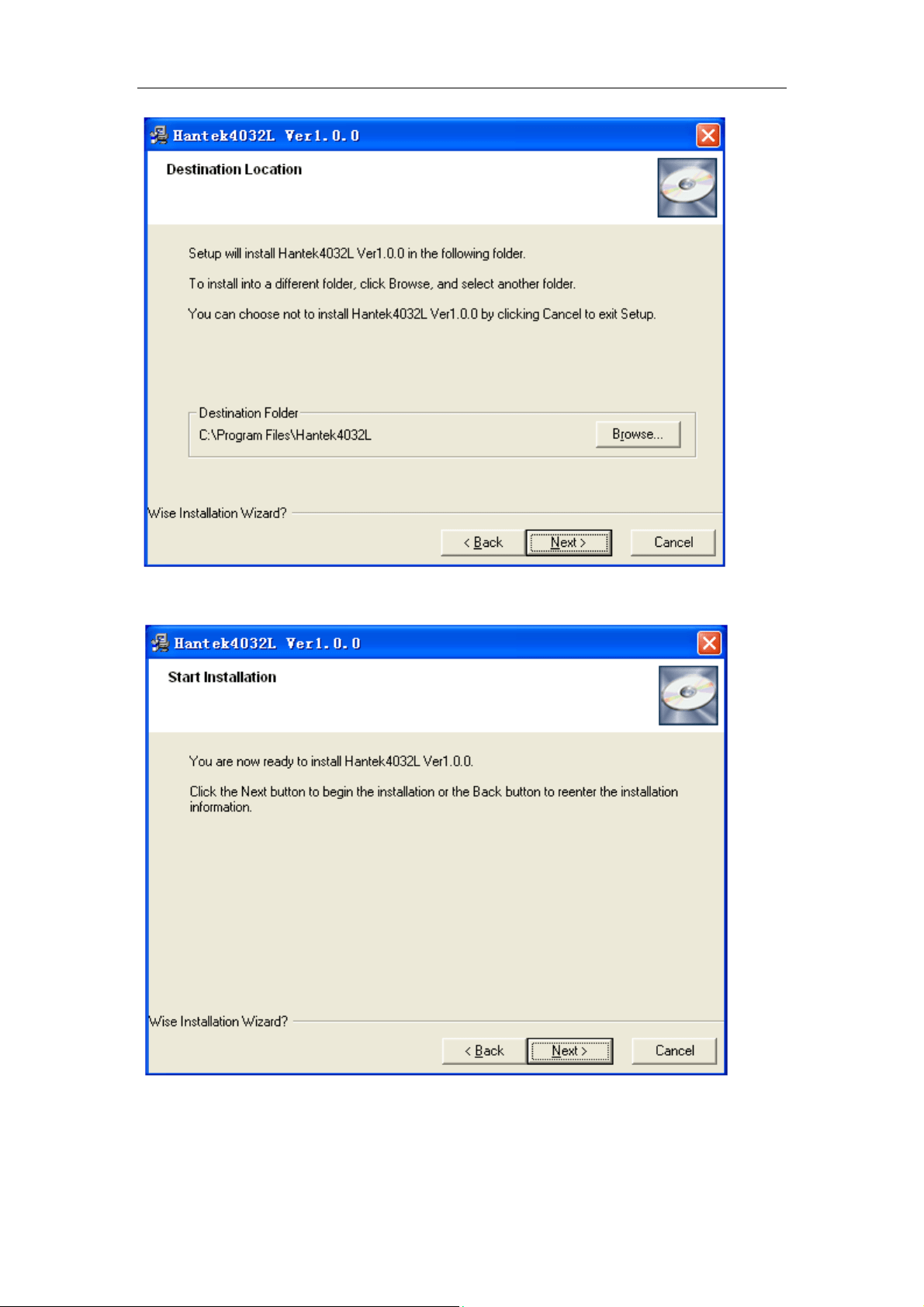
4. Choose a destination directory. Click 'Next' to continue.
User’s Manual 5
Logic Analyzer
Hantek4032L
5. Check the setup information. Click Next to start copying of files.
6. This status dialog is displayed during copying of files.
User’s Manual 6

Logic Analyzer
Hantek4032L
7. Updating Your System Configuration.
8. The installation is complete.
User’s Manual 7

Logic Analyzer
Hantek4032L
1.3 Installing Driver
1. Connect the A-Type Plug of USB cable to your PC’s USB port.
2. Connect the B-Type Plug of USB cable to Hantek4032L’s USB port.
3. New hardware is found.
4. New hardware search wizard starts.
5. New hardware search wizard starts to search.
User’s Manual 8

Logic Analyzer
Hantek4032L
6. New hardware wizard installs software.
User’s Manual 9

Logic Analyzer
Hantek4032L
7. Finish new hardware search wizard.
Caution:
Do not disconnect any device from the USB bus while the computer is
communicating with the Hantek4032L, or you may lose data and/or your ability
to communicate with the device.
If the LED is illuminated but then turns off, the computer has lost
communication with the Hantek4032L.To restore communication, disconnect
the USB cable from the computer, and then reconnect is. This should restore
communication, and the LED should turn back on.
User’s Manual 10

Logic Analyzer
Hantek4032L
1.4 User Interface
Hantek4032L provides users with a simple and full-featured interface so that
users needn’t spend a lot of time to learn.
At the same time, it provides control panel, waveform panel, bus panel,
measurement panel, trigger panel.
User’s Manual 11

Logic Analyzer
Hantek4032L
Chapter 2 Menu
This chapter focuses on the following topics:
File
View
Setup
Analyzer
Help
User’s Manual 12
Logic Analyzer
Hantek4032L
2.1 File
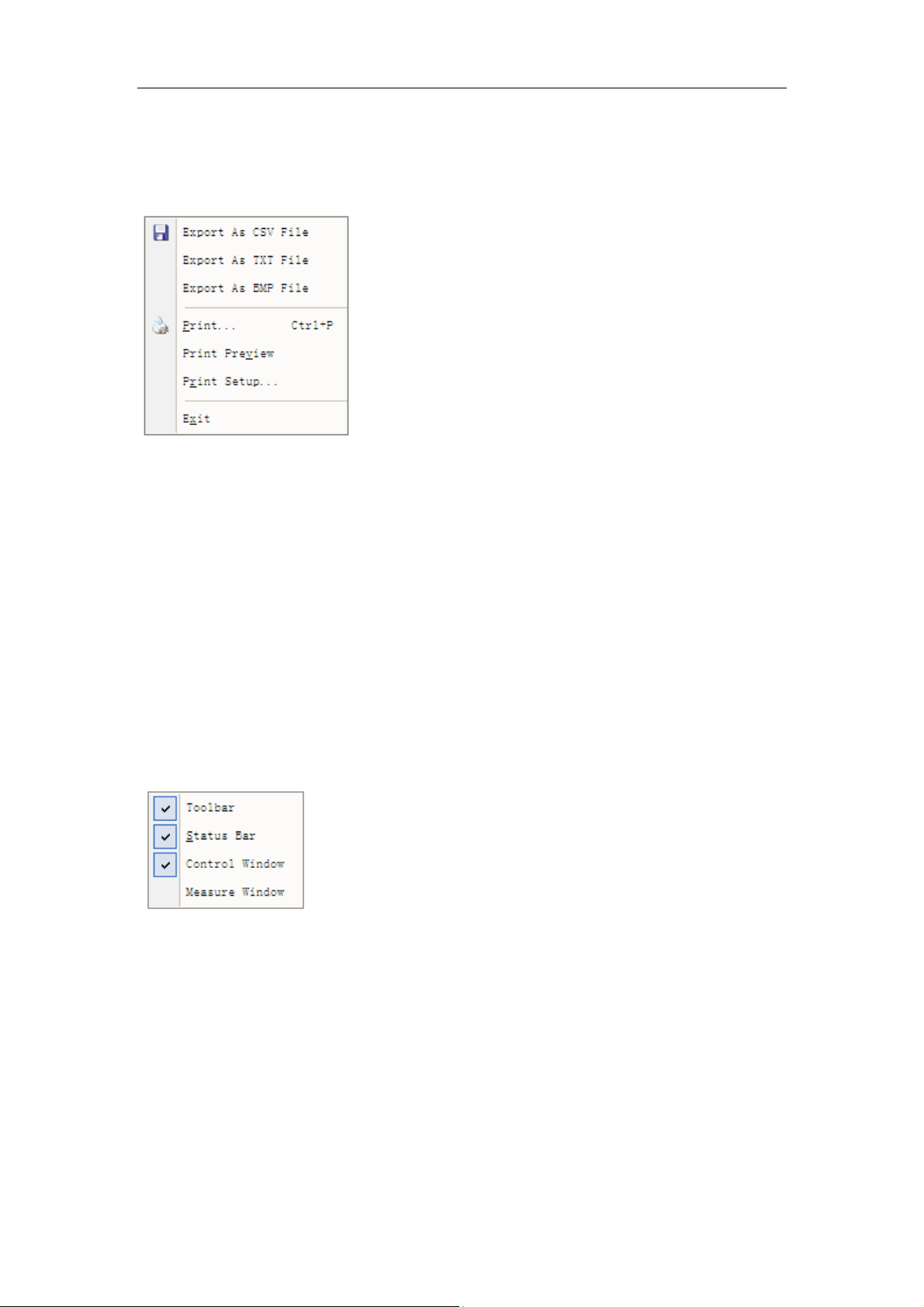
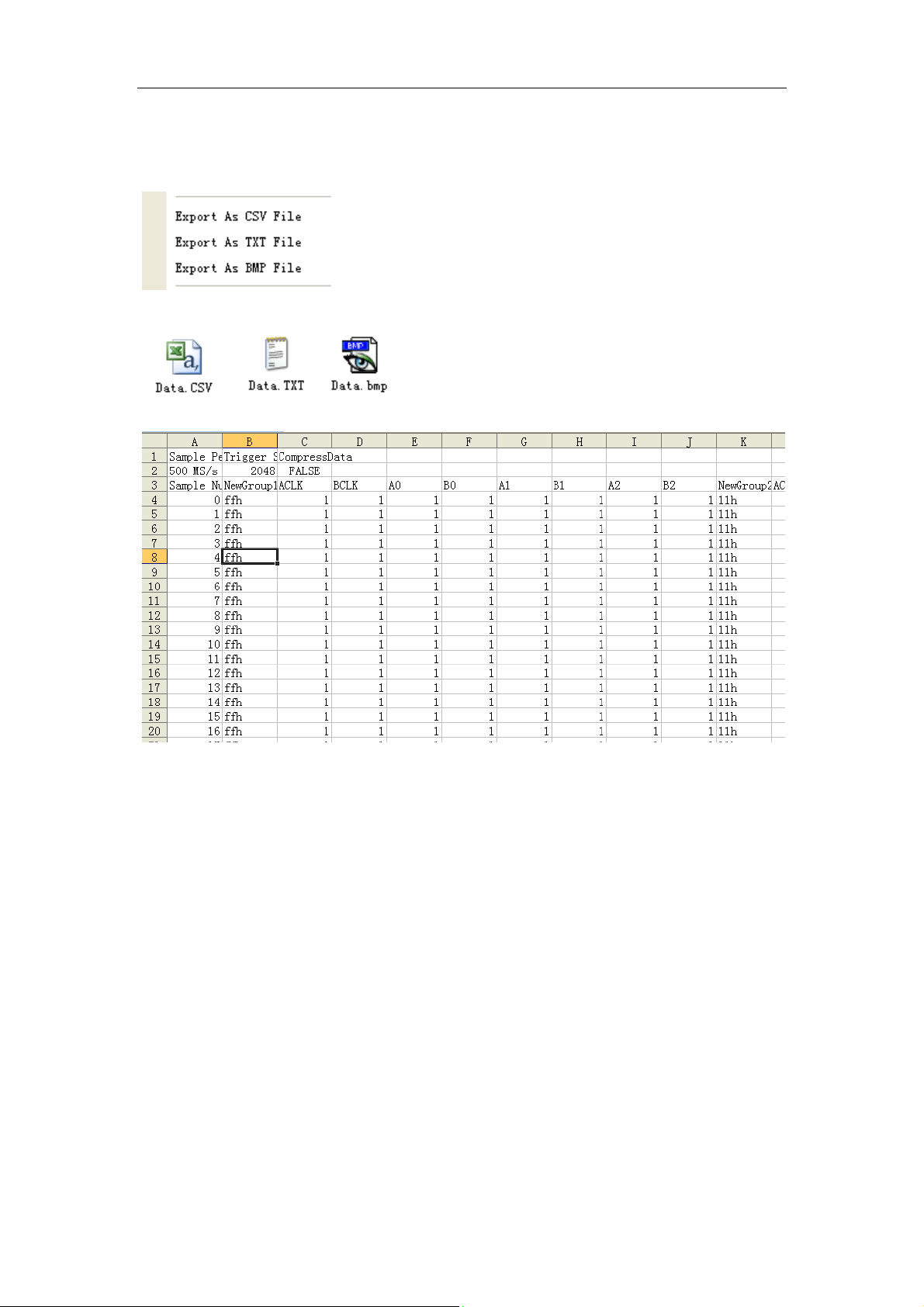
z Export As CSV File: Export data to file as “CSV”
z Export As TXT File: Export data to file as “TXT”
z Export As BMP File: Export data to file as “BMP”
z Print…: Print the current waveform
z Print Preview: Preview the current waveform
z Pint Setup: Setup print type
z Exit: Exit Hantek4032L
2.2 View
z Toolbar: Show or hide the toolbar window
z Status Bar: Show or hide the status window
z Control Window: Show or hide the control window
z Measure Window: Show or hide the measure window
z Zoom In: Enlargement waveform view
z Zoom Out: Reduction waveform view
z Zoom All: Show entire waveform view
User’s Manual 13
Logic Analyzer
Hantek4032L
2.3 Setup
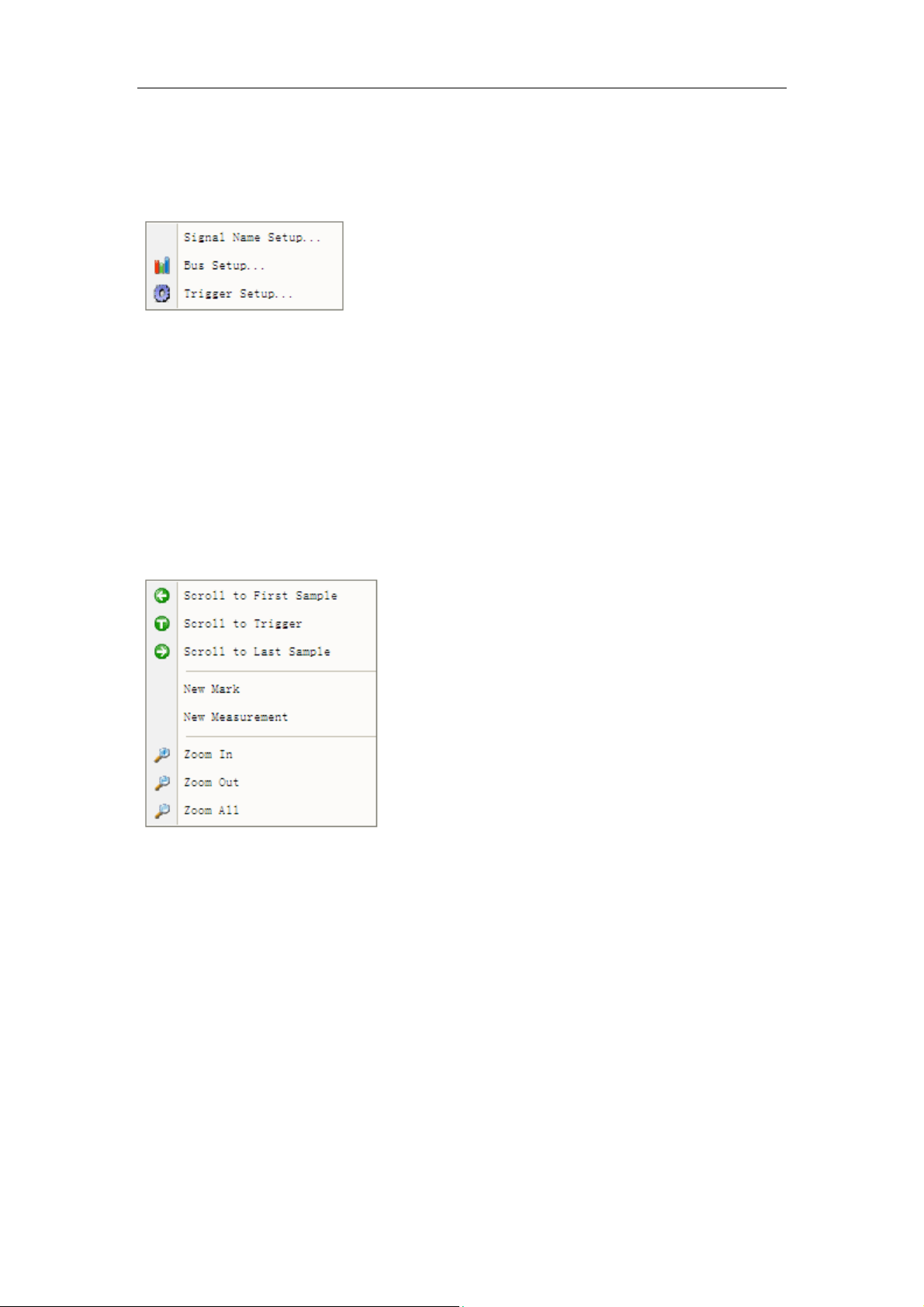
z Signal Name Setup: Modify the signal name.
z Bus Setup: Configure the bus and signals.
z Trigger Setup: Configure the trigger condition.
2.4 Analyzer
z Scroll to First Sample: Causes the waveform view to roll to the first
sample position
z Scroll to Trigger: Causes the waveform view to roll to trigger
position.
z Scroll to Last Sample: Causes the waveform view to roll to the last
sample position
z New Mark: Create a new Mark
z New Measurement: Create a new measurement.
z Zoom In: Enlargement waveform view
z Zoom Out: Reduction waveform view
z Zoom All: Show entire waveform view
User’s Manual 14

Logic Analyzer
Hantek4032L
2.5 Help
z Help Content: Open the User Manual
z About: Show the copyright of the device
User’s Manual 15

Logic Analyzer
Hantek4032L
Chapter 3 Advanced
This chapter focuses on the following topics:
Control Panel
Bus Panel
Waveform Panel
Measurement Panel
Export Data
User’s Manual 16
Logic Analyzer
Hantek4032L
3.1 Control Panel
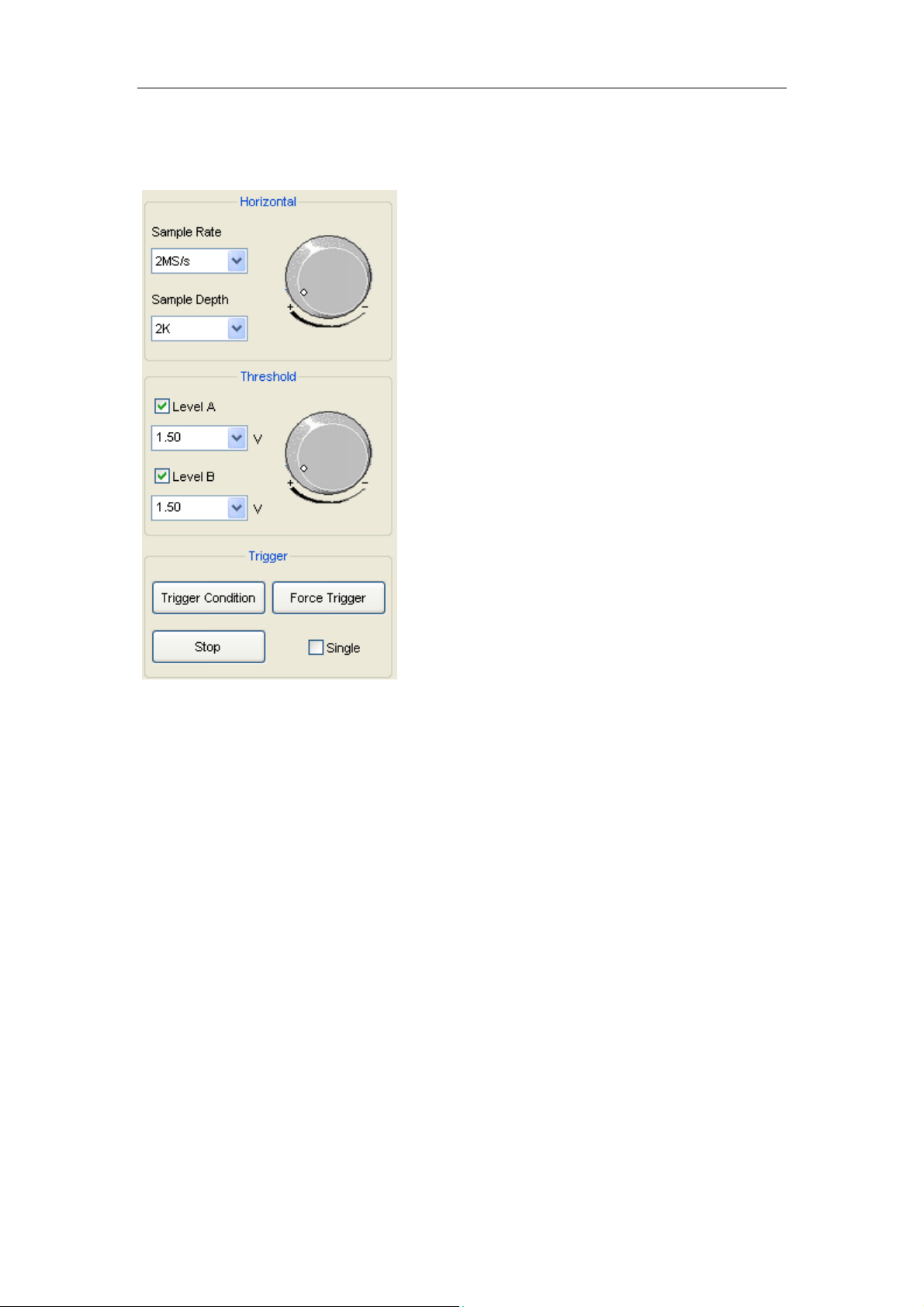
z Horizontal:
Set the clock and sample rate
Sample Rate: User can select the sample rate from 1MS/s to 400MS/s.
Sample Depth: User can set the sample depth 1k, 2k, 10k.
z Threshold:
Configure the input trigger level.
z Trigger:
Trigger Condition: Popup the trigger setup dialog.
Force Trigger: Trigger immediately once.
Stop: Stop trigger.
Single: Trigger under the trigger condition once.
User’s Manual 17

Logic Analyzer
Hantek4032L
3.2 Bus Panel
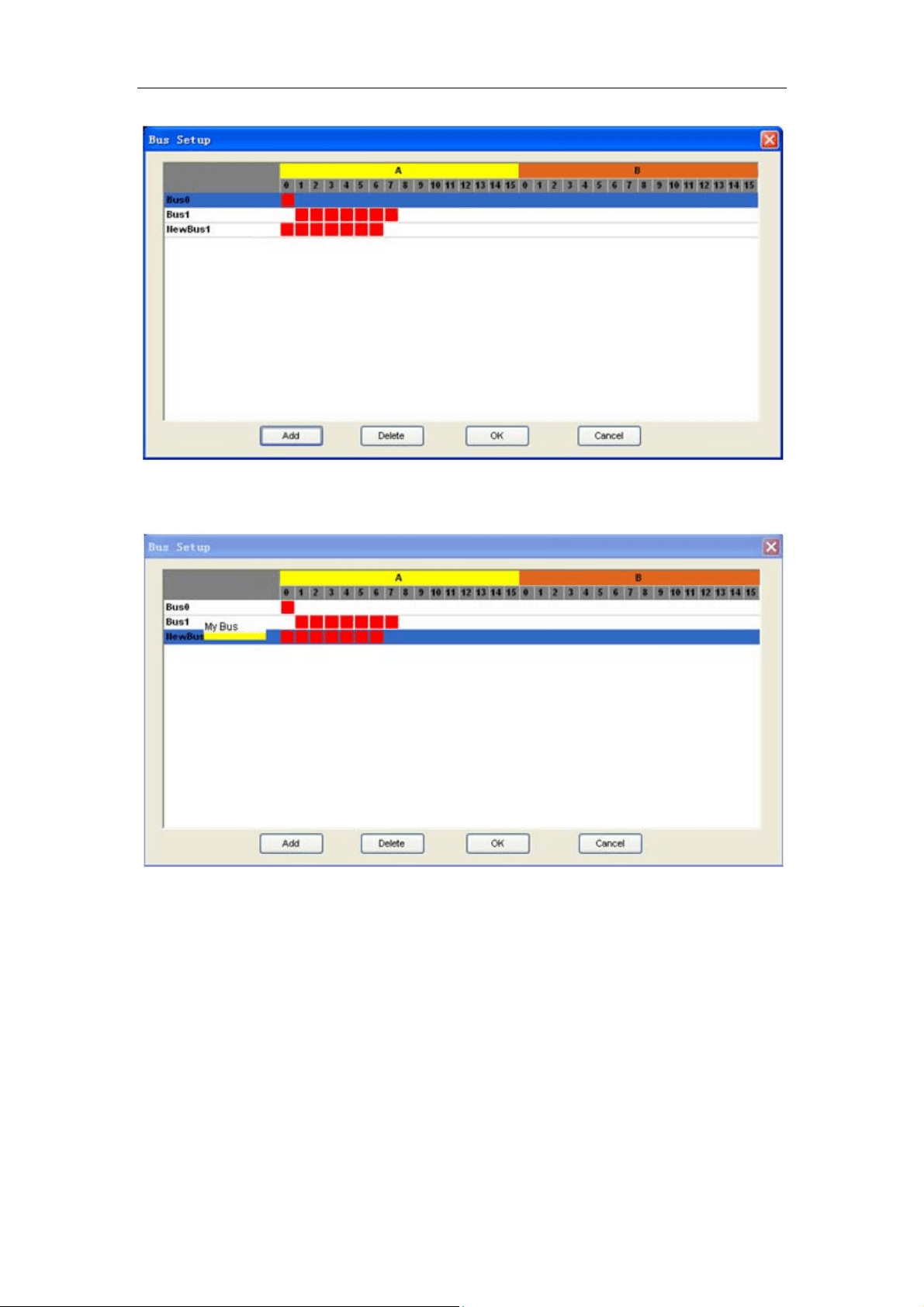
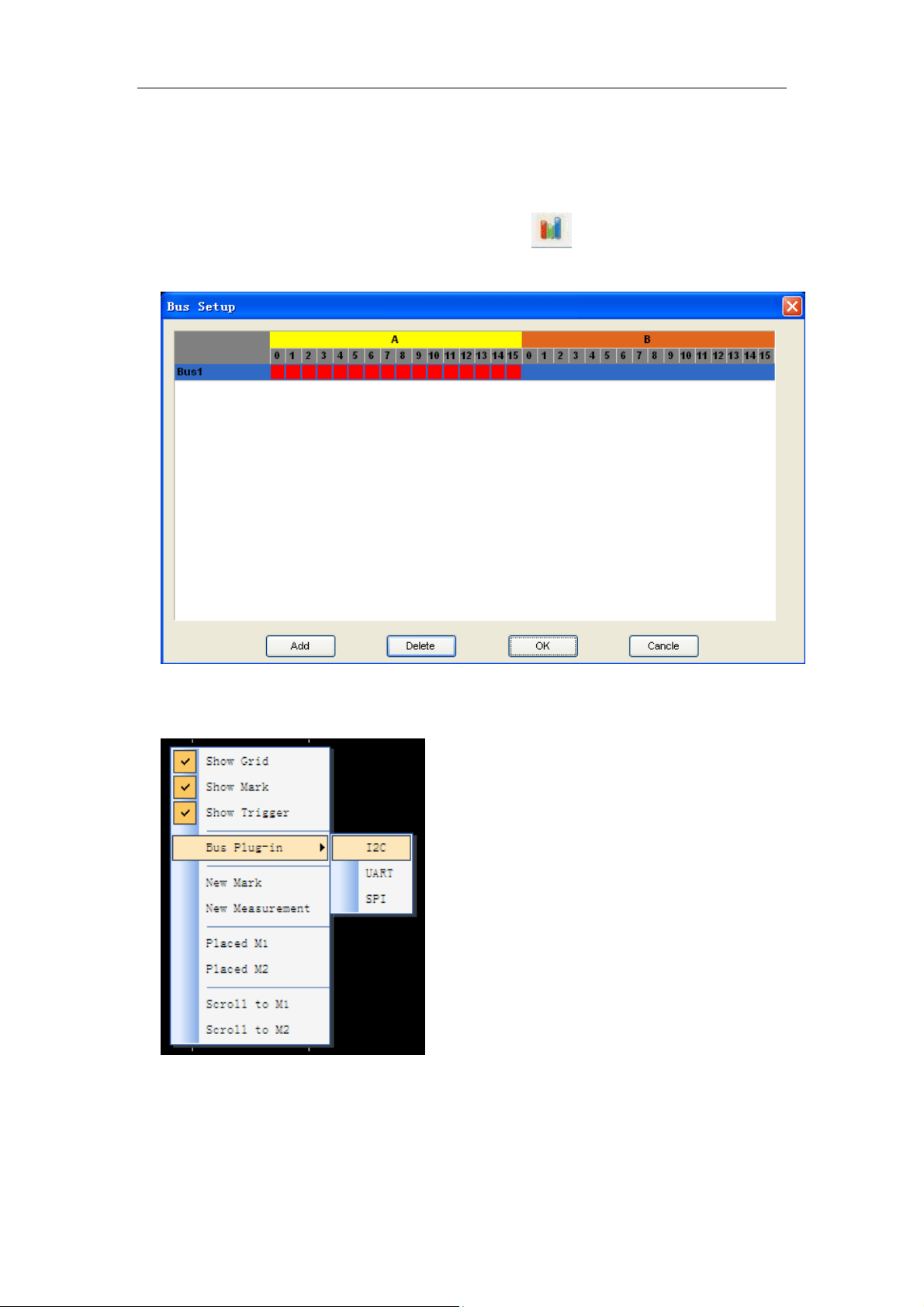
Click the menu “Setup”-> “Bus Setup…” to open the dialog.
Hantek4032L has 32 signals channels, A0 ~A15, B0~B15. You can assign the
parts of them to some bus.
The list box contains all of the bus; you can add or delete the bus.
For example: Assign a bus “My Bus” which has 7 signals “A0, A1, A2, A3, A4,
A5 and A6”.
1. Click the button “Add”. Then a new bus is added to the list.
2. Click the pane under the A0, A1, A2, A3, A4, A5, and A6. If the pane is filled
of red, it means you have add the signal to the bus.
User’s Manual 18
Logic Analyzer
Hantek4032L
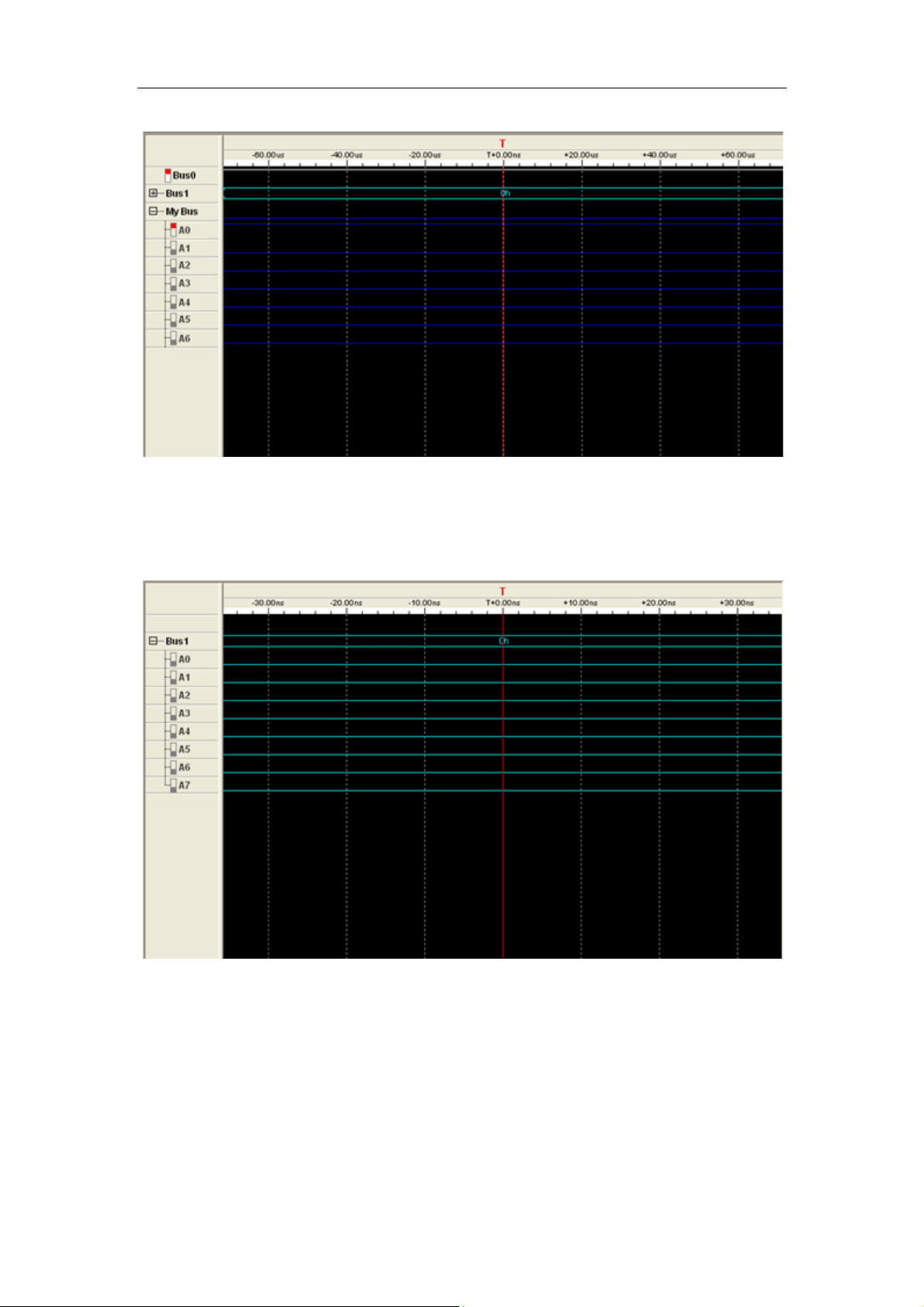
3. Double-click the name of the bus, which is “NewBus1” in this example.
Then popup an edit box, in which you can input the bus name “My Bus”.
4. Then Click “OK”, the “My bus” has been added to the waveform.
User’s Manual 19
Logic Analyzer
Hantek4032L
3.3 Waveform Panel
You can observe the waveform by the waveform panel in the main window.
The list contains all of the bus in bus panel in the left part of the waveform
panel.
Click the name of the bus with the right mouse button, you can configure the
bus.
User’s Manual 20

Logic Analyzer
Hantek4032L
1. Display Format: The format of the bus data displayed on the waveform.
2. Display Order: The order of the signals displayed in the list.
3. Display Style: You can set the display style of the bus in the waveform,
Analog or Digital.
4. Color: You can modify the color of the bus displayed in the waveform.
5. Show Property: Open the bus setup panel.
Click the waveform with the right mouse button, the waveform help menu
popup. You can operate the Hantek4032L by the menu.
User’s Manual 21
Logic Analyzer
Hantek4032L
3.4 Measurement Panel
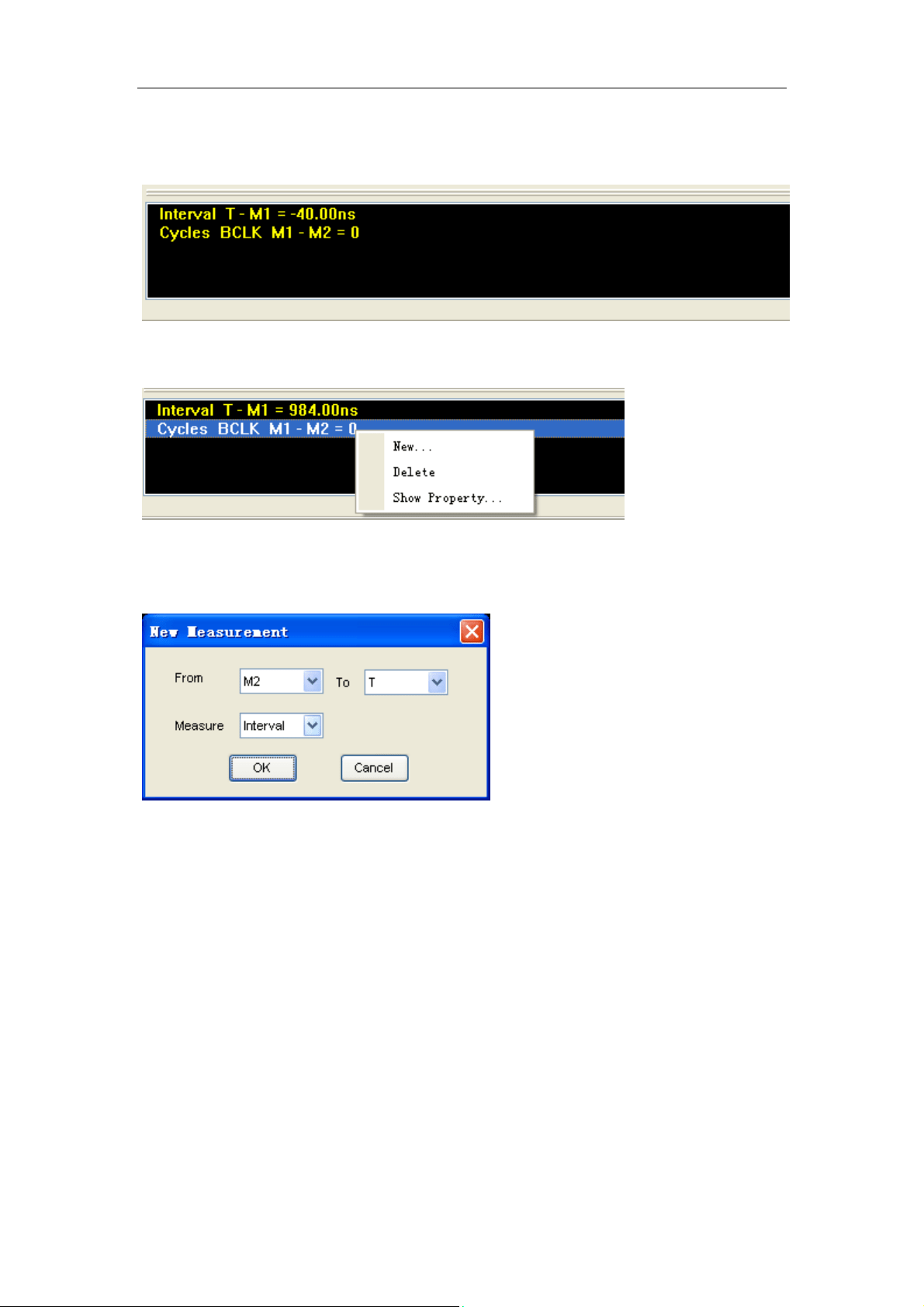
Click the measurement panel with the right mouse button, then the menu
popup.
Click the “New” in the popup menu or “Analyzer”->”New Measurement” in the
main menu, you will add a new measurement to the list in the measurement
panel.
Select the “Measure” combo box. You can modify the types of measurement.
There are 4 types for you, such as Interval, rate, transitions and cycles.
Click the “Delete”; you can delete the measurement item selected in the list.
Click the “Show Property”; you can modify the measurement.
Also, you can click the main menu “Analyzer”->”New Mark” to add new mark
for measurement.
User’s Manual 22
Logic Analyzer
Hantek4032L
3.5 Export Data
Click the menu “File”; you can export the data to file.
If you select the CSV file, you will export the data as the following.
User’s Manual 23

Logic Analyzer
Hantek4032L
Chapter 4 Bus Plug-in
This chapter focuses on the following topics:
Summary
Example
User’s Manual 24
Logic Analyzer
Hantek4032L
4.1 Summary
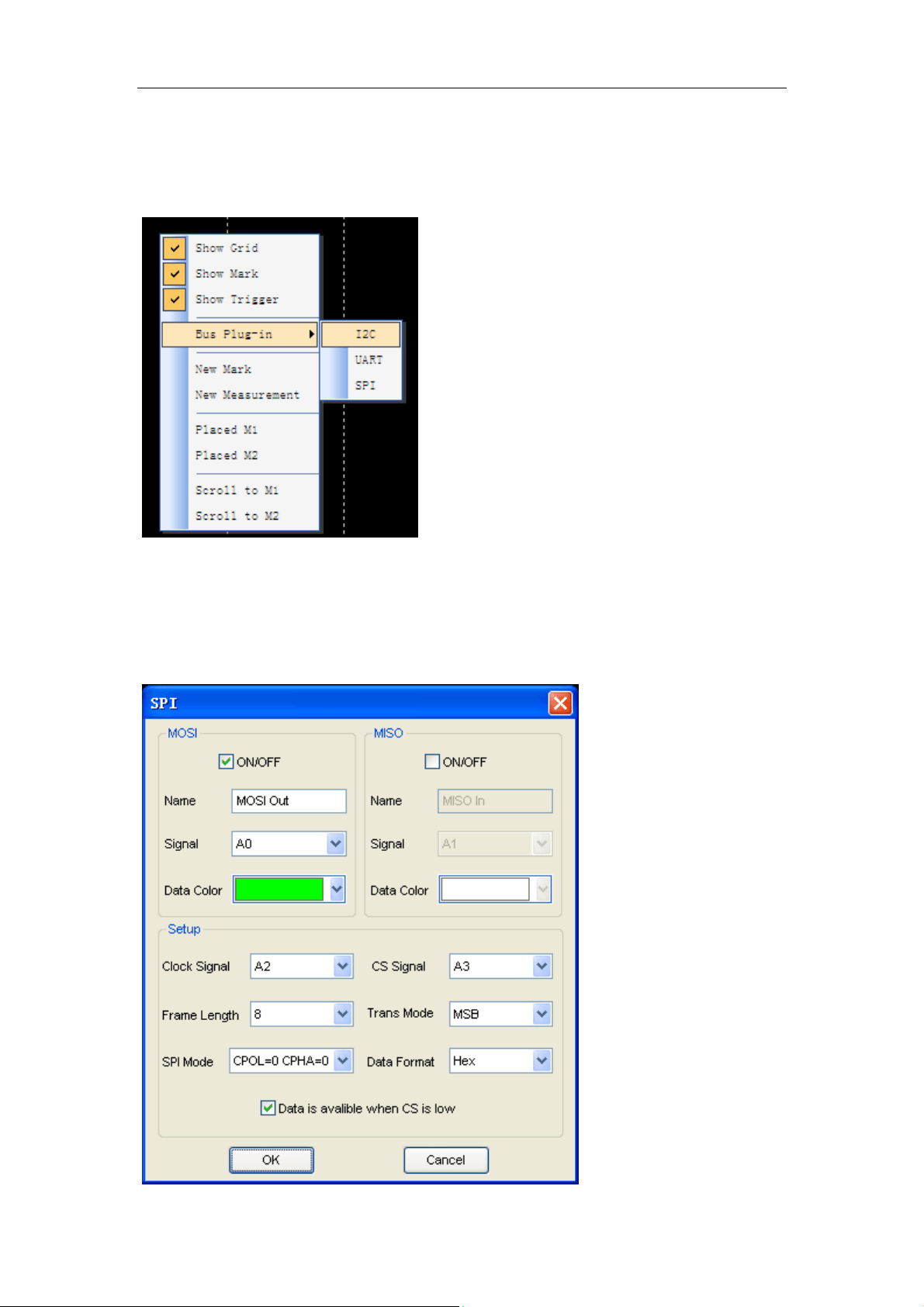
Click right mouse, select “Bus Plug-in”-> “I2C”.
The list box contains all of the plugs installed in your computer. You can add
them to waveform by checking them.
User can modify the property of the plug in the box.
User’s Manual 25

Logic Analyzer
Hantek4032L
User’s Manual 26
Logic Analyzer
Hantek4032L
4.2 Example
If you want to analyze the I
2
C bus, you should go with the steps following.
1. Click menu “Setup”->“Bus Setup” or toolbar , open the bus setup
dialog.
2. Open the plug manager and the I
2
C setup dialog. Click right mouse and
select “Bus Plug-in”->“I2C” to open the setup dialog.
User’s Manual 27
Logic Analyzer
Hantek4032L
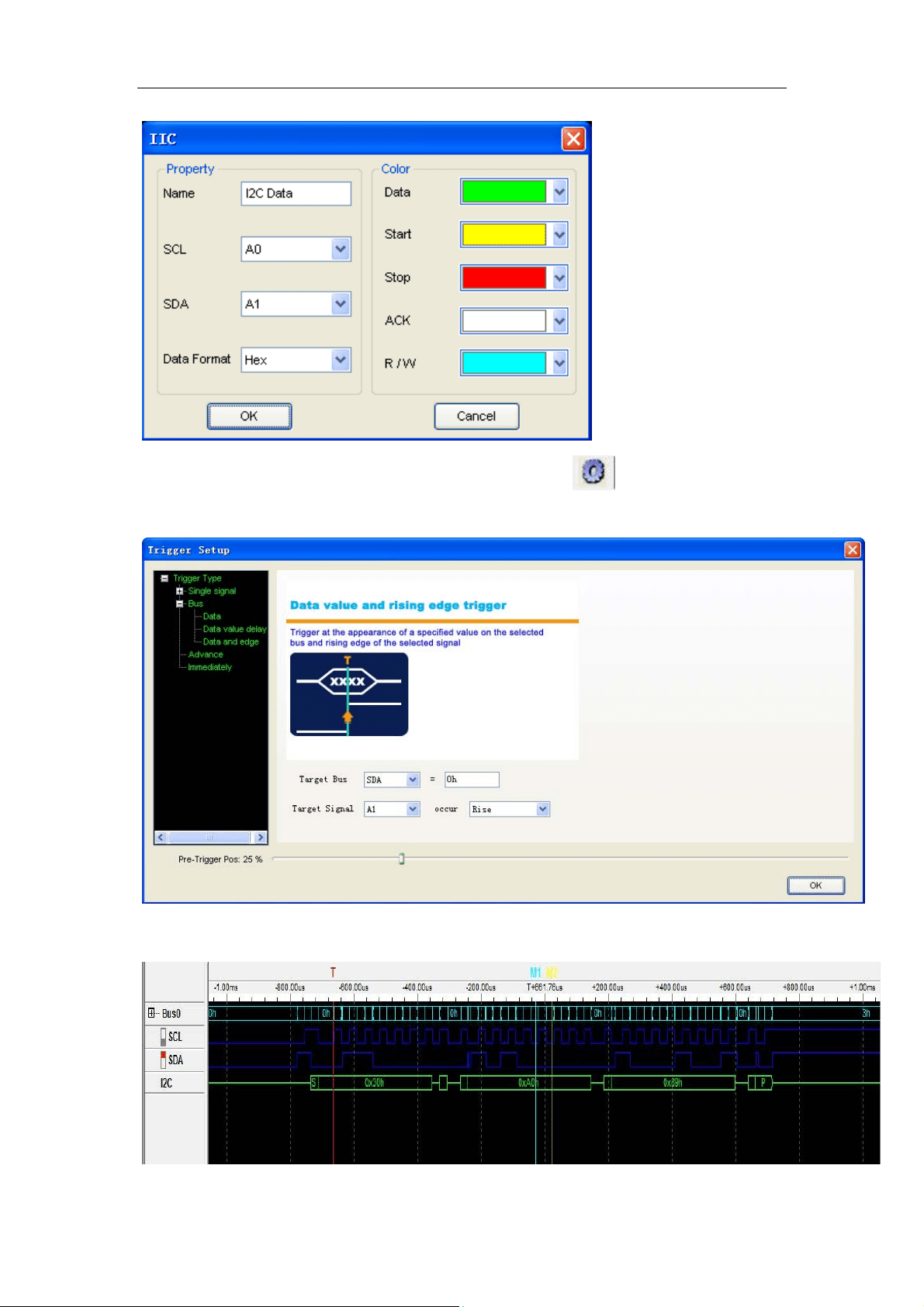
3. Click menu “Setup”-> “Trigger Setup” or toolbar , open the bus setup
dialog, do these steps:
4. Then you can see the following.
User’s Manual 28
Logic Analyzer
Hantek4032L
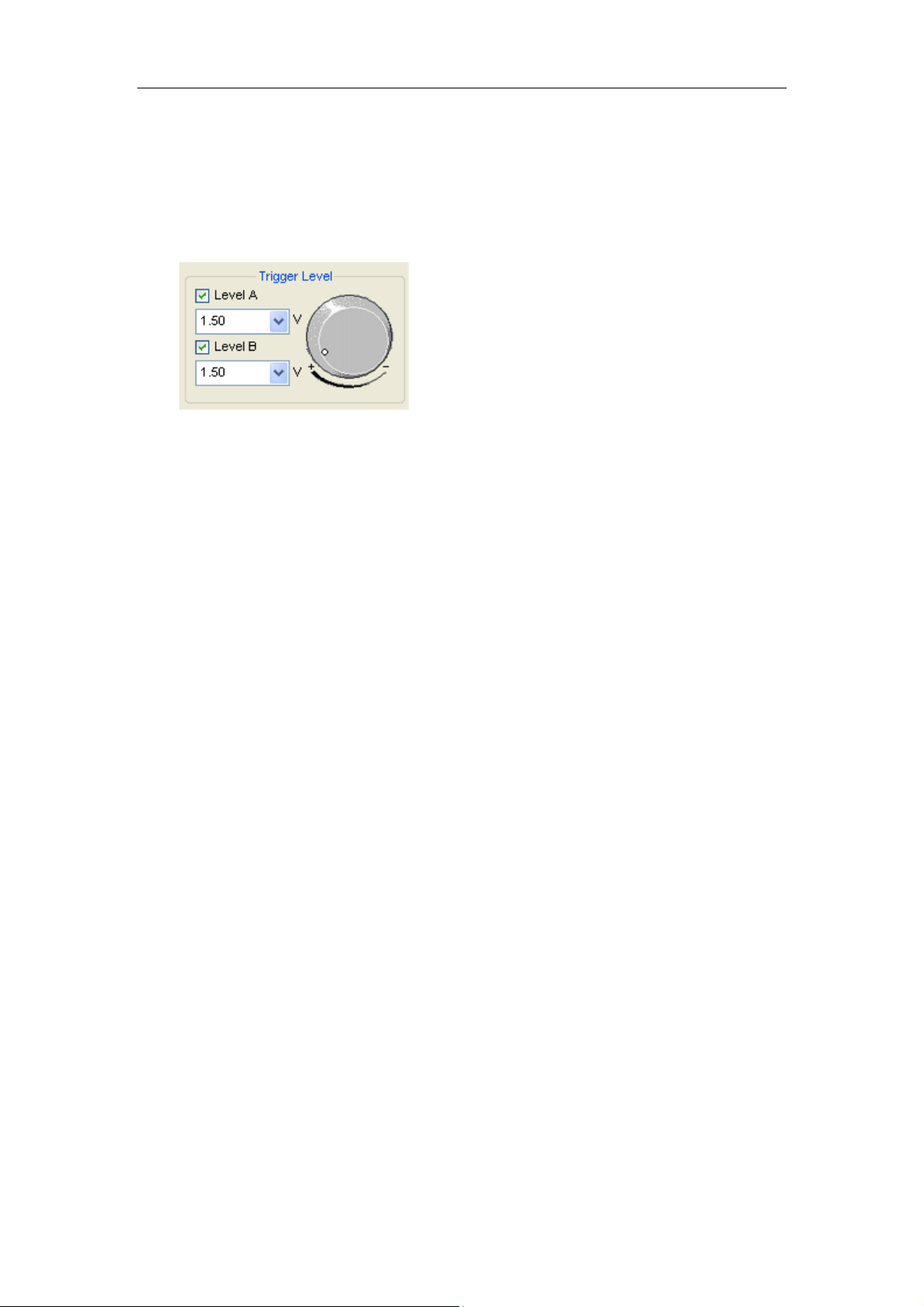
5. Usually, after doing the five steps, you can see the stable and sensitive
I2C signals. If there is measuring instrument line interference, user can
adjust the trigger voltage value. Set initial trigger voltage value for SCL and
SDA is 1.5V, try to adjust the value to obtain the stable signal.
User’s Manual 29

Logic Analyzer
Hantek4032L
Chapter 5 Trigger
This chapter focuses on the following topics:
Base Trigger Setup
Advance Trigger Setup
Immediately Trigger
User’s Manual 30
Logic Analyzer
Hantek4032L
5.1 Base Trigger Setup
Click the menu “Setup”-> “Trigger Setup”, you can configure the trigger
condition.
Hantek4032L provides 6 base triggers for you.
z Single signal: Rising edge; Falling edge; Rising or falling edge.
z Bus: Data, Data value delay, Data and edge
1. Rising edge:
Select the “Rising edge” in the tree; select the signal in the combo box.
Then it will triggered by a rising edge appeared on the selected signal.
2. Falling edge:
Trigger by a falling edge appeared on the selected signal.
3. Rising or falling edge:
Trigger by a rising or falling edge appeared on the selected signal.
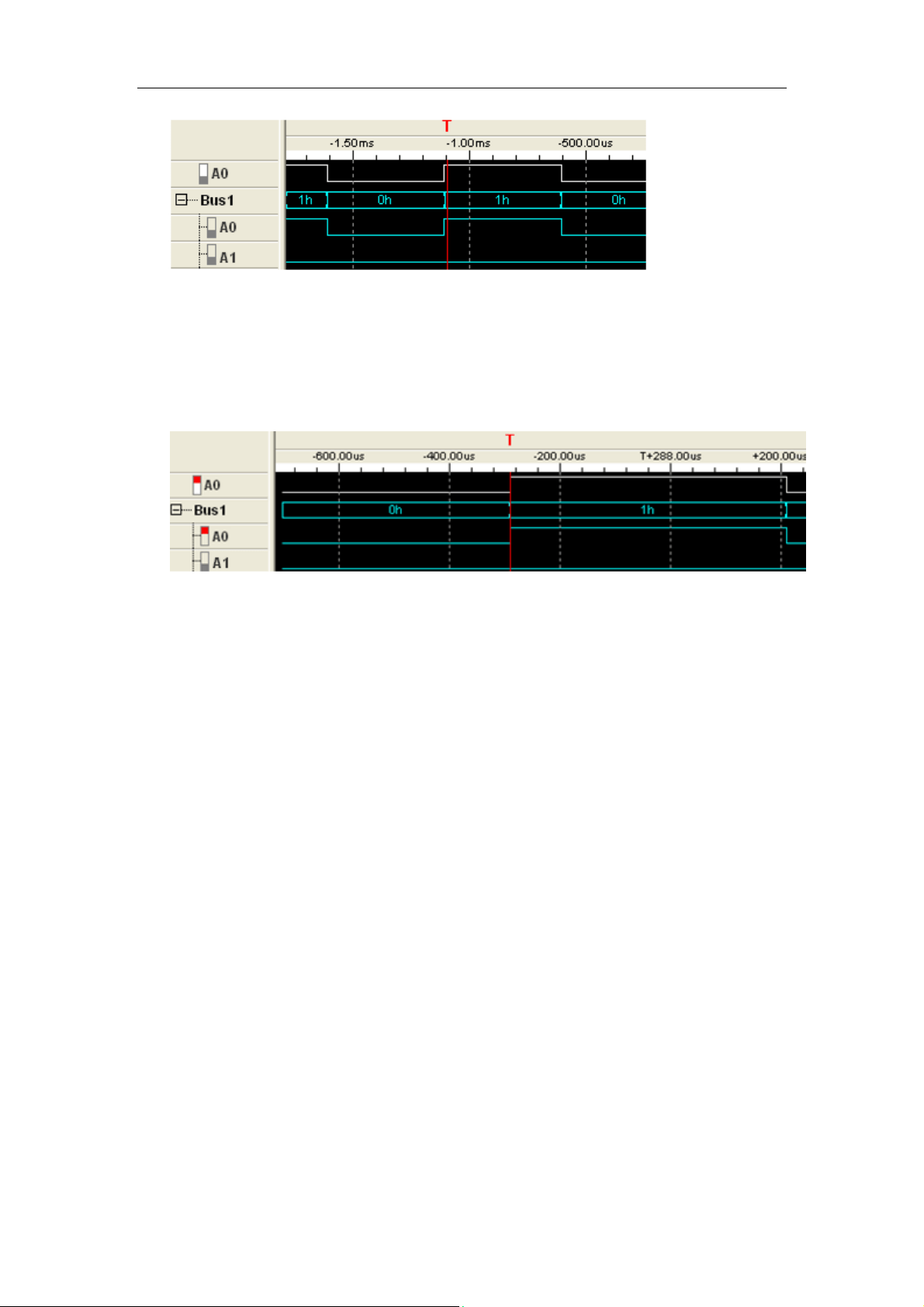
4. Data:
Trigger at the appearance of a specified value on the selected bus.
User’s Manual 31
Logic Analyzer
Hantek4032L
5. Data value delay:
Trigger at x time after the appearance of a specified value
6. Data and edge:
Trigger at the appearance of a specified value on the selected bus and
rising, falling, or rising or falling edge of the selected signal.
User’s Manual 32
Logic Analyzer
Hantek4032L
5.2 Advance Trigger Setup
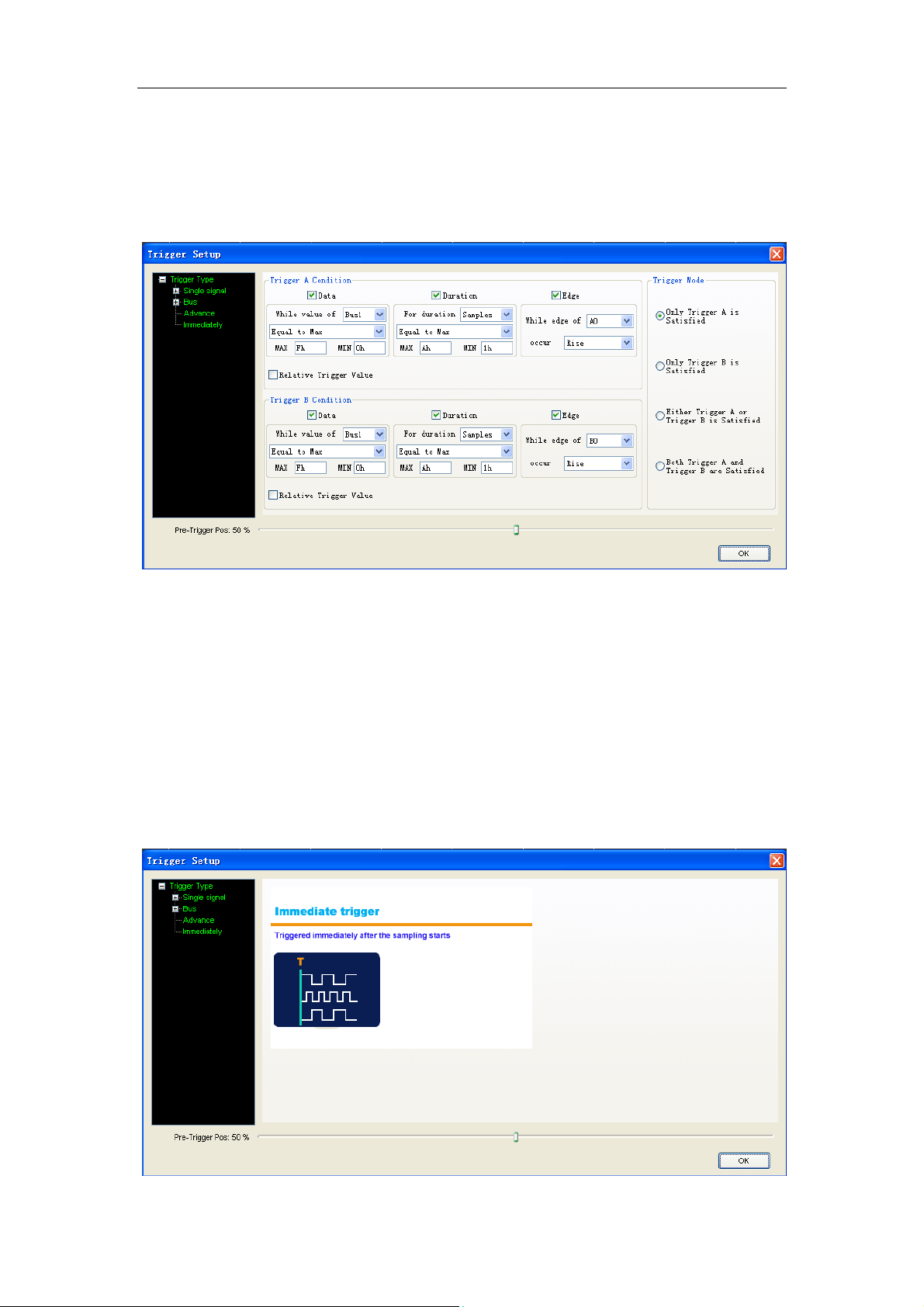
If the base trigger can’t satisfies you, may be you want the advance trigger.
Click the “Advance” in the tree, then you can configure the advance trigger.
There are two trigger conditions: trigger A and trigger B. You can set the
trigger mode by clicking the Trigger Mode group box.
There are four parts in each condition, Data, Duration, Edge and Relative
trigger value.
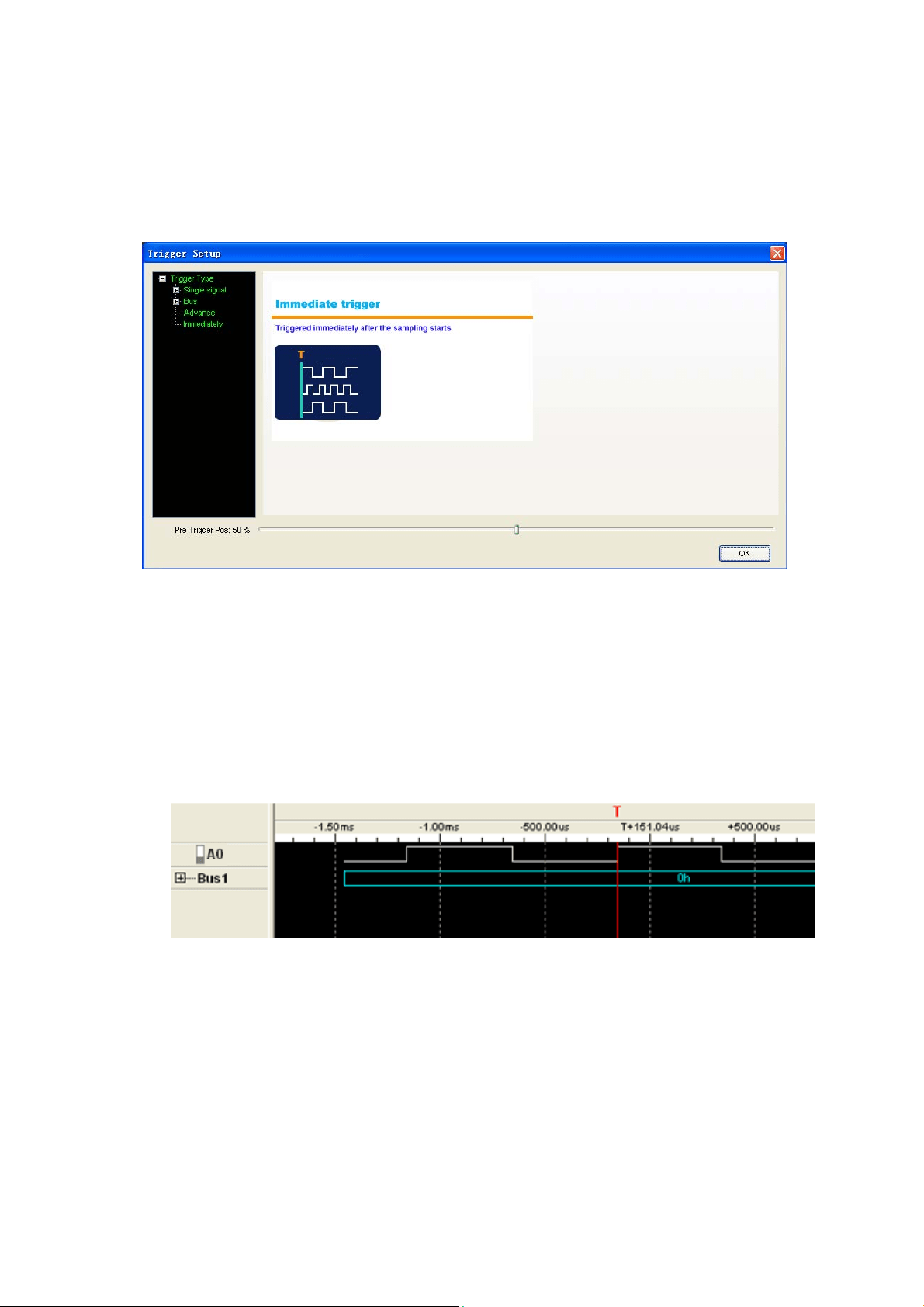
5.3 Immediately Trigger
Click “Setup -> Trigger Setup” and select Immediately.
Immediately: Triggered immediately after the sampling starts.
User’s Manual 33

Logic Analyzer
Hantek4032L
Appendix
Hardware specification
Input connector pin assignments
Block Diagram
Cleaning and Maintenance
User’s Manual 34

Logic Analyzer
Hantek4032L
Hardware Specification
Sampled channels 32
High input impedance 200K (C=10p)
Input voltage range -60V~60V
Logic threshold Range -6V~6V
Max Sample Rate 400 MSa/s
Max input Signal bandwidth 150 MHz
Min time resolution 2.5ns
Sample Depth 64M
Buffer Depth 2G
Trigger’s Max rate 200 MHz
Compatible input
TTL,LVTTL,CMOS,LVCOMS,ECL,PEC
L,EIA
Electrostatic Protected 15KV
Power Adapter 5V
Temperature range -10℃~60℃
Dimension
Length: 105mm Width: 80mm
Height: 25mm
Weight 0.38Kg
Accessories
A USB cable; A set Little Test Hook;
A Power Adapt; A Logic Analyzer Cable
A CD;
User’s Manual 35
Logic Analyzer
Hantek4032L
Channels
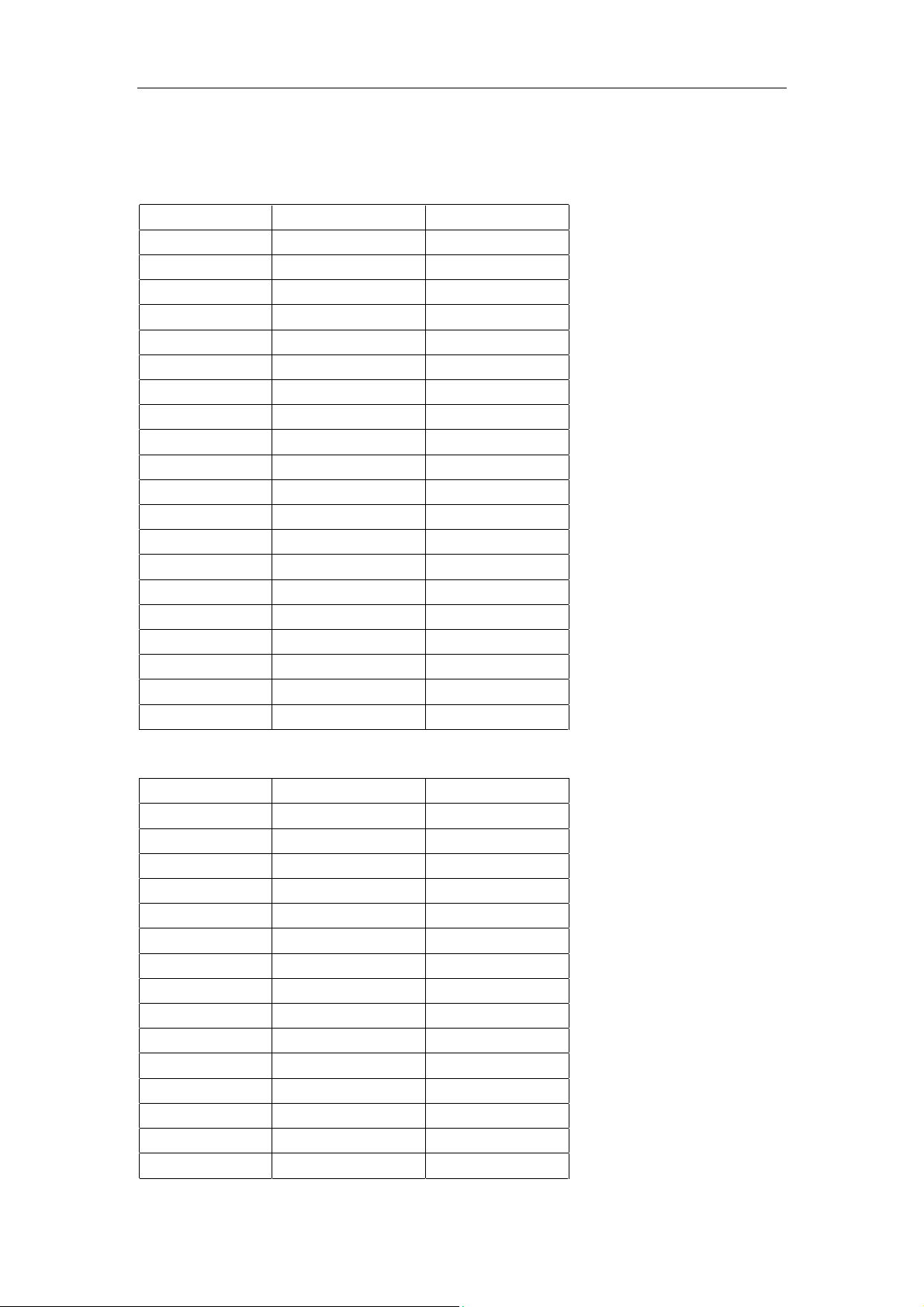
Level A
Pin Number Wire ID Wire Color
1 Ground Black
2 ACLK Grey
3 Ground Black
4 A0 Grey
5 A1 Grey
6 A2 Grey
7 A3 Grey
8 A4 Grey
9 A5 Grey
10 A6 Grey
11 A7 Grey
12 A8 Grey
13 A9 Grey
14 A10 Grey
15 A11 Grey
16 A12 Grey
17 A13 Grey
18 A14 Grey
19 A15 Grey
20 AST0 Grey
Level B
Pin Number Wire ID Wire Color
1 Ground Black
2 BCLK Grey
3 Ground Black
4 B0 Grey
5 B1 Grey
6 B2 Grey
7 B3 Grey
8 B4 Grey
9 B5 Grey
10 B6 Grey
11 B7 Grey
12 B8 Grey
13 B9 Grey
14 B10 Grey
15 B11 Grey
User’s Manual 36
Logic Analyzer
Hantek4032L
16 B12 Grey
17 B13 Grey
18 B14 Grey
19 B15 Grey
20 AST1 Grey
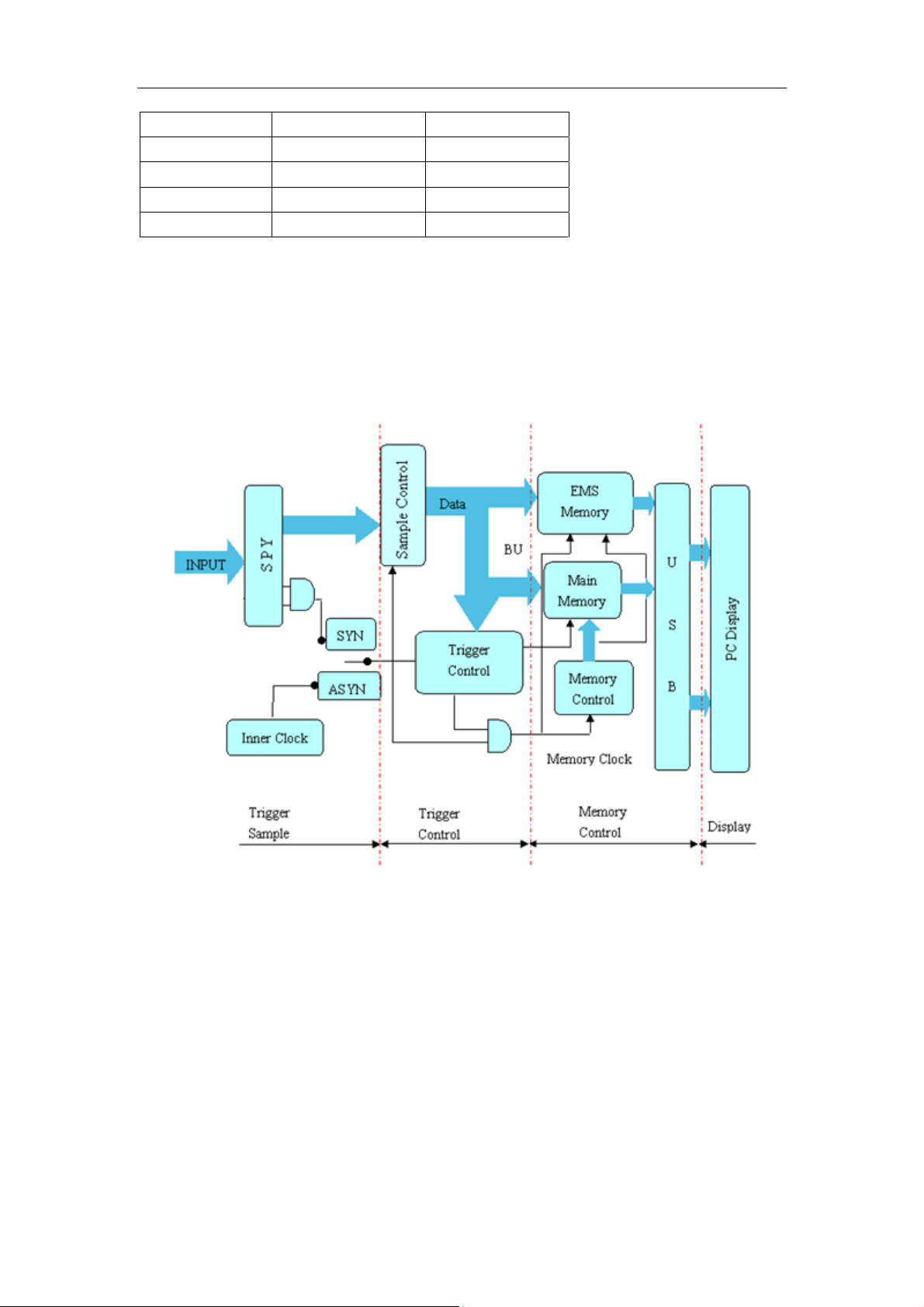
Block Diagram
User’s Manual 37

Logic Analyzer
Hantek4032L
User’s Manual 38
Cleaning and maintenance
Cleaning
In order to maintain the cleanliness of equipment, you need to check whether
the channels are dusty or not. Please clean the out surface of the equipment
follow these matters.
1. Use velvet cloth contact the surface of the equipment.
2. Pease do not use any corrosive or chemistry.
Caution: Please make sure the equipment is dry enough before going to work.
Avoid mangling the equipment or hurting body because of water!
Maintenance
Don’t put the equipment under the sun for a long time. Put it in wind to the best
of one's abilities
Caution
In order to not mangle the equipment, you should not put it in fog, water or
impregnate.