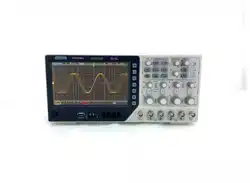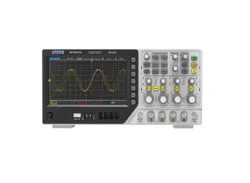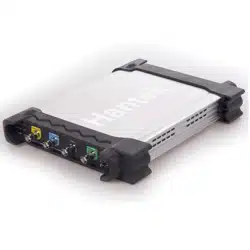

USER’S MANUAL
DSO-3000(A) Series
4CH PC Based Digital Oscilloscope
V1.0.2

Content
General Safety Summary .............................................................................. 1
Chapter 1 Getting Start ................................................................................. 2
1.1 System Requirements ............................................................................................ 3
1.2 Install Software ....................................................................................................... 4
1.3 Install Driver ............................................................................................................ 7
1.4 Connect Device .................................................................................................... 11
1.5 General Features .................................................................................................. 15
1.6 General Check ...................................................................................................... 16
1.7 Probe Compensation ............................................................................................ 16
1.8 Function Check ..................................................................................................... 17
1.9 Self Calibration ..................................................................................................... 18
Chapter 2 Operating Basics ....................................................................... 19
2.1 The User’s Interface ............................................................................................. 20
2.2 The Menu System ................................................................................................. 22
2.3 The Vertical System .............................................................................................. 24
2.4 The Horizontal System ......................................................................................... 25
2.5 The Trigger System .............................................................................................. 25
2.6 Input Connectors .................................................................................................. 27
Chapter 3 Oscilloscope Functions ............................................................ 28
3.1 Setup the Oscilloscope ......................................................................................... 29
3.2 Set Vertical System............................................................................................... 30
3.3 Set Horizontal System .......................................................................................... 32
3.4 Set Trigger System ............................................................................................... 33
3.5 Set MATH .............................................................................................................. 34
3.6 Set Reference ....................................................................................................... 37
3.7 Fast Fourier Transform Function .......................................................................... 38
3.8 Save/Load ............................................................................................................. 39
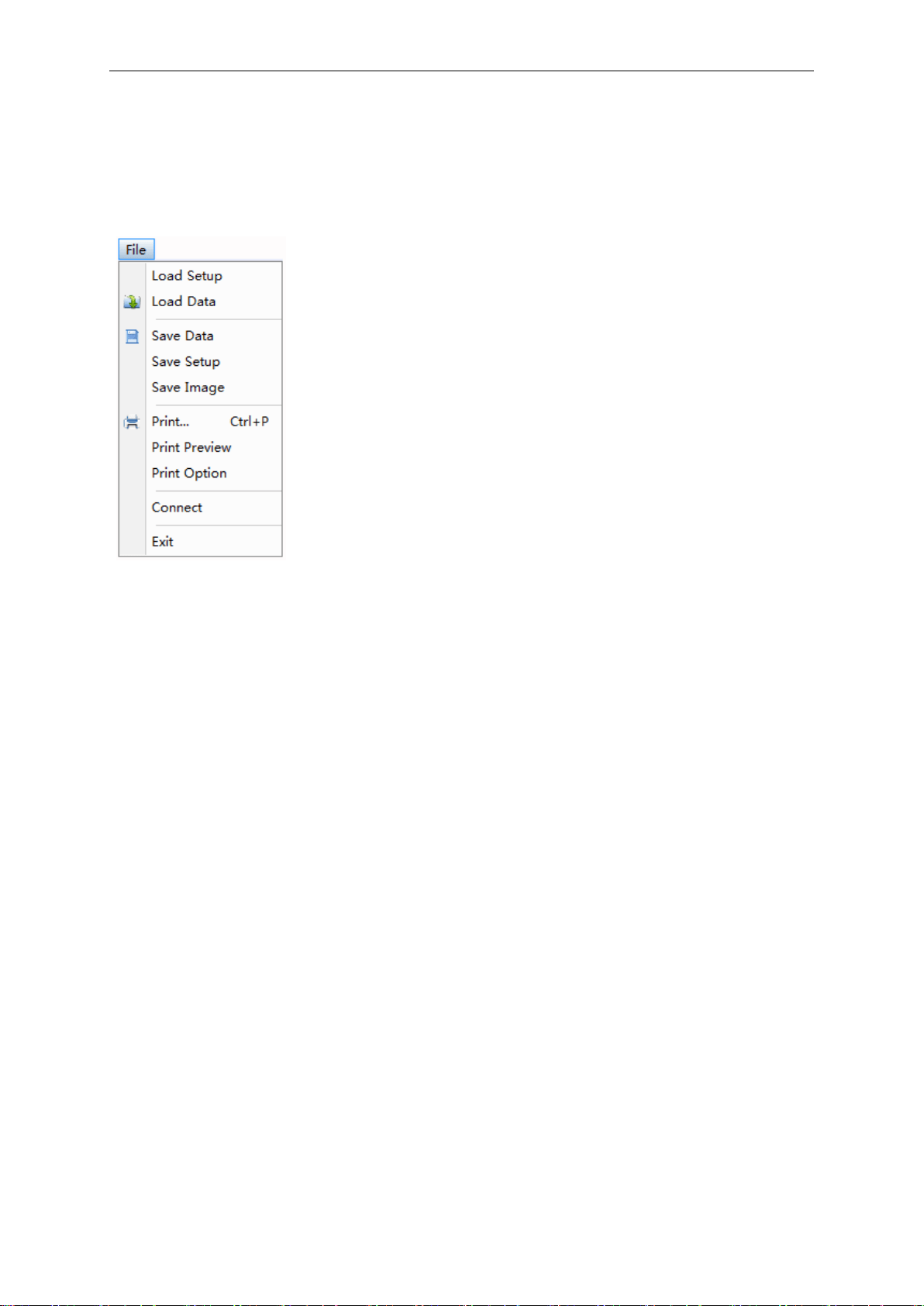
3.9 Utility Function ...................................................................................................... 40
3.10 Measure Signal ................................................................................................... 42
3.11 The Display System ............................................................................................ 46
3.12 Zoom In/Out and Move Waveforms.................................................................... 50
3.13 Acquisition Modes ............................................................................................... 51
3.14 Print And Print Preview ....................................................................................... 51
Chapter 4 Application Example .................................................................. 52
4.1 Simple Measurement ............................................................................................ 53
4.2 Capturing a Single-Shot Signal ............................................................................ 54
4.3 The Application of the X-Y Operation ................................................................... 54

4.4 Taking Cursor Measurements ............................................................................... 56
Chapter 5 Logic Analyzer Function ........................................................... 58
Chapter 6 Waveform Generator ................................................................. 61
6.1 Generate Waveform ............................................................................................. 62
6.2 Synchronized output ............................................................................................. 66
6.3 Digital Generator ................................................................................................... 67
Chapter 7 Appendix .................................................................................... 70
Appendix A: Specifications ......................................................................................... 71
Appendix B: Accessories ............................................................................................ 73
Appendix C: General Maintenance ............................................................................ 73

General Safety Summary
USER’S MANUAL 1
General Safety Summary
Review the following safety precautions carefully before operate the device to avoid any personal
injuries or damages to the device and any products connected to it.
To avoid potential hazards use the device as specified by this user’s guide only.
To Avoid Fire or Personal Injury
Use Proper Power Cord. Use only the power cord specified for this product and certified for the
country of use.
Connect and Disconnect Properly. Do not connect or disconnect probes or test leads while
they are connected to a voltage source.
Connect and Disconnect Properly. Connect the probe output to the measurement device
before connecting the probe to the circuit under test. Disconnect the probe input and the probe
reference lead from the circuit under test before disconnecting the probe from the measurement
device.
Observe All Terminal Ratings. To avoid fire or shock hazard, observe all ratings and markings
on the product. Consult the product manual for further ratings information before making
connections to the product.
Use Proper Probe. To avoid shock hazard, use a properly rated probe for your measurement.
Avoid Circuit or Wire Exposure. Do not touch exposed connections and components when
power is on.
Do Not Operate With Suspected Failures. If suspected damage occurs with the device, have it
inspected by qualified service personnel before further operations.
Provide Proper Ventilation. Refer to the installation instructions for proper ventilation of the
device.
Do not operate in Wet/Damp Conditions.
Do not operate in an Explosive Atmosphere.
Keep Product Surfaces Clean and Dry.

Getting Start
USER’S MANUAL 2
Chapter 1 Getting Start
The oscilloscope is small, lightweight, no external power required, portable oscilloscopes! The
oscilloscopes is ideal for production test, research and design and all of the applications involving
analog circuits test and troubleshooting, as well as education and training.
In addition to the list of general features on the next page, this chapter describes how to do the
following tasks:
System Requirements
Install software
Install Driver
Connect Device
General Features
General Check
Probe Compensation
Function Check
Self Calibration

Getting Start
USER’S MANUAL 3
1.1 System Requirements
To run the oscilloscope software, the needs of computer configuration are as follows:
Minimum System Requirements
Operating System
Window XP/Vista/Win 7/Win 8/Win 10
Processor
Upwards of 1.00G processor
Memory
256M byte
Disk Space
500M disk free space
Screen resolution
800 x 600
Recommended Configuration
Operating System
Windows XP SP3 System
Processor
2.4G Processor
Memory
1G Byte Memory
Disk Space
80G Disk Space
Screen resolution
1024 x 768 or 1280 x 1024 resolution
DPI Setting
Normal Size (96DPI)
Getting Start
USER’S MANUAL 4
1.2 Install Software
Caution: You must install the software before using the oscilloscope.
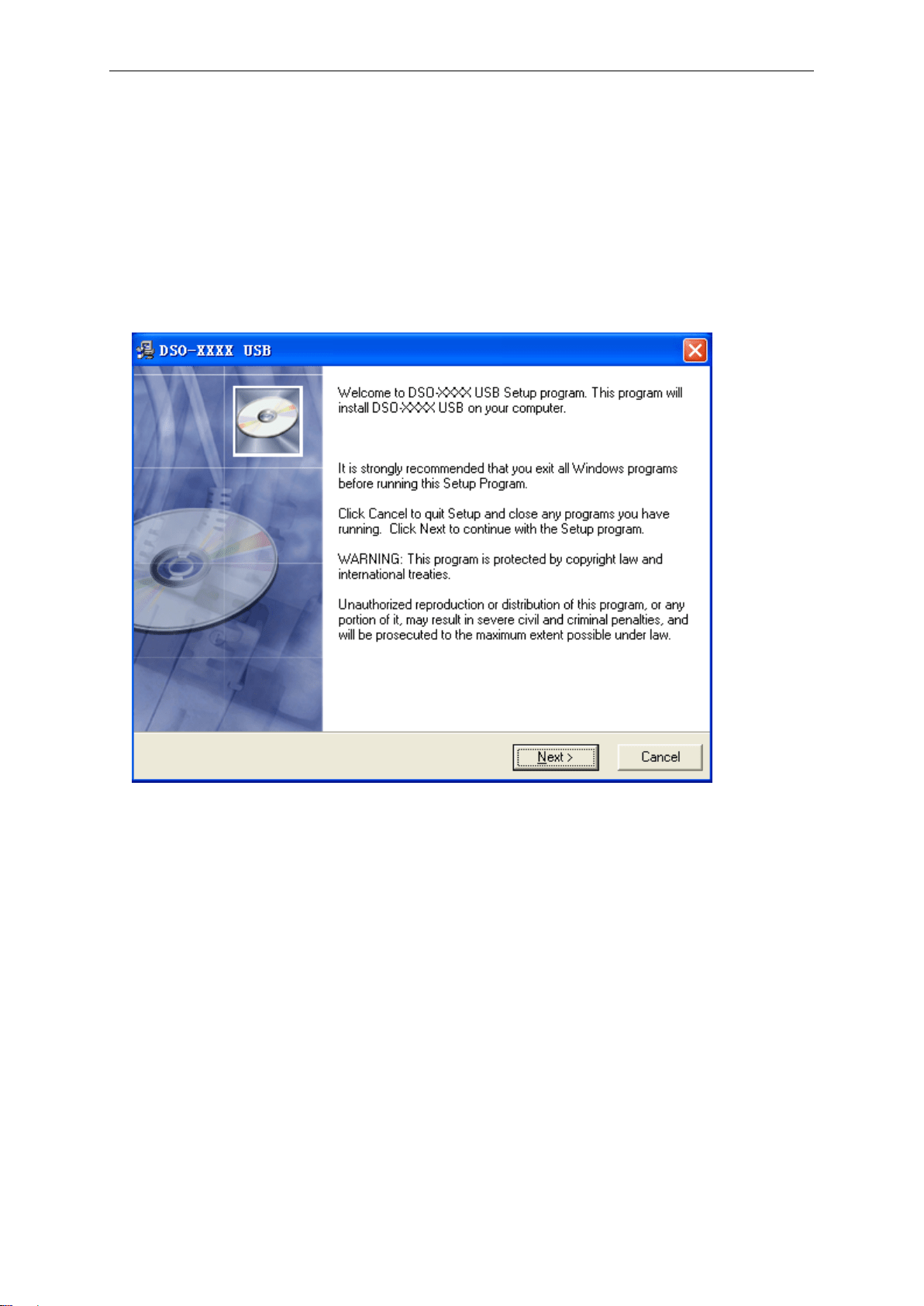
1. While in Windows, insert the installation CD into the CD-ROM drive.
2. The installation should start up automatically. Otherwise in Windows Explorer, switch to the
CD-ROM drive and run Setup.exe.
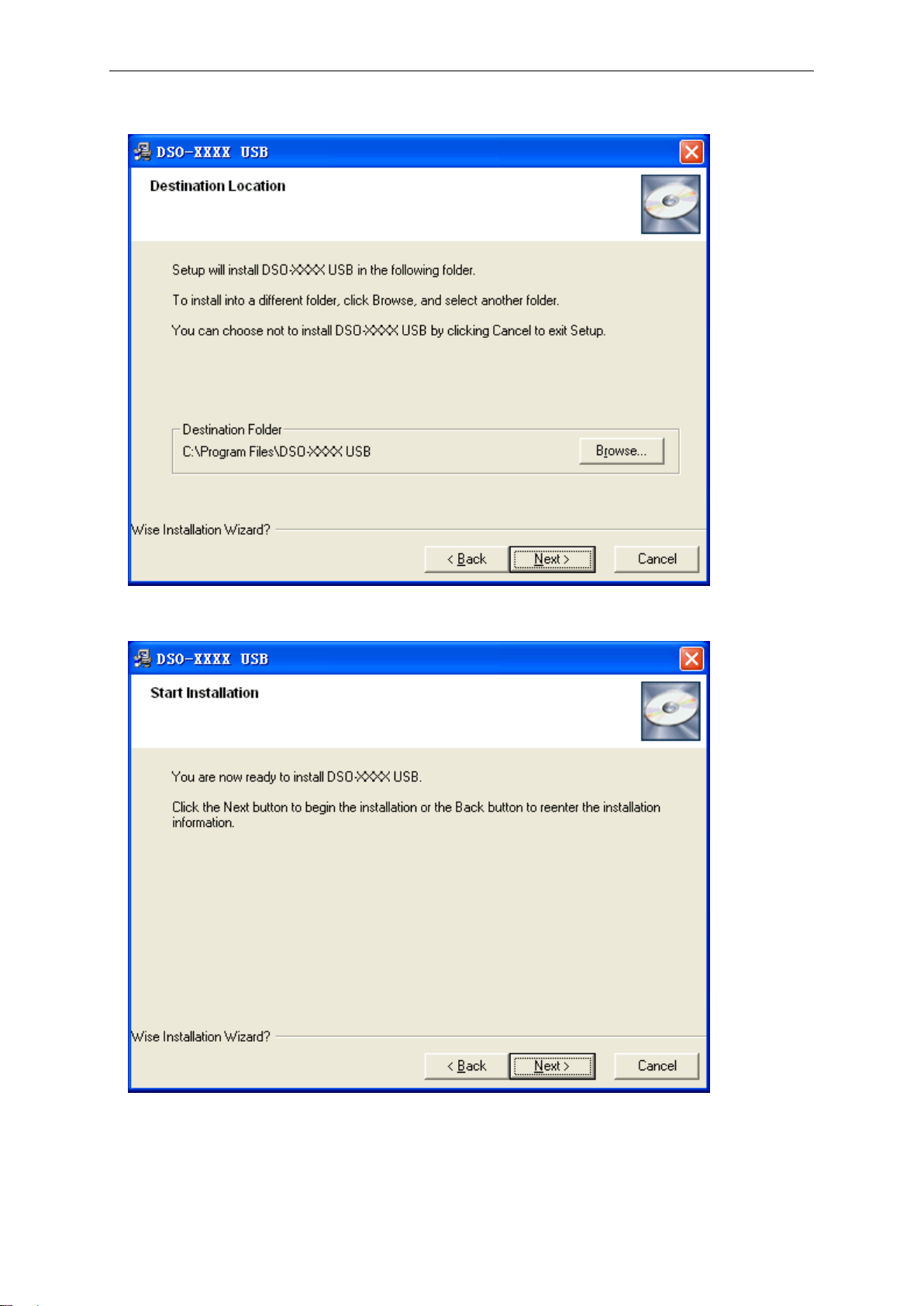
3. The software Installation is started. Click 'Next' to continue.
Getting Start
USER’S MANUAL 5
4. Choose a destination directory. Click 'Next' to continue.
5. Check the setup information. Click Next to start copying of files.
Getting Start
USER’S MANUAL 6
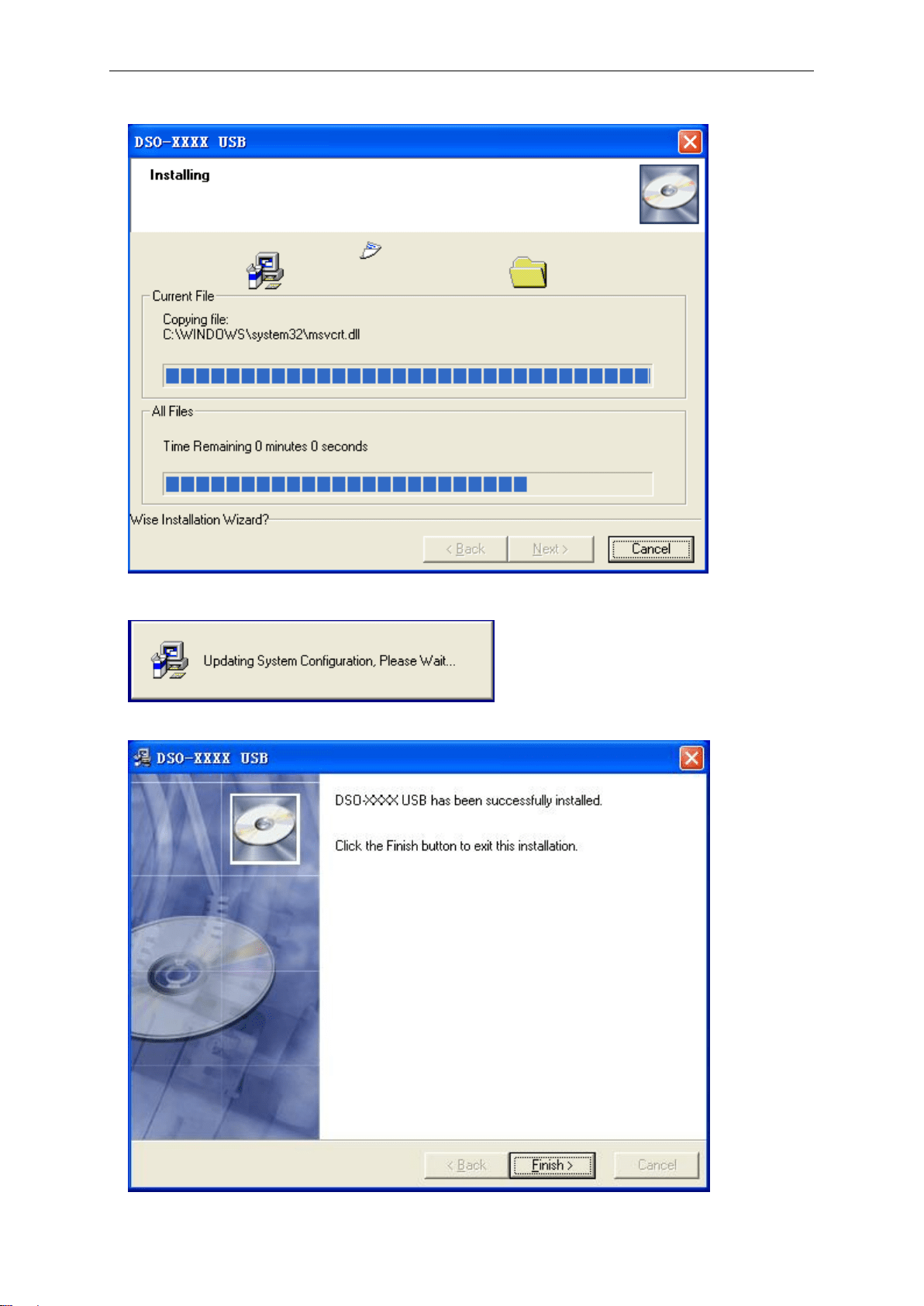
6. This Status dialog is displayed during copying of files.
7. Updating Your System Configuration.
8. The installation is complete.
Getting Start
USER’S MANUAL 7
1.3 Install Driver
1. Download Keysight IO libraries suite and install。
Open the following websit to download latest Keysight IO Libraries Suite:
http://www.keysight.com/main/software.jspx?ckey=2175637&id=2175637&nid=-11143.0.00&lc
=eng&cc=GB
Note: Please download and install IOLibSuite_16_3_17218.exe for PC of Windows XP
system.
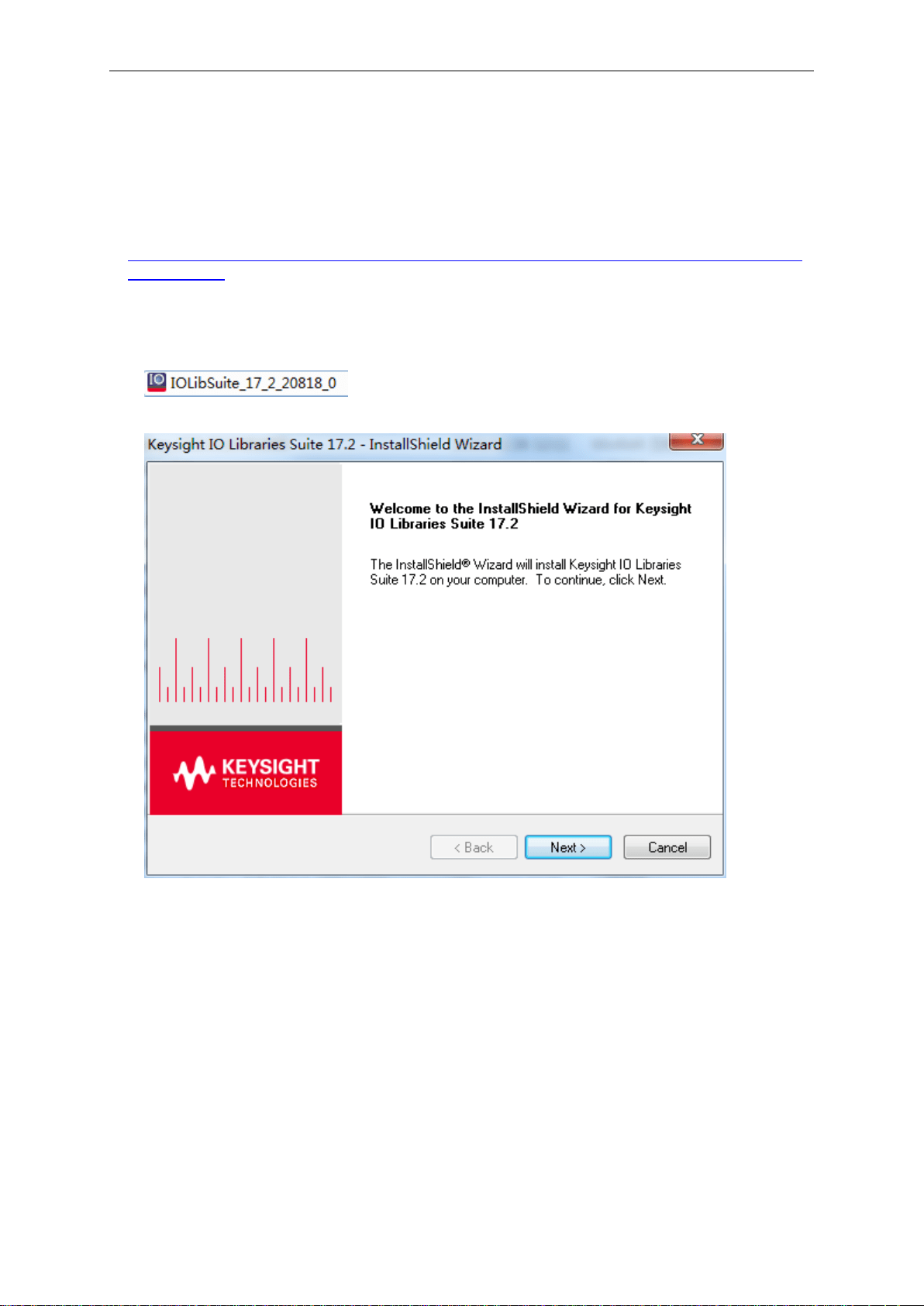
2. Double click the icon to start installing.
3. Click ‘Next’ to continue.
Getting Start
USER’S MANUAL 8
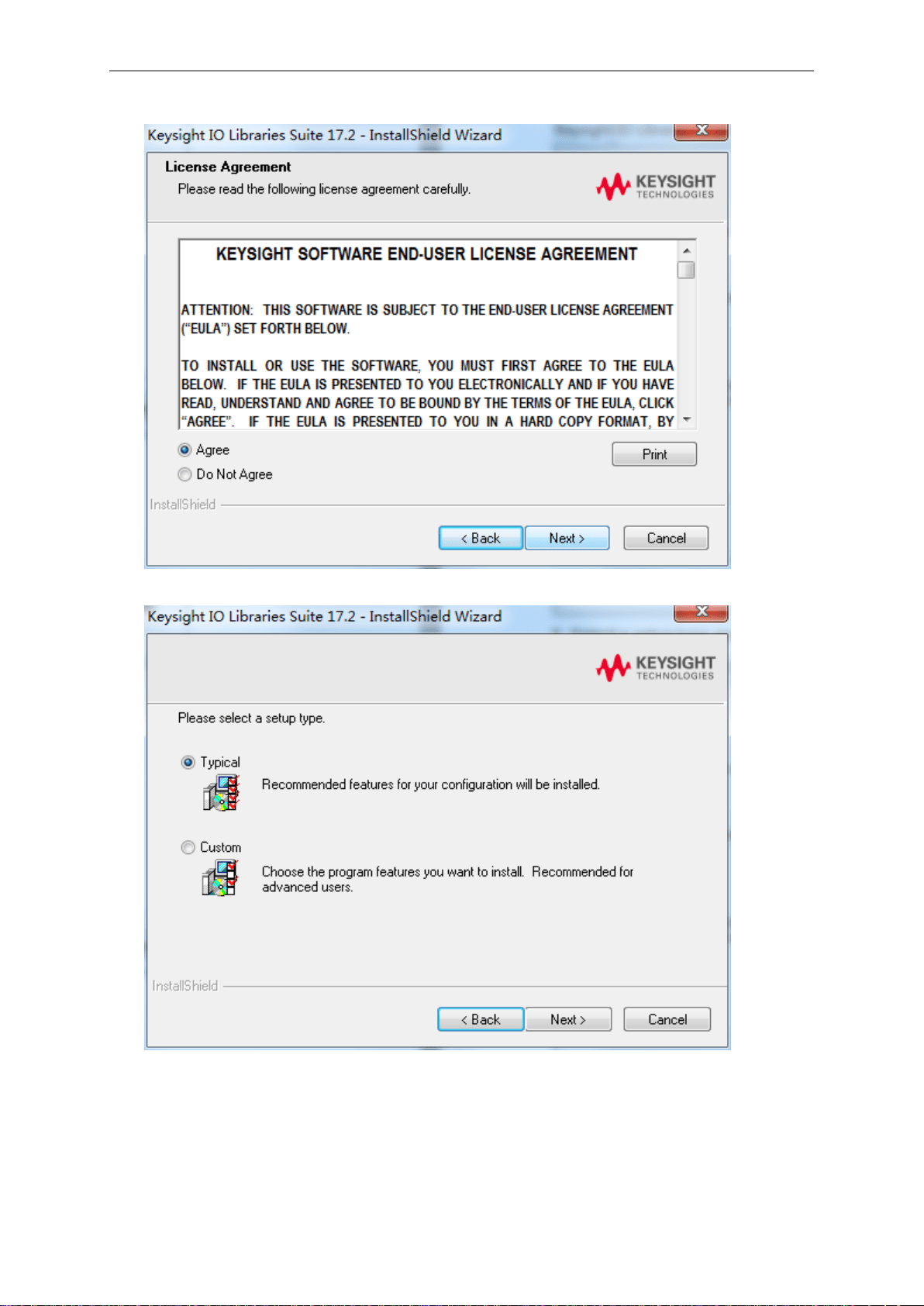
4. Read License Agreement and accept. Click ‘Next’ to continue.
5. Select a setup type and click ‘Next’ to continue.
Getting Start
USER’S MANUAL 9
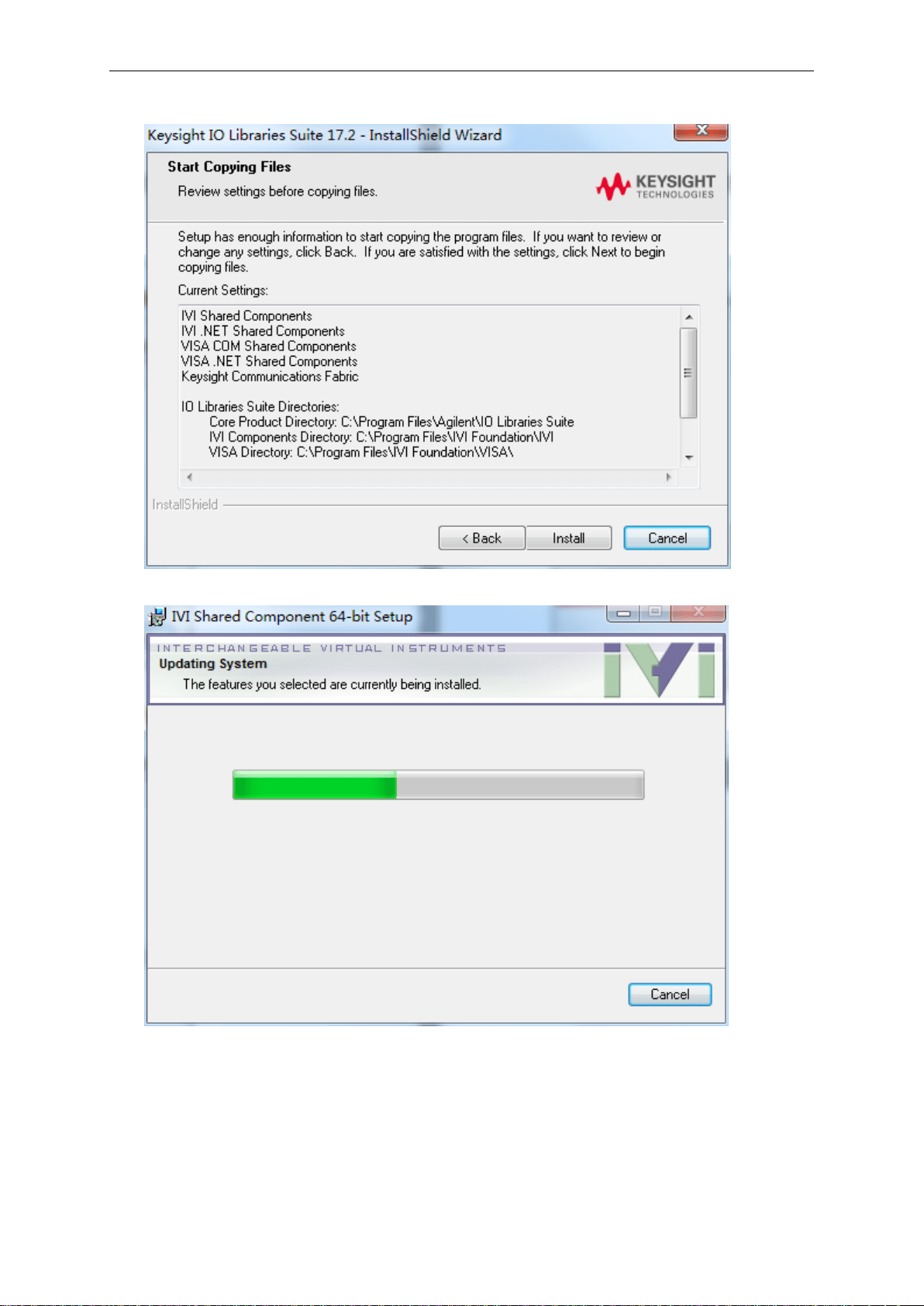
6. Click ‘Install’ to start copying files.
7. Prepare to install.
Getting Start
USER’S MANUAL 10
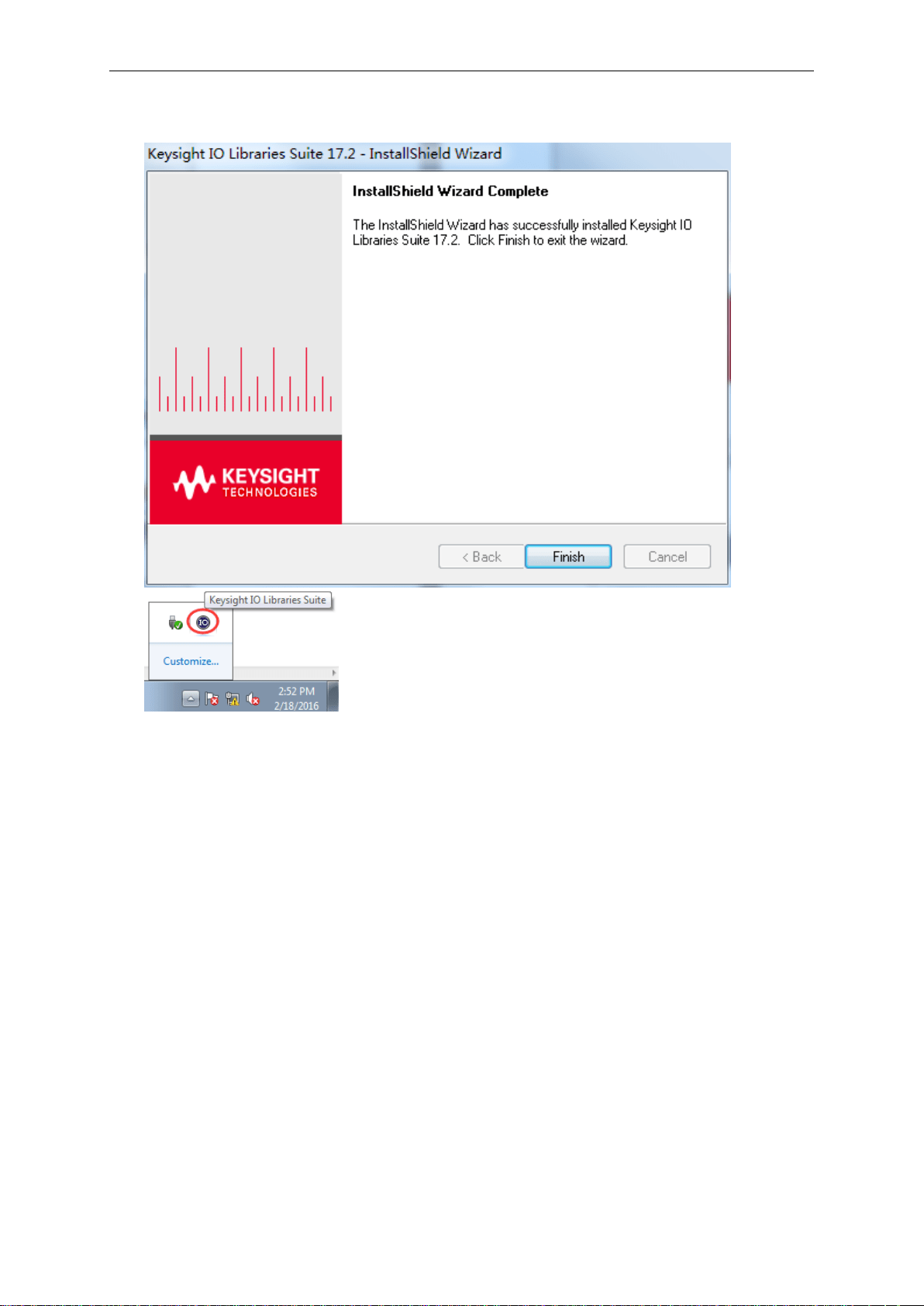
8. The installation is completed. you will see the running IO program in the lower right corner of the
screen.
Getting Start
USER’S MANUAL 11
1.4 Connect Device
There are two connection modes: USB connection and LAN connection.
USB connection
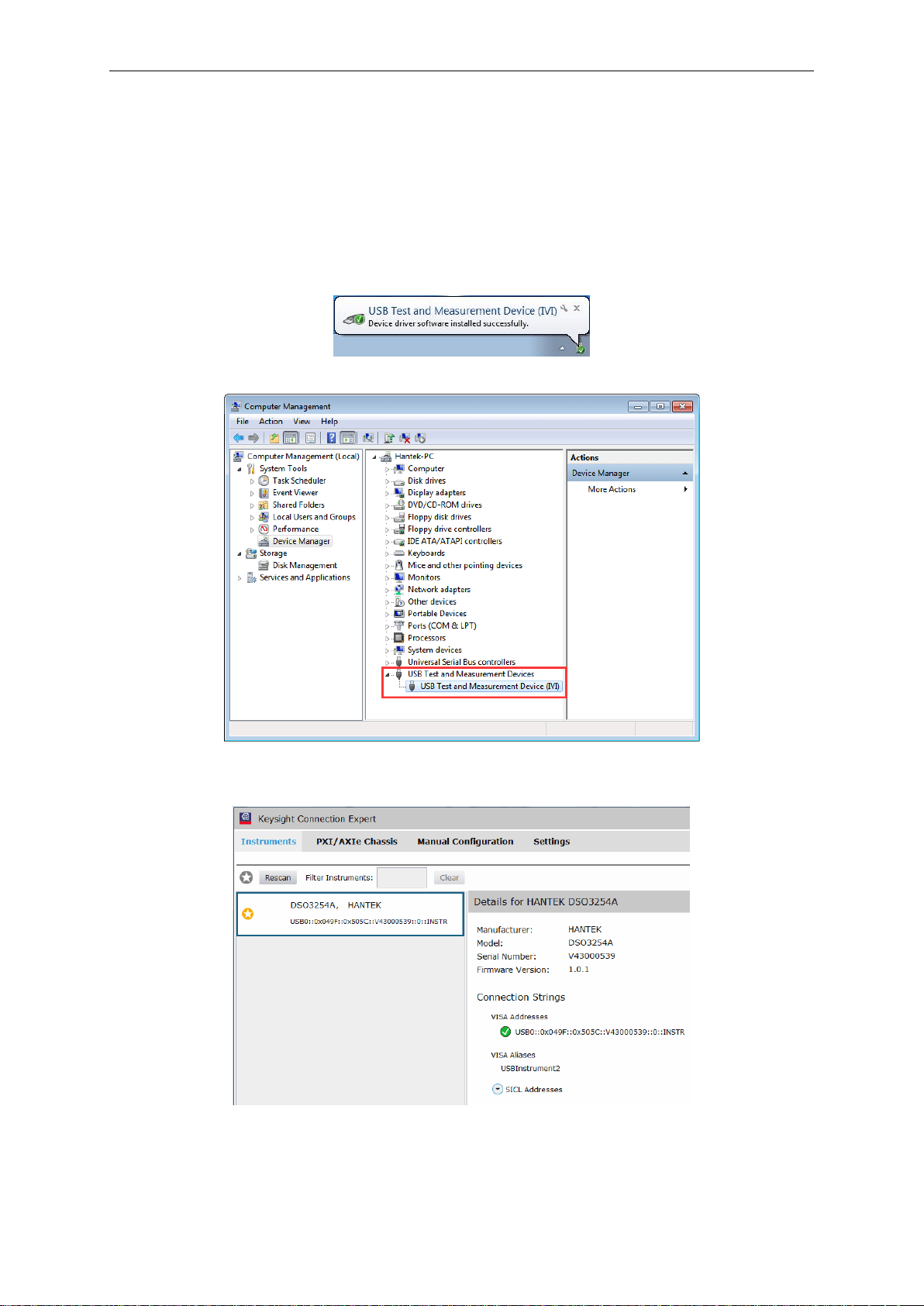
1.Power on. Connect DSO scope to PC via USB cable. The driver will install by itself. When the
driver is installed successfully, there will have a prompt as follows:
2.After installing successfully, users can see the driver information in the computer management.
3.Click Keysight IO libraries suite icon in bottom right corner, and choice “Connection Expert”. Now
users can see the device information.
4.If installing unsuccessfully, right click to update the driver manually, and choice the correct route:
C:\Program Files\IVI Foundation\VISA\IVI USB Staging\b841aa80\Windows
5.Double click “DSO-xxxx” shortcut on desktop to open the software of DSO device. The device is
connected with PC successfully. You can see “Connected” tip in status column.
Getting Start
USER’S MANUAL 12
LAN connection
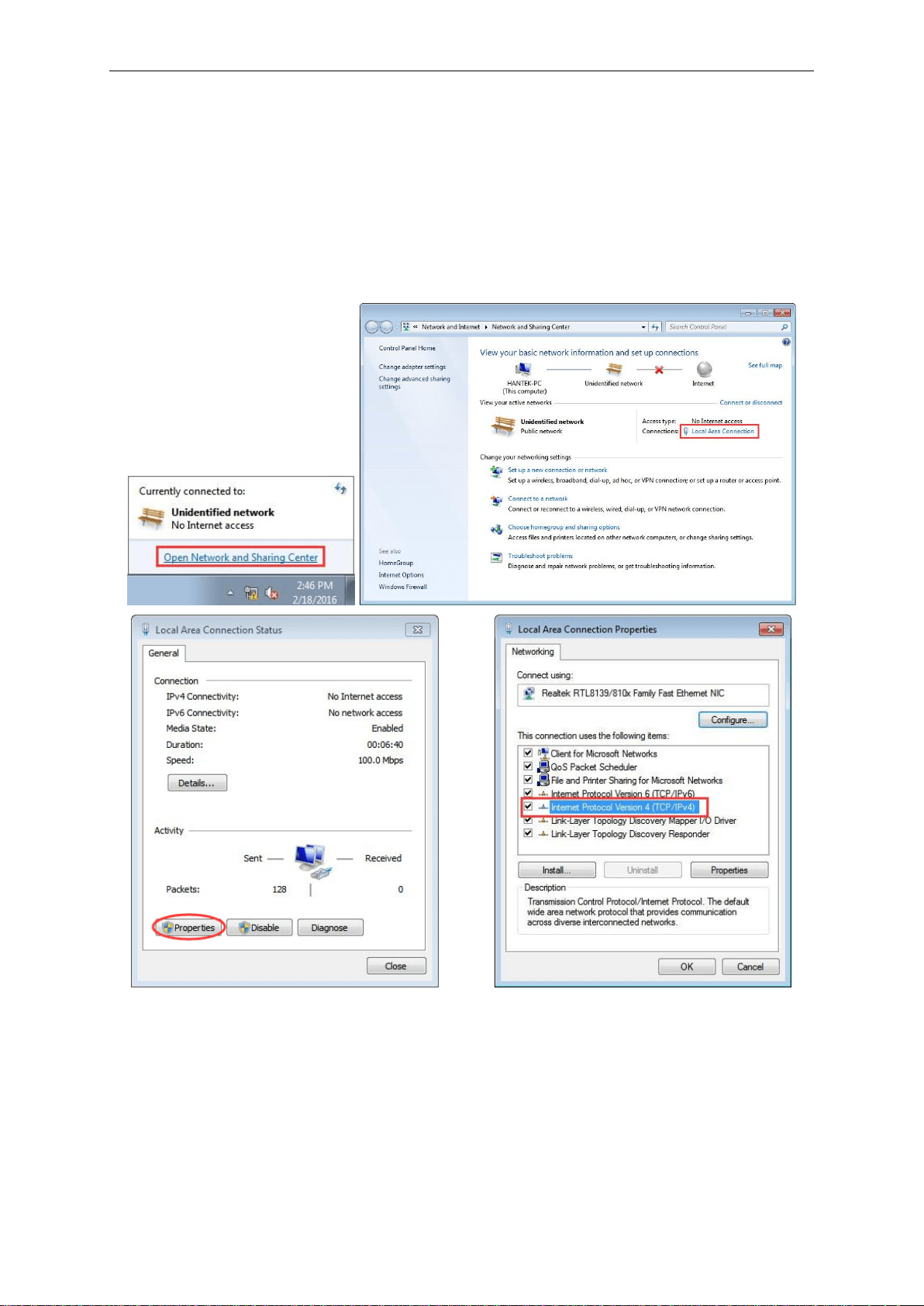
1.Set up local area network (LAN)
1)Connect router with DSO scope via one LAN cable. Connect router with PC via the another
LAN cable.
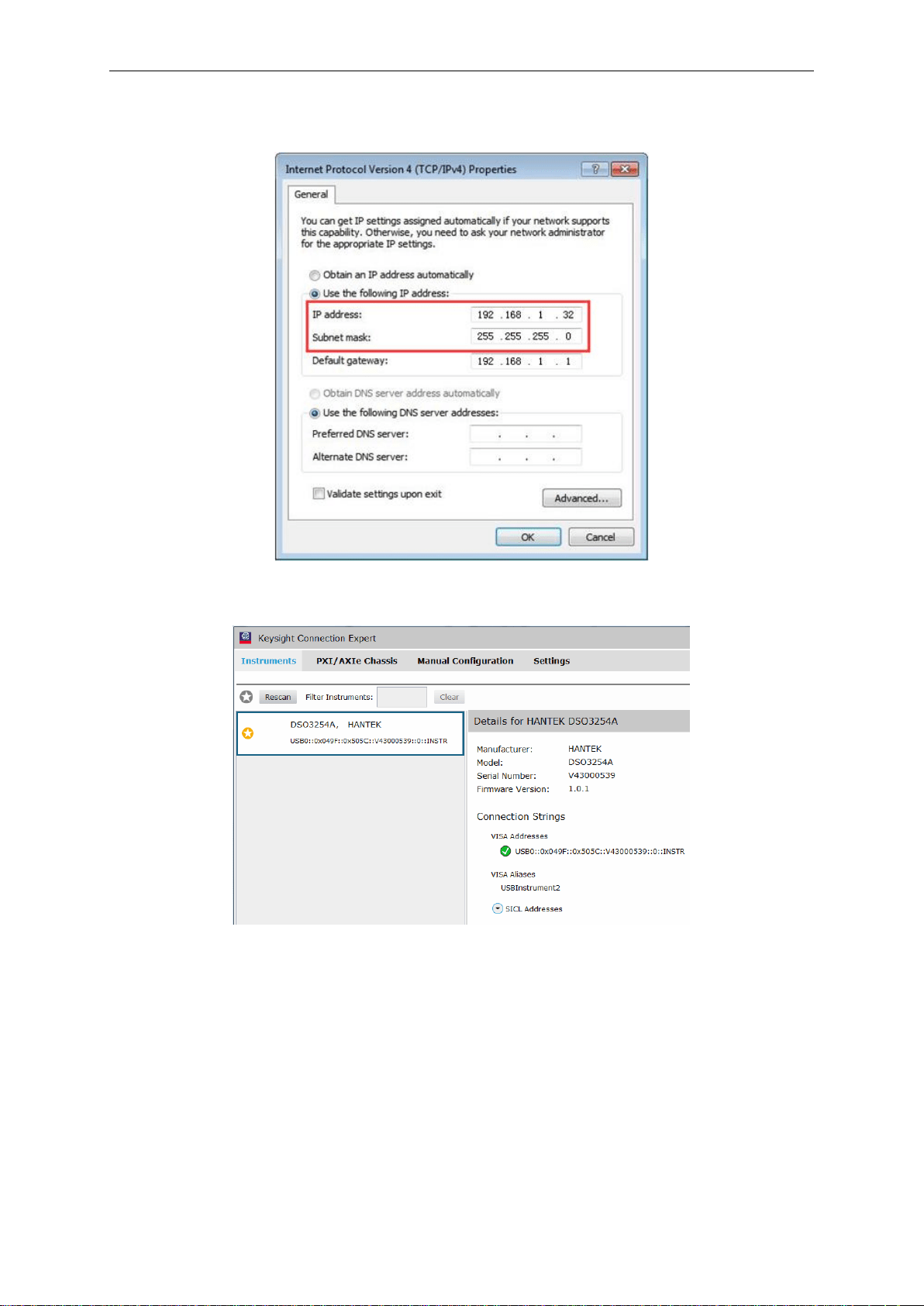
2)“Open Network and Sharing Center->Local Area Connection-> Properties->Internet Protocol
Version (TCP/IPv4)” . Set the right IP of PC in same network segment with the oscilloscope’s
network name. The default IP is 192.168.1.127.
Getting Start
USER’S MANUAL 13
3)Set PC’s IP to 192.168.1.2 or others(192.168.1.2~192.168.1.255) except 192.168.1.127. For
example, the IP of the device is 192.168.1.32. Set Subnet mask in default.
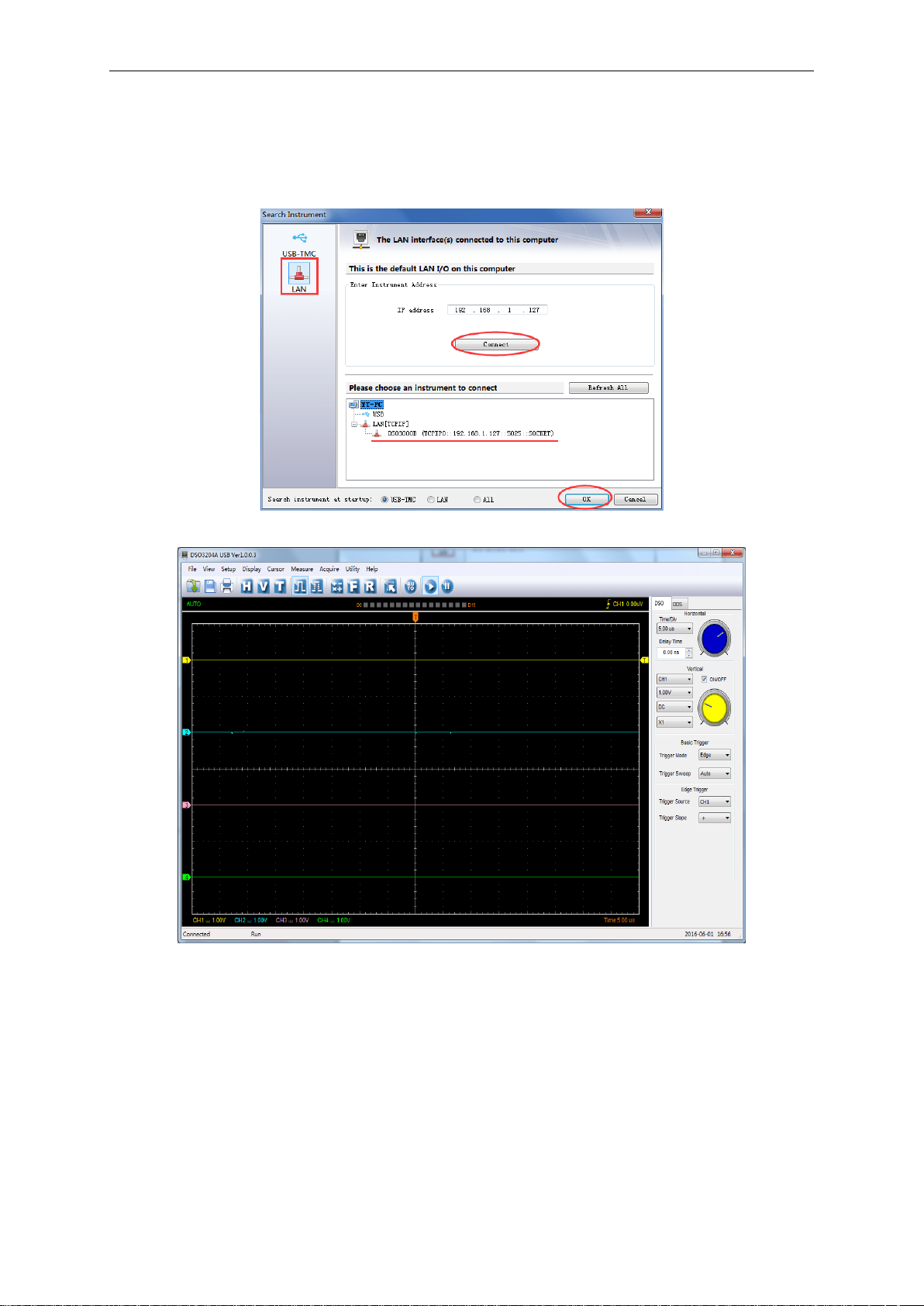
Click Keysight IO libraries suite icon in bottom right corner, and choice “Connection Expert”. Now
users can see the device information.
Getting Start
USER’S MANUAL 14
2.Connect Device
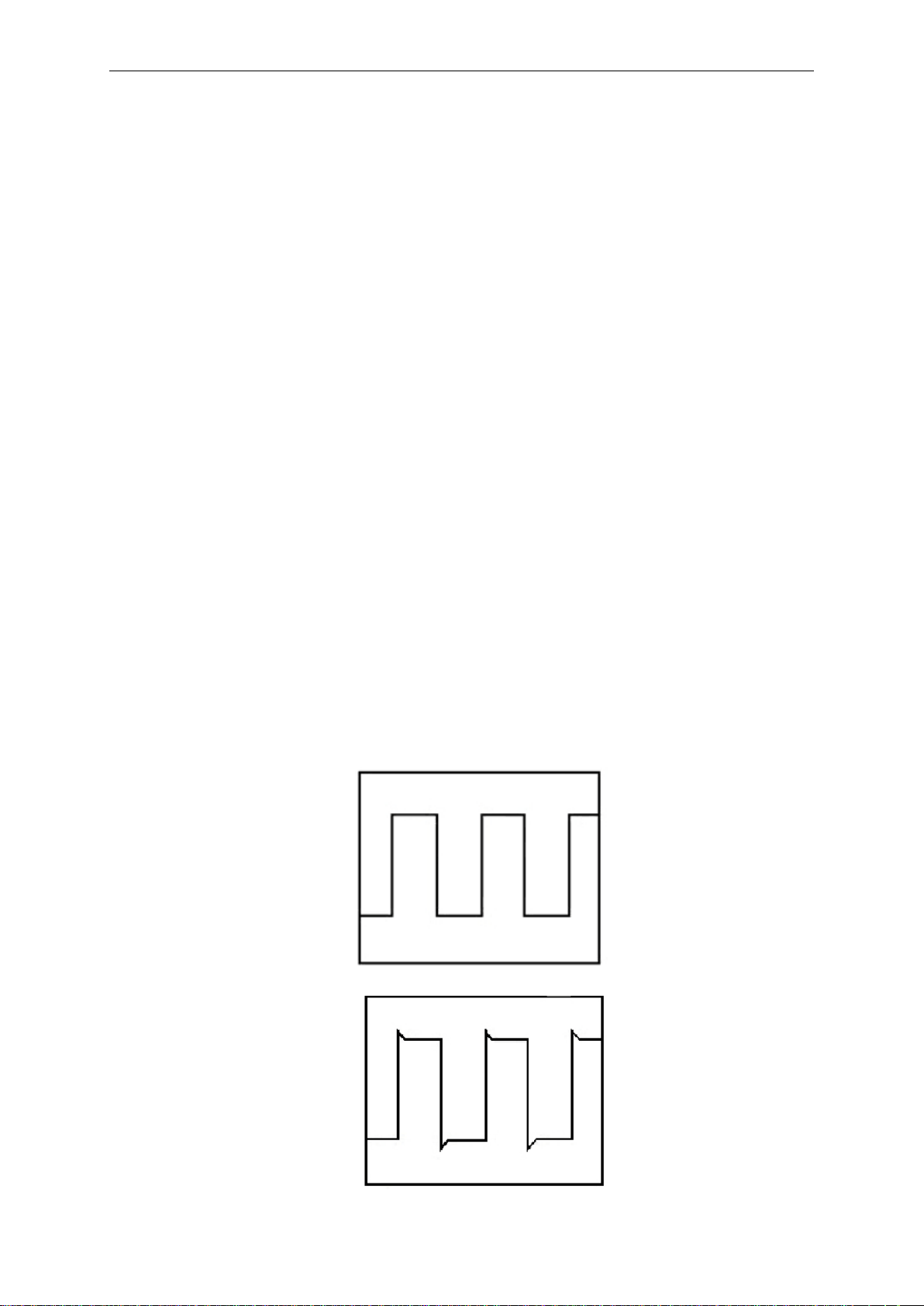
Double click “DSO-xxxx” shortcut on desktop (Or click “File->Connect” menu) to open the software
of DSO device.
1)Select “LAN” type, the device connect setting dialog is as shown below:
2)The device is connected with PC successfully. You can see “Connected” tip in status column.
Note: In LAN mode, there is no need to use 12V power adapter.

Getting Start
USER’S MANUAL 15
1.5 General Features
Product Features:
Four Channels, Bandwidth:
100MHz (DSO3104, DSO3104A)
200MHz (DSO3204, DSO3204A)
250MHz (DSO3254, DSO3254A)
Maximum real-time sample rate:
1GSa/s
Memory depth:
1.6K-128M/CH
Automatic setup for ease of use (AUTOSET);
Pass/Fail;
Built-in Fast Fourier Transform function(FFT);
20 Automatic measurements;
Cursor measurements;
waveform storage, record and replay dynamic waveforms;
User selectable fast offset calibration;
Add, Subtract , Multiply and Division Mathematic Functions;
Selectable 20 MHz bandwidth limit;
External trigger;
Waveform average;
Adjustable waveform intensity, more effective waveform view;
Getting Start
USER’S MANUAL 16
1.6 General Check
Please check the instrument as following steps after receiving an oscilloscope:
Check the shipping container for damage:
Keep the damaged shipping container or cushioning material until the contents of the shipment
have been checked for completeness and the instrument has been checked mechanically and
electrically.
Check the accessories:
Accessories supplied with the instrument are listed in "Accessories" in this guide. If the contents
are incomplete or damaged, please notify the franchiser.
Check the instrument:
In case there is any mechanical damage or defect, or the instrument does not operate properly
or fails performance tests, please notify the franchiser.
1.7 Probe Compensation
Perform this function to match the characteristics of the probe and the channel input. This
should be performed whenever attaching a probe to any input channel at the first time.
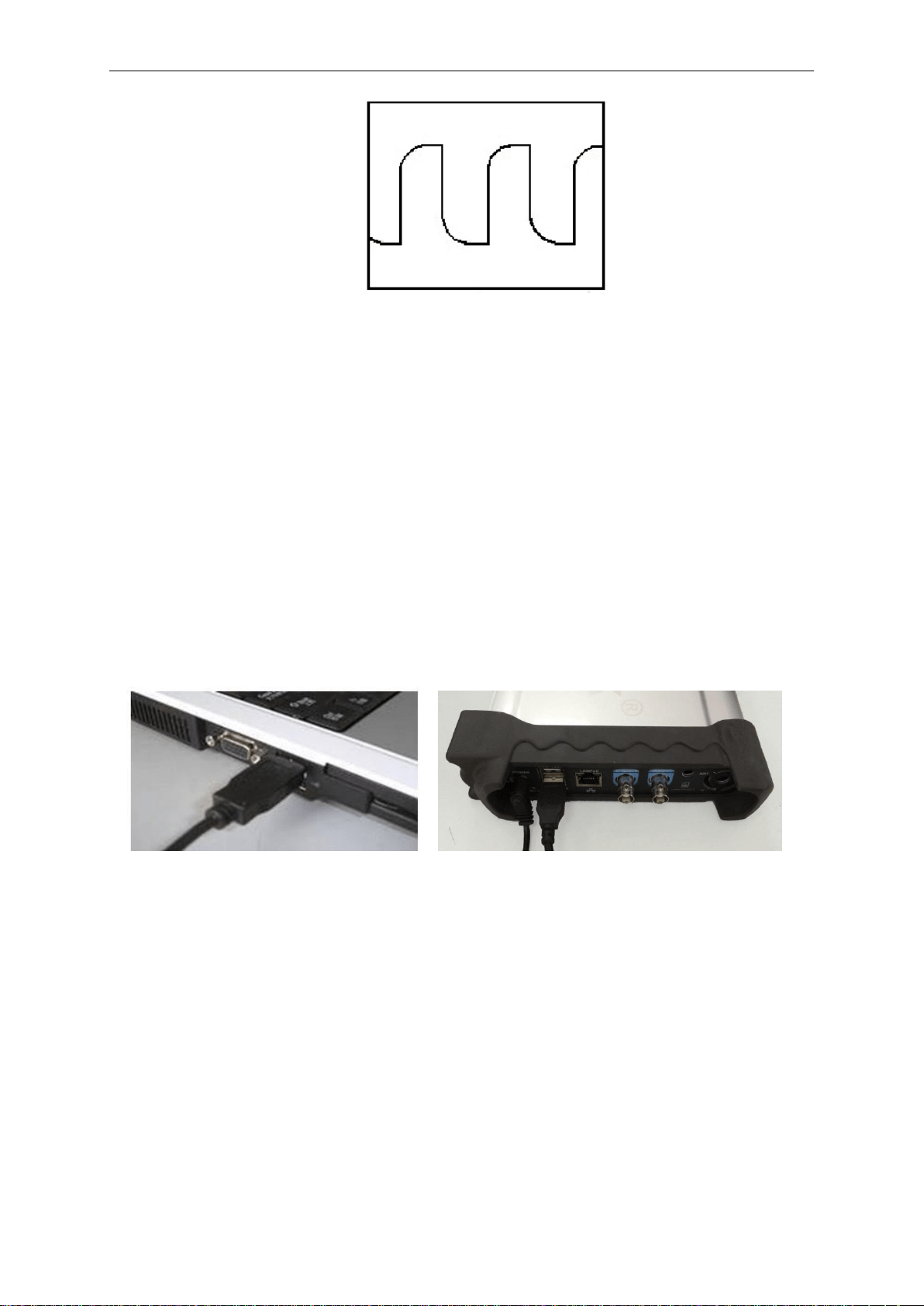
■ From the “Probe” menu, select attenuation to 1:10. Set the switch to “X10” on the probe and
connect it to CH1 of the oscilloscope. When using the probe hook-tip, insert the tip onto the probe
firmly to ensure a proper connection.
■ Attach the probe tip to the Probe Compensator and the reference lead to the ground
connector, select CH1, and then press the “AUTOSET” button into the menu or the toolbar.
■ Check the shape of the displayed waveform.
Correctly Compensated
Over Compensated
Getting Start
USER’S MANUAL 17
Under Compensated
1. If necessary, use a non-metallic tool to adjust the trimmer capacitor of the probe for the fattest
square wave being displayed on the oscilloscope.
2. Repeat if necessary.
WARNNING: To avoid electric shock while using the probe, be sure the perfection of the insulated
cable, and do not touch the metallic portions of the probe head while it is connected with a voltage
source.
1.8 Function Check
Perform this functional check to verify that your oscilloscope is operating correctly.
■ Connect the oscilloscope
You should connect the A-Type Plug of USB cable to your PC USB port and connect the other
A-Type Plug of USB cable to oscilloscope USB port.
■ Input a signal to a channel of the oscilloscope
The oscilloscope is equipped with four channels.
Please input signal in the following steps:
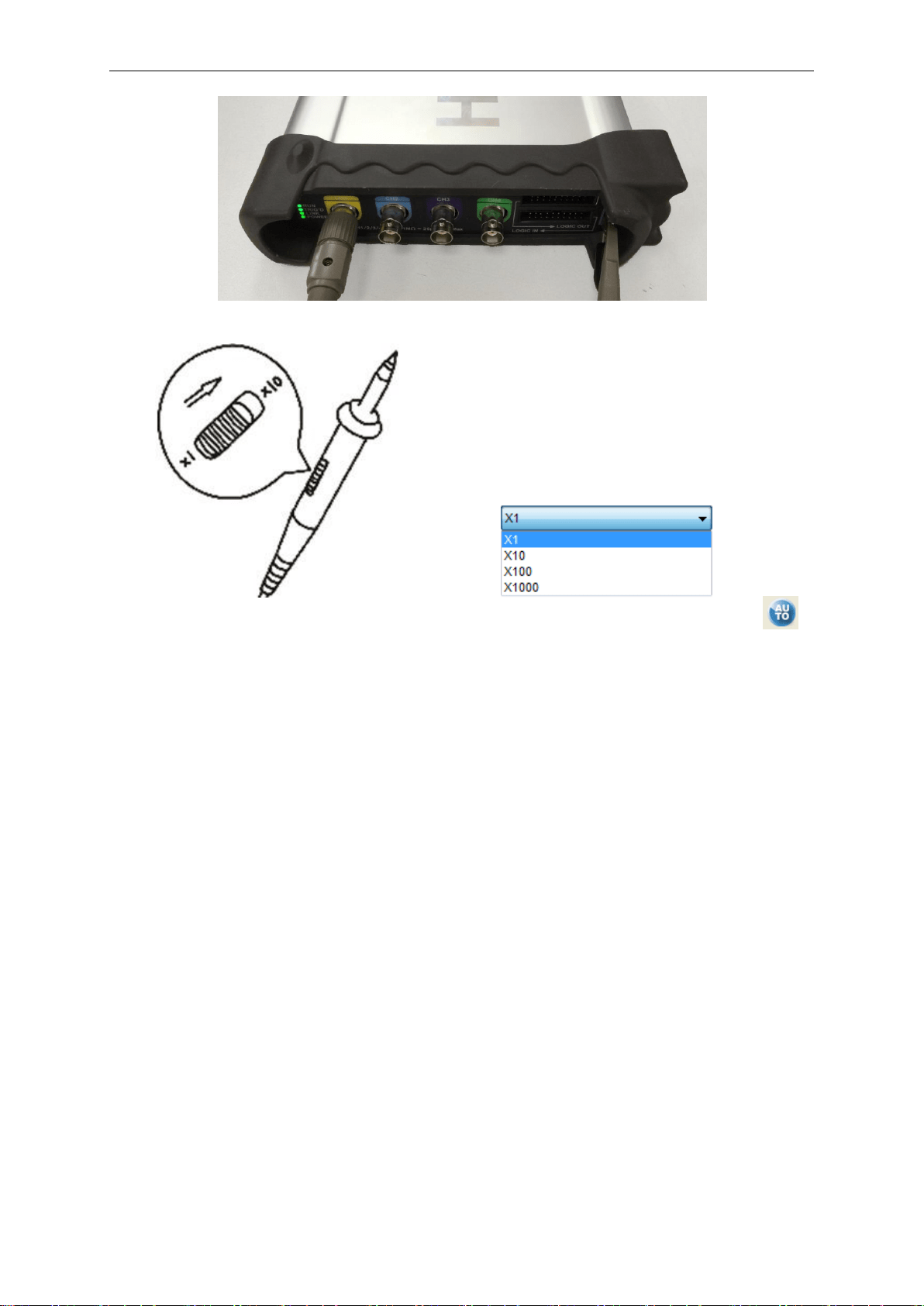
1. Set the attenuation switch on the probe as 10X and connect the probe on the oscilloscope with
CH1. Aim the slot in the probe connector at the faucet on BNC of CH1 and insert, then, turn right to
lock the probe. Finally, attach the tip of probe and ground nip to the Connector of Probe
compensator.
Getting Start
USER’S MANUAL 18
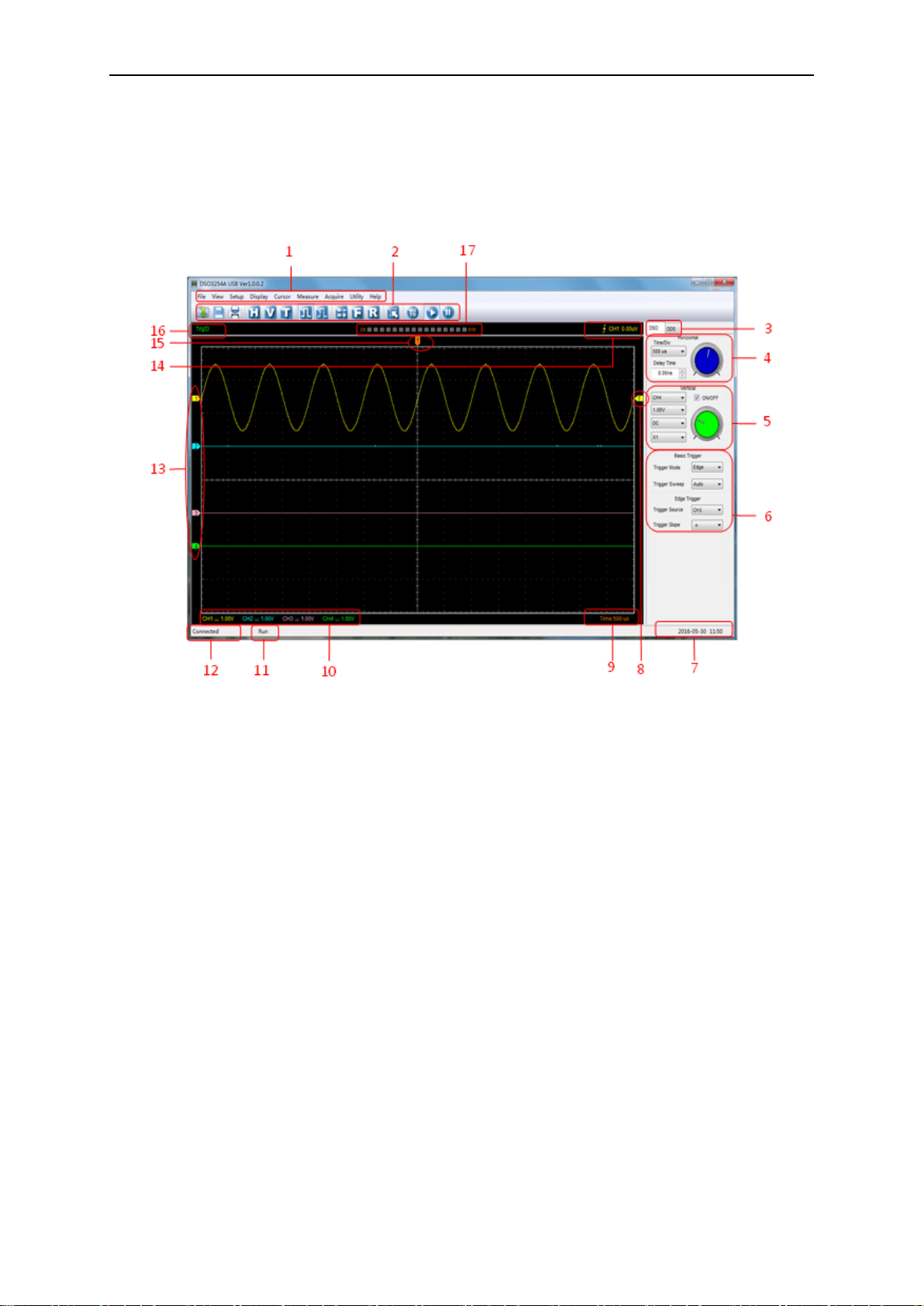
2. Set the CH1 probe attenuation of the oscilloscope to X10. (The default is X1).
3.Attach the tip of probe and ground nip to the Connector of Probe compensator. Click the
button. A square wave will be displayed within a several seconds. (Approximately 1 kHz, 1V, peak-
to- peak).
4. Inspect CH2, CH3, CH4 with the same method. Repeat steps 2 and 3.
1.9 Self Calibration
The self calibration routine lets you optimize the oscilloscope signal path for maximum
measurement accuracy. You can run the routine at any time but you should always run the
routine if the ambient temperature changes by 5℃ or more. For accurate calibration, power on
the oscilloscope and wait twenty minutes to ensure it is warmed up. To compensate the signal
path, disconnect any probes or cables from the input connectors.
Then, access the “Utility -> Calibration” option and follow the directions on the screen.
The self calibration routine takes about several minutes.

Operation Basics
USER’S MANUAL 20
2.1 The User’s Interface
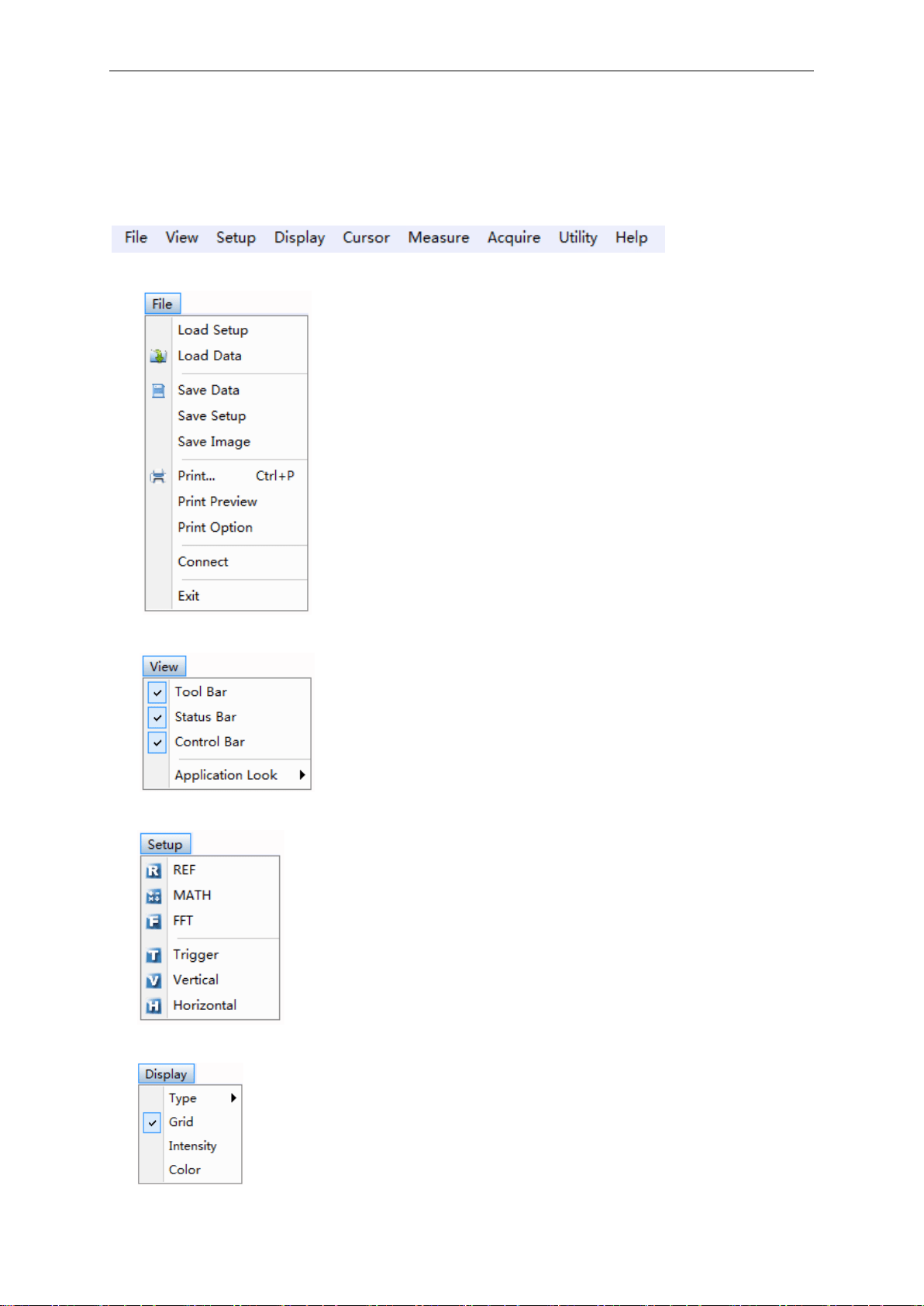
Click the software icon on the desk after you finished the software setting and equipment
connecting. Then a user interface will be showed as follows:
In addition to displaying waveforms, the display area is filled with many details about the waveform
and the oscilloscope control settings.
1.The Main Menu
All settings can be found in the main menu.
2.The Toolbar
3.Change DSO and DDS
4.The Horizontal Panel
The user can change Time/Div, Delay Time in the panel.
5.The Vertical Panel
The user can turn on/off the CH1/CH2/CH3/CH4. Also the user can change the CH1/CH2/CH3
/CH4 volt/div, coupling and probe attenuation.
6.The Trigger Panel
In this panel, the user can change the trigger mode, sweep, source and slope.
7. It shows the system time.
8. Marker shows Edge trigger level.
9. It shows the main time base setting.
10.It shows the CH1/CH2/CH3/CH4 information.
Readouts show the coupling of the channels.

Operation Basics
USER’S MANUAL 21
Readouts show the vertical scale factors of the channels.
A “B” icon indicates that the channel is bandwidth limited
11.The oscilloscope status
RUN: The oscilloscope is running.
STOP: The oscilloscope has stopped acquiring waveform data.
12.Status Information
Connected: The device is connected with PC successfully.
Demo: Don’t communicate with PC.
Searching device: Not find the device and the program is searching the device.
13.The markers show the CH1/CH2/CH3/CH4 reference points of the displayed waveforms.
If there is no marker, the channel is not displayed.
14.Display the trigger information.
Display the edge trigger slope, source and level.
15. Marker shows horizontal trigger position.
16. Trigger status indicates the following:
AUTO: The oscilloscope is in auto mode and is acquiring waveforms in the absence of triggers.
Trig’D: The oscilloscope has seen a trigger and is acquiring the post trigger data.
WAIT: All pretrigger data has been acquired and the oscilloscope is ready to accept a trigger.
STOP: The oscilloscope has stopped acquiring waveform data.
RUN: The oscilloscope is running.
PLAY: The oscilloscope is displaying the record waveforms.
17. Logic analyzer
Operation Basics
USER’S MANUAL 22
2.2 The Menu System
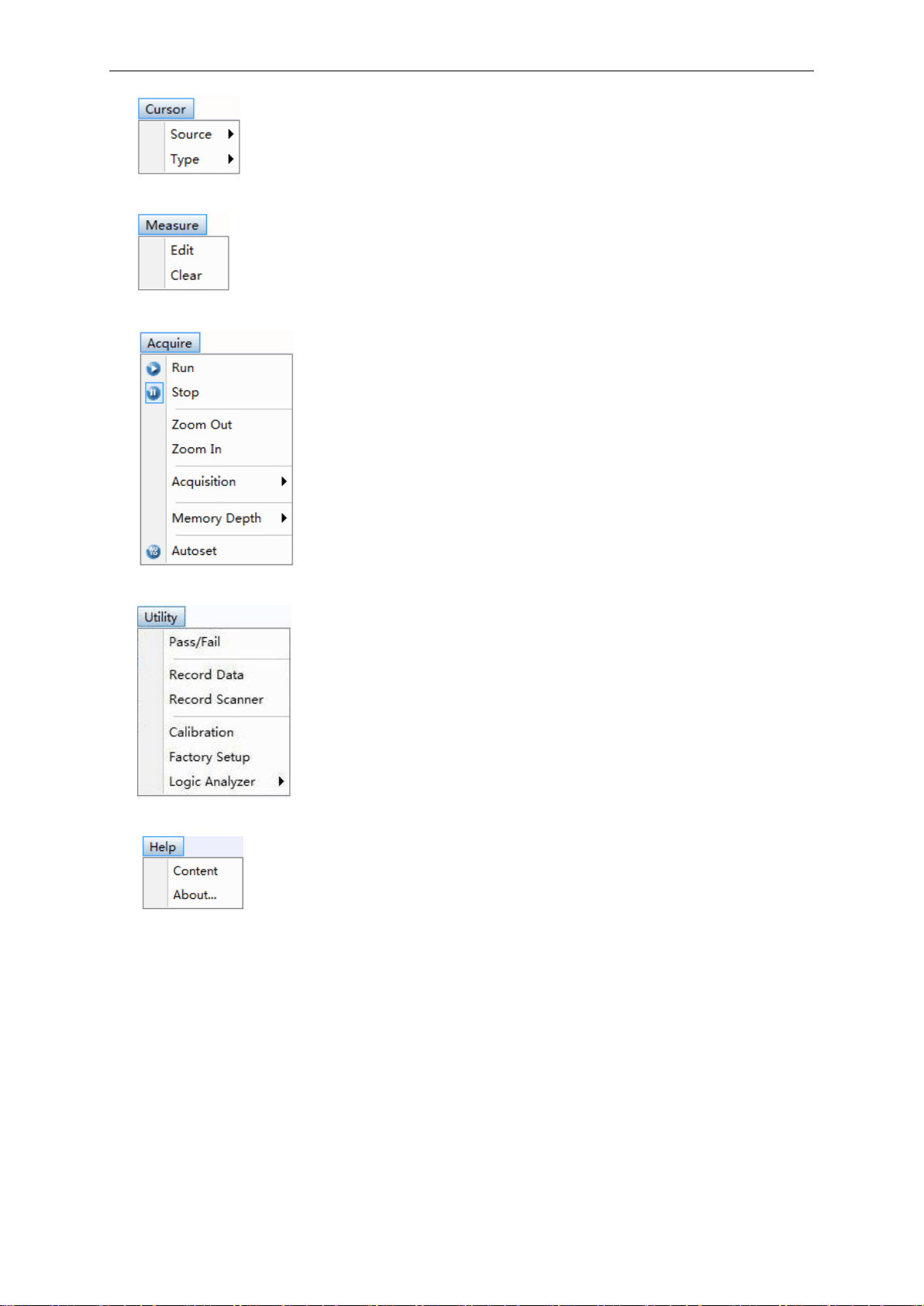
The Main Menu:
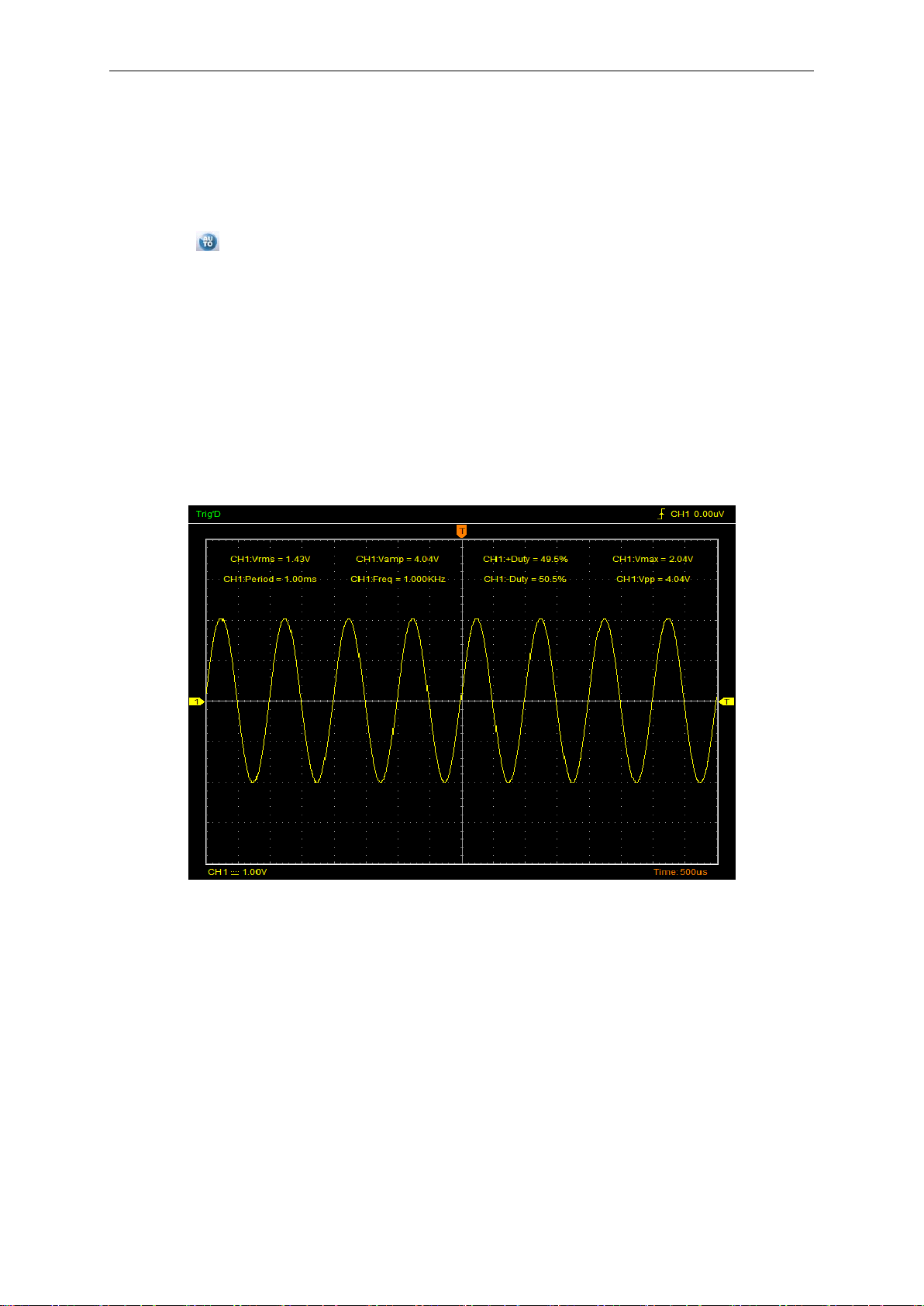
1.File: Load or Save data
2.View: Change the user interface
3.Setup: Setup setting
4.Display: Change wave display type
5.Cursor: Set Cursor measure type
Operation Basics
USER’S MANUAL 23
6. Measure: Set measurement parameters
7.Acquire: Run ,Stop or other operation setting
8. Utility: Utility setting
9.Help: Turn on help file
Operation Basics
USER’S MANUAL 24
2.3 The Vertical System
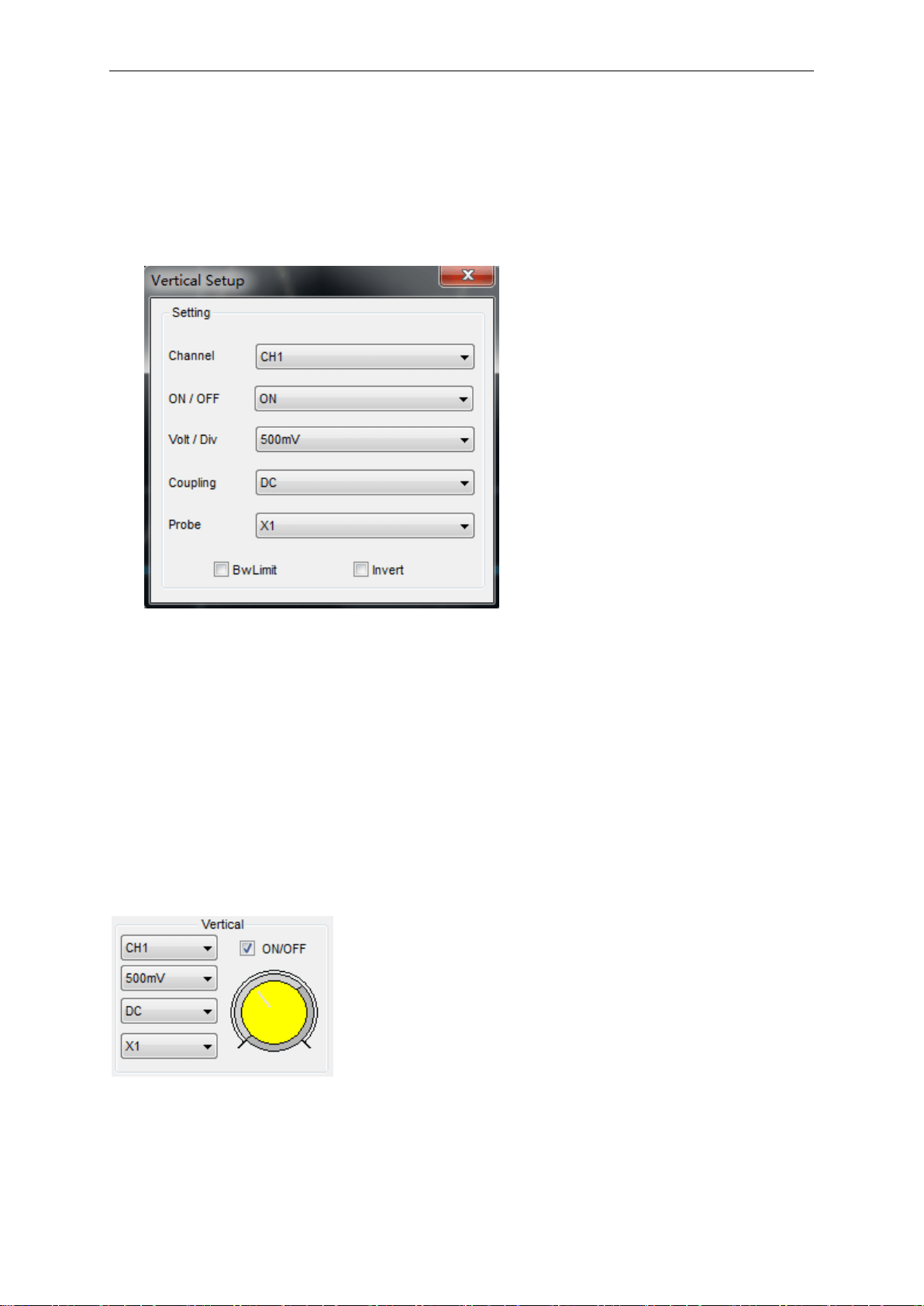
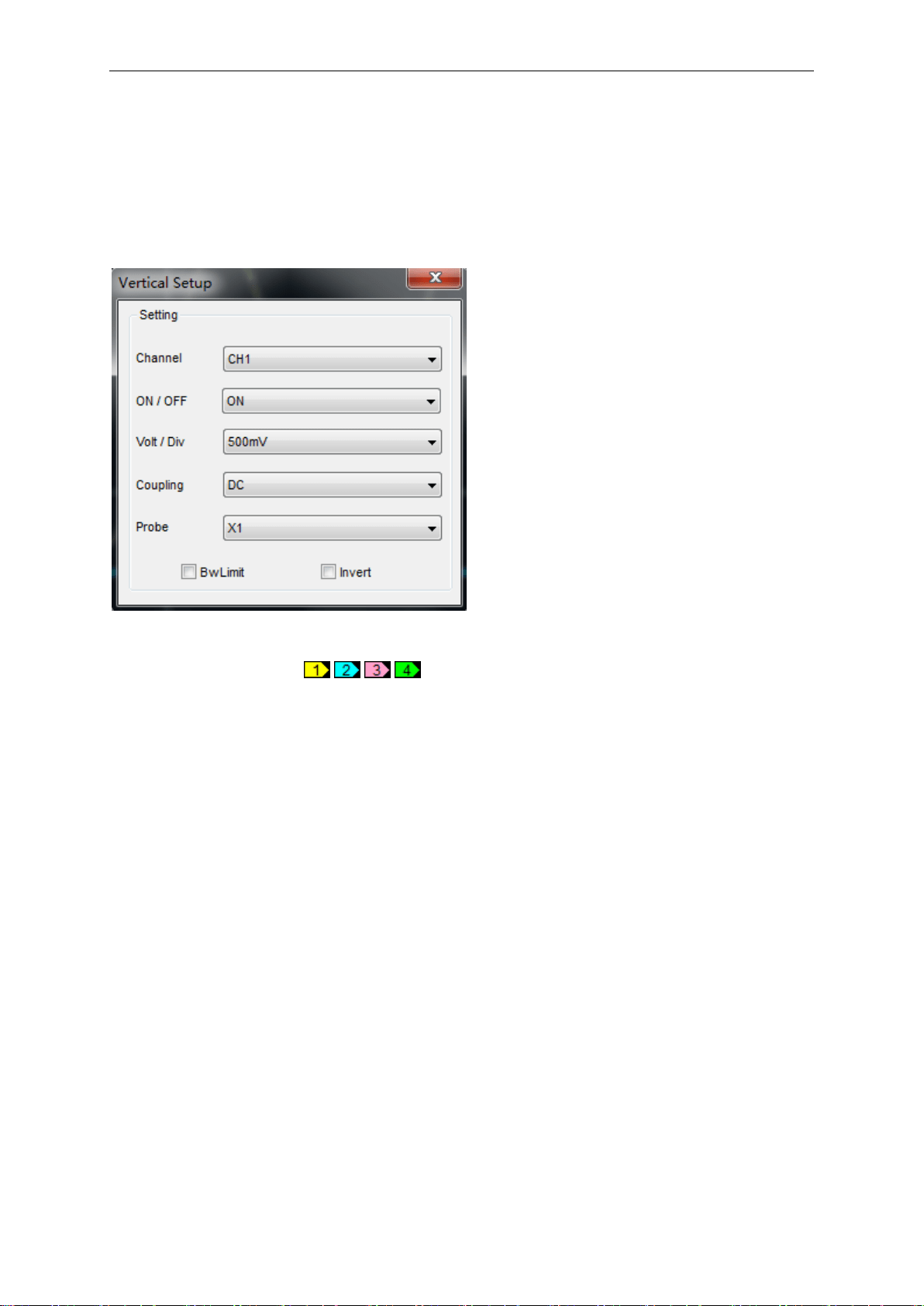
Click “Setup->Vertical”
The following figure shows the vertical Setup window. It shows the vertical parameters setting.
1.Select channel: User can select the channel by clicking the Combo box.
2.ON/OFF: Turn on or off the selected channel.
3.Volt/Div: Set the selected channel voltage range.
4.Coupling: Set the selected channel to DC/AC/GND.
5.Probe: Set the Select one according to the probe attenuation factor to ensure correct vertical
scale reading
6.Bw Limit: Reject the frequency component higher than 20MHz.
7.Invert: Invert the selected wave.
Also user can also set parameters in the right sidebar.
Operation Basics
USER’S MANUAL 25
2.4 The Horizontal System
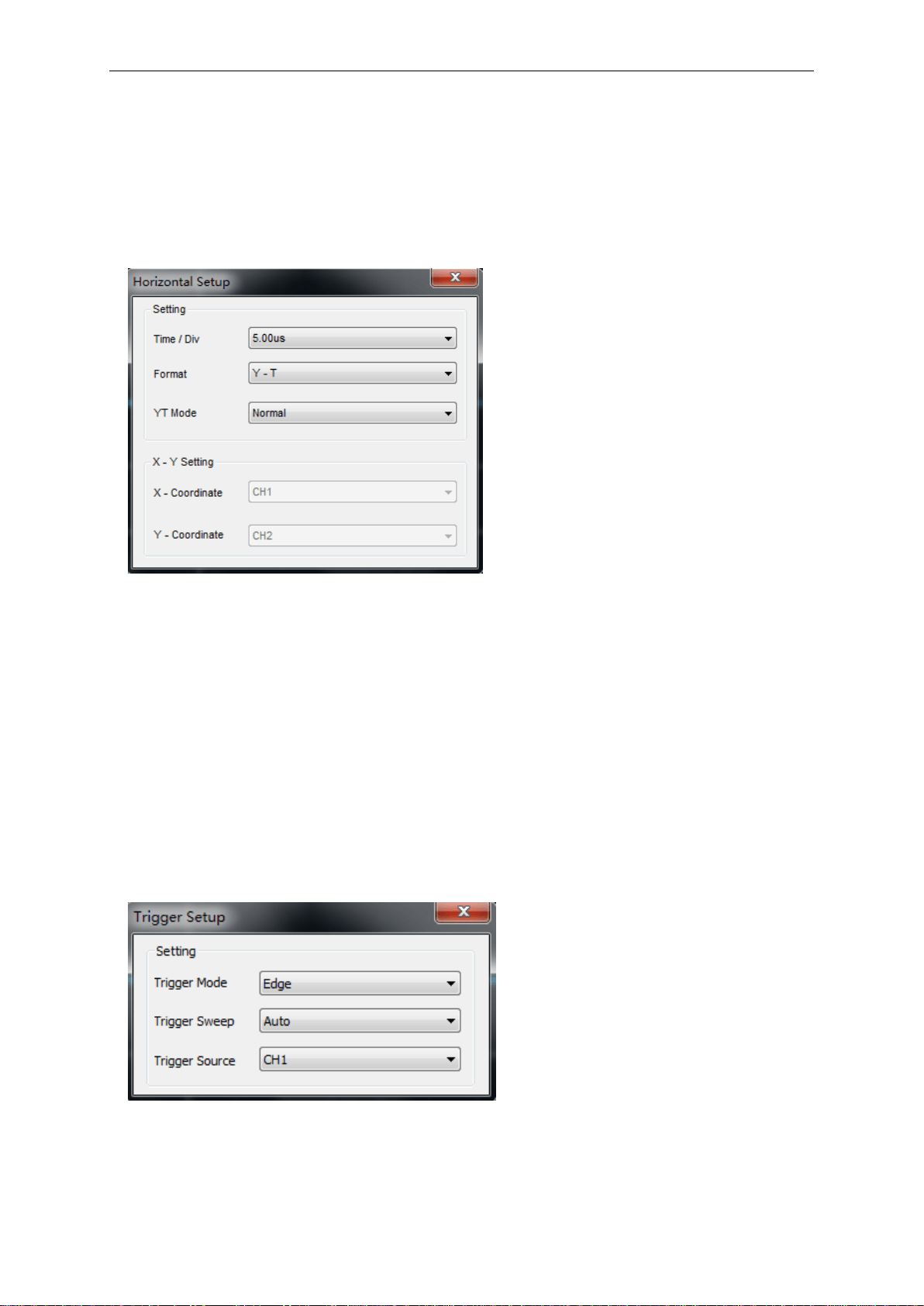
Click “Setup->Horizontal”
The following figure shows the Horizontal System window. It shows the horizontal parameters
settings.
1.Time/Div: Leads the setting of the time base parameters
2.Format: Leads the setting of the horizontal format parameters
3.YT Mode: Selects the mode of Normal, Roll or Scan.
2.5 The Trigger System
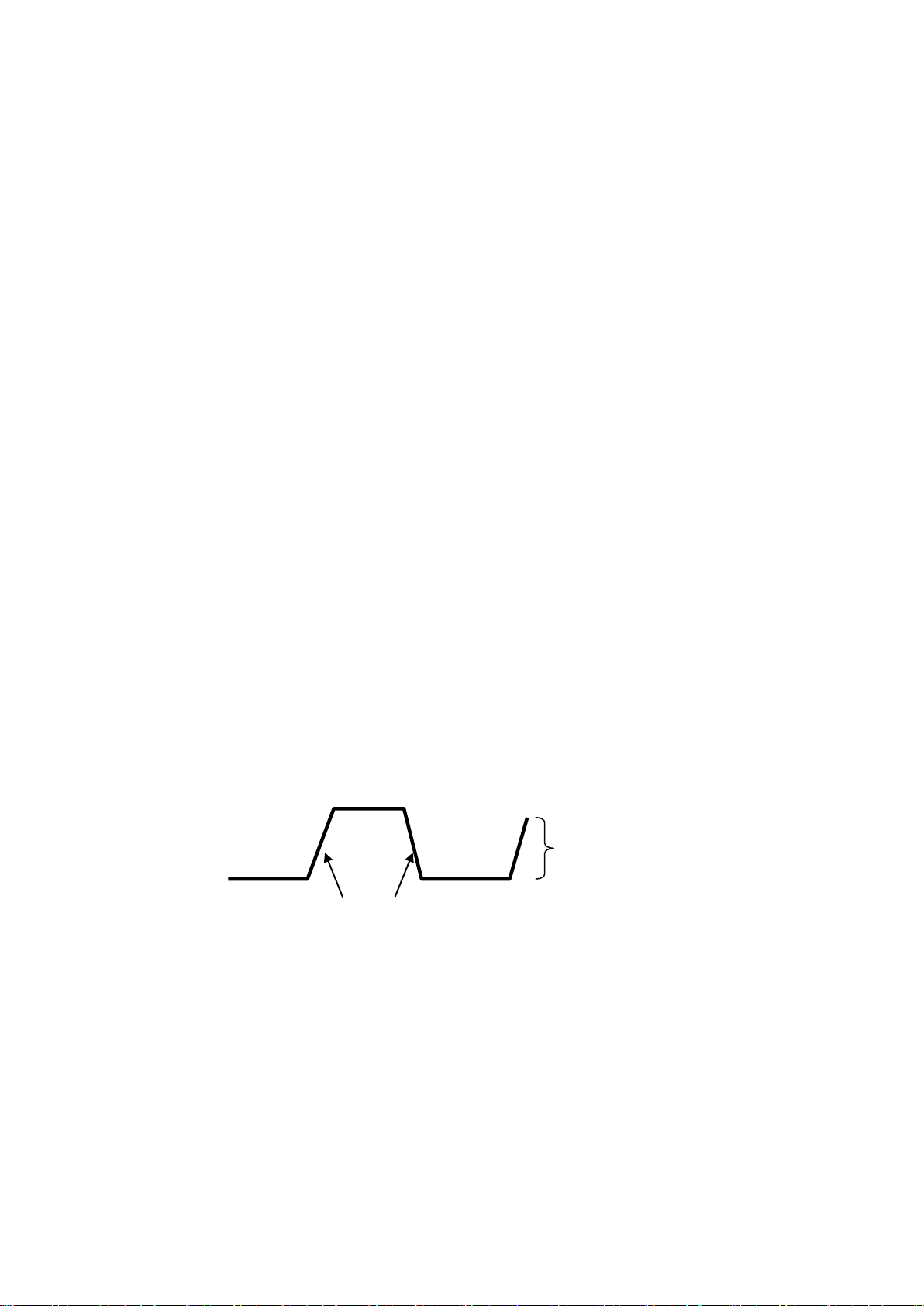
Click “Setup-> Trigger”
The following figure shows the trigger system control.
The trigger determines when the oscilloscope begins to acquire data and display a waveform.
Once a trigger is properly set up, the oscilloscope can convert unstable displays or blank screens
to meaningful waveforms. Here introduce some basic concepts about trigger.
Operation Basics
USER’S MANUAL 26
Trigger Source: The trigger can be generated with multiple sources. The most common one is the
input channel. Whether the input signal is displayed or not, it can trigger normal operations. Also
the trigger source can be any signal connected to an external trigger channel or the AC power line
(only for Edge triggers). The source with the AC power line shows the frequency relationship
between the signal and the AC commercial power.
Trigger Mode: The oscilloscope has five types of triggers: Edge, Pulse Width, Slope, Video and
Timeout.
Edge Trigger uses the analog or digital test circuits for triggering. It happens when the
input trigger source crosses a specified level in a specified direction.
Pulse Width Trigger can trigger normal or abnormal pulses that meet trigger conditions.
Slope Trigger uses the rise and fall times on the edge of signal for triggering.
Video Trigger performs a field or line trigger through standard video signals.
Timeout Trigger happens after the edge of signal reaches the set time.
Trigger Sweep: You can select the Auto or Normal mode to define how the oscilloscope acquires
data when it does not detect a trigger condition. Auto Mode performs the acquisition freely in
absence of valid trigger. Normal Mode updates the displayed waveforms only when the
oscilloscope detects a valid trigger condition. Before this update, the oscilloscope still displays the
old waveforms. This mode shall be used when you want to only view the effectively triggered
waveforms. In this mode, the oscilloscope displays waveforms only after the first trigger. To
perform a single sequence acquisition, push the SINGLE SEQ button.
Trigger Position: The horizontal position control establishes the time between the trigger position
and the screen center.
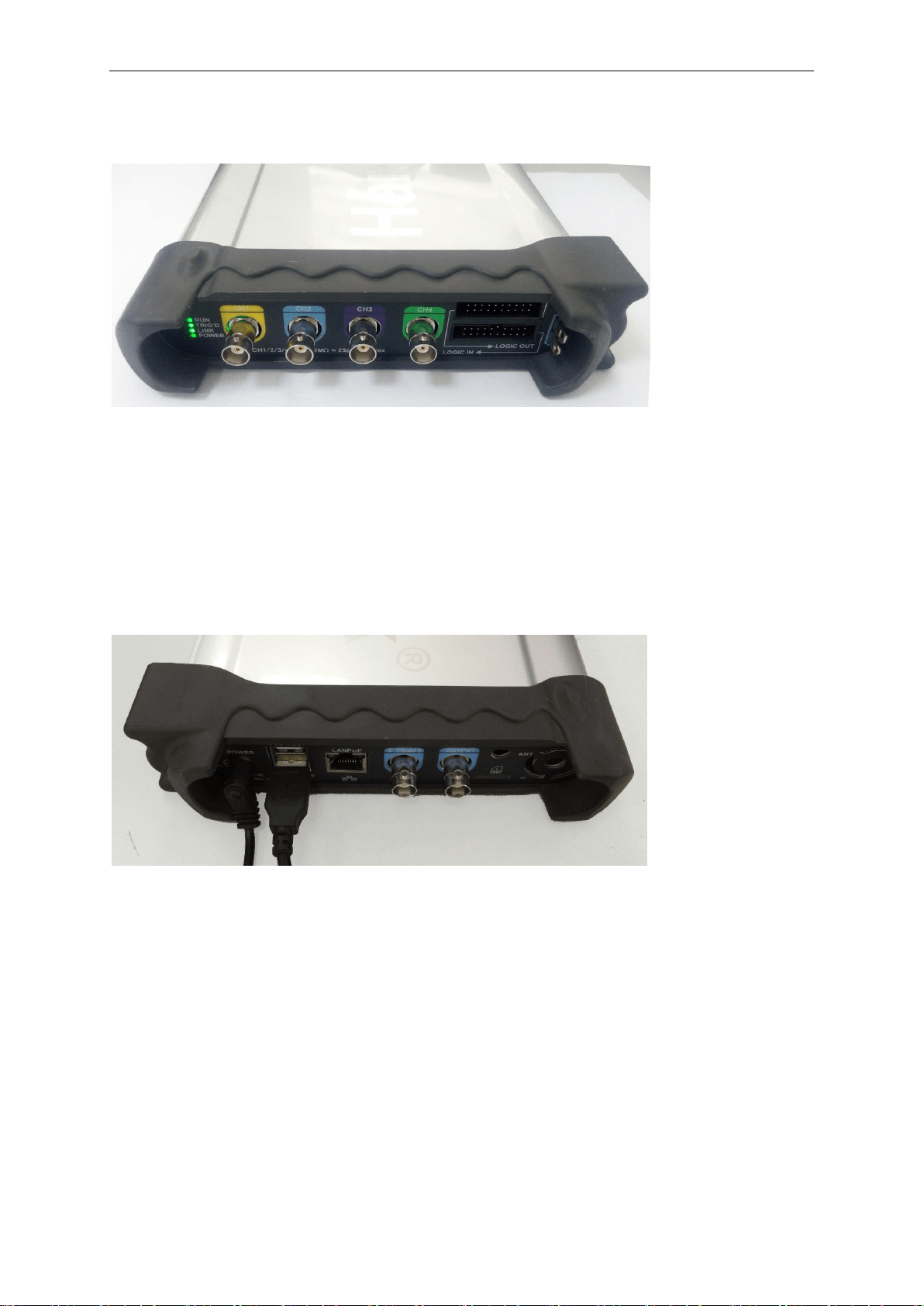
Slope and Level: The Slope and Level controls help to define the trigger. The Slope option
determines whether the trigger point is on the rising or falling edge of a signal. To perform the
trigger slope control, press the TRIG MENU button, select an Edge trigger, and use the Slope
button to select rising or falling. The TRIGGER LEVEL knob controls the trigger point is on which
position of the edge.
Trigger slope can be rising or falling
Rising Edge
Falling Edge
Trigger level can be
adjusted vertically
Operation Basics
USER’S MANUAL 27
2.6 Input Connectors
CH1/CH2/CH3/CH4: Input connectors for waveform display.
LOGIC IN:Logic analyzer input ports
LOGIC OUT:Digital generator output ports
1KHz~1Vp-p:1KHz, 1Vp-p Square wave output ports
GND.: A ground terminal
Other Connector:
Power: Power Input port.
USB HOST: USB HOST port, used to insert into USB storage device.
USB DEVICE: USB port, used to connect the scope with PC via USB cable.
LANPoE: Power Over Ethernet port, used to connect the scope with PC via LAN and power over
ethernet.
SD: MicroSD port, used to insert into microSD card to storage data.
OUTPUT: Waveform output BNC port in waveform generator mode.
E-TRIG/S:
1.E-TRIG: External trigger signal port (For the model of waveform generator function, it can be
used as an external trigger of the oscilloscope and waveform generator.)
2.S: Synchronized output port (Only for the model with waveform generator function.)
Attention: The above two functions cannot be used at the same time. When one function is used,
the other function is automatically closed.

Oscilloscope Functions
USER’S MANUAL 28
Chapter 3 Oscilloscope Functions
Set Oscilloscope
Set Vertical System
Set Horizontal System
Set Trigger System
Set MATH
Set Reference
Fast Fourier Transform Function
Save/Load
Utility Function
Measure Signal
Display System
Zoom In/Out Waveforms
Acquisition Modes
Print

Oscilloscope Functions
USER’S MANUAL 29
3.1 Setup the Oscilloscope
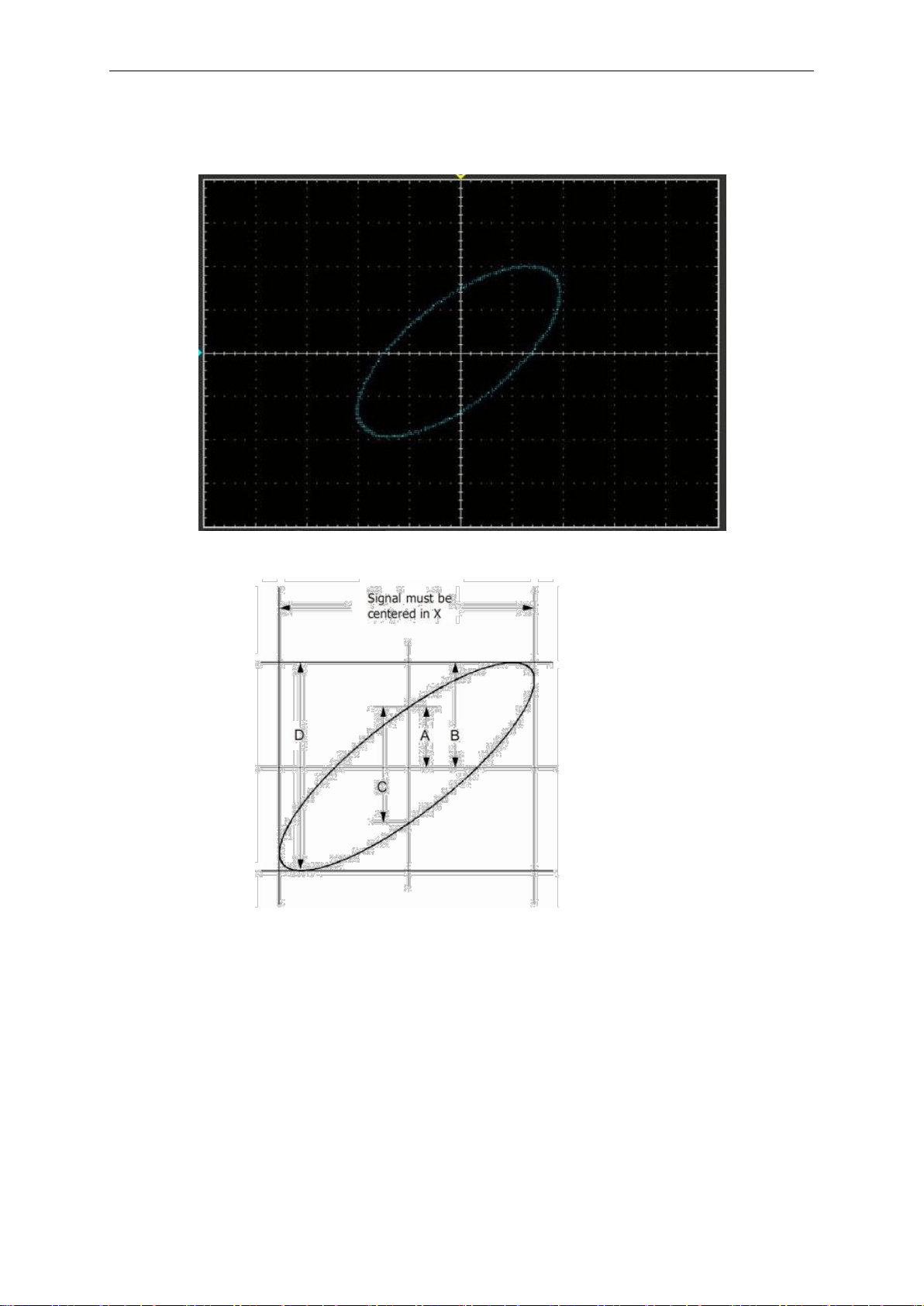
Use “AUTOSET” to display a signal automatically.
Auto setup functions one time each time you push the “AUTOSET” button. The function obtains a
stable waveform display for you. It automatically adjusts the vertical scale, horizontal scale and
trigger settings. Auto setup also displays several automatic measurements in the graticule area,
depending on the signal type.
Connect a signal to the CH1 input:
1. Connect a signal to the oscilloscope as described above.
2. Click the “Acquire -> Autoset” button.
The oscilloscope will change the current settings to display this signal.
Save Setup
The oscilloscope software saves the current setup before you close the oscilloscope software.
The oscilloscope recalls this setup the next time you run the software. You can use the “Save
Setup” menu to permanently save up to several different setups.
Load Setup
The oscilloscope can recall the last setup before the oscilloscope software was running, any saved
setups, or the factory setup. You can use the “Load Setup” menu to recall a setup.
Factory Setup
The oscilloscope software is set up for normal operation when it is shipped from the factory. This is
the factory setup. To recall this setup, push the “Utility -> Factory Setup” button.
Oscilloscope Functions
USER’S MANUAL 30
3.2 Set Vertical System
Click “Vertical” in “Setup” menu.
The following figure shows the Vertical System window. It shows the vertical parameters settings.
Vertical Position icon
Drag Vertical Position icon to move waveform up and down on the screen. Double
click the icon to reset the waveforms to the vertical center position on the screen.
Change Volt/Div
You can click “Volt/Div” in “Vertical Setting” window to set the voltage.
You can left click and drag the mouse on the knob to change the voltage.
Set Channel Coupling
Click “Coupling” in “Vertical Setup” window
You can set the coupling to DC, AC or GND. If you set the coupling to AC, it blocks the DC
component of the input signal.
Probe Attenuation Setting
Select the attenuation factor for the probe. To check the probe attenuation setting, toggle the
probe menu to match the attenuation factor of the probe.
This setting remains in effect before you changed again. Click “Probe” in “Vertical Setting”
window to select the probe attenuation.
Note: The attenuation factor changes the vertical scale of the oscilloscope so that the
measurement results refect the actual voltage levels at the probe tip.
Oscilloscope Functions
USER’S MANUAL 31
Bandwidth Limit
The oscilloscope is set to full bandwidth and will pass the high frequency component in the signal if
the “BW Limit” was turned off.
The oscilloscope will reject the frequency component higher than 20MHz if the “BW Limit” was
turned on.
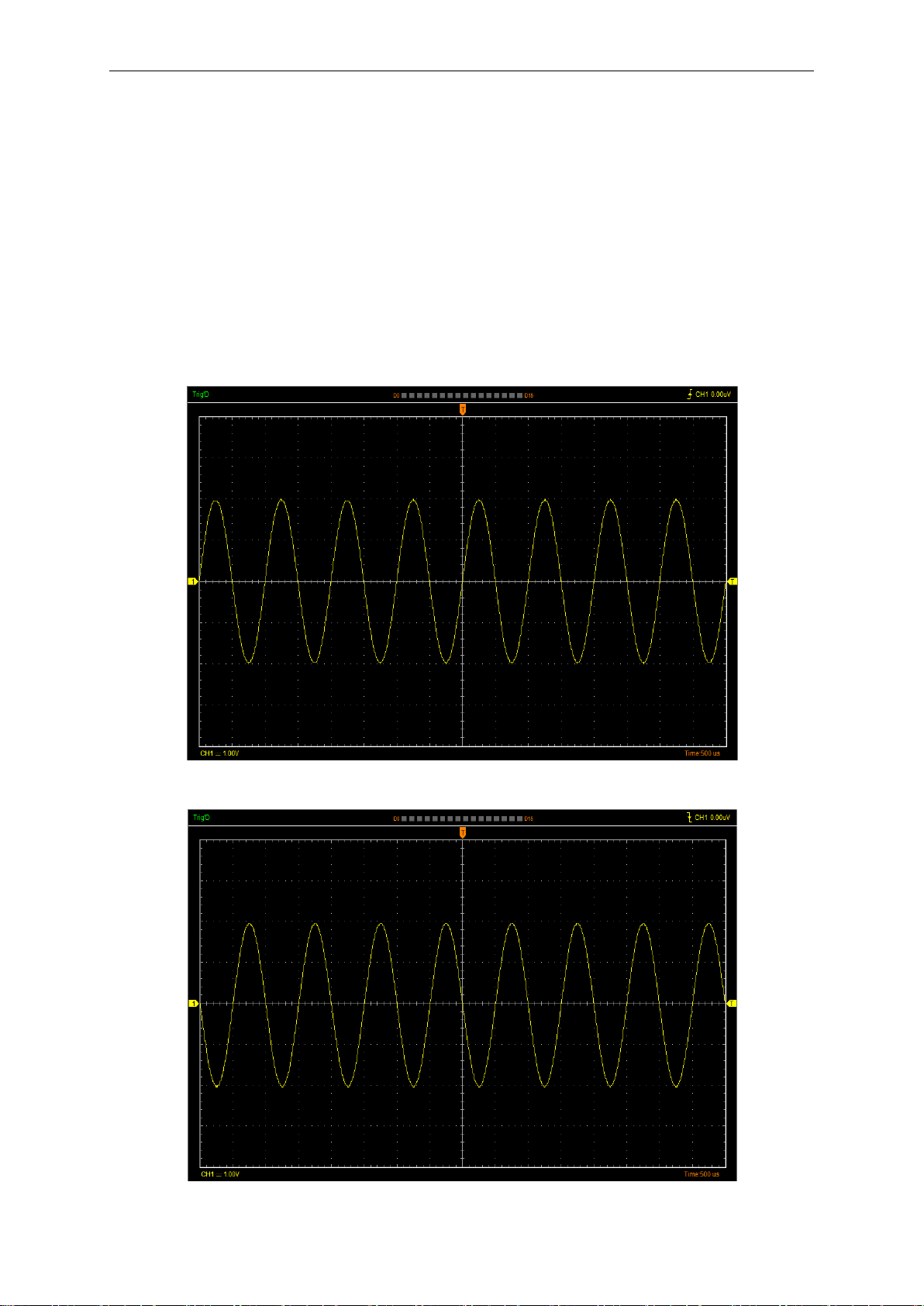
Invert
The invert function turns the displayed waveform 180 degrees, with respect to the ground level.
When the oscilloscope is triggered on the inverted signal, the trigger is also inverted.
Click “Invert” in “Vertical Setup” window.
The following picture shows the waveform before inversion:
The following picture shows the waveform of inversion:
Oscilloscope Functions
USER’S MANUAL 32
3.3 Set Horizontal System
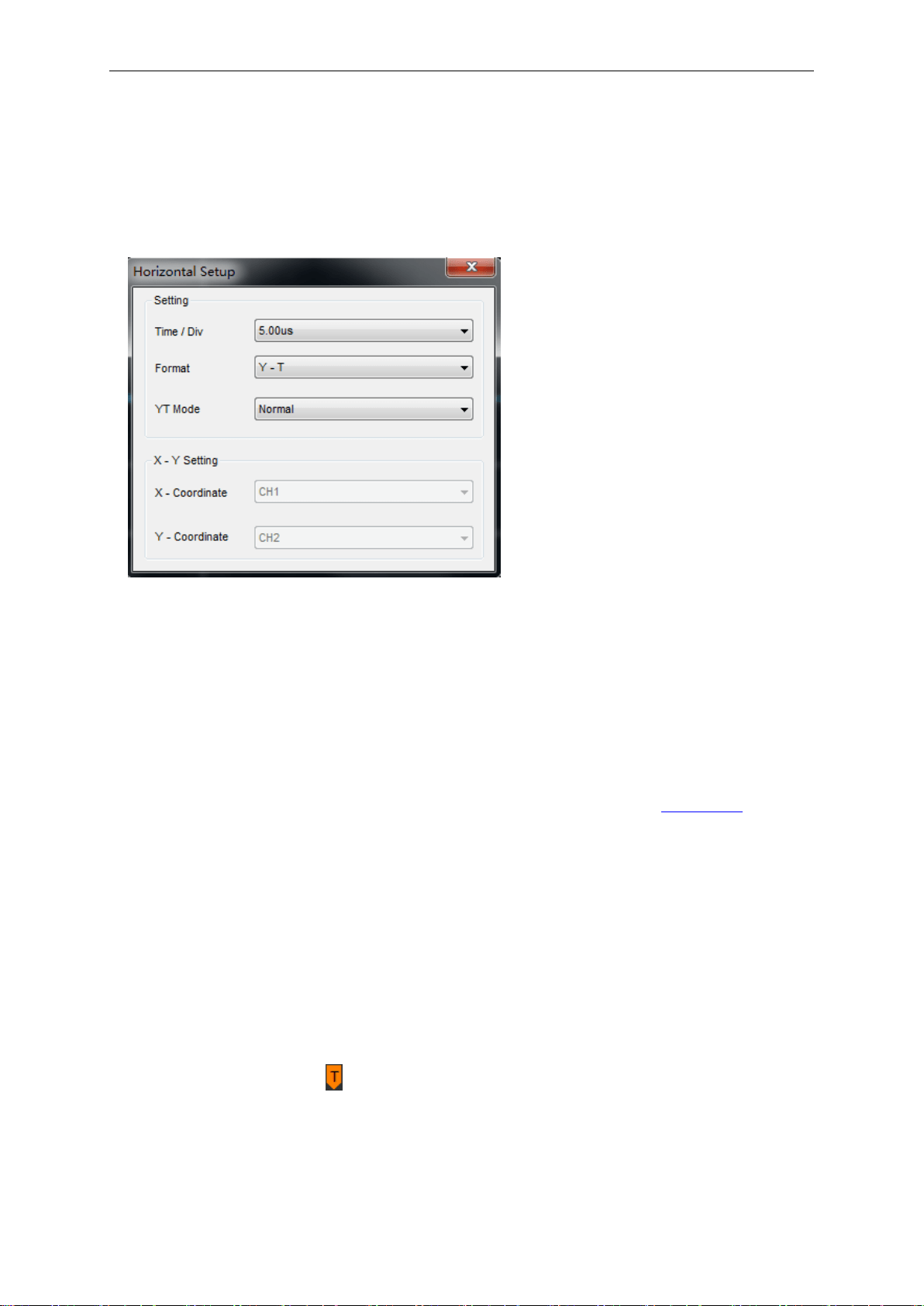
Click “Setup->Horizontal” menu.
The following figure shows the Horizontal System window. It shows the horizontal parameters
settings.
Horizontal Setting
Time/div: Lead the setting of the time base parameters
Format: Lead the setting of the horizontal format parameters
Format
Set the waveform display format (Y-T, X-Y, Scan and Roll).
Y -T: Show the relative relation between vertical voltage and horizontal time.
X -Y: Show CH1 value at X axis; CH2 value at Y axis. The XY format is used to analyzer phase
difference, such as those represented by Lissajous patterns. Please refer to 4.3 Section.
X-Y Setting: Users can change X-Coordinate and Y-Coordinate for CH1, CH2, CH3, CH4.
YT Mode
Scan: In Scan Mode, the waveform display updates from left to right.
Roll: In Roll Mode, the waveform display updates from right to left.
In Roll mode, the waveform display rolls from right to left. No trigger or horizontal offset control of
waveforms is available during Roll Mode, and it’s only available when set to 100ms/div or slower.
Horizontal Position Icon
Drag Horizontal Position icon on screen to adjust the trigger position against screen. Double
click the icon to reset the trigger point back to the screen center.
Oscilloscope Functions
USER’S MANUAL 33
The Horizontal Panel:
Time/Div: Lead the setting of the time base parameters
Delay Time: Adjust the trigger position
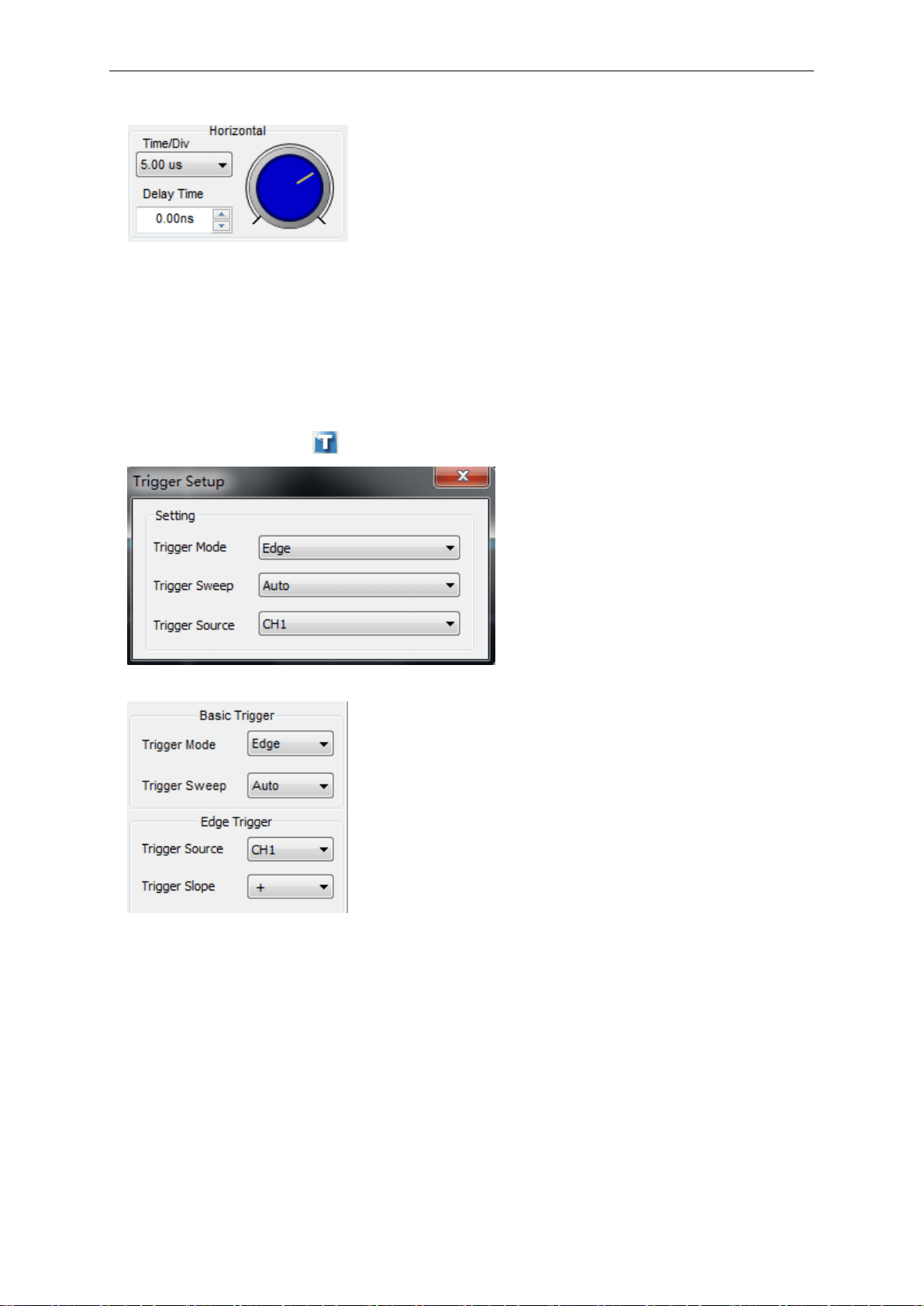
3.4 Set Trigger System
Click “Setup->Trigger” or “ ”, you can configure the trigger.
The user can also change the trigger setting on trigger panel in sidebar.
Trigger Setup
The trigger determines when the oscilloscope starts to acquire data and display a waveform. When
a trigger is set up properly, it can convert unstable displays or blank screens into meaningful
waveforms.
If the oscilloscope wants to acquire a waveform, it collects enough data so that it can draw the
waveform to the left of the trigger point. The oscilloscope continues to acquire data while waiting
for the trigger condition to occur. The oscilloscope continues to acquire enough data so that it can
draw the waveform to the right of the trigger point after it detects a trigger.
The Edge trigger determines whether the scope finds the trigger point on the rising or the falling
edge of the signal. Select Edge trigger mode to trigger on Rising edge or Falling edge.
Oscilloscope Functions
USER’S MANUAL 34
Trigger Mode: Select the trigger mode, Edge, Pulse, Slope, Video or Timeout..
Trigger Sweep: Set the sweep mode to Auto, Normal or Single.
Auto: Acquire waveform even no trigger occurred
Normal: Acquire waveform when trigger occurred.
Single: Acquire waveform when trigger occurred then stop.
Trigger Source: You can use the trigger source options to select the signal that the oscilloscope
uses as a trigger. The source can be any signal connected to a channel BNC.
CH1: Select CH1 as trigger signal
CH2: Select CH2 as trigger signal
CH3: Select CH3 as trigger signal
CH4: Select CH4 as trigger signal
EXT/10: Select external signal as trigger signal. Does not display the trigger signal and
attenuates the signal by a factor of 10.
Trigger Slope: Set the slope to Rising (+) or Falling (-).
Rising: Trigger on rising edge
Falling: Trigger on falling edge
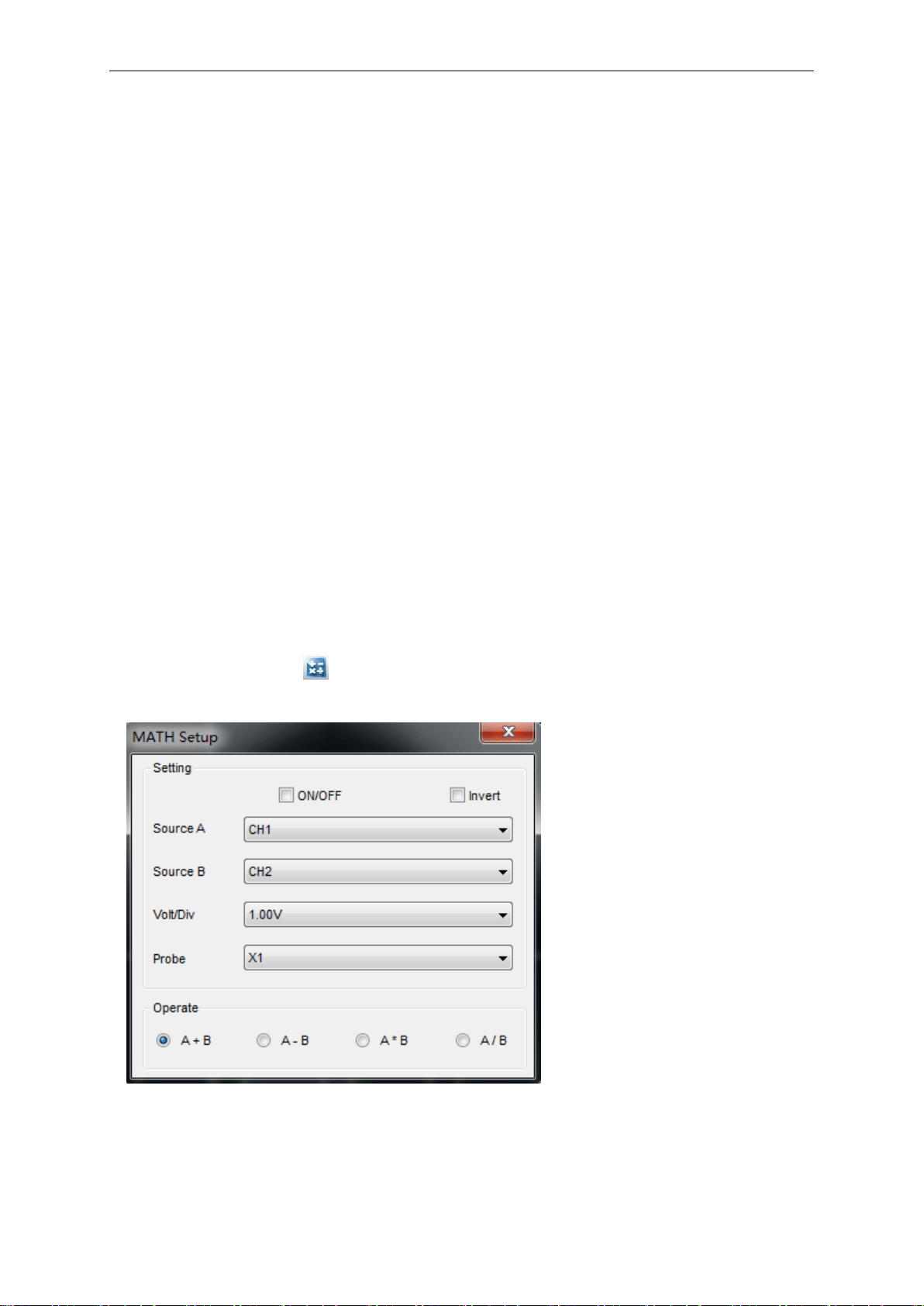
3.5 Set MATH
Click “Setup->MATH” or “ ”, you can set the Math.
The MATH Setup window:
ON/OFF: Turn On/Off the MATH Channel.
Invert: Turn on/off the invert function
Source A/B: Set the sources of the math channel.
Volt/DIV: Set the resolution of the math channel.
Oscilloscope Functions
USER’S MANUAL 35
Probe: Set the math channel probe attenuation.
Operate: Set operation type of the math channel.
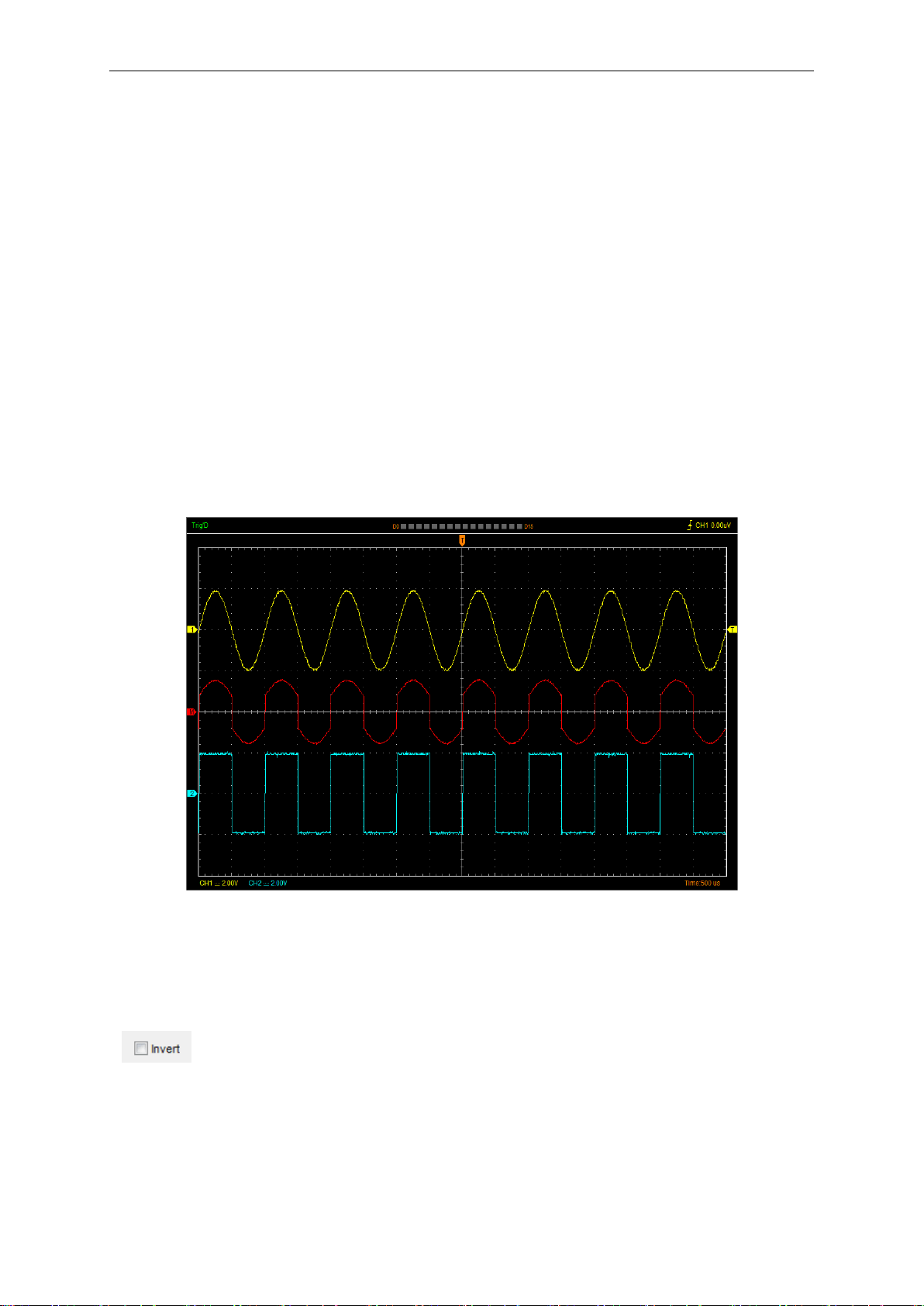
The mathematic functions include addition, subtraction, multiplication, division.
Operate
Four Types:
A + B Add source A and source B
A - B Subtract source B from source A
A x B Multiply source A by source B
A / B Divide source A by source B
In this function, use the addition, subtraction, multiplication and division function to operate and
analyze the waveform.
Select the operate type in the Operate menu. Select source A and B. Then adjust the vertical scale
and offset to view the math channel clearly. The mathematic result can be measured by the
measure and the cursor.
The Math Function Display
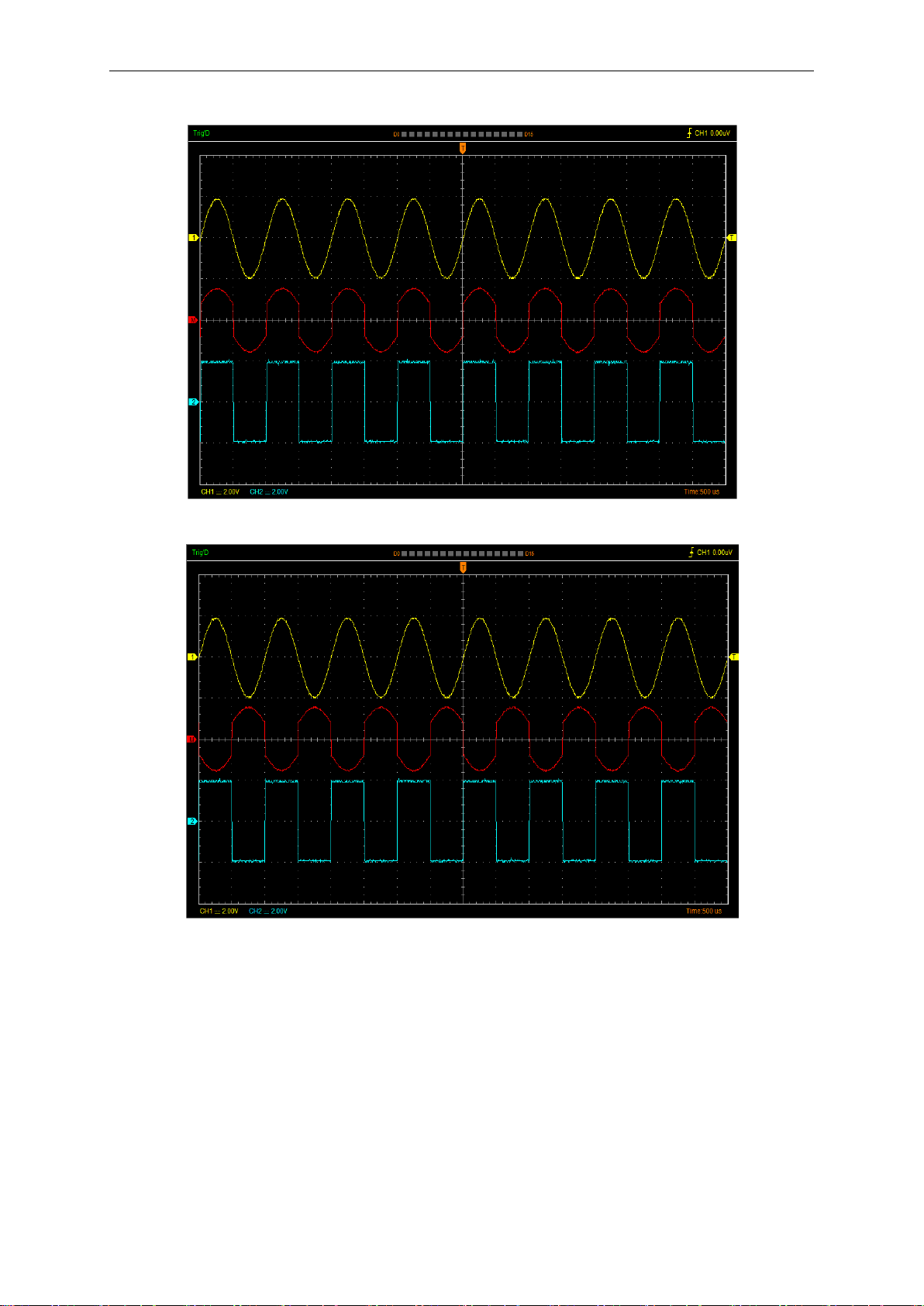
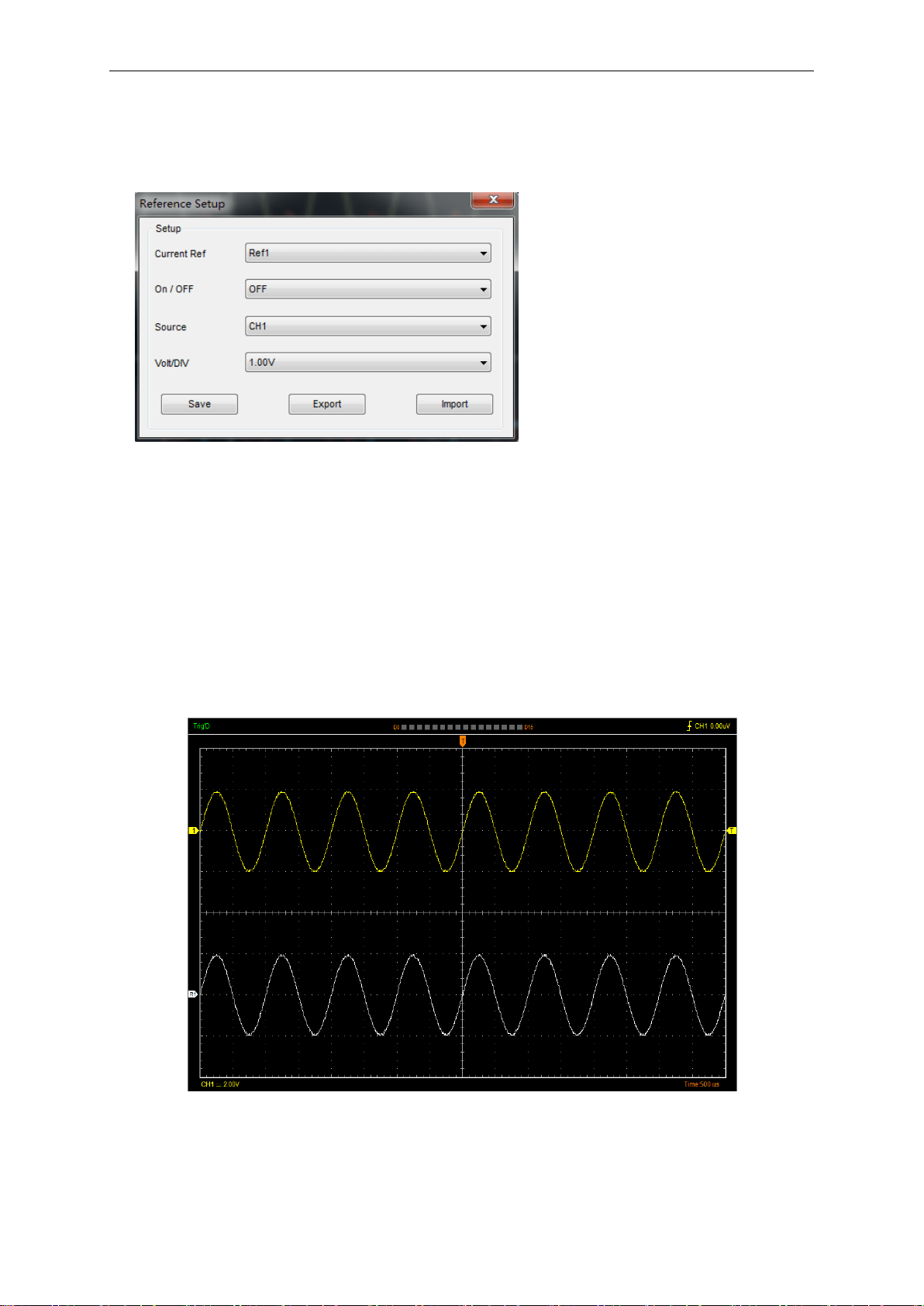
Invert
The invert function turns the displayed waveform 180 degrees, with respect to the ground level.
When the oscilloscope is triggered on the inverted signal, the trigger is also inverted.
Click “Invert” in MATH.
Oscilloscope Functions
USER’S MANUAL 36
The following picture shows the waveform before inversion:
The following picture shows the waveform of inversion:
Oscilloscope Functions
USER’S MANUAL 37
3.6 Set Reference
Click “REF” in “Setup” menu to set REF channel.
The Reference Channel Function:
On/Off: Turn on/off the reference channel.
Source: Select the saved source.
Volt/DIV: Change the resolution of the reference channel.
Save: Save the current reference waveform to the Ref1 or Ref2.
Export: Export the current reference waveform to your computer as “.rfc” format.
Import: Import the reference waveform from the “.rfc” file from your computer.
You can change the vertical scale of a waveform. The waveform display will contract or expand
relative to the reference level.
The Reference Waveform Display Window:
Note: If you turn on the “Reference” channel, the load file window will appear.
Oscilloscope Functions
USER’S MANUAL 38
3.7 Fast Fourier Transform Function
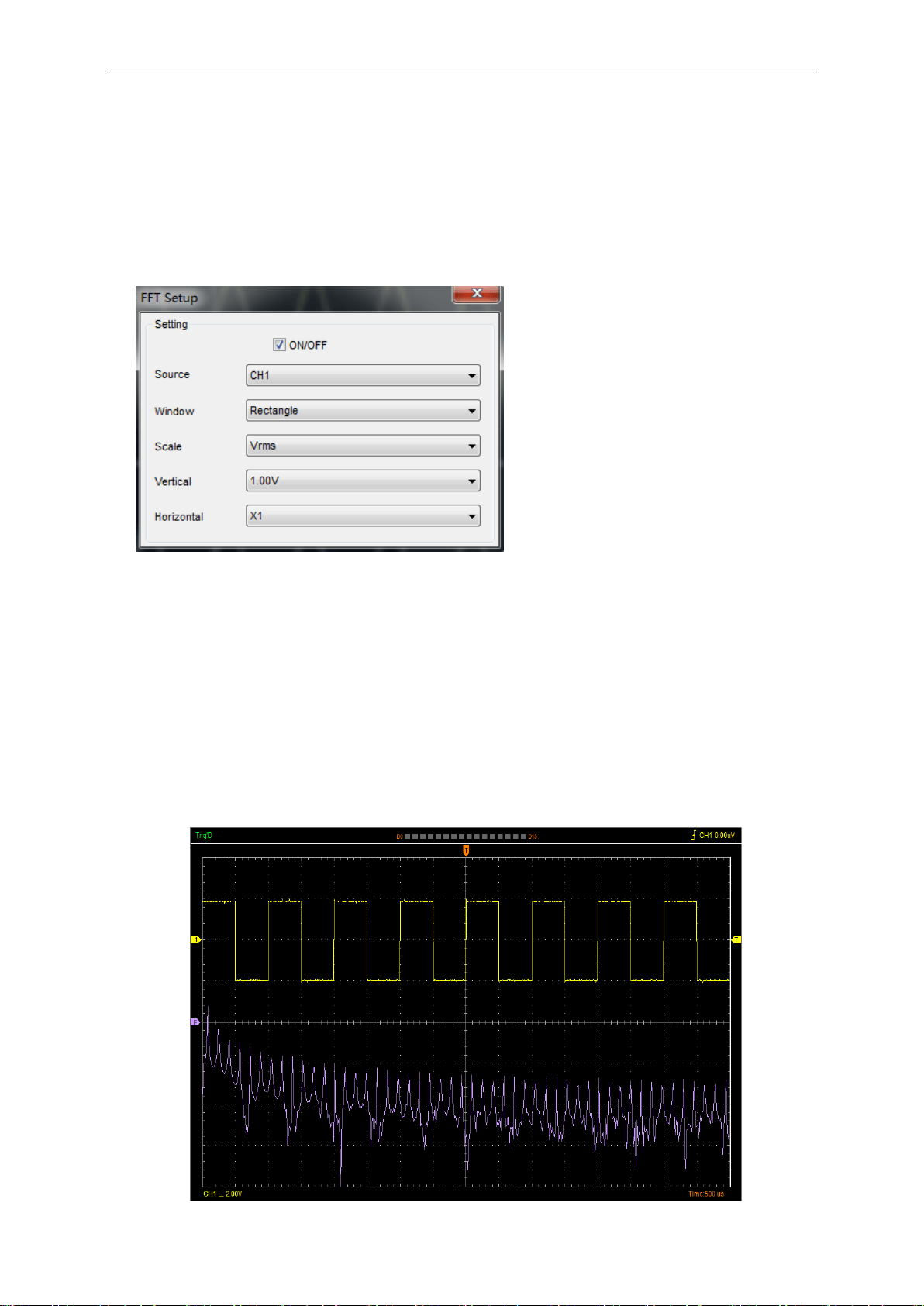
User can use the FFT mode to convert a time-domain signal into its frequency components
(spectrum). You can use the FFT mode for the following types of analysis:
To use the FFT mode, you need to click “Setup-> FFT” to open the FFT setting window.
The FFT setting window:
You can select the Source channel, Window type, FFT vertical scale units, vertical scale and FFT
Zoom factor. It displays only one FFT spectrum at a time.
Source: Selects the channel used as the FFT source.
Window: Selects the FFT window type.
The window reduces spectral leakage in the FFT spectrum.
Scale: Selects the vertical scale units.
Vertical: Selects the vertical scale.
Horizontal: Selects the FFT zoom factor.
The FFT display Window:
Oscilloscope Functions
USER’S MANUAL 39
3.8 Save/Load
Save
Click “File” in main menu to save waveform data, setups and image.
1. Save Data
Save waveform data as a .txt, .csv, .xls, .doc or .wfm file.
2. Save Setup
Save the current oscilloscope setup to .set file.
3. Save Image
Save the software display window as a .bmp or .jpg file.
Load
Click “File” in main menu to recall saved waveform and setup.
1. Load Data
Load the waveform that had saved as a .wfm or .rfc file.
2. Load Setup
Load the instrument that had saved.
Oscilloscope Functions
USER’S MANUAL 40
3.9 Utility Function
3.9.1 Record Data and Record Scanner
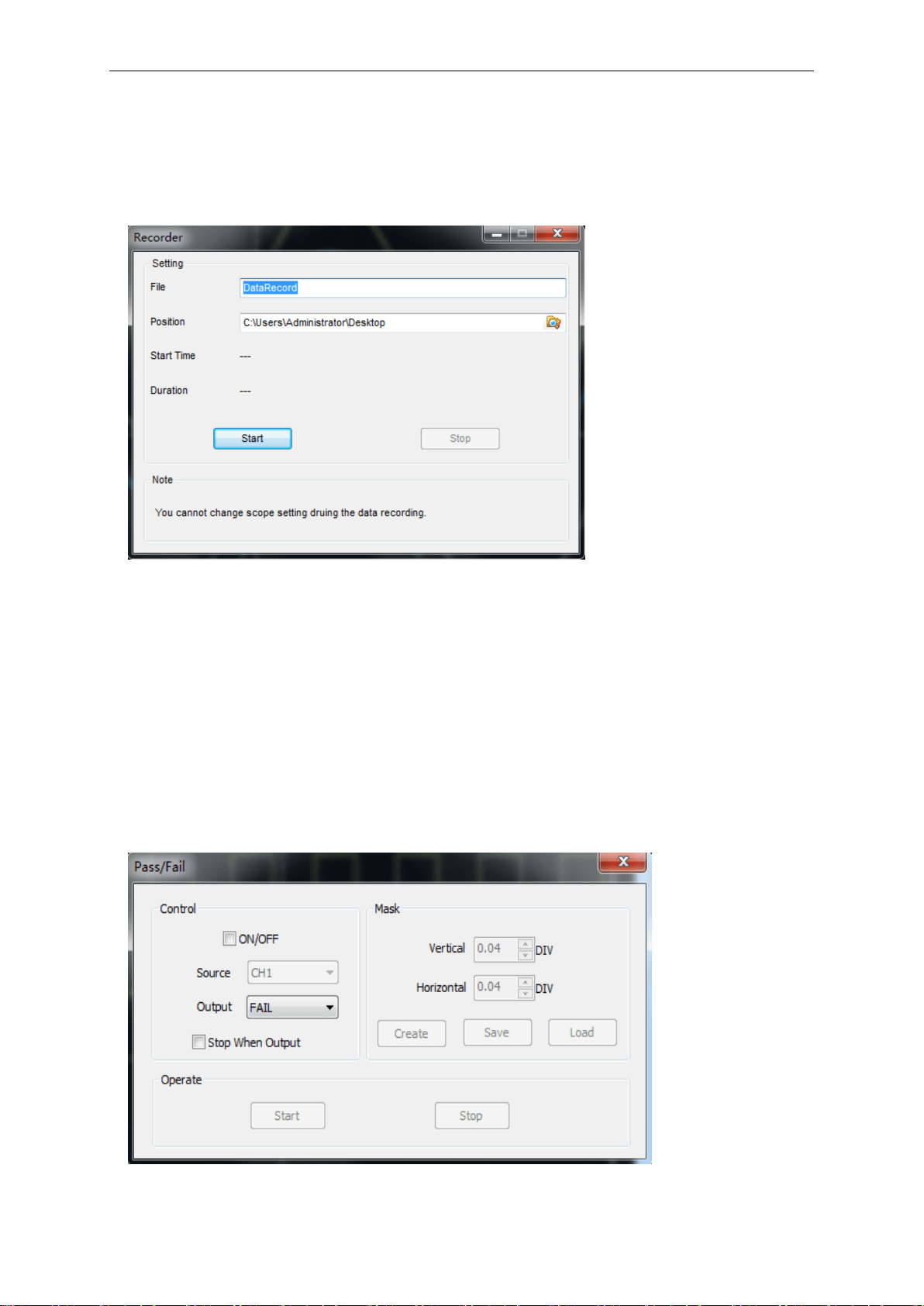
Click “Record Data” in “Utility” menu. The following picture shows the Recorder window.
This function can record input waveform form CH1, CH2, CH3 and CH4.
“Start” button: Start to record waveforms.
“Stop” button: Stop to record waveforms.
Clicking “Record Scanner” in “Utility” menu will play the recording data.
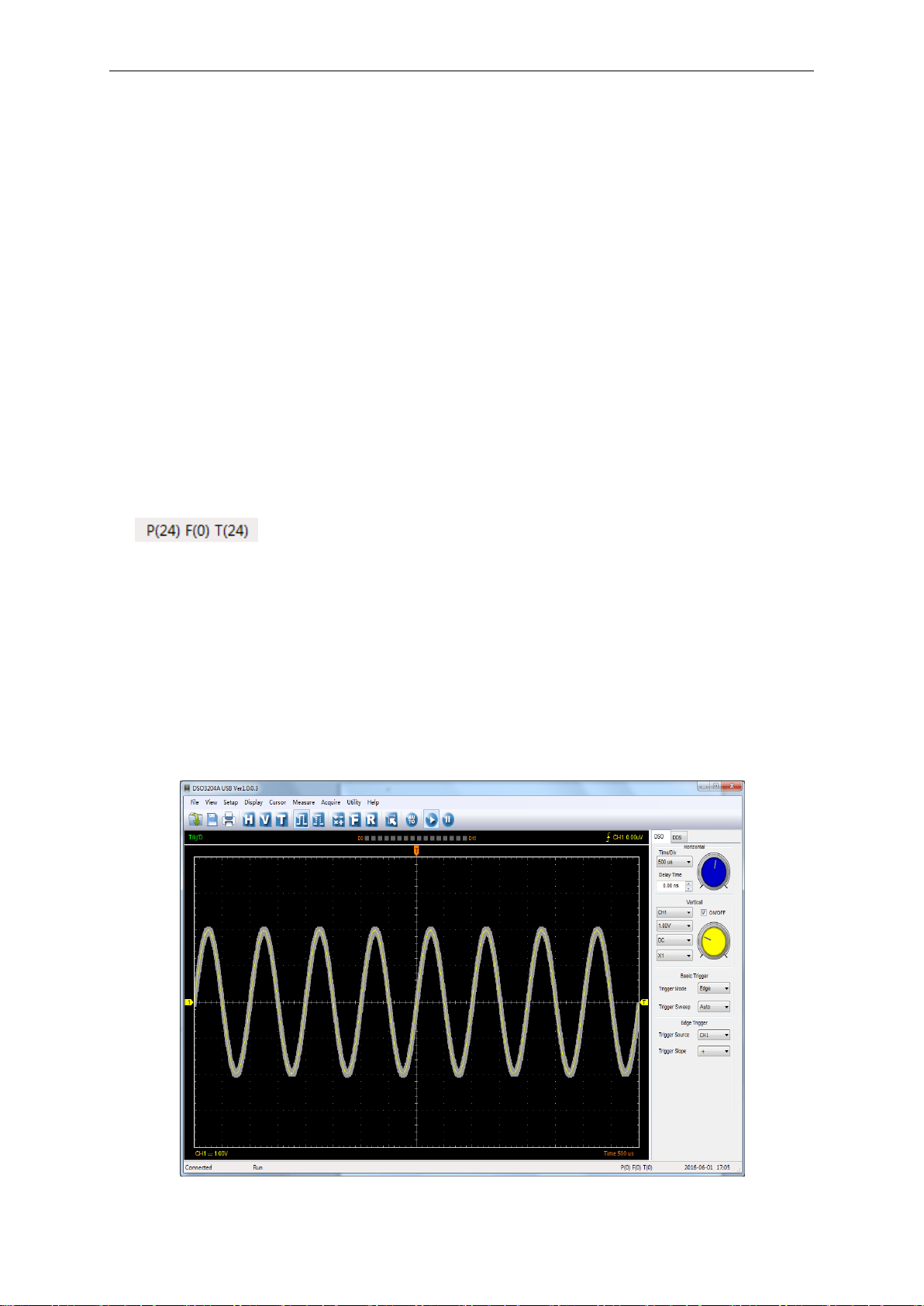
3.9.2 Pass/Fail
Click “Pass/Fail” in “Utility” menu.
The Pass/Fail window appears:
The Pass/Fail function monitors changes of signals and outputs pass or fail signals by comparing
the input signal with the pre-created mask.
Oscilloscope Functions
USER’S MANUAL 41
Control Setting
Source: Select the Pass/Fail channel
Output: Select the Pass/Fail output condition.
Stop When Output: If it was checked, the Pass/Fail will stop when output.
Mask Setting
Vertical: Set the vertical limit range
Horizontal: Set the horizontal limit range
“Create” button: Click this button to create Pass/Fail area according to the mask
“Save” button: Click this button to save the setups to file
“Load” button: Click this button to load the saved setups file
Information Display
Fail: It shows the fail waveform number.
Pass: It shows the pass waveform number.
Total: It shows the total of Pass/Fail waveform number.
Operation
Click “Start” button to start the Pass/Fail test.
Click “Stop” button to stop the Pass/Fail test.
The Pass/Fail function display
NOTE: Pass/Fall function is unavailable in X-Y mode.
Oscilloscope Functions
USER’S MANUAL 42
3.9.3 Self Calibration
Please refer to1.9 Self Calibration
3.9.4 Factory Setup
Click “Factory Setup” in “Utility” menu to load default setups.
When you click the Factory Setup in Utility menu, the oscilloscope displays the CH1/CH2/CH3
/CH4 waveform and removes all other waveforms.
The oscilloscope set up for normal operation when it is shipped from the factory and can be
recalled at anytime by user.
The Factory Setup function does not reset the following settings:
Language option
Date and time
3.10 Measure Signal
3.10.1 Cursor Menu
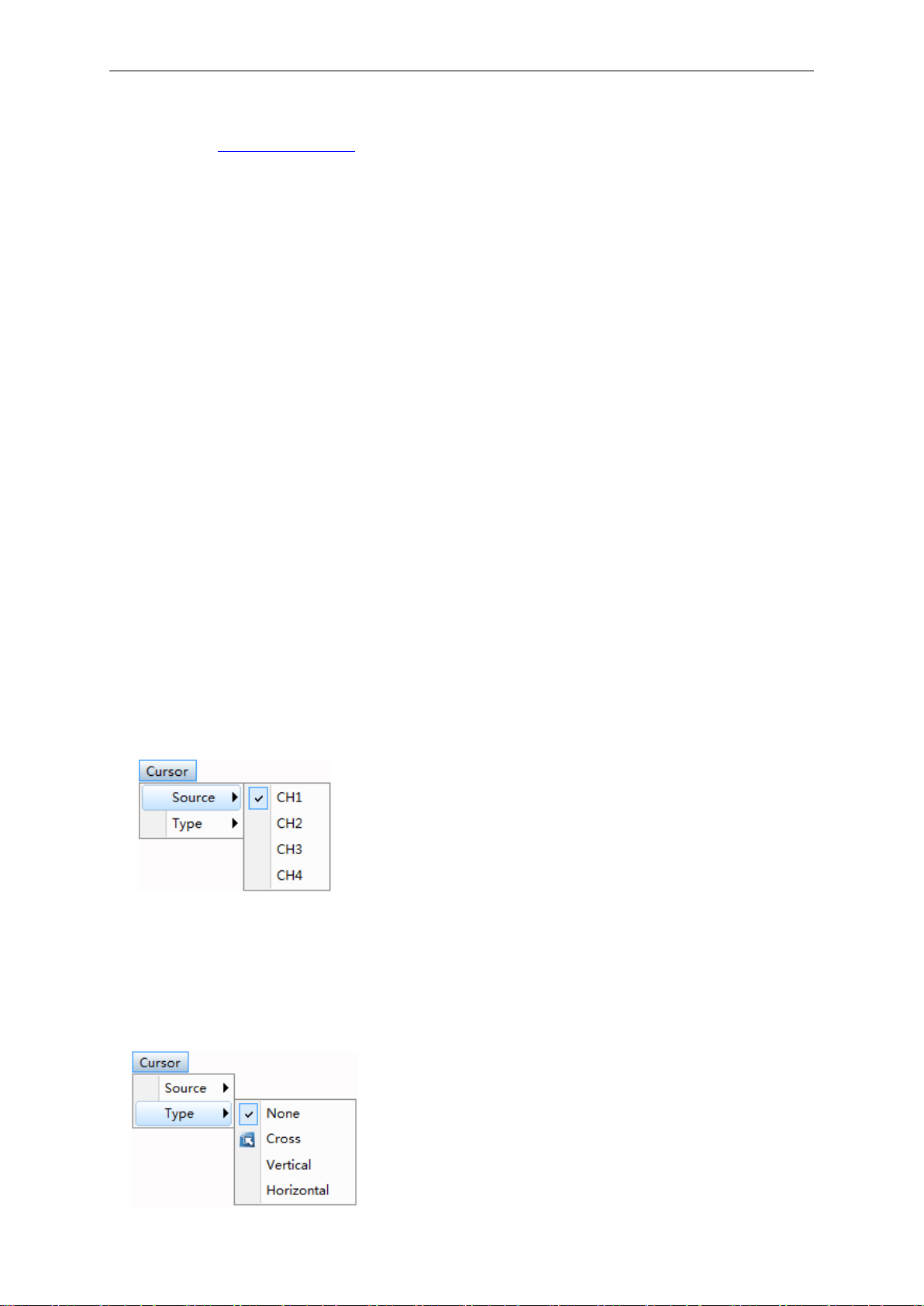
Click “Cursor” in main menu.
This method allows you to take measurements by moving the cursor.
1. Source
The user can set the source to CH1, CH2, CH3 and CH4.
When you use cursors, be sure to set the Source to the waveform on the display that you want to
measure.
2. Type
Oscilloscope Functions
USER’S MANUAL 43
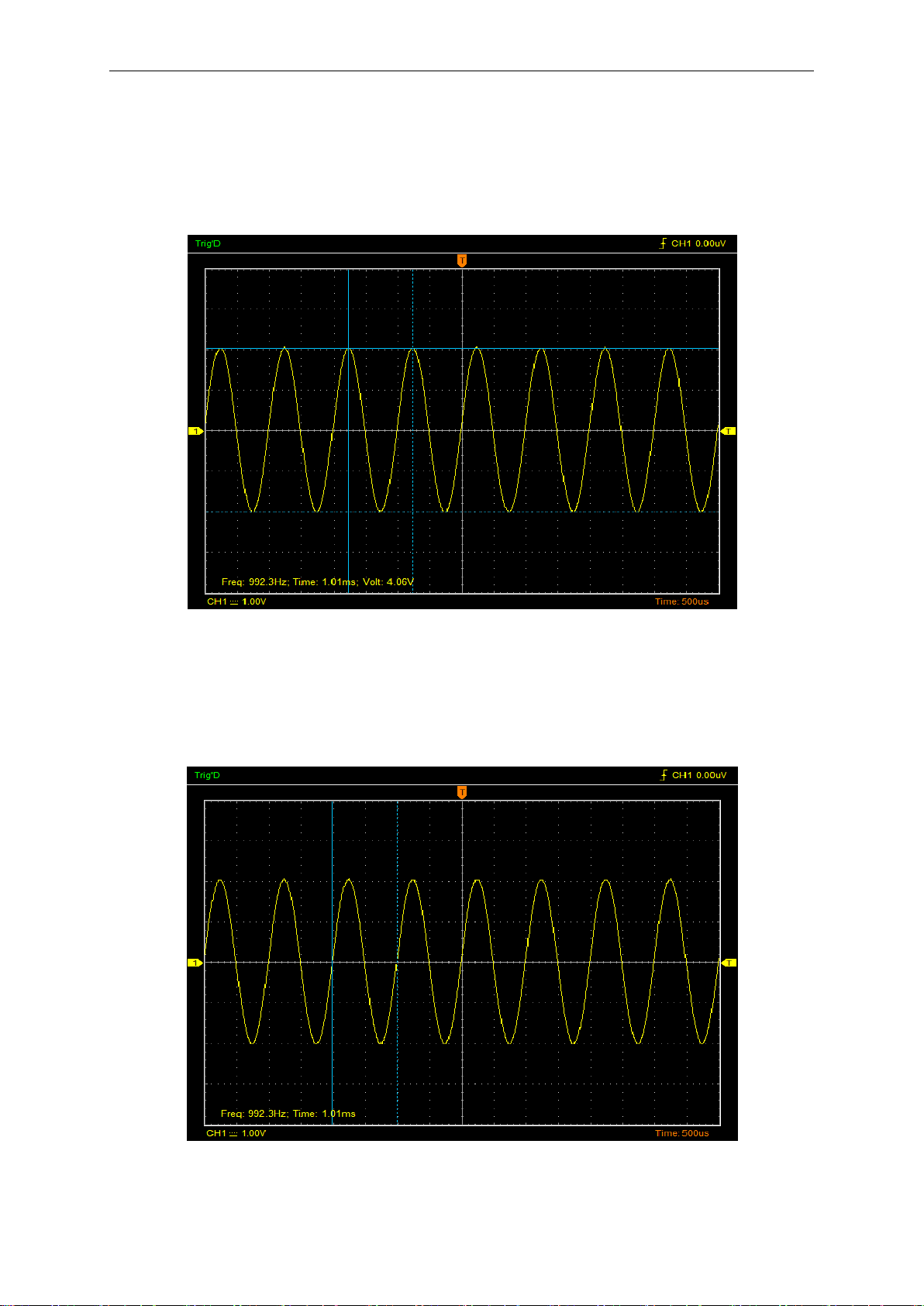
There are three types of cursors: Cross, Vertical and Horizontal.
1) Cross
The Cross cursor appears as cross lines on the display and measure the vertical and horizontal
parameters.
The Cross cursor display window:
2)Vertical
The Vertical cursors appear as vertical lines on the display and measure the vertical parameters.
The Vertical cursor display window:
Oscilloscope Functions
USER’S MANUAL 44
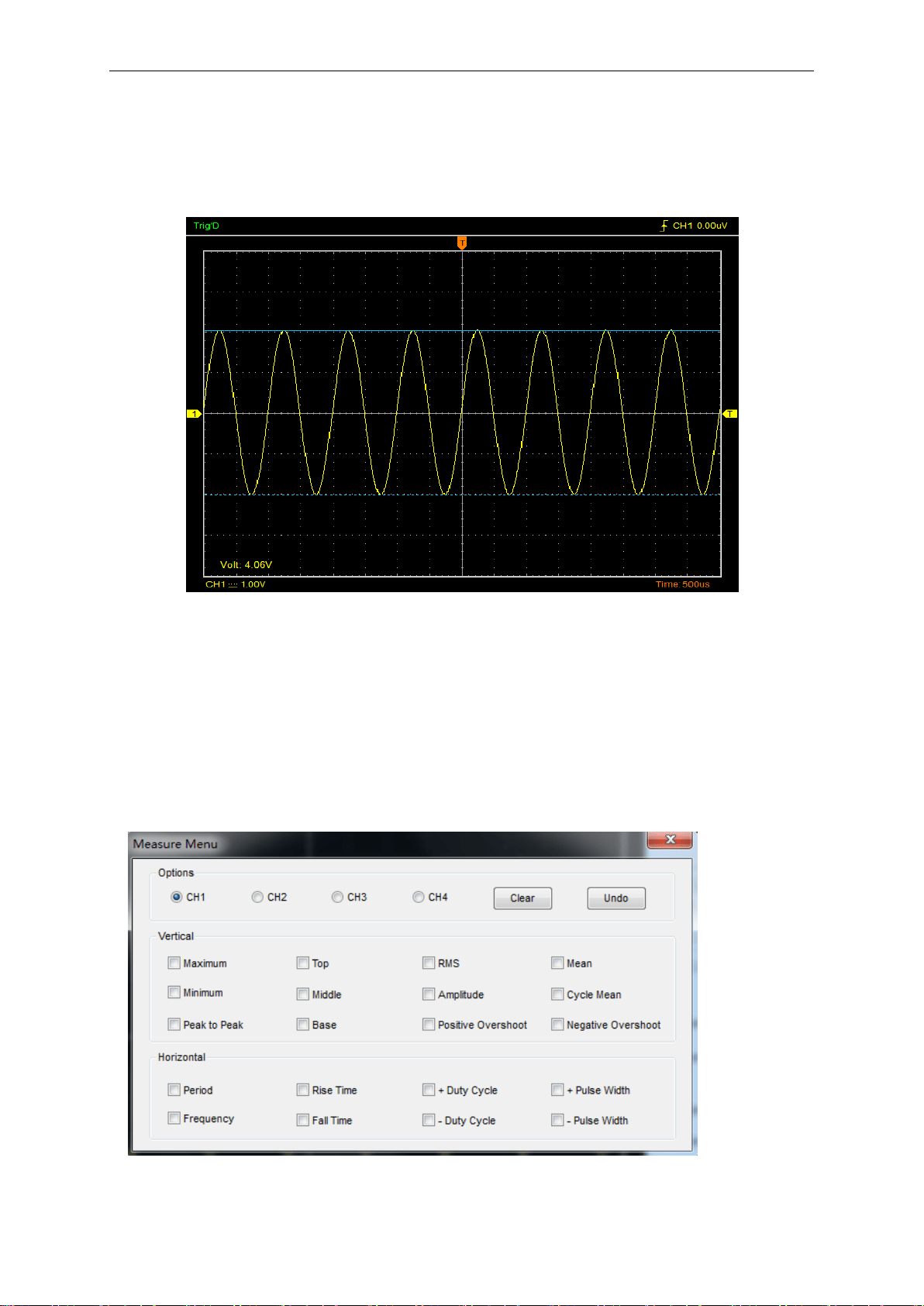
3)Horizontal
The Horizontal cursors appear as horizontal lines on the display and measure the horizontal
parameters.
The Horizontal cursor display window:
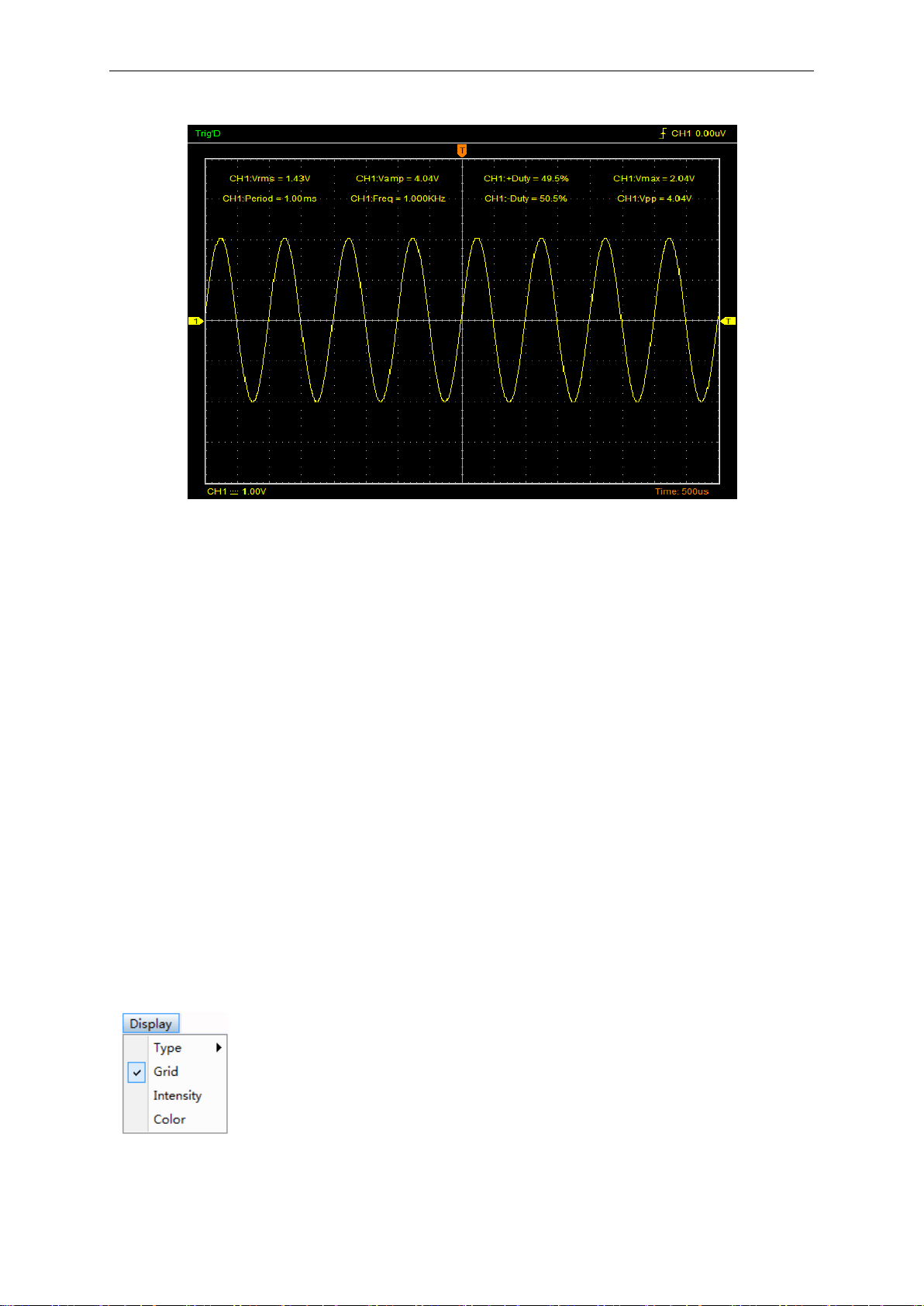
3.10.2 Measure Menu
Automatic Measurement: The oscilloscope performs all the calculations automatically in this
mode. As this measurement uses the waveform record points, it is more precise than the graticule
and cursor measurements. Automatic measurements show the measurement results by readouts
which are periodically updated with the new data acquired by the oscilloscope.
Edit Measure
Click “Measure->Edit”.
The oscilloscope provides 20 parametric auto measurements (12 voltage and 8 time
measurements).

Oscilloscope Functions
USER’S MANUAL 45
1.Options
The user can select a measure source CH1, CH2, CH3 or CH4.
2.Vertical
Maximum: Voltage of the absolute maximum level, Measured over the entire waveform
Minimum: Voltage of the absolute minimum level, Measured over the entire waveform
Peak To Peak: Peak-to-peak = Max –Min, Measured over the entire waveform
Top: Voltage of the statistical maximum level, Measured over the entire waveform
Base: Voltage of the statistical minimum level, Measured over the entire waveform
Middle: Voltage of the 50% level from base to top
RMS: The Root Mean Square voltage over the entire waveform
Amplitude: Amp = Base - Top, Measured over the entire waveform
Mean: The arithmetic mean over the entire waveform
Cycle Mean: The arithmetic mean over the first cycle in the waveform
Positive OverShoot: Positive Overshoot = (Max - Top)/Amp x 100 %, Measured over the entire
waveform
Negative OverShoot: Negative Overshoot = (Base - Min)/Amp x 100 %, Measured over the entire
waveform.
3.Horizontal
Period: Time to take for the first signal cycle to complete in the waveform
Frequency: Reciprocal of the period of the first cycle to complete in the waveform
Rise Time: Time taken from lower threshold to upper threshold
Fall Time: Time taken from upper threshold to lower threshold
+Duty Cycle: Positive Duty Cycle = (Positive Pulse Width)/Period x 100%, Measured of the first
cycle in waveform.
-Duty Cycle: Negative Duty Cycle = (Negative Pulse Width)/Period x 100%, Measured of the first
waveform.
+Pulse Width: Measured of the first positive pulse in the waveform. The time between the 50%
amplitude points
-Pulse Width: Measured of the first negative pulse in the waveform. The time between the 50%
amplitude points
4.Clear
Clear all measure items on display screen.
5.Undo
Undo all measure items on display screen.
Clear Measure
Click “Measure->Clear”.
Clear all measure items on display screen.
Oscilloscope Functions
USER’S MANUAL 46
The Measure Display Window:
3.11 The Display System
Display Type
Click “Type” in “Display” menu.
The following figure shows the type parameters setting.
Oscilloscope Functions
USER’S MANUAL 47
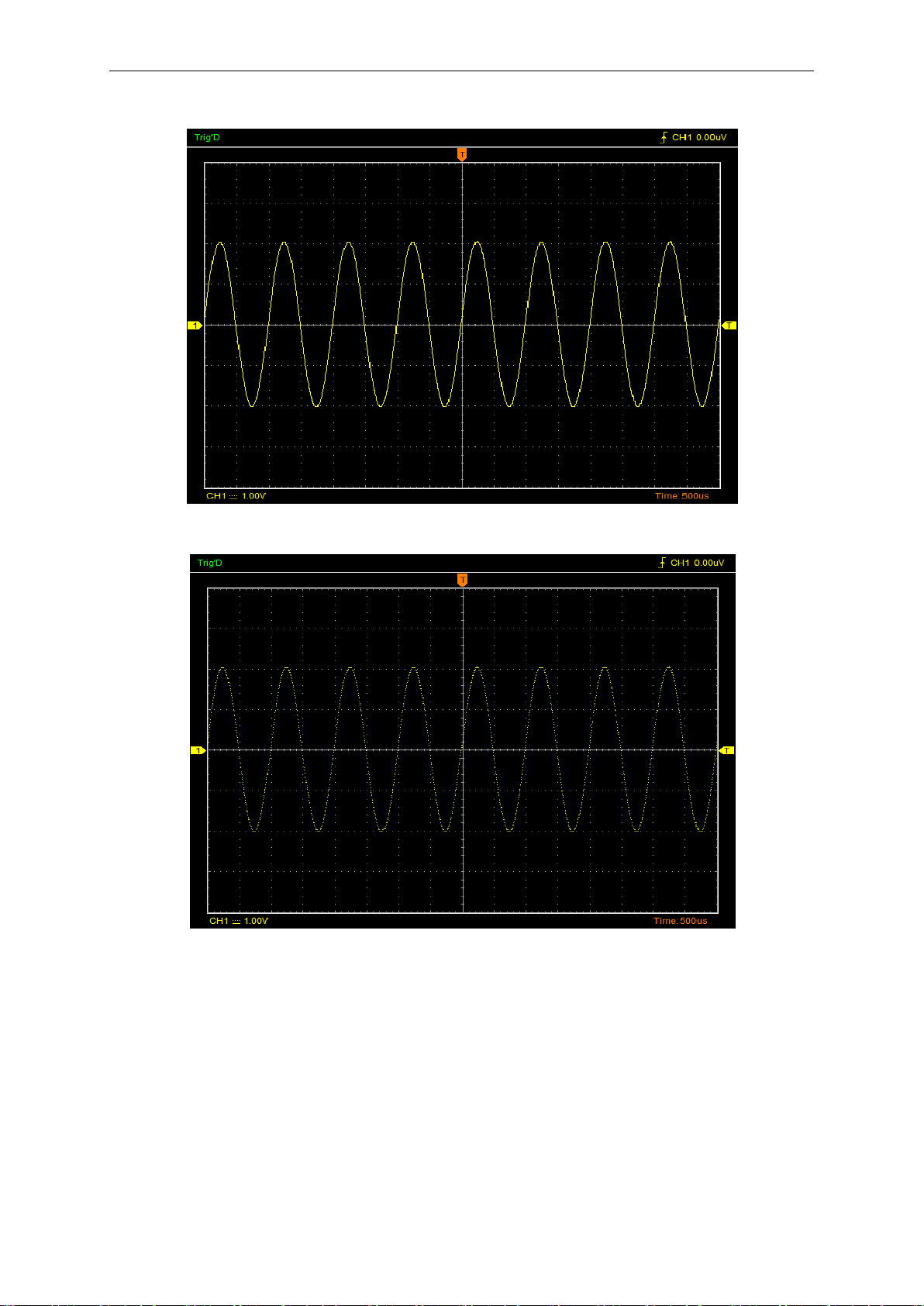
If the Vectors type mode is selected, the waveform will be displayed as following figure.
If the Dots type mode is selected, the waveform will be displayed as following figure.
Display Grid
Click “Display” in main menu.
Oscilloscope Functions
USER’S MANUAL 48
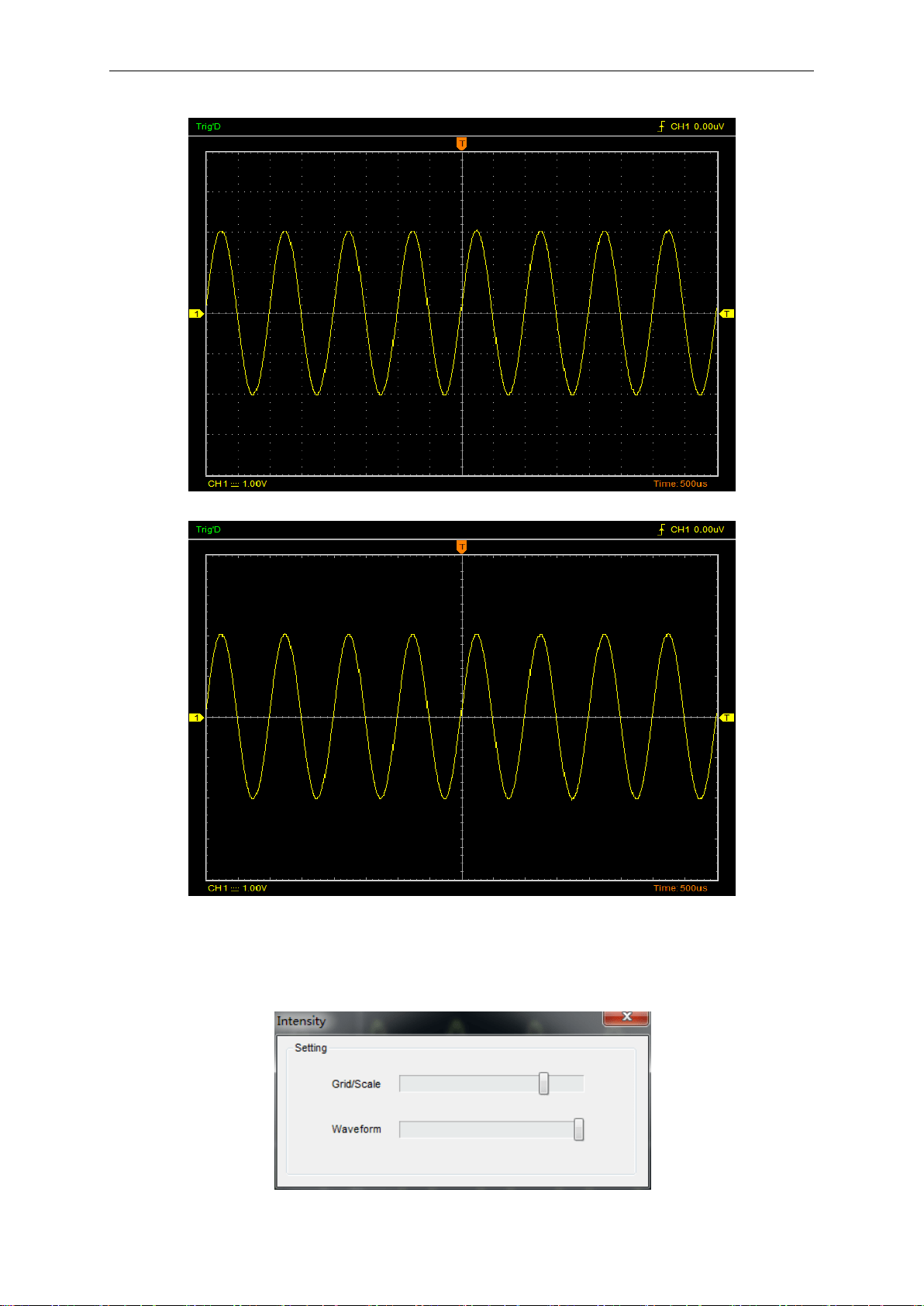
The grid shows:
The grid not shows:
Intensity
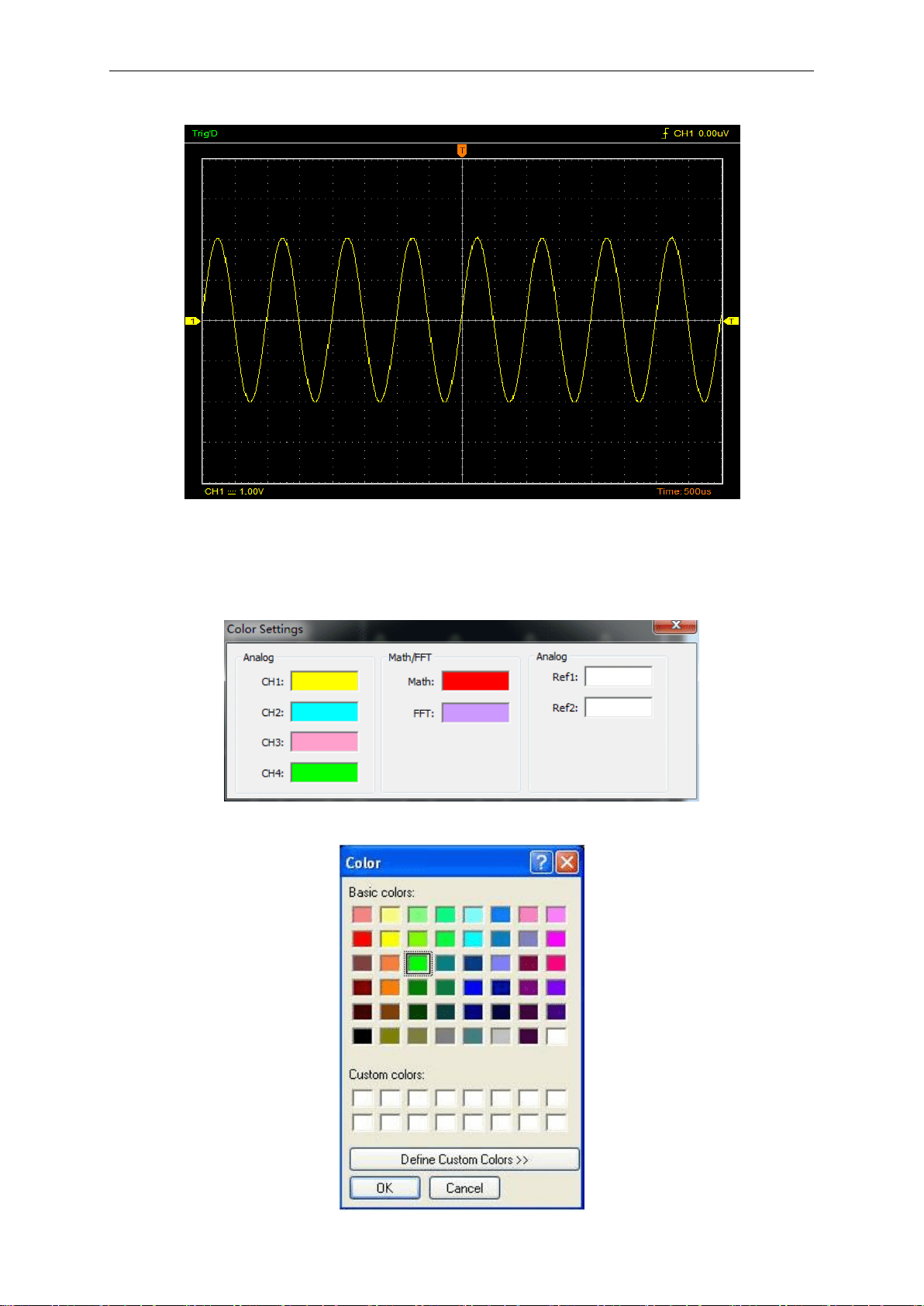
Click “Display->Intensity” in main menu.
The following figure shows the intensity dialog. It shows the display parameters setting.
Oscilloscope Functions
USER’S MANUAL 49
You can change the grid and waveform color intensity in this dialog.
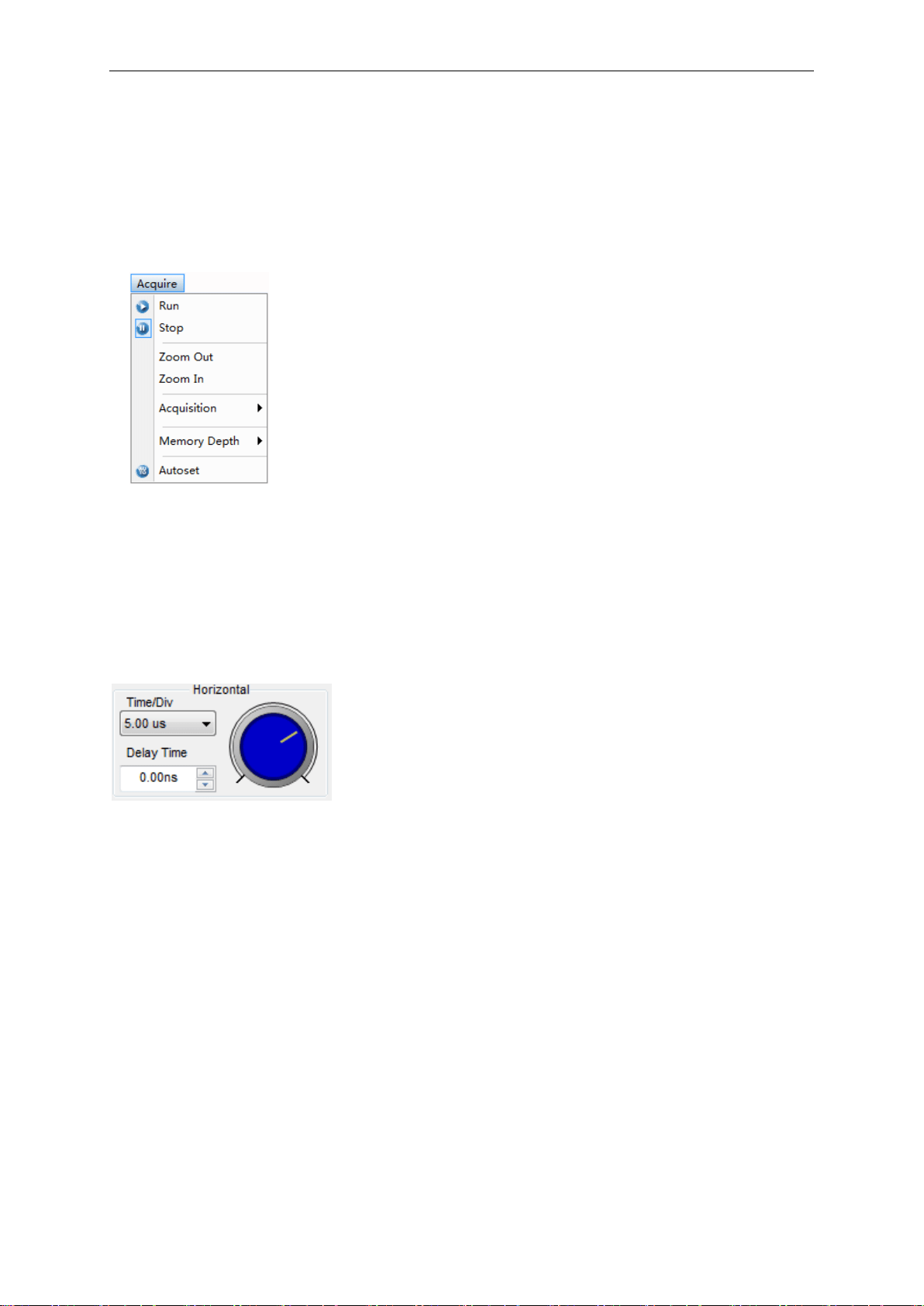
Waveform Color
Click “Display-> Color” in main menu.
The following figure shows the Color Setting dialog. It shows the waveform color setting.
If you click the color rectangle, the color dialog will be showed:
Oscilloscope Functions
USER’S MANUAL 50
3.12 Zoom In/Out and Move Waveforms
The software will stop updating waveform after the user clicked “Stop” button.
The user can change the waveform display by adjusting the scale and position. When you change
the scale, the waveform display will increase or decrease in size.
The channel reference indicator identifies each waveform on the display. The indicator points to the
reference level of the waveform record.
Zoom In/Out
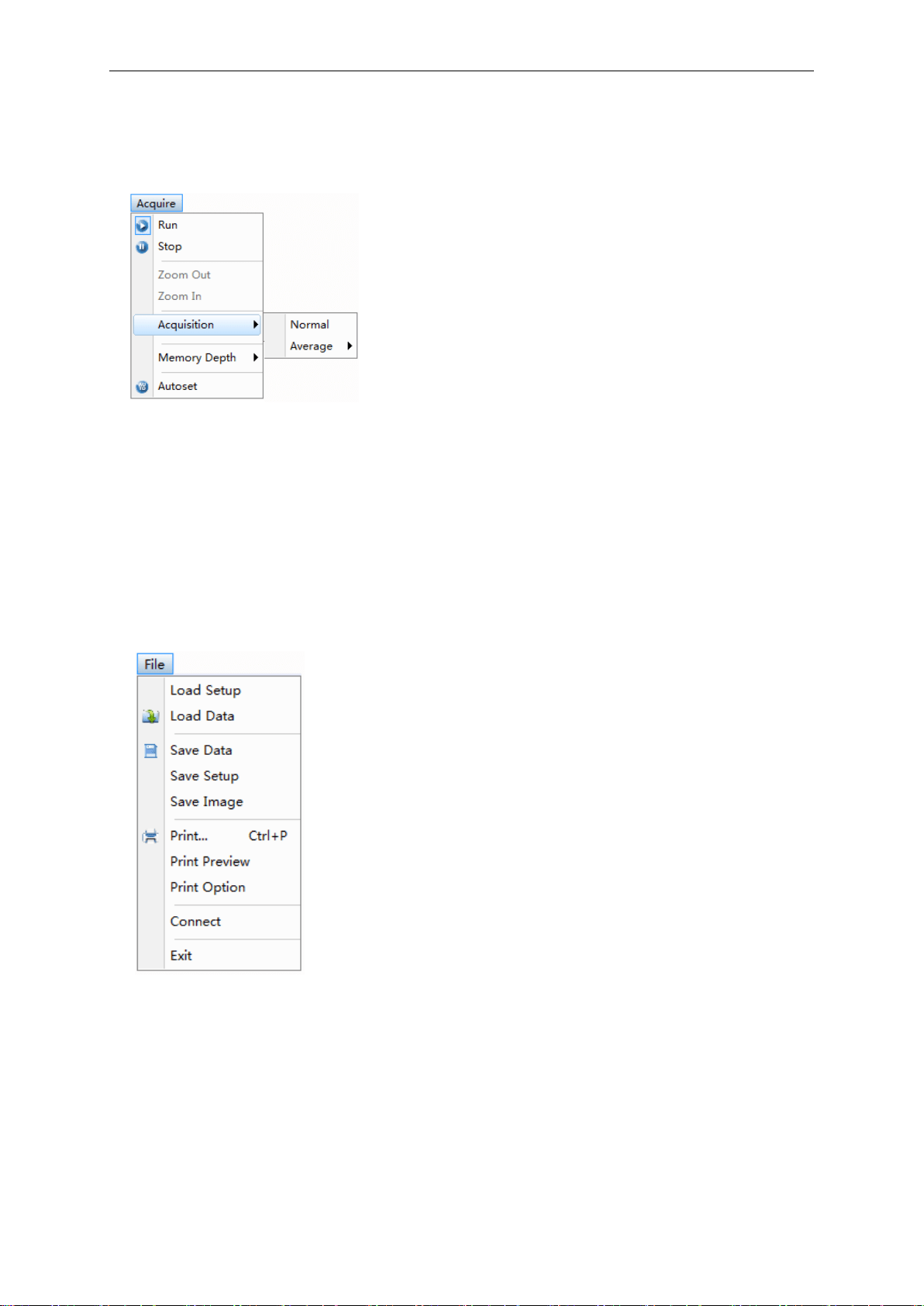
The user can click “Zoom In/Out” in “Acquire” menu, then left click the mouse button on display
screen to zoom in/out the waveform. Also the user can change Time/Div in Horizontal menu or
in Horizontal panel to zoom in/out the waveform.
Move Waveforms
The user can change “Delay Time” on the Horizontal Panel to move the waveform.
Oscilloscope Functions
USER’S MANUAL 51
3.13 Acquisition Modes
There are two acquisition modes: Normal and Average.
Normal: In this acquisition mode, the oscilloscope samples the signal in evenly spaced intervals to
construct the waveform.
Average: In this acquisition mode, the oscilloscope acquires several waveforms, averages them,
and displays the resulting waveform. You can use this mode to reduce random noise.
3.14 Print And Print Preview
1. Click “Print” in “File” menu to set the printer to print the current waveform.
2. Click the “Print Preview” in “File” menu to get into the Preview window.
In “Print Preview” window, use the “Zoom In” button and the “Zoom Out” button to change the
size of the waveform graph. Click the “Close” button to turn this window off and click the “Print”
button to print the report.

Application Example
USER’S MANUAL 53
4.1 Simple Measurement
To acquire and display a signal, please do the steps as follows:
1. Connect signal to CH1 by using probe.
2. Click the button on toolbar or “Acquire -> Autoset” on menu.
The DSO set the vertical, horizontal, and trigger controls at the best status automatically. Also,
you can adjust the controls to meet your measurement to optimize the waveform display.
To measure the frequency and “Vpp”, you can do these steps as follows:
1. Click the “Measure Menu->Horizontal->Frequency” button, the frequency of the signal will
display on the bottom of the waveform interface.
2. Click the “Measure Menu->Vertical->Peak-to-Peak” button, the “Vpp” of the signal will also
display on the bottom of the waveform interface.
To clear the measurement on the waveform interface, click the “Measure->Clear” button.

Application Example
USER’S MANUAL 54
4.2 Capturing a Single-Shot Signal
To capture a single event, it needs to gather some pre-test knowledge of the signal in order to set
up the trigger level and slope correctly. For example, if the event is derived from 3.3V COMS logic,
a trigger level of 1.2 or higher Volts should work on a rising edge. Do these steps as follows:
1. Set the probe and the channel attenuations to X 10.
2. Set up the trigger in the Trigger Menu, or in the Trigger Setting window.
1) Adjust the Trigger Mode to Edge.
2) Set the Trigger Sweep to Single.
3) Set the Trigger Source to CH1.
4) Set the Trigger Slope to “+” which means you select the rising edge.
5) Adjust the Volts/Div and the time base in a proper range for the signal.
6) Drag the trigger level sign on the waveform display screen to proper position. It ally higher a
little above the normal level.
7) Click button to start capturing. When the trigger conditions are met, data appears on the
display representing the data points that the oscilloscope obtained with one acquisition.
This function helps to capture the signal occurrence easily, such as the noise with large
amplitude; set the trigger level higher a little above the normal level and press and wait. When
noise occurs, the instrument will record the waveform before and after the trigger.
4.3 The Application of the X-Y Operation
X-Y Plot acts to analyze correlation of data of two channels. Lissajous diagram is displayed in the
screen when you use X-Y Plot, which enables to compare frequencies, amplitudes and phases of
counterpart waveform against the reference waveform. This makes it possible to compare and
analyze frequency, amplitude and phase between input and output.
Do these steps as follows:
1. Set the probe attenuation to “x10”. Set the switch to “x10” on the probes.
2. Connect the CH1 probe to the input of the circuit, and connect the CH2 probe to the output of
the circuit.
3. Click button.
4. Adjust the vertical scale and offset to display approximately the same amplitude signals on
each channel.
5. Select X-Y format at Horizontal window. The oscilloscope will displays a Lissajous pattern
representing the input and the output characteristics of the circuit.
6. Adjust the scale and offset of the horizontal and vertical to a desirable waveform display.
Application Example
USER’S MANUAL 55
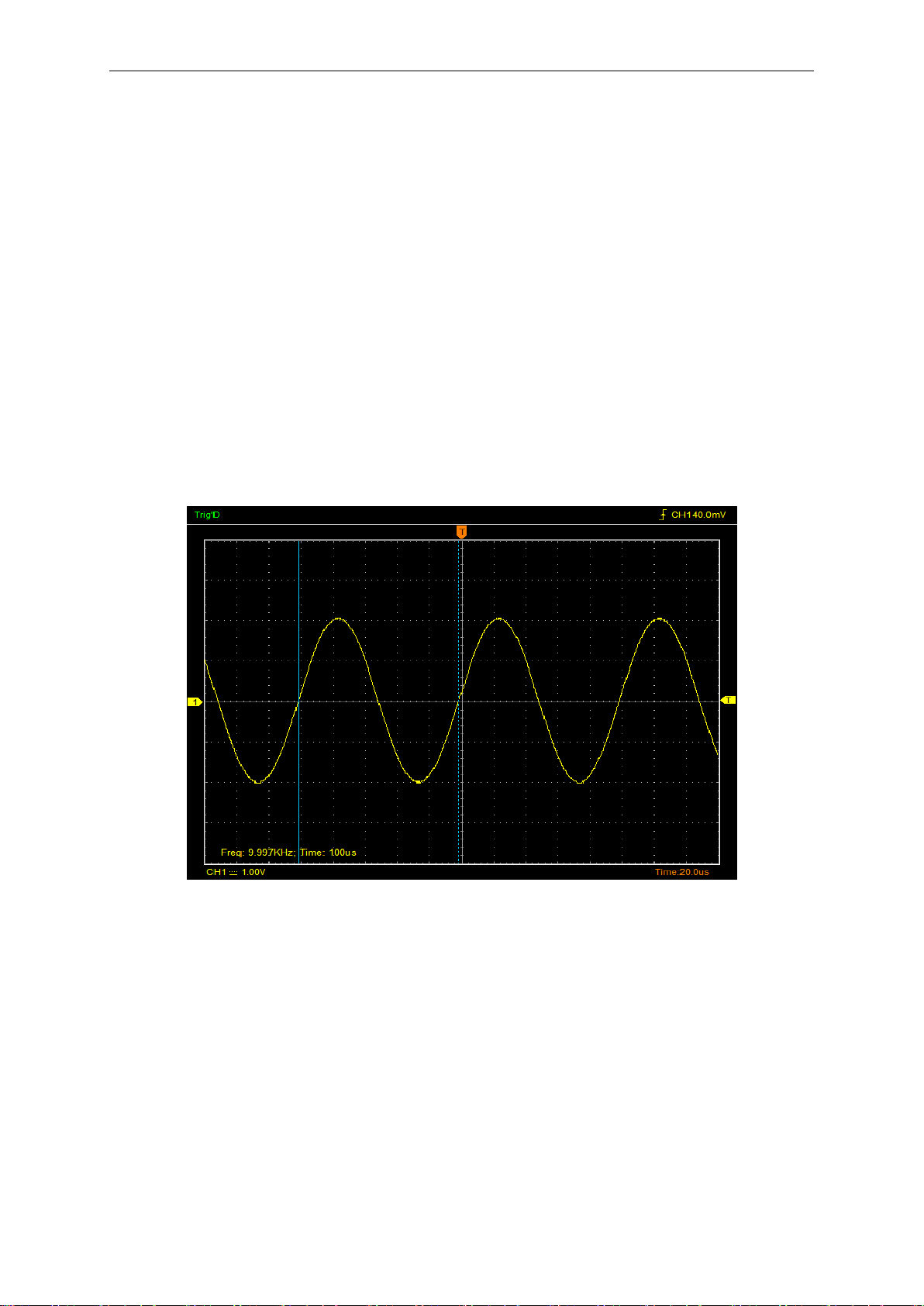
7. Apply the Ellipse Method to observe the phase difference between the two channels.
Signal in X-Y Format:
Instruction of the Ellipse Method
Sinθ = A/B or C/D, where θ = phase shift (in degrees) between the two signals.
From the formula above:
θ = _arcsine (A/B) or _arcsine (C/D)
θ must be in the range of (0~π/2) or (3π/2~2π) if the main axis of the ellipse is between I and III
quadrant, . If the main axis is at II and IV quadrant, θ must be in the range of (π/2~π) or (π~3π/2).
Application Example
USER’S MANUAL 56
4.4 Taking Cursor Measurements
Use cursors to make time and amplitude measurements on a waveform quickly.
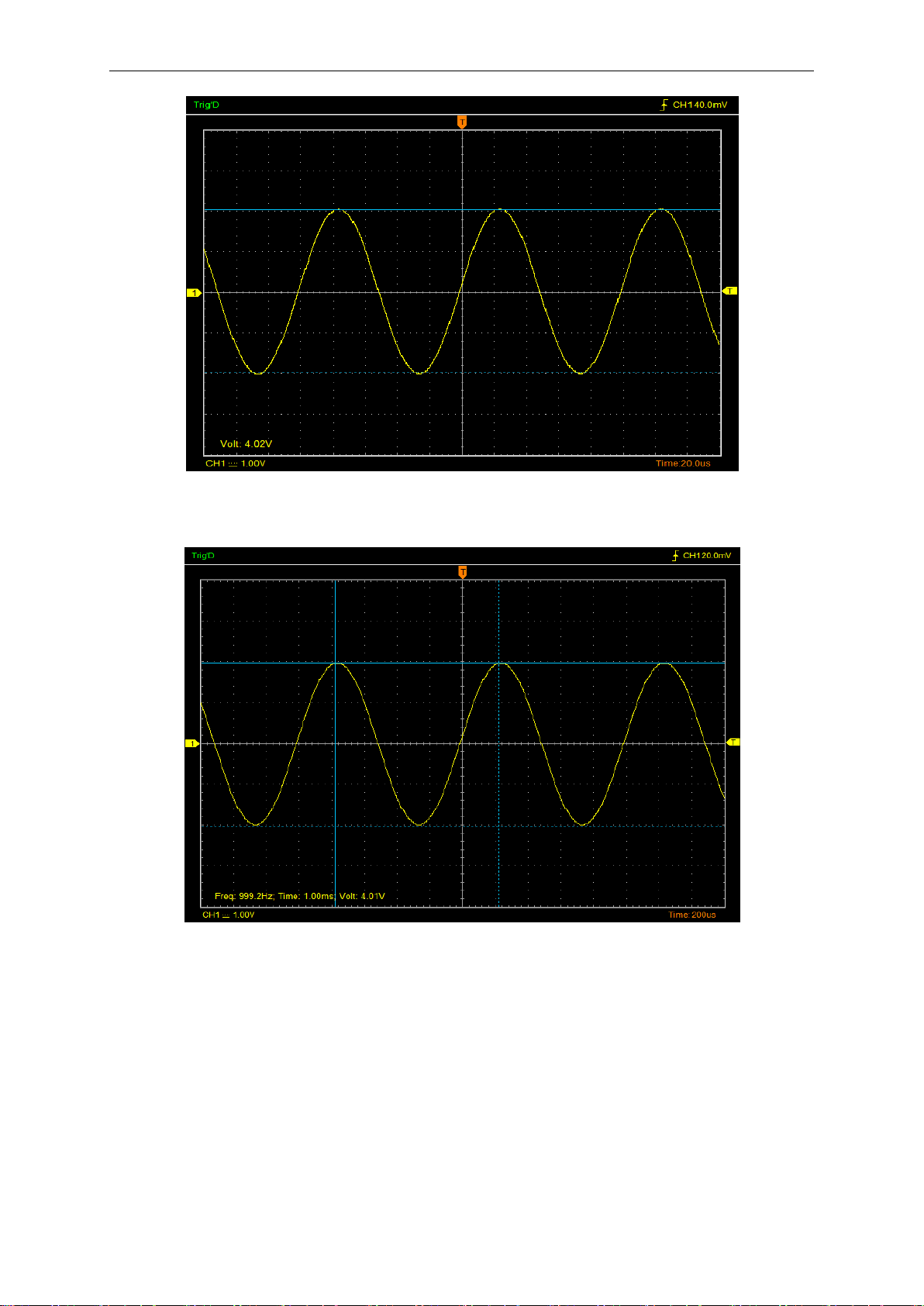
Measure the Peak Frequency or Time of the First Sine Waveform
Do these steps:
1. Click “Cursor->Source”, select CH1 (select CH2 if you want measure CH2).
2. Click “Cursor->Type”, select Vertical.
3. Push left mouse button, and the vertical lines appear.
4. Drag the mouse button to the point you want to measure.
5. Release the left mouse button, the frequency difference and time difference will be shown at
the status bar.
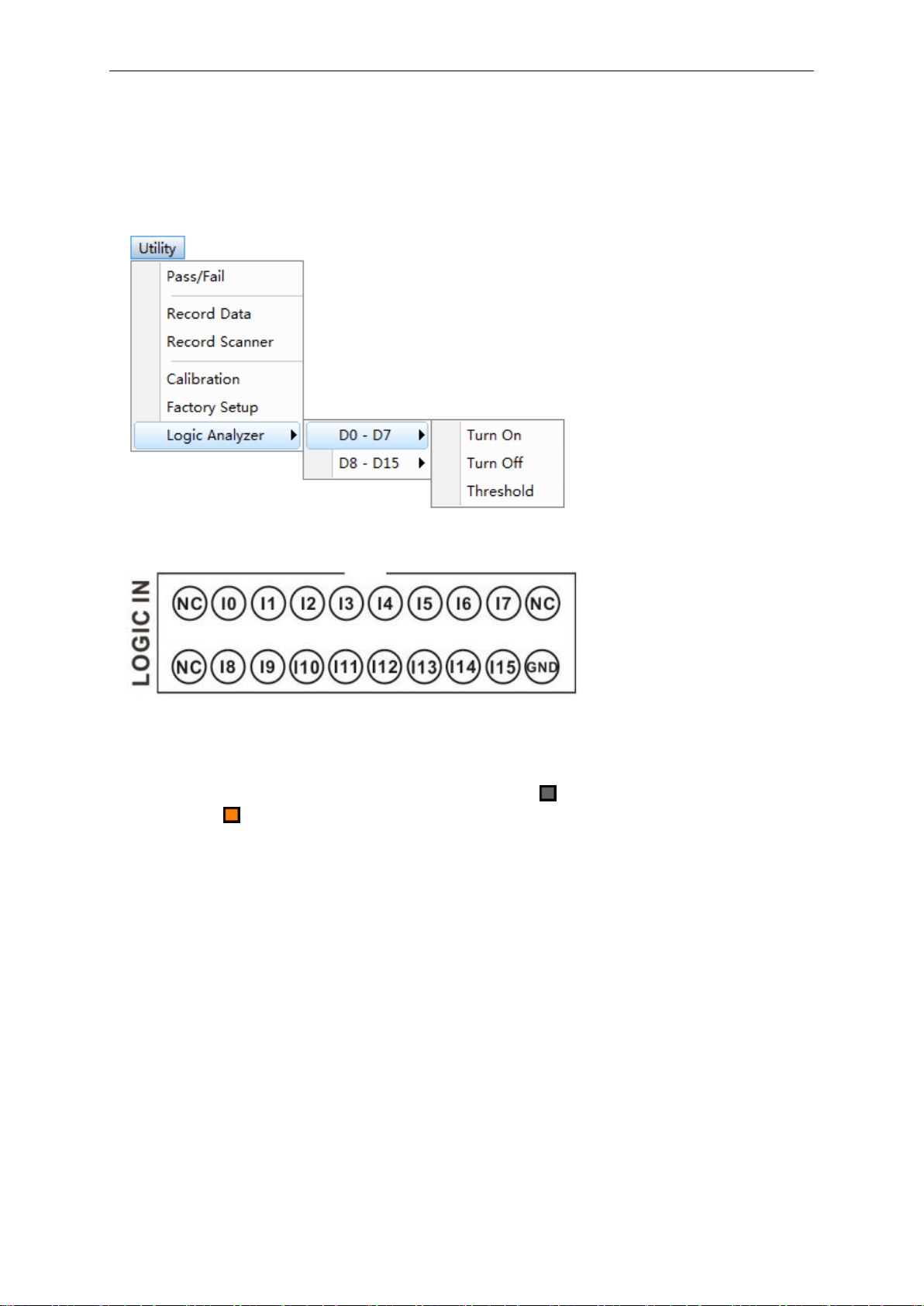
Measure the Frequency and Time:
Measure the Amplitude of the First Waveform Peak of the Waveform
Do these steps:
1. Click “Cursor->Source”, select CH1 (select CH2 if you want measure CH2).
2. Click “Cursor->Type”, select Horizontal.
3. Push left mouse button, and the Horizontal lines appear.
4. Drag the mouse button to the point you want to measure.
5. Release the left mouse button, the voltage difference will be shown at the status bar.
Measure the Amplitude:
Application Example
USER’S MANUAL 57
Note: Click “Cursor->Type”, select “Cross”, you can measure time and amplitude at one time.
Appendix
USER’S MANUAL 58
Chapter 5 Logic Analyzer Function
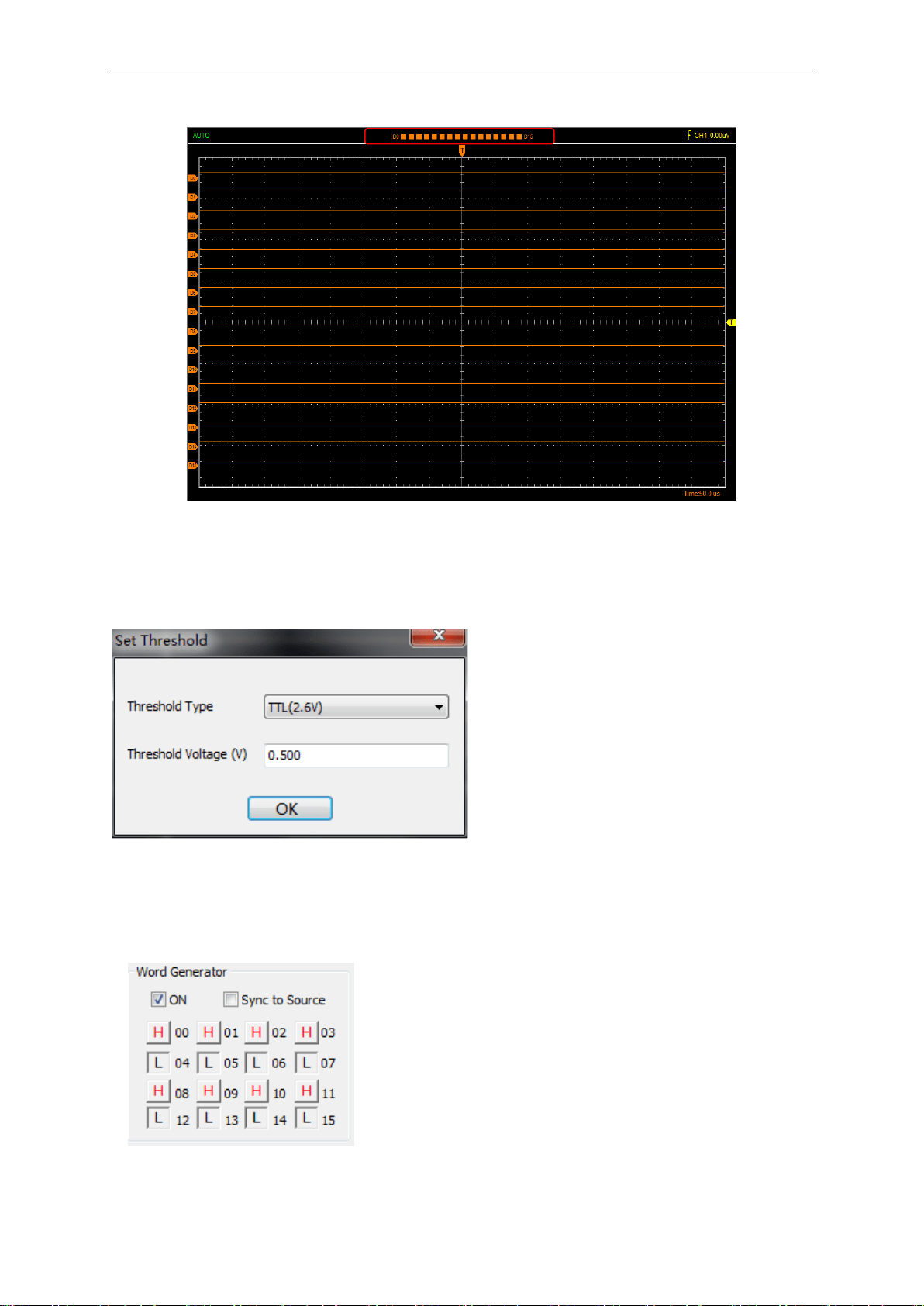
1. Set Bus
Click the menu “Utility -> Logic Analyzer”.
Logic Analyzer LOGIC IN ports,
DSO3000A(DSO3104A, DSO3204A, DSO3254A)has 16 signals, I0-I15, Corresponding to the
software on the display is D0 - D15.
You can assign parts of them. The user can click the panes under the waveform window. If the
pane is orange , it means that you have opened it. Also you can click " Utility -> Logic Analyzer
- > D0 -D7 or D8-D15" to open low eight or high eight.
Appendix
USER’S MANUAL 59
As following picture:
2. Set Threshold
Set TTL Threshold Voltage to 0.5V, and click “OK”.
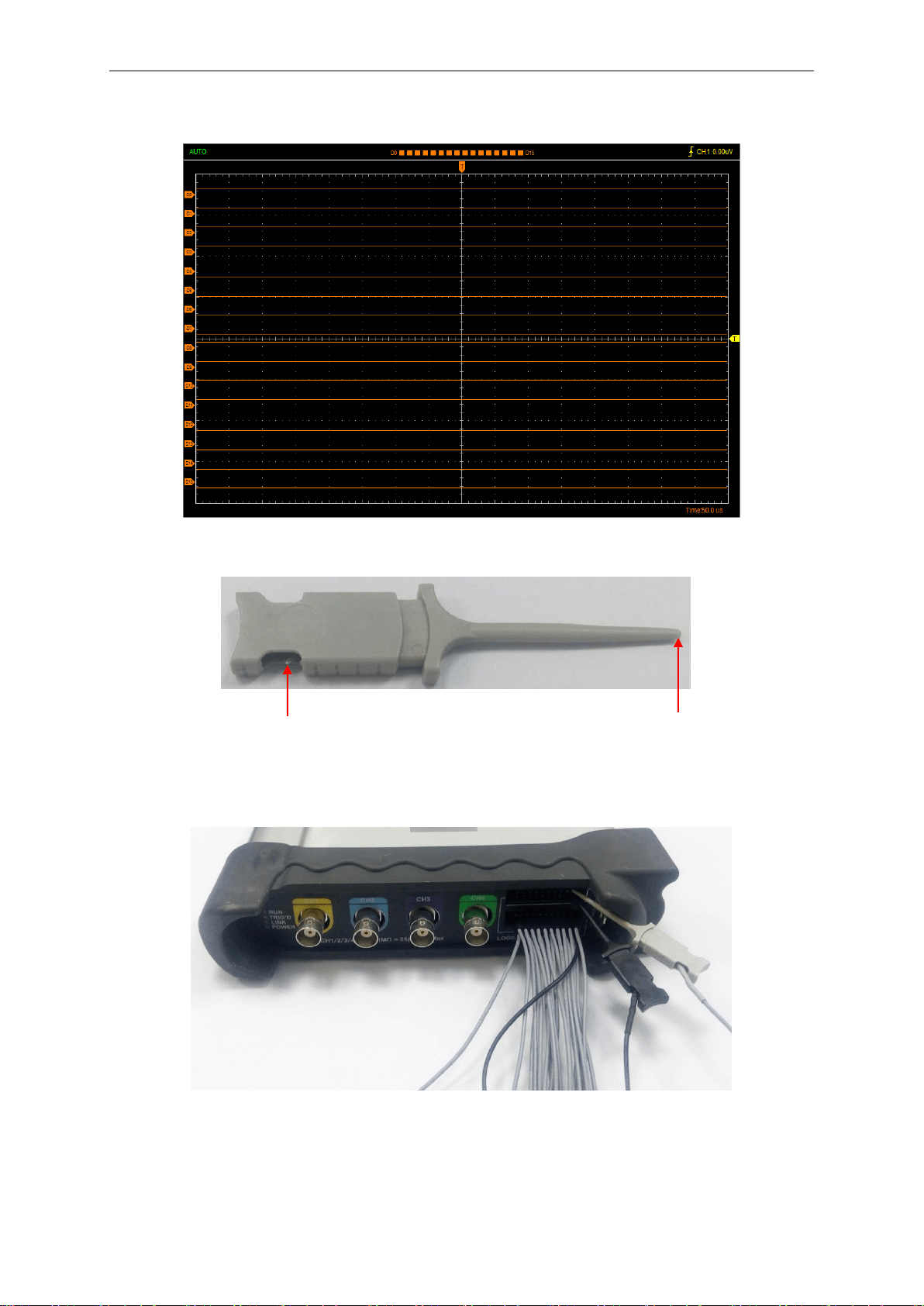
3. Logic analyzer measurement
Open Word Generator, and edit 00-15 output level HHHHLLLLHHHHLLLL.
Appendix
USER’S MANUAL 60
Through the LOGIC OUT port output to the LOGIC analyzer LOGIC IN port, measurement result is
shown in figure:
Use the test hooks
1. Connect logic analyzer exhaust line to the metal terminal.
2. Hook with the out signal output
1
2


Appendix
USER’S MANUAL 62
6.1 Generate Waveform
1.Generate the Sine waveform
To output a Sine Wave, please do the following steps:
1.Press the check box "Signal On" to open the wave output function.
2.Select the Signal Type "Sine ".
3.Set the Wave Parameter:
Frequency: Set the output wave frequency.
Amplitude: Set the output wave amplitude.
Y Offset: Set the output wave vertical level offset.
2.Generate the Square waveform
To output a Square Wave, please do the following Step:
1. Press the check box "Signal On" to open the wave output function.
2. Select the Signal Type "Square".
3. Set the Wave Parameters:
Frequency: Set the output wave frequency.
Amplitude: Set the output wave amplitude.
Y Offset: Set the output wave vertical level offset.
Duty: Set the duty of the output wave.
3.Generate the AM/FM waveform
To output an AM/FM Wave, please do the following Steps:
1. Press the check box "Signal On" to open the wave output function.
2. Select the Wave Type "AM/FM".
3. Set the Wave Parameters:
Frequency: Set the output wave frequency.
Amplitude: Set the output wave amplitude.
Y Offset: Set the output wave vertical level offset.

Appendix
USER’S MANUAL 63
High Frequency: Set the output wave High Frequency.
Depth: Set the output wave Depth.
Max Frequency: Set the output wave Max Frequency.
FM: Change the output wave "AM" into "FM".
4.Generate the Ramp waveform
To output a Ramp Wave, please do the following steps:
1. Press the check box "Signal On" to open the wave output function.
2. Select the Wave Type "Ramp".
3. Set the Wave Parameters:
Frequency: Set the output wave frequency.
Amplitude: Set the output wave amplitude.
Y Offset: Set the output wave vertical level offset.
Duty: The duty of the output wave.
5.Generate the Trapezia waveform
To output a Trapezia wave, please do the following steps:
1. Press the check box "Signal On" to open the wave output function.
2. Select the Wave Type "Trapezia".
3. Set the Wave Parameters:
Frequency: Set the output wave frequency.
Amplitude: Set the output wave amplitude.
Y Offset: Set output wave vertical level offset.
Rise Duty: Set the output wave rise duty.
High Duty: Set the output wave high duty.
Fall Duty: Set the output wave fall duty.
6.Generate the Gaussian waveform
To output a Gaussian Wave, please do the following steps:
1. Press the check box "Signal On" to open the wave output function.
Appendix
USER’S MANUAL 64
2. Select the Wave Type "Gaussian".
3. Set the Wave Parameters:
Frequency: Set the output wave frequency.
Amplitude: Set the output wave amplitude.
Y Offset: Set output wave vertical level offset.
7.Generate the Arb. waveform
To output an Arbitrary Waveform, please do the following steps:
1. Press the check box "On/Off" to open the wave output function.
2. Select the Wave Type "Arb.".
3. Set the Wave Parameters:
Frequency: Set the output wave frequency.
4. Set the output wave.
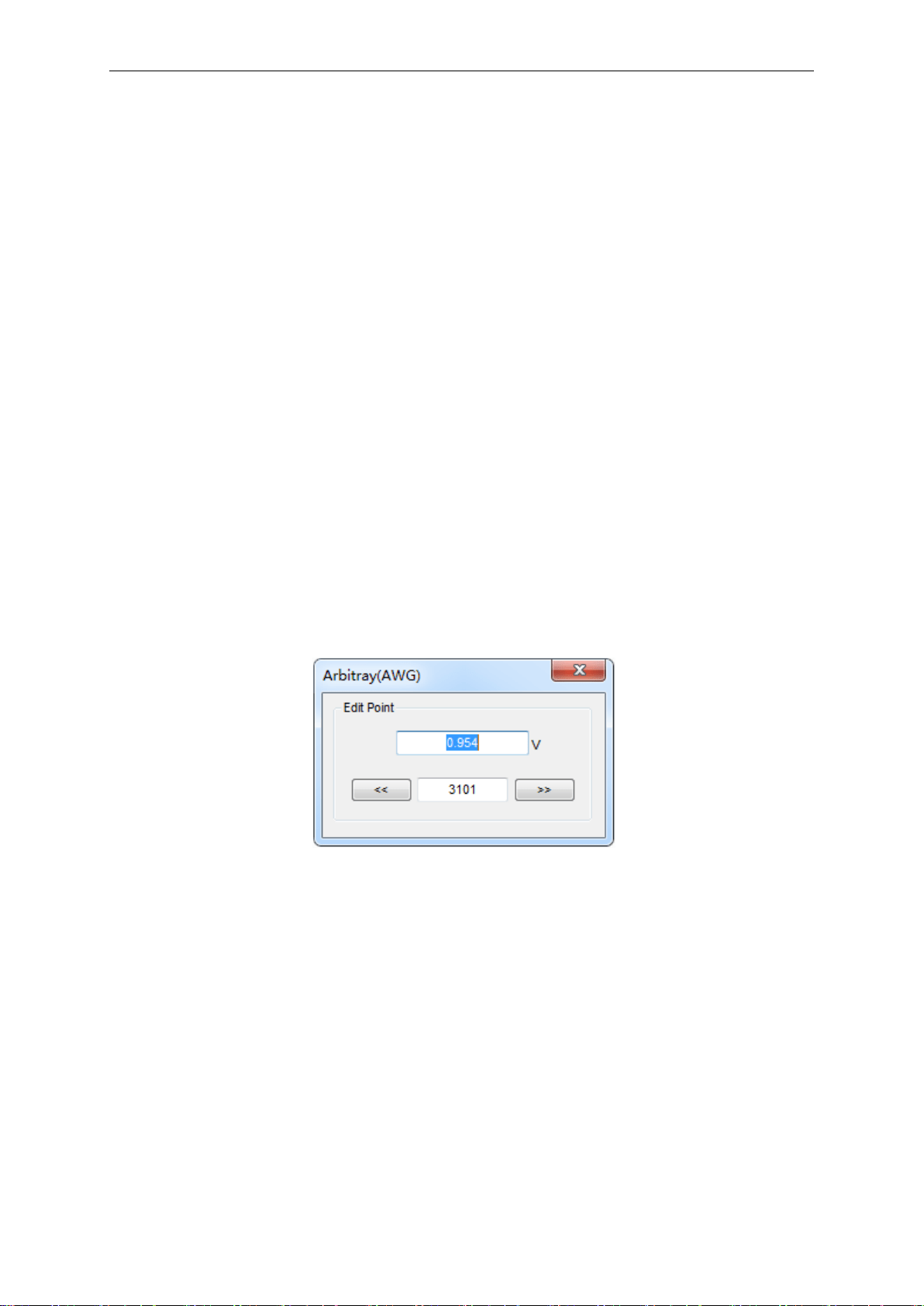
The user can drag the mouse to draw arbitrary waveform. Also you can double click the waveform
display area to open arbitrary wave editor window, and edit the voltage of every points.
After the completion of the set, click “Download” to output Arbitrary Waveform.
8.Generate the Exponent waveform
To output an Exponent Waveform, please do the following steps:
1. Press the check box "On/Off" to open the wave output function.
2. Select the Wave Type "Exponent".
3. Set the Wave Parameters:
Frequency: Set the output wave frequency.
Amplitude: Set the output wave amplitude.
Appendix
USER’S MANUAL 65
Y Offset: Set the output wave vertical level offset.
Tao: Set the output wave Tao parameter.
Rise: Set the output wave slope.
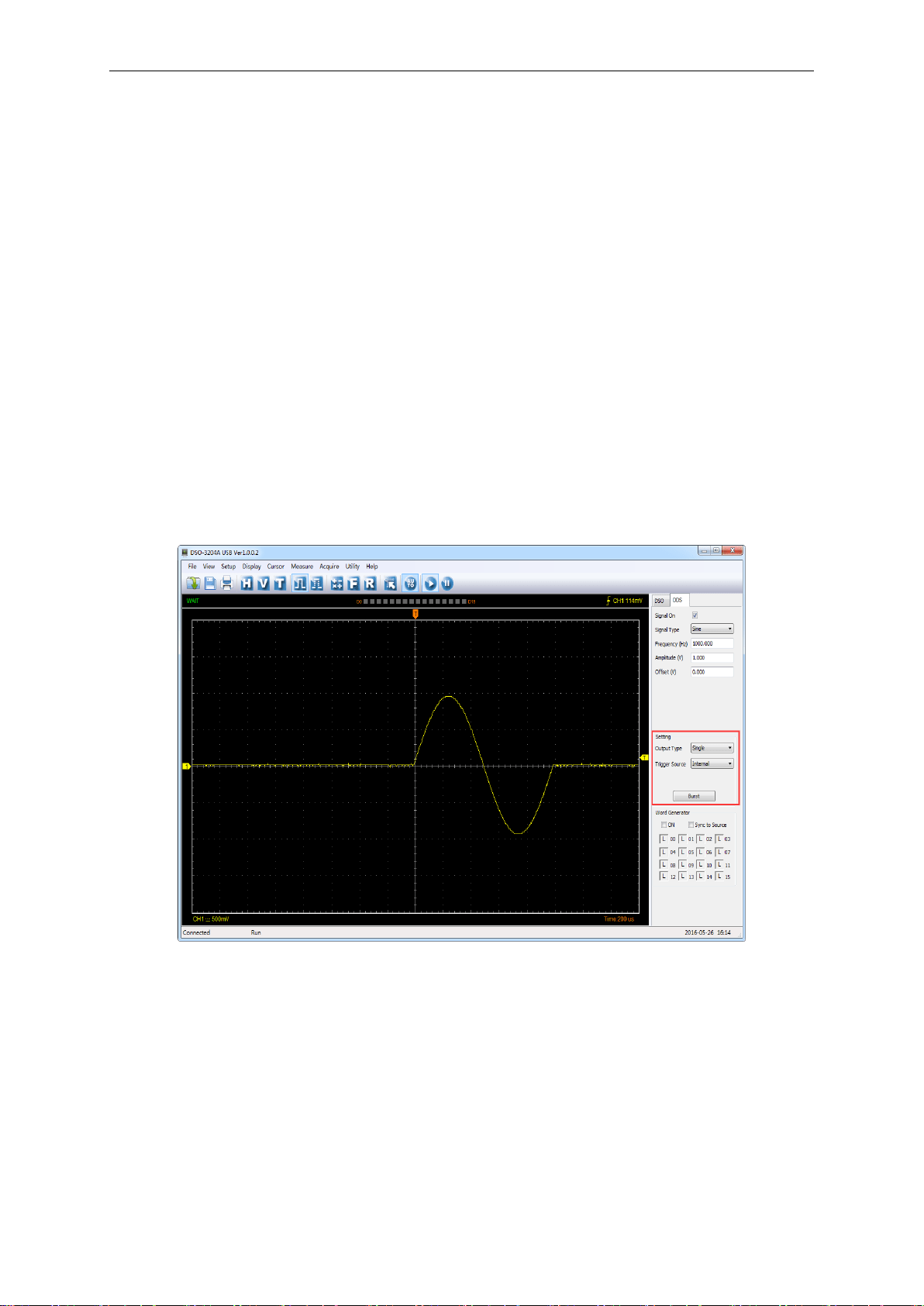
Waveform output Setting
Output type:
Single: The waveform output only once. The user selects "Single", and clicks "Burst". Each time
you press, there will be output at a time.
Continue: Continue to output waveform.
Waveform generator is set to internal and external trigger. The oscilloscope trigger mode is set to
internal, that can measure waveform as follows:
Appendix
USER’S MANUAL 66
6.2 Synchronized output
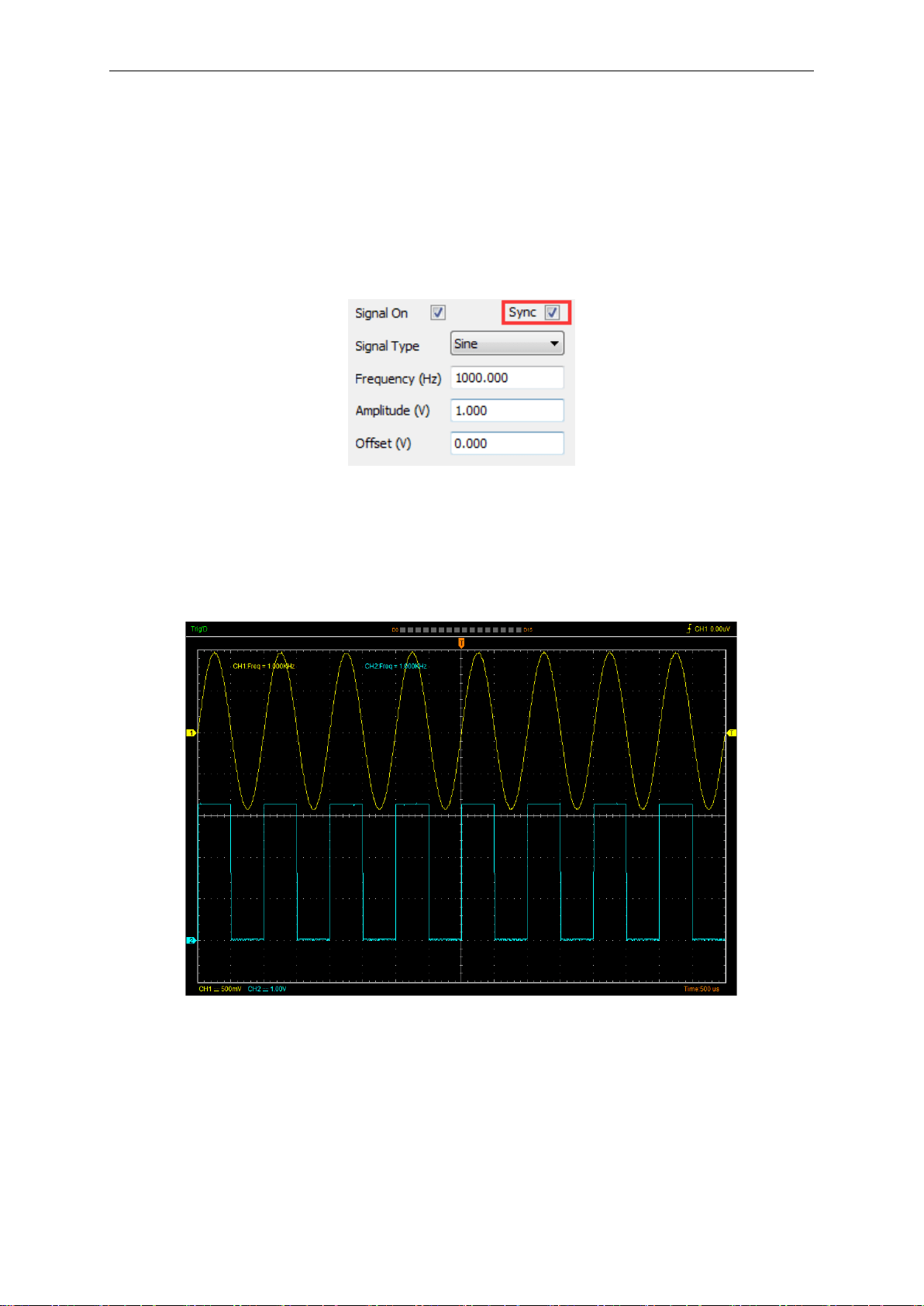
If you generate a waveform by software, there is a synchronized signal output from “SYNC”
terminal. The signal is square waveform, the frequency of which is equal to the waveform you
generated. For example, if you generated a 1 KHz, sine waveform, you will also generate an 1 KHz,
square waveform simultaneously.
The software setting is following figure.
Signal On: Open signal output
Sync: Open Synchronized output
The waveform on CH1 is the sine waveform you generated from the “OUTPUT” terminal, and that
on CH2 is the synchronized signal from “SYNC OUT” ports.
Appendix
USER’S MANUAL 67
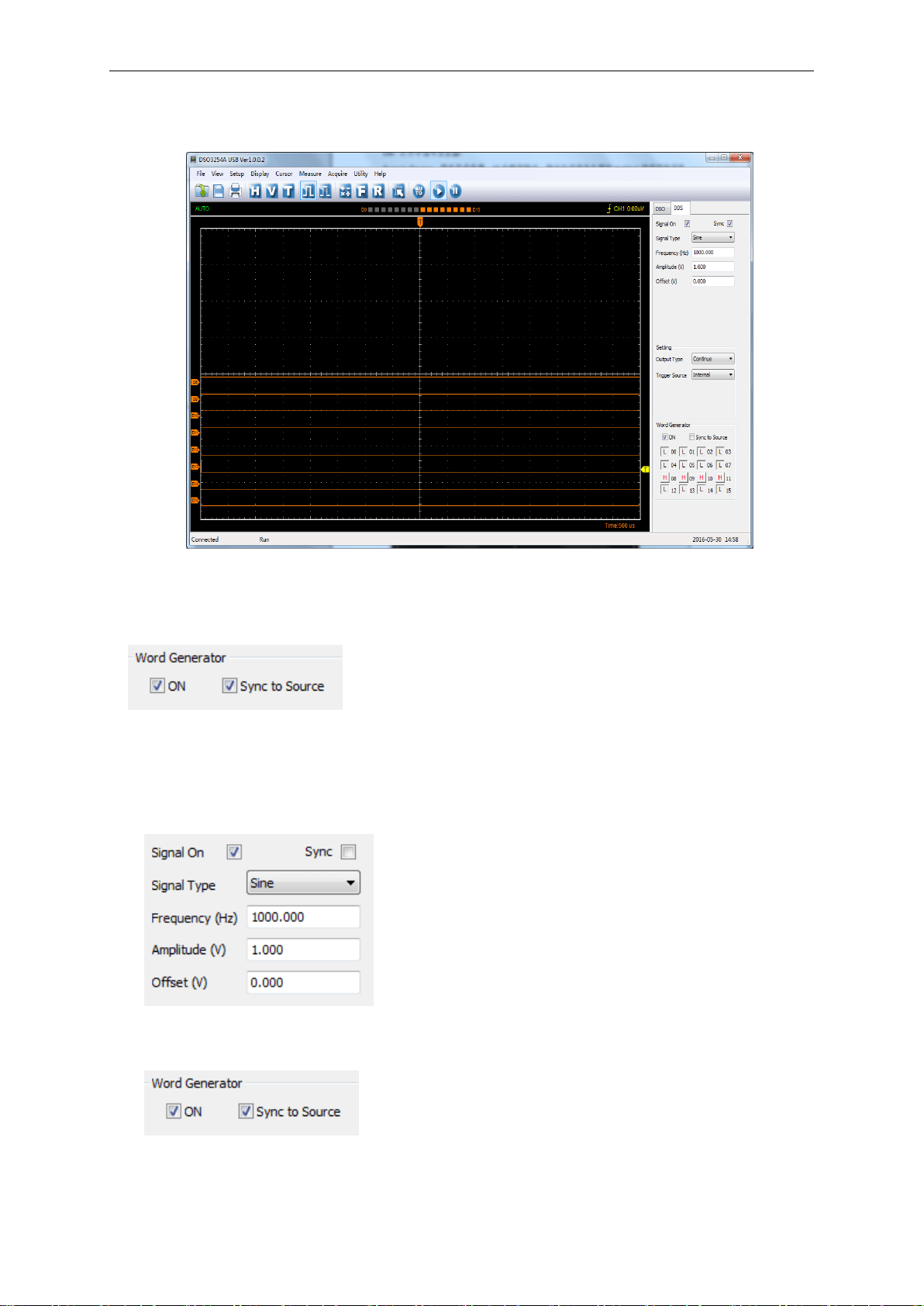
6.3 Digital Generator
ON:Open Digital Generator
Sync to Source:Synchronized to Source, 16 bits digital output. The signal is the same to the
signal from Waveform Generator OUTPUT.
00-15:16 bits digital channel
LOGIC OUT:16 Channel Digital generator output ports:
The user can edit the 00-15 high-low level, and output by LOGIC OUT port.
For example, set low eight to HHHHLLLL to LOGIC analyzer LOGIC IN port. The measurement
result as following figure:
Appendix
USER’S MANUAL 68
For example, set high eight to HHHHLLLL to LOGIC analyzer LOGIC IN port. The measurement
result as following figure.
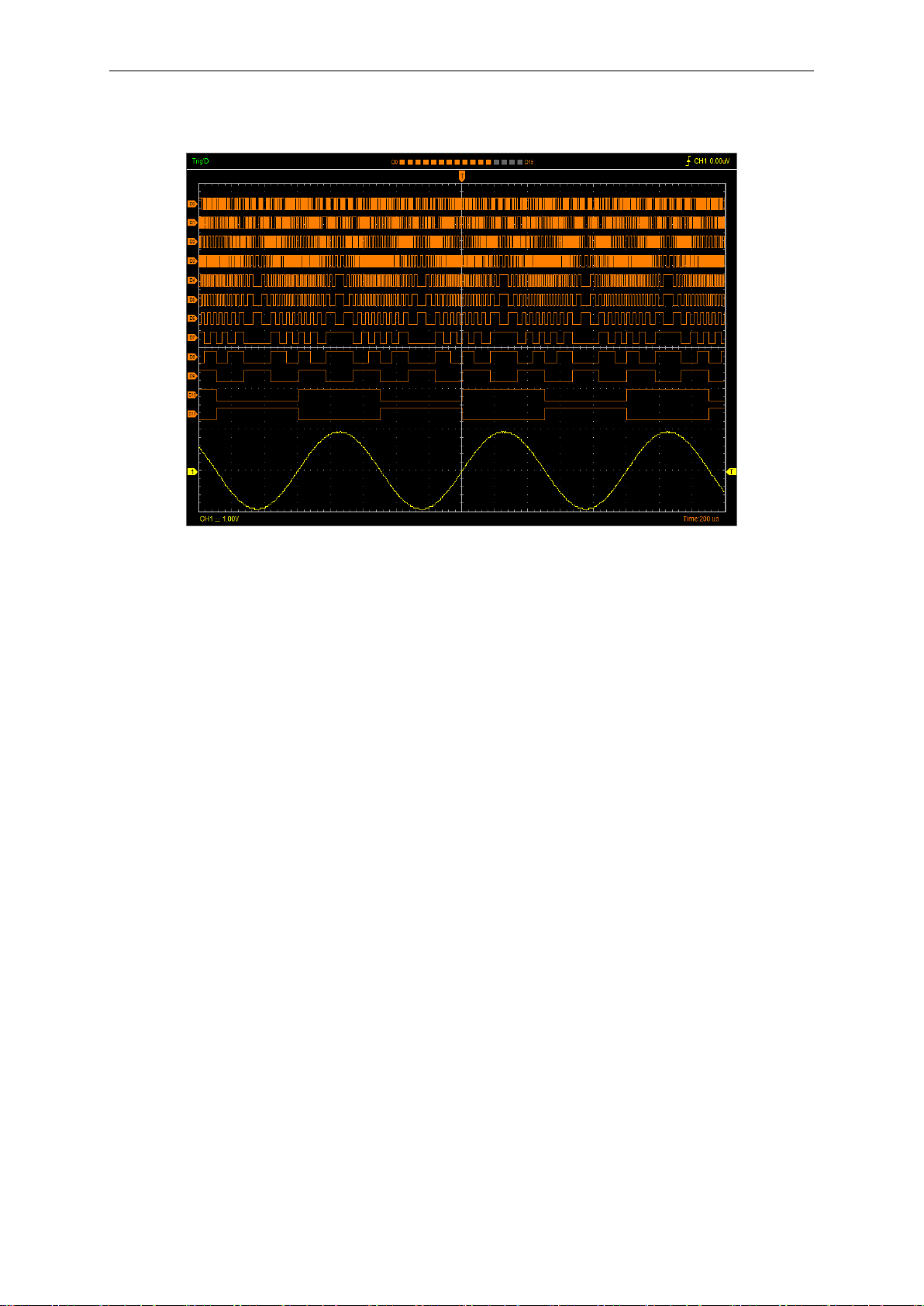
Sync to Source:Synchronized to Source
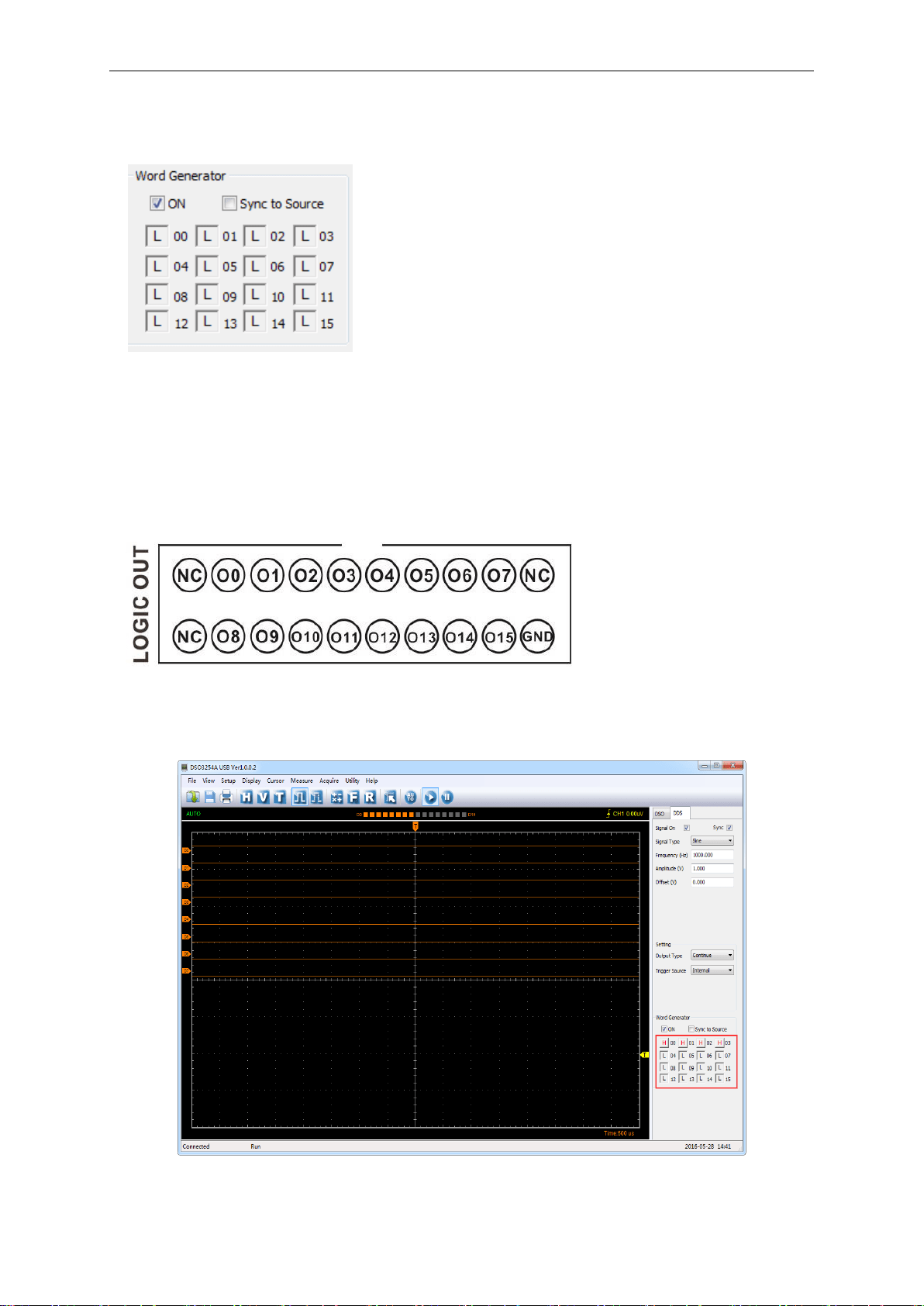
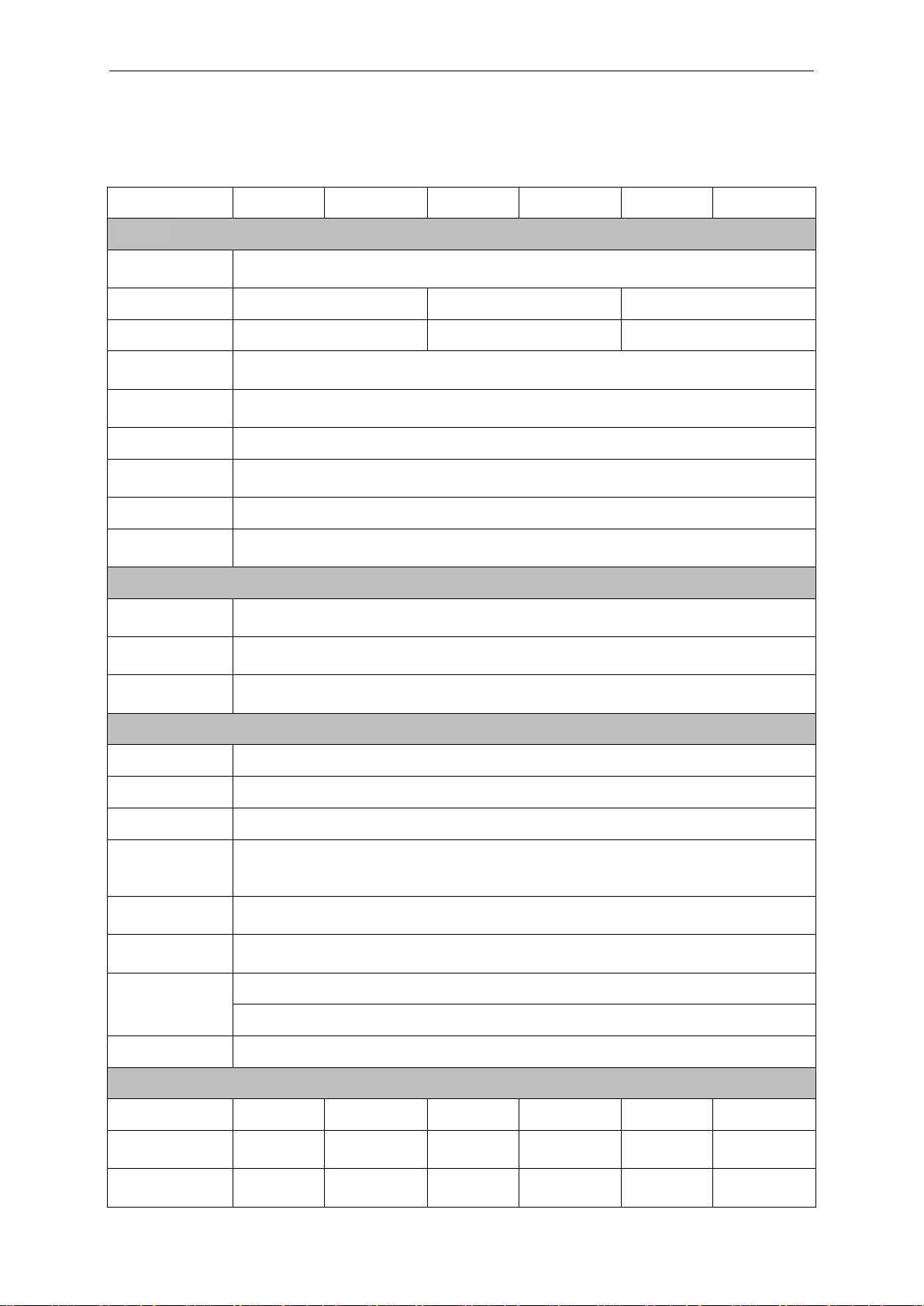
For example, measure the output of Sync to Source by LOGIC analyzer.
1.Open waveform output, Select the Signal Type to "Sine ", frequency to “1000Hz”, Amplitude to
1V,Y Offset to 0V。
2.Select Sync to Source
Appendix
USER’S MANUAL 69
3.Connect Digital Generator LOGIC OUT of 00-11 ports to LOGIC Analyzer LOGIC IN of 00-11
ports. The measurement result as following figure:

Appendix
USER’S MANUAL 71
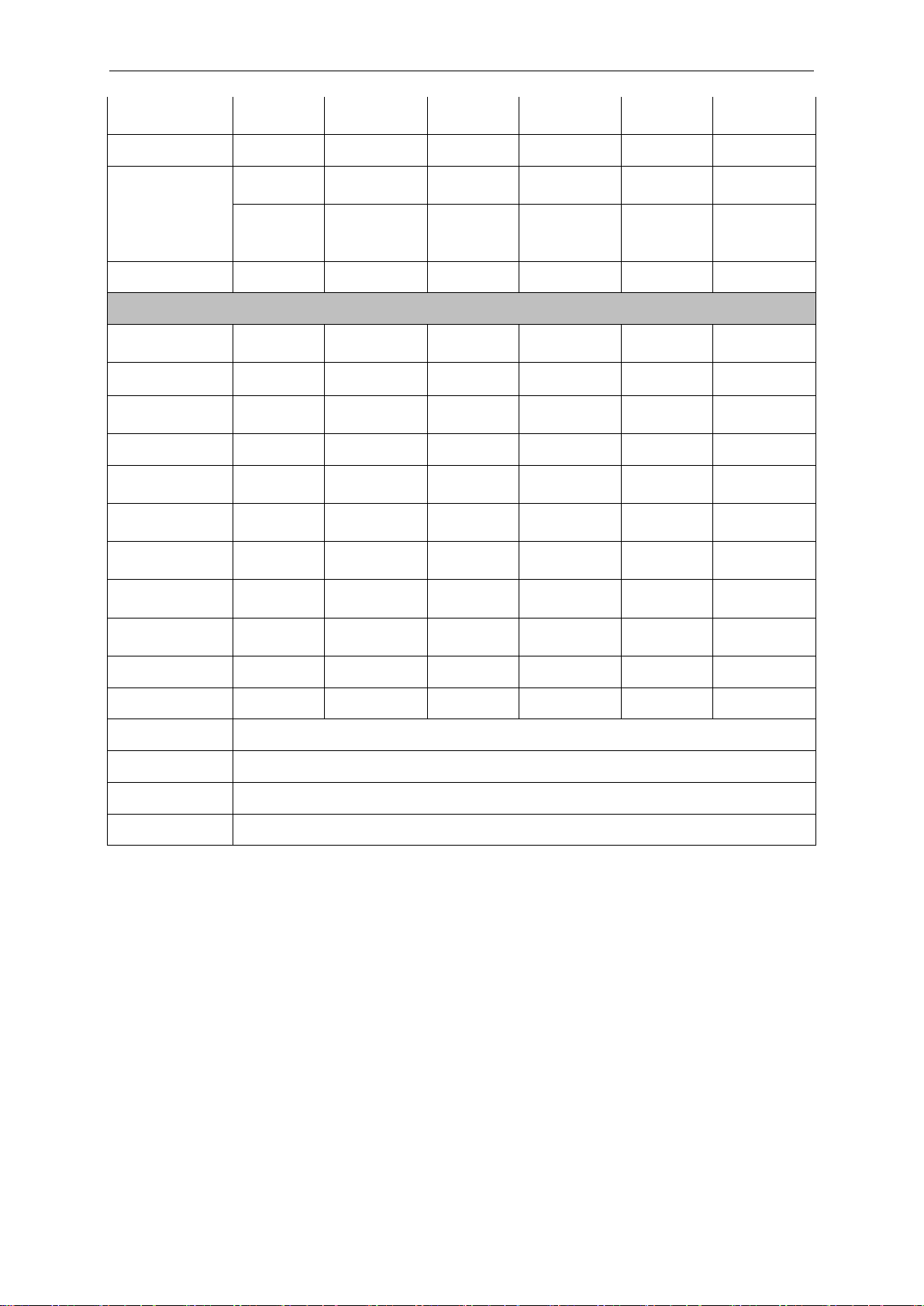
Appendix A: Specifications
Specifications Table:
Model
DSO3104
DSO3104A
DSO3204
DSO3204A
DSO3254
DSO3254A
Vertical
Analog
Channel
4
Bandwidth
100MHz
200MHz
250MHz
Rise Time
3.5ns
1.7ns
1.4ns
Input
Impedance
Resistance: 1MΩ; Capacitance: 25 pF
Input
Sensitivity
1mV/div to 10V/div
Input Coupling
AC/DC/GND
Vertical
Resolution
8 bits
Memory Depth
1.6K-128M/CH(1.6K, 16K, 160K, 1.6M, 16M, 32M, 64M, 128M)
Input
Protection
400V (DC+AC Peak)
Horizontal
Real-Time
Sampling Rate
1GSa/s
Time Base
Range
2ns/div to 1000s/div
Time Base
Precision
±50ppm
Trigger
Source
CH1, CH2, CH3, CH4, EXT/10
Mode
Edge, Pulse, Video, Slope and Timeout
Type
Single, Auto, Normal
Voltage
Measurement
Vpp, Vamp, Vmax, Vmin, Vtop, Vmid, Vbase, Vavg, Vrms, Vcrms, Preshoot,
Overshoot, Frequency, Period, Rise Time, Fall Time, Positive Width, Negative
Width, Duty Cycle
Cursors
Measurement
Horizontal , Vertical, Cross
Waveform
Signal Process
+,- , x,÷, FFT, Invert
Voltage Range
1mV to 10V/div @ x 1 probe; 10mV to 100V/div @ x 10 probe;
100mV to 1KV/div @ x 100 probe; 1V to10KV/div @ x 1000 probe;
FFT
Rectangular, Hanning, Hamming, Blackman Window
Logic Analyzer
Channel
--
16CH
--
16CH
--
16CH
High input
impendence
--
200KΩ
(C=10pF)
--
200KΩ
(C=10pF)
--
200KΩ
(C=10pF)
Input Voltage
range
--
-60V~60V
--
-60V~60V
--
-60V~60V
Appendix
USER’S MANUAL 72
Max Sample
Rate
--
250MSa/s
--
250MSa/s
--
250MSa/s
Bandwidth
--
10MHz
--
10MHz
--
10MHz
Compatible
input
--
TTL,LVTTL
CMOS,
--
TTL,LVTTL
CMOS,
--
TTL,LVTTL
CMOS,
--
LVCMOS,
ECL.
PECL,EIA
--
LVCMOS,
ECL
PECL,EIA
--
LVCMOS,
ECL
PECL,EIA
Storage depth
--
1.6K~64M
--
1.6K~64M
--
1.6K~64M
Waveform Generator Mode
Waveform
Frequency
--
DC~25MHz
--
DC~25MHz
--
DC~25MHz
DAC
--
2K~200MHz
adjustable
--
2K~200MHz
adjustable
--
2K~200MHz
adjustable
Frequency
Resolution
--
0.10%
--
0.10%
--
0.10%
Channel
--
1CH
--
1CH
--
1CH
Waveform
Depth
--
4K
--
4K
--
4K
Vertical
Resolution
--
12bits
--
12bits
--
12bits
Frequency
Stability
--
<30ppm
--
<30ppm
--
<30ppm
Wave
Amplitude
--
±3.5V Max.
--
±3.5V Max.
--
±3.5V Max.
Output
Impedance
--
50 Ω
--
50 Ω
--
50 Ω
Output Current
--
50mA
--
50mA
--
50mA
System BW
--
25M
--
25M
--
25M
Interface
USB 2.0
Power Source
12--36V Wide range of input voltage
Volume
255 x 190 x 45 (mm)
Weight
1Kg

Appendix
USER’S MANUAL 73
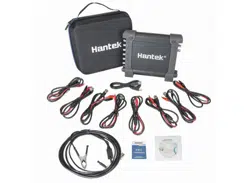
Appendix B: Accessories
DSO3104, DSO3204, DSO3254
Probe×4 (1.5m), 1:1, (10:1) Passive Probes
A power adapter
A USB Cable
A PC software CD of the oscilloscope
DSO3104A, DSO3204A, DSO3254A
Probe×4 (1.5m), 1:1, (10:1) Passive Probes
A power adapter
A USB line
A BNC test line
Two 20-pin logic analyzer exhaust lines
A bag(18) of little test hook Logic analyzer with high-quality test hook
A PC software CD of the oscilloscope
Appendix C: General Maintenance
General Care
Do not store or leave the oscilloscope where the device will be exposed to direct sunlight for long
periods of time.
Caution
To avoid damages to the device or probes, do not expose them to sprays, liquids or solvents.
To avoid damages to the surface of the device or probes not use any abrasive or chemical
cleaning agents.
Cleaning
Inspect the device and probes as often as operating conditions require. Make sure the device
disconnect form all power sources.
To clean the exterior surface, perform the following steps:
1. Remove loose dust on the outside of the oscilloscope and probes with a lint-free cloth. Use care
to avoid scratching the clear glass display filter.
2. Use a soft cloth dampened with water to clean the device.