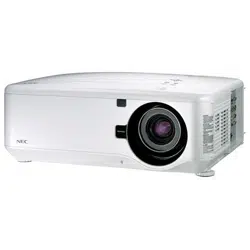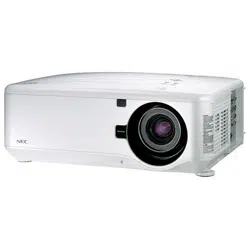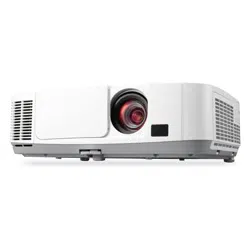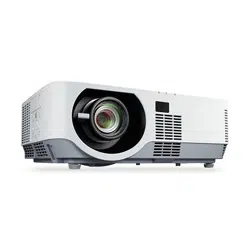

Projector
P502H/P452H
P502W/P452W
User’s Manual
Model No.
NP-P502H, NP-P452H, NP-P502W, NP-P452W

Ver. 1 10/15
•Apple,Mac,MacOS,MacBook,andiMacaretrademarksofAppleInc.registeredintheU.S.andothercountries.
•AppStoreisaservicemarkofAppleInc.
•IOSisatrademarkorregisteredtrademarkofCiscointheU.S.andothercountriesandisusedunderlicense.
•Microsoft,Windows,WindowsVista,InternetExplorer,.NETFrameworkandPowerPointareeitheraregistered
trademarkortrademarkofMicrosoftCorporationintheUnitedStatesand/orothercountries.
•MicroSaverisaregisteredtrademarkofKensingtonComputerProductsGroup,adivisionofACCOBrands.
•VirtualRemoteToolusesWinI2C/DDClibrary,©NicomsoftLtd.
•ThetermsHDMIandHDMIHigh-DenitionMultimediaInterface,andtheHDMILogoaretrademarksorregistered
trademarksofHDMILicensingLLCintheUnitedStatesandothercountries.
•HDBaseT™isatrademarkofHDBaseTAlliance.
•DLPisatrademarkofTexasInstruments.
•TrademarkPJLinkisatrademarkappliedfortrademarkrightsinJapan,theUnitedStatesofAmericaandother
countriesandareas.
•Wi-Fi
®
,Wi-FiAlliance
®
,Wi-FiProtectedAccess
®
,Wi-FiDirect
®
areregisteredtrademarksoftheWi-FiAlliance
®
.
WPA™,WPA2™,Wi-FiProtectedSetup™,Miracast™aretrademarksoftheWi-FiAlliance
®
.
•Blu-rayisatrademarkofBlu-rayDiscAssociation
•CRESTRONandROOMVIEWareregisteredtrademarksofCrestronElectronics,Inc.intheUnitedStatesandother
countries.
•EthernetiseitheraregisteredtrademarkortrademarkofFujiXeroxCo.,Ltd.
•GooglePlayandAndroidaretrademarksofGoogleInc.
•Otherproductnamesandcompanylogosmentionedinthisuser’smanualmaybethetrademarksorregistered
trademarksoftheirrespectiveholders.
•GPL/LGPLSoftwareLicenses
TheproductincludessoftwarelicensedunderGNUGeneralPublicLicense(GPL),GNULesserGeneralPublic
License(LGPL),andothers.
Formoreinformationoneachsoftware,see“readme.pdf”insidethe“aboutGPL&LGPL”folderonthesuppliedCD-
ROM.
NOTES
(1)Thecontentsofthisuser’smanualmaynotbereprintedinpartorwholewithoutpermission.
(2)Thecontentsofthisuser’smanualaresubjecttochangewithoutnotice.
(3)Greatcarehasbeentakeninthepreparationofthisuser’smanual;however,shouldyounoticeanyquestionable
points,errorsoromissions,pleasecontactus.
(4)Notwithstandingarticle(3),NECwillnotberesponsibleforanyclaimsonlossofprotorothermattersdeemed
toresultfromusingtheProjector.
i
Important Information
Safety Cautions
Precautions
PleasereadthismanualcarefullybeforeusingyourNECprojectorandkeepthemanualhandyforfuturereference.
CAUTION
Toturnoffmainpower,besuretoremovetheplugfrompoweroutlet.
Thepoweroutletsocketshouldbeinstalledasneartotheequipmentaspossible,andshouldbeeasily
accessible.
CAUTION
TOPREVENTSHOCK,DONOTOPENTHECABINET.
THEREAREHIGH-VOLTAGECOMPONENTSINSIDE.
REFERSERVICINGTOQUALIFIEDSERVICEPERSONNEL.
Thissymbolwarnstheuserthatuninsulatedvoltagewithintheunitmaybesufcienttocauseelectrical
shock.Therefore,itisdangeroustomakeanykindofcontactwithanypartinsideoftheunit.
Thissymbolalertstheuserthatimportantinformationconcerningtheoperationandmaintenanceofthis
unithasbeenprovided.
Theinformationshouldbereadcarefullytoavoidproblems.
WARNING:TOPREVENTFIREORSHOCK,DONOTEXPOSETHISUNITTORAINORMOISTURE.
DONOTUSETHISUNIT’SPLUGWITHANEXTENSIONCORDORINANOUTLETUNLESSALLTHEPRONGS
CANBEFULLYINSERTED.
DOC Compliance Notice (for Canada only)
ThisClassBdigitalapparatuscomplieswithCanadianICES-003.
Machine Noise Information Regulation - 3. GPSGV,
Thehighestsoundpressurelevelislessthan70dB(A)inaccordancewithENISO7779.
Disposing of your used product
EU-widelegislationasimplementedineachMemberStaterequiresthatusedelectricalandelectronicprod-
uctscarryingthemark(left)mustbedisposedofseparatelyfromnormalhouseholdwaste.Thisincludes
projectorsandtheirelectricalaccessories.Whenyoudisposeofsuchproducts,pleasefollowtheguidance
ofyourlocalauthorityand/orasktheshopwhereyoupurchasedtheproduct.
Aftercollectingtheusedproducts,theyarereusedandrecycledinaproperway.Thiseffortwillhelpusreduce
thewastesaswellasthenegativeimpacttothehumanhealthandtheenvironmentattheminimumlevel.
ThemarkontheelectricalandelectronicproductsonlyappliestothecurrentEuropeanUnionMemberStates.
For EU:Thecrossed-outwheeledbinimpliesthatusedbatteriesshouldnotbeputtothegeneralhousehold
waste!Thereisaseparatecollectionsystemforusedbatteries,toallowpropertreatmentandrecyclingin
accordancewithlegislation.
According the EU directive 2006/66/EC, the battery can’t be disposed improperly. The battery shall be sepa-
rated to collect by local service.

ii
Important Information
WARNING TO CALIFORNIA RESIDENTS:
Handlingthecablessuppliedwiththisproductwillexposeyoutolead,achemicalknowntotheStateofCalifornia
tocausebirthdefectsorotherreproductiveharm.WASHHANDSAFTERHANDLING.
RF Interference (for USA only)
WARNING
TheFederalCommunicationsCommissiondoesnotallowanymodicationsorchangestotheunitEXCEPTthose
speciedbyNECDisplaySolutionsofAmerica,Inc.inthismanual.Failuretocomplywiththisgovernmentregu-
lationcouldvoidyourrighttooperatethisequipment.Thisequipmenthasbeentestedandfoundtocomplywith
thelimitsforaClassBdigitaldevice,pursuanttoPart15oftheFCCRules.Theselimitsaredesignedtoprovide
reasonableprotectionagainstharmfulinterferenceinaresidentialinstallation.Thisequipmentgenerates,uses,and
canradiateradiofrequencyenergyand,ifnotinstalledandusedinaccordancewiththeinstructions,maycause
harmfulinterferencetoradiocommunications.However,thereisnoguaranteethatinterferencewillnotoccurina
particularinstallation.
Ifthisequipmentdoescauseharmfulinterferencetoradioortelevisionreception,whichcanbedeterminedby
turningtheequipmentoffandon,theuserisencouragedtotrytocorrecttheinterferencebyoneormoreofthe
followingmeasures:
•Reorientorrelocatethereceivingantenna.
•Increasetheseparationbetweentheequipmentandreceiver.
•Connecttheequipmentintoanoutletonacircuitdifferentfromthattowhichthereceiverisconnected.
•Consultthedealeroranexperiencedradio/TVtechnicianforhelp.
ForUKonly:InUK,aBSapprovedpowercordwithmouldedplughasaBlack(veAmps)fuseinstalledforusewith
thisequipment.Ifapowercordisnotsuppliedwiththisequipmentpleasecontactyoursupplier.
Important Safeguards
Thesesafetyinstructionsaretoensurethelonglifeofyourprojectorandtopreventreandshock.Pleasereadthem
carefullyandheedallwarnings.
Installation
•Donotplacetheprojectorinthefollowingconditions:
-Outdoors
-onanunstablecart,stand,ortable.
-nearwater,baths,ordamprooms.
-indirectsunlight,nearheaters,orheatradiatingappliances.
-inadusty,smokyorsteamyenvironment.
-onasheetofpaperorcloth,rugsorcarpets.
•Donotinstallandstoretheprojectorinthebelowcircumstances.Failuretodosomaycauseofmalfunction.
-Inpowerfulmagneticelds.
-Incorrosivegasenvironment.
•Ifyouwishtohavetheprojectorinstalledontheceiling:
-Donotattempttoinstalltheprojectoryourself.
-Theprojectormustbeinstalledbyqualiedtechniciansinordertoensureproperoperationandreducetherisk
ofbodilyinjury.
-Inaddition,theceilingmustbestrongenoughtosupporttheprojectorandtheinstallationmustbeinaccordance
withanylocalbuildingcodes.
-Pleaseconsultyourdealerformoreinformation.
iii
Important Information
WARNING
•Donotcoverthelenswiththelenscaporequivalentwhiletheprojectorison.Doingsocanleadtomeltingof
thecapduetotheheatemittedfromthelightoutput.
•Donotplaceanyobjects,whichareeasilyaffectedbyheat,infrontoftheprojectorlens.Doingsocouldlead
totheobjectmeltingfromtheheatthatisemittedfromthelightoutput.
•Donotsprayammablegastogetridofdustanddirtthataccumulateonthelensandthelters.Doingsocould
causeare.
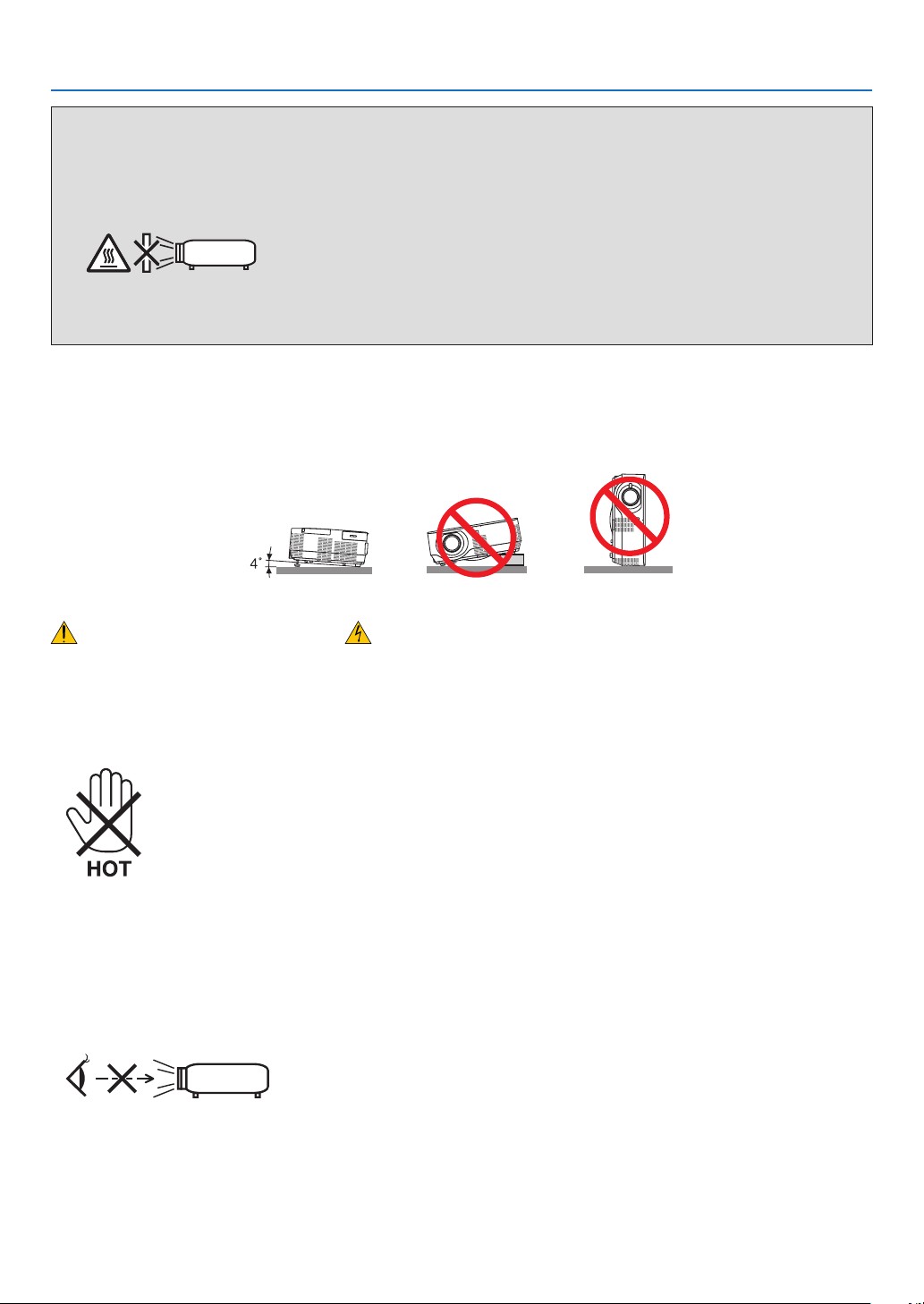
Place the projector in a horizontal position
Thetiltangleoftheprojectorshouldnotexceed4degrees,norshouldtheprojectorbeinstalledinanywayotherthan
thedesktopandceilingmount,otherwiselamplifecoulddecreasedramatically.
Fire and Shock Precautions
•Ensurethatthereissufcientventilationandthatventsareunobstructedtopreventthebuild-upofheatinsideyour
projector.Allowatleast4inches(10cm)ofspacebetweenyourprojectorandawall.
•Donottrytotouchtheexhaustventsontherightside(whenseenfromthefront)asitcanbecomeheatedwhilethe
projectoristurnedonandimmediatelyaftertheprojectoristurnedoff.Partsoftheprojectormaybecometemporarily
heatediftheprojectoristurnedoffwiththePOWERbutton.
Usecautionwhenpickinguptheprojector.
•Preventforeignobjectssuchaspaperclipsandbitsofpaperfromfallingintoyourprojector.Donotattempttoretrieve
anyobjectsthatmightfallintoyourprojector.Donotinsertanymetalobjectssuchasawireorscrewdriverintoyour
projector.Ifsomethingshouldfallintoyourprojector,disconnectitimmediatelyandhavetheobjectremovedbya
qualiedservicepersonnel.
•Donotplaceanyobjectsontopoftheprojector.
•Donottouchthepowerplugduringathunderstorm.Doingsocancauseelectricalshockorre.
•Theprojectorisdesignedtooperateonapowersupplyof100-240VAC50/60Hz.Ensurethatyourpowersupply
tsthisrequirementbeforeattemptingtouseyourprojector.
•Donotlookintothelenswhiletheprojectorison.Seriousdamagetoyoureyescouldresult.
•Keepanyitemssuchasmagnifyingglassoutofthelightpathoftheprojector.Thelightbeingprojectedfromthe
lensisextensive,thereforeanykindofabnormalobjectsthatcanredirectlightcomingoutofthelens,cancause
unpredictableoutcomesuchasreorinjurytotheeyes.
•Donotplaceanyobjects,whichareeasilyaffectedbyheat,infrontofaprojectorexhaustvent.
Doingsocouldleadtotheobjectmeltingorgettingyourhandsburnedfromtheheatthatisemittedfromtheexhaust
vent.

iv
Important Information
•Donotsplashwaterovertheprojector.Doingsocancauseelectricalshockorre.Iftheprojectorgetswet,turnoff
theprojector,unplugthepowercordandhavetheprojectorservicedbyaqualiedservicepersonnel.
•Handlethepowercordcarefully.Adamagedorfrayedpowercordcancauseelectricshockorre.
-Donotuseanypowercordotherthantheonesuppliedwiththeprojector.
-Donotbendortugthepowercordexcessively.
-Donotplacethepowercordundertheprojector,oranyheavyobject.
-Donotcoverthepowercordwithothersoftmaterialssuchasrugs.
-Donotheatthepowercord.
-Donothandlethepowerplugwithwethands.
•Turnofftheprojector,unplugthepowercordandhavetheprojectorservicedbyaqualiedservicepersonnelunder
thefollowingconditions:
-Whenthepowercordorplugisdamagedorfrayed.
-Ifliquidhasbeenspilledintotheprojector,orifithasbeenexposedtorainorwater.
-Iftheprojectordoesnotoperatenormallywhenyoufollowtheinstructionsdescribedinthisuser’smanual.
-Iftheprojectorhasbeendroppedorthecabinethasbeendamaged.
-Iftheprojectorexhibitsadistinctchangeinperformance,indicatinganeedforservice.
•Disconnectthepowercordandanyothercablesbeforecarryingtheprojector.
•Turnofftheprojectorandunplugthepowercordbeforecleaningthecabinetorreplacingthelamp.
•Turnofftheprojectorandunplugthepowercordiftheprojectorisnottobeusedforanextendedperiodoftime.
•WhenusingaLANcable:
Forsafety,donotconnecttotheterminalforperipheraldevicewiringthatmighthaveexcessivevoltage.
CAUTION
•Donotusethetilt-footforpurposesotherthanoriginallyintended.Misusessuchasgrippingthetilt-footorhang-
ingonthewallcancausedamagetotheprojector.
•Donotsendtheprojectorinthesoftcasebyparceldeliveryserviceorcargoshipment.Theprojectorinsidethe
softcasecouldbedamaged.
•Select[HIGH]inFanmodeifyoucontinuetousetheprojectorforconsecutivedays.(Fromthemenu,select
[SETUP]→[OPTIONS(1)]→[FANMODE]→[HIGH].)
•DonotturnofftheACpowerfor60secondsafterthelampisturnedonandwhilethePOWERindicatorisblink-
ingblue.Doingsocouldcauseprematurelampfailure.
Remote Control Precautions
•Handletheremotecontrolcarefully.
•Iftheremotecontrolgetswet,wipeitdryimmediately.
•Avoidexcessiveheatandhumidity.
•Donotshort,heat,ortakeapartbatteries.
•Donotthrowbatteriesintore.
•Ifyouwillnotbeusingtheremotecontrolforalongtime,removethebatteries.
•Ensurethatyouhavethebatteries’polarity(+/−)alignedcorrectly.
•Donotusenewandoldbatteriestogether,orusedifferenttypesofbatteriestogether.
•Disposeofusedbatteriesaccordingtoyourlocalregulations.
Note for Canadian Environmental Protection Act, 1999
Thelamp(s)inthisproductcontainsmercury.Pleasedisposeaccordingtoyourlocalauthoritylaw.
FORMOREINFORMATION,CONTACT:
NECDisplaySolutionsofAmerica,Inc.
500PartBoulevard,Suite1100,Itasca,Illinois60143-1248
TELEPHONE800-836-0655
www.necdisplay.com
v
Important Information
Note for US Residents
Thelampinthisproductcontainsmercury.PleasedisposeaccordingtoLocal,StateorFederalLaws.
Lamp Replacement
•Usethespeciedlampforsafetyandperformance.
•Toreplacethelamp,followallinstructionsprovidedonpage
118.
•Besuretoreplacethelampwhenthemessage[THE LAMP HAS REACHED THE END OF ITS USABLE LIFE.
PLEASE REPLACE THE LAMP.]appears.Ifyoucontinuetousethelampafterthelamphasreachedtheendof
itsusablelife,thelampbulbmayshatter,andpiecesofglassmaybescatteredinthelampcase.Donottouchthem
asthepiecesofglassmaycauseinjury.
Ifthishappens,contactyourdealerforlampreplacement.
A Lamp Characteristic
Theprojectorhasadischargelampforspecialpurposesasalightsource.
Alamphasacharacteristicthatitsbrightnessgraduallydecreaseswithage.Alsorepeatedlyturningthelampon
andoffwillincreasethepossibilityofitslowerbrightness.
Theactuallamplifemayvarydependingupontheindividuallamp,theenvironmentalconditionsandusage.
CAUTION:
•DONOTTOUCHTHELAMPimmediatelyafterithasbeenused.Itwillbeextremelyhot.Turntheprojectoroff
andthendisconnectthepowercord.Allowatleastonehourforthelamptocoolbeforehandling.
•Whenremovingthelampfromaceiling-mountedprojector,makesurethatnooneisundertheprojector.Glass
fragmentscouldfallifthelamphasbeenburnedout.
About High Altitude mode
•Set[FANMODE]to[HIGHALTITUDE]whenusingtheprojectorataltitudesapproximately4000feet/1200meters
orhigher.
Usingtheprojectorataltitudesapproximately4000feet/1200metersorhigherwithoutsettingto[HIGHALTITUDE]
cancausetheprojectortooverheatandtheprotectorcouldshutdown.Ifthishappens,waitacoupleminutesand
turnontheprojector.
•Usingtheprojectorataltitudeslessthanapproximately4000feet/1200metersandsettingto[HIGHALTITUDE]can
causethelamptoovercool,causingtheimagetoicker.Switch[FANMODE]to[AUTO].
•Usingtheprojectorataltitudesapproximately4000feet/1200metersorhighercanshortenthelifeofopticalcom-
ponentssuchasthelamp.
About Copyright of original projected pictures:
Pleasenotethatusingthisprojectorforthepurposeofcommercialgainortheattractionofpublicattentioninavenue
suchasacoffeeshoporhotelandemployingcompressionorexpansionofthescreenimagewiththefollowingfunc-
tionsmayraiseconcernabouttheinfringementofcopyrightswhichareprotectedbycopyrightlaw.
[ASPECTRATIO],[KEYSTONE],Magnifyingfeatureandothersimilarfeatures.
Turkish RoHS information relevant for Turkish market
EEE Yonetmeliğine Uygundur.
Thisdeviceisnotintendedforuseinthedirecteldofviewatvisualdisplayworkplaces.Toavoidincommodingreec-
tionsatvisualdisplayworkplacesthisdevicemustnotbeplacedinthedirecteldofview.
vi
Important Information
Power management function
Theprojectorhaspowermanagementfunctions.Toreducepowerconsumption,thepowermanagementfunctions(1
and2)arefactorypresetasshownbelow.TocontroltheprojectorfromanexternaldeviceviaaLANorserialcable
connection,usetheon-screenmenutochangethesettingsfor1and2.
1. STANDBY MODE (Factory preset: NORMAL)
To control the projector from an external device, select [NETWORK STANDBY] for [STANDBY MODE].
NOTE:
•When[NORMAL]isselectedfor[STANDBYMODE],thefollowingterminalsandfunctionswillnotwork:
MONITOROUTterminal,AUDIOOUTterminal,LANfunctions,MailAlertfunction,DDC/CI(VirtualRemoteTool)
2. AUTO POWER OFF (Factory preset: 60 min.)
To control the projector from an external device, select [OFF] for [AUTO POWER OFF].
NOTE:
•When[1:00]isselectedfor[AUTOPOWEROFF],youcanenabletheprojectortoautomaticallyturnoffin60minutesifthereis
nosignalreceivedbyanyinputorifnooperationisperformed.
Health precautions to users viewing 3D images
Beforeviewing,besuretoreadhealthcareprecautionsthatmaybefoundintheuser’smanualincludedwithyourLCD
shuttereyeglassesoryour3DcompatiblecontentsuchasDVDs,videogames,computer'svideolesandthelike.
Toavoidanyadversesymptoms,heedthefollowing:
•DonotuseLCDshuttereyeglassesforviewinganymaterialotherthan3Dimages.
•Allowadistanceof2m/7feetorgreaterbetweenthescreenandauser.Viewing3Dimagesfromtooclosea
distancecanstrainyoureyes.
•Avoidviewing3Dimagesforaprolongedperiodoftime.Takeabreakof15minutesorlongeraftereveryhour
ofviewing.
•Ifyouoranymemberofyourfamilyhasahistoryoflight-sensitiveseizures,consultadoctorbeforeviewing3D
images.
•Whileviewing3Dimages,ifyougetsicksuchasnausea,dizziness,queasiness,headache,eyestrain,blurry
vision,convulsions,andnumbness,stopviewingthem.Ifsymptomsstillpersist,consultadoctor.
•View3Dimagesfromthefrontofthescreen.Viewingfromananglemaycausefatigueoreyestrain.
Model Number of Wireless LAN unit
WirelessLANunitisanoptionalitem.
Tondtheappropriatemodeltoyourarea,pleasevisitthecompanywebsite:
URL:
http://www.nec-display.com/global/support/index.html

vii
Table of Contents
Important Information ............................................................................................i
1. Introduction ...........................................................................................................1
❶What’sintheBox? ..........................................................................................................1
❷IntroductiontotheProjector ...........................................................................................2
General .....................................................................................................................2
Installation ................................................................................................................. 2
Videos .......................................................................................................................2
Network ..................................................................................................................... 2
Energy-saving ...........................................................................................................3
Aboutthisuser’smanual ........................................................................................... 3
❸PartNamesoftheProjector ...........................................................................................4
Front ..........................................................................................................................4
Mountingthelenscapstrap ...................................................................................... 4
Rear ..........................................................................................................................5
Controls/Indicators ....................................................................................................6
TerminalPanelFeatures ...........................................................................................7
❹PartNamesoftheRemoteControl ................................................................................8
BatteryInstallation ....................................................................................................9
RemoteControlPrecautions ..................................................................................... 9
OperatingRangeforWirelessRemoteControl ......................................................... 9
2. Projecting an Image (Basic Operation) ...............................................10
❶FlowofProjectinganImage .........................................................................................10
❷ConnectingYourComputer/ConnectingthePowerCord ..............................................11
❸TurningontheProjector ...............................................................................................12
NoteonStartupscreen(MenuLanguageSelectscreen) ....................................... 13
❹SelectingaSource .......................................................................................................14
Selectingthecomputerorvideosource..................................................................14
❺AdjustingthePictureSizeandPosition ........................................................................16
Adjustingtheverticalpositionofaprojectedimage(Lensshift) .............................17
Focus ......................................................................................................................19
Zoom ....................................................................................................................... 19
Adjustingthetilt(Tiltfoot) .......................................................................................20
❻CorrectingKeystoneDistortion[KEYSTONE] ..............................................................21
❼OptimizingComputerSignalAutomatically ..................................................................23
AdjustingtheImageUsingAutoAdjust ...................................................................23
❽TurningUporDownVolume .........................................................................................23
❾TurningofftheProjector ...............................................................................................24
❿WhenMovingtheProjector ..........................................................................................25
3. Convenient Features ......................................................................................26
❶TurningofftheImageandSound .................................................................................26
❷FreezingaPicture ........................................................................................................26
❸MagnifyingaPicture .....................................................................................................27
❹ChangingEcoMode/CheckingEnergy-SavingEffect .................................................28
UsingEcoMode[ECOMODE] ...............................................................................28
CheckingEnergy-SavingEffect[CARBONMETER] ..............................................29

viii
Table of Contents
❺PreventingtheUnauthorizedUseoftheProjector[SECURITY] ..................................30
❻Viewing3DImages ....................................................................................................... 33
LCDshuttereyeglasses(recommended) ...............................................................33
Stepsforviewing3Dimagesontheprojector.........................................................33
Troubleshootingonviewing3Dimages...................................................................36
4. Using On-Screen Menu .................................................................................37
❶UsingtheMenus ...........................................................................................................37
MenuElements .......................................................................................................38
❷ListofMenuItems ........................................................................................................39
❸MenuDescriptions&Functions[SOURCE] .................................................................42
HDMI1andHDMI2..................................................................................................42
COMPUTER ...........................................................................................................42
VIDEO ..................................................................................................................... 42
HDBaseT ................................................................................................................42
APPS ......................................................................................................................42
❹MenuDescriptions&Functions[ADJUST] ................................................................... 43
[PICTURE] ..............................................................................................................43
[IMAGEOPTIONS] .................................................................................................46
❺MenuDescriptions&Functions[SETUP] ..................................................................... 50
[GENERAL] ............................................................................................................. 50
[MENU] ...................................................................................................................53
[INSTALLATION] .....................................................................................................55
[OPTIONS(1)] .........................................................................................................59
[OPTIONS(2)] .........................................................................................................61
[3D] .........................................................................................................................64
❻MenuDescriptions&Functions[INFO.] .......................................................................66
[USAGETIME] ........................................................................................................66
[SOURCE(1)] ..........................................................................................................67
[SOURCE(2)] ..........................................................................................................67
[HDBaseT] ..............................................................................................................67
[WIREDLAN] ..........................................................................................................67
[WIRELESSLAN] ...................................................................................................67
[VERSION(1)] .........................................................................................................67
[VERSION(2)] .........................................................................................................67
[OTHERS] ...............................................................................................................67
❼MenuDescriptions&Functions[RESET] ..................................................................... 68
ReturningtoFactoryDefault[RESET] ....................................................................68
5. Installation and Connections ....................................................................69
❶SettingUptheScreenandtheProjector ......................................................................69
Tablesofscreensizesanddimensions ..................................................................71
Exampleofinstallationonadesktop ......................................................................72
Lensshiftingrange ..................................................................................................73
❷MakingConnections .....................................................................................................75
ConnectingYourComputer .....................................................................................75
ConnectinganExternalMonitor .............................................................................77
ConnectingYourDVDPlayerorOtherAVEquipment ............................................. 78
ConnectingComponentInput .................................................................................79
ConnectingHDMIInput...........................................................................................80

ix
Table of Contents
Connectingyourdocumentcamera ........................................................................81
ConnectingtoaWiredLAN ....................................................................................82
ConnectingtoaWirelessLAN(Optional:NP05LMseries) ..................................... 83
ConnectingtoaHDBaseTtransmissiondevice(soldcommercially) ......................86
6. APPS MENU .........................................................................................................88
❶WhatcanyoudowiththeAPPSMENU? .....................................................................88
7. User Supportware ............................................................................................92
❶SoftwareIncludedonCD-ROM ....................................................................................92
❷ProjectingYourComputer’sScreenImagefromtheProjectoroveraLAN(Image
ExpressUtilityLite) .................................................................................................93
StartingImageExpressUtilityLitefromaUSBMemoryorSDCard .....................96
❸ProjectinganImagefromanAngle(GeometricCorrectionToolinImageExpress
UtilityLite) ...............................................................................................................98
WhatyoucandowithGCT .....................................................................................98
ProjectinganImagefromanAngle(GCT) ..............................................................98
❹ControllingtheProjectoroveraLAN(PCControlUtilityPro4/Pro5) ........................101
❺UsingtheComputerCable(VGA)toOperatetheProjector(VirtualRemoteTool) ....106
❻ProjectingphotosordocumentssavedonthesmartphoneoverawirelessLAN
(WirelessImageUtility) .........................................................................................112
8. Maintenance .....................................................................................................113
❶CleaningtheFilters.....................................................................................................113
❷CleaningtheLens.......................................................................................................116
❸CleaningtheCabinet ..................................................................................................117
❹ReplacingtheLampandtheFilters ............................................................................ 118
9. Appendix ..............................................................................................................125
❶Troubleshooting ..........................................................................................................125
IndicatorMessages ............................................................................................... 125
CommonProblems&Solutions ............................................................................127
Ifthereisnopicture,orthepictureisnotdisplayedcorrectly. ............................... 128
❷Specications .............................................................................................................129
❸CabinetDimensions ...................................................................................................131
❹AttachingtheOptionalCableCover(NP09CV) ..........................................................132
Attachingthecablecover ...................................................................................... 132
Removingthecablecover .....................................................................................133
❺Pinassignmentsandsignalnamesofmainterminals ...............................................134
❻CompatibleInputSignalList .......................................................................................136
❼PCControlCodesandCableConnection ..................................................................137
❽UpdatetheSoftware ...................................................................................................138
❾TroubleshootingCheckList ......................................................................................... 140
❿REGISTERYOURPROJECTOR!(forresidentsintheUnitedStates,Canada,and
Mexico) .................................................................................................................142
1
1. Introduction
❶ What’s in the Box?
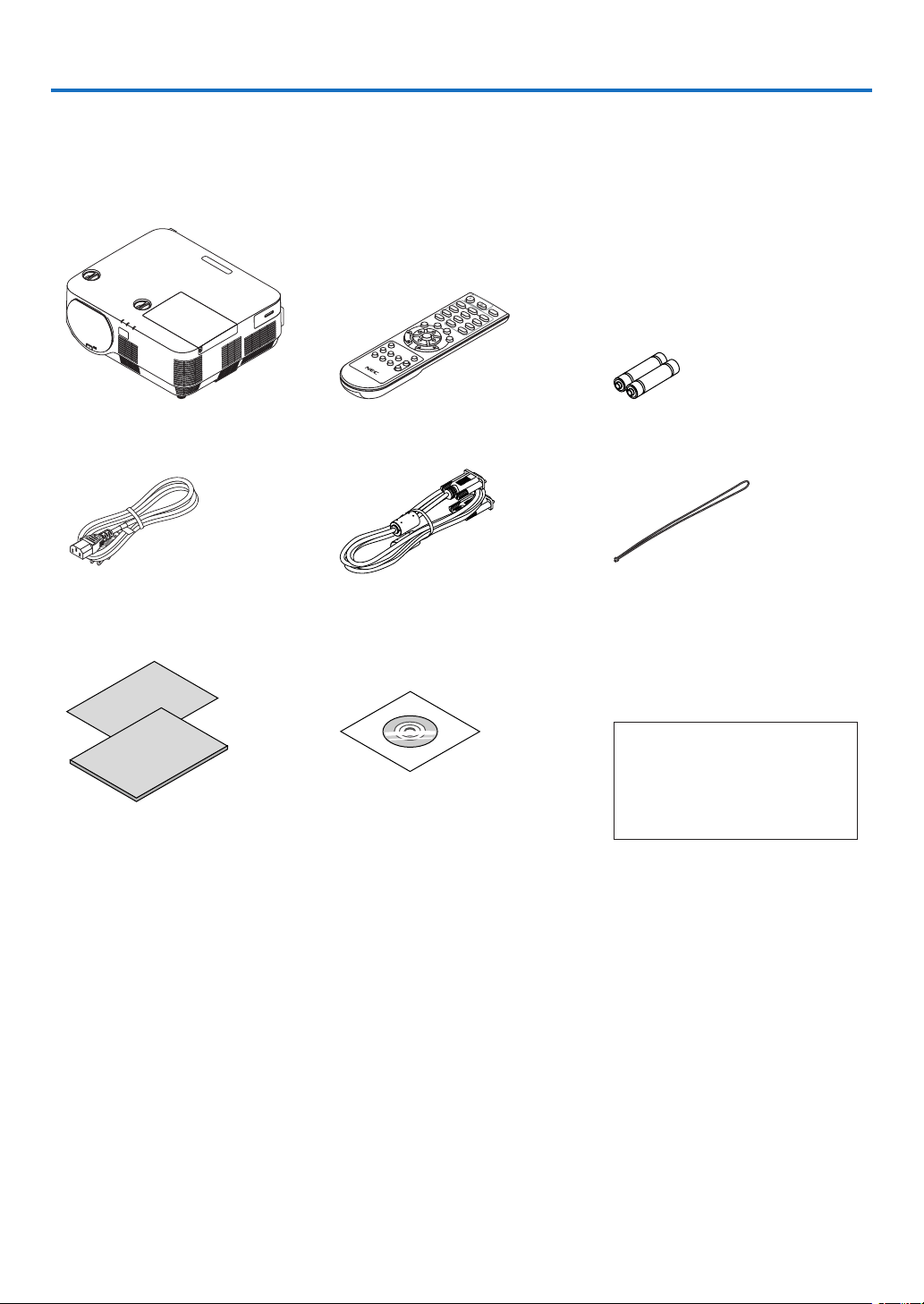
Makesureyourboxcontainseverythinglisted.Ifanypiecesaremissing,contactyourdealer.
Pleasesavetheoriginalboxandpackingmaterialsifyoueverneedtoshipyourprojector.
Projector
Remote control
(7N901122)
Batteries (AAA × 2)
Power cord
(US: 7N080240/7N080243)
(EU: 7N080027/7N080029)
Computer cable (VGA)
(7N520089)
Lens cap strap
For North America only
Limited warranty
For customers in Europe:
You will find our current valid Guar-
antee Policy on our Web Site:
www.nec-display-solutions.com
•ImportantInformation(ForNorth
America: 7N8N6521) (For Other
countries than North America:
7N8N6521 and 7N8N6531)
•QuickSetupGuide(7N8N6541)/
(7N8N6551)
NEC Projector CD-ROM
User’s manual (PDF) and the utility
software
(7N952321)

2
1. Introduction
❷ Introduction to the Projector
Thissectionintroducesyoutoyournewprojectoranddescribesthefeaturesandcontrols.
General
•Single-chipDLPprojectorwithhighresolutionandhighbrightness
ModelnameDMDpanelResolutionAspectratio
P502H/P452H 0.65type1920×1080pixels16:9
P502W/P452W 0.65type1280×800pixels16:10
•Lamplifeupto5000hours
UsinginEcoModeallowsyoutoprolongtheprojector’slamplifeupto5000hours(upto3000hoursinECO
MODEOFF).
•20Wbuilt-inspeakerforanintegratedaudiosolution/micinputsupprted
Powerful20wattmonauralspeakerprovidesvolumeneedforlargeroomsadynamicorcondensermiccanbe
used.
Installation
•Lensshiftmechanismforadjustingthepositionoftheprojectedimageeasily
Thepositionoftheprojectedimageismovedbyturningthetwodialsontheprojectorcabinettop,oneforthe
verticaldirectionandanotherforthehorizontaldirection.
Videos
•Widerangeofinputterminals(HDMI×2,HDBaseT,etc.)
Theprojectorisequippedwithavarietyofinputterminals:HDMI(×2),Computer(analog),Video,HDBaseT,etc.
HDMIinputterminalonthisproductsupportsHDCP.HDBaseTisaconnectionstandardforhomeappliancesthat
isestablishedbytheHDBaseTAlliance.
•SupportsHDMI3Dformat
Thisprojectorcanbeusedtowatchvideosin3Dusingcommercially-availableactiveshutter-type3Deyewear
and3DemittersthatsupportXpand3D.
Network
•EquipsthefeatureofAPPSMENUthatcanutilizethenetwork.
TheAPPSMENUprovidesvariousfunctionsasVIEWER,REMOTEDESKTOPCONNECTION,IMAGEEXPRESS
UTILITY,Miracast,NETWORKSETTINGS(WiredLAN/WirelessLAN),andPROGRAMTIMER.
•Convenientutilitysoftware(UserSupportware)providedasstandard
TheveutilitysoftwarestoredintheenclosedNECProjectorCD-ROM(ImageExpressUtilityLite(ForWindows/
OSX),VirtualRemoteTool,PCControlUtilityPro4(forWindows)andPCControlUtilityPro5(forOSX))canbe
used.
•CRESTRONROOMVIEWcompatible
ThisprojectorsupportsCRESTRONROOMVIEW,allowingmultipledevicesconnectedtothenetworktobeman-
agedfromacomputerorcontroller.

3
1. Introduction
Energy-saving
•0.26W(100-130VAC)/0.33W(200-240VAC)instandbyconditionwithenergysavingtechnology
Selecting[NORMAL]for[STANDBYMODE]fromthemenucanputtheprojectorinpower-savingmode.
NORMAL:0.26W(100-130VAC)/0.33W(200-240VAC)
NETWORKSTANDBY:2.6W(100-130VAC)/2.6W(200-240VAC)
•“ECOMODE”forlowpowerconsumptionand“CARBONMETER”display
Thepower-savingiseffectivewhenthe[ECOMODE]issetisconvertedintotheamountofreductionsofCO
2
emissionsandthisisindicatedontheconrmationmessagedisplayedwhenthepoweristurnedoffandat[INFO.]
ontheon-screenmenu(CARBONMETER).
About this user’s manual
Thefastestwaytogetstartedistotakeyourtimeanddoeverythingrightthersttime.Takeafewminutesnowto
reviewtheuser’smanual.Thismaysaveyoutimelateron.Atthebeginningofeachsectionofthemanualyou’llnd
anoverview.Ifthesectiondoesn’tapply,youcanskipit.
4
1. Introduction
❸ Part Names of the Projector
Front
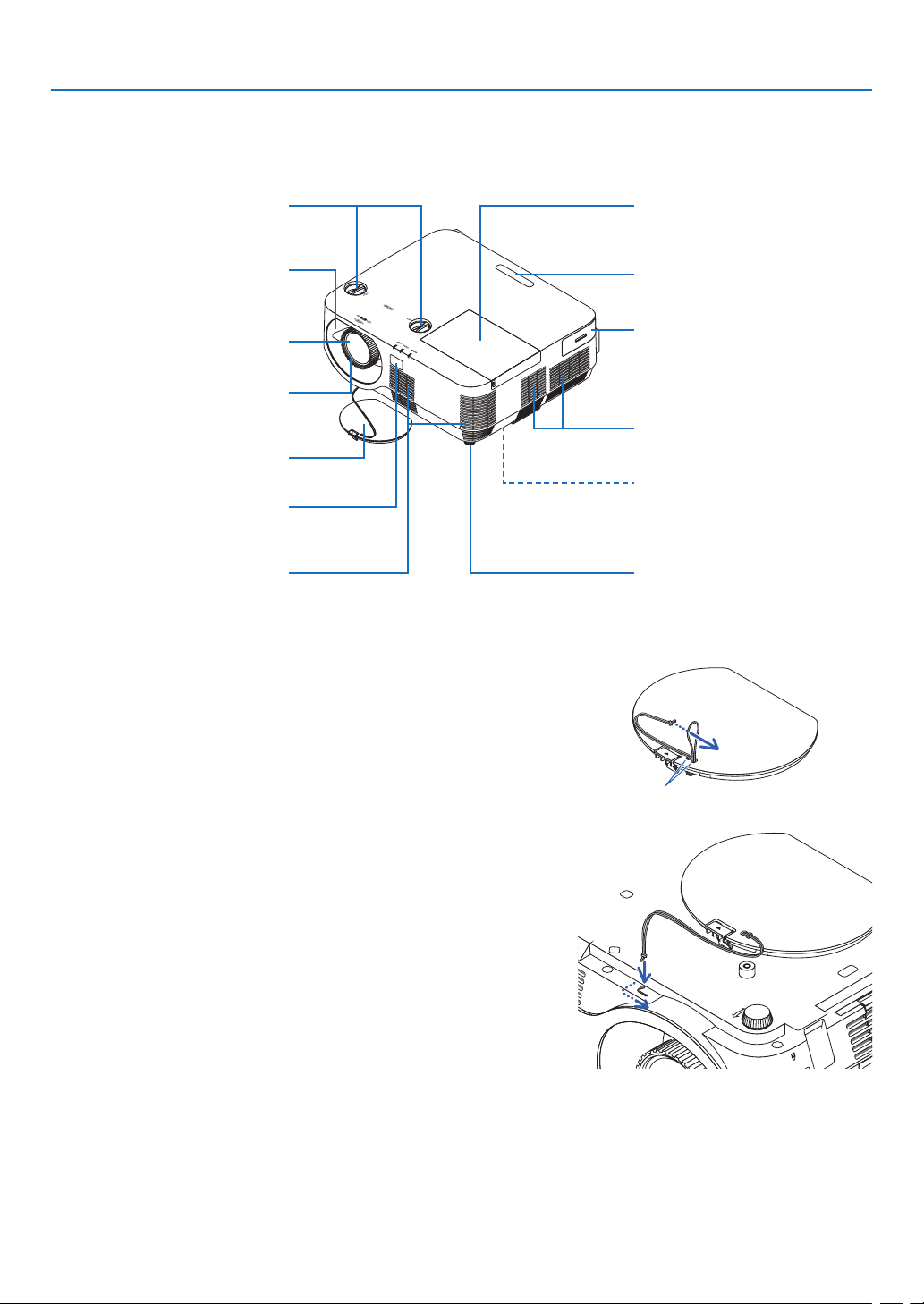
Remote Sensor
(→ page 9)
Lens shift dials (Horizontal/Vertical)
(→ page 17)
Lens Cap
Tilt Foot
(→ page 20)
Model name
Model name is indicated on the bot-
tom face of the projector
Wireless LAN cover
(
→ page 83)
Exhaust Vent
Focus Ring
(
→ page 19)
Lamp cover
(→ page 119)
Remote Sensor
(
→ page 9)
Zoom Lever
(→ page 19)
Lens
IntakeVent
(→ page 113)
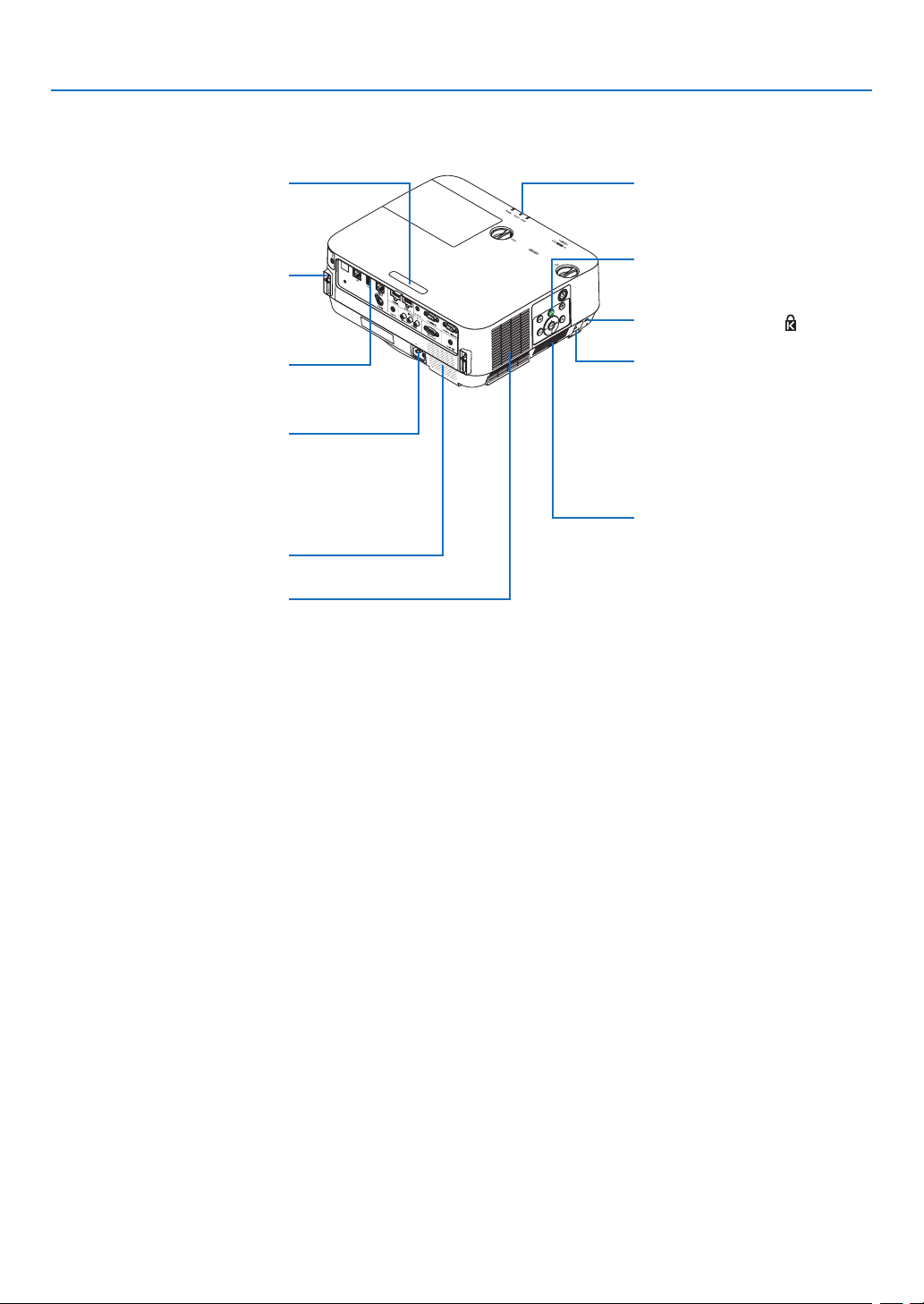
Mounting the lens cap strap
1. Insert the tip of the strap into the lens cap mount hole and pass
the knot through.
Lens cap mount hole
2. Insert the knot into the strap mount hole (large) on the bottom of
the projector, then press it into the narrow (small) hole.
5
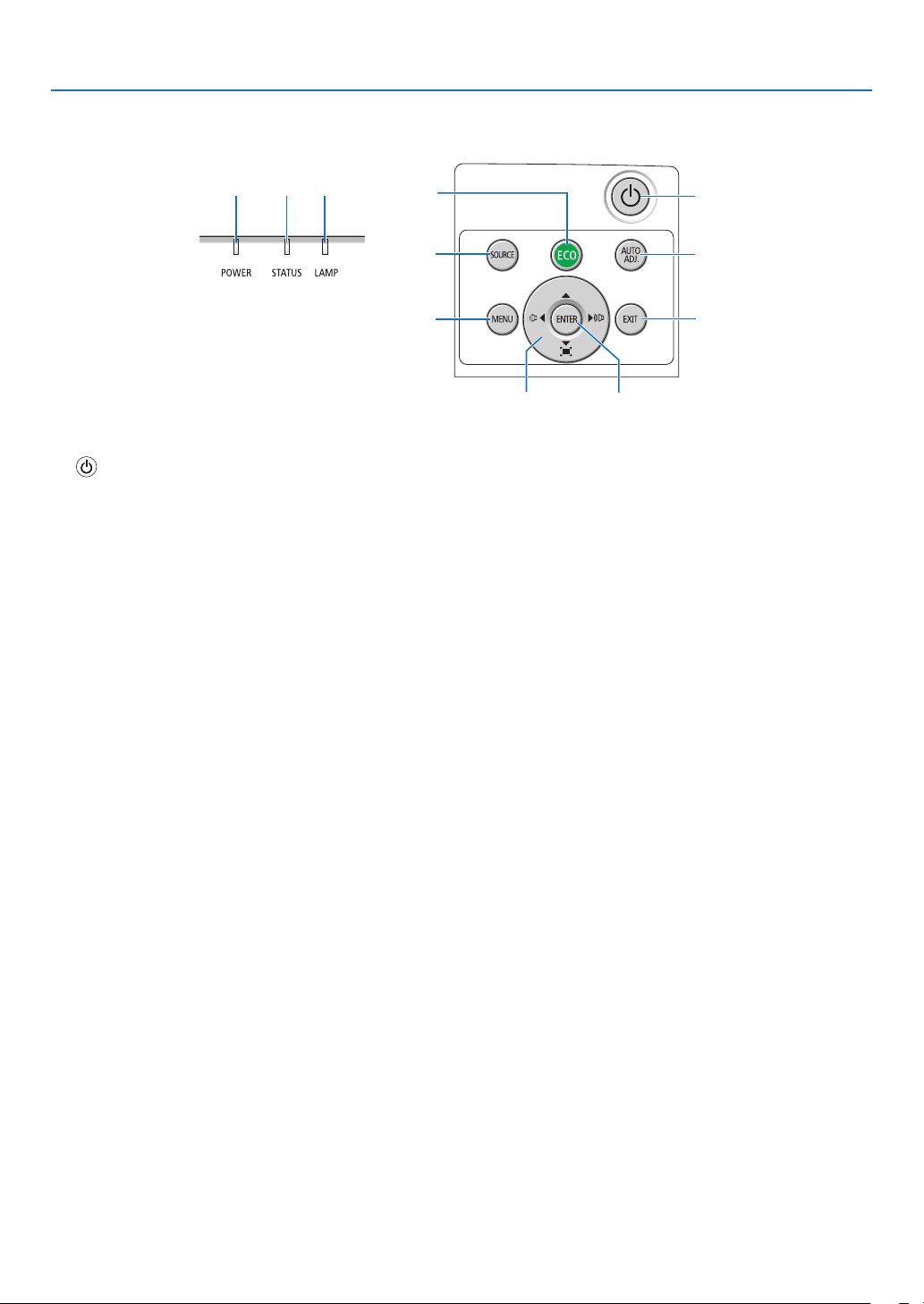
1. Introduction
Indicators
(→ page 6)
Controls
(
→ page 6)
IntakeVentFilter
(→ page 113, 123)
Remote Sensor
(→ page 9)
Security chain opening
Attach an anti-theft device.
The security chain opening accepts
security wires or chains up to 0.18
inch/4.6 mm in diameter.
Terminals
(→ page 7)
ACInput
Connect the supplied power cord’s
three-pin plug here, and plug the
other end into an active wall outlet.
(→ page 11)
MonauralSpeaker
IntakeVent
(→ page 113)
Built-in Security Slot ( )*
Rear
Connection for cable cover (Left/
Right) Screw holes
(→ page 132)
*Thissecurityslotsupportsthe
MicroSaver
®
SecuritySystem.
6
1. Introduction
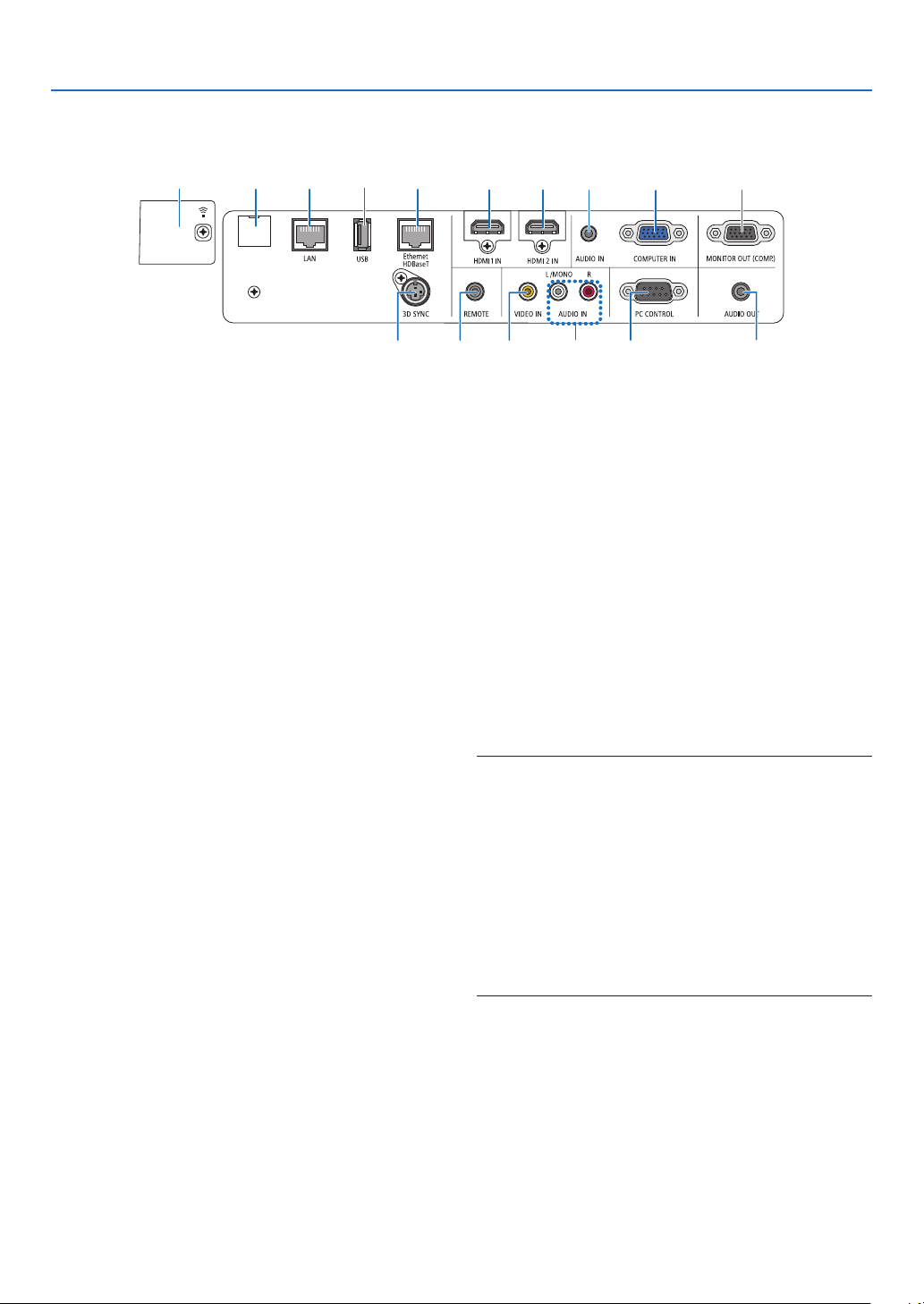
Controls/Indicators
7
9
11
10
2
3 4
6
8
1
5
1. (POWER)Button
(→page12, 24)
2. POWER Indicator
(→page
11, 12, 24, 125)
3. STATUS Indicator
(→page
125)
4.LAMPIndicator
(→page
125)
5.ECOButton
(→page
28)
6. SOURCE Button
(→page
14)
7. AUTO ADJ. Button
(→page
23)
8. MENU Button
(→page
37)
9. ▲▼◀▶/VolumeButtons◀▶ / Keystone Button ▼
(→
page
13, 21, 23, 37)
10. ENTER Button
(→page
37)
11. EXIT Button
(→page
37)
7
1. Introduction
Terminal Panel Features
1.COMPUTERIN/ComponentInputTerminal(Mini
D-Sub15Pin)
(→page
75, 79, 81)
2.COMPUTERAUDIOINMiniJack(StereoMini)
(→page
75, 79)
3.HDMI1INTerminal(TypeA)
(→page
75, 76, 80)
4.HDMI2INTerminal(TypeA)
(→page
75, 76, 80)
5.MONITOROUT(COMP.)Terminal(MiniD-Sub15
Pin)
(→page
77)
6.AUDIOOUTMiniJack(StereoMini)
(→page
77)
7.VIDEOINTerminal(RCA)
(→page
78, 81)
8.VIDEOAUDIOINL/MONO,R(RCA)
(→page
78)
9.Ethernet/HDBaseTPort(RJ-45)
(→page
82, 86)
10.LANPort(RJ-45)
(→page
82, 87)
11.USB(WirelessLAN)Port
(→page
85)
12.USBPort(TypeA)
(→page
89)
13.3DSYNCTerminal(MiniDIN3Pin)
(→page
35)
14.PCCONTROL[PCCONTROL]Port(D-Sub9Pin)
(→page137)
UsethisporttoconnectaPCorcontrolsystem.
Thisenablesyoutocontroltheprojectorusingserial
communicationprotocol.Ifyouarewritingyourown
program,typicalPCcontrolcodesareonpage137.
15.SERVICEPort(USBTypeB)
(forservicepurposeonly)
16.REMOTEConnector(StereoMini)
Usethisconnectorforwiredremotecontrolofthe
projectorusingtheNECremotecontrolforPX750U/
PH1000U/PH1400U/PX602UL/PH1202HLseries.
Connecttheprojectorandoptionalremotecontrol
usingacommerciallyavailablewiredremotecontrol
cable.
NOTE:
•WhenaremotecontrolcableisconnectedtotheREMOTE
connector,infraredremotecontroloperationscannotbe
performed.
•When[HDBaseT]isselectedinthe[REMOTESENSOR]
andtheprojectorisconnectedtoacommercially-available
transmissiondevicethatsupportsHDBaseT,remotecontrol
operationsininfra-redcannotbecarriedoutiftransmission
ofremotecontrolsignalshasbeensetupinthetransmission
device.However,remotecontrolusinginfraredrayscanbe
carriedoutwhenthepowersupplyofthetransmissiondevice
isswitchedoff.
1 523 4
716 1413
6
9101511
12
8
8
1. Introduction
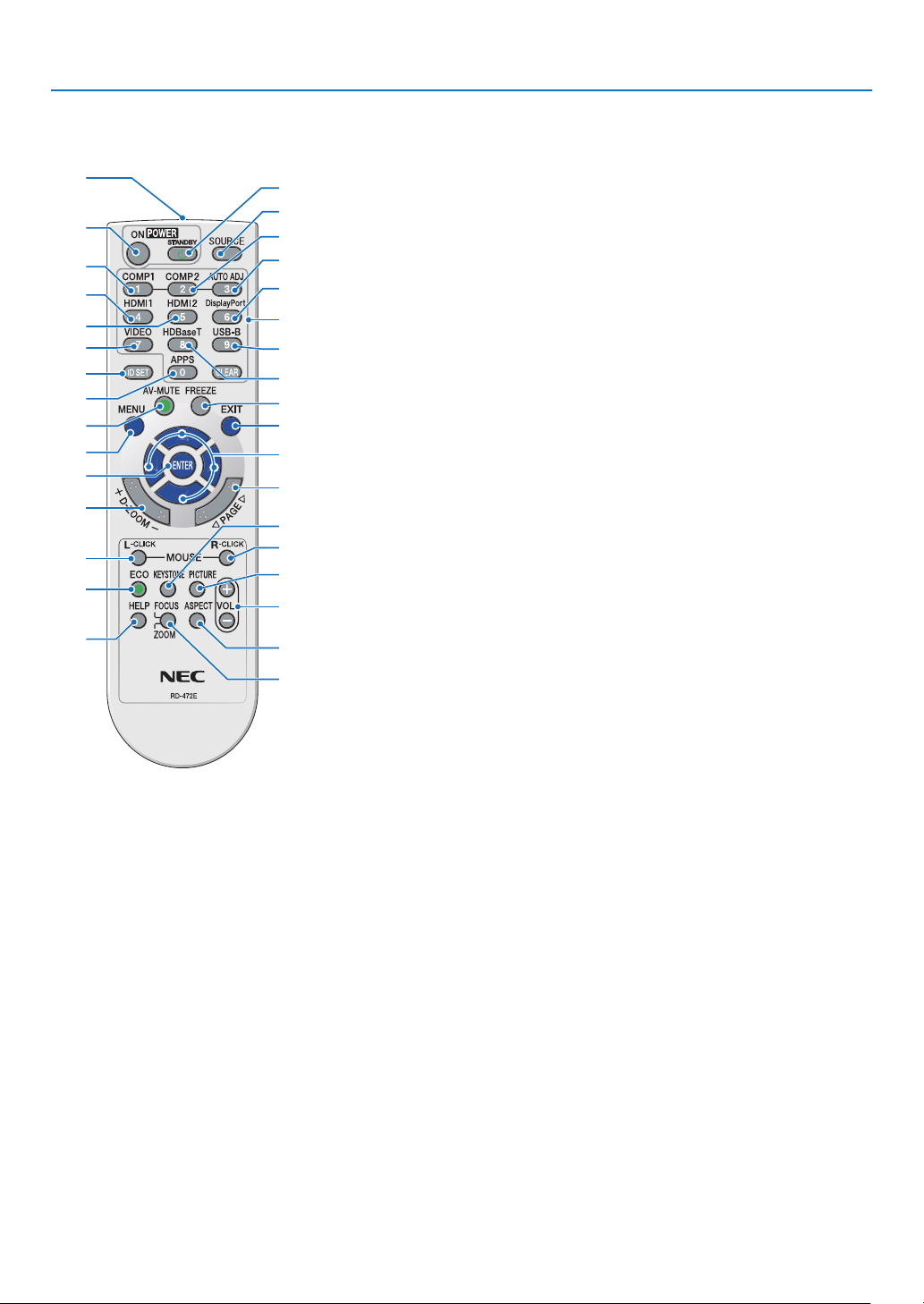
❹ Part Names of the Remote Control
+
3
4
6
7
1
2
10
16
17
15
14
9
5
8
13
30
31
32
20
21
26
28
29
25
24
23
22
27
33
19
18
12
11
1. Infrared Transmitter
(→page9)
2. POWER ON Button
(→page
12)
3. POWER STANDBY Button
(→page
24)
4.SOURCEButton
(→page
14)
5.COMPUTER1Button
(→page
14)
6. COMPUTER 2 Button
(Thisbuttondoesnotworkinthis
seriesofprojectors)
7. AUTO ADJ. Button
(→page
23)
8. HDMI 1 Button
(→page
14)
9. HDMI 2 Button
(→page
14)
10. DisplayPort Button
(Thisbuttondoesnotworkinthis
seriesofprojectors)
11.VIDEOButton
(→page
14)
12. HDBaseT Button
(→page
14)
13. USB-B Button
(Thisbuttondoesnotworkinthis
seriesofprojectors)
14.APPSButton
(→page
14, 88)
15.IDSETButton
(→page
57)
16. Numeric Keypad Button/
CLEAR Button
(→
page
57)
17. FREEZE Button
(→page
26)
18.AV-MUTEButton
(→page
26)
19. MENU Button
(→page
37)
20. EXIT Button
(→page
37)
21. ▲▼◀▶ Button
(→
page
37)
22. ENTER Button
(→page
37)
23.D-ZOOM(+)(–)Button
(→page
27)
24.MOUSEL-CLICKButton*
(Thisbuttondoesnotworkinthis
seriesofprojectors)
25.MOUSER-CLICKButton*
(Thisbuttondoesnotworkinthis
seriesofprojectors)
26. PAGE ▽/△ Button
(→
page
89)
27. ECO Button
(→page
28)
28. KEYSTONE Button
(→page
21)
29. PICTURE Button
(→page
43, 45)
30.VOL.(+)(–)Button
(→page
23)
31. ASPECT Button
(→page
48)
32. FOCUS/ZOOM Button
(Thisbuttondoesnotworkinthis
seriesofprojectors)
33. HELP Button
(→page
66)
9
1. Introduction
Battery Installation
1. Press firmly and slide the battery
cover off.
2. Install new batteries (AAA). En-
sure that you have the batteries’
polarity (+/−) aligned correctly.
3. Slip the cover back over the bat-
teries until it snaps into place. Do
not mix different types of batter-
ies or new and old batteries.
OPEN
OPEN
Remote Control Precautions
•Handletheremotecontrolcarefully.
•Iftheremotecontrolgetswet,wipeitdryimmediately.
•Avoidexcessiveheatandhumidity.
•Donotshort,heat,ortakeapartbatteries.
•Donotthrowbatteriesintore.
•Ifyouwillnotbeusingtheremotecontrolforalongtime,removethebatteries.
•Ensurethatyouhavethebatteries’polarity(+/−)alignedcorrectly.
•Donotusenewandoldbatteriestogether,orusedifferenttypesofbatteriestogether.
•Disposeusedbatteriesaccordingtoyourlocalregulations.
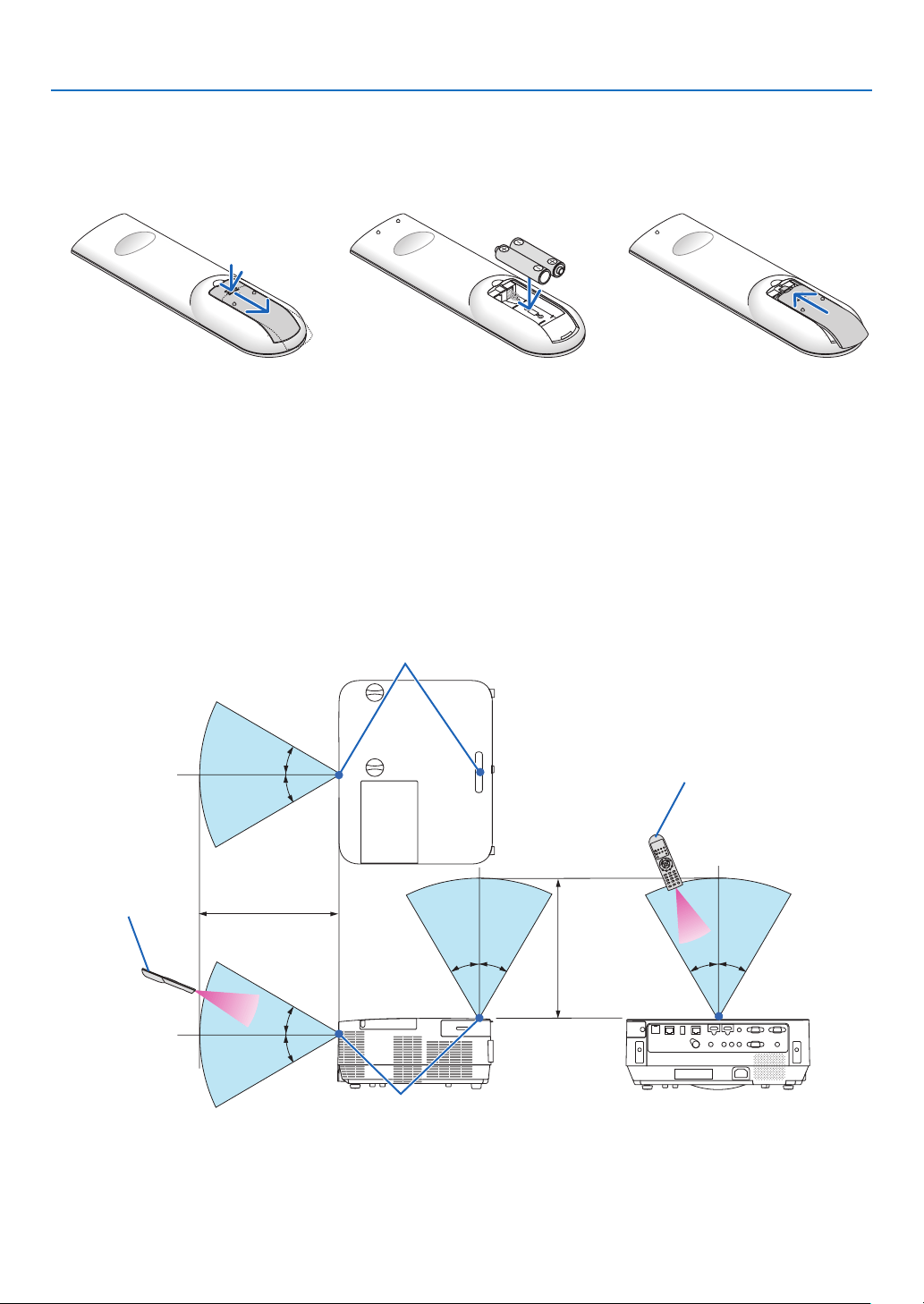
Operating Range for Wireless Remote Control
30°
30°
30°
30° 30° 30° 30°
30°
23.0 feet/
7 m
23.0 feet/7 m
Remote sensor on projector cabinet
Remote sensor on projector cabinet
Remote control
Remote control
•Theinfraredsignaloperatesbyline-of-sightuptoadistanceofabout23feet/7mandwithina60-degreeangleof
theremotesensorontheprojectorcabinet.
•Theprojectorwillnotrespondifthereareobjectsbetweentheremotecontrolandthesensor,orifstronglightfalls
onthesensor.Weakbatterieswillalsopreventtheremotecontrolfromproperlyoperatingtheprojector.

10
Thissectiondescribeshowtoturnontheprojectorandtoprojectapictureontothescreen.
❶ Flow of Projecting an Image
Step 1
•Connectingyourcomputer/Connectingthepowercord(→ page 11)
Step 2
•Turningontheprojector(→ page 12)
Step 3
•Selectingasource(→ page 14)
Step 4
•Adjustingthepicturesizeandposition(→ page 16)
•Correctingkeystonedistortion[KEYSTONE](→ page 21)
Step 5
•Adjustingapictureandsound
- Optimizing a computer signal automatically (→ page 23)
- Turning up or down volume (
→ page 23)
Step 6
•Makingapresentation
Step 7
•Turningofftheprojector(→ page 24)
Step 8
•WhenMovingtheProjector(→ page 25)
2. Projecting an Image (Basic Operation)
11
2. Projecting an Image (Basic Operation)
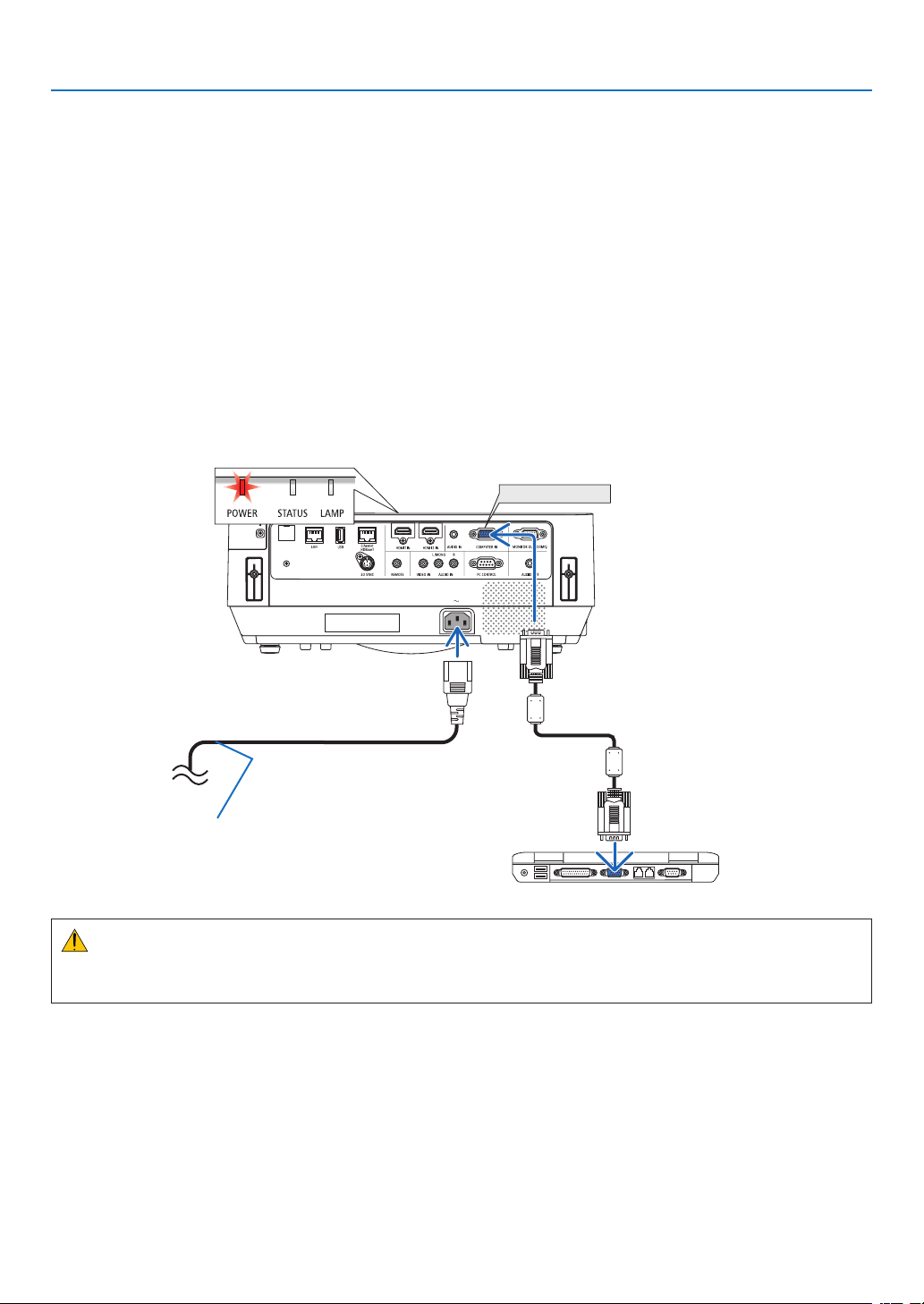
❷ Connecting Your Computer/Connecting the Power Cord
1.Connectyourcomputertotheprojector.
This section will show you a basic connection to a computer. For information about other connections, see “5.
InstallationandConnections”onpage69.
Connectthecomputercable(VGA)betweentheprojector’sCOMPUTERINterminalandthecomputer’sport(mini
D-Sub 15 Pin). Turn two thumb screws of both terminals to fix the computer cable (VGA).
2.Connectthesuppliedpowercordtotheprojector.
Firstconnectthesuppliedpowercord’sthree-pinplugtotheACINoftheprojector,andthenconnecttheother
plug of the supplied power cord in the wall outlet.
The projector’s power indicator will flash for a few seconds and then will light red* (standby mode).
*Thiswillapplyforbothindicatorswhen[NORMAL]isselectedfor[STANDBYMODE].SeethePowerIndicator
section.(→ page 125)
COMPUTER IN
Makesurethattheprongsarefullyinsertedinto
boththeACINandthewalloutlet.
To wall outlet ←
CAUTION:
PartsoftheprojectormaybecometemporarilyheatediftheprojectoristurnedoffwiththePOWERbutton.
Becarefultohandletheprojector.
12
2. Projecting an Image (Basic Operation)
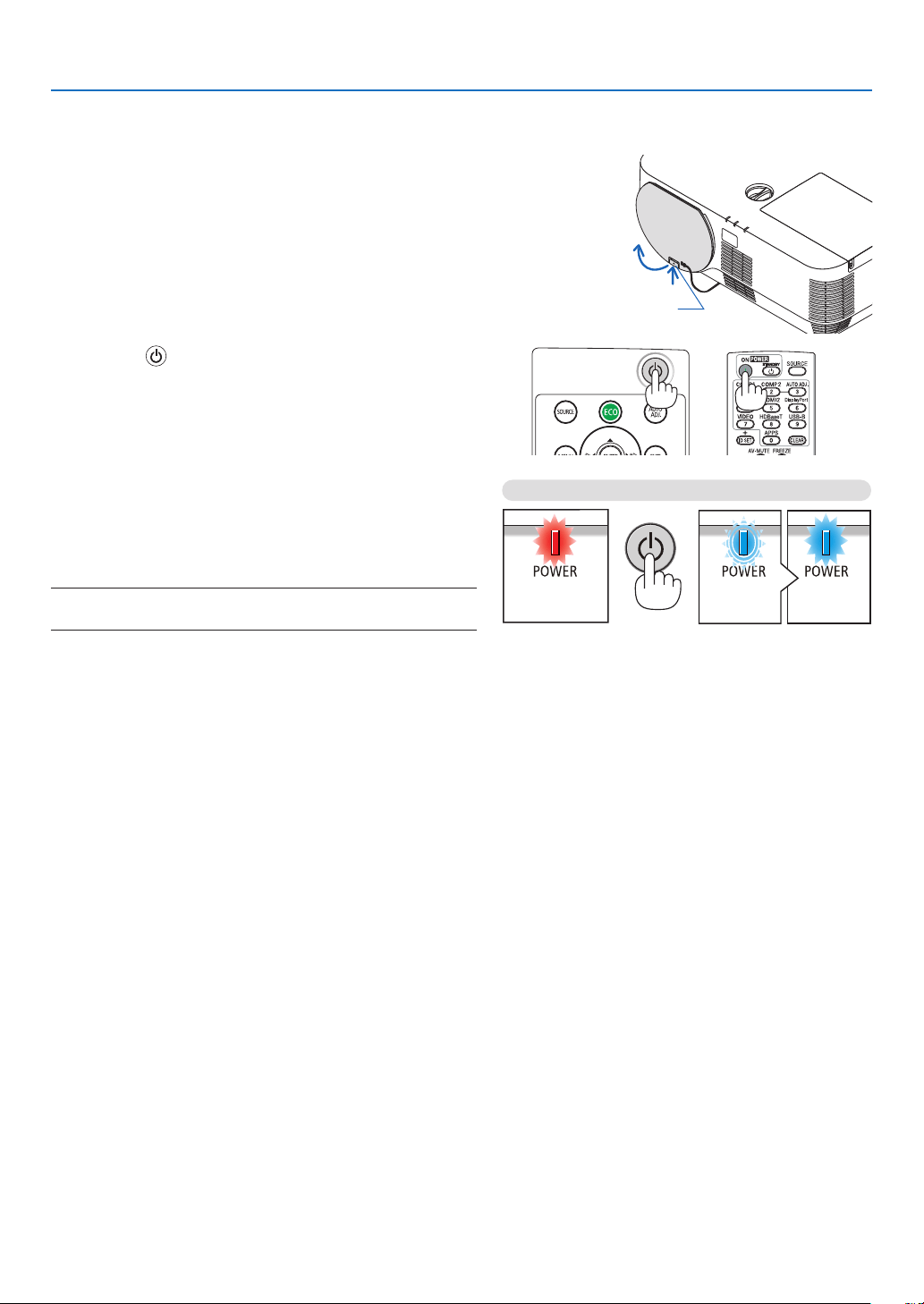
❸ Turning on the Projector
1. Remove the lens cap.
With the lens cap’s stopper pressed up, pull forward and
off.
Stopper
2. Press the
(POWER) button on the projector cabinet
or the POWER ON button on the remote control.
The POWER indicator lights blue and the image is projected
on the screen.
TIP:
•Whenthemessage“PROJECTORISLOCKED!ENTERYOUR
PASSWORD.”isdisplayed,itmeansthatthe[SECURITY]
featureisturnedon.(→page31)
After you turn on your projector, ensure that the computer
or video source is turned on.
NOTE:Whennoinputsignalispresent,theno-signalguidanceis
displayed(factorymenusetting).
Standby Blinking Power On
Steady red light Blinking blue
light
Steady blue
light
(→page
125)
13
2. Projecting an Image (Basic Operation)
Note on Startup screen (Menu Language Select screen)
Whenyourstturnontheprojector,youwillgettheStartupmenu.Thismenugivesyoutheopportunitytoselectone
ofthe30menulanguages.
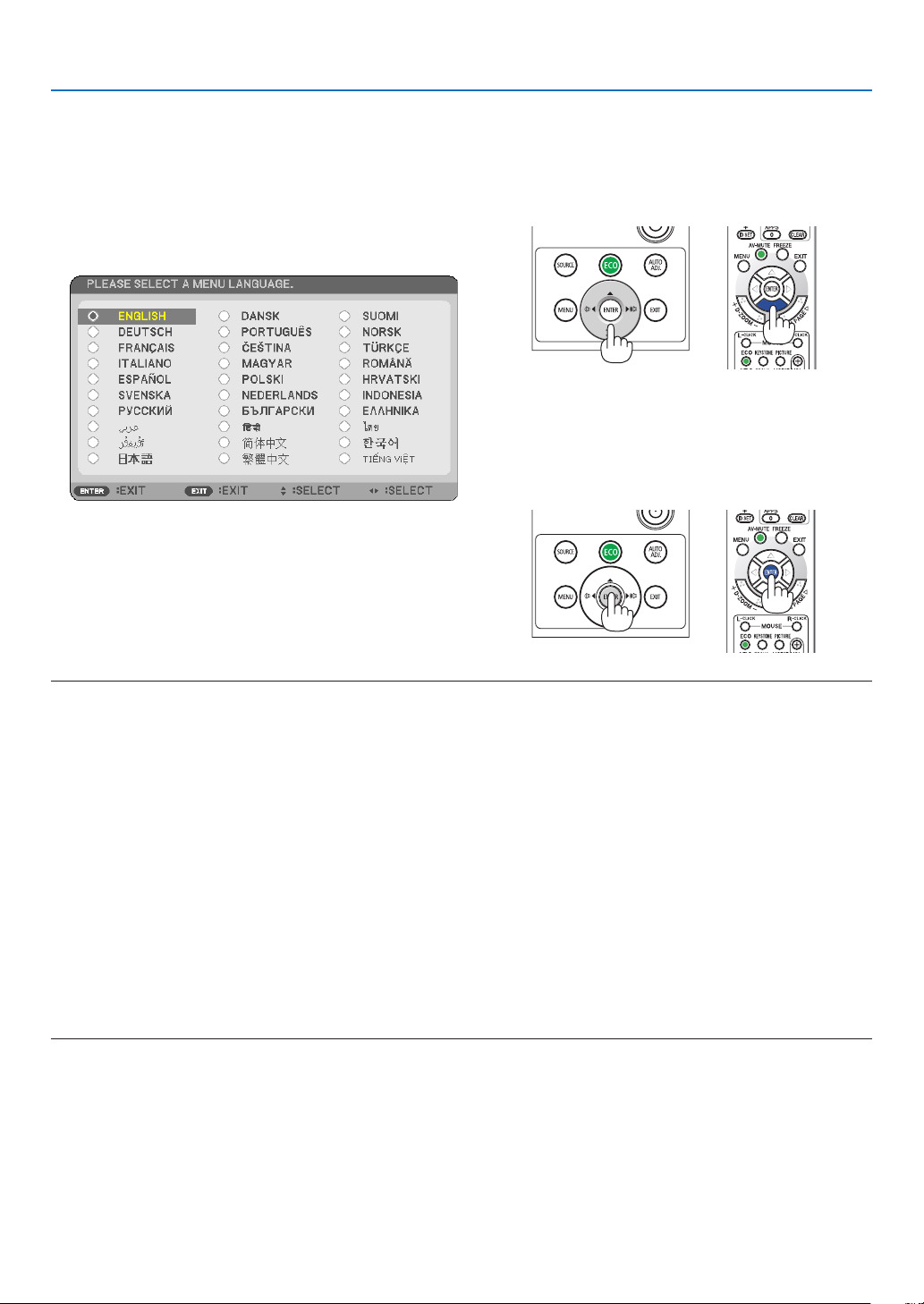
To select a menu language, follow these steps:
1. Use the ▲, ▼, ◀ or ▶ button to select one of the 30
languages from the menu.
2. Press the ENTER button to execute the selection.
Afterthishasbeendone,youcanproceedtothemenu
operation.
Ifyouwant,youcanselectthemenulanguagelater.
(→[LANGUAGE]onpage39and52)
NOTE:
•Keepthelenscapoffthelenswhiletheprojector’spowerison.
Ifthelenscapison,itcouldbewarpedduetohightemperature.
•Ifoneofthefollowingthingshappens,theprojectorwillnotturnon.
-Iftheinternaltemperatureoftheprojectoristoohigh,theprojectordetectsabnormalhightemperature.Inthisconditionthe
projectorwillnotbeturnedtoprotecttheinternalsystem.Ifthishappens,waitfortheprojector’sinternalcomponentstocool
down.
-Whenthelampreachesitsendofusablelife,theprojectorwillnotturnon.Ifthishappens,replacethelamp.
-IftheSTATUSindicatorlightsorangewiththepowerbuttonpressed,itmeansthatthe[CONTROLPANELLOCK]isturnedon.
Cancelthelockbyturningitoff.(→page55)
-Ifthelampfailstolight,andiftheLAMPindicatorashesonandoffinacycleofsixtimes,waitafullminuteandthenturnon
thepower.
•WhilethePOWERindicatorisblinkingblueinshortcycles,thepowercannotbeturnedoffbyusingthepowerbutton.
•Immediatelyafterturningontheprojector,screenickermayoccur.Thisisnormal.Wait3to5minutesuntilthelamplightingis
stabilized.
•Whentheprojectoristurnedon,itmaytakesometimebeforethelamplightbecomesbright.
•Ifyouturnontheprojectorimmediatelyafterthelampisturnedofforwhenthetemperatureishigh,thefansrunwithoutdisplay-
inganimageforsometimeandthentheprojectorwilldisplaytheimage.
14
2. Projecting an Image (Basic Operation)
❹ Selecting a Source
Selecting the computer or video source
NOTE:Turnonthecomputerorvideosourceequipmentconnectedtotheprojector.
Detecting the Signal Automatically
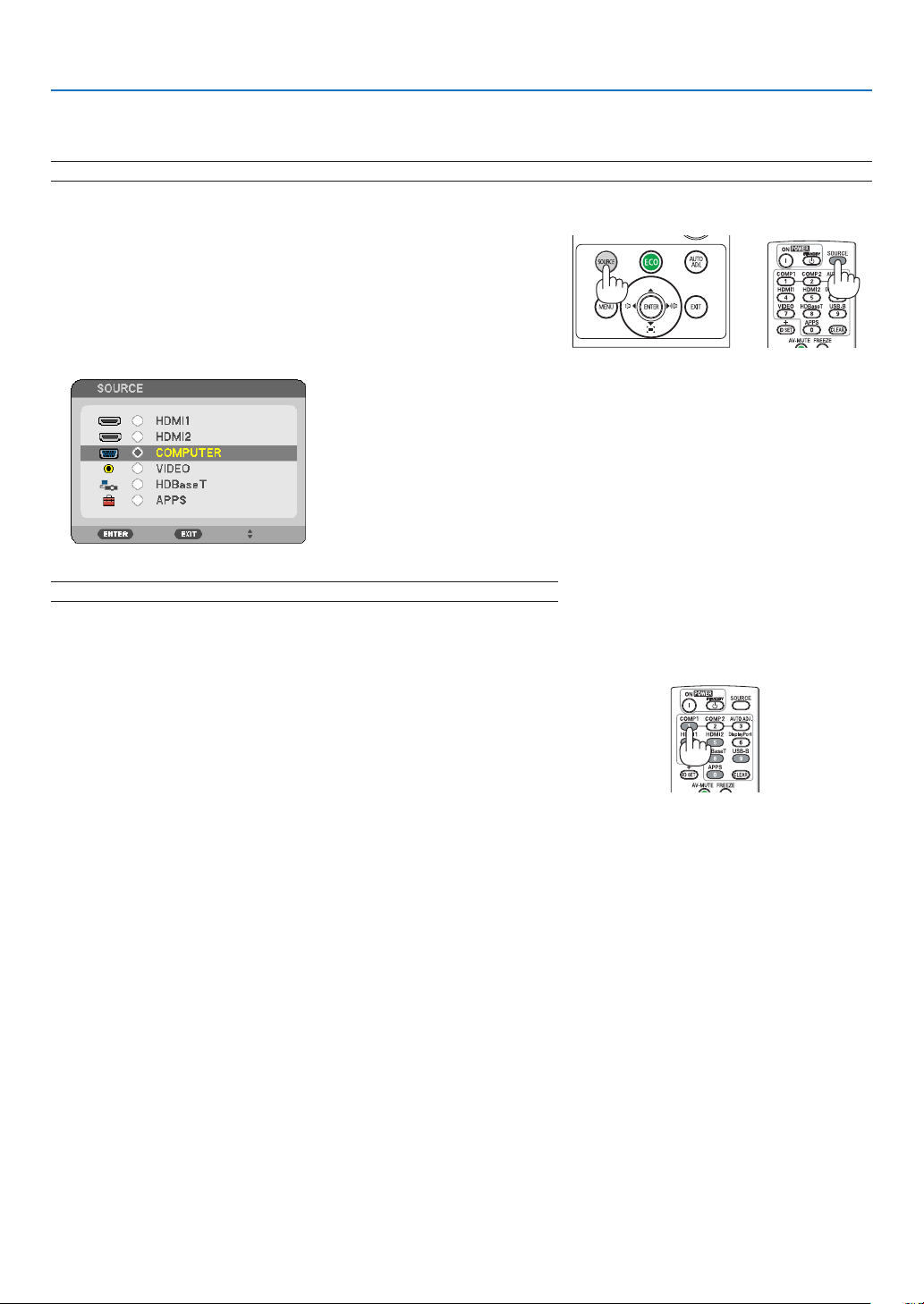
PresstheSOURCEbuttononce.Theprojectorwillsearchfortheavail-
ableinputsourceanddisplayit.Theinputsourcewillchangeasfollows:
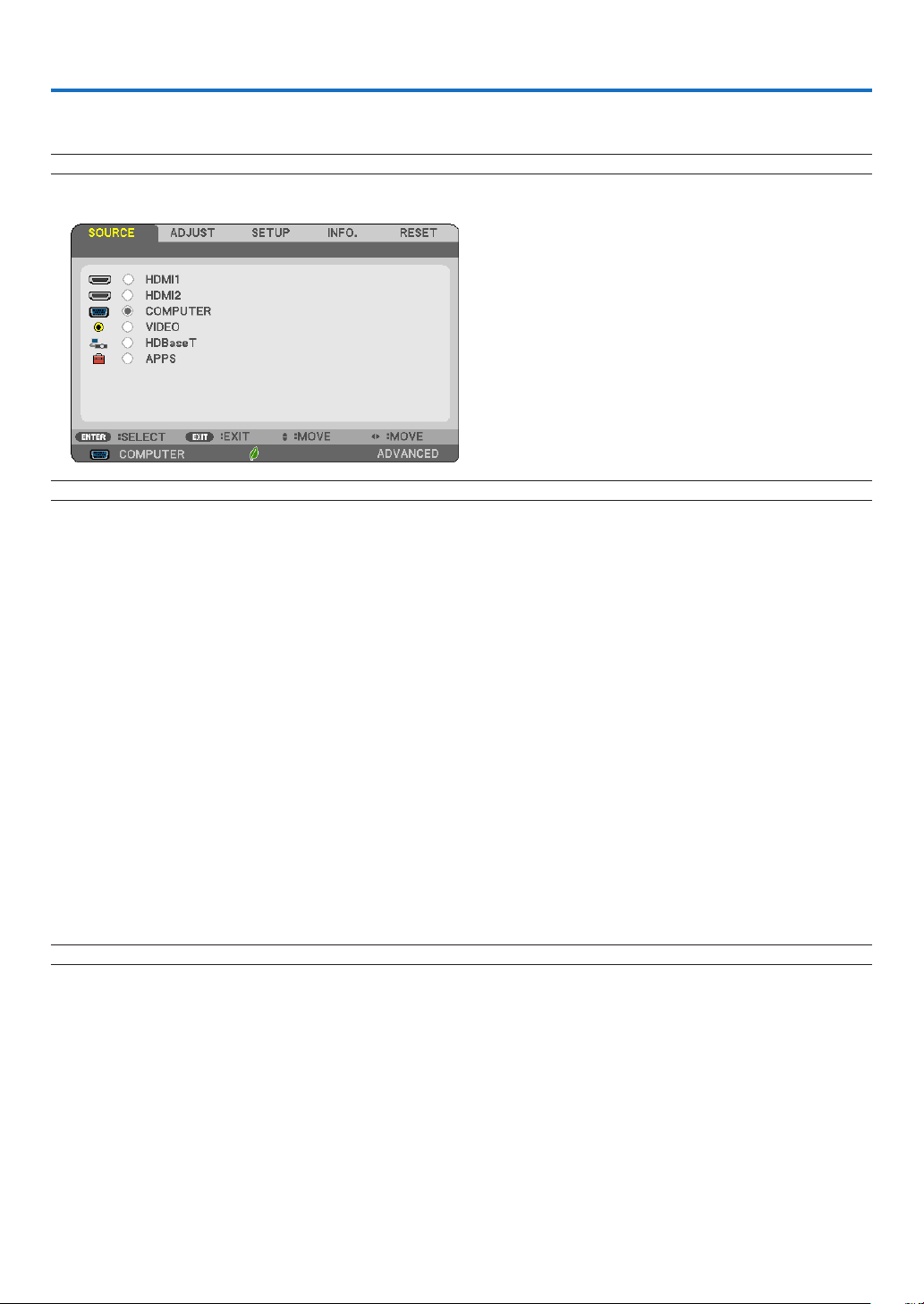
[HDMI1]→[HDMI2]→[COMPUTER]→[VIDEO]→[HDBaseT]→[APPS]
•WiththeSOURCEscreendisplayed,youcanpresstheSOURCE
buttonafewtimestoselecttheinputsource.
TIP:Ifnoinputsignalispresent,theinputwillbeskipped.
Using the Remote Control
PressanyoneoftheCOMPUTER1,HDMI1,HDMI2,VIDEO,HDBaseT,
orAPPSbuttons.
15
2. Projecting an Image (Basic Operation)
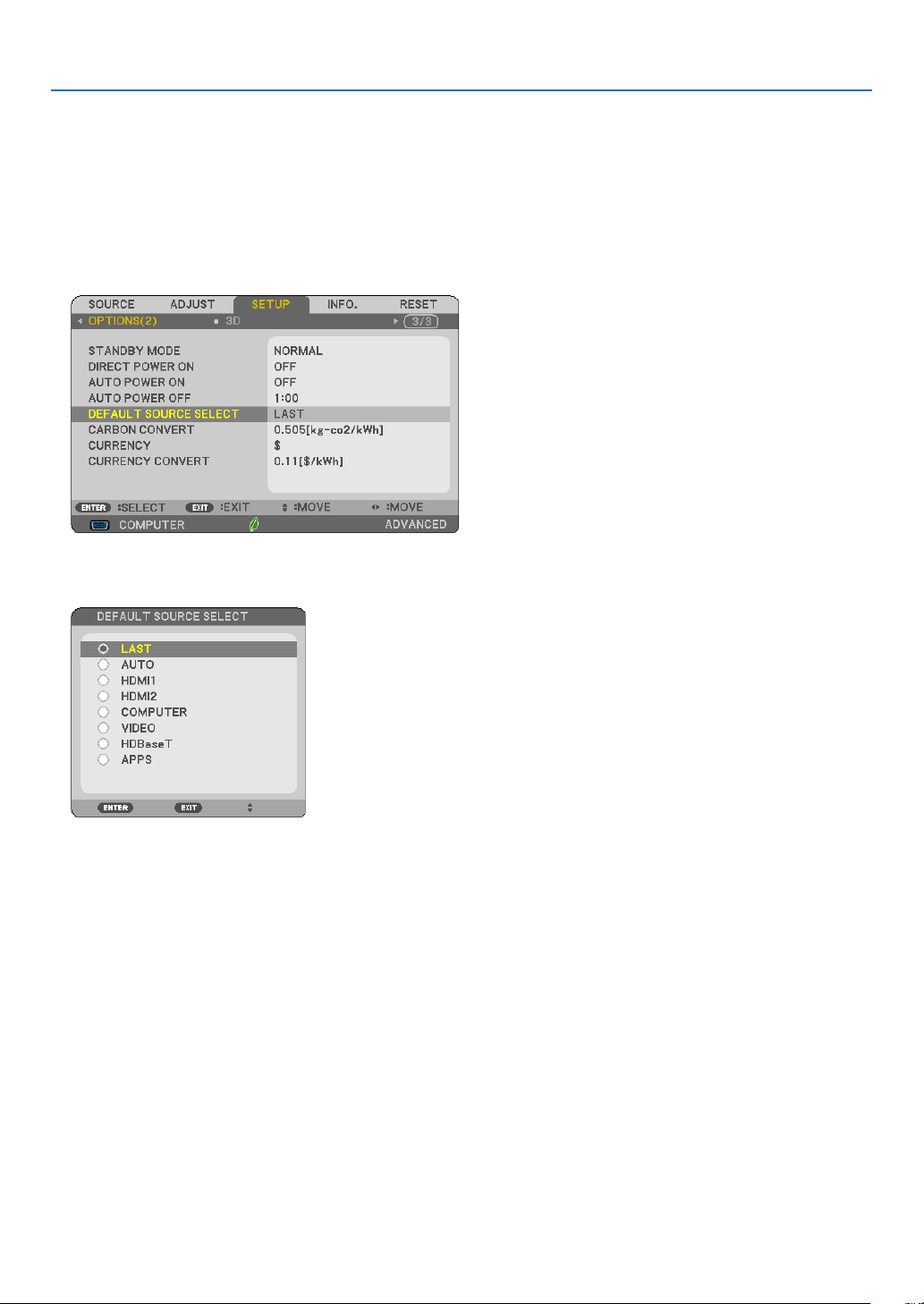
Selecting Default Source
Youcansothatitwillbedisplayedeachtimetheprojectoristurnedon.
1. Press the MENU button.
The menu will be displayed.
2. Press the
▶buttontwicetoselect[SETUP]andthe▼buttonortheENTERbuttontoselect[GENERAL].
3.
Press the
▶
buttonfourtimestoselect[OPTIONS(2)].
4. Press the ▼buttonvetimestoselect[DEFAULTSOURCESELECT]andpresstheENTERbutton.
The [DEFAULT SOURCE SELECT] screen will be displayed.
(
→ page 63)
5.
Select a source as the default source, and press the ENTER button.
6. Press the EXIT button a few times to close the menu.
7. Restart the projector.
The source you selected in step 5 will be projected.
TIP:
•Whentheprojectorandcomputerareconnectedandtheprojectorisinstandby,itispossibletoturnontheprojector’spower
andprojectthecomputer’sscreenautomaticallybydetectingthecomputersignalsorHDMIsignalsissuedfromthecomputer.
([AUTOPOWERON]→page62)
•OnWindowsnotebookcomputer,itcanswitchtoenable/disabletheexternaloutputbythecombinationofFnkeyandoneof
functionkey.
16
2. Projecting an Image (Basic Operation)
❺ Adjusting the Picture Size and Position
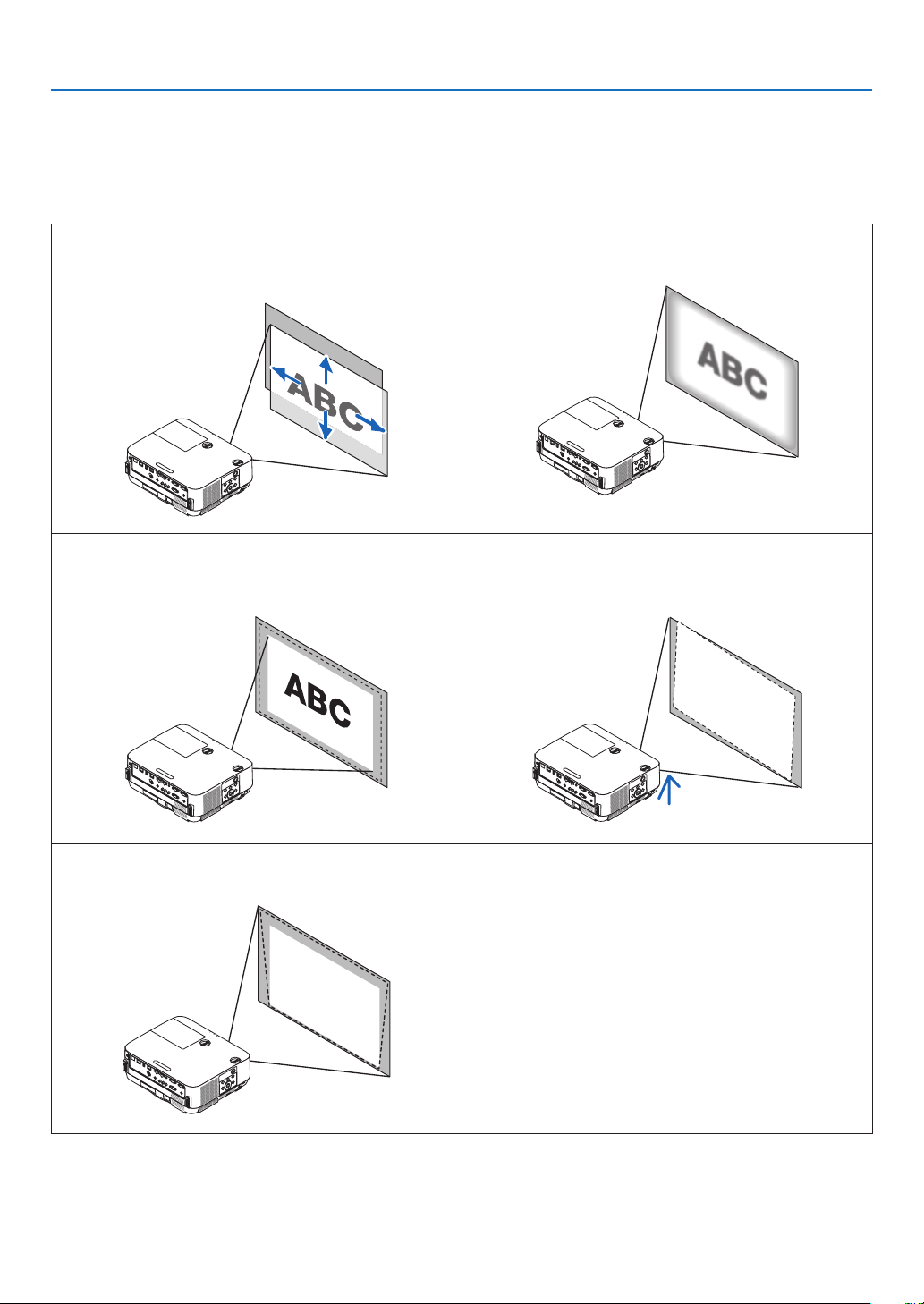
Usethelensshiftdial,theadjustabletiltfootlever,thezoomlever/zoomringandthefocusringtoadjustthepicture
sizeandposition.
Inthischapterdrawingsandcablesareomittedforclarity.
Adjustingtheprojectedimage’sverticalandhorizontal
position[Lensshift]
(→page17)
Adjustingthefocus[Focusring]
(→page19)
Finelyadjustingthesizeofanimage
[Zoomlever]
(→page19)
Adjustingtheprojectedimage’sheightandhorizontaltilt
[Tiltfoot]
(→page20)
Correctingthekeystonedistortion[Keystone]
(→page21)
17
2. Projecting an Image (Basic Operation)
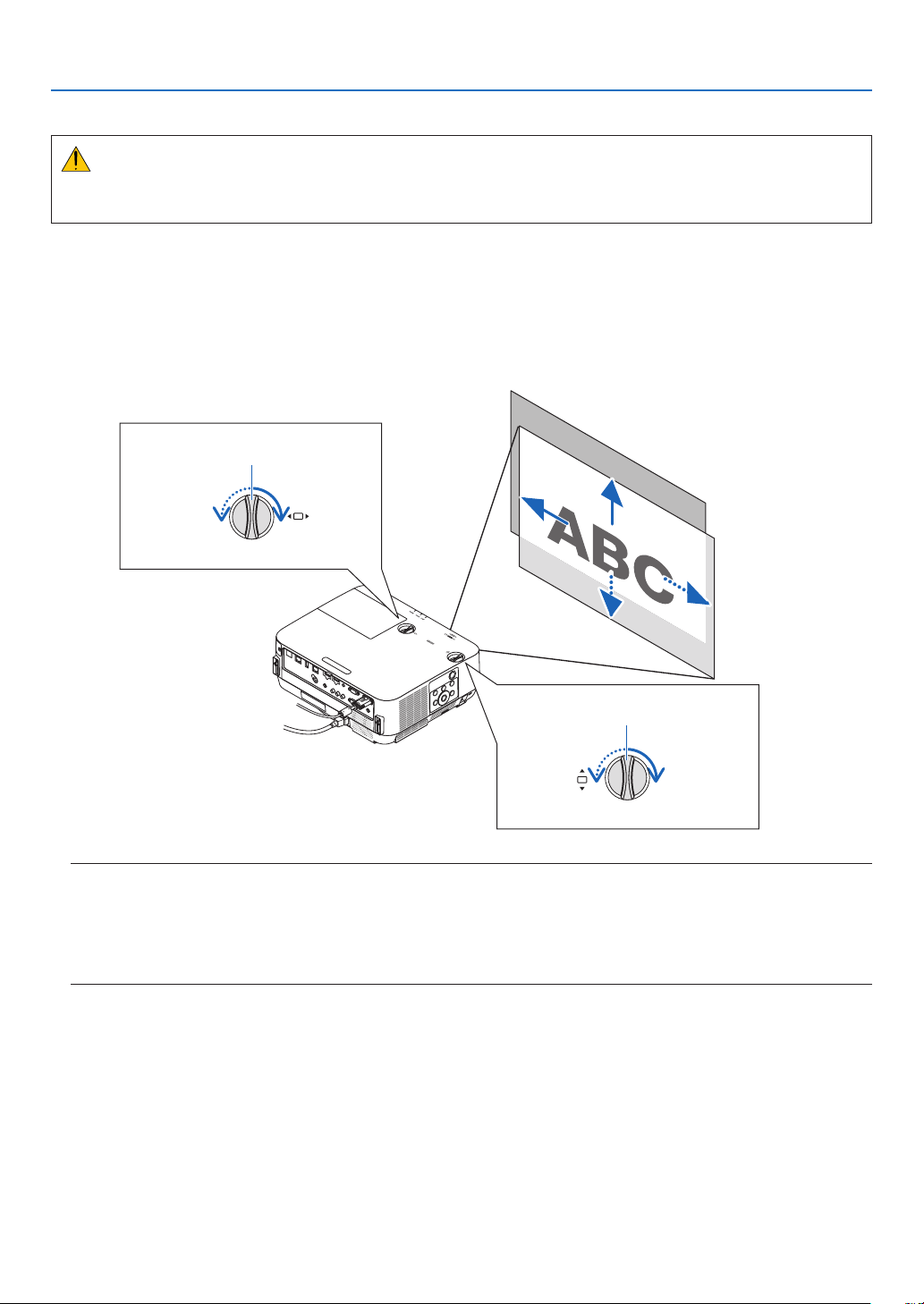
Adjusting the vertical position of a projected image (Lens shift)
CAUTION
Performtheadjustmentfrombehindorfromthesideoftheprojector.Adjustingfromthefrontcouldexposeyour
eyestostronglightwhichcouldinjurethem.
1. Turn the lens shift dials clockwise or counterclockwise.
Vertical dial
Turnthisclockwiseorcounterclockwisetoadjusttheprojectionpositionintheverticaldirection.
Horizontal dial
Turnthisclockwiseorcounterclockwisetoadjusttheprojectionpositioninthehorizontaldirection.
Lens shift dial
(Horizontal)
Lens shift dial
(Vertical)
Upward
Leftward
Downward
Rightward
NOTE:
•Thedialscanbeturnedmorethanonefullturn,buttheprojectionpositioncannotbemovedmorethantherangeindicated
onthefollowingpage.Donotforcetoturnthedials.Doingsomaydamagethedials.
•Ifthelensisshiftedtothemaximuminthediagonaldirection,theedgesofthescreenwillbedarkorshaded.
•Theverticalshiftadjustmentmustbenishedwithanimageshiftedupward.Ifyounishtheverticalshiftadjustmentwithan
imageshifteddown,thezoom/focusadjustmentsorstrongshakingmaycauseaprojectedimagetoslightlyshiftdown.
18
2. Projecting an Image (Basic Operation)
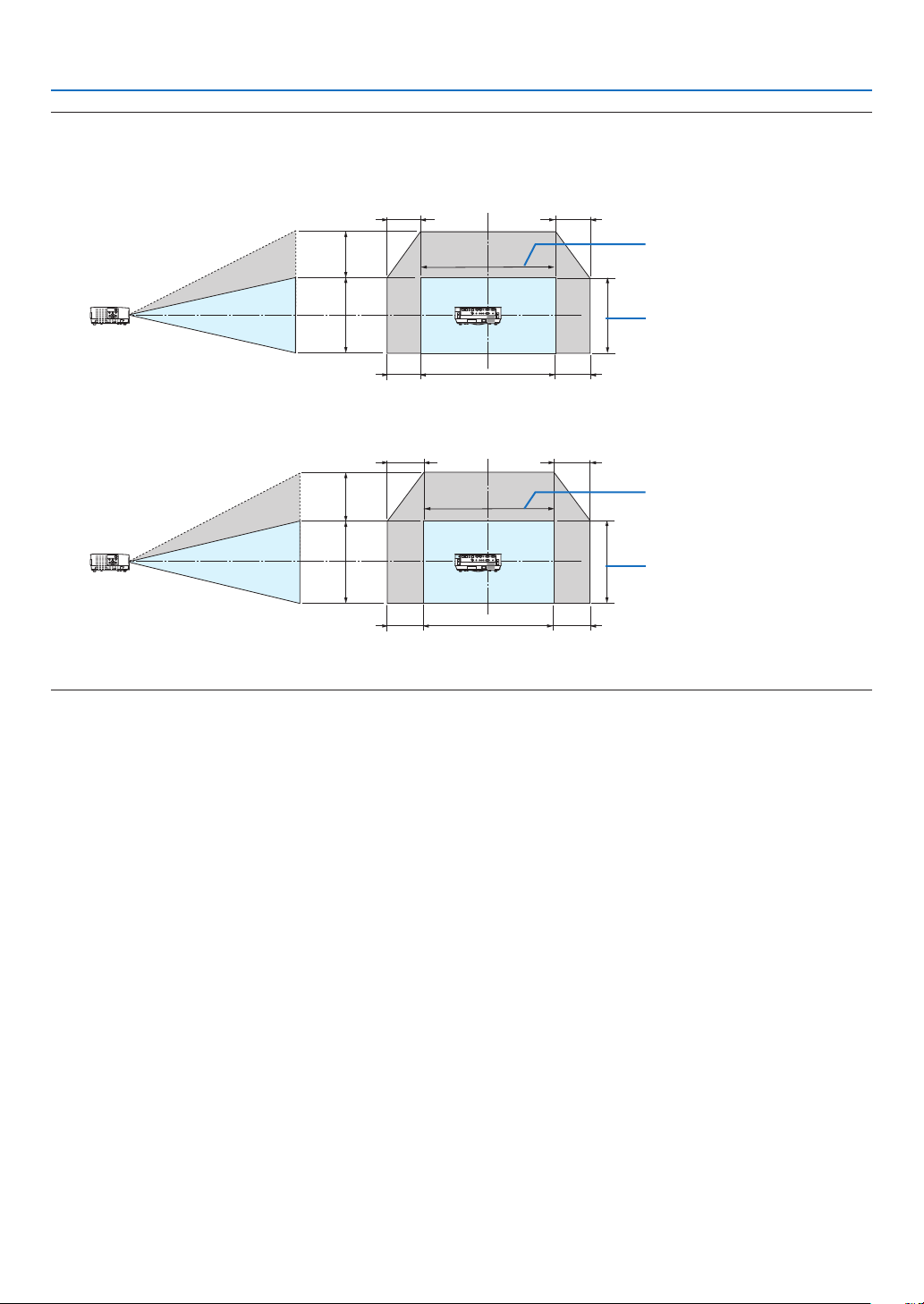
TIP:
•Thediagrambelowshowsthelensshiftadjustmentrange([ORIENTATION]:[DESKTOPFRONT]).
•Forthelensshiftadjustmentrangeregardingthe[CEILINGFRONT]projection,seepage73.
[P502H/P452H]
100%V
62%V
100%H
25%H
25%H
25%H
25%H
Height of projected image
Width of projected image
[P502W/P452W]
100%V
59%V
100%H
28%H
28%H
28%H
28%H
Height of projected image
Width of projected image
Descriptionofsymbols:Vindicatesvertical(heightoftheprojectedimage),Hindicateshorizontal(widthoftheprojectedimage).
19
2. Projecting an Image (Basic Operation)
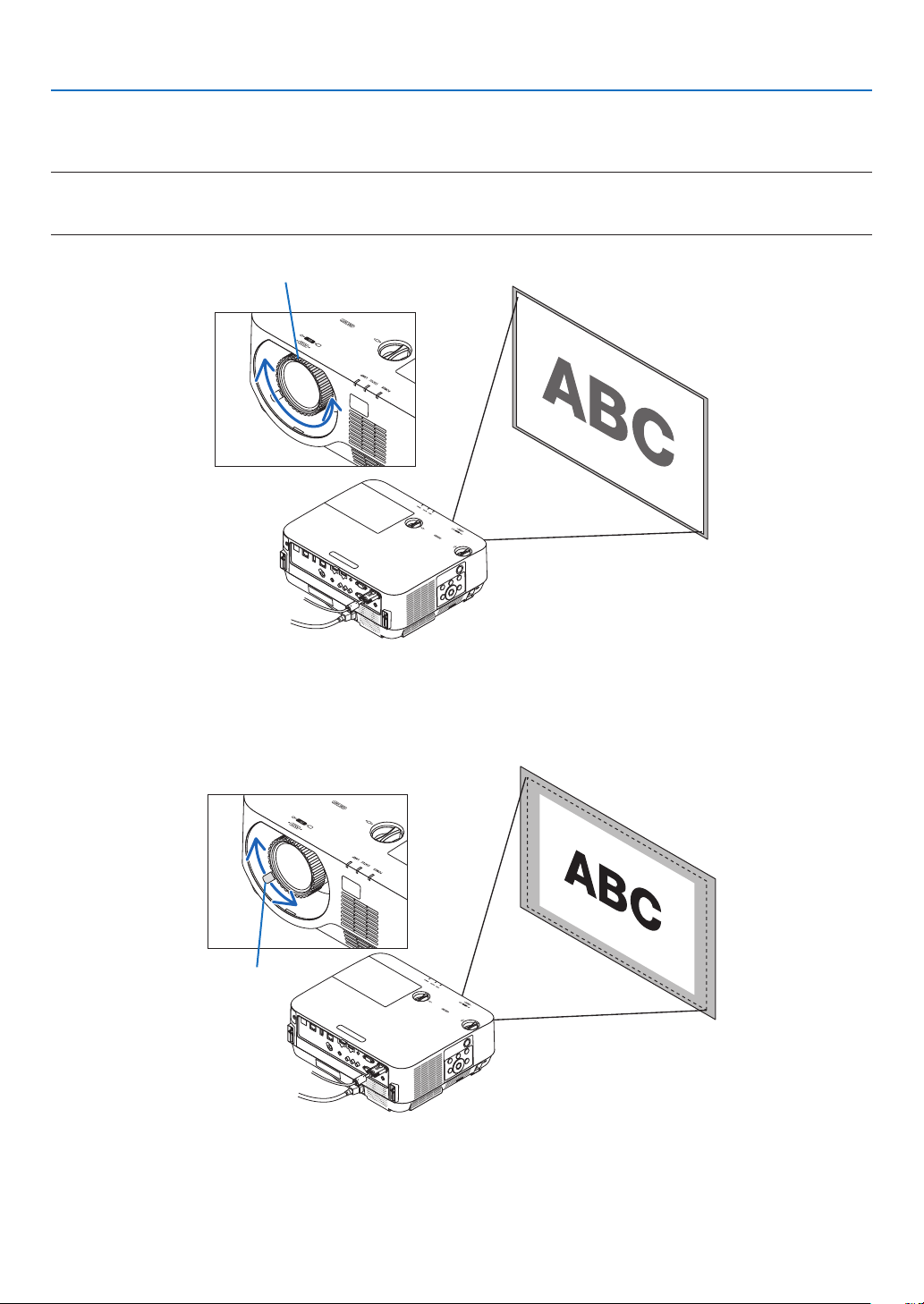
Focus
UsetheFOCUSringtoobtainthebestfocus.
NOTE:
•RecommendtoperformthefocusadjustmentafterleavingtheprojectorunderthestatetheTESTPATTERNhasbeenprojected
forover30minutes.Pleasereferpage58abouttheTESTPATTERN.
Focus ring
Zoom
Turnthezoomleverclockwiseandcounterclockwise.
Zoom lever
20
2. Projecting an Image (Basic Operation)
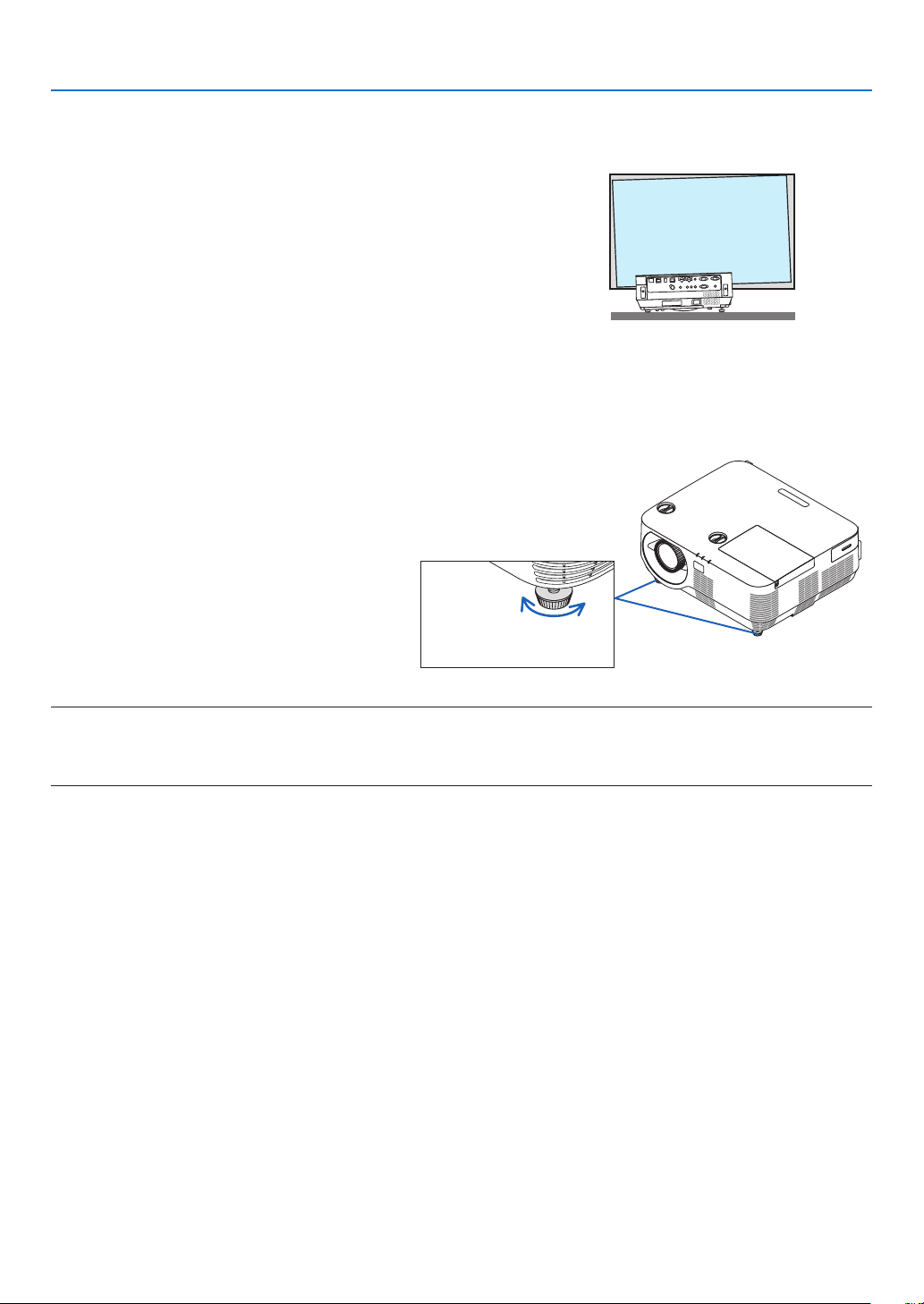
Adjusting the tilt (Tilt foot)
Adjustingtheleftandrighttilt.
1. Turn the left and right tilt feet to adjust.
The tilt feet lengthen and shorten when turned.
The height of the projected image is adjusted by turning the left
and right tilt feet.
Iftheprojectedimageistilted,turnoneofthetiltfeettoadjustthe
image so that it is level.
•Iftheprojectedimageisdistorted,see“6CorrectingKeystone
Distortion[KEYSTONE]”(→ page 21).
•Thetiltfeetcanbelengthenedbyamaximumof18mm.
•Thetiltfeetcanbeusedtotilttheprojectorbyamaximumof
4°.
Up
Down
Tilt foot
NOTE:
•Donotusethetiltfeetforanypurposeotherthanadjustingtheprojector’sprojectionangle.
Handlingthetiltfeetimproperly,suchascarryingtheprojectorbygraspingthetiltfootorhookingitontoawallusingthetiltfeet,
coulddamagetheprojector.
21
2. Projecting an Image (Basic Operation)
❻ Correcting Keystone Distortion [KEYSTONE]
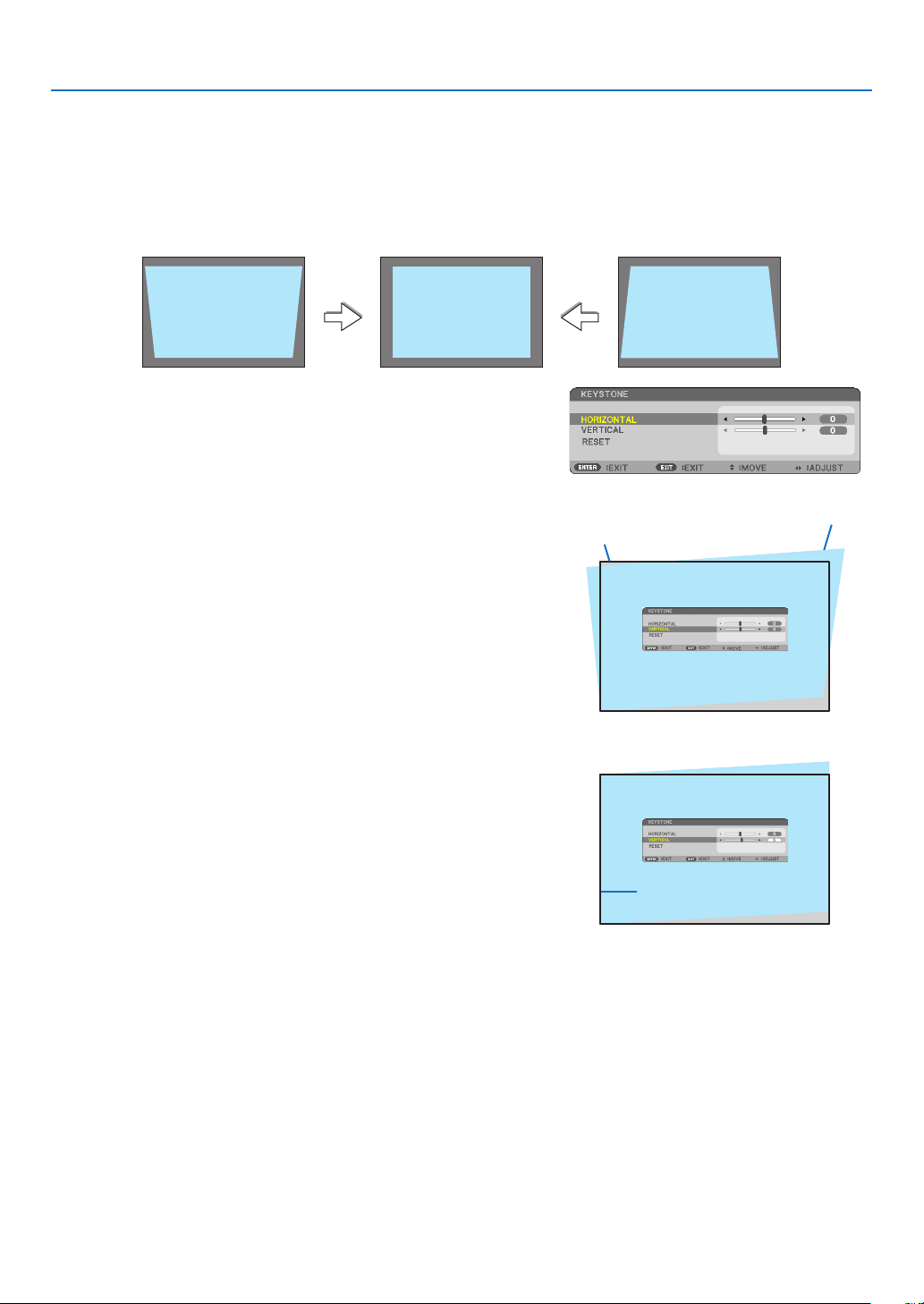
Whentheprojectorisnotexactlyperpendiculartothescreen,keystonedistortionoccurs.Toovercomeit,youcanusethe
“Keystone”function,adigitaltechnologythatcanadjustforkeystone-typedistortion,resultinginacrisp,squareimage.
Thefollowingprocedureexplainshowtousethe[KEYSTONE]screenfromthemenutocorrecttrapezoidaldistortions.
Whentheprojectorisplaceddiagonallytothescreen,
Whentheprojectorissetupatanangleinrelationtothescreen,adjusttheHorizontaloptionoftheKeystonemenu
sothatthetopandbottomofsidesoftheprojectedimageareparallel.
1. When APPS is not selected as source and the menu is not dis-
played on, press the ▼ button on the projector cabinet.
The Keystone screen will be displayed on the screen.
•PresstheKEYSTONEbuttonwhenusingtheremotecontrol.
•Seepage
22 for [RESET].
2. Press the ▼buttontoselect[VERTICAL]andthenusethe◀ or ▶
so that the left and right sides of the projected image are parallel.
*Adjusttheverticalkeystonedistortion.
Projected area
Screen frame
3. Align the left (or right) side of the screen with the left (or right)
side of the projected image.
•Usetheshortersideoftheprojectedimageasthebase.
•Intherightexample,usetheleftsideasthebase.
Align left side
22
2. Projecting an Image (Basic Operation)
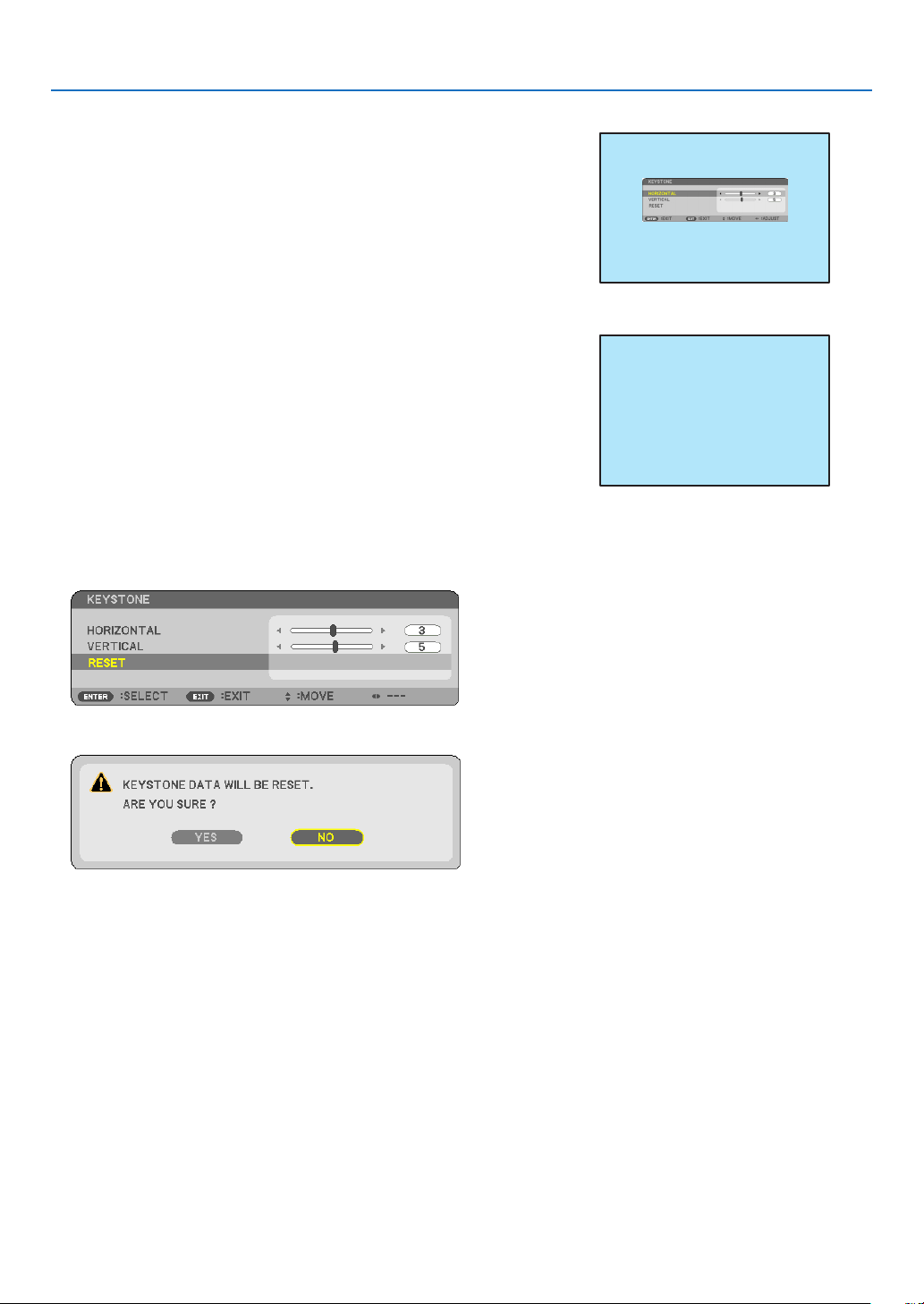
4. Press the ▲buttontoselect[HORIZONTAL]andthenusethe◀
or ▶ so that the top and bottom sides of the projected image are
parallel.
•Adjustthehorizontalkeystonedistortion.
5. Repeat steps 2 and 4 to correct keystone distortion.
6.AftercompletingKeystonecorrection,presstheEXITbutton.
The Keystone screen will disappear.
•ToperformKeystonecorrectionagain,pressthe▼ button to display
the Keystone screen and repeat above steps 1 to 6.
Toreturnthekeystoneadjustmentstodefault:
1. Press the ▼buttontoselect[RESET]andpresstheENTERbutton.
2. Press the ◀ or ▶buttontoselect[YES]andpresstheENTERbutton.
The adjustments will be reset.
•Whenresetting,the[HORIZONTAL]and[VERTICAL]adjustmentvaluesarealsoreset.
•TheKEYSTONEfeaturecancauseanimagetobeslightlyblurredbecausethecorrectionismadeelectronically.
23
2. Projecting an Image (Basic Operation)
❼ Optimizing Computer Signal Automatically
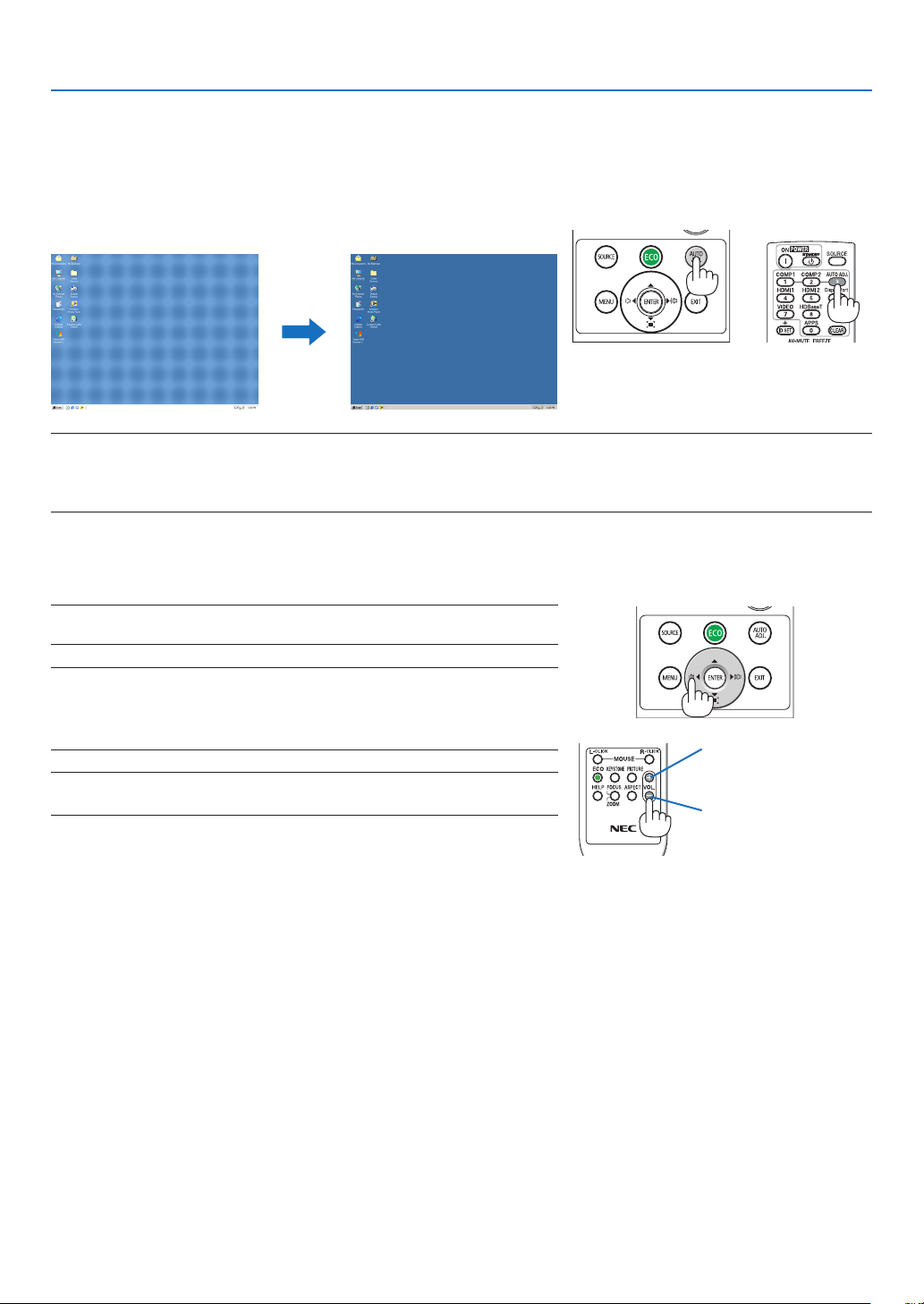
Adjusting the Image Using Auto Adjust
Optimizingacomputerimageautomatically.(COMPUTER)
PresstheAUTOADJ.buttontooptimizeacomputerimageautomatically.
Thisadjustmentmaybenecessarywhenyouconnectyourcomputerforthersttime.
[Poor picture] [Normal picture]
NOTE:
Somesignalsmaytaketimetodisplayormaynotbedisplayedcorrectly.
•IftheAutoAdjustoperationcannotoptimizethecomputersignal,trytoadjust[HORIZONTAL],[VERTICAL],[CLOCK],and[PHASE]
manually.(→page46,47)
❽ Turning Up or Down Volume
Soundlevelfromthespeakeroraudiooutputcanbeadjusted.
TIP:Whennomenusappear,the◀and▶buttonsontheprojectorcabinetwork
asavolumecontrol.
NOTE:
•Volumecontrolisnotavailablewiththe◀or▶buttonwhenanimageismagni-
edbyusingtheD-ZOOM(+)button,whenthemenuisdisplayed,orwhenthe
APPSisdisplayed.
TIP:The[BEEP]soundvolumecannotbeadjusted.Toturnoffthe[BEEP]sound,
fromthemenu,select[SETUP]→[OPTIONS(1)]→[BEEP]→[OFF].
Increasevolume
Decrease volume
24
2. Projecting an Image (Basic Operation)
❾ Turning off the Projector
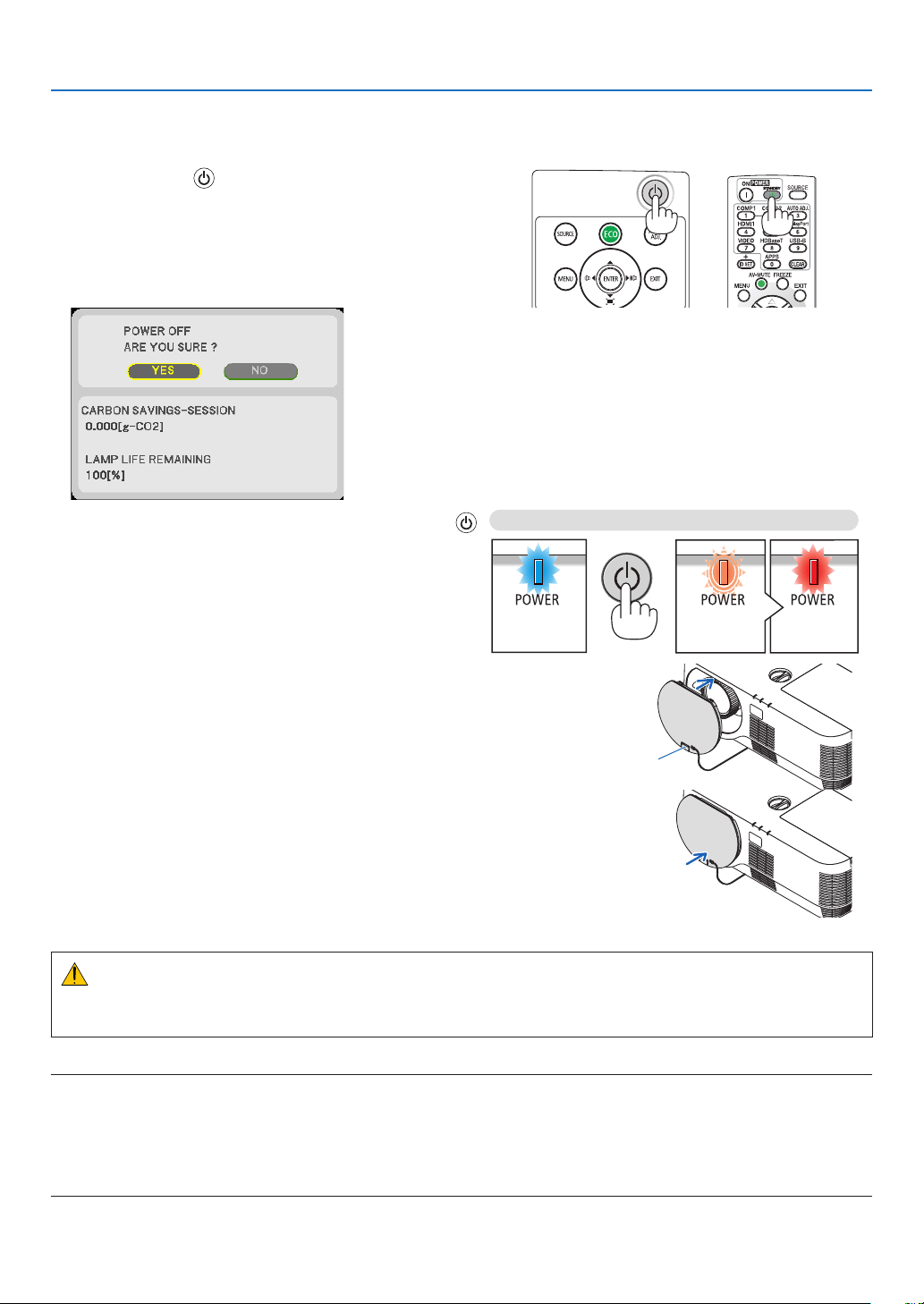
Toturnofftheprojector:
1. First, press the (POWER) button on the projector
cabinet or the STANDBY button on the remote control.
The confirmation message will be displayed.
•Theconrmationmessagedisplayedwhenthepower
is turned off indicates the amount of CO
2
reduction this
session and lamp life remaining (
→ page 29).
2. Secondly, press the ENTER button or press the
(POWER) or the STANDBY button again.
The lamp and the power are turned off and the cooling
fan stops to rotate, the projector goes into the STANDBY
MODE. When in standby mode, the POWER indicator
will light red and the STATUS indicator will turn off when
[NORMAL] is selected for [STANDBY MODE].
Power On
Steady blue light
Fan rotating Standby
Blinking orange
light
Steady red light
3. Mount the lens cap.
Put the top side of the lens cap to the right position on the
cabinet and push in the bottom side. The stopper is secured
to the projector.
Stopper
CAUTION:
PartsoftheprojectormaybecometemporarilyheatediftheprojectoristurnedoffwiththePOWERbutton.
Becarefultohandletheprojector.
NOTE:
•WhilethePOWERindicatorisblinkingblueinshortcycles,thepowercannotbeturnedoffbyusingthepowerbutton.
•Youcannotrunoffthepowerfor60secondsimmediatelyafterturningitonanddisplayinganimage.
•Waitforabout10secondstoturnoffthepoweraftermakingadjustmentorchangeoneachsettingandcloseitsmenu.Ifthe
poweristurnedoffduringthisperiod,theadjustmentandchangemayberesetatdefaultsetting.
•Donotdisconnectthepowercordwhilethecoolingfanremainstorotate.Itmaybecauseofmalfunction.

25
2. Projecting an Image (Basic Operation)
❿ When Moving the Projector
Preparation:Makesurethattheprojectoristurnedoff.
1. If the separately sold cable cover is mounted, remove it.
(
→ page 132)
2. Unplug the power cord.
3. Disconnect any other cables.
•RemovetheUSBmemoryifitisinsertedintotheprojector.

26
❶ Turning off the Image and Sound
PresstheAV-MUTEbuttontoturnofftheimageandsoundforashort
periodoftime.Pressagaintorestoretheimageandsound.
NOTE:
•Eventhoughtheimageisturnedoff,themenustillremainsonthescreen.
❷ Freezing a Picture
PresstheFREEZEbutton.IftheimageofaDVDplayer,etc.,isbe-
ingprojected,thevideoswitchestoastillimage.PresstheFREEZE
buttonagaintoresumethevideo.
NOTE:Theimageisfrozenbuttheoriginalvideoisstillplayingback.
3. Convenient Features
27
3. Convenient Features
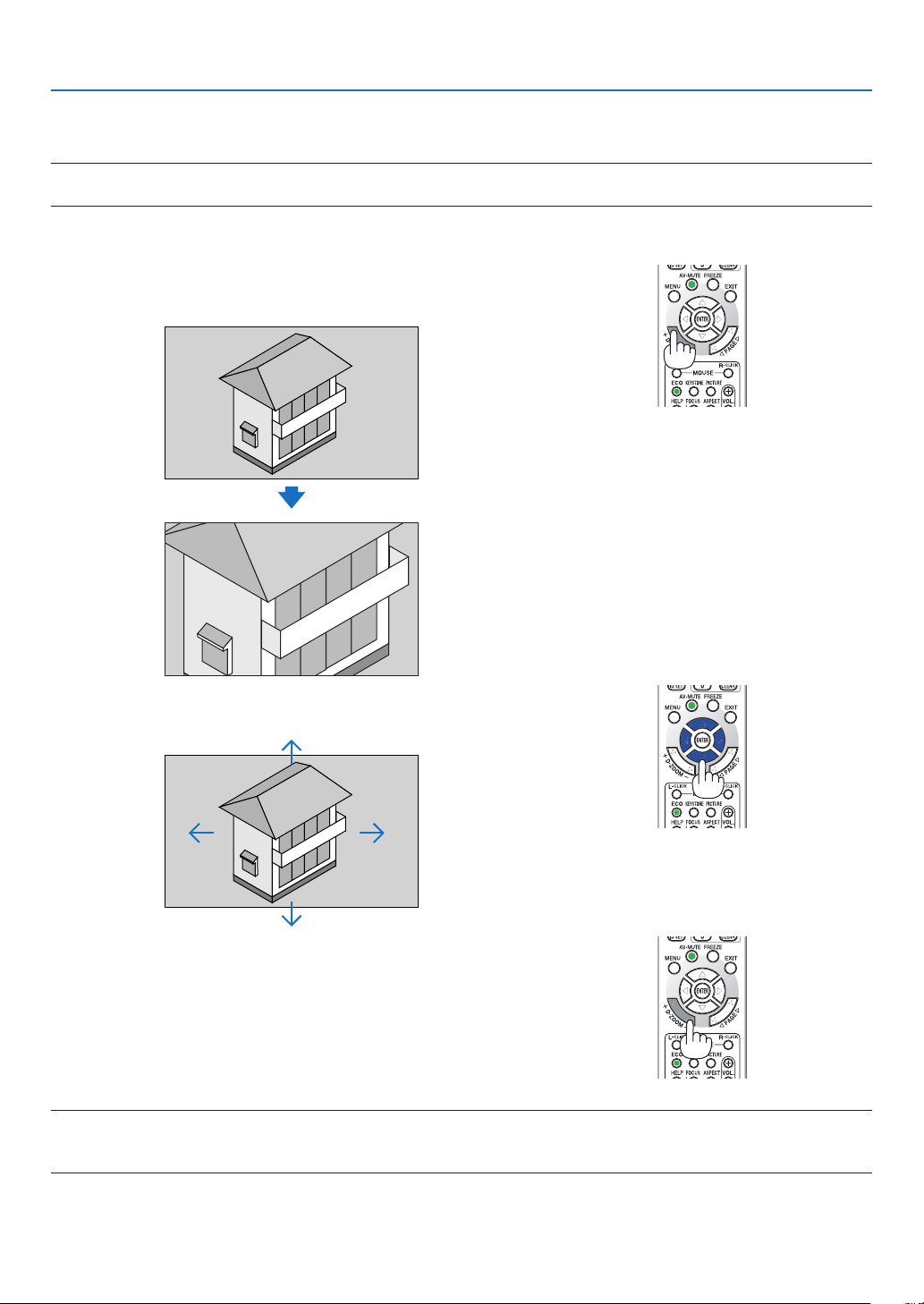
❸ Magnifying a Picture
Youcanenlargethepictureuptofourtimes.
NOTE:
•Themaximummagnicationmaybelessthanfourtimesdependingonthesignal.
Todoso:
1.PresstheD-ZOOM(+)buttontomagnifythepicture.
To move the magnified image, use the ▲,▼,◀ or ▶ button.
2. Press the ▲▼◀▶ button.
The area of the magnified image will be moved
3.PresstheD-ZOOM(−)button.
Each time the D-ZOOM (−) button is pressed, the image is reduced.
NOTE:
•Theimagewillbemagniedordemagniedatthecenterofthescreen.
•Displayingthemenuwillcancelthecurrentmagnication.
28
3. Convenient Features
❹ Changing Eco Mode/Checking Energy-Saving Effect
Using Eco Mode [ECO MODE]
TheECOMODE(NORMALandECO)increaseslamplife,whileloweringpowerconsumptionandcuttingdownon
CO
2
emissions.
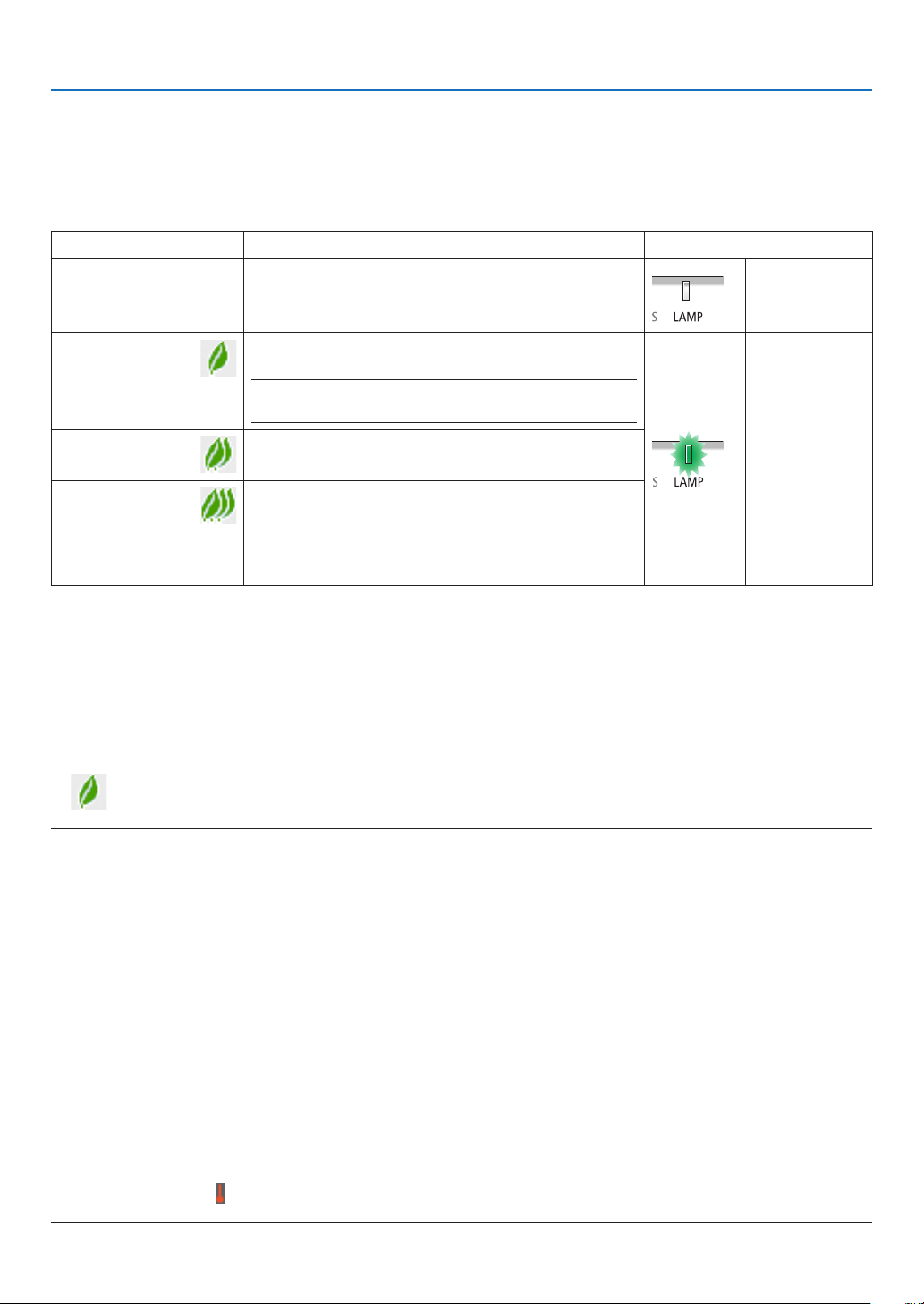
Fourbrightnessmodesofthelampcanbeselected:[OFF],[AUTOECO],[NORMAL]and[ECO]modes.
[ECOMODE]DescriptionStatusofLAMPindicator
[OFF]Thelampbrightnessis100%.
Off
[AUTOECO]
Lamppowerconsumptionwillbecontrolledbetween
[OFF]and[ECO]automaticallyaccordingtopicturelevel.
NOTE:Abrightgradationmaybelessvisibledependingon
theimage.
SteadyGreen
light
[NORMAL]
Lamppowerconsumption.(approx.80%brightness)
Thelamplifewillextendbyloweringthelamppower.
[ECO]
Lamppowerconsumption(approx.60%brightness).The
lamplifewillextendlongerthantheoneonNORMAL
modebycontrollingpowerappropriateforthelamp.
Themaximumpowerbecomesequivalenttothepower
inNORMAL.
Toturnonthe[ECOMODE],dothefollowing:
1.PresstheECOButtonontheremotecontroltodisplay[ECOMODE]screen.
2.PresstheECObuttonagaintoselectamodeyouwish.
•EachtimetheECObuttonispressed,thechoiceswillbechanged:
OFF → AUTO ECO → NORMAL → ECO → OFF
TIP:
•TheleafsymbolatthebottomofthemenushowsthecurrentselectionofECOmode.
NOTE:
•TheECOMODEandDYNAMICCONTRASTfeaturescontrolthelamppower.Somepicturesmaybecomeextremelybrightwhen
usingbothECOMODEandDYNAMICCONTRASTfeaturestocontrolthelamppower.Toavoidthisphenomena,turnofftheECO
MODEandDYNAMICCONTRAST.
•Immediatelyafterthemenuitemisselectedfor[ECOMODE],thescreenmayicker.Thisisnotmalfunction.
•Usingtheprojectorinthe[AUTOECO],[NORMAL],or[ECO]modefor[ECOMODE]maycausepoorhalftonesdependingonthe
projectedimage.
•When[ECO]hasbeensetfor[ECOMODE],thefannoisemaychangeinacertaincycle.
•The[ECOMODE]canbechangedbyusingthemenu.
Select[SETUP]→[GENERAL]→[ECOMODE].
•Thelampliferemainingandlamphoursusedcanbecheckedin[USAGETIME].Select[INFO.]→[USAGETIME].
•Theprojectorisalwaysin[NORMAL]for90secondsafterthelampisturnedonandwhilethePOWERindicatorisblinkinggreen.
Thelampconditionwillnotbeaffectedevenwhen[ECOMODE]ischanged.
•Afteralapseof1minutefromwhentheprojectordisplaysno-signalguidance,ablue,blackorlogoscreen,[ECOMODE]will
automaticallyswitchto[ECO].
•Iftheprojectorisoverheatedin[OFF]mode,theremaybeacasewherethe[ECOMODE]automaticallychangesto[NORMAL]
modetoprotecttheprojector.Whentheprojectorisin[NORMAL]mode,thepicturebrightnessdecreases.Whentheprojector
comesbacktonormaltemperature,the[ECOMODE]returnsto[OFF]mode.
Thermometersymbol[
]indicatesthe[ECOMODE]isautomaticallysetto[NORMAL]modebecausetheinternaltemperature
istoohigh.
29
3. Convenient Features
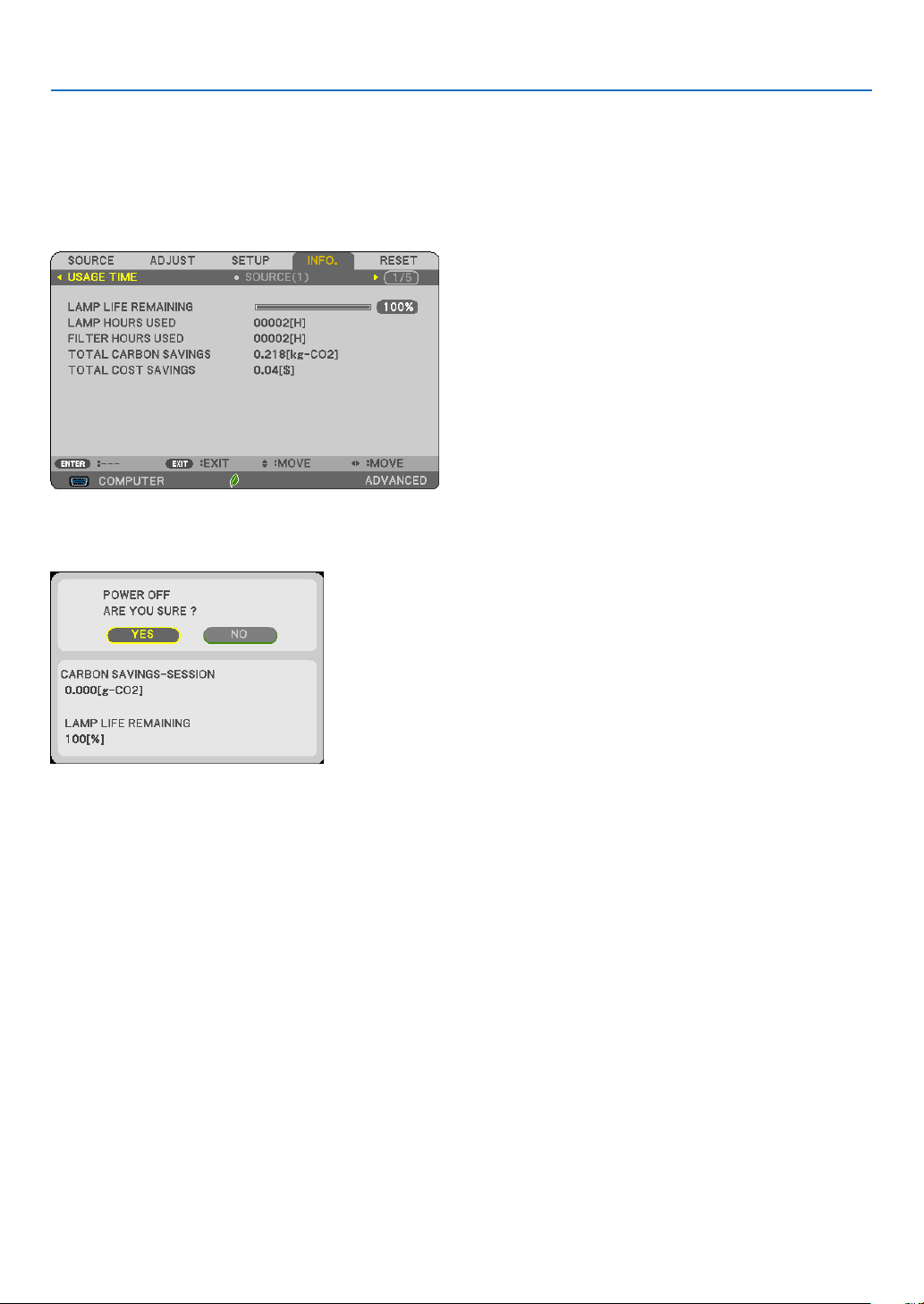
Checking Energy-Saving Effect [CARBON METER]
Thisfeaturewillshowenergy-savingeffectintermsofCO
2
emissionreduction(kg)whentheprojector’s[ECOMODE]
isset.Thisfeatureiscalledas[CARBONMETER].
Therearetwomessages:[TOTALCARBONSAVINGS]and[CARBONSAVINGS-SESSION].The[TOTALCARBON
SAVINGS]messageshowsthetotalamountofCO
2
emissionreductionfromthetimeofshipmentuptonow.Youcan
checktheinformationon[USAGETIME]from[INFO.]ofthemenu.(→page
66)
The[CARBONSAVINGS-SESSION]messageshowstheamountofCO
2
emissionreductionbetweenthetimeof
changingtoECOMODEimmediatelyafterthetimeofpower-onandthetimeofpower-off.The[CARBONSAVINGS-
SESSION]messagewillbedisplayedinthe[POWEROFF/AREYOUSURE?]messageatthetimeofpower-off.
TIP:
•TheformulaasshownbelowisusedtocalculatetheamountofCO
2
emissionreduction.
AmountofCO
2
emissionreduction=(Powerconsumptionin[OFF]for[ECOMODE]−Powerconsumptionin[ECOMODE])×
CO
2
conversionfactor.*WhentheimageisturnedoffwiththeAV-MUTEbutton,theamountofCO
2
emmissionreductionwillalso
increase.
*CalculationforamountofCO
2
emissionreductionisbasedonanOECDpublication“CO
2
EmissionsfromFuelCombustion,
2008Edition”.
•The[TOTALCARBONSAVINGS]iscalculatedbasedonsavingsrecordedin15minutesintervals.
•Thisformulawillnotapplytothepowerconsumptionwhichisnotaffectedbywhether[ECOMODE]isturnedonoroff.
30
3. Convenient Features
❺
Preventing the Unauthorized Use of the Projector [SECURITY]
AkeywordcanbesetforyourprojectorusingtheMenutoavoidoperationbyanunauthorizeduser.Whenakeyword
isset,turningontheprojectorwilldisplaytheKeywordinputscreen.Unlessthecorrectkeywordisentered,thepro-
jectorcannotprojectanimage.
•The[SECURITY]settingcannotbecancelledbyusingthe[RESET]ofthemenu.
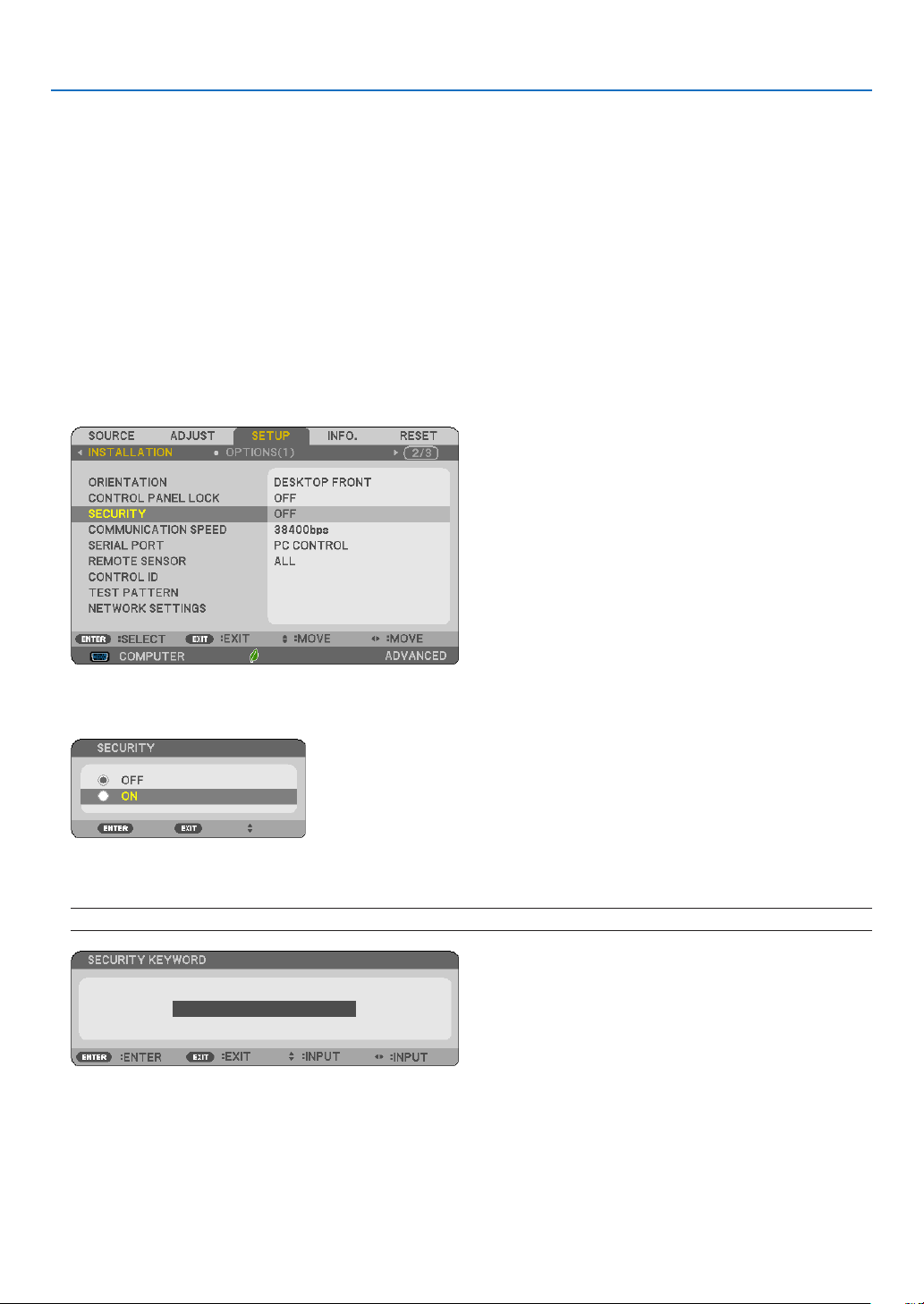
To enable the Security function:
1. Press the MENU button.
The menu will be displayed.
2. Press the
▶buttontwicetoselect[SETUP]andpressthe▼buttonortheENTERbuttontoselect[GEN-
ERAL].
3. Press the ▶buttontoselect[INSTALLATION].
4. Press the ▼buttonthreetimestoselect[SECURITY]andpresstheENTERbutton.
The OFF/ON menu will be displayed.
5. Press the
▼buttontoselect[ON]andpresstheENTERbutton.
The[SECURITYKEYWORD]screenwillbedisplayed.
6. Type in a combination of the four ▲▼◀▶ buttons and press the ENTER button.
NOTE:Akeywordmustbe4to10digitsinlength.
The[CONFIRMKEYWORD]screenwillbedisplayed.
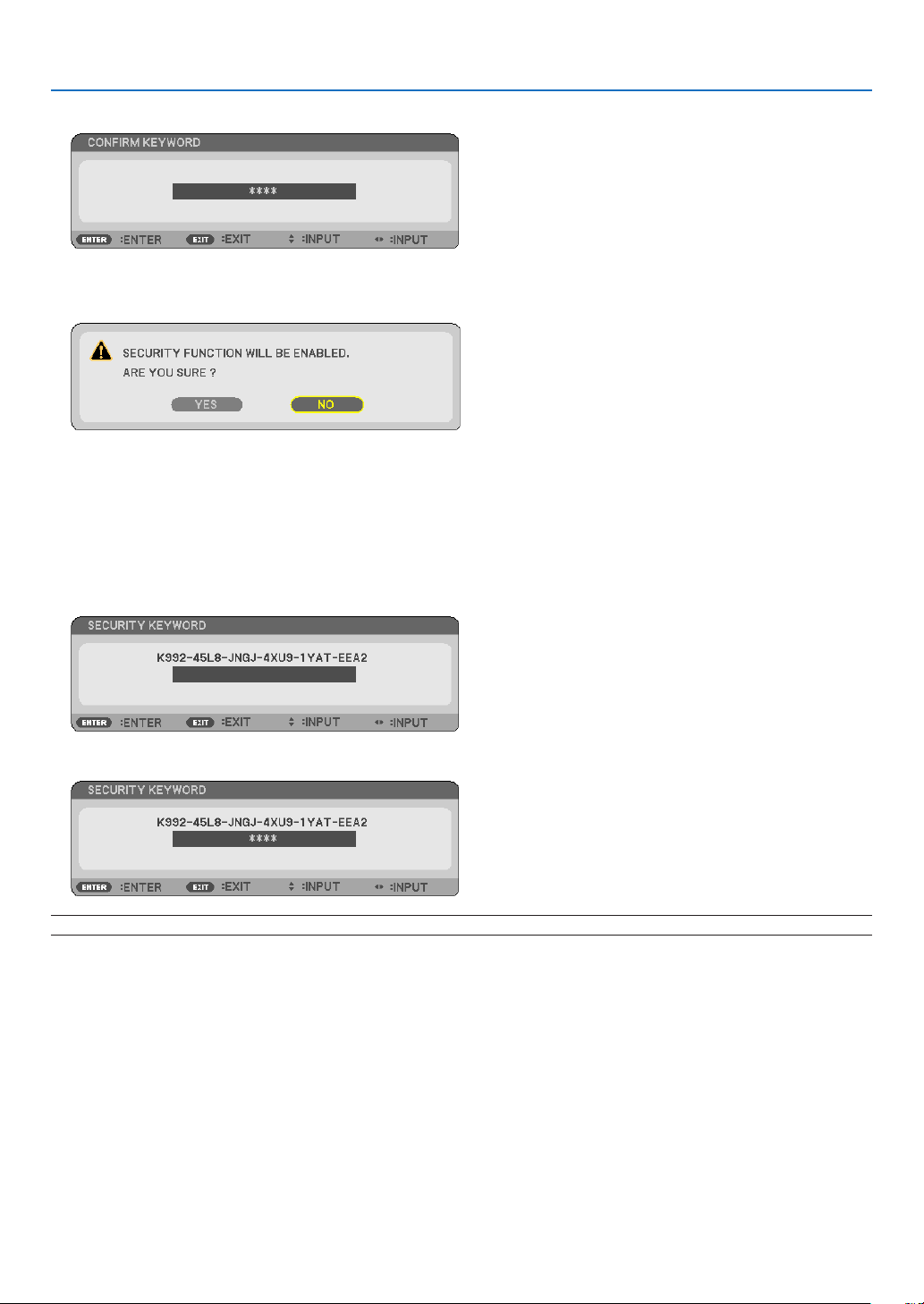
31
3. Convenient Features
7. Type in the same combination of ▲▼◀▶ buttons and press the ENTER button.
The confirmation screen will be displayed.
8.Select[YES]andpresstheENTERbutton.
TheSECURITYfunctionhasbeenenabled.
Toturnontheprojectorwhen[SECURITY]isenabled:
1. Press the POWER button.
Theprojectorwillbeturnedonanddisplayamessagetotheeffectthattheprojectorislocked.
2. Press the MENU button.
3. Type in the correct keyword and press the ENTER button. The projector will display an image.
NOTE:Thesecuritydisablemodeismaintaineduntilthemainpoweristurnedofforunpluggingthepowercord.
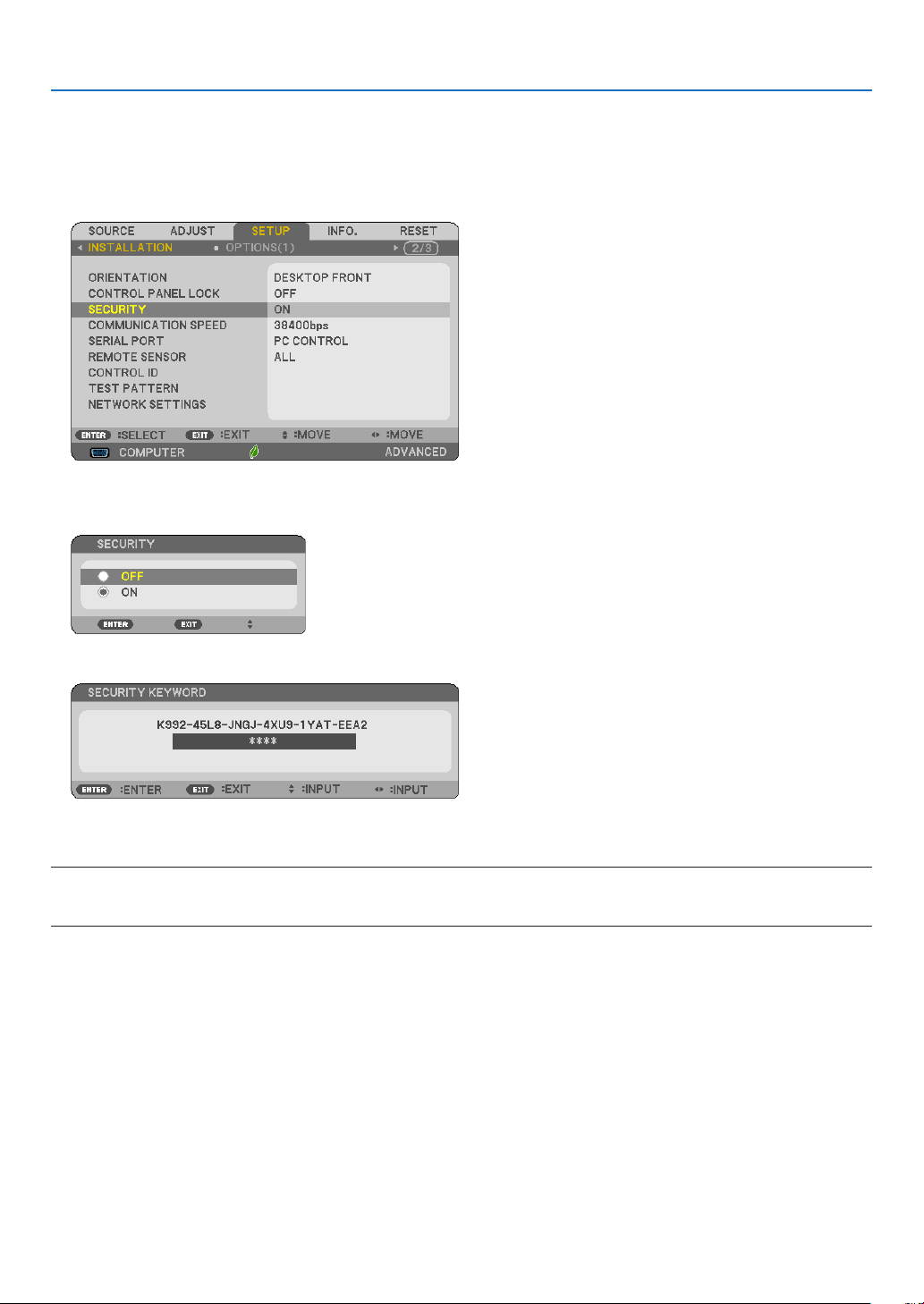
32
3. Convenient Features
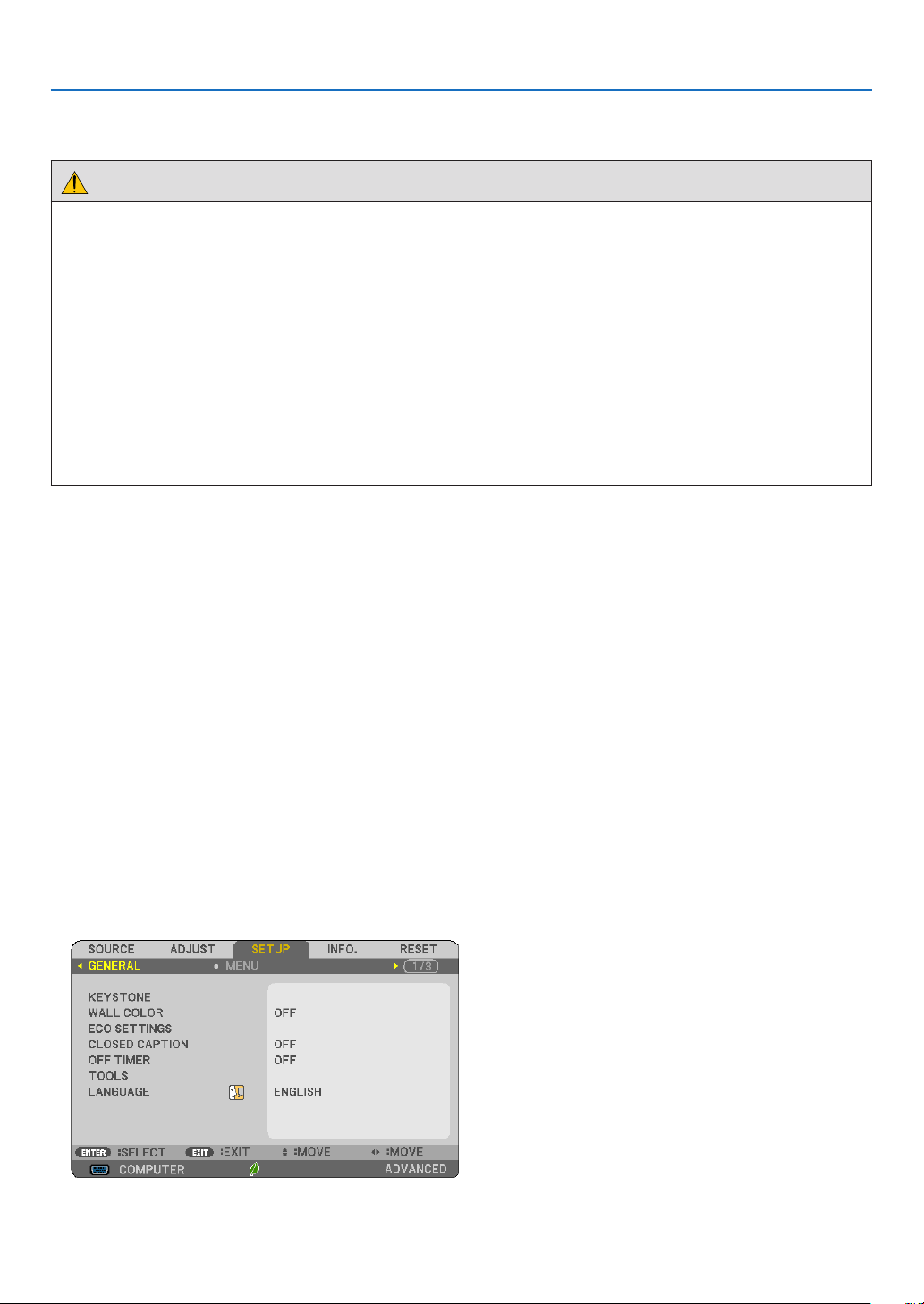
To disable the SECURITY function:
1. Press the MENU button.
The menu will be displayed.
2.Select[SETUP]→[INSTALLATION]→[SECURITY]andpresstheENTERbutton.
The OFF/ON menu will be displayed.
3.Select[OFF]andpresstheENTERbutton.
TheSECURITYKEYWORDscreenwillbedisplayed.
4. Type in your keyword and press the ENTER button.
Whenthecorrectkeywordisentered,theSECURITYfunctionwillbedisabled.
NOTE:Ifyouforgetyourkeyword,contactyourdealer.Yourdealerwillprovideyouwithyourkeywordinexchangeforyourrequest
code.YourrequestcodeisdisplayedintheKeywordConrmationscreen.Inthisexample[K992-45L8-JNGJ-4XU9-1YAT-EEA2]is
arequestcode.
33
3. Convenient Features
❻ Viewing 3D Images
Theprojectorprovides3DimagestoauserwearingcommerciallyavailableLCDshuttereyeglasses.
CAUTION
Health precautions
Beforeviewing,besuretoreadhealthcareprecautionsthatmaybefoundintheuser’smanualincludedwithyourLCD
shuttereyeglassesoryour3DcompatiblecontentsuchasDVDs,videogames,computer’svideolesandthelike.
Toavoidanyadversesymptoms,heedthefollowing:
•DonotuseLCDshuttereyeglassesforviewinganymaterialotherthan3Dimages.
•Allowadistanceof2m/7feetorgreaterbetweenthescreenandauser.Viewing3Dimagesfromtooclosea
distancecanstrainyoureyes.
•Avoidviewing3Dimagesforaprolongedperiodoftime.Takeabreakof15minutesorlongeraftereveryhour
ofviewing.
•Ifyouoranymemberofyourfamilyhasahistoryoflight-sensitiveseizures,consultadoctorbeforeviewing3D
images.
•Whileviewing3Dimages,ifyougetsicksuchasnausea,dizziness,queasiness,headache,eyestrain,blurry
vision,convulsions,andnumbness,stopviewingthem.Ifsymptomsstillpersist,consultadoctor.
•View3Dimagesfromthefrontofthescreen.Viewingfromananglemaycausefatigueoreyestrain.
LCD shutter eyeglasses (recommended)
•UsecommerciallyavailableDLP
®
LinkorothermethodcompatibleLCDshuttereyeglasses.
Steps for viewing 3D images on the projector
1.Connecttheprojectortoyourvideoequipment.
2.Turnontheprojector,displaytheon-screenmenu,andthenselect[ON]forthe3Dmode.
Fortheoperatingproceduretoturnonthe3Dmode,referto“On-screenmenufor3Dimages”onthefollowing
page.
3. Play your 3D compatible content and use the projector to display the image.
4.PutonyourLCDshuttereyeglassestoview3Dimages.
Also refer to the user’s manual accompanied with your LCD shutter eyeglasses for more information.
On-screen menu for 3D images
Followthestepstodisplaythe3Dmenu.
1. Press the MENU button.
The on-screen menu will be displayed.
2. Press the
▷ button twice.
The [SETUP] menu will be displayed.
3. Press the ▽ button once, and then press the ▷ button five times.
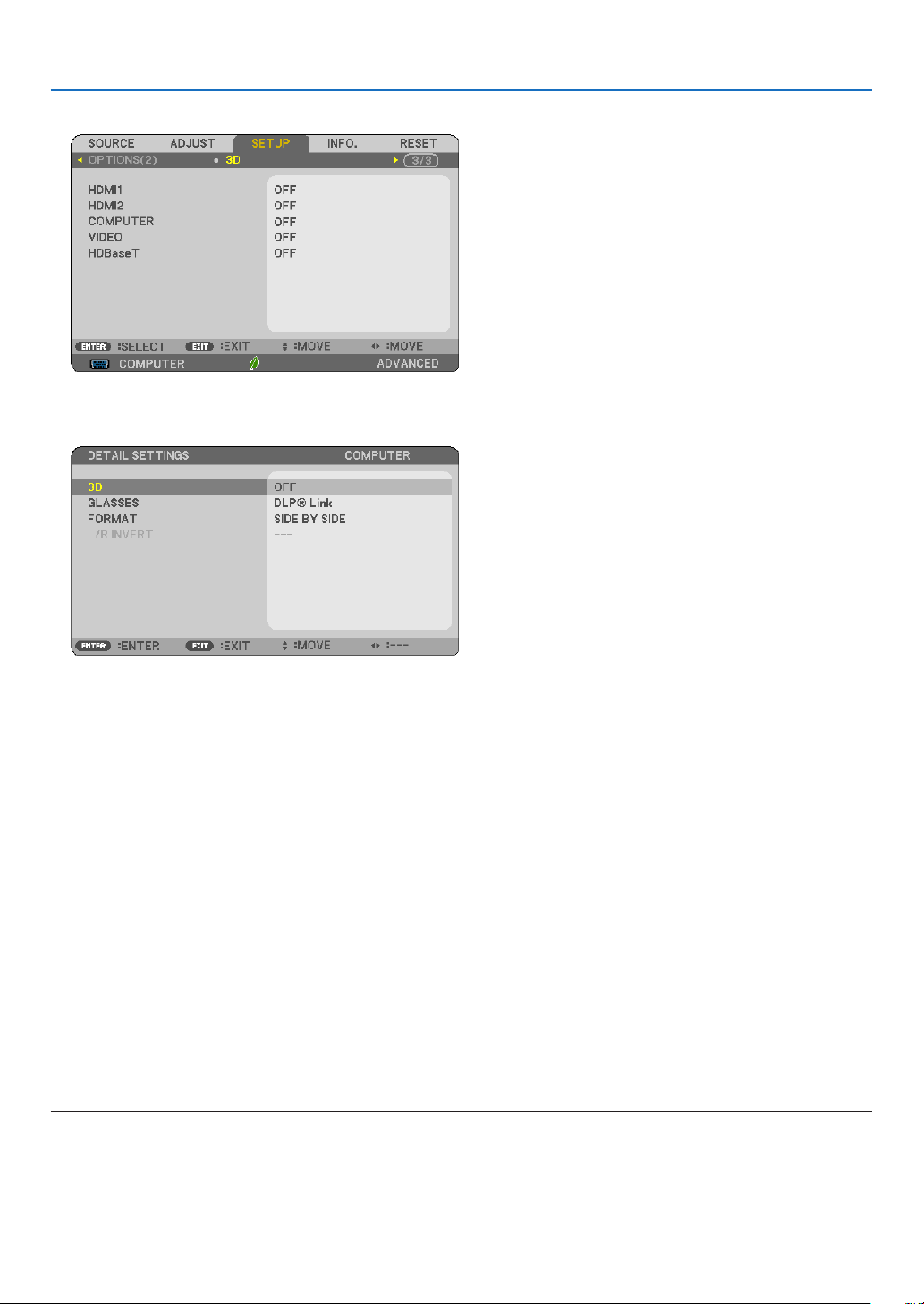
34
3. Convenient Features
The [3D] menu will be displayed
4. Press the ▽ button to select a signal and press the ENTER button.
The3D(DETAILSETTINGS)screenwillbedisplayed.
5. Press the ▽buttonto[GLASSES]andpresstheENTERbutton.
The [GLASSES] setting screen will be displayed.
6. Press the
▽ button to select a compatible eyeglass method and press the ENTER button.
Setother3D-relatedmenuoptionssuchas[FORMAT]and[L/RINVERT]asnecessary.
When switched to a 3D image, the 3D viewing cautions message screen appears (by factory default). For details,
see page 54.
7. Press either
△ or ▽buttontoselect[3D]andpresstheENTERbutton.
The setting screen for 3D mode will be displayed on.
8. Press the
▽buttontoselect[ON]andpresstheENTERbutton.
The selected signal will be changed in 3D mode.
Selectinginputconnectedtoasourceof3Dimages[HDMI1/HDMI2/COMPUTER/VIDEO/
HDBaseT]
Thisfunctionswitchesthe3DmodebetweenONandOFFforeachinput.
NOTE:
Toconrmthatthesupported3Dsignalisaccepted,useeitherwayofthefollowing:
•Makesurethat[3D]isdisplayedinthetoprightofthescreenafterthesourceisselected.
•Display[INFO.]→[SOURCE(2)]→[3DSIGNAL]andmakesurethat“SUPPORTED”isdisplayed.

35
3. Convenient Features
Toview3Dimages,seepage33.
Select[HDMI1],[HDMI2],[COMPUTER],[VIDEO],or[HDBaseT].
NOTE:
•Themaximumdistanceforviewing3Dimagesis10m/394inchesfromthescreensurfaceunderthefollowingrestrictions:
-Brightnessontheprojector:2000lumensorgreater
-Screengain:1
-Viewingposition:Facingstraighttowardsthescreencenter
-Outsidelight:None
-LCDshuttereyeglasses:DLP®Linkcompatible3Deyeglasses
•If3DcontentisplayedbackonyourcomputerandtheperformanceispooritmaybecausedbytheCPUorgraphicschip.Inthis
caseyoumayhavedifcultyseeingthe3Dimagesastheywereintended.Checktoseeifyourcomputermeetstherequirements
providedinyouruser’smanualincludedwithyour3Dcontent.
•TheDLP
®
LinkcompatibleLCDshuttereyeglassesallowyoutoview3Dimagesbyreceivingsynchsignals,whichareincluded
inlefteyeandrighteyeimages,reectedfromthescreen.Dependingonenvironmentsorconditionssuchastheambientbright-
ness,screensizeorviewingdistance,theLCDshuttereyeglassesmayfailtoreceivesynchsignals,causingpoor3Dimages.
•Whenthe3Dmodeisenabled,theKeystonecorrectionrangewillbenarrower.
•Whenthe3Dmodeisenabled,thefollowingsettingsareinvalid.
[WALLCOLOR],[PRESET],[REFERENCE],[COLORTEMPERATURE]
•Refertothe[SOURCE(2)]screenunderthe[INFO.]menuforinformationonwhethertheinputsignalis3Dcompatible.
•Signalsotherthanthoselistedin“CompatibleInputSignalList”onpage136willbeoutofrangeorwillbedisplayedin2D.
Using a 3D emitter
Thisprojectorcanbeusedtowatchvideosin3Dusingcommercially-availableactiveshutter-type3Deyewear.In
ordertosynchronizethe3Dvideoandeyewear,acommercially-available3Demitterneedstobeconnectedtothe
projector(ontheprojectorside).
The3Deyewearreceivesinformationfromthe3Demitterandperformsopeningandclosingontheleftandright.
3D eyewear and 3D emitter preparations
Pleaseuseanactiveshutter-type3DeyewearthatconformswiththeVESAstandard.
Acommercially-availableRFtypemadebyXpandisrecommended.
3D eyewear ............ Xpand X105-RF-X2
3D emitter .............. Xpand AD025-RF-X1
Connectyour3Demittertothe3DSYNCterminaloftheprojector.
NOTE:
•Useanactiveshutter3Deyewear(compliancewithVESA)
•ChecktheoperatingconditionsdescribedintheusermanualoftheBlu-rayplayer.
•PleaseconnecttheDINterminalofthe3Demittertothe3DSYNCoftheprojector.
•The3Deyewearallowsvideostobeviewedin3Dbyreceivingsynchronizedopticalsignalsoutputfromthe3Demitter.Asaresult,
the3Dimagequalitymaybeaffectedbyconditionssuchasthebrightnessofthesurroundings,screensize,viewingdistance,
etc.
•Whenplayinga3Dvideosoftwareonacomputer,the3DimagequalitymaybeaffectedifthecomputerCPUandgraphicschip
performancearelow.Pleasechecktherequiredoperatingenvironmentofthecomputerthatisstatedintheoperatingmanual
attachedtothe3Dvideosoftware.

36
3. Convenient Features
Troubleshooting on viewing 3D images
Ifimageswillnotbedisplayedin3Dor3Dimagesappearas2D,checkthefollowingtable.Alsorefertotheuser’s
manualaccompaniedwithyour3DcontentorLCDshuttereyeglasses.
Possible causes Solutions
•Thecontentyouareplayingbackisnotcompatiblewith3D.•Playbackacontentcompatiblewith3D.
•The3Dmodewasturnedofffortheselectedsource.•Usetheprojector’smenutoturnon3Dmodefortheselected
source.(→page
64)
•YouarenotusingourrecommendedLCDshuttereyeglasses.•UseourrecommendedLCDshuttereyeglasses.(→page
33)
•IftheshutterofyourLCDshuttereyeglassescannotsyn-
chronizewiththecurrentlyprojectedsource,thefollowingare
possiblecauses:
-YourLCDshuttereyeglassesarenotswitchedon.•SwitchonyourLCDshuttereyeglasses.
Forusinga3Demitter:
•Useanactiveshutter-type3Deyewearand3Demitterrecom-
mended.
-ThebatteryintheLCDshuttereyeglassesrandown.•Rechargethebatteryorreplaceit.
-Thecorrecteyeglassmethodisnotselected.•Changetheeyeglassmethodfor3Dbyusingthemenu..(→
page
64)
-Theviewingdistancebetweentheviewerandthescreen
istoofar.
•Moveclosertothescreenuntiltheviewergets3Dimages.
•Orusetheprojector’smenutoselect[NON-INVERT]for[L/R
INVERT].
-Therearebrightlightsourcesorotherprojectorsnearthe
viewer.
•Keeplightsourcesorotherprojectorsawayfromtheviewer.
•Donotlooktowardabrightlightsource.
•Orusetheprojector’smenutoselect[NON-INVERT]for[L/R
INVERT].
•Ifyourcomputerisnotsetfor3Dviewing,thefollowingare
possiblecauses:
-Yourcomputerdoesnotmeettherequirementsfor3Dview-
ing.
•Checktoseeifyourcomputermeetstherequirementspro-
videdinyouruser’smanualincludedwithyour3Dcontent.
-Yourcomputerisnotsetfor3Doutput.•Setyourcomputerfor3Doutput.
Forusinga3Demitter:
-Thereisanobstaclebetweentheopticalreceiverofthe3D
eyewearandthe3Demitter.
•Pleaseremovetheobstacle.
-The3Dformatofthe3Dvideocontentsisnotsupported.•Pleasecheckwiththecompanysellingthe3Dvideocontents.
37
4. Using On-Screen Menu
❶ Using the Menus
NOTE:Theon-screenmenumaynotbedisplayedcorrectlywhileinterlacedmotionvideoimageisprojected.
1. Press the MENU button on the remote control or the projector cabinet to display the menu.
NOTE:ThecommandssuchasENTER,EXIT,▲▼,◀▶inthebottomshowavailablebuttonsforyouroperation.
2. Press the ◀▶ buttons on the remote control or the projector cabinet to display the submenu.
3. Press the ENTER button on the remote control or the projector cabinet to highlight the top item or the first
tab.
4. Use the
▲▼ buttons on the remote control or the projector cabinet to select the item you want to adjust or
set.
You can use the
◀▶ buttons on the remote control or the projector cabinet to select the tab you want.
5. Press the ENTER button on the remote control or the projector cabinet to display the submenu window.
6. Adjust the level or turn the selected item on or off by using the
▲▼◀▶ buttons on the remote control or
the projector cabinet.
Changesarestoreduntiladjustedagain.
7. Repeat steps 2 -6 to adjust an additional item, or press the EXIT button on the remote control or the projec-
torcabinettoquitthemenudisplay.
NOTE:Whenamenuormessageisdisplayed,severallinesofinformationmaybelost,dependingonthesignalorsettings.
8. Press the MENU button to close the menu.
To return to the previous menu, press the EXIT button.
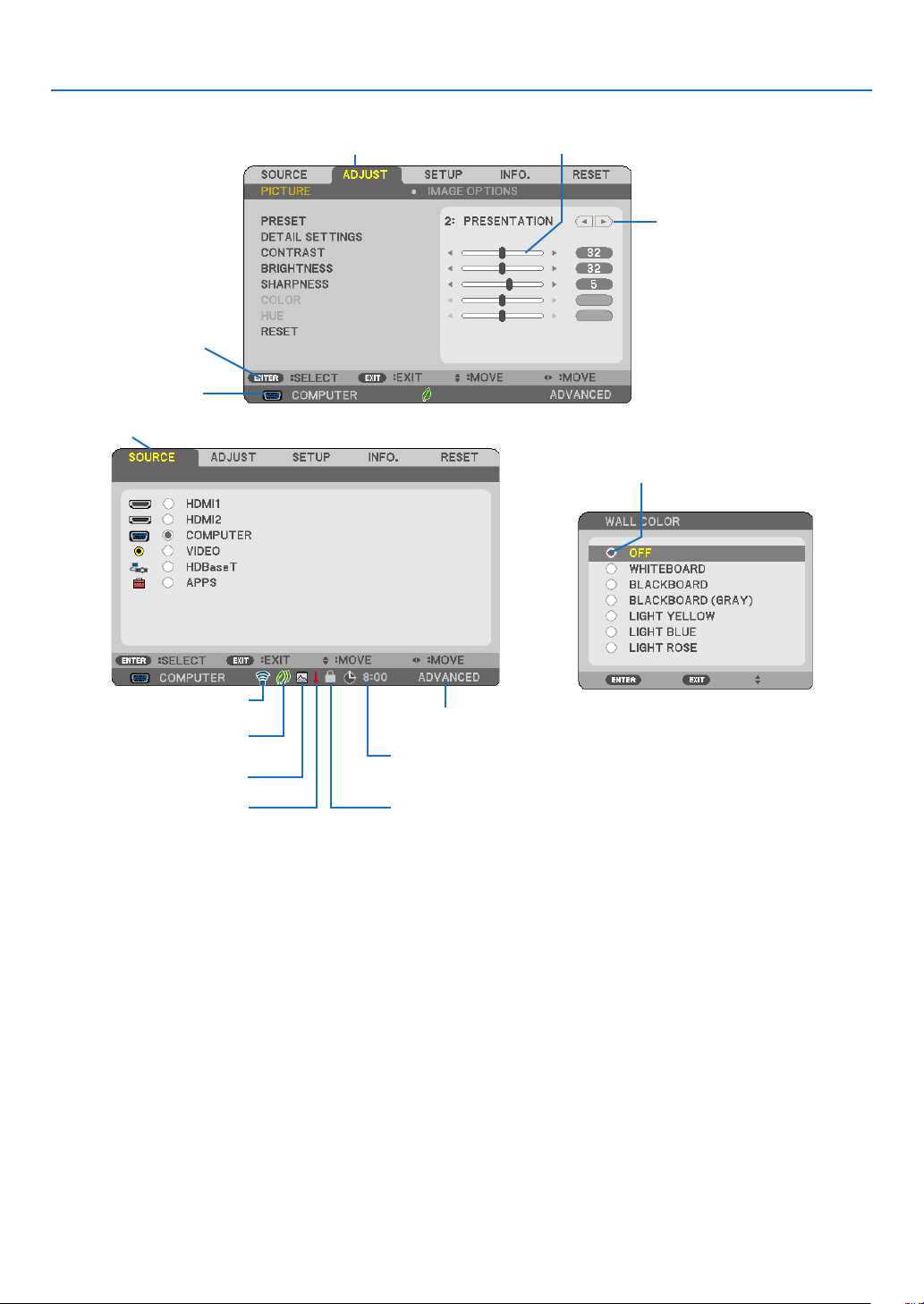
38
4. Using On-Screen Menu
Menu Elements
Slide bar
Solid triangle
Ta b
Radio button
ECO mode symbol
Wireless symbol
Menu windows or dialog boxes typically have the following elements:
Highlight ............................. Indicates the selected menu or item.
Solid triangle ......................Indicates further choices are available. A highlighted triangle indicates the item is active.
Tab ......................................Indicates a group of features in a dialog box. Selecting on any tab brings its page to the front.
Radio button ....................... Use this round button to select an option in a dialog box.
Source ................................Indicates the currently selected source.
Off Timer remaining time .... Indicates the remaining countdown time when the [OFF TIMER] is preset.
Slide bar .............................Indicates settings or the direction of adjustment.
ECO mode symbol ..............Indicates ECO MODE is set.
Key Lock symbol ................Indicates the [CONTROL PANEL LOCK] is enabled.
Thermometer symbol .........Indicates the projector is in the state of the [FORCED ECO MODE].
High Altitude symbol ..........Indicates the [FAN MODE] is set to [HIGH ALTITUDE] mode.
Wireless symbol .................Indicate the wireless LAN connection is enabled.
Menu mode ........................Indicate the [ADVANCED] menu or [BASIC] menu.
Source
Available buttons
Thermometer symbol KeyLocksymbol
Off Timer remaining time
Menu mode
Highlight
High Altitude symbol
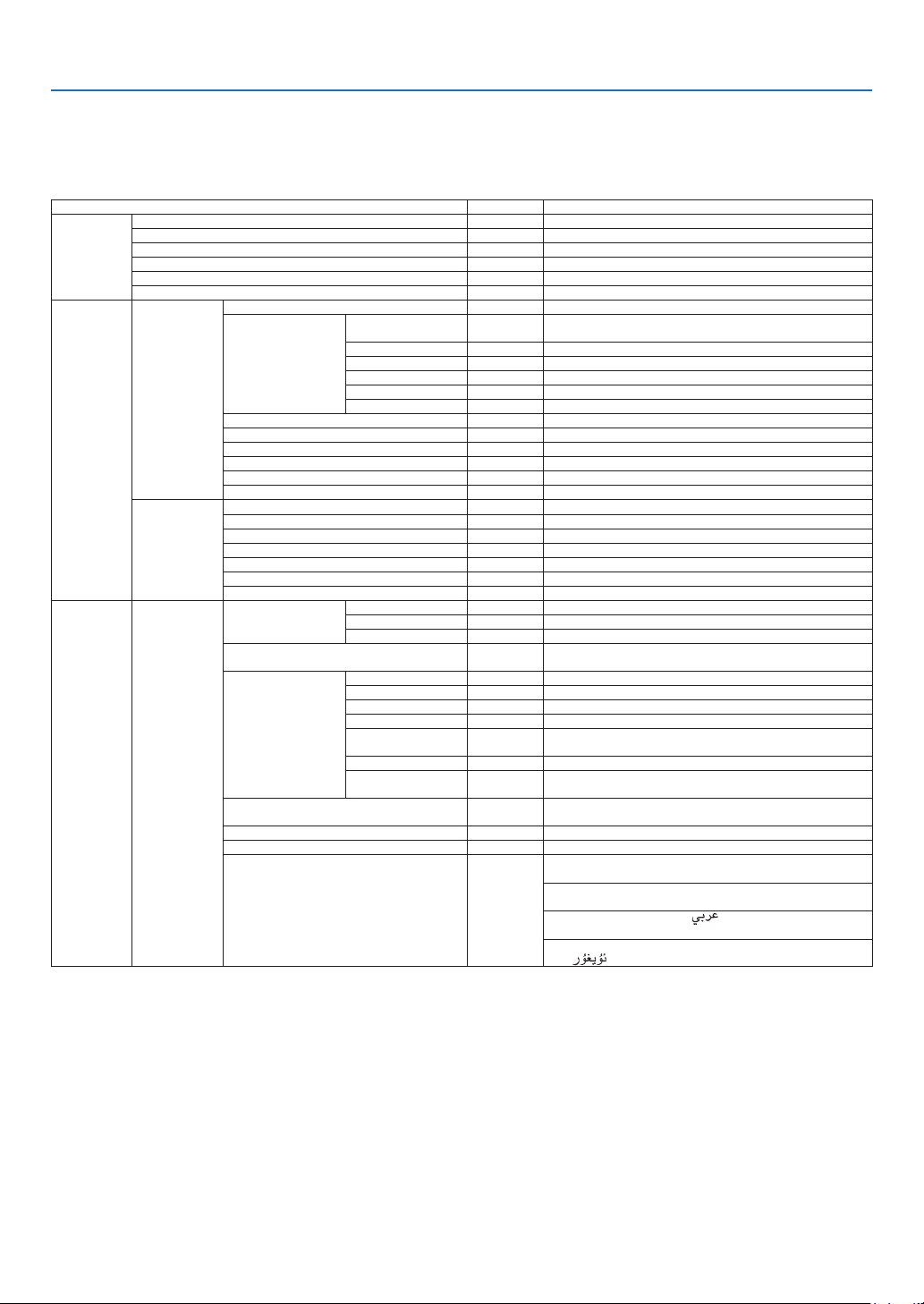
39
4. Using On-Screen Menu
❷ List of Menu Items
Somemenuitemsarenotavailabledependingontheinputsource.Thebelowlistedmenuitemsareontheadvanced
menu.Themark(B)isaddedtotheitemsonthebasicmenu.
Referto
88pagesabouttheAPPSMENU.
Menu Item Default Options
SOURCE HDMI1 (B) *
HDMI2 (B) *
COMPUTER (B) *
VIDEO (B) *
HDBaseT (B) *
APPS (B) *
ADJUST PICTURE PRESET * 1–8
DETAIL SETTINGS REFERENCE * HIGH-BRIGHT, PRESENTATION, VIDEO, MOVIE, GRAPHIC, sRGB,
NATURAL, DICOM SIM.
GAMMA CORRECTION*
1
DYNAMIC, NATURAL, BLACK DETAIL
SCREEN SIZE*
2
* LARGE, MEDIUM, SMALL
COLOR TEMPERATURE * 5000, 6500, 7800, 9300
COLOR ENHANCEMENT * OFF, LOW, MEDIUM, HIGH
DYNAMIC CONTRAST * OFF, ON
CONTRAST (B) 32
BRIGHTNESS (B) 32
SHARPNESS (B) *
COLOR (B) 32
HUE (B) 16
RESET (B)
IMAGE OPTIONS CLOCK *
PHASE *
HORIZONTAL *
VERTICAL *
OVERSCAN AUTO AUTO, OFF, ON
ASPECT RATIO * AUTO, 4:3, 16:9, 15:9, 16:10, LETTERBOX, NATIVE
NOISE REDUCTION OFF OFF, LOW, MEDIUM, HIGH
SETUP GENERAL KEYSTONE (B) HORIZONTAL 0 -25–25
VERTICAL 0 -30–30
RESET
WALL COLOR (B) OFF OFF, WHITEBOARD, BLACKBOARD, BLACKBOARD (GRAY), LIGHT
YELLOW, LIGHT BLUE, LIGHT ROSE
ECO SETTINGS ECO MODE OFF OFF, AUTO ECO, NORMAL, ECO
AUTO ECO OPTIONS
AUTO DIM OFF OFF, 0:01, 0:03, 0:10, 0:20
NORMAL OPTION
CONSTANT
BRIGHTNESS
OFF OFF, ON
ECO OPTION
CONSTANT
BRIGHTNESS
OFF OFF, ON
CLOSED CAPTION OFF OFF, CAPTION1, CAPTION2, CAPTION3, CAPTION4, TEXT1, TEXT2,
TEXT3, TEXT4
OFF TIMER (B) OFF OFF, 0:30, 1:00, 2:00, 4:00, 8:00, 12:00, 16:00
TOOLS (B) to APPS MENU
LANGUAGE (B) ENGLISH ENGLISH, DEUTSCH, FRANÇAIS, ITALIANO, ESPAÑOL, SVENSKA, 日
本語
DANSK, PORTUGUÊS, ČEŠTINA, MAGYAR, POLSKI, NEDERLANDS,
SUOMI
NORSK, TÜRKÇE, РУССКИЙ,
, Ελληνικά, 简体中文, 한국어,
TIẾNG ViỆT
ROMÂNĂ, HRVATSKI, БЪЛГАРСКИ, INDONESIA, ,
ไทย,
, 繁體中文
*Theasterisk(*)indicatesthatthedefaultsettingvariesdependingonthesignal.
*1The[GAMMACORRECTION]itemisavailablewhenanitemotherthan[DICOMSIM.]isselectedfor[REFERENCE].
*2The[SCREENSIZE]itemisavailablewhen[DICOMSIM.]isselectedfor[REFERENCE].
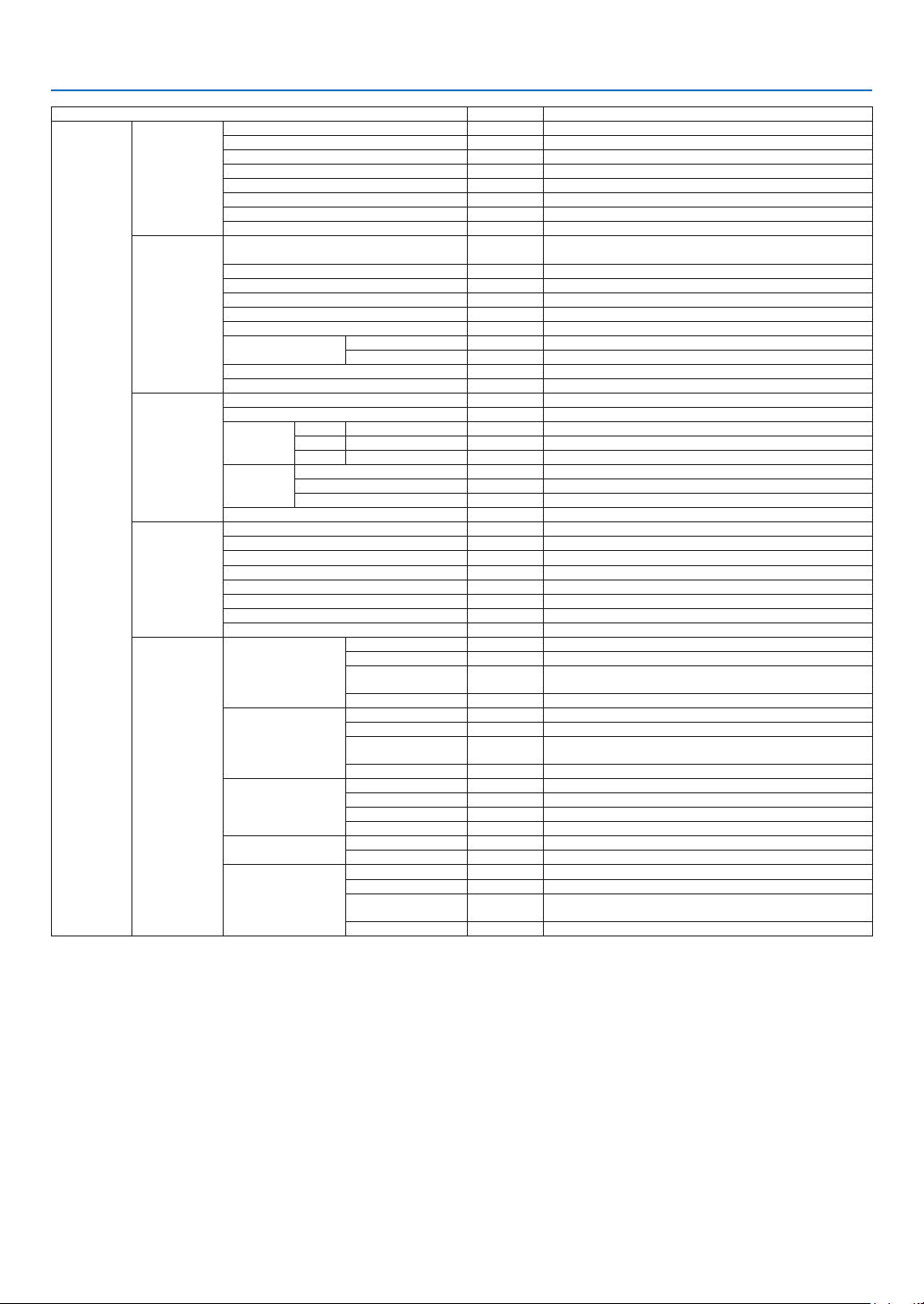
40
4. Using On-Screen Menu
Menu Item Default Options
SETUP MENU COLOR SELECT COLOR COLOR, MONOCHROME
SOURCE DISPLAY ON OFF, ON
ID DISPLAY ON OFF, ON
ECO MESSAGE OFF OFF, ON
DISPLAY TIME AUTO 45 SEC MANUAL, AUTO 5 SEC, AUTO 15 SEC, AUTO 45 SEC
BACKGROUND BLUE BLUE, BLACK, LOGO
3D CAUTION MESSAGE ON OFF, ON
FILTER MESSAGE OFF OFF, 100H, 500H, 1000H, 2000H
INSTALLATION ORIENTATION DESKTOP
FRONT
DESKTOP FRONT, CEILING REAR, DESKTOP REAR, CEILING FRONT
CONTROL PANEL LOCK OFF OFF, ON
SECURITY OFF OFF, ON
COMMUNICATION SPEED 38400bps 4800bps, 9600bps, 19200bps, 38400bps
SERIAL PORT PC CONTROL PC CONTROL, HDBaseT
REMOTE SENSOR ALL ALL, FRONT/BACK, FRONT, BACK, HDBaseT
CONTROL ID CONTROL ID NUMBER 1 1–254
CONTROL ID OFF OFF, ON
TEST PATTERN
NETWORK SETTINGS to APPS MENU
OPTIONS(1) FAN MODE AUTO AUTO, HIGH, HIGH ALTITUDE
WXGA MODE OFF OFF, ON
HDMI
SETTINGS
HDMI1 VIDEO LEVEL AUTO AUTO, NORMAL, ENHANCED
HDMI2 VIDEO LEVEL AUTO AUTO, NORMAL, ENHANCED
HDBaseT VIDEO LEVEL AUTO AUTO, NORMAL, ENHANCED
AUDIO
SELECT
HDMI1 HDMI1 HDMI1, COMPUTER
HDMI2 HDMI2 HDMI2, COMPUTER
HDBaseT HDBaseT HDBaseT, COMPUTER
BEEP ON OFF, ON
OPTIONS(2) STANDBY MODE NORMAL NORMAL, NETWORK STANDBY
DIRECT POWER ON OFF OFF, ON
AUTO POWER ON OFF OFF, ON
AUTO POWER OFF 1:00 OFF, 0:05, 0:10, 0:15, 0:20, 0:30, 1:00
DEFAULT SOURCE SELECT LAST LAST, AUTO, HDMI1, HDMI2, COMPUTER, VIDEO, HDBaseT, APPS
CARBON CONVERT
CURRENCY $ $, €, JP¥, RMB¥
CURRENCY CONVERT
3D HDMI1 3D OFF OFF, ON
GLASSES DLP® Link DLP® Link, OTHERS
FORMAT AUTO AUTO, FRAME PACKING, SIDE BY SIDE, TOP AND BOTTOM, FRAME
SEQUENTIAL
L/R INVERT NON-INVERT NON-INVERT, INVERT
HDMI2 3D
OFF OFF, ON
GLASSES DLP® Link DLP® Link, OTHERS
FORMAT AUTO AUTO, FRAME PACKING, SIDE BY SIDE, TOP AND BOTTOM, FRAME
SEQUENTIAL
L/R INVERT NON-INVERT NON-INVERT, INVERT
COMPUTER 3D OFF OFF, ON
GLASSES DLP® Link DLP® Link, OTHERS
FORMAT SIDE BY SIDE SIDE BY SIDE, TOP AND BOTTOM, FRAME SEQUENTIAL
L/R INVERT NON-INVERT NON-INVERT, INVERT
VIDEO 3D OFF OFF, ON
L/R INVERT NON-INVERT NON-INVERT, INVERT
HDBaseT 3D OFF OFF, ON
GLASSES DLP® Link DLP® Link, OTHERS
FORMAT AUTO AUTO, FRAME PACKING, SIDE BY SIDE, TOP AND BOTTOM, FRAME
SEQUENTIAL
L/R INVERT NON-INVERT NON-INVERT, INVERT
*Theasterisk(*)indicatesthatthedefaultsettingvariesdependingonthesignal.

41
4. Using On-Screen Menu
Menu Item Default Options
INFO. USAGE TIME (B) LAMP LIFE REMAINING (B)
LAMP HOURS USED (B)
FILTER HOURS USED (B)
TOTAL CARBON SAVINGS (B)
TOTAL COST SAVINGS (B)
SOURCE(1) (B) RESOLUTION
HORIZONTAL FREQUENCY
VERTICAL FREQUENCY
SYNC TYPE SEPARATE SYNC, COMPOSITE SYNC, SYNC ON GREEN, SYNC ON
VIDEO
SYNC POLARITY
SCAN TYPE INTERLACE, NON-INTERLACE
SOURCE(2) (B) SIGNAL TYPE RGB, VIDEO, YCbCr
VIDEO TYPE
NTSC, NTSC3.58, NTSC4.43, PAL, PAL-M, PAL-N, PAL60, SECAM
BIT DEPTH 8[bits], 10[bits], 12[bits]
VIDEO LEVEL FULL, ENHANCED, DEFAULT
3D SIGNAL SUPPORTED, NOT SUPPORTED
HDBaseT SIGNAL QUALITY NORMAL, WARNING, ABNORMAL
OPERATION MODE HDBaseT, ETHERNET, LOW POWER, DISCONNECT
LINK STATUS NO LINK, HDBaseT, LOW POWER, ETHERNET
HDMI STATUS NO HDMI, HDMI ON, HDCP ON
WIRED LAN IP ADDRESS
SUBNET MASK
GATEWAY
MAC ADDRESS
WIRELESS LAN IP ADDRESS
SUBNET MASK
GATEWAY
MAC ADDRESS
SSID
NETWORK TYPE
SECURITY
CHANNEL
SIGNAL LEVEL
VERSION(1) (B) FIRMWARE
DATA
VERSION(2) (B) FIRMWARE2
OTHERS (B) PROJECTOR NAME (B)
HOST NAME (B)
MODEL NO. (B)
SERIAL NUMBER (B)
LAN UNIT TYPE
CONTROL ID (when [CONTROL ID] is set) (B)
RESET CURRENT SIGNAL
ALL DATA
CLEAR LAMP HOURS
CLEAR FILTER HOURS
*Theasterisk(*)indicatesthatthedefaultsettingvariesdependingonthesignal.

42
4. Using On-Screen Menu
❸ Menu Descriptions & Functions [SOURCE]
HDMI1 and HDMI2
SelectstheHDMIcompatibleequipmentconnectedtoyourHDMI1INorHDMI2INterminal.
COMPUTER
SelectsthecomputerconnectedtoyourCOMPUTERinputterminalsignal.
NOTE:WhenthecomponentinputsignalisconnectedtotheCOMPUTERINterminal,select[COMPUTER].
VIDEO
SelectswhatisconnectedtoyourVIDEOinput-VCR,DVDplayerordocumentcamera.
HDBaseT
ProjectsthesignaltransmittedfromtheterminalssupportedHDBaseT.(→page
86)
APPS
DisplaytheAPPSMENUorthefunctionintheAPPSMENUthatwasusedlasttime.

43
4. Using On-Screen Menu
❹ Menu Descriptions & Functions [ADJUST]
[PICTURE]
[PRESET]
Thisfunctionallowsyoutoselectoptimizedsettingsforyourprojectedimage.
Youcanadjustneutraltintforyellow,cyanormagenta.
Thereareeightfactorypresetsoptimizedforvarioustypesofimages.Youcanalsouse[DETAILSETTINGS]toset
useradjustablesettingstocustomizeeachgammaorcolor.
Yoursettingscanbestoredin[PRESET1]to[PRESET8].
HIGH-BRIGHT ........ Recommended for use in a brightly lit room.
PRESENTATION ..... Recommended for making a presentation using a PowerPoint file.
VIDEO .................... Recommended for typical TV program viewing.
MOVIE ................... Recommended for movies.
GRAPHIC ............... Recommended for graphics.
sRGB ..................... Standard color values
NATURAL ............... Well-balanced setting of brightness and color
DICOM SIM. .......... Recommended for DICOM simulation format.
NOTE:
•The[DICOMSIM.]optionisfortraining/referenceonlyandshouldnotbeusedforactualdiagnosis.
•DICOMstandsforDigitalImagingandCommunicationsinMedicine.ItisastandarddevelopedbytheAmericanCollegeofRadiol-
ogy(ACR)andtheNationalElectricalManufacturersAssociation(NEMA).
Thestandardspecieshowdigitalimagedatacanbemovedfromsystemtosystem.

44
4. Using On-Screen Menu
[DETAIL SETTINGS]
StoringYourCustomizedSettings[REFERENCE]
Thisfunctionallowsyoutostoreyourcustomizedsettingsin[PRESET1]to[PRESET8].
First,selectabasepresetmodefrom[REFERENCE],thenset[GAMMACORRECTION]and[COLORTEMPERATURE].
HIGH-BRIGHT ........ Recommended for use in a brightly lit room.
PRESENTATION ..... Recommended for making a presentation using a PowerPoint file.
VIDEO .................... Recommended for typical TV program viewing.
MOVIE ................... Recommended for movies.
GRAPHIC ............... Recommended for graphics.
sRGB ..................... Standard color values.
NATURAL ............... Well-balanced setting of brightness and color
DICOM SIM. .......... Recommended for DICOM simulation format.
Selecting Gamma Correction Mode [GAMMA CORRECTION]
Eachmodeisrecommendedfor:
DYNAMIC .............. Creates a high-contrast picture.
NATURAL ............... Natural reproduction of the picture.
BLACK DETAIL ....... Emphasizes detail in dark areas of the picture.
NOTE:Thisfunctionisnotavailablewhen[DICOMSIM.]isselectedfor[DETAILSETTINGS].
SelectingScreenSizeforDICOMSIM[SCREENSIZE]
Thisfunctionwillperformgammacorrectionappropriateforthescreensize.
LARGE ................... For screen size of 110"
MEDIUM ................ For screen size of 90"
SMALL ................... For screen size of 70"
NOTE:Thisfunctionisavailableonlywhen[DICOMSIM.]isselectedfor[DETAILSETTINGS].
AdjustingColorTemperature[COLORTEMPERATURE]
Thisoptionallowsyoutoselectthecolortemperatureofyourchoice.
NOTE:When[PRESENTATION]or[HIGH-BRIGHT]isselectedin[REFERENCE],thisfunctionisnotavailable.
Enhancing the Color [COLOR ENHANCEMENT]
Thisallowsyoutoadjustthecolordensityoftheimage.
Thecoloroftheimagewillbecomedeeperintheorderof"LOW","MEDIUM",AND"HIGH"asthedisplayedimage
willbecomedarker.
With"OFF"selected,theCOLORENHANCEMENTfunctionwillnotwork.
NOTE:Thisfunctionisavailableonlywhen[PRESENTATION]isselected[REFERENCE].
AdjustingBrightnessandContrast[DYNAMICCONTRAST]
Thisfunctionallowsyoutoadjustthecontrastratiooptically.
Toincreasethecontrastratio,select[ON].
NOTE:
•The[DYNMICCONTRAST]itemcannotbeselectedinthefollowingcases:
-When[CONSTANTBRIGHTNESS]isfunctionedunderthestate[ECOMODE]hasbeensetto[NORMAL]or[ECO]for[ECO
SETTINGS].
-When[ON]isselectedfor[3D]whileimagesareprojected.
•TheECOMODEandDYNAMICCONTRASTfeaturescontrolthelamppower.Somepicturesmaybecomeextremelybrightwhen
usingbothECOMODEandDYNAMICCONTRASTfeaturestocontrolthelamppower.Toavoidthisphenomena,turnofftheECO
MODEandDYNAMICCONTRAST.

45
4. Using On-Screen Menu
[CONTRAST]
Adjuststheintensityoftheimageaccordingtotheincomingsignal.
[BRIGHTNESS]
Adjuststhebrightnesslevelorthebackrasterintensity.
[SHARPNESS]
Controlsthedetailoftheimage.
[COLOR]
Increasesordecreasesthecolorsaturationlevel.
[HUE]
Variesthecolorlevelfrom+/−greento+/−blue.Theredlevelisusedasreference.
InputsignalCONTRASTBRIGHTNESSSHARPNESSCOLORHUE
COMPUTER/HDMI/HDBaseT(RGB)YesYesYesNo No
COMPUTER/HDMI/HDBaseT
(COMPONENT)
YesYesYesYesYes
VIDEOYesYesYesYesYes
APPS,LANYesYesYesNo No
Yes=Adjustable,No=Notadjustable
[RESET]
Thesettingsandadjustmentsfor[PICTURE]willbereturnedtothefactorysettingswiththeexceptionofthefollowing;
Presetnumbersand[REFERENCE]withinthe[PRESET]screen.
Thesettingsandadjustmentsunder[DETAILSETTINGS]withinthe[PRESET]screenthatarenotcurrentlyselected
willnotbereset.
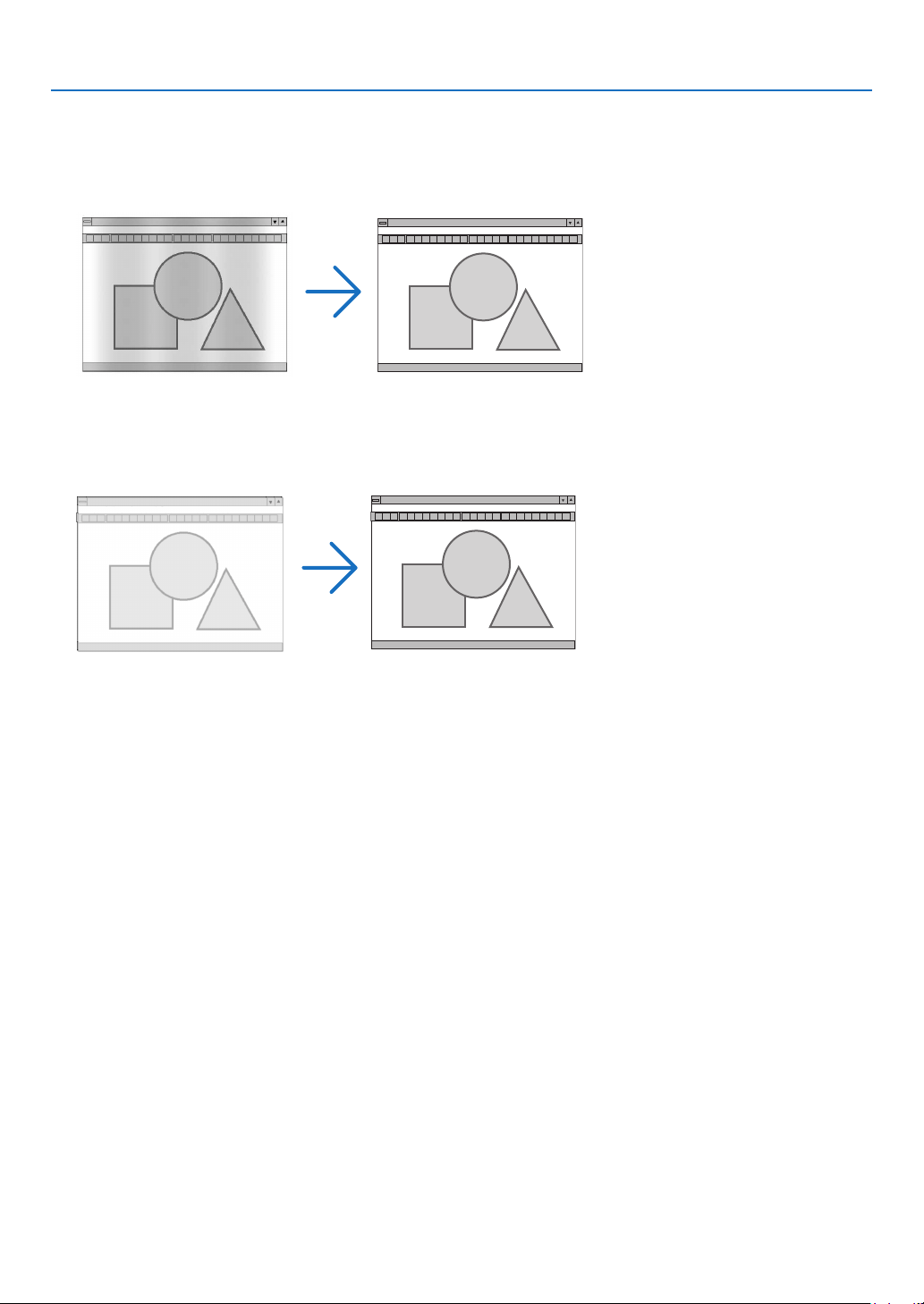
46
4. Using On-Screen Menu
[IMAGE OPTIONS]
AdjustingClockandPhase[CLOCK/PHASE]
ThisallowsyoutomanuallyadjustCLOCKandPHASE.
CLOCK ................... Use this item to fine tune the computer image or to remove any vertical banding that might appear. This
function adjusts the clock frequencies that eliminate the horizontal banding in the image.
This adjustment may be necessary when you connect your computer for the first time.
PHASE ................... Use this item to adjust the clock phase or to reduce video noise, dot interference or cross talk. (This is
evident when part of your image appears to be shimmering.)
Use [PHASE] only after the [CLOCK] is complete.
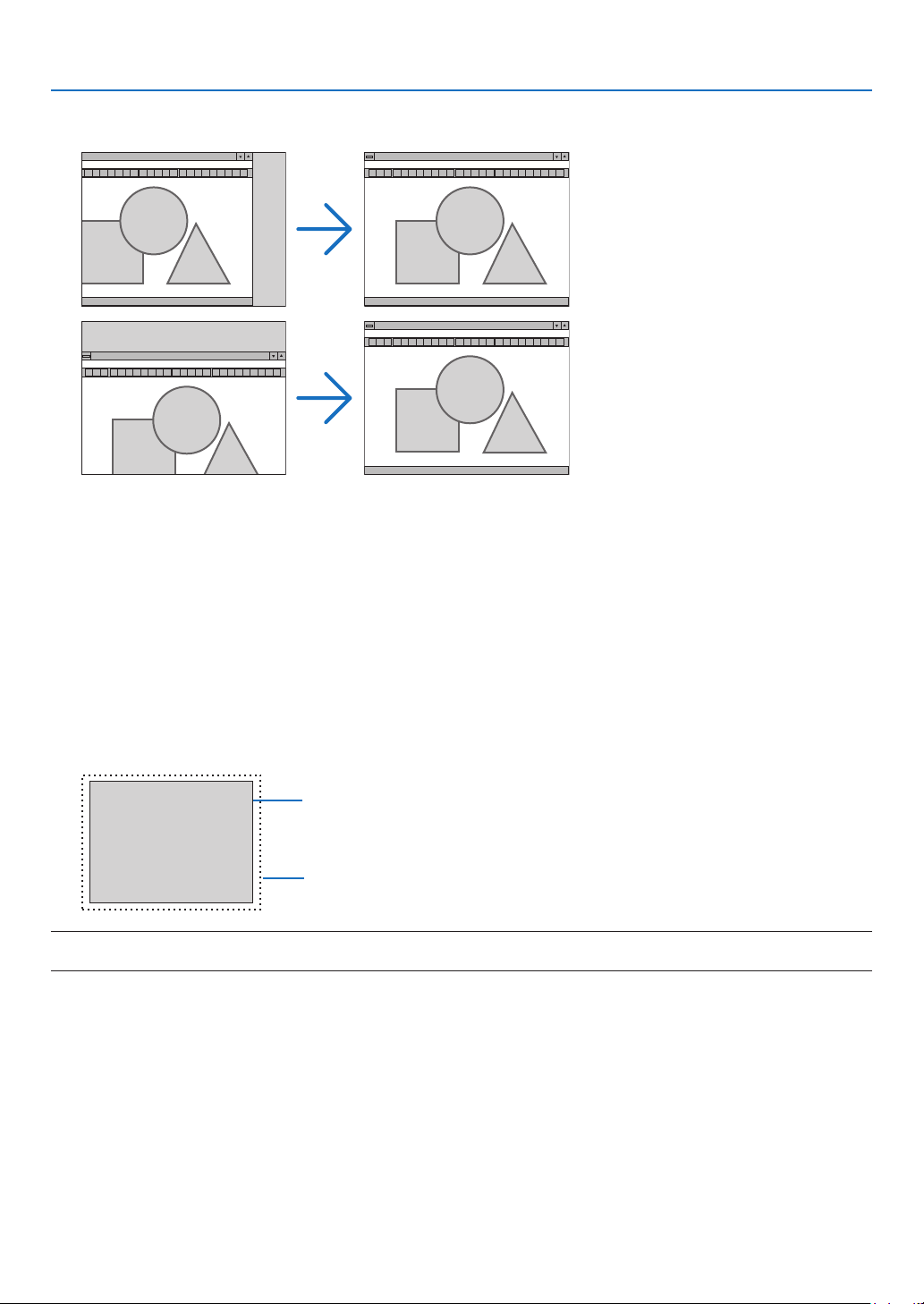
47
4. Using On-Screen Menu
AdjustingHorizontal/VerticalPosition[HORIZONTAL/VERTICAL]
Adjuststheimagelocationhorizontallyandvertically.
-Animagecanbedistortedduringtheadjustmentof[CLOCK]and[PHASE].Thisisnotmalfunction.
-Theadjustmentsfor[CLOCK],[PHASE],[HORIZONTAL],and[VERTICAL]willbestoredinmemoryforthe
currentsignal.Thenexttimeyouprojectthesignalwiththesameresolution,horizontalandverticalfrequency,
itsadjustmentswillbecalledupandapplied.
Todeleteadjustmentsstoredinmemory,fromthemenu,youselect[RESET]→[CURRENTSIGNAL]or[ALL
DATA]andresettheadjustments.
SelectingOverscanPercentage[OVERSCAN]
Thisallowsyoutosettheappropriateoverscanforanincomingsignal.
AUTO ..................... Display an appropriately overscanned image (factory setting).
OFF ........................ Does not overscan the image.
ON ......................... Overscans the image.
Projected image
Overscaned by 10%
NOTE:
•The[OVERSCAN]itemcannotbeselectedwhenVIDEOsignalsareusedorwhen[NATIVE]isselectedfor[ASPECTRATIO].
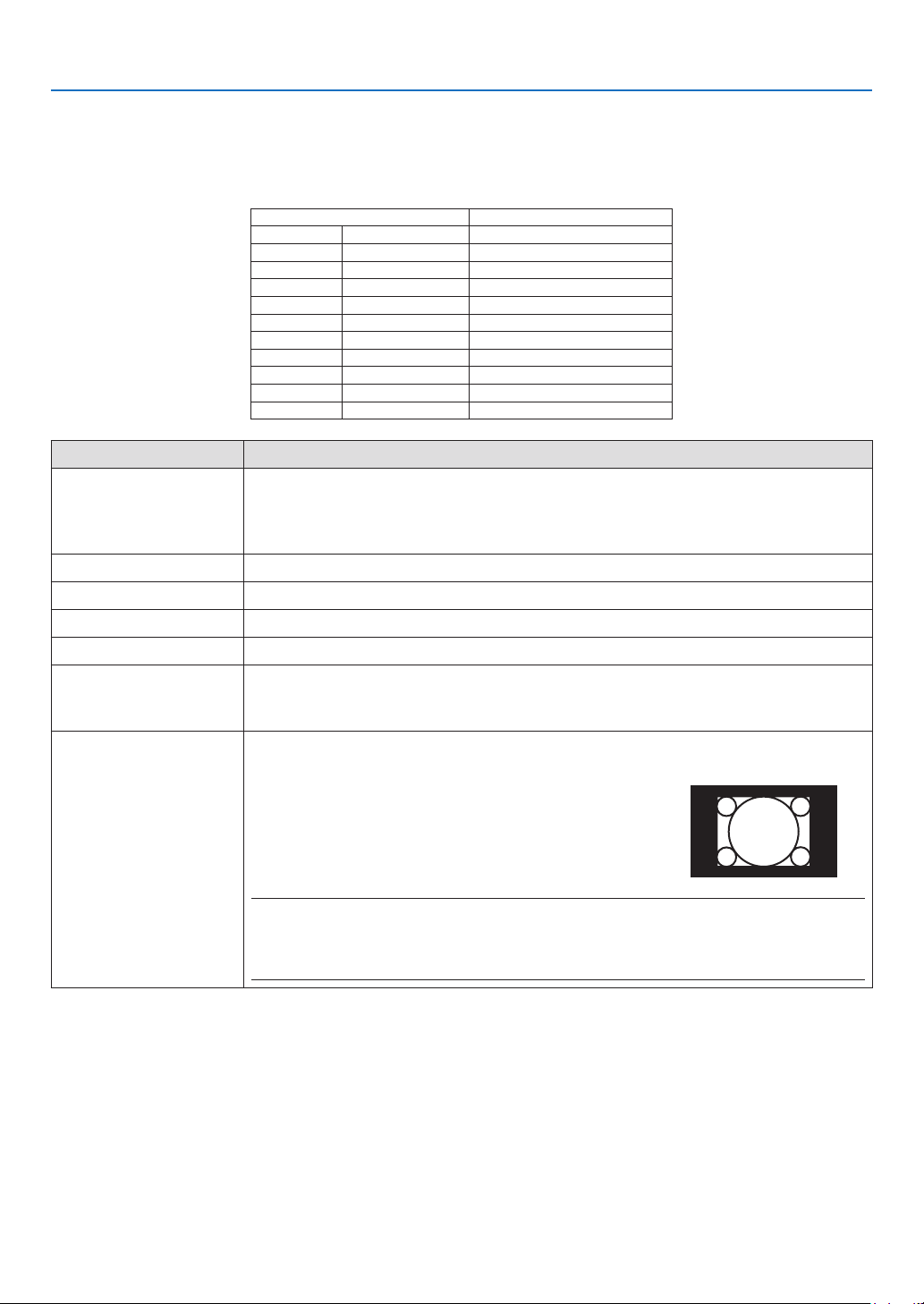
48
4. Using On-Screen Menu
Selecting Aspect Ratio [ASPECT RATIO]
Theterm“aspectratio”referstotheratioofwidthtoheightofaprojectedimage.
Theprojectorautomaticallydeterminestheincomingsignalanddisplaysitinitsappropriateaspectratio.
•Thistableshowstypicalresolutionsandaspectratiosthatmostcomputerssupport.
ResolutionAspectRatio
VGA640×4804:3
SVGA800×6004:3
XGA1024×7684:3
WXGA1280×76815:9
WXGA1280×80016:10
WXGA+
1440×90016:10
SXGA1280×10245:4
SXGA+1400×10504:3
UXGA1600×12004:3
FullHD1920×108016:9
WUXGA1920×120016:10
OptionsFunction
AUTO
Theprojectorwillautomaticallydeterminetheincomingsignalanddisplayitinitsaspect
ratio.(→
nextpage)
Theprojectormayerroneouslydeterminetheaspectratiodependingonitssignal.Ifthis
occurs,selecttheappropriateaspectratiofromthefollowing.
4:3Theimageisdisplayedin4:3aspectratio.
16:9Theimageisdisplayedin16:9aspectratio.
15:9Theimageisdisplayedin15:9aspectratio.
16:10Theimageisdisplayedin16:10aspectratio.
LETTERBOXTheimageofaletterboxsignalisstretchedequallyinthehorizontalandverticaldirec-
tionstotthescreen.Partsofthedisplayedimagearecroppedatthetopandbottom
edgesandthereforenotvisible.
NATIVETheprojectordisplaysthecurrentimageinitstrueresolutionwhentheincomingcomputer
signalhasalowerresolutionthantheprojector’snativeresolution.
[Example]Whentheincomingsignalwiththeresolutionof
800×600isdisplayed:
NOTE:
•Whenanon-computersignalisdisplayed,the[NATIVE]isnotavailable.
•Whenasignalwithahigherresolutionthantheprojector’snativeresolutionisdisplayed,[NA-
TIVE]isnotavailable.
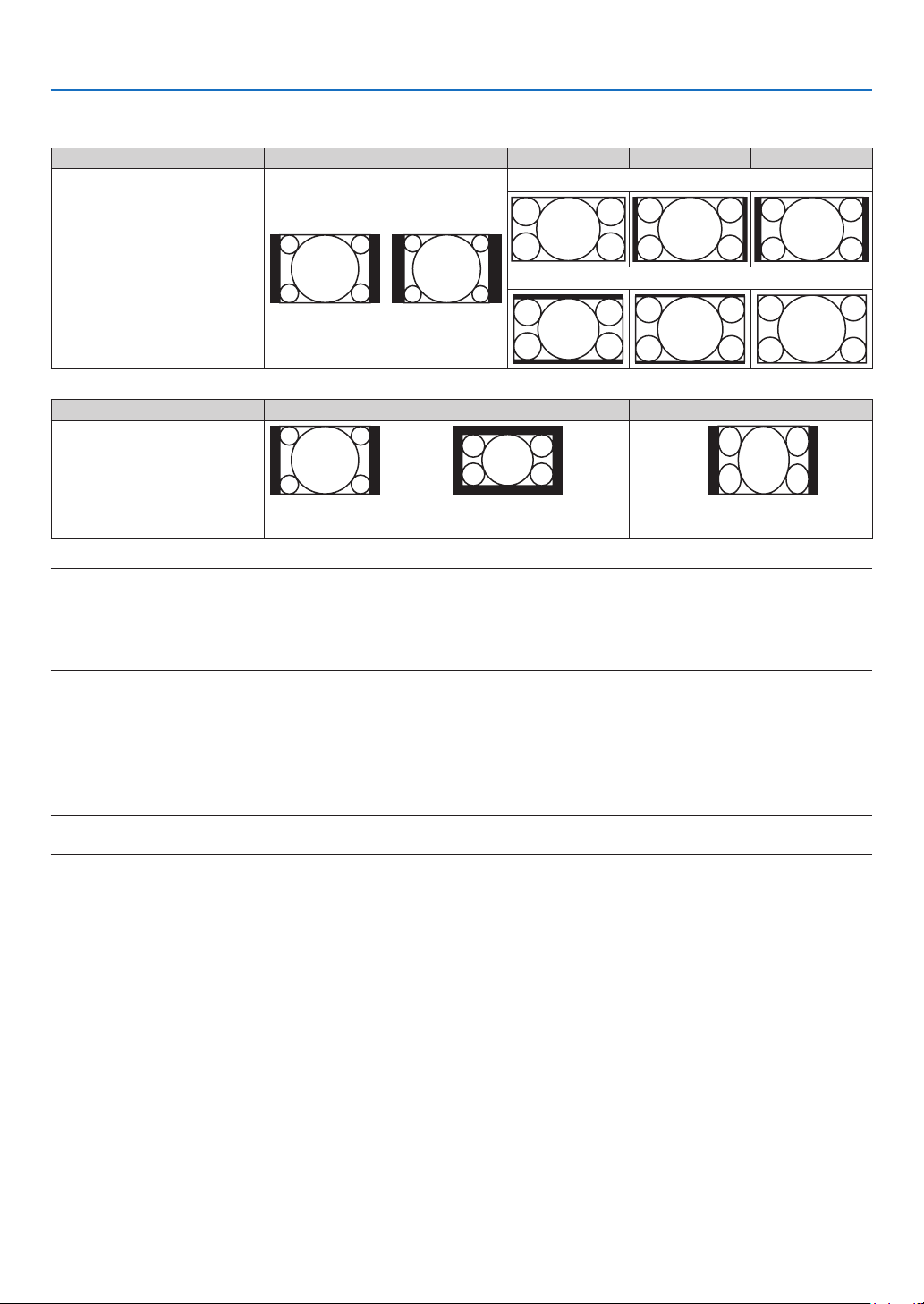
49
4. Using On-Screen Menu
Sample image when the appropriate aspect ratio is automatically determined
[Computersignal]
Aspectratioofincomingsignal4:35:416:915:916:10
Sampleimagewhentheappro-
priateaspectratioisautomati-
callydetermined
P502H/P452H
P502W/P452W
[Videosignal]
Aspectratioofincomingsignal4:3LetterboxSqueeze
Sampleimagewhentheaspect
ratioisautomaticallydetermined
NOTE:Todisplayaletterboxsignalprop-
erly,select[LETTERBOX].
NOTE:Todisplayasqueezedsignalprop-
erly,select[16:9].
TIP:
•Theterm“letterbox”referstoamorelandscape-orientedimagewhencomparedtoa4:3image,whichisthestandardaspect
ratioforavideosource.
Theletterboxsignalhasaspectratioswiththevistasize“1.85:1”orcinemascopesize“2.35:1”formovielm.
•Theterm“squeeze”referstothecompressedimageofwhichaspectratioisconvertedfrom16:9to4:3.
Turning on Noise Reduction [NOISE REDUCTION]
Thisfunctionallowsyoutoselectthelevelofnoisereduction.
Theprojectorissettotheoptimizedlevelforeachsignalatthefactory.
Selectyourpreferenceitemforyoursignalwhenvideonoiseisnoticeable.
Theoptionsare[OFF],[LOW],[MEDIUM],and[HIGH].
NOTE:ThisfeatureisnotavailablefortheRGBsignal.Noisereductionsettooffgivesbestimagequalitybywayofhigherbandwidth.
Noisereductionsettoonsoftenstheimage.

50
4. Using On-Screen Menu
❺ Menu Descriptions & Functions [SETUP]
[GENERAL]
Correcting Keystone Distortion Manually [KEYSTONE]
Youcancorrecthorizontalorverticalkeystonemanually.[HORIZONTAL]and[VERTICAL](simultaneouslyadjustable)
correctioncanbeselected.
NOTE:
•Someitemsarenotavailablewhenoneitemisactivated.Unavailableitemsareshowningrey.
•Tochangefromoneitemtoanotheritem,resettherstitem.
•Adjustmentvalueswillbeoverwritten.Theywillnotbedeletedevenwhentheprojectoristurnedoff.
•Using[KEYSTONE]correctioncancausetheimagetobeslightlyblurredbecausethecorrectionismadeelectronically.
HORIZONTAL ......... Corrects horizontal keystone distortion. (→ page 21)
VERTICAL .............. Corrects vertical keystone distortion. (→ page
21)
RESET .................... Returns all the above items to the factory preset values.
TIP:
•Themaximumadjustmentrangewith[KEYSTONE]correctionis±25°inthehorizontaldirection,±30°intheverticaldirection.
-Dependingoninputsignal,theadjustablerangemaybenarrower.

51
4. Using On-Screen Menu
Using the Wall Color Correction [WALL COLOR]
Thisfunctionallowsforquickadaptivecolorcorrectioninapplicationswherethescreenmaterialisnotwhite.
Setting various items related to lamp brightness [ECO SETTINGS]
Thisoptionallowsyoutodecreasethepowerconsumptionortoprolongthelamplifebycontrollingthelampbrightness.
ECO MODE
TheECOMODEincreaseslamplife,whileloweringpowerconsumptionandcuttingdownonCO2emissions.Four
brightnessmodesofthelampcanbeselected:[OFF],[AUTOECO],[NORMAL]and[ECO]modes.(→page
28)
NOTE:The[OFF]itemisautomaticallyselectedfor[ECOMODE]when[ON]isselected[3D]whileimagesareprojected.
AUTO ECO OPTIONS
Setoptionswhen[AUTOECO]isselectedfor[ECOMODE].
AUTODIMOFFTheAUTODIMfeaturewillnotwork.
0:01,0:03,0:10,0:20
(min.)
Thisoptionwillautomaticallydimthelamplightwhen
noinputsignalispresentforacertainperiodtime:0:01,
0:03,0:10,and0:20(minutes).Whenitreachesthepre-
settime,thelampbrightnesswilldecreasetoabout30%
immediatelyafterthescreenbecomesdimforamoment.
Changingimageswillreturntoitsoriginalbrightness.
NORMAL OPTION
Settheoptionwhen[NORMAL]isselectedfor[ECOMODE].
CONSTANTBRIGHTNESS:
OFF ........................ The CONSTANT BRIGHTNESS feature will not work. The lamp brightness will gradually decrease over long
periods of time.
ON ......................... The lamp brightness will increase according to the lamp use of time and will be kept at the lamp brightness
equivalent to the brightness at NORMAL. After the lamp brightness reaches the maximum, the lamp bright-
ness will gradually decrease over long periods of time.
ECO OPTION
Settheoptionwhen[ECO]isselectedfor[ECOMODE].
CONSTANTBRIGHTNESS:
OFF ........................ The CONSTANT BRIGHTNESS feature will not work. The lamp brightness will gradually decrease over long
periods of time.
ON ......................... The lamp brightness will increase according to the lamp use of time and will be kept at the lamp brightness
equivalent to the brightness at ECO. After the lamp brightness reaches the maximum, the lamp brightness
will gradually decrease over long periods of time. The lamp brightness will be kept longer than at NORMAL.

52
4. Using On-Screen Menu
Setting Closed Caption [CLOSED CAPTION]
ThisoptionsetsseveralclosedcaptionmodesthatallowtexttobesuperimposedontheprojectedimageofVideo
orS-Video.
OFF ........................ This exits the closed caption mode.
CAPTION 1-4 ......... Text is superimposed.
TEXT 1-4 ................ Text is displayed.
NOTE:
•Theclosedcaptionisnotavailableunderthefollowingconditions:
-whenmessagesormenusaredisplayed.
-whenanimageismagnied,frozen,ormuted.
•Portionsofsuperimposedtextorclosedcaptionmaybetruncated.Ifthathappens,trytoplacethesuperimposedtextorclosed
captionwithinthescreen.
•Theprojectordoesnotsupportoptionalextendedcharactersforclosedcaptioning.
Using Off Timer [OFF TIMER]
1. Select your desired time between 30 minutes and 16 hours: OFF, 0:30, 1:00, 2:00, 4:00, 8:00, 12:00, 16:00.
2. Press the ENTER button on the remote control.
3. The remaining time starts counting down.
4. The projector will turn off after the countdown is complete.
NOTE:
•Tocancelthepresettime,set[OFF]forthepresettimeorturnoffthepower.
•Whentheremainingtimereaches3minutesbeforetheprojectoristurnedoff,the[THEPROJECTORWILLTURNOFFWITHIN3
MINUTES]messagewillbedisplayedonthebottomofthescreen.
Display the tools menu [TOOLS]
Thisfunctiondisplaythetoolsmenu.(→page91)
Selecting Menu Language [LANGUAGE]
Youcanchooseoneof30languagesforon-screeninstructions.
NOTE:Yoursettingwillnotbeaffectedevenwhen[RESET]isdonefromthemenu.
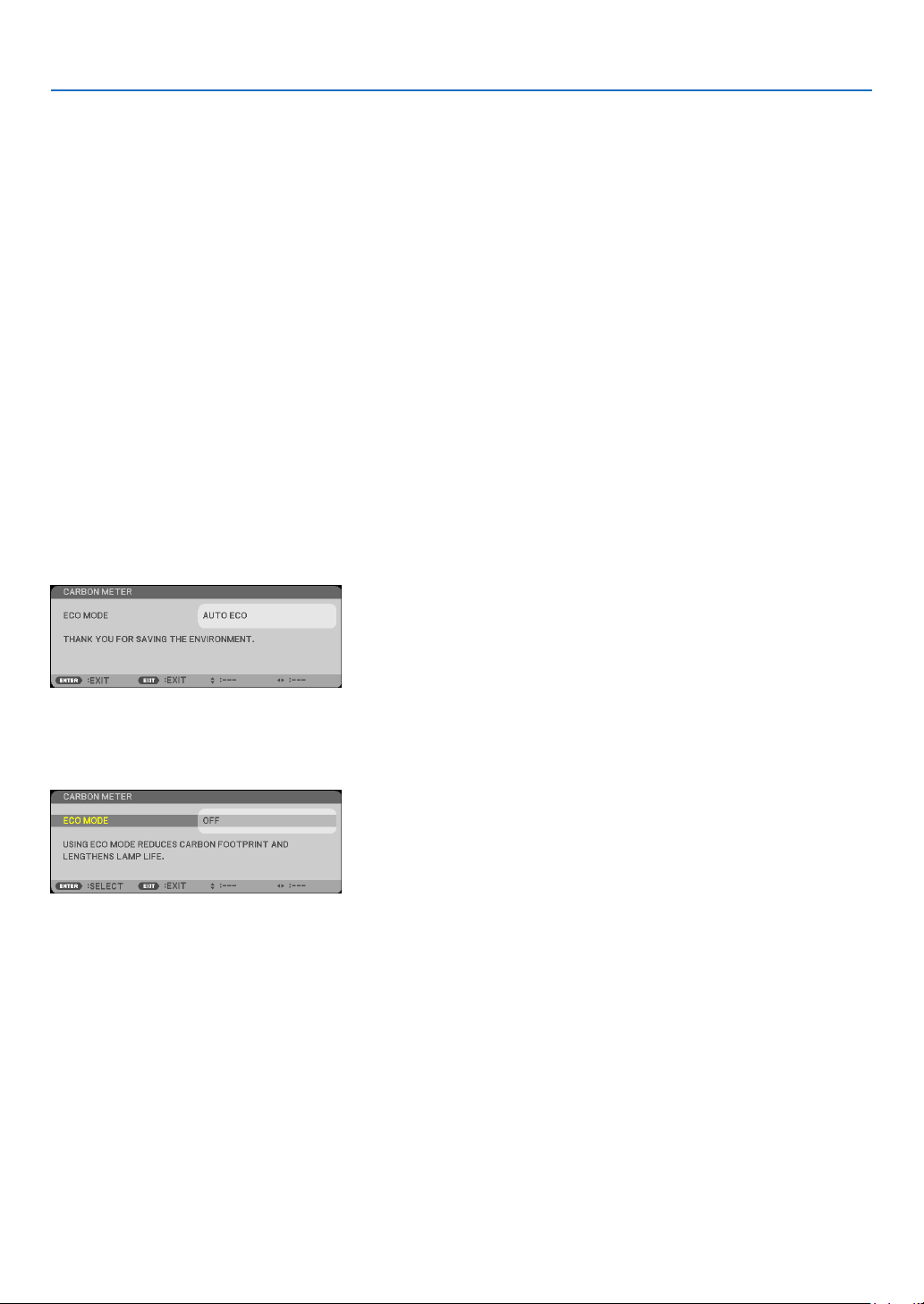
53
4. Using On-Screen Menu
[MENU]
Selecting Menu Color [COLOR SELECT]
Youcanchoosebetweentwooptionsformenucolor:COLORandMONOCHROME.
Turning On / Off Source Display [SOURCE DISPLAY]
ThisoptionturnsonoroffinputnamedisplaysuchasHDMI1,HDMI2,COMPUTER,VIDEO,HDBaseT,APPS,tobe
displayedonthetoprightofthescreen.
Whennoinputsignalispresent,theno-signalguidancepromptingyoutocheckforanavailableinputwillbedisplayedat
thecenterofthescreen.Whenthe[APPS]itemisselectedfor[SOURCE],theno-signalguidancewillnotbedisplayed.
Turning ON/OFF Control ID [ID DISPLAY]
ID DISPLAY ........... This option turns on or off the ID number which is displayed when the ID SET button on the remote control
is pressed.
Turning On / Off Eco Message [ECO MESSAGE]
Thisoptionturnsonoroffthefollowingmessageswhentheprojectoristurnedon.
TheEcoMessagepromptstheusertosaveenergy.When[OFF]isselectedfor[ECOMODE],youwillgetamessage
topromptyoutoselect[AUTOECO],[NORMAL],or[ECO]for[ECOMODE].
When[AUTOECO],[NORMAL],or[ECO]isselectedfor[ECOMODE]
Toclosethemessage,pressanyoneofthebuttons.Themessagewilldisappearifnobuttonoperationisdonefor
30seconds.
When[OFF]isselectedfor[ECOMODE]
PressingtheENTERbuttonwilldisplaythe[ECOMODE]screen.(→page28)
Toclosethemessage,presstheEXITbutton.
Selecting Menu Display Time [DISPLAY TIME]
Thisoptionallowsyoutoselecthowlongtheprojectorwaitsafterthelasttouchofabuttontoturnoffthemenu.The
presetchoicesare[MANUAL],[AUTO5SEC],[AUTO15SEC],and[AUTO45SEC].The[AUTO45SEC]isthefac-
torypreset.

54
4. Using On-Screen Menu
SelectingaColororLogoforBackground[BACKGROUND]
Usethisfeaturetodisplayablue/blackscreenorlogowhennosignalisavailable.Thedefaultbackgroundis[BLUE].
NOTE:
•When[SOURCEDISPLAY]isturnedon,theno-signalguidancepromptingyoutocheckforanavailableinputwillbedisplayed
atthecenterofthescreenregardlessofitsselection.
•Yoursettingwillnotbeaffectedevenwhen[RESET]isdonefromthemenu.
[3D CAUTION MESSAGE]
Thisselectswhethertodisplayacautionmessageornotwhenswitchingtoa3Dvideo.
ThedefaultconditionwhenshippedfromthefactoryisON.
OFF ........................ The 3D caution message screen will not be displayed.
ON ......................... The 3D caution message screen will be displayed when switching to a 3D video.Press the ENTER button to
cancel the message.
•Themessagewilldisappearautomaticallyafter60secondsorwhenotherbuttonsarepressed.Ifitdisappears
automatically,the3Dcautionmessagewillbedisplayedagainwhenswitchingtoa3Dvideo.
Selecting Interval Time for Filter Message [FILTER MESSAGE]
Thisoptionallowsyoutoselectthetimepreferencefordisplayingtheltercleaningmessage.Cleanthelterwhen
yougetthemessage“PLEASECLEANTHEFILTER.”(→page113)
Fiveoptionsareavailable:
OFF,100[H],500[H],1000[H],2000[H]
NOTE:Yoursettingwillnotbeaffectedevenwhen[RESET]isdonefromthemenu.
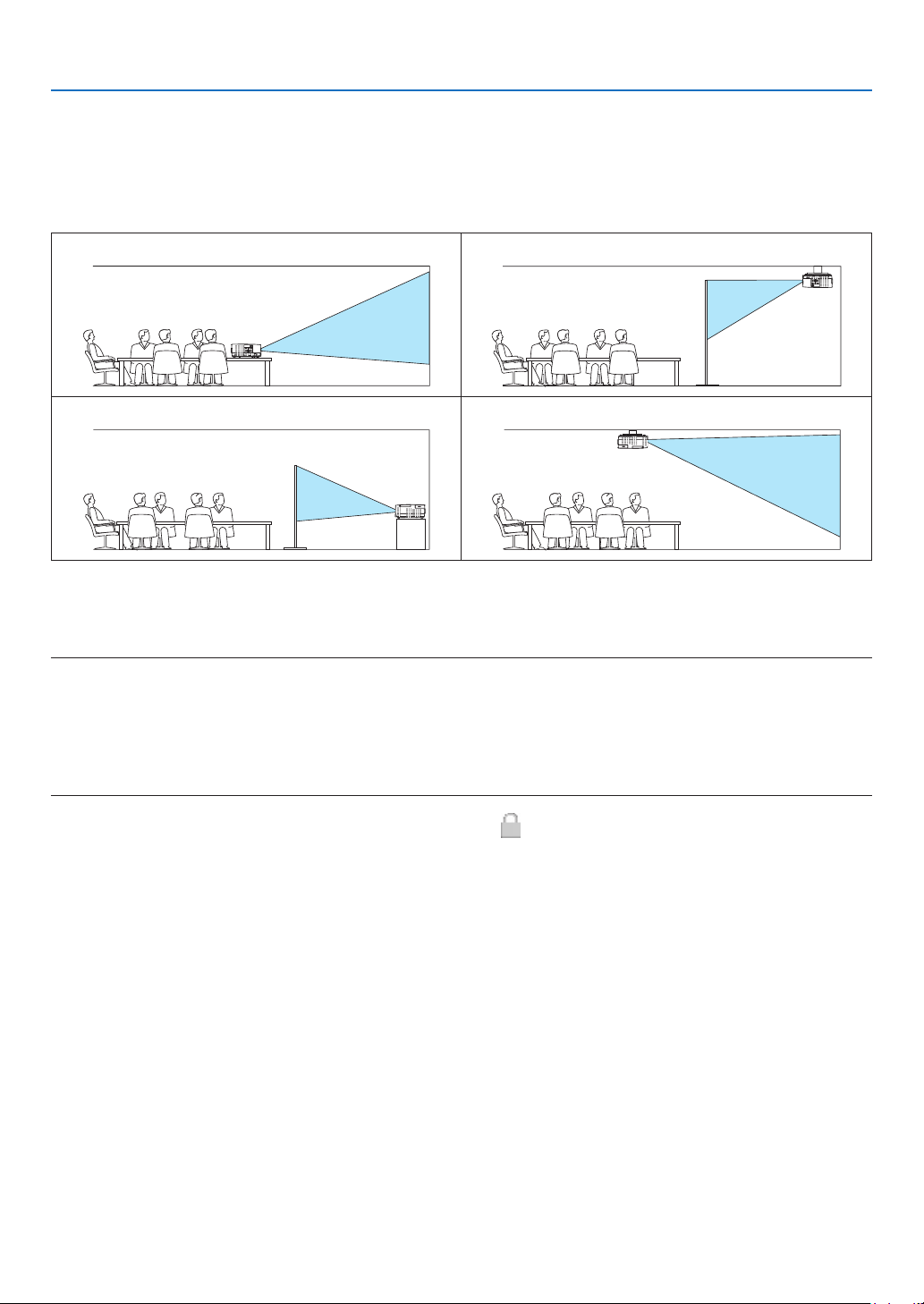
55
4. Using On-Screen Menu
[INSTALLATION]
SelectingProjectorOrientation[ORIENTATION]
Thisreorientsyourimageforyourtypeofprojection.Theoptionsare:desktopfrontprojection,ceilingrearprojection,
desktoprearprojection,andceilingfrontprojection.
DESKTOPFRONTCEILINGREAR
DESKTOPREARCEILINGFRONT
Disabling the Cabinet Buttons [CONTROL PANEL LOCK]
ThisoptionturnsonorofftheCONTROLPANELLOCKfunction.
NOTE:
•ThisCONTROLPANELLOCKdoesnotaffecttheremotecontrolfunctions.
•HowtoreleasetheCONTROLPANELLOCK
1.Whentheprojectorisprojectingimageorinthesleepmode,pressandholdtheSOURCEbuttonontheprojectorcabinetfor
about10seconds.TheCONTROLPANELLOCKwillbereleased.
2.Whentheprojectorisinthestandbymode,pressandholdthePOWERbuttonontheprojectorcabinet.Itenablestopoweron
theprojector.Aftercheckingtheprojectorisprojectingimage,performthepreviousstep1.
TIP:Whenthe[CONTROLPANELLOCK]isturnedon,akeylockicon[]willbedisplayedatthebottomrightofthemenu.

56
4. Using On-Screen Menu
Enabling Security [SECURITY]
ThisfeatureturnsonorofftheSECURITYfunction.
Unlessthecorrectkeywordisentered,theprojectorcannotprojectanimage.(→page
30)
NOTE:Yoursettingwillnotbeaffectedevenwhen[RESET]isdonefromthemenu.
Selecting Communication Speed [COMMUNICATION SPEED]
ThisfeaturesetsthebaudrateofthePCControlport(D-Sub9P).Itsupportsdataratesfrom4800to38400bps.The
defaultis38400bps.Selecttheappropriatebaudrateforyourequipmenttobeconnected(dependingontheequip-
ment,alowerbaudratemayberecommendedforlongcableruns).
NOTE:Yourselectedcommunicationspeedwillnotbeaffectedevenwhen[RESET]isdonefromthemenu.
Selecting the serial port [SERIAL PORT]
Thissetswhichterminalontheprojectorwillreceivetheserialcontrolsignalsforremotelycontrollingtheprojector
fromacommerciallyavailableHDBaseTtransmissiondevices(controlsignalsforturningthepoweronandoff,etc.).
Thereisnoneedtomakethissettingifnotoperatingtheprojectorbyremotecontrol(onlysendingvideoandaudio).
PC CONTROL ......... Control signals (RS232C serial communications) are received at the PC CONTROL terminal.
HDBaseT ................ The video/audio and control signals (RS232C serial communications) are received at the Ethernet/HDBaseT
port.
NOTE:
•When[HDBaseT]isset,itwillnotworkwhentheprojectorisinthestandbymode,regardlessofwhether[STANDBYMODE](→
page
61)issetto[NORMAL]or[NETWORKSTANDBY](thepowercannotbeturnedon).
Themethodsbelowcanbeusedtoturnontheprojector’spowerwhenitisinthestandbymode.
•TheprojectorcanbeoperatedbyconnectingthecomputerandprojectorbyRS232Cserialcommunications(ontheprojector,
usingthePCCONTROLterminalandthePCControlUtilityapplication,with[STANDBYMODE]setto[NETWORKSTANDBY]).
•Theprojectorcanbeoperatedbyconnectingthecomputerandprojectoroverthenetwork(ontheprojector,usingtheLAN
portandPCControlUtilityapplication,with[STANDBYMODE]setto[NETWORKSTANDBY]).
TIP:
•WhencontrollingtheprojectorusingtheLANport,thisworkswitheithersetting.
Turning On or Off Remote Sensor [REMOTE SENSOR]
Settheremotecontrolsensorsontheprojector’sfrontandrearpanelsandtheHDBaseTremotecontrolsensor.
Theoptionsare:ALL,FRONT/BACK,FRONT,BACK,andHDBaseT.
NOTE:
•When[HDBaseT]isset,itwillnotworkwhentheprojectorisinthestandbymode,regardlessofwhether[STANDBYMODE](→
page61)issetto[NORMAL]or[NETWORKSTANDBY](thepowercannotbeturnedon).
TIP:
•Iftheremotecontrolsystemdoesnotfunctionwhendirectsunlightorstrongilluminationstrikestheremotecontrolsensorof
theprojector,changeanotheroption.
•RemotecontrolbyinfraredraysisnotavailablewhentheremotecontrolcableisconnectedtotheREMOTEtermial.
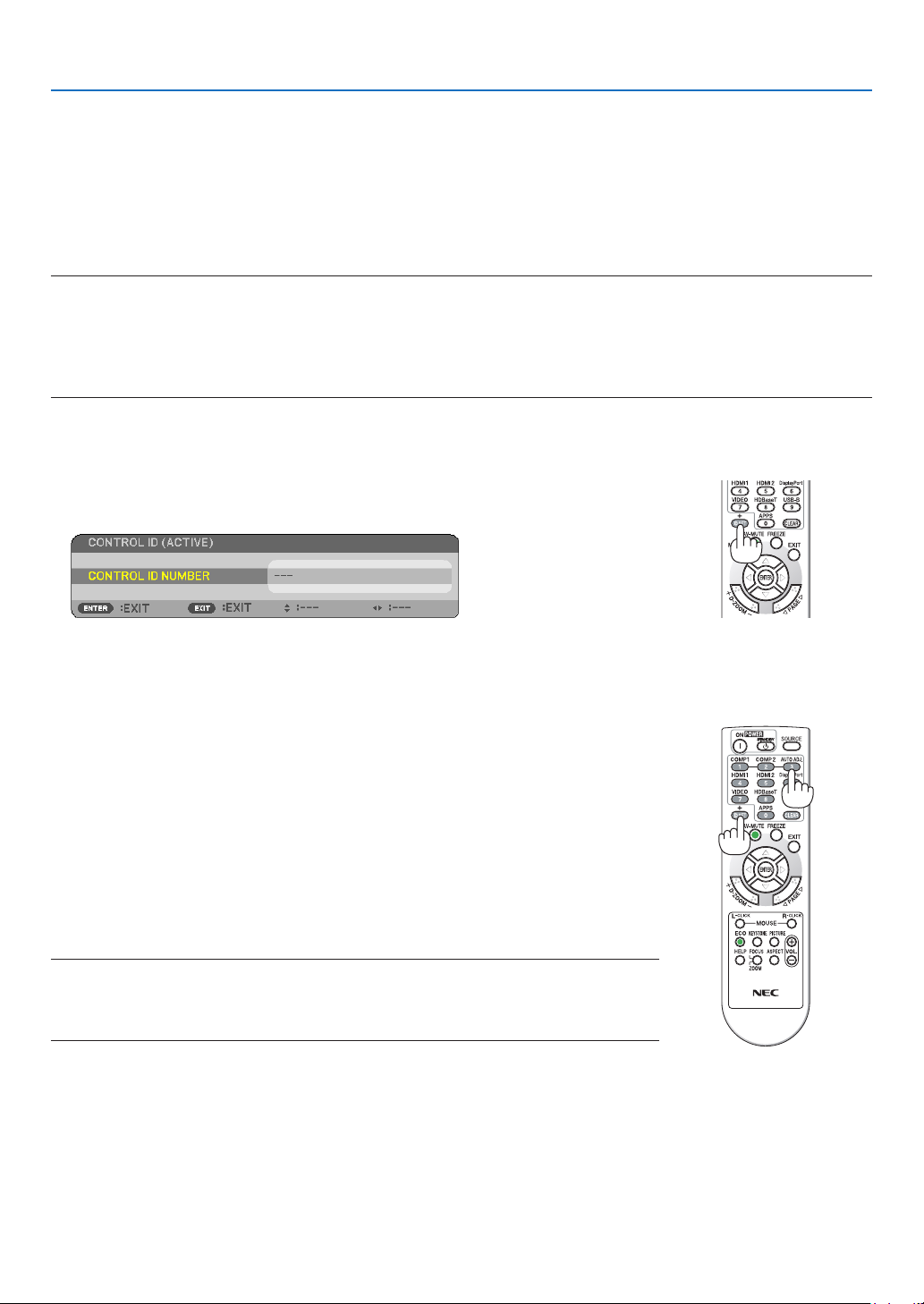
57
4. Using On-Screen Menu
SettingIDtotheProjector[CONTROLID]
YoucanoperatemultipleprojectorsseparatelyandindependentlywiththesingleremotecontrolthathastheCONTROL
IDfunction.IfyouassignthesameIDtoalltheprojectors,youcanconvenientlyoperatealltheprojectorstogether
usingthesingleremotecontrol.Todoso,youhavetoassignanIDnumbertoeachprojector.
CONTROL ID NUMBER ....... Select a number from 1 to 254 you wish to assign to your projector.
CONTROL ID .......................Select [OFF] to turn off the CONTROL ID setting and select [ON] to turn on the CONTROL ID setting.
NOTE:
•When[ON]isselectedfor[CONTROLID],theprojectorcannotbeoperatedbyusingtheremotecontrolthatdoesnotsupport
theCONTROLIDfunction.(Inthiscasethebuttonsontheprojectorcabinetcanbeused.)
•Yoursettingwillnotbeaffectedevenwhen[RESET]isdonefromthemenu.
•PressingandholdingtheENTERbuttonontheprojectorcabinetfor10secondswilldisplaythemenuforcancelingtheControl
ID.
Assigning or Changing the Control ID
1. Turn on the projector.
2. Press the ID SET button on the remote control.
TheCONTROLIDscreenwillbedisplayed.
IftheprojectorcanbeoperatedwiththecurrentremotecontrolID,the[ACTIVE]will
bedisplayed.IftheprojectorcannotbeoperatedwiththecurrentremotecontrolID,
the[INACTIVE]willbedisplayed.Tooperatetheinactiveprojector,assignthecontrol
IDusedfortheprojectorbyusingthefollowingprocedure(Step3).
+
3. Press one of numeric keypad buttons while pressing and holding the ID SET
button on the remote control.
Example:
Toassign“3”,pressthe“3”buttonontheremotecontrol.
NoIDmeansthatalltheprojectorscanbeoperatedtogetherwithasingleremote
control.Toset“NoID”,enter“000”orpresstheCLEARbutton.
TIP:TherangeofIDsisfrom1to254.
4. Release the ID SET button.
TheupdatedCONTROLIDscreenwillbedisplayed.
NOTE:
•TheIDscanbeclearedinafewdaysafterthebatteriesarerundownorremoved.
•Accidentallypressinganyoneofthebuttonsoftheremotecontrolwillclearcurrentlyspecied
IDwithbatteriesremoved.

58
4. Using On-Screen Menu
Using Test Pattern [TEST PATTERN]
Displaysthetestpatternforadjustingdistortiononthescreenandthefocusatthetimeoftheprojectorsetup.Once
the[TESTPATTERN]ontheonscreenmenuisselected,thepatternforadjustmentwillbedisplayedon.Ifyound
distortiononthepattern,adjusttheprojectorinstallationangleorcorrectdistortionbypressingtheKEYSTONEbutton
ontheremote.Ifthefocusadjustmentisrequired,controlthefocuslever.PressEXITbuttontoclosethetestpattern
andreturntothemenu.
NOTE:
•RecommendtoperfromthefocusadjustmentafterleavingtheprojectorunderthestatetheTESTPATTERNhasbeenprojected
forover30minutes.
Settingthenetwork[NETWORKSETTINGS]
Thisfunctiondisplaythenetworksettingsmenu.(→page90)

59
4. Using On-Screen Menu
[OPTIONS(1)]
Selecting Fan Mode [FAN MODE]
FanModeisusedtosetthespeedoftheinternalcoolingfan.
AUTO ..................... The built-in fans automatically run at a variable speed according to the internal temperature.
HIGH ...................... The built-in fans run at a high speed.
HIGH ALTITUDE ..... The built-in fans run at a high speed. Select this option when using the projector at altitudes approximately
4000 feet/1200 meters or higher.
NOTE:
•ItisrecommendedthatyouselectHighspeedmodeifyouusetheprojectornon-stopforconsecutivedays.
•Set[FANMODE]to[HIGHALTITUDE]whenusingtheprojectorataltitudesapproximately4000feet/1200metersorhigher.
•Usingtheprojectorataltitudesapproximately4000feet/1200metersorhigherwithoutsettingto[HIGHALTITUDE]cancause
theprojectortooverheatandtheprotectorcouldshutdown.Ifthishappens,waitacoupleminutesandturnontheprojector.
•Usingtheprojectorataltitudesapproximately4000feet/1200metersorhighercanshortenthelifeofopticalcomponentssuch
asthelamp.
•Yoursettingwillnotbeaffectedevenwhen[RESET]isdonefromthemenu.
Enabling or Disabling WXGA Mode [WXGA MODE]
Selecting[ON]willgiveprioritytoWXGA(1280×768)/WUXGA(1920×1200)signalsinrecognizinganinputsignal.
When[WXGAMODE]issetto[ON],XGA(1024×768)/UXGA(1600×1200)signalsmaynotberecognized.Inthis
case,select[OFF].

60
4. Using On-Screen Menu
Setting HDMI1, HDMI2, or HDBaseT [HDMI SETTINGS]
MakethesettingsforeachvideolevelwhenconnectingHDMIequipmentandEthernet/HDBaseTterminal.
VIDEO LEVEL ......... Select [AUTO] to automatically detect video level. If automatic detection may not work well, select [NOR-
MAL] to disable the [ENHANCED] feature of your HDMI equipment or select [ENHANCED] to improve image
contrast and increase detail in the dark areas.
Setting Audio [AUDIO SELECT]
MakethesettingsforeachaudiolevelwhenconnectingHDMIequipmentandEthernet/HDBaseTterminal.Select
betweeneachequipmentandcomputer.
HDMI1, HDMI2
........... Select [HDMI1] or [HDMI2] to switch the HDMI 1 IN or HDMI 2 IN digital audio signal or select [COMPUTER]
to switch the COMPUTER input audio signal.
HDBaseT ................ Select [HDBaseT] or [COMPUTER] to switch the source connected to the network.
Enabling Key Sound and Error Sound [BEEP]
Thisfeatureturnsonoroffthebuttonsoundoralarmwhenanerroroccursorthefollowingoperationsareperformed.
-Displayingthemainmenu
-Switchingsources
-Resettingdatabyusing[RESET]
-PressingPOWERONorSTANDBYbutton

61
4. Using On-Screen Menu
[OPTIONS(2)]
Selecting Power-saving in [STANDBY MODE]
Theprojectorhastwostandbymodes:[NORMAL]and[NETWORKSTANDBY].
TheNORMALmodeisthemodethatallowsyoutoputtheprojectorinthepower-savingconditionwhichconsumes
lesspowerthantheNETWORKSTANDBYmode.
NORMAL .......................POWER indicator: Red light/STATUS indicator: Off
When [NORMAL] is selected, only the following buttons and feature will work:
POWER buttons on the projector cabinet and the remote control, powering on from PC Control com-
mand, and AUTO POWER ON.
NETWORK STANDBY .... POWER indicator: Orange light/STATUS indicator: Off
When [NETWORK STANDBY] is selected, the projector can be turned on over a wired LAN/wireless LAN
connection and only the following buttons, terminals, and features will work:
POWER buttons on the projector cabinet and the remote control, powering on from PC Control command,
AUTO POWER ON, Operation by User Supportware, Network service, Program Timer.
Important:
•When[NETWORKSTANDBY]isselected,[AUTOPOWEROFF]willturningreyandbedisabledand[0:10]willbeselectedauto-
maticallyfor[AUTOPOWEROFF].
•Inthebelowconditions,settingofthe[STANDBYMODE]isdisabledandtheprojectorwillgointotheSLEEPmode*.
*Sleepmoderefersthemodewithoutfunctionalrestrictionsbythe[STANDBYMODE].PowerconsumptionintheSLEEPmode
isrelativelyhigherthanthe[NETWORKSTANDBY]mode.TheStatusindicatorturnsoninGreen.
When[STANDBYMODE]→[NETWORKSTANDBY]isselected
-When[NETWORKSERVICE]→[AMXSETTINGS]→[ENABLE]isselected
-When[NETWORKSERVICE]→[CRESTRONSETTINGS]→[CRESTRONCONTROL]→[ENABLE]isselected
-When[NETWORKSETTINGS]→[WIRELESSLAN]→Exceptfor[DISABLE]andmountingthewirelessLANunittotheprojector
-Whenthesignalisinputtothecomputer,HDMI1INorHDMI2INterminals
NOTE:
•WhenanHDBaseTtransmitterisconnectedtotheEthernet/HDBaseTport,iftheprojectorisinthestandbymode,theprojector
cannotbecontrolled(thepowercannotbeturnedon),regardlessofthe[STANDBYMODE]setting.
TIP:
•Evenwhen[NORMAL]isselectedfor[STANDBYMODE],poweronoroffcanbedonebyusingthePCCONTROLport.
•ThepowerconsumptioninthestandbymodewillnotbeincludedincalculatingCO
2
emissionreduction.
•Yoursettingwillnotbeaffectedevenwhen[RESET]isdonefromthemenu.
Enabling Direct Power On [DIRECT POWER ON]
Turnstheprojectoronautomaticallywhenthepowercordisinsertedintoanactivepoweroutlet.Thiseliminatesthe
needtoalwaysusethePOWERbuttonontheremotecontrolorprojectorcabinet.

62
4. Using On-Screen Menu
TurningOntheProjectorByApplyingComputerSignal[AUTOPOWERON]
WhentheprojectorisinStandbymode,applyingacomputerorHDMIsignalfromacomputerconnectedtotheCOM-
PUTERINinput,HDMI1,orHDMI2inputwillpowerontheprojectorandsimultaneouslyprojecttheimage.
ThisfunctionalityeliminatestheneedtoalwaysusethePOWERbuttonontheremotecontrolortheprojectorcabinet
topowerontheprojector.
Tousethisfunction,rstconnectacomputertotheprojectorandtheprojectortoanactiveACinput.
NOTE:
•Disconnectingacomputersignalfromthecomputerwillnotpowerofftheprojector.Werecommendusingthisfunctionincom-
binationoftheAUTOPOWEROFFfunction.
•Thisfunctionwillnotbeavailableunderthefollowingconditions:
-whenacomponentsignalisappliedtotheCOMPUTERINterminal
-whenaSynconGreenRGBsignalorcompositesyncsignalisapplied
•ToenabletheAUTOPOWERONafterchangingtothesleepmodeturningofftheprojector,wait5secondsandinputacomputer
orHDMIsignal.
IfacomputerorHDMIsignalisstillpresentwhentheprojectoristurnedoff,theAUTOPOWERONwillnotworkandtheprojector
remainsinstandbymode.
Enabling Power Management [AUTO POWER OFF]
Whenthisoptionisselectedyoucanenabletheprojectortoautomaticallyturnoff(attheselectedtime:5min.,10min.,
15min.,20min.,30min.,60min.)inoneofthebelowconditions.
-Nosignalisreceived.
-Thethumbnailscreenisdisplayed.
-Nooperationisperformed.
NOTE:
•Thisitemcanbeselectedonlywhen[NORMAL]isselectedfor[STANDBYMODE].
•When[NETWORKSTANDBY]isselected,[AUTOPOWEROFF]willturngreyincolorandbedisabledtoselect,[0:15]willbe
selectedautomatically.

63
4. Using On-Screen Menu
Selecting Default Source [DEFAULT SOURCE SELECT]
Youcansettheprojectortodefaulttoanyoneofitsinputseachtimetheprojectoristurnedon.
LAST ...................... Sets the projector to default to the previous or last active input each time the projector is turned on.
AUTO ..................... Searches for an active source in order of [HDMI1] → [HDMI2] → [COMPUTER] → [VIDEO] → [HDBaseT]
→ [APPS] and displays the first found source.
HDMI1 ................... Displays the digital source from the HDMI 1 IN terminal every time the projector is turned on.
HDMI2 ................... Displays the digital source from the HDMI 2 IN terminal every time the projector is turned on.
COMPUTER ........... Displays the computer signal from the COMPUTER IN terminal every time the projector is turned on.
VIDEO .................... Displays the Video source from the VIDEO IN terminal every time the projector is turned on.
HDBaseT ................ Projects the signal transmitted from the terminals supported HDBaseT.
APPS ..................... Display the APPS MENU.
NOTE:
•[APPS]cannotbedetectedwhen[AUTO]isselected.ForprojectingimagefromAPPS,select[APPS]or[LAST].
Settingcarbonfootprintfactor[CARBONCONVERT]
Adjuststhecarbonfootprintfactorinthecarbonsavingcalculation.Theinitialsettingis0.505[kg-CO2/kWh]basedon
theCO2EmissionsfromFuelCombustion(2008Edition)publishedbyOECD.
Selecting your currency [CURRENCY]
Displayselectricitypricing(availablein4currencyunits).
$ ............................ US Dollar
€ ........................... EU Euro
JP¥ ........................ Japanese Yen
RMB¥ .................... Chinese Yuan
Changingcurrencysettingandcurrencyconvertsetting[CURRENCYCONVERT]
ChangescurrencysettingandcurrencyconvertsettingforCARBONMETER.
Theinitialsettingareasfollows:
US Dollar ............... 0.11 [$/kWh]
EU Euro ................. 0.19 [€/kWh]
Japanese Yen ......... 20 [¥/kWh]
Chinese Yuan ......... 0.48 [¥/kWh]
TheinitialsettingsforUSdollar,EUEuro,andJapaneseYenarebasedon“EnergyPricesandTaxes(secondquarter
2010”publishedbyOECD.
TheinitialsettingforChineseYuanisbasedon“ChineseDataFile(2010)”publishedbyJETRO.

64
4. Using On-Screen Menu
[3D]
Selectinginputconnectedtoasourceof3Dimages[HDMI1/HDMI2/COMPUTER/VIDEO/HDBaseT]
[3D]
Thisfunctionswitchesthe3DmodebetweenONandOFFforeachinput.
ON ......................... Turns on the 3D mode for the selected input.
NOTE:
Toconrmthatthesupported3Dsignalisaccepted,useeitherwayofthefollowing:
•Makesurethat[3D]isdisplayedinthetoprightofthescreenafterthesourceisselected.
•Display[INFO.]→[SOURCE(2)]→[3DSIGNAL]andmakesurethat“SUPPORTED”isdisplayed.
OFF ........................ Turns off the 3D mode for the selected input.
[GLASSES]
Select3Dglassesmethod.
DLP
®
Link .............. For 3D eyeglasses (ones manufactured by XPAND are recommended) or DLP
®
Link compatible LCD shutter
eyeglasses.
Others .................... For other LCD shutter eyeglasses such as IR or wired LCD shutter types.
NOTE:
•WhenusingcrystalshutterglassesotherthanthoseusingtheDLP®Linkmethod,itmaynotbepossibletosynchronize,depend-
ingontheglasses.
•ThisfunctionwillnotworkforVIDEOsource.
[FORMAT]
Sets3Dformat.
AUTO ............................Automatically selects the appropriate format. The supported format is HDMI 3D only.
FRAME PACKING ..........Selects this format for the FRAME PACKING 3D image. FRAM PACKING is a format that stores the left
and right eye images without compression.
SIDE BY SIDE ...............Selects this format for the SIDE BY SIDE 3D image. SIDE BY SIDE is a format that stores the left and
right eye images displayed horizontally. Only the half of the horizontal resolution is supported
TOP AND BOTTOM .......Selects this format for the TOP AND BOTTOM 3D image. TOP AND BOTTOM is a format that stores the
left and right eye images displayed vertically. Only the half of the vertical resolution is supported.
FRAME SEQUENTIAL ....Selects this format for the FRAME SEQUENTIAL 3D image. FRAME SEQUENTIAL is a format that displays
the left and right eye images alternately.
NOTE:
•ThisfunctionwillnotworkforVIDEOsource.
•When3Dsignalsareinput,operationisonlypossiblewhen[GLASSES]issetto“DLP®Link”.

65
4. Using On-Screen Menu
[L/RINVERT]
Changethesettingifyouhavedifcultyseeing3Dimages.
NON-INVERT ......... Normal setting.
INVERT .................. Changes the order of displaying the images for left eye and right eye.
NOTE:
•When[L/RINVERT]cannotbeoperated,the[L/RINVERT]screenwillnotbedisplayedevenwhentheremotecontrol’svideo
buttonispressed.

66
4. Using On-Screen Menu
❻ Menu Descriptions & Functions [INFO.]
Displaysthestatusofthecurrentsignalandlampusage.Thisitemhasninepages.Theinformationincludedisasfollows:
TIP:PressingtheHELPbuttonontheremotecontrolwillshowthe[INFO.]menuitems.
[USAGE TIME]
[LAMPLIFEREMAINING](%)*
[LAMPHOURSUSED](H)
[FILTERHOURSUSED](H)
[TOTALCARBONSAVINGS](kg-CO2)
[TOTALCOSTSAVINGS]($)
*Theprogressindicatorshowsthepercentageofremainingbulblife.
Thevalueinformsyouoftheamountoflampusage.Whentheremaininglamptimereaches0,theLAMPLIFE
REMAININGbarindicatorchangesfrom0%to100Hoursandstartscountingdown.
Iftheremaininglamptimereaches0hours,theprojectorwillnotturnon.
•Themessagetotheeffectthatthelampshouldbereplacedwillbedisplayedforoneminutewhentheprojectoris
turnedonandwhenthePOWERbuttonontheprojectorortheSTANDBYbuttonontheremotecontrolispressed.
Todismissthismessage,pressanybuttonontheprojectorortheremotecontrol.
Lamplife(H)Brightness by mode
OFF AUTO ECO NORMAL ECO OFF AUTO ECO NORMAL ECO
3000H
3000Hto
5000H
4000H 5000H 100%OFFthruECOApprox.80%Approx.60%
•[TOTALCARBONSAVINGS]
Thisdisplaystheestimatedcarbonsavinginformationinkg.Thecarbonfootprintfactorinthecarbonsavingcal-
culationisbasedontheOECD(2008Edition).(→page
29)

67
4. Using On-Screen Menu
[SOURCE(1)]
[RESOLUTION][HORIZONTALFREQUENCY]
[VERTICALFREQUENCY][SYNCTYPE]
[SYNCPOLARITY][SCANTYPE]
[SOURCE(2)]
[SIGNALTYPE][VIDEOTYPE]
[BITDEPTH][VIDEOLEVEL]
[3DSIGNAL]
[HDBaseT]
[SIGNALQUALITY][OPERATIONMODE]
[LINKSTATUS][HDMISTATUS]
[WIRED LAN]
[IPADDRESS][SUBNETMASK]
[GATEWAY][MACADDRESS]
[WIRELESS LAN]
[IPADDRESS][SUBNETMASK]
[GATEWAY][MACADDRESS]
[SSID][NETWORKTYPE]
[SECURITY][CHANNEL]
[SIGNALLEVEL]
[VERSION(1)]
[FIRMWARE]Version[DATA]Version
[VERSION(2)]
[FIRMWARE2]Version
[OTHERS]
[PROJECTORNAME][HOSTNAME]
[MODELNO.][SERIALNUMBER]
[LANUNITTYPE][CONTROLID](when[CONTROLID]isset)

68
4. Using On-Screen Menu
❼ Menu Descriptions & Functions [RESET]
Returning to Factory Default [RESET]
TheRESETfeatureallowsyoutochangeadjustmentsandsettingstothefactorypresetfora(all)source(s)except
thefollowing:
[CURRENT SIGNAL]
Resetstheadjustmentsforthecurrentsignaltothefactorypresetlevels.
Theitemsthatcanberesetare:[PRESET],[CONTRAST],[BRIGHTNESS],[COLOR],[HUE],[SHARPNESS],[AS-
PECTRATIO],[HORIZONTAL],[VERTICAL],[CLOCK],[PHASE],and[OVERSCAN].
[ALL DATA]
Resetalltheadjustmentsandsettingsforallthesignalstothefactorypreset.
AllitemscanberesetEXCEPT[LANGUAGE],[BACKGROUND],[FILTERMESSAGE],[ORIENTATION],[SERIAL
PORT],[SECURITY],[COMMUNICATIONSPEED],[CONTROLID],[STANDBYMODE],[FANMODE],[CARBON
CONVERT],[CURRENCY],[CURRENTYCONVERT],[LAMPLIFEREMAINING],[LAMPHOURSUSED],[FILTER
HOURSUSED],[TOTALCARBONSAVINGS],[PROJECTORNAME],[WIREDLAN],[WIRELESSLAN],[IMAGE
EXPRESSUTILITYLITE],[NETWORKSERVICE],[DATE&TIME],[ADMINISTRATORMODE],and[REMOTE
DESKTOPCONNECTION].
Clearing Lamp Hour Meter [CLEAR LAMP HOURS]
Resetsthelampclockbacktozero.Selectingthisoptiondisplayssubmenuforaconrmation.Select[YES]andpress
theENTERbutton.
NOTE:Elapsedtimeofthelampusewillnotbeaffectedevenwhen[RESET]isdonefromthemenu.
NOTE:Theprojectorwillturnoffandgointostandbymodewhenyoucontinuetousetheprojectorforanother100hoursafterthe
lamphasreachedtheendofitslife.Inthisconditionyoucannotclearthelamphourmeteronthemenu.Ifthishappens,press
theHELPbuttonontheremotecontrolfor10secondstoresetthelampclockbacktozero.Dothisonlyafterreplacingthelamp.
Clearing the Filter Usage Hours [CLEAR FILTER HOURS]
Resetsthelterusagebacktozero.Selectingthisoptiondisplayssubmenuforaconrmation.Select[YES]andpress
theENTERbutton.
NOTE:Elapsedtimeofthelterusewillnotbeaffectedevenwhen[RESET]isdonefromthemenu.
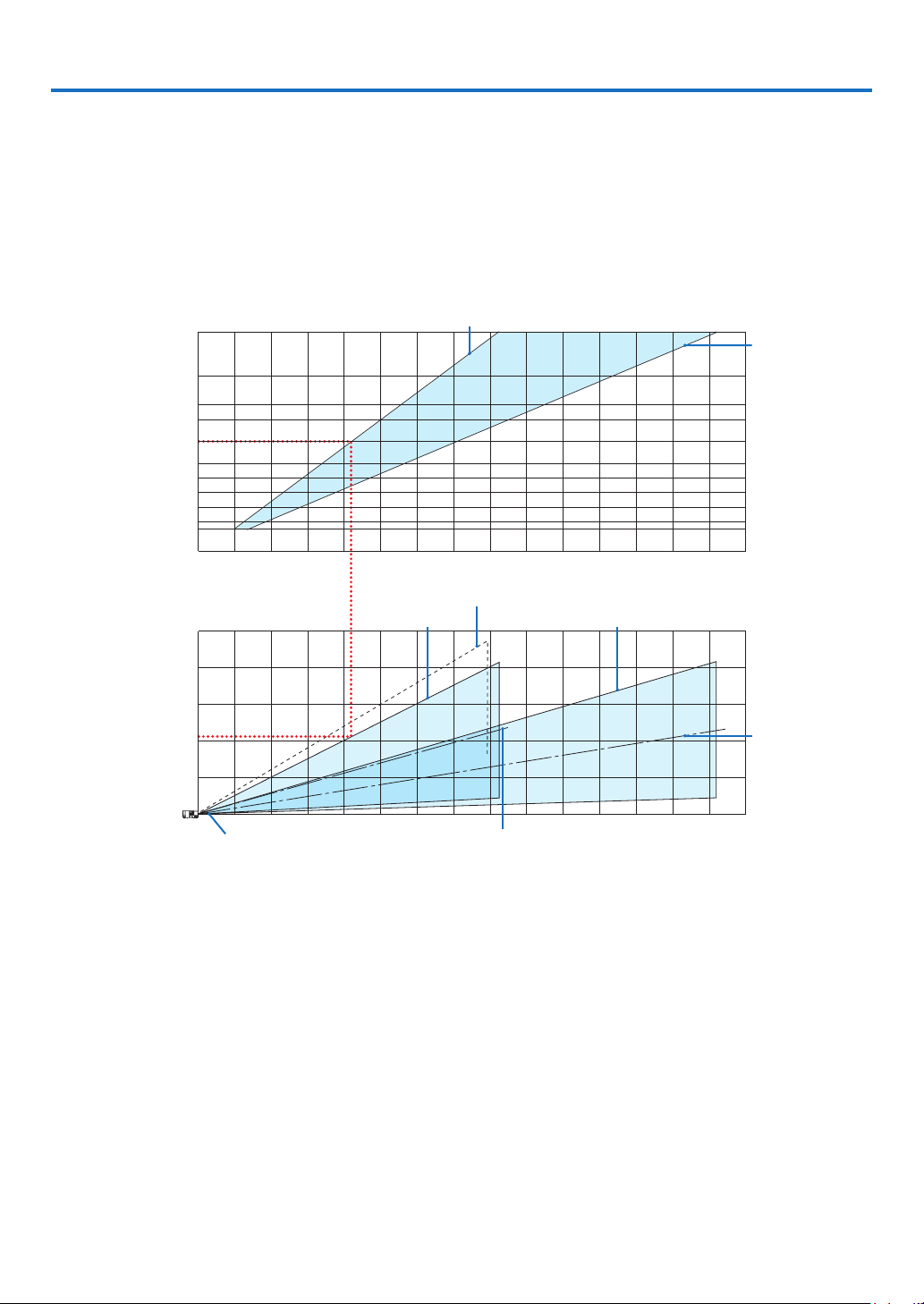
69
❶ Setting Up the Screen and the Projector
Usethistogetageneralideaofwhatthescreensizewillbewhensetinacertainposition,whatsizescreenyouwill
need,andwhatdistanceyouwillneedtoprojectimagesofthedesiredsize.
Theprojectiondistancerangeatwhichfocusingispossibleis0.79m(fora30model)to14.19m(fora300model).
Installwithinthisrange.
[P502H/P452H]
0123456789101112 13 14 15
12 13 14 15
0
1
2
3
4
5
1234567891011
40
30
60
80
100
120
150
180
200
240
300
(inch)
(m)
Screen size
Screen height from the center of the
projector lens
[Projection distance]
When zoom lever turned to wide
With tilt feet tilted 4° when set to wide
When zoom lever turned to telescopic
When zoom lever
turned to telescopic
Screen center line
(telescopic)
When zoom lever
turned to wide
Projector lens center Screen center line (wide)
(m)
(m)
*Theguresindicatedfor“heightofscreenfromprojectorlenscenter”ontheprojectiondistancetableareforalensshiftof62%
V.
[ReadingtheTable]
Fromtheuppertableonthispage,toprojectwideimagesona150screen,installatabout4.1mfromthefront.
Also,fromthelowertablewecanseethatabout2.1marerequiredfromtheprojector’slenscentertotheupperedge
ofthescreen.Usethistoseewhetherornotenoughheightcanbeprovidedfromtheprojectortotheceilingand
forinstallingthescreen.Thediagramshowstheprojectiondistancewhentheprojectorisinstalledhorizontally.The
projectedimagecanbemovedupanddown,leftandrightusingthelensshiftfunction.(→page
17)
5. Installation and Connections
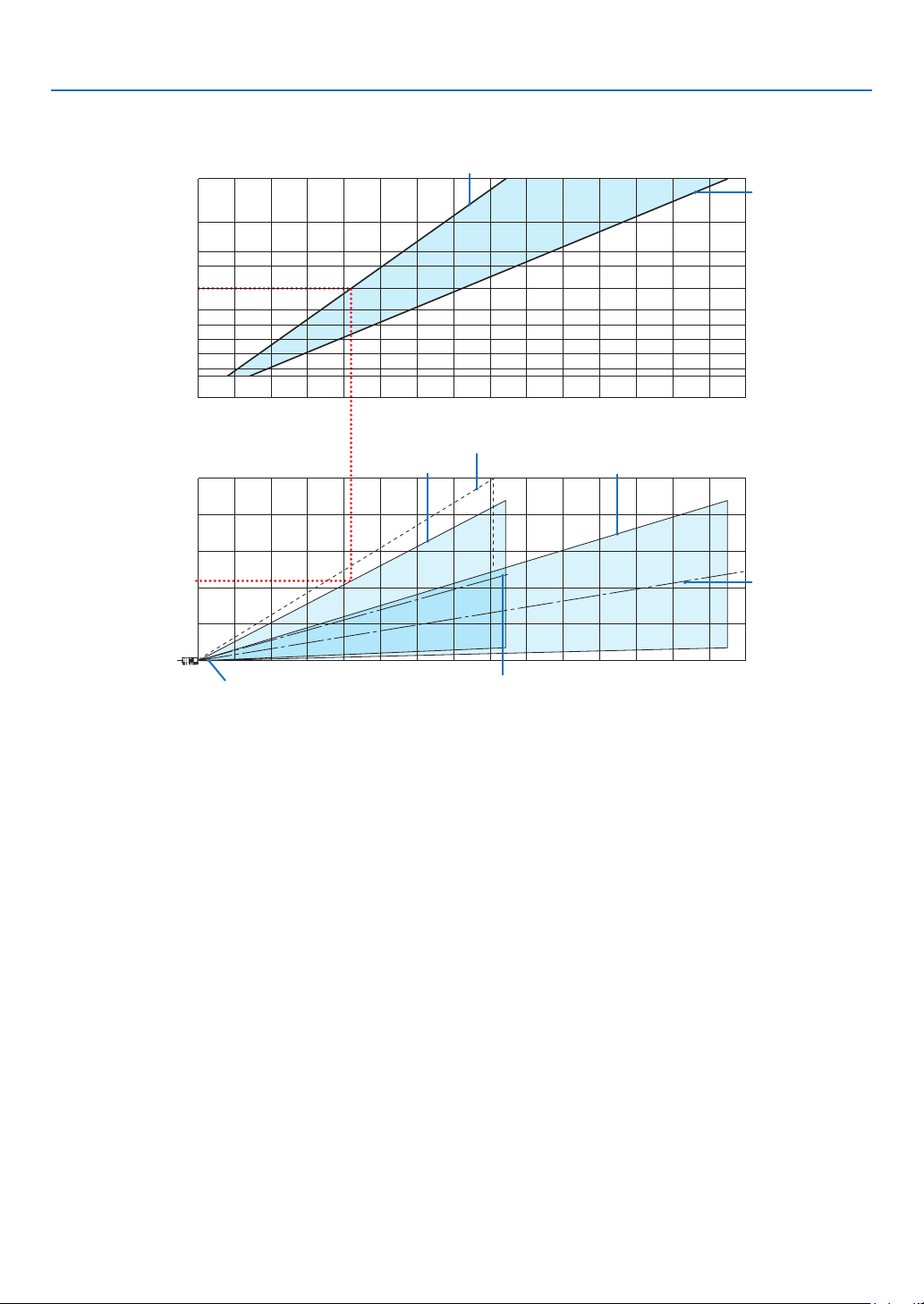
70
5. Installation and Connections
[P502W/P452W]
0 12345678910 11 12 13 14 15
12 13 14 15
0
1
2
3
4
5
12345678910 11
40
30
60
80
100
120
150
180
200
240
300
(inch)
(m)
Screen size
Screen height from the center of the
projector lens
[Projection distance]
When zoom lever turned to wide
With tilt feet tilted 4° when set to wide
When zoom lever turned to telescopic
When zoom lever
turned to telescopic
Screen center line
(telescopic)
When zoom lever
turned to wide
Projector lens center Screen center line (wide)
(m)
(m)
*Theguresindicatedfor“heightofscreenfromprojectorlenscenter”ontheprojectiondistancetableareforalensshiftof59%
V.
[ReadingtheTable]
Fromtheuppertableonthispage,toprojectwideimagesona150screen,installatabout4.1mfromthefront.
Also,fromthelowertablewecanseethatabout2.1marerequiredfromtheprojector’slenscentertotheupperedge
ofthescreen.Usethistoseewhetherornotenoughheightcanbeprovidedfromtheprojectortotheceilingand
forinstallingthescreen.Thediagramshowstheprojectiondistancewhentheprojectorisinstalledhorizontally.The
projectedimagecanbemovedupanddown,leftandrightusingthelensshiftfunction.(→page
17)
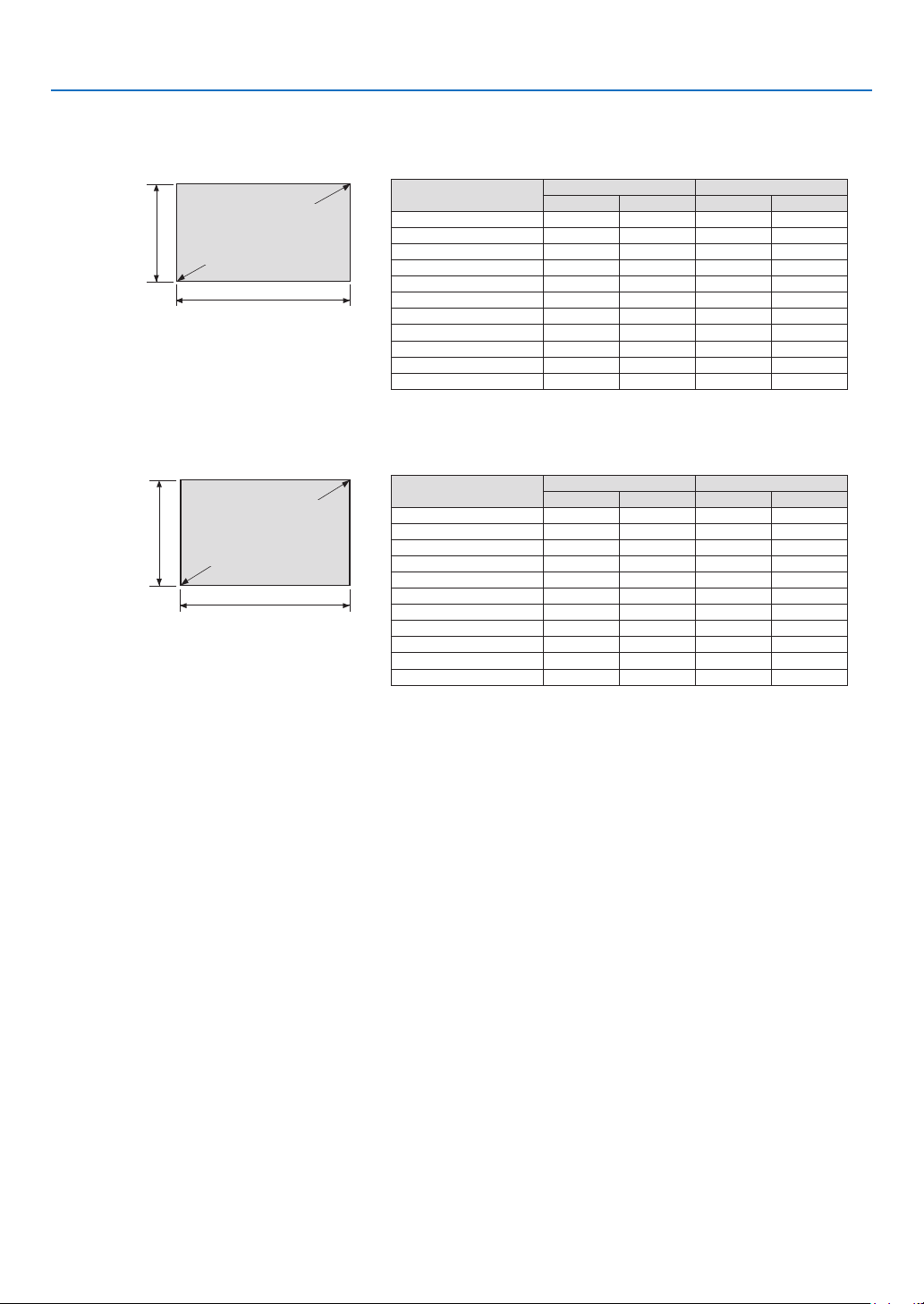
71
5. Installation and Connections
Tables of screen sizes and dimensions
[P502H/P452H]
Screen height
Screen width
Screen size
(diagonal)
Size(inches)ScreenwidthScreenheight
(inches)(cm)(inches)(cm)
302666.415 37.4
40 3588.620 49.8
50 44 110.725 62.3
6052 132.82974.7
8070177.13999.6
100 87221.4 49124.5
120 105 265.759149.4
150 131332.174186.8
200 174442.898249.1
250 218553.4123311.3
300261664.1147373.6
[P502W/P452W]
Screen height
Screen width
Screen size
(diagonal)
Size(inches)ScreenwidthScreenheight
(inches)(cm)(inches)(cm)
3025 64.61640.4
40 3486.221 53.8
50 42 107.72667.3
6051 129.23280.8
8068172.342 107.7
100 85215.4 53134.6
120 102 258.564161.5
150 127323.179201.9
200 170430.8106269.2
250 212 538.5132336.5
300254 646.2159403.9
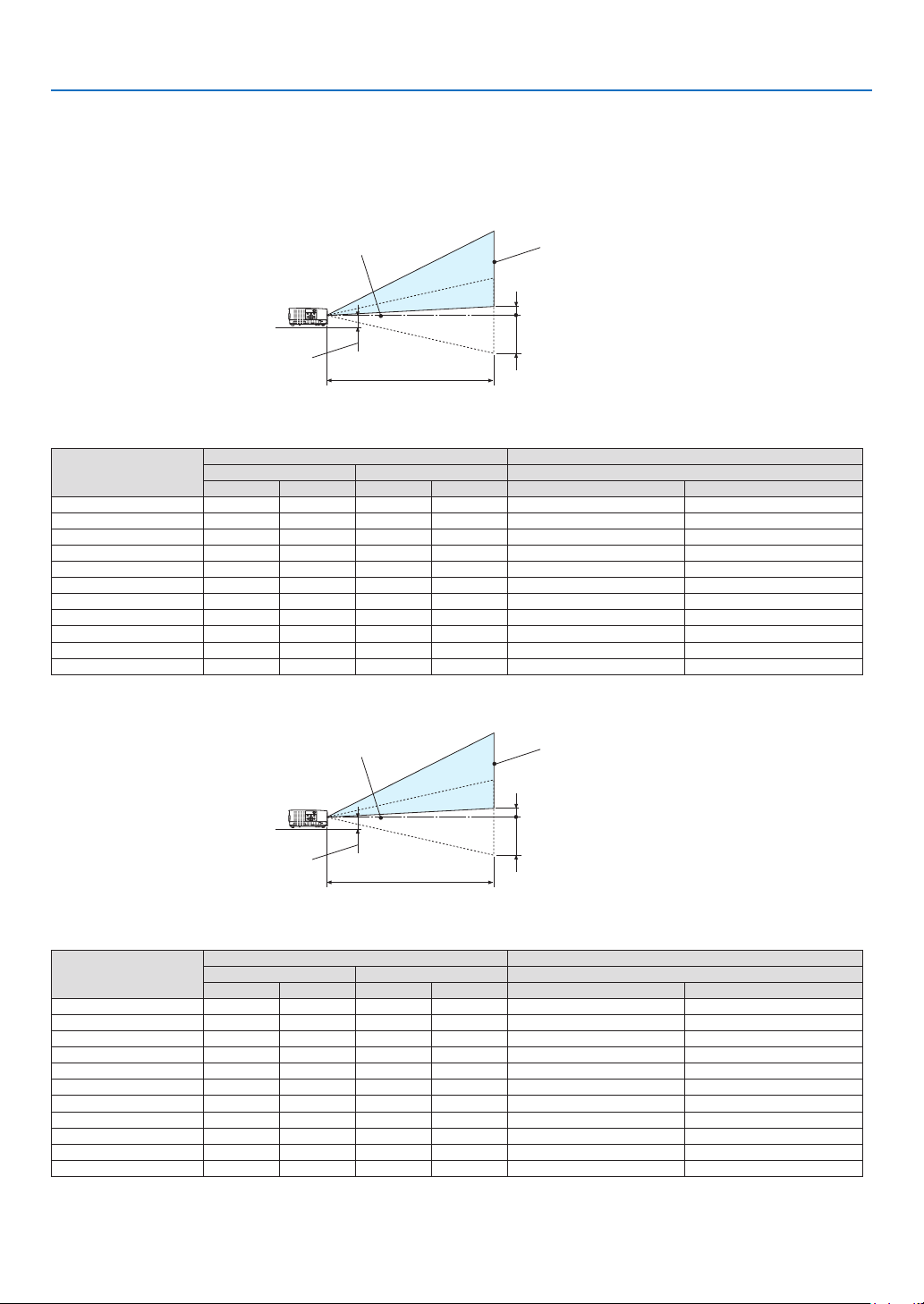
72
5. Installation and Connections
Example of installation on a desktop
Thediagrambelowshowsanexampleofwhentheprojectorisusedonadesktop.
Horizontalprojectionposition:Equaldistancetotheleftandrightfromthecenterofthelens
Verticalprojectionposition:(seetablebelow)
[P502H/P452H]
Screen surface
Lower edge of screen with 62% V
Measurement +H
Measurement -H
Lower edge of screen with 0% V
Lens center
Approximately 81 to 86 mm
Projection distance L
(Note)Heightfromlenscentertoloweredgeofscreen(withtiltfeetscrewedin)
Screensize(inches)ThrowdistanceLHeightH
WideTele0%V–62%V
(inches)(m)(inches)(m)(inches)(cm)
30310.7955 1.39−7.4–+1.7−18.7–+4.3
40 42 1.07731.86−9.8–+2.3−24.9–+5.8
50 531.34922.34−12.2–+2.8−31.1–+7.2
60641.62111 2.81−14.7–+3.4−37.4–+8.7
80862.171483.76−19.6–+4.6−49.8–+11.6
100 1072.721854.71−24.5–+5.7−62.3–+14.5
120 1293.282235.66−29.4–+6.9−74.7–+17.4
150 1624.11 2797.08−36.8–+8.5−93.4–+21.7
200 2165.493729.45−49.0–+11.4−124.5–+28.9
250 2706.8746511.82−61.3–+14.3−155.7–+36.2
3003258.2555914.19−73.5–+17.1−186.8–+43.4
[P502W/P452W]
Screen surface
Lower edge of screen with 59% V
Measurement +H
Measurement -H
Lower edge of screen with 0% V
Lens center
Approximately 81 to 86 mm
Projection distance L
(Note)Heightfromlenscentertoloweredgeofscreen(withtiltfeetscrewedin)
Screensize(inches)ThrowdistanceLHeightH
WideTele0%V–59%V
(inches)(m)(inches)(m)(inches)(cm)
30320.81561.42 −8.0–+1.3−20.2–+3.4
40 431.09751.90−10.6–+1.8−26.9–+4.6
50 54 1.37942.39−13.3–+2.2−33.7–+5.7
60651.661132.87−15.9–+2.7−40.4–+6.9
80872.22 151 3.84−21.2–+3.6−53.8–+9.2
100 110 2.781894.81−26.5–+4.5−67.3–+11.5
120 1323.352275.78−31.8–+5.4−80.8–+13.8
150 1654.192857.23−39.8–+6.8−101.0–+17.2
200 221 5.603809.65−53.0–+9.1−134.6–+23.0
250 2767.0147512.08−66.3–+11.3−168.3–+28.7
3003328.4357114.50 −79.5–+13.6−201.9–+34.5
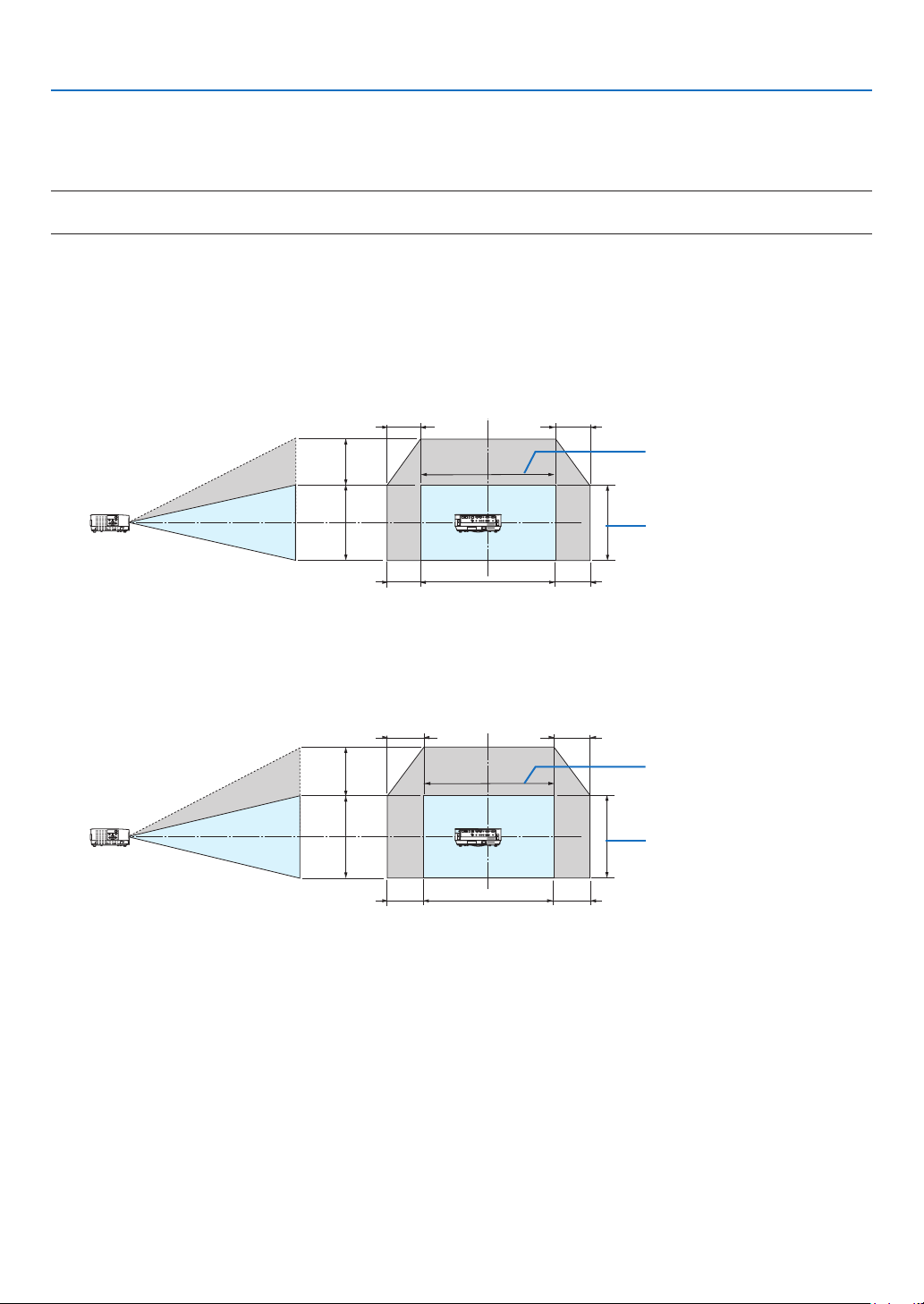
73
5. Installation and Connections
Lens shifting range
Thisprojectorisequippedwithalensshiftfunction(→page
17)foradjustingtheimagepositionusingdials.Lens
shiftingispossiblewithintherangeshownbelow.
NOTE:
•Incaselensshiftedvolumeexceedsthebelowillustratedrange,blurandshademayappeararoundendsofprojectedimage.
Legend:V“Vertical”referstothescreenheightandH“Horizontal”referstothescreenwidth.Thelensshiftrangeis
expressedasaratioofheightandwidth,respectively.
[P502H/P452H]
Lensshiftingrange:
Verticaldirection:+62%,−0%
Horizontaldirection:±25%
100%V
62%V
100%H
25%H
25%H
25%H
25%H
Height of projected image
Width of projected image
[P502W/P452W]
Lensshiftingrange:
Verticaldirection:+59%,−0%
Horizontaldirection:±28%
100%V
59%V
100%H
28%H
28%H
28%H
28%H
Height of projected image
Width of projected image
*Thelensshiftrangeisthesameforceilinginstallation.

74
5. Installation and Connections
(Example)Whenusingtoprojectona150"screen
[P502H/P452H]
Accordingtothe“Tableofscreensizesanddimensions”(→page
71),H=130.8"/332.1cm,V=73.6"/186.8cm.
Adjustmentrangeintheverticaldirection:theprojectedimagecanbemovedupwards0.62×73.6"/186.8cm≈
45.3"/115cm(whenthelensisatthecenterposition).
Adjustmentrangeinthehorizontaldirection:theprojectedimagecanbemovedtotheleft0.25×130.8"/332.1cm≈
32.7"/83cm,totherightapproximately32.7"/83cm.
[P502W/P452W]
Accordingtothe“Tableofscreensizesanddimensions”(→page71),H=127.3"/323.1cm,V=79.5"/201.9cm.
Adjustmentrangeintheverticaldirection:theprojectedimagecanbemovedupwards0.59×79.5"/201.9cm≈
46.9"/119cm(whenthelensisatthecenterposition).
Adjustmentrangeinthehorizontaldirection:theprojectedimagecanbemovedtotheleft0.28×127.3"/323.1cm≈
35.4"/90cm,totherightapproximately35.4"/90cm.
*Figuresdifferbyseveral%becausethecalculationisapproximate.
WARNING
*Installingyourprojectorontheceilingmustbedonebyaqualiedtechnician.ContactyourNECdealerformore
information.
*Donotattempttoinstalltheprojectoryourself.
•Onlyuseyourprojectoronasolid,levelsurface.Iftheprojectorfallstotheground,youcanbeinjuredandthe
projectorseverelydamaged.
•Donotusetheprojectorwheretemperaturesvarygreatly.Theprojectormustbeusedattemperaturesbetween
41°F(5°C)and104°F(40°C)(Ecomodeselectedautomaticallyat95°Fto104°F/35°Cto40°C).
•Donotexposetheprojectortomoisture,dust,orsmoke.Thiswillharmthescreenimage.
•Ensurethatyouhaveadequateventilationaroundyourprojectorsoheatcandissipate.Donotcovertheventson
thesideorthefrontoftheprojector.
Reflecting the Image
Usingamirrortoreectyourprojector’simageenablesyoutoenjoyamuchlargerimagewhenasmallerspaceis
required.ContactyourNECdealerifyouneedamirrorsystem.Ifyou’reusingamirrorsystemandyourimageis
inverted,usetheMENUand▲▼◀▶buttonsonyourprojectorcabinetoryourremotecontroltocorrecttheorienta-
tion.(→page55)
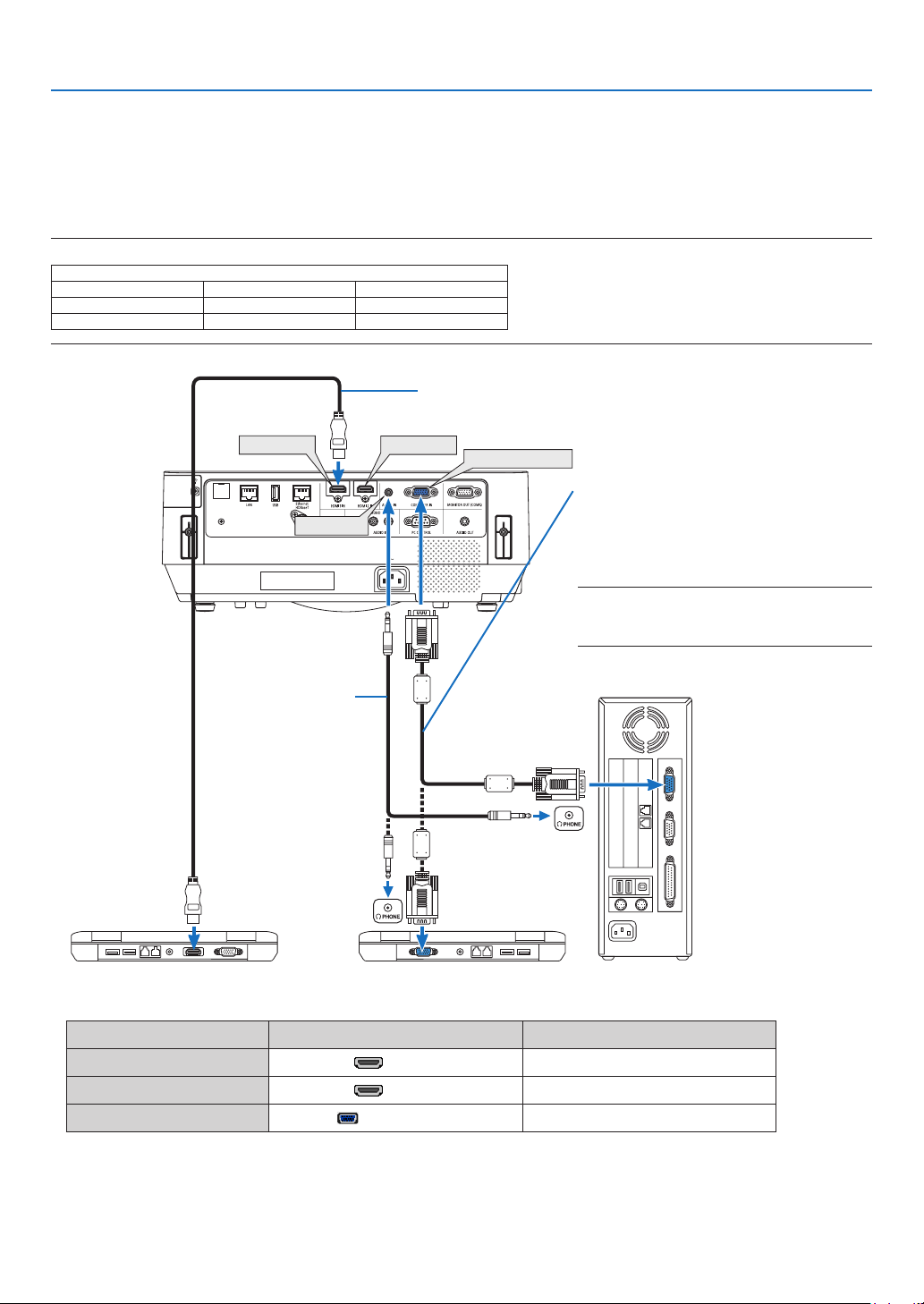
75
5. Installation and Connections
❷ Making Connections
Connecting Your Computer
ComputercablesandHDMIcanbeusedtoconnecttoacomputer.TheHDMIcableisnotenclosedwiththeprojector.
Pleasegetreadyasuitablecablefortheconnection.
NOTE:SignalssupportedbyPlug&Play(DDC2)
INPUT
COMPUTERINHDMI1INHDMI2IN
analogdigitaldigital
YesYesYes
HDMI 1 IN
HDMI 2 IN
COMPUTER IN
AUDIO IN
Computer cable (VGA) (supplied)
To mini D-Sub 15-pin terminal on the projector.
Itisrecommendedthatyouuseacommercial-
ly available distribution amplifier if connecting
a signal cable longer than the cable supplied.
NOTE:ForMac,useacommerciallyavailable
pinadapter(notsupplied)toconnecttoyour
Mac’svideoport.
Stereo mini-plug audio
cable (not supplied)
HDMIcable(notsupplied)
UseHighSpeedHDMI
®
Cable.
•Selectthesourcenameforitsappropriateinputterminalafterturningontheprojector.
Inputterminal
SOURCEbuttonontheprojectorcabinet
Buttonontheremotecontrol
HDMI1IN
HDMI1(HDMI1*)
HDMI2IN
HDMI2(HDMI2*)
COMPUTERIN
COMPUTER(COMPUTER1)
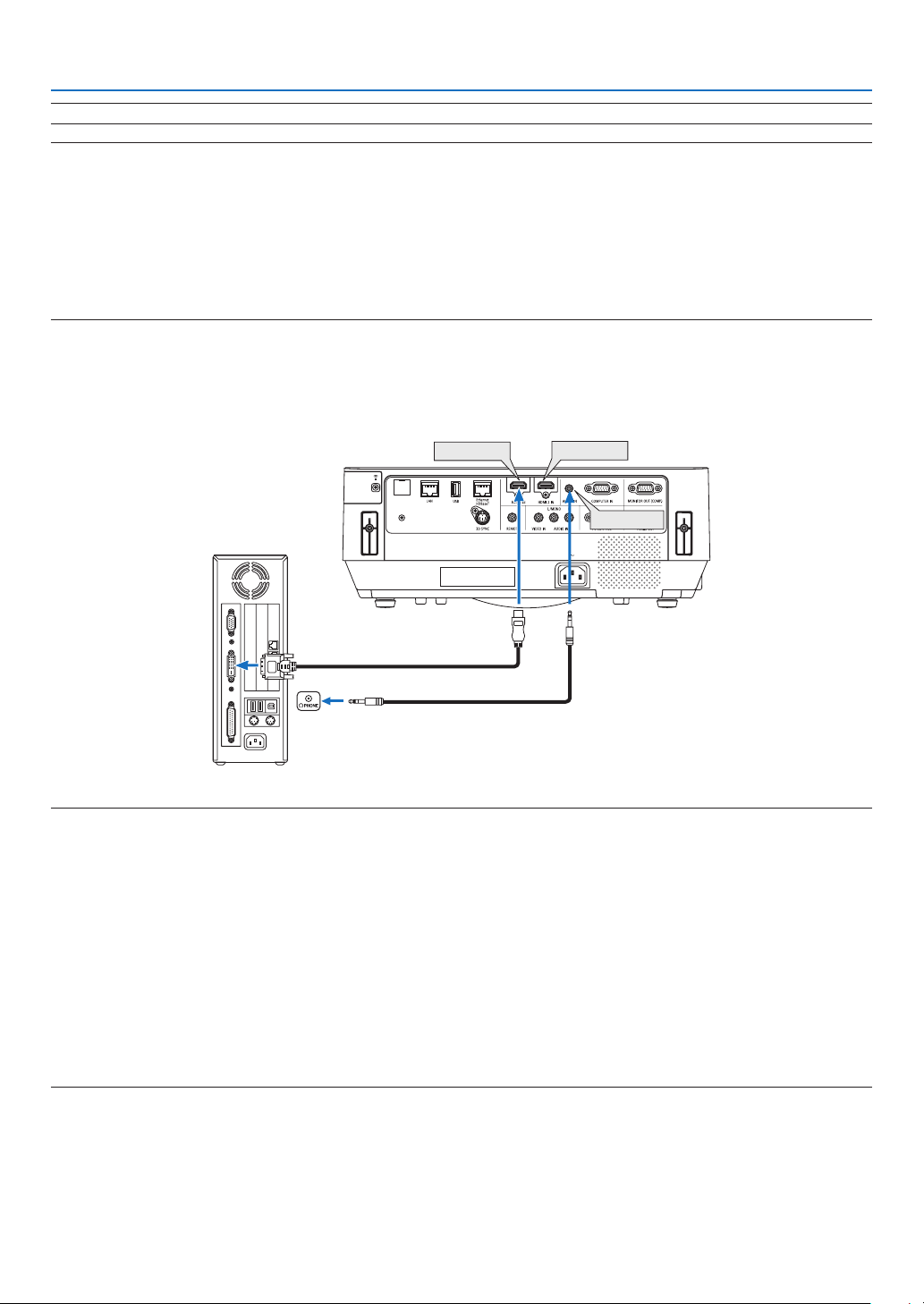
76
5. Installation and Connections
NOTE:TheprojectorisnotcompatiblewithvideodecodedoutputsoftheNECISS-6020switcher.
NOTE:AnimagemaynotbedisplayedcorrectlywhenaVideosourceisplayedbackviaacommerciallyavailablescanconverter.
Thisisbecausetheprojectorwillprocessavideosignalasacomputersignalatthedefaultsetting.Inthatcase,dothefollowing.
*Whenanimageisdisplayedwiththelowerandupperblackportionofthescreenoradarkimageisnotdisplayedcorrectly:
ProjectanimagetollthescreenandthenpresstheAUTOADJ.buttonontheremotecontrolortheprojectorcabinet.
Enabling the computer’s external display
DisplayinganimageonthenotebookPC’sscreendoesnotnecessarilymeanitoutputsasignaltotheprojector.
WhenusingaPCcompatiblelaptop,acombinationoffunctionkeyswillenable/disabletheexternaldisplay.
Usually,thecombinationofthe“Fn”keyalongwithoneofthe12functionkeysgetstheexternaldisplaytocomeonoroff.For
example,NEClaptopsuseFn+F3,whileDelllaptopsuseFn+F8keycombinationstotogglethroughexternaldisplayselections.
CautionswhenusingaDVIsignal
•WhenthecomputerhasaDVIoutputterminal,useacommerciallyavailableconvertercabletoconnectthecomputer
totheprojector’sHDMI1INorHDMI2INterminal(onlydigitalvideosignalscanbeinput).
HDMI 1 IN
HDMI 2 IN
AUDIO IN
NOTE:WhenViewingaDVIDigitalSignal
•Turnoffthepowerofthecomputerandprojectorbeforeconnecting.
•Whenavideodeckisconnectedviaascanconverter,etc.,thedisplaymaynotbecorrectduringfast-forwardingandrewinding.
•UseaDVI-to-HDMIcablecompliantwithDDWG(DigitalDisplayWorkingGroup)DVI(DigitalVisualInterface)revision1.0stan-
dard.
Thecableshouldbewithin197"/5mlong.
•TurnofftheprojectorandthePCbeforeconnectingtheDVI-to-HDMIcable.
•ToprojectaDVIdigitalsignal:Connectthecables,turntheprojectoron,thenselecttheHDMIinput.Finally,turnonyourPC.
Failuretodosomaynotactivatethedigitaloutputofthegraphicscardresultinginnopicturebeingdisplayed.Shouldthishappen,
restartyourPC.
•DonotdisconnecttheDVI-to-HDMIcablewhiletheprojectorisrunning.Ifthesignalcablehasbeendisconnectedandthen
reconnected,animagemaynotbecorrectlydisplayed.Shouldthishappen,restartyourPC.
•TheCOMPUTERvideoinputterminalssupportWindowsPlugandPlay.
•AMacsignaladapter(commerciallyavailable)mayberequiredtoconnectaMaccomputer.
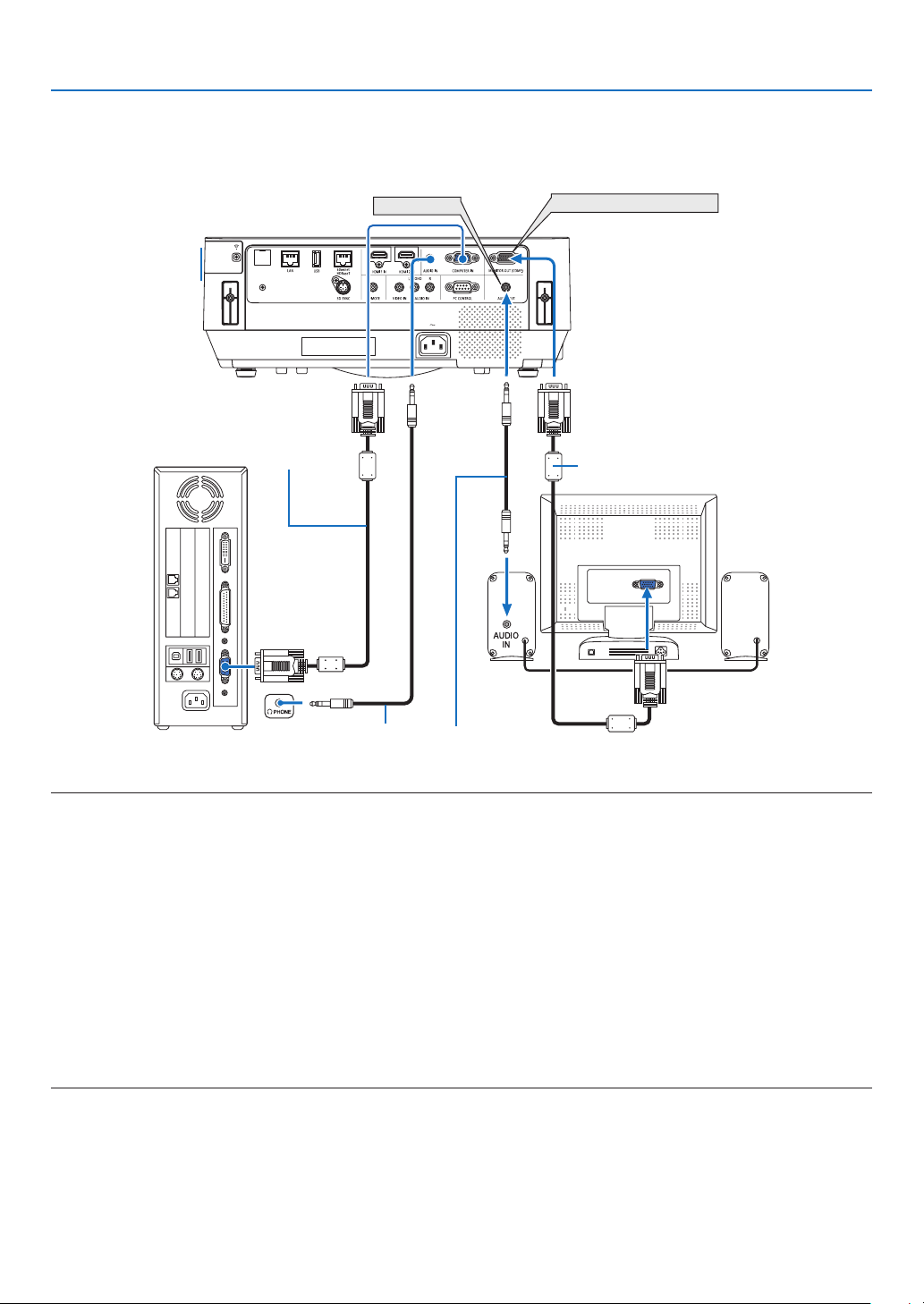
77
5. Installation and Connections
Connecting an External Monitor
Youcanconnectaseparate,externalmonitortoyourprojectortosimultaneouslyviewonamonitorthecomputer
analogimageyou’reprojecting.
AUDIO OUT
MONITOR OUT (COMP.)
Computer cable (VGA) (not supplied)
Computer cable (VGA) (supplied)
Stereo mini-plug audio cable (not supplied)
NOTE:
•TheAUDIOOUTminijackdoesnotsupportHeadphoneterminal.
•Whenaudioequipmentisconnected,theprojectorspeakerisdisabled.
•ThesignaloutputfromtheMONITOROUT(COMP.)ofthisprojectorisforprojectingimageonexclusiveonedisplay.
•Whennosignalisappliedover3minutesintheconditionofprojectorstandbywhenNETWORKSTANDBYissetintheStandby
mode,outputfromtheMONITOROUT(COMP.)orAUDIOOUTterminalwillbestopped.Inthiscasepulloutthecomputercable
andsetitbackafterinputtingvideosignal
Monitoroutandsleepmode:
•TheMONITOROUT(COMP.)terminalwillnotworkwhen[NORMAL]isselectedfor[STANDBYMODE].
TheMONITOROUT(COMP.)terminalwillworkonlyinthesleepmode.
ApplyingasignalfromtheCOMPUTERINterminalwillputtheprojectorinthesleepmode,whichallowsyoutousetheMONITOR
OUT(COMP.)terminalandtheAUDIOOUTminijack.
Thesleepmodeisoneofthestandbymodes.Thesleepmodecannotbeselectedfromthemenu.
•Inthenetworkstandbymode,soundforthelastviewedcomputerorvideosourcewillbeheard.
BNC-to-COMPUTERINterminalconvertedsignalwillnotbeoutputinthestandbymodeandsleepmode.
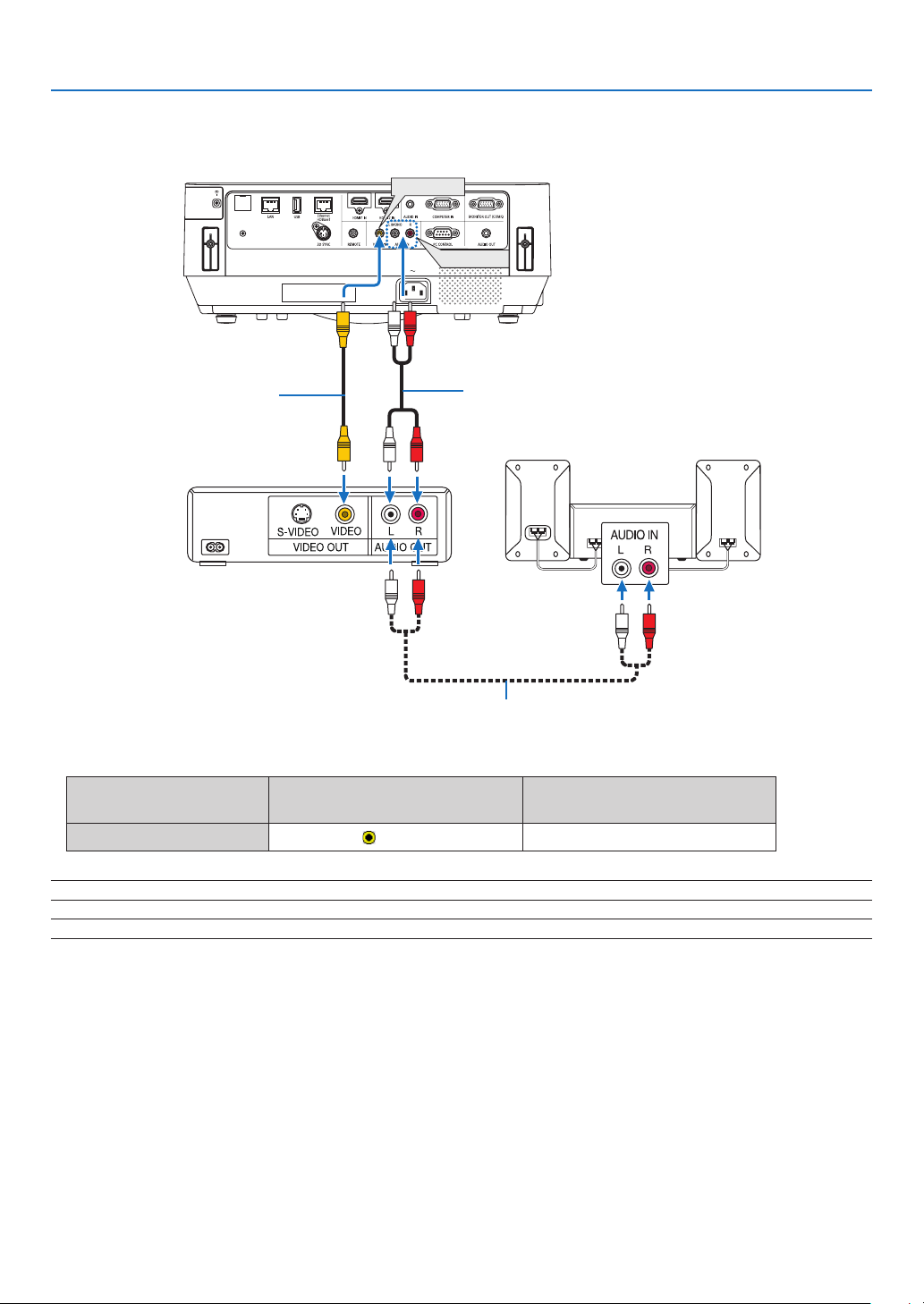
78
5. Installation and Connections
Connecting Your DVD Player or Other AV Equipment
ConnectingVideoInput
VIDEO IN
AUDIO IN
Audio cable (not supplied)
Video cable (not supplied)
Audio cable (not supplied)
Audio equipment
•Selectthesourcenameforitsappropriateinputterminalafterturningontheprojector.
Inputterminal
SOURCEbuttonontheprojector
cabinet
Buttonontheremotecontrol
VIDEOIN
VIDEO
(VIDEO)
NOTE:RefertoyourVCRowner’smanualformoreinformationaboutyourequipment’svideooutputrequirements.
NOTE:AnimagemaynotbedisplayedcorrectlywhenaVideosourceisplayedbackinfast-forwardorfast-rewindviaascanconverter.
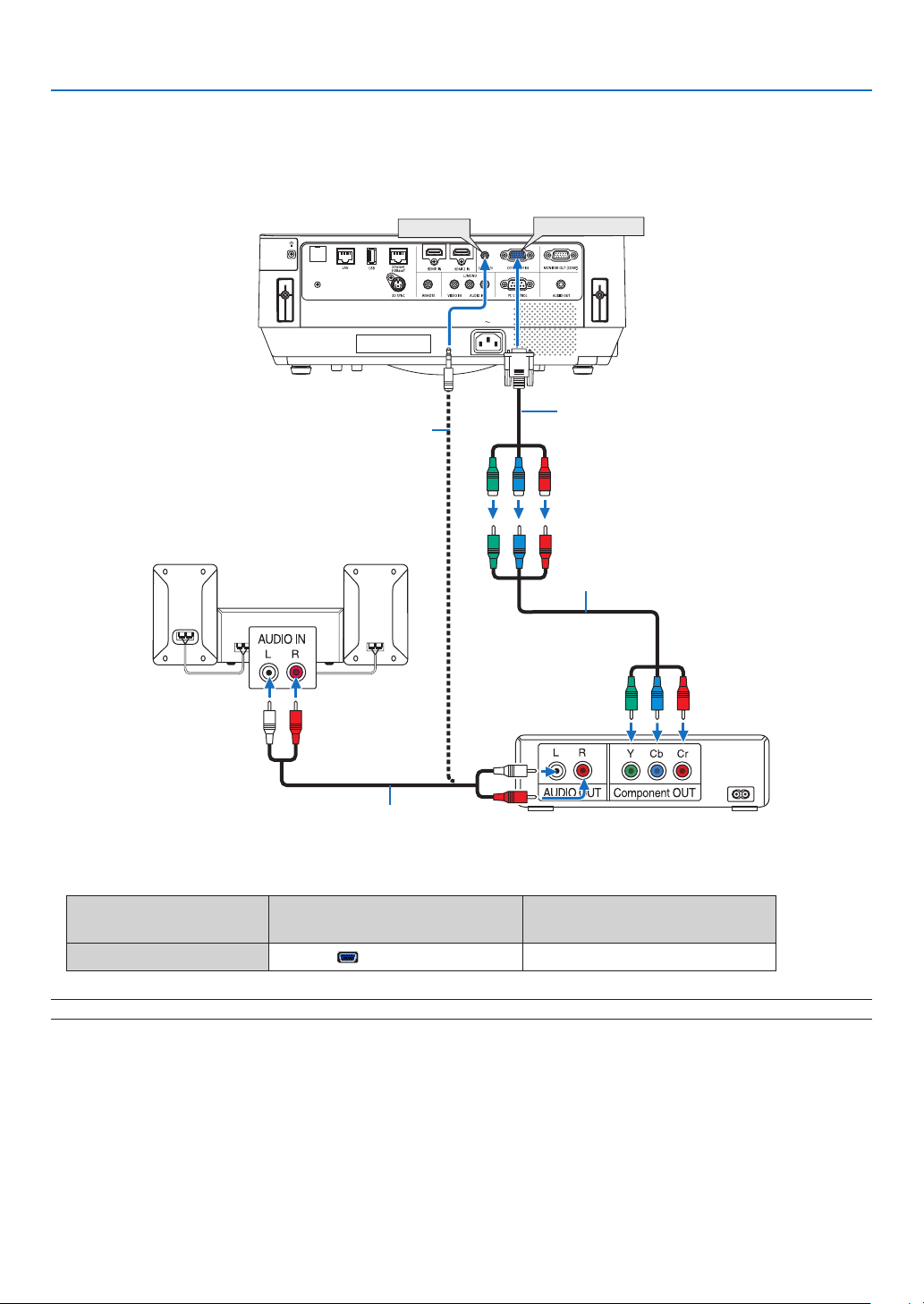
79
5. Installation and Connections
Connecting Component Input
Connectionforcomponentsignal.SignalfromthecolordifferencesignaloutputterminalonDVDplayers(DVDvideo
output)andtheYPbProutputterminalontheHi-visionvideocanbeprojected.Recommendtoconnecttheterminal
foraudiooutputontheDVDplayertotheaudiocomponents.
COMPUTER IN
AUDIO IN
15-pin - to - RCA (female) × 3 cable adapter
(ADP-CV1E)
Stereo mini plug - to - RCA audio cable (not supplied)
Component video RCA × 3 cable (not supplied)
Audio cable (not supplied)
DVD player
Audio Equipment
•Selectthesourcenameforitsappropriateinputterminalafterturningontheprojector.
Inputterminal
SOURCEbuttonontheprojector
cabinet
Buttonontheremotecontrol
COMPUTERIN
COMPUTER(COMPUTER1)
NOTE:RefertoyourDVDplayer’sowner’smanualformoreinformationaboutyourDVDplayer’svideooutputrequirements.
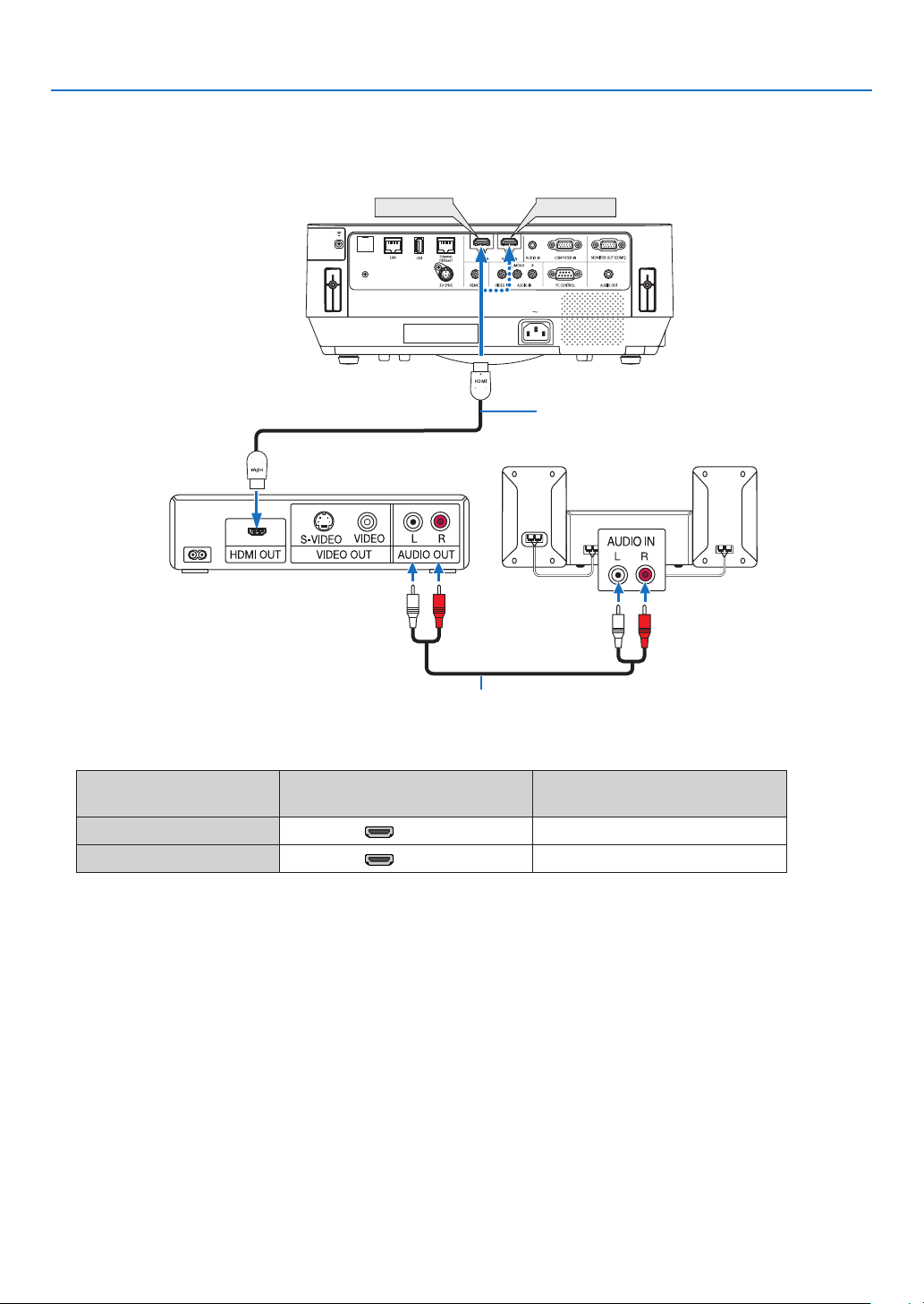
80
5. Installation and Connections
Connecting HDMI Input
YoucanconnecttheHDMIoutputofyourDVDplayer,harddiskplayer,Blu-rayplayer,ornotebooktypePCtothe
HDMIINterminalofyourprojector.
HDMI 1 IN
HDMI 2 IN
HDMIcable(notsupplied)
UseHighSpeedHDMI
®
Cable.
Audio cable (not supplied)
•Selectthesourcenameforitsappropriateinputterminalafterturningontheprojector.
Inputterminal
SOURCEbuttonontheprojector
cabinet
Buttonontheremotecontrol
HDMI1IN
HDMI1(HDMI1*)
HDMI2IN
HDMI2(HDMI2*)
•WhenconnectingtheHDMI1INterminal(orHDMI2INterminal)oftheprojectortotheDVDplayer,theprojec-
tor’svideolevelcanbemadesettingsinaccordancewiththeDVDplayer’svideolevel.Inthemenuselect[HDMI
SETTINGS]→[VIDEOLEVEL]andmakenecessarysettings.
•IftheHDMIinputsoundcannotbeheard,inthemenuselect[AUDIOSELECT]→[HDMI1]or[HDMI2].(→page
60)
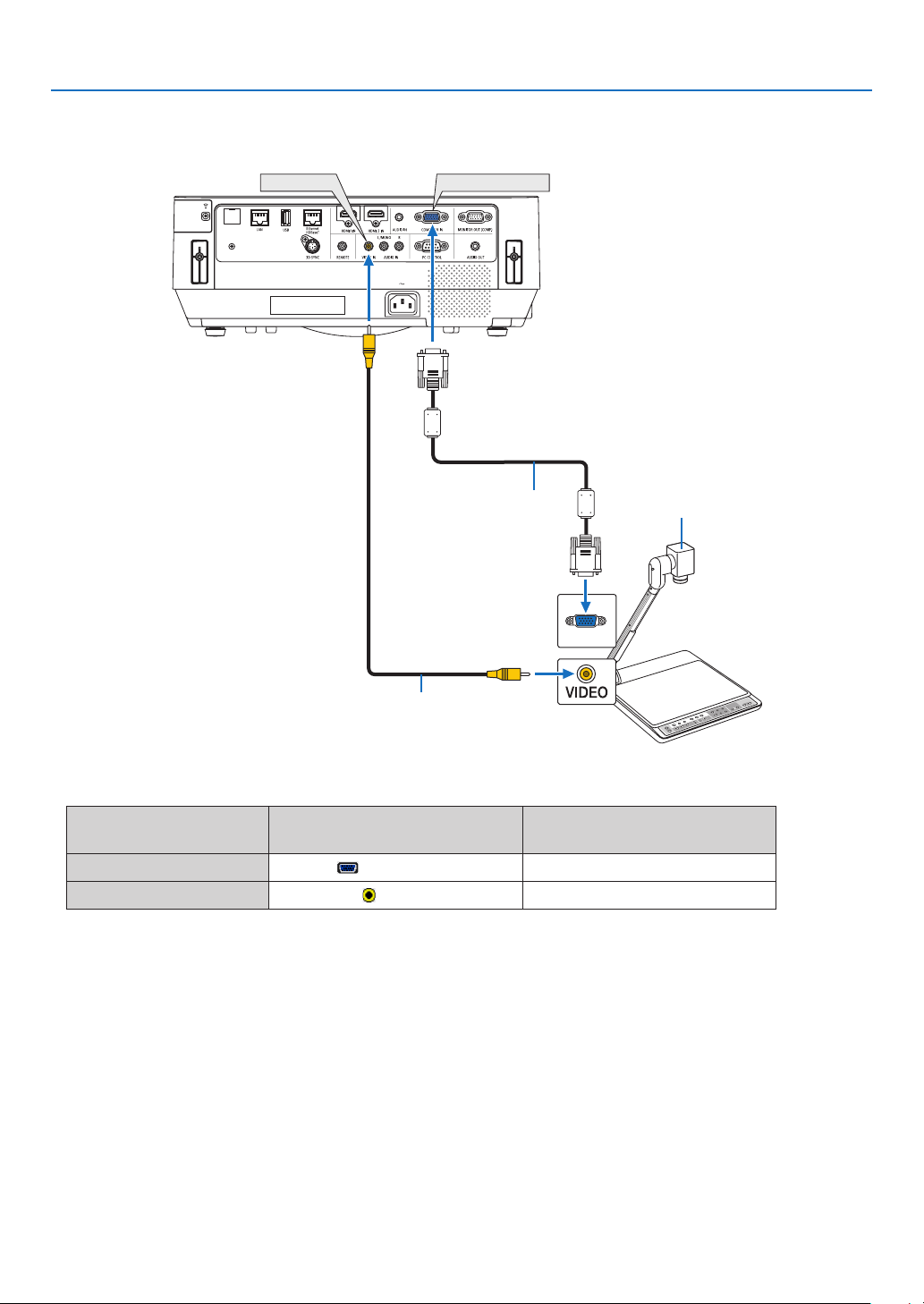
81
5. Installation and Connections
Connecting your document camera
Youcanconnectyourdocumentcameraandprojectprinteddocuments,etc.
COMPUTER IN
VIDEO IN
Name, position, and direction of
terminals are vary depending on
cameramodel.Pleasecheckuser's
manual of your camera for details.
Computer cable (VGA)
(supplied)
Video cable (not supplied)
•Selectthesourcenameforitsappropriateinputterminalafterturningontheprojector.
Inputterminal
SOURCEbuttonontheprojector
cabinet
Buttonontheremotecontrol
COMPUTERIN
COMPUTER(COMPUTER1)
VIDEOIN
VIDEO
(VIDEO)
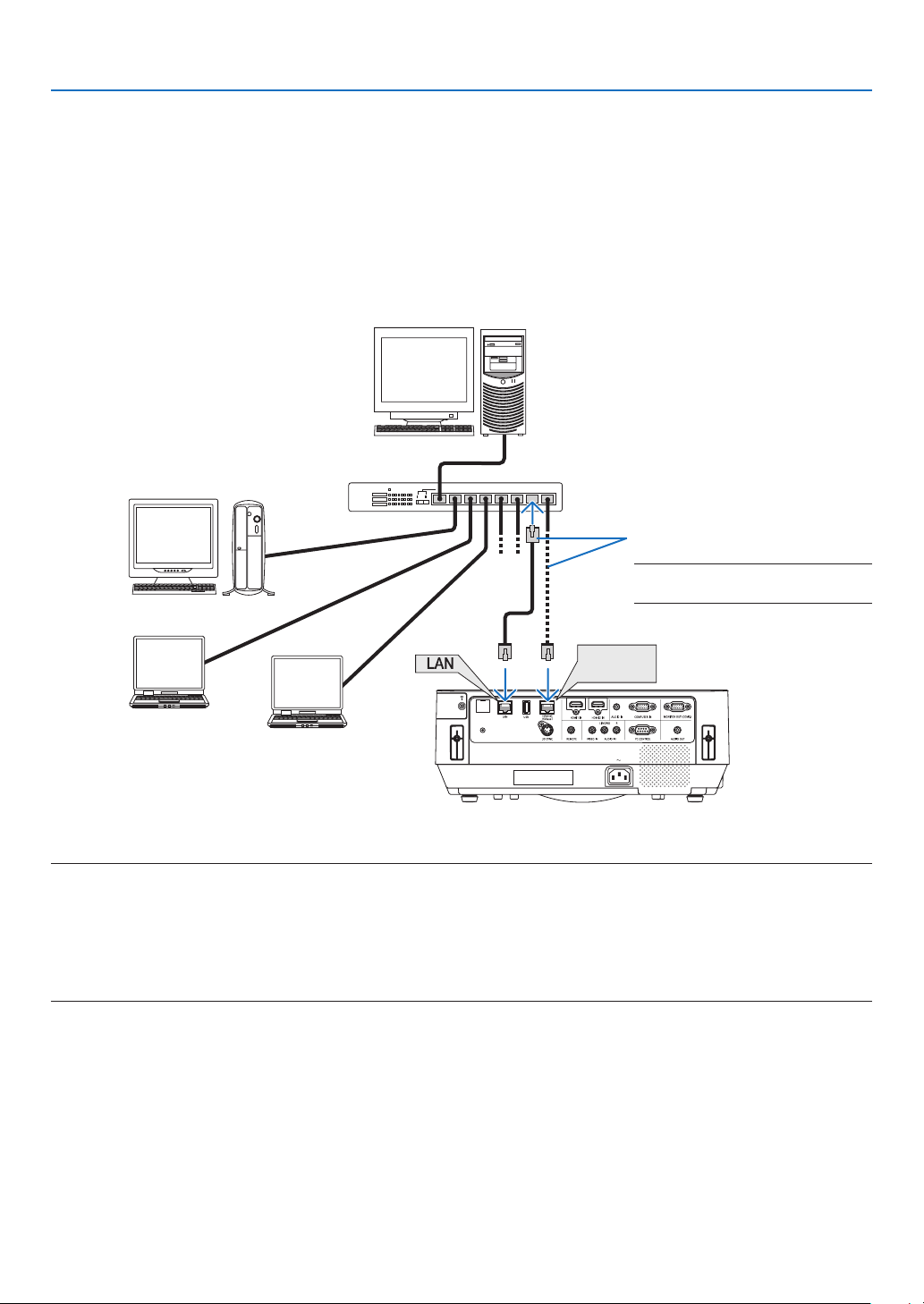
82
5. Installation and Connections
Connecting to a Wired LAN
TheprojectorcomesstandardwiththeEthernet/HDBaseTport(RJ-45)andtheLANportwhichprovideaLANcon-
nectionusingaLANcable.
TouseaLANconnection,youarerequiredtosetthewiredLANsettingsontheprojectormenu.Select[SETUP]→
[INSTALLATION]→[NETWORKSETTINGS].(→page
58).
ThenetworksettingscanalsobeselectedfromtheAPPSmenu.
Example of LAN connection
ExampleofwiredLANconnection
Ethernet
HDBaseT
Server
Hub
LAN cable (not supplied)
NOTE:UseaCategory5orhigher
LANcable.
NOTE:
•Abouttheprojector’sEthernet/HDBaseTandLANports
TheEthernet/HDBaseTandLANportsarethesame,asidefromtheHDBaseTfunction.ToconnecttotheLAN,useonly1ofthe
ports(itisnotpossibletoconnectbothportstotheLAN).
ForcontrollingtheprojectorbyaHDBaseTtransmitterwhosecontrolsignalisnotsupported(orwithwhichcannotconnectthe
projector)oroverthenetwork,connecttotheLANport.Atthesametime,forcontrollingtheprojectoroverthenetworkthatis
inthestateoftheNETWORKSTANDBYOn,connecttotheLANport.
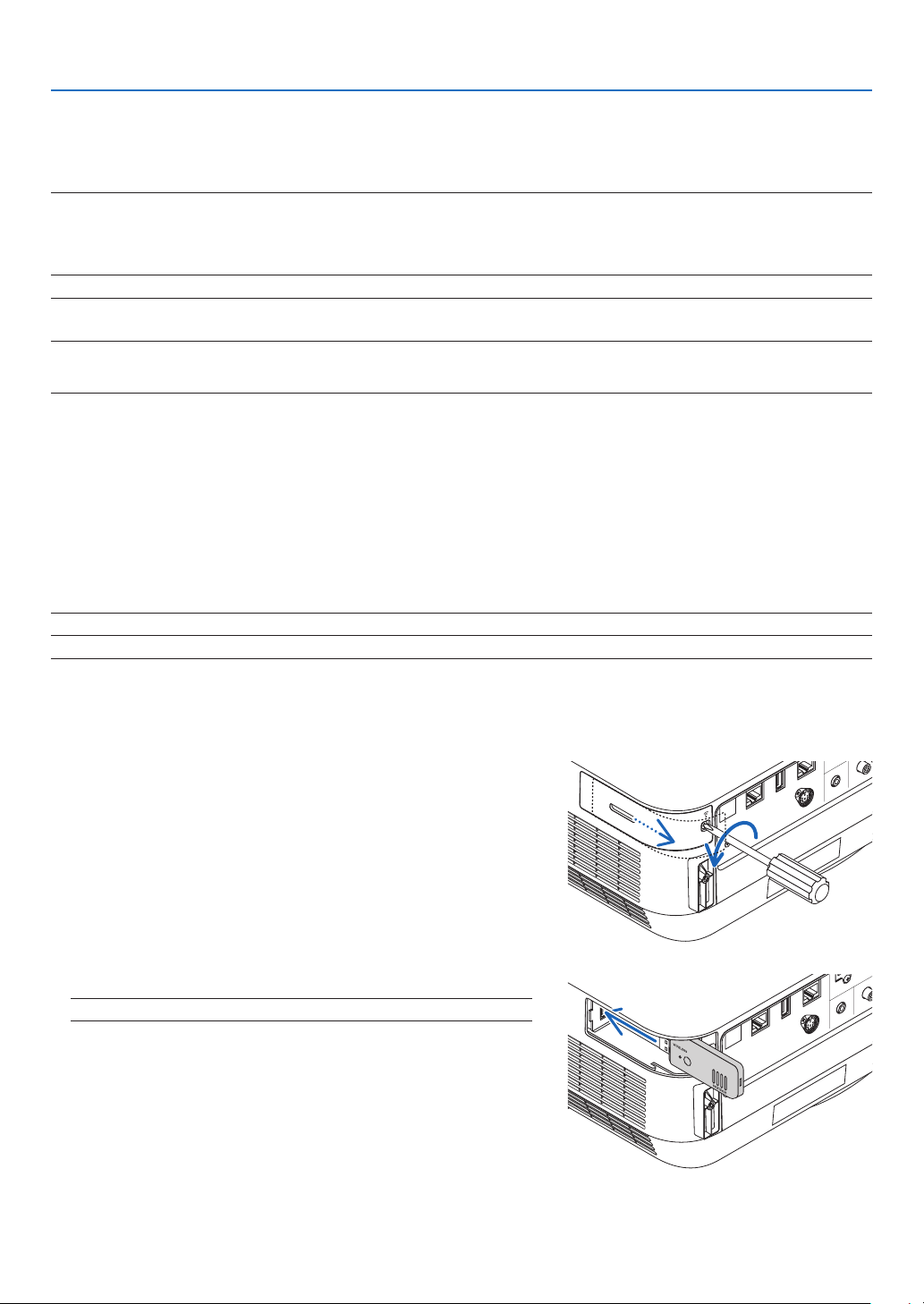
83
5. Installation and Connections
Connecting to a Wireless LAN (Optional: NP05LM series)
TheUSBWirelessLANUnitalsoprovidesawirelessLANconnection.TouseawirelessLANconnection,youare
requiredtoassignanIPaddresstotheprojector.
Important:
•IfyouusetheprojectorwiththeUSBWirelessLANUnitintheareawheretheuseofwirelessLANequipmentisprohibited,remove
theUSBWirelessLANUnitfromtheprojector.
•BuytheappropriateUSBWirelessLANUnitforyourcountryorarea.
NOTE:
•Yourcomputer’swirelessLANadapter(orunit)mustbecompliedwithWi-Fi(IEEE802.11a/b/g/n)standard.
Attaching the USB Wireless LAN Unit
NOTE:
•TheUSBWirelessLANUnitmustbeinsertedintotheUSBWirelessLANUnitportinthecorrectdirection.Itcannotbeinserted
inthereversedirection.IftheUSBWirelessLANUnitisinsertedinthereversedirectionwithexcessiveforceapplied,theUSB
portmaybreak.
•BeforetouchingtheUSBWirelessLANUnit,touchametallicobject(suchasadoorknoboraluminumwindowframe)todischarge
thestaticelectricityfromyourbody.
•AlwaysinsertorremovetheUSBWirelessLANunitwhenthemainpoweristurnedoff.Failuretodosomaycauseprojector
malfunctionordamagetotheUSBwirelessLANunit.Iftheprojectorwillnotworkcorrectly,turnofftheprojector,disconnect
thepowercord,andthenconnectitagain.
•DonotinsertotherUSBdevicesintotheUSB(wirelessLAN)portinthewirelessLANcover.DonotinserttheUSBWirelessLAN
unitintotheUSBport.
NOTE:Whenthecablecoverisattached,removeitbeforeinsertingtheUSBWirelessLANUnit.
PrepareaPhillipsscrewdriverbeforehand.
1. Press the POWER button to turn off the projector and set it
into standby condition, and disconnect the power cord.
2. Remove the wireless LAN cover.
TurnthewirelessLANcoverxingscrewcounterclockwiseand
thentakeitofffromtheprojector.
3. Insert the wireless LAN unit into the USB (wireless LAN) port.
NOTE:DonotforcetoinserttheUSBWirelessLANUnit.
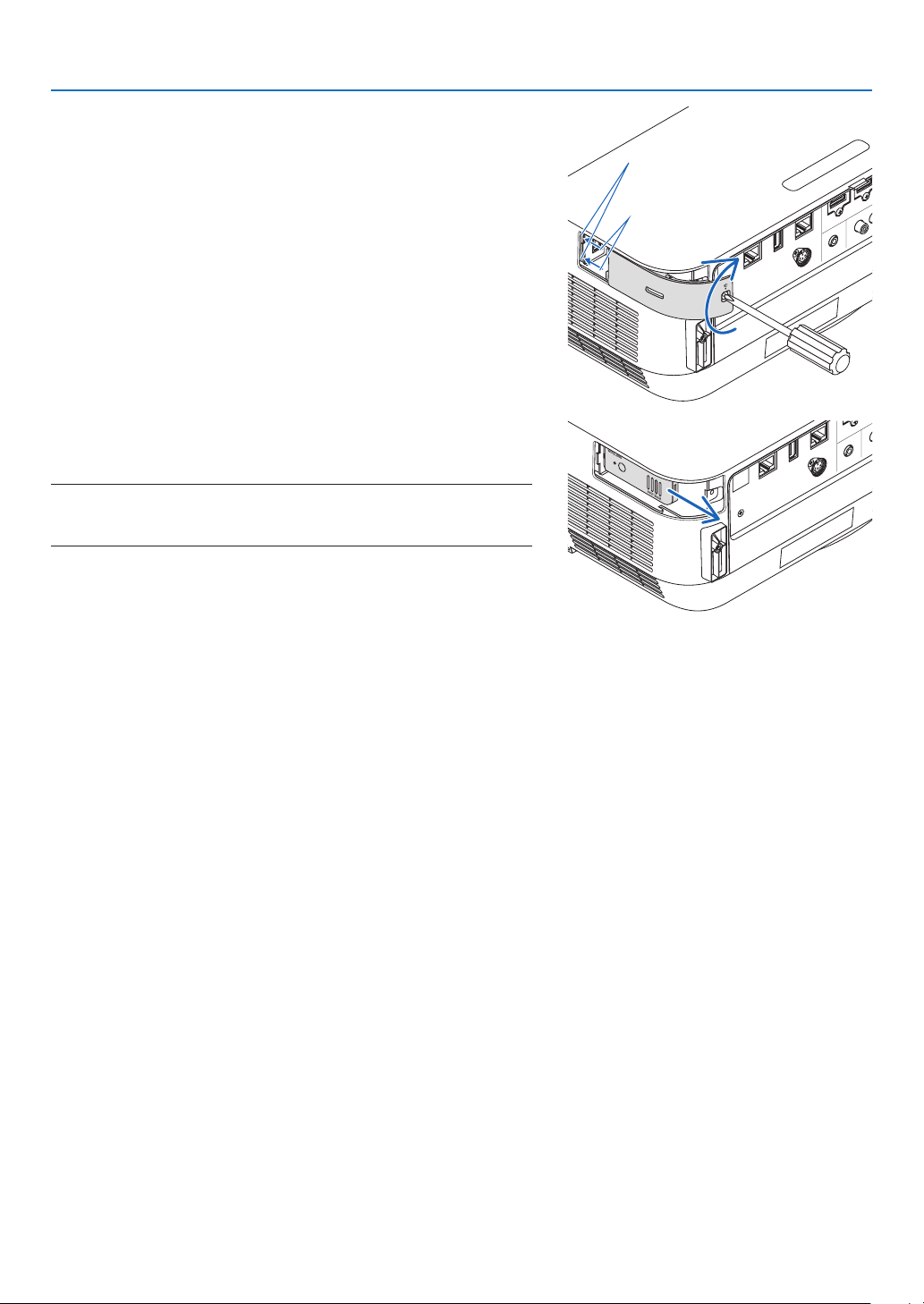
84
5. Installation and Connections
4. Mount the wireless LAN cover.
(1)Insertthehookonthebackofthecoverintothegrooveinthe
projector and close the wireless LAN cover.
(2)Turnthescrewclockwisetotightenit.
Groove
Hook
* To remove the USB Wireless LAN Unit, disconnect the power
cord and use the above procedure.
NOTE:
•DonotpressthebuttonontheUSBWirelessLANUnit.Thebuttondoes
notworkwiththismodel.
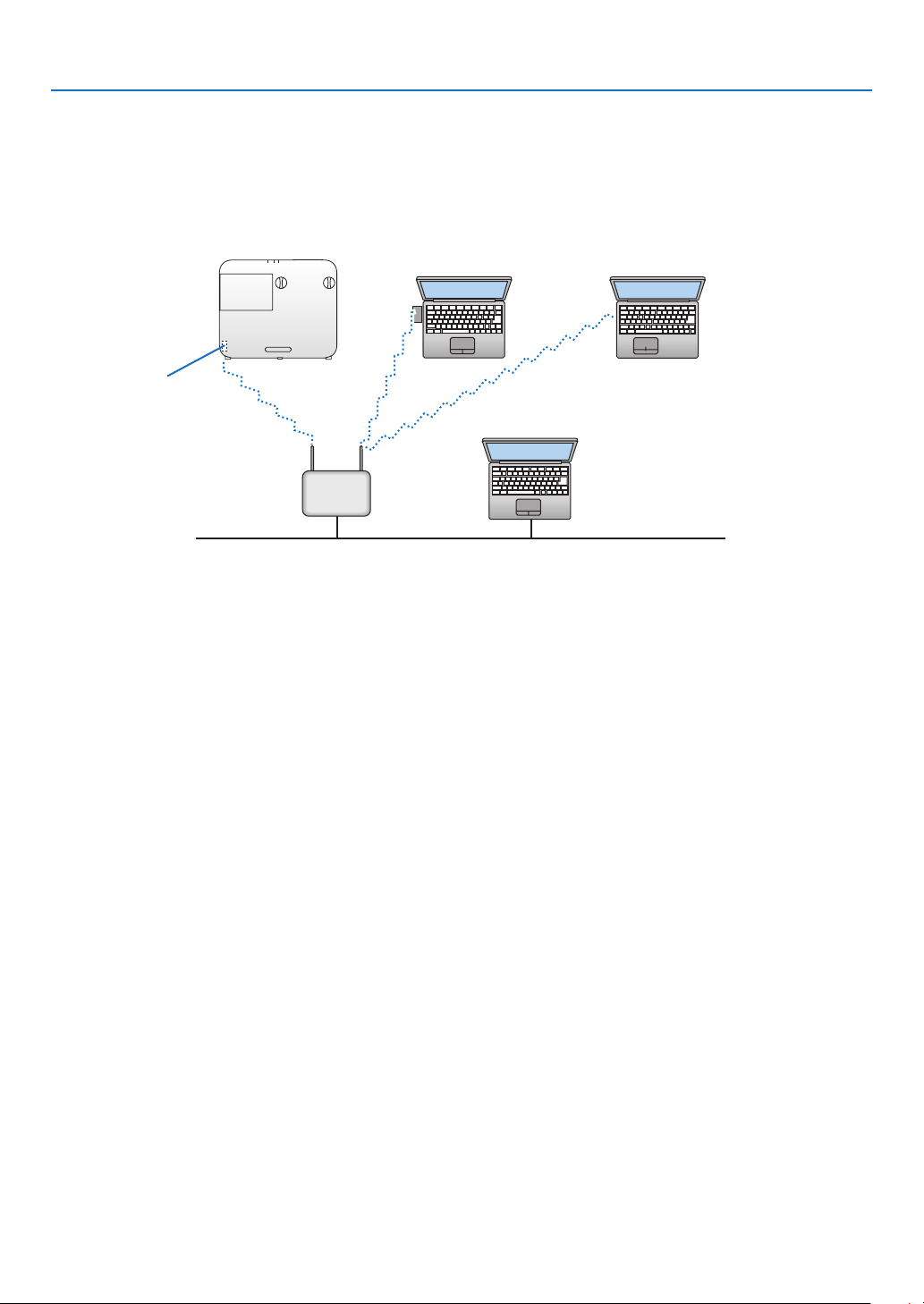
85
5. Installation and Connections
Example of wireless LAN connection
TouseaLANconnection,youarerequiredtosettheWirelessLANsettingsontheprojectormenu.Select[SETUP]
→[INSTALLATION]→[NETWORKSETTINGS].(→page58).
ThenetworksettingscanalsobeselectedfromtheAPPSmenu.
PC with wireless LAN card
inserted
PC with built-in wireless
LAN function
Wired LAN
Wireless access point
USB Wireless LAN Unit
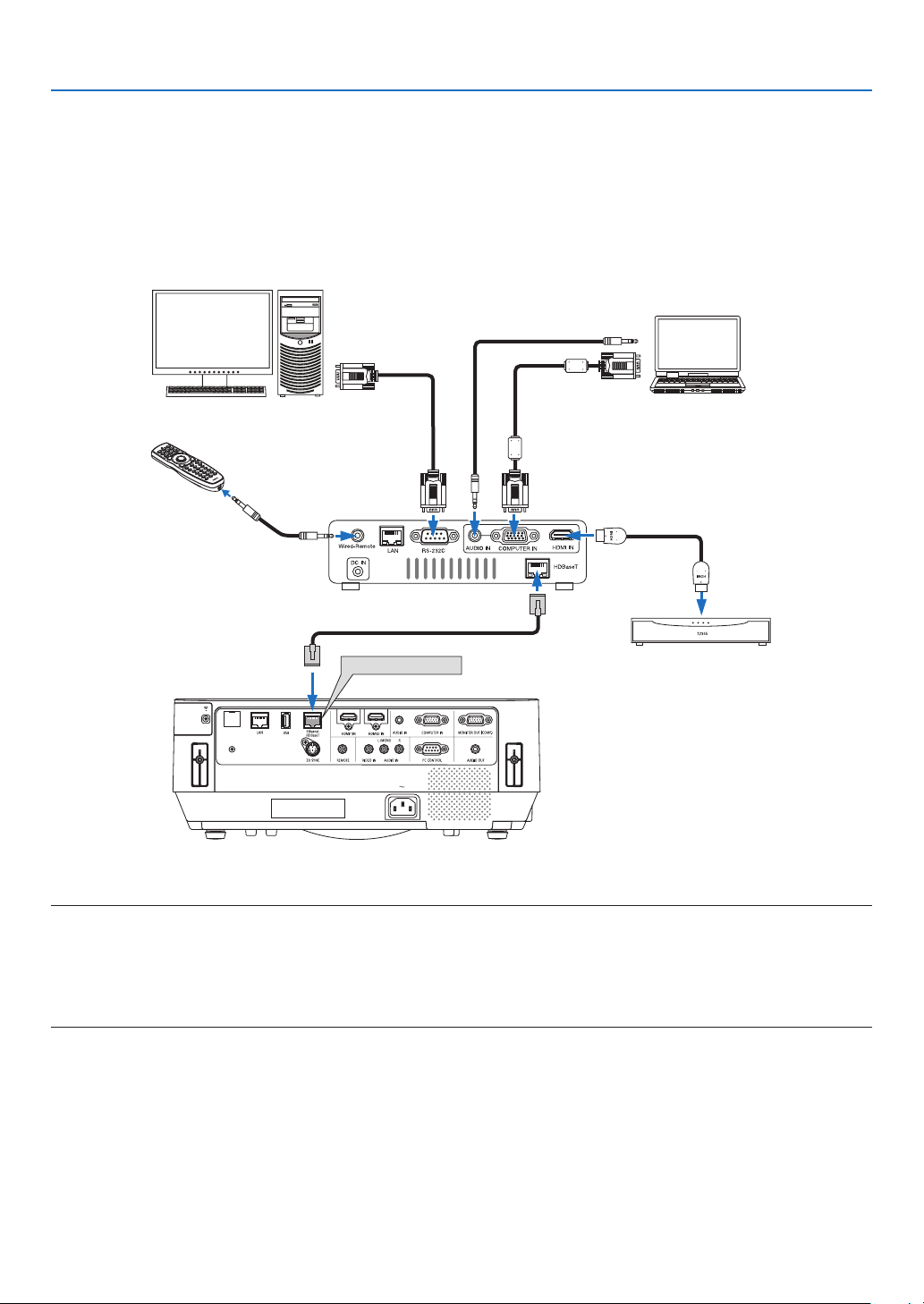
86
5. Installation and Connections
Connecting to a HDBaseT transmission device (sold commercially)
HDBaseTisaconnectionstandardforhomeappliancesthatisestablishedbytheHDBaseTAlliance.
UseaLANcablesoldcommerciallytoconnecttheEthernet/HDBaseTportoftheprojector(RJ-45)toaHDBaseT
transmissiondevicesoldcommercially.
Controlsignals(serialandLAN)andremotecontrolsignals(IRcommands)fromanexternaldeviceareonlysupported
whentheprojector’spoweristurnedon.
Connection example
Ethernet/HDBaseT
Computer (for control use) Computer (for output use)
Example of a transmission device
Remote control
HDMIoutputvideodevice
NOTE:
•Pleaseuseashieldedtwistedpair(STP)cableofCategory5eorhigherfortheLANcable(soldcommercially).
•ThemaximumtransmissiondistanceovertheLANcableis100m.
•PleasedonotuseothertransmissiondevicesbetweentheprojectorandtheHDBaseTtransmissiondevice.Thepicturequality
maybedeterioratedasaresult.
•ThisprojectorisnotguaranteedtoworkwithallHDBaseTtransmissiondevicessoldcommercially.
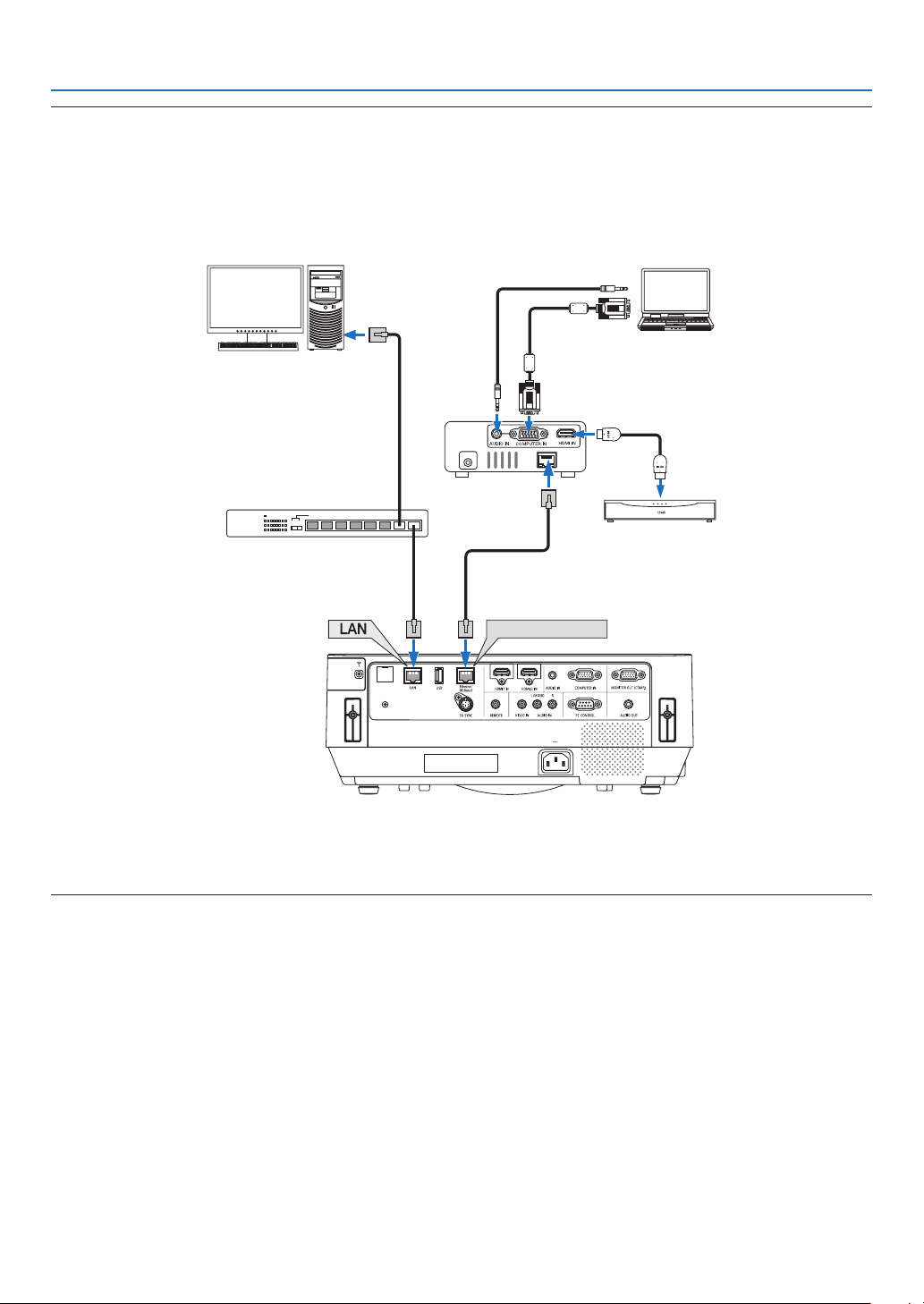
87
5. Installation and Connections
TIP:
•Withtheprojector’sEthernet/HDBaseTport,remotecontrolisnotavailablewhentheprojectorisinthestandbymode(serial
communicationsisnotavailable).(Remotecontrolbecomesavailablewhentheprojector’spowerison).The2(two)methods
belowcanbeusedtoturnontheprojector’spowerwhenitisinstandbymode.
1.Theprojectorcanbeoperatedbyconnectingthecomputerandprojectortothenetwork(ontheprojector,usingtheLANport
andPCControlUtilityapplicationwith[STANDBYMODE]setto[NETWORKSTANDBY](→page101).
Ethernet/HDBaseT
DC IN
HDBaseT
Computer (for projector control)
Computer (for output)
Example of a transmitter
Switching hub, etc.
VideodevicewithHDMIoutput
2.TheprojectorcanbeoperatedbyRS232Cserialcommunication(Onthisprojector,usethePCCONTROLterminalandthe
applicationsoftware,PCControlUtility,andselect[PCCONTROL]forthe[SERIALPORT])with[STANDBYMODE]setto
[NETWORKSTANDBY].
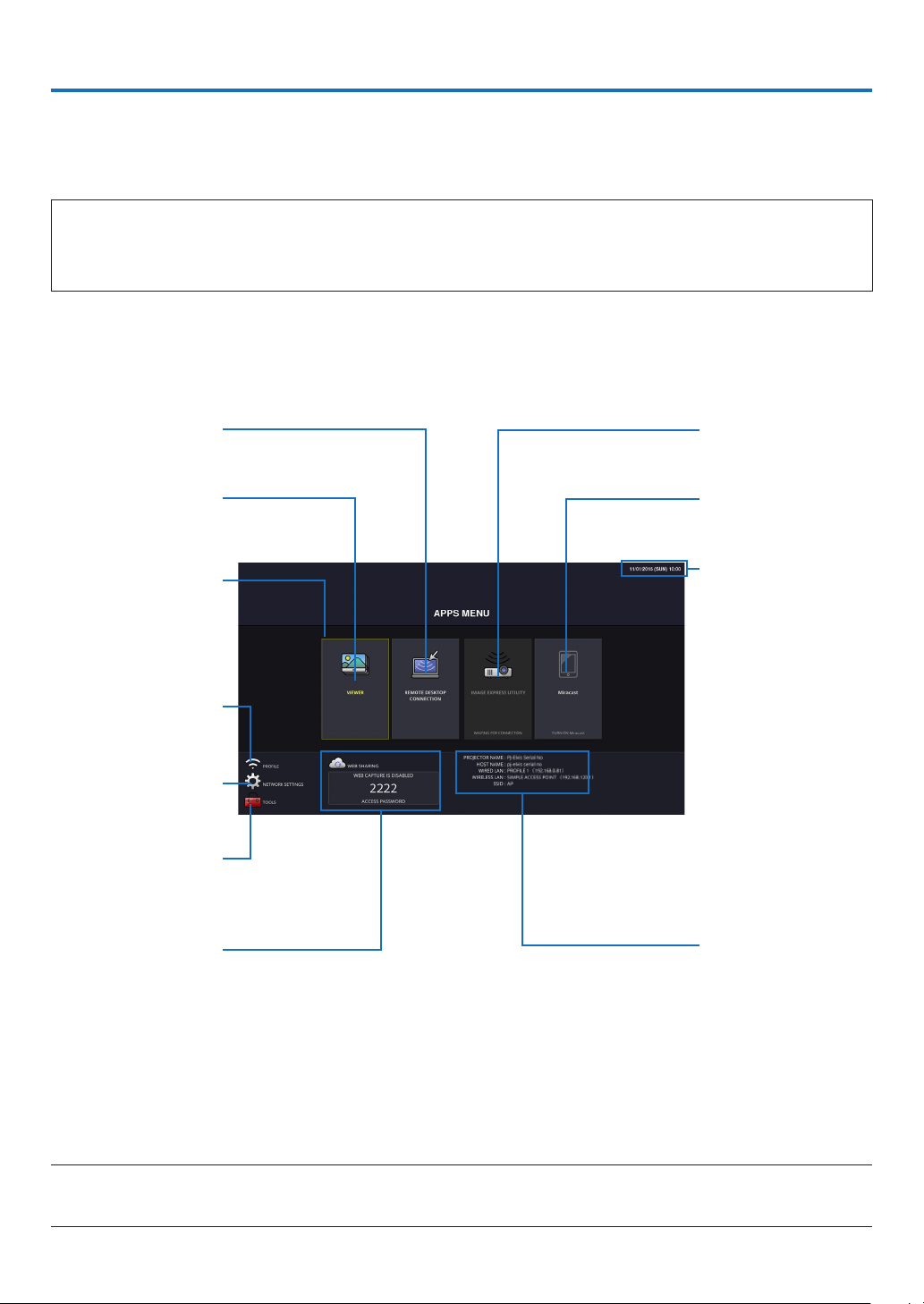
88
6. APPS MENU
❶ What can you do with the APPS MENU?
ItbecomesavailabletoselecttheexpansionfunctionsindicatedinbelowandvarioussettingwiththeAPPSMENU.
FordisplayingtheAPPSMENU,presstheAPPSbuttonontheremoteorselect[APPS]asthe[SOURCE]onthe
onscreenmenu.
INFORMATION
DetailedinformationabouteachfunctionontheAPPSMENUisexplainedonourwebsite.Pleasesearchitbythe
modelnameofyourprojector.
http://www.nec-display.com/dl/en/pj_manual/lineup.html
APPS MENU screen display
Current date and time
Important:
Before utilizing the func-
tion of APPS MENU, set
day and time.
IMAGEEXPRESSUTIL-
ITY
Miracast
NETWORKINFORMA-
TION
REMOTE DESKTOP
CONNECTION
VIEWER
FOCUS
Indicatingtheselected
item.
Surrounded in a yellow
square.
Wireless LAN profile
selection
NETWORKSETTINGS
TOOLS
WEBSHARINGSET-
TING/DISPLAYINGAC-
CESS PASSWORD
NOTE:
•Whenthisprojectorisnotinanetwork,youcannotselect[REMOTEDESKTOPCONNECTION],[IMAGEEXPRESSUTILIITY],
[Miracast],and[WEBSHARING].
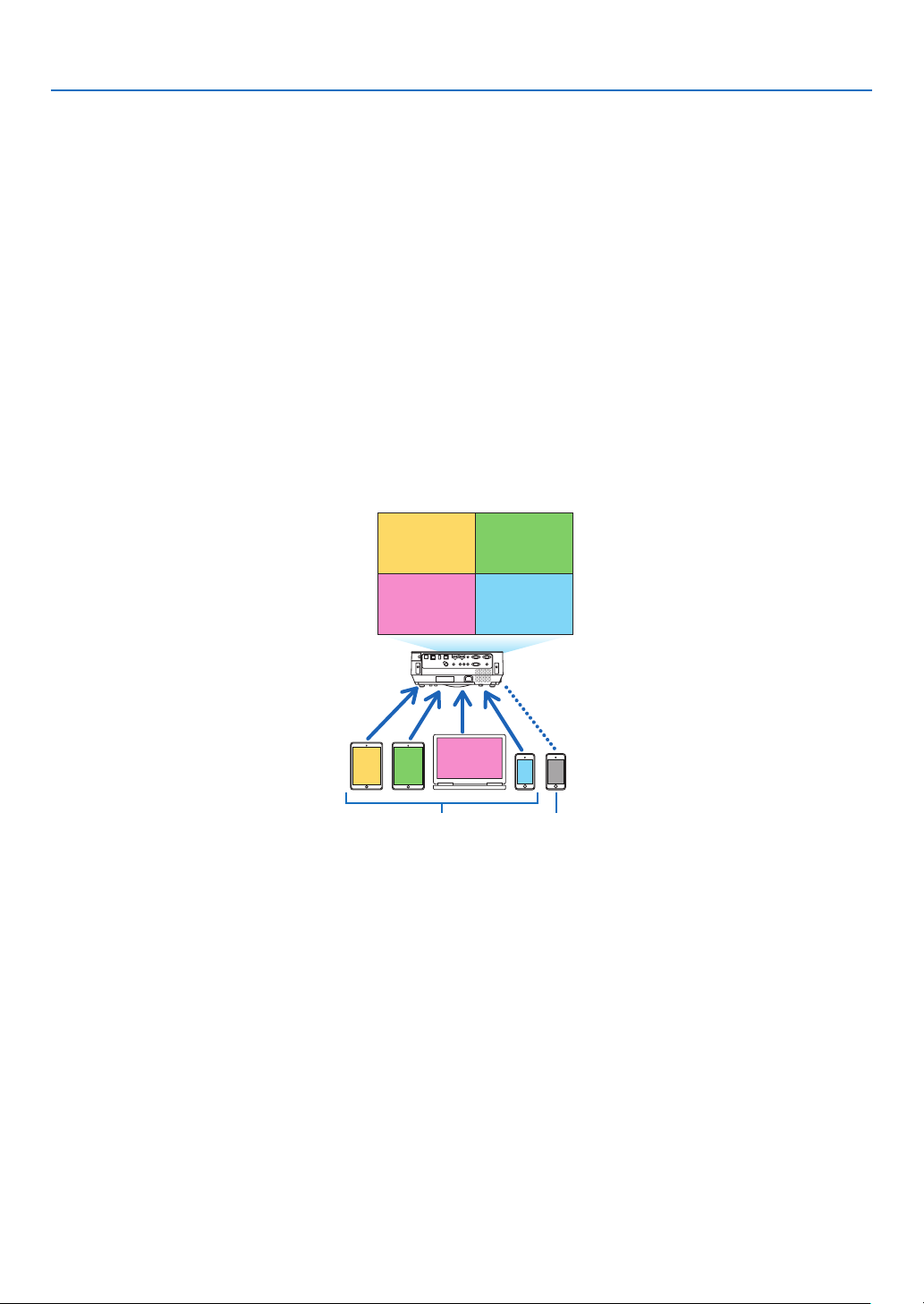
89
6. APPS MENU
VIEWER
Selectthesavedimages/moviesandprojectthembytheprojector.Thisfunctionisavailableforexplainedbelow:
(1)ProjectorMemory:Imagesandmoviestemporarilysavedintheprojector’sbuilt-inmemoryutilizingtheWEB
SHARING.
(2)USBMemory:ImagesandmoviessavedintheUSBmemoryconnectedwiththeprojector.
(3)CommonFolder:Imagesandmoviessavedinthecommonfolderinanetworkconnectedwiththeprojector.
REMOTE DESKTOP CONNECTION
•Selectthecomputerconnectedinthesamenetworkwiththeprojector,andtheprojectorprojectstheimageson
thecomputeroverthenetwork.
AcommerciallyavailableUSBkeyboardcanbeusedforcontrollingWindows8andWindows7computersconnected
inthenetworkwiththeprojector.
IMAGE EXPRESS UTILITY
•Ifvariousterminalunitssuchasacomputer,asmartphone,andatabletareconnectedwiththeprojectorinthe
network,itenablestotransmitimagessavedoneachterminaltotheprojectorandtoprojectthem.
•YoucanconnectterminalunitsinmultipleOS(Windows,OSX,Android,andiOS)withtheprojectorsimultaneously.
•Theprojectorreceivesimagestransmittedfrommultipleterminalunits(Max.50units)andprojectsthemonthe
screendividingit(Max.4×4)atthesametime.
BA
C
D
E
AB
CD
Transmit Stop
Simultaneous connection
Simultaneous display
•Installtheapplicationsoftware“ImageExpressUtilityLite”,includedintheCD-ROMsuppliedwiththeprojectoron
computers.(→page94, 97)
•Forasmartphoneandatablet,downloadtheapplication“WirelessImageUtility”fromourwebsiteandinstalliton
these.(→page112)
Miracast
BywirelesslyconnectingtheterminalunitssupportingtheMiracastsuchastheAndroidwiththeprojector,itenables
theprojectortoprojectimagestransmittedfromtheseterminals.
Beforeconnectingtheseterminalunits,set[Miracast]inthe[NETWORKSETTINGS]ontheprojector.
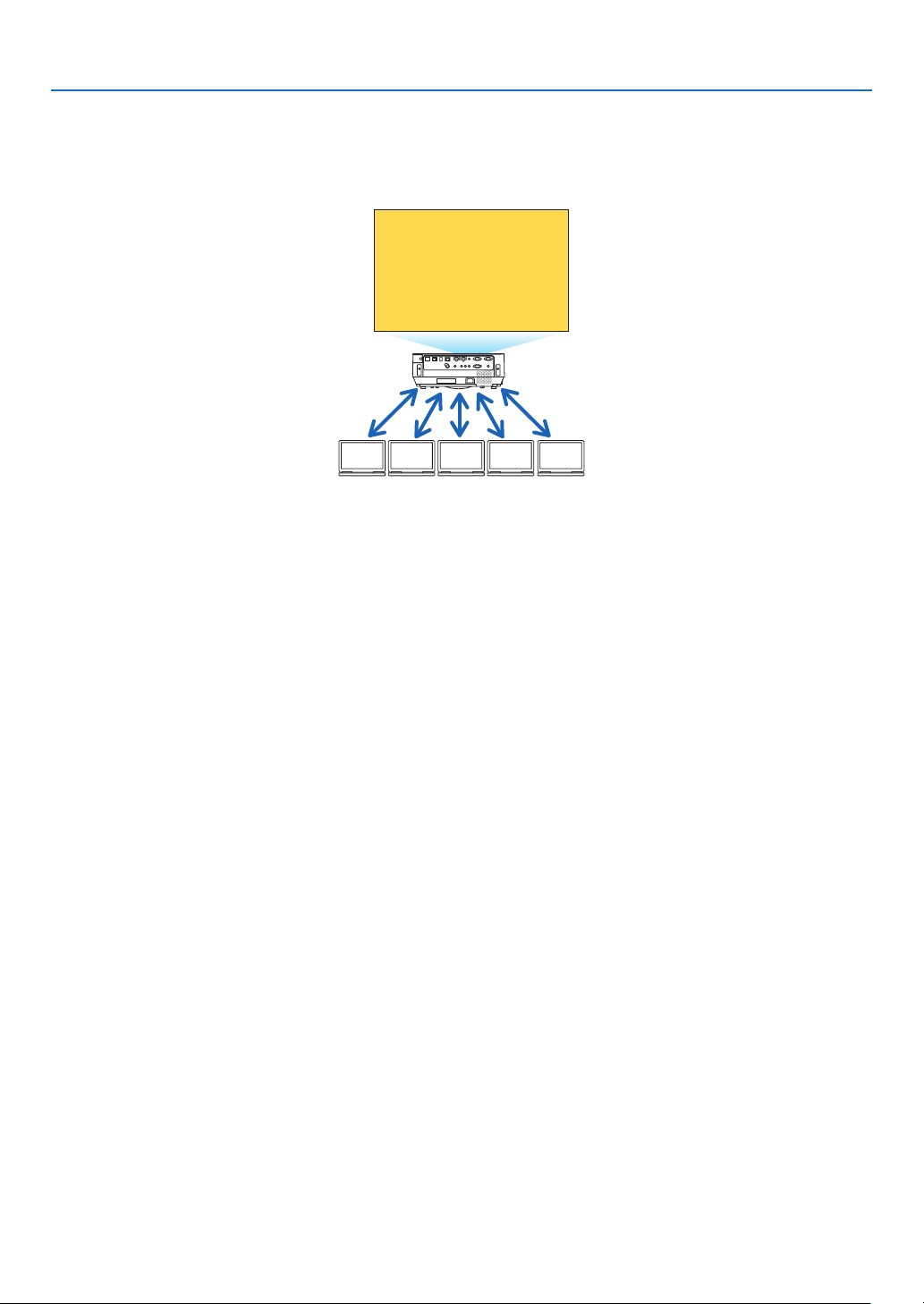
90
6. APPS MENU
WEB SERVER FUNCTION
WEB SHARING
Withoutusingtheexclusivesoftware,itenablestoshareimagesandlesamongtheprojectorandcomputersinthe
samenetworkbyaccessingthewebserveroftheprojectorutilizingthewebbrowser.
BACDE
Sharing files
IMAGE EXPRESS UTILITY LITE
Itenablestocontrolscreensplittingpatternanddisplayingpositionoftheimagesthataresimultaneouslytransmit-
tedfromeachterminalutilizingtheapplicationsoftware,ImageExpressUtilityLiteorWirelessImageUtility,onthe
computerbrowserscreen.Precisecontrolsaschangingnumberofscreenportionsandpagestodisplayareavailable.
PROJECTOR CONTROL
Itenablestocontroltheprojectoronthewebbrowserscreensonthecomputers.
HOWTOACCESSTHEWEBSERVER
ConnecttheprojectorandcomputersinanetworkandaccesstheURLinbelowbythewebbrowserofthecomputers.
URL:http://<IPaddressoftheprojector>
NETWORK SETTINGS
Setupbelowforconnectingtheprojectorwithawired/wirelessLAN.
PROJECTOR NAME
Setuptheprojectornameandhostname.Serialnumberoftheprojectorissetasfactorydefault.
NETWORK INFORMATION
Indicateinformationwhentheprojectorhasconnectedinanetwork(byawired/wirelessLAN)
WIRED LAN
SetupforconnectingtheprojectorbyawiredLAN.
WIRELESS LAN
SetupforconnectingtheprojectorbyawirelessLAN.Atthesametime,setupfortheSIMPLEACCESSPOINT,
Wi-FiDirect,andMiracast.
IMAGE EXPRESS UTILITY
SetuptheMODE(FREE,MANAGED)fortheIMAGEEXPRESSUTILITY.
ItalsoavailableforsettingupapasswordtologintheADMINISTRATORMODEfortheIMAGEEXPRESSUTILITY
intheWEBSERVERfunctions.
NETWORKSERVICE
SetupvarioussettingfortheAMX,HTTPserver,PJLink,AlertmailandCRESTRON.

91
6. APPS MENU
TOOLS
Setupforvariousfeaturesasthemouse,programtimer,dayandtime,administratormodeanddefaultAPP.
MOUSE
AcommerciallyavailableUSBmousecanbeusedforoperatingtheAPPSMENU.Performthesetupforusingit.
PROGRAM TIMER
Oncedayandtimeissetup,changingtheprojector’sconditioninpoweringON/standby,switchinginputsignals,and
switchingECOmodecanbeautomaticallyperformed.
DATE AND TIME
Determinetimezoneandsummertimeofyourareaandsetupcurrentdateandtime.
ADMINISTRATOR MODE
Selectingthemenumodeoftheprojector,enable/disabletosaveallsetupvaluesoftheprojector,andsetupa
passwordfortheadministratormode.
DEFAULT APP
Whenaterminalotherthanthe“APPS”terminalisselectedandyouswitchtothe“APPS”terminal,thefunctionse-
lectedasthedefaultapplicationislaunchedautomatically.
Whentheprojectoristurnedonintheconditionofbeingselectedthe“APPS”terminal,theapplicationselectedinthe
[DEFAULTAPP]willbestartedautomatically.

92
7. User Supportware
❶ Software Included on CD-ROM
NamesandFeaturesofBundledSoftwarePrograms
NameofsoftwareprogramFeatures
ImageExpressUtilityLite
ImageExpressUtilityLitefor
Mac
•Thisisasoftwareprogramusedtoprojectyourcomputer’sscreenoverthe
wired/wirelessnetwork.Thecomputercable(VGA)isnotrequired.(→page
93)
•ThissoftwareprogramcanbeusedtocontrolthepowerON/OFFandsource
selectionoftheprojectorfromyourcomputer.
•TheGeometricCorrectionTool(GCT)functionallowsyoutocorrectdistortion
ofimagesprojectedonacurvedwall.(→page98)
*“GCT”functionisnotsupportedbyMac.
NameofsoftwareprogramFeatures
PCControlUtilityPro4
PCControlUtilityPro5(forMac
OS)
Thisisasoftwareprogramusedtooperatetheprojectorfromthecomputerwhen
thecomputerandtheprojectorareconnectedwithLAN(wiredorwireless)or
aserialcable.(→page
101)
NameofsoftwareprogramFeatures
VirtualRemoteTool
(Windowsonly)
ThisisasoftwareprogramusedtocontrolthepowerON/OFFandsourceselec-
tionoftheprojectorfromyourcomputerbyusingthesuppliedcomputercable
(VGA)andothers.(→page
106)
Onlyviaserialconnectionitisalsousedtosendanimagetotheprojectorand
registeritasthelogodataoftheprojector.Afterregisteringit,youcanlockthe
logotopreventitfromchanging.
NOTE:
•ImageExpressUtilityLitedoesnotsupport“MeetingMode”inImageExpressUtility2.0suppliedwithourothermodels.
Download Service and Operating Environment
Pleasevisitourwebsiteaboutoperatingenvironmentanddownloadserviceforeachsoftware:
VisitURL:http://www.nec-display.com/dl/en/index.html
Download-Projector→Software&Driver
Name and Features of an application for Android / iOS.
Nameofapplication:
WirelessImageUtility(Android/iOS)
Features:
Byconnectingtheprojectorwithasmartphone,itenablestotransferphotosanddocumentssavedonthesmartphone
andprojecttheseontheprojector.(→page112)
*WirelessImageUtilityisnotcontainedinthesuppliedCD-ROM.

93
7. User Supportware
❷ Projecting Your Computer’s Screen Image from the
Projector over a LAN (Image Express Utility Lite)
UsingImageExpressUtilityLitecontainedonthesuppliedNECProjectorCD-ROMallowsyoutosendthecomputer’s
screenimagetotheprojectoroverawiredorwirelessLAN.
ImageExpressUtilityLiteisaprogramcompatiblewithWindows.
ImageExpressUtilityLiteforMacisaprogramcompatiblewithOSX.(→page
97)
ThissectionwillshowyouanoutlineabouthowtoconnecttheprojectortoaLANandtouseImageExpressUtility
Lite.FortheoperationofImageExpressUtilityLite,seethehelpofImageExpressUtilityLite.
Step1:installImageExpressUtilityLiteonthecomputer.
Step2:ConnecttheprojectortoaLAN.
Step3:StartImageExpressUtilityLite.
TIP:
•ImageExpressUtilityLite(forWindows)canbestartedfrommostcommerciallyavailableremovablemediasuchasUSBmemory
devicesorSDcardswithouttheneedtoinstallonyourcomputer.(→page
96)
What You can Do with Image Express Utility Lite
Imagetransmission(forWindowsandOSX)
•Thescreenofyourcomputercanbesenttotheprojectorviaawiredorwirelessnetworkwithoutacomputercable
(VGA).
Audiotransfercapability(forWindowsonly)
•ImageExpressUtilityLiteallowsyoutosendthecomputer'sscreenimageandaudiototheprojectoroverwired/
wirelessLANconnection.
•Audiotransfercapabilityisavailableonlywhenthecomputerconnectswiththeprojectorinpeer-to-peernetwork.
GeometricCorrectionTool[GCT](forWindowsonly)
See“❸ProjectinganImagefromanAngle(GeometricCorrectionToolinImageExpressUtilityLite)”.(→page
98)
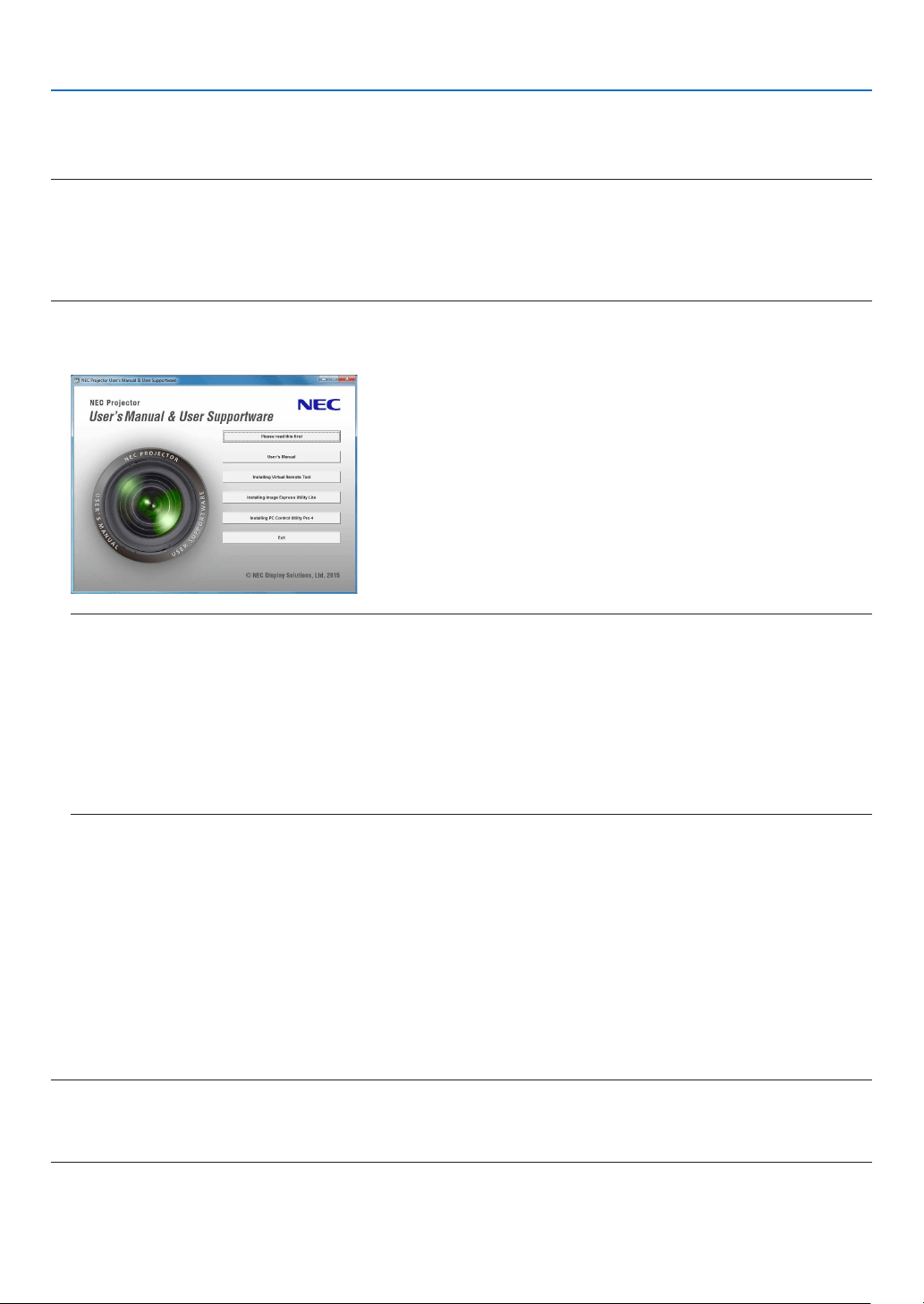
94
7. User Supportware
Using on Windows
Step 1: install Image Express Utility Lite on the computer.
NOTE:
•Toinstalloruninstalltheprogram,theWindowsuseraccountmusthave“Administrator”privilege.
•Exitallrunningprogramsbeforeinstallation.Ifanotherprogramisrunning,theinstallationmaynotbecompleted.
•ImageExpressUtilityLitewillbeinstalledtothesystemdriveofyourcomputer.
Ifthemessage“Thereisnotenoughfreespaceondestination”isdisplayed,freeupenoughspace(about100MB)toinstallthe
program.
1.InserttheaccompanyingNECProjectorCD-ROMintoyourCD-ROMdrive.
The menu window will be displayed.
TIP:
Ifthemenuwindowwillnotbedisplayed,trythefollowingprocedure.
ForWindows7:
1.Click“start”onWindows.
2.Click“AllPrograms”→“Accessories”→“Run”.
3.TypeyourCD-ROMdrivename(example:“Q:\”)and“LAUNCHER.EXE”in“Name”.(example:Q:\LAUNCH
-
ER.EXE)
4.Click“OK”.
The menu window will be displayed.
2.Click“InstallingImageExpressUtilityLite”onthemenuwindow.
The installation will start.
“ENDUSERLICENSEAGREEMENT”screenwillbedisplayed.
Read“ENDUSERLICENSEAGREEMENT”carefully
3.Ifyouagree,click“Iagree.”andthenclick“Next”.
•Followtheinstructionsontheinstallerscreenstocompletetheinstallation.
•Whentheinstallationiscomplete,youwillreturntothemenuwindow.
When the installation is complete, a completion message will be displayed.
4.Click“OK”.
This completes the installation.
TIP:
•UninstallingImageExpressUtilityLite
TouninstallImageExpressUtilityLite,dothesameproceduresstatedasin“UninstallingVirtualRemoteTool”.Read“VirtualRemote
Tool”as“ImageExpressUtilityLite”(→page
109)
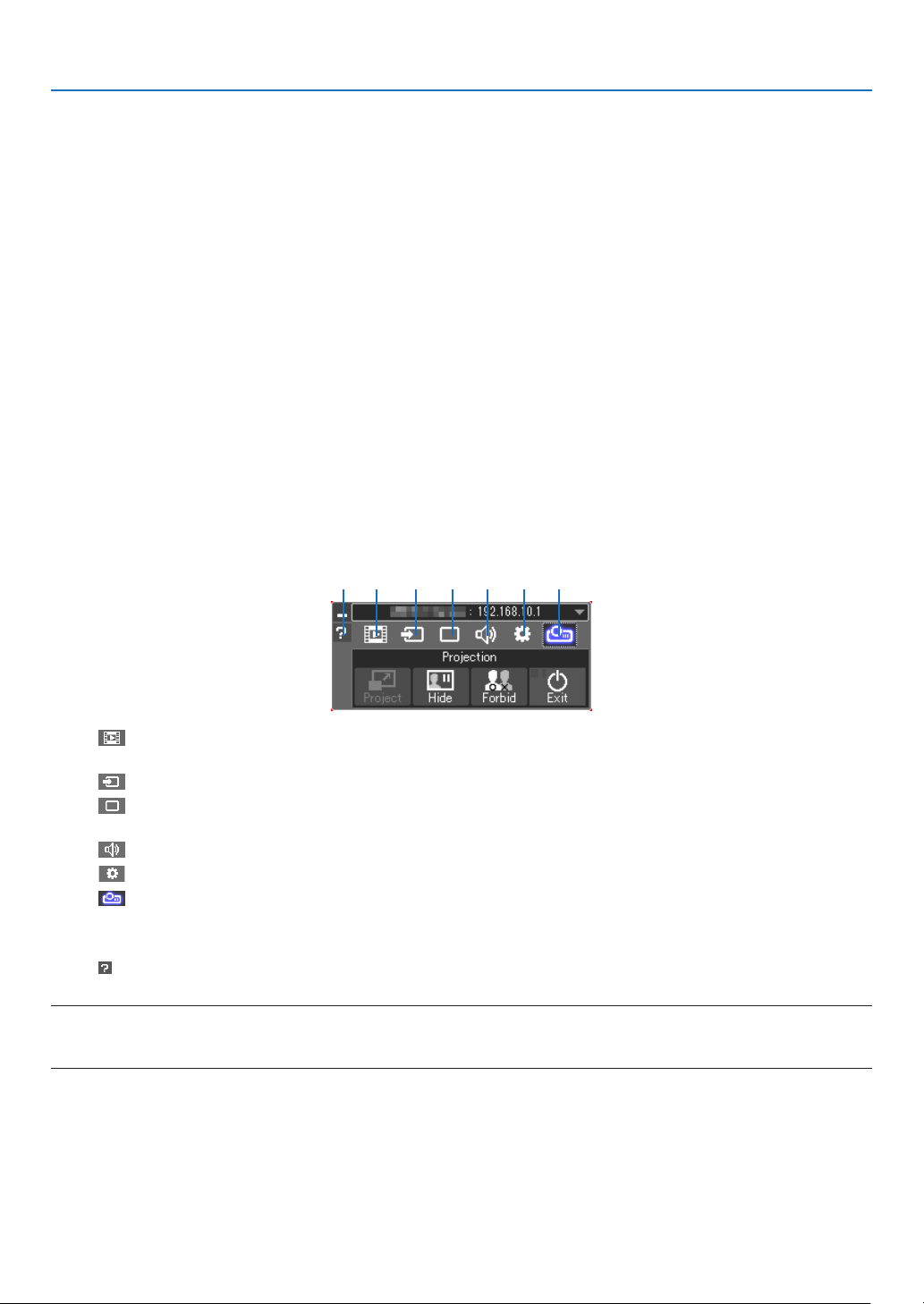
95
7. User Supportware
Step 2: Connect the projector to a LAN.
ConnecttheprojectortotheLANbyfollowingtheinstructionsin“ConnectingtoaWiredLAN”(→page
82)and“Con-
nectingtoaWirelessLAN(Optional:NP05LMseries)”(→page83).
Step 3: Start Image Express Utility Lite.
1.OnWindows,click“Start”→“Allprograms”→“NECProjectorUserSupportware”→“ImageExpressUtility
Lite”→“ImageExpressUtilityLite”.
ImageExpressUtilityLitewillstart.
Theselectwindowfornetworkconnectionwillbedisplayed
2.SelectNetworkandclick“OK”.
The select window for destination will show a list of connectable projectors.
•Whenconnectingthecomputerdirectlytotheprojectorbyone-to-one,“SimpleAccessPoint”isrecommended.
•Tocheckforthenetworkavailableforconnectedprojectors,fromthemenu,select[INFO.]→[WIRELESSLAN]
→[SSID].
3.Placeacheckmarkforprojectorstobeconnected,andthenclick“Connect”.
•Whenoneormoreprojectorsaredisplayed,fromthemenuontheprojector,select[INFO.]→[WIRELESSLAN]
→[IPADDRESS].
Whenconnectedtotheprojector,theImageExpressUtilityLitecontrolwindowappearsatthetopofthescreen.
The computer can be controlled by operating the control window.
4. Operate the control window.
(1) (2) (3) (4) (5) (6)(7)
(1) (Streaming) .....Display the movie streaming window when the projector supports the movie streaming function. If the
projector does not support the movie streaming function, this icon remains in inactive.
(2)
(Source) ..........Selects an input source of the projector.
(3)
(Picture) ..........Turns on or off AV-MUTE (Picture mute), FREEZE (Freeze a picture), display, and GCT (geometric cor-
rection tool). Refer to page 98 about GCT.
(4)
(Sound) ...........Turns on or off AV-MUTE (Sound mute), play the sound and control the volume.
(5)
(Others) ...........Uses for “Update”, “HTTP Server”, “Settings” and “Information”.
(6)
(Project) ..........Enables to change screen size for presentation, menu indication (hide/indicate), interruption prohibition/
accept interruption.
It also enables to power off the projector.
(7)
(Help) ..................Displays the help of Image Express Utility Lite.
NOTE:
•When[NORMAL]isselectedfor[STANDBYMODE]fromthemenu,theprojectorthatisturnedoffwillnotbedisplayedinthe
selectwindowfordestination

96
7. User Supportware
TIP:
Viewingthe“Help”leofImageExpressUtilityLite
•DisplayingtheHelpleofImageExpressUtilityLitewhileitisrunning.
Clickthe[?](help)icononthecontrolwindow.
The Help screen will be displayed.
•DisplayingtheHelpleofGCTwhileitisrunning.
Click“Help”→“Help”ontheeditwindow.
The Help screen will be displayed.
•DisplayingthehelpleusingtheStartMenu.
Click“Start”→“Allprograms”or“Programs”→“NECProjectorUserSupportware”→“ImageExpressUtilityLite”
→“ImageExpressUtilityLiteHelp”.
The Help screen will be displayed.
Starting Image Express Utility Lite from a USB Memory or SD Card
ImageExpressUtilityLitecanbestartedfromcommerciallyavailableremovablemediasuchUSBmemoryorSD
cardsifitiscopiedbeforehand.ThiswilleliminatethetroubleofinstallingImageExpressUtilityLitetoyourcomputer.
1.CopyImageExpressUtilityLitetoremovablemedia.
Copyallthefoldersandles(totalsizeapprox.7MB)fromthe“IEU_Lite(removable-media)”folderinthesupplied
NEC Projector CD-ROM to the root directory of your removable media.
2. Insert your removable media into your computer.
The“AutoPlay”screenwillbedisplayedonyourcomputer.
TIP:
•Ifthe“AutoPlay”screenisnotdisplayed,openthefolderfrom“Computer”(“MyComputer”forWindowsXP).
3.Click“Openfoldertoviewles”
TheIEU_Lite.exe,otherfolder,andleswillbedisplayed.
4.Double-clickthe“IEU_Lite.exe”(
) icon.
ImageExpressUtilityLitewillstart.

97
7. User Supportware
Using on Mac
Step 1: Install Image Express Utility Lite for Mac on the computer
1.InserttheaccompanyingNECProjectorCD-ROMinyourMacCD-ROMdrive.
TheCD-ROMiconwillbedisplayedonthedesktop.
2.Double-clicktheCD-ROMicon.
The CD-ROM window will be displayed.
3.Double-clickthe“MacOSX”folder.
4.Double-click“ImageExpressUtilityLite.dmg”.
The“ImageExpressUtilityLite”windowwillbedisplayed.
5.Draganddropthe“ImageExpressUtilityLite”foldertoyourApplicationsfolderonOSX.
Step 2: Connect the projector to a LAN
ConnecttheprojectortotheLANbyfollowingtheinstructionsin“ConnectingtoaWiredLAN”(→page
82)and“Con-
nectingtoaWirelessLAN(Optional:NP05LMseries)”(→page83).
Step 3: Start Image Express Utility Lite for Mac
1. Open your Applications folder on OS X.
2.Double-clickthe“ImageExpressUtilityLite”folder.
3.Double-clickthe“ImageExpressUtilityLite”icon.
WhenImageExpressUtilityLiteforMacstarts,theselectwindowfordestinationwillbedisplayed.
•Atthersttimeofstartup,“ENDUSERLICENSEAGREEMENT”screenwillbedisplayedbeforetheselect
window for destination is displayed.
Read“ENDUSERLICENSEAGREEMENT”andselect“Iacceptthetermsinthelicenseagreement”,andclick
“OK”.
4.Selectaprojectortobeconnected,andthenclick“Connect”.
Yourdesktopscreenwillbedisplayedontheprojector.
TIP:
ViewingtheHelpofImageExpressUtilityLiteforMac
•Fromthemenubar,click“Help”→“ImageExpressUtilityLiteHelp”whileImageExpressUtilityforMacis
running.
The Help screen will be displayed
Uninstalling a software program
1.Putthe“ImageExpressUtilityLite”foldertotheTrashicon.
2. Put the configuration file of Image Express Utility Lite for Mac to the Trash icon.
•ThecongurationleofImageExpressUtilityLiteforMacislocatedin“/Users/<yourusername>/Library/Prefer-
ences/jp.necds.Image_Express_Utility_Lite.plist”.
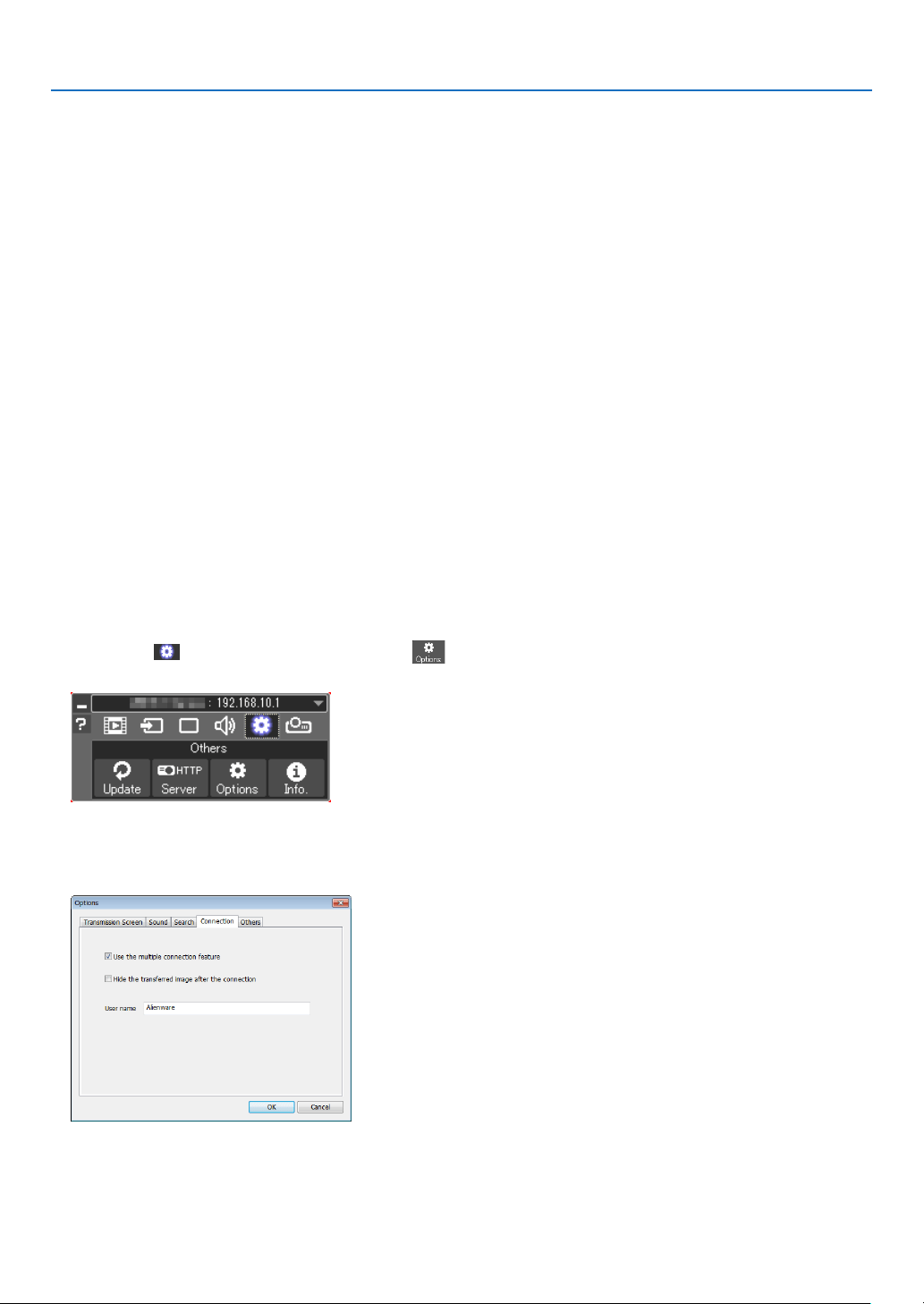
98
7. User Supportware
❸ Projecting an Image from an Angle (Geometric Correction
Tool in Image Express Utility Lite)
TheGeometricCorrectionTool(GCT)functionallowsyoutocorrectdistortionofimagesprojectedevenfromanangle.
What you can do with GCT
•TheGCTfeatureincludesthefollowingthreefunctions
•4-pointCorrection:Youcantaprojectedimagewithintheborderofthescreeneasilybyalignthefourcorners
ofanimagetotheonesofthescreen.
•Multi-point Correction:Youcancorrectadistortedimageonthecornerofawallorirregularshapedscreen
byusingmanyseparatedscreenstocorrecttheimageaswellas4-pointCorrection.
•Parameters Correction:Youcancorrectadistortedimagebyusingacombinationoftransformationalrules
preparedinadvance.
Thissectionwillshowanexampleforusewith4-pointCorrection.
Forinformationabout“Multi-pointCorrection”and“ParametersCorrection”,seethehelpleofImageExpress
UtilityLite.(→page
96, 97)
•Yourcorrectiondatacanbestoredintheprojectororyourcomputerwhichcanberestoredwhennecessary.
•TheGCTfunctionisavailablewithawiredorwirelessLANconnection,andvideocable.
Projecting an Image from an Angle (GCT)
InstallImageExpressUtilityLiteonthecomputerandlaunchittodisplaythecontrolwindow.(→page94, 95)
Preparation:Adjusttheprojectorpositionorthezoomsothattheprojectedimagecancoverthewholescreenarea.
1.Clickthe“
”(Others)iconandthenthe“”(Options)
button.
Options window will be displayed.
2.Clickthecheckbox“Usethemultipleconnectionfeature”and
then clear the check mark.
3.Clickthe“OK”button.
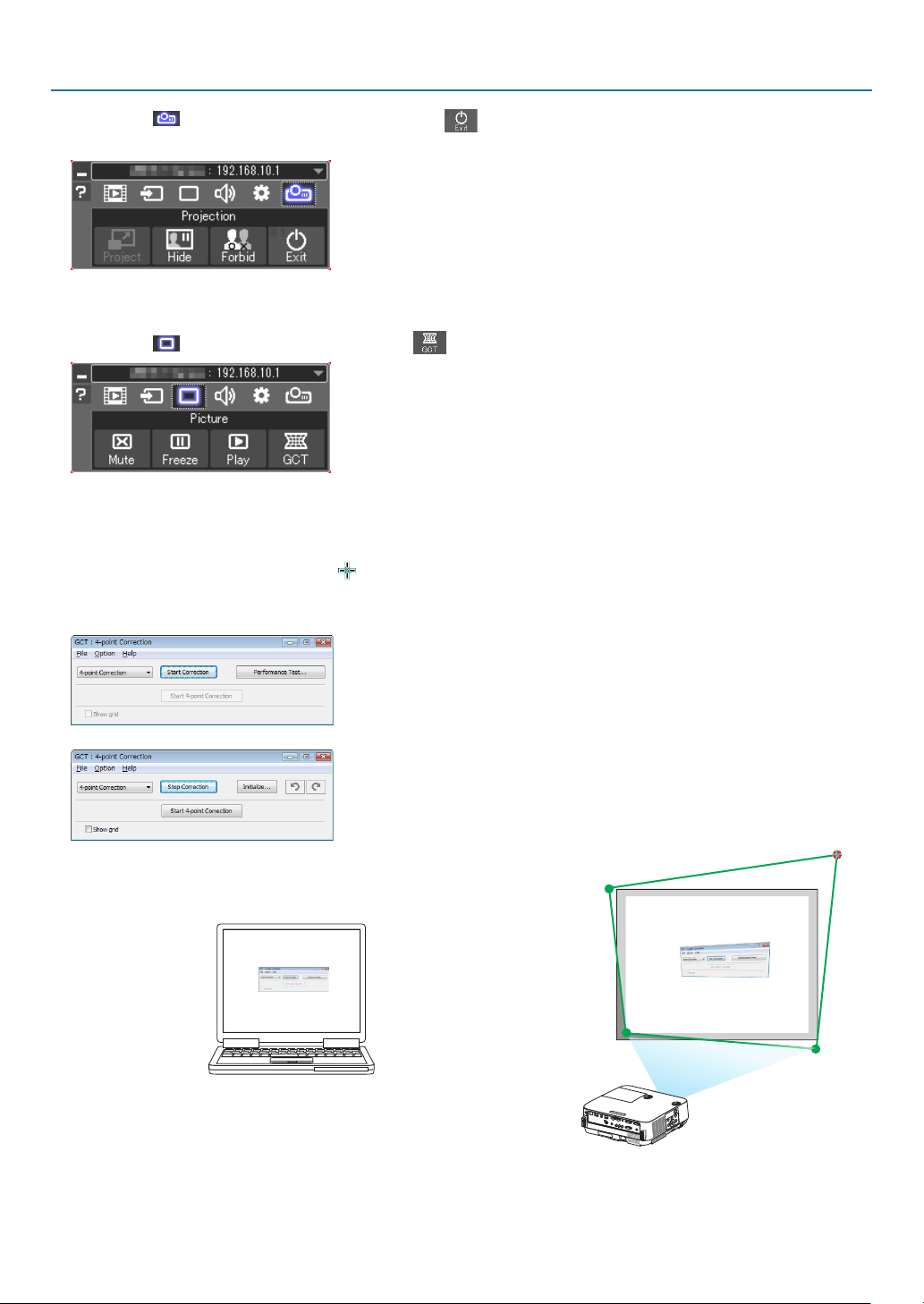
99
7. User Supportware
4.Clickthe“”(Projection)iconandthenthe“”(Exit)
button.
5.Click“Yes”.
6. Start the Image Express Utility Lite again.
7.Clickthe“”(Picture)iconandthenthe“”button.
The“4-pointCorrection”windowwillbedisplayed.
8.Clickthe“StartCorrection”buttonandthen“Start4-point
Correction”button.
A green frame and a mouse pointer ( ) will be displayed.
•Four[•]markswillbeappearedatfourcornersofthegreen
frame
9.Usethemousetoclickthe[•]markofwhichcorneryouwish
to move.
The currently selected [
•]markwillturnred.
(Intheaboveexample,Windowsscreensareomittedforclarication.)
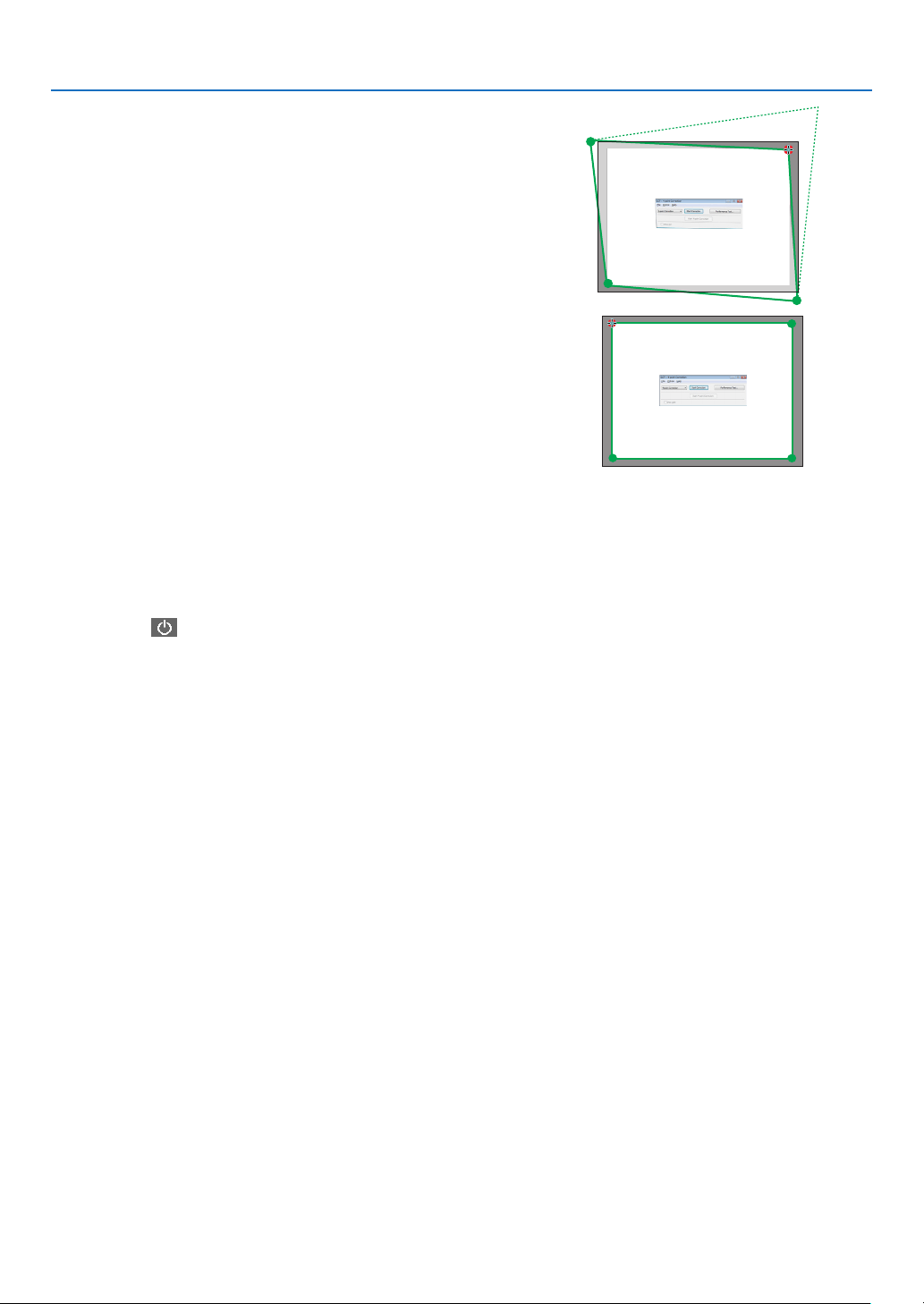
100
7. User Supportware
10
.Dragtheselected[•]marktothepointyouwishtocorrect
and drop it.
•Whenyouclicksomewherewithintheprojectimagearea,the
nearest [ •]markwillgotothepositionwherethemousecur-
sor is.
11
. Repeat Step 9 and 10 to correct the distortion of the projected
image.
12
. After completing, right-click the mouse.
The green frame and the mouse pointer will disappear from the
projected image area. This will complete the correction.
13
.Clickthe“X”(close)buttononthe“4-pointCorrection”window.
The“4-pointCorrection”windowwilldisappearandthe4-point
correctionwilltakeeffect.
14
.Clickthe“”buttononthecontrolwindowtoexittheGCT.
TIP:
•Afterperformingthe4-pointcorrection,youcansavethe4-pointcorrectiondatatotheprojectorbyclicking“File”→“Exportto
theprojector…”onthe“4-pointCorrection”window.
•SeetheHelpofImageExpressUtilityLiteforoperating“4-pointCorrection”windowandotherfunctionsthanGCT.(→page
96,
97)
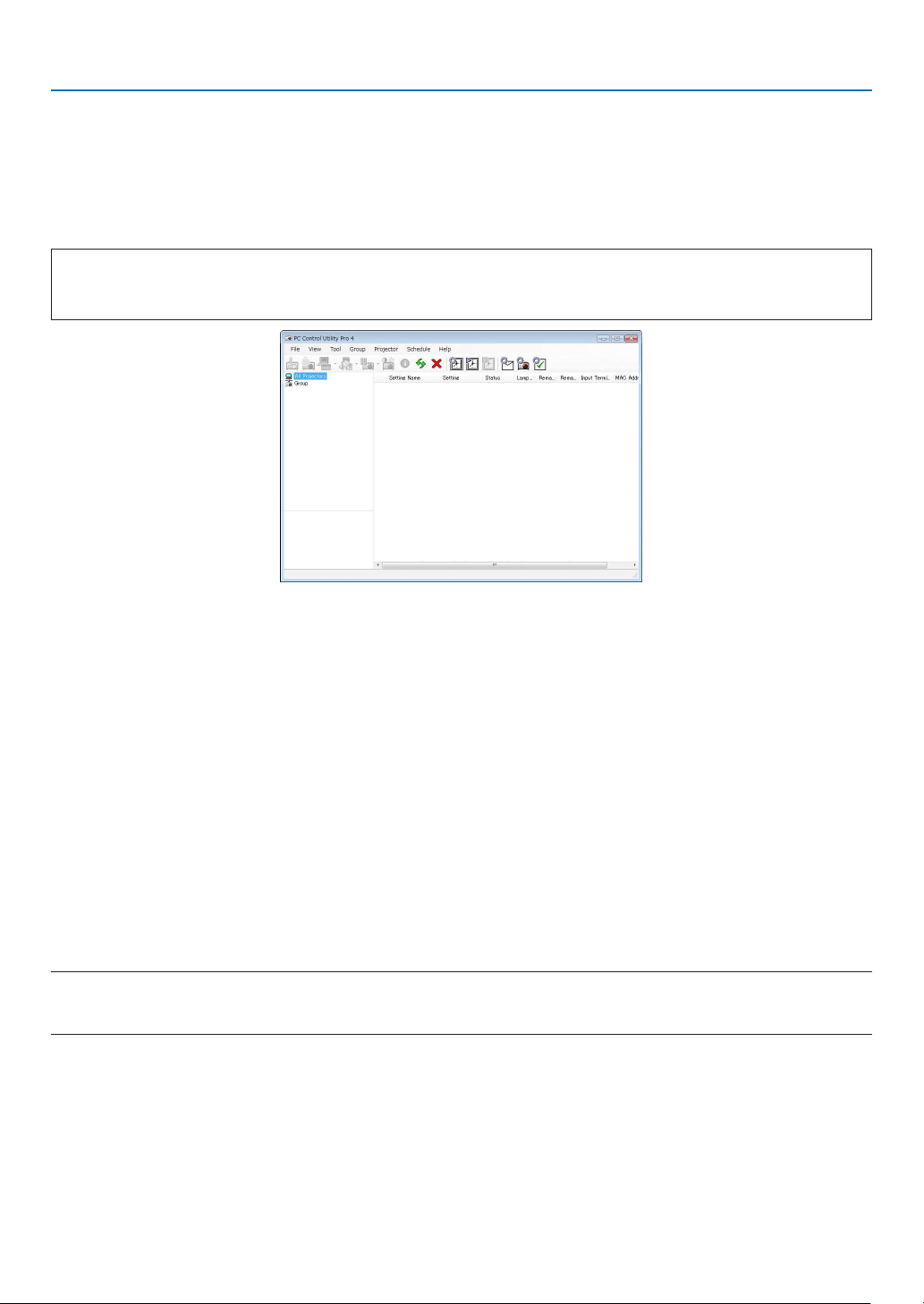
101
7. User Supportware
❹
Controlling the Projector over a LAN (PC Control Utility Pro 4/
Pro 5)
Usingtheutilitysoftware“PCControlUtilityPro4”and“PCControlUtilityPro5”includedonthecompanionNEC
ProjectorCD-ROM,theprojectorcanbecontrolledfromacomputeroveraLAN.
PCControlUtilityPro4isaprogramcompatiblewithWindows.(→thispage)
PCControlUtilityPro5isaprogramcompatiblewithMacOS.(→page104)
Control Functions
PowerOn/Off,signalselection,picturefreeze,picturemute,audiomute,adjusting,errormessagenotication,
eventschedule.
ScreenofPCControlUtilityPro4
ThissectionprovidesanoutlineofpreparationforuseofPCControlUtilityPro4/Pro5.Forinformationonhowtouse
PCControlUtilityPro4/Pro5,seeHelpofPCControlUtilityPro4/Pro5.(→page
103, 105)
Step1:InstallPCControlUtilityPro4/Pro5onthecomputer.
Step2:ConnecttheprojectortoaLAN.
Step3:StartPCControlUtilityPro4/Pro5.
•TorunPCControlUtilityPro4onWindows8.1,Windows8andWindowsXP,“Microsoft.NETFrameworkVersion
2.0”isrequired.TheMicrosoft.NETFrameworkVersion2.0,3.0or3.5isavailablefromMicrosoft’swebpage.
Downloadandinstallitonyourcomputer.
TIP:
•WithPCControlUtilityPro4,controlisalsopossiblebyRS-232Cserialcommunicationsconnectedtotheprojector’sPCCONTROL
terminal.
Using on Windows
Step 1: Install PC Control Utility Pro 4 on the computer
NOTE:
•Toinstalloruninstalltheprogram,theWindowsuseraccountmusthave[Administrator]privilege.
•Exitallrunningprogramsbeforeinstallation.Ifanotherprogramisrunning,theinstallationmaynotbecompleted.
1InserttheaccompanyingNECProjectorCD-ROMintoyourCD-ROMdrive.
The menu window will be displayed.
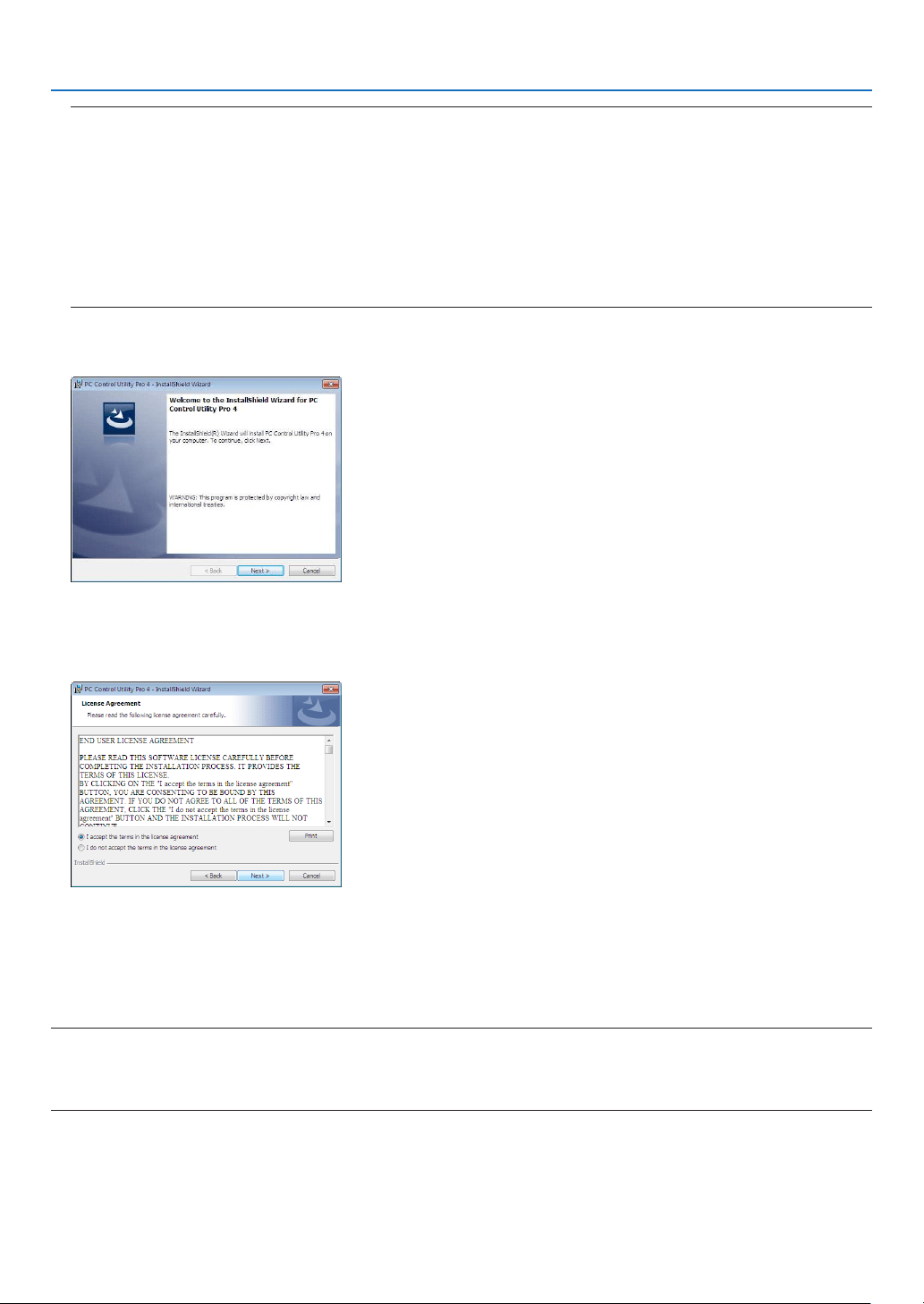
102
7. User Supportware
TIP:
Ifthemenuwindowwillnotbedisplayed,trythefollowingprocedure.
ForWindows7:
1.Click“start”onWindows.
2.Click“AllPrograms”→“Accessories”→“Run”.
3.TypeyourCD-ROMdrivename(example:“Q:\”)and“LAUNCHER.EXE”in“Name”.(example:Q:\
LAUNCHER.EXE)
4.Click“OK”.
The menu window will be displayed.
2Click“PCControlUtilityPro4”onthemenuwindow.
The installation will start.
When the installation is complete, the Welcome window will be displayed.
3Click“Next”.
“ENDUSERLICENSEAGREEMENT”screenwillbedisplayed.
Read“ENDUSERLICENSEAGREEMENT”carefully.
4Ifyouagree,click“Iacceptthetermsinthelicenseagreement”andthenclick“Next”.
•Followtheinstructionsontheinstallerscreenstocompletetheinstallation.
•Whentheinstallationiscomplete,youwillreturntothemenuwindow.
TIP:
•UninstallingPCControlUtilityPro4
TouninstallPCControlUtilityPro4,dothesameproceduresstatedasin“UninstallingVirtualRemoteTool”.Read“VirtualRemote
Tool”as“PCControlUtilityPro4”(→page
109)

103
7. User Supportware
Step 2: Connect the projector to a LAN.
ConnecttheprojectortotheLANbyfollowingtheinstructionsin“ConnectingtoaWiredLAN”(→page
82)and“Con-
nectingtoaWirelessLAN(Optional:NP05LMseries)”(→page83).
Step 3: Start PC Control Utility Pro 4
Click“Start”→“Allprograms”or“Programs”→“NECProjectorUserSupportware”→“PCControlUtilityPro4”→
“PCControlUtilityPro4”.
NOTE:
•FortheSchedulefunctionofthePCControlutilityPro4towork,youmusthaveyourcomputerrunningandnotinstandby/
sleepmode.Select“PowerOptions”fromthe“ControlPanel”inWindowsanddisableitsstandby/sleepmodebeforerunningthe
scheduler.
[Example]ForWindows7:
Select“ControlPanel”→“SystemandSecurity”→“PowerOptions”→“Changewhenthecomputersleeps”→“Putthecomputer
tosleep”→“Never”.
NOTE:
•When[NORMAL]isselectedfor[STANDBYMODE]fromthemenu,theprojectorcannotbeturnedonviathenetwork(wiredLAN/
wirelessLAN)connection.
TIP:
ViewingtheHelpofPCControlUtilityPro4
•DisplayingtheHelpleofPCControlUtilityPro4whileitisrunning.
Click“Help(H)”→“Help(H)…”ofwindowofPCControlUtilityPro4inthisorder.
The pop-up menu will be displayed.
•DisplayingthehelpleusingtheStartMenu.
Click“Start”→“Allprograms”or“Programs”→“NECProjectorUserSupportware”→“PCControlUtilityPro4”→
“PCControlUtilityPro4Help”.
The Help screen will be displayed.

104
7. User Supportware
Using on Mac
Step 1: Install PC Control Utility Pro 5 on the computer
1.InserttheaccompanyingNECProjectorCD-ROMinyourMacCD-ROMdrive.
TheCD-ROMiconwillbedisplayedonthedesktop.
2.Double-clicktheCD-ROMicon.
The CD-ROM window will be displayed.
3.Double-clickthe“MacOSX”folder.
4.Double-click“PCControlUtilityPro5.pkg”.
The installer will start.
5.Click“Next”.
“ENDUSERLICENSEAGREEMENT”screenwillbedisplayed.
6.Read“ENDUSERLICENSEAGREEMENT”andclick“Next”.
The confirmation window will be displayed
7.Click“Iacceptthetermsinthelicenseagreement”.
Follow the instructions on the installer screens to complete the installation.
Step 2: Connect the projector to a LAN
ConnecttheprojectortotheLANbyfollowingtheinstructionsin“ConnectingtoaWiredLAN”(→page
82)and“Con-
nectingtoaWirelessLAN(Optional:NP05LMseries)”(→page83).
Step 3: Start PC Control Utility Pro 5
1. Open your Applications folder in OS X.
2.Clickthe“PCControlUtilityPro5”folder.
3.Clickthe“PCControlUtilityPro5”icon.
PC Control Utility Pro 5 will start.
NOTE:
•FortheSchedulefunctionofthePCControlutilityPro5towork,youmusthaveyourcomputerrunningandnotinsleepmode.
Select“EnergySaver”fromthe“SystemPreferences”inMacanddisableitssleepmodebeforerunningthescheduler.
•When[NORMAL]isselectedfor[STANDBYMODE]fromthemenu,theprojectorcannotbeturnedonviathenetwork(wiredLAN/
wirelessLAN)connection.

105
7. User Supportware
TIP:
Uninstalling a software program
1.Putthe“PCControlUtilityPro5”foldertotheTrashicon.
2.PutthecongurationleofPCControlUtilityPro5totheTrashicon.
•ThecongurationleofPCControlUtilityPro5islocatedin“/Users/<yourusername>/ApplicationData/NEC
ProjectorUserSupportware/PCControlUtilityPro5”.
ViewingtheHelpofPCControlUtilityPro5
•DisplayingtheHelpleofPCControlUtilityPro5whileitisrunning.
•Fromthemenubar,click“Help”→“Help”inthisorder.
The Help screen will be displayed.
•DisplayingtheHelpusingtheDock
1.Open“Application”folderinOSX.
2.Clickthe“PCControlUtilityPro5”folder.
3.Clickthe“PCControlUtilityPro5Help”icon.
The Help screen will be displayed.
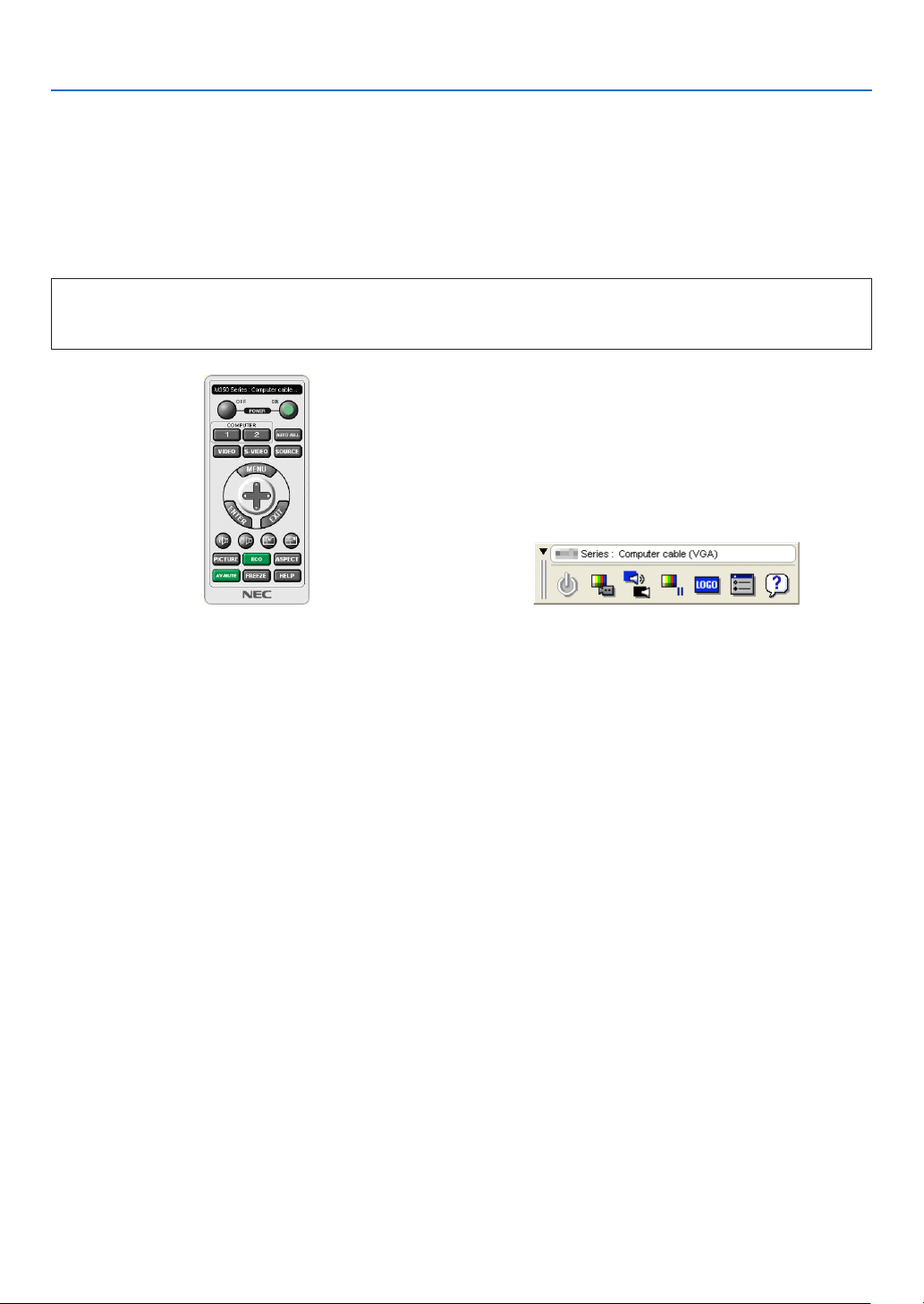
106
7. User Supportware
❺ Using the Computer Cable (VGA) to Operate the
Projector (Virtual Remote Tool)
Usingtheutilitysoftware“VirtualRemoteTool”includedonthecompanionNECProjectorCD-ROM,VirtualRemote
screen(ortoolbar)canbedisplayedonyourcomputerscreen.
Thiswillhelpyouperformoperationssuchasprojector’spoweronoroffandsignalselectionviathecomputercable
(VGA),serialcable,orLANconnection.Onlyviaserialconnectionitisalsousedtosendanimagetotheprojector
andregisteritasthelogodataoftheprojector.Afterregisteringit,youcanlockthelogotopreventitfromchanging.
Control Functions
PowerOn/Off,signalselection,picturefreeze,picturemute,audiomute,Logotransfertotheprojector,andremote
controloperationonyourPC.
VirtualRemotescreenToolbar
ThissectionprovidesanoutlineofpreparationforuseofVirtualRemoteTool.
ForinformationonhowtouseVirtualRemoteTool,seeHelpofVirtualRemoteTool.(→page
111)
Step1:InstallVirtualRemoteToolonthecomputer.(→page107)
Step2:Connecttheprojectortothecomputer.(→page109)
Step3:StartVirtualRemoteTool.(→page110)
TIP:
•VirtualRemoteToolcanbeusedwithaLANandaserialconnection.USBconnectionisnotsupportedbyVirtualRemoteTool.
•ForupdateinformationonVirtualRemoteTool,visitourwebsite:
http://www.nec-display.com/dl/en/index.html

107
7. User Supportware
NOTE:
•When[COMPUTER]isselectedfromyoursourceselection,theVirtualRemotescreenorthetoolbarwillbedisplayedaswellas
yourcomputerscreen.
•Usethesuppliedcomputercable(VGA)toconnecttheCOMPUTERINterminaldirectlywiththemonitoroutputterminalofthe
computertouseVirtualRemoteTool.
Usingaswitcherorothercablesthanthesuppliedcomputercable(VGA)maycausefailureinsignalcommunication.
VGAcableterminal:
PinNos.12and15arerequiredforDDC/CI.
•VirtualRemoteToolmaynotworkdependingonyourcomputer’sspecicationsandversionofgraphicadaptersordrivers.
•TorunVirtualRemoteToolonWindows8.1andWindows8,“Microsoft.NETFrameworkVersion2.0”isrequired.TheMicrosoft
.NETFrameworkVersion2.0,3.0or3.5isavailablefromMicrosoft’swebpage.Downloadandinstallitonyourcomputer.
•Logodata(graphics)thatcanbesenttotheprojectorwithVirtualRemoteToolhasthefollowingrestrictions:
(Onlyviaserialconnection)
-Filesize:Lessthan768KB
-Imagesize(resolution):
P502H/P452H:Horizontal1920×vertical1080dotsorless
P502W/P452W:Horizontal1280×vertical800dotsorless
•Toputthedefault“NEClogo”backinthebackgroundlogo,youneedtoregisteritasthebackgroundlogobyusingtheimagele
(P502H/P452H:/Logo/NEC_logo2015_1920x1080.bmp,P502W/P452W:/Logo/NEC_logo2015_1280x800.bmp)incluldedonthe
suppliedNECProjectorCD-ROM.
TIP:
•Theprojector’sCOMPUTERINterminalsupportsDDC/CI(DisplayDataChannelCommandInterface).DDC/CIisastandard
interfaceforbidirectionalcommunicationbetweendisplay/projectorandcomputer.
•WiththeVirtualRemoteTool,controlispossiblewithbothnetwork(wired/wirelessLAN)andserialconnections.
Step 1: Install Virtual Remote Tool on the computer
NOTE:
•ToinstallVirtualRemoteTool,theWindowsuseraccountmusthave“Administrator”privilege.
•ExitallrunningprogramsbeforeinstallingVirtualRemoteTool.Ifanotherprogramisrunning,theinstallationmaynotbecom-
pleted.
1InserttheaccompanyingNECProjectorCD-ROMintoyourCD-ROMdrive.
The menu window will be displayed.
TIP:
Ifthemenuwindowwillnotbedisplayed,trythefollowingprocedure.
ForWindows7
1.Click“start”onWindows.
2.Click“AllPrograms”→“Accessories”→“Run”.
3.TypeyourCD-ROMdrivename(example:“Q:\”)and“LAUNCHER.EXE”in“Name”.(example:Q:\
LAUNCHER.EXE)
4.Click“OK”.
The menu window will be displayed.
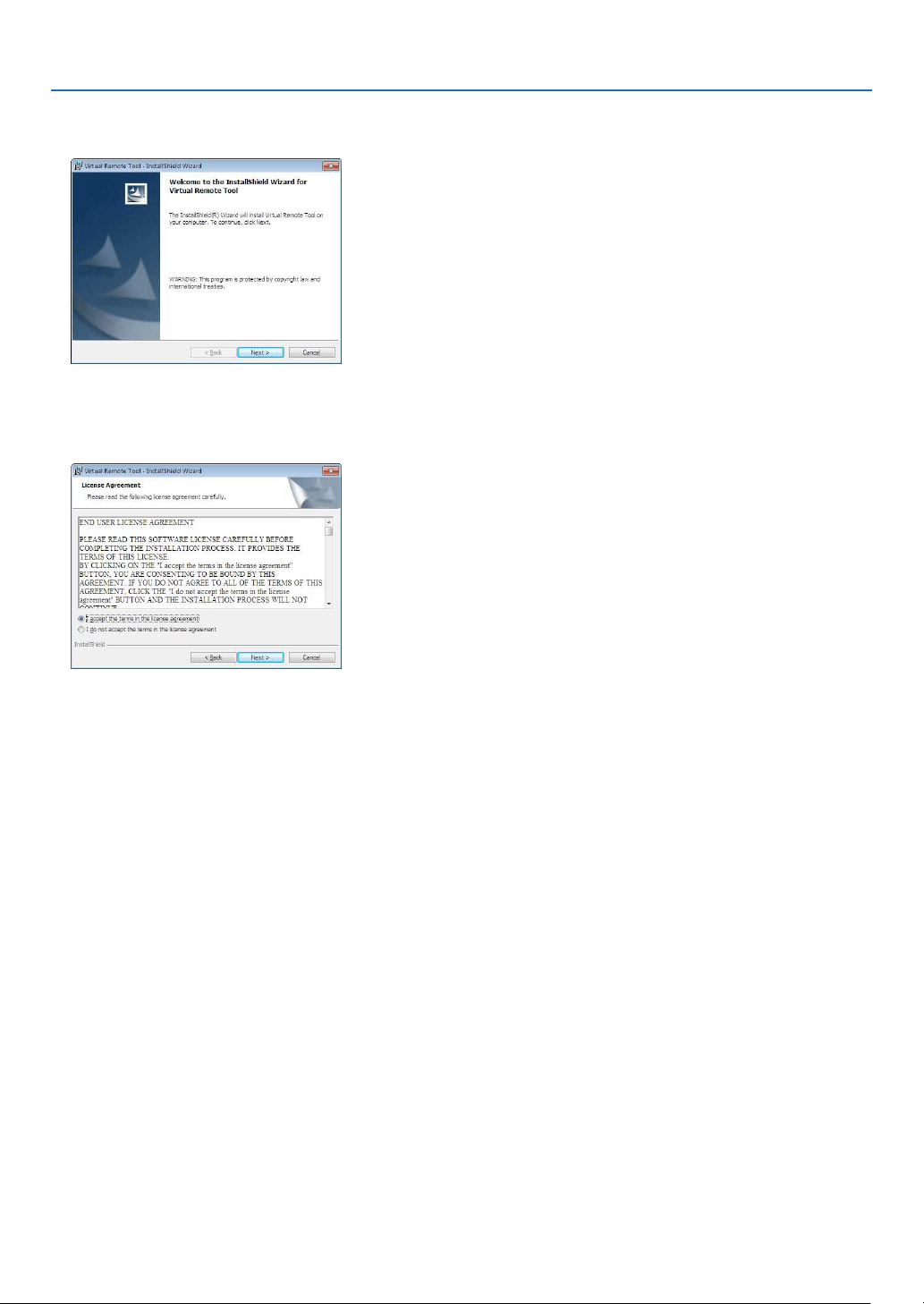
108
7. User Supportware
2Click“InstallVirtualRemoteTool”onthemenuwindow.
The installation will start.
When the installation is complete, the Welcome window will be displayed.
3Click“Next”.
“ENDUSERLICENSEAGREEMENT”screenwillbedisplayed.
Read“ENDUSERLICENSEAGREEMENT”carefully.
4Ifyouagree,click“Iacceptthetermsinthelicenseagreement”andthenclick“Next”.
•Followtheinstructionsontheinstallerscreenstocompletetheinstallation.
•Whentheinstallationiscomplete,youwillreturntothemenuwindow.
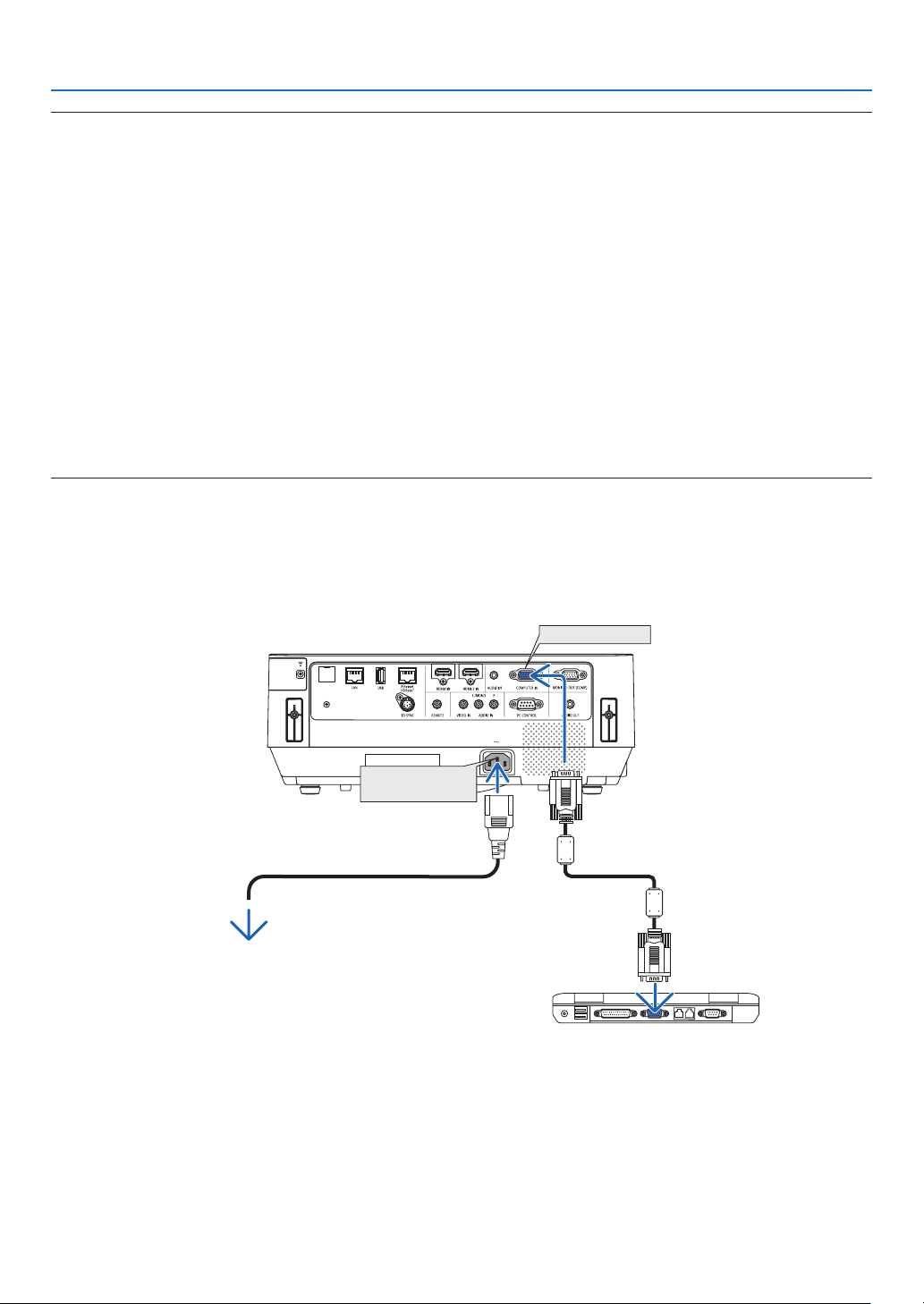
109
7. User Supportware
TIP:
UninstallingVirtualRemoteTool
Preparation:
ExitVirtualRemoteToolbeforeuninstalling.TouninstallVirtualRemoteTool,theWindowsuseraccountmusthave
“Administrator”privilege(Windows8.1,Windows8,Windows7andWindowsVista)or“ComputerAdministrator”
privilege(WindowsXP).
•ForWindows8.1,Windows8,Windows7andWindowsVista
1Click“Start”andthen“ControlPanel”.
The Control Panel window will be displayed.
2Click“Uninstallaprogram”under“Programs”
The“ProgramsandFeatures”windowwillbedisplayed.
3SelectVirtualRemoteToolandclickit.
4Click“Uninstall/Change”or“Uninstall”.
•Whenthe“UserAccountControl”windowsisdisplayed,click“Continue”.
Follow the instructions on the screens to complete the uninstallation.
Step 2: Connect the projector to the computer
1Usethesuppliedcomputercable(VGA)toconnecttheCOMPUTERINterminaloftheprojectordirectly
with the monitor output terminal of the computer.
2ConnectthesuppliedpowercordtotheACINoftheprojectorandthewalloutlet.
The projector is in the standby condition.
COMPUTER IN
ACInput
Supplied computer cable (VGA)
→ To wall outlet
Power cord (supplied)
TIP:
•WhenVirtualRemoteToolstartsforthersttime,“EasySetup”windowwillbedisplayedtonavigateyourconnections.
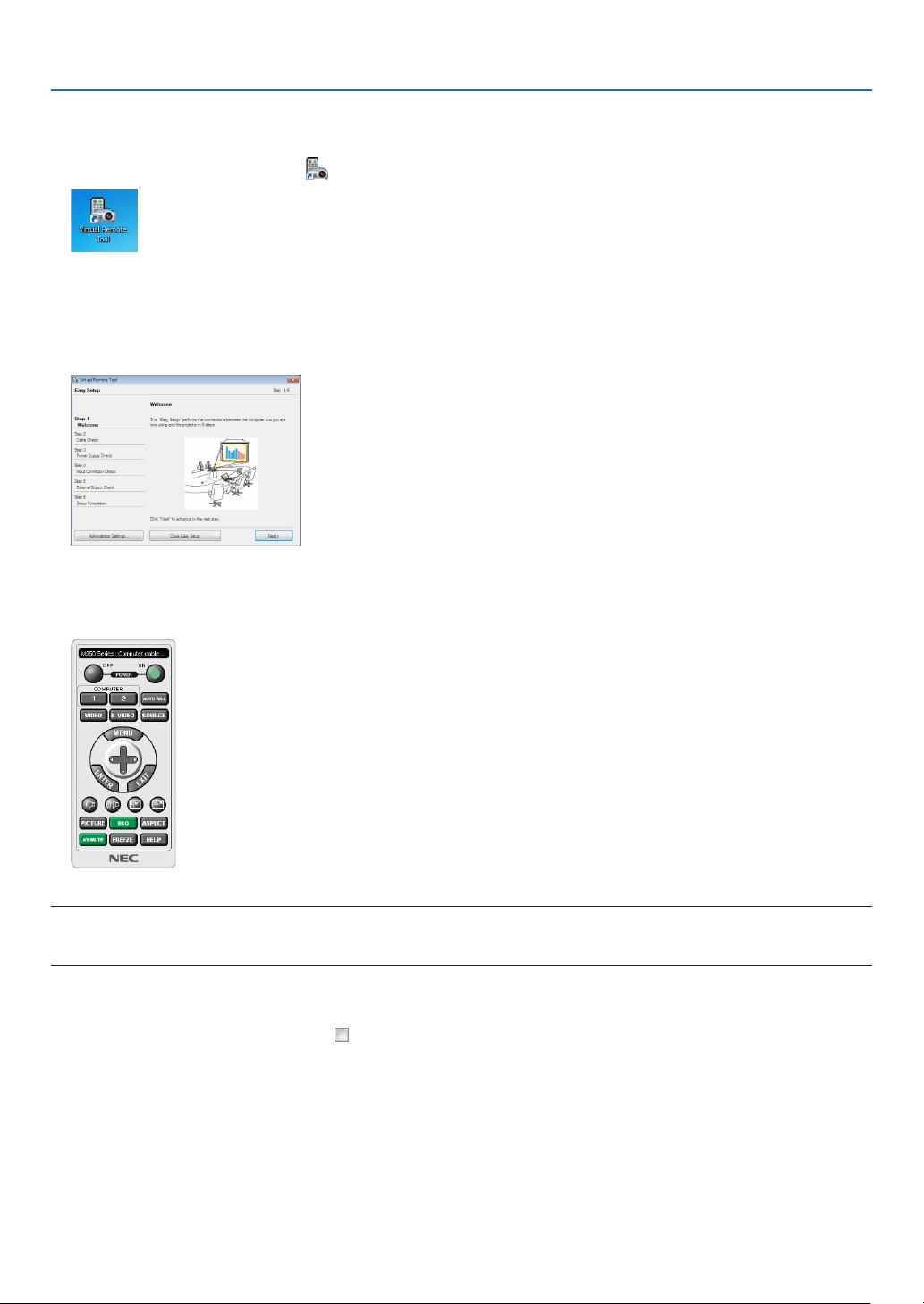
110
7. User Supportware
Step 3: Start Virtual Remote Tool
Start using the shortcut icon
•Double-clicktheshortcuticon
on the Windows Desktop.
Start from the Start menu
•Click[Start]→[AllPrograms]or[Programs]→[NECProjectorUserSupportware]→[VirtualRemoteTool]
→[VirtualRemoteTool].
WhenVirtualRemoteToolstartsforthersttime,“EasySetup”windowwillbedisplayed.
Follow the instructions on the screens
When“EasySetup”iscompleted,theVirtualRemoteToolscreenwillbedisplayed.
NOTE:
•When[NORMAL]isselectedfor[STANDBYMODE]fromthemenu,theprojectorcannotbeturnedonviathecomputercable
(VGA)ornetwork(wiredLAN/wirelessLAN)connection.
TIP:
•TheVirtualRemoteToolscreen(orToolbar)canbedisplayedwithoutdisplaying“EasySetup”window.
Todoso,clicktoplaceacheckmarkfor“DonotuseEasySetupnexttime”onthescreenatStep6in“EasySetup”.
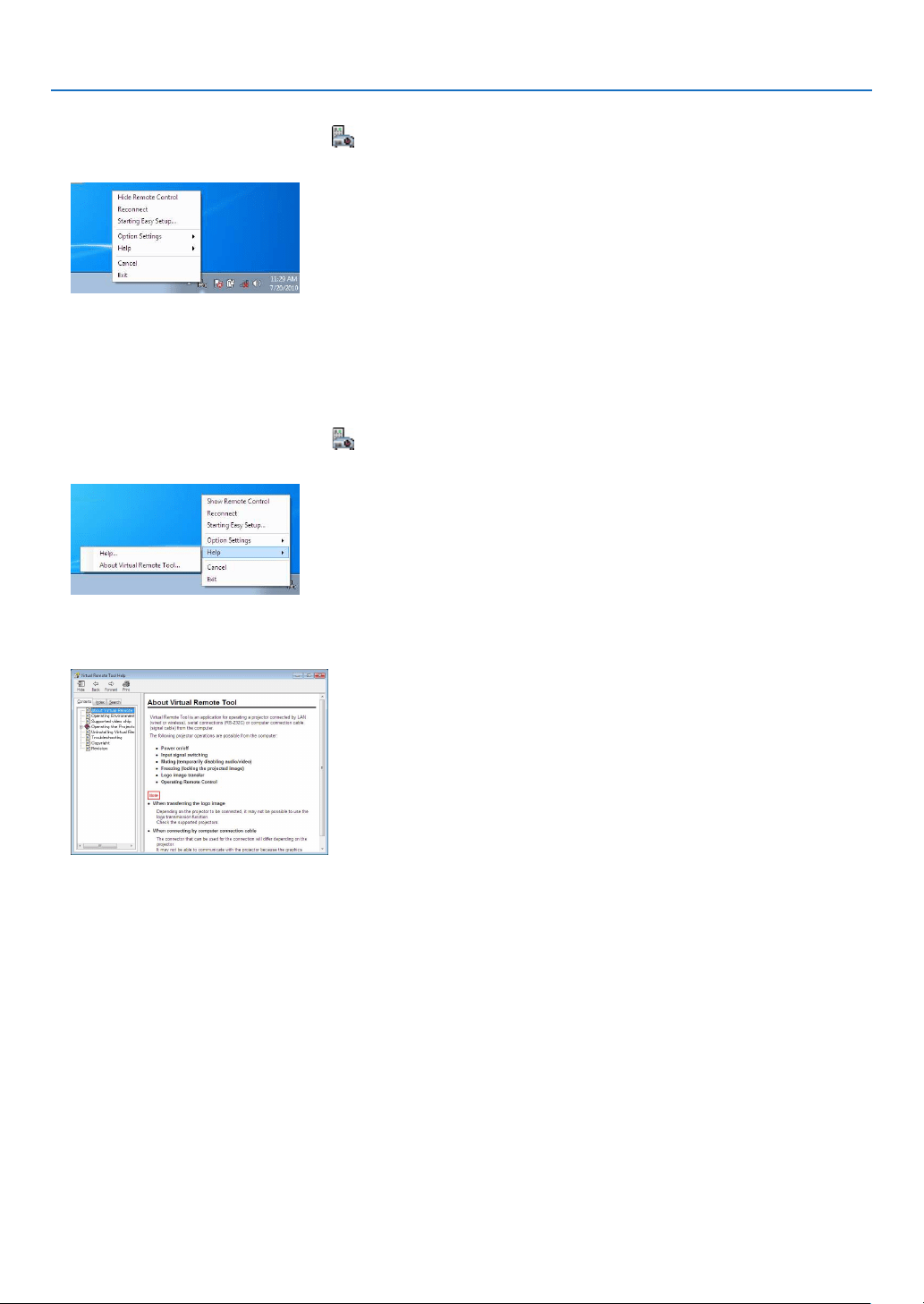
111
7. User Supportware
ExitingVirtualRemoteTool
1ClicktheVirtualRemoteToolicon on the Taskbar.
The pop-up menu will be displayed.
2Click“Exit”.
The Virtual Remote Tool will be closed.
ViewingthehelpleofVirtualRemoteTool
•Displayingthehelpleusingthetaskbar
1ClicktheVirtualRemoteToolicon
onthetaskbarwhenVirtualRemoteToolisrunning.
The pop-up menu will be displayed.
2.Click“Help”.
The Help screen will be displayed.
•DisplayingthehelpleusingtheStartMenu.
1.Click“Start”→“Allprograms”or“Programs”→“NECProjectorUserSupportware”→“VirtualRemote
Tool”→andthen“VirtualRemoteToolHelp”inthisorder.
The Help screen will be displayed.

112
7. User Supportware
❻ Projecting photos or documents saved on the smartphone
over a wireless LAN (Wireless Image Utility)
UtilizingtheWirelessImageUtility,itenablestotransferphotosanddocumentssavedonterminalsasasmartphone
oratablettotheprojectorviathewirelessLANandprojectthem.
TherearetwokindsofWirelessImageUtilitysoftwareoneforAndroidandanotherforiOSthatcanbedownloaded
fromGooglePlayorAppStore.
For Android
http://www.nec-display.com/dl/en/pj_android/wiu_for-android.html
For iOS
http://www.nec-display.com/dl/en/pj_ios/wiu_for-ios.html
113
8. Maintenance
Thissectiondescribesthesimplemaintenanceproceduresyoushouldfollowtocleanthelters,theprojectionwindow,
thecabinet,andtoreplacethelampandthelters.
❶ Cleaning the Filters
Filtersarexedattwopositionsonthisprojector.
Intakeventlter:
Atthebottomofcontrolpanel.
Preventtheprojectorinsidefromdustanddirtaccumulation.
Colorwheellter:
Fixedinsidethelampcover.
Preventthecolorwheelfromdustanddirtaccumulation.
Inthismanual,calltheintakeventlter“Filter(A)”andthecolorwheellter“Filter(B)”.
IfdustanddirtaccumulatesontheFilter(A),itmaycauseoftroublebyoverheat.Cleanitperiodically.Cleaningisnot
necessaryfortheFilter(B).
WARNING
•Donotuseaspraycontainingammablegastogetridofaccumulateddustanddirtonthelters.Itmaycause
ofre.
NOTE:Themessageforltercleaningwillbedisplayedforoneminuteaftertheprojectoristurnedon.Whenthemessageisdis-
played,cleanthelter.
Tocancelthemessage,pressanybuttonontheprojectorcabinetortheremotecontrol.
CAUTION
•Beforecleaningthelter,turnofftheprojectorandunplugthepowercordrst.Waitandmakesureuntilthe
unithascooleddowncompletely.Removingtheltercoverwhentheunitisrunningcouldresultinburns.
Turnofftheprojectorandunplugthepowercordbeforecleaningthecabinetorreplacingthelamp.
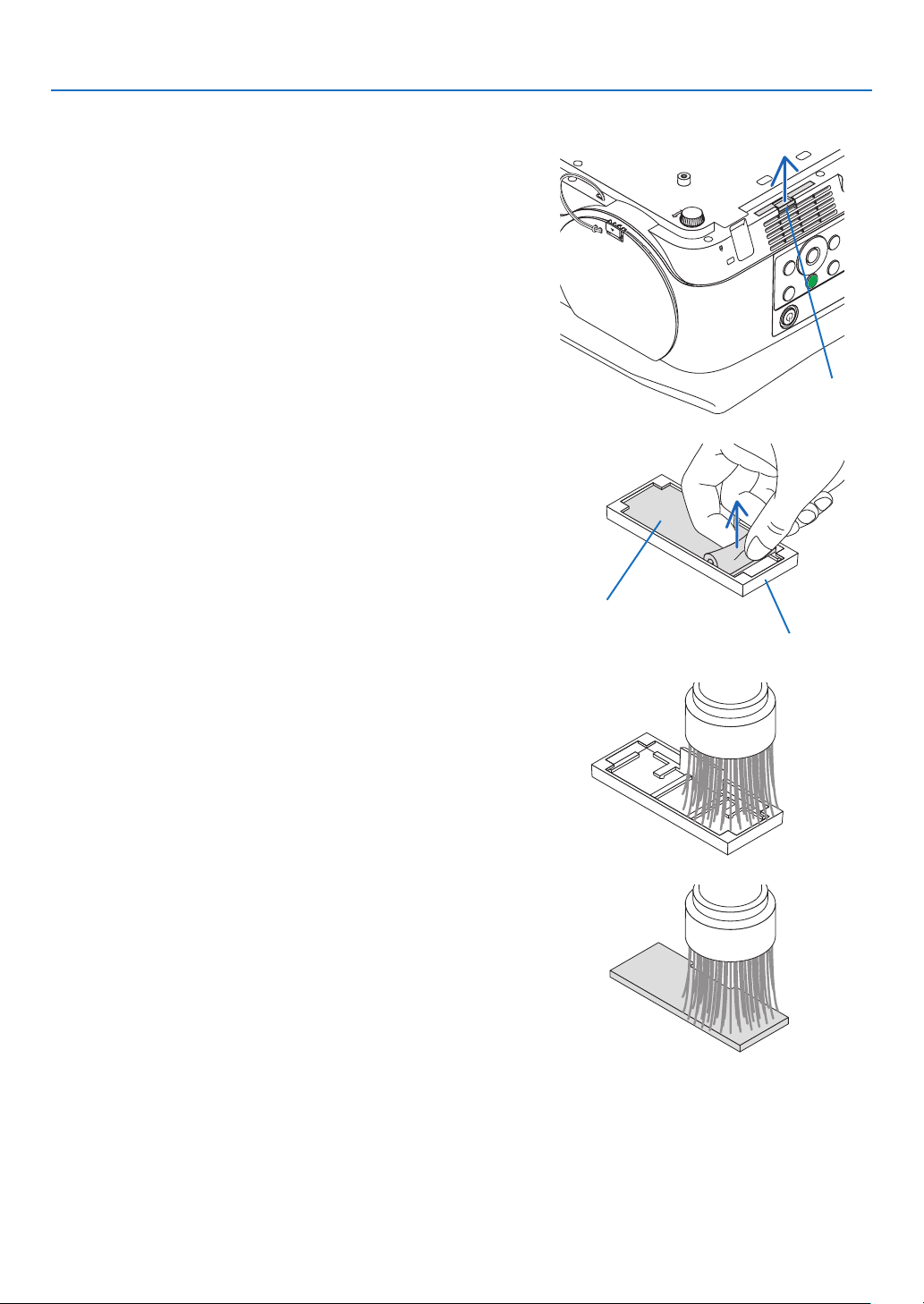
114
8. Maintenance
1. Turn off the power supply and pull out the plug from the wall
outlet.
2. Pinch the knob at the bottom of the filter case and pull it out.
•Ifyouputtheprojectorupsidedownforcleaningastheillustra-
tion, please lay a mat as a cloth for protecting the cabinet top
from damage.
Knob
3. Remove the Filter (A) from the filter case.
Filter case
Filter (A)
4.VacuumallthedustontheFilter(A)andtheltercase.
•Getridofdustaccumulatedontheintakeventontheprojector.
•Makesuretouseabrushadaptoronthevacuumcleaner.Never
apply the vacuum hose or the hard nozzle directly on the filter
and filter case without fixing on a brush adaptor.
•Payenoughattentionnottodamagethelter(A).
•Donotwashthelterswithsoapandwater.Soapandwaterwill
damage the filter membrane.
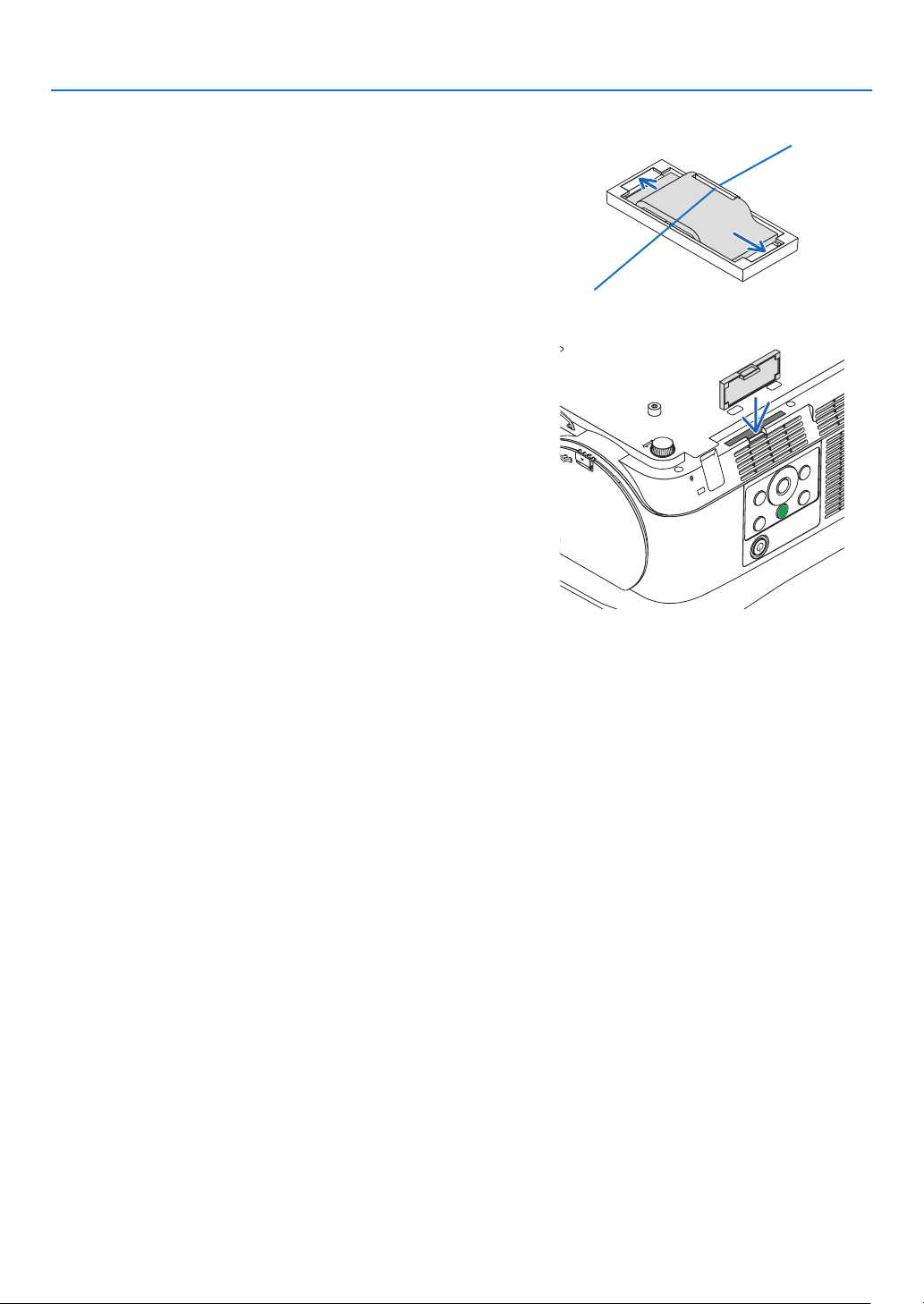
115
8. Maintenance
5. Set the cleaned Filter (A) onto the filter case.
•SetthecutoffpartoftheFilter(A)meetingwiththeknobpart
on the filter case.
Knob
Cut off
6. Insert the filter case to the projector cabinet.
Makesurethattheltercaseisinsertedinthecorrectorientation.
7.Clearthelterhourmeter.
Connectthepowercordplugtothewalloutletandturnontheprojector.Select[CLEARFILTERHOURS]for[RE
-
SET] in the onscreen menu. (→ page 68)
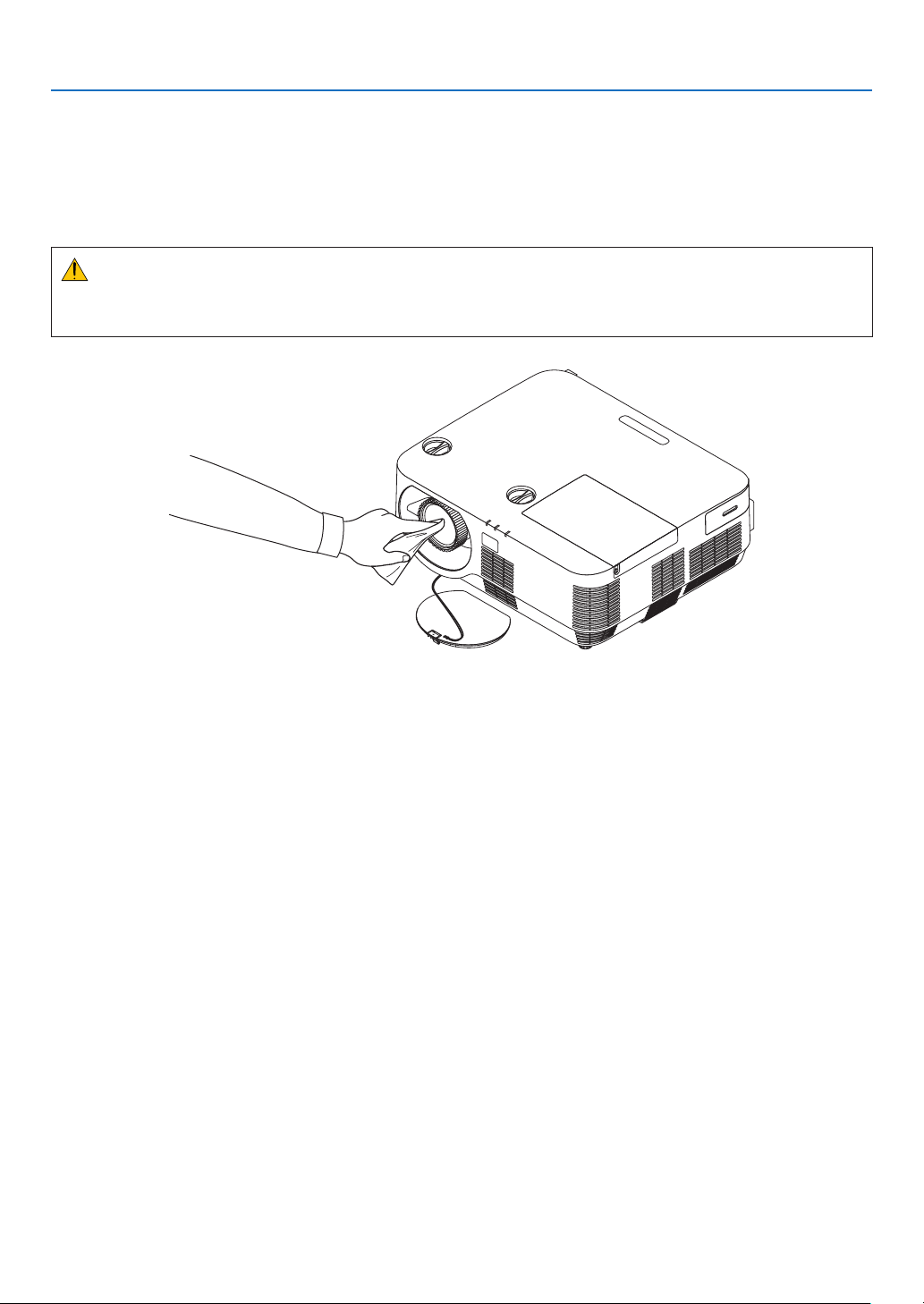
116
8. Maintenance
❷ Cleaning the Lens
•Turnofftheprojectorbeforecleaning.
•Donotscratchormartheprojectionwindowasitismadeofglass.
•Useablowerorlenspapertocleantheprojectionwindow,andbecarefulnottoscratchormartheglasssurface.
•Neverusealcoholorglasslenscleanerasdoingsowillcauseofdamagetotheplasticlenssurface.
WARNING
•Donotuseaspraycontainingammablegastogetridofaccumulateddustanddirtontheprojectionwindow.
Itmaycauseofre.
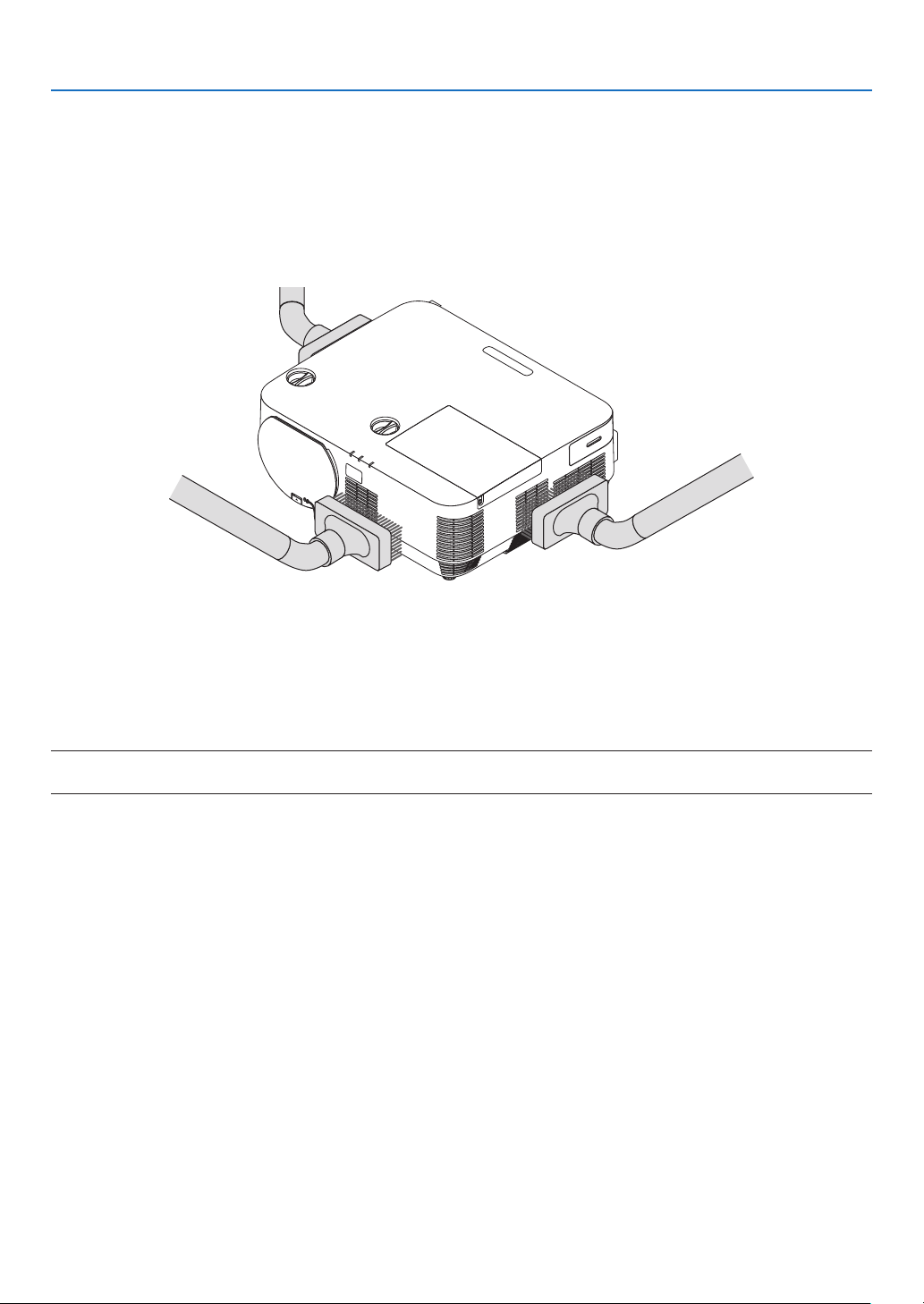
117
8. Maintenance
❸ Cleaning the Cabinet
Turnofftheprojector,andunplugtheprojectorbeforecleaning.
•Useadrysoftclothtowipedustoffthecabinet.
Ifheavilysoiled,useamilddetergent.
•Neverusestrongdetergentsorsolventssuchasalcoholorthinner.
•Forcleaningtheventsorthespeaker,useavacuumcleanerwithabrushattachment.Donotapplythevacuum
hoseorthenozzleadaptordirectlyontotheventsandspeaker.
Vacuum the dust off the vents.
•Cloggedventsmaycauseariseintheinternaltemperatureoftheprojector,resultinginmalfunction.
•Donotscratchorhitthecabinetwithyourngersoranyhardobjects
•Contactyourdealerforcleaningtheinsideoftheprojector.
NOTE:Donotapplyvolatileagentsuchasinsecticideonthecabinet,theprojectionwindow,orthescreen.Donotleavearubber
orvinylproductinprolongedcontactwithit.Otherwisethesurfacenishwillbedeterioratedorthecoatingmaybestrippedoff.

118
8. Maintenance
❹ Replacing the Lamp and the Filters
Whenthelampreachestheendofitslife,theLAMPindicatorinthecabinetwillblinkredandthemessage“THE
LAMPHASREACHEDTHEENDOFITSUSABLELIFE.PLEASEREPLACETHELAMPANDFILTER.”willappear
(*).Eventhoughthelampmaystillbeworking,replacethelamptomaintaintheoptimalprojectorperformance.After
replacingthelamp,besuretoclearthelamphourmeter.(→page
68)
CAUTION
•DONOTTOUCHTHELAMPimmediatelyafterithasbeenused.Itwillbeextremelyhot.Turntheprojectoroff
andthendisconnectthepowercord.Allowatleastonehourforthelamptocoolbeforehandling.
•Usethespeciedlampforsafetyandperformance.
Toorderthereplacementlamp,specifyyourlamptype.
Replacementlamp:
NP39LP:P502H/P502W
NP38LP:P452H/P452W
Thereplacementlampcomeswithlters.Replacethelampandthelters(A)(B)atthesametime.
•DONOTREMOVEANYSCREWSexceptonelampcoverscrewandthreelamphousingscrews.Youcouldreceive
anelectricshock.
•Donotbreaktheglassonthelamphousing.
Keepngerprintsofftheglasssurfaceonthelamphousing.Leavingngerprintsontheglasssurfacemightcause
anunwantedshadowandpoorpicturequality.
•Theprojectorwillturnoffandgointostandbymodewhenyoucontinuetousetheprojectorforanother100hours
afterthelamphasreachedtheendofitslife.Ifthishappens,besuretoreplacethelamp.Ifyoucontinuetouse
thelampafterthelampreachestheendofitslife,thelampbulbmayshatter,andpiecesofglassmaybescattered
inthelampcase.Donottouchthemasthepiecesofglassmaycauseinjury.Ifthishappens,contactyourNEC
dealerforlampreplacement.
*NOTE:Thismessagewillbedisplayedunderthefollowingconditions:
•foroneminuteaftertheprojectorhasbeenpoweredon
•whenthe
(POWER)buttonontheprojectorcabinetortheSTANDBYbuttonontheremotecontrolispressed
Toturnoffthemessage,pressanybuttonontheprojectorcabinetortheremotecontrol.
Optionallampandtoolsneededforreplacement:
•Phillipsscrewdriver(plus-head)
•Replacementlamp
Flow of Replacing the Lamp and the Filters
Step 1. Replace the lamp and the Filter (B)
Step 2. Replace the Filter (A) (
→ page 123)
Step 3.
Clearthelampusagehoursandthelterusagehours(→ page 124)
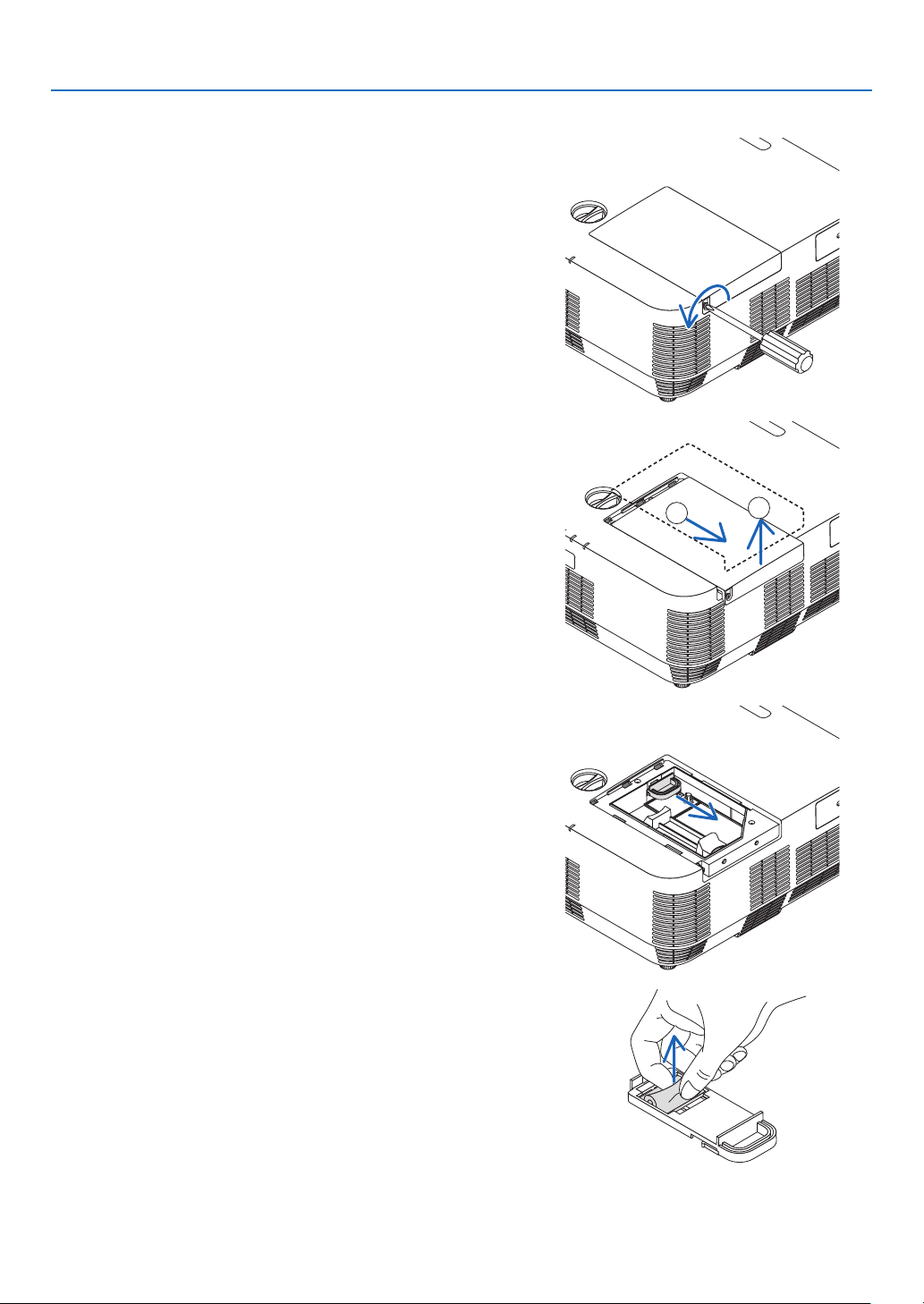
119
8. Maintenance
ToreplacethelampandtheFilter(B):
1. Remove the lamp cover.
(1) Loosen the lamp cover screw
•Thelampcoverscrewisnotremovable.
(2) Push and slide the lamp cover off.
a
b
2. Pull out the filter case. Pinch the filter case handle and pull it
in the arrow indicated direction.
3. Replace the Filter (B).
(1) Pull out the Filter (B) from the filter case.
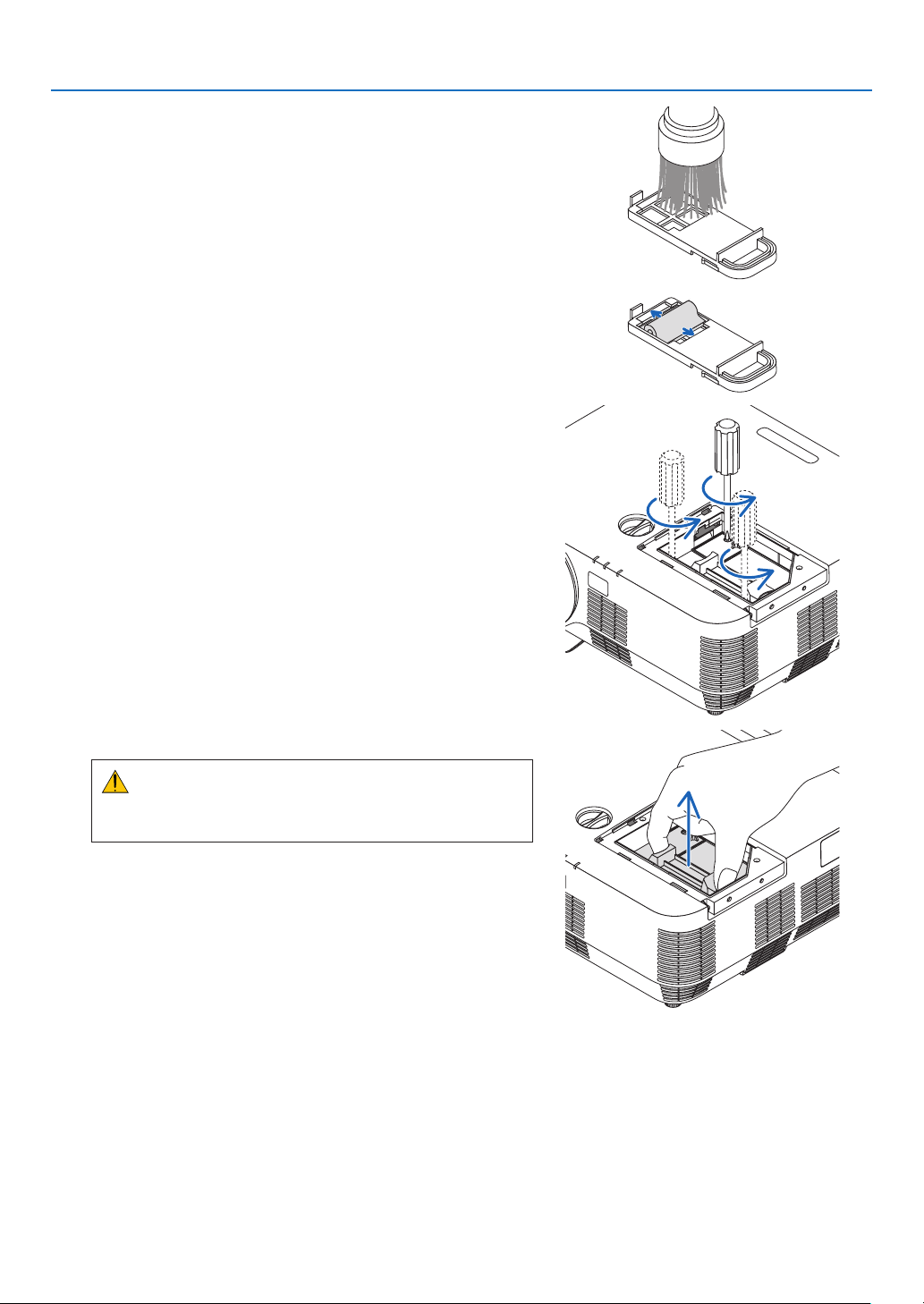
120
8. Maintenance
(2) Vacuum off accumulated dust and dirt on inside and outside of
the filter case.
(3) Fix a new Filter (B) onto the filter case.
4. Remove the lamp housing.
(1) Loosen the three screws securing the lamp housing until the
phillips screwdriver goes into a freewheeling condition.
•Thethreescrewsarenotremovable.
(2) Remove the lamp housing by holding it.
CAUTION:
Makesurethatthelamphousingiscoolenoughtobefore
removingit.
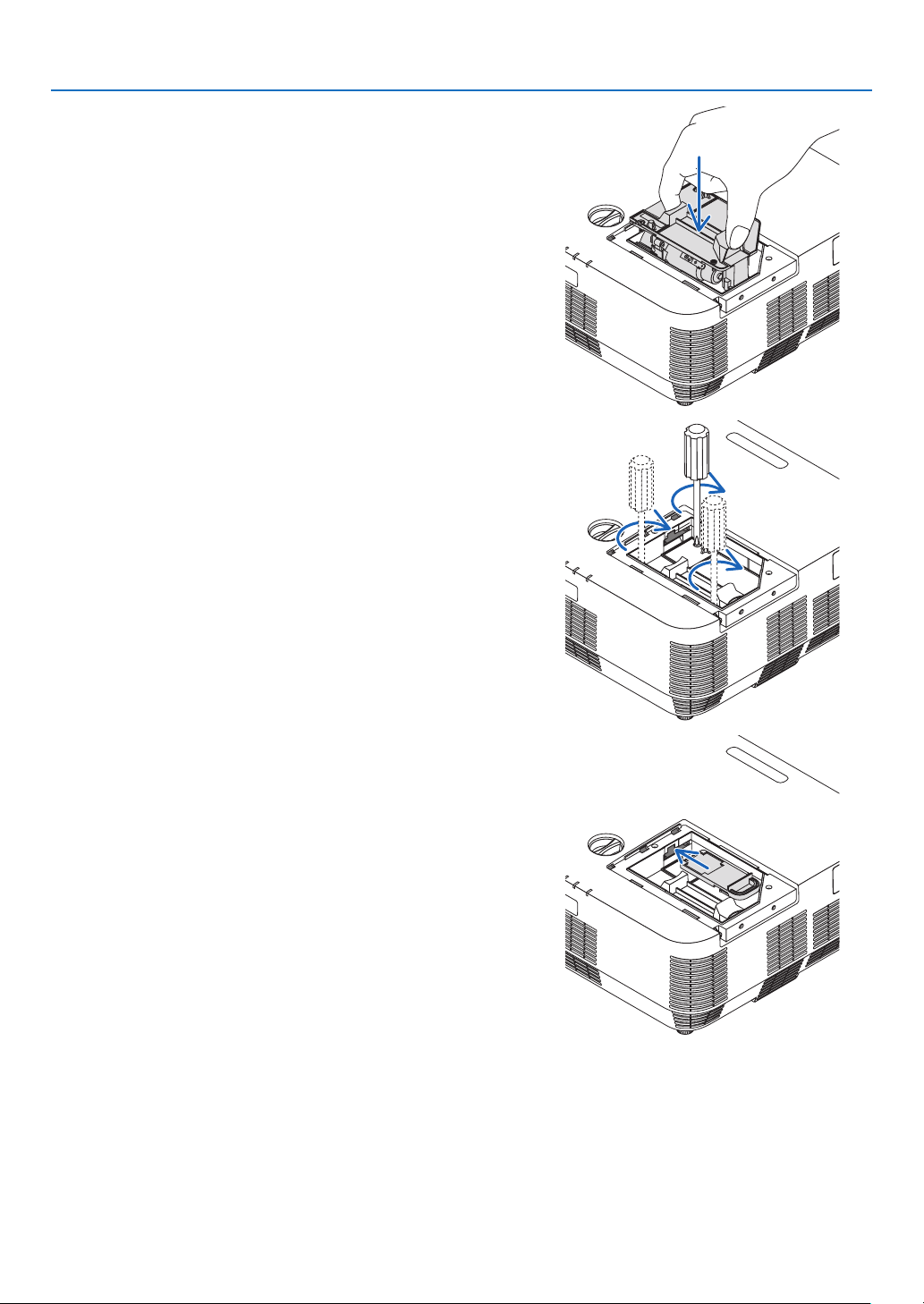
121
8. Maintenance
5. Install a new lamp housing.
(1)Insertanewlamphousinguntilthelamphousingisplugged
intothesocket.
(2) Push the top center of the lamp housing to secure it.
(3) Secure it in place with the three screws.
•Besuretotightenthescrews.
6. Insert for resetting the filter case.
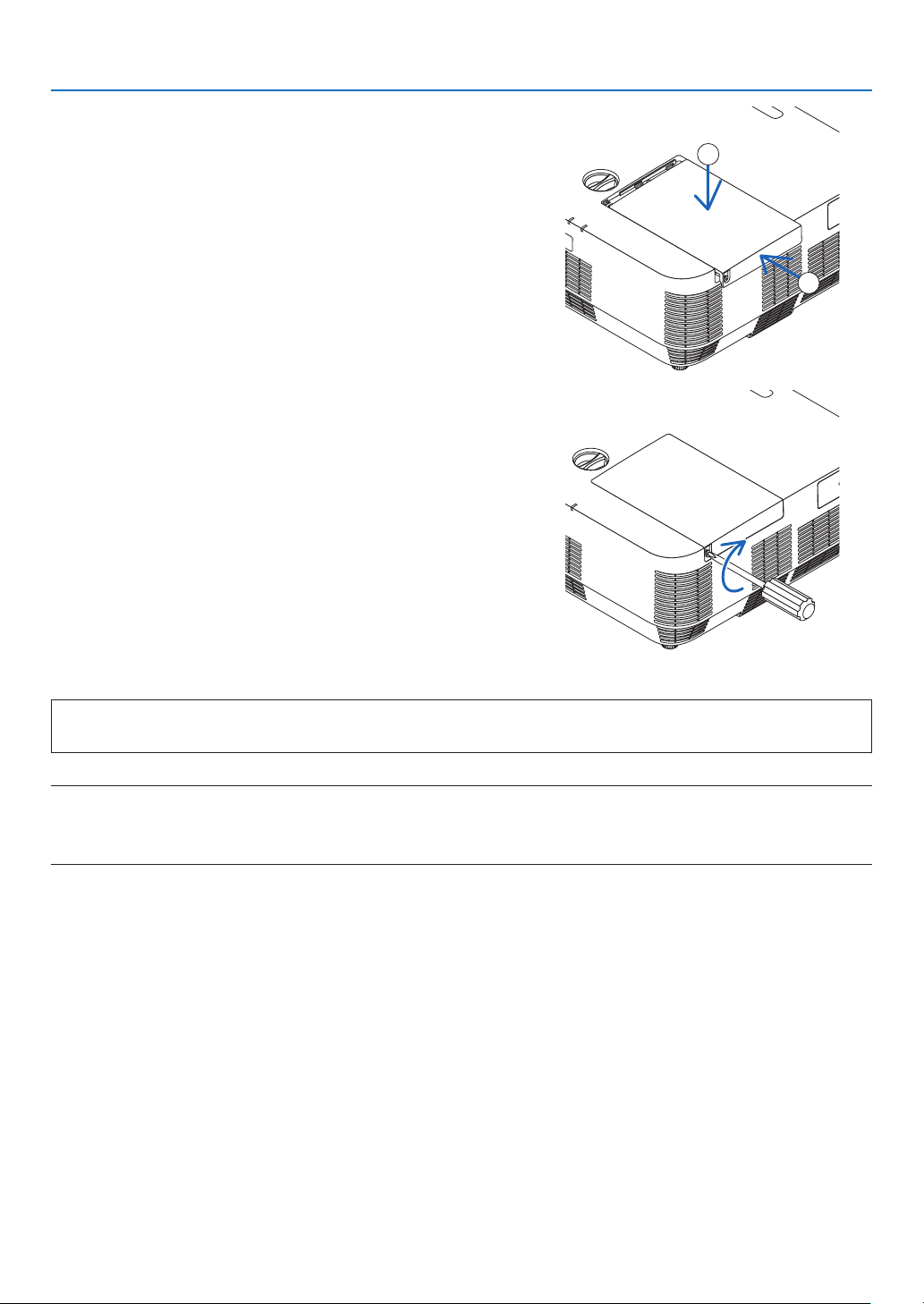
122
8. Maintenance
7. Reattach the lamp cover.
(1)Slidethelampcoverbackuntilitsnapsintoplace.
a
b
(2) Tighten the screw to secure the lamp cover.
•Besuretotightenthescrew.
ThiscompletesthelampandFilter(B)replacement.
GoontotheFilter(A)replacement.
NOTE:Whenyoucontinuetousetheprojectorforanother100hoursafterthelamphasreachedtheendofitslife,theprojector
cannotturnonandthemenuisnotdisplayed.
Ifthishappens,presstheHELPbuttonontheremotecontrolfor10secondstoresetthelampclockbacktozero.
Whenthelamptimeclockisresettozero,theLAMPindicatorgoesout.
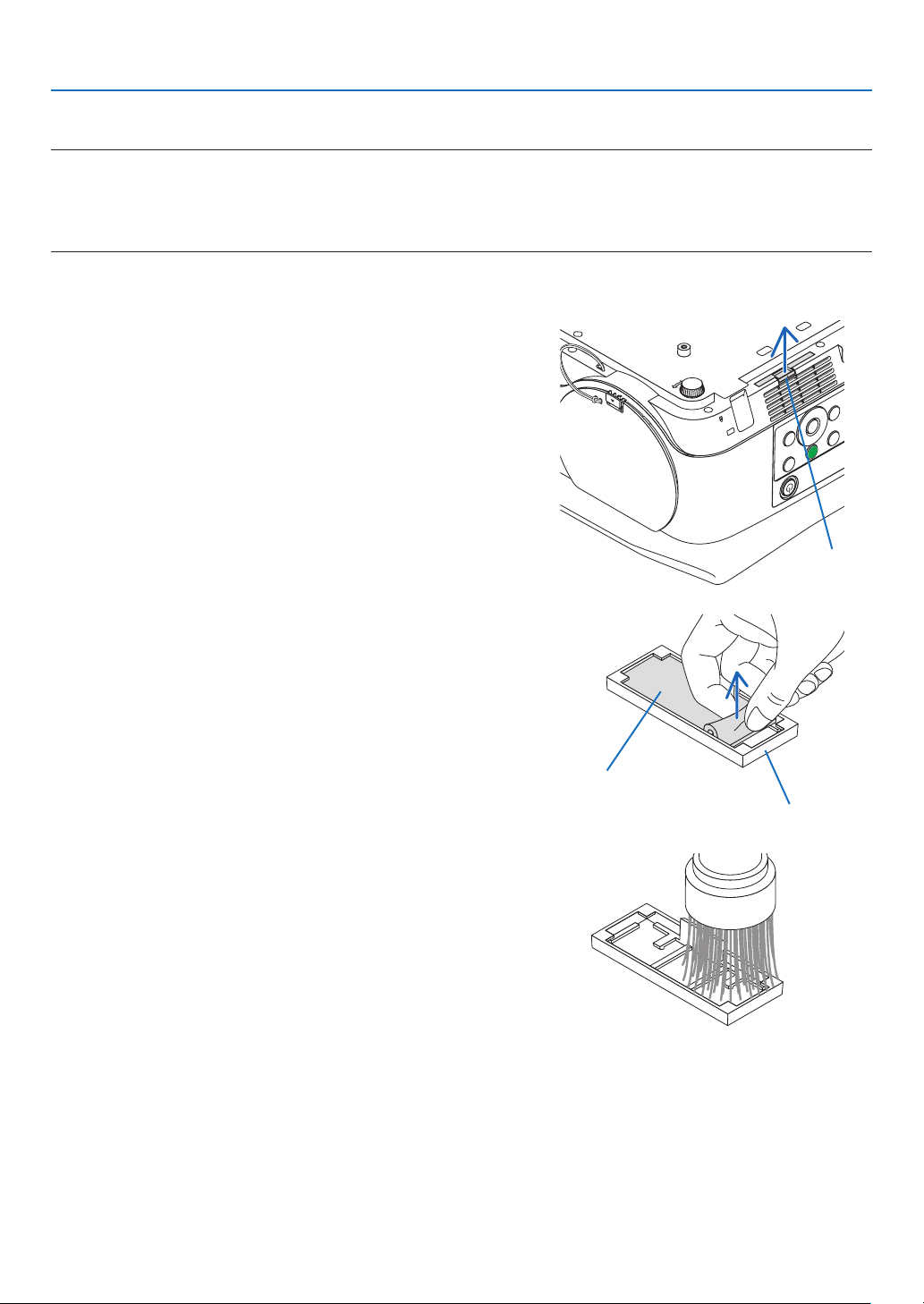
123
8. Maintenance
ToreplacetheFilter(A):
NOTE:
•Beforereplacingthelters,wipeoffdustanddirtfromtheprojectorcabinet.
•Theprojectorisprecisionequipment.Keepoutdustanddirtduringlterreplacement.
•Donotwashthelterswithsoapandwater.Soapandwaterwilldamagetheltermembrane.
•Putltersintoplace.Incorrectattachmentofaltermaycausedustanddirttogetintotheinsideoftheprojector.
BeforereplacingtheFilter(A),makesuretoreplacethelampandFilter(B).(→page
119)
1. Pinch the knob at the bottom of the filter case and pull it out.
•IfyouputtheprojectorupsidedownforreplacingtheFilter(A)
as the illustration, please lay a mat as a cloth for protecting the
cabinet top from damage.
Knob
2. Remove the Filter (A) from the filter case.
Filter case
Filter (A)
3.Vacuumallthedustoninsideandoutsideoftheltercase.
•Getridofdustaccumulatedontheintakeventontheprojector.
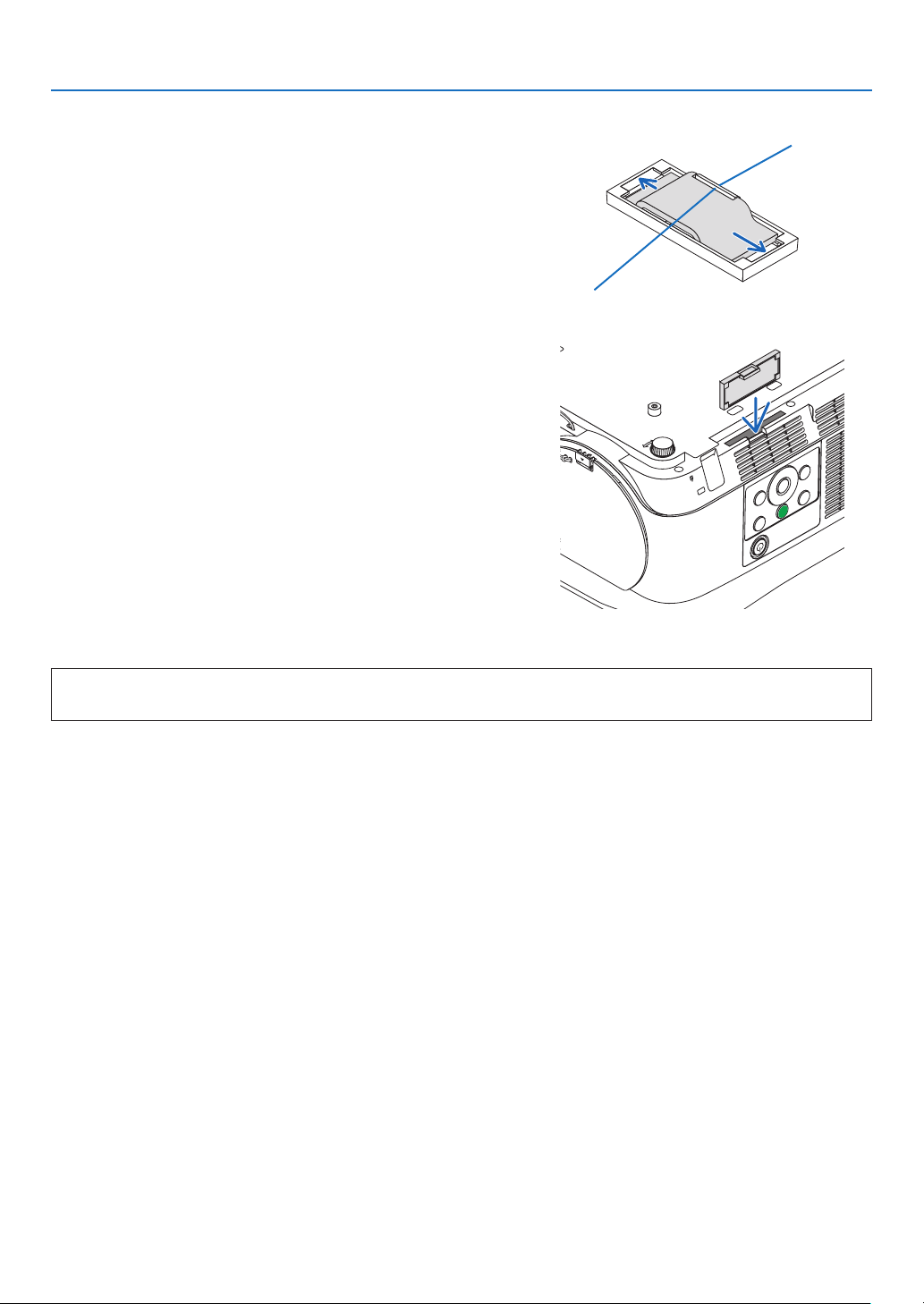
124
8. Maintenance
4. Fix a new Filter (A) onto the filter case.
•SetthecutoffpartoftheFilter(A)meetingwiththeknobpart
on the filter case.
Knob
Cut off
5. Insert the Filter case to the projector cabinet.
Makesurethattheltercaseisinsertedinthecorrectorientation.
Thiscompletesthelterreplacement.
Goontotheclearinglampandlterhourmeters.
Toclearthelampusagehoursandthelterusagehours:
1. Place the projector where you use it.
2. Plug the power cord into the wall outlet, and then turn on the projector.
3.Clearthelampusagehoursandthelterusagehours.
1. From the menu, select [RESET] → [CLEAR LAMP HOURS] and reset the lamp usage hours.
2.Select[CLEARFILTERHOURS]andresetthelterusagehours.(→ page 68)
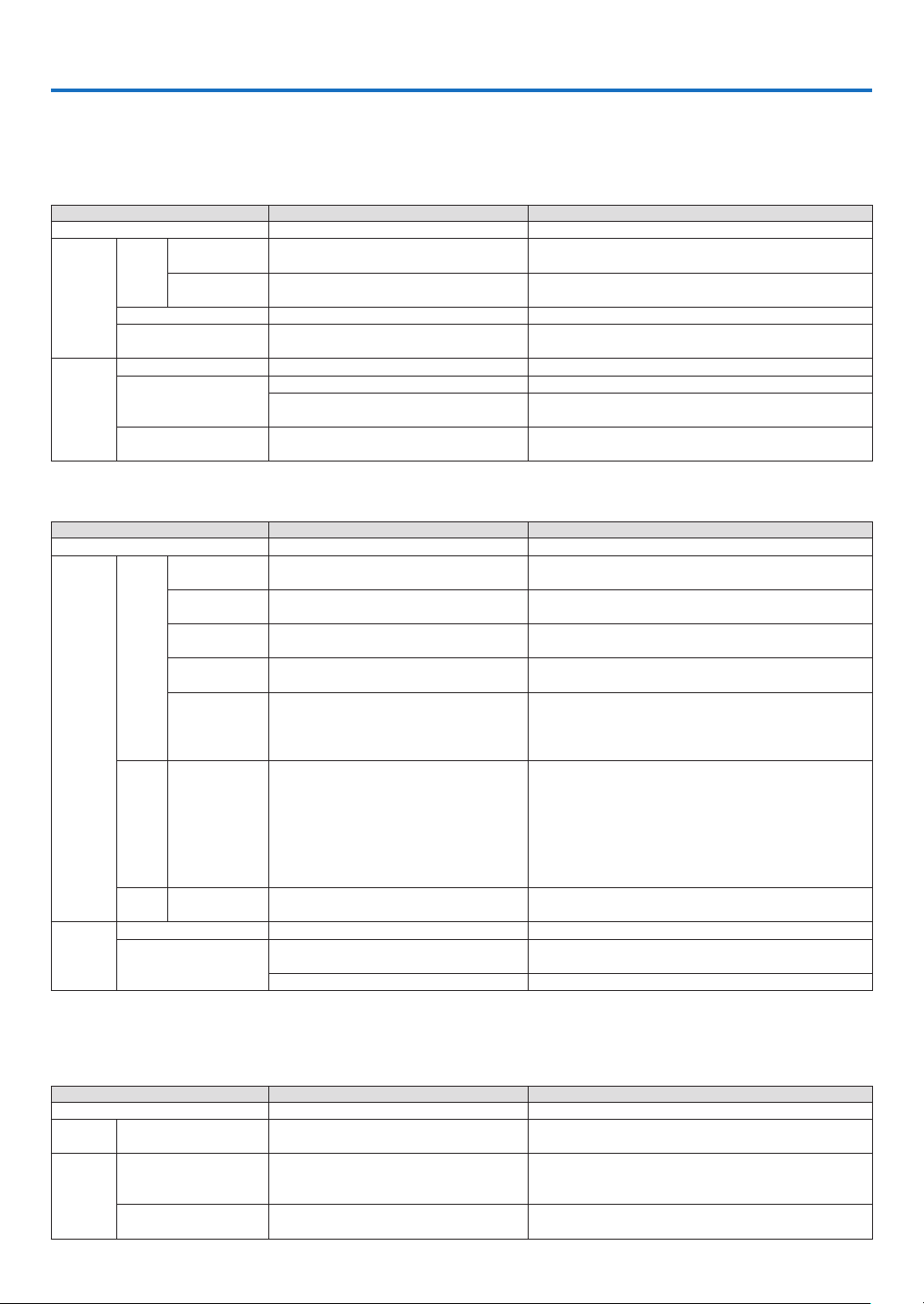
125
9. Appendix
❶ Troubleshooting
Thissectionhelpsyouresolveproblemsyoumayencounterwhilesettinguporusingtheprojector.
Indicator Messages
POWER Indicator
Indicator Condition ProjectorConditionNote
Off The main power is off Without connecting the power cable.
Blinking
light
Blue 0.5 sec On,
0.5 sec Off
The projector is getting ready to turn on. Wait for a moment
2.5 sec On,
0.5 sec Off
Off Timer is activated.
Program timer (off time) is activated.
–
Orange (short flashes) Cooling Wait for a moment
Orange (long flashes)
On Timer is activated.
Program timer (on time) is activated.
–
Steady
light
Blue
The projector is turned on. –
Orange Sleep mode* While the STATUS Indicator lights in Green
In Standby condition [NETWORK STAND-
BY] is selected for [STANDBY MODE]
–
Red In Standby condition [NORMAL] is
selected for [STANDBY MODE]
–
STATUS Indicator
Indicator Condition ProjectorConditionNote
Off Normal or Standby –
Blinking
light
Red
1 cycle (0.5 sec
On, 2.5 sec Off)
Cover error The lamp cover is not set properly. Reset the lamp
cover. (→ page
122)
2 cycle (0.5 sec
On, 0.5 sec Off)
Temperature error The projector is overheated. Move the projector to a
cooler location.
3 cycle (0.5 sec
On, 0.5 sec Off)
Power error Power unit is not working properly. Contact your dealer.
4 cycle (0.5 sec
On, 0.5 sec Off)
Fan error Fans will not work correctly.
6 cycle (0.5 sec
On, 0.5 sec Off)
Lamp error The lamp is not turned on. Wait over 1 minute and
power on the projector again. Even though the lamp is
not turned on, ask your dealer or service personnel for
repair.
Orange 1 cycle (0.5 sec
On, 2.5 sec Off)
Network conflict Both the built-in wired LAN and the wireless LAN cannot
be connected to the same network at the same time.
To use both built-in wired LAN and wireless LAN at the
same time, connect them to different networks.
NOTE:IntheStandbycondition,thestatusindicator
onthecabinetdoesnotblinkinorangeevenifthe
networkconicts
Green 0.5 sec On,
0.5 sec Off
Re-firing the lamp (The projector is cool-
ing down)
Wait for a moment
Steady
light
Green Sleep mode* While the POWER Indicator lights in Orange
Orange
CONTROL PANEL LOCK is on. You have pressed cabinet button when Control Panel
Lock is on.
CONTROL ID error Remote control ID and projector ID are not matched.
*Thesleepmodereferstothemodeinwhichtherestrictionstofunctionsduetothe[STANDBYMODE]settingshavebeenelimi-
nated.
LAMP Indicator
Indicator Condition ProjectorConditionNote
Off Normal –
Blinking
light
Red
Lamp has reached its end of life. Lamp
replacement message will be displayed.
Replace the lamp.
Steady
light
Red Lamp has been used beyond its limit. The
projector will not turn on until the lamp is
replaced.
Replace the lamp.
Green [ECO MODE] is set to [AUTO ECO], [NOR-
MAL] or [ECO]
–

126
9. Appendix
Over-Temperature Protection
Iftheprojectorinsidetemperaturegetstoohigh,thelampwillbeturnedoffautomaticallyandthestatusindicatorwill
starttoblink(2-cycleOnandOff).
Shouldthishappen,dothefollowing:
•Unplugthepowercordafterthecoolingfansstop.
•Movetheprojectortoacoolerlocationiftheroomwhereyouarepresentingisparticularlytoowarm.
•Cleantheventsiftheyarecloggedwithdust.
•Waitabout60minutesuntiltheinsideoftheprojectorbecomescoolenough.

127
9. Appendix
Common Problems & Solutions
(→“POWER/STATUS/LAMPIndicator”onpage
125.)
Problem CheckTheseItems
Does not turn on
or shut down
•Checkthatthepowercordispluggedinandthatthepowerbuttonontheprojectorcabinetortheremote
control is on. (→ pages
11, 12)
•Ensurethatthelampcoverisinstalledcorrectly.(→ page 121)
•Checktoseeiftheprojectorhasoverheated.Ifthereisinsufcientventilationaroundtheprojectororifthe
room where you are presenting is particularly warm, move the projector to a cooler location.
•Checktoseeifyoucontinuetousetheprojectorforanother100hoursafterthelamphasreachedtheend
of its life. If so, replace the lamp. After replacing the lamp, reset the lamp hours used. (→ page 68)
•Thelampmayfailtolight.Waitafullminuteandthenturnonthepoweragain.
•Set[FANMODE]to[HIGHALTITUDE]whenusingtheprojectorataltitudesapproximately4000feet/1200
meters or higher. Using the projector at altitudes approximately 4000 feet/1200 meters or higher without
setting to [HIGH ALTITUDE] can cause the projector to overheat and the projector could shut down. If this
happens, wait a couple minutes and turn on the projector. (→ page 59)
If you turn on the projector immediately after the lamp is turned off, the fans run without displaying an
image for some time and then the projector will display the image. Wait for a moment.
•Incaseit’shardtothinkthetroubleisnotcausedontheabovementionedconditions,unplugthepower
cord from the outlet. Then wait 5 minutes before plugging it in again. (→ page 24)
Will turn off
•Ensurethatthe[OFFTIMER]or[AUTOPOWEROFF]isoff.(→ page
52, 62)
No picture
•Checkiftheappropriateinputisselected.(→ page
14) If there is still no picture, press the SOURCE button
or one of the source buttons again.
•Ensureyourcablesareconnectedproperly.
•Usemenustoadjustthebrightnessandcontrast.(→ page 45)
•CheckthattheAVMUTE(imageoff)buttonsarenotpressed.
•Resetthesettingsoradjustmentstofactorypresetlevelsusingthe[RESET]intheMenu.(→ page 68)
•EnteryourregisteredkeywordiftheSecurityfunctionisenabled.(→ page 30)
•IftheHDMI1INortheHDMI2INsignalcannotbedisplayed,trythefollowing.
- Reinstall your driver for the graphics card built in your computer, or use the updated driver.
For reinstalling or updating your driver, refer to the user guide accompanied with your computer or
graphics card, or contact the support center for your computer manufacturer.
Install the updated driver or OS on your own responsibility.
We are not liable for any trouble and failure caused by this installation.
•SignalsmaynotbesupporteddependingontheHDBaseTtransmissiondevice.IRandRS232Ccannotbe
used in certain cases as well.
•BesuretoconnecttheprojectorandnotebookPCwhiletheprojectorisinstandbymodeandbeforeturning
on the power to the notebook PC.
In most cases the output signal from the notebook PC is not turned on unless connected to the projector
before being powered up.
*Ifthescreengoesblankwhileusingyourremotecontrol,itmaybetheresultofthecomputer’sscreen-
saver or power management software.
•Seealsothenext page.
Picture suddenly
becomes dark
•CheckiftheprojectorisintheForcedECOmodebecauseoftoohighambienttemperature.Ifthisisthe
case, lower the internal temperature of the projector by selecting [HIGH] for [FAN MODE]. (→ page
59)
Color tone or hue is
unusual
•Checkifanappropriatecolorisselectedin[WALLCOLOR].Ifso,selectanappropriateoption.(→ page
51)
•Adjust[HUE]in[PICTURE].(→ page
45)
Imageisn’tsquareto
the screen
•Repositiontheprojectortoimproveitsangletothescreen.(→ page
16)
•UsetheKeystonecorrectionfunctiontocorrectthetrapezoiddistortion.(→ page 21)
Picture is blurred
•Adjustthefocus.(→ page
19)
•Repositiontheprojectortoimproveitsangletothescreen.(→ page 16)
•Ensurethatthedistancebetweentheprojectorandscreeniswithintheadjustmentrangeofthelens.(→
page
69)
•Hasthelensbeenshiftedbyanamountexceedingtheguaranteedrange?(→ page
73)
•Condensationmayformonthelensiftheprojectoriscold,broughtintoawarmplaceandisthenturned
on. Should this happen, let the projector stand until there is no condensation on the lens.

128
9. Appendix
Problem CheckTheseItems
Image is scrolling
vertically, horizontally
or both
•Checkthecomputer’sresolutionandfrequency.Makesurethattheresolutionyouaretryingtodisplayis
supported by the projector. (→ page
136)
•Adjustthecomputerimagemanuallywiththe[HORIZONTAL]/[VERTICAL]inthe[IMAGEOPTIONS].(→
page
47)
Remote control does
not work
•Installnewbatteries.(→ page
9)
•Makesuretherearenoobstaclesbetweenyouandtheprojector.
•Standwithin22feet(7m)oftheprojector.(→ page 9)
Indicator is lit or
blinking
•SeethePOWER/STATUS/LAMPIndicator.(→ page
125)
Cross color in RGB
mode
•PresstheAUTOADJ.buttonontheprojectorcabinetortheremotecontrol.(→ page
23)
•Adjustthecomputerimagemanuallywith[CLOCK]/[PHASE]in[IMAGEOPTIONS]inthemenu.(→ page
46)
Formoreinformationcontactyourdealer.
If there is no picture, or the picture is not displayed correctly.
•PoweronprocessfortheprojectorandthePC.
BesuretoconnecttheprojectorandnotebookPCwhiletheprojectorisinstandbymodeandbeforeturningonthe
powertothenotebookPC.
InmostcasestheoutputsignalfromthenotebookPCisnotturnedonunlessconnectedtotheprojectorbefore
beingpoweredup.
NOTE:Youcancheckthehorizontalfrequencyofthecurrentsignalintheprojector’smenuunderInformation.Ifitreads“0kHz”,
thismeansthereisnosignalbeingoutputfromthecomputer.(→page67orgotonextstep)
•Enablingthecomputer’sexternaldisplay.
DisplayinganimageonthenotebookPC’sscreendoesnotnecessarilymeanitoutputsasignaltotheprojector.
WhenusingaPCcompatiblelaptop,acombinationoffunctionkeyswillenable/disabletheexternaldisplay.Usually,
thecombinationofthe“Fn”keyalongwithoneofthe12functionkeysgetstheexternaldisplaytocomeonoroff.
Forexample,NEClaptopsuseFn+F3,whileDelllaptopsuseFn+F8keycombinationstotogglethroughexternal
displayselections.
•Non-standardsignaloutputfromthecomputer
IftheoutputsignalfromanotebookPCisnotanindustrystandard,theprojectedimagemaynotbedisplayed
correctly.Shouldthishappen,deactivatethenotebookPC’sLCDscreenwhentheprojectordisplayisinuse.Each
notebookPChasadifferentwayofdeactivate/reactivatethelocalLCDscreensasdescribedinthepreviousstep.
Refertoyourcomputer’sdocumentationfordetailedinformation.
•ImagedisplayedisincorrectwhenusingaMac
WhenusingaMacwiththeprojector,settheDIPswitchoftheMacadapter(notsuppliedwiththeprojector)accord-
ingtoyourresolution.Aftersetting,restartyourMacforthechangestotakeaffect.
ForsettingdisplaymodesotherthanthosesupportedbyyourMacandtheprojector,changingtheDIPswitchon
aMacadaptermaybounceanimageslightlyormaydisplaynothing.Shouldthishappen,settheDIPswitchto
the13"xedmodeandthenrestartyourMac.Afterthat,restoretheDIPswitchestoadisplayablemodeandthen
restarttheMacagain.
NOTE:AVideoAdaptercablemanufacturedbyAppleInc.isneededforaMacBookwhichdoesnothaveaminiD-Sub15-pinterminal.
•MirroringonaMacBook
*WhenusingtheprojectorwithaMacBook,outputmaynotbesetto1024×768unless“mirroring”isoffonyour
MacBook.Refertoowner’smanualsuppliedwithyourMaccomputerformirroring.
•FoldersoriconsarehiddenontheMacscreen
Foldersoriconsmaynotbeseenonthescreen.Shouldthishappen,select[View]→[Arrange]fromtheApple
menuandarrangeicons.
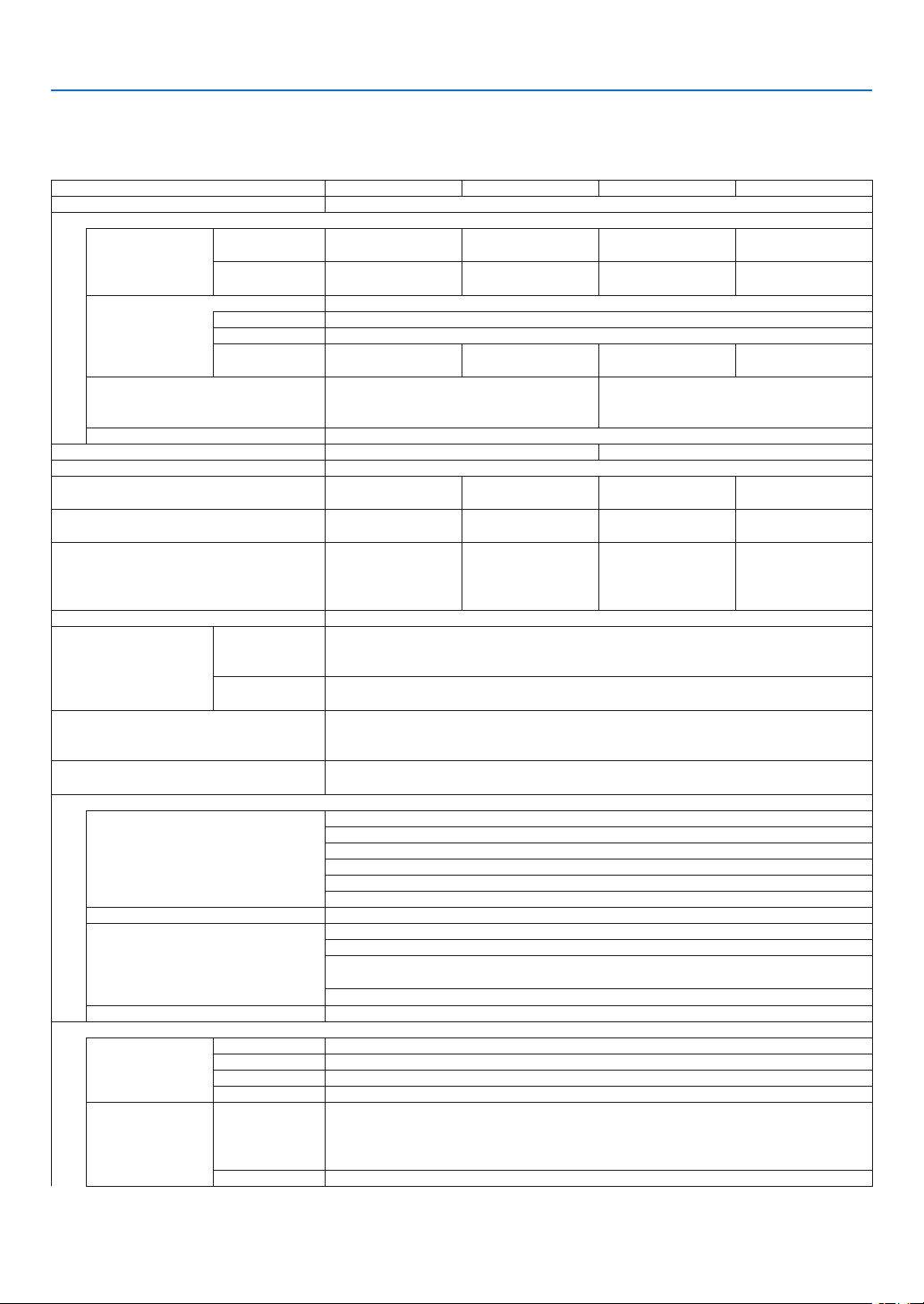
129
9. Appendix
❷ Specifications
Thissectionprovidestechnicalinformationaboutprojector’sperformance.
Model name NP-P502HNP-P502WNP-P452HNP-P452W
Method
1ChipDLPtype
Specicationsofmainparts
DMDpanelSize0.65"(aspectratio:
16:9)
0.65"(aspectratio:
16:10)
0.65"(aspectratio:
16:9)
0.65"(aspectratio:
16:10)
Pixels
(*1)
2,073,600(1920
dots×1080lines)
1,024,000(1280
dots×800lines)
2,073,600(1920
dots×1080lines)
1,024,000(1280
dots×800lines)
ProjectionlensesF=2.0,f=18.2–31.1mm
ZoomManual(ZoomRatio=1.7)
FocusManual
LensshiftingH:±25%,V:+62%,
−0%
H:±28%,V:+59%,
−0%
H:±25%,V:+62%,
−0%
H:±28%,V:+59%,
−0%
Lamp
375WAC
(299WinNORMAL)
(226WinECO)
335WAC
(267WinNORMAL)
(202WinECO)
OpticaldeviceOpticalisolationbydichroicmirror,combiningbydichroicprism
Lightoutput
(*2)
(*3)
5,000lm(NORMAL:80%,ECO:60%)4,500lm(NORMAL:80%,ECO:60%)
Contrastratio
(*2)
(allwhite/allblack)6,000:1withlampcontrol
Screensize(throwdistance)30to300inches
(0.8–14.2m)
30to300inches
(0.8–14.5m)
30to300inches
(0.8–14.2m)
30to300inches
(0.8–14.5m)
ProjectionAngleFrom0to15.9deg
at80"
From0to14.8deg
at80"
From0to15.9deg
at80"
From0to14.8deg
at80"
ProjectionDistance(FromProjection
Lens)
Wide:From0.8to
8.2m
Tele:From1.4to
14.2m
Wide:From0.8to
8.4m
Tele:From1.4to
14.5m
Wide:From0.8to
8.2m
Tele:From1.4to
14.2m
Wide:From0.8to
8.4m
Tele:From1.4to
14.5m
Colorreproducibility10-bitcolorprocessing(approx.1.07billioncolors)
ScanningfrequencyHorizontalAnalog:15kHz,24to100kHz(24kHzorgreaterforRGBinputs),conformingto
VESAstandards
Digital:15kHz,24to153kHz,conformingtoVESAstandards
VerticalAnalog:48Hz,50to85Hz,100,120HzconformingtoVESAstandards
Digital:24,25,30,48Hz,50to85Hz,100,120HzconformingtoVESAstandards
MainadjustmentfunctionsManualzoom,manualfocus,manuallensshift,inputsignalswitching(HDMI1/HDMI2/
COMPUTER/VIDEO/HDBaseT),autoimageadjustment,picturemaginication,mut-
ing(video),poweron/standby,on-screendisplay/selection,etc.
Max.displayresolution(horizontal×verti-
cal)
Analog:1920×1200(handledwithAdvancedAccuBlend)
Digital:1920×1080(handledwithAdvancedAccuBlend)
Inputsignals
R,G,B,H,VRGB:0.7Vp-p/75Ω
Y:1.0Vp-p/75Ω(withNegativePolaritySync)
Cb,Cr(Pb,Pr):0.7Vp-p/75Ω
H/VSync:4.0Vp-p/TTL
CompositeSync:4.0Vp-p/TTL
SynconG:1.0Vp-p/75Ω(withSync)
Compositevideo1.0Vp-p/75Ω
Component
Y:1.0Vp-p/75Ω(withSync)
Cb,Cr(Pb,Pr):0.7Vp-p/75Ω
DTV:480i,480p,720p,1080i,1080p(60Hz)
576i,576p,720p,1080i,1080p(50Hz)
DVD:Progressivesignal(50/60Hz)
AudioStereoL/R:0.5Vrms/22kΩorover
Input/outputterminals
Computer/Com-
ponent
VideoinputMiniD-Sub15-pin×1
VideooutputMiniD-Sub15-pin×1
AudioinputRCA×2(ForVideo),StereominiJack(ForComputer)
AudiooutputStereominiJack(Selectedfrom:Computer/Video/HDMI)
HDMIVideoinputHDMI
®
TerminaltypeA×2
DeepColor(colordepth):8-/10-/12-bitcompatible
Colorimetry:RGB,YcbCr444andYcbCr422compatible
LipSynccompatible,HDCPcompatible
(*4)
,Supports3D
AudioinputHDMI:Samplingfrequency–32/44.1/48kHz,Samplingbits–16/20/24bits
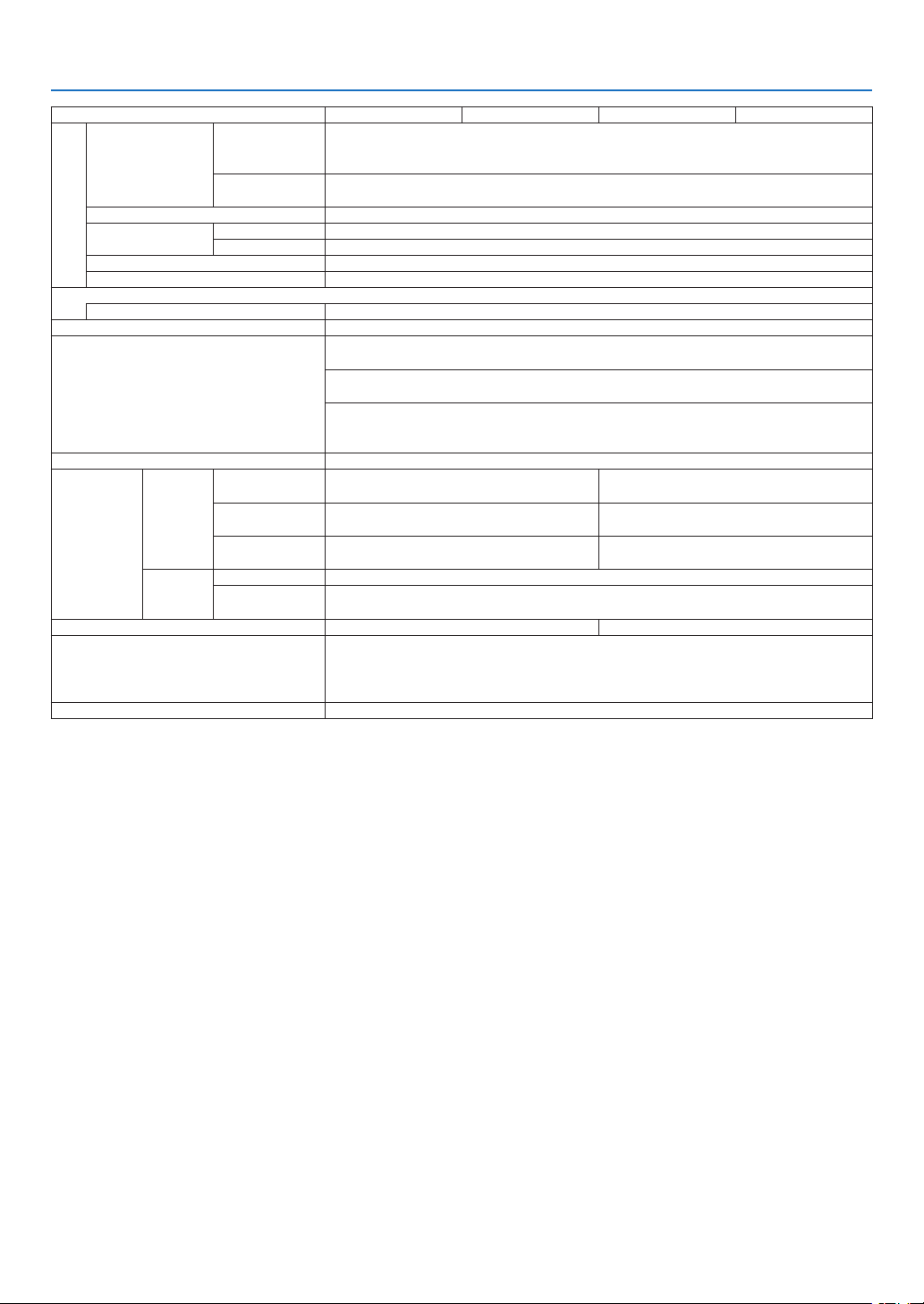
130
9. Appendix
Model name NP-P502HNP-P502WNP-P452HNP-P452W
HDBaseT
VideoinputDeepColor(colordepth):Support8/10/12bits
Colorimetry:SupportRGB,YCbCr444andYCbCr422
SupportLipSync,HDCP
(*4)
,3D
AudioinputSamplingfrequency:32/44.1/48kHz
Samplingbit:16/20/24bit
RemoteterminalStereominiJack×1
USBportTypeA1forUSBmemory
TypeB1forservice
Ethernet/HDBaseTportRJ-45×1,SupportsBASE-TX
3DSYNCoutputterminal5V/10mA,synchronizedsignaloutputfor3Duse
ControlTerminals
RS-232Cterminal(PCcontrol)D-Sub9-pin×1
Built-inSpeaker20W(monaural)
UsageenvironmentOperatingtemperature:5to40°C
(*5)
Operatinghumidity:20to80%(withnocondensation)
Storagetemperature:−10to50°C
(*5)
Storagehumidity:20to80%(withnocondensation)
Operatingaltitude:0to8000feet/2400meters
(Set[FANMODE]to[HIGHALTITUDE]whenusingtheprojectorataltitudesapproxi-
mately4000feet/1200metersorhigher.)
Powersupply100–240VAC,50/60Hz
Powercon-
sumption
ECO
MODE
OFF465W(100-130V)
445W(200-240V)
426W(100-130V)
416W(200-240V)
NORMAL379W(100-130V)
366W(200-240V)
346W(100-130V)
340W(200-240V)
ECO311W(100-130V)
305W(200-240V)
288W(100-130V)
286W(200-240V)
STANDBY
MODE
NORMAL0.26W(100-130V)/0.33W(200-240V)
NETWORK
STANDBY
2.6W(100-130V)/2.6W(200-240V)
Ratedinputcurrent2.2A(240VAC)to5.4A(100VAC)2.0A(240VAC)to4.9A(100VAC)
Externaldimensions14.3"(width)×5.1"(height)×11.9"(depth)/
362(width)×129(height)×302(depth)mm(notincludingprotrusions)
14.3"(width)×5.5"(height)×12.1"(depth)/
362(width)×139(height)×306(depth)mm(includingprotrusions)
Weight11.46lbs(5.2kg)
*1Effectivepixelsaremorethan99.99%.
*2CompliancewithISO21118-2012
*3Thisisthelightoutputvalue(lumens)whenthe[PRESET]modeissetto[HIGH-BRIGHT].Ifanyothermodeisselectedasthe
[PRESET]mode,thelightoutputvaluemaydropslightly.
*4HDMI
®
(DeepColor,LipSync)withHDCP
WhatisHDCP/HDCPtechnology?
HDCPisanacronymforHigh-bandwidthDigitalContentProtection.HighbandwidthDigitalContentProtection(HDCP)isasystem
forpreventingillegalcopyingofvideodatasentoveraHigh-DenitionMultimediaInterface(HDMI).
IfyouareunabletoviewmaterialviatheHDMIinput,thisdoesnotnecessarilymeantheprojectorisnotfunctioningproperly.With
theimplementationofHDCP,theremaybecasesinwhichcertaincontentisprotectedwithHDCPandmightnotbedisplayed
duetothedecision/intentionoftheHDCPcommunity(DigitalContentProtection,LLC).
Video:DeepColor;8/10/12-bit,LipSync
Audio:LPCM;upto2ch,samplerate32/44.1/48KHz,samplebit;16/20/24-bit
*535to40°C–“Forcedecomode”
•Thesespecicationsandtheproduct’sdesignaresubjecttochangewithoutnotice.
Foradditionalinformationvisit:
US:
http://www.necdisplay.com/
Europe:http://www.nec-display-solutions.com/
Global:http://www.nec-display.com/global/index.html
Forinformationonouroptionalaccessories,visitourwebsiteorseeourbrochure.
Thespecicationsaresubjecttochangewithoutnotice.
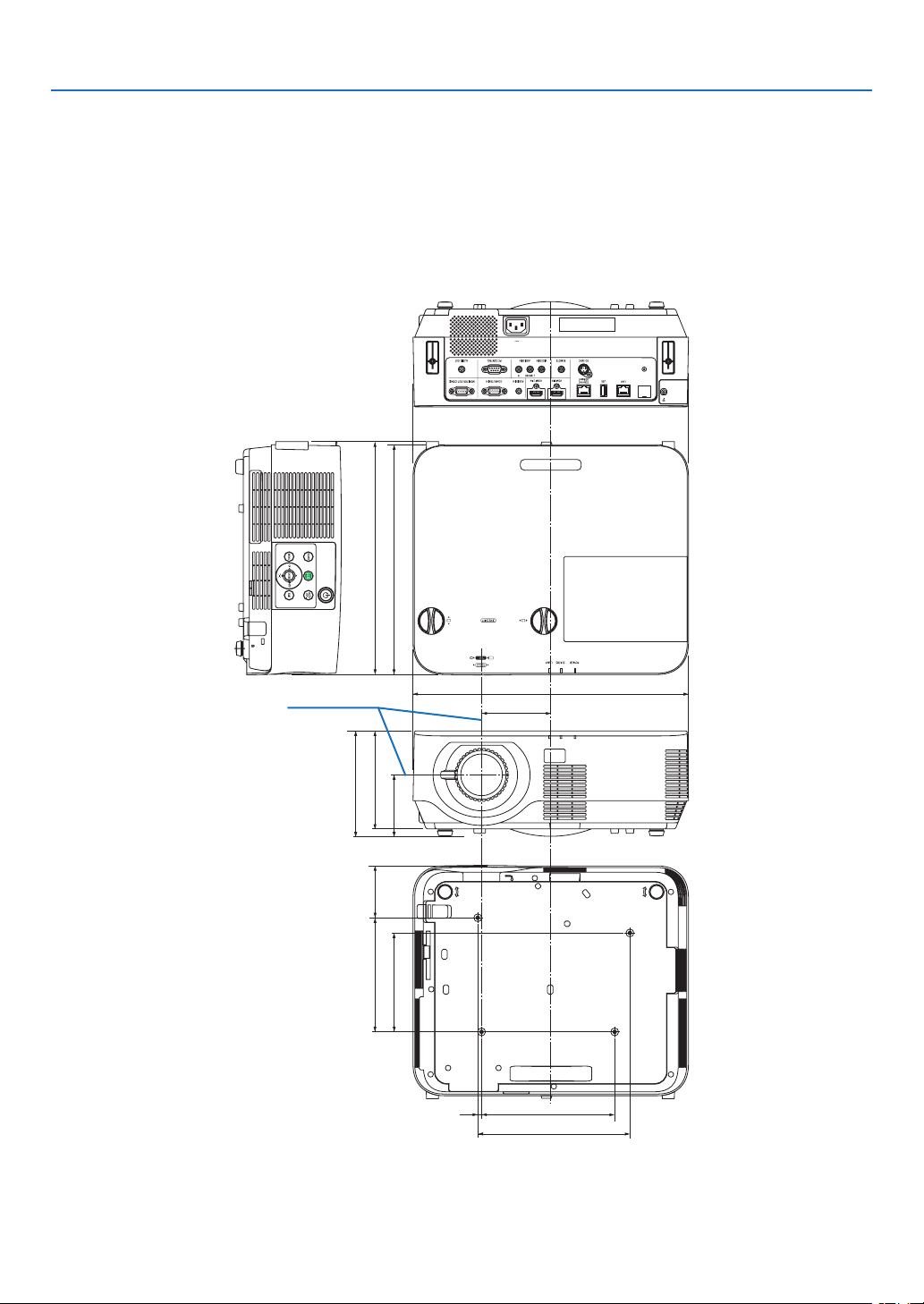
131
9. Appendix
81 (3.2)
68 (2.7)
175 (6.9)
200 (7.9)
5 (0.2)
362 (14.3)
302 (11.9)
306 (12)
139 (5.5)
150 (5.9)
130 (5.1)
129 (5.1)
91 (3.6)
❸ Cabinet Dimensions
Unit:mm(inch)
Lens center
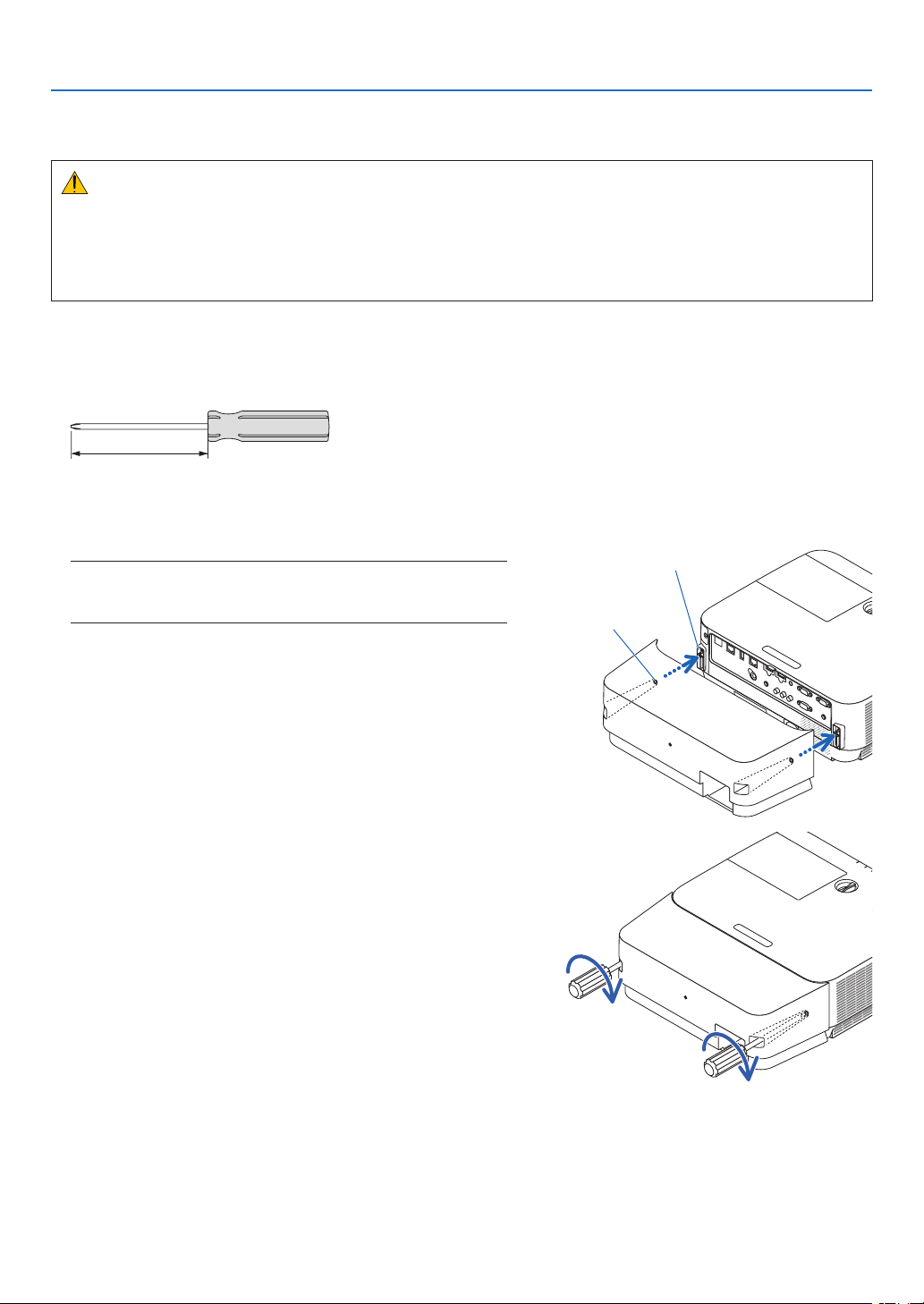
132
9. Appendix
❹ Attaching the Optional Cable Cover (NP09CV)
Afternishingconnections,attachthesuppliedcablecovertoproperlyhidethecables.
CAUTION:
•Besuretotightenthescrewsafterattachingthecablecover.Failuretodosomaycausethecablecovertocome
offandfall,resultingininjuryordamagetothecablecover.
•Donotputbundledcablesinthecablecover.Doingsomaydamagethepowercord,resultinginare.
•Donotholdthecablecoverwhilemovingtheprojectorordonotapplyexcessiveforcetothecablecover.Doing
somaydamagethecablecover,resultingininjury.
Attaching the cable cover
Toolneeded:
•Phillipsscrewdriver(plus-head)about12cm/4.7inchesinlength
12 cm/4.7 inches
1. Align the left and right fixing screw holes on the cable cover
and the projector, and then put screws to each hole.
NOTE:
•Becarefulnottogetcablescaughtinbetweenthecablecoverand
theprojector.
Cable cover fixing screw hole
Fixing screw
2. Tighten the cable cover screws.
•Besuretotightenthescrews.
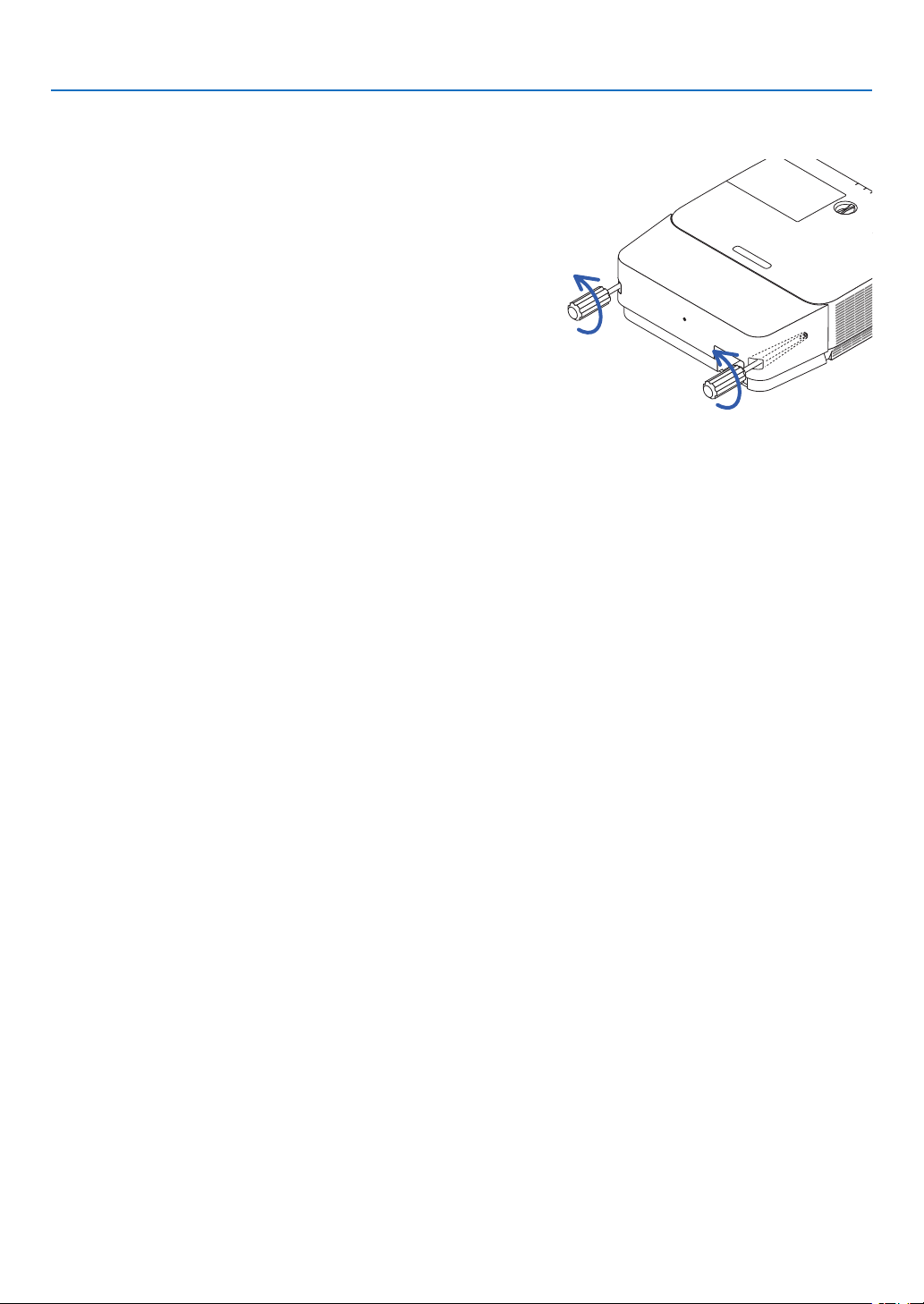
133
9. Appendix
Removing the cable cover
1. Loosen the cable cover screws until the Phillips screw-
driver goes into a freewheeling condition and remove the
cover.
•Whensuspendedfromtheceiling,holdsothatthecable
cover does not drop.
•Thescrewscannotberemoved.
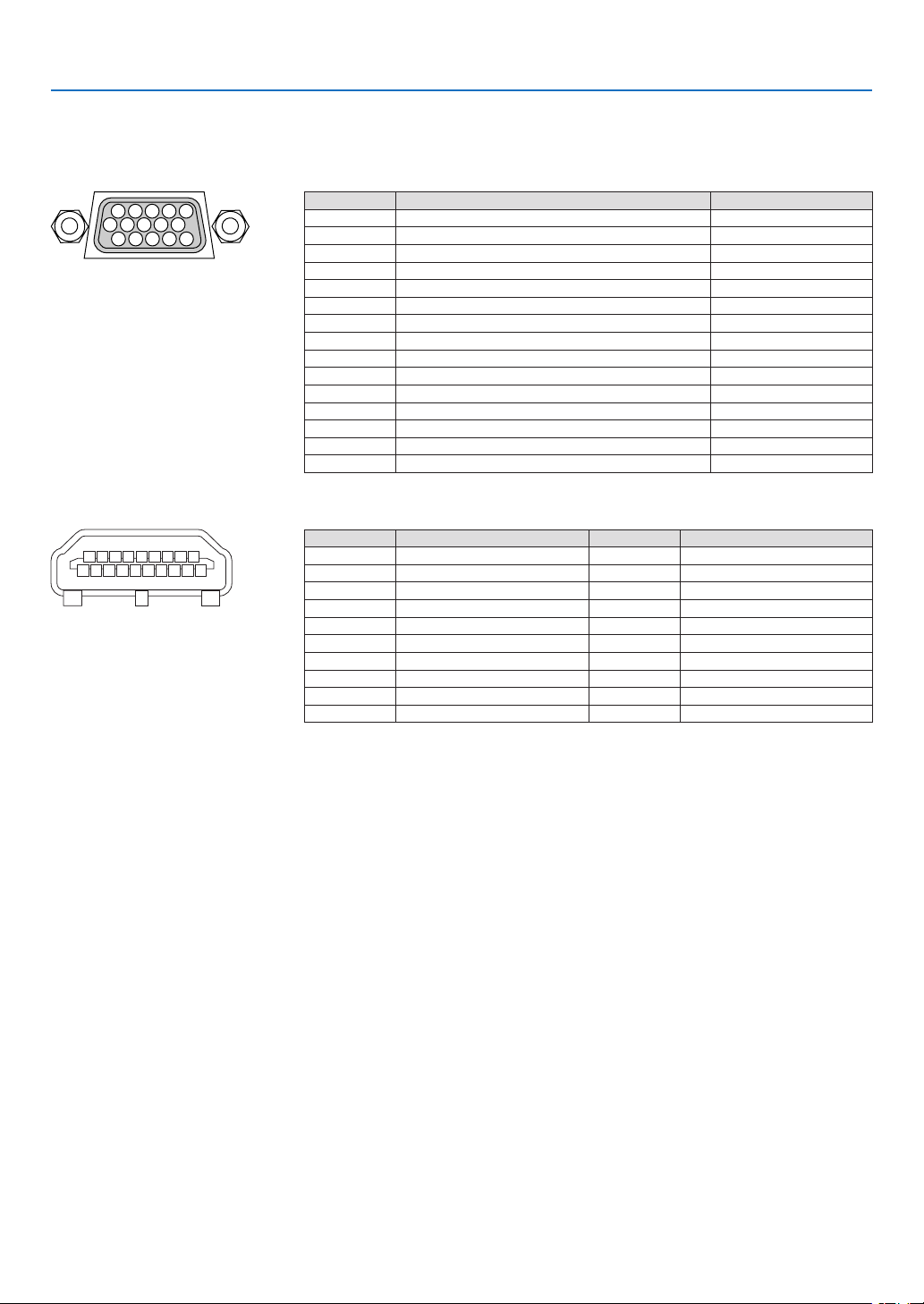
134
9. Appendix
❺ Pin assignments and signal names of main terminals
COMPUTER IN Terminal (Mini D-Sub 15 Pin)
Connection and signal level of each pin
51423
10
11 12 13 14 15
6978
Signal Level
Videosignal:0.7Vp-p(Analog)
Syncsignal:TTLlevel
Pin No. RGBSignal(Analog)YCbCr Signal
1 RedCr
2
GreenorSynconGreenY
3BlueCb
4 Ground
5 Ground
6
RedGroundCrGround
7GreenGroundYGround
8BlueGroundCbGround
9HotPlug
10 SyncSignalGround
11 NoConnection
12 Bi-directionalDATA(SDA)
13HorizontalSyncorCompositeSync
14 VerticalSync
15 DataClock
HDMI 1 IN/HDMI 2 IN Terminal (Type A)
135791113151719
246810 12 14 16 18
Pin No. Signal Pin No. Signal
1 TMDSData2+11 TMDSClockShield
2 TMDSData2Shield12 TMDSClock−
3TMDSData2−13CEC
4 TMDSData1+14 Disconnection
5 TMDSData1Shield15 SCL
6TMDSData1−16SDA
7TMDSData0+17DDC/CECgrounding
8TMDSData0Shield18+5Vpowersupply
9TMDSData0−19Hotplugdetection
10 TMDSClock+
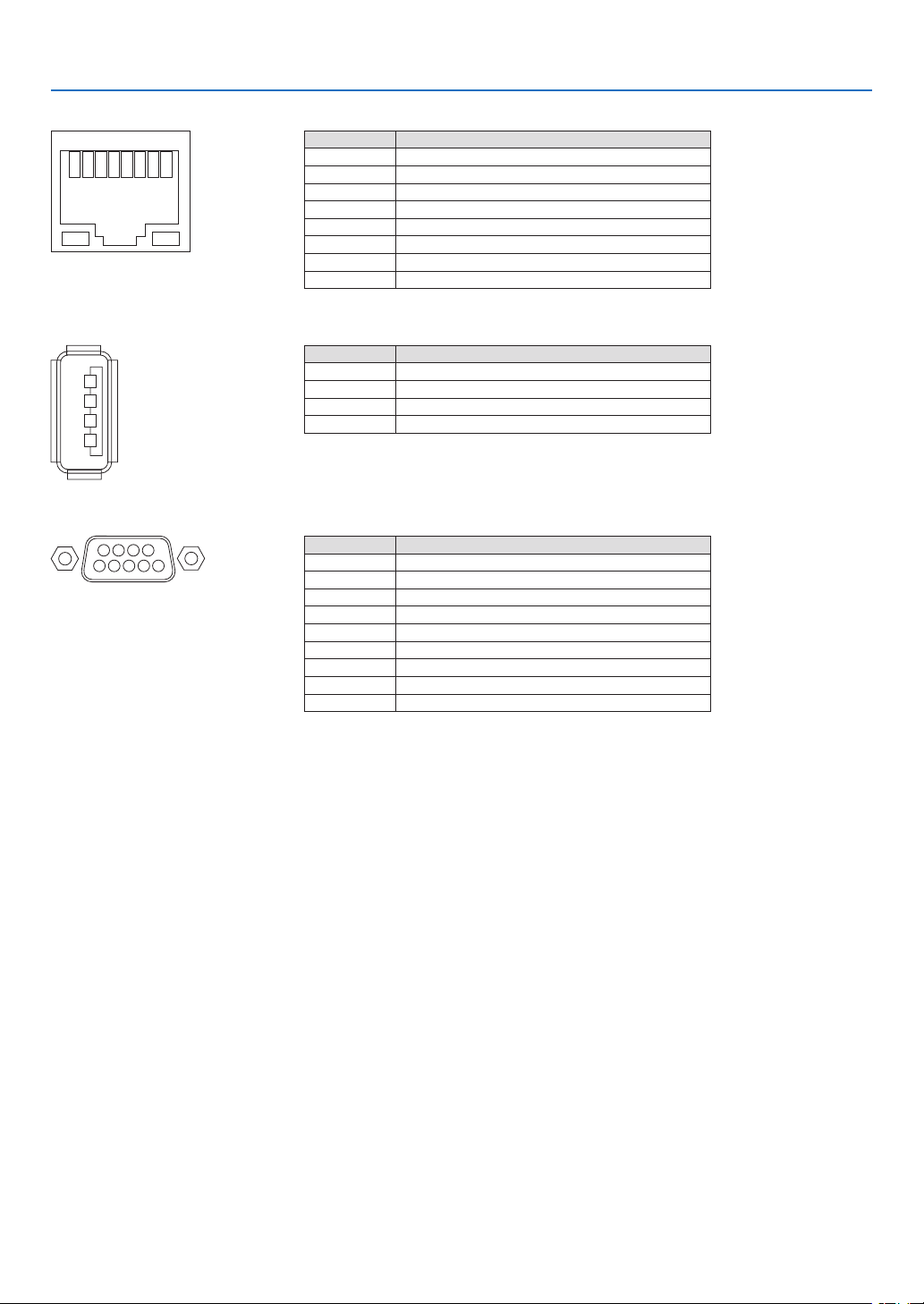
135
9. Appendix
Ethernet/HDBaseT/LAN Port (RJ-45)
12345678
Pin No. Signal
1 TxD+/HDBT0+
2 TxD−/HDBT0−
3RxD+/HDBT1+
4 Disconnection/HDBT2+
5 Disconnection/HDBT2−
6RxD−/HDBT1−
7Disconnection/HDBT3+
8Disconnection/HDBT3−
USB Port (Type A)
1
3
2
4
Pin No. Signal
1 V
BUS
2 D−
3D+
4 Grounding
PC CONTROL Port (D-Sub 9 Pin)
1234
5
6789
Communications protocol
Pin No. Signal
1 Unused
2
RxDreceptiondata
3TxDtransmissiondata
4 Unused
5 Grounding
6Unused
7
RTStransmissionrequest
8CTStransmissionallowed
9Unused
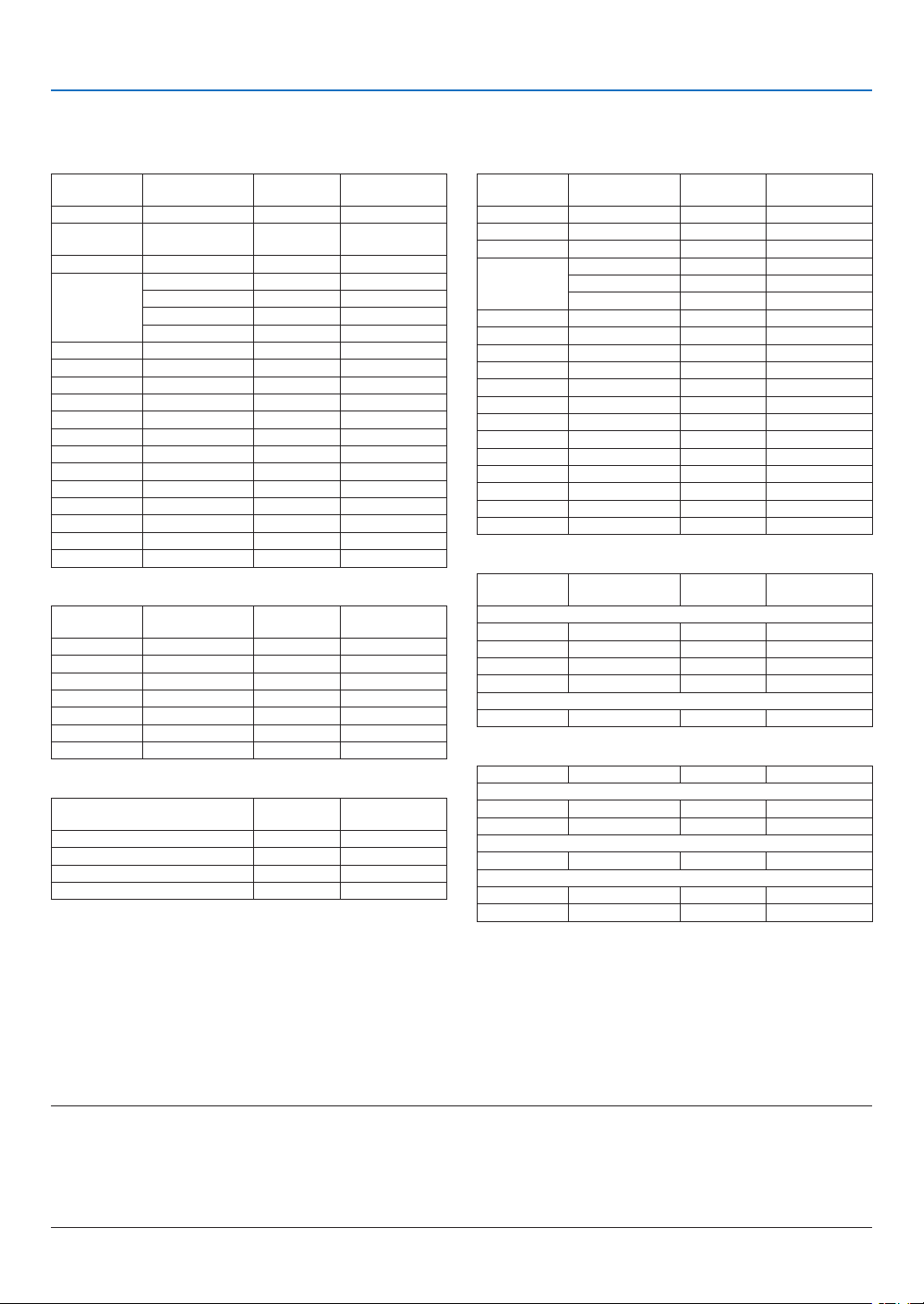
136
9. Appendix
HDMI
Signal
Resolution
(dots)
AspectRatio
RefreshRate
(Hz)
VGA640×4804:360
SVGA800 ×6004:360
XGA1024 ×7684:360
WXGA1280 ×768*
2
15:960
1280×800*
2
16:1060
1366×76816:960
Quad-VGA1280×9604:360
SXGA1280× 1024 5:460
SXGA+1400 × 1050 4:360
WXGA+1440 ×90016:1060
WXGA++1600×90016:960
WSXGA+1680 ×1050 16:1060
HDTV(1080p)1920 ×1080*
1
16:950/60
HDTV(1080i)1920× 108016:950/60
HDTV(720p)1280 ×72016:950/60
SDTV(480p)720×4804:3/16:960
SDTV(576p)720×5764:3/16:950
SDTV(480i)720×4804:3/16:960
SDTV(576i)720×5764:3/16:950
3D
Signal
Resolution
(dots)
AspectRatio
RefreshRate
(Hz)
ForPCSignal
XGA1024 ×7684:360/120*
6
HD1280×72016:960/120*
6
WXGA1280 ×80016:1060/120*
6
HDTV(1080p)1920 ×108016:960
ForVideoSignal
SDTV(480i)720×4804:3/16:960
HDMI 3D
SignalResolution(dots)AspectRatioRefreshRate(Hz)
Structure:FramePacking
1080p1920× 108016:923.98/24
720p1280 ×72016:950/59.94/60
Structure:SidebySide(Half)
1080i1920× 108016:950/59.94/60
Structure:TopandBottom
1080p1920× 108016:923.98/24
720p1280 ×72016:950/59.94/60
❻ Compatible Input Signal List
Analog RGB
Signal
Resolution
(dots)
AspectRatio
RefreshRate
(Hz)
VGA640×4804:360/72/75/85/iMac
SVGA800 ×6004:356/60/72/75/85/
iMac
XGA1024 ×7684:360/70/75/85/iMac
WXGA1280 ×768*
2
15:960
1280×800*
2
16:1060
1360×768*
3
16:9*
4
60
1366×768*
3
16:960
Quad-VGA1280 ×9604:360/75
SXGA1280× 1024 5:460/75
SXGA+1400 × 1050 4:360
WXGA+1440 ×90016:1060
WXGA++1600×900*
3
16:960
UXGA1600× 1200 *
4
4:360
WSXGA+1680 ×1050 16:1060
HD1280×72016:960
FullHD1920 ×1080*
1
16:960
WUXGA1920× 1200 *
5
16:1060
MAC19"1024 ×7684:375
MAC21"1152 ×8704:3*
3
75
MAC23"1280× 1024 5:465
Component
SignalFormatAspectRatio
RefreshRate
(Hz)
HDTV(1080p)1920 ×108016:950/60
HDTV(1080i)1920× 108016:950/60
HDTV(720p)1280 ×72016:950/60
SDTV(480p)720×4804:3/16:960
SDTV(576p)720×5764:3/16:950
SDTV(480i)720×4804:3/16:960
SDTV(576i)720×5764:3/16:950
CompositeVideo
SignalAspectRatio
RefreshRate
(Hz)
NTSC4:360
PAL4:350
PAL604:360
SECAM4:350
*1Nativeresolutionon1080pmodel(NP-P502H/NP-P452H)
*2NativeresolutiononWXGAmodel(NP-P502W/NP-P452W)
*3Theprojectormayfailtodisplaythesesignalscorrectlywhen[AUTO]
isselectedfor[ASPECTRATIO]intheon-screenmenu.
Thefactorydefaultis[AUTO]for[ASPECTRATIO].Todisplaythese
signals,select[16:9]for[ASPECTRATIO].
*4WXGAMODE:OFF
*5WXGAMODE:ON
*6120HzsignalsaresupportedforFrameSequentialonly.
NOTE:
•Animagewithhigherorlowerresolutionthantheprojector’snativeresolution(1280×800)willbedisplayedwithAdvanced
AccuBlend.
•SynconGreenandCompositesyncsignalsarenotsupported.
•Signalsotherthanthosespeciedinthetableabovemaynotbedisplayedcorrectly.Ifthisshouldhappen,changetherefresh
rateorresolutiononyourPC.RefertoDisplayPropertieshelpsectionofyourPCforprocedures.
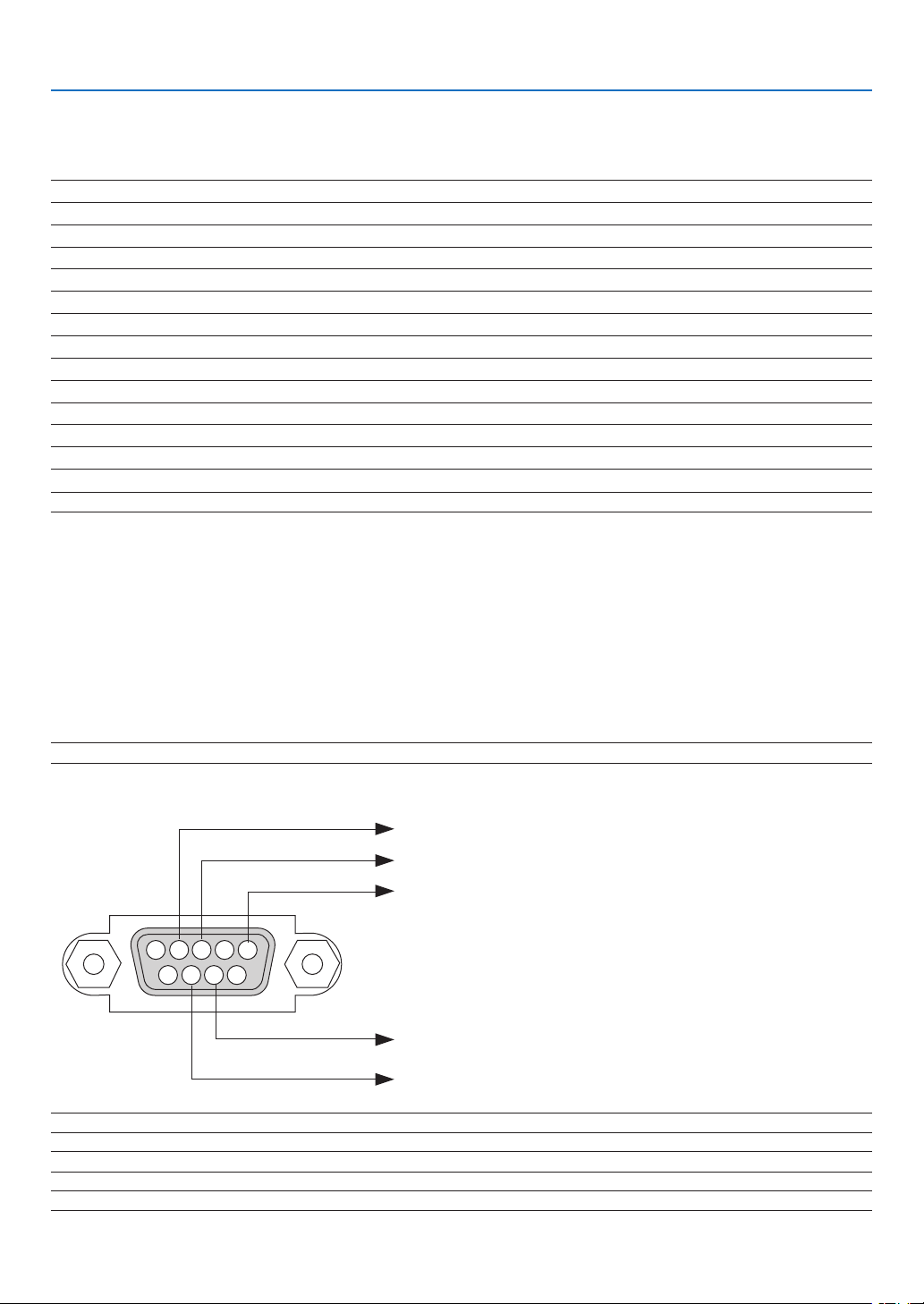
137
9. Appendix
❼ PC Control Codes and Cable Connection
PC Control Codes
Function Code Data
POWER ON 02H 00H 00H 00H 00H 02H
POWER OFF 02H 01H 00H 00H 00H 03H
INPUT SELECT COMPUTER 02H 03H 00H 00H 02H 01H 01H 09H
INPUT SELECT HDMI1 02H 03H 00H 00H 02H 01H 1AH 22H
INPUT SELECT HDMI2 02H 03H 00H 00H 02H 01H 1BH 23H
INPUT SELECT VIDEO 02H 03H 00H 00H 02H 01H 06H 0EH
INPUT SELECT APPS 02H 03H 00H 00H 02H 01H 20H 28H
INPUT SELECT HDBaseT 02H 03H 00H 00H 02H 01H 22H 2AH
PICTURE MUTE ON 02H 10H 00H 00H 00H 12H
PICTURE MUTE OFF 02H 11H 00H 00H 00H 13H
SOUND MUTE ON 02H 12H 00H 00H 00H 14H
SOUND MUTE OFF 02H 13H 00H 00H 00H 15H
NOTE:ContactyourlocaldealerforafulllistofthePCControlCodesifneeded.
Cable Connection
CommunicationProtocol
Baud rate .........................................38400 bps
Data length ......................................8 bits
Parity ...............................................No parity
Stop bit ............................................One bit
X on/off ............................................None
Communications procedure .............Full duplex
NOTE:Dependingontheequipment,alowerbaudratemayberecommendedforlongcableruns.
PC Control Terminal (D-SUB 9P)
15243
67 98
To GND of PC
To RxD of PC
To TxD of PC
To RTS of PC
To CTS of PC
NOTE1:Pins1,4,6and9arenoused.
NOTE2:Jumper“RequesttoSend”and“CleartoSend”togetheronbothendsofthecabletosimplifycableconnection.
NOTE3:Forlongcablerunsitisrecommendedtosetcommunicationspeedwithinprojectormenusto9600bps.
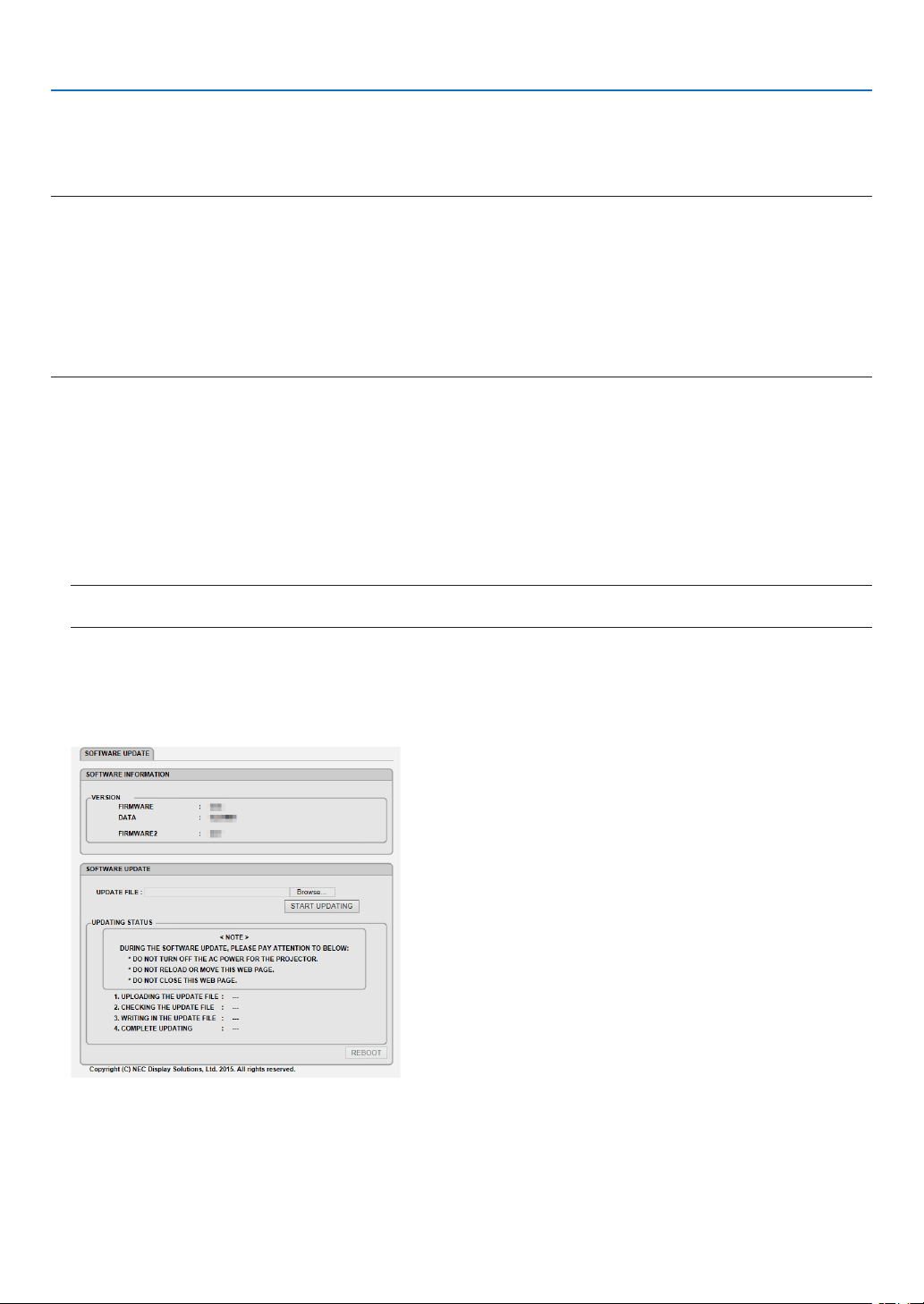
138
9. Appendix
❽ Update the Software
Usingthewebbrowseronacomputer,downloadtheupdatedsoftwarefortheprojectorfromourwebsiteandinstall
itontheprojectorbythewiredLANconnection.
NOTE:
•TheexclusivewebbrowserenablestoupdatethesoftwareisInternetExplorer11.
•Beforeperformingthesoftwareupdate,makesuretoconnectyourcomputerwiththeprojectorbytheLANcable.Itdoesnot
supportthewirelessLANconnection.
•Makesuretoset[NETWORKSTANDBY]asthestandbymodeoftheprojector.Factorydefaultsettingforthestandbymodeis
[NORMAL](→page61)
•Thesoftwareupdateisenabledonlywhentheprojectorisinstandbycondition.Whileperformingthesoftwareupdate,donot
powerontheprojector.Atthesametime,donotshutdowntheACpower.
•Neverupdatethebrowserpageduringthesoftwareupdate.Itdisablesthecomputerfordisplayingthewebpagecorrectly.
1. Access to the software download support page in our web site.
URL:
http://www.nec-display.com/dl/en/pj_soft/lineup.html
2.Checkifthesoftwareinstalledontheprojectorinuseisupdated.
•Youcancheckthesoftwareversionfromeither[VERSION(1)]or[VERSION(2)]intheonscreenmenu[INFOR
-
MATION].
3. If newer software version than one on the projector in use is uploaded on our website, download and save
it in an appropriate folder on your computer.
4. Turn off the power of the projector and set it in the standby condition.
Important:
•SoftwareupdatecannotbeperformedwhenthestandbymodeissetatNORMAL.
5.ConnecttheprojectorwithyourcomputerbytheLANcable.
6. Start up the web browser on your computer and then input the following web address:
URL(forthesoftwareupdate):http://<ProjectorIPaddress>/update.html
The software update screen will be displayed on.
7.Click[Browse….]atthecenterofthescreenandselectthesoftwareyousavedintheprocedure3.
•CheckthelenameindicatedontheUPDATEFILElist.
8.Click[STARTUPDATING]atthecenterofthescreen.
The screen display will change and your computer starts to update the software.

139
9. Appendix
NOTE:
•Duringthesoftwareupdate,payattentiontothefollows:
-DonotturnofftheACPowerfortheprojector.
-Donotreloadormovethewebpage.
-Donotclosethewebpage.
•Whensoftwareupdateiscompletedproperly,thebelowwillbedisplayedon:
1.UPLOADINGTHEUPDATEFILE:COMPLETED
2.CHECKINGTHEUPDATEFILE:COMPLETED
3.WRITINGINTHEUPDATEFILE:COMPLETED
4.COMPLETEUPDATING:PLEASEREBOOT.
9.Click[REBOOT]attherightbottomofthescreen.
The software update is completed and the projector will go into the standby mode.
NOTE:
•Ifanerroroccursduringthesoftwareupdate,anerrorcodeinbelowwillbedisplayedinthe“UPDATINGSTATUS”column.
2001:Failedtouploadthele.
2007:Theuploadedleistoolarge.
2011:Theuploadedleisbroken.
2012:Theuploadedleisbroken.
4001:ReceivednosignaloftheHTTPtransmission.
Theerrorcodesotherthanabovemaybedisplayed.
Ifanerrorisfoundduringthesoftwareupdate,turnontheprojectorandupdatetheleagain.
Whenthesoftwareupdateisnotcompletedproperlyevenifyoutriedtoupdateseveraltimes,pleaseconsultyourdealer.

140
9. Appendix
❾ Troubleshooting Check List
Beforecontactingyourdealerorservicepersonnel,checkthefollowinglisttobesurerepairsareneededalsoby
referringtothe“Troubleshooting”sectioninyouruser’smanual.Thischecklistbelowwillhelpussolveyourproblem
moreefciently.
*Printthispageandthenextpageforyourcheck.
Frequency of occurrence □ always □sometimes(Howoften?_____________________)□other(__________________)
Power
□
No power (POWER indicator does not light blue). See also “Status
Indicator (STATUS)”.
□
Powercord’splugisfullyinsertedintothewalloutlet.
□
Lamp cover is installed correctly.
□
Lamp Hours Used (lamp operation hours) was cleared after
lamp replacement.
□
No power even though you press and hold the POWER button.
□
Shut down during operation.
□
Powercord’splugisfullyinsertedintothewalloutlet.
□
Lamp cover is installed correctly.
□
[AUTO POWER OFF] is turned off (only models with the [AUTO
POWER OFF] function).
□
[OFF TIMER] is turned off (only models with the [OFF TIMER]
function).
Video and Audio
□
No image is displayed from your PC or video equipment to the
projector.
□
Still no image even though you connect the projector to the PC
first, then start the PC.
□
EnablingyournotebookPC’ssignaloutputtotheprojector.
• Acombinationoffunctionkeyswillenable/disabletheexter-
naldisplay.Usually,thecombinationofthe“Fn”keyalong
withoneofthe12functionkeysturnstheexternaldisplay
onoroff.
□
No image (blue or black background, no display).
□
Still no image even though you press the AUTO ADJUST button.
□
Still no image even though you carry out [RESET] in the
projector’smenu.
□
Signalcable’splugisfullyinsertedintotheinputterminal
□
A message appears on the screen.
(_____________________________________________)
□
The source connected to the projector is active and available.
□
Still no image even though you adjust the brightness and/or
the contrast.
□
Inputsource’sresolutionandfrequencyaresupportedbythe
projector.
□
Image is too dark.
□
Remains unchanged even though you adjust the brightness
and/or the contrast.
□
Image is distorted.
□
Image appears to be trapezoidal (unchanged even though you
carry out the [KEYSTONE] adjustment).
□
Parts of the image are lost.
□
Still unchanged even though you press the AUTO ADJUST
button.
□
Still unchanged even though you carry out [RESET] in the
projector’smenu.
□
Image is shifted in the vertical or horizontal direction.
□
Horizontal and vertical positions are correctly adjusted on a
computer signal.
□
Inputsource’sresolutionandfrequencyaresupportedbythe
projector.
□
Some pixels are lost.
□
Image is flickering.
□
Still unchanged even though you press the AUTO ADJUST
button.
□
Still unchanged even though you carry out [RESET] in the
projector’smenu.
□
Image shows flickering or color drift on a computer signal.
□
Still unchanged even though you change [FAN MODE] from
[HIGH] to [AUTO].
□
Image appears blurry or out of focus.
□
Stillunchangedeventhoughyoucheckedthesignal’sresolution
onPCandchangedittoprojector’snativeresolution.
□
Still unchanged even though you adjusted the focus.
□
No sound.
□
Audio cable is correctly connected to the audio input of the
projector.
□
Still unchanged even though you adjusted the volume level.
□
AUDIO OUT is connected to your audio equipment (only models
with the AUDIO OUT terminal).
Other
□
Remote control does not work.
□
No obstacles between the sensor of the projector and the
remote control.
□
Projector is placed near a fluorescent light that can disturb the
infrared remote controls.
□
ID for the projector and for the remote are same.
□
Buttons on the projector cabinet do not work (only models with the
[CONTROL PANEL LOCK] function)
□
[CONTROL PANEL LOCK] is not turned on or is disabled in
the menu.
□
Still unchanged even though you press and hold the EXIT button
for a minimum of 10 seconds.
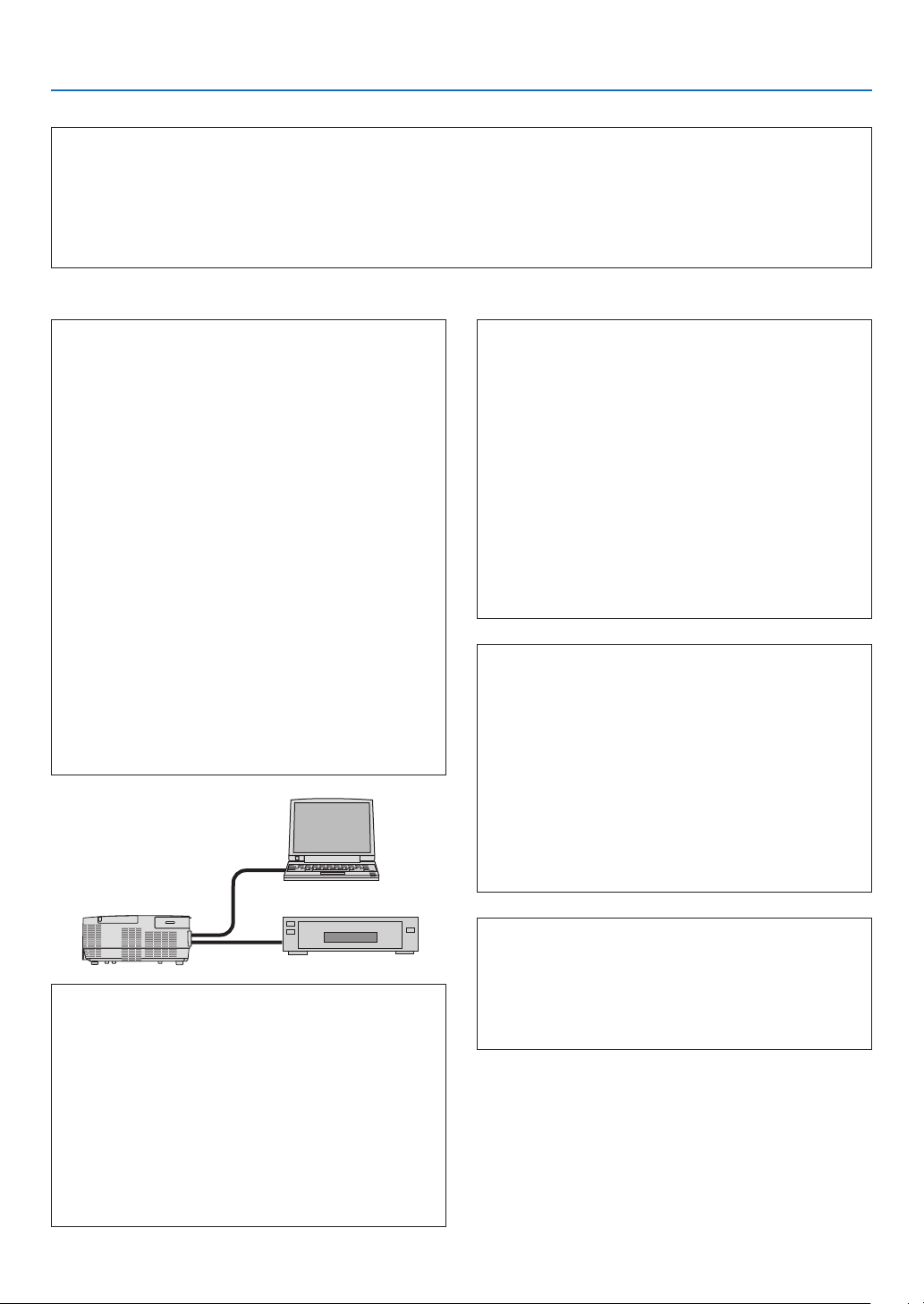
141
9. Appendix
In the space below please describe your problem in detail.
Information on application and environment where your projector is used
Installation environment
Screen size: inch
Screen type: □ White matte □ Beads □ Polarization
□ Wide angle □ High contrast
Throw distance: feet/inch/m
Orientation: □ Ceiling mount □ Desktop
Power outlet connection:
□
Connected directly to wall outlet
□ Connected to power cord extender or other (the
numberofconnectedequipment______________)
□ Connected to a power cord reel or other (the number
ofconnectedequipment______________)
Computer
Manufacturer:
Model number:
Notebook PC □ / Desktop □
Native resolution:
Refresh rate:
Video adapter:
Other:
Videoequipment
VCR, DVD player, Video camera, Video game or other
Manufacturer:
Model number:
Signal cable
NECstandardorothermanufacturer’scable?
Model number: Length: inch/m
Distribution amplifier
Model number:
Switcher
Model number:
Adapter
Model number:
Projector
PC
DVD player
Projector
Model number:
Serial No.:
Date of purchase:
Lamp operating time (hours):
ECO MODE: □ OFF □ AUTO ECO
□ NORMAL □ ECO
Information on input signal:
Horizontal synch frequency [ ] kHz
Vertical synch frequency [ ] Hz
Synch polarity H □ (+) □ (−)
V □ (+) □ (−)
Synch type □ Separate □ Composite
□ Sync on Green
STATUS Indicator:
Steady light □ Orange □ Green
Flashing light [ ] cycles
Remote control model number:

142
9. Appendix
❿ REGISTER YOUR PROJECTOR! (for residents in the United
States, Canada, and Mexico)
Pleasetaketimetoregisteryournewprojector.ThiswillactivateyourlimitedpartsandlaborwarrantyandInstaCare
serviceprogram.
Visitourwebsiteatwww.necdisplay.com,clickonsupportcenter/registerproductandsubmityourcompletedformonline.
Uponreceipt,wewillsendaconrmationletterwithallthedetailsyouwillneedtotakeadvantageoffast,reliable
warrantyandserviceprogramsfromtheindustryleader,NECDisplaySolutionsofAmerica,Inc.

©NECDisplaySolutions,Ltd.20157N952321