
11
Declaration of Conformity
Responsible Party: Elite Brands Inc.
Address: 40 Wall St, Flr 61, New York, NY 10005 USA
Company Website: www.elitebrands.com ;
www.minoltadigital.com
For Customers in the U.S.A.
Federal Communication Commission Interference Statement
This device complies with Part 15 of the FCC Rules. Operation is subject to the following
two conditions: (1) This device may not cause harmful interference, and (2) this device must
accept any interference received, including interference that may cause undesired operation.
BEFORE YOU START

2
This equipment has been tested and found to comply with the limits for a Class B digital
device, pursuant to Part 15 of the FCC Rules. These limits are designed to provide reasonable
protection against harmful interference in a residential installation. This equipment generates,
uses and can radiate radio frequency energy and, if not installed and used in accordance with
the instructions, may cause harmful interference to radio communications. However, there is
no guarantee that interference will not occur in a particular installation. If this equipment does
cause harmful interference to radio or television reception, which can be determined by turning
the equipment off and on, the user is encouraged to try to correct the interference by one of
the following measures:
- Reorient or relocate the receiving antenna.
- Increase the separation between the equipment and receiver.
- Connect the equipment into an outlet on a circuit different from that to which the receiver is
connected.
- Consult the dealer or an experienced radio/TV technician for help.
)&&&DXWLRQ$Q\FKDQJHVRUPRGL¿FDWLRQVQRWH[SUHVVO\DSSURYHGE\WKHSDUW\UHVSRQVLEOH
for compliance could void the user’s authority to operate this equipment.
This transmitter must not be co-located or operating in conjunction with any other antenna or
transmitter.
Radiation Exposure Statement:
This product complies with the FCC portable RF exposure limit set forth for an uncontrolled
environment and is safe for intended operation as described in this manual. Additional RF
exposure reduction can be achieved if the product can be kept as far as possible from the user
body or set the device to lower output power if such function is available.
3
About this Manual
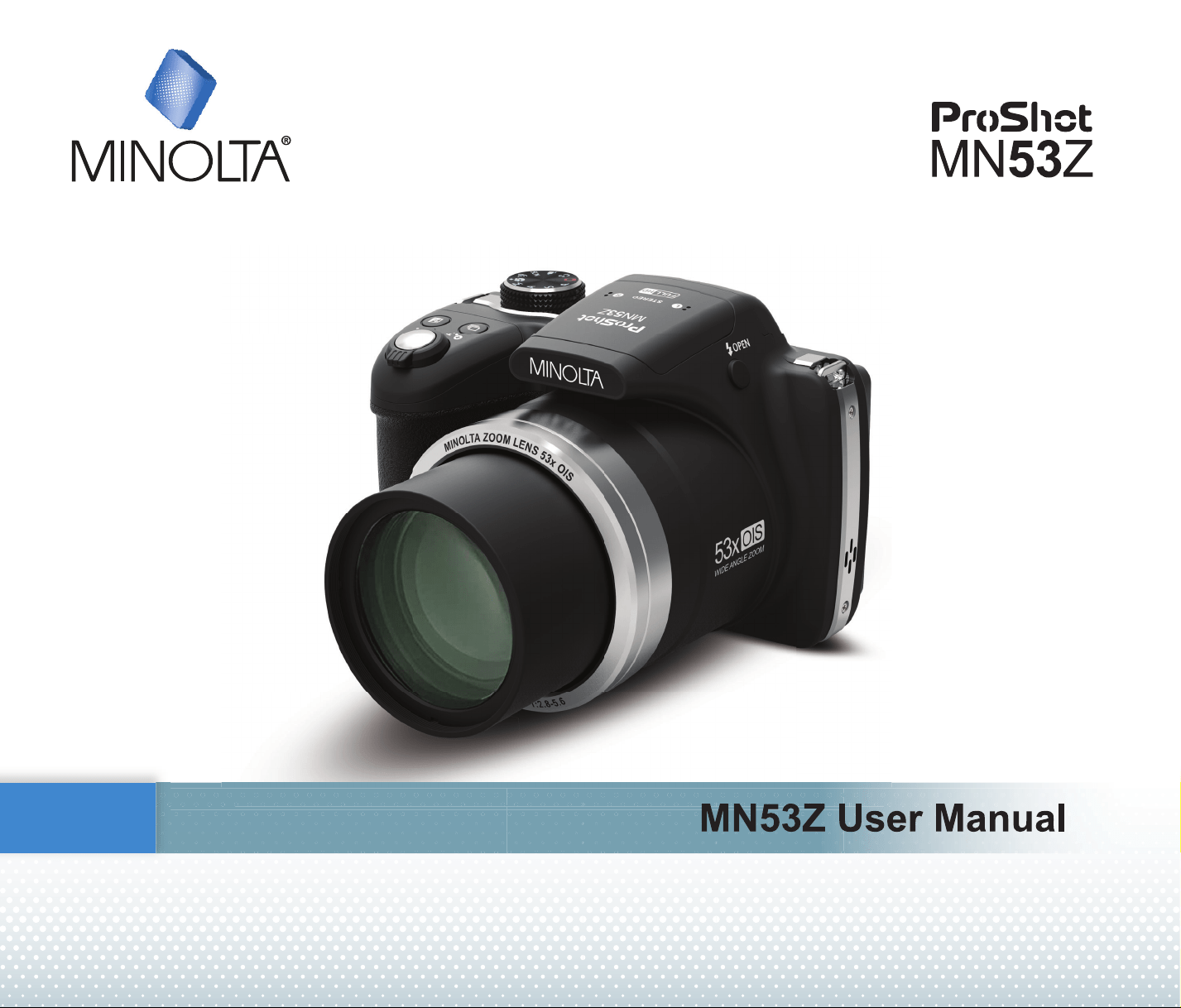
Thank you for purchasing the MLQROWD MN53Z Digital Camera. Please carefully read this
manual and keep it well for future reference.
Elite Brands Inc. reserves all rights of this document. No part of this published manual
may be reproduced, transmitted, transcribed, stored in a retrieval system or translated into
any language or computer language, in any form, by any means, without the prior written
permission of Elite Brands Inc.
$OOWUDGHPDUNVPHQWLRQHGLQWKLVPDQXDODUHXVHGIRULGHQWL¿FDWLRQSXUSRVHVRQO\DQGDUH
properties of their respective owners.
This manual provides you with instructions on how to use your new Digital Camera. Every
effort has been made to ensure that the contents of this manual are accurate; however
Elite Brands Inc. reserves the right to make changes without notice.
Throughout this manual, the following symbols are used to help you locate information
quickly and easily:
Indicates useful information.
In introducing you how to operate this camera, the following symbols may appear to
facilitate your understanding:
澨Item properties澩The optional properties in the camera interface are indicated by the
symbol澨 澩.
4
SAFETY NOTES
Safety notes for this camera
Do not drop the camera or allow it to hit solid objects.
Do not attempt to disassemble or repair the camera.
Do not use or store the camera in dusty places or on a beach to prevent dust or sand from
entering the camera, causing possible damage.
Do not use or store the camera in a hot environment or in direct sunlight.
'RQRWXVHRUVWRUHWKHFDPHUDQHDUDSRZHUIXOPDJQHWLF¿HOGVXFKDVDPDJQHWRUWUDQV-
former.
Avoid touching the lens of the camera.
Do not expose the camera to direct sunlight for a long period of time.
To prevent the camera from being damaged by moisture, do not use or store the
camera in very humid environments, such as in rain or near bodies of water.
If water accidentally comes in contact with the camera, turn the camera off, remove the
battery and the memory card, and dry it completely within 24 hours.
When you take the camera from a cold environment to a warmer environment,
condensation may occur. Please wait for a reasonable period of time before you turn the
camera on.
Before you remove the battery and memory card, the camera should be turned off.
When you clean the body of the camera, do not use abrasive, alcohol-based or
organic cleansers or solvents.
Use a professional lens cleaning cloth and appropriate cleaner to wipe and clean the lens.
Download your photos and remove the memory card when you are going to store the cam-
era for a long period of time.
If this camera is not in use for a long period of time, please keep it in a dry and clean stor-
age location.
Our company will not pay compensation for any failure of playback including: pictures or
videos damaged or unrecoverable by improper operation.
55
Safety notes for battery
Please use a battery that is the same type as the one included.
Please use the attached charger to charge the battery.
,IEDWWHU\ÀXLGOHDNVLQVLGHWKHFDPHUDFRQWDFWRXUFXVWRPHUVHUYLFHGHSDUWPHQWLPPHGL-
DWHO\,IEDWWHU\ÀXLGOHDNVRQWR\RXUVNLQULQVH\RXUVNLQZLWKFOHDQZDWHUDQGVHHNLPPHGL-
ate medical attention.
Disposal of used batteries should be carried out in accordance with the local (national or
regional) regulations.
To prevent the battery from being damaged, do not drop the battery or allow it to hit solid
objects or to be scratched by foreign objects.
Do not let the battery come in contact with metal objects (including coins) to avoid short
circuiting, discharging, excessive heat, or possible leakage.
Do not attempt to disassemble the battery.
Do not expose the battery to water. Always keep the battery contacts dry.
'RQRWKHDWWKHEDWWHU\RUWKURZLWLQWRD¿UHWRDYRLGDSRVVLEOHH[SORVLRQ
Do not store the battery in a hot environment or in direct sunlight.
If the battery overheats during charging or use, stop charging or stop use immediately. Turn off
the product, remove the battery carefully, and wait until it cools down.
When the camera is stored for a long period of time, remove the battery and keep it in a dry
place that is not accessible to infants and children.
In a colder environment, the performance of the battery could be noticeably reduced.
When you install the battery, align the battery markings according to the positive and
negative markings inside the battery compartment. Never force the battery into the battery
compartment.
6
Safety notes for memory card
We suggest buying only well-known, name brand memory cards to ensure peak
performance and reliability.
Format the memory card using the camera before you use it or insert a new one.
Do not drop the memory card or allow it to hit solid objects to avoid damaging it.
Do not attempt to disassemble or repair the memory card.
Do not expose the memory card to water. Always keep it dry.
Do not remove the memory card when the camera is turned on. Otherwise, the
PHPRU\FDUGDQGSKRWRYLGHR¿OHVFRXOGEHSHUPDQHQWO\GDPDJHG
Do not directly edit the data on the memory card. Copy the data to your computer before
you edit them.
When the camera is stored for a long period of time, be sure to download your photos and
remove the memory card. Store the memory card in a dry environment.
'RQRWPRGLI\WKHQDPHRIWKH¿OHVRUIROGHUVRIWKHPHPRU\FDUGXVLQJ\RXU
FRPSXWHU0RGLI\LQJWKH¿OHQDPHVPD\FDXVHWKH¿OHVWRQRWEHUHFRJQL]HGRQWKHFDPHUD
or a possible permanent error may occur.
A photo taken with the camera will be stored in the folder that is automatically
generated on the memory card. Do not store photos that are not taken using this
FDPHUDLQWKHVHIROGHUVDVWKHSLFWXUHVFDQQRWEHUHFRJQL]HGGXULQJWKHSOD\EDFN
When you insert the memory card, make sure the notch of the card matches the
markings on the top of the camera card slot.
7
Other Safety Notes
Do not disconnect the power or turn the camera off during the update process. Doing so
may cause incorrect data to be written and the camera may not power on later.
Do not hang the neck strap of the camera around the neck of a child.
:KHQXVLQJ\RXUFDPHUDRQDQDLUSODQHREVHUYHWKHUHOHYDQWUXOHVVSHFL¿HGE\WKHDLUOLQH
and FAA regulations.
Due to the limitations of manufacturing technology, the LCD may have a few dead or bright
pixels. These pixels do no effect the quality or performance of the camera, photos or video.
Do not expose the camera’s LCD to water. In a humid environment, only wipe it with a soft
and dry cleaning cloth.
If the LCD screen is damaged, pay particular attention to the liquid crystal in the screen.
If any of the following situations arise, immediately take the steps listed below:
1. If liquid crystal comes in contact with your skin, please wipe with a dry cloth, wash thor-
oughly with soap, and rinse with plenty of clean water.
,IOLTXLGFU\VWDOJHWVLQWR\RXUH\HÀXVKWKHH\HLPPHGLDWHO\ZLWKSOHQW\RIFOHDQZDWHU
for at least 15 minutes and then seek medical assistance.
3. If liquid crystal is swallowed, immediately rinse your mouth thoroughly with clean water
and induce vomiting. Seek medical assistance.
WARNING
Altering, tampering or modifying any parts of WKHcamera are unau-WKRUL]HGDQGZLOOYRLG
WKHPDQXIDFWXUHU¶VZDUUDQW\DQG³FRXOG´YRLG)HGHUDODQGRU6WDWHCompliance.

8
CONTENTS
BEFORE YOU START ..................................................................1
SAFETY NOTES ..........................................................................4
CONTENTS ..................................................................................8
GETTING READY ........................................................................13
Accessories Included ...................................................................................................13
Install Lens Cap and Neck Strap ..................................................................................14
Part Names ..................................................................................................................15
Installing Battery and Memory Card .............................................................................17
Charging Battery ..........................................................................................................19
Turning Camera On and Off .........................................................................................21
Set your Language, Date/Time ....................................................................................22
Set your Language, Date/Time after the First Power-On.......................................22
Resetting your Language .......................................................................................23
Resetting Date/Time ..............................................................................................24
MODE OVERVIEW ......................................................................25
Display Setting .............................................................................................................25
LCD Display .................................................................................................................26
Overview of the screen icons in photo shooting mode ..........................................26
Overview of the screen icons in movie mode ........................................................27
Overview of the screen icons in playback mode ....................................................28
How to Take Pictures ...................................................................................................29
99
Using the Mode Dial .................................................................... 30
Auto Mode ........................................................................................................... 33
)DFH%HDXWL¿HU ..................................................................................................... 35
Wireless Mode ..................................................................................................... 36
Scene Mode .......................................................................................................... 42
Movie Mode .......................................................................................................... 47
Custom Settings ................................................................................................... 48
BASIC OPERATION .................................................................... 50
Using the Zoom Function .............................................................................................50
Focus Setting ...............................................................................................................51
Macro Mode .................................................................................................................52
Self-Timer Setting ........................................................................................................53
Flash Mode ..................................................................................................................54
White Balance Setting ..................................................................................................55
Continuous Shot ...........................................................................................................56
EV Settings ..................................................................................................................57
Using Quick Recording ................................................................................................59
i Button Function Menu ................................................................................................60
PLAYBACK MODE .......................................................................61
Viewing Photos and Videos .........................................................................................61
Thumbnail View ............................................................................................................62

10
Using Zoom Playback (for still pictures only) ...............................................................63
Deleting Photos and Videos
........................................................................................ 64
Slideshow
.................................................................................................................... 65
Continuous Capture Group Playback
.......................................................................... 66
Animation Panorama Play
........................................................................................... 67
USING THE MENUS ................................................................... 68
Photo Setup Menu ....................................................................................................... 68
Expo Metering
........................................................................................................ 68
,PDJH6L]H
............................................................................................................. 69
2,62SWLFDO,PDJH6WDELOL]DWLRQ
........................................................................... 70
Cont. AF
(Continuous Auto-Focus) ...........................................................70
HDR (High Dynamic Range) .................................................................................. 71
%HDXWL¿HU
................................................................................................................ 71
Scene
..................................................................................................................... 72
Photo Shooting Settings Menu..................................................................................... 73
Quality
.................................................................................................................... 74
AF Assist Beam
..................................................................................................... 74
Digital Zoom
........................................................................................................... 74
Date Imprint
........................................................................................................... 75
Quick Review
......................................................................................................... 75
Custom Settings
.................................................................................................... 76
Movie Menu
.................................................................................................................. 77
11
Expo Metering (Exposure Metering) ......................................................................77
0RYLH6L]H ............................................................................................................. 78
2,62SWLFDO,PDJH6WDELOL]DWLRQ ........................................................................... 79
Movie Setting Menu ..................................................................................................... 80
Digital Zoom ........................................................................................................... 81
Custom Settings .................................................................................................... 81
Playback Menu ..............................................................................................................82
Playback Mode .......................................................................................................82
HDR (High Dynamic Range) ...................................................................................83
Touch-Up ................................................................................................................83
Rotate .....................................................................................................................84
5HVL]H ..................................................................................................................... 84
Color .......................................................................................................................85
Playback Settings Menu ................................................................................................86
Protect ....................................................................................................................87
Delete .....................................................................................................................88
DPOF (Digital Print Order Format) .........................................................................89
Trim ......................................................................................................................... 89
General Settings Menu .................................................................................................90
Sound Settings .......................................................................................................91
Power Saver ...........................................................................................................91
Language ................................................................................................................ 92

1212
Zone ........................................................................................................................92
Date/Time ...............................................................................................................92
LCD Brightness .......................................................................................................92
File Settings ..................................................................................................................93
Format ....................................................................................................................94
Copy to Card ...........................................................................................................94
File Numbering ...................................................................................................... 95
Reset ..................................................................................................................... 95
FW Version ............................................................................................................ 96
CONNECTION SETTINGS ..........................................................97
Connecting to a Computer ........................................................................................... 98
Setting the USB Mode ........................................................................................... 98
7UDQVIHUULQJ¿OHVWR\RXUFRPSXWHU ........................................................................ 99
Connecting to a PICTBRIDGE™ Compatible Printer ...................................................100
Video System ............................................................................................................... 106
APPENDICES ..............................................................................107
3URGXFW6SHFL¿FDWLRQV .................................................................................................. 107
Prompts and Warning Messages ................................................................................. 111
Troubleshooting ........................................................................................................... 115
13
GETTING READY
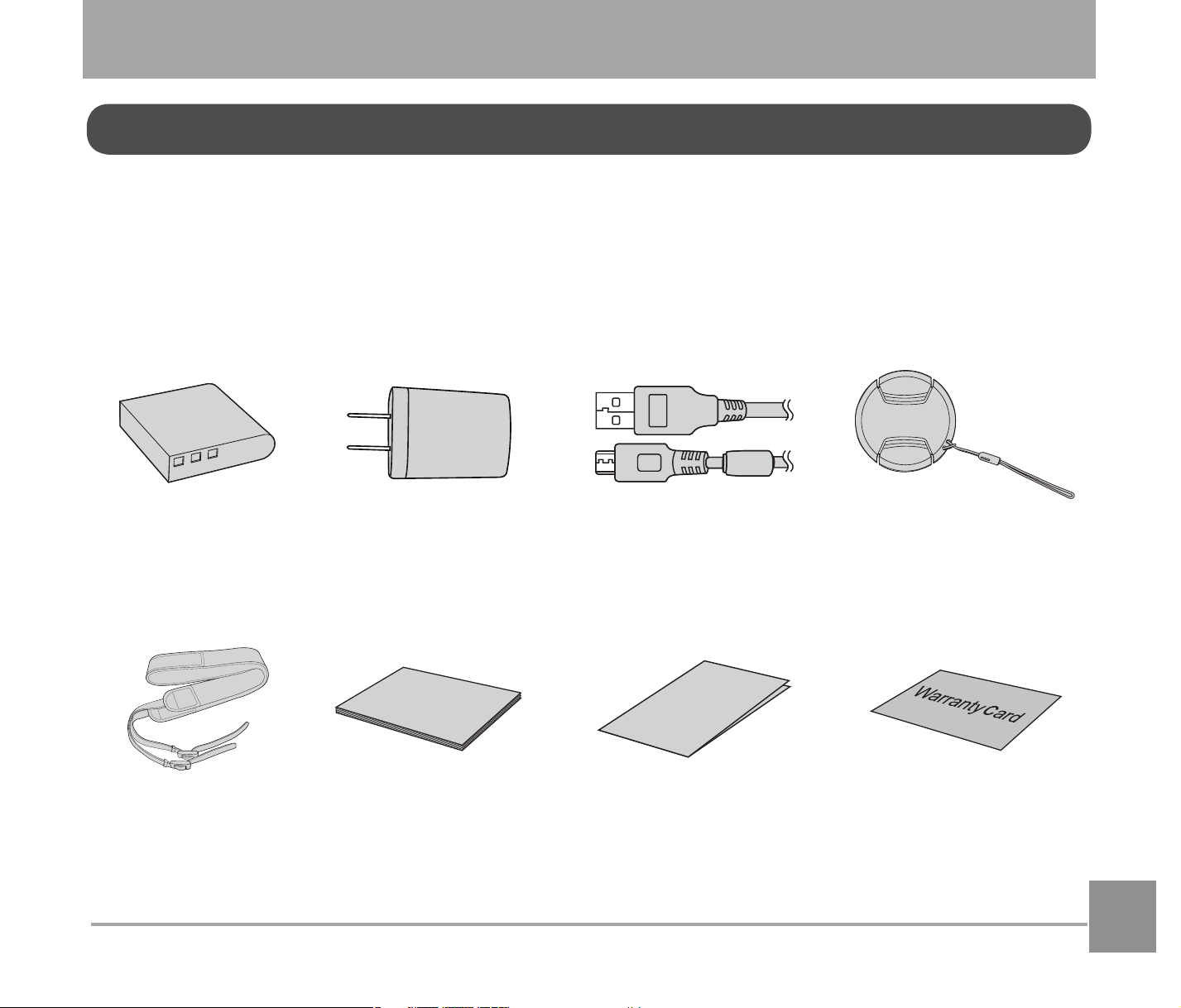
Your camera box should contain the camera model you purchased along with the following
DFFHVVRULHV,IDQ\WKLQJLVPLVVLQJRUDSSHDUVWREHGDPDJHGSOHDVHFRQWDFW\RXUUHWDLOHU¿UVW
or our customer service center. (The battery chargers may be a little different in shape due
to the different countries or regions this camera is sold to. The illustration may not match the
actual product.)
Micro USB Cable
Warranty Card
Neck Strap User Manual
Rechargeable
Li-ion Battery
AC Adapter Lens Cap With Strap
Quick Start Guide
Accessories Included
Quick St
art Guide
User Manual
14
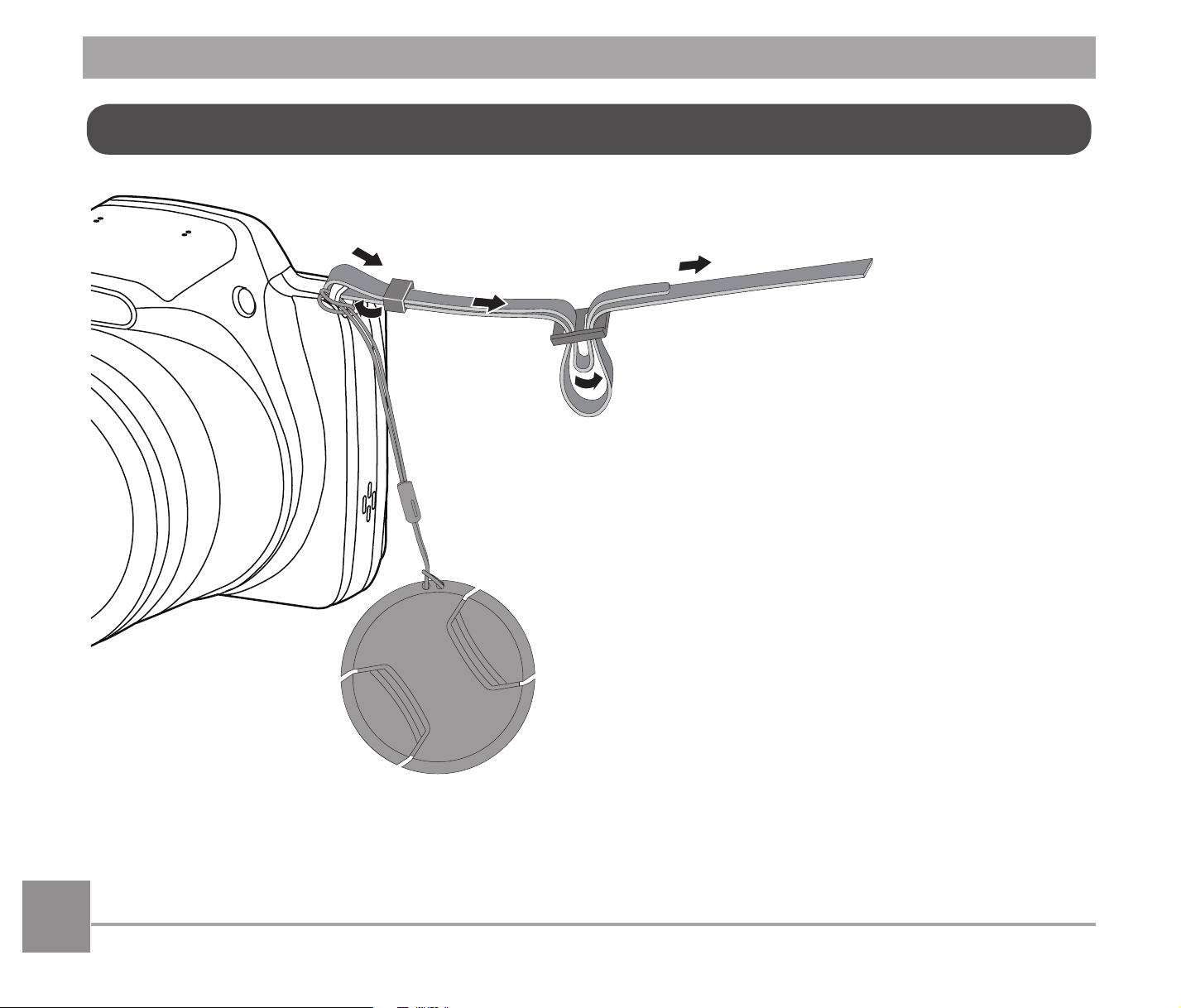
Install Lens Cap and Neck Strap
15
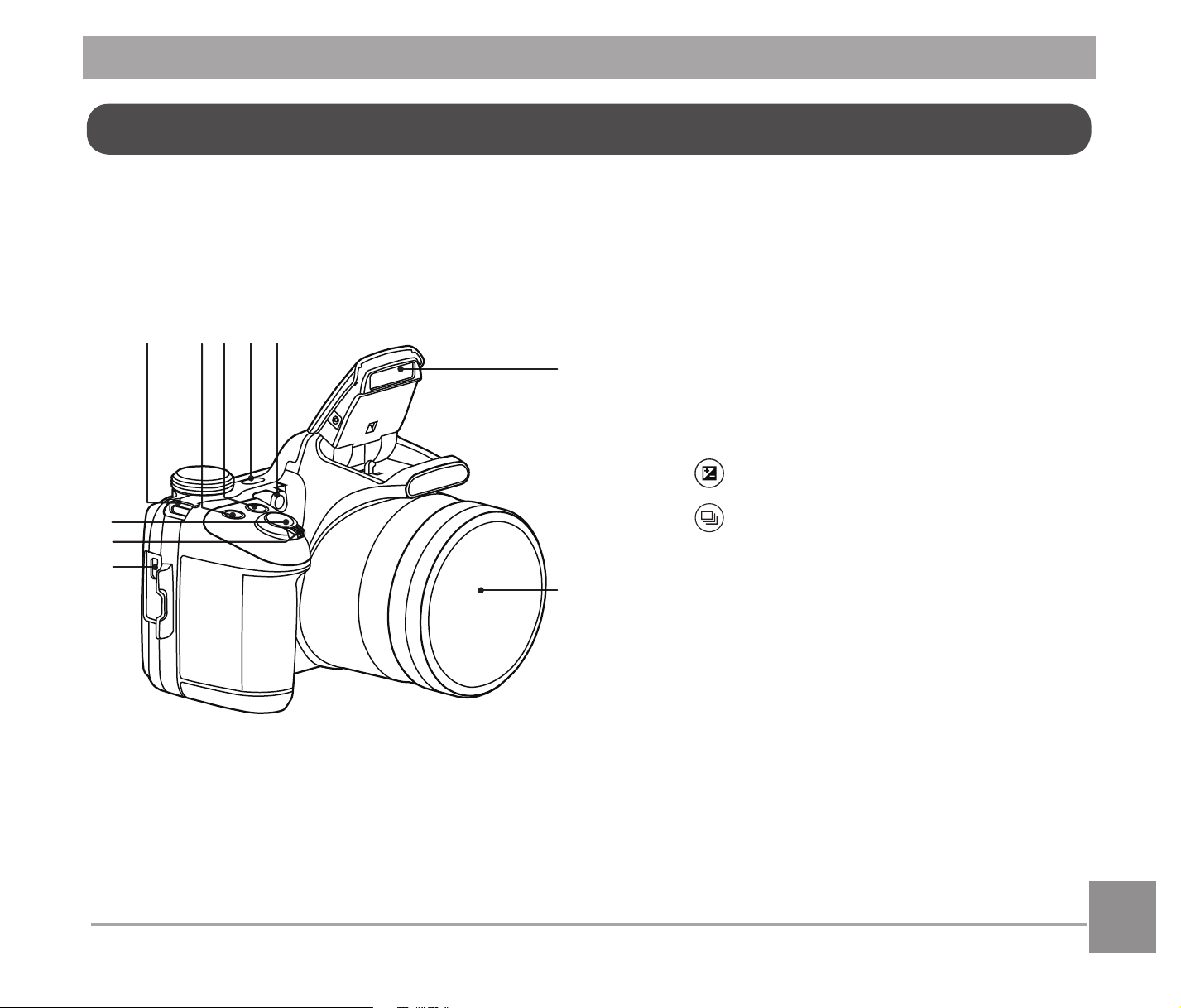
Part Names
1. Micro USB Port
2. Zoom Lever
3. Shutter Button
4. Strap Eyelet
5.
Exposure Compensation Button
6.
Continuous Shot Button
7. Power Button
8. AF Assist Beam/Self-Timer Lamp
9. Flash Lamp
10. Lens
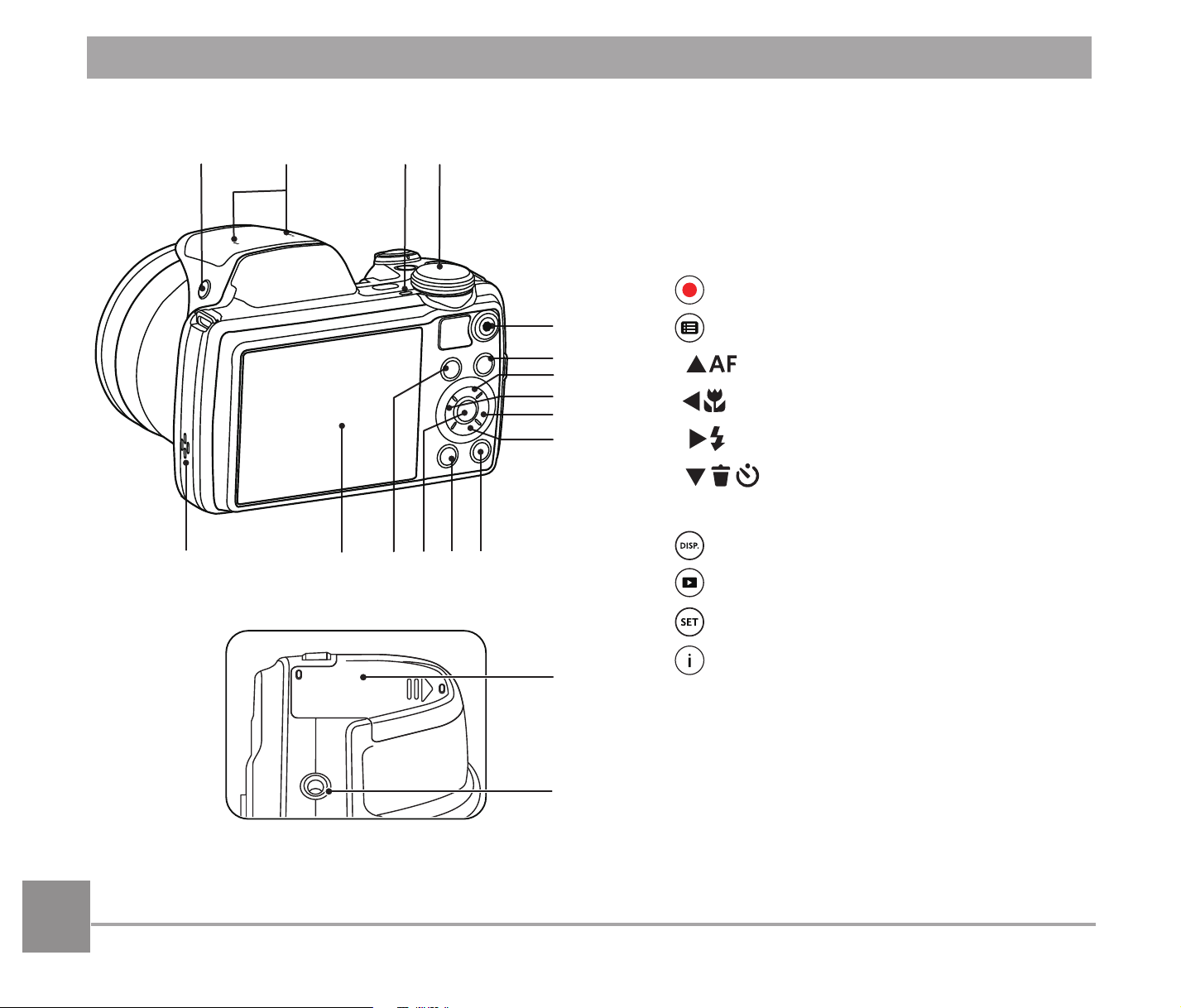
1616
11. Flash Button
12. Microphones
13. Indicator Lamp
14. Mode Dial
15.
Fast Video Recording Button
16.
Menu Button
17.
AC
AF Button/Up Button
18.
A
C
Macro Button/Left Button
19.
CA
Flash Button/Right Button
20.
C
A
Delete Button/Self-Timer
Button/Down Button
21.
Display Button
22.
Playback Button
23.
SET Button
24.
i Button
25. LCD
26. Speaker
27. Battery Cover Door
28. Tripod Socket (1/4'' Standard)
27
28
17
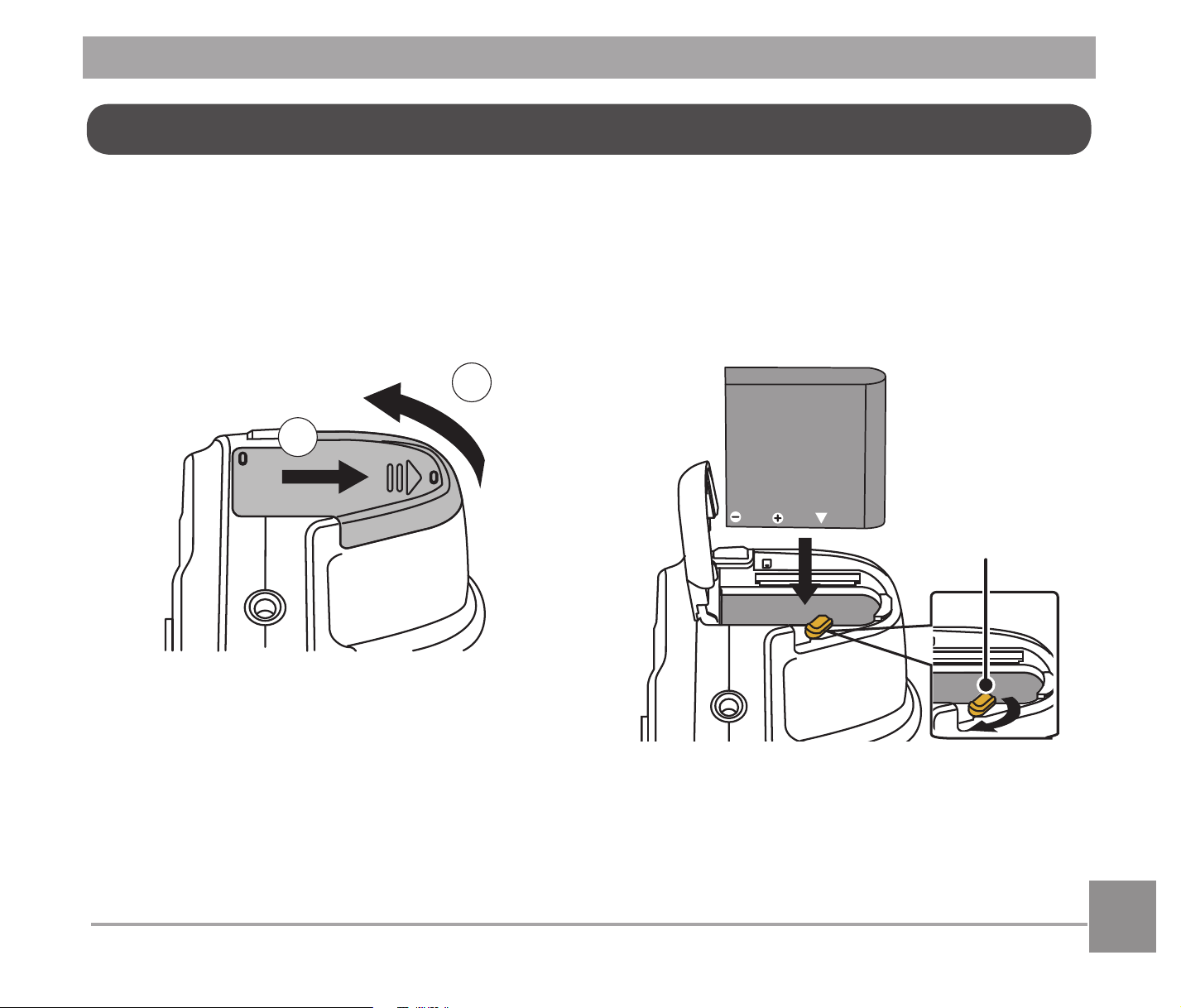
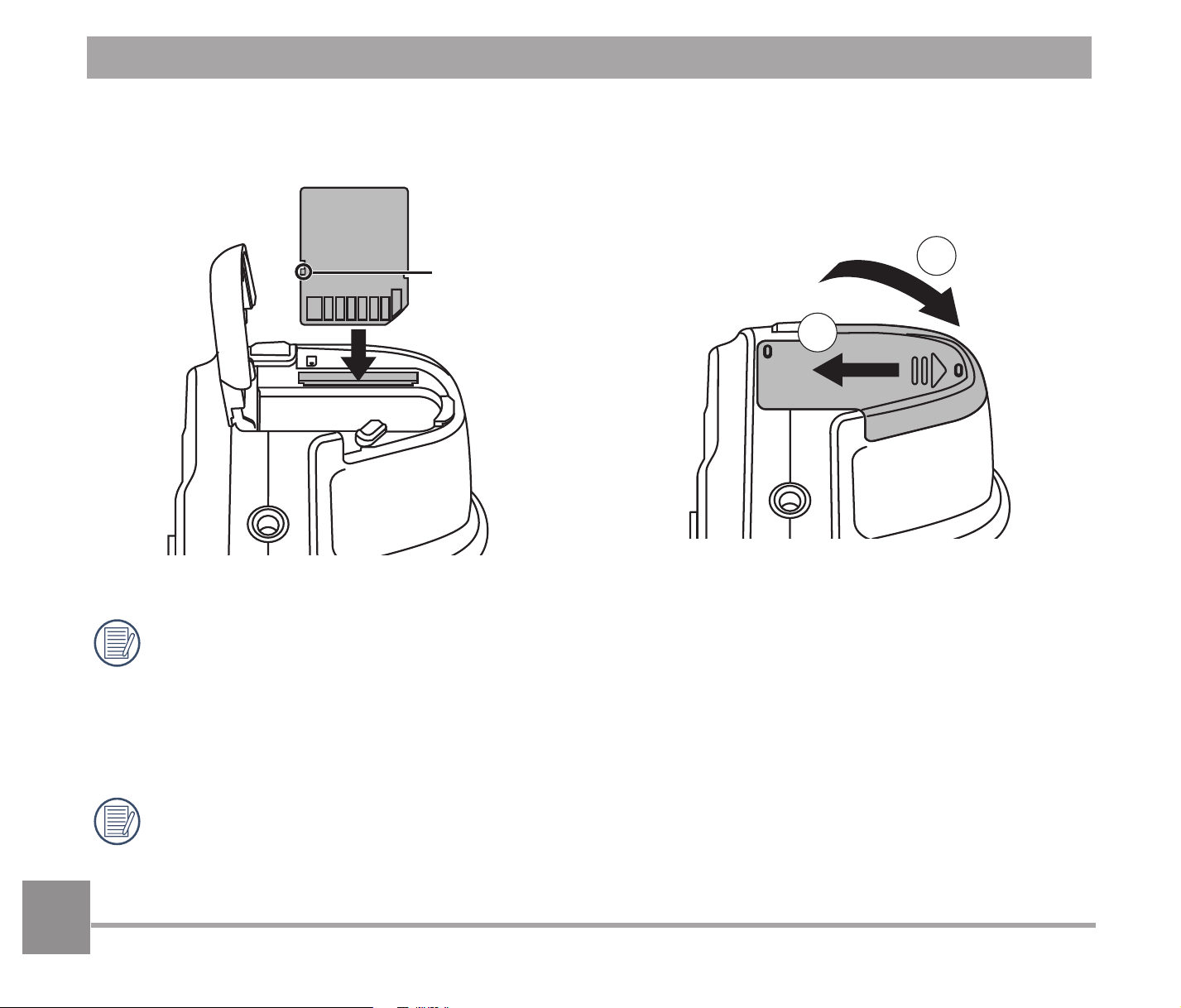
1. Open the battery cover according to the
direction of arrow.
1
2
2. Insert the battery into the battery
compartment according to the negative
and positive directions as illustrated in
the picture. Push the battery down until it
locks in place.
Installing Battery and Memory Card
Battery Lock
Knob
18
18
4. Close the battery cover.
2
1
3. Insert the memory card into the memory
card slot as shown in the diagram.
Write Protection
Buckle
A standard SD memory card is not included in the camera packaging and needs to be
purchased separately. This camera takes a standard (SD/SDHC) memory card. We rec-
ommend using a name brand memory card that is Class 4 or higher and has a capacity
of 4GB to 32GB. The camera is not compatible with Micro SD, Ultra, Ultra Plus, Extreme,
or adapters for any of these other memory cards.
To remove your memory card, open the battery cover, gently press the memory card to
eject it and remove it carefully.
19
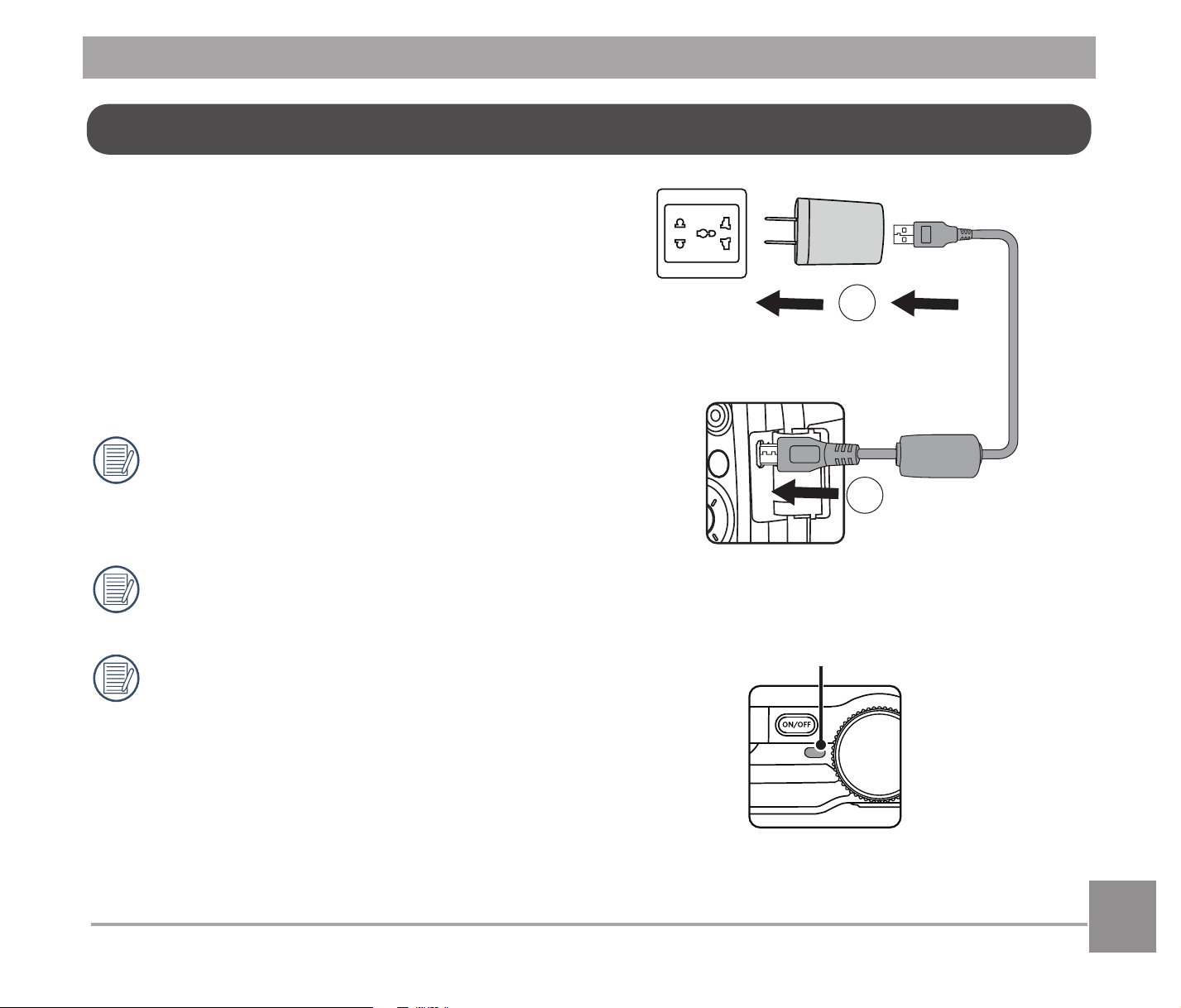
Before you charge the battery, ensure that the
battery is inserted properly and the camera is
off.
1. Connect the camera and the power charger
using the supplied Micro USB cable.
2. Insert the plug of the power charger into the
power outlet to charge the battery.
After the battery is stored for a long period
of time, use the supplied power charger to
charge the battery prior to use.
To have maximum battery life, charge the
EDWWHU\IRUDWOHDVWKRXUVWKH¿UVWWLPH
Charging indicator:
Steady orange: Charging
The indicator will go out once charging is
¿QLVKHG
Indicator Lamp
2
1
Charging Battery

2020
3. When the camera is turned off, you can also connect the camera to your PC using a USB
cable to charge the battery.
3
Please charge the battery indoors between 0°C and 40°C (32°F and 104°F).
21
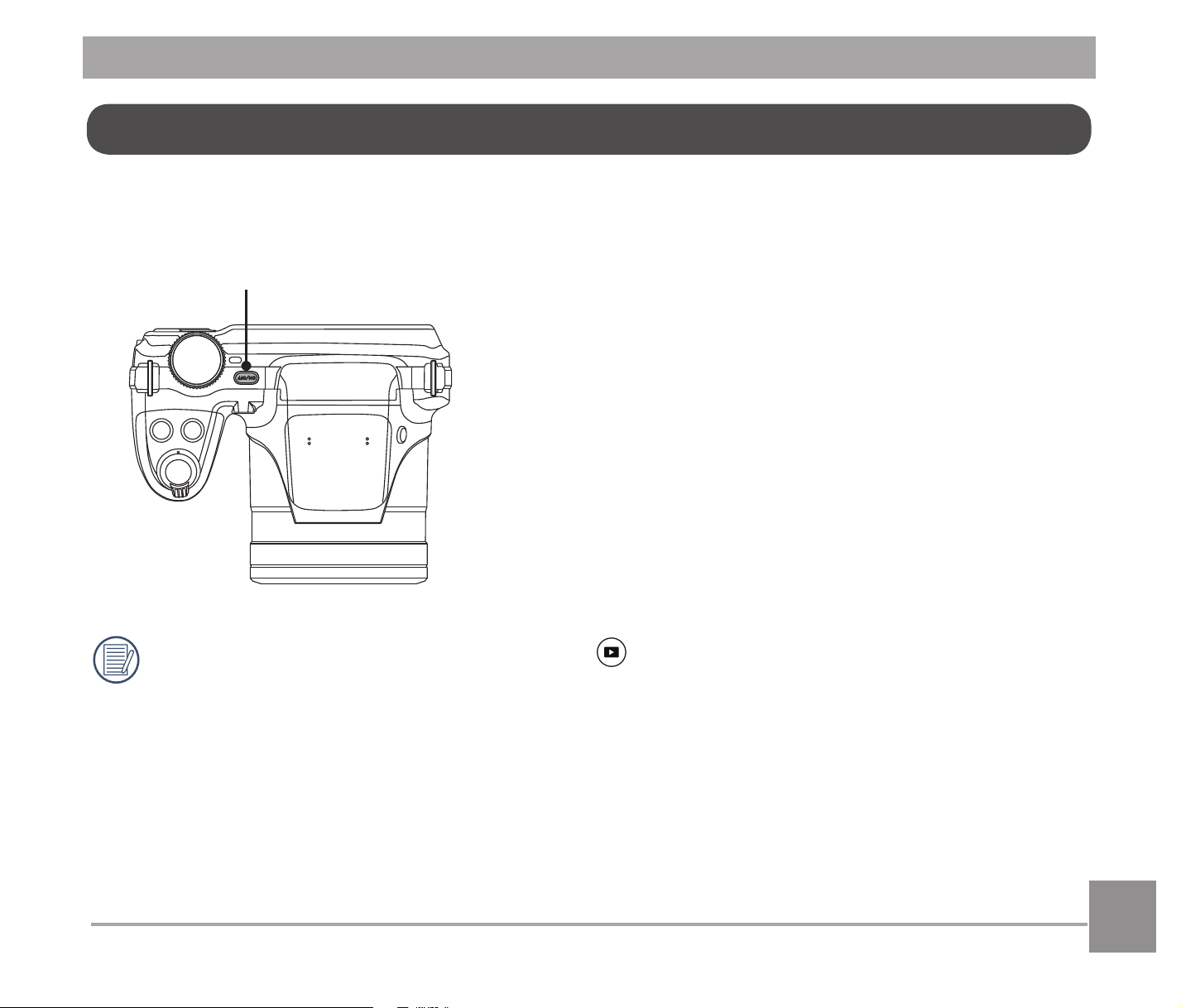
Press the power button to turn the camera on. To turn the camera off, press the power button
again.
When the power is off, press and hold the button to power on and enter playback
mode.
Turning Camera On and Off
Power Button
22
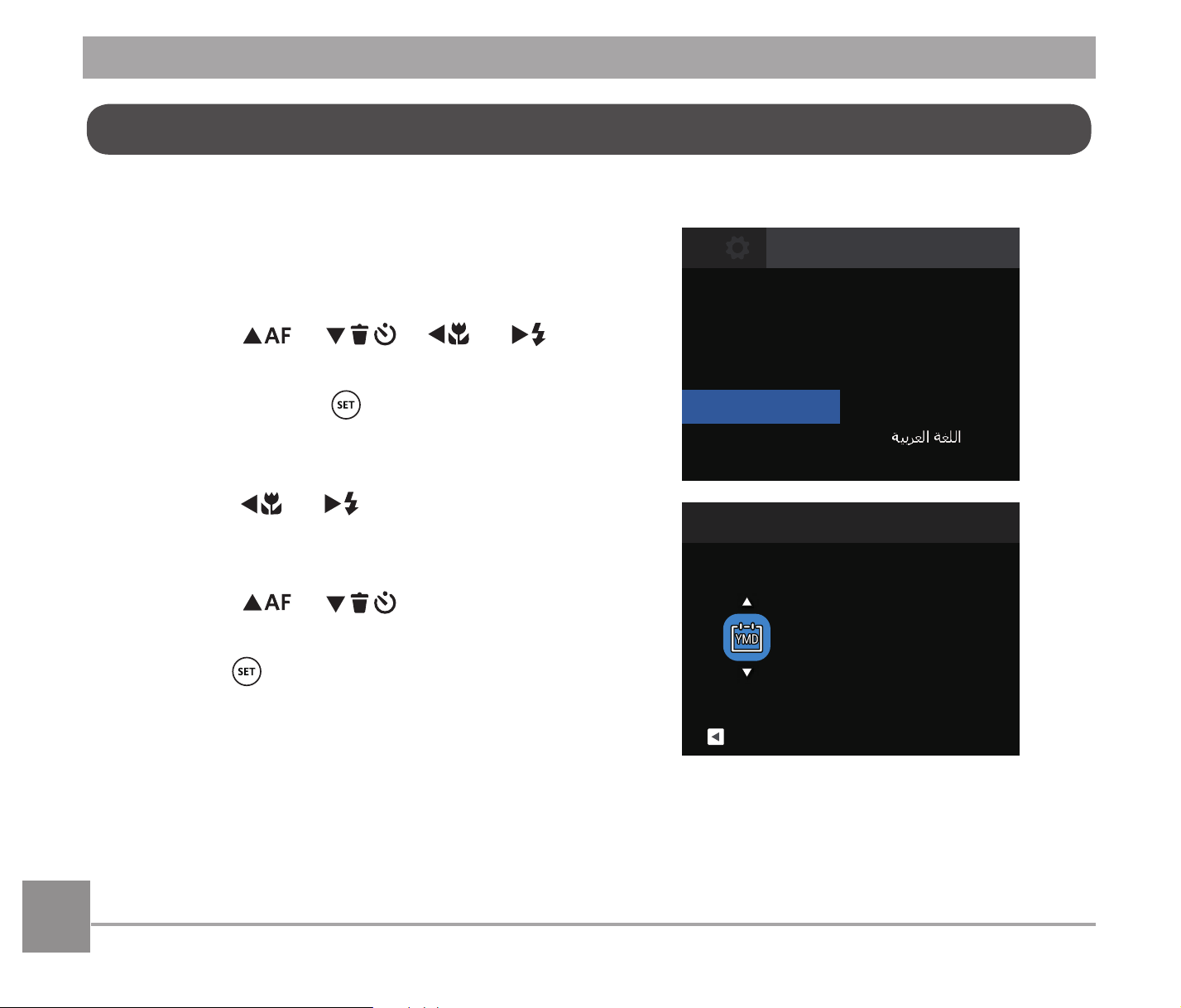
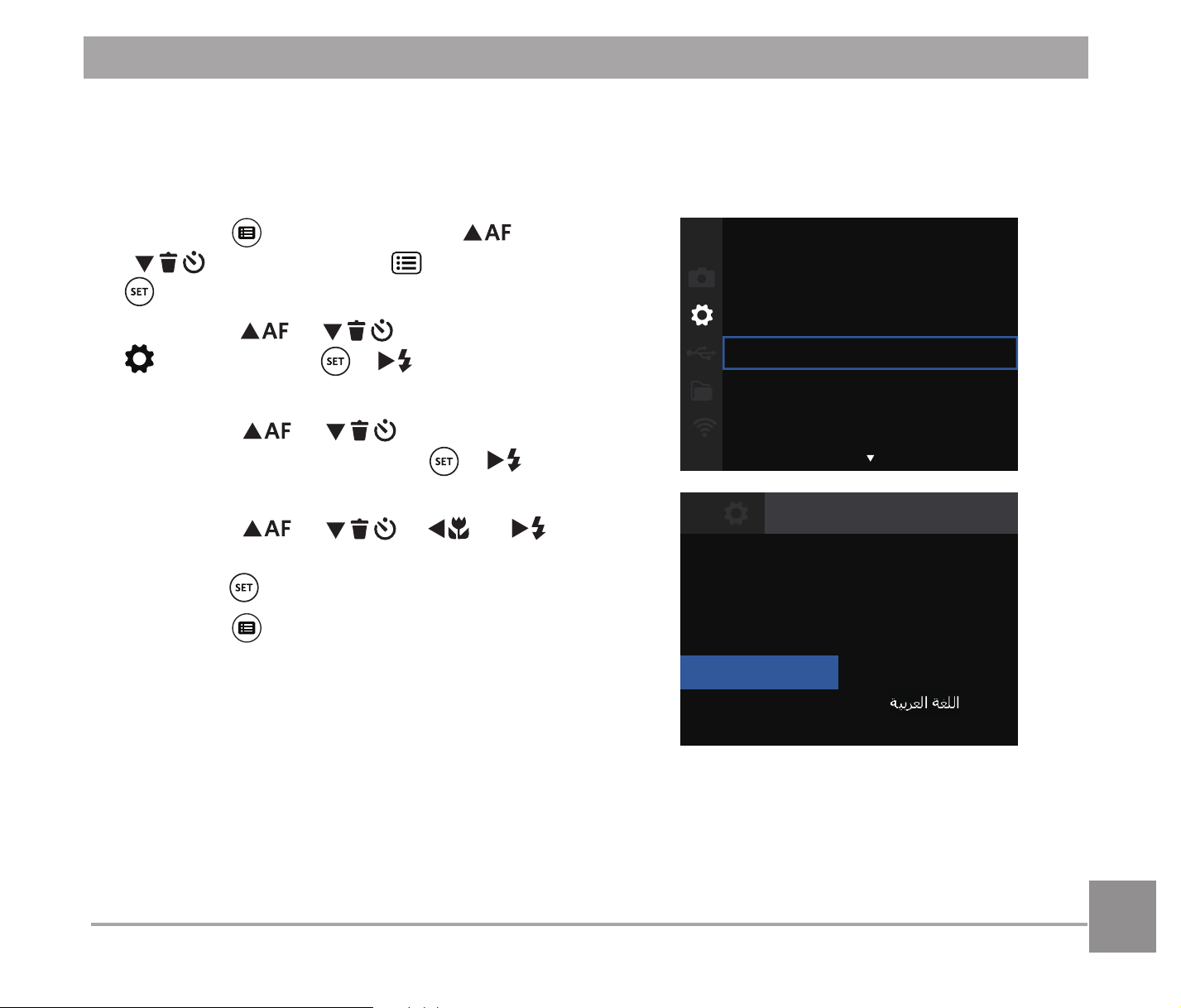
Set your Language, Date/Time after the First Power-On
:KHQ\RXWXUQWKHFDPHUDRQIRUWKH¿UVW
time, the language selection screen will
appear.
2. Press the
AC
/
C
A
/
A
C
/
CA
buttons to select your desired language.
3. After you press the
EXWWRQWRFRQ¿UPWKH
selection, the Date/Time settings screen
appears.
4. Press the
A
C
/
CA
button to select the
Date/Time to be adjusted: Time is displayed
in YYYY.MM.DD HH:MM.
5. Press the
AC
/
C
A
button to adjust
the value for the selected Date/Time.
6. Press the
EXWWRQWRFRQ¿UPWKHWLPH
settings and the shooting screen will appear.
䳿榒ᳫ㑅
Español
English
Français
䫟ḑᳫ㑅
Português
㒣㗪奜
Italiano
한국어
Deutsch
Рyсский
Language
Date & Time
: . .
06 01 00 00
H-M
2021
Back
Set your Language, Date/Time
2323
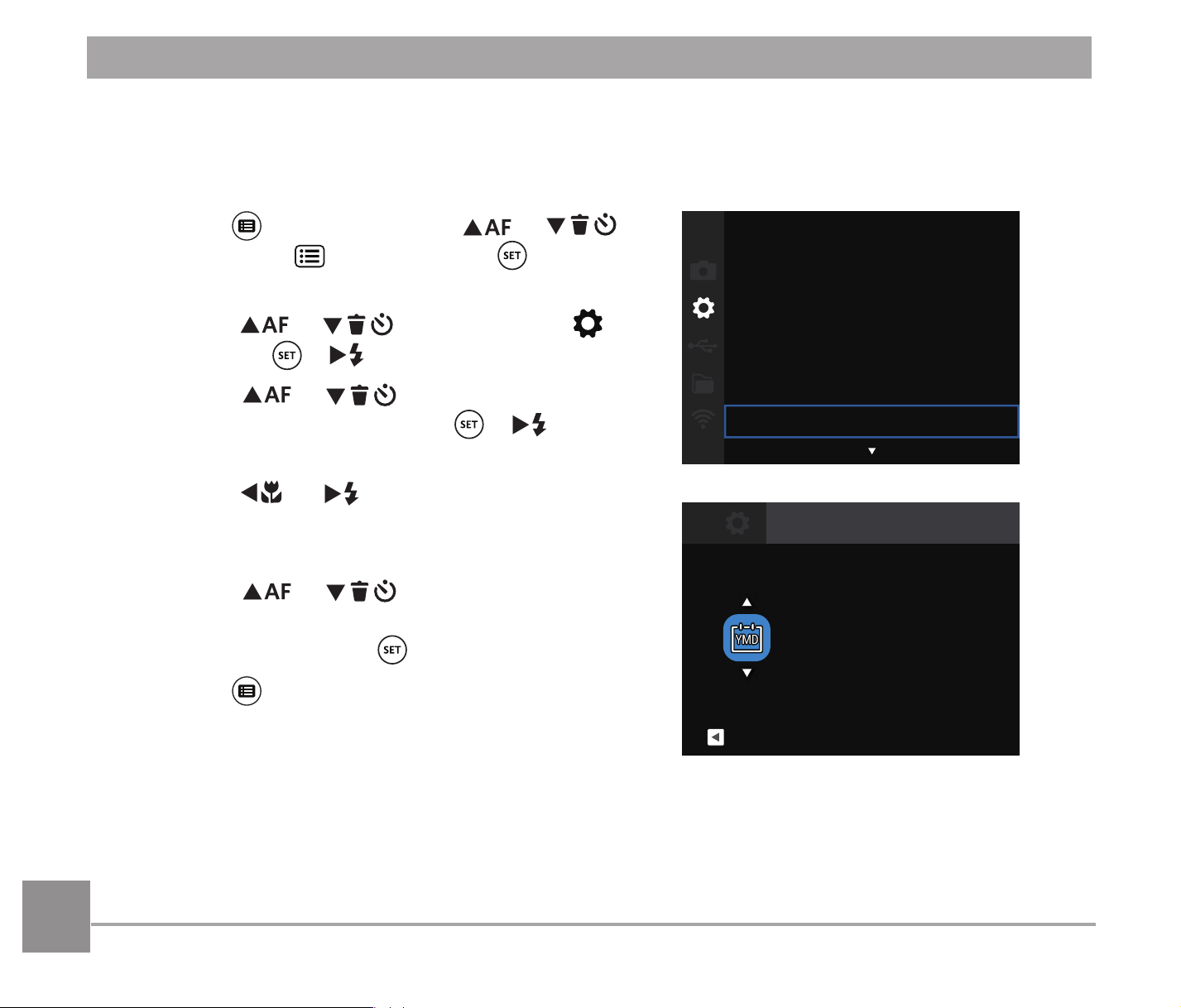
1. Press the button, press the
AC
/
C
A
button to select , and press the
button to enter the menu.
2. Press the
AC
/
C
A
button to select
, and press the /
CA
button to enter
the menu.
3. Press the
AC
/
C
A
button to select
澨Language澩and press the
/
CA
button
to enter the menu.
4. Press the
AC
/
C
A
/
A
C
/
CA
buttons to select your desired language and
press the
EXWWRQWRFRQ¿UP
5. Press the
button and the shooting screen
appears.
2021.06.01 00:00
Sound Settings
Power Saver
Auto
Language
English
World Time
Home
Date & Time
䳿榒ᳫ㑅
Español
English
Français
䫟ḑᳫ㑅
Português
㒣㗪奜
Italiano
한국어
Deutsch
Рyсский
Language
Resetting your Language
$IWHU\RXVHW\RXUODQJXDJHIRUWKH¿UVWWLPHIROORZWKHLQVWUXFWLRQVEHORZWRUHVHW\RXUGHVLUHG
language.
2424
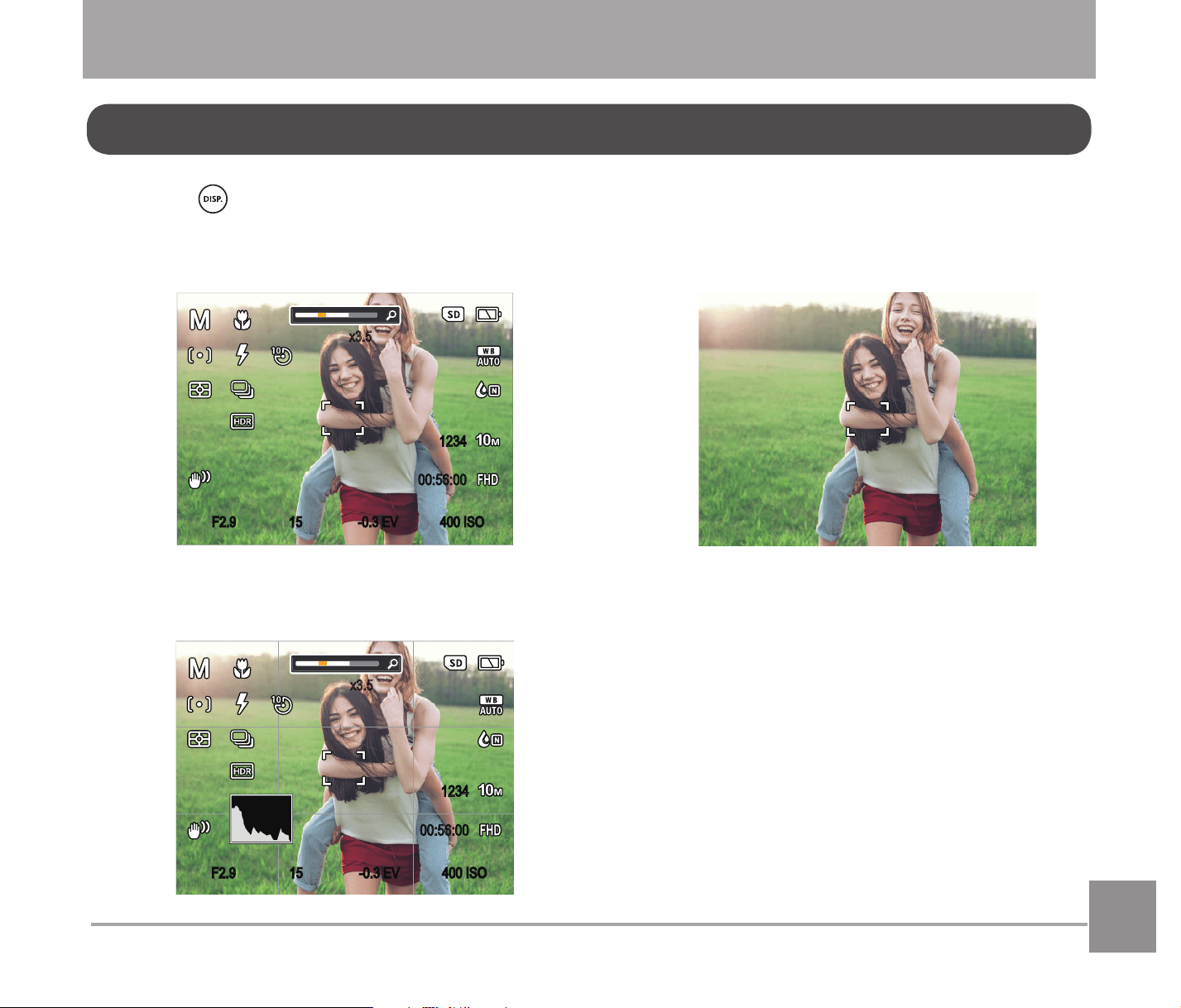
1. Press the button, press the
AC
/
C
A
button to select
, and press the button to
enter the menu.
2. Press the
AC
/
C
A
button to select ,
and press the
/
CA
button to enter the menu.
3. Press the
AC
/
C
A
button to select
澨Date & Time澩and press the
/
CA
button
to enter the menu.
4. Press the
A
C
/
CA
button to select the Date/
Time to be adjusted: Time is displayed in YYYY.
MM.DD HH:MM.
5. Press the
AC
/
C
A
button to press the
YDOXHIRU\RXUVHOHFWHGEORFN$IWHU\RX¿QLVK
your settings, press the
EXWWRQWRFRQ¿UP
6. Press the
button and the shooting screen
appears.
Resetting Date/Time
$IWHU\RXVHW\RXU'DWH7LPHIRUWKH¿UVWWLPHIROORZWKHLQVWUXFWLRQVEHORZWRUHVHWGDWHDQG
time.
Sound Settings
Power Saver Auto
Language English
World Time Home
Date & Time
2021.06.01 00:00
: . .
06 01 00 00
Back
2021
:
HM
Date & Time
25
Off: Does not display any additional icons
on screen
MODE OVERVIEW
Press the button to display the settings: Classic, Full, Off.
Classic: Displays the camera parameters
on screen
x3.5
-0.3 EV
15
F2.9 400 ISO
1234
00:56:00
Full: Camera parameters with Grid and
Histogram
x3.5
-0.3 EV
15
F2.9 400 ISO
1234
00:56:00
Display Setting

26
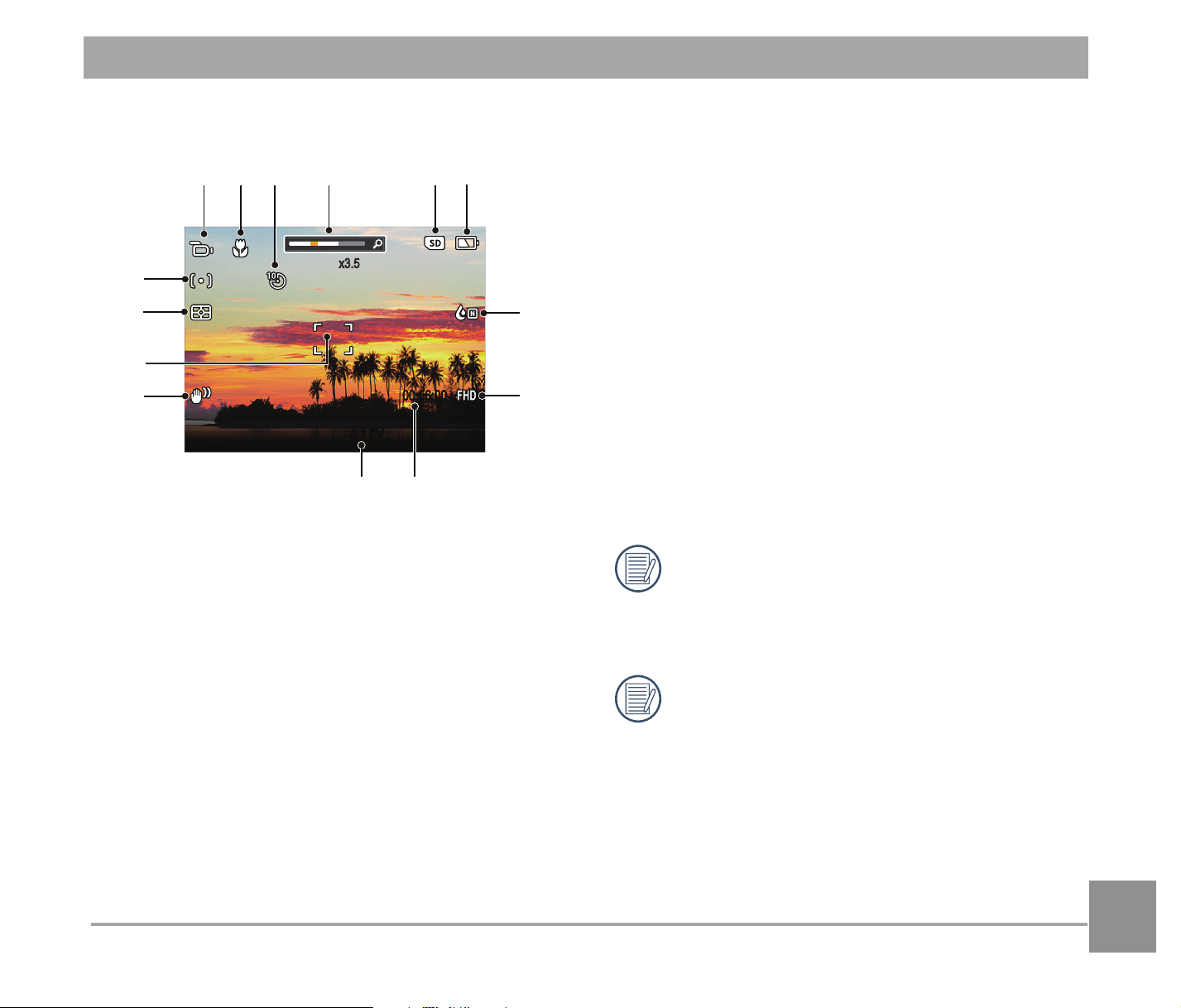
Overview of the screen icons in photo shooting mode
8 White Balance
9 Color Effect
10 Number of Remaining Shots
,PDJH6L]H
12 Video Quality
13 ISO Value
14 Remaining Recording Time
15 Exposure Compensation
16 Shutter Speed
17 Histogram
18 Aperture Value
2,62SWLFDO,PDJH6WDELOL]DWLRQ
20 HDR
21 Expo Metering
22 Continuous Shot
23 AF Mode
24 Flash Mode
x3.5
-0.3 EV
1/60
F2.9 400 ISO
1234
00:56:00
1 Shooting Mode
2 Macro Mode
3 Self-Timer
4 Zoom Display (By turning the Zoom
Lever)
5 Focus Frame
6 SD Memory Card/Built-in Memory
7 Battery Status
LCD Display
2727
x3.5
-0.3 EV
00:56:00
1 Movie Mode
2 Macro Mode
3 Self-Timer
4 Zoom Display (By turning the Zoom
Lever)
5 SD Memory Card/Built-in Memory
6 Battery Status
7 Color Effect
8 Video Quality
9 Remaining Recording Time
10 Exposure Compensation
2,62SWLFDO,PDJH6WDELOL]DWLRQ
12 Focus Frame
13 Expo Metering
14 AF Mode
For optimal video shooting, it is
recommended that an SDHC memory
card be used.
Optical Zoom and Digital Zoom can be
adjusted (212X in total). Digital Zoom
can be adjusted to 4X.
Overview of the screen icons in movie mode
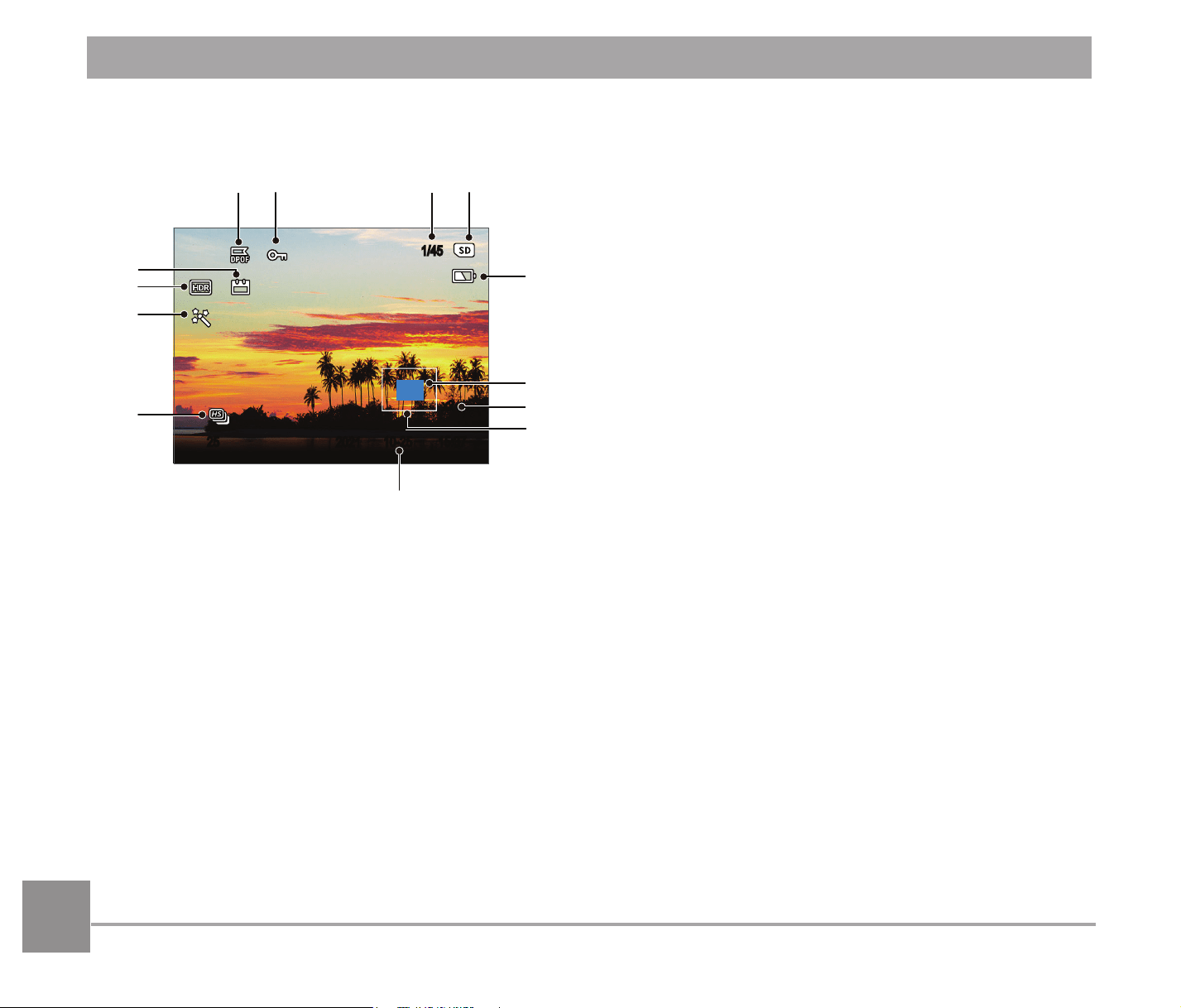
2828
1/45
x2
10-25 15:3725
2021
1 DPOF File
2 File Protection
3 Memory Space (indicating the current
number of photos and total number of
photos)
4 SD Memory Card/Built-in Memory
5 Battery Status
=RRP0DJQL¿FDWLRQ$UHD
7 Image Zoom Ratios
8 Image Zone
9 Shooting Date
10 Continuous Capture Group Playback
11 Touch-up
12 HDR
13 Date Folder
Overview of the screen icons in playback mode
29
How to Take Pictures
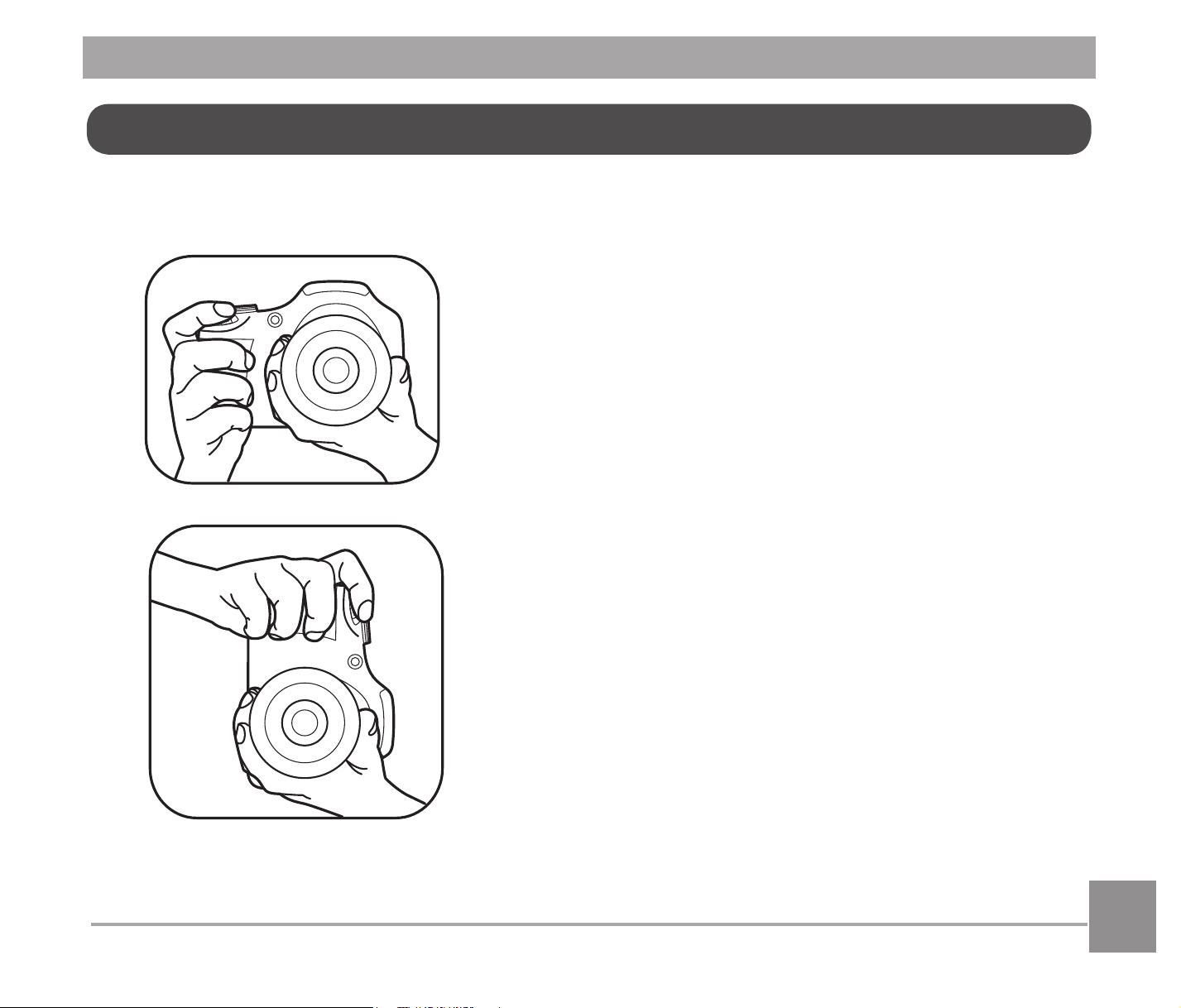
1. Hold the camera securely with both
hands, being careful not to block the
ÀDVKDQGOHQVZLWK¿QJHUV
2. Point the lens toward the object you want
to take a picture of.
8VHWKH]RRPOHYHUWRVHOHFW7HOHRU
:LGHSRVLWLRQWR]RRPLQRURXWRQ\RXU
subject.
4. Press the shutter button down half-way
to allow the camera to focus on your
subject.
5. When the frame around your subject
turns green and the LCD is focused to
your liking, push the shutter button down
completely to take the picture.

30
Using the Mode Dial
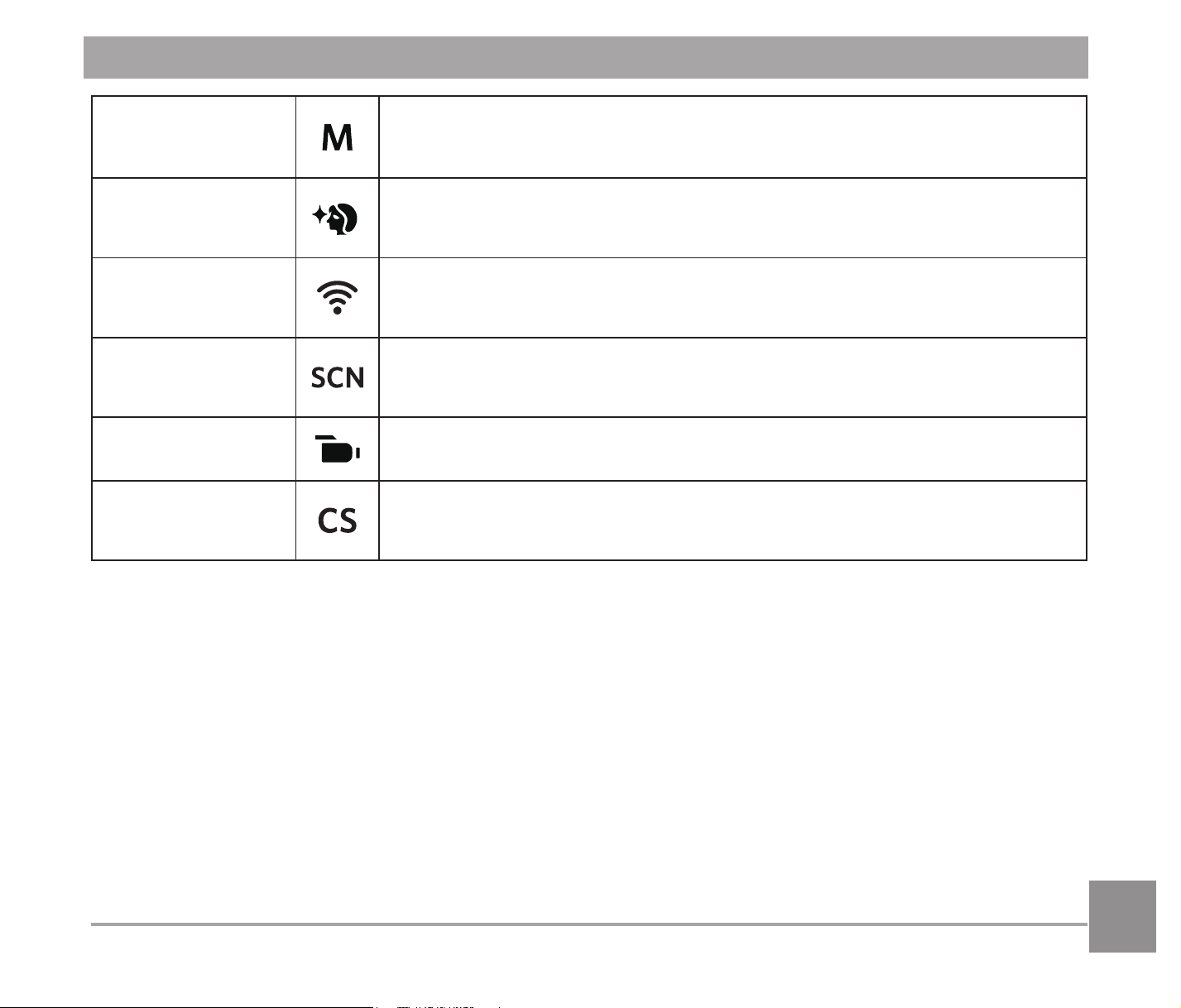
This camera provides a convenient mode dial that allows you to manually switch between
different modes with ease. The available modes are listed below:
Mode Name Icon Description
Auto Mode
In this mode, the optimal conditions for taking pictures will be set
based on the subject and environment. It is the most commonly
used mode for taking pictures.
Program AE
Under different scenes, the user can switch the ISO and EV value
according to personal preference, the camera can automatically set
the shutter speed and aperture value.
Shutter priority
Setting allows you to adjust the shutter speed / EV value and ISO
value. The camera automatically sets the aperture value based
on the shutter speed and ISO value to get the most appropriate
exposure value.
Aperture priority
,QWKLVPRGH\RXFDQDGMXVWLQJWKHDSHUWXUHVL]H(9DQG,62YDOXHV
The large aperture is to highlight the object focused through blurring
the background, while the small aperture is for clear focusing on both
the background and the object.
3131
Manual Mode
This mode is for manually setting the aperture, shutter speed and
ISO value.
)DFH%HDXWL¿HU
This mode automatically enhances facial features with skin soft-
ening touches and eye brightening capabilities.
Wireless Mode
Enable image transmission and remote control by connecting
smart device with Wireless network.
Scene Mode
Choose from 13 different pre-set scene types and effects for your
photos.
Movie Mode
Record videos.
Custom Settings
The user can store frequently used shooting modes and parame-
ters. Switching to this mode enables quick adjustment.
32
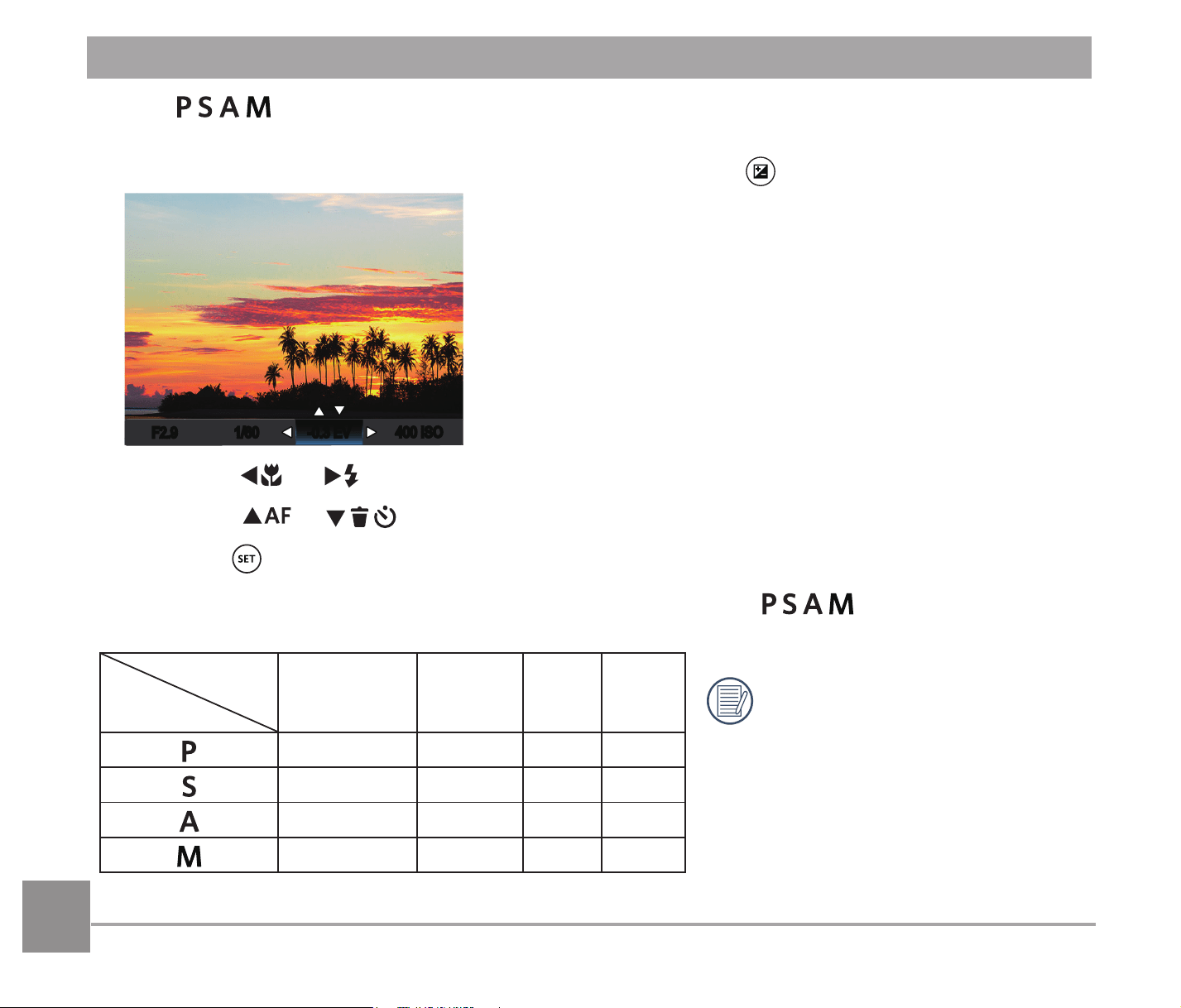
Mode:
Follow the steps below to adjust the parameters:
1. Rotate the mode dial to select a mode you want, press the
EXWWRQWRFRQ¿JXUHVHWWLQJV
-0.3 EV
F2.9
400 ISO
1/60
2. Press the
A
C
/
CA
button to select an adjustment setting.
3. Press the
AC
/
C
A
button to adjust the parameters.
4. Press the
EXWWRQWRFRQ¿UPWKHVHWWLQJVDQGHQWHUWKHVKRRWLQJVFUHHQ
Please refer to the table below for any nonadjustable options in
mode: (O: Available
X: Not Available)
Options
Mode
Aperture Shutter EV ISO
XXOO
XOOO
OXOO
OOXO
Please note that even if an op-
tion is not able to be adjusted
in a particular mode, its value
will still be displayed on the
shooting screen.
33
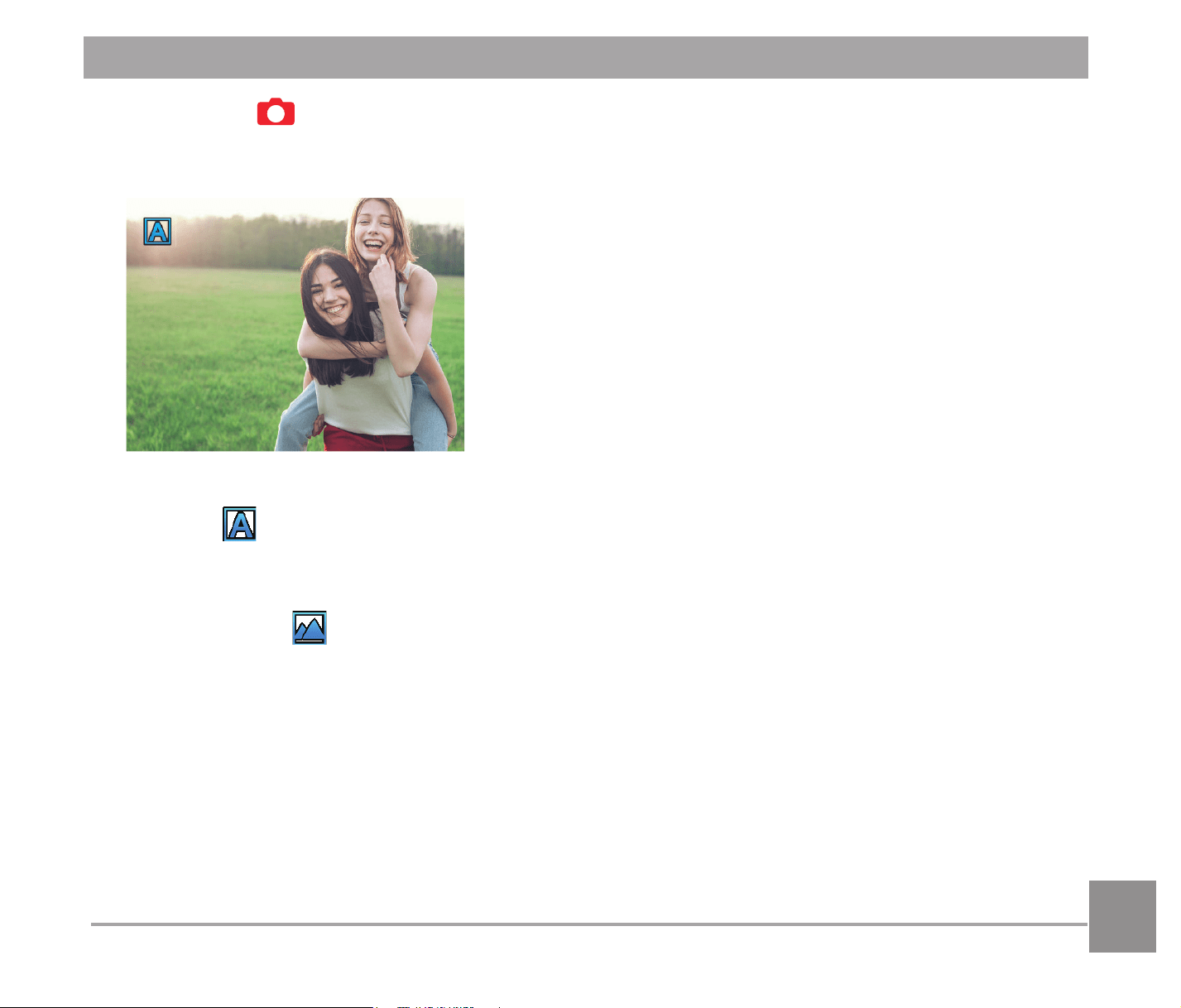
Auto Mode
The camera will automatically detect the most suitable scene to capture the best pictures.
Auto Mode
The camera automatically adjusts the exposure and focus to ensure the best possible pictures.
Landscape Mode
For landscapes, automatically adjusts the exposure to match the background.
34
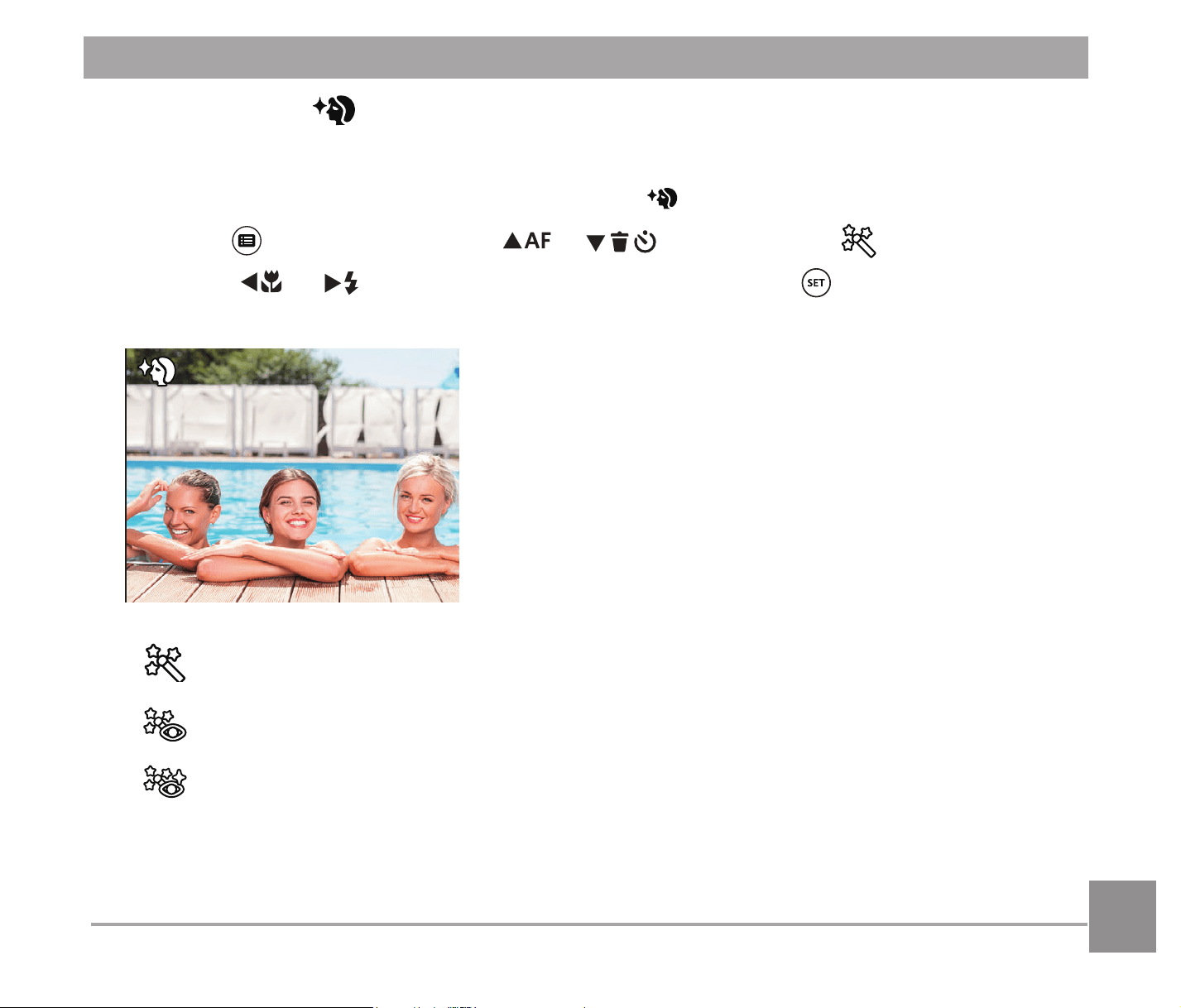
Portrait Mode
Most suitable for capturing people with focus on their faces.
Night Portrait
When you take portraits at night or in low light conditions, automatically adjust the exposure for
people and night scenes.
Backlit Portrait
When the sun or any other light source is behind you, automatically adjusts the foreground
exposure to produce the best pictures possible.
Night Mode
For night scenes, automatically increases the ISO value to compensate for low light.
Macro Mode
To produce more detailed close-ups, will automatically engage the camera’s Macro Mode and
automatically focus the lens.
35
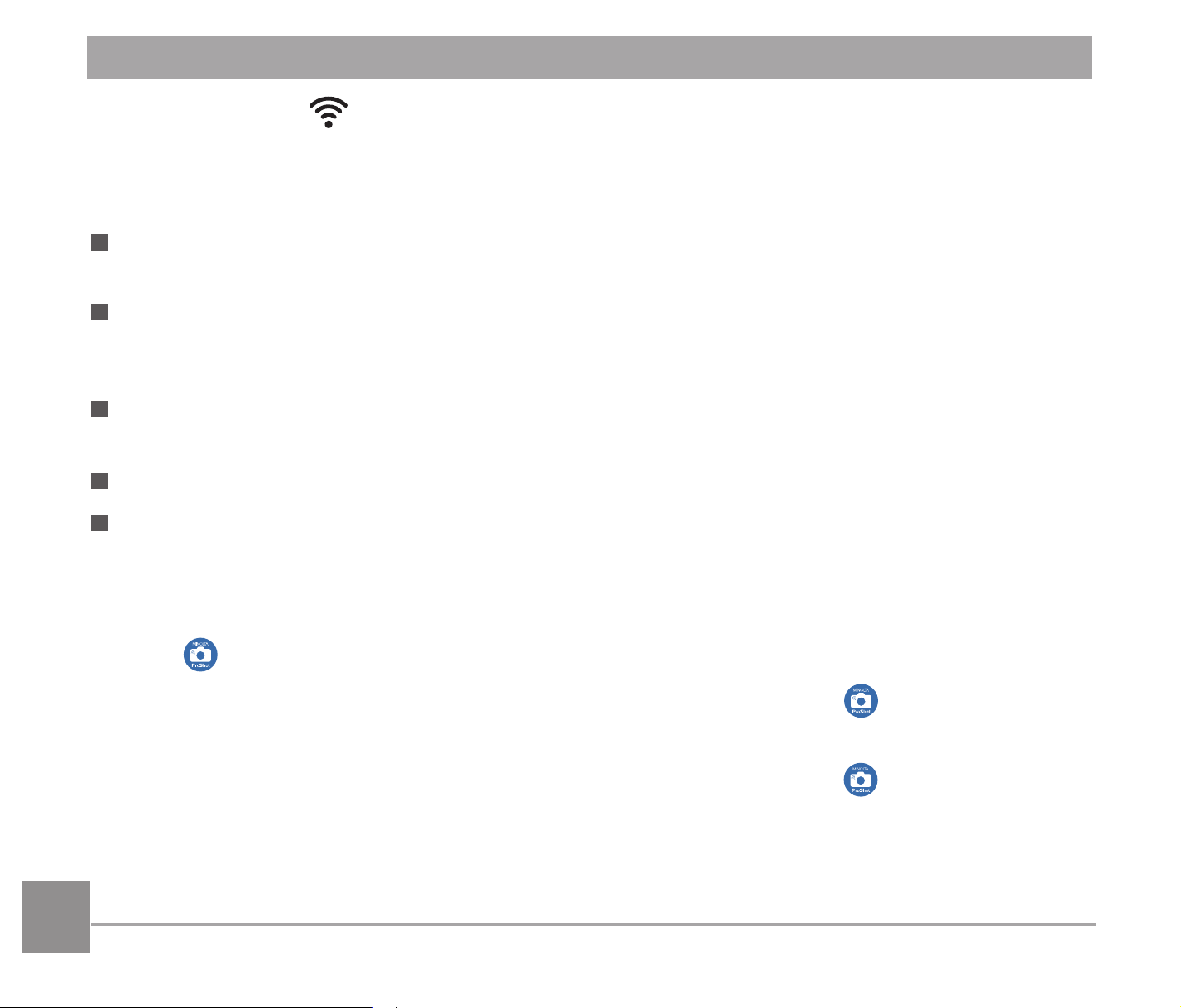
)DFH%HDXWL¿HU
The camera is set to automatically adjust camera exposure for realistic portrayal of skin tones.
7XUQWKHPRGHGLDOWRVHOHFWIDFHEHDXWL¿HUPRGH
.
2. Press the
button and press the
AC
/
C
A
button to select .
3. Press the
A
C
/
CA
button to select an option and press the EXWWRQWRFRQ¿UPDQG
return to photo shooting mode.
Effect 1: Skin Soften
Effect 2: Skin Soften+Eye Brightening
Effect 3: Skin Soften+Eye Brightening+Eye Enlargement
36
Wireless Mode
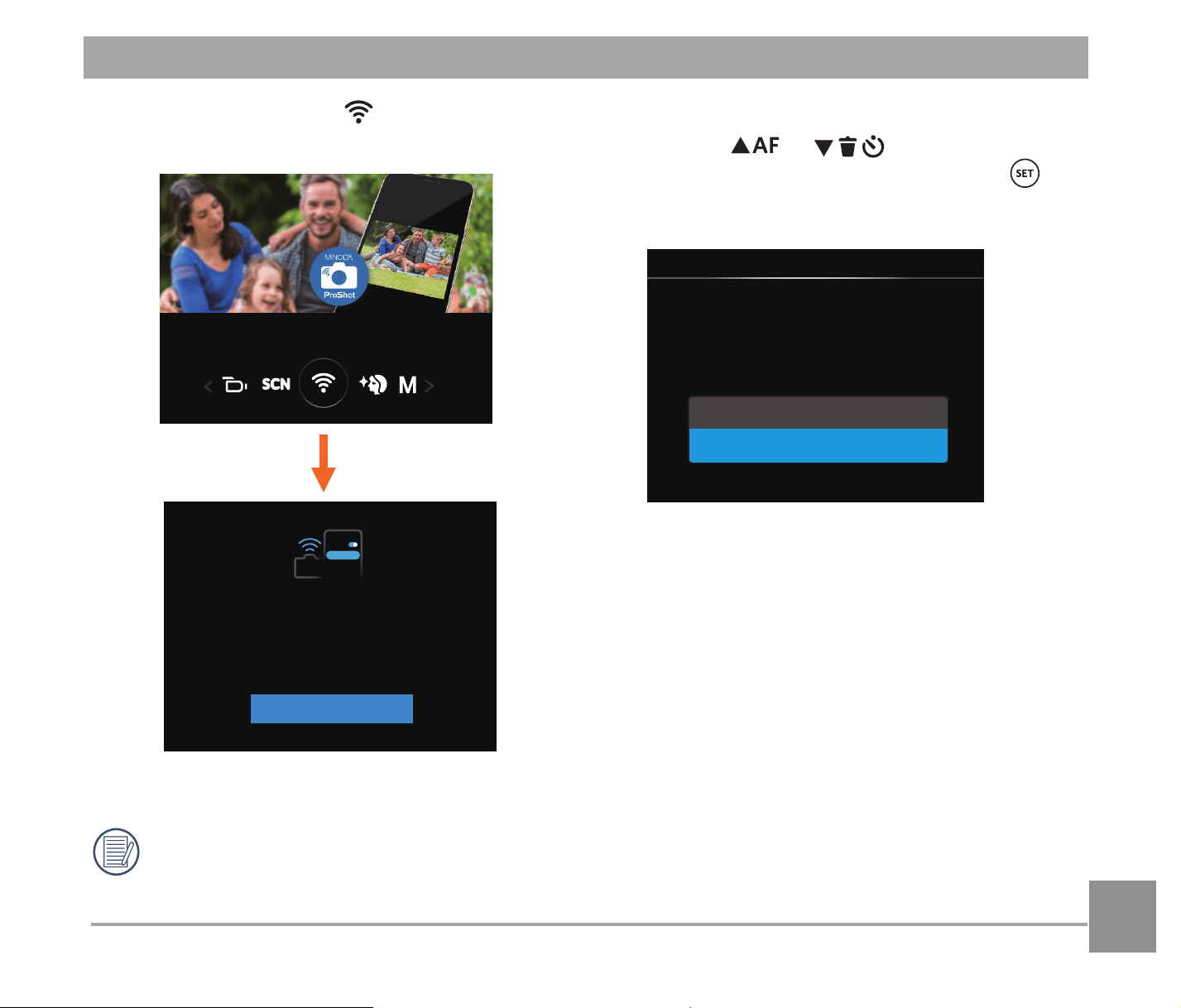
Enable image transmission and remote control by connecting smart device with Wireless.
%HIRUHXWLOL]LQJ:LUHOHVV0RGHSOHDVHUHYLHZWKHIROORZLQJ
Your smart device operating system version needs to be iOS 1 or higher, or Android 5.0
or higher. If not, please upgrade your smart device before using the App.
3OHDVHGRQRWXVHLQSODFHVKDYLQJKLJKLQWHQVLW\PDJQHWLF¿HOGHOHFWURVWDWLFDQGHOHFWULF
wave interference (for example near a microwave oven), which may cause failure in
receiving signals.
To maintain a connection, please keep the camera within 10 meters (32.8 feet) without
signal shielding interference.
Please do not use Wireless connection functionality on a plane.
The camera and the smart device can only be connected one to one.
Downloading the App package:
Download a dedicated installation package from the application store (App name: Minolta
ProShot
) and then install it.
$QGURLGGHYLFHV6HDUFKDQGGRZQORDGWKH$SS³0LQROWD3UR6KRW´
in Google play,
and install it following the instructions on the interface.
L26GHYLFHV
: 6HDUFKDQGGRZQORDGWKH$SS³Minolta ProShot´
in App store, and
install it following the instructions on the interface.
37
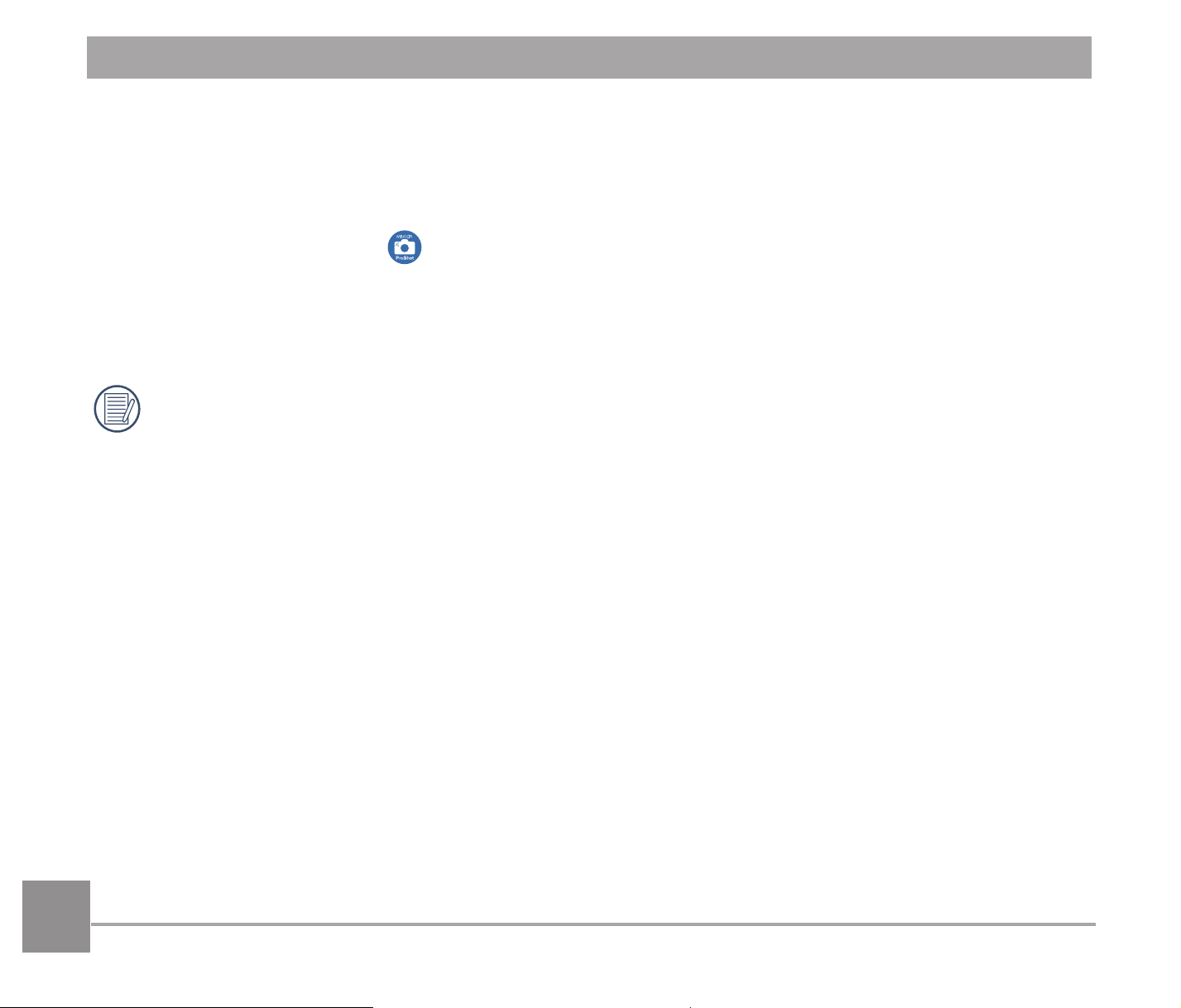
Settings of Camera:
Press the
AC
/
C
A
buttons to select
options to be adjusted, and press the
button to enter the option setting interface.
Change Password
Cancel
Wireless Mode
Setting pre-connected device for the
following serial number:
SSID: MINOLTA MN53Z_****
WPA2-PSK: XXXXXXXX
&KDQJH3DVVZRUG&(QWHUWKH:3$
36.SDVVZRUG
refresh interface.
<HV&UHDWHDQHZ:3$36.SDVVZRUG
1R%DFNWRSUHYLRXVSDJH
&DQFHO %DFNWRSUHYLRXVSDJH
Rotate the mode dial to and then enter
WKH:LUHOHVVVHOHFWLRQLQWHUIDFH
*To ensure a stable connection, please connect to
the new camera in wireless settings.(Mobile side)
*Ensure that the password is correct.
Next
Minolta MN...
Minolta MN...
Wi-Fi
Settings
Wireless Mode
Next
:(QWU\ZLUHOHVVQHWZRUNPRGH
Rotate the mode dial to disconnect.
38
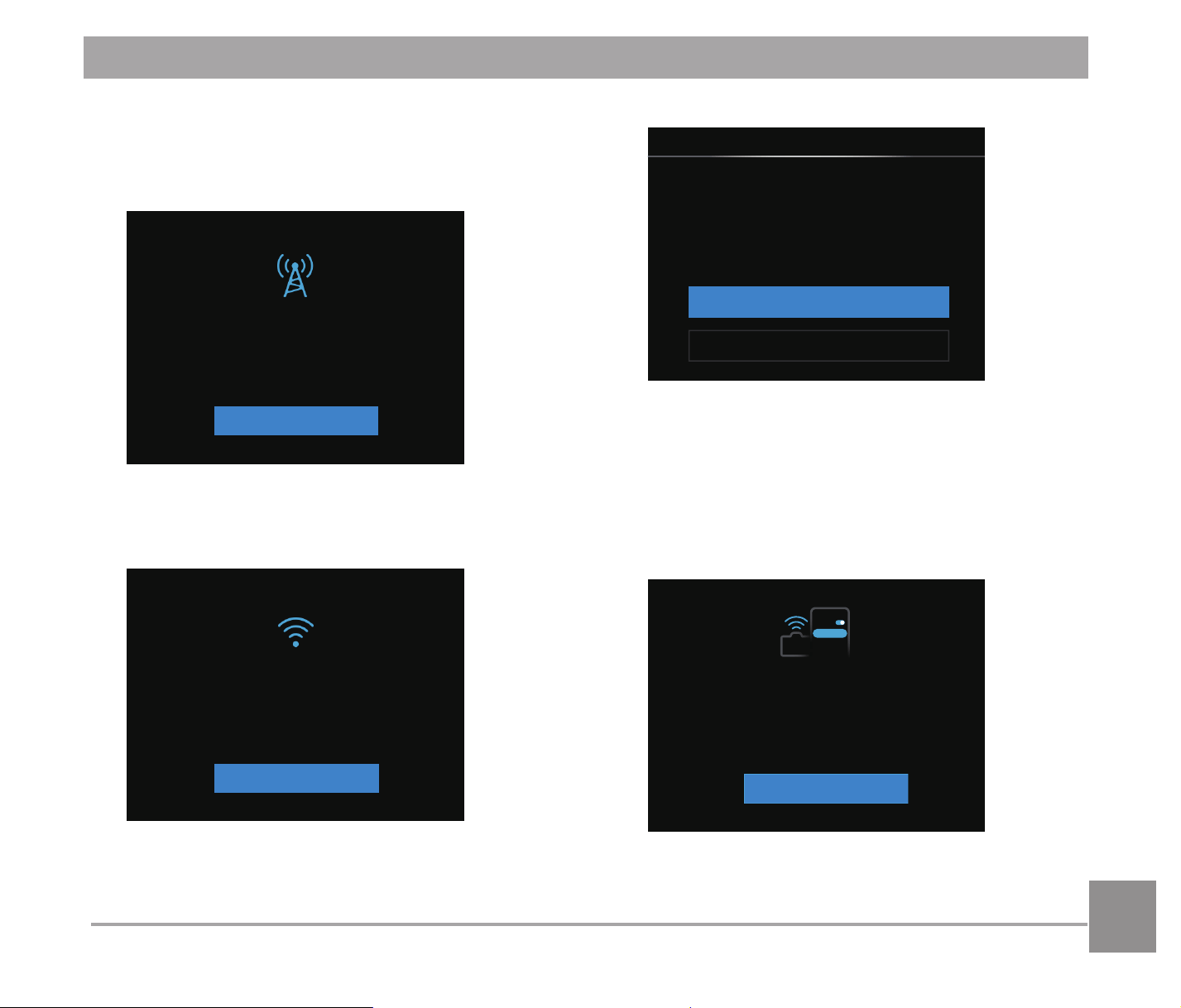
Settings of Smart Device:
Enable the Wireless of \RXUsmartSKRQHand then search surrounding wireless devices.
Select the name of \RXUcamera to be connected and then input the eight-digit numberpassword
after WPA2-PSK on the camera.
3. Click the icon of the App
to enable the App.
Set up completion:
Once the App is connected to the camera, functional operation can be enabled on the smart device.
Every camera is shipped with a default factory Wireless password WKDWLV
UDQGRPL]HGDQGXQLTXHWRWKDWFDPHUDDQGZLOOQRWFKDQJHXQOHVV\RXZLVKWRreset
the password with a new randomly generated password. If you wish to change the
Wireless password in your FDPHUD from the assigned, unique factory SDVVZRUG\RX
FDQGRVRE\VHOHFWLQJDQGXVLQJWKHUHIUHVKVHWWLQJ,I³UHIUHVK´LVselected, a new
random password will be generated and saved in the camera until FKDQJHGRULI
\RXXVHWKH³5HVHW´IXQFWLRQ,I\RXUHVHW\RXUFDPHUDWRthe factory settings, then
the initial, randomly factory assigned and unique Wireless password will be restored
to your camera. (Please refer to Reset instructions on page 95).
39
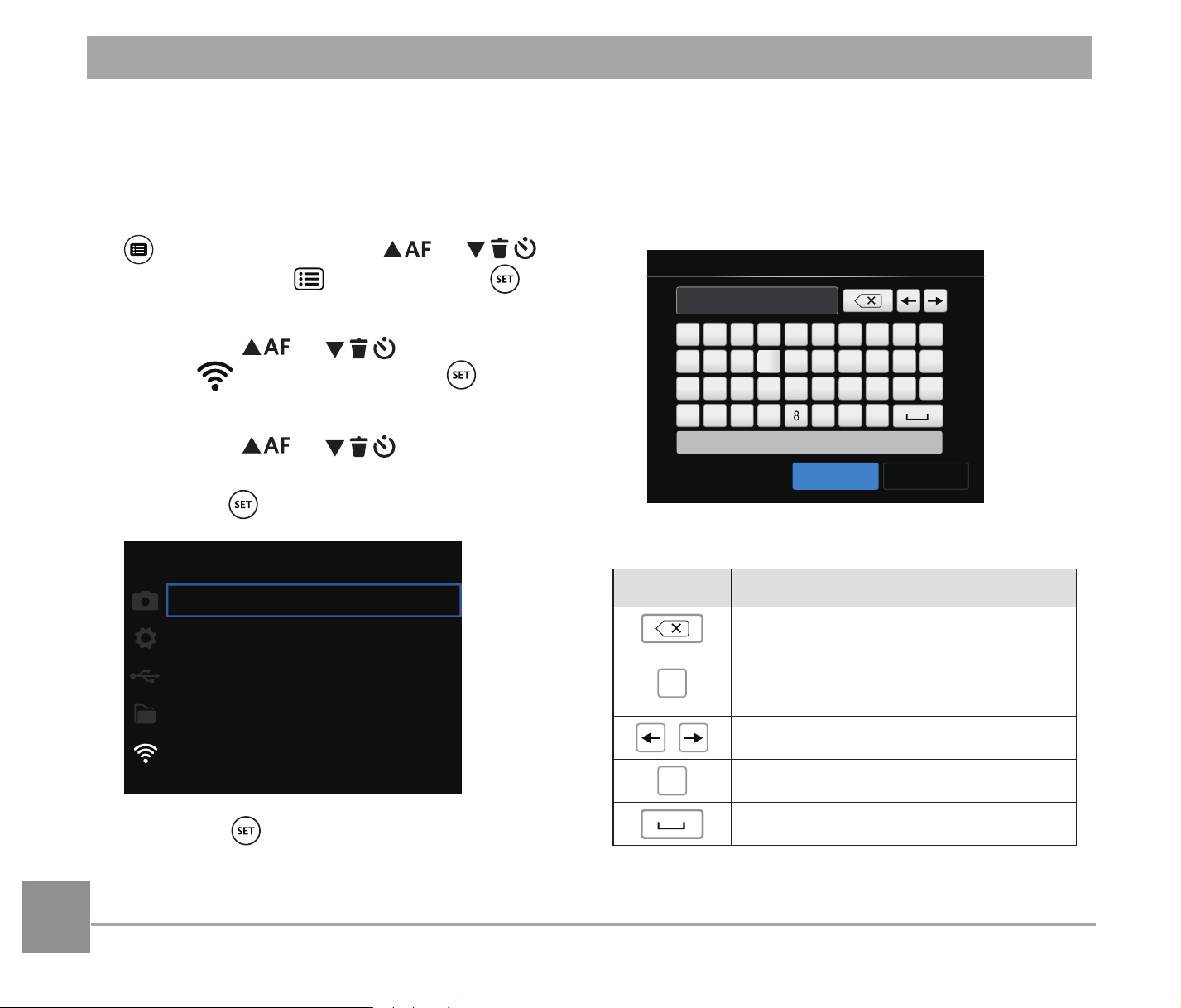
Display of Wireless Connection Status
The Wireless has successfully connected but
App is not enabled:
Connected with device
MAC address:xx.xx.xxx
Disconnect
The Wireless has successfully connected and
App is enabled:
Connected with APP
XXXXX
Disconnect
:U*OYIUTTKIZLXUS=OXKRKYY
Disconnect from device?
No
Yes
Wireless Mode
1R .HHS:LUHOHVVFRQQHFWHGDQG
back to previous page.
<HV 'LVFRQQHFWDQGEDFNWR:LUHOHVV
connection screen.
'LVFRQQHFWHGIURPVPDUWGHYLFH:LUHOHVV
AP mode
Disconnected, please check
wireless device and try again.
Minolta MN...
Minolta MN...
Wi-Fi
Settings
Back
%DFN %DFNWRWKH66,'LQWHUIDFH
40
Settings
The name of this camera can be changed
under Wireless settings.
1. For setting under other modes press the
button and then the
AC
/
C
A
button to select
, and press the
button to enter the menu.
2. Press the
AC
/
C
A
button to
select
and then press the button
to enter the setting interface.
3. Press the
AC
/
C
A
button to
select the option to be adjusted and then
press the
button to enter the menu.
DSC Device
MINOLTA MN53Z_XXXX
MAC Address
00:00:00:00:00:00
4. Press the EXWWRQWRFRQ¿UPVHWWLQJV
and then skip the menu.
DSC Device
The default name of DSC Device
is澨3/452:'34@E>>>>澩. Change the
name of DSC device through typing.
Name between 1-18 Letters
MINOLTA MN53Z_XXXX
DSC Device
#!?
ABCDEFGHI J
KL
MNO
PQ R S T
UV
WXY Z
A/a
4567 90
123
Cancel
Save
Meanings of interface icons:
Icon Description
Backspace
$D
Switch between capital and
lowercase letters
Move the Cursor
#!?
Switch the symbol input
Space
41
https://www.minoltadigital.com/
Americas
MAC Address
Check the wireless MAC Address of this camera.
App Operating Instructions
Refer to the "3OTURZG6XU9NUZ User Manual" located on the web:
42
Scene Mode
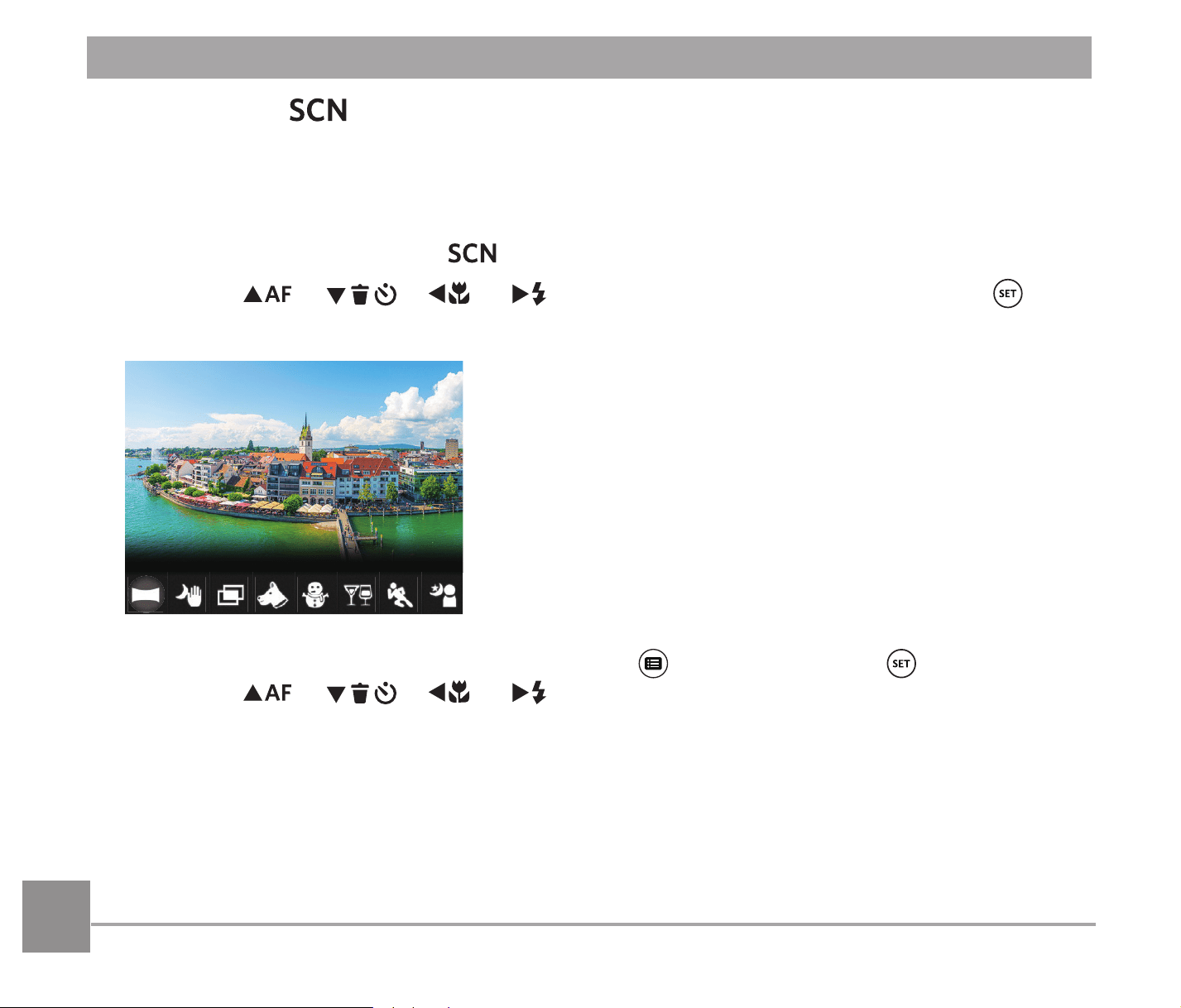
The user can select an appropriate mode from the 13 scene modes according to the type of
HQYLURQPHQW\RXDUHVKRRWLQJLQ7KHFDPHUDWKHQFRQ¿JXUHVWKHPRVWDSSURSULDWHVHWWLQJV
for the best possible photos.
1. Rotate the mode dial to select
.
2. Press the
AC
/
C
A
/
A
C
/
CA
buttons to select a scene, and press the
EXWWRQWRFRQ¿UP
Panorama Mode
3. To change to a different scene, please press the button and then the button and
¿QDOO\WKH
AC
/
C
A
/
A
C
/
CA
buttons to reselect the scene.
43
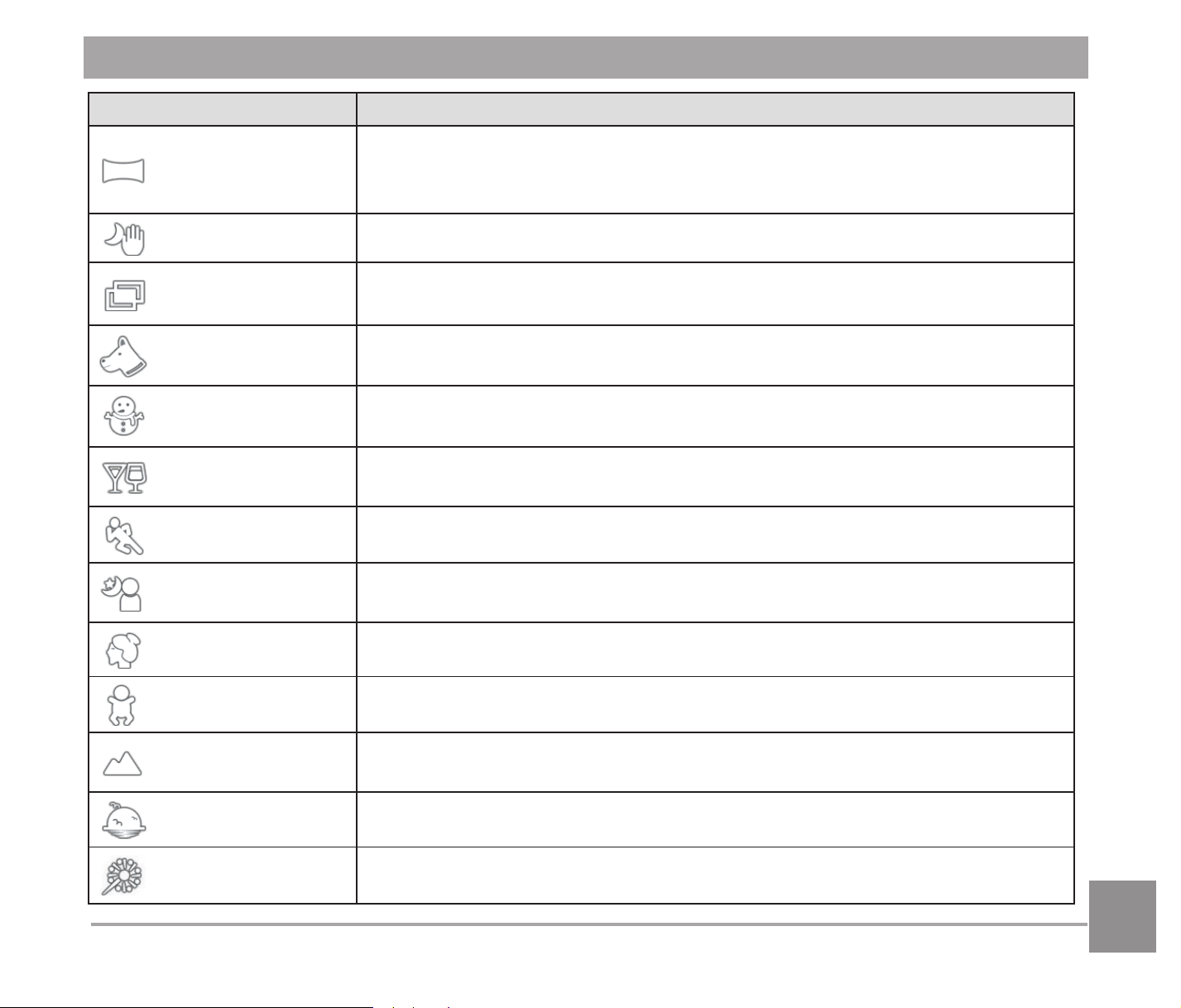
Scene Description
Panorama Mode
For shooting up to 360-degrees of landscape. This feature allows
\RXWRFDSWXUHDSDQRUDPLFYLHZWKDWZLOOKDYHVLJQL¿FDQWO\PRUH
content than a single photograph.
Handheld Night Reduce blur when shooting low light/ illuminated scenes.
Multi Exposure
Suitable for shooting moving objects (as many as 7) in the same
background.
Pet Mode Rapidly identify pet (dog/cat), capture the dynamic moment of pet.
Snow For snowy scenes. Reproduces natural, clear, white scenes.
Party
Suitable for taking indoor party photos, even under complicated
lighting conditions.
Sport For fast-moving subjects. Capture sharp action shots without blur.
Night Portrait
For portraits against night time scenery. The use of a tripod is
recommended.
Portrait Most suitable for capturing people with focus on their face.
Children For kids and pets. Flash is disabled for eye protection.
Landscape
For landscapes and outdoor shots. Vivid reproduction of greens
and blues.
Sunset For sunsets. Capture subjects in strong sunlight.
Fireworks )RU¿UHZRUNVDWQLJKW7KHXVHRIDWULSRGLVUHFRPPHQGHG
44
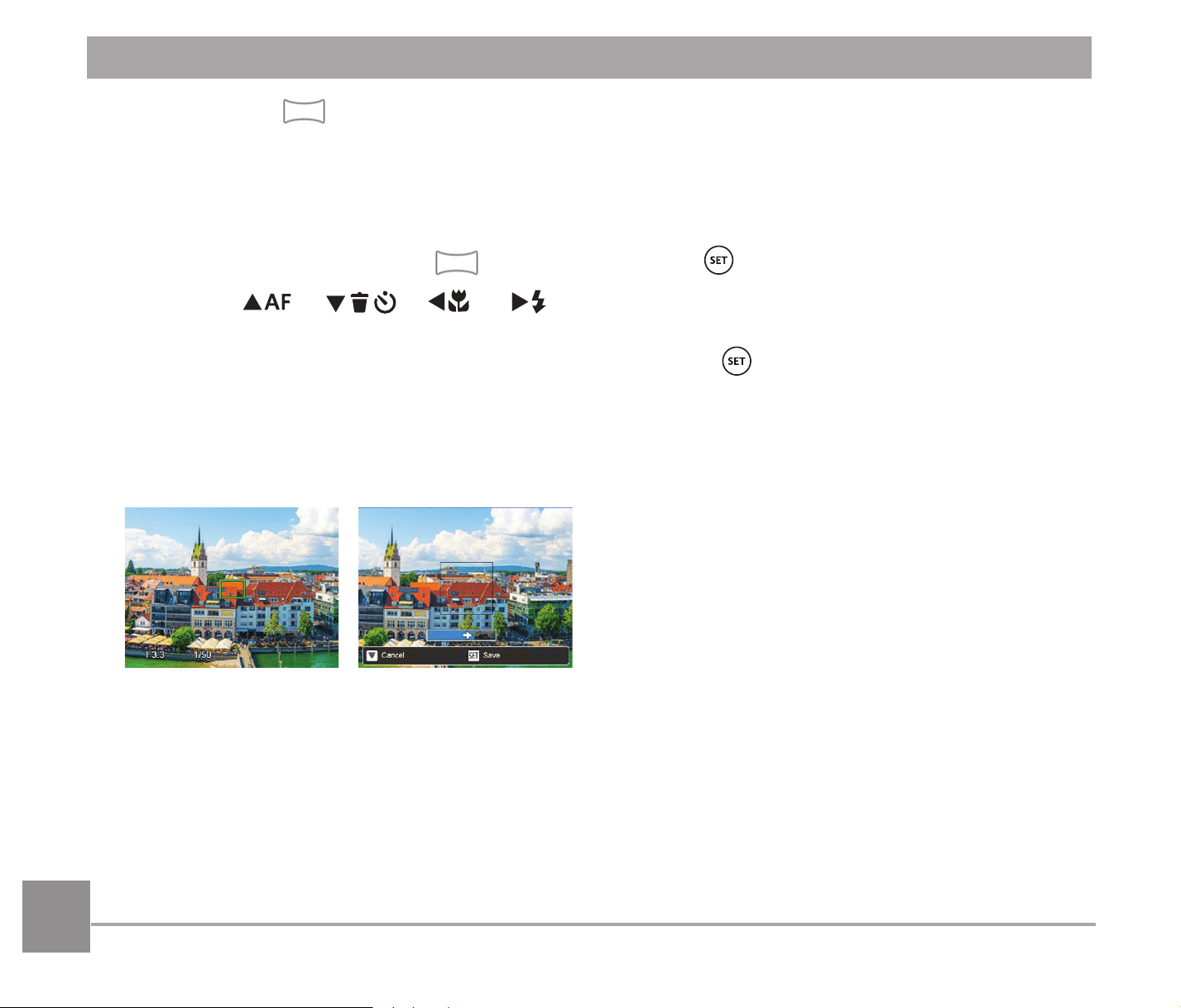
Panorama Mode
Follow the arrow while keeping the camera steady to seamlessly shoot an ultra-wide scene of
up to 360 degrees.
Follow the steps below:
1. Select the Panorama Mode (
) and then press the EXWWRQWRFRQ¿UP
2. Press the
AC
/
C
A
/
A
C
/
CA
button to select a shooting direction. (Should
you not select the direction, the default shooting direction is "right"). 2 seconds later, the
camera is ready to take pictures. You can also press the
button or press the Shutter
button halfway down to be ready to take pictures.
3. Compose your shot on the LCD and half press the shutter button to focus on the subject.
$IWHUIRFXVLQJIXOO\SUHVVWKHGRZQVKXWWHUEXWWRQWRWDNHWKH¿UVWSLFWXUH$WWKLVWLPHWKH
process dialog of panorama mode stitching appears on the screen.
4. Move the camera according to the set direction. When the range of motion does not
exceed the range that the camera can detect, the progress dialog along the indication
arrow partially turns red. When it completely turns red, panorama mode shooting is
¿QLVKHG
45
3DQRUDPLFLPDJHFDQEHSOD\HGEDFNE\WKHPHWKRGRIÀDVKSOD\LQJ3OHDVHVHHWKH
animation panoramic playback on page 67.
'XULQJVKRRWLQJWKHÀDVKVHOIWLPHUPDFURPRGHVDQGH[SRVXUHFRPSHQVDWLRQDUHQRW
available. Focus adjustment is also not available at this time.
During panorama mode shooting, press the
button to interrupt shooting and save the
current pictures taken. Press the
C
A
button to cancel shooting and not to save the
previously taken pictures.
During panorama mode shooting, when the moving direction of the camera is
wrong or the angle deviates from the internal settings, the LCD shows a warning
message澨Improper alignment. Please try again.澩and the current pictures taken are
saved.
46
Handheld Night
Quickly take 4 photos below 8M (including 8M) and then overlap as a clear night image.
Pet Mode
When a cat /dog face is detected, a white focus frame appears. The camera will take
a picture and save it regardless of whether the focus is successful (if successful, there
appears a green focus frame; if not, there is an orange frame).
At most, 10 dog/cat faces can be detected at one time.
Multi Exposure
Keep camera steady before shooting. Press and hold the Shutter button to take 7 photos
continuously when it will stop automatically. To stop shooting, release the Shutter button
in the midway.
Objects shall be moved only from left to the right in order to be recorded. Objects moving
from other directions would not be recorded.
6KRRWLQJHIIHFWZLOOEHLQÀXHQFHGLIREMHFWLVPRYLQJWRRIDVWRUWRRFORVH
47
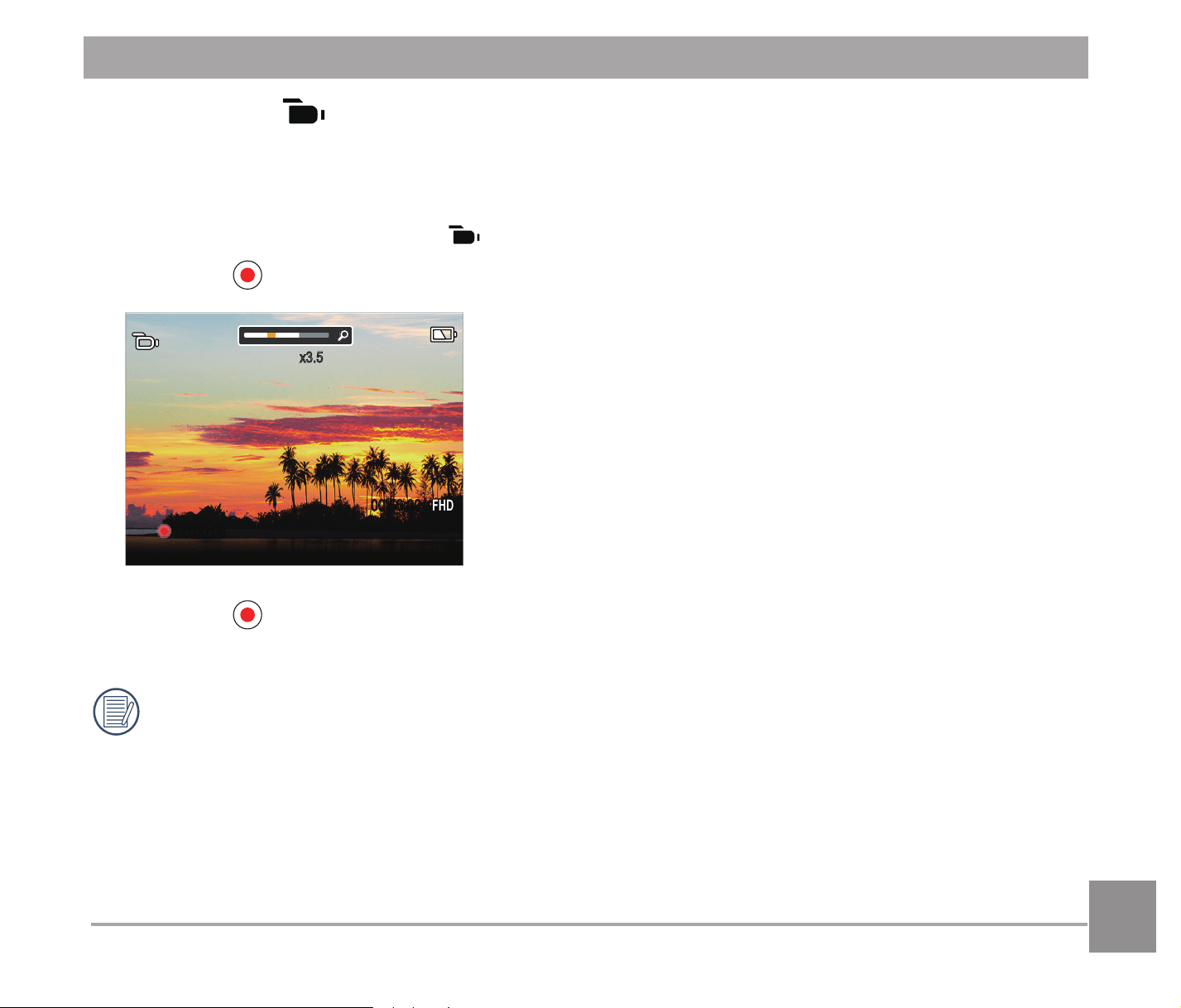
Movie Mode
Switch to this mode to record videos.
Follow the steps below:
1. Rotate the mode dial to select
, and it will enter the movie screen.
2. Press the
button or the Shutter button to start recording.
x3.5
00:56:00
00:00:06
3. Press the button or the Shutter button again to stop recording, save it automatically and
then the camera will return to the movie screen.
,QWKHUHFRUGLQJSURFHVV\RXFDQURWDWHWKH]RRPOHYHUWR]RRPLQRURXWRQWKHVXEMHFW
48
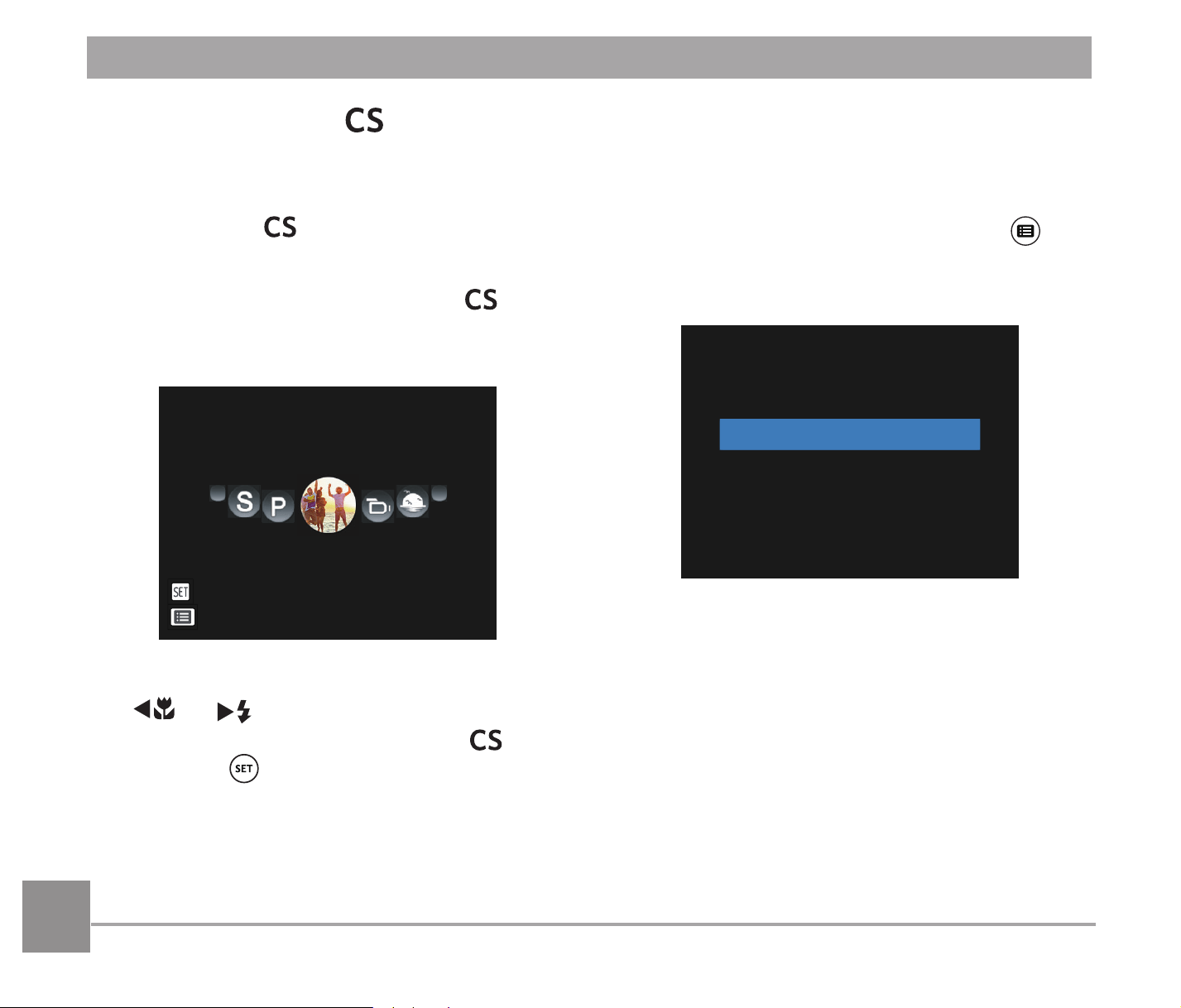
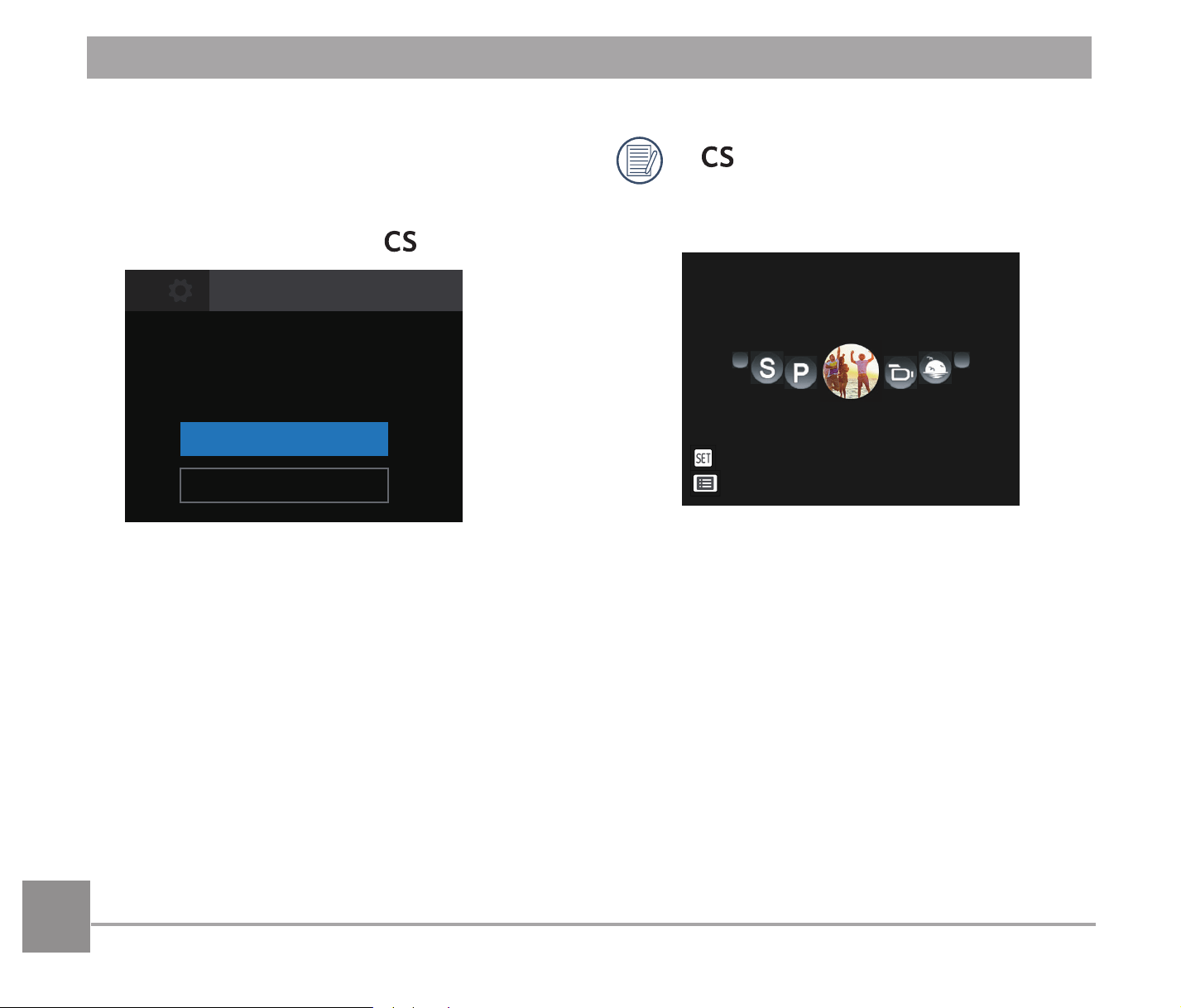
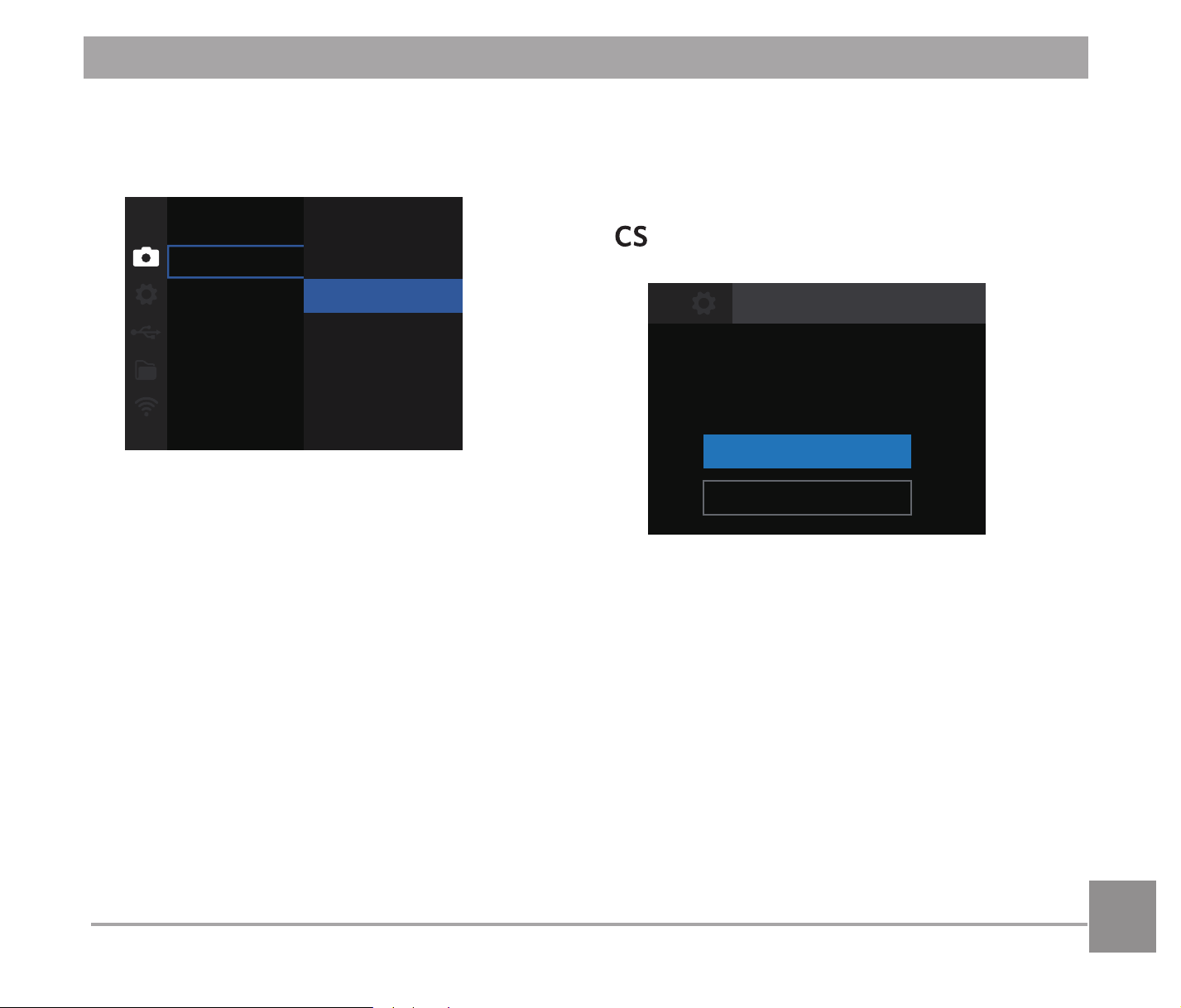
Settings under mode (unset state or
state after reset):
1. Turn the mode dial to select the
mode, and enter the setup screen, as
VKRZQLQWKH¿JXUHEHORZ
Select one capture mode to define CS .
Auto Mode
Save
Exit
2. As shown in the picture, press the
A
C
/
CA
button to select a capture
PRGHWKDW\RXZDQWWRGH¿QHDV
, and
press the
button to enter the shooting
screen.
3. As shown in the picture, press the
EXWWRQWRFRQ¿UPVHWWLQJRUWRH[LWZLWKRXW
setting by turning the mode dial.
Or
Rotate the mode dial to skip .
Go to setting CS mode.
Yes
For setting under other modes (use this
method to select a different custom
setting):
1. Select any mode or scene mode to be
stored.
2. Set your desired parameters in the
current mode.
Custom Settings
The user can store the frequently used shooting modes and parameters and switch to this
mode for quick adjustment.

49
Reset camera settings to
custom settings mode.
Custom Settings
No
Yes
7. Rotate the mode dial to switch to .
8. The photo settings you stored the last
time are invoked.
When the
mode is used for the
¿UVWWLPHWKHUHLVQRSUHVHWSDUDPHWHU
stored in the
mode.
If you want to remove the parameter
setting of澨Custom Settings澩, please
see the reset function on page 95 to
operate.
3. Press the
button and then the
AC
/
C
A
button to select , and
press the
button to enter the menu.
4. Press the
AC
/
C
A
button to select
, and press the /
CA
button to
enter the menu.
5. Press the
C
A
button to select
澨Custom Settings澩and then press the
/
CA
button to enter the menu.
Custom Settings
6. Select澨Yes澩to save or澨No澩to cancel.
5050
BASIC OPERATION
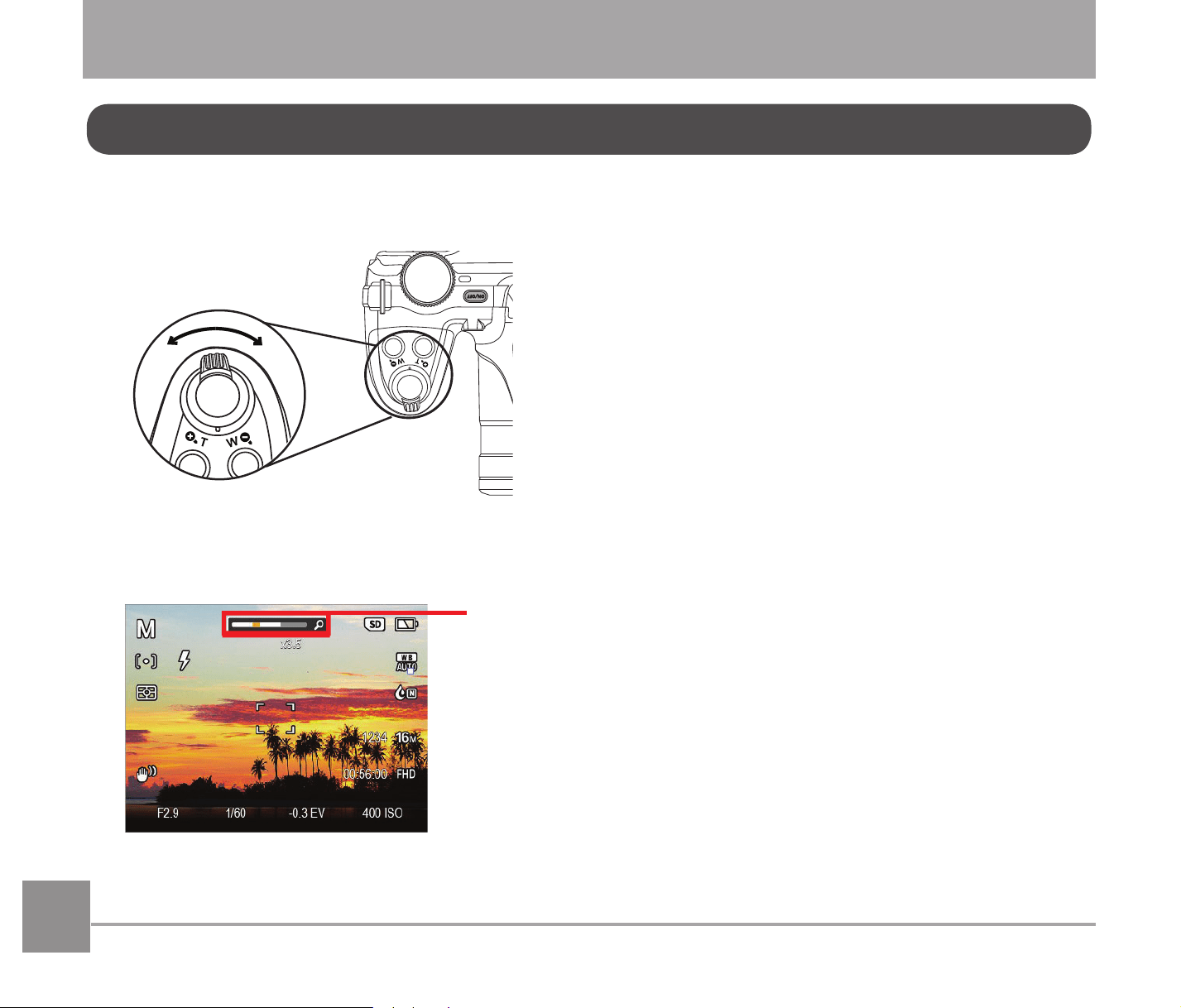
<RXUFDPHUDLVHTXLSSHGZLWKWZRW\SHVRI]RRPIXQFWLRQV2SWLFDO=RRPDQG'LJLWDO=RRP
7RJJOHWKH=RRP/HYHURIWKHFDPHUDWR]RRPLQRURXWRQWKHVXEMHFWZKLOHWDNLQJSLFWXUHV
Zoom Lever
When the Optical Zoom reaches the threshold as Digital Zoom, release and turn the Zoom
Lever to T to switch between the Optical Zoom and Digital Zoom.
Zoom Indicator
Using the Zoom Function
5151
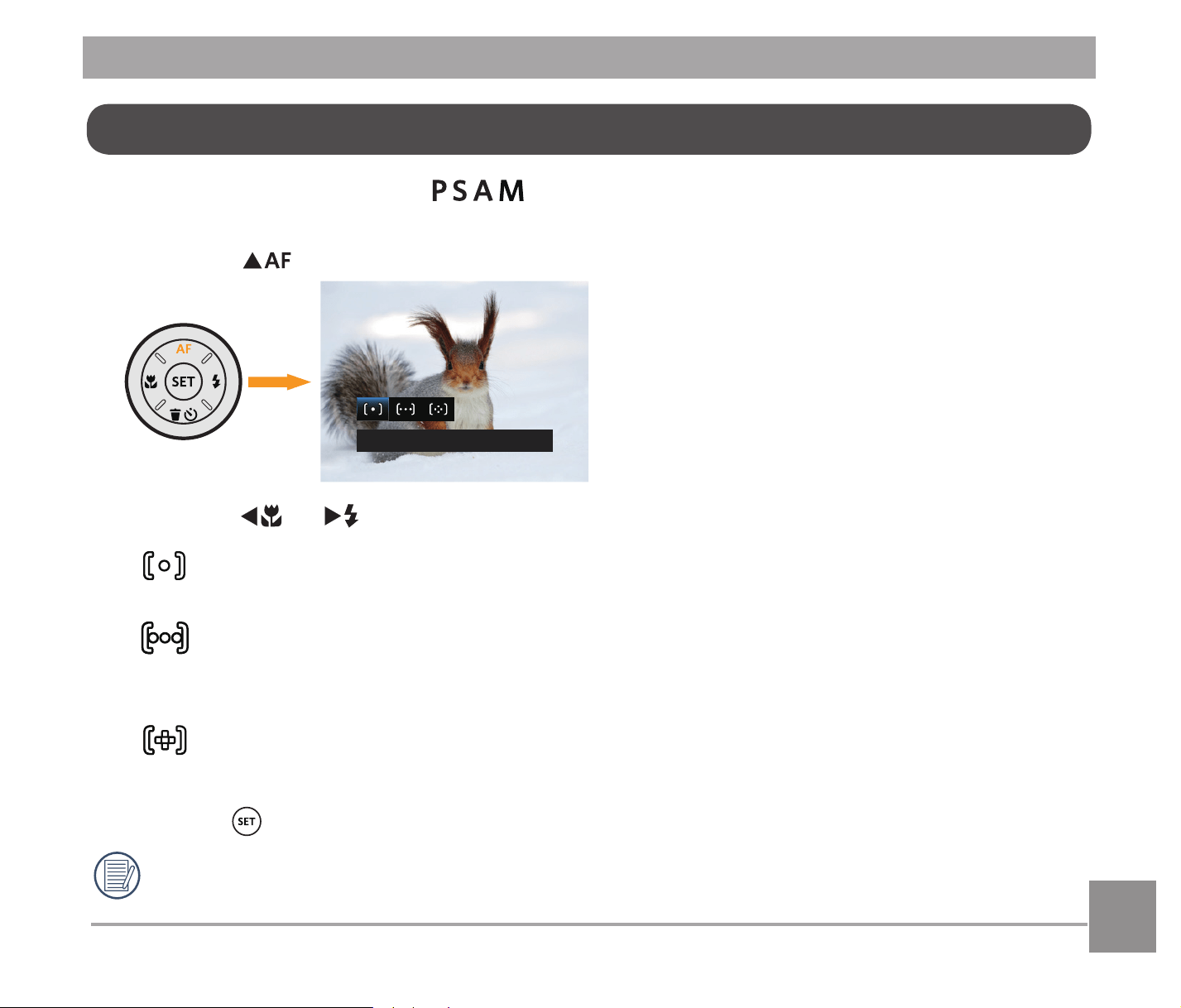
This function can be adjusted in PRGHSOHDVHIROORZWKHVWHSVEHORZWRFRQ¿JXUHWKH
settings:
1. Press the
AC
button to enter the Focus menu.
Single-AF
2. Press the
A
C
/
CA
button to select the following 3 modes:
Single-AF
The focus frame appears on the center of the LCD to focus on the subject.
Multi-AF
7KHFDPHUDDXWRPDWLFDOO\IRFXVHVWKHVXEMHFWLQDZLGHDUHDWR¿QGWKHIRFXV
point.
Object Tracking
Smart tracking of the object in motion under the focusing shooting.
3. Press the
EXWWRQWRFRQ¿UPWKHVHWWLQJVDQGH[LWWKHPHQX
Once enabled, Object Tracking will only work when lens is focused on the object.
Focus Setting
52
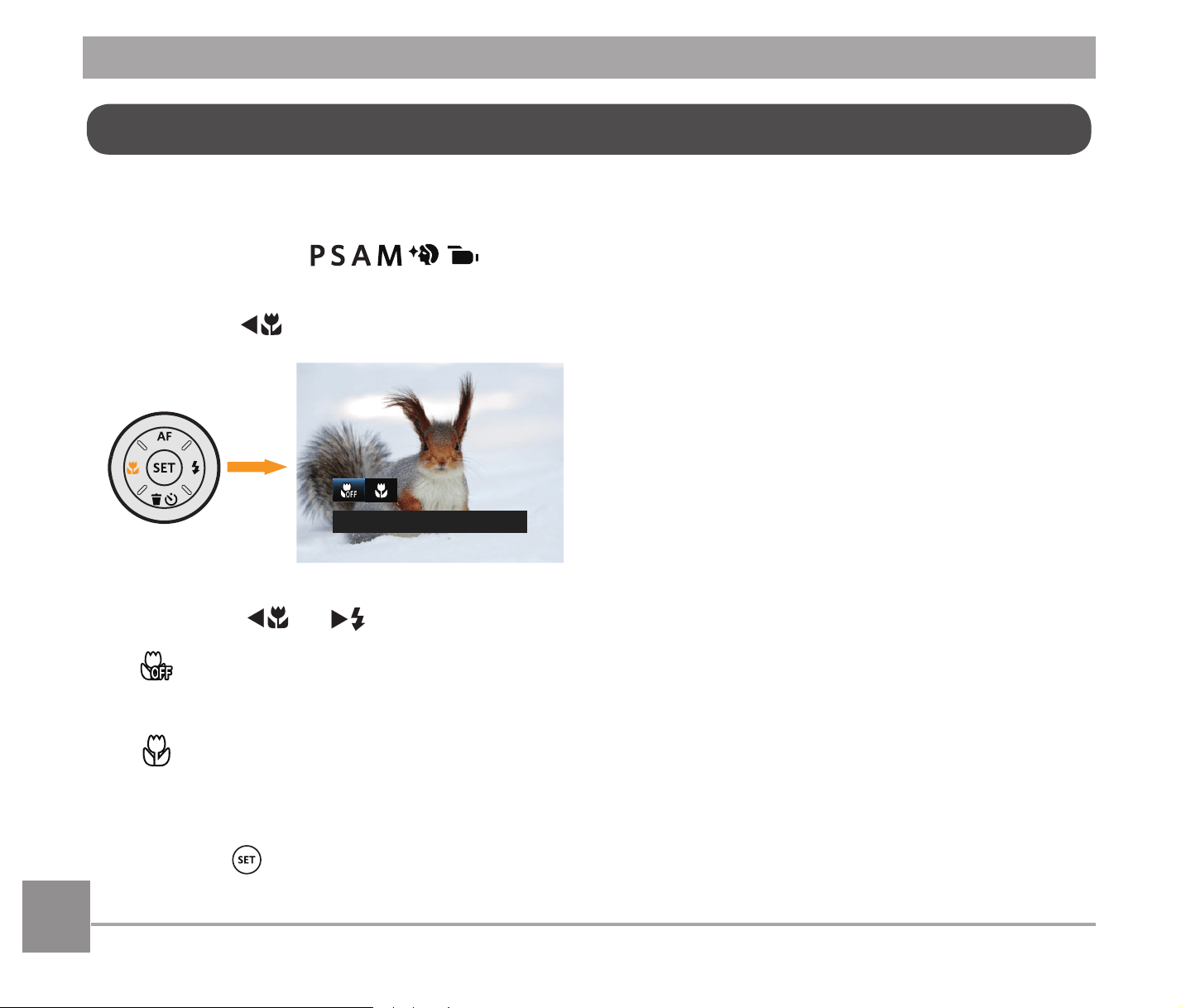
The Macro Setting is ideal for shooting small objects or close-up photos. This mode allows you
to focus on subjects very close to the camera.
It can be adjusted in
PRGH3OHDVHIROORZWKHVWHSVEHORZWRFRQ¿JXUHWKH
settings:
1. Press the
A
C
button to enter the Macro menu.
Macro Off
2. Press the
A
C
/
CA
button to select the following 2 modes:
Macro Off
Select this option to disable Macro.
Macro On
Select this option to make focusing on the object closer to the lens. (At the W side,
the shooting distance should be more than 1 cm).
3. Press the
EXWWRQWRFRQ¿UPWKHVHWWLQJVDQGH[LWWKHPHQX
Macro Mode
53
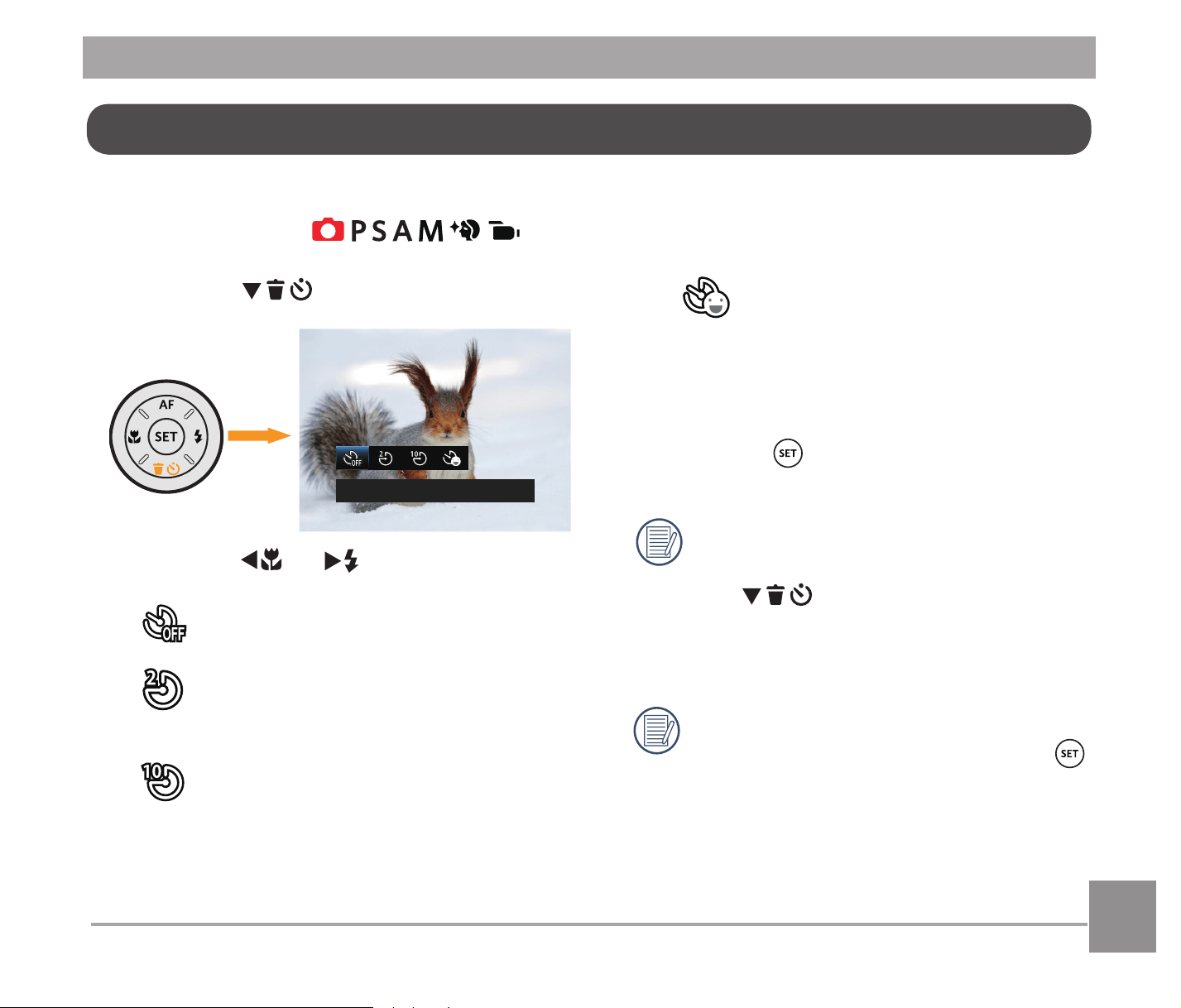
Use this function to take pictures at pre-set intervals. The camera can be set to shoot after 2
seconds, 10 seconds after pressing the shutter or when a smile is detected.
It can be adjusted in
PRGH3OHDVHIROORZWKHVWHSVEHORZWRFRQ¿JXUHWKH
settings:
1. Press the
C
A
button to enter the
Self-Timer menu.
Self-timer Off
2. Press the
A
C
/
CA
button to select the
following 4 modes:
Self-timer Off
Disables the Self-Timer.
Self-timer 2 sec
A single picture is shot 2 seconds
after the Shutter Button is pressed.
Self-timer 10 sec
A single picture is shot 10 seconds
after the Shutter Button is pressed.
Self-timer Smile
Press the Shutter Button
and a picture will be taken
immediately after a smile is
detected.
3. Press the
EXWWRQWRFRQ¿UPWKH
settings and exit the menu.
When enabling the Self-Timer,
pressing the Shutter Button or
the
C
A
button will select the
highlighted Self-Timer option and
return to the shooting screen, and
keep the Self-Timer setting.
When enabling the smile detection,
pressing the Shutter Button or the
button will select the Self-Timer smile
option (if highlighted) and return to
the shooting screen, and keeping the
Self-Timer smile setting.
Self-Timer Setting
54
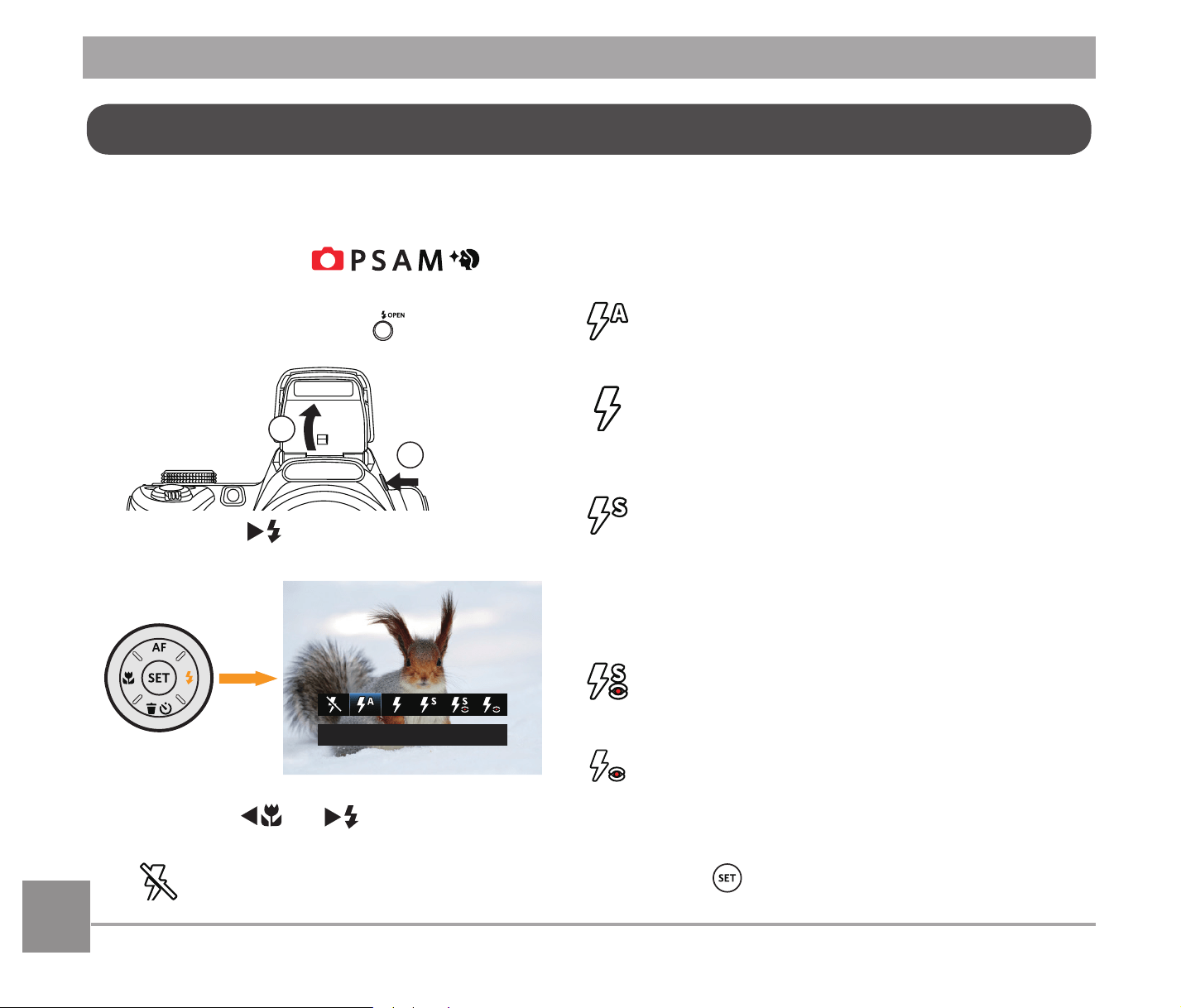
7KHÀDVKSURYLGHVVXSSOHPHQWDOOLJKWIRUDVFHQH7KHÀDVKLVXVXDOO\XVHGZKHQVKRRWLQJ
against the light to highlight the object. It is also suitable for metering and shooting in darker
scenes to improve the exposure.
It can be adjusted in
PRGH3OHDVHIROORZWKHVWHSVEHORZWRFRQ¿JXUHWKH
settings:
1. Press the Flash Button
to pop up the
ÀDVK
2
1
2. Press the
CA
button to enter the
Flash Settings Menu.
)ODVK$XWR
3. Press the
A
C
/
CA
button to select
the following 6 modes:
Force Off
Flash is turned off.
Flash Auto
&DPHUDÀDVKJRHVRIIDXWRPDWLFDOO\
based on existing light conditions.
Fill Flash
7KHÀDVKJRHVRIIZKHQDSLFWXUHLVWDNHQ
supplementing the existing light in a scene
and helping to eliminate shadows.
Slow Sync.
This allows you to take pictures of people
at night that clearly show both your subjects
and the night time backdrop. The use of a
tripod is recommended when shooting with
this setting.
Slow Sync. + Red-Eye
Use this mode for slow synchro shots with
red-eye reduction.
Red-Eye Reduction
7KHFDPHUDHPLWVDEULHISUHÀDVKEHIRUH
the picture is taken to reduce red-eye
effects.
4. Press the
EXWWRQWRFRQ¿UPWKH
settings and enter the shooting screen.
Flash Mode
55
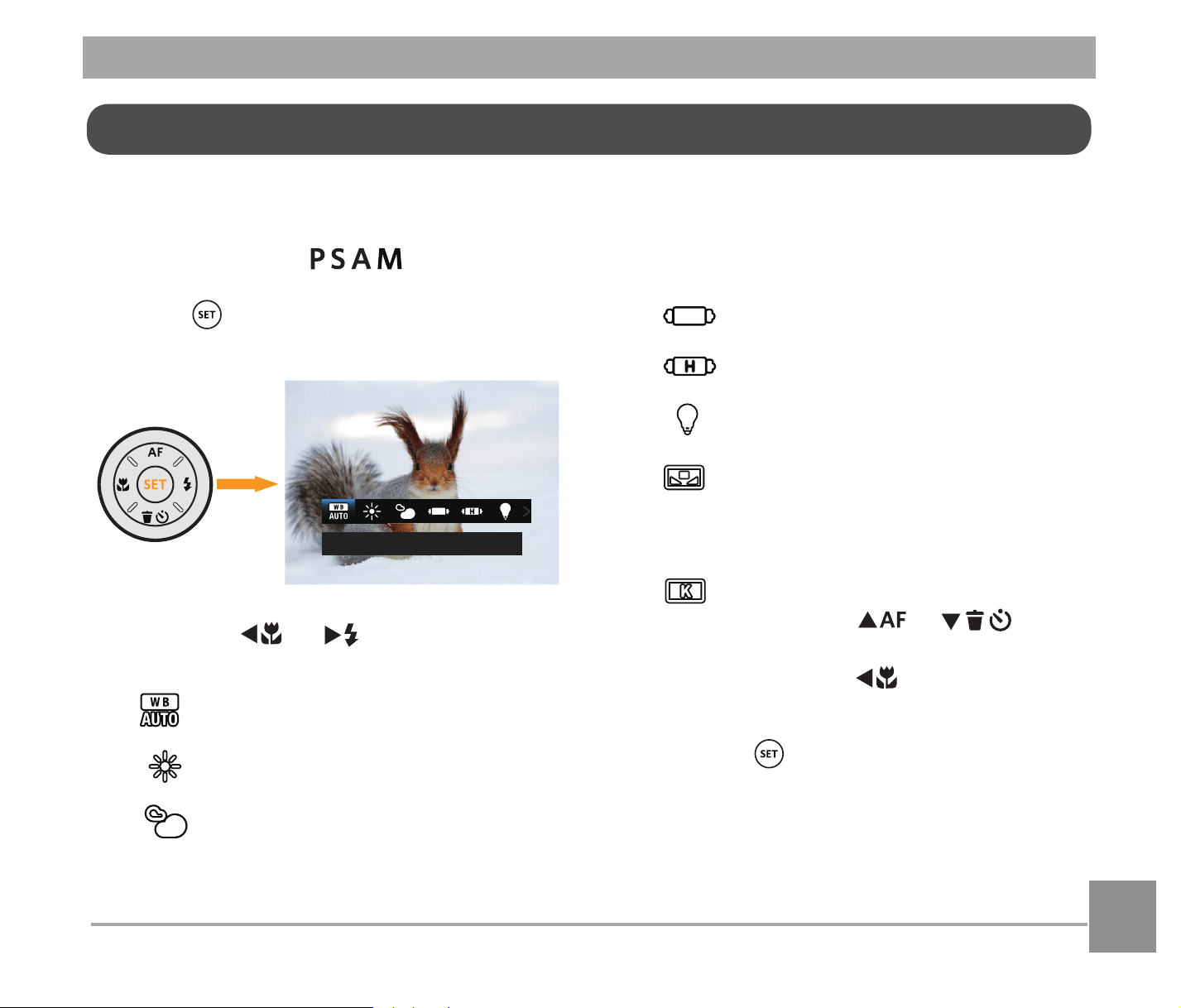
The white balance function allows adjustment of the color temperature for different light
sources.
It can be adjusted in
PRGH3OHDVHIROORZWKHVWHSVEHORZWRFRQ¿JXUHWKHVHWWLQJV
1. Press
button to enter the White
Balance menu.
AWB
2. Press the
A
C
/
CA
button to select
the following 8 modes:
AWB
Daylight
Cloudy
Fluorescent
Fluorescent CWF
Incandescent
Manual WB
(Fully press the Shutter button to
detect the white balance value)
Color Temp. (1900K~10000K)
Press the
AC
/
C
A
button to "Adjust the K value";
Press the
A
C
button to exit
the K value.
3. Press the
EXWWRQWRFRQ¿UPWKH
settings and exit the menu.
White Balance Setting
56
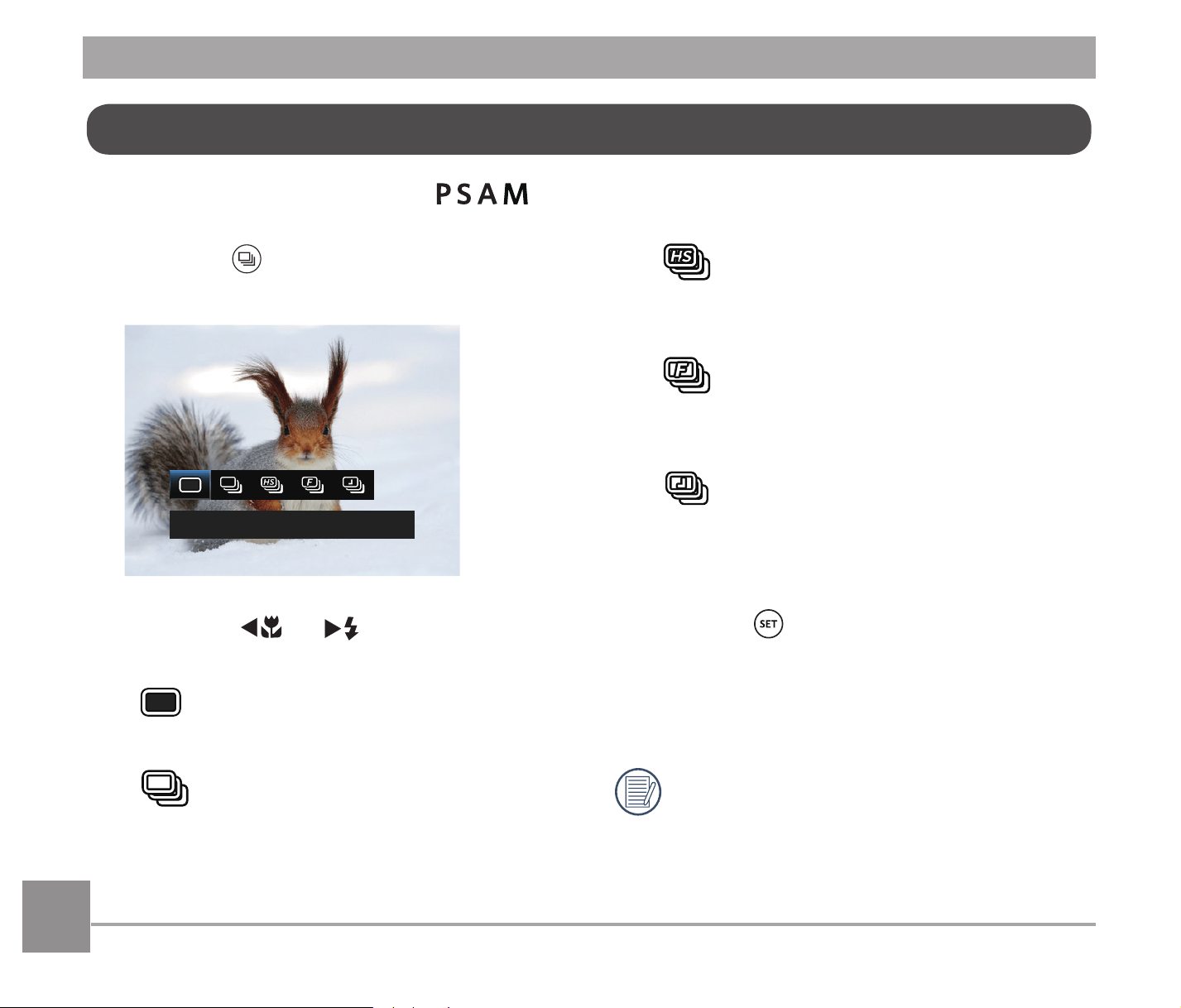
This function can be adjusted in PRGH3OHDVHIROORZWKHVWHSVEHORZWRFRQ¿JXUHWKH
settings:
1. Press the
button to enter the
Continuous Shot menu.
Single
2. Press the
A
C
/
CA
button to select
the following 5 modes:
Single
Capture a single shot only.
Continuous Shot
Take several pictures at a time.
Cont.Shot-High Speed (VGA)
For continuous shot with VGA
pixel.
Cont.Shot-Fast (4M)
For continuous shot with 4M
pixels.
Time-Lapse
Take pictures based on the
preset interval (30sec/ 1min/
5min/ 10min).
3. Press the
EXWWRQWRFRQ¿UPWKH
settings and exit the menu.
4. Press the Shutter button to start
continuous shooting.
,Q&RQWLQXRXV6KRWPRGHWKHÀDVKLV
automatically set to Force Off in order
to achieve quick succession of shots.
Continuous Shot
57
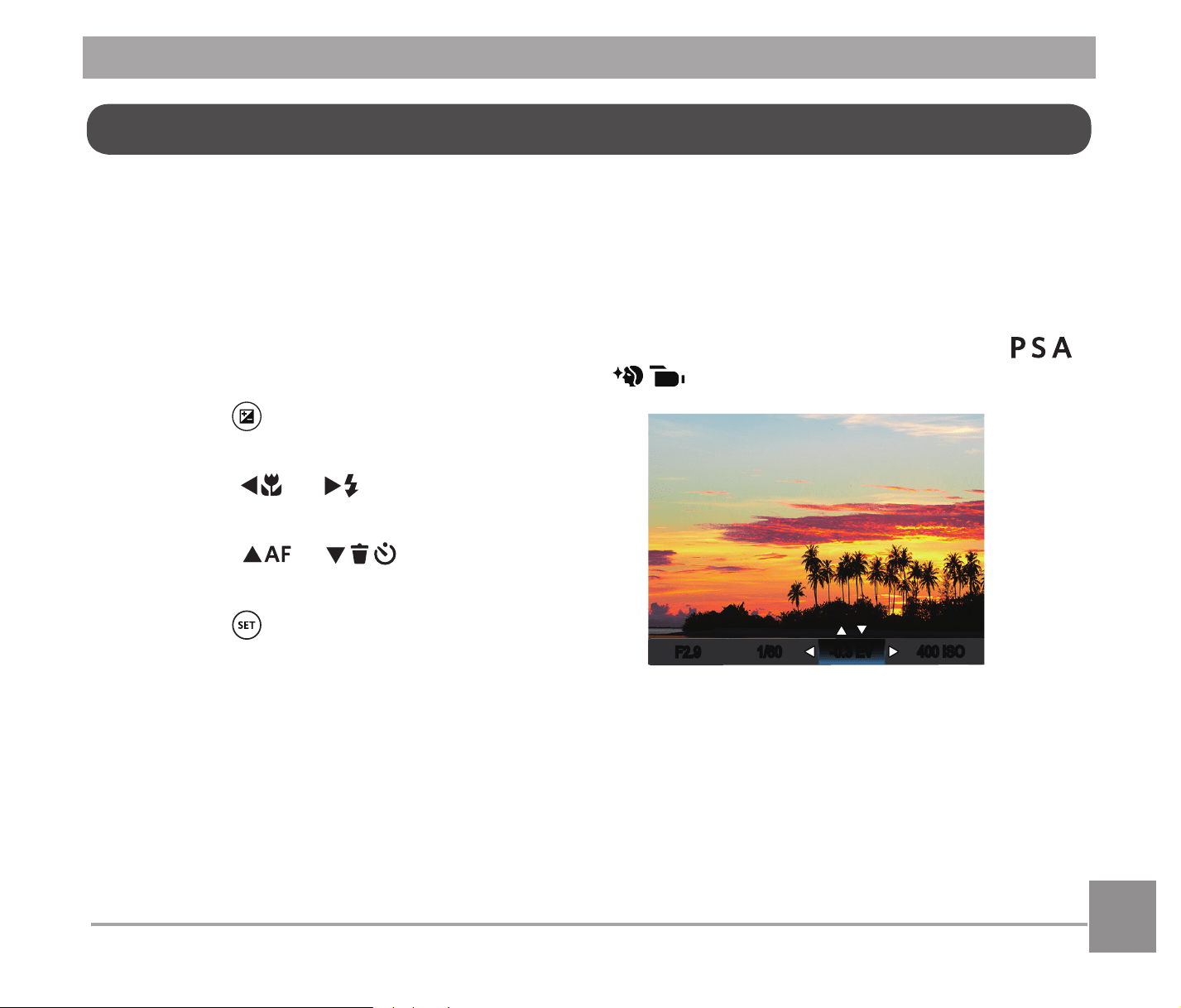
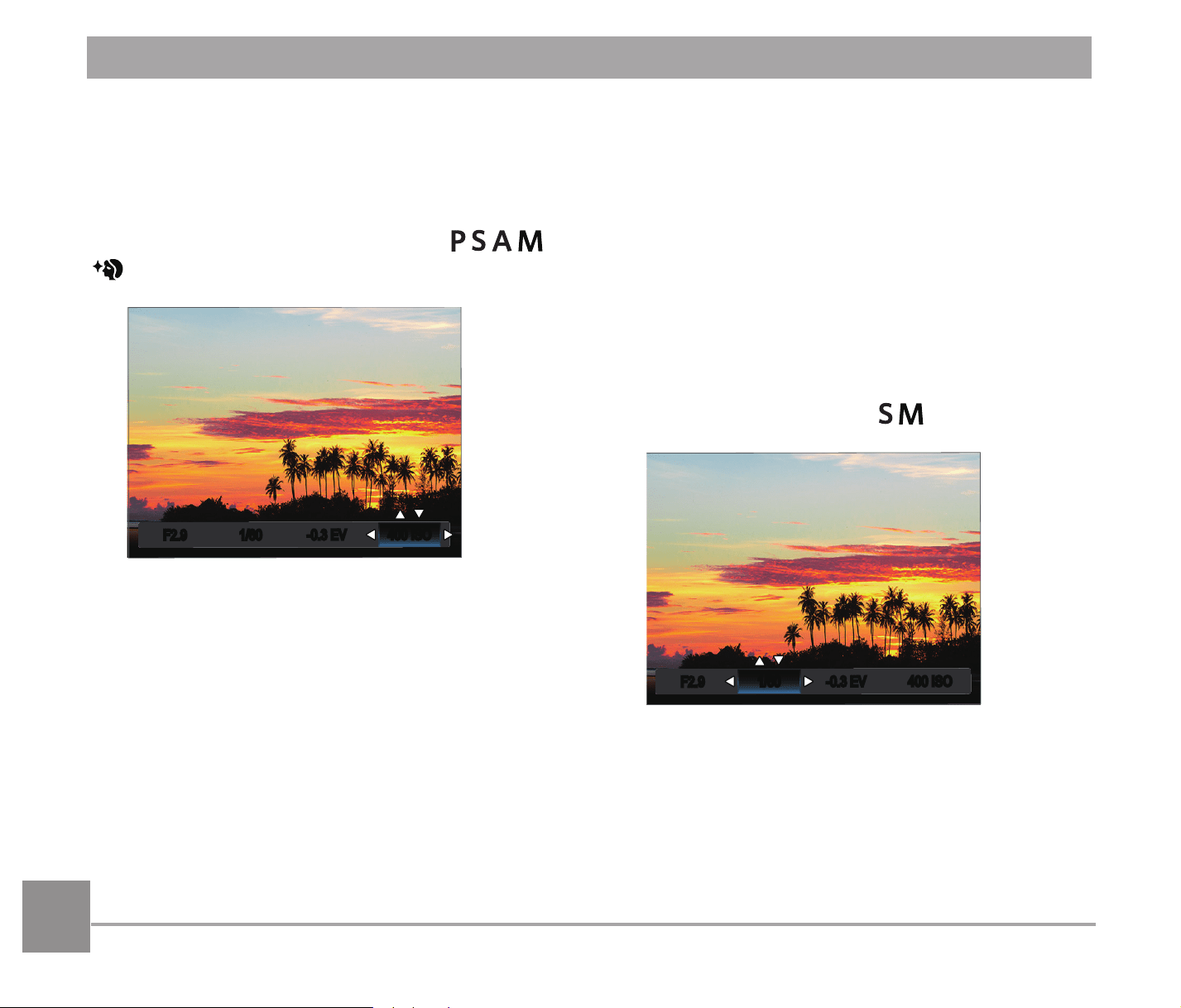
EV Adjustment
Set up to adjust the picture brightness. In
the case of a very high contrast between the
photographed object and the background,
the brightness of the picture can be
appropriately adjusted. (Adjustable in
Mode)
-0.3 EV
F2.9
400 ISO
1/60
The adjustable range of exposure value is
from EV -3.0 to EV+3.0.
The EV function menu of the camera
includes functions, such as EV (Exposure
Value) Adjustment, ISO, Shutter Adjust-
ment, Aperture Adjustment, etc. Using the
appropriate function settings can improve
your pictures.
Please follow the steps below to set:
1. Press the
button to display the
settings screen.
2. Press the
A
C
/
CA
button to select
the setting options.
3. Press the
AC
/
C
A
button to
adjust the option values.
4. Press the
button to complete the
setting and enter shooting mode.
EV Settings
5858
ISO Adjustment
ISO allows you to set the sensitivity of the
camera sensor. Please use a higher ISO
value in darker places and a lower value in
brighter conditions. (Adjustable in
Mode).
-0.3 EV
1/60
F2.9
400 ISO
Options for ISO value: Auto, 100, 200, 400,
800, 1600 and 3200.
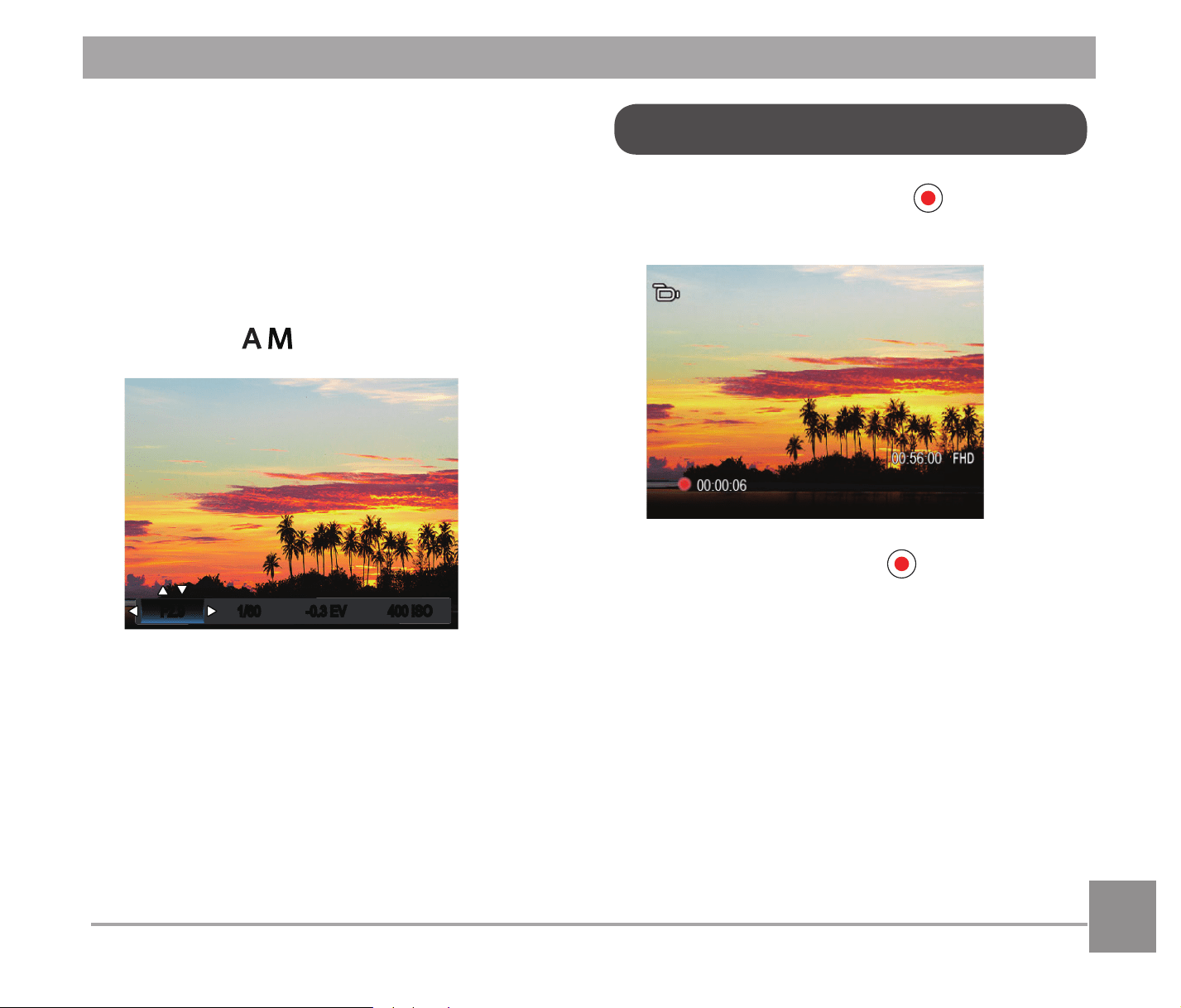
Shutter Adjustment
For shutter speed, the camera may
automatically set the aperture value
corresponding to the manually set shutter
speed so as to obtain a most suitable
exposure value. The movement of object
may be shown by adjusting the shutter
speed. High shutter value can help you more
clearly capture fast moving objects while low
shutter value can better show the movement
of objects. (Adjustable in
Mode).
-0.3 EV
F2.9
400 ISO
1/60
59
Aperture Adjustment
<RXFDQDGMXVWWKHDSHUWXUHVL]HYDOXH
Selecting a large aperture opening will
HPSKDVL]HWKHSRLQWRIIRFXVDQGVKRZ
a blurry background and foreground. A
small aperture opening will keep both the
background and main object in clear focus.
(Adjustable in
Mode)
-0.3 EV
F2.9
400 ISO
1/60
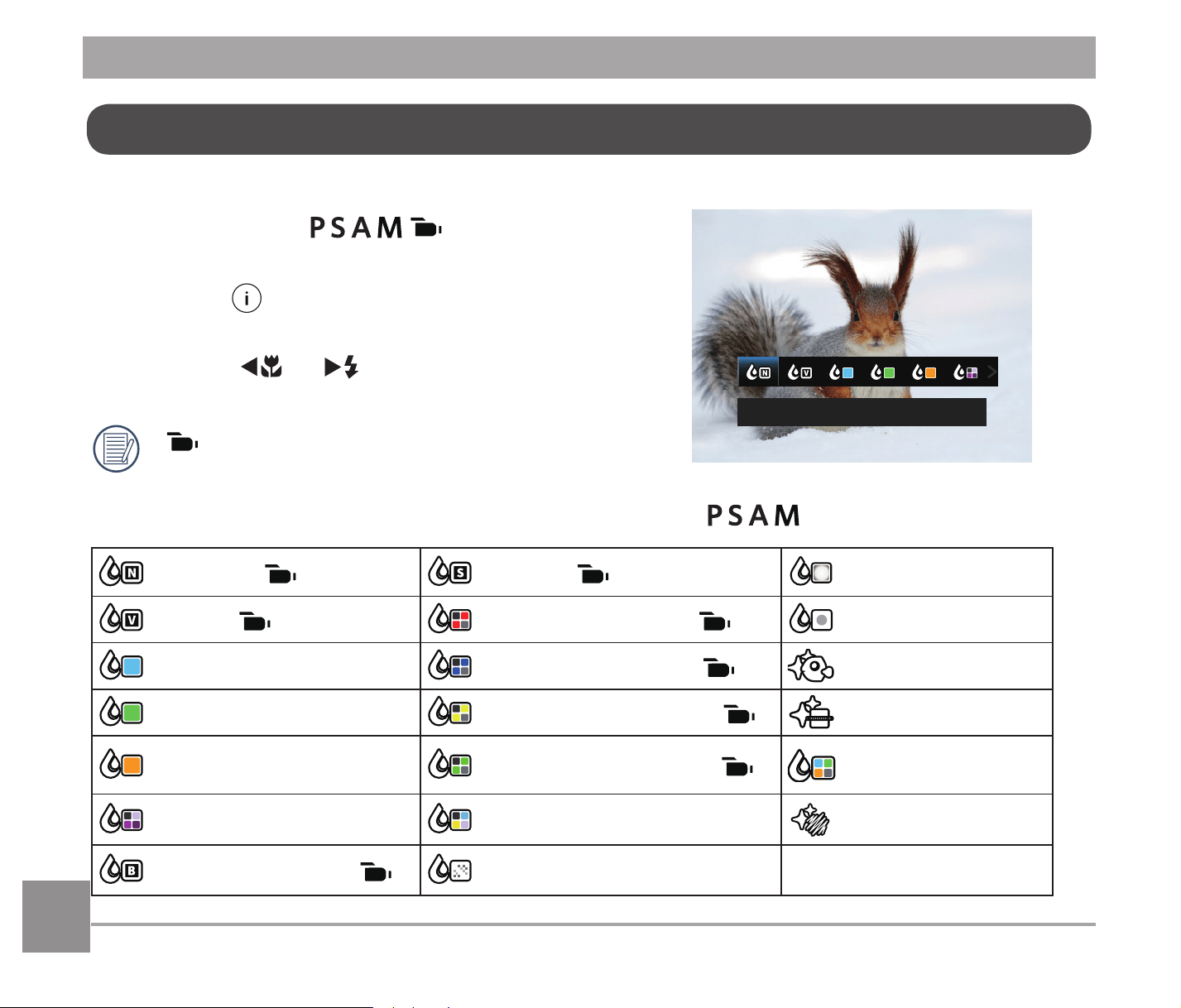
In shooting mode, press the button to
begin recording video.
After recording, press the button again or
press the Shutter Button to stop recording.
The camera will save the video and return to
the shooting screen.
Using Quick Recording
6060
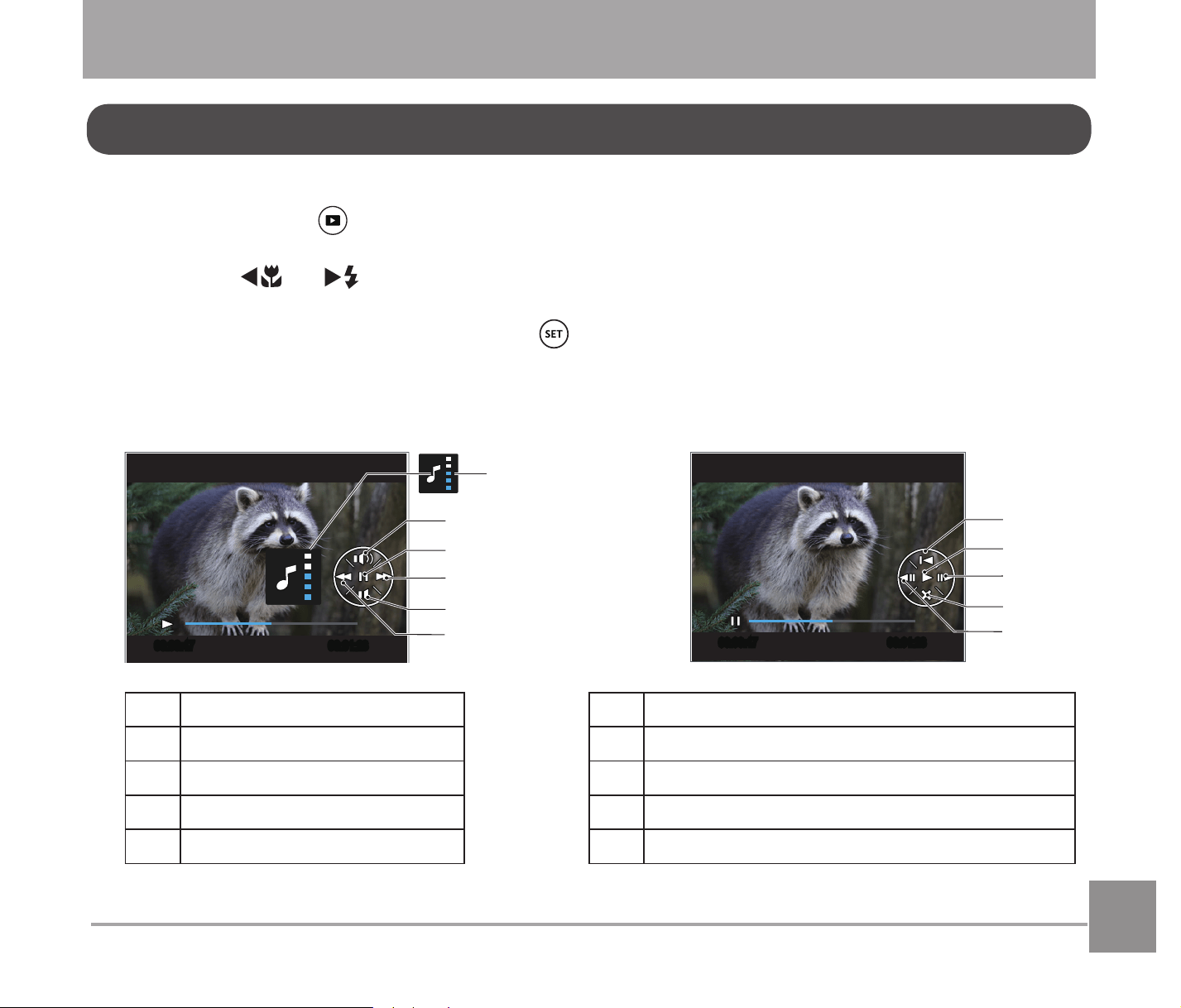
The Image Color Setting allows you to select different color effects.
It can be adjusted in
mode. Please
IROORZWKHVWHSVEHORZWRFRQ¿JXUHWKHVHWWLQJV
1. Press the
button to select the Image
Color Setting Menu.
2. Press the
A
C
/
CA
button to select
the Image Color Setting options.
(
) represents options that are available
in Movie mode.
There are 20 Image Color options in photo shooting mode
:
Normal ( ) Sepia ( )
Vignetting
Vivid ( ) Partial Color-Red ( )
Salon
Japan Style
Partial Color-Blue ( )
Fish Eye
Italian Style
Partial Color-Yellow ( )
5HÀHFWLRQ
French Style
Partial Color-Green ( )
4 Grids -
Stylish(2M)
Punk Negative Sketch
Black and White ( )
Dreamy
Normal
i Button Function Menu
6161
For viewing previously taken photos and videos on the LCD:
1. After pressing the
button, the last photo or video clip taken will be displayed on the
LCD.
2. Press the
A
C
/
CA
button to scroll through the photos or video clips stored in the
internal memory or on the memory card.
3. To play a selected video clip, press the
button to enter the Movie Playback mode.
An operation guide appears on the screen when playing back a video. Press the
appropriate buttons to enable the corresponding functions.
Mute
Under Playback
Paused
00:00:47 00:01:23
1
2
3
4
5
00:00:47 00:01:23
6
7
8
9
10
1
Increase Volume
6 Back to the beginning of the video
2
Pause
7 Play
3
Fast Forward
8 Frame Forward
4
Decrease Volume
9 Cancel playback
5
Rewind
10 Frame Backward
PLAYBACK MODE
Viewing Photos and Videos
62
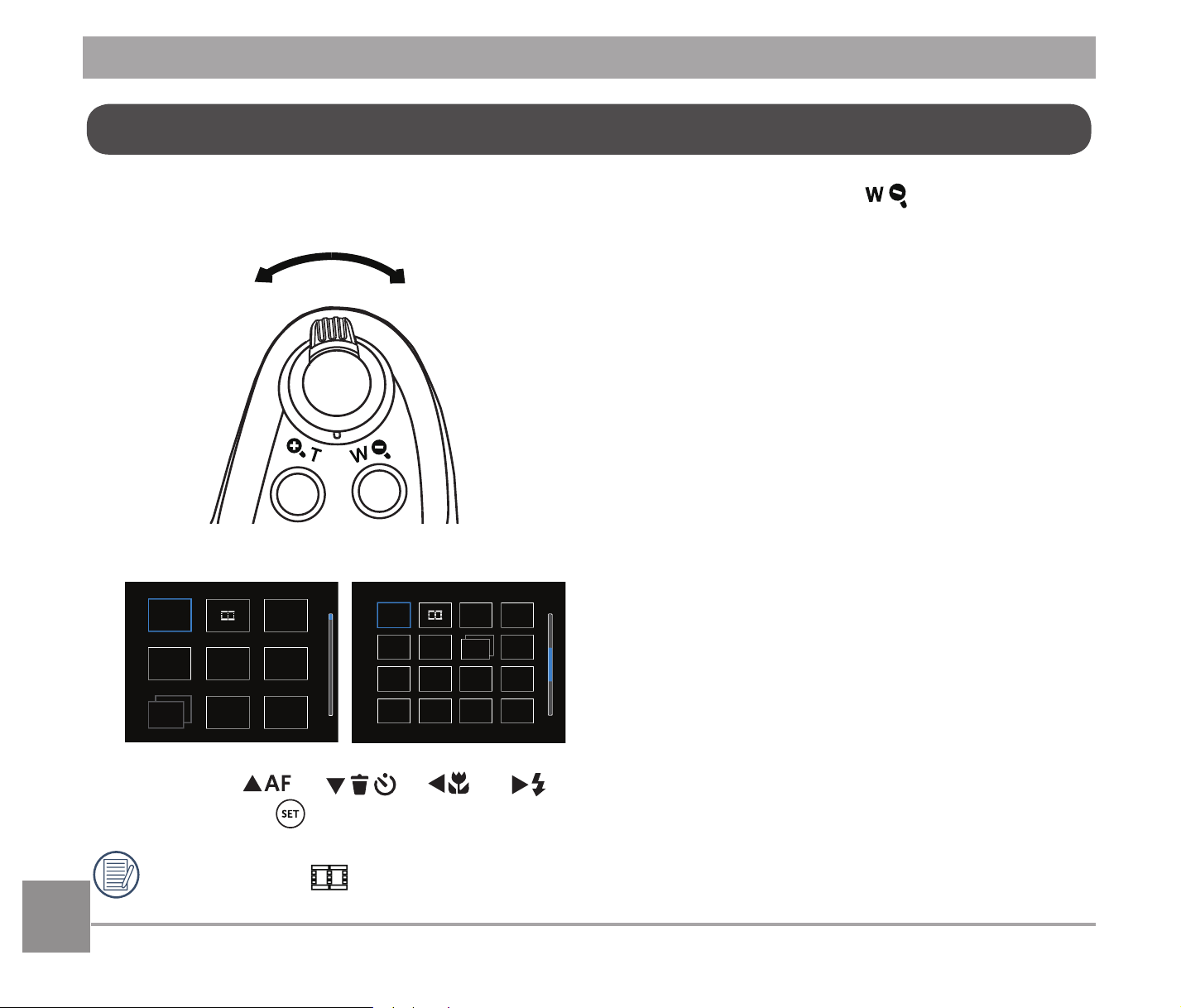
When in Playback Mode, rotate the Zoom Lever counter clockwise to the position to
display thumbnail images of the photos and videos on the screen.
W Zoom Out
T Zoom Out
1. Slide the Zoom Lever to switch between 3x3 and 4x4 thumbnails.
2. Press the
AC
/
C
A
/
A
C
/
CA
buttons to select a picture or video clip to view
and press the
EXWWRQWRUHVWRUHLWWRWKHRULJLQDOVL]H
When the icon
DSSHDUVLWPHDQVWKLVLVDYLGHR¿OH
Thumbnail View
63
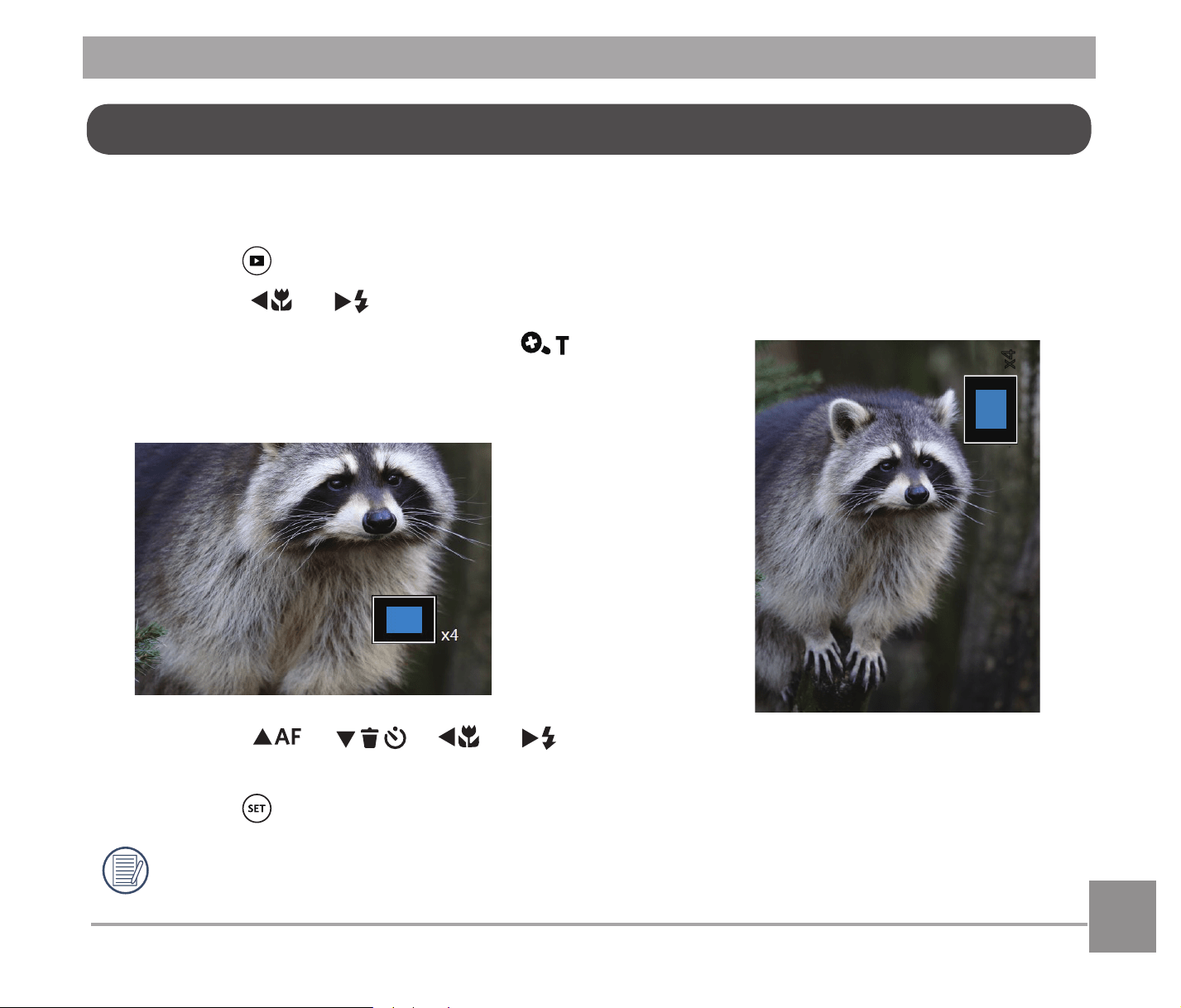
:KHQSOD\LQJEDFNSKRWRV\RXFDQDOVRXVHWKH=RRP/HYHUWR]RRPLQRQWKHSKRWRVWR
times.
1. Press the
button to switch to Playback Mode.
2. Press the
A
C
/
CA
EXWWRQWRVHOHFWDSLFWXUHWREH]RRPHGLQRQ
3. Rotate the Zoom Lever clockwise to
WR]RRPLQ
4. The screen will display the number of times and
DUHDRIWKHSKRWR]RRPLQJRSHUDWLRQ
5. Press the
AC
/
C
A
/
A
C
/
CA
buttons to navigate and select a part of the
LPDJHWREH]RRPHGLQRQ
6. Press the
button to return the image to its original scale.
0RYLHLPDJHVFDQQRWEHPDJQL¿HG
x4
Using Zoom Playback (for still pictures only)
64
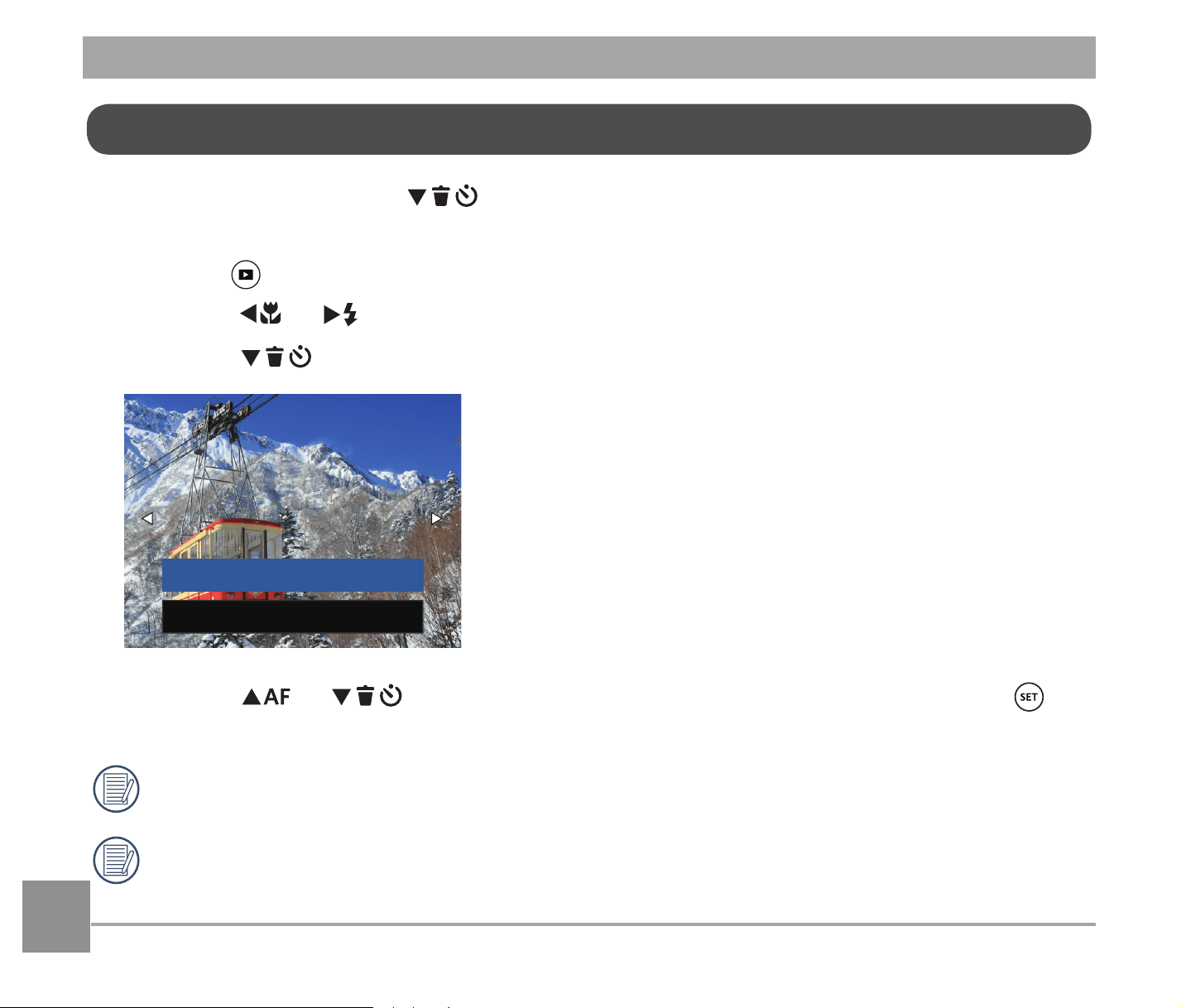
In Playback Mode, press the
C
A
button to delete your photos and videos.
To delete photos or videos:
1. Press the
button to switch to Playback Mode.
2. Press the
A
C
/
CA
button to select the photos and videos to be deleted.
3. Press the
C
A
button and the deletion screen is displayed.
Exit
Delete One
4. Press the
AC
/
C
A
button to select 澨Delete One澩or澨Exit澩and press the
EXWWRQWRFRQ¿UP
Erased photos/video clips cannot be recovered.
Please refer to page 88 for instructions on deleting more than one image at a time.
Deleting Photos and Videos
65
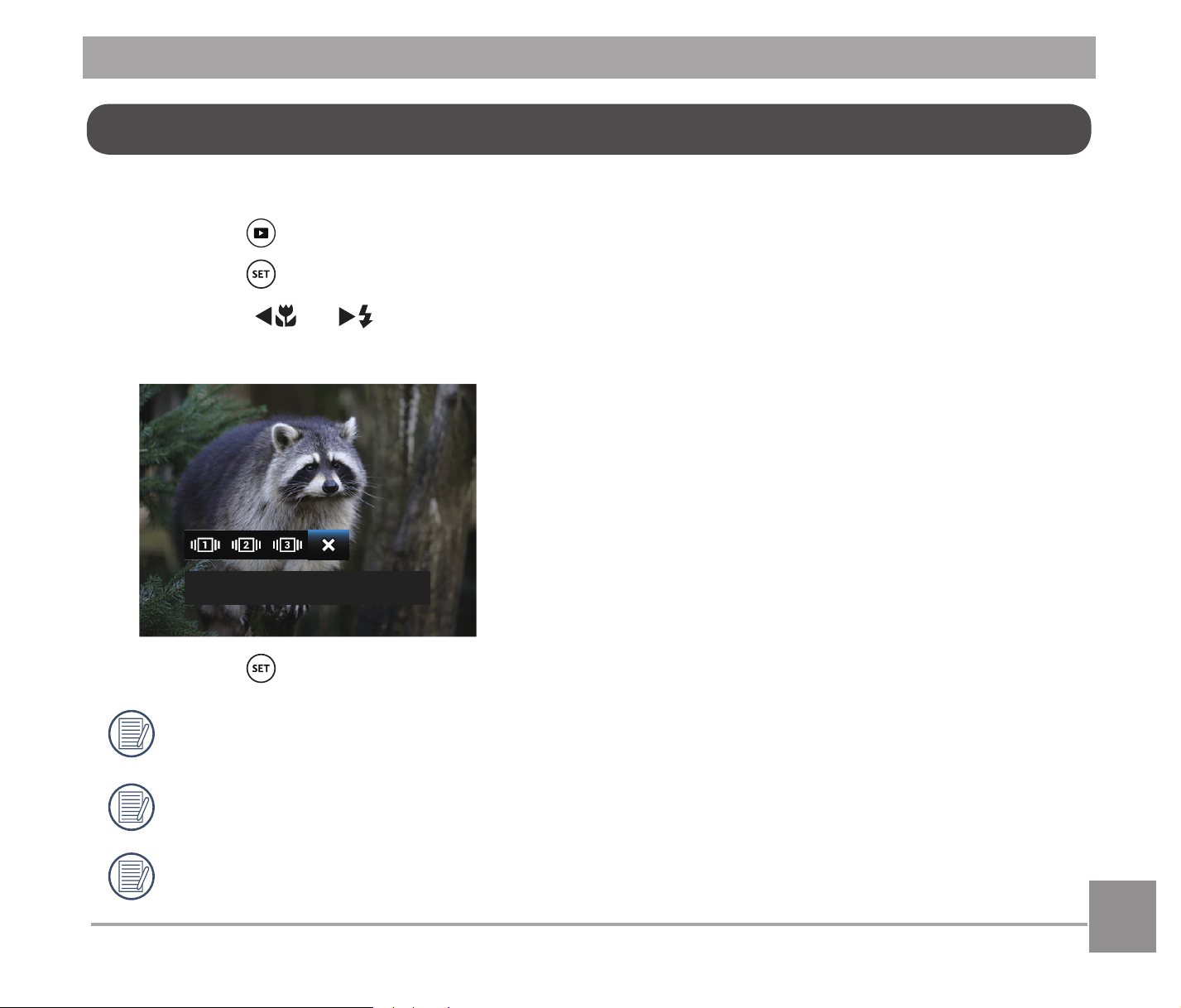
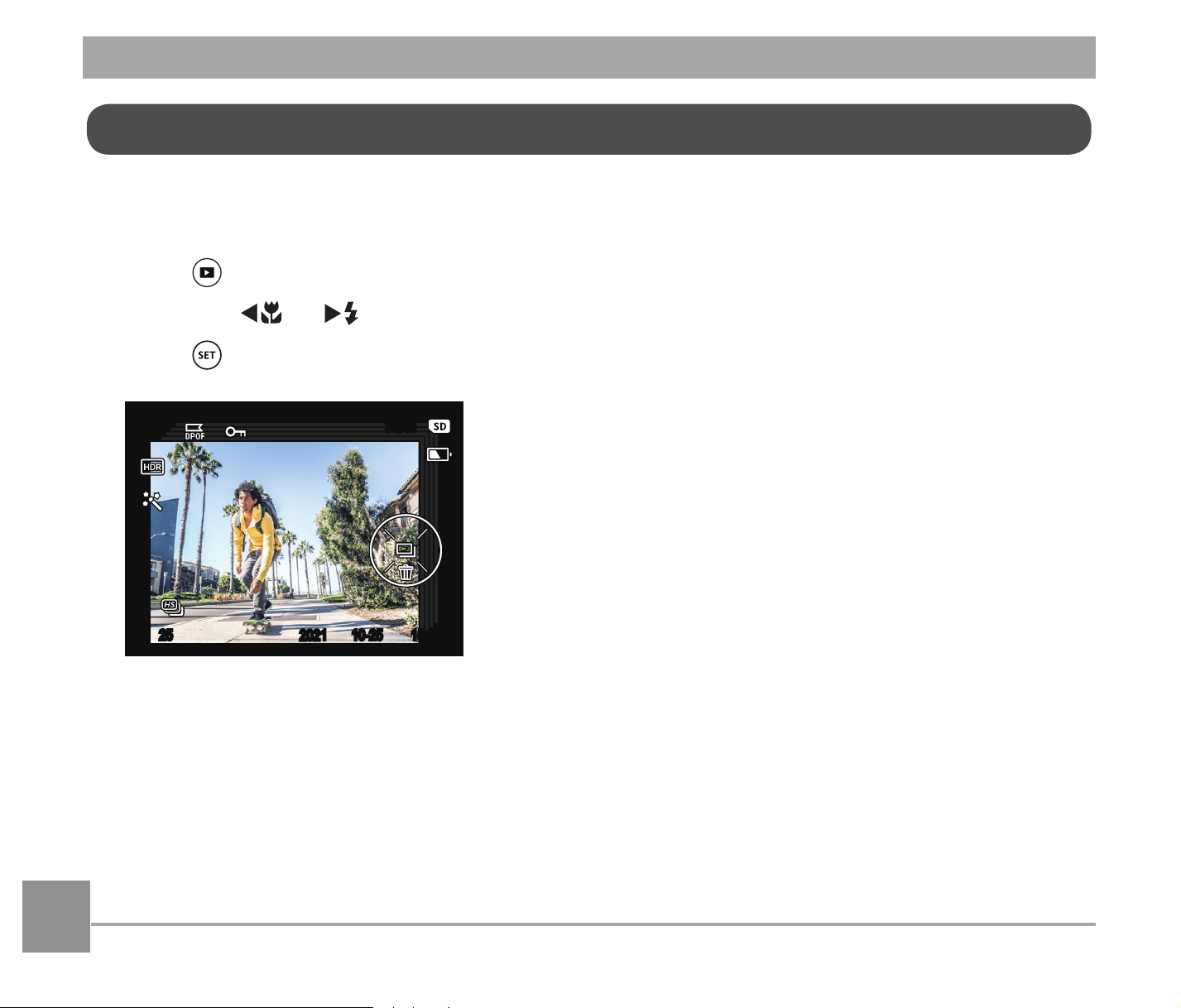
This setting allows you to view all the stored images as a slideshow.
1. Press the
button to enter playback screen.
2. Press the
button to enter slide option.
3. Press the
A
C
/
CA
button to select the slideshow playing option or澨Cancel澩to
return to the playback screen.
Cancel
4. Press the EXWWRQWRFRQ¿UPWKHVHWWLQJ
The Continuous Capture Group Playback may be displayed by slideshow.
Pictures rotate automatically during a slide show.
Slide playing function supports movie playing.
Slideshow
66
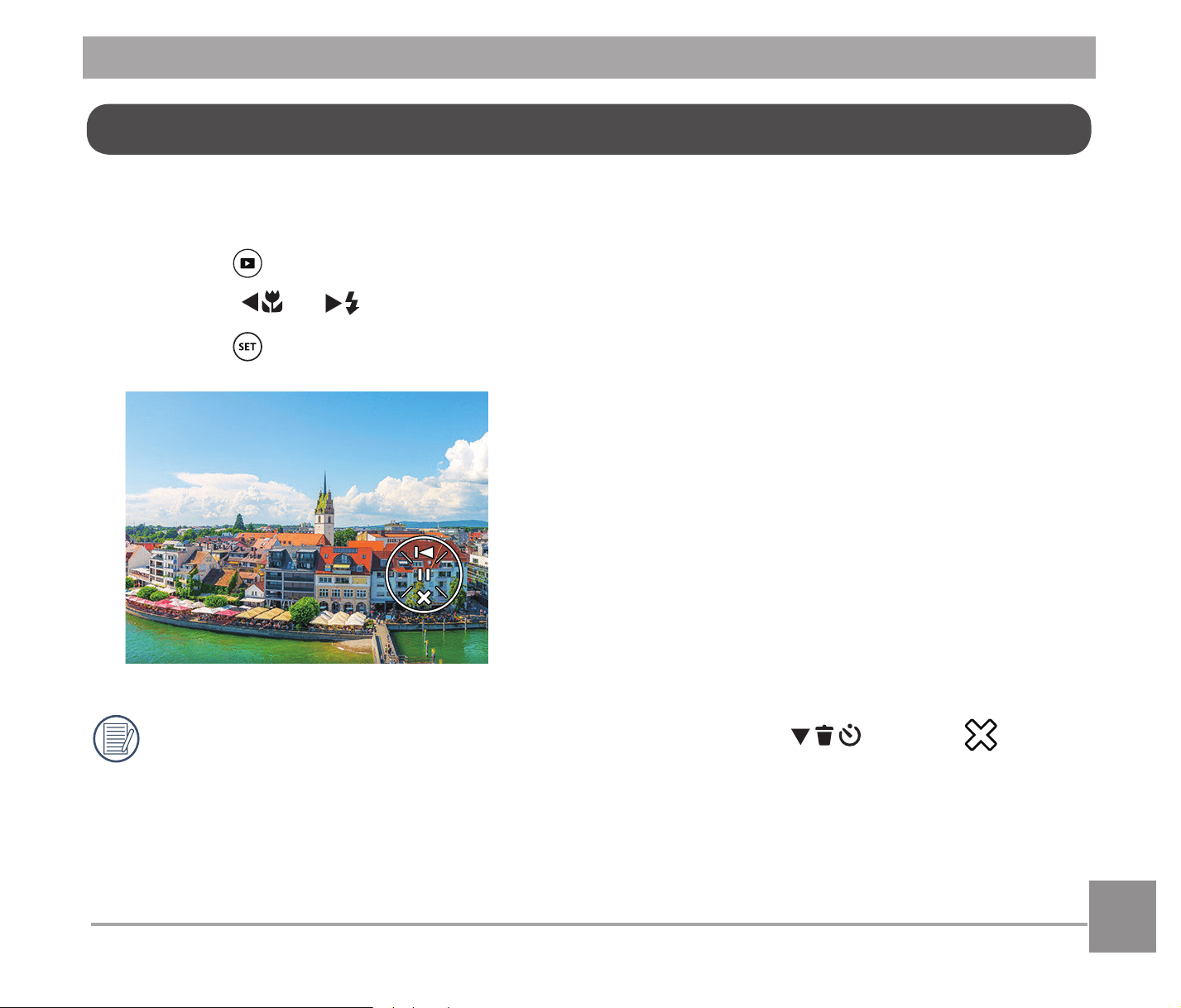
Cont.Shot-High Speed (VGA) and Cont.Shot-Fast (4M) can make continuous capture for group
image playback.
1. Press
button to enter playback screen.
2. Press the
A
C
/
CA
button to select Cont. Group.
3. Press
to start playback.
30/45
10-25 15:3725
2021
Continuous Capture Group Playback
67
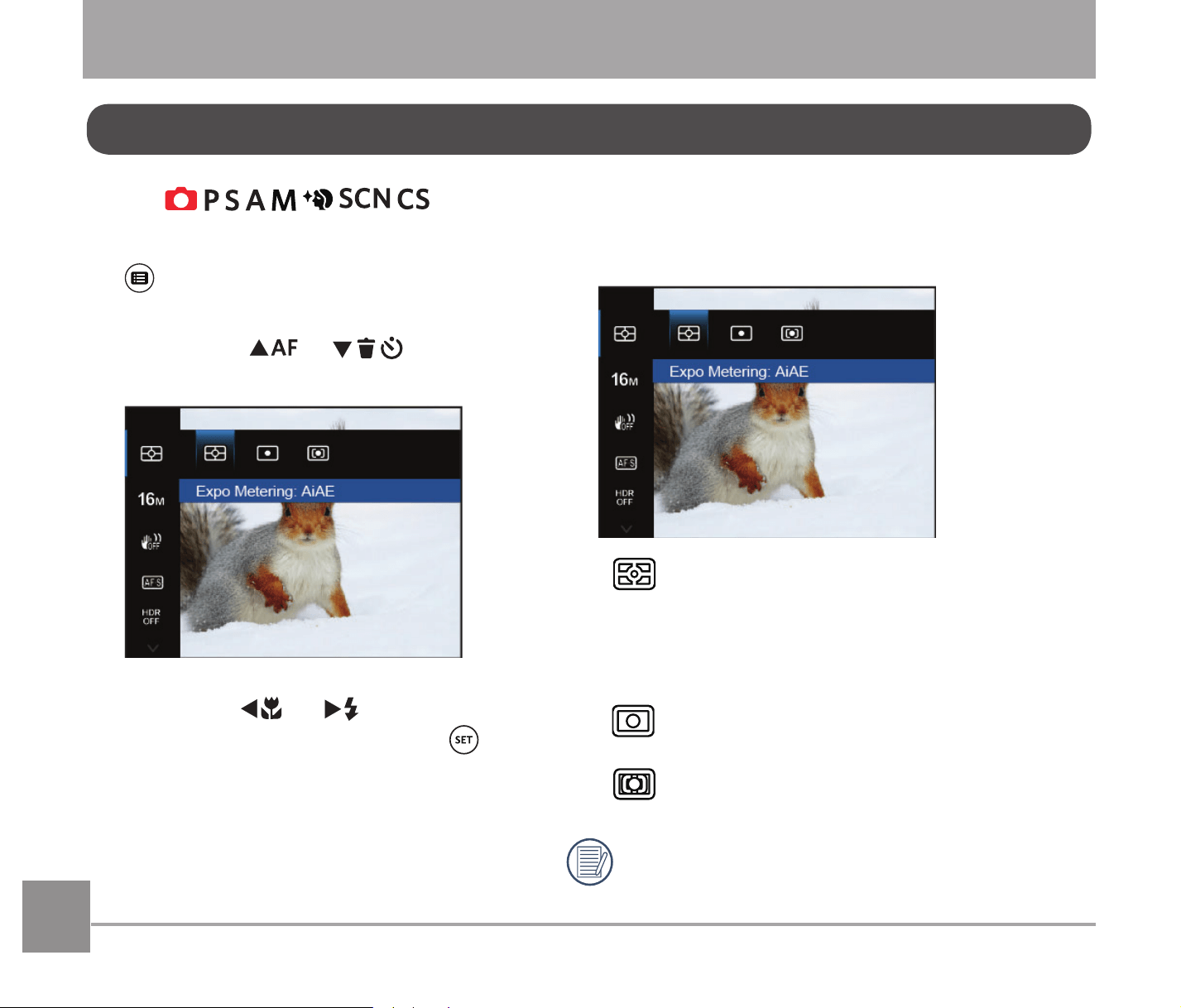
3DQRUDPLF$QLPDWLRQ3OD\LQJLVZKHQIXOOVL]HGLPDJHVDUHSOD\HGLQDFFRUGDQFHZLWKWKH
shooting direction. After playing, it will automatically return to the initial panorama screen.
1. Press the
button to enter Playback Screen.
2. Press the
A
C
/
CA
button to select animated panoramic photos.
3. Press the
button to play in selected shooting direction.
In the process of Panoramic Animation Playback, press the
C
A
button ( ) to
stop playing and return to the Playback Screen.
Animation Panorama Play
68
Photo Setup Menu
USING THE MENUS
Mode:
1. In Photo Shooting Mode, press the
button to enter the Photo Setup
menu.
2. Press the
AC
/
C
A
button to
select the item to be set.
3. Press the
A
C
/
CA
button to
select an option and press the
EXWWRQWRFRQ¿UP
Refer to the following pages for more
details about each setting.
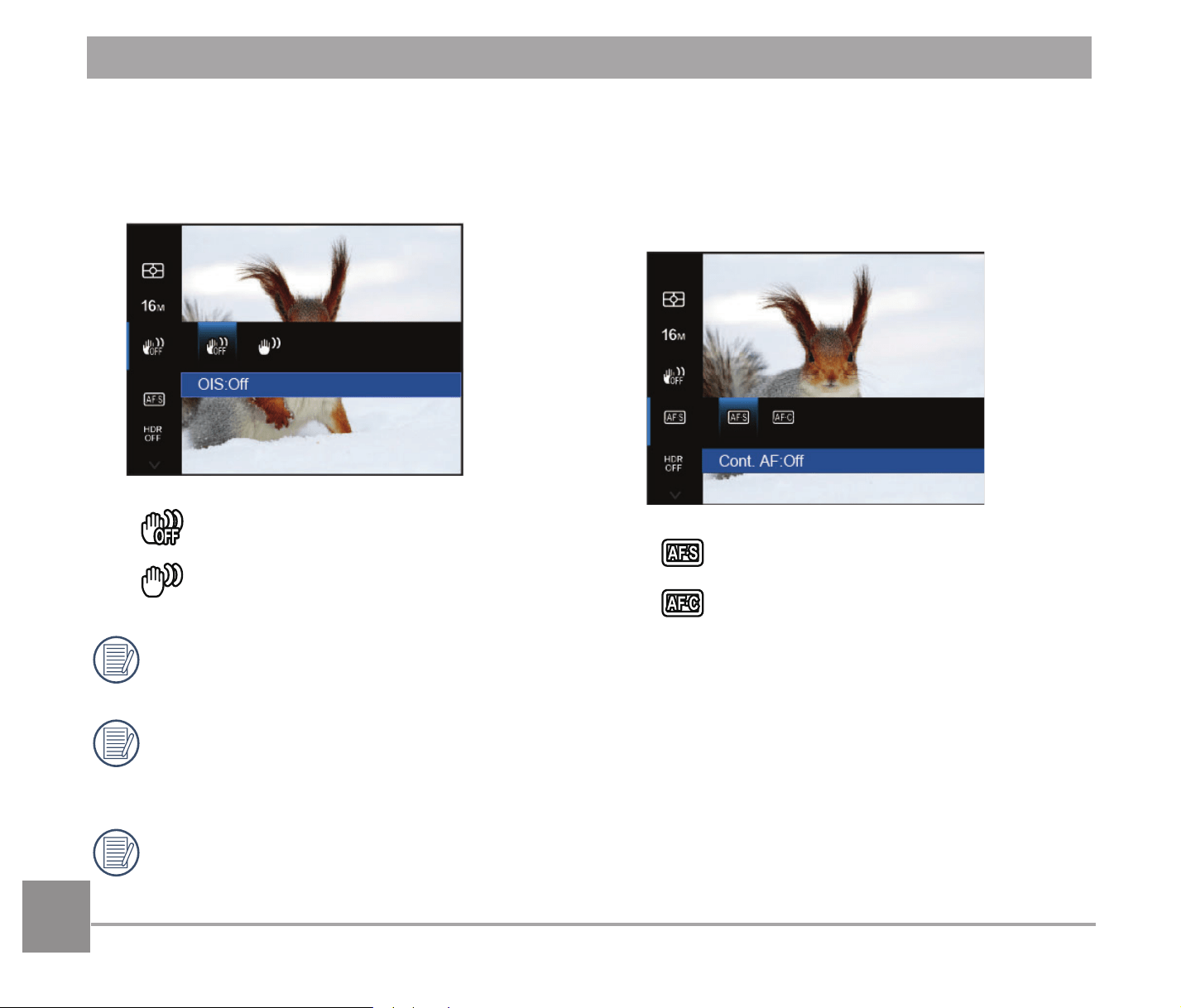
Expo Metering
8VHWKLVVHWWLQJWRVHOHFWWKH³WDUJHW´VL]HRIWKH
FDPHUD¶V¿HOGRIYLHZWREHPHWHUHG
$L$($UWL¿FLDO,QWHOOLJHQFH$(
Evaluates the light intensity at
multiple points in the frame and
automatically determines the best
value for the light meter.
Spot: For metering the block displayed
in the center of the screen.
Center: For metering the object in the
center of the screen.
It can be adjusted in all modes except
for Panorama Mode.

6969
Image Size
7KHVL]HVHWWLQJUHIHUVWRWKHLPDJHUHVR-
lution in pixels. A higher image resolution
DOORZV\RXWRSULQWWKDWLPDJHLQODUJHUVL]HV
ZLWKRXWVDFUL¿FLQJWKHLPDJHTXDOLW\
6L]H+LJKTXDOLW\SULQWLQJ
6L]H)XOOVL]HSULQWLQJ
6L]HGLVSOD\
6L]H3RVWHUSULQWLQJ
6L]H$SULQWLQJ
6L]H$SULQWLQJ
6L]H´[´SULQWLQJ
6L]H(0DLO
The larger the number of recorded
SL[HOVWKHODUJHUWKH¿OHVL]HDQGWKH
IHZHU¿OHVWKDWFDQEHVDYHGRQ\RXU
memory card.
70
OIS (Optical Image Stabilization)
This mode can help reduce photo blur
caused by unsteady hands and low light.
OIS: Off
OIS: On
8VHWKLVLPDJHVWDELOL]DWLRQPRGHLQ
dark environments.
Shooting in a windy or unstable
environment (such as a moving
vehicle) may cause blurry images.
It is recommended to turn off OIS when
using a tripod.
Cont. AF (Continuous Auto-Focus)
Enable Continuous AF to be able to con-
tinuously focus automatically when taking
pictures.
Cont.AF: Off
Cont.AF: On
71
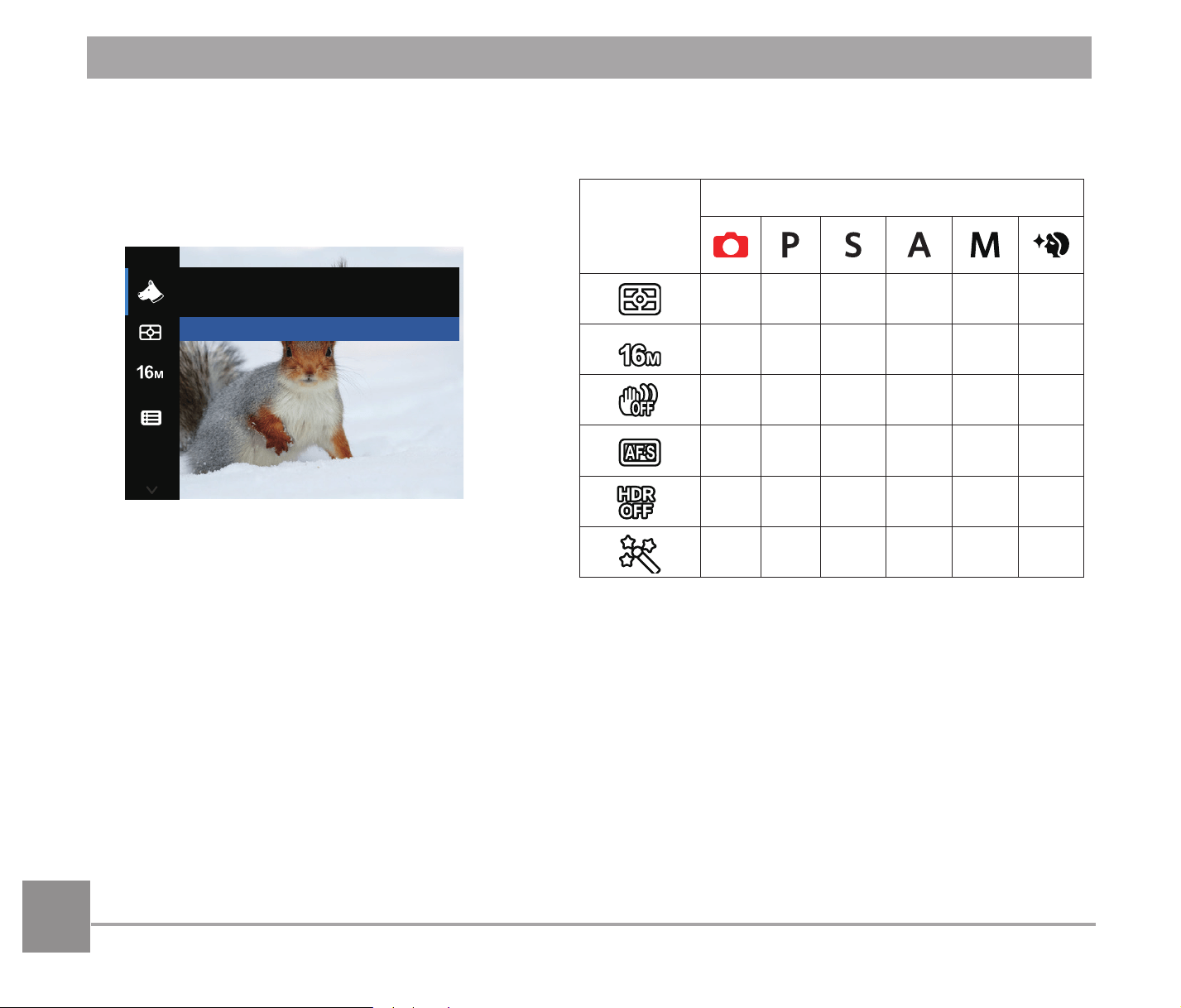
%HDXWL¿HU
6HOHFWDQHIIHFWRIWKH)DFH%HDXWL¿HU0RGH
Effect 1: Skin Soften
Effect 2: Skin Soften+Eye Brightening
Effect 3: Skin Soften+Eye Brightening
+Eye Enlargement
Please refer to P35 for more detailed
instructions.
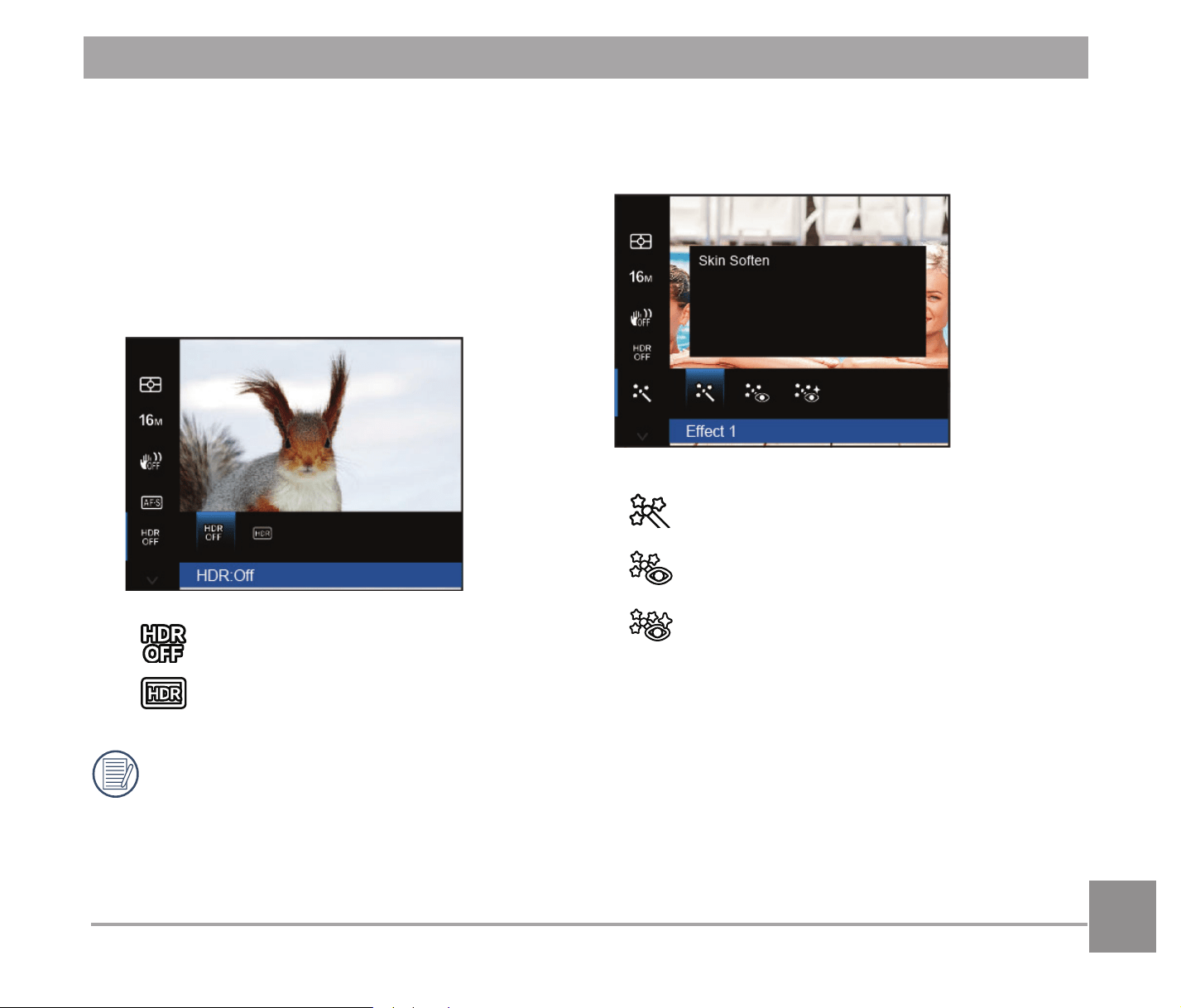
HDR (High Dynamic Range)
Use this setting to control wide dynamic
image range when taking static pictures.
Photos with extreme contrast of bright and
dark areas will still maintain distinguishable
detail and depth. (Use of a tripod is
recommended with this setting)
HDR: Off
HDR: On
In a setting with extreme contrast
(very dark or very bright), this
function can be used to shoot better
photos.
7272
Scene
Select the scene mode under the SCN
mode.
Pet Mode
Press SET To Select Scene
Please refer to P42 for more detailed
instructions.
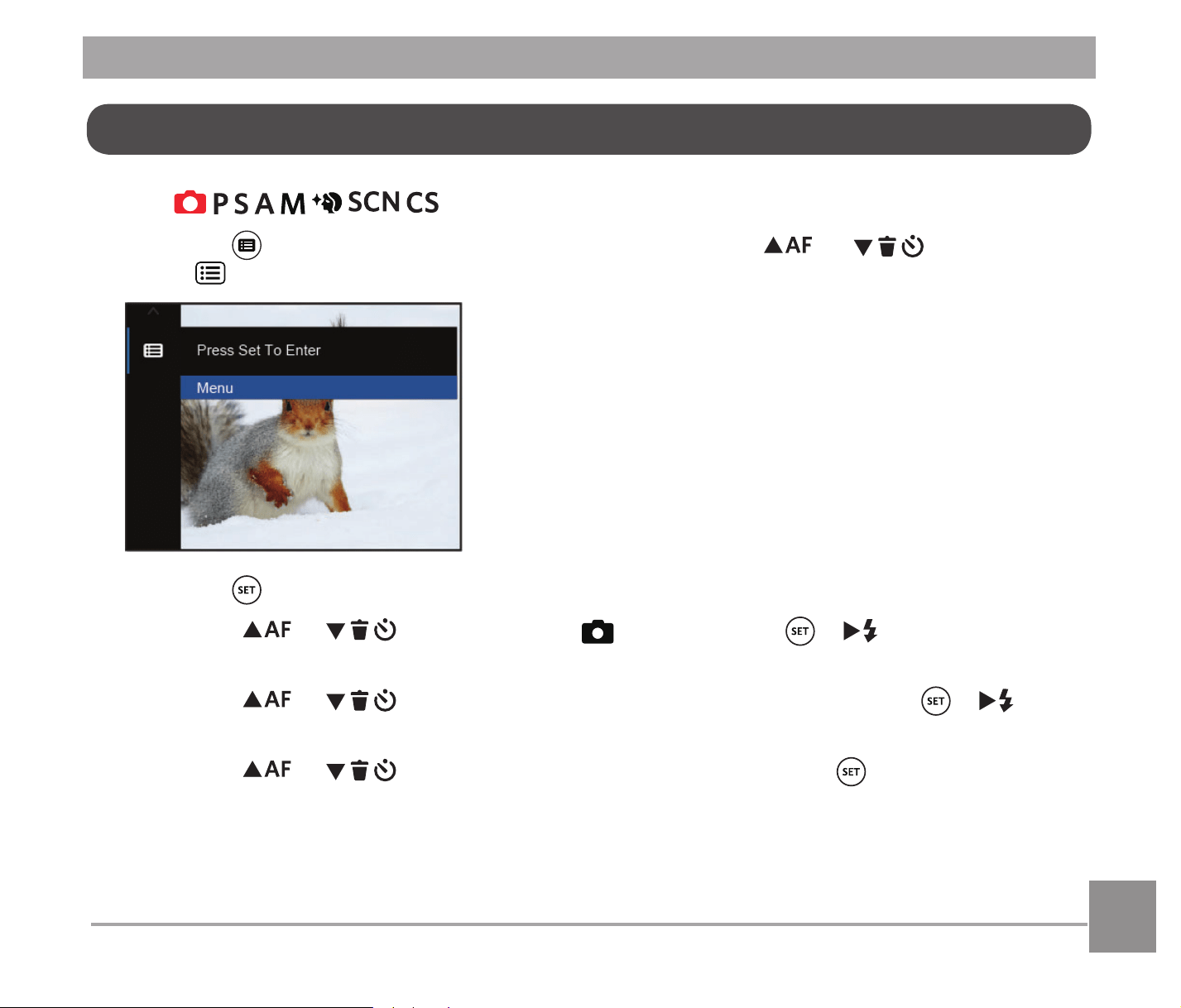
Shooting menu in the Photo Shooting Mode
(O: Available X: Not Available)
Options
Photo Shooting Modes
OOOOOO
OOOOOO
XOOOOO
XOOOOO
XOO O O X
XXXXXO
73
Mode:
1. Press the button in Photo Shooting Mode and press the
AC
/
C
A
button to
select
.
2. Press the button to enter the menu.
3. Press the
AC
/
C
A
button to select , and press the /
CA
button to enter
the menu.
4. Press the
AC
/
C
A
button to select the item to be set and press the /
CA
button to enter the menu.
5. Press the
AC
/
C
A
button to select an option and press the EXWWRQWRFRQ¿UP
Photo Shooting Settings Menu

74
Quality
The Quality Setting can be used to adjust
the image compression ratio.
Quality
Best
Fine
Normal
There are three options for picture quality:
%HVW
)LQH
1RUPDO
AF Assist Beam
In a darker environment, AF Assist Beam
can be turned on for better focus.
AF Assist Beam
Off
On
Digital Zoom
7XUQRQRURIIWKHGLJLWDO]RRP
Off
On
Digital Zoom
75
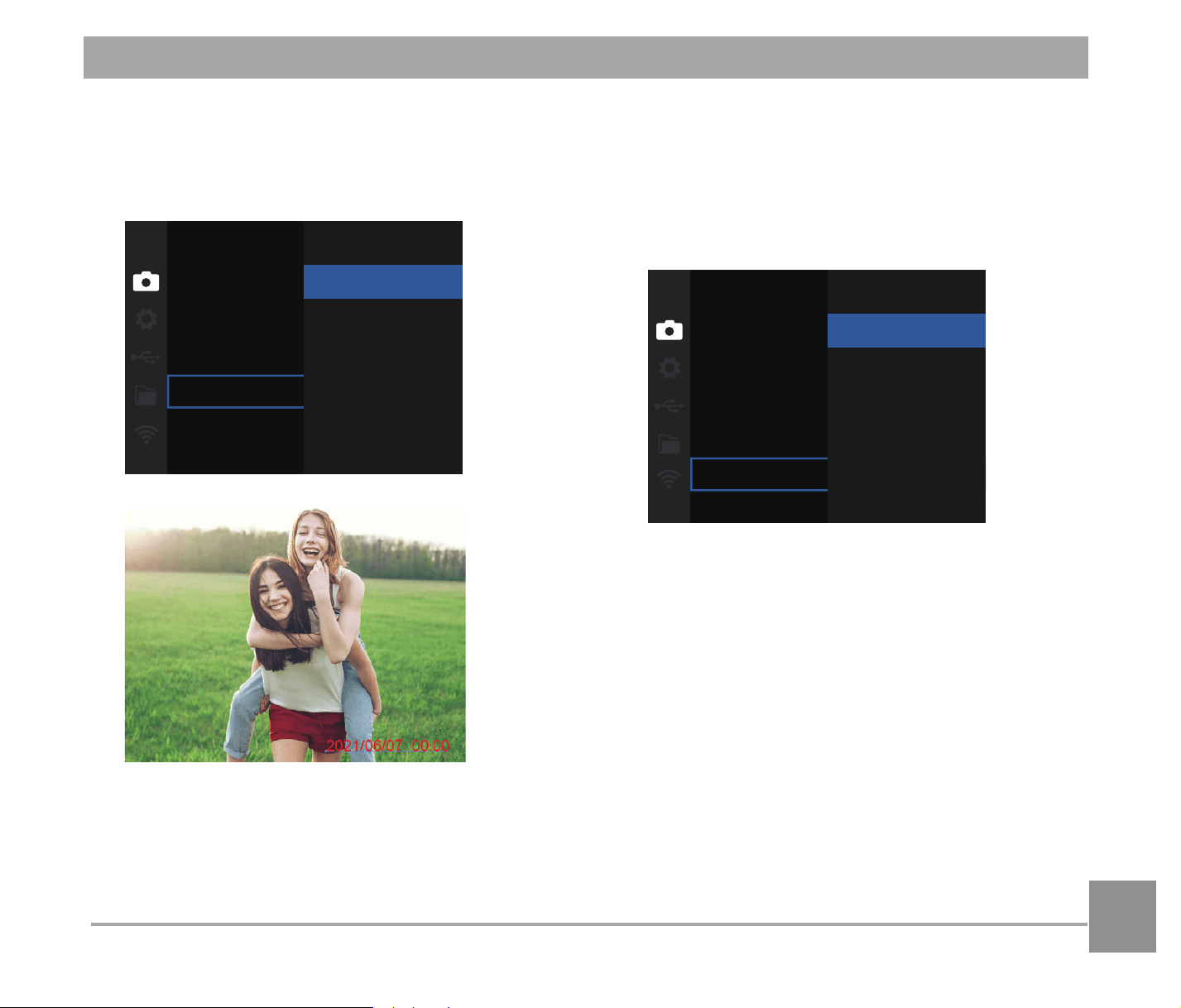
Quick Review
This option enables a quick review of the
photos immediately after they are taken.
Each photo is displayed on the LCD based
on the selected time.
Quick Review
Off
1 sec
2 sec
3 sec
There are 4 options:
2II
VHF
VHF
VHF
Date Imprint
Include a Date/Time stamp on the photo
image.
Date Imprint
Off
Date
Date/Time
2II
'DWH
'DWH7LPH
7676
Custom Settings
Custom Settings stores the current photo
shooting mode or scene mode and
its parameters. The stored mode and
parameters are retrieved in
mode.
Reset camera settings to
custom settings mode.
Custom Settings
No
Yes
There are 2 options:
1R
<HV
In
mode, select澨Custom
Settings澩the camera will enter the
setting menu as shown below:
Select one capture mode to define CS .
Auto Mode
Save
Exit

77
Movie Menu
Mode:
1. Rotate the mode dial to select and
press the
button to enter the Movie
menu.
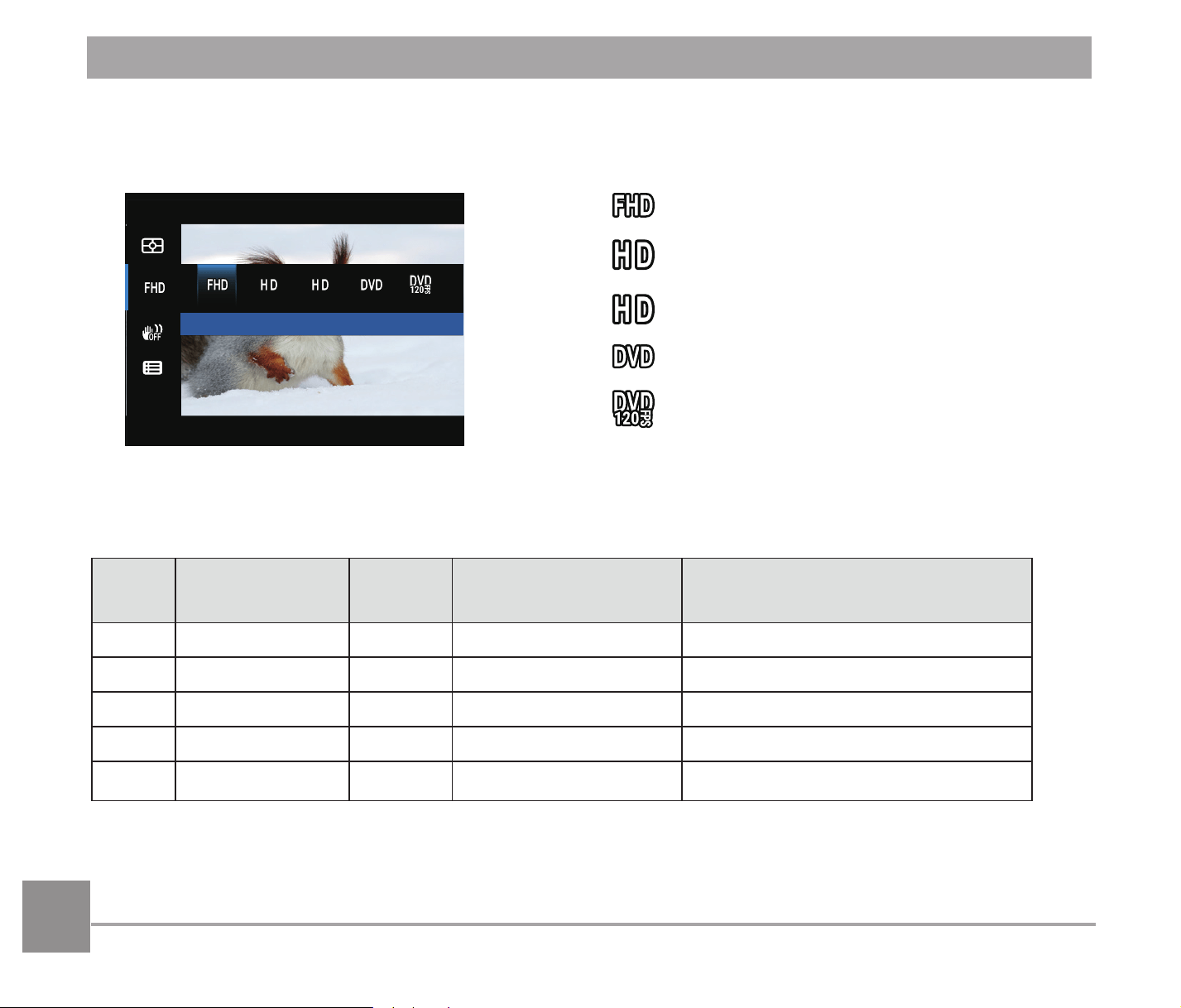
Expo Metering: AiAE
2. Press the
AC
/
C
A
button to
select the item to be set.
3. Press the
A
C
/
CA
button to select
an option and press the
button to
FRQ¿UP
Expo Metering (Exposure
Metering)
8VHWKLVVHWWLQJWRVHOHFWWKH³WDUJHW´VL]HRIWKH
FDPHUD¶V¿HOGRIYLHZWREHPHWHUHG
Expo Metering: AiAE
$L$($UWL¿FLDO,QWHOOLJHQFH$(
Evaluates the light intensity at
multiple points in the frame and
automatically determines the
best value for the light meter.
Spot: For metering the block
displayed in the center of the
screen.
Center: For metering the object
in the center of the screen.
78
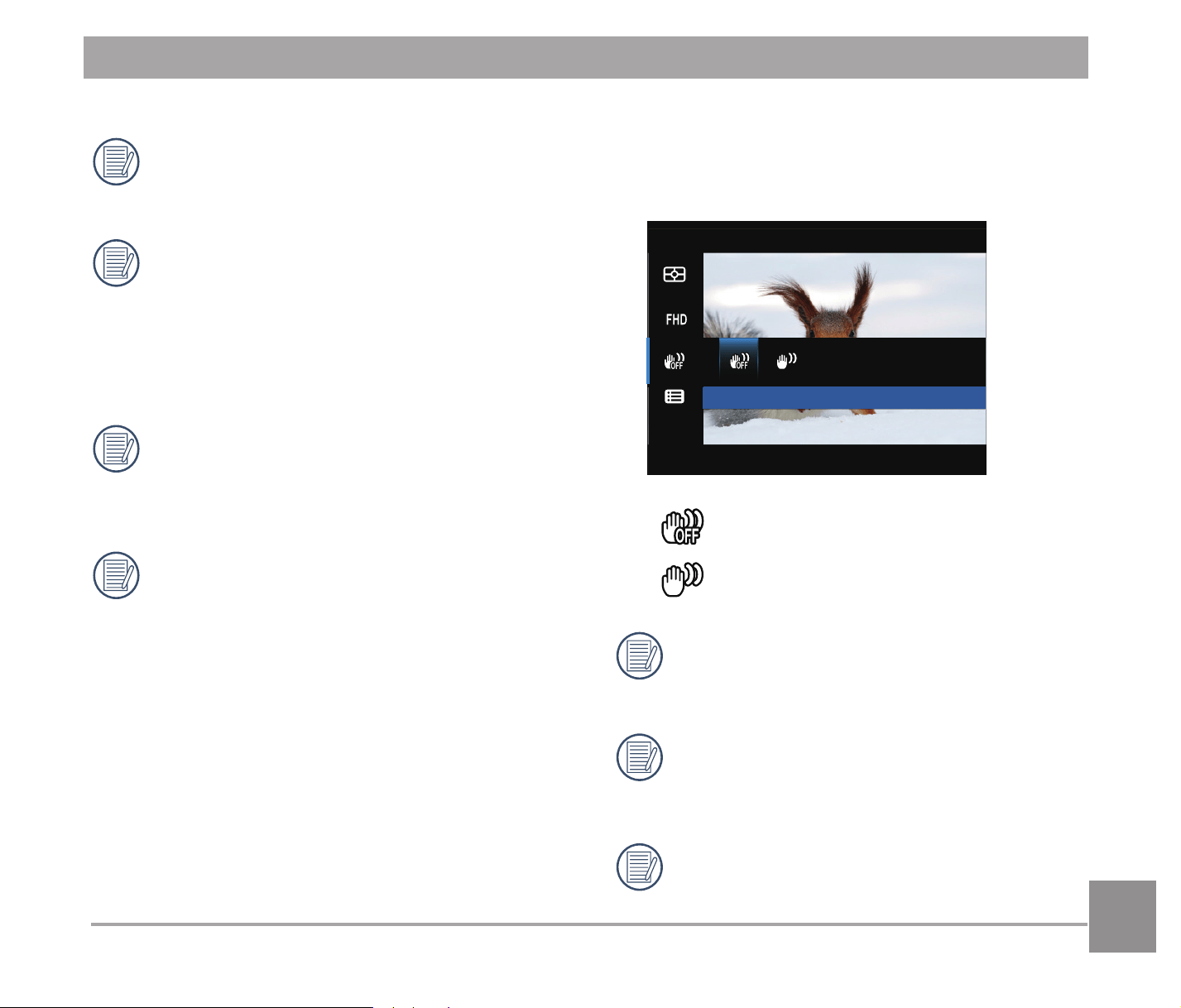
Movie Size
Set the image resolution used during video recording.
Size: 1080p 30fps
The speed requirements for reading and writing high image pixel images to SD card are as
follows:
No. Image Pixel Frame Recommendation Recording time (4GB) About
1 1920x1080 * 30 Class 6 30 minutes
2 1280x720 * 60 Class 6 32 minutes
3 1280x720 * 30 Class 4 59 minutes
4 640x480 30 Class 4 106 minutes
5 640x480 120 Class 6 54 minutes
6L]HSISV
6L]HSISV
6L]HSISV
6L]H[ISV
6L]H+LJK6SHHG0RYLH
79
* The longest recording time is 29
minutes at one time.
When recording in higher pixel
resolutions for extended periods of
time, this can cause the camera to
generate heat. This is not a camera
malfunction.
When the video format is set as
640x480 (120fps), shooting time is 30
seconds, playback time is 2 minutes.
Sound recording is disabled when
640x480 120fps is chosen.
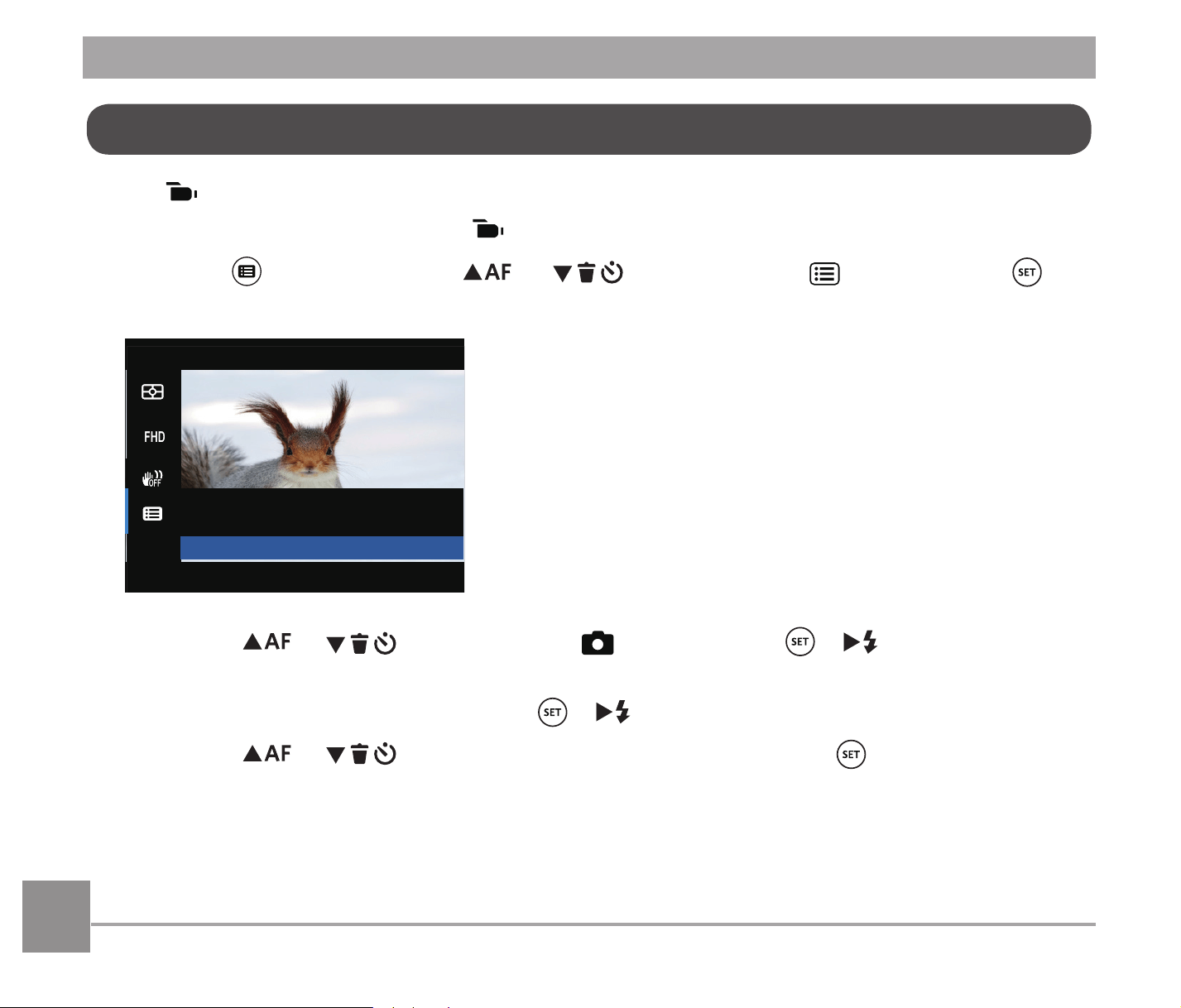
OIS (Optical Image Stabilization)
This mode can help reduce photo blur
caused by unsteady hands and low light.
5/9 5LL
OIS: Off
OIS: On
8VHWKLVLPDJHVWDELOL]DWLRQPRGHLQ
dark environments.
Shooting in a windy or unstable
environment (such as a moving
vehicle) may cause blurry images.
It is recommended to turn off OIS when
using a tripod.
80
Movie Setting Menu
Mode:
1. Rotate the Mode Dial and select to enter the video recording screen.
2. Press the
button, press the
AC
/
C
A
button to select , and press the
button to enter the Movie Setting menu.
Menu
Press SET To Enter
3. Press the
AC
/
C
A
button to select , and press the /
CA
button to enter
the menu.
4. Select the item to be set and press the
/
CA
button to enter the menu.
5. Press the
AC
/
C
A
button to select an option and press the EXWWRQWRFRQ¿UP
8181
Custom Settings
Custom Settings stores the current movie
mode and its parameters. The stored mode
and parameters can be retrieved directly in
mode.
Reset camera settings to
custom settings mode.
Custom Settings
No
Yes
Digital Zoom
Turn the Digital Zoom on or off.
Off
On
Digital Zoom
82
Playback Menu
Mode:
1. Press the button to display the
playback screen and press the
button to enter the menu.
2. Press the
AC
/
C
A
button to
select the item to be set and press the
button to enter.
3. Press the
A
C
/
CA
button to select
an option and press the
button to
FRQ¿UP
Normal Mode
Press SET To Confirm
Refer to the following pages for more
details about each setting.
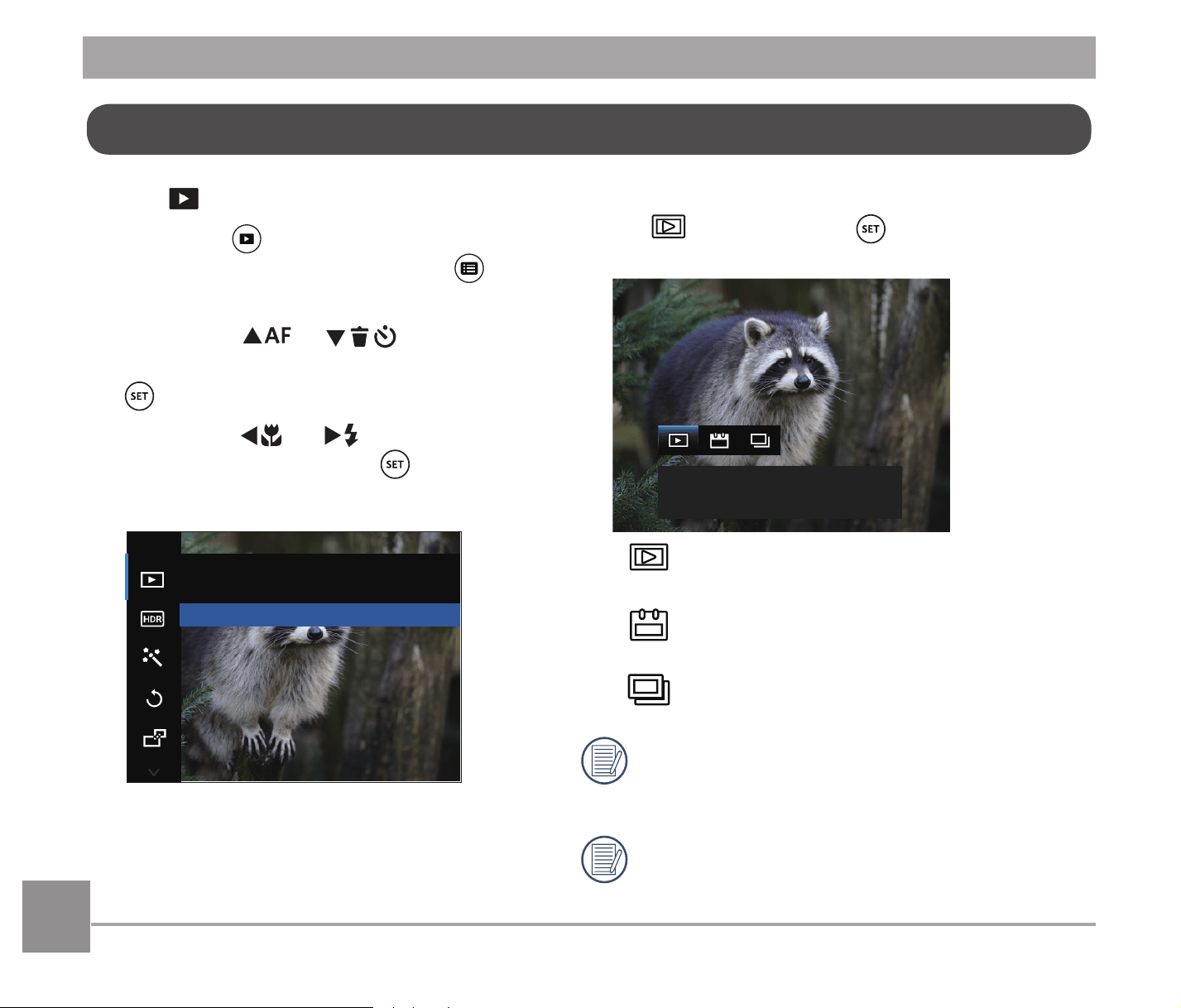
Playback Mode
Select , and press the button to enter the
settings screen:
Normal Mode: Display all images.
Normal Mode:
Display all images.
Date Mode:
Arranged by date.
Cont. Photo Mode:
Arranged by Cont. Photo Group.
The Date Folder is displayed in date order
based on camera's Date/Time Settings.
,IWKHUHLVQR&RQWLQXRXV6KRWLPDJH¿OH
in memory, Continuous Shot Playback
mode cannot be enabled.
8383
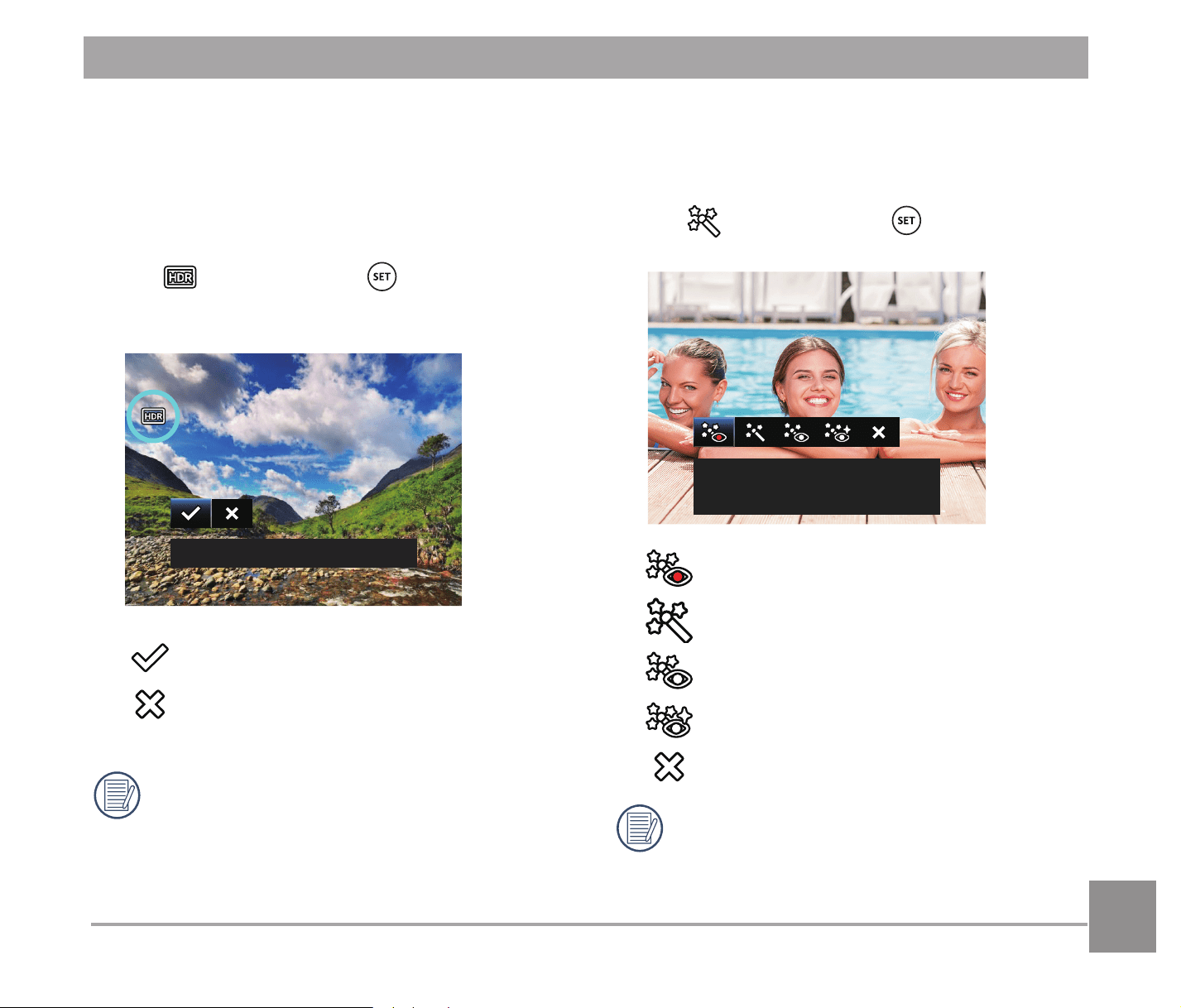
HDR (High Dynamic Range)
With the HDR function, pictures that are
RYHUH[SRVHGPD\EHFRUUHFWHGWRRSWLPL]H
the highlights and lowlights captured to more
accurately represent the actual scene.
Select
, and press the button to enter
the settings screen:
.*8
HDR
Cancel
After using the HDR function, the
LPDJHZLOOEHVDYHGDVDQHZ¿OHDQG
WKHRULJLQDO¿OHLVVWLOOVWRUHGLQWKH
memory.
Touch-Up
The playback beauty feature allows for
EHDXWL¿FDWLRQXVLQJWKUHHLQGLYLGXDOHIIHFWV
Select
, and press the button to enter
the settings screen:
Red-Eye Reduction
Red-Eye Reduction
Skin Soften
Eye Brightening
Eye Enlargement
Cancel
8VLQJWKH)DFH%HDXWL¿HU0RGHDOORZV
you to select from one, two, or all three
effects combined.
84
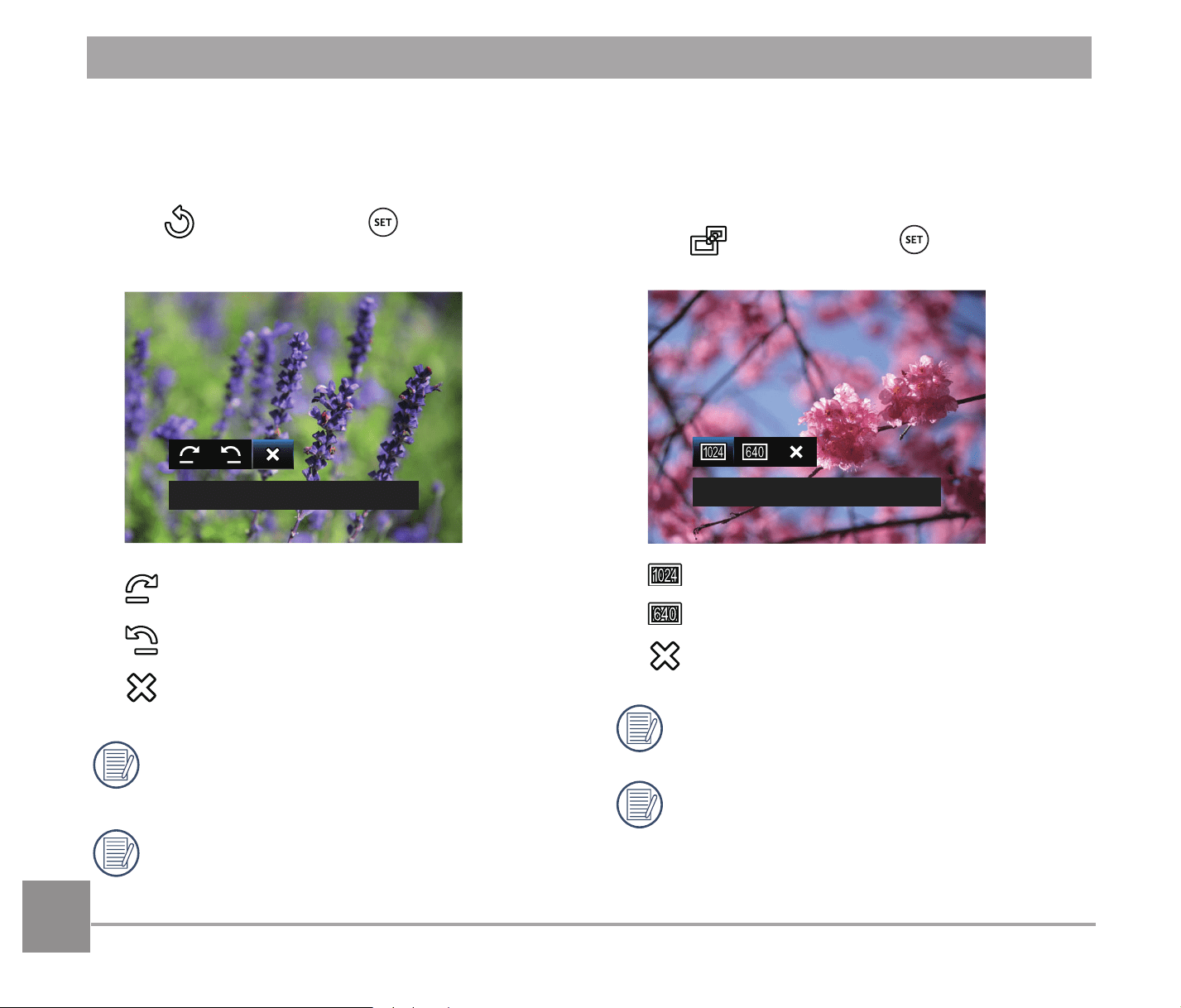
Rotate
You can use this setting to change the
orientation of the picture.
Select
, and press the button to enter
the settings screen:
Cancel
Turn Right
Turn Left
Cancel
Videos and panoramic pictures cannot
be rotated.
7KHURWDWHGSLFWXUH¿OHZLOOUHSODFHWKH
original photo.
Resize
7KLVVHWWLQJDOORZV\RXWRUHVL]HDSLFWXUHWR
DSDUWLFXODUUHVROXWLRQDQGVDYHVLWDVDQHZ
picture.
Select
, and press the button to
enter the settings screen:
Resize to 1024x768
5HVL]HWR[
5HVL]HWR[
Cancel
7KLVIXQFWLRQFDQRQO\EHXVHGWR
GRZQVL]HSKRWRVWRDORZHUUHVROXWLRQ
6L]HVRISKRWRVWDNHQLQSDQRUDPD
mode or rotated cannot be adjusted.
85
Color
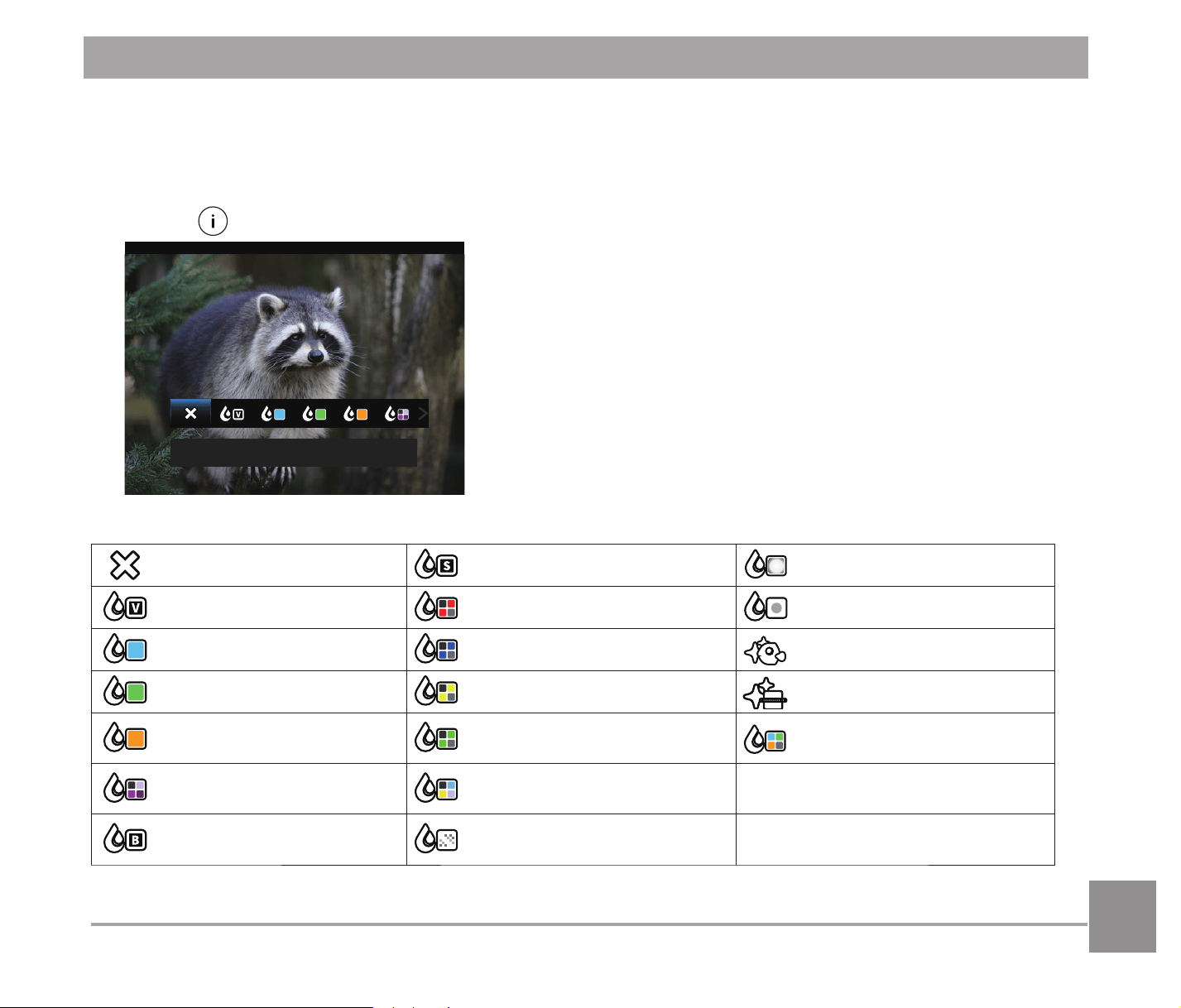
7KLVVHWWLQJDOORZV\RXWRFKDQJHWKHSLFWXUHFRORUHIIHFW7KH¿OHLVVDYHGDVDQHZSKRWRDQG
stored in memory together with the original photo.
Press the
button to enter the settings screen:
Cancel
There are 19 options available:
Cancel Sepia Vignetting
Vivid Partial Color-Red Salon
Japan Style (8M) Partial Color-Blue Fish Eye
Italian Style (8M) Partial Color-Yellow 5HÀHFWLRQ
French Style (8M) Partial Color-Green 4 Grids - Stylish (2M)
Punk (4M) Negative (8M)
Black and White Dreamy
86
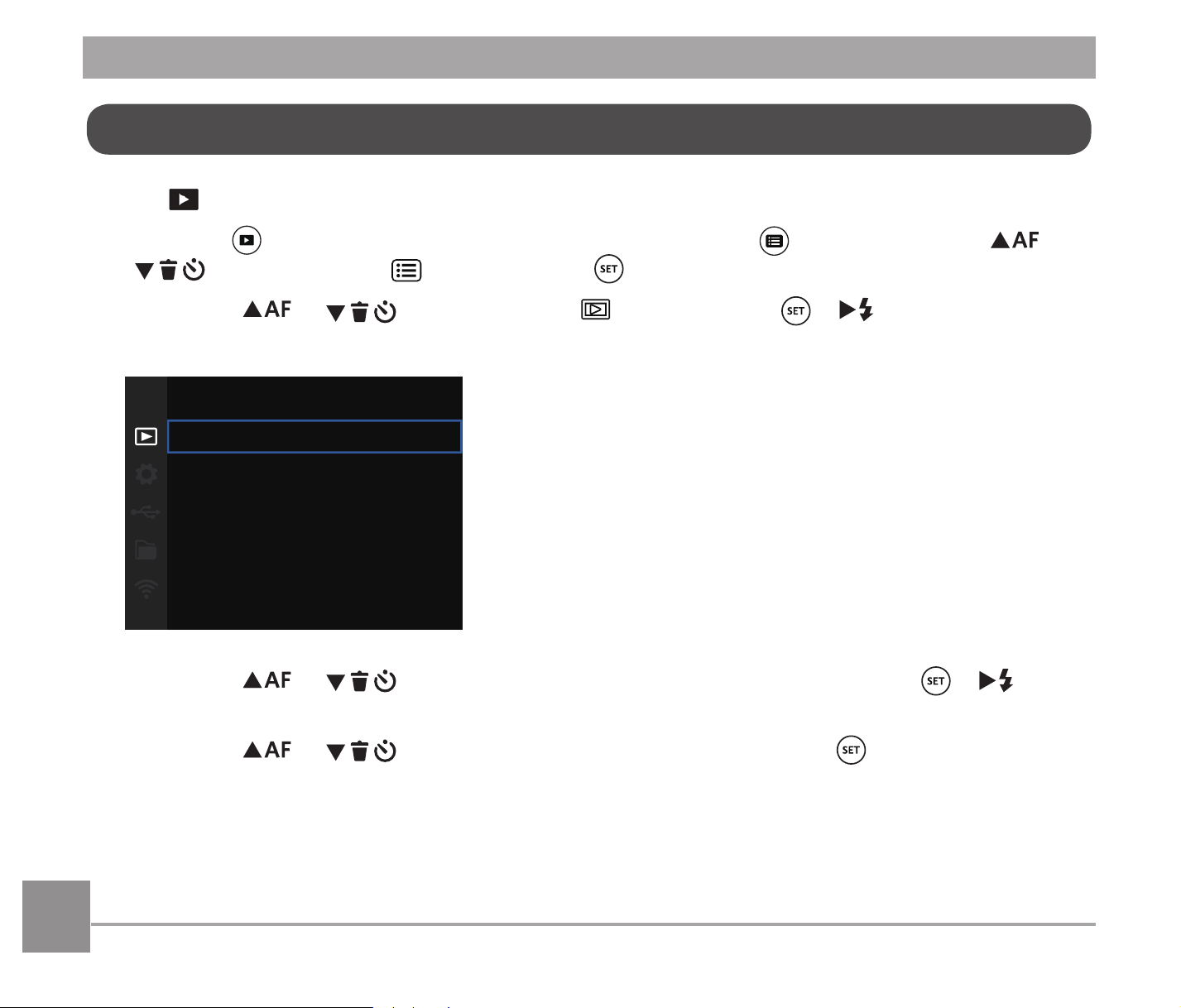
Mode:
1. Press the button to show the playback screen, press the button, press the
AC
/
C
A
button to select , and press the button to enter the menu.
2. Press the
AC
/
C
A
button to select , and press the /
CA
button to enter the
menu.
Protect
Delete
DPOF
Trim
3. Press the
AC
/
C
A
button to select the item to be set and press the /
CA
button to enter the menu.
4. Press the
AC
/
C
A
button to select an option and press the EXWWRQWRFRQ¿UP
Refer to the following pages for more details about each setting.
Playback Settings Menu
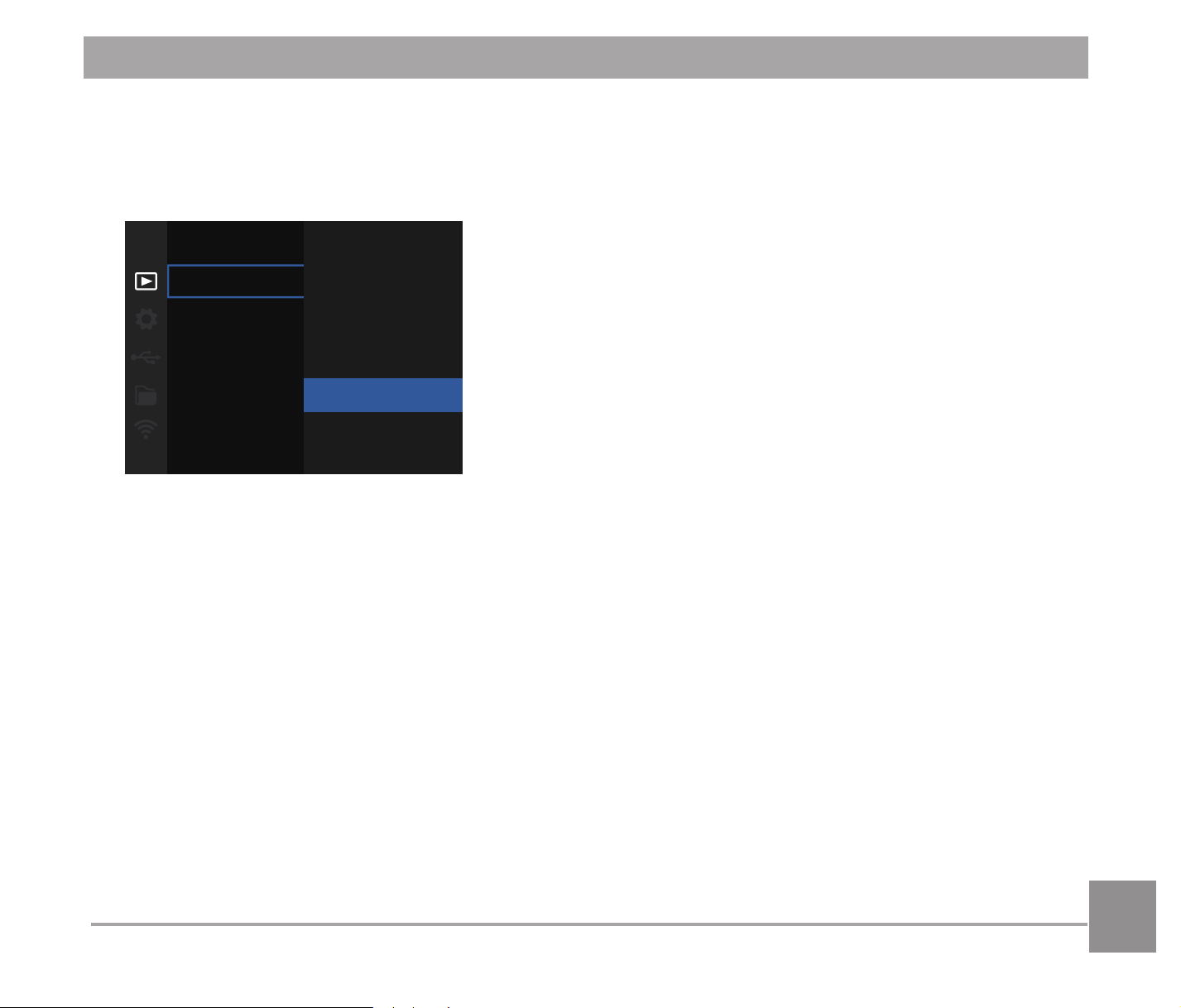
8787
Protect
To prevent any pictures or videos from being accidentally erased, use this setting to lock one
RUDOORIWKH¿OHV
Protect
One
Date Folder
Cont. Group
All
Reset
There are 5 options available:
2QH /RFNWKHVHOHFWHGSKRWRRUYLGHRLILWLVXQSURWHFWHGXQORFNWKHVHOHFWHG
photo or video if it is protected.
'DWH)ROGHU 3URWHFWDOOSKRWRVLQWKH'DWH)ROGHU
&RQW*URXS 3URWHFWDOOSKRWRVLQWKH&RQW3KRWR)ROGHU
$OO /RFNDOOSKRWRVRUYLGHRV
5HVHW 8QORFNDOOSKRWRVRUYLGHRV
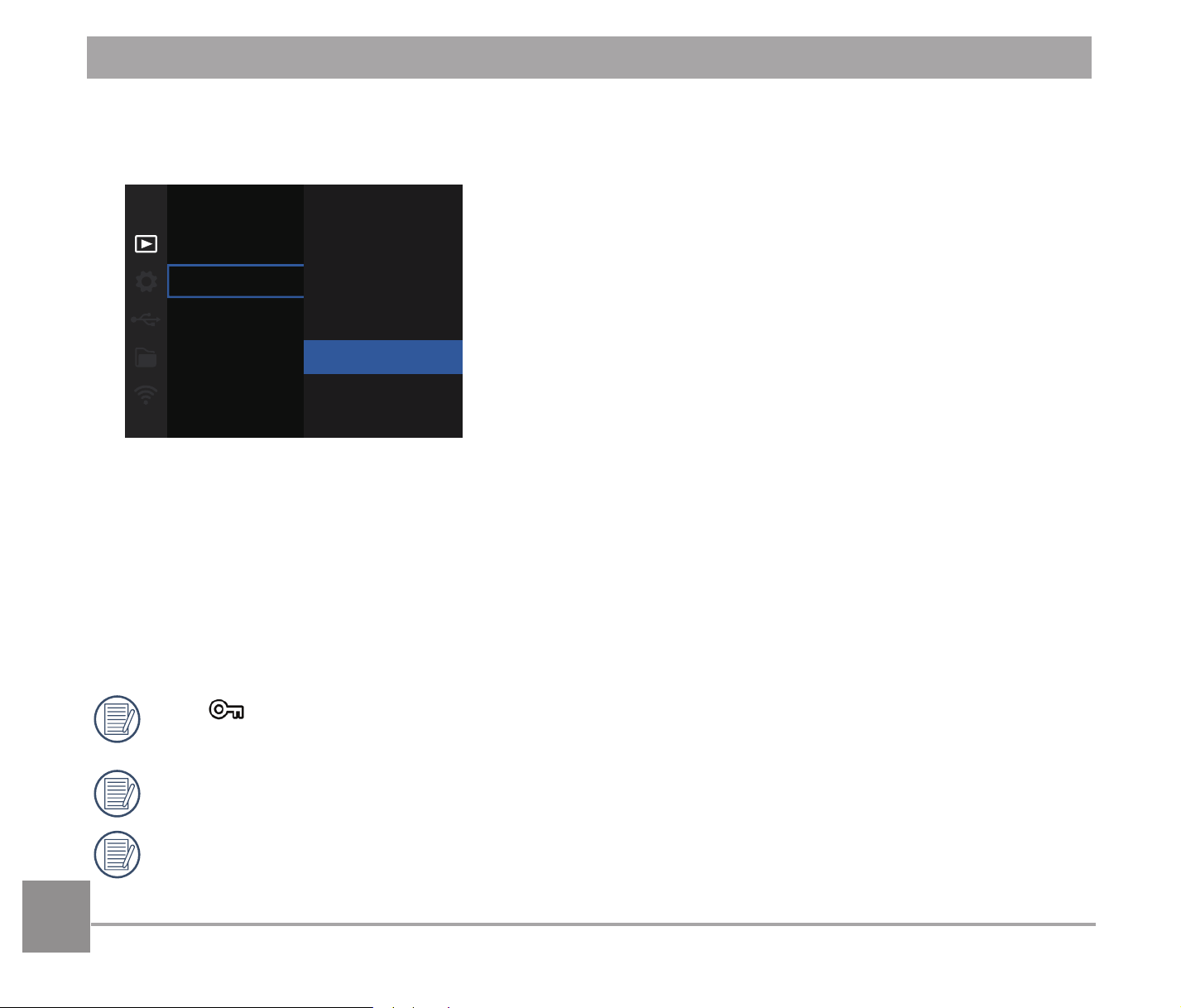
88
Delete
<RXFDQGHOHWHRQHRUDOOSKRWRYLGHR¿OHV
Delete
One
Date Folder
Cont. Group
All
There are 4 options available:
2QH 'HOHWHRQHSKRWRRUYLGHR
'DWH)ROGHU 'HOHWHDOOSKRWRVLQWKH'DWH)ROGHU
&RQW*URXS 'HOHWHDOOSKRWRVLQWKH&RQW3KRWR)ROGHU
$OO 'HOHWHDOOSKRWRVRUYLGHRV
7KH³
´LQGLFDWRUPHDQVD¿OHLVSURWHFWHG)LOHSURWHFWLRQPXVWEHUHPRYHG¿UVWEHIRUH
D¿OHFDQEHGHOHWHG
'HOHWLQJ¿OHVZLOOFDXVH'32)VHWWLQJVWREHUHVHW
When one photo in the Cont. Photo and Date Folders is protected, it will be kept but any
other photos will be deleted.
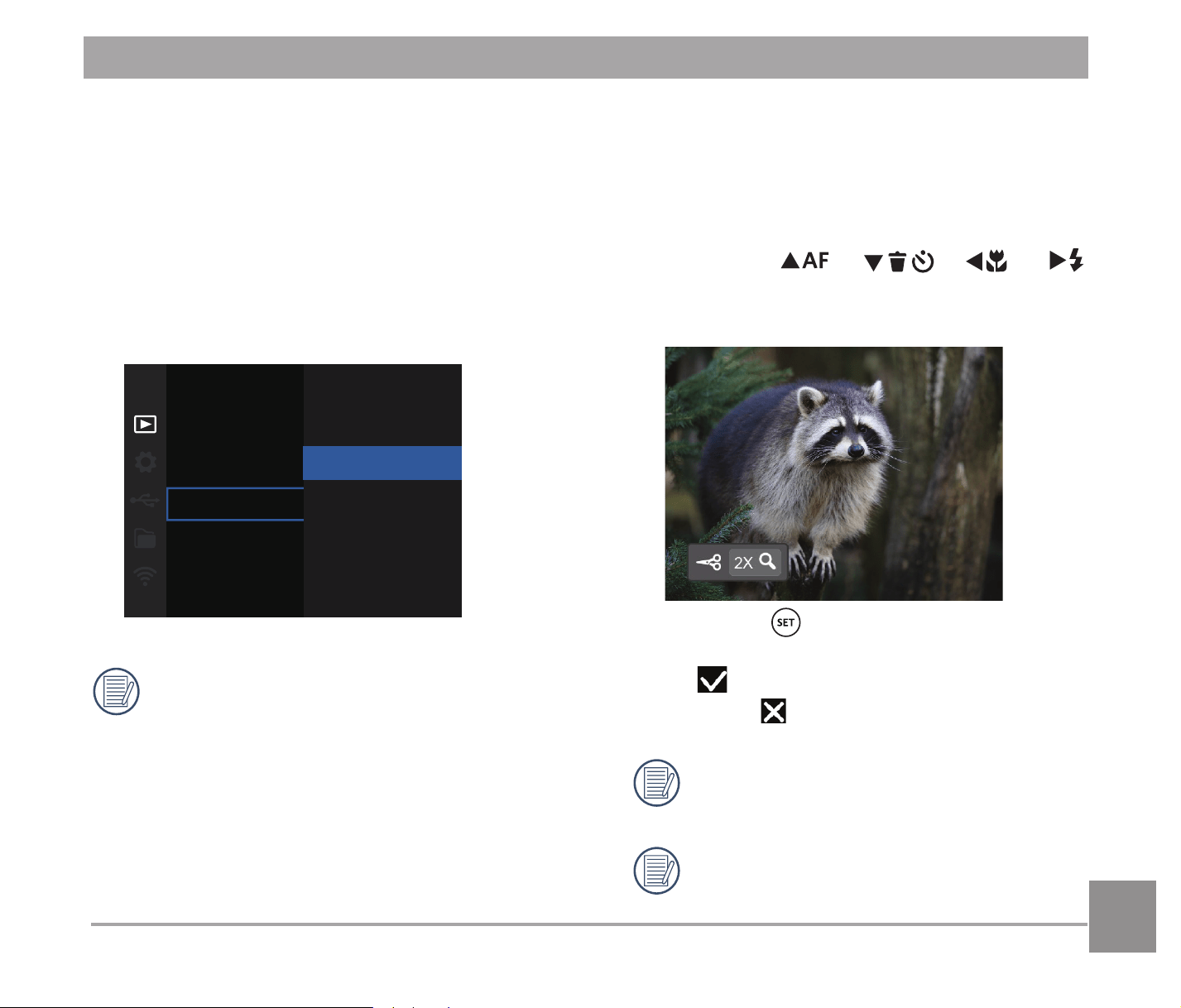
89
Trim
The Trim Setting allows you to crop photos
and save them as new pictures.
1. Select澨Yes澩WRFRQ¿UPWULPRotate the
]RRPOHYHUWRVHOHFWWKHDVSHFWUDWLRDQG
press the
AC
/
C
A
/
A
C
/
CA
buttons to adjust the part you want to
trim.
2. Press the button and the澨Save
change?澩prompt appears. Select
澨
澩to change and save the picture.
Select澨
澩to cancel changes and
return to the trim prompt screen.
The image cannot be clipped/trimmed
again once it has been clipped to
640X480.
A trimmed picture cannot be trimmed
again.
DPOF (Digital Print Order Format)
The DPOF feature allows you to compile
and select a group of pictures that you would
like to print and will save your selection on
the memory card so that you can use the
SD memory card to print without having to
individually specify the photos you want to
print.
*65,
One
All
Reset
The printer that supports DPOF is
needed for printing.
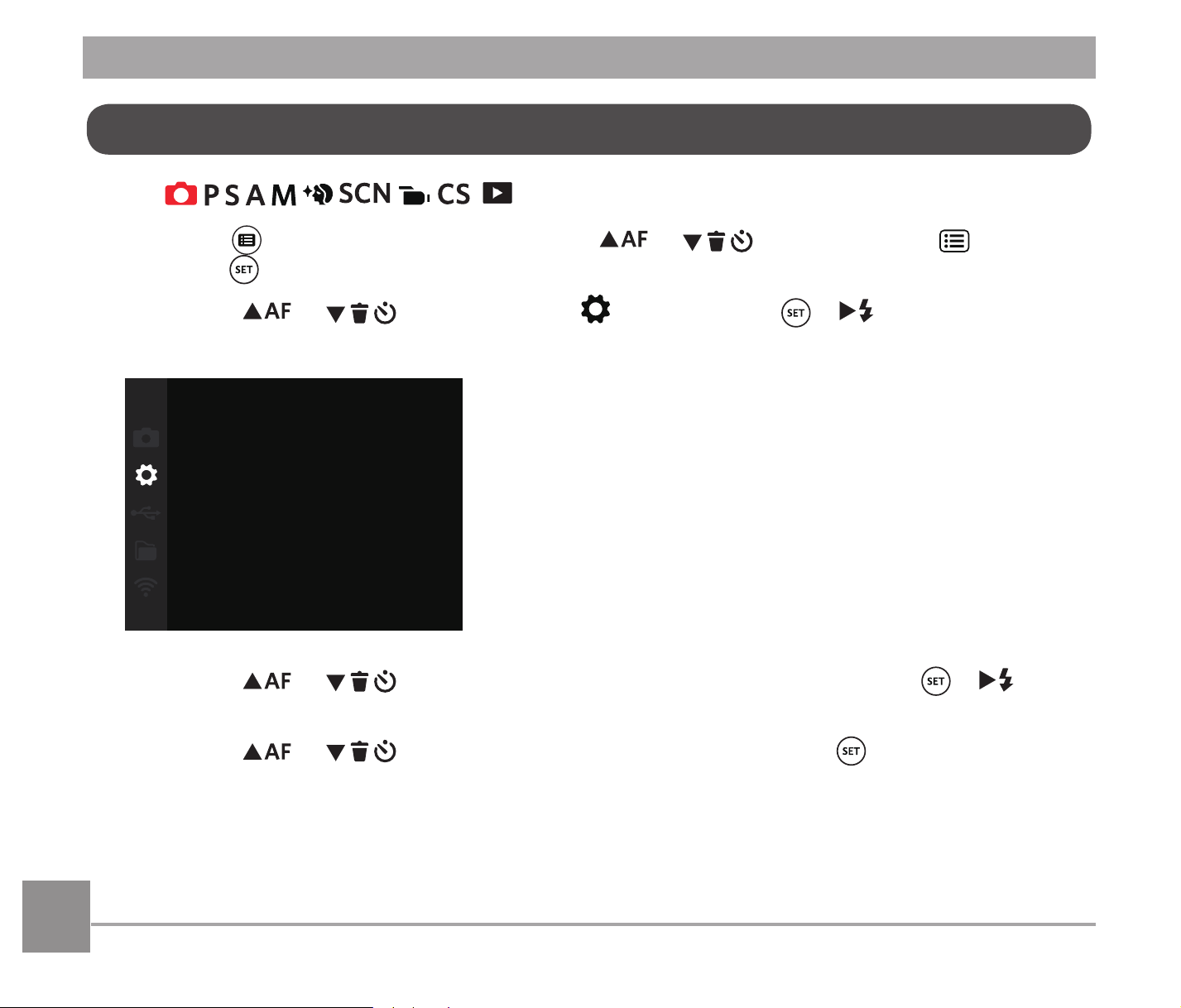
90
Mode:
1. Press the button in any mode, press the
AC
/
C
A
button to select , and
press the
button to enter the menu.
2. Press the
AC
/
C
A
button to select , and press the /
CA
button to enter the
menu.
Sound Settings
Power Saver Auto
Language English
World Time Home
Date & Time
2021.06.01 00:00
3. Press the
AC
/
C
A
button to select the item to be set and press the /
CA
button to enter the menu.
4. Press the
AC
/
C
A
button to select an option and press the EXWWRQWRFRQ¿UP
Refer to the following pages for more details about each setting.
General Settings Menu
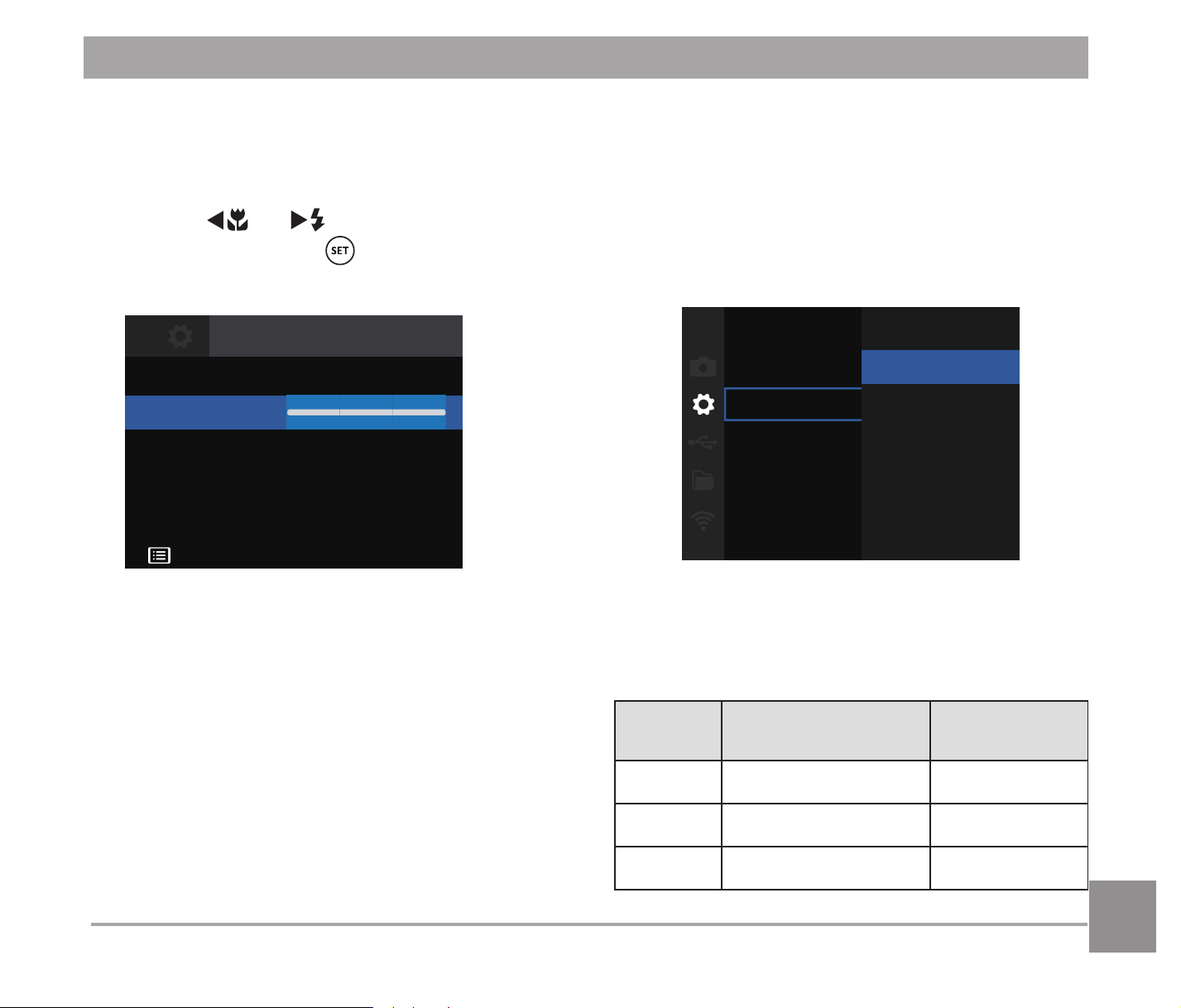
9191
Power Saver
This setting allows you to save power and
get the maximum possible running time for
your camera’s batteries. It turns the LCD
and camera off automatically after a certain
period of inactivity.
Power Saver
Auto
Normal
Best
$XWR
1RUPDO
%HVW
Power
Saver
LCD power off
time
Turn off time
Auto 3 min 5 min
Normal 1 min 3 min
Best 30 sec 1 min
Sound Settings
With this setting you may adjust the sound
volume.
Press the
A
C
/
CA
button to adjust the
volume and press the
EXWWRQWRFRQ¿UP
your setting.
Volume
Back
Sound Settings
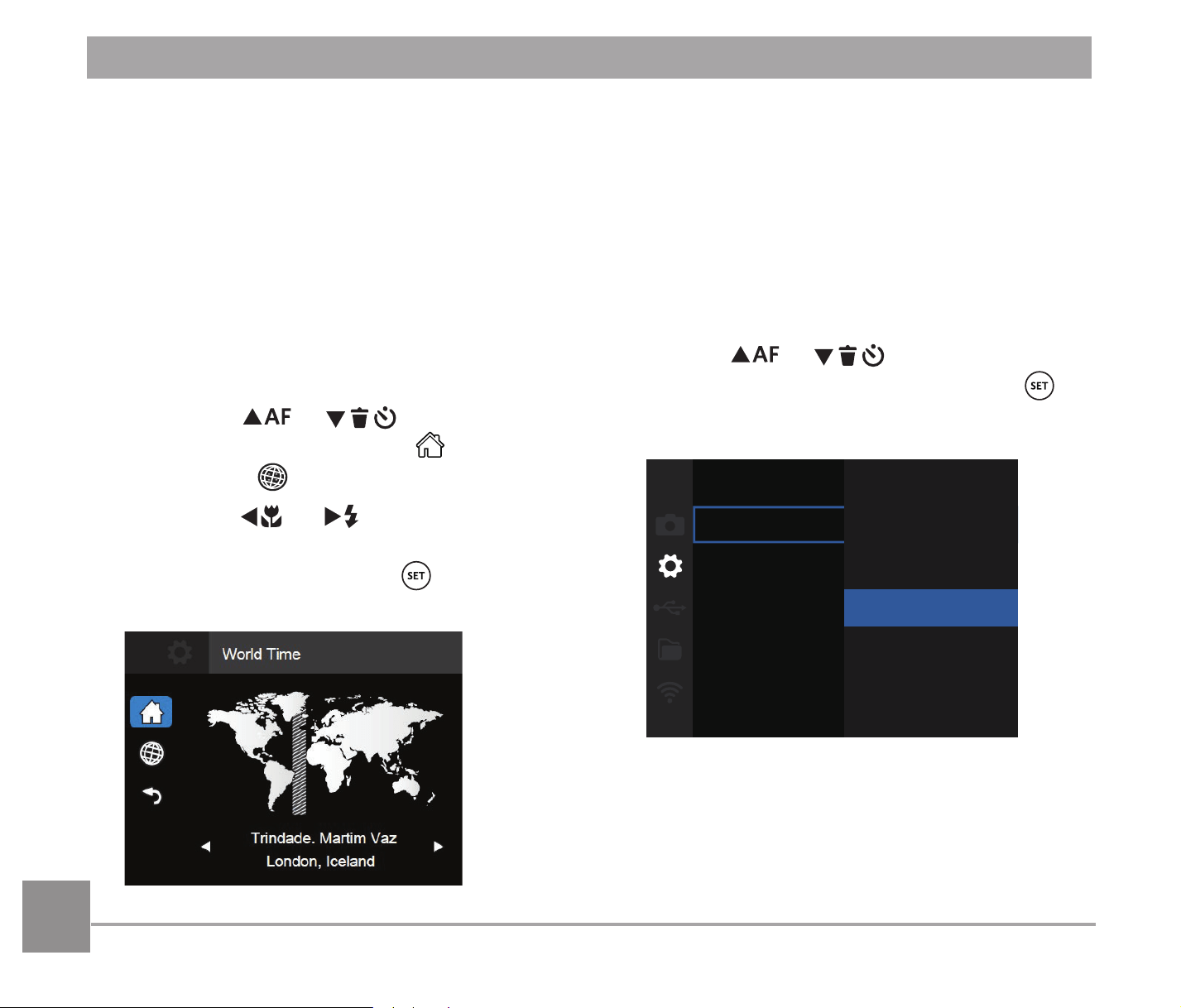
9292
Language
5HIHUWRWKH³5HVHW\RXUODQJXDJH´VHFWLRQ
on page 23.
Zone
The Zone setting is a useful function for your
overseas trips. This feature enables you to
display the local time on the LCD while you
are abroad.
1. Press the
AC
/
C
A
button to
select the departure place (
) and
destination (
¿HOGV
2. Press the
A
C
/
CA
button to select
DFLW\ORFDWHGLQWKHVDPHWLPH]RQHDV
WKDWRIWKH¿HOG3UHVVWKH
button to
FRQ¿UPVHWWLQJV
Date/Time
5HIHUWRWKH³5HVHW'DWH7LPH´VHFWLRQRQ
page 24.
LCD Brightness
Use this setting to adjust the brightness of
your LCD.
Press the
AC
/
C
A
button to adjust
the brightness of screen and press the
EXWWRQWRFRQ¿UP
LCD Brightness Normal
+2
+1
Normal
-1
-2
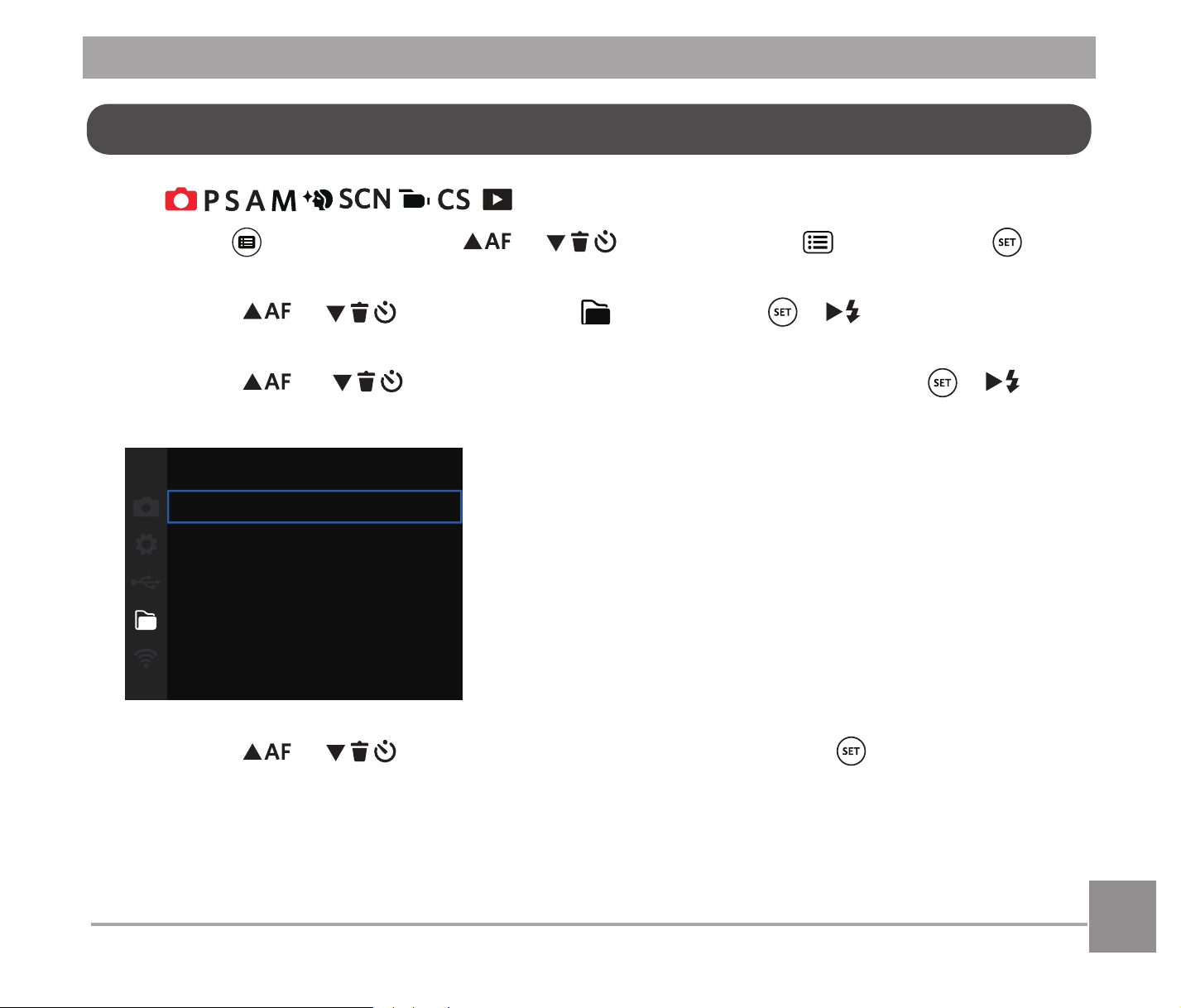
93
Mode:
1. Press the button, press the
AC
/
C
A
button to select and press the
button to enter the menu.
2. Press the
AC
/
C
A
button to select and press the /
CA
button to enter the
menu.
3. Press the
AC
/
C
A
button to select the item to be set and press the /
CA
button to enter the menu.
Format
Copy to Card
File Numbering
Reset
FW Version
V000000
4. Press the
AC
/
C
A
button to select an option and press the EXWWRQWRFRQ¿UP
Refer to the following pages for more details about each setting.
File Settings
94
Format
Please note: formatting enables you to
delete all contents in the memory card and
built-in memory, including protected photo
DQGPRYLH¿OHV
Format
Doing so will clear all data.
Yes
No
If you select澨Yes澩the camera will
format its memory.
If there is no memory card in the
camera, the built-in memory will be
formatted; if there is a memory card,
only the card will be formatted.
Copy to Card
8VHWKLVVHWWLQJWRFRS\WKH¿OHVVWRUHGLQWKH
built-in memory to a memory card.
Copy to Card
Yes
No
Copy files from built-in memory to
the memory card.
If there is no card available in the
camera, this function will not be
displayed.
95
Reset
Use this setting to restore the camera to its
original default settings.
Reset
Reset camera settings to factory defaults.
No
Yes
File Numbering
After you take a picture or video clip, the
camera will save it with a sequential number.
<RXFDQXVHWKLVWRUHVHWWKH¿OHQXPEHULQJ
to 1.
File Numbering
Yes
No
Create a new directory and
reset the file number.
9696
FW Version
Use this setting to view the current camera
¿UPZDUHYHUVLRQ
FW Version
Back
Current Ver: VXXXXXX
:KHQWKHUHLVDQHZ¿UPZDUHYHUVLRQLQWKH
memory card, select澨Yes澩WRXSGDWH
FW Version
Current Ver:
V1XXXXX
New Ver.: V2XXXXX
Update Firmware?
Cancel
Yes
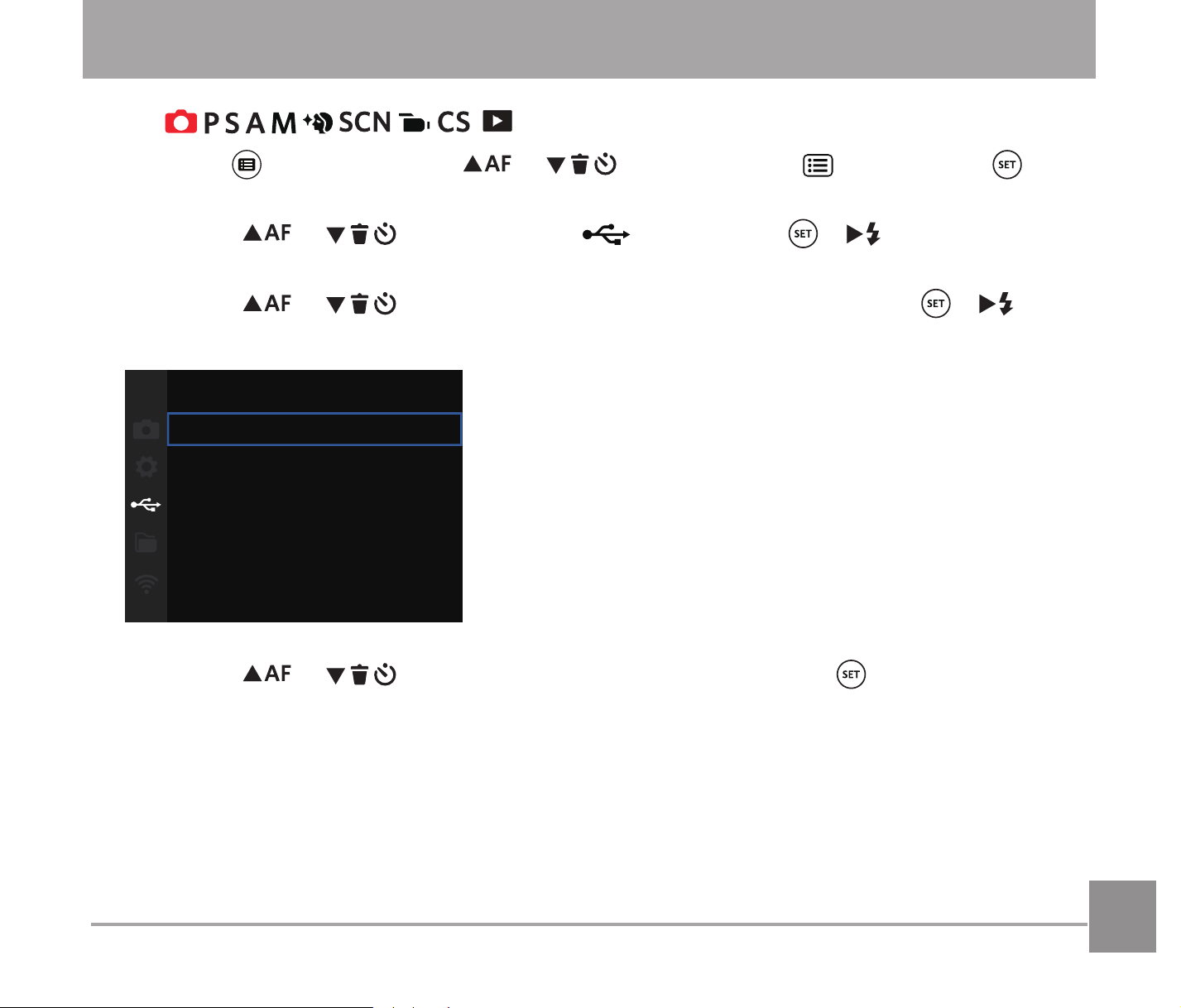
97
CONNECTION SETTINGS
Mode:
1. Press the button, press the
AC
/
C
A
button to select and press the
button to enter the menu.
2. Press the
AC
/
C
A
button to select and press the /
CA
button to enter
the menu.
3. Press the
AC
/
C
A
button to select the item to be set and press the /
CA
button to enter the menu.
USB PC
TV-System NTSC
4. Press the
AC
/
C
A
button to select an option and press the EXWWRQWRFRQ¿UP
Refer to the following pages for more details about each setting.
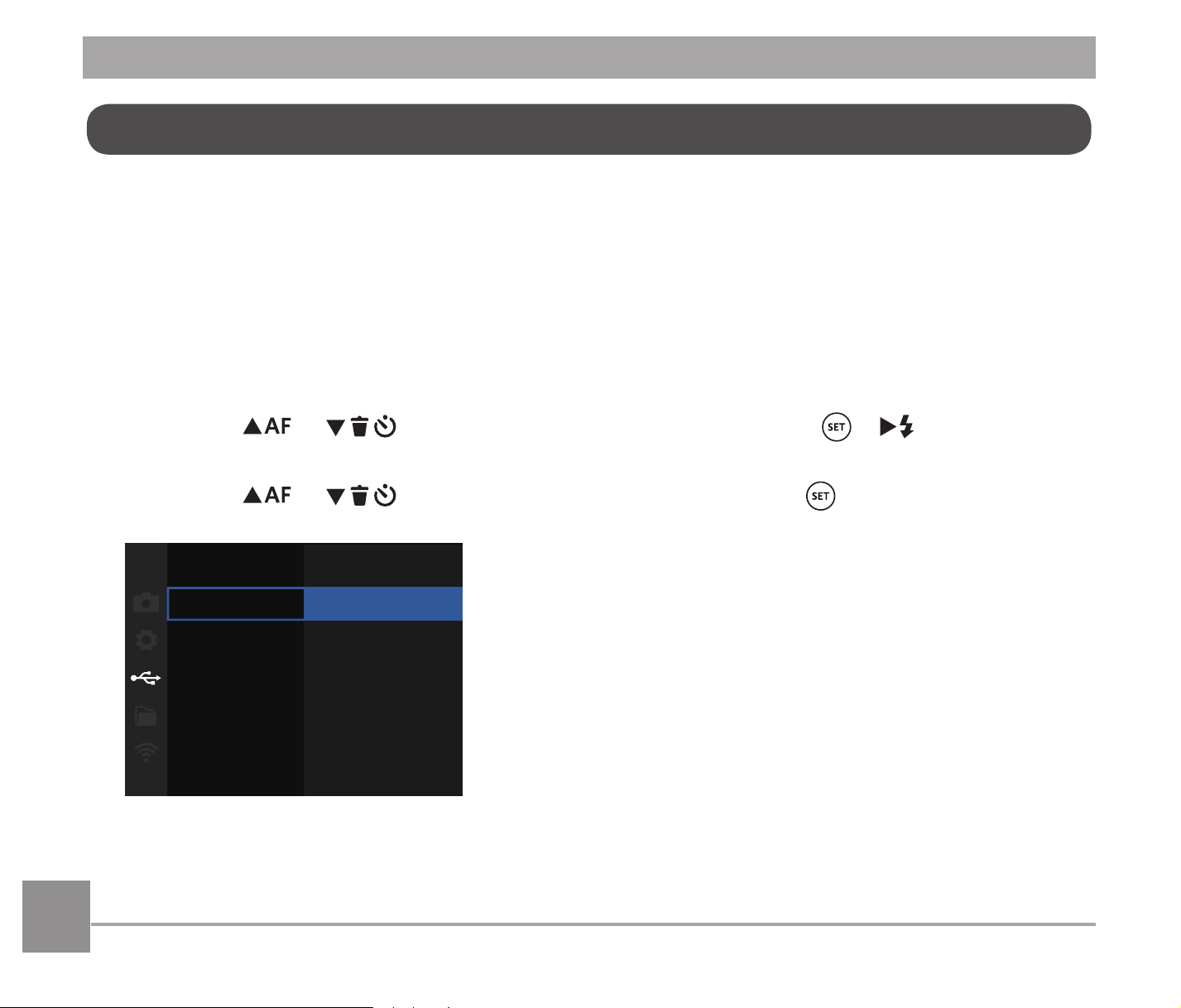
98
You can use the Micro USB cable to connect the camera and copy (transmit) photos to a
computer, printer or other device.
Setting the USB Mode
The camera’s Micro USB port can be set to connect with either a computer or a printer. The
IROORZLQJVWHSVZLOODOORZ\RXWRHQVXUHWKDWWKHFDPHUDLVFRUUHFWO\FRQ¿JXUHGWRFRQQHFWZLWK
a PC.
1. Press the
AC
/
C
A
button to select澨USB澩and press the /
CA
button to enter
the menu.
2. Press the
AC
/
C
A
button to select澨PC澩and press the EXWWRQWRFRQ¿UP
USB PC
PC
Printer
Connecting to a Computer
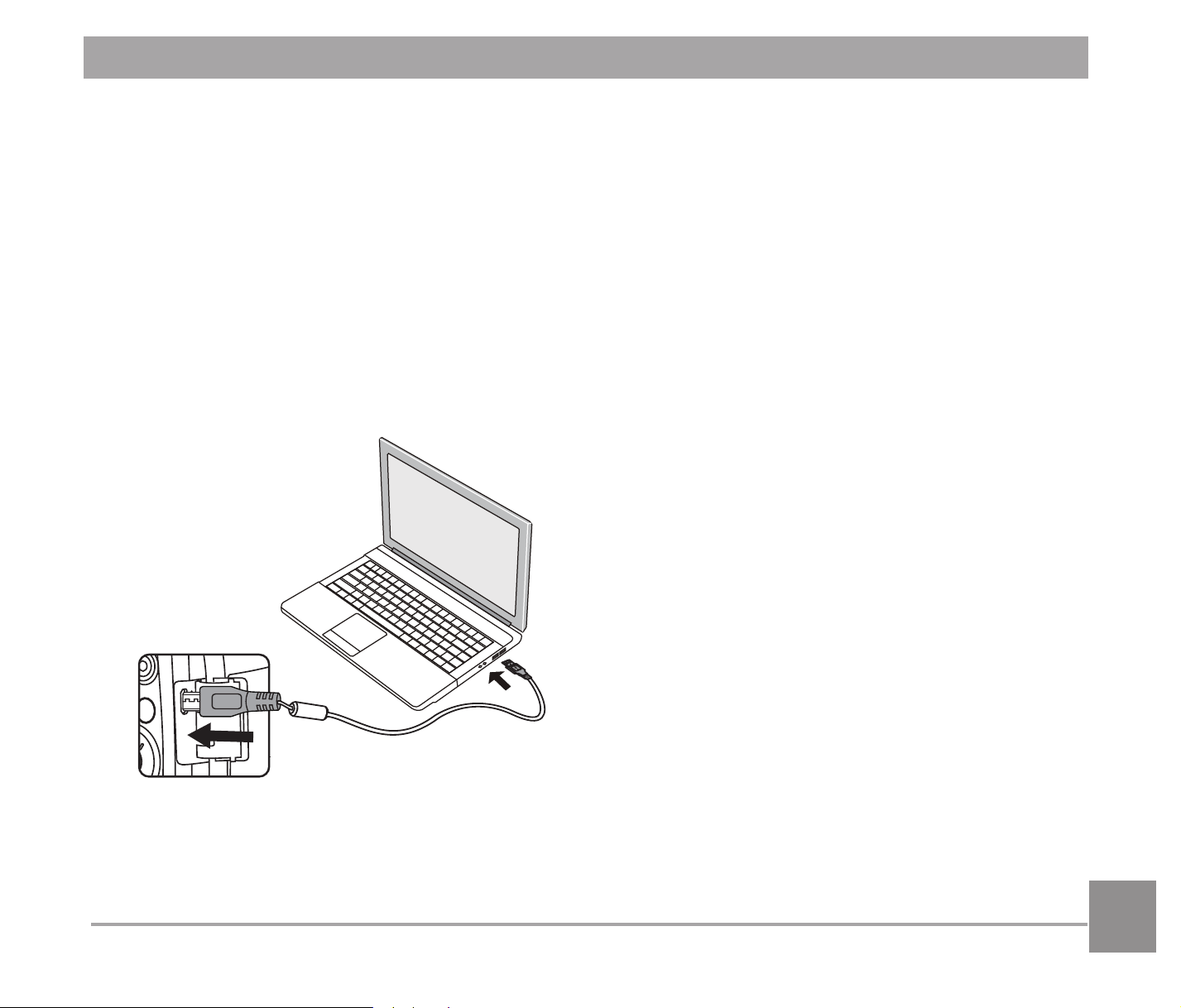
9999
7UDQVIHUULQJ¿OHVWR\RXUFRPSXWHU
The computer will automatically detect the camera as a removable drive. Double-click the My
&RPSXWHULFRQRQWKHGHVNWRSWRORFDWHWKHUHPRYDEOHGULYHDQGWRFRS\IROGHUVDQG¿OHVLQ
WKHGULYHWRDGLUHFWRU\RQ\RXU3&DV\RXZRXOGFRS\DQ\W\SLFDOIROGHURU¿OH
Follow the steps below to connect the camera to a computer.
1. Make sure the computer is turned on.
2. Connect one end of the supplied Micro USB cable to the Micro USB port on your
camera.
3. Connect the other end of the cable to an available USB port on your computer.
4. After the transmission is complete, disconnect the Micro USB cable according to the
instructions specifying how to safely remove USB devices.
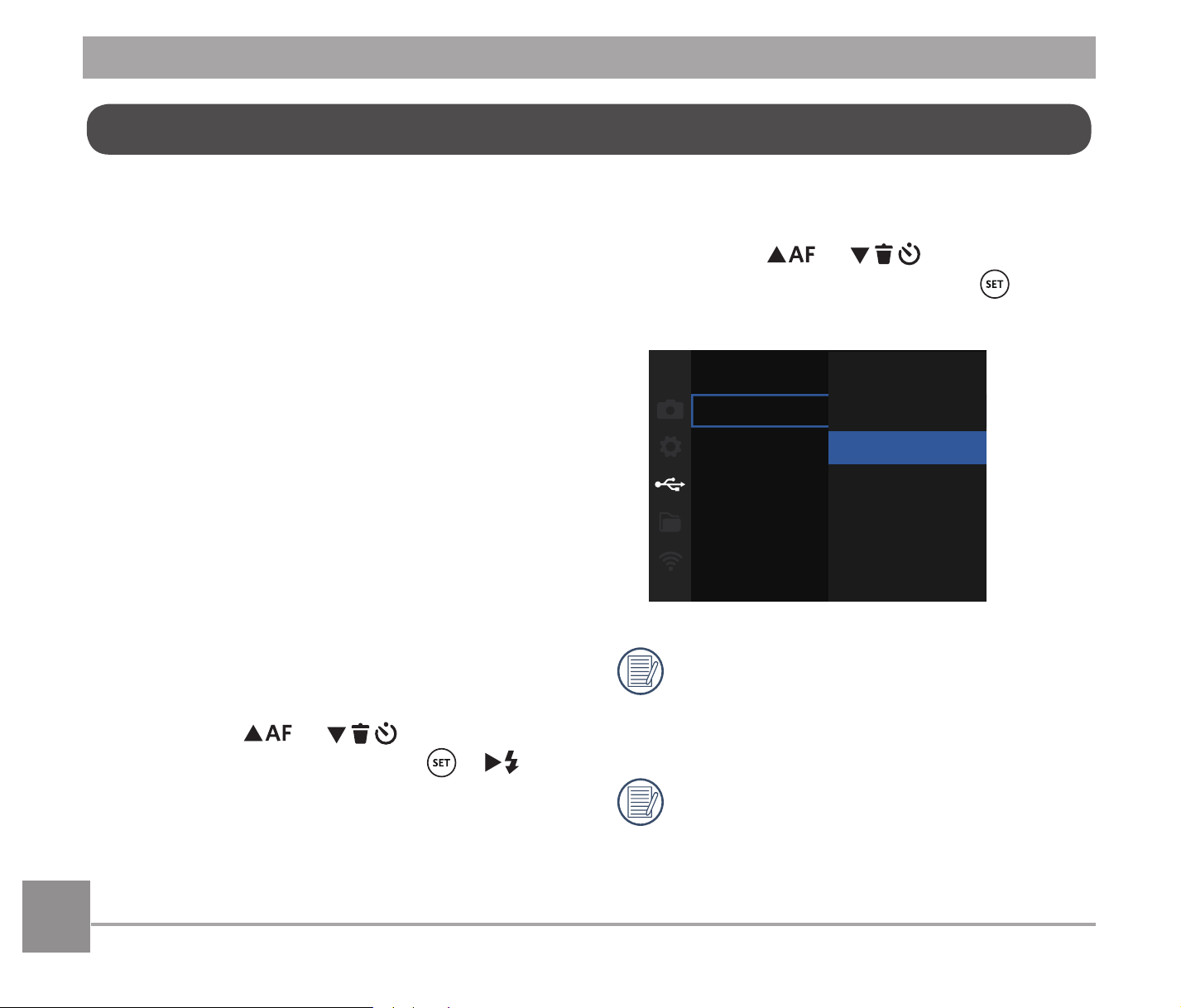
100
7R¿QGRXWLIDSULQWHULV3,&7%5,'*(
compatible, simply look for the
PICTBRIDGE™ logo on the packaging or
FKHFNWKHRZQHU¶VPDQXDOIRUVSHFL¿FDWLRQV
With the PICTBRIDGE™ function on your
camera, you can print the captured photos
directly to a PICTBRIDGE™ compatible
printer using the supplied Micro USB cable,
without the need for a PC.
Setting the USB Mode
The camera’s Micro USB port can be set to
connect with either a PC or a Printer; the
following steps will ensure that the camera
LVFRUUHFWO\FRQ¿JXUHGWRFRQQHFWZLWKD
Printer.
1. Press the
AC
/
C
A
button to
select澨USB澩and press the
/
CA
button to enter the menu.
2. Press the
AC
/
C
A
button to
select澨Printer澩and press the
button
WRFRQ¿UP
USB PC
PC
Printer
After the camera is reset, it will switch
to PC mode automatically from USB
mode.
6HH³3,&7%5,'*(³VHFWLRQRQSDJH
102.
Connecting to a PICTBRIDGE™ Compatible Printer
PICTBRIDGE™ technology allows printing of the photos saved in the memory card by the
printer.
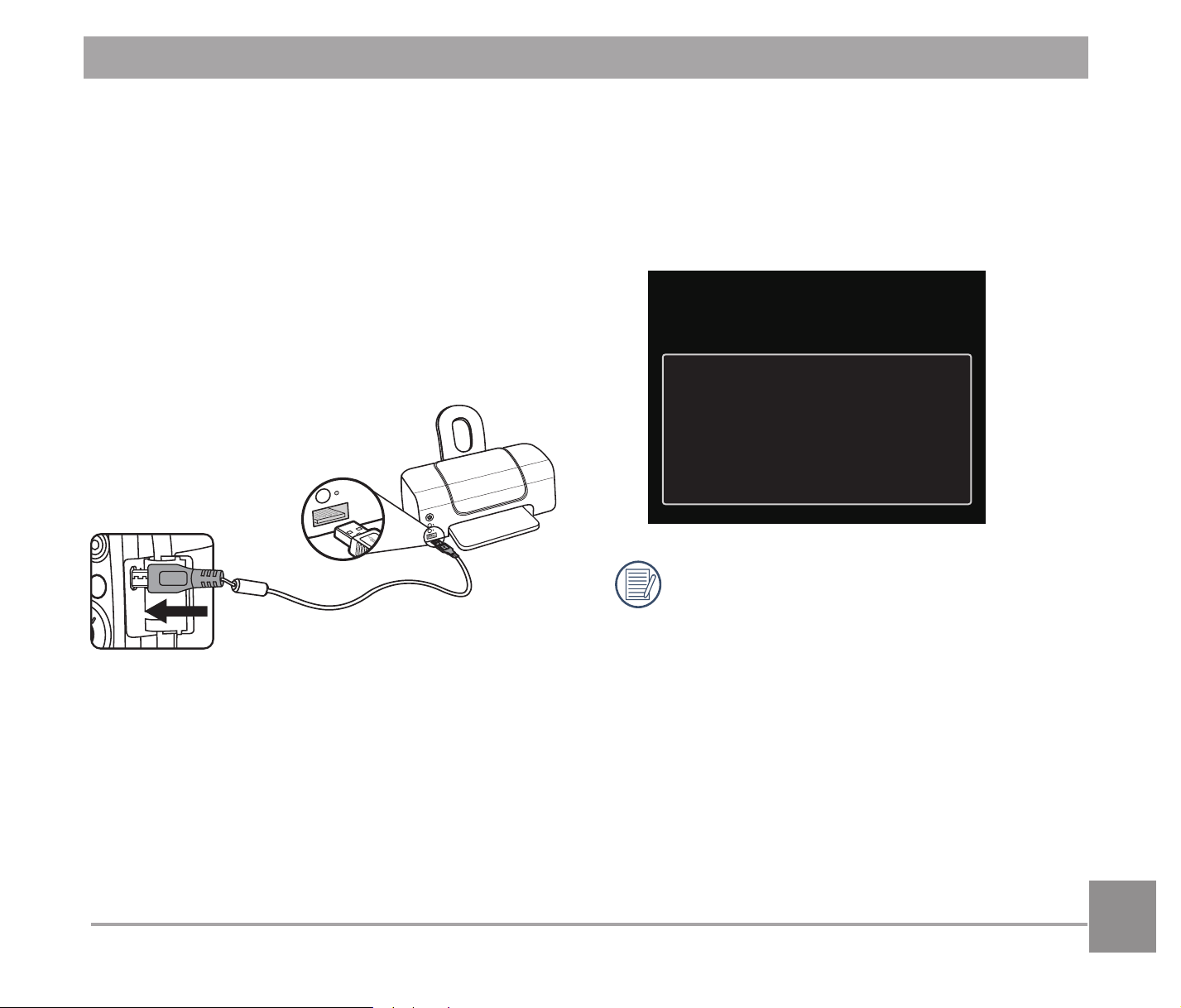
101101
If the camera is not connected to a
PICTBRIDGE™ compatible printer, the
following error message will appear on the
LCD.
Connection Failed!
The error message above will also
appear if the USB mode is set
incorrectly, in which case you should
disconnect the Micro USB cable, check
the USB mode settings, ensure that
the printer is turned on, and then try
connecting the Micro USB cable again.
1. Make sure the printer is turned on.
2. Connect one end of the supplied Micro
USB cable to the Micro USB port on your
camera.
3. Connect the other end of the cable to the
USB port on the printer.
Connecting to your Printer
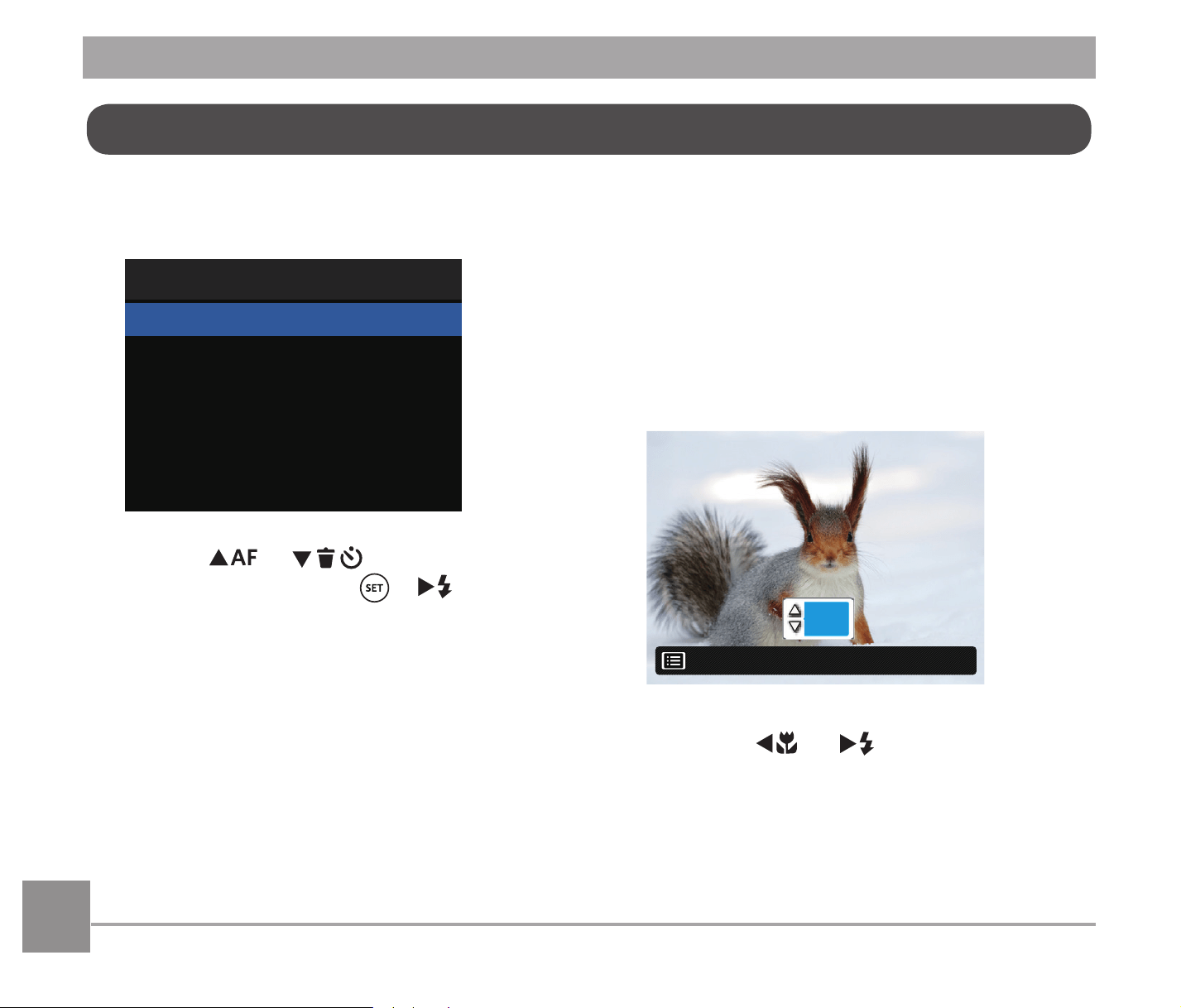
102
After setting the USB mode to Printer, the
PICTBRIDGE™ menu will appear.
PictBridge
Print (with Date)
Exit
Print (without Date)
Print Index
Print DPOF Images
Press the
AC
/
C
A
button to select a
menu item and press the
/
CA
button to
enter the item.
Refer to the following sections for more
detailed information on each setting.
Using the PICTBRIDGE™ Menu
Print (with Date)
If you have set the date and time on your
camera, the date and time will be recorded
and saved with each photo you take.
1. In the PICTBRIDGE™ menu,
select澨Print (with Date)澩and the screen
as shown below appears.
01
Back
2. Press the
A
C
/
CA
button to select a
photo to be printed.
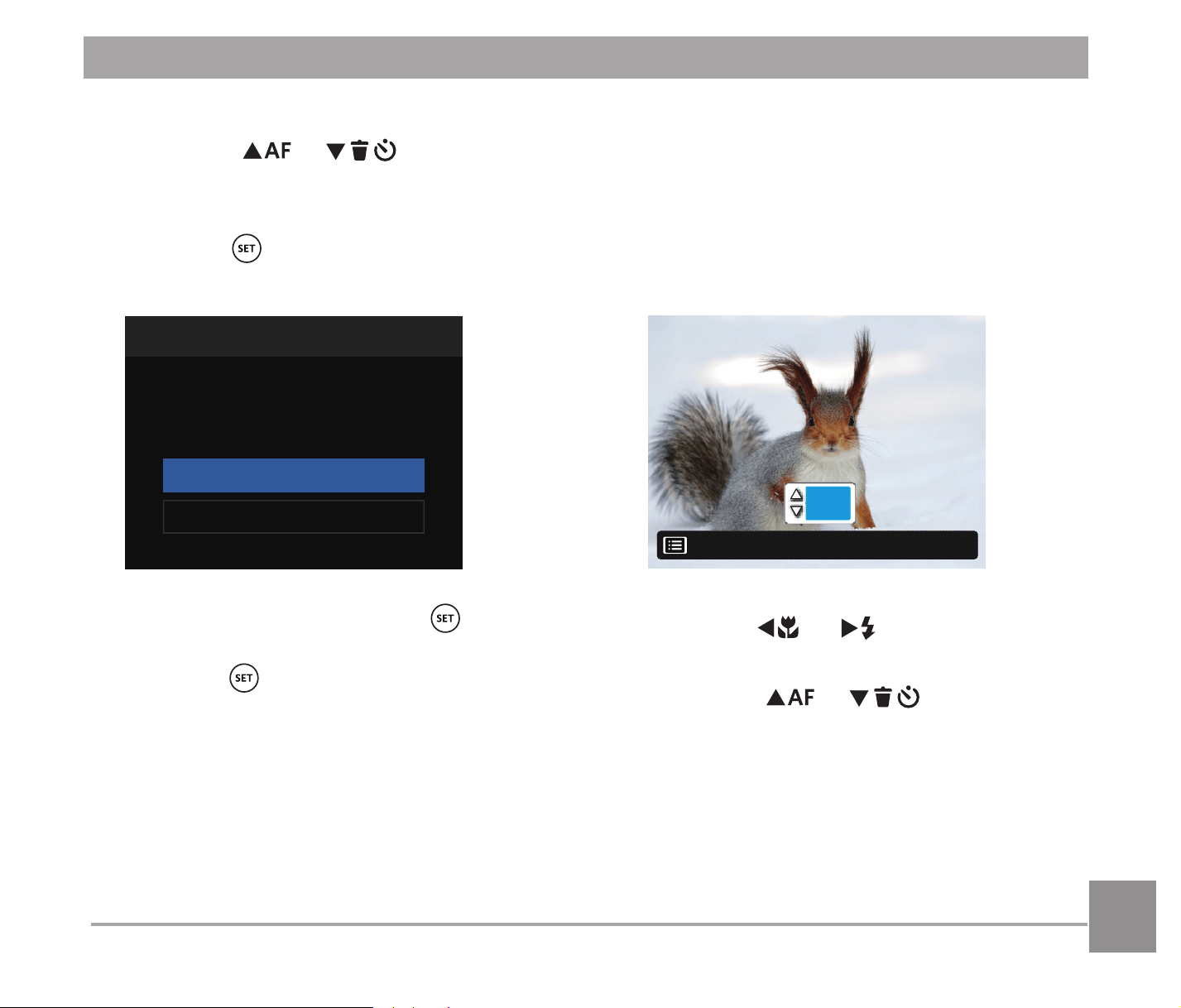
103103
3. Press the
AC
/
C
A
button to
select the number of copies for the
currently displayed photo.
4. Press the
button and the following
screen will appear.
Print (with Date)
Cancel
Yes
5. Select澨Yes澩and press the button
WRFRQ¿UPSULQWLQJVHOHFW澨Cancel澩GTJ
press the
button to cancel printing.
Print (without Date)
Use this setting to print the photos without
dates on them.
1. In the PICTBRIDGE™ menu,
select澨Print (without Date)澩and the
screen as shown below appears.
01
Back
2. Press the
A
C
/
CA
button to select a
photo to be printed.
3. Press the
AC
/
C
A
button to
select the number of copies for the
currently displayed photo.
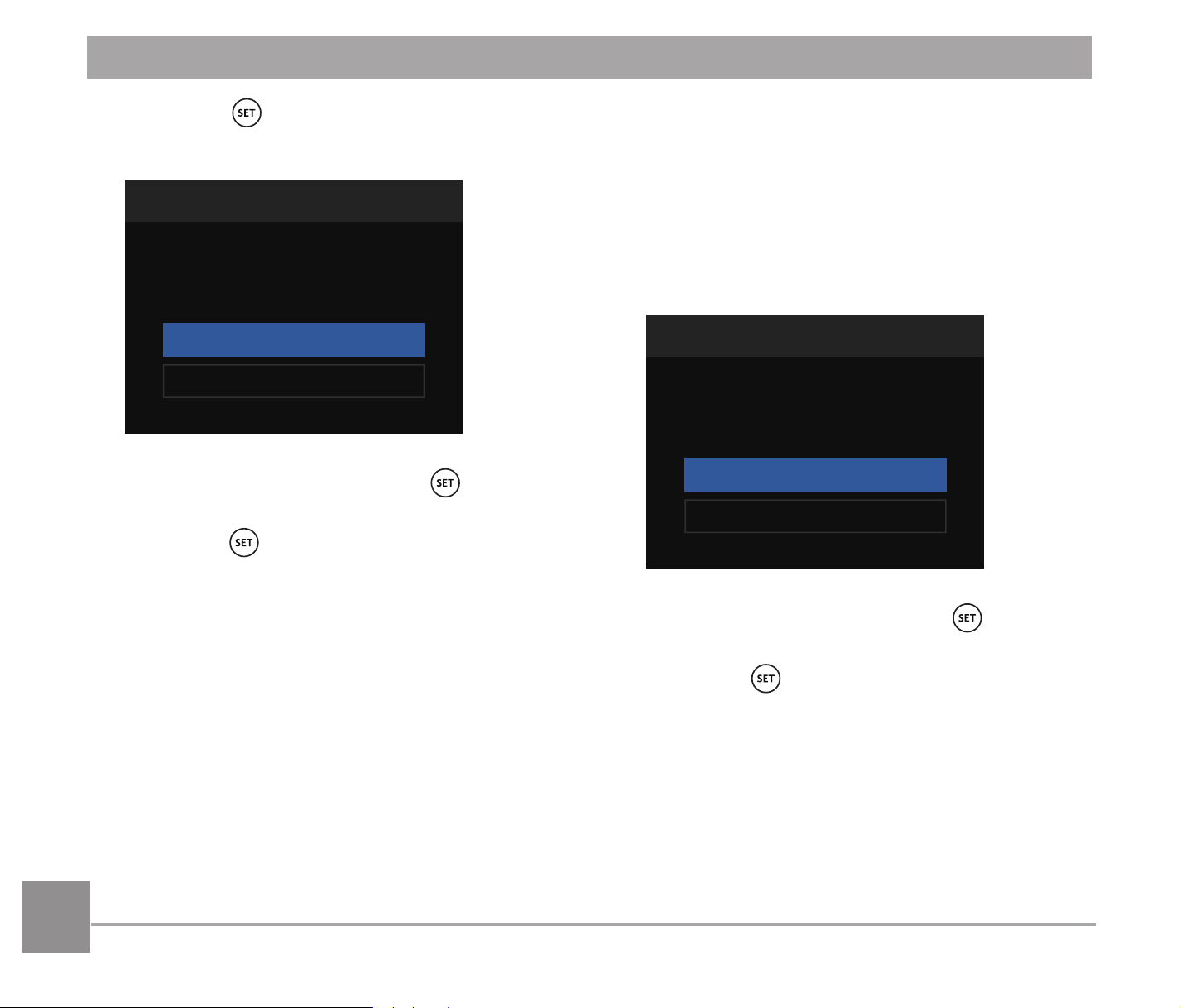
104
4. Press the button and the following
screen will appear.
Print (Without Date)
Cancel
Yes
5. Select澨Yes澩and press the button
WRFRQ¿UPSULQWLQJVHOHFW澨Cancel澩GTJ
press the
button to cancel printing.
Print Index
You can print all photos in the camera via
this function.
1. In the PICTBRIDGE™ menu,
select澨Print Index澩and the screen as
shown below appears.
Print Index
Cancel
Yes
2. Select澨Yes澩and press the button
WRFRQ¿UPSULQWLQJVHOHFW澨Cancel澩GTJ
press the
button to cancel printing.
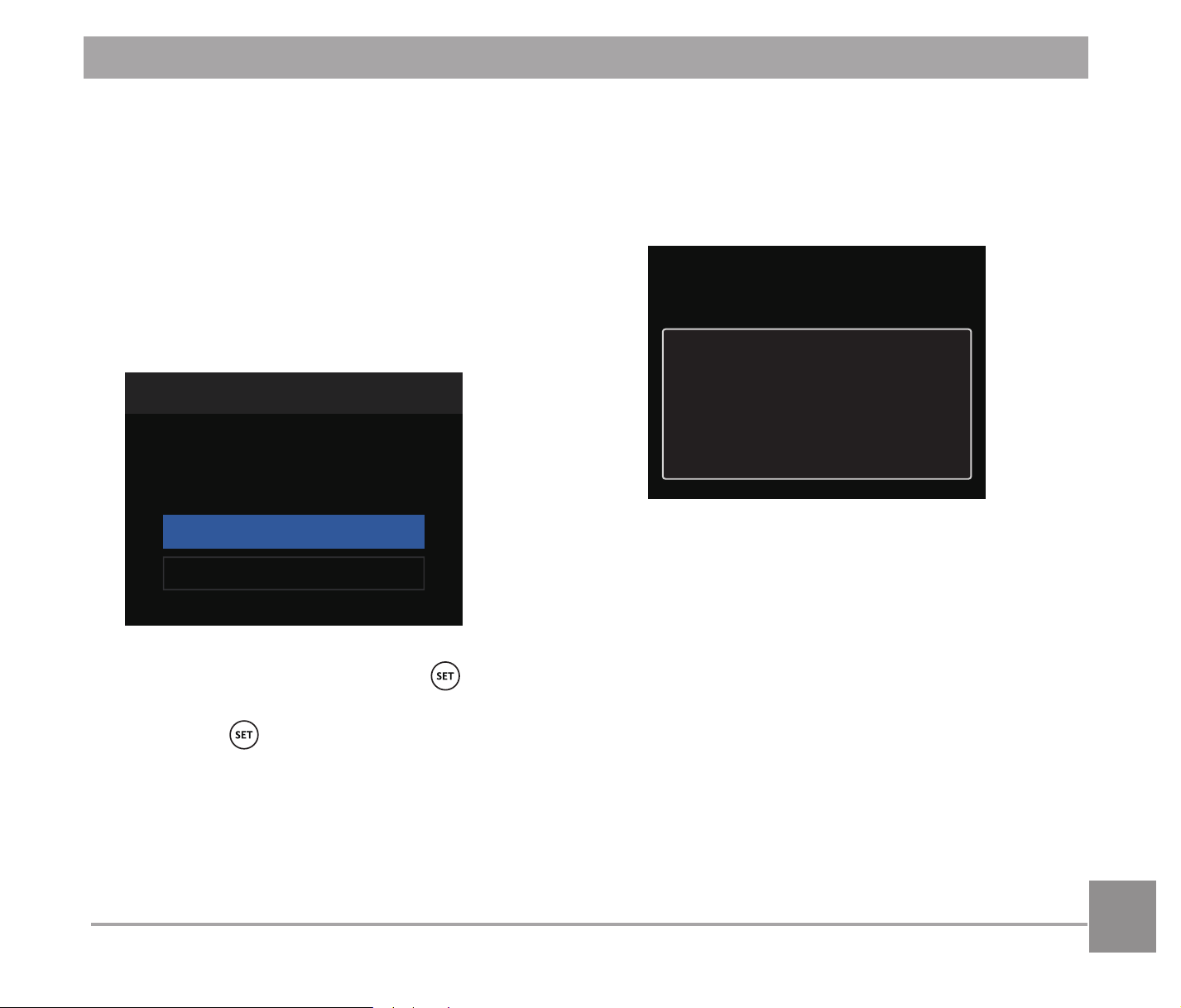
105
Print DPOF Images
To use DPOF printing, you must select your
photos for printing using the DPOF settings
EHIRUHKDQG6HH³'32)´VHFWLRQRQSDJH
89.
1. In the PICTBRIDGE™ menu,
select澨Print DPOF Images澩and the
screen as shown below appears.
Print DPOF Images
Cancel
Yes
2. Select澨Yes澩and press the button
WRFRQ¿UPSULQWLQJVHOHFW澨Cancel澩GTJ
press the
button to cancel printing.
Exit
Select澨Exit澩to exit the PICTBRIDGE™
menu. At this time, the message澨Remove
USB Cable!澩appears on the screen.
Remove USB Cable!
Disconnect the Micro USB cable from the
camera and printer.
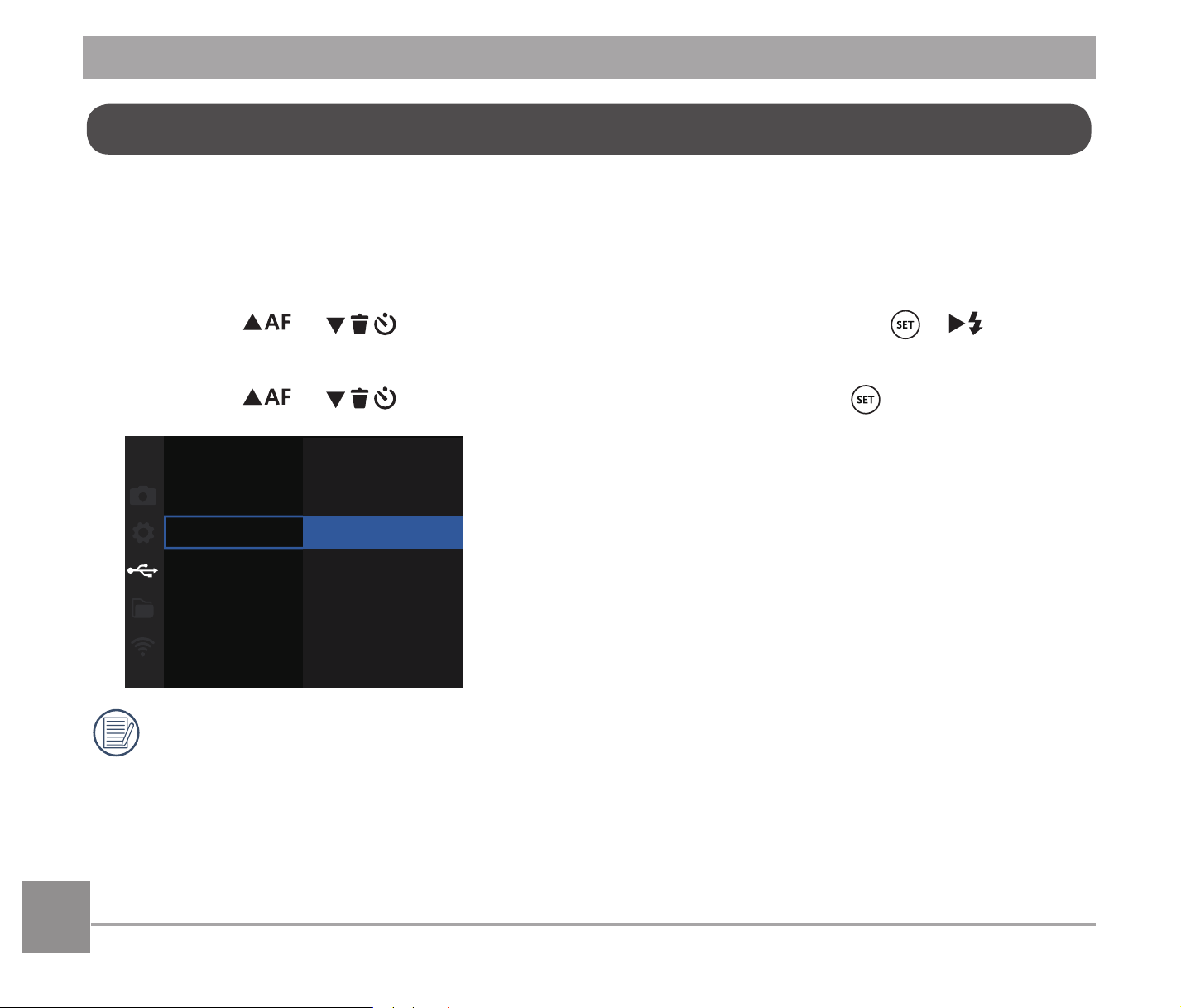
106106
You can use the AV cable (which should be purchased separately) to connect the camera and
the television for the video output. Connect one end of the AV cable to USB/AV port of the
camera; connect the other end to AV-OUT port of the television. Adjust the format of the video
output system according to your requirements, and the steps are as follows:
1. Press the
AC
/
C
A
button to select澨TV-System澩and press the /
CA
button
to enter the menu.
2. Press the
AC
/
C
A
button to select澨NTSC澩, and press the EXWWRQWRFRQ¿UP
TV-System
PC
6'2
4:9)
The video output system would change accordingly based upon the changes of the
selected language.
NTSC: English, Chinese (Traditional), Japanese, French, Korean, Russian
3$/ *HUPDQ6SDQLVK,WDOLDQ&KLQHVH6LPSOL¿HG3RUWXJXHVH$UDELF
Video System
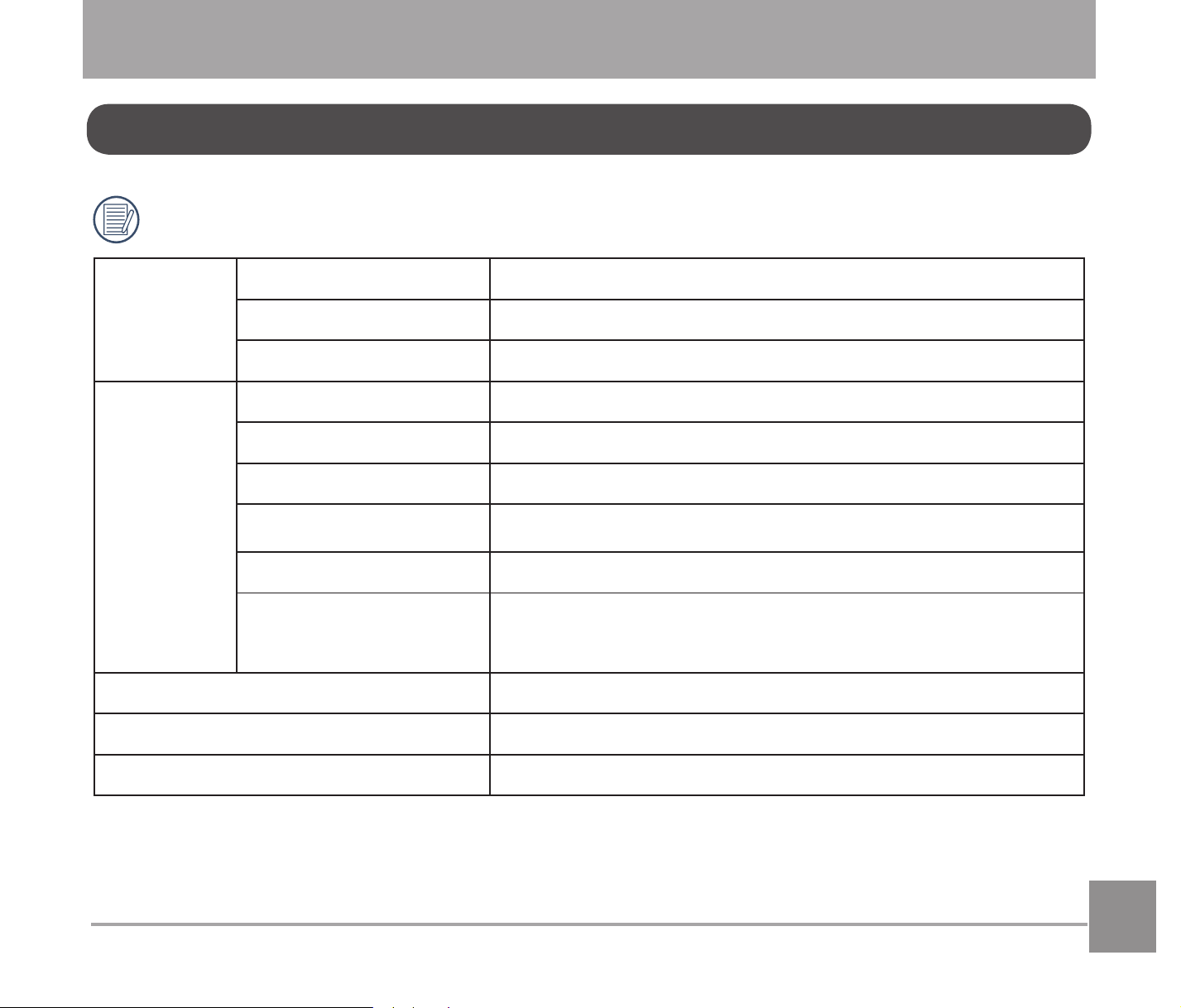
107107
'HVLJQDQGVSHFL¿FDWLRQVDUHVXEMHFWWRFKDQJHZLWKRXWQRWLFH
Image
Sensor
Type ´%6,&026
Effective Pixels 16.35 Megapixels
Total Pixels 16.76 Megapixels
Lens
Focal Length 4.25mm (Wide) — 225.25mm (Tele)
PP¿OPHTXLYDOHQW 23.7mm (Wide) — 1255.9mm (Tele)
F number F2.8 (Wide) ~ F5.6 (Tele)
Lens Construction 13 groups 15 elements
Optical Zoom 53x
Optical Zoom
Normal: (Wide) 60cm ~ ɲ, (Tele) 300cm ~ ɲ;
Macro: 1cm ~ ɲ (Wide Only)
Autofocus System TTL Autofocus
Anti-Handshake 2SWLFDO,PDJH6WDELOL]DWLRQ
Digital Zoom 4x Digital Zoom (Combined Zoom: 212x)
APPENDICES
3URGXFW6SHFL¿FDWLRQV
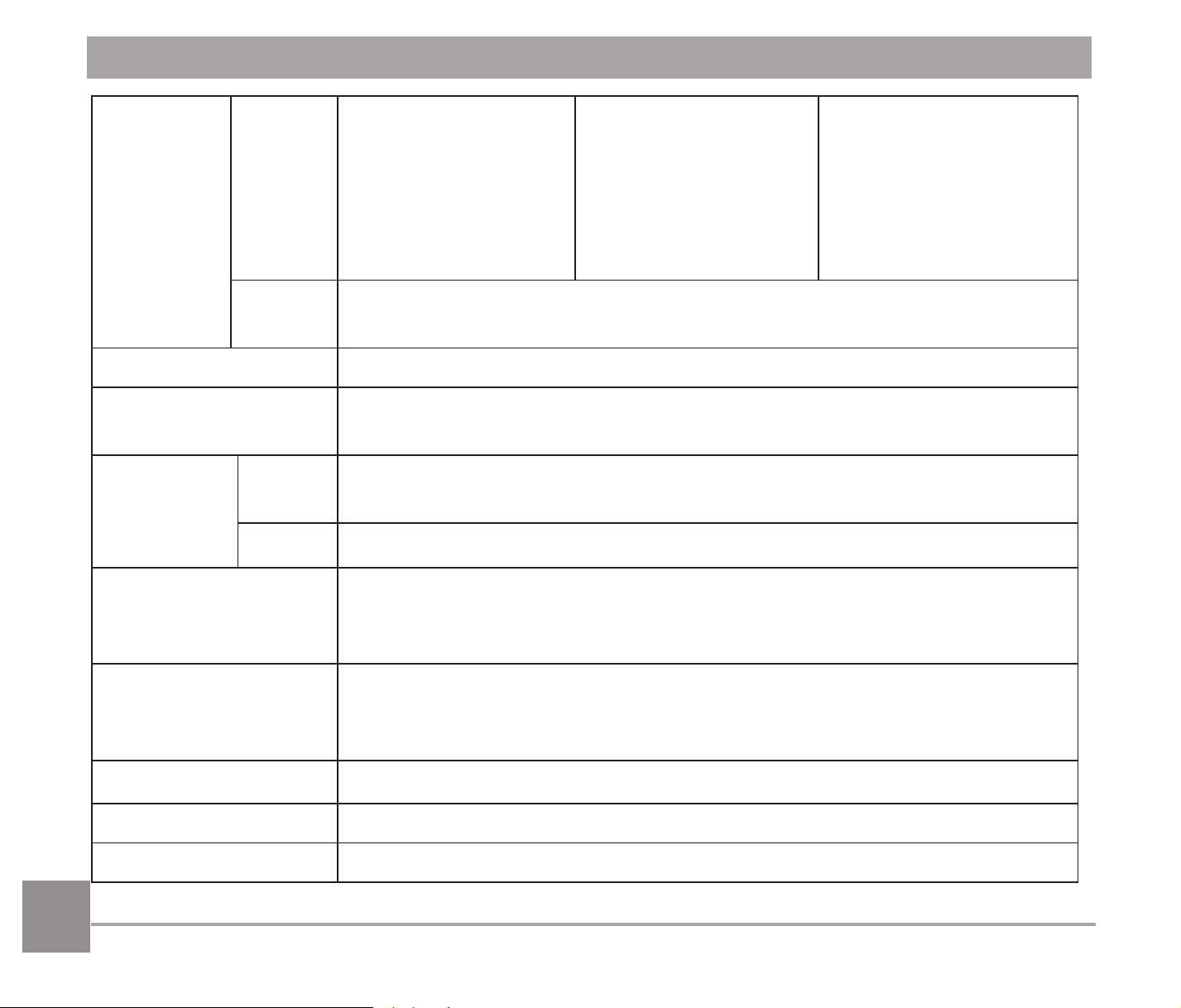
108
Number of
Recording
Pixels
Still
Image
(4:3)
16MP: 4608 X 3456
10MP: 3648 X 2736
5MP: 2592 X 1944
3MP: 2048 X 1536
0.3MP: 640 X 480
(3:2)
14MP: 4608 X 3072
(16:9)
12MP: 4608 X 2592
2MP: 1920 X 1080
Movie
1920 X 1080 (30fps), 1280 X 720 (60fps/30fps), 640 X 480 (30fps),
High-Speed Movie: 640 X 480 (120fps)
Image Compression Best, Fine, Normal
DCF, DPOF (Ver1.1)
Support
Yes
File Format
Still
Image
Exif 2.3 (JPEG)
Movie MOV [Image: H.264; Audio: Linear PCM (Stereo)]
Shooting Modes
Auto Mode, Program AE, Shutter priority, Aperture priority, Manual
0RGH)DFH%HDXWL¿HU:LUHOHVV0RGH6FHQH0RGH0RYLH0RGH
Custom Settings
Scene Mode
Panorama Mode, Handheld Night, Multi Exposure, Pet Mode, Snow,
Party, Sport, Night Portrait, Portrait, Children, Landscape, Sunset,
Fireworks
Detection Features Face, Smile, Blink, Cat, Dog
Photo Touch-up Red-Eye Reduction, Skin Soften, Eye Brightening, Eye Enlargement
HDR Yes
109
Scan Panorama Up to 360°
LCD 3.0 inch (460k Pixels)
Image Auto Rotation Yes
ISO Sensitivity Auto, ISO100/200/400/800/1600/3200
AF Method
Single AF, Multi-AF (TTL 25-point), Object Tracking ,
Face-Detection
Exposure Metering
Method
$UWL¿FLDO,QWHOOLJHQFH$($L$(&HQWHU:HLJKWHG$YHUDJH6SRW
(Fixed to Center of Frame), Face AE
Exposure Control
Method
Program AE (AE-Lock Available), Shutter Prior AE, Aperture Prior
AE
Exposure
Compensation
r3 EV in 1/3 Step Increments
Shutter Speed 1/2000 ~ 30 Seconds
Continuous Shot Yes
Playback Modes
Single, Index (9/16 Thumbnails), Slide Show, Date,
Continuous Shooting, Zoom (Approx. X 2 ~ X 8)
White Balance Control
AWB, Daylight, Cloudy, Fluorescent, Fluorescent CWF,
Incandescent, Manual WB, Color Temperature Setting (1900K ~
10000K)
Flash
Flash Method Pop-up (Manual)
Flash Modes
Force Off, Flash Auto, Fill Flash, Red-Eye Reduction, Slow Sync.,
Slow Sync.+Red-Eye Reduction
110110
Recording Media
Internal Memory: Approx. 8MB
SD/SDHC Card (Up to 32GB Support) [MMC Card Not
Supported]
Multi-Language Support 11 Languages
Jacks AV-OUT/USB 2.0 (Micro 5 pin USB)
Wireless Yes
Remote Control Yes (via iOS/Android Device)
Power
Rechargeable Li-ion Battery LB-060, 3.7V 1100mAh,
In-Camera Charging
Shooting Capability
(Battery Performance)
Approx. 240 Shots (Based on CIPA Standards)
Operation Environment Temperature: 0 ~ 40°C, Humidity: 0 ~ 90%
Dimensions (W X H
X D)
Approx. 121.3 X 85.8 X 97.5mm (Based on CIPA Standards)
Weight Approx. 508g (Body only)
111
Prompts and Warning Messages
Message Description Action
Warning! Battery
exhausted.
Camera battery is depleted. It is a
warning indicating that the camera is
going to shut off.
Charge battery or replace
with a charged battery.
Lens obstruction,
Re-start Camera.
The lens is jammed or some foreign
object is preventing the lens from
functioning properly.
Turn off the camera and
restart it to reset the lens.
Suggest using tripod.
When continuous exposure is
enabled, this prompt message is
displayed when the photo shooting
VFUHHQLVGLVSOD\HGIRUWKH¿UVWWLPH
The message will disappear
after 2 seconds.
Built-in memory error!
An error has occurred in the built in
memory.
Try shutting off the camera
and turning it on again.
Improper alignment.
Please try again.
The offset is too big for panorama
shooting.
Keep the camera steady
while shooting to maintain
alignment.
Warning! Do not
turn off your camera
during update!
The message appears during the
¿UPZDUHXSGDWHSURFHVV
The message disappears
after the camera update
and restart.
112
Message Description Action
Remove USB
Cable!
Indicates that you can
disconnect the Micro USB
cable.
The message disappears after
you disconnect the Micro USB
cable.
Connection Failed!
Failure to connect to PC,
printer, or TV-system.
Remove cable, reinsert cable, and
retry connection.
Write Protect ! The SD card is locked.
Turn off camera and remove SD
card. Slide tab on the side of card
to unlock.
Card Full !
The memory of the SD card
is full.
Either delete photos or videos
to create room on the card, or
replace with another card that has
available memory.
Memory Full !
The camera’s internal memory
is full.
(UDVH¿OHVRULQVHUWDPHPRU\
card that has available memory.
113
Message Description Action
Card Error !
The card cannot be recog-
QL]HGDIWHUEHLQJIRUPDWWHG
Check that the SD card is
compatible with the camera.
Card is not
formatted.
An error has occurred with the
memory card.
Format the memory card. This will
erase all data on the card; be sure
to copy the data from the card
onto another device if you wish to
keep it.
Slow access
When a card lower than Class
4 is recording movie above
HD, the writing speed will be
slower and the recording will
not continue.
Replace SD card with a Class 4 or
higher card.
Cannot write to SD
card.
The camera cannot write to
the SD card.
Turn off the camera. Remove and
reinsert the SD card and turn the
camera on to try again.
Check if the SD card is in a locked
position, or if the memory is full.
No Red-Eye
Detected!
No red-eye is detected when
selecting Red-Eye Removal in
Playback Touch-up.
The message will disappear after 2
seconds and return to the touch-up
menu.
This image cannot
be edited.
7KH¿OHIRUPDWGRHVQRWVXS-
SRUWHGLWLQJRUWKHHGLWHG¿OH
cannot be edited again.
The message will disappear after 2
seconds and return to the original
image.
114114
Message Description Action
Exceeded
maximum folder
number.
The folder number in the card exceeds the
maximum folder number (999).
Copy the data to your
PC, and format the
memory card.
Too many
pictures for fast
processing.
During Playback by Date, the images
H[FHHGVSHFL¿FDWLRQVVRLWLVQRWSRVVLEOHWR
play by date.
The message will disap-
pear after 2 seconds and
return to Thumbnail 3x3
mode.
Unable to
UHFRJQL]H¿OHV
7KHIRUPDWRIWKH¿OHYLHZHGLVQRWVXSSRUW-
HGRUWKH¿OHLVGDPDJHGDQGFDQQRWEH
UHFRJQL]HGSURSHUO\
This message will only
GLVDSSHDUDIWHUWKH¿OHLV
deleted.
No Picture!
When the play button is pushed and there
DUHQR¿OHVRQPHPRU\FDUGRULQFDPHUD
The message will dis-
appear after 2 seconds
and return to previous
screen.
No continuous
JURXS¿OH
When the camera switches from Playback
Mode to Cont. Playback Mode, and there
DUHQRFRQWLQXRXVJURXS¿OHVWKLVPHVVDJH
will be displayed.
The message will disap-
pear after 2 seconds and
return to Thumbnail 3x3
mode.
Protected!
Undeletable!
7KH¿OHLVSURWHFWHGDQGFDQQRWEHGHOHWHG
8QORFNHG¿OHXQGHU³3UR-
WHFW´DQGPDNHVXUH6'
card is unlocked.
115
Troubleshooting
Problem Possible Causes Solution
Camera does not
turn on
The battery has been
depleted.
The battery is not inserted
correctly.
Recharge the battery.
Correctly reinstall the battery.
Camera turns off
suddenly during
operation
The batteries have been
depleted.
Recharge the battery.
Make sure the camera is actually
shutting off and not entering Power
Save Mode, where the LCD will
turn off after the camera has been
idle for a period of time.
The picture is blurry
Camera shakes while taking a
picture.
Turn on OIS feature.
Please use tripod for high
PDJQL¿FDWLRQDERYH;
RSWLFDO]RRPIf you are holding
the camera, be sure to use both
hands.
Images and video
¿OHVFDQQRWEHVDYHG
The SD memory card is full.
The memory card is locked.
Use another memory card or
GHOHWHXQQHFHVVDU\¿OHV
Unlock the memory card.
116
Problem Possible Causes Solution
Images will not print
from the connected
printer
The camera is not connected to
the printer correctly.
The printer is not
PICTBRIDGE™ compatible.
The printer is out of paper or ink.
The printer paper is jammed.
Check the connection
between the camera and
printer.
Use a PICTBRIDGE™
compatible printer.
Load paper into the printer
or replace the ink cartridge
in the printer.
Remove the jammed paper.
Saving data to
memory card is slow
Using a memory card below
Class 4 may result in slower
recording times.
Use a memory card
with write Class 4 or
higher than 4 to improve
performance.
Cannot write to the
memory card
The SD memory card has been
locked.
Release the write lock of the
memory card or replace with
another card.
Too many movies to
process
The number of pictures or
folders in the memory card
H[FHHGWKHVSHFL¿FDWLRQVVR
the playback of data folder can
not be displayed.
'HOHWHXQZDQWHG¿OHV
7KHÀDVKLFRQ
appears on the LCD
Current shooting environment
UHTXLUHVÀDVK
7XUQRQÀDVK
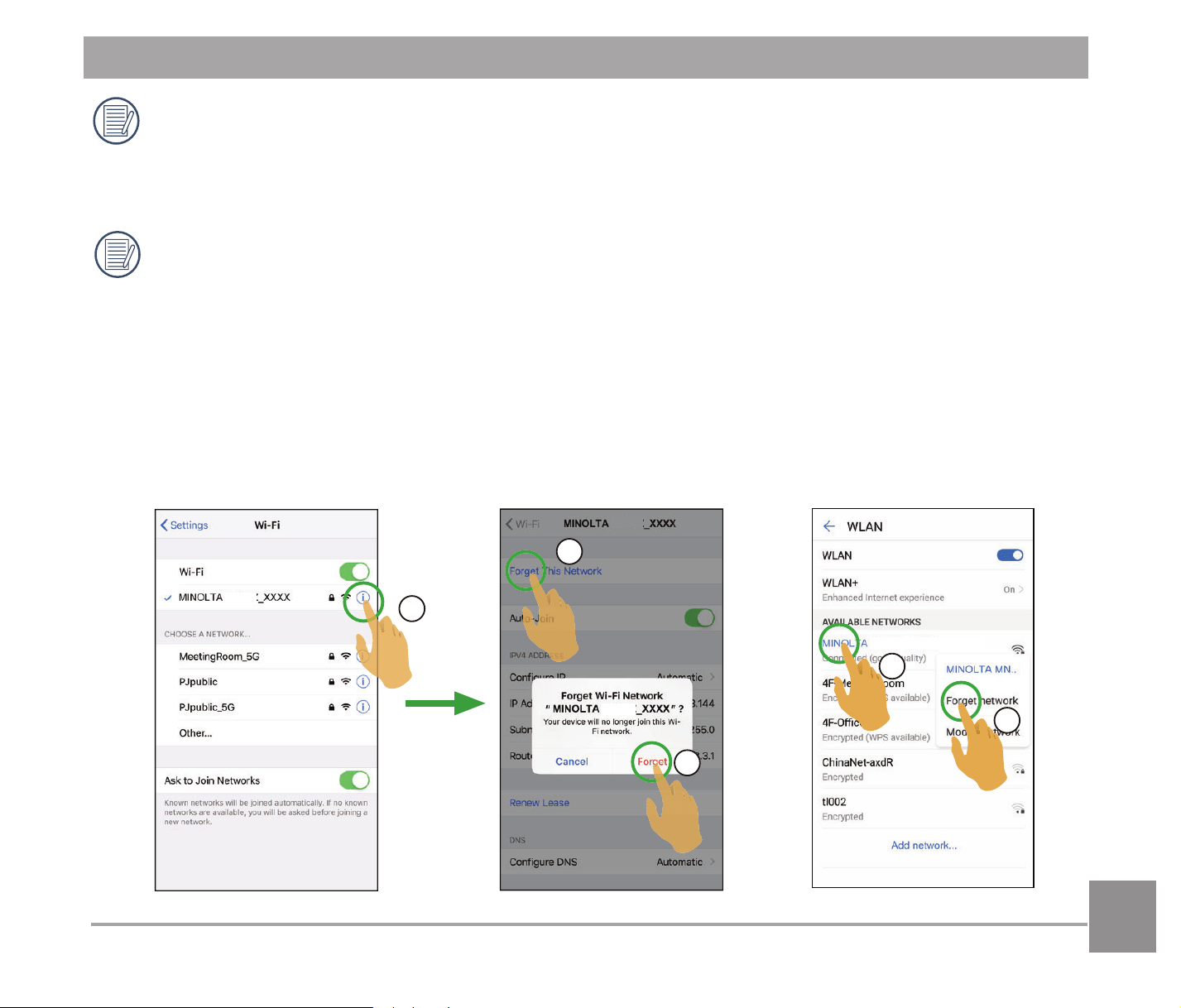
117
1
2
3
MN53Z
MN53Z
MN53Z
2
1
MN53Z_XXXX
iOS™ Example Android™ Example
:KHQVKRRWLQJZLWKVWDFNHG¿OWHUVDWWDFKHGWKHFRUQHUVRIWKHSKRWRPD\WXUQGDUN
9LJQHWWLQJHIIHFWEHFDXVHWKH¿OWHUKROGHUEORFNVOLJKWIURPUHDFKLQJWKHFDPHUDLPDJH
VHQVRUHVSHFLDOO\DWZLGHDQJOH]RRPFRQWUROVHWWLQJV3OHDVHWDNHWHVWVKRWVDQG
UHYLHZWKHUHVXOWVZKHQXVLQJVWDFNHGILOWHUV)LOWHUVL]HĭPP
If you choose to change the factory assigned, random Wireless password on your
camera, please be sure to update and enter the new randomly assigned password on
your smart device. Some smart devices will automatically remember and save any
previously entered Wireless password. Be sure to clear the old password on your smart
device manually before attempting to connect the MINOLTA MN53Z’s Wireless to your
device. (Depending upon your smart device make and model, operation may vary, so
please refer to your smart device user manual and instructions.
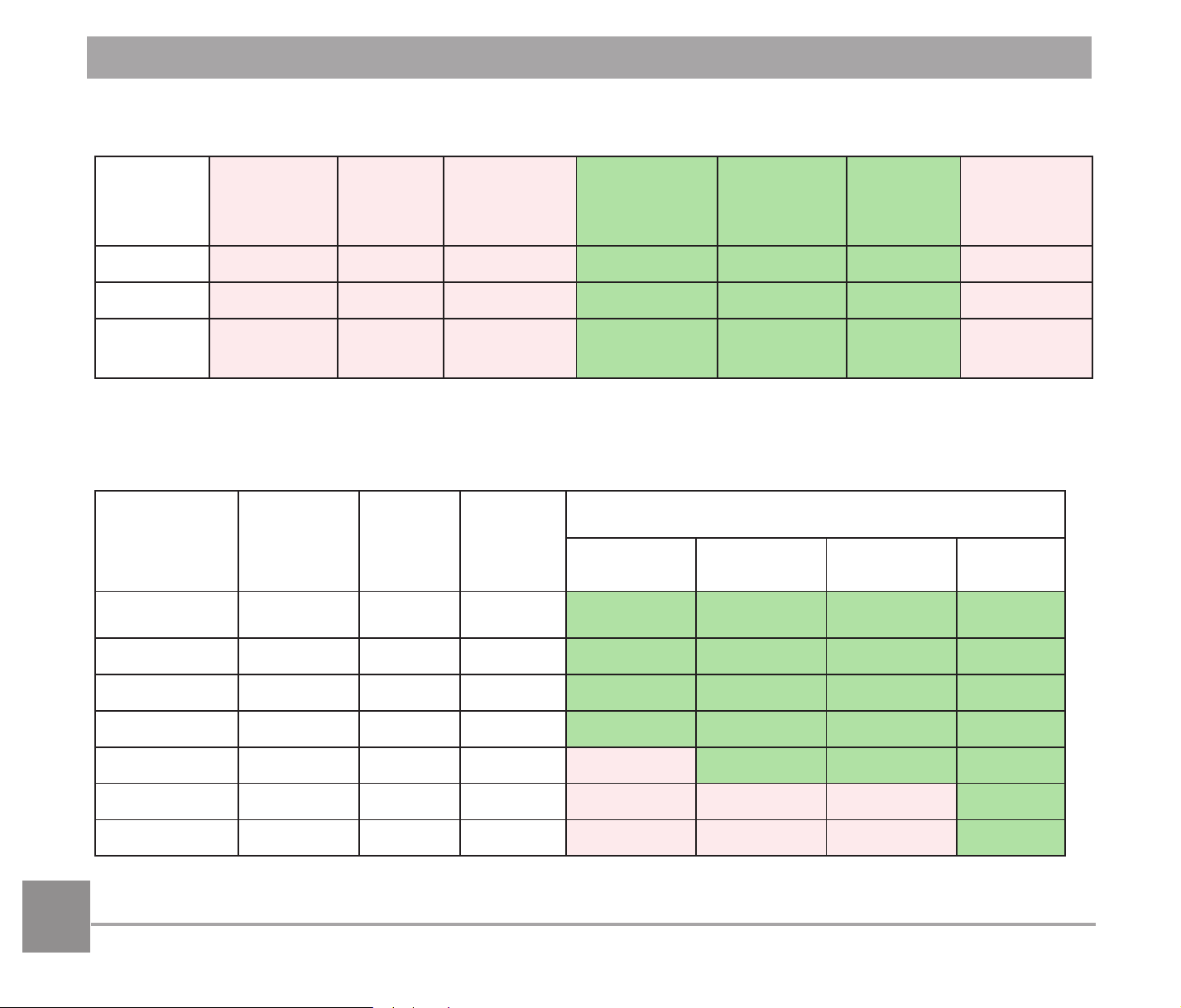
118
Memory Card Compatibility
5HIHUWRWKHFKDUWEHORZIRUFRPSDWLEOHW\SHVRI6'FDUGV¥&RPSDWLEOH;1RW&RPSDWLEOH
micro
SD
micro
SDHC
micro
SDXC
Conversion
adapter to
SD card
SD SDHC SDXC
Format FAT12, 16 FAT32
exFAT -
FAT12, 16 FAT32
exFAT
Capacity
Up to 2GB 4~32GB 64GB~2TB
-
Up to 2GB 4~32GB 64GB~2TB
Compati-
bility
XXX
ɰɰɰ
X
It indicates that the writing speed class will be displayed on the memory card.
Use a memory card with the appropriate writing speed for the video recording mode to be
recorded. (O: Recommended X: Not recommended)
Speed
Class
UHS
Speed
Class
Video
Speed
Class
Video Recording
4K FHD HD VGA
90MB/sec
V90
OOOO
60MB/sec
UHS-III V60
OOOO
30MB/sec
UHS-I V30
OOOO
10MB/sec
Class 10 V10
OOOO
6MB/sec
Class 6 V6
XOOO
4MB/sec
Class 4
XXXO
2MB/sec
Class 2
XXXO

Minolta is a registered trademark of JMM Lee Properties, LLC
and is used in the United States by Elite Brands Inc. under license.
40 Wall Street, 61st Floor, New York, NY 10005 USA • Tel: 800-441-1100
www.minoltadigital.com • www.elitebrands.com
Copyright © 2021 Elite Brands Inc.
If you’re having difficulties with your camera, or would like further assistance,
please call our toll-free technical support hotline at 800-441-1100. Please be
sure to have your camera handy when calling.