
1. About Your Camera
3
About this Manual
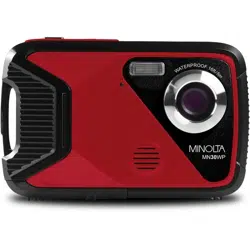
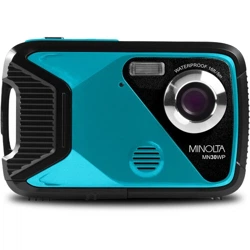
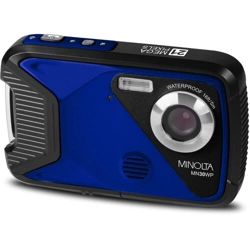
Congratulations on purchasing the Minolta MN30WP Waterproof Camera!
The contents of this manual are subject to change without notice. Note that the
example screens and product illustrations shown in this User’s Guide may differ
somewhat from the screens and configuration of the actual camera.
Copyright
This manual contains proprietary information protected by copyright. All rights
are reserved. No part of this manual may be reproduced by any mechanical,
electronic or other means, in any form, without prior written permission of Elite
Brands Inc. © 2022.
FEDERAL COMMUNICATIONS COMMISSION INTERFERENCE
STATEMENT
This equipment has been tested and found to comply with the limits for a Class
B digital device, pursuant to Part 15 of the FCC Rules. These limits are
designed to provide reasonable protection against harmful interference in a
residential installation. This equipment generates, uses and can radiate radio
frequency energy and, if not installed and used in accordance with the
instructions, may cause harmful interference to radio communications.
However, there is no guarantee that interference will not occur in a particular
installation. If this equipment does cause harmful interference to radio or
television reception, which can be determined by turning the equipment off and
on, the user is encouraged to try to correct the interference by one or more of
the following measures:
•
Reorient or relocate the receiving antenna.
•
Increase the separation between the equipment and receiver.
•
Connect the equipment into an outlet on a circuit different from that to which
the receiver is connected.
•
Consult the dealer or an experienced radio/TV technician for help.
CAUTION:
Any changes or modifications not expressly approved by the party responsible
for compliance could void the user's authority to operate the equipment.
This device complies with Part 15 of the FCC Rules. Operation is subject to the
following two conditions:
(1)
This device may not cause harmful interference and
(2)
This device must accept any interference received, including interference
that may cause undesired operation.
RF Exposure Warning
This equipment complies with FCC RF radiation exposure limits set forth for an
uncontrolled environment. This equipment must be installed and operated in
accordance with provided instructions and must not be co-located or operating
in conjunction with any other antenna or transmitter. End-users and installers

1. About Your Camera
3
must be provided with antenna installation instructions and transmitter operating
conditions for satisfying RF exposure compliance.
FCC: SAR standard Value: 1.6 W/Kg, Maximal Measure: 0.4 W/kg
CE Mark Warning
This is a Class B product, in a domestic environment, this product may cause
radio interference, in which case the user may be required to take adequate
measures.
Safety and Handling Precautions
Camera Information
•
Do not disassemble or attempt to service the camera yourself.
•
Do not expose the camera to moisture, or extreme temperatures.
•
Allow the camera to warm up when moving from cold to warm temperatures.
•
Do not touch and put pressure on the camera lens.
•
Do not expose the lens to direct sunlight for extended periods.
•
Do not use abrasive chemicals, cleaning solvents or strong detergents to
clean the product. Wipe the product with a slightly damp soft cloth.
•
Do not use the flash or LED Light near a person's eyes to prevent possible
eye injury.
•
To prevent you from falling over or resulting in traffic accident, please do not
use the camera while you are walking, driving or riding a vehicle.
•
Please handle the camera strap with care, and never place the strap around
the neck of an infant or child. Wrapping the strap around a neck may cause
suffocation.
•
Do not subject the LCD screen to impact.
•
To prevent the risk of fire or electric shock, do not expose the inside of this
product to rain or moisture.
Battery Information
•
Turn off the camera before installing or removing the battery.
•
Use only the provided batteries or type of battery and charger that came with
your camera. Using other types of battery or charger may damage the device
and invalidate the warranty.
•
Inserting the battery upside down can cause damage to the product and
possibly cause an explosion.
•
When the camera is used for an extended period of time, it is normal for the
camera body to feel warm.
•
Download all pictures and remove the battery from the camera if you are
going to store the camera for a long period of time.
•
Risk of explosion if battery is replaced by an incorrect type. Dispose of used
batteries according to the instructions.
•
Please keep the batteries out of the reach of children to prevent from
swallowing the batteries, which might cause poisoning.

1. About Your Camera
3
•
If the battery's color or shape changes in any way, stop using the battery
immediately.
USB Adaptor Information
•
Do not expose the adapter to high temperatures or moisture places. Otherwise, it
may cause fire or electric shock.
•
Do not attempt to repair, disassemble, change or transform the adapter.
•
Avoid sudden changes in temperature, which may cause condensation on the
adapter’s internal surfaces. Please do not use it immediately in this situation.
•
Do not touch the plug with wet hands. Otherwise, it may cause electric shock.
•
Do not use the travel voltage converter or AC/DC power inverter. Otherwise, it
may cause damage, overheating, malfunction or fire to the camera.
Waterproof and Dustproof Information
•
The waterproof and dustproof performance described do not guarantee that
the camera will remain completely waterproof or free from damage and
trouble under all conditions.
•
Do not subject the camera to excessive shock, Vibration or pressure by
dropping it, hitting it or placing a heavy object on it. Failure to observe this
precaution could deform the camera, cause water to seep inside, or damage
the airtight seals, resulting in camera malfunction.
•
The battery door must be closed securely and the lock engaged in order for
the camera to be waterproof. Failure to do this can allow water to enter the
camera and damage it.
The camera can shoot images underwater at a depth of 3m (10ft) for up to
60 minutes.
• Do not drop the camera, strike it against a hard object such as a rock, or
throw it against a water surface.
• Do not subject the camera to shock when using it underwater.
• Do not expose to depths greater than 3m (10ft) underwater.
• Do not continuously use the camera underwater for 60 minutes or more.
• Do not insert a wet memory card or battery in the camera.
• Do not open the battery cover when the camera or your hands are wet.
Doing so may cause water to seep inside the camera or result in camera
malfunction.
• Do not open the battery cover underwater.
• If moisture such as water droplets adheres to the outside of the camera or
inside of the battery cover, immediately wipe it off with a soft dry cloth.
• If a foreign substance adheres to the outside of the camera or inside of the
battery cover, immediately remove it with a soft cloth.
• Do not leave the camera in cold conditions or hot conditions of 40°C (104°F)
or more for a long period of time.
• When using the camera underwater, make sure the water temperature is
from 0°C-40°C (32°F to 104°F).

1. About Your Camera
3
• Do not use the camera in hot springs.
Before Using the Camera Underwater
Check the items below before using the camera underwater.
• Make sure that there are no foreign substances inside the battery cover.
• Make sure that the waterproof packing of the battery cover is not cracked or
deformed.
• Make sure that the battery door is firmly closed and the battery cover
security lock is in the LOCK position.
• Failure to follow these steps can result in damage to the camera.
Notes about Opening and Closing the Battery Door
• Make sure the camera and your hands are not wet.
• Make sure that there are no debris inside the battery-chamber or memory
card slot.
• Make sure that the battery cover is firmly closed and the security lock is in
the lock position.
Precautions When Cleaning
• Do not puncture the microphone or speaker openings with a sharp
implement.
• If the inside of the camera is damaged, the waterproof performance will
deteriorate.
• Do not use soap, natural detergents, or chemicals such as benzene for
cleaning.
Do Not Apply Strong Impact to the Camera
The product may malfunction if subjected to strong shock or vibration. In
addition, do not touch or apply force to the lens.
Avoid Sudden Changes in Temperature
Sudden changes in temperature, such as when entering or leaving a heated
building on a cold day, can cause condensation to form inside the device. To
prevent condensation, place the device in a carrying case or a plastic bag
before exposing it to sudden changes in temperature.
Keep Away from Strong Magnetic Fields
Do not use or store this device in the vicinity of equipment that generates strong
electromagnetic radiation or magnetic fields. Doing so could result in loss of
data or camera malfunction.
Do Not Point the Lens at Strong Light Sources for Extended Periods
Avoid pointing the lens at the sun or other strong light source light sources for
extended periods when using or storing the camera. Intense light may cause

1. About Your Camera
3
the image sensor to deteriorate or produce a white blur effect in photographs.
Turn the Product Off before Removing or Disconnecting the Power
Source or Memory Card
Do not remove the battery while the product is on, or while images are being
saved or deleted. Forcibly cutting power in these circumstances could result in
loss of data or cause damage to the memory card or internal circuitry.
Notes about the LCD Screen
• The LCD Screens are constructed with extremely high precision; At least
99.99% of pixels are effective, with no more than 0.01% being missing or
defective. Hence, while these displays may contain pixels that are always lit
(white, red, blue or green) or always off (black), this is not a malfunction and
has no effect on images recorded with the device.
• Images viewed on the LCD screen may be difficult to see under certain
lighting.
• Do not apply pressure to the LCD screen, as this could cause damage or
malfunction.
The Battery
Precautions for Use
• Note that the battery may become hot after use.
• Do not use the battery at ambient temperatures below 0°C (32°F) or above
40°C (104°F) as this could cause damage or malfunction.
• If you notice any abnormalities such as excessive heat, smoke, or an
unusual smell coming from the battery, immediately discontinue use and
consult your retailer.
• After removing the battery from the camera or optional battery charger, put
the battery in a plastic bag, etc. in order to insulate it.
Charging the Battery
Check the battery level before using the camera and replace or charge the
battery if necessary.
• Charge the battery indoors with an ambient temperature of 5°C (41°F) to
35°C (95°F) before use.
• A high battery temperature may prevent the battery from charging properly or
completely, and may reduce battery performance. Note that the battery may
become hot after use; wait for the battery to cool before charging. When
charging the battery inserted into this camera using the Charging AC Adapter
or a computer, the battery is not charged at battery temperature below 5°C
(41°F) or above 55°C (131°F).
• When the battery is between 45°C (113°F) - 55°C (131°F), the chargeable
capacity may decrease.
• Do not continue charging once the battery is fully charged as this will result in
reduce battery performance.

1. About Your Camera
3
• The battery temperature may increase during charging. However, this is not
a malfunction.
Using the Battery When Cold
On cold days, the capacity of batteries tends to decrease. If an exhausted
battery is used at a low temperature, the camera may not turn on. Keep spare
batteries in a warm place and exchange as necessary. Once warmed, a cold
battery may recover some of its charge.
Recycling Used Batteries
Replace the battery when it no longer holds a charge. Used batteries are a
valuable resource. Please recycle used batteries in accordance with local
regulations.
Cleaning After Using the Camera Underwater
Follow the procedure below to rinse the camera with fresh water within 30
minutes after using it under saltwater or at the beach.
1.
Keep the battery cover closed and wash off the camera with fresh water.
Immerse the camera in a shallow basin filled with fresh water for 10 minutes.
2.
Immerse the camera in fresh water and shake it sufficiently in the water to
remove any foreign substances from the camera.
3.
When the cameras is immersed in the water, a few air bubbles may come
out from the water drain holes of the camera such as openings in the
microphone or speakers. This is not a malfunction.
4.
Wipe off water droplets with soft cloth and dry the camera in a well-
ventilated and shady place.
5.
Place the camera on a dry cloth to dry it.
6.
Do not dry the camera with hot air from a hair dryer or clothes dryer.
7.
After making sure that there are no water droplets on the camera, open the
battery cover and use a soft dry cloth to gently wipe off any water or sand
remaining on the waterproof packing or inside the camera.
• If the cover is closed when the inside is wet, this could cause
condensation or a malfunction.
Cleaning After Using the Camera in Conditions Other than Underwater
Use a blower to remove any dust or lint that adheres to the lens, monitor or
camera body. To remove fingerprints or other stains that cannot be removed
with a blower, gently wipe the parts with a soft dry cloth. If you wipe with too
much pressure or with a rough cloth, it may damage the camera or cause a
malfunction.
Storage
If you do not intend to use the camera for an extended period, remove the
battery and avoid storing the camera in any of the following types of locations:
• Places that are poorly ventilated or subject to humidity of over 60%

1. About Your Camera
3
• Place exposed to temperatures above 50°C (122°F) or below -10°C (14°F).
• Place next to equipment that produces strong electromagnetic field, such as
television or radios.
To prevent mold or mildew, take the camera out of storage at least once a
month, and turn it on and release the shutter a few times before putting it away
again.
3. Using Your Camera
25
1.1
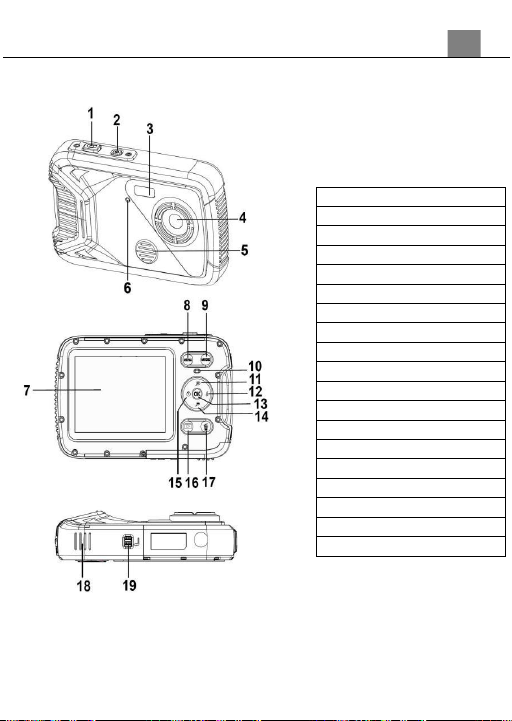
Camera Interface
1. Shutter
2. Power
3. LED Flash
4. Lens
5. Speaker
6. Self-Timer Indicator
7. LCD Screen
8. Menu
9. Mode
10. Charging Indicator
11. Zoom In / Up
12. Flash / Right
13. OK
14. Zoom Out / Down
15. Self-Timer / Right
16. Playback
17. Delete
18. Battery Cover
19. Battery Cover Lock
3. Using Your Camera
25
1.2
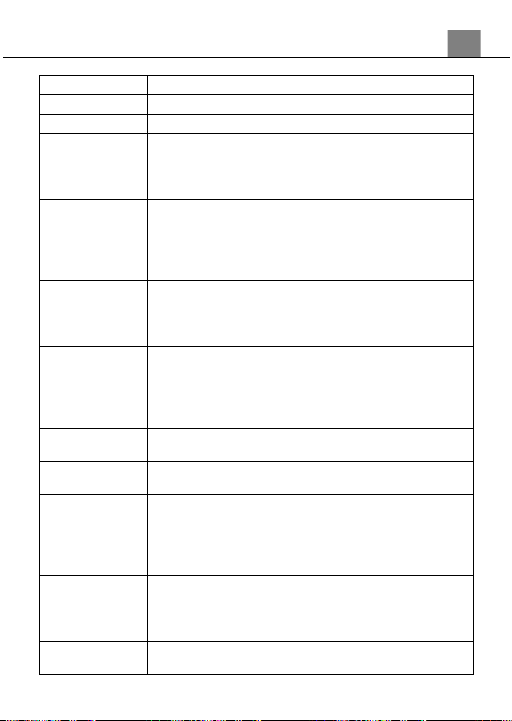
Button Function Description
Function
Description
Power
Tap to power on or off.
Menu
Tap to access the settings menu.
Zoom Out |
Down
In Video or Photo: Press to zoom-out.
In Settings: Press to select desired setting.
In Playback: Press to view multiple images on
the screen.
Zoom In | Up
In Video or Photo: Press to zoom-in.
In Settings: Press to select desired setting.
In Playback: Press to zoom in on the image
displayed on the screen. Press to stop a
recorded video.
Flash | Right
In Photo: Press to change the flash settings.
In Playback: Press to go to the next image.
Press to fast-forward a playing or paused video.
In Settings: Press to select submenu.
Self-Timer |
Left
In Video or Photo: Press to change the self-
timer settings.
In Playback: Press to go to the previous image.
Press to rewind a playing or paused video.
In Settings: Press to select submenu.
Mode
Tap to cycle between Photo, Video and Playback
modes.
Shutter
In Photo: Tap to capture a photo.
In Video: Tap to start and stop recording.
OK
In Video or Photo: Press to change the self-
timer settings.
In Playback: Press to play and pause a
recorded video.
In Settings: Press to confirm selected setting.
Delete
In Video or Photo: Press to delete the last
recorder video or image.
In Playback: Press to delete the current image
or video on the screen.
Battery Door
Door to cover the battery compartment and
memory card slot.
3. Using Your Camera
25
Speaker
Built-in speaker output for playback of video files
when audio recording is enabled.
Lens
Front capture device for all video and photo.
2.
First Use
2.1
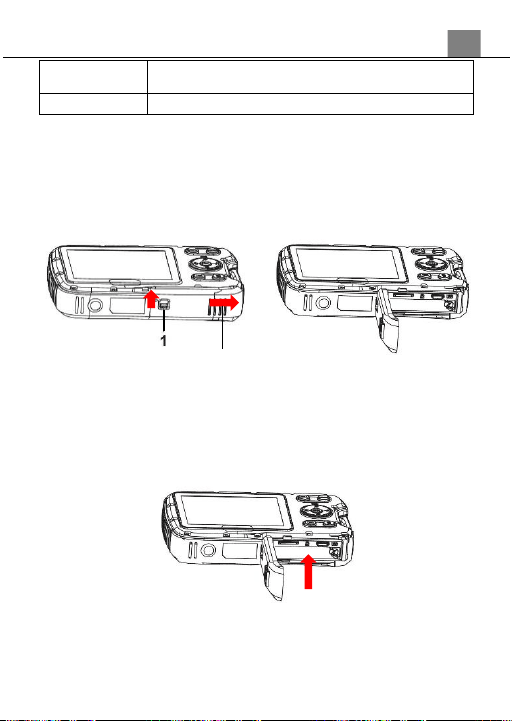
To Open the Battery Door
Unlock the battery door by sliding the battery door notch toward the back of
the camera. Use a fingernail or other pointy object when sliding the latch to
get a better grip. Then slide the door to the right and the door will swing open.
2.2
Installing the Battery
Insert the lithium-ion battery into the battery compartment with the metal
contacts on the left side of the battery facing the inside of the camera. The
battery lock will click indicating the battery is secure. If the camera does
not turn on after installing the battery, simply remove the battery and make
sure the contacts are facing the inside of the camera and on the left.
2.3
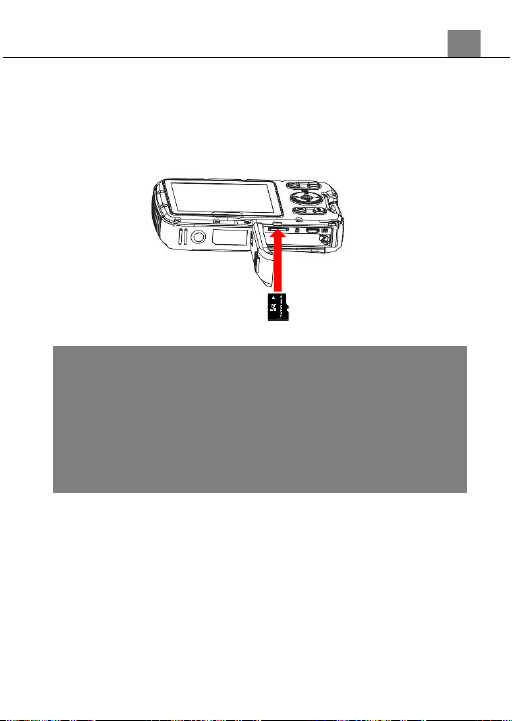
Installing the Memory Card
Insert the included Micro SD memory card to record and store your videos and
photos. When the battery is low, media stored on the memory card will not be
erased. Please insert the SD memory card by following the steps below:
1.
Open the battery door by following the diagram above.
2
3. Using Your Camera
25
2.
Insert the memory card. Ensure that the metal contacts are inserted first.
Push the memory card down until you hear an audible click.
The memory card can only be inserted in one way. Do not force the
card in if it will not go in smoothly.
3.
Close the memory card door by pushing it down and sliding the lock back
into place.
4.
To remove the memory card, simply push in and the card will eject back out.
NOTE: After closing the battery door, make sure that the door is
closed securely and the lock engaged. Failure to do this can
allow water to enter the camera and damage it.
NOTE:
• Please format the memory card before using the camera
(Caution, this will erase all data on the card).
• Do not remove or insert the memory card when recording. It
may damage the card or cause data loss.
• Memory card rating must be Class 10 or above.
3. Using Your Camera
25
2.4
To Lock the Battery Door
1. Press the battery door down firmly until it is completely flat.
2. While the battery door is pressed down, slide the door to the closed position,
the battery door is fully locked once the latch clicks into place.
2.5
Charging the Battery
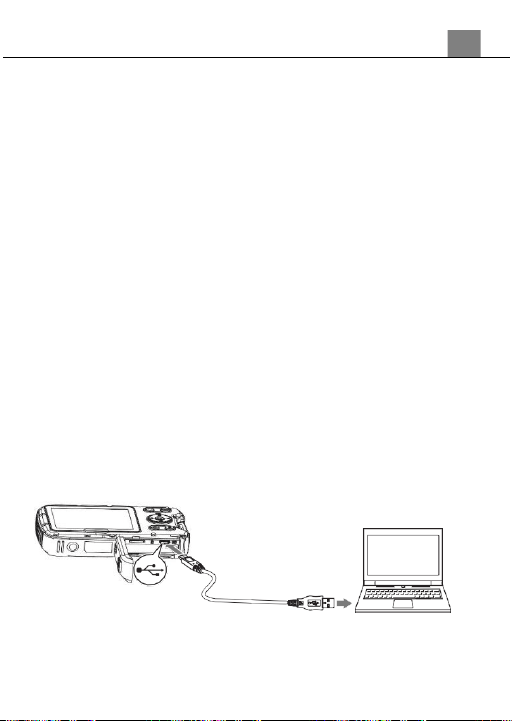
Connect your camera to the included AC adaptor with the USB cable
provided for charging. Insert the small end of the USB plug into the camera’s
port under the battery door, and the larger end in to the included AC adaptor.
While charging the LED indicator light will light up solid green, when finished
charging the light will turn off.
2.6
Powering the Camera On/Off
Press the POWER button to power the camera on. To power the camera off,
press the POWER button.
If the camera’s battery is low, a “Low Power” message will display on the
screen and it will automatically shut down within a few seconds to prevent
memory corruption or loss.
2.7
Switching Modes
Press the MODE button to cycle between Photo, Video and Audio
Recording Modes. The corresponding mode will be displayed in the top
left corner of the screen. Press the PLAYBACK button to access playback
mode.
2.8
Connecting to a Computer
Your camera can connect to a computer to transfer photo and video files for
viewing and editing, as shown below. Once connected and powered on, the
camera’s screen will enter “Mass Storage” mode automatically.

3. Using Your Camera
25
2.9
Using the Zoom Function
This camera has a digital zoom function. To operate the zoom function,
press the ZOOM-IN button to zoom in closer to the subject, and press the
ZOOM-OUT button zoom away from the subject.
3. Using Your Camera
25
2.10
Photo Mode
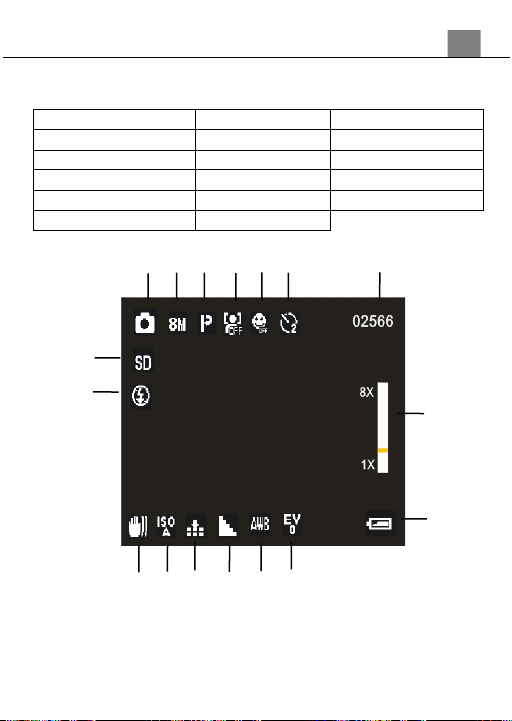
Press the MODE button to switch to Photo Mode. The meaning of each icon
within Photo Mode is explained in the table below:
1) Photo Mode
7) Pictures Remaining
13) Image Quality
2) Image Size (Resolution)
8) Zoom
14) ISO
3) Scene
9) Battery Level
15) Anti-Shake
4) Face Detect
10) Exposure
16) Flash Status
5) Smile Capture
11) White Balance
17) Memory Card Inserted
6) Self Timer
12) Image Sharpness
9
7
8
4
5
3
2
15
13
12
1
11
10
14
6
16
17
3. Using Your Camera
25
2.11
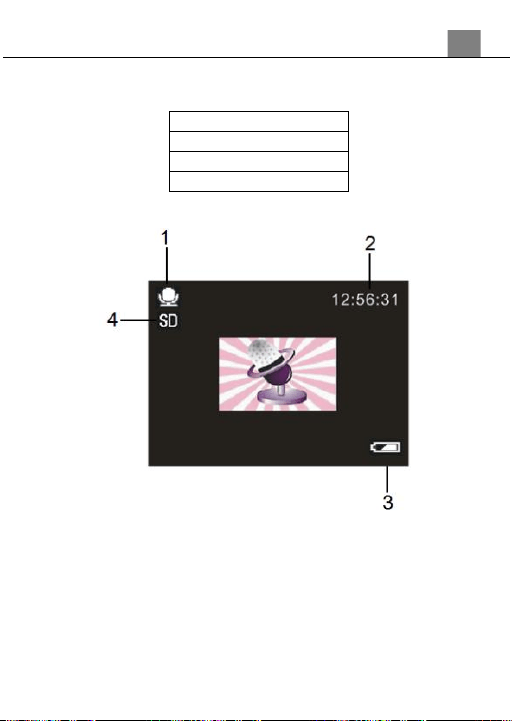
Video Mode
Press the MODE button to switch to Video Mode. The meaning of each icon
within Video Mode is explained in the table below:
1) Video Mode
6) Exposure
2) Video Size (Resolution)
7) White Balance
3) Video Time Remaining
8) Video Sharpness
4) Zoom
9) Video Quality
5) Battery Level
10) Memory Card Inserted
1
2
3
5
6
4
7
8
9
10
3. Using Your Camera
25
2.12
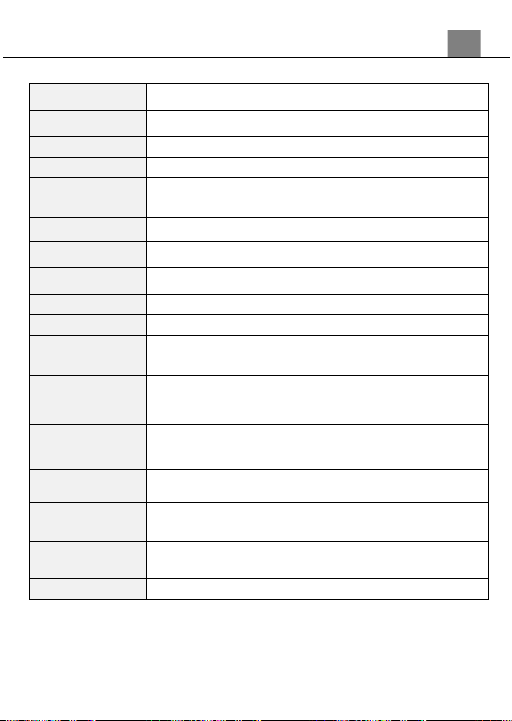
Audio Recording Mode
Press the MODE button to switch to Audio Recording Mode. The meaning
of each icon within Video Mode is explained in the table below:
1) Audio Recording Mode
2) Recording Time Remaining
3) Battery Level
4) Memory Card Inserted

3. Using Your Camera
25
3.
Using the Camera
3.1
Photo Shooting
Power the camera on and it will be ready to take pictures right away. You
may press the MODE button to switch to another mode.
1.
Line up your shot by looking at the LCD screen to see what is in the shot.
2.
Hold the camera steady and press the SHUTTER button to capture a photo.
3.
The number of photos that can be captured at a particular resolution
will be displayed in the top right corner of the screen.
4.
A “Memory Full” message will be displayed on the screen if there is no SD
card inserted in the camera’s memory card slot. A “Memory Full” message
will be shown on the screen when the SD card is full.
5.
The number of remaining photos is determined by the selected photo
resolution. The higher the photo resolution, the lower the number of photos
you are able to be save to the memory card. Before capturing any photos,
you can select a preferred photo resolution.
3.1.1
Scene
This function adjusts the camera’s settings to predetermined values that will
produce the best image for that selected scene.
1.
In Photo Mode press the MENU button.
2.
Select ‘Scene’ using the LEFT or RIGHT buttons.
3.
Press the UP or DOWN buttons to navigate the menu, and press the OK
button to confirm your selected option (Auto, Night Portrait, Night Scenery,
Portrait, Scenery, Sport, Party, Beach, High Sensitivity, Underwater).
4.
Press the MENU button to exit the settings menu without making a selection.
3.1.1 Image Size (Photo Resolution)
This function sets the photo resolution. The higher the resolution, the greater
the photo quality and the larger the file size of the photo.
1.
In Photo Mode press the MENU button.
2.
Select ‘Image Size’ using the LEFT or RIGHT buttons.
3.
Press the UP or DOWN buttons to navigate the menu, and press the
OK button to confirm your selected resolution (21MP, 16MP, 12MP,
8MP, 5MP, 3MP, 1.2MP).
4.
Press the MENU button to exit the settings menu without making a
selection.
3.1.2
Anti-Shake
This function enables photo capture in high speed and low-light by
electronically minimizing motion blur and reducing camera shake.
1.
In Photo Mode press the MENU button.
2.
Select ‘Anti-Shake’ using the LEFT or RIGHT buttons.

3. Using Your Camera
25
3.
Press the UP or DOWN buttons to navigate the menu, and press the OK
button to confirm your selected option (Off, On).
4.
Press the MENU button to exit the settings menu without making a
selection.
3.1.3
Face Detect
This function allows you to set your camera to detect faces in a scene and
adjust your camera's setting for the most optimal picture. You can also enable
your camera to capture a photo once a smile is detected on the faces in a
scene.
1.
In Photo Mode press the MENU button.
2.
Select ‘Face Detect’ using the LEFT or RIGHT buttons.
3.
Press the UP or DOWN buttons to navigate the menu, and press the OK
button to confirm your selected option (Off, On).
4.
Press the MENU button to exit the settings menu without making a
selection.
3.1.4
Smile Capture
This function allows you to set your camera to detect smiles in a scene and
for it to capture a photo automatically.
1.
In Photo Mode press the MENU button.
2.
Select ‘Smile Capture’ using the LEFT or RIGHT buttons.
3.
Press the UP or DOWN buttons to navigate the menu, and press the OK
button to confirm your selected option (On, Off).
4.
Press the MENU button to exit the settings menu without making a
selection
3.1.5
Shooting – Multi-Snapshot (Photo Burst)
This function allows to you capture 6 consecutive photos with one click of the
PHOTO button.
1.
In Photo Mode press the MENU button.
2.
Select ‘Shooting’ using the LEFT or RIGHT buttons.
3.
Select ‘Multi-Snapshot’ using the UP or DOWN buttons and press OK to
enter the Multi-Snapshot menu.
4.
Press the UP or DOWN buttons to navigate the menu, and press the OK
button to confirm your selected option (On, Off).
5.
Press the MENU button to exit the settings menu without making a
selection.
3.1.6
Shooting – Panorama
This feature allows you to capture a panoramic view, up to 180°, that will
have significantly more content than a single photograph.

3. Using Your Camera
25
1.
In Photo Mode press the MENU button.
2.
Select ‘Shooting’ using the LEFT or RIGHT buttons.
3.
Select ‘Panorama’ using the UP or DOWN buttons and press OK to enter
the Panorama menu.
4.
Press the UP or DOWN buttons to navigate the menu, and press the OK
button to confirm your selected option (Off, Right).
5.
Press the MENU button to exit the settings menu without making a
selection.
3.1.7
Shooting – Self Timer
This function determines the time delay before a photograph is captured.
This setting can be used by photographers to take photographs of
themselves.
1.
In Photo Mode press the MENU button.
2.
Select ‘Shooting’ using the LEFT or RIGHT buttons.
3.
Select ‘Self Timer’ using the UP or DOWN buttons and press OK to enter
the Self Timer menu.
4.
Press the UP or DOWN buttons to navigate the menu, and press the OK
button to confirm your selected option (Off, 2 Seconds, 5 Seconds, 10
Seconds).
5.
Press the MENU button to exit the settings menu without making a
selection.
3.1.8
Capture Setting – ISO
This function adjusts the light sensitivity in your photograph.
1.
In Photo Mode press the MENU button.
2.
Select ‘Capture Setting’ using the LEFT or RIGHT buttons.
3.
Select ‘ISO’ using the UP or DOWN buttons and press OK to enter the
ISO menu.
4.
Press the UP or DOWN buttons to navigate the menu, and press the OK
button to confirm your selected option (Auto, 100, 200, 400).
5.
Press the MENU button to exit the settings menu without making a
selection.
3.1.9
Capture Setting – Date
This function adjusts the light sensitivity in your photograph.
1.
In Photo Mode press the MENU button.
2.
Select ‘Capture Setting’ using the LEFT or RIGHT buttons.
3.
Select ‘Date’ using the UP or DOWN buttons and press OK to enter the
Date menu.
4.
Press the UP or DOWN buttons to navigate the menu, and press the OK
button to confirm your selected option (On, Off, Set Date).

3. Using Your Camera
25
5.
To set the current date and time use the UP or DOWN buttons to select
Set Date, and press the OK button to enter the Set Date menu.
6.
Use the UP or DOWN buttons to change the highlighted field.
7.
Use the LEFT or RIGHT buttons to change the selected field.
8.
Press the OK button to save the entered date and time and to exit the
menu.
9.
Press the MENU button to exit the settings menu without making a
selection
3.1.10
Image Setting – Exposure
This function adjusts the frame brightness in your photograph.
1.
In Photo Mode press the MENU button.
2.
Select ‘Image Setting’ using the LEFT or RIGHT buttons.
3.
Select ‘Exposure’ using the UP or DOWN buttons and press OK to enter
the Exposure menu.
4.
Press the UP or DOWN buttons to navigate the menu, and press the OK
button to confirm your selected option (+3, +2, +1, 0, -1, -2, -3).
5.
Press the MENU button to exit the settings menu without making a
selection.
3.1.11
Image Setting – White Balance
White Balance changes the color of light in your pictures, making it seem
warmer or cooler depending on how the light you're shooting in affects the
frame.
1.
In Photo Mode press the MENU button.
2.
Select ‘Image Setting’ using the LEFT or RIGHT buttons.
3.
Select ‘White Balance’ using the UP or DOWN buttons and press OK to
enter the White Balance menu.
4.
Press the UP or DOWN buttons to navigate the menu, and press the OK
button to confirm your selected option (Auto, Daylight, Cloudy,
Incandescent, Florescent).
5.
Press the MENU button to exit the settings menu without making a
selection.
3.1.12
Image Setting – Frequency
This function sets the frequency of the camera from 50Hz to 60Hz. Please
check the frequency of your location and set accordingly.
1.
In Photo Mode press the MENU button.
2.
Select ‘Image Setting’ using the LEFT or RIGHT buttons.
3.
Select ‘Frequency’ using the UP or DOWN buttons and press OK to enter
the Frequency menu.
4.
Press the UP or DOWN buttons to navigate the menu, and press the OK

3. Using Your Camera
25
button to confirm your selected option (60 Hz, 50 Hz) the default
frequency for the United States is 60Hz.
5.
Press the MENU button to exit the settings menu without making a
selection.
3.1.13
Image Setting – Image Quality
The Photo Quality function determines the level of compression the
camera uses when saving photos to a memory card.
1. In Photo Mode press the MENU button.
2. Select ‘Image Setting’ using the LEFT or RIGHT buttons.
3. Select ‘Image Quality’ using the UP or DOWN buttons and press OK to
enter the Image Quality menu.
4. Press the UP or DOWN buttons to navigate the menu, and press the OK
button to confirm your required quality option (Super Fine, Fine, Normal),
Super Fine uses the least amount of compression for saving, and as a
result produces a higher photo quality.
5. Press the MENU button to exit the settings menu without making a
selection.
3.1.14
Image Setting – Sharpness
This function adjusts the visible detail of a photograph.
1.
In Photo Mode press the MENU button.
2.
Select ‘Image Setting’ using the LEFT or RIGHT buttons.
3.
Select ‘Sharpness’ using the UP or DOWN buttons and press OK to enter
the Sharpness menu.
4.
Press the UP or DOWN buttons to navigate the menu, and press the OK
button to confirm your selected option (Sharp, Normal, Soft).
5.
Press the MENU button to exit the settings menu without making a
selection.
3.1.15
Image Setting – Effect
This function sets the color filter effect of a photograph.
1.
In Photo Mode press the MENU button.
2.
Select ‘Image Setting’ using the LEFT or RIGHT buttons.
3.
Select ‘Effect’ using the UP or DOWN buttons and press OK to enter the
Effect menu.
4.
Press the UP or DOWN buttons to navigate the menu, and press the OK
button to confirm your selected option (Normal, B & W (Black and White),
Sepia, Red, Green, Blue, Sunset, Warm, Cool, Over Exposure, IR,
Binary, Vivid, Undertone, Dog Eye, Aibao, Gothic, Japanese Style,
LOMO, Negative).
5.
Press the MENU button to exit the settings menu without making a

3. Using Your Camera
25
selection.
3.1.16
Image Setting – Saturation
This function adjusts the intensity of the color in the photo.
1.
In Photo Mode press the MENU button.
2.
Select ‘Image Setting’ using the LEFT or RIGHT buttons.
3.
Select ‘Saturation’ using the UP or DOWN buttons and press OK to enter
the Saturation menu.
4.
Press the UP or DOWN buttons to navigate the menu, and press the
MODE/OK button to confirm your selected option (High, Normal, Low).
5.
Press the MENU button to exit the settings menu without making a
selection.
3.1.17
Setup – Auto Power Off
This function sets the duration of time in which the camcorder will wait with
no user input before automatically powering off.
1.
In Photo Mode press the MENU button.
2.
Select ‘Setup’ using the LEFT or RIGHT buttons.
3.
Select ‘Auto Power Off’ using the UP or DOWN buttons and press OK to
enter the Auto Power Off menu.
4.
Press the UP or DOWN buttons to navigate the menu, and press the OK
button to confirm your selected option (Off, 1 Minute, 2 Minutes, 3
Minutes).
5.
Press the MENU button to exit the settings menu without making a
selection.
3.1.18
Setup – Sound Effect
This function allows you to turn off the sounds of the camera.
1.
In Photo Mode press the MENU button.
2.
Select ‘Setup’ using the LEFT or RIGHT buttons.
3.
Select ‘Sound Effect’ using the UP or DOWN buttons and press OK to
enter the Sound Effect menu.
4.
Press the UP or DOWN buttons to navigate the menu, and press the OK
button to confirm your selected option (Off, On).
5.
Press the MENU button to exit the settings menu without making a
selection.
3.1.19
Setup – Language
This function allows you to set the camera’s interface language.
1.
In Photo Mode press the MENU button.
2.
Select ‘Setup’ using the LEFT or RIGHT buttons.
3.
Select ‘Language’ using the UP or DOWN buttons and press OK to enter

3. Using Your Camera
25
the Language menu.
4.
Press the UP or DOWN buttons to navigate the menu, and press the OK
button to confirm your selected language.
5.
Press the MENU button to exit the settings menu without making a
selection.
3.1.20
Setup – LCD Brightness
This function allows you to set the brightness of the camera’s LCD screen.
1.
In Photo Mode press the MENU button.
2.
Select ‘Setup’ using the LEFT or RIGHT buttons.
3.
Select ‘LCD Brightness’ using the UP or DOWN buttons and press OK to
enter the LCD Brightness menu.
4.
Press the UP or DOWN buttons to navigate the menu, and press the OK
button to confirm your selected option (Dark, Normal, Bright).
5.
Press the MENU button to exit the settings menu without making a
selection.
3.1.21
Setup – Default Setting
Factory default settings can be restored in this menu. This function will not
delete the media stored on the memory card, and will only restore all of the
menu’s setting back to factory default settings.
1.
In Photo Mode press the MENU button.
2.
Select ‘Setup’ using the LEFT or RIGHT buttons.
3.
Select ‘Default Setting’ using the UP or DOWN buttons and press OK to
enter the Default Setting menu.
4.
Press the UP or DOWN buttons to navigate the menu, and press the OK
button to confirm your selected option (OK, Cancel).
5.
Press the MENU button to exit the settings menu without making a
selection.
3.1.22
Setup – Format (Memory Card)
The format setting erases all photos, videos and data stored on your
memory card.
1.
In Photo Mode press the MENU button.
2.
Select ‘Setup’ using the LEFT or RIGHT buttons.
3.
Select ‘Format’ using the UP or DOWN buttons and press OK to enter the
Format menu.
4.
Press the UP or DOWN buttons to navigate the menu, and press the OK
button to confirm your selected option (OK, Cancel).
5.
Press the MENU button to exit the settings menu without making a
selection.
NOTE: This will delete all of your media and cannot be undone.

3. Using Your Camera
25
3.2 Video Recording
Power the camera on and press the MODE button to switch to Video mode.
A camcorder icon will appear in the top left hand corner of the screen when
you are in Video mode.
1. Line up your shot by looking at the LCD screen to see what is in view.
2. Hold the camera steady and press the SHUTTER button to begin recording.
3. When recording begins, a rolling timer will display the top right hand corner of
the screen and a flashing red icon will show on the screen. This indicates the
recorded video time elapsed. The LED indicator light will flash red
4. Press the SHUTTER button to stop recording.
5. The recorded video files will automatically save onto the inserted memory card.
3.2.1
Size (Video Resolution)
Your camera has a number of preset resolutions and frames per second rates.
1.
In Video Mode press the MENU button.
2.
Select ‘Size’ using the LEFT or RIGHT buttons.
3.
Press the UP or DOWN buttons to navigate the menu, and press the OK
button to confirm your selected resolution (FHD 1920x1080, HD
1280x720, D1 720x480, VGA 640x480, QVGA 320x240).
4.
Press the MENU button to exit the settings menu without making a
selection.
3.2.2
Image Setting – Exposure
This function adjusts the frame brightness in your photograph.
1.
In Video Mode press the MENU button.
2.
Select ‘Image Setting’ using the LEFT or RIGHT buttons.
3.
Select ‘Exposure’ using the UP or DOWN buttons and press OK to enter
the Exposure menu.
4.
Press the UP or DOWN buttons to navigate the menu, and press the OK
button to confirm your selected option (+3, +2, +1, 0, -1, -2, -3).
5.
Press the MENU button to exit the settings menu without making a
selection.
3.2.3
Image Setting – White Balance
White Balance changes the color of light in your pictures, making it seem
warmer or cooler depending on how the light you're shooting in affects the
frame.
1.
In Video Mode press the MENU button.
2.
Select ‘Image Setting’ using the LEFT or RIGHT buttons.
3.
Select ‘White Balance’ using the UP or DOWN buttons and press OK to
enter the White Balance menu.

3. Using Your Camera
25
4.
Press the UP or DOWN buttons to navigate the menu, and press the OK
button to confirm your selected option (Auto, Daylight, Cloudy,
Incandescent, Florescent).
5.
Press the MENU button to exit the settings menu without making a
selection.
3.2.4
Image Setting – Frequency
This function sets the frequency of the camera from 50Hz to 60Hz. Please
check the frequency of your location and set accordingly.
1.
In Video Mode press the MENU button.
2.
Select ‘Image Setting’ using the LEFT or RIGHT buttons.
3.
Select ‘Frequency’ using the UP or DOWN buttons and press OK to enter
the Frequency menu.
4.
Press the UP or DOWN buttons to navigate the menu, and press the OK
button to confirm your selected option (60 Hz, 50 Hz) the default
frequency for the United States is 60Hz.
5.
Press the MENU button to exit the settings menu without making a
selection.
3.2.5
Image Setting – Image Quality
The Photo Quality function determines the level of compression the
camera uses when saving photos to a memory card.
1.
In Video Mode press the MENU button.
2.
Select ‘Image Setting’ using the LEFT or RIGHT buttons.
3.
Select ‘Image Quality’ using the UP or DOWN buttons and press OK to enter
the Image Quality menu.
4.
Press the UP or DOWN buttons to navigate the menu, and press the OK
button to confirm your required quality option (Super Fine, Fine, Normal),
Super Fine uses the least amount of compression for saving, and as a result
produces a higher photo quality.
5.
Press the MENU button to exit the settings menu without making a selection.
3.2.6
Image Setting – Sharpness
This function adjusts the visible detail of a photograph.
1.
In Video Mode press the MENU button.
2.
Select ‘Image Setting’ using the LEFT or RIGHT buttons.
3.
Select ‘Sharpness’ using the UP or DOWN buttons and press OK to enter
the Sharpness menu.
4.
Press the UP or DOWN buttons to navigate the menu, and press the OK
button to confirm your selected option (Sharp, Normal, Soft).
5.
Press the MENU button to exit the settings menu without making a
selection.

3. Using Your Camera
25
3.2.7
Image Setting – Effect
This function sets the color filter effect of a photograph.
1.
In Video Mode press the MENU button.
2.
Select ‘Image Setting’ using the LEFT or RIGHT buttons.
3.
Select ‘Effect’ using the UP or DOWN buttons and press OK to enter the
Effect menu.
4.
Press the UP or DOWN buttons to navigate the menu, and press the OK
button to confirm your selected option (Normal, B & W (Black and White),
Sepia, Red, Green, Blue, Sunset, Warm, Cool, Over Exposure, IR,
Binary, Vivid, Undertone, Dog Eye, Aibao, Gothic, Japanese Style,
LOMO, Negative).
5.
Press the MENU button to exit the settings menu without making a
selection.
3.2.8
Image Setting – Saturation
This function adjusts the intensity of the color in the photo.
1.
In Video Mode press the MENU button.
2.
Select ‘Image Setting’ using the LEFT or RIGHT buttons.
3.
Select ‘Saturation’ using the UP or DOWN buttons and press OK to enter
the Saturation menu.
4.
Press the UP or DOWN buttons to navigate the menu, and press the
MODE/OK button to confirm your selected option (High, Normal, Low).
5.
Press the MENU button to exit the settings menu without making a
selection.
3.2.9
Setup – Auto Power Off
This function sets the duration of time in which the camcorder will wait with
no user input before automatically powering off.
1.
In Video Mode press the MENU button.
2.
Select ‘Setup’ using the LEFT or RIGHT buttons.
3.
Select ‘Auto Power Off’ using the UP or DOWN buttons and press OK to
enter the Auto Power Off menu.
4.
Press the UP or DOWN buttons to navigate the menu, and press the OK
button to confirm your selected option (Off, 1 Minute, 2 Minutes, 3
Minutes).
5.
Press the MENU button to exit the settings menu without making a
selection.
3.2.10
Setup – Sound Effect
This function allows you to turn off the sounds of the camera.
1.
In Video Mode press the MENU button.

3. Using Your Camera
25
2.
Select ‘Setup’ using the LEFT or RIGHT buttons.
3.
Select ‘Sound Effect’ using the UP or DOWN buttons and press OK to
enter the Sound Effect menu.
4.
Press the UP or DOWN buttons to navigate the menu, and press the OK
button to confirm your selected option (Off, On).
5.
Press the MENU button to exit the settings menu without making a
selection.
3.2.11
Setup – Language
This function allows you to set the camera’s interface language.
1.
In Video Mode press the MENU button.
2.
Select ‘Setup’ using the LEFT or RIGHT buttons.
3.
Select ‘Language’ using the UP or DOWN buttons and press OK to enter
the Language menu.
4.
Press the UP or DOWN buttons to navigate the menu, and press the OK
button to confirm your selected language.
5.
Press the MENU button to exit the settings menu without making a
selection.
3.2.12
Setup – LCD Brightness
This function allows you to set the brightness of the camera’s LCD screen.
1.
In Video Mode press the MENU button.
2.
Select ‘Setup’ using the LEFT or RIGHT buttons.
3.
Select ‘LCD Brightness’ using the UP or DOWN buttons and press OK to
enter the LCD Brightness menu.
4.
Press the UP or DOWN buttons to navigate the menu, and press the OK
button to confirm your selected option (Dark, Normal, Bright).
5.
Press the MENU button to exit the settings menu without making a
selection.
3.2.13
Setup – Default Setting
Factory default settings can be restored in this menu. This function will not
delete the media stored on the memory card, and will only restore all of the
menu’s setting back to factory default settings.
1.
In Video Mode press the MENU button.
2.
Select ‘Setup’ using the LEFT or RIGHT buttons.
3.
Select ‘Default Setting’ using the UP or DOWN buttons and press OK to
enter the Default Setting menu.
4.
Press the UP or DOWN buttons to navigate the menu, and press the OK
button to confirm your selected option (OK, Cancel).
5.
Press the MENU button to exit the settings menu without making a
selection.

3. Using Your Camera
25
3.2.14
Setup – Format (Memory Card)
The format setting erases all photos, videos and data stored on your
memory card.
1.
In Video Mode press the MENU button.
2.
Select ‘Setup’ using the LEFT or RIGHT buttons.
3.
Select ‘Format’ using the UP or DOWN buttons and press OK to enter the
Format menu.
4.
Press the UP or DOWN buttons to navigate the menu, and press the OK
button to confirm your selected option (OK, Cancel).
5.
Press the MENU button to exit the settings menu without making a
selection.
NOTE: This will delete all of your media and cannot be undone.

3. Using Your Camera
25
3.3 Audio Recording Mode
Power the camera on and press the MODE button twice to switch to Audio
Recording mode. A microphone icon will appear in the top left-hand corner of
the screen when you are in Video mode.
1. Place the camera near the audio source you wish to record.
2. Press the SHUTTER button to begin recording.
3. When recording begins, a rolling timer will display the top right-hand corner of
the screen and the LED indicator light will flash red. This indicates the recorded
audio time elapsed.
4. Press the SHUTTER button to stop recording.
5. The recorded audio files will automatically save onto the inserted memory card.
The same Settings options that are available in the Photo and Video modes
are available in the Audio Recording Mode.

3. Using Your Camera
25
3.4 Playback Mode
Photos, videos and audio recordings captured on your camera can be easily
played back.
1.
Press the PLAYBACK button to enter Playback mode.
2.
Press the LEFT or RIGHT buttons to cycle through the captured photos,
videos and audio recordings stored on the memory card.
2.
When viewing a photo press and hold the ZOOM-IN button to zoom in on
the picture on the screen, press and hold the ZOOM-OUT button to view
the entire image. While zoomed in, press the MENU to enter panning
mode, then use the UP, DOWN, LEFT or RIGHT buttons to move the
image on the screen. Press the OK button to exit the Zoom mode.
3.
Push the ZOOM-OUT button to see 9 images on the screen at once. Use
the UP or DOWN buttons to change the page. Press the OK button to view
the selected media.
4.
While viewing a recorded video, press the OK button to start the video,
press the OK button again to pause the video, press the UP button to stop
the video, press the LEFT button to rewind the video and press the RIGHT
button to fast forward the video.
5.
While viewing an image, press the OK button to start a slideshow of all the
images stored on the memory card.
Power the camera on and press the MODE button to switch to Playback
Mode. In Playback Mode the following options are available:
3.4.1 Rotate
This function allows you to rotate stored images.
1.
In Playback Mode press the MENU button.
2.
Select ‘Rotate’ using the LEFT or RIGHT buttons.
3.
Press the UP or DOWN buttons to navigate the menu, and press the OK
button to confirm your selected option (90°, 180°, 270°, Cancel).
4.
Press the MENU button to exit the settings menu without making a
selection.
3.4.2 Protect
This function protects the photo, video or audio file. The file will be protected
from being deleted accidentally. Files must be unprotected to be deleted.
1.
In Playback Mode press the MENU button.
2.
Select ‘Protect’ using the LEFT or RIGHT buttons.
3.
Press the UP or DOWN buttons to navigate the menu, and press the OK
button to confirm your selected option (Lock This, Unlock This, Lock All,
Unlock All).

3. Using Your Camera
25
4.
Press the MENU button to exit the settings menu without making a
selection.
3.4.3 Delete
This function is used to delete photos and videos. Photos and videos can be
deleted singly or all at once.
1.
In Playback Mode press the MENU button.
2.
Select ‘Delete’ using the LEFT or RIGHT buttons.
3.
Press the UP or DOWN buttons to navigate the menu, and press the OK
button to confirm your selected option (This Image, All, Cancel).
4.
Press the MENU button to exit the settings menu without making a
selection.
3.4.4 Crop Image
This function is used to trim photos and save them as new pictures.
1. In Playback Mode, find the image you want to crop and view that image
on the screen.
2. In Playback Mode press the MENU button.
3. Select ‘Crop Image’ using the LEFT or RIGHT buttons.
4. Press the UP or DOWN buttons to navigate the menu, and press the OK
button to confirm your selected option (Crop, Cancel).
5. A blue box will appear on the image, the area inside the box is the part of
the image that will be saved as a new image.
6. Press the ZOOM IN button to enlarge the box, press the ZOOM OUT
button to shrink the box.
7. Press the MENU button to enable the UP, DOWN, RIGHT or LEFT
buttons to move the location of the box.
8. Press the OK button to confirm the crop section of the photo.
9. Press the OK button again to save the cropped image, or the LEFT button
to exit the crop menu.
3.4.5 Pictbridge (Print)
This function allows you to print images when the camera is connected to a
Pictbridge printer. Note, this function only works with certain Pictbridge
printers.
1.
In Playback Mode press the MENU button.
2.
Select ‘Pictbridge’ using the LEFT or RIGHT buttons.
3.
Press the UP or DOWN buttons to navigate the menu, and press the OK
button to confirm your selected option (Pictbridge, Cancel).
4.
Press the MENU button to exit the settings menu without making a
selection.
3. Using Your Camera
25
4.1 Technical Specifications
Model Number
Minolta MN30WP
Lens
Fixed Focus • f=5.3mm • F/2.4
Zoom
4X Digital Zoom
Shutter
Electronic • Anti-Shake Image Stabilization
Pixels (photo)
JPEG: 21 MP • 16 MP • 12 MP • 8 MP • 5 MP • 3 MP •
1.2 MP
Pixels (video)
MOV: 1080p • 720p • 480p • VGA • QVGA
ISO Sensitivity
Auto • 100 • 200 • 400
LCD Screen
2.8” TFT LCD Screen
Assistive Light
White LED
Waterproof
Up to 16 feet
Power Saving
Mode
OFF • 1 Minute • 2 Minutes • 3 Minutes
White Balance
Control
Auto • Daylight • Cloudy • Florescent • Incandescent
Scene Modes
Auto • Night Portrait • Night Scenery • Portrait • Scenery •
Sport • Party • Beach • High Sensitivity • Underwater
Recording Media
Micro SD • MicroSDHC; Maximum: 32GB
I/O Ports
5-pin Micro USB, USB 2.0 (high speed) • Microphone
(built-in MIC) • Speaker
Power
Lithium-Ion 3.7V, 1000mAh
Dimensions
3.95 x 2.32 x 0.84 in. • 4.06 oz.

Minolta is a registered trademark of JMM Lee Properties, LLC
and is used in the United States by Elite Brands Inc. under license.
40 Wall Street, 61st Floor, New York, NY 10005 USA • Tel: 800-441-1100
www.minoltadigital.com • www.elitebrands.com
Copyright © 2022 Elite Brands Inc.
If you’re having difficulties with your camera, or would like further assistance,
please call our toll-free technical support hotline at 800-441-1100. Please be
sure to have your camera handy when calling.