
z

2
Table of Contents
Product Overview ___________________________________________________________________________________________
3
Front/top ______________________________________________________________________________________________________ 3
Back ____________________________________________________________________________________________________________ 4
Bottom _________________________________________________________________________________________________________ 5
Where to find more help ____________________________________________________________________________________ 6
Set Up _________________________________________________________________________________________________________
7 Velop System Settings
______________________________________________________________________________________ 9
Log in to the Linksys app ____________________________________________________________________________________ 9
Dashboard ___________________________________________________________________________________________________ 10
Devices _______________________________________________________________________________________________________ 11
To view or change device details ____________________________________________________________________________________ 12
Wi-Fi Settings _______________________________________________________________________________________________ 13
Advanced Settings ____________________________________________________________________________________________________ 14
Connect a Device with WPS _________________________________________________________________________________________ 15
Guest Access _________________________________________________________________________________________________ 16
External Storage ____________________________________________________________________________________________ 17
Speed Check _________________________________________________________________________________________________ 18
Parental Controls ___________________________________________________________________________________________ 19
Device Prioritization _______________________________________________________________________________________ 20
Notifications _________________________________________________________________________________________________
21
Velop Administration ______________________________________________________________________________________ 22
Advanced Settings __________________________________________________________________________________________ 24
Internet Settings ______________________________________________________________________________________________________ 24
Port Settings __________________________________________________________________________________________________________ 25
Wi-Fi MAC Filters ____________________________________________________________________________________________________ 26
My Account __________________________________________________________________________________________________ 27
Feedback _____________________________________________________________________________________________________
28
Help ___________________________________________________________________________________________________________
29
Connect Directly To Velop _______________________________________________________________________________
30
Velop admin password ______________________________________________________________________________________________ 31
3
How to restore factory defaults ________________________________________________________________________
32 Specifications
______________________________________________________________________________________________ 33
Linksys Velop _______________________________________________________________________________________________ 33
Environmental ______________________________________________________________________________________________ 33
Product Overview
Front/top
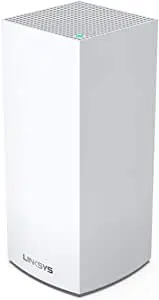
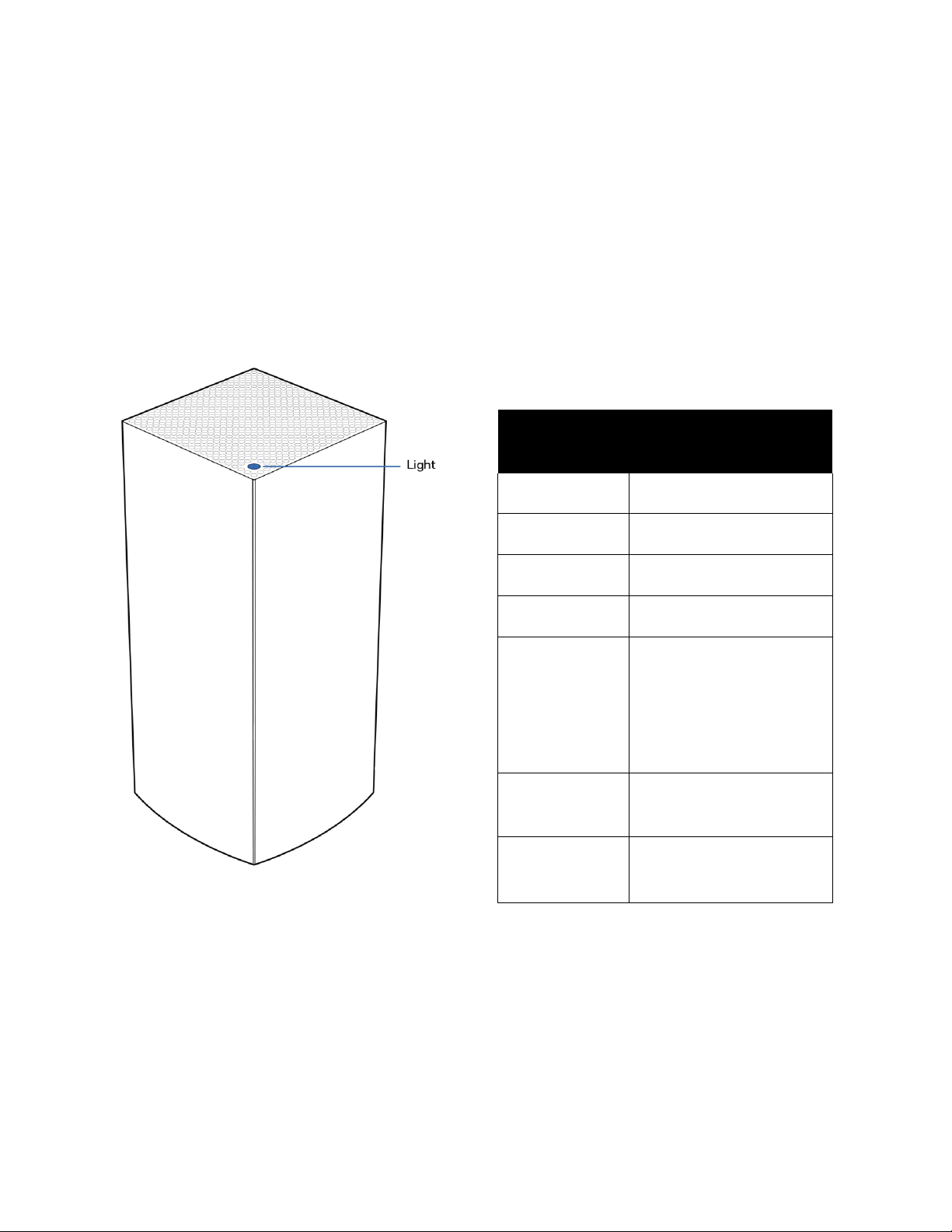
The light on the top of your node gives you information about the node’s operation.
Back
Light description
Status
Blinking blue
Starting up
Solid blue
Connected
Blinking purple
Setup in progress
Solid purple
Ready for setup
Blinking red
Disconnected
• Child node: too far
• Parent node:
unplugged from
modem
Solid red
No internet from the
modem
Solid yellow
Weak connection • Child
node only
4
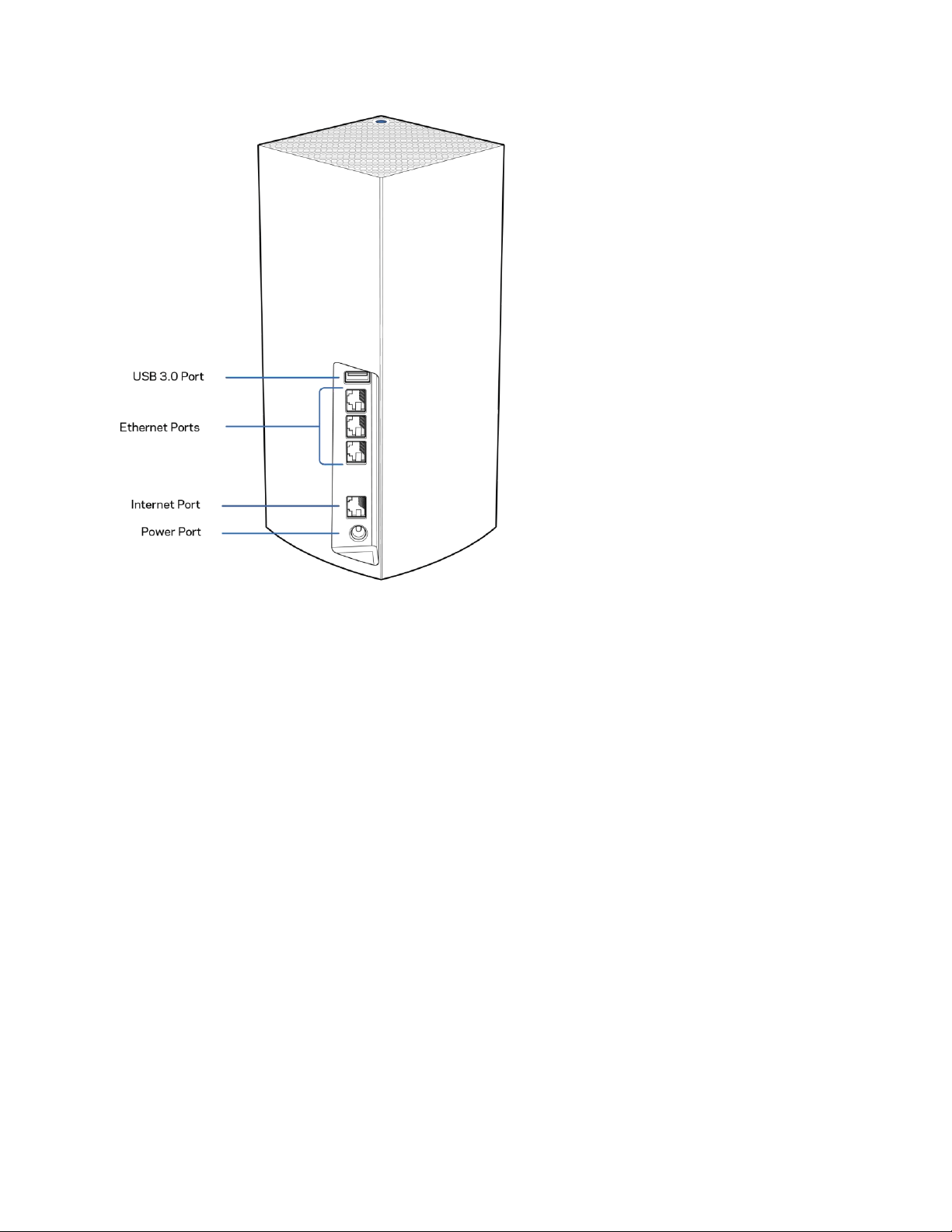
USB 3.0 port— Connect and share USB drives on your network. For local file sharing only (no FTP, media server or
virtualUSB support). Also, not intended for sharing peripherals such as printers, scanners or cameras.
Ethernet ports—Connect ethernet cables to these Gigabit ethernet (10/100/1000) ports and to other wired devices
on your network. If you have more than one node in your Velop system, use one of these ports to connect to your
modem or modem-router.
Note—For best performance, use a CAT5e or higher rated cable on the Ethernet port.
Internet port—Connect an ethernet cable to the yellow gigabit (10/100/1000) port, and to a broadband internet
cable/DSL or fiber modem. If you are using this router as a child node in a mesh Wi-Fi system, you can use this port
to create a wired connection to another node.
Power port—Connect the included AC power adapter to this port.
Bottom
5
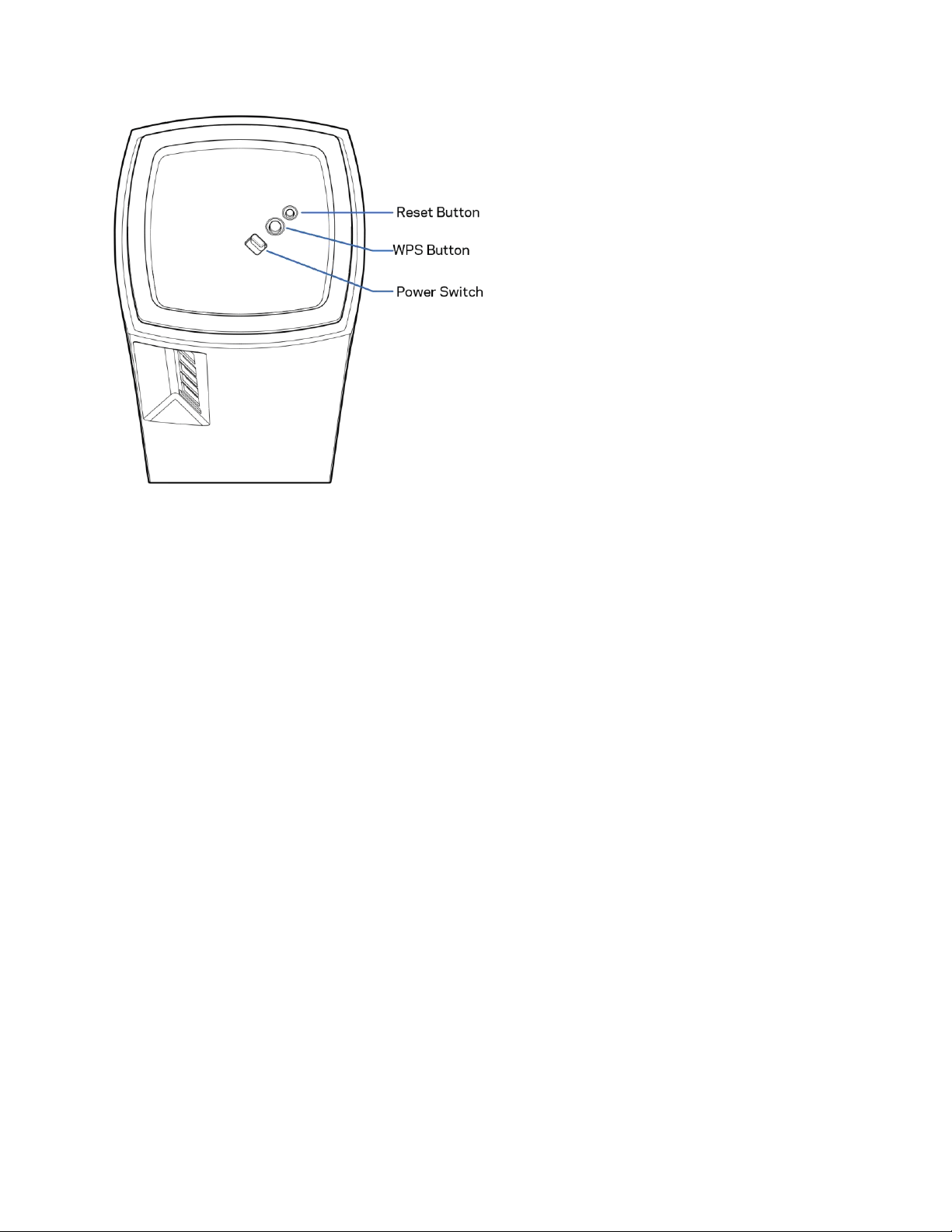
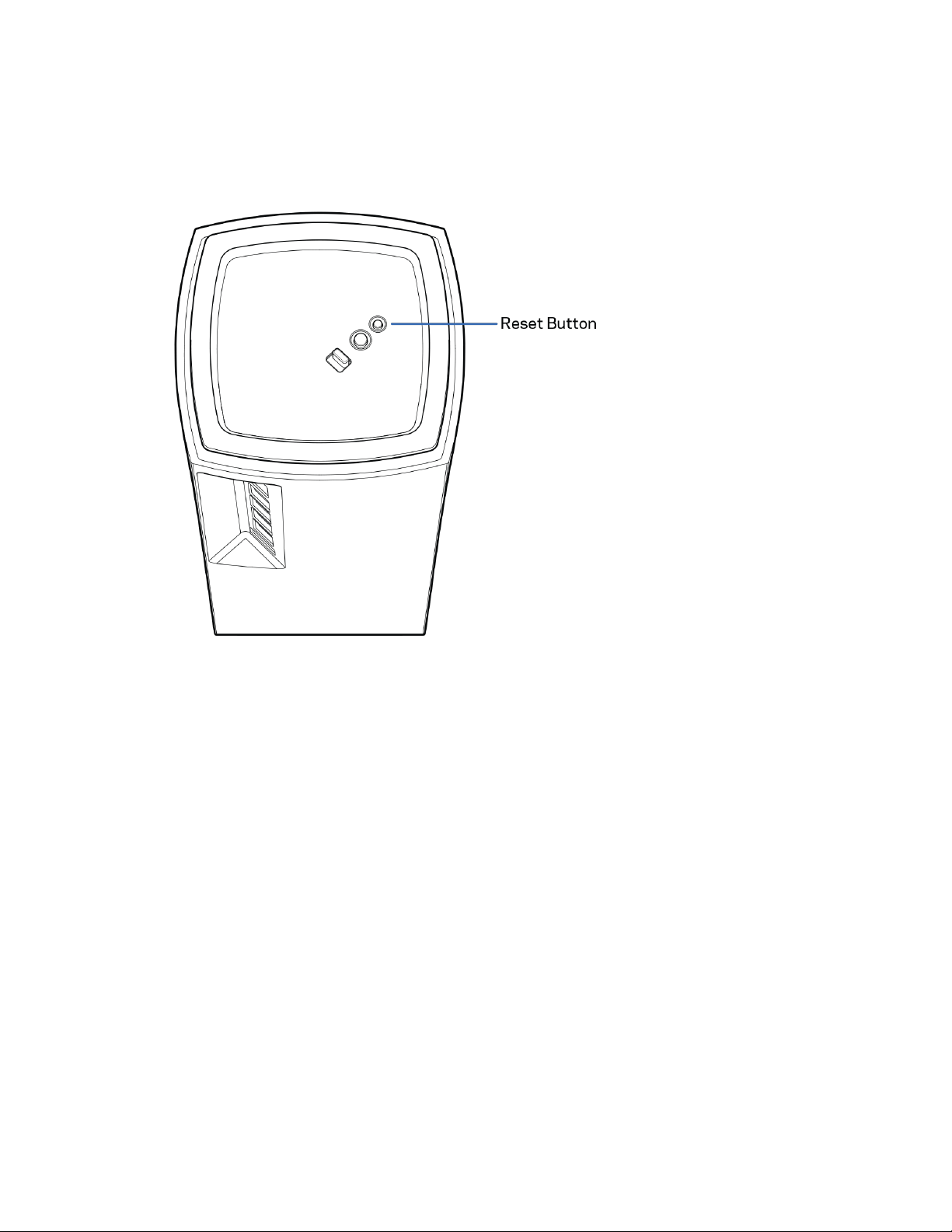
Reset button—Press and hold until the light on top of the node turns red, fades and flashes bright red again to reset
the node to its factory defaults.
Wi-Fi Protected Setup button—Press to connect WPS-enabled network devices. Power switch—Slide
to | (on) to power on the node.
Help
Where to find more help
• Linksys.com/support/Velop
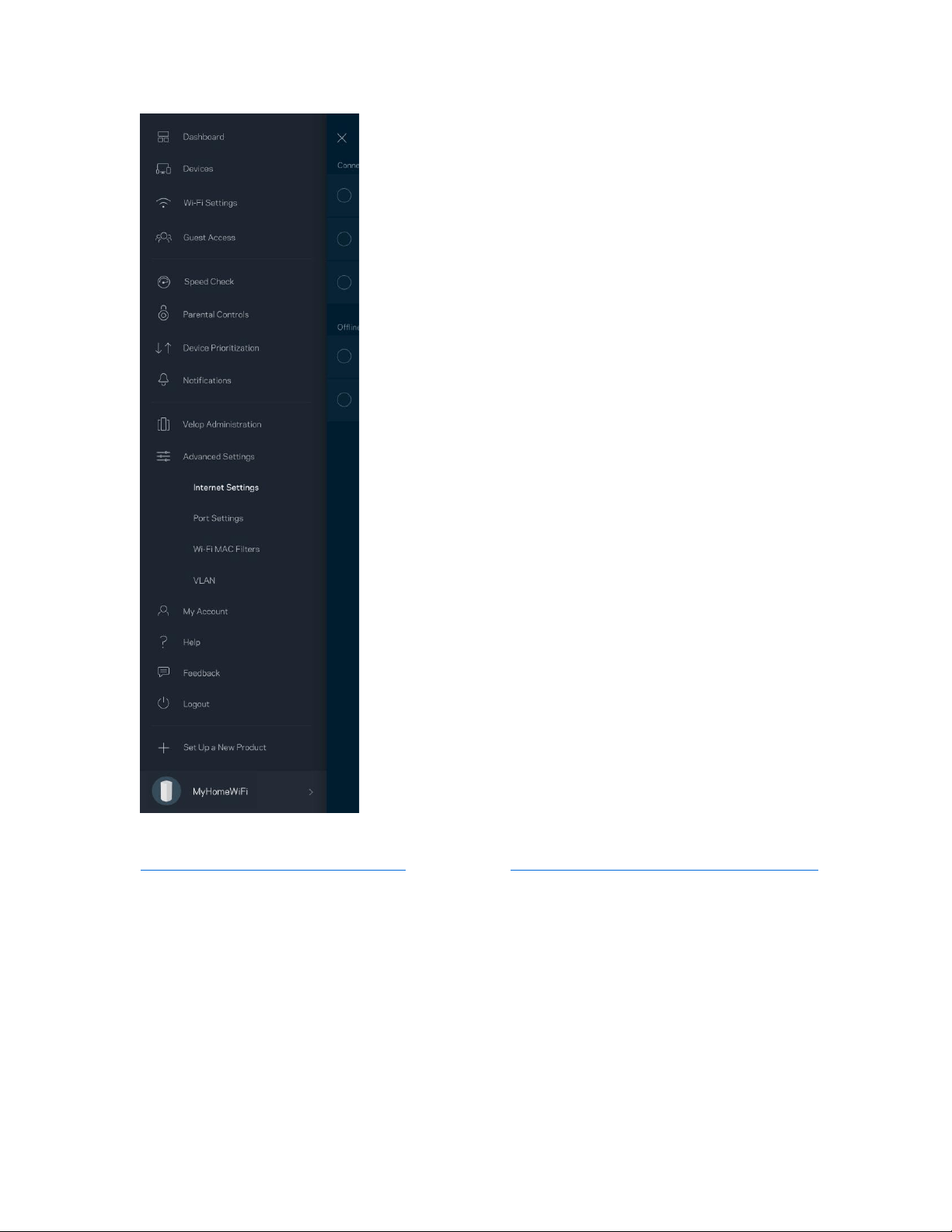
• Linksys app help (launch the app and click Help in the main navigation menu)
6
Note—Licenses and notices for third party software used in this product may be viewed on
http://support.linksys.com/en-us/license. Please contact http://support.linksys.com/enus/gplcodecenter for
questions or GPL source code requests.
Set Up
IMPORTANT—Velop nodes can be set up as primary nodes or child nodes. A primary node must be connected with
an ethernet cable to your modem or modem router. Once set up wirelessly, secondary nodes can be connected to
another node wirelessly or with ethernet cables.
If you are adding this new node as parent node to an existing Velop whole home mesh Wi-Fi system, factory reset all
nodes and add them to the system after the new node is setup and working. Download the Linksys app. You need
this app to set up Velop.
7
Go to the app store for your device and search for Linksys.
Install the app, open it and follow the instructions.
Note—The app works with iOS 11.4 and later, and Android 6 and later.
You will create a Linksys Smart Wi-Fi account so you can use the app to view or change your Velop system settings
from anywhere you have an internet connection.
Among the many things you can do with Linksys Smart Wi-Fi:
• Change your Wi-Fi name and password
• Set up guest access
• Connect devices to Wi-Fi with WPS
• Block internet with parental controls
• Test your internet connection speed
Note—During setup we’ll send a verification email. From your home network, click the link in the email.
Other than plugging in the power and the ethernet cable, the app-based setup process does the work for you. Once
connected, use the app to personalize your Wi-Fi by giving it a name and password. You also can give nodes names
based on where they are so you can identify them in the rare case where things need attention.
Print this page, then record your Wi-Fi and account settings in the table as a reference. Store your notes in a safe
place.
Wi-Fi Name
Wi-Fi Password
Admin Password
Guest Access Name
Guest Access Password
Linksys App Login Email
Linksys App Password
8
Velop System Settings
Using your Linksys app, you can view or change Velop system settings to make your Wi-Fi more secure or to work
better with a device or game. You can access settings from anywhere in the world if you have an internet
connection. You can also access settings using your router password when connected to your home network even if
you do not have an internet connection.
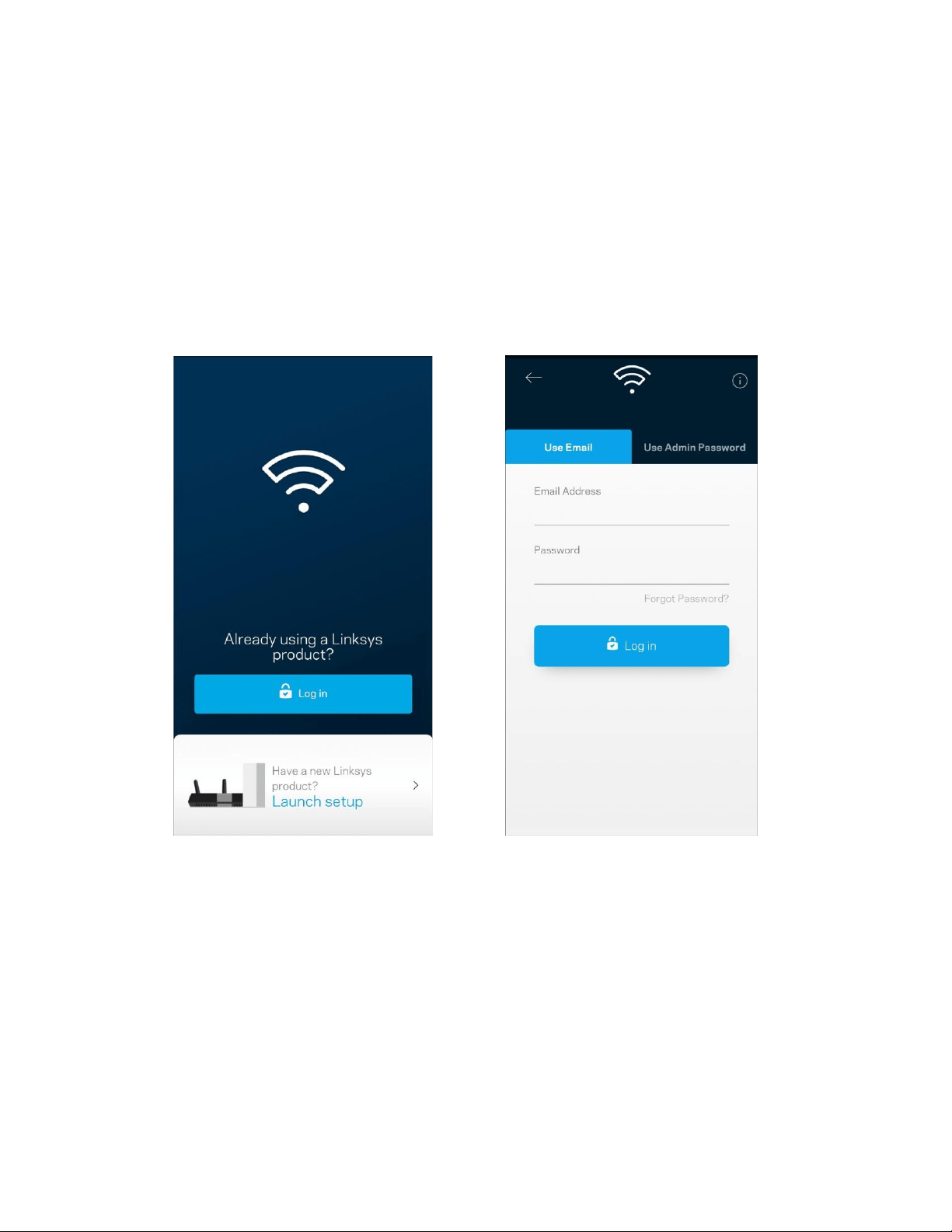
Log in to the Linksys app
1. Open the Linksys app.
2. Enter the email address you used when creating your account.
3. Enter your account password.
4. Tap Log in.
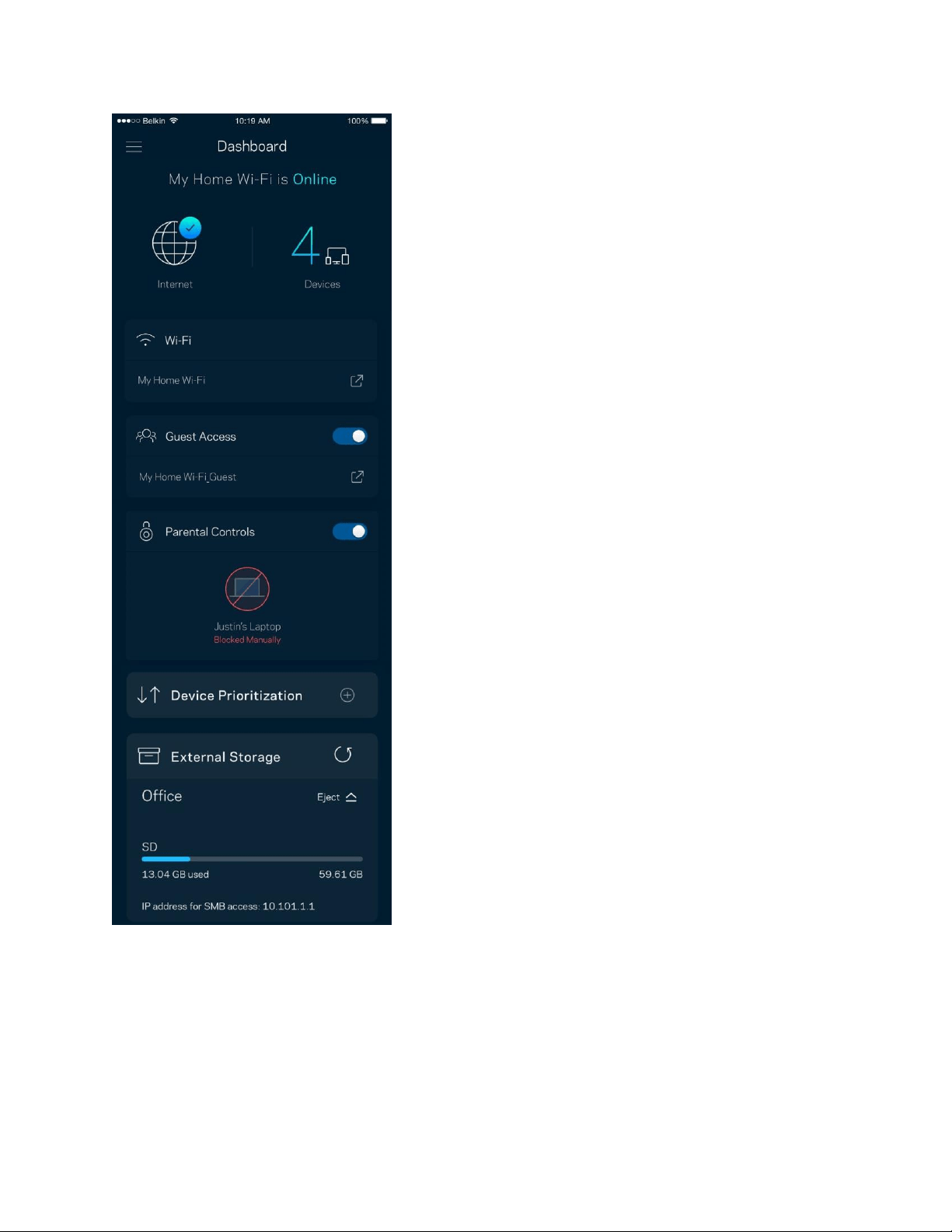
Dashboard
Dashboard is a snapshot of your Wi-Fi. See how many devices are connected to your Velop system. Share Wi-Fi
password and allow guest access to your Wi-Fi. Dashboard also shows you if any devices have parental controls on
them or have been prioritized for Wi-Fi access.
9
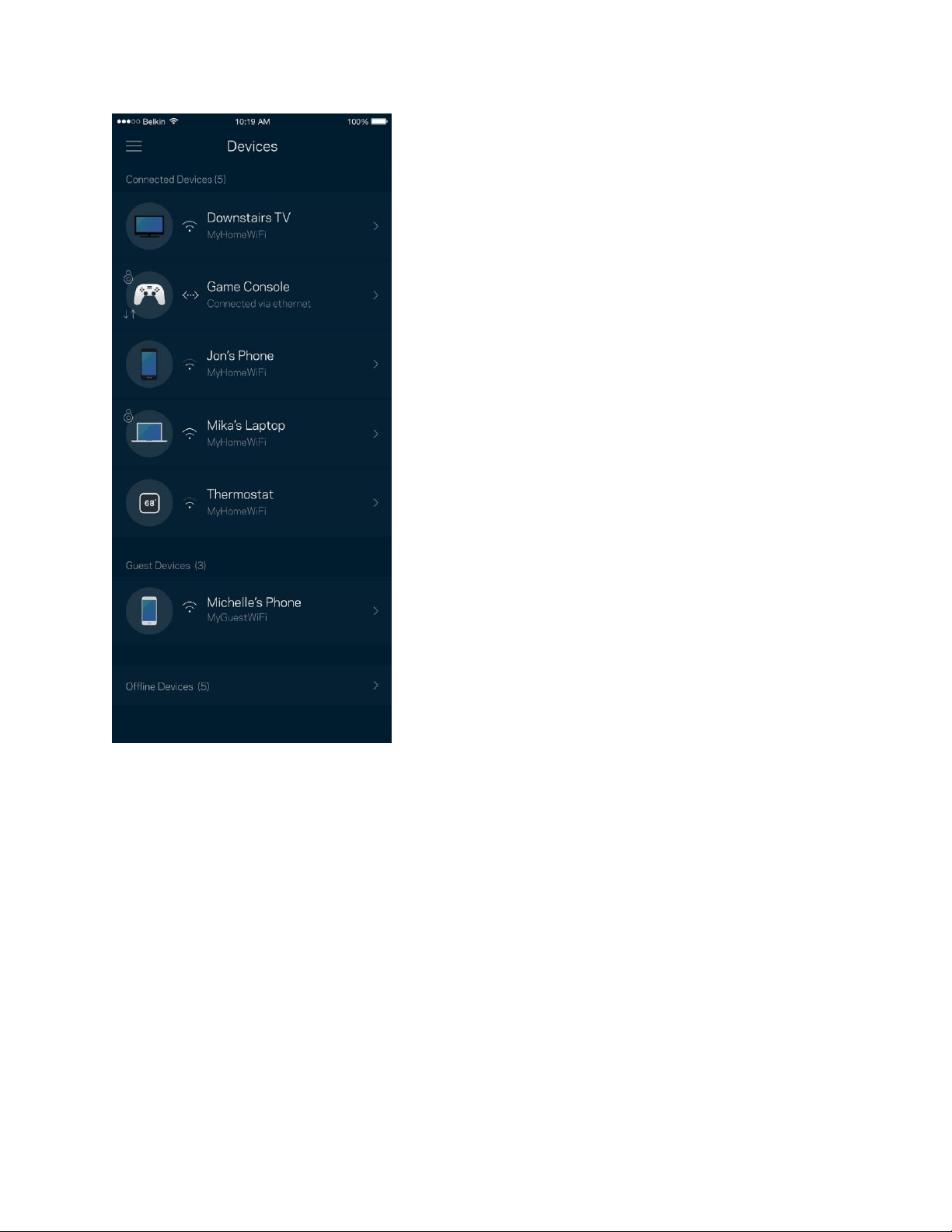
Devices
View and change details for all devices connected to your Wi-Fi. You can view devices on your main network and
your guest network, or display information about each device.
10
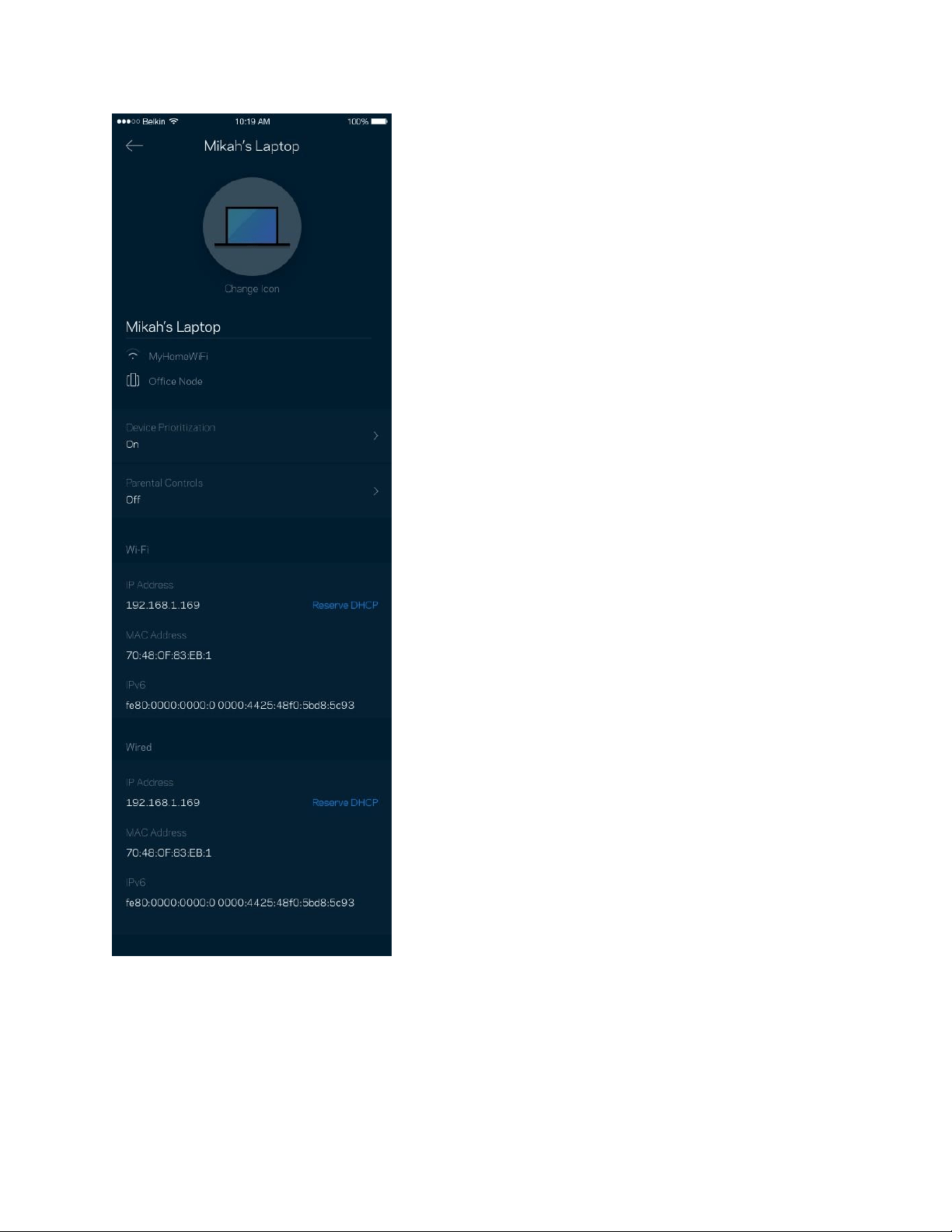
To view or change device details
From the Devices screen you can edit device names and change the device icons. You also can prioritize devices, set
parental controls, and see Wi-Fi details. Tap on any device to see details.
11
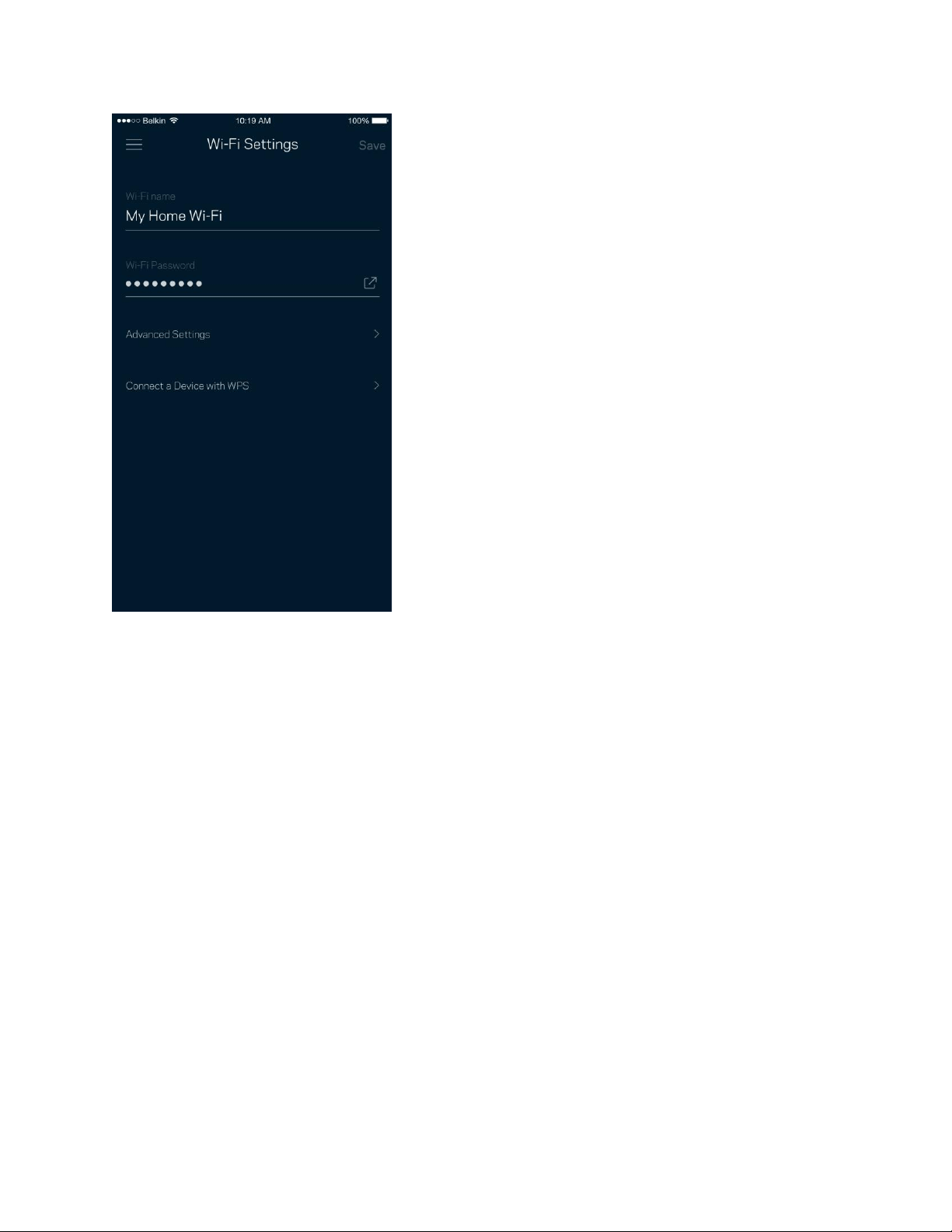
Wi-Fi Settings
View or change your Wi-Fi name and password and connect devices using Wi-Fi Protected Setup™.
12
13
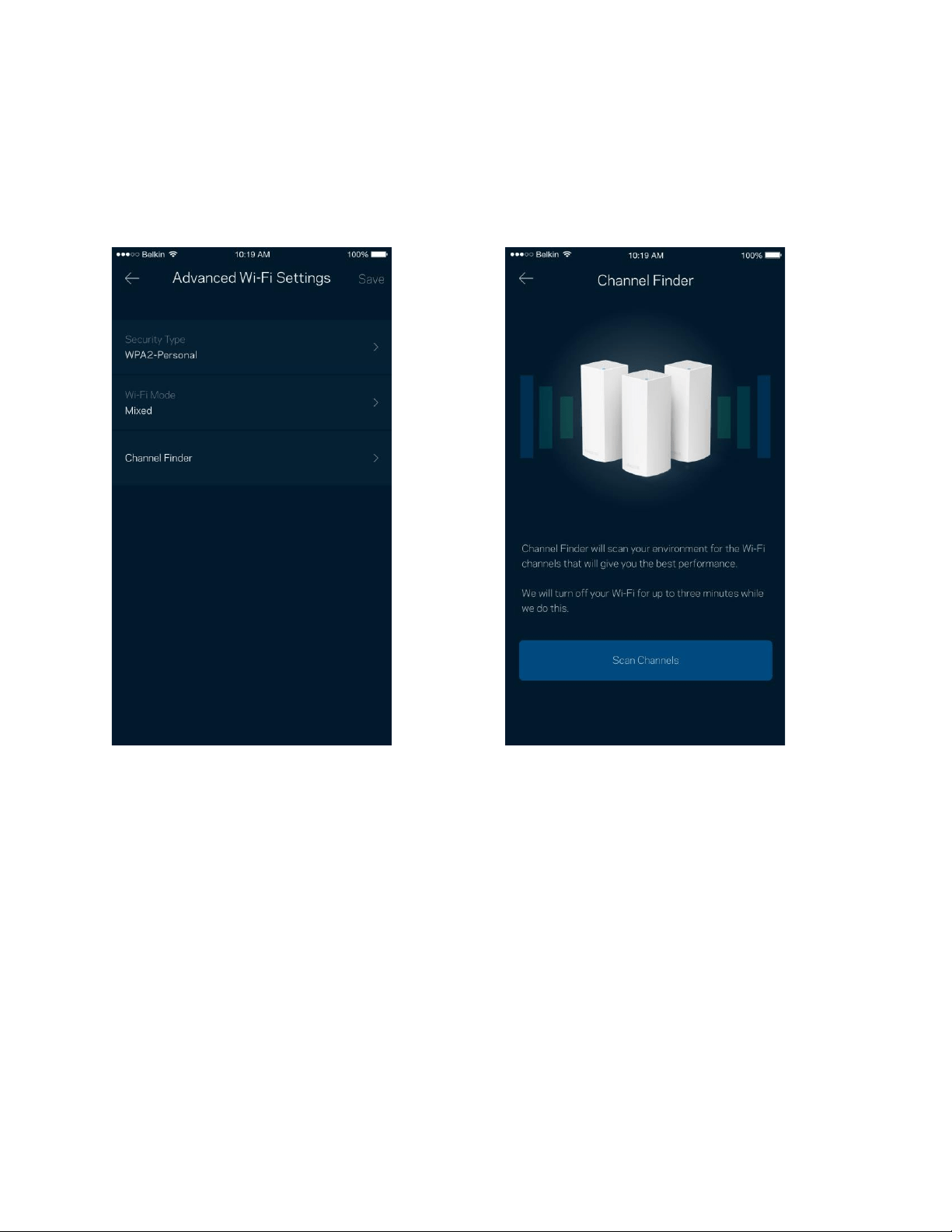
Advanced Settings
Advanced users can change the default security type and Wi-Fi mode. Do not change these unless you have a lot of
experience with Wi-Fi networks. Channel Finder will search for the most-open Wi-Fi channels in your area to ensure
you get the best performance from your Velop system. If you have more than one node in your Velop system,
Channel Finder will find the best channel for each node.
14
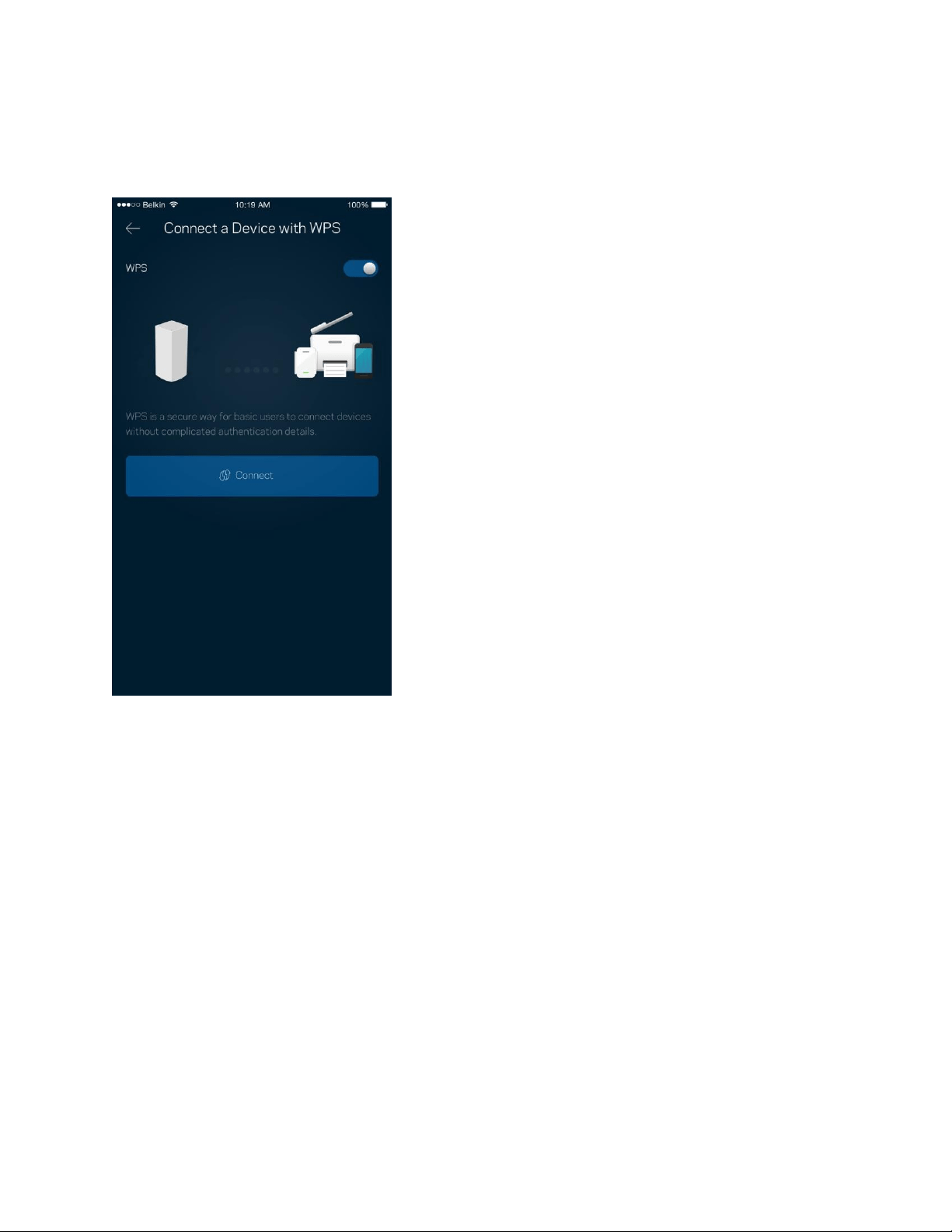
Connect a Device with WPS
Wi-Fi Protected Setup allows you to easily connect wireless devices to your Wi-Fi without manually entering security
settings.
15
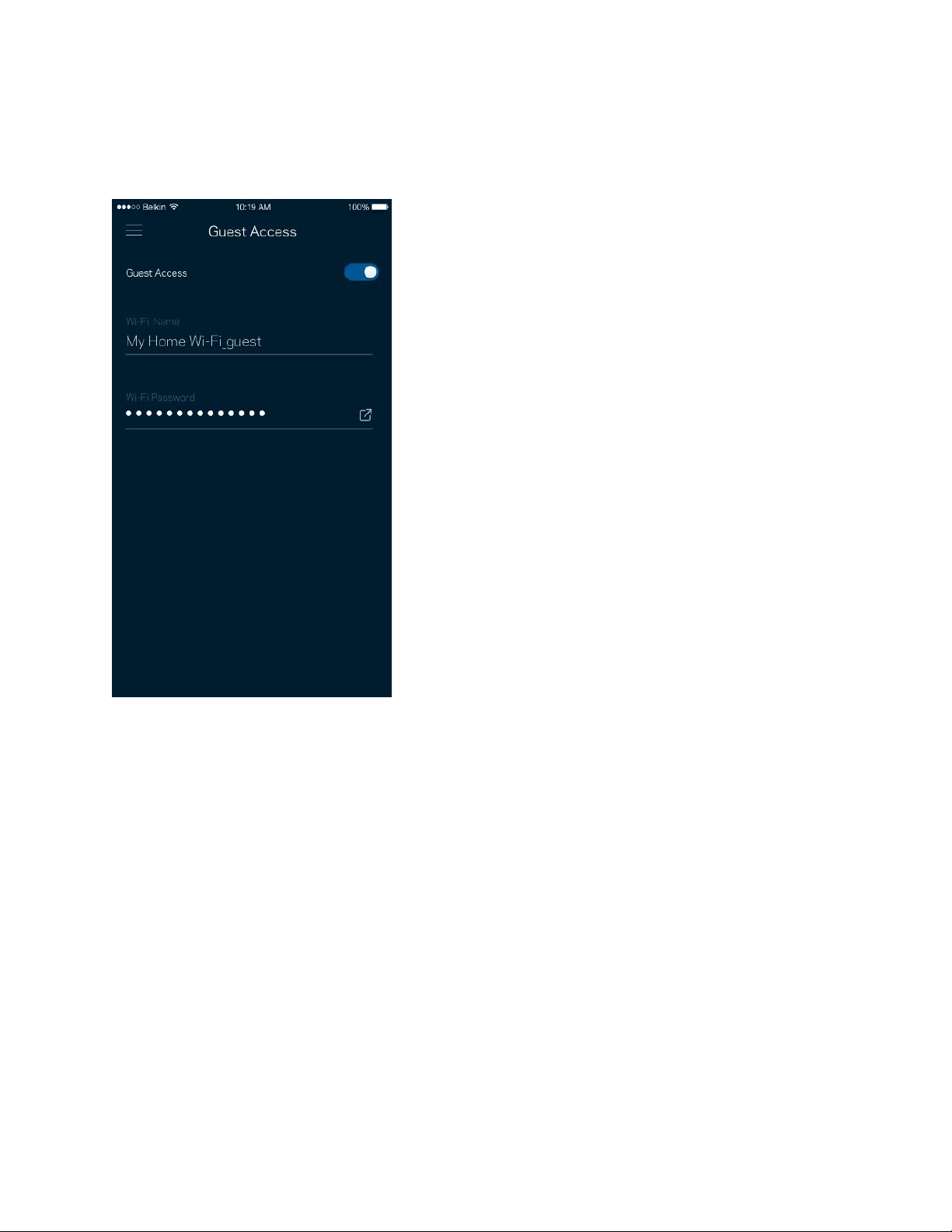
Guest Access
Use your Guest Access to allow guests to get online while restricting their access to other resources connected to
your Wi-Fi. Send the password by text message or email.
16
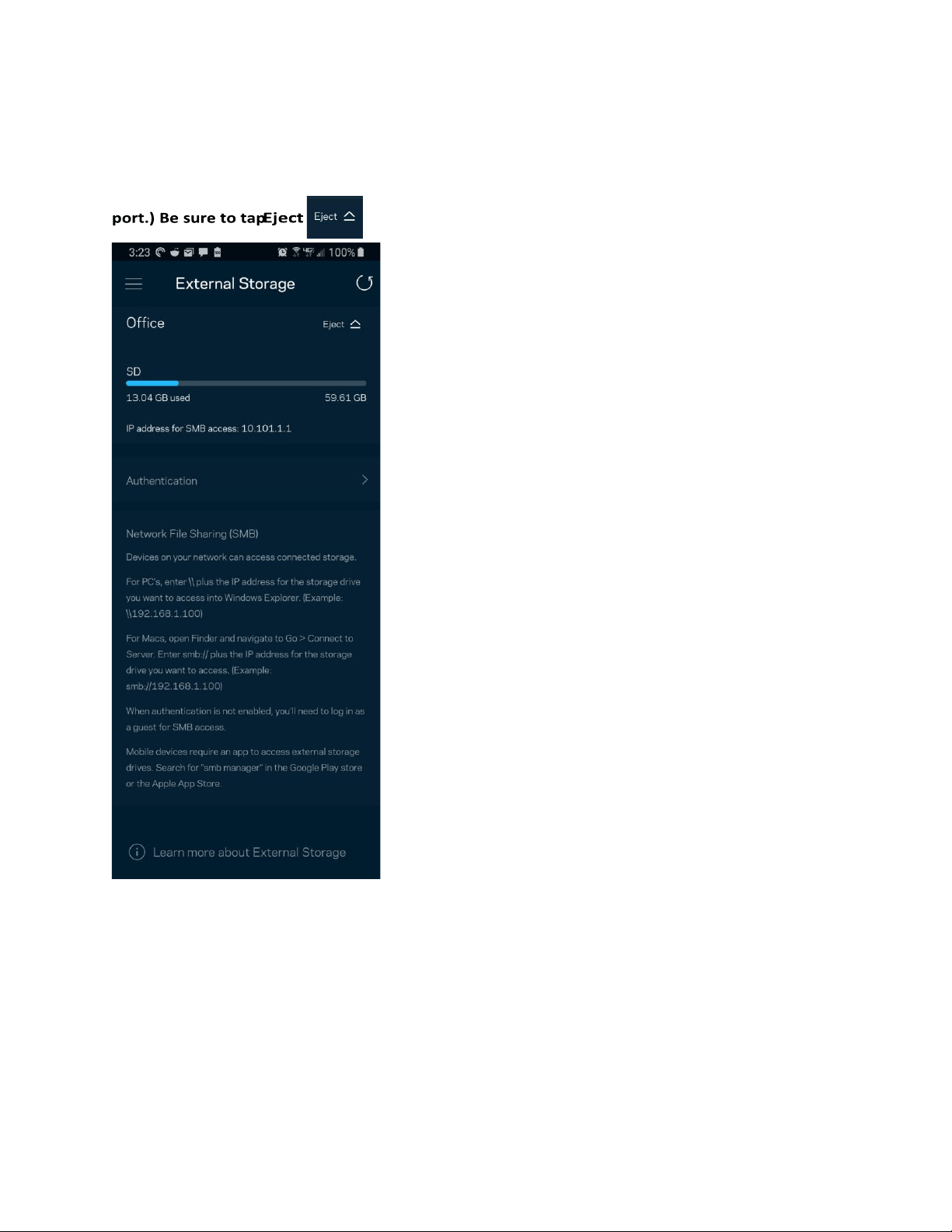
External Storage
See which node an external drive is connected to, check the amount of free space left, and enable authentication by
setting a username and password. (Only when a drive is plugged in to a node’s USB
before removing a drive to avoid losing data.
17
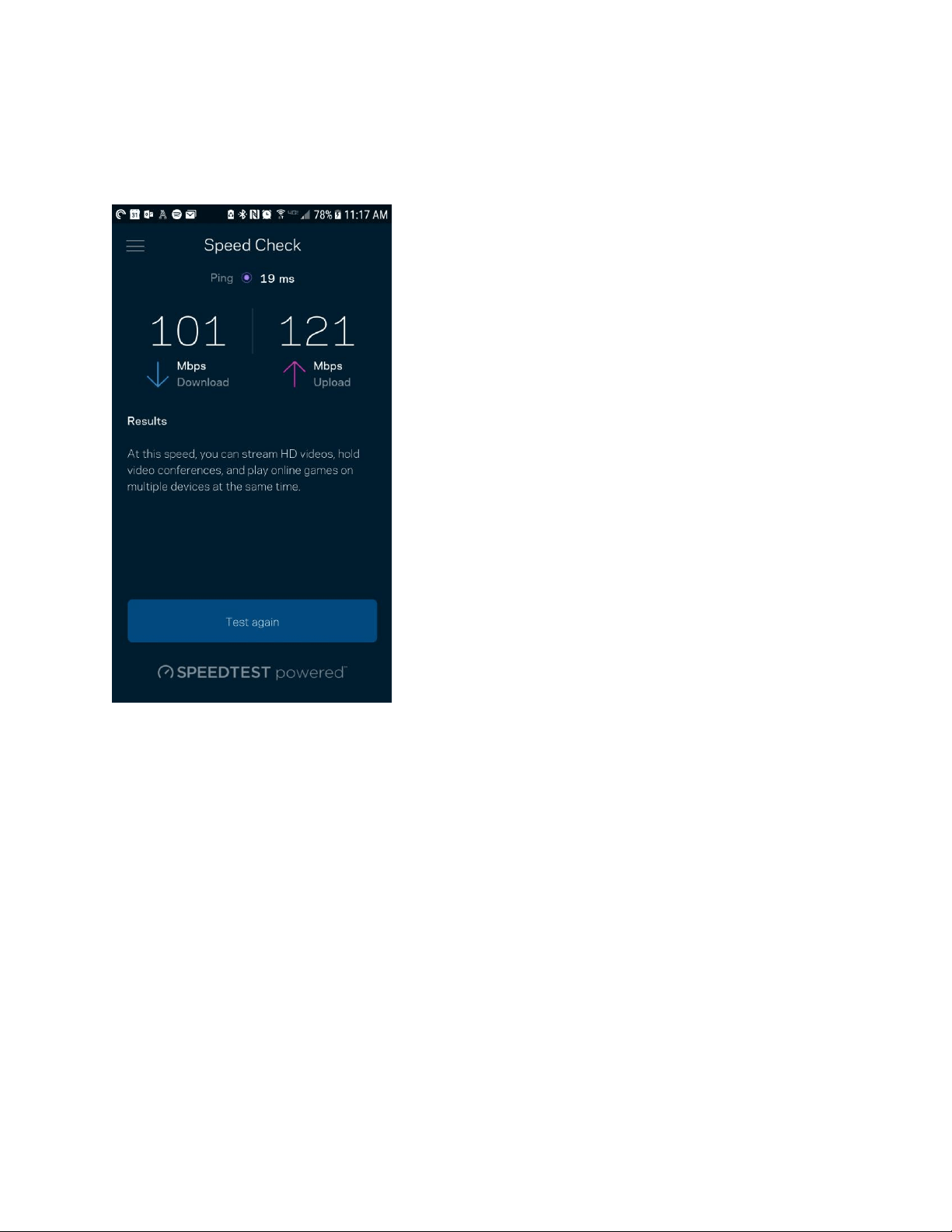
Speed Check
Run a speed check to make sure you are getting the speeds you are paying for. Speed check also helps in Device
Prioritization because results determine how Wi-Fi is distributed to the prioritized devices.
• Download speed is the rate at which internet content is transferred to your Velop system.
• Upload speed is the rate at which you can upload content to the internet.
Note—Internet connection speeds are determined by a variety of factors, including ISP account type, local and
worldwide internet traffic, and number of devices in your home that are sharing the internet connection.
Parental Controls
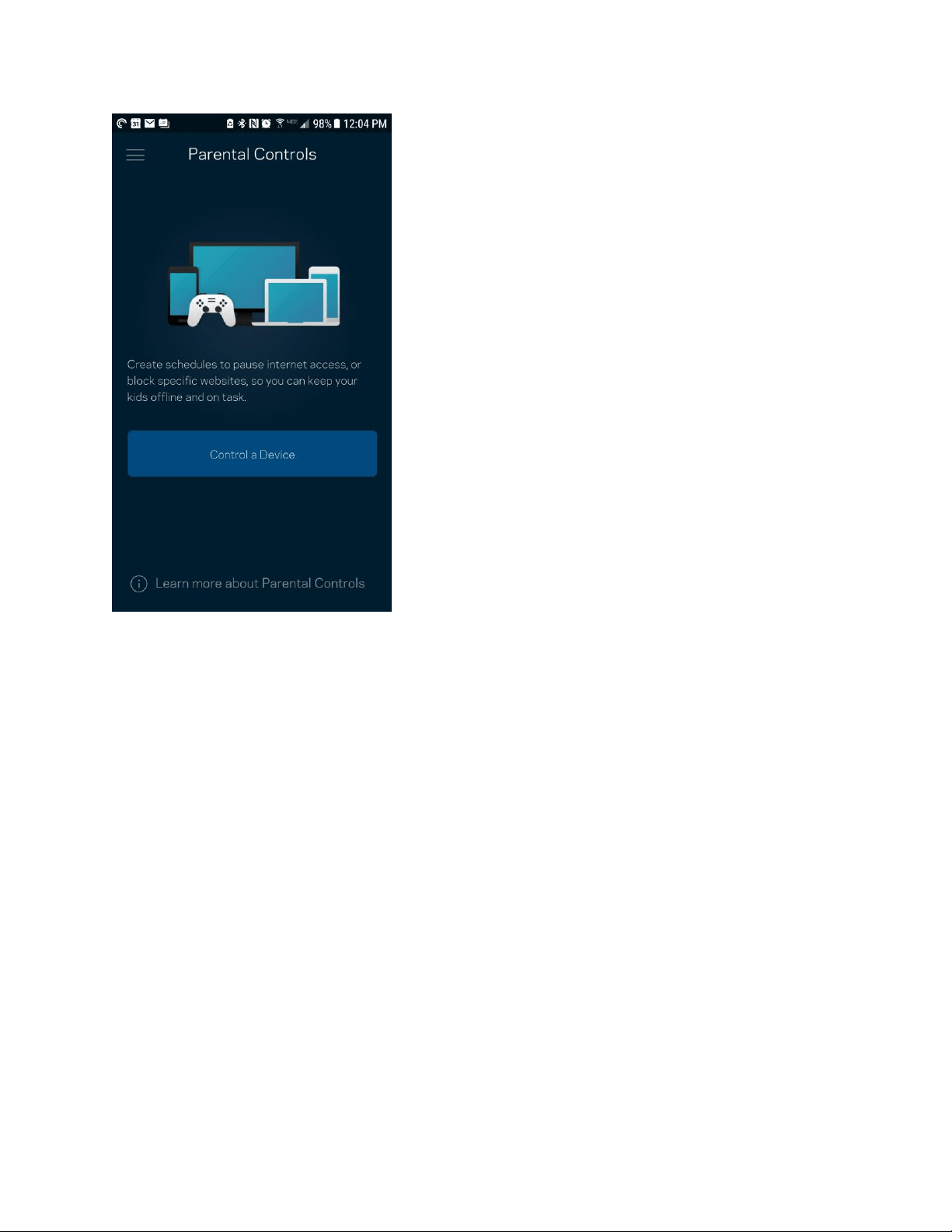
Parental controls allow you to control when your kids are online and what they’re doing there. Pause internet to
specific devices, or block specific websites.
18
Device Prioritization
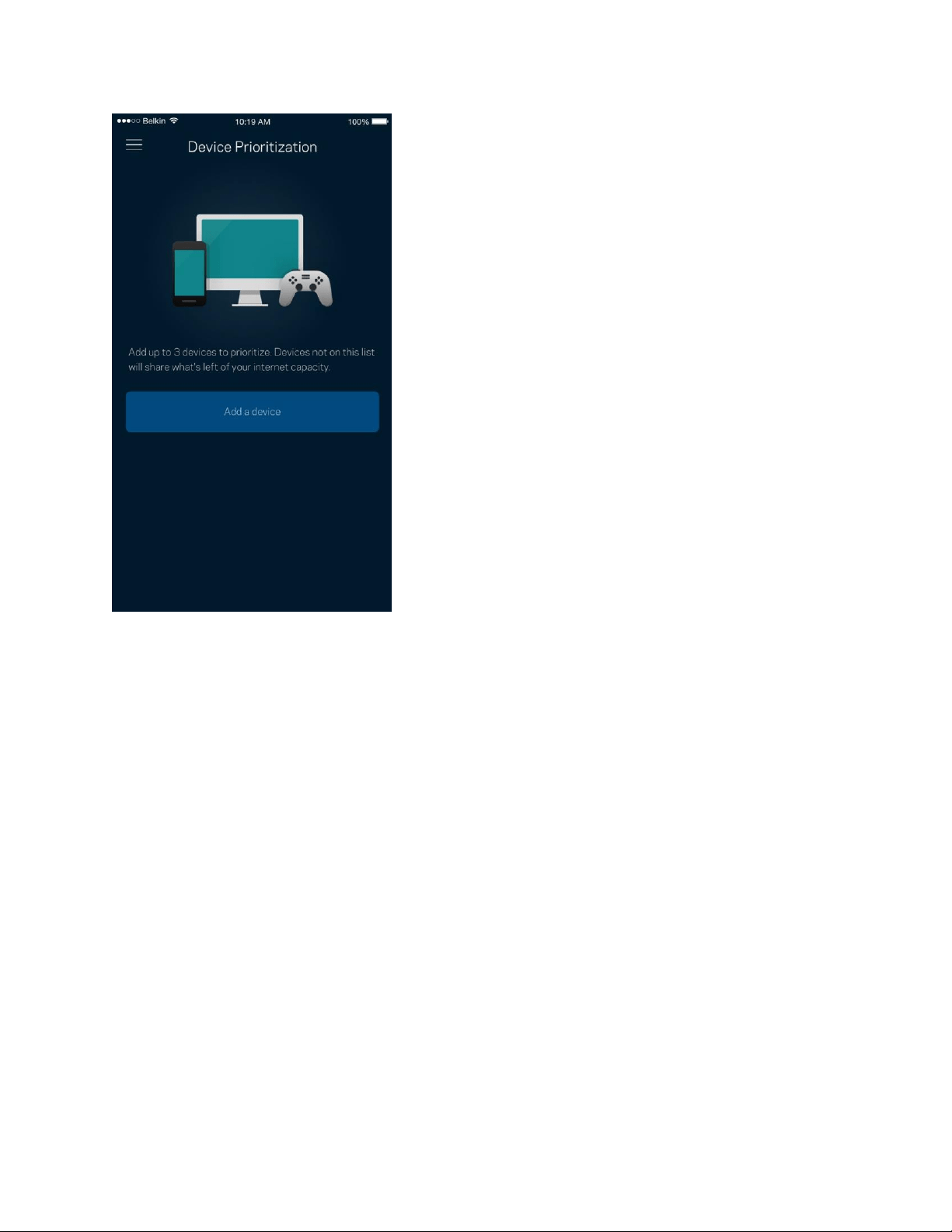
Choose up to three devices for priority usage of your internet connection. Those devices – wired and/or wireless –
always will have the best access when connected. Velop runs a speed check to determine how to best distribute Wi-
Fi to prioritized devices. Other devices will share the leftover capacity. Prioritized devices appear on Dashboard.
19
20
Notifications
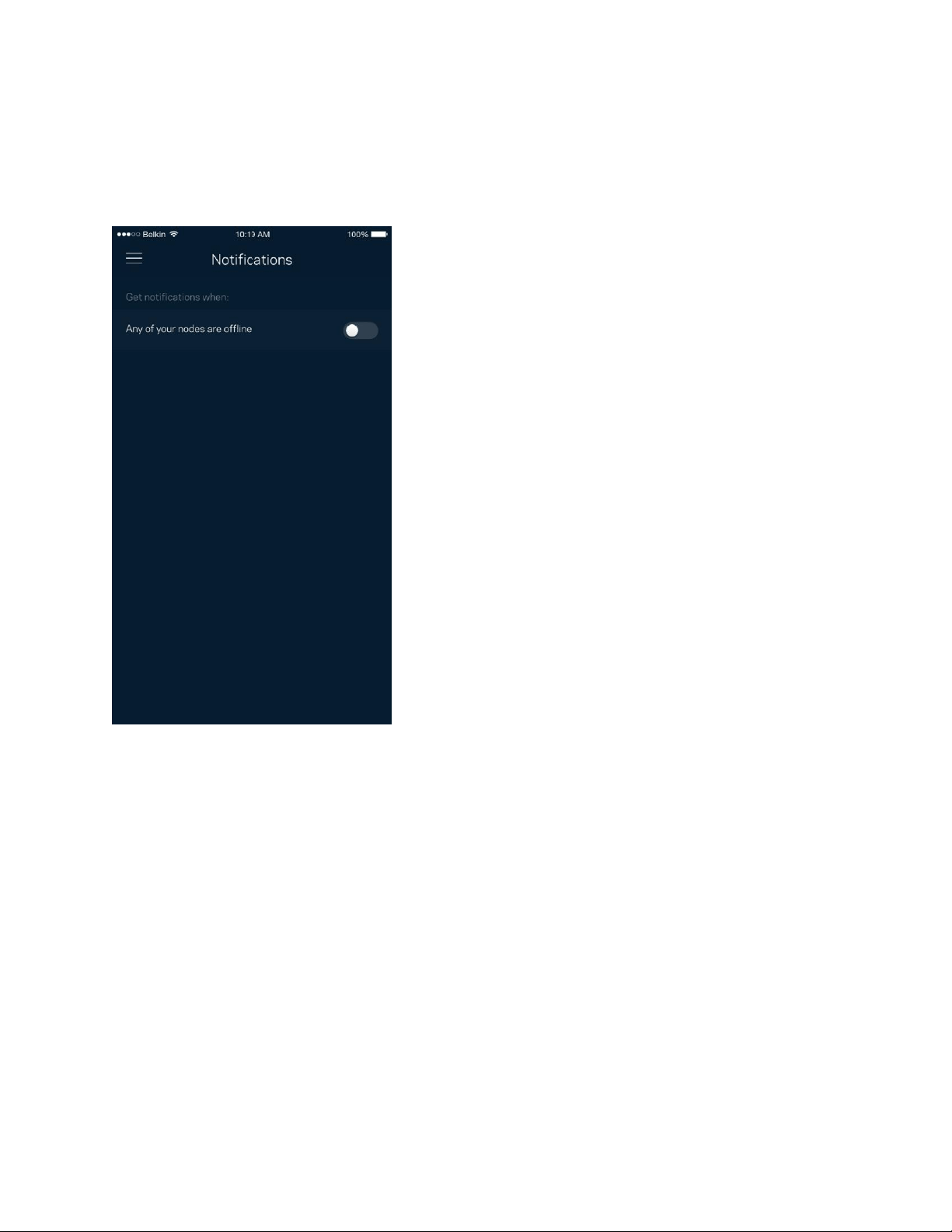
If you have more than one node, Velop can notify you when secondary nodes in your system go offline. Secondary
nodes are any that are not wired to your modem. You have to turn on notifications in your mobile device settings to
allow Velop to notify you.
Velop Administration
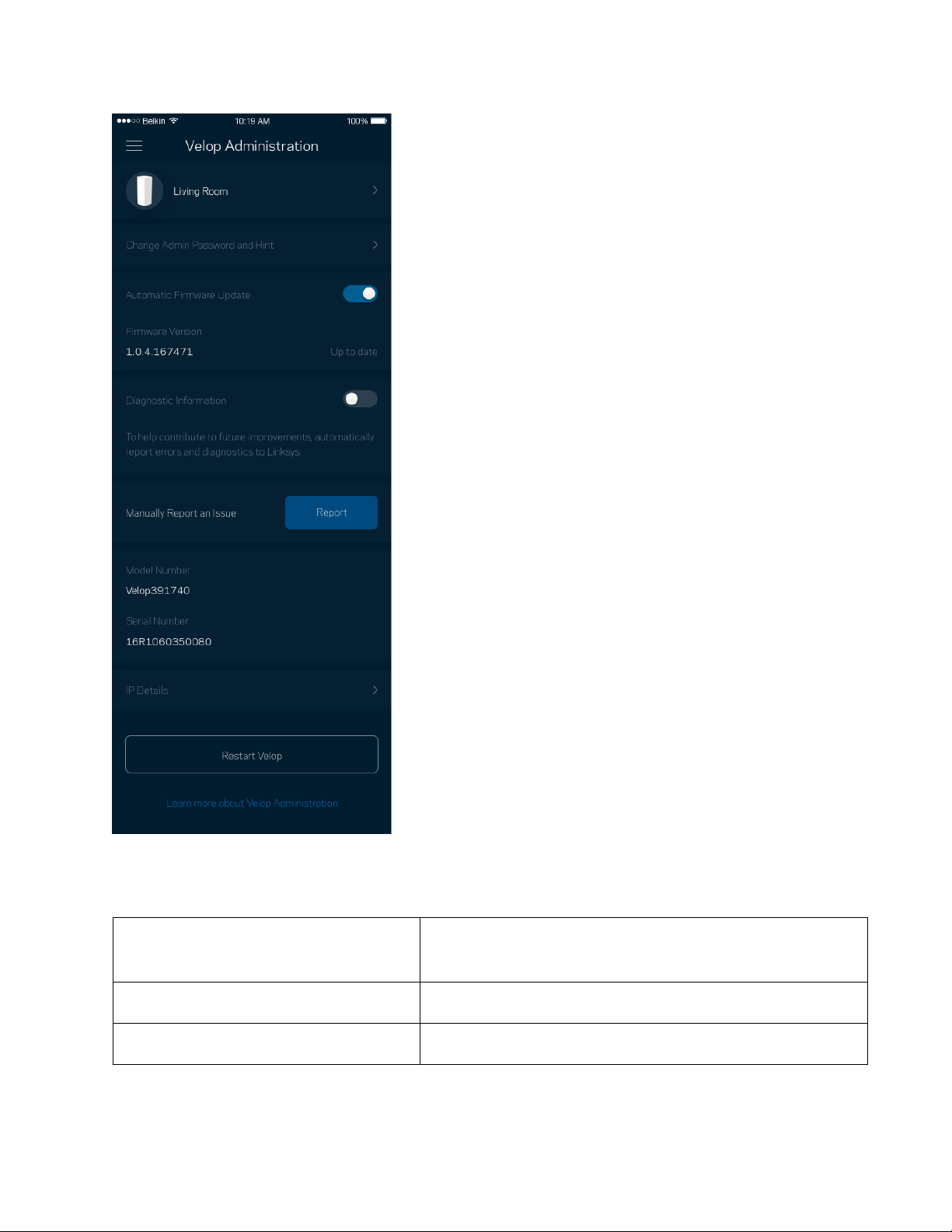
Use the Velop Administration screen to change the admin password and hint, and check various identifiers (model
number, serial number, and IP details) for all nodes in your Wi-Fi.
21
Opt in to automatically report crashes to Linksys and contribute to improving the Wi-Fi experience.
You also can manually report specific issues to Linksys.
The following information will be sent with your description of the issue:
•
App version
•
Login Type (cloud: show email address associated, local:
display "Velop admin")
•
Device model
•
WAN Connection type (display Wi-Fi or ethernet)
•
Device OS version
•
Time: date (mo/day/year, time, time zone)
22
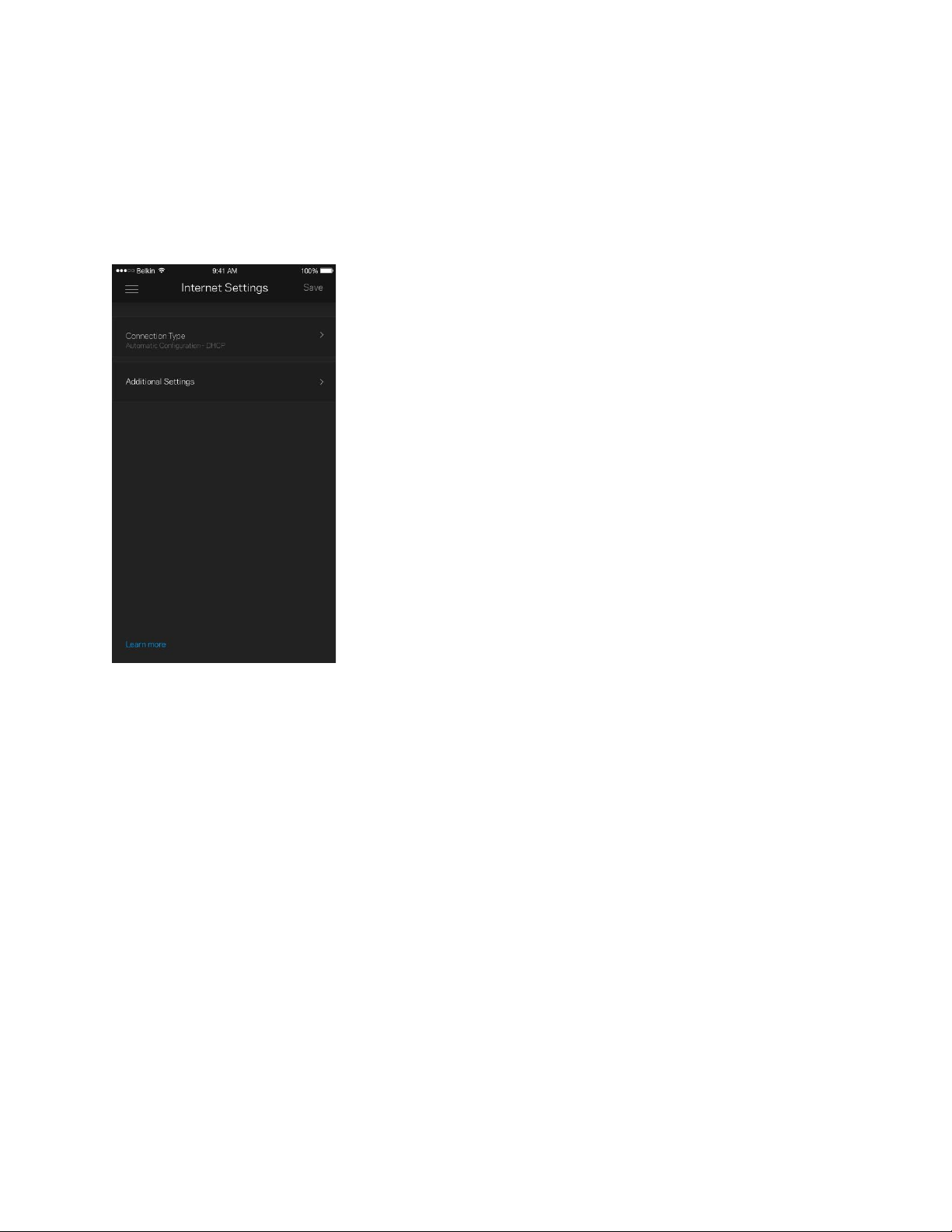
Advanced Settings
Internet Settings
You can choose how your Velop system connects to the internet. The default is Automatic Configuration – DHCP.
Other connection types depend on your internet service provider or how you plan to use your Velop system.
Advanced users can use Additional Settings to clone MAC addresses and set MTU (maximum transmission unit).
23
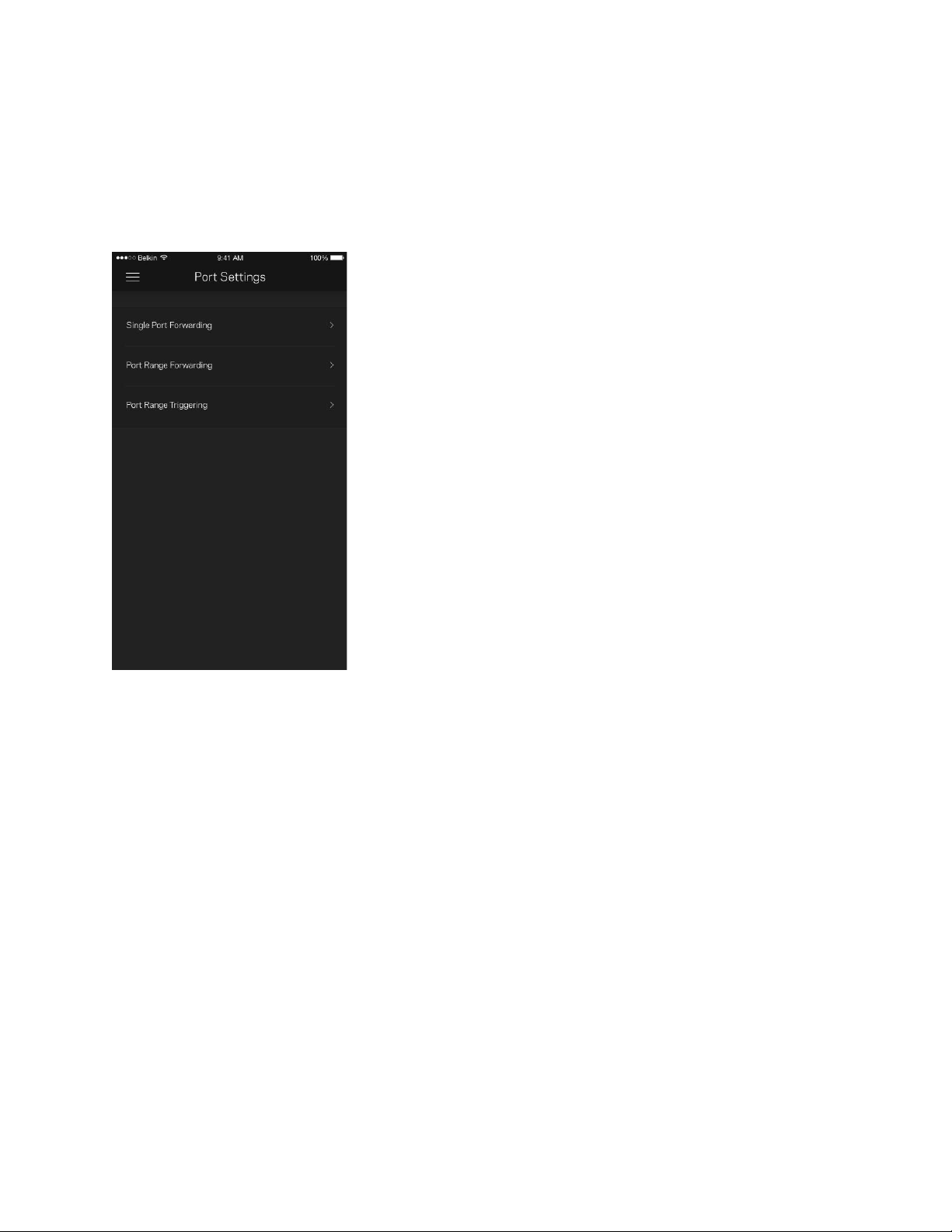
Port Settings
Port forwarding—for a single port, multiple ports or a range of ports—sends traffic inbound on a specific port or
ports to a specific device or port on your Wi-Fi. In port range triggering, Velop watches outgoing data for specific
port numbers. Velop remembers the IP address of the device that requests the data so that when the requested
data returns, it is routed back to the proper device.
24
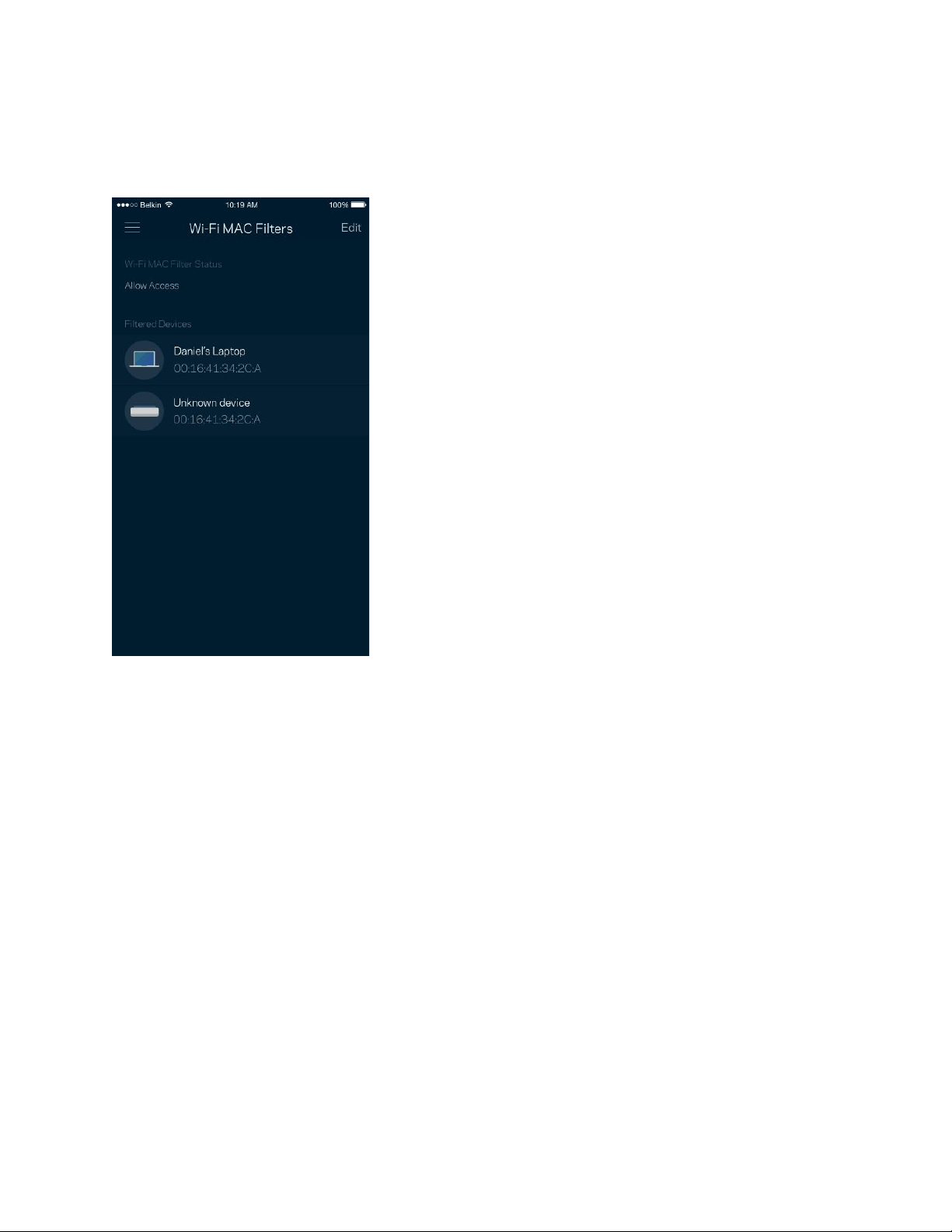
Wi-Fi MAC Filters
Every network device has a unique 12-digit MAC (media access control) address. You can create a list of MAC
addresses and regulate how devices use your Wi-Fi.
25
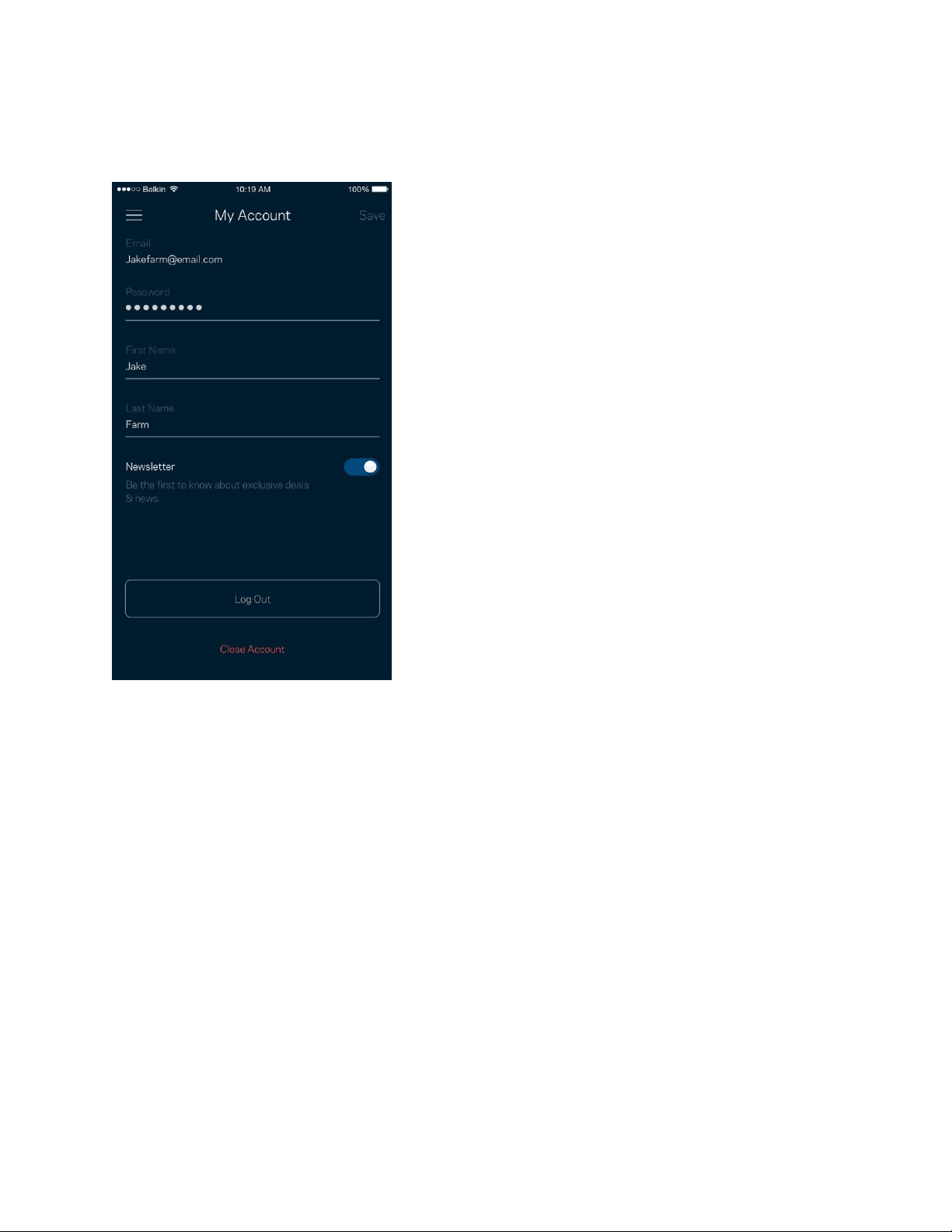
My Account
Change your Linksys app password and opt in to receive the latest news and deals from Linksys.
26
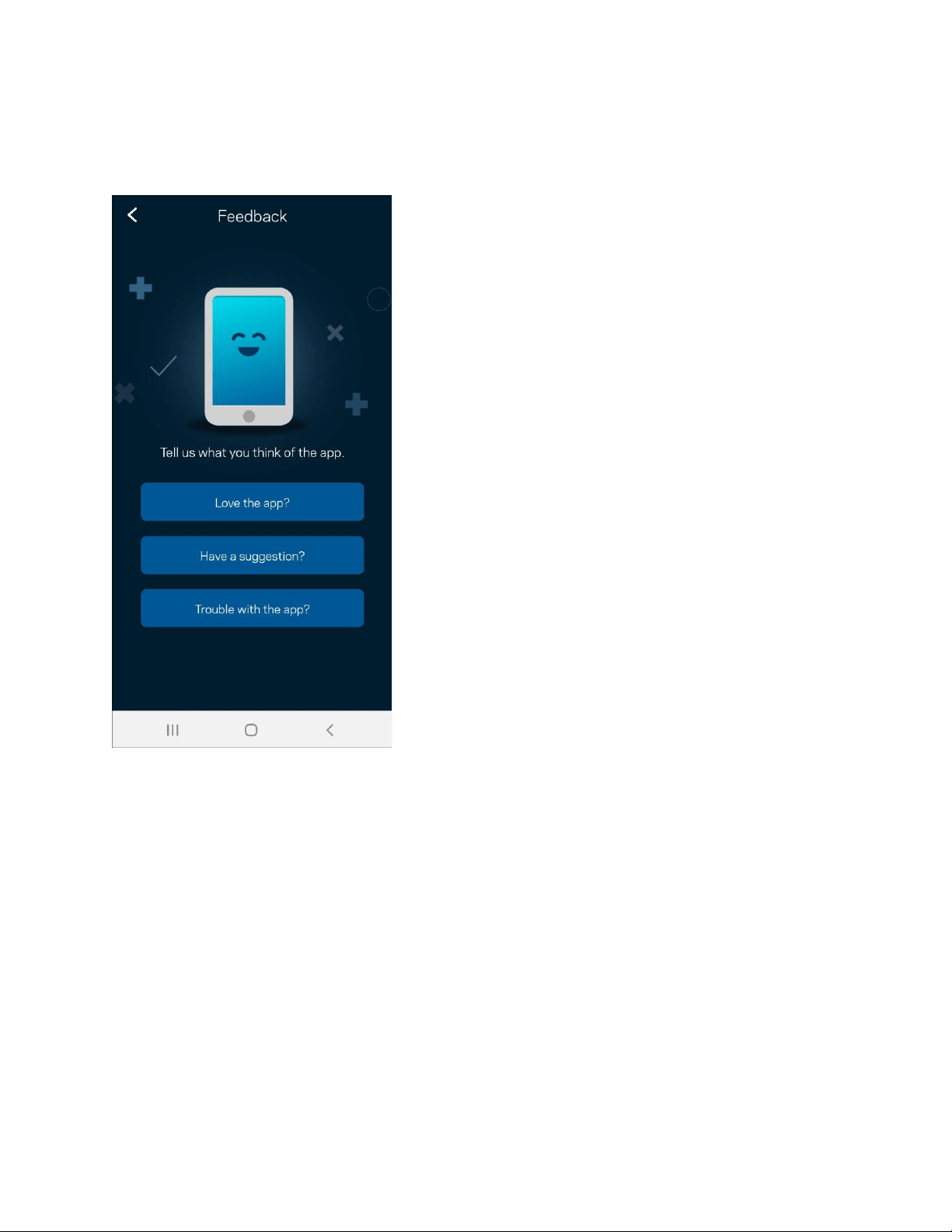
Feedback
Here’s your chance to tell us what you think. Rate the app at your app store, send us a suggestion, or report an issue
that’s keeping you from a great experience.
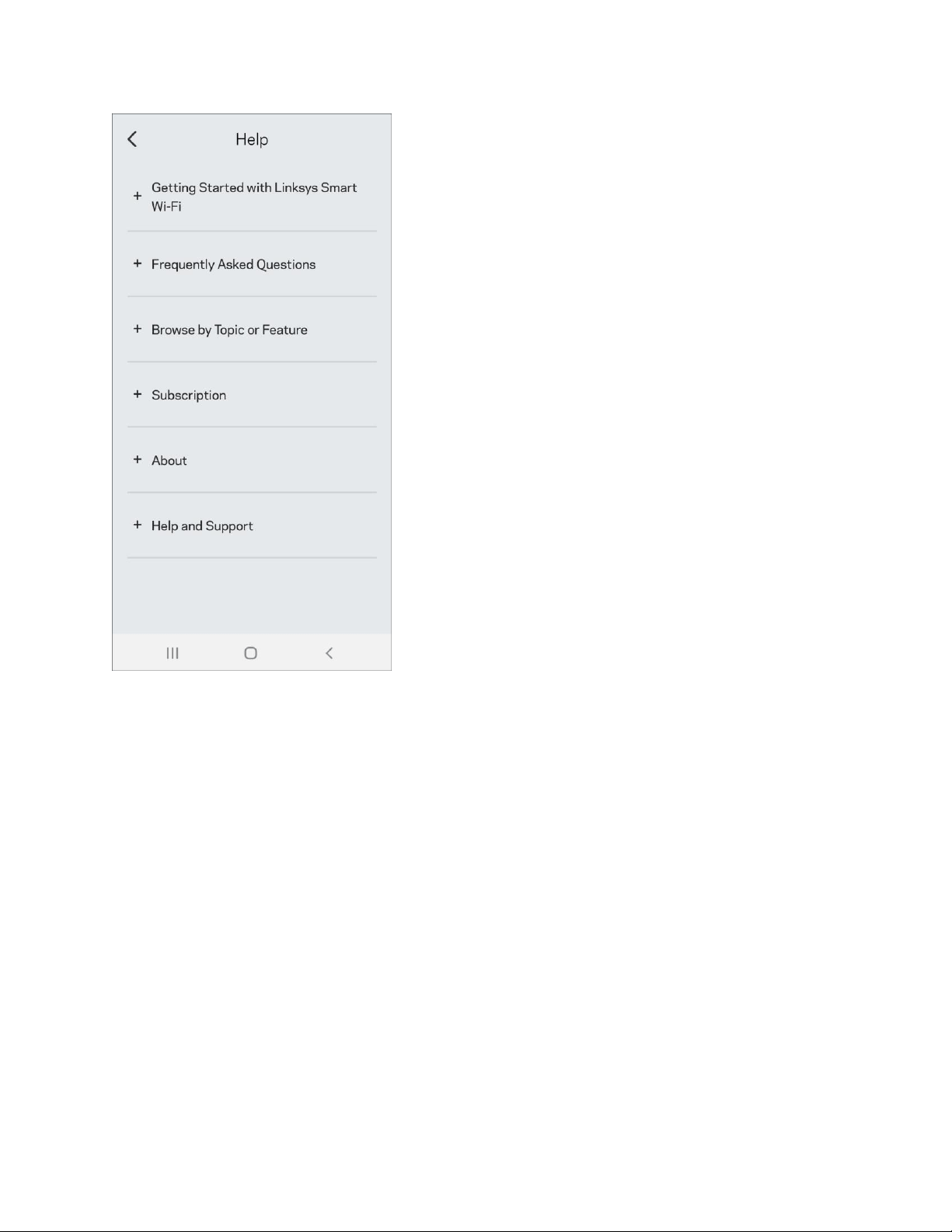
Help
Having trouble with the app? Just need a little more information about a feature? Tap Help for an explanation.
27
28
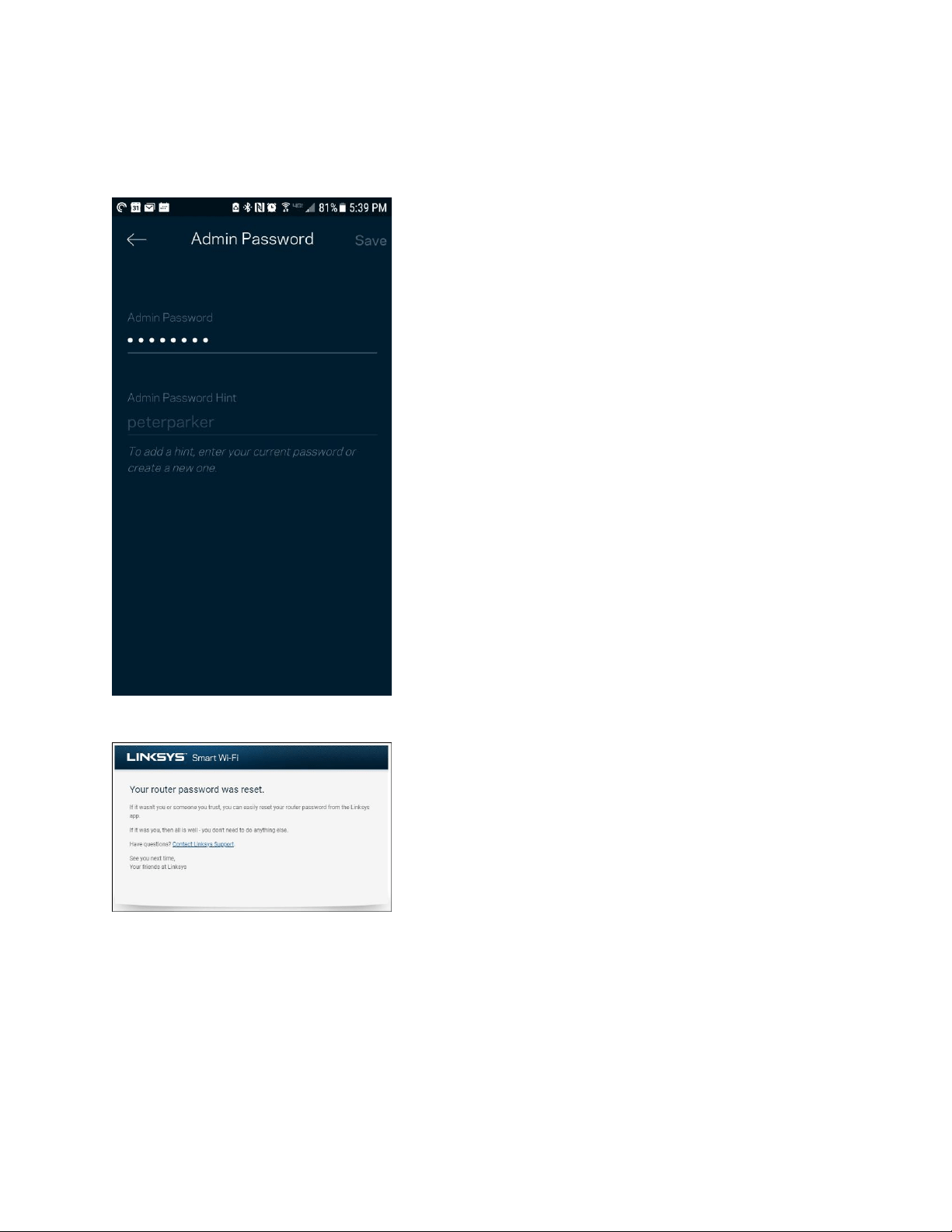
Connect Directly To Velop
If you are not connected to the internet you still can access your Velop system. Connect to your Wi-Fi name, launch
the Linksys app and tap Use Admin Password. You will not be able to access your Linksys Wi-Fi account when not
online.
29
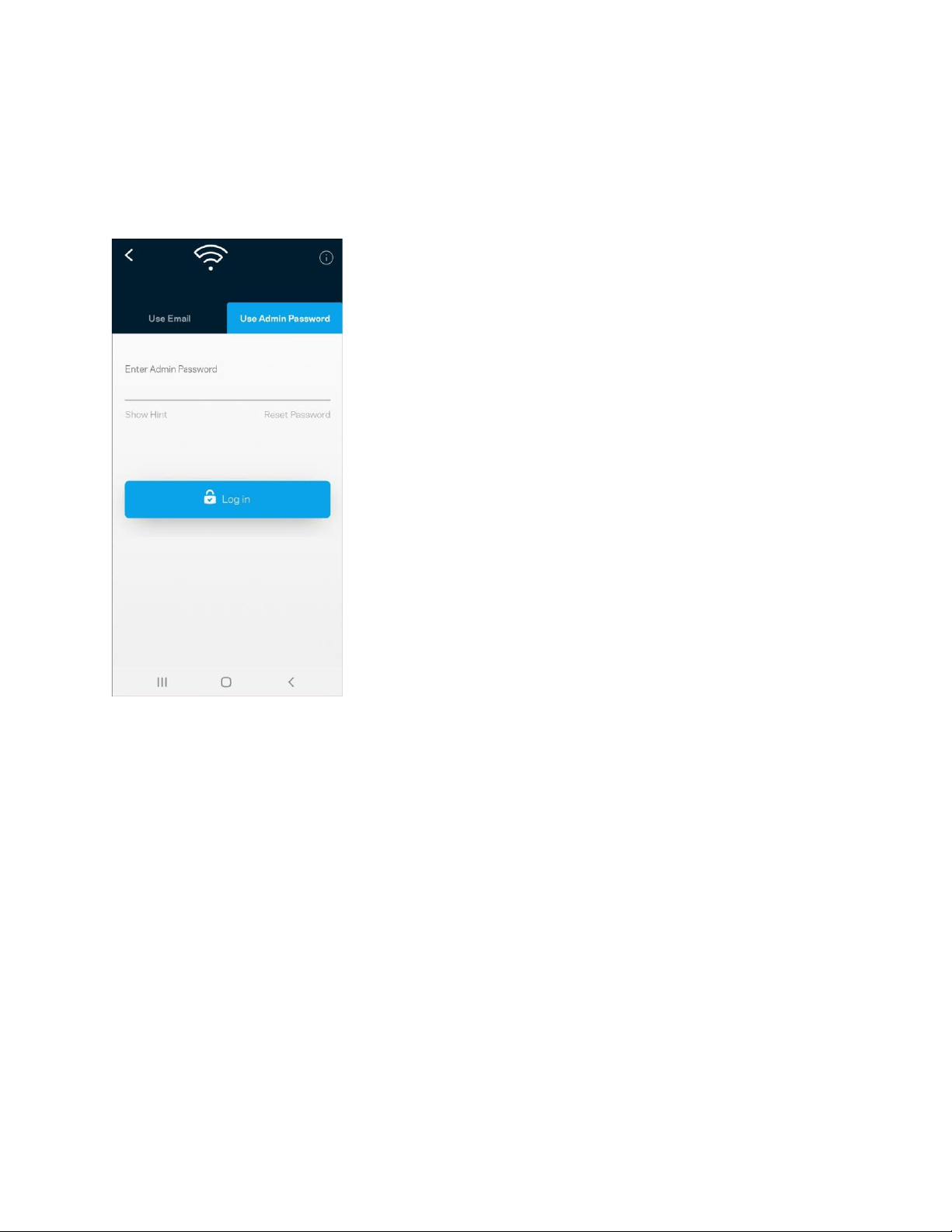
Velop admin password
We created a secure admin password during setup. To change it, tap Velop Administration and Change Velop
Password and Hint.
To keep your Velop system secure, we'll send you an email if someone changes the admin password.
How to restore factory defaults
You should never need to factory reset your Velop—a very disruptive process. A factory reset restores your Velop
system to the state it was when you took it out of its box, requiring you to go through the setup process again. All
settings you have customized in setup and since – things such as Wi-Fi name, passwords, security type – will be
erased. All wireless devices will disconnect from your Wi-Fi.
To reset Velop:
30
• With your node connected to power and turned on, press and hold the Reset button on the bottom. The
light on top of the node will turn red and fade in pulses. Do not release the button until the light goes out
and then turns bright red.
Specifications
Linksys Velop
Model Name
Model Number
Switch Port Speed
Radio Frequency
# of Antennas
Ports
Buttons
Light
Security Features
Security Key Bits
Velop AX4000/ AX4200 WiFi 6 System
MX4000 series
10/100/1000 Mbps
2.4 GHz and 5 GHz
9 (internal)
USB 3.0, ethernet, internet, power
Power switch, WPS, reset
One, multicolored light for power and status
WPA2-Personal, WPA3-Personal
Up to 128-bit encryption
Environmental
Dimensions
4.45 in x 4.45 in x 9.57 in

31
Unit Weight
.95 kg (2.15 lb)
Power
12V, 3A
Certifications
FCC, IC, CE, Wi-Fi (IEEE 802.11a/b/g/n/ac, draft 802.11ax )
Operating Temp.
32° to 104° F (0 to 40° C)
Storage Temp.
-4° to 140° F (-20 to 60° C)
Operating Humidity
10% to 80% relative humidity, non-condensing
Storage Humidity
5% to 90% non-condensing
Notes:
For regulatory, warranty, and safety information, go to Linksys.com/support/Velop.
Specifications are subject to change without notice.
Maximum performance derived from IEEE Standard 802.11 specifications. Actual performance can vary, including
lower wireless network capacity, data throughput rate, range and coverage. Performance depends on many factors,
conditions and variables, including distance from the access point, volume of network traffic, building materials and
construction, operating system used, mix of wireless products used, interference and other adverse conditions.
Visit linksys.com/support/Velop for award-winning technical support.
BELKIN, LINKSYS and many product names and logos are trademarks of the Belkin group of companies. Third-party
trademarks mentioned are the property of their respective owners.
© 2020 Belkin International, Inc. and/or its affiliates. All rights reserved.

32