Dahua Network Speed Dome Web3.0 Operation Manual
i
Dahua Anti-corrosion Network Speed Dome
Web3.0 Operation Manual
Version 1.0.0
Dahua Vision Technology CO., Ltd.

Dahua Network Speed Dome Web3.0 Operation Manual
ii
Table of Contents
1 Network Config ............................................................................................................................ 1
1.1 Network Connection ..................................................................................................... 1
1.2 Log in .............................................................................................................................. 1
2 Live ................................................................................................................................................ 5
2.1 Encode Setup ................................................................................................................ 5
2.2 System Menu ................................................................................................................. 6
2.3 Video Window Function Option .................................................................................. 6
2.4 Video Window Setup .................................................................................................... 7
2.4.1 Image Adjustment ..................................................................................................... 7
2.4.2 Original Size ............................................................................................................. 8
2.4.3 Full Screen ................................................................................................................ 8
2.4.4 Width and Height Ratio ............................................................................................ 8
2.4.5 Fluency Adjustment .................................................................................................. 9
2.4.6 Rule Info ................................................................................................................... 9
2.4.7 PTZ ........................................................................................................................... 9
2.5 PTZ Configuration ......................................................................................................... 9
2.5.1 PTZ Control .............................................................................................................. 9
2.5.2 Virtual Joystick ....................................................................................................... 10
2.5.3 PTZ Function .......................................................................................................... 11
3 Playback ..................................................................................................................................... 13
3.1 Playback ....................................................................................................................... 13
3.1.1 Function of Play ...................................................................................................... 14
3.1.2 Playback File .......................................................................................................... 14
3.1.3 Playback Cut (Clip) ................................................................................................ 17
3.1.4 Record Type ........................................................................................................... 17
3.1.5 Progress Bar Time Format ...................................................................................... 17
3.1.6 Assistant Function .................................................................................................. 18
3.2 Picture Playback ......................................................................................................... 18
3.2.1 Play ......................................................................................................................... 19
3.2.2 Playback File .......................................................................................................... 19
3.2.3 Snapshot Type ........................................................................................................ 20
4 Setup ........................................................................................................................................... 21
4.1 Camera ......................................................................................................................... 21
4.1.1 Conditions ............................................................................................................... 21
4.1.2 Video ...................................................................................................................... 31
4.1.3 Audio ...................................................................................................................... 37

Dahua Network Speed Dome Web3.0 Operation Manual
iii
4.2 IVS Setup ..................................................................................................................... 38
4.2.1 Global Setup ........................................................................................................... 38
4.2.2 Scene Setup ............................................................................................................. 40
4.2.3 Rule Setup ............................................................................................................... 42
4.2.4 Parameter ................................................................................................................ 51
4.2.5 Calibrate Config ..................................................................................................... 52
4.3 Network ......................................................................................................................... 53
4.3.1 TCP/IP .................................................................................................................... 53
4.3.2 ONVIF .................................................................................................................... 55
4.3.3 Connection .............................................................................................................. 56
4.3.4 PPPoE ..................................................................................................................... 58
4.3.5 DDNS ..................................................................................................................... 59
4.3.6 IP filter .................................................................................................................... 61
4.3.7 SMTP (e-mail) ..................................................................................................... 62
4.3.8 UPnP ....................................................................................................................... 64
4.3.9 SNMP ..................................................................................................................... 65
4.3.10 Bonjour ................................................................................................................... 68
4.3.11 Multicast ................................................................................................................. 68
4.3.12 802.1x ..................................................................................................................... 69
4.3.13 QoS ......................................................................................................................... 70
4.4 PTZ ................................................................................................................................ 71
4.4.1 Protocol ................................................................................................................... 71
4.4.2 Function .................................................................................................................. 72
4.5 Peripheral ..................................................................................................................... 82
4.5.1 IR Light ................................................................................................................... 82
4.6 Event ............................................................................................................................. 84
4.6.1 Video detect ............................................................................................................ 84
4.6.2 Audio Detect ........................................................................................................... 87
4.6.3 Alarm Setup ............................................................................................................ 90
4.6.4 Abnormality ............................................................................................................ 92
4.7 Storage Management ................................................................................................. 95
4.7.1 Schedule .................................................................................................................. 95
4.7.2 Destination .............................................................................................................. 99
4.7.3 Record control ...................................................................................................... 101
4.8 System ........................................................................................................................ 102
4.8.1 General .................................................................................................................. 102
4.8.2 Account ................................................................................................................. 103
4.8.3 Default .................................................................................................................. 108

Dahua Network Speed Dome Web3.0 Operation Manual
iv
4.8.4 Import/Export ....................................................................................................... 108
4.8.5 Auto Maintenance ................................................................................................. 109
4.8.6 Upgrade ................................................................................................................ 109
4.9 Information ................................................................................................................. 110
4.9.1 Version .................................................................................................................. 110
4.9.2 Log ........................................................................................................................ 110
4.9.3 Online User ........................................................................................................... 111
5 Alarm ......................................................................................................................................... 113
6 Log out ...................................................................................................................................... 115

Dahua Network Speed Dome Web3.0 Operation Manual
v
Important
The following functions are for reference only. Some series products may not
support all the functions listed below.
Dahua Network Speed Dome Web3.0 Operation Manual
1
1 Network Config
1.1 Network Connection
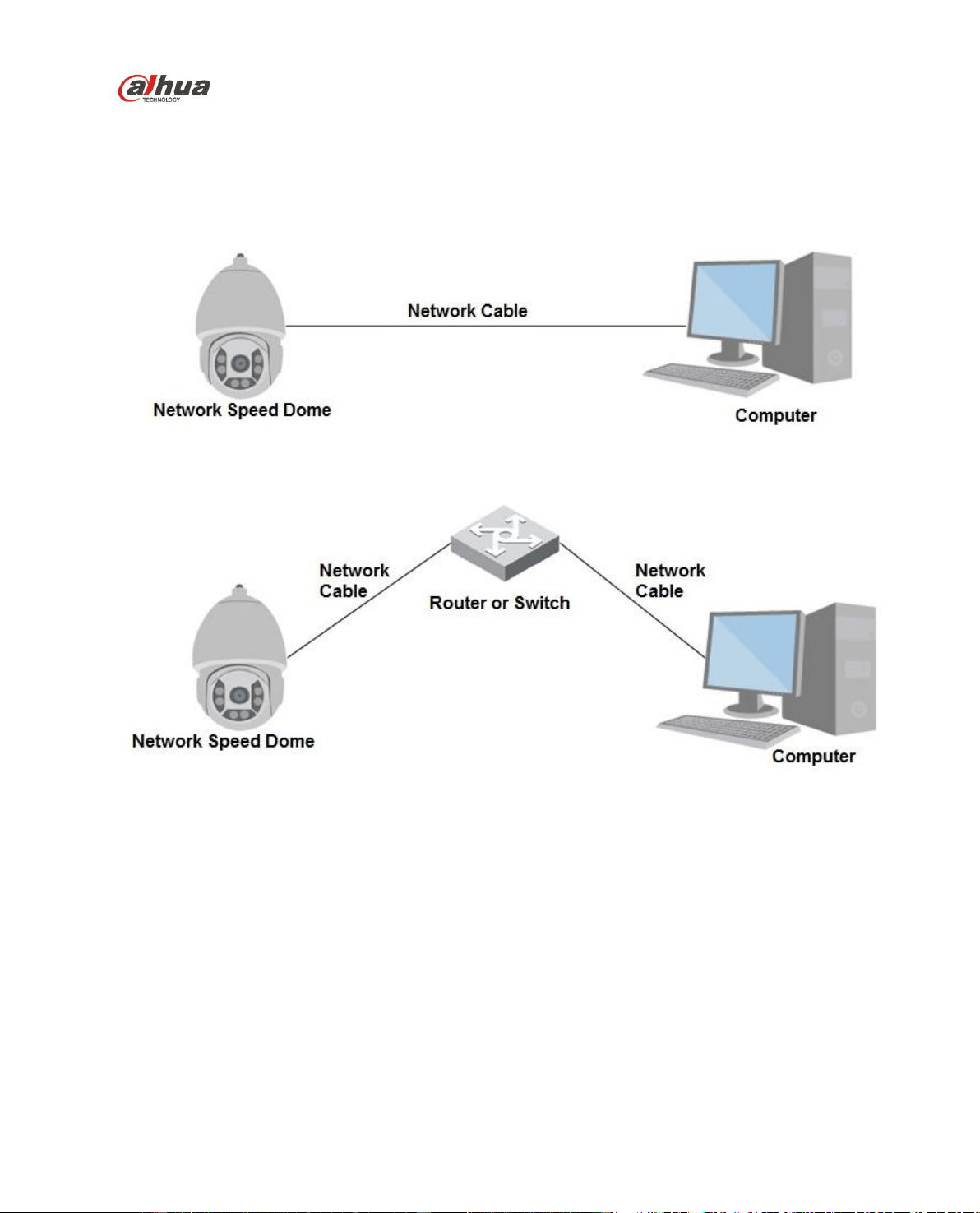
Speed dome and PC connection mainly has two ways. See Figure 1-1 and Figure 1-2.
Figure 1-1
Figure 1-2
Before you access speed dome via the Internet, you need to have its IP address. You can use quick
config tool to search IP of the speed dome. Please refer to Quick Configuration Tool manual.
1.2 Log in
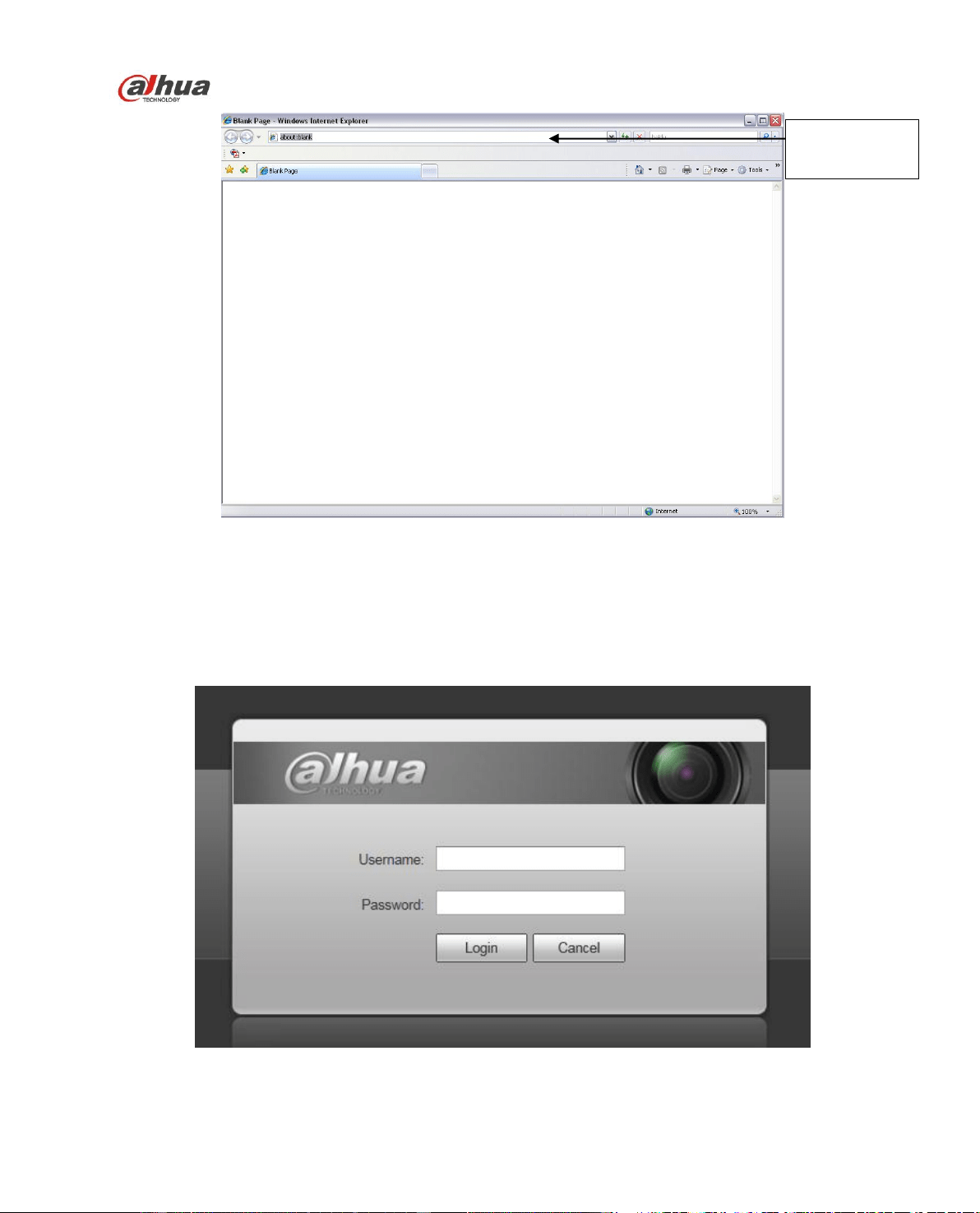
Open IE and input speed dome address in the address bar.
For example, if your speed dome IP is 192.168.1.108, then please input http:// 192.168.1.108 in IE
address bar. See Figure 1-3.
Dahua Network Speed Dome Web3.0 Operation Manual
2
Figure 1-3
The login interface is shown as below. See Figure 1-4.
Please input your user name and password.
Default factory username is admin and password is admin.
Note: For security reasons, please modify your password after you first login.
Figure 1-4
Input your IP
address here
Dahua Network Speed Dome Web3.0 Operation Manual
3
If it is your first time to login in, you may see the interface shown as in Figure 1-5.
Figure 1-5
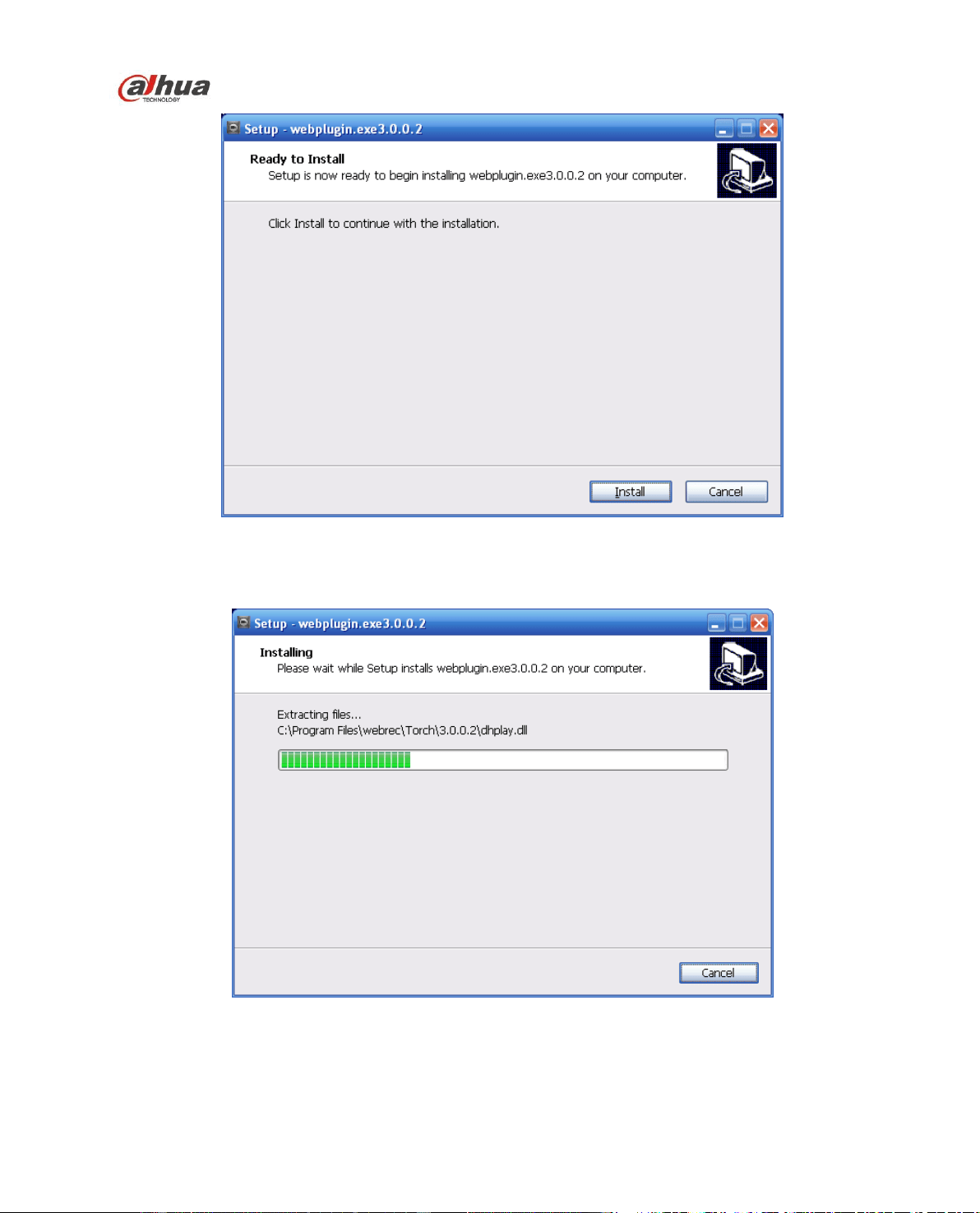
Click “Please click here to download and install the plug-in”. The system pops up warning information to
ask you whether run or save this plug-in. Please download to your local computer and then click
webplugin.exe; you can see an interface shown as in Figure 1-6.
Dahua Network Speed Dome Web3.0 Operation Manual
5
2 Live
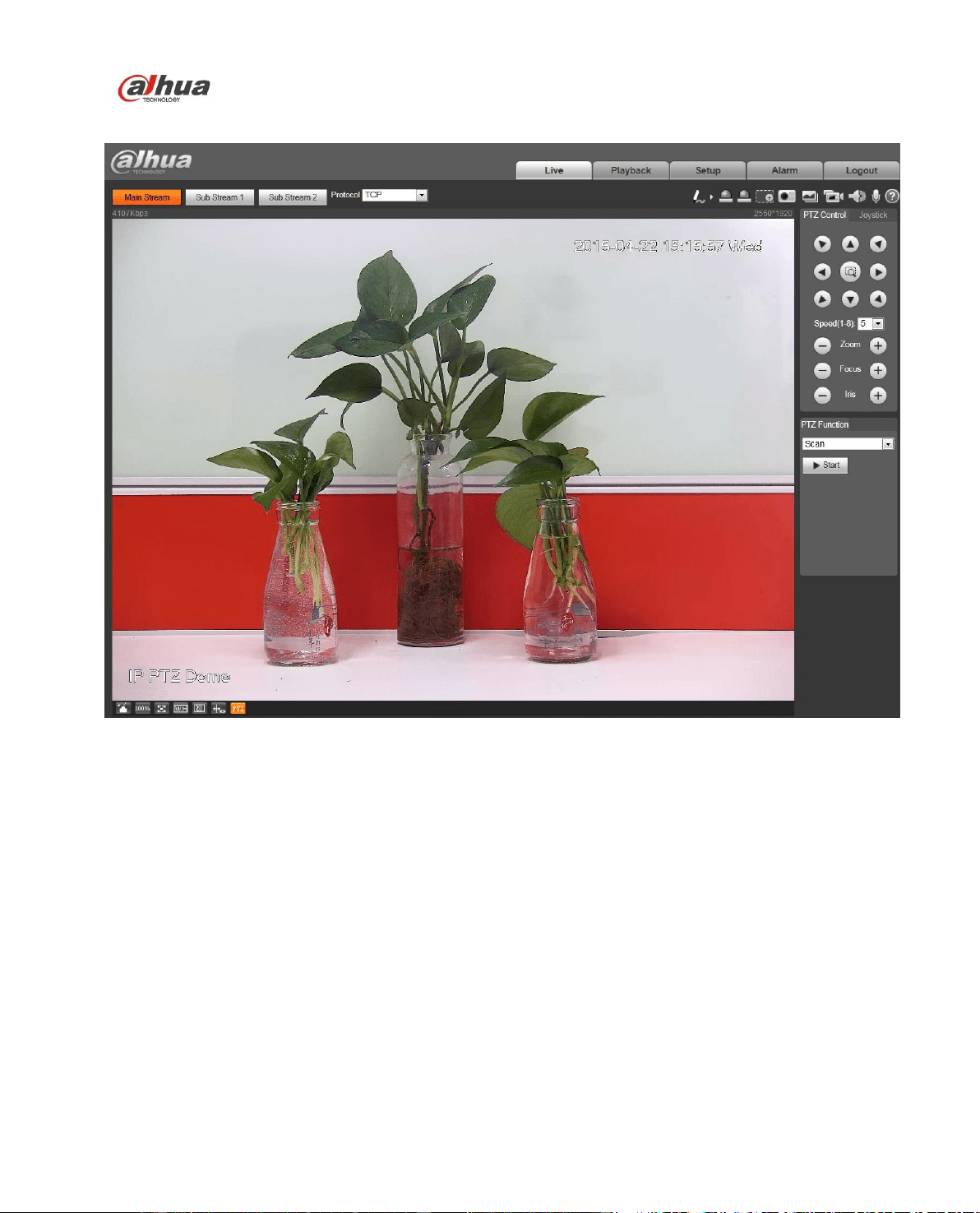
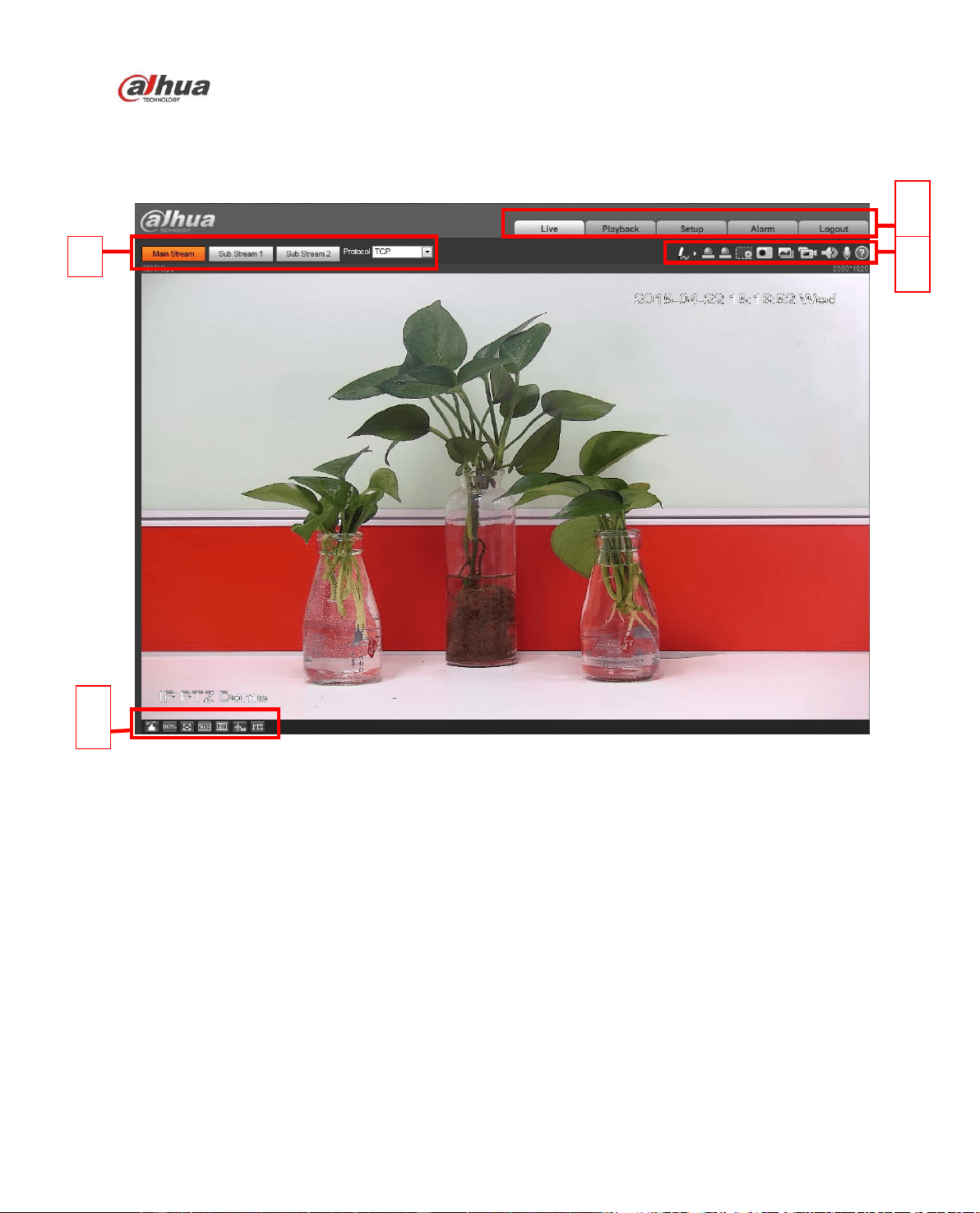
After you logged in, you can see the live monitor window. See Figure 2-1.
Figure 2-1
There are four sections:
Section 1: Encode setup bar
Section 2: System menu
Section 3: Window function option bar
Section 4: Window adjust bar
2.1 Encode Setup
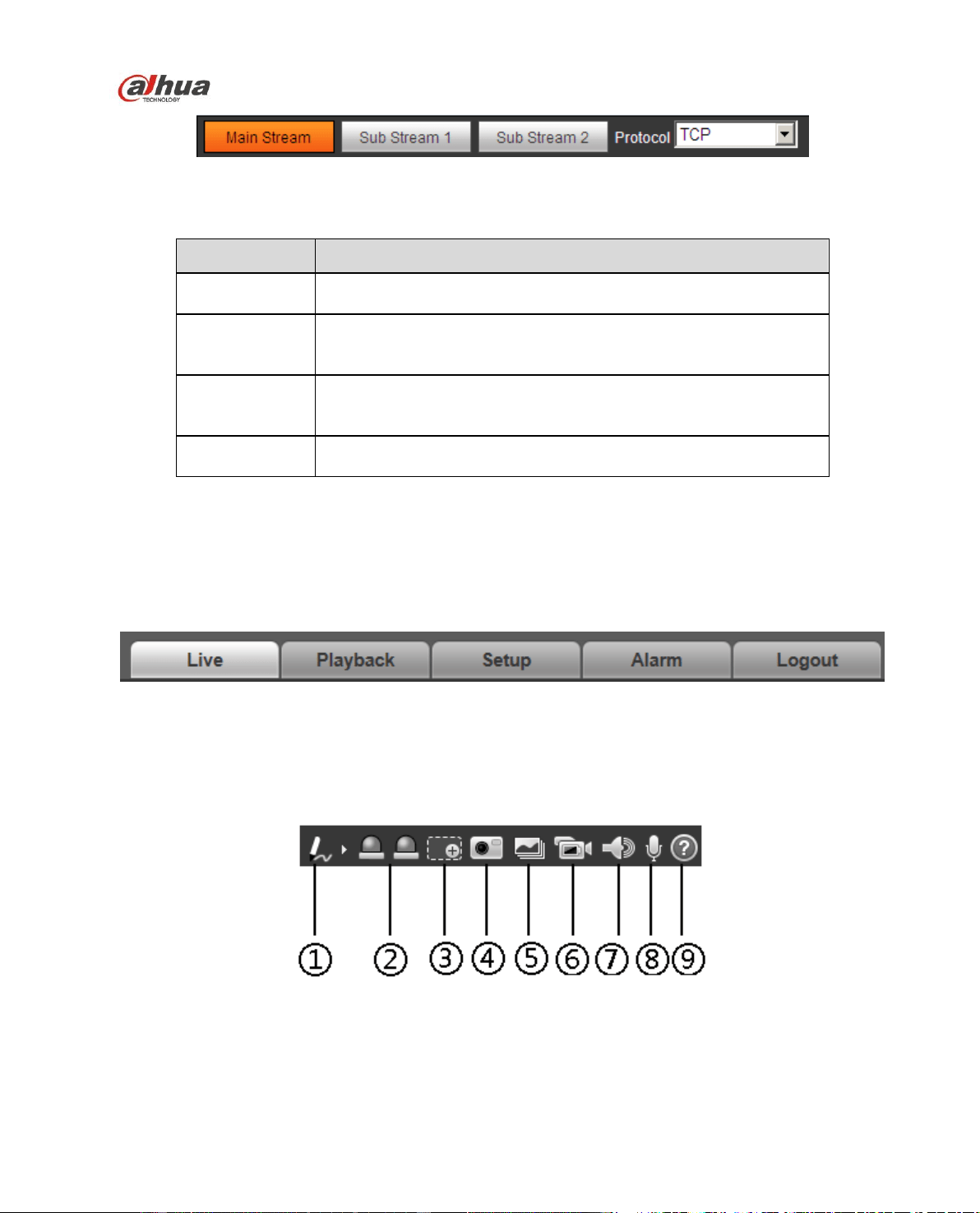
The encode setup interface is shown as in Figure 2-2.
2
1
3
4
Dahua Network Speed Dome Web3.0 Operation Manual
6
Figure 2-2
Please refer to the following sheet for detailed information.
Parameter
Function
Main stream
Streaming media protocol connection, under main stream config,
monitor video or not. Generally for storage and monitor.
Sub (Extra)
stream 1
Streaming media protocol connection, under sub stream 1
config, monitor video or not. When network bandwidth is
insufficient, it substitutes main stream for monitoring.
Sub (Extra)
stream 2
Streaming media protocol connection, under sub stream 2
config, monitor video or not. When network bandwidth is
insufficient, it substitutes main stream for monitoring.
Protocol
You can select stream media protocol from the dropdown list.
There are three options: TCP/UDP/Multicast
2.2 System Menu
System menu is shown as in Figure 2-3.
Please refer to chapter 2 Live, chapter 3 Playback, chapter 4 Setup, chapter 5 Alarm, chapter 6 Log out
for detailed information.
Figure 2-3
2.3 Video Window Function Option
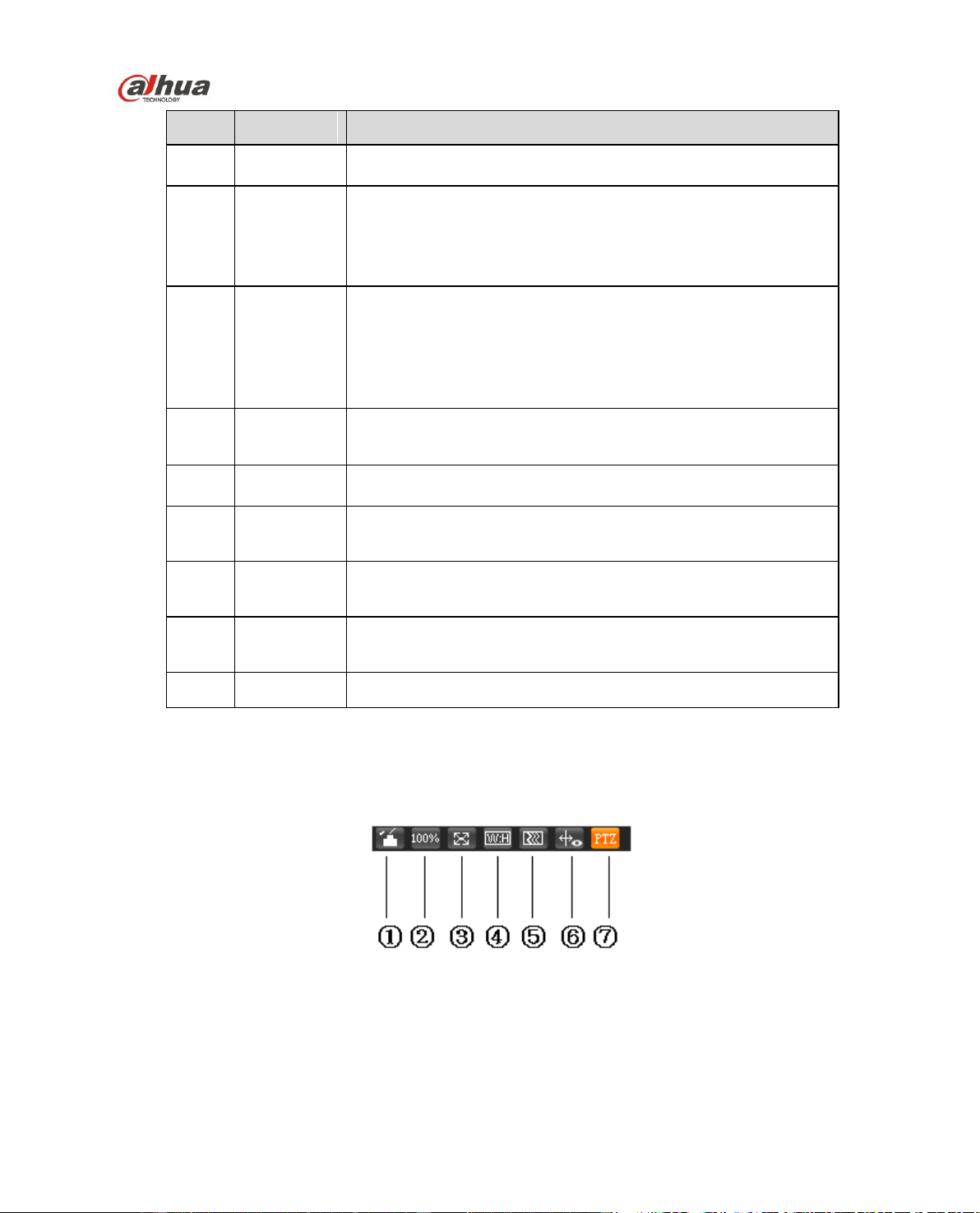
The interface is shown as below. See Figure 2-4.
Figure 2-4
Please refer to the following sheet for detailed information.
Dahua Network Speed Dome Web3.0 Operation Manual
7
SN
Parameter
Function
1
Remark
Click it and then select pen color, you can write down the
mark information on the preview interface.
2
Alarm
Output 1/2
Click it to trigger alarm, state description as follows:
Red: means there is alarm output and alarm output is
forced to be on.
Grey: means there is no alarm output and alarm is forced
to be off.
3
Zoom
When the video is in the original status, click it you can
select any zone to zoom in. In the non-original status,
you can drag the zoom-in zone in specified range. Right
click mouse to restore previous status.
Click it; you can use the middle button of the mouse to
zoom in/out the video size.
4
Snapshot
Click the button to snapshot, save picture to path in Chapter
4.1.2.5.
5
Triple snap
Click it, system can snap at 1f/s. All images are saved to path
in Chapter 4.1.2.5.
6
Record
Click it, system can record. All images are saved to path in
Chapter 4.1.2.5.
7
Audio
Click it to turn on or off audio output when monitoring stream.
8
Bidirectional
Talk
Click it to start or end bidirectional talk.
7
Help
Click it to open help file.
2.4 Video Window Setup
The interface is shown as in Figure 2-5.
Figure 2-5
2.4.1 Image Adjustment
Dahua Network Speed Dome Web3.0 Operation Manual
8
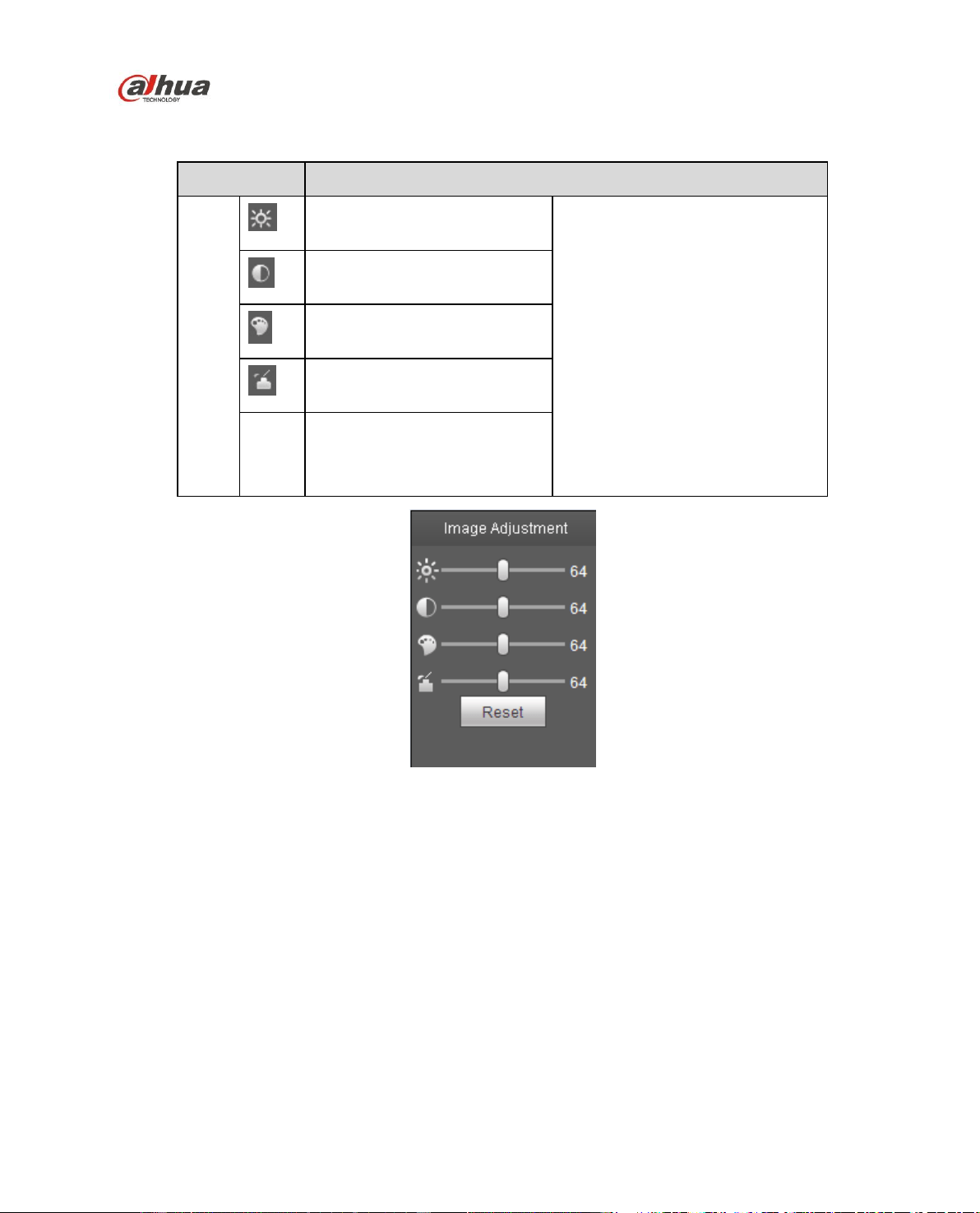
Click this button to display/hide image control interface. Click it to open picture setup interface. This
interface is on the top right pane. See Figure 2-6
Parameter
Function
Video
setup
It is to adjust monitor video
brightness.
Note:
All the operations here apply
to WEB end only.
Please go to Setup-
>Camera->Conditions to
adjust corresponding items.
It is to adjust monitor video
contrastness.
It is to adjust monitor video
hue.
It is to adjust monitor video
saturation.
Reset
R
e
Restore brightness,
contrastness saturation and
hue to system default setup.
Figure 2-6
2.4.2 Original Size
Click this button to go to original size. It is to display the actual size of the video stream. It depends on
the resolution of the bit stream.
2.4.3 Full Screen
Click it to go to full-screen mode. Double click the mouse or click the Esc button to exit the full screen.
2.4.4 Width and Height Ratio
Click it to restore original ratio or suitable window.
Dahua Network Speed Dome Web3.0 Operation Manual
9
2.4.5 Fluency Adjustment
There are three levels of fluency for you to select (real-time, normal, fluent). The default is normal.
2.4.6 Rule Info
Click it to enable the function that the intelligent rule will be displayed in the live interface. The default is
enable.
2.4.7 PTZ
Click it to open PTZ setup interface. Please refer to chapter 2.5 for detailed setup information.
2.5 PTZ Configuration
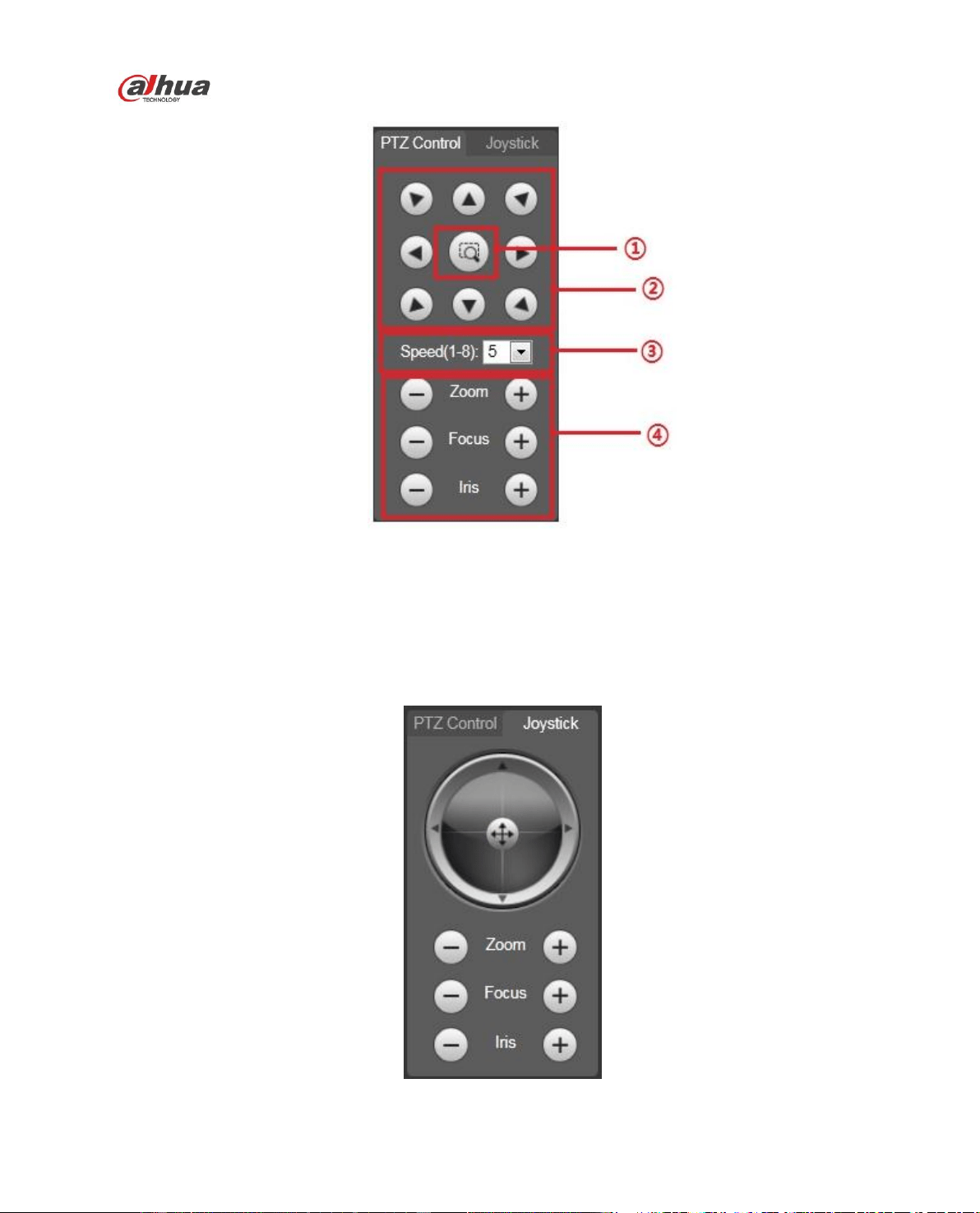
2.5.1 PTZ Control
Before PTZ operation, please make sure you have properly set PTZ protocol.
Parameter
Note
① Quick
Position
Use mouse to draw a box in monitoring video, PTZ will rotate and focus to
quickly positioning.
② PTZ direction
PTZ supports eight directions: left/right/up/down/upper left/upper right/bottom
left/bottom right.
③ Speed
It controls rotation speed. The longer the step length, the higher the speed.
Step length control PTZ, zoom, focus and iris.
④ Zoom/focus/Iris
Click to increase value and click to decrease value.
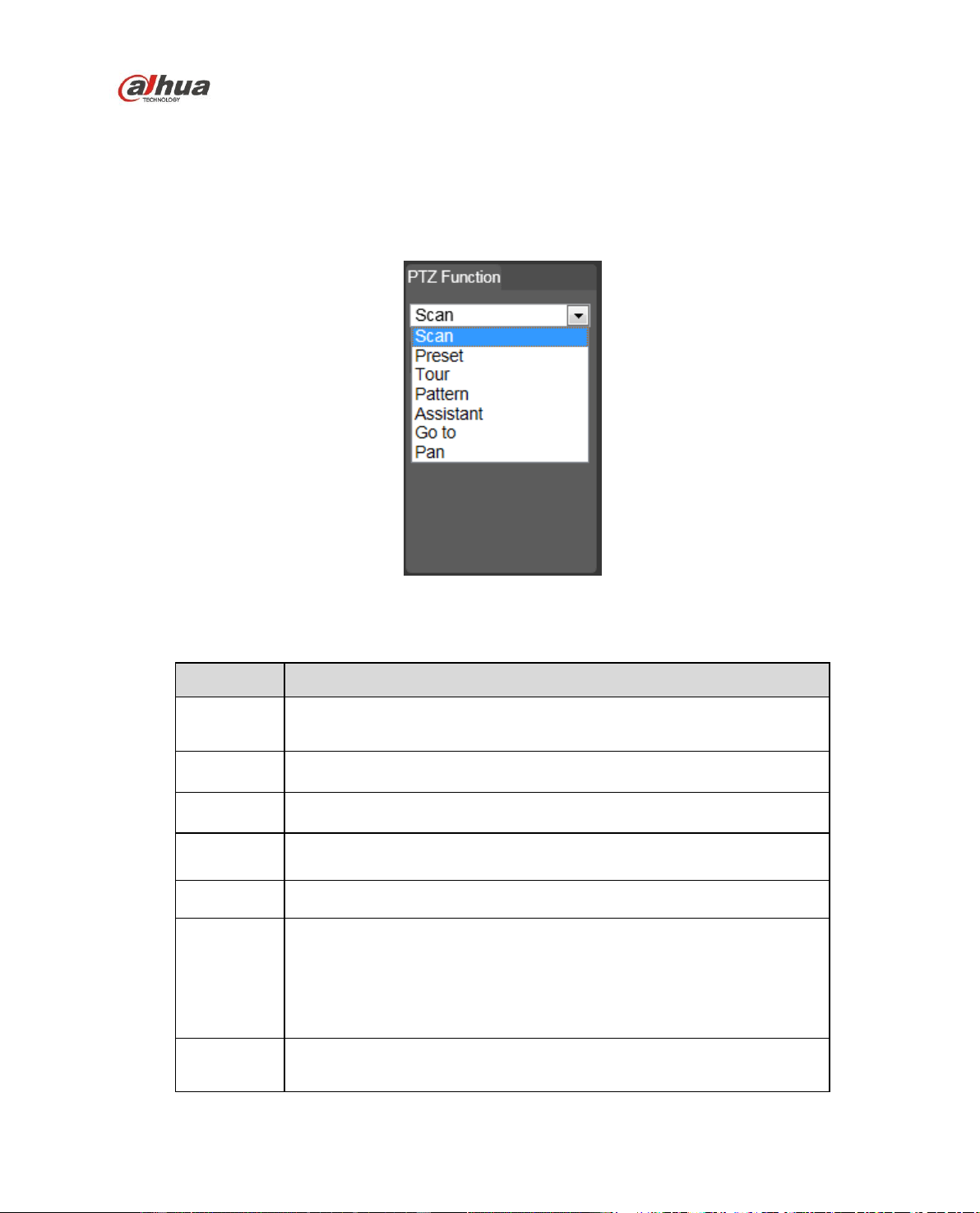
The PTZ setup/Menu interface is shown as in Figure 2-7.
Dahua Network Speed Dome Web3.0 Operation Manual
11
Figure 2-8
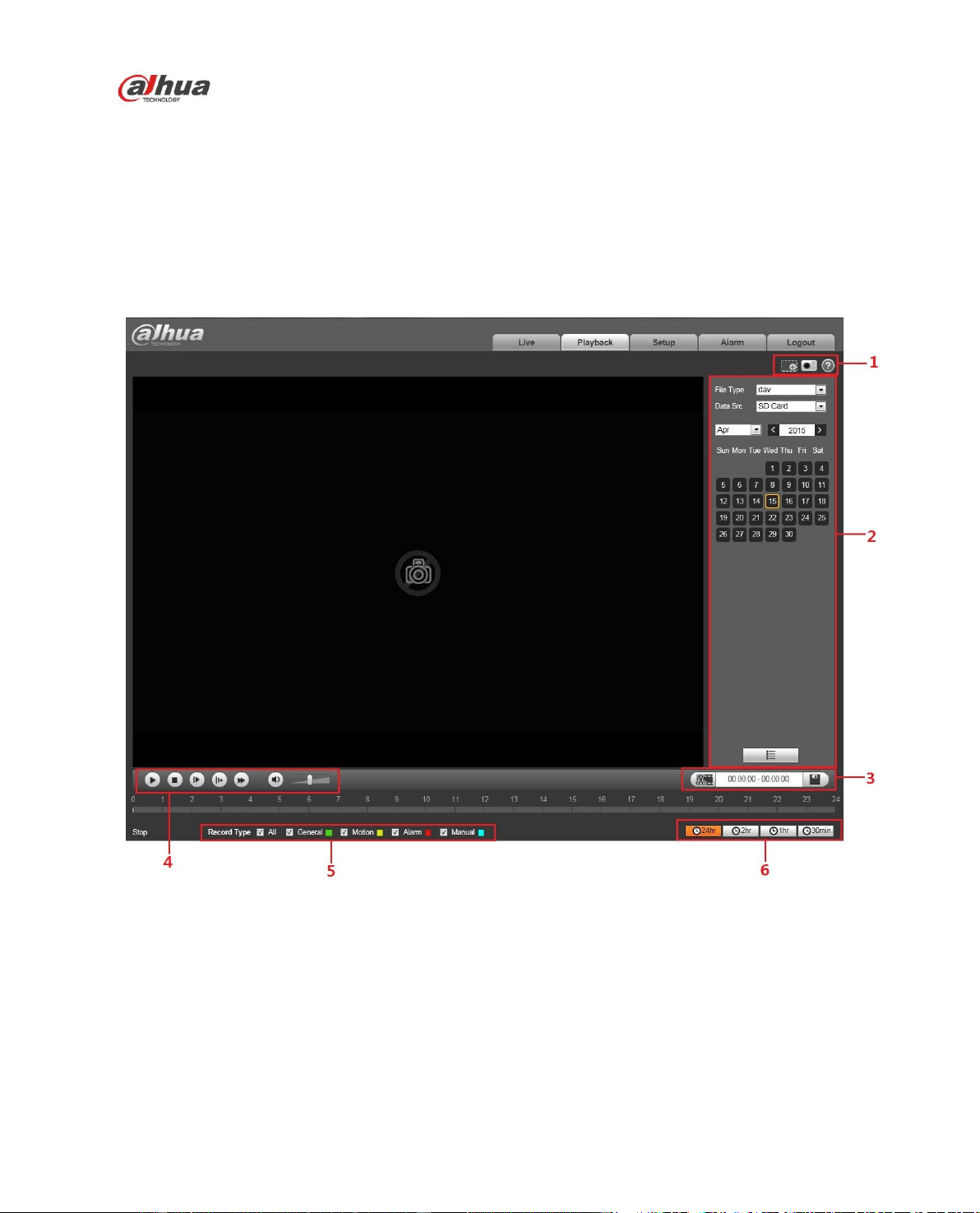
2.5.3 PTZ Function
Click PTZ set button, the interface is shown as in Figure 2-9. Here you can select scan, preset, tour
pattern, assistant function and etc.
Figure 2-9
Please refer to the following sheet for PTZ setup information.
Parameter
Function
Scan
Select Scan from the dropdown list, click Start button, you can
begin scan operation. Default SN is 1.
Preset
Input the preset value and then click View button, the camera
turns to the corresponding position of the preset.
Tour
Select Tour from the dropdown list and then click Start button,
you can begin tour.
Pattern
You can select Pattern from the dropdown list and then click
Start button to begin PTZ movement.
Assistant
Reserved assistant function.
Go to
It is the accurate positioning function. Please input
corresponding horizontal angle, tilt angle, and speed dome
zoom speed and then click Goto button to go to a specified
position.
One unit of the horizontal angle or tile angle stands for 0.1
degree.
Pan
Rotation
Select pan rotation from the dropdown list and click “Start” button to
make pan rotation for the camera.

Dahua Network Speed Dome Web3.0 Operation Manual
12
For detailed setup information, please go to Setup->PTZ->Function.
Click button to begin a PTZ operation. Now you can see it becomes Stop button. Click it
again to stop current PTZ operation.
Dahua Network Speed Dome Web3.0 Operation Manual
13
3 Playback
Web client playback supports video playback and picture playback.
Note:
Before playback, user shall set storage management as in Chapter 4.7.
3.1 Playback
The playback interface is shown as in Figure 3-1.
Figure 3-1
There are six sections:
Section 1: Assistant function
Section 2: Playback file
Section 3: Clip
Section 4: Playback bar
Section 5: Record type
Section 6: Progress bar time format
Dahua Network Speed Dome Web3.0 Operation Manual
14
3.1.1 Function of Play
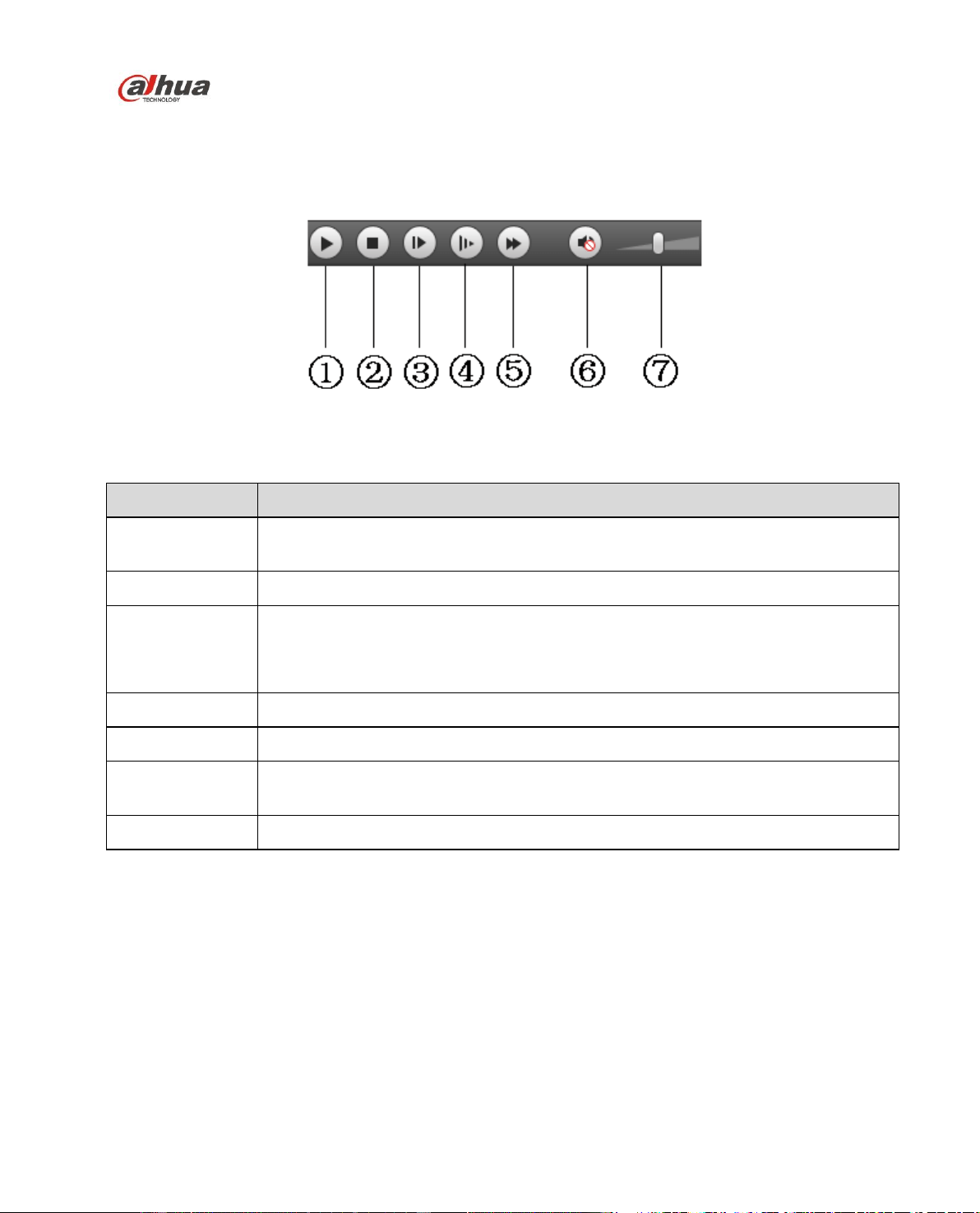
The function of play is shown as in Figure 3-2.
Figure 3-2
Parameter
Function
① Play
When you see this button, it means pause or not played record. Click this button,
switch to normal play status.
② Stop
Click this button to stop playing.
③ Frame by
frame play
Click this button to go to next frame.
Note:
You shall pause record when you use this function.
④ Slow
Click this button to play slowly.
⑤ Quick
Click this button to play quickly.
⑥ Mute
When this button displays, it means audio is silent. Click this button to switch
back to normal.
⑦ Volume
Left click mouse to adjust volume.
3.1.2 Playback File
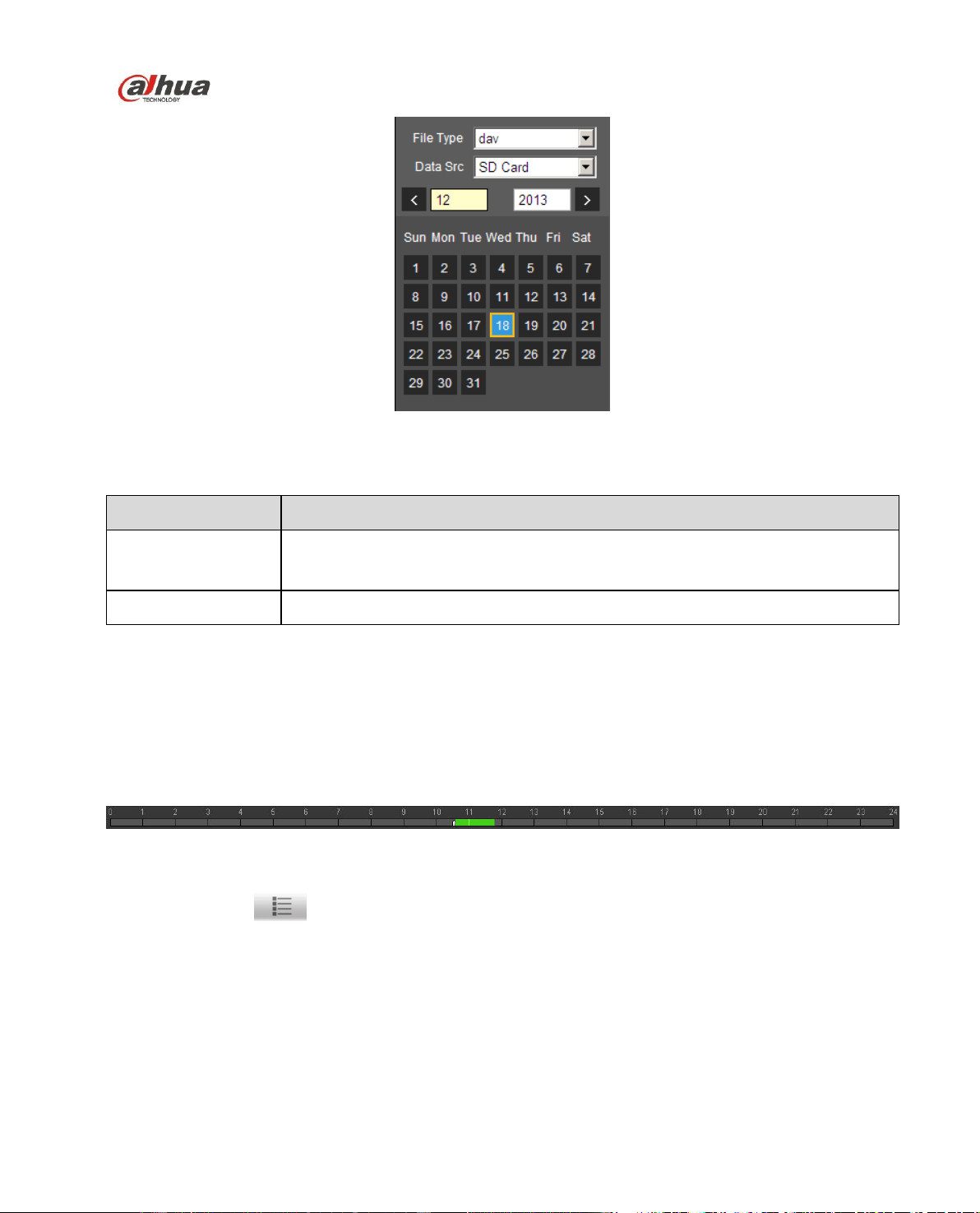
In calendar, blue date represents data currently has video record or snapshot. See Figure 3-3.
Dahua Network Speed Dome Web3.0 Operation Manual
15
Figure 3-3
Parameter
Function
File Type
Select “dav”, as video playback.
Select “jpg” as picture playback.
Data Source
Default is SD card.
Step 1.
Click data in blue, time axis displays record file progress bar in color. While, green represents normal
record, yellow represents motion detect record, red represents alarm record, and blue represents
manual record.
Step 2. Click certain time on progress bar, playback starts from this time. See Figure 3-4.
Figure 3-4
Step 3. Click file list , select date file will be displayed in list.
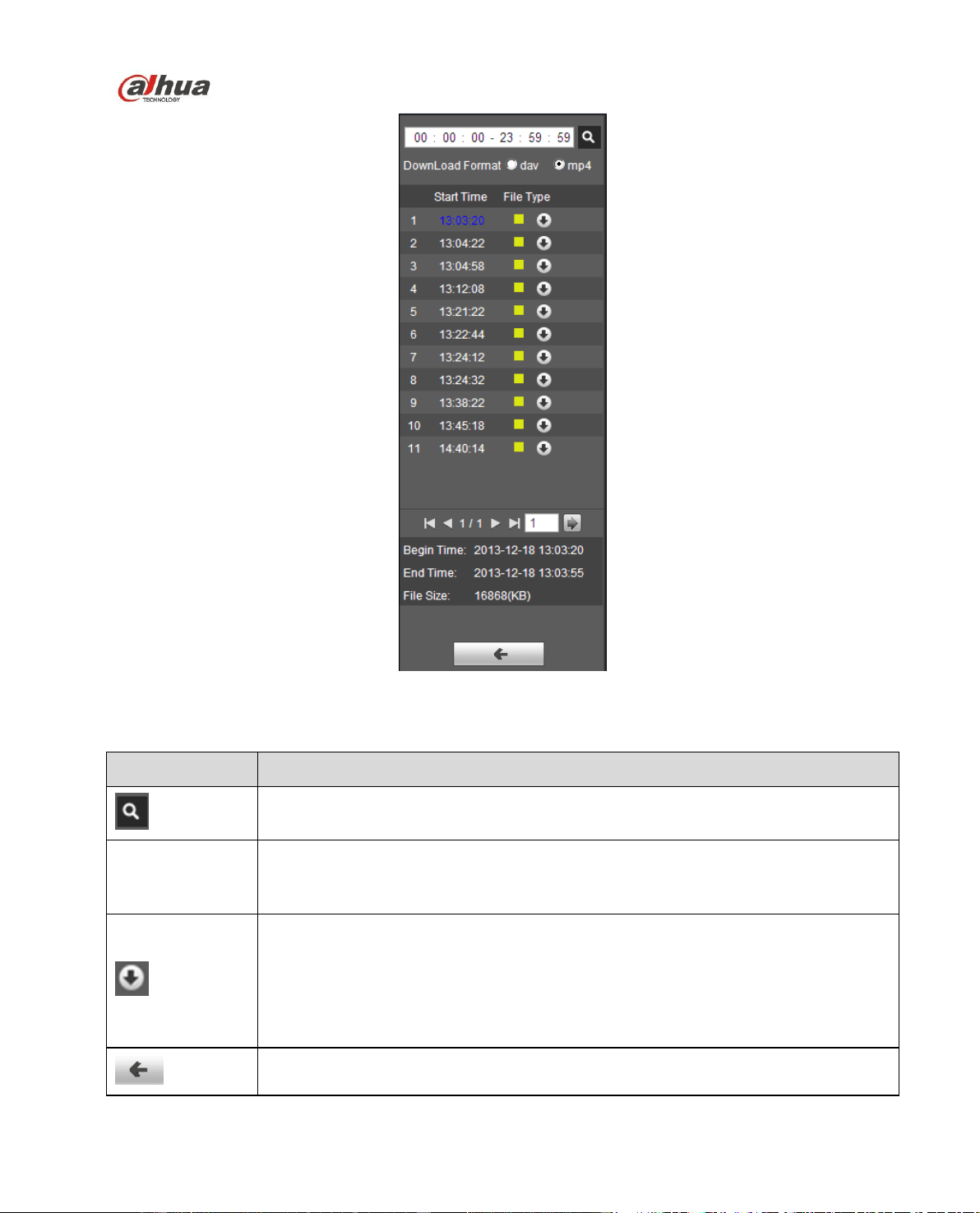
Step 4. Double click file in list, playback this file and display file size, start time and end time.
See Figure 3-5.
Dahua Network Speed Dome Web3.0 Operation Manual
16
Figure 3-5
Parameter
Function
Search
It means records within searched start time and end time on the date.
Record
Download
Format
There are two formats: dav, mp4.
Download
Record type is “dav”, click download button to download file to local.
Record type is “mp4”, click download button and download file to path in Ch
5.1.2.5.
Note:
System does not support download and playback of MP4 file at the same time.
Back
Click back button to go to calendar interface.
Dahua Network Speed Dome Web3.0 Operation Manual
17
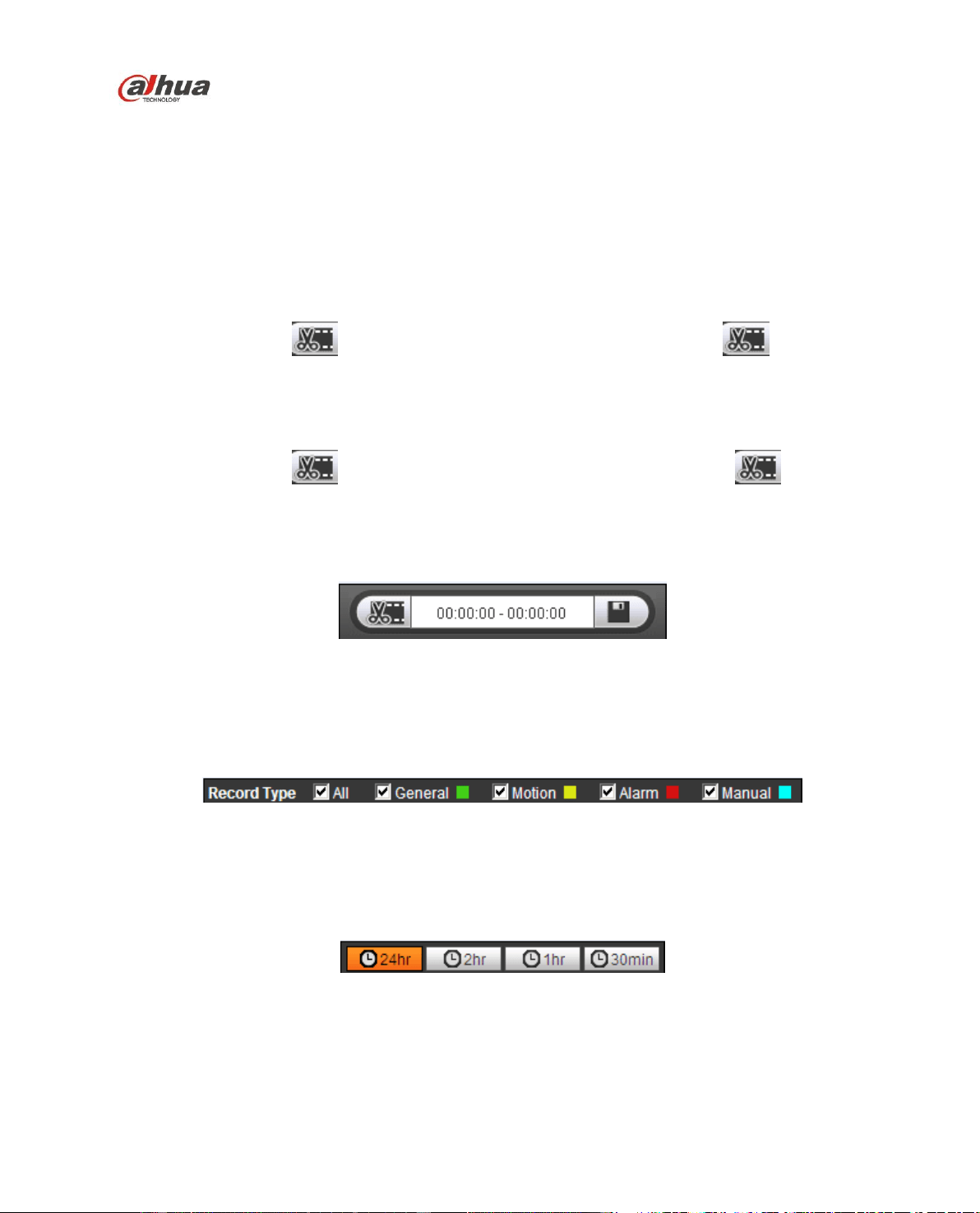
3.1.3 Playback Cut (Clip)
Note:
Playback cut function will automatically pause playing record as playback cut and playback cannot be at
the same time.
Step 1.
Click start time to cut on time axis. This time must be within progress bar range.
Step 2.
Move mouse to cut icon . You will be ask to select start time. Click cut icon as finish cutting.
Step 3.
Click playback cut end time on time axis. This time must be within progress bar range.
Step 4.
Move mouse to cut icon , you will be asked to select end time. Click cut icon as finish
cutting.
Step 5.
Click Save button to save file cut to path in chapter 4.1.2.5. See Figure 3-6.
Figure 3-6
3.1.4 Record Type
Check record file type, only selected file will be displayed in progress bar and file list. See Figure 3-7.
Figure 3-7
3.1.5 Progress Bar Time Format
The interface is shown as in Figure 3-8.
Figure 3-8
Please refer to the following sheet for detailed information.
Dahua Network Speed Dome Web3.0 Operation Manual
18
Parameter
Function
24 hours
Click it, means video in past 24 hours.
2 hours
Click it, means video in past 2 hours.
1 hour
Click it, means video in past 1 hour.
30 min
Click it, means video in past 30 min.
3.1.6 Assistant Function
Video playback assistant function is shown in Figure 3-9.
Figure 3-9
Please refer to the following sheet for detailed information.
Parameter
Function
Digital Zoom
Click it, you can zoom in any area when then playback video is in
original status. In non-original status, you can zoom in specified
zone, Right click mouse to restore its original size.
Click this button; you can scroll to zoom in/out video.
Snapshot
Click this button; you can snapshoot video under playback status.
Snapshot will be saved to path in chapter 4.1.2.5.
3.2 Picture Playback
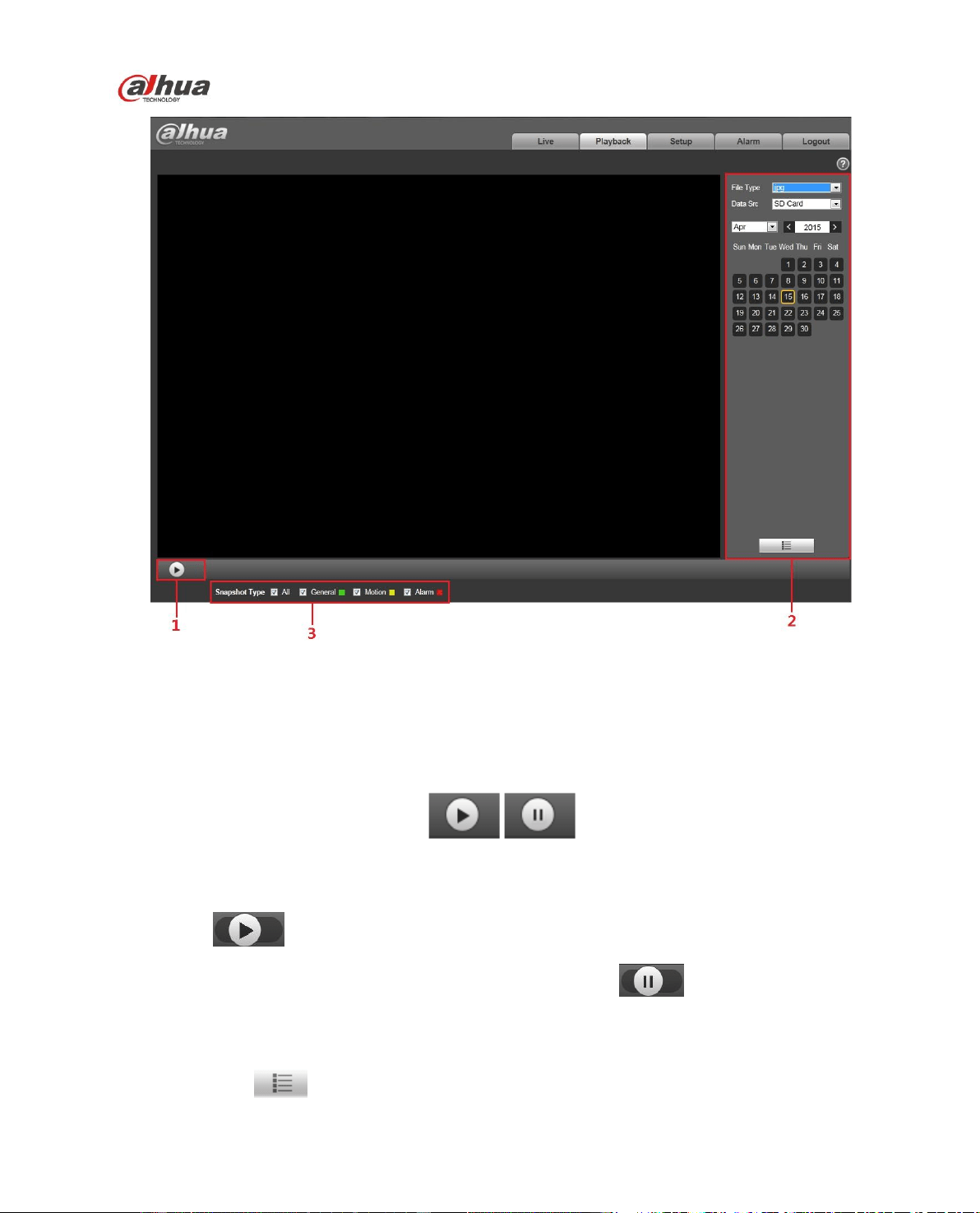
Web client picture playback interface has the following three functions. See Figure 3-10.
Parameter
Function
1
Play function bar
2
Playback file bar
3
Snapshot type bar
Dahua Network Speed Dome Web3.0 Operation Manual
19
Figure 3-10
3.2.1 Play
The play button is shown as below. See Figure 3-11.
Figure 3-11
Default icon is , and it means pause or not played picture.
Click play button to switch to normal play status. Icon becomes .
Click it to pause.
3.2.2 Playback File
Step 1: Click file list , select snapshot file of the date.
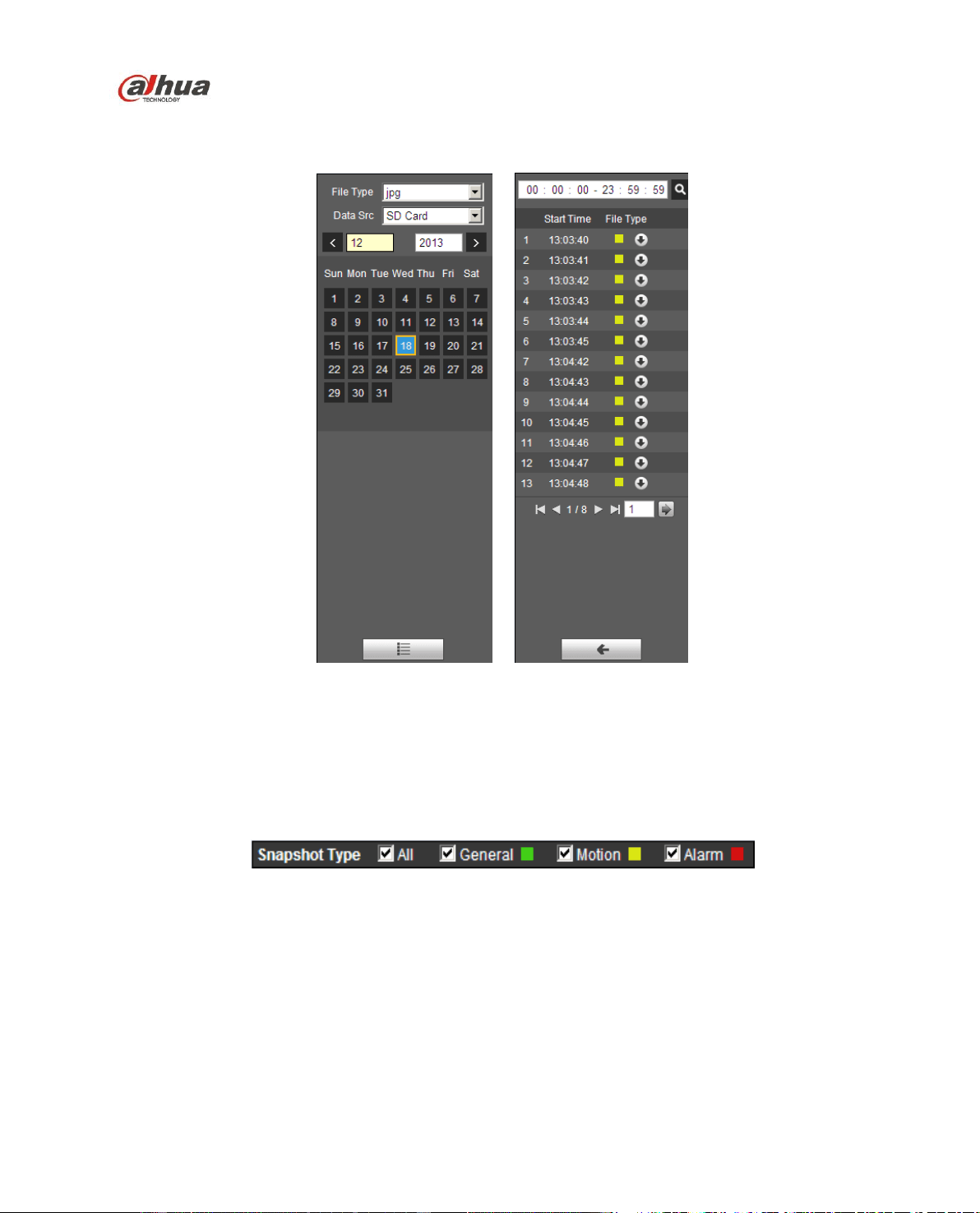
Dahua Network Speed Dome Web3.0 Operation Manual
20
Step 2: Double click file in list to play this snapshot.
Figure 3-12 Figure 3-13
Please refer to the following sheet for detailed information.
3.2.3 Snapshot Type
Check snapshot file type, file list only displays file of selected type. See Figure 3-14.
Figure 3-14
Dahua Network Speed Dome Web3.0 Operation Manual
21
4 Setup
Web client setup supports camera, network, PTZ, peripheral, event, storage, system and system info
view.
4.1 Camera
4.1.1 Conditions
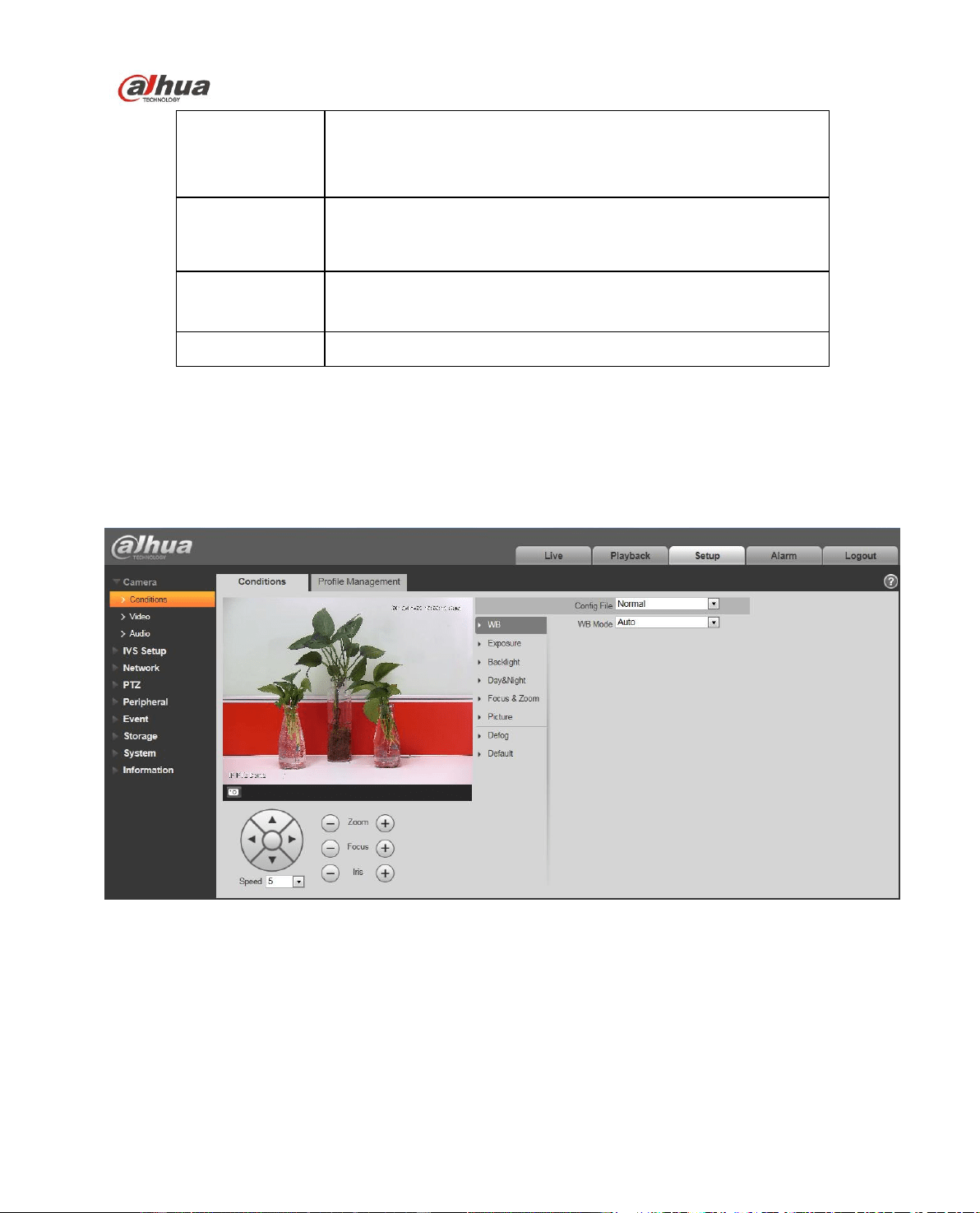
Here you can view device property information. Slight differences may be found due to different speed
dome series. The setups become valid immediately after you set. See Figure 4-1.
Figure 4-1
Please refer to the following sheet for detailed information.
Parameter
Function
Config File
Here you can set camera setup mode. It includes:
normal/day/night.
White Balance
It is to set camera white balance. It includes:
auto/manual/ATW/outdoor/indoor/outdoor auto/sodium light
auto/sodium light.
Exposure
It is to set camera exposure mode. It includes: auto and
manual, iris priority, shutter priority.
Backlight
It is to set camera backlight mode, including WDR, HLC, and
BLC.
Dahua Network Speed Dome Web3.0 Operation Manual
22
Day/Night
It is to set camera day/night switch mode.
The type includes: electronic/mechanical.
It includes four modes: auto/B&W/Color/Photosensor.
Zoom& Focus
It is to set camera zoom and focus mode. It is to set digital
zoom/camera zoom rate. Focus mode includes:
auto/manual/semi auto.
Picture
It is to set camera video. It includes:
style/hue/brightness/saturation/ chroma control/gamma/picture
flip/picture freeze/sharpness /sharpness control
Default
It is to restore factory default setup.
Important
Please make sure your purchased camera supports all the functions listed here.
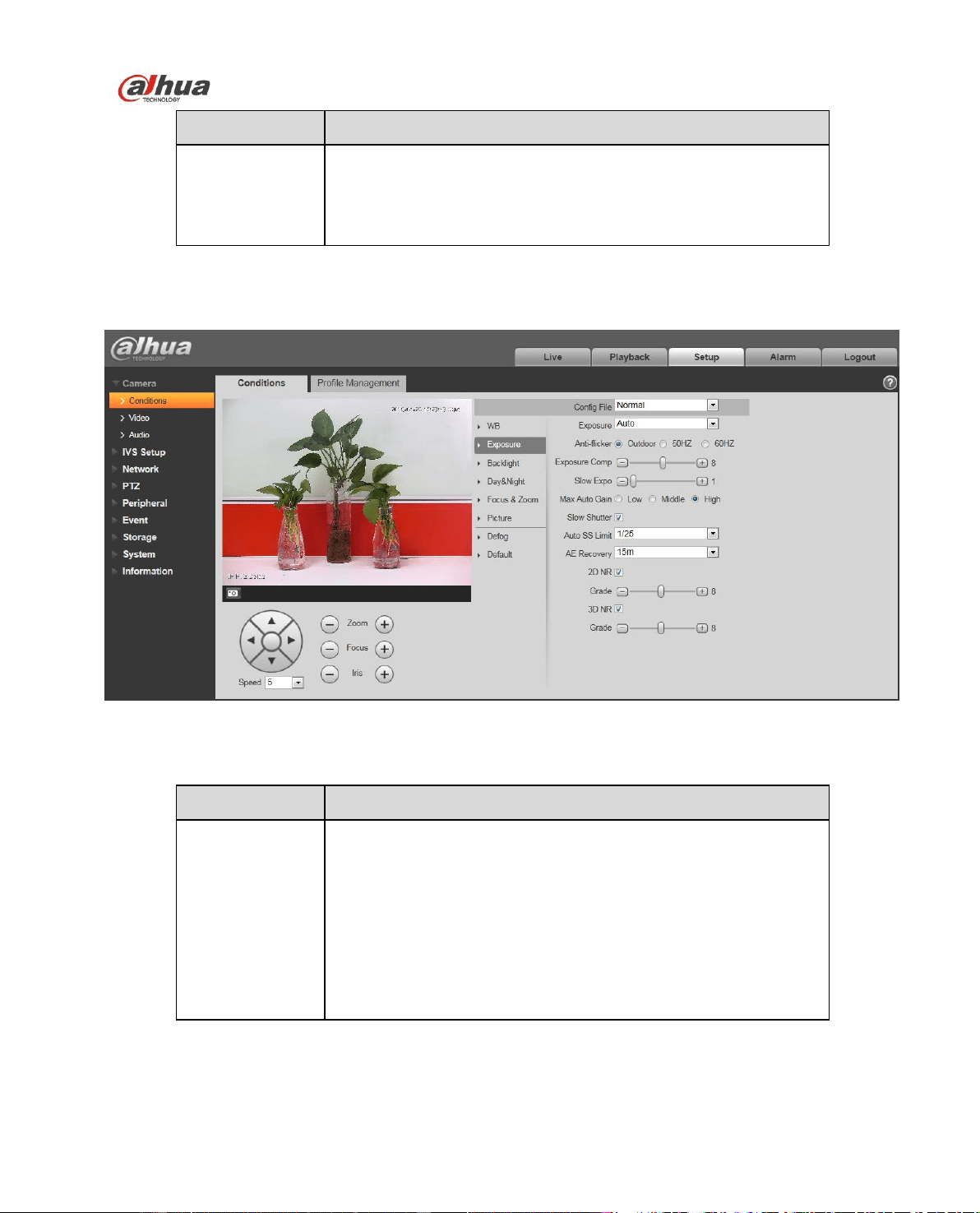
4.1.1.1 White Balance
White balance interface is shown as below. See Figure 4-2.
Figure 4-2
Please refer to the following sheet for detailed information.
Dahua Network Speed Dome Web3.0 Operation Manual
23
Parameter
Function
WB mode
It is to set camera white balance. It includes:
auto/manual/ATW/outdoor/indoor/outdoor auto/sodium
light auto/sodium light.
For manual mode, you can input red gain and blue gain
value.
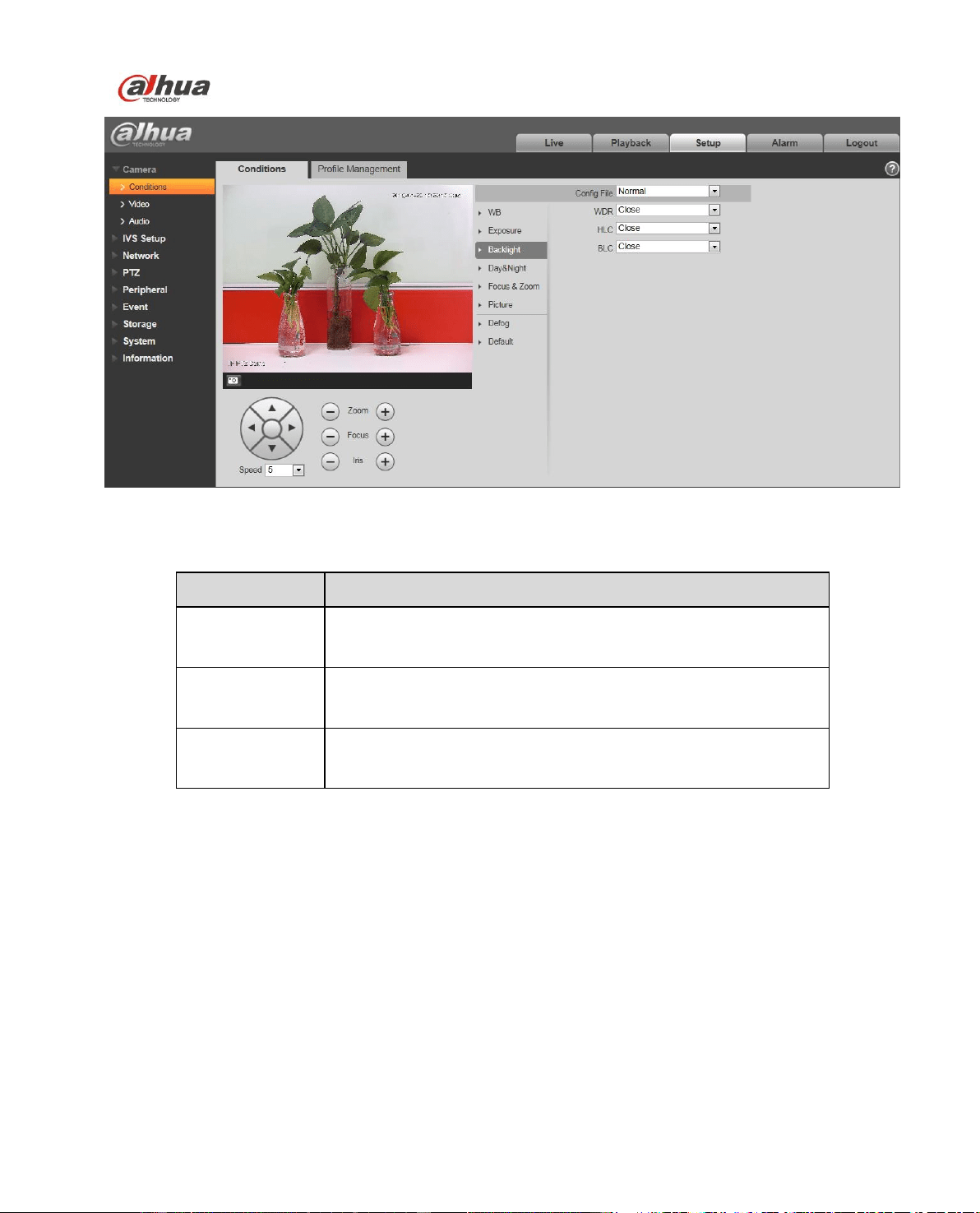
4.1.1.2 Exposure
Exposure interface is shown as below. See Figure 4-3.
Figure 4-3
Please refer to the following sheet for detailed information.
Parameter
Function
Exposure mode
It is to set camera exposure mode. It includes: auto and
manual. The default setup is auto.
For the auto exposure mode, the gain, shutter and iris are
in auto mode.
For manual exposure mode, the gain, shutter and iris are
in manual mode.
For iris priority mode, iris needs manual setting, gain,
shutter auto adjustment.
For shutter priority mode, shutter needs manual setting,
gain, iris auto adjustment.

Dahua Network Speed Dome Web3.0 Operation Manual
24
Anti-flicker
50Hz: Under the condition of AC/50Hz, automatically
adjust exposure and ensure there are no horizontal stripes
in the image according to the scene brightness.
60Hz: Under the condition of AC/60Hz, automatically
adjust exposure and ensure there are no horizontal stripes
in the image according to the scene brightness.
Outdoor:Able to switch exposure mode under this mode,
and reach the effect of corresponding exposure mode.
Exposure
compensation
It can adjust video whole brightness via setting exposure object
brightness so that it can suit for different environments.
Gain level
It is to set video brightness under the low illumination
environments.
Shutter
It is to set camera exposure time.
Iris
It is to set the light amount.
Slow exposure
If the light may change greatly, you can use slow exposure to
get image so that the camera can get stable video.
Max Auto gain
It is to set camera max gain.
Slow shutter
In lower illumination environment, you can lower the cameras
auto exposure time to capture the image and enhance the
definition. For the moving object, the trail may appear. Please
note it is valid in auto mode.
Auto Slow
Shutter Min
value
It is to set camera min shutter value.
Auto Exposure
Recovery
After manual adjustment “Iris +” or “Iris –“, scheduled recovery
to exposure mode before adjustment.
2D NR
It is to control noise. The higher the level is; the small the noise
is. Comparing with the previous one, the picture may become a
little bit blurry.
3D NR
It is to control noise. The higher the level is; the small the noise
is. Comparing with the previous one, there may appear some
smear phenomenon.
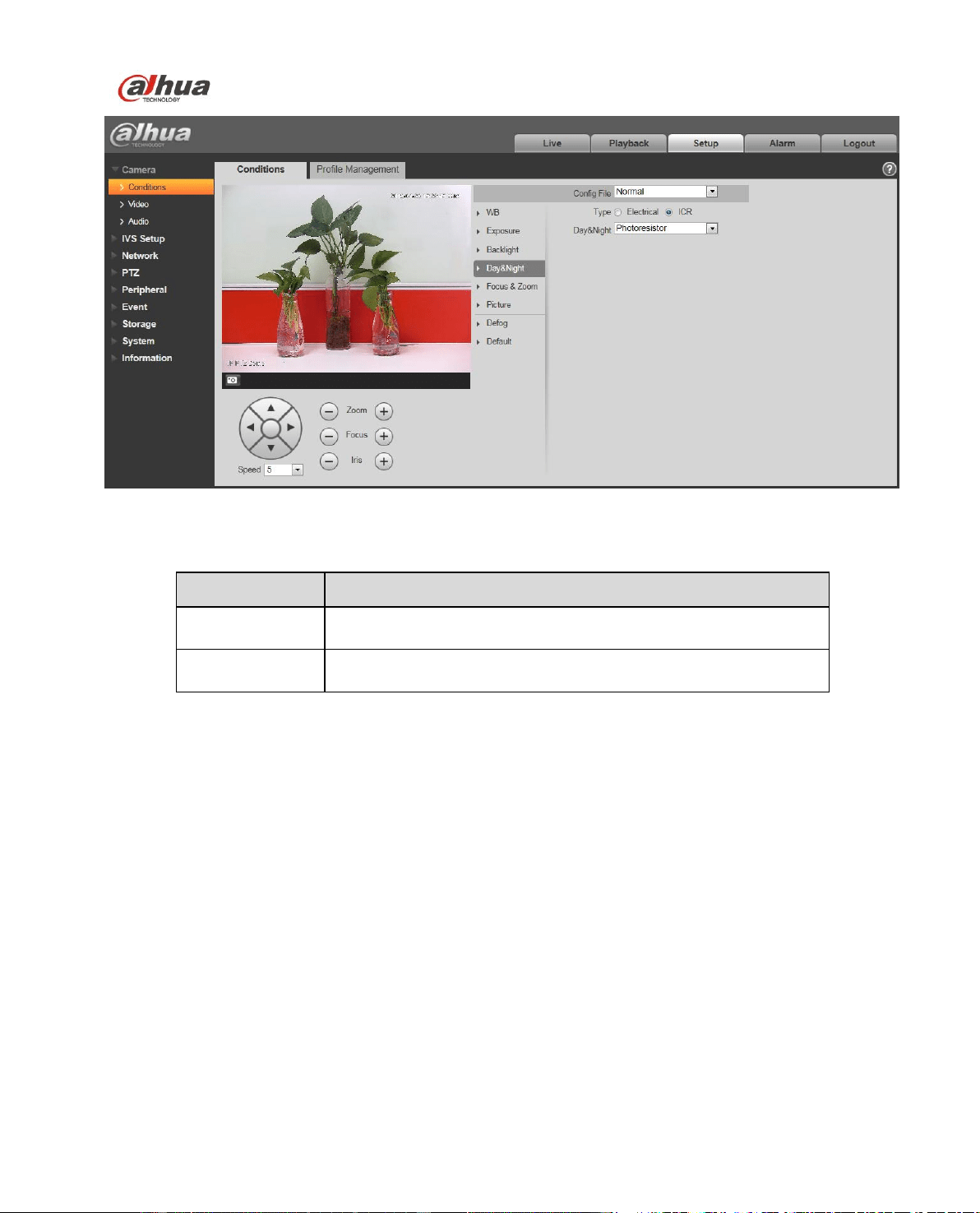
4.1.1.3 Backlight
The backlight interface is shown as in Figure 4-4.
Dahua Network Speed Dome Web3.0 Operation Manual
25
Figure 4-4
Please refer to the following sheet for detailed information.
Parameter
Function
WDR Mode
For the environments of strong contrast effect, it can auto
adjust image contrast so that you can see the dark and bright
section at the same time.
HLC
When there is strong light source in the environment, system
can auto adjust video brightness to remove the over exposure
effect.
BLC
For the environments of strong contrast effect, such as under
the backlight environment, system can auto adjust image
contrast to get clear object.
4.1.1.4 Day/Night
Important
Please make sure your purchased product camera supports this function.
The day/night mode is shown as in Figure 4-5.
Dahua Network Speed Dome Web3.0 Operation Manual
26
Figure 4-5
Please refer to the following sheet for detailed information.
Parameter
Function
Type
It is to set camera day/night type, including electronic and ICR.
Day/night
It is to set camera day/night mode.
The mode includes: B&W/color/auto.
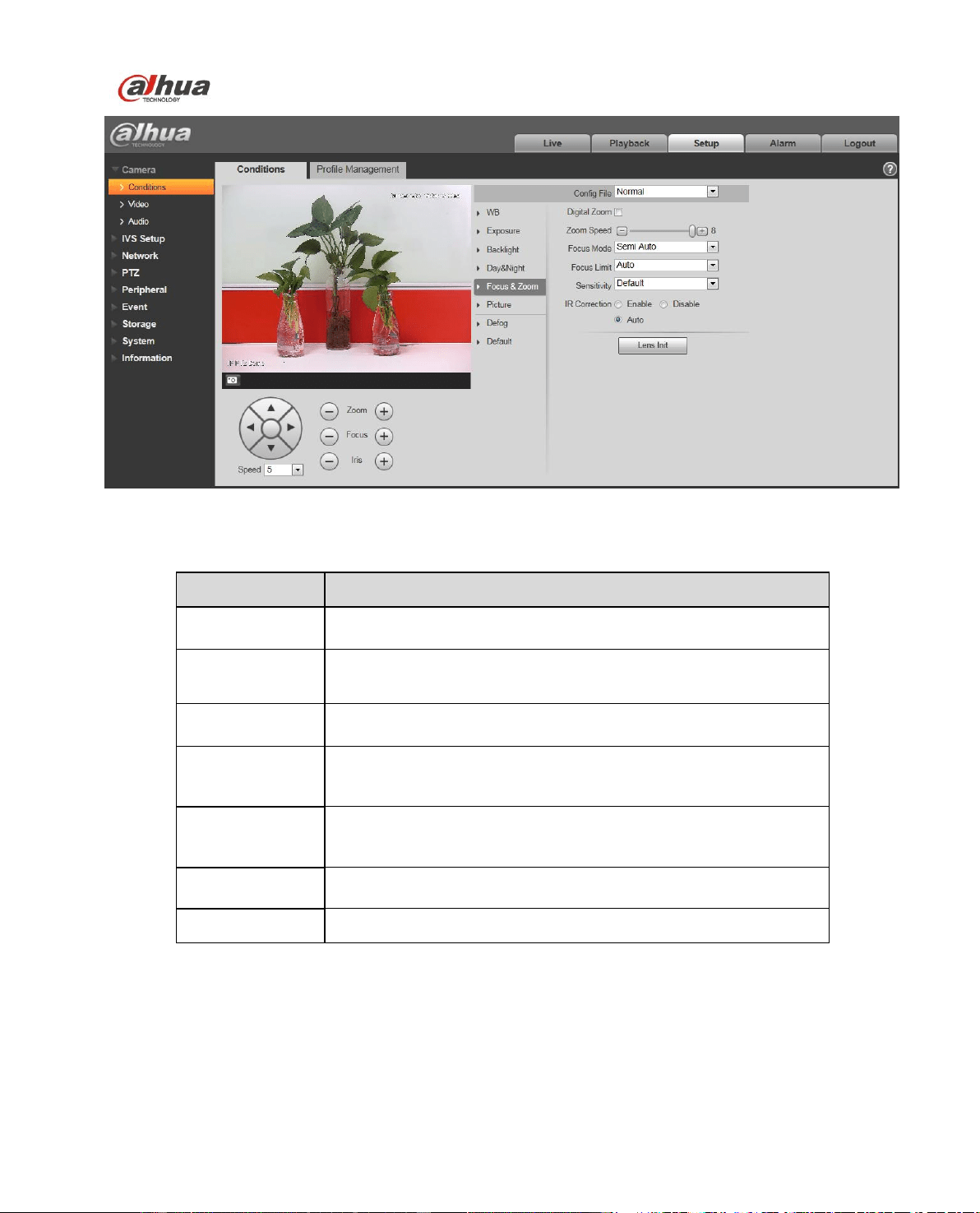
4.1.1.5 Zoom &Focus
The zoom &focus interface is shown as in Figure 4-6.
Dahua Network Speed Dome Web3.0 Operation Manual
27
Figure 4-6
Please refer to the following sheet for detailed information.
Parameter
Function
Digital zoom
Check the box here to enable digital zoom function.
Zoom speed
It is to set camera zoom speed. The bigger the value is, the
faster the speed is.
Focus mode
It is to set camera focus mode. It includes: auto/manual/semi
auto.
Focus limit
It is to camera focus distance in case the focus distance is too
small and the focus goes to the enclosure. At the same time,
you can change focus distance to adjust focus speed.
Sensitivity
It is to set camera focus sensitivity. The higher the value is, the
easier it is to activate focus. The lower the value is, the difficult
it is to activate focus.
IR Correction
It is to set IR light focus correction function to enhance focus
effect and remove the IR light effect on the focus.
Lens Init
Click it to set initialization to the lens.
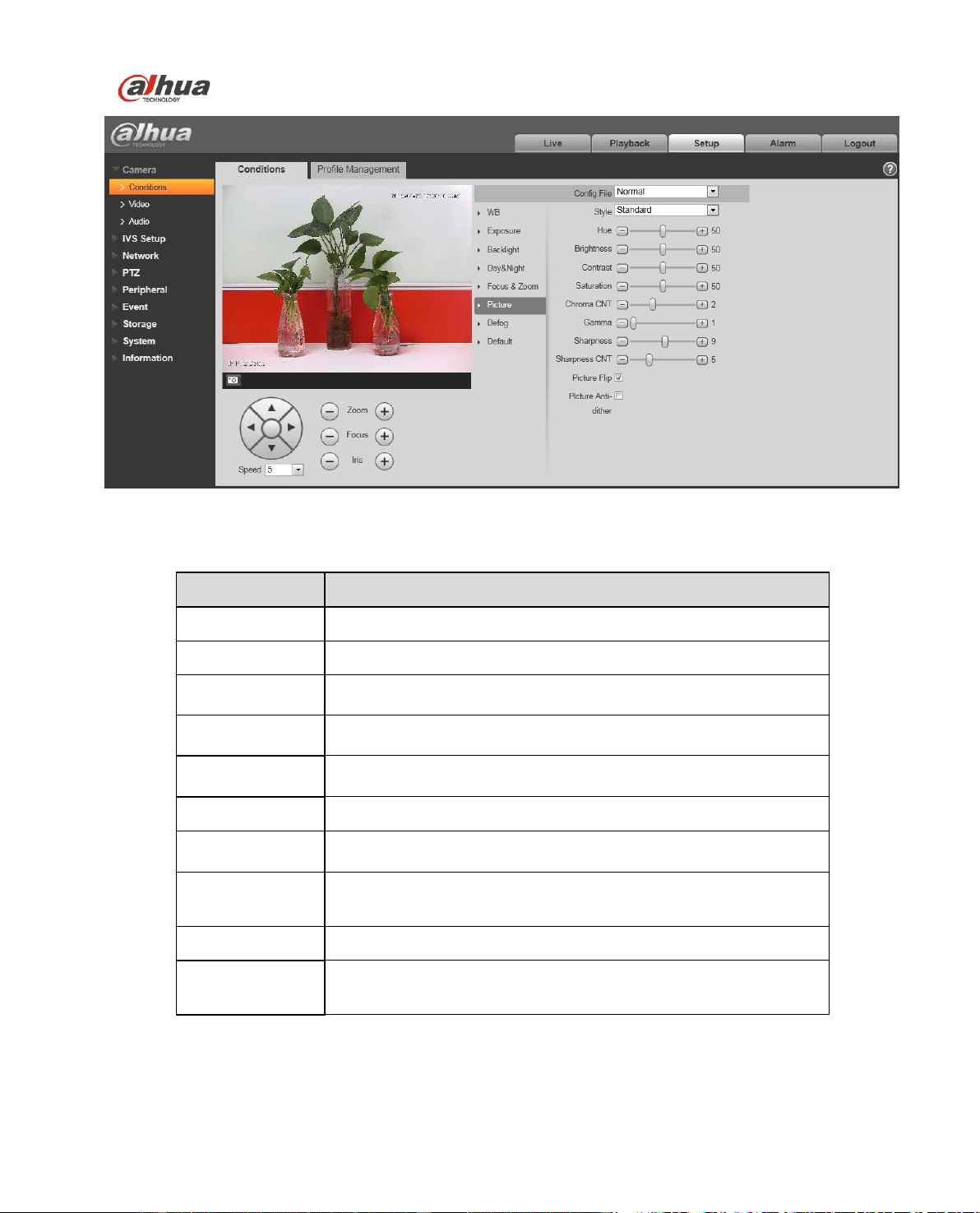
4.1.1.6 Picture
Picture interface is shown as in Figure 4-7.
Dahua Network Speed Dome Web3.0 Operation Manual
28
Figure 4-7
Please refer to the following sheet for detailed information.
Parameter
Function
Style
It is to set video style.
Hue
It is to set picture hue.
Brightness
It is to set video brightness. The higher is value is, the bright
the video is.
Saturation
It is to set color purity. The higher the purity is, the more color
the video is. The lower the purity is, the dark the video is.
Chroma control
It is to set video color control level. The higher the value is, the
higher the control level is.
Gamma
It is to set image gamma value.
Sharpness
It is to set camera sharpness. The higher the sharpness is, the
clearer the image is. The object edge becomes clear too.
Sharpness
control level
It is to set camera control level. The higher the value is, the
stronger the control level is.
Picture Flip
It is to set video display mode. It is to turn camera.
Picture Anti-
dither
The device doesn’t support enabling image anti-dither and
intelligent function at the same time.
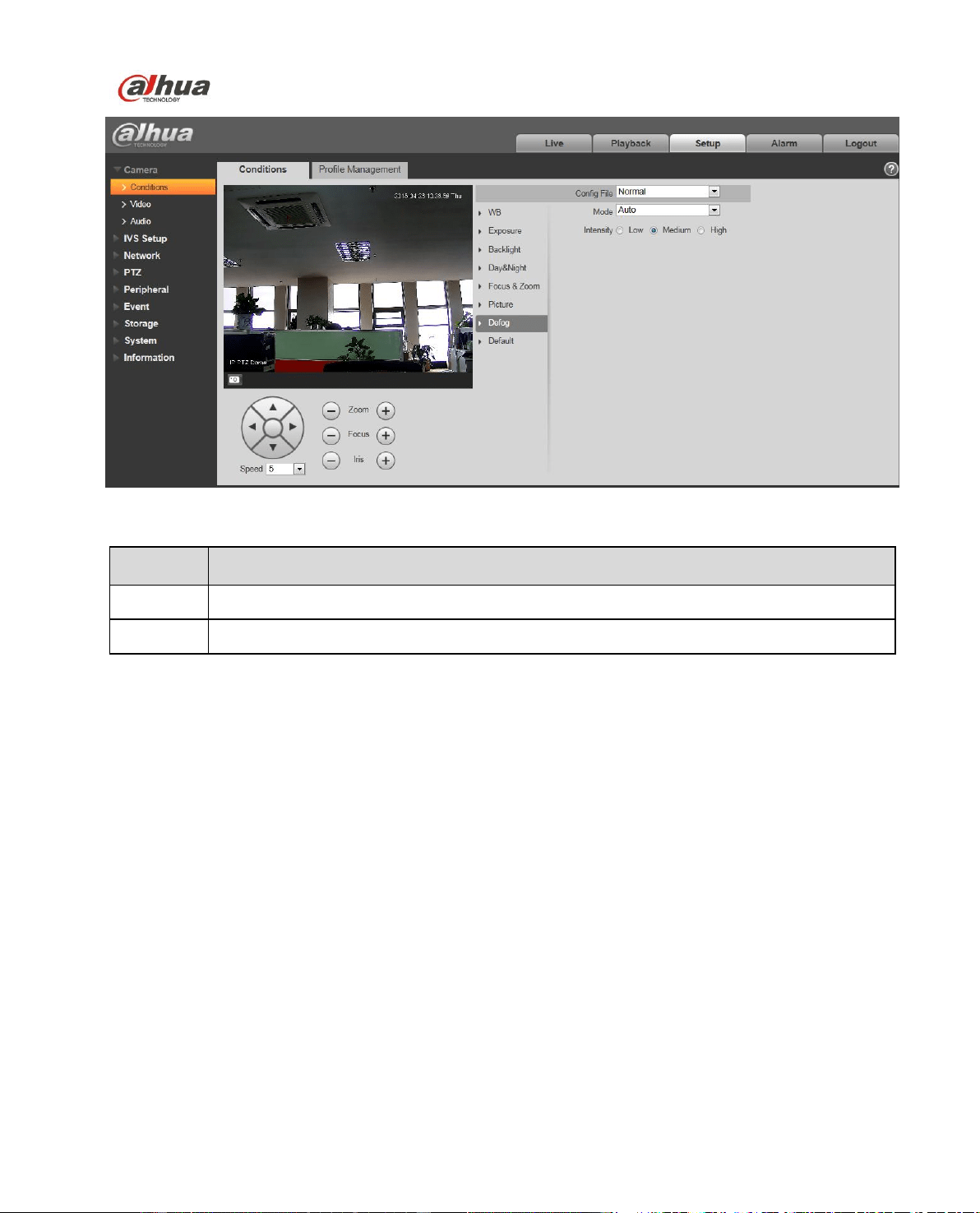
4.1.1.7 Defog
Dahua Network Speed Dome Web3.0 Operation Manual
30
Figure 4-9
Please refer to the following sheet for detailed information.
Parameter
Function
Default
It is to restore camera parameter to factory default setup.
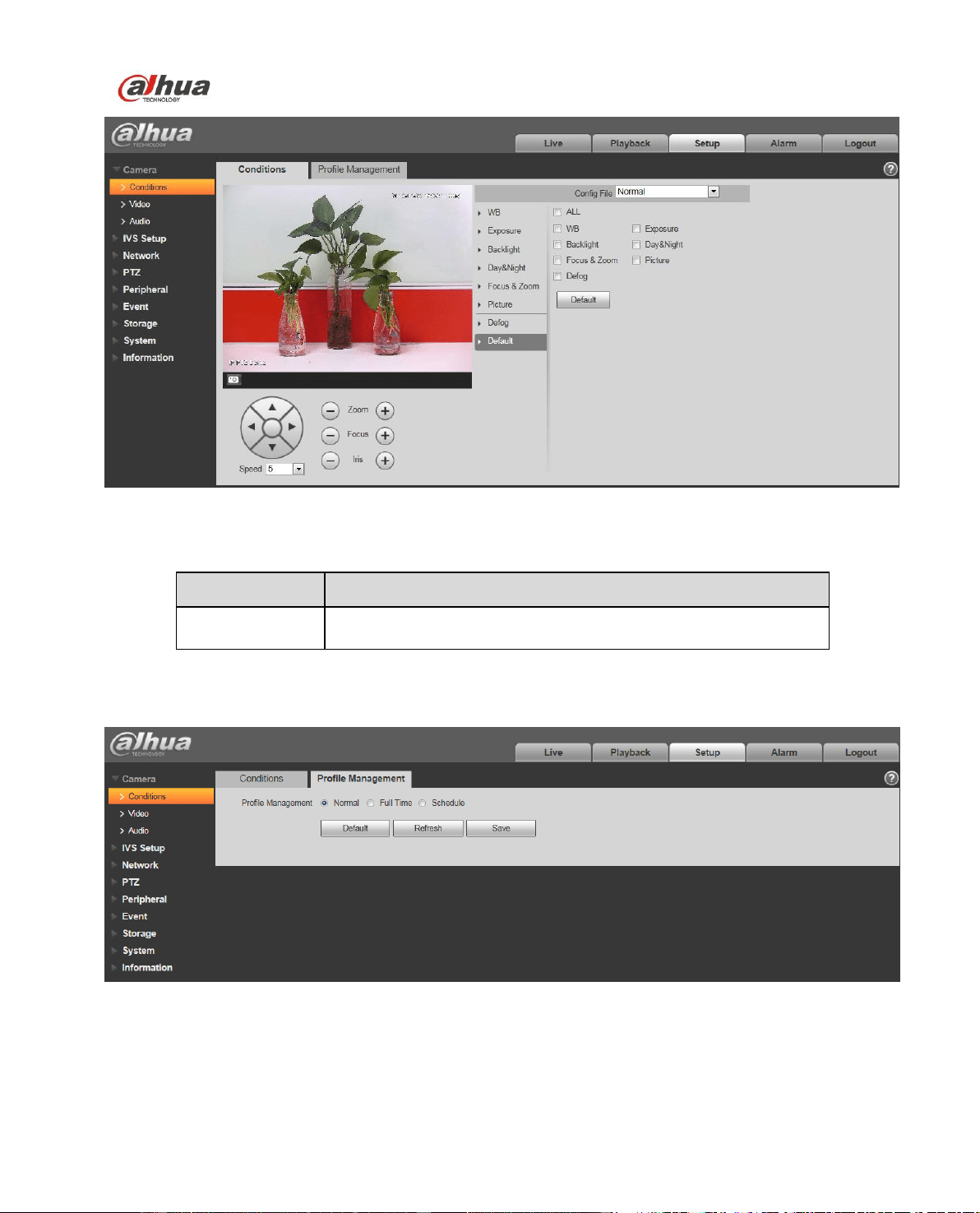
4.1.1.9 Profile Management
Profile management interface is shown as in Figure 4-10.
Figure 4-10
Please refer to the following sheet for detailed information.
Dahua Network Speed Dome Web3.0 Operation Manual
31
Parameter
Function
Profile
Management
There are three modes: normal/full-time/schedule. The default
setup is normal.
Normal
It is to adopt the general parameter on the profile file.
Full-time
It is to adopt day or night general parameter on the profile file
all the time.
Schedule
It is to adopt the day or night parameter on the profile file by
time you set here.
4.1.2 Video
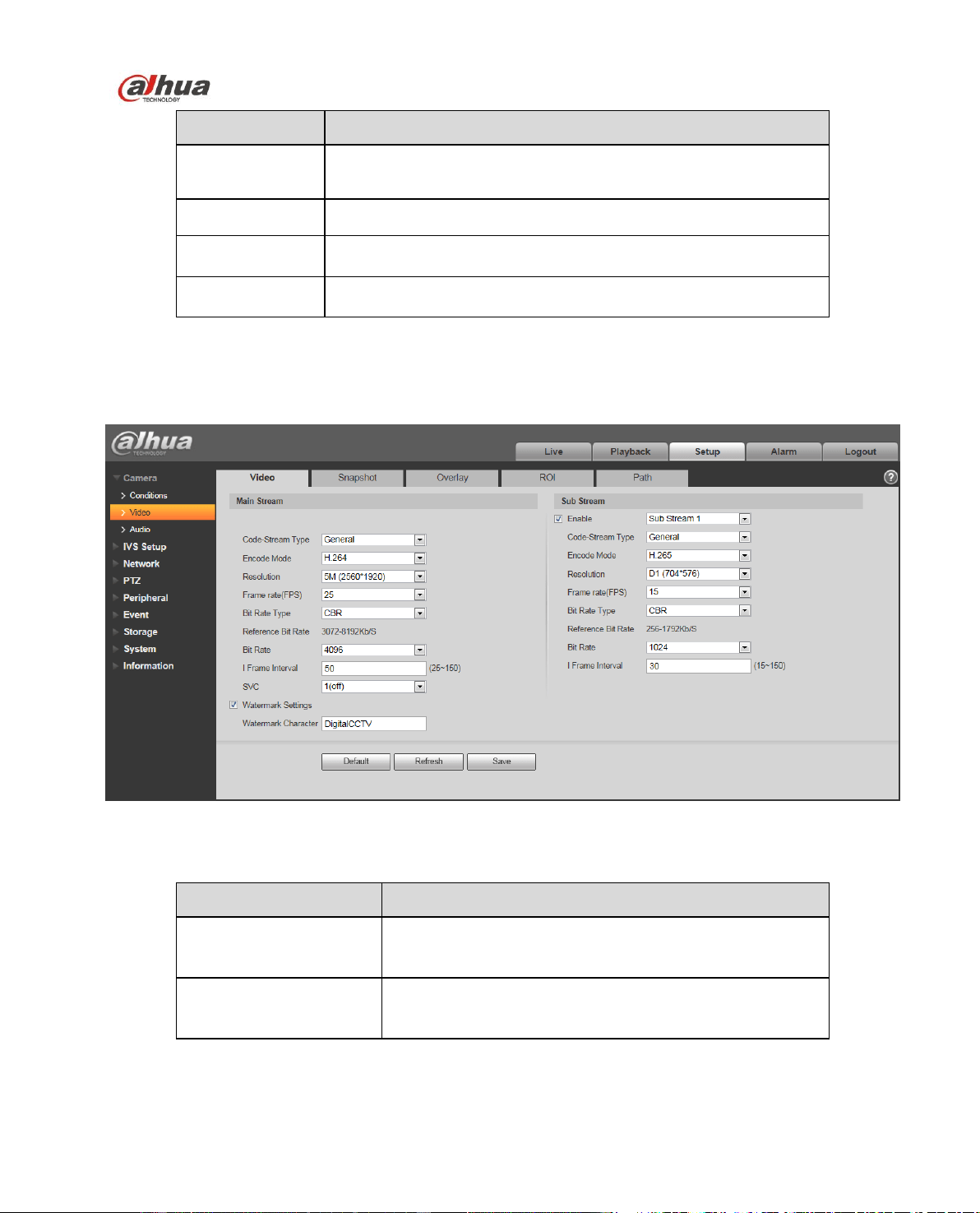
4.1.2.1 Video bit stream
The video bit stream interface is shown as below. See Figure 4-11.
Figure 4-11
Please refer to the following sheet for detailed information.
Parameter
Function
Sub Stream Enable
Please check the box here to enable extra stream
function.
This function is enabled by default.
Code-Stream Type
ACF means using different fps to record.
There are two options: VBR and CBR.
Please note, you can set video quality in VBR mode.

Dahua Network Speed Dome Web3.0 Operation Manual
32
Parameter
Function
Encode mode
There are four options: H.264, H.264H, H.265 and
MJPEG encode.
H.264: Main Profile encode mode.
H.264H: High Profile encode mode.
H.265: Main Profile encode mode.
Note:
Only supported by some models.
MJPEG: In this encode mode, the video needs
large bit stream to guarantee the video definition.
You can use the max bit stream value in the
recommend bit to get the better video output effect.
Resolution
There are multiple resolutions. You can select from the
dropdown list.
For each resolution, the recommended bit stream value
is different.
Frame Rate (FPS)
PAL: 1~25f/s,NTSC: 1~30f/s..
The frame rate may vary due to different resolutions.
Bit Rate Type
There are two options: VBR and CBR.
Please note, you can set video quality in VBR mode.
Under MJPEG mode, only CBR is available.
Recommended Bit
Recommended bit rate value according to the resolution
and frame rate you have set.
Bit Rate
In CBR, the bit rate here is the max value. In
dynamic video, system needs to low frame rate or
video quality to guarantee the value.
The value is null in VBR mode.
Please refer to recommend bit rate for the detailed
information.
I Frame
Here you can set the P frame amount between two I
frames. The value ranges from 1 to 150. Default value
is 50.
Recommended value is frame rate *2.
Watermark Settings
By calibrating watermark, to see if video is modified.
Select Watermark function. Default watermark is Digital
CCTV.
Watermark character can only be number, letter, _, -
within 128 characters.
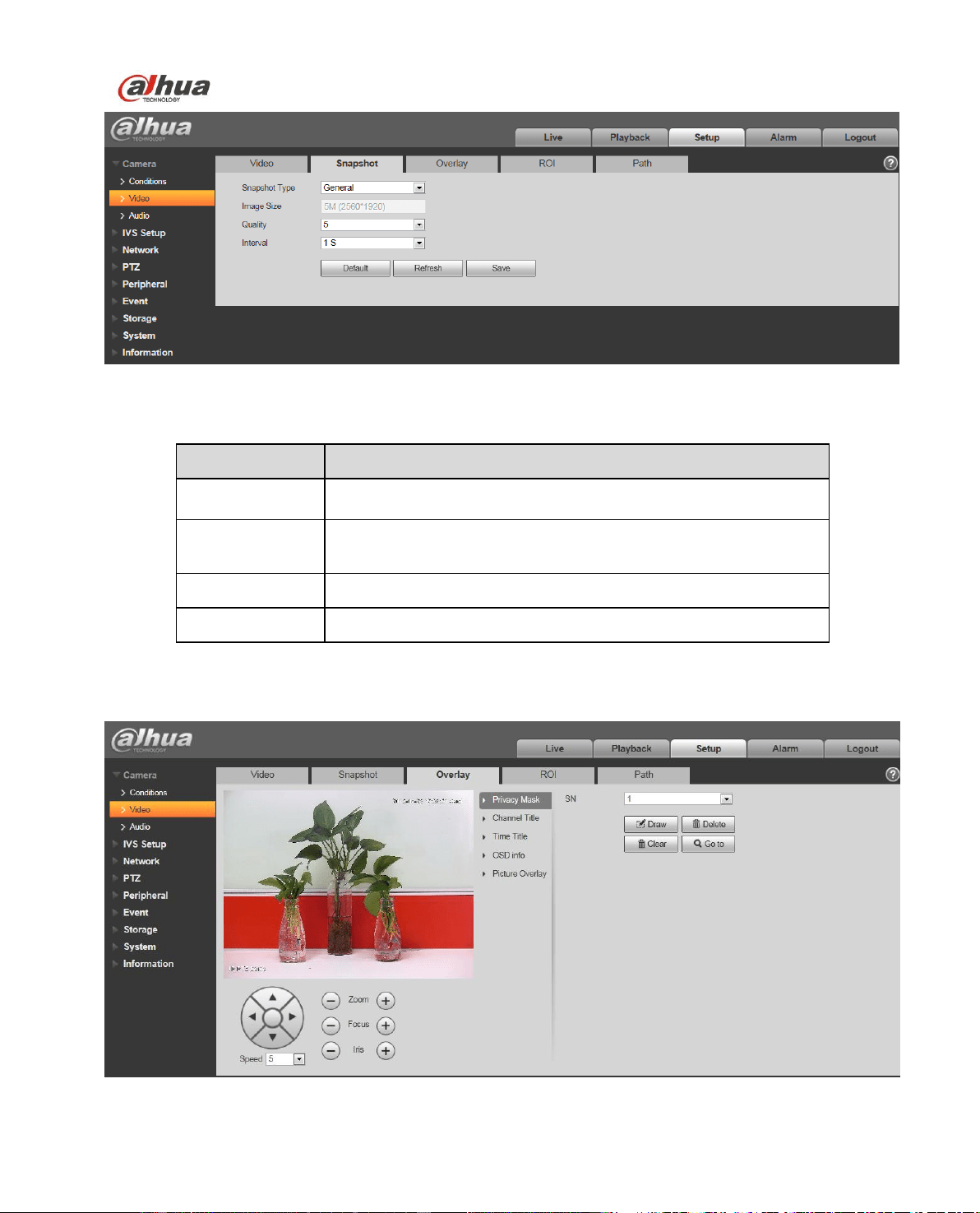
4.1.2.2 Snapshot
The snapshot interface is shown as in Figure 4-12.
Dahua Network Speed Dome Web3.0 Operation Manual
33
Figure 4-12
Please refer to the following sheet for detailed information.
Parameter
Function
Snapshot type
There are two modes: general (schedule) and Event
(activation).
Image size
It is the same with the resolution of snapshot (main stream or
sub stream).
Quality
It is to set the image quality. There are six levels.
Interval
It is to set snapshot frequency. The value ranges from 1s to 7s.
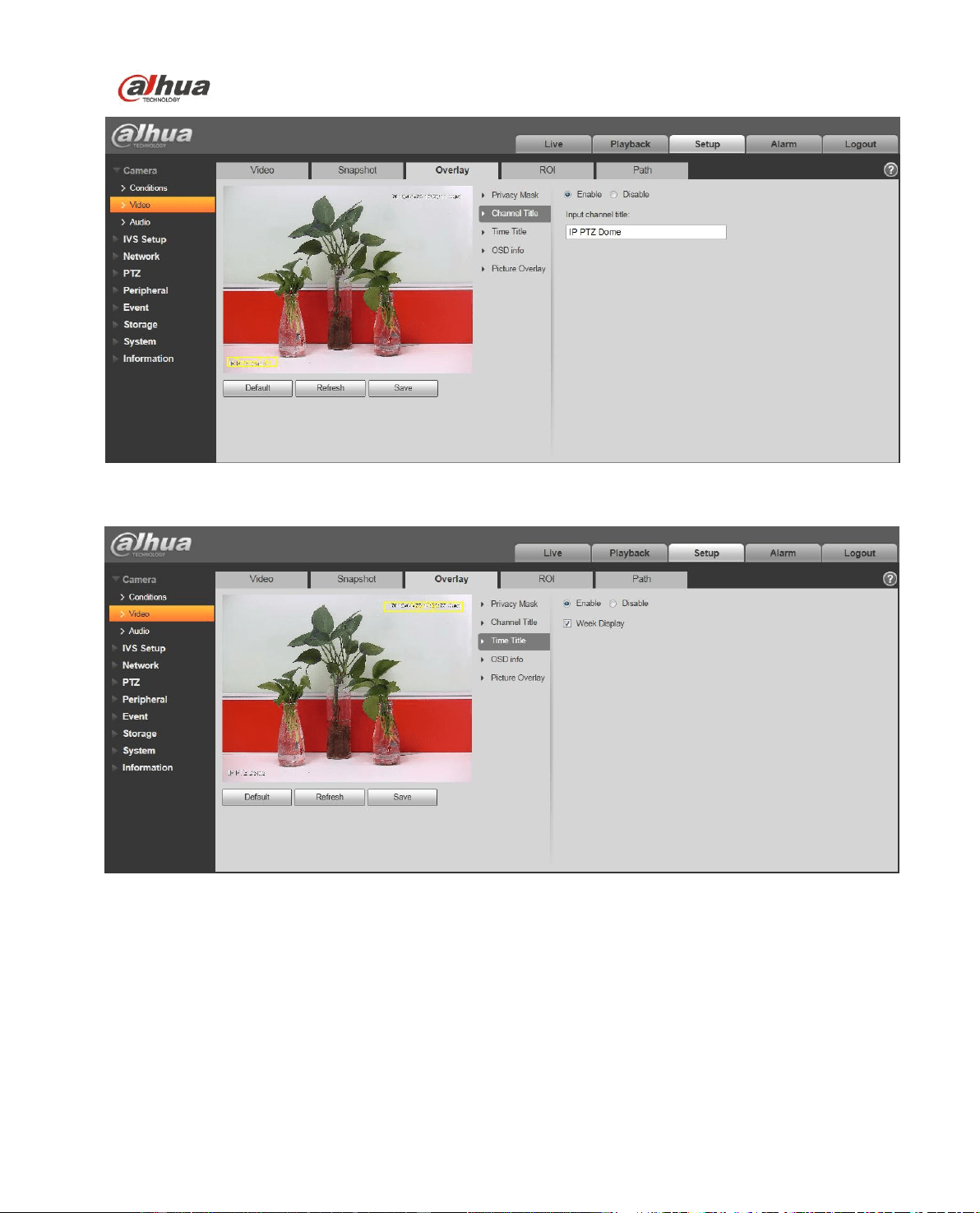
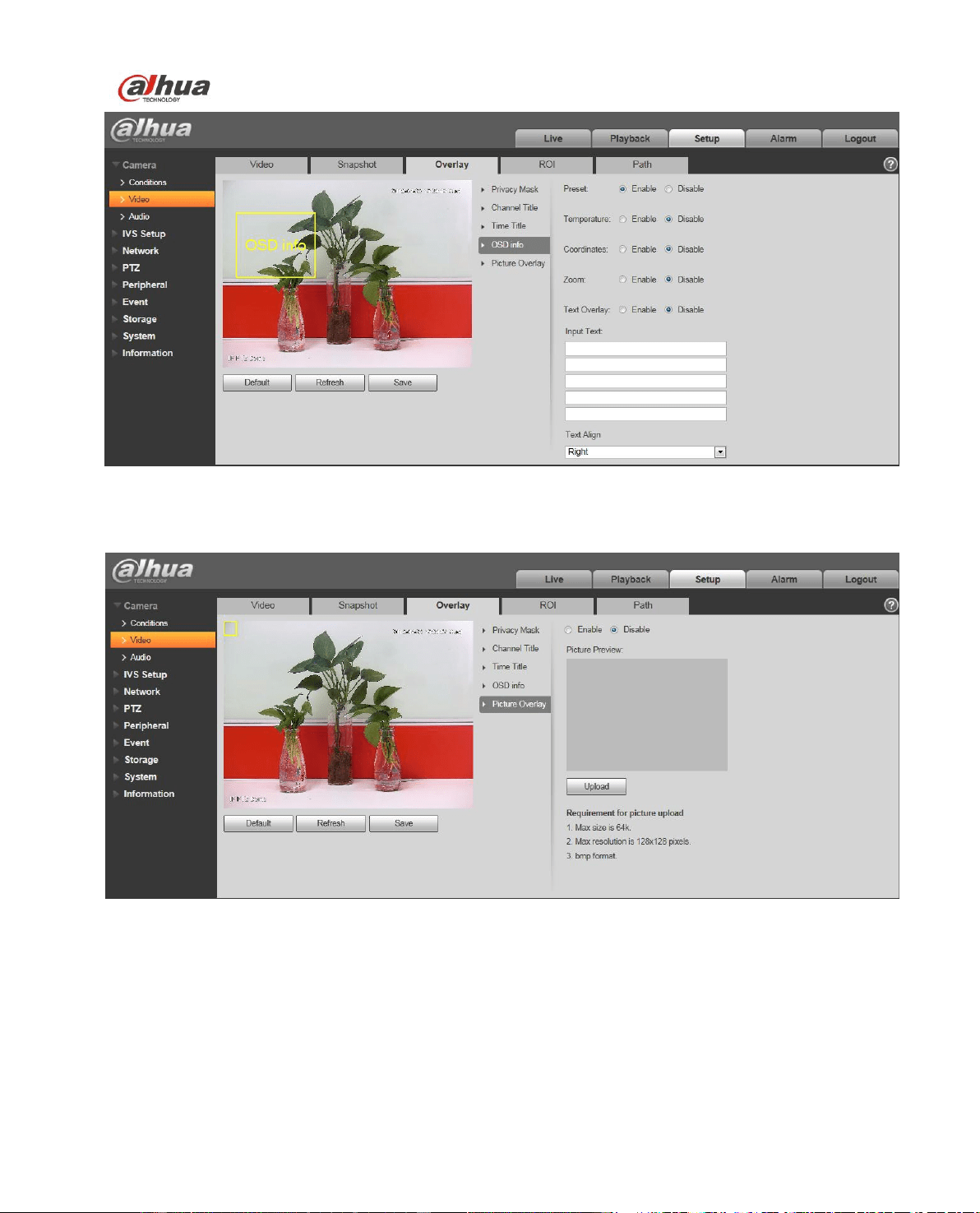
4.1.2.3 Video Overlay
The video overlay interface is shown as in Figure 4-13 to Figure 4-17.
Figure 4-13
Dahua Network Speed Dome Web3.0 Operation Manual
34
Figure 4-14
Figure 4-15
Dahua Network Speed Dome Web3.0 Operation Manual
35
Figure 4-16
Figure 4-17
Please refer to the following sheet for detailed information.
Dahua Network Speed Dome Web3.0 Operation Manual
36
Parameter
Function
Channel Title
You can enable this function so that system overlays
channel information in video window. See Figure 4-.
You can use the mouse to drag the channel tile position.
Time Title
You can enable this function so that system overlays time
information in video window. See Figure 4-.
You can use the mouse to drag the time tile position.
OSD
Select corresponding “enable” button, it will display preset,
temperature, PTZ coordinate, zoom, location in video
window. It won’t display if you select corresponding
“disable” button. See
You can adjust preset, temperature, PTZ coordinate,
zoom, location by dragging “OSD Info” box. Alignment
include align left and align right.
Picture Overlay
You can enable this function to display overlay picture.
Click disable to turn it off. See Figure 4-.
Click Upload Picture to overlay local picture into monitoring
window. You can drag the yellow box to move it.
Note:
You cannot enable OSD and overlay at the same time.
Refresh
Set channel title, time title, OSD info, picture overlay and
save the change. You can click Refresh to see effect.
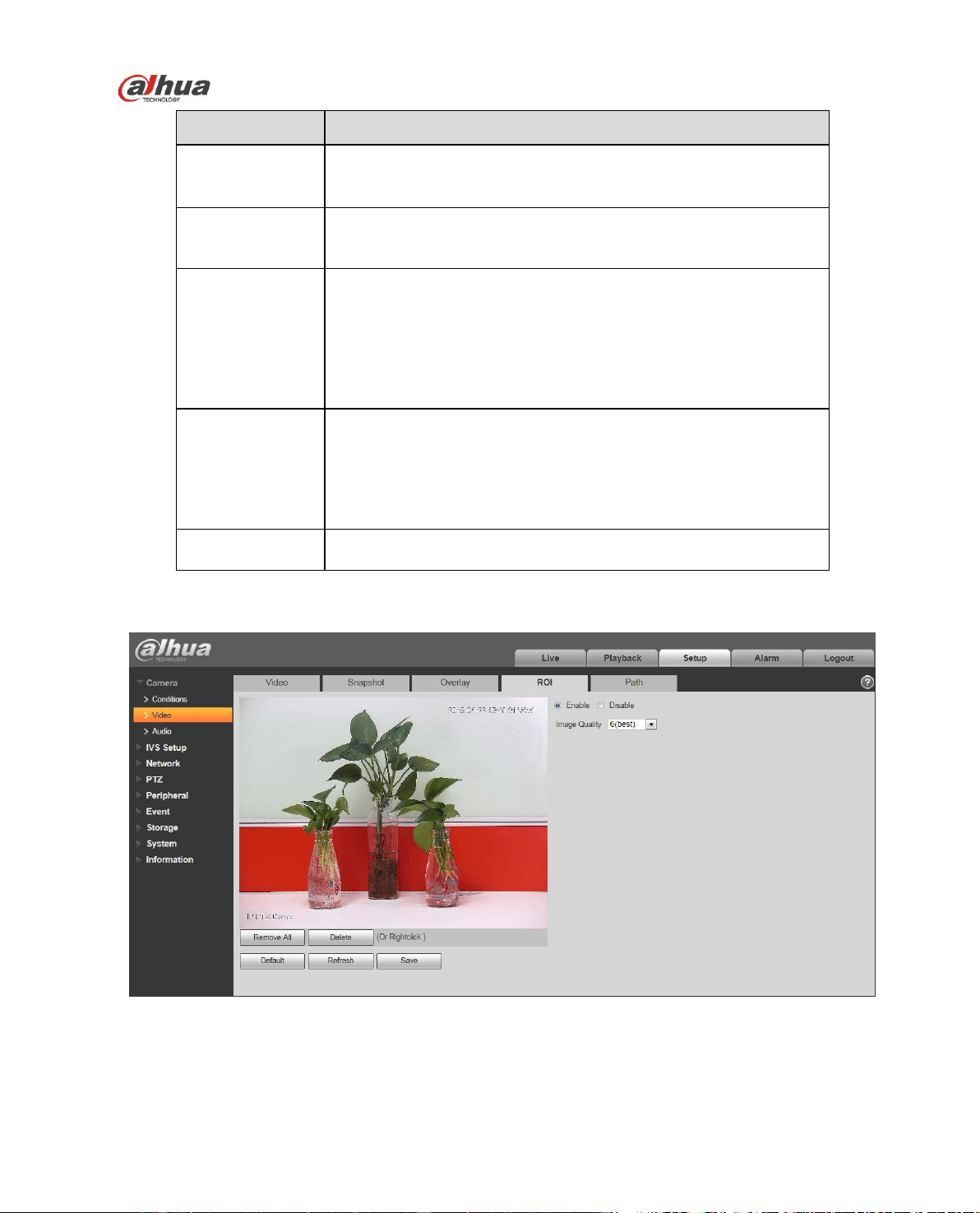
4.1.2.4 ROI
Figure 4-18
Dahua Network Speed Dome Web3.0 Operation Manual
37
Parameter
Note
Enable
Check “Enable” to display ROI in the video monitoring window; check “Disable”
not to display.
Image
Quality
It is to set the image quality of ROI, ranging from 1~6.
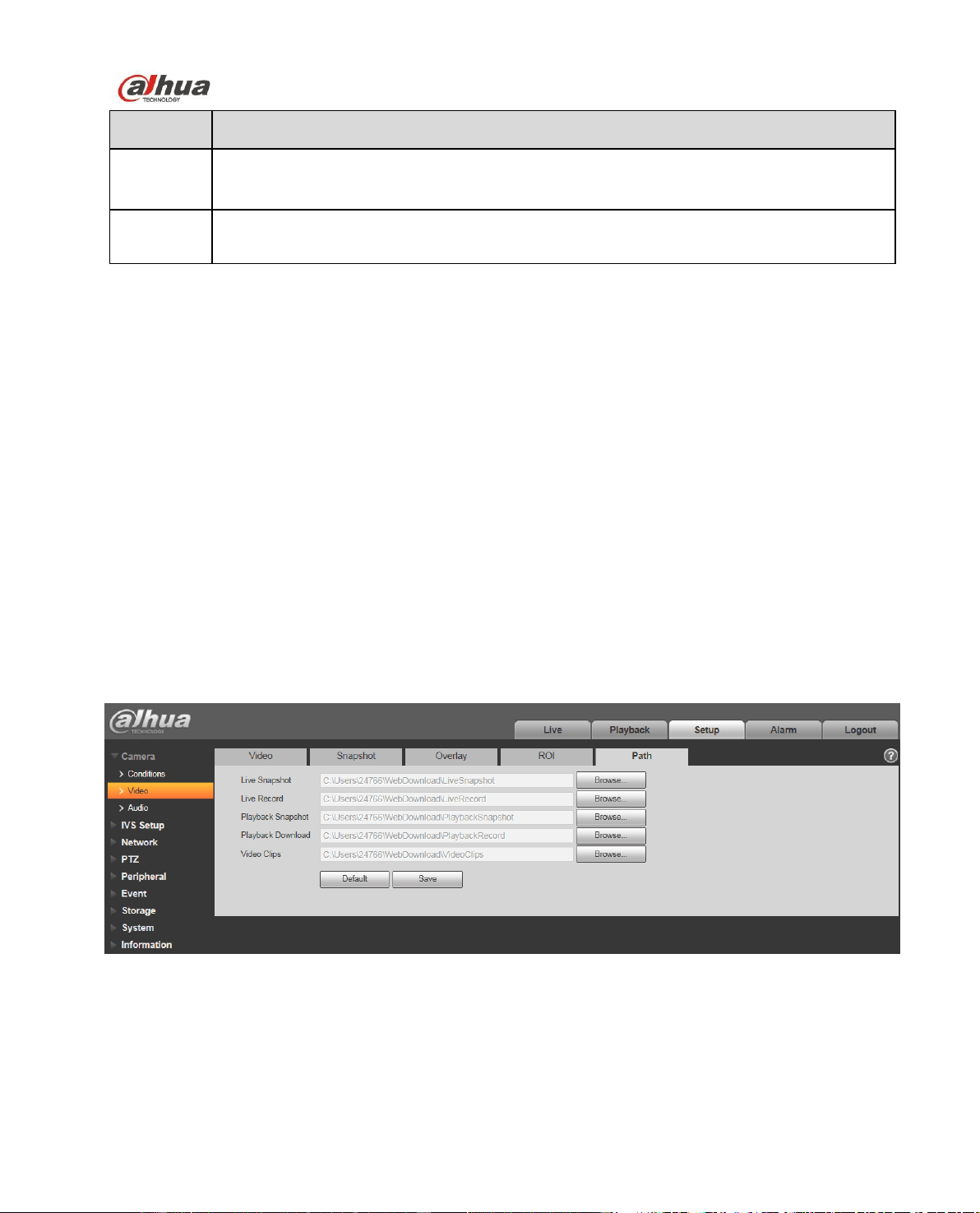
4.1.2.5 Path
The storage path interface is shown as in Figure 4-19.
Here you can set snap image saved path and the record storage path.
The default monitor image path is C:\Documents and
Settings\Administrator\WebDownload\LivePicture.
The default monitor record path is C:\Documents and
Settings\Administrator\WebDownload\LiveRecord.
The default playback snapshot path is C:\Documents and
Settings\Administrator\WebDownload\PlayBackPicture.
The default playback download path is C:\Documents and
Settings\Administrator\WebDownload\PlayBackRecord.
The default playback cut path is: C:\Documents and
Settings\Administrator\WebDownload\PlayBackRecordCut.
Note:
Administrator is locally logged in PC account.
Please click the Save button to save current setup.
Figure 4-19
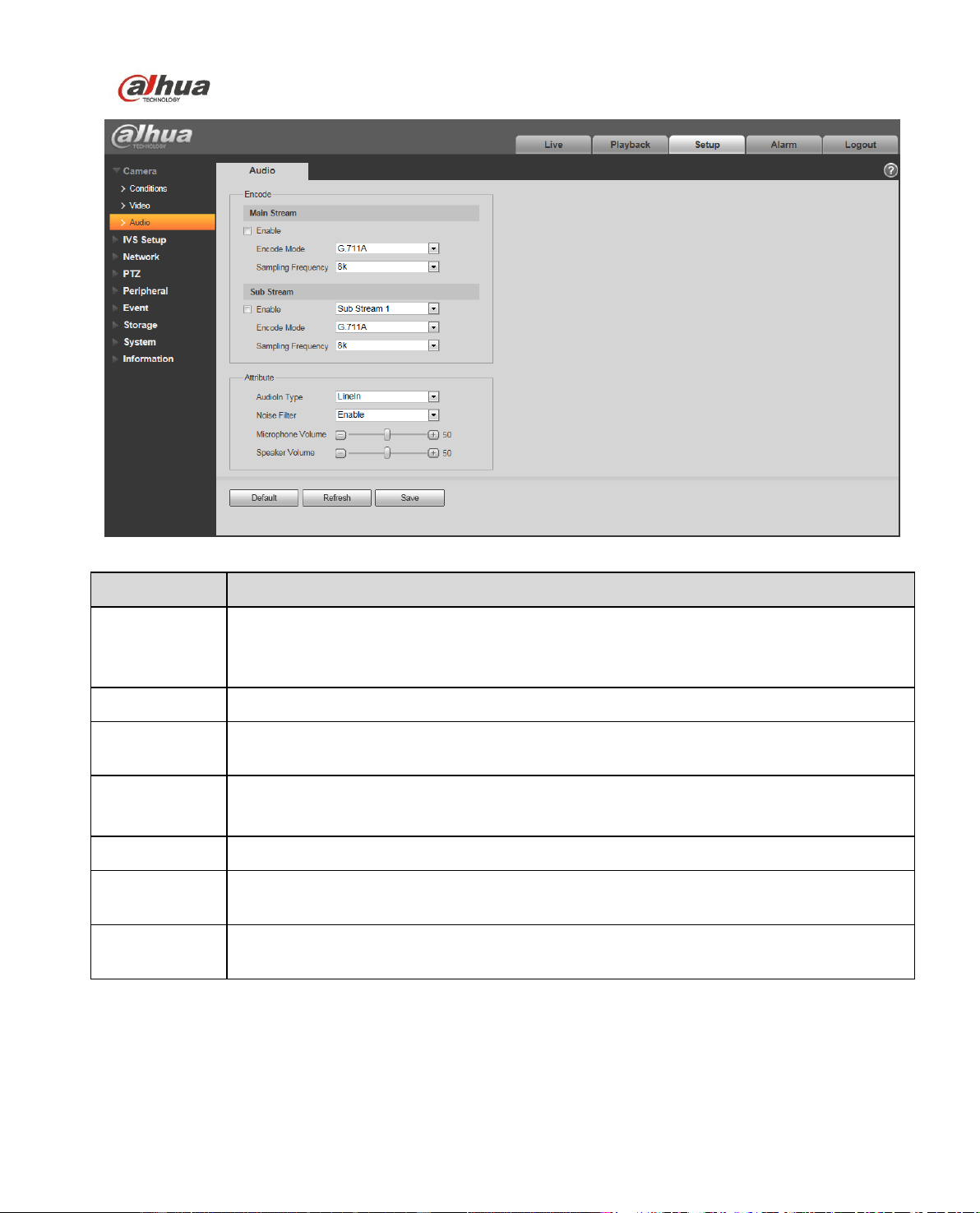
4.1.3 Audio
Note:
Some series don’t support audio function.
Dahua Network Speed Dome Web3.0 Operation Manual
38
Figure 4-20
Parameter
Note
Audio Enable
Check “Enable” and the transmitted bit stream becomes AV combined stream,
otherwise it only includes video image.
Audio can be enabled only when video is enabled.
Encode Mode
Audio encode mode includes G.711A and G.711Mu, it is G.711A by default.
Sampling
Frequency
Sampling frequency includes two types: 8k and 16K.
Audio Input
Type
Currently it can only select Lineln.
Noise Filter
It is to set if it enables l noise filter function.
Microphone
Volume
It is to set Microphone volume.
Speaker
Volume
It is to set speaker volume.
4.2 IVS Setup
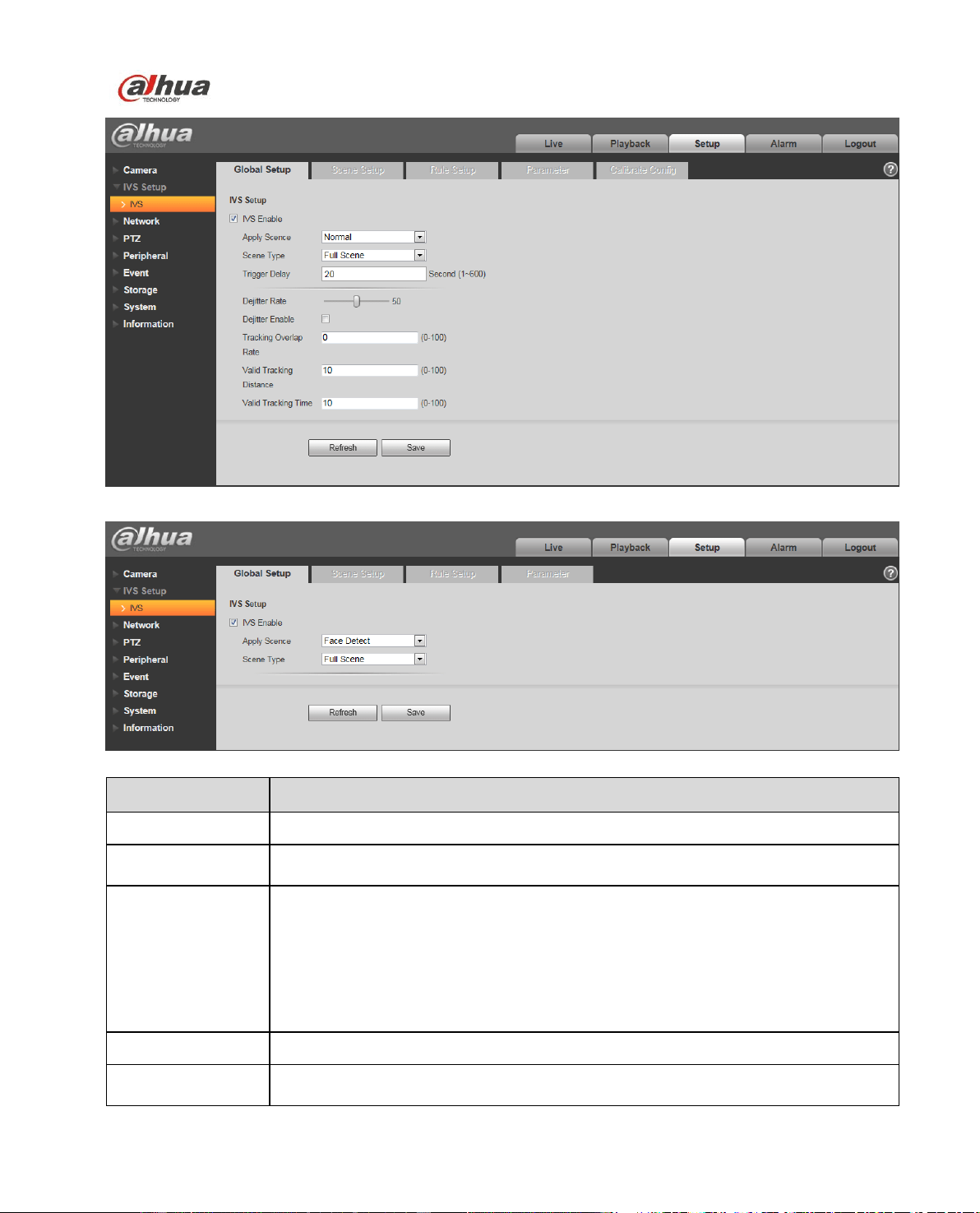
4.2.1 Global Setup
Dahua Network Speed Dome Web3.0 Operation Manual
39
Figure 4-21
Figure 4-22
Parameter
Note
IVS Enable
Check to enable IVS function.
Apply Scene
Able to select normal scene and face detect scene, it is “Normal Scene: by
default.
Scene Type
Full scene, single scene, multi scene:
Full scene: It can realize IVS analysis of the current monitoring image after
preview.
Single scene: It can realize IVS analysis of the single scene.
Multi scene: It can realize the IVS analysis of multi scene, and switch tour
between scenes.
Dejitter Rate
It is to set dejitter rate of the camera.
Tracking Overlap
rate
It is to set the tracking overlap rate, 0~100 optional.
Dahua Network Speed Dome Web3.0 Operation Manual
40
Parameter
Note
Valid Tracking
Distance
It is to set valid tracking distance, 0~100 optional.
Valid Tracking
Time
It is to set valid tracking time, 0~100 optional.
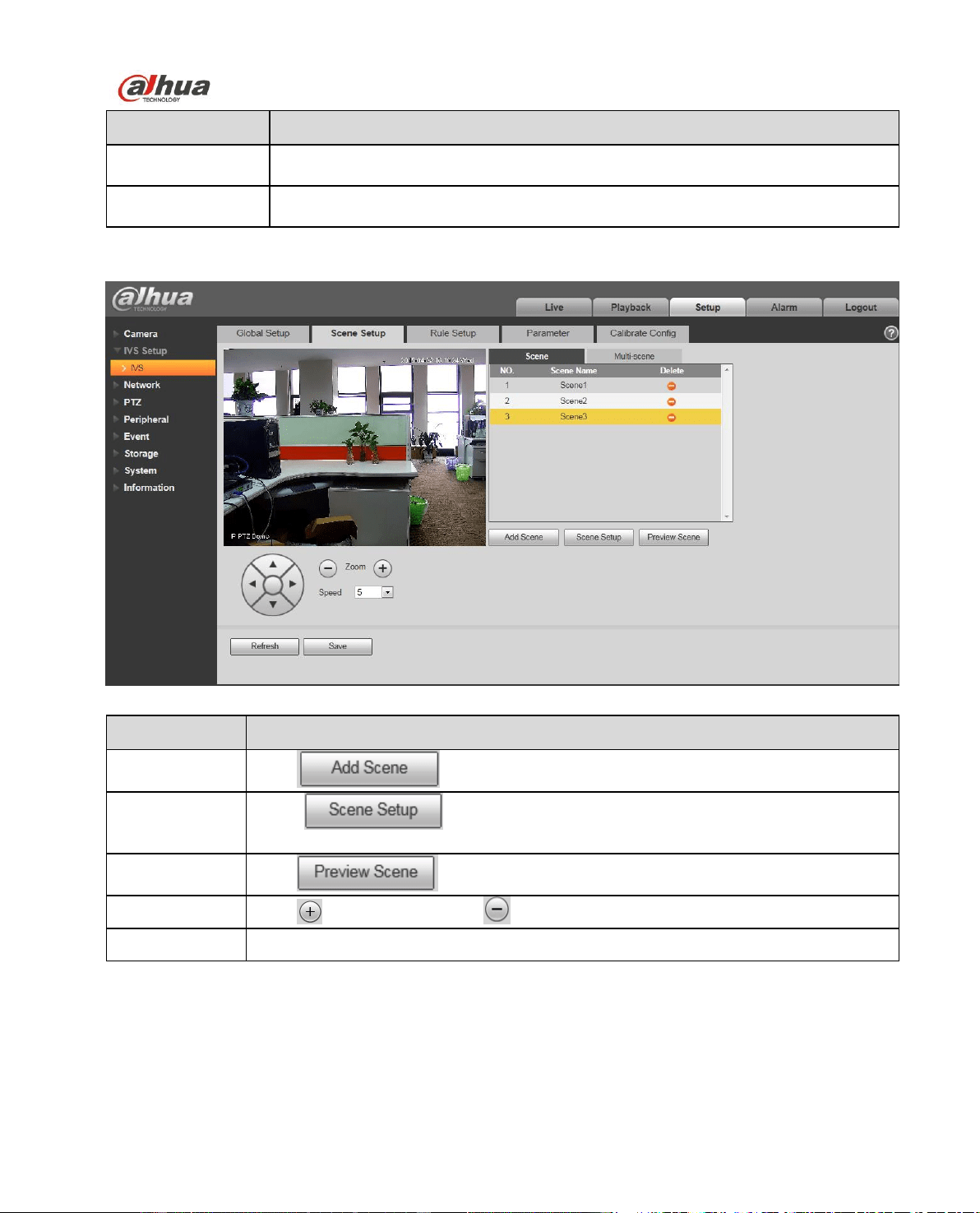
4.2.2 Scene Setup
Figure 4-23
Parameter
Note
Add Scene
Click to add scene.
Scene Setup
Click it to set current monitor video as the scene of
corresponding scene number.
Preview Scene
Click to preview the selected scene.
Zoom
Click to zoom in and click to zoom out.
Speed
It is to set PTZ movement speed. The value ranges from 1 to 8.
Dahua Network Speed Dome Web3.0 Operation Manual
41
Figure 4-24
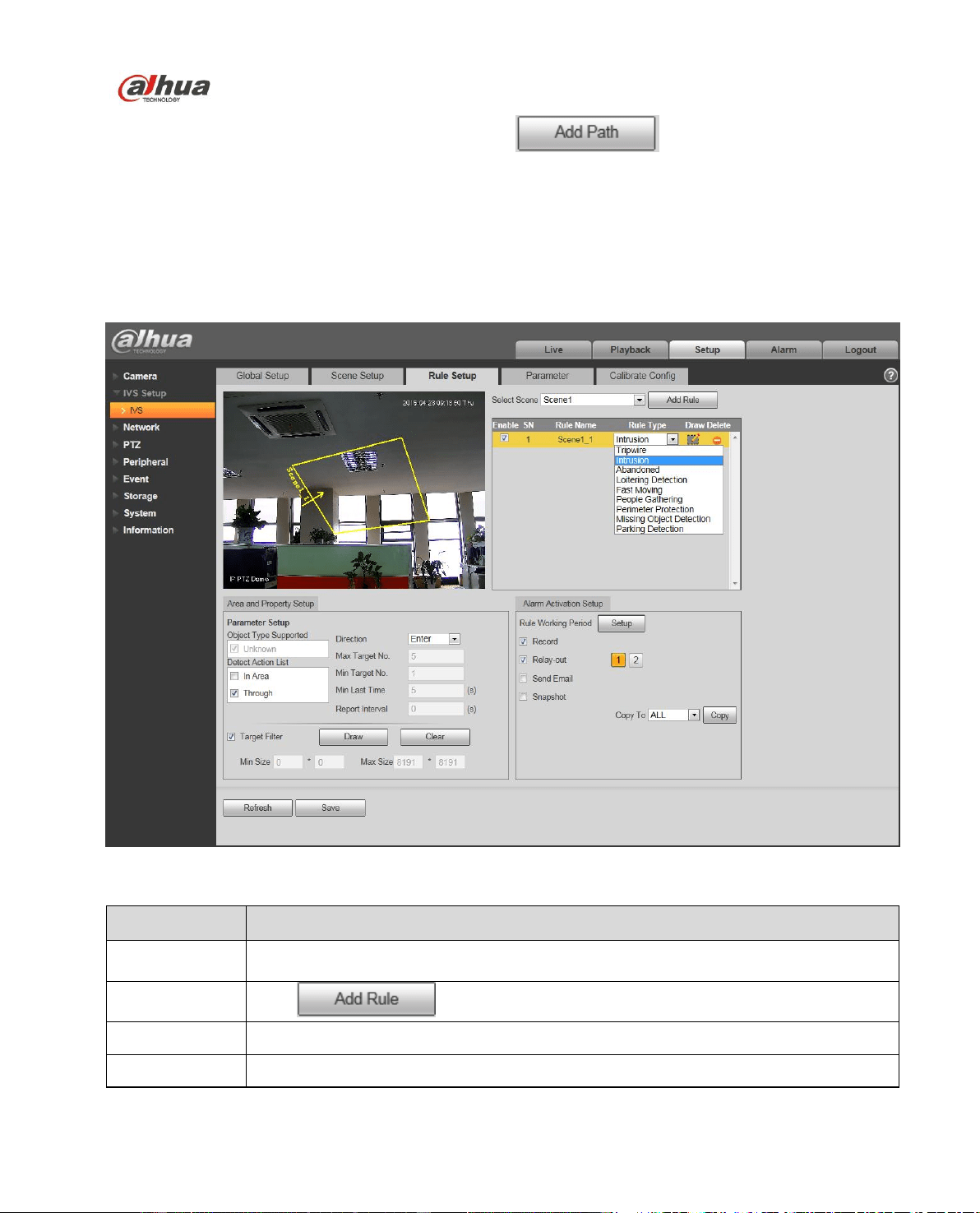
Single scene: enter “single scene” interface, click the box and select the scene which needs to be
monitored.
Note:
The function needs to select the “Single Scene” in “IVS Setup > Global Setup > Scene Type”.
Figure 4-25
Dahua Network Speed Dome Web3.0 Operation Manual
42
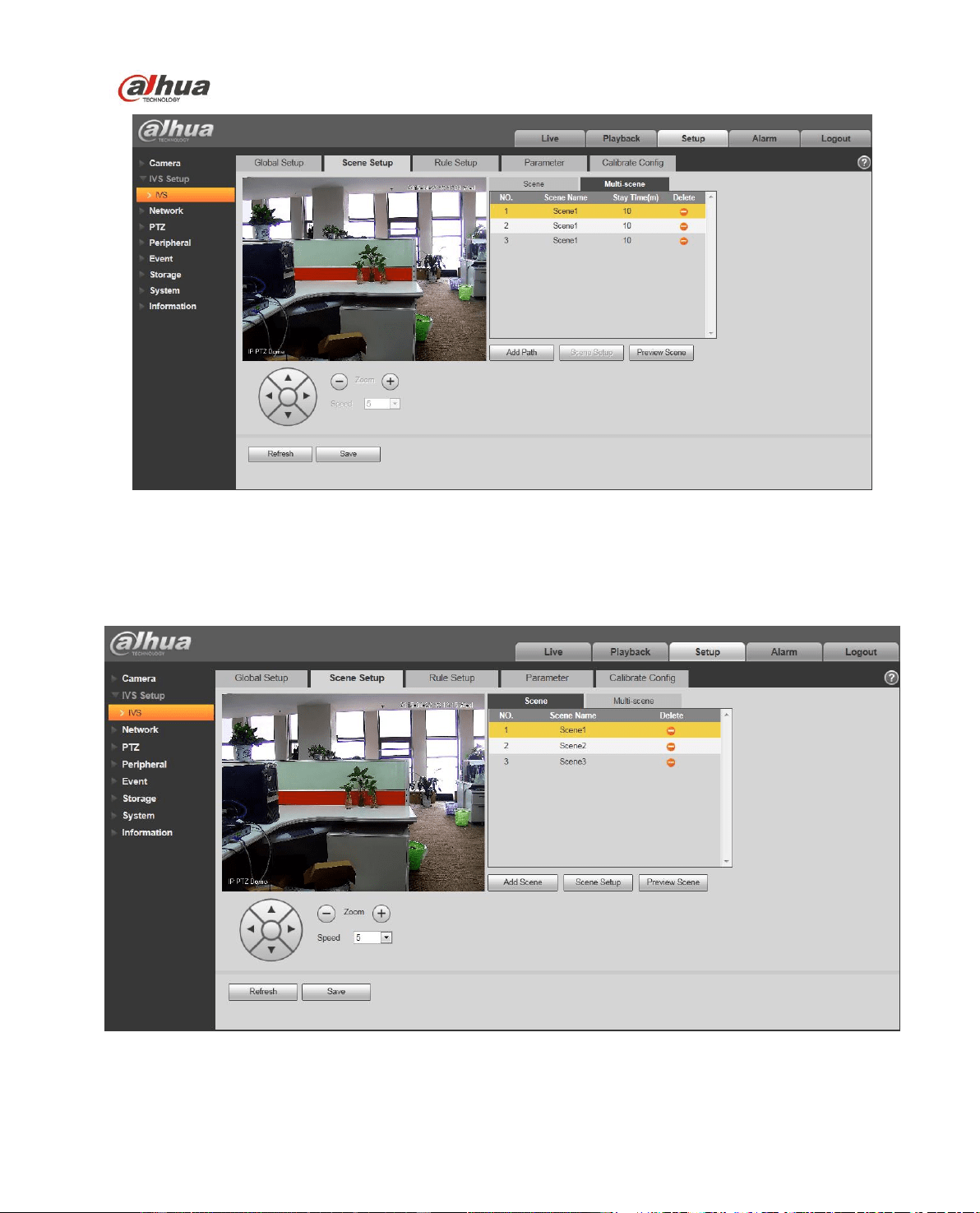
Multiple-scene: Enter “Multiple Scene” interface, click to add tour scene, move the
mouse to the “Scene Name” list; you can select several scenes as a tour. Move the mouse to the “Stay
Time”, you can set stay time period.
Note:
The function needs to select “Multiple Scene” in the “IVS Setup > Global Setup > Scene Type”.
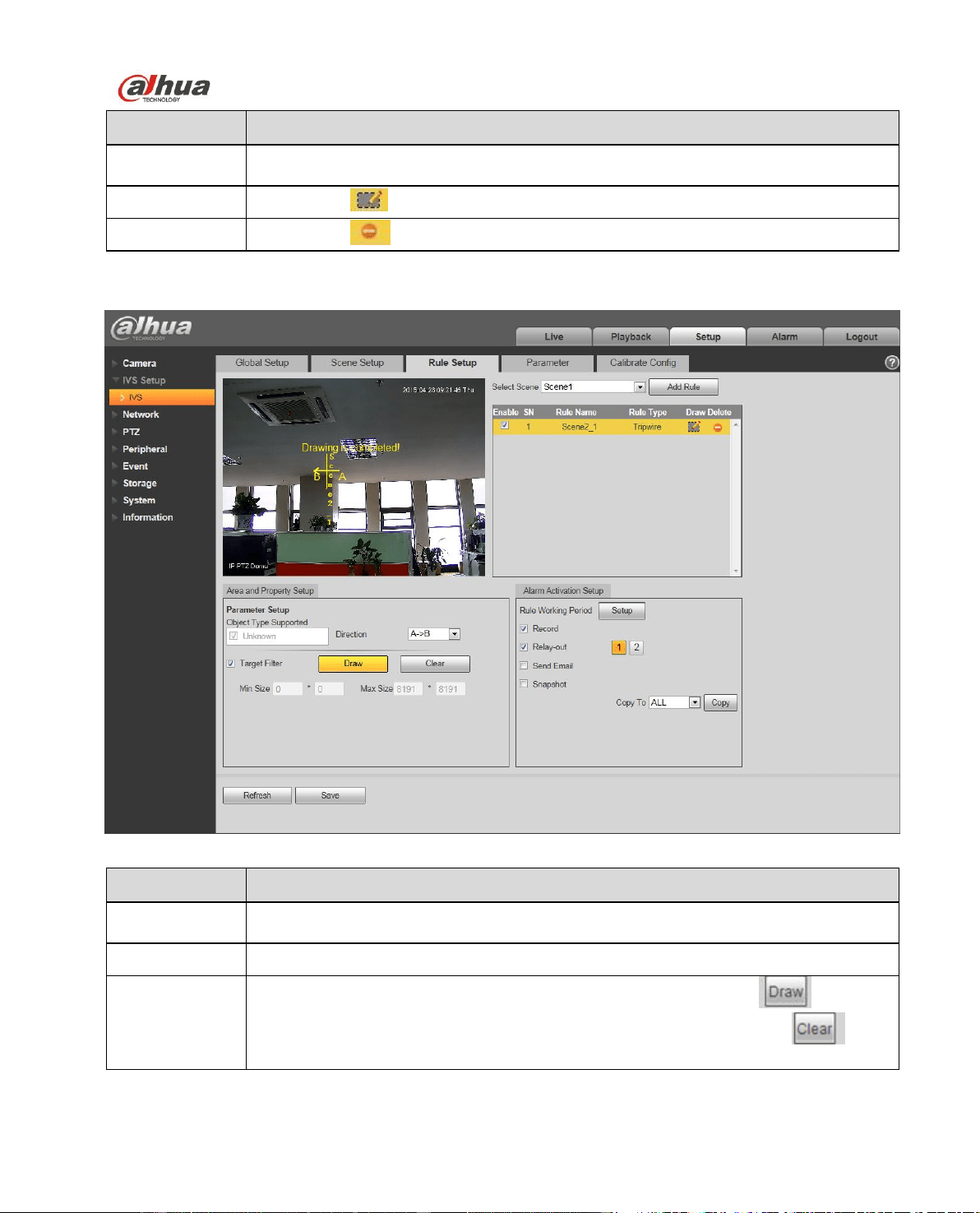
4.2.3 Rule Setup
Figure 4-26
Parameter
Note
Select Scene
You can select the scene from the dropdown list so that you can add the
corresponding rule.
Add Rule
Click to add a rule to the selected scene.
Rule Enable
Check the box here to enable the rule.
Rule Name
Move your mouse to the rule name column to set a name.
Dahua Network Speed Dome Web3.0 Operation Manual
43
Parameter
Note
Rule Type
Move your mouse to the Rule type column to set the rule type. The option includes:
Tripwire/Cross warning zone/Object abandoned and etc.
Draw Rule
Click button to draw current rule.
Delete Rule
Click button to delete current rule.
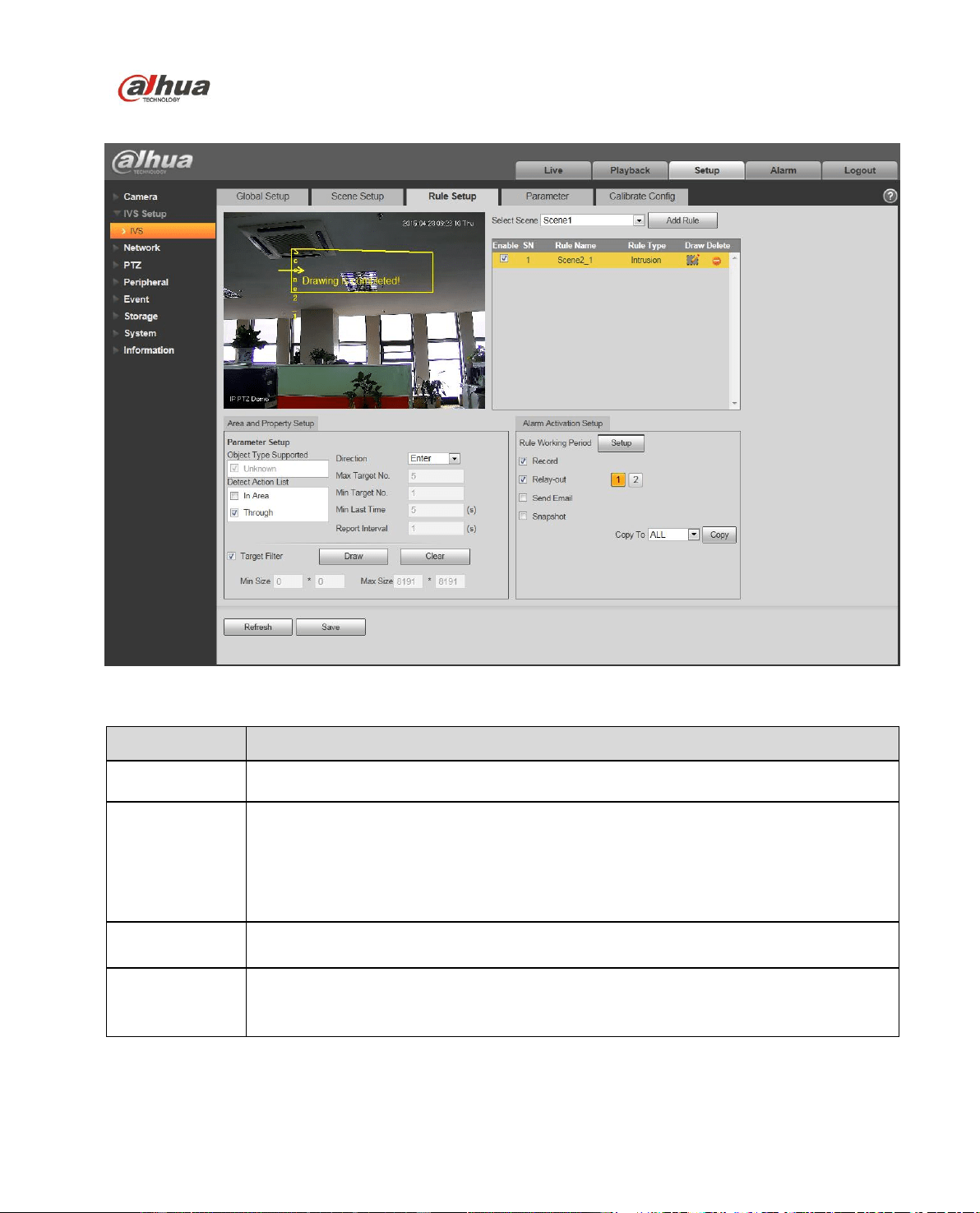
4.2.3.1 Tripwire
Figure 4-27
Parameter
Note
Object type
supported
You can select an object type here. The default setup is all types.
Direction
It is to set tripwire direction. The option includes: A->B、B->A、A<->B.
Target filter
Check the box here to enable this function and then click button ,you can
set the target filter model in this scene for this rule. Click the button ,you
can remove selected target filter model.
Dahua Network Speed Dome Web3.0 Operation Manual
44
4.2.3.2 Intrusion
Figure 4-28
Parameter
Function
Object type
supported
You can select an object type here. The default setup is all types.
Detect action
list
In area: When the tracking object is in the detect zone and the stay time is
more than the time threshold you set here, system can activate an alarm.
Through area: System can generate an alarm when the tracking object is
crossing the limit you set here.
Direction
It is for the Through area option in the Detect action list item. It is to set the cross
direction. The option includes: in/out/both (in&out)
Max target No.
It is for the In area option in the Detect action list item. It is to set the alarm
activation amount in the zone. System will not generate an alarm when the object
amount in the zone is more than the threshold you set here.
Dahua Network Speed Dome Web3.0 Operation Manual
45
Parameter
Function
Min target No.
It is for the In area option in the Detect action list item. It is to set the alarm
activation amount in the zone. System will not generate an alarm when the object
amount in the zone is less than the threshold you set here.
Min last time
It is for the In area option in the Detect action list item. Here is to set the min time
between the target in the zone and an alarm activation occurrence.
Report interval
It is for the In area option in the Detect action list item. It is to set alarm period.
System just alarms once if the value is 0 here.
Target filter
Check the box here to enable this function and then click button ,you can
set the target filter model in this scene. Click the button ,you can remove
selected target filter model.
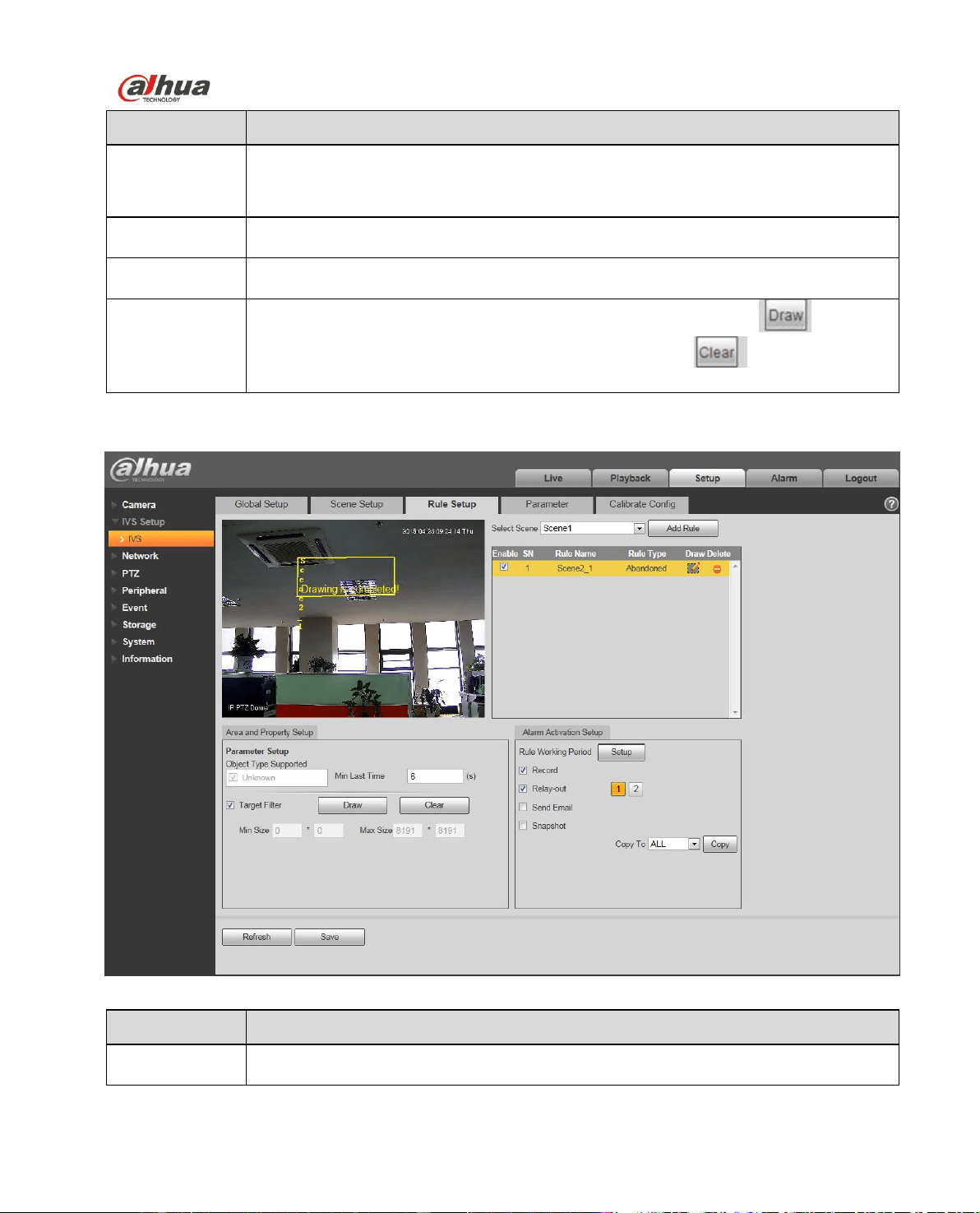
4.2.3.3 Abandoned Object Detection
Figure 4-29
Parameter
Function
Object type
supported
You can select an object type here. The default setup is all types.
Dahua Network Speed Dome Web3.0 Operation Manual
46
Parameter
Function
Min last time
It is to set the min time between the abandoned object occurrence and alarm
activation.
Target filter
Check the box here to enable this function and then click button ,you can
set the target filter model in this scene. Click the button ,you can remove
selected target filter model.
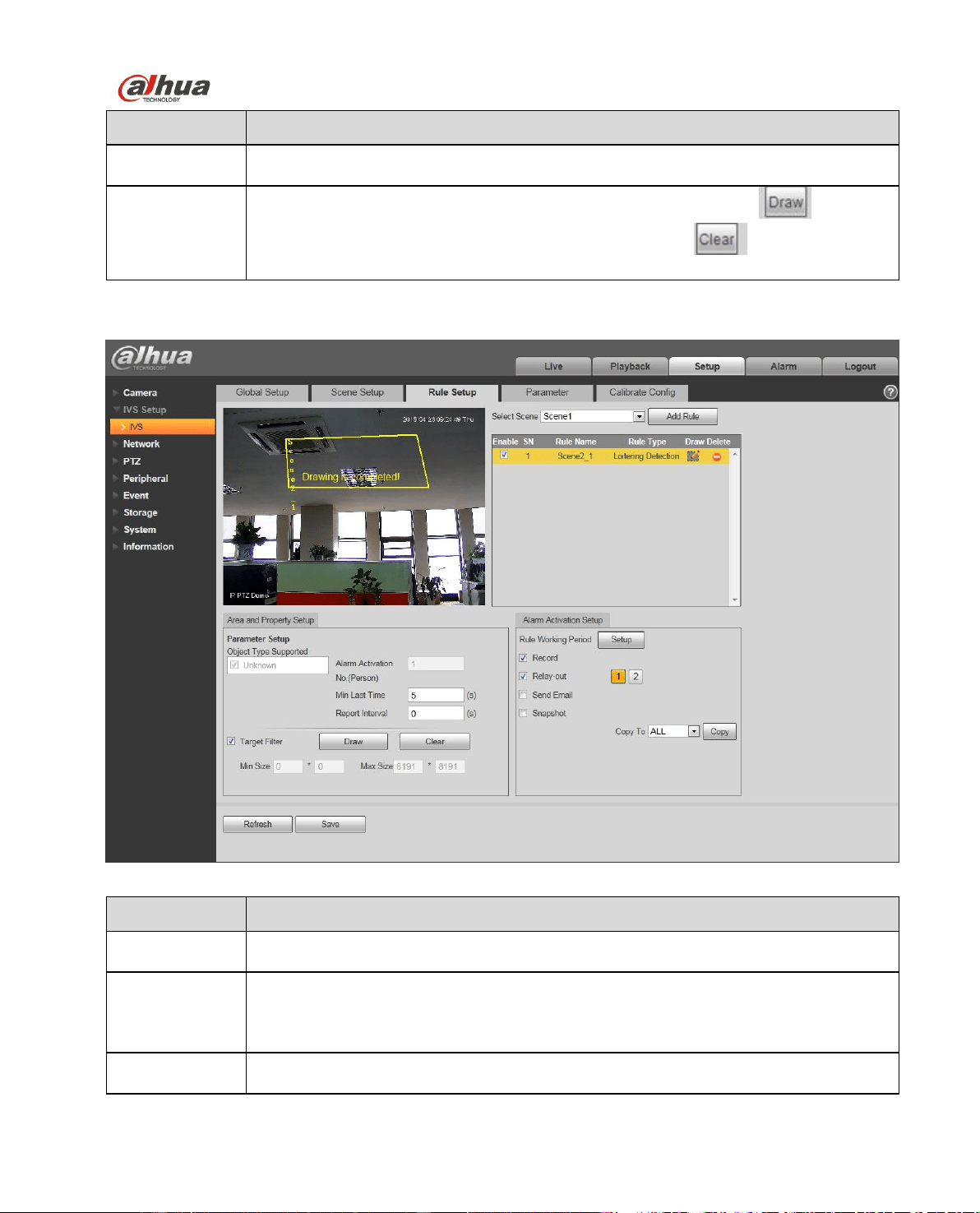
4.2.3.4 Loitering Detection
Figure 4-30
Parameter
Function
Object type
supported
You can select an object type here. The default setup is all types.
Alarm
activation
number
(Person)
Here you can set the alarm activation threshold. The default setup is 1.
Min last time
Here is to set the min time between the target in the zone and an alarm activation
occurrence.
Dahua Network Speed Dome Web3.0 Operation Manual
47
Parameter
Function
Report interval
It is to set alarm period. System just alarms once if the value is 0 here.
Target filter
Check the box here to enable this function and then click button ,you can
set the target filter model in this scene. Click the button ,you can remove
selected target filter model.
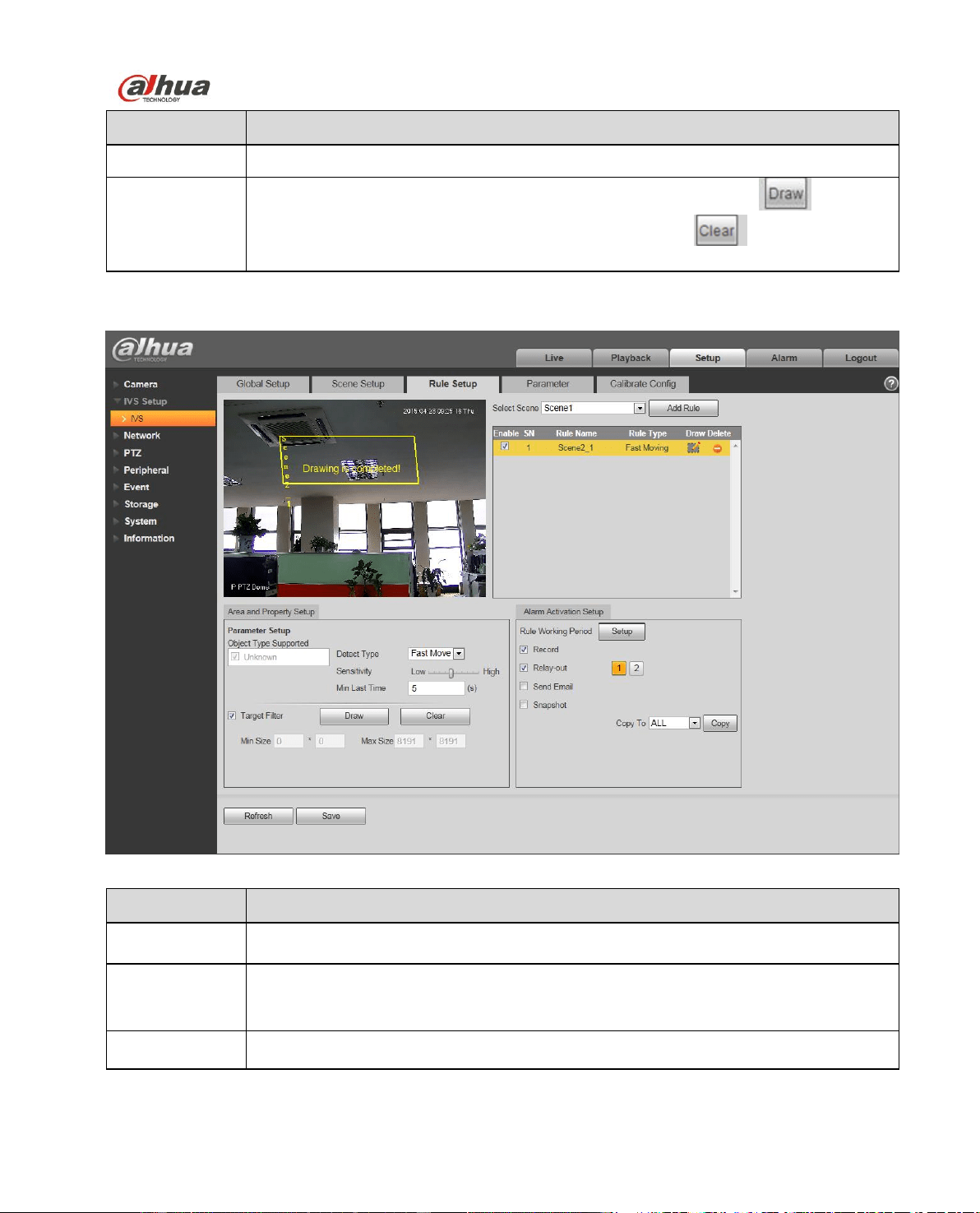
4.2.3.5 Fasting Moving
Figure 4-31
Parameter
Function
Object type
supported
You can select an object type here. The default setup is all types.
Detect type
It is to set detection type. The default setup is “Fast move”. The rule is to detect the
fast moving object in the warning zone.
Sensitivity
Here you can set the alarm activation sensitivity.
Dahua Network Speed Dome Web3.0 Operation Manual
48
Parameter
Function
Min last time
It is to set the min time between the object continuous movement and alarm
activation.
Target filter
Check the box here to enable this function and then click button ,you can
set the target filter model in this scene. Click the button ,you can remove
selected target filter model.
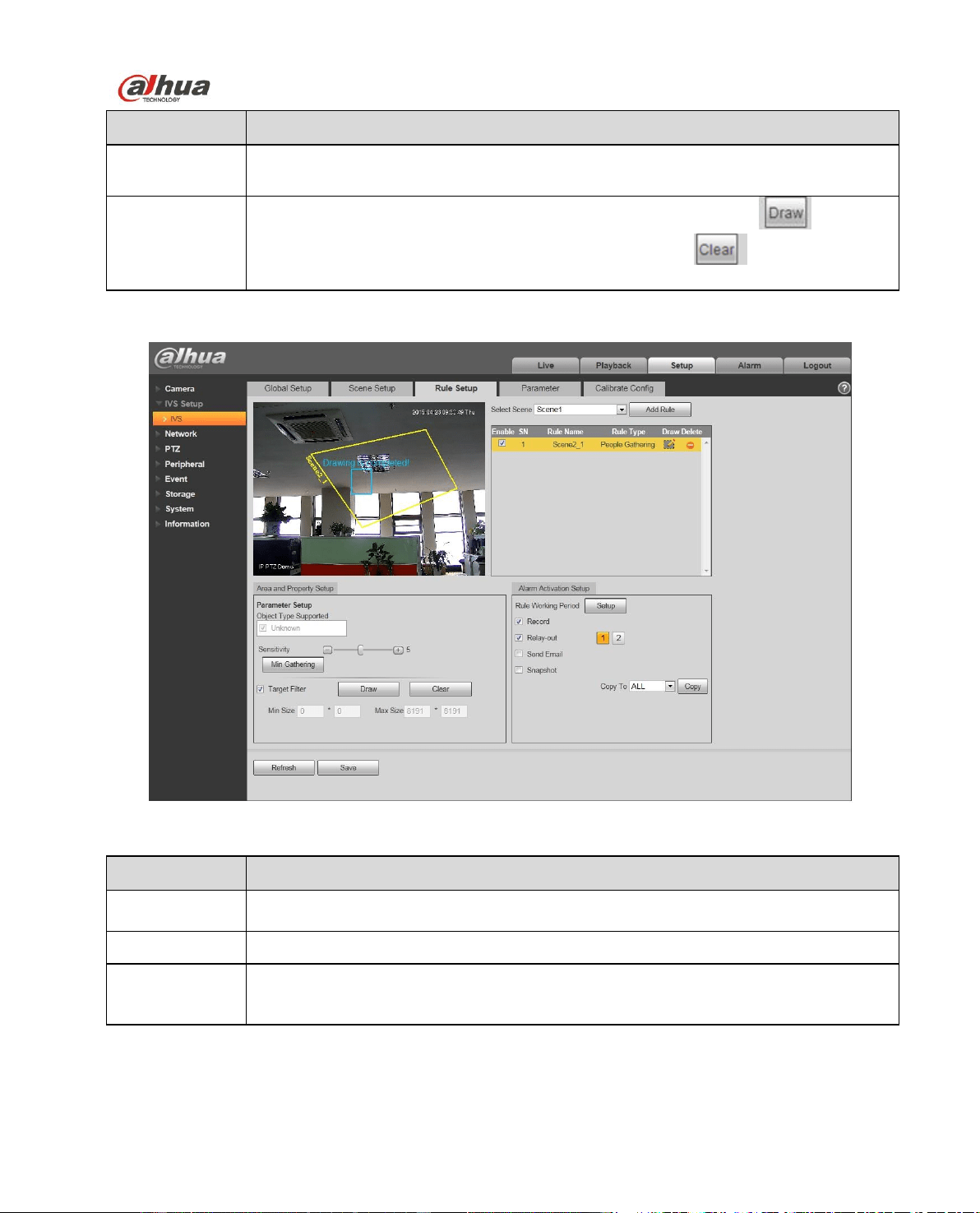
4.2.3.6 People Gathering
Figure 4-32
Parameter
Note
Object type
supported
You can select an object type here. The default setup is all types.
Sensitivity
Here you can set the alarm activation sensitivity.
Min gathering
Min gathering is used to set alarm when it meets the expected number of gathering
people, draw the size of corresponding area of expected number of people in the
people gathering area which is already drawn.
Dahua Network Speed Dome Web3.0 Operation Manual
49
Parameter
Note
Target filter
Check the box here to enable this function and then click button ,you can
set the target filter model in this scene. Click the button ,you can remove
selected target filter model.
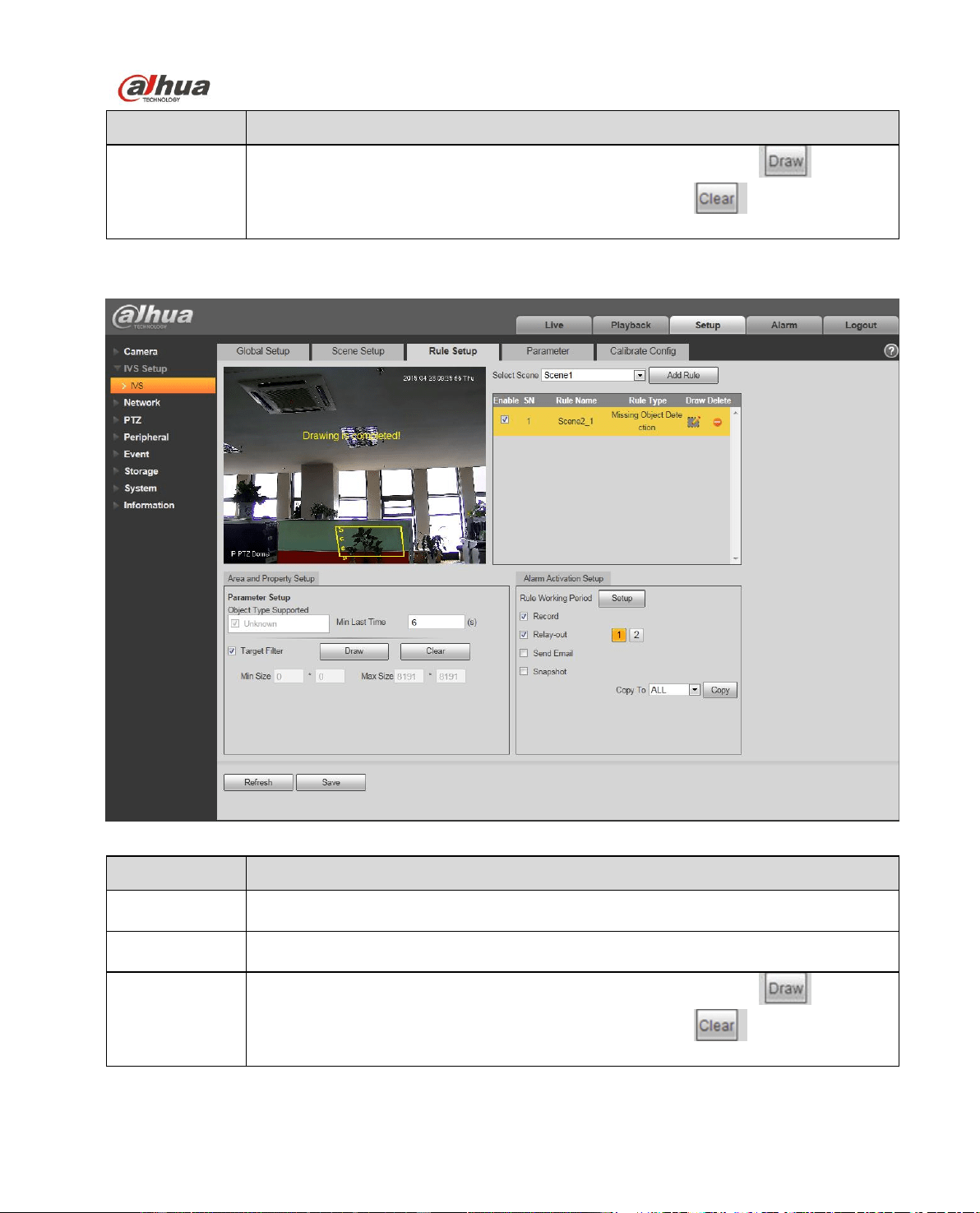
4.2.3.7 Missing Object Detection
Figure 4-33
Parameter
Function
Object type
supported
You can select an object type here. The default setup is all types.
Min last time
It is to set the min time between the missing object occurrence and alarm
activation.
Target filter
Check the box here to enable this function and then click button ,you can
set the target filter model in this scene. Click the button ,you can remove
selected target filter model.
Dahua Network Speed Dome Web3.0 Operation Manual
50
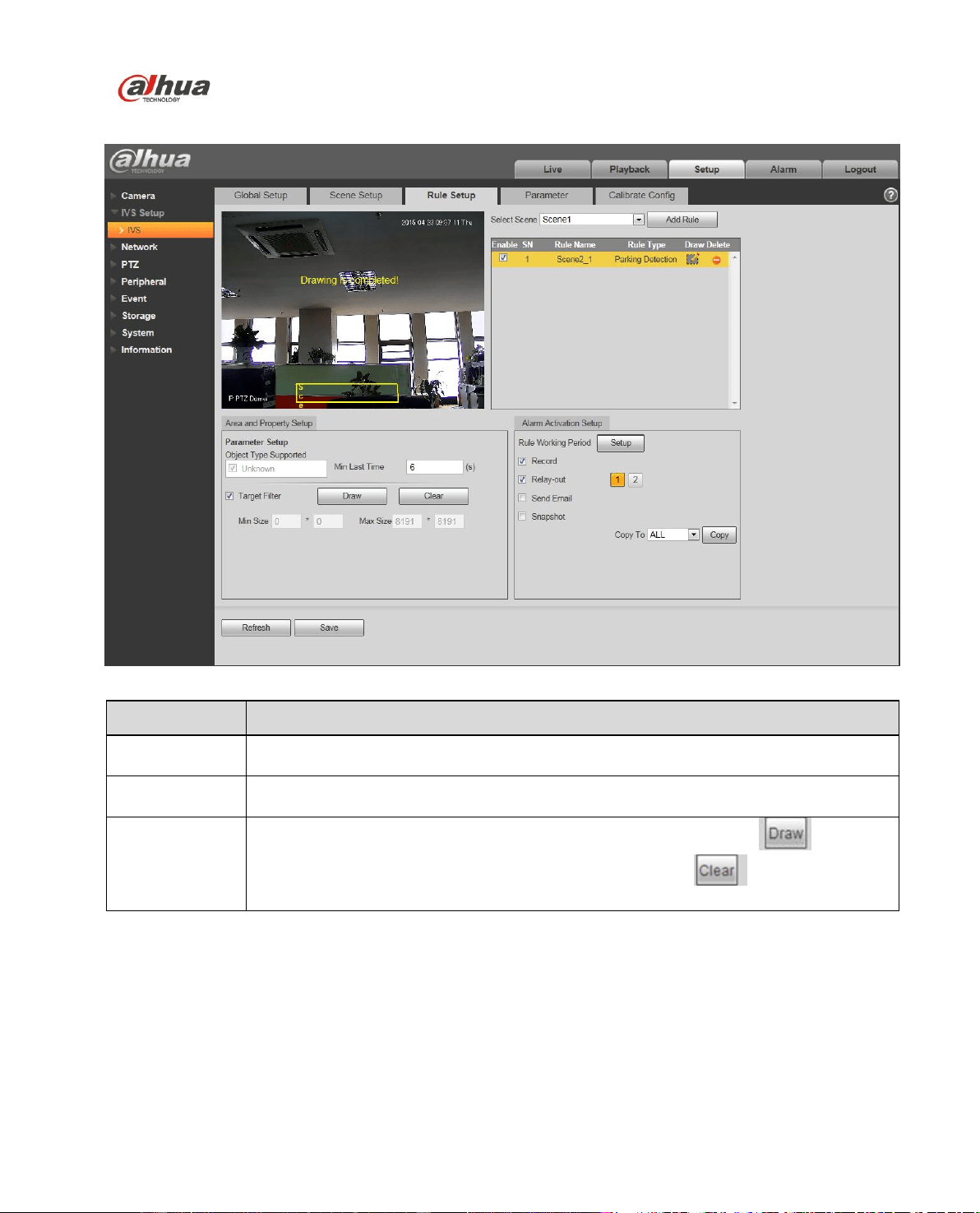
4.2.3.8 Illegal parking
Figure 4-34
Parameter
Function
Object type
supported
You can select an object type here. The default setup is all types.
Min last time
It is to set the min time between the illegal parking occurrence and alarm
activation.
Target filter
Check the box here to enable this function and then click button ,you can
set the target filter model in this scene. Click the button ,you can remove
selected target filter model.
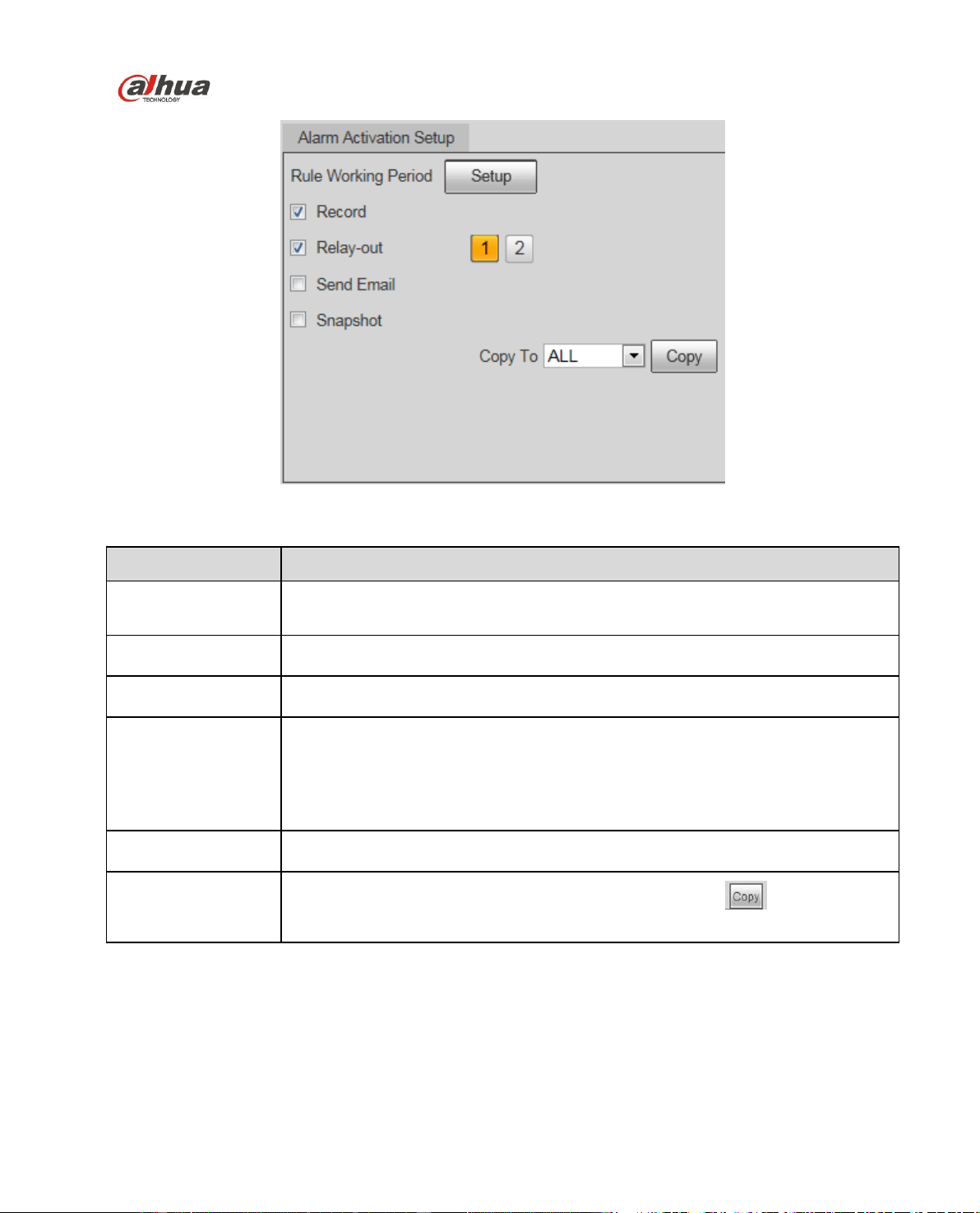
4.2.3.9 Alarm Activation Setup
Dahua Network Speed Dome Web3.0 Operation Manual
51
Figure 4-35
Parameter
Function
Rule Working period
Here you can set rule arm and disarm period. Please click the Setup button to
set.
Record
Check the box here so that the device can record when alarm activation
occurred.
Relay output
Check the box here so that the device can output an alarm when alarm
activation occurred.
Send e-mail
Check the box here so that the device can send out an email when alarm
activation occurred.
Please note current function is null when the device is offline, or IP conflict
occurred.
Snapshot
Check the box here so that the device can snapshot when alarm activation
occurred.
Copy
Select a rule name from the dropdown list and then click button; you can
copy the alarm activation setup of current rule to the selected rule.
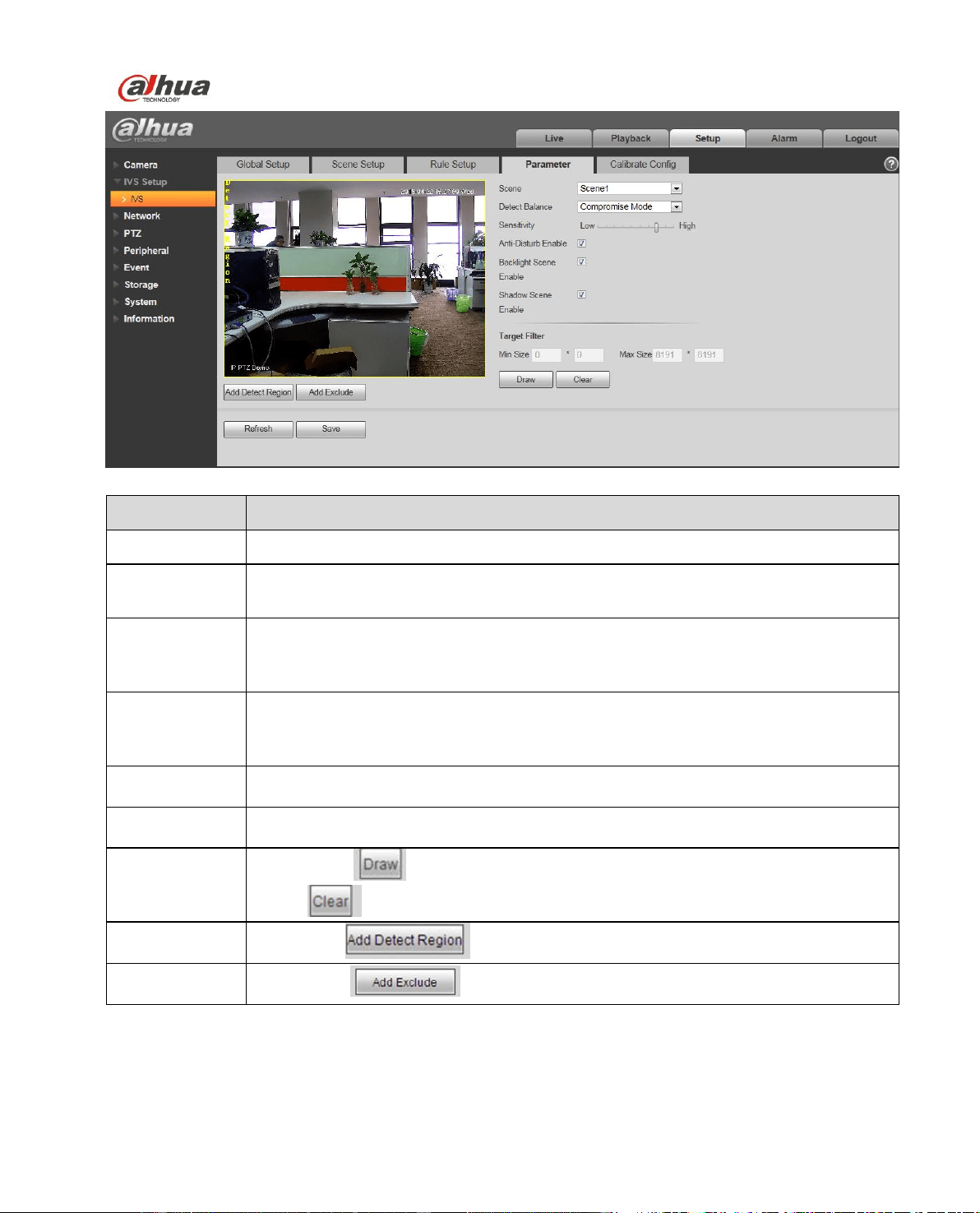
4.2.4 Parameter
Dahua Network Speed Dome Web3.0 Operation Manual
52
Figure 4-36
Parameter
Function
Scene
Please select a scene from the dropdown list you want to set.
Detect balance
There are three modes: compromise mode, omission detect less and error detect
less.
Sensitivity
The level ranges from 1 to 10. The default setup is 5. The higher the sensitivity is,
the easier for the device to detect the low contrast object and small object. At the
same time, the error detect may become more.
Anti-
disturbance
mode
It is to control the random disturbance in the scene.
Backlight scene
enable
Check the box here so that the device can have higher recognition capability in the
backlight scene.
Shadow scene
enable
Check the box here so that the device can have higher recognition capability in the
shadow scene.
Target filter
Click button ,you can set the target filter model in this scene. Click the
button ,you can remove selected target filter model.
Add detect
region
Click button , you can draw a detection zone.
Add excluded
region
Click button ,you can draw the privacy mask (shield) zone.
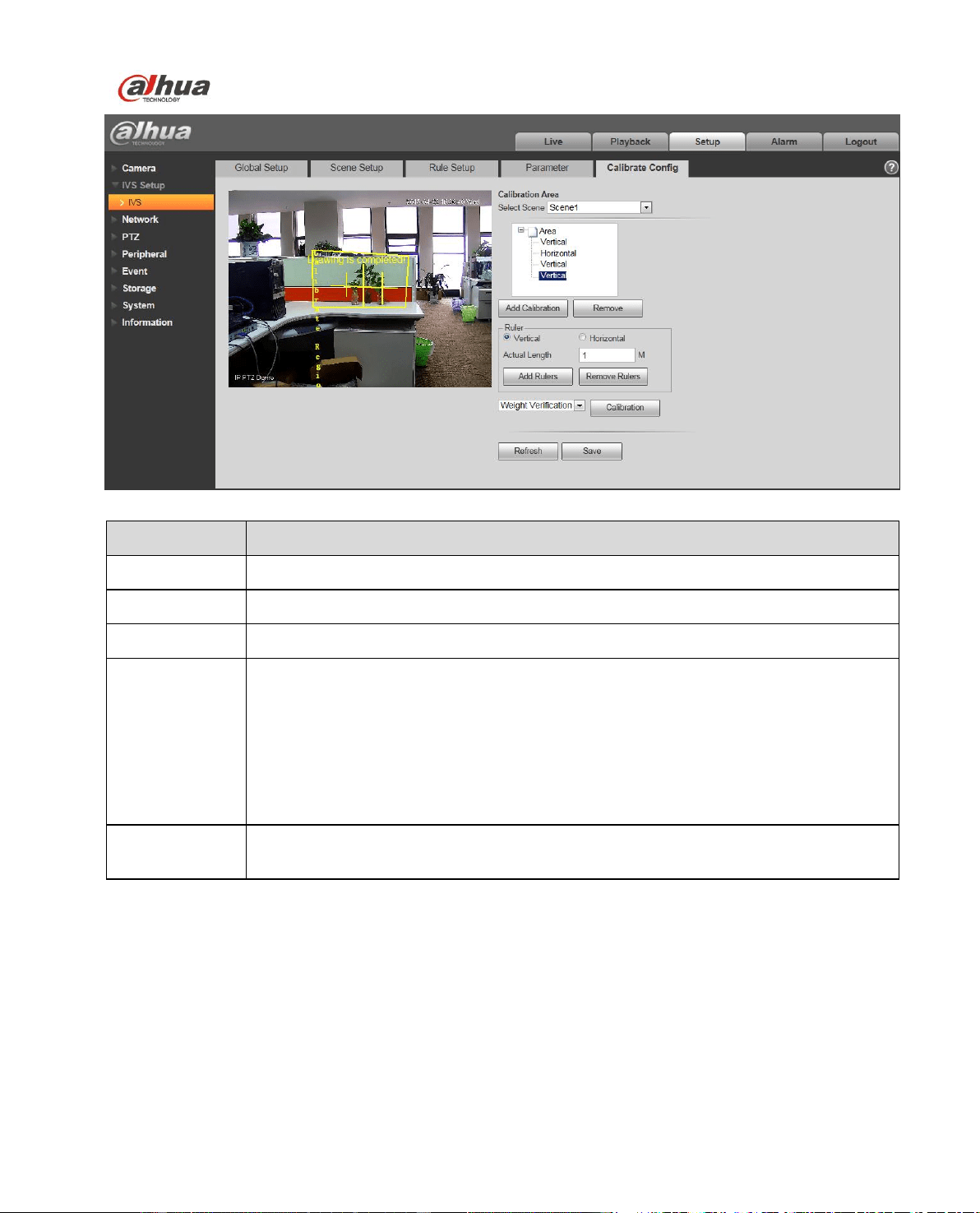
4.2.5 Calibrate Config
Dahua Network Speed Dome Web3.0 Operation Manual
53
Figure 4-37
Parameter
Note
Select scene
Select corresponding scene to set parameters.
Add calibration
Click to draw calibration area in the monitoring image.
Remove
Select area in the calibrated area, click the button to remove.
Ruler
Able to draw vertical and horizontal ruler.
Click “Add ruler” to draw a horizontal ruler in the calibrated area, and set its
length in the actual scene; draw 3 vertical rulers in different locations, and set
their height in the actual scene, the 3 vertical rulers have the same length but
look different in the image.
Select the exact ruler on the left preview interface or on the navigation tree,
click “Remove ruler” to remove the corresponding ruler.
Verification
Select weight/height verification, click the button to draw any straight line in the
calibration area, then it will display its corresponding length.
4.3 Network
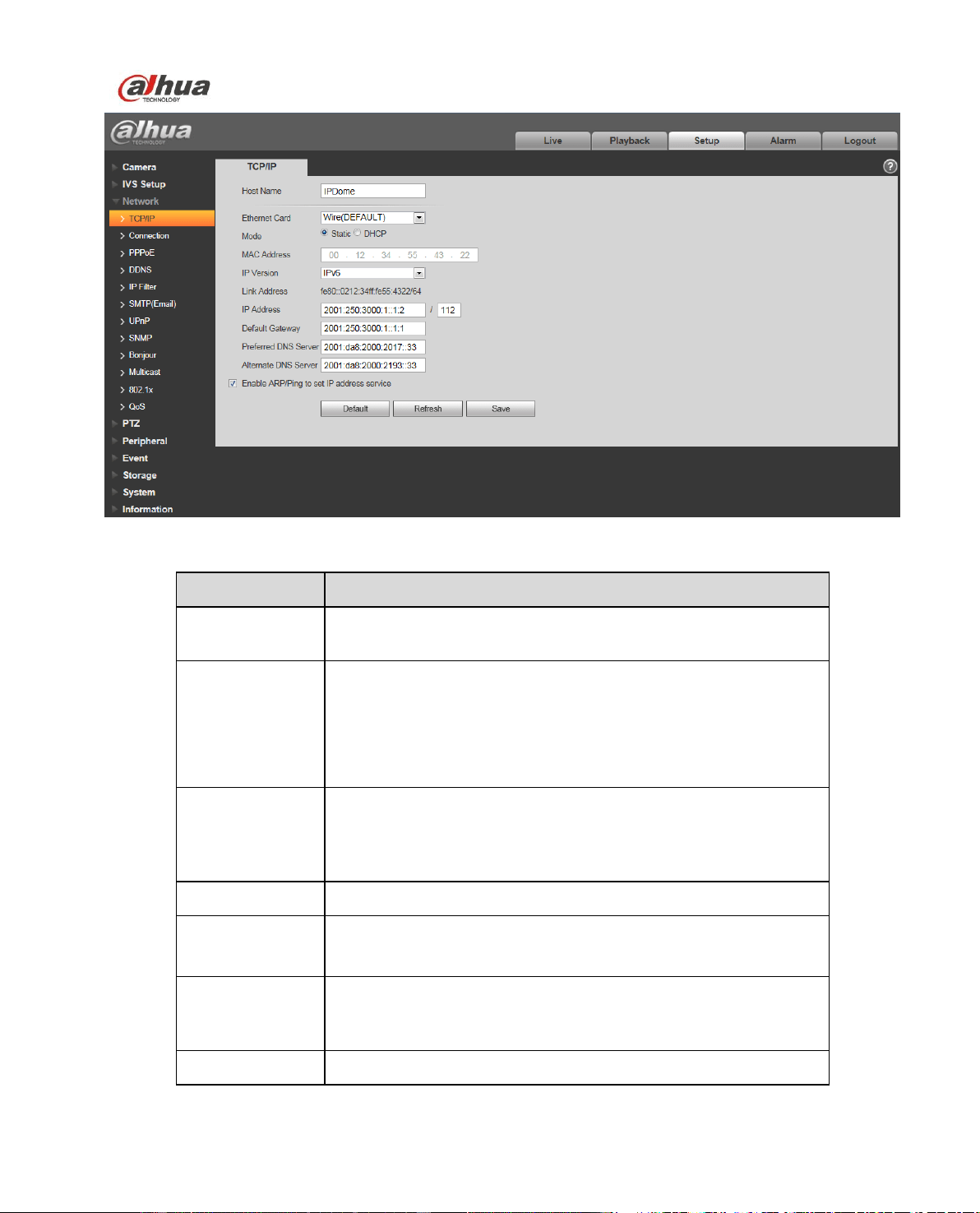
4.3.1 TCP/IP
The TCP/IP interface is shown as in Figure 4-38. It supports IPv4 and IPv6. IPv4 supports static IP and
DHCP. IPv6 supports static IP only. When you manually modify IP address, WEB will automatically
jump to the new IP address.
Dahua Network Speed Dome Web3.0 Operation Manual
54
Figure 4-38
Please refer to the following sheet for detailed information.
Parameter
Function
Host Name
It is to set current host device name. It max supports 15
characters.
Ethernet Card
Please select the Ethernet port. Default is wired.
Please note you can modify the default Ethernet card if there is
more than one card. .
Please note the device needs to reboot to activate the new
setup once you modify the default setup.
Mode
There are two modes: static mode and the DHCP mode. Select
DHCP mode, it auto searches IP, and you cannot set IP/subnet
mask/gateway. Select static mode, you must manually set
IP/subnet mask/gateway.
Mac Address
It is to display hose Mac address.
IP Version
It is to select IP version. IPV4 or IPV6.
You can access the IP address of these two versions.
IP Address
Please use the keyboard to input the corresponding number to
modify the IP address and then set the corresponding subnet
mask and the default gateway.
Preferred DNS
DNS IP address.

Dahua Network Speed Dome Web3.0 Operation Manual
55
Alternate DNS
Alternate DNS IP address.
Enable
ARP/Ping set
device IP
address service.
You can use ARP/Ping command to modify or set the device IP
address if you know the device MAC address.
Before the operation, please make sure the speed dome and
the PC in the same LAN. This function is on by default.
You can refer to the steps listed below.
Step 1: Get an IP address. Set the speed dome and the PC in
the same LAN.
Step 2: Get the physical address from the label of the speed
dome .
Step 3: Go to the Run interface and then input the following
commands.
arp –s <IP Address> <MAC>
ping –l 480 –t <IP Address>
Such as:arp -s 192.168.0.125 11-40-8c-18-10-11
ping -l 480 -t 192.168.0.125
Step 4: Reboot the device.
Step 5: You can see the setup is OK if you can see there are
output information such as “Reply from 192.168.0.125 …” from
the command output lines. Now you can close the command
line.
Step 6: Open the browse and then input http://<IP address>.
Click the Enter button, you can access now.
4.3.2 ONVIF
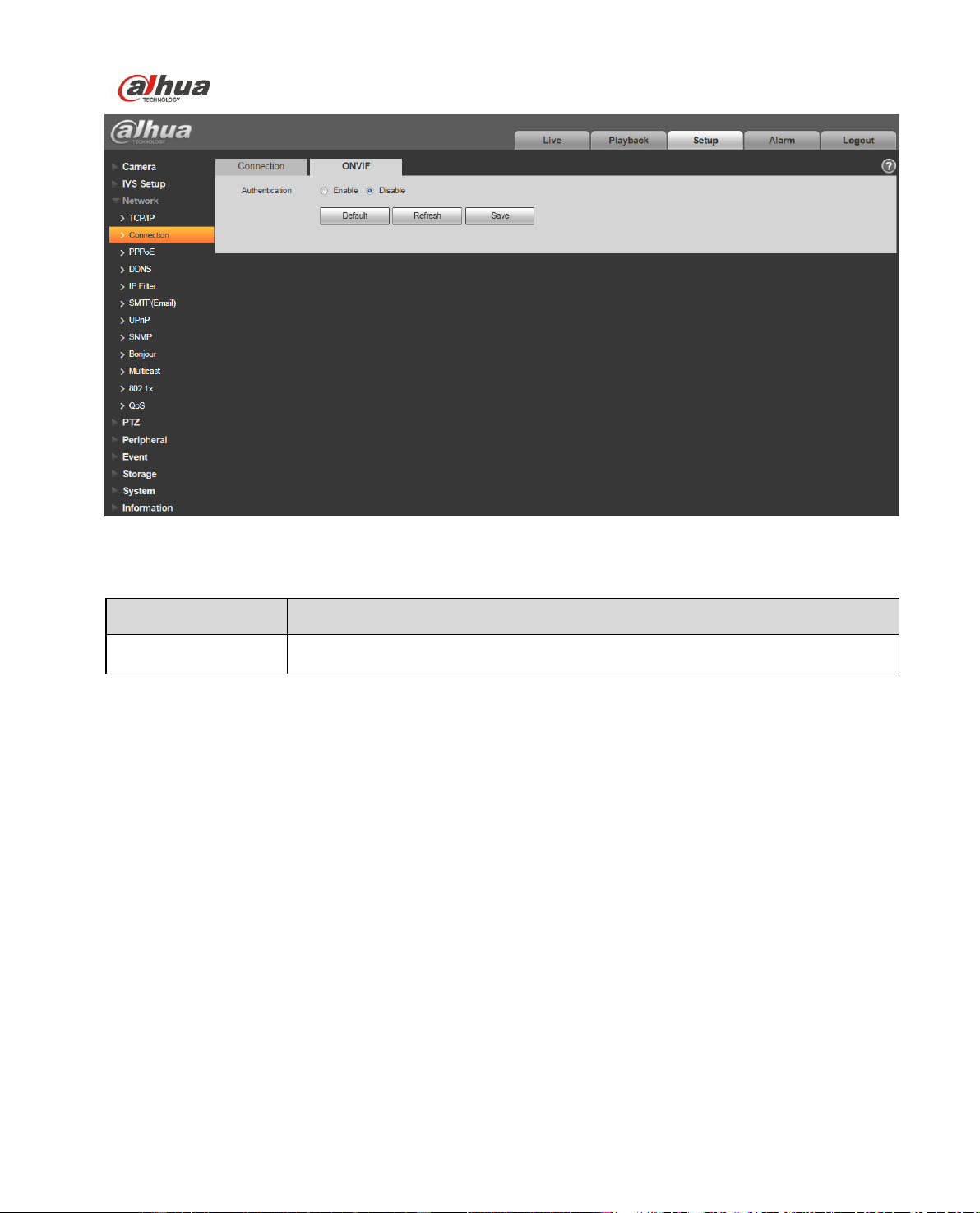
ONVIF(Open Network Video Interface Forum), this specification describes the model, port, data type
and data interaction mode of network video. ONVIF specification’s aim is to realize a framework
agreement of network video to make the network video products (including video front end, video device
and etc) from different manufacturers completely compatible.
ONVIF function is “disable” by default, see Figure 4-39 for more information.
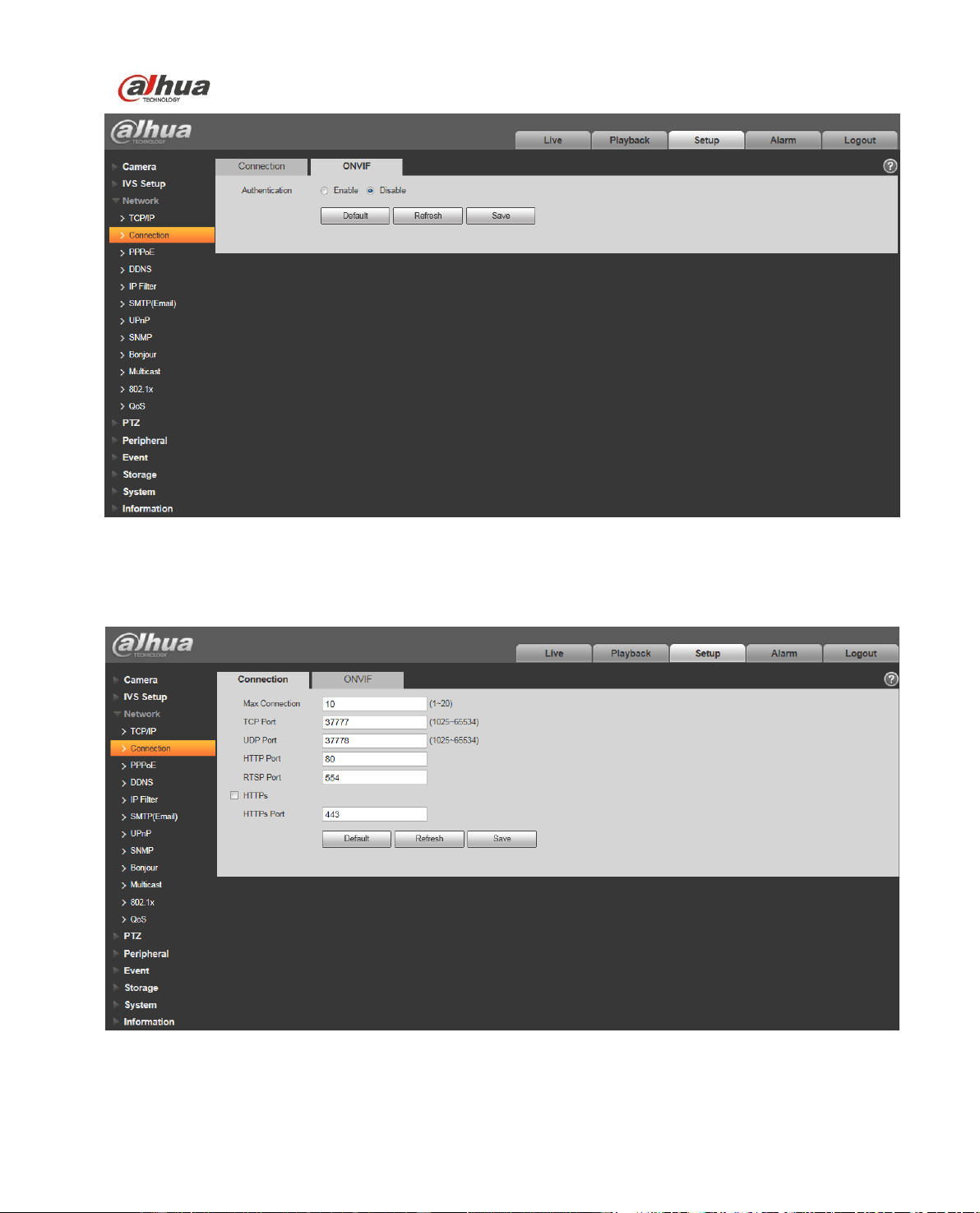

Dahua Network Speed Dome Web3.0 Operation Manual
57
Parameter
Function
Max
connection
It is the max Web connection for the same device. The value ranges from 1
to 20. Default connection amount is 10.
TCP port
Port range is 1025~65534. The default value is 37777. You can input the
actual port number if necessary.
UDP port
Port range is 1025~65534. The default value is 37778. You can input the
actual port number if necessary.
HTTP port
Port range is 1025~65524. The default value is 80. You can input the
actual port number if necessary.
RTSP port
The default value is 554. Please leave blank if use default. User uses
QuickTime or VLC can play the following formats. BlackBerry can play
too.
Real-time monitoring URL format, please require real-time RTSP
media server, require channel no., bit stream type in URL. You may
need username and password.
Users use BlackBerry need to set encode mode to H.264B, resolution
to CIF and turn off audio.
URL format is:
rtsp://username:password@ip:port/cam/realmonitor?channel=1&subtype=0
username/password/IP and port.
The IP is device IP and the port default value is 554. You can leave it in
blank if it is the default value.
Follow standard RTP protocol and when encode mode is MJPEG; the max
resolution only supports 2040*2040.
HTTPs
Enable
Check HTTPs enable, login as https://ip:port. Protect data. Default port is
https://ip . It is disabled by default.
HTTPs
Port
HTTPs communication port, range is 1025~65534, default is 443.
Note:
0~1024, 37780~37880, 1900, 3800, 5000, 5050, 9999, 37776, 39999, 42323 are all special ports.
User cannot modify them.
Avoid using default port value of other ports.
4.3.3.2 ONVIF
ONVIF (Open Network Video Interface Forum) describes network video model, port, data type and data
switch modes. ONVIF standard targets to create a network video frame protocol that communicates
network video products from different manufacturers. See Figure 4-41.
Dahua Network Speed Dome Web3.0 Operation Manual
58
Figure 4-41
Please refer to the following sheet for detailed information.
Parameter
Function
Authentication
The login authentication is off by default.
4.3.4 PPPoE
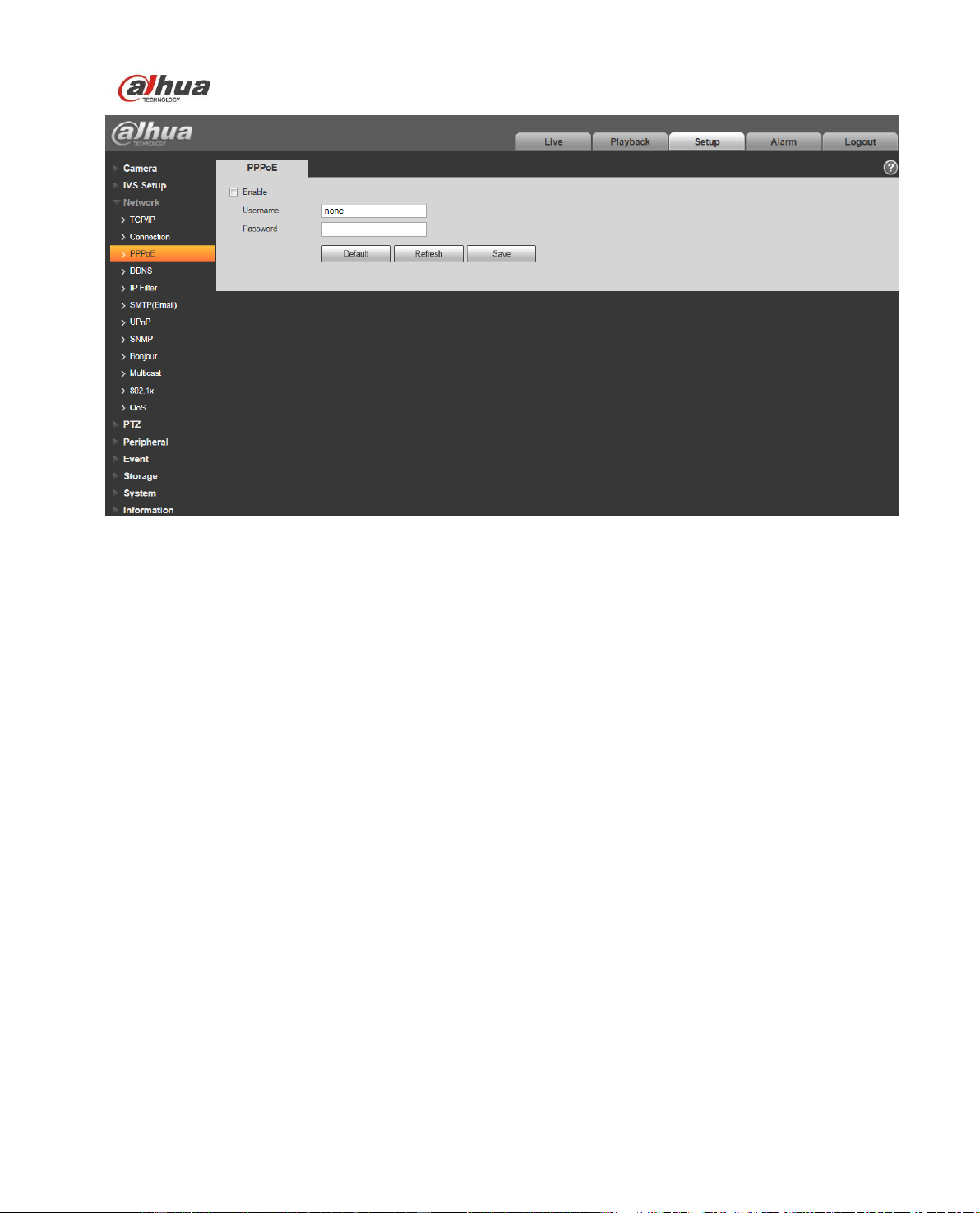
The PPPoE interface is shown as in Figure 4-42.
Input the PPPoE user name and password you get from the IPS (internet service provider) and enable
PPPoE function. Please save current setup and then reboot the device to get the setup activated.
Device connects to the internet via PPPoE after reboot. You can get the IP address in the WAN from
the IP address column. When PPPoE is on, please disable UPnP to avoid influence on dial-up.
When you Check PPPoE enable, please disable UPnP.
Please note, you need to go to the IP address item to via the device current device information.
You can access the client-end via this address.
Dahua Network Speed Dome Web3.0 Operation Manual
59
Figure 4-42
4.3.5 DDNS
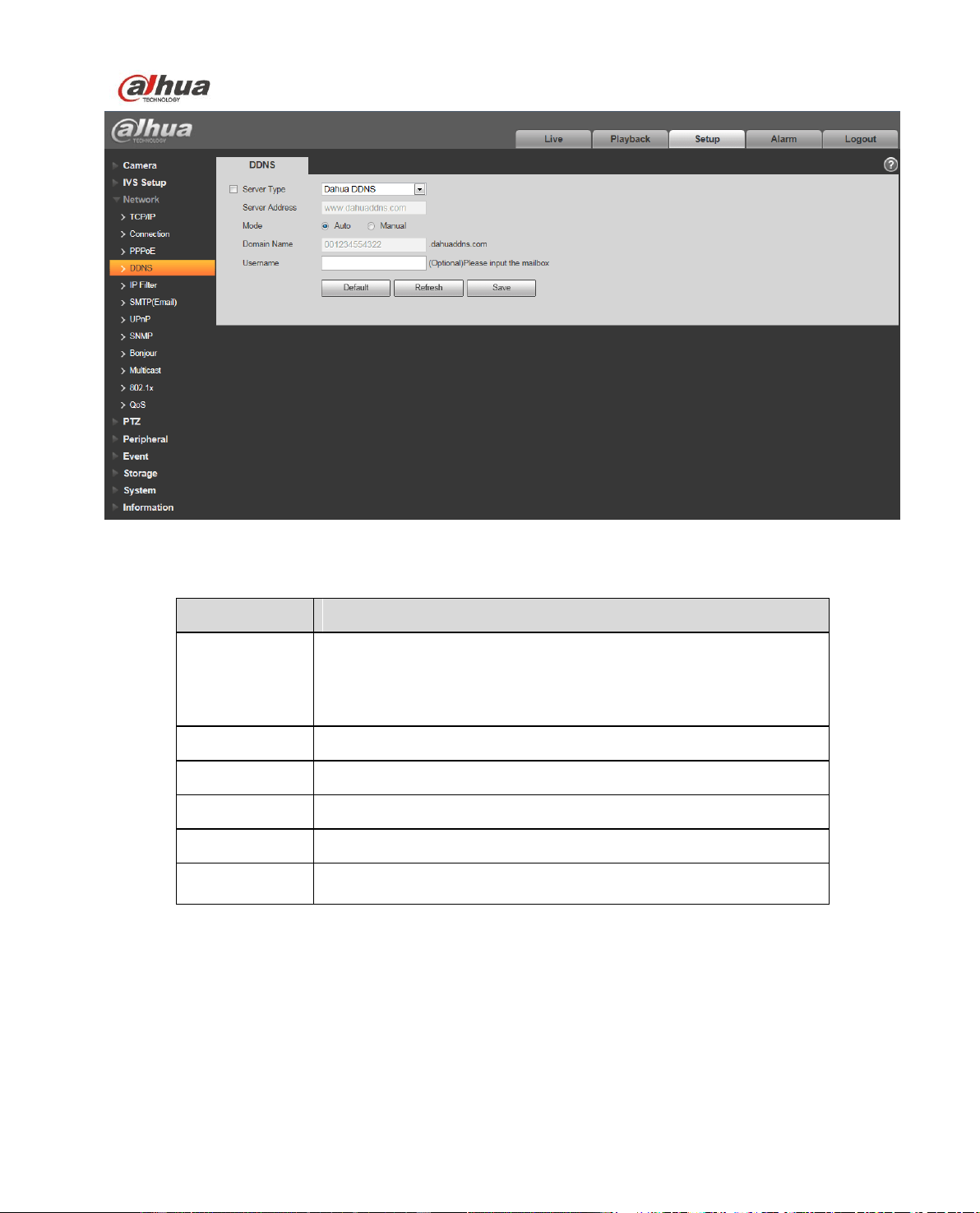
The DDNS interface is shown as in Figure 4-43.
The DDNS is to set to connect the various servers so that you can access the system via the server.
Please go to the corresponding service website to apply a domain name and then access the system
via the domain. It works even your IP address has changed. When the device connects to WLAN, you
should disable UPnP.
Dahua Network Speed Dome Web3.0 Operation Manual
60
Figure 4-43
Please refer to the following sheet for detailed information.
Parameter
Function
Server Type
You can select DDNS protocol from the dropdown list: CN99
DDNS, NO-IP DDNS, Dyndns DDNS, and Dahua DDNS. The
QUICK DDNS protocol means you use your self-defined private
protocol to realize DDNS function.
Server Address
DDNS server IP address
Domain Name
Your self-defined domain name.
Username
The user name you input to log in the server.
Password
The password you input to log in the server.
Update period
Device sends out alive signal to the server regularly. Default is
10min.
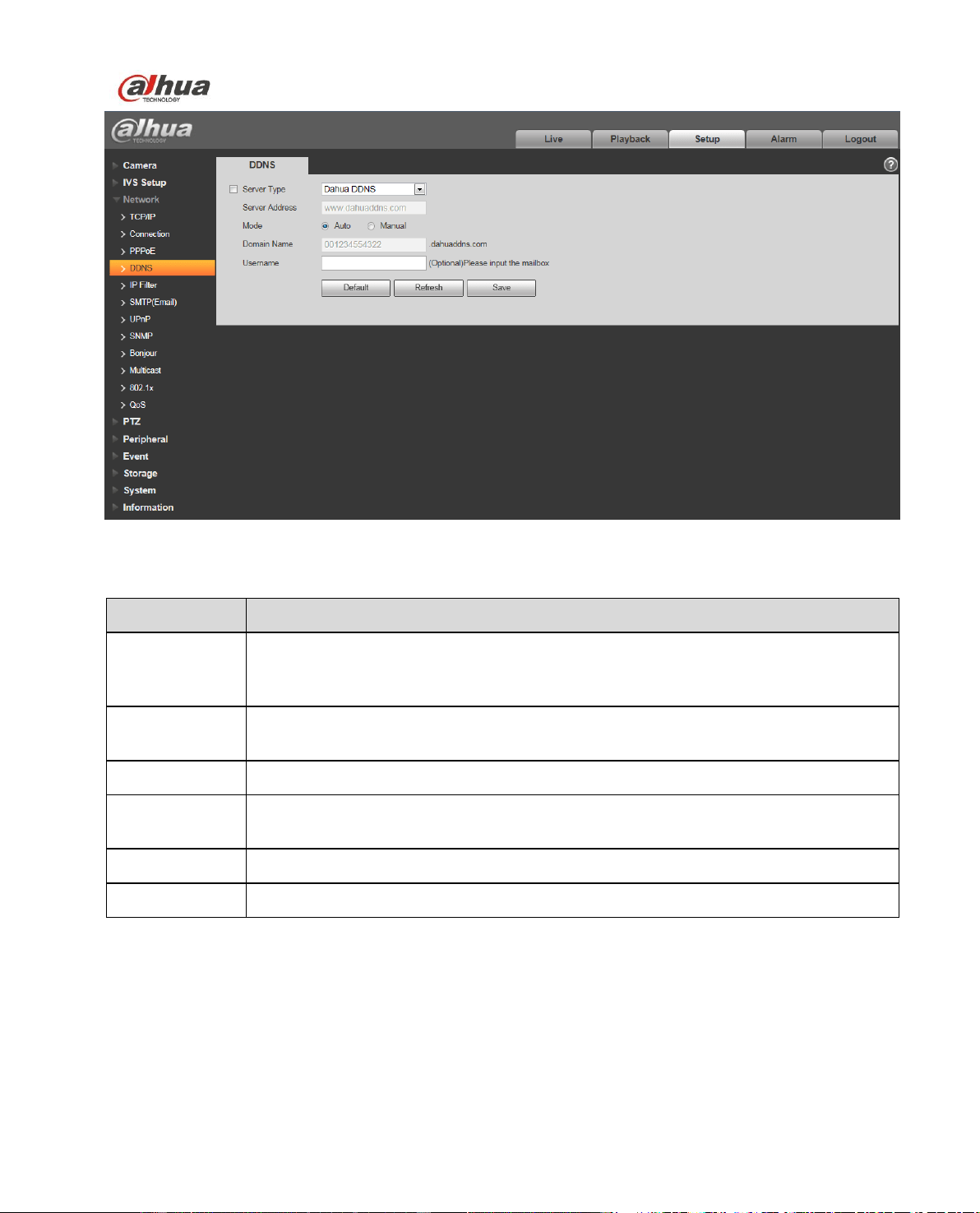
The DAHUA DDNS interface is shown as in Figure 4-44.
Dahua Network Speed Dome Web3.0 Operation Manual
61
Figure 4-44
Please refer to the following sheet for detailed information.
Parameter
Function
Server Type
You can select DDNS protocol from the dropdown list and then enable DDNS
function. The Dahua DDNS means you use your self-defined private protocol to
realize DDNS function.
Server Address
DDNS server IP address. Under DDNS the default server address is
www.Dahuaddns.com
Mode
The default is auto, and you can select manual.
Domain Name
Auto and self-defined domain names are both MAC address.quickddns.com. You
can self-define prefix.
Test
It is to test domain name. It is available only under manual mode.
Username
The user name you input to log in the server. Optional.
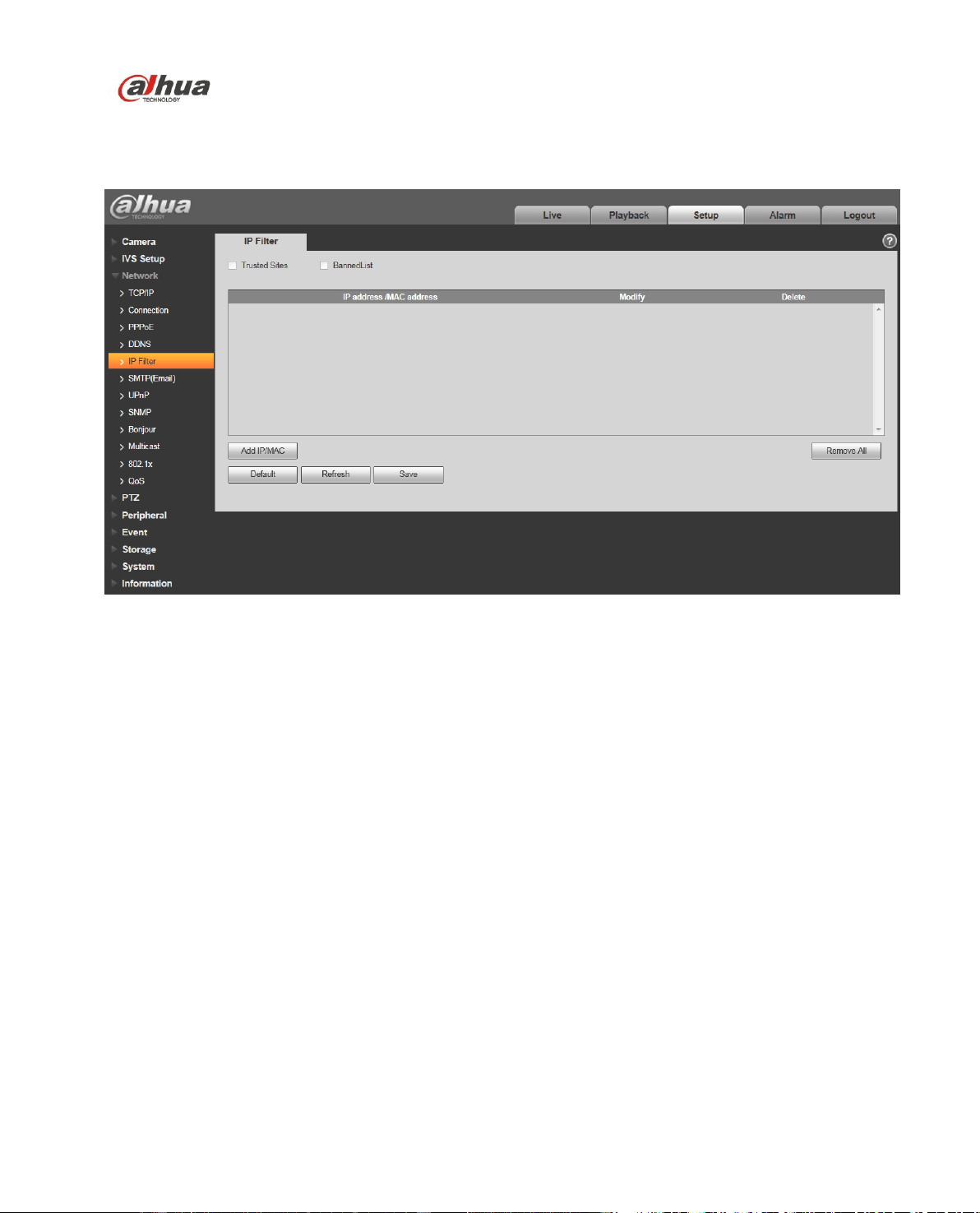
4.3.6 IP filter
The IP filter interface is shown as in Figure 4-45.
You can enable IP filter function so that some specified IP/MAC user can access the speed dome.
You can add IP address or IP address section.
If you do not check the box here, it means there is on access limit.
Dahua Network Speed Dome Web3.0 Operation Manual
62
Here you can add IP address and MAC address. You must add these addresses before enabling the
trusted sites.
Please note: You must set MAC address in the same network segment.
Figure 4-45
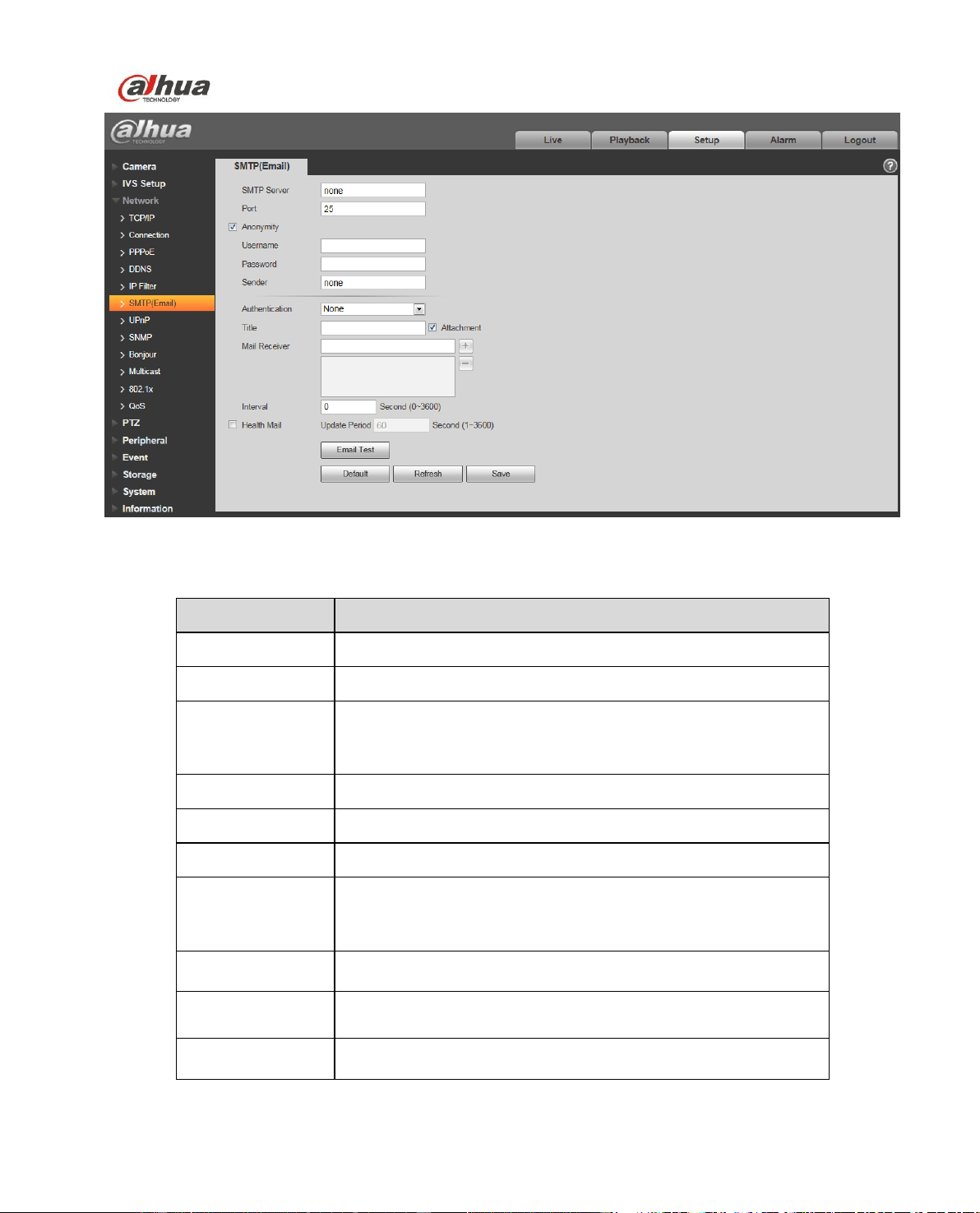
4.3.7 SMTP (e-mail)
The SMTP interface is shown as in Figure 4-46.
Dahua Network Speed Dome Web3.0 Operation Manual
63
Figure 4-46
Please refer to the following sheet for detailed information.
Parameter
Function
SMTP Server
Input server address and then enable this function.
Port
Default value is 25. You can modify it if necessary.
Anonymity
For the server supports the anonymity function. You can auto
login anonymously. You do not need to input the user name,
password and the sender information.
User Name
The user name of the sender email account.
Password
The password of sender email account.
Sender
Sender email address.
Authentication
(Encryption
mode)
You can select SSL, TLS or none.
Title (Subject)
Input email subject here.
Attachment
System can send out the email of the snapshot picture once
you check the box here.
Mail receiver
Input receiver email address here. Max three addresses.

Dahua Network Speed Dome Web3.0 Operation Manual
64
Parameter
Function
Interval
The send interval ranges from 0 to 3600 seconds. 0 means
there is no interval.
Please note system will not send out the email immediately
when the alarm occurs. When the alarm, motion detection or
the abnormity event activates the email, system sends out the
email according to the interval you specified here. This
function is very useful when there are too many emails
activated by the abnormity events, which may result in heavy
load for the email server.
Health mail
enable
Please check the box here to enable this function.
Email test
The system will automatically sent out a email once to test the
connection is OK or not .Before the email test, please save
the email setup information.
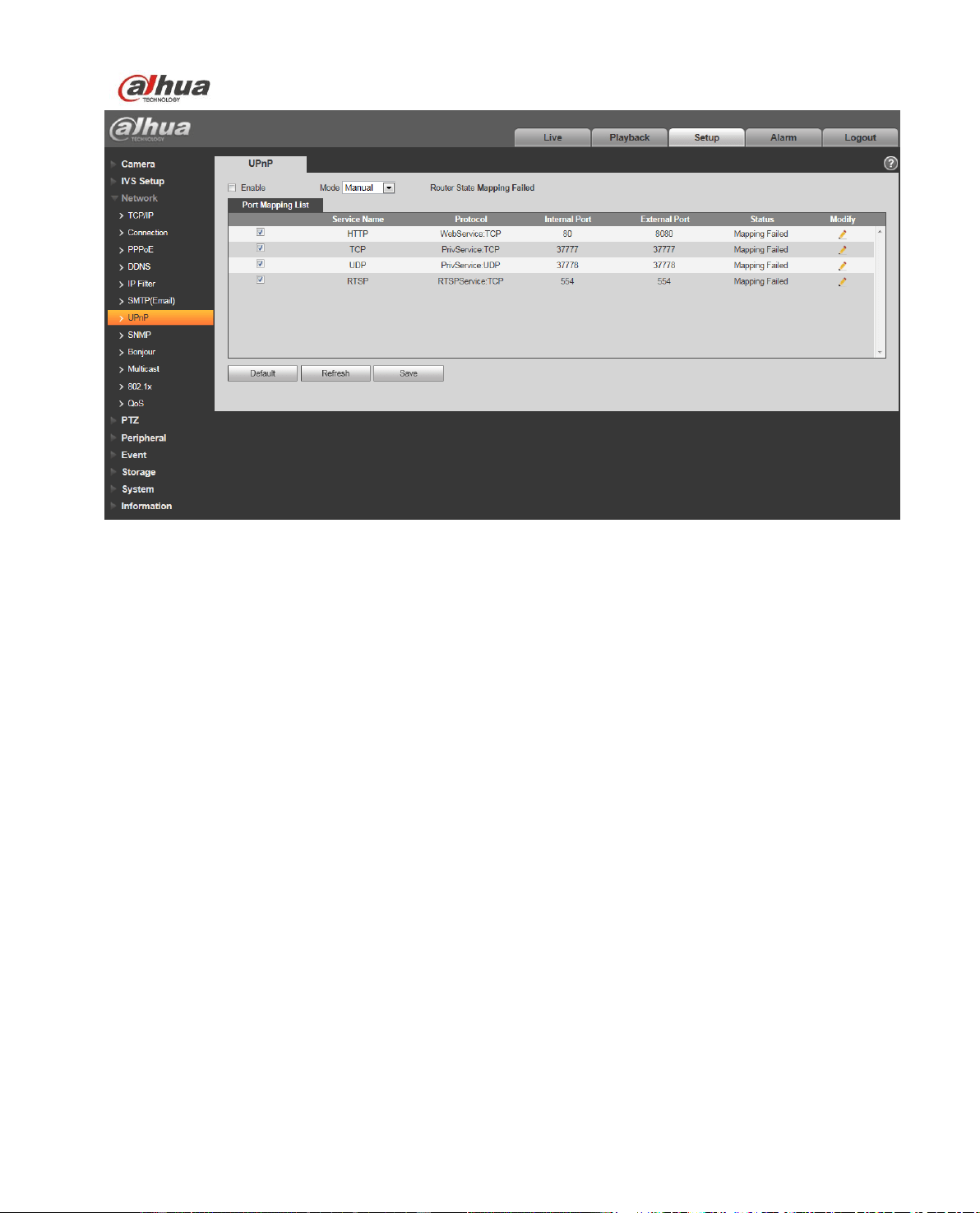
4.3.8 UPnP
It allows you to establish the mapping relationship between the LAN and the public network.
Here you can also add, modify or remove UPnP item. For UPnP on different routers, you must disable
UPnP function. See Figure 4-47.
In the Windows OS, From Start->Control Panel->Add or remove programs. Click the “Add/Remove
Windows Components” and then select the “Network Services” from the Windows Components Wizard.
Click the Details button and then check the “Internet Gateway Device Discovery and Control client” and
“UPnP User Interface”. Please click OK to begin installation.
Enable UPnP from the Web. If your UPnP is enabled in the Windows OS, the speed dome can auto
detect it via the “My Network Places”.
Under manual mode, you can add, delete or modify mapping. Under auto mode, select idle port for auto
port mapping without user modification.
Dahua Network Speed Dome Web3.0 Operation Manual
65
Figure 4-47
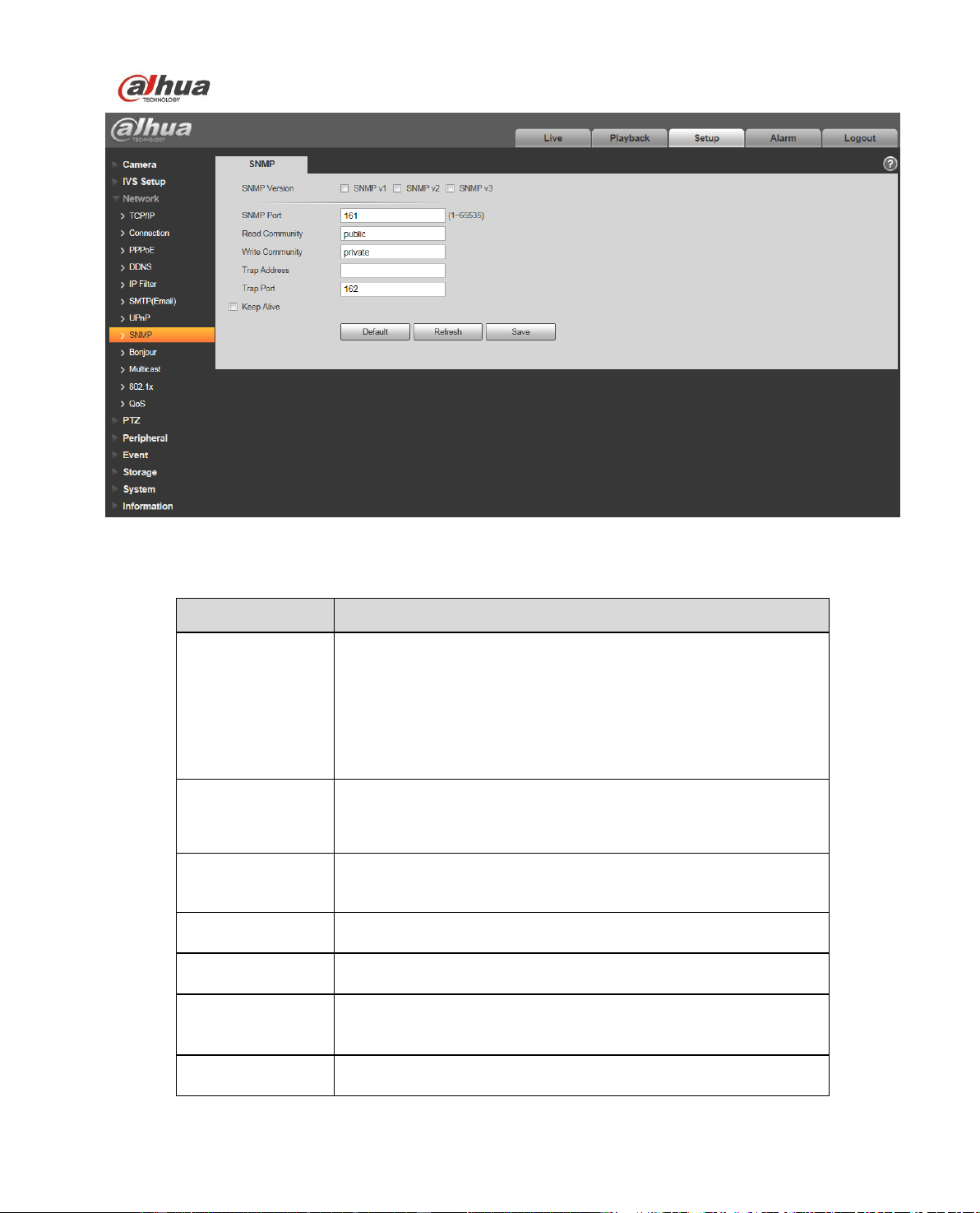
4.3.9 SNMP
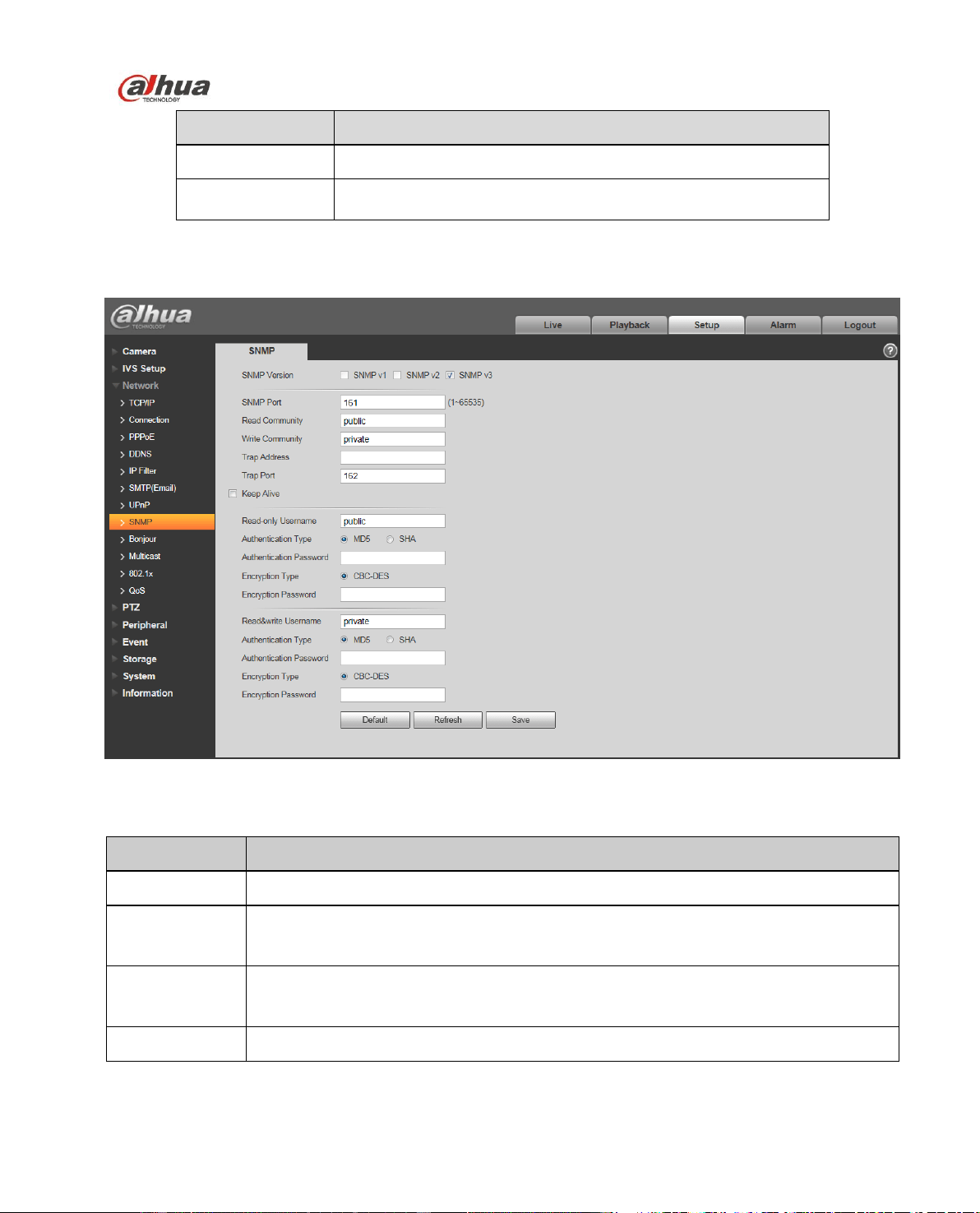
The SNMP interface is shown as in Figure 448.
The SNMP allows the communication between the network management work station software and the
proxy of the managed device. Please install the software such as MG MibBrowser 8.0c software or
establish the SNMP service before you use this function. You need to reboot the device to activate the
new setup.
Dahua Network Speed Dome Web3.0 Operation Manual
66
Figure 4-48
Please refer to the following sheet for detailed information.
Parameter
Function
SNMP Version
Check SNMP v1, device only process v1 info.
Check SNMP v2, device only process v2 info.
Check SNMP v3, can set username, password and
encryption method. Server calibrate corresponding
username, password and encryption method too access
device and v1/v2 are unavailable.
SNMP port
The listening port of the proxy program of the device. It is a
UDP port not a TCP port. The value ranges from 1 to 65535.
The default value is 161
Community
It is a string, as command between management and proxy, ,
defining a proxy, and a manager’s authentication.
Read community
Read-only access to all SNMP targets, default is public.
Note: Only number, letter, _, and – supported.
Write community
Read/write access to all SNMP targets, default is private.
Note: Only number, letter, _, and – supported.
Trap address
The destination address of the Trap information from the
proxy program of the device.
Trap
SNMP trap is a proxy message sent to admin as important
event notice or status change.
Dahua Network Speed Dome Web3.0 Operation Manual
67
Parameter
Function
Trap Address
Address where to send Trap message.
Trap Port
Port which send Trap message, default is 162, range
1~65535.
Check SNMP v3 version and SNMP port, read community, write community, Trap address, Trap port
are same with SNMP v1 and SNMP v2 versions. Only when SNMP version is SNMP v3, users need to
configure parameter in chart. See Figure 4-49.
Figure 4-49
Please refer to the following sheet for detailed information.
Parameter
Function
SNMP Version
SNMP v3
Read-only
Username
Default is public.
Note:
Name only can be number, letter and underline.
Read/Write
Username
Default is private.
Note:
Name only can be number, letter and underline.
Authentication
You may select MD5 or SHA, default is MD5.
Dahua Network Speed Dome Web3.0 Operation Manual
68
Parameter
Function
Authentication
Password
Password not less than 8 characters.
Encryption
Default is CBC-DES.
Encryption
Password
Password not less than 8 characters.
4.3.10 Bonjour
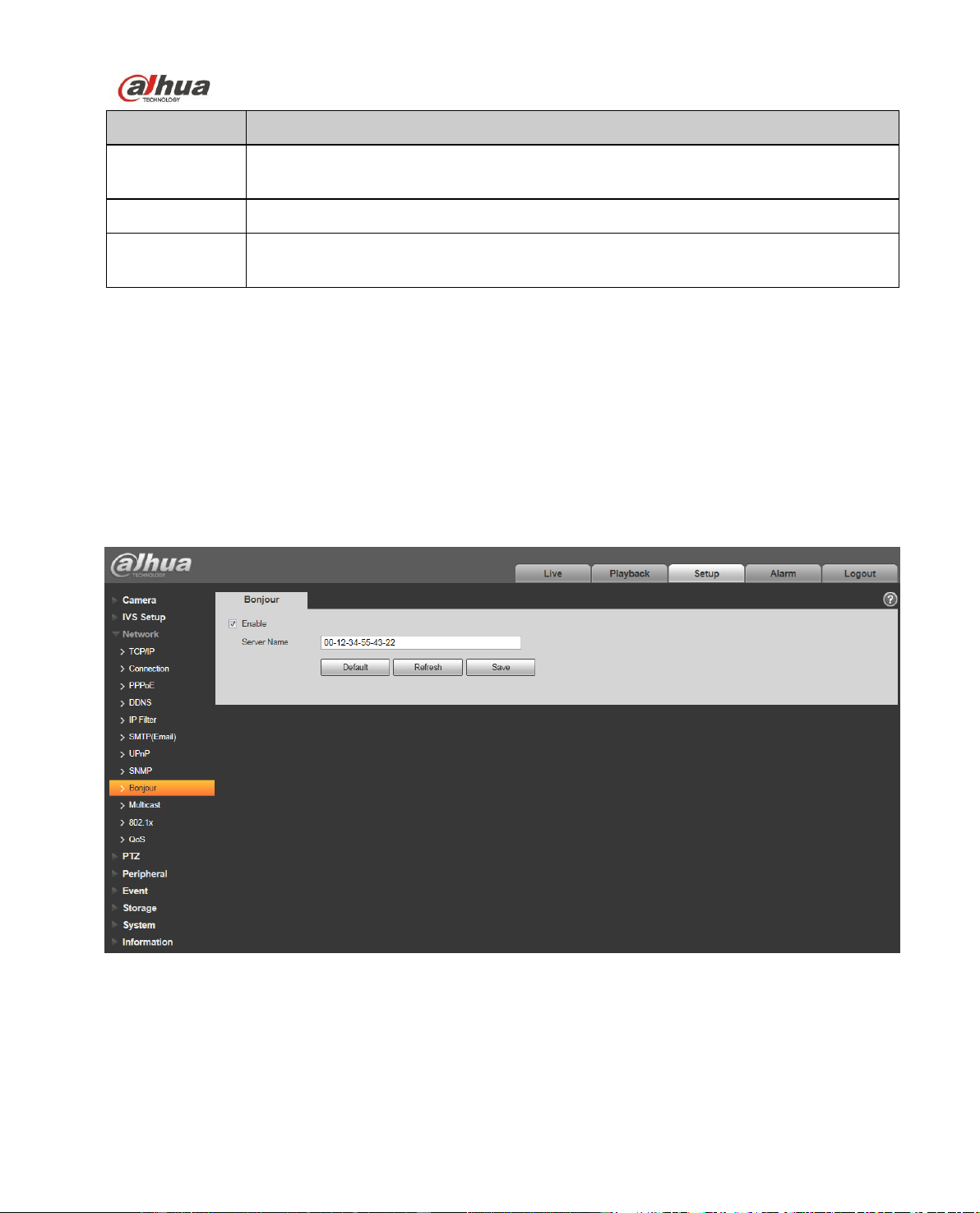
The Bonjour interface is shown as below. See Figure 4-50.
Bonjour is based on the multicast DNS service from the Apple. The Bonjour device can automatically
broadcast its service information and listen to the service information from other device.
You can use the browse of the Bonjour service in the same LAN to search the speed dome device and
then access if you do not know the speed dome information such as IP address.
You can view the server name when the speed dome is detected by the Bonjour. Please note the safari
browse support this function. Click the “Display All Bookmarks: and open the Bonjour, system can auto
detect the speed dome of the Bonjour function in the LAN.
Figure 4-50
4.3.11 Multicast
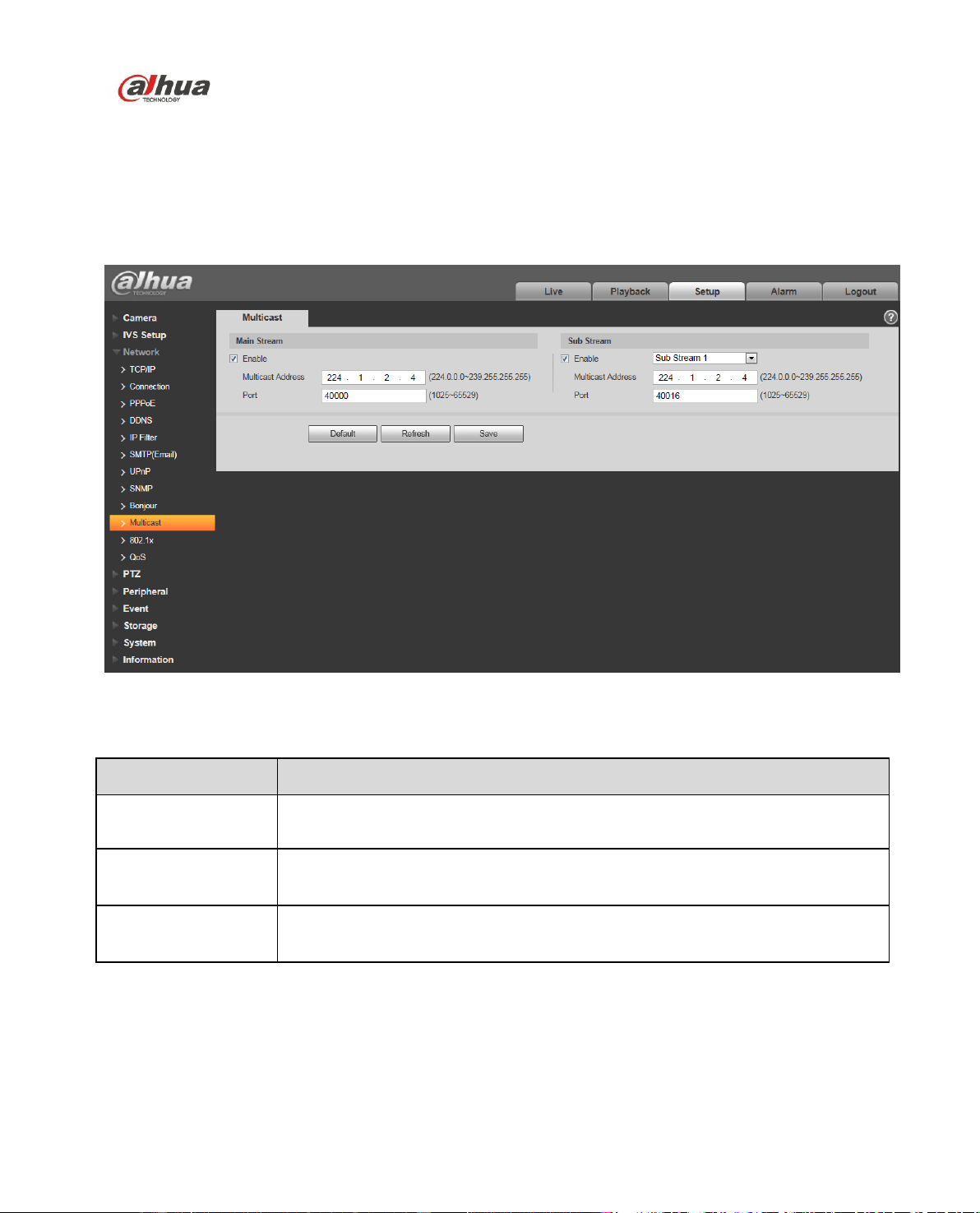
The multicast interface is shown as in Figure 4-51.
Multicast is a transmission mode of data packet. When there is multiple-host to receive the same data
packet, multiple-cast is the best option to reduce the broad width and the CPU load. The source host
Dahua Network Speed Dome Web3.0 Operation Manual
69
can just send out one data to transit. This function also depends on the relationship of the group
member and group of the outer.
Note:
Open preview, streaming media protocol, select multicast, and monitor via multicast format.
Here you can set multicast address and port. You also need to go to Live interface to set the
protocol as Multicast.
Figure 4-51
Please refer to the following sheet for detailed information.
4.3.12 802.1x
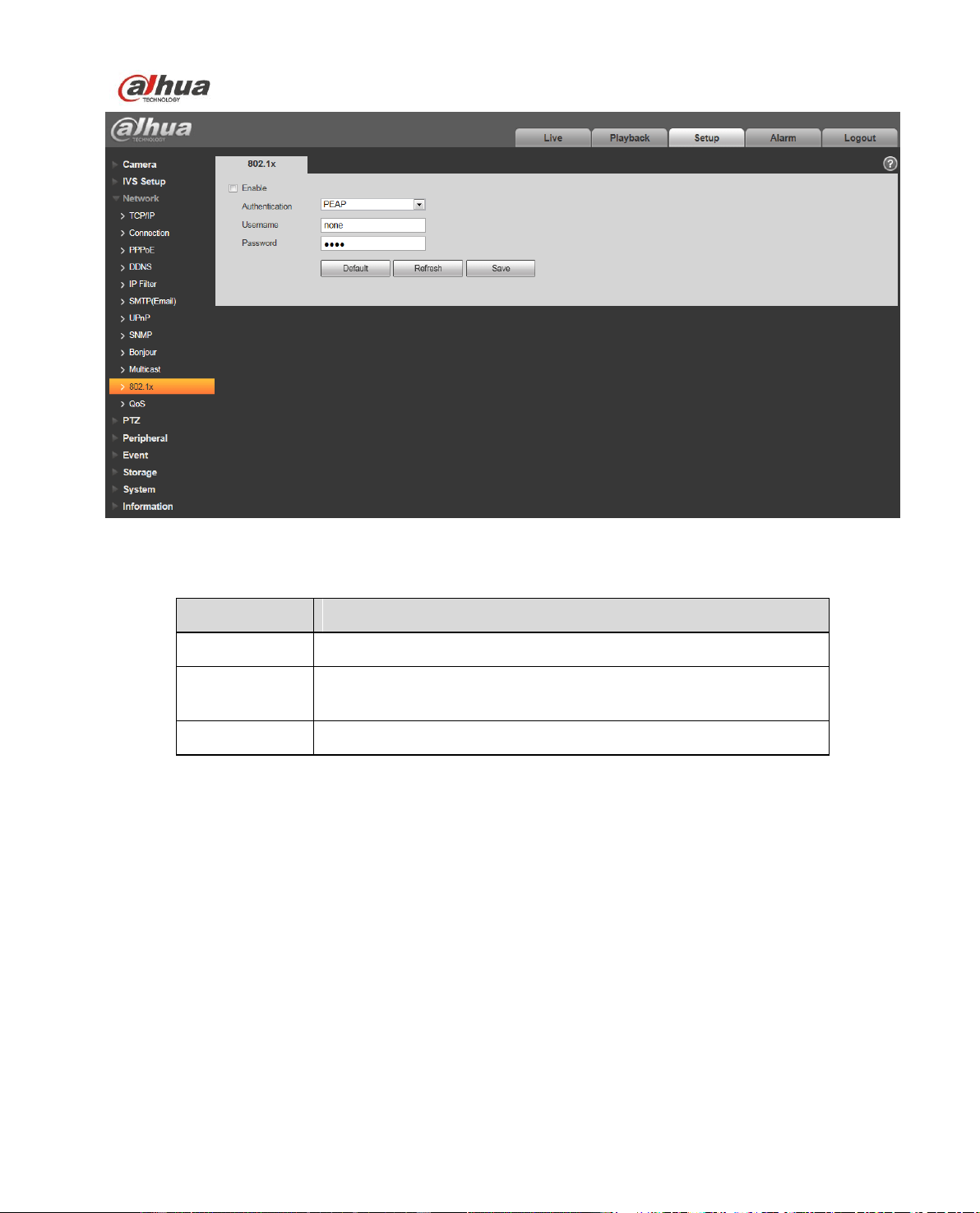
802.1x (port based network access control protocol) supports manual selection of authentication
method to control if device connected to LAN can join the LAN. It well supports authentication, charging,
safety and management requirement of network. See Figure 4-52.
Parameter
Function
Enable
Select to enable multicast function. Main stream and sub stream cannot be
used at the same time.
Multicast address
Main/sub stream multicast default address is 224.1.2.4 and its range is
224.0.0.0~239.255.255.255.
Port
Multicast port. Main stream is 40000, sub stream is 40002 and the range is
1025~65534.
Dahua Network Speed Dome Web3.0 Operation Manual
70
Figure 4-52
Please refer to the following sheet for detailed information.
Parameter
Function
Authentication
PEAP (protected EAP protocol).
Username
It needs the username to login, which is authenticated by the
server.
Password
Please input password here.
4.3.13 QoS
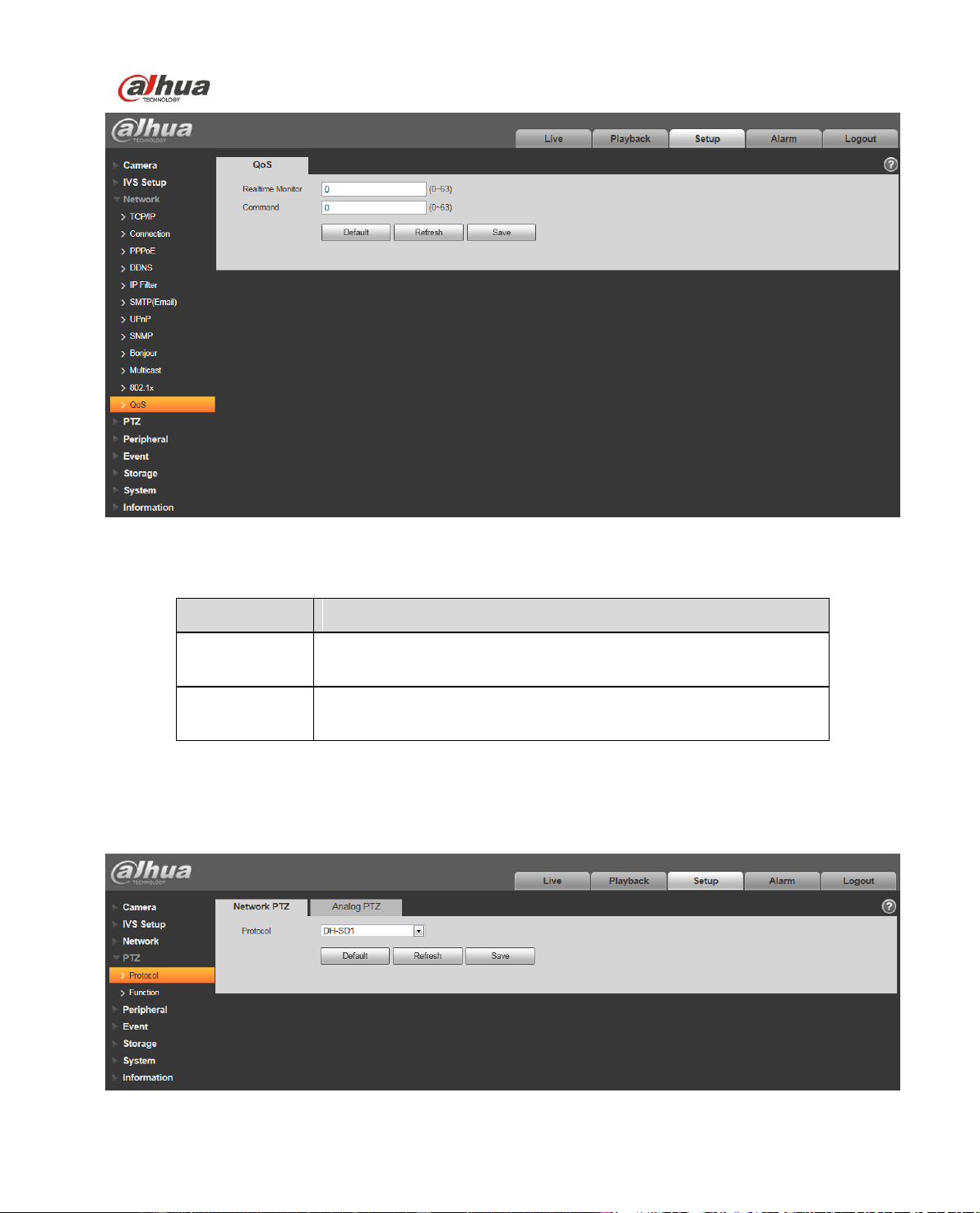
The QoS interface is shown as below. See Figure 4-53.
Qos (Quality of Service) is network security mechanism. It is a technology to fix the network delay and
jam problem and etc. For the network service, the quality of service includes the transmission bandwidth,
delay, the packet loss and etc. We can guarantee the transmission bandwidth, lower the delay, reduce
the loss of the data packet and anti-dither to enhance the quality.
We can set the DSCP (Differentiated Services Code Point) of the IP to distinguish the data packet so
that the router or the hub can provide different services for various data packets. It can select the
different queues according to the priority (64 different priority levels) of the packets and select the
bandwidth of the each queue. Level 0 is the lowest, and level 63 is the highest. It can also discard at the
different ratio when the broad bandwidth is jam.
Dahua Network Speed Dome Web3.0 Operation Manual
71
Figure 4-53
Please refer to the following sheet for detailed information.
Parameter
Function
Real-time
monitor
The value ranges from 0 to 63. The router or the switcher can
provide different service for various data packets.
Command
The value ranges from 0 to 63. The router or the switcher can
provide different service for various data packets.
4.4 PTZ
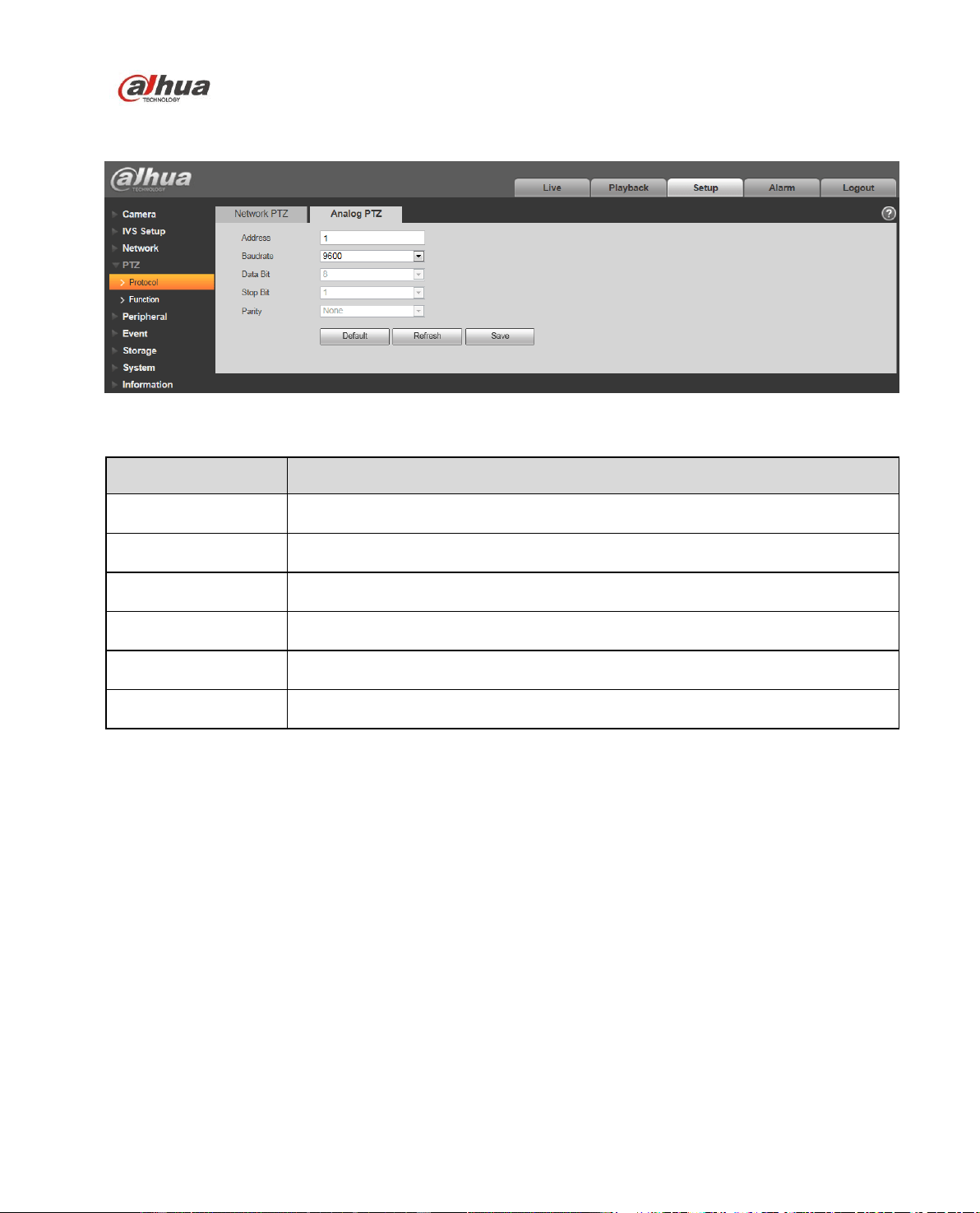
4.4.1 Protocol
Dahua Network Speed Dome Web3.0 Operation Manual
72
Figure 4-54
Figure 4-55
Parameter
Note
Protocol
It is DH-SD1 by default.
Address
It is to set the corresponding speed dome address, default is 0.
Baud rate
It is to select the Baud rate of the camera, the default is 38400.
Data bit
Default is 8.
Stop bit
Default is 1.
Parity
It is to set protocol parity mode, the default is none.
4.4.2 Function
Dahua Network Speed Dome Web3.0 Operation Manual
73
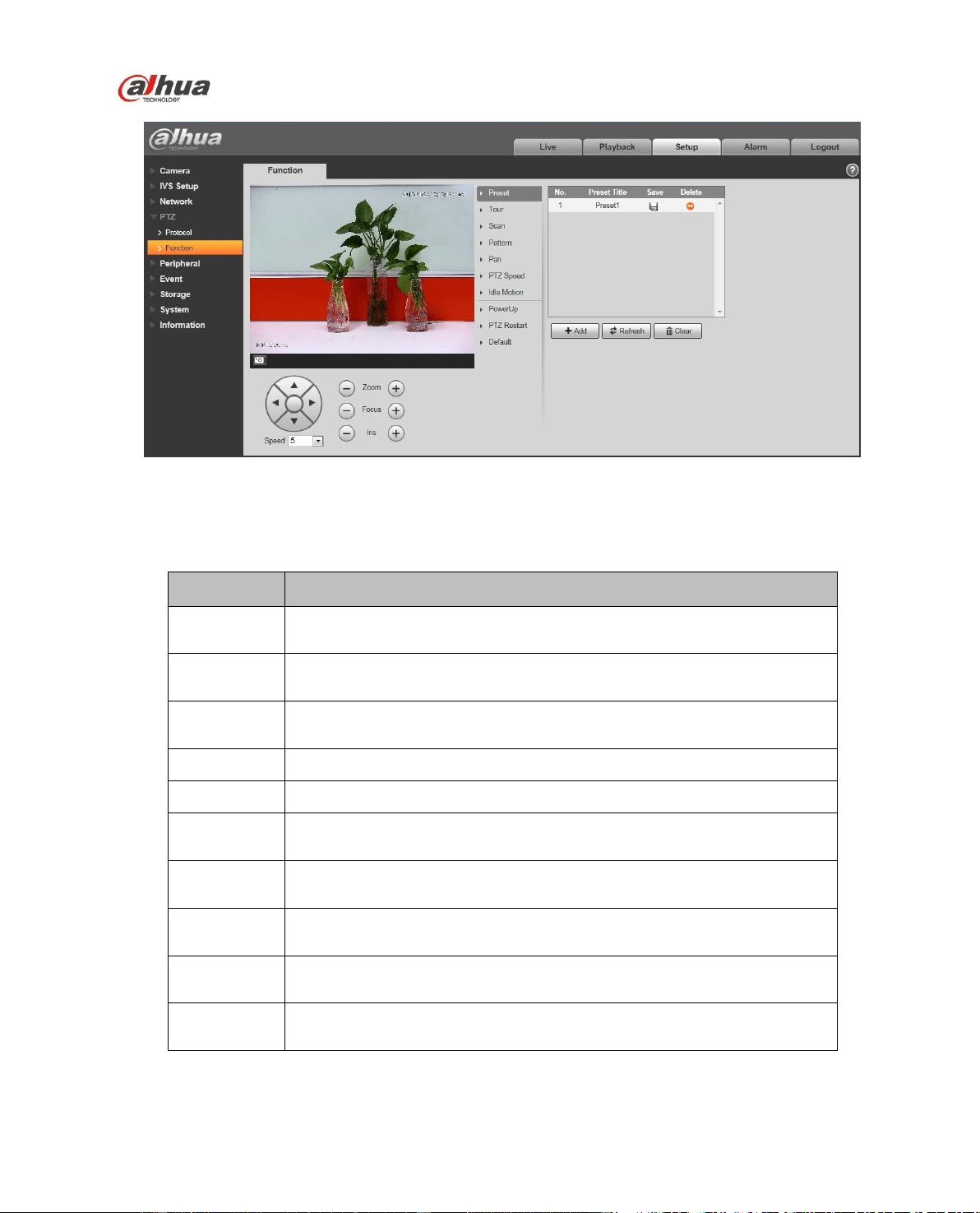
Figure 4-56
In this part, you can operate the PTZ of the camera and control PTZ movement.
Parameter
Function
Preset
Set camera preset.
Tour
Set camera tour. Max 8 tours.
Scan
Set camera scan.
Pattern
Set camera pattern.
Pan rotation
Set pan rotation speed.
PTZ speed
Set PTZ movement speed.
Idle motion
Set camera idle operation.
Power up
Set camera operation when system boots up.
PTZ restart
Restart camera PTZ.
Default
Restore camera PTZ default setup.
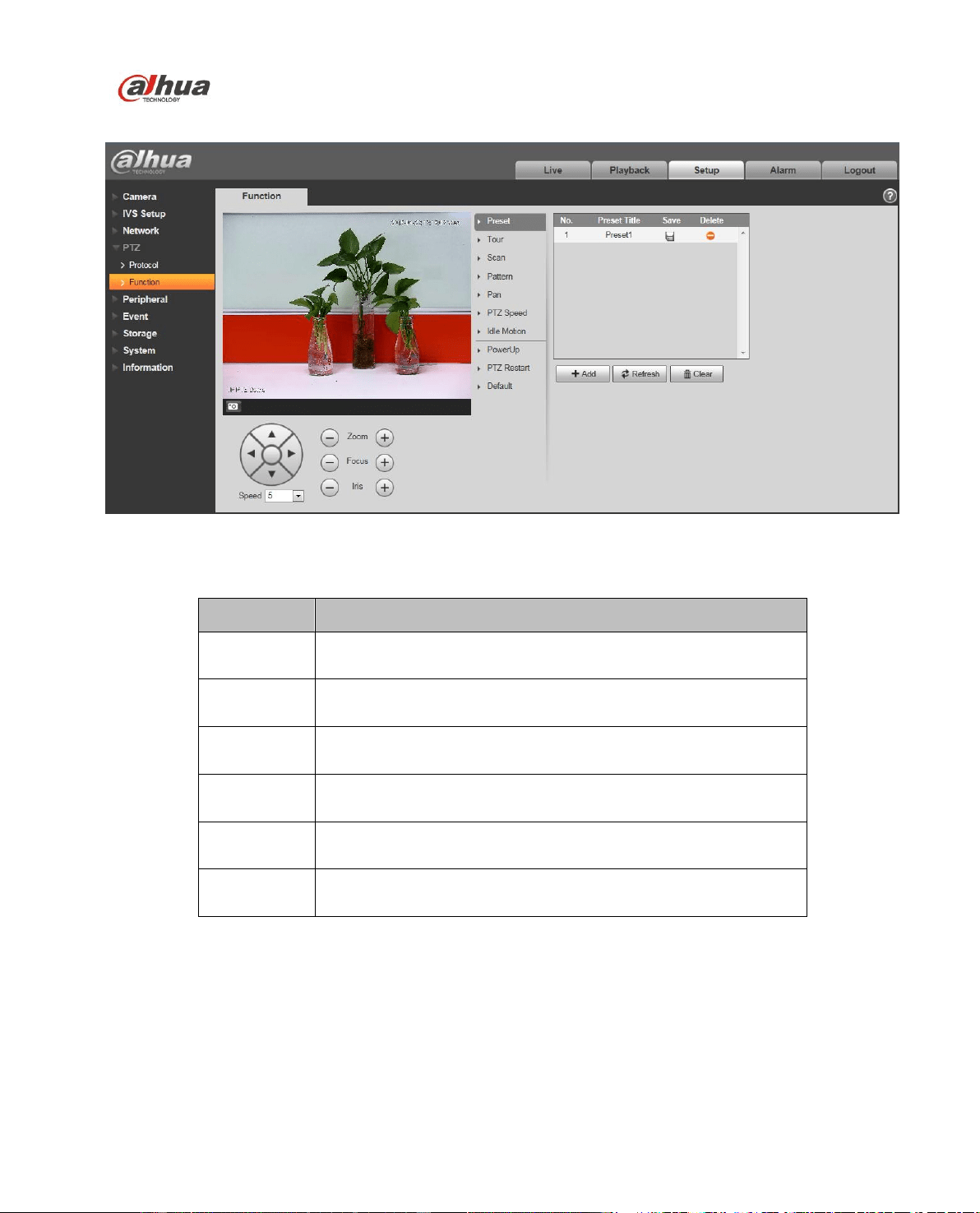
4.4.2.1 Preset
Dahua Network Speed Dome Web3.0 Operation Manual
74
Preset interface is shown as in Figure 4-57.
Figure 4-57
Please refer to the following sheet for detailed information.
Parameter
Function
Preset No.
Set preset No. It becomes valid after you set.
Preset title
Set preset name. You can input self-defined preset name here.
Delete
Delete corresponding preset.
Save
Save current preset setup.
Add
Click it to add a new preset.
Clear
Clear all presets setup.
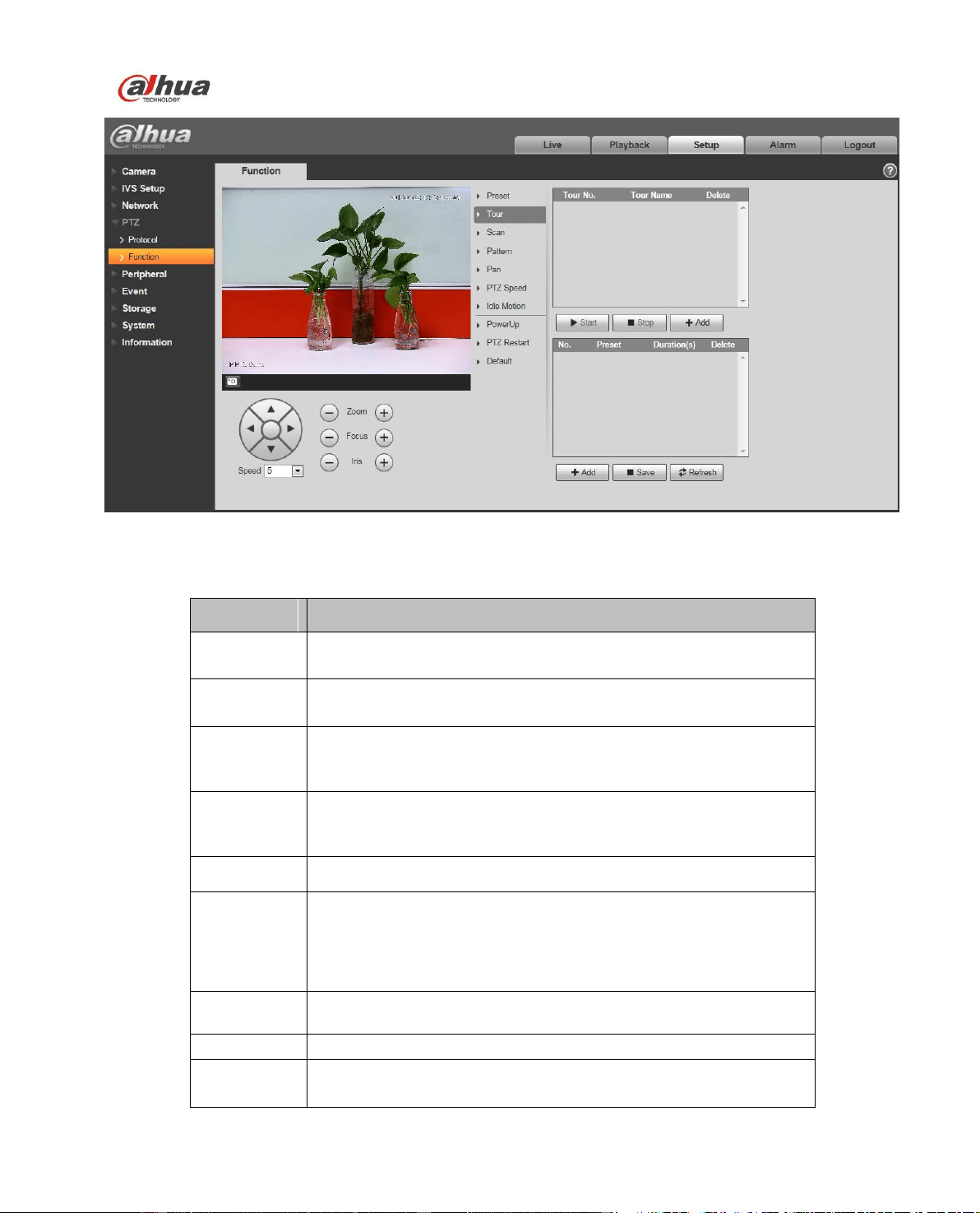
4.4.2.2 Tour
Tour interface is shown as below. See Figure 4-58.
Dahua Network Speed Dome Web3.0 Operation Manual
75
Figure 4-58
Please refer to the following sheet for detailed information.
Parameter
Function
Tour No.
System auto allocates.
Tour title
Set tour name. You can input self-defined tour name here.
Start
Begin tour.
Please note this function is null if you have not set a tour.
Stop
Stop tour
Please note this function is null if you have not set a tour
Add
Click it to add a new tour.
Preset
Click Add button, you can add a new tour. The default preset
value is 1.
Double click tour No, you can see a dropdown list for you to
select.
Please set presets before you use tour function.
Duration
(Interval)
It is to set the staying time of the tour.
Save
Click it to save current setup.
Refresh
Refresh current interface.
Dahua Network Speed Dome Web3.0 Operation Manual
76
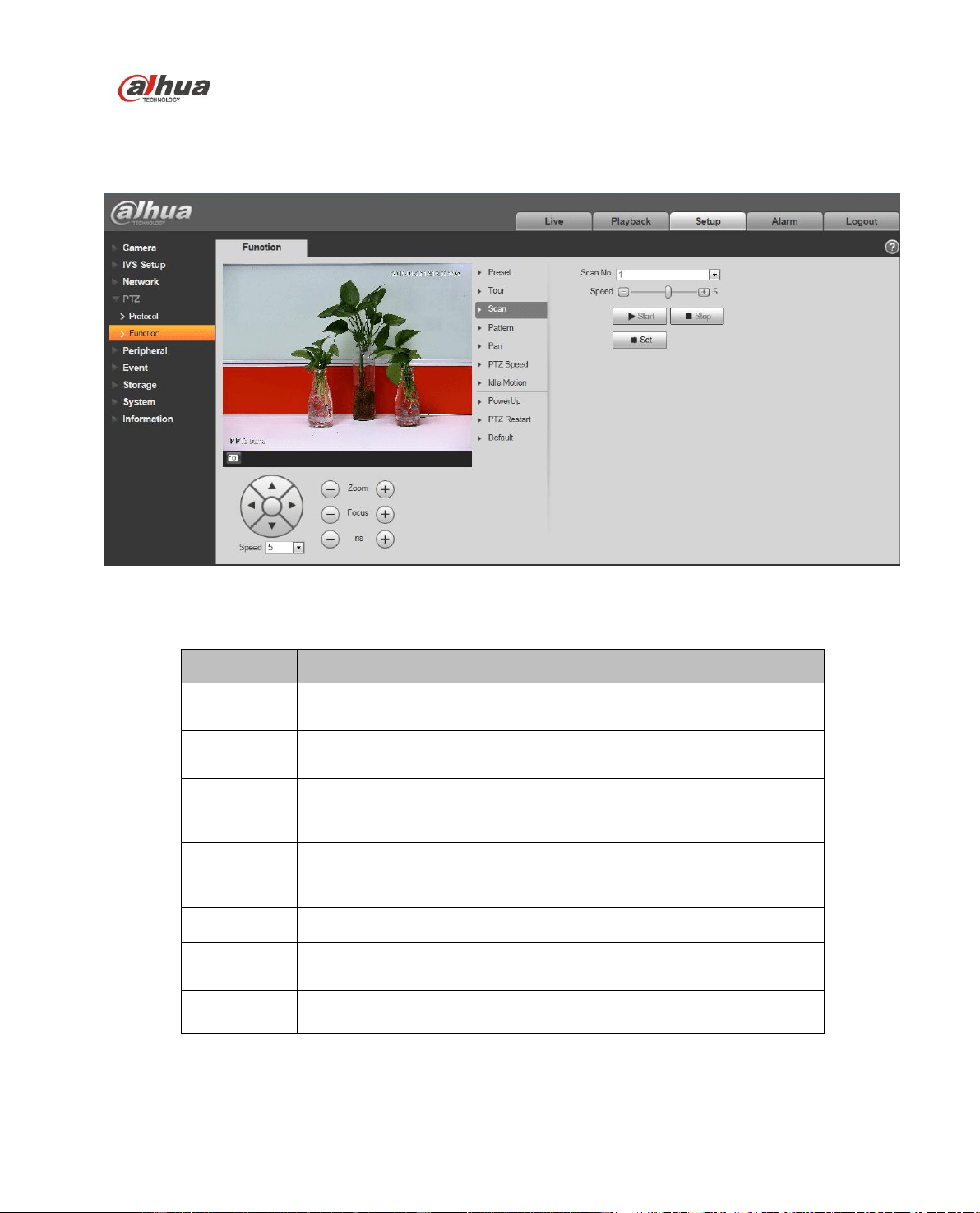
4.4.2.3 Scan
Scan interface is shown as below. See Figure 4-59.
Figure 4-59
Please refer to the following sheet for detailed information.
Parameter
Function
Scan No.
System auto allocates.
Speed
Set scan speed here.
You cannot set speed when camera is running scan.
Start
Begin scan.
Please note this function is null if you have not set a scan.
Stop
Stop scan
Please note this function is null if you have not set a scan
Set
Click set button, you can set left limit and right limit.
Left limit
Set camera left limit.
Right limit
Set camera right limit.
4.4.2.4 Pattern
Pattern interface is shown as below. See Figure 4-60.
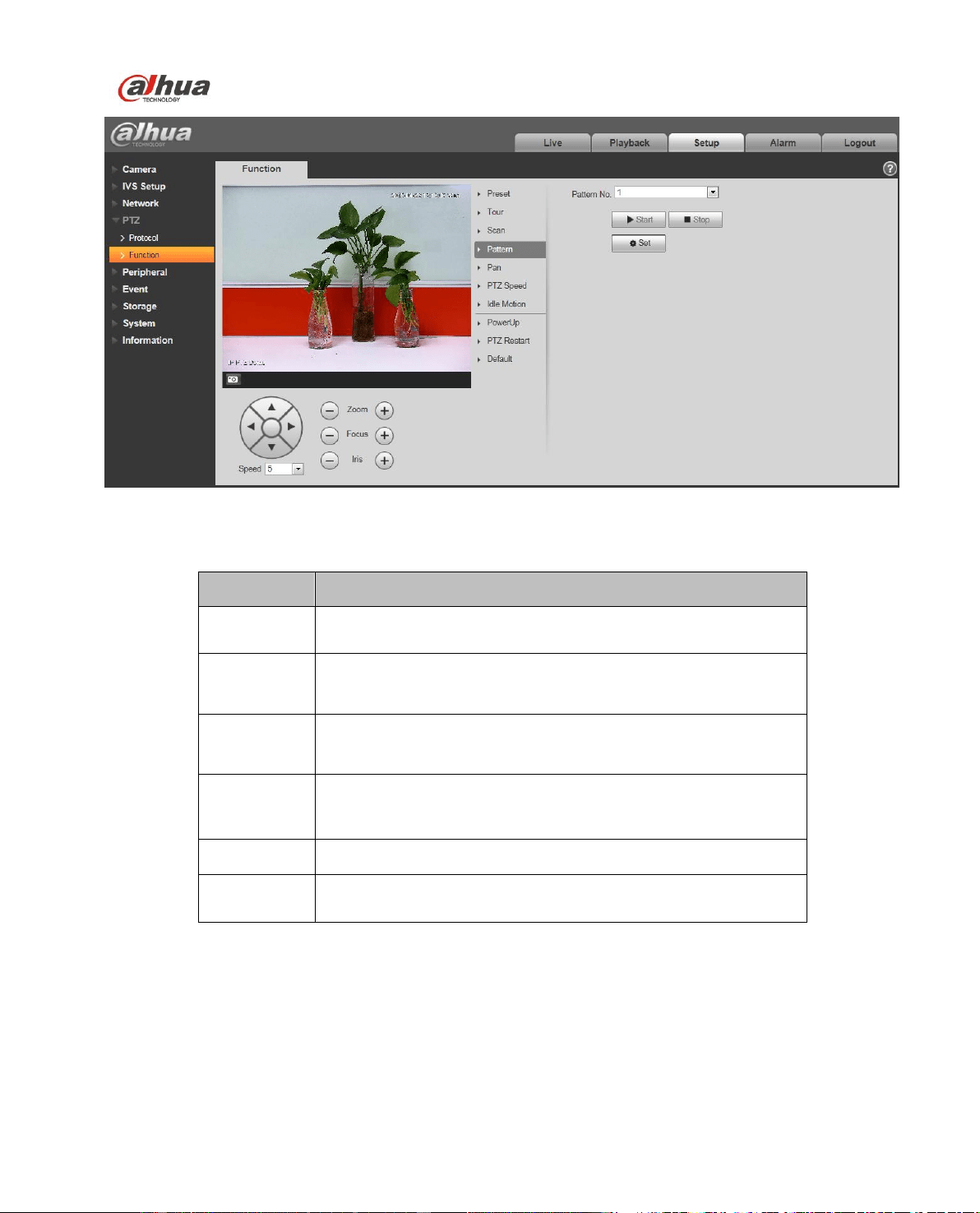
Dahua Network Speed Dome Web3.0 Operation Manual
77
Figure 4-60
Please refer to the following sheet for detailed information.
Parameter
Function
Pattern No.
System auto allocates.
Start
Begin pattern.
Please note this function is null if you have not set a
pattern.
Stop
Stop pattern
Please note this function is null if you have not set a
pattern
Set
Click it you can see start/stop record buttons.
Start record
Click it to begin recording pattern setup.
Stop record
Click it to stop recording pattern setup.
4.4.2.5 Pan Rotation
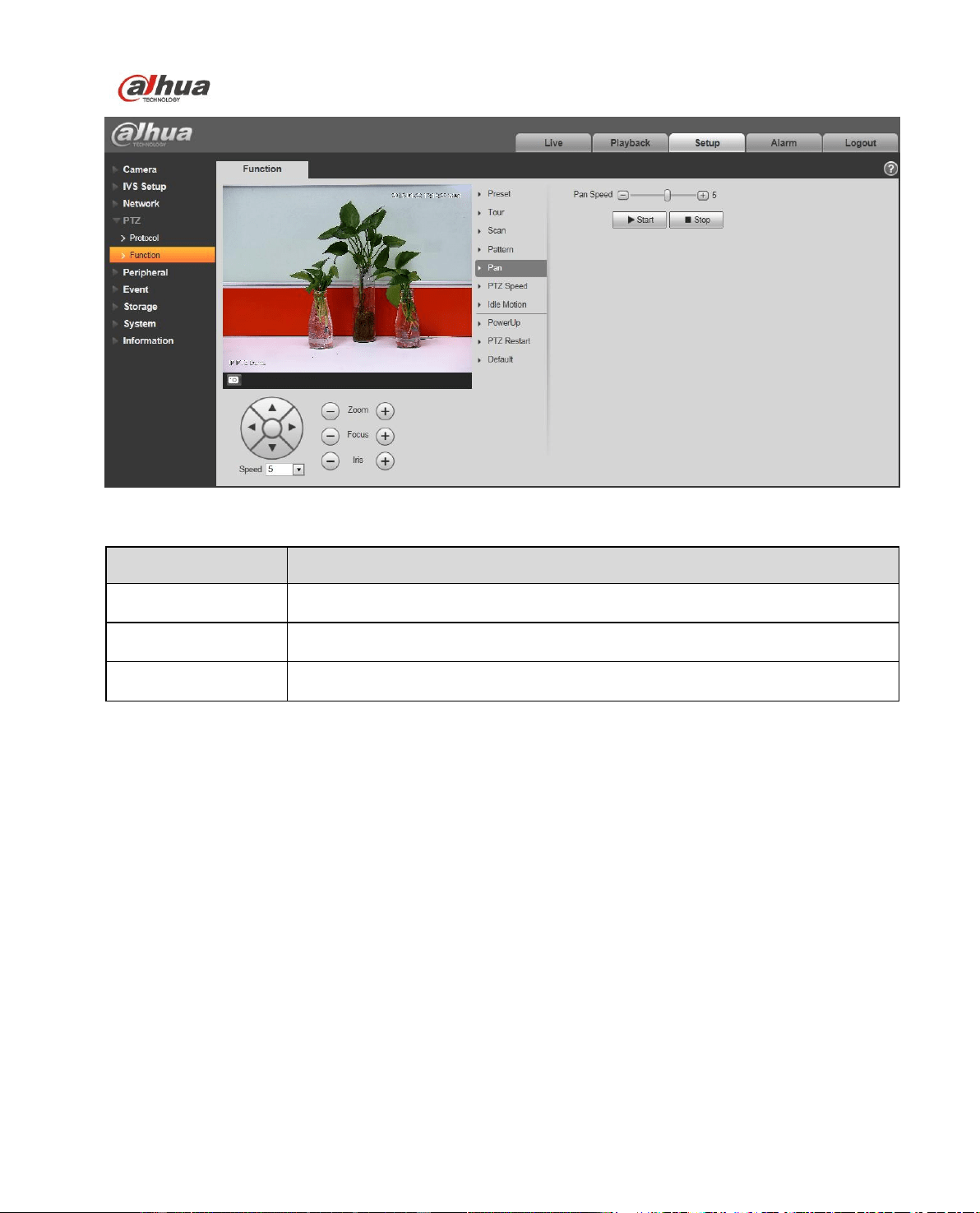
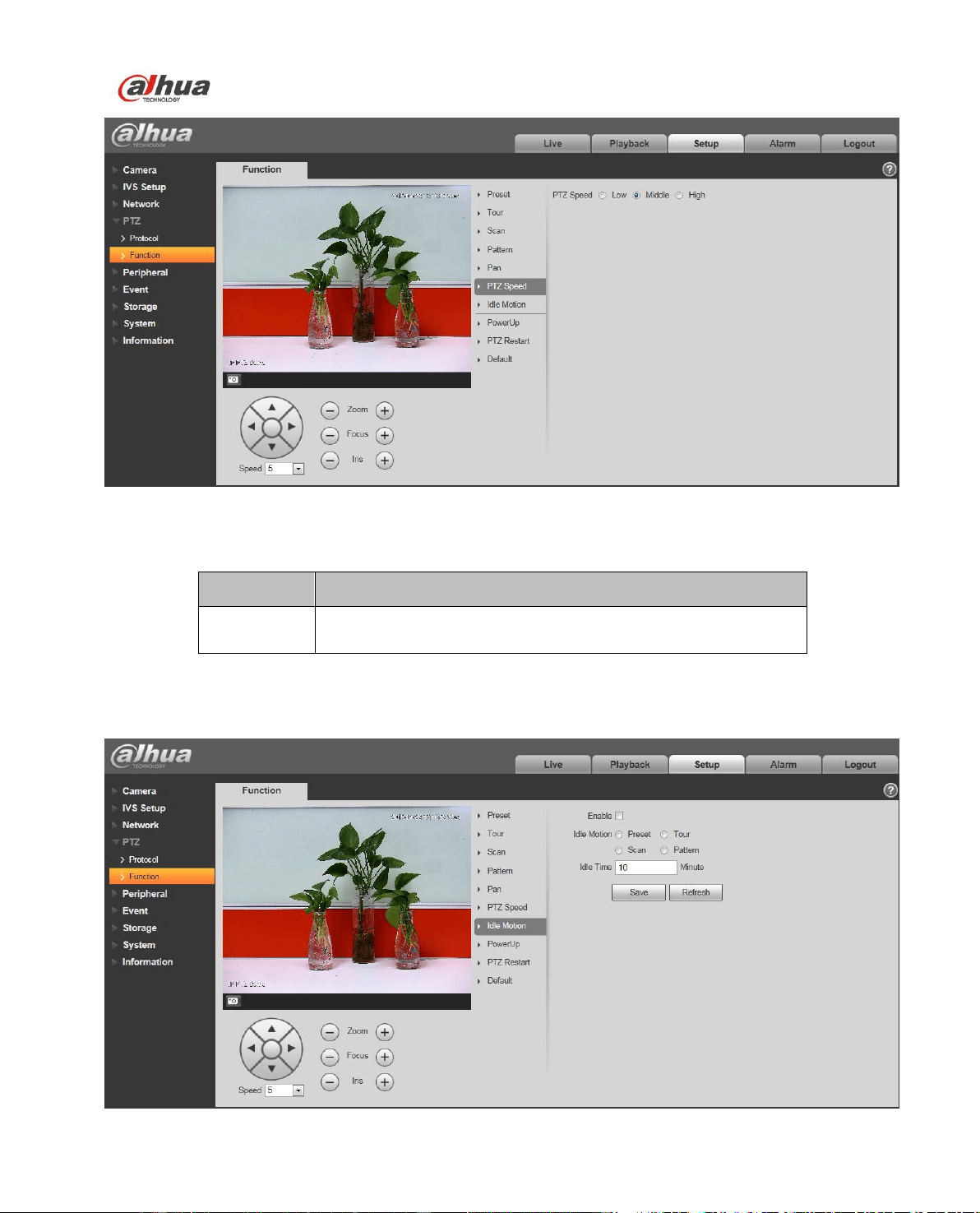
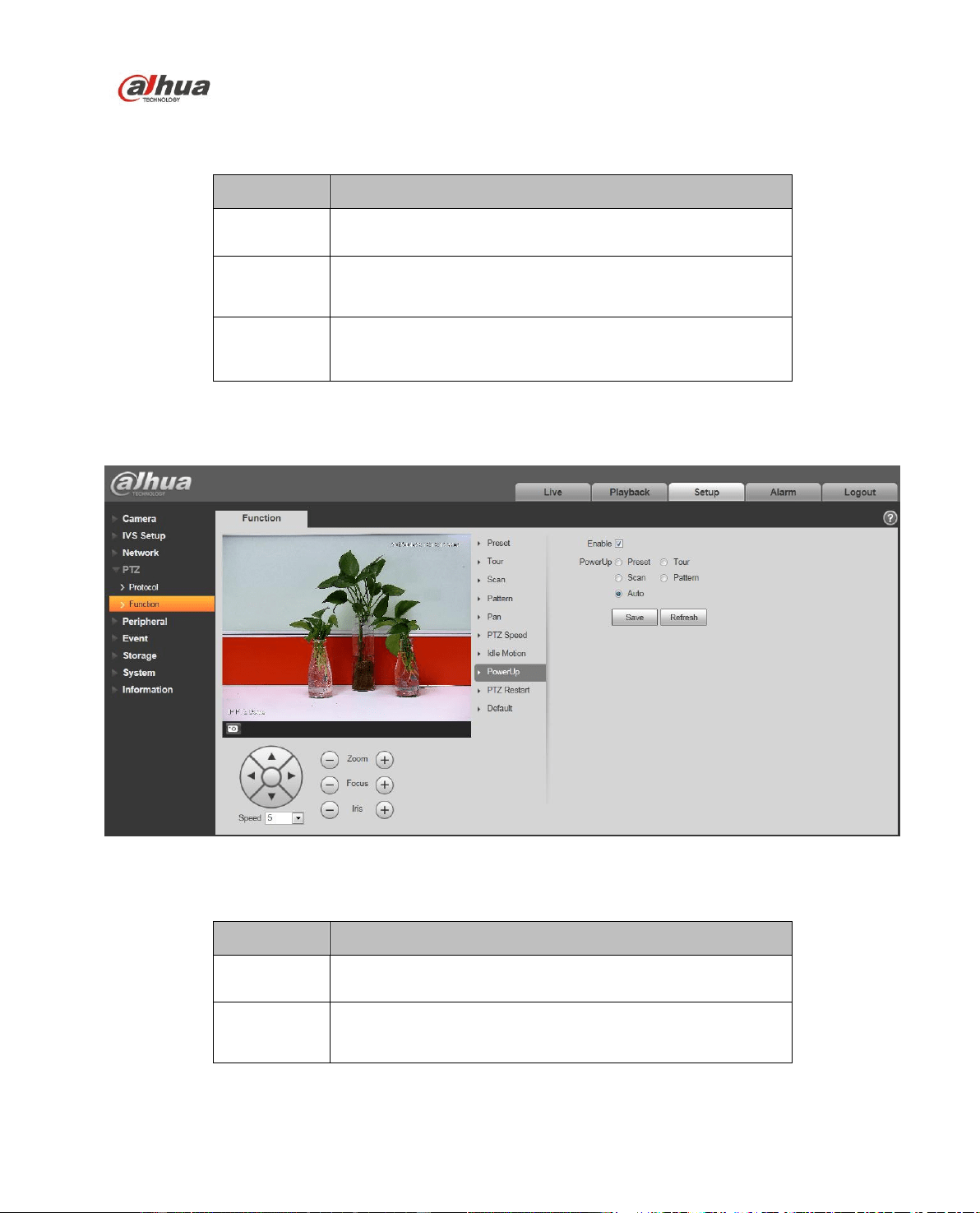
Dahua Network Speed Dome Web3.0 Operation Manual
80
Figure 4-63
Please refer to the following sheet for detailed information.
Parameter
Function
Enable
Check the box here to enable idle motion function.
Idle Motion
Here you can set preset, scan, pattern, tour.
Please note you need to set the corresponding
operation first if you want to use this function.
Idle time
Set idle time.
4.4.2.8 Power up
Power up interface is shown as below. See Figure 4-64.
Figure 4-64
Please refer to the following sheet for detailed information.
Parameter
Function
Enable
Check the box here to enable power up function.
Power up
Here you can set preset, scan, pattern, tour and auto.
Please note you need to set the corresponding
function first if you want to use it.
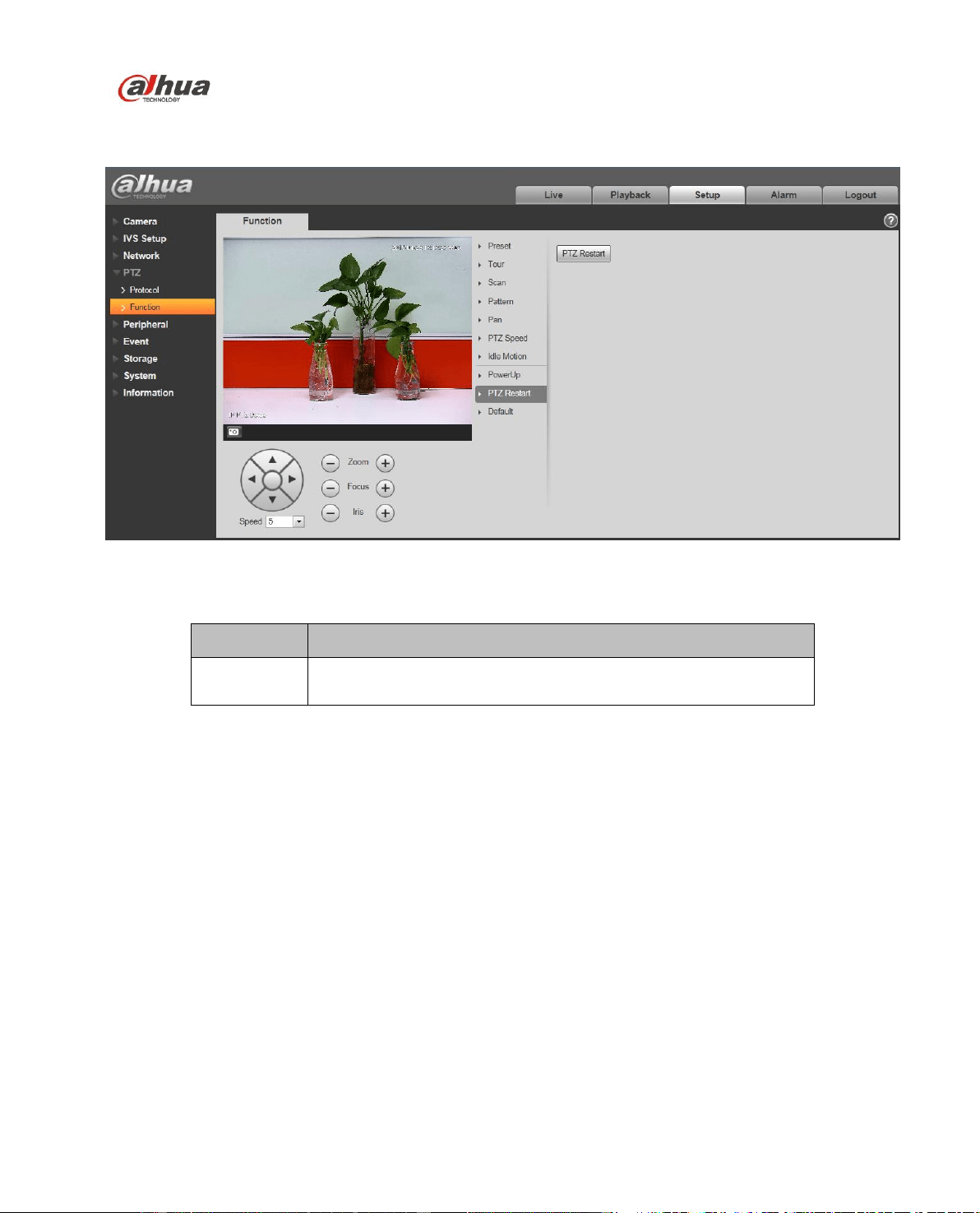
Dahua Network Speed Dome Web3.0 Operation Manual
81
4.4.2.9 PTZ Restart
PTZ restart interface is shown as below. See Figure 4-65.
Figure 4-65
Please refer to the following sheet for detailed information.
Parameter
Function
PTZ restart
It is to reboot PTZ.
4.4.2.10 Default
Default interface is shown as below. See Figure 4-66.
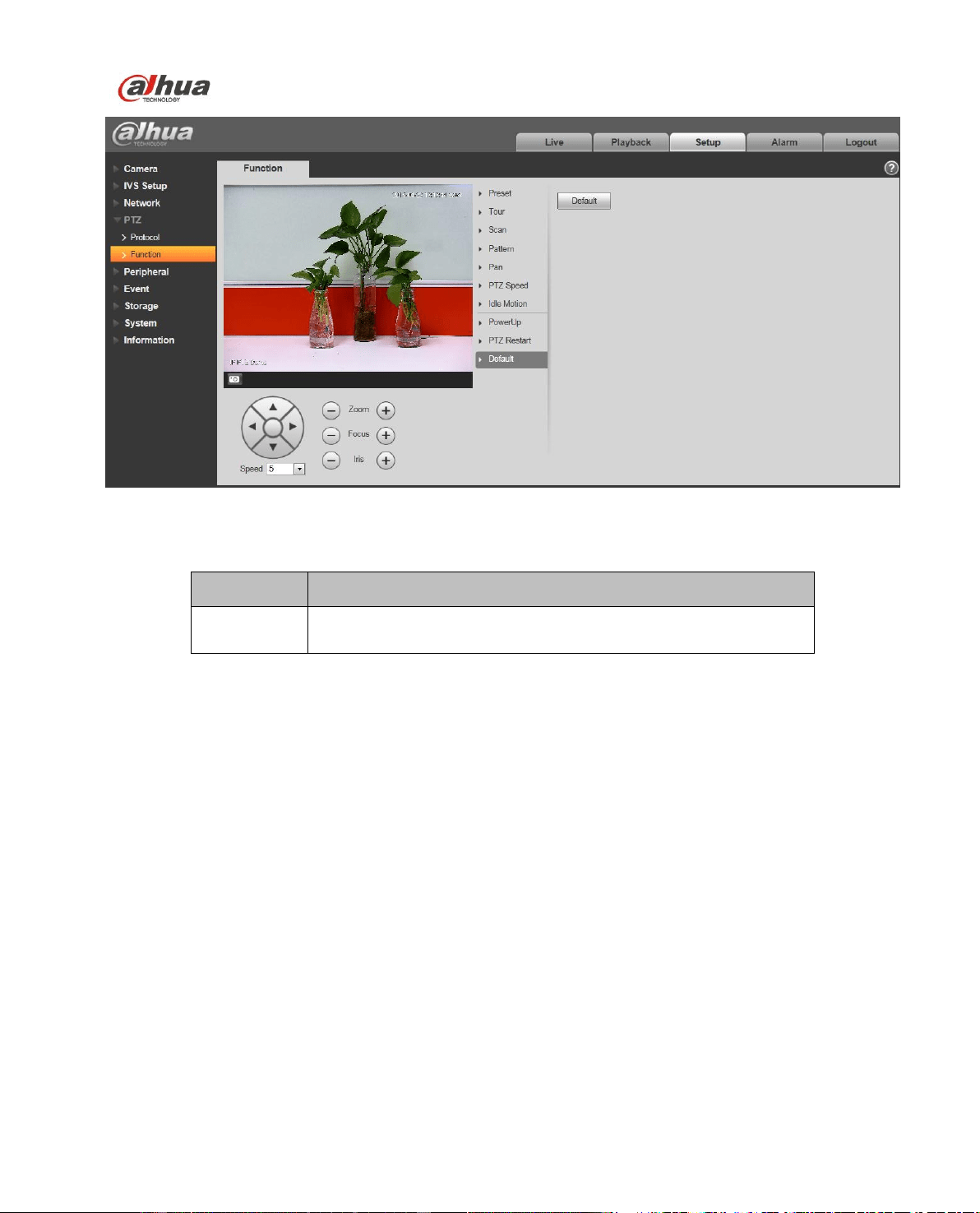
Dahua Network Speed Dome Web3.0 Operation Manual
82
Figure 4-66
Please refer to the following sheet for detailed information.
Parameter
Function
Default
Restore PTZ factory default setup.
4.5 Peripheral
4.5.1 IR Light
Note:
The function is only supported by some product series.
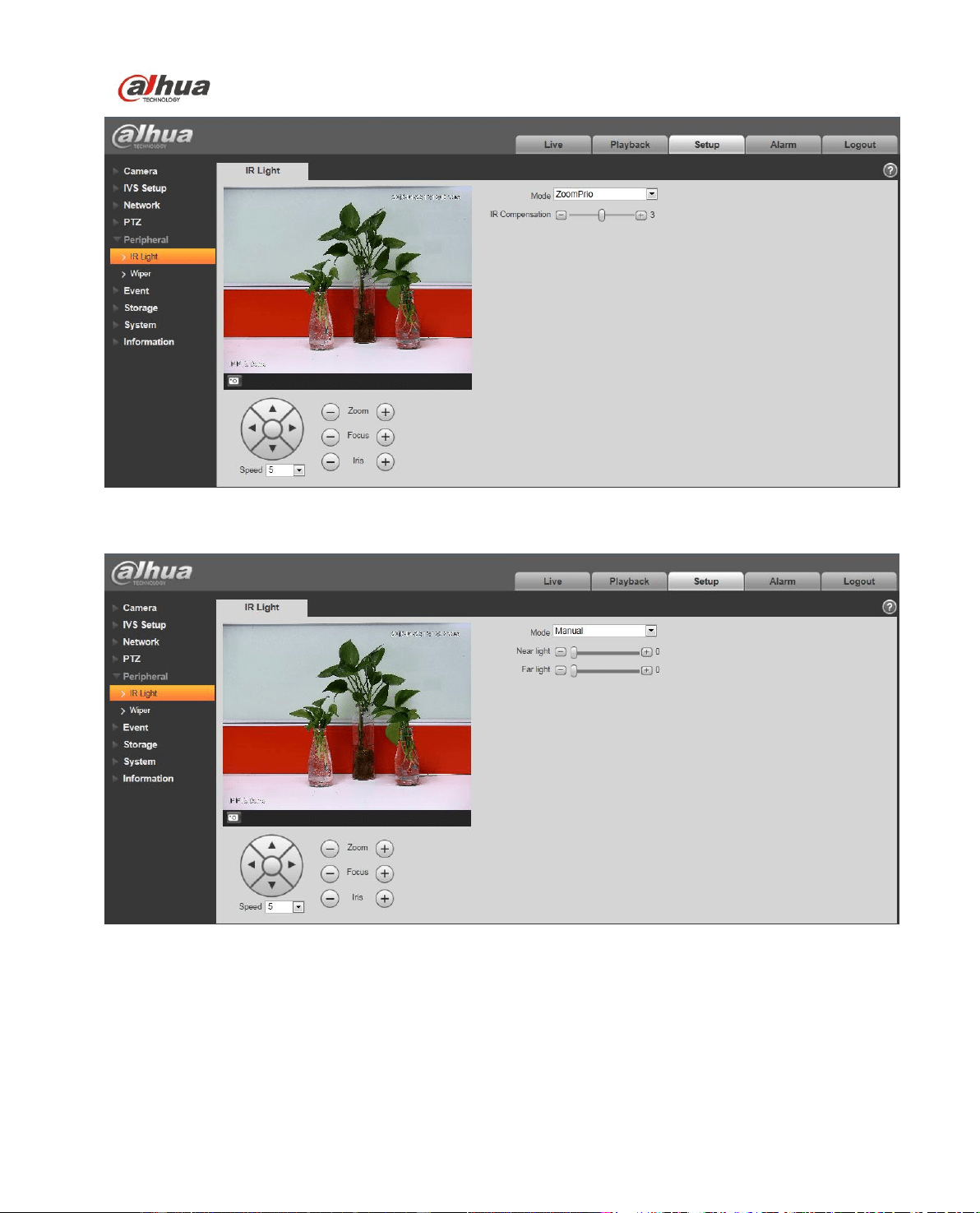
Dahua Network Speed Dome Web3.0 Operation Manual
83
Figure 4-67
Figure 4-68
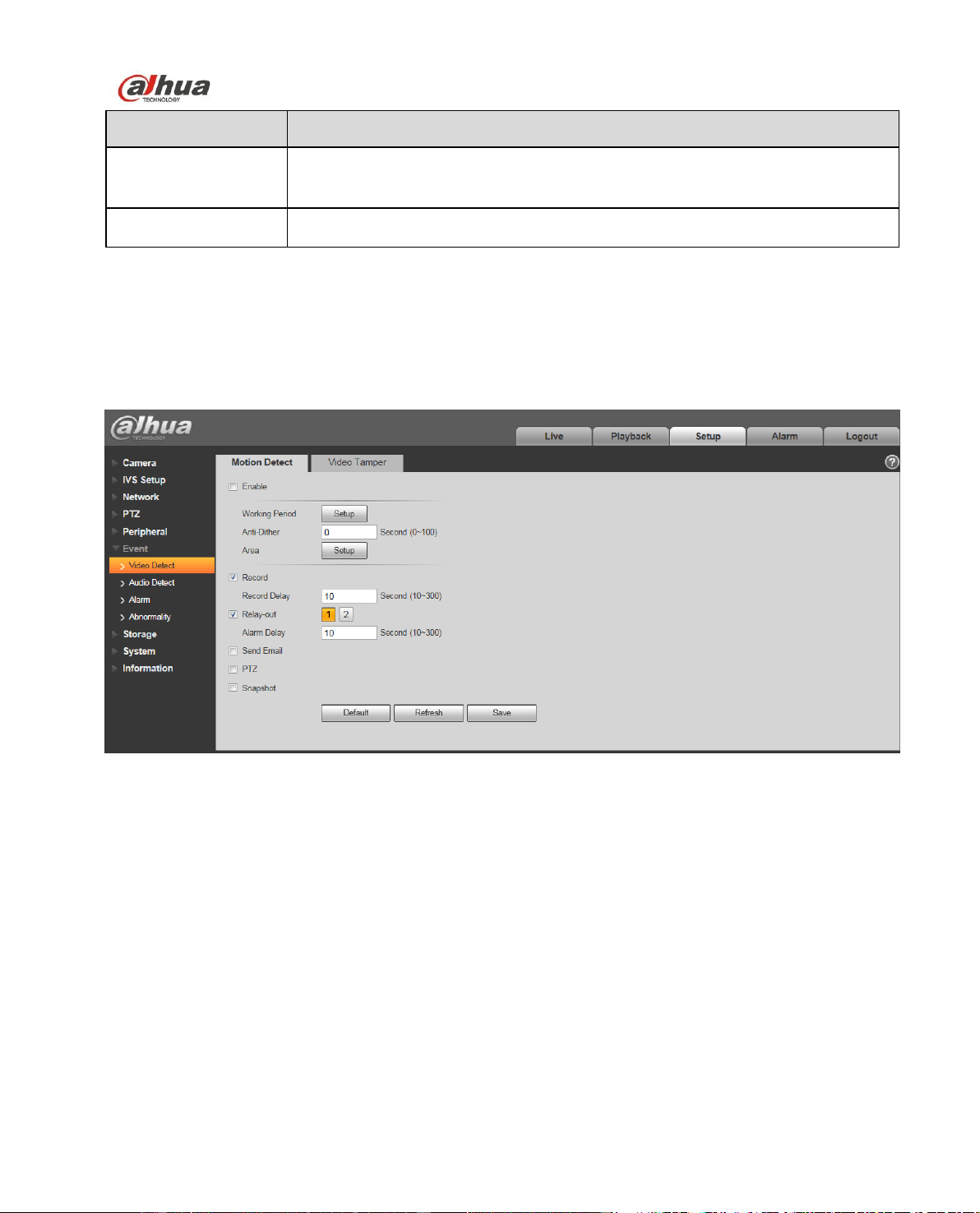
Dahua Network Speed Dome Web3.0 Operation Manual
84
Parameter
Note
Zoom priority
Enable IR light under zoom priority, the value of far and near IR light can auto
switch according to the zoom rate.
Manual
It can set the value of near light and far light under manual mode.
4.6 Event
4.6.1 Video detect
4.6.1.1 Motion Detect
The motion detect interface is shown as in Figure 4-69 through Figure 4-72.
Figure 4-69
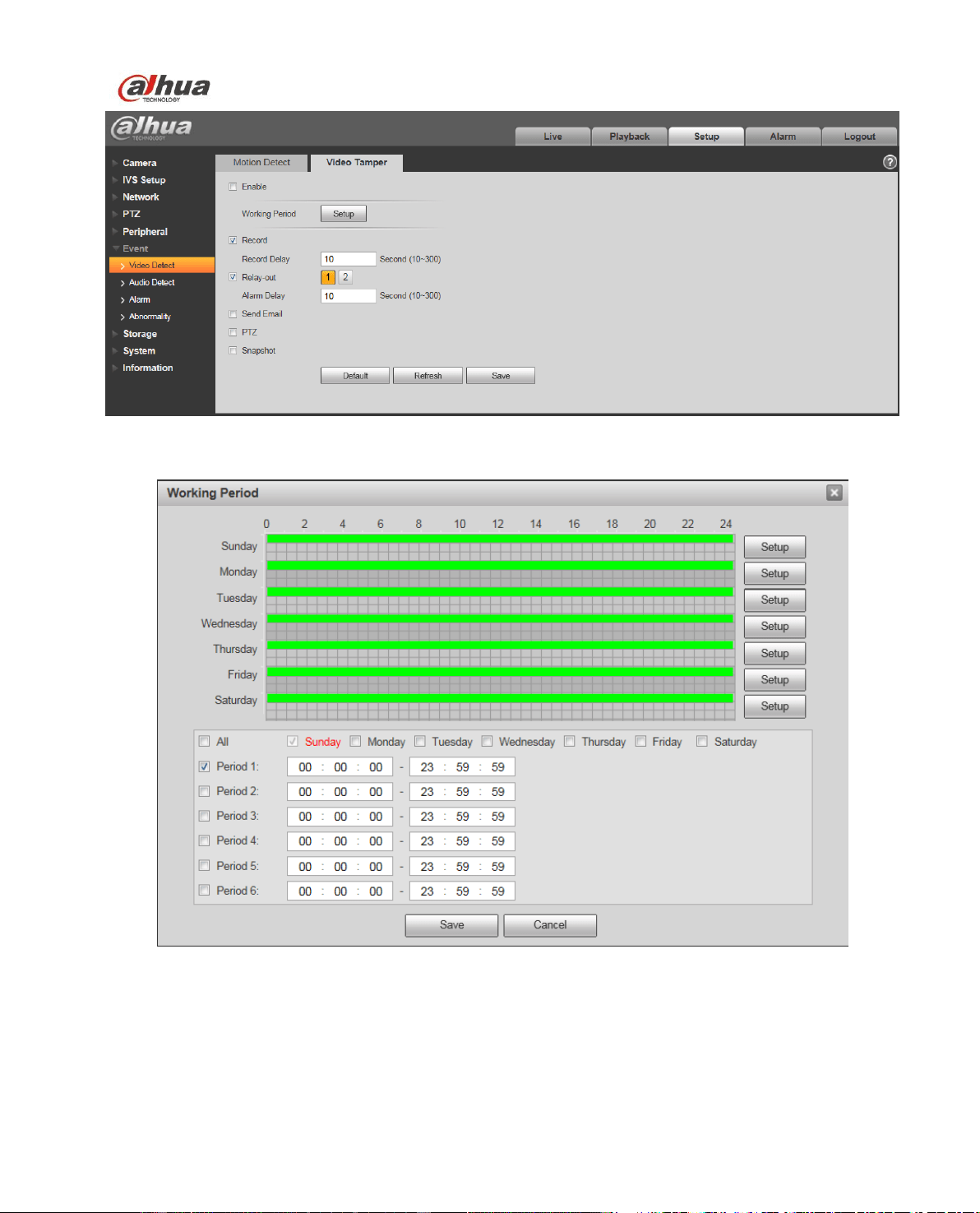
Dahua Network Speed Dome Web3.0 Operation Manual
85
Figure 4-70
Figure 4-71
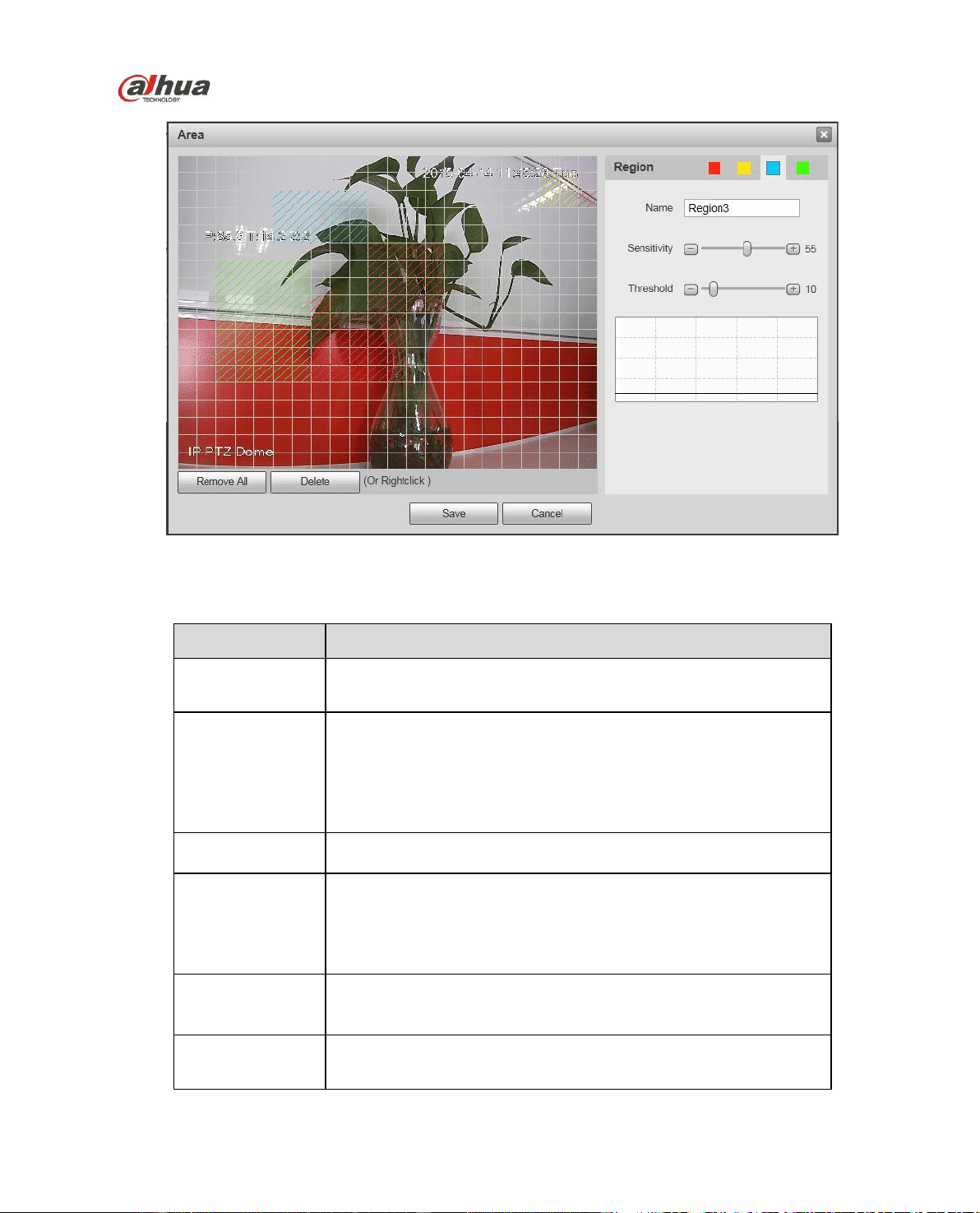
Dahua Network Speed Dome Web3.0 Operation Manual
86
Figure 4-72
Please refer to the following sheet for detailed information.
Parameter
Function
Enable
You need to check the box to enable motion detection or video
tamper function.
Working Period
Here you can set arm/disarm period. Click set button to open
period setup menu.
There are six periods every day for setup and you must check
box in front of each period to enable it.
Note: Period setup can be done by dragging mouse while not
release left mouse.
Anti-dither
System only memorizes one event during the anti-dither period.
The value ranges from 0s to 100s.
Area
Here you can set motion detection region and its sensitivity and
area. (The higher the sensitivity is, the easier to trigger motion
detect; the smaller the area, the easier to trigger motion detect.)
The default covers all regions. You must click save before
enabling your setup.
Record
Check it and so when alarm occurs, system will auto record.
You shall set record period in Storage>Schedule and select
auto record in record control interface.
Record Delay
System can delay the record for specified time after alarm
ended. The value ranges from 10s to 300s.
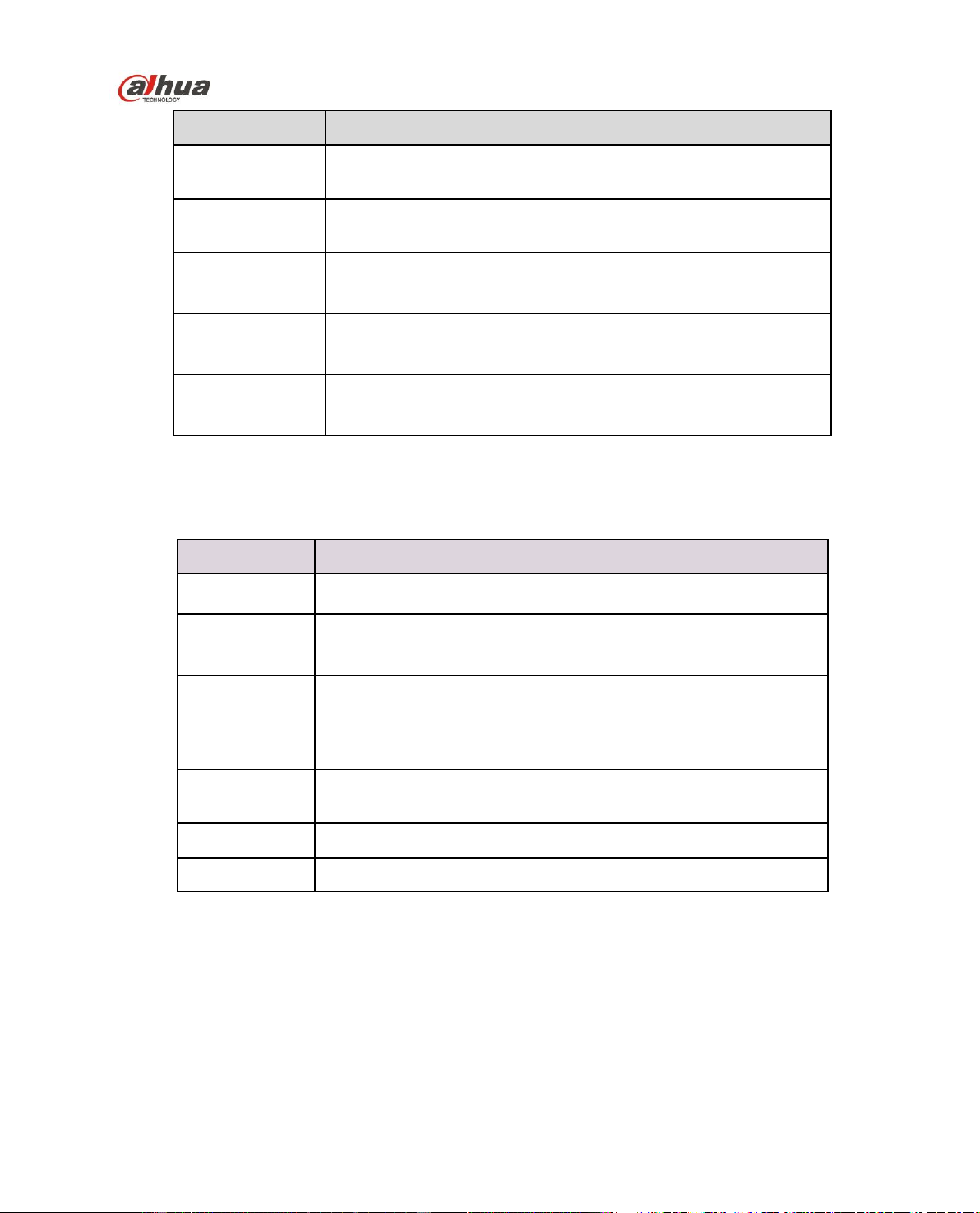
Dahua Network Speed Dome Web3.0 Operation Manual
87
Parameter
Function
Relay-out
Check to enable alarm activation output port, it can activate
corresponding alarm output device when alarm occurs.
Alarm Delay
System can delay alarm for specified time after alarm ended.
The value ranges from 10s to 300s.
Send Email
If you enabled this function, System can send out email to alert you
when alarm occurs and ends. User can set email address in
Network>SMTP.
PTZ
Here you can set PTZ movement when alarm occurs. Such
as go to preset x when there is an alarm.
The event type includes: preset, tour and pattern.
Snapshot
You need to check the box here so that system can backup motion
detection snapshot file. You shall set snapshot period in
Storage>Schedule.
The zone setup interface is shown in the figure above. Different colors represent different areas. Each
area can set different detection zones. Detection zone can be irregular and discontinuous. If device
monitoring zone is large, user can sub-divide the area into several zones for better motion detect.
Please refer to the following sheet for detailed information.
Parameter
Function
Name
Default area name includes Region0, Region1, Region2,
Region3 and custom.
Sensitivity
It is sensitivity of brightness as motion detection is more possible
to be trigger with high sensitivity. You can set up to four areas.
The range is 0~100. The recommenced value is 30~70.
Area threshold
It is to check target object area related to detection area. The
lower the area threshold, the easier to trigger motion detection.
You can set up to four areas. The range is 0~100. The
recommenced value is 0~10.
Waveform
Red means motion detect is triggered. Green means motion
detect is not triggered.
Delete all
Clear all areas. `
Delete
Delete all the selected area.
4.6.2 Audio Detect
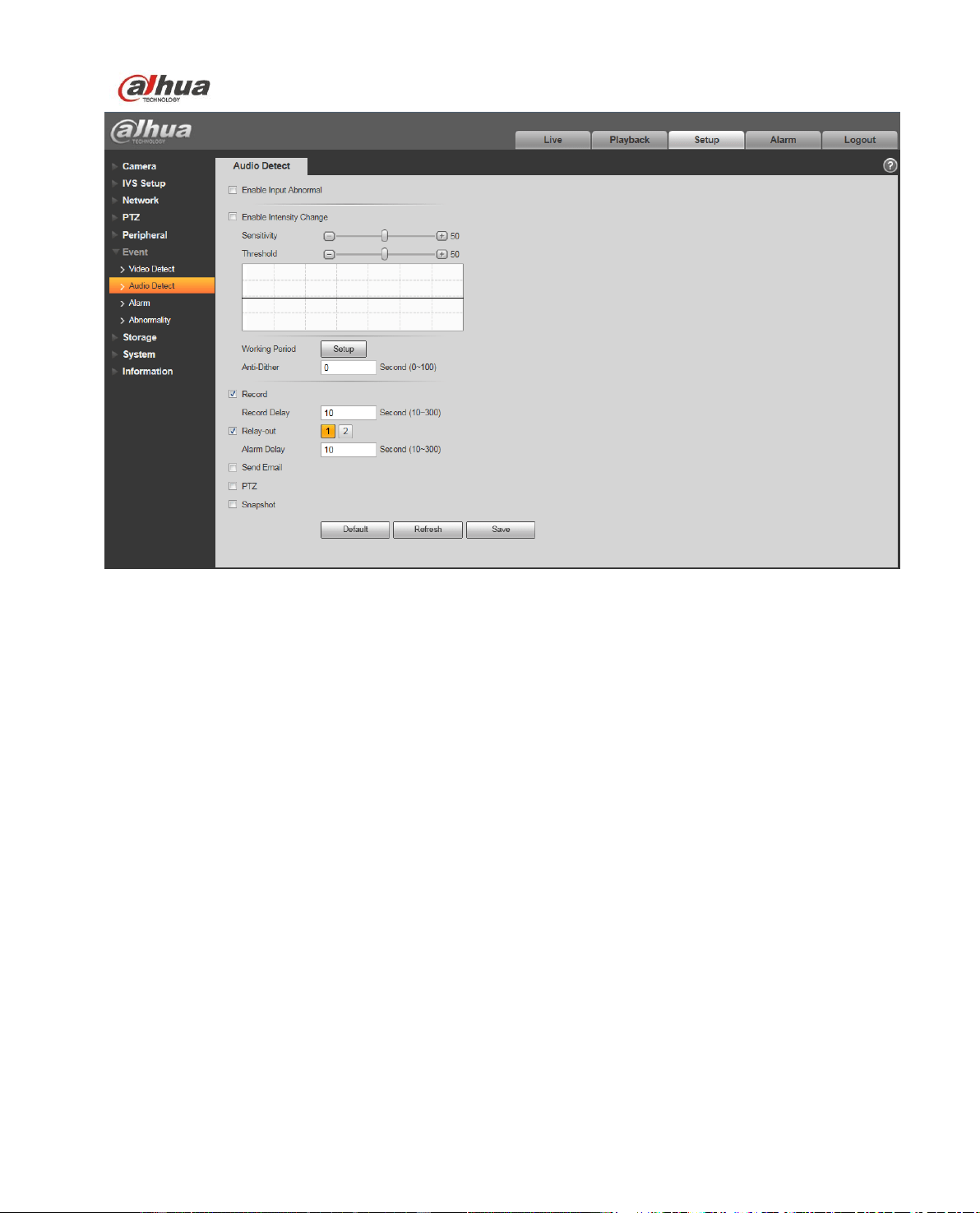
Dahua Network Speed Dome Web3.0 Operation Manual
88
Figure 4-73
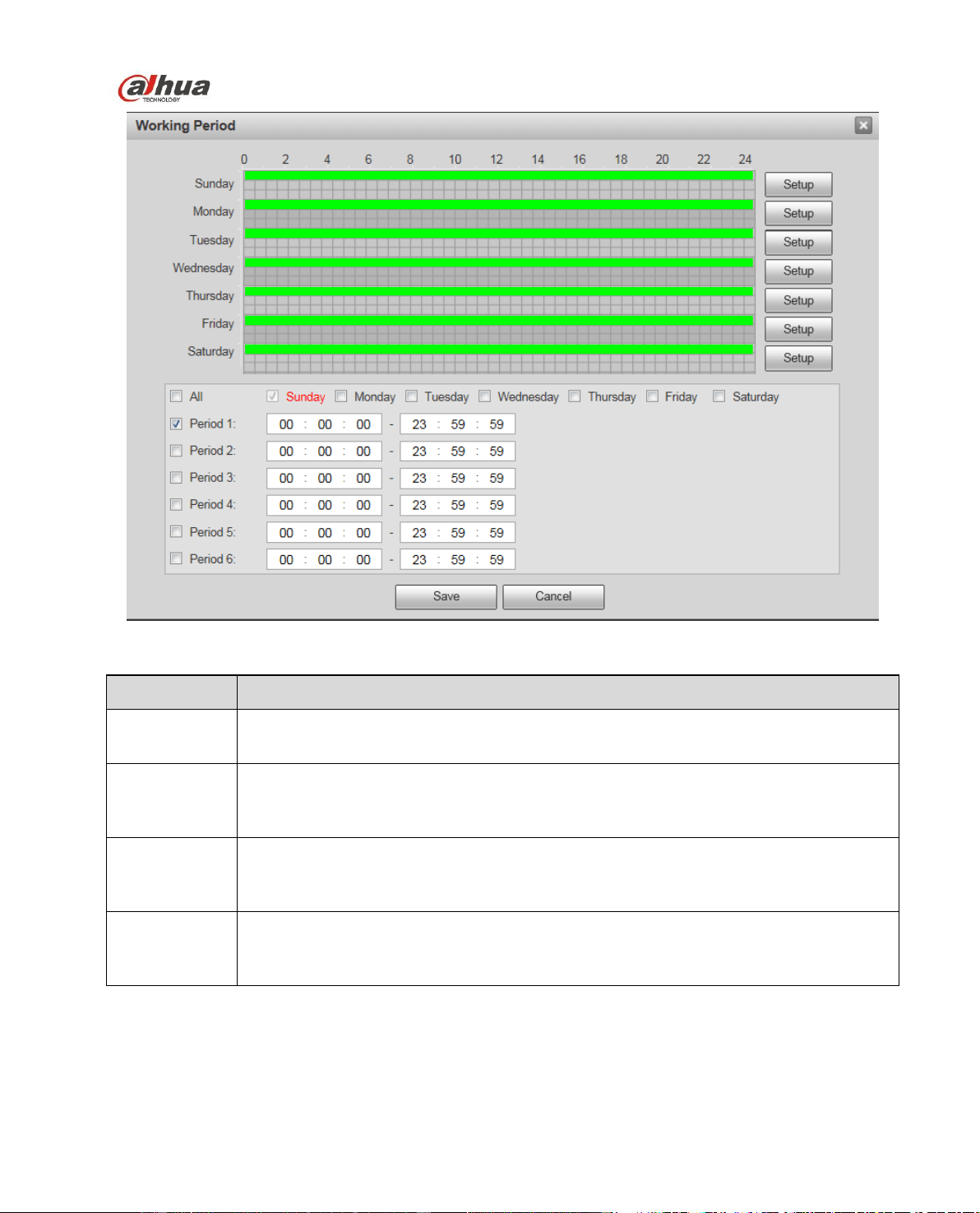
Dahua Network Speed Dome Web3.0 Operation Manual
89
Figure 4-74
Parameter
Note
Enable Input
Abnormal
Check “Enable input abnormal” and it will generate alarm when detecting audio
input abnormal.
Enable
Intensity
Change
Check “Enable intensity change” and it will generate alarm when detecting audio
intensity change surpasses the threshold.
Sensitivity
1~100 level adjustable, the smaller the value is, the more input volume change
surpasses continuous environment volume, then it can be judged as audio
abnormal, users need to adjust according to actual environment test.
Threshold
1~100 level adjustable, it is used to set the filtered environment sound intensity, the
bigger environmental noise is, the higher value it needs to be set. Users need to
adjust according to the actual environment test.

Dahua Network Speed Dome Web3.0 Operation Manual
90
Parameter
Note
Working
Period
This function becomes activated in the specified periods.
There are six periods in one day. Please draw a circle to enable corresponding
period.
Select date. If you do not select, current setup applies to today only. You can
select all week column to apply to the whole week.
Click OK button, system goes back to motion detection interface; please click
save button to exit.
Note: User can set via dragging mouse while not releasing left mouse.
Anti-dither
System only memorizes one event during the anti-dither period. The value ranges
from 0s to 100s.
Record
Check it and the system auto activates alarm record once local alarm occurs.
Meanwhile, set the record period in the “Storage > Schedule” and select auto record
in the record control interface.
Record Delay
System can delay the record for specified time after alarm ended. The value ranges
from 10s to 300s.
Relay-out
Check to enable alarm activation output port, it can activate corresponding alarm
output device when alarm occurs.
Alarm Delay
System can delay the alarm record for specified time after alarm ended, the unit is
second, and it ranges from 10s ~ 300s.
Send Email
If you enabled this function, the system can send out email to inform the user when
alarm occurs. User can set email address in “Network>SMTP”.
PTZ
Here you can set PTZ movement when alarm occurs. Such as go to preset x
when there is an alarm.
The event type includes: preset, tour and pattern.
Snapshot
Check it and the system can auto activate alarm snapshot when alarm occurs. You
shall set snapshot period in Storage>Schedule.
4.6.3 Alarm Setup
Note:
Some devices don’t support alarm function.
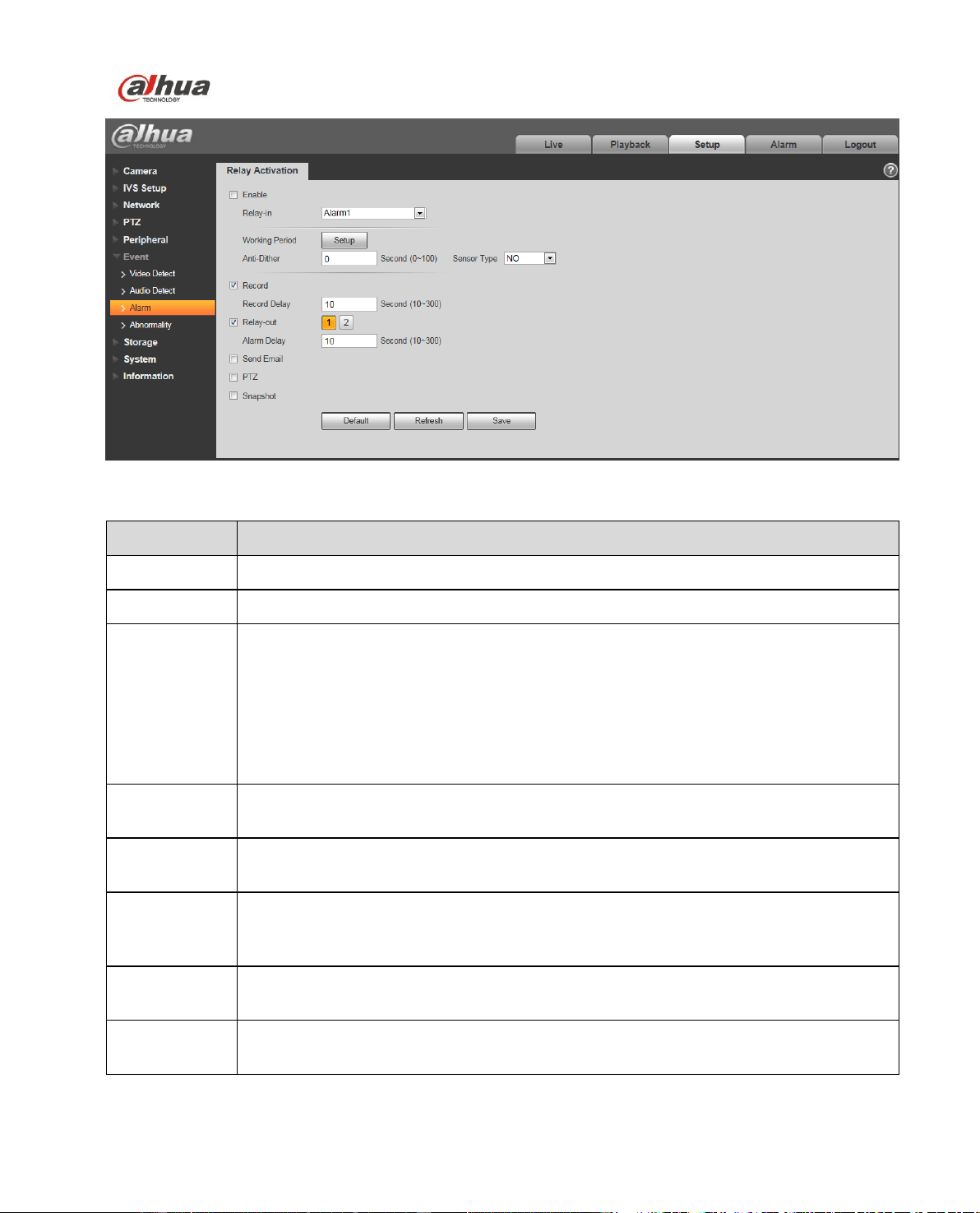
Dahua Network Speed Dome Web3.0 Operation Manual
91
Figure 4-75
Parameter
Note
Enable
Check to enable alarm activation.
Relay-in
Default alarm 1, some models can select alarm 2.
Working
Period
This function becomes activated in the specified periods.
There are six periods in one day. Please draw a circle to enable corresponding
period.
Select date. If you do not select, current setup applies to today only. You can
select all week column to apply to the whole week.
Click OK button, system goes back to motion detection interface; please click
save button to exit.
Note: User can set via dragging mouse while not releasing left mouse.
Anti-dither
System only memorizes one event during the anti-dither period. The value ranges
from 0s to 100s.
Sensor Type
It includes two types: NO and NC, it enables alarm by switching from NO to NC, and
it disables alarm by switching from NC to NO.
Record
Check it and the system auto activates alarm record once local alarm occurs.
Meanwhile, set the record period in the “Storage > Schedule” and select auto record
in the record control interface.
Record Delay
System can delay the record for specified time after alarm ended. The value ranges
from 10s to 300s.
Relay-out
Check to enable alarm activation output port, it can activate corresponding alarm
output device when alarm occurs.
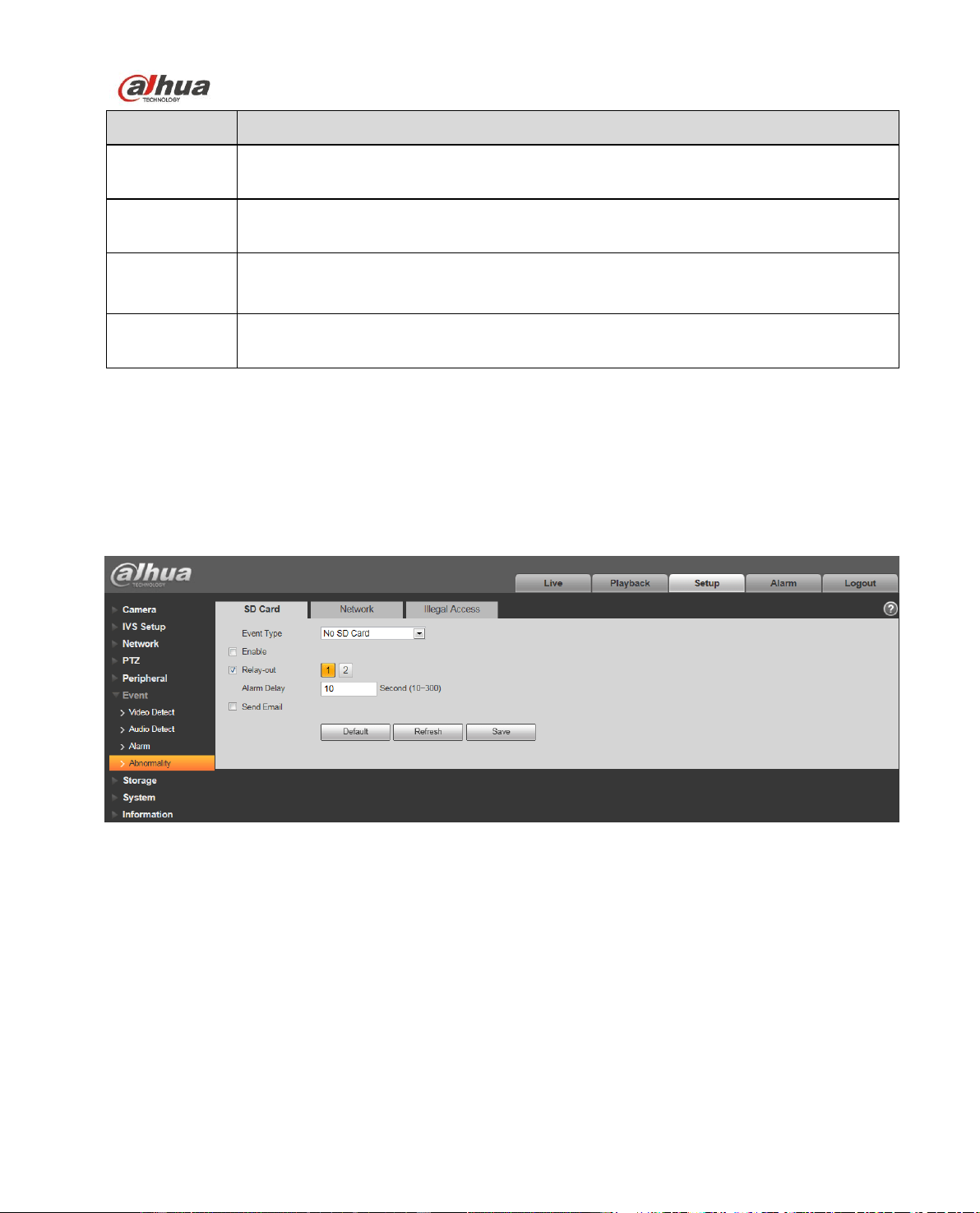
Dahua Network Speed Dome Web3.0 Operation Manual
92
Parameter
Note
Alarm Delay
System can delay the alarm record for specified time after alarm ended, the unit is
second, and it ranges from 10s ~ 300s.
Send Email
If you enabled this function, the system can send out email to inform the user when
alarm occurs. User can set email address in “Network>SMTP”.
PTZ
Here you can set PTZ movement when alarm occurs. Such as go to preset x
when there is an alarm.
The event type includes: preset, tour and pattern.
Snapshot
Check it and the system can auto activate alarm snapshot when alarm occurs. You
shall set snapshot period in Storage>Schedule.
4.6.4 Abnormality
Abnormality includes SD Card (Figure 4-76 to Figure 4-78), network (Figure 4-79 to Figure 4-80), and
Unauthorized Access (Figure 4-81).
Note: Only device with SD card function has these three statuses: No SD card, capacity warning, and
SD card error.
Device without SD card function does not have the above three statuses.
Figure 4-76
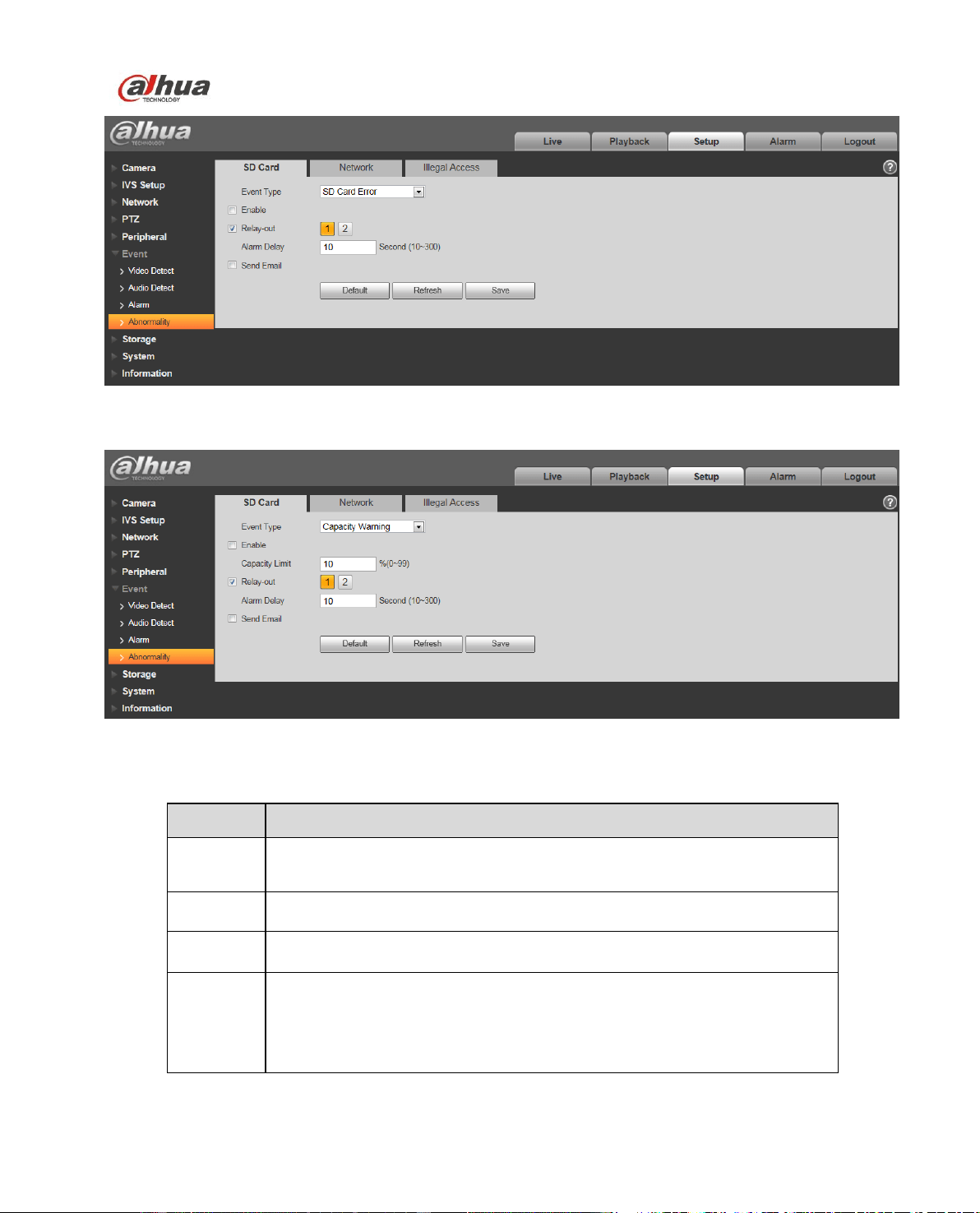
Dahua Network Speed Dome Web3.0 Operation Manual
93
Figure 4-77
Figure 4-78
Please refer to the following sheet for detailed information.
Parameter
Function
Event
Type
There are three kinds of events for SD card abnormality alarm: No SD
card, Capacity Warning, SD card error.
Enable
Check to alarm when SD card is abnormal.
Relay-out
Check to enable alarm activation output port, it can activate
corresponding alarm output device when alarm occurs.
Alarm
Delay
System can delay the alarm record for specified time after alarm ended,
the unit is second, and it ranges from 10s ~ 300s.
Note:
No SD card, capacity warning, SD card error, alarm delay all starts from
the moment when alarm occurs.
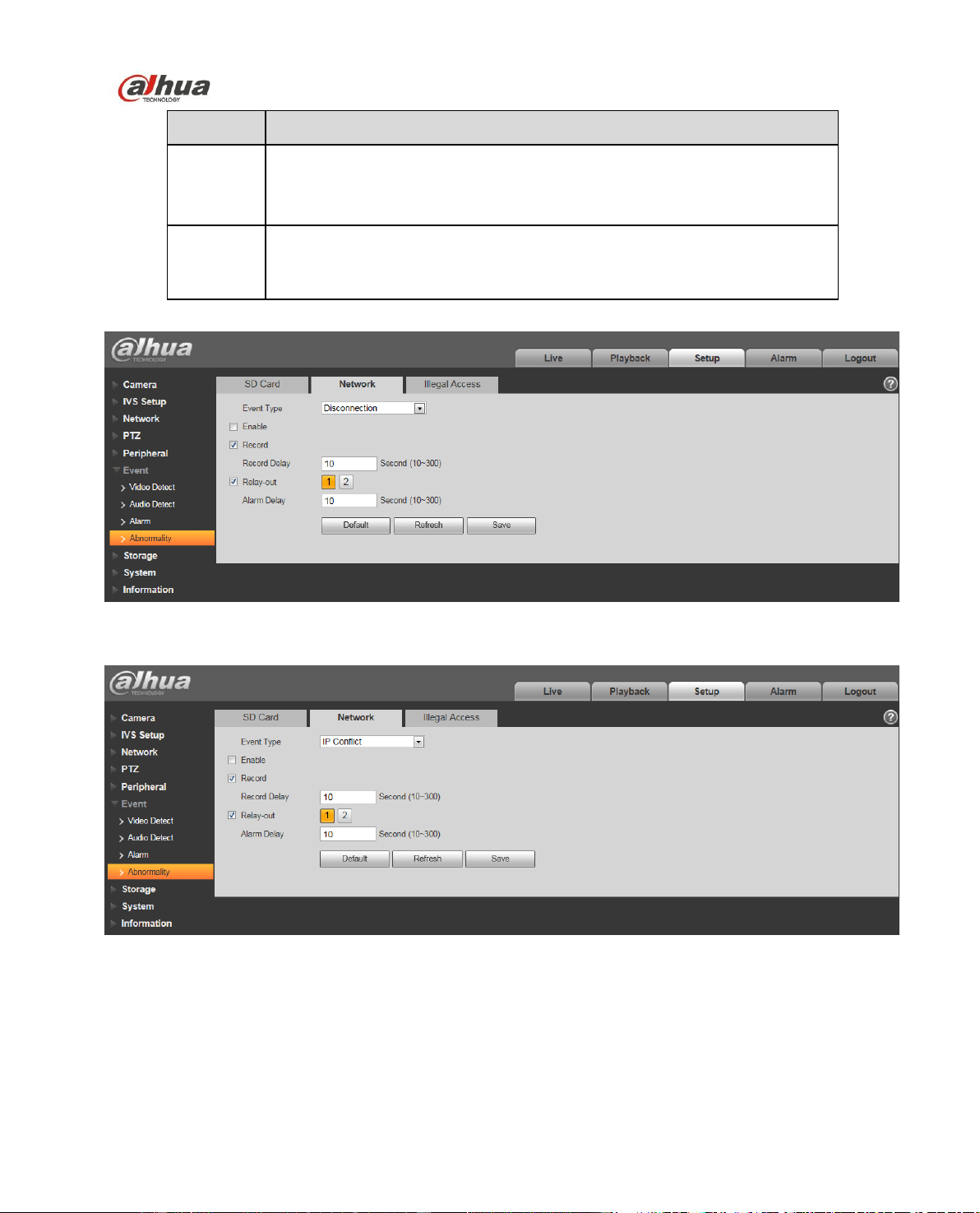
Dahua Network Speed Dome Web3.0 Operation Manual
94
Parameter
Function
Send
email
After you enabled this function, the system can send out email to alarm
the specified user.
This function is invalid when network is offline or IP conflict occurs.
SD Card
Capacity
Limit
User can set SD card capacity that is left free. When SD card space left
is smaller than this limit, alarm occurs.
When device is offline or IP conflicts, you can go to Figure 4-79and Figure 4-80 to set.
Figure 4-79
Figure 4-80
When login password keep been wrong for a few times, unauthorized access alarm occurs. This
operation is similar to SD card error. Allow login error times as when it exceeds this limit, user account
will be locked. See Figure 4-81.
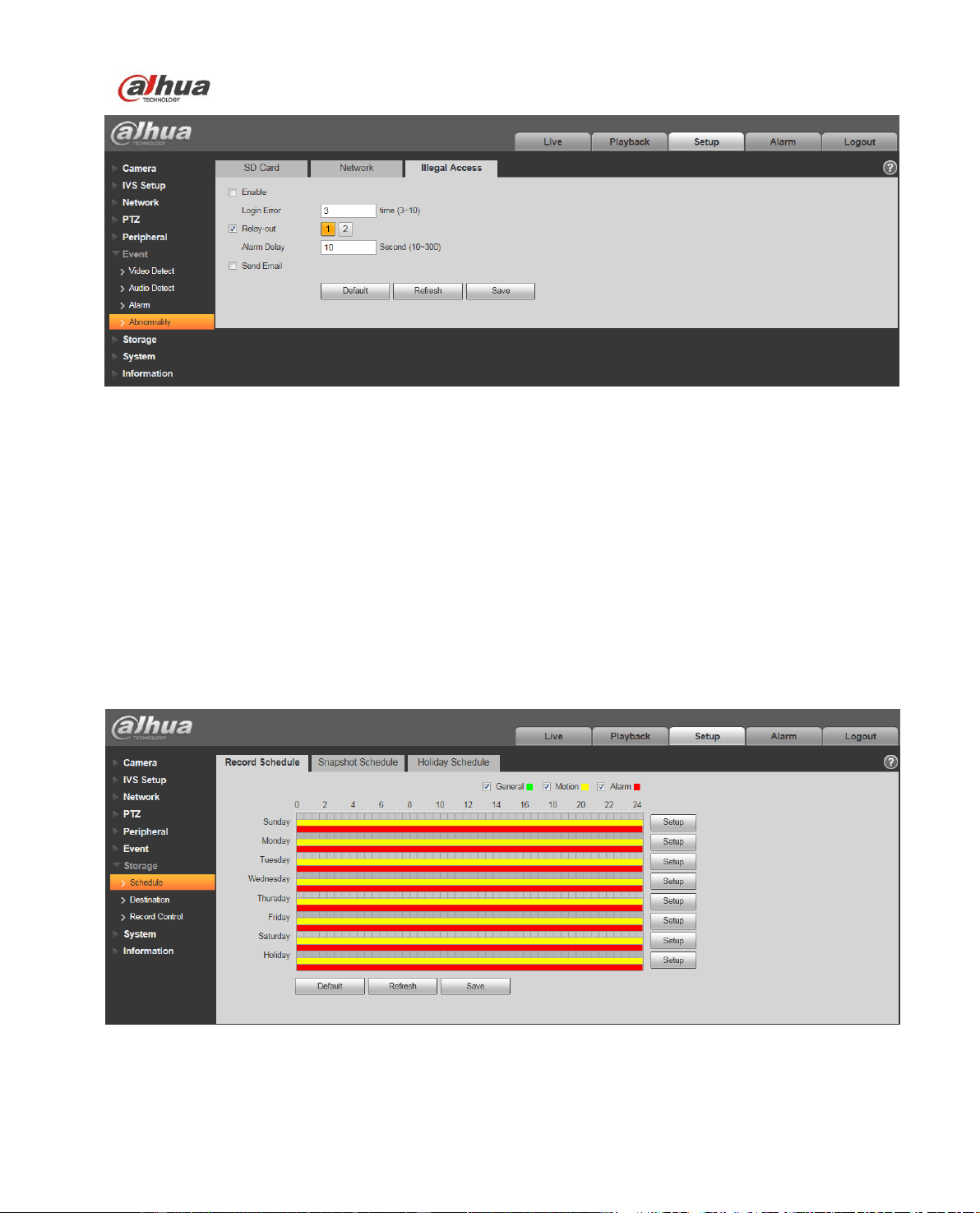
Dahua Network Speed Dome Web3.0 Operation Manual
95
Figure 4-81
4.7 Storage Management
4.7.1 Schedule
Before schedule setup, user must set record mode is auto or manual.
Note:
If record mode in record control is off, then device will not snapshoot according to schedule.
4.7.1.1 Record Schedule
Record schedule steps:
Step 1. Click Record Schedule, see Figure 4-82.
Figure 4-82
Step 2. From Monday to Sunday select record time, click setup on the right. See Figure 4-83.
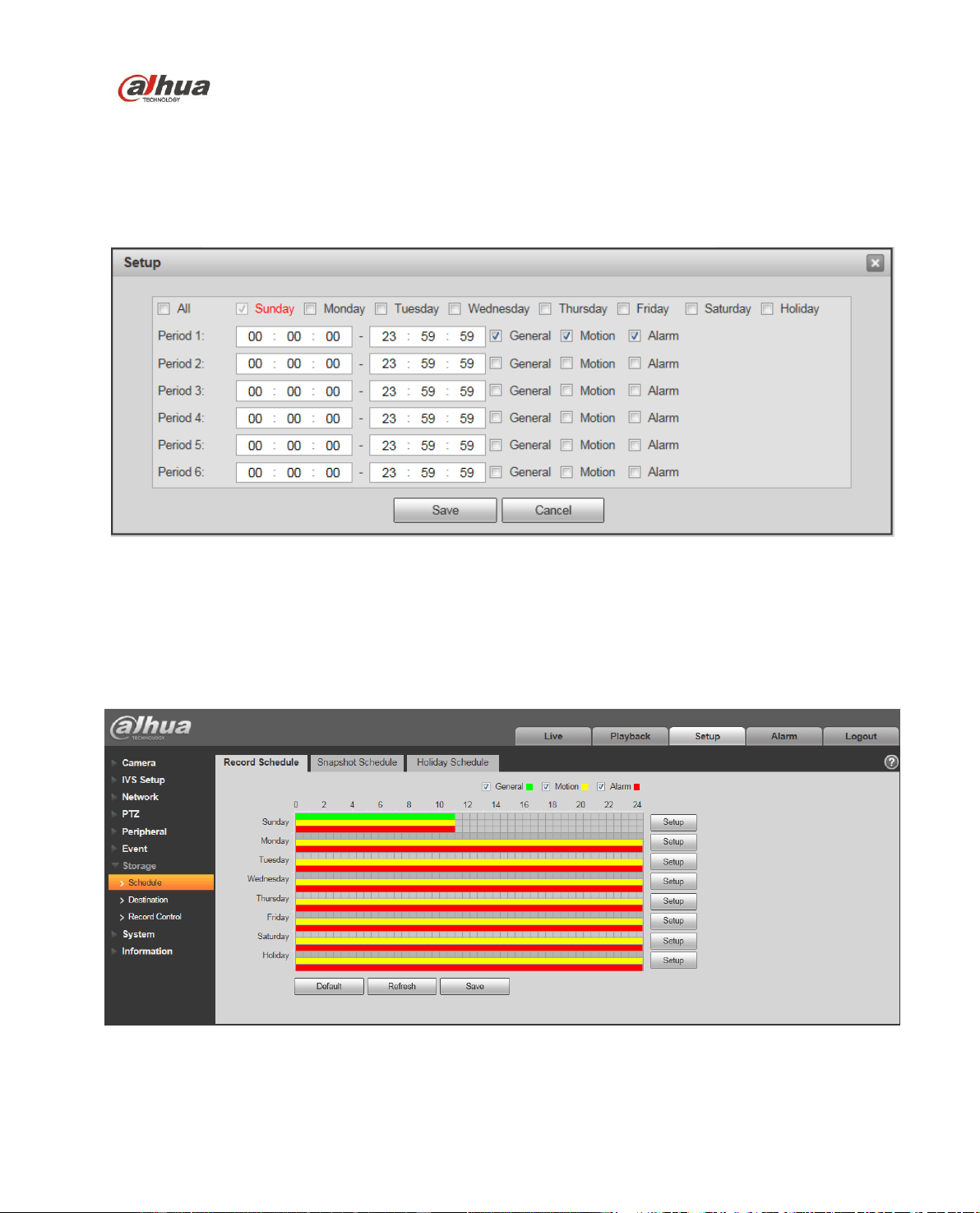
Dahua Network Speed Dome Web3.0 Operation Manual
96
Set period according to actual need. There are six periods available each day.
By checking or cancel, you can add or delete three types of record schedule: General, Motion, and
Alarm.
Note:
Period setup can be done by dragging in record schedule interface while not releasing left mouse.
Figure 4-83
Step 3. Click OK, return to record schedule interface. See Figure 4-84.
Green color stands for the general record/snapshot.
Yellow color stands for the motion detect record/snapshot.
Red color stands for the alarm record/snapshot.
Figure 4-84
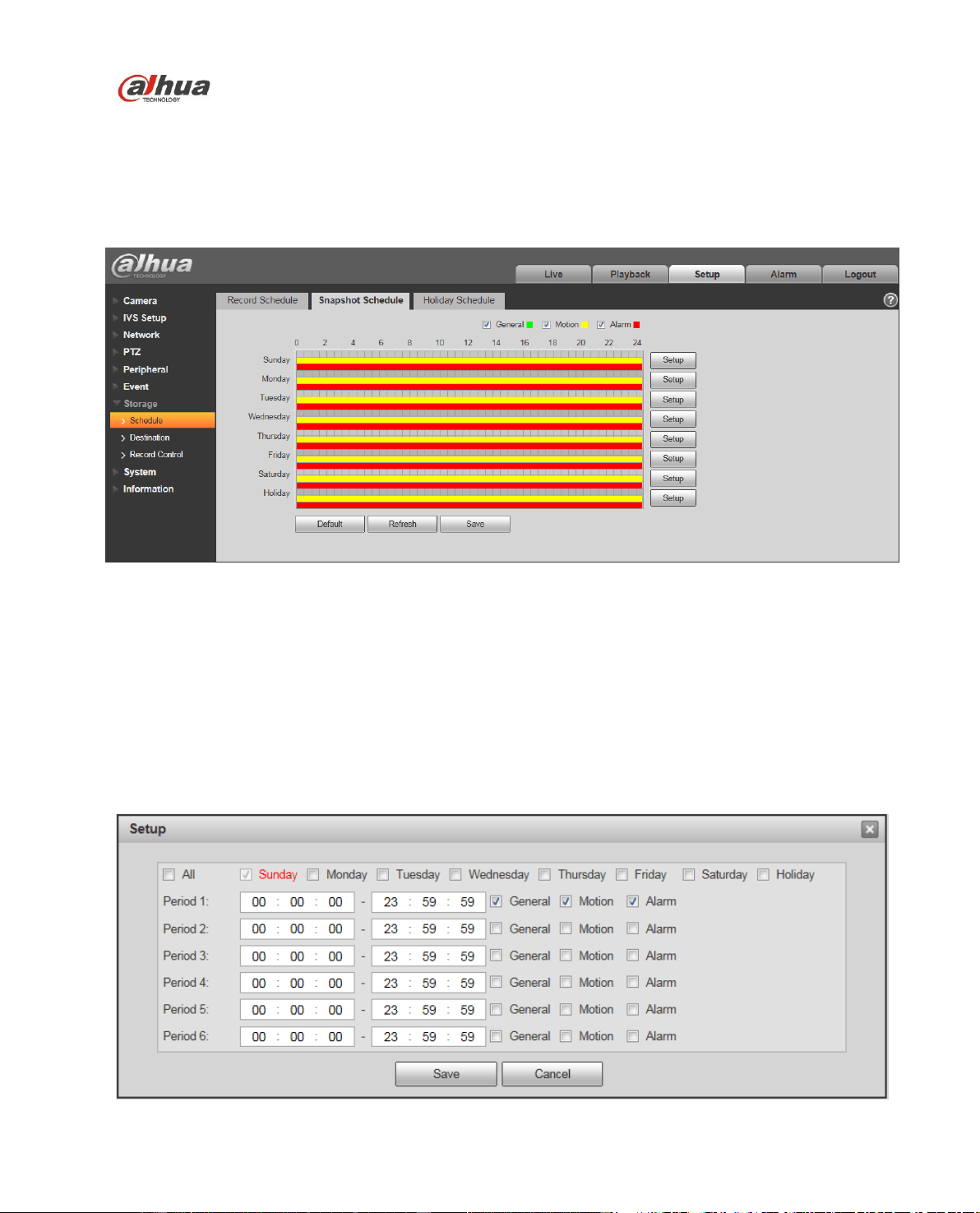
Dahua Network Speed Dome Web3.0 Operation Manual
97
Step 4. In record schedule interface, click OK. System prompts it is successfully saved.
4.7.1.2 Snapshot Schedule
Snapshot setup as:
Step 1. Click Snapshot Schedule tab, see Figure 4-85.
Figure 4-85
Step 2. From Monday to Sunday select snapshot time, click setup on the right. See Figure 4-86.
Set snapshot period according to actual need. There are six periods available each day.
By checking or cancel, user can add or delete three types of snapshot schedule: General, Motion
and Alarm.
Note: Period setup can be done by dragging in snapshot schedule interface while not releasing left
mouse.
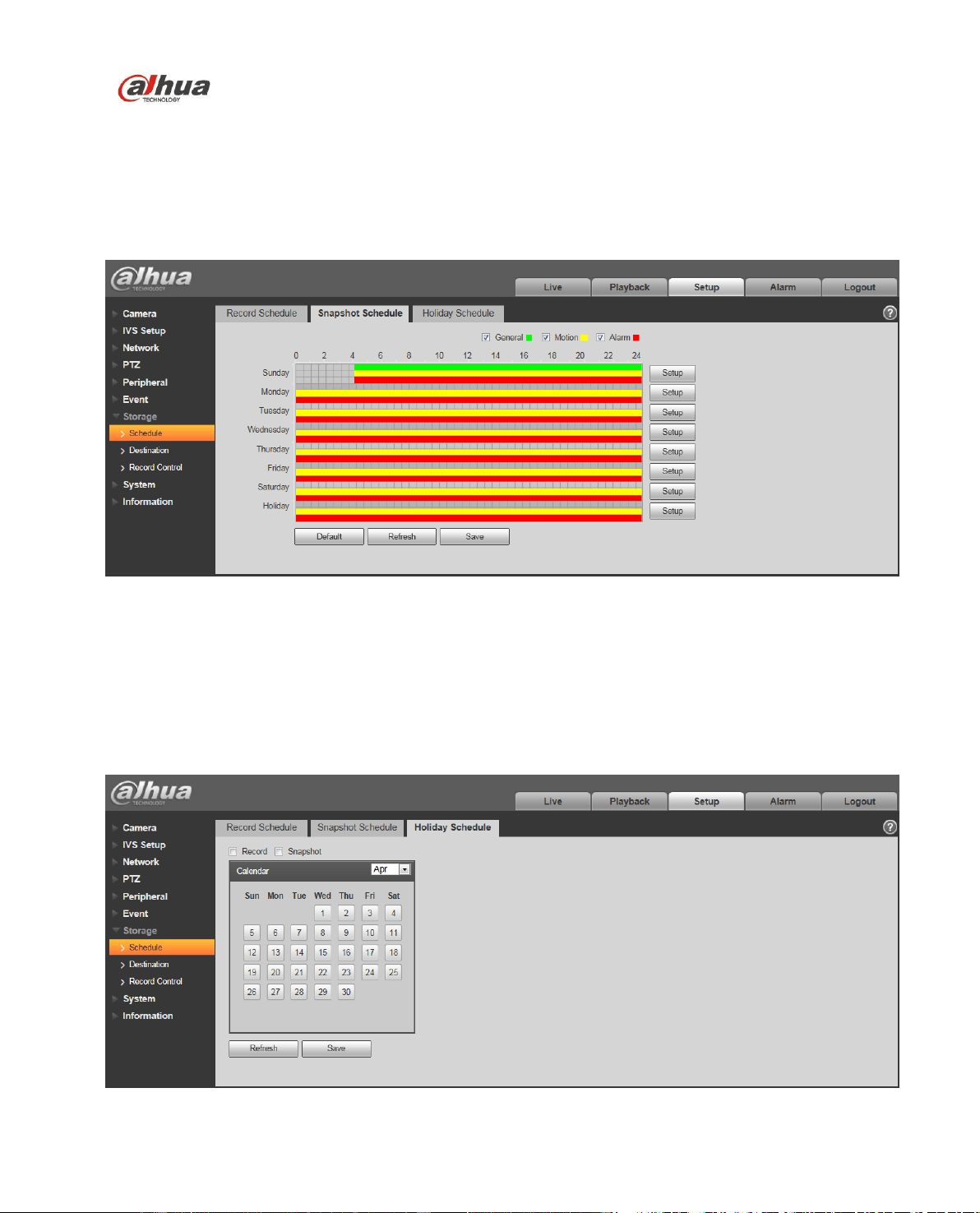
Dahua Network Speed Dome Web3.0 Operation Manual
98
Figure 4-86
Step 3. Click OK, return to snapshot schedule interface. See Figure 4-87.
Green color stands for the general record/snapshot.
Yellow color stands for the motion detect record/snapshot.
Red color stands for the alarm record/snapshot.
Figure 4-87
Step 5. In snapshot interface, click OK. System prompts it is successfully saved.
4.7.1.3 Holiday Schedule
Holiday schedule can set specific date as holiday.
Step 1. Click Holiday Schedule tab. See Figure 4-88.
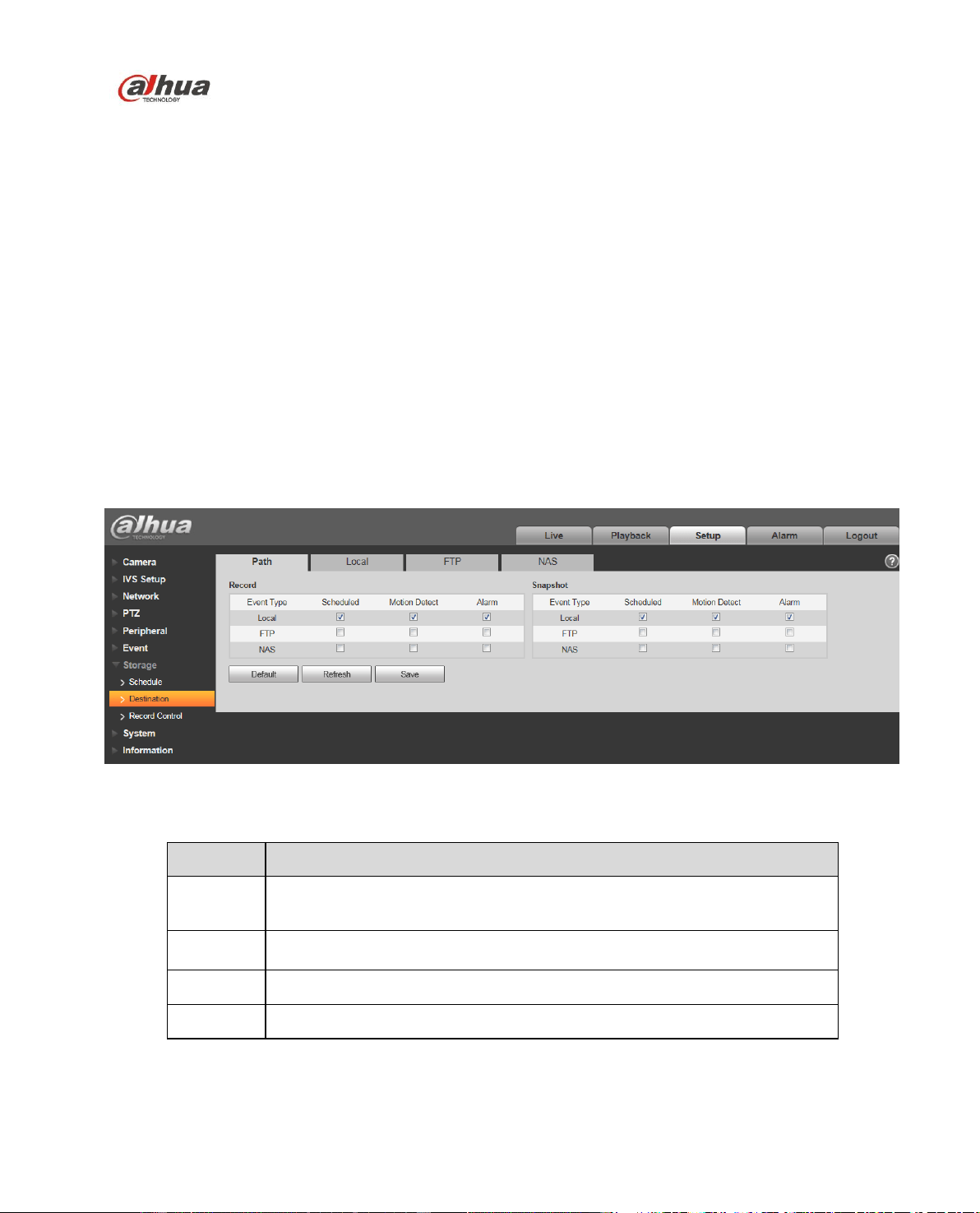
Dahua Network Speed Dome Web3.0 Operation Manual
99
Figure 4-88
Step 2. Select date to set as holiday. The selected date will be highlighted in yellow.
Step 3. Check Record/Snapshot, click Save. System prompts it is successfully saved.
Step 4. Check Record Schedule/Snapshot Schedule interface, click setup next to Holiday, refer to setup
of Monday to Sunday.
Step 5. Complete setup of holiday, then it records/snapshots according to date in holiday schedule.
4.7.2 Destination
4.7.2.1 Path
The destination interface is shown as in Figure 4-89.
Path can config record and snapshot storage path. There are three options: Local, FTP and NAS. You
can only select one mode. System can save according to the event types. It is corresponding to the
three modes (general/motion/alarm) in the Schedule interface. Please check the box to enable the save
functions.
Note: Only device supports SD card has local.
Figure 4-89
Please refer to the following sheet for detailed information.
Parameter
Function
Event
Type
It includes: scheduled, motion detect and alarm.
Local
It saved in the SD card.
FTP
It saved in the FTP server.
NAS
It saved in NAS disk.
4.7.2.2 Local
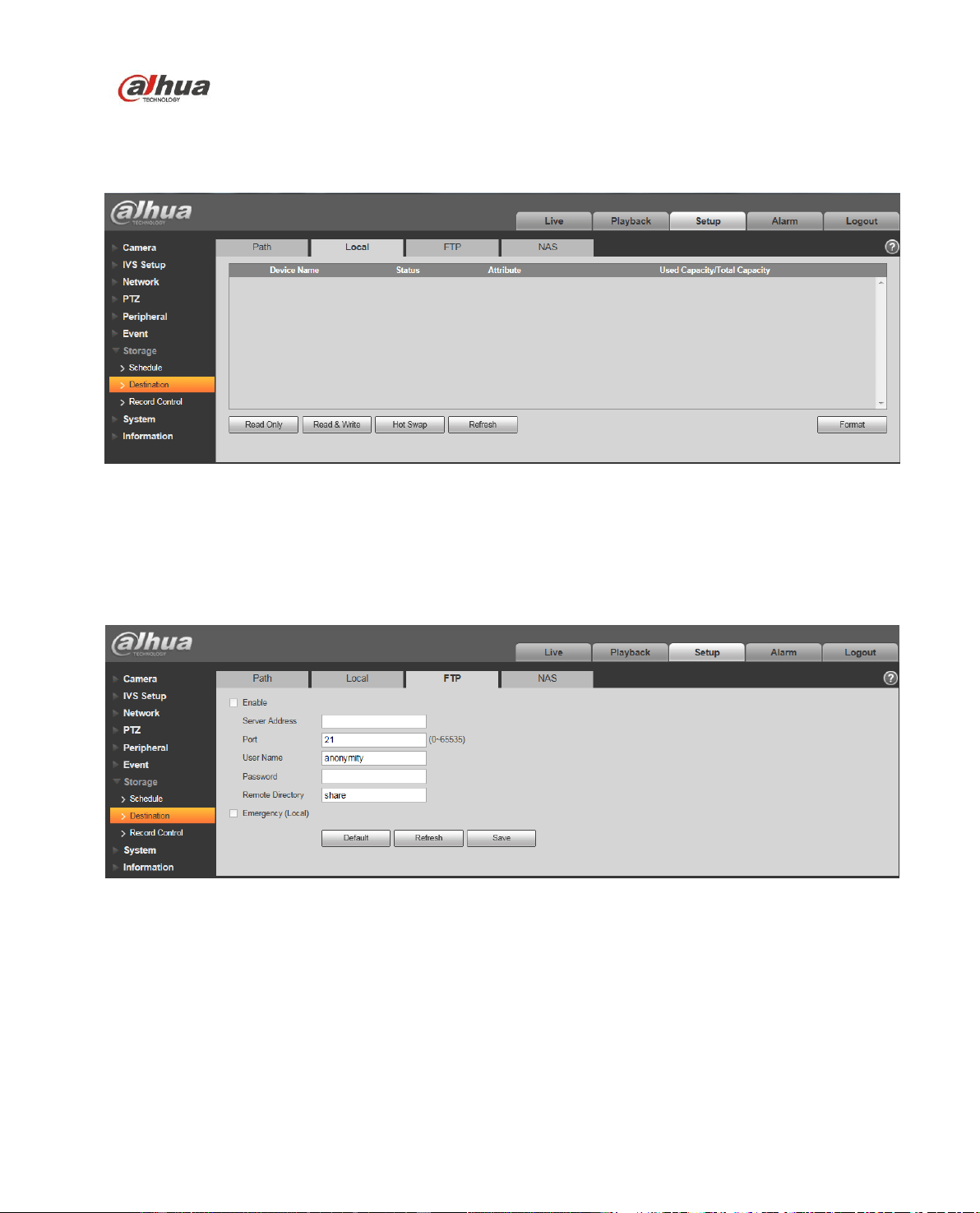
Dahua Network Speed Dome Web3.0 Operation Manual
100
The local interface is shown as in Figure 4-90.
Here you can view local Micro SD card or NAS disk information. You can also operate the read-only,
write-only, hot swap and format operation.
Figure 4-90
4.7.2.3 FTP
The FTP interface is shown as in Figure 4-91.
You need to check the box to enable the FTP function. When network disconnect occurred or there is
malfunction. Emergency storage can save the record/snapshot picture to the local SD card.
Figure 4-91
4.7.2.4 NAS
You need to check the box to enable the NAS function. Select NAS storage as to same file to NAS disk.
See Figure 4-92.
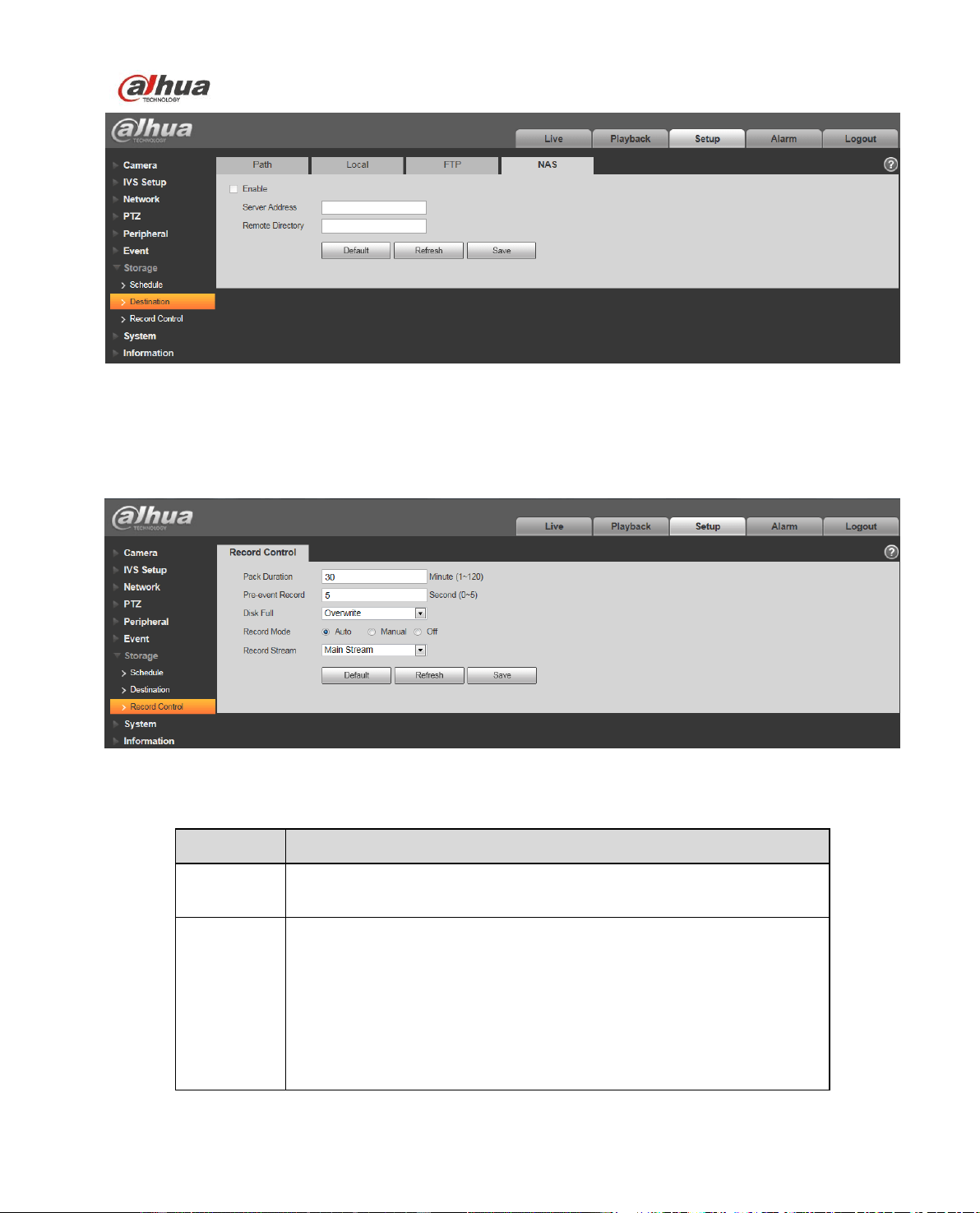
Dahua Network Speed Dome Web3.0 Operation Manual
101
Figure 4-92
4.7.3 Record control
The record control interface is shown as in Figure 4-93.
Figure 4-93
Please refer to the following sheet for detailed information.
Parameter
Function
Pack
Duration
Here you can select file size within 1min~120min. Default setup is 8
minutes.
Pre-record
Please input pre-record value here.
For example, system can record the four seconds video in the buffer.
The record begins from the fifth second.
Note:
Configure pre-record time, when alarm or motion detection occurs, if
there is no record, system will record the preceding n seconds
record.
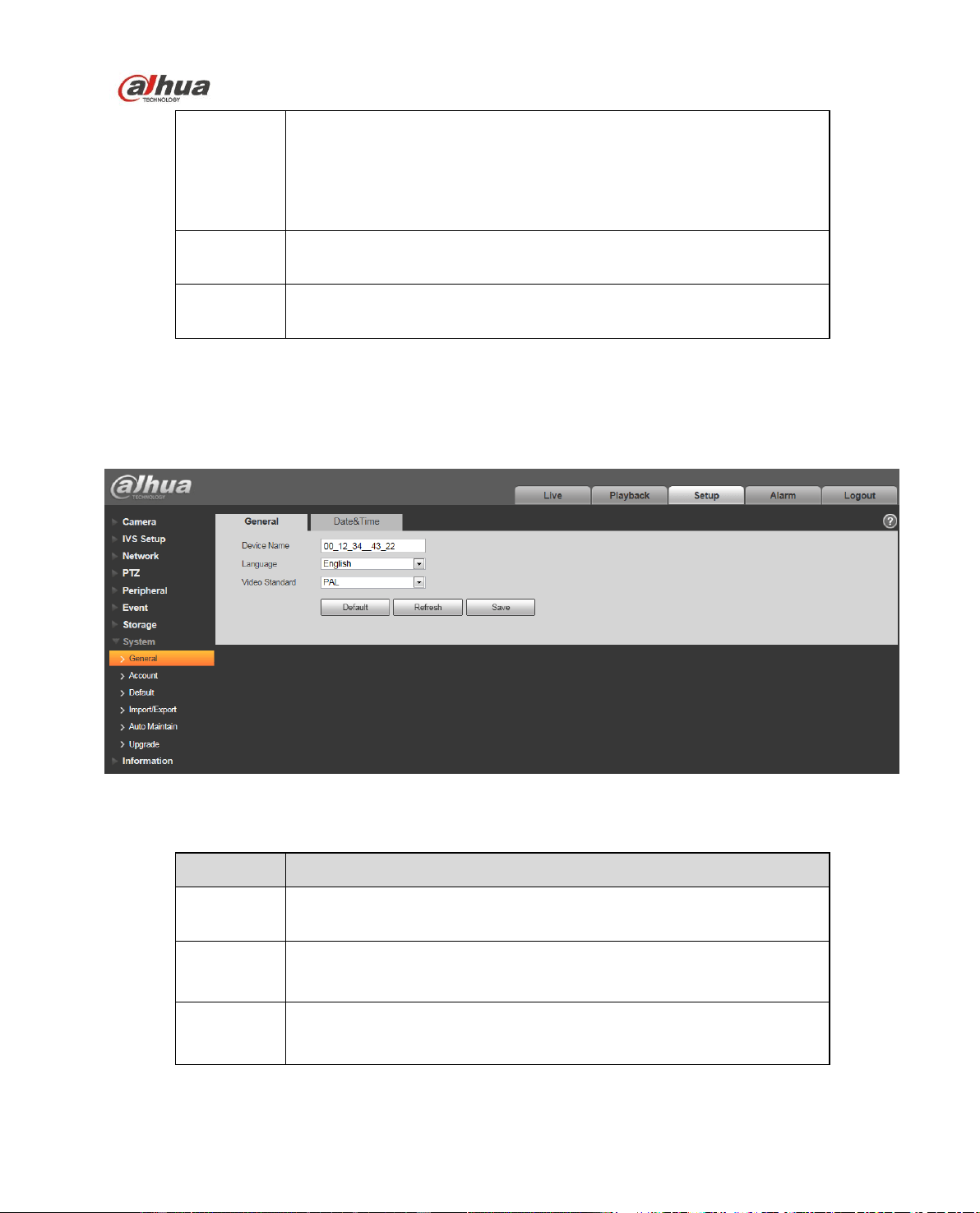
Dahua Network Speed Dome Web3.0 Operation Manual
102
Disk Full
There are two options: stop recording or overwrite the previous files
when HDD is full.
Stop: Current working HDD is overwriting or current HDD is full,
it will stop record.
Overwrite: Current working HDD is full; it will overwrite the
previous file.
Record
mode
There are three modes: Auto/manual/close.
Record
stream
There are two options: main stream and sub stream.
4.8 System
4.8.1 General
The General interface is shown as in Figure 4-94.
Figure 4-94
Please refer to the following sheet for detailed information.
Parameter
Function
Device
Name
It is to set device name.
Video
Standard
This is to display video standard such as PAL.
Language
You can select the language from the dropdown list.
The date and time interface is shown as in Figure 4-95.
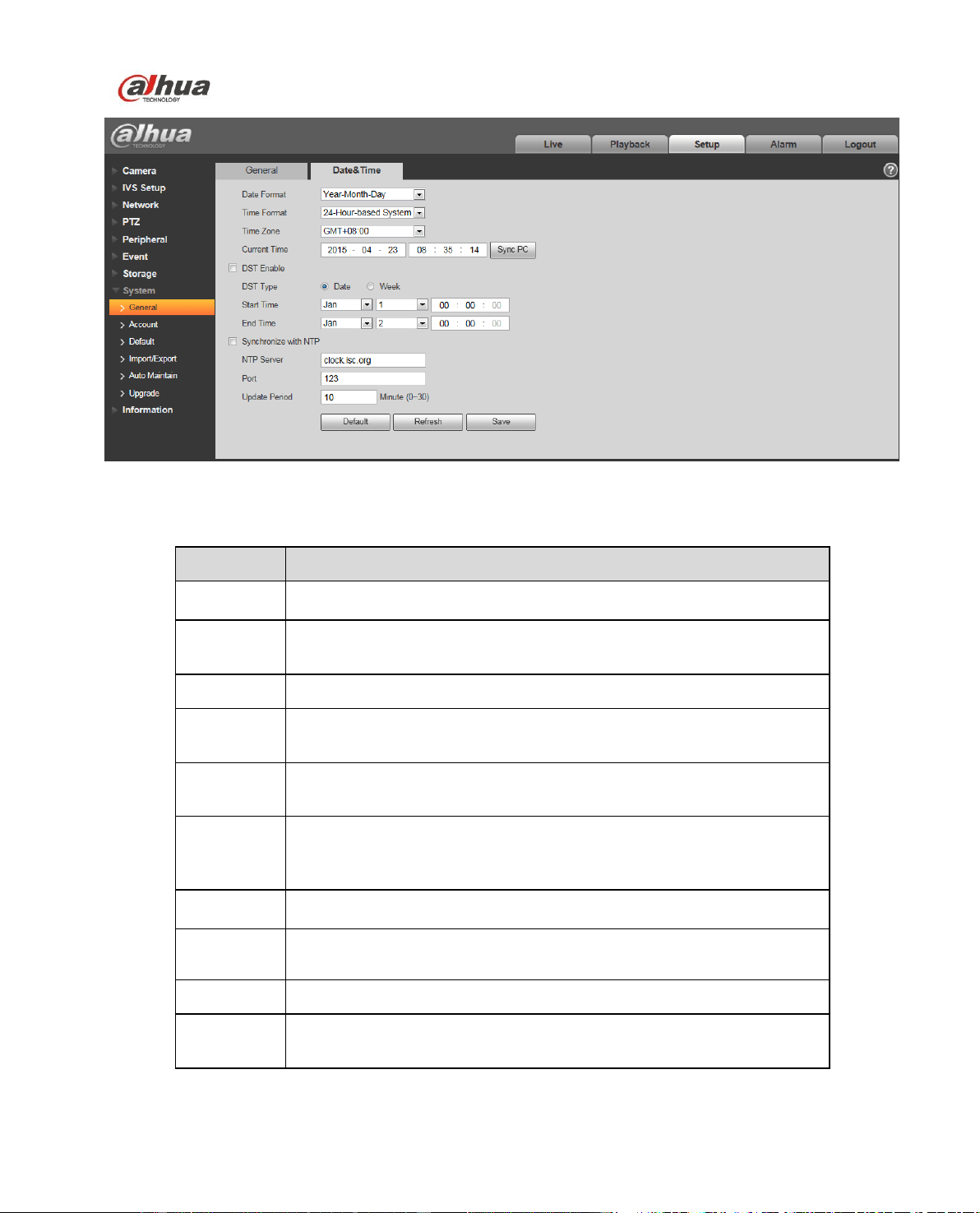
Dahua Network Speed Dome Web3.0 Operation Manual
103
Figure 4-95
Please refer to the following sheet for detailed information.
Parameter
Function
Date format
Here you can select date format from the dropdown list.
Time
Format
There are two options: 24-H and 12-H.
Time zone
The time zone of the device.
System
time
It is to set system time. It becomes valid after you set.
Sync PC
You can click this button to save the system time as your PC current
time.
DST
Here you can set day night save time begin time and end time. You
can set according to the date format or according to the week
format.
NTP
You can check the box to enable NTP function.
NTP server
You can set the time server address.
Port
It is to set the time server port.
Update
period
It is to set the sync periods between the device and the time server.
4.8.2 Account
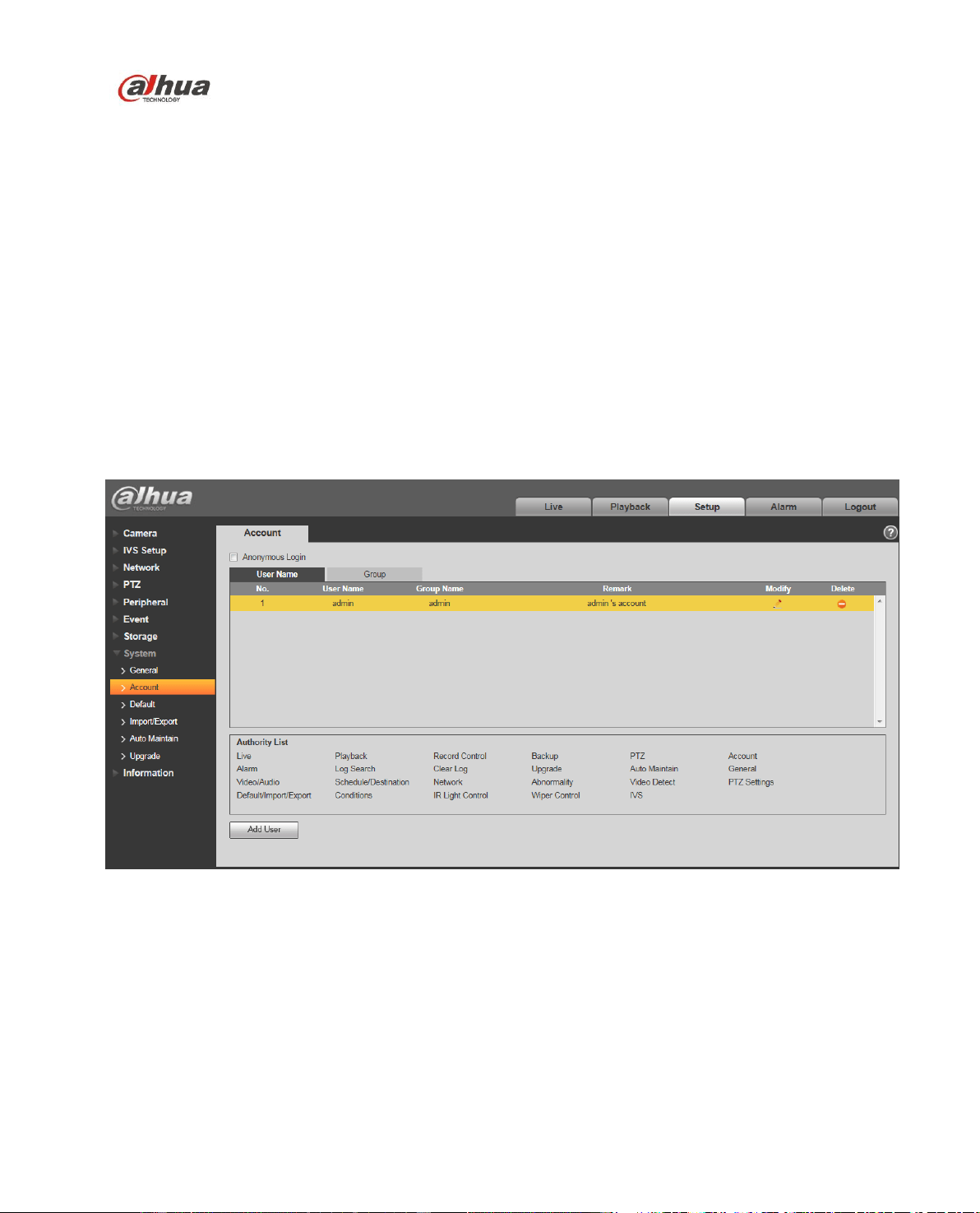
Dahua Network Speed Dome Web3.0 Operation Manual
104
For the character in the following user name or the user group name, system max supports 15-
digits. The valid string includes: character, number, and underline.
Password can be 0~32 characters in number and letter only. User can modify other user’s
password.
The user amount is 18 and the group amount is 8 when the device is shipped out of the factory.
The factory default setup includes two levels: user and admin. You can set the corresponding group
and then set the rights for the respective user in the specified groups.
User management adopts group/user modes. The user name and the group name shall be unique.
One user shall be included in only one group.
Currently logged in user cannot change his/her own right.
4.8.2.1 Username
In this interface you can enable anonymity login, add/remove user and modify user name. See Figure
4-96.
Figure 4-96
Enable anonymity login: Enable anonymity login, and input IP. No username or password is required,
you can log in by anonymity (with limited rights). You can click logout to end your session.
Add user: It is to add a name to group and set the user rights. See Figure 4-97.
There are four default users: admin/888888/666666 and hidden user “default”. Except user 6666, other
users have administrator right. The user 666666 can only have the monitor rights.
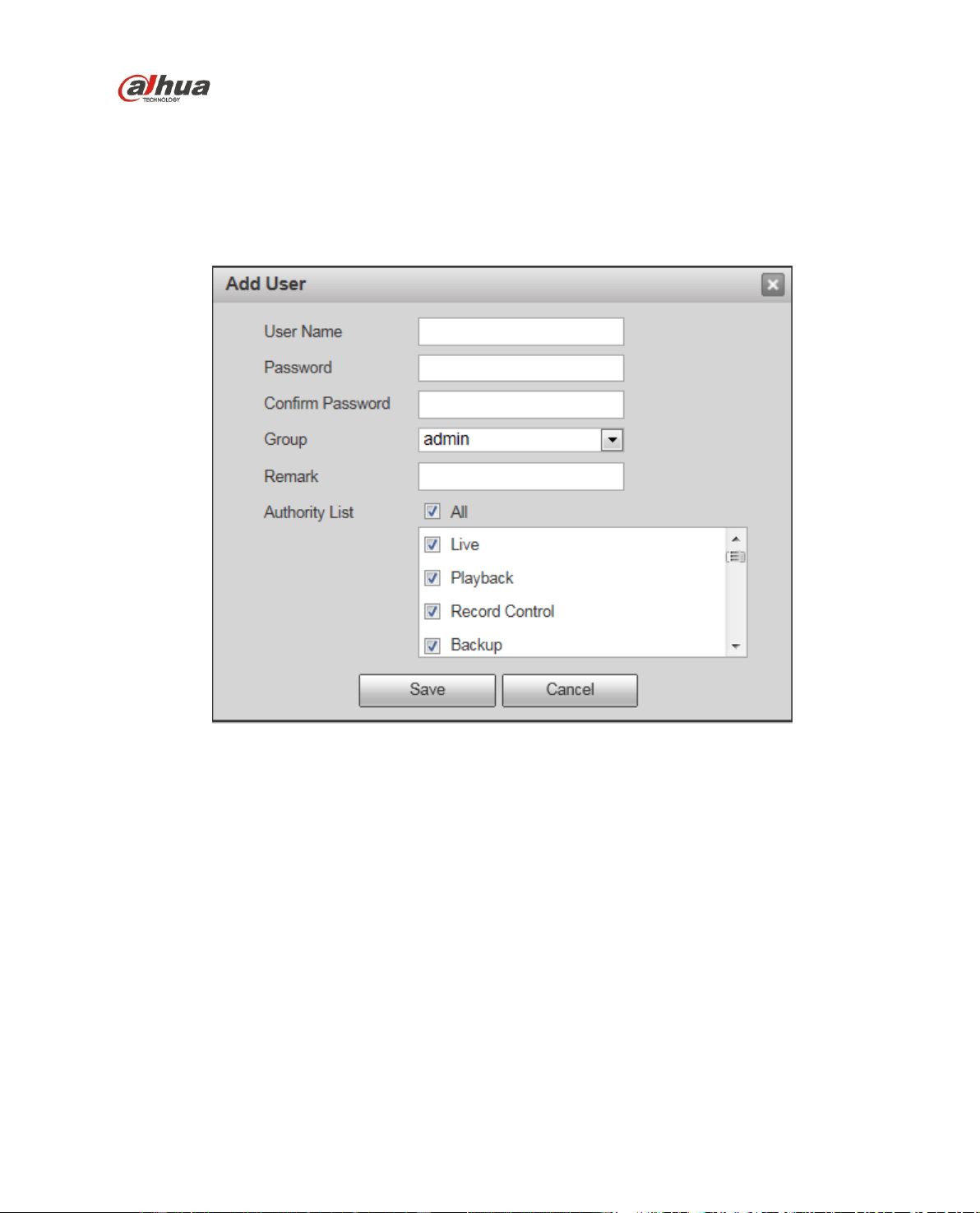
Dahua Network Speed Dome Web3.0 Operation Manual
105
Hidden user “default” is for system interior use only and cannot be deleted. When there is no login user,
hidden user “default” automatically login. You can set some rights such as monitor for this user so that
you can view some channel view without login.
Here you can input the user name and password and then select one group for current user.
Please note the user rights shall not exceed the group right setup.
For convenient setup, please make sure the general user has the lower rights setup than the admin.
Figure 4-97
Modify user
It is to modify the user property, belonging group, password and rights. See Figure 4-98.
Modify password
It is to modify the user password. You need to input the old password and then input the new password
twice to confirm the new setup. Please click the OK button to save.
Please note, the password ranges from 0-digit to 32-digit. It shall include the number and letter only. For
the user who has the account rights, he can modify the password of other users.
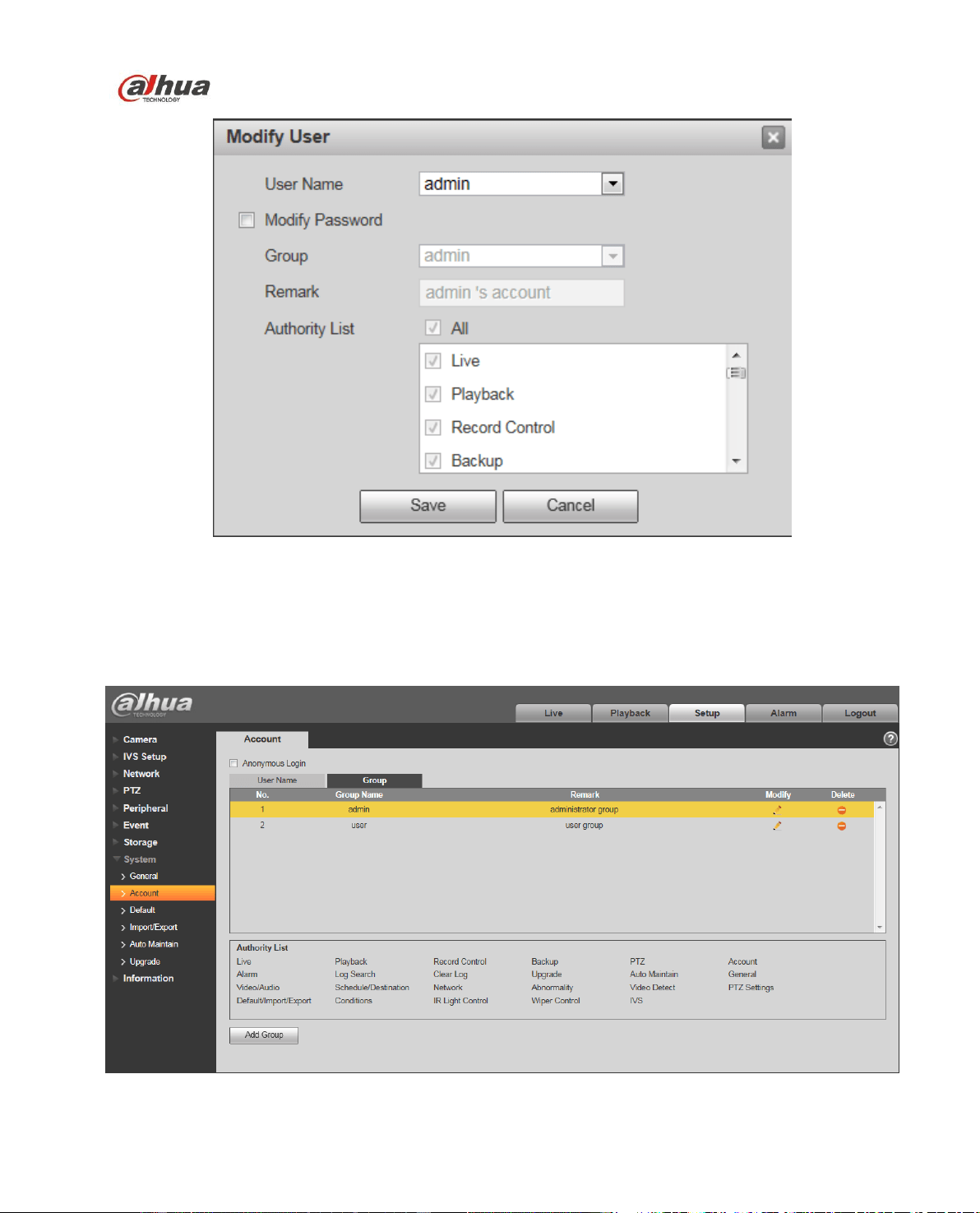
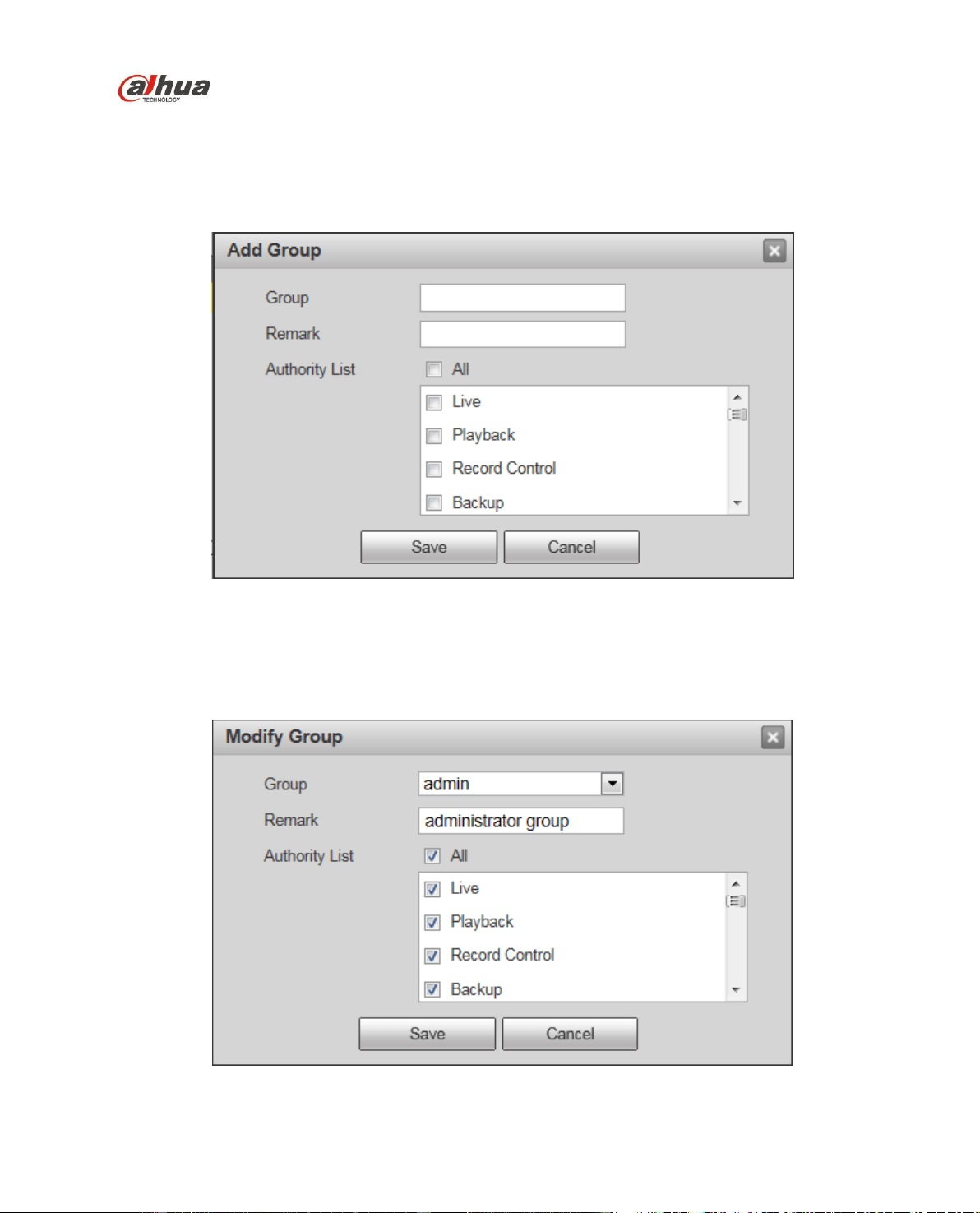
Dahua Network Speed Dome Web3.0 Operation Manual
107
Figure 4-99
Add group: It is to add group and set its corresponding rights. See Figure 4-100.
Please input the group name and then check the box to select the corresponding rights. It includes:
preview, playback, record control, PTZ control and etc.
Figure 4-100
Modify group
Click the modify group button, you can see an interface is shown as in Figure 4-101.
Here you can modify group information such as remarks and rights.
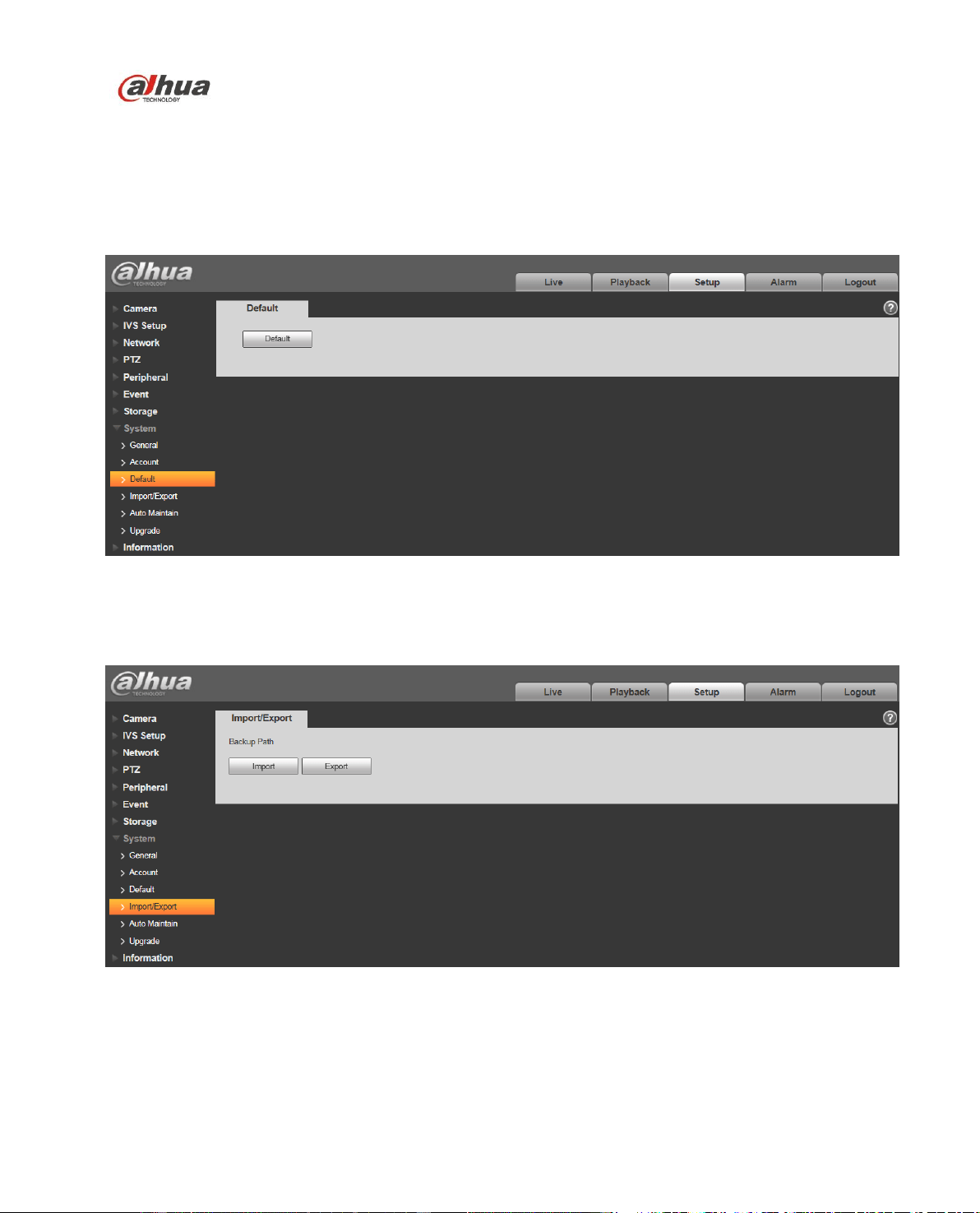
Dahua Network Speed Dome Web3.0 Operation Manual
108
Figure 4-101
4.8.3 Default
The default setup interface is shown as in Figure 4-102.
Please note system cannot restore some information such as network IP address.
Figure 4-102
4.8.4 Import/Export
The interface is shown as in Figure 4-103.
Figure 4-103
Please refer to the following sheet for detailed information.
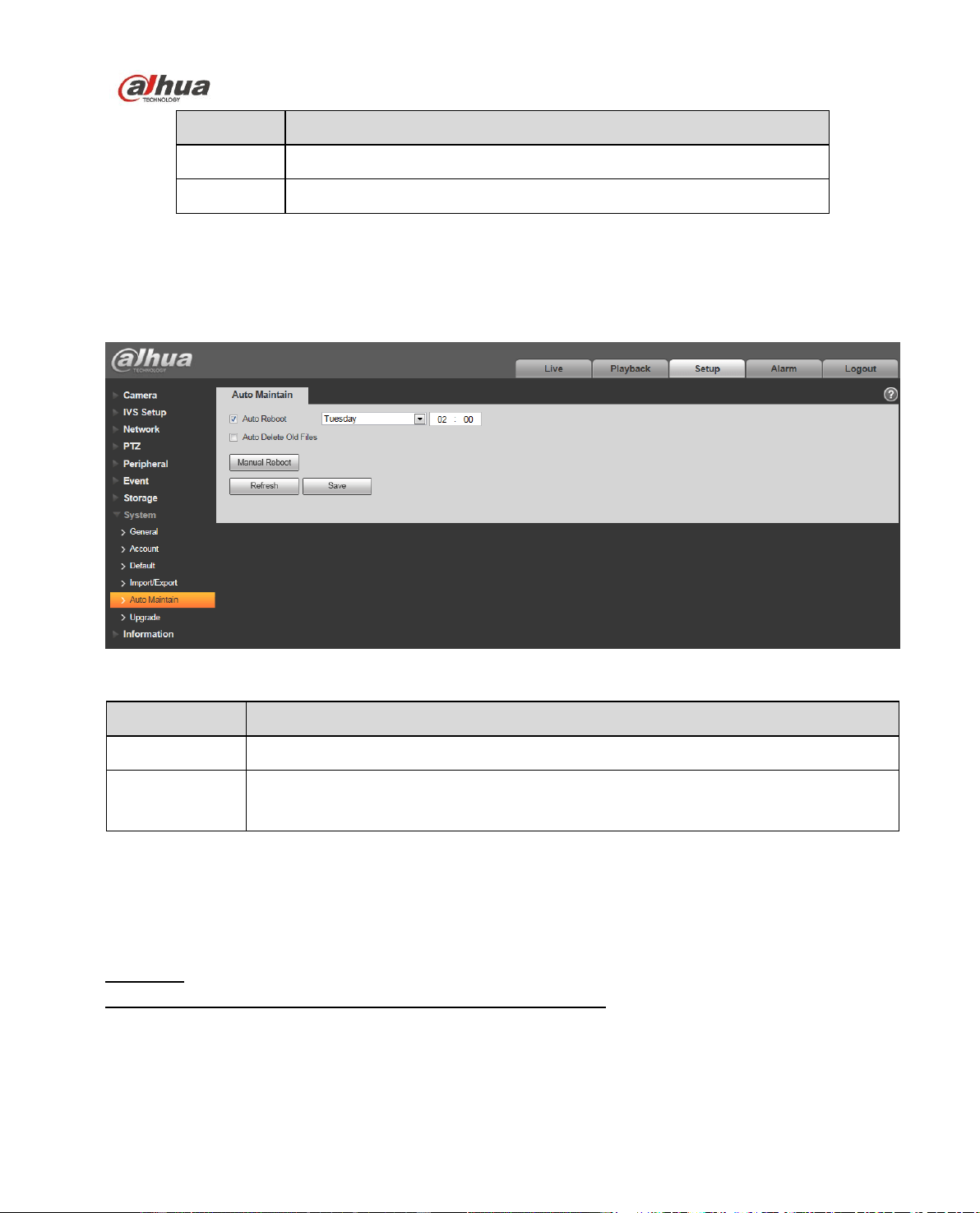
Dahua Network Speed Dome Web3.0 Operation Manual
109
Parameter
Function
Import
It is to import the local setup files to the system.
Export
It is to export the corresponding system setup to your local PC.
4.8.5 Auto Maintenance
The auto maintenance interface is shown as in Figure 4-104.
Here you can select auto reboot and auto delete old files interval from the dropdown list.
If you want to use the auto delete old files function, you need to set the file period.
Figure 4-104
Parameter
Function
Auto Reboot
Check it and set auto reboot time.
Auto Delete Old
Files
Check it and set period within 1~31 days.
4.8.6 Upgrade
The upgrade interface is shown as in Figure 4-105.
Please select the upgrade file (file extension is “.bin”) and then click the update button to begin firmware
update.
Important
Improper upgrade program may result in device malfunction!
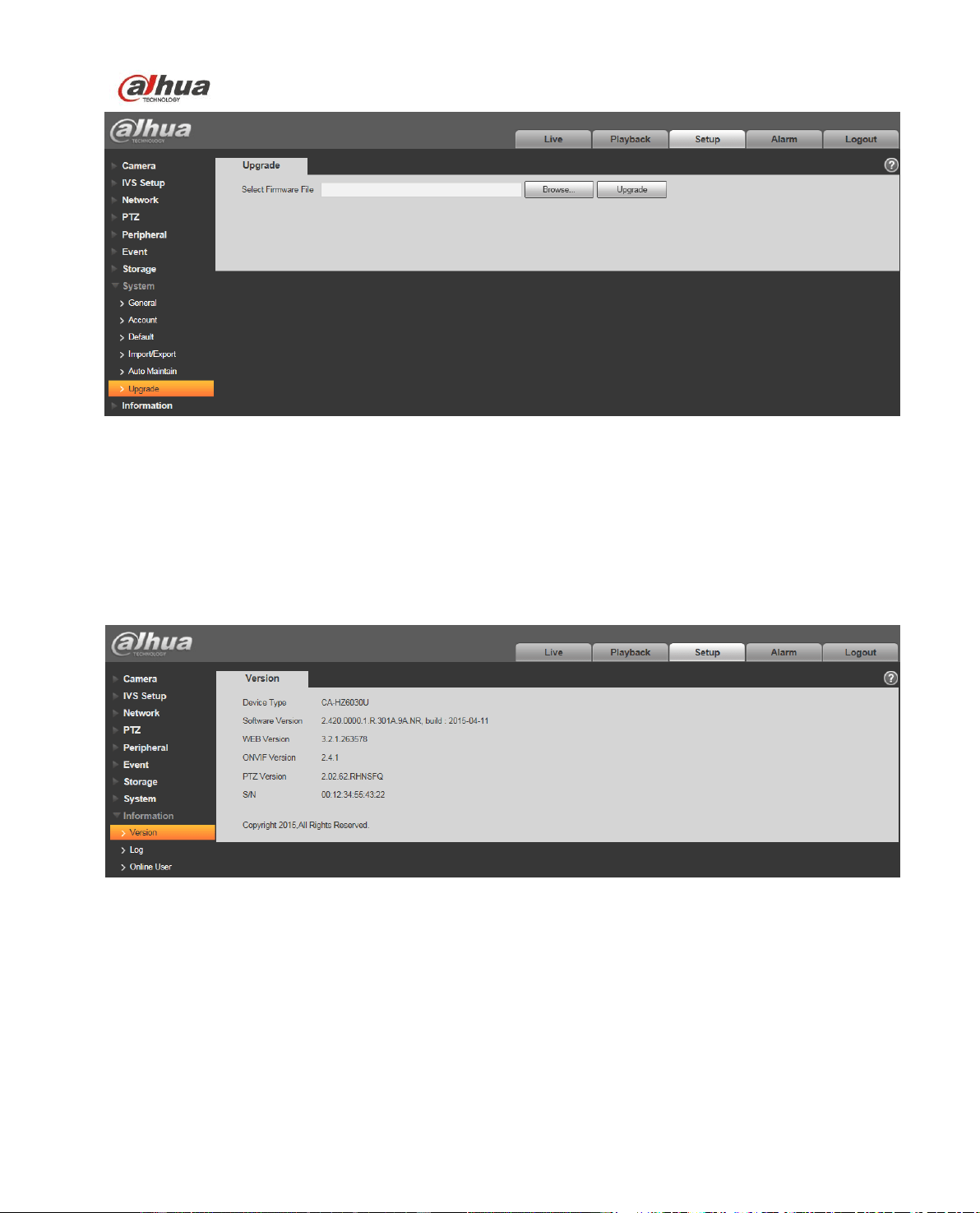
Dahua Network Speed Dome Web3.0 Operation Manual
110
Figure 4-105
4.9 Information
4.9.1 Version
The version interface is shown as in Figure 4-106.
Here you can view system hardware features, software version, release date and etc. Please note the
following information is for reference only.
Figure 4-106
4.9.2 Log
Here you can view system log. See Figure 4-107.
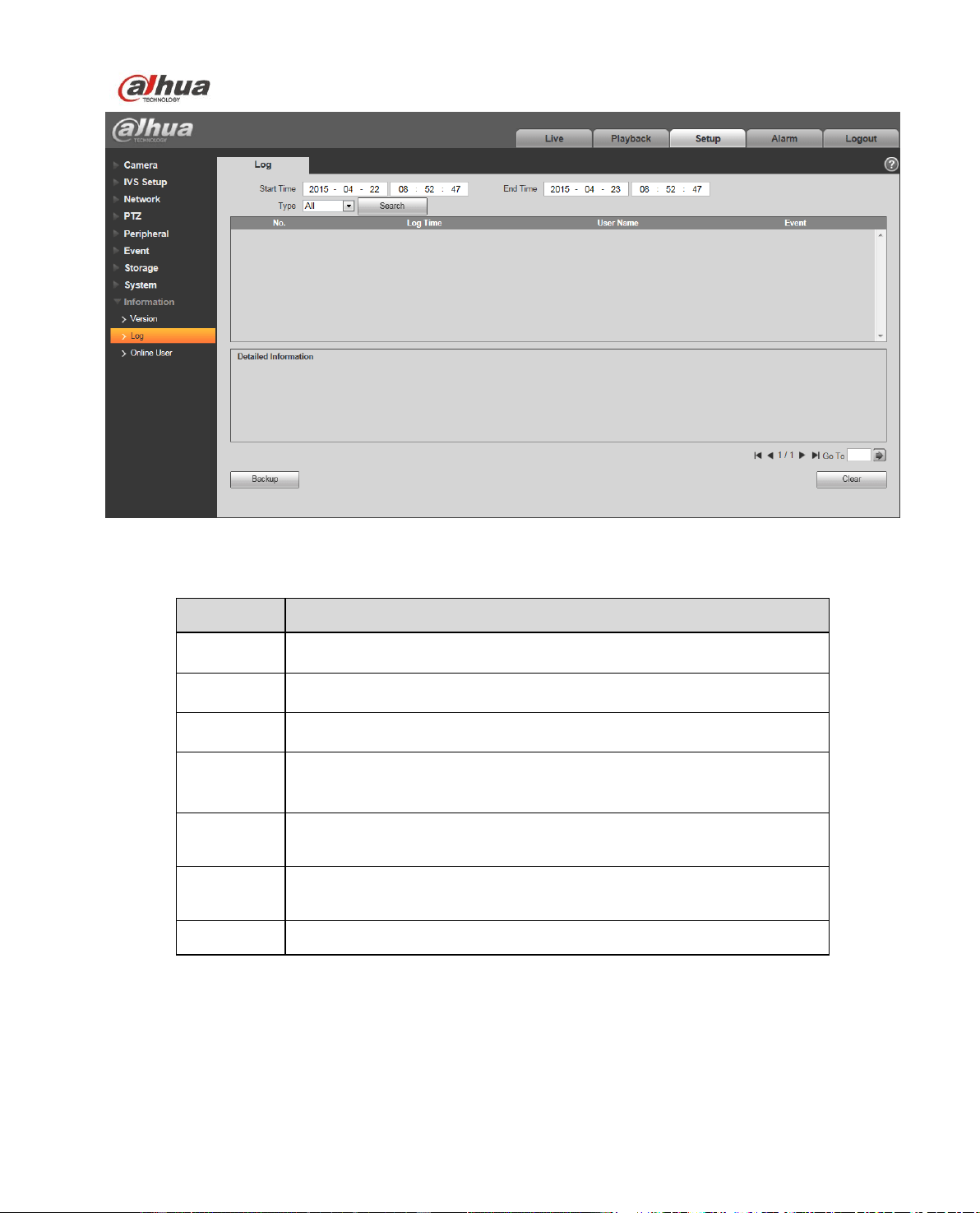
Dahua Network Speed Dome Web3.0 Operation Manual
111
Figure 4-107
Please refer to the following sheet for log parameter information.
Parameter
Function
Start time
Set the start time of the requested log. (The earliest time is 2000/1/1)
End time
Set the end time of the requested log. (The latest time is 2037/12/31)
Type
Log type.
Search
You can select log type from the drop down list and then click search
button to view the list.
You can click the stop button to terminate current search operation.
Log
information
You can select one item to view the detailed information.
Clear
You can click this button to delete all displayed log files. Please note
system does not support clear by type.
Backup
You can click this button to backup log files to current PC.
4.9.3 Online User
The online user interface is shown as in Figure 4-108.
Here you can view current online user, group name, IP address and login time.
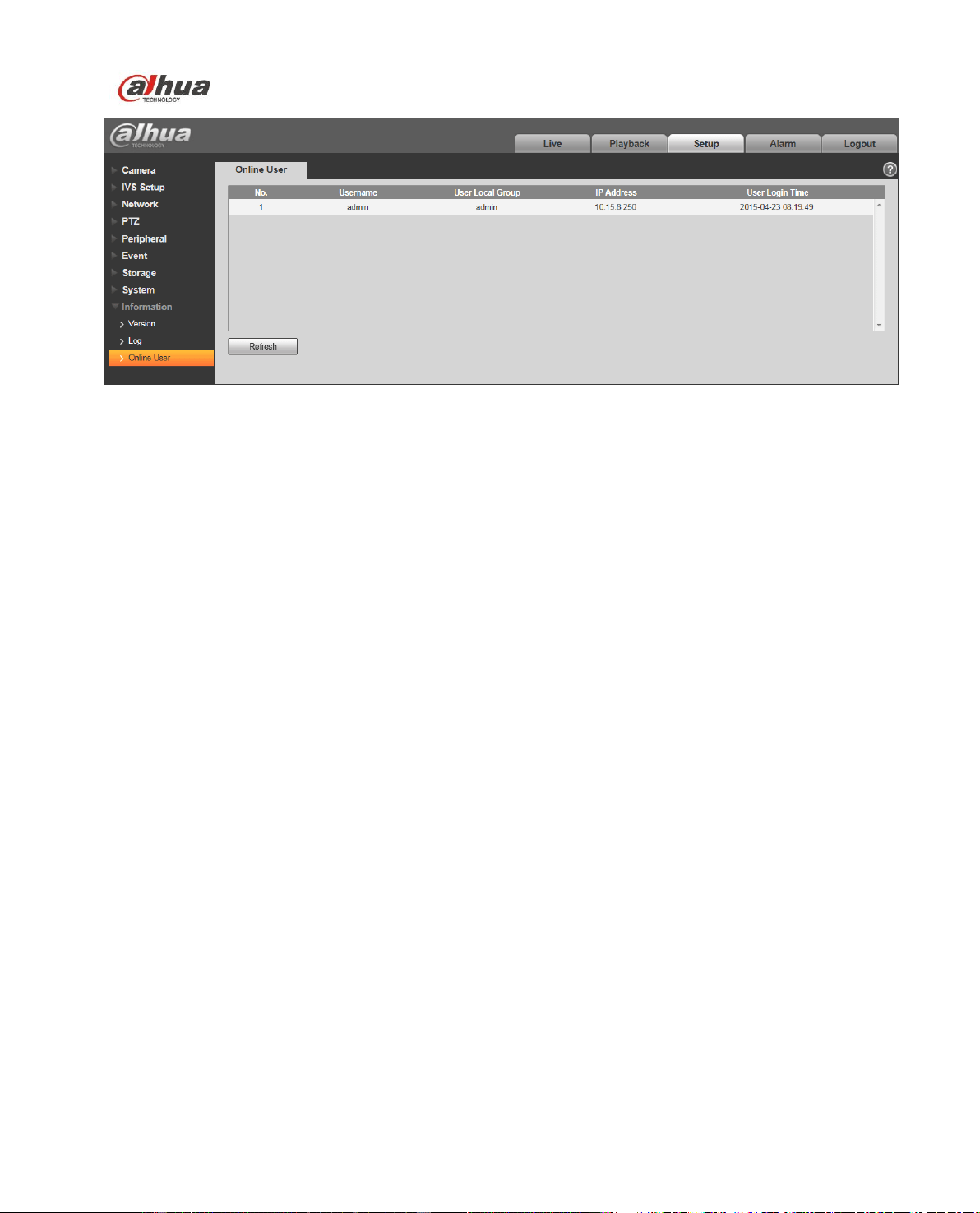
Dahua Network Speed Dome Web3.0 Operation Manual
112
Figure 4-108
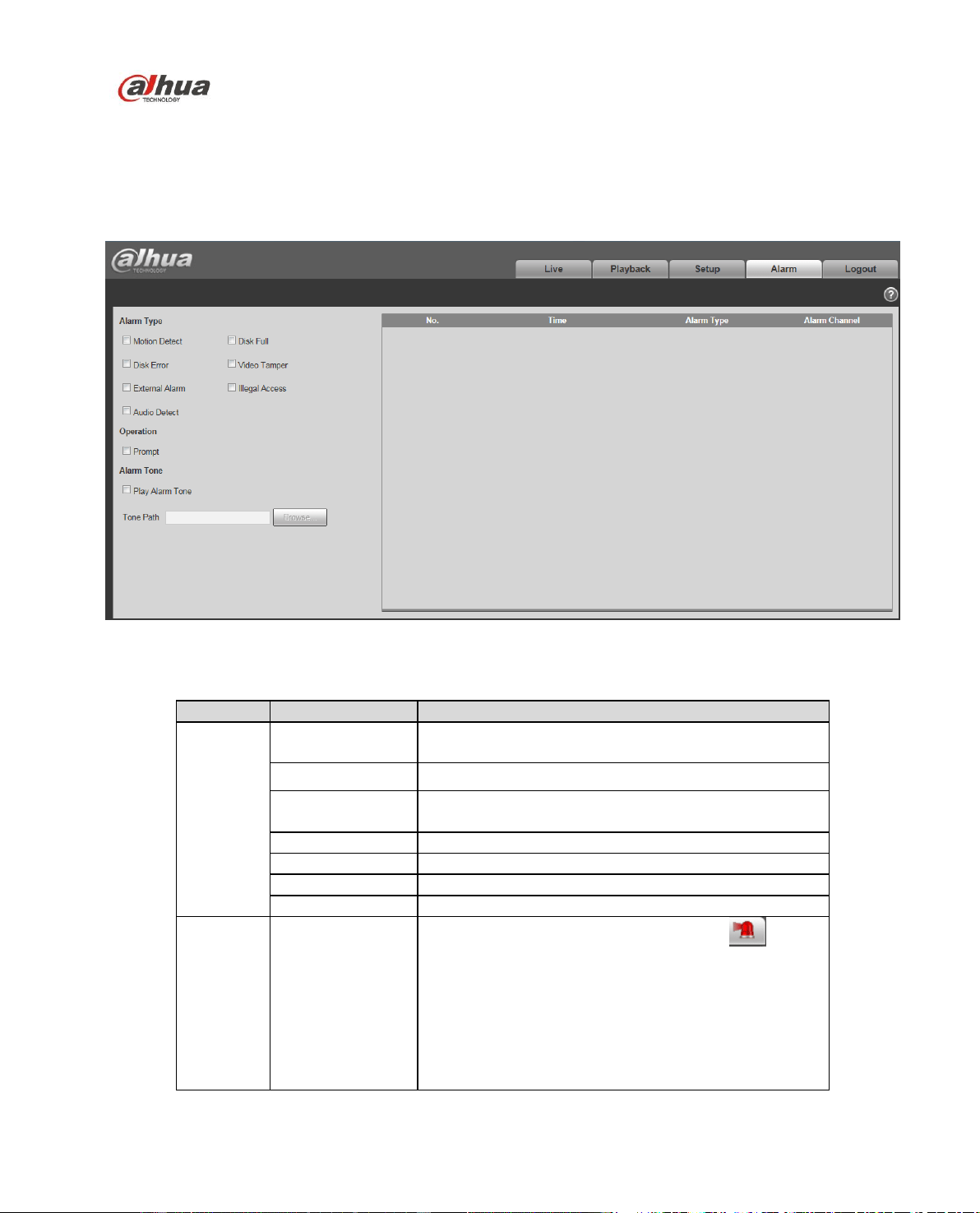
Dahua Network Speed Dome Web3.0 Operation Manual
113
5 Alarm
Please note some series product does not support this function.
Click alarm function, you can see an interface is shown as in Figure 5-1.
Here you can set device alarm type and alarm sound setup.
Figure 5-1
Please refer to the following sheet for detailed information.
Type
Parameter
Function
Alarm
type
Motion detection
System alarms when motion detection alarm
occurs,
Disk full
System alarms when disk is full.
Disk error
System generates an alarm when HDD is
malfunction.
Video tampering
System alarms when camera is viciously masking.
External alarm
System alarms when alarm inputs device.
Illegal access
System alarms when there is unauthorized access.
Audio detect
System alarms when audio detect occurs.
Operation
Prompt
When alarm is triggered, there will be s
inmain menu of alarm interface and system
automatically records alarm info. The icon
disappears when user click alarm menu bar.
Note:
If alarm interface is displayed, when alarm is
triggered, there will be no image prompt, but alarm
record will be in list on the right.

Dahua Network Speed Dome Web3.0 Operation Manual
114
Type
Parameter
Function
Alarm
audio
Audio
When alarm occurs, system auto generates alarm
audio. The audio supports customized setup.
Path
Here you can specify alarm sound file.
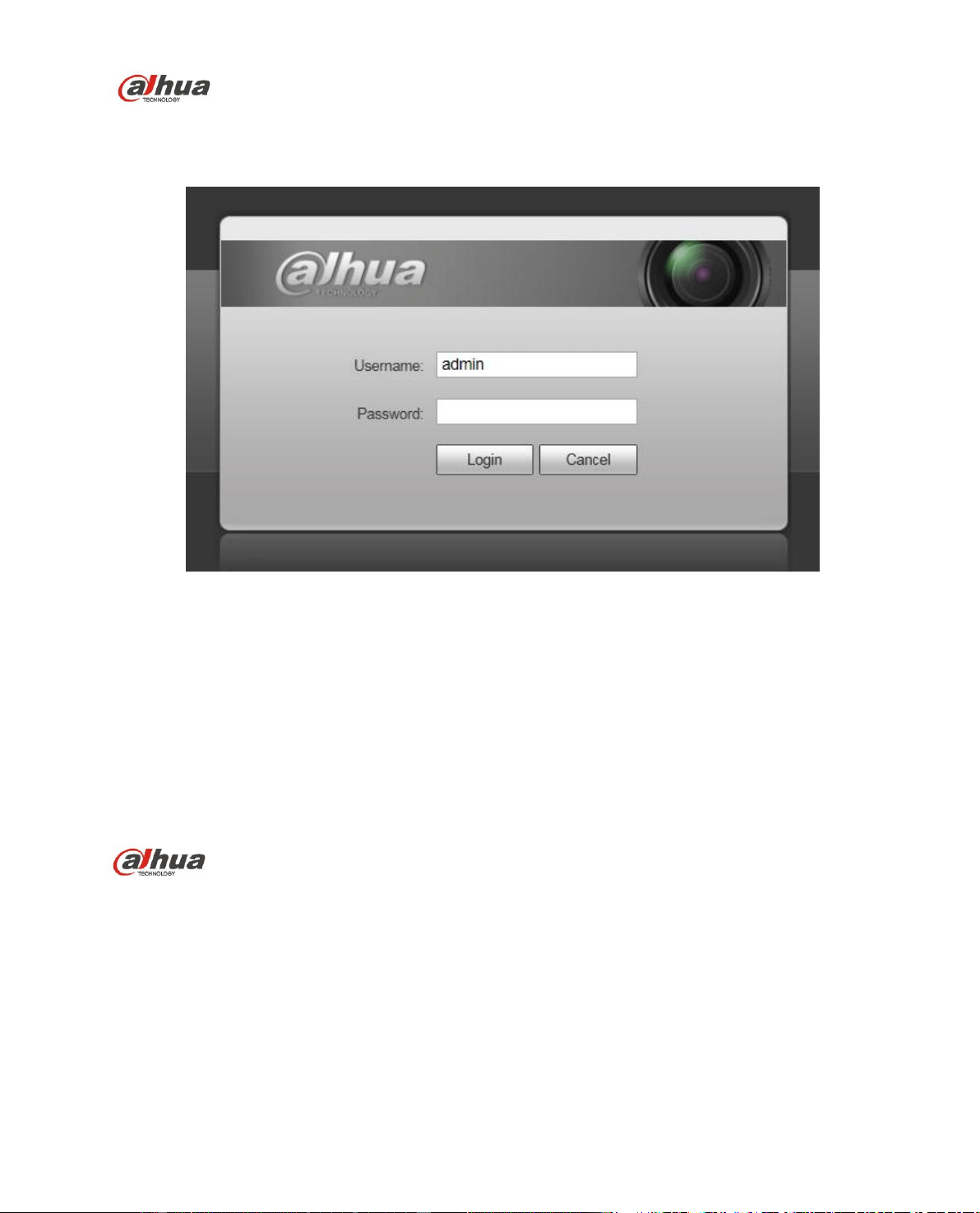
Dahua Network Speed Dome Web3.0 Operation Manual
115
6 Log out
Click log out button, system goes back to log in interface. See Figure 6-1.
Figure 6-1
Note:
This manual is for reference only. Slight difference may be found in user interface.
All the designs and software here are subject to change without prior written notice.
All trademarks and registered trademarks mentioned are the properties of their respective
owners.
If there is any uncertainty or controversy, please refer to the final explanation of us.
Please visit our website for more information.
Dahua Vision Technology Co., Ltd
Address:No.1199 Bin’an Road, Binjiang District, Hangzhou, China.
Postcode: 310053
Tel: +86-571-87688883
Fax: +86-571-87688815
Email:overseas@dahuatech.com
Website: www.dahuasecurity.com