P8
You must read the Usage and Safety Precautions before use.
Operation Manual
© 2020 ZOOM CORPORATION
Copying or reprinting this manual in part or in whole without permission is prohibited.
Product names, registered trademarks and company names in this document are the property of their respective companies. All trademarks and regis-
tered trademarks in this document are for identification purposes only and are not intended to infringe on the copyrights of their respective owners.
Proper display is not possible on grayscale devices.

Notes about this Operation Manual
You might need this manual in the future. Always keep it in a place where you can access it easily.
The contents of this document and the specications of the product could be changed without notice.
Items that appear on the touchscreen are shown with a gray background in this operation manual.
Example: Noise Reduction
•
Windows® is a trademark or registered trademark of Microsoft® Corporation.
•
iPadOS is a trademark or registered trademark of Apple Inc.
•
iOS is a trademark or registered trademark of Cisco Systems, Inc. in the USA and other countries and is
used under license.
•
The SD, SDHC and SDXC logos are trademarks.
•
Other product names, registered trademarks and company names in this document are the property of
their respective companies.
Note: All trademarks and registered trademarks in this document are for identication purposes only and
are not intended to infringe on the copyrights of their respective owners.
Recording from copyrighted sources, including CDs, records, tapes, live performances, video works and
broadcasts, without permission of the copyright holder for any purpose other than personal use is prohib-
ited by law. Zoom Corporation will not assume any responsibility related to infringements of copyrights.
2

Introduction
Thank you very much for purchasing a ZOOM
P8
PodTrak.
The
P8
is a multitrack recorder designed for podcasting. After connecting mics and headphones, high-quality audio
recording can be started right away. The
P8
combines all the functions necessary to produce podcasts, including
audio enhancement and episode editing in a single device, so we can recommend it to all podcasters from
beginners to veterans. We hope you will enjoy recording and producing polished episodes in a variety of locations.
Main features of the
P8
Multitrack recording of up to six people at once
The sound qualities and levels of the 6 mic inputs can be adjusted for the voices of the participants. The 6
headphone outputs allow everyone participating to monitor the sound that is being recorded. In addition to a
stereo le ready to be used for podcasting, separate les for the audio of each channel can also be recorded
and utilized for editing after recording.
Mic sounds can be adjusted optimally
In addition to dynamic mics, the high-quality built-in mic preamps support condenser mics that require
phantom power (+48 V). With a single switch, the level of an input can be set optimally according to the mic
type. Moreover, in addition to a limiter and low-cut lter, tone adjustment, a compressor that evens out the
volume, a de-esser that suppresses sibilance and noise reduction can be applied to the mic sound. All the
signal processing is tailored for voices, and each feature is simply turned on/off or adjusted with a single
parameter, enabling settings to be made easily even without previous expertise in sound mixing.
Every necessary editing function is built in
The
P8
has every necessary editing function to complete episodes for distribution. These include deleting unnecessary
parts of recorded data, optimizing levels automatically, and combining opening and ending les. Intuitive operation
using the large 4.3-inch color touchscreen allows anyone to easily complete podcasts without using a computer.
Instant playback of jingles and recorded interviews
The SOUND PAD function includes nine pads with four banks that can be switched even during recording.
These pads can be used to play built-in sounds and other audio les in real time. When creating multiple
programs, different banks can be prepared for each program. In addition, since the colors that the SOUND PAD
buttons light can be set, le assignments can be made easy to see. For example, they could be set blue for les
with recorded interviews. Use these to enhance podcasting and live streaming.
Remote recording
If all the podcasters cannot gather in one place or you want to invite guests who are far away, you can use
smartphones and computers to enable remote participation in recording. A Mix Minus function prevents echoes
from occurring in the audio of remote participants. By connecting a BTA-2 specialized wireless adapter to the
P8
, a
smartphone can also be connected to it wirelessly.
Live streaming
The 2-in/2-out USB audio interface functions of the
P8
can be used for live streaming and recording with computers,
smartphones and tablets. Since it supports class compliant mode, installation of a dedicated driver is not necessary.
Optional accessory pack
We have prepared an optional Podcast Mic Pack with a dynamic mic (ZDM-1), headphones (ZHP-1) and related
accessories, along with software useful for editing on a computer after recording.
3

Notes about this Operation Manual
������ 2
Introduction
����������������� 3
Contents
������������������ 4
Podcasting process
������������� 5
P8
overview
����������������� 7
Explanation of terms ������������
7
Functions of parts �������������
8
Connection examples ����������
11
Use examples ��������������
12
Signal ow ���������������
13
Touchscreen display �����������
15
Preparing for use
������������� 17
Inserting SD cards ������������
17
Providing power �������������
18
Turning the power on ����������
20
Making initial settings ����������
22
Connecting
���������������� 24
Connecting mics �������������
24
Connecting headphones ���������
25
Connecting smartphones ���������
26
Connecting a BTA-2
(dedicated wireless adapter) �������
27
Connecting a computer, smartphone or tablet
by USB �����������������
28
Connecting powered speakers and other
output equipment ������������
31
Recording
����������������� 32
Adjusting input gain and sound quality ��
32
Balancing the mix of channel levels ����
35
Recording ����������������
36
Playing recordings
������������� 37
Playing recordings on the Home Screen ��
37
Selecting les and playing them �����
38
Using marks
���������������� 40
Adding marks ��������������
40
Deleting marks �������������
41
Using SOUND PAD functions
�������� 42
Playing SOUND PAD buttons �������
42
Assigning audio les to SOUND PAD
buttons �����������������
43
Adjusting the levels of each SOUND PAD �
46
Setting playback modes for each SOUND
PAD �������������������
47
Changing bank names ����������
48
Managing les
��������������� 49
Deleting les ��������������
50
Combining multiple les into one in specic
order ������������������
52
Editing les
���������������� 55
Opening the File Editing Screen ������
56
Changing le names �����������
57
Changing icons �������������
58
Cutting unnecessary parts (trimming) ���
59
Dividing les ��������������
61
Adding fade-ins and outs ���������
63
Adding music and other background
sound ������������������
66
Optimizing podcast volume
(loudness normalization) ���������
69
Converting les to MP3 format ������
71
Transferring les to a computer, smartphone or
tablet
������������������� 72
Transferring les to a computer, smartphone
or tablet �����������������
72
P8
folder and le structure ��������
73
Modifying the date and time
�������� 74
Changing the touchscreen display language
� 75
Setting the battery type
���������� 76
Adjusting the brightness of the touchscreen
� 77
Using noise reduction
����������� 78
Setting recording le types
��������� 79
Testing SD cards
�������������� 80
Formatting SD cards
������������ 83
Using SD cards to back up and load settings
� 84
Backing up ���������������
84
Loading backup settings ���������
85
Setting the automatic power off function
�� 87
Restoring factory default settings
������ 88
Updating the rmware
����������� 89
Troubleshooting
�������������� 90
General �����������������
90
Audio interface �������������
91
Specications
��������������� 92
Mixer block diagram
������������ 93
Contents
4

Podcasting process
1.
Prepare and conrm
connections
●
Preparations
Install an SD card in the
P8
, provide it power, and set the date and time.
●
Connecting and checking
Connect microphones and headphones.
• By using a single mic for each person, levels can be adjusted to suit each voice,
enabling clear recording of all voices.
• Adjust the distance between the participants and their mics so that they can
be recorded at stable levels. On the
P8
, the input gain can be set suitably for a
connected mic by setting its INPUT SELECT switch.
•
Using the
P8
, tones of voices can be adjusted and compressors and de-essers
can be applied.
• Mute input channels that are not being used to prevent noise from being picked
up.
• Headphones are necessary to not only conrm the inputs from the mics,
but also to hear SOUND PAD playback and the voices of guests participating
remotely.
If a guest in a distant location is participating remotely in recording, connect the
P8
to a computer, smartphone or tablet.
• The smartphone connector is designed to prevent echo when used. When using
the USB port, turn on USB Mix Minus to prevent echo.
Conrm the levels and other settings of the SOUND PAD buttons, which can
be used for one-touch playback of background music, jingles and other sounds
during recording.
●
Countermeasures for environmental noise in recording locations
• Attaching windscreens to mics can reduce noise caused by wind blowing.
Adjust the directions of mics so that they do not point toward other sources of
environmental noise.
• Touching mics and power cables during recording could result in handling noise
that sounds like crackling. Use mic stands and put cables in order beforehand.
Placing mic cables and power cables too close together can result in noise
being picked up.
•
Enabling the Low Cut function on the
P8
mic input settings screens can reduce
the amount of vibration, wind and other noise picked up by mics.
• When multiple mics are being used to record sound, turning on noise reduction
on the
P8
ON AIR settings screen can suppress background noise to a constant
level by automatically reducing the levels of the mic inputs not being used by
people.
2. Record
●
Recording theme
To enable recording conversations at a good pace, conrm the discussion topics
with the other participants and prepare reference materials and other resources
so that they are at hand.
●
Speaking tips
Try to speak clearly while avoiding making sibilant (hissing s) and plosive (p and d)
sounds too loud.
●
SOUND PAD buttons
Use these to add excitement to programs with jingles and effects.
5

3. Publish
●
Publishing
The
P8
USB le transfer screen can be used to connect to a computer,
smartphone or tablet and transfer recorded les. Upload them to the podcasting
service* or server you are using.
*Service that provides servers for saving podcast les
●
Editing before release
The
P8
can be used to edit recorded stereo les for podcasting in the following
ways.
• Unnecessary parts can be cut, and fade ins/outs can be added.
• Background music can be added.
• The loudness normalization function can even out the volume ideally for
podcasting.
• Openings and endings that have been prepared in advance can be attached to
the beginnings and ends.
• Files can be converted to MP3s.
Moreover, the individual les recorded for each channel on the
P8
can be used
for detailed editing in a DAW and to make adjustments for the voices of each
participant.
6

P8
overview
Explanation of terms
Audio interface
The
P8
enables sounds from mics and instruments, for example, to be input to a computer, smartphone
or tablet. It can also output sounds from that device to speakers and headphones.
USB audio return
When the
P8
is connected as an audio interface, this is the signal output from the computer, smartphone
or tablet. Background music can be played from the connected device.
SOUND PAD buttons
Audio les can be assigned to these. Press one to play the assigned le. This is convenient for playing
interviews that have been recorded in advance, opening and ending music and jingles.
The 9 SOUND PAD buttons can have audio les assigned in 4 banks, for a total of 36 les.
USB Mix Minus
When using the
P8
as an audio interface, signals input by USB can be set to not be output back to
USB. This can prevent feedback to the person at the other end when recording while calling through a
computer, smartphone or tablet.
ON AIR button
When ON AIR buttons are turned off, input sounds are not output to the USB port (streaming audio) or
SPEAKER OUT jacks, nor are they recorded to the podcast stereo le. This function is convenient, for
example, when participants are discussing the next topic among themselves while music is playing.
Podcasting
This is one way to share audio les publicly on the Internet. Podcasters make content and distribute it via
the Internet so people can listen easily on smartphones, computers and other devices.
Dynamic mic
This type of mic does not require phantom power and is strong and durable.
Condenser mic
This type of mic usually has high sensitivity and can capture audio with high quality. Phantom power
supply is necessary for use.
7
Functions of parts
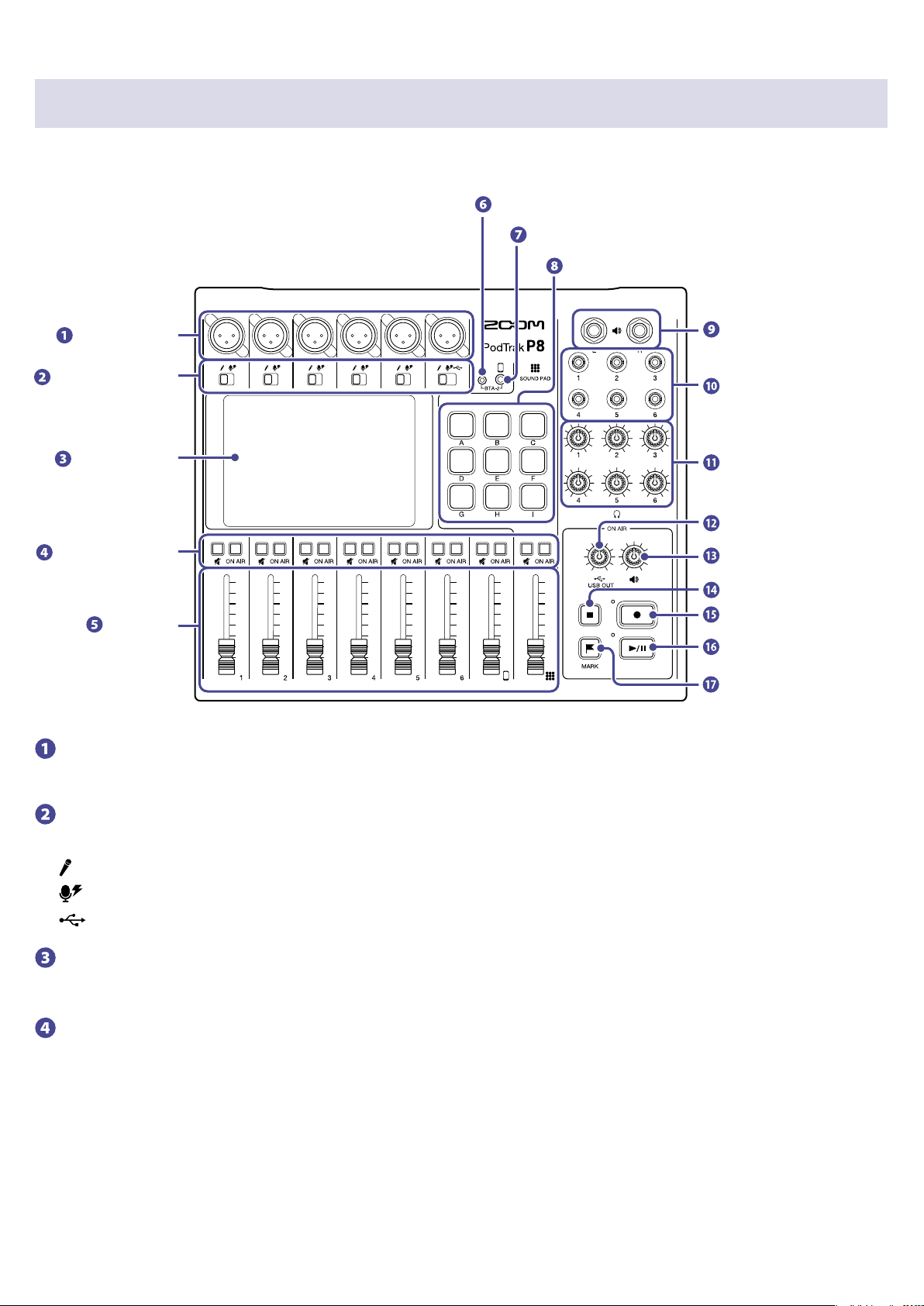
■
To p
INPUT jacks
INPUT SELECT
switches
Touchscreen
Channel
faders
BTA-2 power supply connector
Smartphone connection jack
PHONES jacks
PHONES knobs
SPEAKER OUT jacks
MUTE buttons
ON AIR buttons
SOUND PAD A–I buttons
USB OUT knob
SPEAKER OUT knob
STOP button
REC button
PLAY/PAUSE button
MARK button
INPUT jacks
These input jacks have built-in mic preamps.
INPUT SELECT switches
Set these according to the connected equipment.
Dynamic mic
Condenser mic (supplies +48V phantom power)
Computer, smartphone or tablet
Touchscreen
This shows the status of the
P8
, and can be operated by touch to make various settings and edit les.
MUTE buttons
Use to mute (lit) and unmute (unlit) signals.
ON AIR buttons
When lit, channel signals are recorded in the podcast stereo le and sent to the USB port, SPEAKER
OUT jacks, PHONES jacks and smartphone connection jack.
When unlit, channel signals are only sent to the PHONES jacks and smartphone connection jack.
8

Channel faders
These adjust channel signal levels in ranges from −∞ to +10 dB.
BTA-2 power supply connector
Use this power supply connector when connecting a BTA-2 wireless adapter.
Smartphone connection jack
Connect a smartphone here.
SOUND PAD A–I buttons
Use to play the sounds assigned to them.
SPEAKER OUT jacks
These output a stereo mix of the signals from all the channels. Connect them to a power amplier, a
PA system or speakers with built-in ampliers, for example.
PHONES jacks
These output a stereo mix of the signals from all the channels. Connect headphones to these.
PHONES knobs
Use to adjust the volumes of the signals output from the PHONES jacks.
USB OUT knob
Use to adjust the volume of the signal output from the USB port.
SPEAKER OUT knob
Use to adjust the volume of the signals output from the SPEAKER OUT jacks.
STOP button
Use to stop recording/playback.
REC button
Use to start/stop recording.
PLAY/PAUSE button
Use to play/pause recorded les.
MARK button
Press to add marks to recording les during recording/playback. These provide editing guides.
9
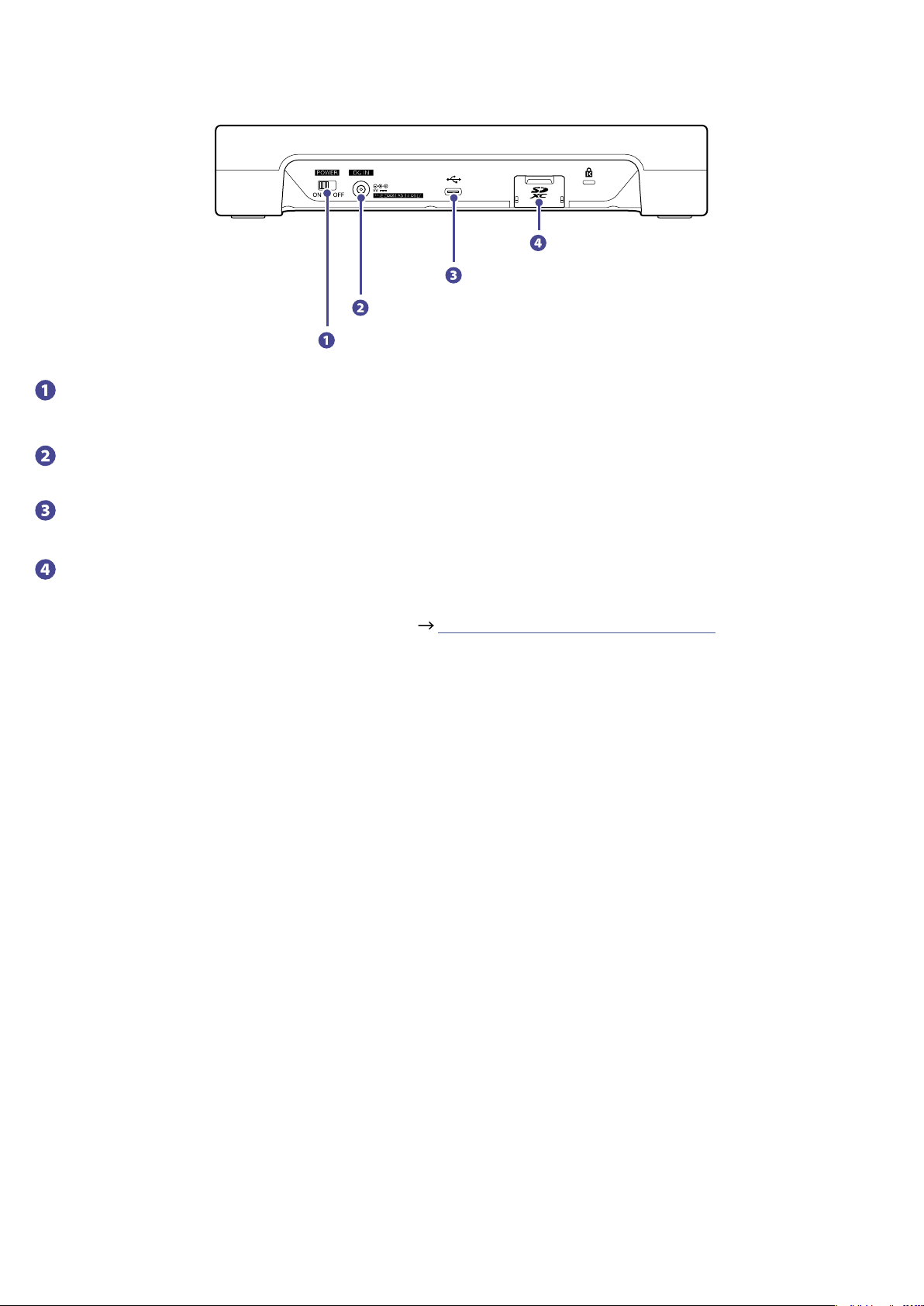
■
Back
Power switch
DC IN 5V AC adapter connector
USB port (Type-C)
SD card slot
Power switch
Use to turn the power on and off.
DC IN 5V AC adapter connector
Connect the included AC adapter here.
USB port (Type-C)
This USB port is for connecting with a computer, smartphone or tablet.
SD card slot
Cards that conform to SDHC and SDXC specications are supported.
Format the SD card with the
P8
before use. ( “Formatting SD cards” on page 83)
10
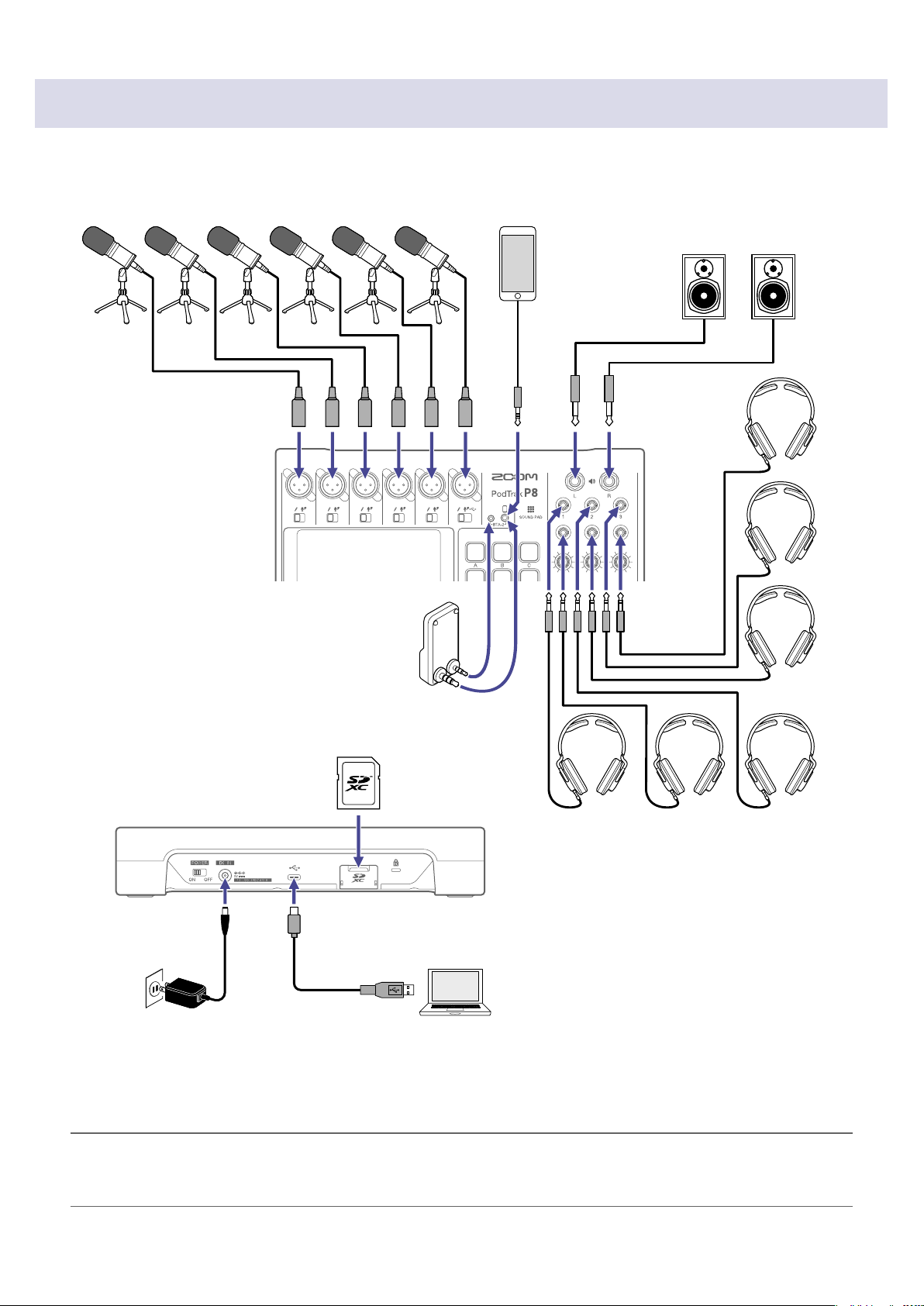
Connection examples
SD card
Mics
Dynamic and condenser
mics
Wireless adapter (ZOOM BTA-2)
This enables wireless connection
to smartphones and tablets.
AC adapter
(ZOOM AD-14)
Computer, smartphone or tablet
Using the audio interface function, audio can
be shared with a computer, for example, and
recordings on the SD card can be transferred
for editing.
This might not be usable with some
communication apps.
Smartphone
Guests can participate by phone
during podcasting.
Headphones
USB Type-C
port
Speakers with
built-in ampliers
HINT
We have prepared an optional Podcast Mic Pack that is ideal for podcasting. The set includes a ZDM-1
dynamic mic and ZHP-1 headphones, enabling you to start podcasting right away.
11
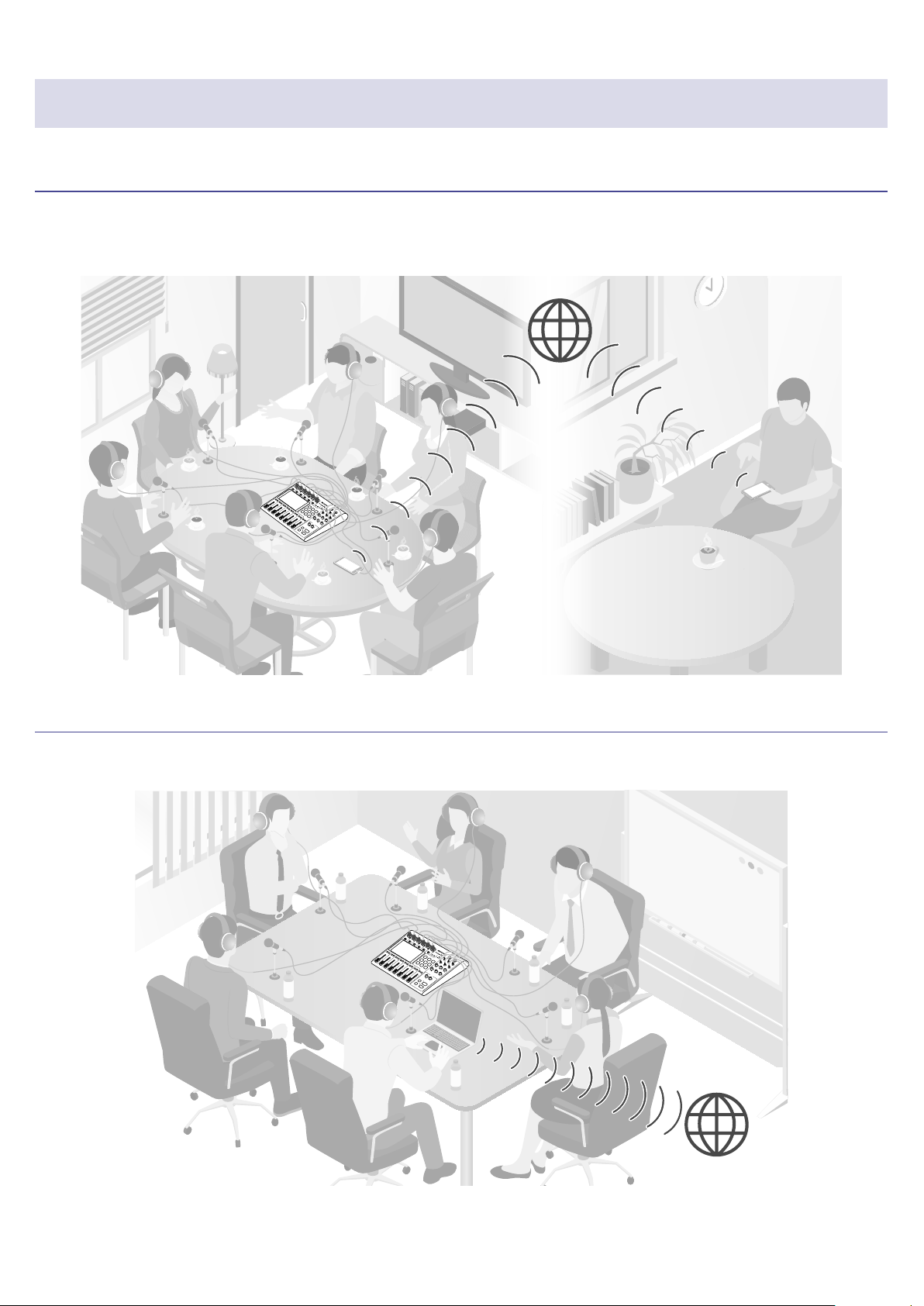
Use examples
Podcasting with a guest participating by phone
By connecting a computer, smartphone or tablet to the
P8
, a guest in a remote location can participate in
a podcast by phone.
Internet
Live streaming
By connecting a
P8
to a computer, smartphone or tablet, you can use it to stream audio in real time.
Internet
12
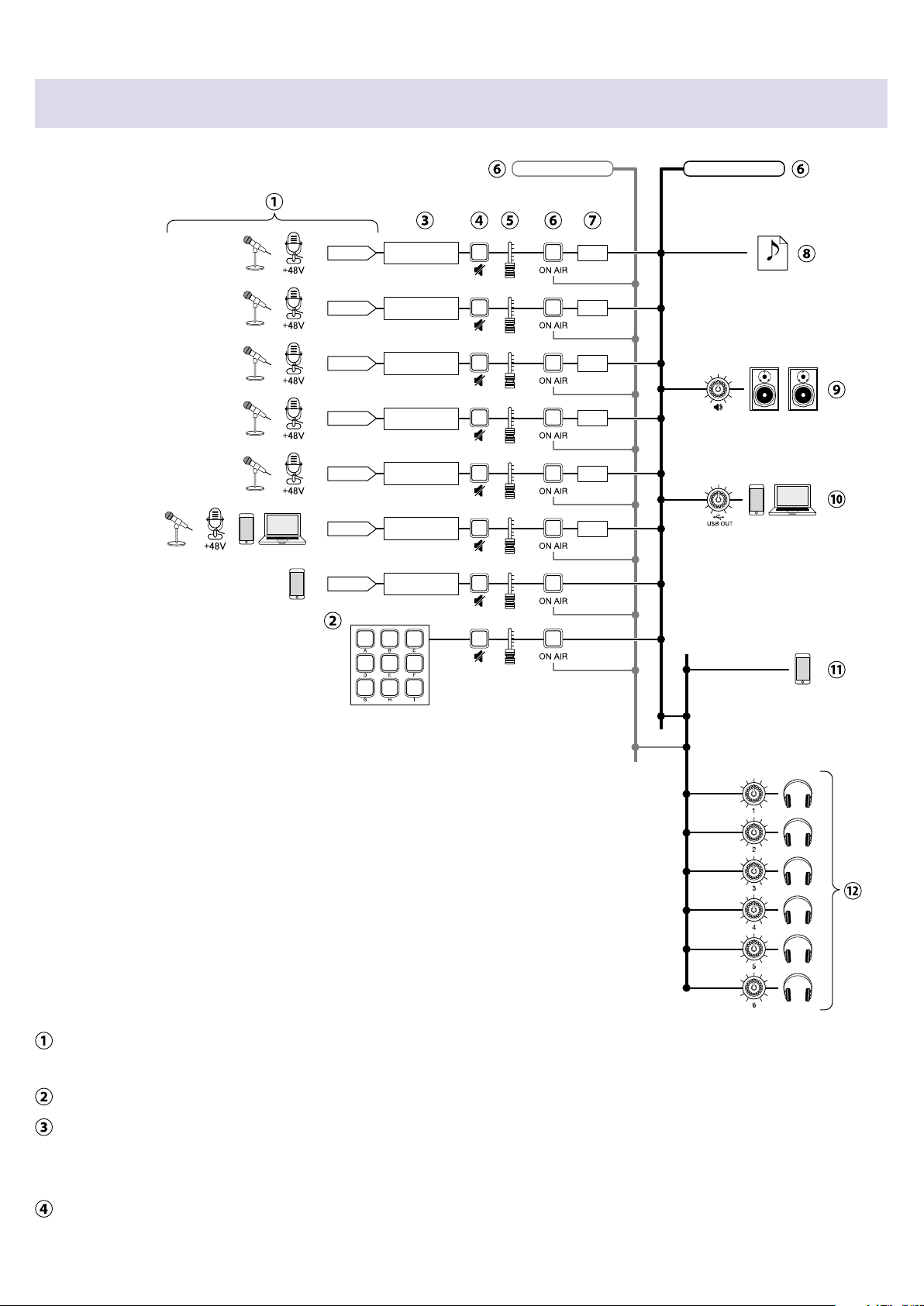
Signal ow
L/R
SOUND PAD
ON AIR button litON AIR button unlit
INPUT 1
MUTE FADER
Adjust volume
and audio quality
N.R.
INPUT 2
MUTE FADER
N.R.
INPUT 3
MUTE FADER
N.R.
INPUT 4
MUTE FADER
N.R.
INPUT 5
MUTE FADER
N.R.
INPUT 6
MUTE FADER
N.R.
PHONE
MUTE FADER
MUTE FADER
Adjust volume
and audio quality
Adjust volume
and audio quality
Adjust volume
and audio quality
Adjust volume
and audio quality
Adjust volume
and audio quality
Adjust audio
quality
Smartphone
connection jack
USB port
Channel 4
Channel 5
Channel 6
Channel 1
Channel 2
Channel 3
SPEAKER OUT
jacks
Smartphone channel
Headphones
Input sound. Channels 1–5 can be used to input sound from mics. Channel 6 can be used to input sound
from a mic or the USB audio return. The smartphone channel can be used to input sound from a smartphone.
Play SOUND PAD sounds.
Make settings for inputs on each channel. Input gain can be adjusted, and a function that cuts unwanted low
frequencies and a limiter can be turned on or off (mic inputs only). In addition, the sound quality of all inputs
can be adjusted.
Mute/unmute channels. Inputs not being used can be muted.
13
Use the faders to adjust the levels of each channel in the mix.
Turn ON AIR on or off. When the ON AIR button is off (unlit), sound will not be output to the podcast stereo
le, SPEAKER OUT jacks or USB port.
Turn noise reduction on or off. When multiple mics are being used to record sound, turning this on suppresses
background noise to a constant level by automatically reducing the levels of the mic inputs not being used by
people.
A recording le is made for podcasting. This combines all channels and the SOUND PAD sounds into a stereo
le.
Output the mixed sound of all channels
or the playback of audio les on an SD card to speakers with built-in
amplication, for example.
A mix of all channels is output to the computer, smartphone or tablet connected by USB. When the USB Mix
Minus setting ( page 30) is on, the sound input through channel 6 (the USB audio return) is not included.
A mix of all channels is output to the connected smartphone. The sound from the connected smartphone
itself, however, is not sent back to it.
Monitor the sound of the recording for podcasting through headphones.
Channels with ON AIR off will also be
output.
The volume can be adjusted separately for each pair of headphones.
HINT
Individual les can also be recorded for INPUT 1–6, PHONE and SOUND PAD channels. ( “Setting
recording le types” on page 79)
14
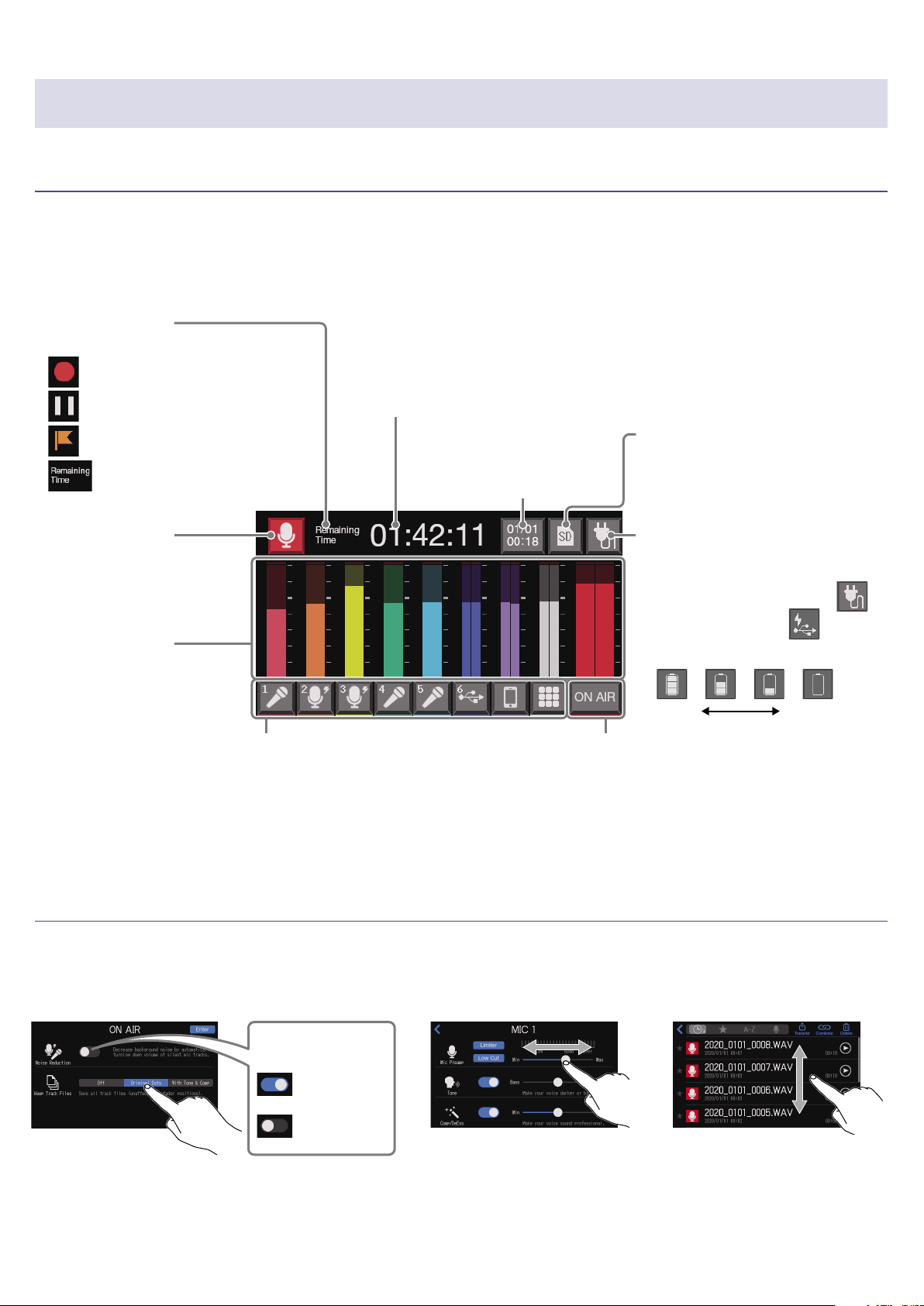
Touchscreen display
Home Screen overview
This screen appears on the touchscreen when the
P8
power is turned on.
This shows the state of the
P8
, including recording conditions and input levels. In addition, various
functions can easily be accessed by tapping buttons on it.
Track buttons
Use these to make input settings for
each channel, including mic settings and
audio quality adjustments. The icons
depend on the selected input type.
Level meters
These show the output
levels of each channel
and the stereo mix for
podcasting.
Library button
This shows les on the
SD card, and enables le
management and editing.
Counter
This shows either the current elapsed
recording time or the remaining
available recording time.
Date and time
Use to make settings
related to the date/time
and display language.
SD card button
Use to make settings related to
the SD card.
ON AIR settings button
Use to turn Noise Reduction on/off and
make recording track settings.
Status icon
This shows the recorder status.
•
Recording
•
Recording paused
•
Mark added
•
Recording stopped
Power button
Use to make settings related to
the power.
• Powered by AC adapter:
• Powered by USB:
• Powered by batteries
Full Empty
Touchscreen operation overview
■
Using various screens
Operate by tapping and sliding.
Slide to adjust
(move left/right while
touching)
Slide to scroll items
(move up/down while
touching)
Tap to select or turn on/off
On
Off
ON/OFF button
15
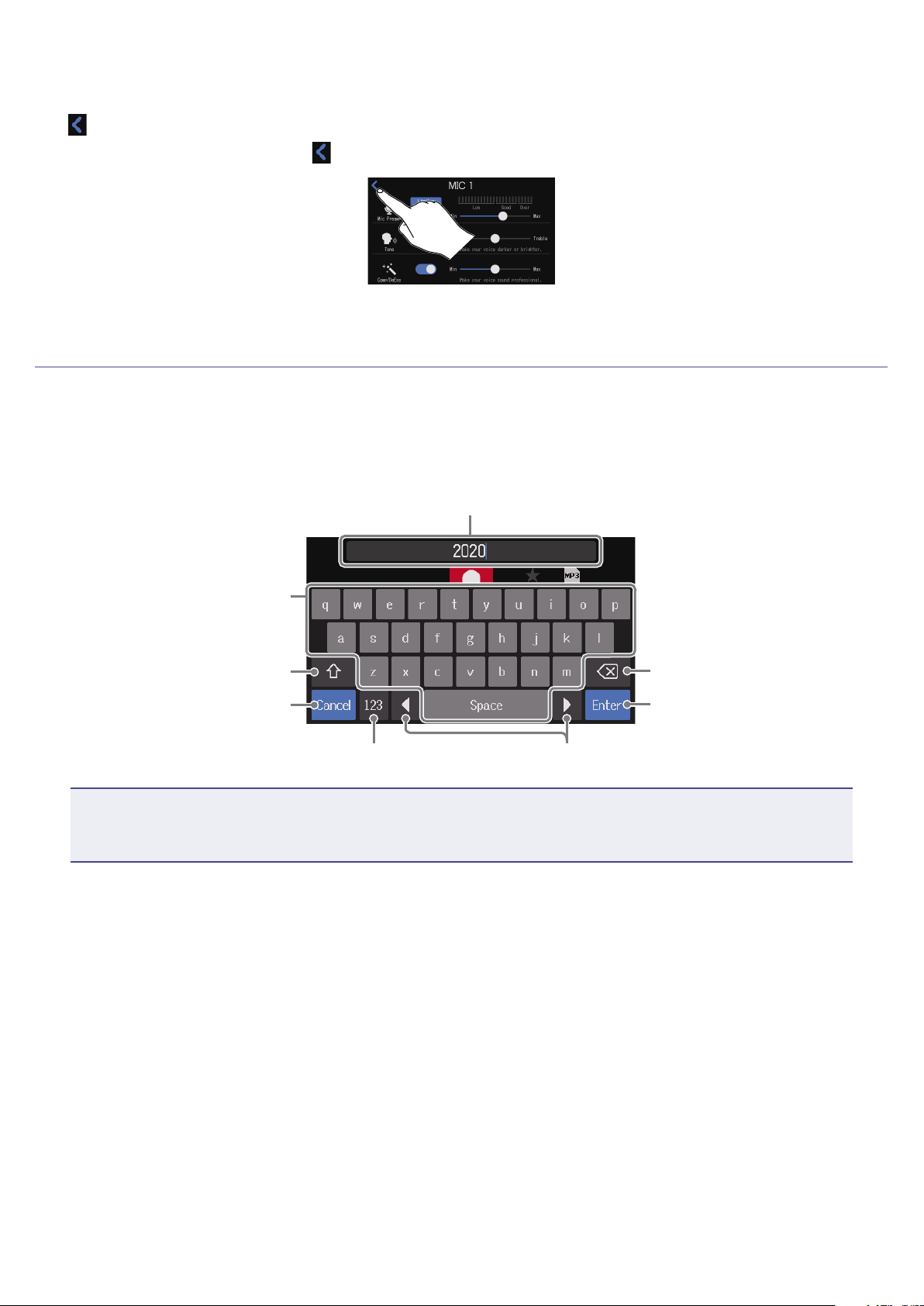
■
Returning to the previous screen or the Home Screen
Tap at the top left of the screen.
To return to the Home Screen, tap
repeatedly until it appears.
Character input screen
The character input screen appears on the touchscreen when changing the names of les and SOUND
PAD banks.
Tap the keyboard and input characters.
Delete characters.
Input characters and spaces.
Move the cursor.
Switch between upper and
lower case.
Character input area
A cursor shows the input position.
Change the character type.
Conrm the input name and
return to the original screen.
Cancel the input and return to
the original screen.
NOTE
The characters and symbols that can be used are as follows.
! # $ ' ( ) +, - ; = @ [ ] ^ _ ` { } ~ (space) A–Z, a–z, 0–9
16
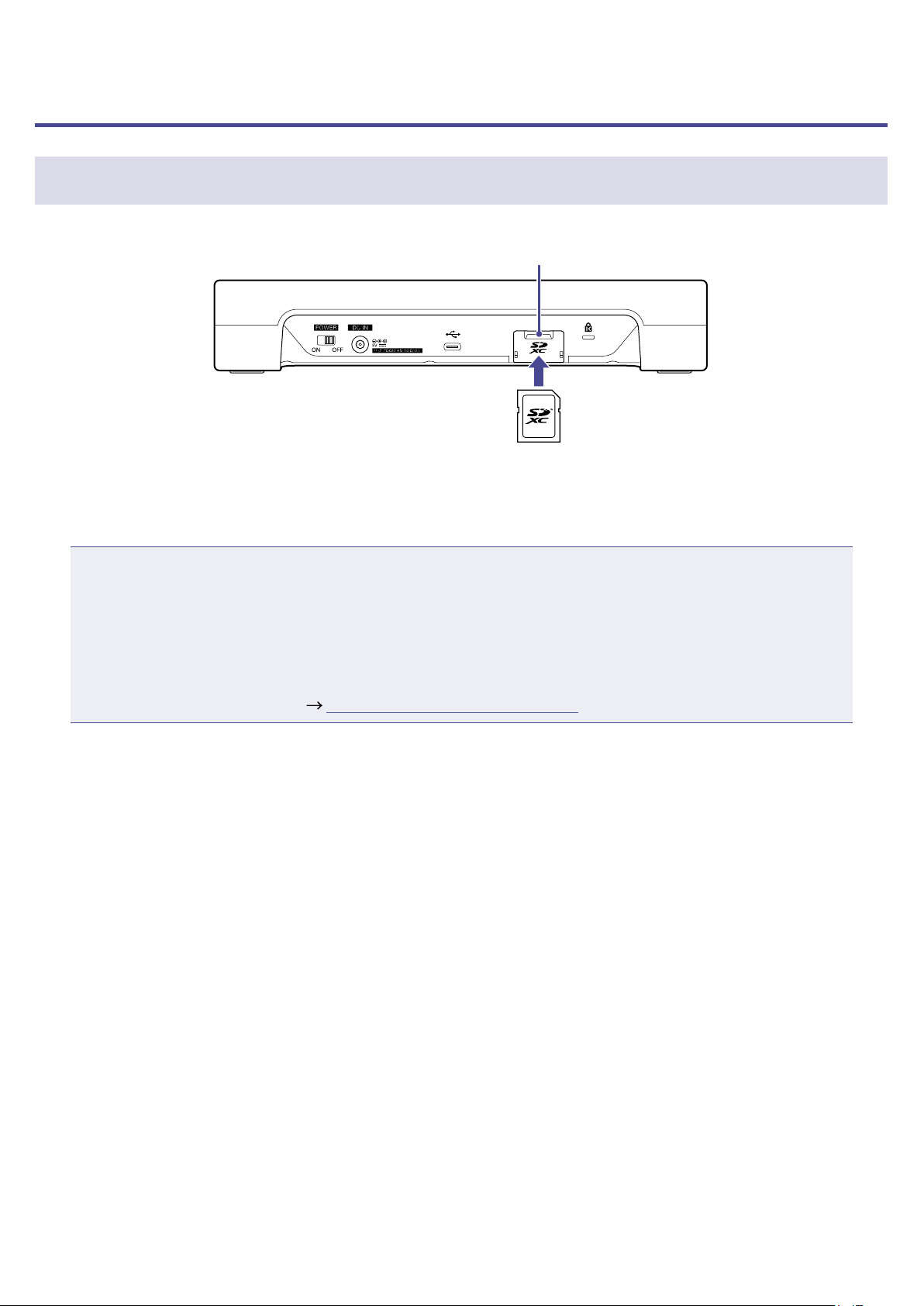
Preparing for use
Inserting SD cards
SD card slot
1.
With the power off, open the SD card slot cover, and insert an SD card all the way into the slot.
To remove an SD card, push it further into the slot and then pull it out.
NOTE
•Cards that conform to SDHC and SDXC specications are supported.
•Disable write-protection on the SD card before inserting it.
•Inserting or removing an SD card while the power is on could result in data loss.
•When inserting an SD card, be sure to insert the correct end with the top side up as shown.
•If an SD card is not loaded, recording and playback are not possible.
•Before using SD cards that have just been purchased or that have been formatted on a computer, they
must be formatted by the
P8
( “Formatting SD cards” on page 83).
17
Providing power
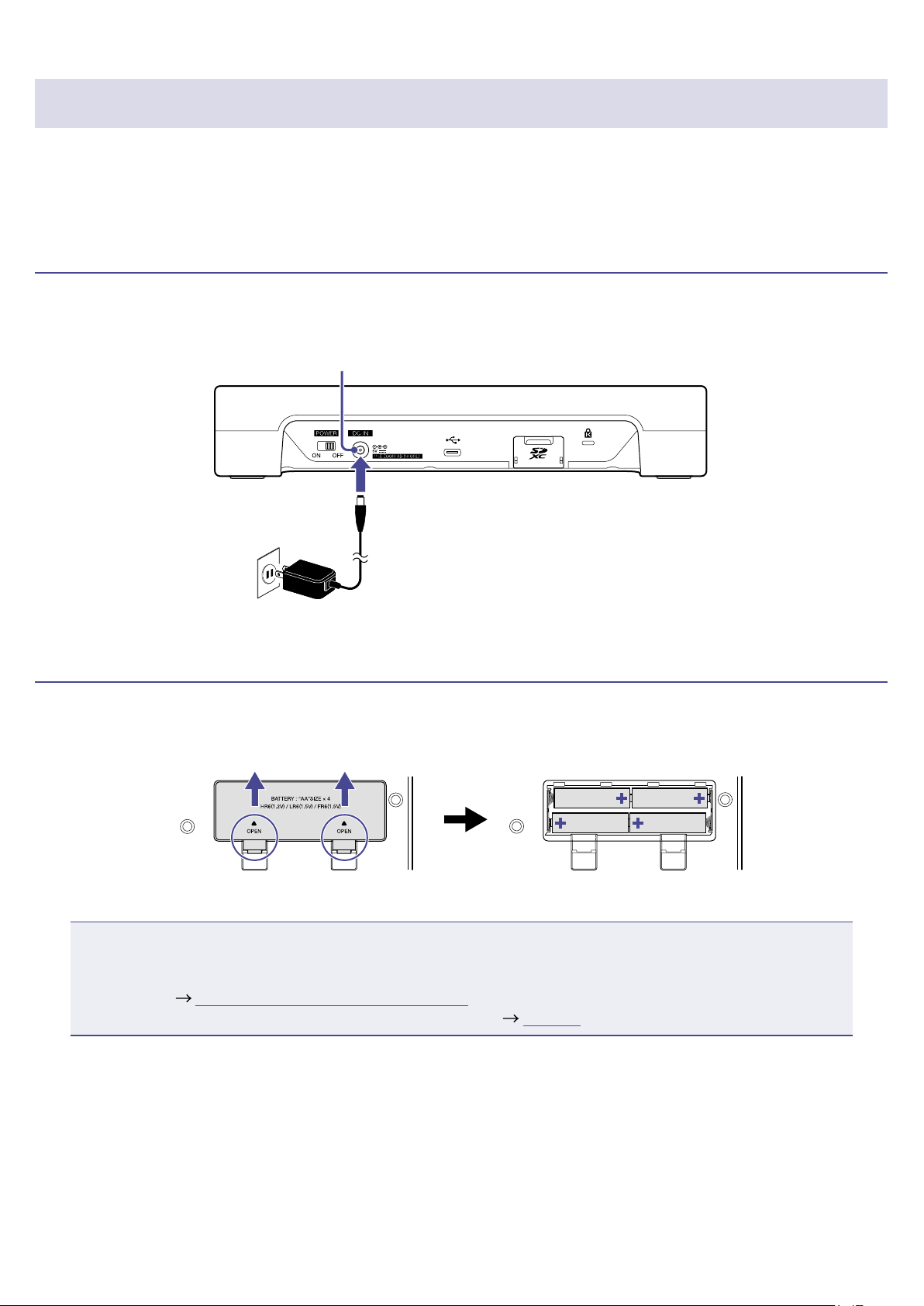
The
P8
can be powered by an AC adapter, USB bus power or batteries.
The order of power supply priority is AC adapter rst, USB bus power next, and batteries last.
Using an AC adapter
Connect the dedicated AC adapter (AD-14) cable to the DC IN 5V AC adapter connector and the adapter to
an outlet.
DC IN 5V AC adapter connector
Installing batteries
To run the
P8
on battery power, open the battery compartment cover on the bottom and install 4 AA
batteries.
Open while pressing up
NOTE
•Use only one type of battery (alkaline, NiMH or lithium) at a time.
•Set the type of battery used correctly so that the amount of remaining battery charge can be shown
accurately. ( “Setting the battery type” on page 76)
•The battery charge can be checked on the Home Screen ( page 15).
18
Turning the power on
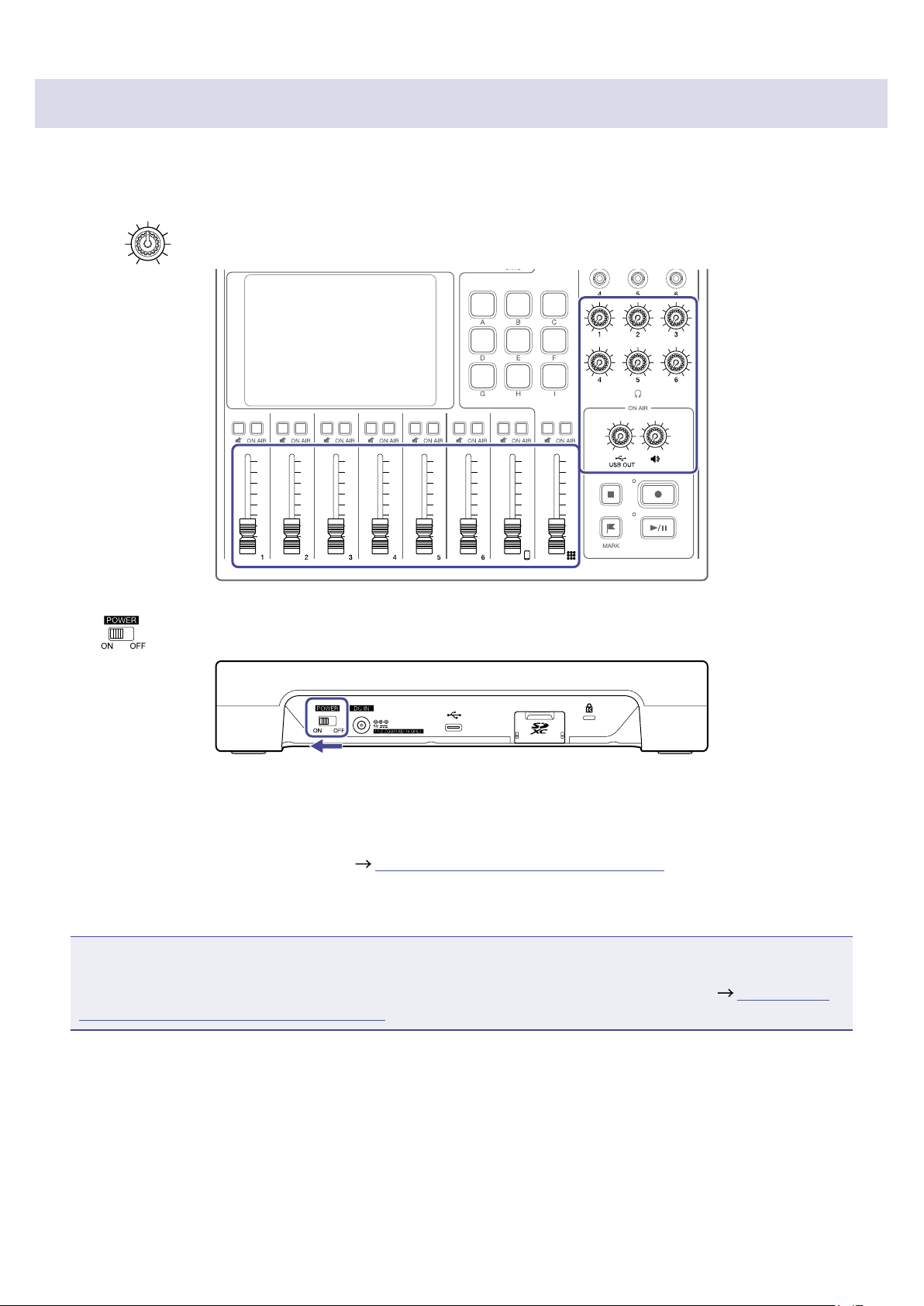
1.
Conrm that the output devices connected to the
P8
are turned off.
2.
Set all and faders to their minimum values.
3.
Set to ON.
This turns the power on and opens the Home Screen on the touchscreen.
The rst time the power is turned on after purchase and after the
P8
has been restored to its factory
default state, make initial settings. (
“Making initial settings” on page 22)
4.
Turn on the output devices connected to the
P8
.
NOTE
When running on power from the AC adapter, the
P8
will automatically turn off if it is unused for 10
hours. To keep the power on at all times, disable the automatic power saving function. (
“Setting the
automatic power off function” on page 87)
20

Turning the power off
1.
Minimize the volume of output devices connected to the
P8
.
2.
Turn off the output devices connected to the
P8
.
3.
Set to OFF.
After “Goodbye See You!” appears on the touchscreen, the power turns off.
NOTE
When the power is turned off, the current settings are saved on the
P8
.
21
Making initial settings
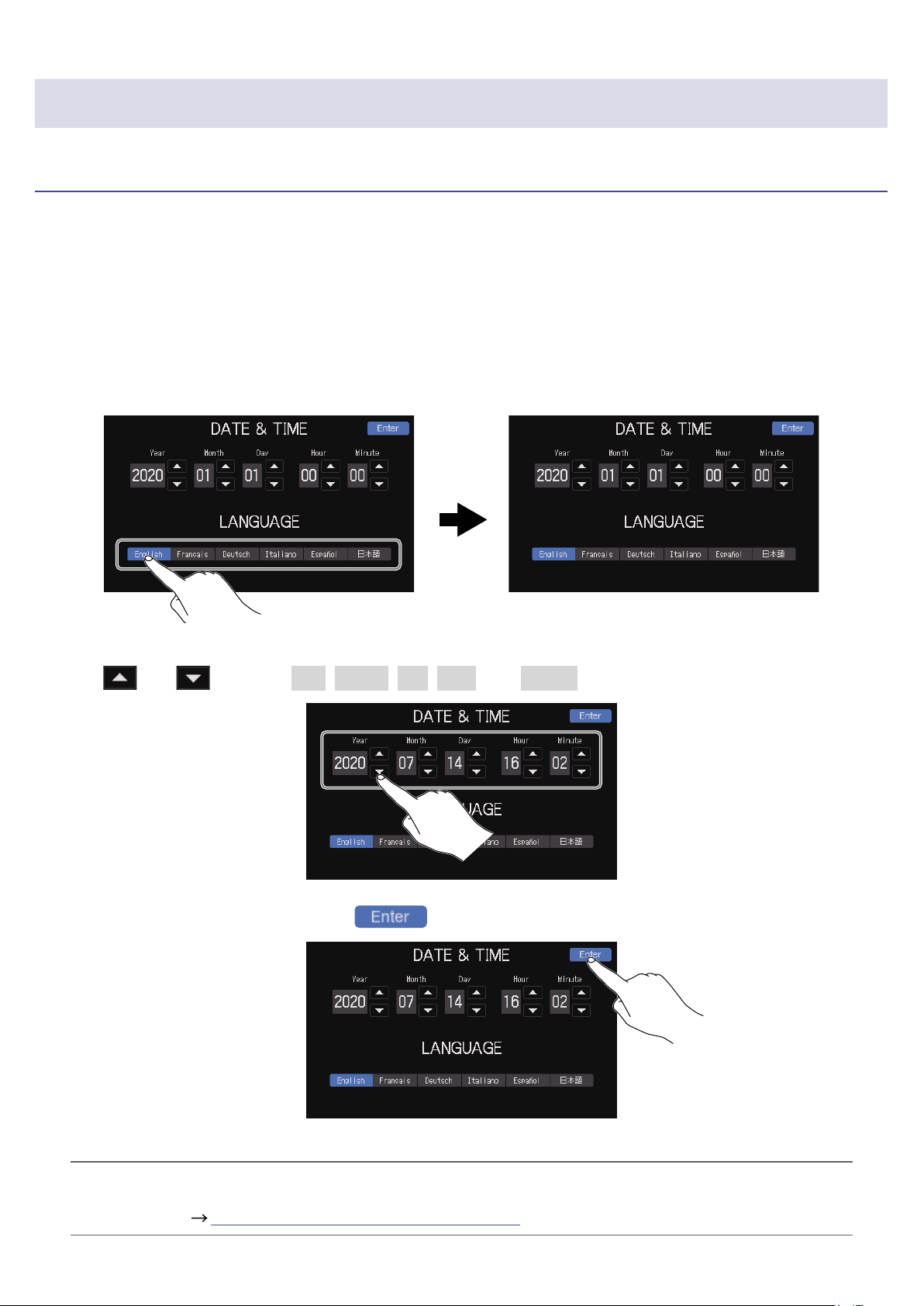
Setting the date/time and language (rst time starting up)
The rst time the power is turned on after purchase, a screen where the date/time and language can be
set opens on the touchscreen.
The date and time are stored in recorded les, and the date and time recording started are used in the
le name. Having the correct date and time set is helpful when looking for les, for example, by allowing
content to be identied by names.
The language shown on the touchscreen can also be selected.
1.
Tap the language to be shown on the touchscreen.
The touchscreen display will change to the selected language.
2.
Tap and to set the Year, Month, Day, Hour, and Minute.
3.
After setting the date and time, tap .
This conrms the set date and time and opens the ON AIR settings screen.
HINT
The date/time and language settings can be changed later by tapping the Date and Time display on the
Home Screen. ( “Modifying the date and time” on page 74)
22
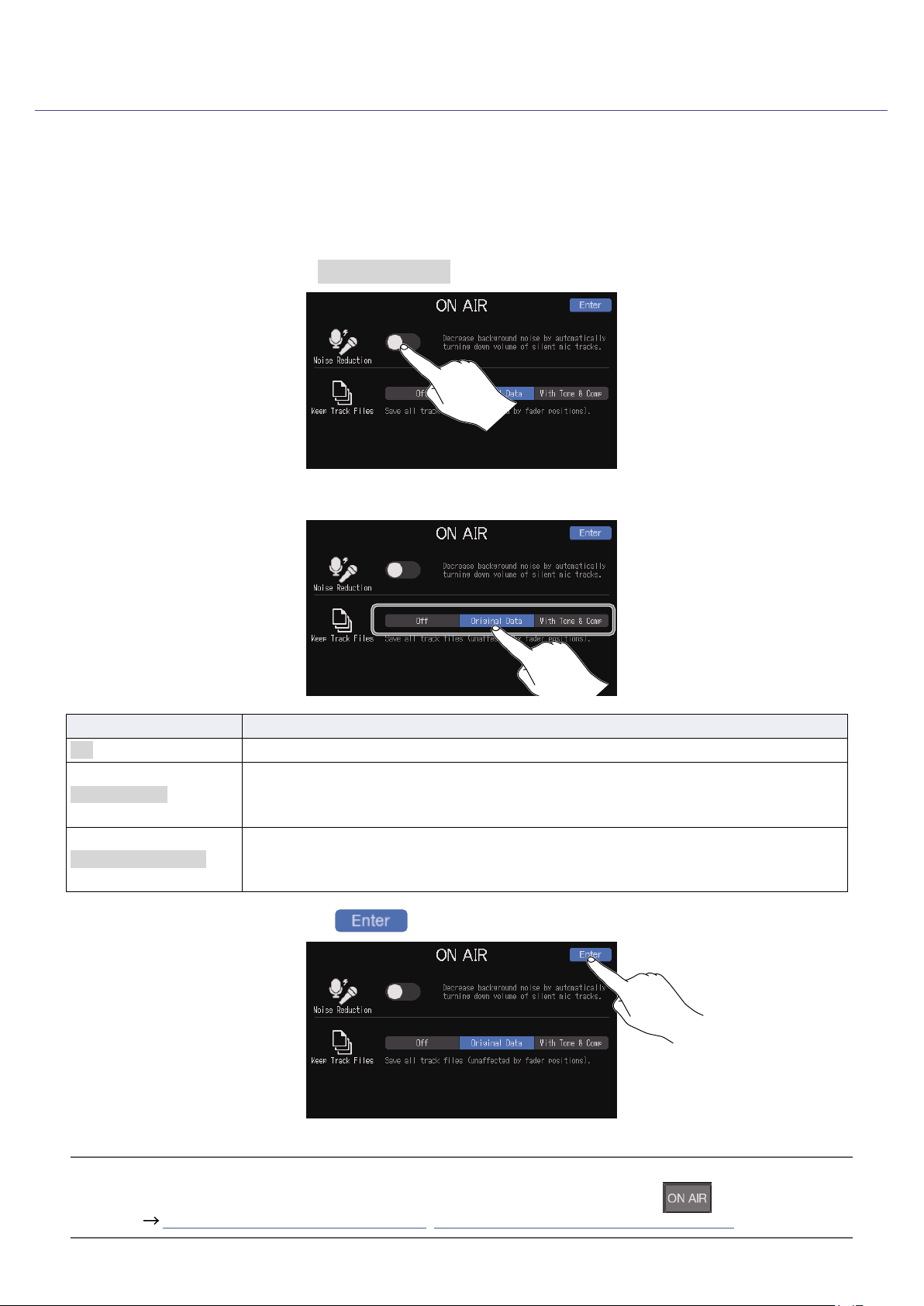
Setting noise reduction and recording le types (rst time starting up)
Next, turn Noise Reduction on or off and set the recording le type.
When multiple mics are being used to record sound, the noise reduction function of the
P8
suppresses
background noise to a constant level by automatically reducing the levels of the mic inputs not being
used by people.
1.
Tap the ON/OFF button to turn Noise Reduction on or off.
2.
Tap the recording le type setting.
Setting Explanation
Off Only record stereo les for podcasting.
Original Data
In addition to stereo les for podcasting, individual les are also recorded for
each channel. The individual les for each channel are recorded before being
affected by the fader, Tone, Comp/DeEss and other adjustments.
With Tone & Comp
In addition to stereo les for podcasting, individual les are also recorded for
each channel. The individual les for each channel are recorded before faders, but
after being affected by the Tone, Comp/DeEss and other adjustments.
3.
When done making settings, tap .
This complete initial settings and opens the Home Screen on the touchscreen.
HINT
The noise reduction and recording le settings can be changed later by tapping on the Home
Screen. ( “Using noise reduction” on page 78, “Setting recording le types” on page 79)
23
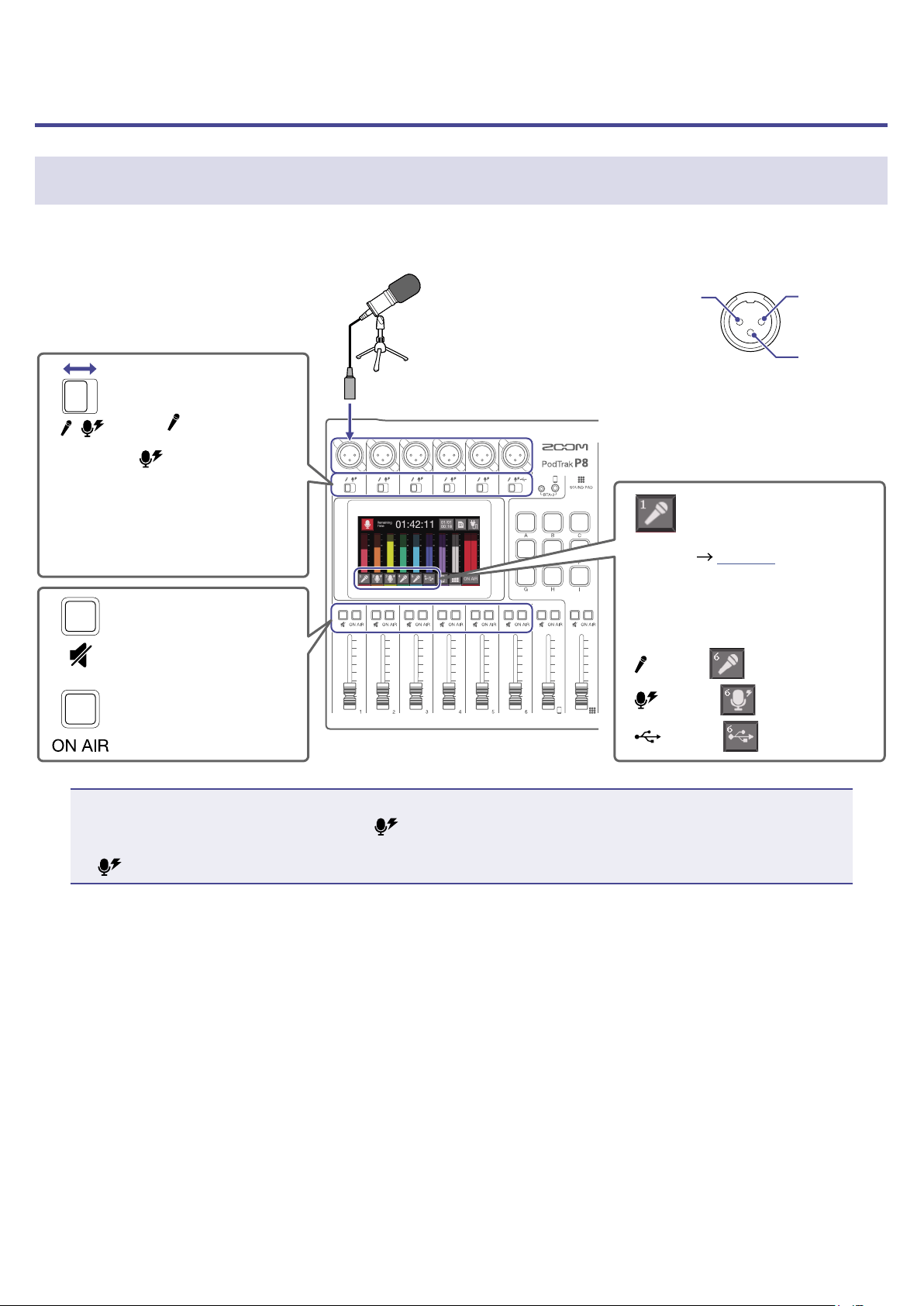
Connecting
Connecting mics
Connect mics to capture sound. Up to 6 mics can be connected.
INPUT SELECT
switches 1–6
Set to
when using
a dynamic mic or
to when using a
condenser mic.
Gain will be set suitably
for the selection.
MUTE buttons 1–6
Conrm that these
are not lit.
Dynamic and condenser
mics
Use mic cables (with XLR
connectors) to connect
them to INPUT jacks 1–6.
2: HOT 1: GND
3: COLD
ON AIR buttons 1–6
Conrm that they
are lit.
Track buttons 1–6
Tap to adjust mic gain
and audio quality
(
page 32).
Track buttons appear as follows
according to their INPUT
SELECT switch settings.
setting:
setting:
setting:
NOTE
When an INPUT SELECT switch is set to
, +48V phantom power is supplied to that INPUT jack. When
connecting to a device that is not compatible with phantom power, do not set the INPUT SELECT switch
to . Doing so could damage the device.
24
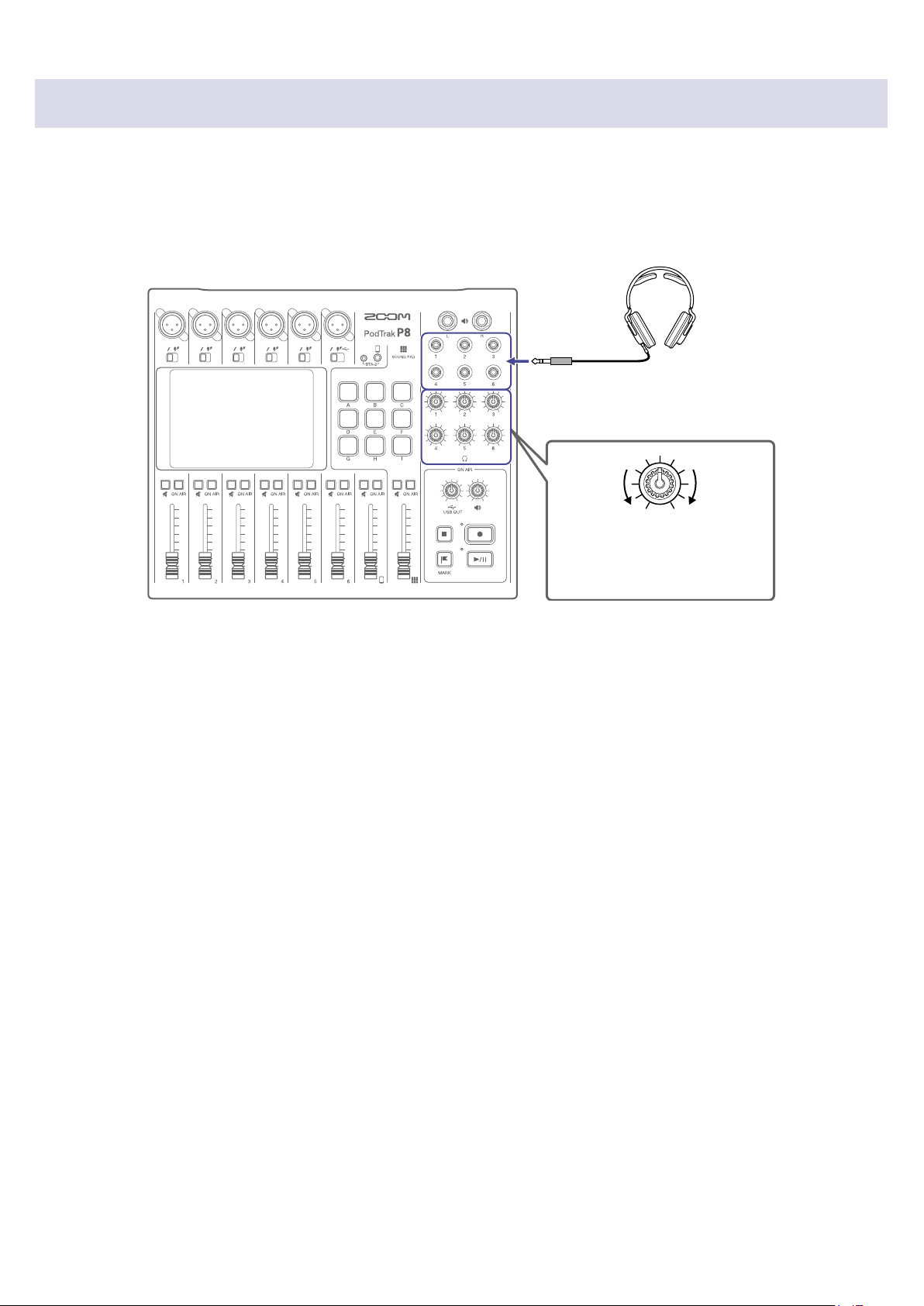
Connecting headphones
Connect headphones to check the sound. The PHONES 1–6 jacks output the same sound.
Up to 6 pairs of headphones can be connected.
PHONES knobs 1–6
Use these to adjust
headphone volumes.
Headphones
Connect to PHONES jacks 1–6.
Raise
Lower
25
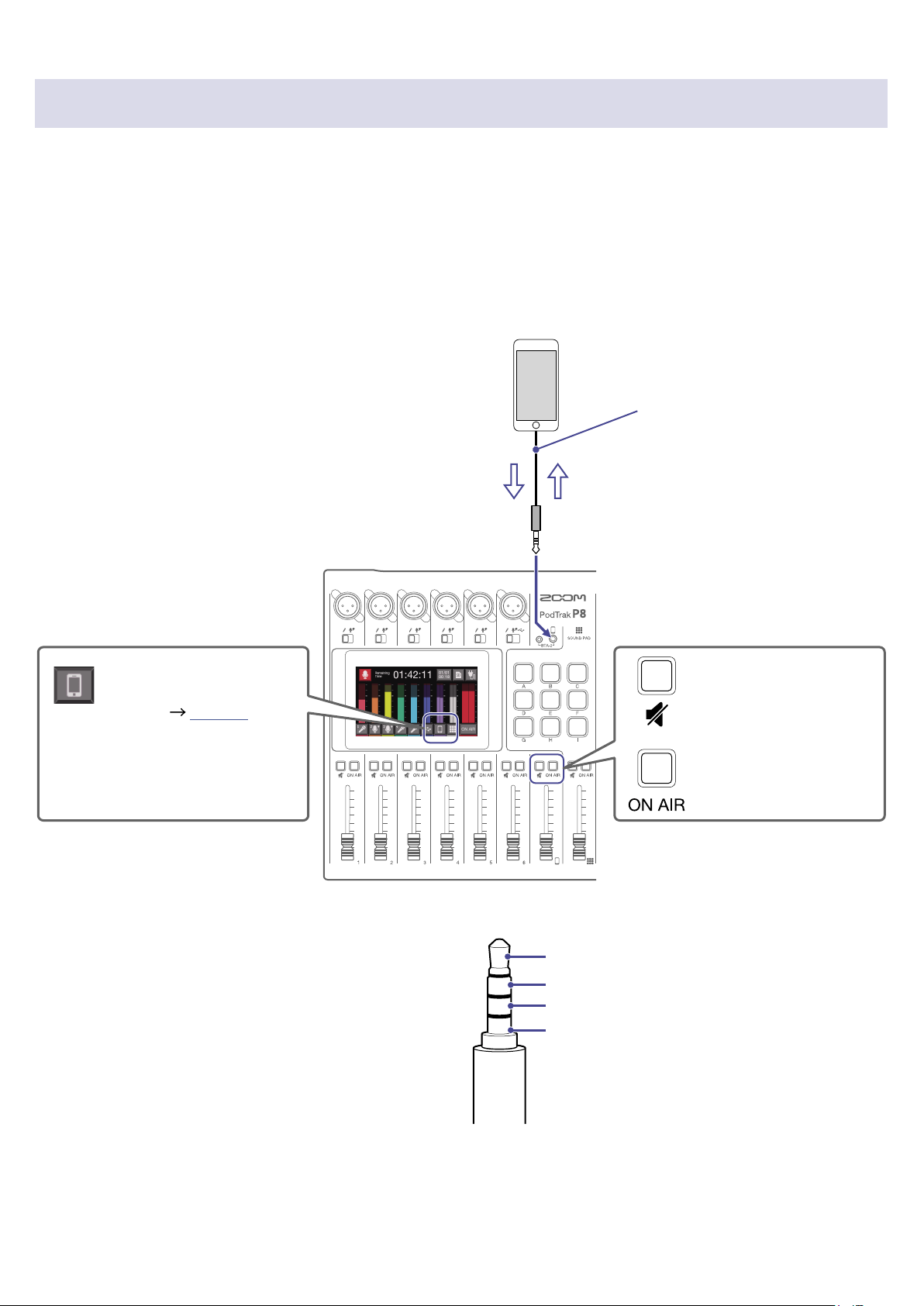
Connecting smartphones
The following operations are possible when a smartphone is connected to the smartphone connection
jack.
•When podcasting, the voice of a guest participating by phone can be input on the smartphone channel.
By using a 4-contact mini-plug cable, a signal can be input from a smartphone and a mono signal can be
sent back to it simultaneously. Since this output signal does not include the sound from the smartphone
channel, guests participating by phone will not have an echo.
•Music played back on a smartphone can be input on the smartphone channel.
MUTE button
Conrm that this is not
lit.
ON AIR button
Conrm that this is lit.
4-contact mini-
plug cable
P8
mix output
signal
(excludes audio
signal from call
participant)
Audio signal
from call
participant
Tip: Left channel (from smartphone)
Ring 1: Right channel (from smartphone)
Ring 2: Ground
Sleeve: mono mix (from
P8
)
4-contact mini-plug
Track button
Tap to adjust the audio
quality (
page 34).
26
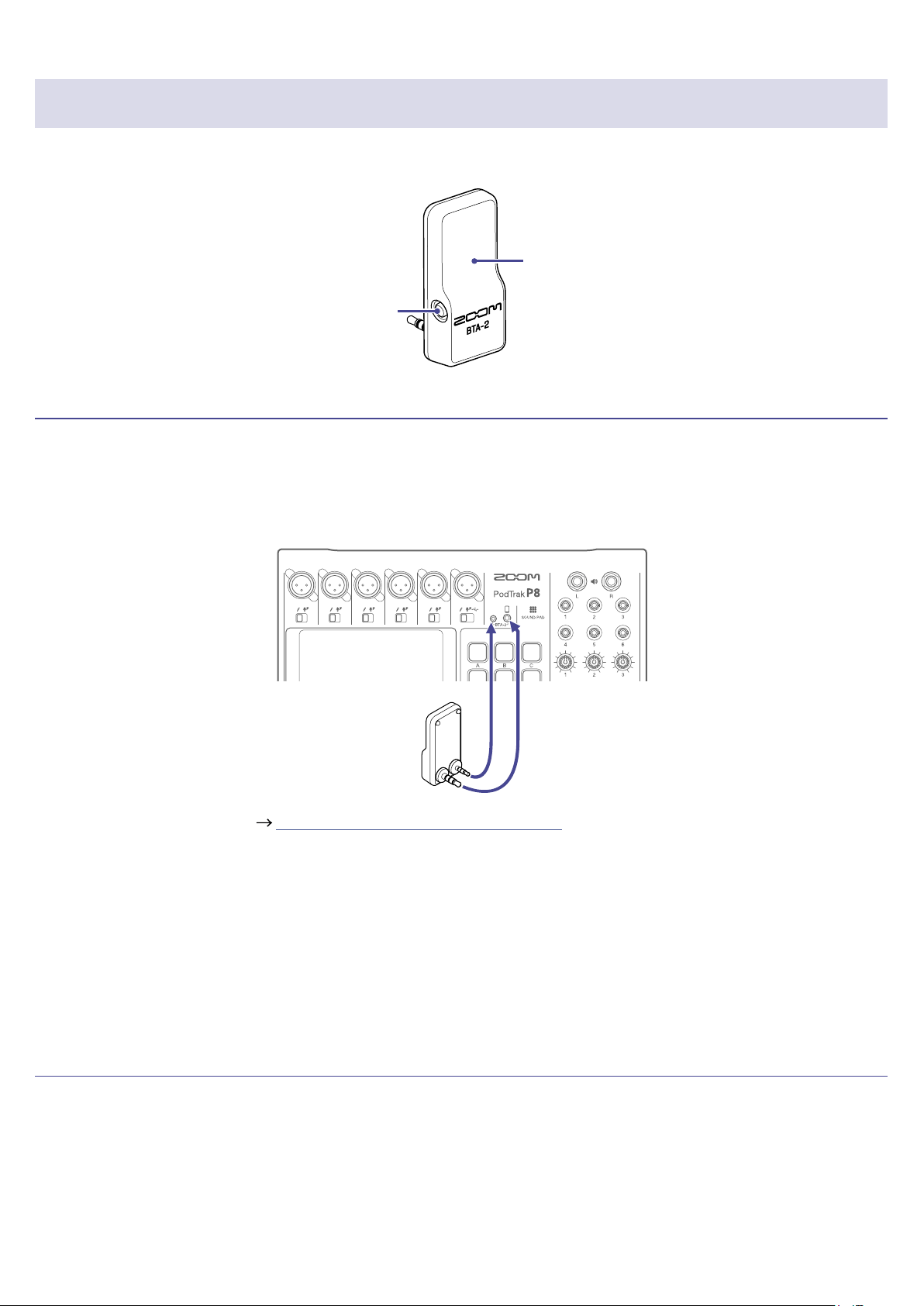
Connecting a BTA-2 (dedicated wireless adapter)
By connecting a BTA-2, audio can be input through the smartphone connection jack via Bluetooth.
LED
Pairing
switch
Connecting
Pairing must be conducted the rst time connecting.
1.
While the
P8
power is off, connect the BTA-2 to the smartphone connection jack and the BTA-2 power
supply connector.
BTA-2
2.
Turn the
P8
power on ( “Turning the power on” on page 20).
The LED lights white when power is being supplied to the BTA-2.
If a smartphone has already been paired, it will automatically be connected at this time.
3.
Press and hold the pairing switch until the BTA-2 LED blinks white.
This puts the BTA-2 into connection standby.
4.
Conduct connection procedures on the smartphone.
The LED will light blue when connection completes.
Disconnecting
1.
Conduct disconnection procedures on the smartphone.
This disconnects it.
2.
The
P8
power should be off when disconnecting a BTA-2.
27
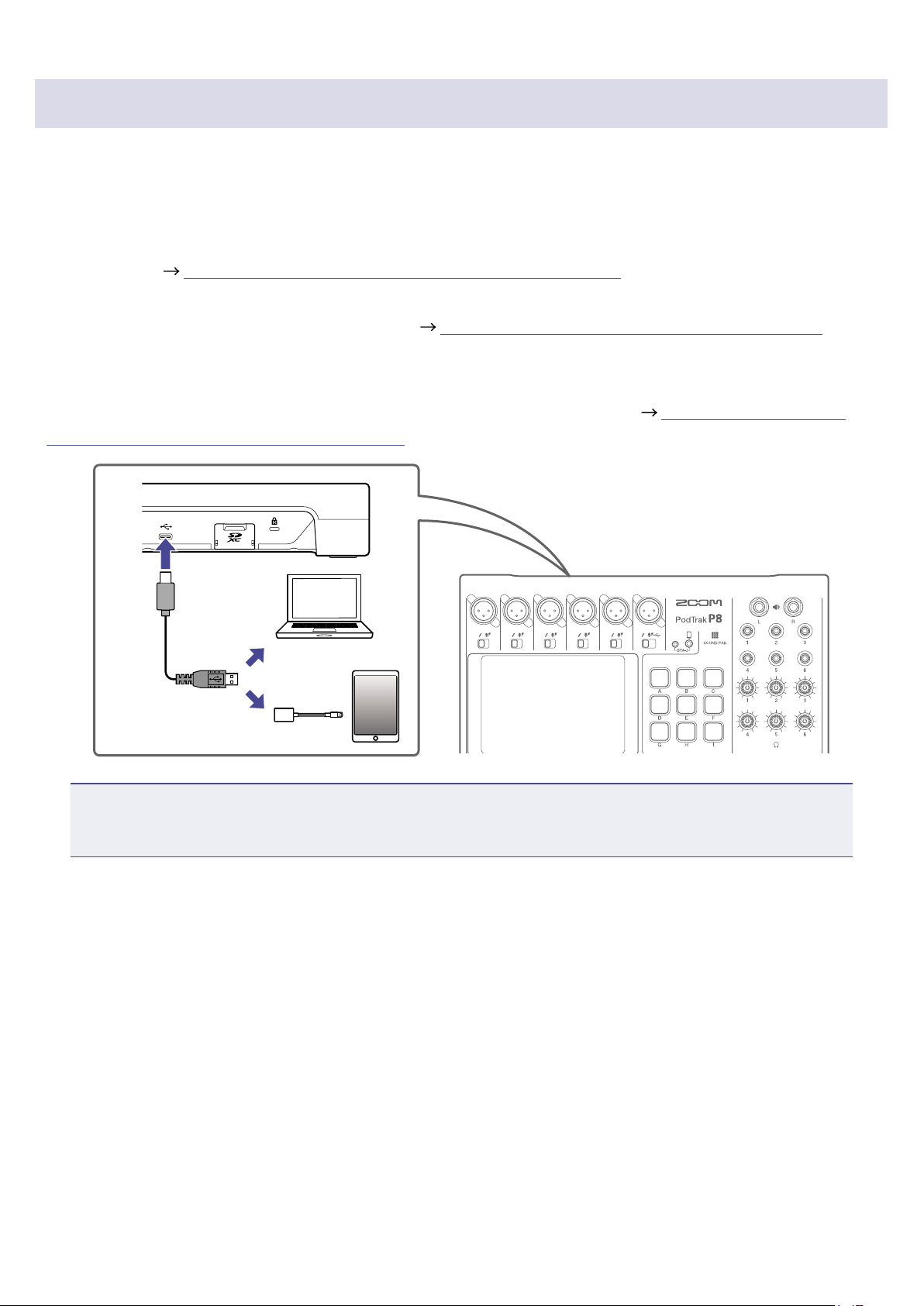
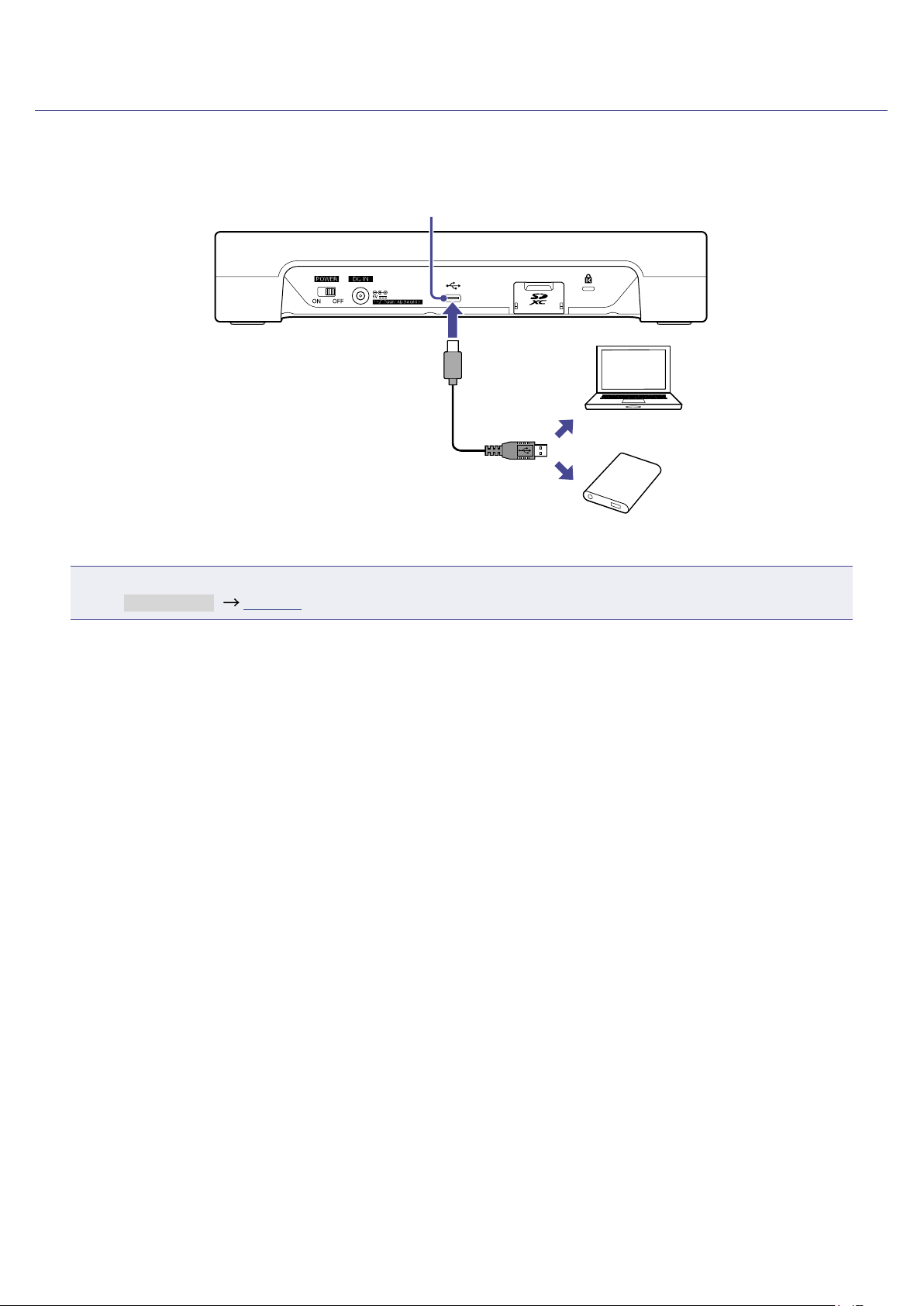
Connecting a computer, smartphone or tablet by USB
The following operations are possible when a computer, smartphone or tablet is connected to the USB
port (Type-C).
Audio interface function
•Background music playing or communication audio on a computer, smartphone or tablet can be input
on channel 6. (
“Inputting USB audio return on channel 6” on page 30)
•
Sound input through the
P8
and sounds played with SOUND PAD buttons can be sent to a computer,
smartphone or tablet and streamed live as is. (
“Audio interface function overview” on page 29)
USB le transfer function
•Recording les on SD cards can be transferred to computers, smartphones and tablets. These les
can then be uploaded to hosting services and servers that you are using. (
“Transferring les to a
computer, smartphone or tablet” on page 72)
USB Type-C
port
NOTE
Use a Lightning to USB Camera Adapter (or Lightning to USB 3 Camera Adapter) to connect to an iOS/
iPadOS device with a lighting connector.
28
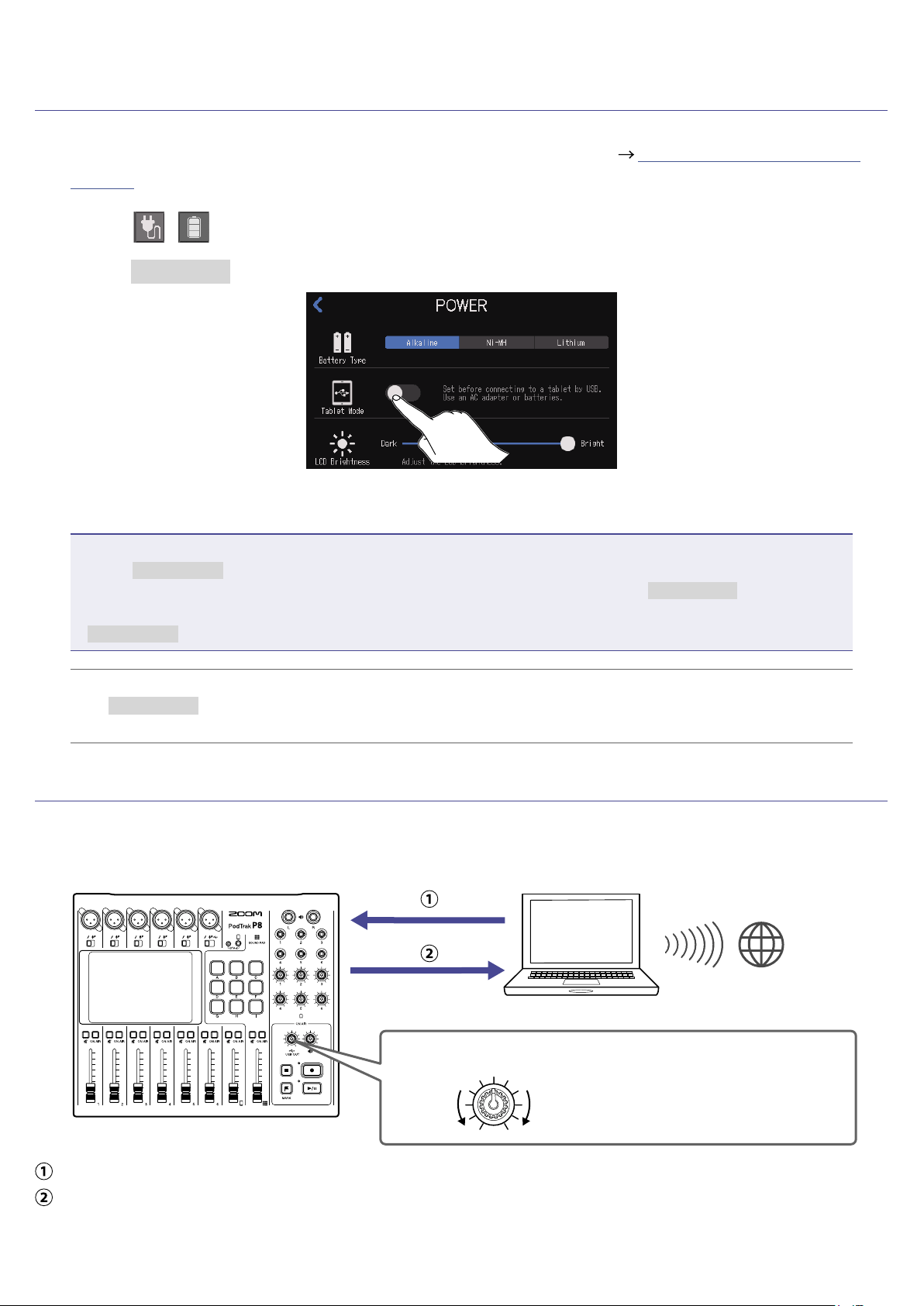
Preparing to connect a smartphone or tablet
1.
Connect an AC adapter or install batteries before turning the
P8
on ( “Turning the power on” on
page 20).
2.
Tap the / power button on the Home Screen.
3.
Tap the Tablet Mode ON/OFF button to turn it on.
4.
Connecting a smartphone or tablet
NOTE
•When Tablet Mode is on, operation using USB bus power is not possible.
•If already operating on USB bus power and batteries have not been installed, Tablet Mode cannot be
turned on/off.
•
Tablet Mode will be off the next time that the
P8
starts up.
HINT
The Tablet Mode function is intended to prevent power draw from smartphones and tablets that are not
capable of providing USB bus power.
Audio interface function overview
The
P8
can be used as a 2-in/2-out audio interface.
The following operations are possible by using the audio interface functions.
Internet
USB OUT knob
Raise
Lower
Use this to adjust the
volume sent to the
computer, smartphone or
tablet.
Music playing or call audio on a computer, smartphone or tablet can be input on channel 6 of the
P8
.
Audio input to the
P8
and audio played using SOUND PAD buttons can be sent to a computer or other
device connected to the Internet and streamed in real time.
29
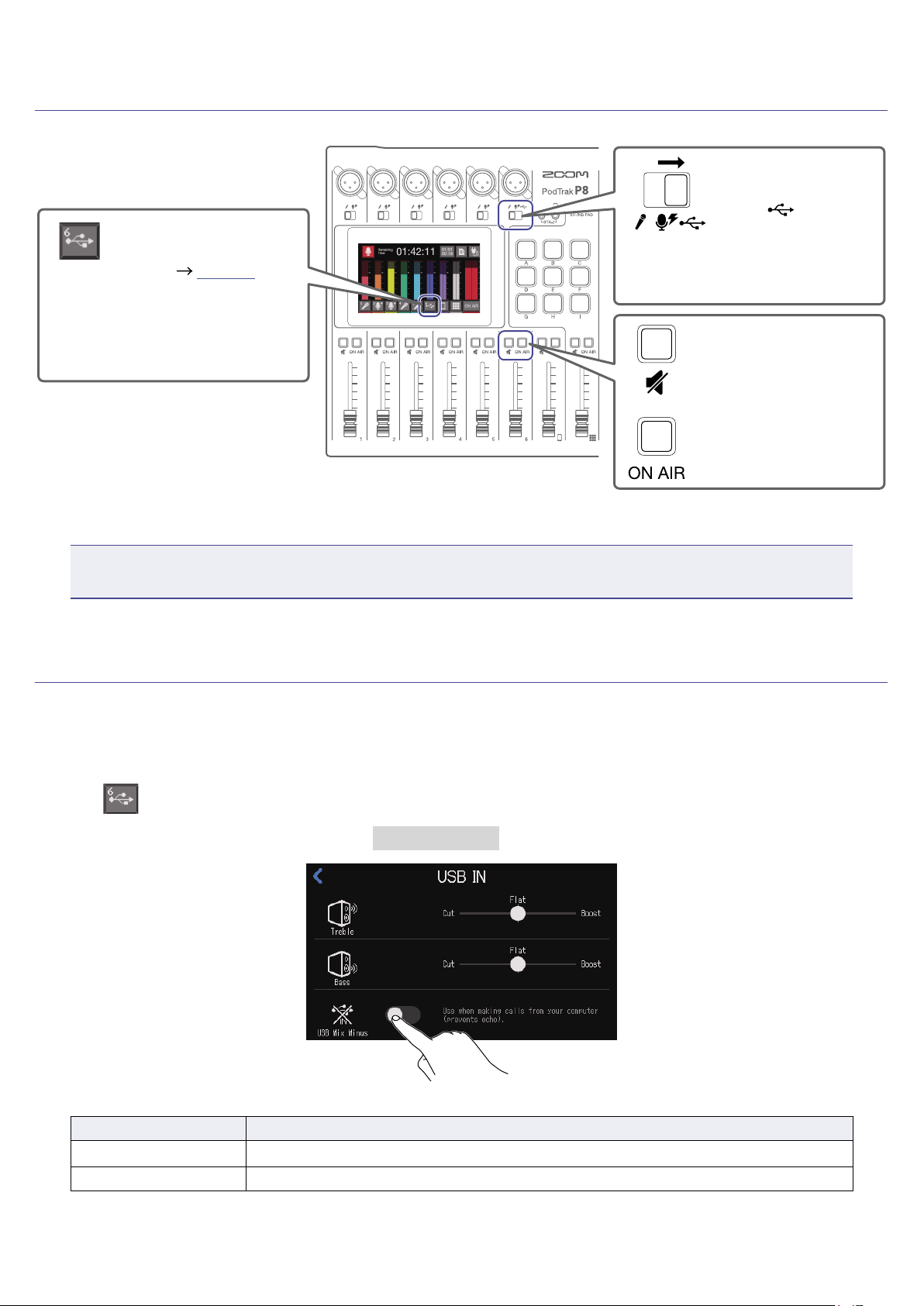
Inputting USB audio return on channel 6
INPUT SELECT
switch 6
Set to
.
MUTE button 6
Conrm that this is
not lit.
ON AIR button 6
Conrm that this is
lit.
Track button 6
Tap to adjust the audio
quality (
page 34).
Select the
P8
as the input and output device on the connected computer or other device.
NOTE
“ZOOM P8 Audio” will appear on the computer.
Setting USB Mix Minus
When using the
P8
as an audio interface, this can prevent feedback to a person participating in a call
through the connected device.
1.
Tap on the Home Screen.
2.
Tap the ON/OFF button to change the USB Mix Minus setting.
Setting Explanation
OFF
Sound from USB input is also output by USB.
ON Sound from USB input is not output by USB.
30
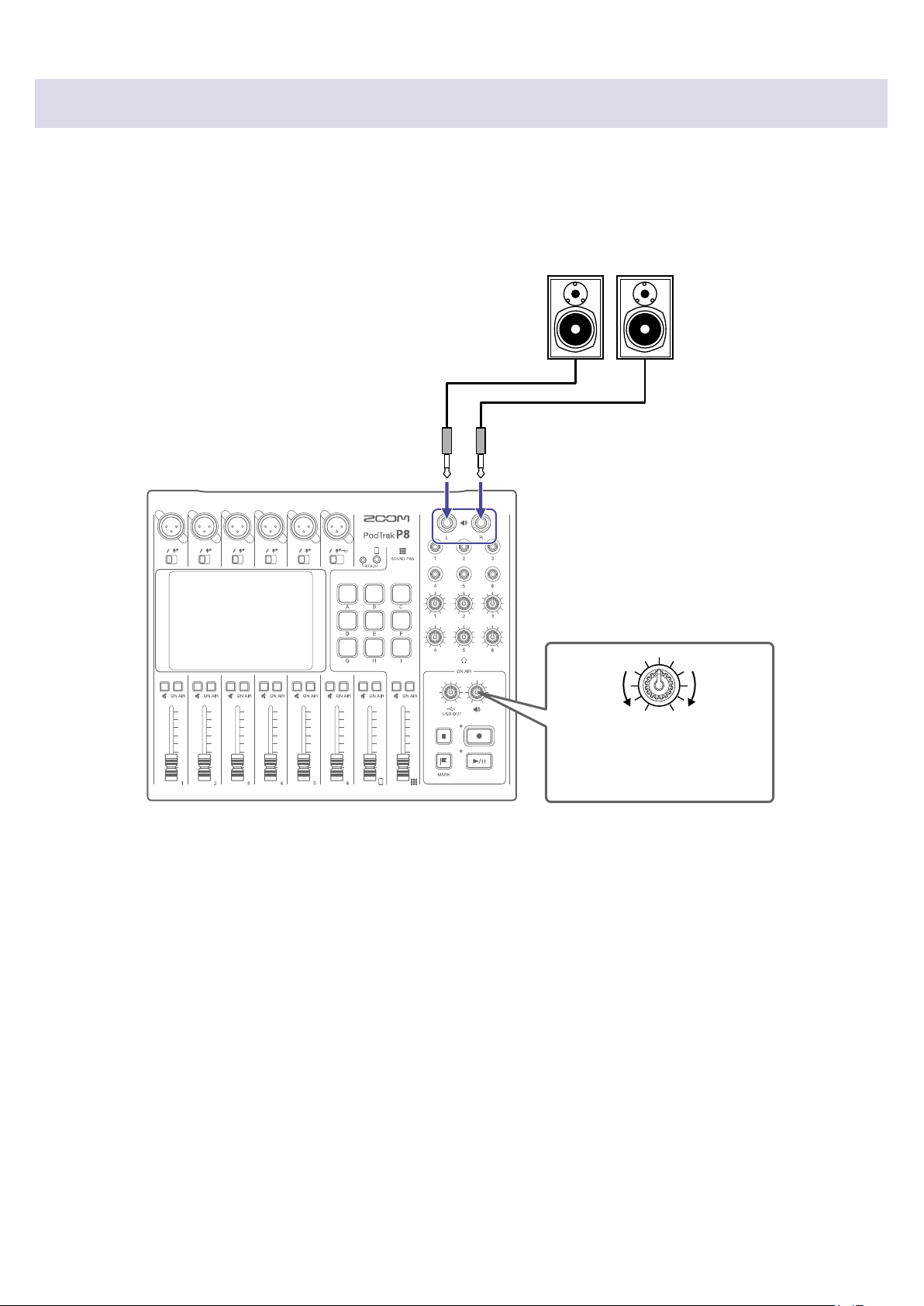
Connecting powered speakers and other output equipment
Audio from the
P8
can be output to connected powered speakers or other output equipment.
This is useful when, for example, listening to recorded les in a group and editing such les.
SPEAKER OUT knob
This adjusts the volume.
Powered speakers, etc.
Connect these to the SPEAKER OUT jacks.
Raise
Lower
31
Recording
Adjusting input gain and sound quality
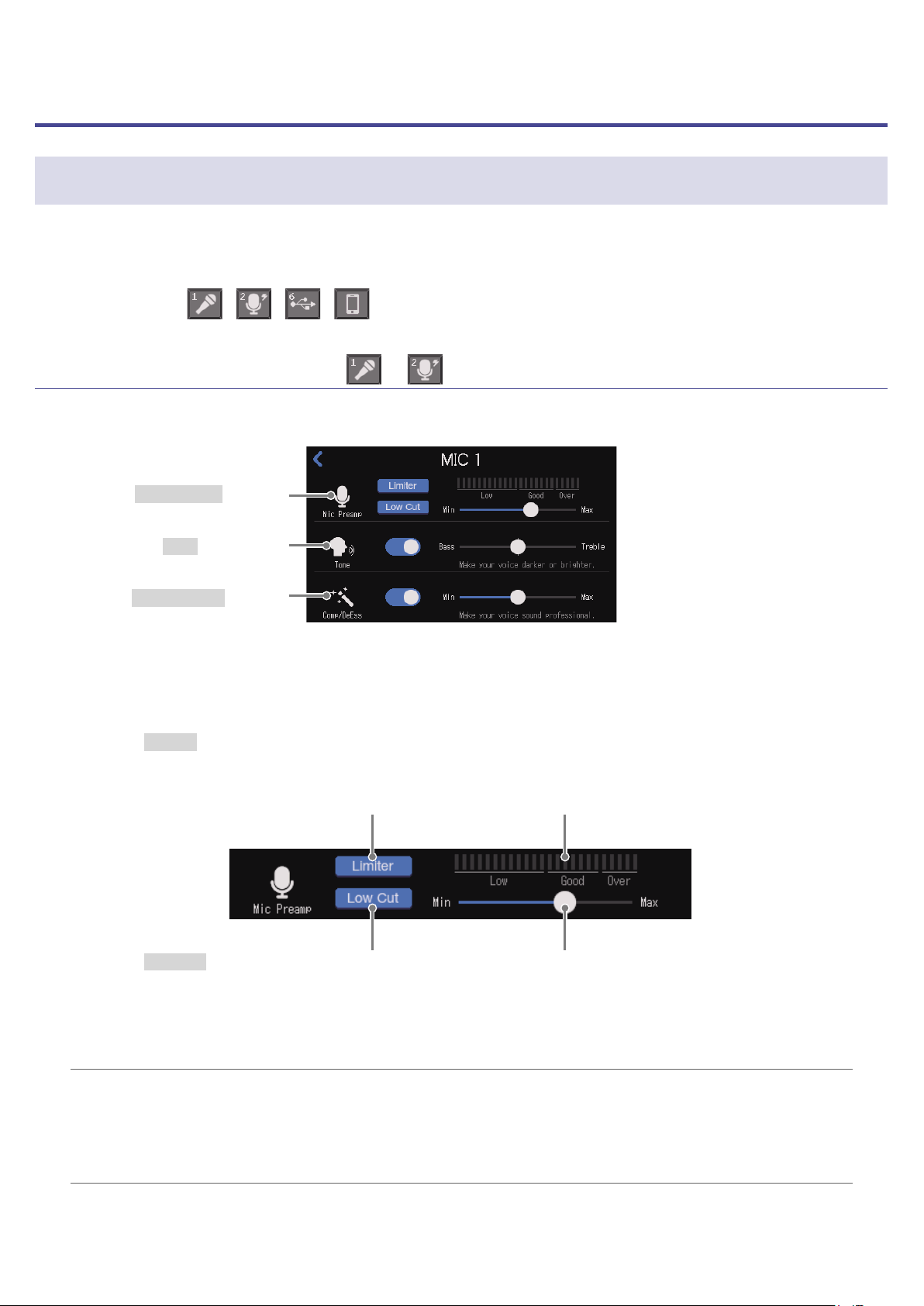
Adjust input gain and sound quality so that the levels being recorded neither cause distortion nor are too
low.
Tap track buttons (
/ / / ) on the Home Screen to open their individual settings screens.
Adjusting mic input (tap / )
The following mic input settings can be made.
Mic Preamp settings
Tone adjustment
Comp/DeEss settings
■
Making mic preamp settings
Adjust the input gain, and turn the Low Cut and Limiter on or off.
Limiter setting
When on, the limiter can prevent
distortion by reducing input signals that
have excessively high levels.
Input level meter
Low Cut setting
When on, this can cut low frequencies to
reduce the sound of air conditioning, wind,
vocal pops and other noise.
Input gain adjustment
Slide to adjust so the input level meter is
in the “Good” range.
HINT
•The level increases when the mic and the speaker’s mouth are close and decreases when they are far
apart. When recording, maintain the same distance between the mic and the speaker’s mouth that was
used when the input gain was adjusted. (The standard distance between mic and mouth is 10–20 cm.)
•The input gain adjustment will automatically be reset when the INPUT SELECT switch is changed.
32
■
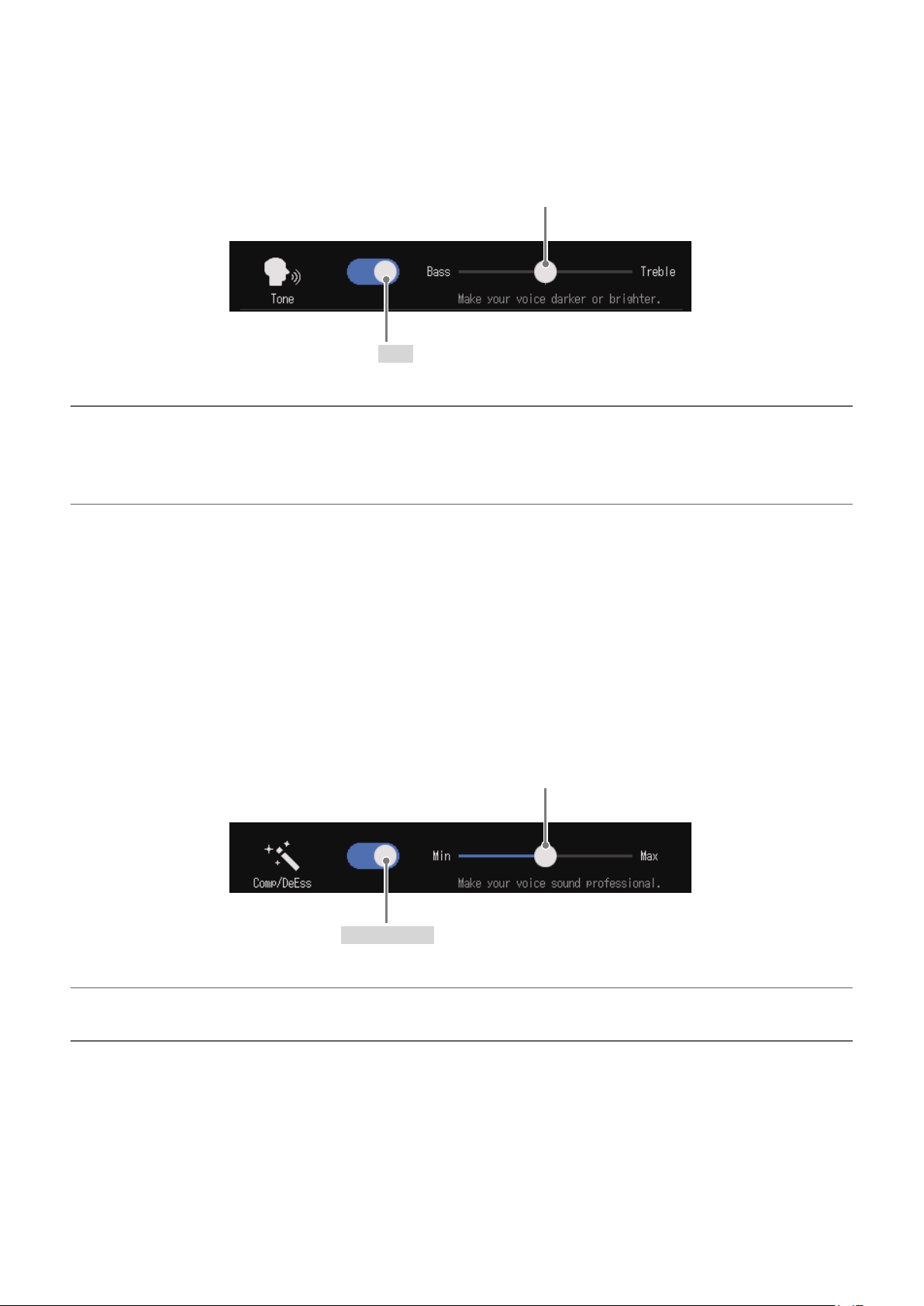
Adjusting the tone
This adjusts the tone, emphasizing low or high frequencies in the voice.
This turns Tone on/off.
Slide to adjust the vocal emphasis.
• Left: emphasize low frequencies
• Right: emphasize high frequencies
HINT
•
With the
P8
, when the slider is in the middle, both low and high frequencies will be slightly
emphasized.
•Double-tap the slider or the bar to reset it to the default value.
■
Adjusting the compressor/de-esser
Compressor and de-esser functions can make voices easier to hear. Turn it on or off, and adjust the
amount of the effect.
•Compressor: This compresses input sounds when they exceed a set level, making them quieter and
evening out the overall volume.
•De-esser: This makes voices sound nicer by suppressing sibilant sounds, which are created through gaps
between teeth when “s” sounds are pronounced, for example.
This turns Comp/DeEss on/off.
Slide to adjust the amount of the effect.
The effect increases to the right.
HINT
Double-tap the slider or the bar to reset it to the default value.
33
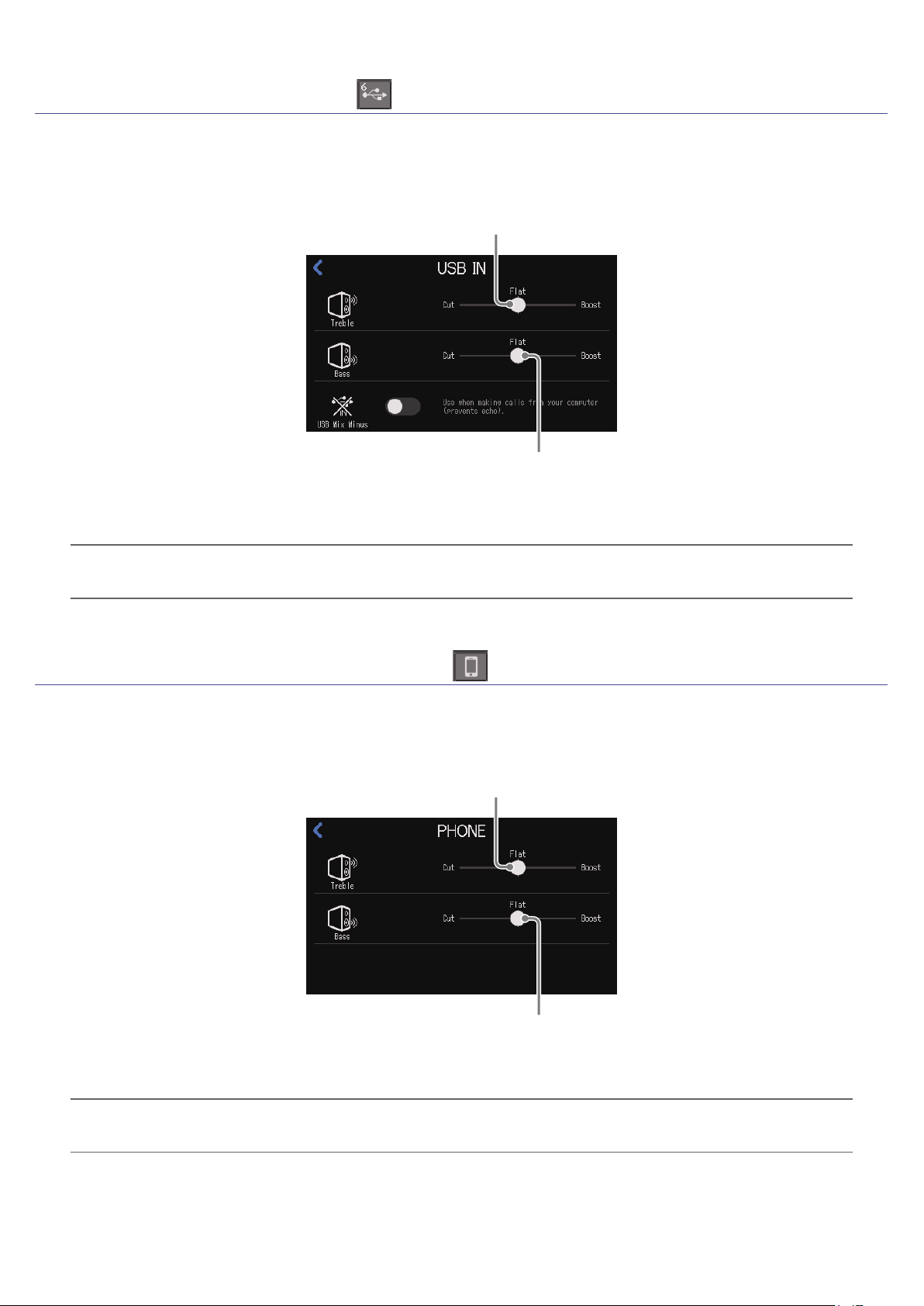
Adjusting USB input (tap )
The high and low frequencies of USB input can be boosted and cut to adjust the audio quality.
Slide to adjust high frequencies.
• Left: cut
• Right: boost
Slide to adjust low frequencies.
• Left: cut
• Right: boost
HINT
Double-tap the slider or the bar to reset it to the default value.
Adjusting smartphone input (tap )
The high and low frequencies of smartphone input can be boosted and cut to adjust the audio quality.
Slide to adjust high frequencies.
• Left: cut
• Right: boost
Slide to adjust low frequencies.
• Left: cut
• Right: boost
HINT
Double-tap the slider or the bar to reset it to the default value.
34
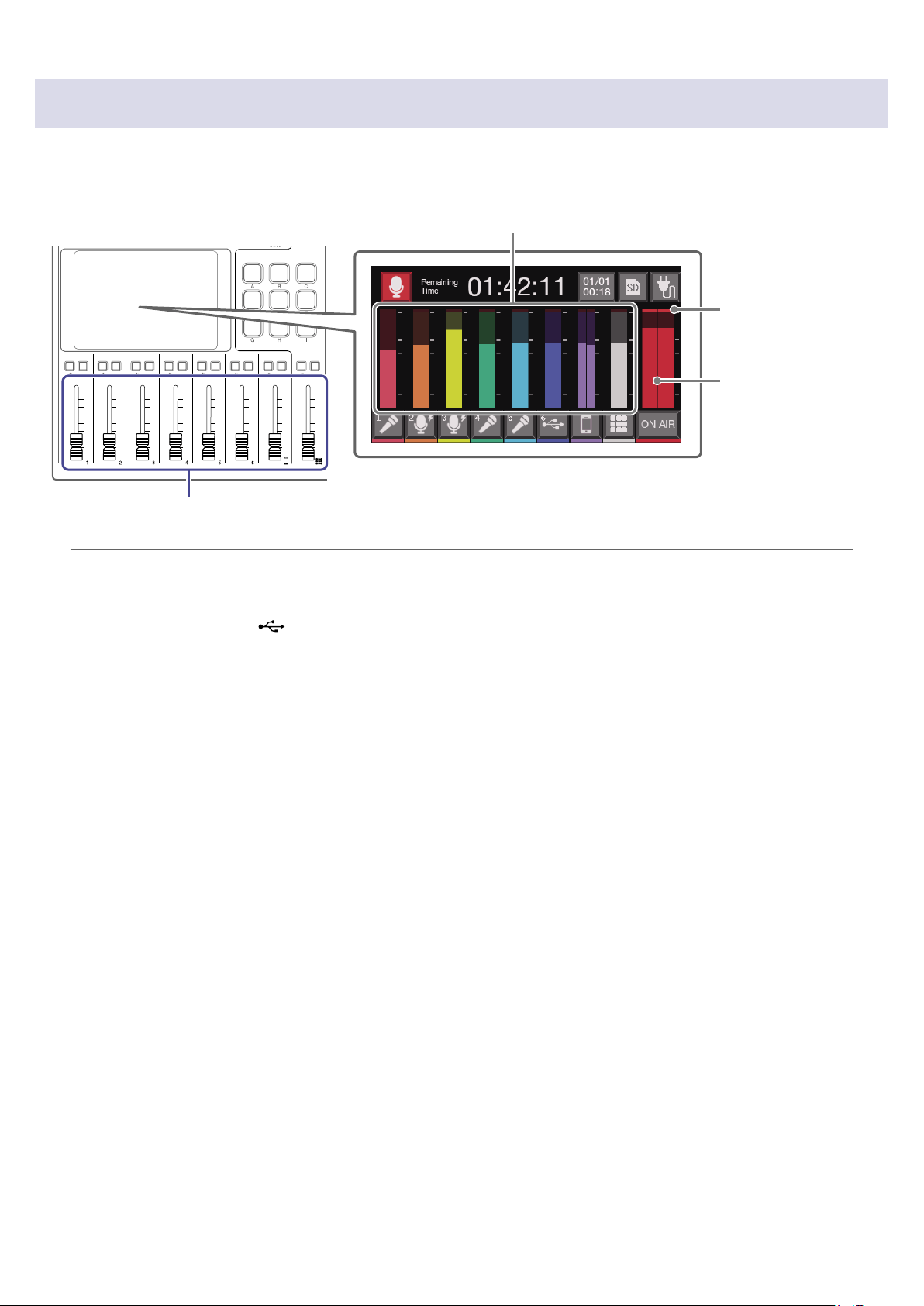
Balancing the mix of channel levels
Use the faders to adjust the balance between channels.
The level meters on the display show the levels. Adjust them so that clipping indicators do not light.
Level meters for each channel
Clipping
indicators
Level meters for
stereo mix
Adjust the output of each channel.
HINT
•Tapping the level meter area will show level guide values.
•Channel 6 is a mono input when it is set to mic input. When USB audio return is being input, (INPUT
SELECT switch 6 set to ), it becomes a stereo input and stereo level meters will be shown.
35
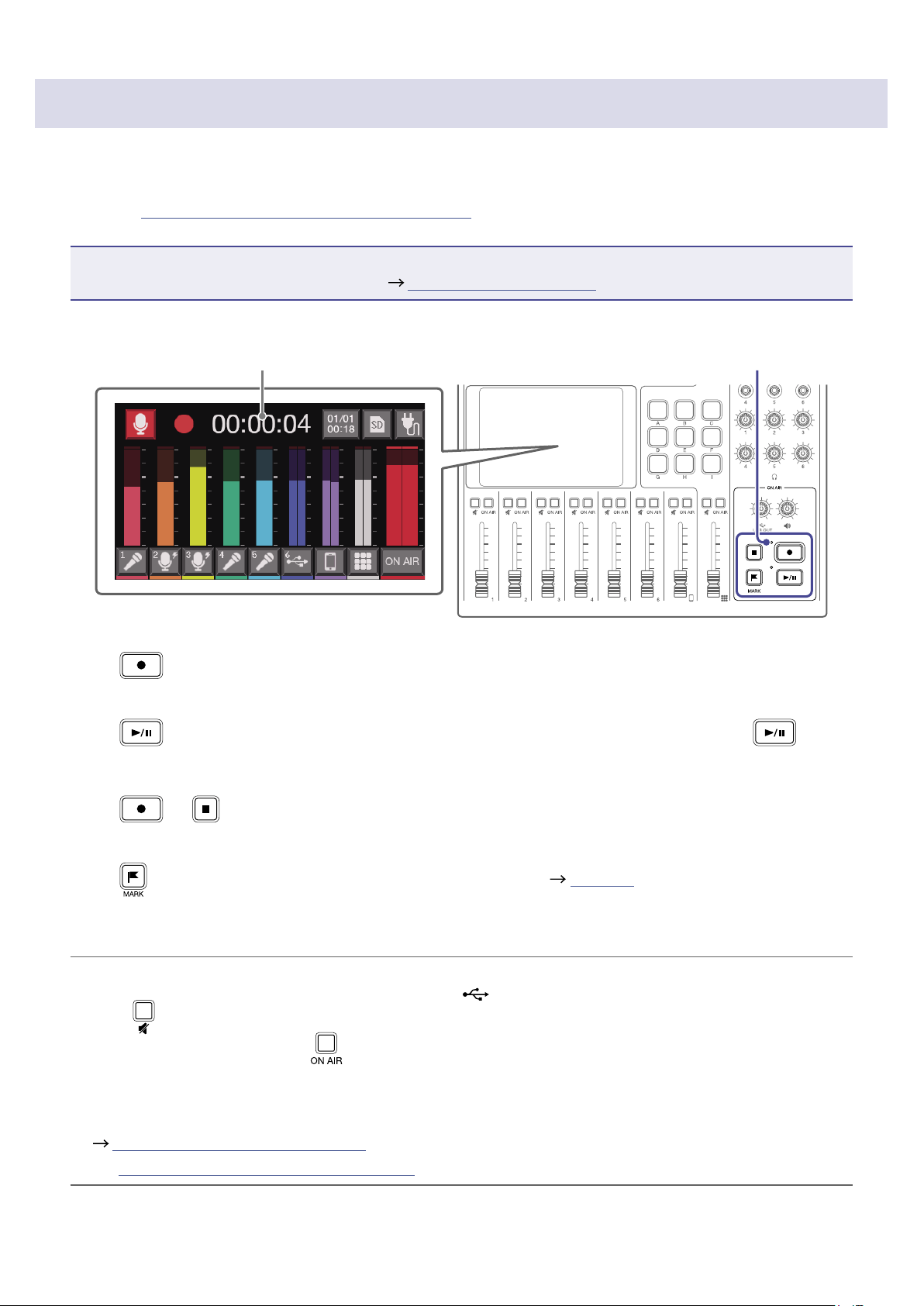
Recording
In addition to stereo les for podcasting that are mixes of all the channels, each channel can also be
recorded as an individual le. The application of effects can also be changed for the individual les of each
channel. See “Setting recording le types” on page 79 for le recording settings.
NOTE
Stereo les for podcasting can be edited. ( “Editing les” on page 55)
Recording/recording paused: elapsed recording time
Recording stopped: available recording time
REC indicator
1.
Press when the Home Screen is open.
Recording will start and the REC indicator will light red.
Press
when recording to pause recording. (The REC indicator will blink). Press again to
resume recording.
2.
Press or .
Recording will stop.
Press
during recording to add marks to recording les ( page 40). These are convenient as
guides when editing.
Fader volume adjustments do not affect the individual les of the recorded channels.
HINT
•When the channel 6 INPUT SELECT switch is set to , it will record in stereo.
•Press to mute a channel that is not being used or to turn off its input temporarily.
•Sound input on channels with
unlit is not recorded to the podcast stereo le. This function is
useful, for example, when participants are discussing the next topic among themselves while music is
playing.
•Recorded les will be named with the date and time when recording started. This can be changed later.
(
“Changing le names” on page 57)
•See “P8 folder and le structure” on page 73 for the location where recorded les are saved.
36
Playing recordings
Playing recordings on the Home Screen
Recorded les can be played back.
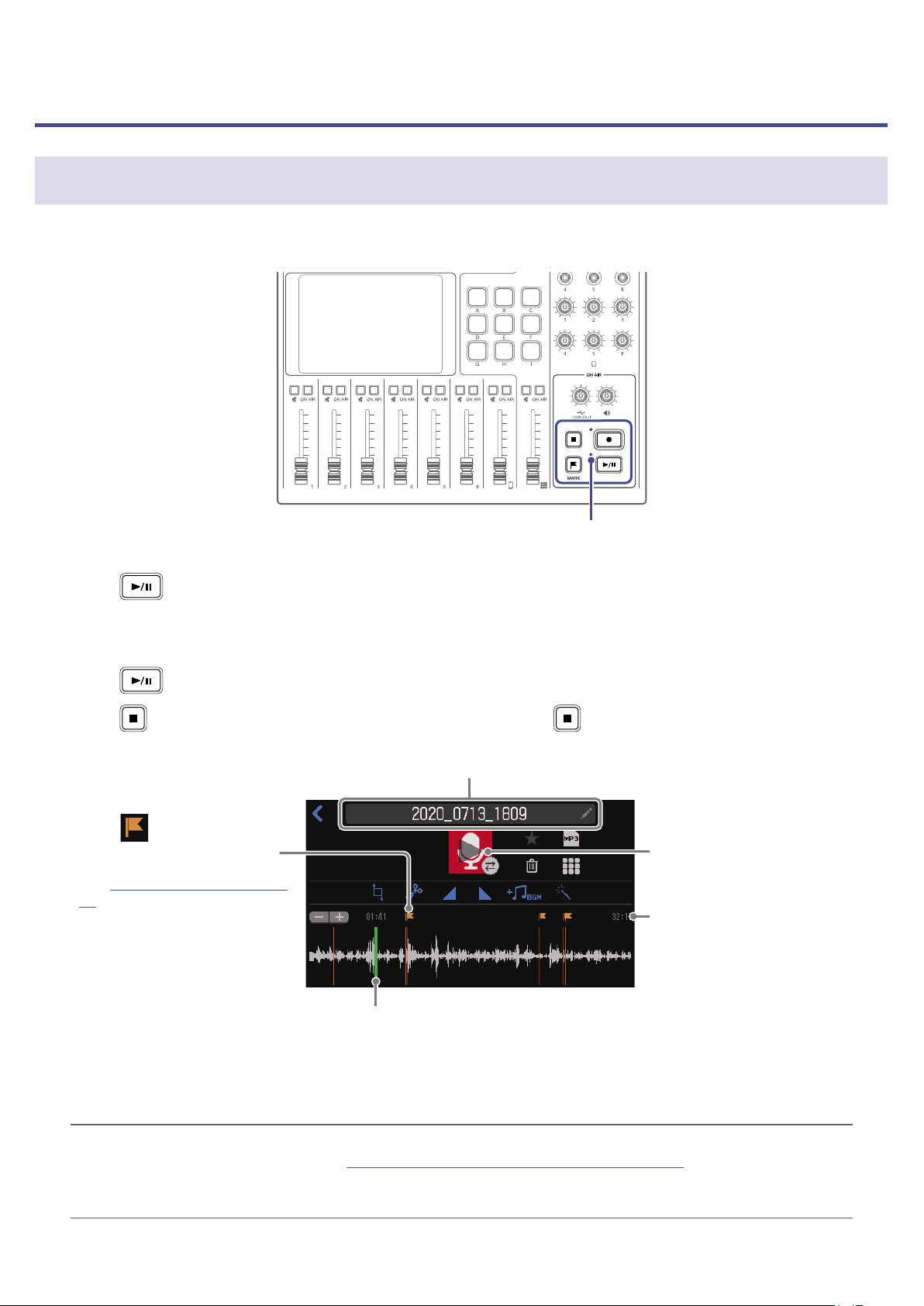
PLAY indicator
1.
Press when the Home Screen is open.
The File Editing Screen appears on the touchscreen and the most recently recorded le starts playing.
(The PLAY indicator lights green.)
Press
to start/pause playback alternately. (The PLAY indicator will blink when paused.)
Press
to stop playback. When stopped or paused, press to return to the beginning of the le.
Playback le name
Playback position bar (green)
The elapsed playback time is shown above the playback position bar.
Slide the playback position bar or tap the desired position to move
the playback position.
File length
Mark
Tap to move the playback
position to the mark.
See “Using marks” on page
40 for details about marks.
Tap to start/pause playback.
HINT
•To select a le and play it back, see “Selecting les and playing them” on page 38.
•On the File Editing Screen, in addition to editing, icons and names can be changed, les can be
assigned to SOUND PAD buttons, and les can be converted to MP3 format, for example.
37

Selecting les and playing them
Files that have been recorded by the
P8
or that are saved on the SD card can be selected and played.
■
File format overview
Select audio les with the following formats.
•Format: WAV
•Sample rate: 44.1 kHz
•Bit rate: 16/24-bit
•Mono/stereo
NOTE
•
If a le is not compatible with the
P8
, its name will be gray and it will not be selectable or an error pop-
up message will appear when it is selected.
•
Files that are not compatible with the
P8
but can be converted will appear on the File List Screen. When
they are selected, they can be converted to a compatible le format. Select the le after conversion.
•After the sample rate of a le has been converted to 44.1 kHz, “_441” will be added to the end of the le
name.
•After a le has been converted from MP3 to WAV, it will have the same name.
•A new le will be created during conversion, so the original le will remain.
1.
Tap on the Home Screen.
This opens the File List Screen.
2.
Tap the audio le you want to play.
Play button
Tap to start and stop
playback.
The editing screen for the selected audio le will be shown.
NOTE
•When using play buttons on the File List Screen to play les, 48kHz, 88.2kHz and 96kHz WAV les can
be played, but they will not be played with the correct pitch or speed.
•Play buttons only appear for WAV les.
38
Using marks
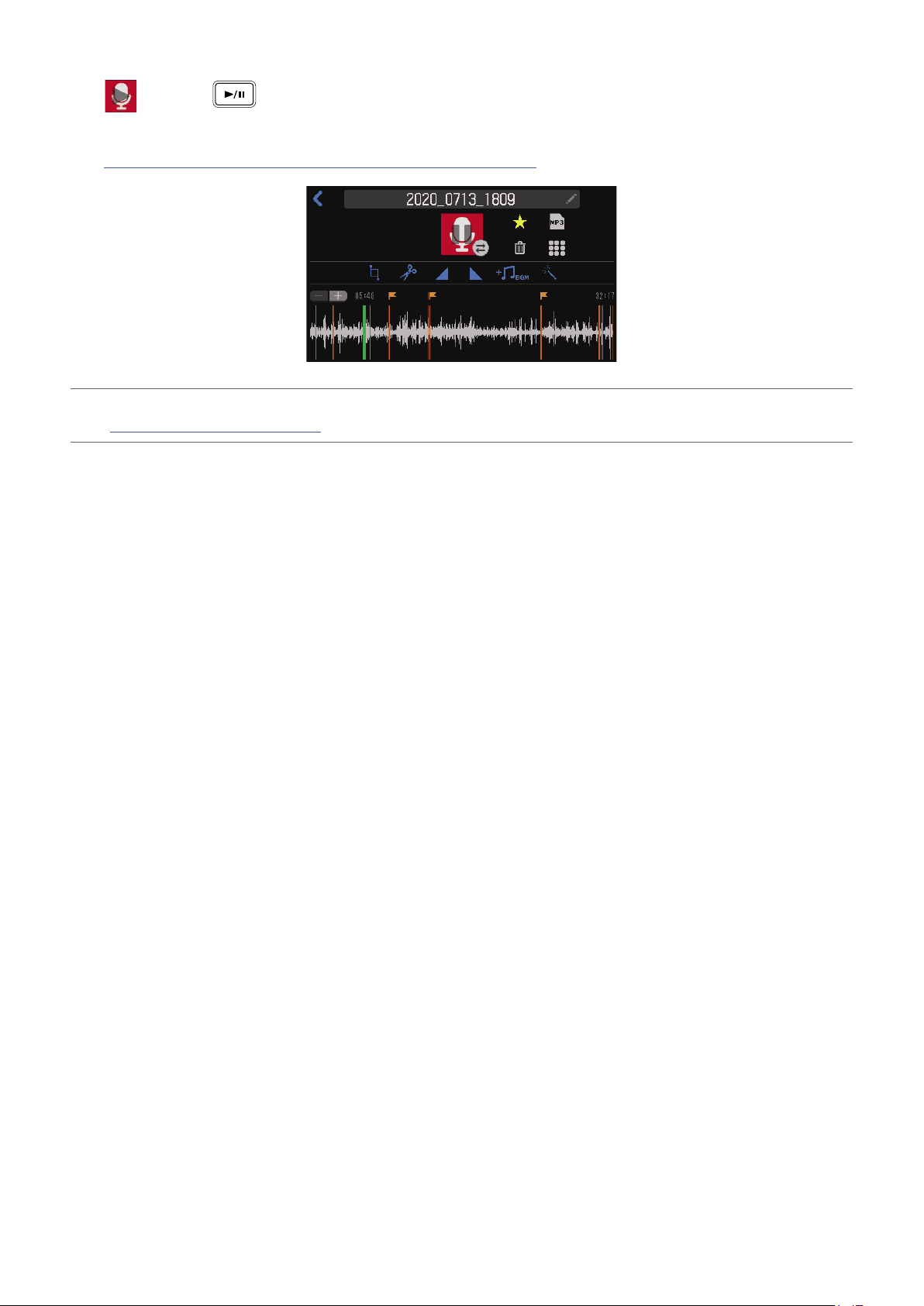
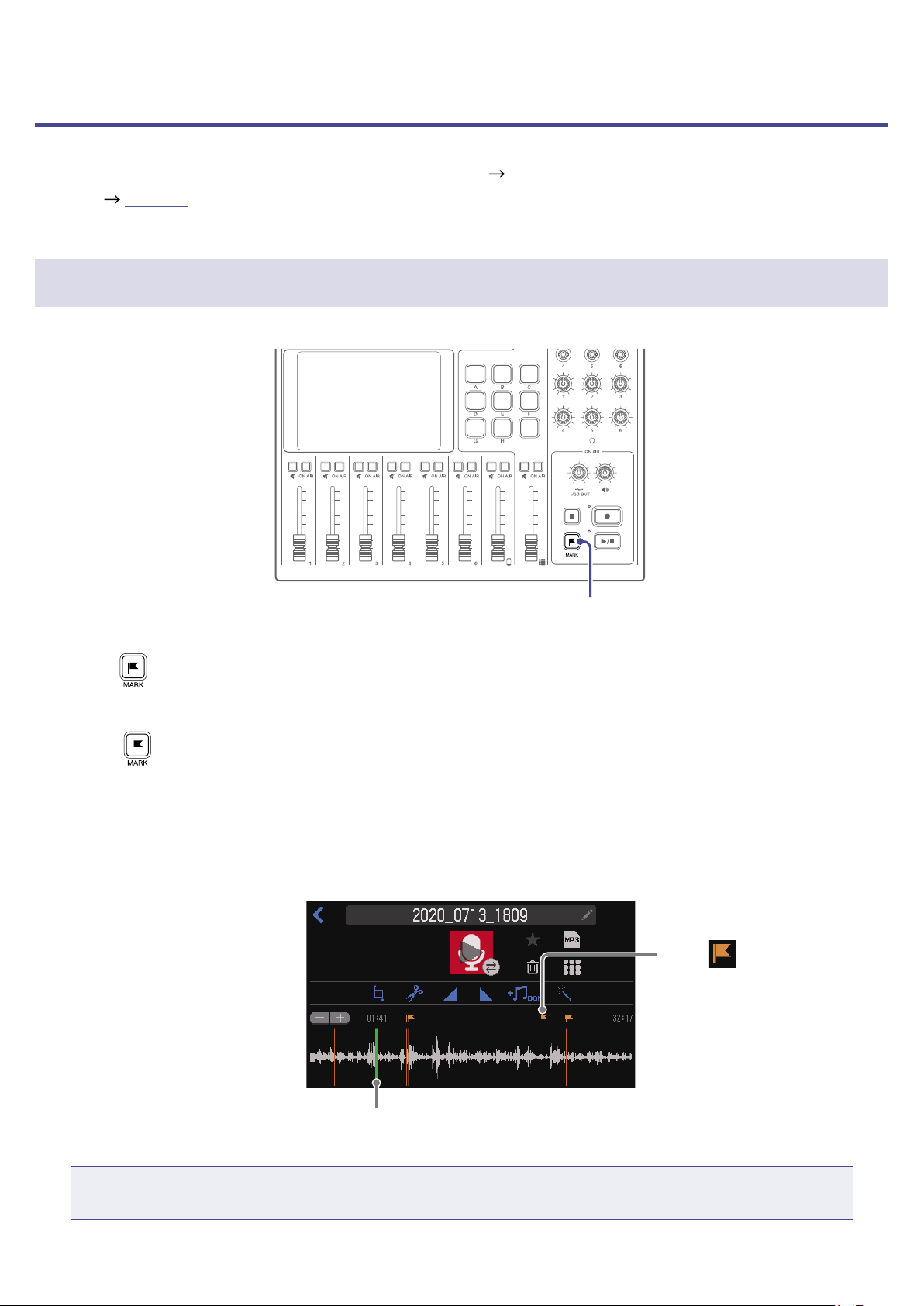
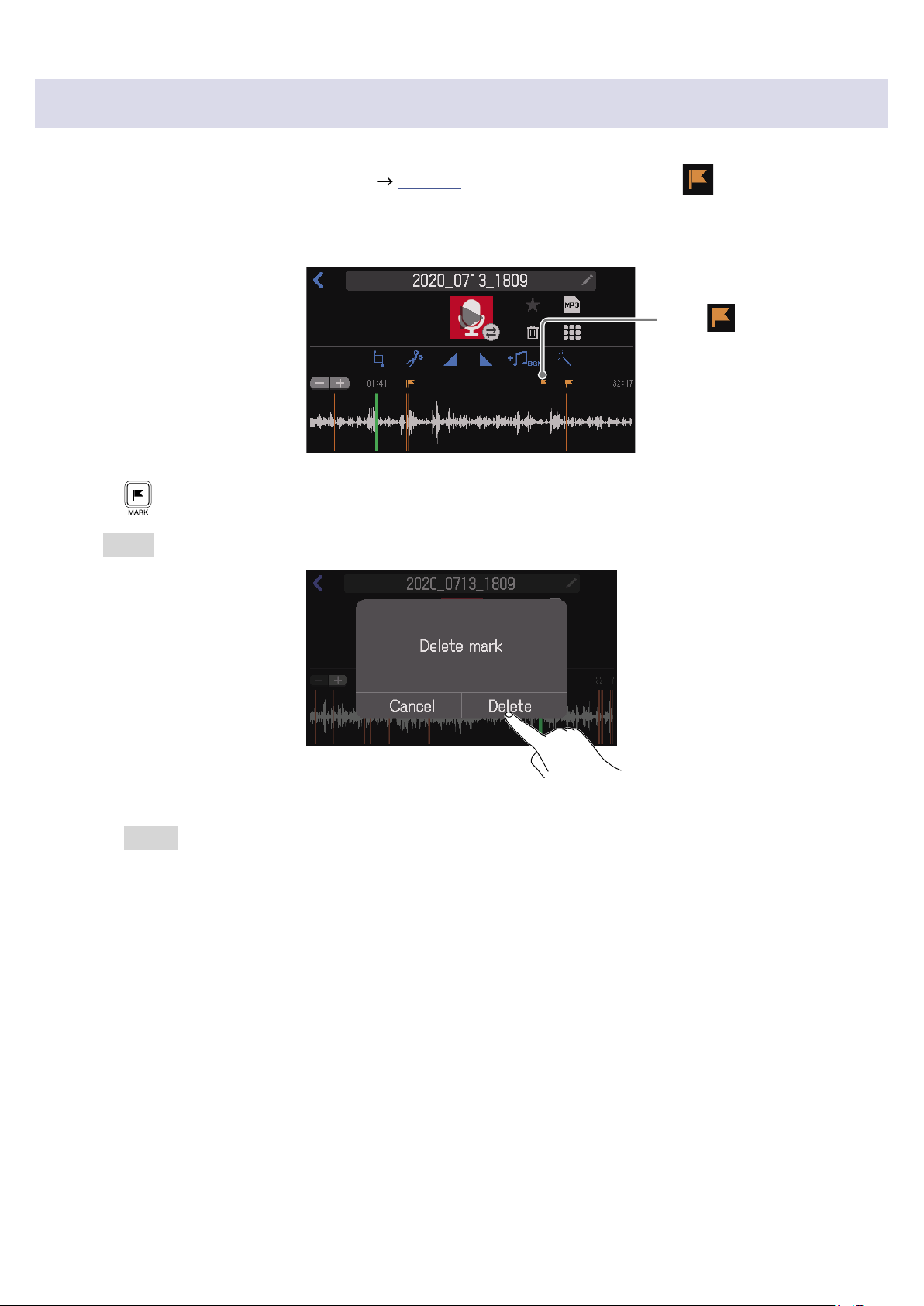
Marks can be added to recording les during recording ( page 36) and when the File Editing Screen
is open ( page 56). Added marks appear on the File Editing Screen where they can be used as guides
and to change the playback position with a single touch.
Adding marks
MARK button
1.
Press during recording and when the File Editing Screen is open.
During recording
When
is pressed a mark is immediately added at the elapsed recording time.
When the File Editing Screen is open
A mark is added at that position on the playback position bar on the File Editing Screen.
Marks can be added when playing, paused and stopped.
Playback position bar
File editing screen
Mark
Tap to move the playback
position to the mark.
NOTE
Marks cannot be added at the beginnings of les.
40
Using SOUND PAD functions
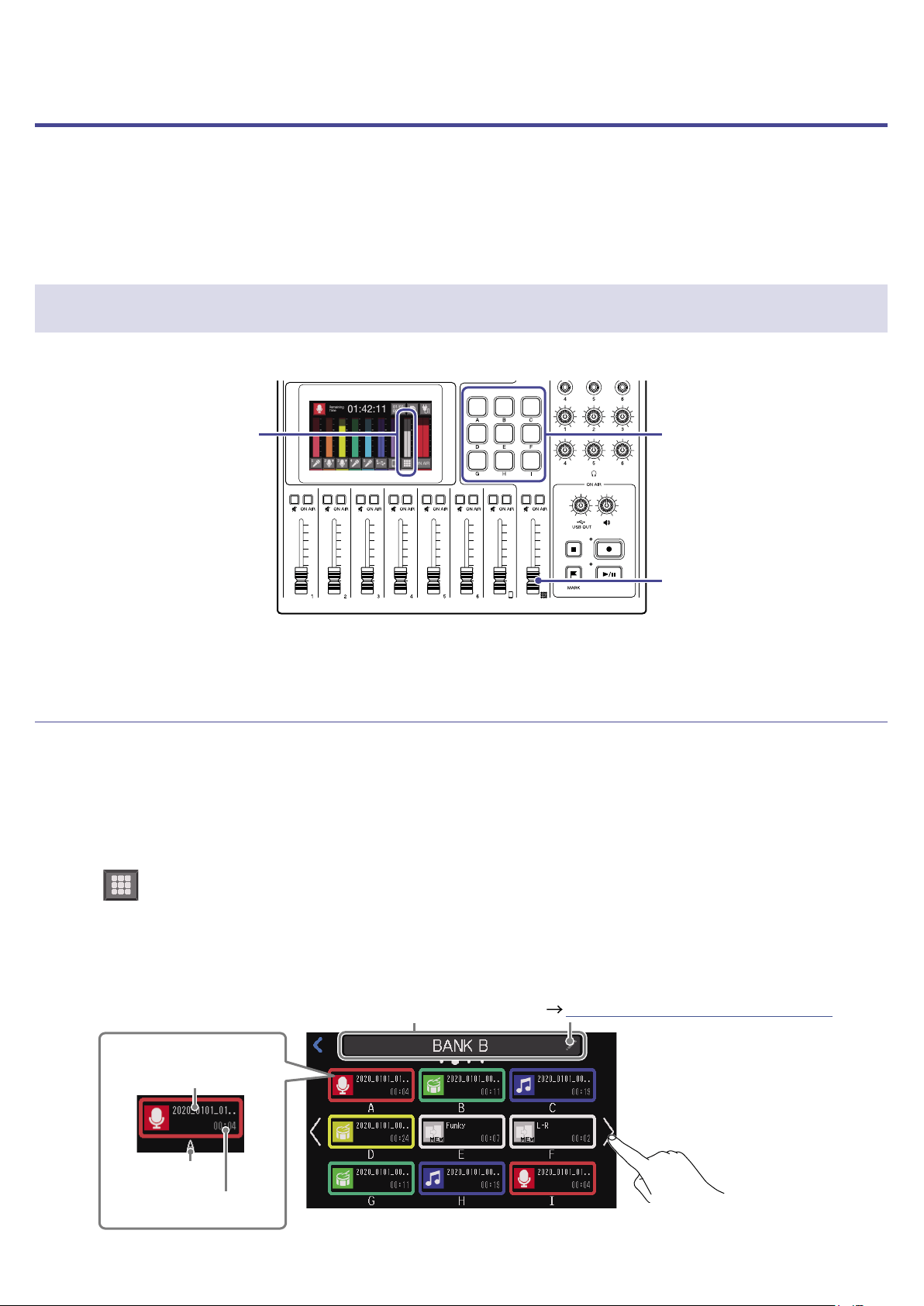
Audio les can be assigned to the SOUND PAD buttons. Press one to play the assigned le.
The 9 SOUND PAD buttons can have audio les assigned in 4 banks, for a total of 36 les.
This is convenient for playing interviews that have been recorded in advance, opening and ending music
and jingles. The level and playback method can be set for each pad.
Playing SOUND PAD buttons
Press to play the
assigned audio le.
This adjusts the volume.
SOUND PAD
level meters
When a SOUND PAD is playing back, that button will blink.
Switching banks
The selected bank will be shown on the SOUND PAD settings screen, and assigned audio les can be
checked.
By switching between the 4 banks, a total of 36 audio les can be played.
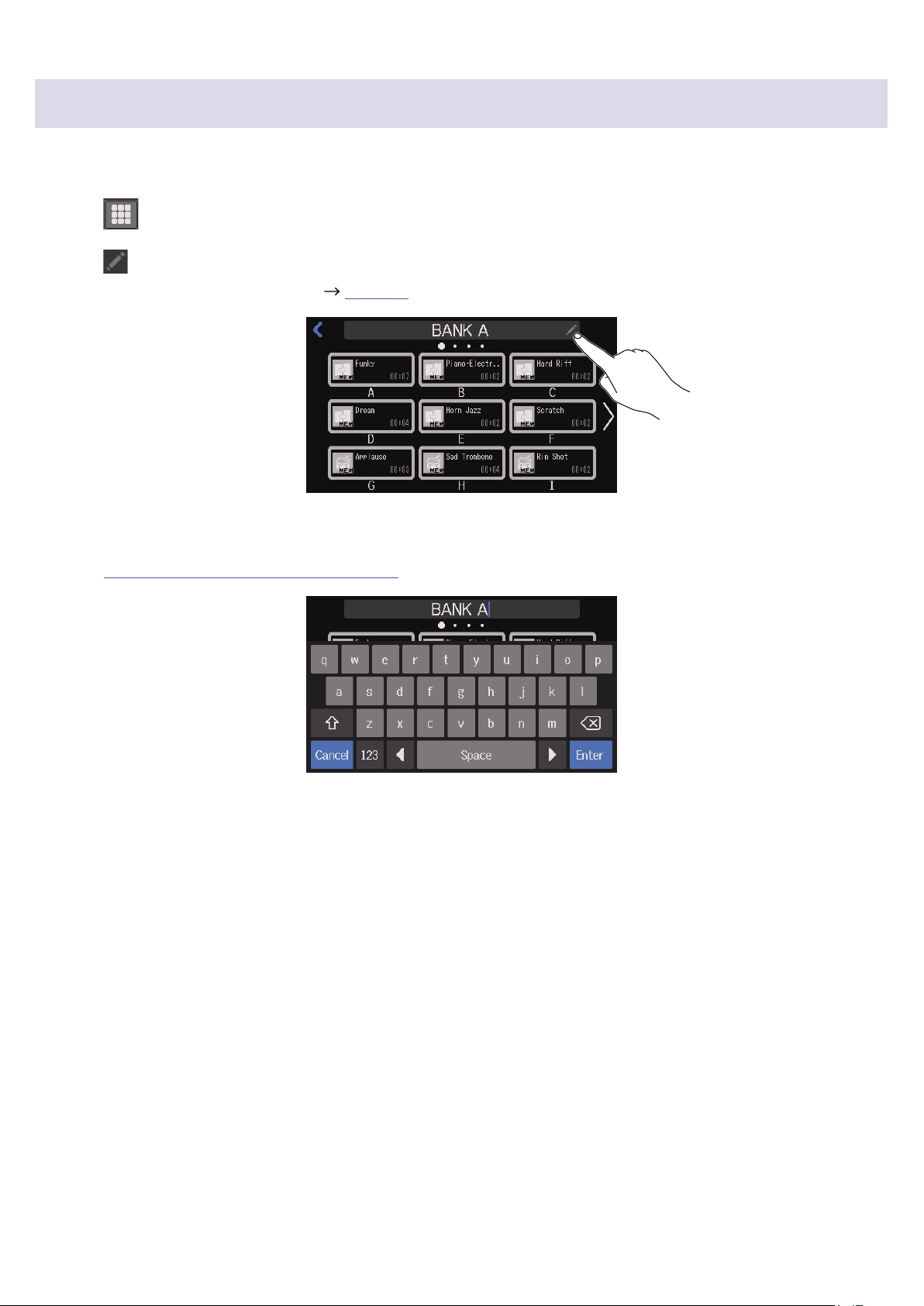
Bank names can also be changed.
1.
Tap on the Home Screen.
This opens the SOUND PAD settings screen.
2.
Switch banks.
Current bank name
Tap the left and right arrows
to switch banks.
(Sliding left/right on the
screen also changes the bank.)
File name
File length
SOUND PAD button
Pad name
Tap the bank name to change it.
( “Changing bank names” on page 48)
42

Assigning audio les to SOUND PAD buttons
Built-in sounds and audio les saved on an SD card can be assigned to SOUND PAD buttons.
Use a computer beforehand to store the audio le on the SD card in any directory other than the P8_
Multitrack and P8_Settings folders. ( “Transferring les to a computer, smartphone or tablet” on page
72)
■
File format overview
Assign audio les with the following formats.
•Format: WAV
•Sample rate: 44.1 kHz
•Bit rate: 16/24-bit
•Mono/stereo
NOTE
•If a le is not compatible with SOUND PAD assignment, its name will be gray and it will not be
selectable or an error pop-up message will appear when it is selected.
•Files that are not compatible with SOUND PAD assignment but can be converted will appear on the File
List Screen. When they are selected, they can be converted to a compatible le format. The new le will
be automatically assigned after conversion.
•After the sample rate of a le has been converted to 44.1 kHz, “_441” will be added to the end of the le
name.
•After a le has been converted from MP3 to WAV, it will have the same name.
•A new le will be created during conversion, so the original le will remain.
•88.2kHz and 96kHz WAV les can be assigned to SOUND PAD buttons, but they will not be played with
thecorrect pitch or speed.
•Whether or not 48kHz WAV les are converted to 44.1kHz can be selected. If they are not converted,
they can be assigned to SOUND PAD buttons, but they will not be played with the correct pitch or
speed.
Assigning audio les on the SOUND PAD settings screen
1.
Tap on the Home Screen.
2.
Tap the SOUND PAD button (A–I) to which you want to assign an audio le.
Change the bank as necessary (
page 42).
The selected SOUND PAD will light.
43
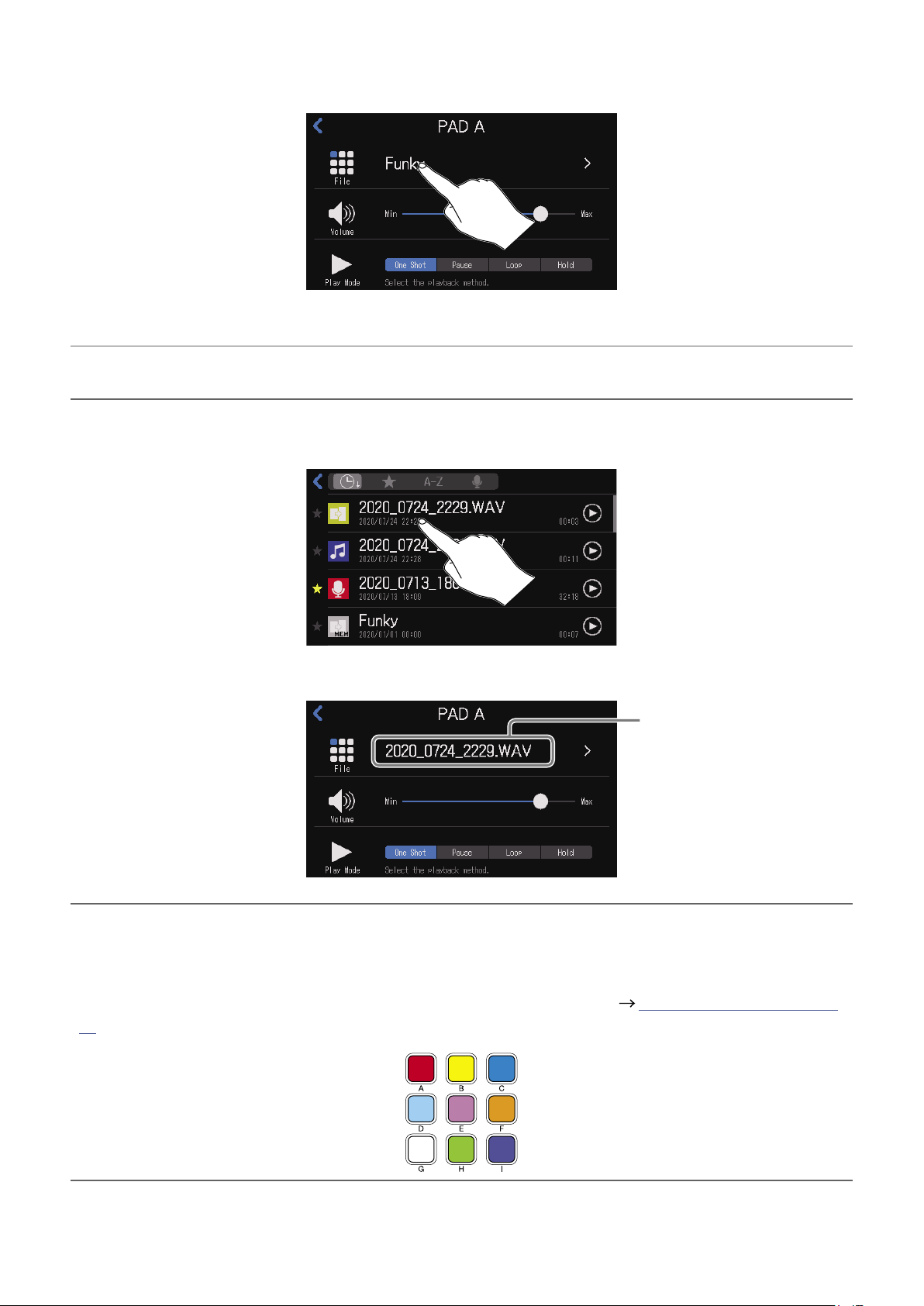
3.
Tap the le name.
The built-in sound sources and the audio les stored on the SD card are shown in the list.
HINT
Pressing a SOUND PAD will also set it as the button to receive audio le assignment.
4.
Tap the audio le that you want to assign.
This assigns the selected audio le to the SOUND PAD.
Assigned audio le
HINT
When the Home Screen or SOUND PAD settings screen is open, SOUND PAD buttons that have audio
les assigned will light.
Since the SOUND PAD buttons will light with the same color as the assigned le icons, setting le icon
colors in advance is convenient for identifying playback sounds by color. ( “Changing icons” on page
58)
44
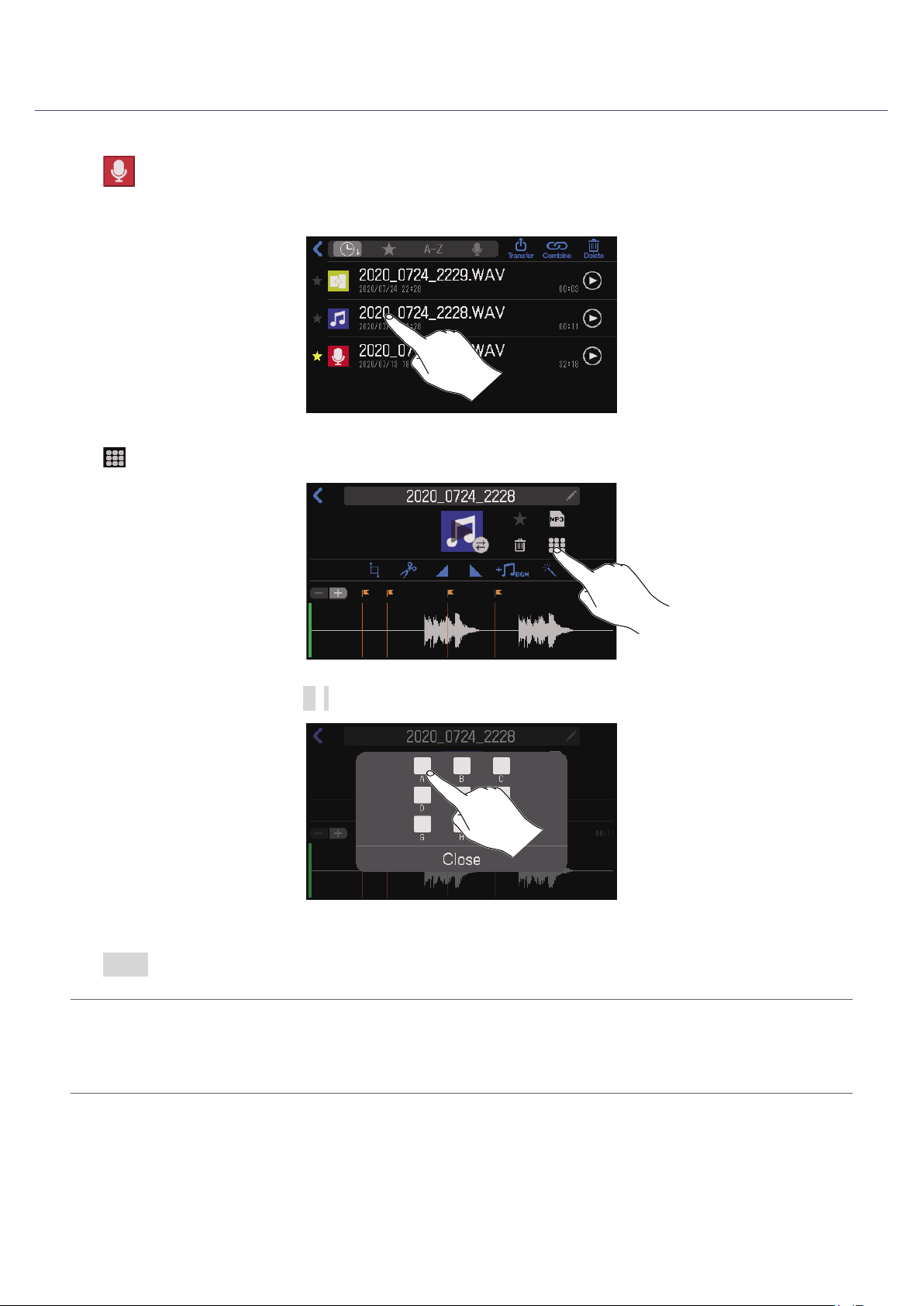
Assigning audio les from the File Editing Screen
1.
Tap on the Home Screen.
2.
Tap the audio le that you want to assign.
3.
Tap .
4.
Tap the SOUND PAD button (A–I) to which you want to assign an audio le.
This assigns the le selected in step 2 to the selected SOUND PAD.
Tap Close to cancel assignment.
HINT
•This assigns audio les to SOUND PAD buttons in the currently selected bank.
•When the Home Screen or SOUND PAD settings screen is open, SOUND PAD buttons that have audio
les assigned will light.
45
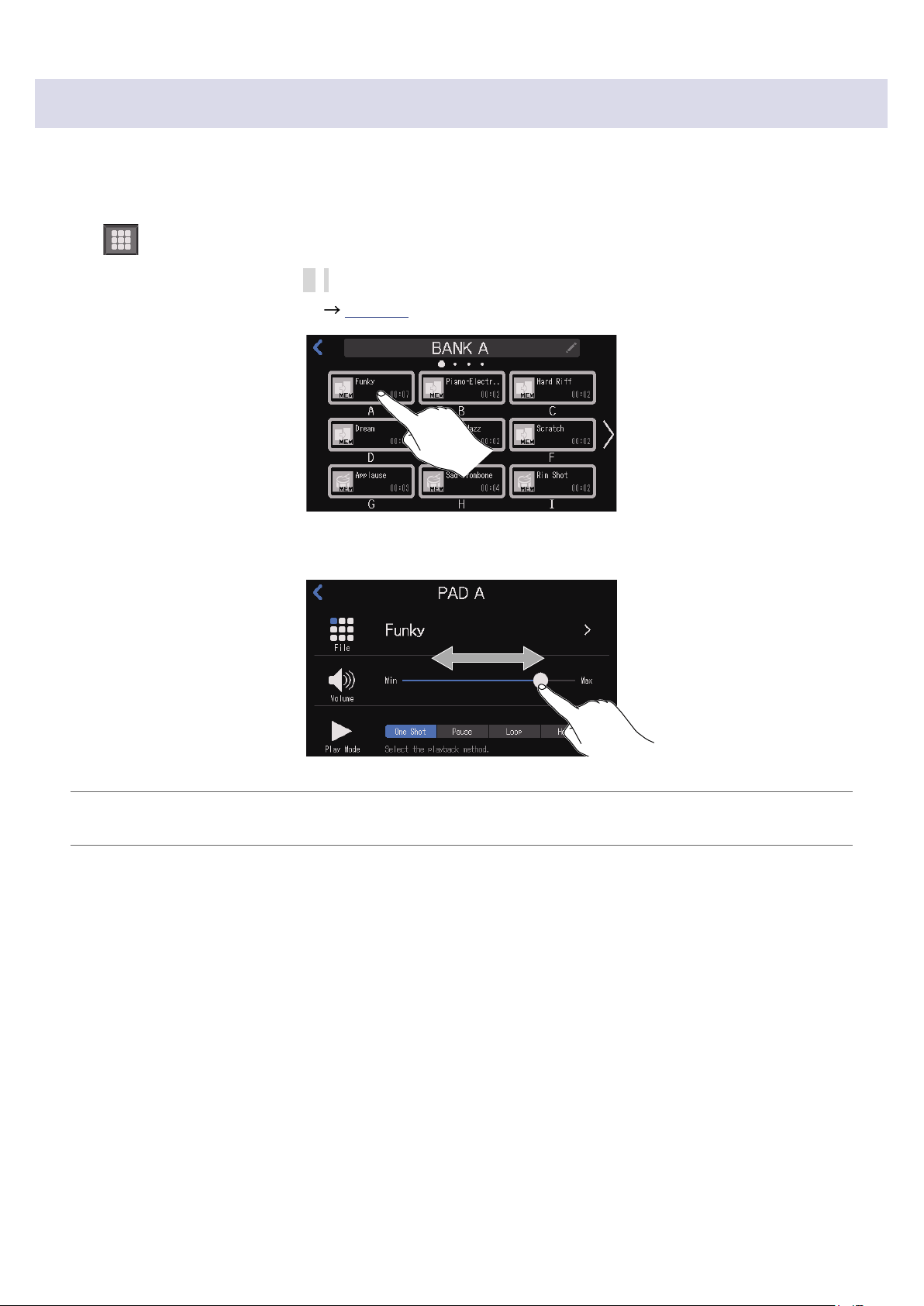
Adjusting the levels of each SOUND PAD
Playback levels can be adjusted separately for each SOUND PAD.
If playback levels differ signicantly, they can be made more consistent.
1.
Tap on the Home Screen.
2.
Tap the SOUND PAD button (A–I) for which you want to change the level.
Change the bank as necessary (
page 42).
3.
Slide to adjust the level.
HINT
Double-tap the slider or the bar to reset it to the default value.
46
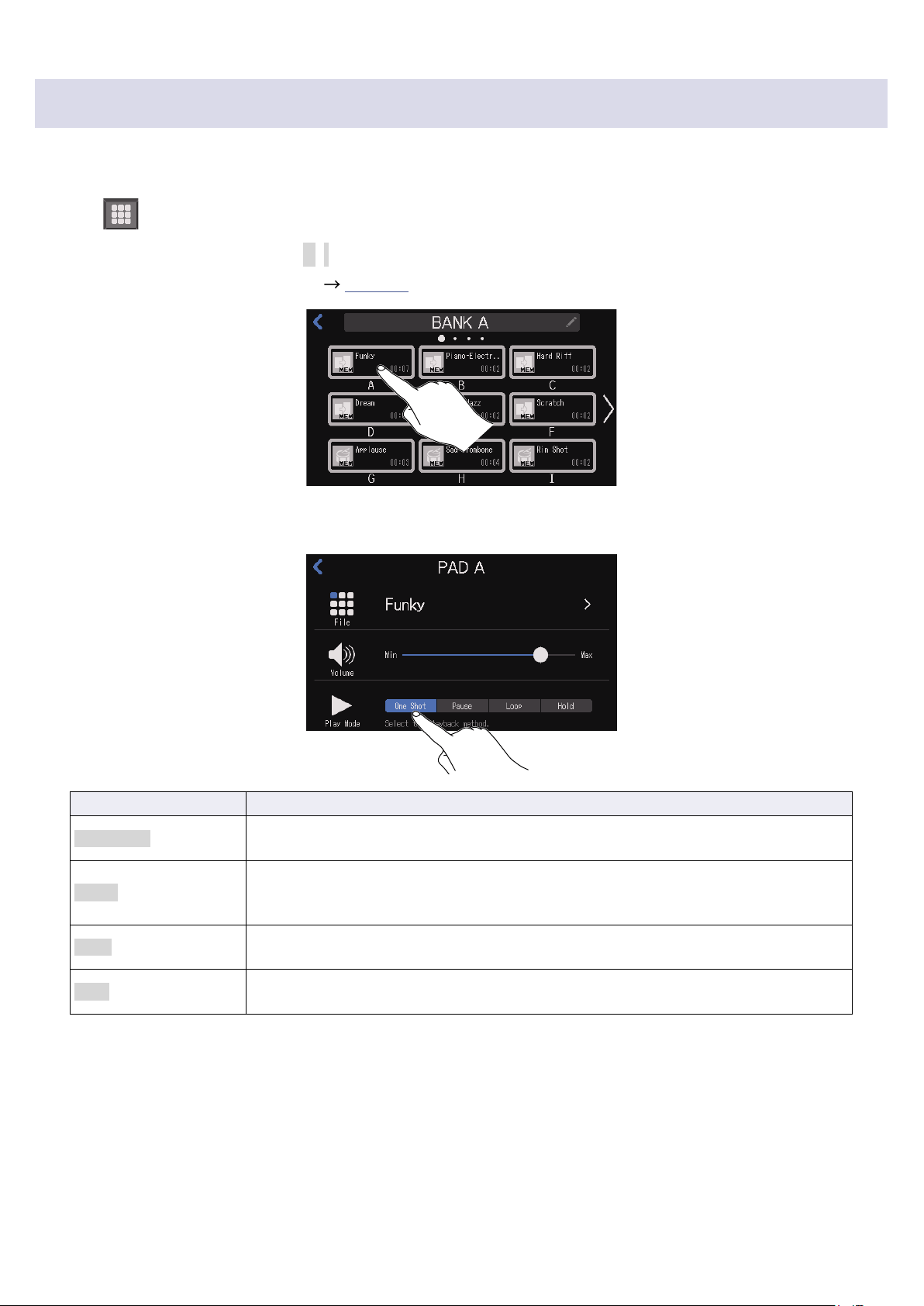
Setting playback modes for each SOUND PAD
The sound playback mode used when a SOUND PAD is pressed can be set for each button.
1.
Tap on the Home Screen.
2.
Tap the SOUND PAD button (A–I) for which you want to change the playback mode.
Change the bank as necessary (
page 42).
3.
Touch the desired playback mode.
Setting Explanation
One Shot
Each press plays the le once from beginning to end.
This is useful for playing jingles and effect sounds, for example.
Pause
Each press alternately plays and pauses. Playback stops at the end of the le.
Press and hold (for 2 seconds) to return to the beginning.
This is useful for interrupting to add commentary during SOUND PAD playback.
Loop
Each press alternately plays and stops. Playback will loop until stopped.
This is useful for playing background music, for example.
Hold
While pressing, loop playback will continue. When released, playback will stop.
This is useful for playing effects for just the time desired.
47

Managing les
Manage les on the File List Screen. On the File List Screen, a list of the audio les on the SD card is
shown, and les can be selected, combined and deleted.
NOTE
•Audio les that are not in the P8_Multitrack or P8_Settings folders will be shown.
•
Individual channel recording les will not be shown in the list, and cannot be edited on the
P8
.
•
The
P8
built-in sounds will only be shown on the File List Screen if they have been assigned to SOUND
PAD buttons.
•When the File List Screen is open, the channel input signals and sounds played when SOUND PAD
buttons are pressed will stop being output from the
P8
.
1.
Tap on the Home Screen.
This opens the File List Screen.
File name
Tap to open the editing screen for the selected le where it
can be played (
page 37) and edited ( page 55).
The creation date and time is shown below the le name.
File length
Play button
Tap to start and stop
playback.
Favorite mark
Tap to add/remove as a
favorite
This will be highlighted if
added.
File icon
This can be changed.
(
page 58)
Delete les. ( page 50)
Combine multiple les into one.
( page 52)
Activate USB le transfer mode. ( page 72)
Sort category selection buttons
Tap to sort the les in that order.
•
File creation date/time order
•
Favorites/others
•
File name order
•
Icon order
Tapping the same button alternates between ascending and
descending order.
Scrollbar
Slide this bar to scroll the
list.
Sliding the list itself will also
scroll it.
■
File icons
The following default icons are shown for audio les.
File type Icon
File recorded by the
P8
Episode le that is a combination of multiple les
WAV le saved on the SD card from an outside
source
Built-in
P8
sound
,
MP3 le
File other than WAV or MP3
49
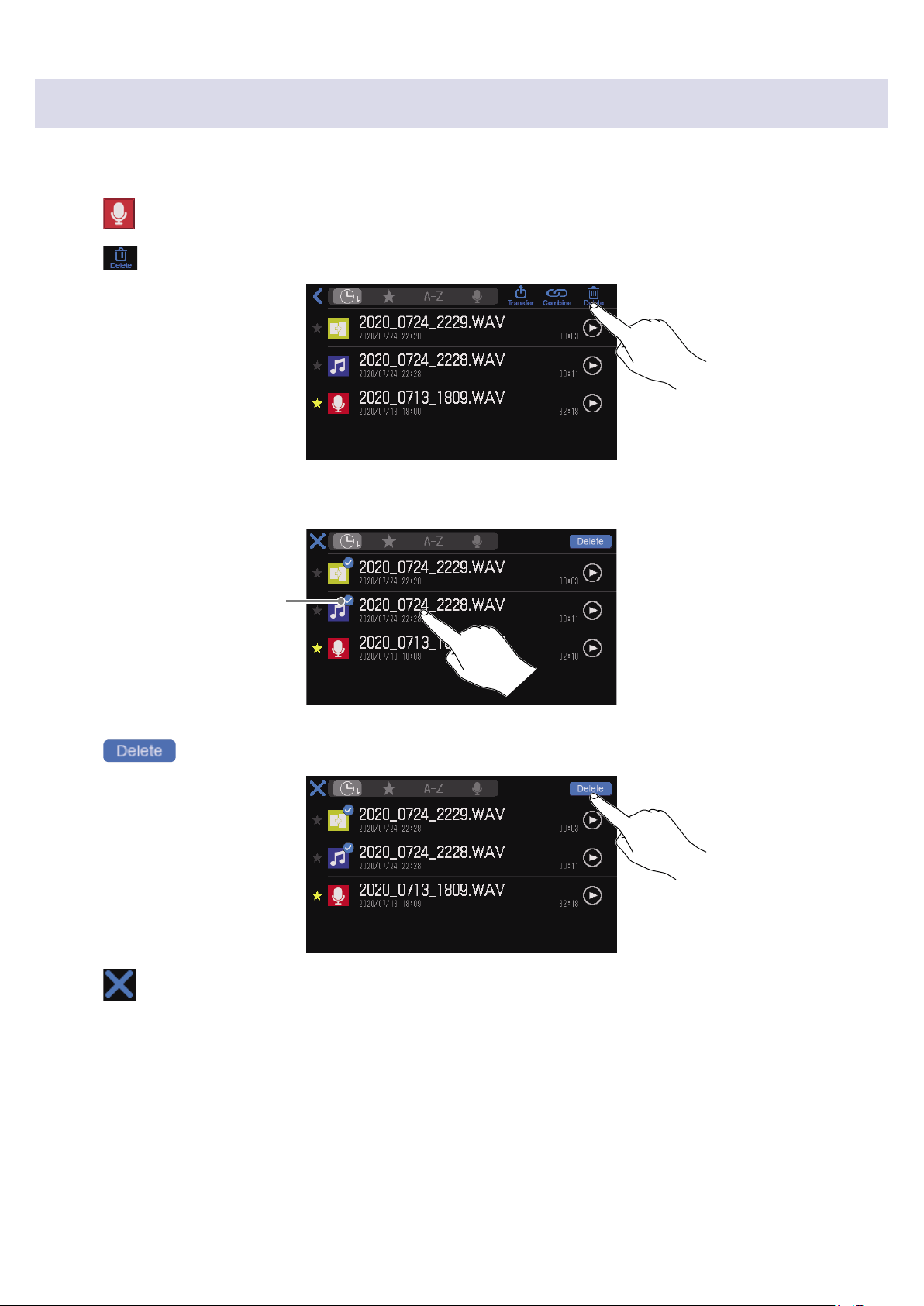
Deleting les
Unneeded les can be deleted.
1.
Tap on the Home Screen.
2.
Tap .
3.
Tap one or more les that you want to delete.
Check marks will appear on
selected les.
4.
Tap .
Tap to clear the selection and return to the File List Screen.
50
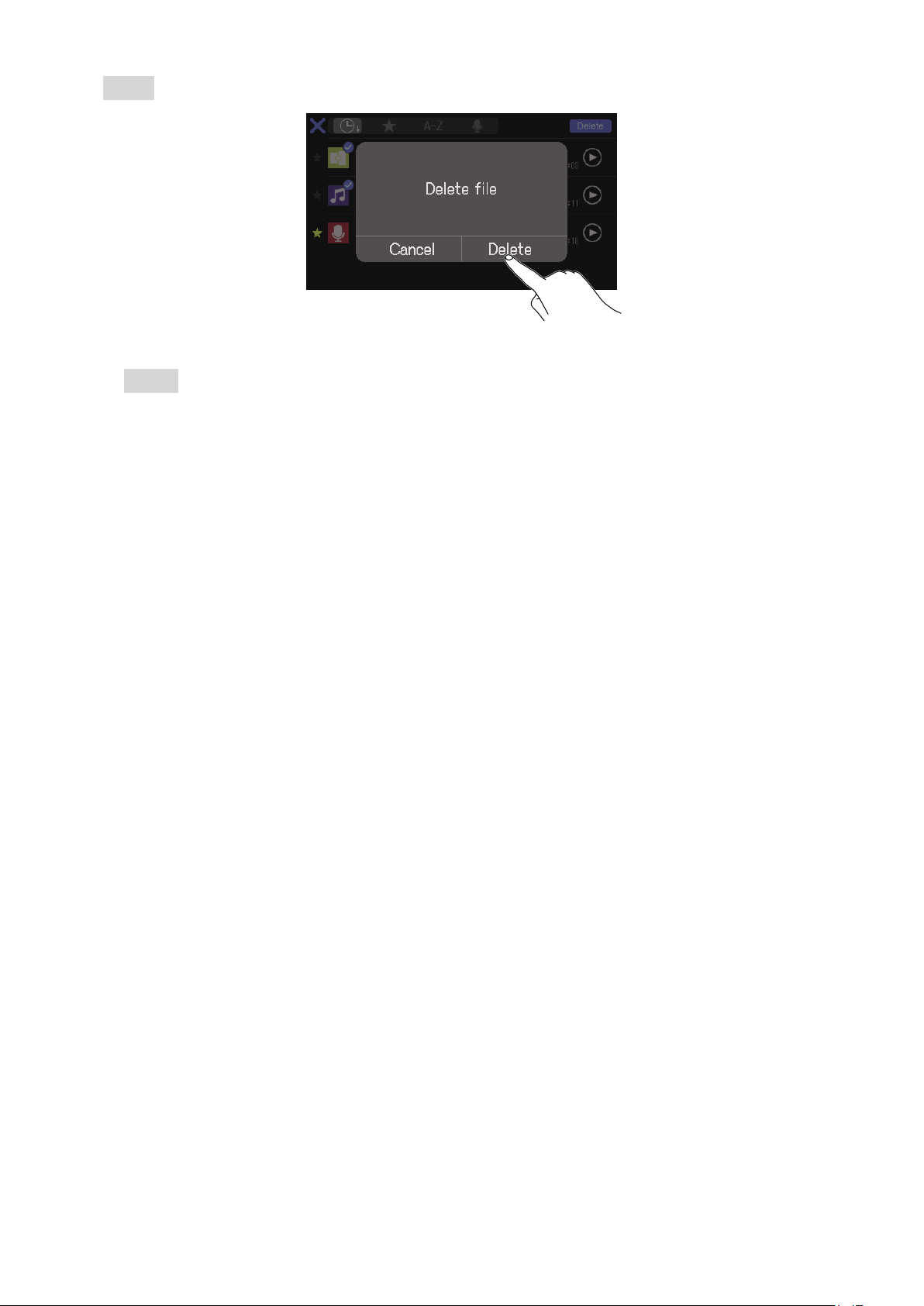
5.
Tap Delete.
The selected le will be deleted, and the File List Screen will reopen.
Select Cancel to cancel deletion.
51
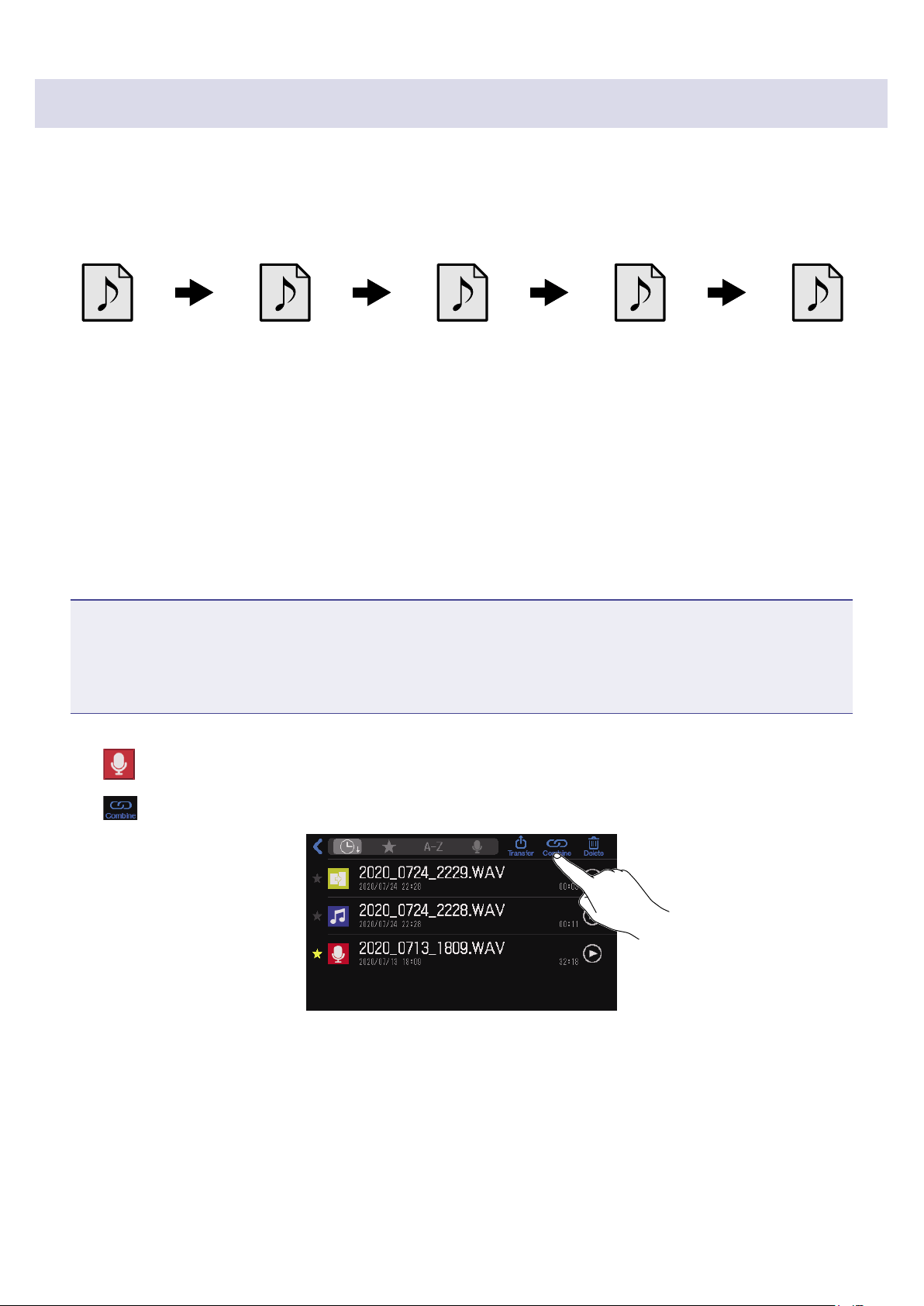
Combining multiple les into one in specic order
Multiple les can be combined to create one le for distribution.
Regular openings and endings can be added to episodes, and short sound effects can be inserted for
scene changes between conversations.
Audio le for
opening
Recorded
conversation 1
Audio le for scene
change
Recorded
conversation 2
Audio le for
ending
Combination example
■
File format overview
Audio les in the following formats can be combined.
•Format: WAV
•Sample rate: 44.1 kHz
•Bit rate: 16/24-bit
•Mono/stereo
NOTE
•When combining les, the names of unsupported les will be gray and they will not be selectable or an
error pop-up message will appear when one is selected.
•Some les that are not supported when combining can be selected on the File List Screen and
converted to a compatible le format in advance. After conversion, such les can be combined.
1.
Tap on the Home Screen.
2.
Tap .
52
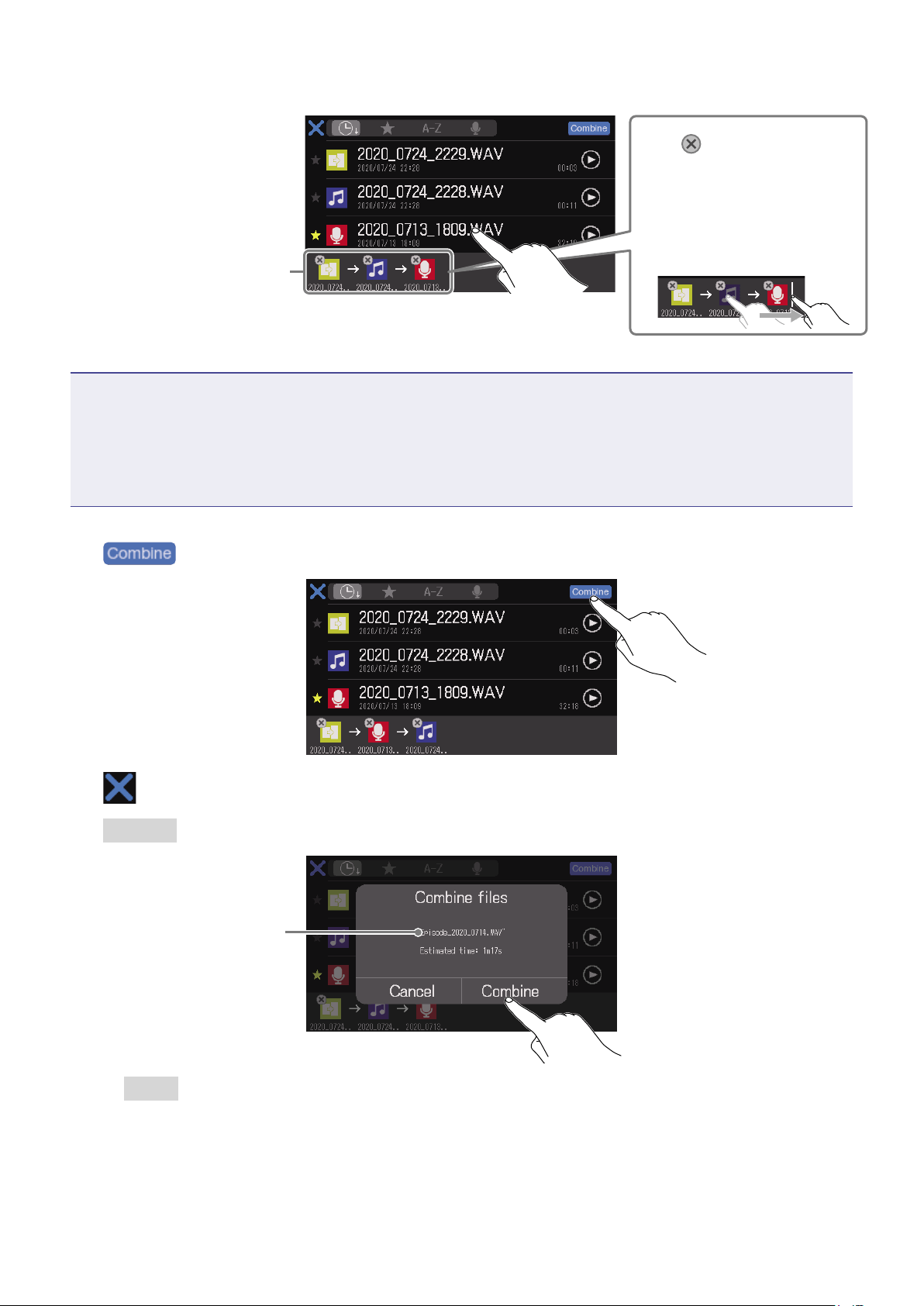
3.
Tap the les to be combined.
The selected les are shown
in the order that they will be
combined into one le. The
leftmost le will be the rst.
Tap
to cancel a
selection.
Press and hold an icon and
then slide it to move it. A
vertical line will show the
input position.
NOTE
•The same le can be selected multiple times.
•If the selected les cannot all be shown on the screen, slide the bottom of the screen left and right to
scroll through them.
•Up to 20 les can be combined at once. When 20 les have been selected, the names of all les will
become gray and unselectable on the File List Screen.
4.
Tap .
Tap to cancel combining les and return to the File List Screen.
5.
Tap Combine.
Name of the combined
le
Select Cancel to cancel combining.
53
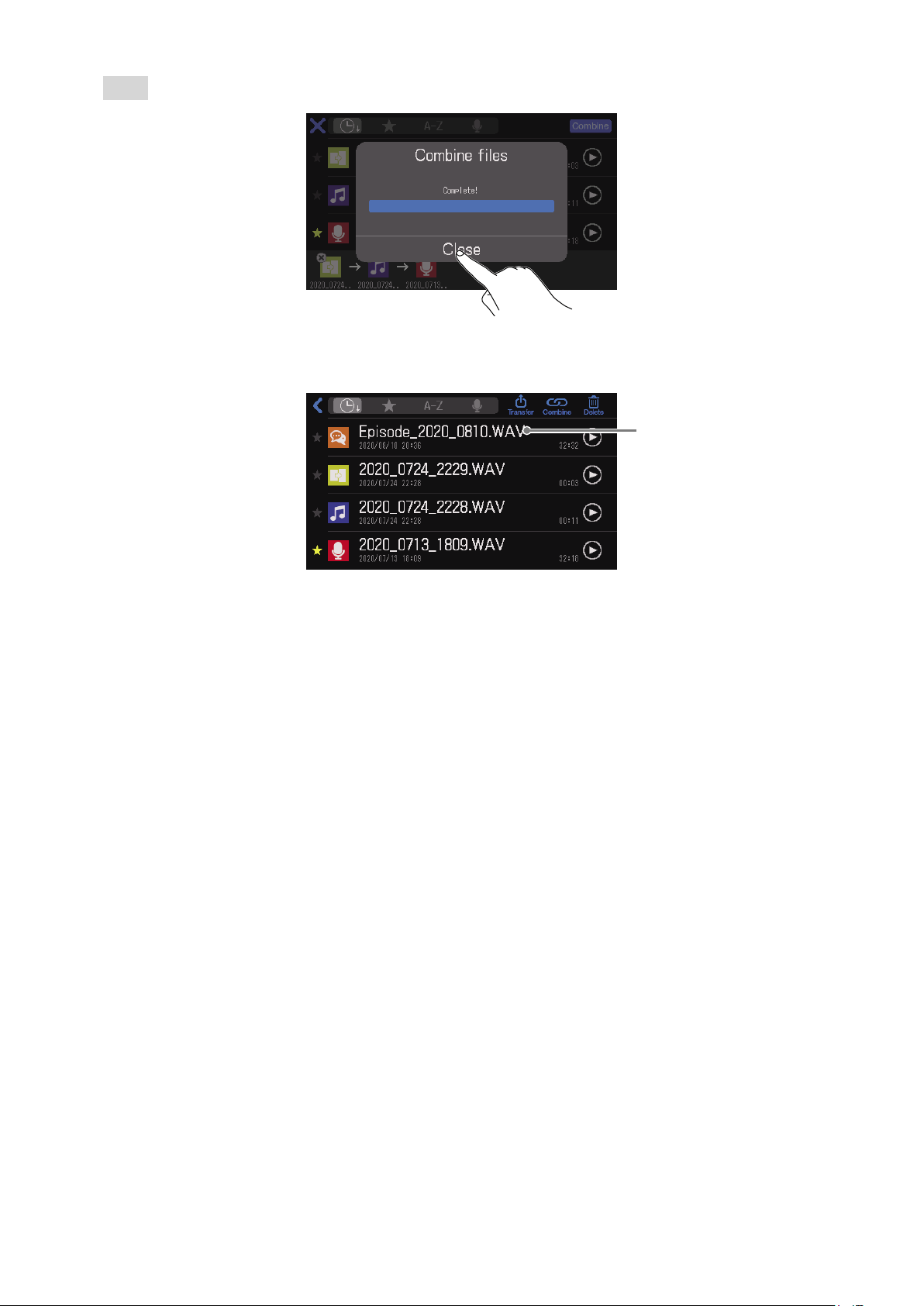
6.
Tap Close.
A new episode le that combines the selected les into one will be created, and the File List Screen
will reopen.
Combined le
54

Editing les
The
P8
can be used to edit the podcast stereo le that is a mix of all channels.
■
File format overview
Files with the following formats can be edited.
•Format: WAV
•Sample rate: 44.1 kHz
•Bit rate: 16/24-bit
•Mono/stereo
NOTE
•Individual channel les cannot be edited.
•
If a le is not compatible with the
P8
, its name will be gray on the File List Screen and it will not be
selectable or an error pop-up message will appear when it is selected.
•
Files that are not compatible with the
P8
but can be converted will appear on the File List Screen. When
they are selected, they can be converted to a compatible le format. Select the le after conversion.
•After the sample rate of a le has been converted to 44.1 kHz, “_441” will be added to the end of the le
name.
•After a le has been converted from MP3 to WAV, it will have the same name.
•A new le will be created during conversion, so the original le will remain.
On the File Editing Screen, the waveform of the audio le is shown and the following operations are
possible.
•Change icon ( “Changing icons” on page 58)
•Cut unnecessary parts ( “Cutting unnecessary parts (trimming)” on page 59)
•Divide le ( “Dividing les” on page 61)
•Add fade-in/out ( “Adding fade-ins and outs” on page 63)
•Add background music ( “Adding music and other background sound” on page 66)
•Apply loudness normalization ( “Optimizing podcast volume (loudness normalization)” on page 69)
•Convert to MP3 ( “Converting les to MP3 format” on page 71)
•Change le name ( “Changing le names” on page 57)
•Add to favorites ( “Opening the File Editing Screen” on page 56)
•Delete le ( “Opening the File Editing Screen” on page 56)
•Assign to SOUND PAD button ( “Assigning audio les from the File Editing Screen” on page 45)
55
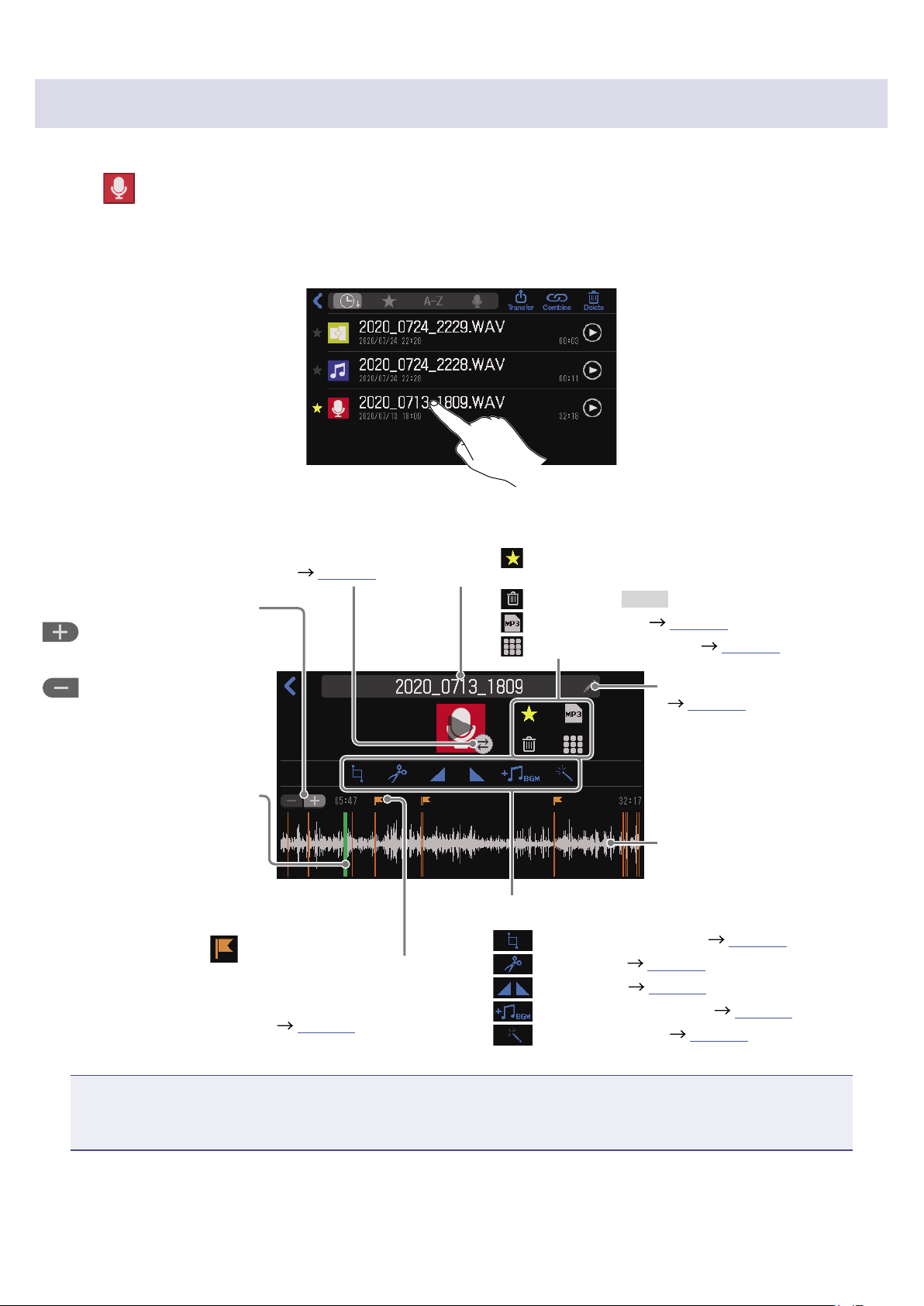
Opening the File Editing Screen
1.
Tap on the Home Screen.
This opens the File List Screen.
2.
Tap the le you want to edit.
This opens the File Editing Screen.
Mark
Tap to move to the mark position on the
position display bar.
Marks can also be added and removed
while editing. (
page 40)
Waveform zoom in/out buttons
This zooms in on the
waveform.
This makes precise
editing easier.
This zooms out from
the waveform. This is useful
for checking the entire
waveform.
Change the le name.
( page 16)
Press to open these editing screens.
Cut unnecessary parts ( page 59)
Divide les ( page 61)
Fade-in/out ( page 63)
Add background music ( page 66)
Even out volume ( page 69)
File name
Waveform display
Playback position bar
This shows the playback
and editing positions. The
elapsed time is shown above
the bar.
Slide the bar or tap the
waveform to move the
playback position.
Change the icon. ( page 58)
Tap to add/remove as a favorite. This will be
highlighted if added.
Tap this and Delete to delete the le.
Convert to MP3 ( page 71).
Assign to SOUND PAD ( page 45).
NOTE
When the File Editing Screen is open, the channel input signals and sounds played when SOUND PAD
buttons are pressed will stop being output from the
P8
.
56
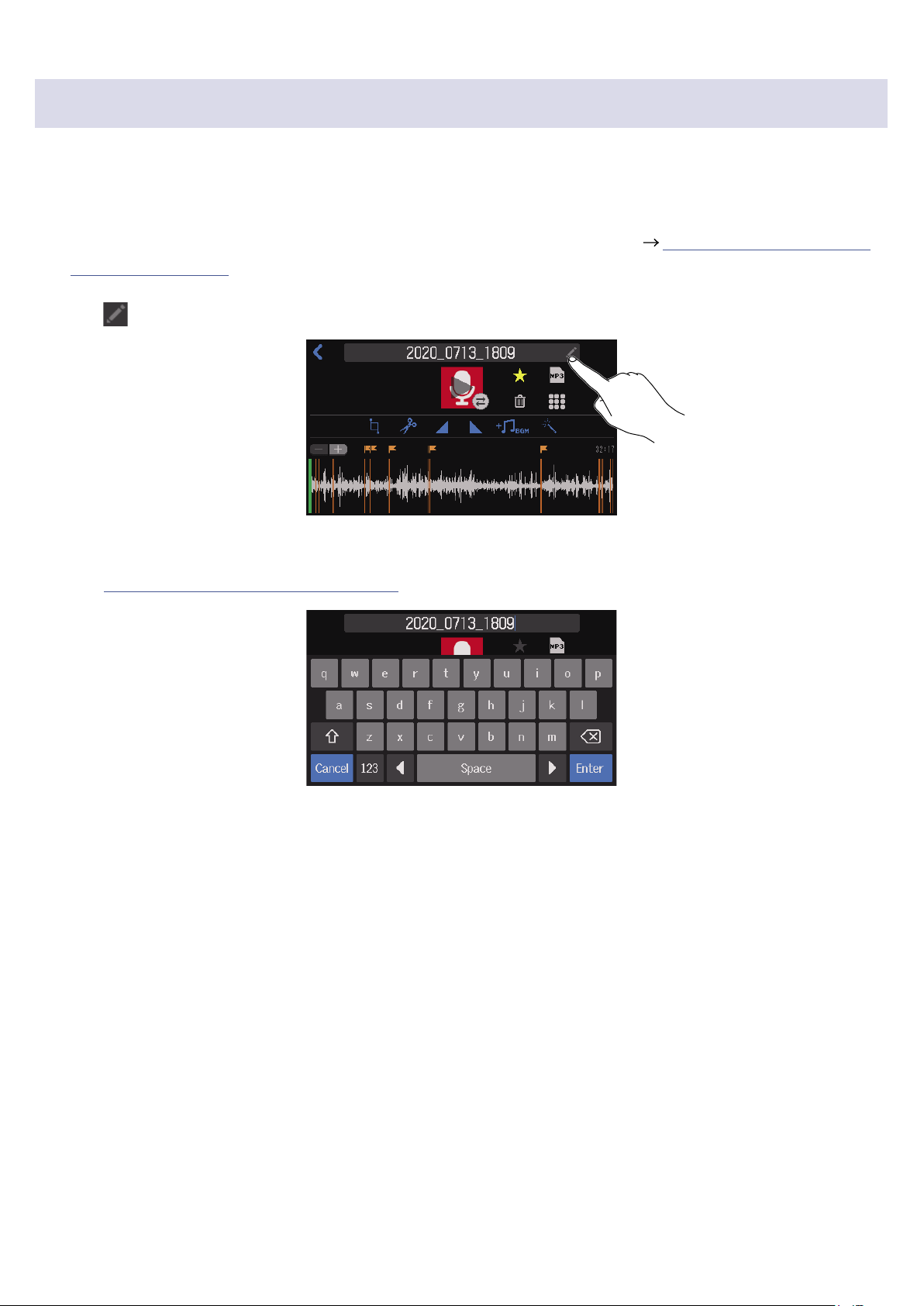
Changing le names
When les are recorded on the
P8
, they are named with the recording start date and time. These names
can be changed later. Only the names of les that have been recorded on the
P8
can be changed.
1.
Open the editing screen for the le with the name you want to change ( “Opening the File Editing
Screen” on page 56).
2.
Tap .
3.
Input the le name.
See “Character input screen” on page 16 for details about character input.
57
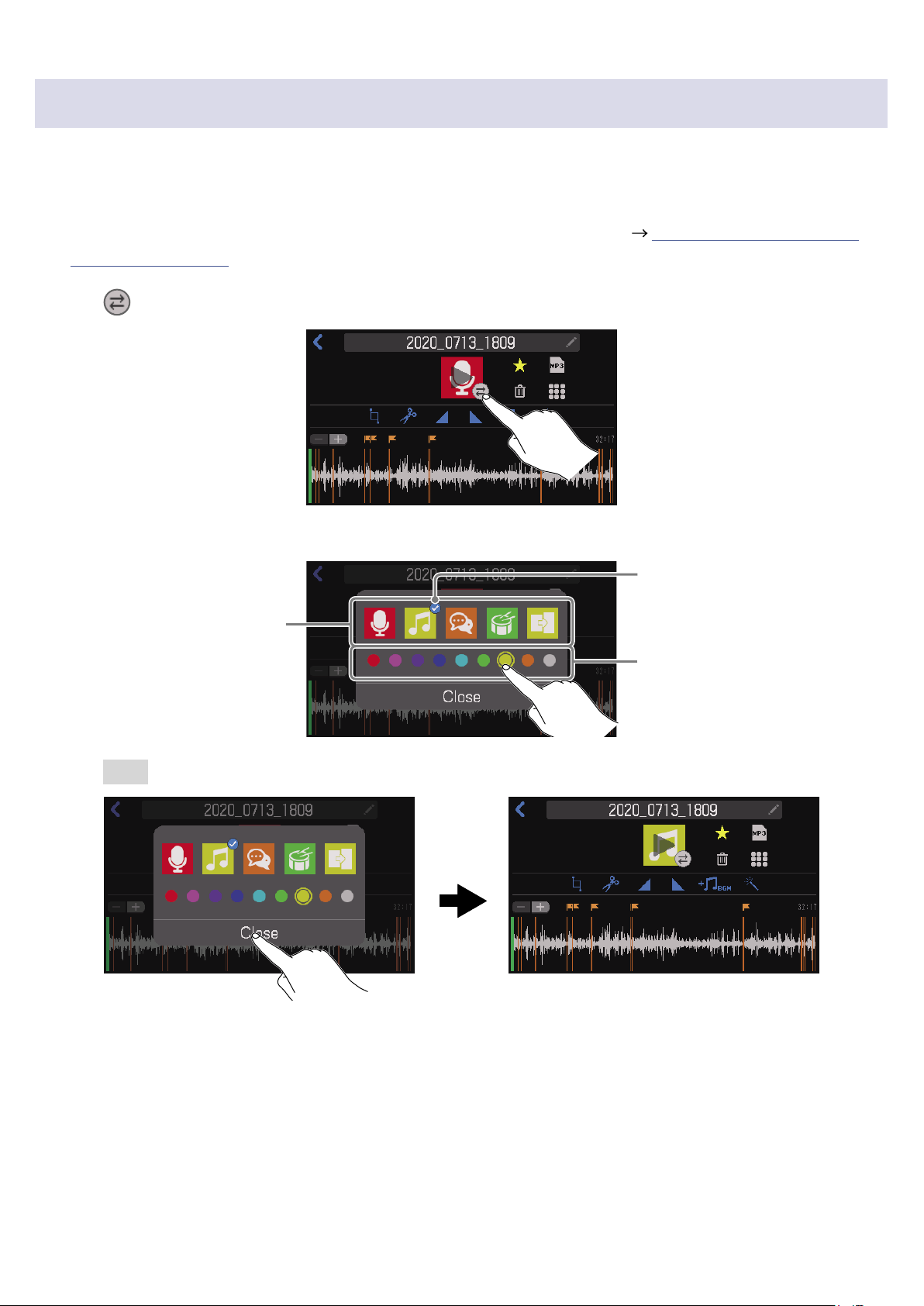
Changing icons
The le icon that is shown on the File List Screen and File Editing Screen can be changed.
The SOUND PAD buttons light with the same colors as the le icons.
1.
Open the editing screen for the le with the icon you want to change ( “Opening the File Editing
Screen” on page 56).
2.
Tap .
3.
Change the icon.
Change the icon color.
Change the icon.
A check mark appears on the
selected icon.
4.
Tap Close.
58
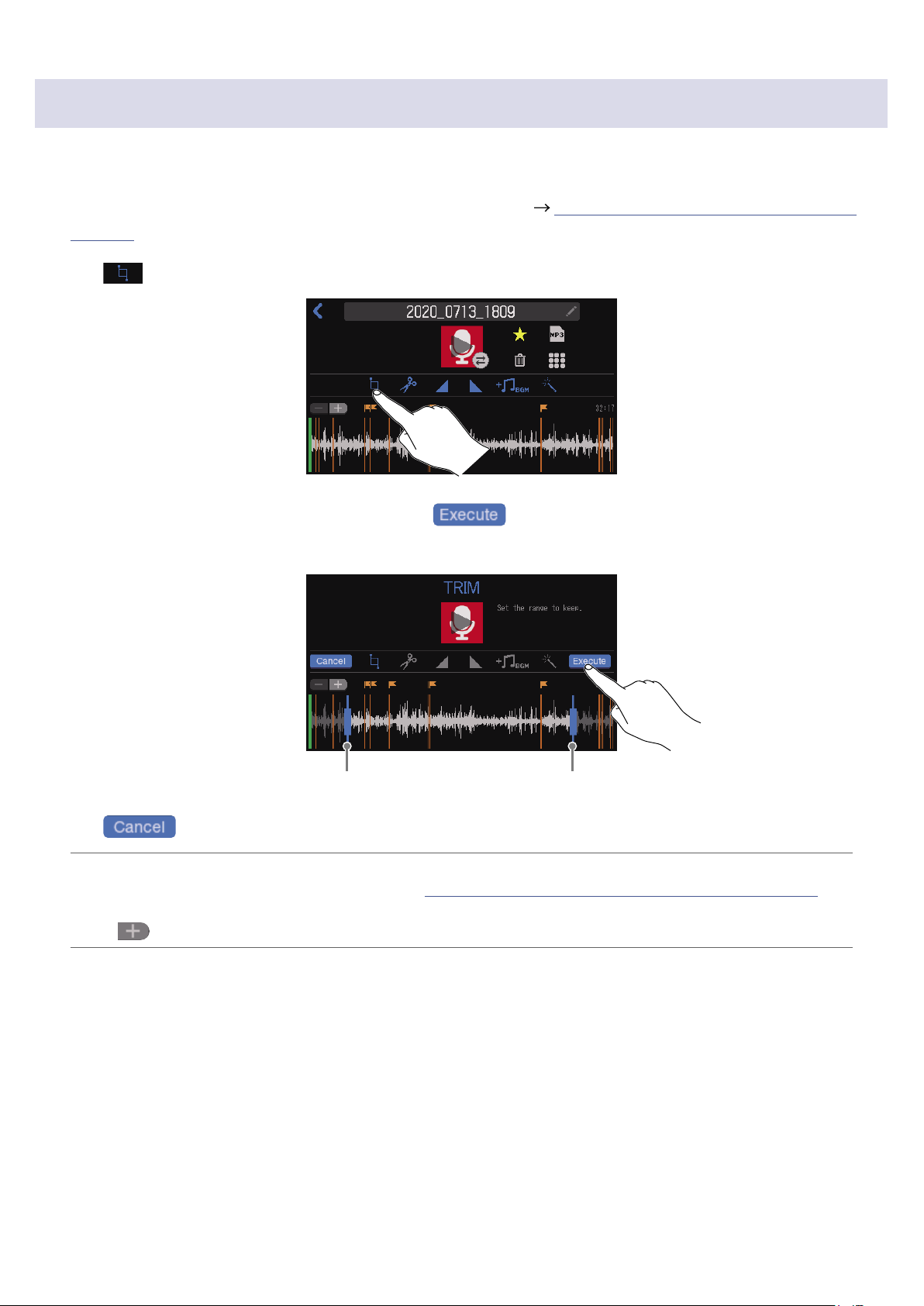
Cutting unnecessary parts (trimming)
Unnecessary parts of les can be cut.
1.
Open the editing screen for the le that you want to trim ( “Opening the File Editing Screen” on
page 56).
2.
Tap .
3.
Slide cut points A and B to set them, and tap .
Parts before cut point A and after cut point B (shown in gray) will be deleted.
Cut point A Cut point B
Tap to cancel trimming.
HINT
•Files can be edited while they are played. See “Playing recordings on the Home Screen” on page 37
for playback procedures.
•Tap
to zoom the waveform display, enabling precise setting of the points.
59
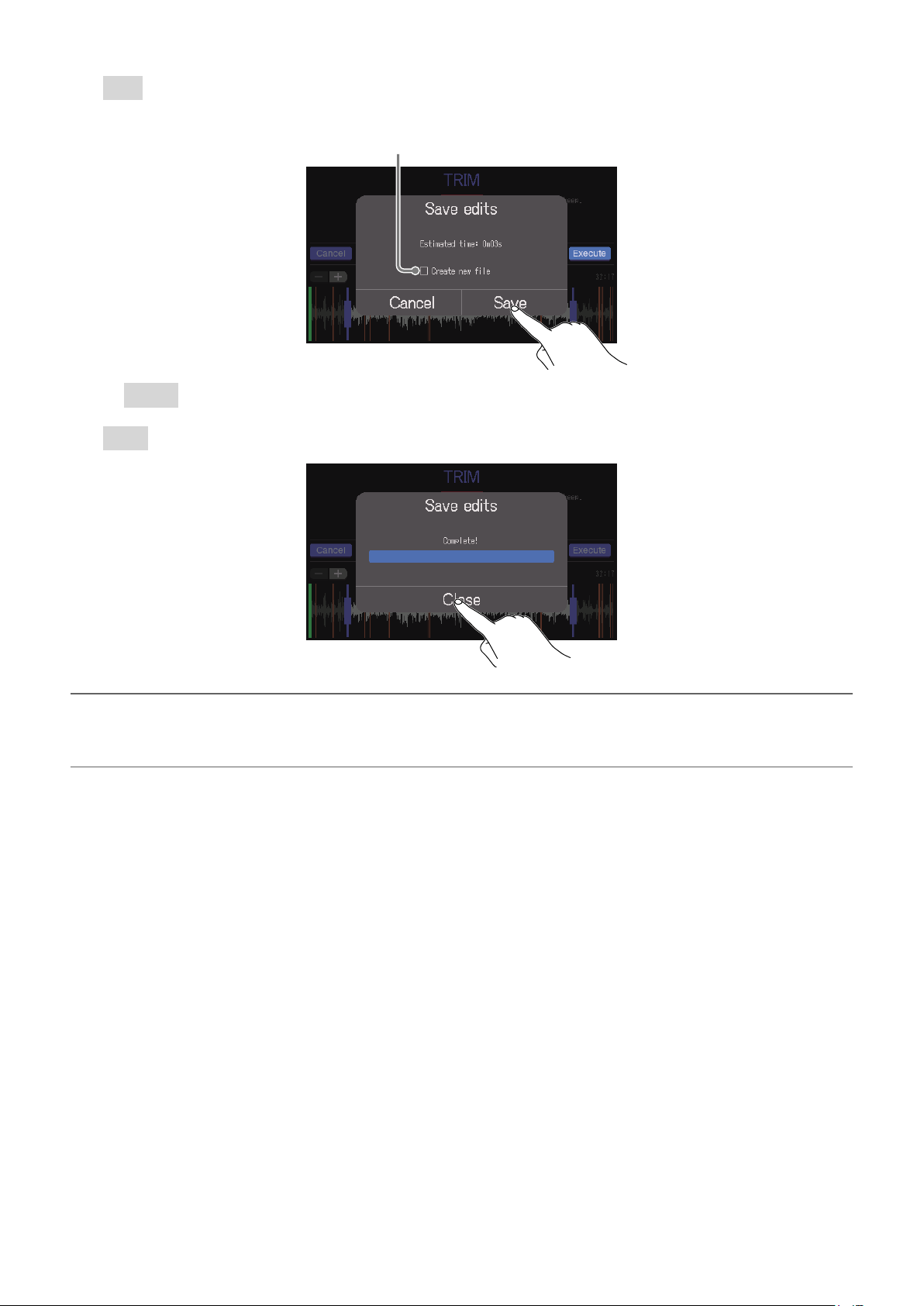
4.
Tap Save.
Tap to add a check to create a new le after trimming
(and keep the untrimmed le as is).
Select Cancel to cancel trimming.
5.
Tap Close.
HINT
•If the original le has marks, mark data will be retained in the le after trimming.
•If a new le is created after trimming, “_TRIM” will be added to the end of the le name.
60
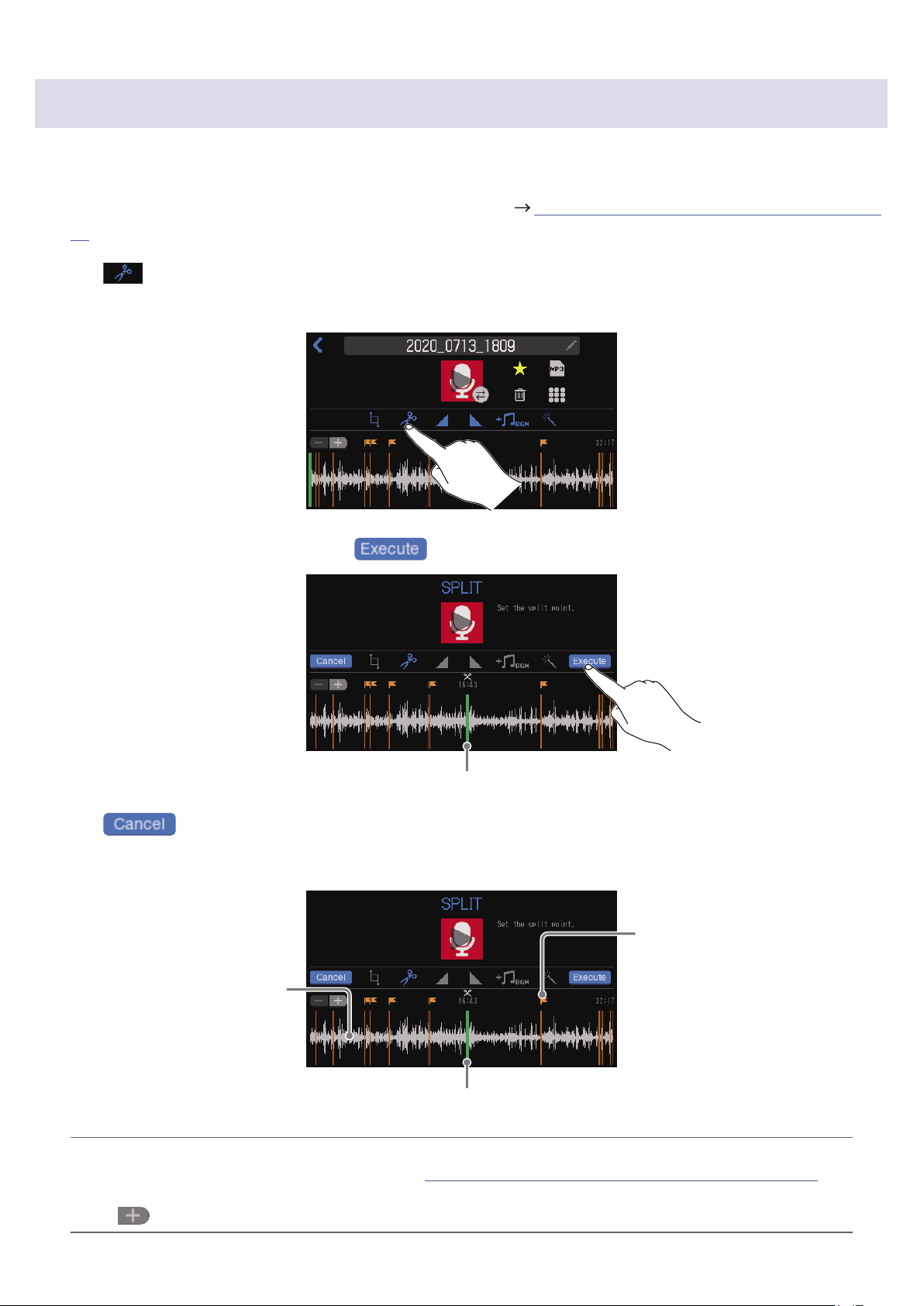
Dividing les
Files can be split where desired.
1.
Open the editing screen for the le you want to divide ( “Opening the File Editing Screen” on page
56).
2.
Tap .
The le will be divided at the position on the playback position bar.
3.
Set the le division points, and tap .
File division point
Tap to cancel division.
■
Setting le division points
Slide to set the le division point.
Tap a mark to set it as the le
division point.
Tap a point on the waveform
to set the le division point
there.
HINT
•Files can be edited while they are played. See “Playing recordings on the Home Screen” on page 37
for playback procedures.
•Tap
to zoom the waveform display, enabling precise setting of the points.
61
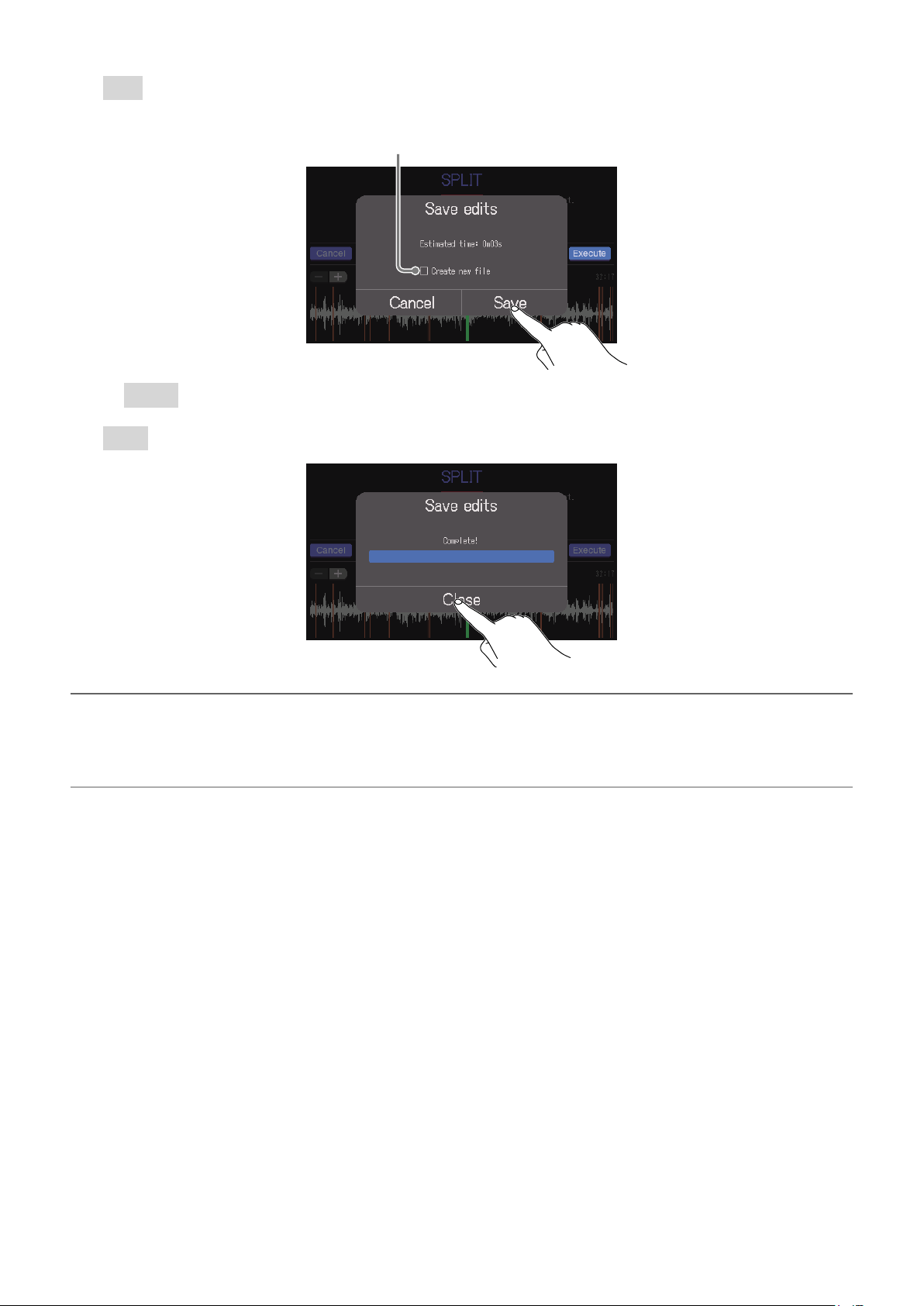
4.
Tap Save.
Tap to add a check to create new les after division
(and keep the undivided le as is).
Select Cancel to cancel division.
5.
Tap Close.
HINT
•If the original le has marks, mark data will be retained in the les after division.
•After division, the le created from before the division point will have “_A” added to the end of the le
name, and the le created after the division point will have “_B” added.
62
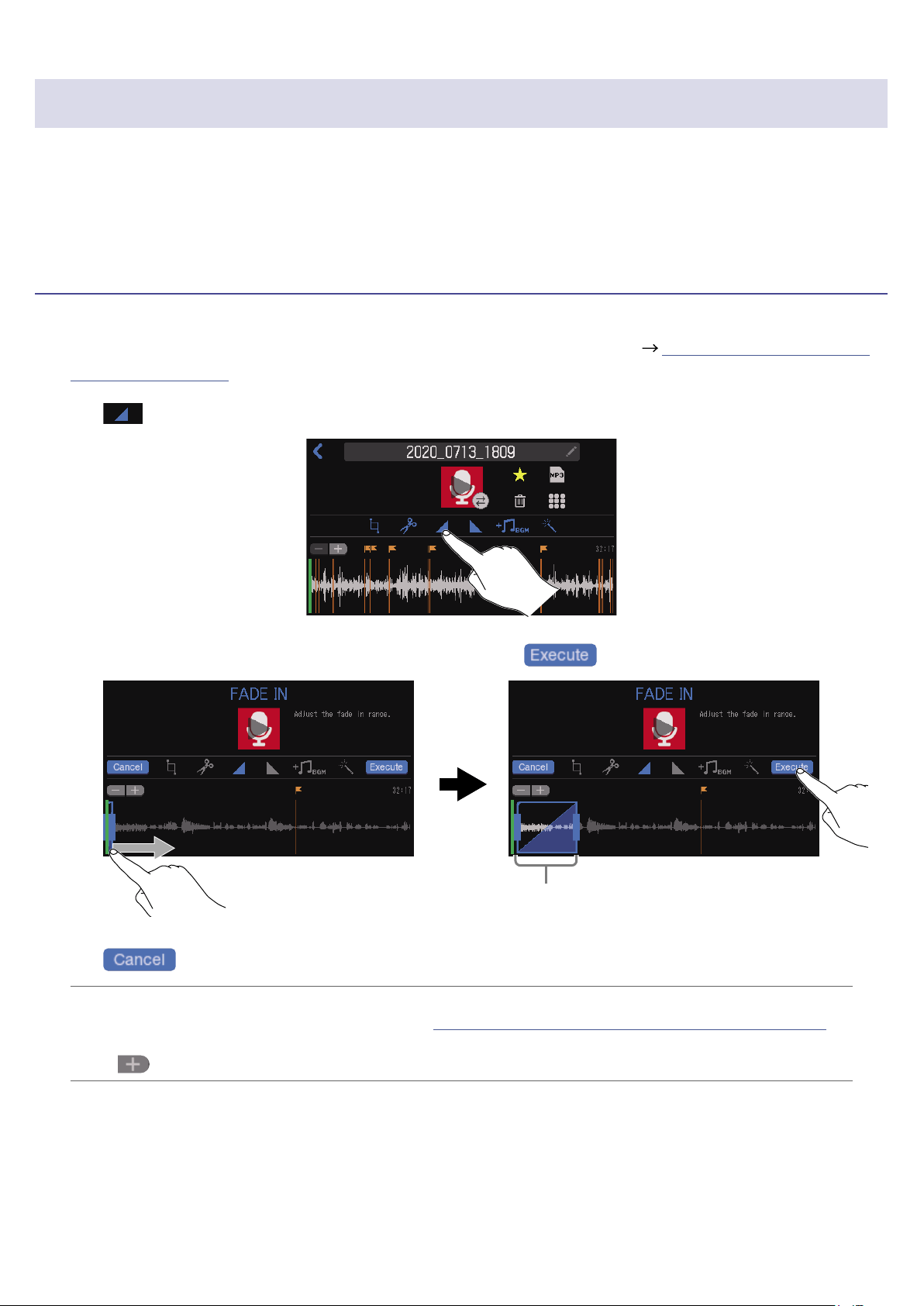
Adding fade-ins and outs
The volume can be gradually raised from silence at the beginning of a le (fade in) and gradually lowered
to silence at the end of a le (fade out).
Fade-ins and fade-outs can even be set in the middle of a le.
Fade in
1.
Open the editing screen for the le to which you want to add a fade in ( “Opening the File Editing
Screen” on page 56).
2.
Tap .
3.
Slide the fade-in frame to set the desired range, and tap .
Fade-in range
The fade in will occur over this time.
Tap to cancel adding a fade-in.
HINT
•The le can be played to check the fade-in. See “Playing recordings on the Home Screen” on page 37
for playback procedures.
•Tap
to zoom the waveform display, enabling precise setting of the points.
63
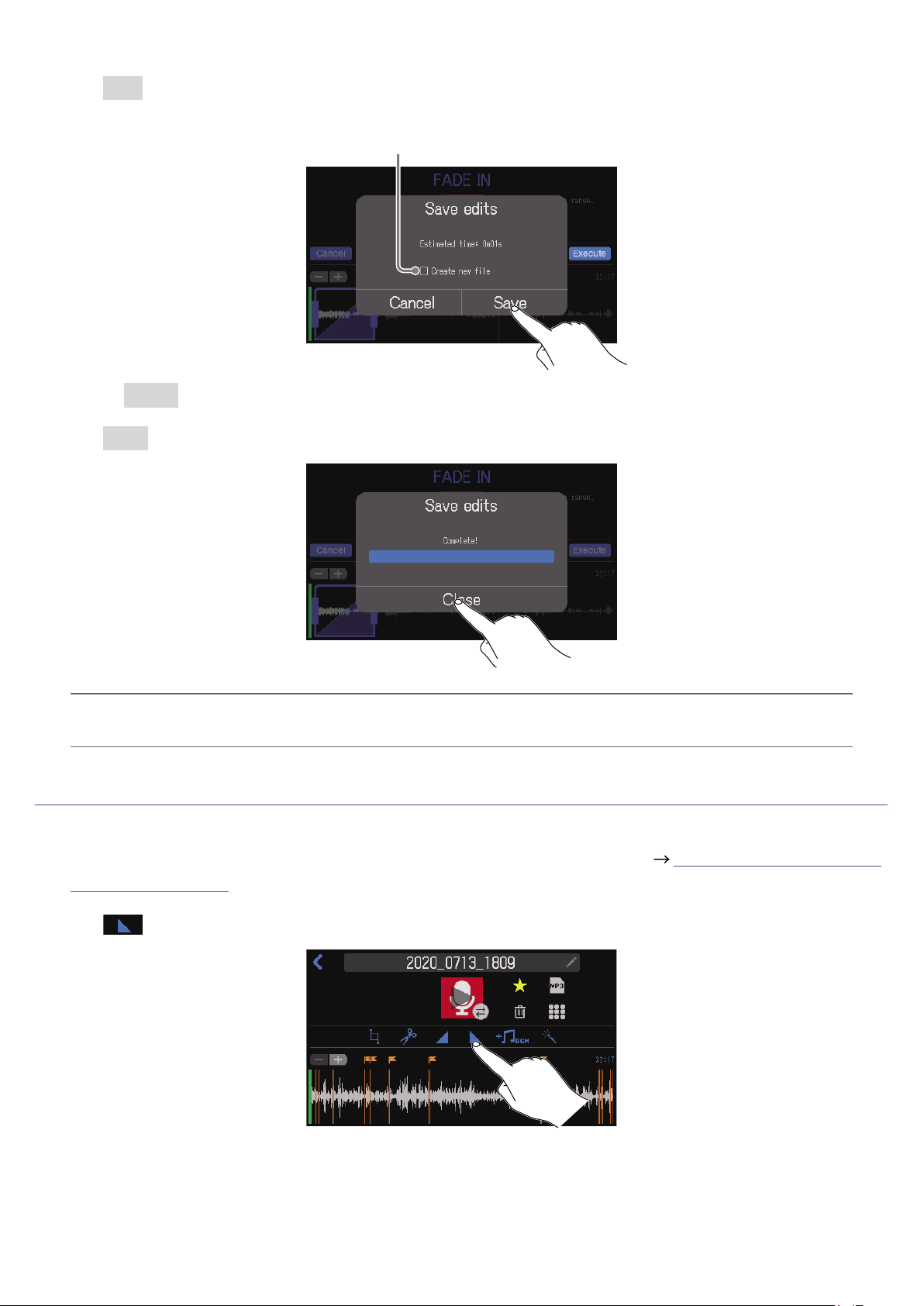
4.
Tap Save.
Tap to add a check to create a new le with the fade-in effect
(and keep the le without the effect as is).
Select Cancel to cancel adding a fade-in.
5.
Tap Close.
HINT
If a new le is created after adding a fade-in, “_FADEIN” will be added to the end of the le name.
Fade out
1.
Open the editing screen for the le to which you want to add a fade out ( “Opening the File Editing
Screen” on page 56).
2.
Tap .
64
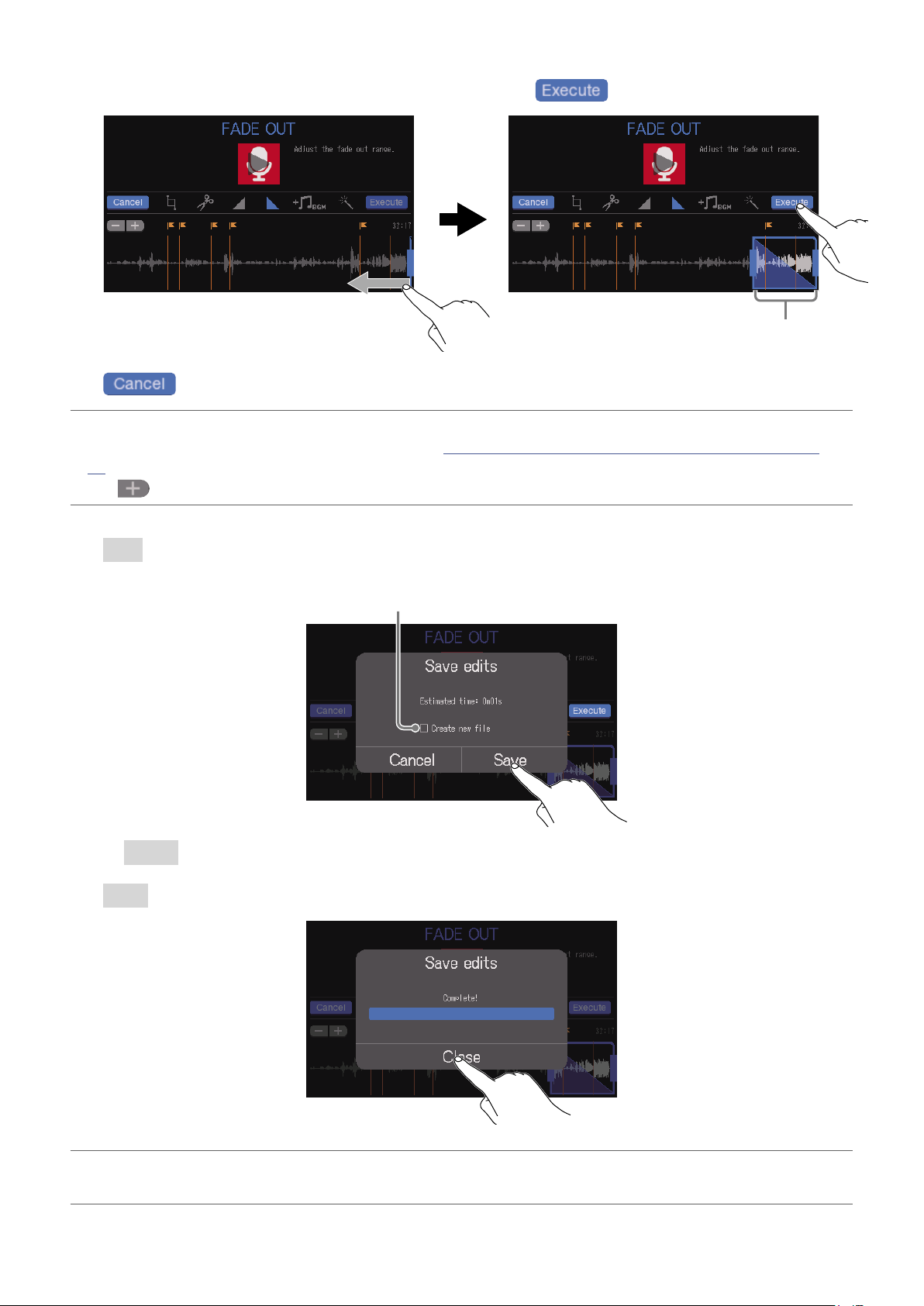
3.
Slide the fade-out frame to set the desired range, and tap .
Fade out range
The fade out will occur over this time.
Tap to cancel adding a fade-out.
HINT
•The le can be played to check the fade-out. See “Playing recordings on the Home Screen” on page
37 for playback procedures.
•Tap
to zoom the waveform display, enabling precise setting of the points.
4.
Tap Save.
Tap to add a check to create a new le with the fade-out effect
(and keep the le without the effect as is).
Select Cancel to cancel adding a fade-out.
5.
Tap Close.
HINT
If a new le is created after adding a fade-out, “_FADEOUT” will be added to the end of the le name.
65
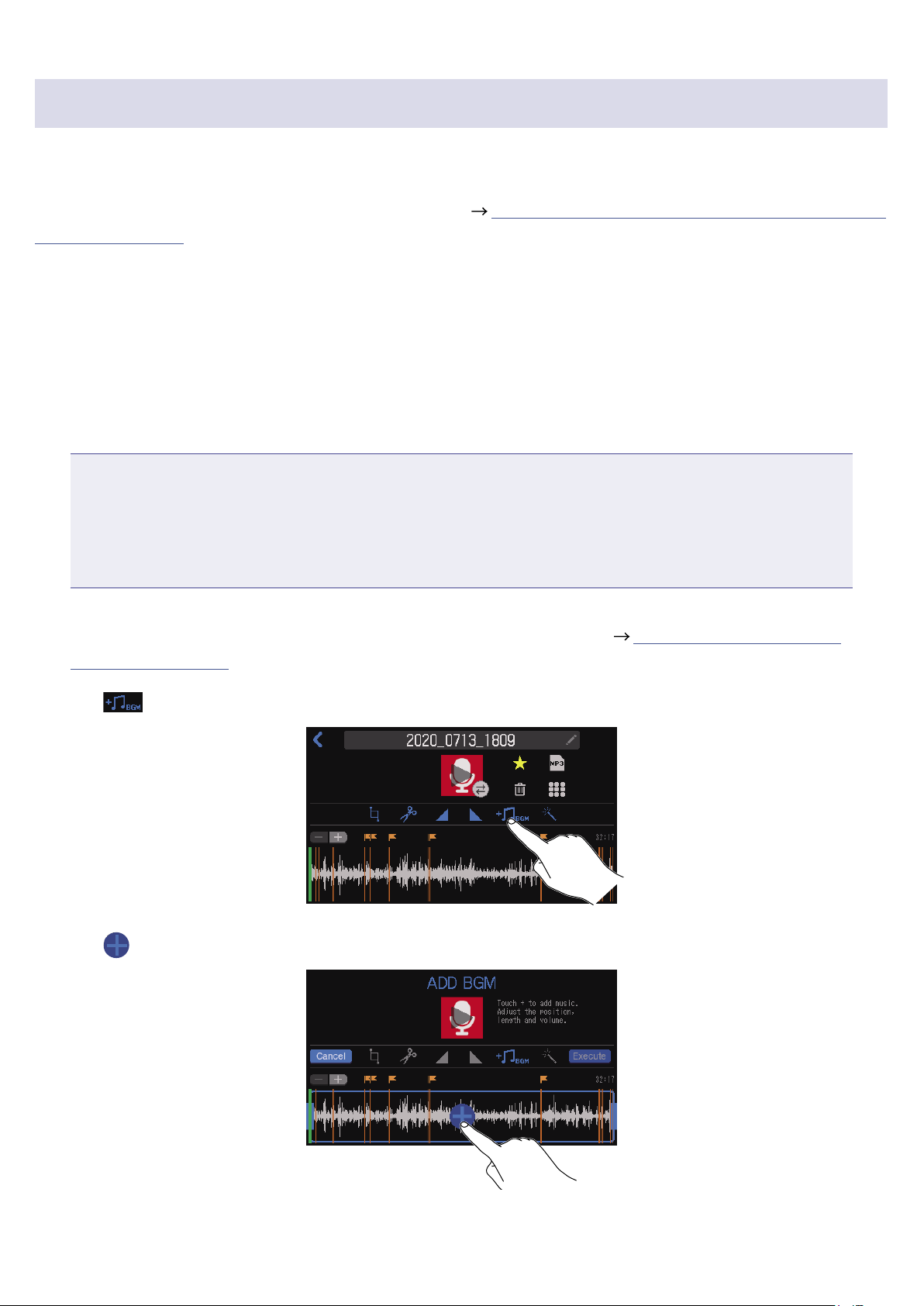
Adding music and other background sound
Background music (BGM) can be added to audio les.
Use a computer beforehand to store the audio le to be used for BGM on the SD card in any directory
other than the P8_Multitrack and P8_Settings folders. ( “Transferring les to a computer, smartphone or
tablet” on page 72)
■
File format overview
Select an audio le with the following format for BGM.
•Format: WAV
•Sample rate: 44.1 kHz
•Bit rate: 16/24-bit
•
Mono/stereo
NOTE
•The currently selected le cannot also be added as BGM. The le name will appear gray.
•If a le is not compatible as BGM, its name will be gray and it will not be selectable or an error pop-up
message will appear when it is selected.
•Some les that are not supported as BGM can be selected on the File List Screen and converted to a
compatible le format in advance. After conversion, such les can be used as BGM.
1.
Open the editing screen for the le to which you want to add BGM ( “Opening the File Editing
Screen” on page 56).
2.
Tap .
3.
Tap .
66
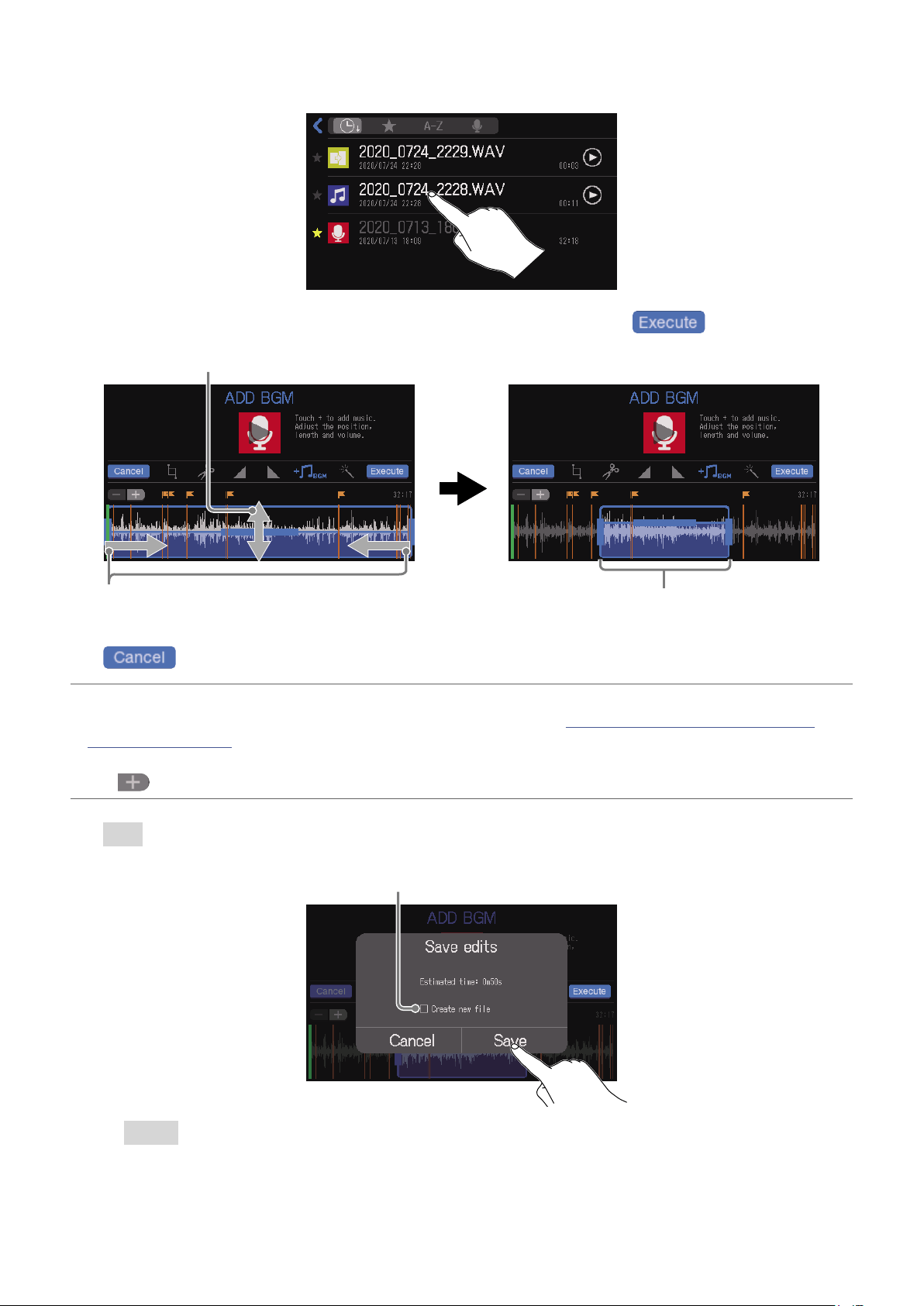
4.
Tap the le to add as BGM.
5.
Set the area where the BGM will be added, adjust its volume, and tap .
Slide left and right to set the area
where BGM is added.
Slide up and down to set the BGM volume.
The added BGM will play repeatedly
within the set range.
Tap to cancel adding BGM.
HINT
•The le can be played to check the effect of adding the BGM. See “Playing recordings on the Home
Screen” on page 37 for playback procedures.
•During le playback, only the BGM volume can be changed.
•Tap
to zoom the waveform display, enabling precise setting of the points.
6.
Tap Save.
Tap to add a check to create a new le after adding BGM
(and keep the le without BGM as is).
Select Cancel to cancel adding BGM.
67

7.
Tap Close.
HINT
If a new le is created with BGM, “_BGM” will be added to the end of the le name.
68
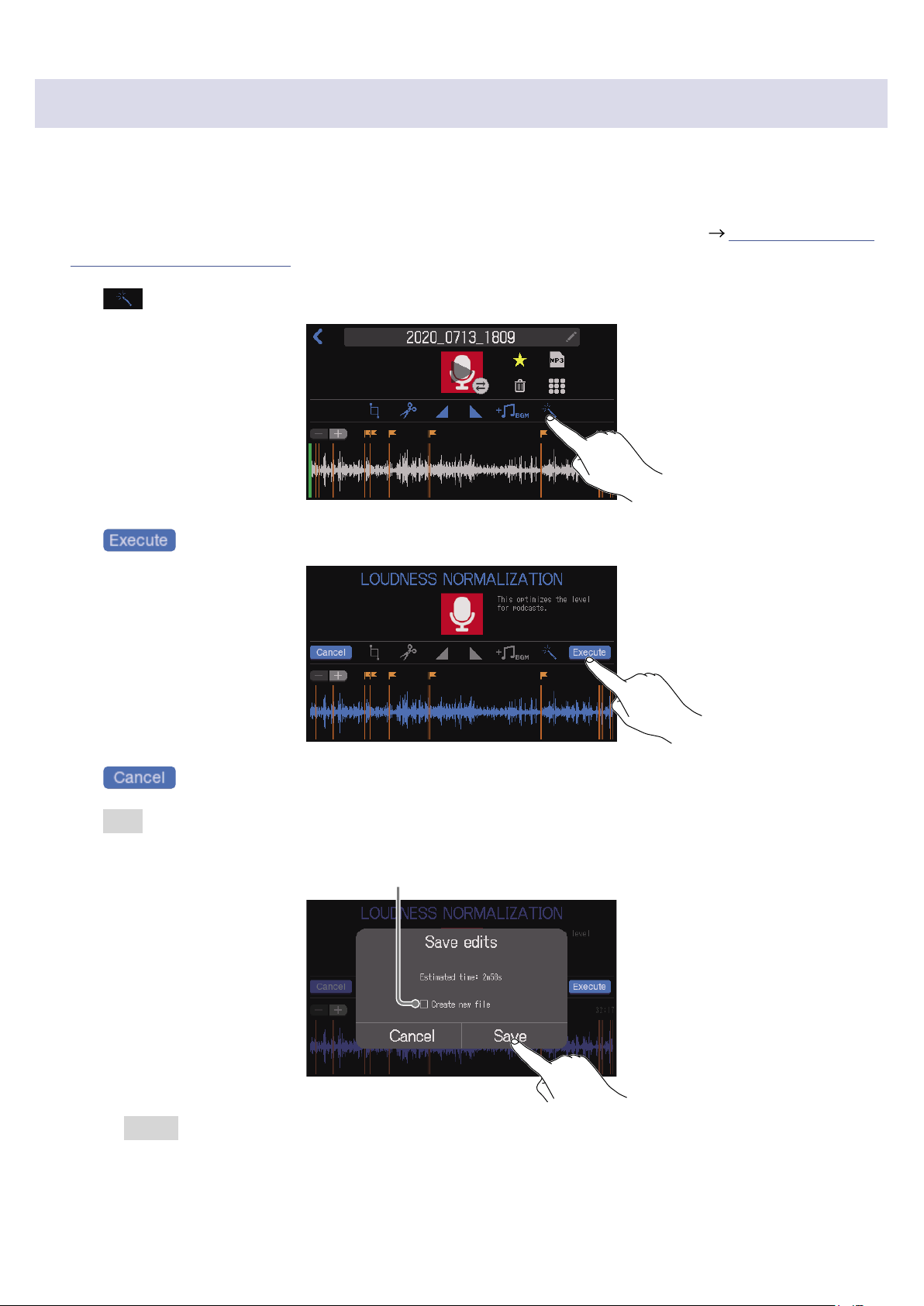
Optimizing podcast volume (loudness normalization)
The loudness level of the entire le can be analyzed and the volume automatically optimized for
podcasting.
1.
Open the editing screen for the le for which you want to optimize the volume ( “Opening the File
Editing Screen” on page 56).
2.
Tap .
3.
Tap .
Tap to cancel loudness normalization.
4.
Tap Save.
Tap to add a check to create a new le after loudness normalization
(and keep the le before loudness normalization as is).
Select Cancel to cancel loudness normalization.
69
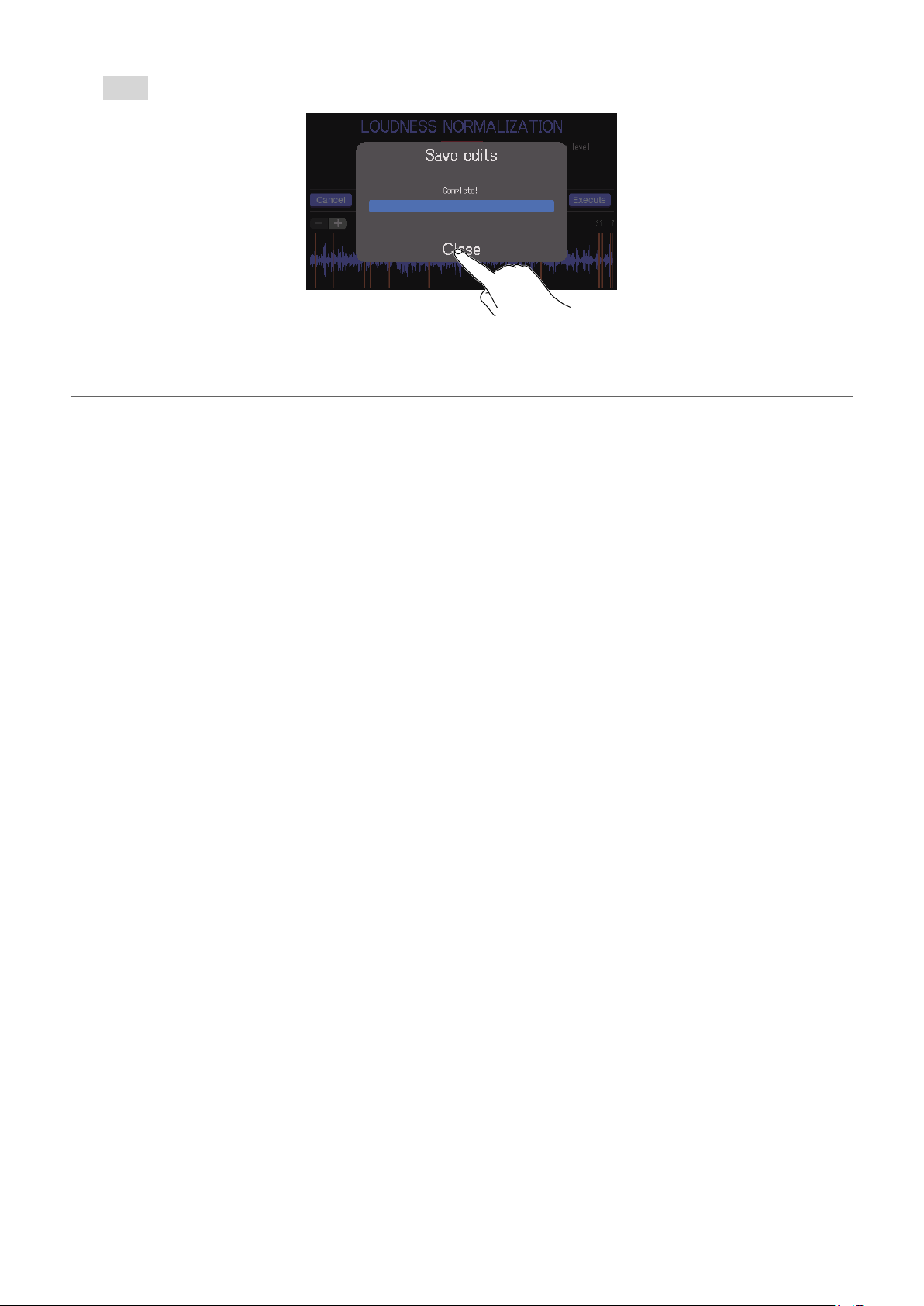
5.
Tap Close.
HINT
If a new le is created after loudness normalization, “_NORM” will be added to the end of the le name.
70
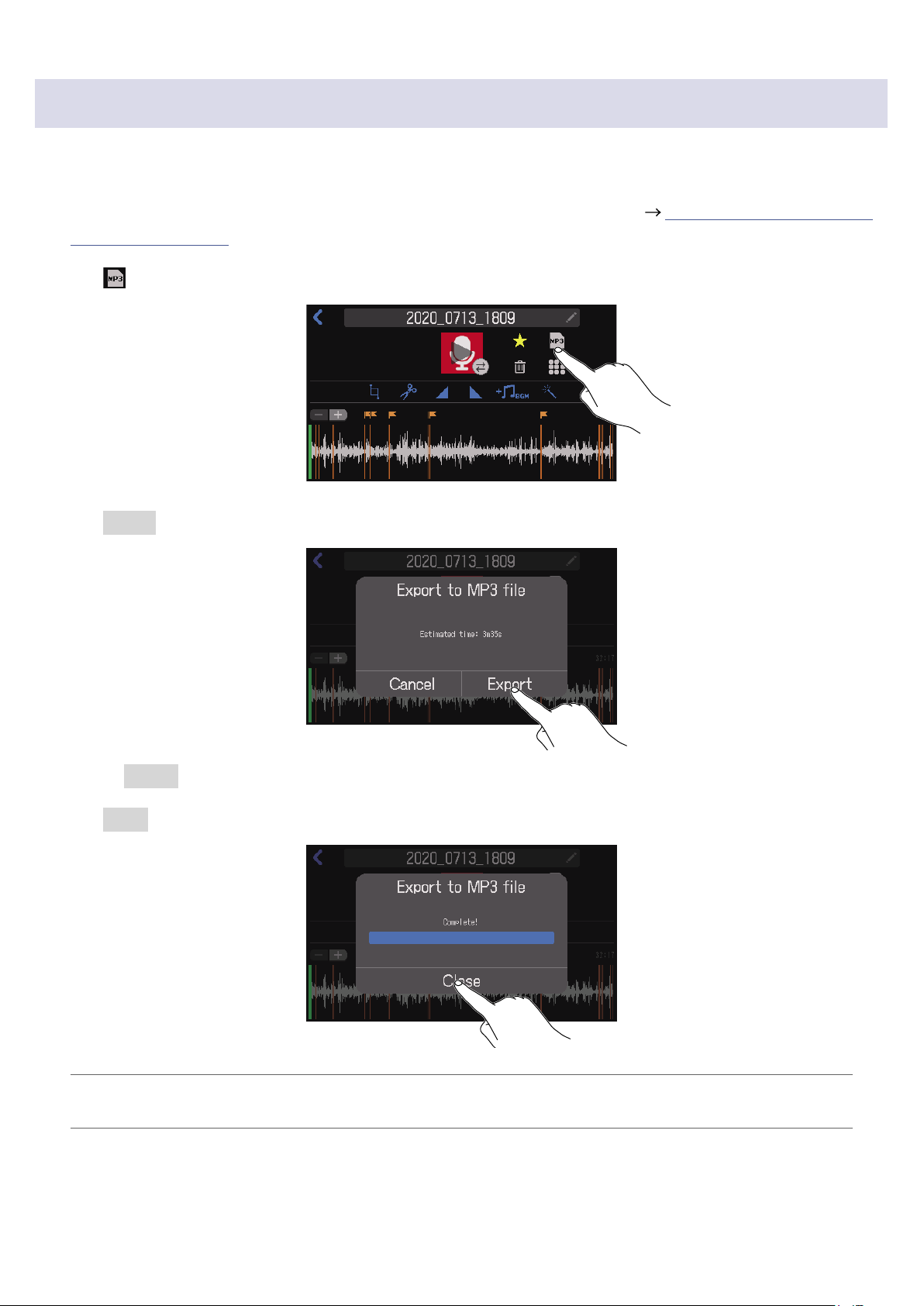
Converting les to MP3 format
WAV les recorded on the
P8
can be converted to MP3 format for podcasts.
1.
Open the editing screen for the le you want to convert to MP3 format ( “Opening the File Editing
Screen” on page 56).
2.
Tap .
3.
Tap Export.
Select Cancel to cancel MP3 conversion.
4.
Tap Close.
HINT
After a le has been converted from WAV to MP3, it will have the same name.
71

Transferring les to a computer, smartphone or
tablet
The input signals of each channel and the sounds played by pressing the SOUND PAD buttons are
recorded as separate les. Various editing functions can be used on them after recording by transferring
them to a computer or other device. For example, their mix balance can be adjusted, effects can be added,
and lengths can be changed. After editing them, upload them to the podcasting service or server you are
using.
Transferring les to a computer, smartphone or tablet
Recorded les can be transferred to computers, smartphones and tablets.
1.
Tap on the Home Screen.
2.
Tap .
This opens the USB FILE TRANSFER screen.
3.
Use a USB cable to connect the
P8
with a computer, smartphone or tablet ( “Connecting a
computer, smartphone or tablet by USB” on page 28).
When connecting a smartphone or tablet, turn Tablet Mode on. (
“Preparing to connect a
smartphone or tablet” on page 29)
4.
Use the computer or other device to transfer the necessary les.
NOTE
•When the USB FILE TRANSFER screen is open, other functions and buttons cannot be used. Moreover,
the channel input signals and sounds played when SOUND PAD buttons are pressed will stop being
output from the
P8
.
•The USB FILE TRANSFER screen can also be opened from the Home Screen by tapping
to open
the SD CARD screen, and tapping .
72
P8
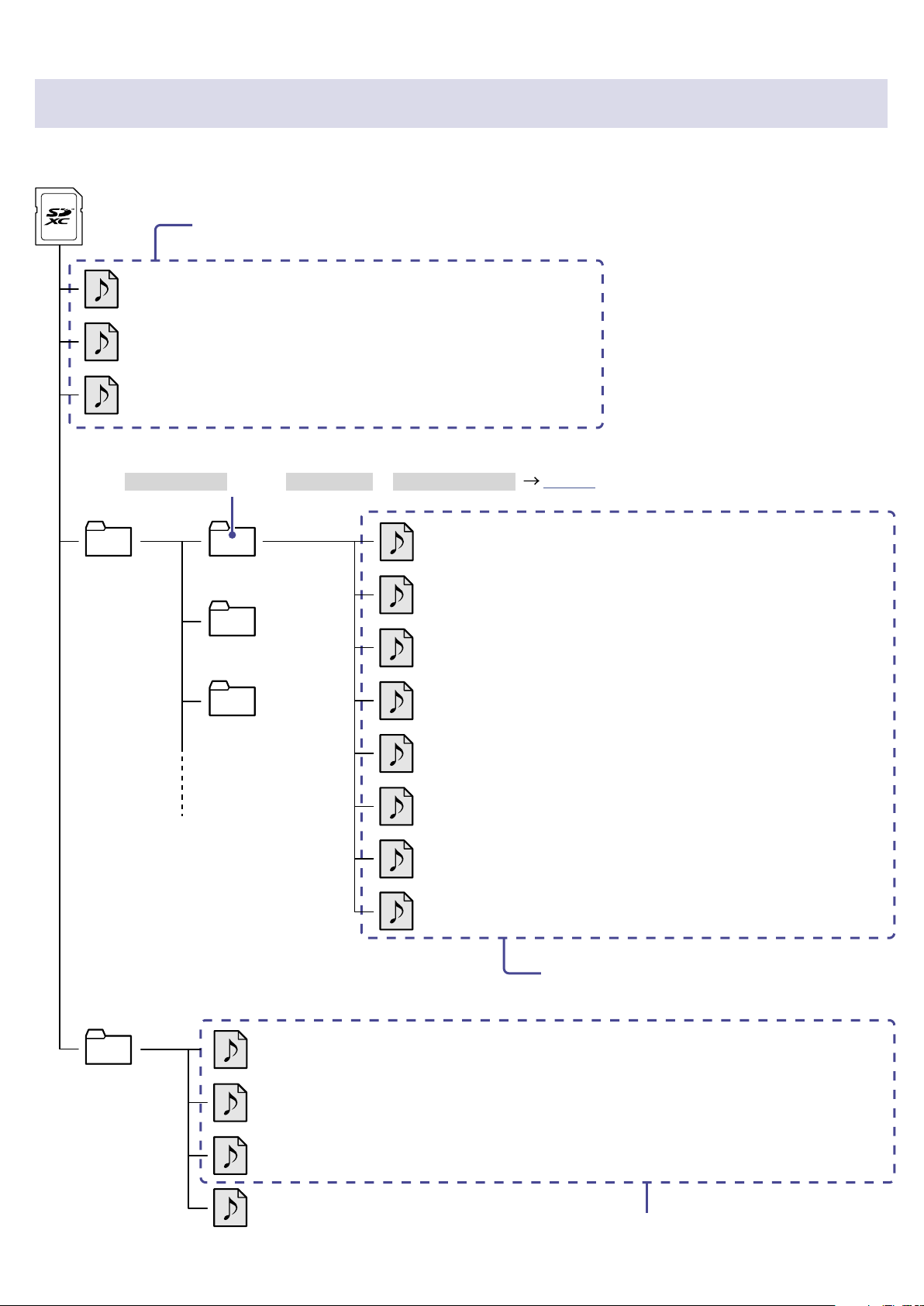
folder and le structure
When recording with the
P8
, folders and les are created on SD cards in the following manner.
Root
2020_0101_0000.WAV
2020_0101_0010.WAV
MIC1.WAV
2020_0101_0000.ZWV
MIC2.WAV
MIC3.WAV
MIC4.WAV
MIC5.WAV
PHONE.WAV
SOUND_PAD.WAV
2020_0101_0024.WAV
P8_Multitrack 2020_0101_0000
2020_0101_0010
2020_0101_0024
P8_Settings
MIC6.WAV
or
USB.WAV
2020_0101_0010.ZWV
2020_0101_0024.ZWV
P8SETTING.ZSF
(Stereo le for podcasting)
(Mono le recording of signals from INPUT 1)
A folder with the same name as the stereo le for podcasting will be created,
and recording les for each track will be saved in it. (This happens only if
Keep Track Files is set to Original Data or With Tone & Comp (
page 79).)
(Mono le recording of signals from INPUT 2)
(Mono le recording of signals from INPUT 3)
(Stereo le recording of signals from smartphone connection jack)
(Mono le recording of signal from INPUT 6)
(Stereo le recording of signals from USB)
(Stereo le recording of SOUND PAD signals)
(
P8
settings backup le)
These les can be used for podcasting.
These are separate les for each channel and the
SOUND PAD sounds. These can be edited on a
computer or other device.
(Mono le recording of signals from INPUT 4)
(Mono le recording of signal from INPUT 5)
(
Waveform display data of stereo les for podcasting
)
This data is for showing the waveforms used
during editing.
73
Modifying the date and time
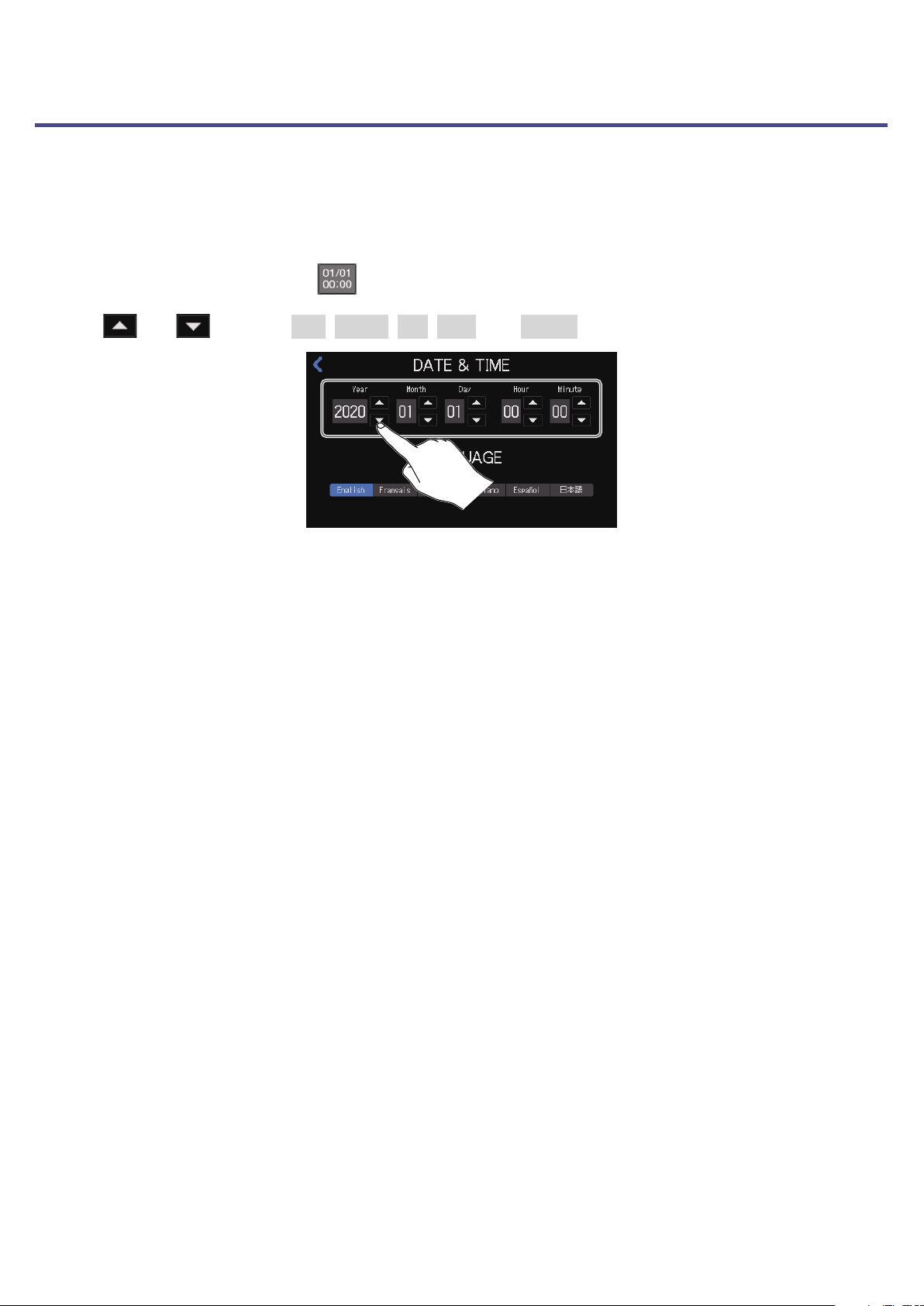
The date and time are stored in recorded les, and the date and time recording started are used in the
le name. Having the correct date and time set is helpful when looking for les, for example, by allowing
content to be identied by names.
1.
Tap the date and time display ( ) on the Home Screen.
2.
Tap and to set the Year, Month, Day, Hour, and Minute.
74
Changing the touchscreen display language
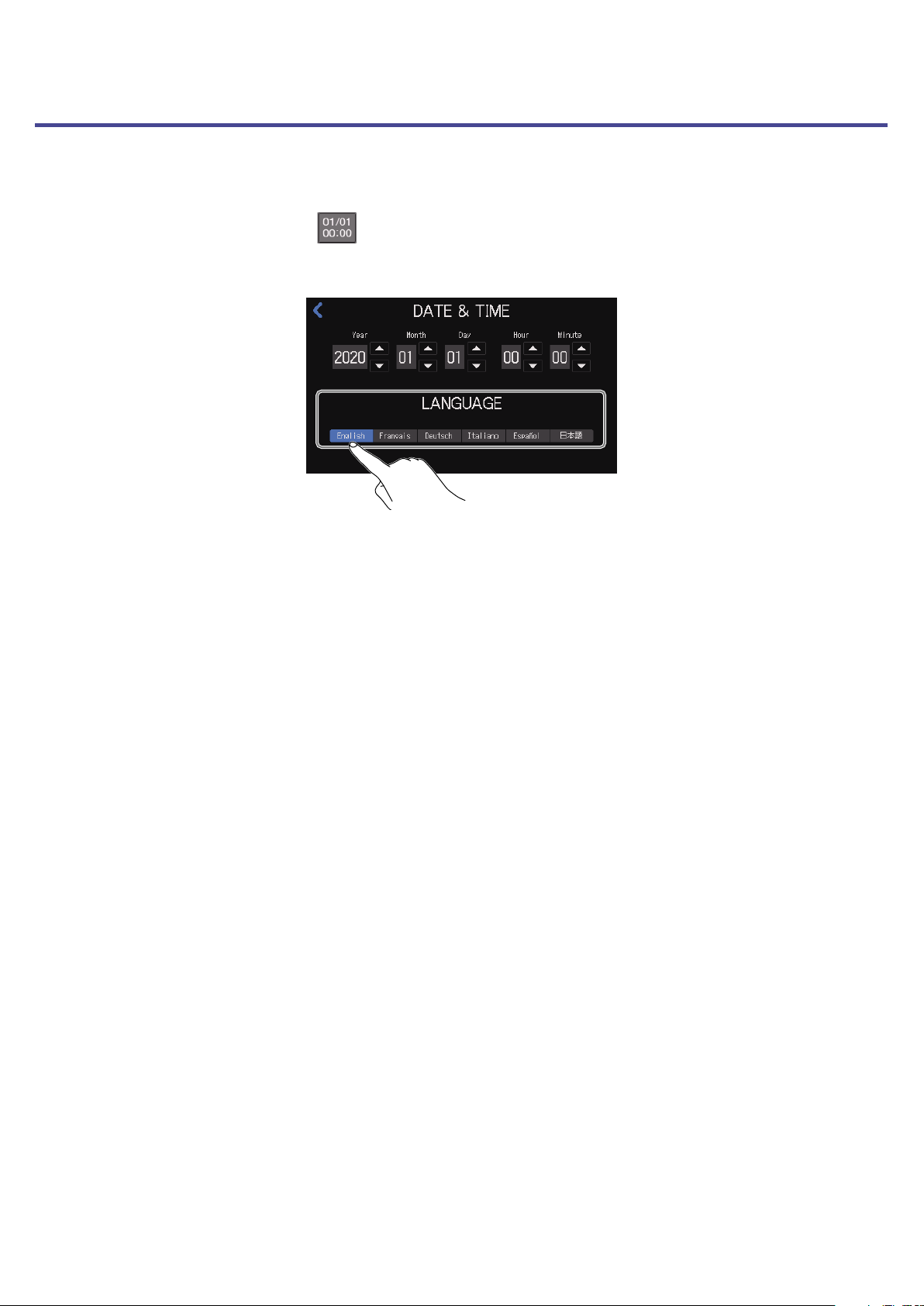
The language used on the touchscreen can be changed.
1.
Tap the date and time display ( ) on the Home Screen.
2.
Tap the language to be shown on the touchscreen.
75
Setting the battery type
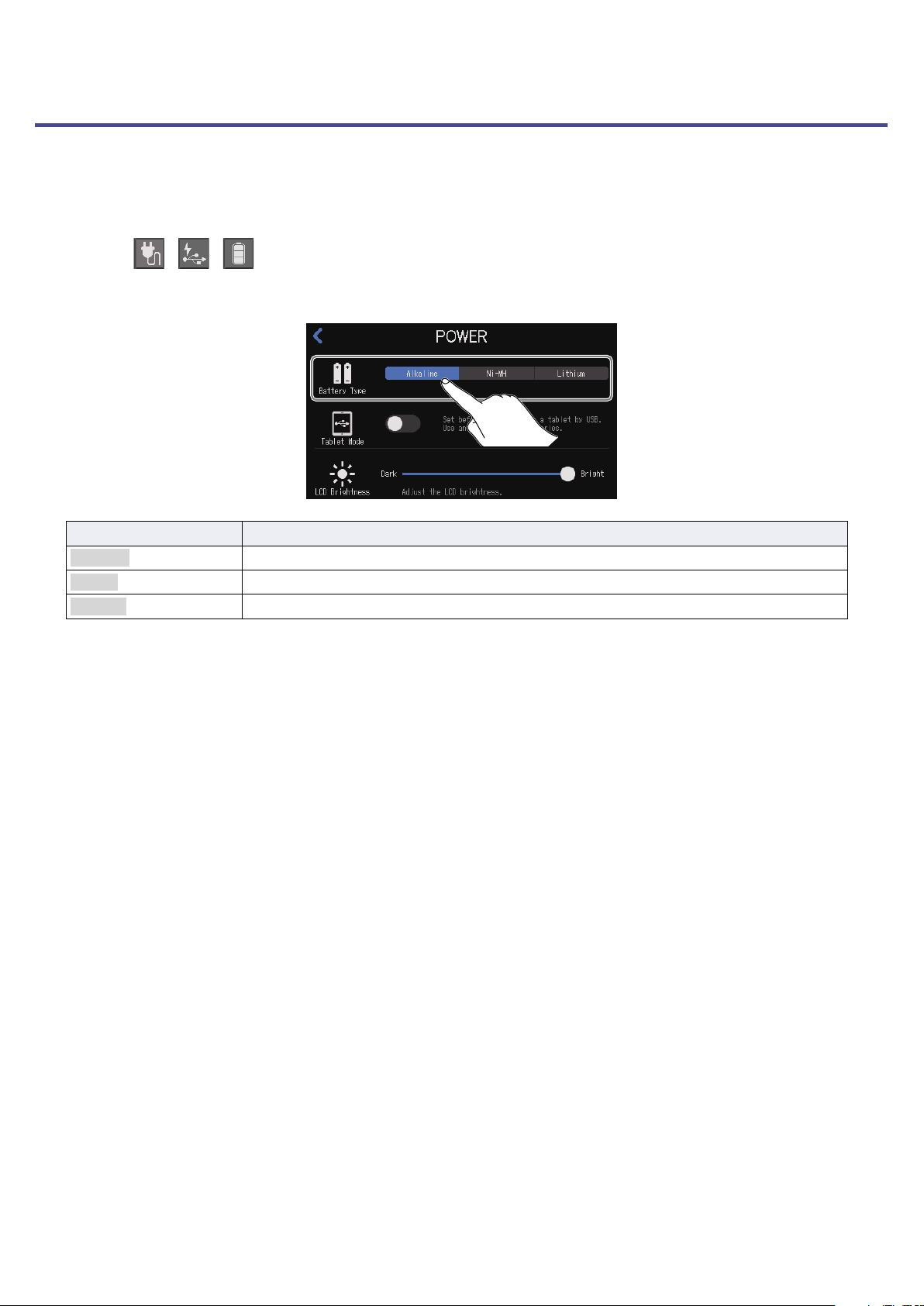
Set the type of battery used correctly so that the amount of remaining battery charge can be shown
accurately.
1.
Tap the / / power button on the Home Screen.
2.
Tap the type of battery used.
Setting Explanation
Alkaline Alkaline batteries
Ni-MH Nickel-metal hydride batteries
Lithium Lithium batteries
76
Adjusting the brightness of the touchscreen
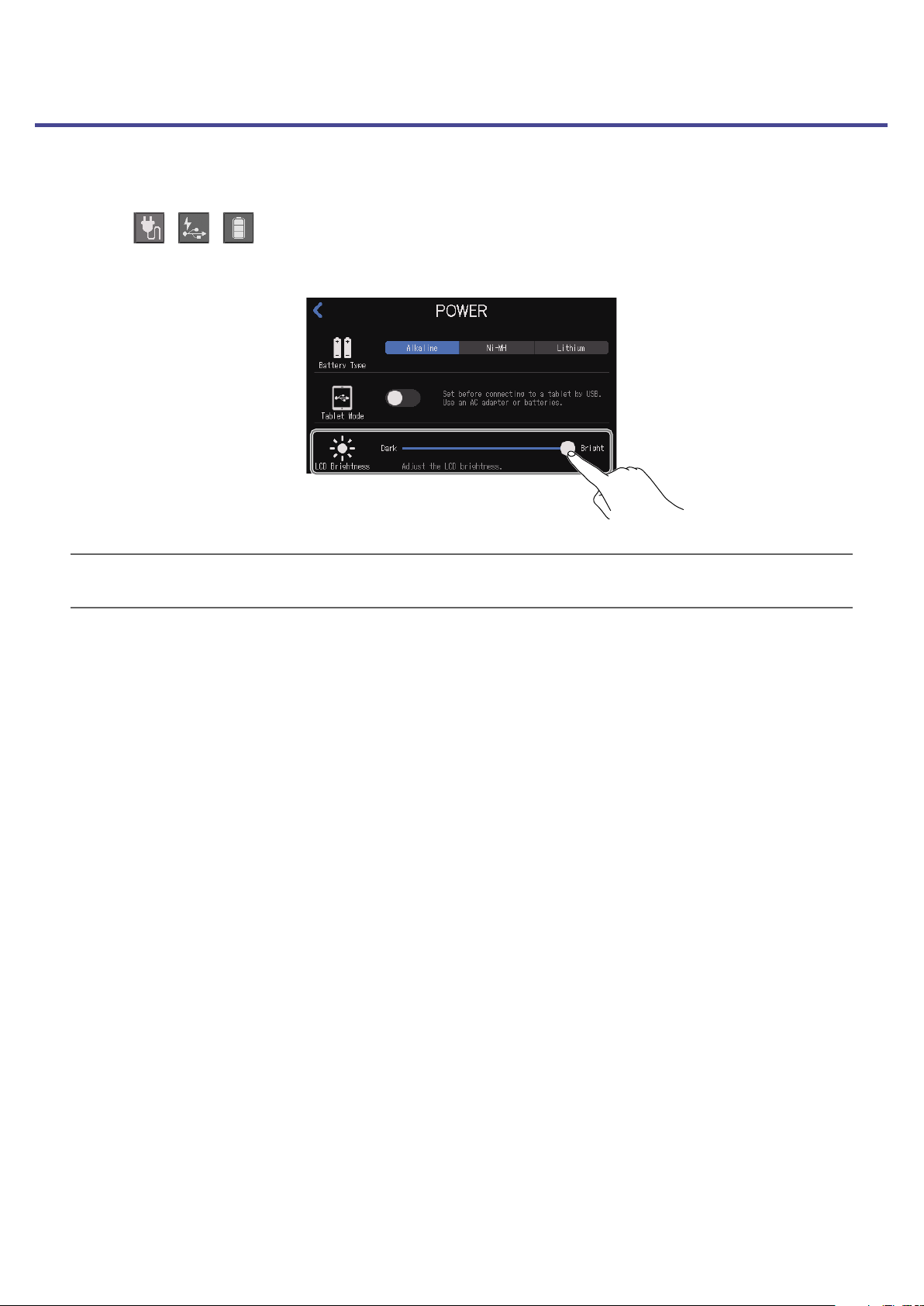
The brightness of the touchscreen can be adjusted.
1.
Tap the / / power button on the Home Screen.
2.
Slide to adjust the brightness of the touchscreen.
HINT
Double-tap the slider or the bar to reset it to the default value.
77
Using noise reduction
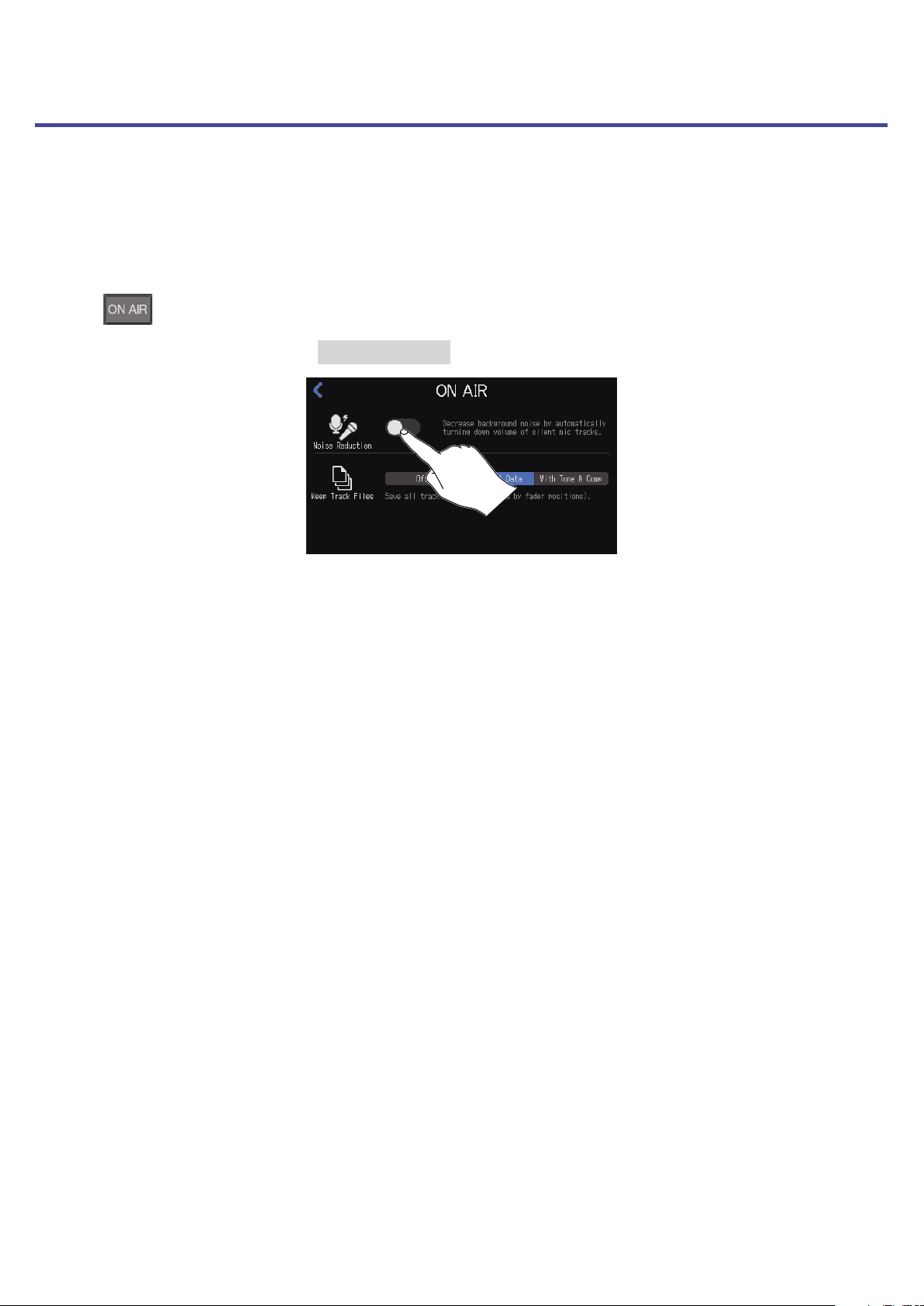
Noise Reduction can be turned on or off.
When multiple mics are being used to record sound, the noise reduction function of the
P8
suppresses
background noise to a constant level by automatically reducing the levels of the mic inputs not being
used by people.
1.
Tap on the Home Screen.
2.
Tap the ON/OFF button to turn Noise Reduction on or off.
78
Setting recording le types
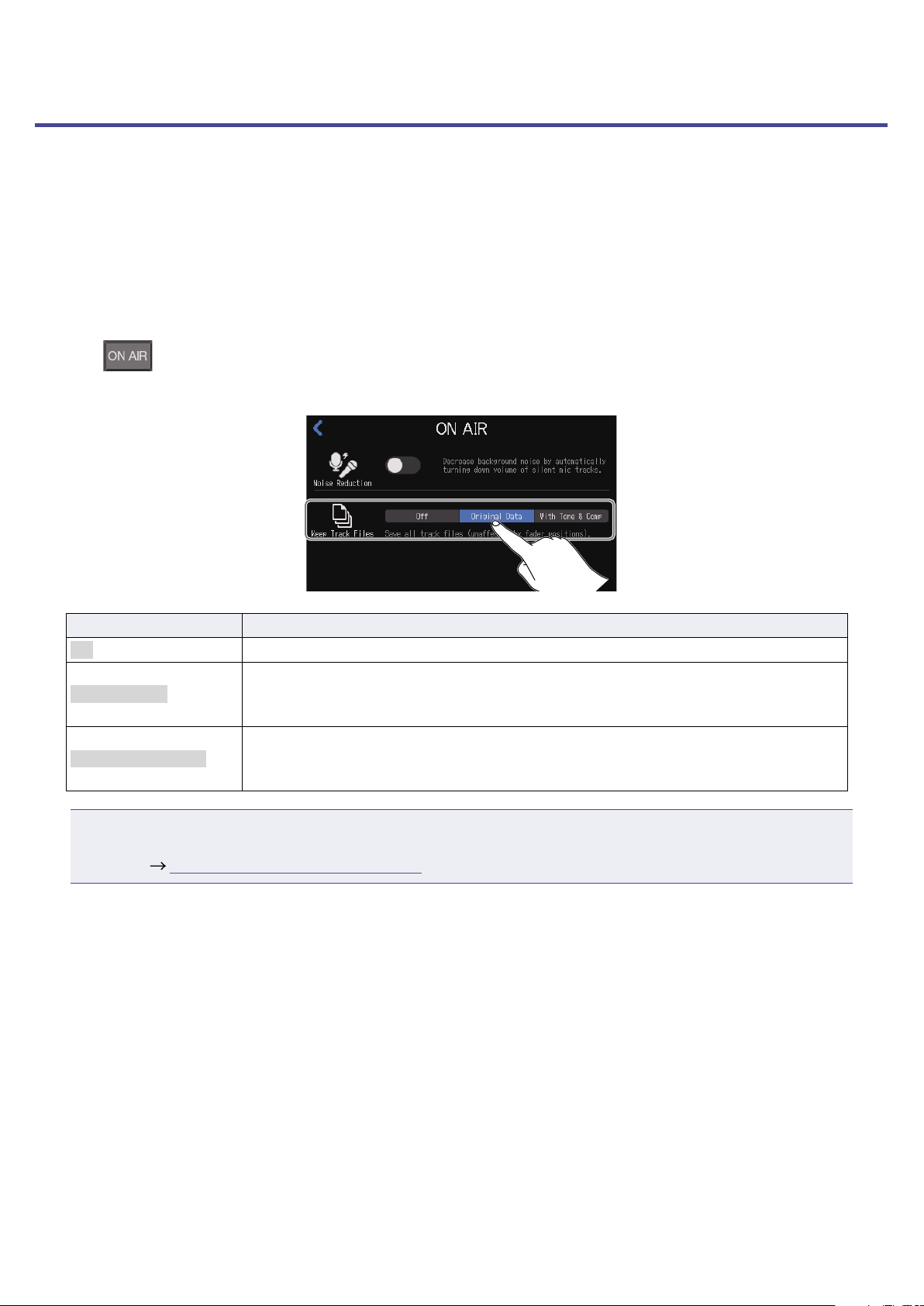
The types of les recorded to the SD card can be set.
The options include recording only a stereo mix of all the inputs or also simultaneously recording
separate les for each channel (mic, USB and smartphone inputs, and SOUND PAD sounds).
Various editing functions can be used on separate les after recording by transferring them to a computer
or other device. For example, their mix balance can be adjusted, effects can be added, and lengths can be
changed.
1.
Tap on the Home Screen.
2.
Tap the recording le type setting.
Setting Explanation
Off Only record stereo les for podcasting.
Original Data
In addition to stereo les for podcasting, individual les are also recorded for
each channel. The individual les for each channel are recorded before being
affected by the fader, Tone, Comp/DeEss and other adjustments.
With Tone & Comp
In addition to stereo les for podcasting, individual les are also recorded for
each channel. The individual les for each channel are recorded before faders, but
after being affected by the Tone, Comp/DeEss and other adjustments.
NOTE
See the mixer block diagram for how effects are applied to individual channel recording les for different
settings. ( “Mixer block diagram” on page 93)
79
Testing SD cards
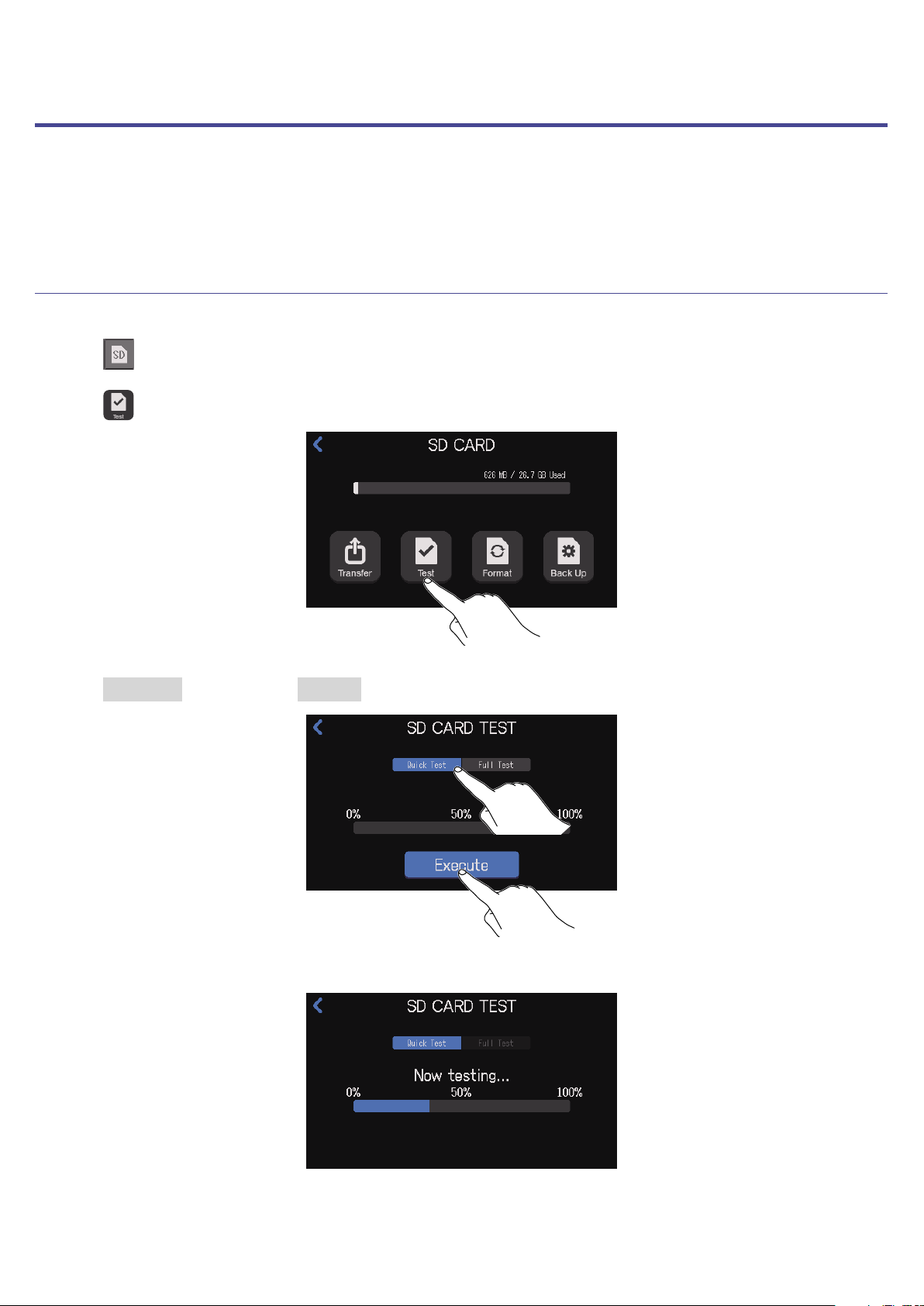
SD cards can be tested to conrm whether they can be used with the
P8
.
A quick test can be done in a short amount of time, while a full test examines the entire SD card.
Conducting a quick test
1.
Tap on the Home Screen.
2.
Tap .
3.
Tap Quick Test, and then tap Execute.
The card performance test will start. The test should take about 30 seconds.
80
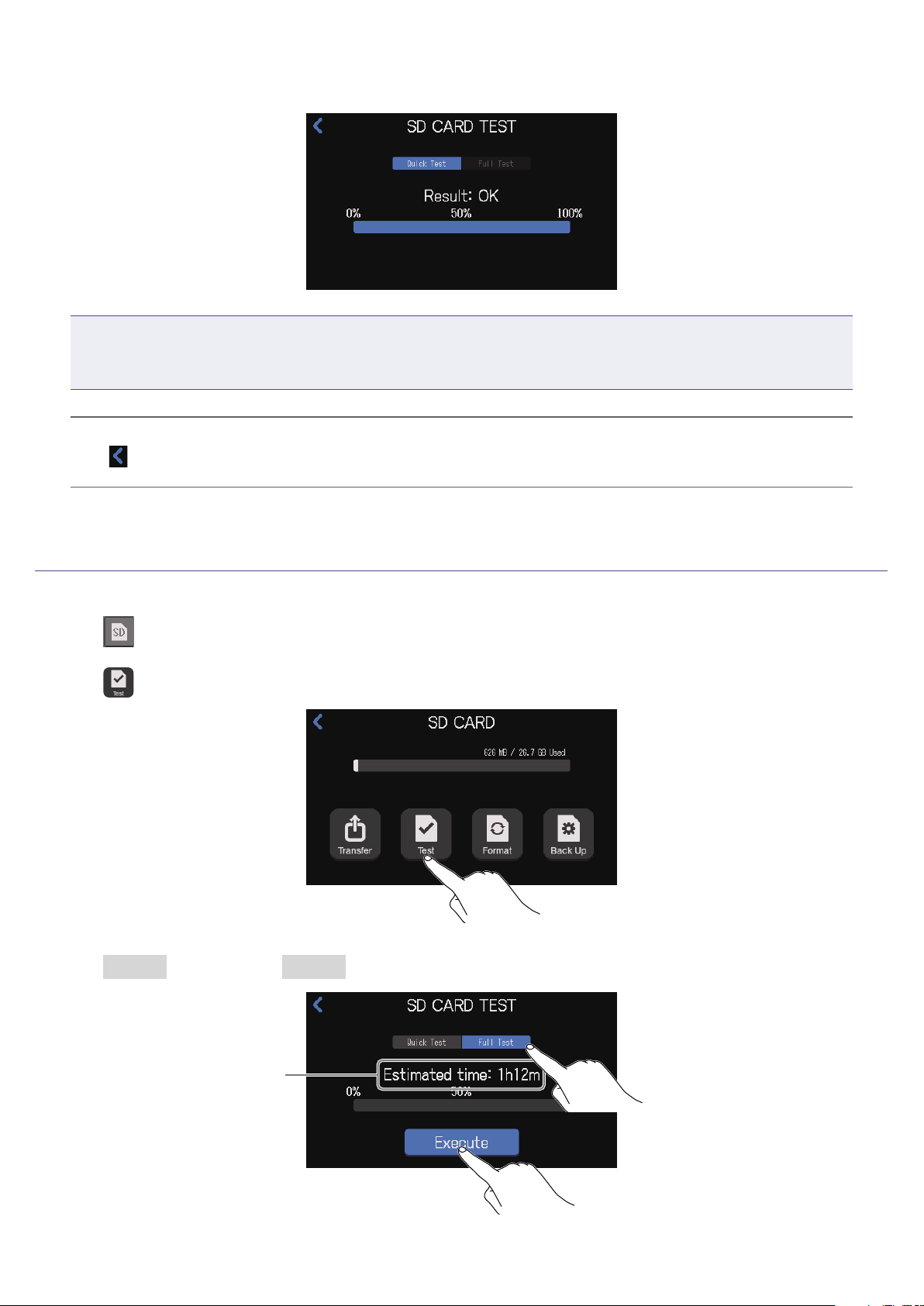
The result of the test will be shown when it completes.
NOTE
Even if a performance test result is "OK", there is no guarantee that writing errors will not occur. This
information is just to provide guidance.
HINT
Tap
to cancel a test while it is being executed.
Conducting a full test
1.
Tap on the Home Screen.
2.
Tap .
3.
Tap Full Test, and then tap Execute.
The approximate
amount of time
required for the test will
be shown.
81
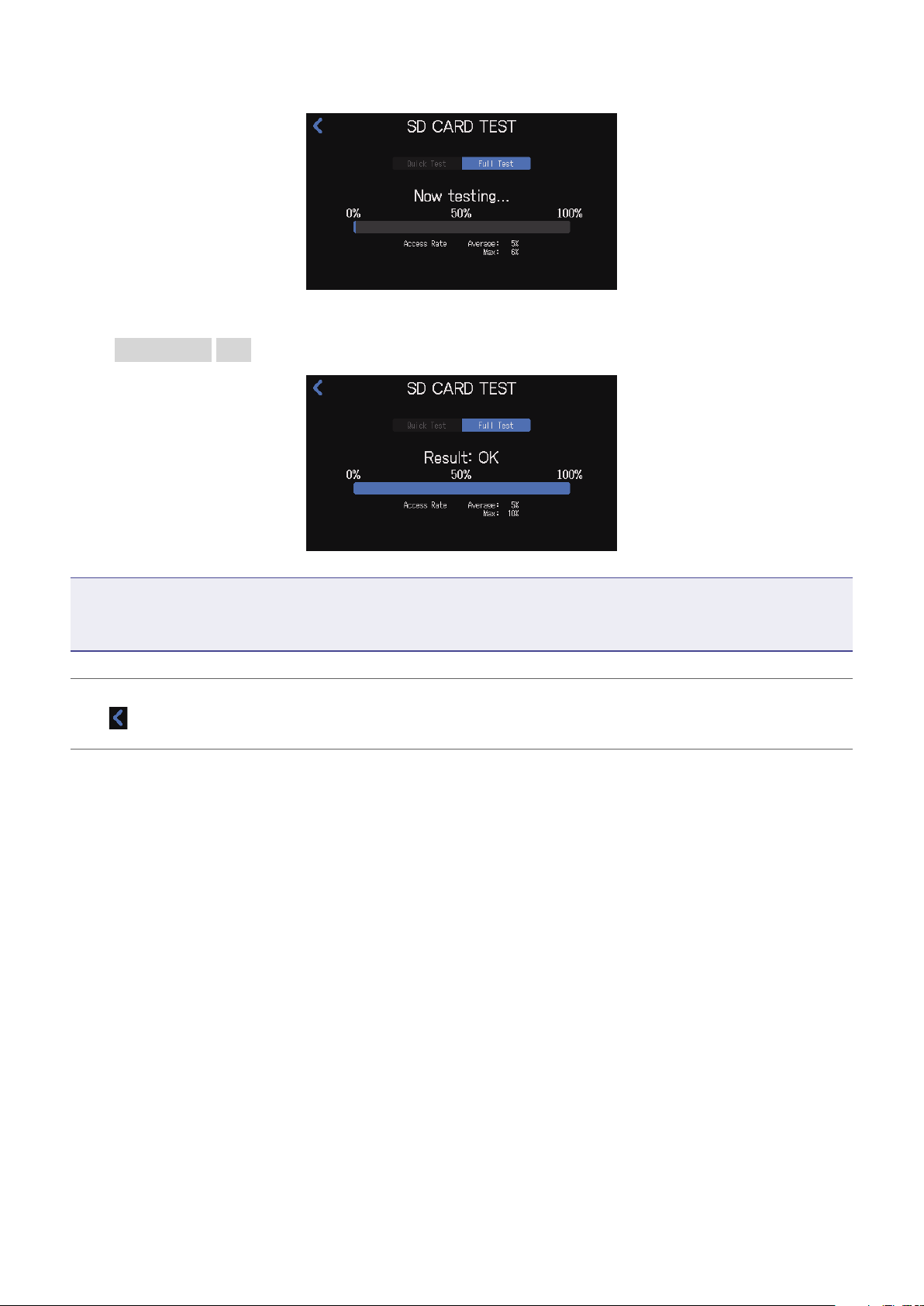
The card performance test will start.
The result of the test will be shown when it completes.
If the Access Rate Max reaches 100%, the card will fail (NG).
NOTE
Even if a performance test result is "OK", there is no guarantee that writing errors will not occur. This
information is just to provide guidance.
HINT
Tap
to cancel a test while it is being executed.
82
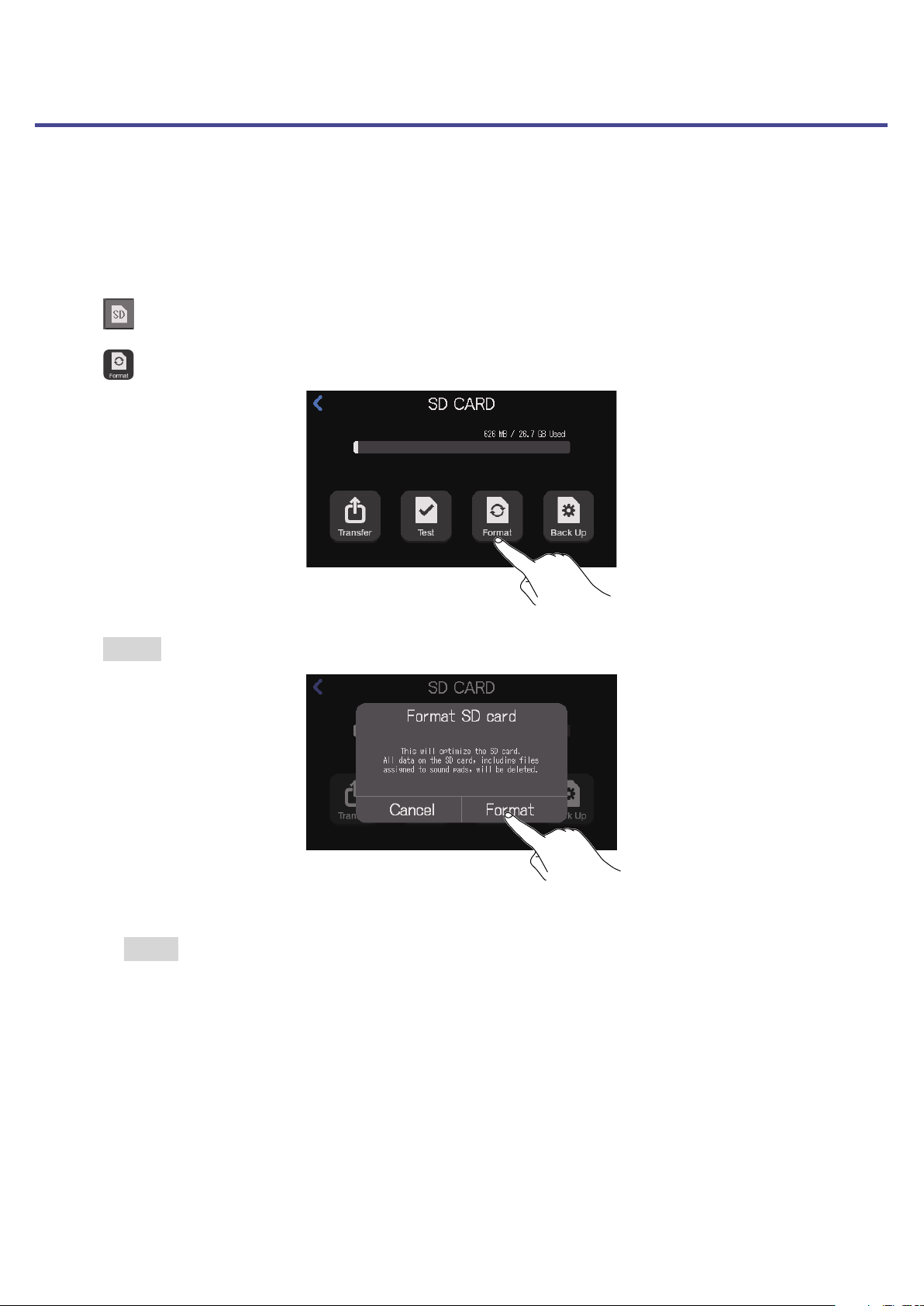
Formatting SD cards
Format SD cards for the
P8
to maximize their performance.
Before using SD cards that have just been purchased or that have been formatted on a computer, they
must be formatted by the
P8
. Be aware that formatting an SD card will delete all data, including les
assigned to SOUND PAD buttons, on it.
1.
Tap on the Home Screen.
2.
Tap .
3.
Tap Format.
This formats the card.
Select Cancel to cancel formatting.
83
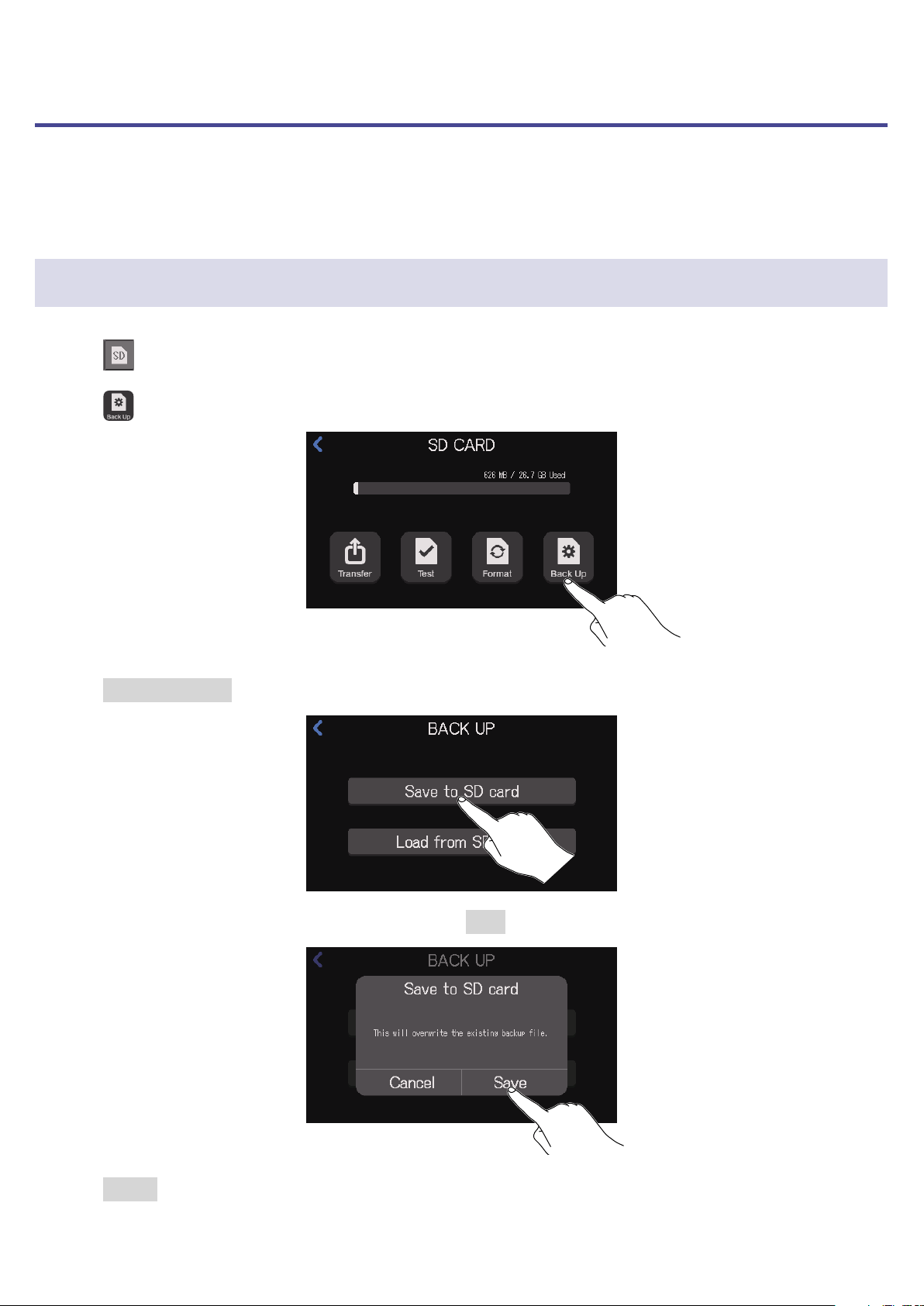
Using SD cards to back up and load settings
Settings related to the inputs and outputs of each channel, SOUND PAD functions, recording and power
can be backed up on SD cards. Backing up frequently used settings can be useful.
Backing up
1.
Tap on the Home Screen.
2.
Tap .
3.
Tap Save to SD card.
If a backup le already exists on the SD card, tap Save.
Tap Cancel to cancel backing up.
84
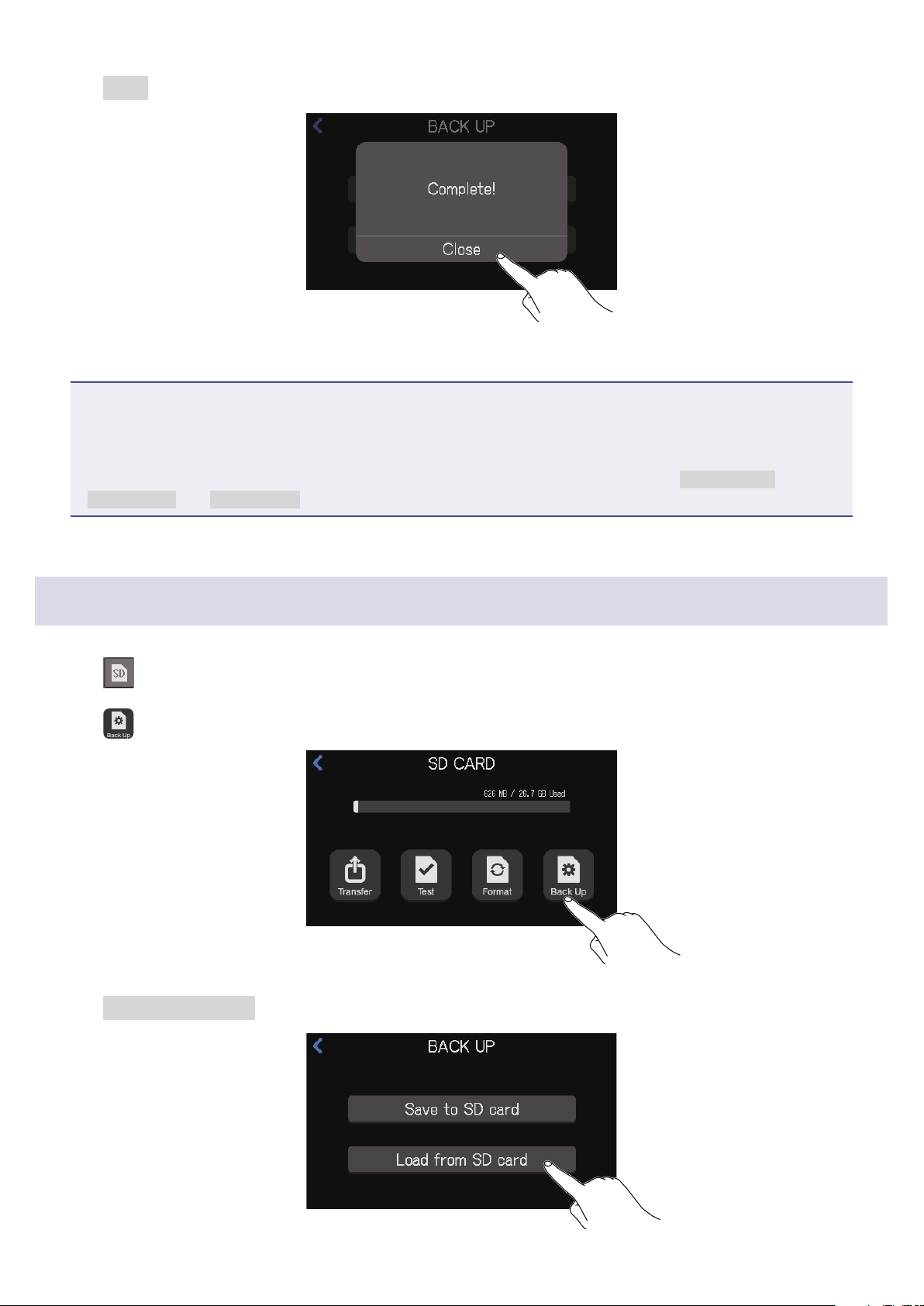
4.
Tap Close.
The current settings are now backed up on the SD card
NOTE
•Only one set of settings can be backed up to an SD card. If a backup le already exists on a SD card, it
will be overwritten and the old settings will be deleted.
•The following items will not be backed up.
Channel fader positions, PHONES, USB OUT and SPEAKER OUT knob positions, DATE & TIME,
LANGUAGE and Tablet Mode settings, and SOUND PAD le assignments
Loading backup settings
1.
Tap on the Home Screen.
2.
Tap .
3.
Tap Load from SD card.
85
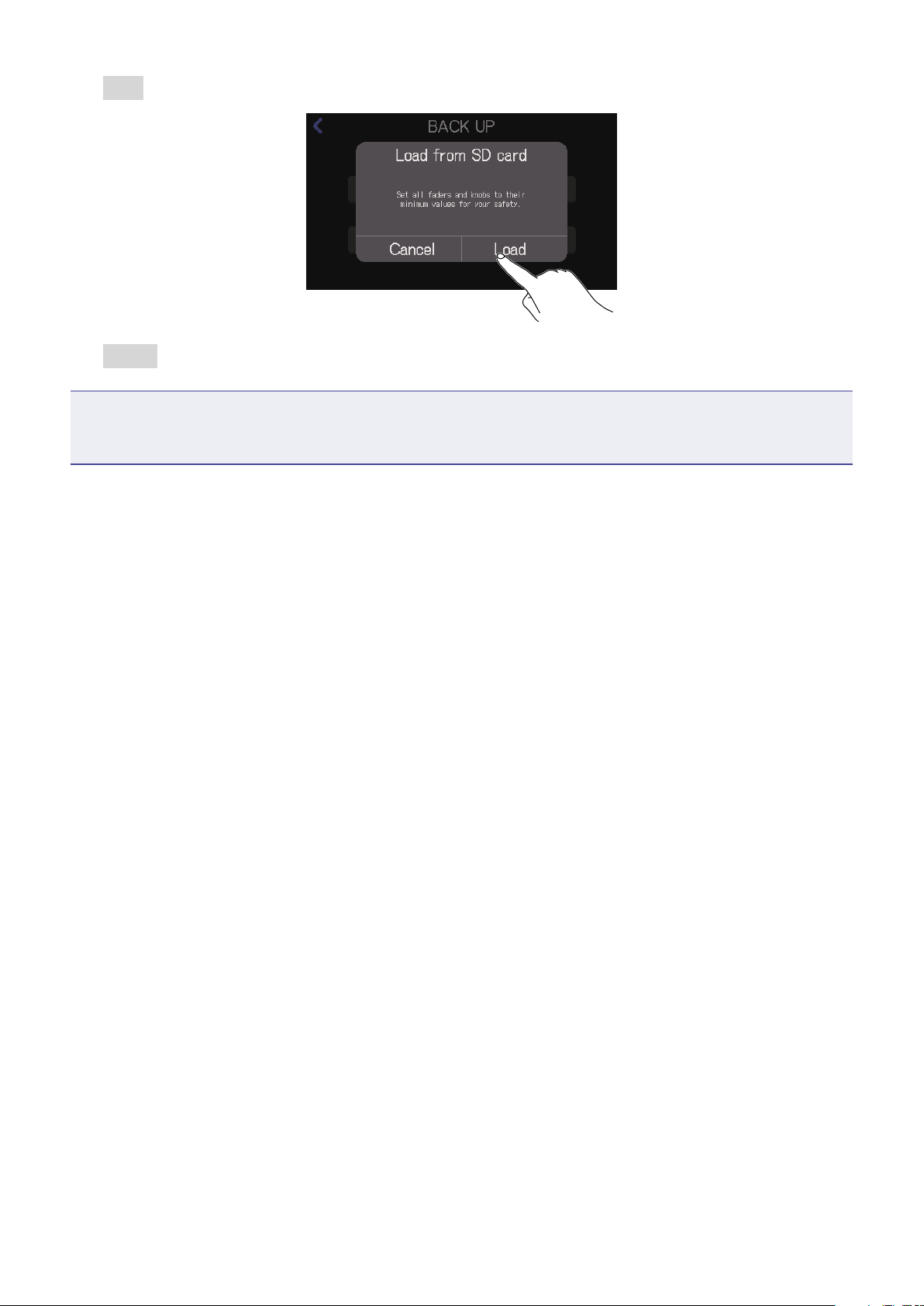
4.
Tap Load.
Tap Cancel to cancel loading backup settings.
NOTE
Loading gain settings could cause sudden output of loud sounds. Always lower the faders and knobs
before loading settings.
86
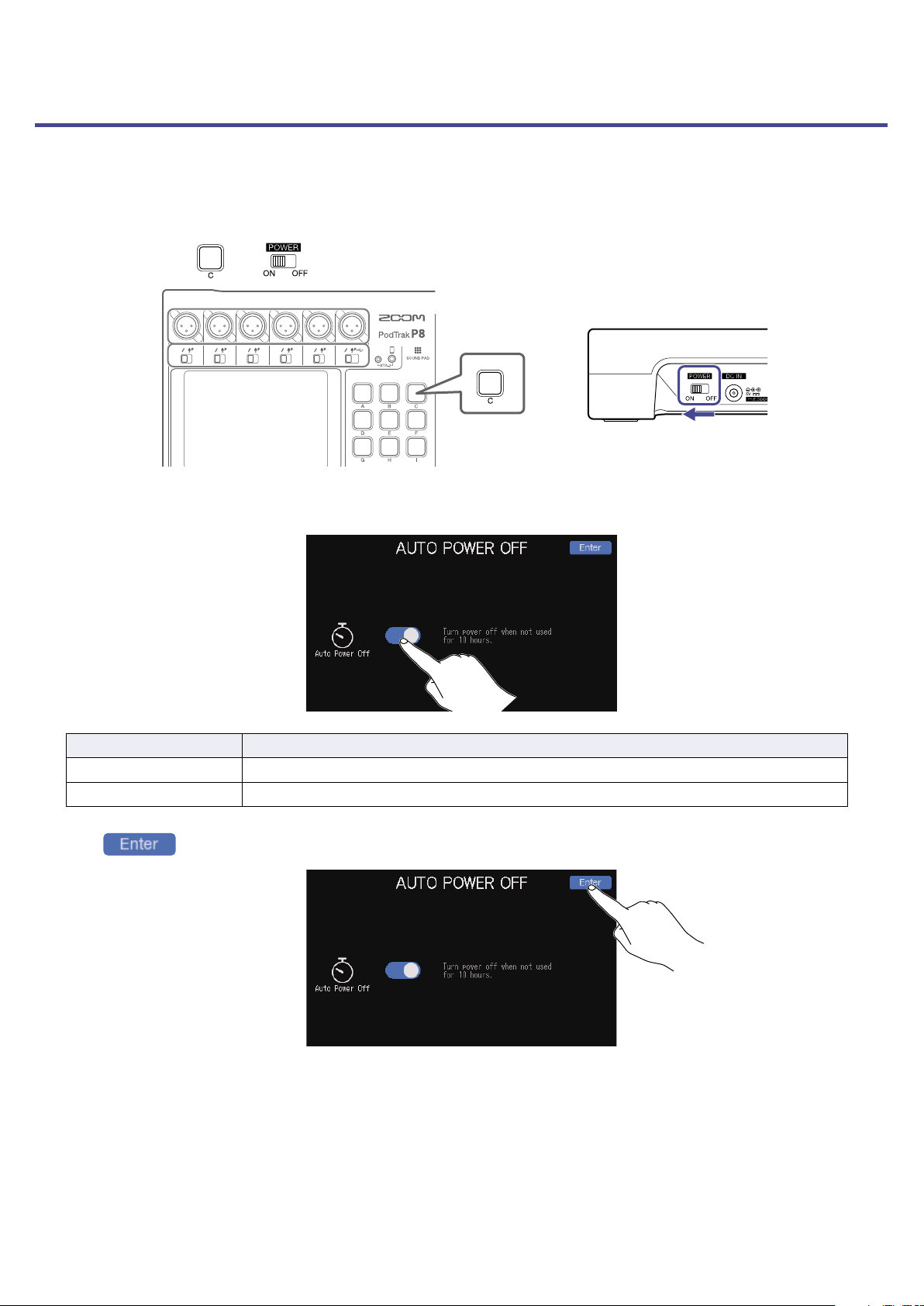
Setting the automatic power off function
When running on power from an AC adapter, the
P8
will automatically turn off if it is unused for 10 hours.
To keep the power on at all times, turn off the AUTO POWER OFF function.
1.
While pressing , set to ON.
2.
Tap the ON/OFF button to change the setting.
Setting Explanation
ON The power will automatically turn off if it is not used for 10 hours.
OFF The power will not turn off automatically.
3.
Tap .
This opens the Home Screen.
87
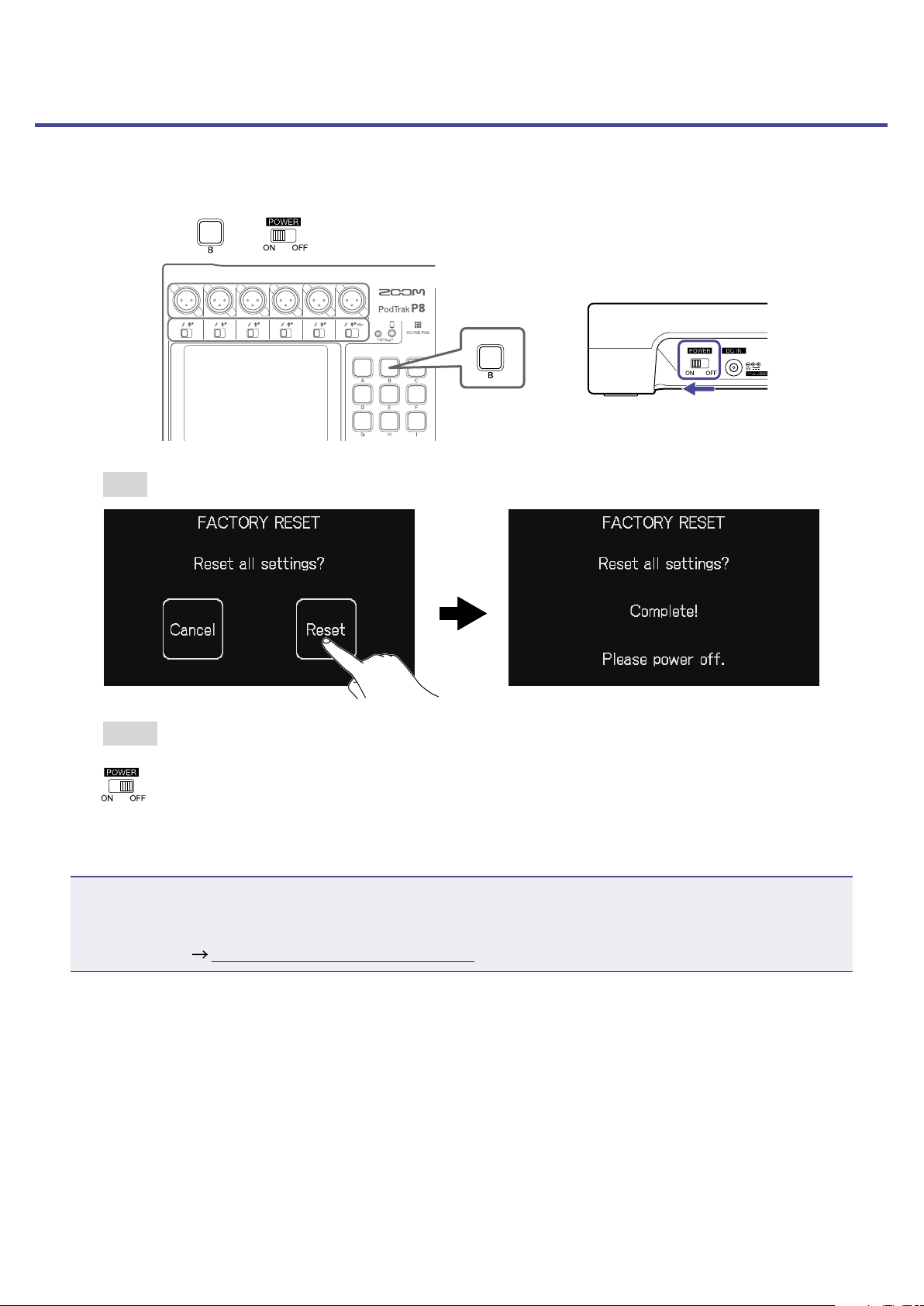
Restoring factory default settings
The
P8
can be restored to its factory default settings.
1.
While pressing , set to ON.
2.
Tap Reset.
Tap Cancel to cancel resetting and open the Home Screen on the touchscreen.
3.
Set to OFF.
This resets the
P8
to its factory default settings. After "Goodbye See You!" appears on the
touchscreen, the power turns off.
NOTE
•A factory reset will overwrite all settings to their factory defaults. Be certain before using this function.
•
Make initial settings the rst time the power is turned on after the
P8
has been restored to its factory
default state. (
“Making initial settings” on page 22)
88

Troubleshooting
General
There is no sound or output is very quiet
•Check headphone connections and volumes. ( “Connecting headphones” on page 25)
•Check mic connections. (
“Connecting mics” on page 24)
•When using condenser mics, set the INPUT SELECT switches to
. ( “Connecting mics” on page 24)
•Conrm that
is unlit.
•Raise the faders for each channel to raise their levels, and conrm that their level meters are moving.
(
“Balancing the mix of channel levels” on page 35)
•Turn
for the output being used to adjust the output level. ( “Connecting” on page 24)
Recorded audio is too loud, too quiet or silent
•When using condenser mics, set the INPUT SELECT switches to . ( “Connecting mics” on page 24)
•Use the channel faders to raise the levels. (
“Balancing the mix of channel levels” on page 35)
•Conrm that the REC indicators are lit red.
Recording is not possible
•Conrm that the REC indicators are lit red.
•Conrm that the SD card has open space.
Proper recording is not possible/Stopping recording takes too much time
•SD cards can become worn out. Speed can decrease after repeated writing and erasing.
•Formatting the card with the
P8
might improve this. ( “Formatting SD cards” on page 83)
•If formatting an SD card does not improve this, we recommend replacing the card. Please check the list
of cards that have been conrmed to work on the ZOOM website.
NOTE
This is not a guarantee of specic SD card recording performance for SDHC/SDXC cards that have been
conrmed to work. This list is provided as a guideline to help nd suitable cards.
Playback sound cannot be heard or is quiet
•Turn the PHONES knobs to adjust their volumes. ( “Connecting headphones” on page 25)
•Turn the SPEAKER OUT knob to adjust its volume. (
“Connecting powered speakers and other output
equipment” on page 31)
90

Audio les cannot be assigned to SOUND PAD buttons
•Check the format of the audio le to be assigned. ( “Assigning audio les to SOUND PAD buttons” on
page 43)
•If the audio le is stored on an SD card, store it in a directory outside the P8_Multitrack and P8_Settings
folders on the card.
SOUND PAD functions cannot be used
•Check the SOUND PAD levels. ( “Playing SOUND PAD buttons” on page 42)
•Conrm that les are assigned. (
“Assigning audio les to SOUND PAD buttons” on page 43)
Audio interface
Cannot select the
P8
from a computer, smartphone or tablet (or
cannot use it as an interface)
•Conrm that the
P8
is connected to the computer correctly. ( “Connecting a computer, smartphone or
tablet by USB” on page 28)
•Quit all the software that is connected to the
P8
, and turn the
P8
off and on again.
•Connect the
P8
directly to a USB port on the computer or other device. Do not connect it through a USB
hub.
Sound skips during playback or recording
•If the audio buffer size of the software being used can be adjusted, increase the buffer size.
•Connect the
P8
directly to a USB port on the computer or other device. Do not connect it through a USB
hub.
•Turn off power saving settings (including sleep functions) on the computer or other device.
Cannot play or record
•Conrm that the
P8
is connected to the computer correctly. ( “Connecting a computer, smartphone or
tablet by USB” on page 28)
•Conrm that the
P8
is selected in the settings of the computer being used.
•Conrm that
P8
is set for input and output in the software being used.
•Set INPUT SELECT switch 6 to
.
•Quit all the software that is connected to the
P8
, and disconnect and reconnect the USB cable connected
to the
P8
.
91

Specications
Input and out-
put channels
Number of input channels Mic inputs: 6 (mono)
Smartphone input: 1 (stereo)
Number of output channels 2 (through 6 headphone and L/R speaker outputs)
Connectors Mic Type XLR jacks (2: HOT)
Input gain 0 – +70 dB
Input impedance 3 kΩ
Maximum input
level
+5 dBu (at 0 dBFS)
Phantom power +48 V
Smartphone
connection jack
Type TRRS mini jack
(4-contact/TIP: L, RING 1: R, RING 2: GND, SLEEVE: MIC)
Input impedance 3 kΩ
Maximum input
level
+2.5 dBu
USB USB Type-C (audio interface and mass storage functions)
•
Use a USB cable that supports data transfer. USB bus power is supported.
Headphones Type 3.5 mm stereo mini
Maximum output
level
20 mW + 20 mW (32Ω load)
Output impedance 27 Ω
Speaker outputs Type TRS jacks (balanced)
Maximum output
level
+5.5 dBu
Output impedance 320 Ω
AC adapter Power supply connector for AD-14
Recorder Format WAV 44.1kHz, 16-bit, mono/stereo
Recording media 4–32GB cards compatible with the SDHC specication (class 10 or higher)
64–512GB cards compatible with the SDXC specication (class 10 or
higher)
Audio interface 44.1kHz, 16-bit, 2-in/2-out
Frequency response −1.0 dB: 20 Hz – 20 kHz at 44.1kHz sampling rate
Equivalent input noise –124 dBu or less (IHF-A) at +70dB/150Ω input
Display 4.3" (480×272) full-color touchscreen LCD
Power 4 AA batteries (alkaline, lithium, or rechargeable NiMH)
AC adapter (ZOOM AD-14): DC 5 V/1 A (supports USB bus power)
Estimated continuous operation time using batteries Recording 44.1kHz/16-bit/4ch audio to SD card (when +48 V is OFF and
headphone impedance is 32 Ω)
Alkaline batteries: about 2 hours
NiMH batteries (1900 mAh): about 3.5 hours
Lithium batteries: about 6.5 hours
•Theabovevaluesareapproximate.
•
Continuous battery operation times were determined using in-house test-
ing methods. They will vary greatly according to use conditions.
Power consumption 5 W
External dimensions 295 mm (W) × 248 mm (D) × 61 mm (H)
Weight (unit only) 1.43 kg
•0dBu=0.775V
92
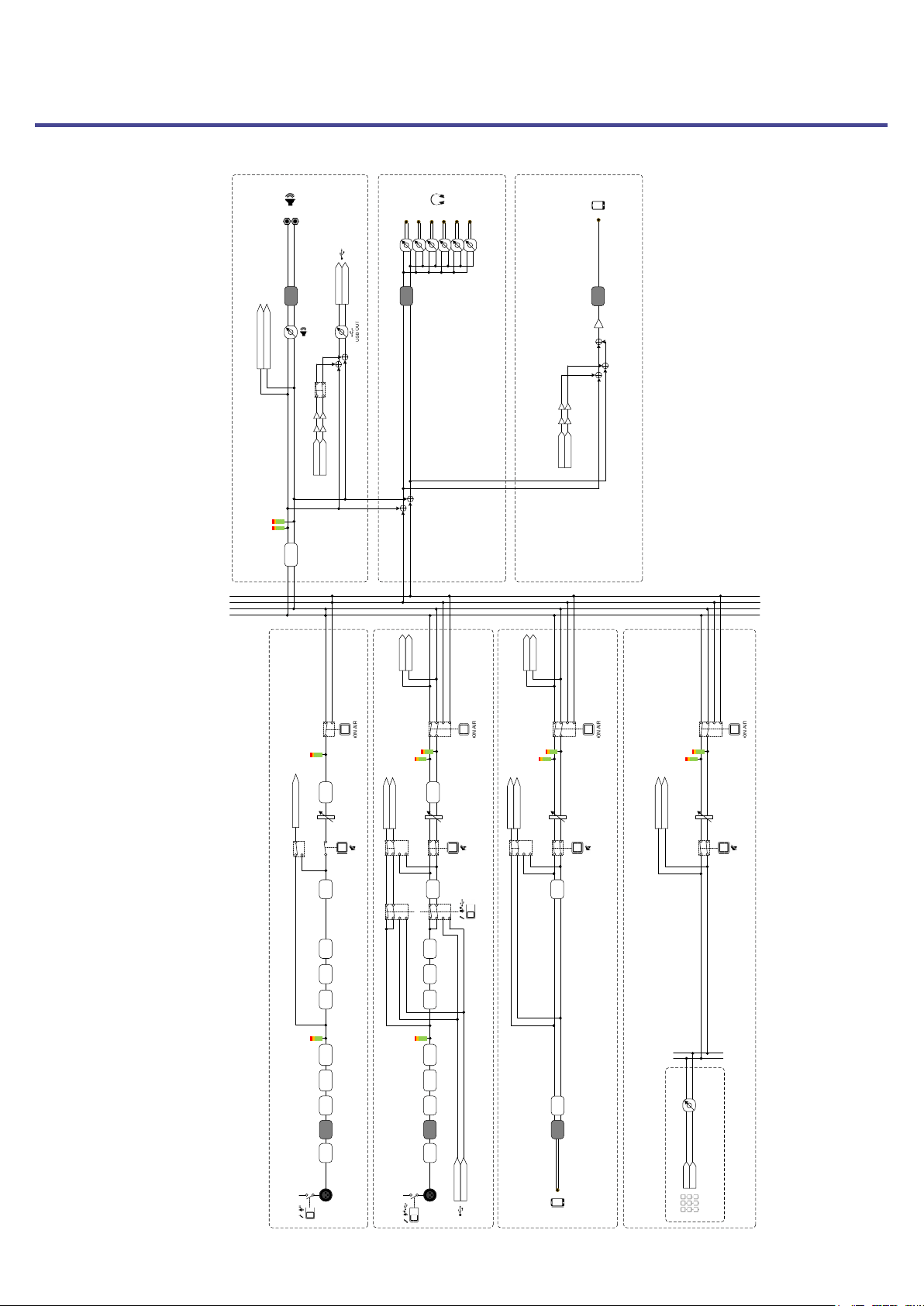
Mixer block diagram
48 V
MIC 1-5
GAIN A/D DC CUT
OFF AIR L
ON AIR L
ON AIR R
LEVEL METER
ON AIR
PHONE/BTA-2 OUT
REC DATA 1-5 to SD CARD
P8 MIXER BLOCK DIAGRAM
OFF AIR R
TONE
MUTE
DE-
ESSER
L
R
2
3
D/A
1
REC DATA MASTER L to SD CARD
REC DATA MASTER R to SD CARD
VOLUME
SOUND PAD
COMP
INPUT LEVEL METER
5
6
4
48 V
MIC 6/USB IN
GAIN
A/D
DC CUT
LEVEL METER
ON AIR
TONE/
TREBLE/
BASS
MUTE
DE-
ESSER
COMP
INPUT LEVEL METER
INPUT SEL
USB IN 2
USB IN 1
PHONE/BTA-2
LEVEL METER
ON AIR
TREBLE/
BASS
MUTE
A/D
DC CUT
LEVEL METER
ON AIR
PHONE L BACKUP
PHONE R BACKUP
VOLUME
USB IN 1 BACKUP
USB IN 2 BACKUP
USB OUT L to PC
USB OUT R to PC
KEEP TRACK FILES
REC DATA 7 L to SD CARD
REC DATA 7 R to SD CARD
REC DATA 8 L to SD CARD
REC DATA 8 R to SD CARD
KEEP TRACK FILES
KEEP TRACK FILES
DIGITAL
GAIN
DIGITAL
GAIN
LOW
CUT
LOW
CUT
USB IN 1 BACKUP
USB IN 2 BACKUP
USB
MIX MINUS
VOLUME
OUTPUT
LIMITER
D/A
PAD A-I L ch
PAD A-I R ch
LEVEL
FADER
FADER
FADER
FADER
D/A
PHONE L BACKUP
PHONE R BACKUP
ON AIR
HEADPHONE
OUTPUT LIMITER
REDUCTION
PAD A-I
SOUND PAD L
SOUND PAD R
MUTE
LIMITER
LIMITER
REC DATA 6 L to SD CARD
REC DATA 6 R to SD CARD
Only enabled
for on air
NOISE
REDUCTION
NOISE
REDUCTION
Only enabled
for on air
-1
-1
OUTPUT LIMITER
REDUCTION
-1
-1
1/2
93