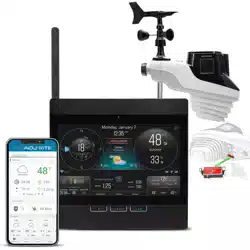
Set up your AcuRite Atlas
®
Direct-To-Wi-Fi Display 06099
1
INSTALL SENSOR BATTERIES
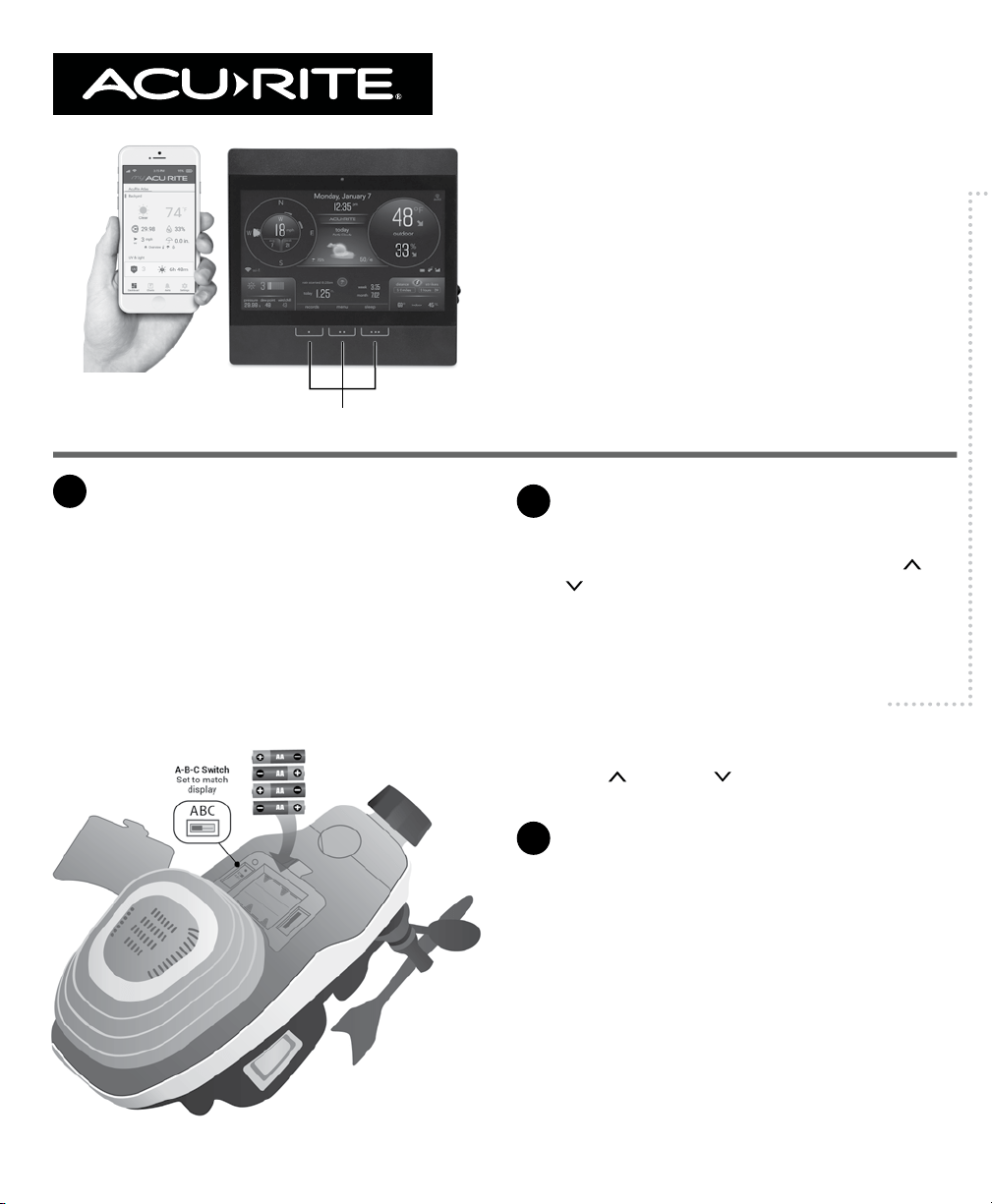
In the outdoor sensor battery compartment, install four
AA alkaline or lithium* batteries.
*Lithium batteries recommended for temperatures
below -4°F (-20°C).
NOTE: In the battery compartment of the sensor, there is
a small A-B-C switch that must match the selection on the
display. By default, both the sensor and display are set to
“A” and should not need adjustment.
2
PLUG IN DISPLAY AND CONFIGURE
SETTINGS
Plug in the power adapter. Conguration will begin
automatically once the display is on. Use the Up
and
Down
buttons to select between options, and press
the OK button to conrm your selection.
• Clock Hour/Minute/Daylight Saving Time Setting
• Month/Day/Year
• Units of Measurement (U.S. Standard/Metric)
• Wi-Fi Conguration (optional, recommended)
You can adjust these settings and more anytime by
navigating to the menu and selecting General Setup.
Use the Up
and Down buttons and OK button to
make any desired adjustments.
3
MOUNT SENSOR
Find a suitable place outdoors to mount the AcuRite
Atlas Sensor:
• At least 5 ft. (1.5 m) off the ground
• With the front solar cell facing south
• Away from heat and humidity sources
• Level for accurate rain reporting using bubble level on
top of sensor
For additional information on the best way to mount
your AcuRite Atlas, please refer to the AcuRite Atlas
instruction manual or visit: support.acurite.com
and navigate to the AcuRite Atlas Weather Station
category.
SETUP REQUIRES:
• Display
• Power Adapter (3 AAA backup batteries recommended)
• AcuRite Atlas Sensor*
*May be sold separately and requires 4 AA batteries
(not included)
If you are interested in accessing your weather data anytime, anywhere online, follow the below steps to push
your weather data to the internet. If you are only interested in viewing your weather data inside your home on
the display, then disregard this section.
ADDITIONAL NOTES
The Wi-Fi setup page is available for 30 minutes after the display is powered on. To reactivate the setup page at any time,
press the menu button, then go to Connections > Wi-Fi Setup.
To retain Wi-Fi conguration details, backup batteries are strongly recommended for the display.
To clear Wi-Fi credentials, records, and other settings, press the menu button and select Factory Reset, or simply power
cycle the display.
Visit acurite.com/support for additional help on Wi-Fi Setup.
1
CONNECT TO DISPLAY’S TEMPORARY
NETWORK
Once the display is on:
• Open the Wi-Fi settings of your Wi-Fi-compatible
device and select and connect to the Wi-Fi network
with “AcuRite” in its name.
• If you see any “unsecure network” warnings, know
that it’s safe to continue.
• You will not be able to access the internet while
connected to this “AcuRite” network.
2
ACCESS WI-FI SETUP PAGE
Once connected to the Wi-Fi network with “AcuRite”
in its name:
• Open a web browser on the device you used to
connect to the display.
• To access the AcuRite Wi-Fi display setup page,
type the following into the address bar and then
press go/enter/return: 192.168.4.1
• Troubleshooting if the setup page does not load:
› Make sure you are still connected to the AcuRite
Wi-Fi network you connected to in step 1.
› Unplug the display, plug it back in, and try
setup again.
› Contact Support at acurite.com/support
3
ADD YOUR WI-FI CREDENTIALS
Once the setup page loads:
• Select your personal Wi-Fi network name, enter your
network password, and press Save.
• If Wi-Fi credentials are successfully entered, the
Wi-Fi indicator on the display should appear as:
• Troubleshooting if the setup page does not load:
› If the Wi-Fi icon shows wi- NOT SETUP
— Wi-Fi still needs to be congured on the
display. Repeat Wi-Fi steps 1-3.
› If the Wi-Fi icon shows a red X
— Wi-Fi credentials may be incorrect and
should be reentered. Repeat Wi-Fi steps 1-3.
4
SET UP YOUR MY ACURITE ACCOUNT
Once you see “Successfully connected to your
Wi-Fi” on your device and the Wi-Fi icon on the
display lls in solid white:
• Reconnect your device to your normal, personal
Wi-Fi network.
• Download the My AcuRite app or visit myacurite.com
to complete setup.
› Note: The Device ID needed to set up your product
online is located on the back of the display.
Connect to My AcuRite
®
with Wi-Fi
SETUP REQUIRES:
• Display
• AcuRite Atlas Sensor
• Wi-Fi Wireless Network (2.4 GHz networks only, not operable with 5 GHz)
• Phone, Tablet, or Computer with Wi-Fi Access
Multifunctional Menu Buttons

Set up your AcuRite Atlas
®
Direct-To-Wi-Fi Display 06099
1
INSTALL SENSOR BATTERIES
In the outdoor sensor battery compartment, install four
AA alkaline or lithium* batteries.
*Lithium batteries recommended for temperatures
below -4°F (-20°C).
NOTE: In the battery compartment of the sensor, there is
a small A-B-C switch that must match the selection on the
display. By default, both the sensor and display are set to
“A” and should not need adjustment.
2
PLUG IN DISPLAY AND CONFIGURE
SETTINGS
Plug in the power adapter. Conguration will begin
automatically once the display is on. Use the Up
and
Down
buttons to select between options, and press
the OK button to conrm your selection.
• Clock Hour/Minute/Daylight Saving Time Setting
• Month/Day/Year
• Units of Measurement (U.S. Standard/Metric)
• Wi-Fi Conguration (optional, recommended)
You can adjust these settings and more anytime by
navigating to the menu and selecting General Setup.
Use the Up
and Down buttons and OK button to
make any desired adjustments.
3
MOUNT SENSOR
Find a suitable place outdoors to mount the AcuRite
Atlas Sensor:
• At least 5 ft. (1.5 m) off the ground
• With the front solar cell facing south
• Away from heat and humidity sources
• Level for accurate rain reporting using bubble level on
top of sensor
For additional information on the best way to mount
your AcuRite Atlas, please refer to the AcuRite Atlas
instruction manual or visit: support.acurite.com
and navigate to the AcuRite Atlas Weather Station
category.
SETUP REQUIRES:
• Display
• Power Adapter (3 AAA backup batteries recommended)
• AcuRite Atlas Sensor*
*May be sold separately and requires 4 AA batteries
(not included)
If you are interested in accessing your weather data anytime, anywhere online, follow the below steps to push
your weather data to the internet. If you are only interested in viewing your weather data inside your home on
the display, then disregard this section.
ADDITIONAL NOTES
The Wi-Fi setup page is available for 30 minutes after the display is powered on. To reactivate the setup page at any time,
press the menu button, then go to Connections > Wi-Fi Setup.
To retain Wi-Fi conguration details, backup batteries are strongly recommended for the display.
To clear Wi-Fi credentials, records, and other settings, press the menu button and select Factory Reset, or simply power
cycle the display.
Visit acurite.com/support for additional help on Wi-Fi Setup.
1
CONNECT TO DISPLAY’S TEMPORARY
NETWORK
Once the display is on:
• Open the Wi-Fi settings of your Wi-Fi-compatible
device and select and connect to the Wi-Fi network
with “AcuRite” in its name.
• If you see any “unsecure network” warnings, know
that it’s safe to continue.
• You will not be able to access the internet while
connected to this “AcuRite” network.
2
ACCESS WI-FI SETUP PAGE
Once connected to the Wi-Fi network with “AcuRite”
in its name:
• Open a web browser on the device you used to
connect to the display.
• To access the AcuRite Wi-Fi display setup page,
type the following into the address bar and then
press go/enter/return: 192.168.4.1
• Troubleshooting if the setup page does not load:
› Make sure you are still connected to the AcuRite
Wi-Fi network you connected to in step 1.
› Unplug the display, plug it back in, and try
setup again.
› Contact Support at acurite.com/support
3
ADD YOUR WI-FI CREDENTIALS
Once the setup page loads:
• Select your personal Wi-Fi network name, enter your
network password, and press Save.
• If Wi-Fi credentials are successfully entered, the
Wi-Fi indicator on the display should appear as:
• Troubleshooting if the setup page does not load:
› If the Wi-Fi icon shows wi- NOT SETUP
— Wi-Fi still needs to be congured on the
display. Repeat Wi-Fi steps 1-3.
› If the Wi-Fi icon shows a red X
— Wi-Fi credentials may be incorrect and
should be reentered. Repeat Wi-Fi steps 1-3.
4
SET UP YOUR MY ACURITE ACCOUNT
Once you see “Successfully connected to your
Wi-Fi” on your device and the Wi-Fi icon on the
display lls in solid white:
• Reconnect your device to your normal, personal
Wi-Fi network.
• Download the My AcuRite app or visit myacurite.com
to complete setup.
› Note: The Device ID needed to set up your product
online is located on the back of the display.
Connect to My AcuRite
®
with Wi-Fi
SETUP REQUIRES:
• Display
• AcuRite Atlas Sensor
• Wi-Fi Wireless Network (2.4 GHz networks only, not operable with 5 GHz)
• Phone, Tablet, or Computer with Wi-Fi Access
Multifunctional Menu Buttons

102021
www.acurite.com
Quick Setup Guide 06099
VIEW HISTORICAL RECORDS
• To view recent records on the display, press the
records button, then use the buttons to navigate
between yesterday and today, or clear the records if
you wish.
• To view more detailed records, view your charts and
details on My AcuRite
®
.
ADJUST DISPLAY SETTINGS
Press the menu button and select display settings to
view options or make adjustments using the Up
and Down buttons and OK button.
MY ACURITE
• My AcuRite is compatible with Amazon Alexa and
Google Assistant by adding the AcuRite skill for your
smart home system. For more information on setup,
visit: acurite.com/skill-setup
• For additional information about My AcuRite features,
such as notications and sharing options, please visit
support.acurite.com and navigate to the My AcuRite
category.
WE’RE HERE TO HELP!
For support, visit acurite.com/support.
Product manuals, warranty information, and FCC statement available on acurite.com.
Register your product for a one-year limited warranty at:
acurite.com/product-registration

102021
www.acurite.com
Quick Setup Guide 06099
VIEW HISTORICAL RECORDS
• To view recent records on the display, press the
records button, then use the buttons to navigate
between yesterday and today, or clear the records if
you wish.
• To view more detailed records, view your charts and
details on My AcuRite
®
.
ADJUST DISPLAY SETTINGS
Press the menu button and select display settings to
view options or make adjustments using the Up
and Down buttons and OK button.
MY ACURITE
• My AcuRite is compatible with Amazon Alexa and
Google Assistant by adding the AcuRite skill for your
smart home system. For more information on setup,
visit: acurite.com/skill-setup
• For additional information about My AcuRite features,
such as notications and sharing options, please visit
support.acurite.com and navigate to the My AcuRite
category.
WE’RE HERE TO HELP!
For support, visit acurite.com/support.
Product manuals, warranty information, and FCC statement available on acurite.com.
Register your product for a one-year limited warranty at:
acurite.com/product-registration
