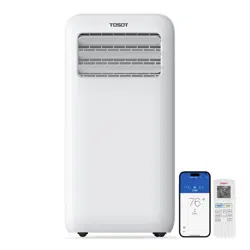

User Manual
Portable Air Conditioner
Before using your TOSOT Portable Air Conditioner,
please read this user manual in its entirety.
MO DEL NUMBER
GPC08ASB-A6NNA1A

Welcome to the TOSOT Direct Family!
We’re extremely happy to welcome you as a new member of our family! Please
read the tips below before using your product for the first time.
Keep the original packaging material including packing foam, carton and
printed material until you decide to keep the unit. If you need to return the
unit, having all of the original packaging material will make it much easier.
1. The portable air conditioner is a heavy object, which needs two or more people
to lift and install. Failure to do so could result in injury or other accidents.
2. Allow the unit to sit upright for at least 3-4 hours before powering on. Shipping
carriers may set the unit on its side, which causes the refrigerant to pool in
certain areas. Standing the unit upright for 3-4 hours allows the refrigerant to
move freely within the coils.
3. Run the unit continuously for 24 hours after letting the unit stand upright for
3-4 hours. During this period, please pay more attention to any defective problem
of unit. To avoid any loss to your house, please make sure your unit has no any
defective problem caused by shipping damage such as leakage before using it
on the rugs or carpeting.
4. Some parts with sharp edges may cause injury, so gloves are highly recommended
for unpacking and installing.
5. For a quick start video guide of installation, please contact Customer Support.
6. If you have any problems with your product, please send us an email before
submitting a return request, as there might be a simple solution for your issue.
Tips for First-Time Use

Table of Contents
Safety and Instructions
Installation and Setup
Electrical Safety Warning
Parts Description
Operation
Open the Airflow Louver
Control Panel
Remote Control
Combination Buttons
App Control
Replacing the Batteries
Installation
Tools Required
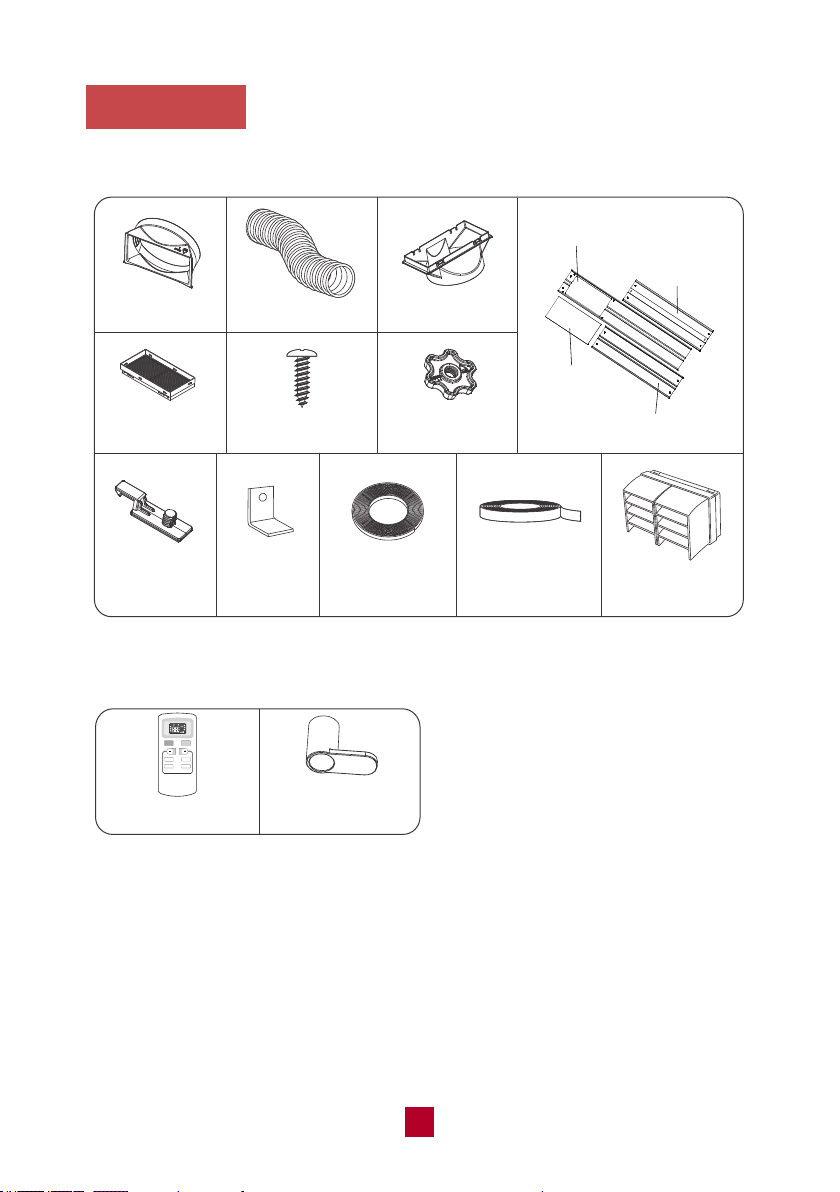
Parts List
Installing Your AC
Installing the Exhaust Hose
Removing Collected Water
Installing the Power Cord Hooks
Cleaning and Maintenance
Troubleshooting
Malfunction Codes
Warranty&Customer Support
01
01
02
05
06
06
07
09
11
11
28
28
28
29
30
35
36
37
37
39
42
43
-------------------------------------------
-------------------------------------------
---------------------------------------
-----------------------------------------------------
----------------------------------------
--------------------------------------------------
-------------------------------------------------------
--------------------------------------------
-----------------------------------------------------------
----------------------------------------------------
----------------------------------------------------------
------------------------------------------------
------------------------------------
-------------------------------------
-----------------------------
---------------------------------------
----------------------------------------------------
-------------------------------------------------
------------------------------------
---------------------------------------------------
------------------------------------------------------------
-----------------------------------------

Safety and Instructions
01
Installation and Setup
Please read all instructions before use and save this user manual for future
reference. A digital version can be obtained from Customer Support. Your safety
and the safety of others are very important to us. We have provided many important
safety messages throughout this manual and on the appliance itself. Always read
and follow all posted safety messages.
To reduce the risk of fire, electric shock, injury, or death to persons using or near
this appliance, please follow some basic safety precautions. These precautions
include, but are not limited to, the following:
● This appliance is not intended for use by any persons (including children) with
reduced or restricted physical, mental, or sensory capabilities, or lack of
experience and knowledge, unless under the direct supervision of a person
responsible for their safety.
● Please keep plastic bags and sheets out of the reach of children as they might
be mistakenly used for play. Packaging materials can become airtight chambers
and may pose a risk of suffocation if not disposed of properly.
● When installing or moving the appliance, be careful not to pinch, crush, or
damage the power cord.
● Never attempt to operate this appliance if it visibly damaged, malfunctioning,
disassembled or has missing or broken parts. This includes exposed wiring on
a damaged cord or electrical plugin. All repairs and servicing must be performed
by qualified service personnel. Use only authorized TOSOT factory OEM parts.
● Keep the product away from fire. Do not store or use flammable gases or
materials near the appliance.
● Do not use heating equipment near the appliance.
● In the event of a gas leak (propane gas, LP gas, etc.) do not operate this or any
other appliance. Open a window or door to ventilate the area immediately.
● Only use the appliance in an upright position. Make sure the angle of inclination
<10°. Always place the appliance on a stable, flat, level surface to prevent the
air conditioner from overturning.

02
Electrical Safety Warning
● If the power cable is damaged, it must be replaced by the manufacturer or an
authorized technical service center in order to avoid all risk.
● Do not damage, alter, excessively bend, twist, pull or heat the power cord.
● Do not cover the power cord with a rug or carpeting.
● Do not rest hot or heavy objects on the appliance and power cord.
● Always plug into a fixed 115V AC ground outlet.
● Specification of fuse on the main board: T3.15AH 250V; the maximum current
passing through the fuse can't be more than 3.15A.
● Never plug or unplug the appliance with wet hands.
● Push the power plug all the way into the wall outlet so that it will not loosen.
● Always grip the plug firmly and pull straight out from the outlet when taking it out.
● Never unplug the appliance by pulling on the power cord.
● Never use the appliance if the outlet is damaged or loose.
● This product should be plugged directly into a power outlet. Power outlets should
be properly rated, protected, and sized in order to avoid electrical overload. Do
not use an extension cord or power strip.
● Do not cut or remove the third (ground) prong from the power cord.
● Always unplug the unit from the outlet before cleaning or maintenance operations.
● Your air conditioner must be used in a properly grounded wall receptacle. If the
wall receptacle you intend to use is not adequately grounded or not protected by
a time-delay fuse or circuit breaker, have a qualified electrician install the proper
wall power receptacle before using this appliance.
● Be sure that the air conditioner is properly grounded. To minimize shock and fire
hazards, proper grounding is important. The power cord is equipped with a three-
prong grounding plug for protection against shock hazards.
● Do not run the air conditioner without the plastic shell in place. This could result
in mechanical damage within the air conditioner.
FCC ID Information
This device complies with part 15 of the FCC Rules. Operation is subject to the
condition that this device does not cause harmful interference.
NOTE: This equipment has been tested and found to comply with the limits for a
Class B digital device, pursuant to part 15 of the FCC Rules. These limits are
designed to provide reasonable protection against harmful interference in a
residential installation. This equipment generates, uses and can radiate radio
frequency energy and, if not installed and used in accordance with the instructions,
may cause harmful interference to radio communications.
03
However, there is no guarantee that interference will not occur in a particular
installation. If this equipment does cause harmful interference to radio or television
reception, which can be determined by turning the equipment off and on, the user
is encouraged to try to correct the interference by one or more of the following
measures:
● Reorient or relocate the receiving antenna.
● Increase the separation between the equipment and receiver.
● Connect the equipment into an outlet on a circuit different from that to which the
receiver is connected.
● Consult the dealer or an experienced radio/TV technician for help.
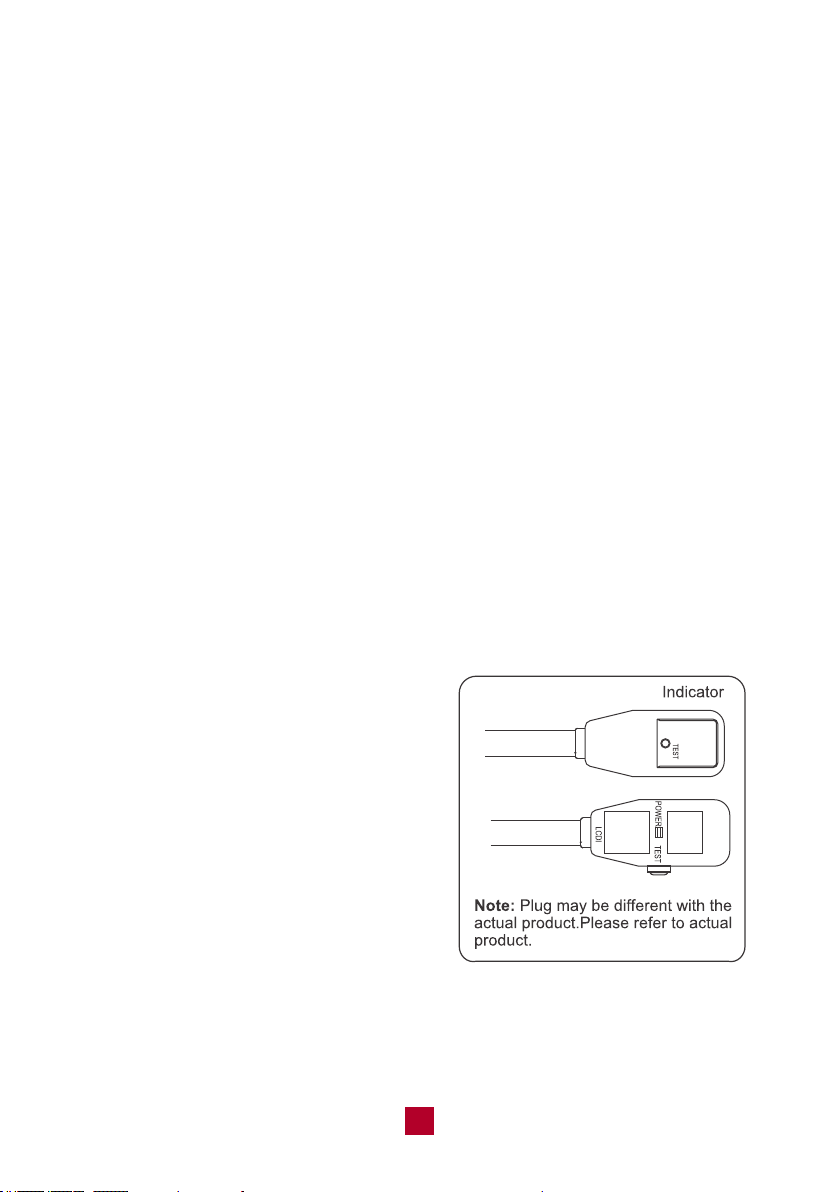
LCDI Power Plug (Leakage Current Detection and Interruption)
The power cord used with this air conditioner contains a current detection device
designed to reduce the risk of fire. In the event that the power supply cord is
damaged, it cannot be repaired. The power supply cord must be replaced with a
replacement cord received from the manufacturer by a trained service technician.
Always finish the test of LCDI plug before use:
Follow 4 steps on the LCDI plug case, if the TEST button does not cause the circuit
breaker trip or the RESET button will not stay engaged, unplug the air conditioner
immediately and contact Customer Support.
1. Plug in the air conditioner.
2. The power supply cord will have two
buttons on the plug head. If you press
the TEST button you should notice a
clicking noise as the RESET button
pops out.
3. Press the RESET button again, and
you will notice a clicking noise as the
button engages.
4. The power supply cord is now supplying
electricity to the unit.
● Do not use the LCDI plug to turn the unit on or off
● Always make sure the RESET button is pushed in for correct operation
● The power supply must be replaced if it fails to reset when either the TEST
button is pushed, or it cannot be reset. Please contact us for more information.
04
Recommended Operating Environment
● The recommended operating temperature range for AC is 61°F-95°F (16°C-35°C),
● The appliance is for indoor use only.
● The appliance must be positioned so that the plug is easily accessible.
● This air conditioner is intended for residential use, not for commercial or industrial
purposes.
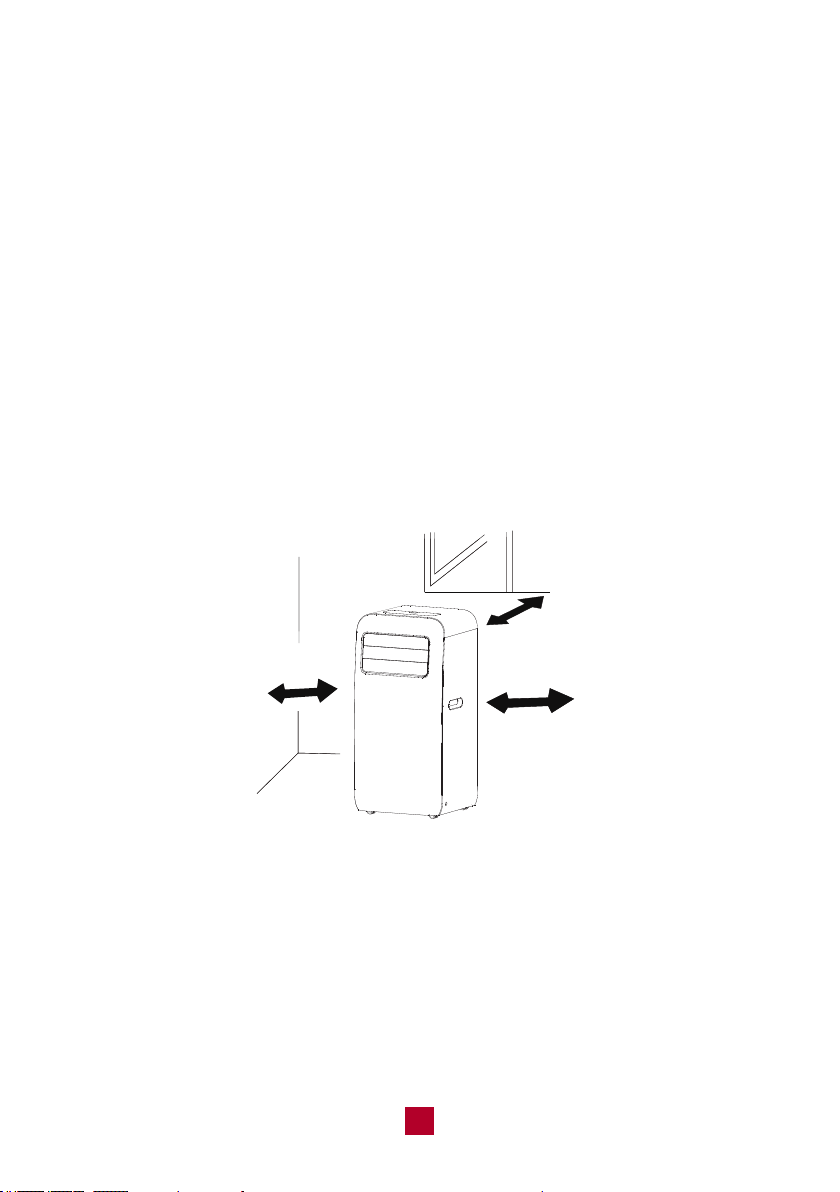
● Open space around the air conditioner should be at least 12 inches (30cm) to
ensure airflow.
● Please keep the air inlet and air outlet clean and free from obstacles.
● During operation, close doors and windows to improve the cooling effect in the
room.
● Please put the air conditioner on smooth and flat ground to avoid noise and
vibration.
● Avoid direct sunlight exposure.
Note: The following locations or conditions may cause malfunction or damage to
your air conditioner. Avoid running the air conditioner under the following conditions:
● Near strong heat sources, vapors, flammable or explosive gas, or volatile objects
spread in the air.
● Around any high-frequency devices (such as welding machines or medical
equipment.)
● Any place with oil or oil fumes in the air.
● Any place with a high concentration of sulfurated gas.
30cm(12”)
30cm(12”)
30cm(12”)
Parts Description
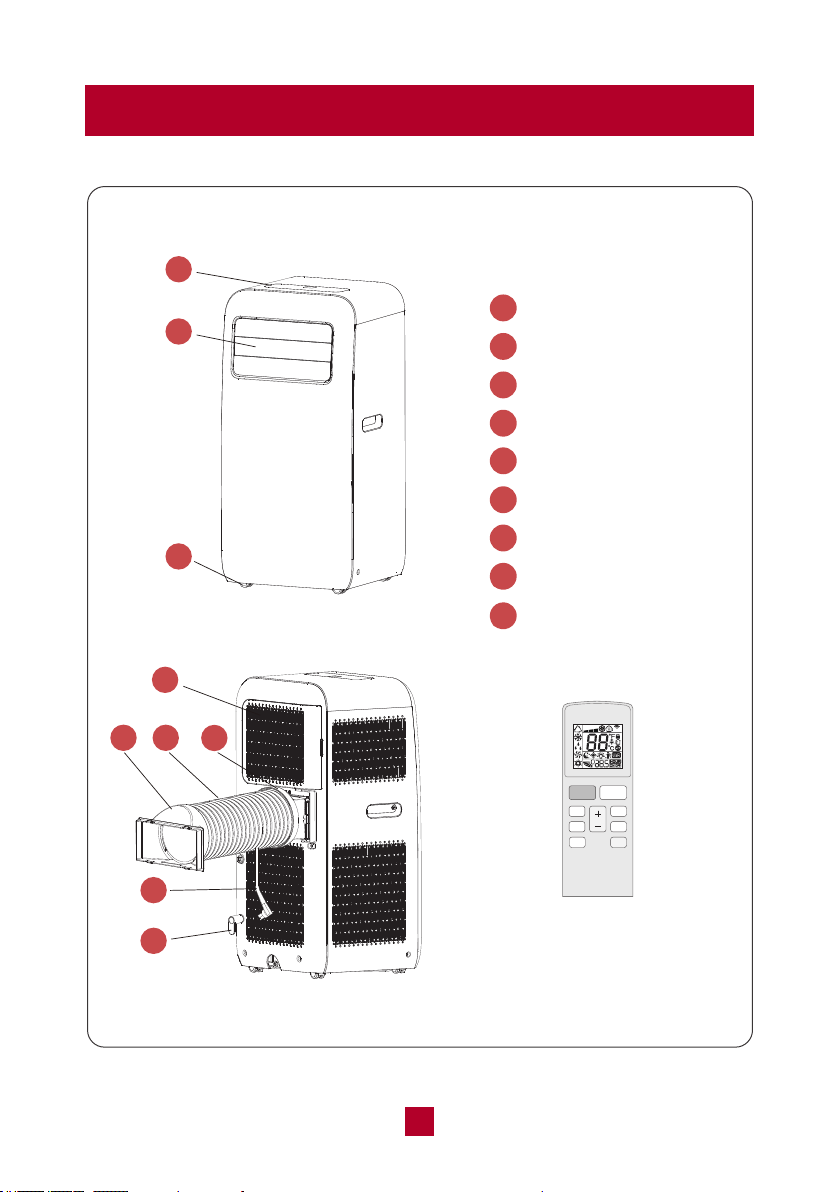
1
2
3
4
5
7
8
9
6
Control Panel
Airflow Louver
Wheels
Filter
Air Exhaust Outlet
Exhaust Hose
Rear Clip
Power Cord
Power Cord Hoop
Remote Control
05
Mode
Swing
Sleep
FAN
Health
On/Off
WiFi
Fan
OPER
Timer
4
7
6
5
8
9
1
2
3
Operation
Open the Airflow Louver
06
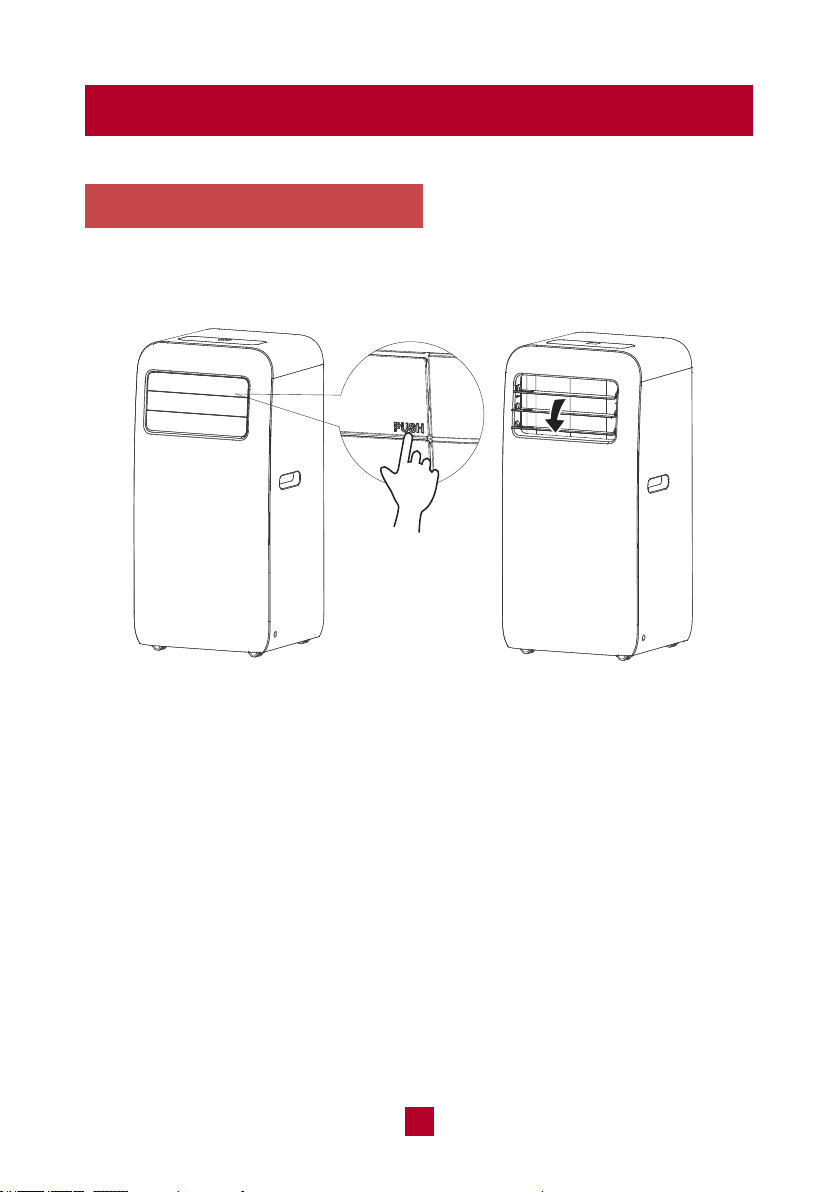
Press the position on the the airflow louver marked with "PUSH" to open before
turning on the unit.
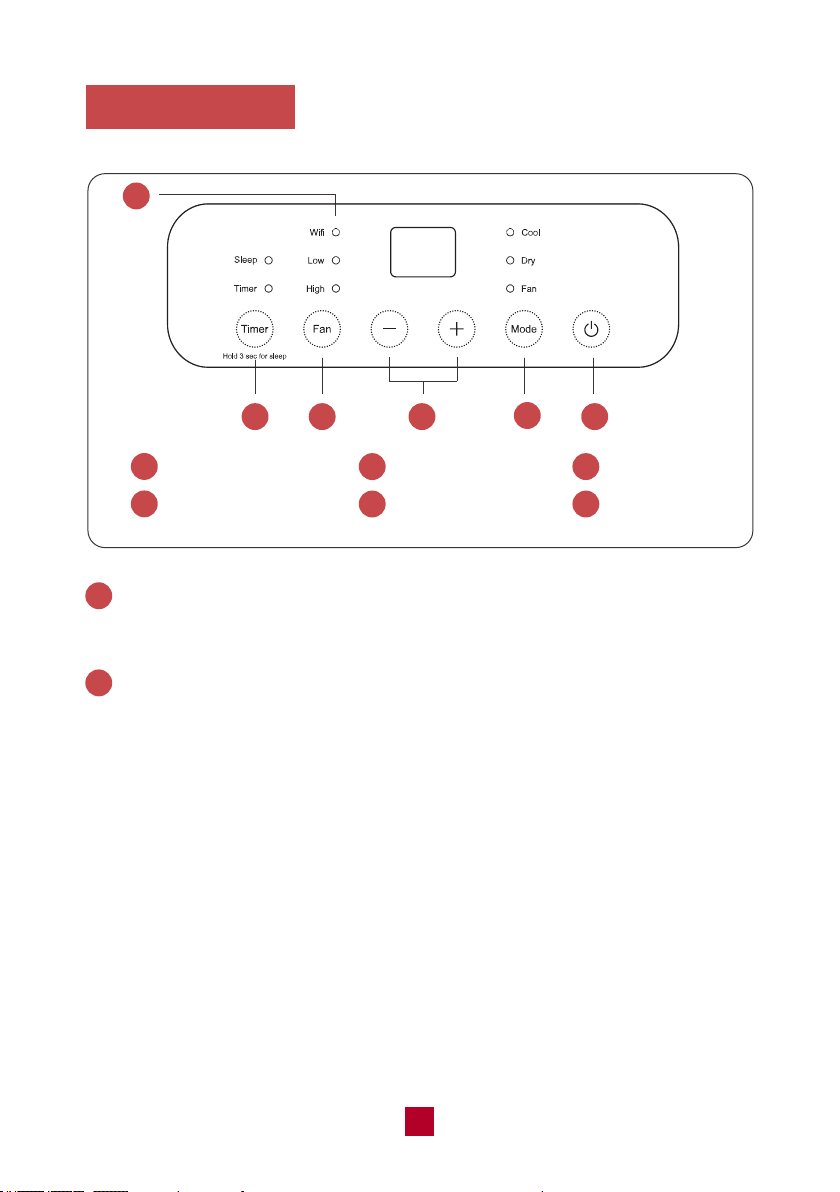
WiFi Indicator
Indicates whether or not the air conditioner is ready to connect WiFi.
Timer/Sleep Button
Timer:
● When the unit is running, press this button to schedule when the unit will power
off by using the +/- button to adjust the length of time before powering off.
● When the unit is not running, press this button to schedule when the unit will
power on by using the +/- button to adjust the length of time before powering on.
● Press the timer button again to cancel timer mode and shut the timer
indicator light off.
Sleep:
● Long press this button for 3 seconds to set sleep mode.
● Sleep mode is not available for Fan mode and Dry mode. When in sleep mode,
the AC temperature will automatically increase by 2°F for the first hour and 4°F
for the second hour and then will keep running with this temperature.
● Long press this button for 3 seconds again to cancel sleep mode.
● Sleep indicator light is on when Sleep mode is set.
1
2
07
1
4
2
5
WiFi Indicator
+/- Button
Timer/Sleep Button
Mode Button
3
6
Fan Button
On/Off Button
Control Panel
432
1
6
5
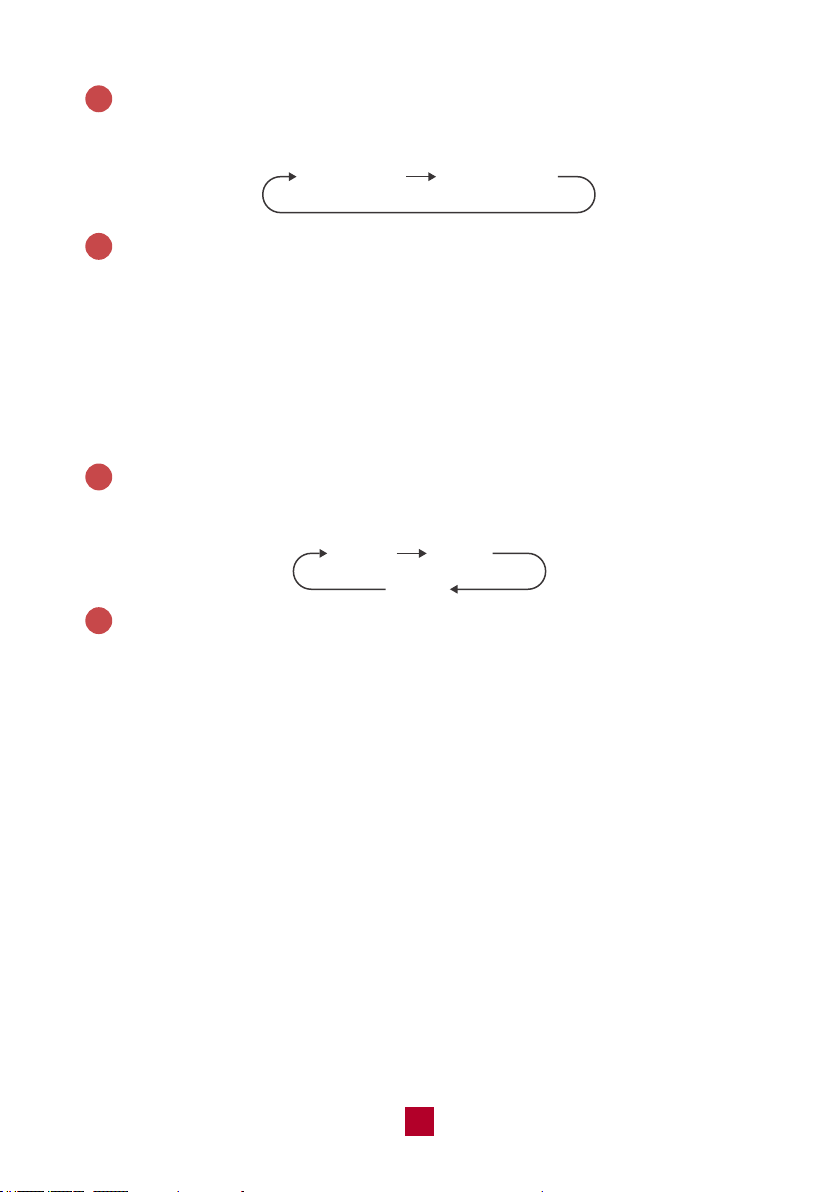
Fan Button
Pressing this button will cycle the fan speed through one of 2 fan modes, as shown
below:
+/- Button
● Pressing this button will allow you to change the temperature setting.
● After pressing the timer button, the +/- buttons will adjust the timer setting from
0.5-24 hours in 0.5-hour increments. After the 10-hour mark, the +/- button will
adjust the timer setting in 1-hour increments. It will take 5 seconds for the timer
settings to be confirmed by the machine.
Note: This button is not valid under the dry or fan modes.
3
4
low speed high speed
08
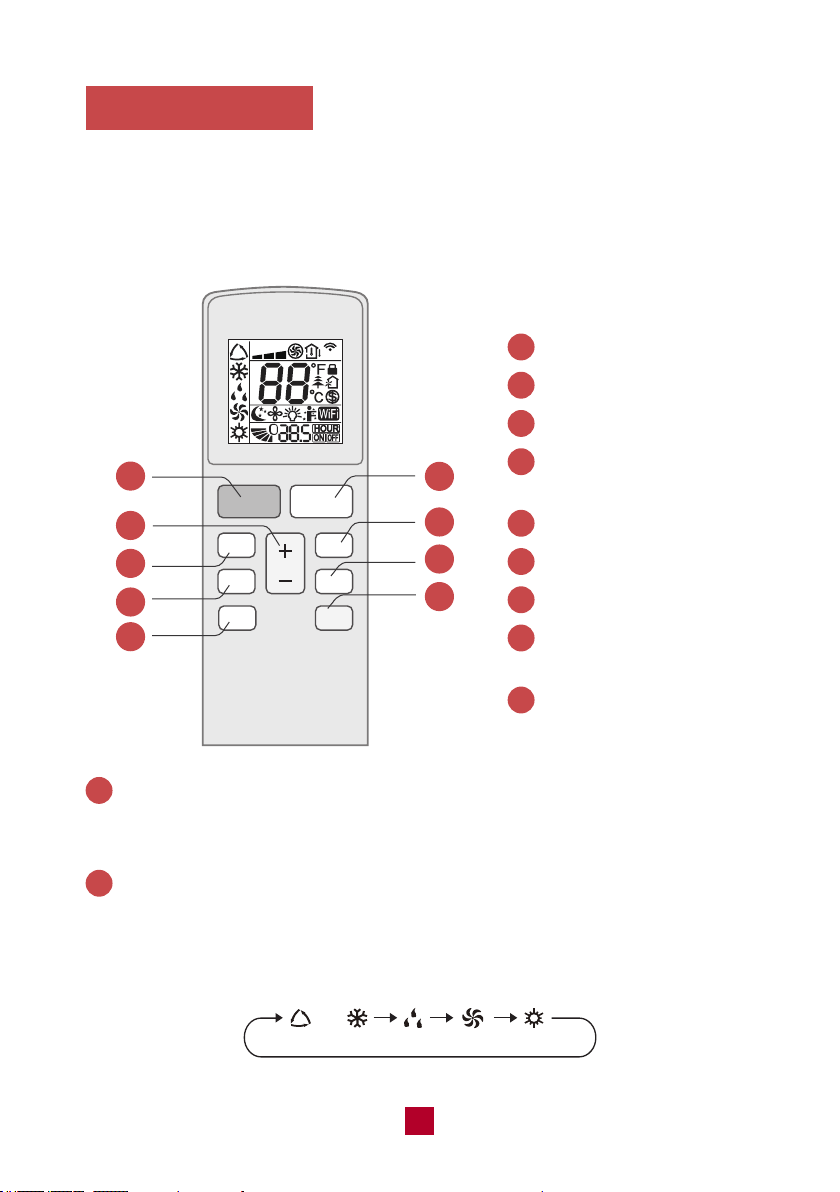
Mode Button
Pressing this button will cycle through the following modes, as shown below:
On/Off Button
Press to power the air conditioner ON or OFF.
5
6
Cool
Dry
Fan
09
Remote Control
The max range of the remote control is 25 feet with no obstacles or interference
from other devices, such as wireless phones or fluorescent lamps.
The air conditioner will emit a beep sound if the signal from the remote has been
received successfully.
ON/OFF Button
Press to power the air conditioner ON or OFF.
1
1
2
3
4
5
6
7
On/Off button
Mode button
+/- button
Swing button
(Not available for this unit.)
Fan button
Sleep button
Timer button
8
9
Health button
(Not available for this unit.)
WiFi button
FAN
On/Off Mode
Fan Swing
Sleep
OPER
Health WiFi
Timer
1
2
3
4
5
7
6
9
8
Mode Button
Press this button to cycle through the following modes. A corresponding logo indicator
on the left side of the remote will be shown.
2
Dry HeatCoolAuto
Fan
Only
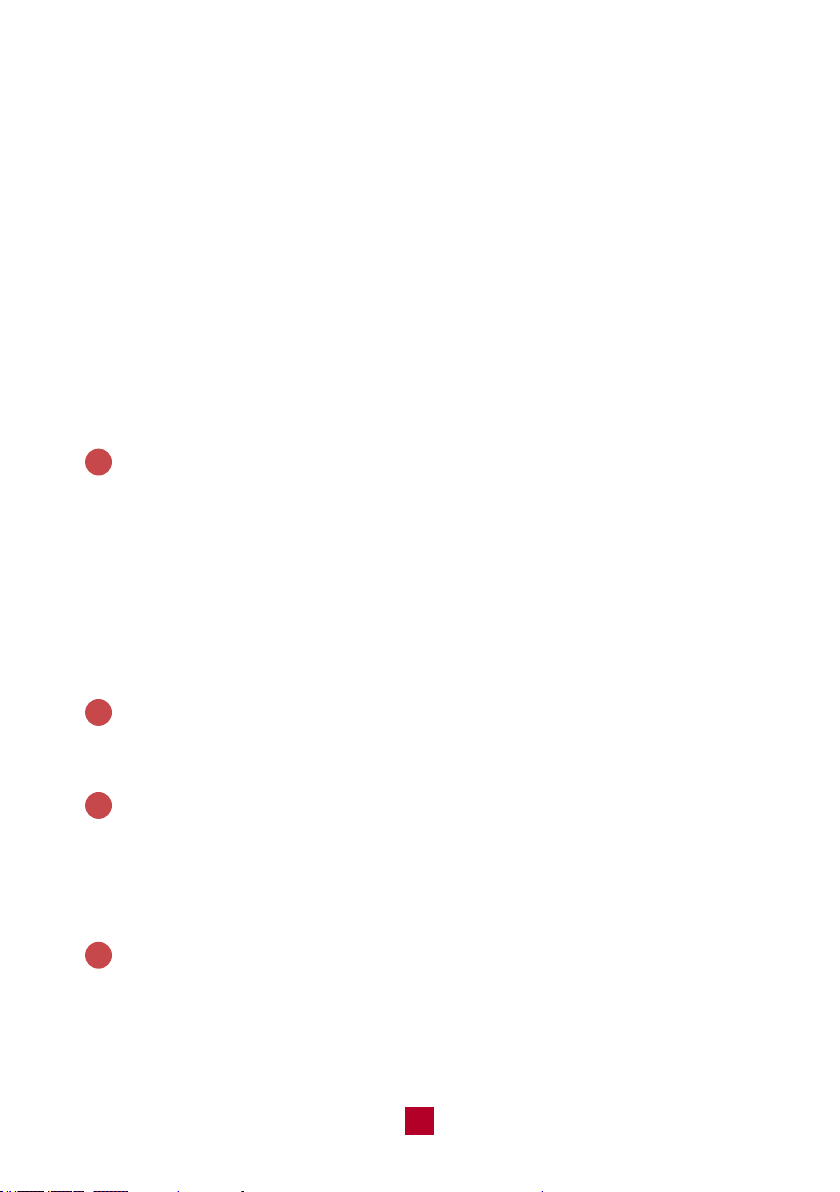
a. Auto mode: The air conditioner will adjust the fan speed automatically to maintain
the set temperature. In this case, set temperature cannot be adjusted.
b. Cool mode: Standard cooling mode. The set temperature and fan speed can both
be adjusted.
c. Dry mode: The unit will run on low speed for dehumidification. The fan speed
cannot be adjusted.
d. Fan Only mode: The air conditioner will not produce cool air, only blow air from
the outside. The fan speed can be adjusted.
e. Heat mode: Not available for this model.
* Please make sure the heat mode is not activated in the remote control before
you turn off the unit, or the “ON” button might be not available when you need
to turn on the machine. Once the heat mode is activated via the remote control,
please turn on your unit with the app or control panel.
+/- Button
● Pressing the “+” or “-” button will increase/decrease the set temperature by 1°F.
Holding the button for 2 seconds will cause the temperature to change rapidly.
Release the button once your desired temperature is reached.
● After pressing the Timer button, each press of the +/- button will increase/
decrease the time by 0.5 hours. Holding the button for 2 seconds will cause the
timer to change rapidly. Release the button once your desired time setting has
been reached.
Swing Button
Not available for this unit.
Fan Button
Pressing this button will cycle the fan speed from low to high. Auto and medium
speeds are not available for this model.
Note: There are only 2 speeds for the Fan in this model.
Sleep Button
Press this button to enter the sleep operation mode. While in sleep mode, you can
use the Cool modes. When in sleep mode, the AC temperature will automatically
increase by 2°F for the first hour and 4°F for the second hour and then will keep
running with this temperature.
3
4
5
6
10

Timer Button
Press this button to activate the timer button. Use the +/- buttons to adjust the
length of the timer before the unit powers off. The time setting range is 0.5-24
hours, in 0.5-hour increments. Press the timer button a second time to confirm
the timer setting. If the characters on the display are blinking, you must press
the Timer button again to confirm the timer setting. If you have confirmed a time
setting, you can press this button again to cancel the timer mode.
Health Button
Not applicable to this unit.
WiFi Button
Press this button to turn on the WiFi function. An icon will be shown on the screen.
Press the button again to turn off this function.
With the remote powered off, press the “MODE” and WiFi buttons simultaneously
to reset WiFi to factory settings.
7
8
9
Combination Buttons
Light Function
Press and hold the “+” and “FAN” buttons simultaneously for 3 seconds to turn the
lights on the air conditioner on or off. The default setting after being powered on is
for the lights to be on.
Change Between °F and °C
With the remote powered off, press the Mode and “-” buttons simultaneously to
switch between Fahrenheit and Celsius displays.
11
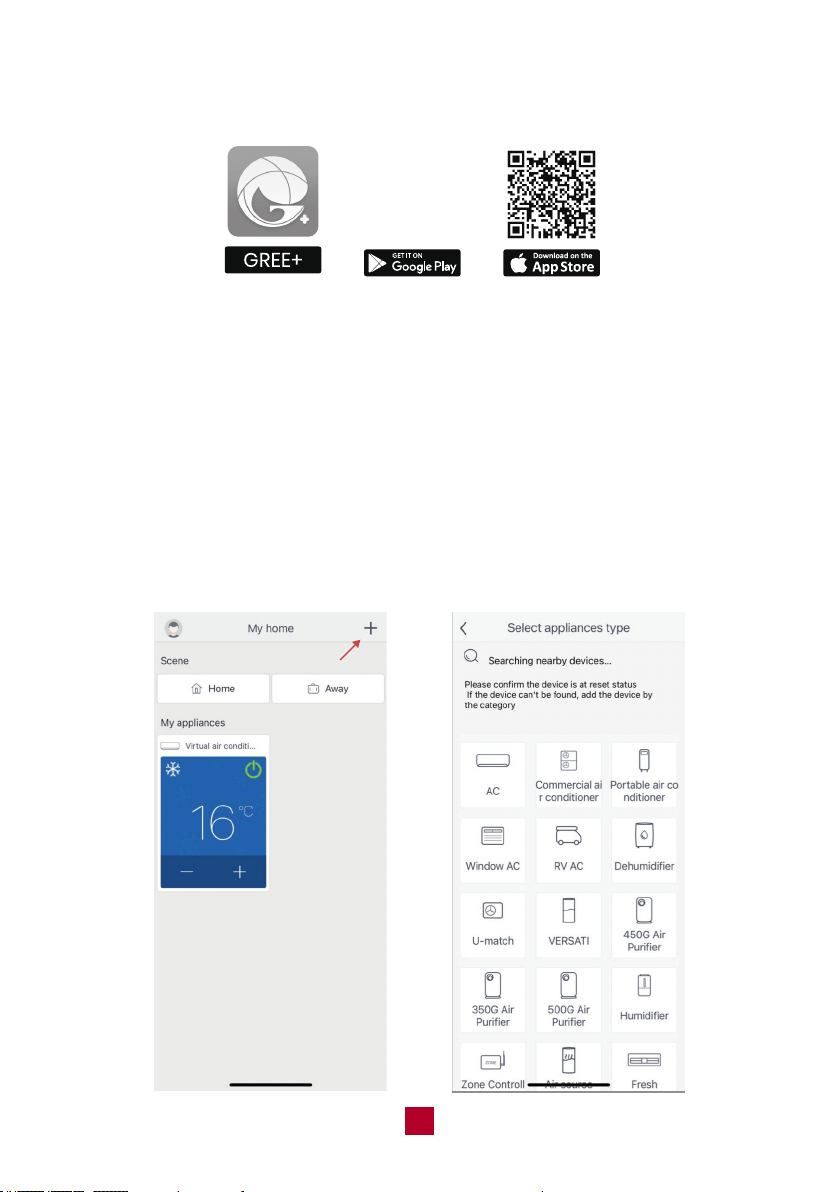
Install App
App Control
12
2. Open the "GREE+" App after installation. You can create a new account or log
in with an existing account.
Note: Please allow the app to use your location, network and Bluetooth.
Add device
After successful login, you are at the “My Home” screen. Make sure that your
smartphone’s Wi-Fi and Bluetooth are turned on. Add a device by tapping the
“+” button as shown in the picture. It automatically starts searching for devices.
Make sure the WiFi indicator is light on.
1. Scan the QR code or search for "GREE+" in the App Store or Google Play Store
to download and install.
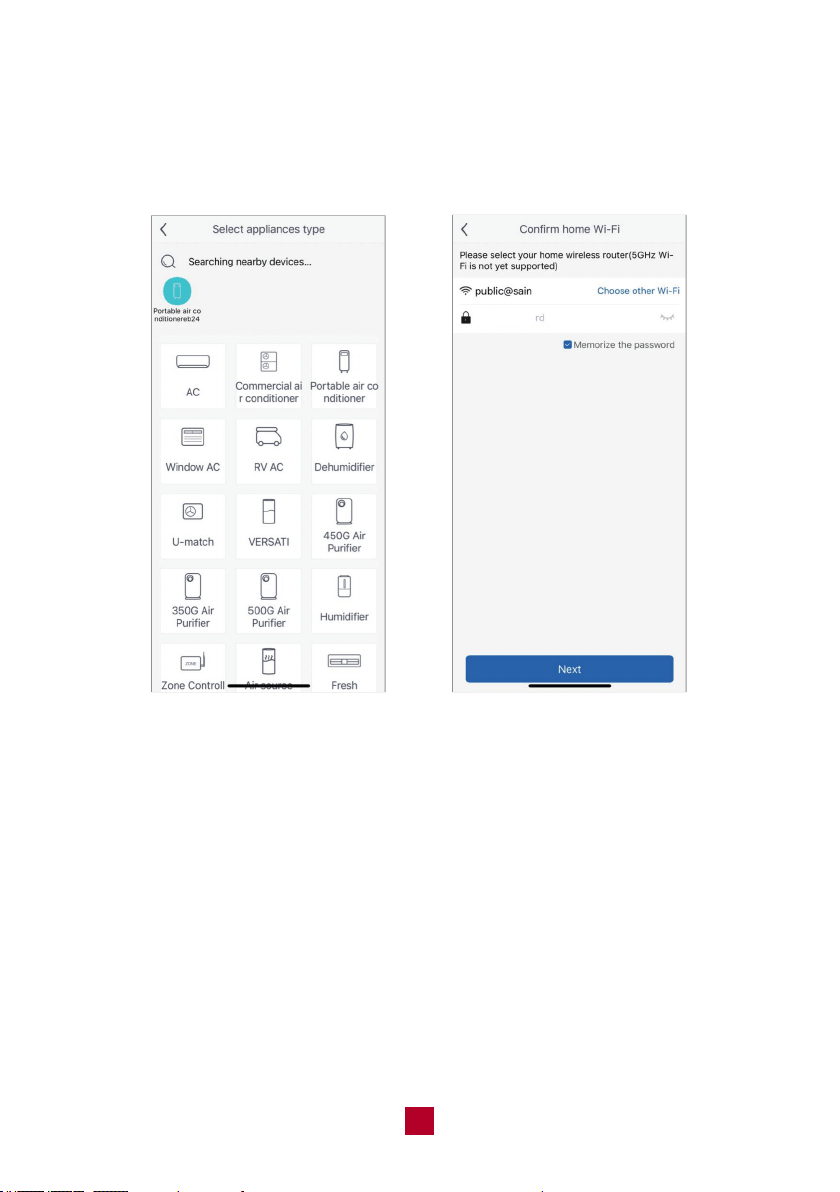
a. The available device icon will be displayed once discovered.
(1) Tap the icon to enter the next step. Select your preferred Wi-Fi network (5GHz
WiFi is not yet supported) , enter your WiFi password, then tap the “Next” button.
13
WIFI 1
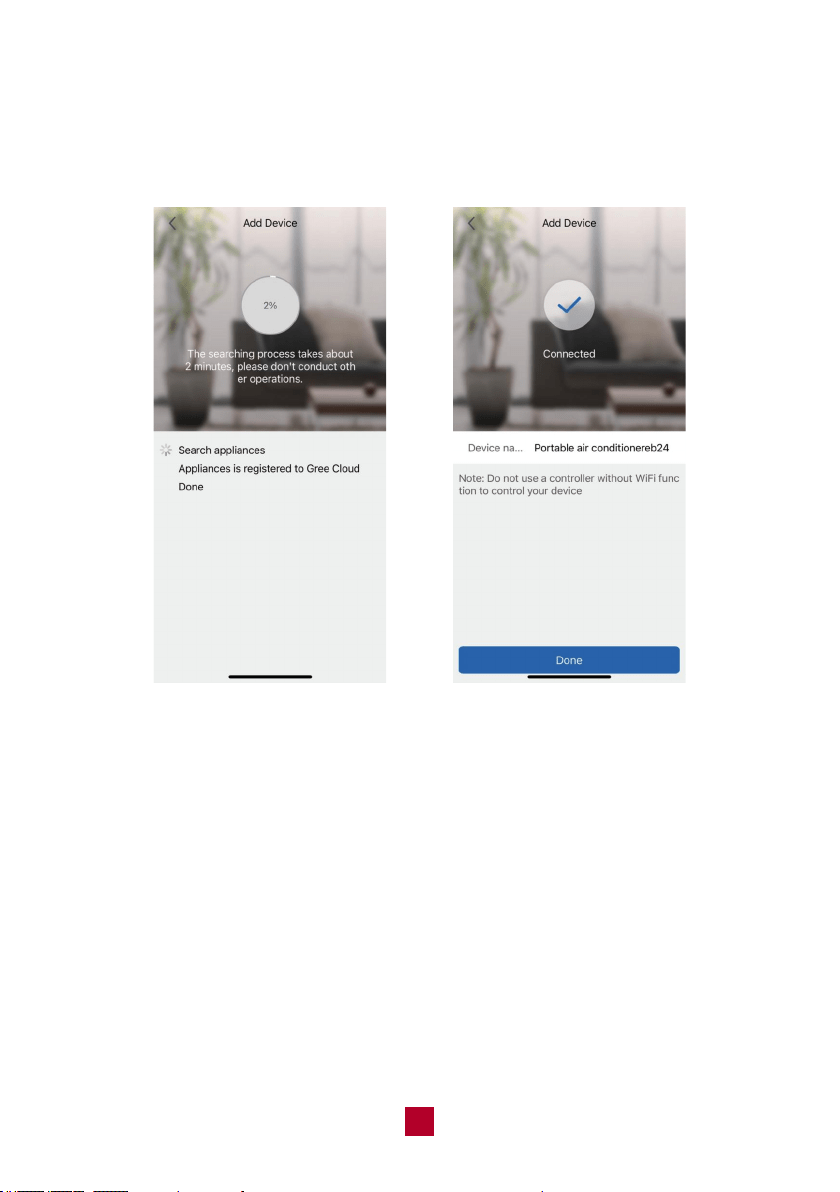
(2) The App will start to search for new devices. Wait for 2 minutes or until the
device is connected. The Device name can be customized. Tap “Done”. Once
the device is added successfully, you will return back to the “My home” page.
14
15
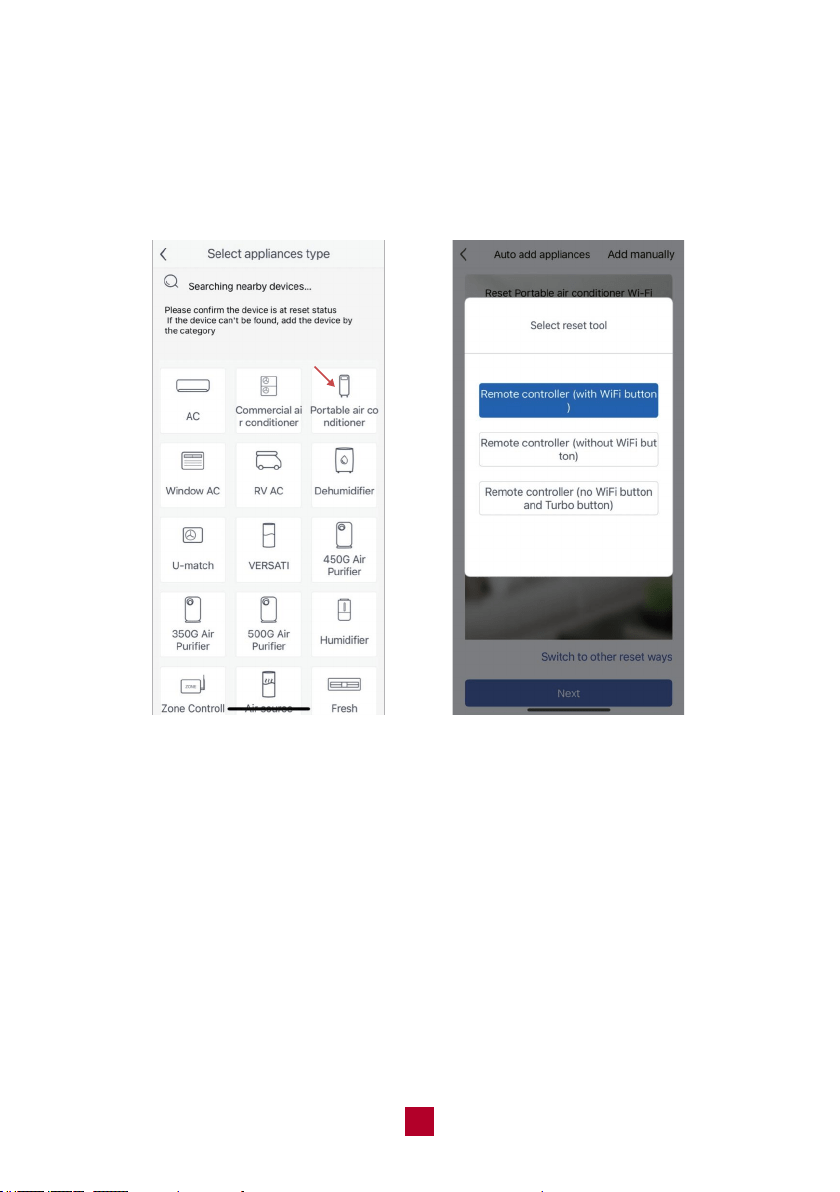
b. If no device is found, please manually add your device.
(1) Tap the device category icon and follow the instruction to reset your WiFi. For
this model, Tap “Portable air conditioner” and then choose “Remote control
(with WiFi button)”.
16
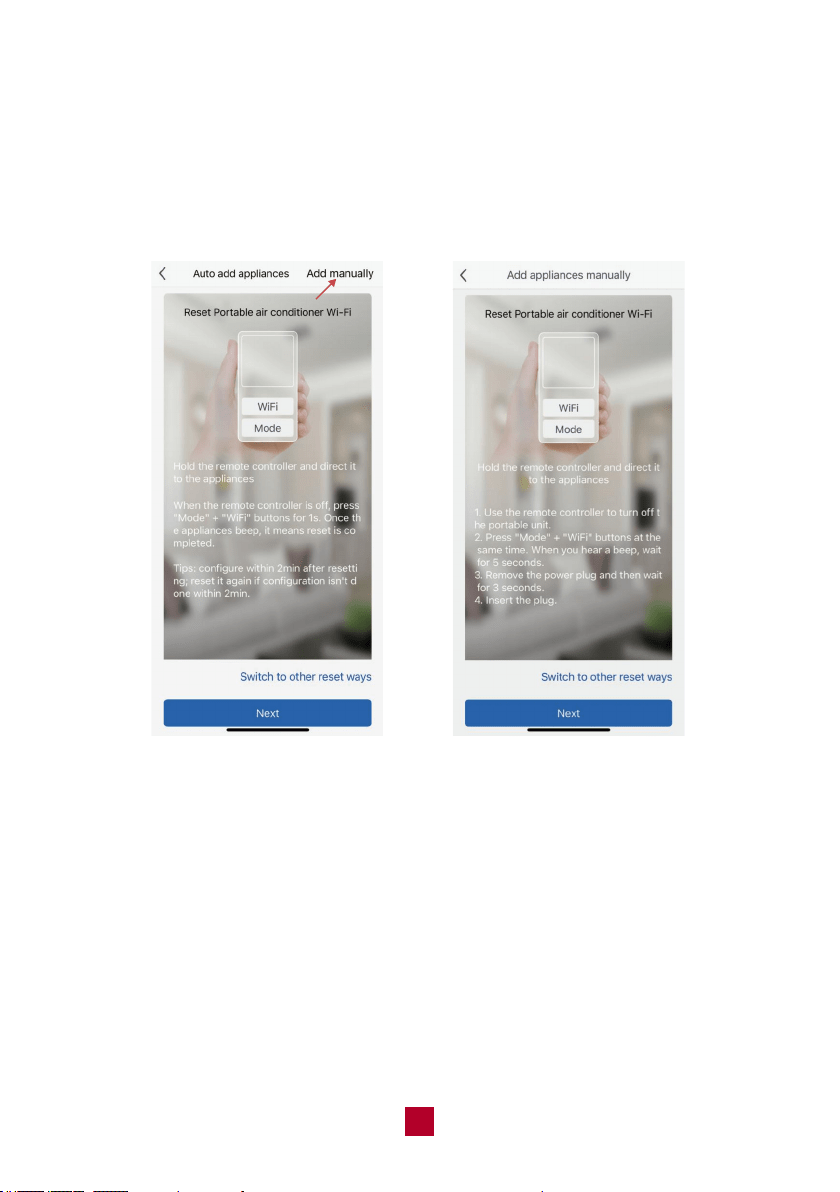
(2) Tap “Add manually” and follow the instructions. Hold the remote control and
direct it to the device. With the remote control powered off, press the “Mode”
and “WiFi” buttons simultaneously for 3 seconds. Once you hear a beep sound,
wait for 5 seconds and then remove the power plug. After 3 seconds, insert the
power plug. Tap “Next” to enter the next step.
17
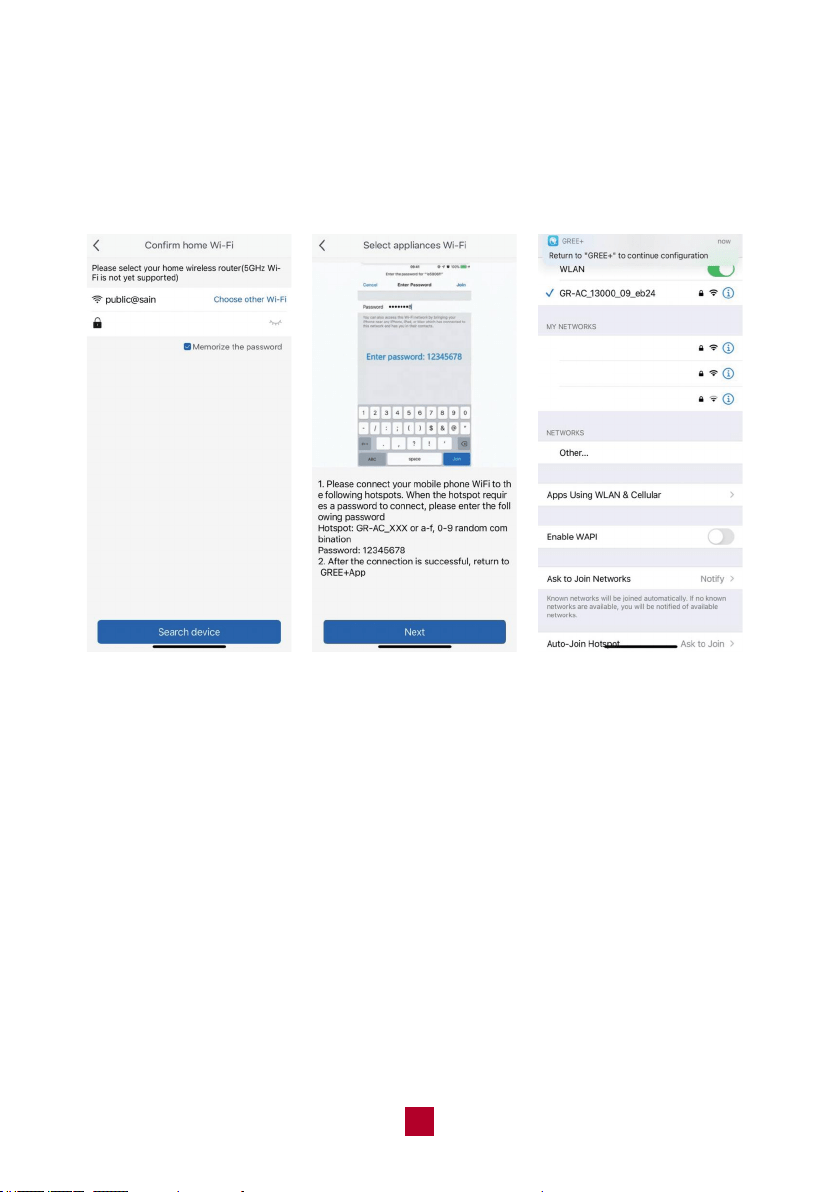
(3) Select your preferred Wi-Fi network (5GHz WiFi is not yet supported), enter the
password, then tap the “Search device” button. Tap “Next” to connect your mobile
phone WiFi to the hotspot “GR-AC-XXXX”, the password is 12345678. When the
connection is successful, return to the App.
WIFI 1
WIFI 1
WIFI 2
WIFI 3
18
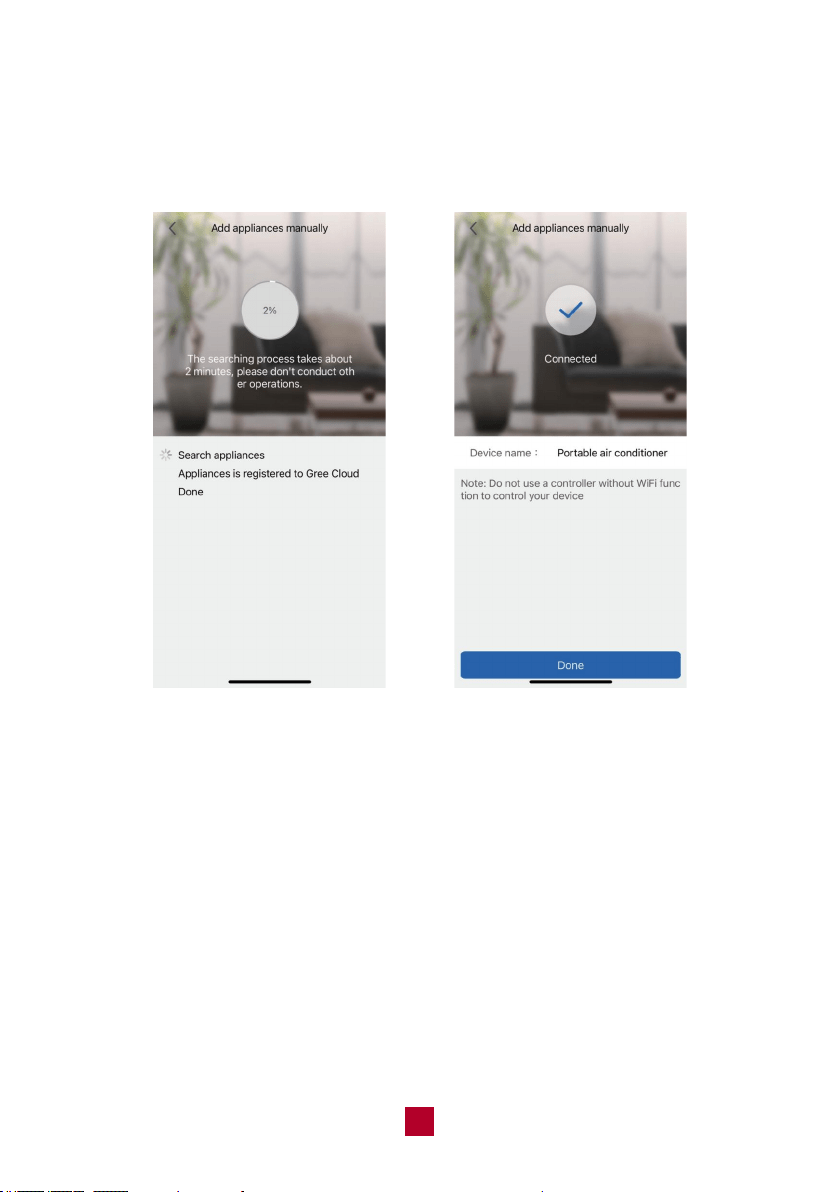
(4) The App will start to search for devices. Wait for 2 minutes or until the device is
connected. The device name can be customized. Tap “Done”. Once the device
is added successfully, you will return to the “My home” page.
19
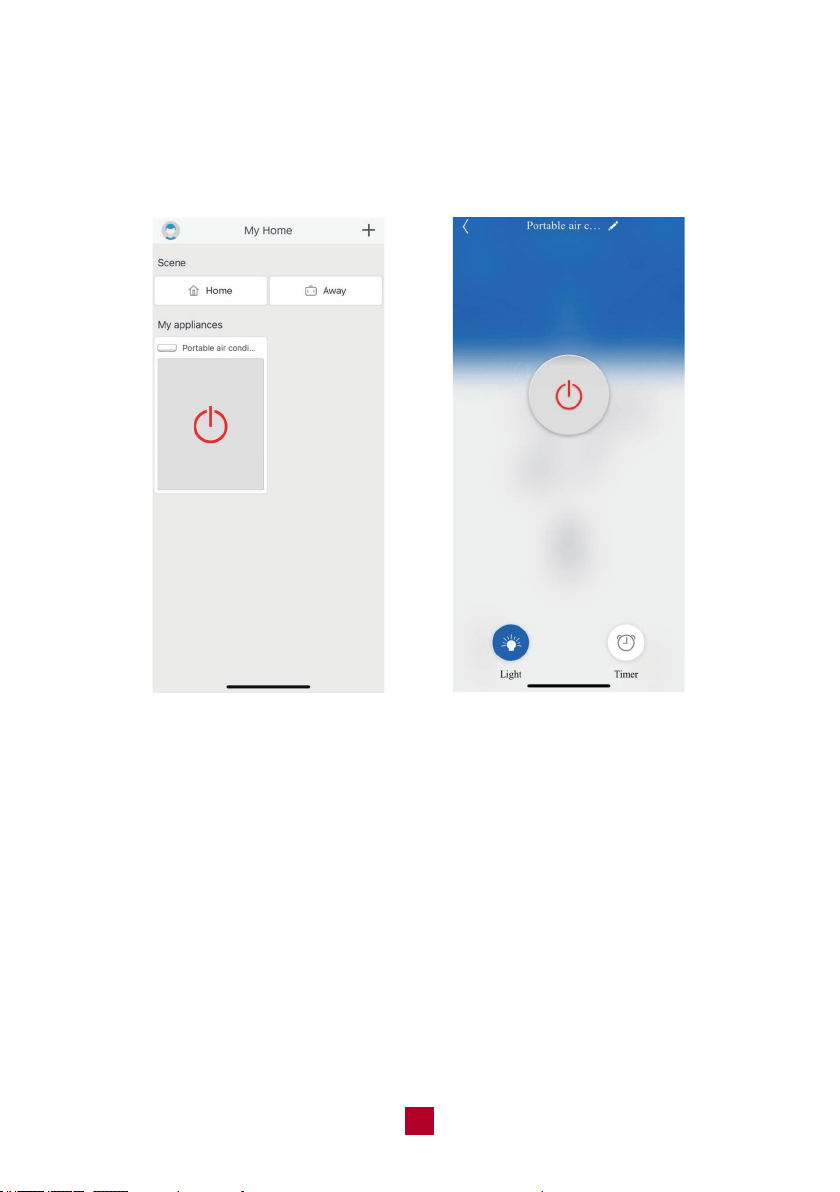
My Home
Scene
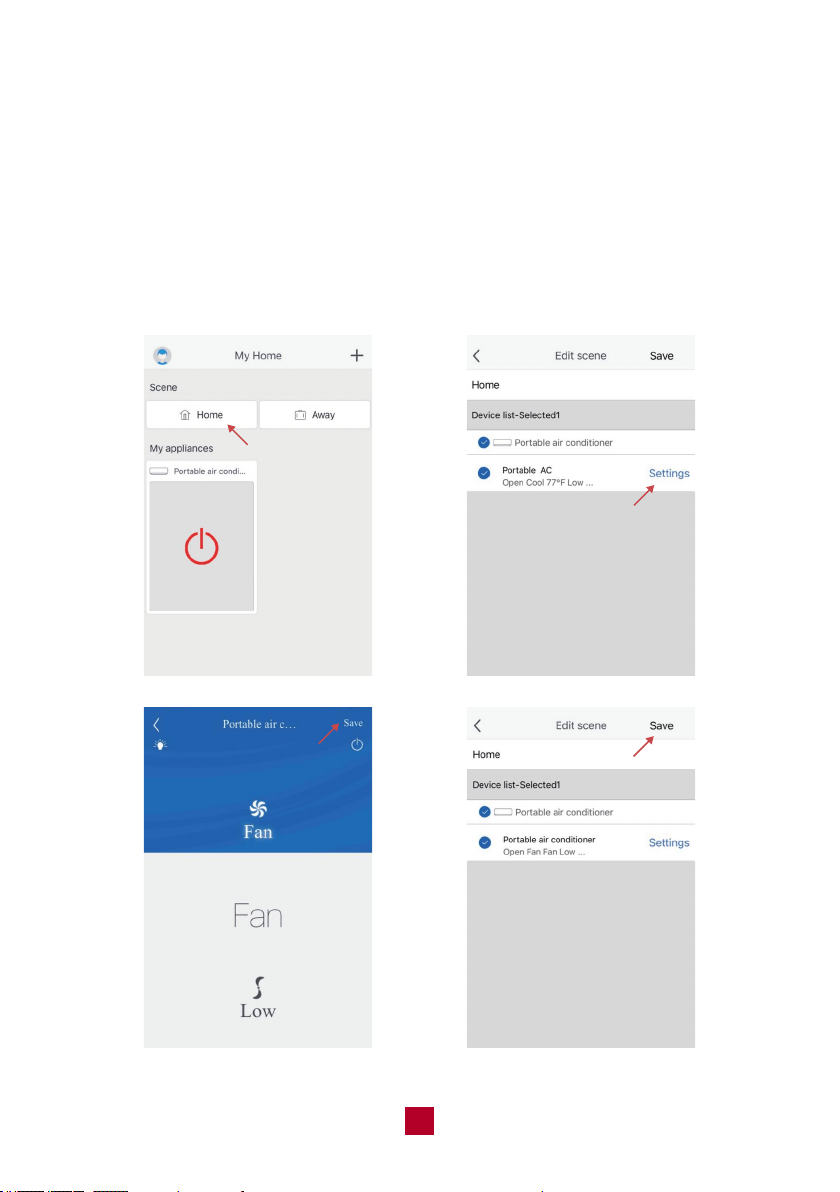
● This function allows you to activate all settings with one click. Home and Away
are the two default scenes.
● Tap the scene button to edit your desired setting for the first use. Tap “Setting” to
make your customizations then tap the “Save” button. The scene setting will be
saved.
20
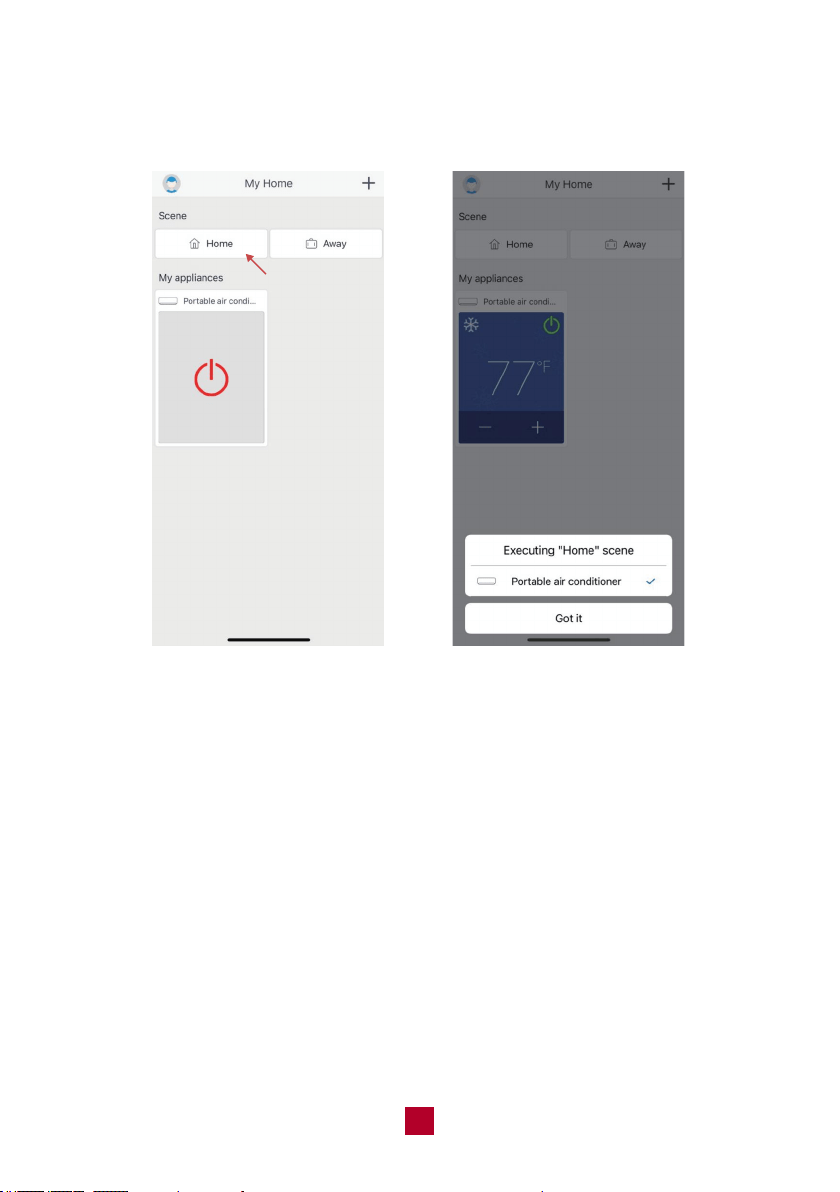
● If you want to execute the preset modes , tap the scene button. The APP will
pop up a window to tell you the setting is done.
21
My appliances
● This screen shows the real time status of all your devices. Tap the appliance icon
to start control. Tap the power button to turn on the air conditioner.
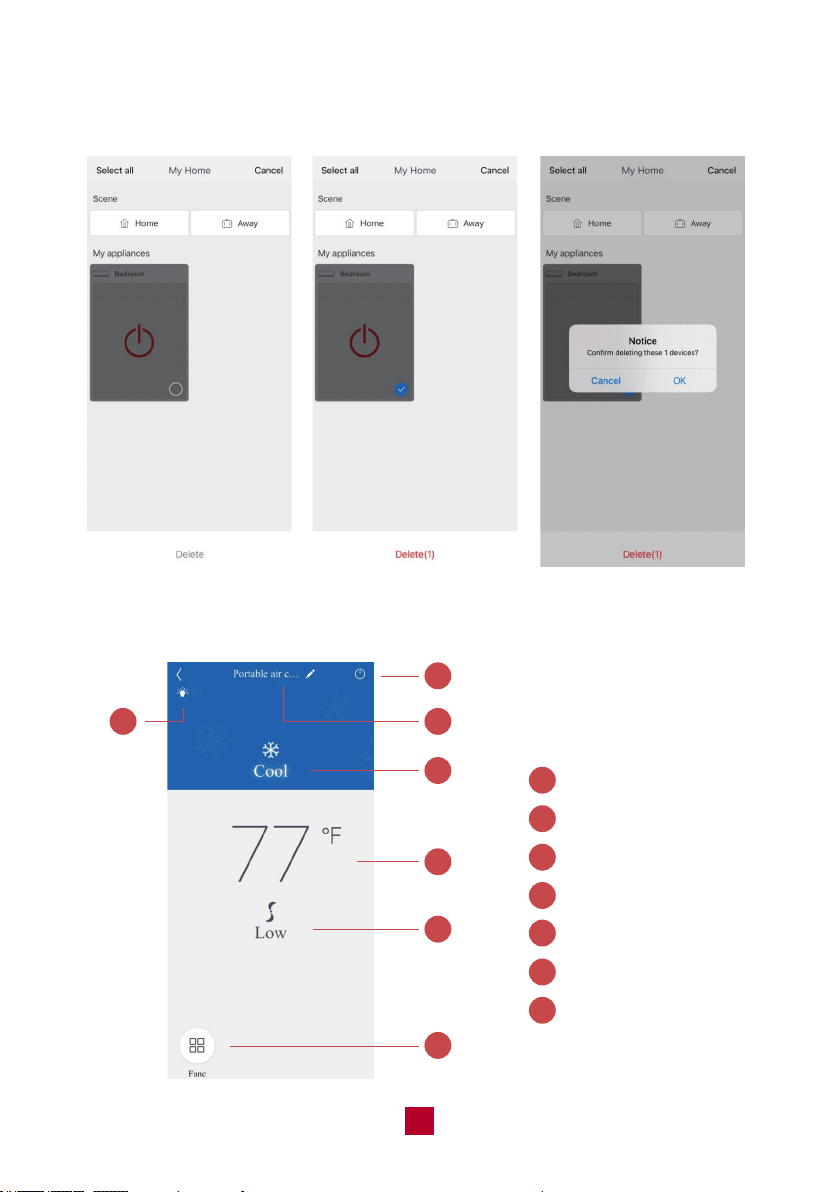
22
● Long press the appliance icon to delete the appliance. Choose the unwanted device
and tap “Delete” then confirm.
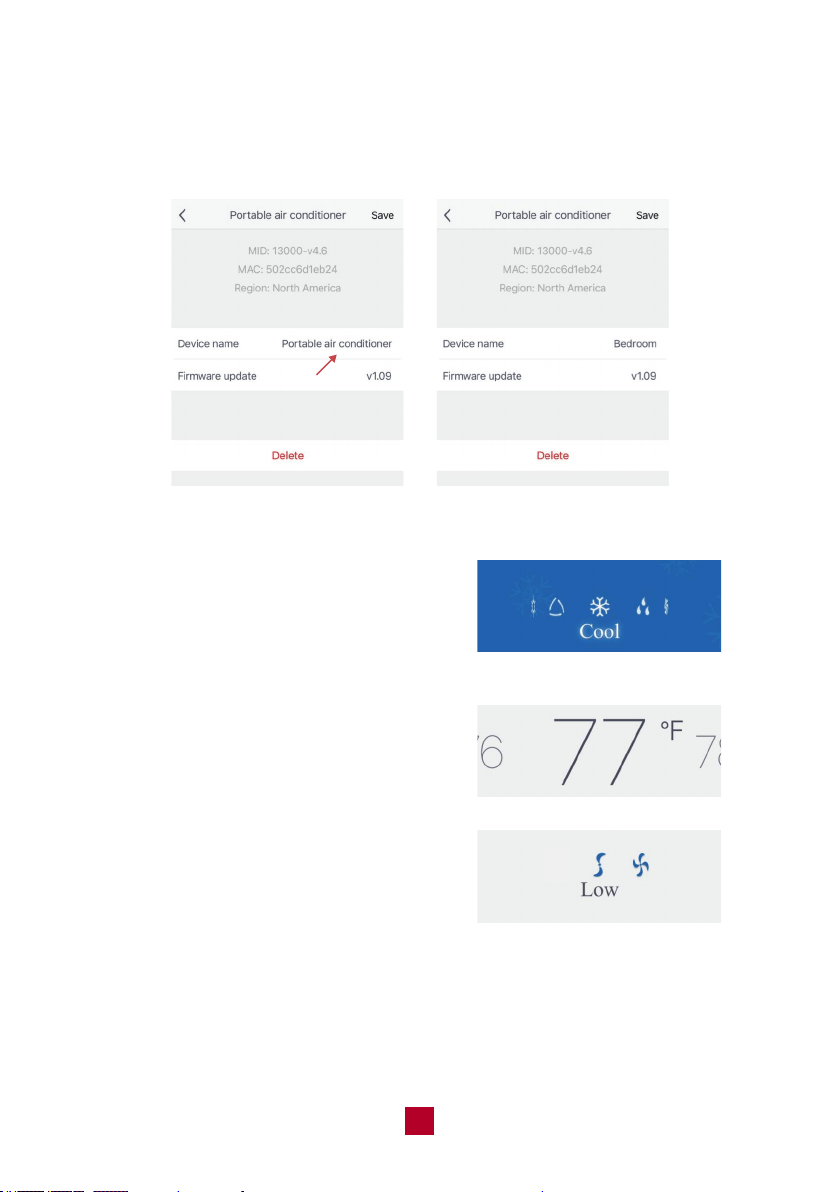
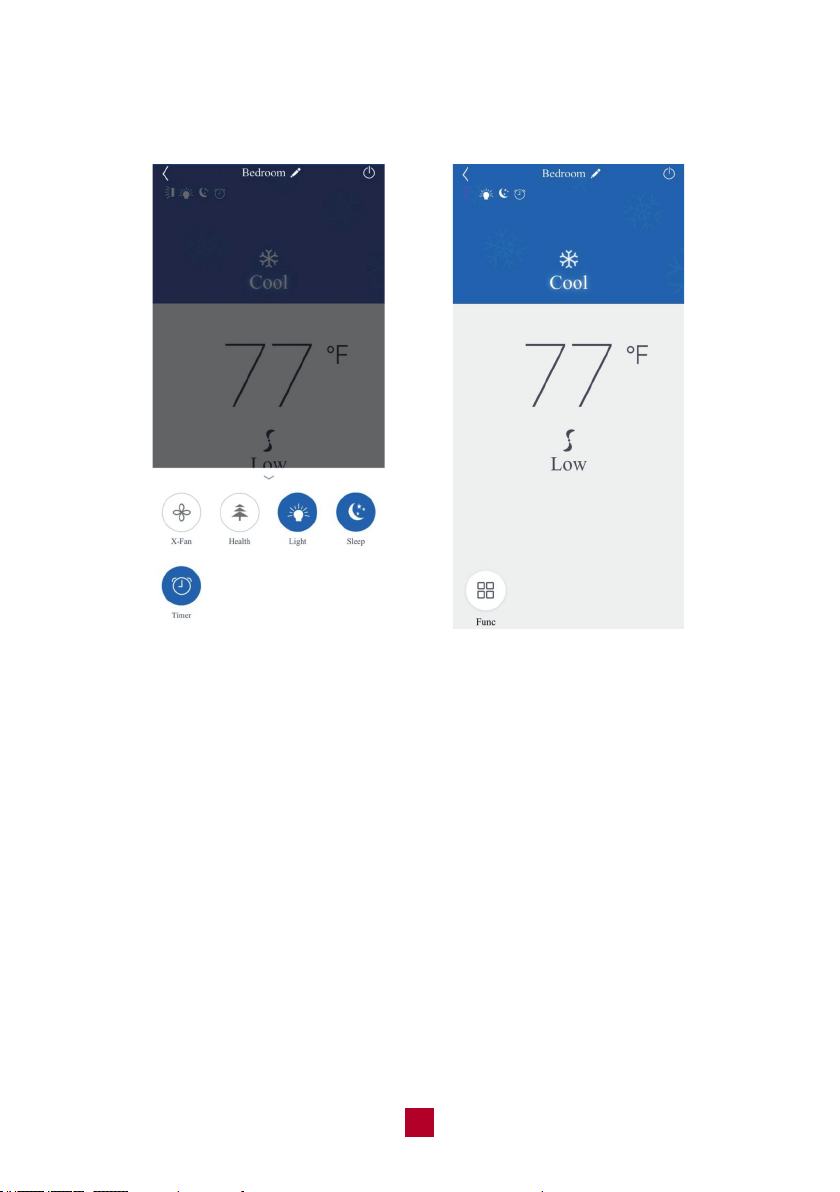
Functions
1
2
3
4
5
7
6
On/off
Other function icon
Device Name
Mode
Set Temperature
Fan Speed
Other functions
1
4
3
5
6
7
2
23
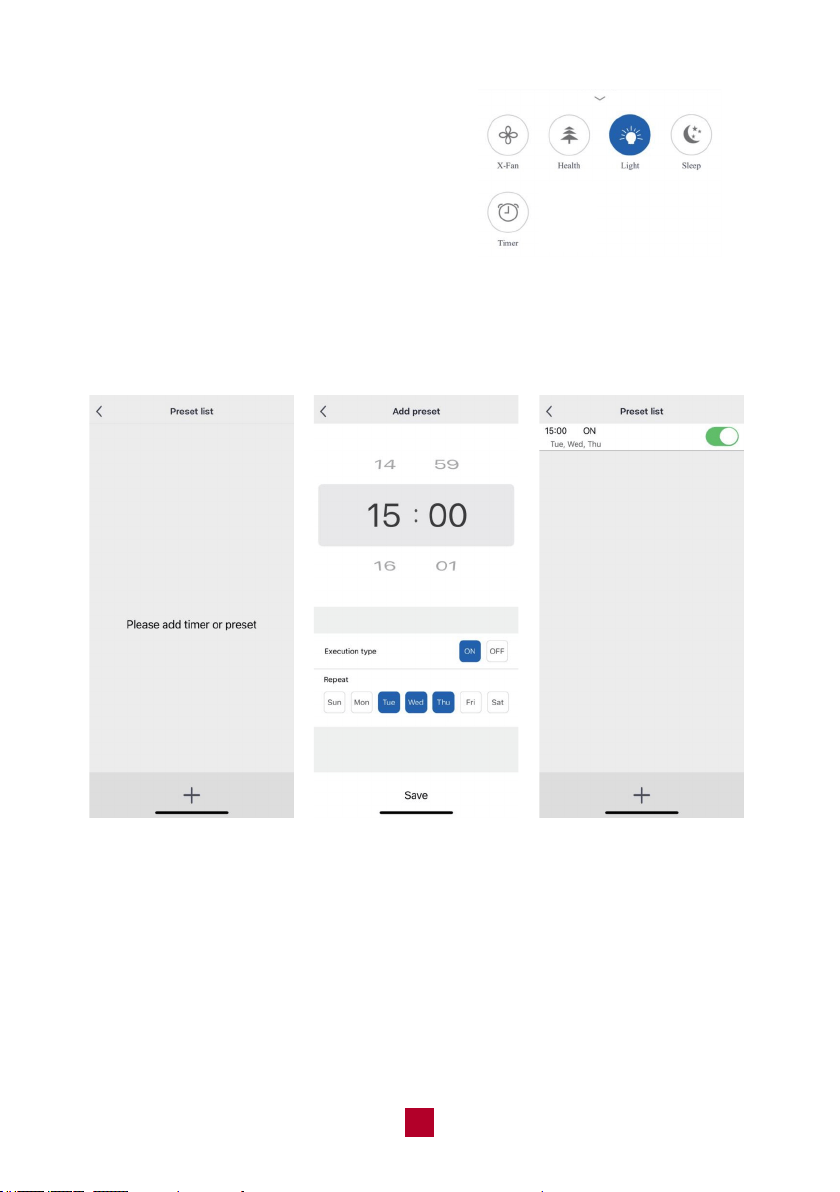
Change the device name
Press the pencil icon to edit the device name, then tap the “Save” button when
complete.
Mode setting
Slide the icon to choose mode: cool, dry,
fan, heat, auto.
* Heat mode is not available for this model.
Temperature setting
Slide the temperature display to adjust the
set temperature.
Fan setting
Slide the fan icon to set fan speed: low, high.
24
Other functions
● X-Fan: Not available for this unit.
● Health: Not available for this unit.
● Light: Turn the light on the conditioner on
or off.
● Sleep: Only available on Cool mode.
● Timer: Add a schedule by tapping the “+” button. Set the on/off time of your
choice and tap the “Save” button. The new schedule will be saved. Toggle the
slider to cancel the schedule. Repeat this step to set different timers.
25
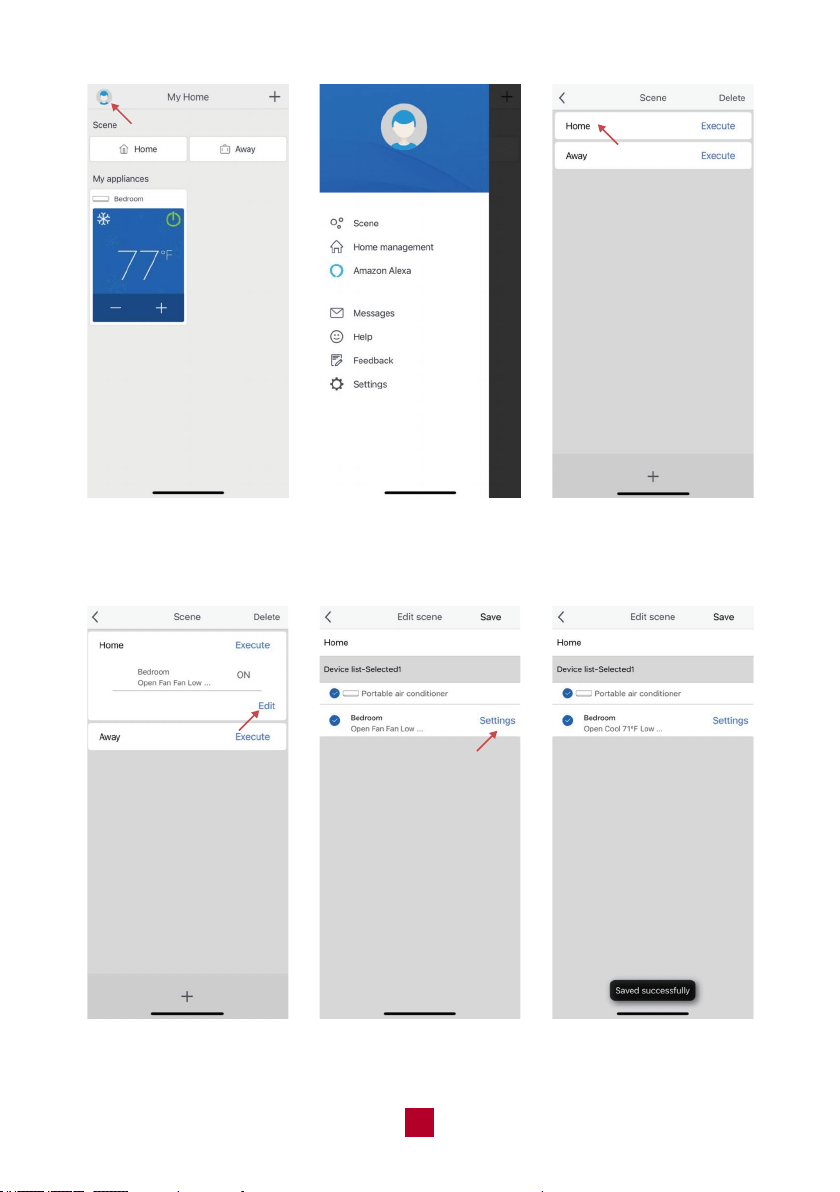
Device Management
NOTE: The button will turn blue and the icon will be shown at the top when the
Tap the user icon to enter device management.
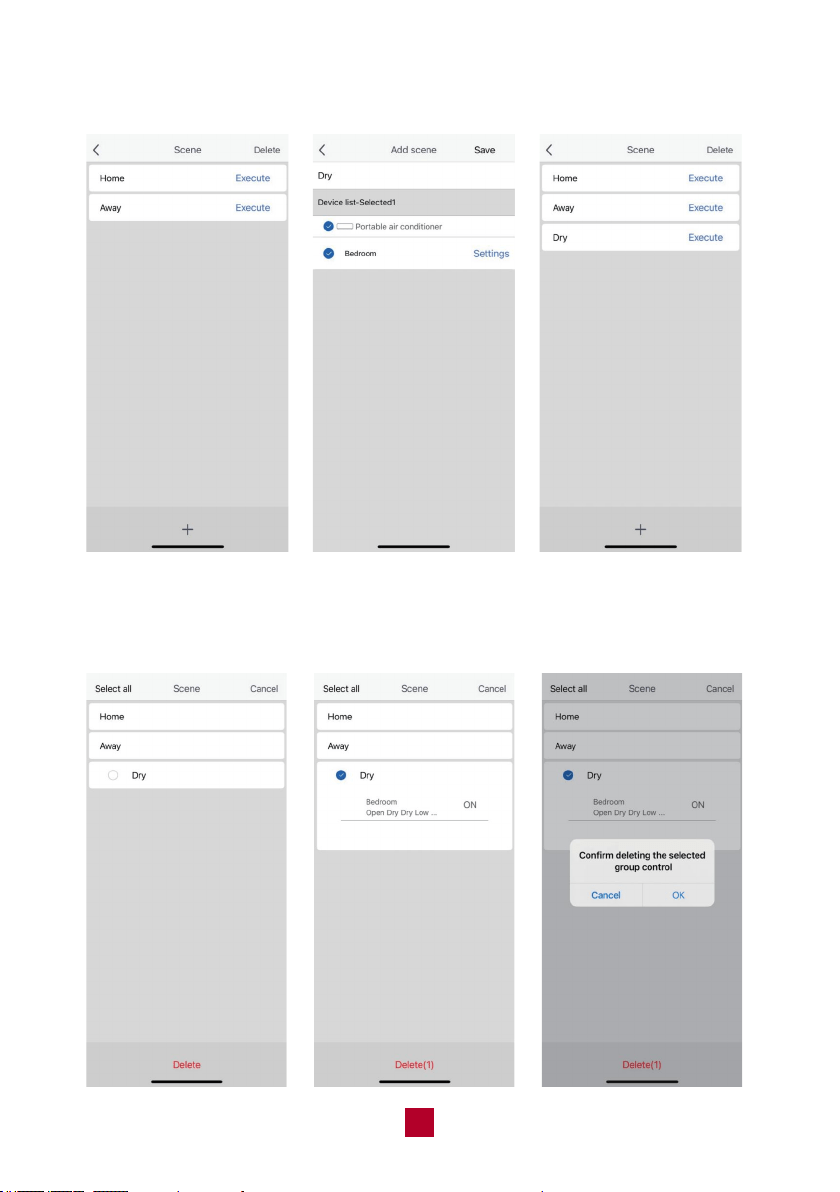
Scene——Edit scene
● Tap the scene name to manage the setting. The current setting will be shown.
Press “Execute” to activate the scene immediately.
● Press “Edit” to adjust settings. Choose the device and tap “Settings”, after
adjustments tap the “Save” button again. The scene setting will be saved.
function is applied. Tap the button again to cancel the setting.
26
27
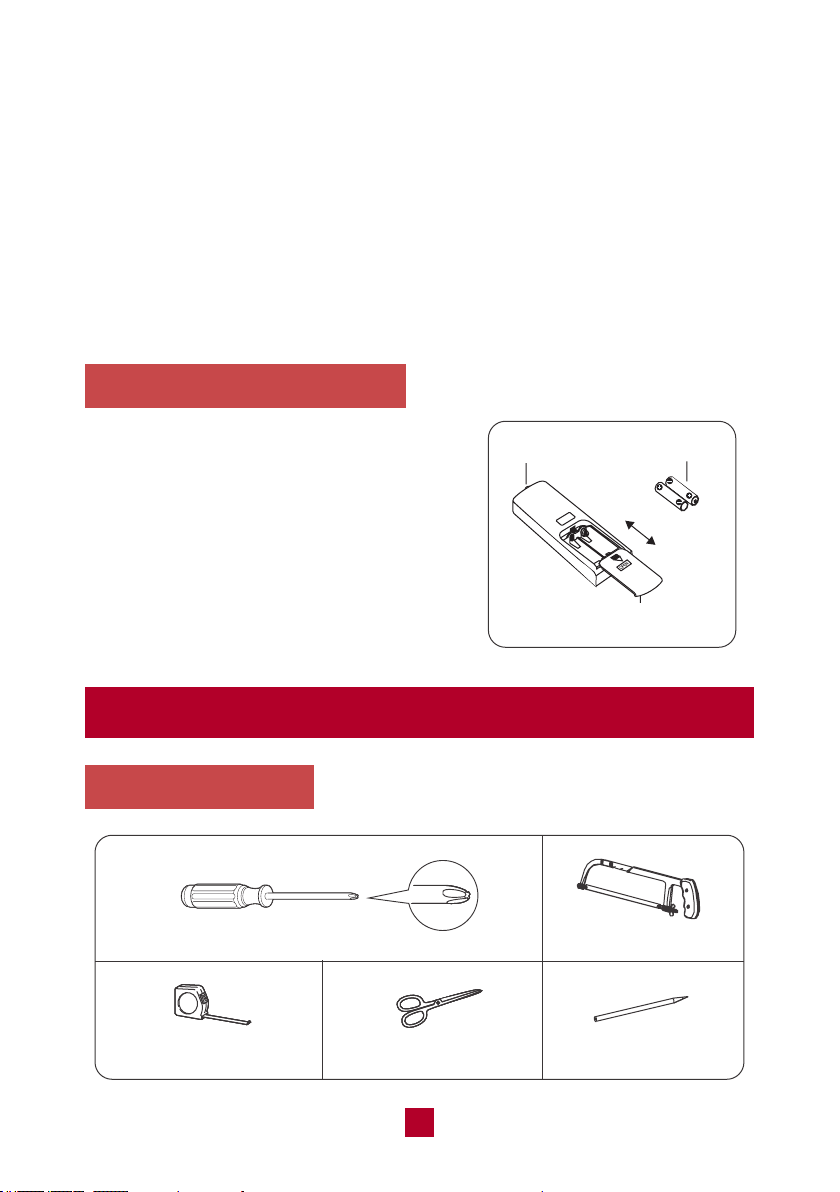
Scene——Add scene
Tap “+” to add a new scene. Customize the name and settings then save.
Scene——Delete scene
Tap “Delete” to delete a scene. You can tap the scene name to see detailed settings.
Choose the unwanted scene and tap “Delete” then confirm. Two default scenes can
not be deleted.
28
Home management
You can invite family member to control all the devices in the Family. For more
information, please refer to the instructions in the App.
Amazon Alexa
You can use Amazon Echo series speakers to control your device. For more
information, please refer to the instructions in the App.
If you have problems, please refer to "Help" in the App or contact our support team.
Replacing the Batteries
1. Press the back side of the remote control
battery cover and slide out following the
engraved arrow.
2. Replace with two new AAA(1.5V) batteries
of the same make and model.
Make sure the polarities (+ & -) are aligned
correctly.
3. Reinstall the battery cover box.
signal sender battery
Cover of battery box
remove
reinstall
Installation
Tools Required
Phillips head screwdriver
Tape measure Scissors
Saw
Pencil
FAN
ON/OFF MODE
SLEEP
TIMER
LOCK
X-FAN
SLEEP
X-FAN
SPEED
T-ON
T-OFF
H
AU
OPER
TO
FAN
DR
COO
Y
L
Remote Control
Power Cord Hook
x2pcs
Others
09
Parts List
Exhaust HoseJoint Rear Clip
Insect Guard Screw x 4pcs
Mounting Plate
x 2pcs
Accessory kit for window installation
Window panel
Extension panel
Exhaust
cover
Adjustment
panel
Fixed Clip
x 2pcs
Bracket
Foam Seal A
(non adhesive)
Foam Seal B
(adhesive type)
Rain Guard
x 2pcs
29
3. Slide the Exhaust Cover into the grooves of the Window Panel. If you do not want
to install the Rain Guard, skip to Step 5 below.
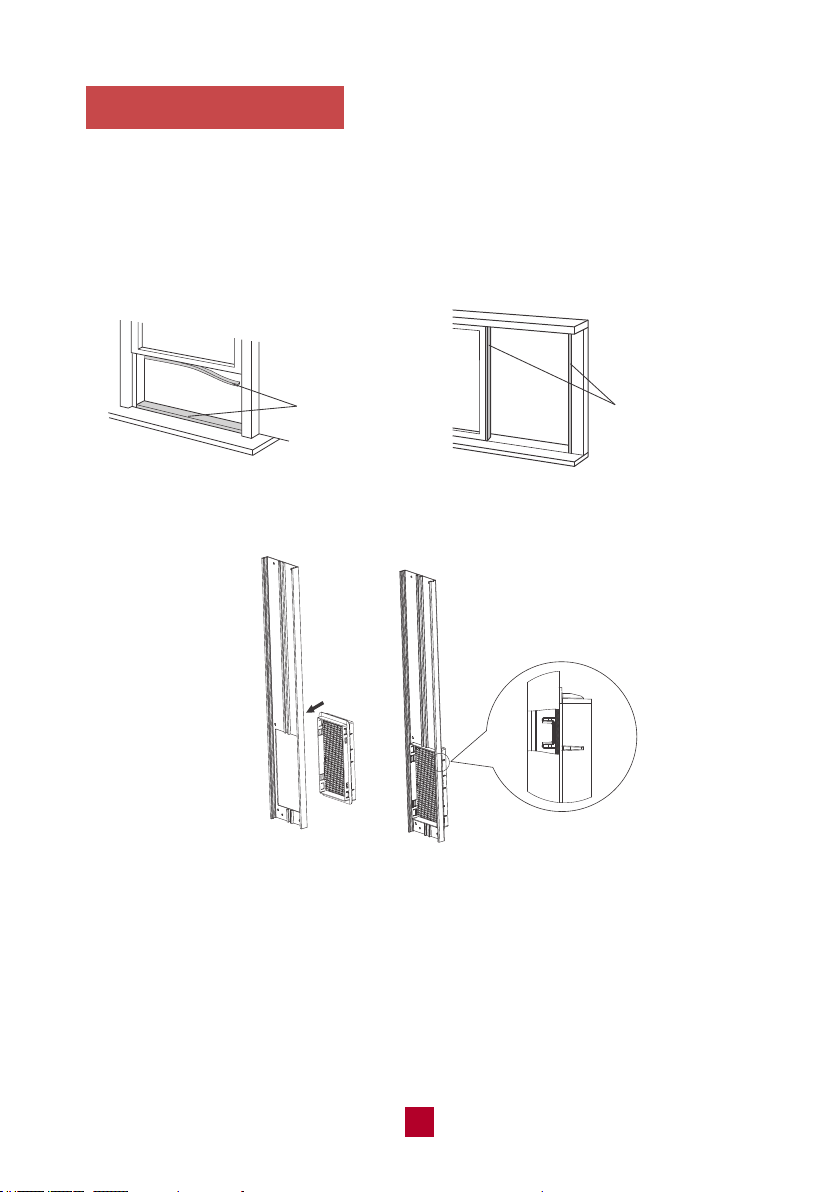
Installing Your AC
Here are the detailed instructions for installing the window panel into sliding sash
or hung windows. For certain windows, such as a casement window, you will need
to improvise several steps of the installation as each specific window will be different.
1. Cut the Foam seal B (adhesive type) to the proper length and attach it to your
horizontal (or vertical) sliding window.
Foam seal B
(adhesive type)
Foam seal B
(adhesive type)
2. Attach the Insect Guard to the back side of the window panel. Push in to ensure
that it fits securely.
14
30
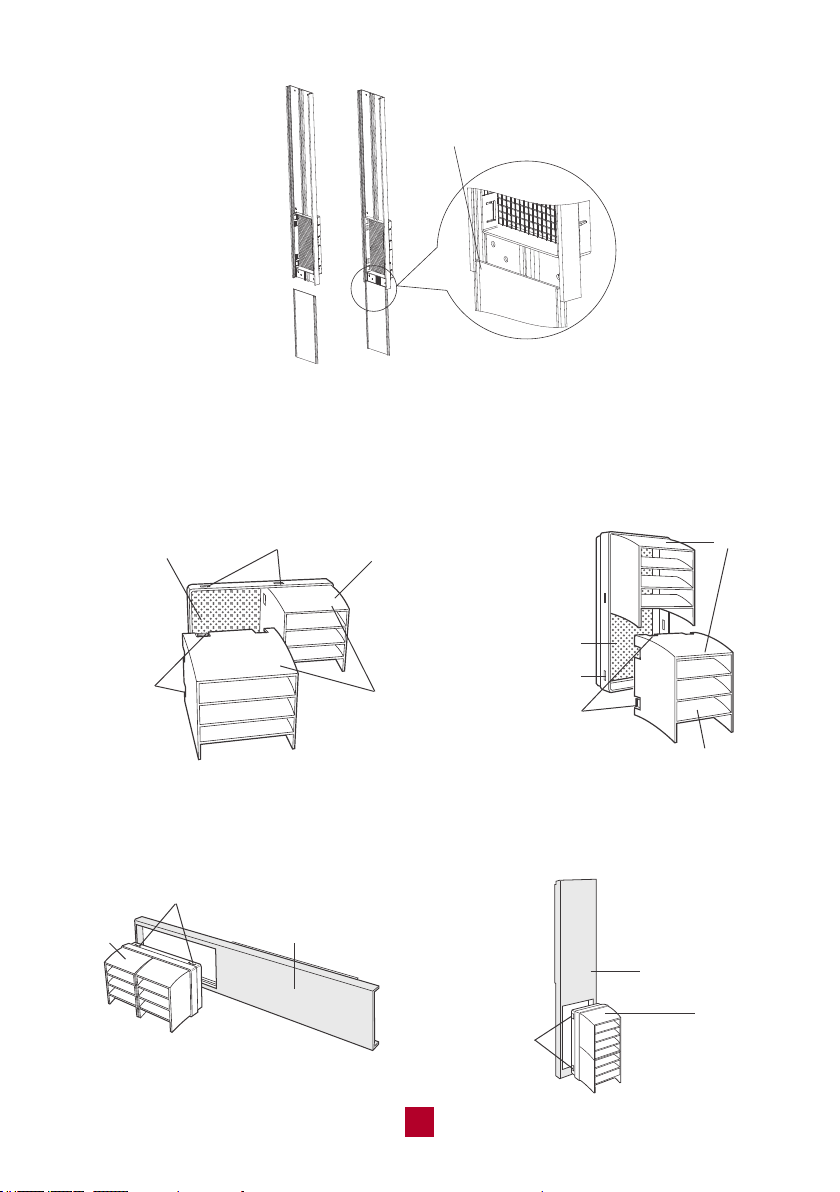
4. Optional: Install the Rain Guard over the Insect Guard to prevent rainwater from
leaking into the exhaust hose.
a. Insert the three projections on each Rain Guard into the holes in the Insect Guard.
Side “A” should be at the top, as indicated in the diagram below.
Insert the first groove
14
Hole
Projection
Insect guard net
Rain guard
"A"
Hole
Projec-
tion
Insect guard net
Rain guard
"A"
Double-hung sash window Sliding sash window
b. Insert the insect guard firmly to ensure that the four projections fit into the holes
of the window panel. Make sure that Side A is on the top.
Double-hung sash window Sliding sash window
Projection
"A"
Window panel
Window panel
Projection
"A"
31
1
1
2
2
3
3
Window width
Max 62inch / Min 9.1inch
Window width
Max 62inch
Min 9.1inch
Window panel (cut if necessary)
Adjustment panel
Extension panel
Exhaust cover
1
2
3
4
28.3inch
18.3inch
18.3inch
10inch
5inch
5inch
4.8inch
4.8inch
You can slide the exhaust cover to
cover the hole of the window panel
when the exhaust hose is removed.
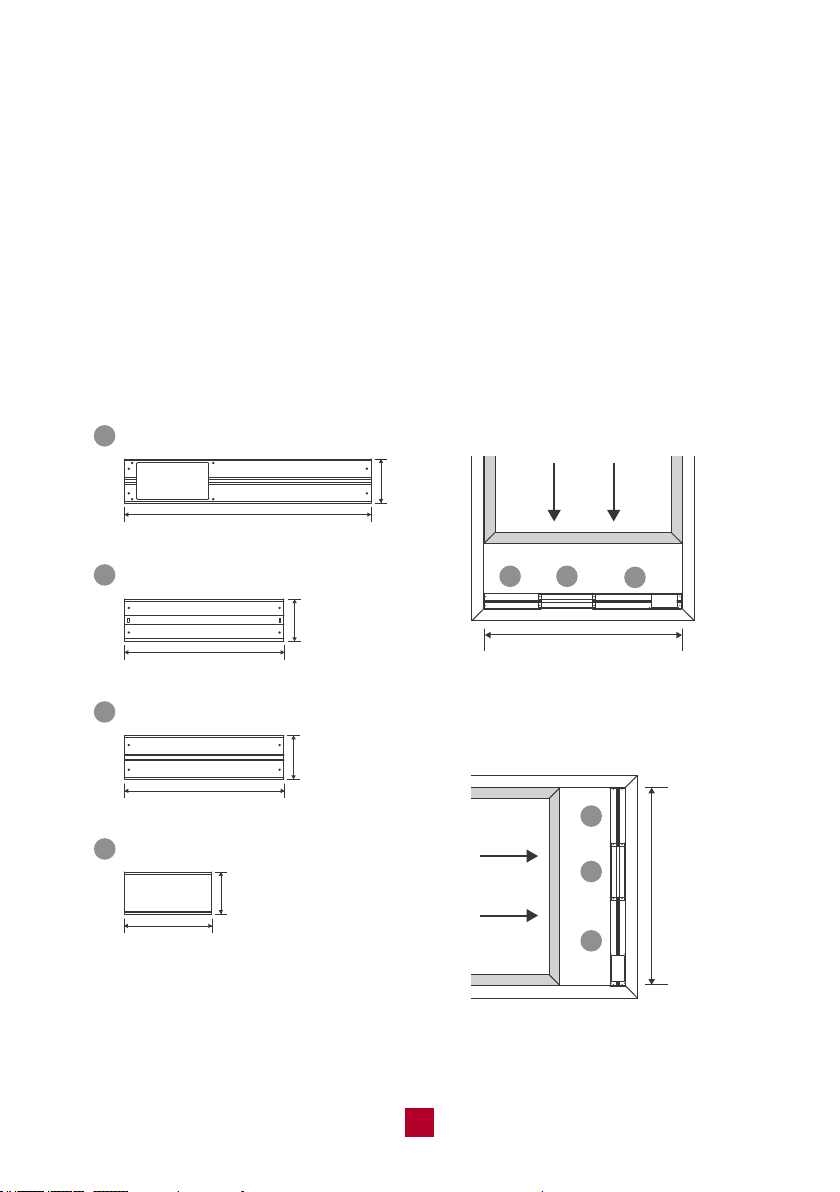
5.Installing the Window Panel(s)
This window installation kit comes with 3 panels to adjust to your exact window size.
You may not need to use all three panels. To begin, please refer to the guide below:
● If your window is less than 28 inches long you only need the window panel. You
may need to saw off part of the window panel if your window is smaller than the
window panel length.
● If your window is 28 to 46 inches long, you will need the window and adjustment
panel. You will not need the extension panel.
● If your window is 46 to 62 inches long, you will need all three panels.
● Last, if your window is longer than 62 inches, you will need all three panels and
then need to improvise to fill the remaining gap.
Vertical Sliding Window
Horizontal Sliding Window
32
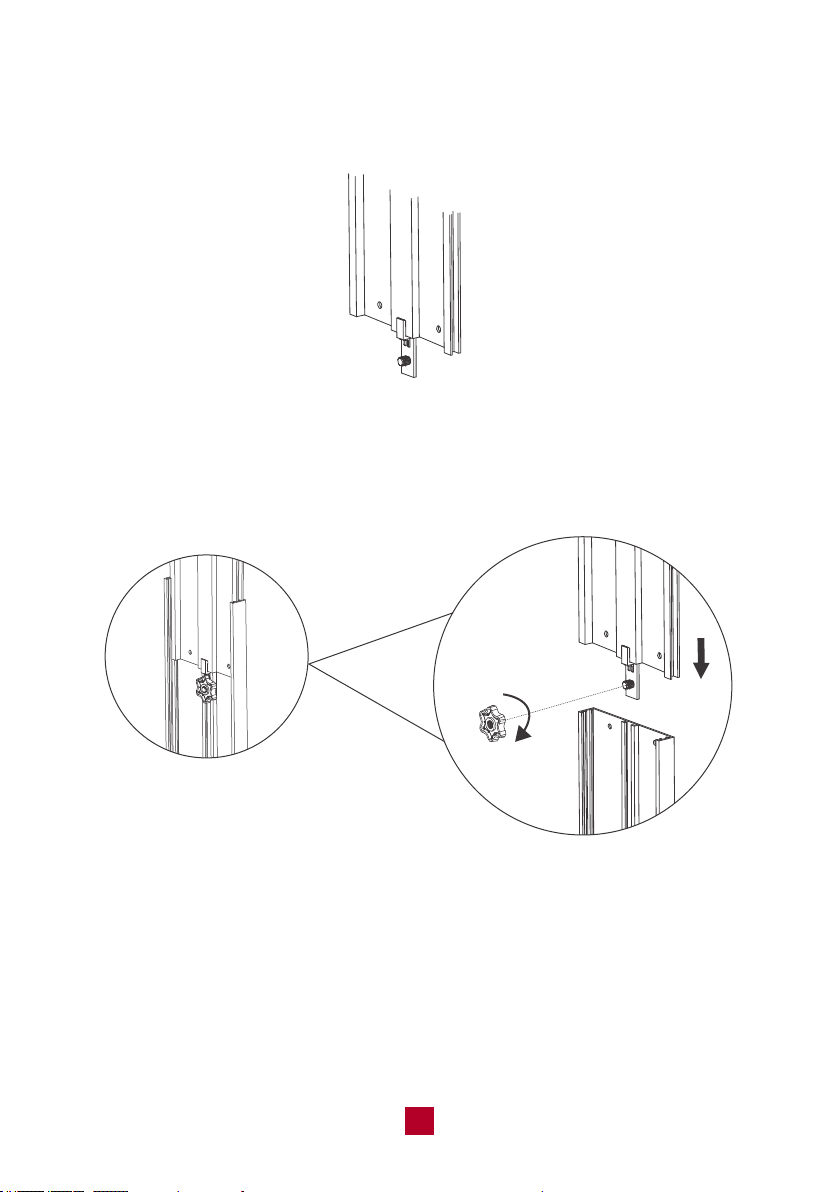
a. Find the adjustment panel (with two grooves on each end), and a Fixed Clip
and Mounting Plate.
b. Insert the fixed clip into the groove of the adjustment panel.
c. Slide the fixed clip into the groove of the window panel and slide the fixed clip
until there is no gap between the two panels.
d. Screw the mounting plate into the fixed clip to secure the panels together once
it is at the length of your window.
mounting plate
fixed clip
e. If needed, follow the above steps to connect the other side of the adjustment
panel to the extension panel. The total length of the panels will reach 62 inches.
If your window is longer than 62 inches, you will need to improvise to fill in the gap.
33
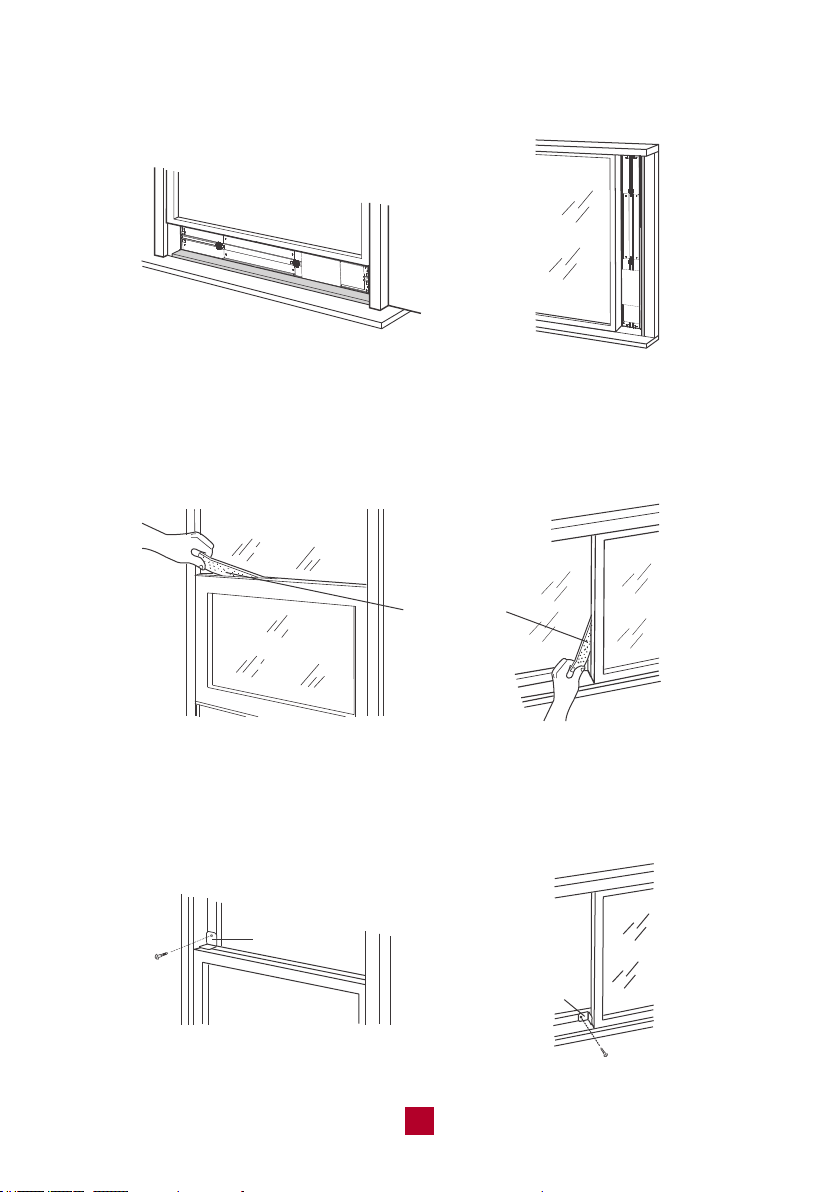
6. Insert the window panel into the window sill and close the window securely
against the Window panel.
7. Stuff Foam Seal A (non adhesive) between the glass and the window to prevent
air and insects from getting into the room.
8. Optional: Attach a bracket to the window frame with a screw to prevent any gaps
from opening up.
Foam Seal A
Bracket
Bracket
34
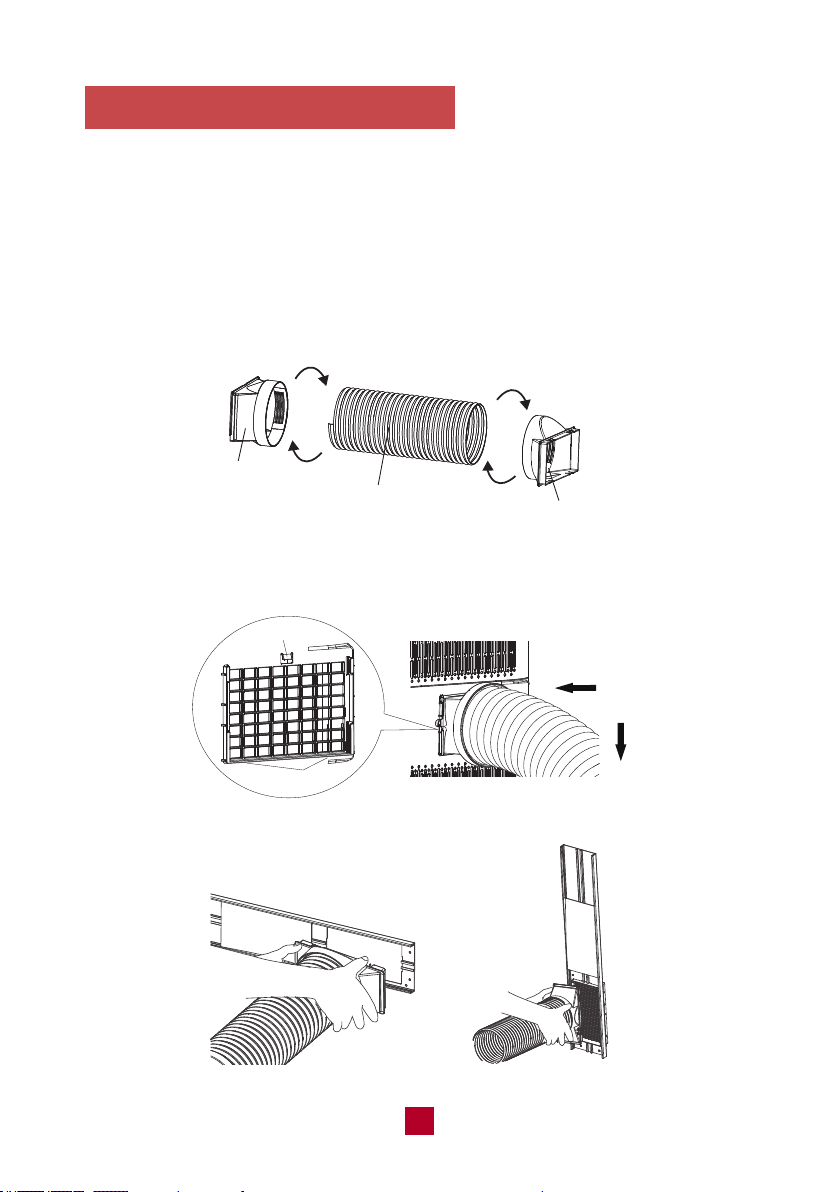
Installing the Exhaust Hose
Please note that the exhaust hose is REQUIRED to use for this portable air
conditioner. This TOSOT portable air conditioner (like all air conditioners) must
produce heat as a byproduct of producing cool air. If you don’t connect the exhaust
hose your unit will exhaust this hot air into the room you are trying to cool. That
won’t work very well.
1) Twist the Joint and Rear clip clockwise onto the exhaust hose.
2) Insert the Joint into the groove on the back of the unit and extend the exhaust hose.
3) Attach the Rear clip to the window panel.
35
clockwise
clockwise
Joint
Rear clip
heat discharge pipe
groove
clasp
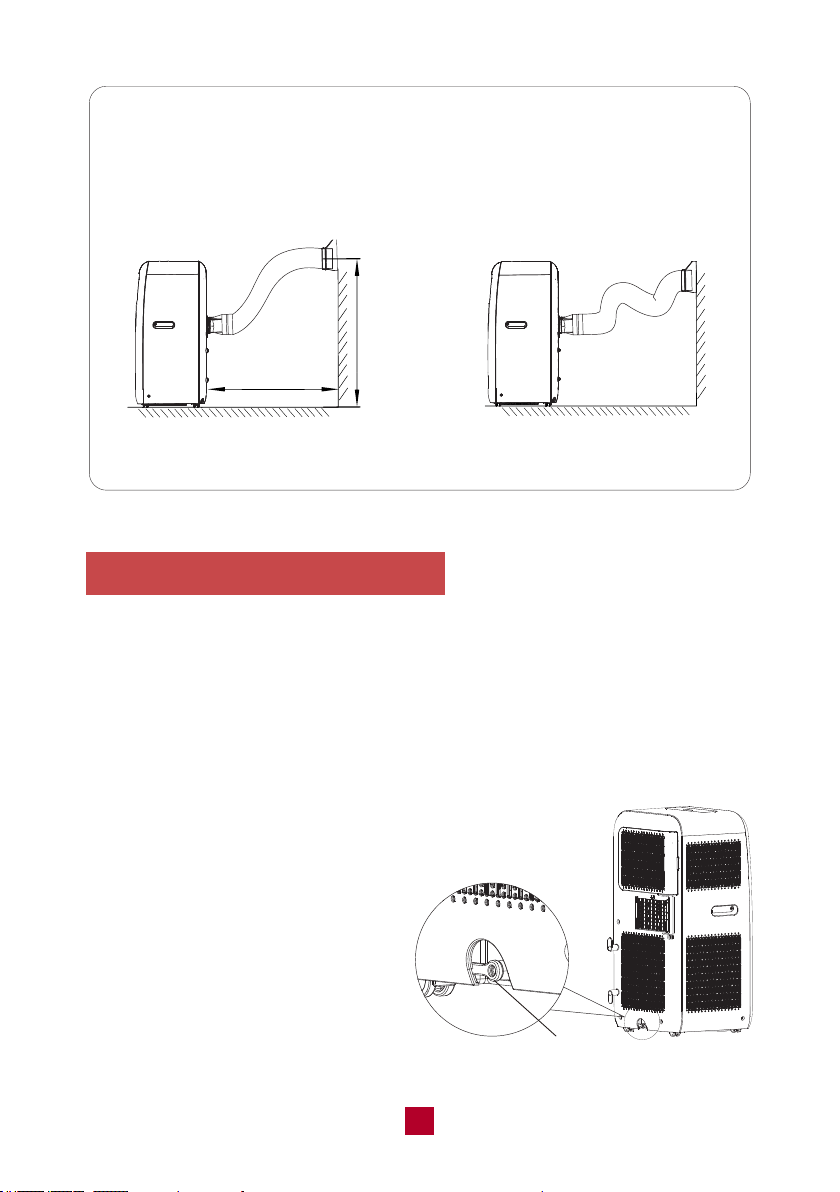
Removing Collected Water
TOSOT portable air conditioner comes with an auto-evaporation system. The unit
automatically evaporates condensation. There is no need to empty the water except
in humid conditions. It is recommended to use the bottom drainage port to drain
water during Cool mode.
When it is filled with water, the display panel will show an H8 malfunction code to
remind you to drain the water. For manual drainage, you will need to:
1. Move the unit to a suitable place
for discharging water. Please keep
the unit horizontal so water does
not spill.
2. Remove the rubber plug from the
drainage port and the collected
water will drain.
Tips:
In order to improve the cooling efficiency of your air conditioner, the
exhaust hose should be as short and direct as possible. Our suggested
configuration is shown below.
19
36
correct
about 24 inchs
under 51 inchs
wrong
drainage port
Cleaning and Maintenance
Precautions
● Before cleaning the air conditioner, please turn off the unit and disconnect the
power. Otherwise, it may cause an electric shock.
● Do not wash the air conditioner with water. Otherwise, it may cause an electric shock.
● Do not use volatile liquid (such as thinner or gas) to clean the air conditioner.
Otherwise, it may damage the appearance of the air conditioner.
● Do not use liquid or corrosive detergent to clean the appliance and do not splash
water or other liquid onto it, otherwise,it may damage the plastic components,
even causing electric shock.
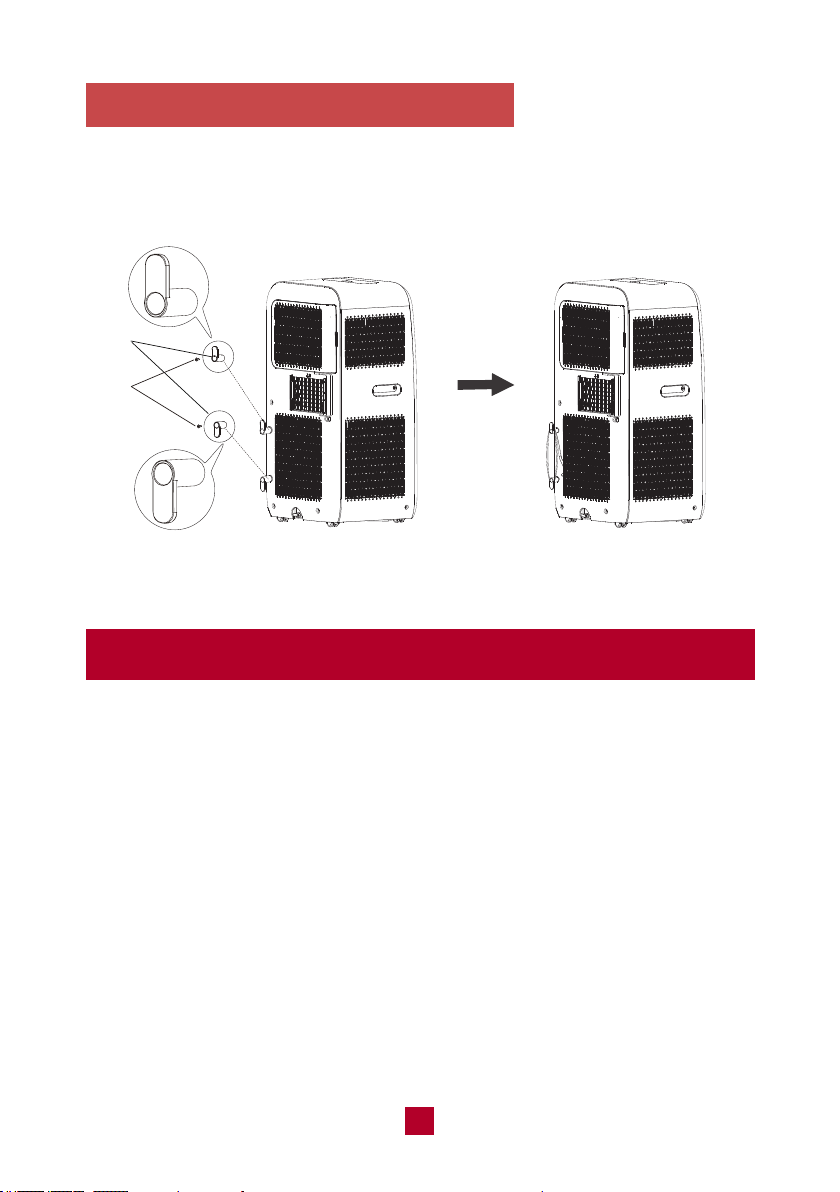
Installing the Power Cord Hooks
Attach the two power cord hooks on the back of the unit using the included screws
and wrap the power cord around the power cord hooks when not in use.
37
cord hooks
screws
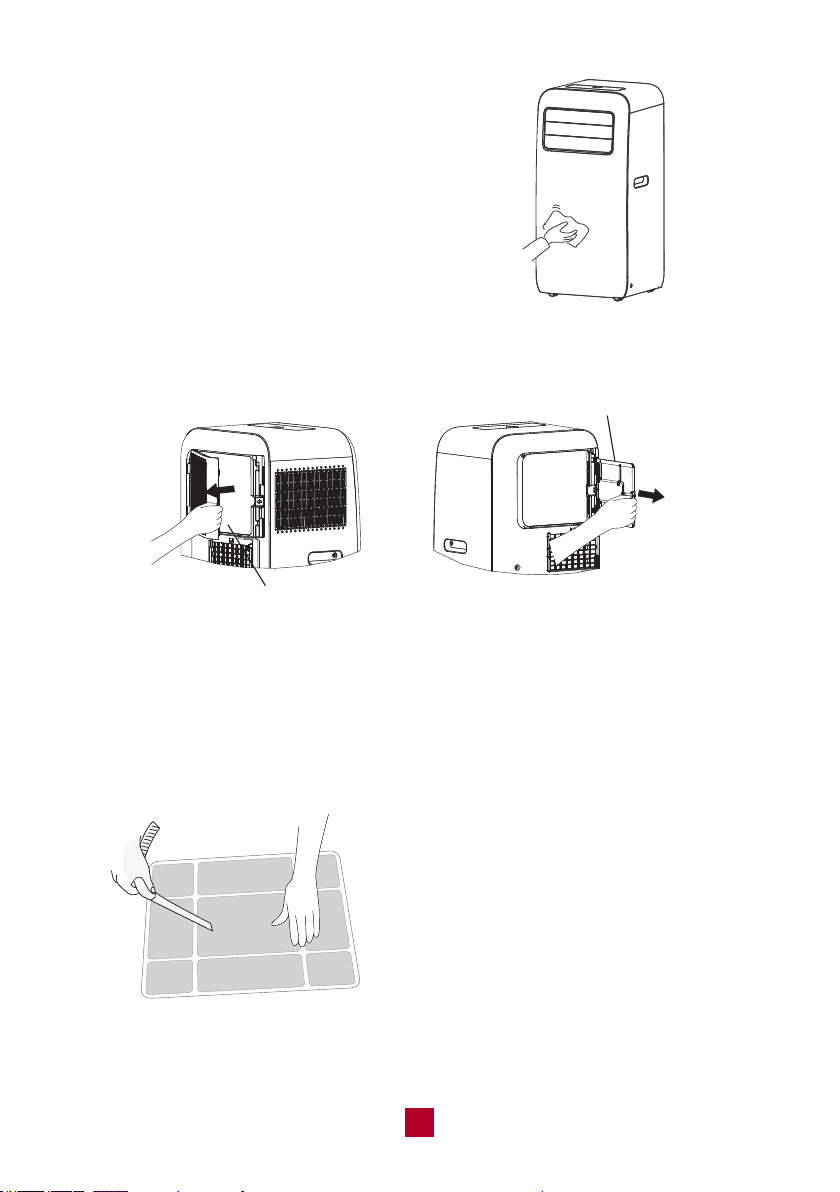
Cleaning outer case
If there's dust on the surface of the outer case,
please use a soft cloth to wipe it. You might need
to use a mild detergent to do the cleaning.
Cleaning the filter
1. Remove the filter
Press the clasp at the back of the unit and then remove the filter. You may need to
move the filter around to loosen it.
2. Clean the filter
After removing it, use the dust attachment of your vacuum to suck up any dirt or
warm water mixed with a mild detergent. A soft bristle brush may help remove
some dirt if needed.
3. Reinstall the filter
After the filter has dried completely, reinstall it back into the air conditioner.
Notes:
● Clean the filter at least every three months.
● Do not touch the metal fins in the air conditioner
after removing the filter as they may cause
personal injury.
● Do not attempt to dry the filter with a hairdryer
or other heating elements as this may deform
or ignite the filter.
● Do not operate the air conditioner if the air filter
is missing.
38
Filter 2
Filter 1
Maintenance Checklists
Offseason checklist
1. Make sure there's no accumulated water in the chassis. For detailed instruction,
please refer to the “Removing Collected Water” part on page 36.
2. The exhaust hose is disassembled.
3. Pull out the plug and wrap the power cord.
4. Clean the outer case and filter, then pack it well to prevent dust.
Postseason checklist
1. Check whether air inlets and air outlets are blocked.
2. Check whether the plug and socket are in good condition.
3. Check whether the filter is clean.
4. Check whether batteries are installed in the remote control.
5. Check whether the joint, window bracket and exhaust hose are installed tightly.
6. Check whether the exhaust hose is damaged.
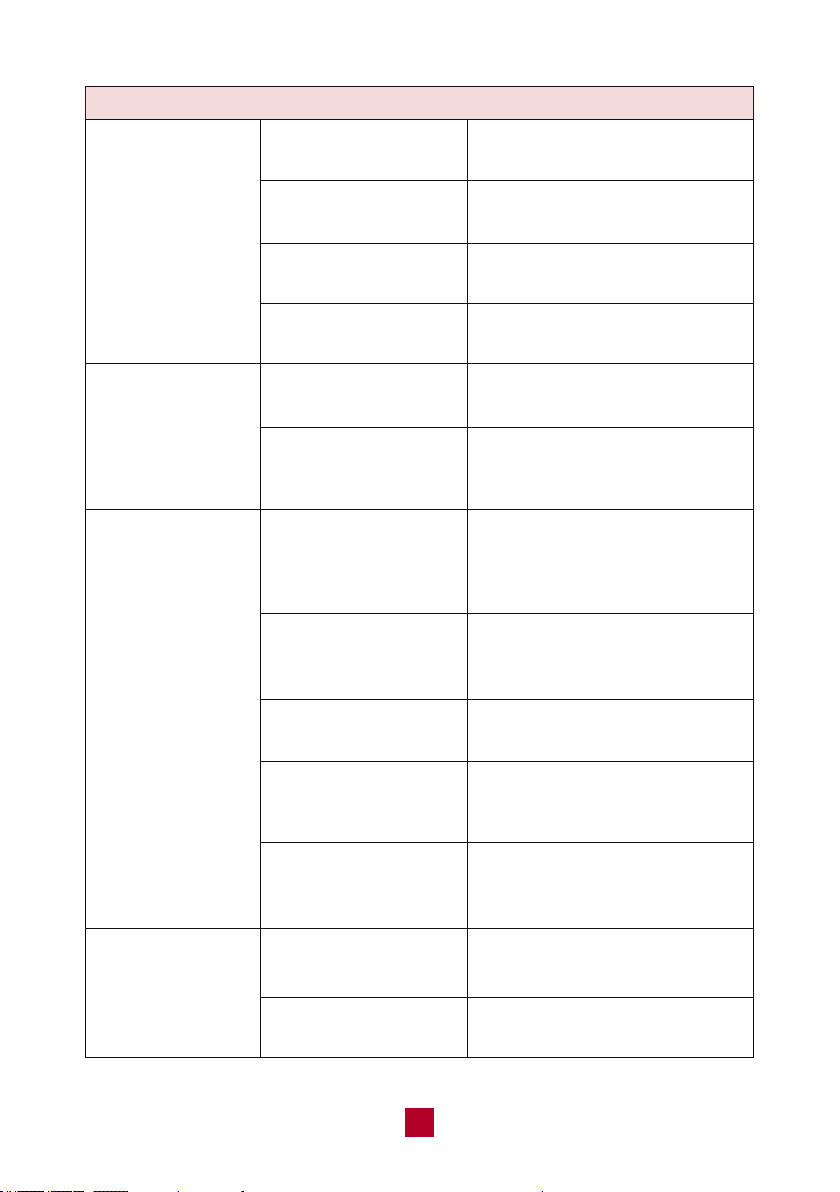
Troubleshooting
Whether the unit is
restarted up after
stopping immediately?
Is plug loose?
Power failure?
Can’t turn on the air
conditioner with remote
control?
The unit is experiencing the
3-Minute Compressor Protection.
Wait for 3min, and then turn on
the unit again. For a detailed
explanation, please refer to
the answers below the diagram.
Reinsert the plug.
Wait after power recovery.
Check that the heat mode is not
activated on the remote control
before you turn off the unit, or the
“ON” button might not be available
when you need to turn on the
machine. Once the heat mode is
activated in the remote control,
please turn on your unit with the
app or control panel.
Air conditioner
can't operate
Issues Self check Possible solutions
39
40
Whether air outlet or air
inlet is blocked?
Whether evaporator is
defrosted? (observe it
by pulling out the filter)
Whether the unit is
interfered with seriously
(such as static pressure,
or unstable voltage)?
Whether remote control
is within the receiving
range?
Whether it's blocked
by obstacles?
Is the sensitivity of the
remote control low?
Whether there's a flu-
orescence lamp in the
room?
Is the power too low?
Whether the air filter
is too dirty?
Whether the set
temperature is proper?
Whether door and
window are closed?
Remove the obstructions and
clean the filter.
After defrosting is finished, it will
resume operation.
Please pull out the plug. Insert
the plug after about 3min, and
then turn on the unit.
The receiving range of the remote
control is 25 feet. Do not exceed
this range.
Remove the obstacles.
Check the batteries of the remote
control. If the power is low, please
replace the batteries.
Move the remote control close
to the air conditioner.
Wait until after the voltage is
resumed.
Clean the air filter.
Adjust the temperature.
Close the door and window.
No air blowed
out from the air
conditioner
Air conditioner can't
receive signals from
the remote control
or the remote control
is not sensible.
Is the unit in auto mode?
Your desired temperature
exceeds the AC range
Temp cannot be adjusted in auto
mode
Temp set range is 61-86°F
The set temperature
cannot be adjusted
Poor cooling
Issues Self check Possible solutions
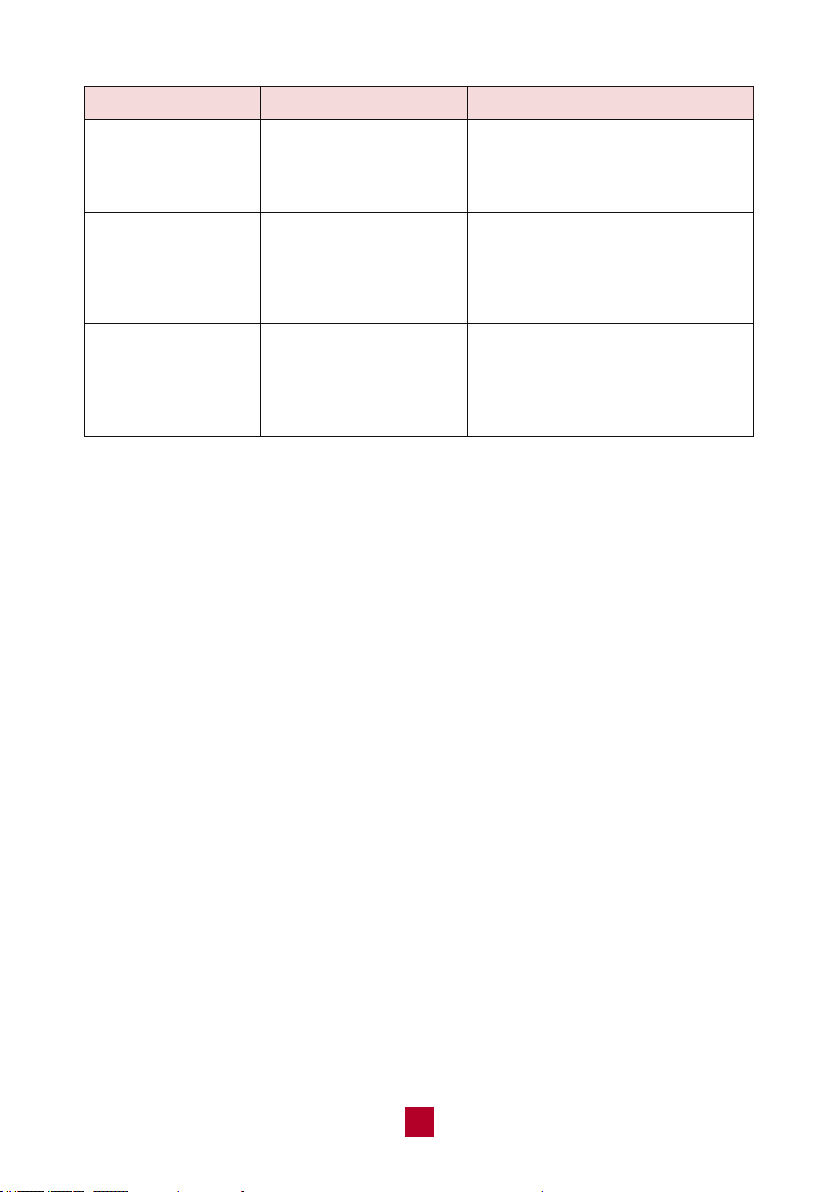
Has the unit just been
turned on or off?
Changing temperature can cause
the panel to shrink or expand,
causing friction
Abnormal sound
during operation,
such as a rapid
“pop-pop” sound
Issues Self check Possible solutions
What is 3-Minute Compressor Protection?
All TOSOT Air Conditioners have a 3-Minute Compressor Protection feature to help
extend the lifespan of your unit. You may notice this happening when the unit is not
blowing cold air or you can’t hear the sound of the compressor. Below are some
situations where the 3-Minute Protection Mode will be activated:
A. Your unit just experienced a power outage. The compressor will restart again
after 3 minutes.
B. After you switch from the fan or dry mode to the cooling mode, there is a
3-minute delay before the compressor starts up.
C. If the unit is powered on, then powered off, then powered on again within a
3-minute period, there will be a 3-minute delay before the compressor starts
again.
D. If the ambient room temperature is lower than the set temperature on your
control panel, the compressor will power off for 3 minutes and restart once the
ambient room temperature rises above the set temperature again.
14
41
Check if the source of
the odor is somewhere
in the room
Remove the source of the odor
and clean the filter
Air blowing from
the air conditioner
has a weird smell
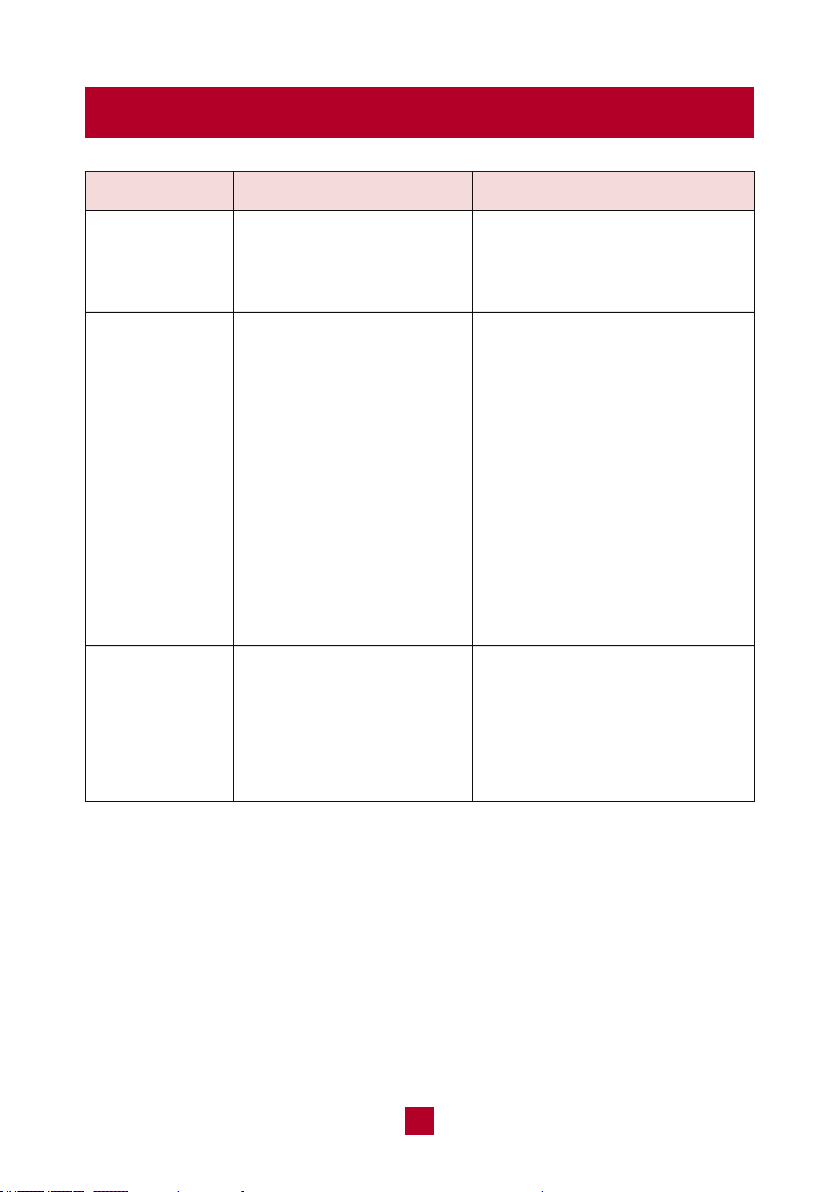
Has the unit just been
turned on or off?
The flowing water sound is the
refrigerant inside the air
conditioner, which is completely
normal
Abnormal sound
during operation,
such as water flowing
If you notice or experience any of the following conditions, please turn off the air
conditioner, disconnect from power, discontinue use, and contact support immediately.
● The power cord is overheating or otherwise damaged
● Abnormal sound during operation
● A strange odor is emitted from the unit
● Excessive water leakage in the unit
Do not attempt to repair or retrofit the air conditioner by yourself. All repairs must
be performed by qualified individuals.
42
Malfunction Codes
Please contact the
manufacturer for help.
Overload malfunction
F1, F2, F4,
F0
H3, E8
H8
Error code Trouble shootingPossible causes
Please contact the manufacturer
or help.
1. Check if the unit is under a
high-temperature and high-
humidity environment;
restart the unit after the
ambient temperature drops
to 95°F (35°C) below.
2. Check if the evaporator and
condenser are blocked.
If the malfunction codes still
occur, please contact the
manufacturer for help.
Please refer to the "Removing
Collected Water" section above.
If "H8" still exists, please
contact the manufacturer.
Chassis is full of water
Warranty & Customer Support
Warranty Information
1. 1-Year warranty:
TOSOT Portable Air Conditioner comes with a 1-year warranty from the date
of purchase.
This warranty covers manufacturing and material defects. Please visit
https://tosotdirect.com/warranty for more details.
2. Additional 6-Month warranty extension:
You can get a 6-month warranty extension by registering your new product
at www.tosotdirect.com/extend.
Customer Support
Questions? We are here to help
www.tosotdirect.com
Share your experience
@tosotdirect
43