
EN
CT
-
S1
CTS1-E-2A
USER’S GUIDE
Preparing a Power
Supply
Turning Power
On or Off
Connecting
Headphones (Option)
Selecting a Musical
Instrument Tone
Changing the Pitch in
Semitone Units
(Transpose)
Fine Tuning (Tuning) Sustaining Notes
After Keyboard Keys
Are Released
Saving and Recalling a
Setup (MY SETUP)
Configuring Settings Troubleshooting
Cove
r
EN-1
Included and Optional Accessories
Use only accessories that are specified for use with this Digital Keyboard.
Use of unauthorized accessories creates the risk of fire, electric shock, and personal injury.
• You can get information about accessories that are sold separately for this product from the
CASIO catalog available from your retailer, and from the CASIO website.
https://support.casio.com/global/en/emi/manual/CT-S1/
• Any reproduction of the contents of this manual, either in part or its entirety, is prohibited. Except
for your own, personal use, any other use of the contents of this manual without the consent of
CASIO is prohibited under copyright laws.
• IN NO EVENT SHALL CASIO BE LIABLE FOR ANY DAMAGES WHATSOEVER (INCLUDING,
WITHOUT LIMITATION, DAMAGES FOR LOSS OF PROFITS, BUSINESS INTERRUPTION,
LOSS OF INFORMATION) ARISING OUT OF THE USE OF OR INABILITY TO USE THIS
MANUAL OR PRODUCT, EVEN IF CASIO HAS BEEN ADVISED OF THE POSSIBILITY OF
SUCH DAMAGES.
• The contents of this manual are subject to change without notice.
• The actual appearance of the product may be different from that shown in the illustrations in this
User’s Guide.
• Company and product names used in this manual may be registered trademarks of others.

EN-2
General Guide EN-4
Getting Ready to Play EN-6
Preparing a Power Supply . . . . . . . . . . . . . . . . . . . . . . . . . . . . . . . . . . . . . . . . . . . . . . . . . . . EN-6
Preparing the Music Stand . . . . . . . . . . . . . . . . . . . . . . . . . . . . . . . . . . . . . . . . . . . . . . . . . . EN-10
Connecting Headphones (Option). . . . . . . . . . . . . . . . . . . . . . . . . . . . . . . . . . . . . . . . . . . . . EN-10
Connecting a Pedal (Option). . . . . . . . . . . . . . . . . . . . . . . . . . . . . . . . . . . . . . . . . . . . . . . . . EN-11
Connecting the Wireless MIDI & audio adaptor (Option) . . . . . . . . . . . . . . . . . . . . . . . . . . . EN-11
Attaching a Strap (Commercially Available) . . . . . . . . . . . . . . . . . . . . . . . . . . . . . . . . . . . . . EN-12
Playing on the Keyboard EN-13
Turning Power On or Off . . . . . . . . . . . . . . . . . . . . . . . . . . . . . . . . . . . . . . . . . . . . . . . . . . . . EN-13
Adjusting the Volume Level. . . . . . . . . . . . . . . . . . . . . . . . . . . . . . . . . . . . . . . . . . . . . . . . . . EN-15
Using the Metronome . . . . . . . . . . . . . . . . . . . . . . . . . . . . . . . . . . . . . . . . . . . . . . . . . . . . . . EN-15
Listening to Demo Play . . . . . . . . . . . . . . . . . . . . . . . . . . . . . . . . . . . . . . . . . . . . . . . . . . . . . EN-19
Controlling the Sound of a Performance EN-21
Selecting a Musical Instrument Tone . . . . . . . . . . . . . . . . . . . . . . . . . . . . . . . . . . . . . . . . . . EN-21
Registering a Tone to a Main Tone Button (Tone Memory) . . . . . . . . . . . . . . . . . . . . . . . . . EN-23
Playing with Touch Response. . . . . . . . . . . . . . . . . . . . . . . . . . . . . . . . . . . . . . . . . . . . . . . . EN-25
Using a Pedal . . . . . . . . . . . . . . . . . . . . . . . . . . . . . . . . . . . . . . . . . . . . . . . . . . . . . . . . . . . . EN-27
Sustaining Notes After Keyboard Keys Are Released . . . . . . . . . . . . . . . . . . . . . . . . . . . . . EN-28
Playing with Reverb . . . . . . . . . . . . . . . . . . . . . . . . . . . . . . . . . . . . . . . . . . . . . . . . . . . . . . . EN-30
Playing with a Multi-dimensional Expanded Sound (Surround) . . . . . . . . . . . . . . . . . . . . . . EN-31
Layering Two Tones . . . . . . . . . . . . . . . . . . . . . . . . . . . . . . . . . . . . . . . . . . . . . . . . . . . . . . . EN-32
Changing the Pitch in Octave Units (Octave Shift) . . . . . . . . . . . . . . . . . . . . . . . . . . . . . . . . EN-34
Changing the Pitch in Semitone Units (Transpose) . . . . . . . . . . . . . . . . . . . . . . . . . . . . . . . EN-36
Fine Tuning (Tuning). . . . . . . . . . . . . . . . . . . . . . . . . . . . . . . . . . . . . . . . . . . . . . . . . . . . . . . EN-37
Changing the Keyboard Scale Tuning . . . . . . . . . . . . . . . . . . . . . . . . . . . . . . . . . . . . . . . . . EN-38
Using the Equalizer . . . . . . . . . . . . . . . . . . . . . . . . . . . . . . . . . . . . . . . . . . . . . . . . . . . . . . . . EN-41
Recording Your Keyboard Play (MIDI Recorder) EN-42
Recording and Playing Back Keyboard Play. . . . . . . . . . . . . . . . . . . . . . . . . . . . . . . . . . . . . EN-42
Changing the Volume of a Recorded Performance . . . . . . . . . . . . . . . . . . . . . . . . . . . . . . . EN-44
To delete a recorded performance . . . . . . . . . . . . . . . . . . . . . . . . . . . . . . . . . . . . . . . . . . . . EN-45
Saving and Recalling a Setup (MY SETUP) EN-46
Saving to MY SETUP . . . . . . . . . . . . . . . . . . . . . . . . . . . . . . . . . . . . . . . . . . . . . . . . . . . . . . EN-46
Recalling From MY SETUP. . . . . . . . . . . . . . . . . . . . . . . . . . . . . . . . . . . . . . . . . . . . . . . . . . EN-47
Configuring Settings EN-48
Setting Operation . . . . . . . . . . . . . . . . . . . . . . . . . . . . . . . . . . . . . . . . . . . . . . . . . . . . . . . . . EN-48
Keyboard Keys Used for Configuring Settings . . . . . . . . . . . . . . . . . . . . . . . . . . . . . . . . . . . EN-49
Contents

Contents
EN-3
Connecting with External Devices EN-59
Linking with a Smart Device (APP Function) . . . . . . . . . . . . . . . . . . . . . . . . . . . . . . . . . . . . EN-59
Connecting to a Computer and Using MIDI . . . . . . . . . . . . . . . . . . . . . . . . . . . . . . . . . . . . . EN-62
Using a Cable to Connect with an Audio Device. . . . . . . . . . . . . . . . . . . . . . . . . . . . . . . . . . EN-64
Sounding a Bluetooth Audio Capable Device (Bluetooth Audio Pairing) . . . . . . . . . . . . . . . EN-66
Deleting Bluetooth Audio Capable Device Pairing Registration . . . . . . . . . . . . . . . . . . . . . . EN-68
Connecting with a Bluetooth MIDI Capable Device . . . . . . . . . . . . . . . . . . . . . . . . . . . . . . . EN-69
Turning Off Bluetooth . . . . . . . . . . . . . . . . . . . . . . . . . . . . . . . . . . . . . . . . . . . . . . . . . . . . . . EN-70
Reference EN-71
Troubleshooting . . . . . . . . . . . . . . . . . . . . . . . . . . . . . . . . . . . . . . . . . . . . . . . . . . . . . . . . . . EN-71
Product Specifications. . . . . . . . . . . . . . . . . . . . . . . . . . . . . . . . . . . . . . . . . . . . . . . . . . . . . . EN-73
Tone List . . . . . . . . . . . . . . . . . . . . . . . . . . . . . . . . . . . . . . . . . . . . . . . . . . . . . . . . . . . . . . . . EN-76
Setting Item List . . . . . . . . . . . . . . . . . . . . . . . . . . . . . . . . . . . . . . . . . . . . . . . . . . . . . . . . . . EN-79
MIDI Implementation Chart
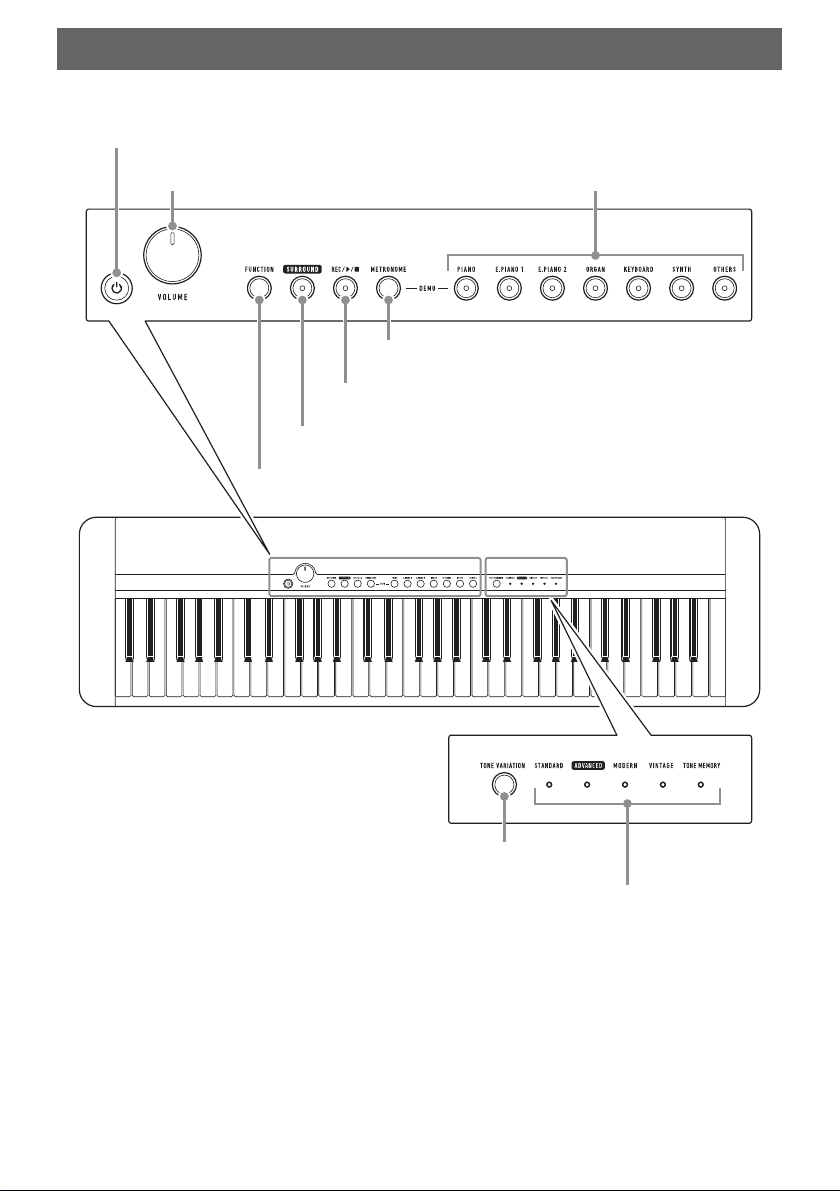
EN-4
■ Front Panel
• The numbers to the right of the ☞ symbol are reference page numbers.
General Guide
P (Power) button ☞ page EN-13
VOLUME knob ☞ page EN-15 Main tone buttons ☞ page EN-21
METRONOME button ☞ page EN-15
REC/a button ☞ page EN-42
SURROUND button ☞ page EN-31
FUNCTION button ☞ page EN-48
TONE VARIATION button ☞ page EN-21
TONE VARIATION LEDs ☞ page EN-21
General Guide
EN-5
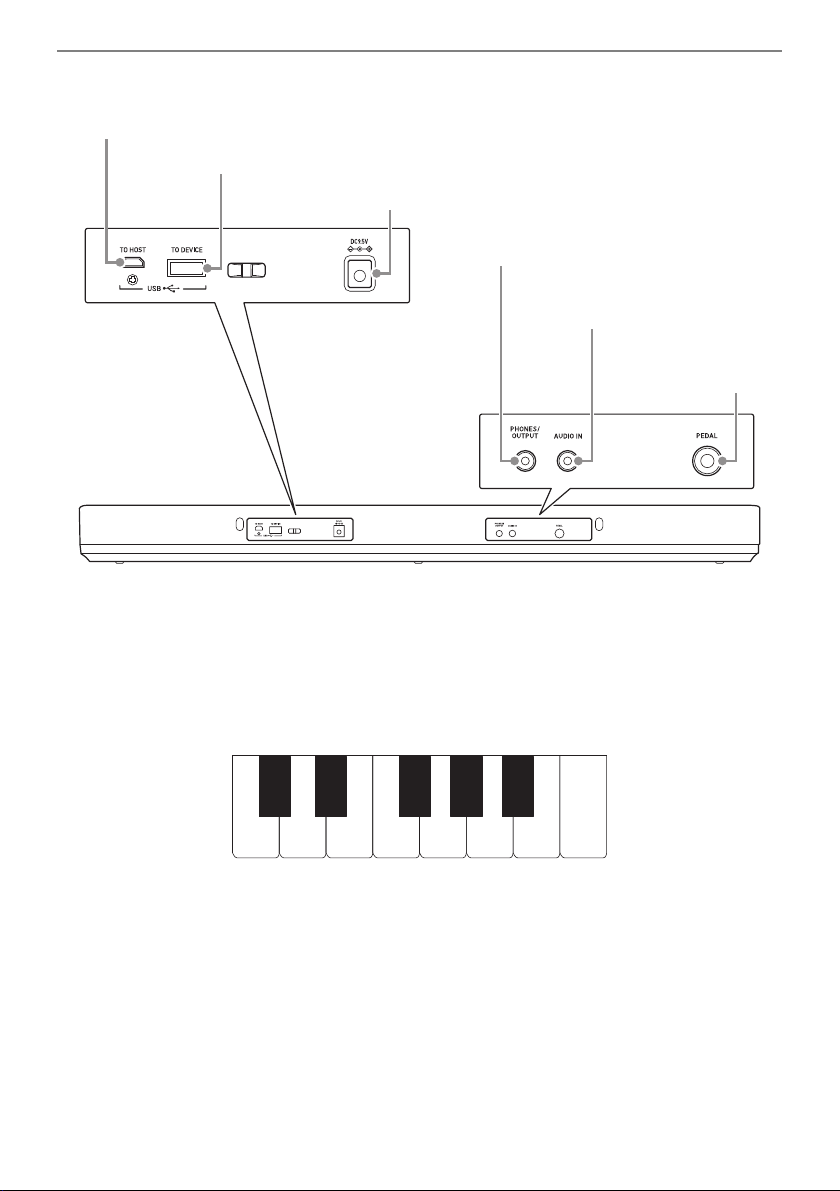
■ Back
• The numbers to the right of the ☞ symbol are reference page numbers.
■ Keyboard note names and pitches
The keyboard note names and pitches used in this manual follow the international standard. Middle C is
C4, the lowest C is C2, and the highest C is C7. The illustration below shows keyboard key note names
from C4 through C5.
USB TO HOST port ☞ page EN-60
AUDIO IN jack ☞ page EN-65
PHONES/OUTPUT jack ☞ page EN-64
Power terminal (DC 9.5V) ☞ page EN-6
USB TO DEVICE port ☞ page EN-11
PEDAL jack
☞ page
EN-11
C4 D4 E4 F4 G4 A4 B4 C5
C{4E}4F{4A}4B}4
EN-6
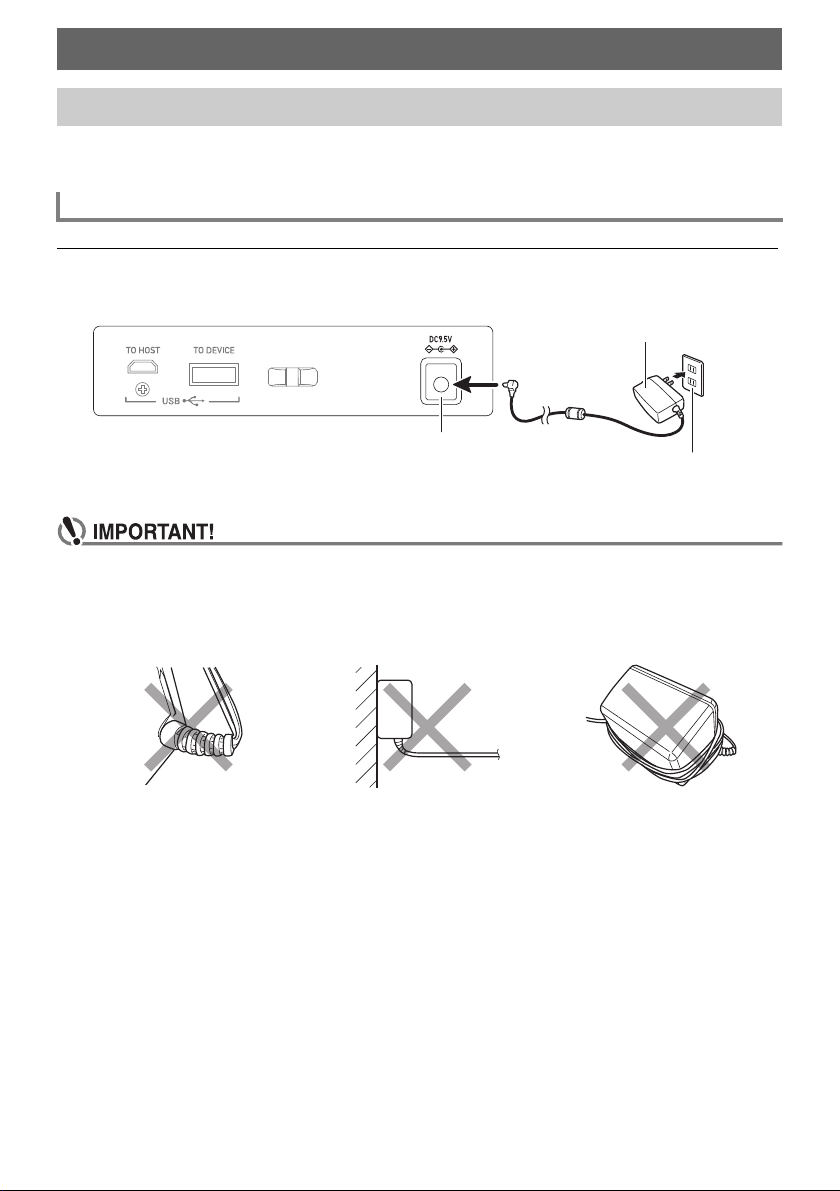
Though either an AC adaptor or batteries can be used for power, use of AC adaptor power is normally
recommended.
Use only the AC adaptor (JEITA Standard with unified polarity plug) specified for this Digital Keyboard.
Use of a different type of AC adaptor can cause malfunction.
AC Adaptor Type: AD-E95100L (JEITA Standard plug)
• Be sure to turn off Digital Keyboard power before connecting or disconnecting the AC
adaptor.
• The AC adaptor becomes warm to the touch after very long use. This is normal and does not
indicate malfunction.
• To prevent breaking of the wire, take care to avoid putting any type of load on the power cord.
• Never insert metal, pencils, or any other objects into the DC 9.5V terminal. Doing so creates
the risk of accident.
Getting Ready to Play
Preparing a Power Supply
Using the AC Adaptor
No twisting No pulling No wrapping
AC adaptor
DC 9.5V terminal
Household power outlet
Getting Ready to Play
EN-7
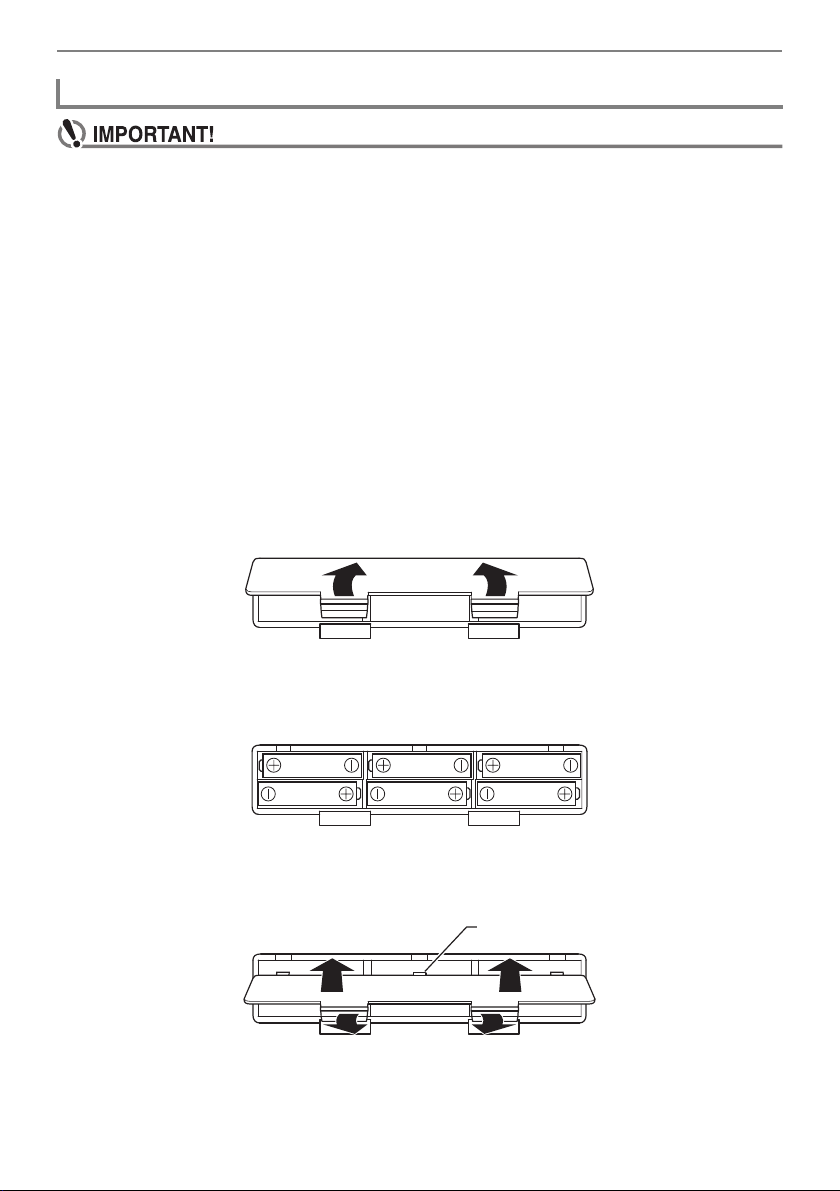
• Be sure to turn off power before loading batteries.
• Use commercially available AA-size alkaline batteries or AA-size rechargeable nickel metal
hydride batteries.
• Low battery power can cause abnormal operation. If this happens, replace batteries with new
ones. If you are using rechargeable batteries, charge them.
■ Batteries
Note the precautions below when using rechargeable batteries.
• Use Panasonic Group AA-size eneloop rechargeable batteries. Do not use any other type of
batteries.
• Use only the specified charger to charge batteries.
• Rechargeable batteries must be removed from the product for charging.
• For information about using eneloop batteries or their specified charger, be sure to read the user
documentation and precautions that come with each item, and use them only as directed.
Be sure to replace batteries at least once a year, even if there is no indication of low battery power.
Dead rechargeable batteries (eneloop) in particular may deteriorate if they are left in the product.
Remove rechargeable batteries from the product as soon as possible after they go dead.
1.
Open the battery cover on the back of the Digital Keyboard.
2.
Load six AA-size batteries into the battery compartment.
• Load batteries with their positive (+) and negative (–) ends facing correctly.
3.
Insert the tabs of the battery cover into the holes, and close the cover.
• Configure the setting below to specify the type of batteries you loaded.
Using Batteries for Power
Tab
Getting Ready to Play
EN-8
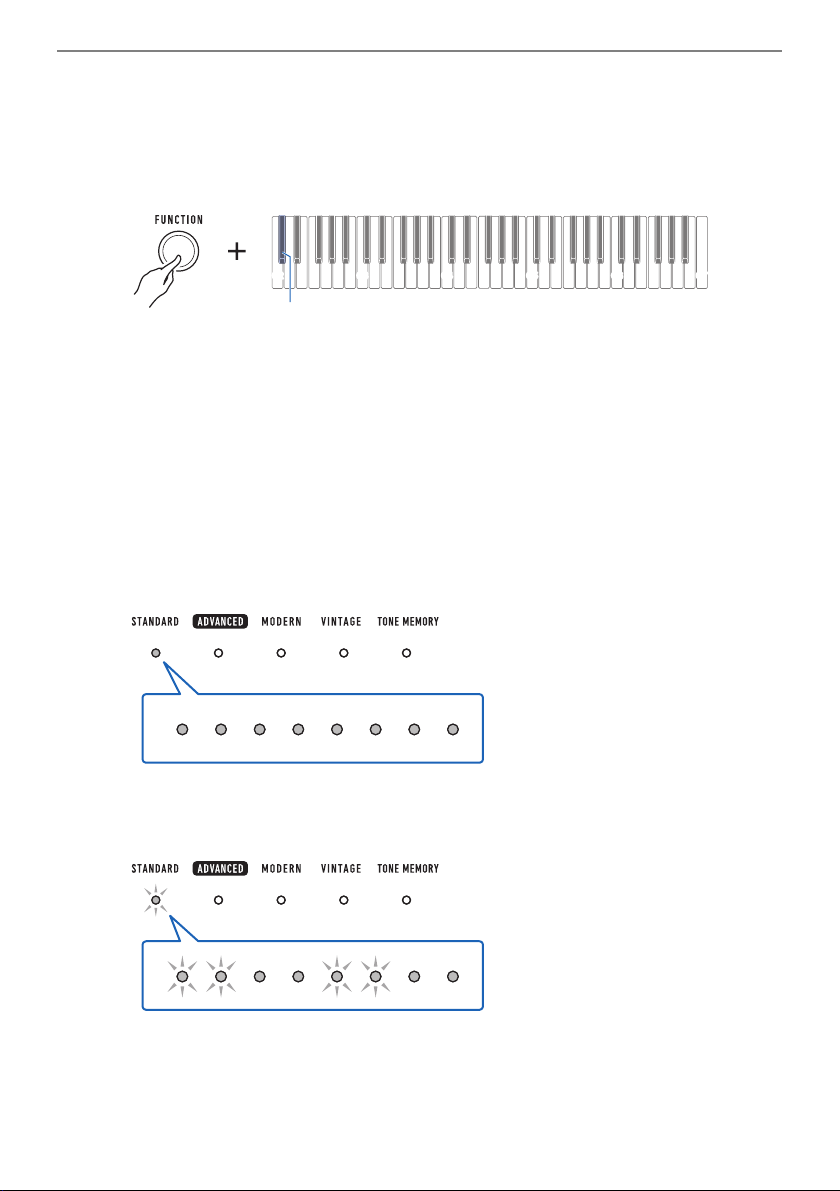
■ To specify the battery type
1.
Turn on the Digital Keyboard.
• See “
Turning Power On or Off” (page EN-13).
2.
While holding down FUNCTION, press the C{2 keyboard key.
• Each press of the keyboard key sounds a tone that lets you know what setting was selected.
One tone: Alkaline batteries
Two tones: Rechargeable nickel metal hydride batteries
3.
Release FUNCTION to complete the setting operation.
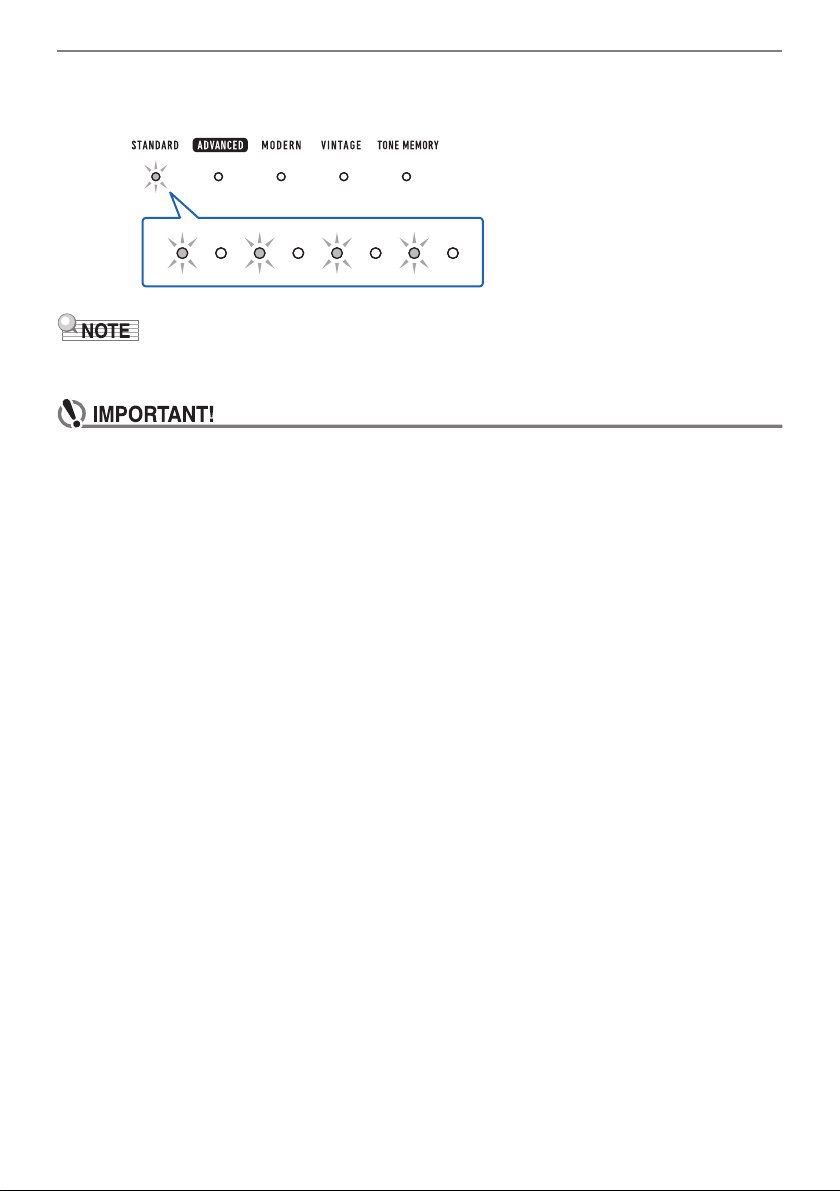
■ Low Battery Indication
The TONE VARIATION LEDs will flash to indicate that battery power is low. When this happens,
replace the batteries with new ones.
High Battery Power
Indicated when TONE VARIATION LEDs are lit.
Declining Battery Power
Indicated when the TONE VARIATION LEDs flash at an interval of a few seconds.
C2 C3 C4 C5 C6
C7
C{2
Getting Ready to Play
EN-9
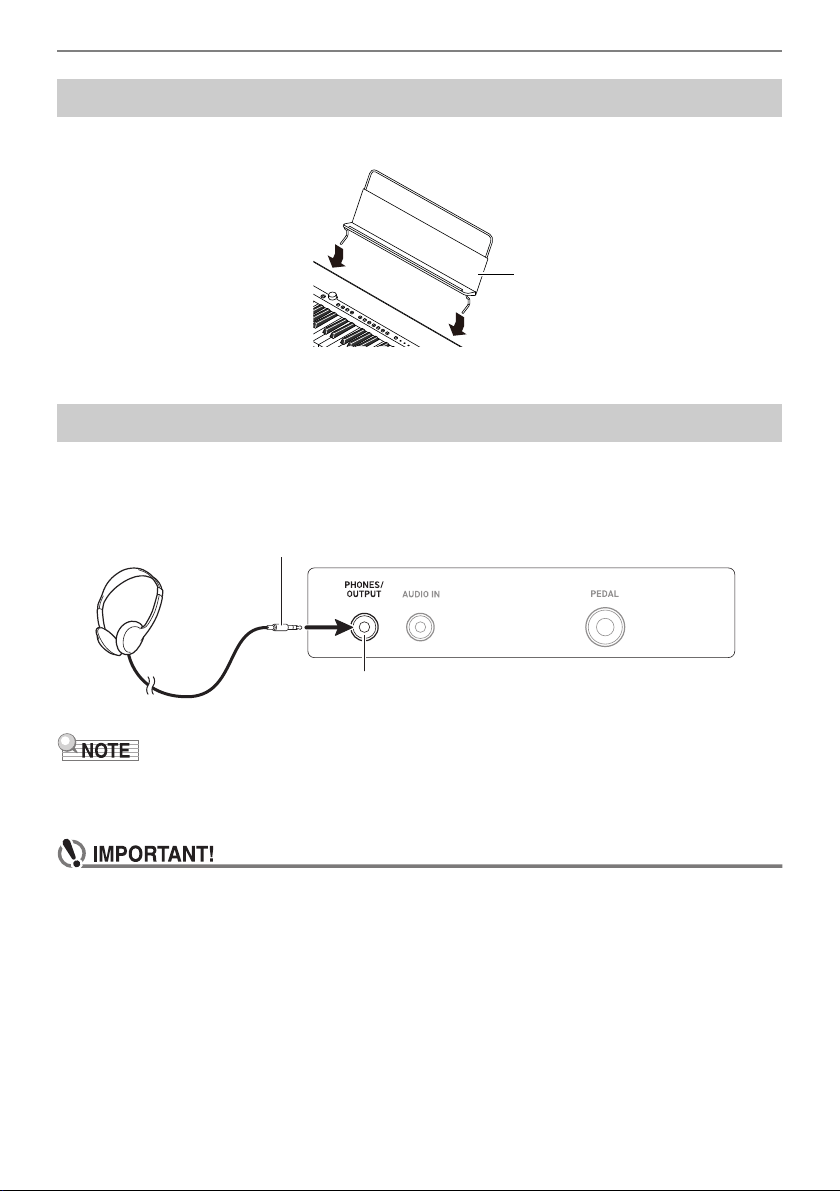
Battery Replacement Required
Indicated when the TONE VARIATION LEDs flash.
• Low battery power may cause notes to become distorted, or other problems.
• You can conserve battery power by using headphones and by reducing the volume level.
• Continued use with low batteries may cause power to turn off suddenly. This can cause
stored data to be corrupted or lost.
Getting Ready to Play
EN-10
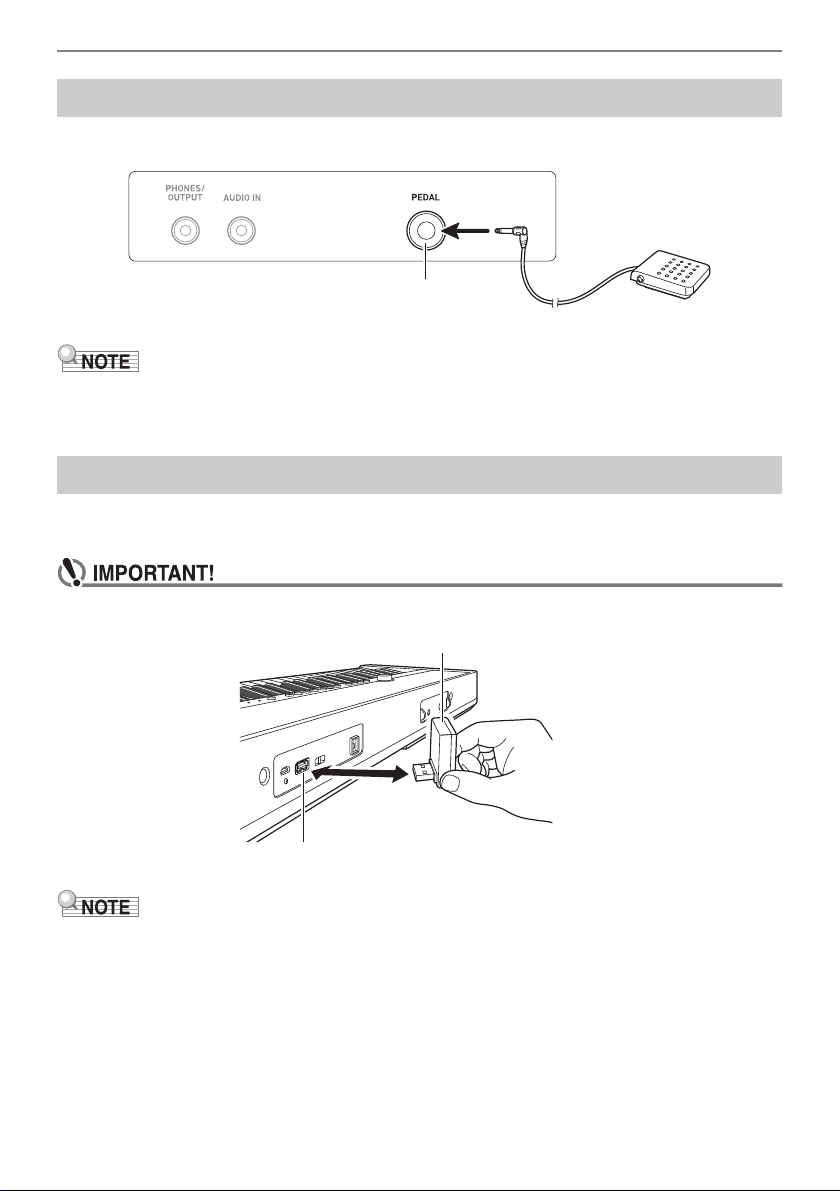
Insert the music stand legs into the back of the Digital Keyboard.
Plugging in headphones cuts off output from the built-in speakers, which means you can practice
playing even late at night without disturbing others.
• Be sure to turn down the volume level before connecting headphones.
• Headphones do not come with this Digital Keyboard.
• Use the optional (CP-16) or a commercially available headphones.
• The surround effect is not applied while you are listening over headphones.
• Do not listen to output over headphones at very high volume levels for long periods. Doing so
creates the risk of hearing damage.
• The headphones you use must have a 3.5mm 3-pole stereo mini plug. Use of other types of
plugs is not supported.
• If the plug of the headphones does not match the PHONES/OUTPUT jack, use a
commercially available adaptor plug.
• If you are using headphones that require an adaptor plug, make sure you do not leave the
adaptor plugged in when removing the headphones.
Preparing the Music Stand
Connecting Headphones (Option)
Music stand
PHONES/OUTPUT jack (3.5mm stereo mini jack)
Stereo mini plug
Getting Ready to Play
EN-11
To use a pedal, connect it to the PEDAL jack on the back of the Digital Keyboard.
• A pedal unit does not come with this Digital Keyboard.
• Use the optional (SP-3, SP-20) pedal.
To pair this Digital Keyboard with a Bluetooth capable external device, you need to plug the Wireless
MIDI & audio adaptor into the Digital Keyboard’s USB TO DEVICE port.
• Turn off this Digital Keyboard before connecting the Wireless MIDI & audio adaptor.
• The Wireless MIDI & audio adaptor does not come with this Digital Keyboard.
• When connecting with a Bluetooth capable external device, refer to “
Sounding a Bluetooth Audio
Capable Device (Bluetooth Audio Pairing)
” (page EN-66).
• The Wireless MIDI & audio adaptor may not be sold in certain countries or geographic areas.
Connecting a Pedal (Option)
Connecting the Wireless MIDI & audio adaptor (Option)
Pedal (option)
PEDAL jack (6.3mm standard jack)
Wireless MIDI & audio adaptor (Option: WU-BT10)
USB TO DEVICE port
Getting Ready to Play
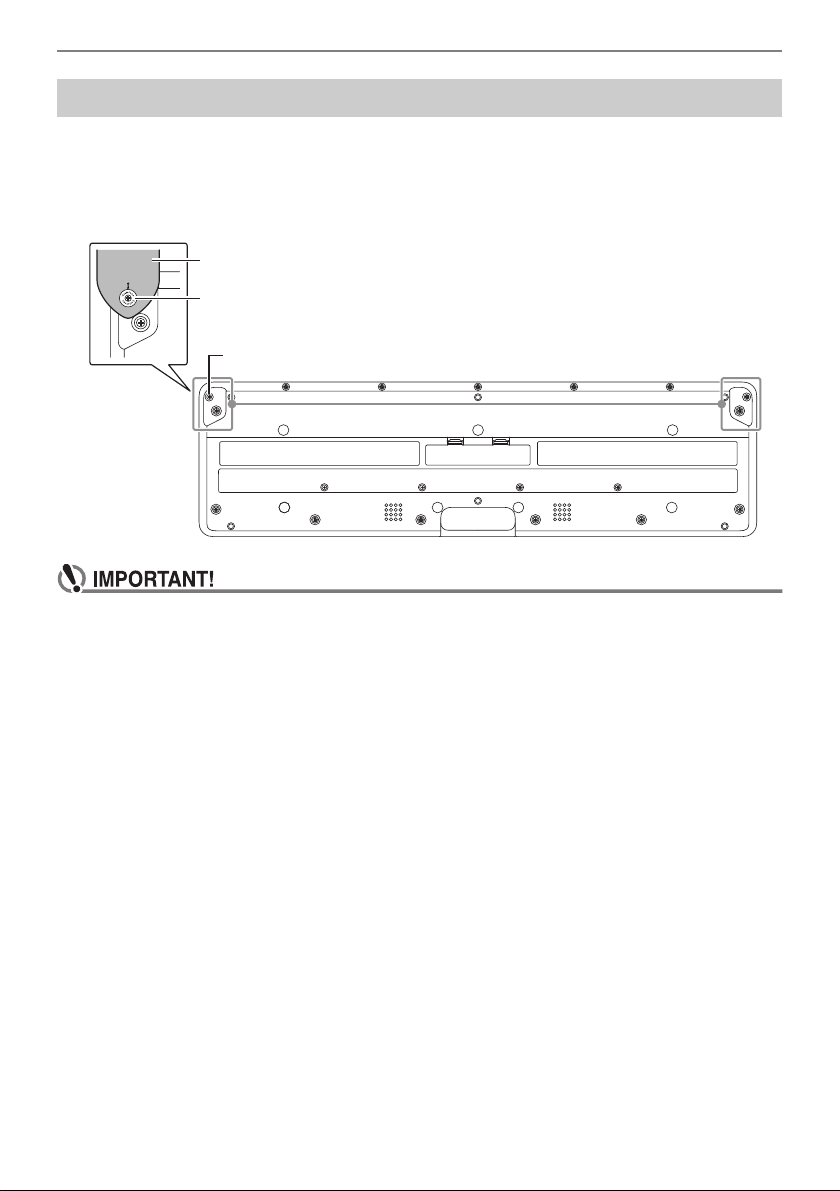
EN-12
1.
Attach a strap (commercially available) to the left and right strap pins on the
bottom of the Digital Keyboard.
2.
Cover the strap pins with the strap locks.
• After attaching the strap, check to make sure that the strap is securely attached to the Digital
Keyboard.
• Do not pick up the Digital Keyboard by the strap alone. Doing so creates the risk of the Digital
Keyboard detaching from the strap and falling.
• The recessed area on the bottom of the Digital Keyboard IS NOT intended to be used as a
handle. Be sure to use both hands when picking up the Digital Keyboard.
• Should a strap lock ever become deformed or damaged, replace it.
Attaching a Strap (Commercially Available)
Strap lock
Strap (commercially available)
Strap pin
EN-13
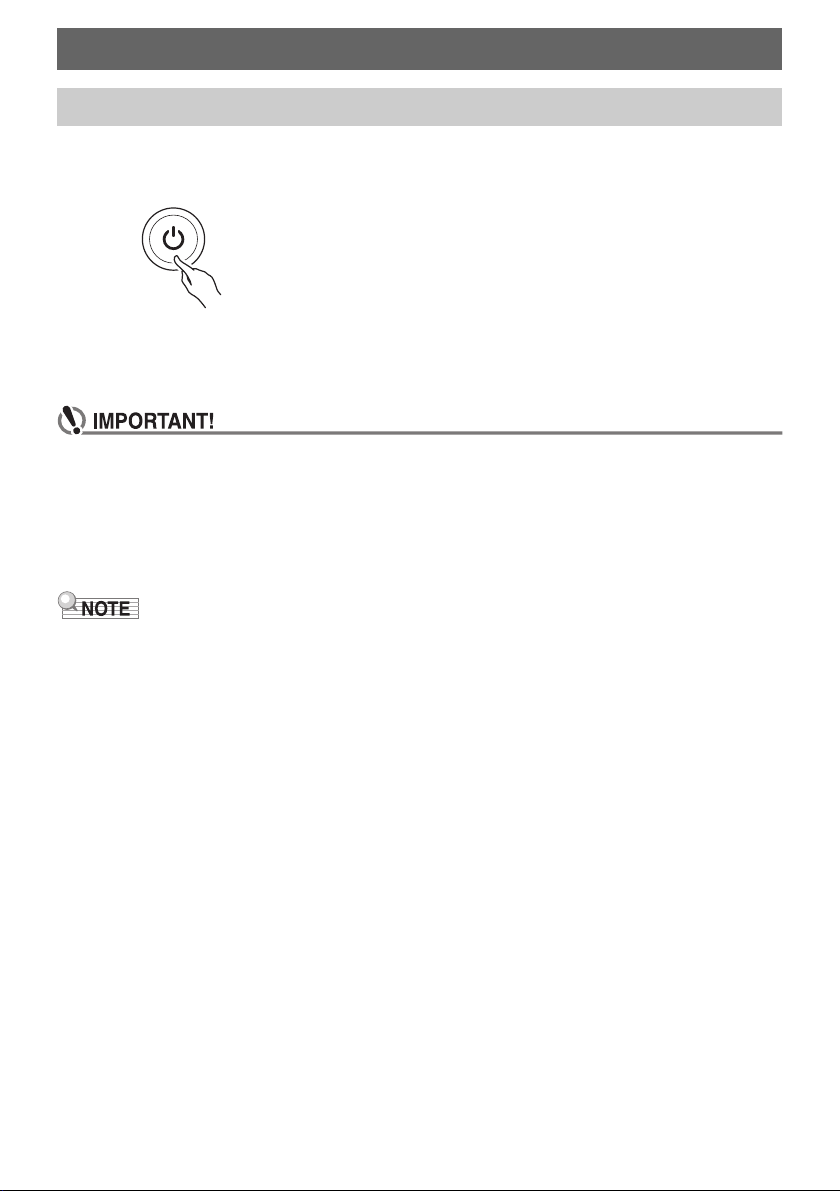
1.
Press the P (Power) to turn on Digital Keyboard power.
The Digital Keyboard becomes operational after a few seconds.
2.
To turn off the Digital Keyboard, hold down the P (Power) until all of the LEDs go
out.
• Turning off power normally causes the tone and other settings to return to their initial
defaults. However, the settings below are remembered.
– MIDI Output Channels (Main Part, Layer Part)
– Bluetooth
– MY SETUP power on recall
– Auto Power Off
– Battery type
• Pressing the P (Power) to turn off power actually puts the Digital Keyboard into a standby state.
Minute amounts of current continue to flow within the Digital Keyboard in the standby state. If you do
not plan to use the Digital Keyboard for a long time or if there is a lightning storm in your area, be
sure to unplug the AC adaptor from the power outlet.
• You can configure Digital Keyboard settings so MY SETUP settings are recalled whenever power is
turned on. See “
Enabling MY SETUP Power On Recall” (page EN-47).
Playing on the Keyboard
Turning Power On or Off
Playing on the Keyboard
EN-14
While Auto Power Off is enabled, power will turn off automatically after about 30 minutes of non-
operation.
• While the metronome is in use, power will not turn off automatically even if you do not play anything
on the keyboard.
■ Disabling Auto Power Off
You can disable Auto Power Off to ensure that power does not turn off automatically during a concert,
etc.
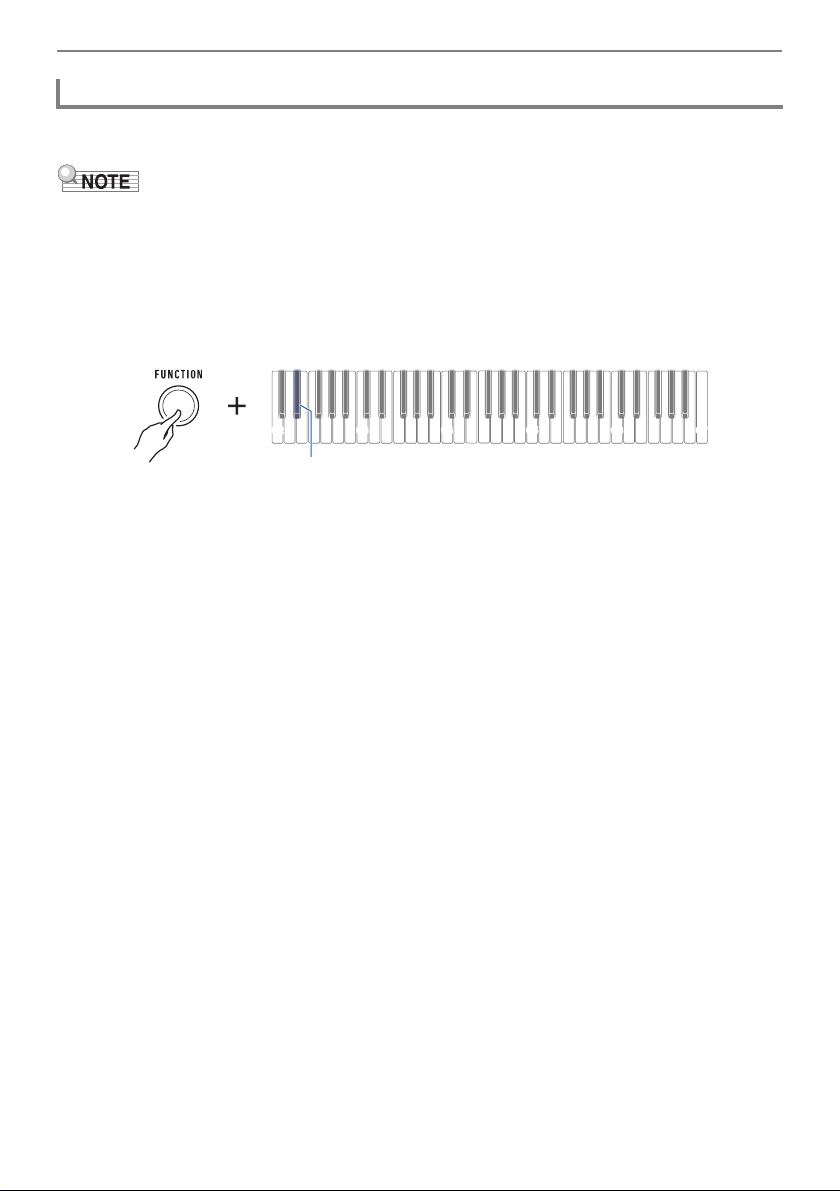
1.
While holding down FUNCTION, press the E}2 keyboard key.
• Each press of the keyboard key sounds a tone that lets you know what setting was selected.
High tone: On
Low tone: Off
2.
After disabling Auto Power Off, release FUNCTION.
Auto Power Off
C2 C3 C4 C5 C6
C7
E}2
Playing on the Keyboard
EN-15
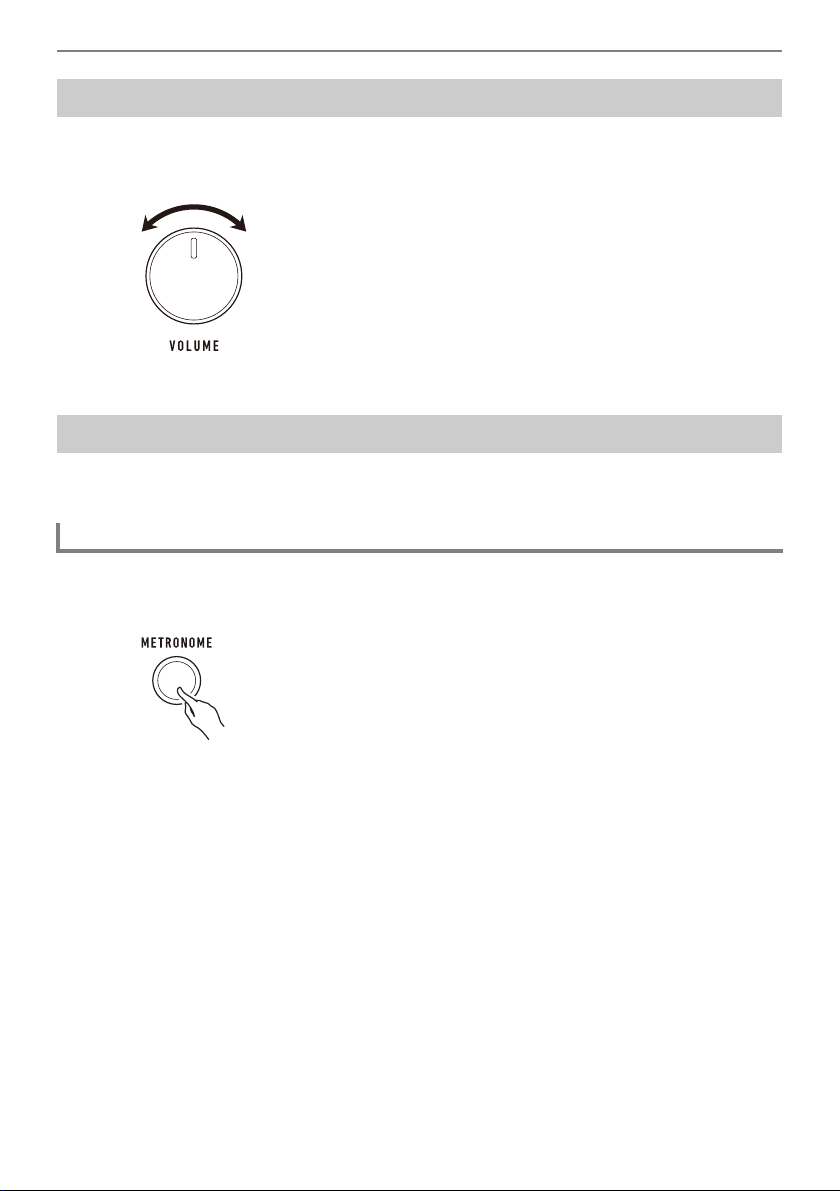
1.
Rotate the VOLUME knob.
This changes the volume level.
The metronome lets you play and practice along with a steady beat to help keep you on tempo. You
can also set a tempo that is suitable for your practice.
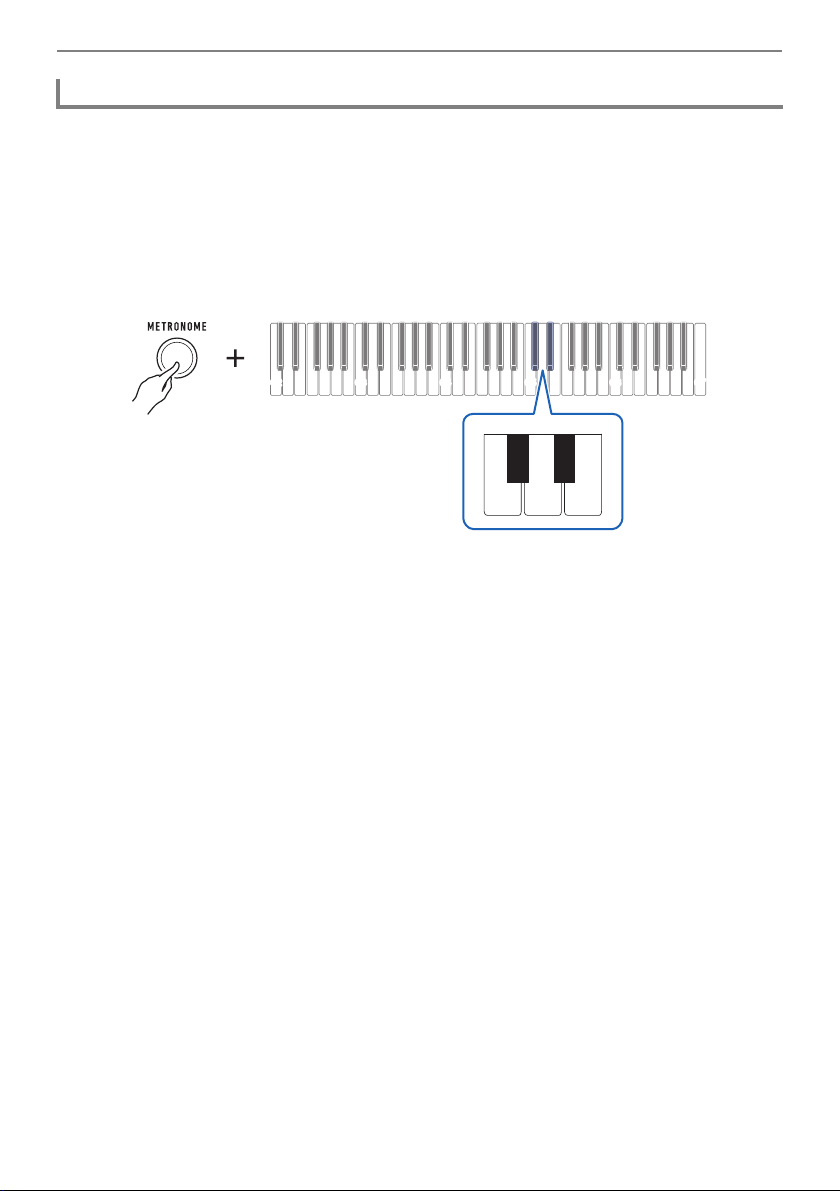
1.
Press METRONOME.
This starts the metronome.
2.
Press METRONOME again to stop the metronome.
Adjusting the Volume Level
Using the Metronome
Start/Stop
Playing on the Keyboard
EN-16
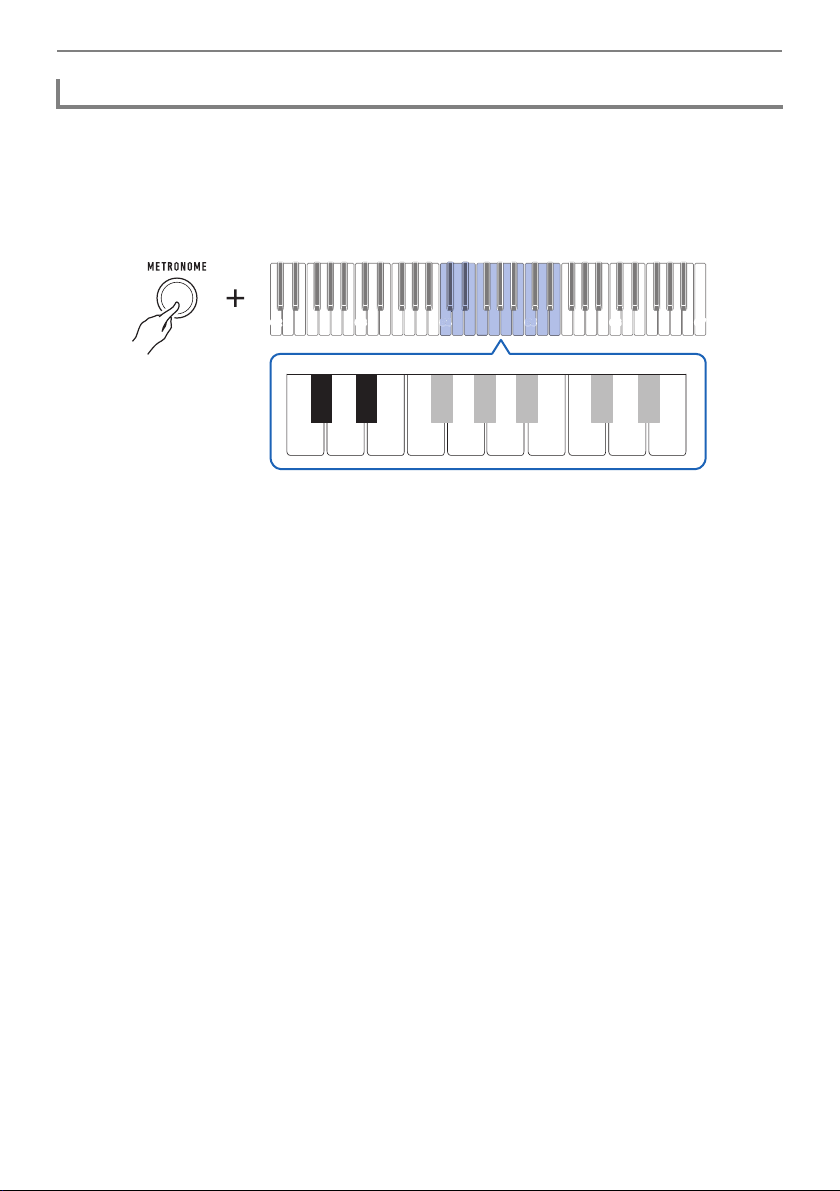
You can use the procedure below to configure a setting that sounds a chime on the first beat of each
measure, and a click for the remaining beats.
• Select a setting of Off (0), or a value of 1 to 16 beats. A reference tone sounds whenever the setting
values becomes off (0).
1.
Start the metronome.
2.
While holding down METRONOME, use the C{5 and E}5 keyboard keys to
change the number of beats setting.
• Selecting Off (0) disables the chime. Use this setting when you want to practice without worrying
about the first beat of each measure.
• To return the setting to its initial default, press the – and + keyboard keys at the same time.
3.
Release METRONOME to complete the setting operation.
Specifying the Metronome Beats Per Measure
C2 C3 C4 C5 C6 C7
+−
C{5E}5
Playing on the Keyboard
EN-17
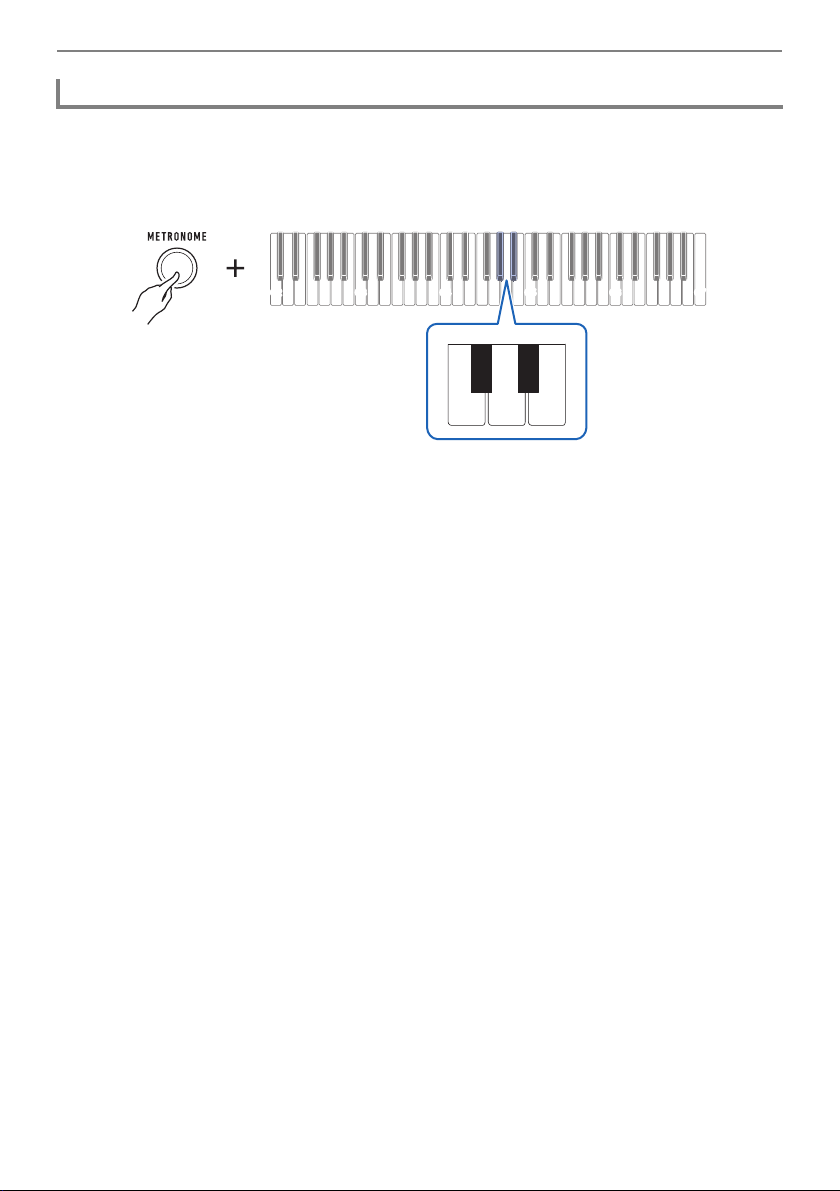
Use the procedure below to change the tempo of the metronome.
1.
Start the metronome.
2.
Holding down METRONOME, use keyboard keys C4 through E5 to change the
tempo setting.
• You can specify a tempo value in the range of 20 to 255.
• Each press of the – or + keyboard key raises or lowers the tempo by 1. Holding down either
button scrolls the setting value.
• You can also use the tempo value input keys (0 to 9) to enter a specific tempo value.
Examples:
– To set a tempo of 80, press 8, then 0. The tempo setting will not change until you release
METRONOME in step 3, below.
– To set a tempo of 120, press 1, then 2, then 0. In this case, the tempo value will change as
soon as you input the third digit.
• To return the setting to its initial default, press the – and + keyboard keys at the same time.
3.
Release METRONOME.
Changing the Metronome Tempo
C2 C3 C4 C5 C6 C7
C4
C
C4
C4
C5
C5
C
C5
E}4
B2
0123456789
+−
D4
C{4
C4 E4 F4 G4 A4 B4 C5 D5 E5
E}4
Playing on the Keyboard
EN-18
1.
Start the metronome.
2.
While holding down METRONOME, use the A}4 and B}4 keyboard keys to
change the metronome sound volume level.
• You can specify a volume value from 0 to 10.
• To return the setting to its initial default, press the – and + keyboard keys at the same time.
3.
Release METRONOME to complete the setting operation.
Changing the Metronome Sound Volume Level
C2 C3 C4 C5 C6 C7
+−
A}4B}4
Playing on the Keyboard
EN-19
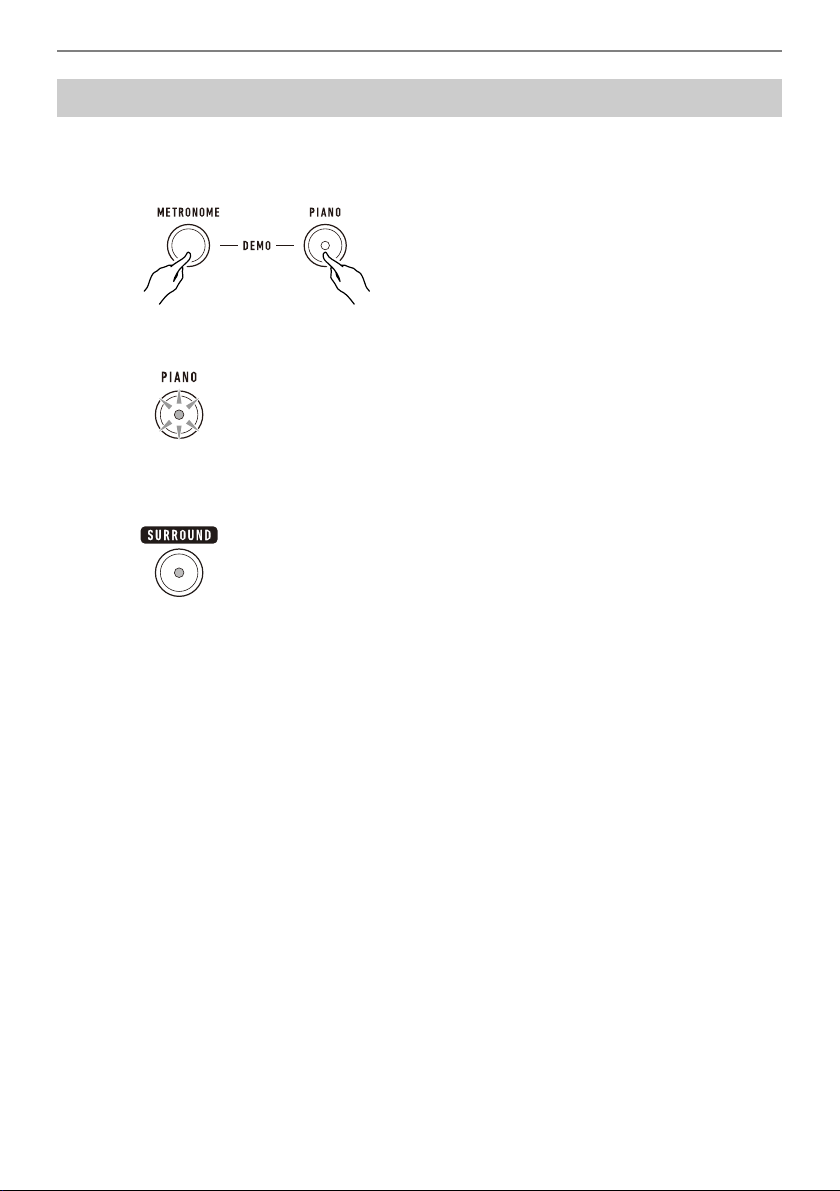
Demo songs include CASIO original tone demo songs and piano demo songs.
1.
Press METRONOME and PIANO at the same time.
This causes the PIANO button to flash and starts tone demo song play.
• Some tone demo songs use the surround effect. The SURROUND button will light while the
surround effect is in use.
• Tone demo songs play in sequence, one after another.
2.
To play a piano demo song, press PIANO.
This will start playback of the first piano demo song.
• The 10 built-in piano songs will play in sequence, one after another.
Listening to Demo Play
Playing on the Keyboard
EN-20
3.
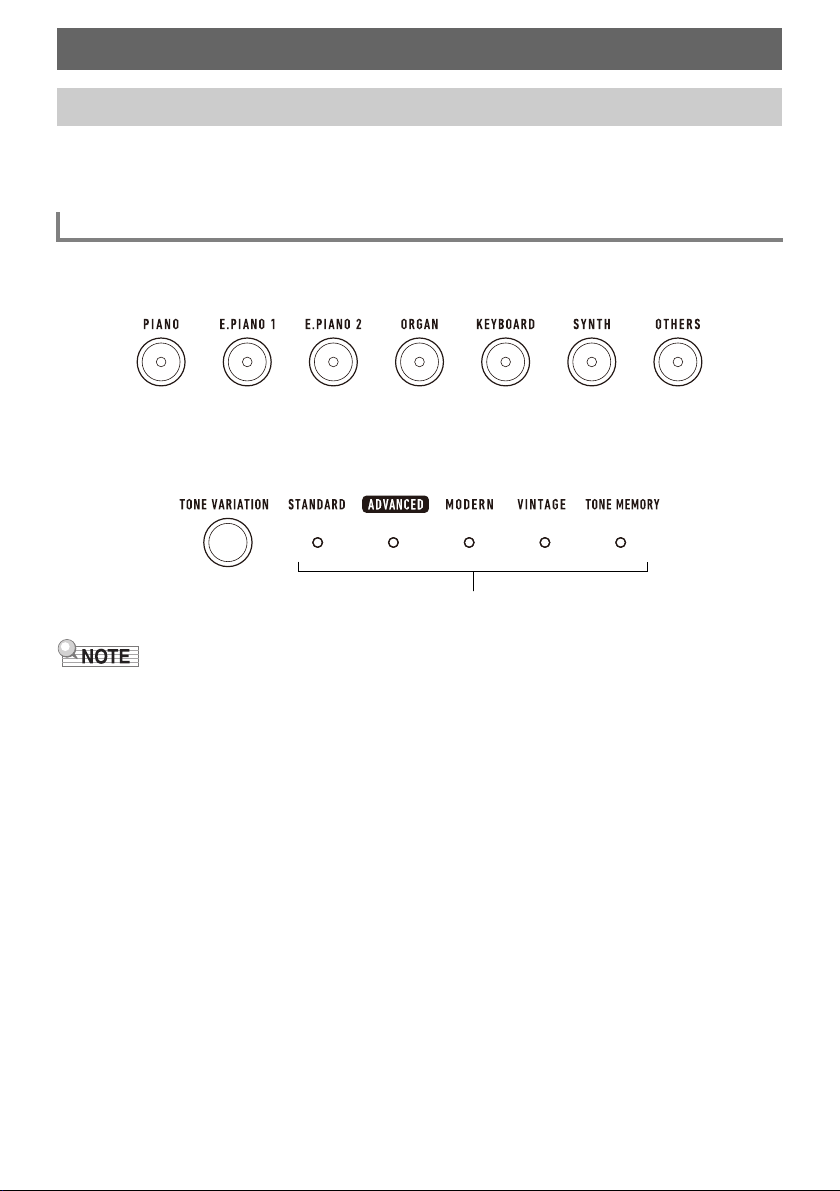
To select a particular piano demo song for playback, hold down PIANO as you
press a keyboard key from C2 to A2.
This starts playback of the piano demo song you selected.
4.
Press PIANO again to return to the tone demo songs.
5.
To stop playback, press REC/a.
• You can also stop playback by pressing METRONOME.
Keyboard
Note Name
Song Name
C2 Turkish March (W.A.Mozart)
C{2 Moments Musicaux 3
D2 Minuet in G Major
E}2 Inventionen 1
E2 Praeludium 1 (J.S.Bach)
F2 Le Coucou
F{2 Arabesque (F.Burgmüller)
G2 La Chevaleresque
A}2 Fröhlicher Landmann
A2 Von fremden Ländern und Menschen [Kinderszenen]
EN-21
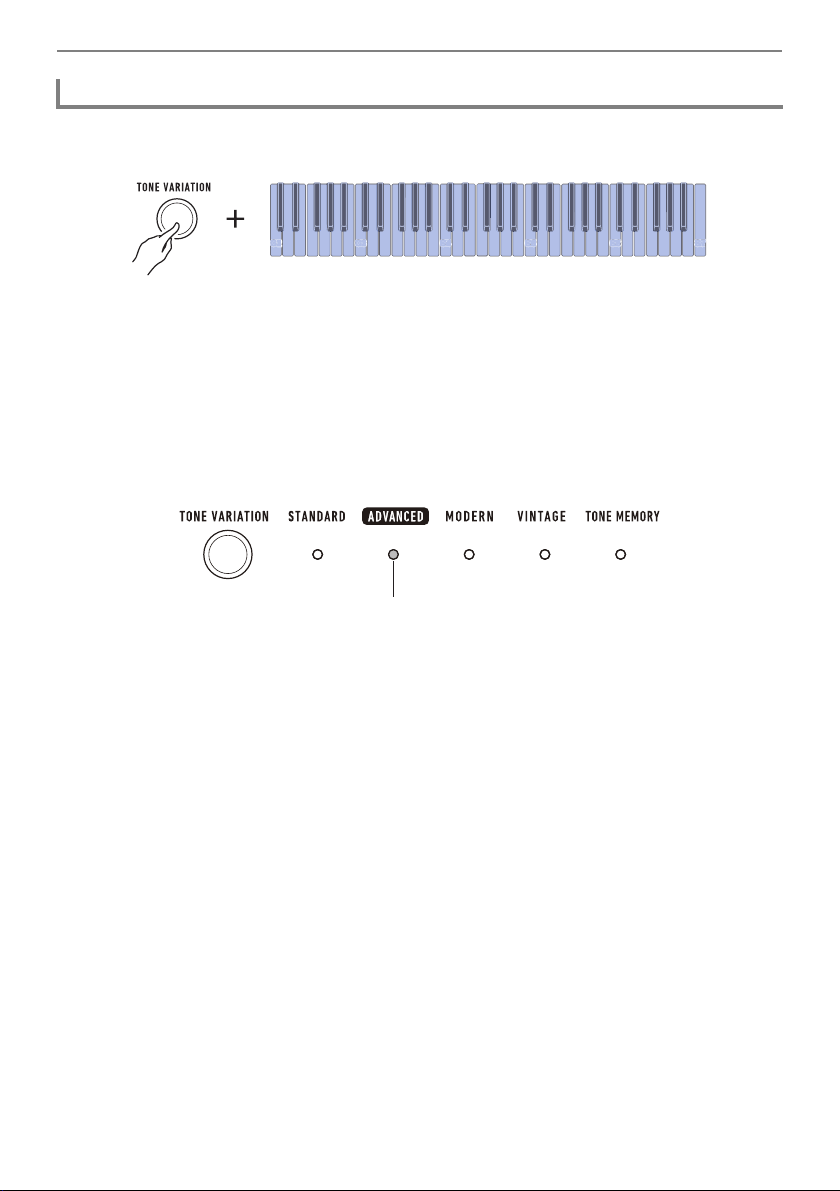
This Digital Keyboard lets you play using tones for a wide variety of musical instrument sounds. A bank
of main tone buttons are assigned piano, organ, and other tones for quick and easy selection. The
same song can sound completely different when played with a different instrument type.
1.
Press one of the main tone buttons.
• The button you press lights and the keyboard changes to the button’s tone.
2.
To change to a variation of a tone, press TONE VARIATION.
Each press cycles to the next tone variation.
• A TONE VARIATION LED lights to indicate which variation is selected.
• Using a main tone button to select a tone causes the settings below to return to their initial defaults.
– Layer
– Part volume (main)
– Sustain
– Sustain time (main part)
– Reverb
– Pedal effect part (main)
Controlling the Sound of a Performance
Selecting a Musical Instrument Tone
Playing with a Main Tone
TONE VARIATION LED
Controlling the Sound of a Performance
EN-22
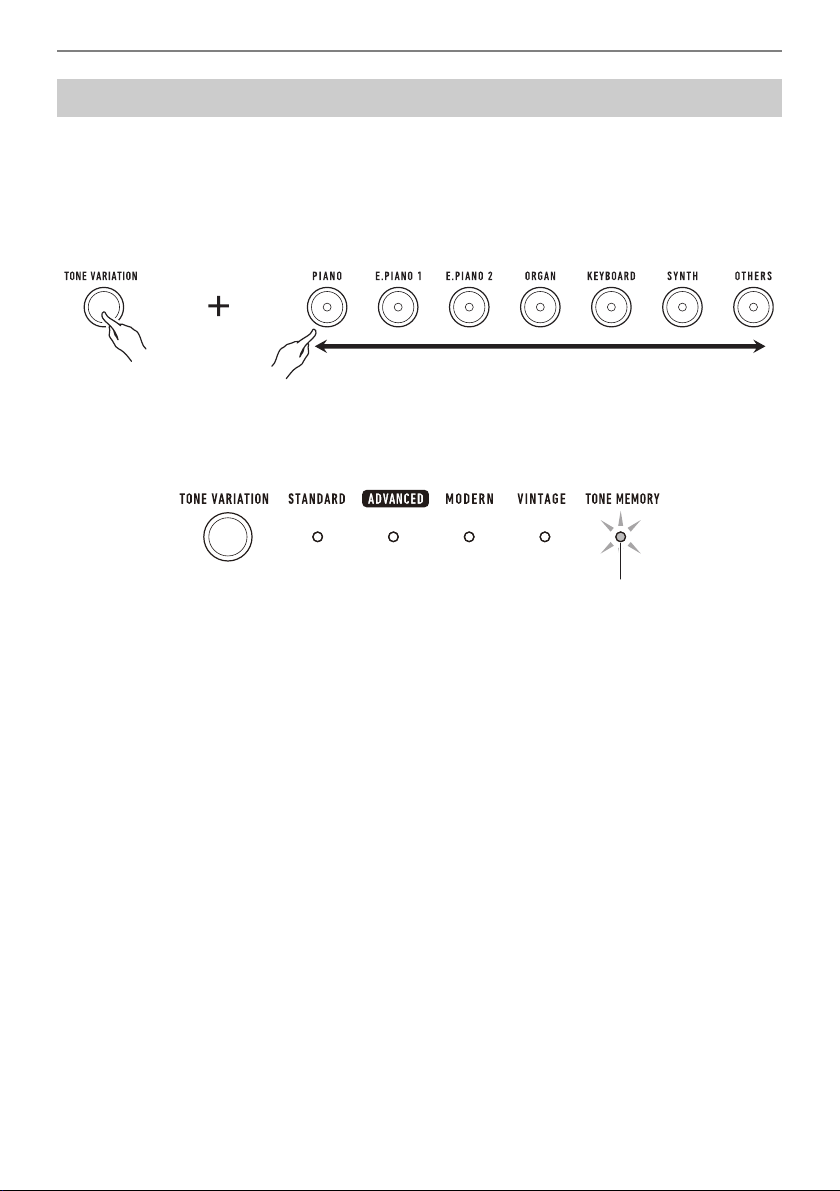
1.
While holding down TONE VARIATION, press a keyboard key from C2 to C7.
This sounds the selected tone.
• A TONE VARIATION LED will light to indicate the selected tone’s category.
• Each of the keyboard keys has a tone assigned to it. For tone information, see the “
Tone List”
(page
EN-76).
2.
Release TONE VARIATION to complete the setting operation.
■ Advanced Tones
The ADVANCED TONE VARIATION LED lights when an advanced tone is selected. Advanced tones
provide enhanced sound source control, and enable advanced expressive techniques, tone
expression, and more.
Selecting a Tone
C2 C3 C4 C5 C6 C7
C4
C
C4
C4
C2
C2
C2
C2
C5
C5
C
C5
C3
C3
C3
C3
C6
C
C
C6
C7
C7
C7
C7
Lit
Controlling the Sound of a Performance
EN-23
You can use tone memory to register tone and layer settings, octave shift settings, and other settings to
main tone buttons. You will then be able to recall the registered settings when you need them to
perform a particular song, etc.
1.
While holding down TONE VARIATION, press the main button to which you want
to register the tone settings.
This will sound a notification tone and cause the TONE MEMORY TONE VARIATION LED to
flash momentarily, and register your tone settings.
• The TONE MEMORY TONE VARIATION LED and the main tone button where the setting was
stored will light to indicate that the tone is selected.
• You can register up to seven setups, one to each of the main tone buttons.
■ Registered Settings
• Sustain
• Tone (main, layer)
• Layered
• Part octave shift (main, layer)
• Sustain time (main part, layer part)
• Part volume (main, layer)
• Pedal effect part (main, layer)
• Reverb type
Registering a Tone to a Main Tone Button (Tone Memory)
Flashing

Controlling the Sound of a Performance
EN-24
■ To recall a registered tone
1.
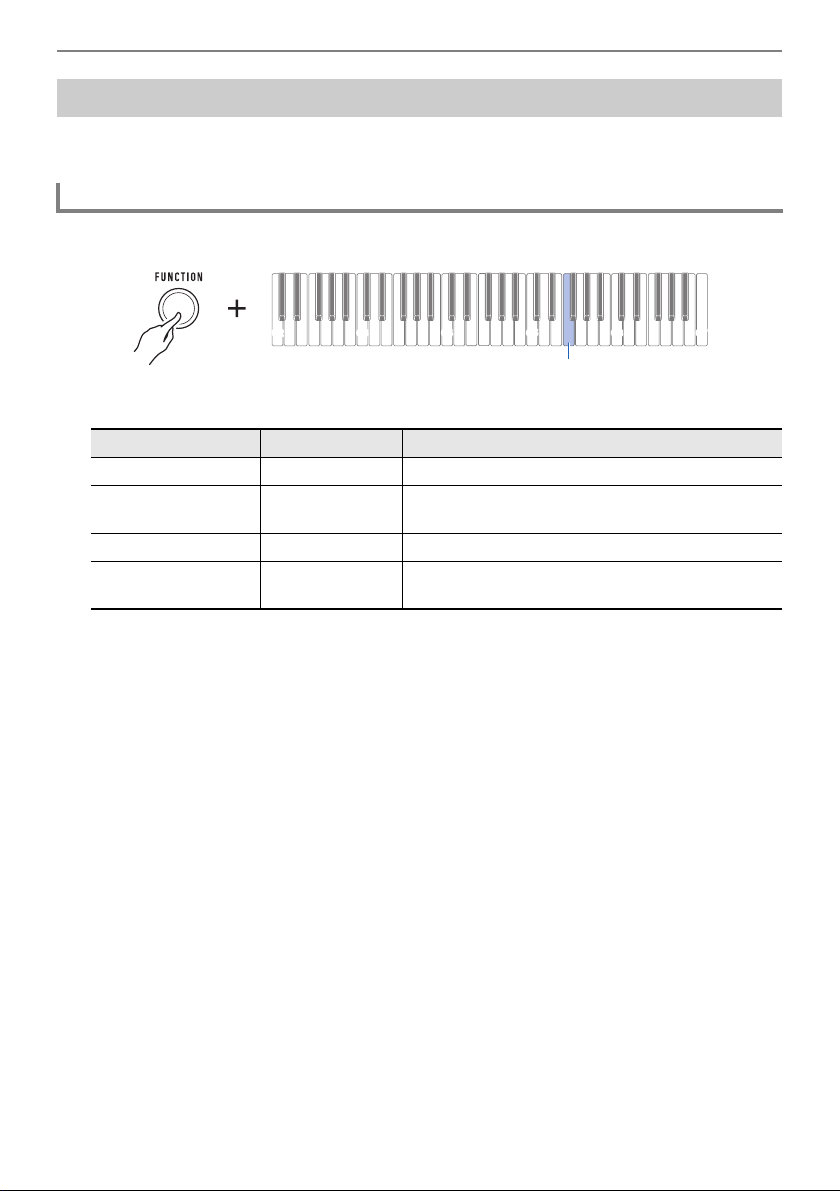
Check to make sure that the TONE MEMORY TONE VARIATION LED is lit.
• If it isn’t, press TONE VARIATION as many times as necessary until the TONE MEMORY
TONE VARIATION LED is lit.
2.
Press the main tone button where the tone settings are registered.
This will switch to the tone settings registered to the button.
Lit
Controlling the Sound of a Performance
EN-25
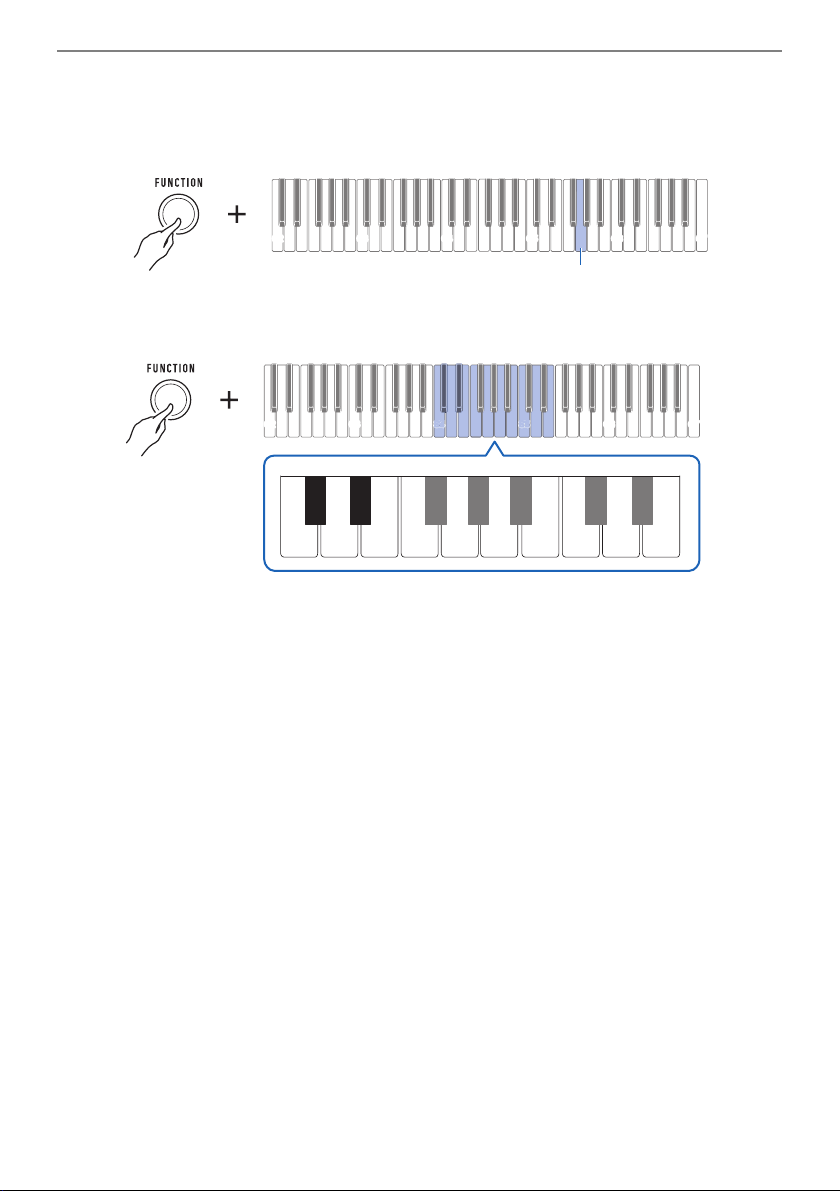
Touch Response alters tone volume in accordance with keyboard pressure (press velocity). This
provides you some of the same expression capabilities you get on an acoustic piano.
1.
While holding down FUNCTION, press the F5 keyboard key.
• Each press of the keyboard key sounds a tone that lets you know what setting was selected.
2.
Release FUNCTION to complete the setting operation.
Playing with Touch Response
Changing Touch Response Sensitivity
Notification tone Setting type Description
One low tone Off Keyboard pressure does not affect volume.
One high tone Light Easier to produce a louder sound than the Normal
setting, for a lighter feel.
Two high tones Normal Normal Touch Response.
Three high tones Heavy More difficult to produce a louder sound, for a
heavier feel.
C2 C3 C4 C5 C6 C7
F5
Controlling the Sound of a Performance
EN-26
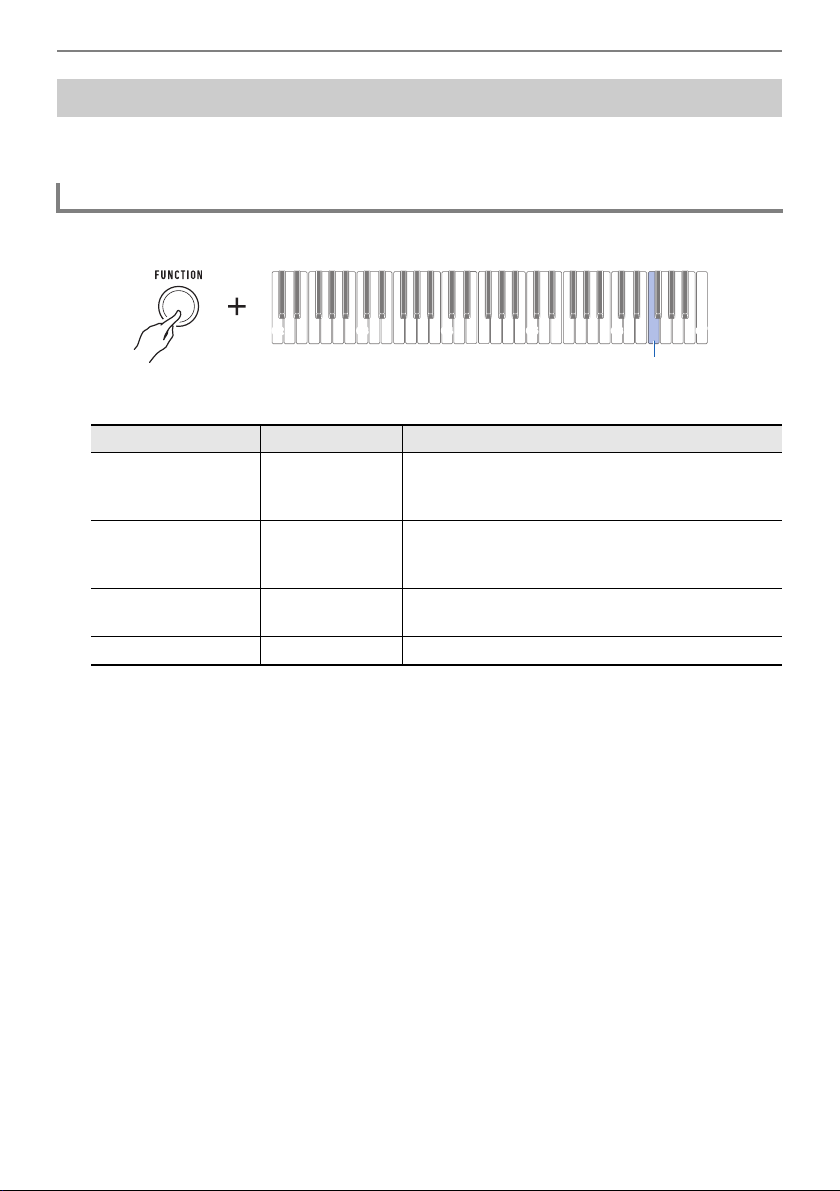
■ To adjust the volume when Touch Response is disabled (Touch off Velocity)
1.
While holding down FUNCTION, press the G5 keyboard key.
• Do not release FUNCTION until step 2, below.
2.
Use keyboard keys C4 through E5 to set the volume level.
• You can specify a volume value from 1 to 127.
• Each press of the – or + keyboard key changes the volume value by 1. Long-pressing either of
these keyboard keys scrolls the setting value.
• You can use keyboard keys 0 to 9 to enter a specific volume value.
Examples:
– To set a volume of 20, press 2, then 0. The volume setting will not change until you release
FUNCTION in step 3, below.
– To set a volume of 120, press 1, then 2, then 0. In this case, the volume value will change
as soon as you input the third digit.
• To return the setting to its initial default, press the – and + keyboard keys at the same time.
3.
Release FUNCTION.
C2 C3 C4 C5 C6 C7
G5
C2 C3 C4 C5 C6 C7
C4
C
C4
C4
C5
C5
C
C5
0123456789
+−
D4
C{4
C4 E4 F4 G4 A4 B4 C5 D5 E5
E}4
Controlling the Sound of a Performance
EN-27
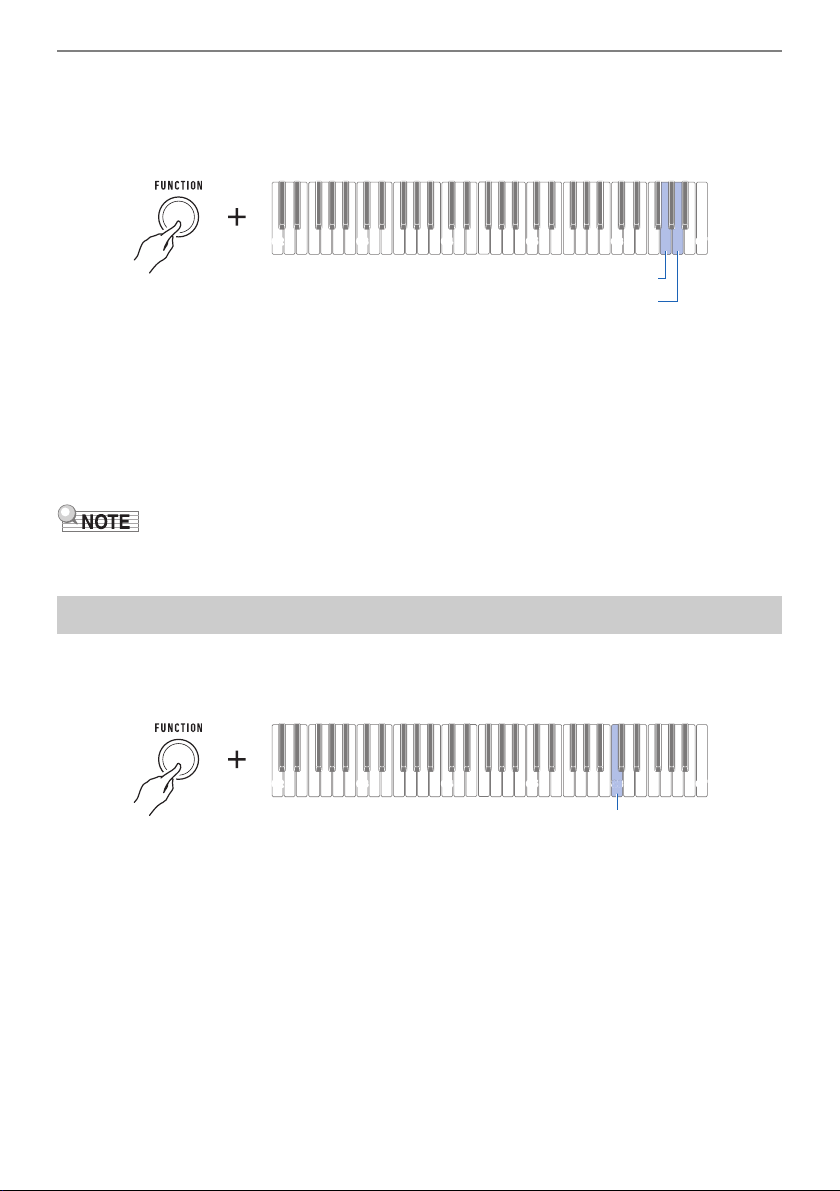
A pedal (optional SP-3 or SP-20) can be used to apply various changes to your sound while playing.
Under initial default settings, sustain is assigned to the pedal, so it can be used as a damper pedal.
1.
While holding down FUNCTION, press the F6 keyboard key.
• Each press of the keyboard key sounds a tone that lets you know what setting was selected.
2.
Release FUNCTION to complete the setting operation.
Using a Pedal
Changing Pedal Functions
Notification Tone Setting Type Description
One tone Pedal sustain Playing notes while the pedal is depressed causes
the notes to be sustained, even if the keyboard keys
are released.
Two tones Sostenuto Playing notes and then pressing the pedal before
the keyboard keys are released causes the notes to
be sustained.
Three tones Soft Pressing the pedal and playing notes causes the
notes to be slightly softened.
Four tones Metronome Starts and stops the metronome.
C2 C3 C4 C5 C6
C7
F6
Controlling the Sound of a Performance
EN-28
■ Disabling the Pedal Function Effect of Each Part
You can use the procedure below to disable the pedal function effect of the main part and layer part.
1.
While holding down FUNCTION, press the G6 or A6 keyboard key.
This disables the pedal function effect.
• Each press of the keyboard key sounds a tone that lets you know what setting was selected.
High tone: On
Low tone: Off
The pedal function effect is applied to parts that are turned on, and not applied to parts that are
turned off.
2.
Release FUNCTION to complete the setting operation.
• For details about parts, see “Layering Two Tones” (page EN-32).
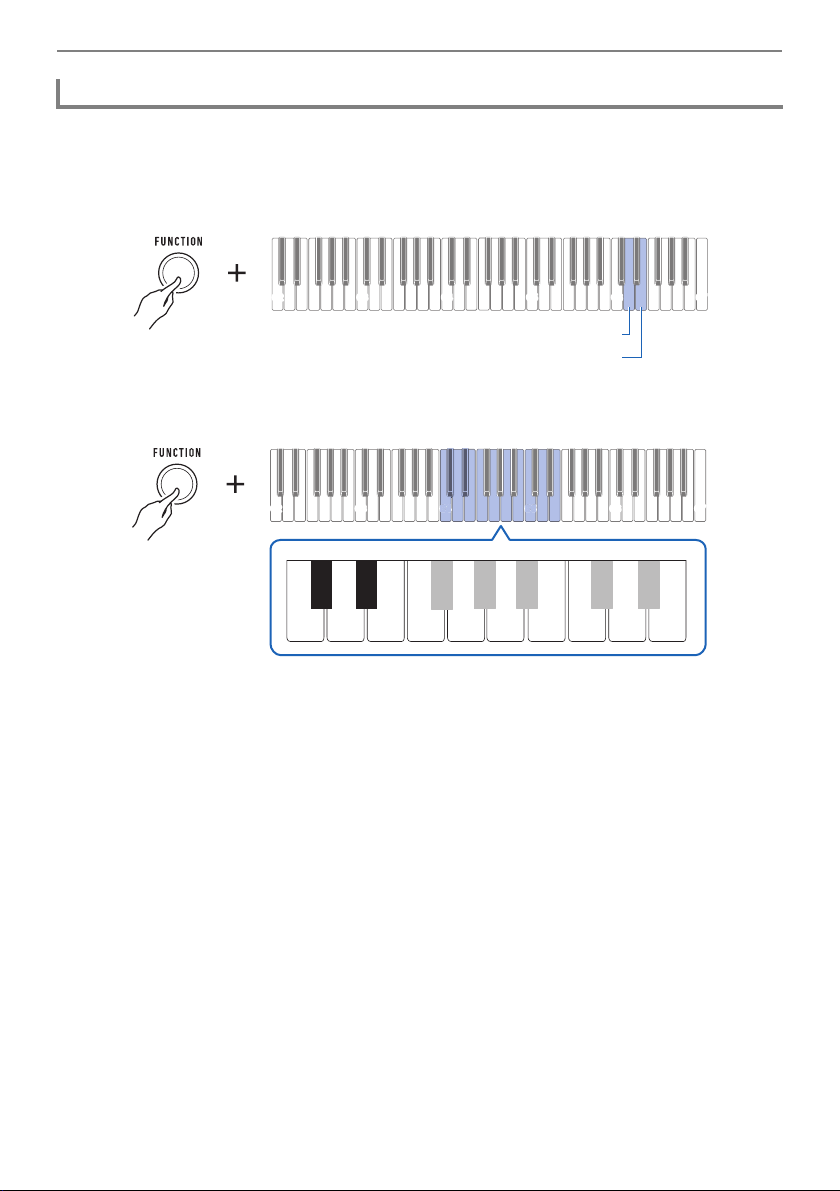
While sustain is enabled, notes are sustained longer when keyboard keys are released.
1.
While holding down FUNCTION, press the C6 keyboard key.
This enables sustain.
• Each press of the keyboard key sounds a tone that lets you know what setting was selected.
High tone: On
Low tone: Off
2.
Release FUNCTION to complete the setting operation.
Sustaining Notes After Keyboard Keys Are Released
C2 C3 C4 C5 C6
C7
G6 (Main part)
A6 (Layer part)
C2 C3 C4 C5 C6
C7
C6
C
C
C6
C6
Controlling the Sound of a Performance
EN-29
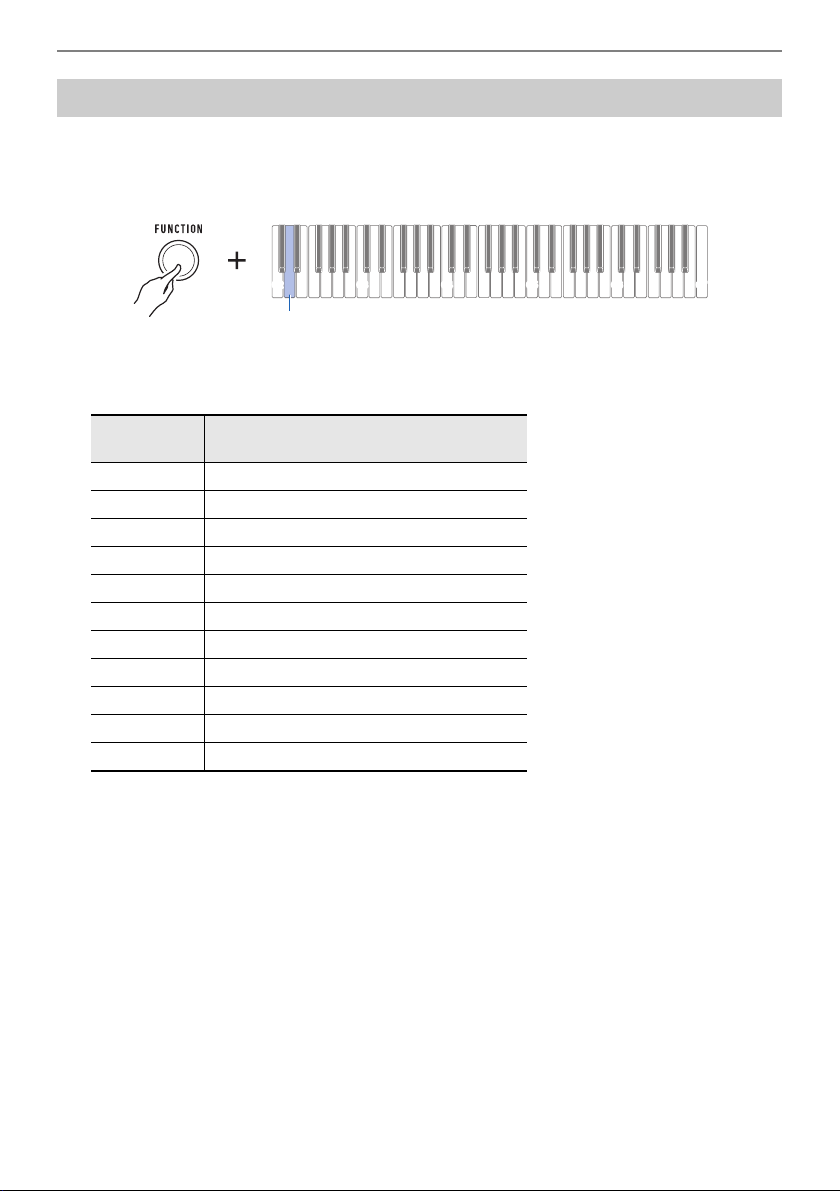
When sustain is enabled, you can use the procedure below to make the sustain times of the main part
and layered part longer or shorter.
1.
While holding down FUNCTION, press the D6 or E6 keyboard key.
• Do not release FUNCTION until step 2, below.
2.
Use keyboard keys C4 through E5 to set the sustain time.
• You can set a sustain time within the range of 0 to 9.
• Each press of the – or + keyboard key raises or lowers the sustain time setting by 1. Long-
pressing either of these keyboard keys changes the setting at high speed.
• To return the setting to its initial default, press the – and + keyboard keys at the same time.
3.
Release FUNCTION to complete the setting operation.
Adjusting the Sustain Time of the Parts
C2 C3 C4 C5 C6 C7
D6 (Main part)
E6 (Layer part)
C2 C3 C4 C5 C6 C7
C4
C
C4
C4
C5
C5
C
C5
0123456789
+−
D4
C{4
C4 E4 F4 G4 A4 B4 C5 D5 E5
E}4
Controlling the Sound of a Performance
EN-30
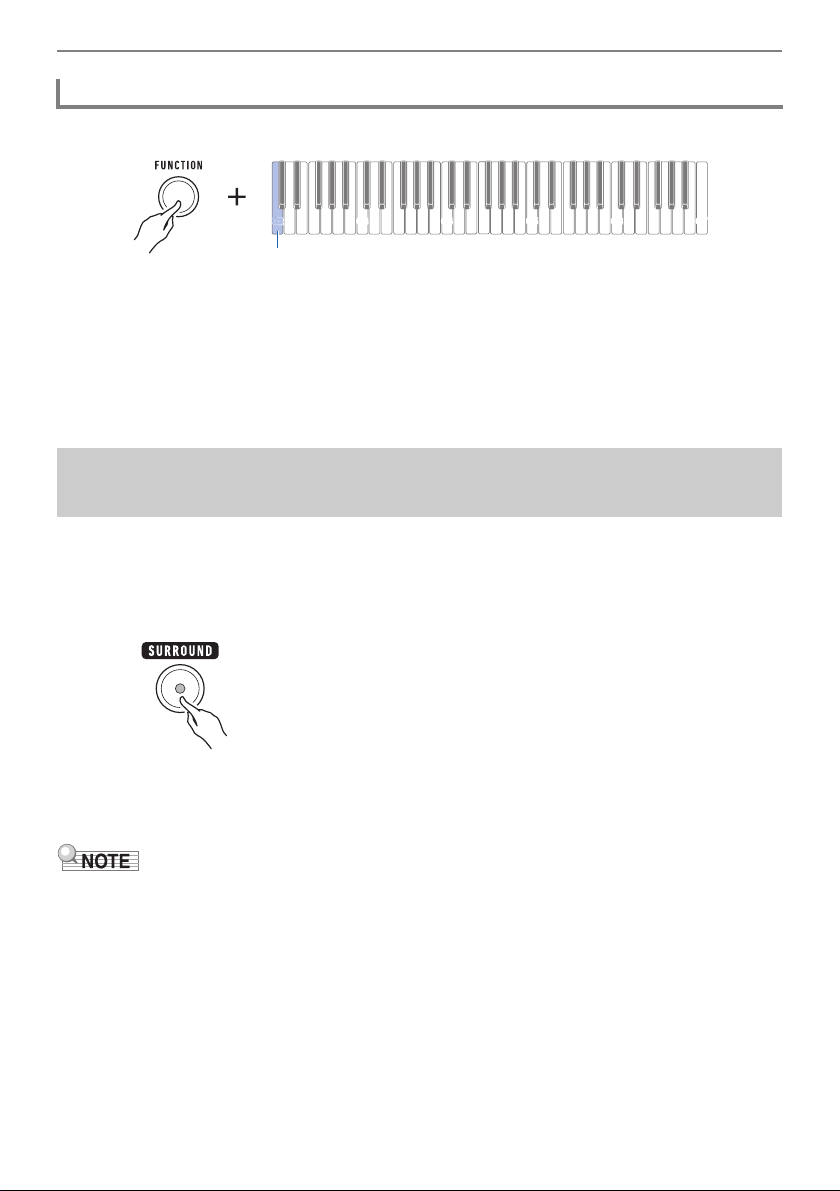
You can use the procedure below to add reverb to the notes you play.
1.
While holding down FUNCTION, press the D2 keyboard key.
• Do not release FUNCTION until step 2, below.
A notification tone will sound to indicate the reverb type selection mode.
2.
Use keyboard keys C2 through C4 to select a reverb type.
This sounds a notification tone and sets the selected reverb type.
3.
Release FUNCTION to complete the setting operation.
Playing with Reverb
Keyboard
Note Name
Reverb Type
C2 Depends on the tone.
C{2 to F2 Room 1 to 5
F{2 to G2 Large Room 1 or 2
A}2 to C{3 Hall 1 to 6
D3 to E3 Stadium 1 to 3
F3 to F{3 Plate 1 or 2
G3 Delay
A}3 Pan delay
A3 to B}3 Long delay 1 or 2
B3 Church
C4 Cathedral
C2 C3 C4 C5 C6
C7
D2
Controlling the Sound of a Performance
EN-31
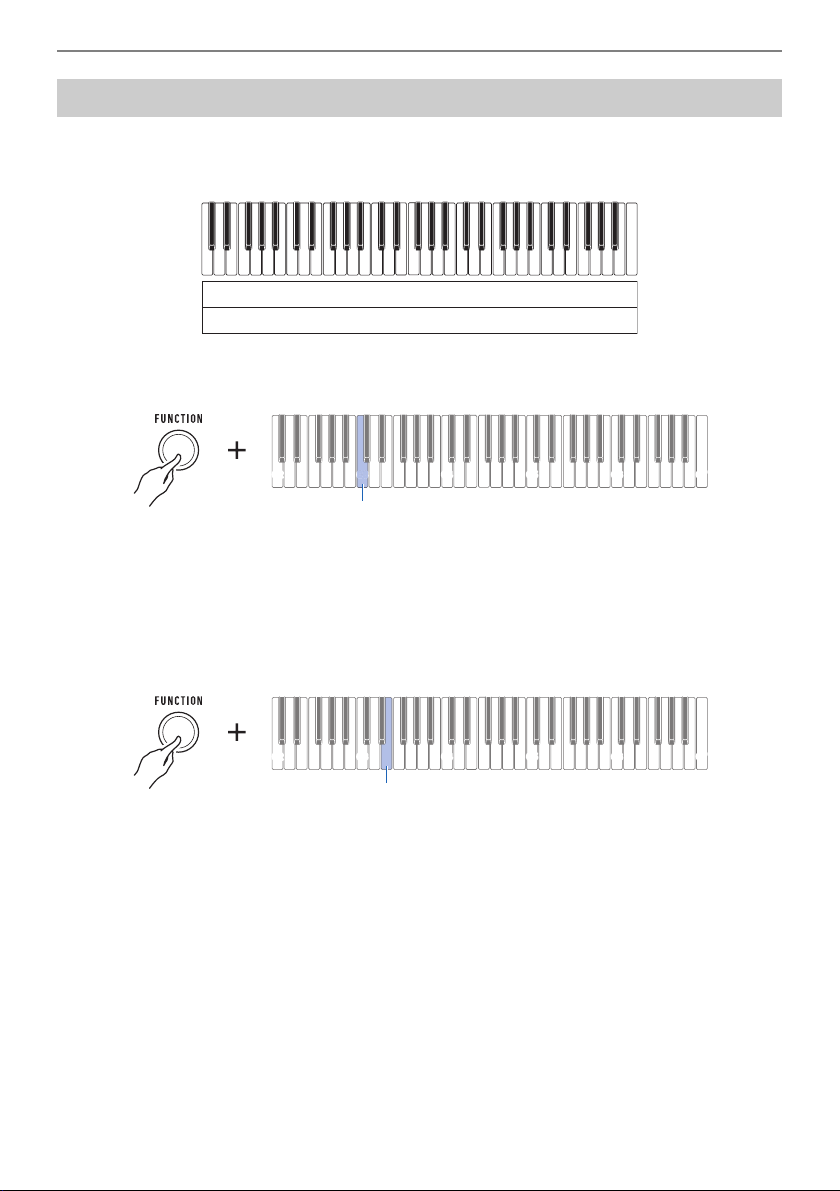
1.
While holding down FUNCTION, press the C2 keyboard key.
This turns off reverb.
• Each press of the keyboard key sounds a tone that lets you know what setting was selected.
High tone: On
Low tone: Off
2.
Release FUNCTION to complete the setting operation.
Enabling surround causes sound to expand multi-dimensionally, front, back, left, and right.
1.
Press SURROUND.
This enables surround.
• The SURROUND button will be lit while the surround effect is enabled.
2.
To disable surround, press SURROUND again.
• This causes the SURROUND button light to go out.
• The surround effect is not applied while you are listening over headphones.
• Connecting headphones disables the surround effect.
Turning off Reverb
Playing with a Multi-dimensional Expanded Sound
(Surround)
C2 C3 C4 C5 C6
C7
C2
C2
C2
C2
C2
Controlling the Sound of a Performance
EN-32
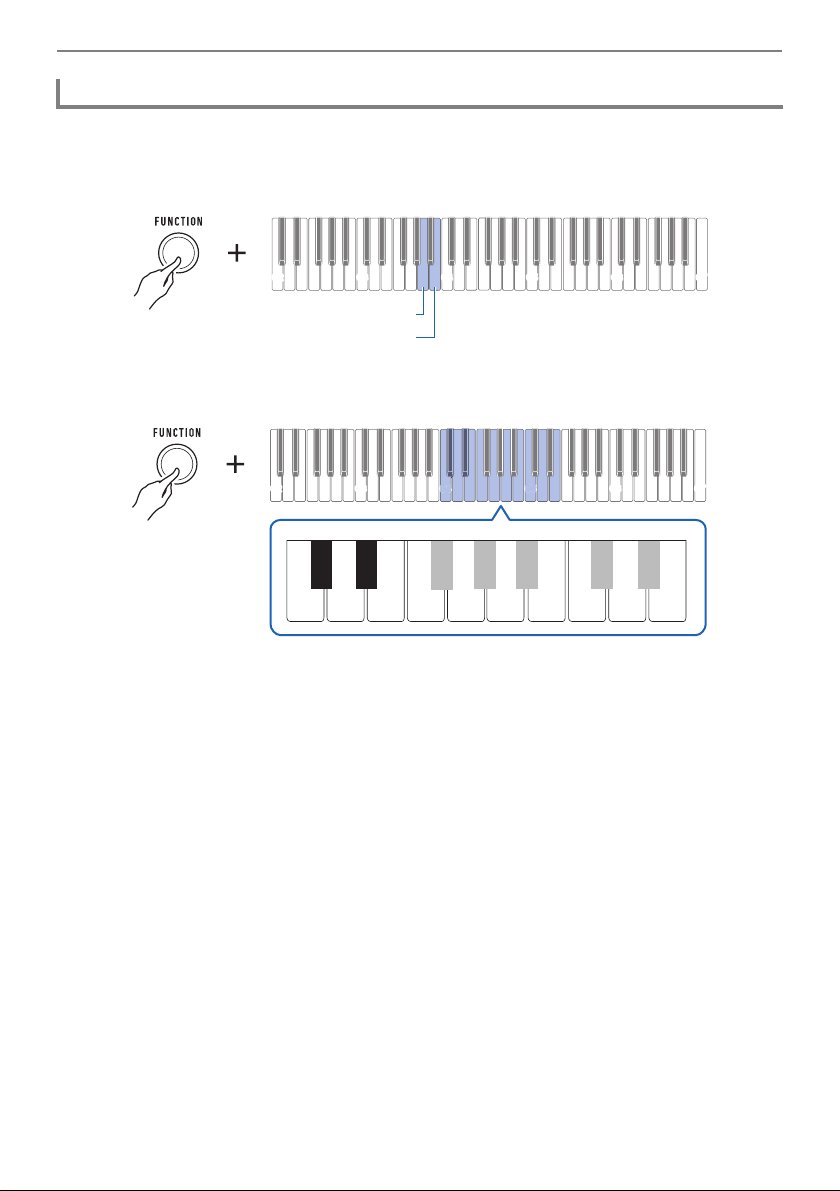
You can use the procedure below to layer two tones and output the resulting sound. The part that is
played using a single tone is the main part, while the second part that is layered over the main part is
the layer part.
1.
While holding down FUNCTION, press the C3 keyboard key.
This enables layering.
• Each press of the keyboard key sounds a tone that lets you know what setting was selected.
High tone: On
Low tone: Off
2.
To select the layer part, hold down FUNCTION as you press the E3 keyboard key.
• Do not release FUNCTION until step 3, below.
3.
Press a keyboard key within the range of C2 through C7 to select a tone.
This layers the tone you selected.
• Each of the keyboard keys has a tone assigned to it. For tone information, see the “
Tone List”
(page
EN-76).
4.
Release FUNCTION to complete the setting operation.
5.
To cancel layering, hold down FUNCTION as you press the C3 keyboard key.
Layering Two Tones
Main part
Layer part
C2 C3 C4 C5 C6
C7
C3
C3
C3
C3
C3
C2 C3 C4 C5 C6
C7
E3
Controlling the Sound of a Performance
EN-33
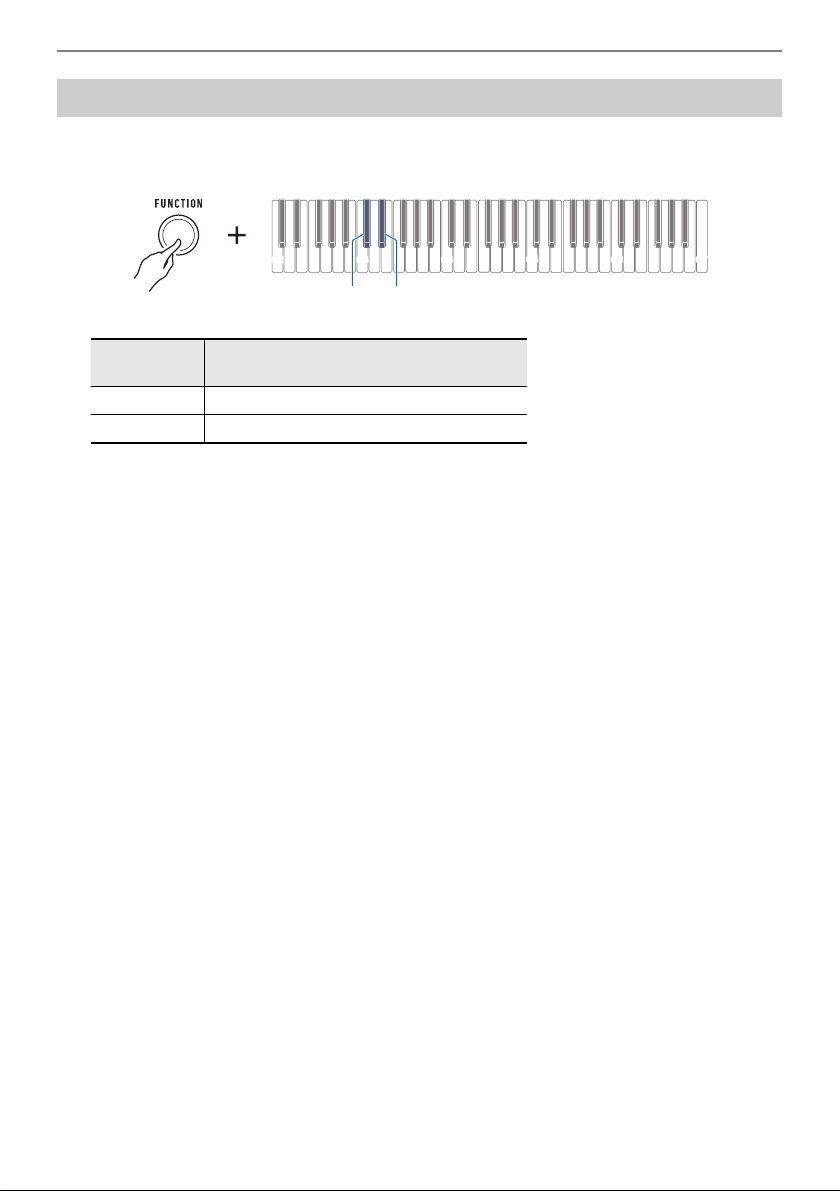
You can use the procedure below to adjust the volume level of the main tone and layer tone.
1.
While holding down FUNCTION, press the A3 or B3 keyboard key.
• Do not release FUNCTION until step 2, below.
2.
Use keyboard keys C4 through E5 to set the volume level.
• You can specify a volume value from 0 to 127.
• Each press of the + or – keyboard key changes the volume value by 1. Long-pressing either of
these keyboard keys scrolls the setting value.
• You can use keyboard keys 0 to 9 to enter a specific volume value.
Examples:
– To set a volume of 20, press 2, then 0. The volume setting will not change until you release
FUNCTION in step 3, below.
– To set a volume of 120, press 1, then 2, then 0. In this case, the volume value will change
as soon as you input the third digit.
• To return the setting to its initial default, press the – and + keyboard keys at the same time.
3.
Release FUNCTION.
Adjusting the Volume Level of Each Part
C2 C3 C4 C5 C6
C7
A3 (Main part)
B3 (Layer part)
C2 C3 C4 C5 C6 C7
C4
C
C4
C4
C5
C5
C
C5
0123456789
+−
D4
C{4
C4 E4 F4 G4 A4 B4 C5 D5 E5
E}4
Controlling the Sound of a Performance
EN-34
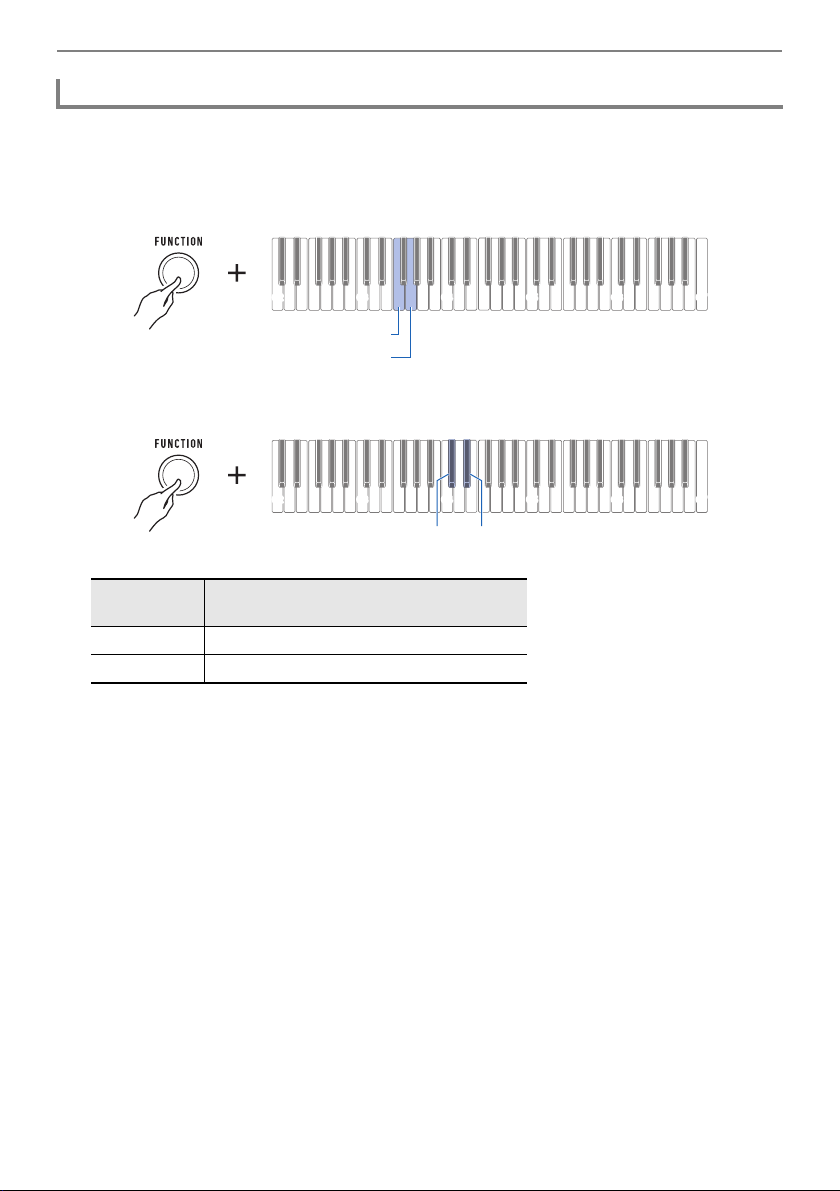
You can use the procedure below to raise or lower pitch in octave units.
1.
While holding down FUNCTION, press the C{3 or E}3 keyboard key.
• You can specify a value in the range of –3 to +3 octaves.
• A reference tone sounds whenever the setting values becomes 0.
• To return the setting to its initial default, press the – and + keyboard keys at the same time.
2.
Release FUNCTION to complete the setting operation.
Changing the Pitch in Octave Units (Octave Shift)
Keyboard
Note Name
Description
C{3 Lowers the pitch one octave.
E}3 Raises the pitch one octave.
C2 C3 C4 C5 C6
C7
E}3 (
+
)C{3 (–)
Controlling the Sound of a Performance
EN-35
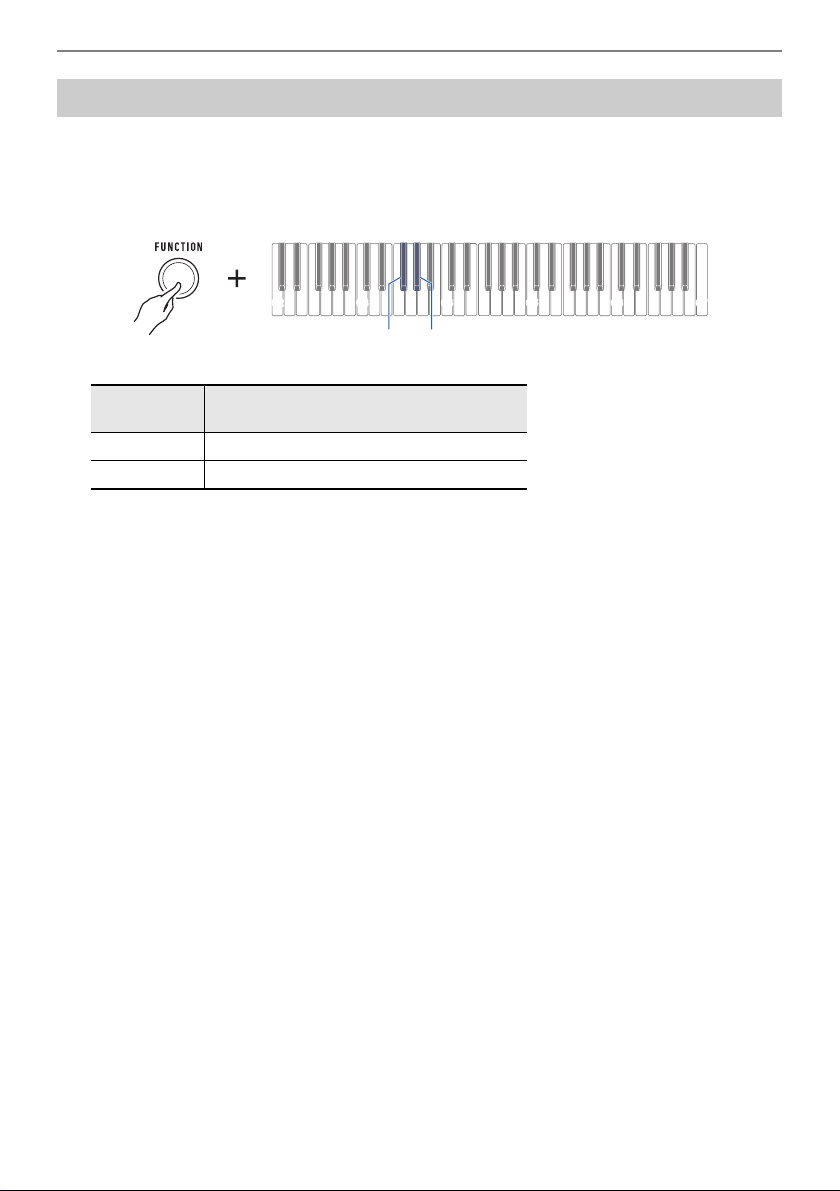
You can use the procedure below to raise or lower the pitches of the main part and layer part in octave
units.
1.
While holding down FUNCTION, press the F3 or G3 keyboard key.
• Do not release FUNCTION until step 2, below.
2.
Press the C{4 or E}4 keyboard key.
• You can specify a value in the range of –3 to +3 octaves.
• A reference tone sounds whenever the setting values becomes 0.
• To return the setting to its initial default, press the – and + keyboard keys at the same time.
• If you changed a part tone, the part octave shift value is the recommended value of the newly
selected part. For information about tone recommended values, see the “
Tone List” (page
EN-76).
3.
Release FUNCTION to complete the setting operation.
Changing the Pitch of Parts in Octave Units (Part Octave Shift)
Keyboard
Note Name
Description
C{4 Lowers the pitch one octave.
E}4 Raises the pitch one octave.
C2 C3 C4 C5 C6 C7
F3 (Main part)
G3 (Layer part)
C2 C3 C4 C5 C6 C7
E}4 (
+
)
C{4 (–)
Controlling the Sound of a Performance
EN-36
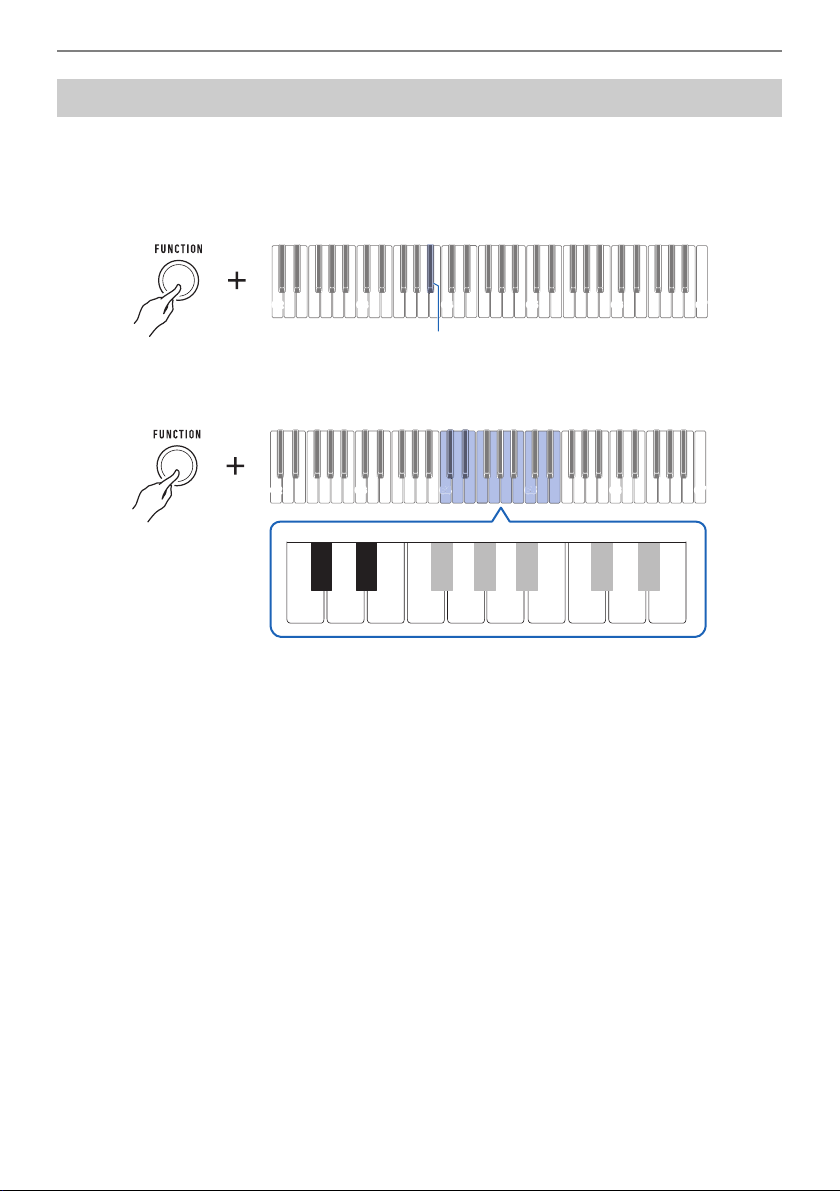
You can use the procedure below to raise the overall pitch in semitone steps. You can use this feature
to raise or lower the key of the keyboard to make it easier to play a piece written in a difficult key, or to
adjust to a key that better matches a vocalist, or another musical instrument.
1.
While holding down FUNCTION, press the F{3 or A}3 keyboard key.
• The setting range is one octave up (+12 semitones) and down (–12 semitones).
• A reference tone sounds whenever the setting values becomes 0.
• To return the setting to its initial default, press the – and + keyboard keys at the same time.
2.
Release FUNCTION to complete the setting operation.
Changing the Pitch in Semitone Units (Transpose)
Keyboard
Note Name
Description
F{3 Lowers the pitch one semitone.
A}3 Raises the pitch one semitone.
C2 C3 C4 C5 C6
C7
A}3 (
+
)
F{3 (–)
Controlling the Sound of a Performance
EN-37
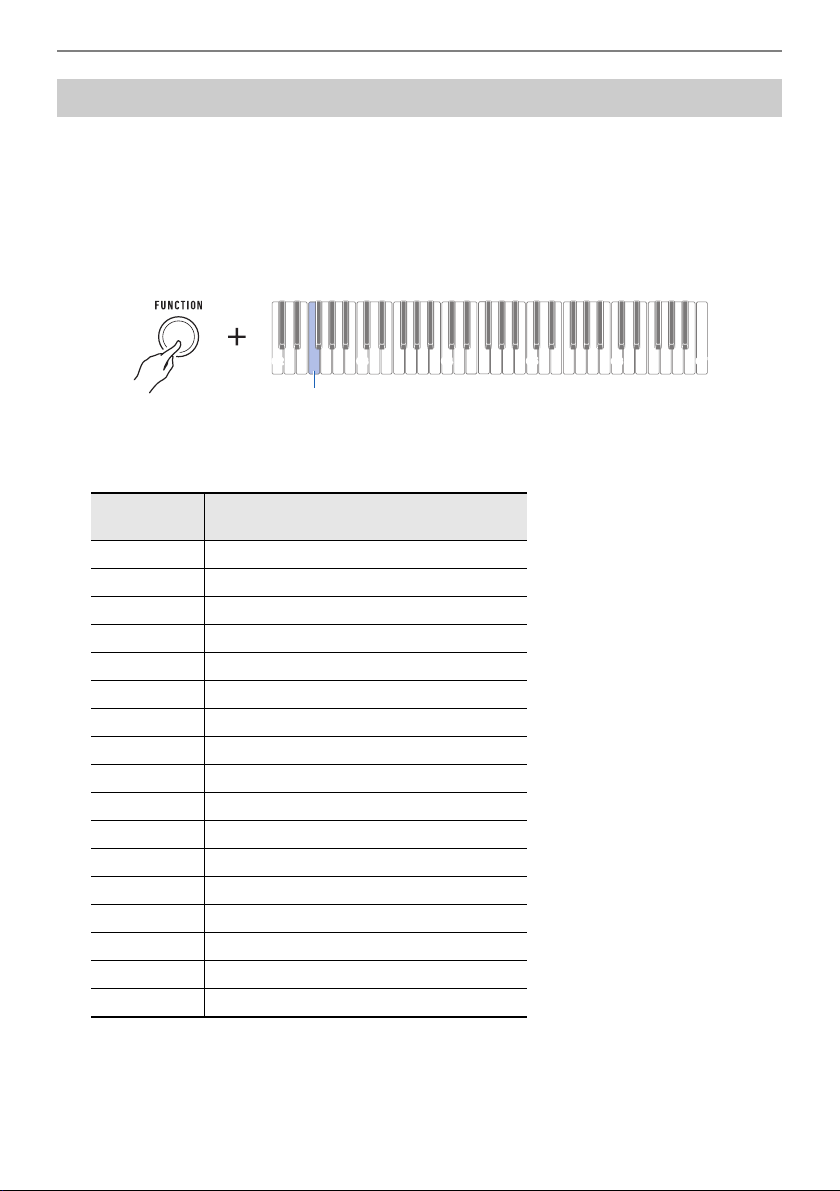
You can use the procedure below to adjust the overall pitch by changing the frequency of A4. (0.1 Hz
units)
1.
While holding down FUNCTION, press B}3 keyboard key.
• Do not release FUNCTION until step 2, below.
2.
Use keyboard keys C4 through E5 to set the note pitch.
• You can specify a frequency in the range of 415.5 Hz to 440 Hz to 465.9 Hz.
• Each press of the – or + keyboard key decreases or increases the frequency of the A4 note in
0.1 Hz steps. Long-pressing either of these keyboard keys scrolls the setting value.
• A reference tone sounds whenever the setting values becomes an integer (whole number), such
as 440, 441, etc.
• You can use keyboard keys 0 through 9 to input a three-digit integer value and then press
FUNCTION. In this case, the digit to the right of the decimal point will automatically become 0.
• To return the setting to its initial default, press the – and + keyboard keys at the same time.
3.
Release FUNCTION to complete the setting operation.
Fine Tuning (Tuning)
C2 C3 C4 C5 C6 C7
B}3
C2 C3 C4 C5 C6 C7
C4
C
C4
C4
C5
C5
C
C5
0123456789
+−
D4
C{4
C4 E4 F4 G4 A4 B4 C5 D5 E5
E}4
Controlling the Sound of a Performance
EN-38
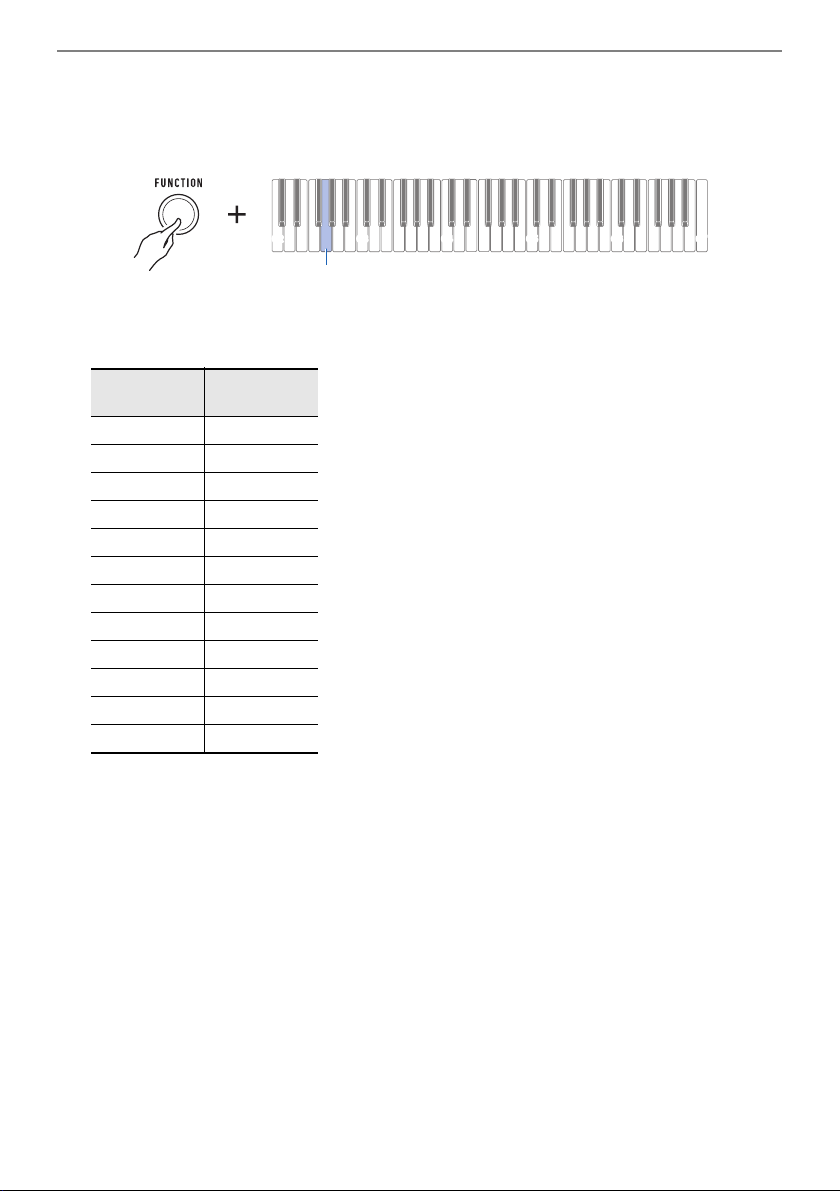
You can change the scale tuning of the keyboard from the standard equal temperament to another
tuning that is more suitable for playing Indian music, Arabic music, classical music, etc. You can select
from among 17 preset scale tunings.
■ To change the scale tuning
1.
While holding down FUNCTION, press the F2 keyboard key.
• Do not release FUNCTION until step 2, below.
This sounds a notification tone and enters the scale tuning selection mode.
2.
Use keyboard keys C2 through E3 to select a scale tuning.
This sounds a notification tone and sets the selected scale tuning.
3.
Release FUNCTION to complete the setting operation.
Changing the Keyboard Scale Tuning
Keyboard
Note Name
Scale Tuning Name
C2 Equal temperament
C{2 Just major intonation
D2 Just minor intonation
E}2 Pythagorean tuning
E2 Kirnberger III
F2 Werckmeister 1-3(III)
F{2 Mean-tone tuning
G2 Rast
A}2Bayati
A2 Hijaz
B}2Saba
B2 Dashti
C3 Chahargah
C{3 Segah
D3 Gurjari Todi
E}3 Chandrakauns
E3 Charukeshi
C2 C3 C4 C5 C6
C7
F2
Controlling the Sound of a Performance
EN-39
■ To specify the base note of the scale tuning
1.
While holding down FUNCTION, press the G2 keyboard key.
• Do not release FUNCTION until step 2, below.
A notification tone will sound to indicate the scale tuning base note selection mode.
2.
Use keyboard keys C2 through B2 to select a scale tuning base note.
Sounds a notification tone and sets the scale tuning base note.
3.
Release FUNCTION to complete the setting operation.
Keyboard
Note Name
Scale Tuning
Base Note
C2 C
C{2C{
D2 D
E}2E}
E2 E
F2 F
F{2F{
G2 G
A}2A}
A2 A
B}2B}
B2 B
C2 C3 C4 C5 C6 C7
G2

Controlling the Sound of a Performance
EN-40
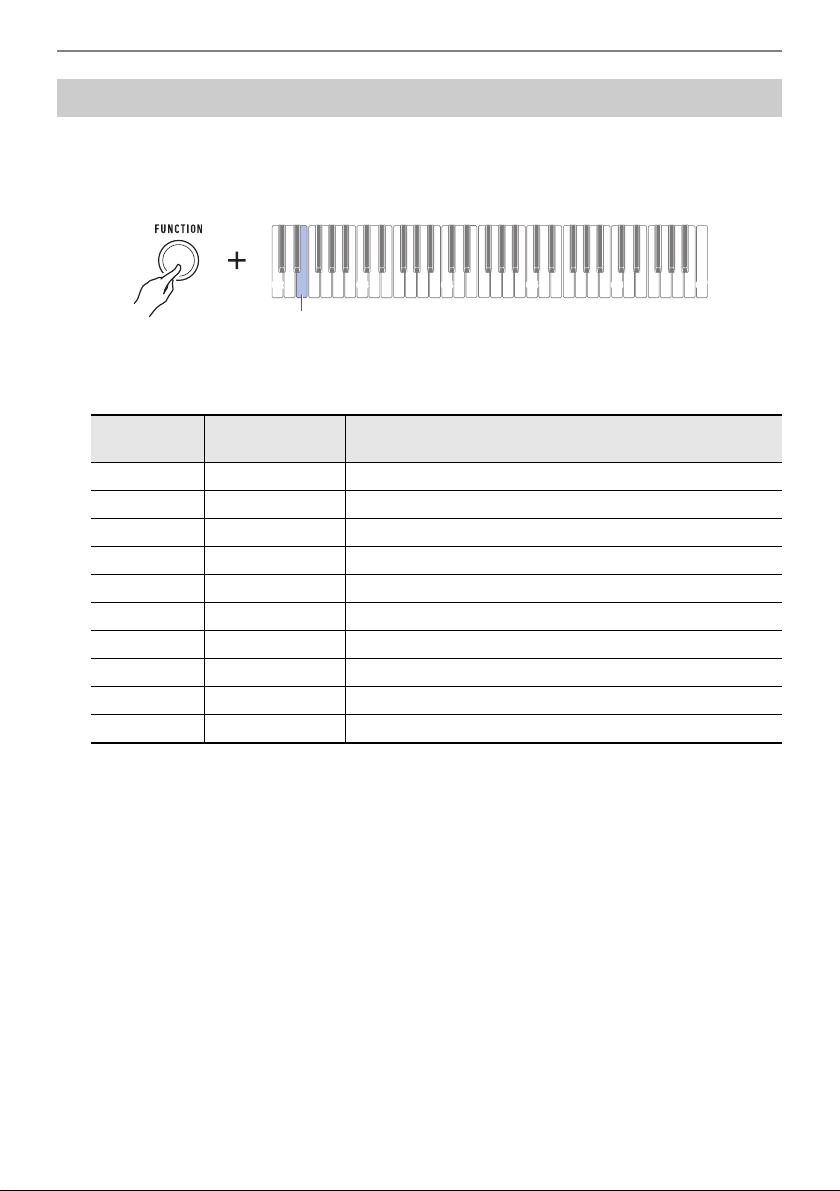
■ To disable piano stretch tuning
Piano stretch tuning, which is normally used for piano tuning, sharpens high notes and flattens low
notes.
1.
While holding down FUNCTION, press the A2 keyboard key.
This disables stretch tuning.
• Each press of the keyboard key sounds a tone that lets you know what setting was selected.
High tone: On
Low tone: Off
2.
Release FUNCTION to complete the setting operation.
C2 C3 C4 C5 C6
C7
A2
Controlling the Sound of a Performance
EN-41
You can use the equalizer to configure settings that boost or cut specific frequency components.
1.
While holding down FUNCTION, press the E2 keyboard key.
• Do not release FUNCTION until step 2, below.
This sounds a notification tone and enters the equalizer setting mode.
2.
Use keyboard keys C2 through A2 to select the equalizer setting you want.
This sounds a notification tone and sets the equalizer type.
3.
Release FUNCTION to complete the setting operation.
Using the Equalizer
Keyboard
Note Name
Setting Type Description
C2 Standard Standard setting
C{2 Bass + Boosts the low range.
D2 Treble + Boosts the high range.
E}2 Loudness Boosts all ranges.
E2 Mellow Produces a mellow sound.
F2 Bright Produces a bright sound.
F{2 Rock Produces a sound optimized for rock music.
G2 Dance Produces a sound optimized for dance music.
A}2 Jazz Produces a sound optimized for jazz music.
A2 Classic Produces a sound optimized for classical music.
C2 C3 C4 C5 C6
C7
E2
EN-42
You can use the procedures in this section to record and playback your keyboard play.
Use the procedure below to record what you play on the keyboard.
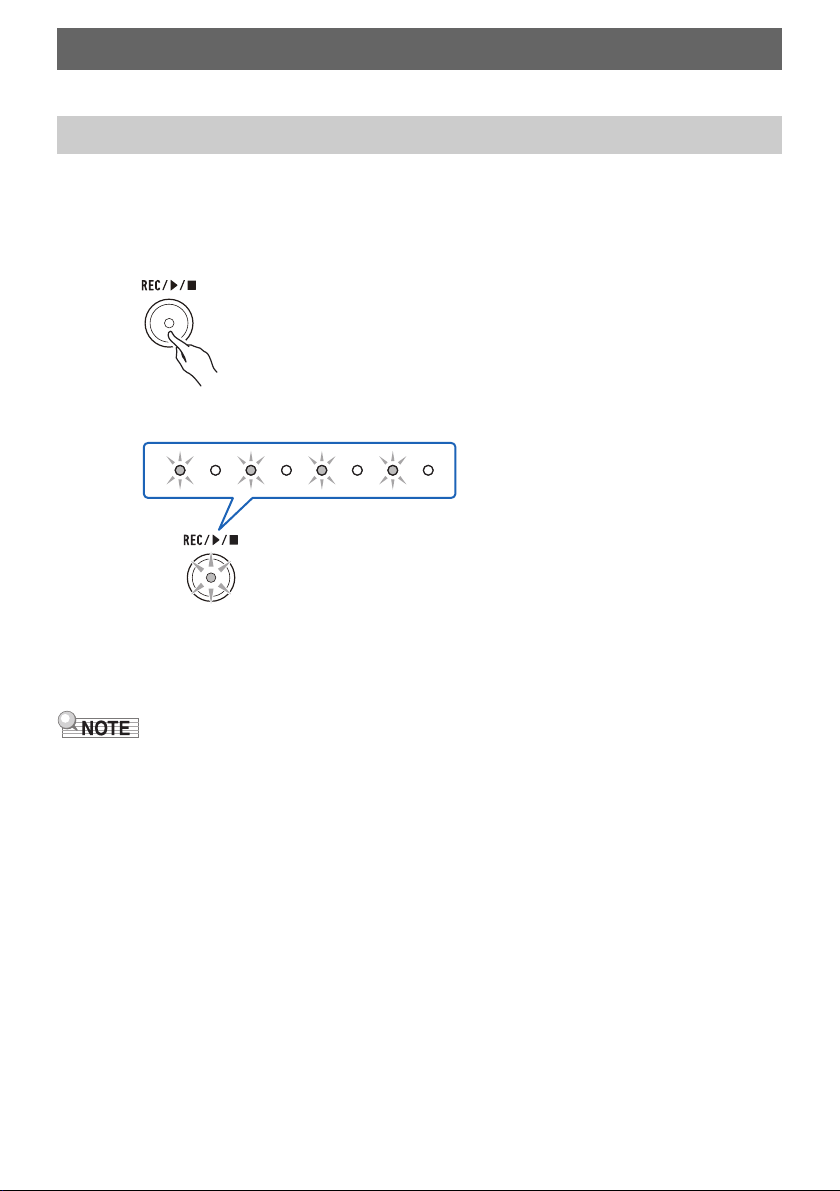
1.
Select a tone and configure the other settings you want to use for recording.
2.
Press REC/a.
This causes the REC/a button light to flash and enters record standby.
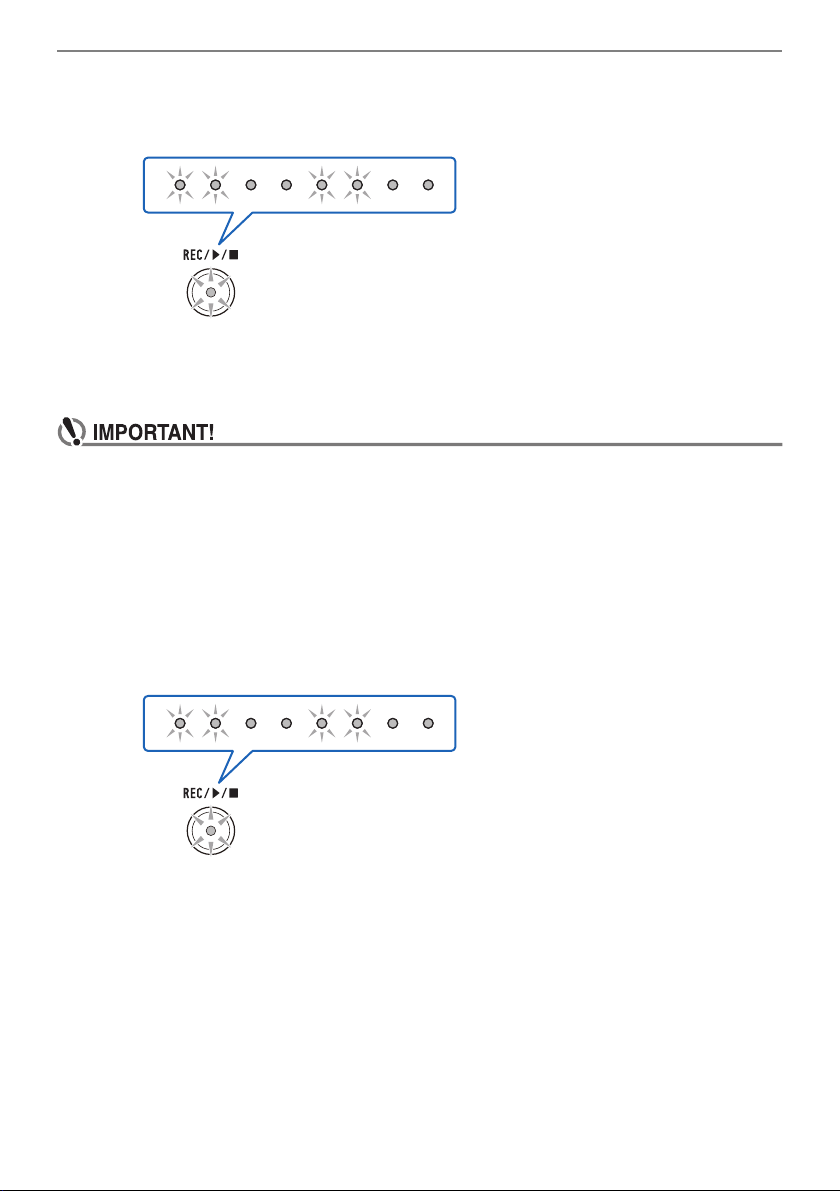
3.
Play what you want to record.
When you start to play, the REC/a button light will stop flashing and recording will start.
• Up to approximately 40,000 notes can be recorded for a single song. When the number of remaining
recordable notes is 100 or fewer, the REC/a button light will flash. When the number of remaining
recordable notes reaches zero, the REC/a button light will go out and recording will stop
automatically.
• Up to approximately 999 measures can be recorded for a single song. When the number of
remaining measures is 32 or fewer, the REC/a button light will flash. When the number of
remaining recordable measures reaches zero, the REC/a button light will go out and recording
will stop automatically.
• You can record while the metronome is sounding. See “
Using the Metronome” (page EN-15).
Recording Your Keyboard Play (MIDI Recorder)
Recording and Playing Back Keyboard Play
Recording Your Keyboard Play (MIDI Recorder)
EN-43
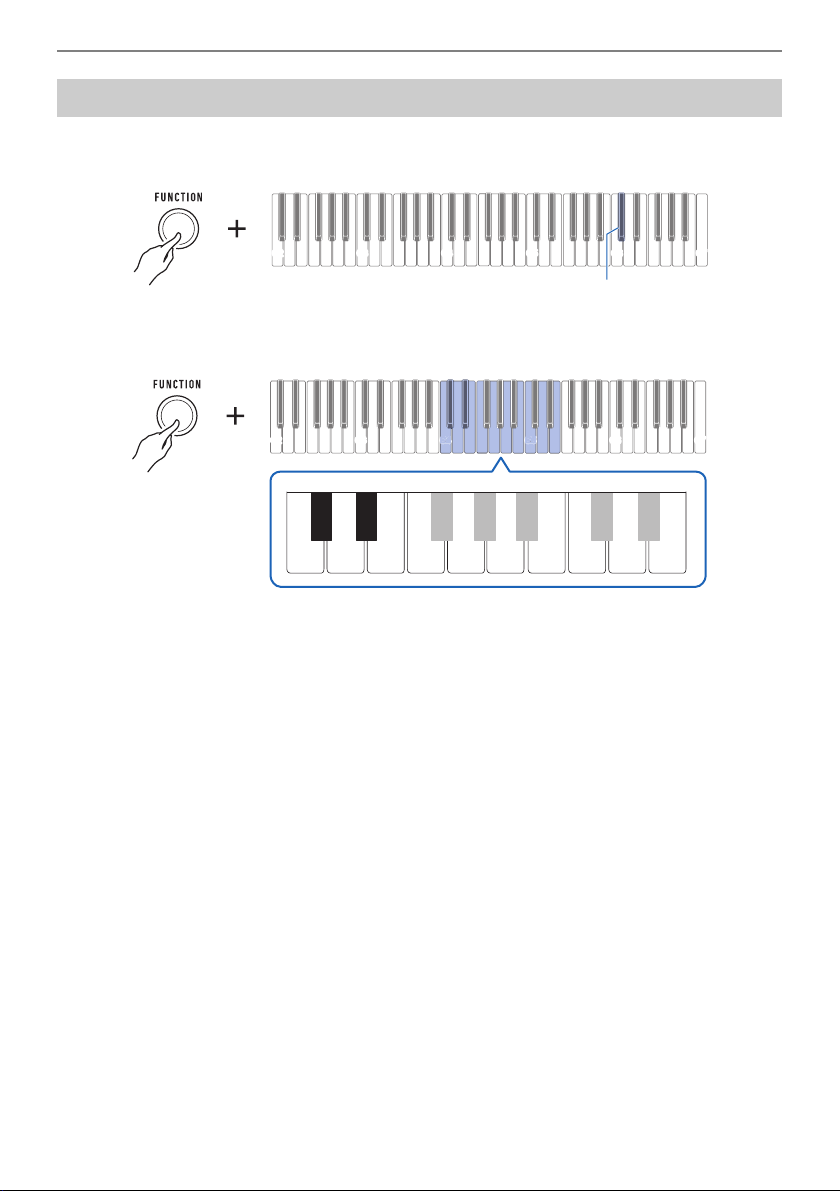
4.
To stop recording, press REC/a.
This causes the REC/a button light to flash and enters playback standby. After a pre-count
sounds, playback of what you recorded will start.
5.
To stop playback, press REC/a.
This causes the REC/a button light to go out and stops playback.
• Turning off the Digital Keyboard while recording is in progress will cause the recording to be
deleted.
• A new recording replaces (deletes) previously recorded contents.
• Depending on the tone you are using and the reverb setting, the sound produced during
playback may be different from the sound that you heard when you recorded.
■ To play back a recorded performance later
1.
Press REC/a as many times as necessary to start playback of the song you
recorded.
• This starts playback of the performance you recorded.
■ Recorded MIDI Data
Recording with the MIDI recorder also records the operations below.
– Keyboard play and pedal operations
– Tone
– Touch Response
– Sustain
– Reverb
– Octave Shift
– Part volume
– Scale tuning
– Layer
Recording Your Keyboard Play (MIDI Recorder)
EN-44
1.
While holding down FUNCTION, press the C{6 keyboard key.
• Do not release FUNCTION until step 2, below.
2.
Use keyboard keys C4 through E5 to set the volume level.
• You can specify a volume value from 0 to 10.
• Each press of the + or – keyboard key changes the volume value by 1. Long-pressing either of
these keyboard keys scrolls the setting value.
• You can use keyboard keys 0 to 9 to enter a specific volume value.
• To return the setting to its initial default, press the – and + keyboard keys at the same time.
3.
Release FUNCTION to complete the setting operation.
Changing the Volume of a Recorded Performance
C2 C3 C4 C5 C6
C7
C{6
C2 C3 C4 C5 C6 C7
C4
C
C4
C4
C5
C5
C
C5
0123456789
+−
D4
C{4
C4 E4 F4 G4 A4 B4 C5 D5 E5
E}4

Recording Your Keyboard Play (MIDI Recorder)
EN-45
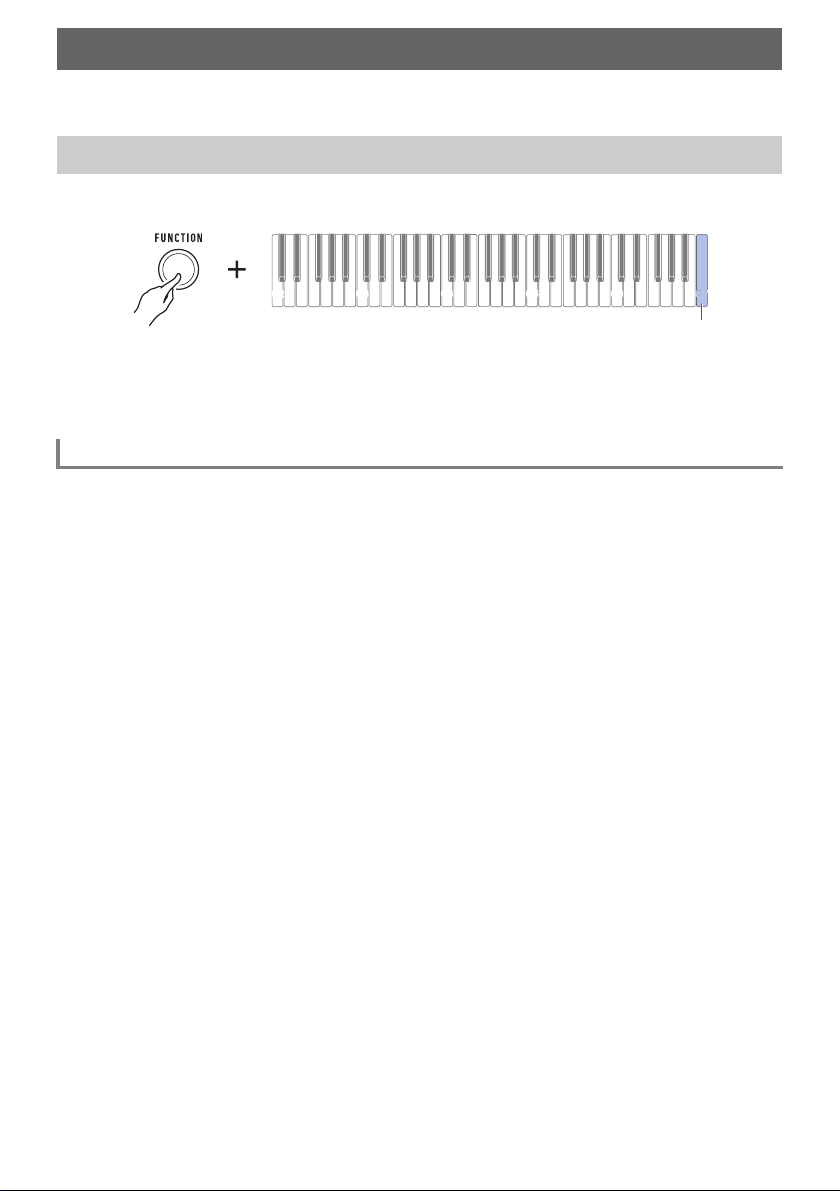
1.
Long press REC/a.
This will sound a notification tone and delete the performance you recorded.
To delete a recorded performance
EN-46
You can use MY SETUP to save the setup (tone and other settings) of the Digital Keyboard. You can
recall a saved setup when you need it to perform a particular song, etc.
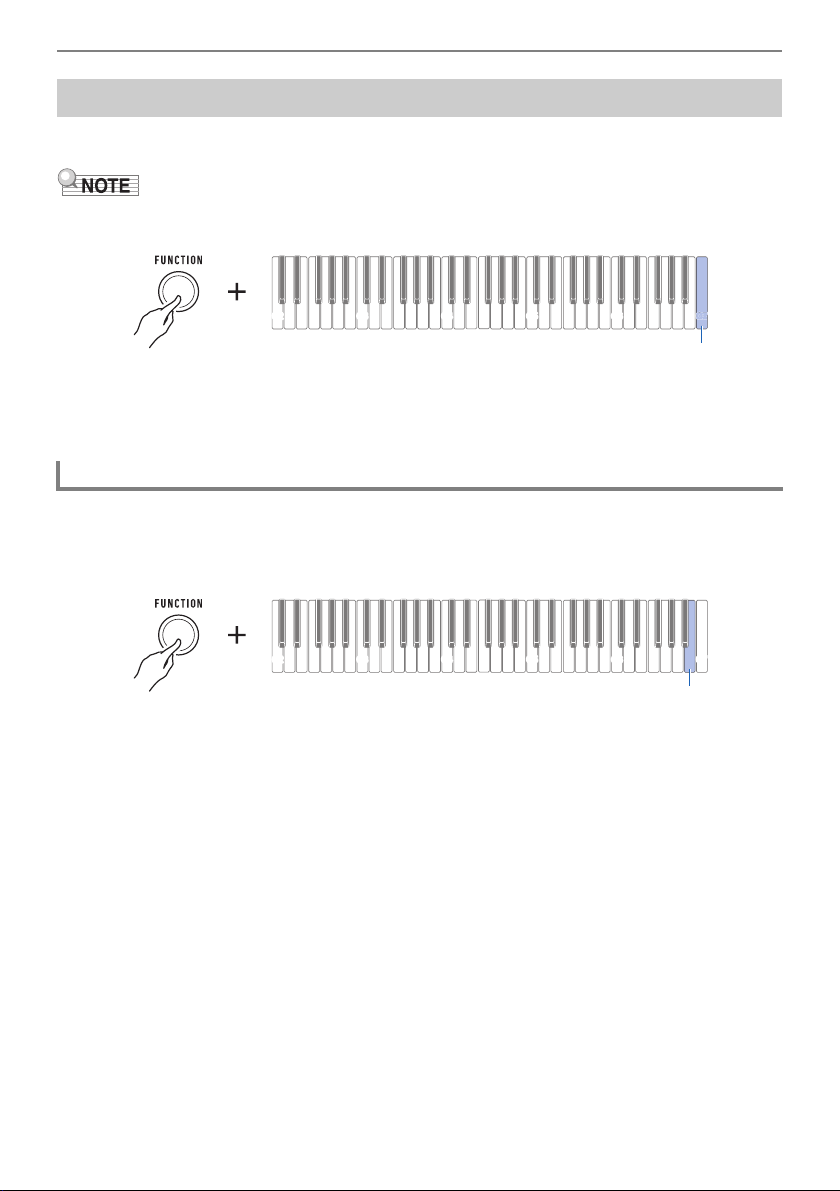
1.
While holding down FUNCTION, long press the C7 keyboard key.
This sounds a notification tone and saves the setup.
2.
Release FUNCTION to complete the setting operation.
The settings listed below can be saved with MY SETUP.
• Tones (main, layer)
• Sustain
• Sustain times (main part, layer part)
• Layer
• Touch Response
• Touch off velocity
• Octave shift
• Part octave shift (main, layer)
• Transpose
• Pedal
• Pedal effect part (main, layer)
• Metronome beat
• Metronome volume level
• Tempo
• Part volume (main, layer)
• Recorded song volume
• Surround
• Reverb type
• Equalizer
• Scale tuning type
• Scale tuning base note
• Piano Stretch Tuning
• Tuning
• AUDIO IN center cancel
Saving and Recalling a Setup (MY SETUP)
Saving to MY SETUP
Savable Settings
C2 C3 C4 C5 C6 C7
C7
C7
C7
C7
C7
Saving and Recalling a Setup (MY SETUP)
EN-47
1.
While holding down FUNCTION, press the C7 keyboard key.
• Long-pressing the C7 keyboard key will cause the setup saved in MY SETUP to be overwritten with
the current setup. Do not long-press C7 unless you want to do this.
Pressing C7 will sound a notification tone and recall the setup.
2.
Release FUNCTION to complete the setting operation.
Use the procedure below to enable MY SETUP power on recall, which causes the MY SETUP settings
to be applied whenever power is turned on.
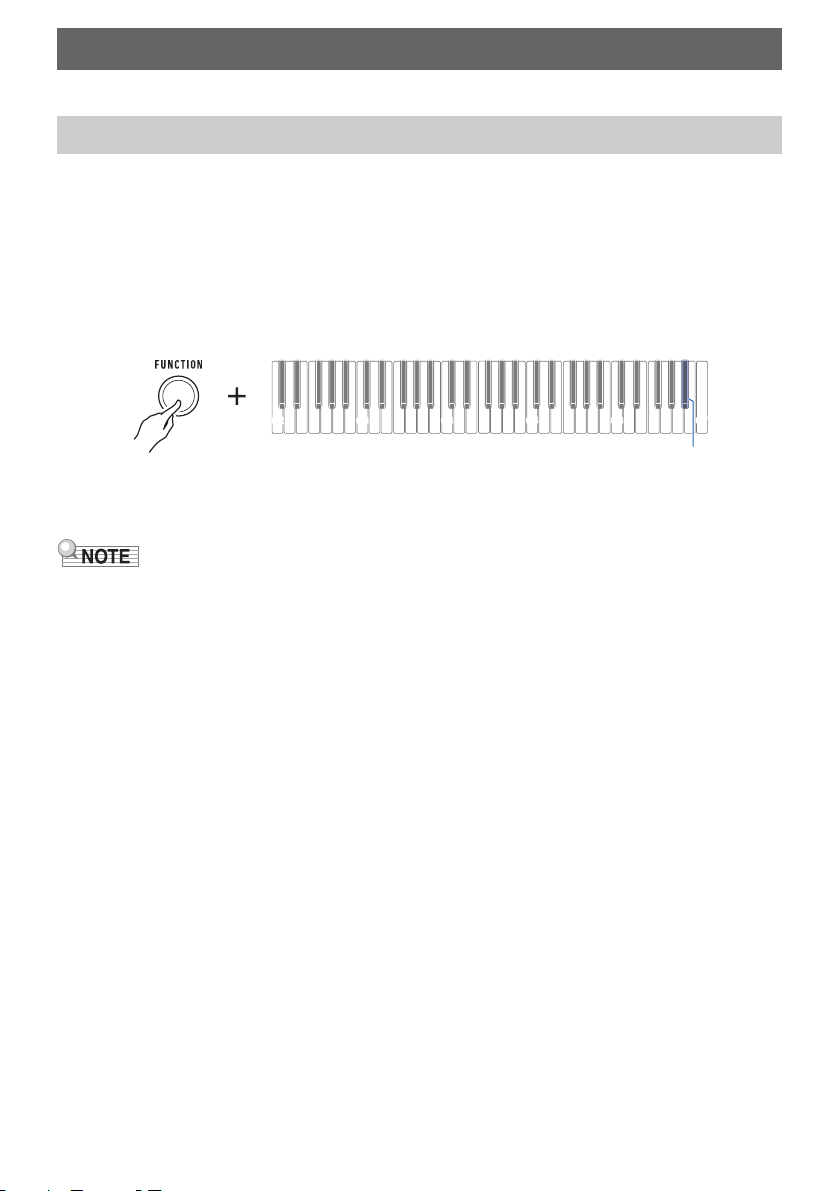
1.
While holding down FUNCTION, press the B6 keyboard key.
This enables MY SETUP power on recall.
• Each press of the keyboard key sounds a tone that lets you know what setting was selected.
High tone: Enable
Low tone: Disable
2.
Release FUNCTION to complete the setting operation.
Recalling From MY SETUP
Enabling MY SETUP Power On Recall
C2 C3 C4 C5 C6 C7
C7
C7
C7
C7
C7
C2 C3 C4 C5 C6 C7
B6
EN-48
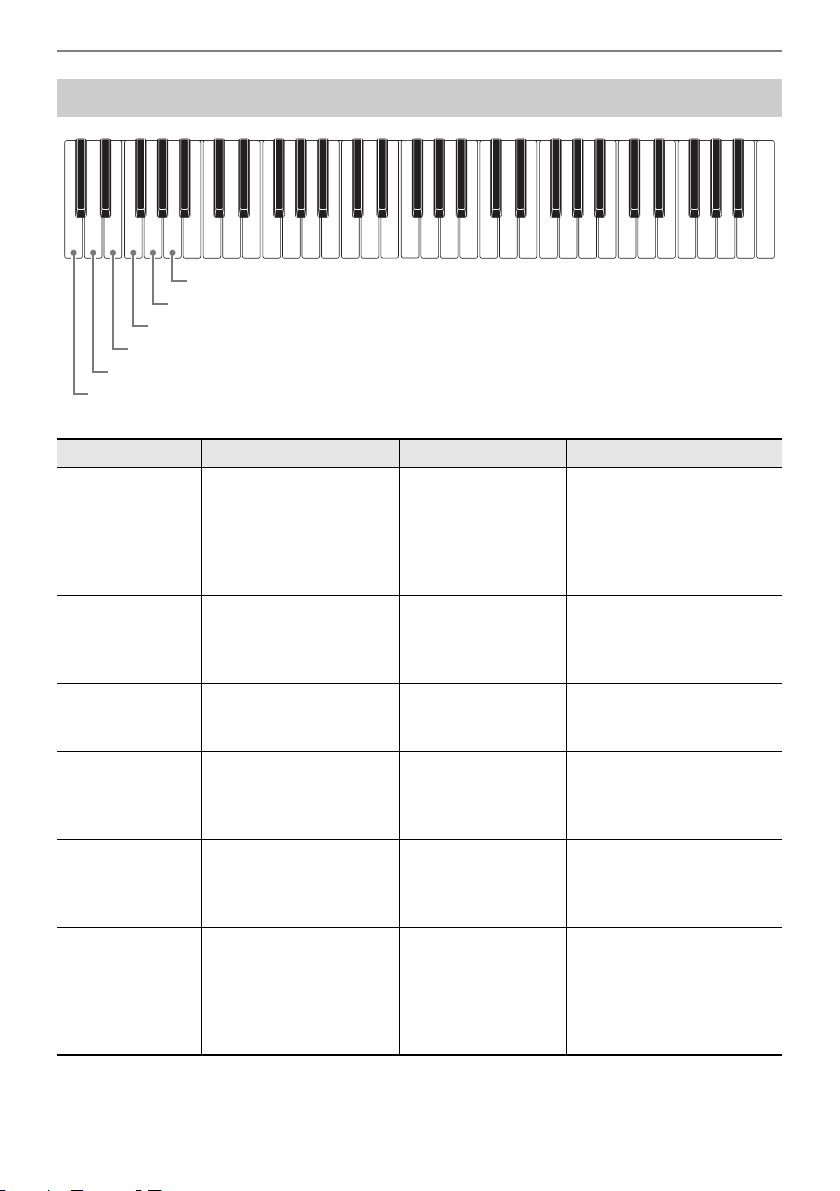
You can use FUNCTION in combination with keyboard keys to configure various settings.
1.
Use “Keyboard Keys Used for Configuring Settings” on page EN-49 to find the
setting item you want and the location on the keyboard for changing its setting.
2.
While holding down FUNCTION, use the keyboard key or keys you looked up in
step 1 of this procedure to configure the setting you want.
• This sounds a notification tone in accordance with the operation you perform.
Example: To enable or disable the notification tone, press the B}6 keyboard key. See
“
el
Notification tone
” on page EN-58.
3.
Release FUNCTION to complete the setting operation.
• After performing steps 1 and 2 above, you can configure the settings below by pressing
br
Keyboard keys 0 through 9
, or by using the
bs
– and + keyboard keys
.
9
Tuning
bn
Part octave shift (main)
bo
Part octave shift (layer)
bp
Part volume (main)
bq
Part volume (layer)
ck
Touch off velocity
cm
Sustain time (main part)
cn
Sustain time (layer part)
dm
MIDI OUT Channel (main part)
dn
MIDI OUT Channel (layer part)
do
Program Change Send
ds
Recorded song volume
Configuring Settings
Setting Operation
C2 C3 C4 C5 C6
C7
B}6
Configuring Settings
EN-49
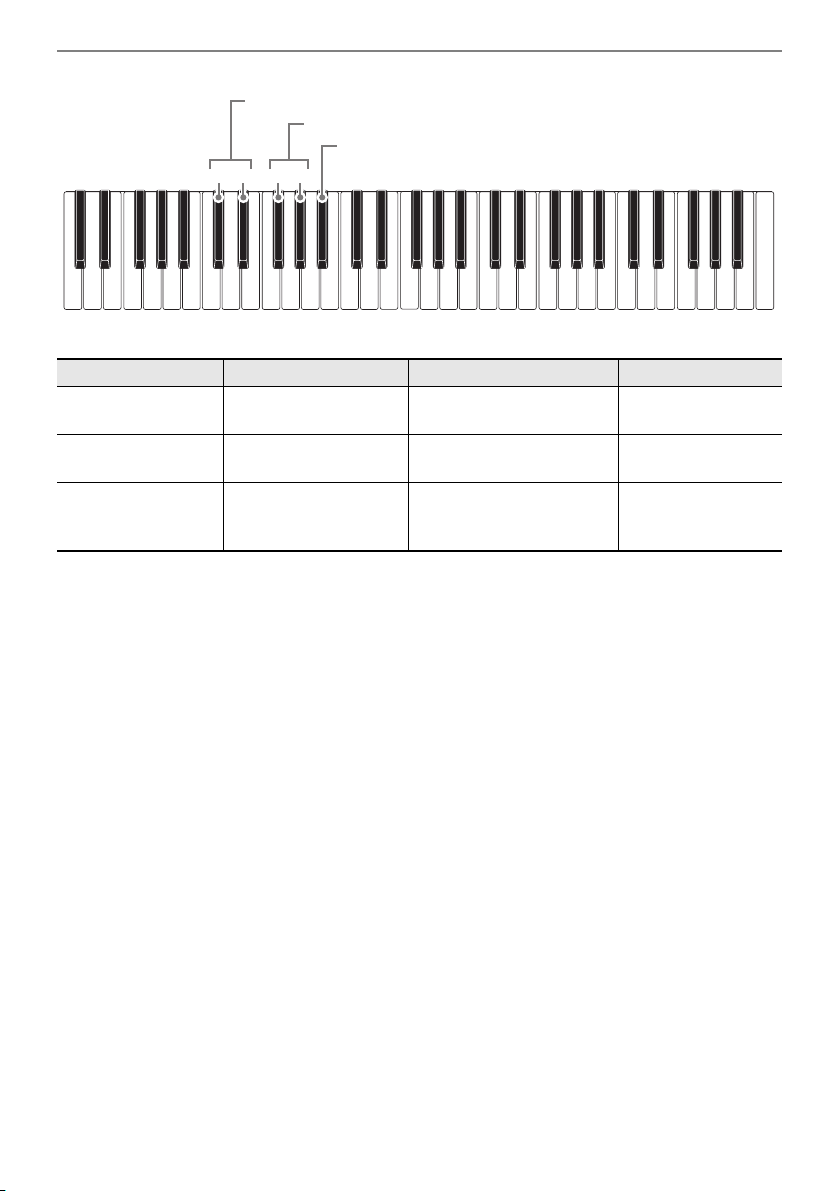
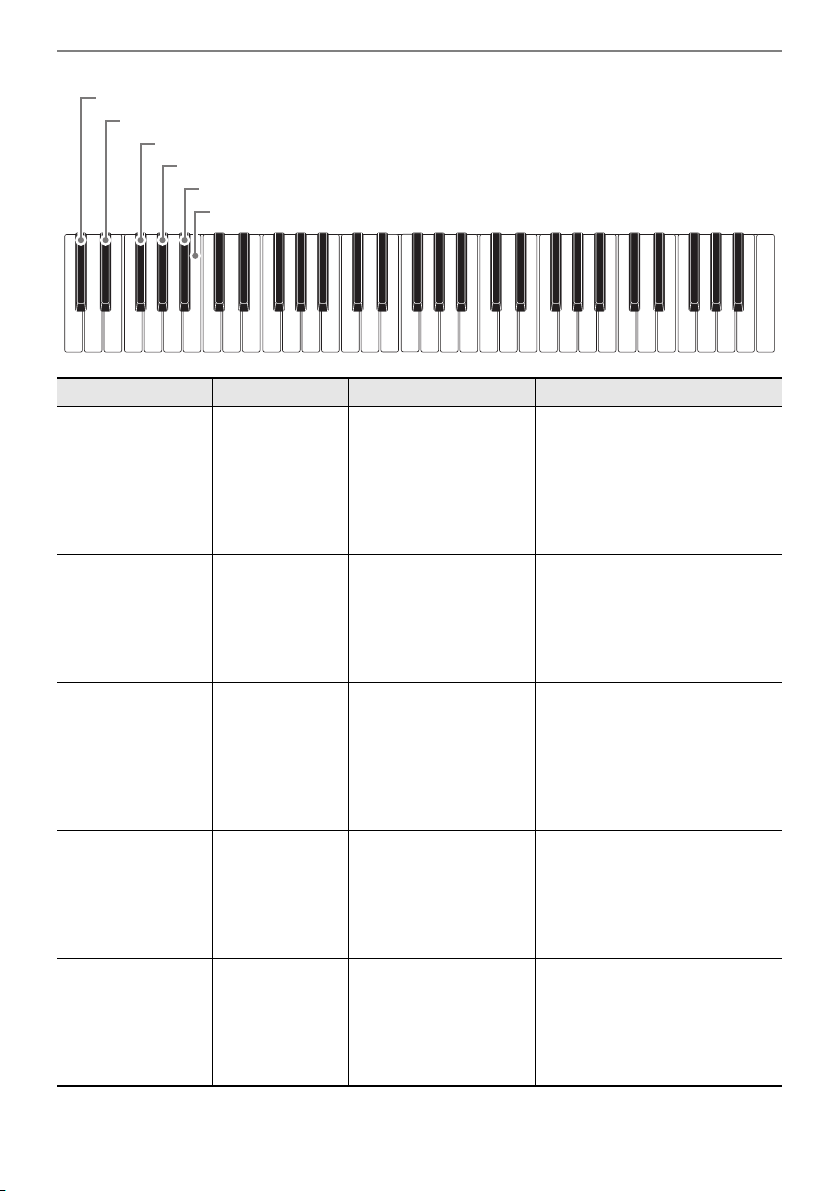
Keyboard Keys Used for Configuring Settings
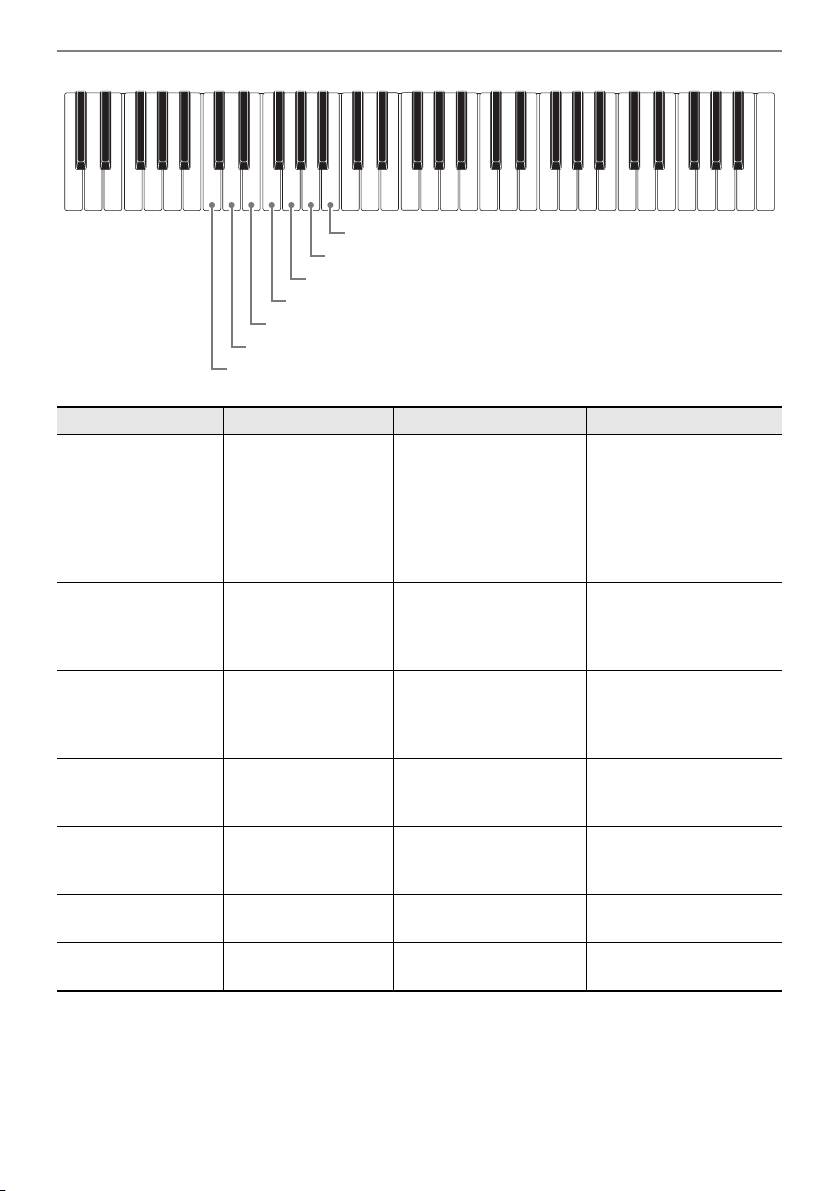
Item Setting Options Description Remarks
1
Reverb Off, On
(Initial Default: On)
Turns off reverb. • Each press of the
keyboard key sounds a
tone that lets you know
what setting was selected.
High tone: On
Low tone: Off
2
Reverb type Reverb Type Setting
Value List (page
EN-30)
(Initial Default: Depends
on the tone.)
Specifies the type of
reverb to be applied.
3
Equalizer Equalizer Setting Value
List (page
EN-41)
(Initial Default: Standard)
Adjusts frequency
components of audio.
4
Scale tuning
type
Scale Tuning Setting
Value List (page
EN-38)
(Initial Default: Equal
temperament)
Sets the keyboard
scale tuning.
5
Scale tuning
base note
Scale Tuning Base Note
Setting Value List (page
EN-39)
(Initial Default: C)
Changes the scale
tuning base note.
6
Piano Stretch
Tuning
Off, On
(Initial Default: On)
Enables or disables
piano stretch tuning.
• Each press of the
keyboard key sounds a
tone that lets you know
what setting was selected.
High tone: On
Low tone: Off
C2 C3 C4 C5 C6 C7
1
Reverb
2
Reverb type
3
Equalizer
5
Scale tuning base note
6
Piano Stretch Tuning
4
Scale tuning type
Configuring Settings
EN-50
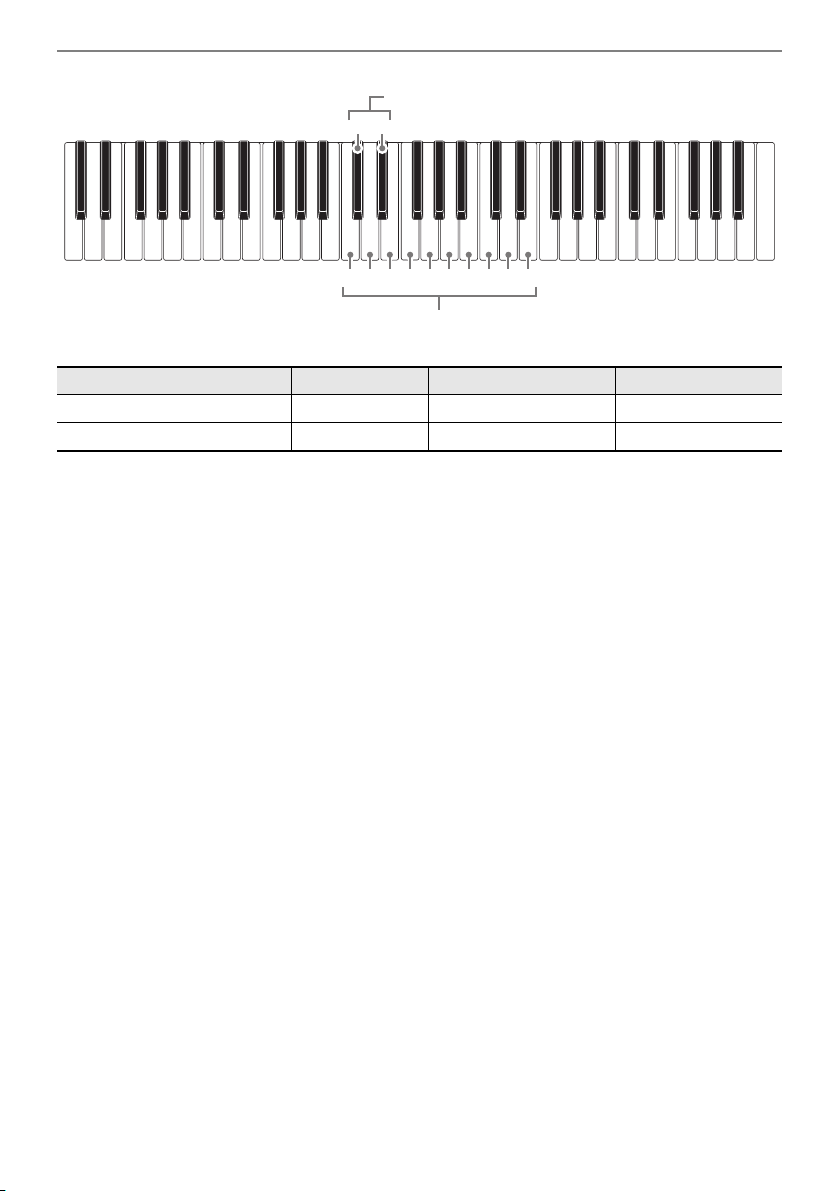
Item Setting Options Description Remarks
7
Octave shift –3 to 0 to +3
(Initial Default: 0)
Raise or lower pitch in
octave units.
8
Transpose –12 to 0 to +12
(Initial Default: 0)
Raises or lowers the overall
pitch in semitone steps.
9
Tuning 415.5 Hz to 440.0 Hz to
465.9 Hz
(Initial Default: 440.0)
Fine tunes the overall pitch by
changing the frequency of A4
in 0.1 Hz units.
C2 C3 C4 C5 C6 C7
−+−+
7
Octave shift
8
Transpose
9
Tuning
Configuring Settings
EN-51
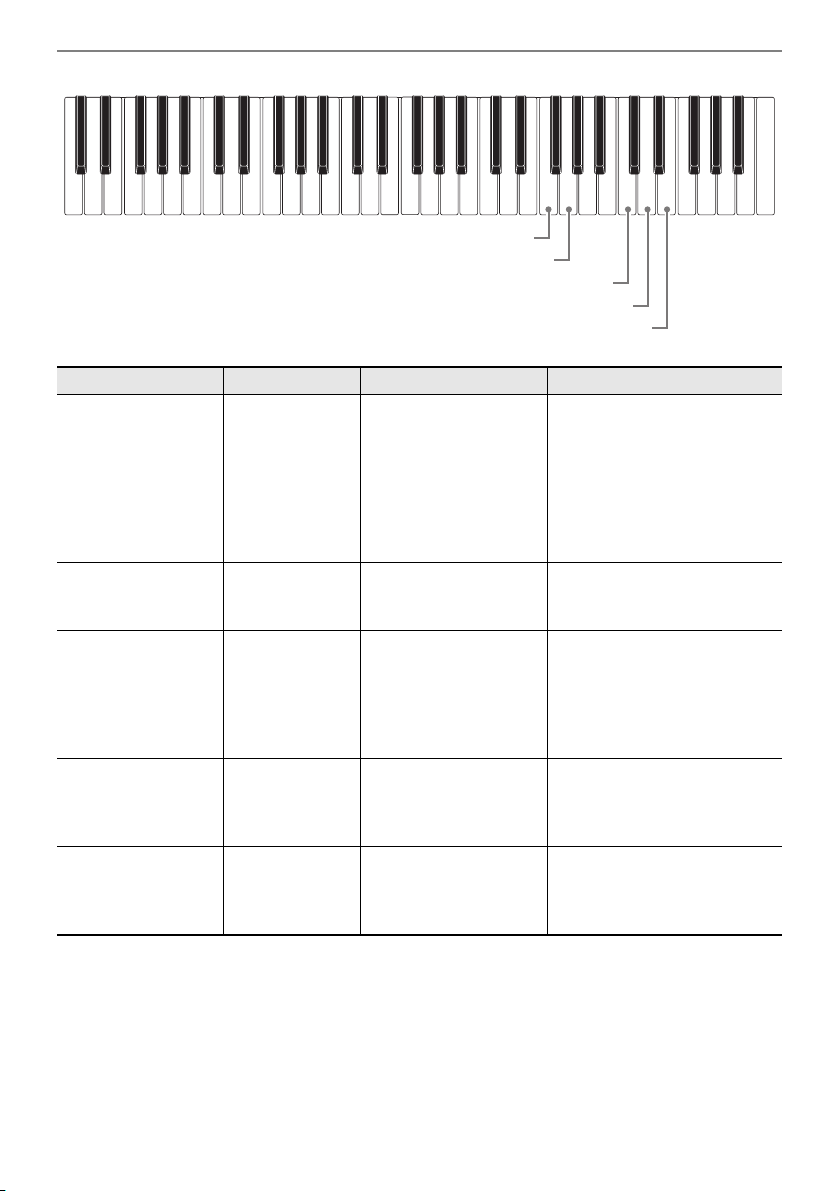
Item Setting Options Description Remarks
bk
Layer Off, On
(Initial Default: Off)
Layers or unlayers tones. • Each press of the
keyboard key sounds a
tone that lets you know
what setting was
selected.
High tone: On
Low tone: Off
bl
Main tone Tone List (page
EN-76)
(Initial Default:
1(C2)STAGE PIANO)
Can be used to change
the main tone. (See page
EN-21.)
bm
Layer tone Tone List (page
EN-76)
(Initial Default:
43(F{5)STRINGS)
Can be used to change
the layer tone. (See page
EN-32.)
bn
Part octave shift
(main)
–3 to 0 to +3
(Initial Default:
Depends on the tone.)
Raises or lowers the
pitch of the main part
tone in octave units.
bo
Part octave shift
(layer)
–3 to 0 to +3
(Initial Default:
Depends on the tone.)
Raises or lowers the
pitch of the layer part
tone in octave units.
bp
Part volume
(main)
0 to 127
(Initial Default: 127)
Raises or lowers the
main part volume.
bq
Part volume
(layer)
0 to 127
(Initial Default: 80)
Raises or lowers the
layer part volume.
C2 C3 C4 C5 C6 C7
bk
Layer
bl
Main tone
bn
Part octave shift (main)
bm
Layer tone
bo
Part octave shift (layer)
bp
Part volume (main)
bq
Part volume (layer)
Configuring Settings
EN-52
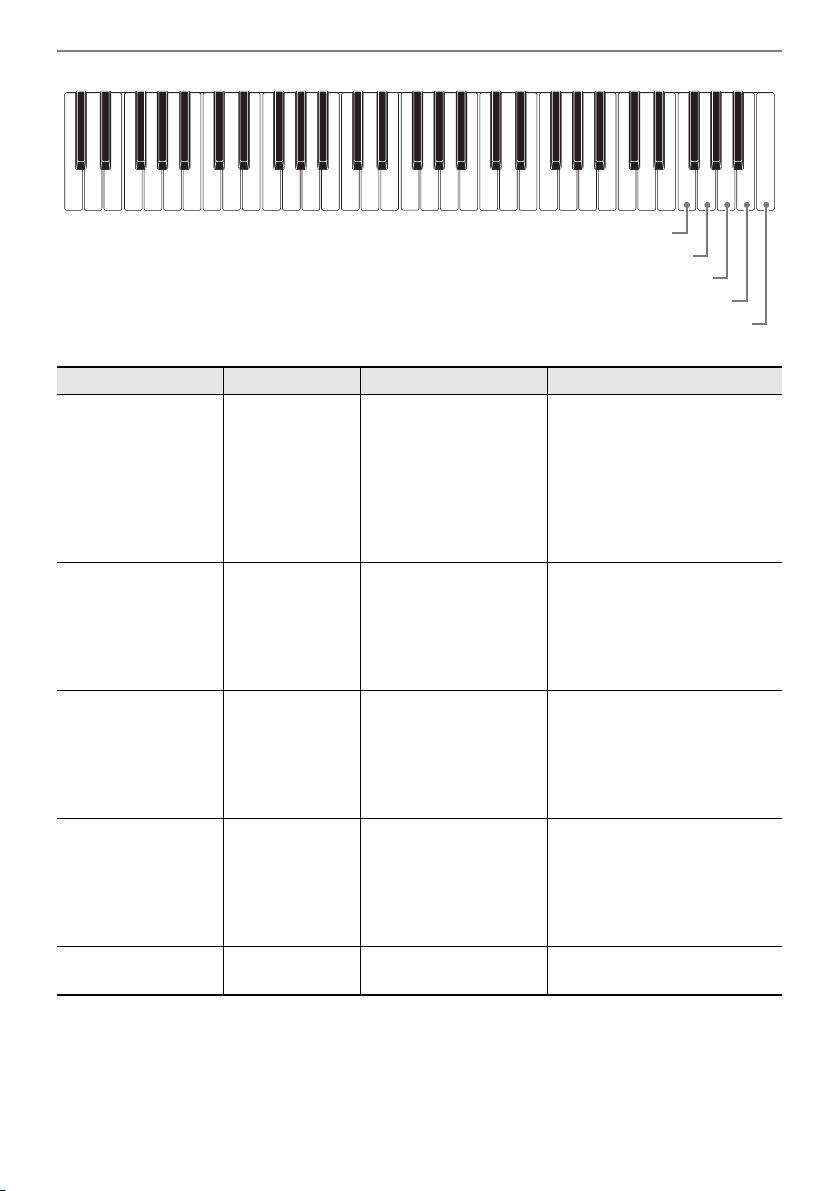
Item Setting Options Description Remarks
br
Keyboard keys 0 through 9 – Used to input values.
bs
– and + keyboard keys – Used to input values.
C2 C3 C4 C5 C6 C7
−+
0123456789
bs
– and + keyboard keys
br
Keyboard keys 0 through 9
Configuring Settings
EN-53
Item Setting Options Description Remarks
bt
Touch Response Off, Light,
Medium, Heavy
(Initial Default:
Medium)
Specifies how volume
changes in accordance
with keyboard key
pressure. (See page
EN-25.)
• Each press of the keyboard
key sounds a tone that lets
you know what setting was
selected.
One low tone: Off
One high tone: Light
Two high tones: Medium
Three high tones: Heavy
ck
Touch off velocity 1 to 127
(Initial Default:
100)
Adjusts volume when
Touch Response is
disabled.
cl
Sustain Off, On
(Initial Default:
Off)
When enabled, sustains
notes to produce rich
resonance.
• Each press of the keyboard
key sounds a tone that lets
you know what setting was
selected.
High tone: On
Low tone: Off
cm
Sustain time
(main part)
0 to 9
(Initial Default: 5)
Changes the length of
the main part tone
sustain when Sustain is
enabled.
cn
Sustain time
(layer part)
0 to 9
(Initial Default: 5)
Changes the length of
the layer part tone
sustain when Sustain is
enabled.
C2 C3 C4 C5 C6 C7
bt
Touch Response
ck
Touch off velocity
cl
Sustain
cm
Sustain time (main part)
cn
Sustain time (layer part)
Configuring Settings
EN-54
Item Setting Options Description Remarks
co
Pedal Pedal sustain,
sostenuto, soft,
metronome
(Initial Default:
Pedal sustain)
Changes the pedal
function.
• Each press of the keyboard
key sounds a tone that lets
you know what setting was
selected.
One tone: Pedal sustain
Two tones: Sostenuto
Three tones: Soft
Four tones: Metronome
cp
Pedal effect part
(main)
Off, On
(Initial Default:
On)
Changes the pedal
function effect for main
part.
• Each press of the keyboard
key sounds a tone that lets
you know what setting was
selected.
High tone: On
Low tone: Off
cq
Pedal effect part
(layer)
Off, On
(Initial Default:
On)
Changes the pedal
function effect for layer
part.
• Each press of the keyboard
key sounds a tone that lets
you know what setting was
selected.
High tone: On
Low tone: Off
cr
MY SETUP
power on recall
Off, On
(Initial Default:
Off)
When enabled,
automatically configures
MY SETUP settings
when power is turned
on.
• Each press of the keyboard
key sounds a tone that lets
you know what setting was
selected.
High tone: On
Low tone: Off
cs
MY SETUP – Saves or recalls a Digital
Keyboard setup.
Long-press: Save
Short-press: Import
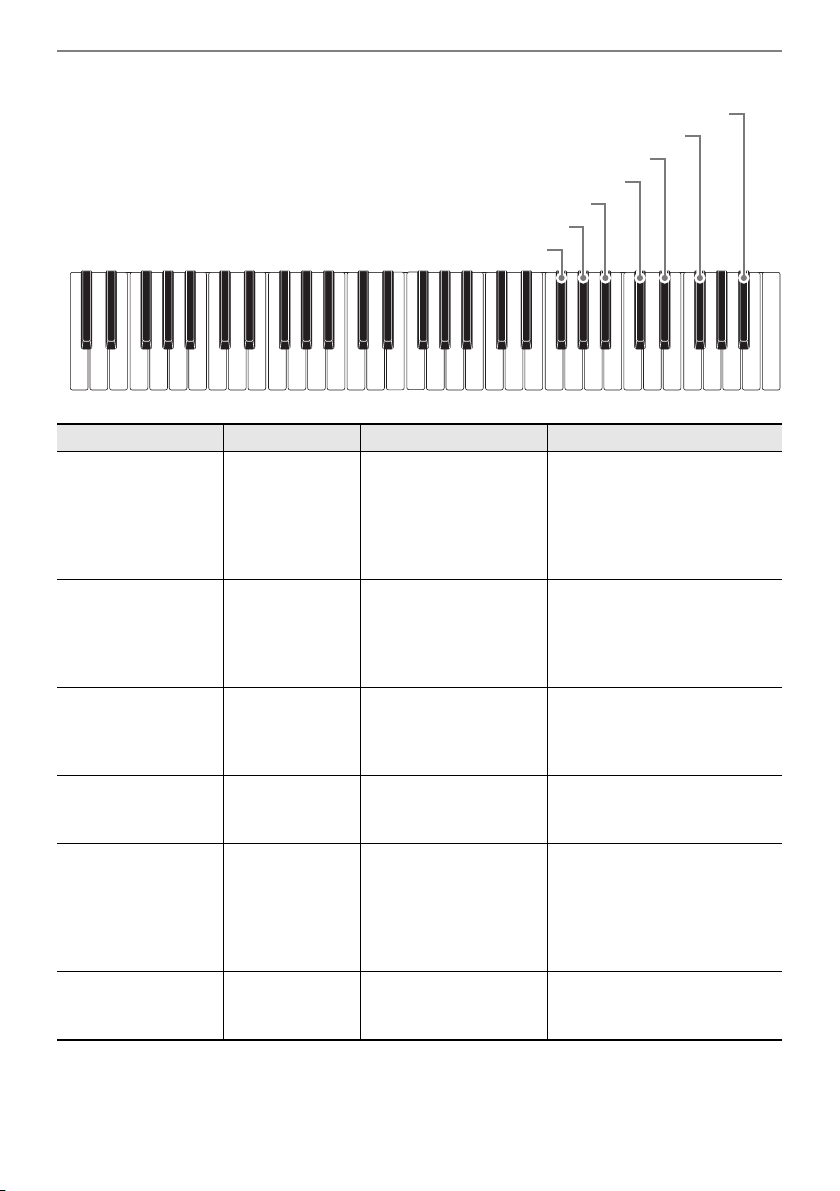
C2 C3 C4 C5 C6 C7
co
Pedal
cp
Pedal effect part (main)
cq
Pedal effect part (layer)
cr
MY SETUP power on recall
cs
MY SETUP
Configuring Settings
EN-55
Item Setting Options Description Remarks
ct
Battery type Alkaline, Nickel
metal hydride
(Initial Default:
Alkaline)
Specifies the type of
batteries being used.
(See page
EN-7.)
• Each press of the keyboard
key sounds a tone that lets
you know what setting was
selected.
One tone: Alkaline
Two tones: Nickel metal
hydride
dk
Auto Power Off Off, On
(Initial Default:
On)
Enables/disables Auto
Power Off. (See page
EN-14.)
• Each press of the keyboard
key sounds a tone that lets
you know what setting was
selected.
High tone: On
Low tone: Off
dl
Local Control Off, On
(Initial Default:
On)
Enables/disables
transmission of
performance information
generated by the Digital
Keyboard to the Digital
Keyboard’s internal
sound source.
• Each press of the keyboard
key sounds a tone that lets
you know what setting was
selected.
High tone: On
Low tone: Off
dm
MIDI OUT
Channel
(main part)
Off, 1 to 16
(Initial Default: 1)
Changes the channel of
MIDI messages that are
MIDI output by main part
play.
• To return the setting to its
initial default, press – and + at
the same time.
• A reference tone sounds
whenever the setting values
becomes off.
dn
MIDI OUT
Channel
(layer part)
Off, 1 to 16
(Initial Default: 2)
Changes the channel of
MIDI messages that are
MIDI output by layer part
play.
• To return the setting to its
initial default, press – and + at
the same time.
• A reference tone sounds
whenever the setting values
becomes off.
C2 C3 C4 C5 C6 C7
ct
Battery type
dk
Auto Power Off
dl
Local Control
dm
MIDI OUT Channel (main part)
dn
MIDI OUT Channel (layer part)
do
Program Change Send

Configuring Settings
EN-56
do
Program
Change Send
0 to 127 Sends a program
change message to the
channel specified by
MIDI OUT Channel
(main part).
Item Setting Options Description Remarks
Configuring Settings
EN-57
Item Setting Options Description Remarks
dp
Bluetooth Off, On
(Initial Default:
On)
Turns Bluetooth on or
off.
• Each press of the keyboard
key sounds a tone that lets
you know what setting was
selected.
Long-press (High tone): On
Long-press (Low tone): Off
dq
Bluetooth audio
pairing
– Pairing makes it
possible to connect with
a Bluetooth audio
capable devices. (See
page
EN-66.)
Long-press while paired:
Unpairing
Long-press: Pairing
dr
Delete Bluetooth
audio pairing
history
– Deletes pairing history
with Bluetooth audio
capable devices. (See
page
EN-68.)
Long-press: Delete
ds
Recorded song
volume
0 to 10
(Initial Default:
10)
Adjusts the recorded
song volume level.
dt
AUDIO IN center
cancel
Off, On
(Initial Default:
Off)
Cancels the center part
of audio input using the
AUDIO IN jack or
Bluetooth audio.
• Each press of the keyboard
key sounds a tone that lets
you know what setting was
selected.
High tone: On
Low tone: Off
ek
Initialize – Returns all settings to
their factory defaults.
Long-press: Prepare to execute
Short-press (after long-press):
Execute
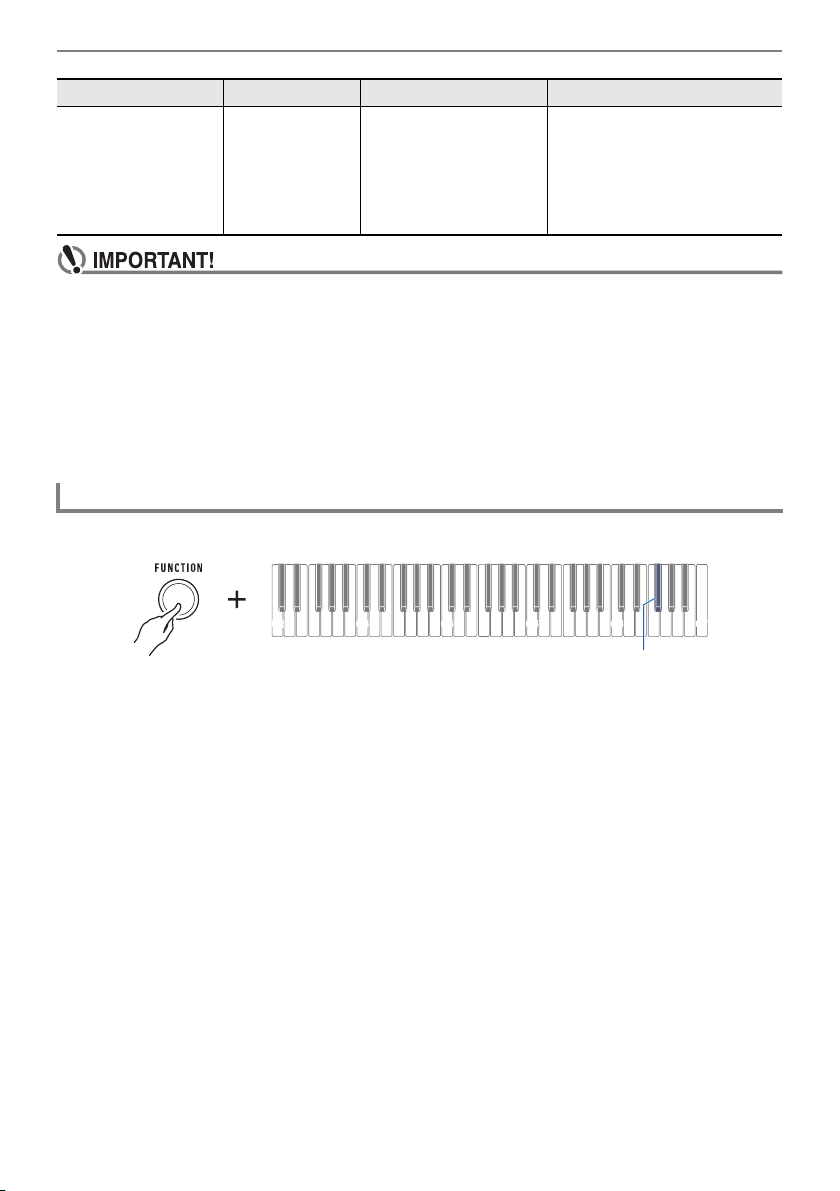
C2 C3 C4 C5 C6 C7
el
Notification tone
ek
Initialize
dt
AUDIO IN center cancel
ds
Recorded song volume
dr
Delete Bluetooth audio pairing history
dq
Bluetooth audio pairing
dp
Bluetooth
Configuring Settings
EN-58
• Turning power off and back on again returns tone and other settings to their initial defaults
(page
EN-13).
• The settings below are retained even when power is turned off.
– MIDI OUT Channel (main part, layer part)
– Bluetooth
– MY SETUP power on recall
– Auto Power Off
– Battery type
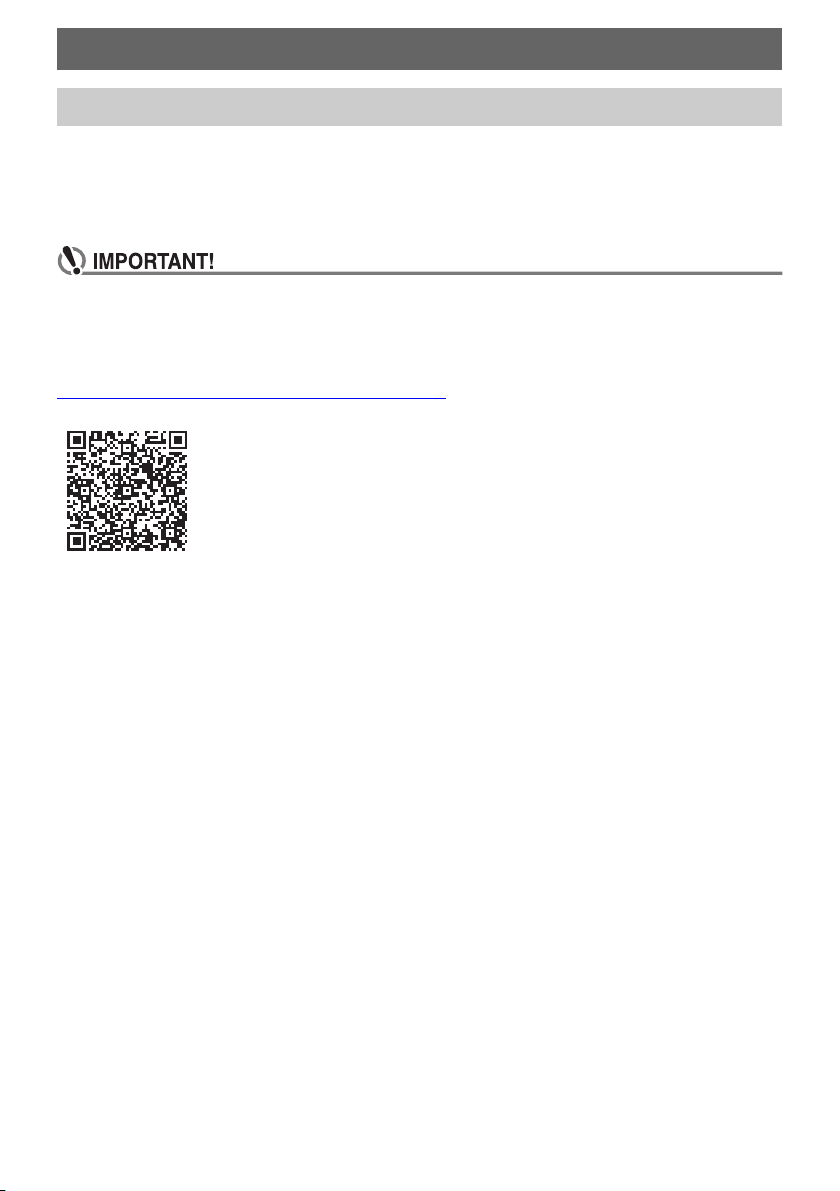
1.
While holding down FUNCTION, long press the F{6 keyboard key.
This sounds a notification tone and prepares for initialization.
• While continuing to hold down FUNCTION, release the F{6 keyboard key.
2.
With FUNCTION still held down, press the F{6 keyboard key again.
This sounds a notification tone and executes initialization. Then the Digital Keyboard will restart.
3.
Release FUNCTION to complete the setting operation.
el
Notification tone Off, On
(Initial Default:
On)
When this setting is
disabled, a tone does
not sound when a
keyboard key is pressed
while holding down
FUNCTION.
Returning Settings to Their Initial Factory Defaults
Item Setting Options Description Remarks
C2 C3 C4 C5 C6
C7
F{6
EN-59
You can use the APP function to connect the Digital Keyboard with a phone, tablet or other smart
device and perform the operations described below.
• Use the lesson functions of an app on the smart device, playing notes on the Digital Keyboard.
• Use the Digital Keyboard sound source to sound music data played using an app on the smart
device.
• Configure the settings of your smart device (Airplane Mode, etc.) to enable data
communication.
■ Downloading the Smart Device App
Download the Chordana Play from the CASIO website and install it on the smart device.
https://support.casio.com/global/en/emi/manual/CT-S1/
Connecting with External Devices
Linking with a Smart Device (APP Function)
Connecting with External Devices
EN-60
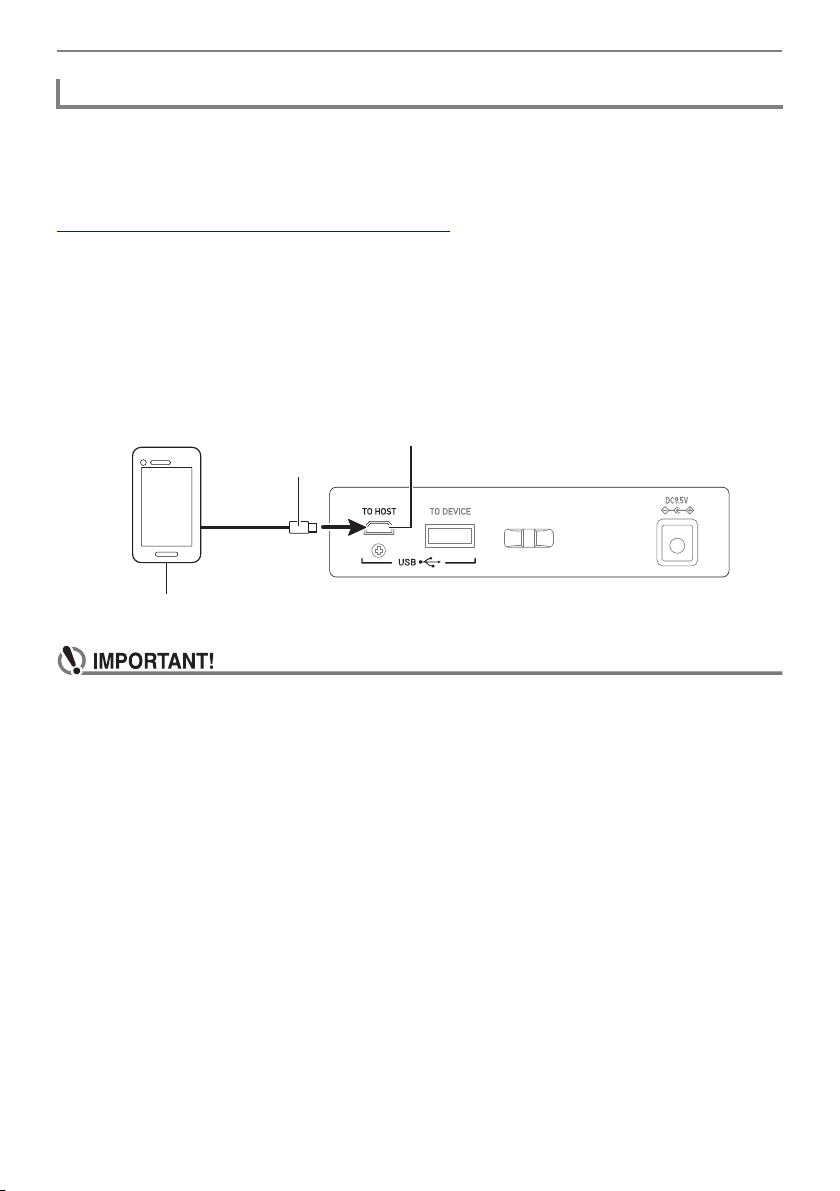
There are two ways to connect with a smart device: using a commercially available USB cable and
connection via Bluetooth.
■ Using a Cable to Connect the Digital Keyboard with a Smart Device
For information about the requirements for a cable used for connection, visit the website below.
https://web.casio.com/app/en/play/support/connect.html
1.
Referring to “Downloading the Smart Device App” (page EN-59), install the app
on the smart device.
2.
Use a commercially available USB cable to connect the smart device port to the
USB TO HOST port.
• After connecting the smart device to the Digital Keyboard, use the smart device app to perform
operations. For details about operations, refer to the user documentation of the app.
• Connect using a USB cable that is no more than two meters long.
• Do not connect a USB cable and audio cable to a smart device at the same time.
• If you are connecting with a USB cable, do not use the USB TO DEVICE port if you plan to
use a CASIO smart device app.
Connecting with a Smart Device
USB TO HOST port (micro-B)
micro-B connector
Smart Device
Connecting with External Devices
EN-61
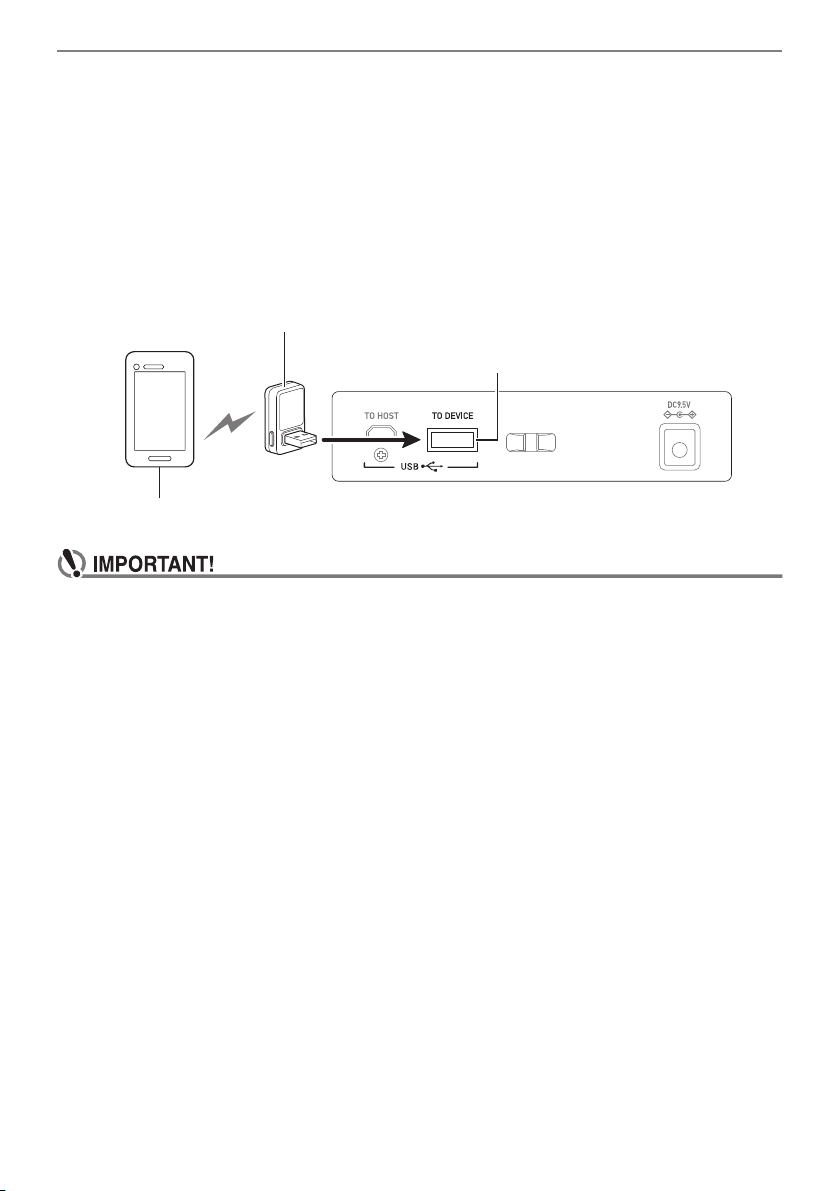
■ Using Bluetooth to Link the Digital Keyboard with a Smart Device
You can use the Wireless MIDI & audio adaptor (Option: WU-BT10) for Bluetooth linking.
1.
Referring to “Downloading the Smart Device App” (page EN-59), install the app
on the smart device.
2.
Plug the Wireless MIDI & audio adaptor into the Digital Keyboard’s USB TO
DEVICE port (page EN-11).
• After connecting the smart device to the Digital Keyboard, use the smart device app to perform
operations. For details about operations, refer to the user documentation of the app.
• Do not perform any Digital Keyboard operation while it is in the process of connecting with
the smart device app.
• With a Bluetooth connection, your communication environment or the capabilities of your
smart device can cause noticeable communication delay or sound distortion when using the
app’s lesson function. If this happens, try the countermeasures below.
– Refer to the app’s user documentation and review how to use the lesson function and the
information about MIDI playback quality.
– Use a cable connection instead of Bluetooth.
• If you are connecting with Bluetooth, do not use the USB TO HOST port if you plan to use a
CASIO smart device app.
Wireless MIDI & audio adaptor
USB TO DEVICE port
Smart Device
Connecting with External Devices
EN-62
You can connect the Digital Keyboard to a computer and exchange MIDI data between them. You can
record your performance using computer music software, and use the Digital Keyboard to play data
sent from a computer.
■ Minimum Computer System Requirements
The following shows the minimum computer system requirements for sending and receiving MIDI data.
Be sure to check your computer system setup before trying to install the driver.
● Supported Operating Systems
Windows 8.1*
1
Windows 10*
2
macOS (OS X/Mac OS X) 10.7, 10.8, 10.9, 10.10, 10.11, 10.12, 10.13, 10.14, 10.15, 11.0
*1 Windows 8.1 (32-bit versions, 64-bit versions)
*2 Windows 10 (32-bit versions, 64-bit versions)
● USB port
• Connecting with a computer running an operating system that is not one of those above can
cause malfunction of the computer. Never connect the Digital Keyboard to a computer
running a non-supported operating system.
• For the latest news about supported operating systems, visit the website at the URL below.
https://support.casio.com/global/en/emi/manual/CT-S1/
Connecting to a Computer and Using MIDI
Connecting with External Devices
EN-63
■ Connecting to a Computer
• Incorrect connections can make data exchange impossible. Be sure to follow the steps of the
procedure below.
1.
Turn off the Digital Keyboard and then start up your computer.
• Do not start up the music software on your computer yet!
2.
Use a commercially available USB cable to connect your computer to the Digital
Keyboard’s USB TO HOST port.
• Use a USB 2.0 or 1.1 A-micro-B connector type USB cable that supports data communication.
3.
Turn on the Digital Keyboard.
• If this is the first time you are connecting, the driver required to transfer data will automatically
be installed on your computer.
4.
Start up commercially available music software on your computer.
5.
Use the settings of your computer’s commercially available music software to
select “CASIO USB- MIDI” as the MIDI device.
• For information about how to select the MIDI device, refer to the user documentation that comes
with the music software you are using.
• Be sure to turn on the Digital Keyboard before starting up your computer’s music software.
• Once you are able to connect successfully, you can leave the USB cable connected when you turn
off your computer and/or this Digital Keyboard.
• For detailed specifications and connections that apply to MIDI data communication by this Digital
Keyboard, see the latest support information provided on the website at the URL below.
https://support.casio.com/global/en/emi/manual/CT-S1/
■ Configuring MIDI Settings
For about the MIDI settings below, see the “
Keyboard Keys Used for Configuring Settings” (page
EN-49).
• MIDI OUT Channel (main part, layer part)
• Local Control
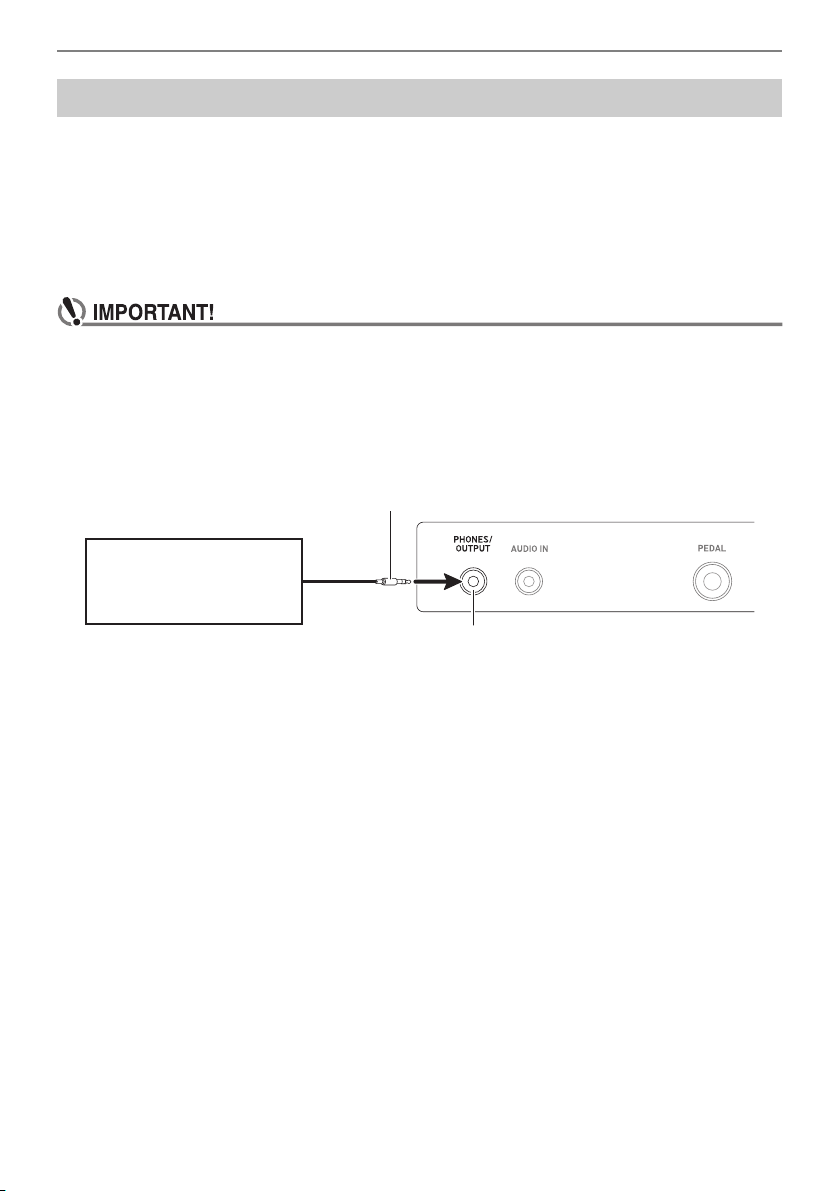
Connecting with External Devices
EN-64
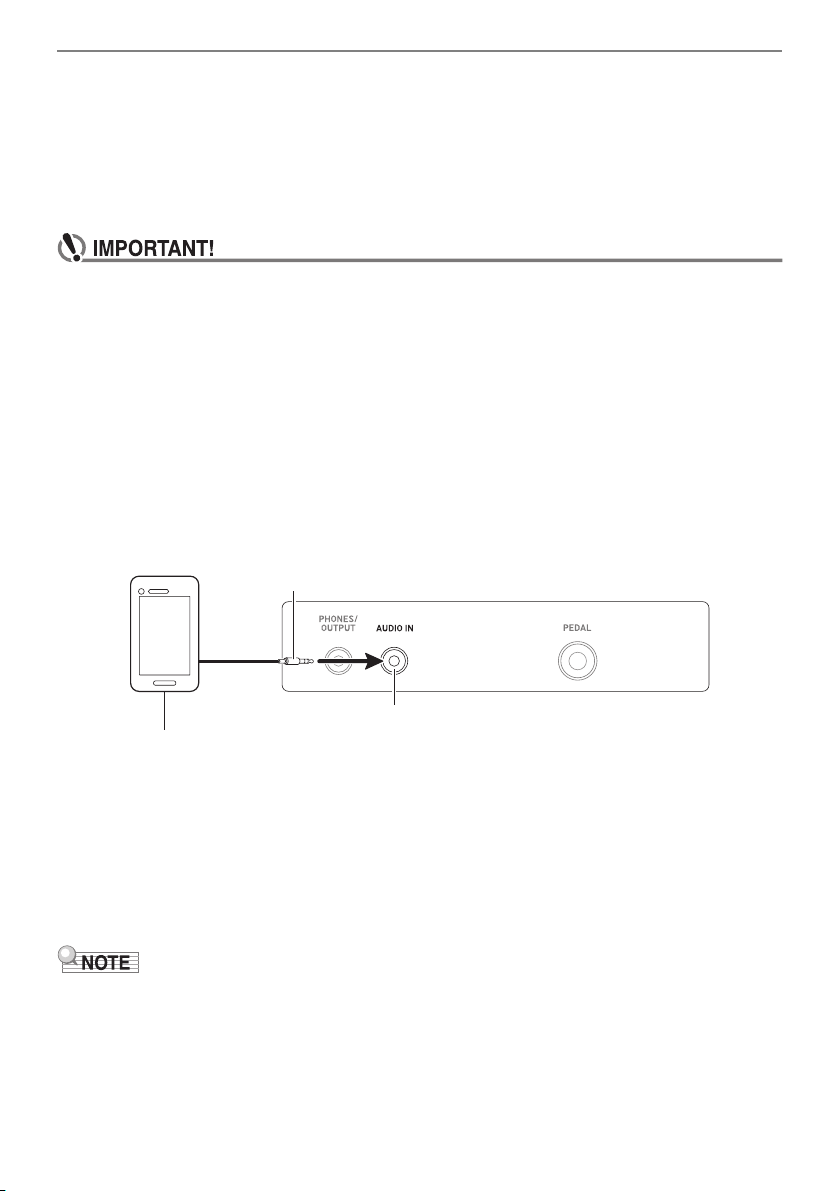
You can connect this Digital Keyboard to a commercially available playback device or amplifier, or to a
recording device. You can also use this Digital Keyboard to sound output from a portable audio player
or another device, and use that as backing for your keyboard play.
■ Sounding Output from the Digital Keyboard on an External Device
Connection requires commercially available connecting cords, supplied by you.
Use a connecting cord that has a stereo mini plug on one end for connection to this Digital Keyboard,
and a plug that matches the configuration of the input jack of external device on the other end.
• Turn off the external device and the Digital Keyboard before connecting them. Before turning
power on or off, turn down the volume level of this Digital Keyboard and external devices.
• After connecting, turn on this Digital Keyboard first and then the external device.
• If this Digital Keyboard’s notes are distorted when they are sounded on an external audio
device, lower the Digital Keyboard’s volume level.
• The headphones you use must have a 3.5mm 3-pole stereo mini plug. Use of other types of
plugs is not supported.
Using a Cable to Connect with an Audio Device
Stereo mini plug
PHONES/OUTPUT jack (3.5mm stereo mini jack)
Audio equipment, amplifier,
etc.
Connecting with External Devices
EN-65
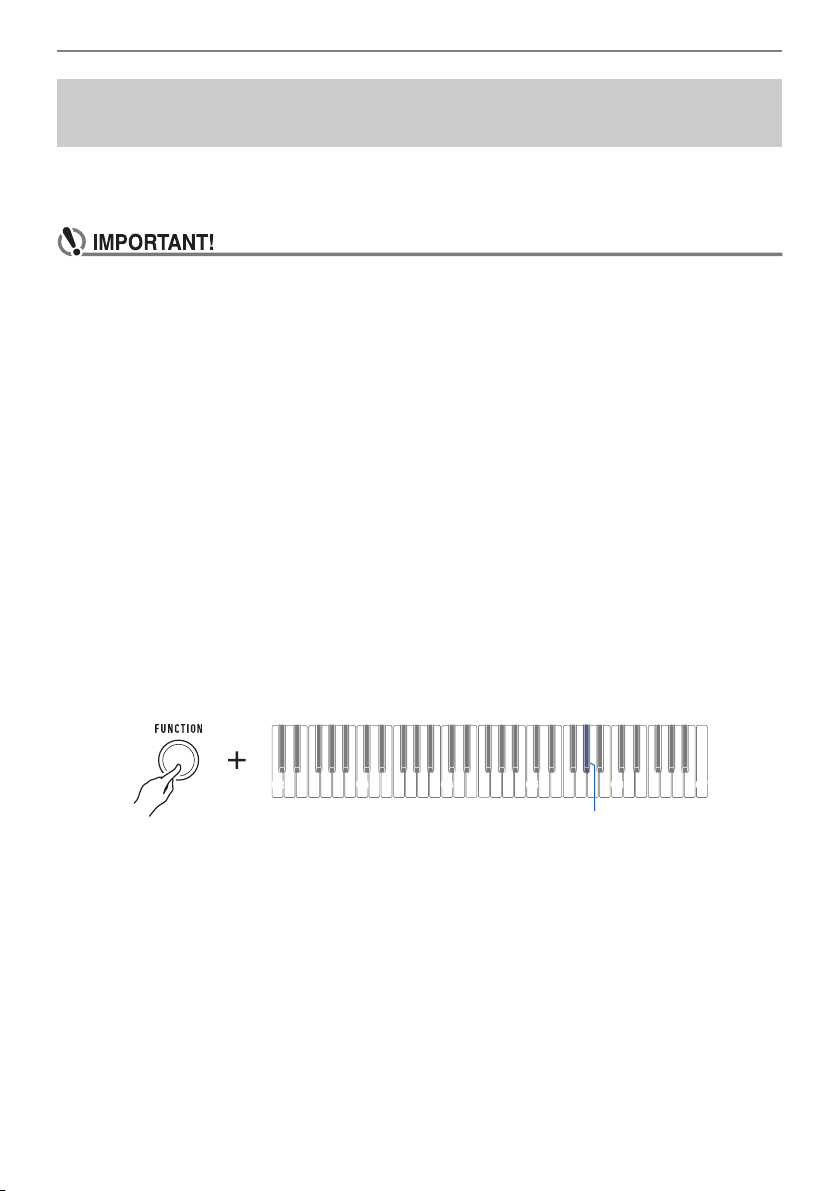
■ Sounding Input From an External Device on This Digital Keyboard
Connection requires commercially available connecting cords, supplied by you.
The connecting cord should have a stereo mini plug on one end for connection to this Digital Keyboard
and a plug that matches the configuration of the output jack of external device on the other end.
When sounding input from an external device with this Digital Keyboard, use the external device
controls to adjust the volume level. In this case, you cannot adjust the volume level on this Digital
Keyboard.
• Turn off this Digital Keyboard before connecting. Before turning power on or off, turn down
the volume level of the Digital Keyboard and external devices.
• After connecting, turn on the external device and then this Digital Keyboard.
• If external device notes sounded by this Digital Keyboard are distorted, lower the external
device’s volume level.
• If the volume level of the external device notes sounds by this Digital Keyboard lower than the
volume level of the notes you are playing on the keyboard, adjust the volume level of each
Digital Keyboard part to balance them. See “
Adjusting the Volume Level of Each Part” on
page
EN-33.
• Setting the volume level of the external device too high can cause Digital Keyboard power to
turn off in order to protect it against damage. If this happens, lower the volume level of the
external device.
• The end of the connecting cord you connect to the Digital Keyboard must have a 3.5mm
3-pole stereo mini plug. Use of other types of plugs is not supported.
■ AUDIO IN center cancel (Vocal Cut)
Enabling Vocal Cut cuts (mutes or minimizes) the vocal part in the sound being input with the AUDIO
IN jack or Bluetooth audio. Note that this function cancels the sound in the center position of the audio,
which may (depending on how the original audio was mixed) end up canceling something else other
than the vocal part. How vocal cut is performed depends on the sound being input.
For information about how to configure settings, see the “
Keyboard Keys Used for Configuring Settings”
(pages
EN-49 through 58).
• Built-in effects (reverb) of the Digital Keyboard are not applied to AUDIO IN jack input.
Stereo mini plug
Portable audio player, etc.
AUDIO IN jack (3.5mm stereo mini jack)
Connecting with External Devices
EN-66
You can use a Wireless MIDI & audio adaptor (optional WU-BT10) to pair this Digital Keyboard with an
external Bluetooth audio capable audio device and then playback from the external device through this
Digital Keyboard’s speakers.
• Before performing the pairing operation, turn down the volume levels of this Digital Keyboard
and the external device.
• If external device notes sounded by this Digital Keyboard are distorted, lower the external
device’s volume level.
• If the volume level of the external device notes sounds by this Digital Keyboard lower than the
volume level of the notes you are playing on the keyboard, adjust the volume level of each
Digital Keyboard part to balance them. See “
Adjusting the Volume Level of Each Part” on
page
EN-33.
• Setting the volume level of the external device too high can cause Digital Keyboard power to
turn off in order to protect it against damage. If this happens, lower the volume level of the
external device.
• Due to Bluetooth characteristics, you may notice some lag in notes. If that happens, connect
using a USB cable.
1.
Long-press the P (Power) button to turn off the Digital Keyboard.
2.
Plug the Wireless MIDI & audio adaptor into the USB TO DEVICE port (page
EN-11).
3.
Press the P (Power) button to turn on the Digital Keyboard.
4.
While holding down FUNCTION, long press the A}5 keyboard key.
This causes a tone to sound every few seconds, indicating the Bluetooth audio pairing mode.
• To exit the Bluetooth audio pairing mode, press the A}5 keyboard key again.
This will stop the tone and exit the Bluetooth audio pairing mode.
5.
Release FUNCTION.
6.
Use the setting screen of the Bluetooth capable audio device to select “WU-BT10
AUDIO” to pair with this Digital Keyboard.
This causes a tone to sound and connects with the Bluetooth audio capable device.
Sounding a Bluetooth Audio Capable Device (Bluetooth
Audio Pairing)
C2 C3 C4 C5 C6
C7
A}5

Connecting with External Devices
EN-67
7.
Produce sound on the Bluetooth audio capable device.
Output from the audio Bluetooth capable device will sound from the Digital Keyboard’s speakers.
• Turn on Bluetooth on both this Digital Keyboard and on the Bluetooth audio capable device.
• For information about how to change this Digital Keyboard’s Bluetooth settings, see “
Turning Off
Bluetooth
” (page EN-70).
• Information about the last Bluetooth audio capable devices connected to this Digital Keyboard is
registered by the Wireless MIDI & audio adaptor. Because of this, it can automatically perform
Bluetooth audio pairing with the same device, so you will not need to perform the Bluetooth audio
pairing operation again.
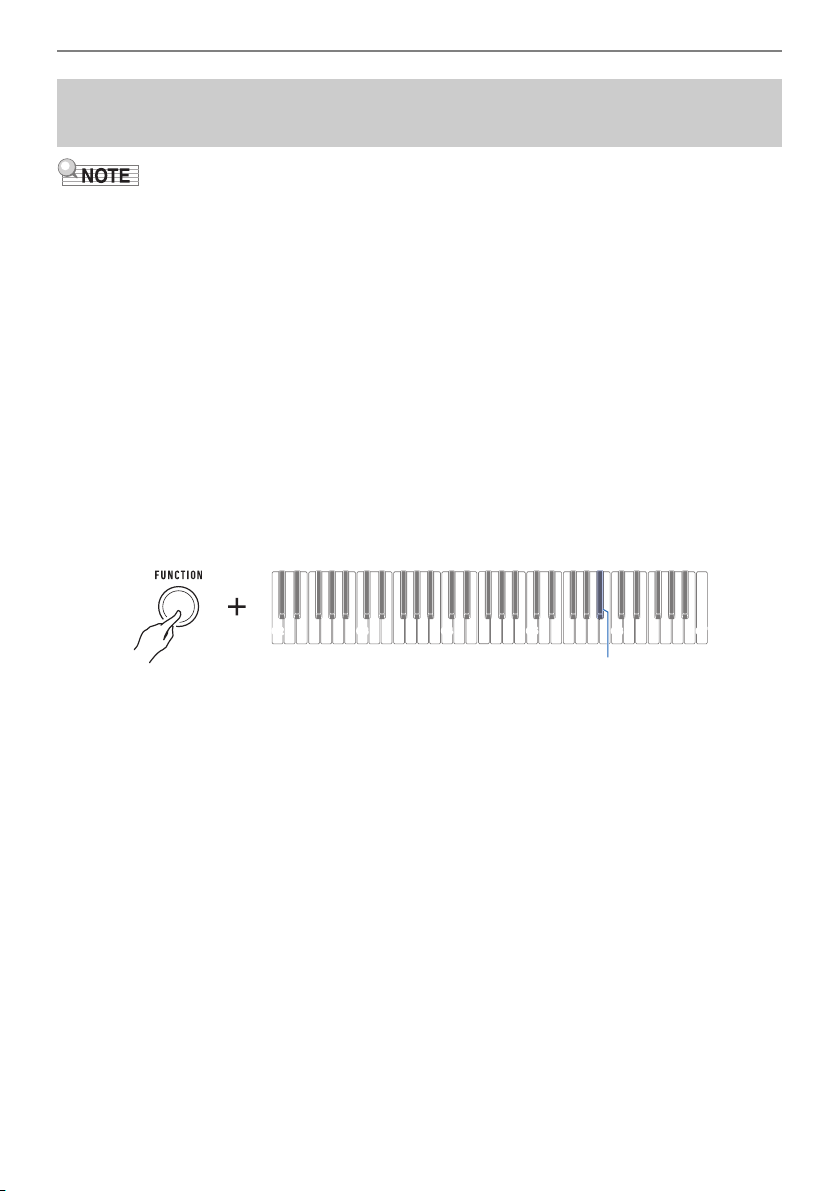
Connecting with External Devices
EN-68
• Performing the procedure below will delete the pairing registration between this Digital Keyboard and
its currently paired Bluetooth audio capable device. If you are experiencing connectivity problems
with a Bluetooth audio capable device, perform the procedure below and then perform the procedure
under “
Sounding a Bluetooth Audio Capable Device (Bluetooth Audio Pairing)” (page EN-66).
• After performing the procedure below, you should also clear this Digital Keyboard’s pairing
registration on the Bluetooth audio capable device. For information about how to do this, refer to the
user documentation of each Bluetooth audio device.
1.
Long-press the P (Power) button to turn off the Digital Keyboard.
2.
Plug the Wireless MIDI & audio adaptor into the USB TO DEVICE port (page
EN-11).
• You will not be able to delete a Bluetooth audio paring registration unless a Wireless MIDI &
audio adaptor is connected to the Digital Keyboard.
3.
Press the P (Power) button to turn on the Digital Keyboard.
4.
While holding down FUNCTION, long press the B}5 keyboard key.
This sounds a notification tone and deletes the Bluetooth audio capable pairing registration.
5.
Release FUNCTION to complete the setting operation.
Deleting Bluetooth Audio Capable Device Pairing
Registration
C2 C3 C4 C5 C6
C7
B}5
Connecting with External Devices
EN-69
You can use a Wireless MIDI & audio adaptor (optional WU-BT10) to pair this Digital Keyboard with a
Bluetooth MIDI capable audio device.
1.
Long-press the P (Power) button to turn off the Digital Keyboard.
2.
Plug the Wireless MIDI & audio adaptor into the USB TO DEVICE port (page
EN-11).
3.
Press the P (Power) button to turn on the Digital Keyboard.
4.
Use the setting screen of app you installed on your Bluetooth capable MIDI
device to select “WU-BT10 MIDI” and connect with the Digital Keyboard.
• Do not perform any Digital Keyboard operation while it is in the process of connecting with a
Bluetooth MIDI capable device.
• Turn on Bluetooth on both this Digital Keyboard and on the Bluetooth MIDI capable device.
• For information about how to change this Digital Keyboard’s Bluetooth settings, see “
Turning Off
Bluetooth
” (page EN-70).
• You need to perform the above operation each time you connect with a Bluetooth capable MIDI
device.
Connecting with a Bluetooth MIDI Capable Device
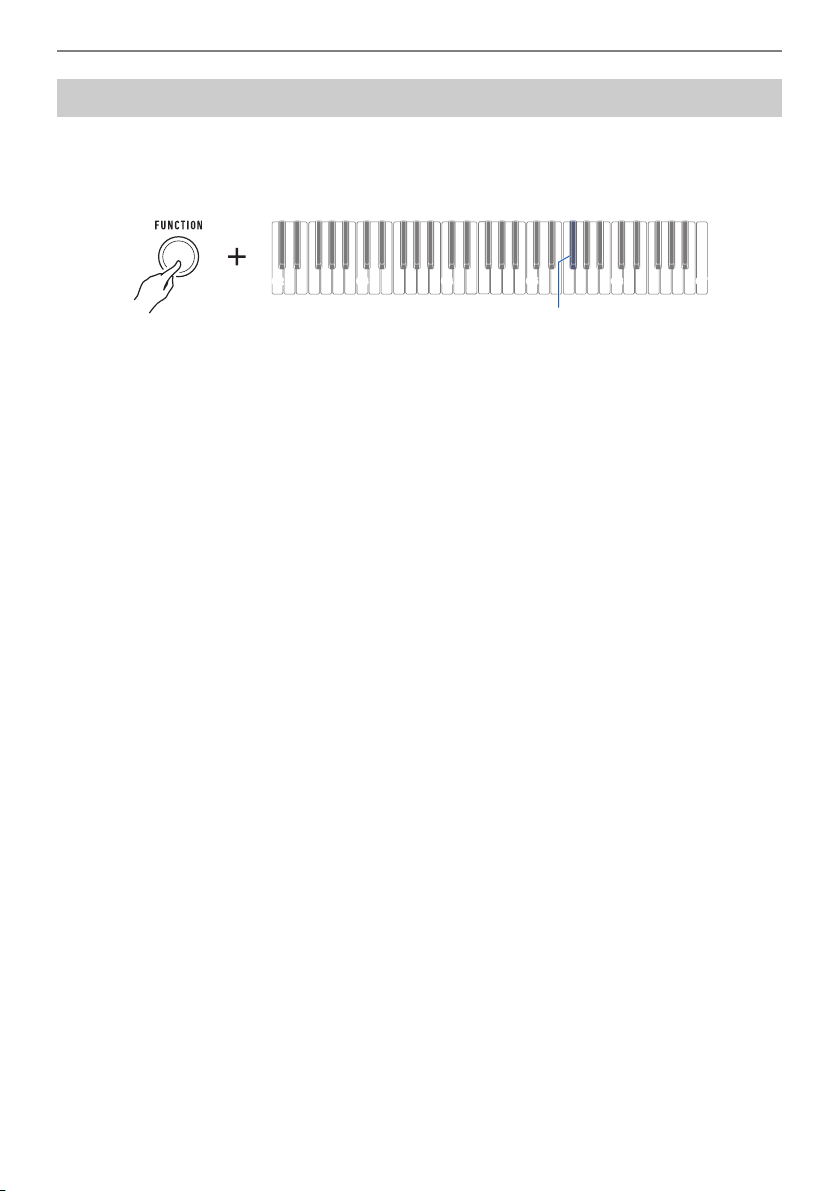
Connecting with External Devices
EN-70
You can use the procedure below to turn off Bluetooth if you do not need to connect via Bluetooth using
the Wireless MIDI & audio adaptor (Option: WU-BT10).
1.
While holding down FUNCTION, long-press the F{5 keyboard key.
A tone will sound and Bluetooth will turn off.
• Long-pressing the F{5 keyboard key again will turn Bluetooth back on.
• Each long-press of the keyboard key sounds a tone that lets you know what setting was
selected.
High tone: Enable*
Low tone: Disable
* If you are using the Wireless MIDI & audio adaptor, a standby tone will sound until Bluetooth
becomes enabled.
2.
Release FUNCTION to complete the setting operation.
Turning Off Bluetooth
C2 C3 C4 C5 C6
C7
F{5
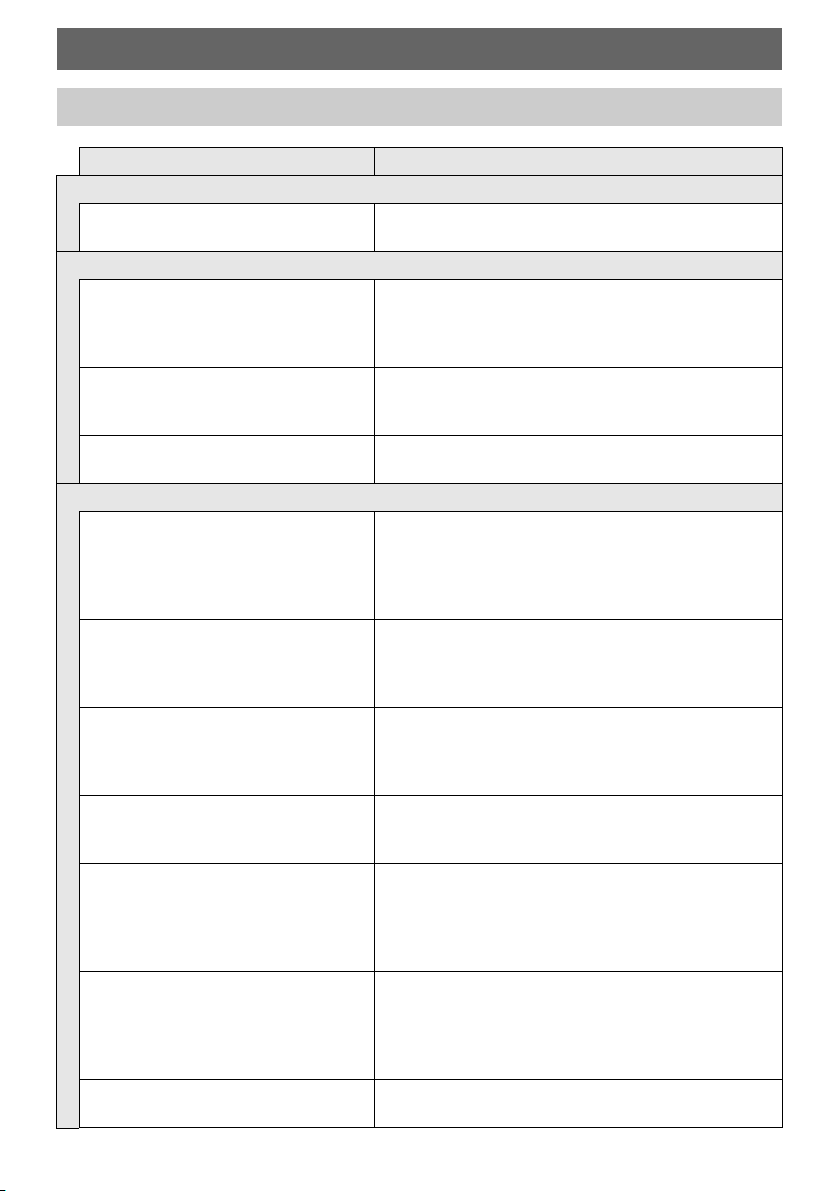
EN-71
Reference
Troubleshooting
Symptom Required Action
Included Accessories
I can’t find included items during
unpacking.
Carefully check inside all of the packing materials.
Power Requirements
Power does not turn on. • Check the AC adaptor or make sure that the batteries
are facing correctly (page
EN-6).
• Replace the batteries with new ones. Or use AC
adaptor power (page
EN-6).
The Digital Keyboard suddenly turns off
after outputting a loud sound.
• Replace the batteries with new ones. Or use AC
adaptor power (page
EN-6).
• Lower the volume setting of the external device.
The Digital Keyboard suddenly turns off
after about 30 minutes.
Disable Auto Power Off (page EN-14).
Sound
Nothing happens when I press a
keyboard key.
• Adjust the volume level (page EN-15).
• Confirm that nothing is plugged into the PHONES/
OUTPUT jack on the back of the Digital Keyboard.
• Try turning this Digital Keyboard off and then back on
again (page
EN-13) to initialize settings.
The metronome does not sound. • Check and adjust the metronome volume level (page
EN-15).
• Try turning this Digital Keyboard off and then back on
again (page
EN-13) to initialize settings.
Notes keep sounding, without stopping. • Try turning this Digital Keyboard off and then back on
again (page
EN-13) to initialize settings.
• Replace the batteries with new ones. Or use AC
adaptor power (page
EN-6).
Some notes are cut off while they are
playing.
This happens whenever the number of notes being
sounded exceeds the maximum polyphony value of 64
(32 for some tones). It does not indicate malfunction.
The volume level or tone setting I
configured has changed.
• Adjust the volume level (page EN-15).
• Try turning this Digital Keyboard off and then back on
again (page
EN-13) to initialize settings.
• Replace the batteries with new ones. Or use AC
adaptor power (page
EN-6).
With certain volume levels and tones,
the sound of notes played in one
keyboard range will sound different from
those played in another keyboard
range.
This is due to system limitations and does not indicate
malfunction.
With some tones, octaves do not
change at the far ends of the keyboard.
This is due to system limitations, and does not indicate
malfunction.
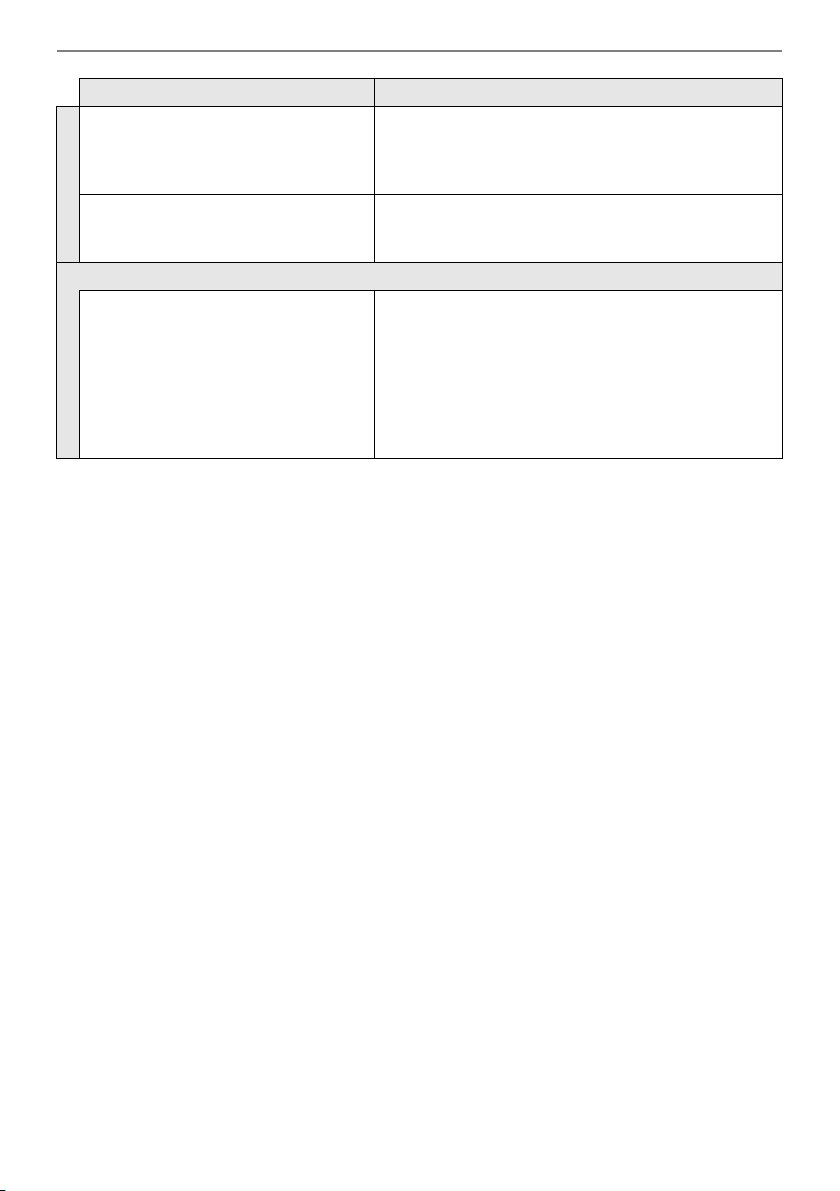
Reference
EN-72
The pitch of the notes does not match
other accompanying instruments or
notes sound strange when played along
with other instruments.
• Check and adjust the transpose setting (page
EN-36)
and tuning setting (page
EN-37).
• Try turning this Digital Keyboard off and then back on
again (page
EN-13) to initialize settings.
The reverb of notes seems to change
suddenly.
• Check and adjust the reverb setting (page EN-30).
• Try turning this Digital Keyboard off and then back on
again (page
EN-13) to initialize settings.
Connecting to a computer
I can’t send or receive MIDI data. • Check to make sure that the USB cable is connected
to this Digital Keyboard and your computer, and that
the correct device is selected with your computer’s
music software (page
EN-62).
• Turn off this Digital Keyboard and then exit the music
software on your computer. Next, turn this Digital
Keyboard back on and then restart the music
software on your computer.
Symptom Required Action
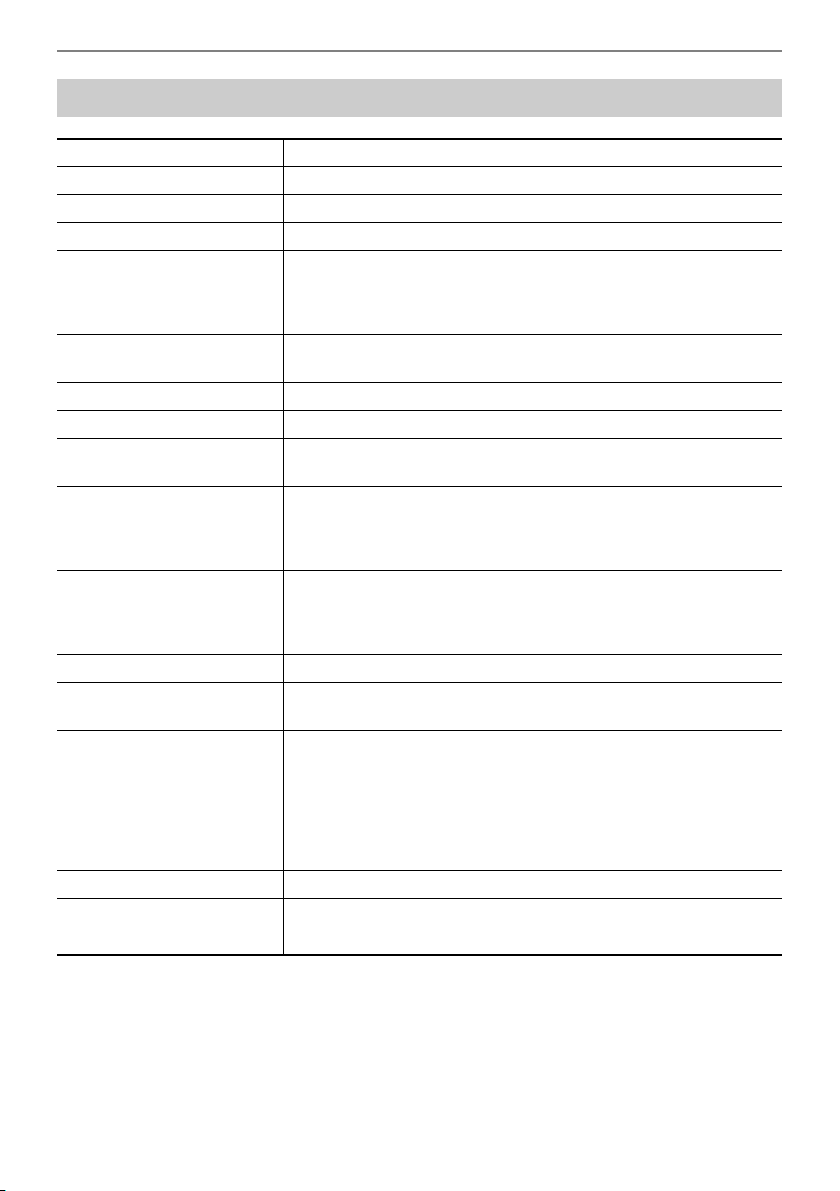
Reference
EN-73
Product Specifications
Model CT-S1BK/CT-S1WE/CT-S1RD
Keyboard 61 keys
Touch Response 3 levels, Off
Maximum Polyphony 64 notes
Tones
Preset Tones 61 tones, main tone buttons, advanced tones
Other Layer, Sustain, Tone Memory
Effects Reverb (24 types, Tone, Off); Chorus (built into tones); Delay (built
into tones); DSP (built into some tones)
Master Effects Equalizer (10 presets)
Active Effects Volume sync equalizer, surround
External Input Effects Vocal Cut. Cancels the vocal (center) part in audio input using the
AUDIO IN terminal or Bluetooth audio.
Metronome
Beat Beat chime off, 1 to 16 beats
Tempo 20 to 255
MIDI Recorder Real-time recording, playback
Number of Songs 1
Capacity Approximately 40,000 notes (per song)
Demo Function 1 demo song; 10 piano demo songs
Function Volume
Adjustment
Metronome
Other Functions
Transpose ±1 octave (–12 to 0 to +12 semitones)
Octave Shift Main part, layer part, ±3 octaves
Tuning A4 = 415.5 to 465.9 Hz (Initial Default: 440.0 Hz)
Scales 17 preset scales
MIDI Function 16-channel multi-timbre receive; GM Level 1 standard
APP Function
Supported Devices iOS, Android (USB terminal connection)
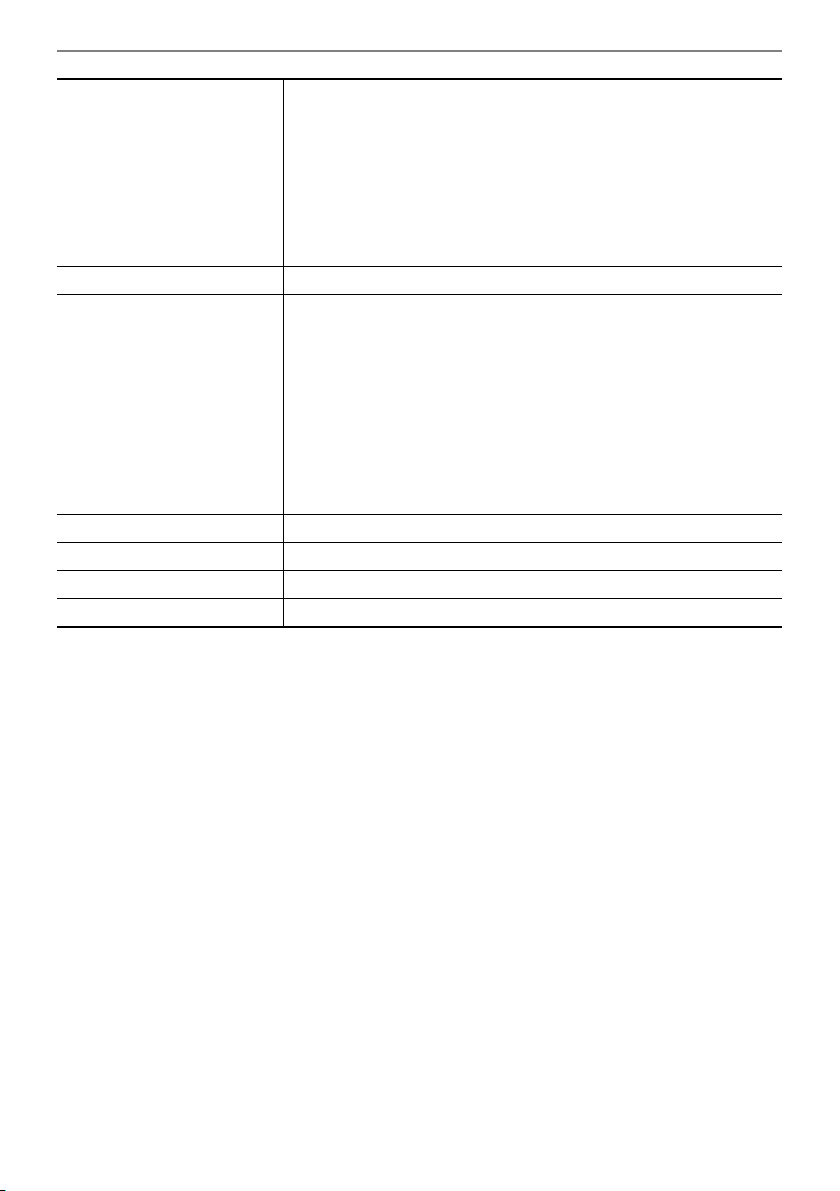
Reference
EN-74
* Measured values while using eneloop batteries.
eneloop is a registered trademark of Panasonic Corporation.
• Specifications and designs are subject to change without notice.
Jacks
PHONES/OUTPUT jack Stereo mini jack (3.5 mm)
AUDIO IN jack Stereo mini jack (3.5 mm) (Input impedance: 10 kΩ; Input sensitivity:
200 mV)
USB TO HOST port micro-B
USB TO DEVICE port Type A
PEDAL jack Standard jack (6.3 mm) (pedal sustain, sostenuto, soft, metronome)
AC adaptor terminal 9.5V DC
Power Requirements 2-Way Power
Batteries 6 AA-size alkaline batteries or AA-size rechargeable nickel metal
hydride batteries
Continuous Operation Approximately 3 hours (alkaline batteries), approximately 3 hours
(rechargeable nickel metal hydride batteries)*
Actual continuous operation time may be shorter due to battery type,
performance type, and usage environment.
AC adaptor AD-E95100L (JEITA Standard with unified polarity plug)
Auto Power Off After approximately 30 minutes of non-operation; Can be disabled.
Speakers 13 cm × 6 cm (oval) × 2 (Output: 2.5 W + 2.5 W)
Power Consumption 9.5 V = 7.5 W
Dimensions 93.0 (W) × 25.8 (D) × 8.3 (H) cm (36 5/8 × 10 3/16 × 3 1/4 inch)
Weight Approximately 4.5 kg (9.9 lbs) (Excluding batteries)

Reference
EN-75
AC Adaptor Handling Precautions
Model: AD-E95100L
1. Read these instructions.
2. Keep these instructions on hand.
3. Heed all warnings.
4. Follow all instructions.
5. Do not use this product near water.
6. Clean only with a dry cloth.
7. Do not install near radiators, heat registers, stoves, or any other source of heat (including
amplifiers).
8. Use only attachments and accessories specified by the manufacturer.
9. Refer all servicing to qualified service personnel. Servicing is required after any of the
following occurs: when the product is damaged, when the power supply cord or plug is
damaged, when liquid is spilled into the product, when a foreign object falls into the product,
when the product is exposed to rain or moisture, when the product does not operate normally,
when the product is dropped.
10. Do not allow the product to be exposed to dripping or splashing liquid. Do not place any object
containing liquid on the product.
11. Do not allow the electrical load output to exceed the label rating.
12. Make sure the surrounding area is dry before plugging into a power source.
13. Make sure the product is oriented correctly.
14. Unplug the product during lightning storms or when you do not plan to use it for a long time.
15. Do not allow product ventilation openings to become blocked. Install the product in
accordance with the manufacturer’s instructions.
16. Take care the power cord is located where it will not be stepped upon or bent severely,
particularly in locations close to plugs and convenience receptacles, and in locations where it
exits from the product.
17. The AC adaptor should be plugged into a power outlet as close to the product as possible to
allow immediate disconnection of the plug in case of emergency.
The symbol below is an alert indicating un-insulated hazardous voltage inside the product’s
enclosure, which may be sufficient to constitute the risk of electric shock to users.
’
The symbol below is an alert indicating the presence of important operating and maintenance
(servicing) instructions in the documentation that accompanies the product.
*
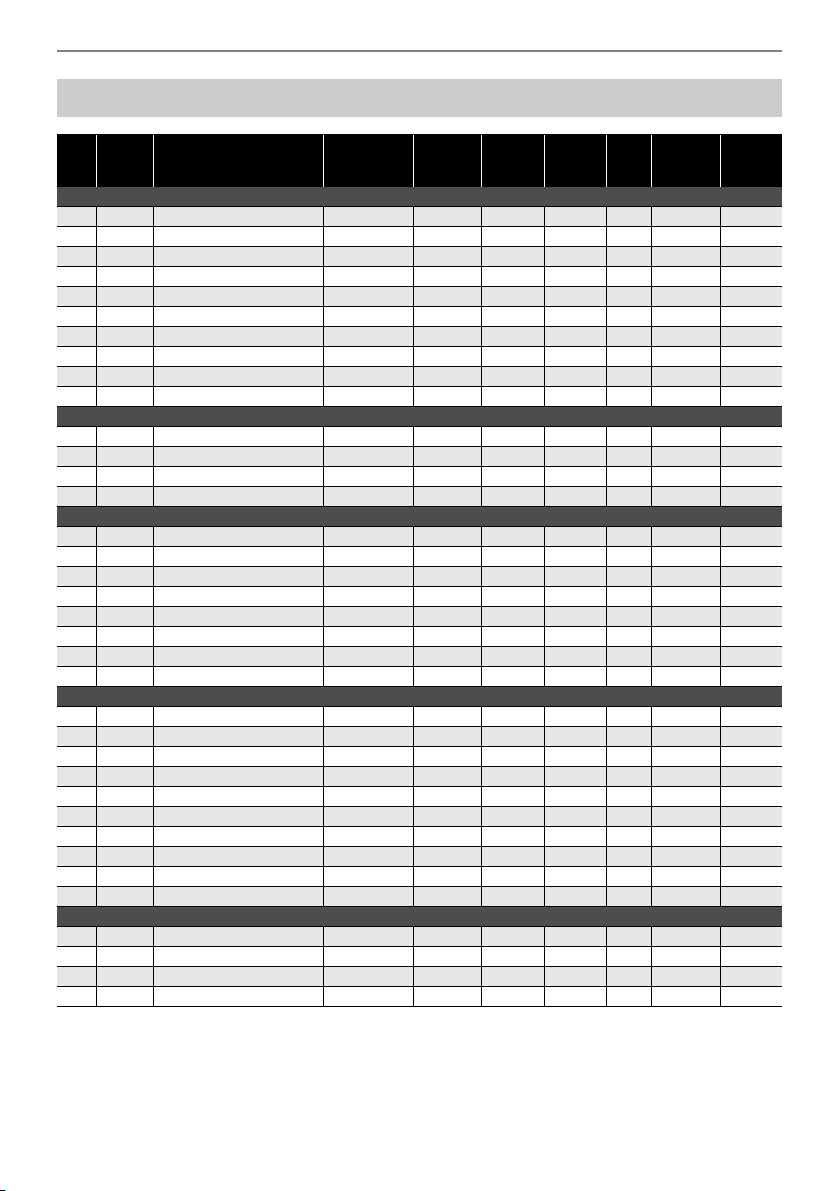
Reference
EN-76
Tone List
No.
Keyboard
Key Note
Name
Tone Name*
1
Tone
Variation
Program
Change
Bank
Select
MSB
Bank
Select
LSB*
2
DSP
Tone
*
3
Advanced
Layer
Tone
*
4
Part
Octave
Shift
PIANO
1 C2 STAGE PIANO STANDARD 0 2 0/64 0
2C{2
PIANO PAD ADVANCED 1 2 0/64 0
3 D2 DYNAMIC PIANO MODERN 2 2 0/64 0
4E}2
CLASSIC GRAND VINTAGE 3 2 0/64 0
5 E2 ROCK PIANO STANDARD 4 2 0/64 0
6 F2 BALLAD PIANO MODERN 5 2 0/64 0
7 F{2 HONKY-TONK VINTAGE 6 2 0/64 0
8 G2 MELLOW PIANO VINTAGE 7 2 0/64 0
9 A}2 BREEZING PIANO MODERN 8 2 0/64 0
10 A2 BASS/PIANO STANDARD 9 2 0/64 0
E.PIANO 1
11 B}2 STAGE E.PIANO STANDARD 10 2 0/64 0
12 B2 PHASER E.PIANO ADVANCED 11 2 0/64 0
13 C3
DYNO E.PIANO MODERN 12 2 0/64 0
14 C{3 ELECTRIC GRAND VINTAGE 13 2 0/64 0
E.PIANO 2
15 D3 DIGITAL E.PIANO STANDARD 14 2 0/64 0
16 E}3
AMP 60’s E.PIANO ADVANCED 15 2 0/64 0
17 E3 GALAXIA E.PIANO MODERN 16 2 0/64 0
18 F3
TREMOLO 60’s E.PIANO VINTAGE 17 2 0/64 0
19 F{3 CRUNCH E.PIANO VINTAGE 18 2 0/64 0
20 G3 LUCENT E.PIANO MODERN 19 2 0/64 0
21 A}3 AUTO PAN E.PIANO VINTAGE 20 2 0/64 0
22 A3 DIGITAL E.PIANO 2 MODERN 21 2 0/64 0
ORGAN
23 B}3 JAZZ ORGAN STANDARD 22 2 0/64 0
24 B3 VELO.ORGAN ADVANCED 23 2 0/64 0
25 C4
ROCK ORGAN MODERN 24 2 0/64 0
26 C{4 PIPE ORGAN VINTAGE 25 2 0/64 0
27 D4 AMP ORGAN ADVANCED 26 2 0/64 0
28 E}4 REED ORGAN STANDARD 27 2 0/64 0
29 E4 GOSPEL ORGAN MODERN 28 2 0/64 0
30 F4 F-ORGAN VINTAGE 29 2 0/64 0
31 F{4 V-ORGAN VINTAGE 30 2 0/64 0
32 G4 CATHEDRAL ORGAN STANDARD 31 2 0/64 0
KEYBOARD
33 A}4 HARPSICHORD STANDARD 32 2 0/64 0
34 A4
WAH CLAVI ADVANCED 33 2 0/64 0
35 B}4 CLAVI MODERN 34 2 0/64 0
36 B4
TAPE FLUTE VINTAGE 35 2 0/64 0
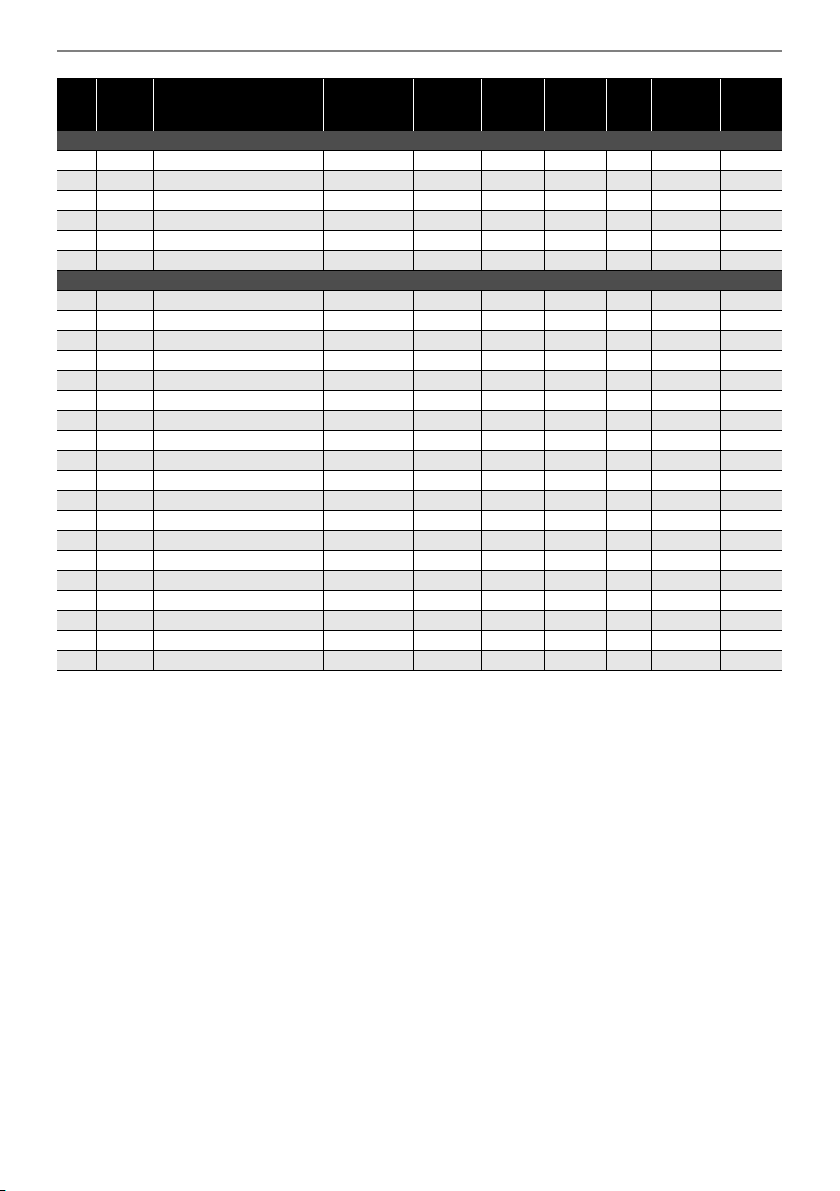
Reference
EN-77
• Tones numbered 50 to 61 are CASIO CLASSIC TONES, which are reproductions of tones from
classical CASIO musical instruments.
*1 Blue tones are main tones that can be selected using a button operation (page
EN-21).
*2 When 64 is received, the chorus and reverb states change in accordance with the tone. There is no
change when 0 is received.
*3 These tones use special effects.
*4 This function superimposes different sound only on a chord produced when the keys for three or
more notes are held down at the same time. This produces chords with more depth, which are
effective when playing a melody with a simple tone.
SYNTH
37 C5 SYNTH-BRASS STANDARD 36 2 0/64 0
38 C{5 MAGNI SYNTH-PAD ADVANCED 37 2 0/64 0
39 D5
SYNTH-STRINGS MODERN 38 2 0/64 0
40 E}5 SAW LEAD VINTAGE 39 2 0/64 0
41 E5 VOCODER ADVANCED 40 2 0/64 0
42 F5 SYNTH-CHOIR MODERN 41 2 0/64 0
OTHERS
43 F{5 STRINGS STANDARD 42 2 0/64 0
44 G5
GUITAR PAD ADVANCED 43 2 0/64 0
45 A}5 VIBRAPHONE MODERN 44 2 0/64 0
46 A5
SYMPHONIC BRASS VINTAGE 45 2 0/64 0
47 B}5 FRENCH ACCORDION STANDARD 46 2 0/64 0
48 B5 BRASS VELO.FALL ADVANCED 47 2 0/64 0
49 C6 SOUND TRACK VINTAGE 48 2 0/64 0
50 C{6 VL-TONE VINTAGE 49 2 0/64 0
51 D6 CT E.PIANO VINTAGE 50 2 0/64 0
52 E}6 CT HARP VINTAGE 51 2 0/64 0
53 E6 CZ BASS VINTAGE 52 2 0/64 –1
54 F6 CZ TRUMPET VINTAGE 53 2 0/64 0
55 F{6 CZ VIOLIN VINTAGE 54 2 0/64 0
56 G6 CZ E.PIANO VINTAGE 55 2 0/64 0
57 A}6 CZ GUITAR VINTAGE 56 2 0/64 0
58 A6 VZ SEEGOD VINTAGE 57 2 0/64 0
59 B}6 VZ BRASS VINTAGE 58 2 0/64 0
60 B6 VZ BASS VINTAGE 59 2 0/64 –1
61 C7 VZ HARP VINTAGE 60 2 0/64 0
No.
Keyboard
Key Note
Name
Tone Name*
1
Tone
Variation
Program
Change
Bank
Select
MSB
Bank
Select
LSB*
2
DSP
Tone
*
3
Advanced
Layer
Tone
*
4
Part
Octave
Shift
Reference
EN-78
■ VL-TONE (Tone List No. 50) Keyboard Key List
• Selecting VL-TONE assigns rhythm tones to keyboard keys C2 through E}3, and violin tones to keys
E3 through G9 as shown above.
Keyboard Key
Note Name
Sound
C1-B1 -
C2
Rhythm
March
C{2Waltz
D2 4-Beat
E}2 Swing
E2 Rock 1
F2 Rock 2
F{2 Bossanova Part A
G2 Bossanova Part B
A}2 Samba Part A
A2 Samba Part B
B}2 Rhumba Part A
B2 Rhumba Part B
C3 Beguine
C{3“Po”
D3 “Pi”
E}3“Sha”
E3 - G9 Violin
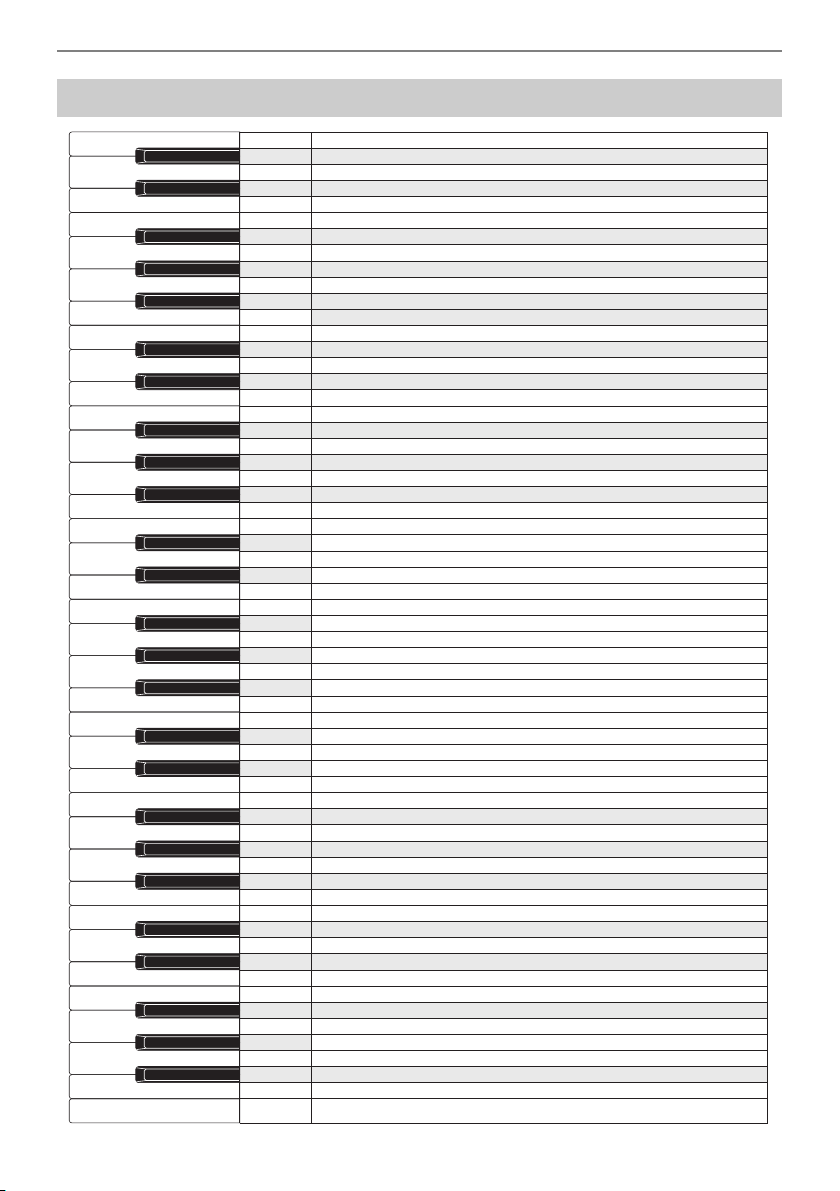
Reference
EN-79
Setting Item List
C2
C3
C4
C5
C6
C7
C2
C{2
D2
E}2
E2
F2
F{2
G2
A}2
A2
B}2
B2
C3
C{3
D3
E}3
E3
F3
F{3
G3
A}3
A3
B}3
B3
C4
C{4
D4
E}4
E4
F4
F{4
G4
A}4
A4
B}4
B4
C5
C{5
D5
E}5
E5
F5
F{5
G5
A}5
A5
B}5
B5
C6
C{6
D6
E}6
E6
F6
F{6
G6
A}6
A6
B}6
B6
C7
Reverb
Battery type
Reverb type
Auto Power Off
Equalizer
Scale tuning type
Local Control
Scale tuning base note
MIDI OUT Channel (main part)
Piano Stretch Tuning
MIDI OUT Channel (layer part)
Program Change Send
Layer
Octave shift –
Main tone
Octave shift +
Layer tone
Part octave shift (main)
Transpose –
Part octave shift (layer)
Transpose +
Part volume (main)
Tuning
Part volume (layer)
Keyboard key 0
– and + keyboard keys (–)
Keyboard key 1
– and + keyboard keys (+)
Keyboard key 2
Keyboard key 3
Keyboard key 4
Keyboard key 5
Keyboard key 6
Keyboard key 7
Keyboard key 8
Keyboard key 9
Touch Response
Bluetooth
Touch off velocity
Bluetooth audio pairing
Delete Bluetooth audio pairing history
Sustain
Recorded song volume
Sustain time (main part)
AUDIO IN center cancel
Sustain time (layer part)
Pedal
Initialize
Pedal effect part (main)
Pedal effect part (layer)
Notification tone
MY SETUP power on recall
MY SETUP
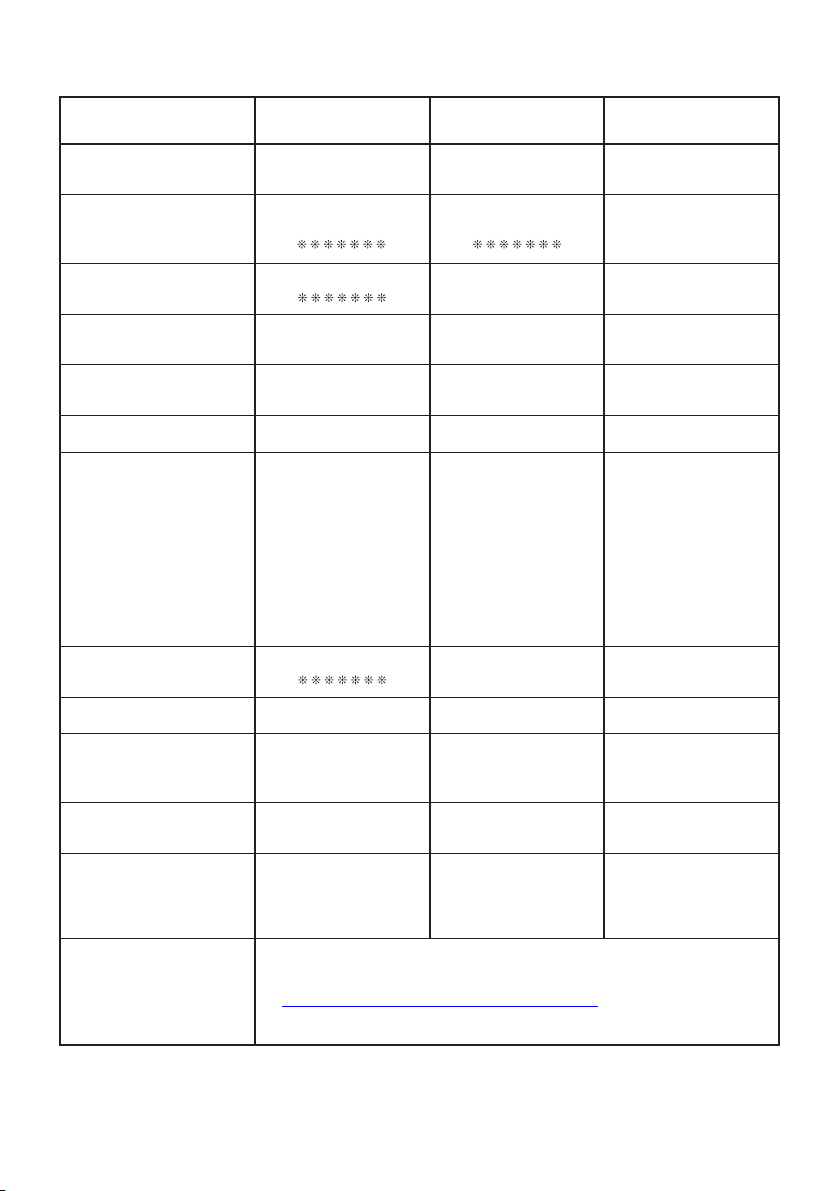
Function Transmitted Recognized Remarks
Basic
Channel
1
1 - 16
1 - 16
1 - 16
Default
Changed
Note
Number
0 - 127
0 - 127
*
1
0 - 127
True voice
Program
Change
True #
After
Touch
Control
Change
X
X
X
O
Pitch Bender
OX
Exclusive
O
*
3
O
*
3
Key’s
Ch’s
Velocity
O
9nH v = 1 - 127
X
9nH v = 0, 8nH v =
**
O 9nH v = 1 - 127
X 8nH v = 64
Note ON
Note OFF
Mode
Mode 3
X
Mode 3
X
Default
Messages
Altered
System
Common
X
X
X
X
X
X
Song Pos
Song Sel
Tune
Aux
Messages
Remarks
X
X
X
X
X
X
O
O
X
O
O
X
All sound off
Reset all controller
Local ON/OFF
All notes OFF
Active Sense
System Reset
System
Real Time
X
X
X
X
Clock
Commands
0
1
5
6, 38
7
10
11
64
65
66
67
71
72
73
74
84
91
100, 101
Bank select
Modulation
Portamento Time
Data entry LSB/MSB
Volume
Pan
Expression
Hold 1
Portamento Switch
Sostenuto
Soft pedal
Filter resonance
Release time
Attack time
Brightness
Portamento Control
Reverb send level
RPN LSB/MSB
Model: CT-S1BK/CT-S1WE/CT-S1RD Version : 1.0
Mode 1 : OMNI ON, POLY
Mode 3 : OMNI OFF, POLY
Mode 2 : OMNI ON, MONO
Mode 4 : OMNI OFF, MONO
O : Yes
X
: No
O
X
X
X
O
X
X
O
X
O
O
X
O
X
X
X
X
X
O
O
O
O
O
O
O
O
O
O
O
O
O
O
O
O
O
O
*
3
*
3
*
2
*
2
*
2
OO
0 - 127
MIDI Implementation Chart
*1: Depends on tone.
*2: In accordance with pedal effect setting.
*3: For details about RPN and system exclusive messages, see MIDI Implementation at
https://support.casio.com/global/en/emi/manual/CT-S1/
**: no relation

MA2103-A