VIDEOBAR VB1
2
|
EN
IMPORTANT SAFETY INSTRUCTIONS
Please read and keep all safety, security, and use instructions.
Important Safety Instructions
For more information about your Bose Videobar VB1 (including accessories and replacement parts), visit
worldwide.Bose.com/support/VB1 or contact Bose customer service.
1. Read these instructions.
2. Keep these instructions.
3. Heed all warnings.
4. Follow all instructions.
5. Do not use this apparatus near water.
6. Clean only with a dry cloth.
7. Do not block any ventilation openings. Install in accordance with the manufacturer’s instructions.
8. Do not install near any heat sources such as radiators, heat registers, stoves, or other apparatus (including
amplifiers) that produce heat.
9. Protect the power cord from being walked on or pinched, particularly at plugs, convenience receptacles, and the
point where it exits from the apparatus.
10. Only use attachments/accessories specified by the manufacturer.
11. Use only with the cart, stand, tripod, bracket, or table specified by the manufacturer or sold with the
apparatus. When a cart is used, use caution when moving the cart/apparatus combination to avoid
injury from tip-over.
12. Unplug this apparatus during lightning storms or when unused for long periods of time.
13. Refer all servicing to qualified personnel. Servicing is required when the apparatus has been damaged in any
way such as power-supply cord or plug is damaged, liquid has been spilled or objects have fallen into the
apparatus, the apparatus has been exposed to rain or moisture, does not operate normally, or has been dropped.
WARNINGS/CAUTIONS
This symbol on the product means there is uninsulated, dangerous voltage within the product enclosure
that may present a risk of electrical shock.
This symbol on the product means there are important operating and maintenance instructions in this
guide.
Contains small parts which may be a choking hazard. Not suitable for children under age 3.
This product contains magnetic material. Consult your physician on whether this might aect your
implantable medical device.
Use at altitude less than 2000meters only.

3
|
EN
IMPORTANT SAFETY INSTRUCTIONS
All Bose products must be installed in accordance with local, state, federal and industry regulations. It is the installer’s
responsibility to ensure installation of the loudspeakers and mounting system is performed in accordance with all
applicable codes, including local building codes and regulations. Consult the local authority having jurisdiction before
installing this product.
When positioning the product, make sure it is not blocking any ventilation openings on your display. Refer to the
owner’s guide for your display and install it in accordance with the manufacturer’s instructions.
Do NOT make unauthorized alterations to this product.
When replacement batteries are needed, use only AAA/LR03 alkaline batteries.
Batteries may cause a fire or chemical burn if mishandled. Do not recharge, disassemble, heat, or incinerate.
Keep batteries out of reach of children.
If a battery leaks, do not allow the liquid to come in contact with the skin or eyes. If contact is made, seek medical
advice.
Do not expose products containing batteries to excessive heat (e.g. from storage in direct sunlight, fire or the like).
Only use the included hardware to mount this product.
Only for wall-mounting on the following surfaces: Wallboard ≥ ⅜in (10mm)
If mounted on surfaces other than stated above, please contact a professional installer.
The interconnect cables included with this system are not approved for in-wall installation. Please check your local
building codes for the correct type of wire and cable required for in-wall installation.
Do not mount on surfaces that are not sturdy, or that have hazards concealed behind them, such as electrical wiring
or plumbing.
Do NOT use in vehicles or boats.
Due to ventilation requirements, Bose does not recommend placing the product in a confined space such as in a wall
cavity or in an enclosed cabinet.
Do not place or install the bracket or product near any heat sources, such as fireplaces, radiators, heat registers or
other apparatus (including amplifiers) that produce heat.
Keep the product away from fire and heat sources. Do NOT place naked flame sources, such as lighted candles, on or
near the product.
To reduce the risk of fire or electrical shock, do NOT expose the product to rain, liquids, or moisture.
Do NOT expose this product to dripping or splashing and do not place objects filled with liquids, such as vases, on or
near the product.
This product is not intended for installation or use in indoor water facility areas (including, without limitation, indoor
pools, indoor water parks, hot tub rooms, saunas, steam rooms and indoor skating rinks).
Do not mount the product in locations where condensation may occur.
Do NOT use a power inverter with this product.
Use this product only with the power supply provided.
Where the mains plug or an appliance coupler is used as the disconnect device, the disconnect device shall remain
readily operable.

4
|
EN
REGULATORY INFORMATION
Regulatory Information
Dimensions (H × W × D): 48 ×659 ×102mm (1.9 ×27.0 ×4.0in)
Net Weight: 2.5kg (5.6lb)
Input Rating: 24VDC , 1.875A
This equipment should be installed and operated with a minimum distance of 20cm between radiator and your body.
Shielded cables are required to maintain regulatory compliance
CAN ICES-3(B)/NMB-3(B)
Information About Products That Generate Electrical Noise (FCC Compliance Notice for US)
NOTE: This equipment has been tested and found to comply with the limits for a Class B digital device, pursuant to
Part 15 of the FCC Rules. These limits are designed to provide reasonable protection against harmful interference in a
residential installation. This equipment generates, uses, and can radiate radio frequency energy and, if not installed
and used in accordance with the instructions, may cause harmful interference to radio communications. However,
there is no guarantee that interference will not occur in a particular installation. If this equipment does cause harmful
interference to radio or television reception, which can be determined by turning the equipment o and on, the user is
encouraged to try to correct the interference by one or more of the following measures:
Reorient or relocate the receiving antenna.
Increase the separation between the equipment and receiver.
Connect the equipment into an outlet on a circuit dierent from that to which the receiver is connected.
Consult the dealer or an experienced radio/TV technician for help.
Changes or modifications not expressly approved by Bose Corporation could void the user’s authority to operate this
equipment.
This device complies with part15 of the FCC Rules and with ISED Canada’s license-exempt RSS standard(s).
Operation is subject to the following two conditions: (1) This device may not cause harmful interference, and (2) this
device must accept any interference received, including interference that may cause undesired operation.
Management Regulation for Low-power Radio-frequency Devices
Article XII: According to “Management Regulation for Low-power Radio-frequency Devices”, without permission by
the NCC, any company, enterprise, or user is not allowed to change frequency, enhance transmitting power, or alter
original characteristics, as well as performance, to an approved low power radio-frequency device.
Article XIV: The low power radio-frequency devices shall not influence aircraft security and interfere with legal
communications; If found, the user shall cease operating immediately until no interference is achieved. The said legal
communications means radio communications in compliance with the Telecommunications Act.
The low power radio-frequency devices must be susceptible with the interference from legal communications or ISM
radio wave radiated devices.
Bose Corporation hereby declares that this product is in compliance with the essential requirements and
other relevant provisions of Directive 2014/53/EU and all other applicable EU directive requirements. The
complete declaration of conformity can be found at: www.Bose.com/compliance.
This device for operation in the 5150–5250MHz is only for indoor use to reduce the potential for harmful interference
to co-channel mobile satellite systems.
For Europe:
Frequency band of operation 2400 to 2483.5 MHz:
Bluetooth
®/Wi-Fi: Maximum transmit power less than 20dBm EIRP.
Bluetooth
Low Energy: Maximum power spectral density less than 10dBm/MHz EIRP.
Frequency bands of operation 5150 to 5350MHz and 5470 to 5725MHz:
Wi-Fi: Maximum transmit power less than 20dBm EIRP.
This device is restricted to indoor use when operating in the 5150 to 5350MHz frequency range in all EU Member
States listed in the table.
BE DK IE UK FR CY SK HU AT SE BG DE PT EL
HR LV LT MT PL CZ EE FI ES IT RO LU NL SI
5
|
EN
REGULATORY INFORMATION
This symbol means the product must not be discarded as household waste, and should be delivered to an
appropriate collection facility for recycling. Proper disposal and recycling helps protect natural resources,
human health, and the environment. For more information on disposal and recycling of this product,
contact your local municipality, disposal service, or the shop where you bought this product.
Please dispose of used batteries properly, following any local regulations. Do not incinerate.
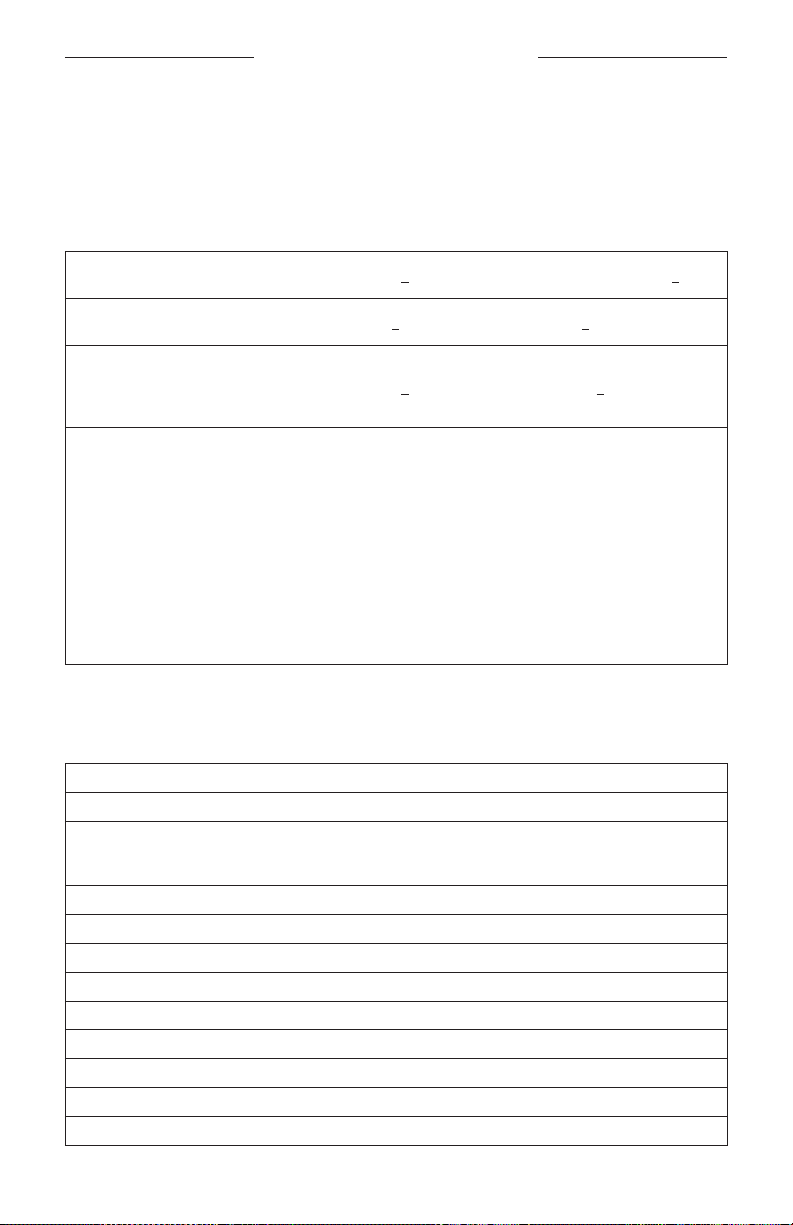
China Restriction of Hazardous Substances Table
Names and Contents of Toxic or Hazardous Substances or Elements
Toxic or Hazardous Substances and Elements
Part Name
Lead
(Pb)
Mercury
(Hg)
Cadmium
(Cd)
Hexavalent
(CR(VI))
Polybrominated
Biphenyl (PBB)
Polybrominated
diphenylether (PBDE)
PCBs X O O O O O
Metal Parts X O O O O O
Plastic Parts O O O O O O
Speakers X O O O O O
Cables X O O O O O
This table is prepared in accordance with the provisions of SJ/T 11364.
O: Indicates that this toxic or hazardous substance contained in all of the homogeneous
materials for this part is below the limit requirement of GB/T 26572.
X: Indicates that this toxic or hazardous substance contained in at least one of the
homogeneous materials used for this part is above the limit requirement of GB/T 26572.
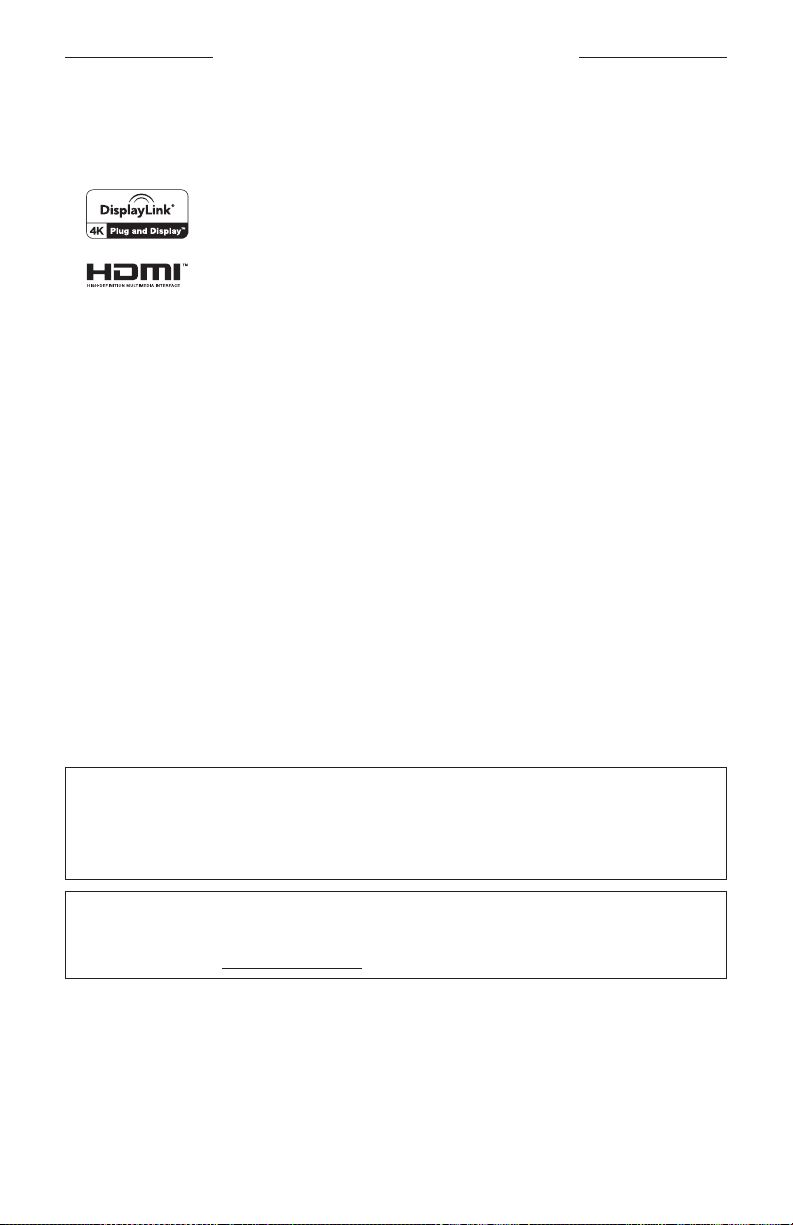
Taiwan Restriction of Hazardous Substances Table
Equipment name: Bose Videobar VB1 Type designation: 433869
Restricted substances and its chemical symbols
Unit
Lead
(Pb)
Mercury
(Hg)
Cadmium
(Cd)
Hexavalent
chromium (Cr+6)
Polybrominated
biphenyls (PBB)
Polybrominated diphenyl ethers
(PBDE)
PCBs −
○ ○ ○ ○ ○
Metal Parts −
○ ○ ○ ○ ○
Plastic Parts
○ ○ ○ ○ ○ ○
Speakers −
○ ○ ○ ○ ○
Cables −
○ ○ ○ ○ ○
Note 1: “○” indicates that the percentage content of the restricted substance does not exceed the percentage of
reference value of presence.
Note 2: The “−” indicates that the restricted substance corresponds to the exemption.
Date of Manufacture: The eighth digit in the serial number indicates the year of manufacture; “1” is 2011 or 2021.
China Importer: Bose Electronics (Shanghai) Company Limited, Part C, Plant 9, No. 353 North Riying Road,
China (Shanghai) Pilot Free Trade Zone
EU Importer: Bose Products B.V., Gorslaan 60, 1441 RG Purmerend, The Netherlands
Mexico Importer: Bose de México, S. de R.L. de C.V. , Paseo de las Palmas 405-204, Lomas de Chapultepec, 11000
México, D.F. Phone Number: +5255 (5202) 3545
Taiwan Importer: Bose Taiwan Branch, 9F-A1, No. 10, Section 3, Minsheng East Road, Taipei City 104, Taiwan.
Phone Number: +886-2-2514 7676
Bose Corporation Headquarters: 1-877-230-5639
6
|
EN
REGULATORY INFORMATION
Product Power State Table
The product, in accordance with the Ecodesign Requirements for Energy Related Products Directive 2009/125/EC, is
in compliance with the following norm(s) or document(s): Regulation (EC) No. 1275/2008, as amended by Regulation
(EU) No. 801/2013.
Required Power State Information Power Modes
Standby Networked Standby
Power consumption in specified power
mode, at 230V/50Hz input
<0.5W Wi-Fi, Ethernet,
Bluetooth
<2.0 W
Time after which equipment is automatically
switched into mode
<2.5 hours <20 minutes
Power consumption in networked standby
if all wired network ports are connected and
all wireless network ports are activated, at
230V/50Hz input
<2.0 W <2.0 W
Network port deactivation/activation
procedures. Deactivating all networks will
enable standby mode.
Wi-Fi: Deactivate by restoring the factory default settings: Press
and hold the Home and Autoframe buttons on the remote control
simultaneously for 5seconds, or press and hold the Mute and
Bluetooth
buttons on the side of the unit simultaneously for
5seconds. Activate via Bose Work application.
Ethernet: Deactivate by removing the Ethernet cable. Activate by
inserting the Ethernet cable.
Bluetooth
: Deactivate by restoring the factory default settings:
Press and hold the Home and Autoframe buttons on the remote
control simultaneously for 5seconds, or press and hold the Mute
and
Bluetooth
buttons on the side of the unit simultaneously for
5seconds. Activate by pairing with a
Bluetooth
source.
External Power Supply Technical Information
The external power supply provided with the product, in accordance with the Ecodesign Requirements for Energy
Related Products Directive 2009/125/EC, is in compliance with the following norms(s) or documents(s): Commission
Regulation (EU) 2019/1782.
Manufacturer Bose Products B.V.
Commercial registration number 36037901
Address Gorslaan 60
1441 RG Purmerend
The Netherlands
Model identifier DT24V-1.8C-DC
Input voltage 100V–240V
Input AC frequency 50Hz/60Hz
Output voltage 24VDC
Output current 1.9A
Output power 45W
Average active eciency 89.9%
Eciency at low load (10%) 87.0%
No-load power consumption 0.07W
7
|
EN
LICENSES AND LEGAL INFORMATION
Licenses and Legal Information
Bose, Bose Work, and Videobar are trademarks of Bose Corporation.
DisplayLink® is the registered trademark of DisplayLink Corp. in the EU, the US, and other
countries.
The terms HDMI and HDMI High-Definition Multimedia Interface, and the HDMI logo are
trademarks or registered trademarks of HDMI Licensing Administrator, Inc.
Android and Google Play are trademarks of Google LLC.
The
Bluetooth
® word mark and logos are registered trademarks owned by Bluetooth SIG, Inc. and any use of such
marks by Bose Corporation is under license.
macOS is a trademark of Apple Inc.
USB Type-C® and USB-C® are registered trademarks of USB Implementers Forum and are only intended for use with
products based on and compliant with the USB Type-C® cable and connector specification.
Wi-Fi is a registered trademark of Wi-Fi Alliance®.
All other trademarks are the property of their respective owners.
To view the license disclosures that apply to the third-party software packages included as components of the Bose
Videobar VB1:
Bose Videobar VB1: Download and open the Bose Work mobile application, tap the Settings icon, and then tap
End User License Agreement.
Bose Work mobile application: Tap the Settings icon, and then tap End User License Agreement.
Bose Work Configuration application or WebUI: Click the Settings icon, and then click End User License
Agreement.
Bose Work Management application: Click the menu (≡), click About Bose Work Management, and then click
End User License Agreement.
The Bose Privacy Policy is available on the Bose website.
©2021 Bose Corporation. No part of this work may be reproduced, modified, distributed or otherwise used without
prior written permission.
Please complete and retain for your records.
The serial and model numbers are located on the rear panel of the product.
Serial number: ___________________________________________________________________
Model number: ___________________________________________________________________
Warranty Information
This product is covered by a limited warranty.
For warranty details, visit pro.Bose.com/warranty.

8
|
EN
CONTENTS
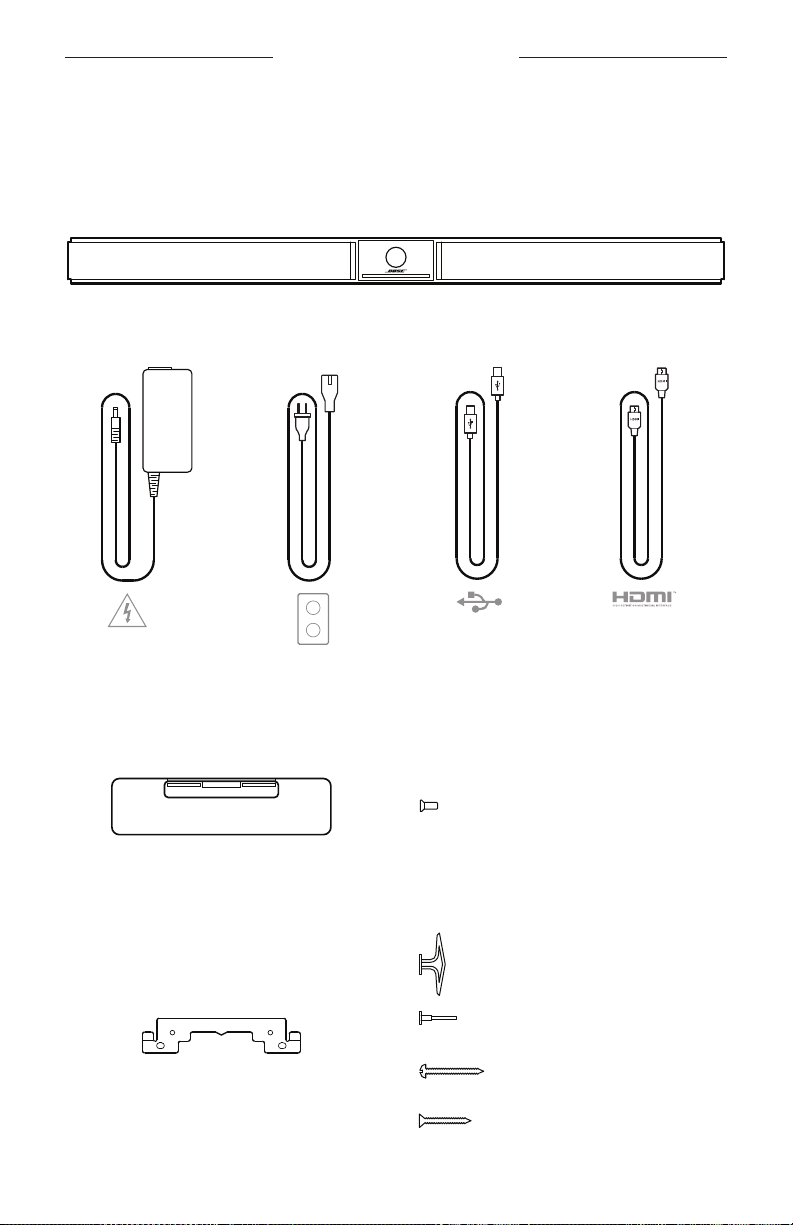
WHAT’S IN THE CARTON
Contents ............................................................................................................................. 10
SETUP
General Mounting Guidelines ..................................................................................... 12
Mounting the VB1 on a Table, Shelf, or Credenza .............................................. 13
Wall-mounting the VB1 ................................................................................................ 14
Camera Privacy Cover ................................................................................................... 19
Cable Connections ......................................................................................................... 20
Cable Management ........................................................................................................ 21
SOFTWARE APPLICATIONS
Bose Work Configuration App and WebUI ........................................................... 24
Bose Work Management App .................................................................................... 26
Bose Work App ............................................................................................................... 26
PRODUCT DETAILS
Panels .................................................................................................................................. 27
Front Panel ................................................................................................................ 27
Side Panel .................................................................................................................. 28
Rear Panel .................................................................................................................. 29
Remote Control ............................................................................................................... 30
Light Bar ............................................................................................................................. 31

9
|
EN
CONTENTS
OPERATION
Starting a Meeting .......................................................................................................... 34
Adjusting the Camera ................................................................................................... 35
Resetting the Camera ........................................................................................... 35
Adjusting the Pan and Tilt Angles .................................................................... 35
Adjusting the Zoom Ratio ................................................................................... 36
Saving and Recalling a Preset .................................................................................... 36
Enabling/Disabling Autoframing .............................................................................. 37
Managing Audio Levels ................................................................................................ 38
Local Audio Playback ........................................................................................... 38
Meeting Audio .......................................................................................................... 38
Adjusting Audio Levels ......................................................................................... 38
Manage Bluetooth Devices ......................................................................................... 39
Pairing a Bluetooth Device with VB1 ............................................................... 39
Disconnecting a Bluetooth Device from the VB1 ....................................... 39
Low-Power Modes .......................................................................................................... 40
CARE AND MAINTENANCE
Clean the VB1.................................................................................................................... 41
Replacement Parts and Accessories ....................................................................... 41
Limited Warranty ............................................................................................................ 41
Serial Number Locations .............................................................................................. 41
Restore the Factory Default Settings ..................................................................... 42
Forgotten Password ...................................................................................................... 42
Update the Software ..................................................................................................... 42
TROUBLESHOOTING
Try these solutions first. ............................................................................................... 43
10
|
EN
WHAT’S IN THE CARTON
WHAT’S IN THE CARTON
Contents
A
C
B
E
D
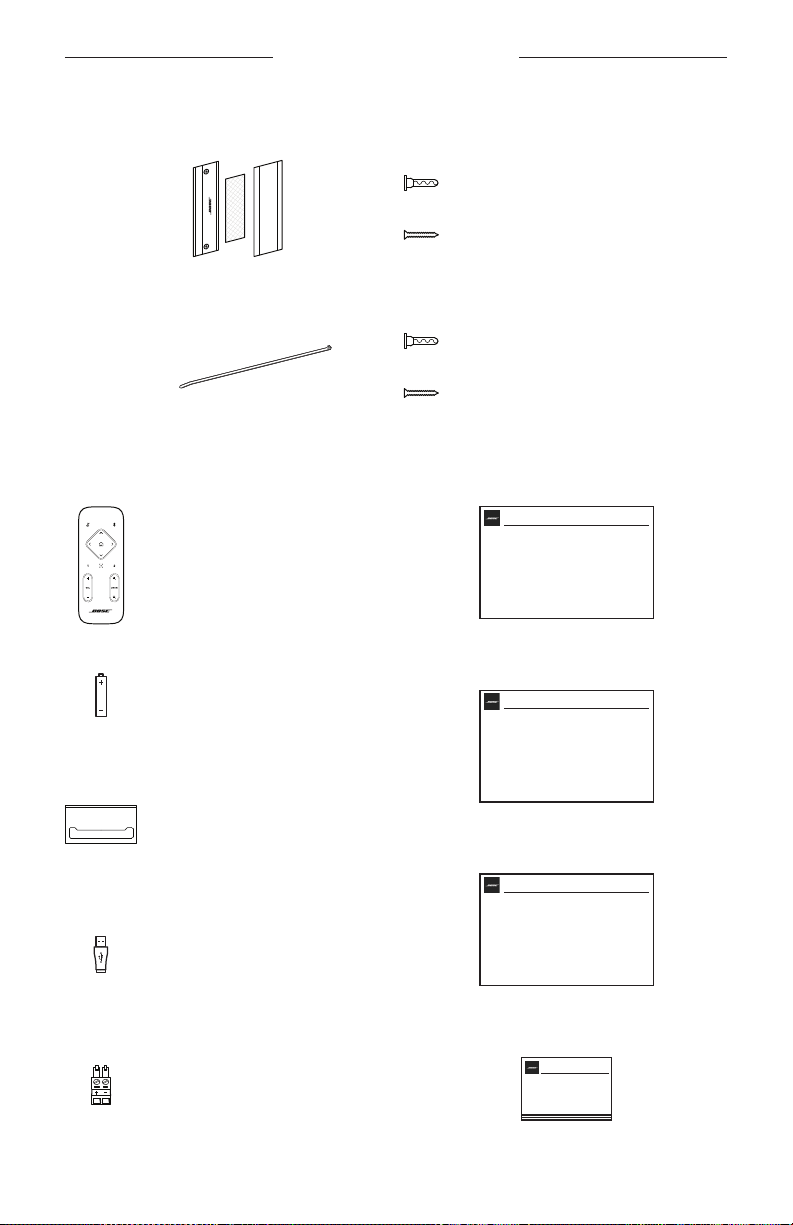
Bose Videobar VB1
Power supply
Table stand
Wall-mount bracket
Large drywall anchor (4)
Flat-head screw (2)
Drywall anchor pushpin
Pan-head screw (2)
Table stand screw (2)
USB Type-C® cablePower cord HDMI cable
11
|
EN
WHAT’S IN THE CARTON
F
I
G
J
H
K
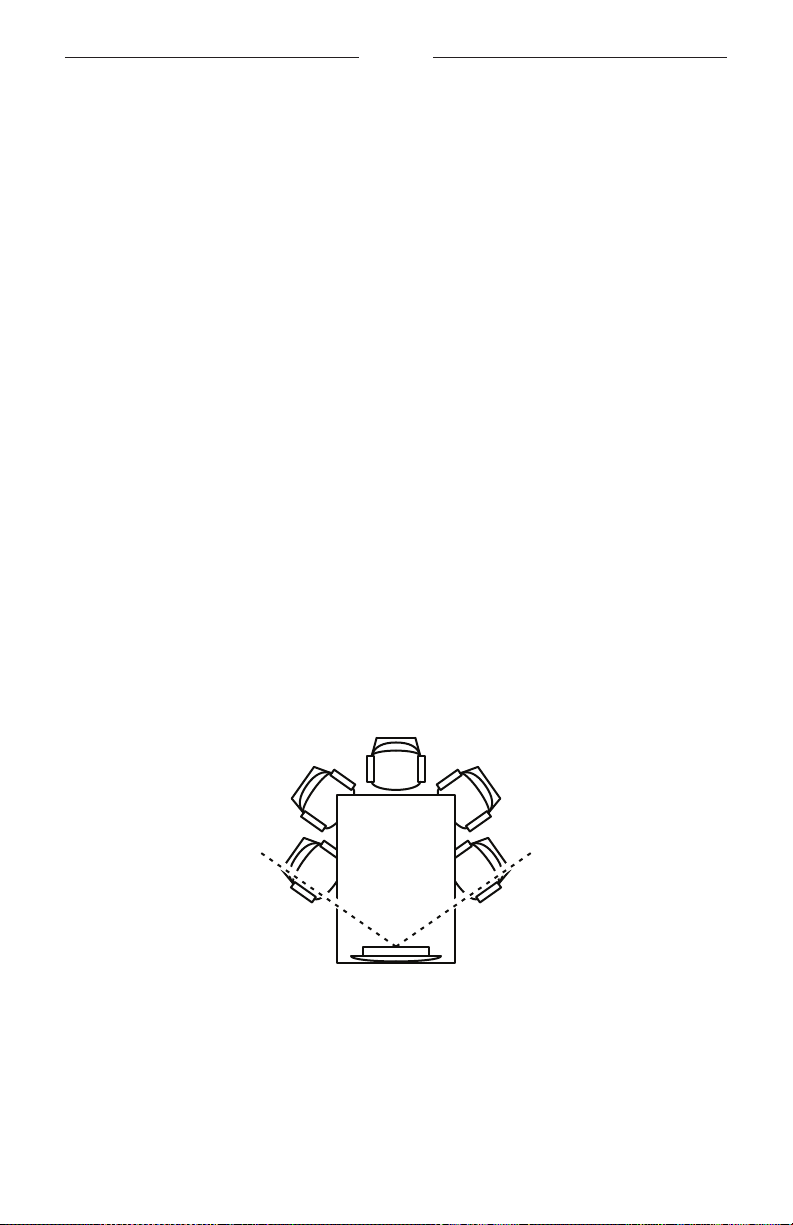
Small drywall anchor (2)
Small drywall anchor
Small flathead screw (2)
Small flathead screw
Remote control
Camera privacy cover
AAA/LR03 batteries (2)
USB-C-to-A adapter
2-pin Euroblock connector
Quick start guide
Table-mount setup guide
Wall-mount setup guide
Safety instruction guide
12
|
EN
SETUP
SETUP
General Mounting Guidelines
Do NOT place the VB1 on its front, back or top when in use.
Do NOT place any objects on top of the VB1.
Avoid placing the VB1 near air conditioning vents, heaters or radiators, fans, or
other sources of noise or vibrations.
To avoid wireless interference, keep other wireless equipment 0.3–0.9m (1–3ft)
away from the VB1. Place the VB1 outside and away from metal cabinets, other
audio/video components and direct heat sources.
Make sure there is an AC (mains) outlet nearby.
Place the VB1 directly below (preferred) or above your TV with the grille facing
into the room.
For best sound quality, do NOT place the VB1 in an enclosed cabinet or diagonally
in a corner.
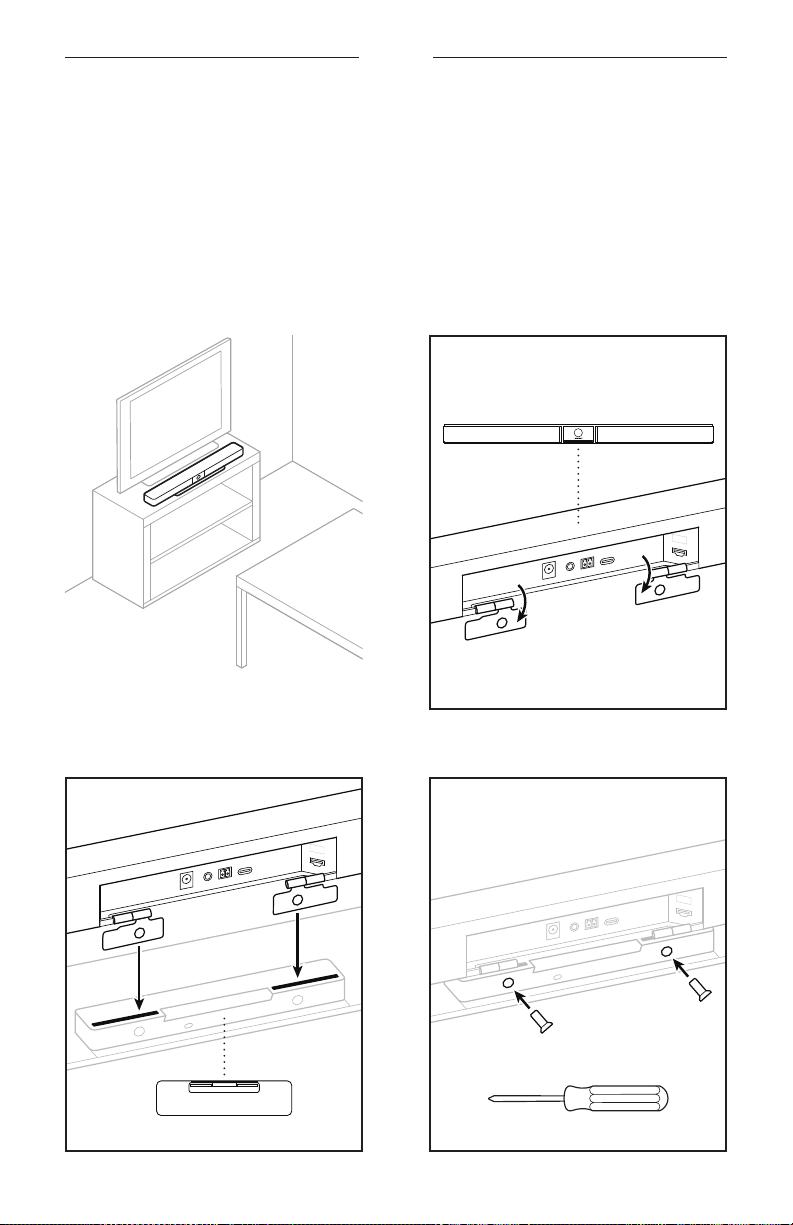
Make sure the seating area of all meeting participants fits within the camera’s
field of view (FOV). All meeting participants must be in the FOV in order for the
autoframing feature to work properly (see Enabling/Disabling Autoframing
(Page 37)).
The FOV of the VB1 camera is 115° horizontal, 81° vertical.
Make sure the meeting room can be well lit during a meeting.
115°
13
|
EN
SETUP
A
A
a
b
c
Mounting the VB1 on a Table, Shelf, or Credenza
For best performance, when setting up the VB1 on a table, shelf, credenza, etc., follow
these recommendations:
Place the VB1 in its table stand on a stable and level surface.
Position the front of the VB1 so the supporting surface is not visible in the
camera’s image. Make sure the meeting room can be well lit during a meeting.

14
|
EN
SETUP
Wall-mounting the VB1
For best performance, follow these recommendations when setting up the VB1 on a
wall:
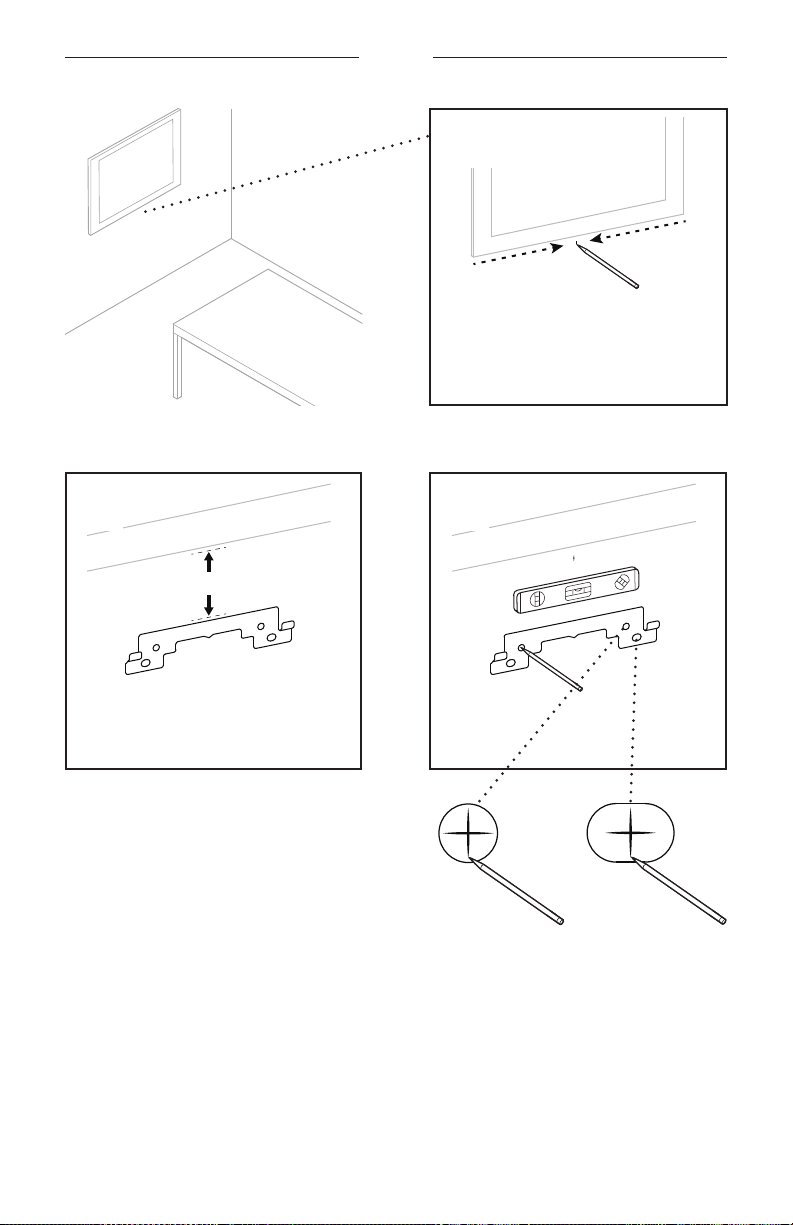
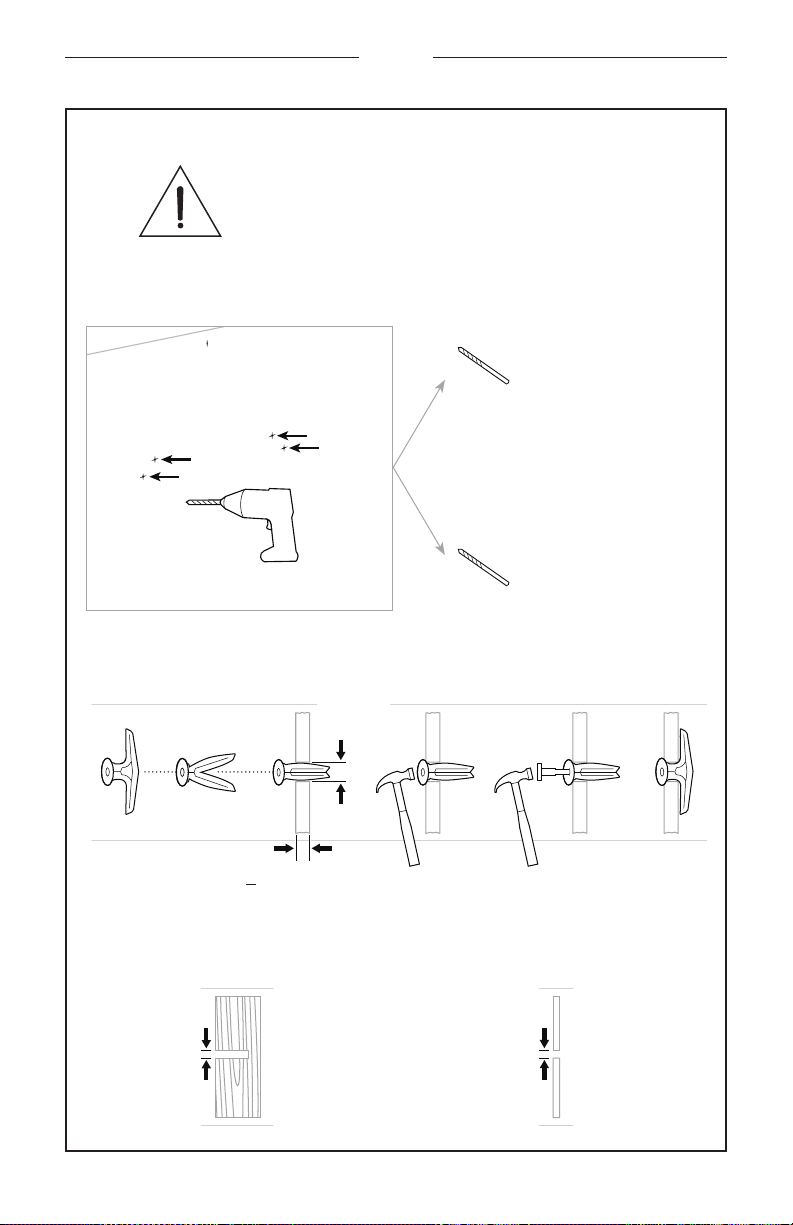
When determining where to attach the wall-mount bracket to the wall, make sure
there is enough space around the bracket to fit the VB1:
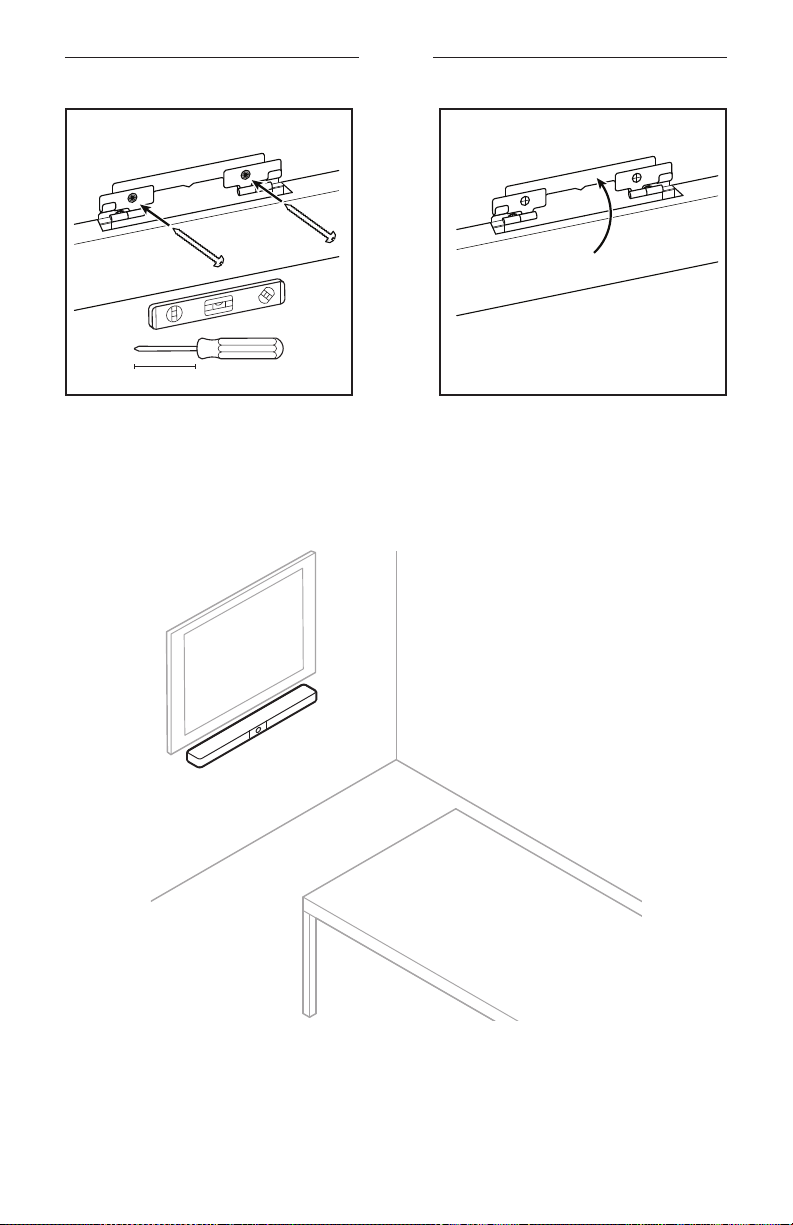
There must be at least 3.8cm (1.5in) above the wall-mount bracket. This will
allow you to “hang” the VB1 on it (Step 7) and to adjust the angle of the VB1. It
will also provide enough space to access the rear-panel connections on the VB1.
There must be at least 11.4cm (4.5in) below the wall-mount bracket. This will
allow you to hang the VB1 vertically during installation to insert cables and to
adjust the angle of the VB1.
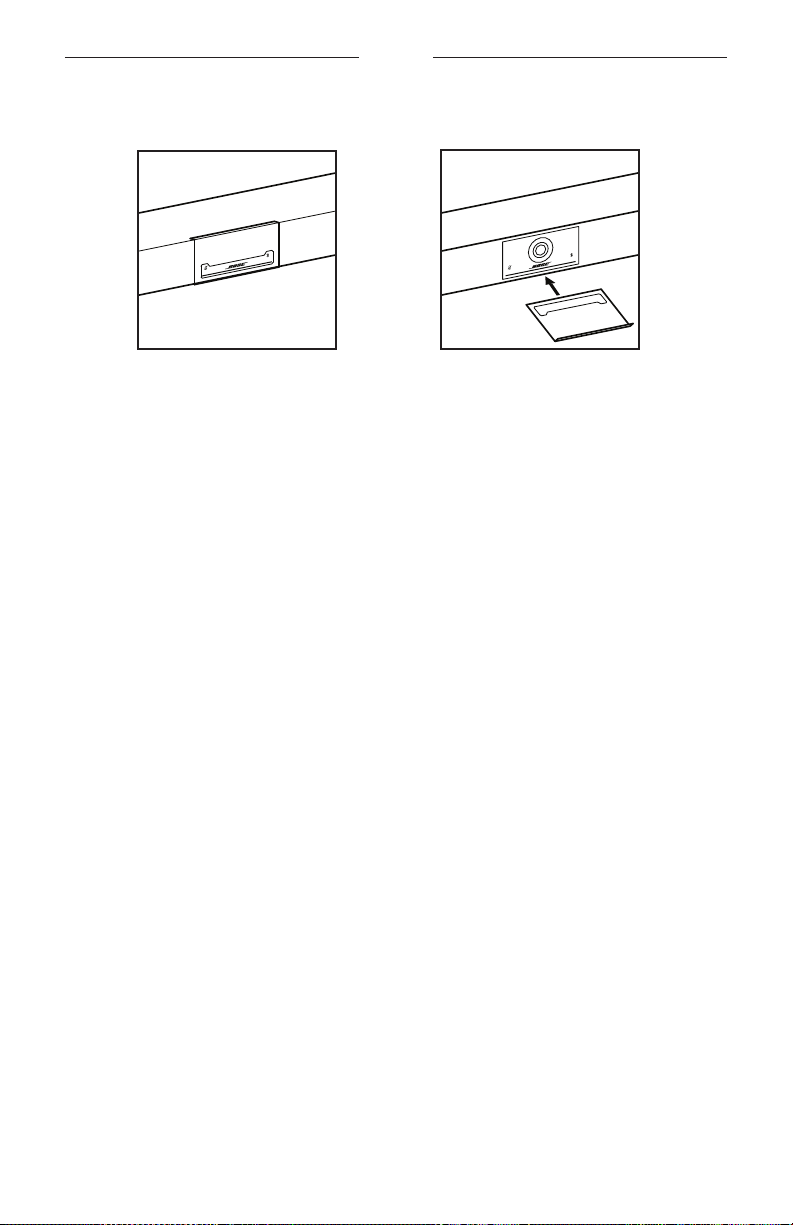
The space must be at least 73.7cm (29.0in) wide—with the wall-mount bracket
in the center of it. This is necessary to accommodate the VB1 plus space to access
the acoustic port and buttons on the sides of the VB1 (there should be 2.5cm
(1.0in) on each side).
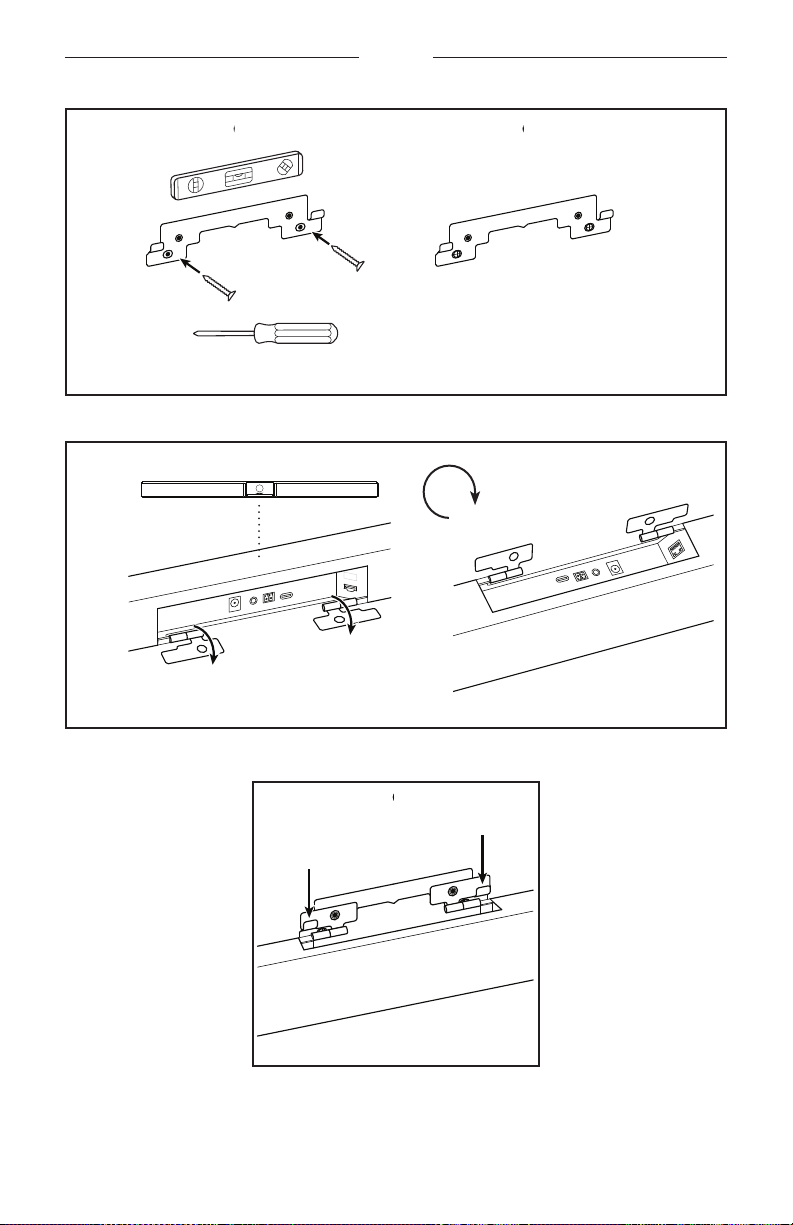
Only use the included hardware to mount this product.
Note: Some additional tools are required.
Note: Read the included Important Safety Instructions before continuing.
15
|
EN
SETUP
×2
×2
a
b c
> 38mm (1.5in)
16
|
EN
SETUP
Wallboard
Wood stud Metal stud
Wallboard
7.9mm (⁄in)
Wood stud/metal stud
4.8mm (⁄in)
4.8mm
(⁄in)
4.8mm
(⁄in)
WARNINGS:
Do not mount on surfaces that are not sturdy, or that have
hazards concealed behind them, such as electrical wiring or
plumbing. If unsure, please contact a professional installer.
The included hardware is not suitable for masonry surfaces.
d
7.9mm
(⁄in)
> 10mm (⅜in)
17
|
EN
SETUP
e
f
g
D
D
18
|
EN
SETUP
ih
64mm (2.5in)
E
E
19
|
EN
SETUP
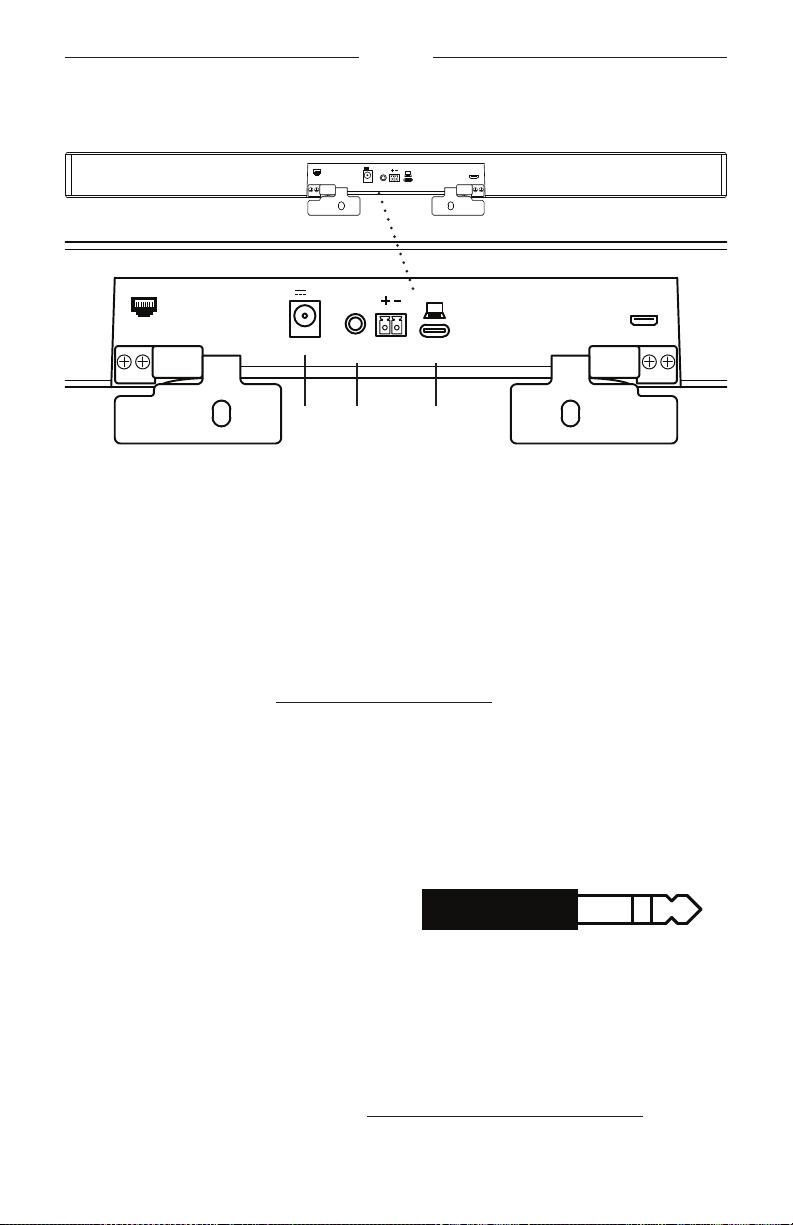
Camera Privacy Cover
The included camera privacy cover enables you to completely cover the camera’s field
of view without hiding the indicators and the light bar.
The cover is magnetic and will stay in place when mounted on the VB1 lens as shown.
For storage when not in use, secure the cover to the bottom surface below the lens.
20
|
EN
SETUP
Cable Connections
POWER
AUDIO
IN
CTRL
INPUT
INPUT/输入
24V
p 1.875A
USB-C
TO PC
HDMI DISPLAY
NETWORK
POWER
AUDIO
IN
CTRL
INPUT
INPUT/输入
24V
p 1.875A
USB-C
TO PC
HDMI DISPLAY
NETWORK
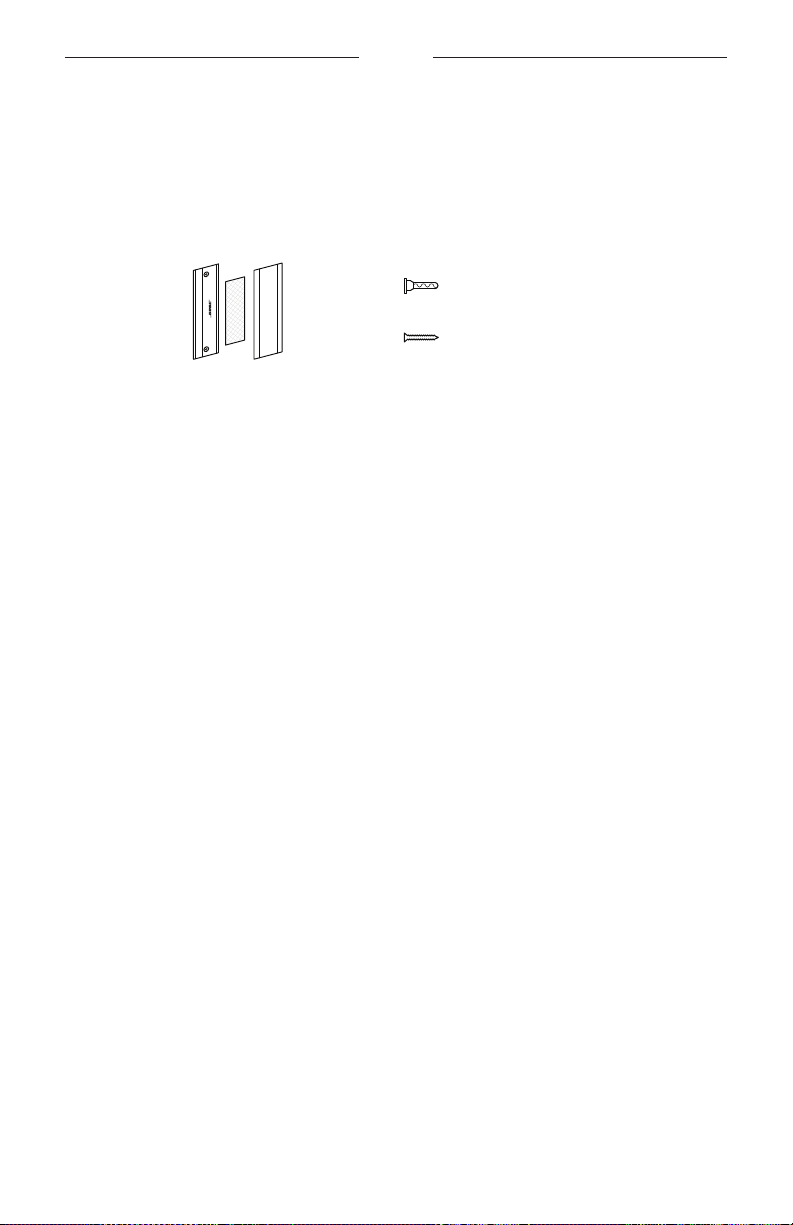
1. Connect the included USB-C® cable to the USB-C port.
Leave the other end of this cable on the table, so the meeting host can easily
connect or disconnect their computer each meeting.
Note: If a computer hosting a meeting has USB-A ports only, attach the included
USB-C-to-A adapter to the computer end of the USB-C cable.
2. Optional: Use the included HDMI cable to connect the HDMI Display port to an
HDMI port on a video display or monitor.
Note: The host computer must have the latest DisplayLink® driver installed, and the
VB1 must have its DisplayLink setting enabled (disabled by default) for the HDMI
output to function. Visit displaylink.com/downloads to download the latest driver.
Enable or disable the DisplayLink setting using the Bose Work Configuration app or
WebUI or Bose Work Management app (see Software Applications (Page 23)).
3. Optional: If you will use the VB1 in a network, use a Cat 5 cable (not included) to
connect the Network port to a port on a LAN port, a network switch, etc.
4. Optional: For auxiliary audio from an analog audio output on a display, connect a
3.5mm (⅛in) stereo cable (not included) to the Audio In jack
The pin-out configuration is:
1. Tip = Left audio in
2. Ring = Right audio in
3. Sleeve/Ring 2 = Ground
5. Connect the included power supply to the Power input.
6. Use the included power cable to connect the power supply to a power outlet. The
VB1 will power on automatically when connected to a power source.
There are several software apps that enable you to configure the Bose Videobar VB1 for
optimal performance. See Software Applications (Page 23) for more information.
If you need to use a USB extender, visit worldwide.Bose.com/Support/VB1 for a list
of recommended third-party USB extenders for use with VB1.
e
t
w
r q
3 2 1
21
|
EN
SETUP
Cable Management
The included cable management cover can hold all permanent cabling in place against
a wall.
F
G
H
Small drywall anchor (2)
Small flathead screw (2)
To install the cable management cover:
1. Place and hold the back of the cable cover (F) (the piece with the screw holes)
against desired location on wall.
2. Mark the center of the two screw holes on wall, and remove the back of the cable
cover.
3. If that part of the wall has a stud behind it, drill two 2.4mm (⁄in) holes into the
wall.
If that part of the wall has no stud behind it, drill two 5mm (⁄in) holes into the
wall.
4. If that part of the wall has no stud behind it, drive the two small drywall anchors
(G) into the wall.
5. Align the back of the cable cover (F) with the screw holes.
6. Drive the two small flat-head screws (H) into the back of the cable cover to secure
it to the wall.
7. Gather the cables and place along the “guide” of the back of the cable cover (on
the wall).
8. Remove the adhesive strip from the cable cover foam (F).
9. Firmly place the foam strip on the back of the cable cover, next to the gathered
cables.
10. Place the front of the cable cover (F) over gathered cables and foam so it adheres.

22
|
EN
SETUP
To fasten the power supply cord to the wall:
1. Determine where on the wall you want to fasten the power supply cord.
2. Mark a screw hole on wall.
3. If that part of the wall has a stud behind it, drill a 2.4mm (⁄in) hole into the wall.
If that part of the wall has no stud behind it, drill a 5mm (⁄in) hole into the wall.
4. If that part of the wall is has no stud behind it, drive the small drywall anchor (J)
into the wall.
5. Align the eyelet of the cable tie (I) with the screw hole.
6. Drive the small flat-head screw (H) into the eyelet of the cable tie to secure it to
the wall.
I
J
K
Small drywall anchor
Small flathead screw

23
|
EN
SOFTWARE APPLICATIONS
SOFTWARE APPLICATIONS
Three software applications enable you to configure the Bose Videobar VB1:
Use Bose Work Configuration software — available for Windows and macOS or via
web browser — for device setup and configuration.
Features:
Control camera: pan, tilt, zoom, presets, and autoframing
Password-protected administration and configuration
Install firmware updates, create and apply configuration profiles, enable or
disable HDMI output (DisplayLink), adjust network,
Bluetooth
, and advanced
camera settings, and more
Notifies you if a Bose Work device software update is available
Available for Windows and macOS or via web browser, which provides all the
functionality of the desktop software over a network connection
Use Bose Work Management software for remote management, for single-device or
enterprise-wide, multi-device changes, and to view device status in real time.
Features:
See device status and control critical functions of all your Bose Videobar VB1
devices from a single location
Schedule firmware updates to all or only selected devices
View, edit, save parameters by device or group of devices
Discover all devices on the network; create, save, and apply device profiles
Available for Windows
The Bose Work mobile app allows anyone in the room to control the Bose Videobar
VB1 with their smartphone — adjust volume, mute, pan, tilt, zoom, zoom presets, and
Bluetooth
pairing.
Features:
Real-time control of volume, mute, pan, tilt, zoom, zoom presets, and
Bluetooth
pairing from your mobile device
Uses
Bluetooth
pairing to discover and communicate with the Bose Videobar VB1
Available for iOS and Android
24
|
EN
SOFTWARE APPLICATIONS
Bose Work Configuration App and WebUI
To download and install the Bose Work Configuration app on your computer:
1. On your computer, visit pro.Bose.com/VB1LatestSW.
2. Download and install the Bose Work Configuration Software app.
To access and use the Bose Work Configuration app to configure the VB1:
1. Connect your computer to the USB-C port on the VB1.
2. Open the Bose Work Configuration app.
3. To access the Administrator configuration settings to configure the VB1, Click the
Administrator icon in the navigation panel and enter the factory default password:
Bose123!
Note: We recommend changing the password after gaining access.
To access and use the browser-based Bose Work Configuration WebUI to configure
the VB1 over a network connection:
1. Connect your computer and the VB1 to the same network.
2. Enter the IP address of the VB1 into the address bar of a web browser on your
computer, and press Enter. (You can determine the IP address of the VB1 using the
Bose Work Configuration app over USB or using the Bose Work Management app
which automatically discovers VB1s on the network.) The Bose Work Configuration
WebUI will open.
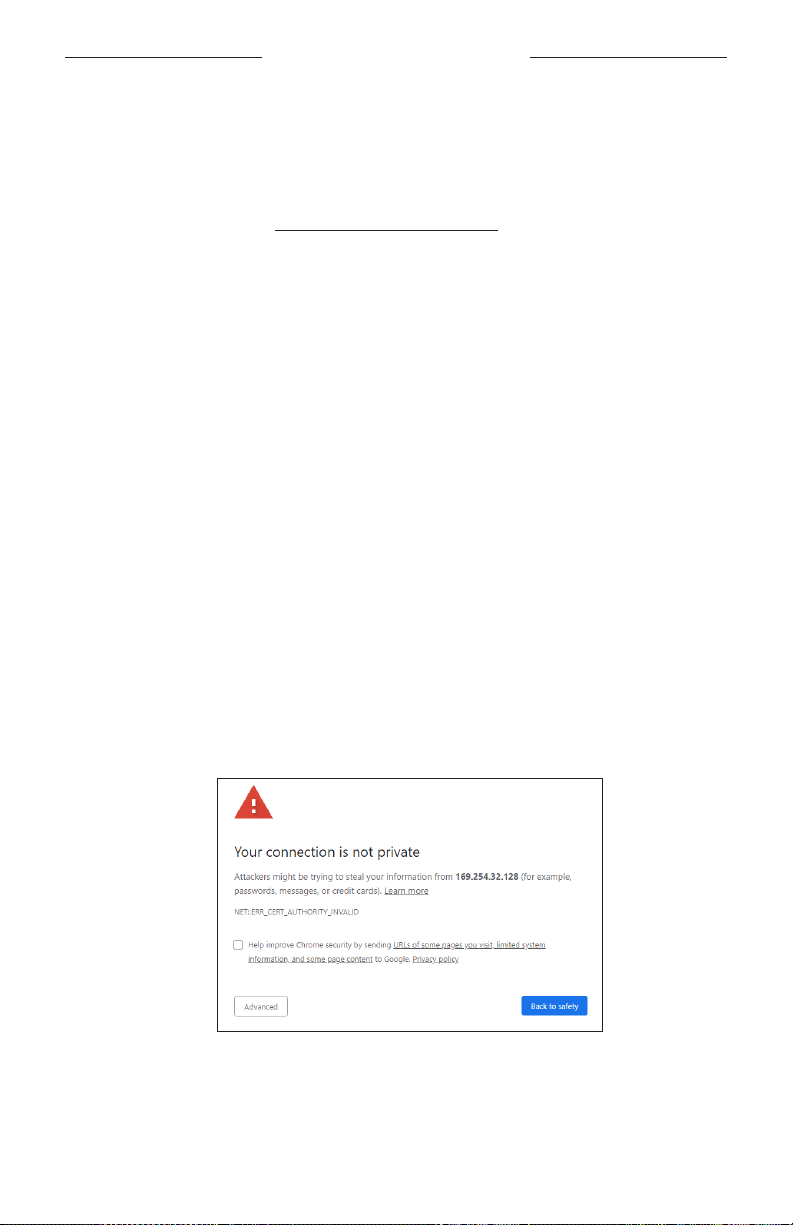
Note: On some browsers, you may see a security warning like this:
This is normal and not a security risk. Click Advanced. (If you are ever unsure
about performing an operation on your computer, in a web browser, etc., check
with your IT/system administrator first.)

25
|
EN
SOFTWARE APPLICATIONS
You may then receive a follow-up message:
This is also normal. Click the Proceed to… link to proceed to the Bose Work
Configuration WebUI login page.
The factory default administrator password is: Bose123!
Note: We recommend changing the password after gaining access.
To access the help file for the Bose Work Configuration app or WebUI, see the
Settings page in the app or WebUI.

26
|
EN
SOFTWARE APPLICATIONS
Bose Work Management App
To download the Bose Work Management software:
1. On your computer, visit pro.Bose.com/VB1LatestSW.
2. Download and install the Bose Work Management app.
To access and use the Bose Work Management app to configure one or more VB1s
over a network connection:
1. Connect your computer and each VB1 to the same network.
2. Open the Bose Work Management app.
To access the help file for the Bose Work Management app, see the About Bose Work
Management page in the app.
Bose Work App
The Bose Work App provides the functions of the infrared remote control conveniently
on your mobile device. To download the Bose Work app:
1. Search for and download the Bose Work app from the App Store
SM
or Google Play™.
2. Open the app on your mobile device and enable location tracking.
3. On your mobile device, connect to Bose Videobar VB1.
To access the help file for the Bose Work app, see Settings page in the app.
27
|
EN
PRODUCT DETAILS
PRODUCT DETAILS
Panels
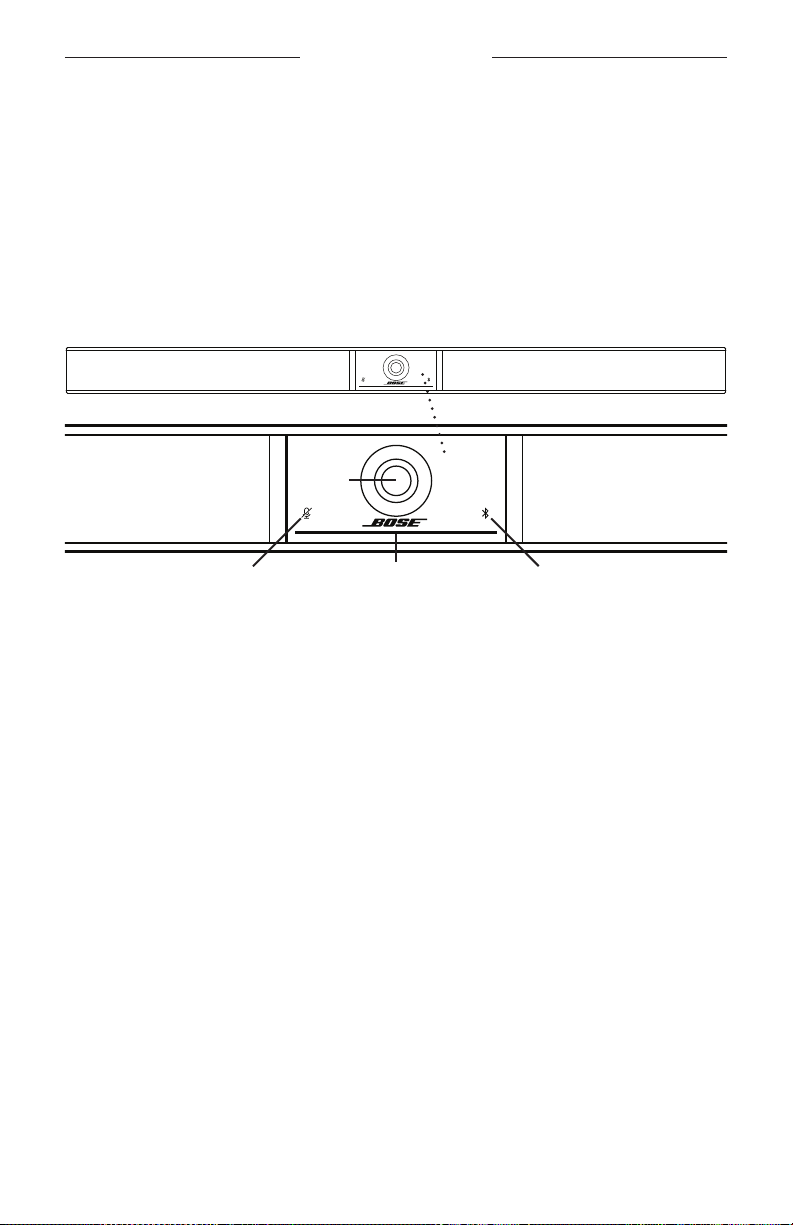
Front Panel
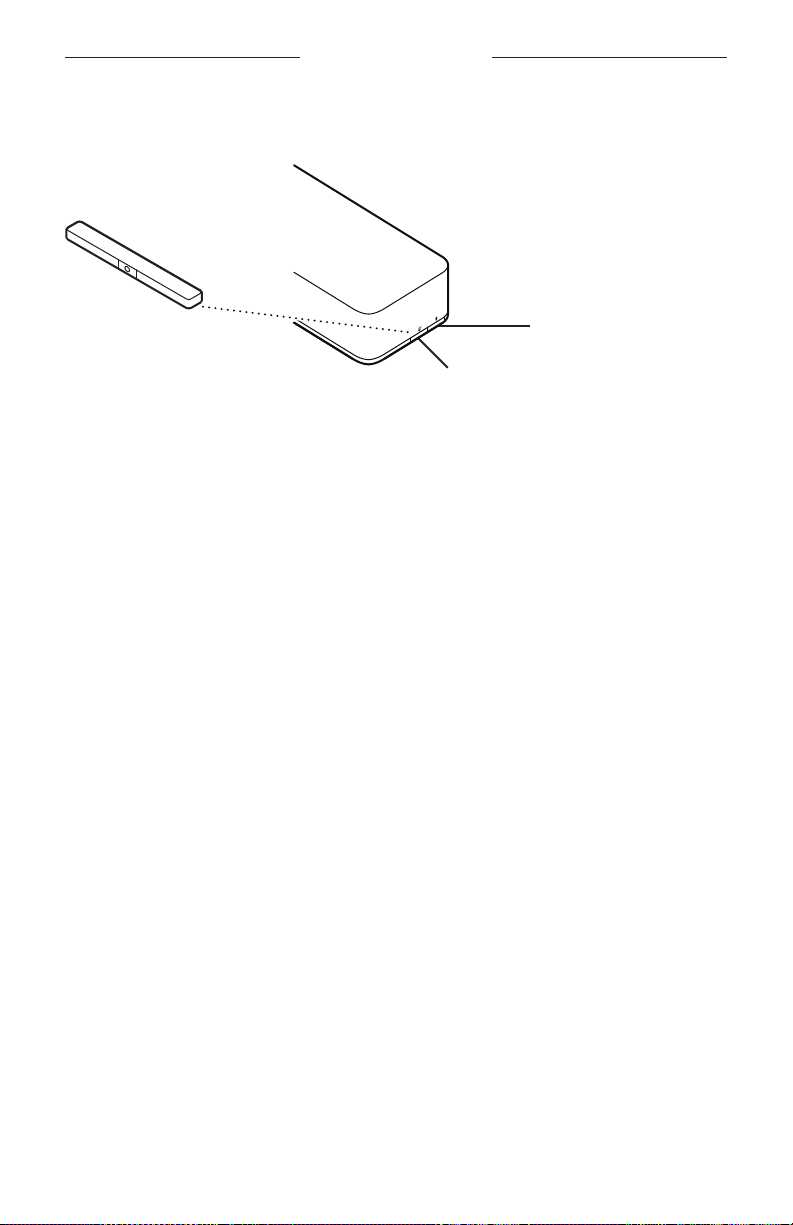
w r
q
e
1. Camera
2. Mute indicator: This light illuminates red when the microphones are o.
3.
Bluetooth
indicator: This light indicates the current status of VB1
Bluetooth
connectivity:
Slowly pulses blue: The VB1 is available to pair to a
Bluetooth
mobile device.
Solid white: The VB1 is connected to the Bose Work app or to a mobile device
for calls and media.
O: No
Bluetooth
connectivity.
4. Light bar: See Light Bar (Page 31) to learn more about this.
28
|
EN
PRODUCT DETAILS
Side Panel
q
w
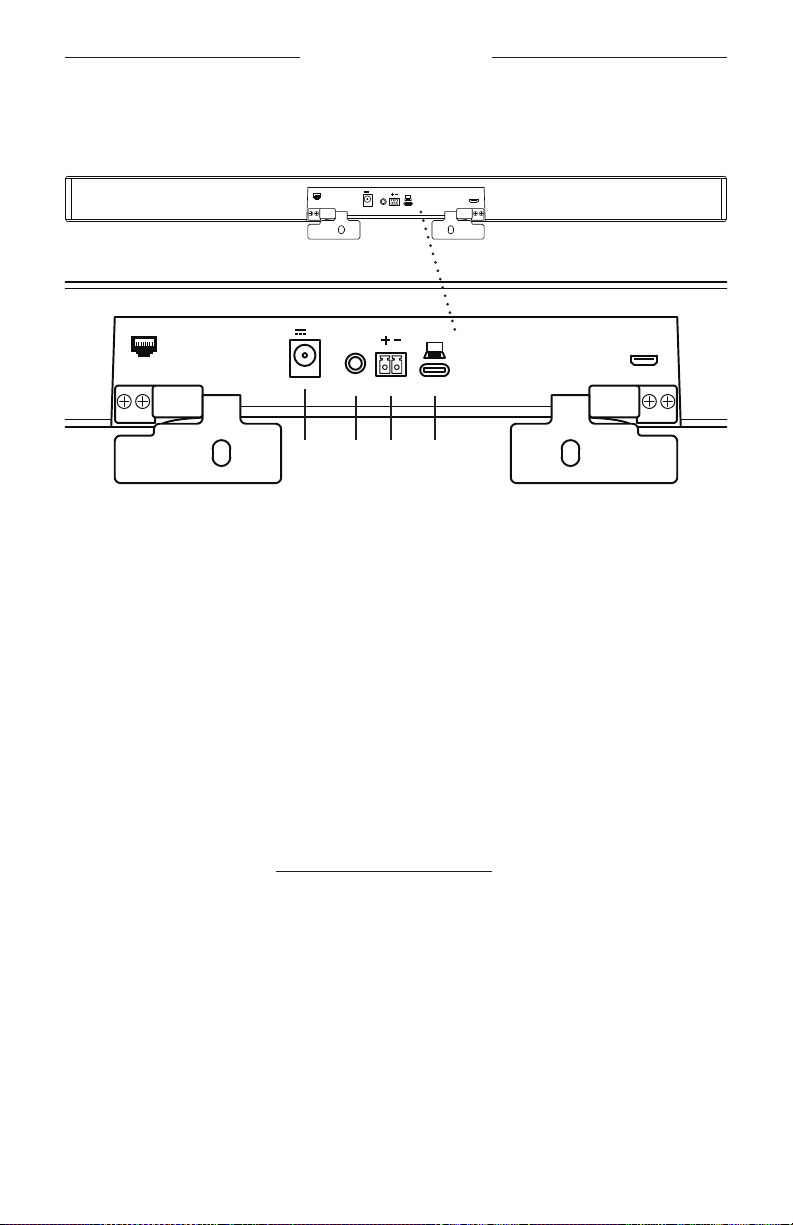
1. Mute button: Press this button to mute or unmute the VB1 microphones.
2.
Bluetooth
button: Press and hold this button to enter pairing mode.
29
|
EN
PRODUCT DETAILS
Rear Panel
POWER
AUDIO
IN
CTRL
INPUT
INPUT/输入
24V
p 1.875A
USB-C
TO PC
HDMI DISPLAY
NETWORK
POWER
AUDIO
IN
CTRL
INPUT
INPUT/输入
24V
p 1.875A
USB-C
TO PC
HDMI DISPLAY
NETWORK
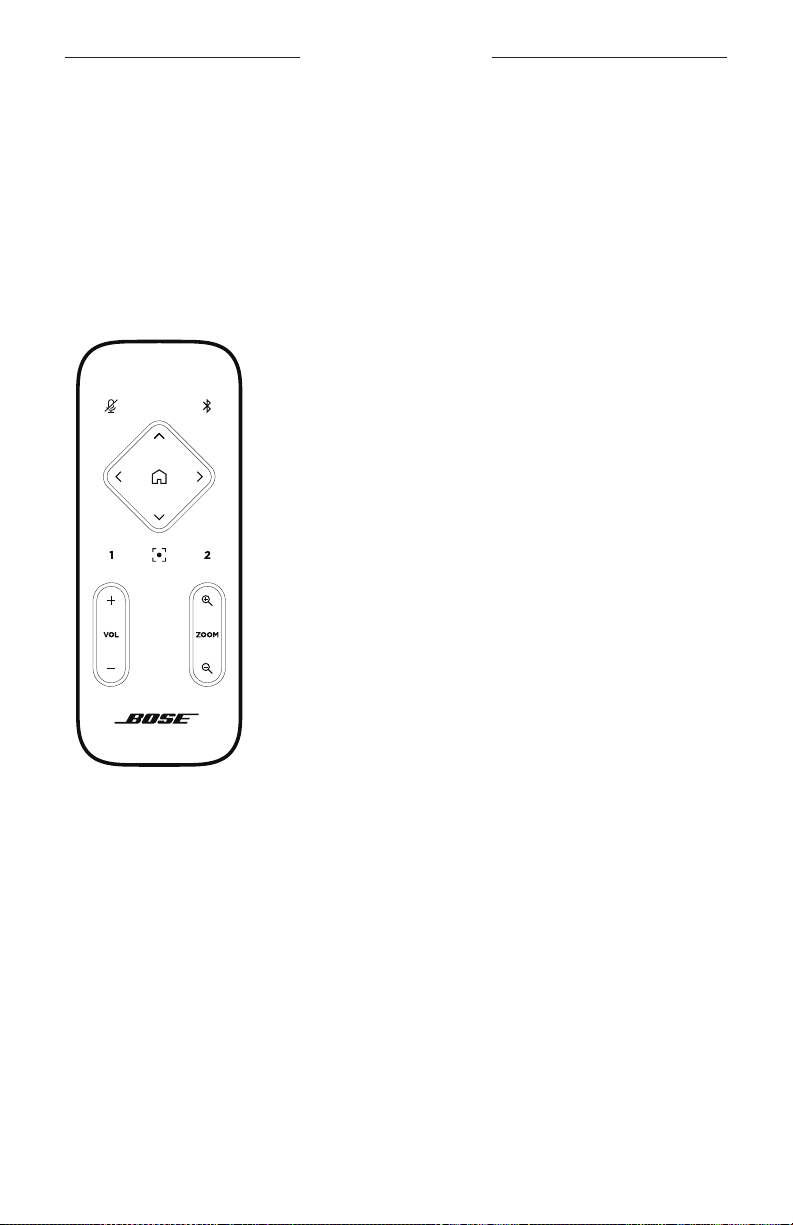
e tw r
q
y
1. Network: Use this 1 Gbps RJ45 connection for configuration and/or monitoring.
(This port is on the inner side of the rear panel.)
2. Power: Connect the included power supply.
3. Audio In: Use a 3.5mm (⅛in) stereo cable (not included) to connect to an optional
audio source, such as the audio output from a connected monitor or display.
4. Ctrl Input: Use the port for mute override using the included 2-pin Euroblock
connector. By default, this input is active low and includes an internal pull-up.
5. USB-C: Connect this port to the computer hosting the meeting.
6. HDMI Display: Use the included HDMI cable to connect this port to a display. (This
port is on the inner side of the rear panel.)
Note: The host computer must have the latest DisplayLink® driver installed, and the
VB1 must have its DisplayLink setting enabled (disabled by default) for the HDMI
output to function. Visit displaylink.com/downloads to download the latest driver.
Enable or disable the DisplayLink setting using the Bose Work Configuration app or
WebUI or Bose Work Management app (see Software Applications (Page 23)).
30
|
EN
PRODUCT DETAILS
Remote Control
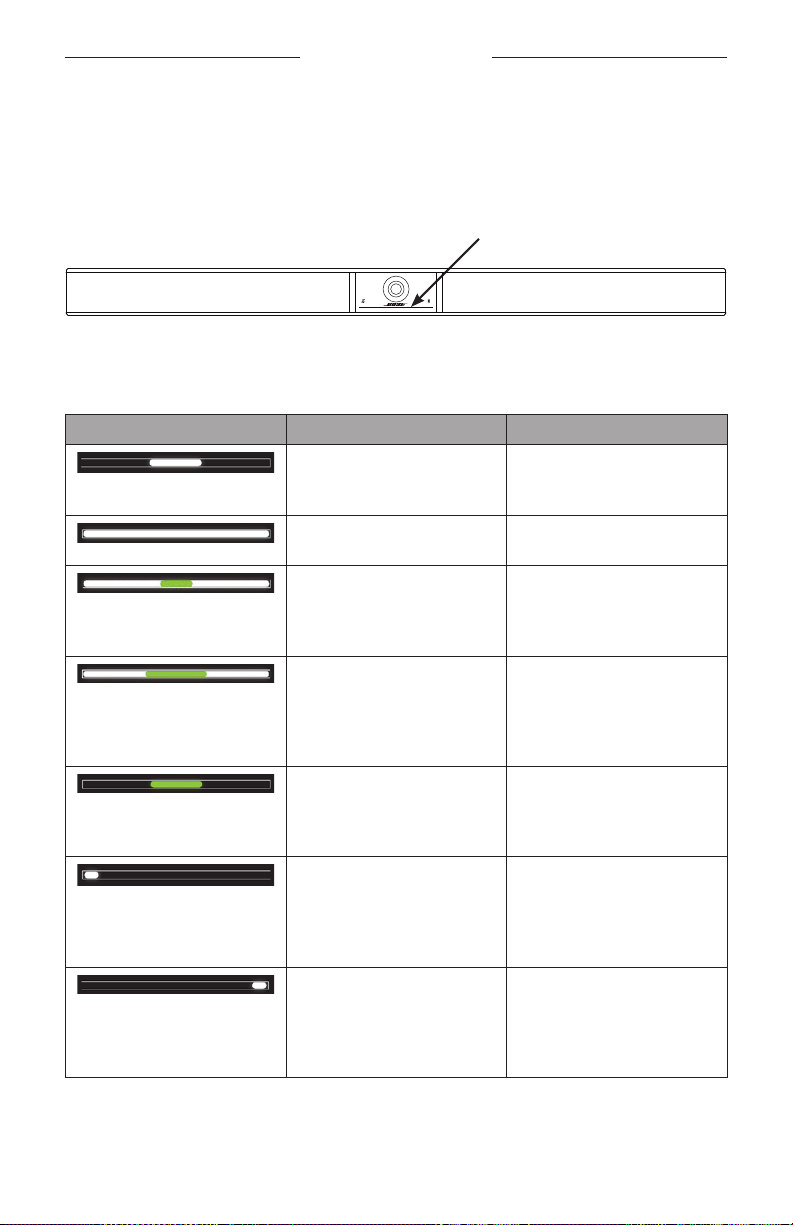
The Bose Videobar VB1 includes an infrared remote control that enables you to adjust
camera and volume settings, mute the microphones, and put the VB1 in
Bluetooth
pairing mode.
Note: All remote-control functions are also available in the software apps that enable
you to configure the Bose Videobar VB1. See Software Applications (Page 23) for
more information.
e e
t
w
r
r
q
u
y
i o
y
1. Mute: Mute/unmute the VB1 microphones.
2.
Bluetooth
: Press and hold for 3 seconds to enter
pairing mode. If already paired to a device, press and
hold to disconnect.
3. Camera Pan: Press to pan the camera left and right (<
or >), or press and hold for continuous adjustment.
4. Camera Tilt: Press to tilt the camera up and down ( or
V), or press and hold for continuous adjustment.
5. Home Preset: Return Pan, Tilt, and Zoom (PTZ) camera
settings to the Home position. The Home position can
be changed in the Bose Work Configuration app.
6. Presets 1 & 2: Press to select Preset 1 or 2 for the
camera. Press and hold to save the current Pan, Tilt,
and Zoom (PTZ) camera settings as Preset 1 or 2.
7. Autoframe: Turn autoframing on/o. When on, the
pan, tilt, and zoom (PTZ) camera settings will adjust
automatically to include all participants in the field of
view at all times.
8. Volume: Raise or lower volume (+ or −).
9. Camera Zoom: Increase or decrease (+ or −) the zoom
ratio of the camera.
31
|
EN
PRODUCT DETAILS
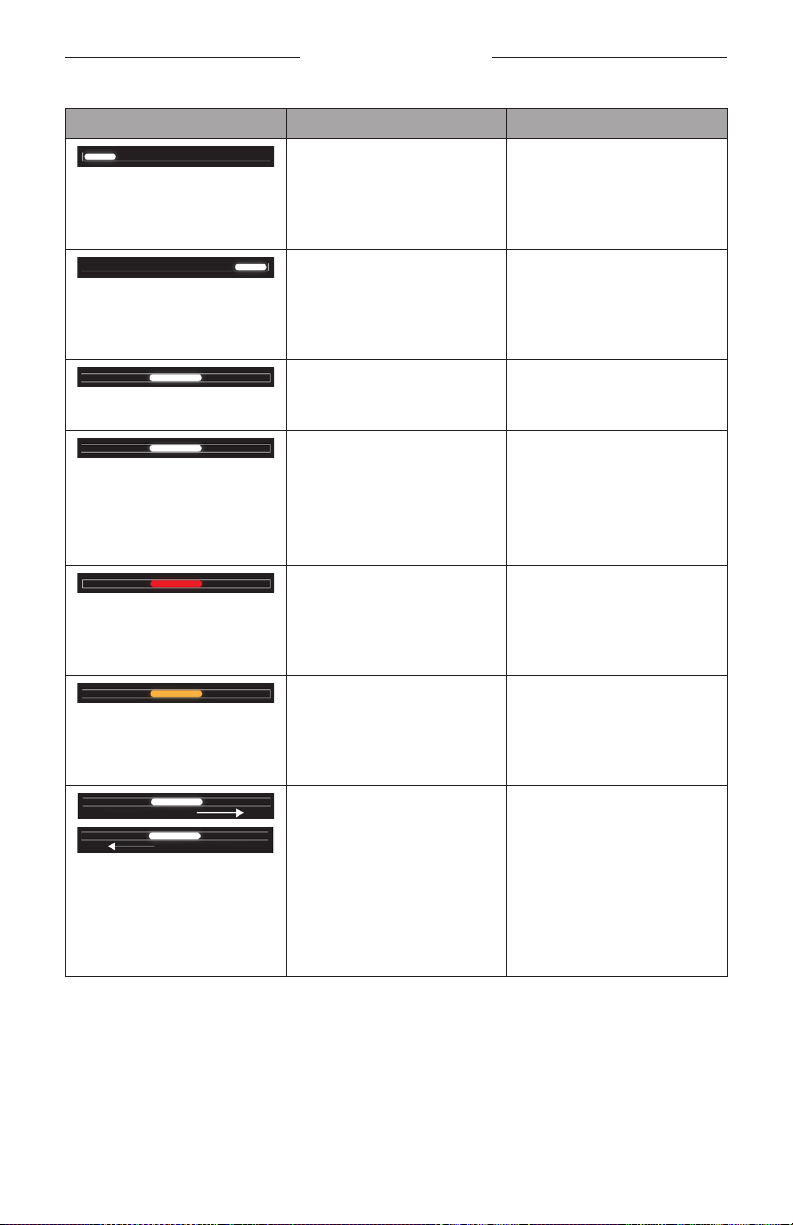
Appearance Activity System State
A small section of lights in
the center of the light bar
is lit solid white.
Powered on and “awake.”
All lights are lit solid
white.
Meeting is active. Camera
is o.
The center light is lit
solid green, while the
surrounding lights are lit
solid white.
Meeting is active. Camera
is on with autoframing o.
A small section of lights in
the center of the light bar
is lit solid green, while the
surrounding lights are lit
solid white.
Meeting is active. Camera
is on with autoframing on.
A small section of lights in
the center of the light bar
is lit solid green, while the
surrounding lights are o.
Camera is on. No active
meeting.
The leftmost light on
the light bar blinks once
(white/on if there is no
active call; o if there is an
active call).
The volume has been
lowered by one increment.
The rightmost light on
the light bar blinks once
(white/on if there is no
active call; o if there is an
active call).
The volume has been
raised by one increment.
Light Bar
The light bar is located under the camera of the VB1.
32
|
EN
PRODUCT DETAILS
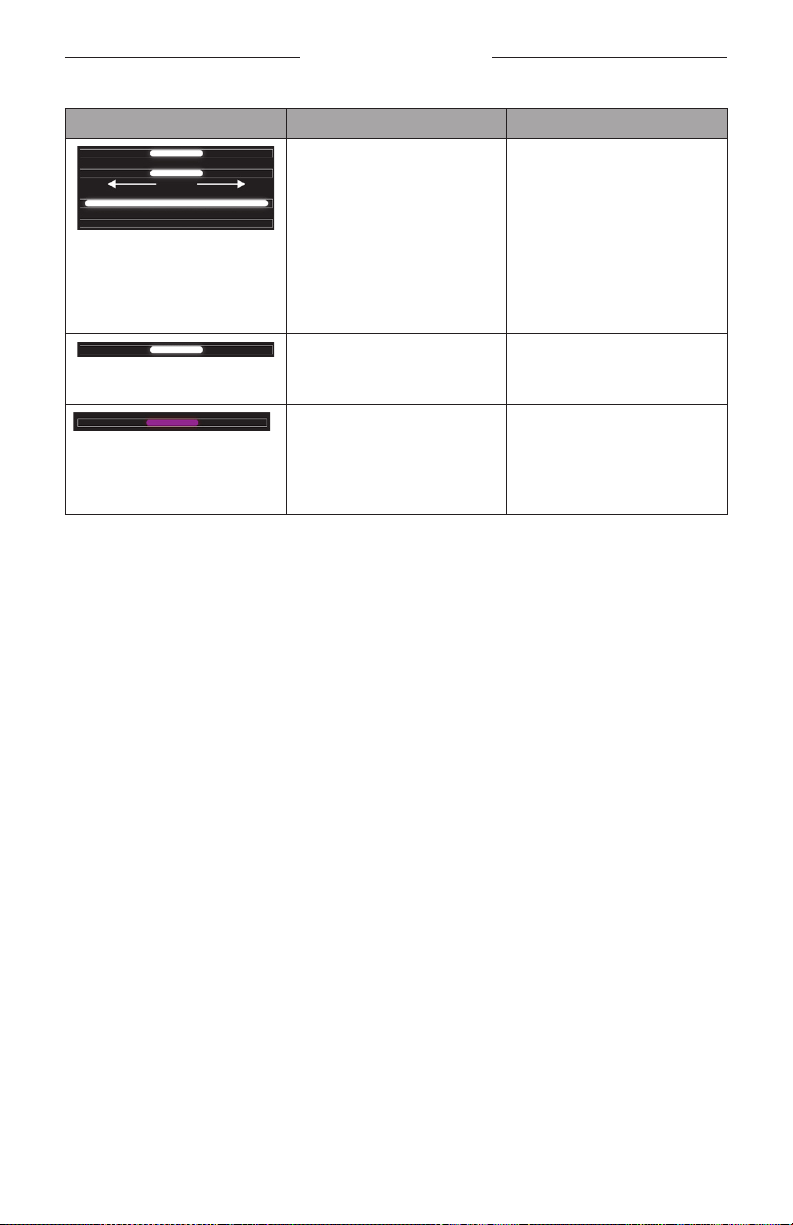
Appearance Activity System State
A small bar of lights on the
leftmost end of the light
bar blinks once (white/on
if there is no active call; o
if there is an active call).
The volume has been set
to its lowest level.
A small bar of lights on the
rightmost end of the light
bar blinks once (white/on
if there is no active call; o
if there is an active call).
The volume has been set
to its highest level.
A small section of lights in
the center of the light bar
is blinking white rapidly.
The VB1 is searching for a
Wi-Fi network.
A small section of lights
in the center of the light
bar pulses white once and
then fades o.
The VB1 has connected to
a Wi-Fi network.
This also means the VB1
has detected a new audio
source connected to the
host USB port or Audio In.
A small section of lights in
the center of the light bar
is solid red.
The VB1 is not functioning
properly due to a
firmware/software issue.
Please contact Bose
technical support.
A small section of lights in
the center of the light bar
are blinking amber.
The VB1 is not functioning
properly due to a
connection issue. Make
sure the VB1 is connected
to a network.
White lights move
repeatedly between the
right and left ends.
The VB1 is downloading
and installing a firmware
update. Do not disconnect
the VB1 from its power
outlet or network. When
the update is complete,
the light bar will stop
moving, and the VB1 will
play an audio tone.
33
|
EN
PRODUCT DETAILS
Appearance Activity System State
A small section of lights in
the center of the light bar
pulses white repeatedly.
The lights then move
outward from the center
until the whole light bar
is lit solid white. The
lights turn o in the same
pattern.
The VB1 is restarting
after restoring its factory
default settings.
A small section of lights in
the center of the light bar
pulses white repeatedly.
The VB1 is restarting after
a power outage.
A small section of lights in
the center of the light bar
pulses purple repeatedly.
The Bose Work
Management app is
sending an “Identify
Device” message to the
VB1.

34
|
EN
OPERATION
OPERATION
Starting a Meeting
Note: The host computer must have the latest DisplayLink® driver installed, and the
VB1 must have its DisplayLink setting enabled (disabled by default) for the HDMI
output to function. Visit displaylink.com/downloads to download the latest driver.
Enable or disable the DisplayLink setting using the Bose Work Configuration app or
WebUI or Bose Work Management app (see Software Applications (Page 23)).
To start a meeting using the VB1:
1. Connect the included USB cable between the VB1 and your computer. Use the
included USB C-to-A adapter, if needed.
2. Start the meeting in your preferred meeting software.
3. In the device settings of your meeting software, select Bose Videobar VB1 as the
device for the microphone, speakers, and camera.
To make a call using the VB1 as a speakerphone:
1. Press the
Bluetooth
button on the side of the VB1 (or press and hold the
Bluetooth
button on the remote control for 3 seconds) to put the VB1 into pairing mode.
2. On your mobile device, scan for available
Bluetooth
devices and select the VB1.
3. Make a call from your mobile device. The audio will be automatically routed from
your mobile device to the VB1 speakers and microphones.
35
|
EN
OPERATION
Adjusting the Camera
Note: All remote-control functions are also available in the software apps that enable
you to configure the Bose Videobar VB1. See Software Applications (Page 23) for
more information.
Tip: For quick and simple adjustments to the camera settings, we recommend using
the Bose Work app on your mobile device. See Bose Work App (Page 26).
Resetting the Camera
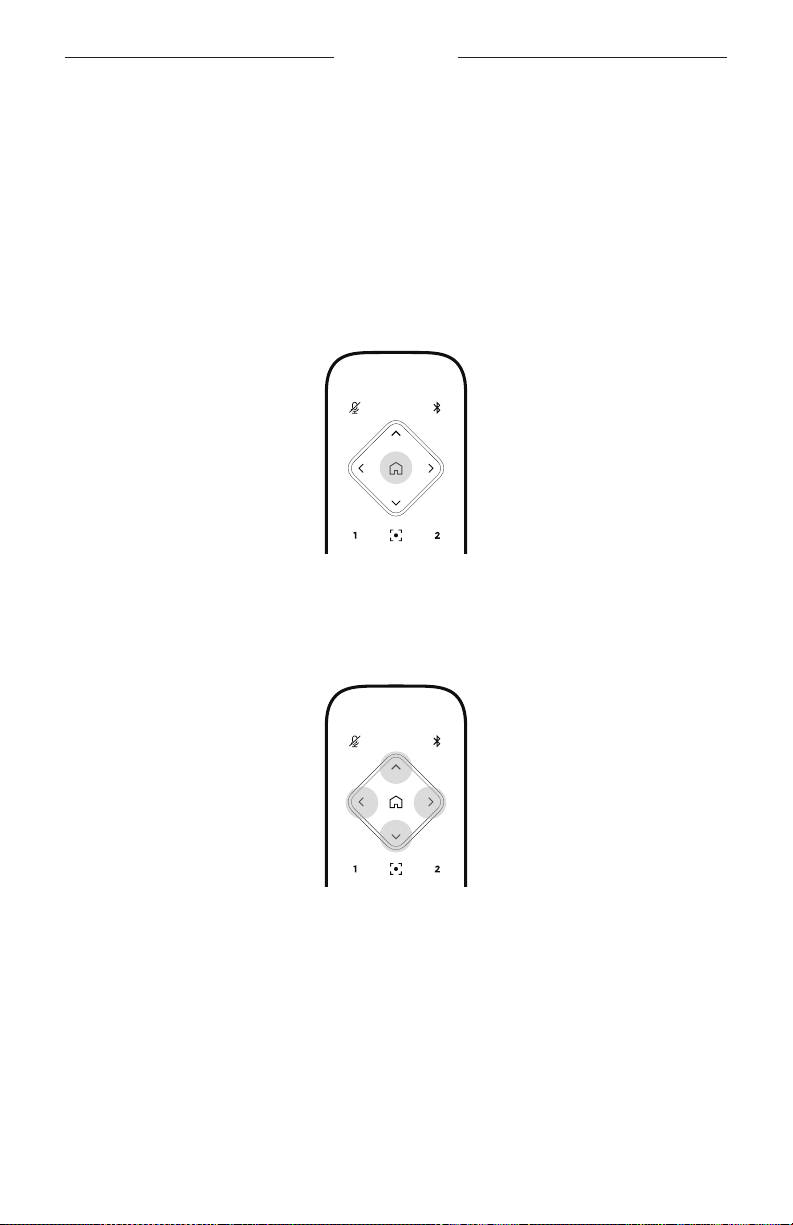
To return the camera to its default pan, tilt, and zoom settings, press the Home button
on the remote control.
Adjusting the Pan and Tilt Angles
Note: You can adjust the pan and tilt angles only if the camera is not fully zoomed out.
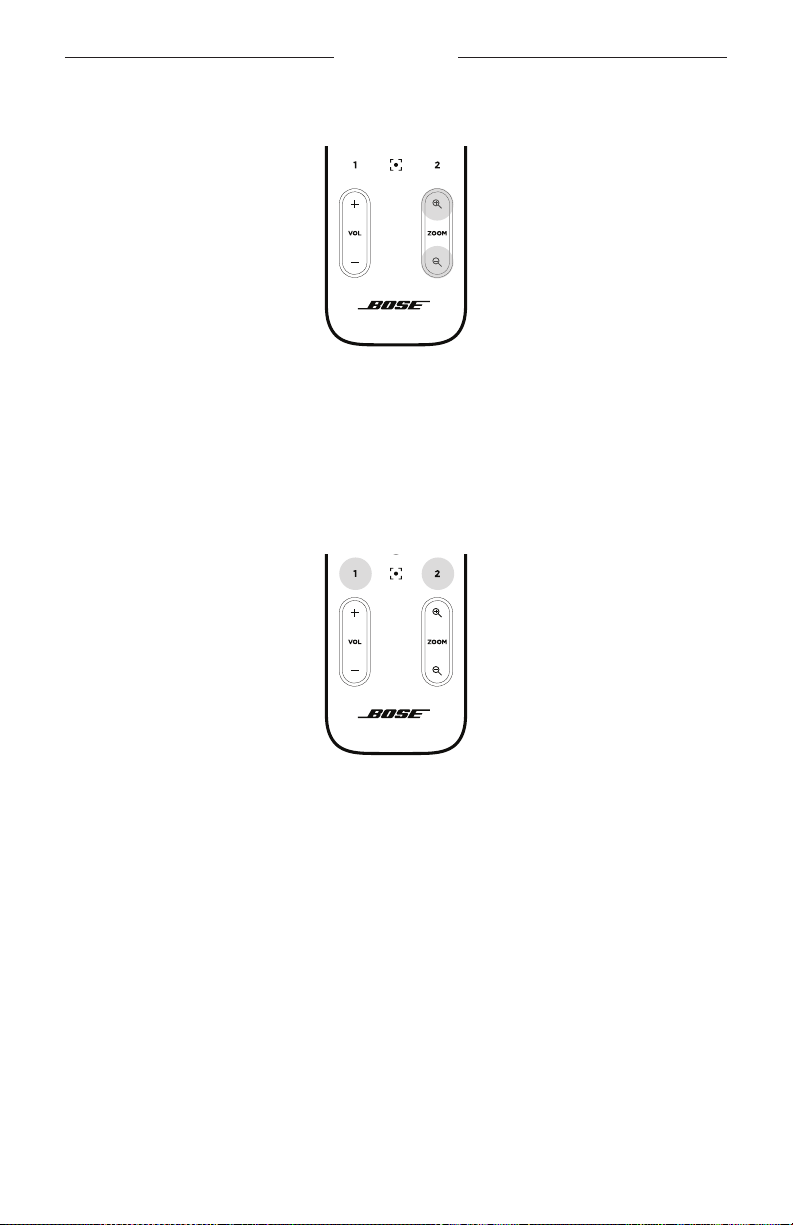
To adjust the pan (left-right) angle of the camera, press one of the camera pan
buttons (< or >) on the remote control.
To adjust the tilt (up-down) angle of the camera, press one of the camera tilt buttons
( or V) on the remote control.
Press a button once to adjust the camera in increments, or press and hold it for
continuous adjustment.
36
|
EN
OPERATION
Adjusting the Zoom Ratio
To adjust the zoom ratio of the camera, press one of the Zoom buttons (+ or −) on the
remote control.
Press a button once to adjust the camera in increments, or press and hold it for
continuous adjustment.
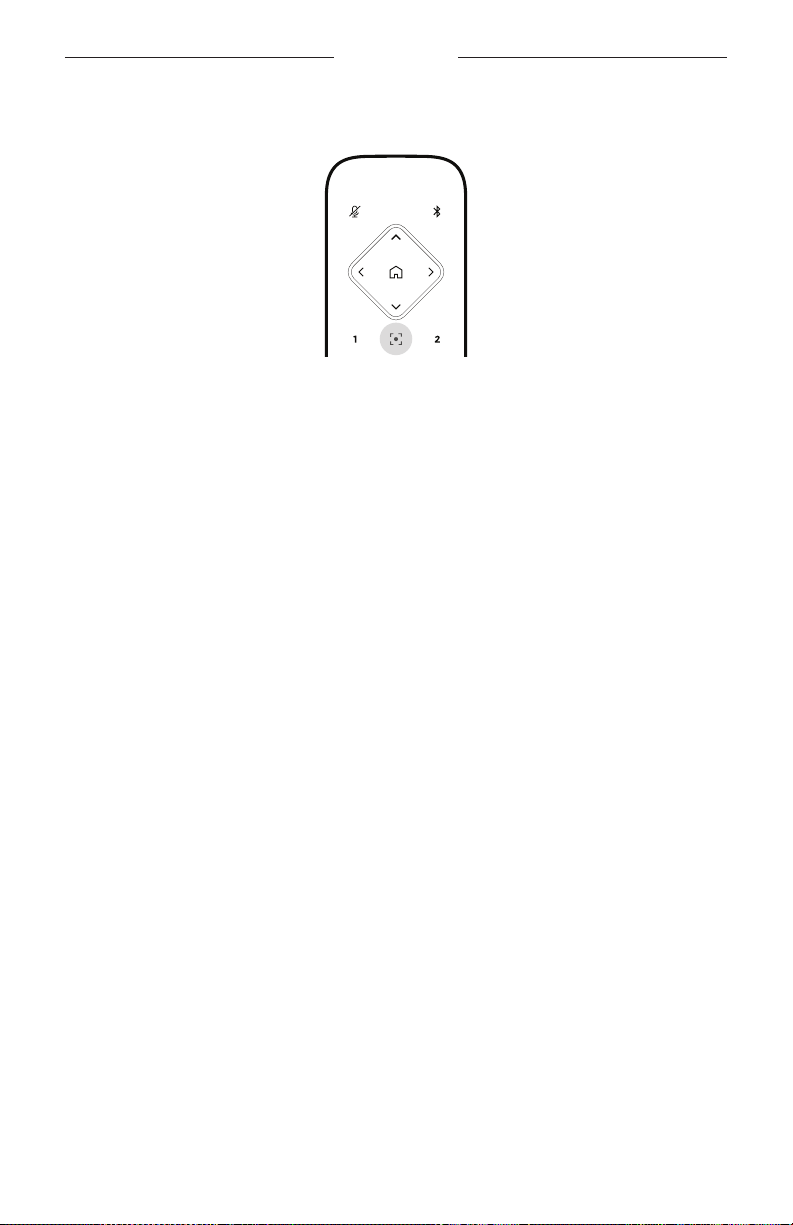
Saving and Recalling a Preset
You can save the camera’s pan, tilt, and zoom settings to a preset: Preset 1 or Preset 2.
When you recall a saved preset, the camera will immediately return to the saved pan,
tilt, and zoom settings.
To save a preset:
1. Adjust the pan, tilt, and zoom settings as desired.
2. Press and hold the desired preset button on the remote control (Preset 1 or Preset
2) for 3 seconds. The camera settings will be saved to that preset.
To recall a saved preset, press the desired preset button on the remote control (Preset
1 or Preset 2). The camera will immediately change the pan, tilt, and zoom settings to
those saved to that preset.
37
|
EN
OPERATION
Enabling/Disabling Autoframing
To enable or disable the camera’s autoframing feature, press the Autoframe button on
the remote control.
When enabled, the camera will automatically and continuously adjust the pan, tilt, and
zoom settings to include all participants in the room in the field of view.
Note: Adjusting the pan, tilt, or zoom settings or selecting Home, Preset 1, or Preset 2
will automatically disable autoframing.
When disabled, adjust the camera’s pan-tilt-zoom (PTZ) settings manually.

38
|
EN
OPERATION
Managing Audio Levels
The Bose Videobar VB1 has four audio inputs: its microphones, USB audio,
Bluetooth
audio, and the analog input (Audio In jack).
The VB1 also has three audio outputs: its speakers, USB audio, and
Bluetooth
audio.
The real-time levels of all of these signals except for the Audio In jack can be seen in
the Meters tab of the Bose Work Configuration app/WebUI.
Local Audio Playback
Music or audio over the USB,
Bluetooth
, or analog inputs are played back through the
VB1 speakers. This audio is not sent to the far end during meetings.
Meeting Audio
The VB1 microphone audio is sent to the far end (via the USB output) after the
Acoustic Echo Cancellation (AEC) feature.
If local audio playback is sent over the USB input, it will play over the VB1 speakers,
but the AEC feature will remove the music from the VB1 microphone audio pick-up
before sending it to the far end.
If you wish to send local audio playback to the far end, share the audio playback app
within your meeting software.
Adjusting Audio Levels
The VB1 has two volume controls: for the VB1 speakers and for the analog input
(Audio In) gain.
To adjust the volume of the VB1 speakers, use the Volume + or − buttons on the
remote control, adjust the volume of the host computer, or adjust the volume of the
Bluetooth
audio. These three volume levels are always synchronized, so adjusting one
of them adjusts the others as well.
Note: All remote-control functions are also available in the software apps that enable
you to configure the Bose Videobar VB1. See Software Applications (Page 23) for
more information.
If needed, adjust the Analog Input Gain to trim the signal sent into the Audio In
jack so it matches the nominal levels from the host computer and
Bluetooth
audio.
You can do this in the Bose Work Configuration app or WebUI or in the Bose Work
Management app (see Software Applications (Page 23)).

39
|
EN
OPERATION
Manage
Bluetooth
Devices
The VB1 can be paired with one
Bluetooth
device at a time. For instance, it cannot be
paired with one device using the Bose Work app and another device for calls or audio
playback.
Pairing a
Bluetooth
Device with VB1
The Bose Work app pairs your
Bluetooth
device with the VB1 using
Bluetooth
Low
Energy (BLE). The app will automatically “discover” VB1s nearby.
To pair a
Bluetooth
device with the VB1 using the Bose Work app, open the app
and select the desired VB1. The
Bluetooth
indicator on the front panel of the VB1
will light solid white when connected. (See Bose Work App (Page 26) for more
information.)
To pair a
Bluetooth
device for calls or audio playback:
1. Press the
Bluetooth
button on the side of the VB1 (or press and hold the
Bluetooth
button on the remote control for 3 seconds) to put the VB1 in its pairing mode. The
Bluetooth
indicator on the front panel of the VB1 will blink blue.
2. On your
Bluetooth
device, scan for other available
Bluetooth
devices and select
the VB1. The
Bluetooth
indicator on the front panel of the VB1 will light solid white
when connected.
Disconnecting a
Bluetooth
Device from the VB1
The VB1 will not automatically reconnect to a previously paired
Bluetooth
device.
Once the
Bluetooth
connection is lost (due to distance, intentional disconnection,
pairing of another device, etc.), you will need to follow the steps to pair again.
To disconnect a
Bluetooth
device from the VB1, do one of the following:
Disable the
Bluetooth
connection on your mobile device.
Press the
Bluetooth
button on the side of the VB1.
Press and hold the
Bluetooth
button on the remote control for 3 seconds.
40
|
EN
OPERATION
Low-Power Modes
Some countries’ energy regulations require products like the VB1 to enter a low-power
mode when not in use to save energy. You can disable (or re-enable) this feature
in the VB1 by using the Bose Work Configuration app or WebUI or the Bose Work
Management app (see Software Applications (Page 23)).
The low-power mode of the VB1 is actually two stages: a standby mode and a low-
power standby mode.
If the low-power mode is enabled, the VB1 will enter the standby mode after 18
minutes of inactivity. After 2 more hours of inactivity, it will enter the low-power
standby mode. In both modes, the light bar on the front of the VB1 will be o.
If the low-power mode is disabled, both of these modes are also disabled.
Certain actions or commands can prevent the VB1 from entering its standby mode,
“wake” the VB1 from its standby mode (returning it to normal operation), or “wake”
the VB1 from its low-power standby mode (returning it to normal operation).
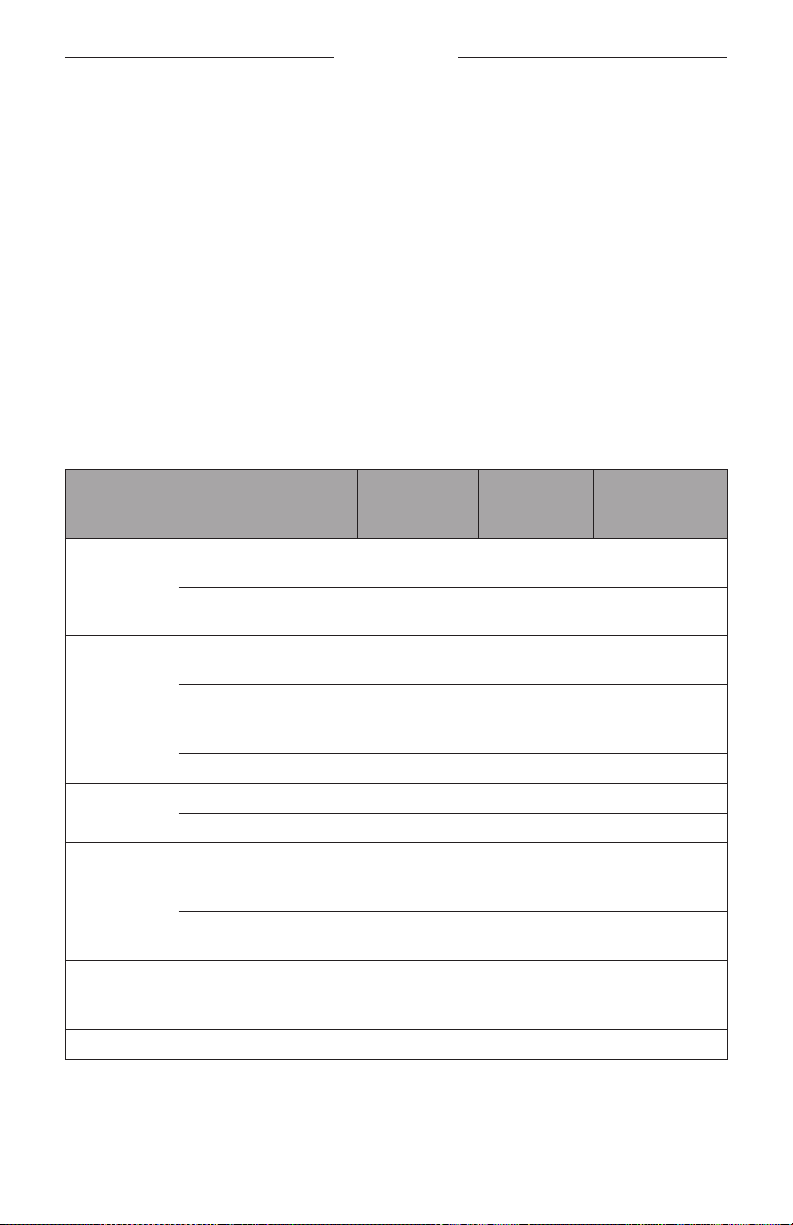
Action or Command Prevents the VB1
from entering its
standby mode.
“Wakes” the
VB1 from its
standby mode.
“Wakes” the VB1
from its low-power
standby mode.
Button press Mute or
Bluetooth
button
on the side of the VB1
Any button on the remote
control
USB Connecting device to
USB-C port
Communication from Bose
Work Configuration app
or WebUI
Audio playback
Bluetooth
Active connection
Audio playback
Wi-Fi or
Ethernet
Communication from Bose
Work Configuration app
or WebUI
Communication from Bose
Work Management app
HDMI Display Computer connected to
HDMI Display port with
DisplayLink enabled
Audio In Audio playback

41
|
EN
CARE AND MAINTENANCE
CARE AND MAINTENANCE
Clean the VB1
The VB1 may require periodic cleaning.
Wipe the outside surfaces with a soft, dry cloth.
Do NOT allow moisture to get inside the grille or any cable/wire connections.
Replacement Parts and Accessories
Replacement parts and accessories can be ordered through Bose customer service.
Visit: worldwide.Bose.com/Support/VB1
Limited Warranty
The Bose Videobar VB1 is covered by a limited warranty. Visit our website at
pro.Bose.com/warranty for details of the limited warranty.
To register your product, visit global.Bose.com/register for instructions. Failure to
register will not aect your limited warranty rights.
Serial Number Locations
The serial and model numbers are located on the rear panel of the product.
You can also view the serial number in the Bose Work configuration app or WebUI or
in the Bose Work management app (see Software Applications (Page 23)).

42
|
EN
CARE AND MAINTENANCE
Restore the Factory Default Settings
Restoring the factory default settings will do the following:
Clear the list of
Bluetooth
devices paired to the VB1.
Clear the camera presets (Preset 1 and Preset 2).
Return all camera, microphone, and speaker settings to their default values.
(Many of these settings are configured in the Bose Work Configuration software
or Management software.)
Reset the administrator password to Bose123!
Note: We recommend changing the password after resetting it.
To restore all settings of the VB1 to their factory defaults, do one of the following:
On the remote control, press and hold the Home button and Autoframe button
simultaneously for 5 seconds.
On the side of the VB1, press and hold the Mute button and
Bluetooth
button
simultaneously for 5 seconds.
A small bar of lights in the center of the light bar will pulse white repeatedly. The
lights will then move outward from the center until the whole light bar is lit solid
white. The lights turn o in the same pattern. When this process is completed, the
VB1 will restart with its factory default settings.
Forgotten Password
If you have forgotten the password to access the Administrator configuration settings,
you must restore the factory default settings to reset the password (see Restore the
Factory Default Settings (Page 42)).
Note: We recommend changing the password after resetting it.
Update the Software
You can use the Bose Work Configuration app and Bose Work Management app to
check for and install VB1 firmware updates. See Software Applications (Page 23)
to learn how to download and access these software apps.
If you are using the Bose Work Configuration WebUI to configure the VB1, you may
not be able to automatically check or update the firmware from the online Bose server
unless your computer is also connected to Internet.
If you cannot access firmware updates while using the WebUI, do one of the following
instead:
Use the Bose Work Configuration app.
Use the Bose Work Management app.
Download the firmware file directly to your computer, and then use the Bose Work
Configuration WebUI to update the firmware as if it were a previous version.
43
|
EN
TROUBLESHOOTING
TROUBLESHOOTING
Try these solutions first.
If you experience problems with the VB1, try these solutions first:
Make sure the VB1 is connected to power.
Make sure any cables connected to the rear panel are securely connected. See
Cable Connections (Page 20).
Check the status indicators. See Front Panel (Page 27).
Make sure your mobile device supports
Bluetooth
connections.
Check for available VB1 software updates. See Update the Software (Page 42).
Move your
Bluetooth
device closer to the VB1 and away from any interference or
obstructions.
Adjust the volume on the VB1, computer,
Bluetooth
device, or any other audio
sources. See Managing Audio Levels (Page 38).
If you could not resolve your issue, see the table below to identify symptoms and
solutions to common problems. If you are unable to resolve your issue, contact Bose
customer service.
Visit: worldwide.Bose.com/contact
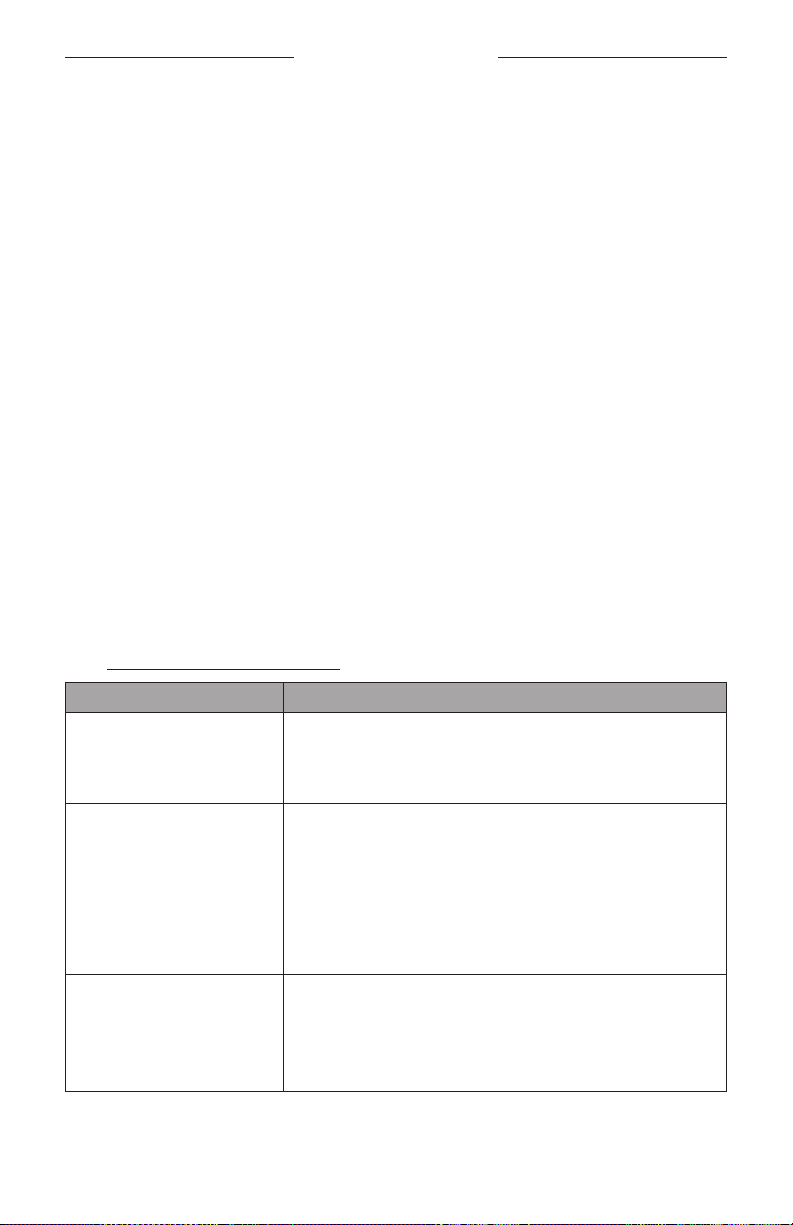
Problem What to Do
I hear music but my PC is
not connected.
Check if the
Bluetooth
indicator is lit solid white. If so,
someone’s
Bluetooth
device may already be paired
with the VB1. Press the
Bluetooth
button on the side of
the VB1 to disconnect it.
The sound is too quiet or
not audible at all.
The volume may be too low. Raise the volume using:
the VB1 remote control
your
Bluetooth
mobile device (if you are using one)
your meeting software (speaker volume)
If you still hear no sound, make sure Bose Videobar VB1
is selected as the speaker in your meeting software.
The sound is distorted. The volume may be too high. Lower the volume using:
the VB1 remote control
your
Bluetooth
mobile device (if you are using one)
your meeting software (speaker volume)

44
|
EN
TROUBLESHOOTING
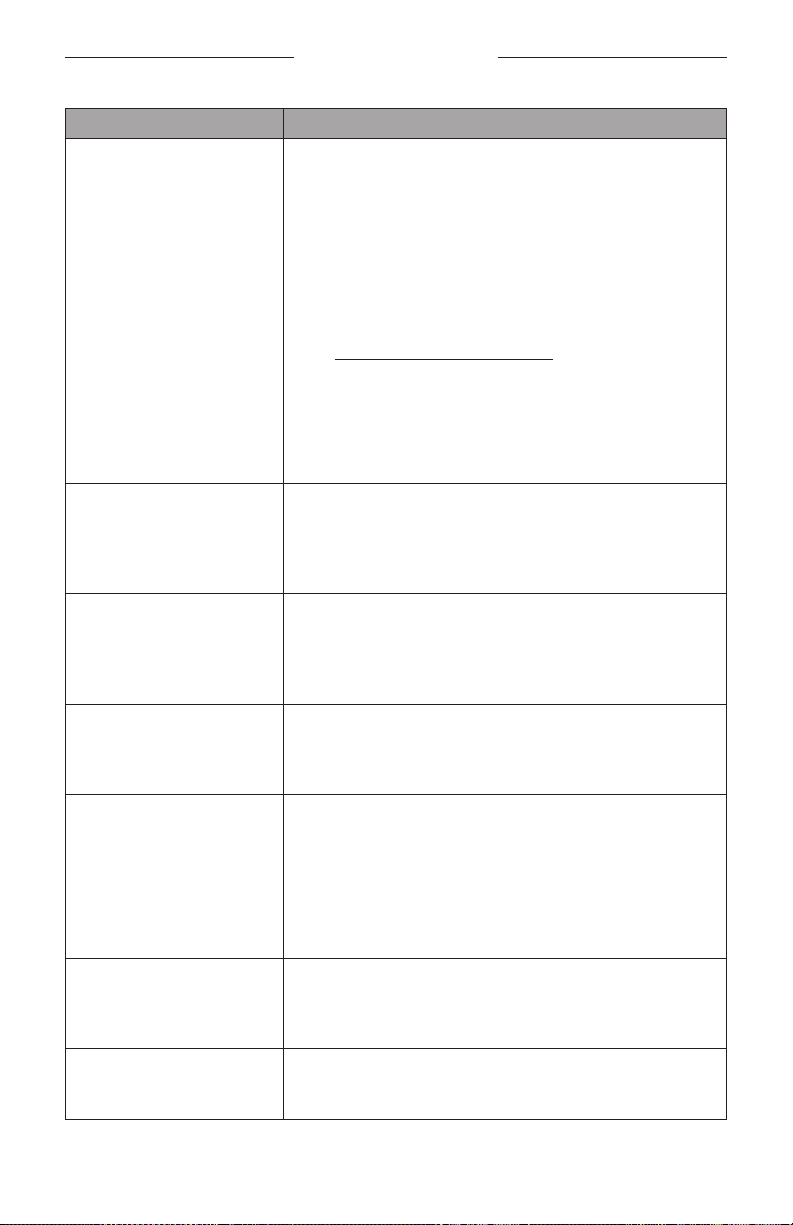
Problem What to Do
Adjusting the volume
on my computer has no
eect on the volume of
the VB1.
Your computer may not have the VB1 selected as the
default audio playback device (even if your meeting
software is working properly with the VB1).
Windows: Click the speaker icon in the system
tray (in the taskbar) and select Bose Videobar VB1
as the playback device.
macOS: Click the Apple icon in the upper-
left corner of the screen, and select System
Preferences, click Sound, and then click Output.
Select Bose Videobar VB1 in the list of devices.
The volume level of my
computer or mobile
device changed suddenly
when I connected my
computer or mobile
device to the VB1.
This is normal. The VB1 automatically synchronizes the
volume level of all devices when they connect to it.
Bose Videobar VB1 is not
listed as a microphone,
speaker, or camera in my
meeting software.
Wait approximately 30 seconds for your computer to
register the VB1 as a microphone, speaker, and camera
device.
If this still does not work, try the following solutions:
Make sure the USB cable is connected securely to
your computer.
Try connecting to a dierent USB port on your
computer.
Make sure the VB1 is powered on (connected
securely to its power outlet).
Make sure the USB cable is connected securely to
the USB-C port on the rear panel of the VB1.
Try using a shorter USB cable.
My meeting software is
displaying a message that
the video is not working
or cannot start.
This is usually caused when the Bose Work
Configuration app or another unified communications
client is already using and controlling the camera. Close
the other app that is using the video.
When I try to connect to
the VB1 using the Bose
Work Configuration
WebUI, my browser
displays a security
warning.
This is normal as the VB1 does not provide a security
certificate based on a dynamically allocated IP address.
See Bose Work Configuration App and WebUI (Page
24) for specific instructions. (If you are ever unsure
about performing an operation on your computer,
in a web browser, etc., check with your IT/system
administrator first.)
45
|
EN
TROUBLESHOOTING
Problem What to Do
There is no video image
on the second display
(from the HDMI Display
port).
Try the following solutions:
Make sure the display is powered on.
Make sure the display has its input/source set to
the HDMI port that is connected to the VB1.
Make sure the HDMI cable is securely connected to
the VB1 and to the display.
Make sure your computer has the latest
DisplayLink driver installed
(displaylink.com/downloads).
Make sure your computer is set to “extend” to
a second display (rather than to “mirror” or
“duplicate” it).
Ensure the DisplayLink setting is enabled in the
Bose Work Configuration software.
My computer detects the
VB1 as a second display
even when it is not
connected to the HDMI
Display port.
Make sure your computer is set to “mirror” or
“duplicate” its display (rather than to “extend” it to a
second display).
The video image on the
second display (from the
HDMI Display port) is out
of sync with the audio
signal.
Lower the resolution of the video display in the display
settings on your computer.
The video image on the
second display (from the
HDMI Display port) is
distorted.
Make sure you are using a Bose-supplied cable or a
certified USB cable. Also make sure the cable is not
damaged or kinked.
The camera zooms in or
out even when I am not
manually adjusting it.
The camera’s autoframing feature may be enabled.
Press the Autoframe button on the remote control to
disable it.
Some meeting software apps have built-in autoframing,
which may be cropping the image or changing the
camera zoom ratio. If possible, disable this feature in
your meeting software.
The
Bluetooth
indicator is
blinking blue.
This is normal. This indicates the VB1 is in
Bluetooth
pairing mode (The
Bluetooth
button on the side of
the VB1 or on the remote control may have been
accidentally pressed.)
The
Bluetooth
indicator is
lit solid white.
This is normal. This indicates the VB1 is connected to
a
Bluetooth
mobile device for music or calls or to the
Bose Work app.

46
|
EN
©2021 Bose Corporation, 100 The Mountain Road, Framingham, MA 01701-9168 USA
AM868554 Rev. 00
TROUBLESHOOTING
Problem What to Do
The light bar is on. If the whole light bar is lit, then there is an active
meeting.
If only a small section of lights is on, then there is no
active meeting. The VB1 is simply powered on. See
Light Bar (Page 31) for more information.
A small section of lights in
the center of the light bar
is lit solid green.
This is normal. This indicates the VB1 camera is on. (If
the other lights in the light bar are solid white, then
there is an active meeting. If the other lights in the light
bar are o, then there is no active meeting.)

©2021 Bose Corporation, 100 The Mountain Road, Framingham, MA 01701-9168 USA
AM868554 Rev. 00