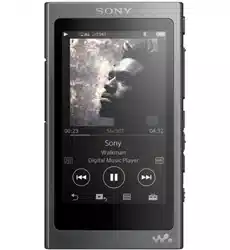
Help Guide
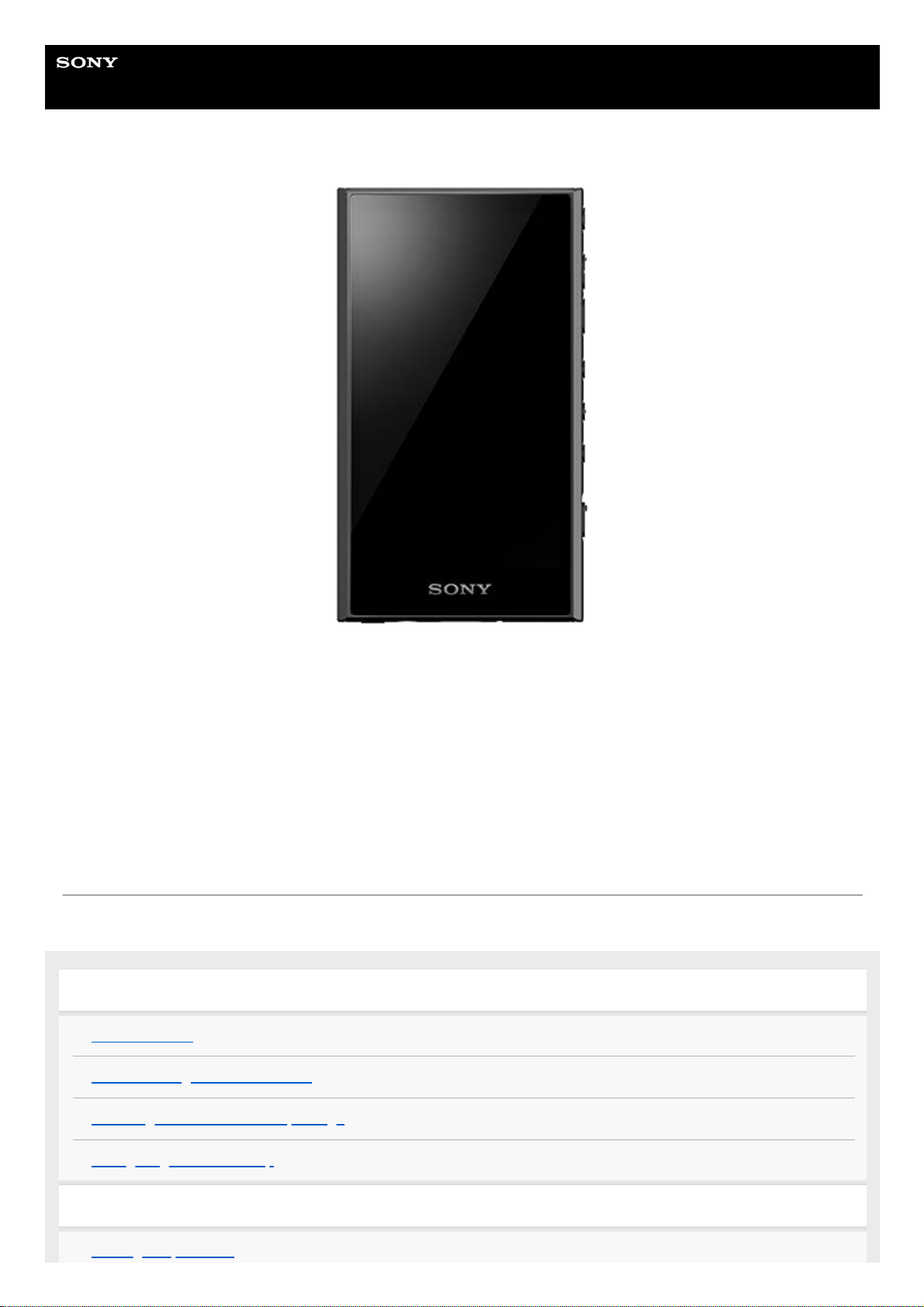
Digital Media Player
NW-A306
Model: YY1301B1
Use this manual when you have trouble or when you need to know how to use your player.
The color of the player sold in some countries/regions may differ from those shown above.
The contents of the Help Guide may be subject to change without notice due to updates to the product's specifications.
Getting Started
Before first use
Manuals and general information
Checking the contents of the package
Configuring the initial setup
Power and Charging
Turning the power on
1
Turning the power off
Preventing unintentional operations (HOLD)
Charging the battery
Extending the battery lifespan
Reducing the battery consumption
Notes on charging the battery
microSD Cards
Using a microSD card
Notes on microSD cards
Basic Operations
Parts and controls
Home screen operations
[WALKMAN Home] screen
Android Home screen
Displaying the All Apps screen
Displaying Quick Settings panel
Switching the home screen
Screen operations
How to use the various screens of “Music player”
Library screen in “Music player”
Playback screen in “Music player”
Play queue screen in “Music player”
Favorites screen in “Music player”
Sound adjustment screens for “Music player”
List of icons displayed in the status bar
Setting the screen lock
Adjusting the volume
Volume operation in compliance with Directives
2
Transferring Music
Preparing music content
Purchasing High-Resolution Audio content by using a computer
Using a Windows computer
Installing Music Center for PC (Windows)
Transferring content from a Windows computer using Music Center for PC
Transferring content using Windows Explorer
Importing content from “Music player” to Music Center for PC
Transferring content using Mac computer
Adding lyric information using a computer
Notes on transferring content from a computer
Enjoying music services via Wi-Fi connection
Connecting the player to a Wi-Fi network
Google Account
Setting up a Google Account
Purchasing music content from online music services by using the player
Purchasing High-Resolution Audio content by using the player
Installing apps to enjoy online music services
Enjoying the 360 Reality Audio service
Notes on Wi-Fi connections
Notes on security when connecting to the internet
Playing, Organizing, or Deleting Music
Playing music
Playback methods
Displaying lyrics
Obtaining lyric information
Displaying lyrics
Managing playlists in “Music player”
Importing playlists from a Windows computer, playing, or deleting playlists in “Music player”
3
Managing Favorites in “Music player”
Deleting tracks from “Music player”
Enjoying music with Bluetooth devices
Connecting the player to an unpaired Bluetooth device for the first time
Connecting the player to a paired Bluetooth device
Configuring the Bluetooth function
Notes on the Bluetooth function
Various Functions
Using the USB-DAC function
Enjoying music content on a computer using the sound quality of the player (USB-DAC function)
USB-DAC screen in “Music player”
Specifying the music folder for playback in “Music player”
Structure of the folders to be imported to “Music player”
Registering or unregistering folders to be imported to “Music player”
Adjusting the sound
Using the High-Res streaming function
Settings menu in “Music player”
Restarting, formatting, or initializing the player
Restarting the player
Formatting the player
Formatting a microSD card
Various information and system updates
Checking information on the player
Updating the system software
Announcement
Notes on handling the player
Notes on the headphones
Notes on the built-in battery
Notes on the sample data
4
Help Guide
Digital Media Player
NW-A306
Before first use
Thank you for purchasing a player.
For information on laws, regulations, and trademark rights, refer to “Important Information” in the internal memory of
your unit. To read it, copy the [Important_Information] file to your computer, and follow the steps below.
Double-click the [Important_Information] file. Then, select a language.
For some languages not listed, equivalent content is provided in print.
Before you start using the player, read the topics under [Related Topic].
Google, Android, Google Play, YouTube and other marks are trademarks of Google LLC.
All other trademarks and registered trademarks are trademarks or registered trademarks of their respective holders.
In this manual, TM and ® marks are not specified.
Before you start using the player, check the following information.
Model names
Several model names appear in this [Help Guide]. Some models are not available depending on the country or region
where you purchased the player.
Computer system requirements
When you connect the player to a computer, check the computer system requirements.
Battery charging
The battery might be low when you use the player for the first time. Charge the battery before use.
microSD cards
The following memory cards are referred to as [microSD cards] in this [Help Guide].
microSD cards
microSDHC cards
microSDXC cards
Images and illustrations
The screen images and illustrations in this [Help Guide] are for reference only. They may differ from the actual
product or onscreen display.
Unless otherwise specified, the home screen images in this [Help Guide] are images of the [WALKMAN Home]
screen.
Unless otherwise specified, the screen images in this [Help Guide] are images of when the body color of the player is
black.
Design and specifications are subject to change without notice.
6
Related Topic
Manuals and general information
System requirements
Charging the battery
Notes on handling the player
Notes on the headphones
Notes on the built-in battery
Notes on the sample data
General Information
Maintenance
Customer support website
5-042-672-11(1)
Copyright 2022 Sony Corporation
The contents of the Help Guide may be subject to change without notice due to updates to the product's specifications.
7
Help Guide
Digital Media Player
NW-A306
Manuals and general information
Sony provides the following manuals and information regarding the player.
The provided manuals explain the following operations and functions.
Reference Guide (printed)
Notes on using the player
Compliance information
How to access [Important Information]
Operating Instructions (printed)
Basic steps to start listening to music after you purchase the player.
Help Guide (web manual)
This [Help Guide] provides the standard operating procedures only. You can view the [Help Guide] via the internet. Use a
computer, a smartphone, or the player connected to a Wi-Fi network.
How to transfer content to the player.
How to use various functions.
Notes on using the player.
The Help Guide refers to the product as “player.”
Important Information
Information on copyrights, laws, and regulations
See [Before first use] for details on viewing the information.
Customer support website (online)
See [Customer support website] in this [Help Guide].
The latest information on the player
FAQ: Frequently Asked Questions
Related Topic
Before first use
Customer support website
5-042-672-11(1)
Copyright 2022 Sony Corporation
The contents of the Help Guide may be subject to change without notice due to updates to the product's specifications.
8

9
Help Guide
Digital Media Player
NW-A306
Checking the contents of the package
WALKMAN® (1)
USB Type-C® cable (USB-A to USB-C) (1)
Operating Instructions
Reference Guide
Note
Headphones and a microSD card are not supplied with the Walkman.
Models to sell vary by country or region.
Related Topic
Customer support website
5-042-672-11(1)
Copyright 2022 Sony Corporation
The contents of the Help Guide may be subject to change without notice due to updates to the product's specifications.
10
Help Guide
Digital Media Player
NW-A306
Configuring the initial setup
When you turn on the player for the first time, a screen for the initial setup will appear.
The following items can be set as necessary later.
Wi-Fi setup
Google Account
Instructional video
There is an instructional video for the following operations.
Initial setup
Visit the following link.
https://rd1.sony.net/help/dmp/mov0009/h_zz/
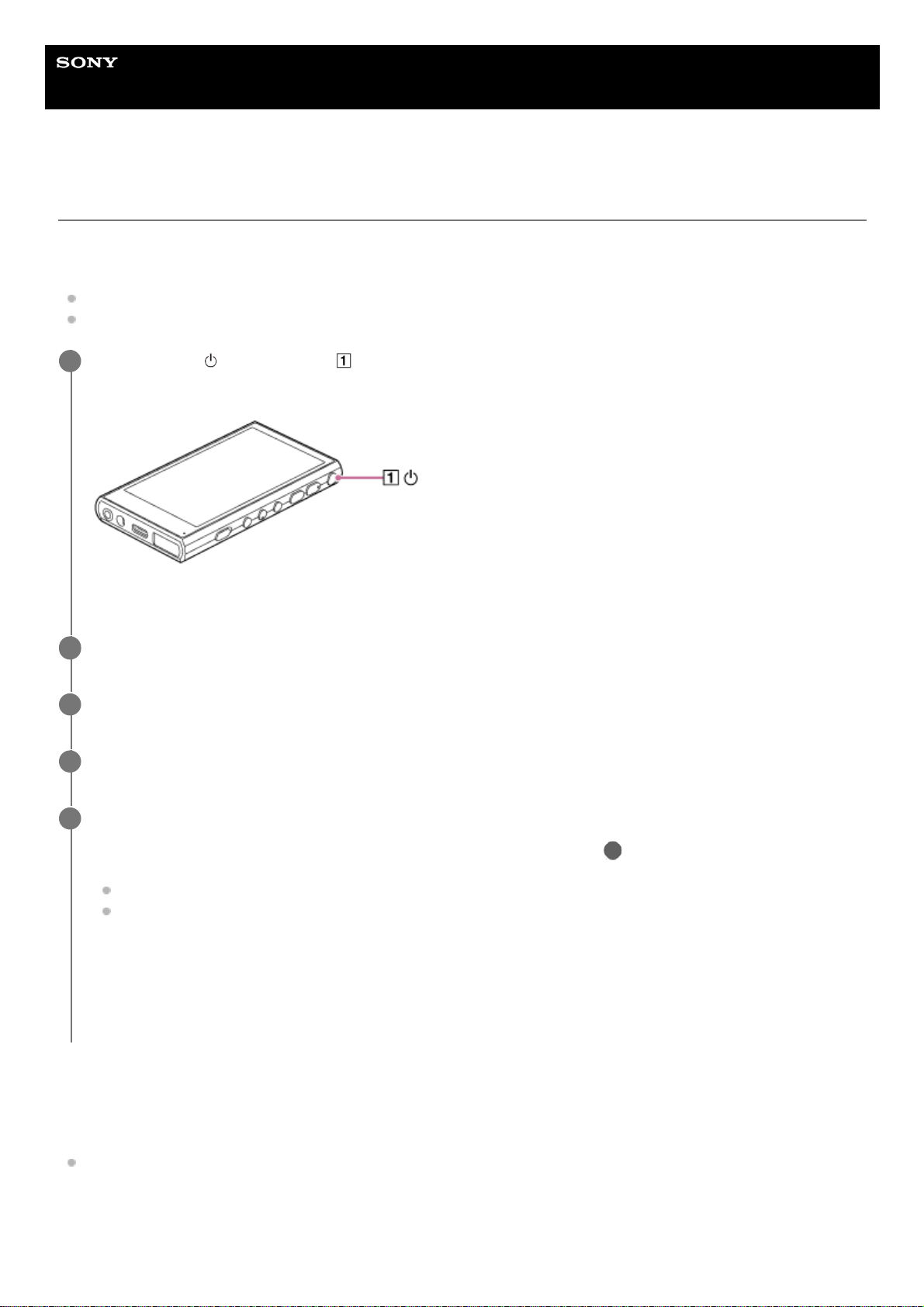
Hold down the
(power) button ( ) for 5 seconds until the player turns on.
The player may not turn on if the battery level is low. Charge the player for about 30 minutes.
If necessary, select a language and go to the next step.
1
Tap [START].
2
Confirm the content of [End user license agreement], and then tap [Agree].
3
Follow the onscreen instructions.
4
On the [Select Home screen] menu, select the main home screen and tap [OK].
Whichever home screen you select here will be displayed when you tap the
(home) button.
[Page 1 (default Home)]: Default Android™ Home screen
[Page 2 (WALKMAN® Home)]: Home screen customized for music playback
The [WALKMAN Home] screen features the Music player widget. You can control music playback on the home
screen without launching an app. We recommend selecting the [WALKMAN Home] screen as the main home
screen.
The [WALKMAN Home] screen appears when the initial setup is complete.
5
11
Hint
You can change the main home screen after the initial setup.
On the home screen, hold down an empty space.
Tap the menu items in the following order.
[Home settings] - [Select Home screen].
Select the desired home screen.
Note
If you forget the method that you have set for unlocking the screen (PIN, password, pattern, etc.), you will not be able to unlock
the screen yourself.
Repair requires a fee.
All data will be erased because the repair requires reformatting.
Please remember how to unlock the screen.
If you configure a Wi-Fi connection during the initial setup, you can choose whether or not to transfer apps and data. However, it
may take some time to complete the initial setup depending on the amount of data to be transferred. We recommend not
transfering apps and data during the initial setup.
Related Topic
Connecting the player to a Wi-Fi network
Setting up a Google Account
Charging the battery
[WALKMAN Home] screen
Android Home screen
Switching the home screen
5-042-672-11(1)
Copyright 2022 Sony Corporation
The contents of the Help Guide may be subject to change without notice due to updates to the product's specifications.
12
Help Guide
Digital Media Player
NW-A306
Turning the power on
Hint
The screen will turn off automatically if you do not operate the player for a certain period of time. To turn on the screen, press the
(power) button ( ).
To conserve the battery power, set [Auto power off]. The player will turn off automatically if you do not operate the player for a
certain period of time after you pause playback. Swipe the [WALKMAN Home] screen upwards. Tap the menu items in the
following order.
[Settings] - [Battery] - [Auto power off].
Note
The player may not turn on if the battery level is low. Charge the player for about 30 minutes.
Related Topic
Configuring the initial setup
Charging the battery
Turning the power off
5-042-672-11(1)
Copyright 2022 Sony Corporation
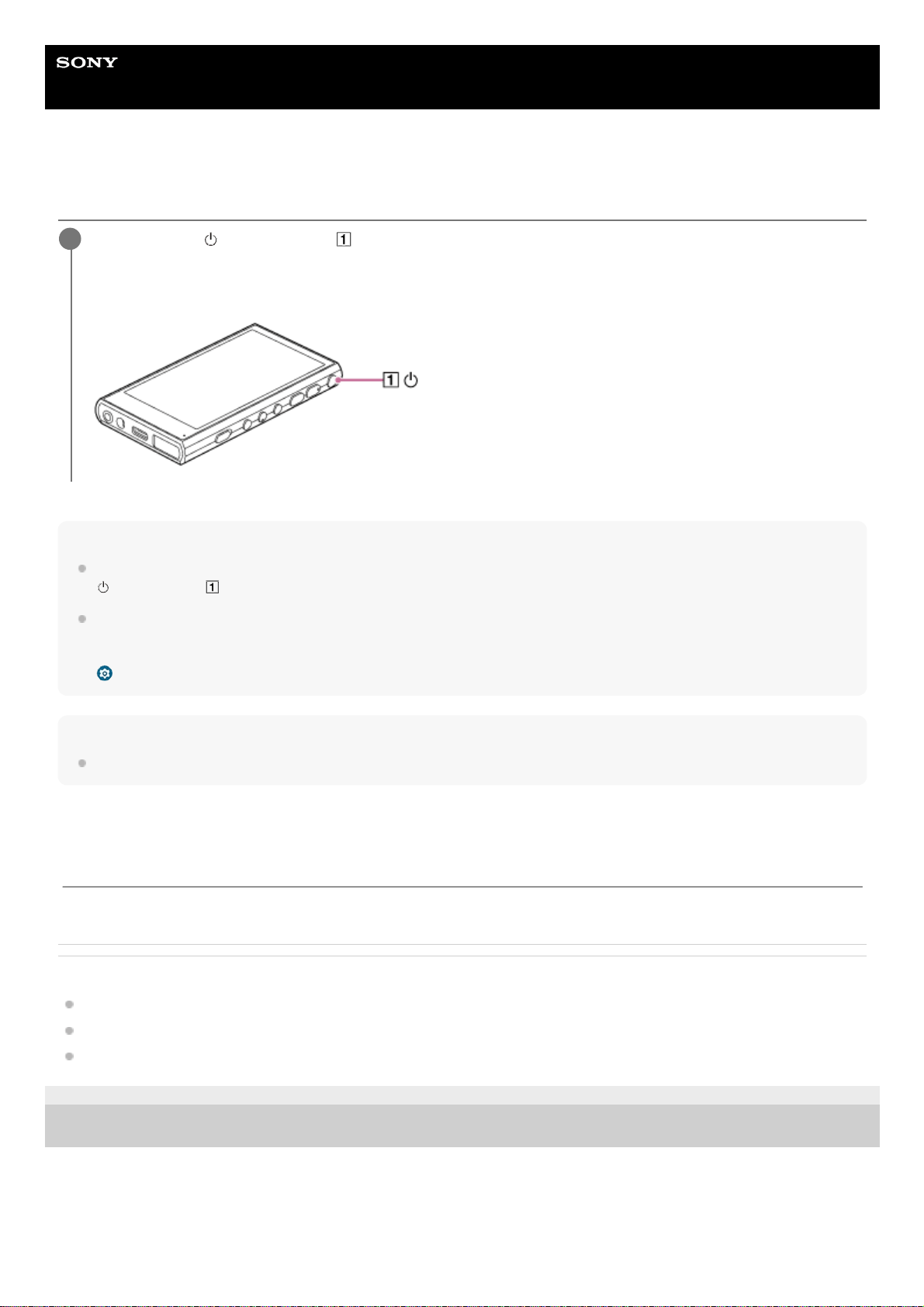
Hold down the
(power) button ( ) for 5 seconds until the player turns on.
When you turn on the player for the first time, a screen for the initial setup will appear. Follow the onscreen
instructions to complete the setup.
1
The contents of the Help Guide may be subject to change without notice due to updates to the product's specifications.
13
Help Guide
Digital Media Player
NW-A306
Turning the power off
Hint
To conserve the battery power, set [Auto power off]. The player will turn off automatically if you do not operate the player for a
certain period of time after you pause playback. Swipe the [WALKMAN Home] screen upwards. Tap the menu items in the
following order.
[Settings] - [Battery] - [Auto power off].
Related Topic
Turning the power on
5-042-672-11(1)
Copyright 2022 Sony Corporation
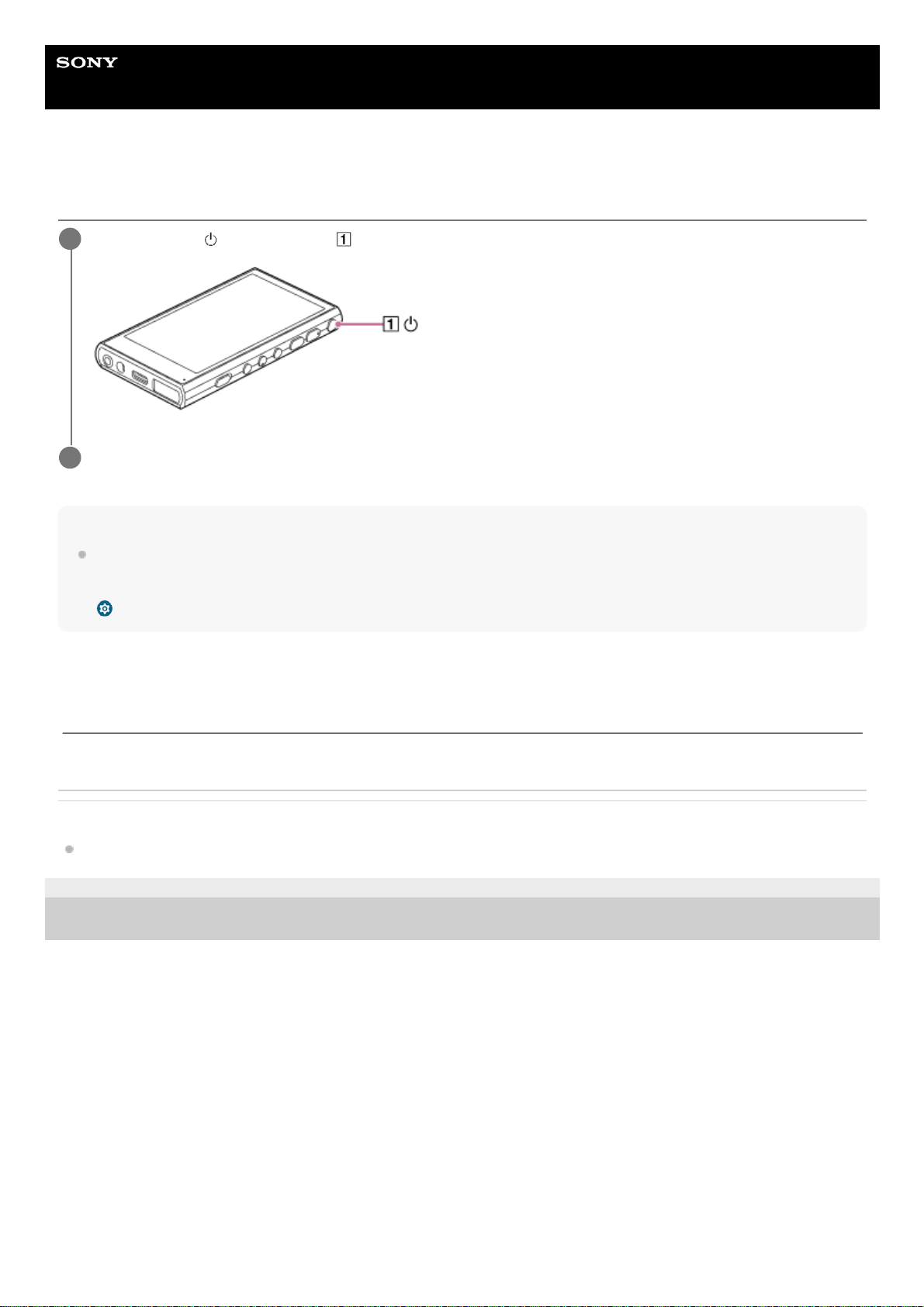
Hold down the
(power) button ( ) for 2 seconds while the screen is turned on.
1
Tap [Power off].
2
The contents of the Help Guide may be subject to change without notice due to updates to the product's specifications.
14
Help Guide
Digital Media Player
NW-A306
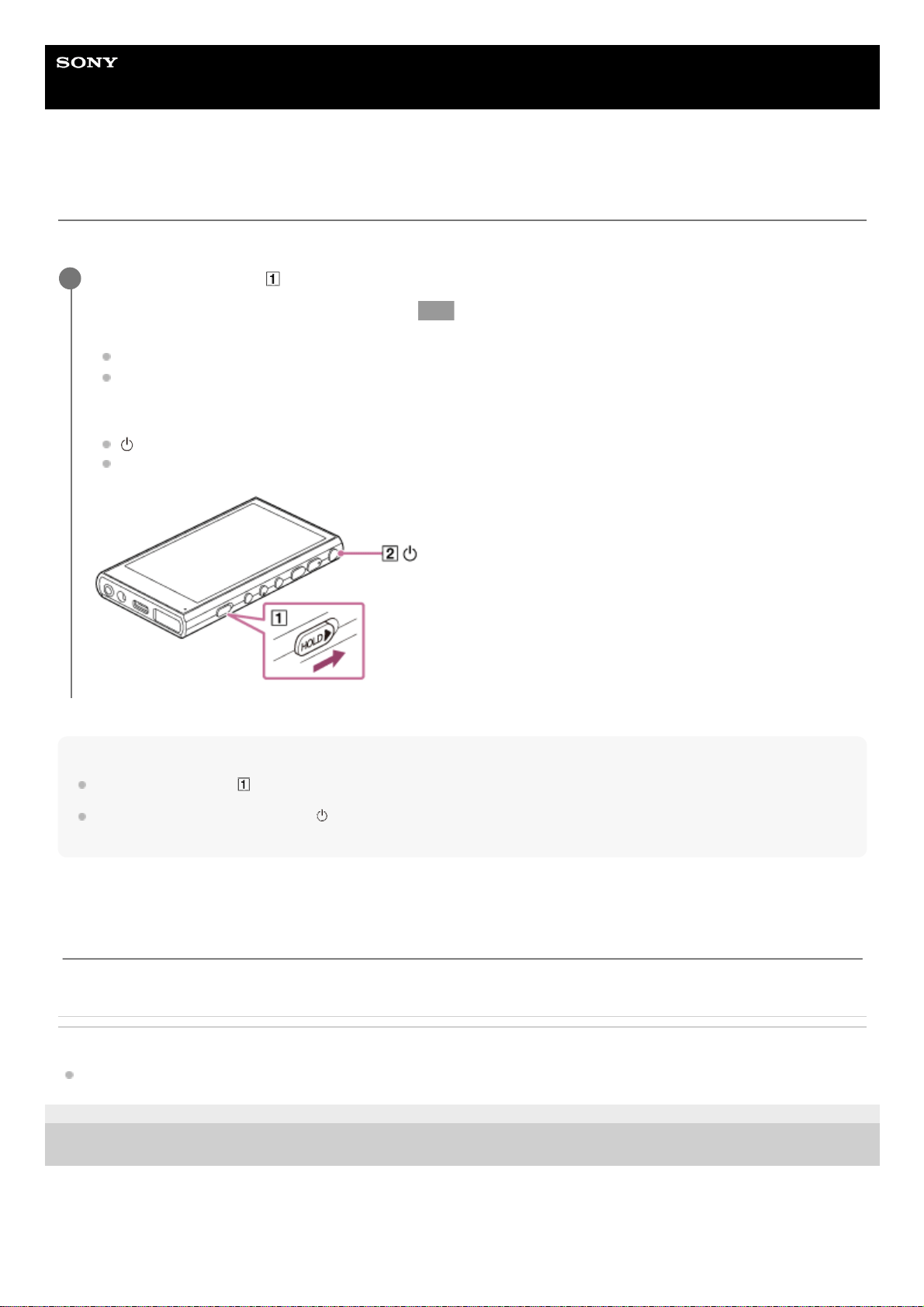
Preventing unintentional operations (HOLD)
You can lock the operating buttons on the player to prevent accidental button operations.
Hint
Slide the HOLD switch (
) downwards to release the HOLD function.
When you carry the player, press the
(power) button to turn off the screen. You can prevent unintentional operations on the
touch screen.
Related Topic
Parts and controls
5-042-672-11(1)
Copyright 2022 Sony Corporation
Slide the HOLD switch ( ) upwards.
The HOLD function is enabled. The status icon (
) will appear in the status bar. You cannot operate the
following buttons.
Playback operating buttons
+/– (volume) buttons
You can operate the following parts even while you have enabled the HOLD function.
(power) button
Touch screen
1
The contents of the Help Guide may be subject to change without notice due to updates to the product's specifications.
15
Help Guide
Digital Media Player
NW-A306
Charging the battery
Hint
For details on how long it takes to charge the battery fully, see [Specifications].
Note
If charging is insufficient, the computer may not recognize the player. In this case, the screen of the player will not turn on.
Charge the player sufficiently. The computer will recognize the player after about 30 minutes of charging.
Related Topic
Reducing the battery consumption
Notes on charging the battery
Specifications
5-042-672-11(1)
Copyright 2022 Sony Corporation
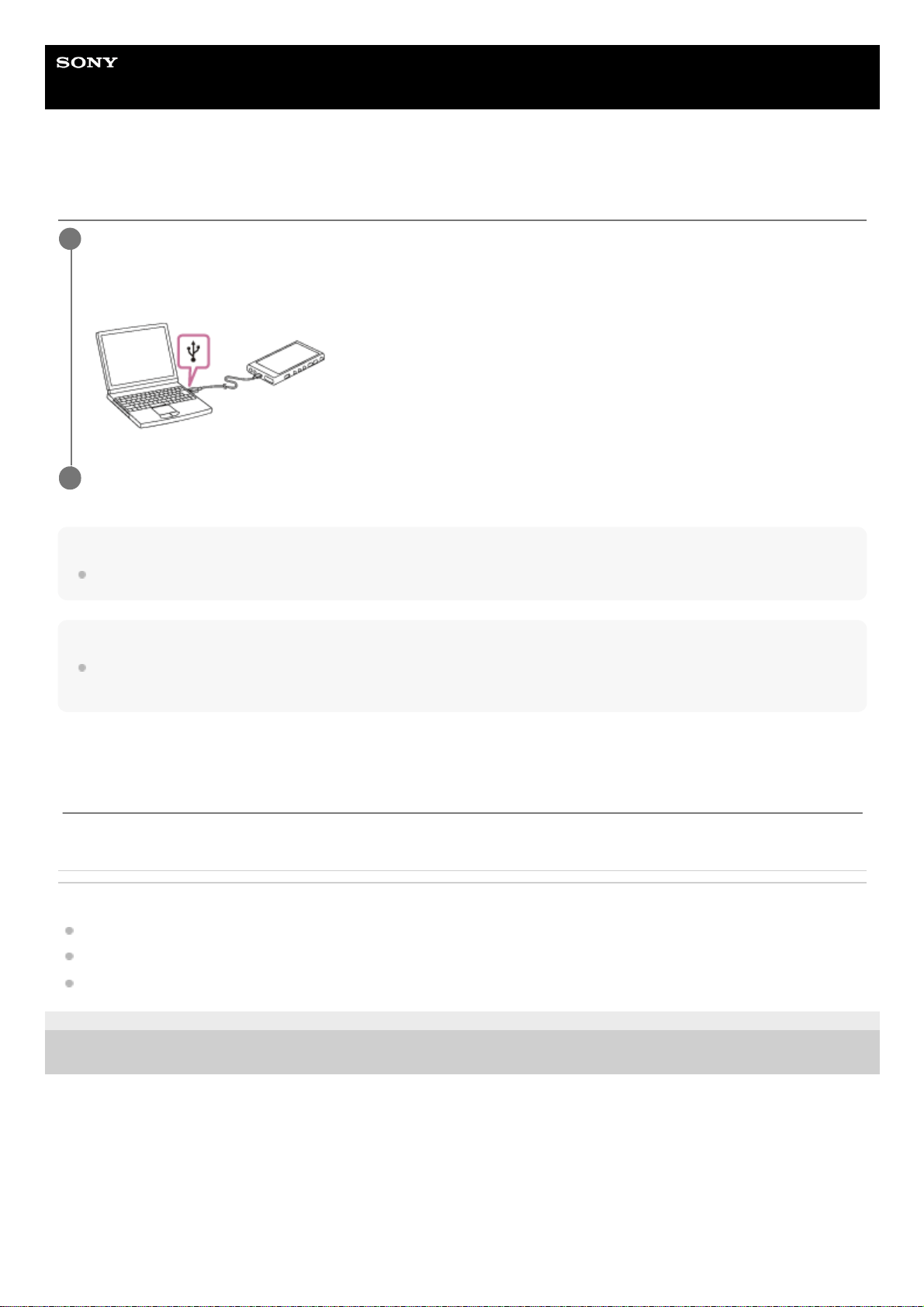
Connect the player to a running computer via USB.
The charge lamp in the bottom right of the screen lights up.
When charging is complete, the charge lamp turns off.
1
Disconnect the player from the computer.
2
The contents of the Help Guide may be subject to change without notice due to updates to the product's specifications.
16
Help Guide
Digital Media Player
NW-A306
Extending the battery lifespan
The [Battery Care] function reduces deterioration in the battery's performance by limiting the maximum charging capacity
of the battery.
Note
When the function is turned on, the maximum charging capacity is limited, and the battery will not fully charge. This is not a
malfunction.
While the function is turned on,
will appear in the status bar even when the battery is not charging.
Related Topic
Charging the battery
5-042-672-11(1)
Copyright 2022 Sony Corporation
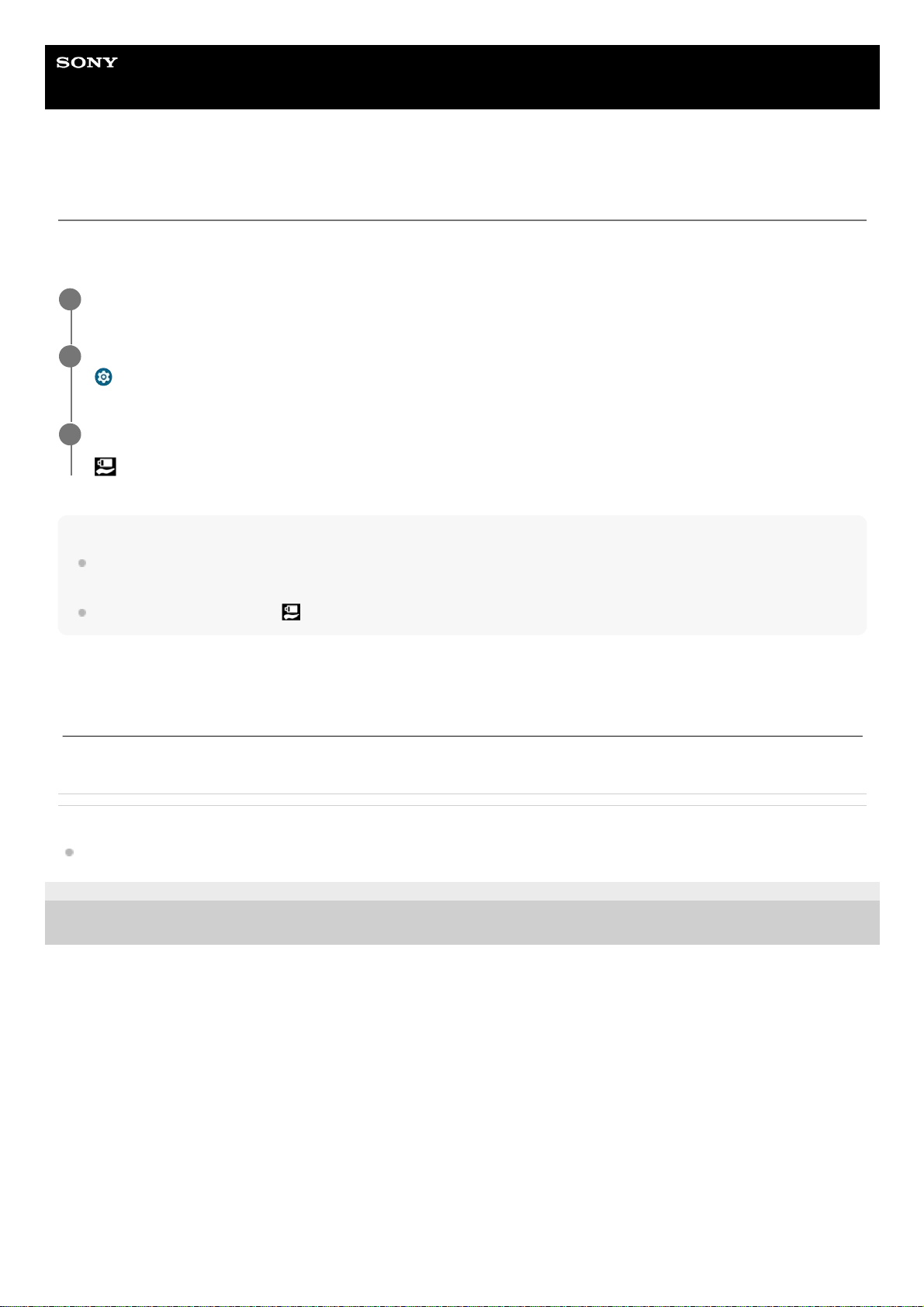
Swipe the [WALKMAN Home] screen upwards.
1
Tap the menu items in the following order.
[Settings] - [Battery] - [Battery Care].
2
Tap the switch to turn the function on.
will appear in the status bar.
3
The contents of the Help Guide may be subject to change without notice due to updates to the product's specifications.
17
Help Guide
Digital Media Player
NW-A306
Reducing the battery consumption
You can reduce the battery consumption by using the player in the following manner.
The battery life depends on usage conditions. For details on the battery life, see [Battery life].
Turn off the power manually when you do not use the player.
Turn off apps when you are not using them.
Set [Auto power off]. The player will turn off automatically if you do not operate the player for a certain period of time
after you pause playback.
Swipe the [WALKMAN Home] screen upwards. Tap the menu items in the following order.
[Settings] - [Battery] - [Auto power off].
Adjust the screen brightness.
Turn off all sound adjustments.
Turn off the Bluetooth function when you are not using it.
Turn off the Wi-Fi function when you are not using it.
Related Topic
Charging the battery
Turning the power off
Sound adjustment screens for “Music player”
Connecting the player to a Wi-Fi network
Notes on the built-in battery
Displaying lyrics
Battery life
5-042-672-11(1)
Copyright 2022 Sony Corporation
The contents of the Help Guide may be subject to change without notice due to updates to the product's specifications.
18
Help Guide
Digital Media Player
NW-A306
Notes on charging the battery
Always use the supplied USB Type-C cable.
Firmly insert the USB Type-C cable all the way in. Charging will not start until you insert the USB Type-C cable
completely.
The charging time depends on the battery usage conditions.
When the battery is sufficiently charged but the battery life has dropped to about half of its normal span, the battery
may be worn out. Contact the nearest Sony dealer or Sony Service Center.
The computer may not recognize the player in the following situations.
When you connect the player to the computer for the first time
When the player has not been used for a long period of time
Charge the player for about 30 minutes. The player may start operating normally.
Charge the battery at an ambient temperature from 5 °C to 35 °C (41 ºF to 95 ºF).
When the ambient temperature exceeds the recommended range,
appears on the status bar and then charging
is forcibly terminated. Even when the environment is within the recommended temperature range, the internal
temperature of the player may become too hot. In this case, you may be unable to fully charge the battery.
The battery can be recharged about 500 times from a completely depleted state. The exact number of times may
vary depending on the usage conditions.
To prevent deterioration of the battery, charge the battery at least once every 6 months.
Charging is not guaranteed when you use a homebuilt or modified computer.
Charging from a USB hub is only guaranteed when you use a self-powered USB hub that carries an authorized logo.
Even if the player is connected to a computer, the player cannot charge in the following situations.
When the computer is in sleep mode.
Wake the computer before you connect the player.
When you are not using the supplied USB Type-C cable.
Use the supplied USB Type-C cable.
When the player is connected via a USB hub.
Connect the player directly to the USB port of your computer.
When you connect the player to a computer for a long period of time, connect the computer to an AC power supply.
Otherwise, the computer’s battery may run out.
While the player is connected to a computer, observe the following cautions. Otherwise, the player may not function
properly.
Do not turn on the computer.
Do not restart the computer.
Do not wake the computer from sleep mode.
Do not shut down the computer.
19
The player may become hot during usage conditions such as charging, or charging and using an app at the same
time. This is not a malfunction.
When the Battery Care function is turned on, the maximum charging capacity is limited, and the battery will not fully
charge. This is not a malfunction.
The battery indicator does not correspond exactly to the remaining battery level. Refer to the battery indicator as a
guide.
When you charge the player using a computer, do not remove the USB Type-C cable while data is transferring. If you
disconnect the USB Type-C cable, data on the player may be lost.
Related Topic
Charging the battery
Extending the battery lifespan
Reducing the battery consumption
Notes on the built-in battery
Battery life
5-042-672-11(1)
Copyright 2022 Sony Corporation
The contents of the Help Guide may be subject to change without notice due to updates to the product's specifications.
20
Help Guide
Digital Media Player
NW-A306
Using a microSD card
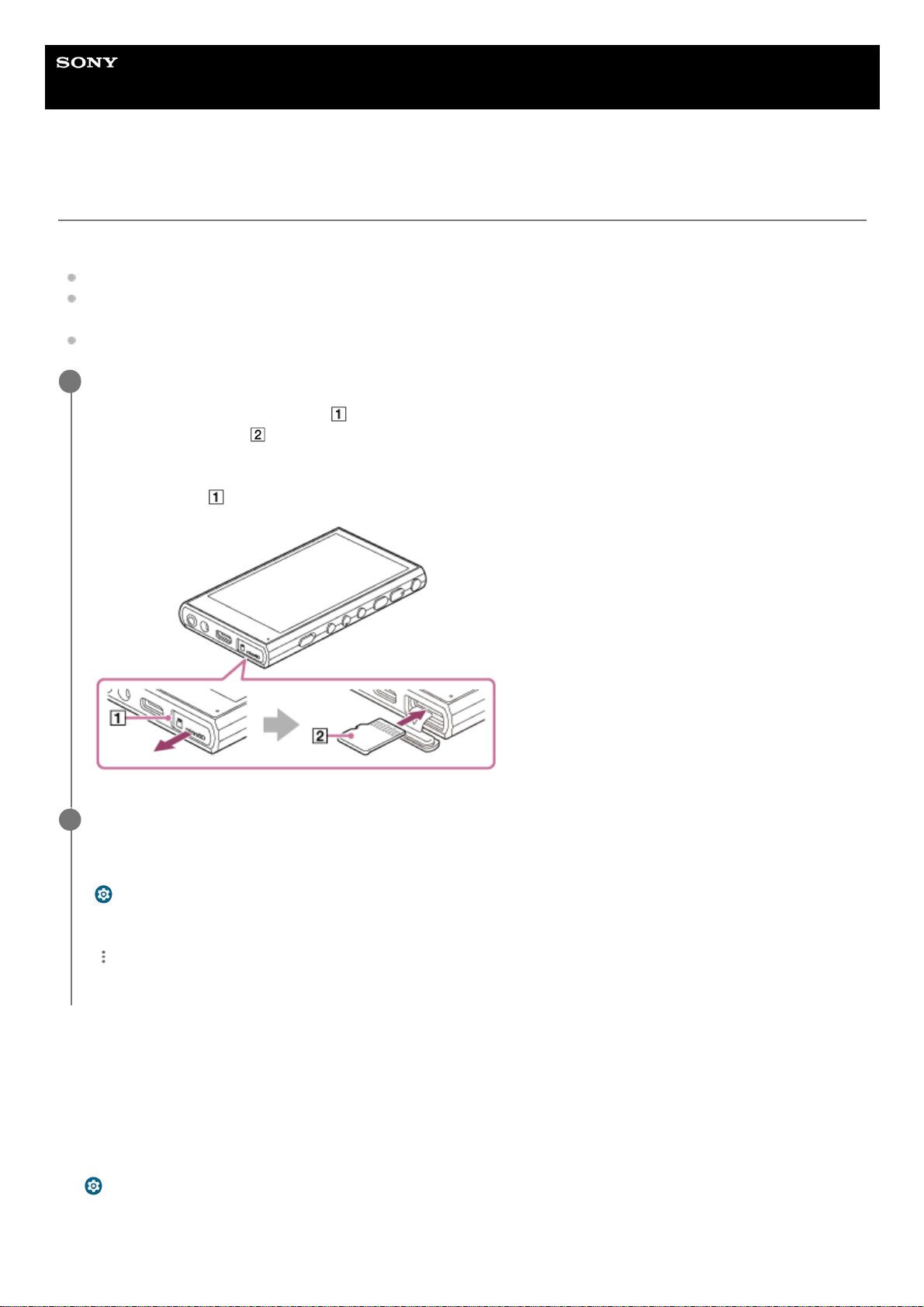
This topic includes instructions for the following operations.
Inserting a microSD card into the player.
Formatting a microSD card on the player.
To use a microSD card on the player, you first need to format the microSD card on the player.
Removing a microSD card from the player.
To remove the microSD card
Before you remove a microSD card from the player, first unmount the microSD card from the player.
Insert a microSD card.
Open the microSD card slot cover (
).
Insert a microSD card (
) until it clicks into place.
Make sure to insert the microSD card in the correct direction.
The gold contact pins should face up.
Close the cover (
).
1
Format the microSD card.
Swipe the [WALKMAN Home] screen upwards.
Tap the menu items in the following order.
[Settings] - [Storage].
Tap the drop-down list, and then tap the name of the microSD card.
Tap the menu items in the following order.
(options) - [Format].
Follow the onscreen instructions to complete formatting.
2
Swipe the [WALKMAN Home] screen upwards.1.
Tap the menu items in the following order.
[Settings] - [Storage].
2.
Tap the drop-down list, and then tap the name of the microSD card.3.
21
Note
If the player does not recognize the microSD card, remove and reinsert the microSD card into the player.
Do not insert any object other than a microSD card into the microSD card slot.
If the inserted microSD card contains a large amount of data, it may take about 10 minutes or longer for “Music player” to build
the database.
When you remove the microSD card, the following information will be deleted.
The content that is currently being played.
The playback position.
Tracks and the playback order on the play queue screen.
When you remove the microSD card, the following information will disappear.
Favorite information for tracks/albums/playlists stored on the microSD card.
Playlist registration information for tracks stored on the microSD card.
Formatting a microSD card will delete all data stored on the microSD card. Save a backup of important data.
Related Topic
Notes on microSD cards
Formatting a microSD card
5-042-672-11(1)
Copyright 2022 Sony Corporation
Tap
(options) button in the top right of the screen, and then tap [Eject].4.
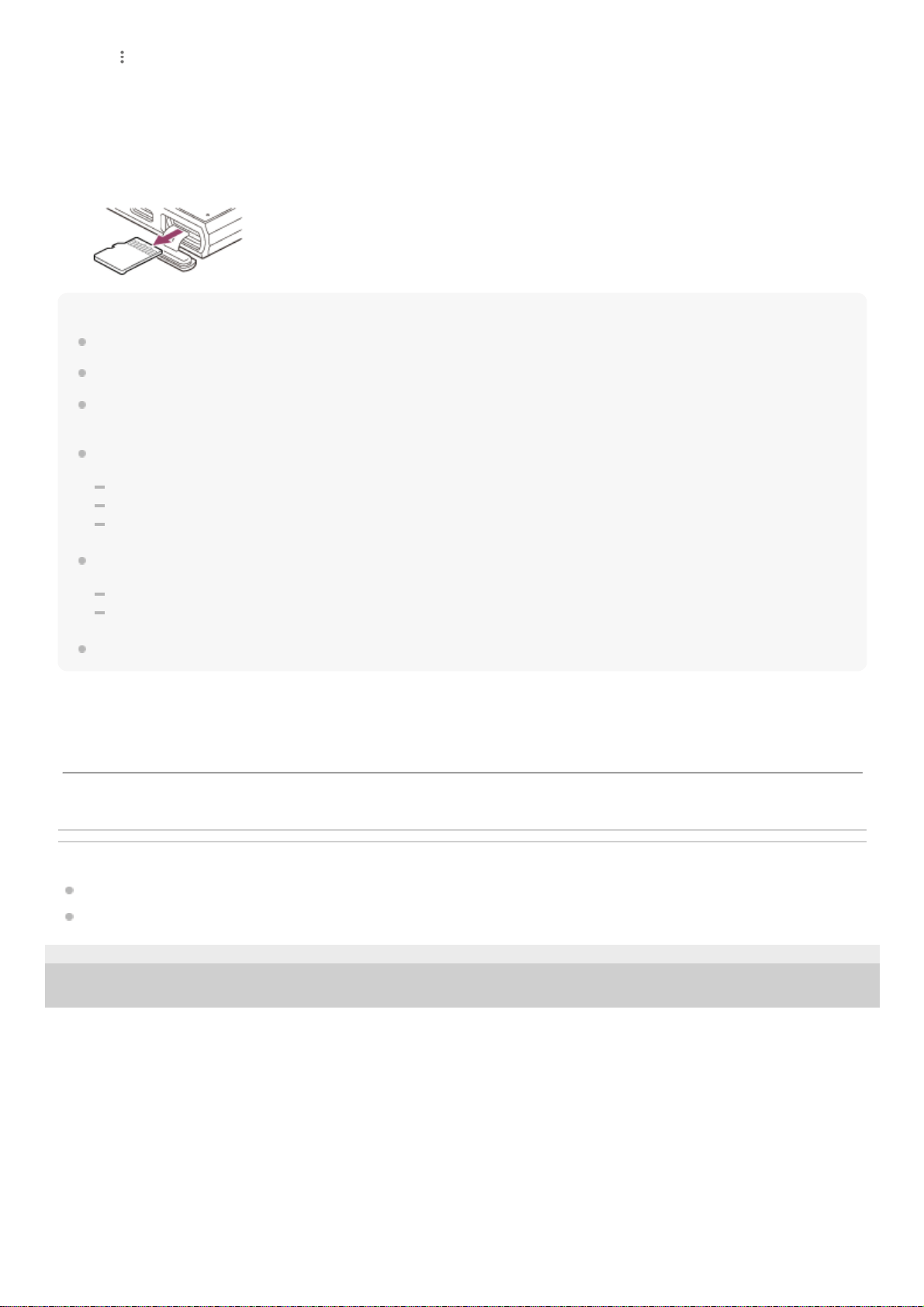
Open the microSD card slot cover.
Push the microSD card into the microSD card slot.
The microSD card will pop out.
5.
Remove the microSD card. Then, close the microSD card slot cover.
6.
The contents of the Help Guide may be subject to change without notice due to updates to the product's specifications.
22
Help Guide
Digital Media Player
NW-A306
Notes on microSD cards
Use a microSD card that has been formatted on the player. Sony does not guarantee the operation of other microSD
cards.
Sony does not guarantee all operations for microSD cards that are used on multiple devices.
Formatting a microSD card will delete all data stored on the microSD card. Save a backup copy in advance.
Do not leave a microSD card within the reach of small children. Small children may accidentally swallow the microSD
card.
The microSD card may become damaged in the following situations.
When the microSD card is removed without unmounting.
When the microSD card is removed during a transfer/playback/formatting operation.
Sony does not guarantee the operation of all types of compatible microSD cards with the player.
Data may be corrupted in the following situations.
When a microSD card is removed during a read or write operation.
When the player is turned off during a read or write operation.
When a microSD card is used in a location where there is static electricity or electrical noise.
Sony assumes no responsibility for any loss or damage of stored data. Sony recommends that you save a backup
copy of important data regularly.
Observe the following cautions when you handle microSD cards.
Do not apply strong force to a microSD card.
Do not bend a microSD card.
Do not drop a microSD card.
Do not disassemble a microSD card.
Do not modify a microSD card.
Do not expose a microSD card to water.
Do not leave a microSD card in the hot interior of a car.
Do not leave a microSD card in direct sunlight.
Do not leave a microSD card near a heater.
Do not leave a microSD card in a humid place.
Do not leave a microSD card in a location where corrosive substances are present.
Do not attach labels.
Do not touch contact pins of a microSD card with your hands or metal.
Observe the following cautions regarding the microSD card slot.
Insert the microSD card straight in the correct direction.
Do not insert any object other than a microSD card into the microSD card slot.
23

Help Guide
Digital Media Player
NW-A306
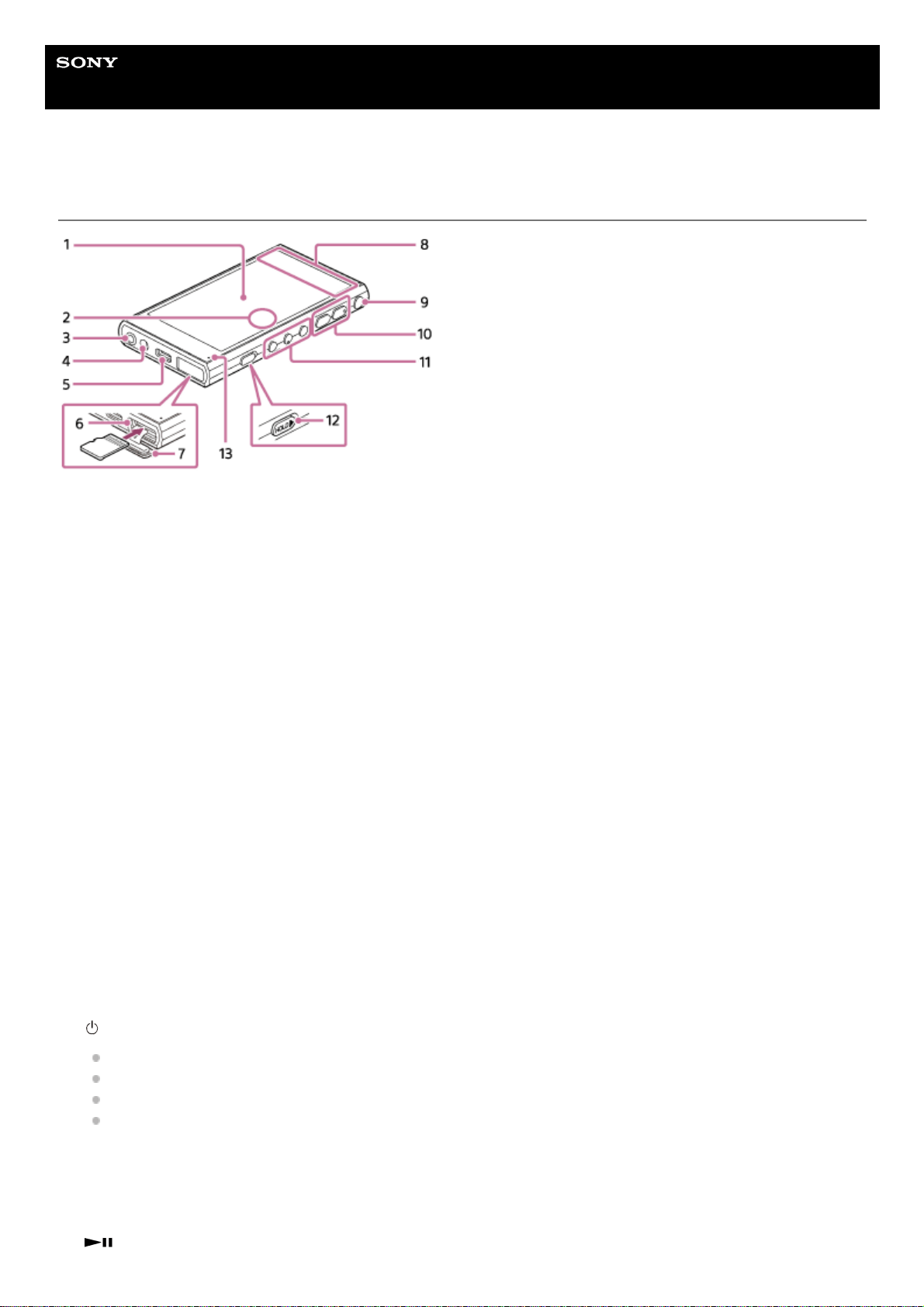
Parts and controls
Touch screen
Tap icons or items on the screen to operate the player.
1.
Built-in microphone
You can use the built-in microphone to input sound. Do not cover the microphone while you use it.
2.
Headphone jack (Stereo Mini)
Push in the headphone plug until it clicks into place.
Connect the headphones properly. Otherwise, the output sound will be impaired.
3.
Strap hole
Attach a strap (not supplied).
4.
USB Type-C port
Connect the player to a running computer with the supplied USB Type-C cable. You can charge the player or enjoy
the music on a computer with the USB-DAC function.
5.
microSD card slot (The card slot is inside the slot cover.)
Insert a microSD card (not supplied) until it clicks into place.
6.
microSD card slot cover
Open the cover to insert a microSD card.
7.
Built-in antenna
The Wi-Fi antenna and Bluetooth antenna are built in. Do not cover the antennas while you use them.
8.
(power) button
Press the button to turn the screen on or off.
Hold down the button for 5 seconds to turn on the player.
Hold down the button for 2 seconds to turn off or restart the player.
If operations become unstable, hold down the button for 10 seconds to force the player to restart.
9.
+(*1)/- (volume) buttons
Press the buttons to adjust the volume.
10.
Playback operating buttons
(play/pause) (*1): Press the button to start or pause playback.
11.
25
5-042-672-11(1) Copyright 2022 Sony Corporation
(previous track)/ (next track): Press the buttons to jump to the beginning of the current track, previous track,
or next track.
Hold down the buttons to fast-rewind or to fast-forward playback.
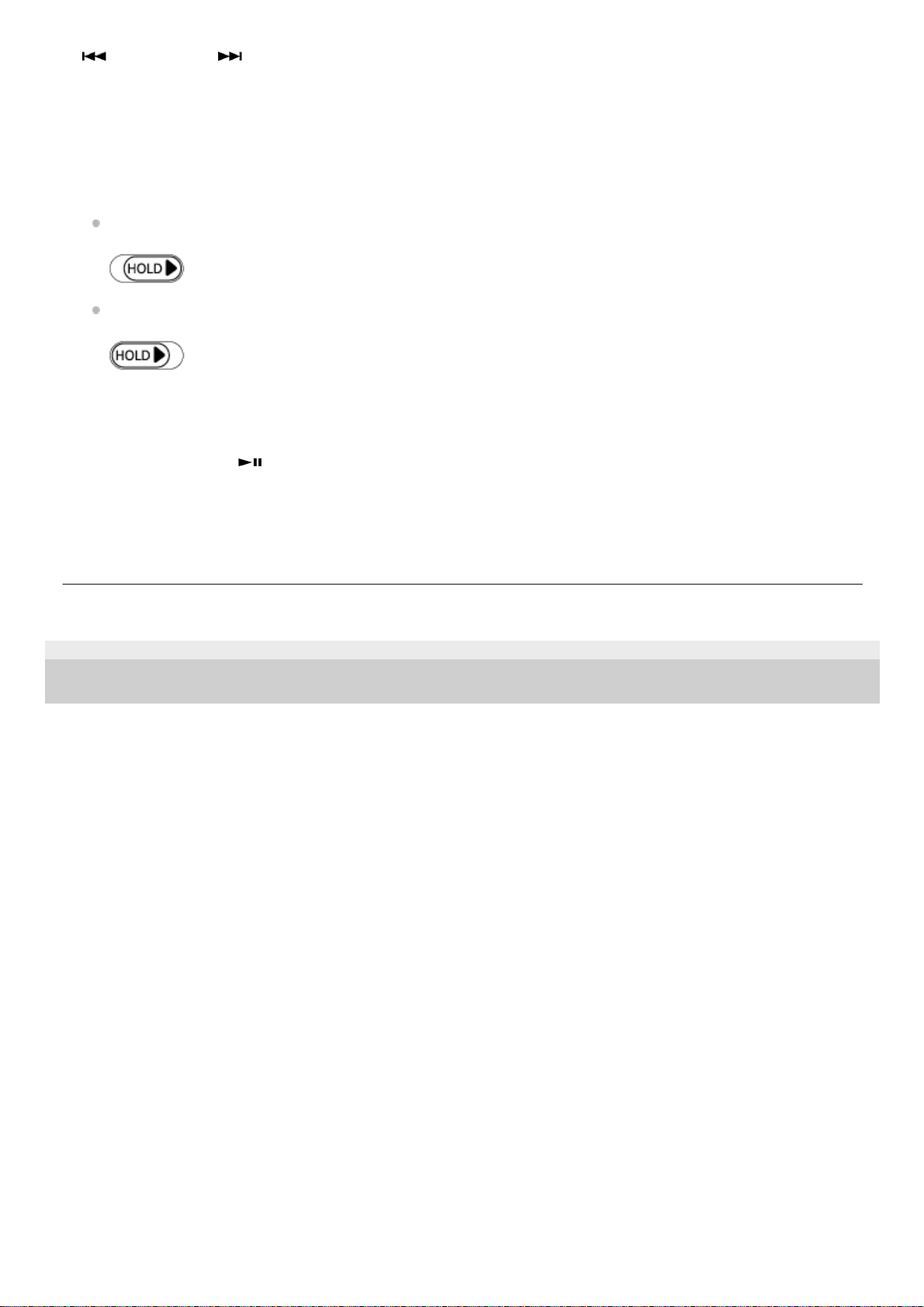
HOLD (hold) switch
Slide the switch to lock the playback operating buttons and +/- (volume) buttons on the player. You can avoid
operating the buttons accidentally.
Locked (inoperable)
Released (operable)
12.
Charge lamp
The lamp lights up while the player is charging.
13.
There are tactile dots on the
(play/pause) button and the + (volume) button. The tactile dots can help you operate the buttons without
looking at them.
*1
The contents of the Help Guide may be subject to change without notice due to updates to the product's specifications.
26
Help Guide
Digital Media Player
NW-A306
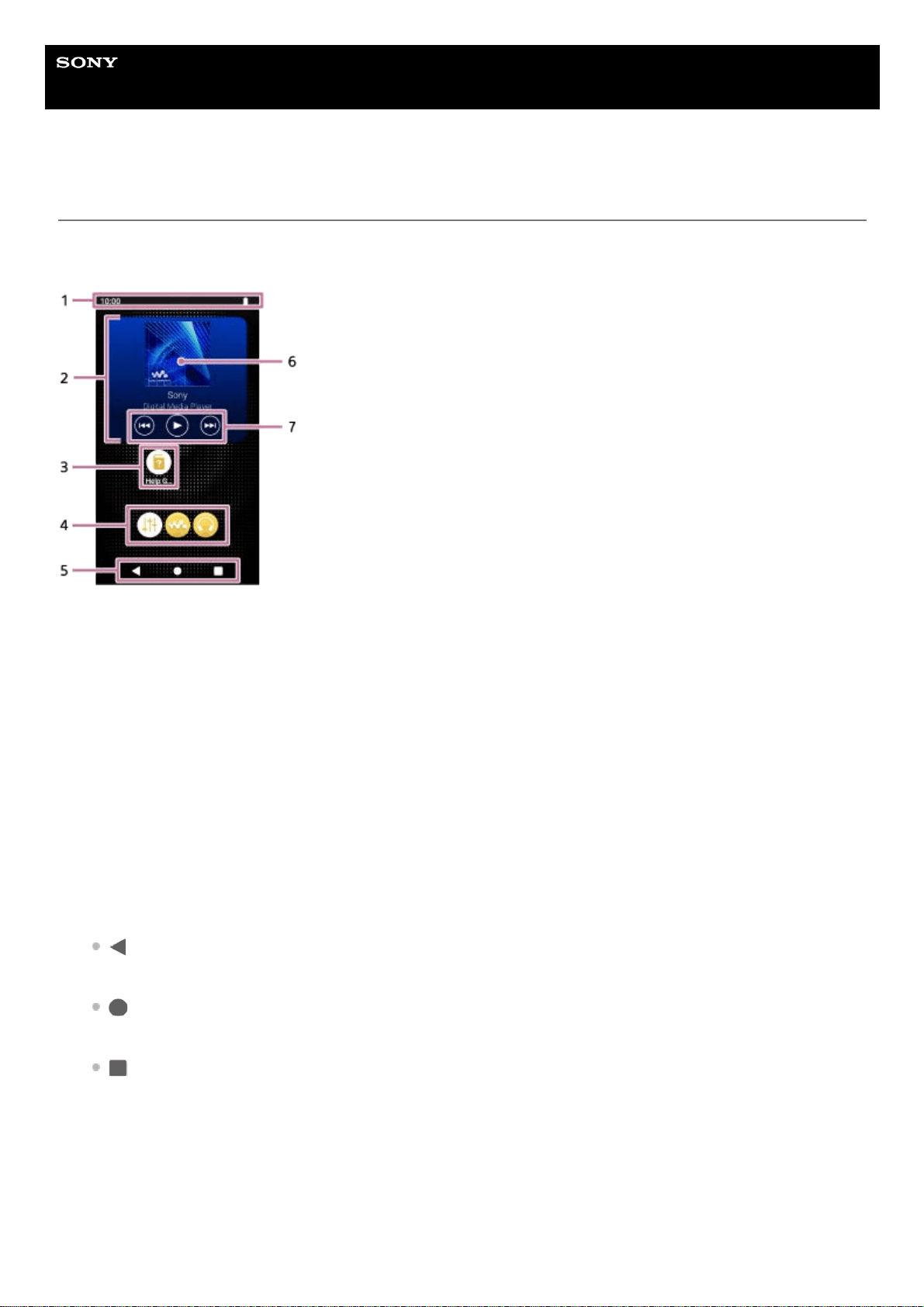
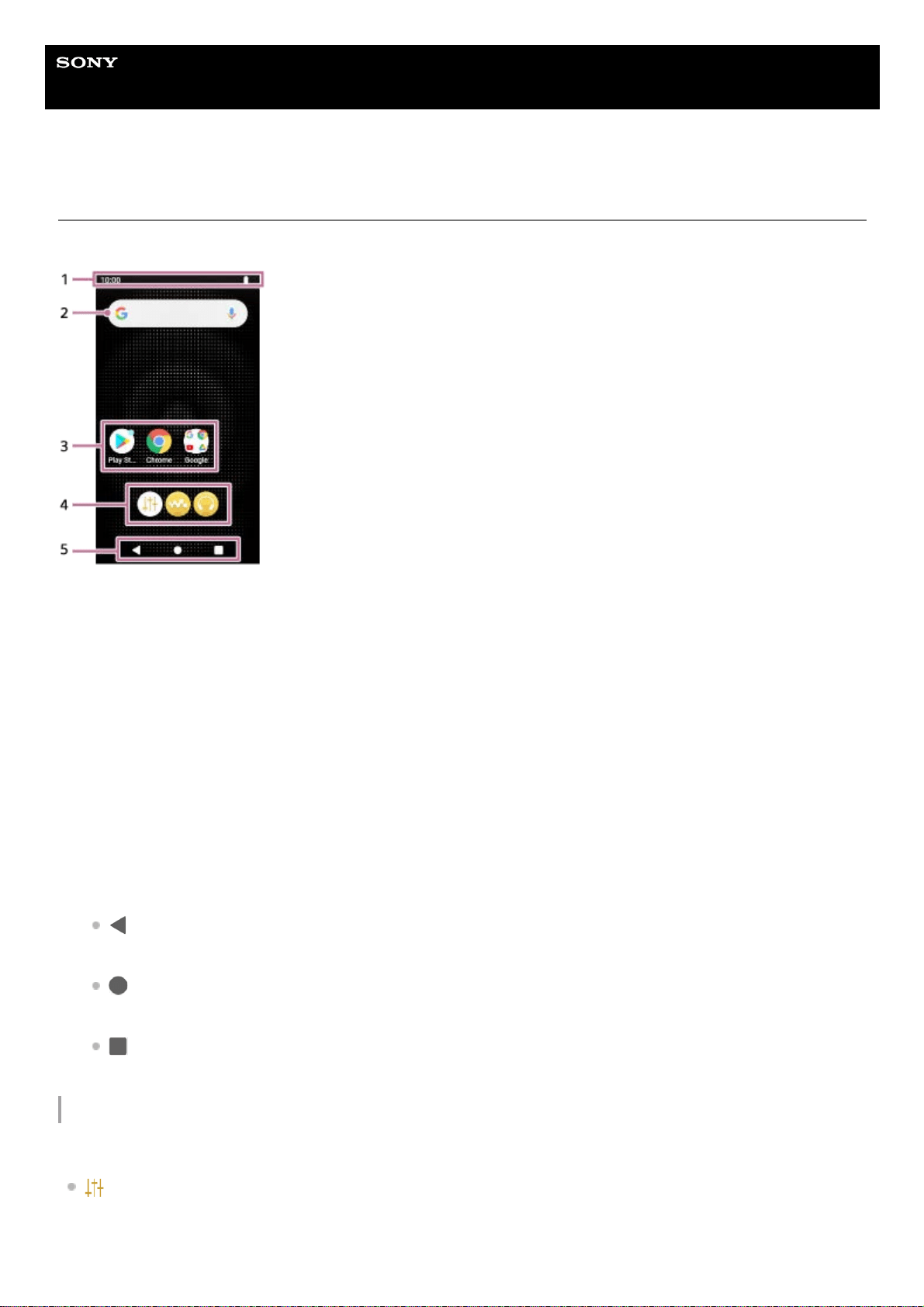
[WALKMAN Home] screen
The [WALKMAN Home] screen is a home screen customized for music playback. It features the Music player widget so
that you can control music playback without launching an app. Also, the apps related to music are displayed.
Status bar
The status of the player and notifications appear as icons.
Swipe down on the status bar to display the notification panel and the Quick Settings panel.
1.
Music player widget
The widget shows the current track of “Music player”.
2.
Shortcuts to apps
Tap a shortcut to launch an app.
3.
Dock
You can add up to 5 shortcuts for apps.
4.
Navigation bar
The navigation bar contains the following 3 buttons. Tap to operate them.
(back) button
Tap the button to return to the previous screen.
(home) button
Tap the button to display the [WALKMAN Home] screen.
(overview) button
Tap the button to display recently used apps.
5.
Cover art
Tap the area to launch “Music player”.
6.
Previous button / Play (Pause) button / Next button
Tap the buttons to control music playback without launching an app.
7.
27
About the shortcuts to apps on the dock
Apps such as the following are preinstalled on the player.
[Sound adjustment]
Use the app to adjust the sound. You can directly adjust the sound for the player. This is useful when you play
content using apps other than “Music player”.
[Music player]
Use the app to play music content stored on the player. Prepare music content in the following ways.
Transferring music content from your computer to the player.
Purchasing music content from online music services.
[Sony | Headphones Connect]
Use the app to register and set up your headphones.
Hint
If you select [Page 2 (WALKMAN® Home)] for [Select Home screen] during the initial setup, the [WALKMAN Home] screen will
appear when you tap the
(home) button.
You can change the main home screen after the initial setup.
On the home screen, hold down an empty space.
Tap the menu items in the following order.
[Home settings] - [Select Home screen].
Select the desired home screen.
Note
Please note that Sony does not accept responsibility for any problems due to apps or services from other companies. Check the
terms of service from each provider before use.
Related Topic
List of icons displayed in the status bar
Installing apps to enjoy online music services
Switching the home screen
5-042-672-11(1)
Copyright 2022 Sony Corporation
The contents of the Help Guide may be subject to change without notice due to updates to the product's specifications.
28
Help Guide
Digital Media Player
NW-A306
Android Home screen
Widgets, shortcuts, folders, and more are displayed on the Android Home screen.
About the shortcuts to apps on the dock
Apps such as the following are preinstalled on the player.
[Sound adjustment]
Use the app to adjust the sound. You can directly adjust the sound for the player. This is useful when you play
content using apps other than “Music player”.
Status bar
The status of the player and notifications appear as icons.
Swipe down on the status bar to display the notification panel and the Quick Settings panel.
1.
Google search widget
Tap the input field to show the keyboard. Enter text to search on Google.
2.
Shortcuts to apps
Tap a shortcut to launch an app.
3.
Dock
You can add up to 5 shortcuts for apps.
4.
Navigation bar
The navigation bar contains the following 3 buttons. Tap to operate them.
(back) button
Tap the button to return to the previous screen.
(home) button
Tap the button to display the [WALKMAN Home] screen.
(overview) button
Tap the button to display recently used apps.
5.
29
[Music player]
Use the app to play music content stored on the player. Prepare music content in the following ways.
Transferring music content from your computer to the player.
Purchasing music content from online music services.
[Sony | Headphones Connect]
Use the app to register and set up your headphones.
Note
Please note that Sony does not accept responsibility for any problems due to apps or services from other companies. Check the
terms of service from each provider before use.
Related Topic
List of icons displayed in the status bar
Installing apps to enjoy online music services
Switching the home screen
5-042-672-11(1)
Copyright 2022 Sony Corporation
The contents of the Help Guide may be subject to change without notice due to updates to the product's specifications.
30
Help Guide
Digital Media Player
NW-A306
Displaying the All Apps screen
The All Apps screen shows all apps installed on the player. Find the desired app and launch it.
Hint
You can display the All Apps screen with the same operation on both the [WALKMAN Home] screen and the Android Home
screen.
5-042-672-11(1) Copyright 2022 Sony Corporation
Swipe the [WALKMAN Home] screen upwards.
The All Apps screen will appear.
Scroll up or down on the screen to find the desired app. Tap the app icon to launch the app.
1
The contents of the Help Guide may be subject to change without notice due to updates to the product's specifications.
31
Help Guide
Digital Media Player
NW-A306
Displaying Quick Settings panel
The Quick Settings panel allows you to quickly access various functions. You can turn the functions on or off, or adjust
the settings.
Related Topic
[WALKMAN Home] screen
Android Home screen
5-042-672-11(1)
Copyright 2022 Sony Corporation
On the [WALKMAN Home] screen, swipe down on the status bar.
The Quick Settings panel will appear.
The following are some of the functions on the Quick Settings panel at the time of purchase.
Wi-Fi function
Bluetooth function
Volume
1
Tap the desired icon to switch the function on or off.
When you tap the volume icon, the volume dialog appears.
Depending on the function, the setting screen opens when you hold down the icon.
2
The contents of the Help Guide may be subject to change without notice due to updates to the product's specifications.
32
Help Guide
Digital Media Player
NW-A306
Switching the home screen
This player has two home screens.
Android Home screen: Default Android Home screen
[WALKMAN Home] screen: Home screen customized for music playback
Set either of the two home screens as the main home screen. The main home screen appears when you tap the
(home) button. The [WALKMAN Home] screen features the Music player widget so that you can control music playback
without launching an app. We recommend setting the [WALKMAN Home] screen as the main home screen.
You can also switch between the two home screens at any time.
Set the main home screen
Hint
If you select [Page 2 (WALKMAN® Home)] for [Select Home screen] during the initial setup, the [WALKMAN Home] screen will
be set as the main home screen.
Switch the home screen
Related Topic
Configuring the initial setup
[WALKMAN Home] screen
Android Home screen
5-042-672-11(1)
Copyright 2022 Sony Corporation
On the home screen, hold down an empty space.1.
Tap [Home settings] - [Select Home screen].2.
Select the desired home screen, and then tap [OK].3.
Swipe the home screen to the left or right.1.
The contents of the Help Guide may be subject to change without notice due to updates to the product's specifications.
33

Help Guide
Digital Media Player
NW-A306
How to use the various screens of “Music player”
“Music player” is a music app preinstalled on the player.
Enjoy listening to the following music content.
The music content purchased from online music services by connecting the player to a Wi-Fi network.
The music content transferred from a computer to the player.
The music content stored on a computer (USB-DAC function).
You can also adjust the sound to suit your preferences.
To launch “Music player”
On the [WALKMAN Home] screen, tap
[Music player].
You can also launch “Music player” by tapping the cover art in the Music player widget.
This topic explains the layout of the various screens of “Music player” with the playback screen (
) at the center. Swipe
the playback screen (
) to switch to other screens (upwards/downwards/to the left/to the right).
34
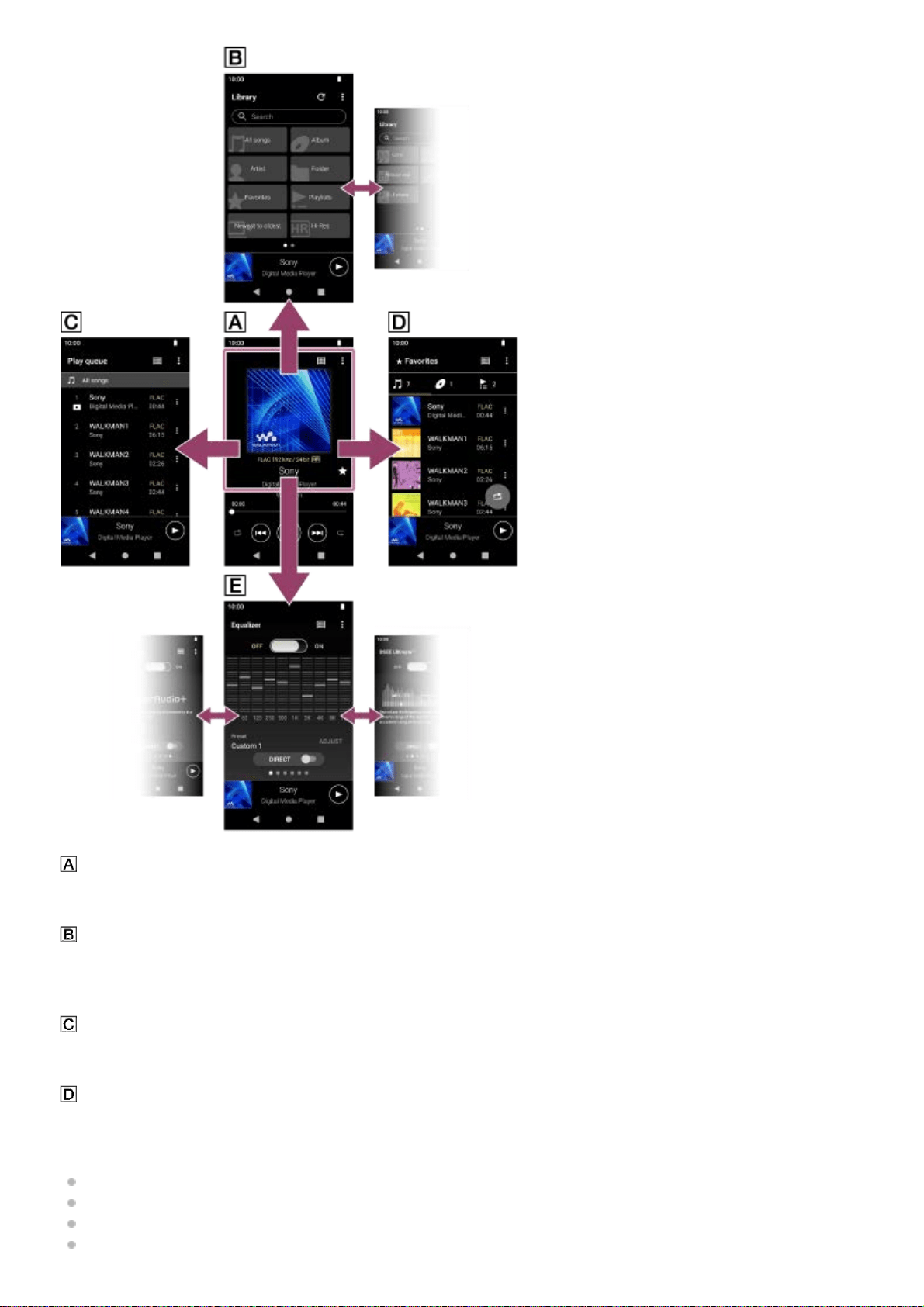
Playback screen
You can confirm a variety of information for the currently selected track.
Library screen
You can select tracks from the library screen. Tracks are classified into various categories (such as [All songs], [Album],
[Artist], etc.).
Play queue screen
You can check and edit the list of tracks that the player will play.
Favorites screen
You can check the tracks/albums/playlists that you have added to Favorites beforehand.
The following operations can be performed from this screen.
Playing tracks/albums/playlists in Favorites.
Removing tracks/albums/playlists from Favorites.
Changing the display order of tracks/albums/playlists in Favorites.
Adding tracks/albums/playlists in Favorites to a playlist or the play queue.
35
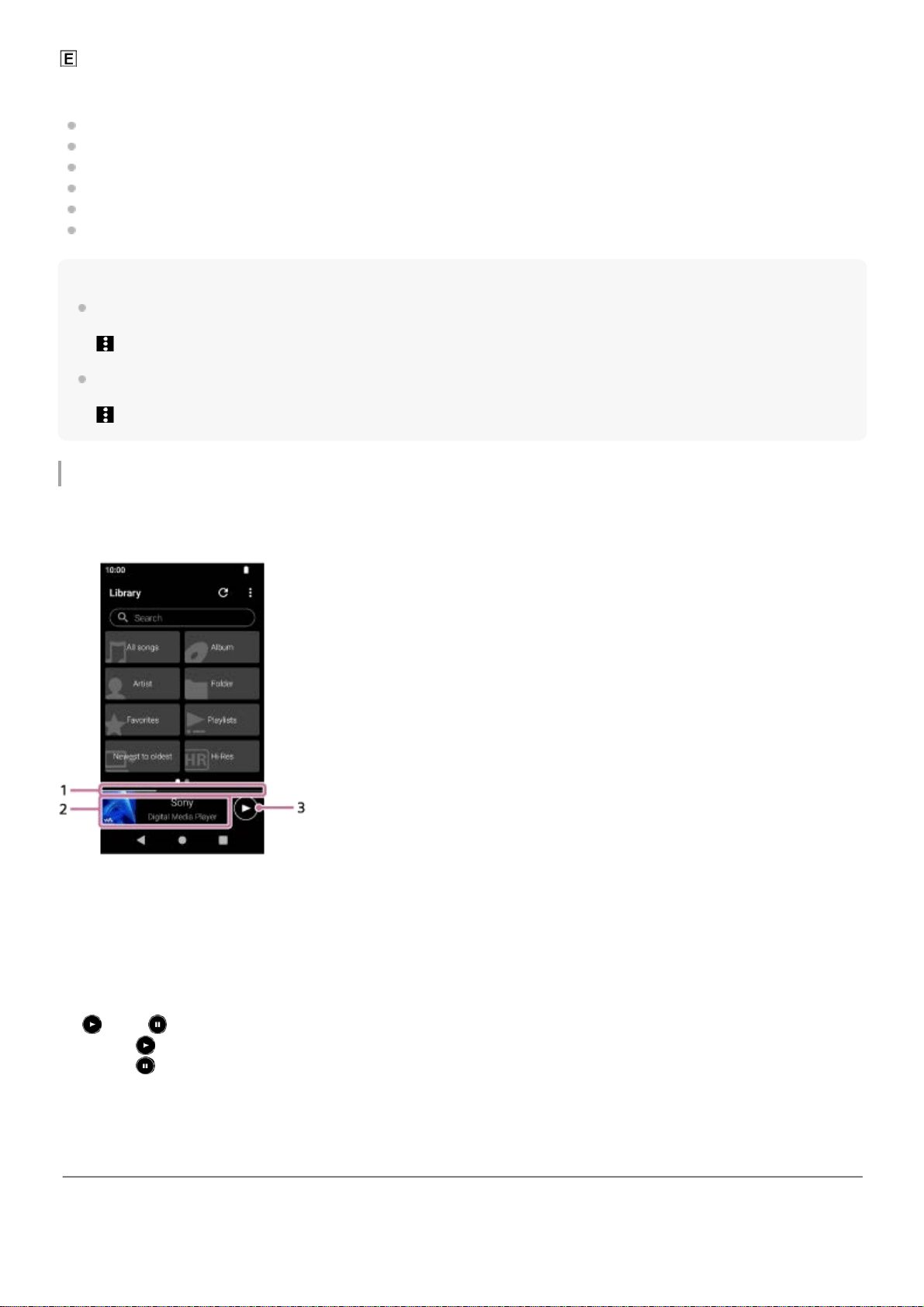
Sound adjustment screens
You can use the various sound adjustments.
Equalizer
DSEE Ultimate™
DC Phase Linearizer
Dynamic Normalizer
Vinyl Processor
ClearAudio+
Hint
You can also check how to switch the screen in the operating guide.
On the playback screen, tap the menu items in the following order.
(Options) - [Operation guide].
You can also check the operating guide from the library screen or the sound adjustment screens.
Tap the menu items in the following order.
(Options) - [Operation guide].
Mini player
The mini player appears at the bottom of each screen (except for the playback screen). Tap the mini player to display the
playback screen.
Current playback position
The area indicates the playback position within the current track.
1.
Cover art/Track title/Artist name
Tap the area to display the playback screen. Swipe the area to the left or right to jump to the beginning of the
previous track or next track.
2.
(Play)/ (Pause) button
Tap the
(Play) button to start playback.
Tap the (Pause) button during playback to pause playback.
3.
The contents of the Help Guide may be subject to change without notice due to updates to the product's specifications.
36

Related Topic
Library screen in “Music player”
Playback screen in “Music player”
Play queue screen in “Music player”
Favorites screen in “Music player”
Sound adjustment screens for “Music player”
Enjoying music content on a computer using the sound quality of the player (USB-DAC function)
5-042-672-11(1)
Copyright 2022 Sony Corporation
37
Help Guide
Digital Media Player
NW-A306
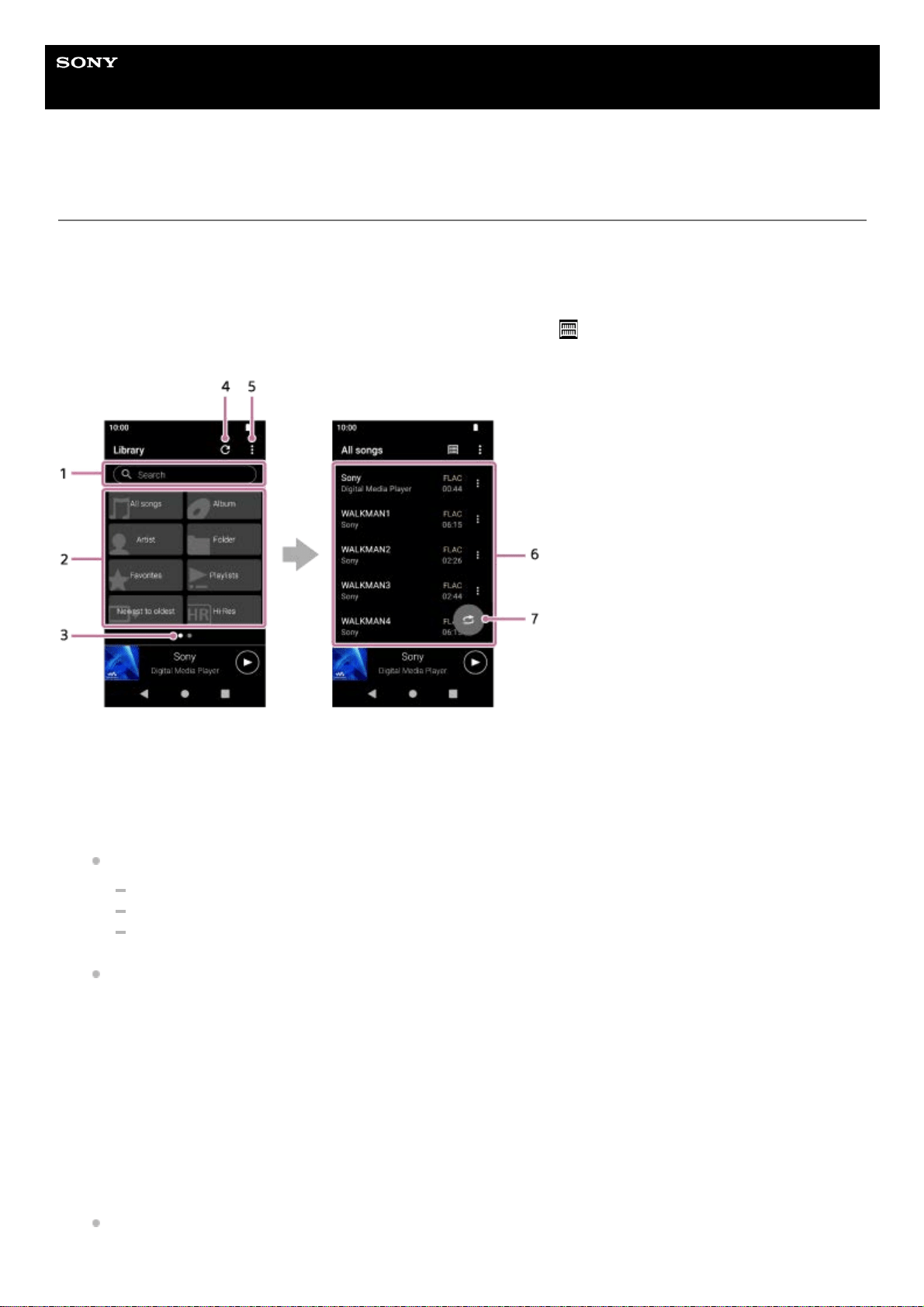
Library screen in “Music player”
You can select tracks from the library screen. Tracks are classified into various categories (such as [All songs], [Album],
[Artist], etc.).
To display the library screen
Swipe the playback screen in “Music player” downwards. Alternatively, tap
(Library top) button in the top right of the
screen.
Search area
Tap the area to display the keyboard and input text. Type keywords to search for items such as track titles.
1.
Music categories ([All songs], [Album], [Artist], etc.)
Each track is classified into several categories. Select a track from the desired category.
Tap [Hi-Res] to search tracks by the quality of sound with one of the following filters.
[Hi-Res]
[CD quality]
[Compressed]
Connect the player to a computer and tap [USB DAC] to enjoy the music stored on the computer with the same
sound quality as the player.
2.
Page indicator
The number of dots represents the number of available pages. Swipe the screen to the left or right to switch to a
different page.
3.
Update database button
Tap the button to update the database of “Music player”.
Purchased content or transferred content may not appear in the library of “Music player”. In this case, perform one of
the following methods and then update the database.
Ensure the music files are in one of the following folders.
4.
38

Option menu
Tap
(Options) to display the option menu.
Displayed items may differ depending on the screen or settings.
Settings
Select the item to display the Settings menu for “Music player”.
Select items to display
Select the item to set which categories to display or not to display.
Reset display item settings
Select the item to display the default categories.
Operation guide
Select the item to view the operating guide.
Create new playlist
Select the item to create a new playlist.
Delete all playlists
Select the item to delete all playlists.
Rename playlist
Select the item to change the name of the playlist.
Edit song order
Select the item to change the order of tracks in the playlist.
Edit Favorites order
Select the item to change the order of items in Favorites.
Add to playlist
Select the item to add all tracks in the selected item to a playlist.
Play next
Select the item to add all tracks in Favorites to the position after the current track in the play queue.
Add to the end of Play queue
Select the item to add all tracks in Favorites to the end of the play queue.
Empty Play queue and add
Select the item to clear the current play queue and newly add all tracks in Favorites to the play queue.
Remove all
Select the item to remove all tracks or all items from the playlist or Favorites.
Context menu
Tap
(Context menu) to display the context menu. (Context menu) appears to the right side of each item in a
subcategory list.
Displayed items may differ depending on the screen or settings.
Add to Favorites
The [Music] folder or the [Download] folder in the internal memory of the player
The [Music] folder on the microSD card
The folders registered to [Folders to be imported] in “Music player”
Register the folder that contains the desired music files to [Folders to be imported] in “Music player”.
Options button5.
Subcategories or track list
After you select a music category, select a subcategory until you find the desired track.
You can check the codecs for tracks, such as FLAC. Codecs for High-Resolution Audio formats appear in color.
6.
Shuffle playback button
Tap to start shuffle playback with the displayed track list as the playback range.
7.
39
Select the item to add the selected track/album/playlist to Favorites.
Add to playlist
Select the item to add the selected track or all tracks in the selected item to a playlist.
Add to another playlist
Select the item to add all tracks in the selected playlist to another playlist.
Play next
Select the item to add the selected track or all tracks in the selected item to the position after the current track in the play
queue.
Add to the end of Play queue
Select the item to add the selected track or all tracks in the selected item to the end of the play queue.
Empty Play queue and add
Select the item to clear the current play queue and newly add the selected track or all tracks in the selected item to the
play queue.
Remove from this list
Select the item to remove the selected item from the playlist or Favorites.
Rename playlist
Select the item to change the name of the playlist.
Detailed song information
Select the item to display the details of the track.
Delete
Select the item to delete the selected track, playlist, or folder.
Hint
You can move the category icons. Hold down an icon, and drag-and-drop it to the preferred position.
You can also display the context menu by holding down an item in the list.
You can also update the database from the Settings menu for “Music player”.
Tap the menu items in the following order.
(Options) - [Settings] - [Update database].
When [Add to playlist] or [Add to another playlist] is selected, a playlist transferred from a computer cannot be selected as the
addition destination. In this case, create a new playlist with the same content as the playlist transferred from the computer in
advance, and then select that playlist as the addition destination.
On the library screen, tap
(Context menu) to the right side of the playlist transferred from the computer.
Tap the menu items in the following order.
[Add to another playlist] - [Create new playlist].
Related Topic
How to use the various screens of “Music player”
Playing music
Play queue screen in “Music player”
Registering or unregistering folders to be imported to “Music player”
Managing playlists in “Music player”
Importing playlists from a Windows computer, playing, or deleting playlists in “Music player”
Managing Favorites in “Music player”
USB-DAC screen in “Music player”
The contents of the Help Guide may be subject to change without notice due to updates to the product's specifications.
40

5-042-672-11(1) Copyright 2022 Sony Corporation
41
Help Guide
Digital Media Player
NW-A306
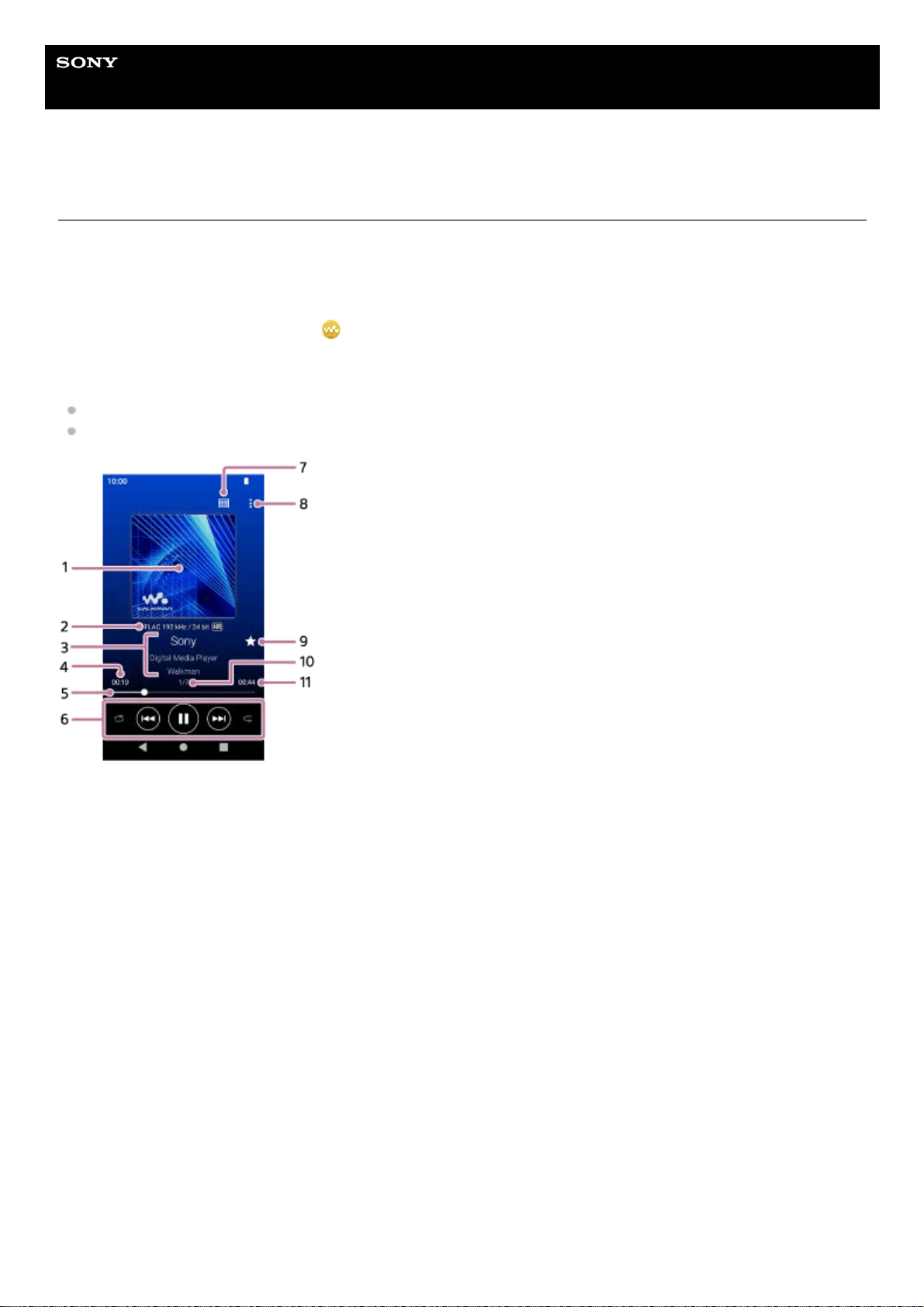
Playback screen in “Music player”
You can confirm a variety of information for the currently selected track. During playback, the background color of the
screen changes to match the base color of the cover art.
To display the playback screen
On the [WALKMAN Home] screen, tap
[Music player].
You can also launch “Music player” by tapping the cover art of Music player widget.
If a screen other than the playback screen appears, perform one of the following procedures.
Swipe the screen (upwards/downwards/to the left/to the right).
Tap the mini player to display the playback screen.
Cover art1.
Sound quality (codec, sampling frequency, bit rate/quantization bit rate) / High-Resolution Audio icon2.
Track title / Artist name / Album title
Tap this area to search for content related to the current track, such as tracks on the same album and albums from
the same artist.
3.
Elapsed time of the current track4.
Timeline bar5.
Shuffle button / Previous button / Play (Pause) button / Next button / Repeat button
Tap each button to control playback such as playing, pausing, moving to the next track or previous track, and
changing the playback method.
Also, you can swipe this area to the left or right to move to the next track or previous track.
6.
Library top button7.
Options button8.
Favorites button
Tap this button to add the current track to Favorites, or to remove the track from Favorites.
9.
42
Option menu
Tap
(Options) to display the option menu.
Displayed items may differ depending on the settings.
Settings
Select the item to display the Settings menu for “Music player”.
Add to playlist
Select the item to add the current track to a playlist.
Search related
Select the item to search for content related to the current track, such as tracks on the same album and albums from the
same artist.
Display tape playback screen
When you turn on the item, the playback screen changes to an animation of a cassette tape rotating. The type of
cassette tape displayed varies according to the track being played back.
Detailed song information
Select the item to display the details of the current track.
Display lyrics
Select the item to display the lyrics of the current track.
Delete
Select the item to delete the current track.
Operation guide
Select the item to view the operating guide.
Hint
You can determine the current status of playback from the background color of the playback screen.
During playback: the base color of the cover art
Paused: black
Drag the timeline bar to change the playback position within a track.
While you drag the timeline bar, the elapsed time of the current track appears over the cover art.
If a certain amount of time elapses without any button or screen operations on the playback screen, the display will switch to the
cassette tape screen. This occurs when you select the playback screen while there is a check mark in the box for [Display tape
playback screen]. To perform screen operations, tap the cassette tape screen. The display will temporarily switch back to the
regular playback screen. Then, you can perform screen operations.
Even if there is a check mark in the box for [Display tape playback screen], the playback screen will not switch to the cassette
tape screen while the item [Detailed song information] or [Display lyrics] is displayed.
You can also turn the [Display tape playback screen] function on or off from the menu of any screen in “Music player”. Tap the
menu items in the following order.
(Options) - [Settings] - [Play on cassette tape screen].
You can also execute [Search related] by tapping the track title, artist name, or album title on the playback screen in “Music
player”.
When [Add to playlist] is selected, a playlist transferred from a computer cannot be selected as the addition destination. In this
case, create a new playlist with the same content as the playlist transferred from the computer in advance, and then select that
playlist as the addition destination.
On the library screen, tap
(Context menu) to the right side of the playlist transferred from the computer.
Tap the menu items in the following order.
[Add to another playlist] - [Create new playlist].
Note
Track number / Total number of tracks10.
Length of the track11.
43
The player will automatically turn off the screen if you have displayed the tape playback screen for 10 minutes.
The elapsed time and timeline bar indications may not be accurate.
The player may not display cover art depending on the file format.
Related Topic
How to use the various screens of “Music player”
Playing music
Playback methods
Managing playlists in “Music player”
Importing playlists from a Windows computer, playing, or deleting playlists in “Music player”
Managing Favorites in “Music player”
Displaying lyrics
5-042-672-11(1)
Copyright 2022 Sony Corporation
The contents of the Help Guide may be subject to change without notice due to updates to the product's specifications.
44
Help Guide
Digital Media Player
NW-A306
Play queue screen in “Music player”
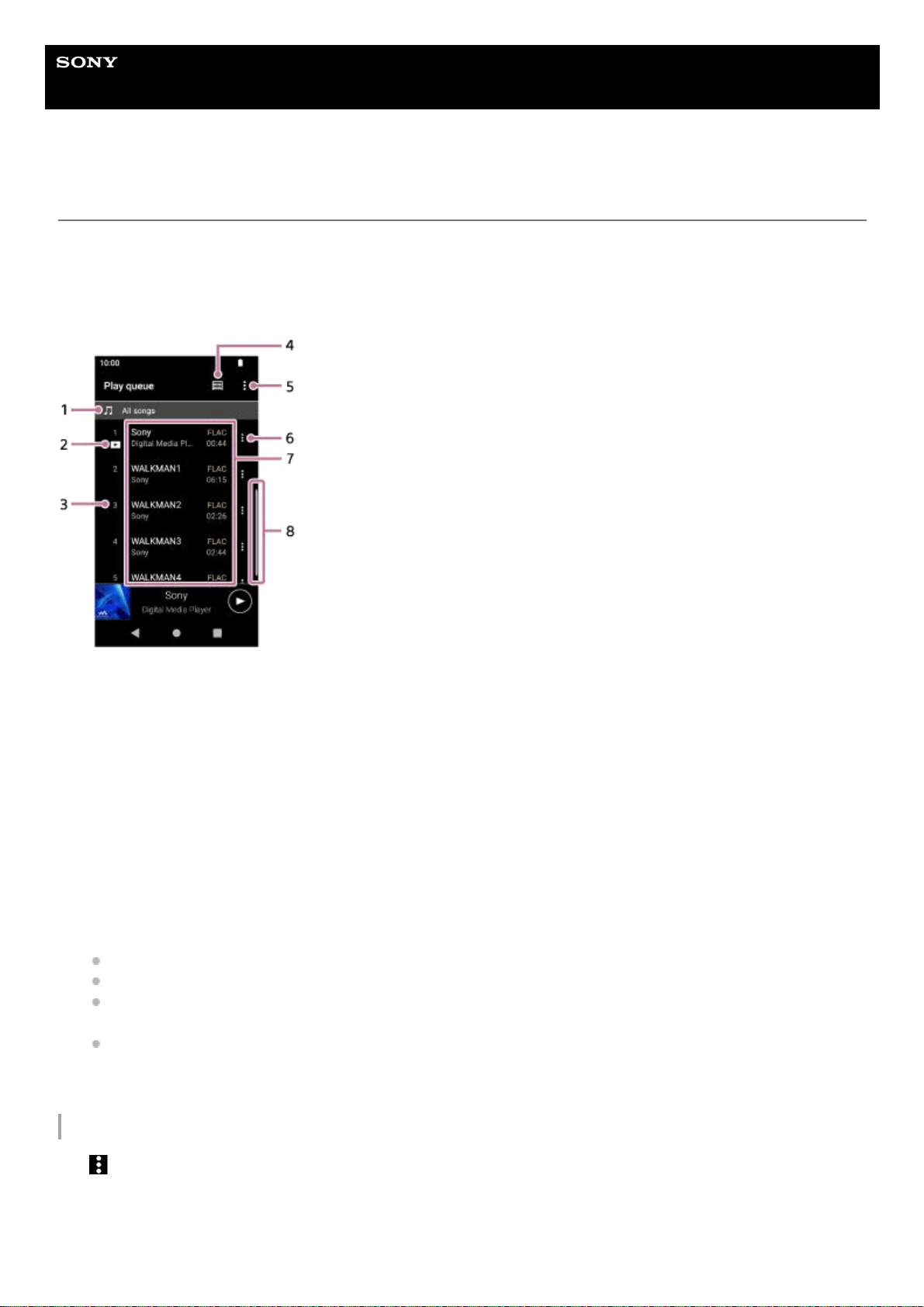
You can check and edit the list of tracks that the player will play.
To display the play queue screen
Swipe the playback screen in “Music player” to the right.
Option menu
Tap
(Options) to display the option menu.
Displayed items may differ depending on the settings.
Settings
Select the item to display the Settings menu for “Music player”.
Playback unit1.
Current track2.
Playback order3.
Library top button4.
Options button5.
Context menu button6.
Content list
Artist name
Track title
Codec
Codecs for High-Resolution Audio formats appear in color.
Length
7.
Scroll indicator8.
45
Edit song order
Select the item to change the order of tracks in the current play queue. Drag and drop the reordering icons on the left
sides of the tracks until they are in the desired order.
Add to playlist
Select the item to add all tracks in the current play queue to a playlist.
Context menu
Tap
(Context menu) to display the context menu. (Context menu) will appear to the right side of each item.
Displayed items may differ depending on the settings.
Add to Favorites
Select the item to add the track to Favorites.
Add to playlist
Select the item to add the track to a playlist.
Remove from this list
Select the item to remove the track from the current play queue.
Detailed song information
Select the item to display the details of the track.
Hint
You can also display the context menu by holding down an item in the list.
You can add items such as tracks/albums/playlists to the play queue.
On the library screen or favorites screen, tap
(Context menu) to the right side of the item, and then tap one of the following
items.
[Play next]
Select the item to add the selected track or all tracks in the selected item to the position after the current track in the play
queue.
[Add to the end of Play queue]
Select the item to add the selected track or all tracks in the selected item to the end of the play queue.
[Empty Play queue and add]
Select the item to clear the current play queue and newly add the selected track or all tracks in the selected item to the play
queue.
On the play queue screen, the screen automatically scrolls to focus on the current track when you have not operated the player
for a while.
When [Add to playlist] is selected, a playlist transferred from a computer cannot be selected as the addition destination. In this
case, create a new playlist with the same content as the playlist transferred from the computer in advance, and then select that
playlist as the addition destination.
On the library screen, tap
(Context menu) to the right side of the playlist transferred from the computer.
Tap the menu items in the following order.
[Add to another playlist] - [Create new playlist].
Related Topic
How to use the various screens of “Music player”
Playing music
Playback methods
The contents of the Help Guide may be subject to change without notice due to updates to the product's specifications.
46

Help Guide
Digital Media Player
NW-A306
Favorites screen in “Music player”
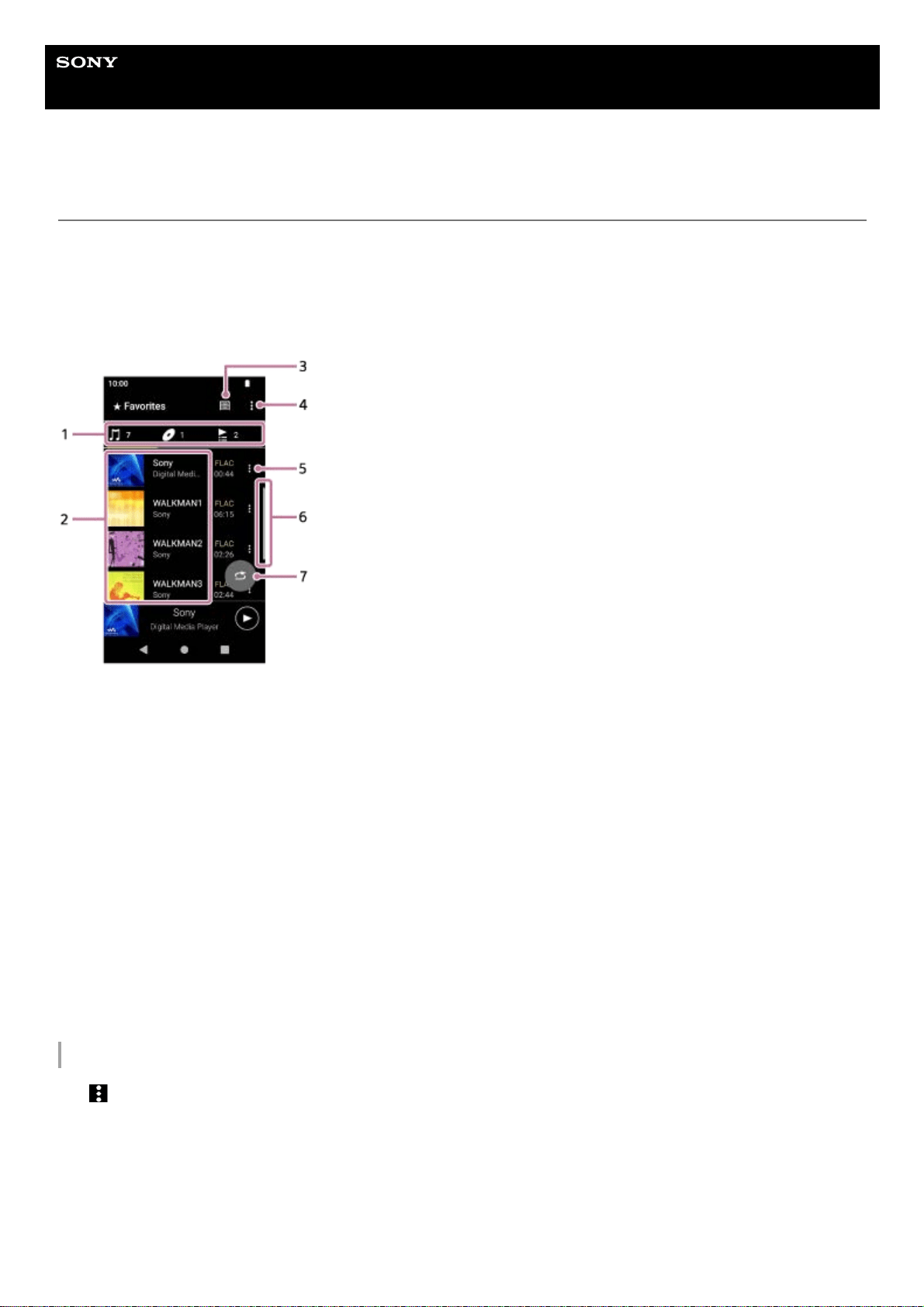
You can play tracks/albums/playlists that you have added to Favorites. You can also change the order of items in the
content list.
To display the favorites screen
Swipe the playback screen in “Music player” to the left.
Option menu
Tap
(Options) to display the option menu.
Displayed items may differ depending on the screen or settings.
Settings
Select the item to display the Settings menu for “Music player”.
Edit Favorites order
Select the item to change the order of the items in the selected category. Drag and drop the reordering icons on the left
sides of the items until they are in the desired order.
Category tabs
Content lists are divided by category (track/album/playlist). Tap a category tab to display a list of content in the
desired category.
1.
Content list
You can view the items in the selected category.
2.
Library top button3.
Options button4.
Context menu button5.
Scroll indicator6.
Shuffle playback button
Tap to start shuffle playback with the displayed track list as the playback range.
7.
48
Edit song order
Select the item to change the order of tracks in the playlist.
Add to playlist
Select the item to add all tracks in Favorites to a playlist.
Play next
Select the item to add all tracks in Favorites to the position after the current track in the play queue.
Add to the end of Play queue
Select the item to add all tracks in Favorites to the end of the play queue.
Empty Play queue and add
Select the item to clear the current play queue and newly add all tracks in Favorites to the play queue.
Remove all
Select the item to remove all items in the selected category from Favorites.
Context menu
Tap
(Context menu) to display the context menu. (Context menu) will appear to the right side of each item.
Displayed items may differ depending on the screen or settings.
Add to Favorites
Select the item to add the track to Favorites.
Add to playlist
Select the item to add the selected track or all tracks in the selected item to a playlist.
Add to another playlist
Select the item to add all tracks in the selected playlist to another playlist.
Play next
Select the item to add the selected track or all tracks in the selected item to the position after the current track in the play
queue.
Add to the end of Play queue
Select the item to add the selected track or all tracks in the selected item to the end of the play queue.
Empty Play queue and add
Select the item to clear the current play queue and newly add the selected track or all tracks in the selected item to the
play queue.
Remove from this list
Select the item to remove the item from Favorites.
Detailed song information
Select the item to display the details of the track.
Hint
You can also display the context menu by holding down an item in the list.
When [Add to playlist] or [Add to another playlist] is selected, a playlist transferred from a computer cannot be selected as the
addition destination. In this case, create a new playlist with the same content as the playlist transferred from the computer in
advance, and then select that playlist as the addition destination.
On the library screen, tap
(Context menu) to the right side of the playlist transferred from the computer.
Tap the menu items in the following order.
[Add to another playlist] - [Create new playlist].
Note
When you remove the microSD card, the following information will disappear.
Favorite information for tracks on the microSD card.
Information may remain in the database for “Music player”. In this case, when you reinsert the microSD card, the information will
reappear.
49
Related Topic
How to use the various screens of “Music player”
Playing music
Playback methods
Managing playlists in “Music player”
Importing playlists from a Windows computer, playing, or deleting playlists in “Music player”
Managing Favorites in “Music player”
5-042-672-11(1)
Copyright 2022 Sony Corporation
The contents of the Help Guide may be subject to change without notice due to updates to the product's specifications.
50
Help Guide
Digital Media Player
NW-A306
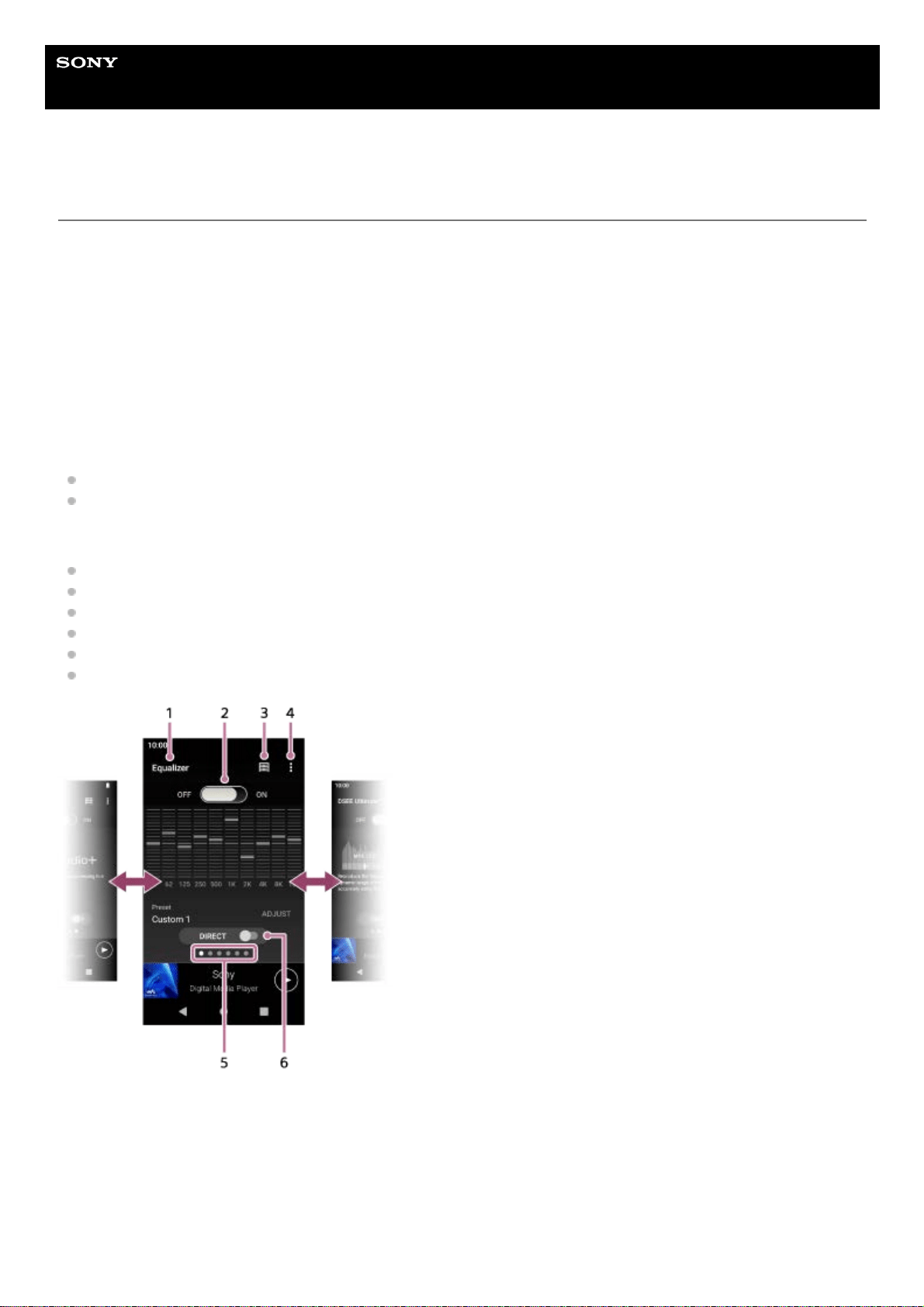
Sound adjustment screens for “Music player”
You can use various sound adjustments. You can quickly access the sound adjustment screens from the playback
screen in “Music player”. In this case, you do not need to launch the [Sound adjustment] app.
To display the sound adjustment screens
Swipe the playback screen in “Music player” upwards.
To navigate the sound adjustment screens
Swipe the screen to the left or right to select a sound adjustment.
You cannot select sound adjustments if you have turned on the following settings. Turn off the settings to enable the
other sound adjustments.
Direct Source
ClearAudio+
Sound adjustments available
Equalizer
DSEE Ultimate™
DC Phase Linearizer
Dynamic Normalizer
Vinyl Processor
ClearAudio+
Name of the sound adjustment1.
ON/OFF switch
Tap to turn each sound adjustment on or off while keeping the state of the setting.
2.
Library top button3.
Options button4.
51
Option menu
Tap
(Options) to display the option menu.
Displayed items may differ depending on the screen or settings.
Settings
Select the item to display the Settings menu for “Music player”.
Operation guide
Select the item to view the operating guide.
Hint
You can swipe any of the sound adjustment screens downwards to return to the playback screen.
Related Topic
How to use the various screens of “Music player”
Adjusting the sound
5-042-672-11(1)
Copyright 2022 Sony Corporation
Page indicator
The number of dots represents the number of available pages. Swipe the screen to the left or right to switch to a
different page.
5.
[DIRECT] switch
You can turn the [Direct Source] function on or off.
6.
The contents of the Help Guide may be subject to change without notice due to updates to the product's specifications.
52
Help Guide
Digital Media Player
NW-A306
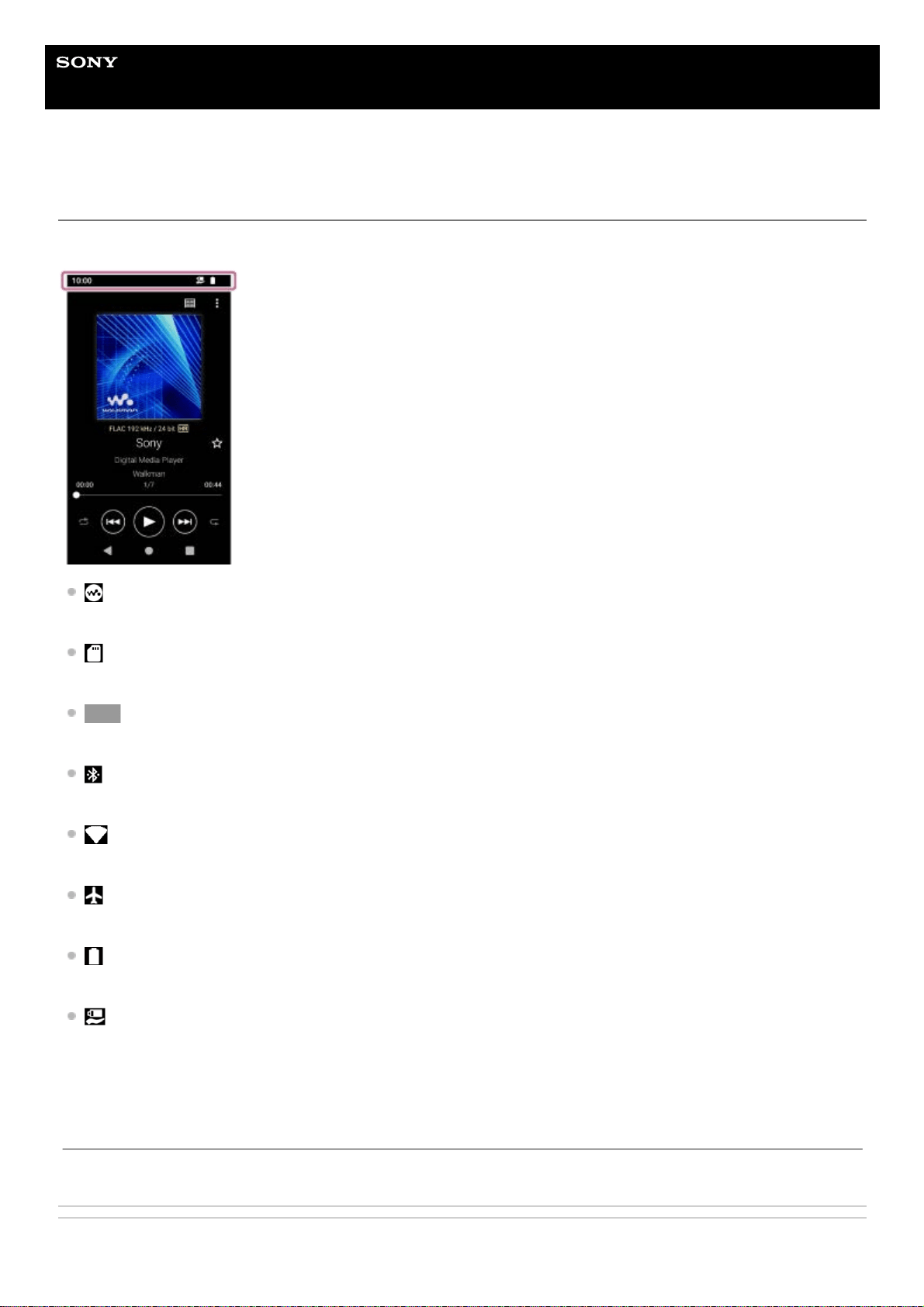
List of icons displayed in the status bar
In the status bar, the various statuses of the player appear as icons.
Updating the database of “Music player”.
microSD card mounted
HOLD indicator
Bluetooth device connected
Wi-Fi network connected
Airplane mode
Battery status
Battery Care function
Related Topic
The contents of the Help Guide may be subject to change without notice due to updates to the product's specifications.
53

Help Guide
Digital Media Player
NW-A306
Setting the screen lock
If you activate the screen lock function, the screen will lock automatically when the screen turns off. This can help keep
the player secure in case of loss. You can choose from several methods for unlocking the screen.
Note
Be careful not to forget your unlocking code. The information solely belongs to the customer, not to Sony. If you forget how to
unlock the screen, contact the nearest Sony dealer or Sony Service Center. The player will be formatted at a fee to erase the
screen lock information. Sony assumes no responsibility for any loss or damage of stored data.
5-042-672-11(1) Copyright 2022 Sony Corporation
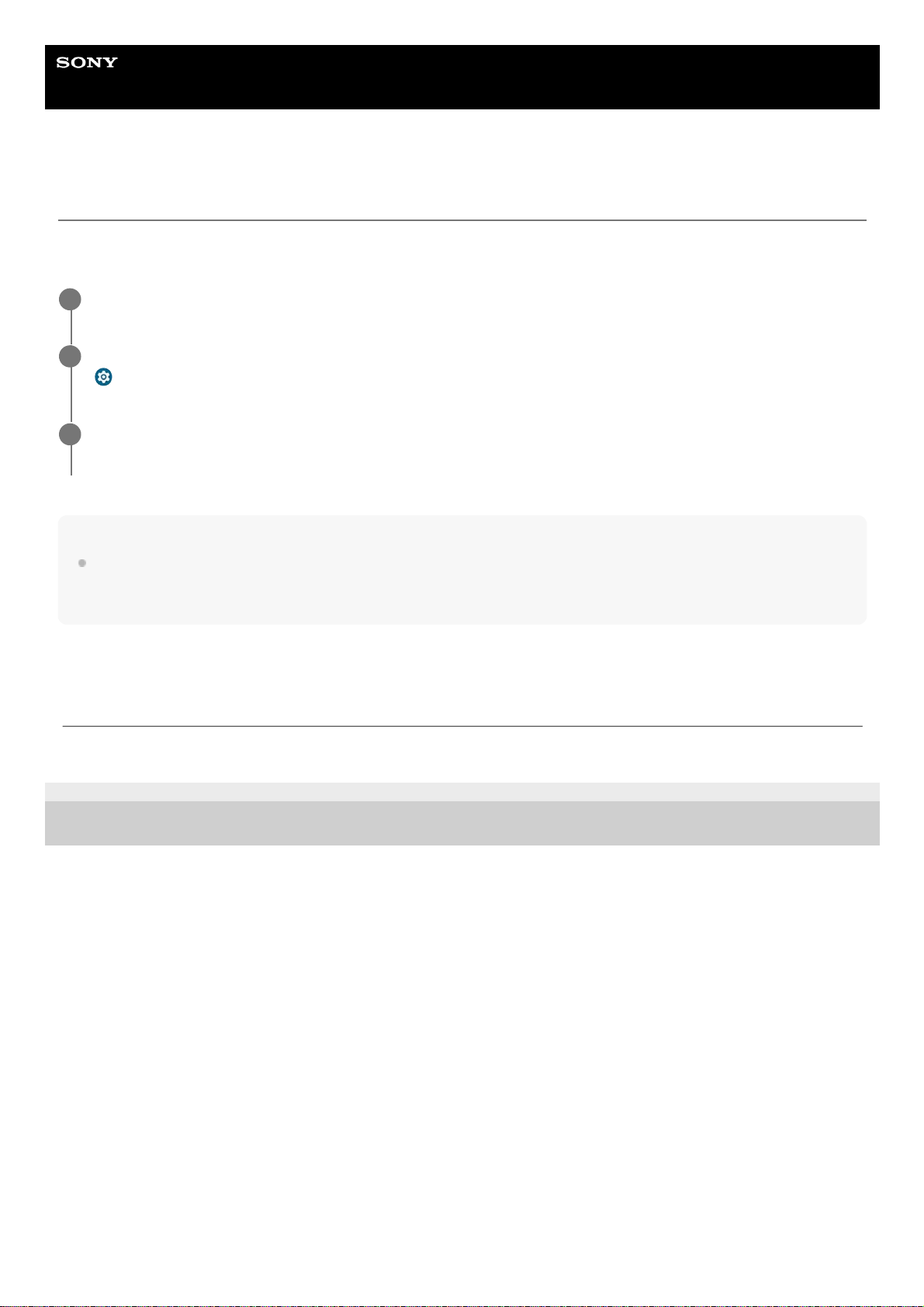
Swipe the [WALKMAN Home] screen upwards.
1
Tap the menu items in the following order.
[Settings] - [Security] - [Screen lock].
2
Tap the desired method to unlock the screen.
A setting screen may appear depending on the method. Follow the onscreen instructions to complete the setting.
3
The contents of the Help Guide may be subject to change without notice due to updates to the product's specifications.
55
Help Guide
Digital Media Player
NW-A306
Adjusting the volume
Adjust the volume for “Music player”.
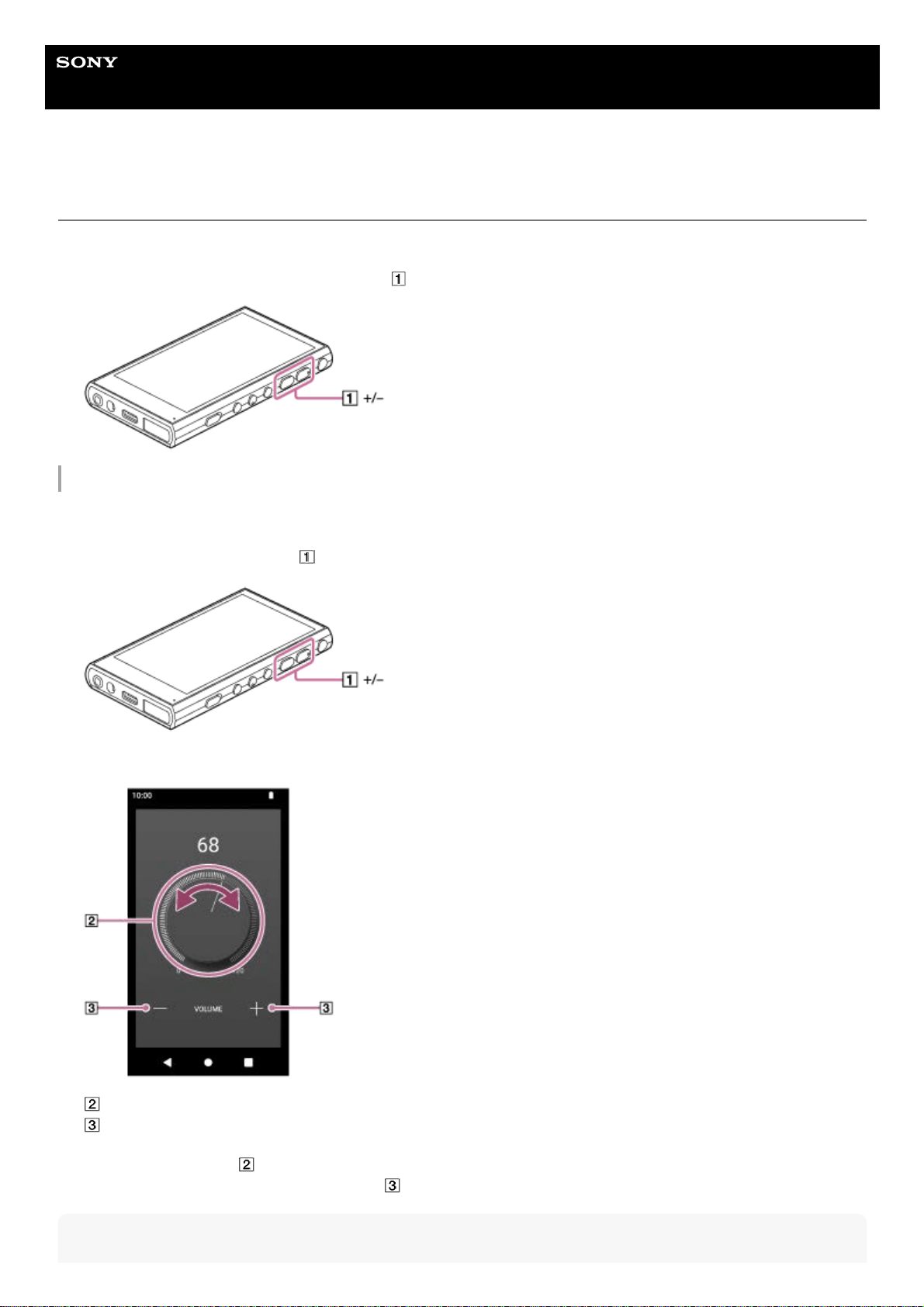
To adjust the volume with the volume dialog
Hint
Press or hold down the +/– (volume) buttons (
).1.
Turn on the screen of the player.1.
Press the +/– (volume) buttons (
) to display the volume panel.2.
Tap the volume scale or the digits on the volume panel to display the volume dialog.
Volume knob
+/– (volume)
3.
Turn the volume knob (
) to adjust the volume.
You can also tap or hold down +/– (volume) (
) to adjust the volume.
4.
56
You can also display the volume dialog from the Quick Settings panel. On the [WALKMAN Home] screen, swipe down on the
status bar. Then, tap the volume icon in the Quick Settings panel.
Note
The volume level may be too high or too low when you listen to music using an app other than “Music player”. In this case, adjust
the volume according to the following procedure.
Tap
(Setting) on the volume panel, and adjust the volume level for [Media volume].
Then, adjust the volume with the +/– (volume) buttons (
) or the volume dialog.
The volume level of “Music player” may be too high or too low if you have adjusted the volume while you used another app. In
this case, adjust the volume with the +/– (volume) buttons (
) or the volume dialog.
You cannot adjust the volume with the volume dialog in the following cases. Adjust the volume using the connected device.
When sound is output through a Bluetooth device that is connected to the player.
When sound is output through a USB device that is connected to the player.
Limiting the volume
The AVLS (Automatic Volume Limiter System) function reduces the risk of damage to ears from loud volumes. Using
AVLS limits the maximum volume.
AVLS has the following features.
AVLS limits the volume to a certain level.
AVLS prevents disturbances to others caused by loud volumes.
AVLS reduces risks that occur when you cannot hear ambient sound.
AVLS allows you to listen at a more comfortable volume.
Note
AVLS (volume limit) is not effective in the following cases.
When sound is output through a Bluetooth device that is connected to the player.
When sound is output through a USB device that is connected to the player.
Related Topic
Volume operation in compliance with Directives
5-042-672-11(1)
Copyright 2022 Sony Corporation
Swipe the [WALKMAN Home] screen upwards.1.
Tap the menu items in the following order.
[Settings] - [Sound].
2.
Tap the [AVLS (volume limit)] switch.3.
The contents of the Help Guide may be subject to change without notice due to updates to the product's specifications.
57
Help Guide
Digital Media Player
NW-A306
Volume operation in compliance with Directives
For European customers
For US and Canadian customers
For Singaporean customers
The alarm (beep) and warning [Check the volume level.] are intended to protect your ears. They occur when you initially
turn the volume up to a harmful level. You can cancel the alarm and warning by tapping [OK] on the alert dialog.
Note
You can turn up the volume after you cancel the alarm and warning.
After the initial warning, the alarm and warning will repeat every 20 cumulative hours that the volume is set to a level that is
harmful to your ears. When this happens, the volume will turn down automatically.
If you turn off the player after you have selected a high volume that may damage your eardrums, the volume level will
automatically be lower when you turn on the player the next time.
The alarm will not sound when there is an active Bluetooth connection.
Related Topic
Adjusting the volume
5-042-672-11(1)
Copyright 2022 Sony Corporation
The contents of the Help Guide may be subject to change without notice due to updates to the product's specifications.
58
Help Guide
Digital Media Player
NW-A306
Preparing music content
Before you enjoy music content with the player, you need to prepare the music content.
This topic includes instructions for the following operations.
Purchasing music content from online music services by using the player.
Importing music content from an audio CD to Music Center for PC.
Importing music content stored on a Windows® computer to Music Center for PC.
Importing music content stored on an external media device to a Windows computer.
Purchasing music content from online music services.
Music Center for PC is a recommended application for Windows computers. Before you transfer music content from a
Windows computer to the player, install Music Center for PC on the Windows computer.
Ensure that the software version of Music Center for PC is 2.5 or later. In earlier versions, Music Center for PC will not
recognize the player.
To transfer music content stored on a Mac computer, you need to install additional software.
An example of additional software is Android File Transfer.
Purchasing music content from online music services by using the player
If you connect the player to a Wi-Fi network, you can purchase music content from online music services. For details,
see [Purchasing music content from online music services by using the player].
Importing music content from an audio CD to Music Center for PC
For details on the procedure, see [How to use] on the Music Center for PC support website.
(https://www.sony.net/smc4pc/)
Hint
You can also use iTunes instead of Music Center for PC to import audio CDs.
Use a computer on which Music Center for PC has been installed.1.
Launch Music Center for PC.2.
Click [CD] under [Import] in the sidebar.3.
Insert an audio CD into the media drive of the computer.
The music content on the audio CD will appear on the Music Center for PC screen.
You can change the format setting for importing CDs, if necessary. Click
next to , and then select a file format
from [CD import settings].
For higher sound quality: FLAC
For normal sound quality: AAC (.mp4), MP3 (.mp3)
4.
Add check marks to the music content that you want to import.5.
Click [Import] to start importing music content.
To cancel importing, click [Stop].
6.
59
Importing music content stored on a computer to Music Center for PC
For details on the procedure, see [How to use] on the Music Center for PC support website.
(https://www.sony.net/smc4pc/)
Importing music content stored on an external media device to a computer
Use an external media device that contains music content.
The following instructions are for Windows Explorer. If you are using a Mac computer, use Finder.
Purchasing music content from online music services
You can purchase music content from online music services.
Check the service guide for the provider you use. Each service provider has different downloading procedures,
compatible file formats, and payment methods. Note that the provider may choose to suspend or terminate the service
without notice.
Note
Imported music content is limited to private use only. Use of music content for other purposes requires the permission of the
copyright holders.
Related Topic
Connecting the player to a Wi-Fi network
Purchasing music content from online music services by using the player
Installing Music Center for PC (Windows)
Transferring content using Windows Explorer
Transferring content using Mac computer
Playing music
Use a computer on which Music Center for PC has been installed.1.
Launch Music Center for PC.2.
Click
(menu) in the top left of the Music Center for PC screen. Then, select the import method from the [File]
menu.
3.
Specify folders or files for the music content that you want to import.4.
Start importing music content.5.
Connect the external media device to a computer.1.
Open the external media device in Windows Explorer.2.
Open the [Music] folder of the computer in Windows Explorer.3.
Drag-and-drop the folders or files from the external media device to the [Music] folder on the computer.4.
The contents of the Help Guide may be subject to change without notice due to updates to the product's specifications.
60

5-042-672-11(1) Copyright 2022 Sony Corporation
61
Help Guide
Digital Media Player
NW-A306
Purchasing High-Resolution Audio content by using a computer
High-Resolution Audio refers to audio content in a format with higher sound quality than the CD standard. To purchase
High-Resolution Audio content, connect your computer to the internet, and access an online music service that provides
High-Resolution Audio content.
Services vary by country or region. Check the service guide for the provider you use. Each service provider has different
downloading procedures, compatible file formats, and payment methods. Note that the provider may choose to suspend
or terminate the service without notice.
To transfer High-Resolution Audio content from the computer to the player
On a Windows computer: You can use Music Center for PC (version 2.5 or later) or Windows Explorer.
On a Mac computer: You need to install additional software.
An example of additional software is Android File Transfer.
Hint
High-Resolution Audio content is indicated with an icon (
) both on “Music player” and in Music Center for PC.
Related Topic
Purchasing High-Resolution Audio content by using the player
Installing Music Center for PC (Windows)
Transferring content from a Windows computer using Music Center for PC
Transferring content using Windows Explorer
Transferring content using Mac computer
5-042-672-11(1)
Copyright 2022 Sony Corporation
The contents of the Help Guide may be subject to change without notice due to updates to the product's specifications.
62
Help Guide
Digital Media Player
NW-A306
Installing Music Center for PC (Windows)
Music Center for PC is a recommended application for Windows computers. Before you transfer music content from a
Windows computer to the player, install Music Center for PC on the Windows computer.
Ensure that the software version of Music Center for PC is 2.5 or later. In earlier versions, Music Center for PC will not
recognize the player.
You can use Music Center for PC to perform the following operations.
Importing music content from CDs to a computer.
Organizing and managing the content.
For example, you can create playlists.
Transferring content on a computer to the player.
Confirm the system requirements before you install Music Center for PC.
Related Topic
Preparing music content
Transferring content from a Windows computer using Music Center for PC
System requirements
5-042-672-11(1)
Copyright 2022 Sony Corporation
Access the Music Center for PC download website.
https://www.sony.net/smc4pc/
1
Install Music Center for PC.
For details on installation, see [Download] – [Installation procedure] on the Music Center for PC support website.
(https://www.sony.net/smc4pc/)
2
The contents of the Help Guide may be subject to change without notice due to updates to the product's specifications.
63
Help Guide
Digital Media Player
NW-A306
Transferring content from a Windows computer using Music Center for PC
You can transfer music content that is stored on a Windows computer to the player via Music Center for PC.
Note
Ensure that the software version of Music Center for PC is 2.5 or later. In earlier versions, Music Center for PC will not recognize
the player.
If you connect the player to a battery-powered computer, the battery of the computer will deplete. When you connect the player to
a computer for a long period of time, connect the computer to an AC power supply.
Instructional video
There is an instructional video for the following operations.
Transferring music content.
Use a computer on which Music Center for PC has been installed.
1
Launch Music Center for PC.
2
Connect the player to the computer via USB.
3
Confirm the [Use USB for] menu on the player. Select [File Transfer], and tap [OK].
If the [Use USB for] menu does not appear, you can access the menu from the Settings app.
Swipe the [WALKMAN Home] screen upwards.
Tap the menu items in the following order.
[Settings] - [Connected devices] - [USB].
The transfer screen for the player will appear on the right side of Music Center for PC.
A list of the music content in Music Center for PC will appear on the left side of Music Center for PC.
4
Select a destination from the transfer screen.
To transfer music content to the microSD card in the player:
Select the microSD card from the device selection menu on the transfer screen.
5
Select albums or tracks from the left side.
6
Click
to transfer.
7
64
Visit the following link.
https://rd1.sony.net/help/dmp/mov0011/h_zz/
For details on the procedure, see [How to use] on the Music Center for PC support website.
(https://www.sony.net/smc4pc/)
Hint
The ATRAC format is not supported on the player. ATRAC files will be converted to the AAC format to transfer to the player. If you
want to convert ATRAC files to another file format, use [Batch convert ATRAC] in Music Center for PC.
[Batch convert ATRAC] allows you to simultaneously convert all ATRAC files in the library of Music Center for PC to another file
format.
Note
Do not disconnect the USB Type-C cable during data transfer (USB Type-C cable: supplied). Otherwise, the data may be
damaged.
Transferred music content is limited to private use only. Use of music content for other purposes requires the permission of the
copyright holders.
The use of a USB hub is only guaranteed when you use a self-powered USB hub that carries an authorized logo.
While the player is connected to a computer, observe the following cautions. Otherwise, the player may not function properly.
Do not turn on the computer.
Do not restart the computer.
Do not wake the computer from sleep mode.
Do not shut down the computer.
While you are transferring or importing music content on Music Center for PC, make sure that the computer does not enter the
sleep mode or standby mode.
The data may be lost or Music Center for PC may not reboot normally.
Related Topic
Installing Music Center for PC (Windows)
Preparing music content
Purchasing High-Resolution Audio content by using a computer
Transferring content using Windows Explorer
Playing music
Supported formats
5-042-672-11(1)
Copyright 2022 Sony Corporation
The contents of the Help Guide may be subject to change without notice due to updates to the product's specifications.
65
Help Guide
Digital Media Player
NW-A306
Transferring content using Windows Explorer
You can transfer music content directly by dragging and dropping it from Windows Explorer.
“Music player” can only play the audio for video content.
Note
If you connect the player to a battery-powered computer, the battery of the computer will deplete. When you connect the player to
a computer for a long period of time, connect the computer to an AC power supply.
Connect the player to the computer via USB.
1
Confirm the [Use USB for] menu on the player. Select [File Transfer], and tap [OK].
If the [Use USB for] menu does not appear, you can access the menu from the Settings app.
Swipe the [WALKMAN Home] screen upwards.
Tap the menu items in the following order.
[Settings] - [Connected devices] - [USB].
2
On your computer, open [File Explorer], and then select the [WALKMAN] folder.
3
Open the [Music] folder in [Internal shared storage].
You can also transfer music content to a microSD card.
Select the folder with the name of the microSD card instead of [Internal shared storage].
4
Drag-and-drop the files or folders on the computer to the [Music] folder.
Drag-and-drop video content to the [Music] folder as well.
Confirm that the transfer is complete. Then, disconnect the player from the computer.
5
66
Instructional video
There is an instructional video for the following operations.
Transferring music content.
Visit the following link.
https://rd1.sony.net/help/dmp/mov0011/h_zz/
Hint
You can also transfer music files to the folders registered to [Folders to be imported] in “Music player”.
Refer to [Supported formats] for details on compatible file formats.
You can add cover art images for albums manually so that the image will appear on “Music player”. First, rename the image file
with the same name as the folder for the album. (Do not change the extension for the image file at this time.) Then, add the
image file to the folder for the album.
“Music player” displays the following files for cover art images.
Baseline JPEG
Progressive JPEG
Non-interlaced PNG
Interlaced PNG
Note
Observe the following precautions. Otherwise, “Music player” may not be able to play the files.
Do not change the names of the default folders (such as [Music]) under the root folder.
Do not transfer the files to a folder other than the following folders.
The [Music] folder in the internal memory of the player
The folders registered to [Folders to be imported] in “Music player”
Do not disconnect the USB Type-C cable during data transfer (USB Type-C cable: supplied).
Do not format the memory of the player on the computer.
The player may not display information for some music content correctly depending on the language setting on the player.
Transferred music content is limited to private use only. Use of music content for other purposes requires the permission of the
copyright holders.
The use of a USB hub is only guaranteed when you use a self-powered USB hub that carries an authorized logo.
While the player is connected to a computer, observe the following cautions. Otherwise, the player may not function properly.
Do not turn on the computer.
Do not restart the computer.
Do not wake the computer from sleep mode.
Do not shut down the computer.
Related Topic
Preparing music content
Purchasing High-Resolution Audio content by using a computer
Transferring content from a Windows computer using Music Center for PC
The contents of the Help Guide may be subject to change without notice due to updates to the product's specifications.
67

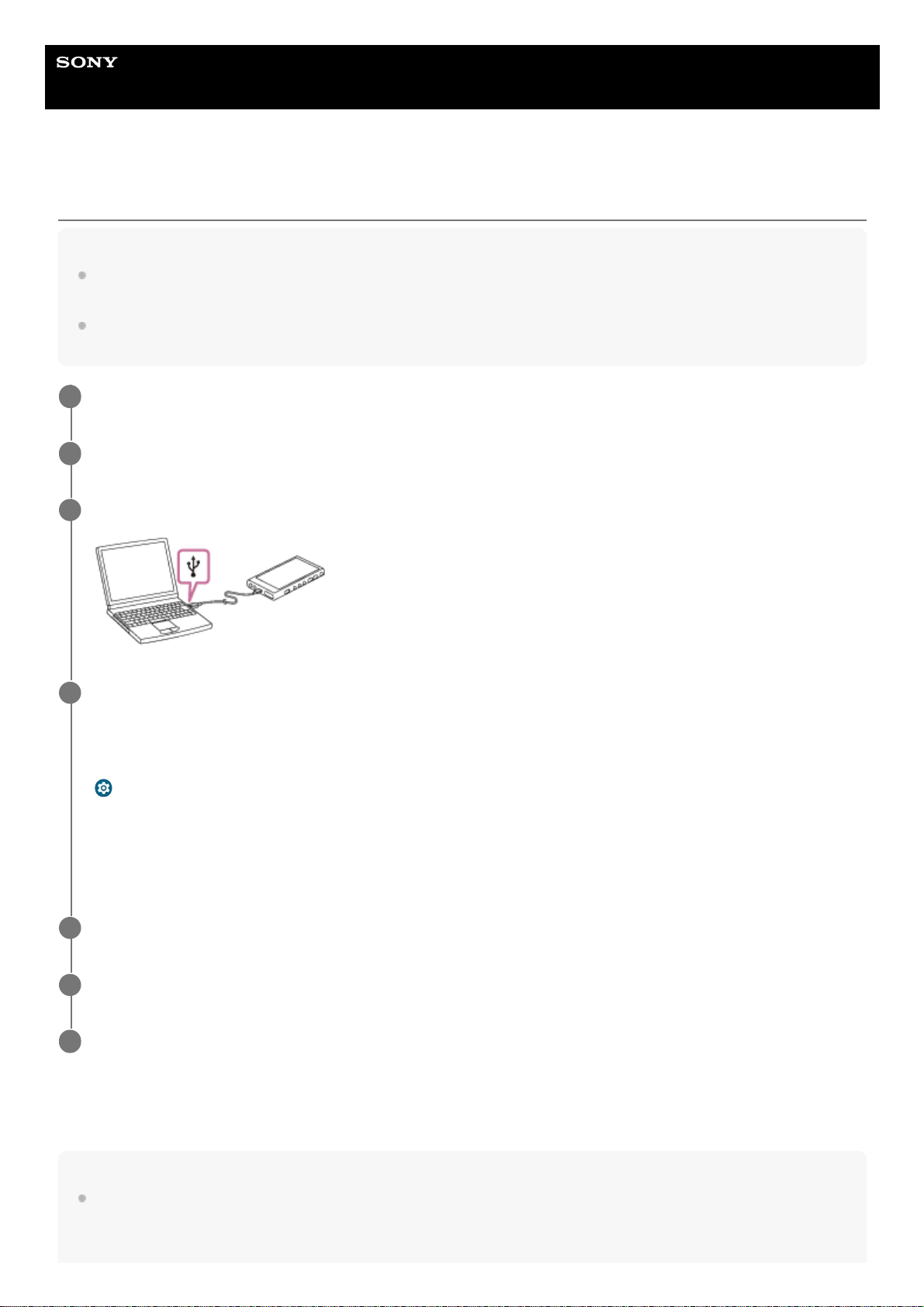
Help Guide
Digital Media Player
NW-A306
Importing content from “Music player” to Music Center for PC
Note
Ensure that the software version of Music Center for PC is 2.5 or later. In earlier versions, Music Center for PC will not recognize
the player.
If you connect the player to a battery-powered computer, the battery of the computer will deplete. When you connect the player to
a computer for a long period of time, connect the computer to an AC power supply.
For details on the procedure, see [How to use] on the Music Center for PC support website.
(https://www.sony.net/smc4pc/)
Note
Do not disconnect the USB Type-C cable during data transfer (USB Type-C cable: supplied). Otherwise, the data may be
damaged.
Use a computer on which Music Center for PC has been installed.
1
Launch Music Center for PC.
2
Connect the player to the computer via USB.
3
Confirm the [Use USB for] menu on the player. Select [File Transfer], and tap [OK].
If the [Use USB for] menu does not appear, you can access the menu from the Settings app.
Swipe the [WALKMAN Home] screen upwards.
Tap the menu items in the following order.
[Settings] - [Connected devices] - [USB].
The transfer screen for the player will appear on the right side of Music Center for PC.
A list of the music content in Music Center for PC will appear on the left side of Music Center for PC.
To import music content from the microSD card in the player:
Select the microSD card from the device selection menu on the transfer screen.
4
Click [Manage songs in device] to display the list of music content on “Music player”.
5
Select the music content that you want to import to Music Center for PC.
6
Right-click the music content to select [Import to PC].
7
69
Imported music content is limited to private use only. Use of music content for other purposes requires the permission of the
copyright holders.
The use of a USB hub is only guaranteed when you use a self-powered USB hub that carries an authorized logo.
While the player is connected to a computer, observe the following cautions. Otherwise, the player may not function properly.
Do not turn on the computer.
Do not restart the computer.
Do not wake the computer from sleep mode.
Do not shut down the computer.
Related Topic
Installing Music Center for PC (Windows)
Playing music
Supported formats
5-042-672-11(1)
Copyright 2022 Sony Corporation
The contents of the Help Guide may be subject to change without notice due to updates to the product's specifications.
70
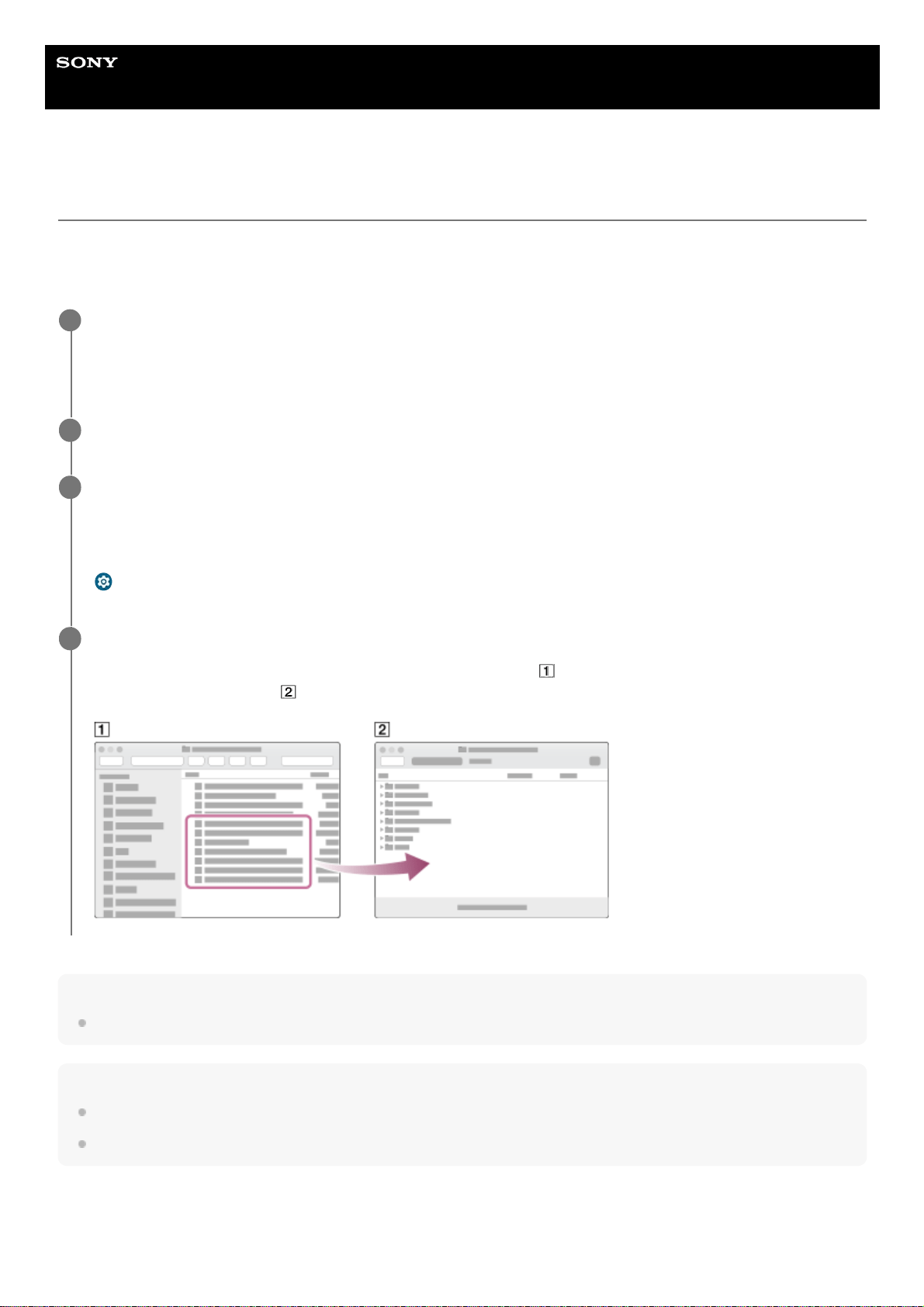
Help Guide
Digital Media Player
NW-A306
Transferring content using Mac computer
To transfer music content stored on a Mac computer to the player, you need to install additional software. An example of
additional software is Android File Transfer.
The following are instructions for using Android File Transfer.
Hint
You can also transfer music files to the folders registered to [Folders to be imported] in “Music player”.
Note
You can transfer music content to the player with Android File Transfer. However, Sony does not guarantee all functions.
Android File Transfer may become unavailable due to future updates of the macOS or Android File Transfer.
Install Android File Transfer.
Access the following URL to download files. Then, follow the instructions on the webpage to install the software.
https://www.android.com/filetransfer/
1
Connect the player to the computer via USB.
2
Confirm the [Use USB for] menu on the player. Select [File Transfer], and tap [OK].
If the [Use USB for] menu does not appear, you can access the menu from the Settings app.
Swipe the [WALKMAN Home] screen upwards.
Tap the menu items in the following order.
[Settings] - [Connected devices] - [USB].
3
Transfer the desired files.
On a Mac computer, select the desired files or folders with Finder (
). Drag-and-drop the files or folders to the
[Music] folder of the player (
).
4
71

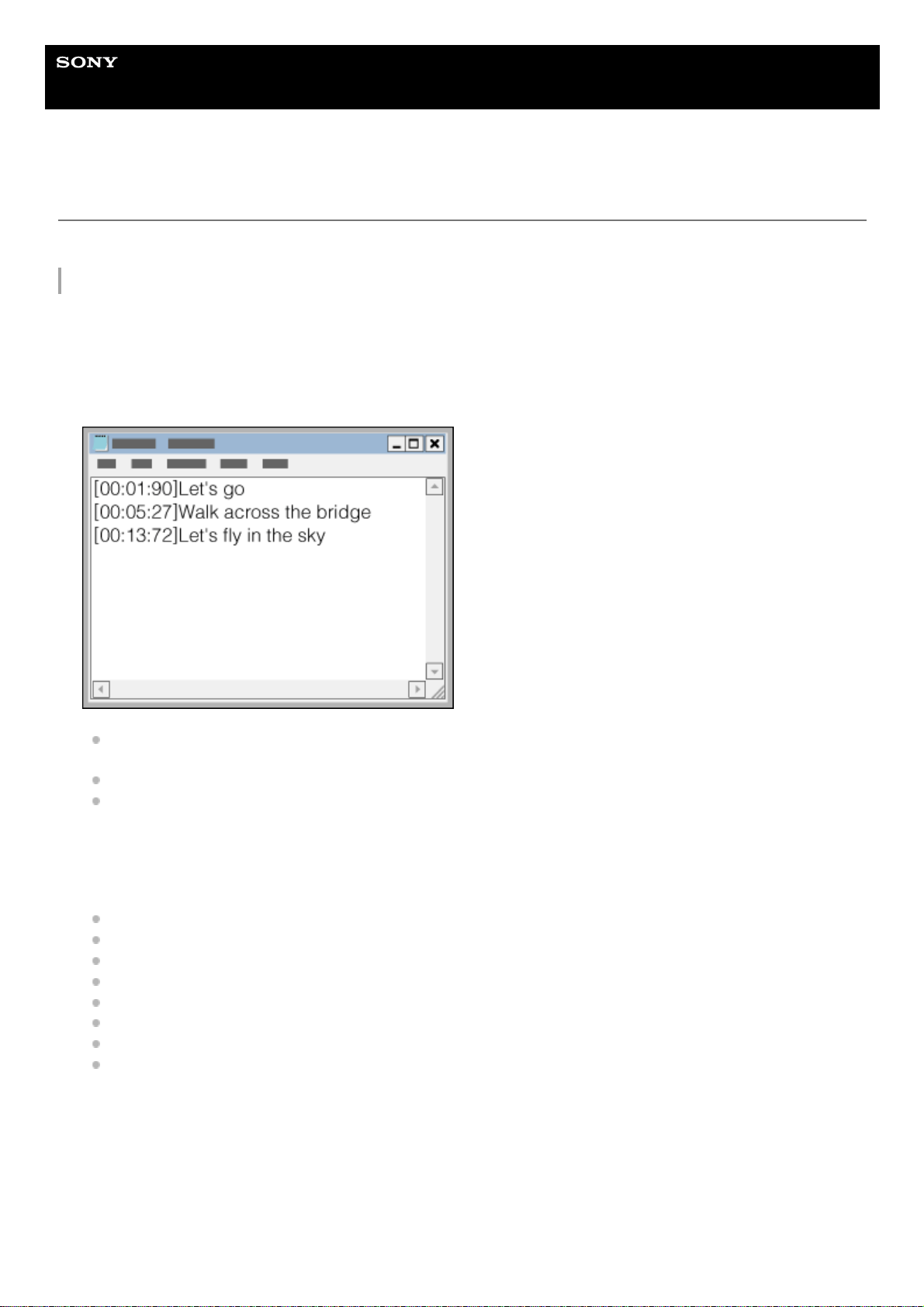
Help Guide
Digital Media Player
NW-A306
Adding lyric information using a computer
You can input lyrics to a text file (an LRC file). Transfer both the text file (LRC file) and the music file to the player.
Creating lyrics in a text file (LRC file)
Open the [Notepad] in Windows Accessories.1.
Enter the lyrics into [Notepad].2.
Play the track and enter the time to display each line of text.
You can enter the time information to the left of each line of text in the following format.
Minutes:seconds:hundredths of a second (*1)
Time information must be entered in chronological order.
You can separate seconds and hundredths of a second using a period instead of a colon.
3.
You can omit hundredths of a second.
*1
Save the file.
Select [UTF-8] as the character encoding.
Set the same file name as the music file.
Set [.lrc] as the extension.
The maximum file size is 512 KB.
If a text line cannot fit on the screen, it will be wrapped.
The number of lines of text that can be displayed simultaneously depends on the model.
CR, CRLF, and LF line breaks are all recognized.
Blank text lines will be skipped.
4.
Connect the player to the computer via USB.5.
Open [File Explorer], and then select the [WALKMAN] folder.6.
Create a new folder in the [Music] folder under [Internal shared storage]. Then, drag-and-drop both the music file and
the LRC file into the new folder to transfer them.
You can also transfer music files to a microSD card.
Select the folder with the name of the microSD card instead of [Internal shared storage].
7.
73
Hint
You can also transfer the files to the folders registered to [Folders to be imported] in “Music player”.
The following numbers of characters are recommended when you display lyrics on “Music player”.
Single-byte characters (for example, alphanumeric characters): 40 characters per line.
2-byte characters (for example, Chinese characters): 20 characters per line.
Save the LRC files in the same folder as the music files. The LRC files will be transferred to the player when the music files are
transferred.
On a Mac computer, you can create lyrics using “TextEdit” and other text editors. Follow the same procedure as that described
above to enter the lyrics or time information in the “Plain text” setting.
Copyright notice
When you create LRC files using copyrighted materials authored by others, the LRC files are limited to private use only.
Use of LRC files for other purposes requires the permission of the copyright holders.
Related Topic
Obtaining lyric information
Displaying lyrics
5-042-672-11(1)
Copyright 2022 Sony Corporation
The contents of the Help Guide may be subject to change without notice due to updates to the product's specifications.
74
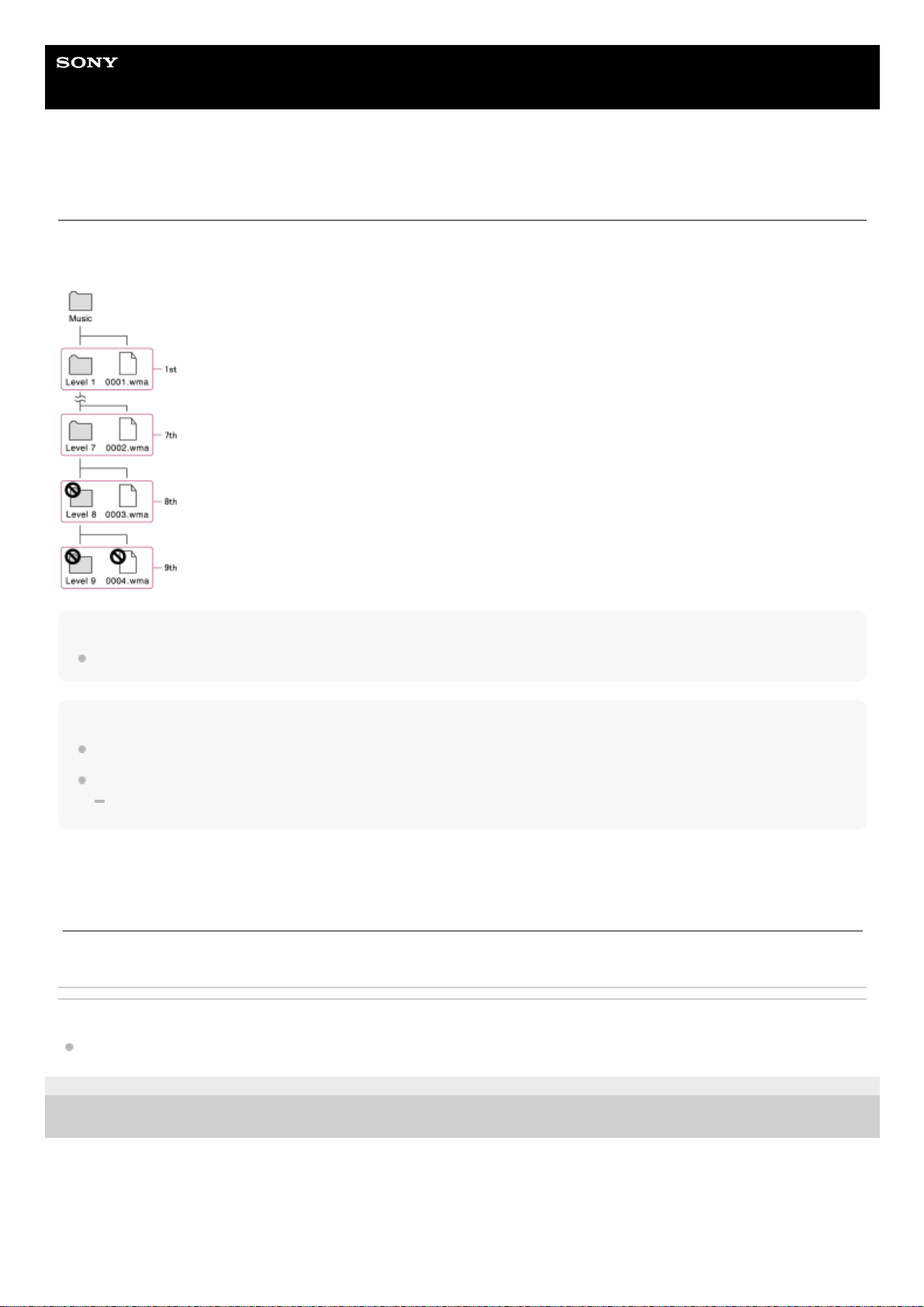
Help Guide
Digital Media Player
NW-A306
Notes on transferring content from a computer
Drag-and-drop music files into the correct folder as shown in the following illustration.
The player can play back music files stored in the first through eighth level of each folder.
Hint
You can transfer video content to the [Music] folder. “Music player” can only play the audio for video content.
Note
“Music player” cannot recognize folders stored in the eighth level of a folder.
Do not rename the following default folders. Otherwise, “Music player” will not recognize the folders.
Music
Related Topic
Structure of the folders to be imported to “Music player”
5-042-672-11(1)
Copyright 2022 Sony Corporation
The contents of the Help Guide may be subject to change without notice due to updates to the product's specifications.
75
Help Guide
Digital Media Player
NW-A306
Connecting the player to a Wi-Fi network
Connect the player to a Wi-Fi network to enjoy the following.
Music streaming services
Music downloads
Instructional video
There is an instructional video for the following operations.
Setting up a Wi-Fi connection.
Visit the following link.
https://rd1.sony.net/help/dmp/mov0010/h_zz/
To turn the Wi-Fi function on or off
Swipe the [WALKMAN Home] screen upwards.
Tap the menu items in the following order.
[Settings] - [Network & internet].
Tap the Wi-Fi switch to turn the function on or off.
Hint
You can also turn the Wi-Fi function on or off from the Quick Settings panel. On the [WALKMAN Home] screen, swipe down on
the status bar. Then, tap the Wi-Fi icon in the Quick Settings panel.
To determine the network name, check the following items.
Wi-Fi router
Instruction manual for the Wi-Fi router
Service agreement for the Wi-Fi network
The following terms may also refer to the network name.
Network SSID
SSID
ESSID
Access Point Name (APN)
To determine the network password, check the following items.
Swipe the [WALKMAN Home] screen upwards.
1
Tap the menu items in the following order.
[Settings] - [Network & internet] - [Wi-Fi].
2
Tap the desired network in the list.
3
Enter a password and tap [CONNECT].
[Connected] will appear under the network name when the player establishes a connection.
4
76
Wi-Fi router
Instruction manual for the Wi-Fi router
Service agreement for the Wi-Fi network
The following terms may also refer to the network password.
Encryption key
KEY
WEP key
Security key
Pass phrase
Network key
Note
The network password (Encryption key, etc.) is case sensitive. Make sure that you are entering correct uppercase and lowercase
characters.
Examples of easily mistaken characters:
“I (uppercase I)” and “l (lowercase L)”
“0 (numeral 0)” and “O (uppercase O)”
“d (lowercase D)” and “b (lowercase B)”
“9 (numeral 9)” and “q (lowercase Q)”
Related Topic
Notes on security when connecting to the internet
Purchasing music content from online music services by using the player
5-042-672-11(1)
Copyright 2022 Sony Corporation
The contents of the Help Guide may be subject to change without notice due to updates to the product's specifications.
77
Help Guide
Digital Media Player
NW-A306
Setting up a Google Account
Set up a Google Account to use services provided by Google. You can register multiple accounts on the player. You can
also register an existing Google Account, such as the account that you use on your computer.
You can create a new Google Account for free. Having a Google Account allows you to enjoy services as follows.
Installing apps from Google Play.
Using apps such as e-mail and calendar.
Note
Ensure that the player is connected to the internet through a Wi-Fi network when you perform the following.
Setting up a Google Account.
Signing in to a Google Account.
Related Topic
Connecting the player to a Wi-Fi network
5-042-672-11(1)
Copyright 2022 Sony Corporation
Turn on the Wi-Fi function to connect the player to the internet.
1
Swipe the [WALKMAN Home] screen upwards.
2
Tap
[Settings].
3
Open the account menu, and add an account.
Follow the onscreen instructions to complete the setting.
4
The contents of the Help Guide may be subject to change without notice due to updates to the product's specifications.
78
Help Guide
Digital Media Player
NW-A306
Purchasing music content from online music services by using the player
If you connect the player to a Wi-Fi network, you can purchase music content from online music services. You need to
install an online music service app in advance.
Check the service guide for the provider you use. Each service provider has different downloading procedures,
compatible file formats, and payment methods. Note that the provider may choose to suspend or terminate the service
without notice.
Note
The destination for music downloads differs depending on the online music service. If content is not in one of the following
folders, the content will not appear in the library of “Music player”.
The [Music] folder or the [Download] folder in the internal memory of the player
The [Music] folder on the microSD card
The folders registered to [Folders to be imported] in “Music player”
In this case, perform one of the following methods and then update the database.
Use the [Files] app to move the content to one of the folders listed above.
Register the folder that contains the desired content to [Folders to be imported] in “Music player”.
Related Topic
Connecting the player to a Wi-Fi network
Turn on the Wi-Fi function to connect the player to the internet.
1
Swipe the [WALKMAN Home] screen upwards, and then tap
(Google Play).
2
Search for the desired app.
3
Follow the onscreen instructions to install the app.
4
Launch the app.
If necessary, follow the instructions from the provider to register an account, select a payment method, and so on.
5
Purchase music content.
6
On the library screen in “Music player”, tap
(Update database).
7
The contents of the Help Guide may be subject to change without notice due to updates to the product's specifications.
79

Help Guide
Digital Media Player
NW-A306
Purchasing High-Resolution Audio content by using the player
High-Resolution Audio refers to audio content in a format with higher sound quality than the CD standard. To purchase
High-Resolution Audio content, connect the player to the internet, and access an online music service that provides
High-Resolution Audio content.
Services vary by country or region. Check the service guide for the provider you use. Each service provider has different
downloading procedures, compatible file formats, and payment methods.
Note that the provider may choose to suspend or terminate the service without notice.
Hint
High-Resolution Audio content is indicated with an icon (
) on “Music player”.
Related Topic
Connecting the player to a Wi-Fi network
5-042-672-11(1)
Copyright 2022 Sony Corporation
The contents of the Help Guide may be subject to change without notice due to updates to the product's specifications.
81
Help Guide
Digital Media Player
NW-A306
Installing apps to enjoy online music services
Access Google Play and install music apps on the player. You can enjoy music streaming services on the player.
Hint
You need to have a Google Account to use Google Play.
For details on how to use apps, refer to the information for the app.
The following apps are installed on the player at the time of purchase.
[YouTube]
[YouTube Music]
Related Topic
Connecting the player to a Wi-Fi network
Setting up a Google Account
5-042-672-11(1)
Copyright 2022 Sony Corporation
Turn on the Wi-Fi function to connect the player to the internet.
1
Swipe the [WALKMAN Home] screen upwards, and then tap
(Google Play).
2
Search for the desired app.
3
Follow the onscreen instructions to install the app.
4
The contents of the Help Guide may be subject to change without notice due to updates to the product's specifications.
82
Help Guide
Digital Media Player
NW-A306
Enjoying the 360 Reality Audio service
You can perform personalization for 360 Reality Audio using the player and a smartphone with a camera.
Hint
You need to have a Google Account to use Google Play.
For details on how to use apps, refer to the information for the app.
Note
You need to update both the Sony | Headphones Connect app and the system software of the player to the latest version.
Requires a subscription to a music-streaming service – subscription fees apply. Some services may not be available in certain
countries/regions.
Personalization for 360 Reality Audio takes effect only when using compatible headphones.
For details on 360 Reality Audio, refer to the following website.
https://www.sony.net/360RA/
Related Topic
Connecting the player to a Wi-Fi network
Updating the system software
Turn on the Wi-Fi function to connect the player to the internet.
1
On the [WALKMAN Home] screen, tap
[Sony | Headphones Connect].
2
Follow the onscreen instructions to install the Sony | Headphones Connect app.
3
Launch the Sony | Headphones Connect app.
4
Register your headphones.
5
Follow the onscreen instructions to set up the data for personalization.
6
Select an online music service in Sony | Headphones Connect to complete personalization.
7
The contents of the Help Guide may be subject to change without notice due to updates to the product's specifications.
83

5-042-672-11(1) Copyright 2022 Sony Corporation
84
Help Guide
Digital Media Player
NW-A306
Notes on Wi-Fi connections
Local regulations may restrict the use of Wi-Fi devices in some countries or regions.
Wi-Fi devices work on the 2.4 GHz and 5 GHz bands. Various devices use these bands. Wi-Fi devices use
technology to minimize radio interference from other devices on the same band. However, radio interference may
cause the following effects.
Slower data transfer rates
Smaller communication range
Communication failure
If you enable both the Wi-Fi function and the Bluetooth function on the player, slower data transfer rates or other
problems may occur.
To perform Wi-Fi communications outdoors, you may need to contract with a Wi-Fi service provider.
The data transfer rate and communication range may vary depending on the following conditions.
Distance between devices
Obstructions between devices
Device configuration
Signal conditions
Surrounding environment (wall material, etc.)
Software in use
Communications may cut off depending on signal conditions.
The data transfer rate is the theoretical maximum. It does not indicate the actual data transfer rate.
Wi-Fi devices work on the 2.4 GHz and 5 GHz frequency bands. These frequency bands cannot communicate with
each other.
If the data transfer rate is slow, you may be able to increase the rate by changing the wireless channel on the access
point.
The Wi-Fi antenna is built into the player. If you cover the antenna with your hands or other objects, the Wi-Fi
connection may deteriorate.
Related Topic
Parts and controls
The contents of the Help Guide may be subject to change without notice due to updates to the product's specifications.
85

5-042-672-11(1) Copyright 2022 Sony Corporation
86
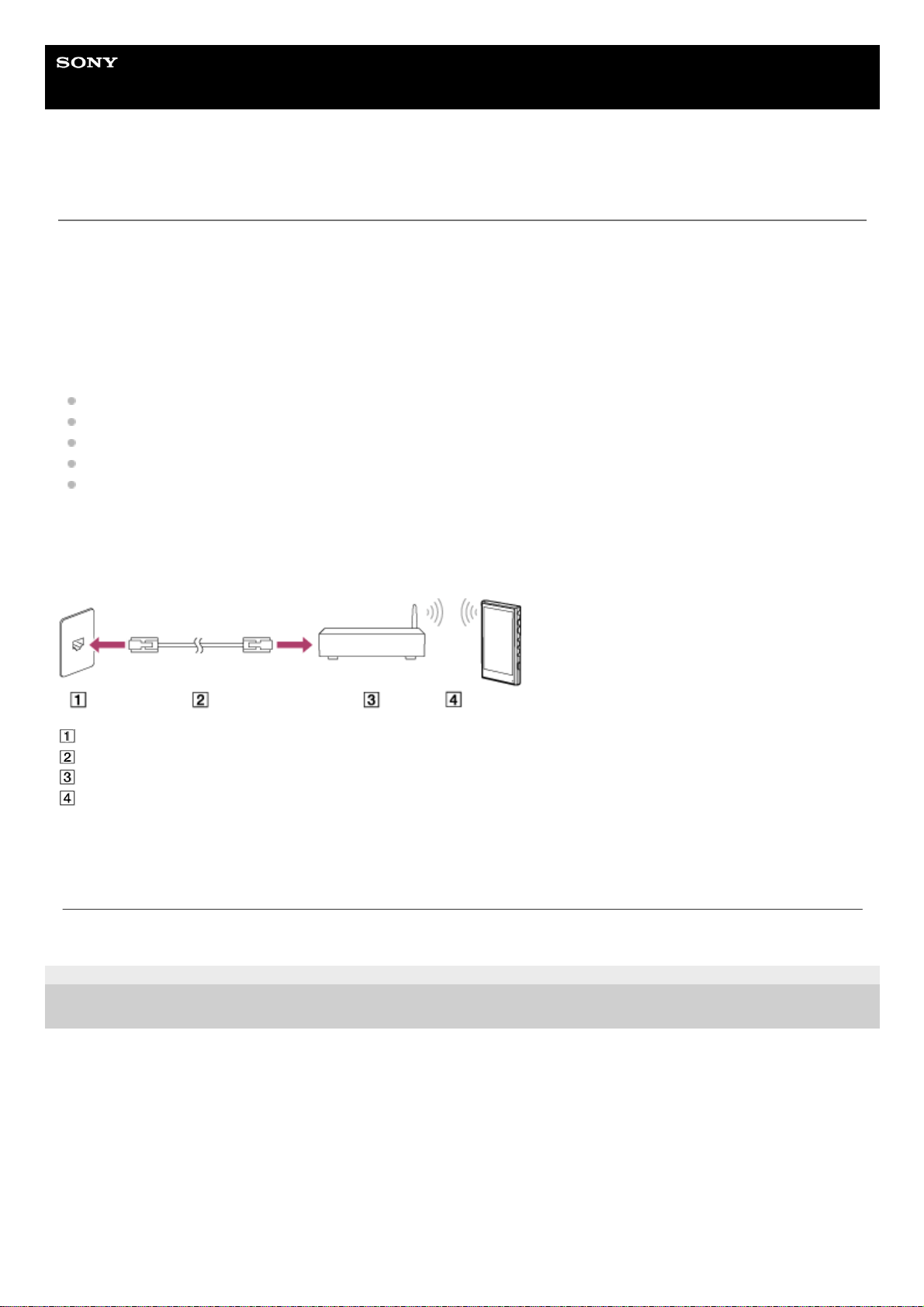
Help Guide
Digital Media Player
NW-A306
Notes on security when connecting to the internet
When connecting the player to the internet, be sure to connect via a router (*1) with appropriate security settings.
If there is a security issue, the player may be attacked by malware (malicious software), etc. via the internet. Your
information and digital assets may be exposed to threats such as extraction and falsification. Not only that, but the player
may also unknowingly damage other network services.
*1 A router is a device that relays between an internet line and a local network line. There are the following types.
Wired router
ADSL modem with router function
Optical network unit (ONU) with router function
Wi-Fi access point with router function
Wall socket (wall outlet) device with network line (*2)
*2 If you are uncertain whether a wall socket (wall outlet) device with a network line has a router function, please check
with the manager of the housing complex or the internet provider.
LAN terminal in the wall
LAN cable
Router
Wireless LAN
5-042-672-11(1) Copyright 2022 Sony Corporation
The contents of the Help Guide may be subject to change without notice due to updates to the product's specifications.
87
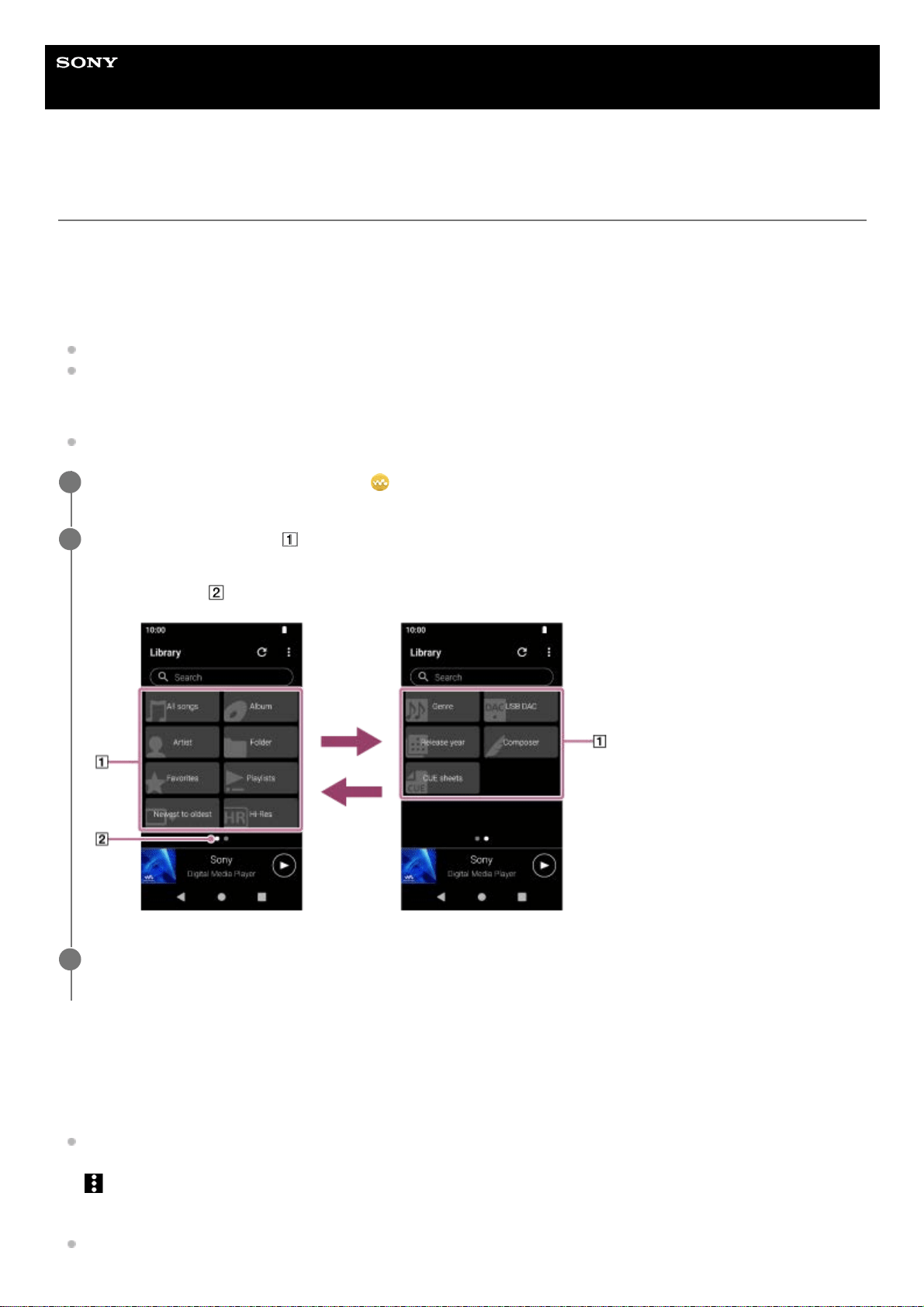
Help Guide
Digital Media Player
NW-A306
Playing music
To play tracks, first select a category.
You need to prepare music content in advance. You can purchase music content from online music services. Also, you
can transfer music content from a computer to the player.
On a Windows computer
Use Music Center for PC to transfer content to the player.
Drag-and-drop content from Windows Explorer.
On a Mac computer
Use software such as Android File Transfer to transfer content to the player.
To play tracks in the desired order
You can check the order of tracks that the player will play on the play queue screen. The play queue can be edited freely
by changing the order of tracks, removing tracks, or adding tracks or items.
Changing the order of the tracks in the play queue:
On the play queue screen, tap the menu items in the following order.
(Options) - [Edit song order].
Drag and drop the reordering icons on the left sides of the tracks until they are in the desired order.
Removing a track from the play queue:
On the [WALKMAN Home] screen, tap
[Music player] to display the library screen.
1
Tap the desired category (
).
You can swipe the screen to the left or right to switch pages. The number of dots represents the number of
available pages (
).
2
Select subcategories until a track list appears, and then select the desired track.
Playback will start.
3
88
On the play queue screen, tap (Context menu) to the right side of a track, tap [Remove from this list].
Adding a track to the play queue:
On the library screen or the favorites screen, tap (Context menu) to the right side of an item, and then tap one of
the following items.
[Play next]
Select the item to add the selected track or all tracks in the selected item to the position after the current track in
the play queue.
[Add to the end of Play queue]
Select the item to add the selected track or all tracks in the selected item to the end of the play queue.
[Empty Play queue and add]
Select the item to clear the current play queue and newly add the selected track or all tracks in the selected item
to the play queue.
Playback operating buttons on the player
(play/pause)
Press the button to start or pause playback.
(previous track)
Press the button to skip to the beginning of the current track or the previous track.
Hold down the button to fast rewind the track while playing.
(next track)
Press the button to skip to the beginning of the next track.
Hold down the button to fast forward the track while playing.
Note
Content stored on the player may not appear in the library of “Music player”. In this case, ensure that the file is in one of the
following folders.
The [Music] folder or the [Download] folder in the internal memory of the player
The [Music] folder on the microSD card
The folders registered to [Folders to be imported] in “Music player”
Next, tap
(Update database).
The tracks will be registered to the database for “Music player”. Then, the tracks will appear in the library.
Related Topic
How to use the various screens of “Music player”
Library screen in “Music player”
Playback screen in “Music player”
Play queue screen in “Music player”
Preparing music content
Transferring content from a Windows computer using Music Center for PC
Transferring content using Windows Explorer
Transferring content using Mac computer
Playback methods
The contents of the Help Guide may be subject to change without notice due to updates to the product's specifications.
89

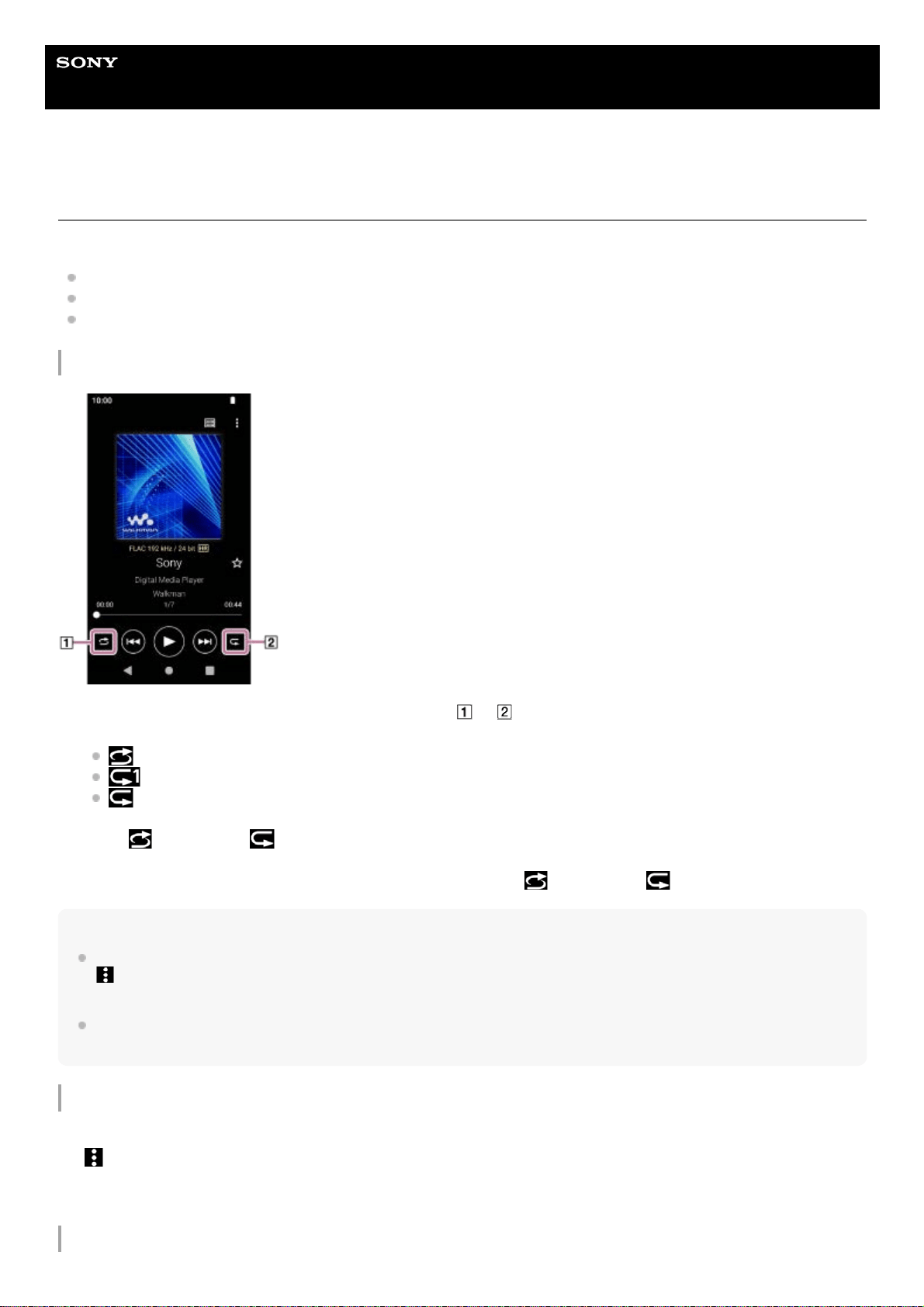
Help Guide
Digital Media Player
NW-A306
Playback methods
This topic includes instructions for the following operations.
Selecting the playback mode.
Setting the playback range.
The relationship between playback mode and playback range.
Selecting the playback mode
Hint
You can also set the playback mode from the option menu. Tap the menu items in the following order.
(Options) - [Settings].
Then, select the desired playback mode from [Shuffle] or [Repeat].
When a track list is displayed, you can start shuffle playback with the displayed track list as the playback range by tapping the
shuffle playback button.
Setting the playback range
The relationship between playback mode and playback range
On the playback screen in “Music player”, tap the area ( or ) to select a playback mode.
(Shuffle)
(Repeat 1 song)
(Repeat all)
When
(Shuffle) and (Repeat all) are lit up, “Music player” will play all tracks in the selected playback range
randomly.
To return to the normal playback mode, tap the icons so that both
(Shuffle) and (Repeat) darken.
1.
Tap the menu items in the following order.
(Options) - [Settings] - [Playback range].
1.
Tap the desired playback range.2.
91
When you set [Playback range] to [All range]
(Shuffle)
All tracks are played in random order.
To shuffle all the tracks in “Music player”, select [All songs] on the library screen.
If you select a track from [Album] on the library screen, “Music player” will shuffle all the tracks in the selected album.
When “Music player” finishes playing all the tracks in the album, playback will proceed to the next album. Then,
“Music player” will shuffle all the tracks in the album.
Repeat off
All tracks are played in sequential order.
(Repeat all)
All tracks are played repeatedly.
To repeat all the tracks in “Music player”, select [All songs] on the library screen.
(Repeat 1 song)
The current track is played repeatedly.
When you set [Playback range] to [Selected range]
(Shuffle)
Tracks in the selected range are played in random order. (*1)
Repeat off
Tracks in the selected range are played in sequential order. (*1)
(Repeat all)
Tracks in the selected range are played repeatedly. (*1)
(Repeat 1 song)
The current track is played repeatedly.
Note
When you select a track from a playlist or Favorites, “Music player” plays tracks in the selected item only. Tracks in other items
will not be played even when [Playback range] is set to [All range].
When you search by keyword on the library screen and select a track from search results, “Music player” plays the selected track
only. Other tracks in the search results will not be played even when [Playback range] is set to [All range].
Related Topic
How to use the various screens of “Music player”
Playback screen in “Music player”
Playing music
5-042-672-11(1)
Copyright 2022 Sony Corporation
“Selected range” means one album or one artist, for example.
*1
The contents of the Help Guide may be subject to change without notice due to updates to the product's specifications.
92
Help Guide
Digital Media Player
NW-A306
Obtaining lyric information
To display lyric information on “Music player”, you need to transfer a lyric text file (LRC file) together with the track file to
the player.
You can obtain lyric information in the following ways.
Obtain lyric information via the internet, and then create a text file (LRC file).
Input lyrics to a text file (LRC file) by yourself.
For details on LRC files, refer to the relevant topic under [Related Topic].
Note
Lyric information is limited to private use only. Use of lyric content for other purposes requires the permission of the copyright
holders.
Related Topic
Displaying lyrics
Adding lyric information using a computer
5-042-672-11(1)
Copyright 2022 Sony Corporation
The contents of the Help Guide may be subject to change without notice due to updates to the product's specifications.
93
Help Guide
Digital Media Player
NW-A306
Displaying lyrics
Transfer tracks with lyric information to the player. Then, set “Music player” to display lyrics.
Related Topic
Obtaining lyric information
Adding lyric information using a computer
5-042-672-11(1)
Copyright 2022 Sony Corporation
On the playback screen in “Music player”, tap the menu items in the following order.
(Options) - [Display lyrics].
1
The contents of the Help Guide may be subject to change without notice due to updates to the product's specifications.
94
Help Guide
Digital Media Player
NW-A306
Managing playlists in “Music player”
You can collect tracks and save them as a playlist in “Music player”.
This topic includes instructions for the following operations.
Creating a playlist in “Music player”.
Listening to a playlist in “Music player”.
Editing a playlist in “Music player”.
Deleting a playlist in “Music player”.
Creating a playlist in “Music player”
You can save playlists to the memory of the player.
Hint
You can change the name of a playlist. On the library screen, tap
(Context menu) to the right side of the playlist, tap [Rename
playlist], and then enter the name of the playlist.
Listening to a playlist in “Music player”
Hint
You can listen to playlists that have been added to Favorites from the favorites screen as well.
On the favorites screen, select the playlist tab, and then tap the desired playlist.
On the library screen in “Music player”, tap [Playlists].1.
Tap the menu items in the following order.
(Options) - [Create new playlist].
2.
Enter the name of the playlist, and then tap [OK].3.
Add tracks to the playlist.
Perform one of the following.
While “Music player” is playing or pausing a track:
On the playback screen, tap the menu items in the following order.
(Options) - [Add to playlist].
Tap the name of the playlist you have created.
When a list (tracks, albums, play queue, etc.) is displayed:
Tap (Context menu) to the right side of an item, tap [Add to playlist], and then tap the name of the playlist
you have created.
4.
On the library screen in “Music player”, tap [Playlists] to display the list of playlists.1.
Tap the desired playlist.2.
Tap the desired track.3.
95
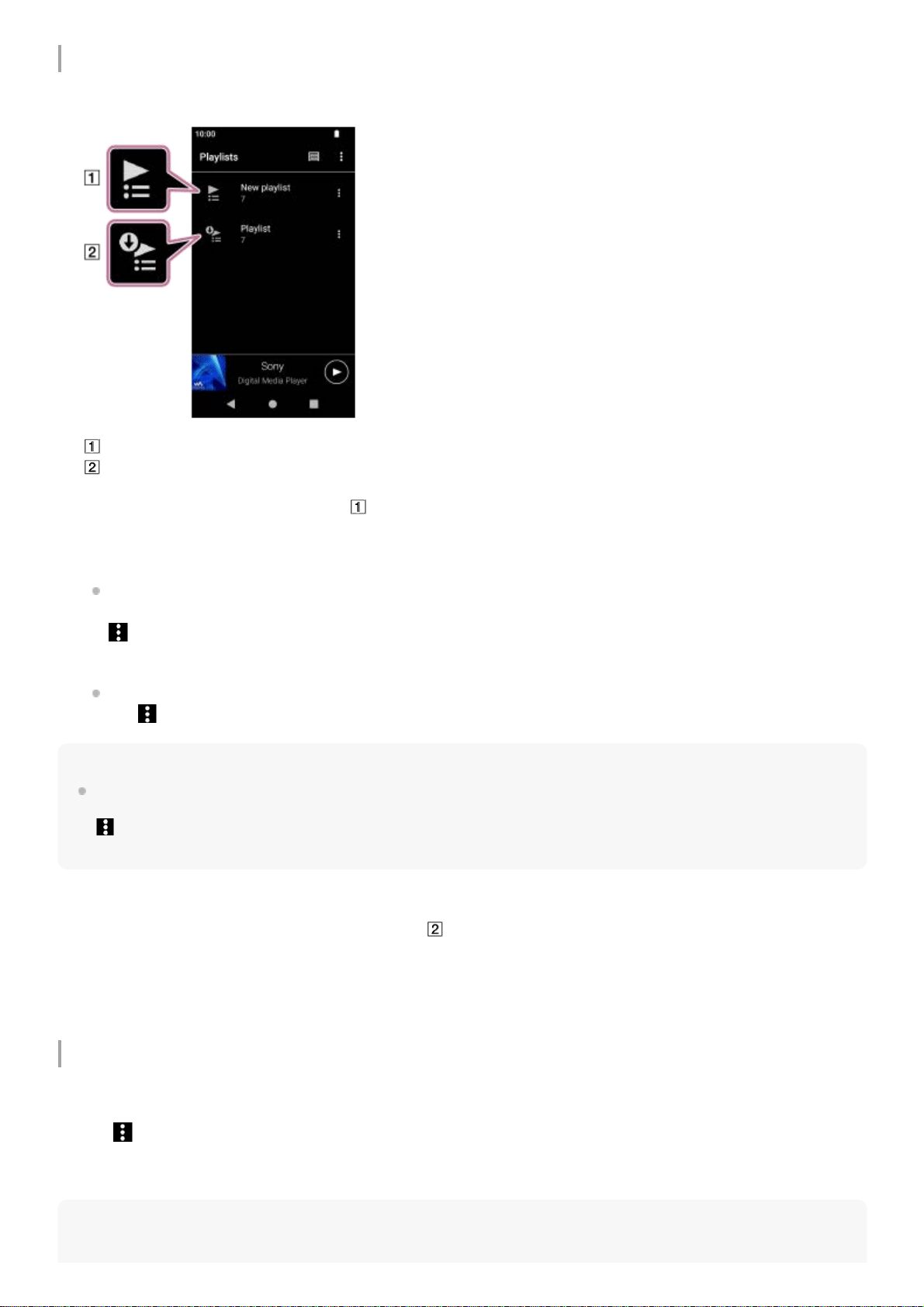
Editing a playlist in “Music player”
Hint
You can remove all tracks from a playlist. On the library screen, tap [Playlists] to display the list of playlists. Tap the desired
playlist, and then tap the menu items in the following order.
(Options) - [Remove all].
Confirm the message and tap [YES].
To edit a playlist transferred from a computer
You cannot edit a playlist transferred from a computer (
) with “Music player”. As an alternative, you can create a new
playlist in “Music player” with the same content as the playlist transferred from the computer. That new playlist can be
edited.
For details on the procedure, see [Importing playlists from a Windows computer, playing, or deleting playlists in “Music
player”].
Deleting a playlist in “Music player”
Hint
On the library screen in “Music player”, tap [Playlists] to display the list of playlists.
Playlist created in “Music player”
Playlist transferred from the computer
1.
Tap a playlist created in “Music player” (
) to display the track list.2.
Perform one of the following.
Changing the order of tracks in the playlist:
Tap the menu items in the following order.
(Options) - [Edit song order].
Drag and drop the reordering icons on the left sides of the tracks until they are in the desired order.
Removing a track from the playlist:
Tap
(Context menu) to the right side of the track, and then tap [Remove from this list].
3.
On the library screen in “Music player”, tap [Playlists] to display the list of playlists.1.
Tap
(Context menu) to the right side of the playlist, and then tap [Delete].2.
Confirm the message and tap [YES].3.
96
You can delete all playlists. On the library screen, tap [Playlists] to display the list of playlists.
Tap the menu items in the following order.
(Options) - [Delete all playlists].
Confirm the message and tap [YES].
Related Topic
Library screen in “Music player”
Importing playlists from a Windows computer, playing, or deleting playlists in “Music player”
5-042-672-11(1)
Copyright 2022 Sony Corporation
The contents of the Help Guide may be subject to change without notice due to updates to the product's specifications.
97
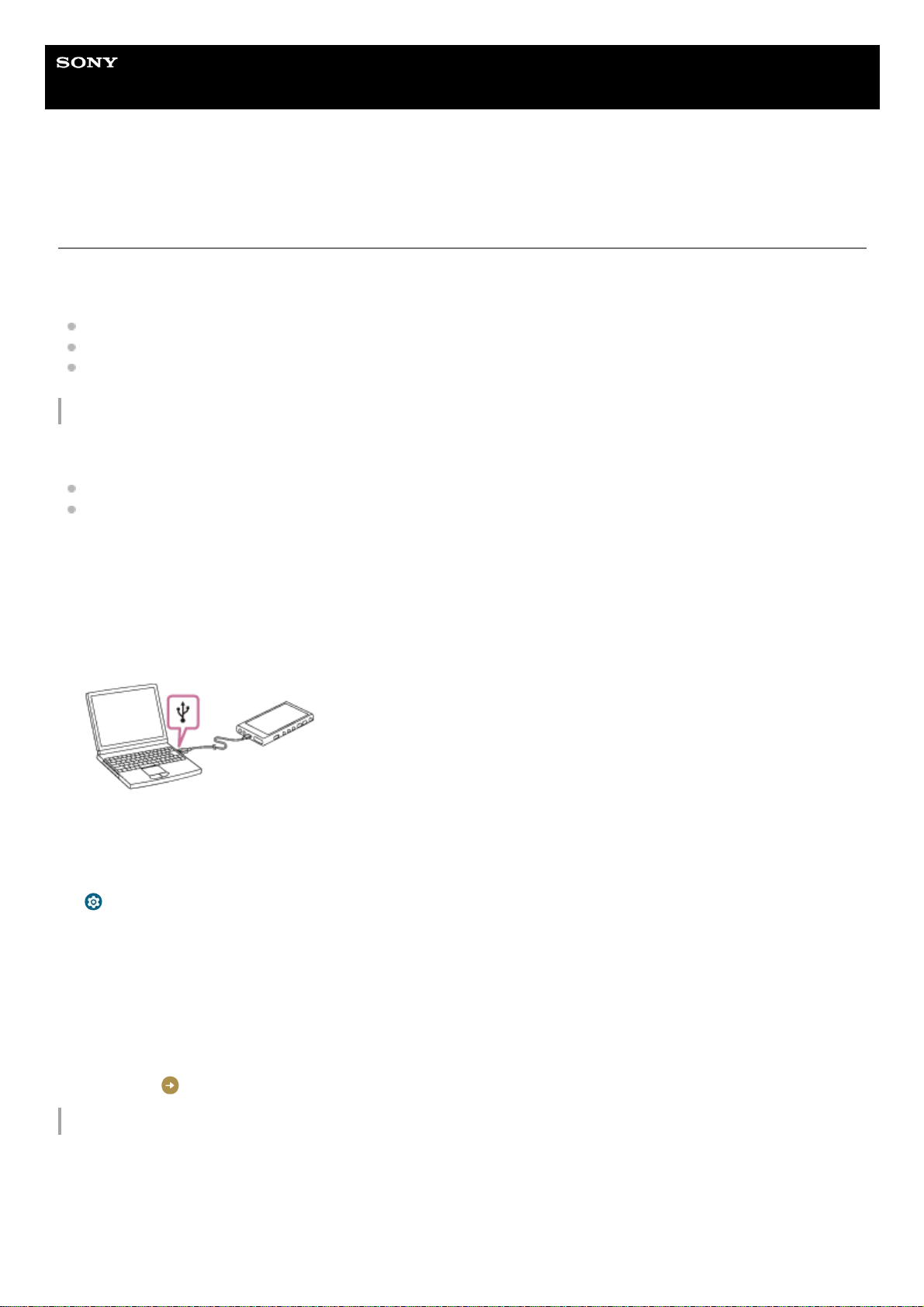
Help Guide
Digital Media Player
NW-A306
Importing playlists from a Windows computer, playing, or deleting playlists in “Music
player”
You can import playlists stored on a Windows computer to “Music player”.
This topic includes instructions for the following operations.
Importing playlists stored on a Windows computer to “Music player”.
Listening to playlists on “Music player”.
Deleting a playlist from “Music player”.
Importing playlists stored on a Windows computer to “Music player”
You can transfer playlist files to the following storage destinations.
Internal memory of the player.
microSD card inserted into the player.
“Music player” can recognize the m3u file format as a playlist.
The following are instructions for using Music Center for PC (version 2.5 or later). This application is recommended to
manage files on the player.
Listening to playlists on “Music player”
Connect the player to the computer via USB.
1.
Confirm the [Use USB for] menu on the player. Select [File Transfer] and tap [OK].
If the [Use USB for] menu does not appear, you can access the menu from the Settings app.
Swipe the [WALKMAN Home] screen upwards.
Tap the menu items in the following order.
[Settings] - [Connected devices] - [USB].
The transfer screen for the player will appear on the right side of Music Center for PC.
A list of the music content in Music Center for PC will appear on the left side of Music Center for PC.
2.
Select a destination from the transfer screen.
To transfer music content to the microSD card in the player:
Select the microSD card from the device selection menu on the transfer screen.
3.
Select playlists from the left side.
Then, click to transfer.
4.
On the library screen in “Music player”, tap [Playlists] to display the list of playlists.1.
Tap the desired playlist.2.
Tap the desired track.3.
98
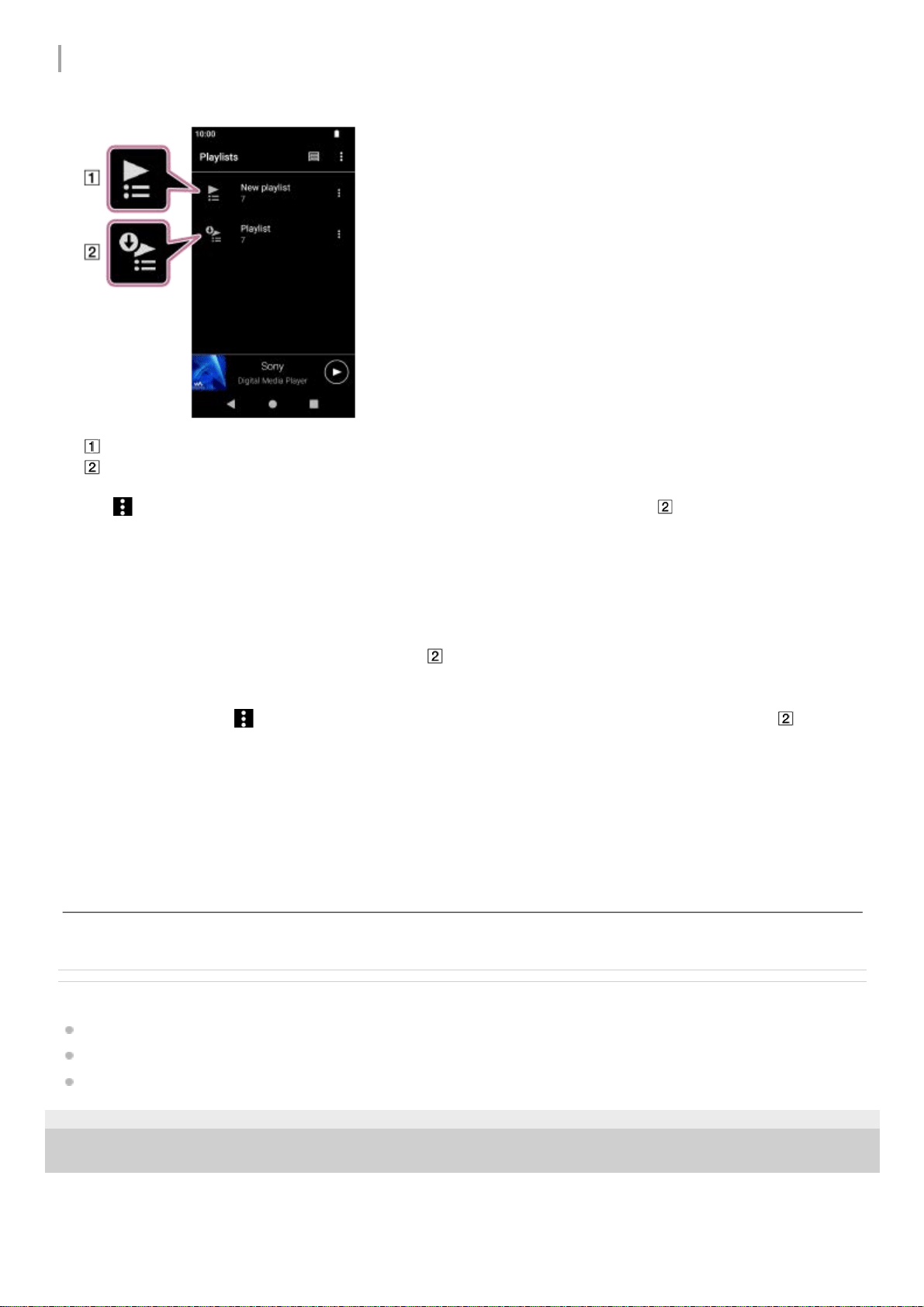
Deleting a playlist from “Music player”
To edit a playlist transferred from a computer
You cannot edit a playlist transferred from a computer (
) with “Music player”. As an alternative, you can create a new
playlist in “Music player” with the same content as the playlist transferred from the computer. That new playlist can be
edited.
On the library screen, tap
(Context menu) to the right side of the playlist transferred from the computer ( ).
Tap the menu items in the following order.
[Add to another playlist] - [Create new playlist].
Enter the name of the playlist.
For details on how to edit a playlist in “Music player”, see [Managing playlists in “Music player”].
Related Topic
Transferring content from a Windows computer using Music Center for PC
Library screen in “Music player”
Managing playlists in “Music player”
5-042-672-11(1)
Copyright 2022 Sony Corporation
On the library screen in “Music player”, tap [Playlists] to display the list of playlists.
Playlist created in “Music player”
Playlist transferred from the computer
1.
Tap
(Context menu) to the right side of the playlist transferred from the computer ( ).2.
Tap [Delete].3.
Confirm the message and tap [YES].4.
The contents of the Help Guide may be subject to change without notice due to updates to the product's specifications.
99
Help Guide
Digital Media Player
NW-A306
Managing Favorites in “Music player”
You can add your favorite tracks/albums/playlists to Favorites.
This topic includes instructions for the following operations.
Adding tracks/albums/playlists to Favorites.
Listening to tracks/albums/playlists in Favorites.
Removing tracks/albums/playlists from Favorites.
Adding tracks/albums/playlists to Favorites
Hint
You can change the order of items in Favorites. On the favorites screen, tap the menu items in the following order.
(Options) - [Edit Favorites order].
Drag and drop the reordering icons on the left sides of the items until they are in the desired order.
Note
You cannot import Favorite information for tracks/albums/playlists to the computer.
Listening to tracks/albums/playlists in Favorites
Hint
You can play items in Favorites on the library screen as well. On the library screen, tap [Favorites] and tap the desired category,
and then tap the desired item.
Removing tracks/albums/playlists from Favorites
Perform one of the following.
While “Music player” is playing or pausing a track:
On the playback screen, tap (Favorites).
When a list (tracks/albums/playlists) is displayed:
Tap (Context menu) to the right side of the item, and then tap [Add to Favorites].
1.
Display the favorites screen.1.
Tap the desired category tab.2.
Tap the desired item.3.
Perform one of the following.
While “Music player” is playing or pausing a track:
On the playback screen, tap (Favorites).
When a list (tracks/albums/playlists) is displayed on the favorites screen:
Tap (Context menu) to the right side of the item, and then tap [Remove from this list].
1.
100
Hint
You can remove all items from Favorites by category. On the favorites screen, tap the category tab, and then tap the menu items
in the following order.
(Options) - [Remove all].
Related Topic
Playback screen in “Music player”
Favorites screen in “Music player”
5-042-672-11(1)
Copyright 2022 Sony Corporation
The contents of the Help Guide may be subject to change without notice due to updates to the product's specifications.
101
Help Guide
Digital Media Player
NW-A306
Deleting tracks from “Music player”
Hint
You can also delete music content from the playback screen for “Music player”.
Tap the menu items in the following order.
(Options) - [Delete].
The current track will be deleted from “Music player”.
You can also delete tracks on a computer using the following applications. For details on operations, refer to the online help
information for each application.
Windows: Music Center for PC (version 2.5 or later), Windows Explorer
Note
When you delete tracks using Windows Explorer, do not delete or rename the default folder (such as [Music]) under the root
folder. Otherwise, “Music player” will not recognize the content.
Related Topic
Library screen in “Music player”
5-042-672-11(1)
Copyright 2022 Sony Corporation
On the library screen in “Music player”, tap the desired category (albums, artists, etc.), and the desired
subcategory until a track list appears.
To delete a folder, tap [Folder] and then the desired folder.
1
Tap
(Context menu) to the right side of the desired item.
2
Tap [Delete].
3
The contents of the Help Guide may be subject to change without notice due to updates to the product's specifications.
102
Help Guide
Digital Media Player
NW-A306
Connecting the player to an unpaired Bluetooth device for the first time
The BLUETOOTH® function enables wireless connections between devices. The devices need to support Bluetooth
wireless technology. A wireless connection is possible at a range of up to 10 meters (32.8 feet) in an open area.
You can listen to music wirelessly by connecting the player to a Bluetooth device such as headphones or speakers.
When you connect Bluetooth devices wirelessly for the first time, the devices must be registered to each other. This
registration is called “pairing”. Once the player and the device are paired, you can easily connect the devices in the
future. The following instructions are a basic step-by-step procedure for connecting the player and a Bluetooth device.
Instructional video
There is an instructional video for the following operations.
Pairing a Bluetooth device for the first time.
Connecting to a paired Bluetooth device.
Visit the following link.
https://rd1.sony.net/help/dmp/mov0012/h_zz/
To disconnect from a paired Bluetooth device
Swipe the [WALKMAN Home] screen upwards.
Tap the menu items in the following order.
[Settings] - [Connected devices].
Tap the settings icon next to the name of the device to disconnect.
Hint
You can pair the player with only one Bluetooth device at a time. To pair with multiple Bluetooth devices, repeat the procedure in
this topic for each device.
You can erase a registered Bluetooth device. On the list of devices under [Connected devices], tap the settings icon next to the
name of the Bluetooth device that you want to erase.
The passkey may also be called a “passcode”, “PIN code”, “PIN number”, or “password”.
Turn on the Bluetooth function on the Bluetooth device.
1
Swipe the [WALKMAN Home] screen upwards on the player.
2
Tap the menu items in the following order.
[Settings] - [Connected devices] - [Pair new device].
A list of the connectable devices will appear on the screen.
3
Tap the name of the Bluetooth device.
If you are required to enter a passkey while pairing, check and enter the passkey for the Bluetooth device. For
details on the passkey for the Bluetooth device, refer to the manual of the device.
When the connection is established, the name of the connected device appears under [Connected devices].
4
103
The player stays connected to the Bluetooth device until you turn off the Bluetooth function. To conserve the battery power, turn
off the Bluetooth function or disconnect the player from the paired Bluetooth device.
Note
Pairing information is deleted in the following situations. Pair the devices again.
One or both of the devices are reset to the factory settings.
Pairing information is deleted from the devices, such as when the devices are repaired.
The battery life becomes considerably shorter when the Bluetooth function is active.
If pairing times out before it is finished, perform the pairing procedure again.
If sound is interrupted or skips during a Bluetooth connection, try the following.
Place the player and the Bluetooth device closer together.
Select [SBC-Connection pref.] for [Wireless playback quality].
Swipe the [WALKMAN Home] screen upwards.
Tap the menu items in the following order.
[Settings] - [Connected devices] - [Connection preferences] - [Bluetooth] - [Wireless playback quality] - [SBC-
Connection pref.].
A Bluetooth connection is terminated automatically in the following cases:
The battery of the player has run out.
The player is turned off.
When there is an active Bluetooth connection, the following sound adjustments are disabled.
DC Phase Linearizer
Vinyl Processor
In certain countries and regions, [Dynamic Normalizer] is disabled when there is an active Bluetooth connection.
Related Topic
Connecting the player to a paired Bluetooth device
Configuring the Bluetooth function
Notes on the Bluetooth function
5-042-672-11(1)
Copyright 2022 Sony Corporation
The contents of the Help Guide may be subject to change without notice due to updates to the product's specifications.
104
Help Guide
Digital Media Player
NW-A306
Connecting the player to a paired Bluetooth device
If the player and a Bluetooth device have been paired before, the Bluetooth device is registered to the player. You can
connect the player and the Bluetooth device easily.
Instructional video
There is an instructional video for the following operations.
Pairing a Bluetooth device for the first time.
Connecting to a paired Bluetooth device.
Visit the following link.
https://rd1.sony.net/help/dmp/mov0012/h_zz/
To turn the Bluetooth function on or off
Swipe the [WALKMAN Home] screen upwards. Then, tap the menu items in the following order.
[Settings] - [Connected devices] - [Connection preferences] - [Bluetooth].
Then, tap the Bluetooth switch to turn the Bluetooth function on or off.
To confirm the information for a Bluetooth device
Tap the settings icon next to the name of the Bluetooth device.
To erase a registered Bluetooth device
Tap the settings icon next to the name of the Bluetooth device and tap [FORGET].
Turn on the Bluetooth function on the Bluetooth device.
1
Swipe the [WALKMAN Home] screen upwards on the player.
2
Tap the menu items in the following order.
[Settings] - [Connected devices] - [Connection preferences] - [Bluetooth].
3
Tap the Bluetooth switch to turn on the Bluetooth function.
When the Bluetooth function of the player turns on, the player automatically connects to a paired Bluetooth device.
If the player does not connect automatically to a Bluetooth device, or if you want to connect to another paired
device, go to the next step.
4
Swipe the [WALKMAN Home] screen upwards.
5
Tap the menu items in the following order.
[Settings] - [Connected devices].
6
Tap the name of the Bluetooth device in the paired device list in [Previously connected devices].
7
105
Follow the onscreen instructions. The pairing information will be erased.
Hint
You can also turn the Bluetooth function on or off from the Quick Settings panel. On the [WALKMAN Home] screen, swipe down
on the status bar. Then tap the icon for Bluetooth function in the Quick Settings panel.
If multiple names for a Bluetooth device are displayed, check the BD address of the Bluetooth device. For details on the BD
address, refer to the manual of the Bluetooth device.
The player stays connected to a Bluetooth device until you turn off the Bluetooth function. To conserve the battery power, turn off
the Bluetooth function or terminate the Bluetooth connection with the connected device.
Note
The battery life becomes considerably shorter when the Bluetooth function is active.
If sound is interrupted or skips during a Bluetooth connection, try the following.
Place the player and the Bluetooth device closer together.
Select [SBC-Connection pref.] for [Wireless playback quality].
Swipe the [WALKMAN Home] screen upwards. Then tap the menu items in the following order.
[Settings] - [Connected devices] - [Connection preferences] - [Bluetooth] - [Wireless playback quality] - [SBC-
Connection pref.].
A Bluetooth connection is terminated automatically in the following cases:
The battery of the player has run out.
The player is turned off.
When there is an active Bluetooth connection, the following sound adjustments are disabled.
DC Phase Linearizer
Vinyl Processor
In certain countries and regions, [Dynamic Normalizer] is disabled when there is an active Bluetooth connection.
Related Topic
Connecting the player to an unpaired Bluetooth device for the first time
Configuring the Bluetooth function
Notes on the Bluetooth function
5-042-672-11(1)
Copyright 2022 Sony Corporation
The contents of the Help Guide may be subject to change without notice due to updates to the product's specifications.
106
Help Guide
Digital Media Player
NW-A306
Configuring the Bluetooth function
You can select the combination of codecs and preferences for Bluetooth streaming.
Note
The setting for [Wireless playback quality] will take effect starting the next time the player establishes a Bluetooth connection.
The setting for [Wireless playback quality] may not be effective depending on the settings of the Bluetooth device.
Related Topic
Connecting the player to an unpaired Bluetooth device for the first time
Connecting the player to a paired Bluetooth device
Notes on the Bluetooth function
5-042-672-11(1)
Copyright 2022 Sony Corporation
Swipe the [WALKMAN Home] screen upwards on the player.
1
Tap the menu items in the following order.
[Settings] - [Connected devices] - [Connection preferences] - [Bluetooth].
2
Tap [Wireless playback quality], and then select the desired item.
3
The contents of the Help Guide may be subject to change without notice due to updates to the product's specifications.
107
Help Guide
Digital Media Player
NW-A306
Notes on the Bluetooth function
In this topic, [Bluetooth devices] refers to all Bluetooth-compatible devices.
Bluetooth-compatible devices are audio devices that support the Bluetooth function.
Depending on the Bluetooth device, network environment, and surrounding conditions, noise may be heard or the
sound may be interrupted. To optimize Bluetooth communications, observe the following.
Place the player and the Bluetooth device as close together as possible. The Bluetooth standard supports
distances of up to 10 meters (32.8 feet).
Turn the built-in Bluetooth antenna (aerial) in the direction of the connected Bluetooth device.
Do not block the antenna (aerial) with a metal object such as a bag or case.
Do not block the antenna (aerial) with a body part such as a hand.
Do not block the antenna (aerial) by placing the player inside a backpack or shoulder bag.
Do not block the antenna (aerial) by using the player in a crowded place.
Avoid areas where electromagnetic waves are emitted. For example, near microwave ovens, mobile phones, or
mobile gaming devices.
Bluetooth audio equipment and wireless LANs (IEEE 802.11b/g/n) use the same frequency band (2.4 GHz). If you
use the player near a device equipped with a wireless LAN, radio-wave interference may occur. It may cause a
decrease in connection speed, noise, or connection failure. In this case, take the following measures.
When connecting the player to a Bluetooth audio device, keep the player at least 10 meters (32.8 feet) away from
any device equipped with a wireless LAN.
Keep the player and Bluetooth audio device as close as possible.
When using the player within 10 meters (32.8 feet) of a device equipped with a wireless LAN, turn off the power
of the wireless LAN.
Due to a characteristic of Bluetooth wireless technology, the sound may lag slightly.
Bluetooth radiation may affect the operation of electronic medical devices.
Turn off the player and other Bluetooth devices in the following locations.
in hospitals
near priority seats on trains
on airplanes
in places where flammable gases are present (gas stations, etc.)
near automatic doors
near fire alarms
The player supports security functions that comply with the Bluetooth standard. Sony bears no responsibility
whatsoever for information leaks that occur as a result of your Bluetooth connection.
Even if a Bluetooth device conforms to the standard, all connections and correct operations are not guaranteed.
Depending on the Bluetooth device, it may take some time to establish a Bluetooth connection.
108

Help Guide
Digital Media Player
NW-A306
Enjoying music content on a computer using the sound quality of the player (USB-
DAC function)
You can enjoy the music content on a computer with the same sound quality as the player by connecting the player to
the computer via USB. Sound adjustments made on the player also apply to the output sound.
The following applications are compatible with the USB-DAC function. They are recommended for use with the player.
Windows: Music Center for PC
Mac: Hi-Res Audio Player for Mac
Note
While the USB-DAC function is turned on, the player can only be used as a USB-DAC device. To use the player as a music
player, turn off the USB-DAC function.
Music content cannot be transferred while the USB-DAC function is turned on.
Install the USB-DAC compatible application on a computer.
Windows:
Music Center for PC: To install the application, access the customer support website.
(https://www.sony.net/smc4pc/)
Sony Audio USB Driver (Windows): Access the customer support website to install Sony Audio USB Driver
(Windows). Follow the onscreen instructions.
Mac:
Hi-Res Audio Player for Mac: Access the customer support website to install the application. Follow the
onscreen instructions.
1
On the computer, configure the settings for USB-DAC if necessary.
For details on the settings, refer to the following information.
Windows: Online help information for Music Center for PC
Mac: Online help information for Hi-Res Audio Player for Mac on the customer support website.
2
Connect the player to the computer via USB.
3
Confirm the [Use USB for] menu on the player. Select [USB DAC] and tap [OK].
4
On the [WALKMAN Home] screen, tap
[Music player].
5
On the library screen in “Music player”, tap [USB DAC].
6
When the start message is displayed, tap [YES].
7
Play music on the computer.
8
110
To adjust the sound
Hint
To turn off the USB-DAC function, tap the
(back) button or tap (Library top) button. Confirm the end message and tap
[YES].
We recommend connecting the USB Type-C cable to a USB 3.0 port on your computer.
If the USB-DAC screen goes to the background for reasons such as using another music playback app or video playback app on
the player, sound may no longer be output from the headphones.
In this case, you may be able to restore the audio output by returning to the [WALKMAN Home] screen and tapping [Music
player] to display the USB-DAC screen again.
Note
You cannot listen to played-back sound wirelessly while the USB-DAC function is active.
The USB-DAC function is designed exclusively for enjoying music. The player processes the audio signals prior to playback. As a
result, the audio on the player becomes slightly delayed compared to the computer. This means that images and audio may not
be synchronized when you use the USB-DAC function for the following purposes:
Playing videos
Playing games
Use the USB-DAC function to enjoy music on its own.
Related Topic
Installing Music Center for PC (Windows)
USB-DAC screen in “Music player”
Adjusting the sound
Customer support website
5-042-672-11(1)
Copyright 2022 Sony Corporation
When the input signal is recognized, the lamp in the center of the screen lights up (green or blue) and information
on the input signal is displayed.
Swipe the USB-DAC screen upwards.
The sound adjustment screen will appear.
1.
Swipe the screen to the left or right to select a sound adjustment.2.
Adjust the sound by following the onscreen instructions.3.
The contents of the Help Guide may be subject to change without notice due to updates to the product's specifications.
111
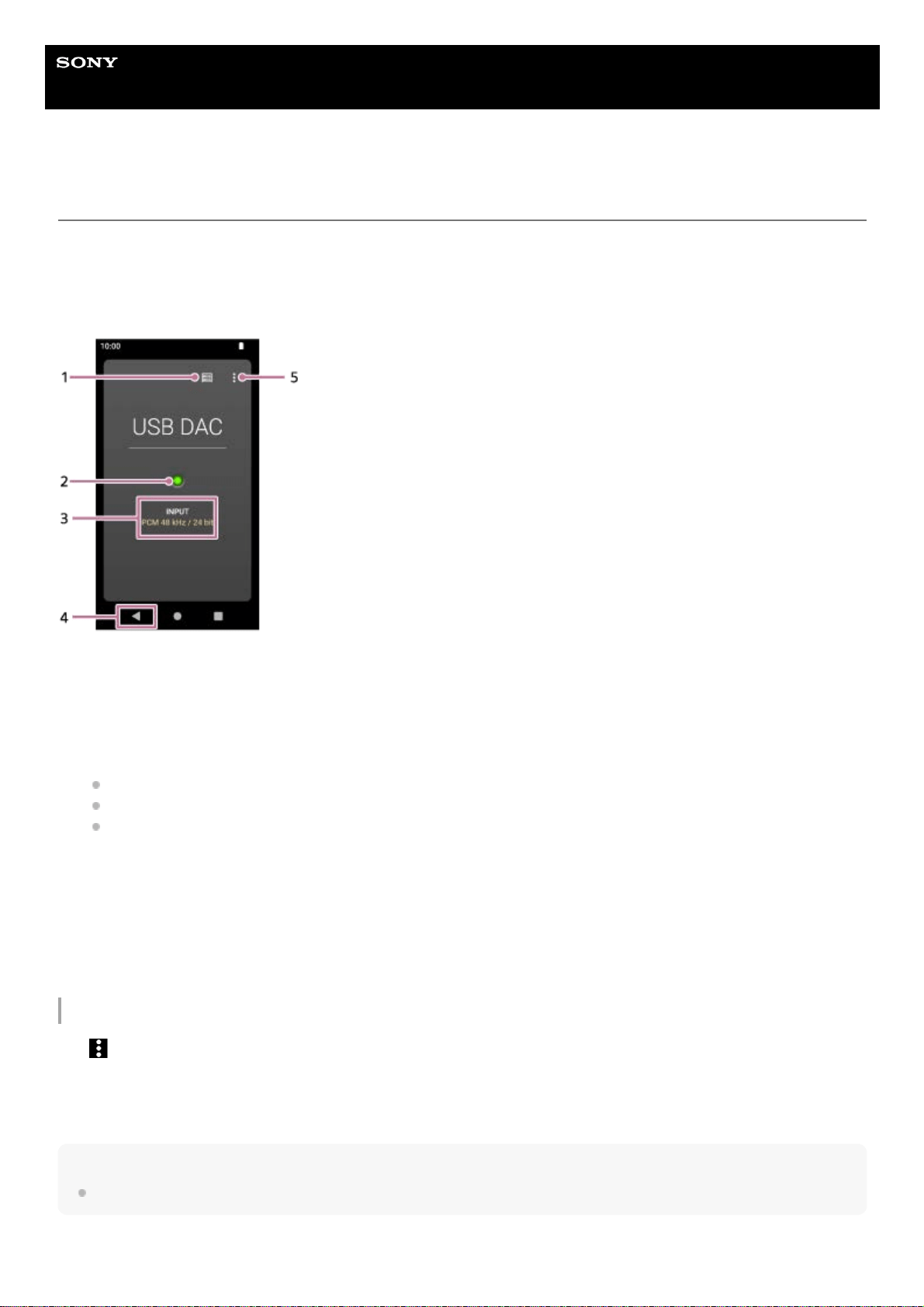
Help Guide
Digital Media Player
NW-A306
USB-DAC screen in “Music player”
You can use the player as a USB-DAC device. Use this function to listen to music content on a computer.
To switch to the USB-DAC function
On the library screen in the “Music player”, tap [USB DAC].
Option menu
Tap
(Options) to display the option menu.
Settings
Select the item to display the Settings menu for “Music player”.
Hint
Swipe the USB-DAC screen upwards if you want to adjust the sound.
Library top button
Tap to turn off the USB-DAC function.
1.
Input signal lamp
The lamp indicates the presence and quality of the input signal.
Lights up in green: PCM signal
Lights up in blue: DSD signal
Off: No signal is detected.
2.
Sound quality of the input signal (codec, sampling frequency, quantization bit rate)3.
Back button
Tap to turn off the USB-DAC function.
4.
Options button5.
112

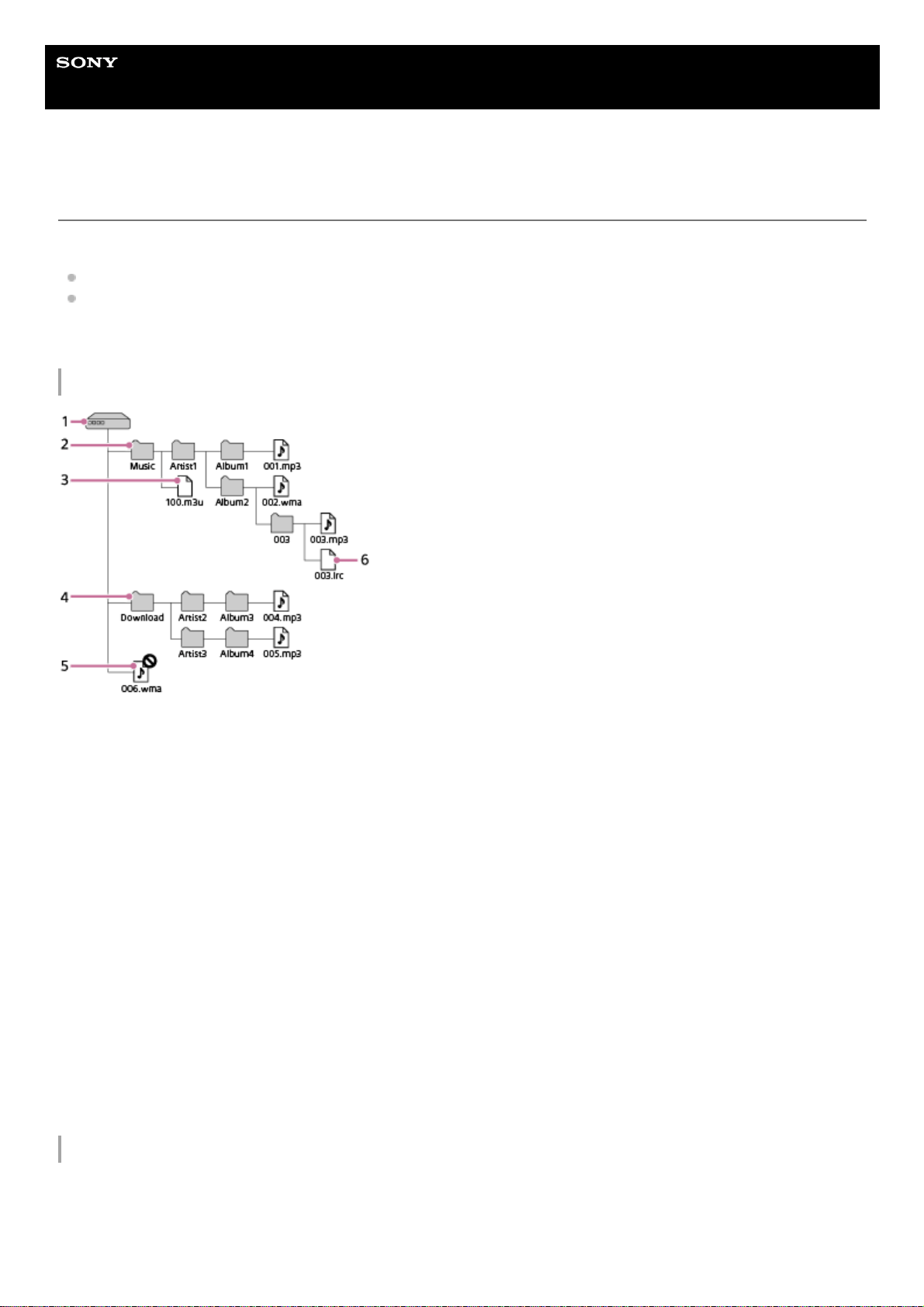
Help Guide
Digital Media Player
NW-A306
Structure of the folders to be imported to “Music player”
“Music player” creates a database by importing data from the following folders.
The [Music] folder and the [Download] folder in the internal memory of the player
The [Music] folder on the microSD card
You can check the structure of the folders and files by connecting the player to your computer.
Internal memory of the player
microSD card
Internal shared storage
This is the root folder.
1.
[Music] folder
This is the default folder to be imported. Music content transferred from your computer is stored in this folder.
Music files stored up to the eighth level of this folder will be imported into the database of “Music player”.
2.
Playlist file (.m3u)
This file contains information on playlists transferred from your computer.
3.
[Download] folder
This is the default folder to be imported. Music content purchased from online music services may be stored in this
folder.
Music files stored up to the eighth level of this folder will be imported into the database of “Music player”.
4.
Music files directly under the root folder
“Music player” cannot recognize music files stored in this level.
5.
Lyric information file (.lrc)
This file contains lyric information for the music files in the same folder.
6.
114
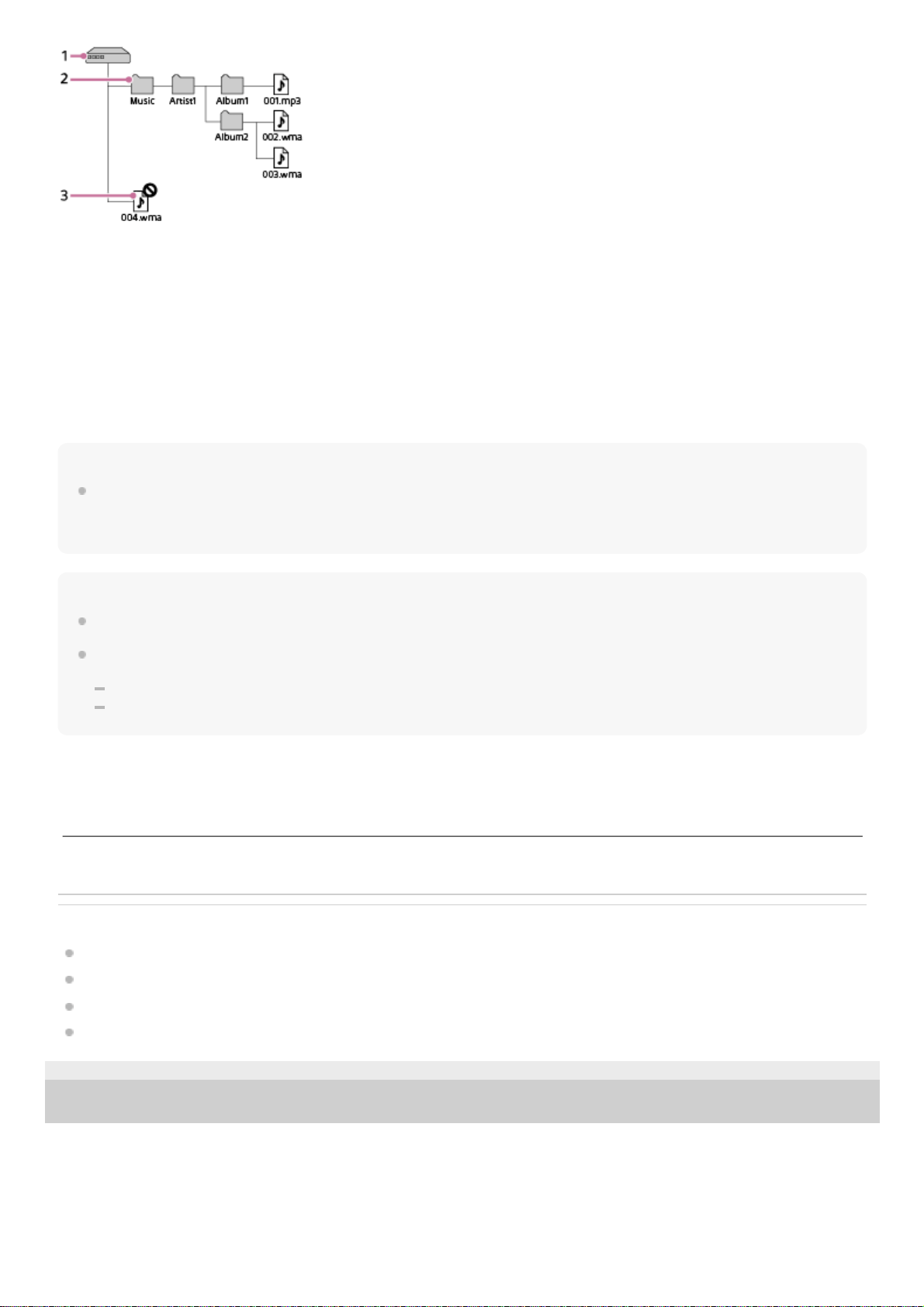
Hint
You can register up to 10 folders in the internal memory of the player or on a microSD card to [Folders to be imported]. Music files
stored in [Folders to be imported] are imported into the database of “Music player” in the same way as the default folders. For
details on the procedure, see [Registering or unregistering folders to be imported to “Music player”].
Note
“Music player” cannot recognize folders stored in the eighth level of a folder.
Do not rename the following default folders. Otherwise, “Music player” will not be able to recognize the folders.
[Music]
[Download]
Related Topic
Adding lyric information using a computer
Notes on transferring content from a computer
Registering or unregistering folders to be imported to “Music player”
Importing playlists from a Windows computer, playing, or deleting playlists in “Music player”
5-042-672-11(1)
Copyright 2022 Sony Corporation
Folder with the name of the microSD card
This is the root folder.
1.
[Music] folder
This is the default folder to be imported. Music content transferred from your computer is stored in this folder.
Music files stored up to the eighth level of this folder will be imported into the database of “Music player”.
2.
Music files directly under the root folder
“Music player” cannot recognize music files stored in this level.
3.
The contents of the Help Guide may be subject to change without notice due to updates to the product's specifications.
115
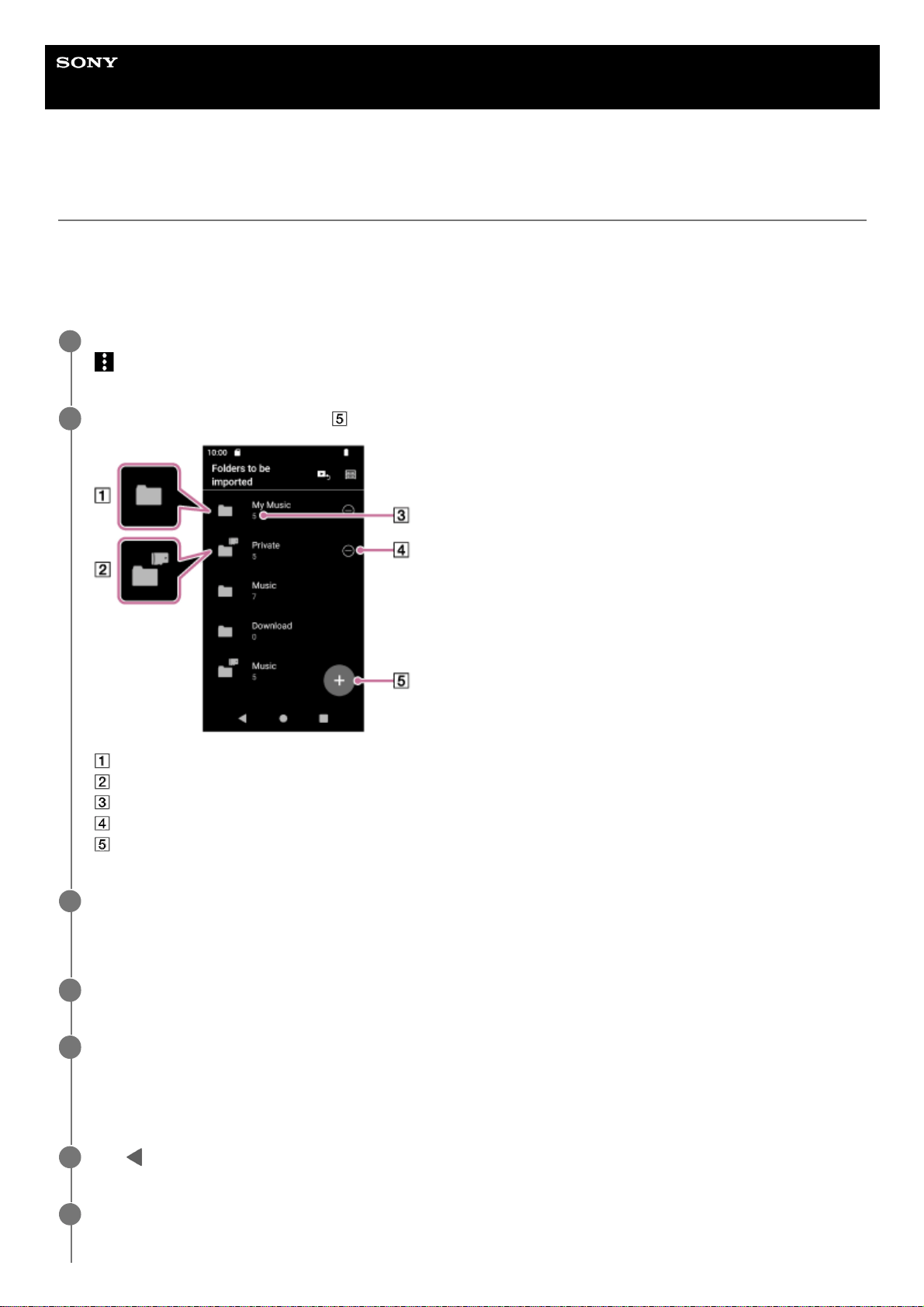
Help Guide
Digital Media Player
NW-A306
Registering or unregistering folders to be imported to “Music player”
You can register up to 10 folders in the internal memory of the player or on a microSD card to [Folders to be imported].
The music files stored in [Folders to be imported] will be imported into the database of “Music player”, and you can play
or manage the files in the same way as the music files stored in the default folders.
Follow the steps below to register a folder to [Folders to be imported].
On “Music player”, tap the menu items in the following order.
(Options) - [Settings] - [Folders to be imported].
1
Tap the registration start button (
) in the bottom right of the screen.
A folder in the internal memory of the player
A folder on the microSD card
The number of the imported songs
Unregister button
Registration start button
2
Select the desired media and tap folders to display the desired folder.
To cancel registration, tap the cancel button in the top right of the screen.
3
Tap the register button to the right side of the desired folder.
4
Confirm the message and tap [YES].
The selected folder will be registered to [Folders to be imported], and the [Folders to be imported] screen will be
displayed.
5
Tap
(back) button.
6
Confirm the database update message, and then tap [YES].
“Music player” will import the music files in the registered folder to the database.
7
116
To unregister a folder from [Folders to be imported]
Hint
You can also update the database later.
On the library screen in “Music player”, tap
(Update database) button.
On “Music player”, tap the menu items in the following order.
(Options) - [Settings] - [Update database].
Music files stored in folders up to the eighth level of the registered folder will be imported to the database of “Music player”.
The destination for music downloads differs depending on the online music service. If an online music service stores music files
to a folder other than the default folders, register that folder to [Folders to be imported]. Then, you can play and manage the
music files with “Music player” without moving the files.
Note
You cannot unregister the following default folders from [Folders to be imported].
The [Music] folder or the [Download] folder in the internal memory of the player
The [Music] folder on a microSD card
You cannot register the root folder to [Folders to be imported].
The registered information for [Folders to be imported] does not change when you insert or remove the microSD card, or when
you replace the microSD card with another one.
Related Topic
Structure of the folders to be imported to “Music player”
5-042-672-11(1)
Copyright 2022 Sony Corporation
On “Music player”, tap the menu items in the following order.
(Options) - [Settings] - [Folders to be imported].
1.
Tap the unregister button (
) to the right side of the desired folder.2.
Confirm the message and tap [YES].3.
The contents of the Help Guide may be subject to change without notice due to updates to the product's specifications.
117
Help Guide
Digital Media Player
NW-A306
Adjusting the sound
The player has various settings for adjusting the sound. There are two options to adjust the sound.
“Sound adjustment” app.
The sound adjustment screens in “Music player”.
The following are instructions for using “Sound adjustment” app.
You can set the following sound adjustment.
Direct Source
This setting outputs the file’s original sound quality directly without applying any sound effects.
Turn on this function to listen to music without processing the audio signals. This will be effective when you enjoy
High-Resolution Audio content. On one of the sound adjustment screens, tap the [DIRECT] switch to turn this
function on or off.
Equalizer
You can select an equalizer setting to suit your mood or current activity. When the switch is set to [ON], tap [Preset]
and select the desired preset, then tap [OK] to apply.
[Custom 1] and [Custom 2] are the user presets. Select [Custom 1] or [Custom 2] and tap [OK] to apply. Then, tap
[ADJUST] to customize the equalizer setting.
DSEE Ultimate™
This function upscales the sound quality of audio files. The sound quality will become almost equal to that of High-
Resolution Audio. The function reproduces the clear high-range sound that is often lost.
DC Phase Linearizer
This function adjusts low-frequency phase shifts to reproduce the audio characteristics of analog amplifiers.
Dynamic Normalizer
You can moderate the change in volume between tracks to minimize differences in volume level.
Vinyl Processor
This function produces rich sound that is close to the playback from a vinyl record on a turntable.
ClearAudio+™
This function automatically applies the recommended sound settings to the output sound.
Hint
Even if you tap the ON/OFF switch of each sound adjustment, the current state will be kept. You can compare the sound while
switching the sound adjustments ON and OFF to adjust the settings.
On the [WALKMAN Home] screen, tap
[Sound adjustment].
1
Swipe the screen to the left or right to select the sound adjustment.
2
Adjust the sound by following the onscreen instructions.
3
118
You cannot select sound adjustments if you have turned on the following settings. Turn off the settings to enable the other sound
adjustments.
Direct Source
ClearAudio+
Both the “Sound adjustment” app and the sound adjustment screens in “Music player” share adjusted values.
Note
When there is an active Bluetooth connection, the following sound adjustments are disabled.
DC Phase Linearizer
Vinyl Processor
In certain countries and regions, [Dynamic Normalizer] is disabled when there is an active Bluetooth connection.
Sound adjustments are disabled when sound is output from a USB audio device that is connected to the USB Type-C port.
Related Topic
Sound adjustment screens for “Music player”
5-042-672-11(1)
Copyright 2022 Sony Corporation
The contents of the Help Guide may be subject to change without notice due to updates to the product's specifications.
119
Help Guide
Digital Media Player
NW-A306
Using the High-Res streaming function
You can enjoy music streaming from online music services in high sound quality.
Note
The [High-Res streaming] function does not support all online music service apps.
5-042-672-11(1) Copyright 2022 Sony Corporation
Swipe the [WALKMAN Home] screen upwards.
1
Tap the menu items in the following order.
[Settings] - [Sound] - [High-Res streaming].
2
Tap the switch to turn on the [High-Res streaming] function.
Music streamed using apps other than “Music player” is played in the following quality.
[Use High-Res streaming] is on:
Up-converted playback at 192 kHz/32 bit
[Use High-Res streaming] is off:
Down-converted playback at 48 kHz/16 bit
3
The contents of the Help Guide may be subject to change without notice due to updates to the product's specifications.
120

Help Guide
Digital Media Player
NW-A306
Settings menu in “Music player”
You can adjust the following settings from the Settings menu in “Music player”.
To open the Settings menu, tap the menu items in the following order.
(Options) - [Settings].
Playback
Shuffle
Repeat
Repeat off
Repeat all
Repeat 1 song
Playback range
All range
Selected range
Play on cassette tape screen
Artist list display
Album artist
Artist
DSD
USB output for DSD
Auto
DoP
Filtering during DSD playback
Slow roll-off
Sharp roll-off
Gain during DSD playback
0 dB
-3 dB
Database
Rebuild database
Update database
Folders to be imported
Other
Reset settings
121

Reset Sound adjustment settings
About Music player
5-042-672-11(1) Copyright 2022 Sony Corporation
The contents of the Help Guide may be subject to change without notice due to updates to the product's specifications.
122
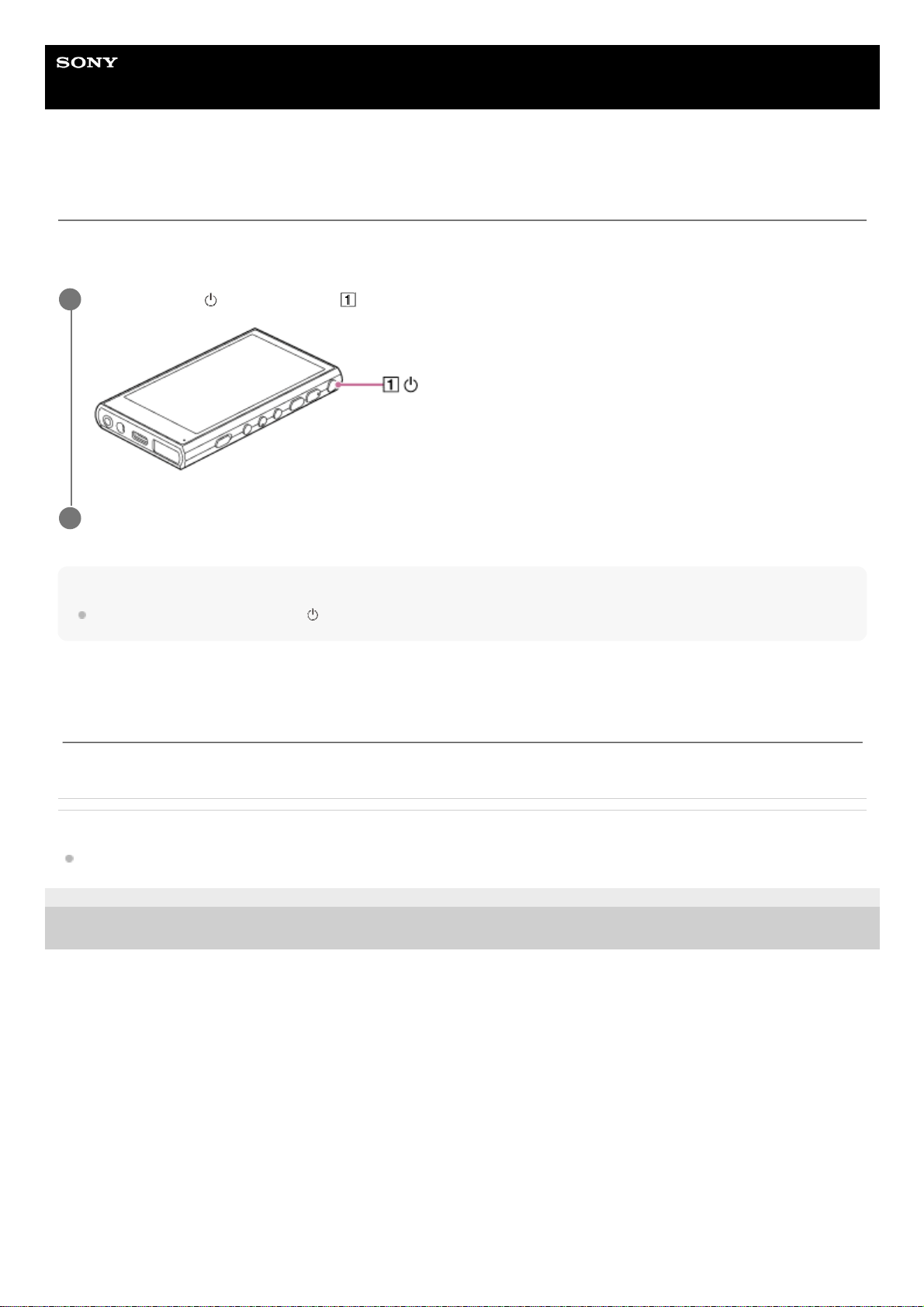
Help Guide
Digital Media Player
NW-A306
Restarting the player
Restart the player if operations become unstable.
Restarting will not delete any data and pairing information.
Hint
If the player freezes, hold down the
(power) button for 10 seconds to force the player to restart.
Related Topic
Formatting the player
5-042-672-11(1)
Copyright 2022 Sony Corporation
Hold down the
(power) button ( ) for 2 seconds while the screen is turned on.
1
Tap [Restart].
2
The contents of the Help Guide may be subject to change without notice due to updates to the product's specifications.
123
Help Guide
Digital Media Player
NW-A306
Formatting the player
This operation restores the player to its factory settings. The following data will be deleted.
Content such as music and photos in the internal memory of the player
Google Account information on the player
Downloaded apps
Save a backup copy in advance. Be careful not to delete important data.
Hint
When formatting is complete, the player will restore its preinstalled content.
When you back up a music file from “Music player”, you can check the location of the file. Confirm [File location] under [Detailed
song information]. To display the information, tap the menu items in the following order.
From the playback screen in “Music player”:
(Options) - [Detailed song information].
From the library screen, play queue screen, or favorites screen in “Music player”:
(Context menu) - [Detailed song information].
Note
Sony does not guarantee performance if you format the memory of the player using a computer.
Swipe the [WALKMAN Home] screen upwards.
1
Tap the menu items in the following order.
[Settings] - [System] - [Reset options].
2
Tap [Erase all data (factory reset)].
3
Confirm the message carefully, and then tap [Erase all data].
Enter the PIN, password, or pattern if necessary.
4
Confirm the reconfirmation message, and then tap [Erase all data].
When formatting is complete, the player will restart automatically.
5
The contents of the Help Guide may be subject to change without notice due to updates to the product's specifications.
124

Help Guide
Digital Media Player
NW-A306
Formatting a microSD card
You can format a microSD card on the player.
Formatting the microSD card will delete all data stored on the card. Save a backup copy in advance. Be careful not to
delete important data.
Hint
When you back up a music file from “Music player”, you can check the location of the file. Confirm [File location] under [Detailed
song information]. To display the information, tap the menu items in the following order.
From the playback screen in “Music player”:
(Options) - [Detailed song information].
From the library screen, play queue screen, or favorites screen in “Music player”:
(Context menu) - [Detailed song information].
Note
When you use a microSD card on the player for the first time, format the microSD card with the player. Otherwise, some functions
of the player may be limited.
5-042-672-11(1) Copyright 2022 Sony Corporation
Swipe the [WALKMAN Home] screen upwards.
1
Tap the menu items in the following order.
[Settings] - [Storage].
2
Tap the drop-down list, and then tap the name of the microSD card.
3
Tap
(options) in the top right of the screen.
4
Tap [Format].
Confirm the message carefully. Follow the onscreen instructions.
5
The contents of the Help Guide may be subject to change without notice due to updates to the product's specifications.
126
Help Guide
Digital Media Player
NW-A306
Checking information on the player
You can check information such as the model name and system software version.
Related Topic
Updating the system software
5-042-672-11(1)
Copyright 2022 Sony Corporation
Swipe the [WALKMAN Home] screen upwards.
1
Tap the menu items in the following order.
[Settings] - [About device].
2
The contents of the Help Guide may be subject to change without notice due to updates to the product's specifications.
127
Help Guide
Digital Media Player
NW-A306
Updating the system software
Update the system software of the player to the latest version. This will allow you to use the most recent functions. Save
a backup copy in advance. Be careful not to delete important data.
Hint
When you back up a music file from “Music player”, you can check the location of the file. Confirm [File location] under [Detailed
song information]. To display the information, tap the menu items in the following order.
From the playback screen in “Music player”:
(Options) - [Detailed song information].
From the library screen, play queue screen, or favorites screen in “Music player”:
(Context menu) - [Detailed song information].
Related Topic
Charging the battery
Connecting the player to a Wi-Fi network
Customer support website
Checking information on the player
5-042-672-11(1)
Copyright 2022 Sony Corporation
Connect the player to a power source.
1
Turn on the Wi-Fi function to connect the player to the internet.
2
Swipe the [WALKMAN Home] screen upwards.
3
Tap the menu items in the following order.
[Settings] - [System] - [System updates].
Confirm the message carefully. Follow the onscreen instructions.
4
The contents of the Help Guide may be subject to change without notice due to updates to the product's specifications.
128
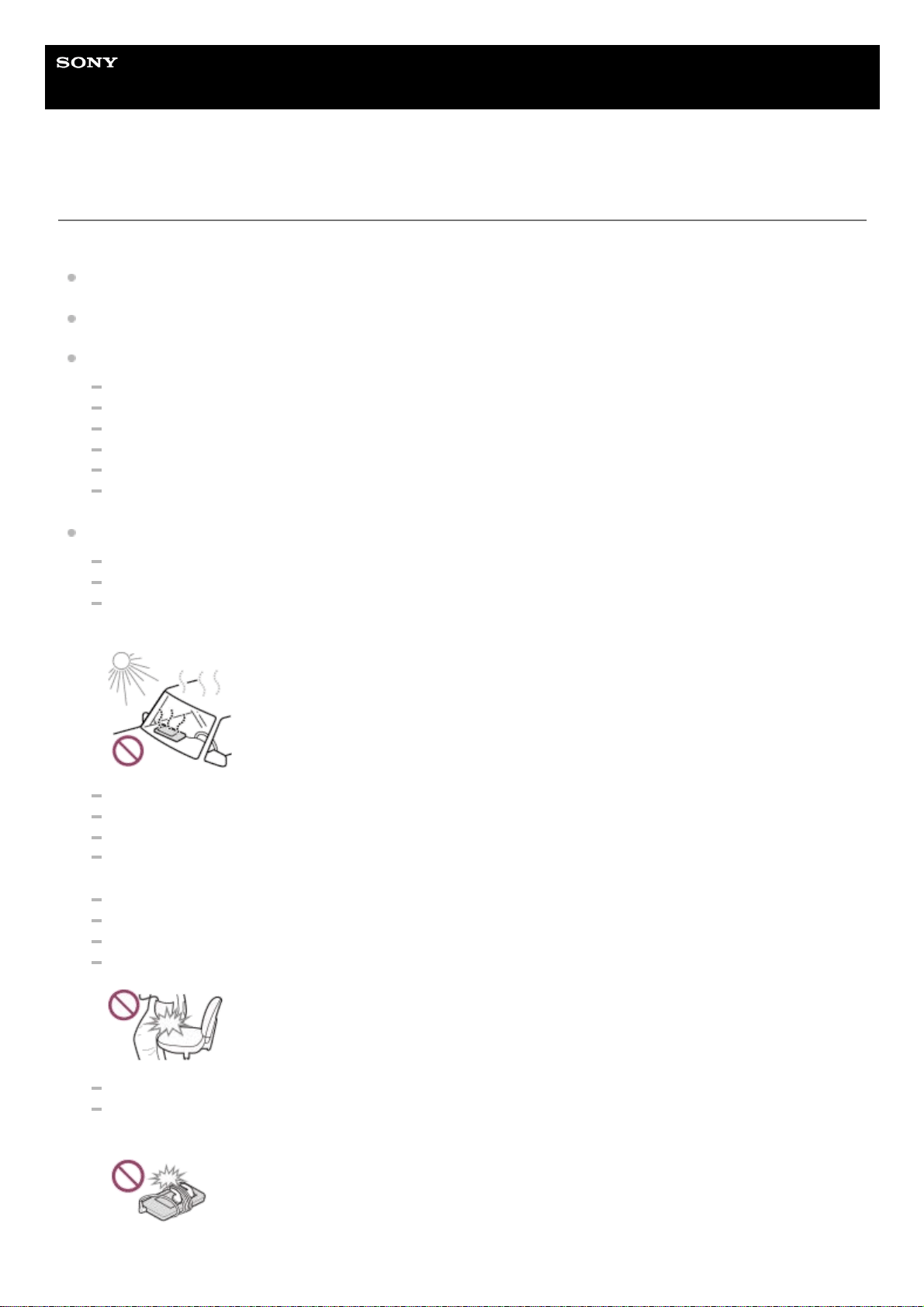
Help Guide
Digital Media Player
NW-A306
Notes on handling the player
Read the notes below and follow the instructions to use the player safely.
Consult a doctor if you become injured or burned from using the product.
Contact the nearest Sony dealer or Sony Service Center if the player does not operate properly.
Observe the following precautions. Otherwise, an explosion, fire, electric shock, burns, or injury may result.
Do not expose the player to fire.
Do not allow metallic objects to get inside the player.
Do not short-circuit the terminals of the player with metallic objects.
Do not take apart or modify the player.
Do not use the player when you see lightning or hear thunder.
Do not use the player if it causes an uncomfortable reaction on your skin.
Observe the following precautions. Otherwise, you may damage the casing or cause the player to malfunction.
Do not place the player in direct sunlight.
Do not place the player in locations where the temperature is extremely high.
Do not leave the player in direct sunlight. Do not leave the player in a car with all the windows closed, especially
during the summer.
Do not place the player in locations where it is exposed to vibration.
Do not drop the player from heights.
Do not apply a strong force or shock to the player.
Do not place the player in locations where there is magnetization. For example, do not place the player near a
magnet, speakers, or a TV.
Do not turn on the player right after you move it from a cold environment to a warm environment.
Do not use the player in damp locations, such as in a bathroom or a sauna.
Do not place the player on an unstable surface or in an inclined position.
Do not sit down when the player is inserted in your pocket.
Do not use the player in locations where it is exposed to excessive dust.
When you store the player in a bag, do not apply strong impacts to the bag. In particular, avoid storing the player
in a bag with the headphone cable or earphone cable wrapped around the player.
129

Do not place objects on top of the player.
The player is neither waterproof nor dustproof. Observe the following precautions. Otherwise, the player may
become inoperable because of short-circuited terminals or corroded metal.
Do not drop the player into water.
Do not use the player in humid locations or during wet weather such as rain or snow.
Do not place the player against your body or clothes when you are sweating.
Do not touch the player with wet hands.
Comply with announcements regarding the use of electronic devices when you are on an airplane.
Heat may build up in the player in the following situations, but this is not a malfunction. However, be careful because
there is a risk of low-temperature burns.
While the battery is charging.
While the player is playing for an extended period of time.
The internal temperature of the player may rise during charging or use. Do not place the player in an airtight bag or
wrap the player in cloth when you use the player for a long time. The bag or cloth may trap heat and cause a
malfunction.
Do not apply strong force to the surface of the display. Strong force may cause the following problems.
Distorted colors or brightness.
A malfunction of the display.
Injury from a cracked display.
When you use the player in a cold location, afterimages may appear on the display. This is not a malfunction.
The player screen is made of glass. The glass may crack if you drop the player on a hard surface or if you apply
strong force to the screen. Be careful when you handle the player. If the glass is cracked or chipped, do not use the
player or touch the damaged part. Otherwise, you may get injured.
When you use a strap, note the following.
The strap can get caught on objects around you. Be careful to avoid the risk of strangulation.
Be careful not to swing the player while holding the strap. You may hit someone with the player.
Content that you record is for personal use only. Under copyright law, the content cannot be used without the
permission of the copyright holder.
5-042-672-11(1) Copyright 2022 Sony Corporation
The contents of the Help Guide may be subject to change without notice due to updates to the product's specifications.
130
Help Guide
Digital Media Player
NW-A306
Notes on the headphones
Road safety
Do not use headphones in the following situations.
While you are driving a car or riding a motorcycle or bicycle.
Places where impaired hearing is dangerous. For example, on train platforms, in areas where there is vehicle traffic,
or near construction sites.
Preventing hearing damage
Observe the following to protect your hearing.
Keep the volume at a moderate level. Do not listen to audio content at high volumes for an extended period of time.
Do not turn up the volume suddenly.
About the in-ear headphones
When you use in-ear headphones with a high degree of adhesion, note the following. Otherwise, you may damage
your ears or eardrums.
Do not insert the earbuds forcefully into your ears.
Do not remove the earbuds from your ears suddenly. When you take off the headphones, move the earbuds up
and down gently.
When you unplug the headphones from the player, hold the headphones by the plug. Pulling the cable itself may
damage the headphones.
Do not sleep while you are wearing headphones. The cable may become wrapped around your neck while you are
sleeping.
About the use of headphones with a USB Type-C connector
When you use headphones with a USB Type-C connector, you may not be able to adjust the volume depending on the
headphones. This may result in unexpectedly loud volumes from the headphones. To avoid the risk, do not use
headphones with a USB Type-C connector.
Consideration for others
Avoid using the player in environments where sound leakage will disturb others.
5-042-672-11(1) Copyright 2022 Sony Corporation
The contents of the Help Guide may be subject to change without notice due to updates to the product's specifications.
131
Help Guide
Digital Media Player
NW-A306
Notes on the built-in battery
Do not touch the rechargeable battery with your bare hands if the battery is leaking. The battery liquid may cause burns
or blindness. If the liquid contacts your body or clothes, wash the liquid off immediately with clean water.
5-042-672-11(1) Copyright 2022 Sony Corporation
The contents of the Help Guide may be subject to change without notice due to updates to the product's specifications.
132
Help Guide
Digital Media Player
NW-A306
Notes on the sample data
Sample music is preinstalled on the player for trial listening.
When formatting is complete, the player will restore its preinstalled content.
Sample data is not installed in some countries or regions.
Related Topic
Formatting the player
5-042-672-11(1)
Copyright 2022 Sony Corporation
The contents of the Help Guide may be subject to change without notice due to updates to the product's specifications.
133
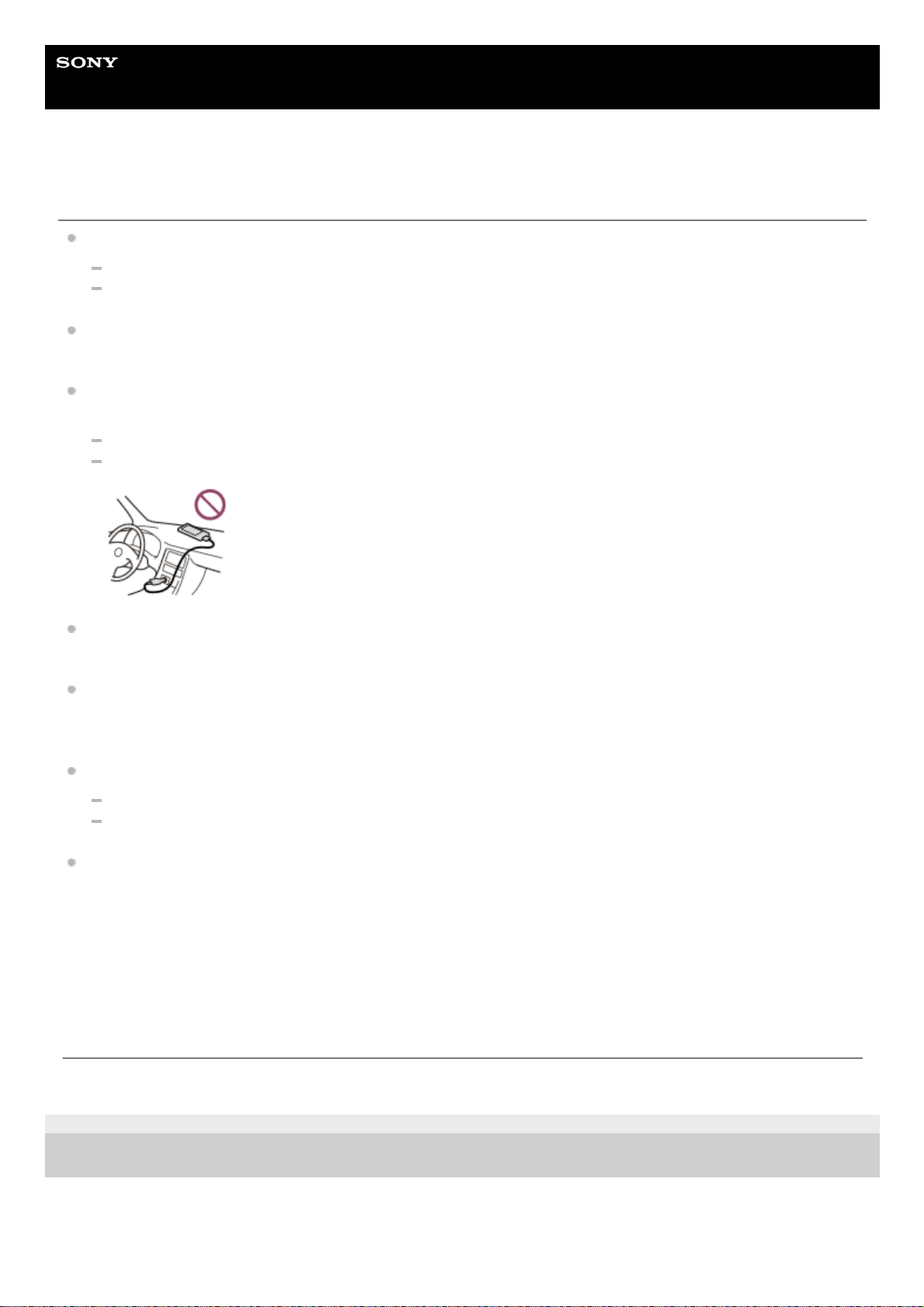
Help Guide
Digital Media Player
NW-A306
General Information
Charging time and playback time depend on the following conditions.
The number of times you have charged the battery
Operating temperature
When the battery is sufficiently charged but the battery life has dropped to about half of its normal span, the battery
may be worn out.
A lithium-ion rechargeable battery is built into the player. When you store the player for long periods of time, check
the following to prevent the deterioration of the built-in battery.
Store the player at temperatures from 5 °C to 35 °C (41 ºF to 95 ºF).
To prevent deterioration of the battery, charge the battery at least once every 6 months.
When you use the player in a cold location, the onscreen display may become dark or may not respond quickly.
However, these are not malfunctions.
You feel mild tingling against your ears particularly in dry air conditions.
This is a result of static electricity accumulated in the body.
This effect can be minimized by wearing clothes made from natural materials.
Sony is not responsible for user data even if the following problems occur due to defects in the player or a computer.
Recording or downloading of data is incomplete.
Data (such as music) is damaged or deleted.
Internet Connection and IP address
Technical data such as IP address [or device details] is used when this product is connected to the internet for
software update or receiving third party services. For software updates, these technical data may be communicated
to our update servers in order to provide you with the software update appropriate to your device. If you do not want
such technical data be used at all, do not set-up the wireless internet function and do not connect an internet cable.
5-042-672-11(1) Copyright 2022 Sony Corporation
The contents of the Help Guide may be subject to change without notice due to updates to the product's specifications.
134
Help Guide
Digital Media Player
NW-A306
Maintenance
Clean the player with a soft cloth, such as a cleaning cloth for eyeglasses.
To clean a player that has gotten very dirty, use a cloth slightly moistened with a mild detergent solution.
Be careful not to get water inside the player.
Do not clean with solvents such as alcohol, naphtha, or paint thinner. These solvents may damage the surface of the
player.
Clean the headphone plug occasionally with a soft dry cloth. Noise or sound skipping may occur if the plug is dirty.
5-042-672-11(1) Copyright 2022 Sony Corporation
The contents of the Help Guide may be subject to change without notice due to updates to the product's specifications.
135
Help Guide
Digital Media Player
NW-A306
Customer support website
Visit the customer support website in your country or region in the following situations.
When you have a question about the player.
When you have an issue with the player.
When you want information on compatible items.
For customers in the USA, Canada and Latin America:
https://www.sony.com/am/support
For customers in Europe:
https://www.sony.eu/support/
For customers in Mainland China:
https://service.sony.com.cn/
For customers in Asia-Pacific, Oceania, the Middle East and Africa:
https://www.sony-asia.com/support
For customers who purchased the overseas models:
https://www.sony.co.jp/overseas/support/
5-042-672-11(1) Copyright 2022 Sony Corporation
The contents of the Help Guide may be subject to change without notice due to updates to the product's specifications.
136

Help Guide
Digital Media Player
NW-A306
Specifications
Display
Size
9.1 cm (3.6-inch)
Resolution
HD (1280 × 720 Pixels)
Panel type
TFT color display with white LED-backlight
Touch panel
Supported
Interface
USB
Type-C (USB 3.2 Gen1 compliant)
Headphone
Stereo mini jack
External memory
microSD, microSDHC, microSDXC
Wireless LAN
Standard
IEEE 802.11a/b/g/n/ac
Frequency band
2.4 GHz/5 GHz band
Encryption
WEP/WPA/WPA2
Bluetooth
Version
Communication system: Bluetooth Specification Version 5.0
Frequency band
2.4 GHz band (2.4000 GHz - 2.4835 GHz)
Modulation method
FHSS
Supported Bluetooth profiles
A2DP, AVRCP, SPP, OPP, DID
Supported Codecs (Transmission)
SBC, LDAC, aptX, aptX HD, AAC
Sensor
Accelerometer
Microphone
137
Monaural
Headphone Out (Stereo mini jack)
Frequency response
20 Hz - 40 000 Hz
General
Power Source
Built-in battery: Rechargeable lithium-ion Battery
Charging and Power supply: USB power (from a computer via a USB)
Charging Time (USB charging)
Approx. 3.5 hours
Operating temperature
5 °C to 35 °C (41 ºF to 95 ºF)
Dimensions
w/h/d, projecting parts not included
Approx. 55.7 mm × 98.2 mm × 11.8 mm (2.20 inches × 3.87 inches × 0.47 inches)
w/h/d
Approx. 56.5 mm × 98.4 mm × 11.8 mm (2.23 inches × 3.87 inches × 0.47 inches)
Mass
Approx. 113 g (3.99 oz)
Capacity
Capacity
32 GB
Actual available memory for other contents
Approx. 18 GB
Note
Available capacity may vary. A portion of the memory is used for data management functions.
When you update the system software, reserve about 3.5 GB of free space in the internal shared storage.
5-042-672-11(1) Copyright 2022 Sony Corporation
The contents of the Help Guide may be subject to change without notice due to updates to the product's specifications.
138
Help Guide
Digital Media Player
NW-A306
Battery life
Music (when using “Music player”)
MP3 (128 kbps)
Approx. 36 hours
AAC (256 kbps)
Approx. 36 hours
WAV (44.1 kHz/16 bit)
Approx. 36 hours
FLAC (44.1 kHz/16 bit)
Approx. 36 hours
FLAC (96 kHz/24 bit)
Approx. 32 hours
FLAC (192 kHz/24 bit)
Approx. 32 hours
DSD (2.8224 MHz/1 bit)
Approx. 28 hours
DSD (5.6448 MHz/1 bit)
Approx. 22 hours
DSD (11.2896 MHz/1 bit)
Approx. 14 hours
Music (when using a music app other than “Music player”)
MP3 (128 kbps)
Approx. 26 hours
Bluetooth (when using “Music player”)
MP3 (128 kbps)/SBC-Connection pref.
Approx. 21 hours
FLAC (96 kHz/24 bit)/LDAC-Connection pref.
Approx. 11 hours
Bluetooth (when using a music app other than “Music player”)
MP3 (128 kbps)/LDAC-Connection pref.
Approx. 18 hours
A Bluetooth connection will shorten the battery life by up to 50% depending on the following conditions.
Format of the content.
Settings of the connected device.
Note
139
The values shown in this topic indicate the approximate battery life when the player is playing continuously with the default
settings.
Even if the player is turned off for an extended period, a small amount of battery power is still consumed.
Battery life may vary depending on volume setting, conditions of use and ambient temperature.
The battery is consumed considerably when the screen is on.
The battery life may become about 40% shorter when some of the sound adjustments are active.
The battery life may become about 30% shorter when the [High-Res streaming] function is active.
5-042-672-11(1) Copyright 2022 Sony Corporation
The contents of the Help Guide may be subject to change without notice due to updates to the product's specifications.
140
Help Guide
Digital Media Player
NW-A306
Maximum recordable number of songs
MP3 (128 kbps)
Approx. 4 900 songs
AAC (256 kbps)
Approx. 2 400 songs
FLAC (44.1 kHz/16 bit)
Approx. 440 songs
FLAC (96 kHz/24 bit)
Approx. 130 songs
FLAC (192 kHz/24 bit)
Approx. 60 songs
DSD (2.8224 MHz/1 bit)
Approx. 110 songs
Note
The approximate numbers are based on 4 minute a song.
This product is confirmed to operate normally with up to a total of 20 000 tracks stored in the main memory and on the microSD
card.
5-042-672-11(1) Copyright 2022 Sony Corporation
The contents of the Help Guide may be subject to change without notice due to updates to the product's specifications.
141
Help Guide
Digital Media Player
NW-A306
Supported formats
Music
MP3 (.mp3)
32 kbps - 320 kbps (Supports variable bit rate (VBR)) / 32 kHz, 44.1 kHz, 48 kHz
WMA (.wma)
32 kbps - 320 kbps (Supports variable bit rate (VBR)) / 44.1 kHz (STEREO)
32 kbps - 48 kbps / 44.1 kHz (MONO)
FLAC (.flac)
16 bit, 24 bit / 8 kHz - 384 kHz
WAV (.wav)
16 bit, 24 bit, 32 bit (Float/Integer) / 8 kHz - 384 kHz
AAC (.mp4, .m4a, .3gp)
16 kbps - 320 kbps / 8 kHz - 48 kHz
HE-AAC (.mp4, .m4a, .3gp)
32 kbps - 144 kbps / 8 kHz - 48 kHz
Apple Lossless (.mp4, .m4a)
16 bit, 24 bit / 8 kHz - 384 kHz
AIFF (.aif, .aiff, .afc, .aifc)
16 bit, 24 bit, 32 bit / 8 kHz - 384 kHz
DSD (.dsf, .dff) (*1)
1 bit / 2.8224 MHz, 5.6448 MHz, 11.2896 MHz
APE (.ape)
8 bit, 16 bit, 24 bit / 8 kHz - 192 kHz (Fast, Normal, High)
MQA (.mqa.flac)
Supported
Note
Sampling frequency may not correspond to all encoders.
Copyright protected files cannot be played back.
Non-standard bit rates or non-guaranteed bit rates are included depending on the Sampling frequency.
Files that are 4 GB (APE is 2 GB) or larger cannot be played back.
This product recognizes audio sources exceeding CD quality (44.1 kHz/16 bit quantization) and DAT quality (48 kHz/16 bit
quantization) as High-Resolution Audio. The “HR” symbol is displayed for High-Resolution Audio.
For sampling frequency over 352.8 kHz, it will be down convert playback.
Audio that is converted to Linear PCM is output.
*1
The contents of the Help Guide may be subject to change without notice due to updates to the product's specifications.
142

5-042-672-11(1) Copyright 2022 Sony Corporation
143
Help Guide
Digital Media Player
NW-A306
System requirements
A Wi-Fi environment is required to use some features of this product.
Compatible application software
Music Center for PC
Please check the supported OS from the support page.
Additional software is required to operate on a Mac.
5-042-672-11(1) Copyright 2022 Sony Corporation
The contents of the Help Guide may be subject to change without notice due to updates to the product's specifications.
144