
User Guide
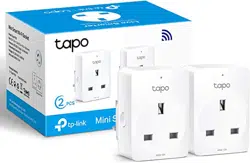
Mini Smart Wi-Fi Socket
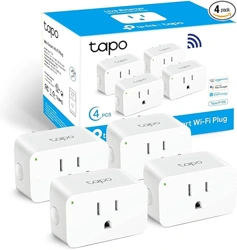
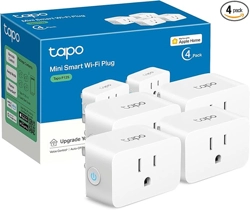
Tapo P100
©2022 TP-Link 1910013158 REV2.0.0

Contents
About This Guide ····························································································································1
Introduction ·······································································································································2
Appearance ·······································································································································3
Set Up Your Smart Socket ·········································································································4
Set Up Using Amazon Frustration-Free Setup ·······························································5
Basic Device Control ····················································································································9
Congure Your Smart Socket ·······························································································10
Smart Actions ································································································································11
Share Your Smart Socket ········································································································14
Third-Party Services ··················································································································15
Authentication ·······························································································································17
1
About This Guide
This guide provides a brief introduction to the Mini Smart Wi-Fi Socket and the Tapo app, as well as regulatory information.
Please note that features available in Tapo may vary by model and software version. Tapo availability may also vary by region. All images, steps, and
descriptions in this guide are only examples and may not reect your actual Tapo experience.
Conventions
In this guide, the following convention is used:
Convention Description
Blue
Key information appears in teal, including management page text such as menus, items, buttons and so on.
Underline
Hyperlinks are in teal and underlined. You can click to redirect to a website.
Note:
Ignoring this type of note might result in a malfunction or damage to the device.
More Info
• Specications can be found on the product page at https://www.tapo.com.
• Our Technical Support and troubleshooting information can be found at https://www.tapo.com/support/.
• The setup video can be found at https://www.tp-link.com/support/setup-video/.

2
Introduction
Tapo P100 Mini Smart Wi-Fi Socket is a compact home device that turns your typical electrical wall outlet into a controllable, customizable and multi-
functional outlet, enabling you to easily control your lights and household electronic devices via the Tapo app, no matter where you nd yourself.
• Remote Control - Instantly turn connected devices on/o wherever you are through the Tapo app
• Schedule - Preset a schedule to automatically manage devices
• Timer - Create a countdown timer for connected electronics
• Voice Control - Manage your smart socket with voice commands via Amazon Alexa or the Google Assistant
• Away Mode - Automatically turns devices on and o at dierent times to give the appearance that someone is home
• Compact Design - Mini-sized to avoid blocking adjacent sockets
• Easy Setup and Use - No hub required, set up quickly and manage easily through the free app
• Device Sharing - Easily share management permissions with each member of your family.
• Flame-Retardant* - PC ame-retardant materials help minimize burning hazards.
*Made with V-0 (UL94) ame-retardant materials.
3
Appearance
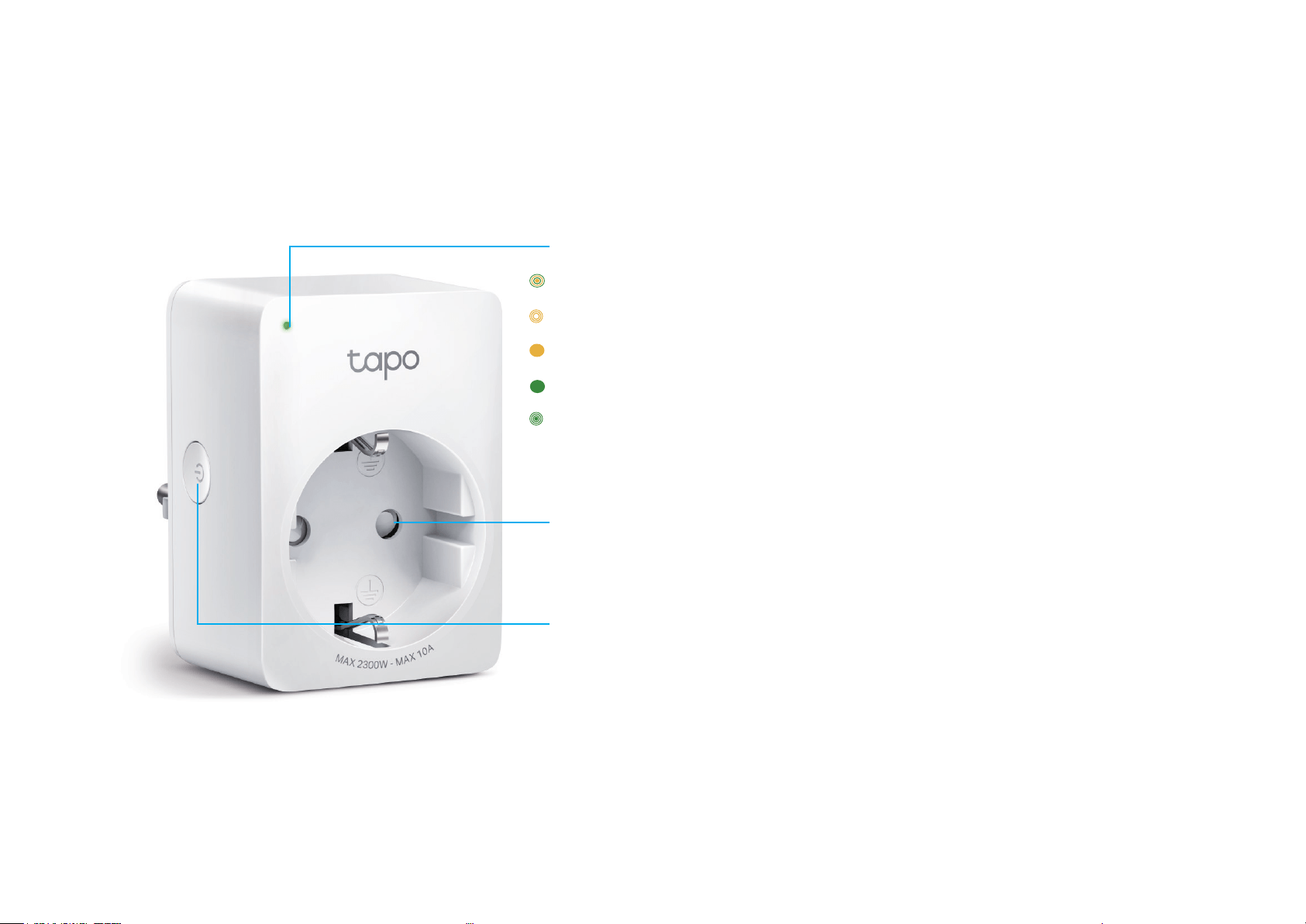
Image may dier from actual product due to dierent regional power specications. We use the EU version as an example.
Smart Socket:
Plug in your device and control it from Tapo app on your phone/tablet.
Power Button:
• Press once:
Turn on or o the smart socket.
• Press and hold for 5 seconds:
Keep the existing settings except Wi-Fi.
• Press and hold for 10 seconds:
Restore your smart socket to factory default settings and reenable setup mode.
System LED
• Blinking orange and green:
Ready for setup
• Blinking orange:
Connecting to a Wi-Fi network
• Solid orange:
Connected to Wi-Fi or disconnected from the Wi-Fi; oine
• Solid green:
Connected to server and working properly
• Blinking green:
Being reset; being upgraded; FFS setup in progress
4
Set Up Your Smart Socket
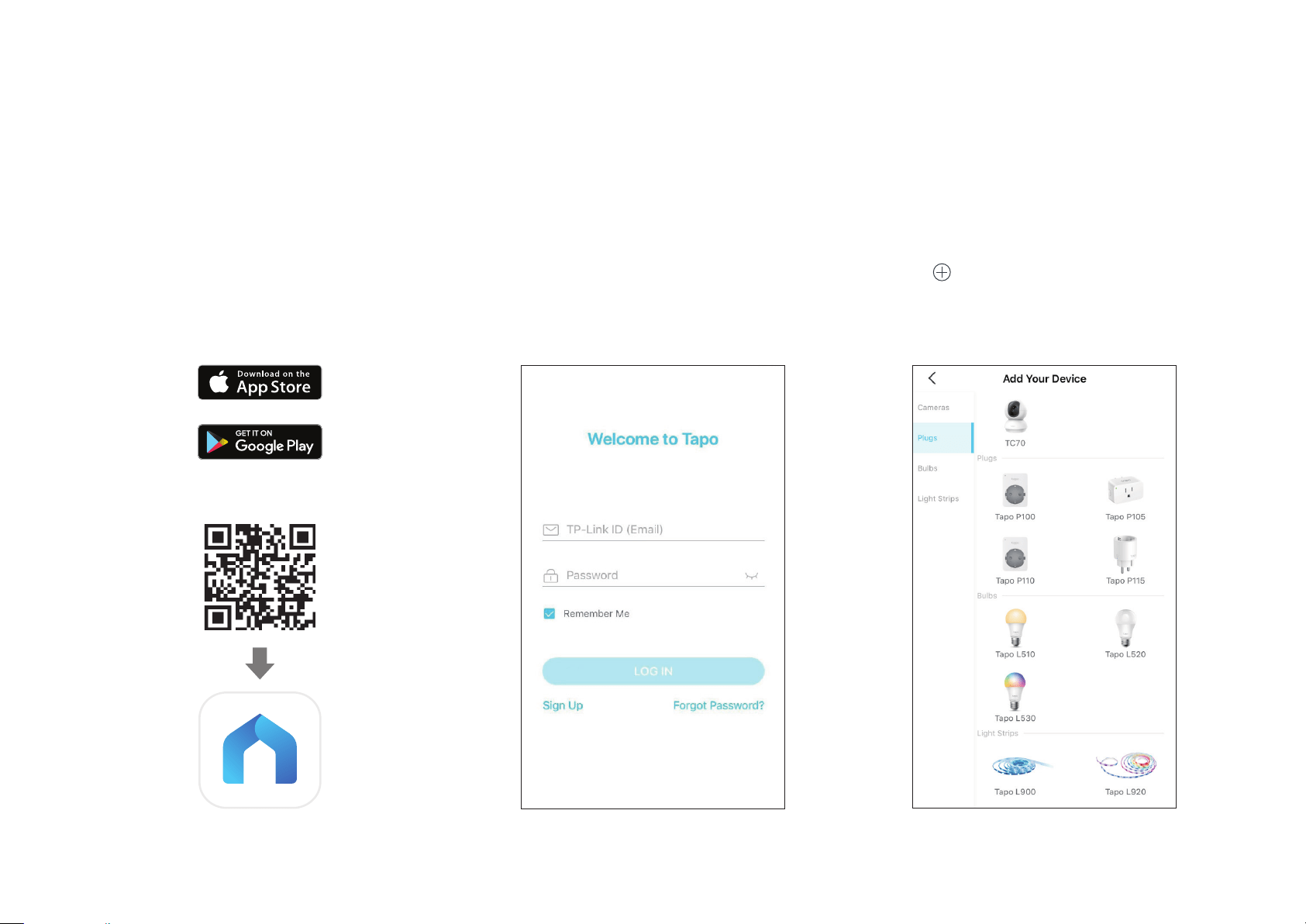
Follow the steps below to set up your smart socket via the Tapo app.
Step 1. Download Tapo App
Get the Tapo app from the App Store or
Google Play, or by scanning the QR code
below.
Step 2. Log In
Open the app, and log in with your TP-Link ID.
If you don't have an account, create one rst.
Step 3. Add Your Device
Tap the button in the Tapo app, choose
Plugs, and select your model. Follow the
instructions in the Tapo app to complete the
setup.
OR
5
Set Up Using Amazon Frustration-Free Setup
What is Amazon Frustration-Free Setup?
Amazon Frustration-Free Setup can help connect and set up Tapo smart devices in fewer steps, without having to remember and re-enter your Wi-Fi
password on each device.
To use this feature, conrm the following:
● The new Tapo device supports Amazon FFS (short for Amazon Frustration-Free Setup).
● You have an Amazon FFS enabled Alexa device or router.
● You have saved your Wi-Fi information to Amazon by using Alexa echo.
● Your Tapo device and router are on the same network as your Alexa echo.
LED Indications during Amazon Frustration-Free Setup
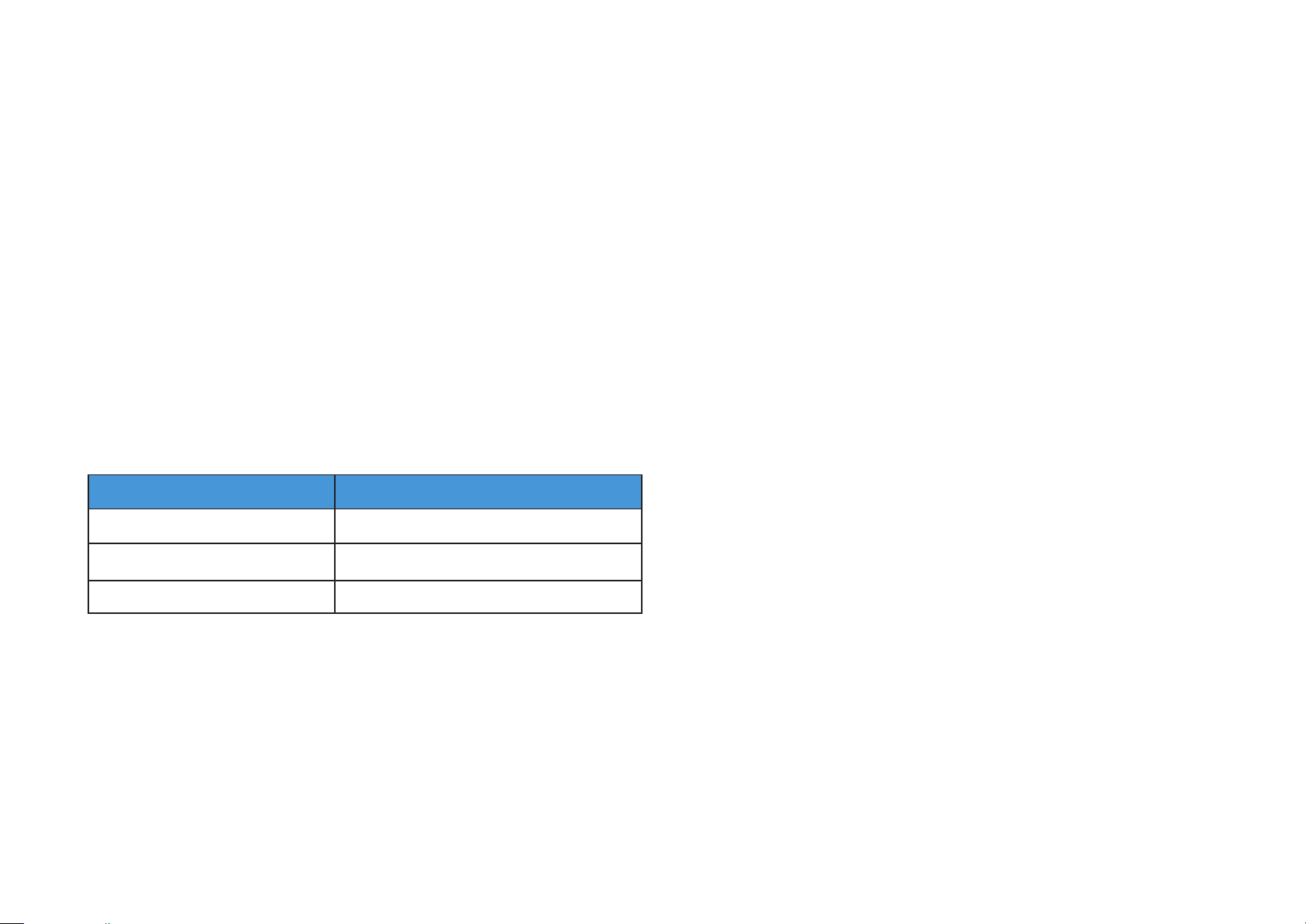
LED Status
Blinking orange and green Ready for setup
Blinking green FFS setup in progress
Solid green Working properly
If the LED does not turn solid green after a long time, you can try to add the Tapo device manually. (Open the Tapo app, tap the + button on the page,
select your device model, and follow the app instructions to complete setup. )
6
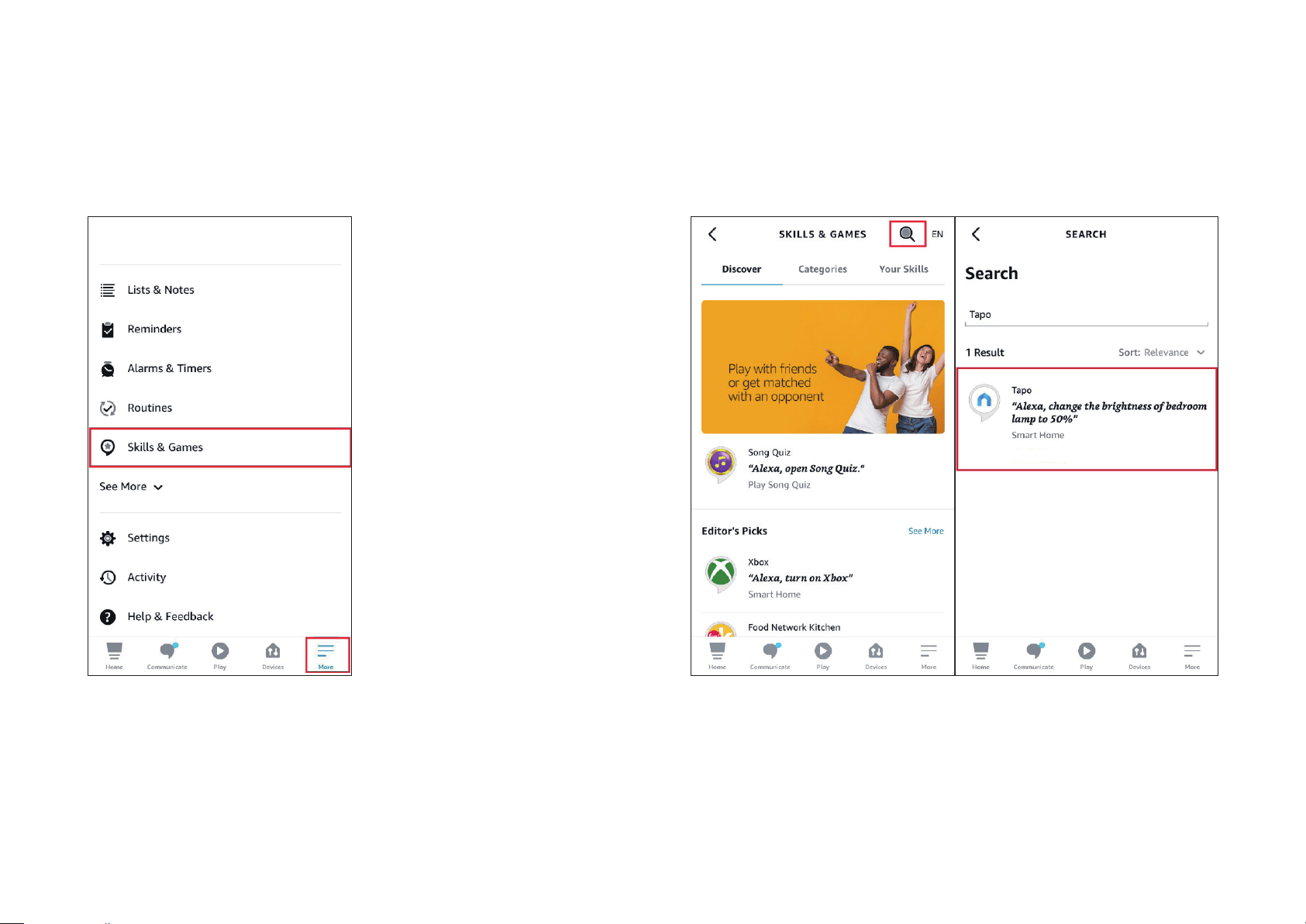
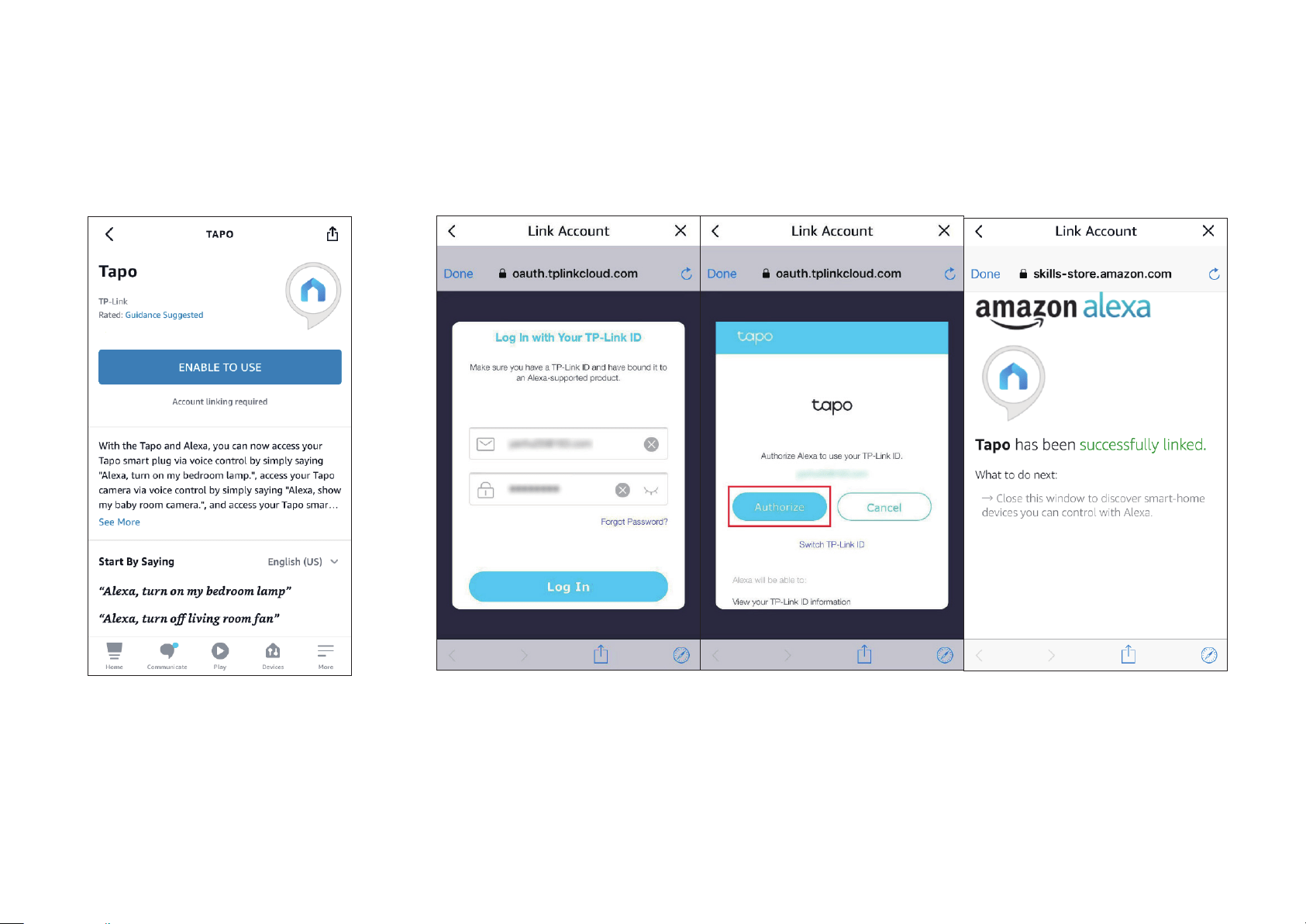
1. Open the Amazon Alexa app. Then tap More and select Skills &
Games.
How to use Amazon Frustration-Free Setup with Tapo devices
2. Enter Tapo in the search bar and choose Tapo.
7
3. Tap the ENABLE TO USE button.
4. Log in with your TP-Link ID that has bound to your Tapo device, and tap Authorize. After authorized
successfully, the message Tapo has been successfully linked will come up.

8
5. Plug in your Tapo device and the setup will complete automatically in two minutes.
For setting up more Tapo devices, just plug in and enjoy!
Done!
If this device displays on the Home page in the Tapo app, it indicates this device has been successfully associated with your Amazon account and
joined your Wi-Fi network automatically.
If this device does not display on the Home page in the Tapo app, try setting it up manually. (Tap the + button on the page, select your device model,
and then follow the app instructions to complete setup.)
9
Basic Device Control
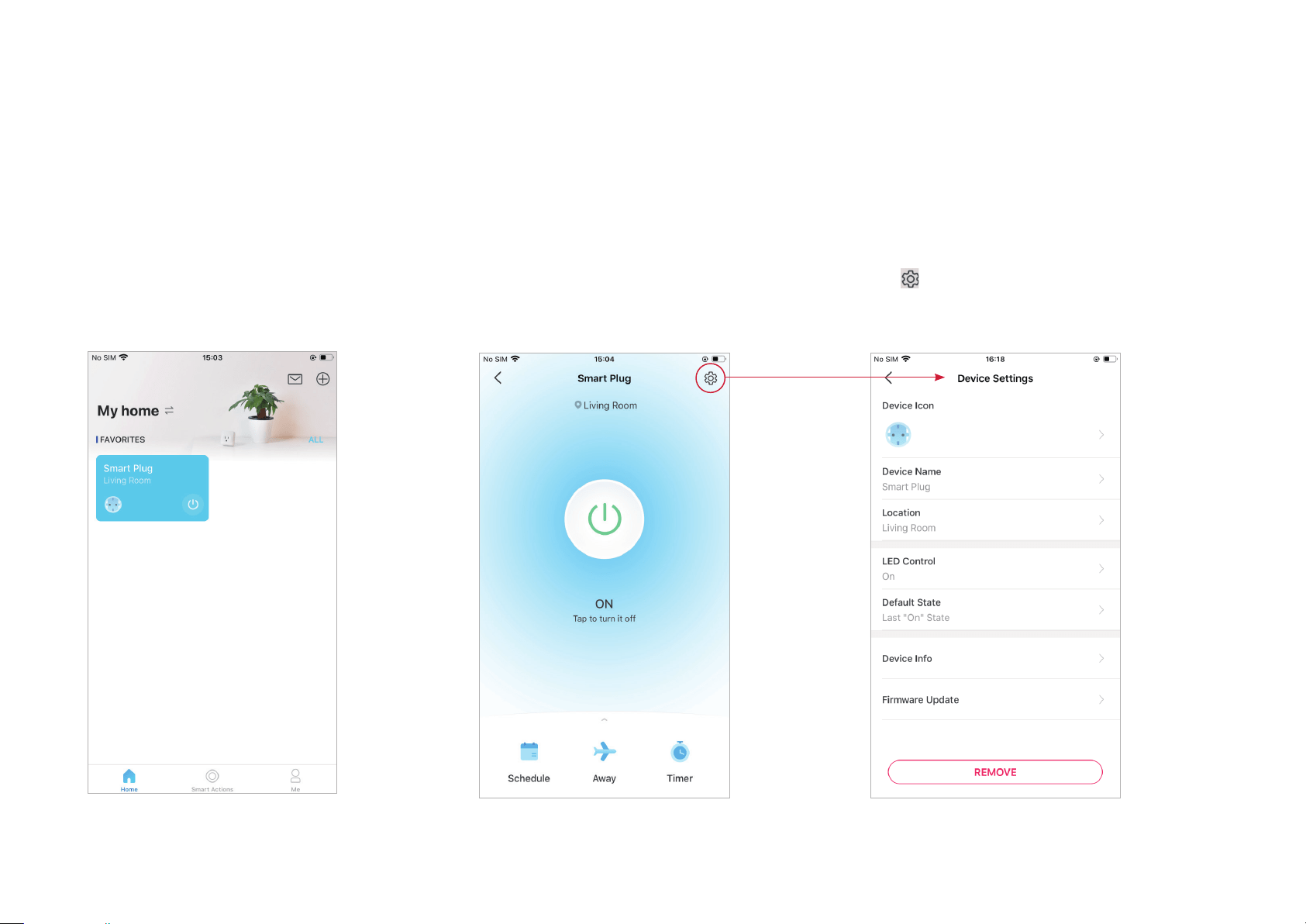
After successfully set up your smart socket, you will see the home page of the Tapo app. Here you can view the status of all devices that you've added
and manage them. You can tap on the device to control and manage.
Home Page
You can turn on/o your socket any time
anywhere and tap the plug card to enter the
status page.
Device Status Page
You can turn on/o your socket with one tap,
customize Schedule, enable Away Mode, set a
timer, and more.
Device Settings Page
Tap to view the Device Settings page. You
can edit the basic information, control the
LED, update rmware and more.
10
Congure Your Smart Socket
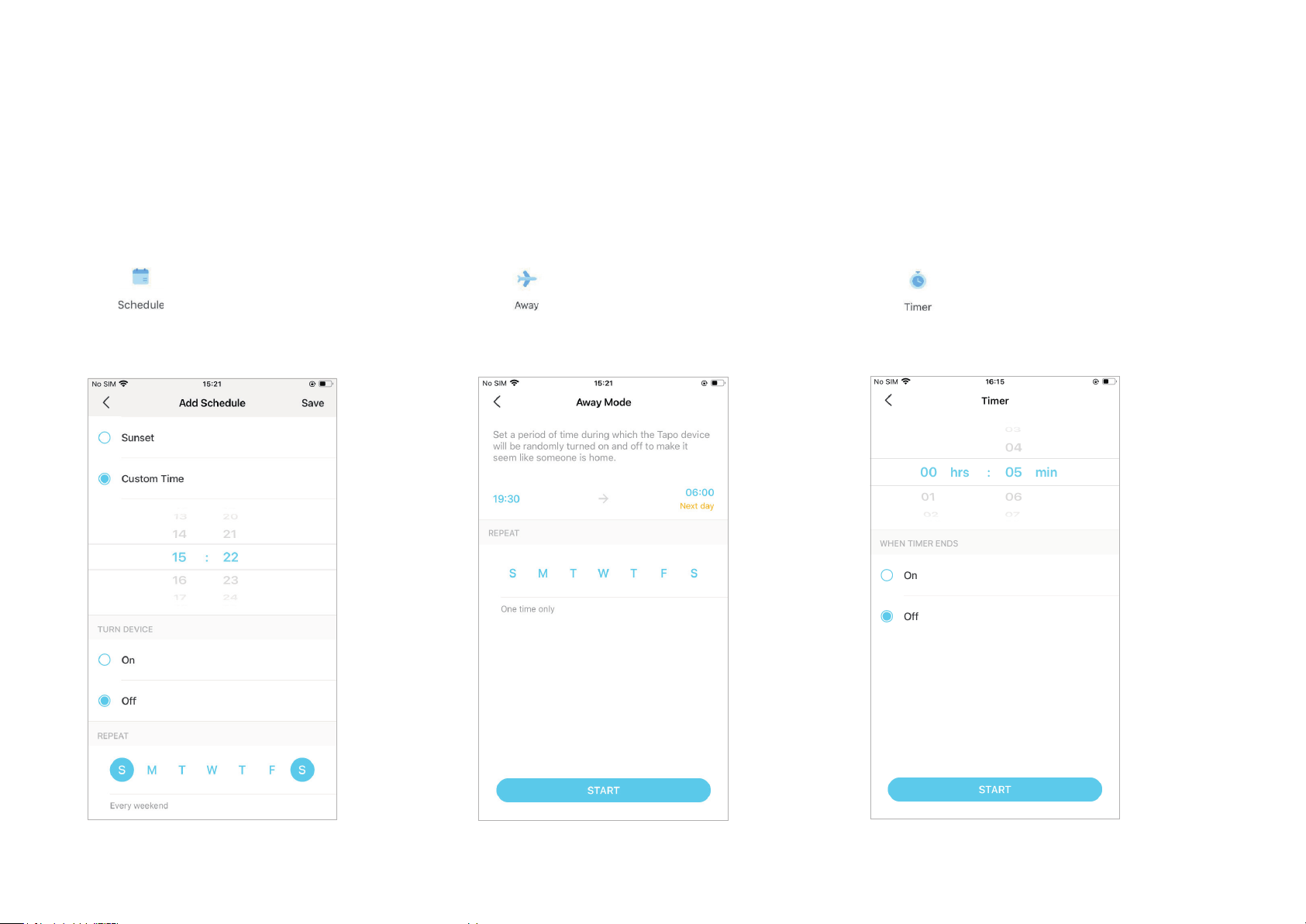
You can conure your smart socket by setting Schedule, Away Mode, Timer and more.
Set Schedule
Tap to set schedules for your socket to
automatically turn on/o to simplify your daily
routine.
Set Away Mode
Tap to preset the Away Mode, set the
start and end time, then your socket will be
randomly turned on/o during this period.
Set Timer
Tap to set the timer, then your socket will
automatically turn on/o after the timer ends.
11
Smart Actions
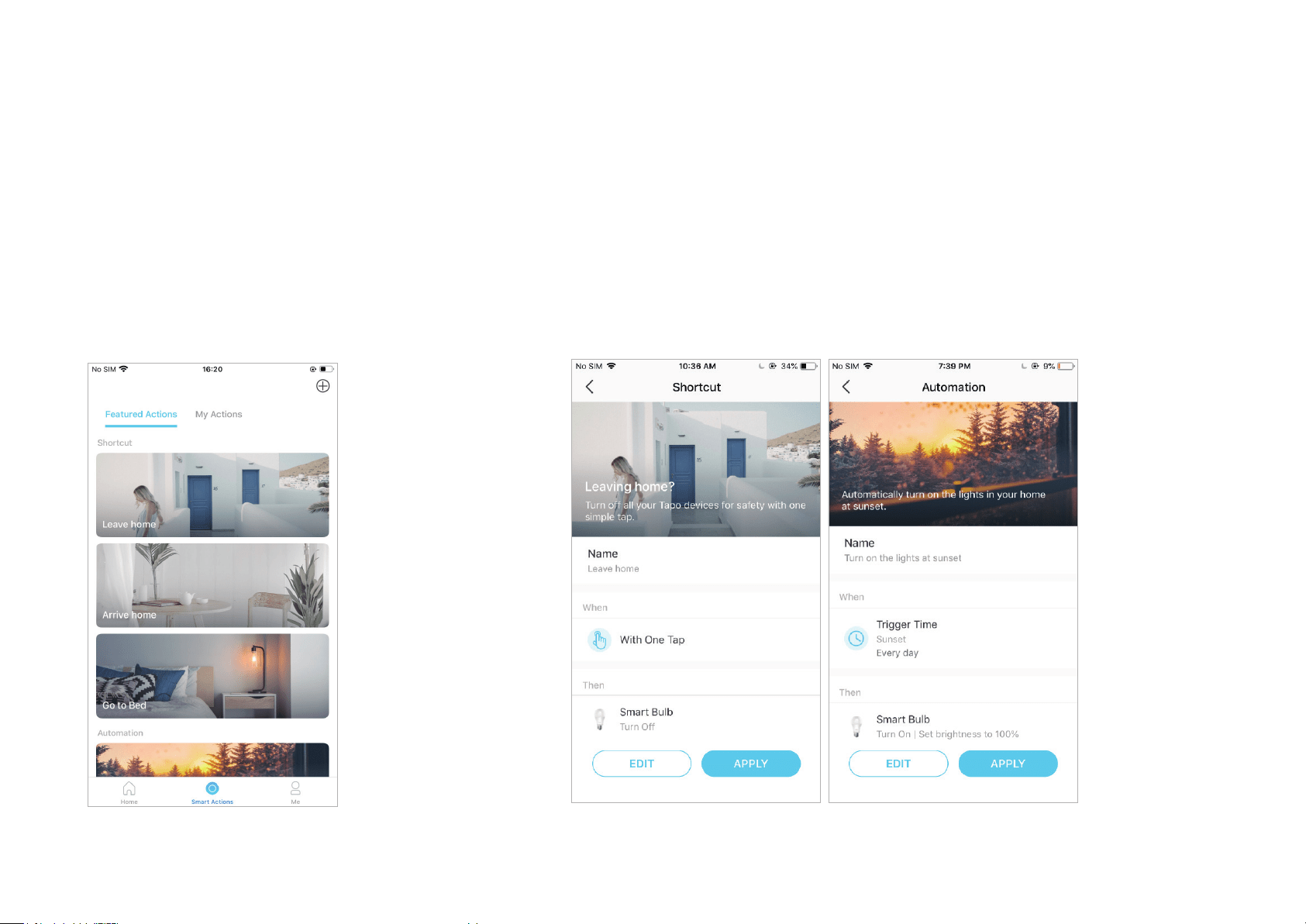
Smart Actions automate repetitive tasks, allowing you to blaze through tedium with utmost ease. Set everything up once and never have to worry about
it again. With Smart Actions, giving your home that level of intelligence is a snap. Shortcut lets you perform an action with a simple tap. Automation
allows you to automate tasks to be performed at a set time. e.g. The lamp plugged into your smart socket will light on at 7 PM.
Option 1: Edit based on the featured actions
1. Go to the Smart Actions page and you will see the
Featured Actions (Shortcut or Automation).
2. Tap on a featured action. Tap EDIT to change the settings as needed and tap APPLY
to save changes.
12
Option 2: Create your own actions
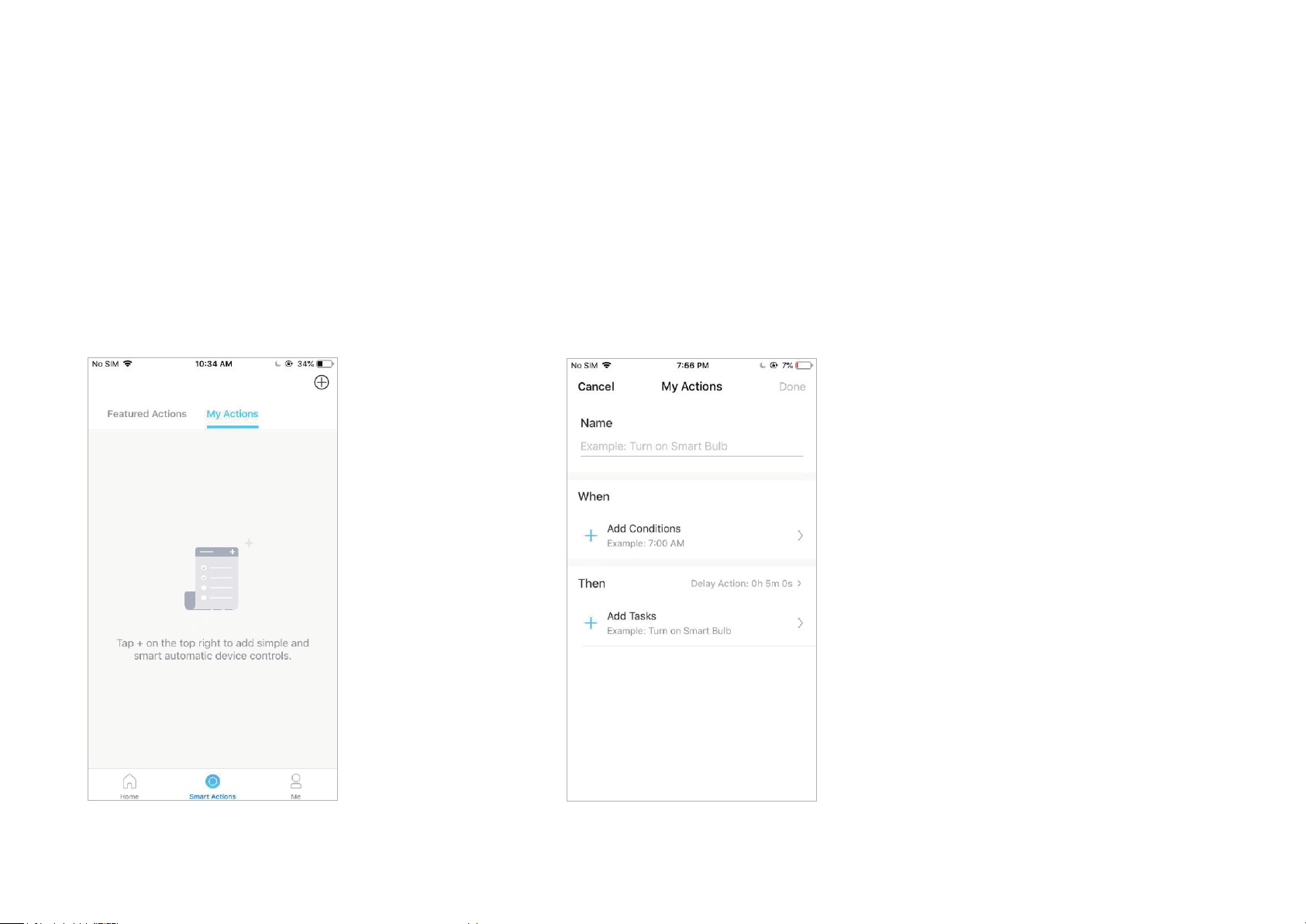
1. Go to My Actions page. Tap + on the top right to add a
simple and smart action.
2. Name the new action. Tap + to add conditions (When) like the trigger time, and tap +
to add tasks (Then) like turning on the smart socket.
13
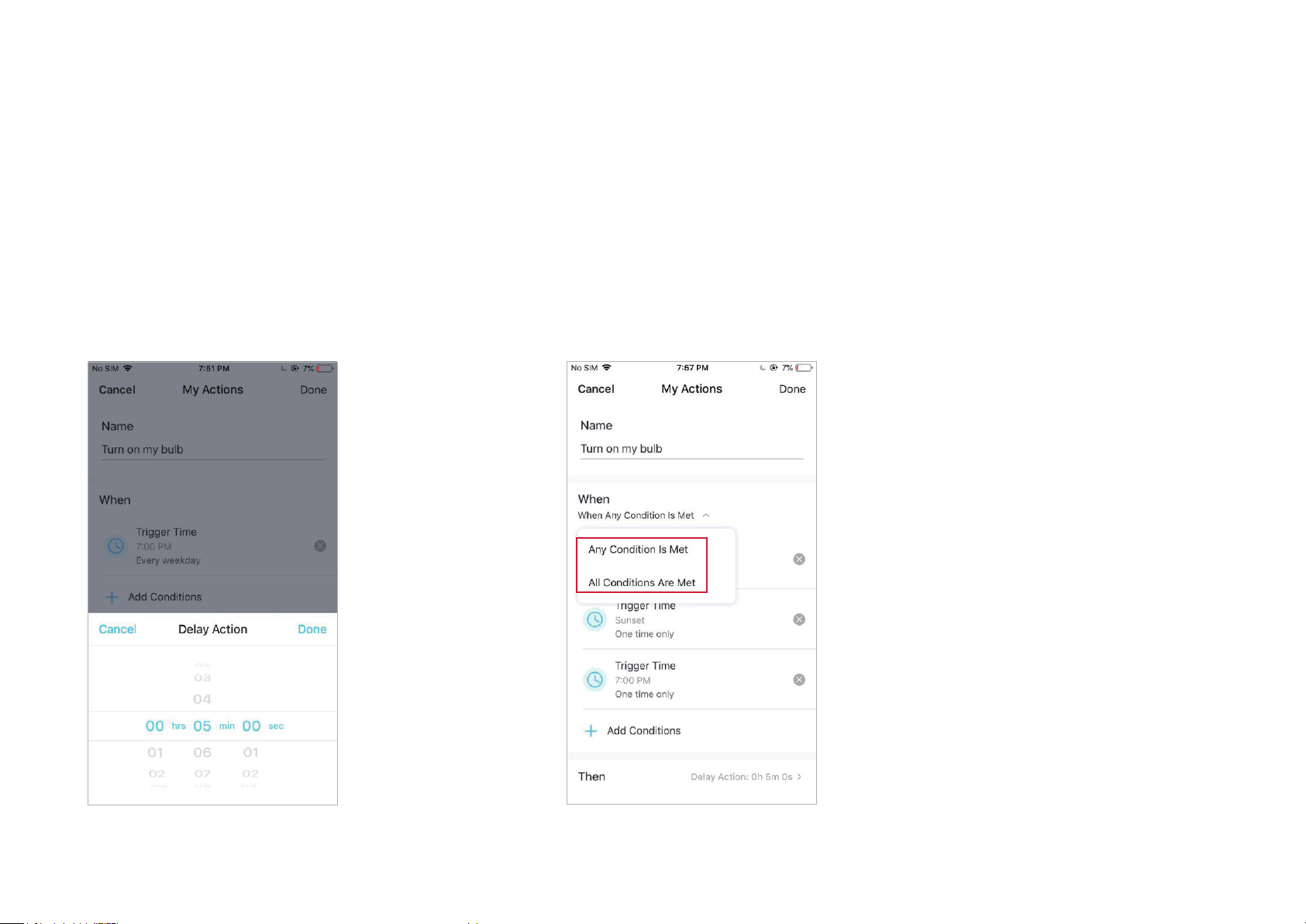
3. When the action is created, you can also delay the action
for a specic time. Tap Done to save all the settings.
If there are more than 2 conditions added, you can decide when to perform the action.
Tap When Any Condition is Met, and select “Any Condition is Met” or “All Conditions
Are Met”.
14
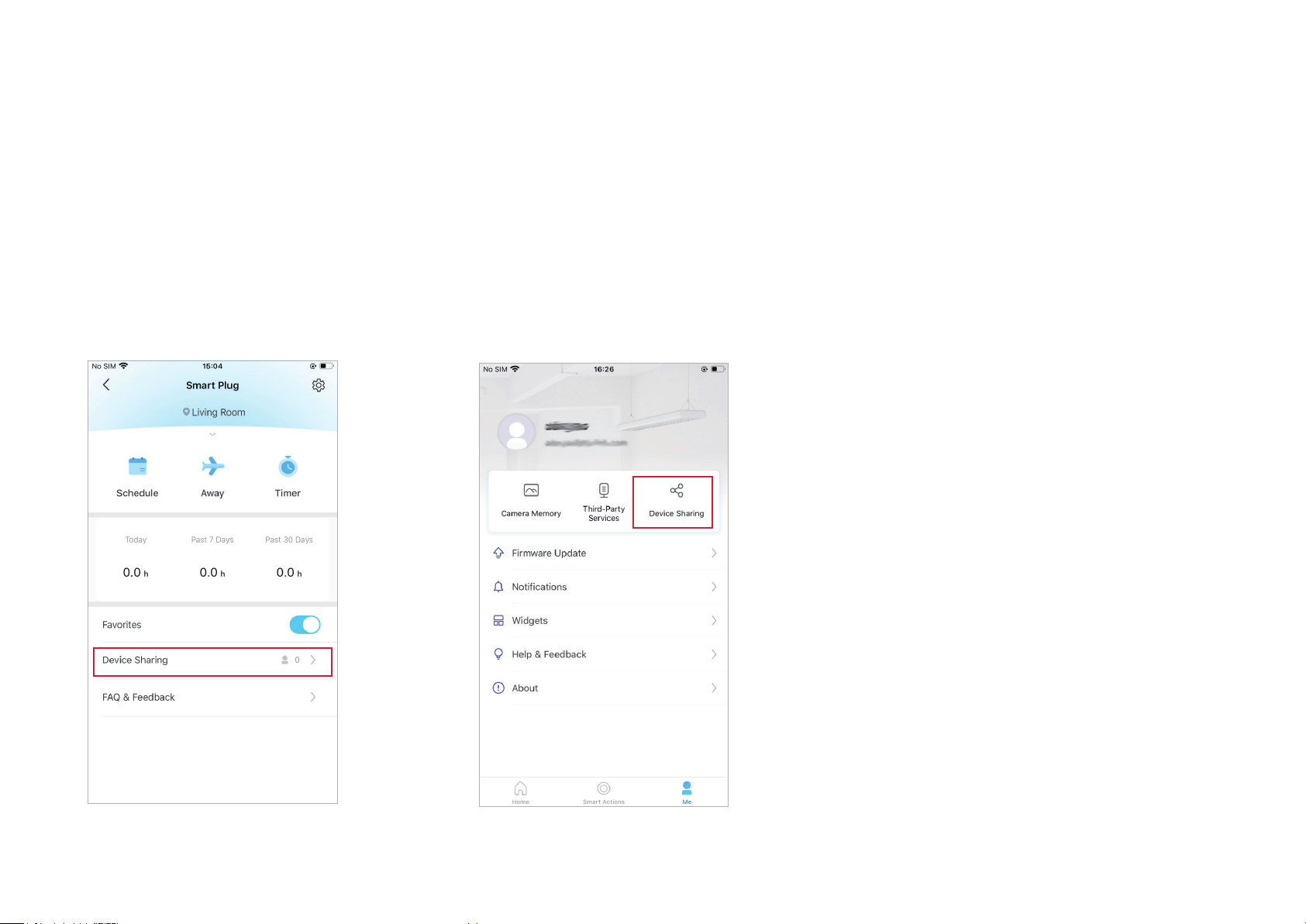
Method 1
Go to Device Status page, slide up and tap
Device Sharing.
Method 2
Go to Me page and tap Device Sharing to view
your shared devices and devices shared from
others.
Share Your Smart Socket
You can invite your family members to manage your Tapo devices together by entering the TP-Link ID (email) you want to share the devices with.
15
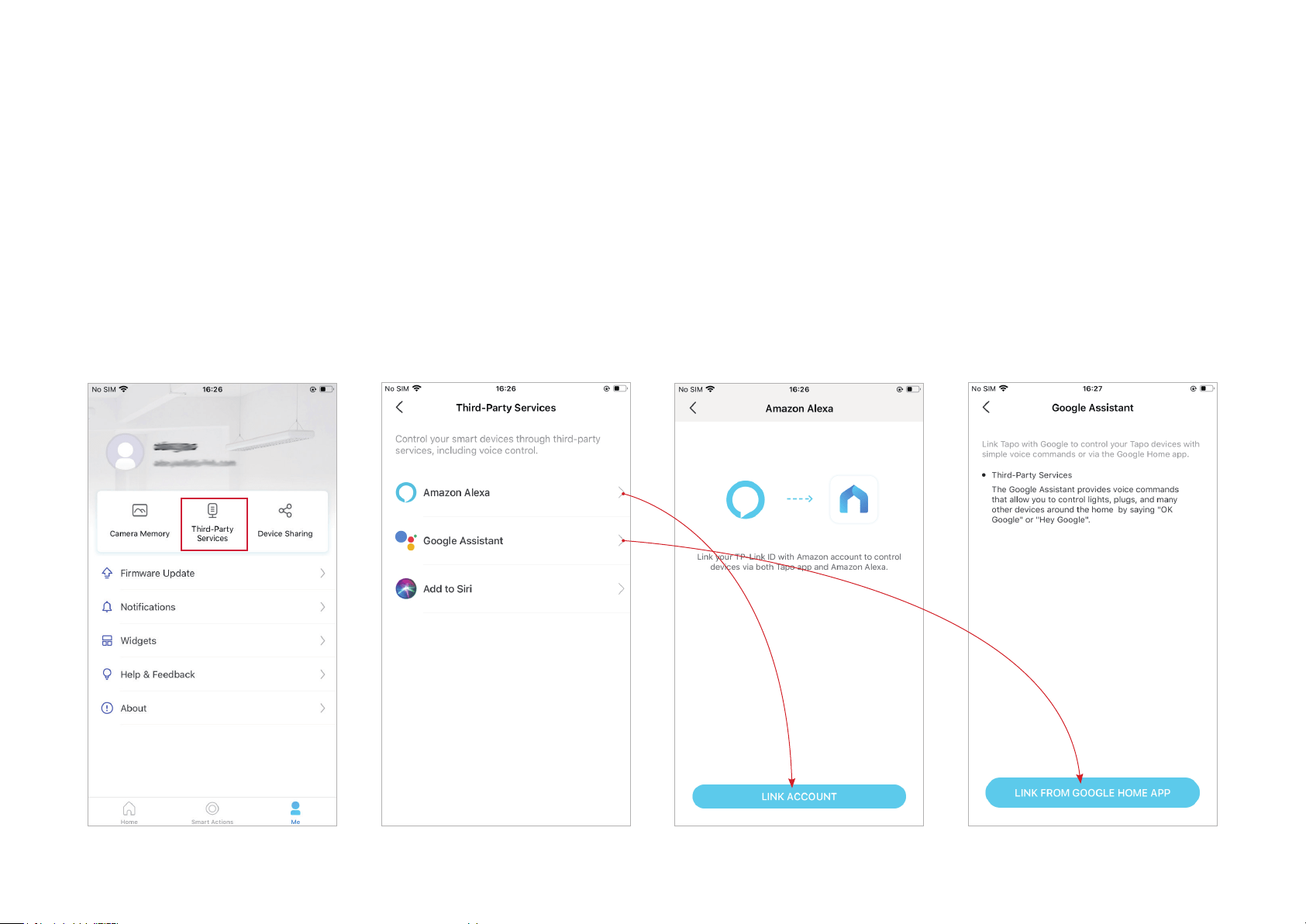
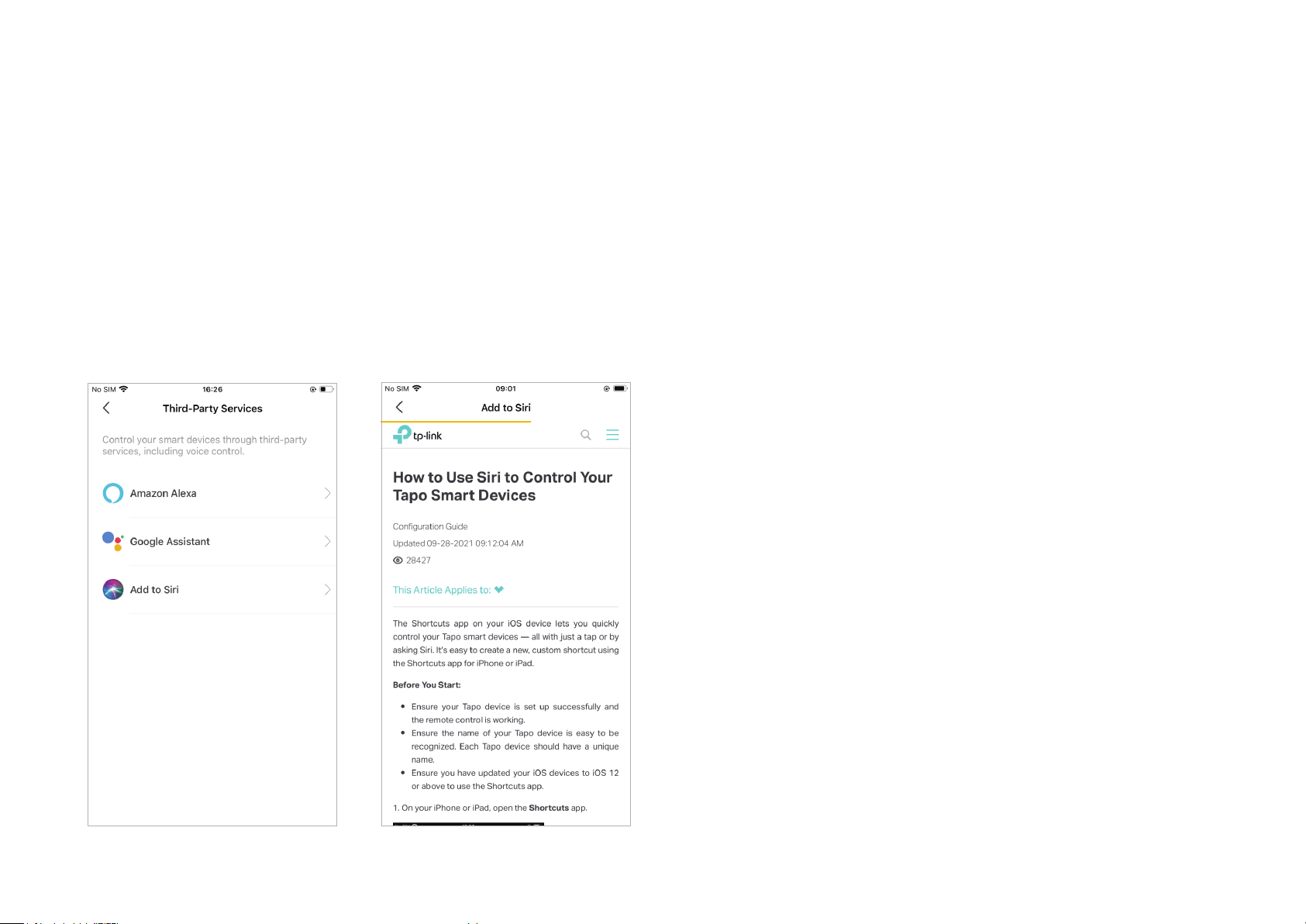
Go to Me page and tap Third-Party Services.
Select Amazon Alexa or Google Assistant. Follow the app instructions to
control your device via voice.
Third-Party Services
Control your smart devices through third-party services, including voice control. Free up your hands with simple voice commands to control your
devices via Amazon Alexa or Google Assistant.
16
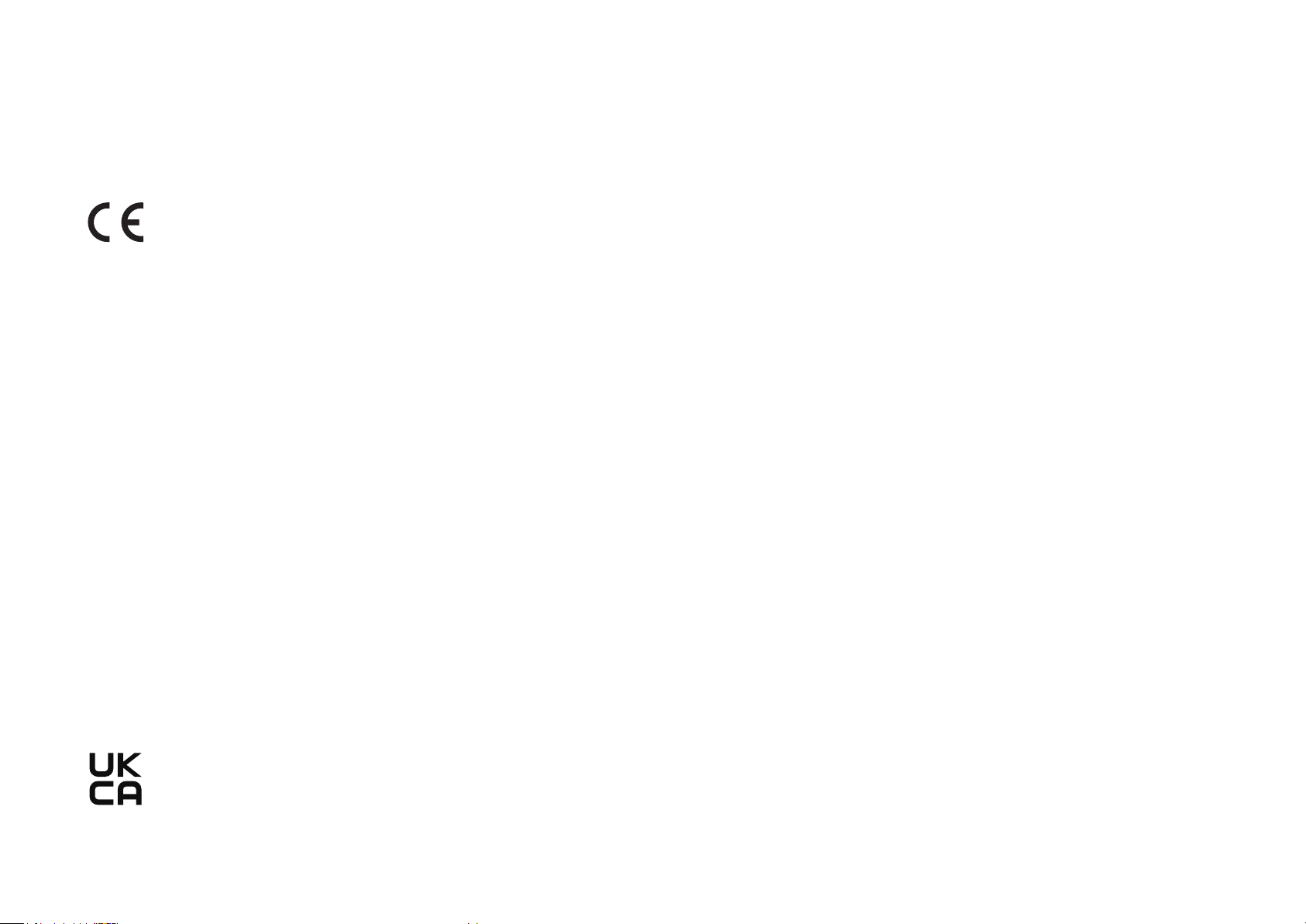
Select Add to Siri. Follow the app instructions to create a new, custom
shortcut using the Shortcuts app for iPhone or iPad.
17
Authentication
CE Mark Warning
This is a class B product. In a domestic environment, this product may cause radio interference, in which case the user may be required to take
adequate measures.
OPERATING FREQUENCY(the maximum transmitted power)
2400 MHz -2483.5 MHz (20dBm)
EU declaration of conformity
TP-Link hereby declares that the device is in compliance with the essential requirements and other relevant provisions of directives 2014/53/EU,
2009/125/EC, 2011 /65/EU and (EU) 2015/863.
The original EU declaration of conformity may be found at https://www.tapo.com/en/support/ce/
RF Exposure Information
This device meets the EU requirements (2014/53/EU Article 3.1a) on the limitation of exposure of the general public to electromagnetic fields by way
of health protection.
The device complies with RF specifications when the device used at 20 cm from your body.
Restricted to indoor use.
UKCA Mark
18
UK Declaration of Conformity
TP-Link hereby declares that the device is in compliance with the essential requirements and other relevant provisions of the Radio Equipment
Regulations 2017.
The original UK Declaration of Conformity may be found at https://www.tapo.com/support/ukca/
Safety Information
• Keep the device away from water, fire, humidity or hot environments.
• Do not attempt to disassemble, repair, or modify the device.
• Do not use the device where wireless devices are not allowed.
• The socket-outlet shall be installed near the equipment and shall be easily accessible.
• The devices are not intended for use in locations where the temperature may be less than actual room conditions, such as unheated warehouses
or garages.
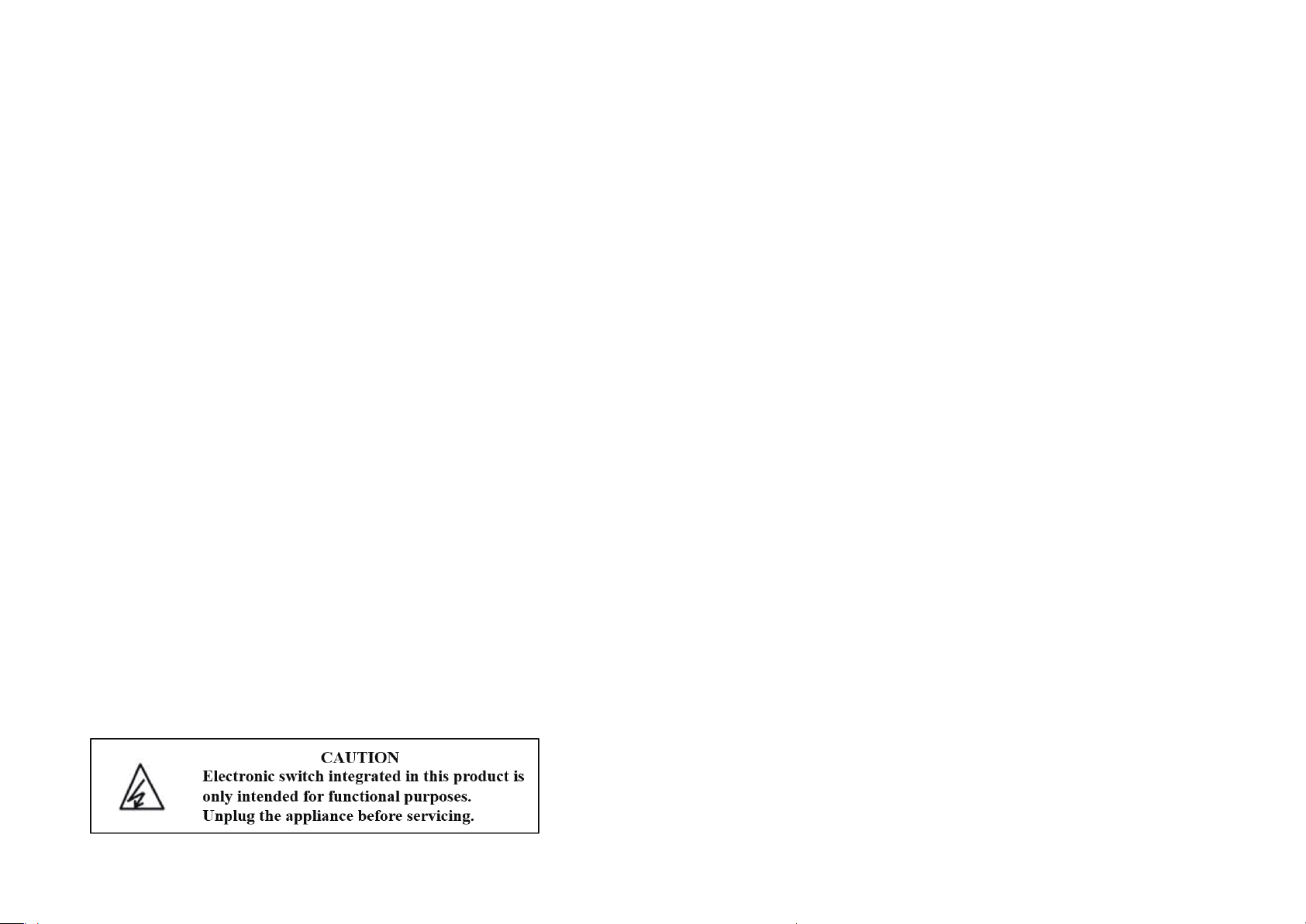
• For passthrough devices, plug the power strips into the integrated electrical sockets of the devices, but devices of the same or another type not
be stacked in normal use.
•
• For indoor use only.
• Do not overload power outlets. This can result in the risk of fire or electric shock.
• Completely insert the product into the power outlet. Failure to do so may cause electric shock and / or excessive heat resulting in fire.
• Regularly remove dust etc from the product by pulling it out from the power outlet and wiping with a DRY cloth. Accumulated dust may cause an
insulation defect resulting in fire.
• Unplug from the power outlet if it emits smoke, has an abnormal smell or makes an unusual noise.
• Do not use the product if the casing has been broken. Danger of electric shock.
• Never touch the product with wet hands.
• Do not place near automatically controlled devices such as fire alarms. Radio waves emitted from this product may cause such devices to
malfunction resulting in an accident.
• Do not use this product at a refuelling point.
19
• Observe restrictions on using wireless products in fuel depots, chemical plants or when blasting operations are in progress.
• Do not use liquid to clean the product. Only use a dry cloth.
• Never put metal objects inside the product. If a metal object enters the product turn off the circuit breaker and contact an authorised electrician.
• Be careful to connect the following- cooking appliances, irons, other devices that generate a large amount of heat. There is a risk of fire, burns or
injury. – power tools, electric machinery, or other devices that could cause injury and therefore must be used under direct careful observation. –
heating or cooling devices or any type of device which could cause health risks particularly to the elderly or children.
• This product is not intended to be used when providing medical care. Consult the manufacturer of any personal medical devices, such as pacemakers
or hearing aids to determine if they are adequality shielded from external RF (radio frequency) energy.
• Do not use this product in health care facilities. Hospitals or health care facilities may be using equipment that could be sensitive to external RF
energy.
• Do not use this product near water for example near a bath tub, wash bowl, kitchen sink or laundry tub, in a wet basement or near a swimming pool.
• The product should be kept free from excessive smoke, dust or high temperature and vibration.
• This product should not be exposed to direct sunlight.
• Do not place heavy objects on top of the product.
• When you leave the product unused for a long time unplug the product from the power outlet.
• Product should be kept away from heat sources such as radiators, cookers etc.- it should not be placed in rooms where the temperature is less than
0 degrees or greater than 40 degrees. Damp basements should also be avoided.
• This product may interfere with other electronic products such as TV, radios, personal computers, phones or other wireless devices.
• Operating Temperature: 0℃-40℃, 0℃-35℃ (For EU and FR version)
• Operating Humidity: 10%-90%RH, Non-condensing
• Storage Humidity: 5%-90%RH, Non-condensing
• Function switch of Micro-gap construction / Micro-disconnection is used. Power is completely off only when the plug has been withdrawn from
Tapo smart socket. Automatic action type of the integrated switch: Micro-disconnection (Type 1.B), Micro-gap construction (For UK version).
•
•
•

20
• Supported Load Type:
For AU version
220~240V ac, 50/60Hz, 10A max Resistive load;
Construction of switch: Micro-gap Switch(μ)
For EU Version
100~240V ac, 50/60Hz, 10A max Resistive load;
Construction of switch: Micro-gap Switch(μ)
For FR Version
230V ac, 50/60Hz, 10A max Resistive load;
Construction of switch: Micro-gap Switch(μ)
For UK version
100~240V ac, 50/60Hz, 13A max Resistive load;
Construction of switch: Micro-gap Switch(μ)
Please read and follow the above safety information when operating the device. We cannot guarantee that no accidents or damage will occur due to
improper use of the device. Please use this product with care and operate at your own risk.
21
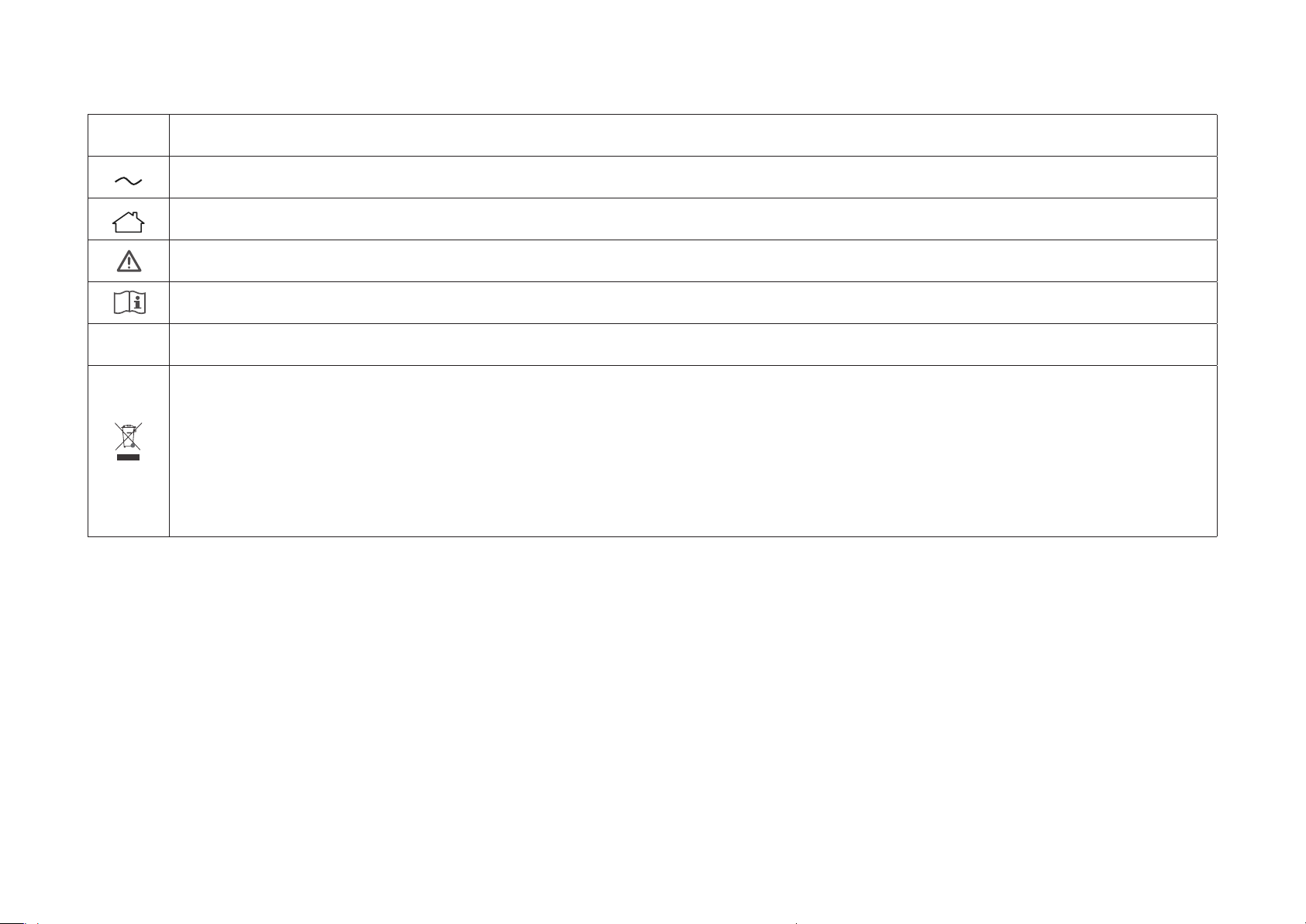
Explanation of the symbols on the product label
Symbol
Explanation
AC voltage
Indoor use only
Caution
Operator’s manual
μ
Switch of micro-gap / micro-disconnection construction
RECYCLING
This product bears the selective sorting symbol for Waste electrical and electronic equipment (WEEE). This means that this product must
be handled pursuant to European directive 2012/19/EU in order to be recycled or dismantled to minimize its impact on the environment.
User has the choice to give his product to a competent recycling organization or to the retailer when he buys a new electrical or electronic
equipment.