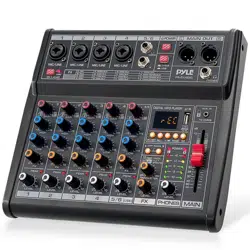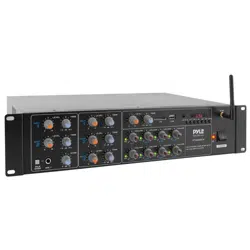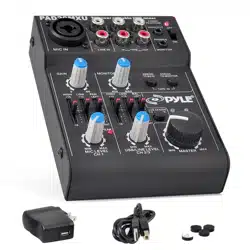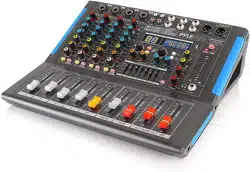

Wireless BT Streaming Studio Mixer
DJ Controller Audio Mixing Console System
PMXU46BT - PMXU67BT - PMXU88BT - PMXU128BT
Balanced, Unbalanced- What's the Dierence?
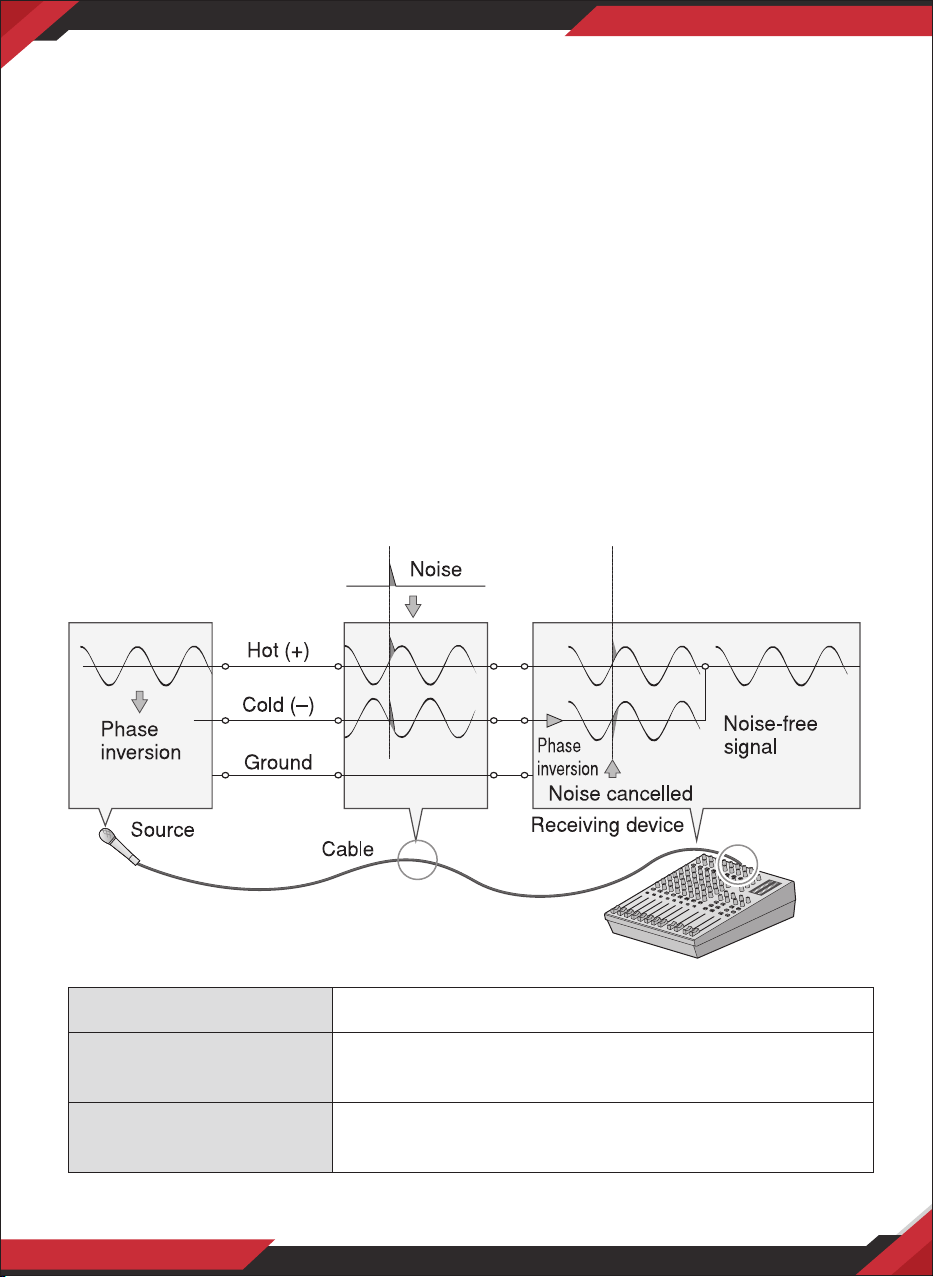
In a word: "noise." The whole point of balanced lines is noise rejection, and its something
they're very good at. Any length of wire will act as an antenna to pick up the random
electromagnetic radiation we're constantly surrounded by: radio and TV signals as well as
spurious electromagnetic noise generated by power lines, motors, electric appliances,
computer monitors, and a variety of other sources.The longer the wire, the more noise it is
likely to pick up. That's why balanced lines are the best choice for long cable runs. If your
"studio" is basically conned to your desktop and all connections are no more than a meter
or two in length, then unbalanced lines are ne-unless you're surrounded by extremely high
levels of electromagnetic noise. Another place balanced lines are almost always used is in
microphone cables. The reason for this is that the output signal from most microphones is
very small, so even a tiny amount of noise will be relatively large, and will be amplied to an
alarming degree in the mixer's high-gain head amplier.
Balanced Noise Cancellation
Microphones
Short Line - Level runs
Long Line - Level runs
Use balanced lines.
Unbalanced lines are ne if you’re in a relatively noise-
free environment
The ambient electromagnetic noise level will be the
ultimate deciding factor, but balanced is best
Signal Levels and the Decibel
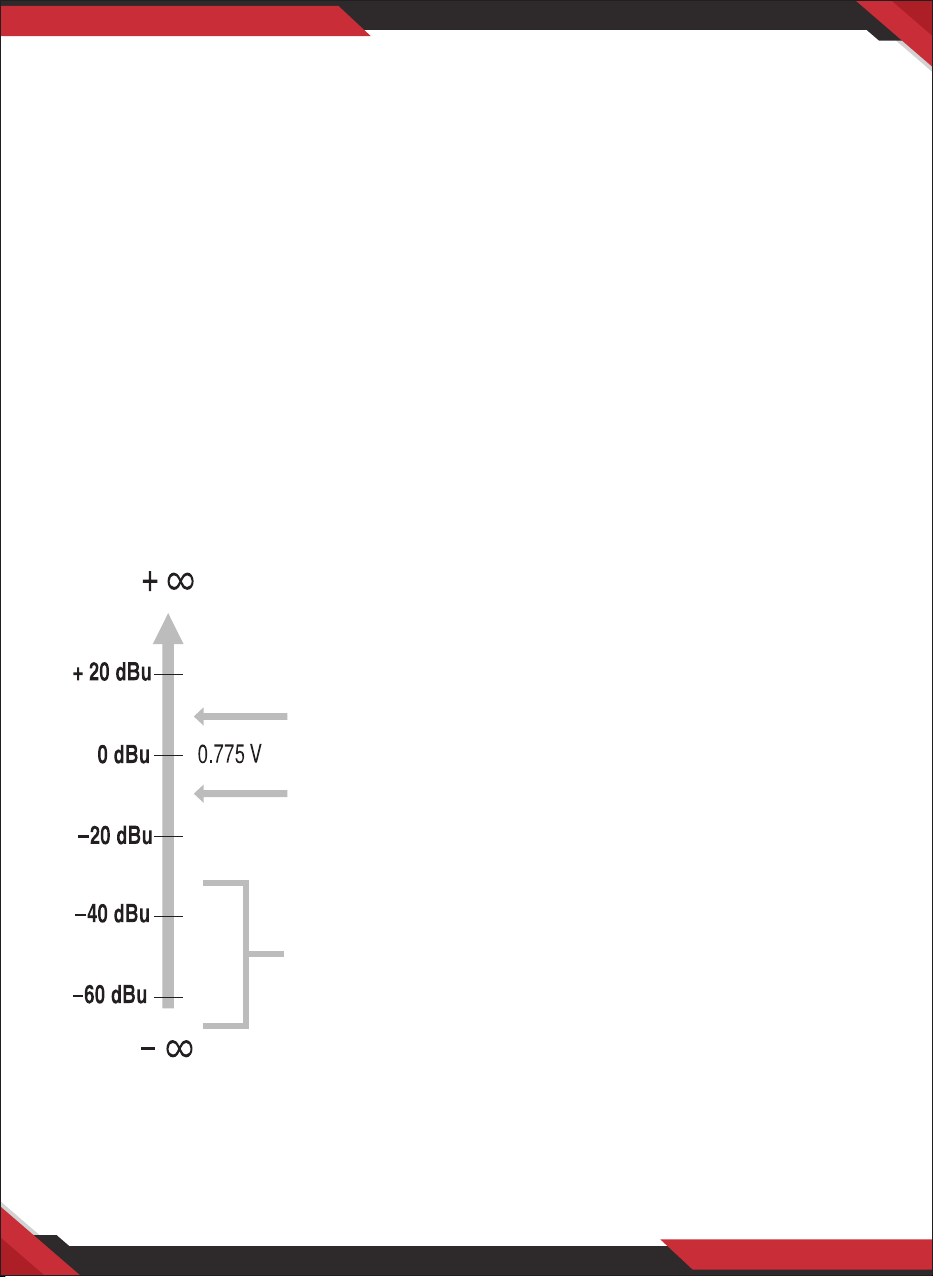
Let's take a look at one of the most commonly used units in audio: the decibel (dB). If the
smallest sound that can be heard by the human ear is given an arbitrary value of 1, then the
loudest sound that can be heard is approximately 1,000,000 (one million) times louder. That's
too many digits to deal with for practical calculations, and so the more appropriate "decibel"
(dB) unit was created for sound-related measurements. In this system the dierence between
the softest and loudest sounds that can be heard is 120 dB. This is a non-linear scale, and a
dierence of 3 dB actually results in a doubling or halving of the loudness.
You might encounter a number of dierent varieties of the dB: dBu, dBV,dBM and others, but
the dBu is the basic decibel unit. In the case of dBu, "0 dBu" is specied as a signal level of
0.775 volts. For example, if a microphone's output level is -40 dBu (0.00775 V), then to raise
that level to 0 dBu (0.775 V) in the mixer's preamp stage requires that the signal be amplied
by 100 times. A mixer may be required to handle signals at a wide range of levels, and it is
necessary match input and output levels as closely as possible. In most cases the ''nominal"
level for a mixer's input and outputs is marked on the panelor listed in the owner's manual.
Most professional mixers, power ampliers, and other
types of equipment have inputs and outputs with a
nominal level of +4 dBu
The Inputs and outputs on home-use audio gear usually
have a nominal level of -7.8 dBu (-10 dBV).
Microphone signal levels vary over a wide range depending
on the type of microphone and the source. Avarage speech is
about -30 dBu, but the twittering of a bird might be lower
than -50dBu while a solid bass drum beat might produce a
level as high as 0 dBu
www.PyleUSA.com
1
www.PyleUSA.com
2
Balanced, Unbalanced- What's the Dierence?
In a word: "noise." The whole point of balanced lines is noise rejection, and its something
they're very good at. Any length of wire will act as an antenna to pick up the random
electromagnetic radiation we're constantly surrounded by: radio and TV signals as well as
spurious electromagnetic noise generated by power lines, motors, electric appliances,
computer monitors, and a variety of other sources.The longer the wire, the more noise it is
likely to pick up. That's why balanced lines are the best choice for long cable runs. If your
"studio" is basically conned to your desktop and all connections are no more than a meter
or two in length, then unbalanced lines are ne-unless you're surrounded by extremely high
levels of electromagnetic noise. Another place balanced lines are almost always used is in
microphone cables. The reason for this is that the output signal from most microphones is
very small, so even a tiny amount of noise will be relatively large, and will be amplied to an
alarming degree in the mixer's high-gain head amplier.
Balanced Noise Cancellation
Microphones
Short Line - Level runs
Long Line - Level runs
Use balanced lines.
Unbalanced lines are ne if you’re in a relatively noise-
free environment
The ambient electromagnetic noise level will be the
ultimate deciding factor, but balanced is best
Signal Levels and the Decibel
Let's take a look at one of the most commonly used units in audio: the decibel (dB). If the
smallest sound that can be heard by the human ear is given an arbitrary value of 1, then the
loudest sound that can be heard is approximately 1,000,000 (one million) times louder. That's
too many digits to deal with for practical calculations, and so the more appropriate "decibel"
(dB) unit was created for sound-related measurements. In this system the dierence between
the softest and loudest sounds that can be heard is 120 dB. This is a non-linear scale, and a
dierence of 3 dB actually results in a doubling or halving of the loudness.
You might encounter a number of dierent varieties of the dB: dBu, dBV,dBM and others, but
the dBu is the basic decibel unit. In the case of dBu, "0 dBu" is specied as a signal level of
0.775 volts. For example, if a microphone's output level is -40 dBu (0.00775 V), then to raise
that level to 0 dBu (0.775 V) in the mixer's preamp stage requires that the signal be amplied
by 100 times. A mixer may be required to handle signals at a wide range of levels, and it is
necessary match input and output levels as closely as possible. In most cases the ''nominal"
level for a mixer's input and outputs is marked on the panelor listed in the owner's manual.
Most professional mixers, power ampliers, and other
types of equipment have inputs and outputs with a
nominal level of +4 dBu
The Inputs and outputs on home-use audio gear usually
have a nominal level of -7.8 dBu (-10 dBV).
Microphone signal levels vary over a wide range depending
on the type of microphone and the source. Avarage speech is
about -30 dBu, but the twittering of a bird might be lower
than -50dBu while a solid bass drum beat might produce a
level as high as 0 dBu
www.PyleUSA.com
1
www.PyleUSA.com
2

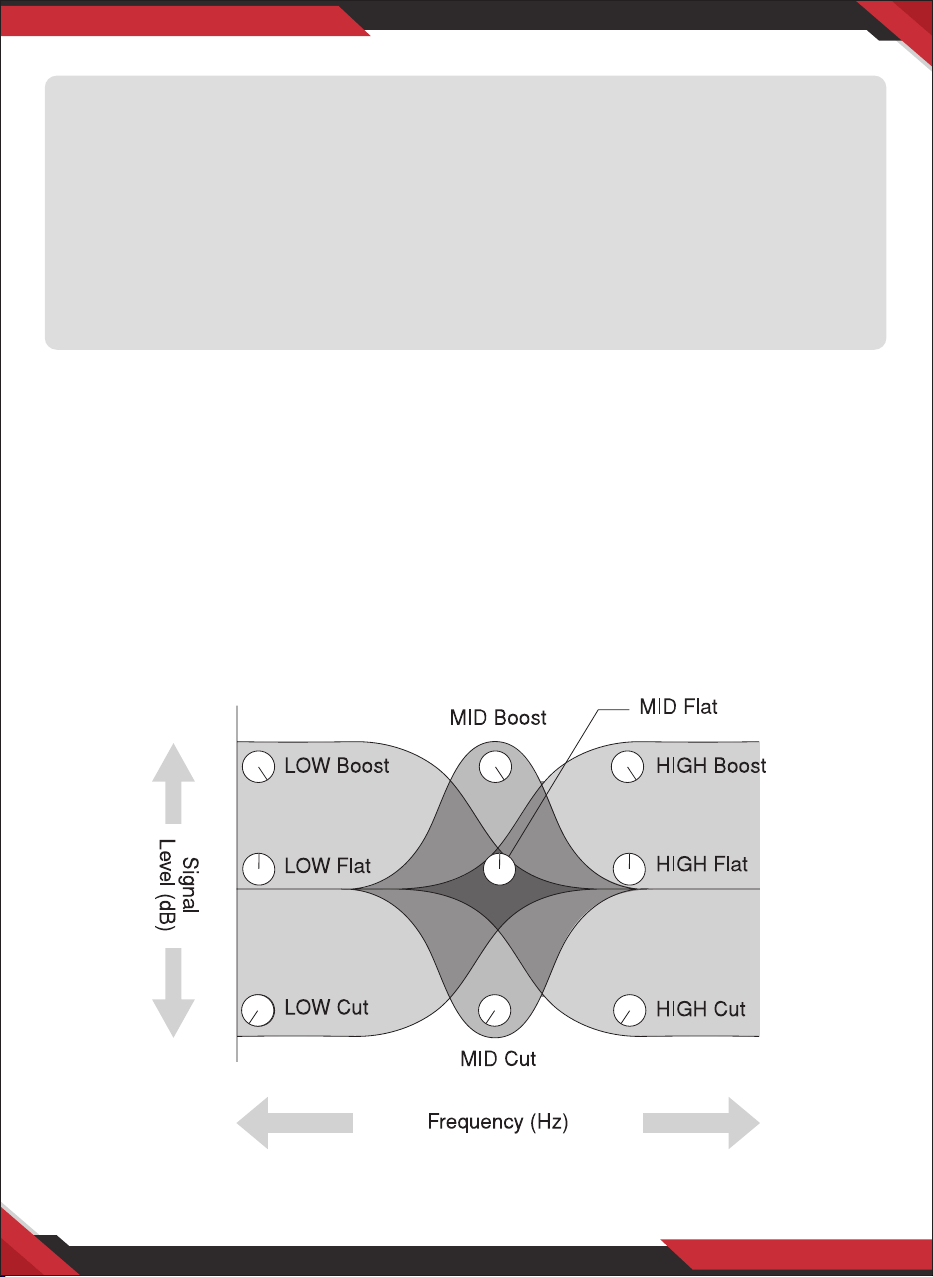
To EQ or Not to EQ
In general: less is better. There are many situations in which you'll need to cut certain
frequency ranges, but use boost sparingly, and with caution. Proper use of EQ can eliminate
interference between instruments in a mix and give the overall sound better denition. Bad
EQ-and most commonly bad boost-just sounds terrible.
Cut for a Cleaner Mix
For example: cymbals have a lot of energy in the mid and low frequency ranges that you
don't really perceive as musical sound, but which can interfere with the clarity of other
instruments in these ranges. You can basically turn the low EQ on cymbal channels all the
way down without changing the way they sound in the mix. You'll hear the dierence,
however, in the way the mix sounds more spacious," and instruments in the lower ranges will
have better denition. Surprisingly enough, piano also has an incredibly powerful low end
that can benet from a bit of low-frequency roll -o to let other instruments-notably drums
and bass-do their jobs more eectively. Naturally you won't want to do this if the piano is
playing solo. The reverse applies to kick drums and bass guitars: you can often roll o the
high end to create more space in the mix without compromising the character of the instru-
ments. You'll have to use your ears, though, because each instrument is dierent and some-
times you'll want the snap of a bass guitar, for example, to come through.
The fundamental and harmonic frequency ranges of some musical instruments
Boost with Caution
If you're trying to create special or unusual eects, go ahead and boost away as much as you
like. But if you're just trying to achieve a good-sounding mix, boost only in very small
increments. A tiny boost in the midrange can give vocals more presence, or a touch of high
boost can give certain instruments more "air." Listen, and if things don't sound clear and
clean try using cut to remove frequencies that are cluttering up the mix rather than trying to
boost the mix into clarity. One of the biggest problems with too much boost is that it adds
gain to the signal, increasing noise and potentially overloading the subsequent circuitry.
Fundamental: The frequency that determines the basic musical pitch.
Harmonics: Multiples of the fundamentalfrequency that play a role
in determining the timbre of the instrument.
Some Frequency Facts
The lowest and highest frequencies than can be heard by the human ear are generally
considered to be around 20 Hz and 20,000 Hz. respectively. Average conversation occurs
in the range from about 300Hz to about 3,000 Hz. The frequency of a standard pitchfork
used to tune guitars and other instruments is 440Hz (this corresponds to the "A3" key on
a piano tuned to concert pitch). Double this frequency to 880Hz and you have a pitch
one octave higher (i.e"A4" on the piano keyboard). In the same way you can halve the
frequency to 220Hz to produce "A2" an octave lower.
www.PyleUSA.com
3
www.PyleUSA.com
4
To EQ or Not to EQ
In general: less is better. There are many situations in which you'll need to cut certain
frequency ranges, but use boost sparingly, and with caution. Proper use of EQ can eliminate
interference between instruments in a mix and give the overall sound better denition. Bad
EQ-and most commonly bad boost-just sounds terrible.
Cut for a Cleaner Mix
For example: cymbals have a lot of energy in the mid and low frequency ranges that you
don't really perceive as musical sound, but which can interfere with the clarity of other
instruments in these ranges. You can basically turn the low EQ on cymbal channels all the
way down without changing the way they sound in the mix. You'll hear the dierence,
however, in the way the mix sounds more spacious," and instruments in the lower ranges will
have better denition. Surprisingly enough, piano also has an incredibly powerful low end
that can benet from a bit of low-frequency roll -o to let other instruments-notably drums
and bass-do their jobs more eectively. Naturally you won't want to do this if the piano is
playing solo. The reverse applies to kick drums and bass guitars: you can often roll o the
high end to create more space in the mix without compromising the character of the instru-
ments. You'll have to use your ears, though, because each instrument is dierent and some-
times you'll want the snap of a bass guitar, for example, to come through.
The fundamental and harmonic frequency ranges of some musical instruments
Boost with Caution
If you're trying to create special or unusual eects, go ahead and boost away as much as you
like. But if you're just trying to achieve a good-sounding mix, boost only in very small
increments. A tiny boost in the midrange can give vocals more presence, or a touch of high
boost can give certain instruments more "air." Listen, and if things don't sound clear and
clean try using cut to remove frequencies that are cluttering up the mix rather than trying to
boost the mix into clarity. One of the biggest problems with too much boost is that it adds
gain to the signal, increasing noise and potentially overloading the subsequent circuitry.
Fundamental: The frequency that determines the basic musical pitch.
Harmonics: Multiples of the fundamentalfrequency that play a role
in determining the timbre of the instrument.
Some Frequency Facts
The lowest and highest frequencies than can be heard by the human ear are generally
considered to be around 20 Hz and 20,000 Hz. respectively. Average conversation occurs
in the range from about 300Hz to about 3,000 Hz. The frequency of a standard pitchfork
used to tune guitars and other instruments is 440Hz (this corresponds to the "A3" key on
a piano tuned to concert pitch). Double this frequency to 880Hz and you have a pitch
one octave higher (i.e"A4" on the piano keyboard). In the same way you can halve the
frequency to 220Hz to produce "A2" an octave lower.
www.PyleUSA.com
3
www.PyleUSA.com
4

Ambience
Your mixes can be further rened by adding ambience eects such as reverb or delay. The
internal eects can be used to add reverb or delay to individual channels in the same way as
exlernal eects processors. (Refer to page 15).
Reverb and Delay Time
The optimum reverb time for a piece of music will depend on the music's tempo and density,
but as a general rule longer reverb times are good for ballads, while shorter reverb times are
more suited to up tempo tunes. Delay times can be adjusted to create a wide variety of
''grooves". When adding delay to a vocal, for example, try setting the delay time to dotted
eighth notes corresponding to the tune's tempo.
Reverb Tone
Dierent reverb programs will have dierent ''reverb tone" due to dierences in the reverb
time of the high or low frequencies. Too much reverb, particularly in the high frequencies,
can result in unnatural sound and interfere with the high frequencies in other parts of the
mix. It's always a good idea to choose a reverb program that gives you the depth you want
without detracting from the clarity of the mix.
Reverb Level
It's amazing how quickly your ears can lose perspective and fool you into believing that a
totally washed-out mix sounds perfectly ne. To avoid falling into this trap start with reverb
level all the way down, then gradually bring the reverb into the mix until you can just hear
the dierence. Any more than this normally becomes a "special eect".
The Modulation Eects:
Phasing, Chorus, and Flanging
All of these eects work on basically the same principle: a portion of the audio signal is
''time-shifted" and then mixed back with the direct signal. The amount of time shift is
controlled, or "modulated", by an LFO (Low-frequency Oscillator).
For phasing eects the shift is very small. The phase dierence between the
modulated and direct signals causes cancellation at some frequencies and reinforces the
signal at others and this causes the shimmering sound we hear.
For chorus and anging the signal is delayed by several milliseconds, with the delay time
modulated by an LFO, and recombined with the direct signal. In addition to the phasing
eect described above, the delay modulation causes a perceived pitch shift which, when
mixed with the direct signal, results in a harmonically rich swirling or swishing sound. The
dierence between chorus and anging eects is primarily in the amount of delay time and
feedback used--anging uses longer delay times than chorus, whereas chorus generally uses
a more complex delay structure.
Chorus is most often used to thicken the sound of an instrument, while anging is usually
used as an outright "special eect" to produce other worldly sonic swoops.
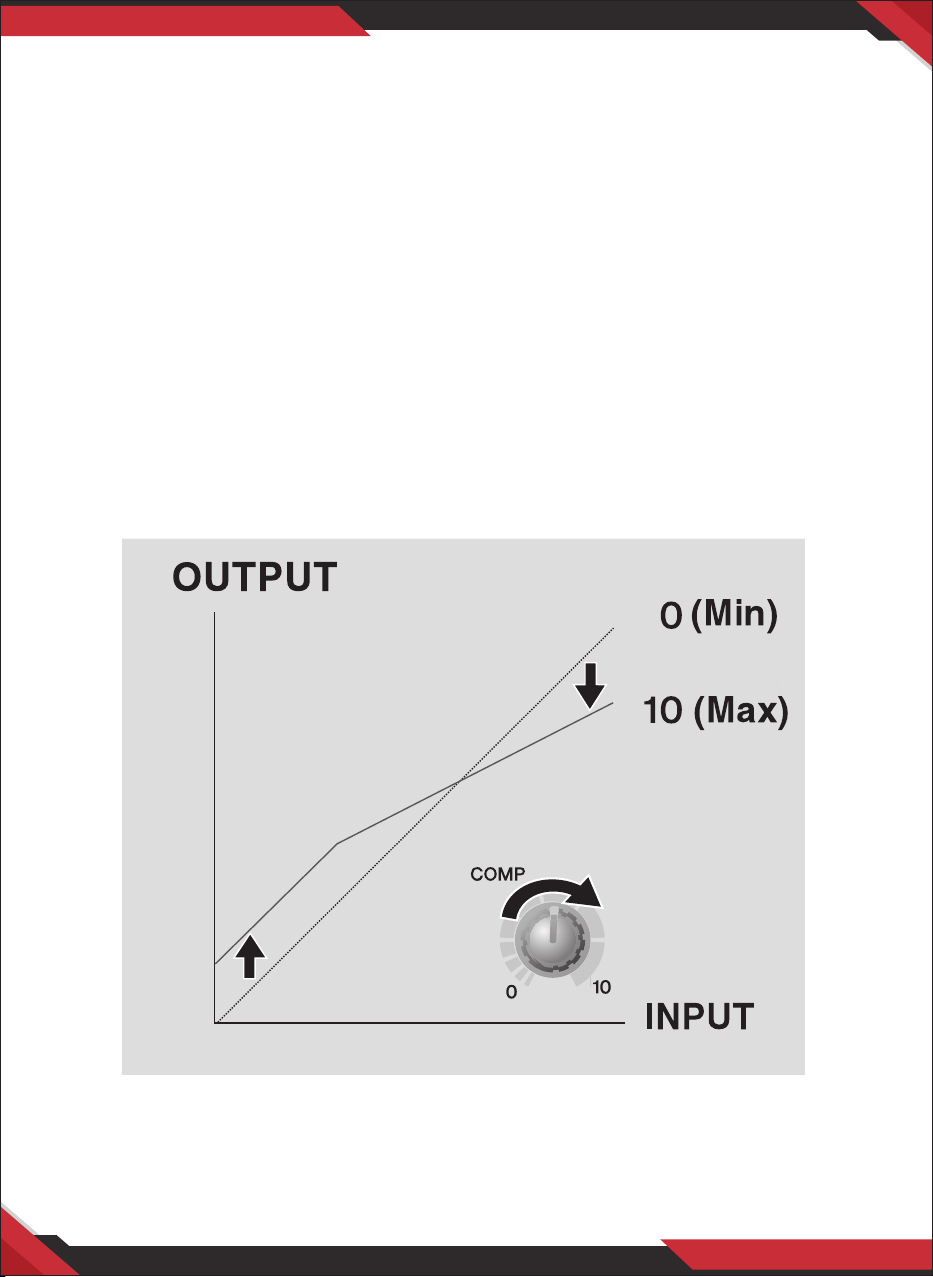
Compression
One form of compression known as "limiting" can, when properly used, produce a smooth,
unied sound with no excessive peaks or distortion. A common example of the use of
compression is to "tame" a vocal that has a wide dynamic range in order to tighten up the
mix. With the right amount of compression you'll be able to clearly hear whispered passages
while passionate shouts are still well balanced in the mix. Compression can also be valuable
on bass guitar. Too much compression can cause feedback, however, so use it sparingly. Most
compressors require several critical parameters to be set properly to achieve the desired
sound. The MG compressor makes achieving great sound much easier: all you need to do is
set a single ''compression" control and all of the pertinent parameters are automatically
adjusted for you.
www.PyleUSA.com
5
www.PyleUSA.com
6
Ambience
Your mixes can be further rened by adding ambience eects such as reverb or delay. The
internal eects can be used to add reverb or delay to individual channels in the same way as
exlernal eects processors. (Refer to page 15).
Reverb and Delay Time
The optimum reverb time for a piece of music will depend on the music's tempo and density,
but as a general rule longer reverb times are good for ballads, while shorter reverb times are
more suited to up tempo tunes. Delay times can be adjusted to create a wide variety of
''grooves". When adding delay to a vocal, for example, try setting the delay time to dotted
eighth notes corresponding to the tune's tempo.
Reverb Tone
Dierent reverb programs will have dierent ''reverb tone" due to dierences in the reverb
time of the high or low frequencies. Too much reverb, particularly in the high frequencies,
can result in unnatural sound and interfere with the high frequencies in other parts of the
mix. It's always a good idea to choose a reverb program that gives you the depth you want
without detracting from the clarity of the mix.
Reverb Level
It's amazing how quickly your ears can lose perspective and fool you into believing that a
totally washed-out mix sounds perfectly ne. To avoid falling into this trap start with reverb
level all the way down, then gradually bring the reverb into the mix until you can just hear
the dierence. Any more than this normally becomes a "special eect".
The Modulation Eects:
Phasing, Chorus, and Flanging
All of these eects work on basically the same principle: a portion of the audio signal is
''time-shifted" and then mixed back with the direct signal. The amount of time shift is
controlled, or "modulated", by an LFO (Low-frequency Oscillator).
For phasing eects the shift is very small. The phase dierence between the
modulated and direct signals causes cancellation at some frequencies and reinforces the
signal at others and this causes the shimmering sound we hear.
For chorus and anging the signal is delayed by several milliseconds, with the delay time
modulated by an LFO, and recombined with the direct signal. In addition to the phasing
eect described above, the delay modulation causes a perceived pitch shift which, when
mixed with the direct signal, results in a harmonically rich swirling or swishing sound. The
dierence between chorus and anging eects is primarily in the amount of delay time and
feedback used--anging uses longer delay times than chorus, whereas chorus generally uses
a more complex delay structure.
Chorus is most often used to thicken the sound of an instrument, while anging is usually
used as an outright "special eect" to produce other worldly sonic swoops.
Compression
One form of compression known as "limiting" can, when properly used, produce a smooth,
unied sound with no excessive peaks or distortion. A common example of the use of
compression is to "tame" a vocal that has a wide dynamic range in order to tighten up the
mix. With the right amount of compression you'll be able to clearly hear whispered passages
while passionate shouts are still well balanced in the mix. Compression can also be valuable
on bass guitar. Too much compression can cause feedback, however, so use it sparingly. Most
compressors require several critical parameters to be set properly to achieve the desired
sound. The MG compressor makes achieving great sound much easier: all you need to do is
set a single ''compression" control and all of the pertinent parameters are automatically
adjusted for you.
www.PyleUSA.com
5
www.PyleUSA.com
6

Caution!
• To prevent re or shock hazard, do not expose the unit to rain or moisture.
• Do not open the top cover (or the rear section), high voltage exist inside the unit dangerously.
No user serviceable parts inside.
• Refer servicing to qualied personnel.
Precautions!
1. Do not use this apparatus near water, if any liquid or water fall into the cabinet, unplug the
unit and have it checked by a qualied personnel before operating it any further.
2. Clean only with dry cloth.
3. Do not block any ventilation openings.
4. Be sure that there is enough space around the unit for cooling purposes, do not install near
any heat sources such as radiators, heat registers, stoves, or other apparatus (including
ampliers) that produce heat.
5. Operate only on designated power supply which is printed on the unit.
6. Unplug the unit from the wall outlet or set the Master switch to OFF if it is not to be used
for several days.
7. To disconnect the cord, pull it out by the plug. Never pull the cord itself.
8. Please note that all units is properly grounded, for your safety, you should never remove
any gound connectors from electronic devices, or render them inoperative.
Contents
Balanced, Unbalanced - What's the Dierence? ......................................................................................... 1
Signal Levels and the Decibel ........................................................................................................................... 2
To EQ or Not to EQ ................................................................................................................................................. 3
Ambience ................................................................................................................................................................. 5
Contents ................................................................................................................................................................... 7
Connection Diagram ............................................................................................................................................ 8
Functional Specication ............................................................................................................................... 9-18
Installation .............................................................................................................................................................. 19
Troubleshooting ................................................................................................................................................... 20
Specications ....................................................................................................................................................... 21
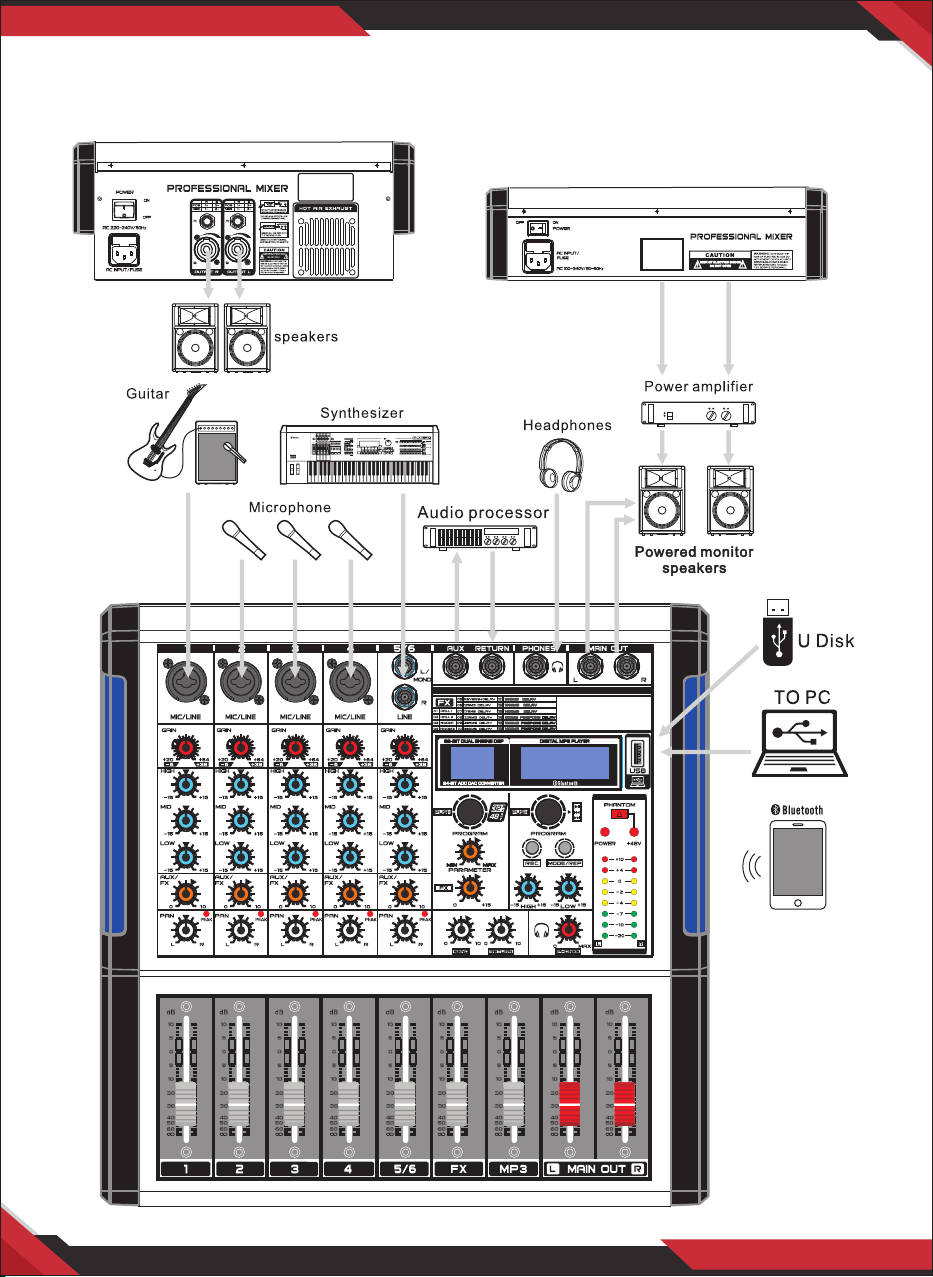
Connection Diagram
Built- in Power Amplier
www.PyleUSA.com
7
www.PyleUSA.com
8
Caution!
• To prevent re or shock hazard, do not expose the unit to rain or moisture.
• Do not open the top cover (or the rear section), high voltage exist inside the unit dangerously.
No user serviceable parts inside.
• Refer servicing to qualied personnel.
Precautions!
1. Do not use this apparatus near water, if any liquid or water fall into the cabinet, unplug the
unit and have it checked by a qualied personnel before operating it any further.
2. Clean only with dry cloth.
3. Do not block any ventilation openings.
4. Be sure that there is enough space around the unit for cooling purposes, do not install near
any heat sources such as radiators, heat registers, stoves, or other apparatus (including
ampliers) that produce heat.
5. Operate only on designated power supply which is printed on the unit.
6. Unplug the unit from the wall outlet or set the Master switch to OFF if it is not to be used
for several days.
7. To disconnect the cord, pull it out by the plug. Never pull the cord itself.
8. Please note that all units is properly grounded, for your safety, you should never remove
any gound connectors from electronic devices, or render them inoperative.
Contents
Balanced, Unbalanced - What's the Dierence? ......................................................................................... 1
Signal Levels and the Decibel ........................................................................................................................... 2
To EQ or Not to EQ ................................................................................................................................................. 3
Ambience ................................................................................................................................................................. 5
Contents ................................................................................................................................................................... 7
Connection Diagram ............................................................................................................................................ 8
Functional Specication ............................................................................................................................... 9-18
Installation .............................................................................................................................................................. 19
Troubleshooting ................................................................................................................................................... 20
Specications ....................................................................................................................................................... 21
Connection Diagram
Built- in Power Amplier
www.PyleUSA.com
7
www.PyleUSA.com
8
8. CHANNEL FADER: Adjusts the level if theres no channel signal. Use these faders to adjust
the balance between the various channels.
9. AUX/SEND Jacks: The AUX SEND jack carries the master aux mix (from the channel's FX
controls).
10. AUX/RETURN Jacks: These are unbalanced phone-jack type line inputs. These jacks are
typically used to receive the signal returned from an external eect device (reverb, delay, etc.).
11. PHONES Jacks: Connect a pair of headphones to this TRS phone-type output jack.
12. MAIN OUT (L,R) Jacks: These jacks deliver the mixer's stereo output. You use these jacks,
for example, to connect to power amplier driving your main speakers.
13. EFFECTOR Display: Shows the kind of eector.
14. USB Jack: Used by U-Disk or computer sofeware for playing and recording.
15. MP3 Play Window: Shows the Mp3 playing, time, song name and other play instruction.
16. PROGRAM Control: You can select the eect preset by turning the PROGRAM control.
The display ashes with the number of the current preset. To recall the selected preset,
press on the button; the ashing stops. You can also recall the selected preset with the
foot switch.
17. PARAMETER Control: Used to adjust the depth of the selected eect, speed, etc.
18. FX Control: Used to adjust size aect.
19. SEND Control: Use this fader can control the MONO output jack.
20. RETURNS Control: Adjusts the level at which the signal received at the RETURN jacks (L
(MONO) and R) is sent to the STEREO.
21. PHONES Control: Controls the level of the signal output to the PHONES jack OUT jacks.
22. MP3 Control:
a. Selected songs/Play/Pause: When playing music, rotate to change up/down the song,
press to pause/play.
b. Recording: When playing music, press and hold to record, short press to nish recording
and enter playing of the recording music. When playing the recording music, short
press to switch to play the USB music, play from the rst USB music. When playing the
USB music, short press to switch to play the recording music, play from rst recording
music.
c. Mode/Repeat: Short press to switch the model of USB and Wireless BT, press and hold
to repeat the playing song. When playing the repeated song, press and hold to return
to normal play.
23. EQ of MP3 player: The two-band equalizer adjusts the level of the two bands Mp3 player.
24. +48 V PHANTOM Power: This switch toggles phantom power on and o. When the switch
is on the mixer supplies +48V phantom power to all channels that have XLR mic input
jacks. Turn this switch on when using one or more phantom-powered condenser
microphones.
25. POWER Indicator: This indicator lights up when the mixer's power is ON.
26.+48V Indicator: This indicator lights up when the +48V power is ON.
27. Level Meter: Show the strong signal's level
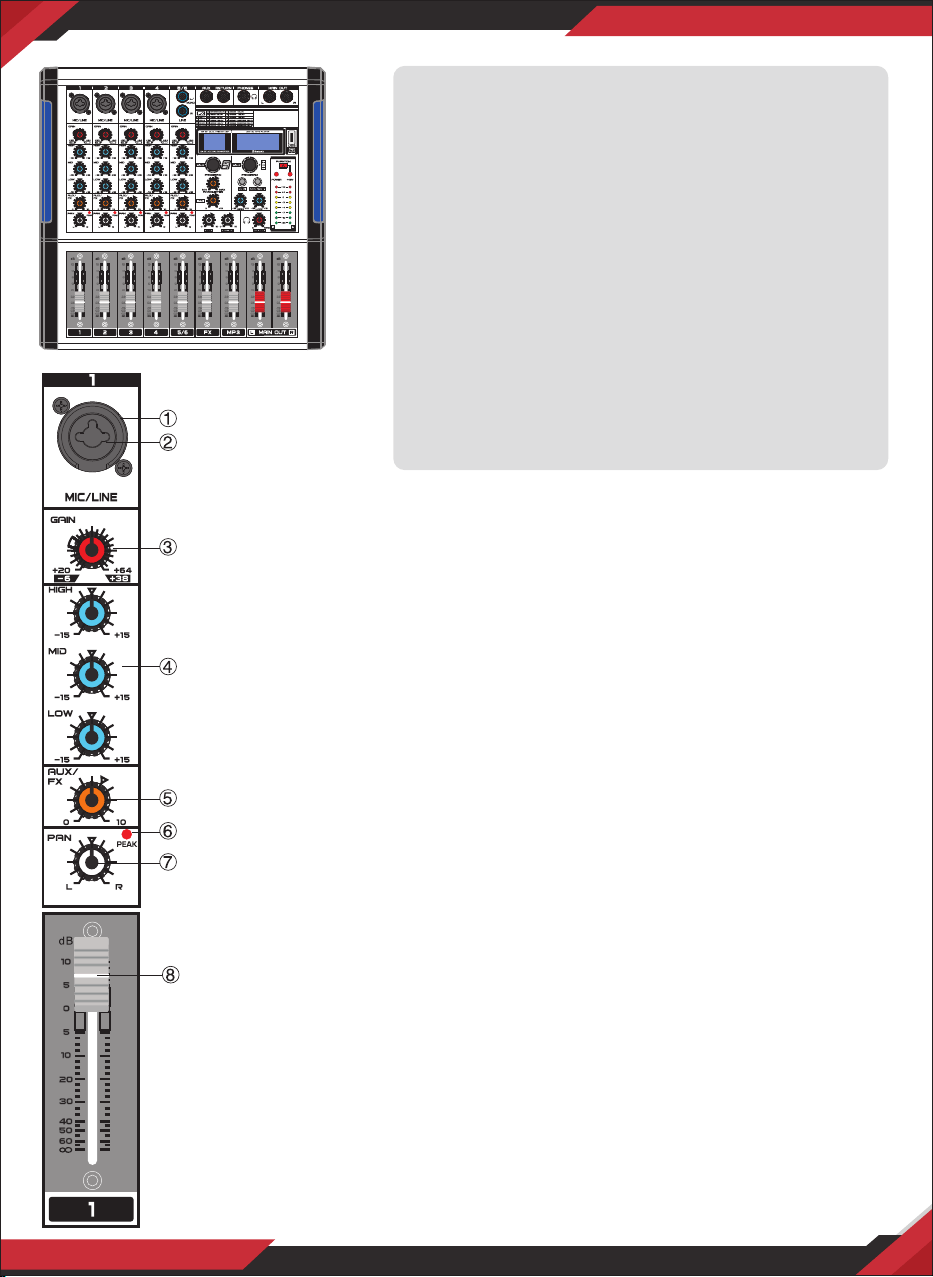
4/6/8/12/16 Input Channel Mixer New Multi-
Voltage Power Supply for Worldwide Use
4/6/8 Input Channel, Powered Mixer
• Built-in Wireless BT connects the mobile phone
or in other BT player
• Built-in MP3 player that supports variety of
music formats
• Connect the computer to record and play music
• Digital DSP, 16 Multi-FX effects
• Ultra -musical 3-band EQ on all channels
• Peak LED all Channels
• High accurate level indicator
• Phantom power switch (+48V )
• Sealed rotary controls to resist dust and grime
• Rugged steel chassis
1. MIC Input jacks: These are balanced XLR-type microphone input
jacks. (1: Ground; 2: Hot; 3: Cold)
2. LINE Input Jacks (monaural channels): These are balanced TRS
phone-jack line inputs. (T: Hot; R: Cold; S: Ground). You can connect
either balanced or unbalanced phone plugs to these jacks.
3. GAIN Control: Adjusts the input signal level. To get the best balance
between the S/N ratio and the dynamic range, adjust the gain so that
the PEAK indicator only occasionally and briey on the highest input
transients. The -60 to +10 scale is the MIC input adjustment range. The
40 to +10 scale is the LINE input adjustment range.
4. Equalizer 3 (HIGH, MID and LOW): This three-band equalizer
adjusts the channel's high, mid and low frequency bands. Setting the
knob to the "0" position produces a at response in the corresponding
band. Turning the knob to the right boosts the corresponding
frequency band, while turning to the left attenuates the band.
5. AUX/FX Control: The aux send marked FX oers a direct route to the
built-in eects processor and is therefore post-fader and post-mute.
6. PEAK LED: The PEAK-LED lights up when the input signal is driven too
high. If this happens, back o the TRIM control and, if necessary, check
the setting of the channel EQ.
7. PAN Control: The PAN control determines the position of the channel
signal within the stereo image. When working with subgroups, you can
use the PAN control to assign the signal to just one output, which
gives you additional exibility in recording situations.
www.PyleUSA.com
9
www.PyleUSA.com
10

8. CHANNEL FADER: Adjusts the level if theres no channel signal. Use these faders to adjust
the balance between the various channels.
9. AUX/SEND Jacks: The AUX SEND jack carries the master aux mix (from the channel's FX
controls).
10. AUX/RETURN Jacks: These are unbalanced phone-jack type line inputs. These jacks are
typically used to receive the signal returned from an external eect device (reverb, delay, etc.).
11. PHONES Jacks: Connect a pair of headphones to this TRS phone-type output jack.
12. MAIN OUT (L,R) Jacks: These jacks deliver the mixer's stereo output. You use these jacks,
for example, to connect to power amplier driving your main speakers.
13. EFFECTOR Display: Shows the kind of eector.
14. USB Jack: Used by U-Disk or computer sofeware for playing and recording.
15. MP3 Play Window: Shows the Mp3 playing, time, song name and other play instruction.
16. PROGRAM Control: You can select the eect preset by turning the PROGRAM control.
The display ashes with the number of the current preset. To recall the selected preset,
press on the button; the ashing stops. You can also recall the selected preset with the
foot switch.
17. PARAMETER Control: Used to adjust the depth of the selected eect, speed, etc.
18. FX Control: Used to adjust size aect.
19. SEND Control: Use this fader can control the MONO output jack.
20. RETURNS Control: Adjusts the level at which the signal received at the RETURN jacks (L
(MONO) and R) is sent to the STEREO.
21. PHONES Control: Controls the level of the signal output to the PHONES jack OUT jacks.
22. MP3 Control:
a. Selected songs/Play/Pause: When playing music, rotate to change up/down the song,
press to pause/play.
b. Recording: When playing music, press and hold to record, short press to nish recording
and enter playing of the recording music. When playing the recording music, short
press to switch to play the USB music, play from the rst USB music. When playing the
USB music, short press to switch to play the recording music, play from rst recording
music.
c. Mode/Repeat: Short press to switch the model of USB and Wireless BT, press and hold
to repeat the playing song. When playing the repeated song, press and hold to return
to normal play.
23. EQ of MP3 player: The two-band equalizer adjusts the level of the two bands Mp3 player.
24. +48 V PHANTOM Power: This switch toggles phantom power on and o. When the switch
is on the mixer supplies +48V phantom power to all channels that have XLR mic input
jacks. Turn this switch on when using one or more phantom-powered condenser
microphones.
25. POWER Indicator: This indicator lights up when the mixer's power is ON.
26.+48V Indicator: This indicator lights up when the +48V power is ON.
27. Level Meter: Show the strong signal's level
4/6/8/12/16 Input Channel Mixer New Multi-
Voltage Power Supply for Worldwide Use
4/6/8 Input Channel, Powered Mixer
• Built-in Wireless BT connects the mobile phone
or in other BT player
• Built-in MP3 player that supports variety of
music formats
• Connect the computer to record and play music
• Digital DSP, 16 Multi-FX effects
• Ultra -musical 3-band EQ on all channels
• Peak LED all Channels
• High accurate level indicator
• Phantom power switch (+48V )
• Sealed rotary controls to resist dust and grime
• Rugged steel chassis
1. MIC Input jacks: These are balanced XLR-type microphone input
jacks. (1: Ground; 2: Hot; 3: Cold)
2. LINE Input Jacks (monaural channels): These are balanced TRS
phone-jack line inputs. (T: Hot; R: Cold; S: Ground). You can connect
either balanced or unbalanced phone plugs to these jacks.
3. GAIN Control: Adjusts the input signal level. To get the best balance
between the S/N ratio and the dynamic range, adjust the gain so that
the PEAK indicator only occasionally and briey on the highest input
transients. The -60 to +10 scale is the MIC input adjustment range. The
40 to +10 scale is the LINE input adjustment range.
4. Equalizer 3 (HIGH, MID and LOW): This three-band equalizer
adjusts the channel's high, mid and low frequency bands. Setting the
knob to the "0" position produces a at response in the corresponding
band. Turning the knob to the right boosts the corresponding
frequency band, while turning to the left attenuates the band.
5. AUX/FX Control: The aux send marked FX oers a direct route to the
built-in eects processor and is therefore post-fader and post-mute.
6. PEAK LED: The PEAK-LED lights up when the input signal is driven too
high. If this happens, back o the TRIM control and, if necessary, check
the setting of the channel EQ.
7. PAN Control: The PAN control determines the position of the channel
signal within the stereo image. When working with subgroups, you can
use the PAN control to assign the signal to just one output, which
gives you additional exibility in recording situations.
www.PyleUSA.com
9
www.PyleUSA.com
10
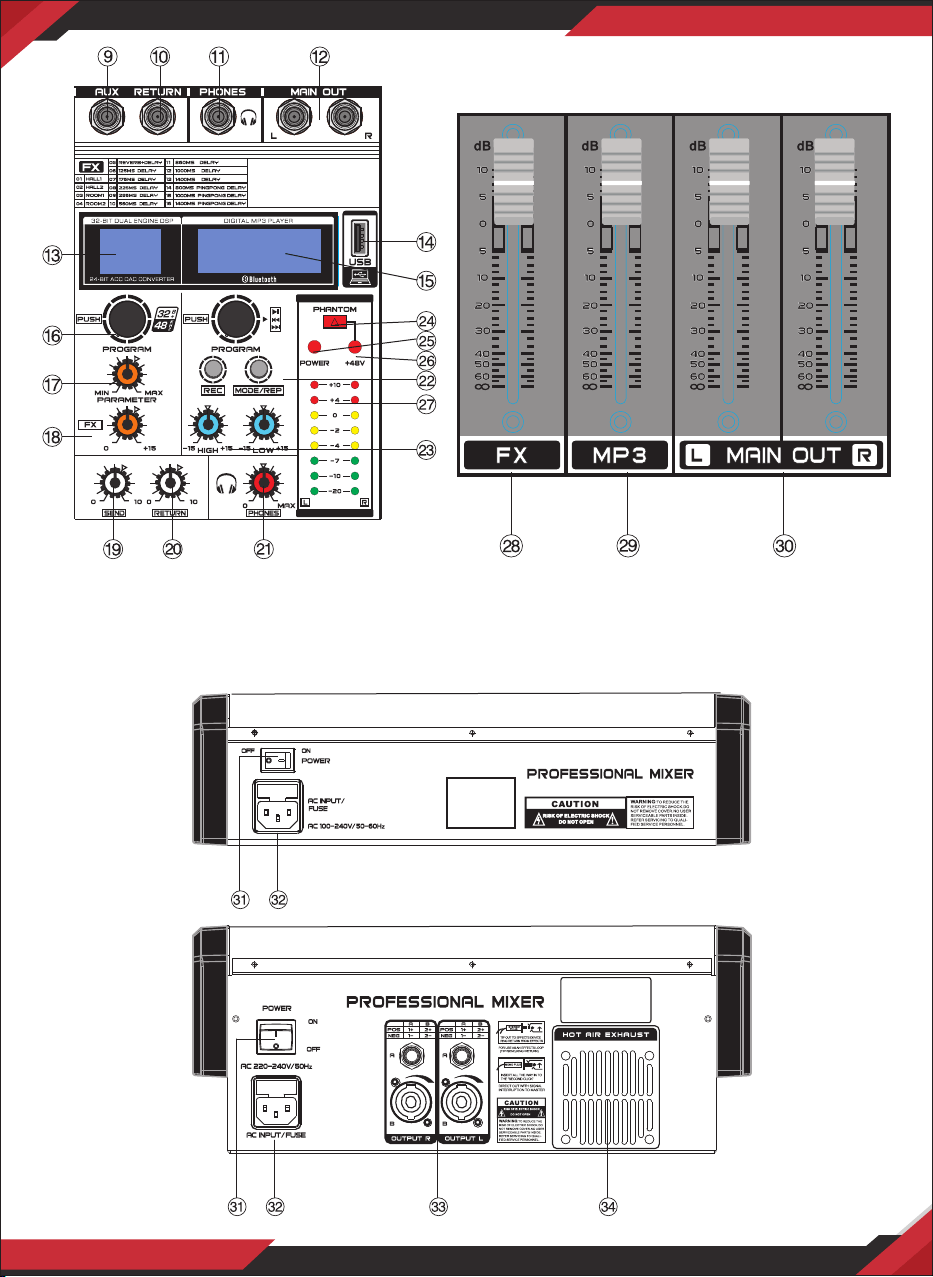
28. FX SEND Fader: Control aect Input signal level.
29. MP3 VOL Fader: Change VOL button can be control the VOL of Mp3.
30. MAIN MIX Fader: You use the high precision quality faders to control the output level of
the main mix.
31. POWER Switch: Use the POWER switch to turn on the mixing console. The POWER switch
should always be in the "O'' position when you are about to connect your unit to the
mains. To disconnect the unit from the mains, pull out the main cord plug. When installing
the product, ensure that the plug is easily accessible.
32. FUSE HOLDER/IEC MAINS RECEPTACLE: The console is connected to the mains via the
cable supplied, which meets the required safety standards. Blown fuses must only be
replaced by fuses of the same type and rating. The mains connection is made via a cable
with IEC mains connector. An appropriate mains cable is supplied with the equipment.
33. AMPLIFIER OUTPUT: Connect with two 4ohm speakers.
34: COOLING FAN: Cooling the amplier to avoid the amplier too hot to be broken.
www.PyleUSA.com
11
www.PyleUSA.com
12
4/6/8/12/16 Input Channel Mixer, New Multi-
Voltage Power Supply for Worldwide Use
• Built-in Wireless BT connects the mobile phone
or in other BT player
• Built-in MP3 player that supports variety of
music formats
• Connect the computer to record and play music
• Digital DSP, 16 Multi-FX effects
• Ultra -musical 3-band EQ on all channels
• Peak LED all Channels
• High accurate level indicator
• Phantom power switch (+48V )
• Sealed rotary controls to resist dust and grime
• Rugged steel chassis
1. GAIN Control: Adjusts the input signal level. To get the best balance
between the S/N ratio and the dynamic range, adjust the gain so that the
PEAK indicator Slights only occasionally and briey on the highest input
transients. The -60 to +10 scale is the MIC input adjustment range. The 40
to +10 scale is the LINE input adjustment range.
2. Equalizer 3 (HIGH, MID and LOW): This three-band equalizer adjusts
the channel's high, mid and low frequency bands. Selling the knob to the
"0" position produces a at response in the corresponding band. Turning
the knob to the right boosts the corresponding frequency band, while
turning to the left attenuates the band.
3. AUX1/AUX2 Control:
[AUXI] Control: This control adjusts the level of the inputsentto the AUX1
output (refer to numeral 36 in section MAIN TERMINALS on page 10).
[AUX2] Control: This control adjusts the level of the input sent to the
AUX2 output (refer to numeral 35 in section MAIN TERMINALS on page 10).
4. FX Control: Adjusts the level of the signal sent from the channel to the
FX SEND buses.

28. FX SEND Fader: Control aect Input signal level.
29. MP3 VOL Fader: Change VOL button can be control the VOL of Mp3.
30. MAIN MIX Fader: You use the high precision quality faders to control the output level of
the main mix.
31. POWER Switch: Use the POWER switch to turn on the mixing console. The POWER switch
should always be in the "O'' position when you are about to connect your unit to the
mains. To disconnect the unit from the mains, pull out the main cord plug. When installing
the product, ensure that the plug is easily accessible.
32. FUSE HOLDER/IEC MAINS RECEPTACLE: The console is connected to the mains via the
cable supplied, which meets the required safety standards. Blown fuses must only be
replaced by fuses of the same type and rating. The mains connection is made via a cable
with IEC mains connector. An appropriate mains cable is supplied with the equipment.
33. AMPLIFIER OUTPUT: Connect with two 4ohm speakers.
34: COOLING FAN: Cooling the amplier to avoid the amplier too hot to be broken.
www.PyleUSA.com
11
www.PyleUSA.com
12
4/6/8/12/16 Input Channel Mixer, New Multi-
Voltage Power Supply for Worldwide Use
• Built-in Wireless BT connects the mobile phone
or in other BT player
• Built-in MP3 player that supports variety of
music formats
• Connect the computer to record and play music
• Digital DSP, 16 Multi-FX effects
• Ultra -musical 3-band EQ on all channels
• Peak LED all Channels
• High accurate level indicator
• Phantom power switch (+48V )
• Sealed rotary controls to resist dust and grime
• Rugged steel chassis
1. GAIN Control: Adjusts the input signal level. To get the best balance
between the S/N ratio and the dynamic range, adjust the gain so that the
PEAK indicator Slights only occasionally and briey on the highest input
transients. The -60 to +10 scale is the MIC input adjustment range. The 40
to +10 scale is the LINE input adjustment range.
2. Equalizer 3 (HIGH, MID and LOW): This three-band equalizer adjusts
the channel's high, mid and low frequency bands. Selling the knob to the
"0" position produces a at response in the corresponding band. Turning
the knob to the right boosts the corresponding frequency band, while
turning to the left attenuates the band.
3. AUX1/AUX2 Control:
[AUXI] Control: This control adjusts the level of the inputsentto the AUX1
output (refer to numeral 36 in section MAIN TERMINALS on page 10).
[AUX2] Control: This control adjusts the level of the input sent to the
AUX2 output (refer to numeral 35 in section MAIN TERMINALS on page 10).
4. FX Control: Adjusts the level of the signal sent from the channel to the
FX SEND buses.

15. MP3Control
a. Selected songs/Play/Pause: When playing music, rotate to change up/down the
song, press to pause/play.
b. Recording: When playing music, press and hold to record, short press to nish
recording and enter playing of the recording music. When playing the recording music,
short press to switch to play the USB music, play from the rst USB music. When playing
the USB music, short press to switch to play the recording music, play from rst
recording music.
c. Mode/Repeat: Short press to switch USB and Wireless BT mode, press and hold to
repeat the playing song. When playing the repeated song, press and hold to return to
normal play.
16. USB Jack: Used by U-Disk or computer software for playing and recording.
17. MP3 Play Window: Shows the Mp3 playing, time, song name and other play instruction.
18. +48V PHANTOM Power: This switch toggles phantom power on and o. When the switch
is on the mixer supplies +48V phantom power to all channels that have XLR mic input
jacks. Turn this switch on when using one or more phantom-powered condenser micro
phones.
19. +48V Indicator: This indicator lights up when the
+48V power is ON.
20. POWER Indicator: This indicator lights up when
the mixer's power is ON.
21. MP3 EQ player: The two-band equalizer adjusts
the level of the two bands Mp3 player.
22. Level Meter: Shows the level of strong signal.
23. AUX1 Level Control: This control adjusts the
signal level from the [AUX1] output jack
(refer to numaral 36 in Section MAIN TERMINALS
on page 10).
24. AUX2 Level Control: This control adjusts the
signal level from the [AUX2] output jack (refer to numeral 35 in Section MAIN TERMINALS
on page 10).
25. RETURNS Control: Adjusts the level at which the signal received at the RETURN jacks
(L (MONO) and R) is sent to the STEREO L/R bus.
26. PHONES Control: Controls the level of the signal output to the PHONES jack OUT jacks.
27. PHONES Jacks: Connect a pair of headphones to this TRS phone-type output jack.
28. FX SEND Fader: Control eect input signal level.
29. MP3 VOL Fader: Change VOL button can be control the VOL of Mp3.
30. MAIN MIX Fader: You use the high-precision quality faders to control the output level of
the main mix.
31. POWER Switch: Use the POWER switch to turn on the mixing console. The POWER switch
should always be in the "OFF" position when you are about to connect your unit to the
mains. To disconnect the unit from the mains, pull out the main cord plug. When installing
the product, ensure that the plug Is easily accessible.
www.PyleUSA.com
13
www.PyleUSA.com
14
5. PEAK LED: The PEAK-LED lights up when the input signal is driven too
high. lf this happens, back o the TRIM control and, if necessary, check
the selling of the channel EQ.
6. PAN Control: The PAN control determines the position of the channel
signal within the stereo image. When working with subgroups, you can
use the PAN control to assign the signal to just one output, which gives
you additional exibility in recording situations.
7. PFL SWITCH: The PFL switch is used to route the channel signal to the
PFL bus (Pre Fader Listen). This enables you to listen to a channel signal
without aecting the main output signal. The signal you hear is taken
either before the pan control (PFL, mono)
8. MUTE SWITCH: The MUTE switch breaks the signal path pre-channel
fader, hence muting that channel in the main mix. The aux sends which
are set to post-fader are likewise muted for thaichannel, while the pre-
fader monitor paths remain active irrespective of whether the channel is
muted or not.
9. CHANNEL FADER: Adjusts the level If the channel signaL. Use these
faders to adjust the balance between the various channels.
10. EFFECTOR Display: Show the kind of eector.
11. PROGRAM Control: You can select the
eect preset by turning the PROGRAM
control. The display ashes with the number
of the current preset. To recall the selected
preset, press on the button; the ashing
slops. You can also recall the selected
preset with the foot switch.
12. FX Control: Used to adjust size eect.
13. PARAMETER Control: Used to adjust the
depth of the selected eect, speed, etc
14. ST GRAPHIC EQUALIZER: This 7-band
equalizer adjusts the sound of the signal
send to The MAIN OUT jacks.

15. MP3Control
a. Selected songs/Play/Pause: When playing music, rotate to change up/down the
song, press to pause/play.
b. Recording: When playing music, press and hold to record, short press to nish
recording and enter playing of the recording music. When playing the recording music,
short press to switch to play the USB music, play from the rst USB music. When playing
the USB music, short press to switch to play the recording music, play from rst
recording music.
c. Mode/Repeat: Short press to switch USB and Wireless BT mode, press and hold to
repeat the playing song. When playing the repeated song, press and hold to return to
normal play.
16. USB Jack: Used by U-Disk or computer software for playing and recording.
17. MP3 Play Window: Shows the Mp3 playing, time, song name and other play instruction.
18. +48V PHANTOM Power: This switch toggles phantom power on and o. When the switch
is on the mixer supplies +48V phantom power to all channels that have XLR mic input
jacks. Turn this switch on when using one or more phantom-powered condenser micro
phones.
19. +48V Indicator: This indicator lights up when the
+48V power is ON.
20. POWER Indicator: This indicator lights up when
the mixer's power is ON.
21. MP3 EQ player: The two-band equalizer adjusts
the level of the two bands Mp3 player.
22. Level Meter: Shows the level of strong signal.
23. AUX1 Level Control: This control adjusts the
signal level from the [AUX1] output jack
(refer to numaral 36 in Section MAIN TERMINALS
on page 10).
24. AUX2 Level Control: This control adjusts the
signal level from the [AUX2] output jack (refer to numeral 35 in Section MAIN TERMINALS
on page 10).
25. RETURNS Control: Adjusts the level at which the signal received at the RETURN jacks
(L (MONO) and R) is sent to the STEREO L/R bus.
26. PHONES Control: Controls the level of the signal output to the PHONES jack OUT jacks.
27. PHONES Jacks: Connect a pair of headphones to this TRS phone-type output jack.
28. FX SEND Fader: Control eect input signal level.
29. MP3 VOL Fader: Change VOL button can be control the VOL of Mp3.
30. MAIN MIX Fader: You use the high-precision quality faders to control the output level of
the main mix.
31. POWER Switch: Use the POWER switch to turn on the mixing console. The POWER switch
should always be in the "OFF" position when you are about to connect your unit to the
mains. To disconnect the unit from the mains, pull out the main cord plug. When installing
the product, ensure that the plug Is easily accessible.
www.PyleUSA.com
13
www.PyleUSA.com
14
5. PEAK LED: The PEAK-LED lights up when the input signal is driven too
high. lf this happens, back o the TRIM control and, if necessary, check
the selling of the channel EQ.
6. PAN Control: The PAN control determines the position of the channel
signal within the stereo image. When working with subgroups, you can
use the PAN control to assign the signal to just one output, which gives
you additional exibility in recording situations.
7. PFL SWITCH: The PFL switch is used to route the channel signal to the
PFL bus (Pre Fader Listen). This enables you to listen to a channel signal
without aecting the main output signal. The signal you hear is taken
either before the pan control (PFL, mono)
8. MUTE SWITCH: The MUTE switch breaks the signal path pre-channel
fader, hence muting that channel in the main mix. The aux sends which
are set to post-fader are likewise muted for thaichannel, while the pre-
fader monitor paths remain active irrespective of whether the channel is
muted or not.
9. CHANNEL FADER: Adjusts the level If the channel signaL. Use these
faders to adjust the balance between the various channels.
10. EFFECTOR Display: Show the kind of eector.
11. PROGRAM Control: You can select the
eect preset by turning the PROGRAM
control. The display ashes with the number
of the current preset. To recall the selected
preset, press on the button; the ashing
slops. You can also recall the selected
preset with the foot switch.
12. FX Control: Used to adjust size eect.
13. PARAMETER Control: Used to adjust the
depth of the selected eect, speed, etc
14. ST GRAPHIC EQUALIZER: This 7-band
equalizer adjusts the sound of the signal
send to The MAIN OUT jacks.
32. FUSE HOLDER/IEC MAINS RECEPTACLE: The console is connected to the mains via the
supplied cable, which meets the required safety standards. Blown fuses must only be
replaced by fuses of the same type and rating. The mains connection is made via a cable
with IEC mains connector. An appropriate mains cable is supplied with the equipment.
33. MAIN OUT (L,R) Jacks: These jacks deliver the mixer's stereo output. Use these jacks to
connect power amplier to your main speakers.
34. RETURN Jacks: These are unbalanced phone-jack type line inputs. These jacks are typically
used to receive the signal returned from an external eect device (reverb, delay, etc.).
35. AUX2 Output Jack: This AUX2 output is a ¼” TS jack. This AUX2 output is the sum of the
signals sent from each channel. If a particular channel's AUX2 control knob (refer to
numeral 3 in section CHANNEL INPUT on page 9) is fully turned down, that channel is not
contributing to the AUX2 output signal.
36. AUX1 Output Jack: This AUX1 output is a ¼” TS jack. This AUX1 output is the sum of the
signals sent from each channel. If a particular channel's AUX1 control knob (refer to
numeral 3 in section CHANNEL INPUT on page 9) is fully turned down, that channel is not
contributing to theAUX1 output signal.
37. Input jacks: These are balanced XLR-type microphone input jacks. (1: Ground; 2: Hot;
3: Cold)
38. LINE Input Jacks (monaural channels): These are balanced TRS phone-jack line inputs.
(T: Hot; R: Cold; S: Ground). You can connect either balanced or unbalanced phone plugs
to these jacks.
www.PyleUSA.com
15
www.PyleUSA.com
16
4/6/8/12/16 Input Channel Mixer, New Multi-
Voltage Power Supply for Worldwide Use
4/6/8/12/16 Input Channel, Powered Mixer
• Built-in Wireless BT connects the mobile phone
or in other BT player
• Built-in MP3 player that supports variety of
music formats
• Connect the computer to record and play music
• Digital DSP, 16 Multi-FX effects
• Ultra -musical 3-band EQ on all channels
• Peak LED all Channels
• High accurate level indicator
• Phantom power switch (+48V )
• Sealed rotary controls to resist dust and grime
• Rugged steel chassis
1. MIC Input jacks: These are balanced XLR-type microphone input
jacks. (1 :Ground; 2: Hot; 3: Cold)
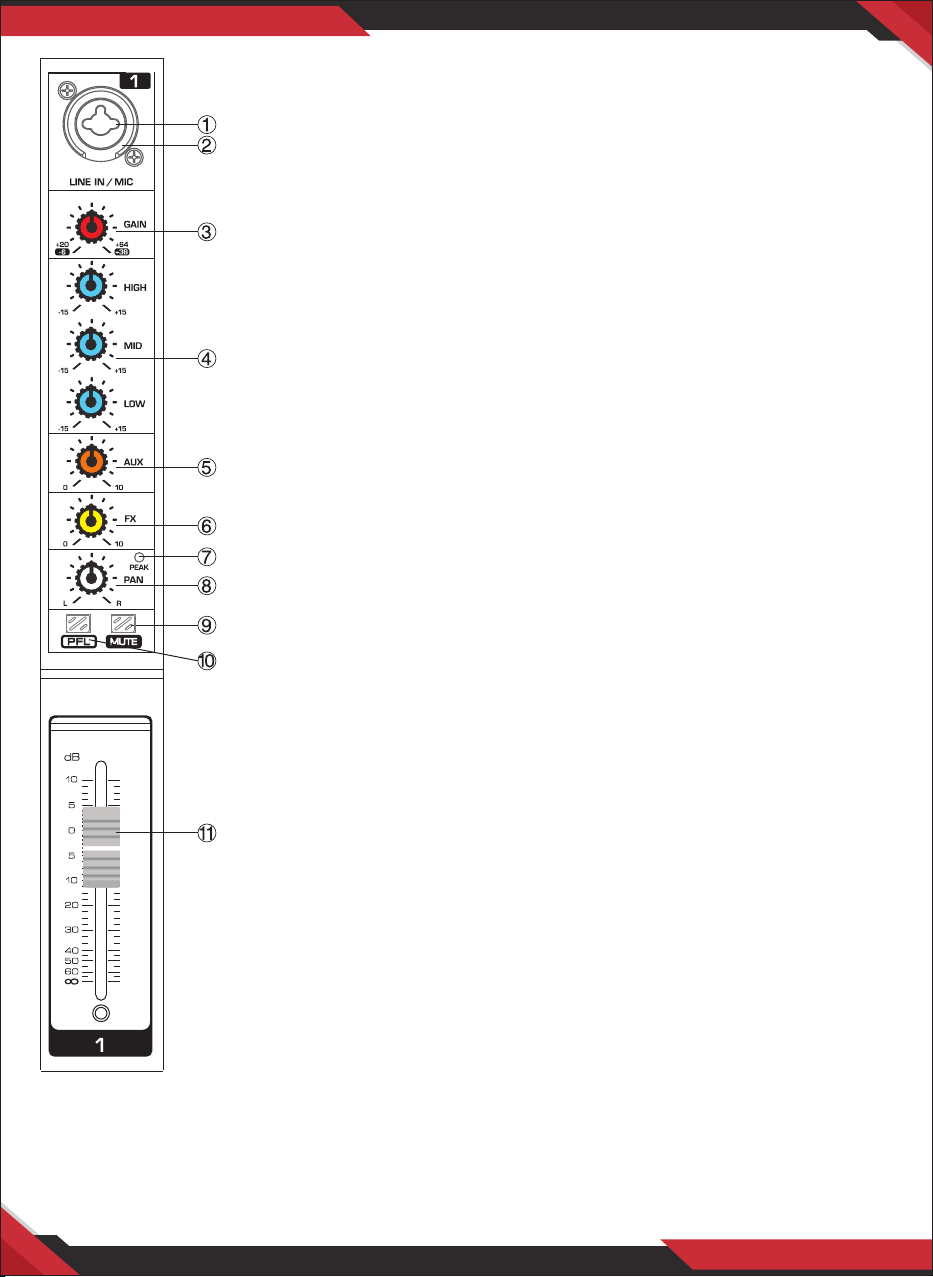
2. LINE Input Jacks (monaural channels): These are balanced TRS
phone-jack line inputs. (T: Hot; R: Cold; S: Ground). You can connect
either balanced or unbalanced phone plugs to these jacks.
3. GAIN Control: Adjusts the input signal level. To get the best balance
between the S/N ratio and the dynamic range, adjust the gain so that
the PEAK indicator only occasionally and briey on the highest input
transients. The -60 to +10 scale is the MIC input adjustment range.
The 40 to +10 scale is the LINE input adjustment range.
4. Equalizer 3 (HIGH, MID and LOW): This three-band equalizer adjusts
the channel's high, mid and low frequency bands. Setting the knob to
the “0” position produces a at response in the corresponding band.
Turning the knob to the right boosts the corresponding frequency
band, while turning to the left attenuates the band.
5. AUX Control: Used to adjust the output to AUX pin signal level.
6. FX Control: Adjusts the level of the signal sent from the channel to
the FX SEND buses.
7. PEAK LED: The PEAK LED lights up when the input signal is driven too
high. If this happens, back o the TRIM control and, if necessary, check
the EQ channel setting.
8. PAN Control: The PAN control determines the position of the channel
signal within the stereo image. When working with subgroups, you
can use the PAN control to assign the signal to just one output, which
gives you additional exibility in recording situations.
9. MUTE SWITCH: The MUTE switch breaks the signal path pre-channel
fader, hence muting that channel in the main mix. The aux sends
which are set to post-fader are likewise muted for that channel, while
the pre-fader monitor paths remain active irrespective of whether the
channel is muted or not.
10. PFL SWITCH: The PFL switch is used to route the channel signal to
the the PFL bus (Pre Fader Listen). This enables you to listento a
channel signal without aecting the main output signal. The signal
you hear is taken either be fore the pan control (PFL, mono).
11. CHANNEL FADER: Adjusts the channel signal level. Use these faders
to adjust the balance between the various channels.
12. TAPE INPUT/OUTPUT SOCKET: The TAPE IN jacks (on stereo RCA)
allows the connection of play-back devices such as CD players, etc.
Use the TAPE OUT Jacks to connect, for example, a tape deck for
recording applications.
13. AUX/RETURN JACKS: These are unbalanced phone-jack type line
inputs. These jacks are typically used to receive the signal returned
from an external eect device (reverb, delay, etc.). These pins can be
connected, such as the eect of external equipment.
32. FUSE HOLDER/IEC MAINS RECEPTACLE: The console is connected to the mains via the
supplied cable, which meets the required safety standards. Blown fuses must only be
replaced by fuses of the same type and rating. The mains connection is made via a cable
with IEC mains connector. An appropriate mains cable is supplied with the equipment.
33. MAIN OUT (L,R) Jacks: These jacks deliver the mixer's stereo output. Use these jacks to
connect power amplier to your main speakers.
34. RETURN Jacks: These are unbalanced phone-jack type line inputs. These jacks are typically
used to receive the signal returned from an external eect device (reverb, delay, etc.).
35. AUX2 Output Jack: This AUX2 output is a ¼” TS jack. This AUX2 output is the sum of the
signals sent from each channel. If a particular channel's AUX2 control knob (refer to
numeral 3 in section CHANNEL INPUT on page 9) is fully turned down, that channel is not
contributing to the AUX2 output signal.
36. AUX1 Output Jack: This AUX1 output is a ¼” TS jack. This AUX1 output is the sum of the
signals sent from each channel. If a particular channel's AUX1 control knob (refer to
numeral 3 in section CHANNEL INPUT on page 9) is fully turned down, that channel is not
contributing to theAUX1 output signal.
37. Input jacks: These are balanced XLR-type microphone input jacks. (1: Ground; 2: Hot;
3: Cold)
38. LINE Input Jacks (monaural channels): These are balanced TRS phone-jack line inputs.
(T: Hot; R: Cold; S: Ground). You can connect either balanced or unbalanced phone plugs
to these jacks.
www.PyleUSA.com
15
www.PyleUSA.com
16
4/6/8/12/16 Input Channel Mixer, New Multi-
Voltage Power Supply for Worldwide Use
4/6/8/12/16 Input Channel, Powered Mixer
• Built-in Wireless BT connects the mobile phone
or in other BT player
• Built-in MP3 player that supports variety of
music formats
• Connect the computer to record and play music
• Digital DSP, 16 Multi-FX effects
• Ultra -musical 3-band EQ on all channels
• Peak LED all Channels
• High accurate level indicator
• Phantom power switch (+48V )
• Sealed rotary controls to resist dust and grime
• Rugged steel chassis
1. MIC Input jacks: These are balanced XLR-type microphone input
jacks. (1 :Ground; 2: Hot; 3: Cold)
2. LINE Input Jacks (monaural channels): These are balanced TRS
phone-jack line inputs. (T: Hot; R: Cold; S: Ground). You can connect
either balanced or unbalanced phone plugs to these jacks.
3. GAIN Control: Adjusts the input signal level. To get the best balance
between the S/N ratio and the dynamic range, adjust the gain so that
the PEAK indicator only occasionally and briey on the highest input
transients. The -60 to +10 scale is the MIC input adjustment range.
The 40 to +10 scale is the LINE input adjustment range.
4. Equalizer 3 (HIGH, MID and LOW): This three-band equalizer adjusts
the channel's high, mid and low frequency bands. Setting the knob to
the “0” position produces a at response in the corresponding band.
Turning the knob to the right boosts the corresponding frequency
band, while turning to the left attenuates the band.
5. AUX Control: Used to adjust the output to AUX pin signal level.
6. FX Control: Adjusts the level of the signal sent from the channel to
the FX SEND buses.
7. PEAK LED: The PEAK LED lights up when the input signal is driven too
high. If this happens, back o the TRIM control and, if necessary, check
the EQ channel setting.
8. PAN Control: The PAN control determines the position of the channel
signal within the stereo image. When working with subgroups, you
can use the PAN control to assign the signal to just one output, which
gives you additional exibility in recording situations.
9. MUTE SWITCH: The MUTE switch breaks the signal path pre-channel
fader, hence muting that channel in the main mix. The aux sends
which are set to post-fader are likewise muted for that channel, while
the pre-fader monitor paths remain active irrespective of whether the
channel is muted or not.
10. PFL SWITCH: The PFL switch is used to route the channel signal to
the the PFL bus (Pre Fader Listen). This enables you to listento a
channel signal without aecting the main output signal. The signal
you hear is taken either be fore the pan control (PFL, mono).
11. CHANNEL FADER: Adjusts the channel signal level. Use these faders
to adjust the balance between the various channels.
12. TAPE INPUT/OUTPUT SOCKET: The TAPE IN jacks (on stereo RCA)
allows the connection of play-back devices such as CD players, etc.
Use the TAPE OUT Jacks to connect, for example, a tape deck for
recording applications.
13. AUX/RETURN JACKS: These are unbalanced phone-jack type line
inputs. These jacks are typically used to receive the signal returned
from an external eect device (reverb, delay, etc.). These pins can be
connected, such as the eect of external equipment.
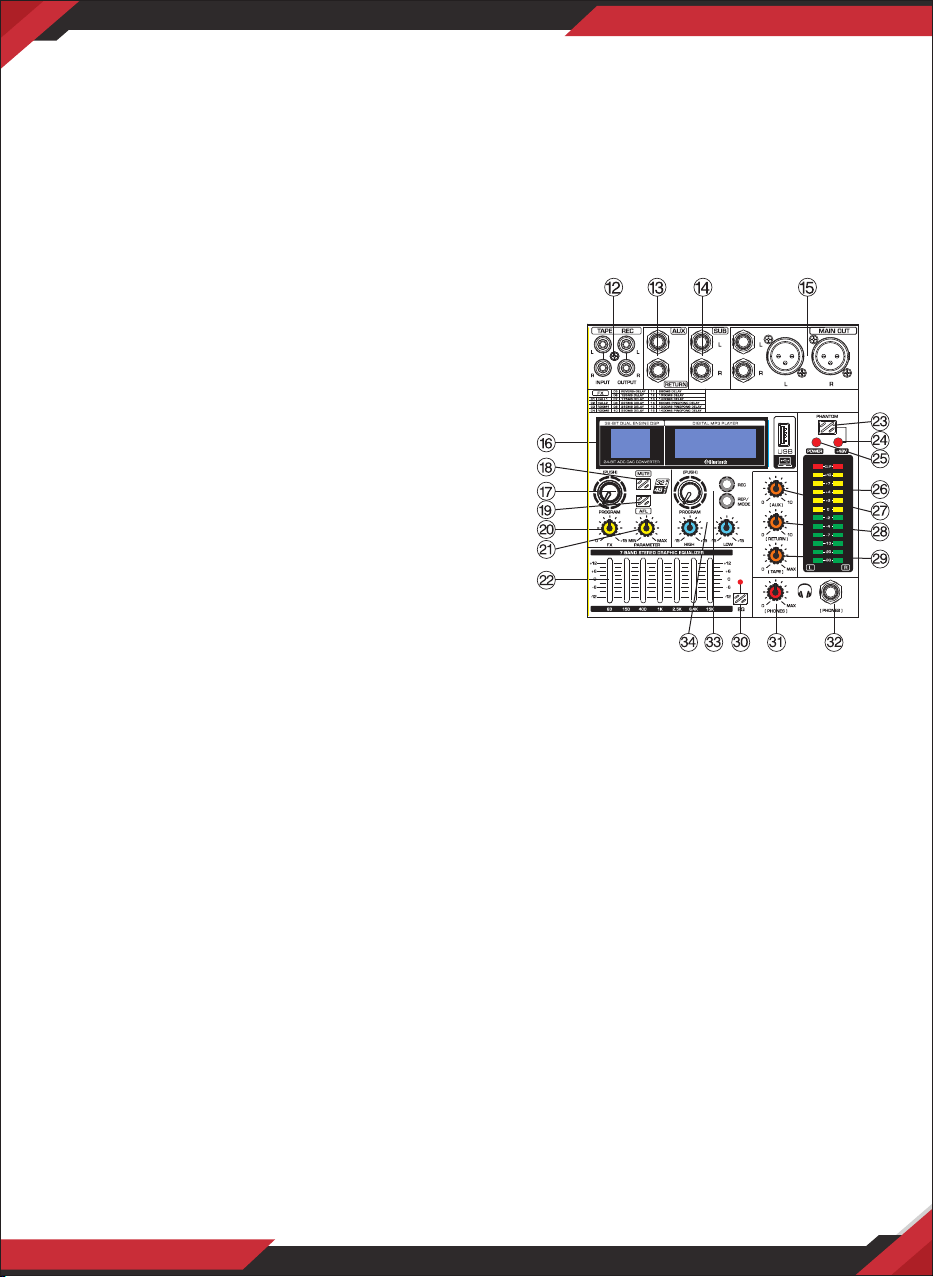
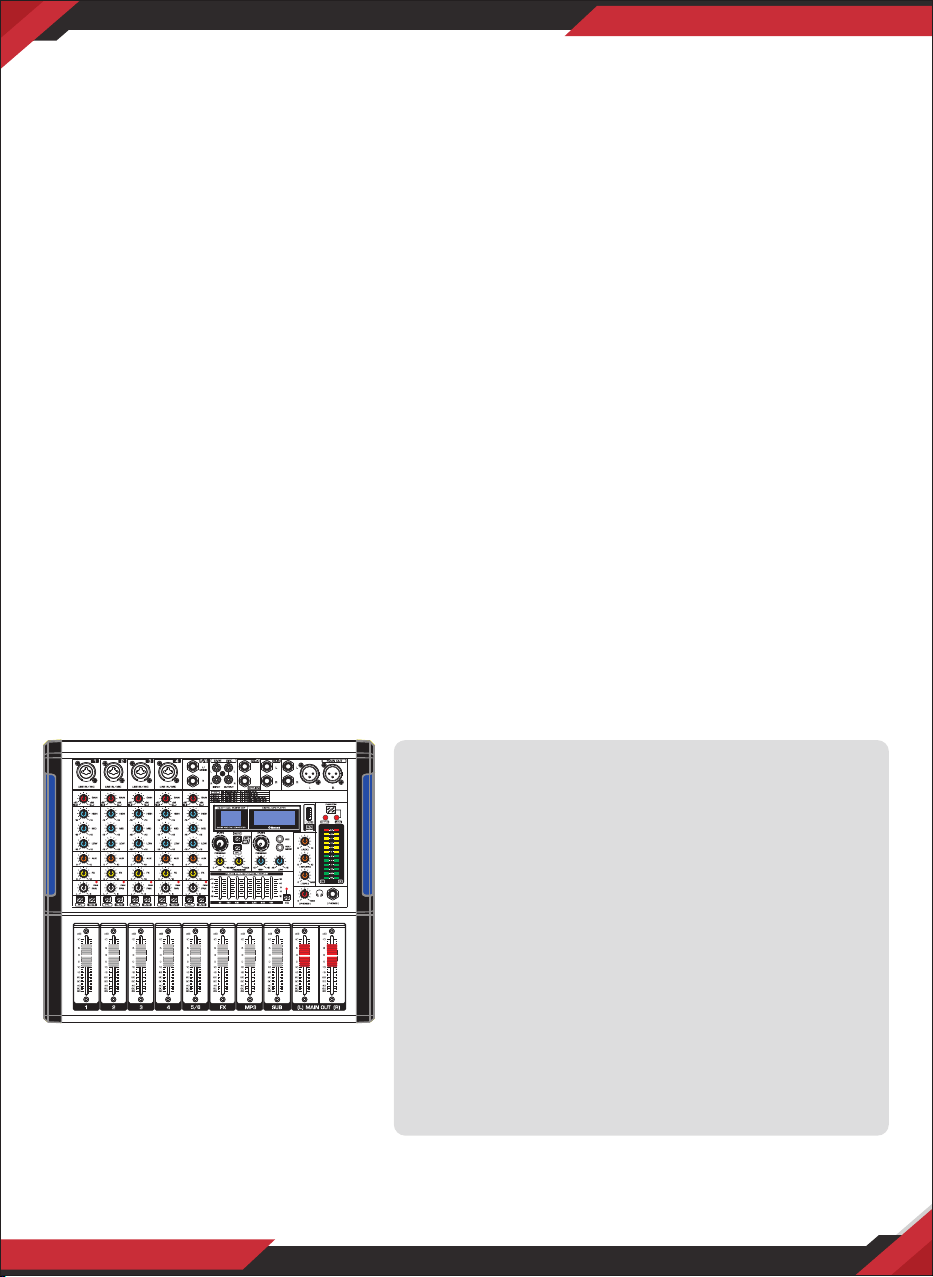
14. SUB Jack: Bass output jack.
15. MAIN OUT (L,R.) Jacks: These jacks deliver the mixer's stereo output. You use these jacks,
for example, to connect to power amplier driving your main speakers.
16. EFFECTOR Display: Show the kind of eector.
17. PROGRAM Control: You can select the eect preset by turning the PROGRAM control.
The display ashes with the number of the current preset. To recall the selected preset,
press on the button; the ashing stops. You can also recall the selected preset with the
foot switch.
18. DSP MUTE SWITCH: Mute the DSP or eects.
19. AFL SWITCH: The AFL switch is used to route the
channel signal to AFL bus (post-fader listen), it
allows you to listen to a channel signal that is
aected by the main output signal. The signal you
hear is taken after PAN control.
20. FX Control: Used to adjust size eect.
21. PARAMETER Control: Used to adjust the depth
of the selected eect, speed, etc.
22. ST GRAPHIC EQUALIZER: This 7-band equalizer
adjusts the sound of the signal send to the MAIN
OUT jacks.
23. +48V PHANTOM Power: This switch toggles
phantom power on and o. When the switch is on the
mixer supplies +48V phantom power to all channels that have XLR mic input jacks. Turn
this switch on when using one or more phantom-powered condenser microphones.
24. +48V Indicator: This indicator lights up when the +48V power is ON.
25. POWER Indicator: This indicator lights up when the mixer's power is ON.
26. Level Meter: Show the level signal's strong.
27. AUX Control: Used to adjust the output to AUX pin signal level.
28. RETURNS Control: Adjusts the level at which the signal received at the RETURN jacks
(L (MONO) and R) is sent to the STEREO L/R bus.
29. TAPE Control: Used to adjust the output to TAPE pin signal level.
30. EQ IN SWITCH: Use this switch to activate the graphic equalizer.
31. PHONES Control: Controls the level of the signal output to the PHONES jack OUT jacks.
32. PHONES Jacks: Connect a pair of headphones to this TRS phone-type output jack.
33. MP3 Control:
a. Selected songs/Play/Pause: When playing music, rotate to change up/down the song,
press to pause/play.
b. Recording: When playing music, press and hold to record, short press to nish recording
and enter playing of the recording music. When playing the recording music, short press
to switch to play the USB music, play from the rst USB music. When playing the USB
music, short press to switch to play the recording music, play from rst recording music.
www.PyleUSA.com
17
www.PyleUSA.com
18
c. Mode/Repeat: Short press to switch the model of USB and Wireless BT, press and hold
to repeat the playing song. When playing the repeated song, press and hold to return
to normal play.
34. MP3 player EQ: The two-band equalizer adjusts
the level of the two bands Mp3 player.
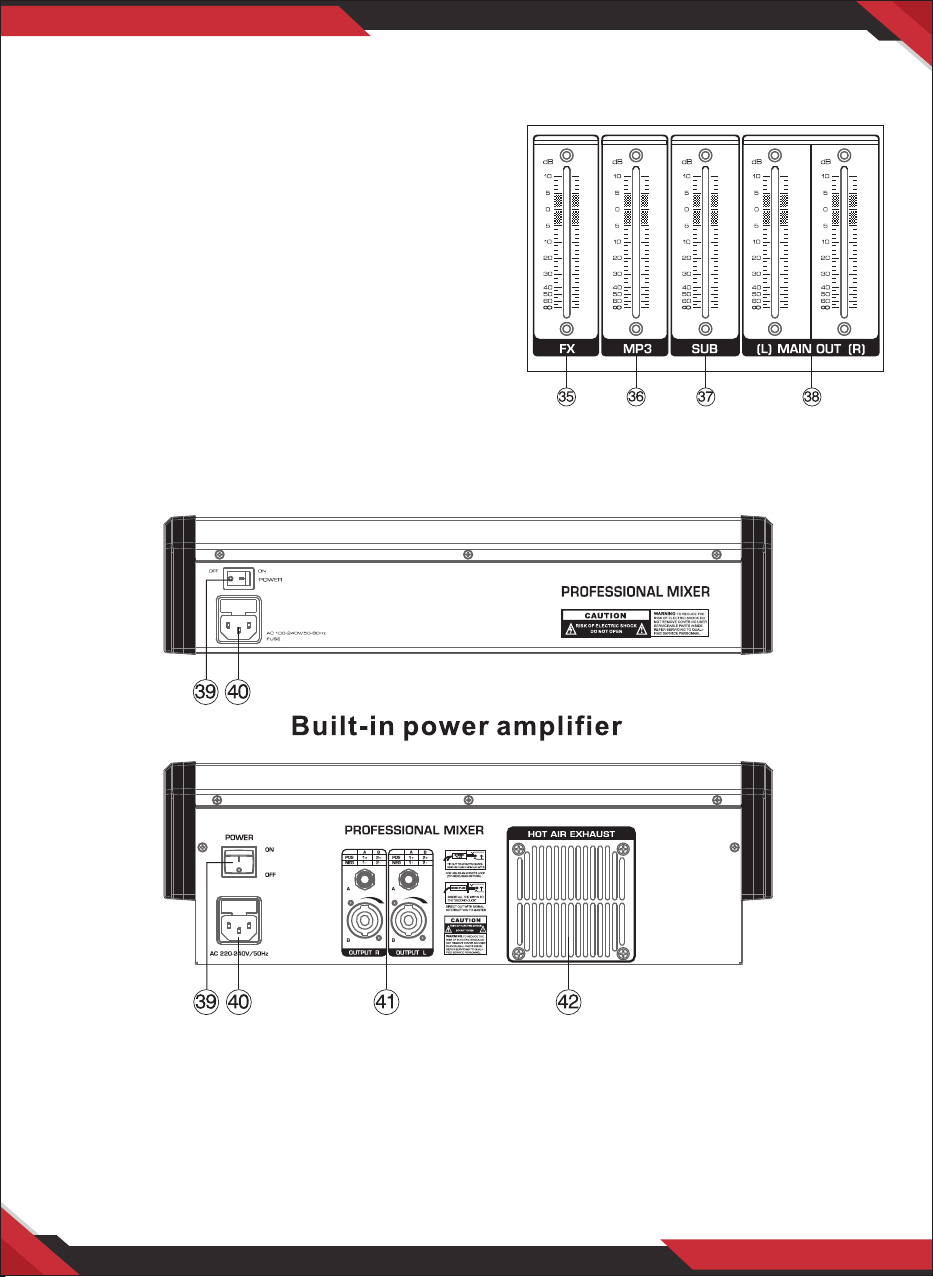
35. FX SEND Fader: Control eect input signal level.
38. MP3 VOL Fader: Change VOL button can be
control the VOL of Mp3.
37. SUB Fader: Adjust the SUB output level
38. MAIN MIX Fader: Use the high-precision quality
faders to control the main mix output level.
39: POWER Switch: Use the POWER switch to turn
on the mixing console.
The POWER switch should always be in "O'' position when you are about to connect
your unit to the mains. To disconnect the unit from the mains, pull out the main cord
plug. When installing the product, ensure that the plug is easily accessible.
40. FUSE HOLDER/IEC MAINS RECEPTACLE: The console is connected to the mains via the
cable supplied, which meets the required safety standards. Blown fuses must only be
replaced by fuses of the same type and rating. The mains connection is made via cable
with IEC mains connector. An appropriate mains cable is supplied with the equipment.
41. AMPLIFIER OUTPUT: Connect with two 4ohm speakers.
42. COOLING FAN: Cools the amplier to avoid overheating the amplier.
14. SUB Jack: Bass output jack.
15. MAIN OUT (L,R.) Jacks: These jacks deliver the mixer's stereo output. You use these jacks,
for example, to connect to power amplier driving your main speakers.
16. EFFECTOR Display: Show the kind of eector.
17. PROGRAM Control: You can select the eect preset by turning the PROGRAM control.
The display ashes with the number of the current preset. To recall the selected preset,
press on the button; the ashing stops. You can also recall the selected preset with the
foot switch.
18. DSP MUTE SWITCH: Mute the DSP or eects.
19. AFL SWITCH: The AFL switch is used to route the
channel signal to AFL bus (post-fader listen), it
allows you to listen to a channel signal that is
aected by the main output signal. The signal you
hear is taken after PAN control.
20. FX Control: Used to adjust size eect.
21. PARAMETER Control: Used to adjust the depth
of the selected eect, speed, etc.
22. ST GRAPHIC EQUALIZER: This 7-band equalizer
adjusts the sound of the signal send to the MAIN
OUT jacks.
23. +48V PHANTOM Power: This switch toggles
phantom power on and o. When the switch is on the
mixer supplies +48V phantom power to all channels that have XLR mic input jacks. Turn
this switch on when using one or more phantom-powered condenser microphones.
24. +48V Indicator: This indicator lights up when the +48V power is ON.
25. POWER Indicator: This indicator lights up when the mixer's power is ON.
26. Level Meter: Show the level signal's strong.
27. AUX Control: Used to adjust the output to AUX pin signal level.
28. RETURNS Control: Adjusts the level at which the signal received at the RETURN jacks
(L (MONO) and R) is sent to the STEREO L/R bus.
29. TAPE Control: Used to adjust the output to TAPE pin signal level.
30. EQ IN SWITCH: Use this switch to activate the graphic equalizer.
31. PHONES Control: Controls the level of the signal output to the PHONES jack OUT jacks.
32. PHONES Jacks: Connect a pair of headphones to this TRS phone-type output jack.
33. MP3 Control:
a. Selected songs/Play/Pause: When playing music, rotate to change up/down the song,
press to pause/play.
b. Recording: When playing music, press and hold to record, short press to nish recording
and enter playing of the recording music. When playing the recording music, short press
to switch to play the USB music, play from the rst USB music. When playing the USB
music, short press to switch to play the recording music, play from rst recording music.
www.PyleUSA.com
17
www.PyleUSA.com
18
c. Mode/Repeat: Short press to switch the model of USB and Wireless BT, press and hold
to repeat the playing song. When playing the repeated song, press and hold to return
to normal play.
34. MP3 player EQ: The two-band equalizer adjusts
the level of the two bands Mp3 player.
35. FX SEND Fader: Control eect input signal level.
38. MP3 VOL Fader: Change VOL button can be
control the VOL of Mp3.
37. SUB Fader: Adjust the SUB output level
38. MAIN MIX Fader: Use the high-precision quality
faders to control the main mix output level.
39: POWER Switch: Use the POWER switch to turn
on the mixing console.
The POWER switch should always be in "O'' position when you are about to connect
your unit to the mains. To disconnect the unit from the mains, pull out the main cord
plug. When installing the product, ensure that the plug is easily accessible.
40. FUSE HOLDER/IEC MAINS RECEPTACLE: The console is connected to the mains via the
cable supplied, which meets the required safety standards. Blown fuses must only be
replaced by fuses of the same type and rating. The mains connection is made via cable
with IEC mains connector. An appropriate mains cable is supplied with the equipment.
41. AMPLIFIER OUTPUT: Connect with two 4ohm speakers.
42. COOLING FAN: Cools the amplier to avoid overheating the amplier.
CAUTION!
NEVER USE unbalanced XLR connectors
(PIN 1 and 3 connected) at the MIC input
jacks if you want to use the phantom
power supply.
INSTALLATION TROUBLESHOOTING
If a problem occurs while operating, use this troubleshooting guide to help
remedy the problem before requesting repairs. If the problem persists, consult
your nearest dealer.
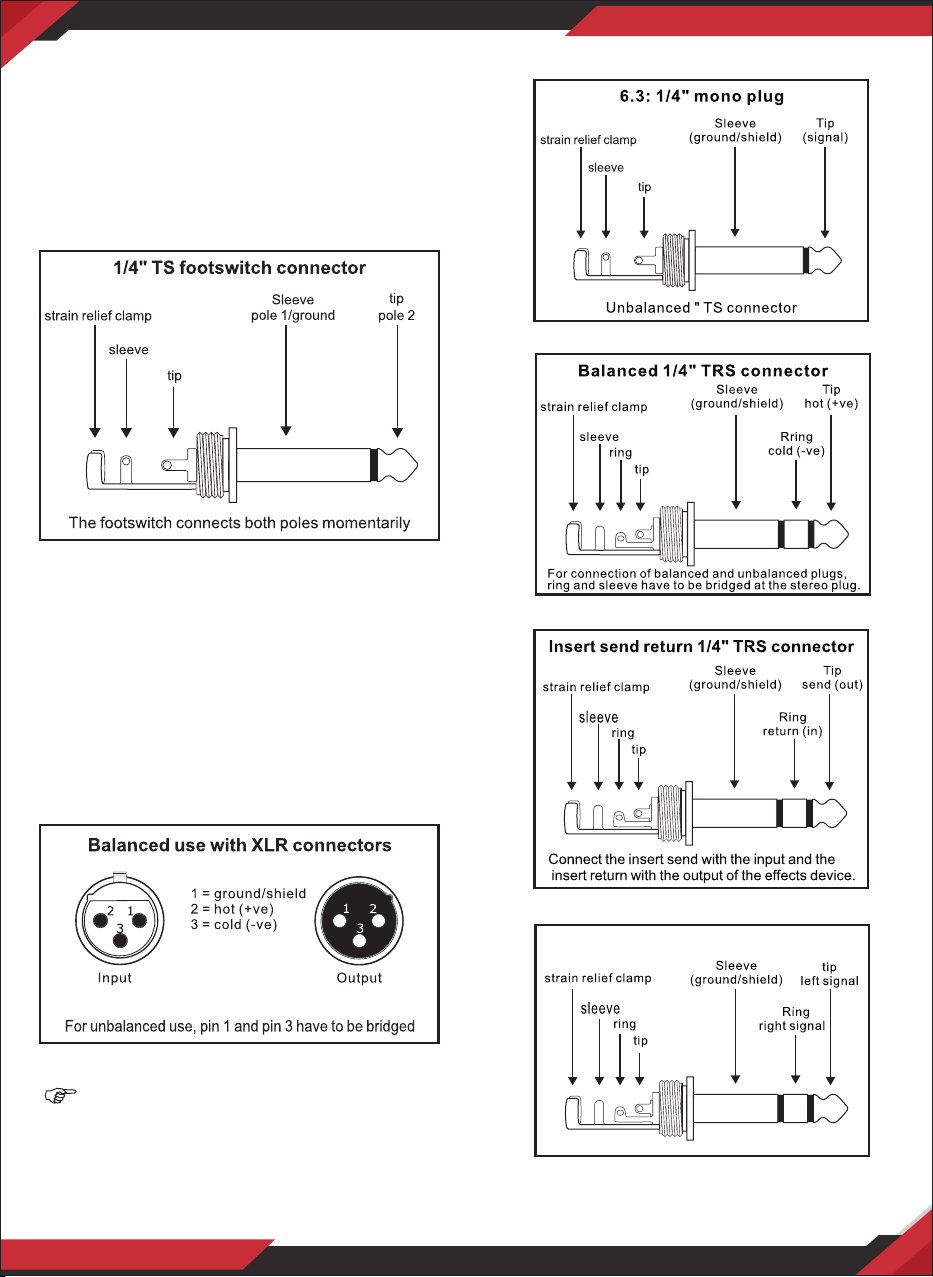
Cable Connections
You will need a large amount of cables for
the various connections of the console.
The image below shows the wiring of
these cables. Use only HIGH GRADE cables
Foot Switch Connector
Audio Connections
Use commercial RCA cables to wire the
2-track input and output. You can also
connect unbalanced devices to the
balanced input/output. Use either mono
plugs, or use stereo plugs to link the ring
and shaft (or pins 1 & 3 in the case of XLR
connectors).
XLR Connections
6.3: 1/4” Mono Plug
Balanced 1/4” TRS Connector
Insert Send/Return Stereo Plug
1/4” TRS Headphones Connector
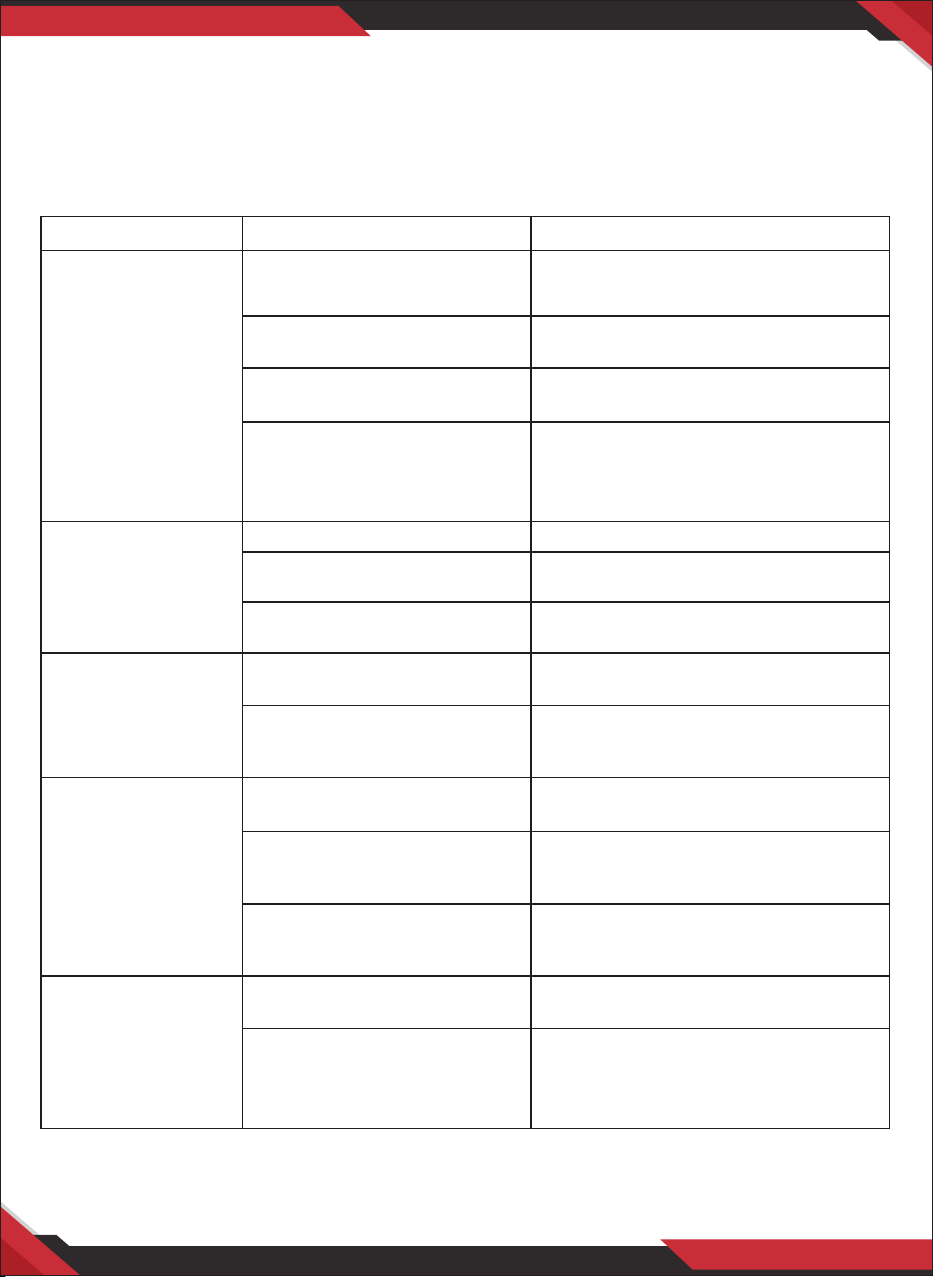
PROBLEM POSSIBLE CAUSES SOLUTIONS
Power can't be
turned on.
No output sound
One channel
no sound
Microphone
no sound
Distorted sound
Power Supply cord is not
connected or not connected
securely.
The power supply cord is
defective.
The AC power outlet has no
power.
The AC power source is from
an AC power extension cord.
Extension cord power switch
is not turned ON.
The power is turned OFF
The stereo level fader was
turned to minimum.
The main output audio cable
is missing or defective.
The gain control knob to the
channel was turned to minimum.
The level control knob to the
microphone channel was
turned to minimum.
No phantom power to the
condenser microphone
The gain control knob to the
microphone channel was
turned to minimum.
The level control knob to the
microphone channel was
turned to minimum.
The amplitude of the input
signal is over the threshold.
The amplitude of the main
output signal is over the
threshold of the connected
ampliers or active speakers.
Securely connect the power supply
cord to the mixer DC input and/or
the AC power outlet.
Replace the power supply cord.
Connect the power supply to an AC
power outlet with proper power.
Turn on the power switch of the AC
power extension cord.
Turn ON the power
Adjust the stereo level fader to have
an optimal output level.
Connect, repair or replace the audio
cables.
Adjust the gain control knob to that
channel to have an optimal output level.
Adjust the level control knob to that
channel to have an optimal output
level.
Turn on the phantom power.
Adjust the gain control knob to that
microphone channel to have an optimal
microphone output level.
Adjust the level control knob to that
microphone channel to have an
optimal microphone output level.
Adjust the gain control knob to lower
the input gain.
Adjust the stereo level fader to lower
the main output level.
www.PyleUSA.com
19
www.PyleUSA.com
20
CAUTION!
NEVER USE unbalanced XLR connectors
(PIN 1 and 3 connected) at the MIC input
jacks if you want to use the phantom
power supply.
INSTALLATION TROUBLESHOOTING
If a problem occurs while operating, use this troubleshooting guide to help
remedy the problem before requesting repairs. If the problem persists, consult
your nearest dealer.
Cable Connections
You will need a large amount of cables for
the various connections of the console.
The image below shows the wiring of
these cables. Use only HIGH GRADE cables
Foot Switch Connector
Audio Connections
Use commercial RCA cables to wire the
2-track input and output. You can also
connect unbalanced devices to the
balanced input/output. Use either mono
plugs, or use stereo plugs to link the ring
and shaft (or pins 1 & 3 in the case of XLR
connectors).
XLR Connections
6.3: 1/4” Mono Plug
Balanced 1/4” TRS Connector
Insert Send/Return Stereo Plug
1/4” TRS Headphones Connector
PROBLEM POSSIBLE CAUSES SOLUTIONS
Power can't be
turned on.
No output sound
One channel
no sound
Microphone
no sound
Distorted sound
Power Supply cord is not
connected or not connected
securely.
The power supply cord is
defective.
The AC power outlet has no
power.
The AC power source is from
an AC power extension cord.
Extension cord power switch
is not turned ON.
The power is turned OFF
The stereo level fader was
turned to minimum.
The main output audio cable
is missing or defective.
The gain control knob to the
channel was turned to minimum.
The level control knob to the
microphone channel was
turned to minimum.
No phantom power to the
condenser microphone
The gain control knob to the
microphone channel was
turned to minimum.
The level control knob to the
microphone channel was
turned to minimum.
The amplitude of the input
signal is over the threshold.
The amplitude of the main
output signal is over the
threshold of the connected
ampliers or active speakers.
Securely connect the power supply
cord to the mixer DC input and/or
the AC power outlet.
Replace the power supply cord.
Connect the power supply to an AC
power outlet with proper power.
Turn on the power switch of the AC
power extension cord.
Turn ON the power
Adjust the stereo level fader to have
an optimal output level.
Connect, repair or replace the audio
cables.
Adjust the gain control knob to that
channel to have an optimal output level.
Adjust the level control knob to that
channel to have an optimal output
level.
Turn on the phantom power.
Adjust the gain control knob to that
microphone channel to have an optimal
microphone output level.
Adjust the level control knob to that
microphone channel to have an
optimal microphone output level.
Adjust the gain control knob to lower
the input gain.
Adjust the stereo level fader to lower
the main output level.
www.PyleUSA.com
19
www.PyleUSA.com
20

PMXU46BT PMXU67BT PMXU88BT PMXU128BT
Wireless BT Streaming Studio Mixer - DJ Controller Audio Mixing Console
System
Features:
• DJ & Studio Console Mixer System
• Built-in Wireless BT Receiver
• FX (Analog Effects) & 16 Bit DSP processor
• Direct-to-Computer Connect & Sound Record Ability
• 7-Band EQ
• 32-Bit Dual Engine DSP
• 24-Bit ADC DAC Converter
• FX Conguration Adjustment Controls
• Rotary Adjustment Knobs & LED Indicator Lights
• MP3 Digital Audio File Compatibility
• USB Flash Drive Reader
• USB Port for Desktop Connection
• Connect & Stream Audio from External Devices
• (2) 1/4’’ (L/R) MAIN Outputs
• (2) XLR/14’’ Combo Audio LINE/Microphone Inputs
• 1/4’’ Mono + Stereo Inputs
• 1/4’’ Send + Return Inputs
• 1/4’’ Headphone Jack
• Stereo Level Fader/Slider
• Output Signal Level Indication
• BUS Audio Control, Sound Routing
• PAD Channel Source Input Switch
• Independent Channel Input Audio Conguration
• Gain, High, Mid, Low, FX/Send, Level, Base + Tone Adjustment
• +48V Phantom Power Control
• Power ON/OFF Switch
• Used for Professional Studio Applications & On-Stage Performances
What’s in the Box:
• Wireless BT Studio Mixer
• Power Adapter Cable, 3-Pin
Wireless BT Streaming Connectivity:
• Hassle-Free Audio Streaming Ability
• Works with All of Today’s Latest Devices
(Smartphones, Tablets, Laptops, Computers, etc.)
• Wireless BT Network Name: ‘KG-08A’
• Wireless BT Version: 2.0
• Wireless Range: 16.4’ ft.
Technical Specs:
• Mic Input: Sensitivity/Impedance: 1.5mV/750 Ohm
• Input Frequency Response: 20Hz-20kHz, +/-3dB
• Input Distortion: 0.03%, 1kHz/150mV Input
• Channel GAIN Adjustment: +20/+64 (-6/+38)
• HIGH Gain: +/-15 dB, 12kHz Frequency Shelving
• MID Gain: +/-15 dB, 2.5kHz Frequency Shelving
• LOW Gain: +/-15 dB, 80kHz Frequency Shelving
• HIGH/MID/LOW Adjustment: -15/+15dB
• Stereo Output Level Meter: 12-segment (+6, +3, 0, -3, -10dB)
• PAD Input Channel Adjustment: 26dB
• Peak CLIP Level: < 3dB
• Phantom Power Voltage: +48V
• Power Supply: 100-240V (+/-15V DC Power Adapter)
• Digital Audio File Compatibility File-Types: MP3, WAV
• Sold as: 1
PMXU46BT PMXU67BT PMXU88BT PMXU128BTMODEL
Input Mixer
Channels
4-Ch.
(+ FX/Headphones)
6-Ch.
(+ FX/Headphones)
8-Ch.
(+ FX/Headphones)
12-Ch.
(+ FX/Headphones)
Dimensions
(L x W x H)
13.8’’x12.5’’x3.66’’
-inches
15.2’’x12.5’’x3.66’’
-inches
16.3’’x12.5’’x3.66’’
-inches
21.4’’x12.5’’x3.66’’
-inches
www.PyleUSA.com
21
www.PyleUSA.com
22

PMXU46BT PMXU67BT PMXU88BT PMXU128BT
Wireless BT Streaming Studio Mixer - DJ Controller Audio Mixing Console
System
Features:
• DJ & Studio Console Mixer System
• Built-in Wireless BT Receiver
• FX (Analog Effects) & 16 Bit DSP processor
• Direct-to-Computer Connect & Sound Record Ability
• 7-Band EQ
• 32-Bit Dual Engine DSP
• 24-Bit ADC DAC Converter
• FX Conguration Adjustment Controls
• Rotary Adjustment Knobs & LED Indicator Lights
• MP3 Digital Audio File Compatibility
• USB Flash Drive Reader
• USB Port for Desktop Connection
• Connect & Stream Audio from External Devices
• (2) 1/4’’ (L/R) MAIN Outputs
• (2) XLR/14’’ Combo Audio LINE/Microphone Inputs
• 1/4’’ Mono + Stereo Inputs
• 1/4’’ Send + Return Inputs
• 1/4’’ Headphone Jack
• Stereo Level Fader/Slider
• Output Signal Level Indication
• BUS Audio Control, Sound Routing
• PAD Channel Source Input Switch
• Independent Channel Input Audio Conguration
• Gain, High, Mid, Low, FX/Send, Level, Base + Tone Adjustment
• +48V Phantom Power Control
• Power ON/OFF Switch
• Used for Professional Studio Applications & On-Stage Performances
What’s in the Box:
• Wireless BT Studio Mixer
• Power Adapter Cable, 3-Pin
Wireless BT Streaming Connectivity:
• Hassle-Free Audio Streaming Ability
• Works with All of Today’s Latest Devices
(Smartphones, Tablets, Laptops, Computers, etc.)
• Wireless BT Network Name: ‘KG-08A’
• Wireless BT Version: 2.0
• Wireless Range: 16.4’ ft.
Technical Specs:
• Mic Input: Sensitivity/Impedance: 1.5mV/750 Ohm
• Input Frequency Response: 20Hz-20kHz, +/-3dB
• Input Distortion: 0.03%, 1kHz/150mV Input
• Channel GAIN Adjustment: +20/+64 (-6/+38)
• HIGH Gain: +/-15 dB, 12kHz Frequency Shelving
• MID Gain: +/-15 dB, 2.5kHz Frequency Shelving
• LOW Gain: +/-15 dB, 80kHz Frequency Shelving
• HIGH/MID/LOW Adjustment: -15/+15dB
• Stereo Output Level Meter: 12-segment (+6, +3, 0, -3, -10dB)
• PAD Input Channel Adjustment: 26dB
• Peak CLIP Level: < 3dB
• Phantom Power Voltage: +48V
• Power Supply: 100-240V (+/-15V DC Power Adapter)
• Digital Audio File Compatibility File-Types: MP3, WAV
• Sold as: 1
PMXU46BT PMXU67BT PMXU88BT PMXU128BTMODEL
Input Mixer
Channels
4-Ch.
(+ FX/Headphones)
6-Ch.
(+ FX/Headphones)
8-Ch.
(+ FX/Headphones)
12-Ch.
(+ FX/Headphones)
Dimensions
(L x W x H)
13.8’’x12.5’’x3.66’’
-inches
15.2’’x12.5’’x3.66’’
-inches
16.3’’x12.5’’x3.66’’
-inches
21.4’’x12.5’’x3.66’’
-inches
www.PyleUSA.com
21
www.PyleUSA.com
22

Wireless BT Streaming Studio Mixer
DJ Controller Audio Mixing Console System
PMXU46BT - PMXU67BT - PMXU88BT - PMXU128BT