
2
Table of Contents
1. Introduction ...............................................................................................................................5
2. General Information .................................................................................................................6
2.1 Reading and Storing the User Manual .............................................................................................................6
2.2 SignalSymbol/WordDenitions ........................................................................................................................6
3. In the Box and Unpacking ....................................................................................................... 7
4. Setting Up LS50 Wireless II ...................................................................................................8
4.1 Selecting an Appropriate Router .......................................................................................................................8
4.2 Connecting to Power .................................................................................................................................................9
4.3 Onboarding ...................................................................................................................................................................10
4.3.1 Installing the KEF Connect App ...............................................................................................................10
4.3.2 Using iOS Devices ............................................................................................................................................ 11
4.3.3 Using Android Devices with Google Play Service .......................................................................12
4.3.4 Using Android Devices without Google Play Service ............................................................... 14
4.4 Speaker Placement and Connection .............................................................................................................16
5. Connection and Control Interface ..................................................................................... 17
5.1 Front Panel .....................................................................................................................................................................17
5.2 Back Panel ......................................................................................................................................................................18
5.3 Bottom Panel ...............................................................................................................................................................20
5.4 Top Panel ........................................................................................................................................................................21
5.5 Remote Control .........................................................................................................................................................22
5.6 KEF Connect App .....................................................................................................................................................23
6. Wi-Fi Streaming ......................................................................................................................24
6.1 Wireless Streaming Protocols ...........................................................................................................................24
6.1.1 AirPlay 2 .................................................................................................................................................................. 24
6.1.2 Chromecast ..........................................................................................................................................................25
6.1.3 ROON Ready (coming soon) ...................................................................................................................26
6.1.4 Music Streaming Apps Native Protocols ...........................................................................................27
6.1.4.1 Spotify Connect......................................................................................................................................27
6.1.4.2 QPlay .............................................................................................................................................................28
6.1.4.3 TIDAL Connect ....................................................................................................................................29
6.1.5 KEF Connect App Streaming ....................................................................................................................30
6.1.5.1 Amazon Music .........................................................................................................................................30
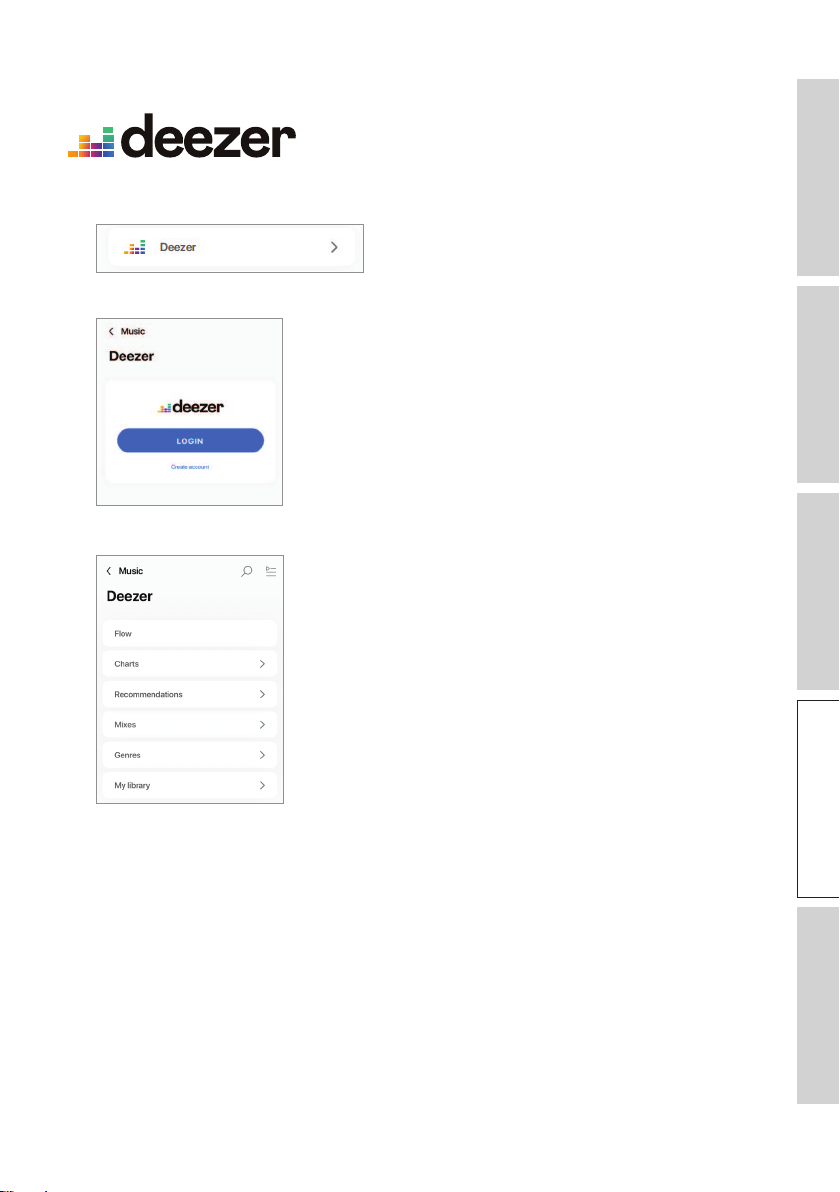
6.1.5.2 Deezer ..........................................................................................................................................................30
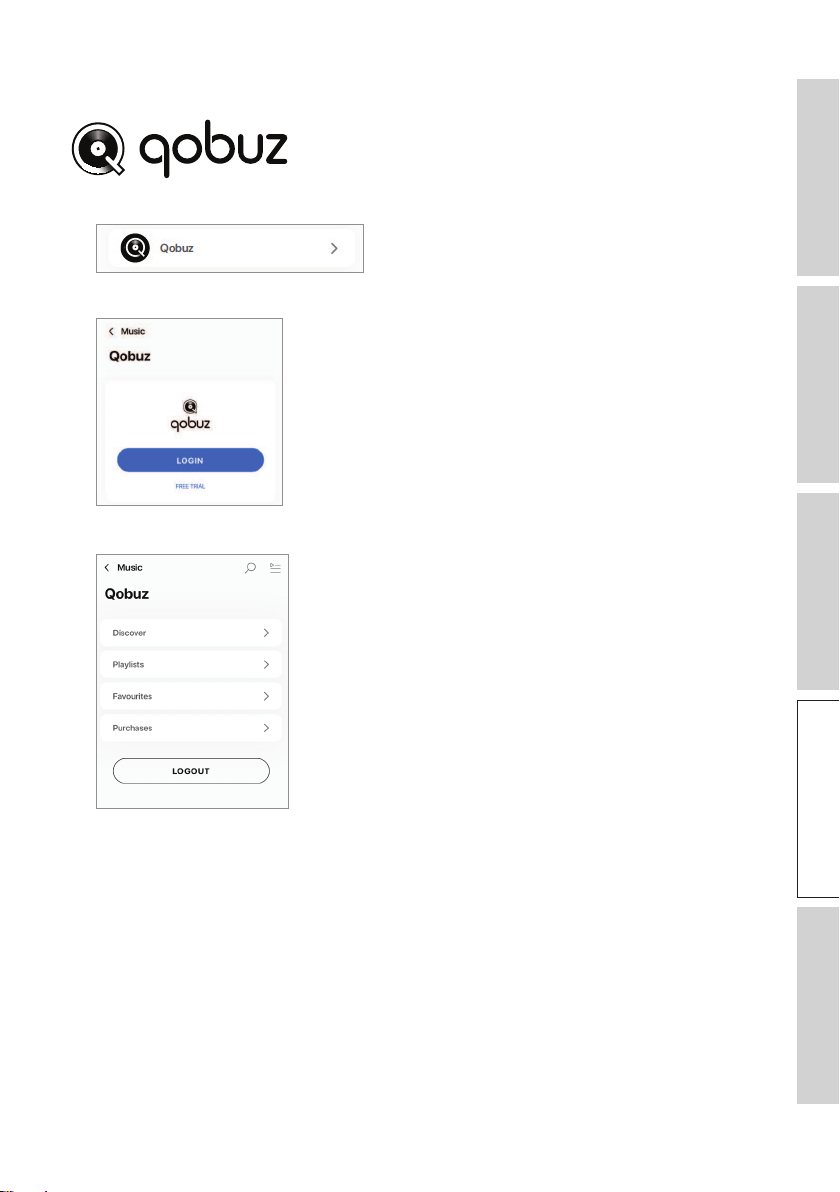
6.1.5.3 Qobuz ...........................................................................................................................................................30
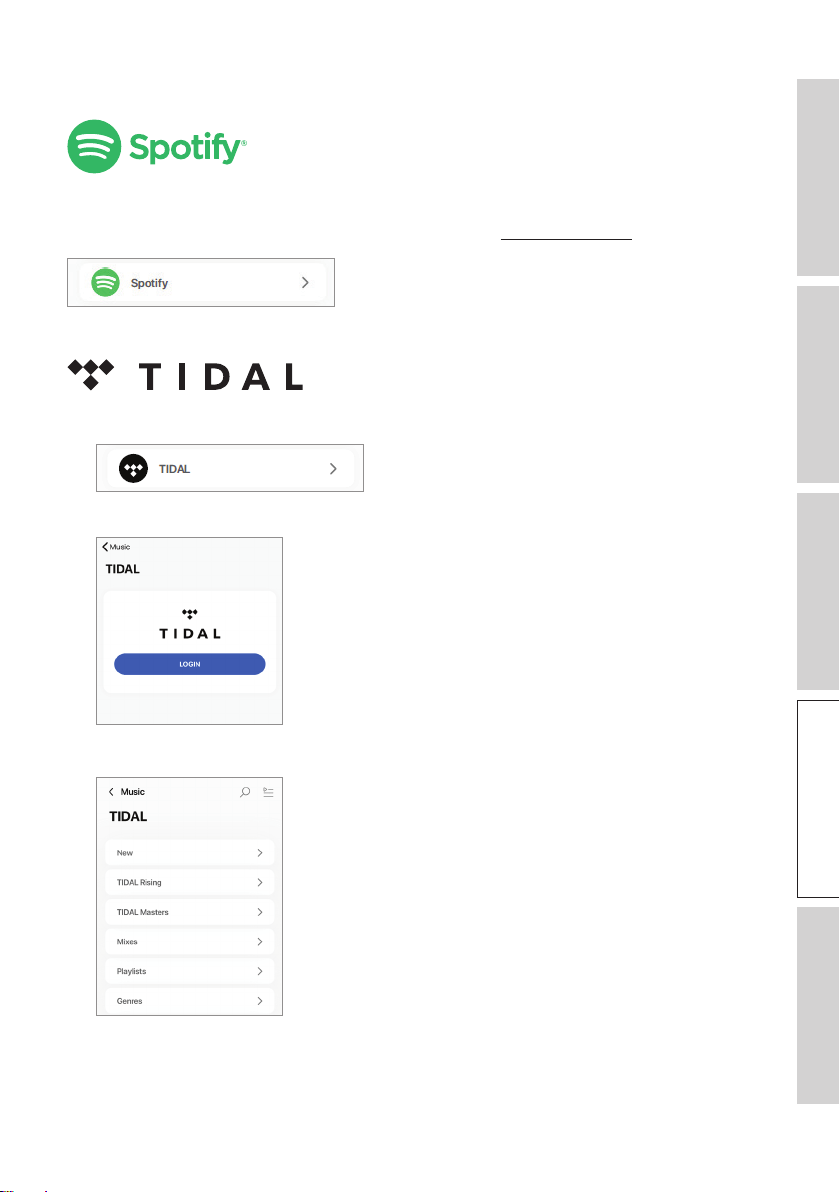
6.1.5.4 Spotify ...........................................................................................................................................................30
6.1.5.5 TIDAL............................................................................................................................................................31
6.1.5.6 Internet Radio .......................................................................................................................................... 31
6.1.5.7 Podcast ......................................................................................................................................................... 31
6.1.6 UPnP Playback ....................................................................................................................................................31
6.2 Tips on Choosing Streaming Protocols .......................................................................................................32
7. Multi-Room Streaming ..........................................................................................................33
7.1 AirPlay 2 ..........................................................................................................................................................................33
7.2 Chromecast ..................................................................................................................................................................33
7.3 ROON..............................................................................................................................................................................35

3
8. Voice Control Over Mobile Device .................................................................................. 36
8.1 Siri ........................................................................................................................................................................................36
8.2 Google Assistant ........................................................................................................................................................36
9. Playback with Bluetooth .......................................................................................................37
9.1 Selecting Bluetooth Mode ...................................................................................................................................37
9.2 Bluetooth Pairing .......................................................................................................................................................37
9.3 Playback Controls ......................................................................................................................................................38
10. Playback with HDMI eARC input .......................................................................................39
10.1 HDMI Cable Connection .....................................................................................................................................39
10.2 Selecting TV Mode ...................................................................................................................................................40
10.3 Playback Controls ......................................................................................................................................................40
11. Playback with Optical Input .................................................................................................41
11.1 Optical Cable Connection ..................................................................................................................................41
11.2 Selecting Optical Mode .........................................................................................................................................42
11.3 Playback Controls ...................................................................................................................................................... 42
12. Playback with Coaxial Input .................................................................................................43
12.1 Coaxial Cable Connection .................................................................................................................................. 43
12.2 Selecting Coaxial Mode .........................................................................................................................................44
12.3 Playback Controls ......................................................................................................................................................44
13. Playback with Auxiliary Input ............................................................................................. 45
13.1 Auxiliary Cable Connection ...............................................................................................................................45
13.2 Selecting Auxiliary Mode ......................................................................................................................................46
13.3 Playback Controls ......................................................................................................................................................46
14. Using KEF Connect App .......................................................................................................47
14.1 Home ................................................................................................................................................................................47
14.1.1 Overview ...............................................................................................................................................................47
14.1.2 Editing the Home Screen (coming soon)...........................................................................................48
14.2 Remote Control .........................................................................................................................................................48
14.3 Music Content .............................................................................................................................................................49
14.3.1 Playing Music from Music Streaming Services ................................................................................50
14.3.1.1 Amazon Music .........................................................................................................................................50
14.3.1.2 Deezer .......................................................................................................................................................... 51
14.3.1.3 Qobuz ........................................................................................................................................................... 52
14.3.1.4 Spotify ...........................................................................................................................................................53
14.3.1.5 Tidal ................................................................................................................................................................ 53
14.3.1.6 Internet Radio ..........................................................................................................................................54
14.3.1.7 Podcast .........................................................................................................................................................54
14.3.2 Playback Controls .............................................................................................................................................55
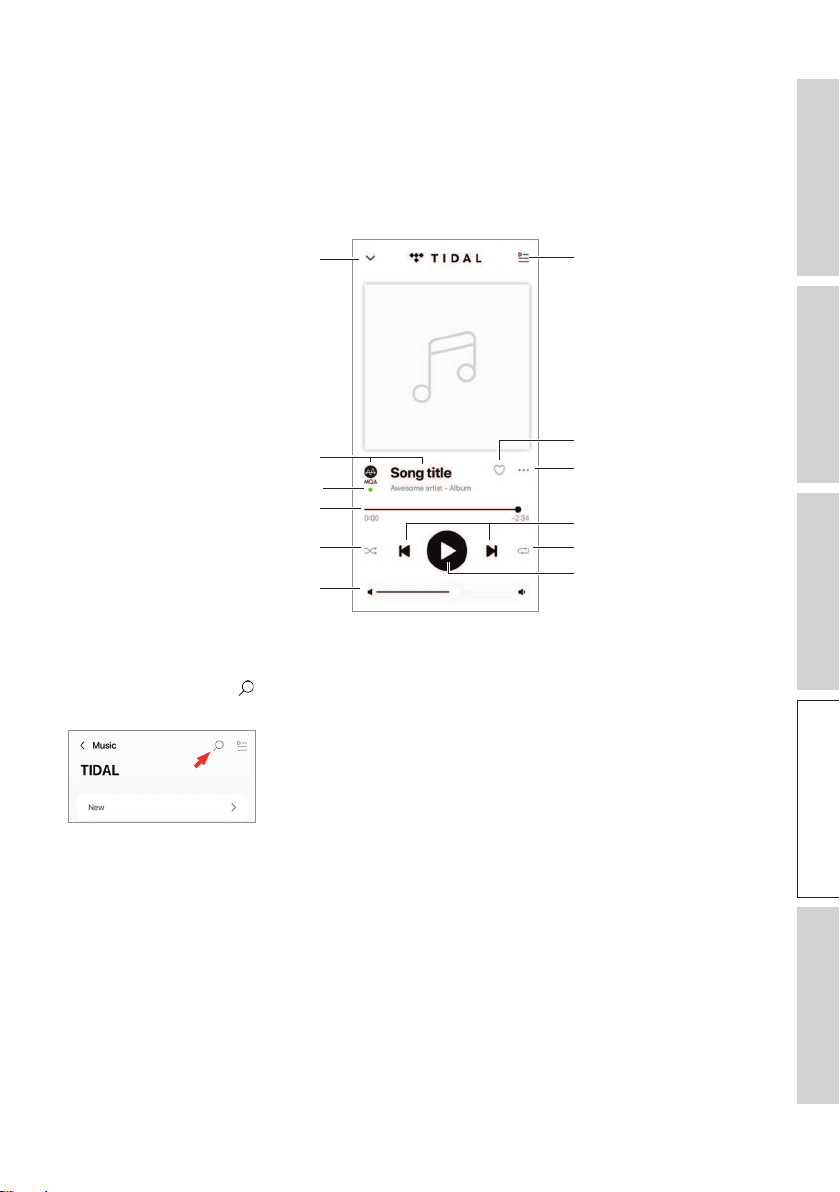
14.3.2.1 Playback Screen ......................................................................................................................................55
14.3.2.2 Search ............................................................................................................................................................55
14.3.2.3 Favourites ....................................................................................................................................................56
14.3.2.4 Queue (coming soon) .........................................................................................................................57
14.3.2.5 Playlists..........................................................................................................................................................59
14.4 Equalisations ..................................................................................................................................................................61
14.4.1 Normal Mode (coming soon) ...................................................................................................................61
14.4.2 Expert Mode........................................................................................................................................................63
14.4.3 SelectingaSoundProle(comingsoon) ...........................................................................................66

4
14.4.4 RenamingaSoundProle ...........................................................................................................................66
14.4.5 DeletingaSoundProle ..............................................................................................................................67
14.5 Prole ................................................................................................................................................................................ 68
14.6 Choosing Your Speaker .........................................................................................................................................69
14.6.1 My Speaker and Speakers Nearby .........................................................................................................69
14.6.2 Speaker Info ........................................................................................................................................................70
14.7 Speaker Preferences ................................................................................................................................................ 71
14.7.1 Power Saver – Standby Mode ..................................................................................................................71
14.7.2 Power Saver – Second Wake-Up Source ......................................................................................... 71
14.7.3 Do Not Disturb – Start Up Tone (coming soon) ........................................................................ 71
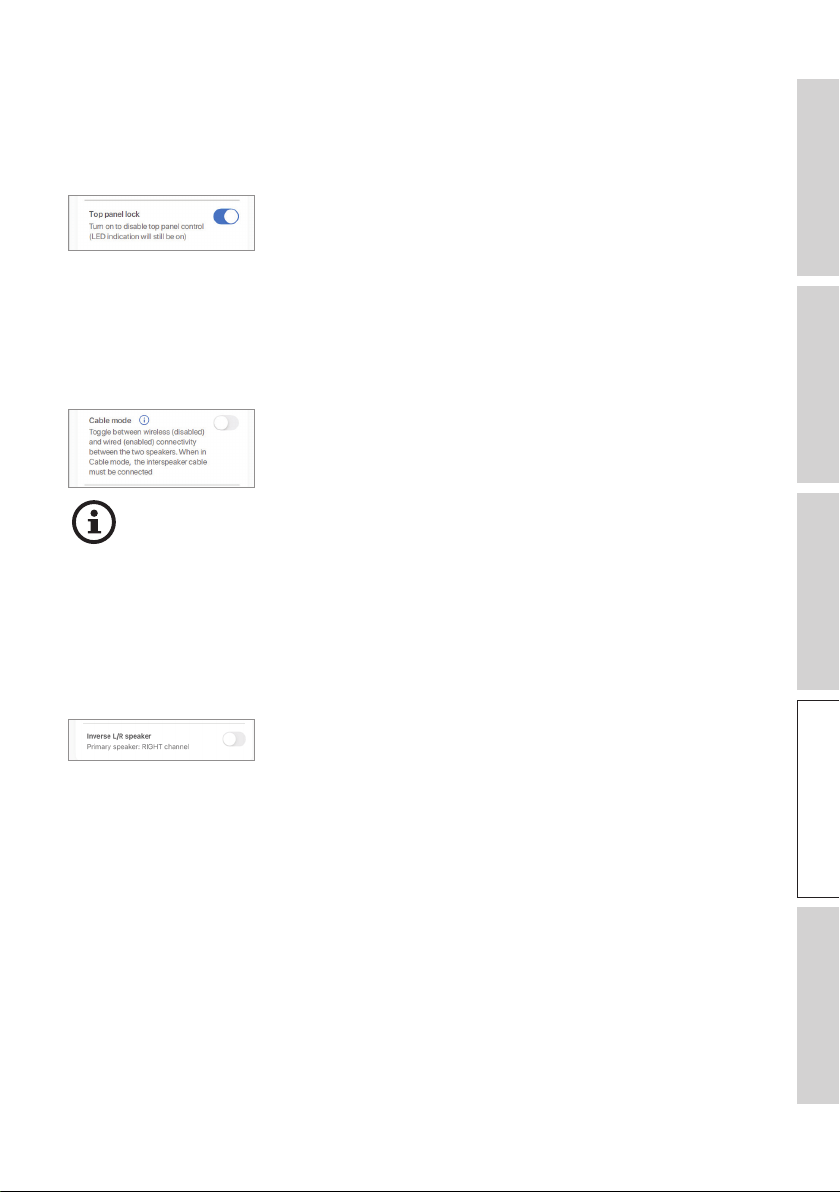
14.7.4 Do Not Disturb – Top Panel Lock ........................................................................................................72
14.7.5 Speaker System Options – Cable Mode ...........................................................................................72
14.7.6 Speaker System Options – Inverse L/R Speakers ........................................................................ 72
14.8 Volume .............................................................................................................................................................................73
14.8.1 Volume Display Setting .................................................................................................................................73
14.8.2 Hardware Volume ............................................................................................................................................ 74
14.8.3 Speaker Volume Sensitivity ........................................................................................................................74
14.8.4 Maximum Volume ............................................................................................................................................74
14.8.5 Balance Control .................................................................................................................................................74
14.9 Firmware Upgrade ....................................................................................................................................................75
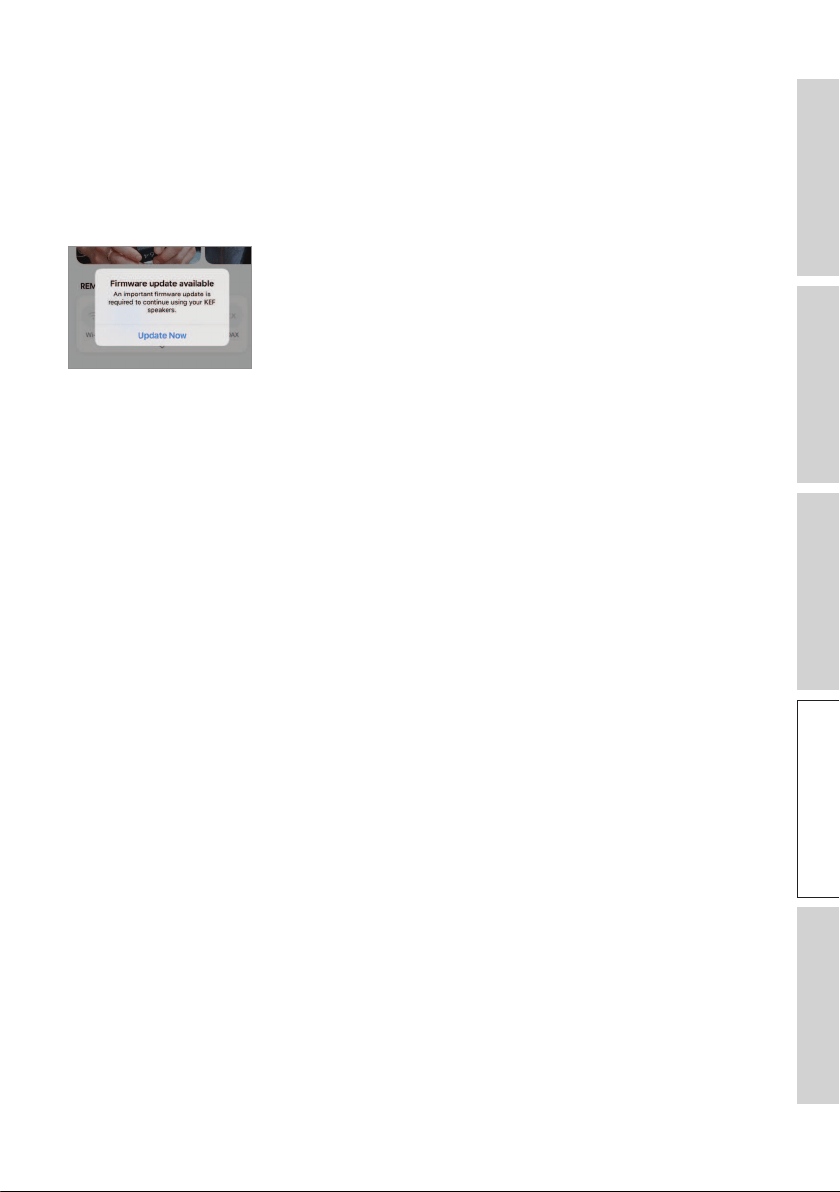
14.9.1 Automatic Firmware Update after Onboarding ........................................................................... 75
14.9.2 Automatic Firmware Check .......................................................................................................................75
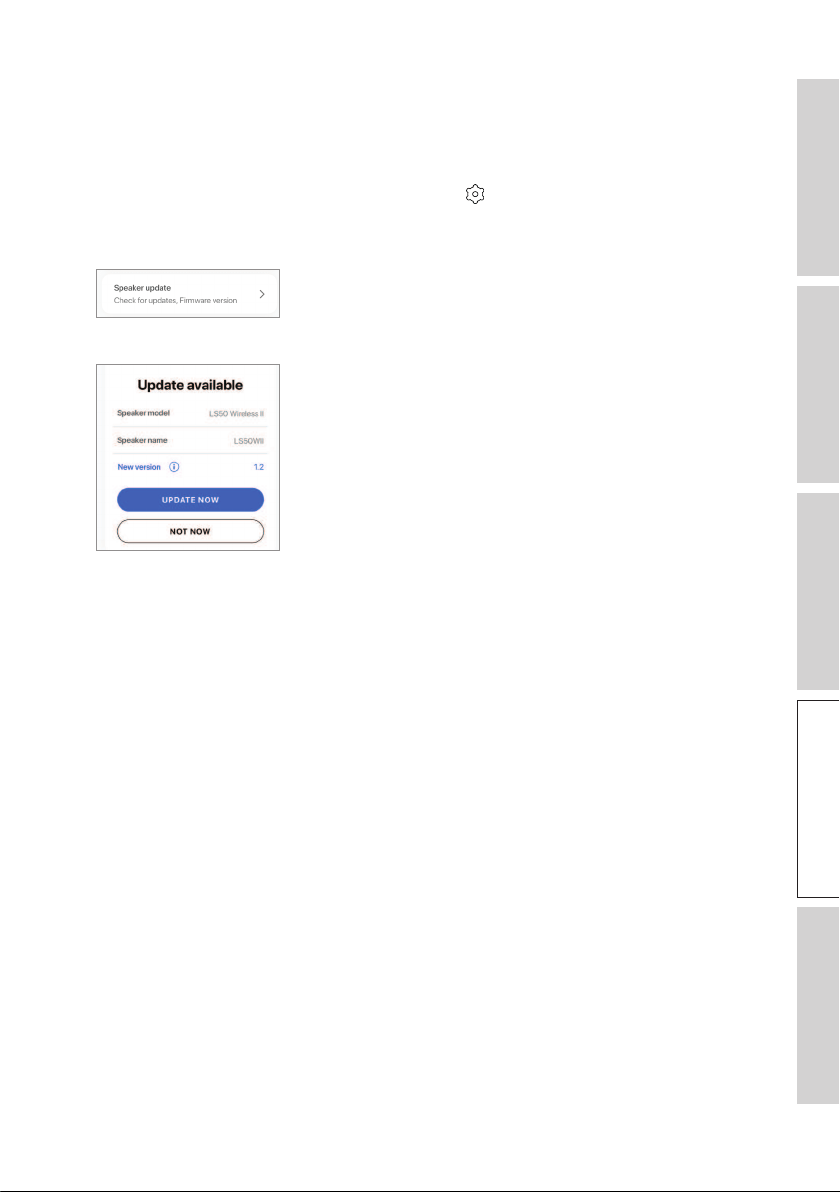
14.9.3 Manual Firmware Update ............................................................................................................................ 76
14.10 Application .....................................................................................................................................................................77
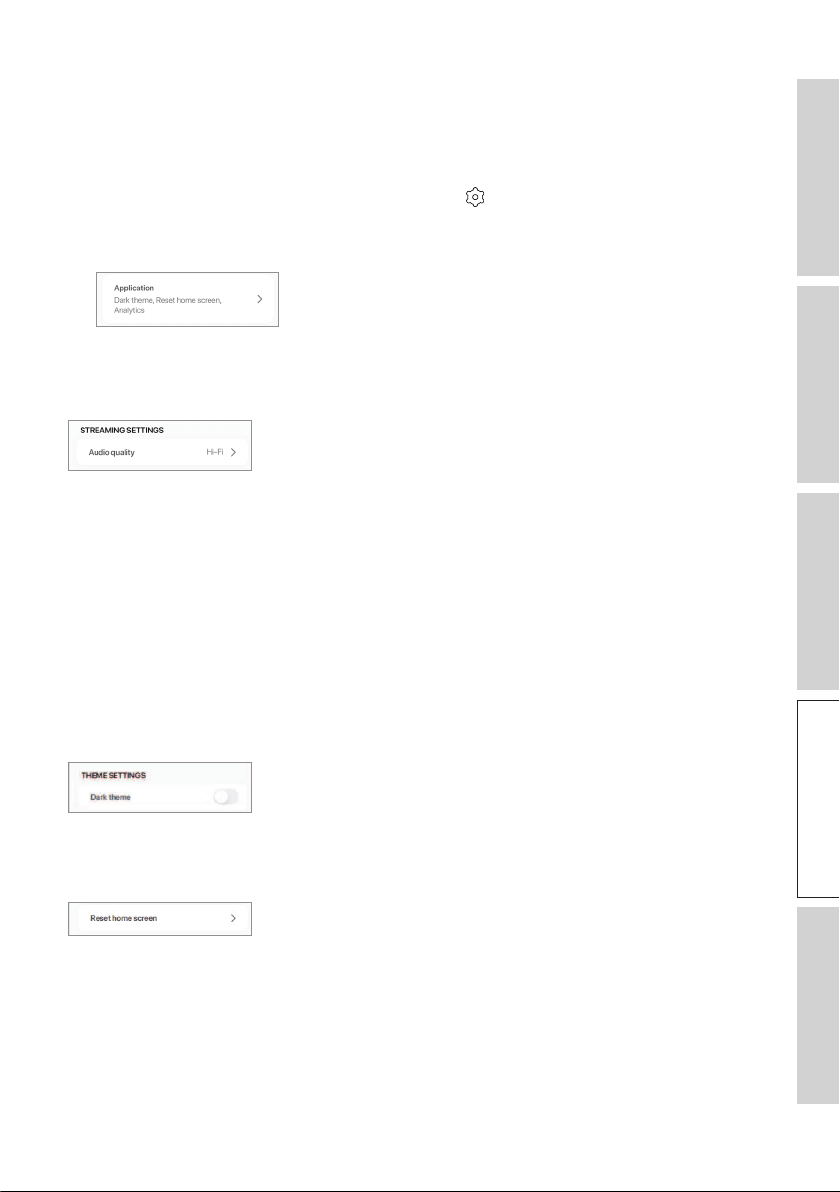
14.10.1 Streaming Settings – Audio Quality ......................................................................................................77
14.10.2 Theme Settings – Dark Theme ...............................................................................................................77
14.10.3 Theme Settings – Reset Home Screen ..............................................................................................77
14.10.4 Analytics – Improve App/Speaker .........................................................................................................78
14.11 Support ............................................................................................................................................................................79
15. Cleaning and Maintenance ................................................................................................... 80
16. Disposal .................................................................................................................................... 81
16.1 Disposing of the Packaging .................................................................................................................................. 81
16.2 Disposing of the Speakers....................................................................................................................................81
16.3 Disposing of the Battery .......................................................................................................................................81
17. FAQ and Troubleshooting ................................................................................................... 82
17.1 Set-up ..............................................................................................................................................................................82
17.2 Playback and Streaming .........................................................................................................................................84
17.3 Troubleshooting .........................................................................................................................................................86
17.4 LED Indicators .............................................................................................................................................................89
18. Appendix .................................................................................................................................. 92
18.1 Specications ................................................................................................................................................................92
18.2 Explanation of symbols ..........................................................................................................................................95
18.2.1 Warning Symbols ..............................................................................................................................................95
18.2.2 Regional Symbols ..............................................................................................................................................95
18.3 IR Command Codes ................................................................................................................................................ 97

5
Table of ContentsSetting UpWi-Fi StreamingUsing KEF Connect AppFAQ and Troubleshooting
1. Introduction
Thank you for choosing KEF wireless speaker system – LS50 Wireless II.
Innovation is what sets KEF apart from its competitors. For over 50 years KEF has
been at the forefront of loudspeaker research and development, designing class-leading
speakers that have dealt with the challenges of reproducing the latest musical formats,
and reproducing them to the highest possible quality. This legacy continues today with
the LS50 Wireless II, our compact, yet powerful speaker system for the digital music era.
The new KEF LS50 Wireless II is a fully active wireless stereo system that delivers
pristine, KEF sound coupled with instinctive usability and high-performance wireless
capability. Completely re-engineered and capable of playing any source seamlessly,
LS50 Wireless II is the only hi-fi system you will ever need, contained within two
perfectly proportioned, precision-made cabinets.
Please read and follow this user manual carefully before using the speaker system.
6
Table of ContentsSetting UpWi-Fi StreamingUsing KEF Connect AppFAQ and Troubleshooting
2. General Information
2.1 Reading and Storing the User Manual
This user manual accompanies the LS50 Wireless II speaker system
(hereafter referred to as the “speakers”), and contains important
information on setup and handling.
Before using your speakers, read this user manual and the safety information (as a
separate booklet) carefully. This particularly applies to the safety information. Failure to
do so may result in personal injury or damage to the speakers.
Retain the user manual and safety information for further use. Make sure to include the
user manual and safety information when passing the speakers on to third parties.
2.2 Signal Symbol/Word Definitions
The following symbols and signal words are used in this user manual.
WARNING!
This signal symbol/word designates a hazard with moderate
risk, which may result in death or severe injury if not avoided.
NOTICE!
This signal word warns of possible damage to property.
This signal word provides you with useful additional
information on handling and use.
7
Table of ContentsSetting UpWi-Fi StreamingUsing KEF Connect AppFAQ and Troubleshooting
3. In the Box and Unpacking
NOTICE!
Risk of damage!
Using a sharp knife or other pointed object to open the packaging may damage the
speakers.
•Be very careful when opening the packaging. Follow the instructions on the packaging
to lift up the speakers from the sides to avoid damaging the Uni-Q drivers (speaker
cones).
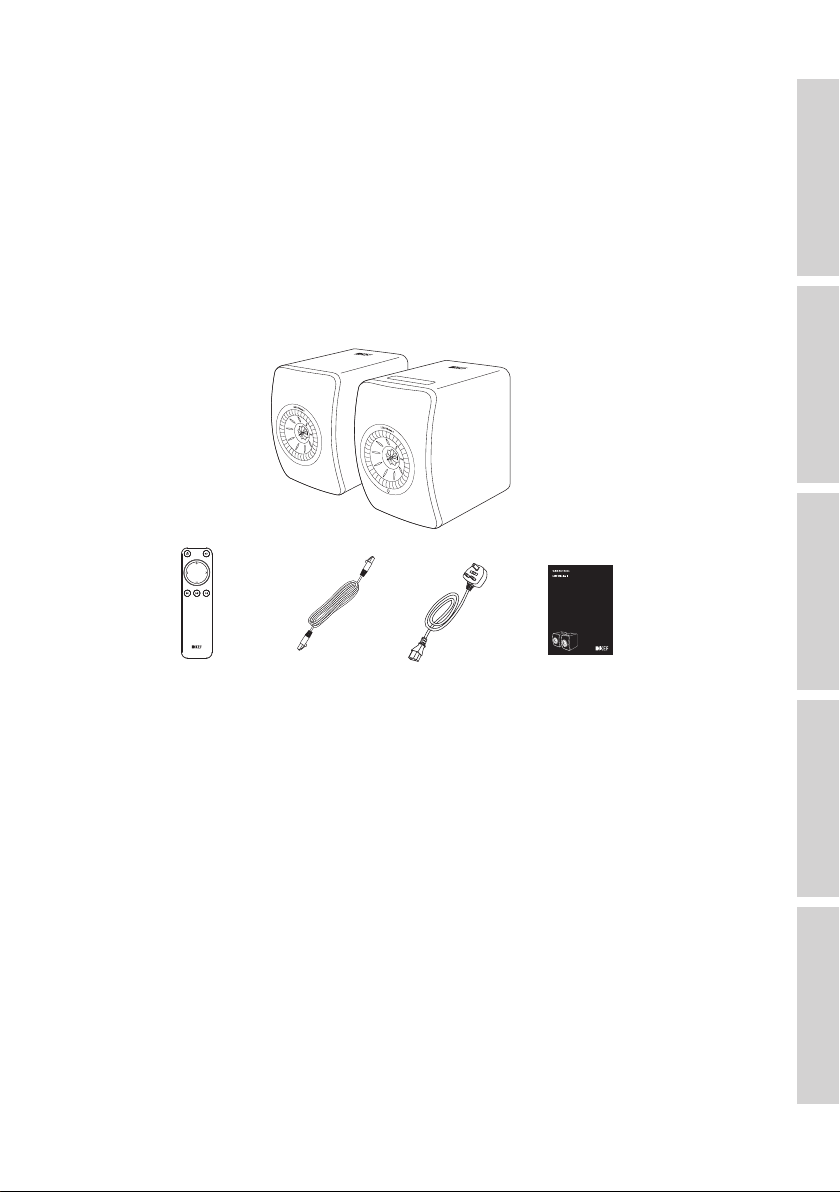
×1 set
×1 ×1 ×2 ×3
1. Take the speakers and accessories out of the packaging.
2. Remove the red protective stickers and tabs on the speakers.
3. Check to make sure that all parts are included, namely:
•Speaker ×2 (Primary Speaker ×1, Secondary Speaker ×1)
•Remote control ×1 (with 2 AAA batteries)
•Inter-speaker cable ×1 (length: 3 m)
•Power cable ×2 (length: 2 m, with country-specific power plugs)
•Printed materials: Quick Start Guide, Safety Information and Warranty Information
4. Check whether the speakers or individual parts are damaged. If this is the case, do
not use the speakers and contact your retailer.
8
Table of ContentsSetting UpWi-Fi StreamingUsing KEF Connect AppFAQ and Troubleshooting
4. Setting Up LS50 Wireless II
4.1 Selecting an Appropriate Router
The speakers must be “onboarded” to your personal Wi-Fi network (see chapter
“Onboarding”) for the best sound quality, comprehensive control and to enjoy music
streaming,
Technical Requirements of your Router
•Network standard: IEEE 802.11a/b/g/n/ac, IPv4, IPv6,
•Frequency band: Dual-band 2.4 GHz / 5 GHz
•A 5 GHz Wi-Fi network is recommended for stable streaming, especially for
hi-resolution music.
•Connecting to a guest, office or public network: Office, hotel, guest and
public networks often feature additional security or authentication methods
which may prevent the speakers from connecting. You may need the help of
the network administrator to configure the network to allow full functionality
if using these kinds of networks.
9
Table of ContentsSetting UpWi-Fi StreamingUsing KEF Connect AppFAQ and Troubleshooting
4.2 Connecting to Power
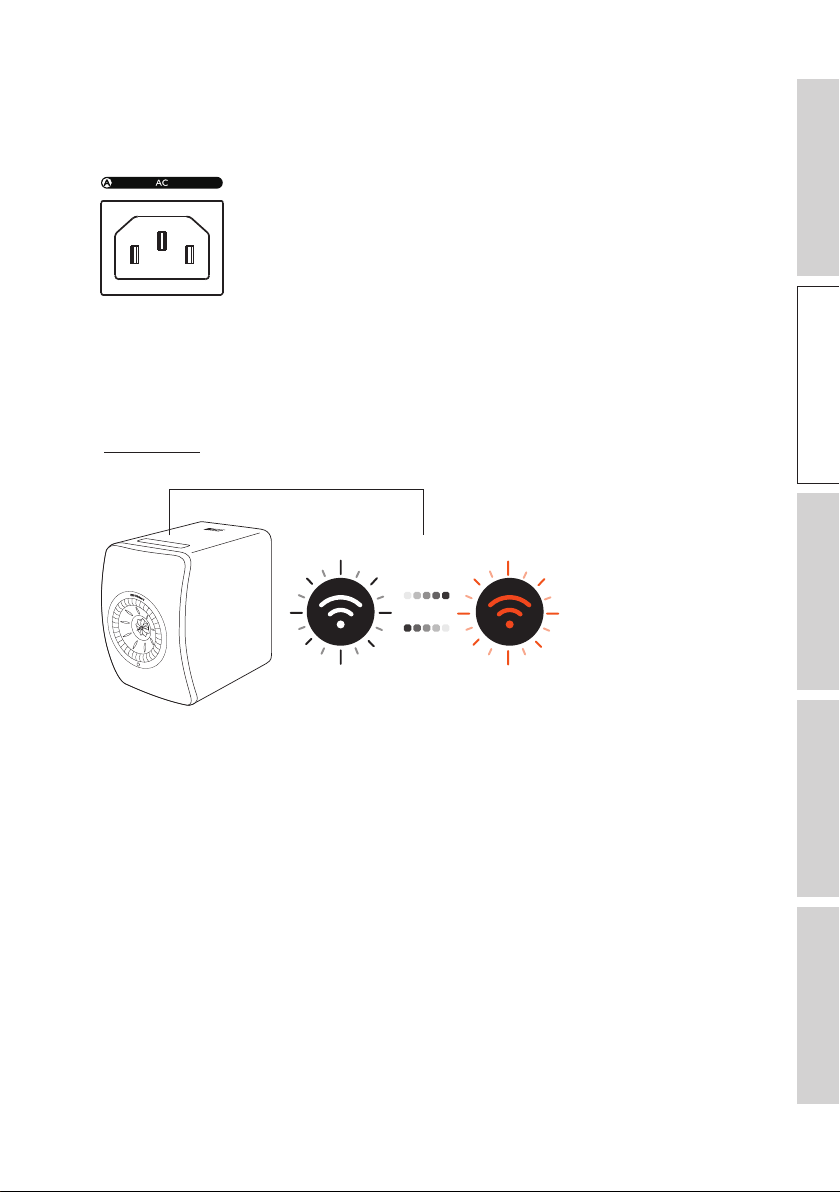
1. Connect the power cables into the AC input connectors (A) on the back panels of
the Primary and Secondary Speakers.
2. Connect the power plugs into the power sockets/outlets.
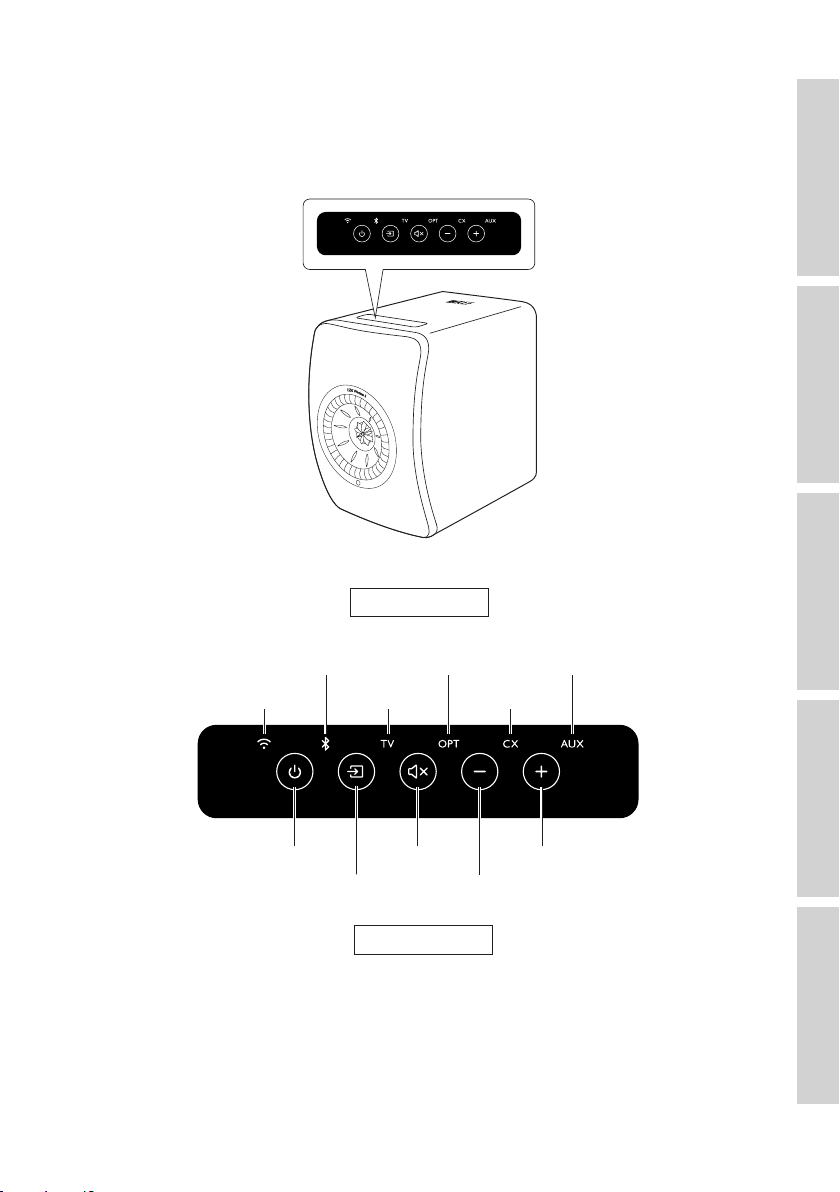
After successful power connections, the Wi-Fi icon on the top panel of the Primary
Speaker will blink white and amber. The speakers are now ready to be “onboarded”
to your personal Wi-Fi network through the KEF Connect App (see chapter
“Onboarding”).
10
Table of ContentsSetting UpWi-Fi StreamingUsing KEF Connect AppFAQ and Troubleshooting
4.3 Onboarding
4.3.1 Installing the KEF Connect App
Install the KEF Connect App on your mobile device to get the speakers “onboarded”
to your personal Wi-Fi network.
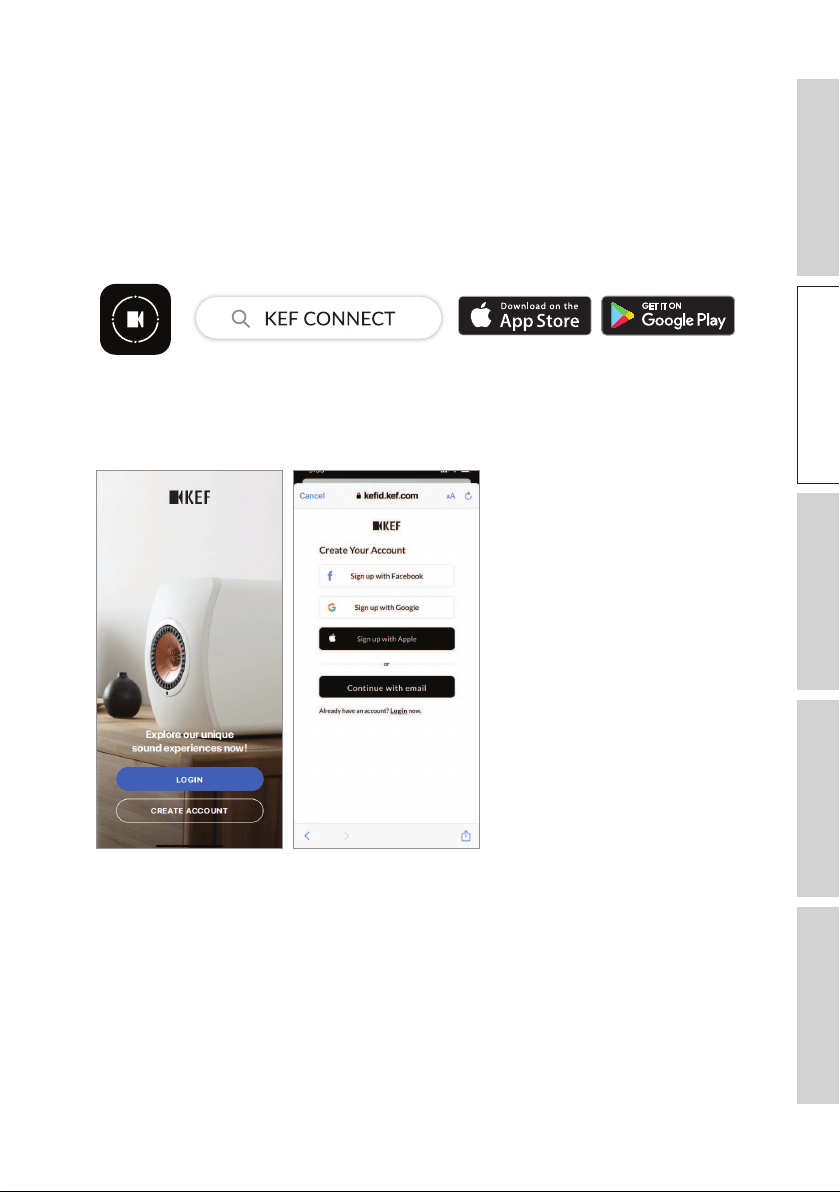
1. Search “KEF Connect” in the App Store or Google Play Store to download and install
the KEF Connect App on your iOS* or Android** device.
2. Launch the KEF Connect App on your device and create a user account. You may log
in with your existing Facebook, Google or Apple*** account, or create a new KEF
account with your email address.
*Requires iOS 13 or above.
**Requires Android 8 or above.
***The use of an Apple account is only available on iOS devices.
11
Table of ContentsSetting UpWi-Fi StreamingUsing KEF Connect AppFAQ and Troubleshooting
4.3.2 Using iOS Devices
1. Make sure your mobile device is connected to the network you want to onboard
your speaker to.
2. Launch and login to the KEF Connect App on your mobile device.
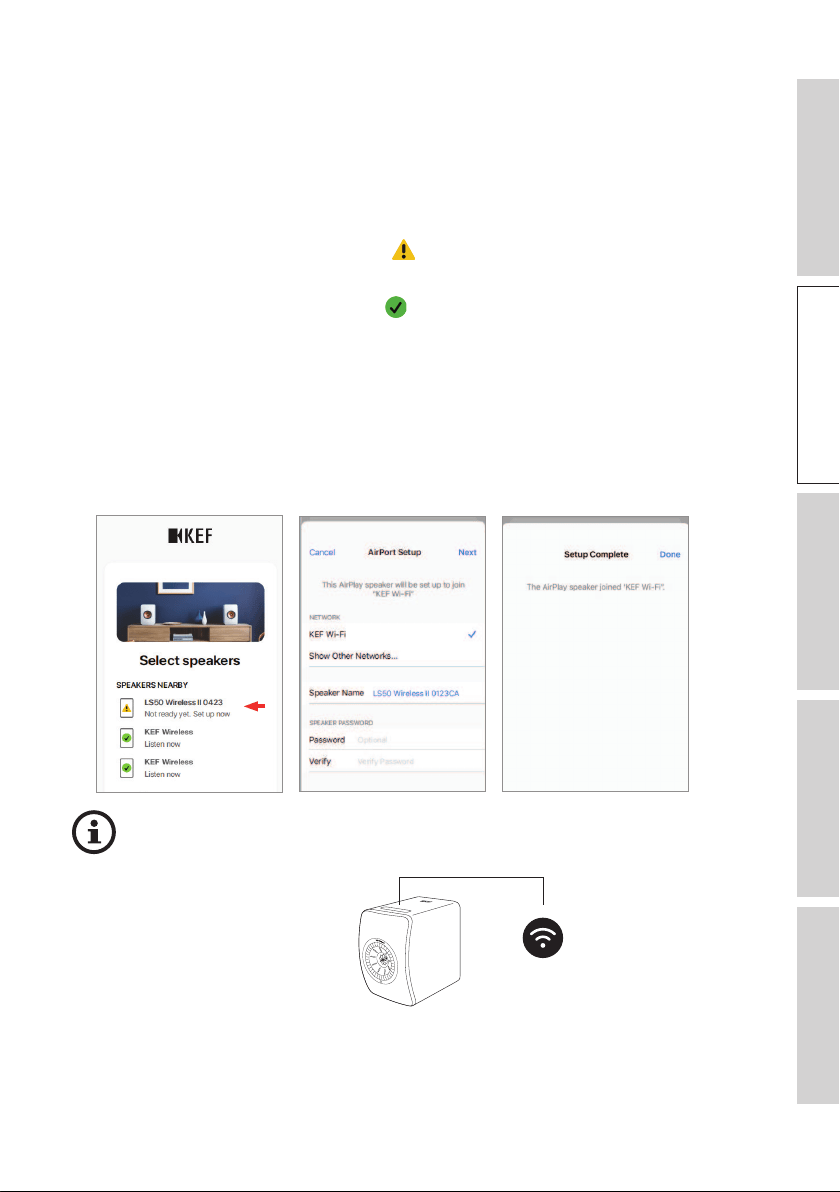
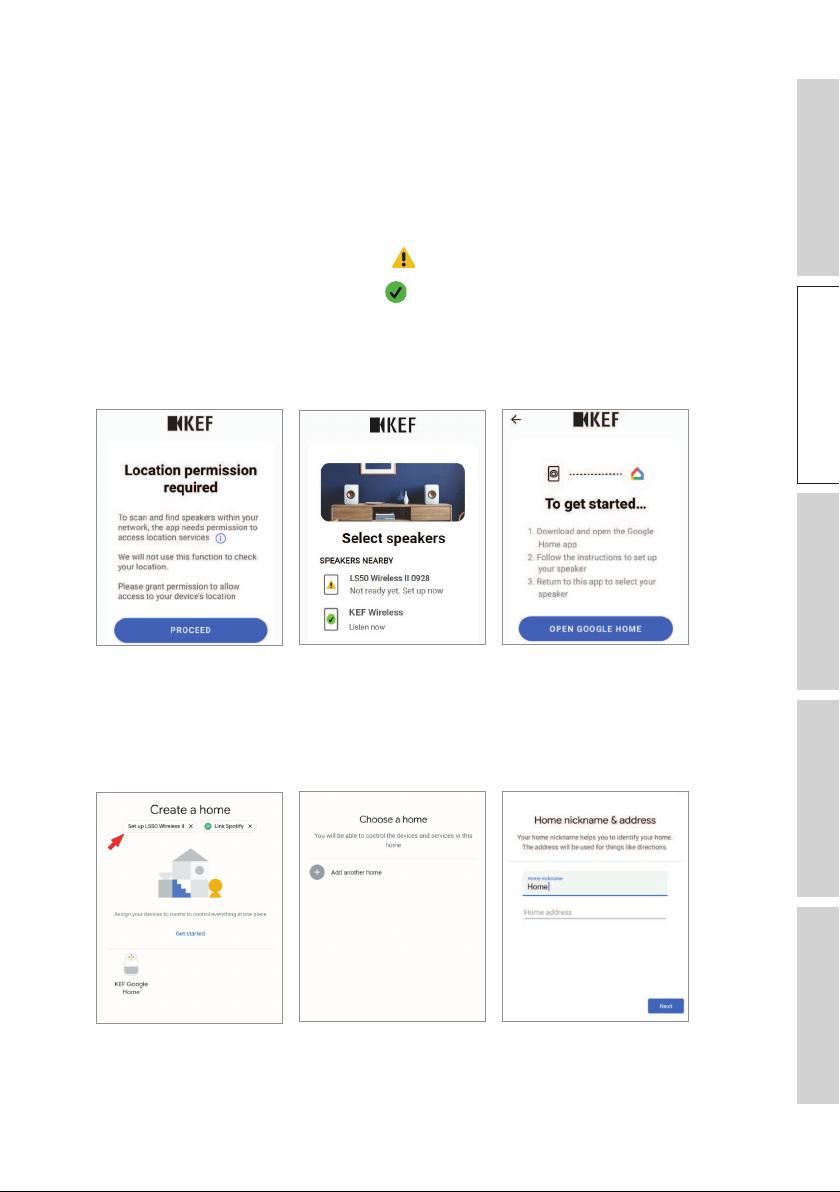
3. Select “LS50 Wireless II” under “Speakers nearby”.
The speakers with the warning sign ( ) are not set up yet. Select the speakers
with this warning mark to get them “onboarded”.
The speakers with the check mark (
) are ready for use. This icon will show for
speakers already onboarded or directly connected to the network via a cable.
4. Select your local Wi-Fi network. Press “Next” to begin the onboarding process.
You may rename the speakers by tapping “Speaker name”.
5. The onboarding process will be done automatically. Tap “Done” when the process is
completed.
[Step 3–5]
•The Wi-Fi icon on the top panel of the Primary Speaker is solid white when
the speakers are successfully connected.
•After successful connection, you may be prompted if there is a new firmware
update available. Follow the instructions in the KEF Connect App to
complete the update process.
12
Table of ContentsSetting UpWi-Fi StreamingUsing KEF Connect AppFAQ and Troubleshooting
4.3.3 Using Android Devices with Google Play Service
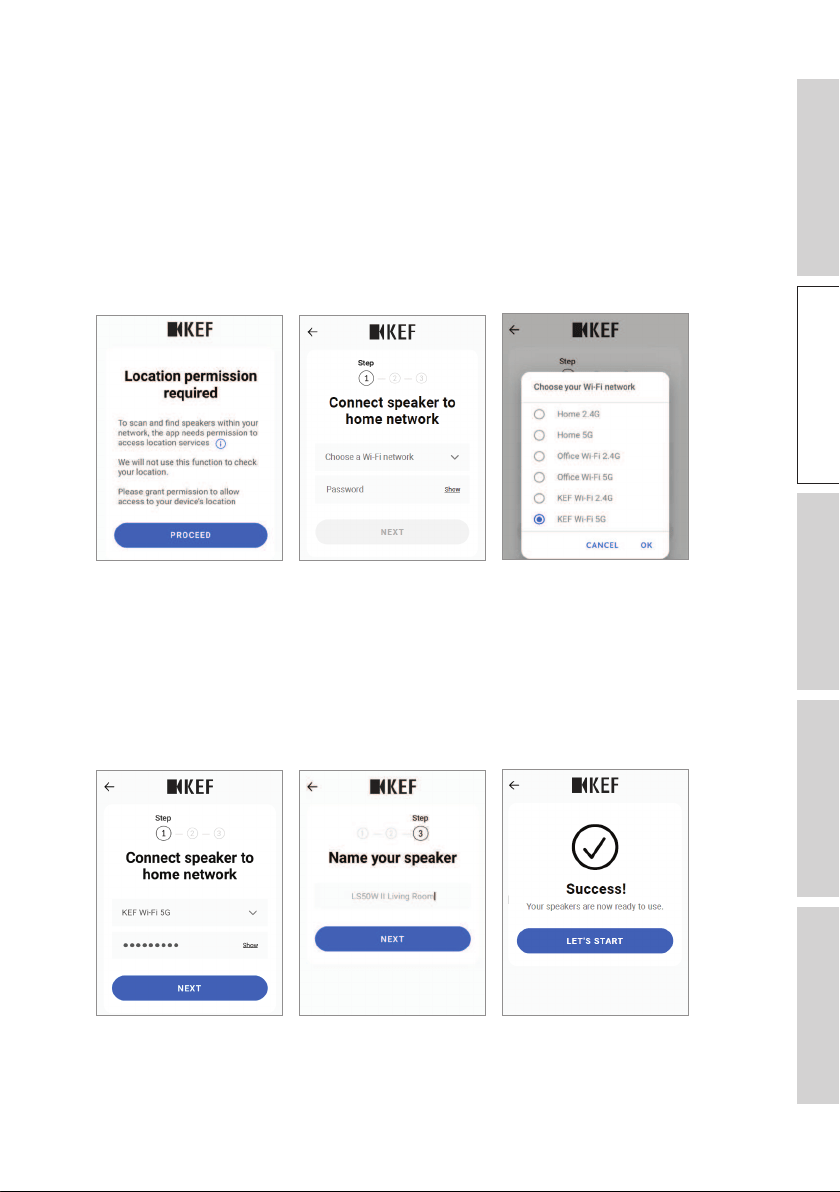
1. Make sure your mobile device is connected to your local Wi-Fi network.
2. Launch and login to the KEF Connect App on your mobile device.
3. Allow the app to access your device’s location when requested.
4. Select “LS50 Wireless II” under “Speakers nearby”.
The speakers with the warning sign ( ) are not set up yet.
The speakers with the check mark (
) are ready for use.
5. Tap “Open Google Home” to proceed. If your mobile device does not have Google
Home, you will be prompted to download and install the app on your device.
[Step 3–5]
6. Tap “Set up LS50 Wireless II” at the top of the screen.
7. Tap “Add another home”.
8. Create a nickname for the home and then tap “Next”.
[Step 6–8]
Google Home will start to look for and connect to the speakers. Follow the
instructions on the screen to assign a use location (e.g home) and connect the
speakers to your local Wi-Fi network.

13
Table of ContentsSetting UpWi-Fi StreamingUsing KEF Connect AppFAQ and Troubleshooting
9. When the process is completed, tap “Continue”.
10. Go back to the KEF Connect App to start using the speakers.
•The Wi-Fi icon on the top panel of the Primary Speaker is solid white when
the speakers are successfully connected.
•After successful connection, you may be prompted if there is a new firmware
update available. Follow the instructions in the KEF Connect App to
complete the update process.
14
Table of ContentsSetting UpWi-Fi StreamingUsing KEF Connect AppFAQ and Troubleshooting
4.3.4 Using Android Devices without Google Play Service
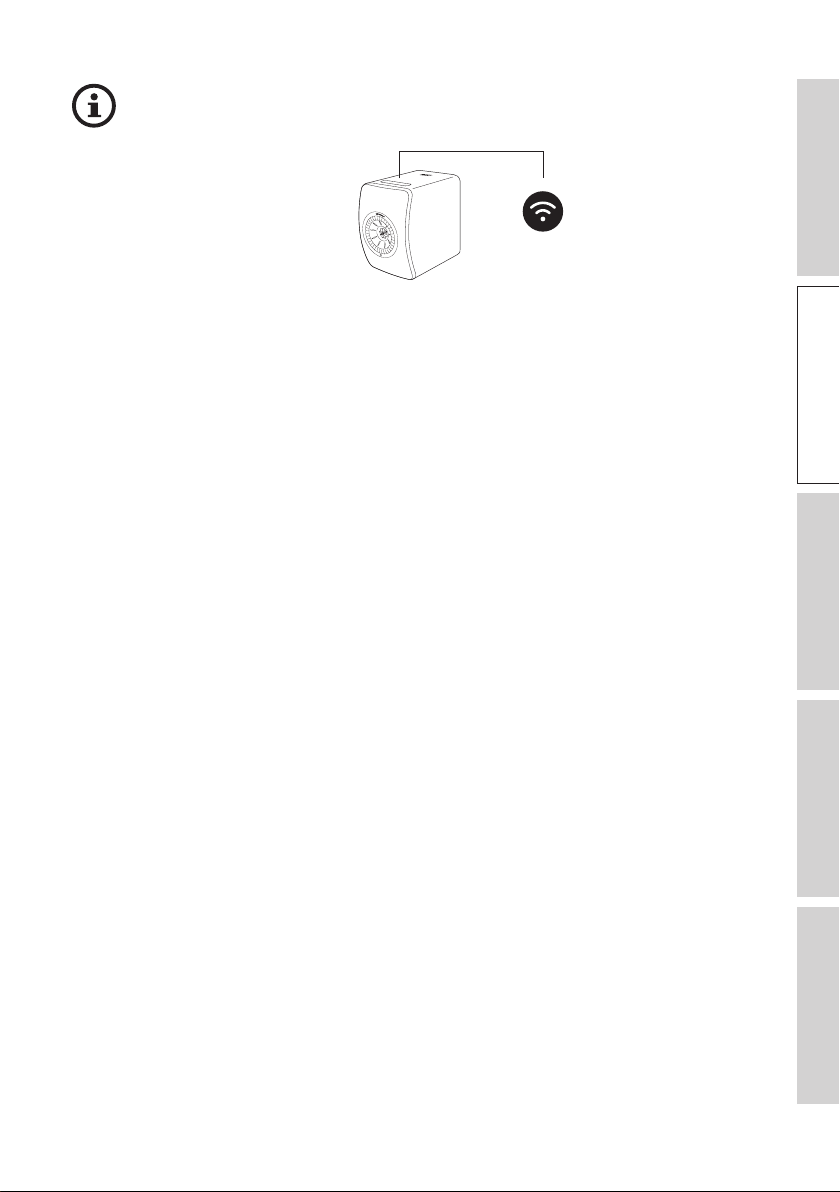
1. Make sure your mobile device is connected to your local Wi-Fi network.
2. Launch and login to the KEF Connect App on your mobile device.
3. Allow the app to access your device’s location when requested.
4. Tap “Choose a Wi-Fi network”.
5. Select your local Wi-Fi network and then tap “OK”.
[Step 3–5]
6. Input the password of your local Wi-Fi network and then tap “Next”. The
connection process will be done automatically.
7. If preferred, create a new name for the speakers and then tap “Next”. This name
will be used for Wi-Fi and Bluetooth connections.
8. Tap “Let’s start” to enjoy your speakers.
[Step 6–8]
15
Table of ContentsSetting UpWi-Fi StreamingUsing KEF Connect AppFAQ and Troubleshooting
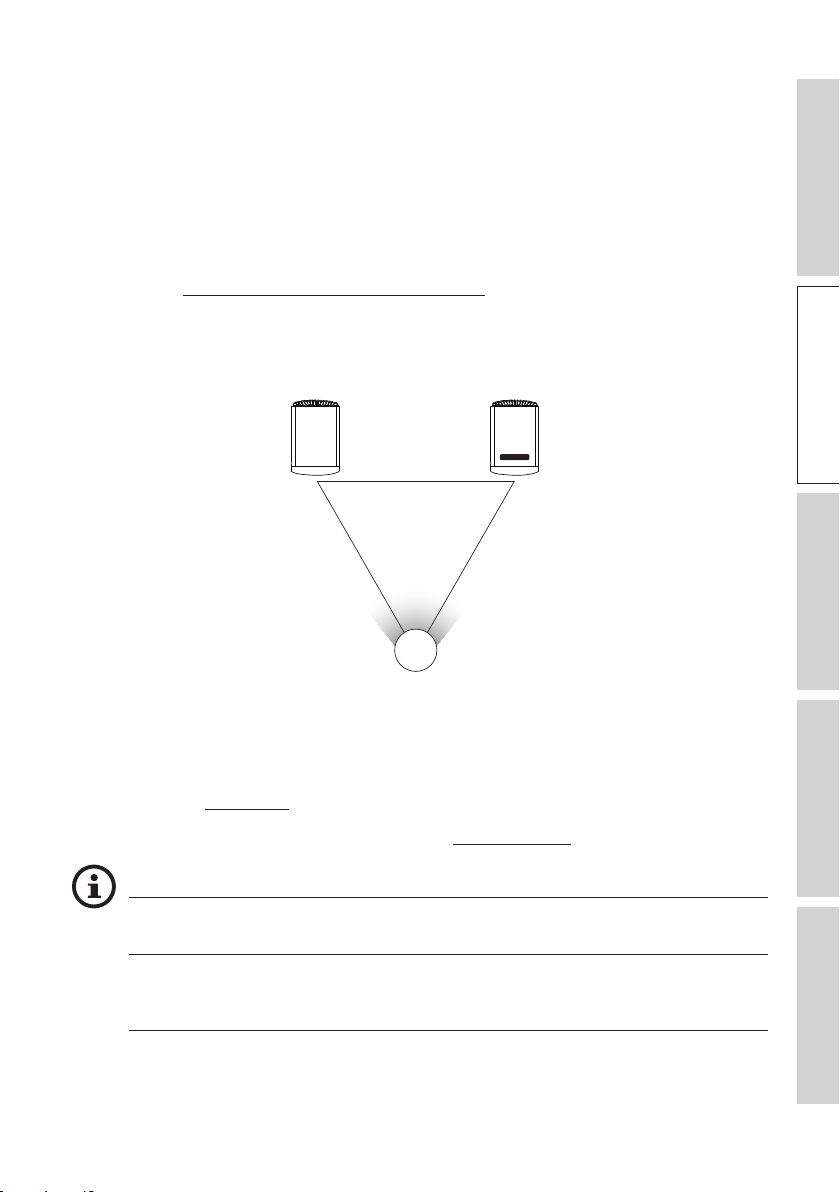
•The Wi-Fi icon on the top panel of the Primary Speaker is solid white when
the speakers are successfully connected.
•After successful connection, you may be prompted if there is a new firmware
update available. Follow the instructions in the KEF Connect App to
complete the update process.
16
Table of ContentsSetting UpWi-Fi StreamingUsing KEF Connect AppFAQ and Troubleshooting
4.4 Speaker Placement and Connection
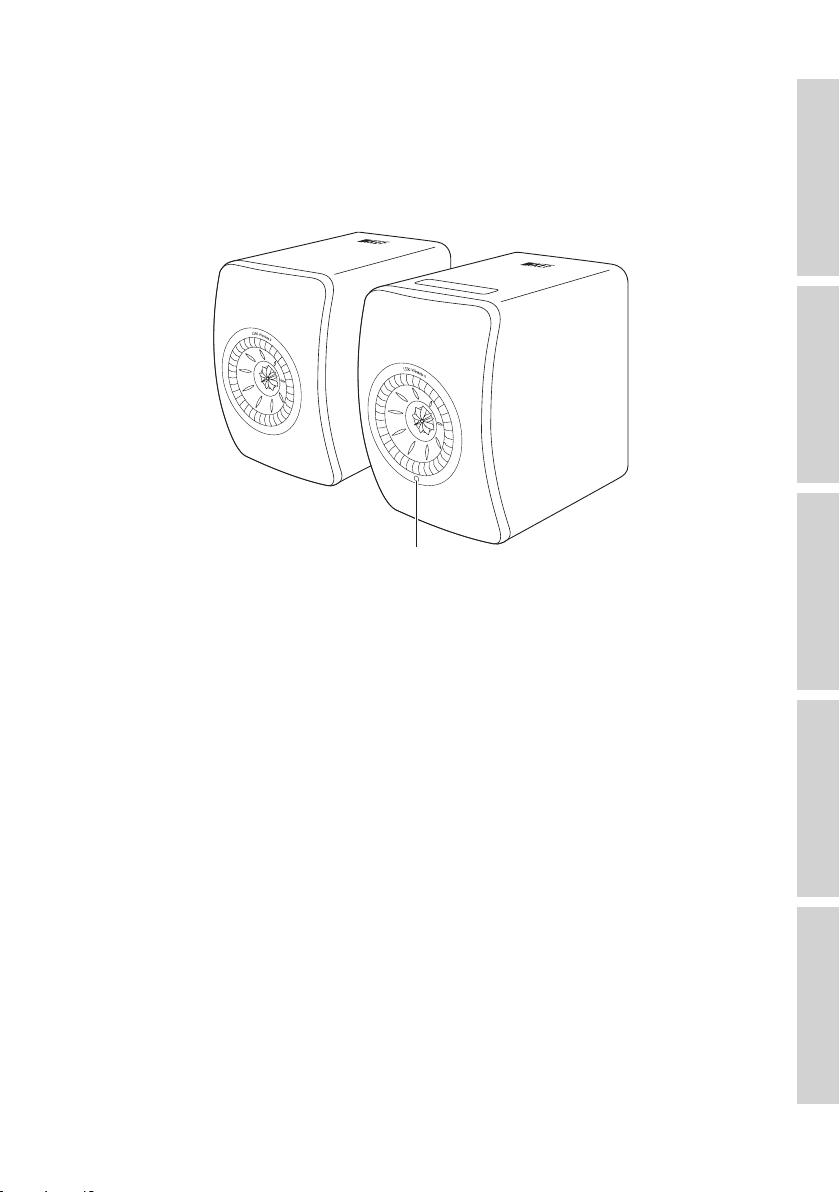
•The speakers should be placed on a flat and level surface that is free from vibration.
•The two speakers are distinguished between the Primary Speaker and the Secondary
Speaker. By default, the Primary Speaker is the right channel* and should be placed
on your right hand side as you face the speakers. For the best stereo experience,
soundstage and stable connection, place the speakers within 8 meters apart.
*The left and right channels can be swapped through the KEF Connect App.
See chapter “Speaker System Options – Inverse L/R Speaker”.
•The optimum distance between the speakers and the listener will depend on how far
the Primary Speaker and the Secondary Speaker are separated, or vice versa. Try to
keep the same distance to the listener to form an equilateral triangle.
A
B C
A = B = C
•The two speakers are already paired and will be automatically connected with each
other wirelessly (resolution: 96 kHz/24 bit). If you prefer a higher resolution
(192 kHz / 24 bit) or are experiencing frequent audio dropouts due to interference,
use the provided inter-speaker cable (length: 3 m) to link the two speakers
(see chapter “Back Panel”).
•If a longer inter-speaker cable is required, the K-Stream cable (6 m) is recommended.
Maximum Distance between the Two Speakers
Wireless Mode Up to 8 meters. Note that RF interference, including Wi-Fi
and Bluetooth, may reduce this distance.
Wired Mode Use the provided inter-speaker cable or connect with a
shielded Cat-6 Ethernet cable. The maximum cable length
is 10 meters.
18
Table of ContentsSetting UpWi-Fi StreamingUsing KEF Connect AppFAQ and Troubleshooting
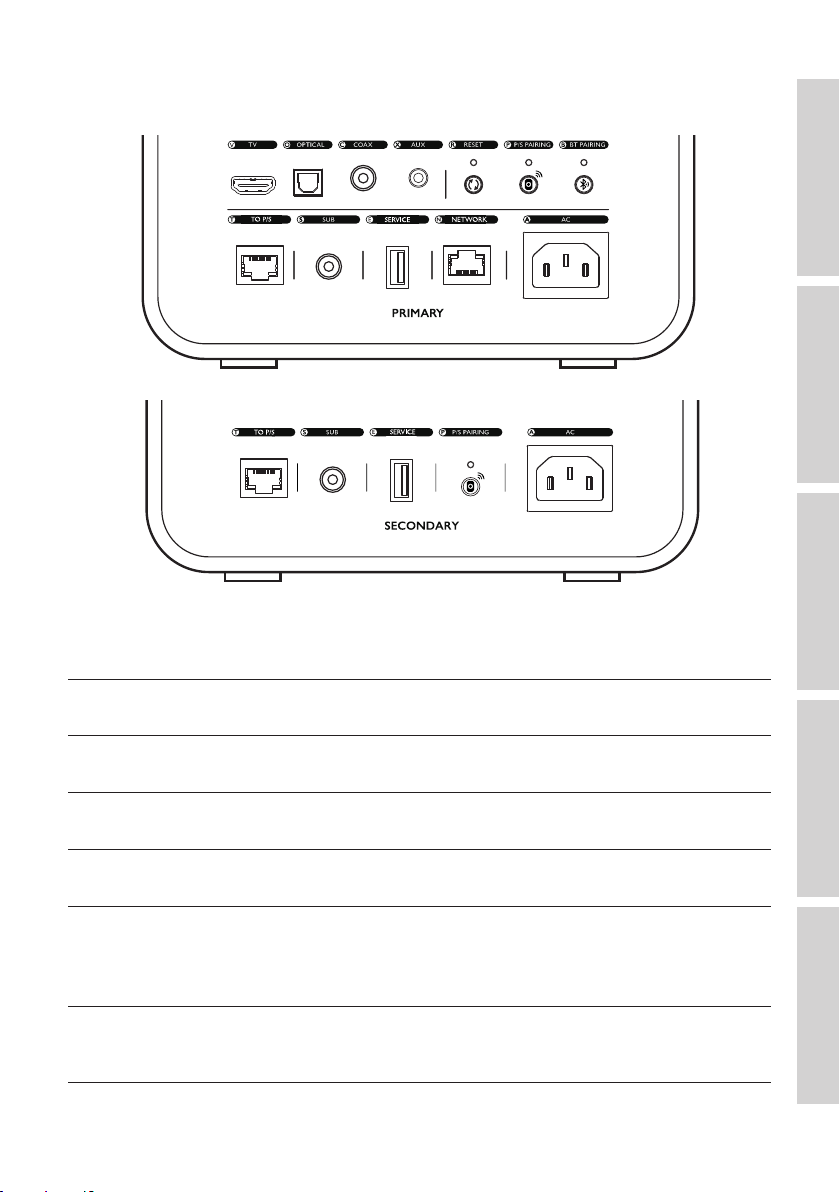
5.2 Back Panel
Controls and connections are found on the back panel of each speaker, marked as shown.
V TV port Plays audio input from a source (e.g. ARC/eARC port
of television) through an HDMI cable.
O Optical input jack Plays audio input from a source (e.g. Blu-ray player,
cable box) through an optical cable.
C Coaxial input jack Plays audio input from a source (e.g. audio player)
through a coaxial cable.
X Auxiliary input jack Plays audio input from a source (e.g. turntable with
phono stage) through a 3.5 mm audio cable.
R Factory reset button Resets the speakers to the factory defaults (including
network settings and all EQ and system preferences).
Press and hold the button until the indicator light
above the button blinks.
P P/S pairing button Re-establishes the connection between the Primary
Speaker and the Secondary Speaker if the connection
is lost.

19
Table of ContentsSetting UpWi-Fi StreamingUsing KEF Connect AppFAQ and Troubleshooting
B Bluetooth pairing button Enables Bluetooth pairing. The speakers will be ready
to pair with a new device. Any Bluetooth connected
device will be disconnected.
T Primary/Secondary
connection port
Connects the Primary Speaker and Secondary
Speaker with the inter-speaker cable.
S Subwoofer output jack Connects a subwoofer to the speakers through an
RCA cable.
E Service port Connection port for service.
N Network port Connects the speakers to a router with a LAN cable.
A AC input connector Connects the speakers to the power source with the
power cables.
20
Table of ContentsSetting UpWi-Fi StreamingUsing KEF Connect AppFAQ and Troubleshooting
5.3 Bottom Panel
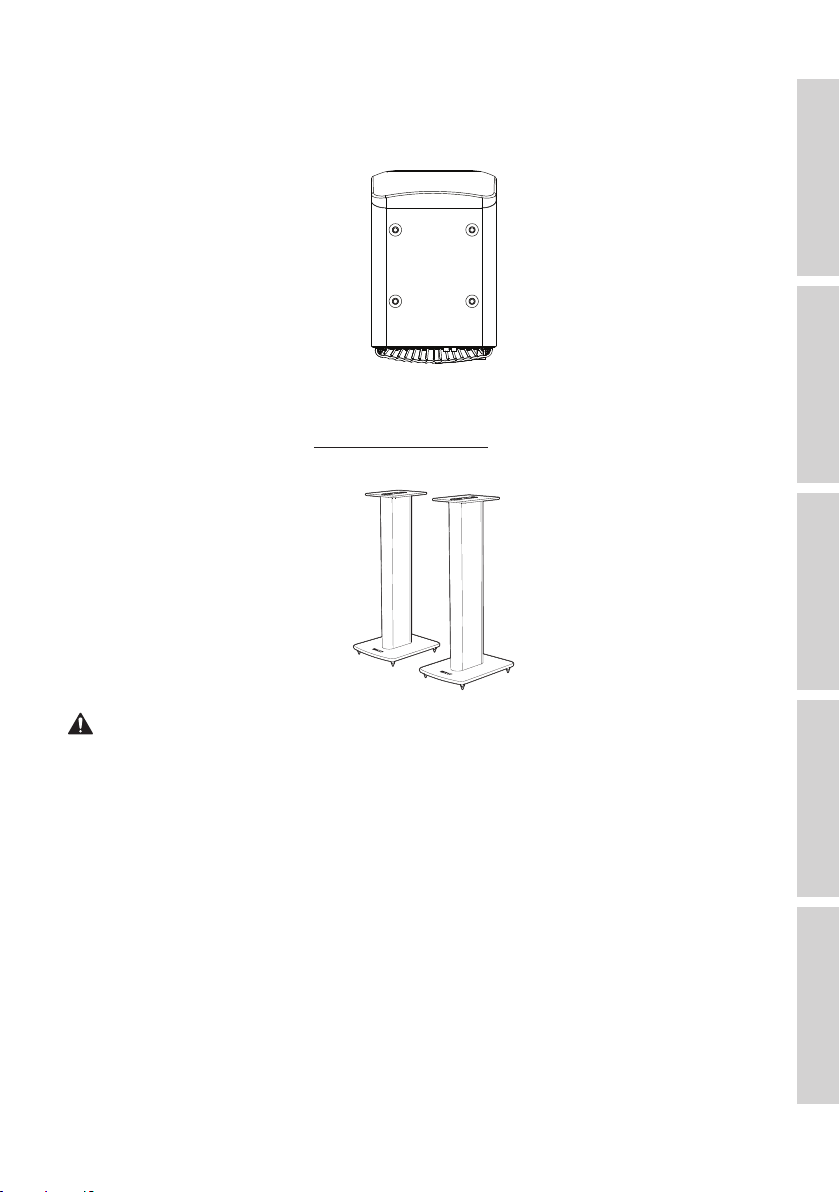
•Rubber feet are found on the bottom panel of each speaker to prevent slipping on a
hard surface.
•Additionally, four threaded holes (M8 × 1.5) are also available for mounting on a stand
(remove the rubber feet first before mounting). For the best sound performance and
cable management, use the KEF S2 speaker stands.
WARNING!
Be aware of the potential hazards from tipping or knocking the speakers off the stands
which may result in personal injury, or property damage.

22
Table of ContentsSetting UpWi-Fi StreamingUsing KEF Connect AppFAQ and Troubleshooting
5.5 Remote Control
Mute button
Volume up button
Play/pause button
Next source button
On/off button
Volume down button
Previous button
Previous source button
Next button
•Insert two AAA batteries into the battery compartment before use. To do
so, slide open the battery compartment cover on the back and insert the
batteries into the compartment according to the polarity (+/–). Close the
battery compartment cover when done.
•Point the remote control to the IR receiver located on the front panel of
the Primary Speaker. Make sure there are no obstacles between the remote
control and the Primary Speaker during use.
•If the remote control is less responsive or not working, the battery power
may be low. Replace the batteries.
23
Table of ContentsSetting UpWi-Fi StreamingUsing KEF Connect AppFAQ and Troubleshooting
5.6 KEF Connect App
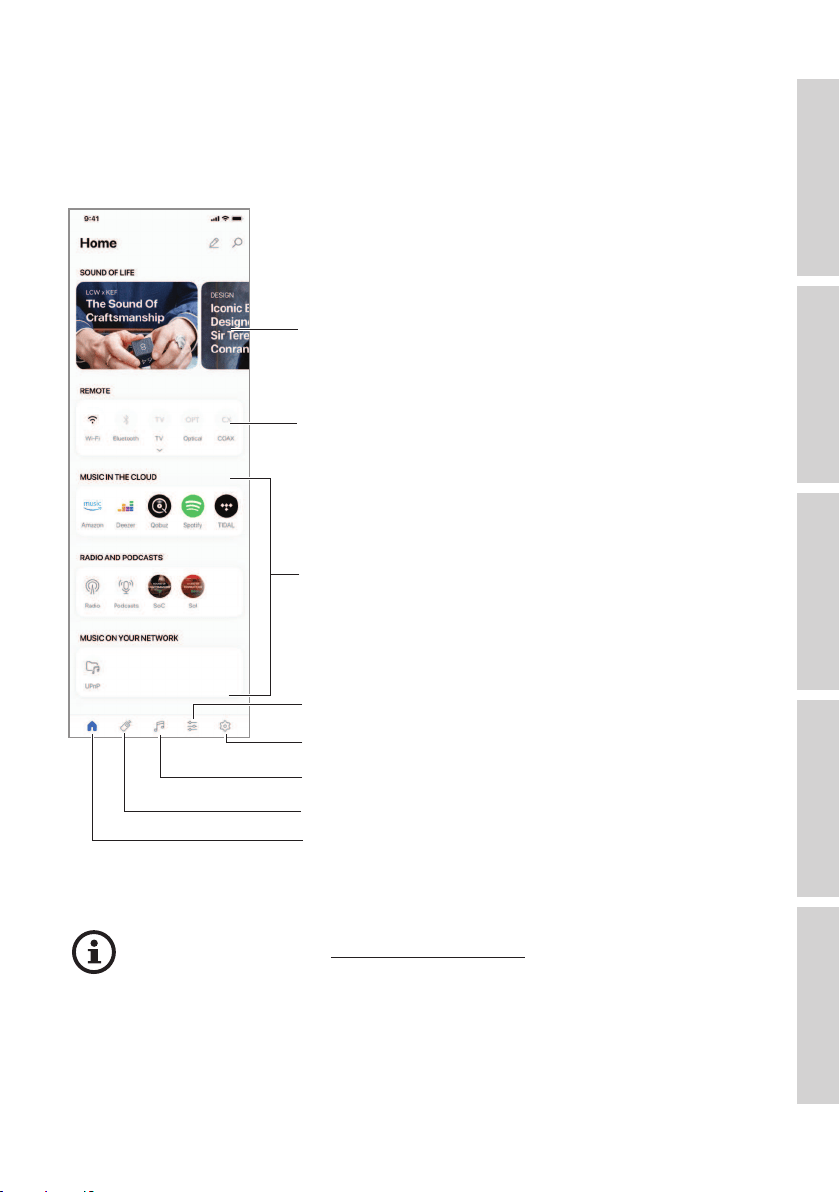
The KEF Connect App allows you to set up the speakers, apply sound settings, turn on/
off the speakers, switch sound sources, and access and play back your streaming music
and music stored in media server.
Turn on/off the speakers and switch sources
Shortcuts to music content (music streaming
services, Internet radio stations, podcasts and
Media servers*)
EQ settings
Speaker settings
Latest news and stories from KEF
Music content
Remote control
Home
*Coming soon
For details, see chapter “Using KEF Connect App”.
24
Table of ContentsSetting UpWi-Fi StreamingUsing KEF Connect AppFAQ and Troubleshooting
6. Wi-Fi Streaming
6.1 Wireless Streaming Protocols
To stream audio to the speakers, your mobile device must be connected to
the same Wi-Fi network as the speakers. The speakers can be turned on from
standby mode through all wireless streaming protocols.
6.1.1 AirPlay 2
AirPlay 2 lets you share audio output from Apple devices to the speakers.
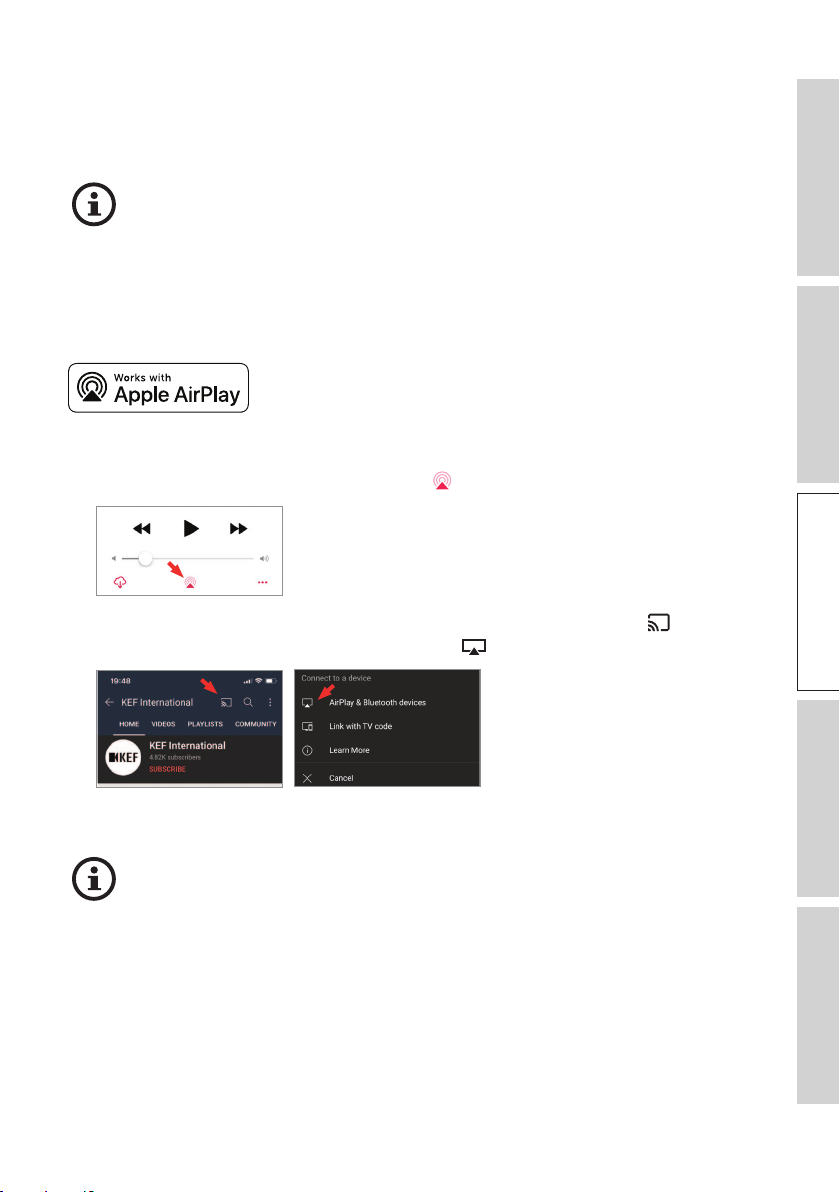
1. Start music or video playback on your iOS device.
2. For music streaming, tap the AirPlay icon ( ) in the playback screen.
For audio streaming from the YouTube app, tap the connection icon (
) in the
playback screen and then tap the AirPlay icon ( ).
3. Select “KEF LS50 Wireless II” (or the name you have created for the speakers) from
the selection menu to start streaming.
The availability for streaming depends on the app compatibility.
25
Table of ContentsSetting UpWi-Fi StreamingUsing KEF Connect AppFAQ and Troubleshooting
6.1.2 Chromecast
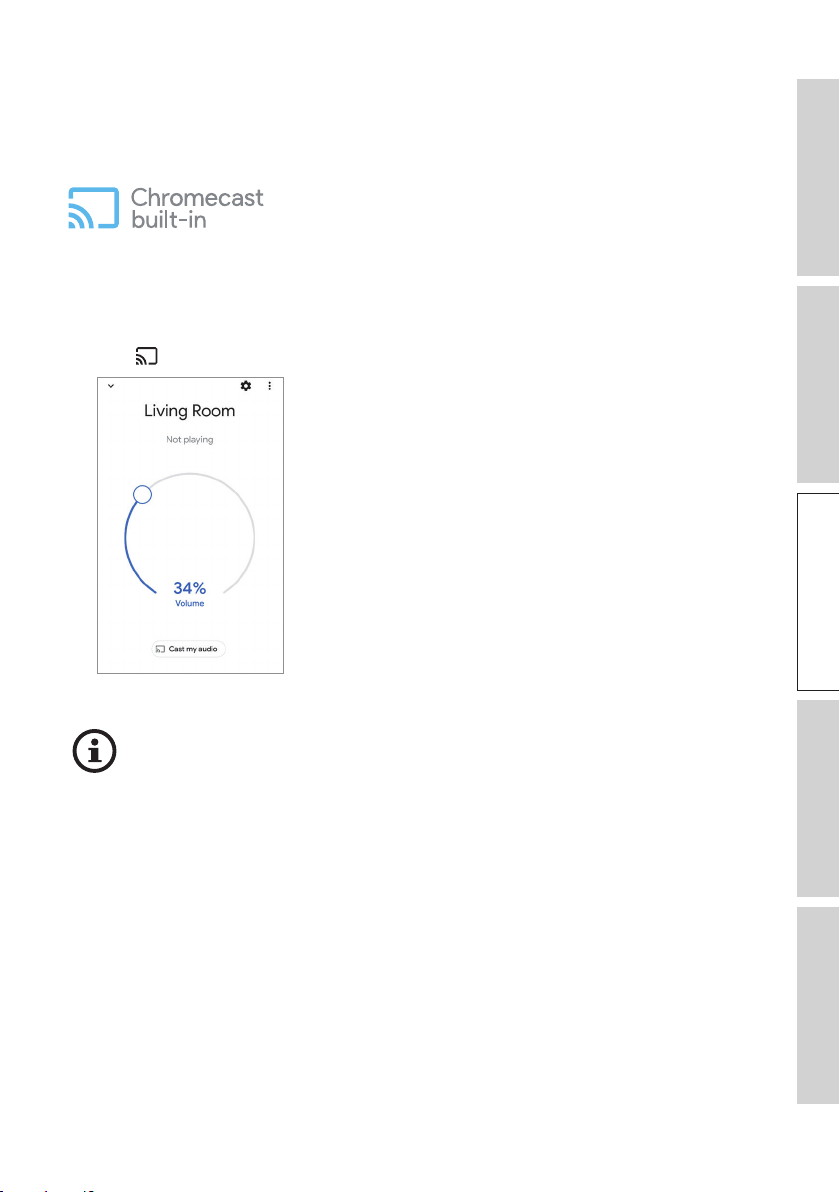
If your device is Chromecast-enabled, you can stream audio output from the device to
the speakers.
1. Start music or video playback on your Chromecast-enabled device.
2. In the Google Home App, tap “KEF LS50 Wireless II” (or the name you have created
for the speakers).
3. Tap “
Cast my audio”.
The availability for streaming depends on the app compatibility.
26
Table of ContentsSetting UpWi-Fi StreamingUsing KEF Connect AppFAQ and Troubleshooting
6.1.3 ROON Ready (coming soon)
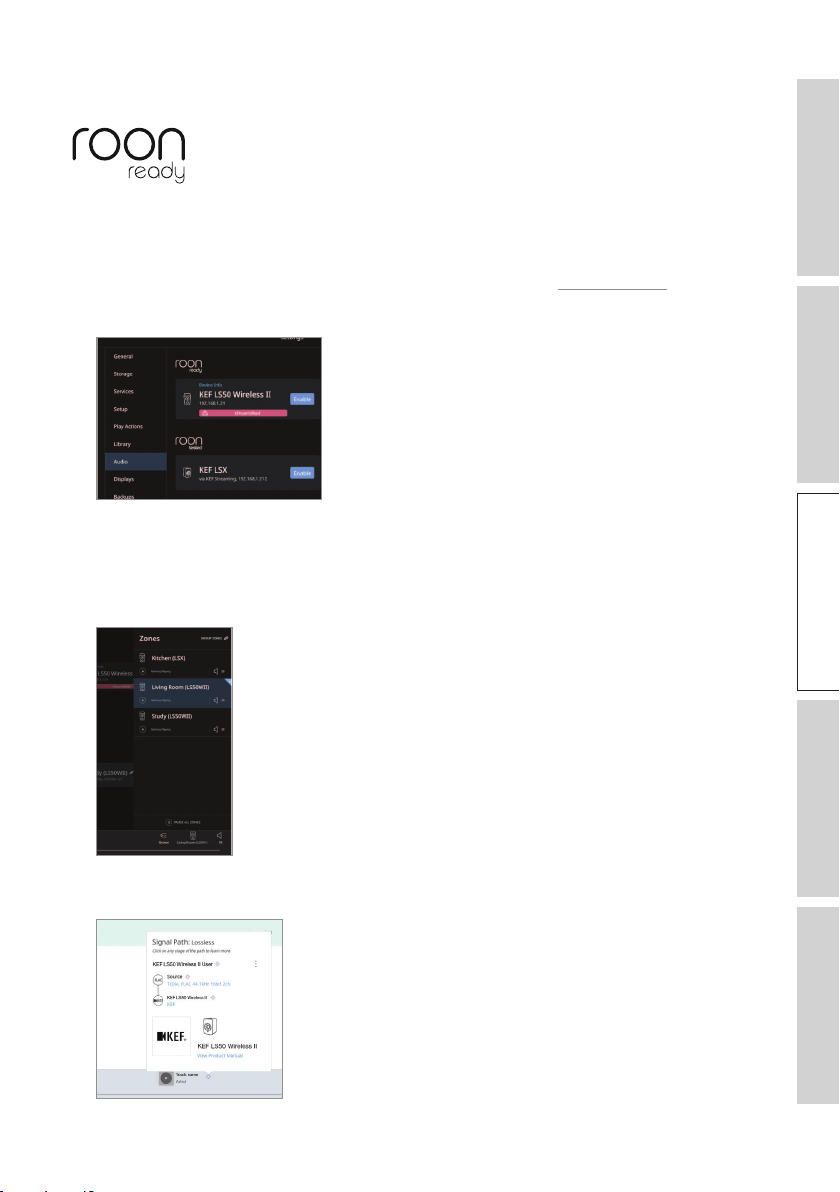
Roon is a high quality music management system that pulls together music from a NAS
drive, locally stored music (i.e. on your computer), compatible streaming services and
Dropbox to create a searchable, surfable magazine about your music. The speakers are
certified “Roon Ready”. For more information on Roon, visit roonlabs.com.
1. Enable the speakers in the Audio menu.
Note: KEF LS50 Wireless II will be Roon Ready soon.
2. To stream music, click the “Zone Picker” next to volume at the footer of Roon and
then select “KEF LS50 Wireless II” (or the name you have created for the speakers)
from the device list.
3. The signal path can be found by clicking the little coloured light in the footer.

27
Table of ContentsSetting UpWi-Fi StreamingUsing KEF Connect AppFAQ and Troubleshooting
6.1.4 Music Streaming Apps Native Protocols
6.1.4.1 Spotify Connect
Spotify is a digital music and podcast streaming service that gives you access to millions
of songs and other content from artists all over the world. The speakers are ready for
Spotify Connect.
1. Browse and select music to play in the Spotify App.
2. Tap the device icon (
) at the bottom of the playback screen.
3. Select “KEF LS50 Wireless II” (or the name you have created for the speakers) from
the selection menu to start streaming.
[Step 1–3]
28
Table of ContentsSetting UpWi-Fi StreamingUsing KEF Connect AppFAQ and Troubleshooting
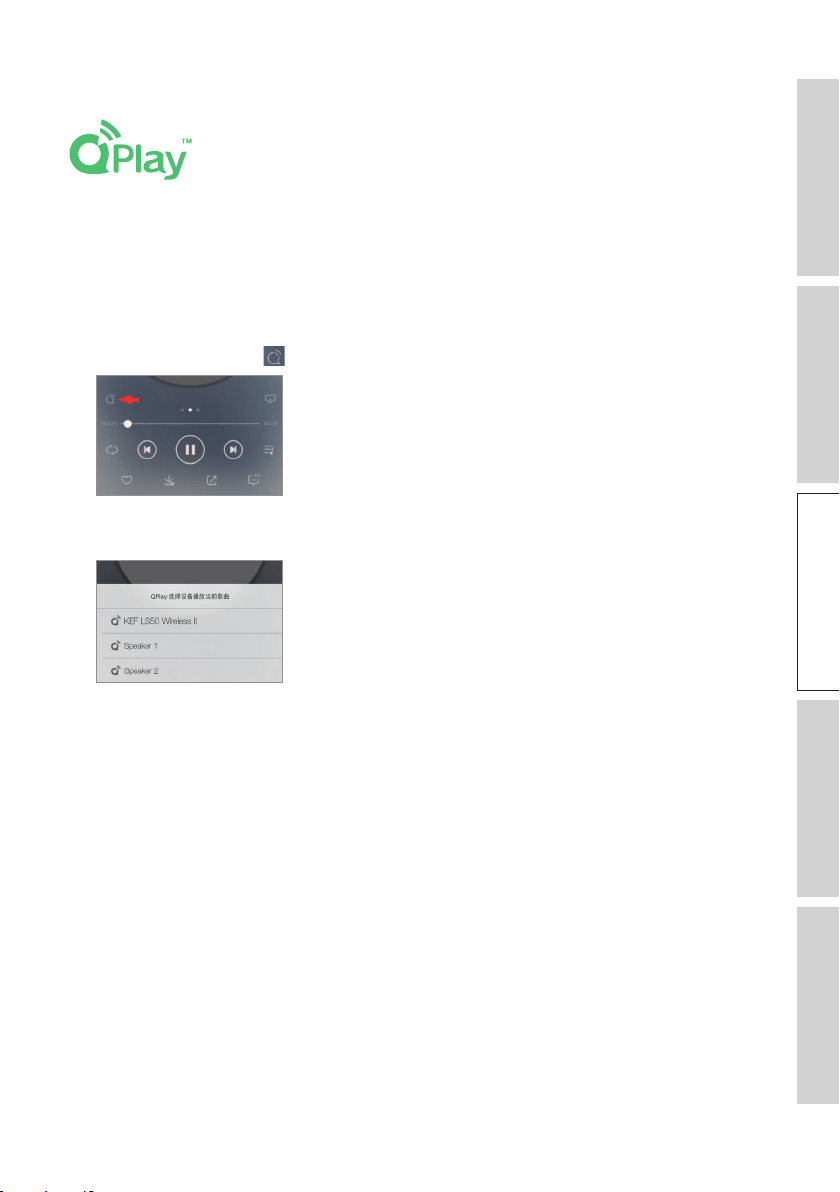
6.1.4.2 QPlay
QQ Music is one of China’s most popular online music streaming services. QPlay lets
you stream music directly from the QQ Music App. The speakers are ready for the
QPlay feature.
1. To stream music, launch the QQ Music App and enable QPlay in the settings.
2. Browse and play music.
3. Tap the QPlay icon (
) on the playback screen.
4. Select “KEF LS50 Wireless II” (or the name you have created for the speakers) from
the device list to start streaming.
29
Table of ContentsSetting UpWi-Fi StreamingUsing KEF Connect AppFAQ and Troubleshooting
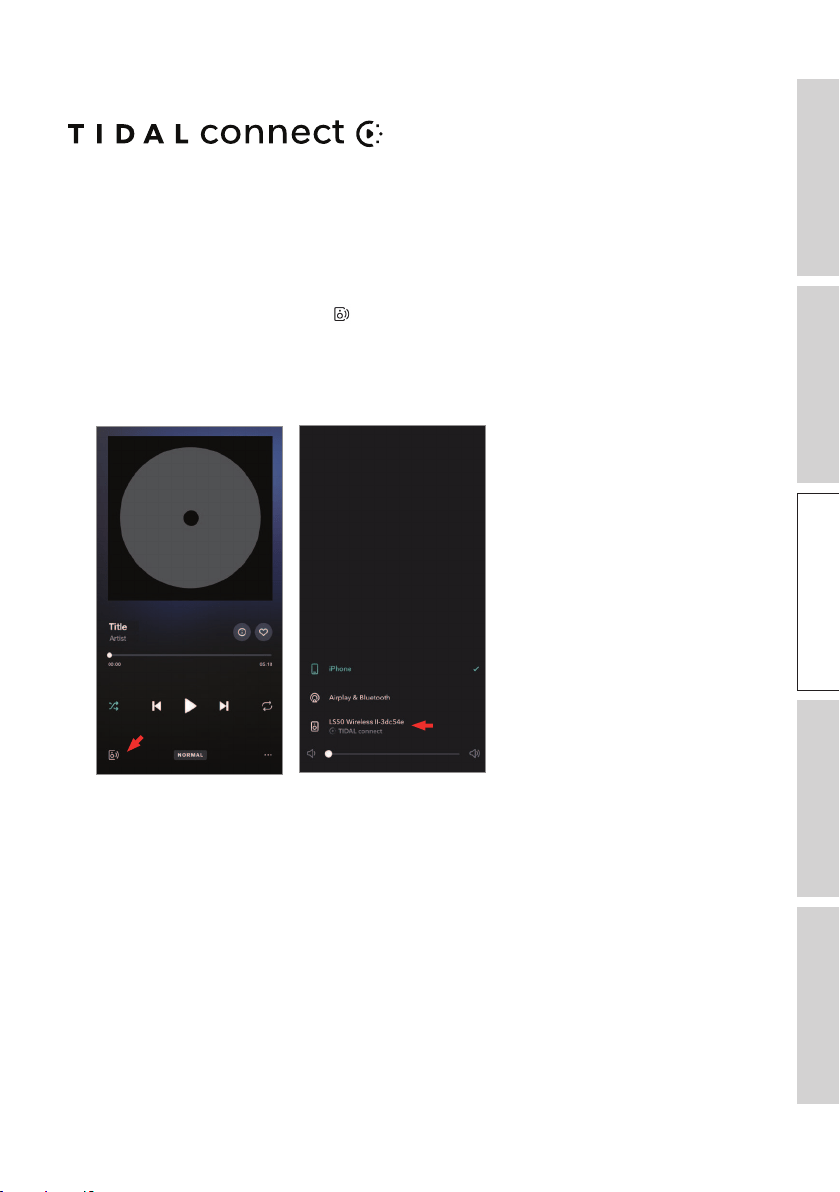
6.1.4.3 TIDAL Connect
TIDAL is a subscription-based music, podcast and video streaming service that
combines lossless audio and high-definition music videos with exclusive content and
special features on music. The speakers are ready for the TIDAL Connect feature for
music streaming.
1. To stream music, select the content you want to play in the TIDAL Connect App and
then select the connect icon ( ) in the “Now Playing” screen.
2. Select “KEF LS50 Wireless II” (or the name you have created for the speakers) from
the list of nearby devices to pair with the Tidal Connect App to start streaming.
[Step 1–2]
30
Table of ContentsSetting UpWi-Fi StreamingUsing KEF Connect AppFAQ and Troubleshooting
6.1.5 KEF Connect App Streaming
The KEF Connect App offers direct access to various music streaming services
for playback through the speakers. For details, see chapter
“Playing Music from Music Streaming Services”
6.1.5.1 Amazon Music
Amazon Music is a music streaming platform and online music store operated by
Amazon. You can access your Amazon Music account through the KEF Connect App to
stream music to the speakers.
6.1.5.2 Deezer
Deezer is an online music streaming service. It allows users to listen to music content
from a wide range of record labels on various devices online or offline. You can access
your Deezer account through the KEF Connect App to stream music to the speakers.
6.1.5.3 Qobuz
Qobuz is a music streaming and downloading service offering hi-resolution streaming
to its subscribers. You can access your Qobuz account through the KEF Connect App
to stream music to the speakers.
6.1.5.4 Spotify
Through the KEF Connect App, you will be prompted to open the Spotify app on your
device in order to stream music to the speakers. See chapter “Spotify Connect”.

31
Table of ContentsSetting UpWi-Fi StreamingUsing KEF Connect AppFAQ and Troubleshooting
6.1.5.5 TIDAL
TIDAL is a subscription-based music, podcast and video streaming service that
combines lossless audio and high-definition music videos with exclusive content
and special features on music. You can access your TIDAL account through the KEF
Connect App to play
hi-resolution audio. A valid Hi-Fi tier subscription is required.
6.1.5.6 Internet Radio
The KEF Connect App offers access to thousands of Internet radio stations from all
over the world, offering music, news and discussion.
6.1.5.7 Podcast
The KEF Connect App provides access to a wide range of podcasts covering a huge
number of genres and topics.
6.1.6 UPnP Playback
You can play compatible music files stored in the music library of a connected media
server (e.g. NAS drive via uPnP). The media server must be on the same network as
the speakers.

32
Table of ContentsSetting UpWi-Fi StreamingUsing KEF Connect AppFAQ and Troubleshooting
6.2 Tips on Choosing Streaming Protocols
Recommendations for the best wireless streaming options with regard to music/media
apps on your mobile devices.
App
Wireless streaming protocol
AirPlay 2 Chromecast ROON
Ready
Music
streaming
app native
protocol
KEF
Connect
App
Bluetooth
Spotify
–
Spotify
Connect –
TIDAL
TIDAL
Connect
QQ Music –
QPlay
–
Apple Music – – –
Amazon Music – –
Deezer – –
Qobuz –
Internet radio – –
Audio podcast – –
Youtube
(audio)
– – –
= Supported
= Supported and recommended for the best audio quality and streaming stability.
33
Table of ContentsSetting UpWi-Fi StreamingUsing KEF Connect AppFAQ and Troubleshooting
7. Multi-Room Streaming
7.1 AirPlay 2
Apple Airplay 2 can extend the speakers to become part of a multi-room wireless
music system which can be controlled with iOS devices. If you have more than one pair
of AirPlay 2 speakers connected to the same network, select the pairs for playback of
the same audio output at the same time.
You can control the volume of the speakers individually or together as a group.
Note: AirPlay speakers are not compatible with multi-room streaming.
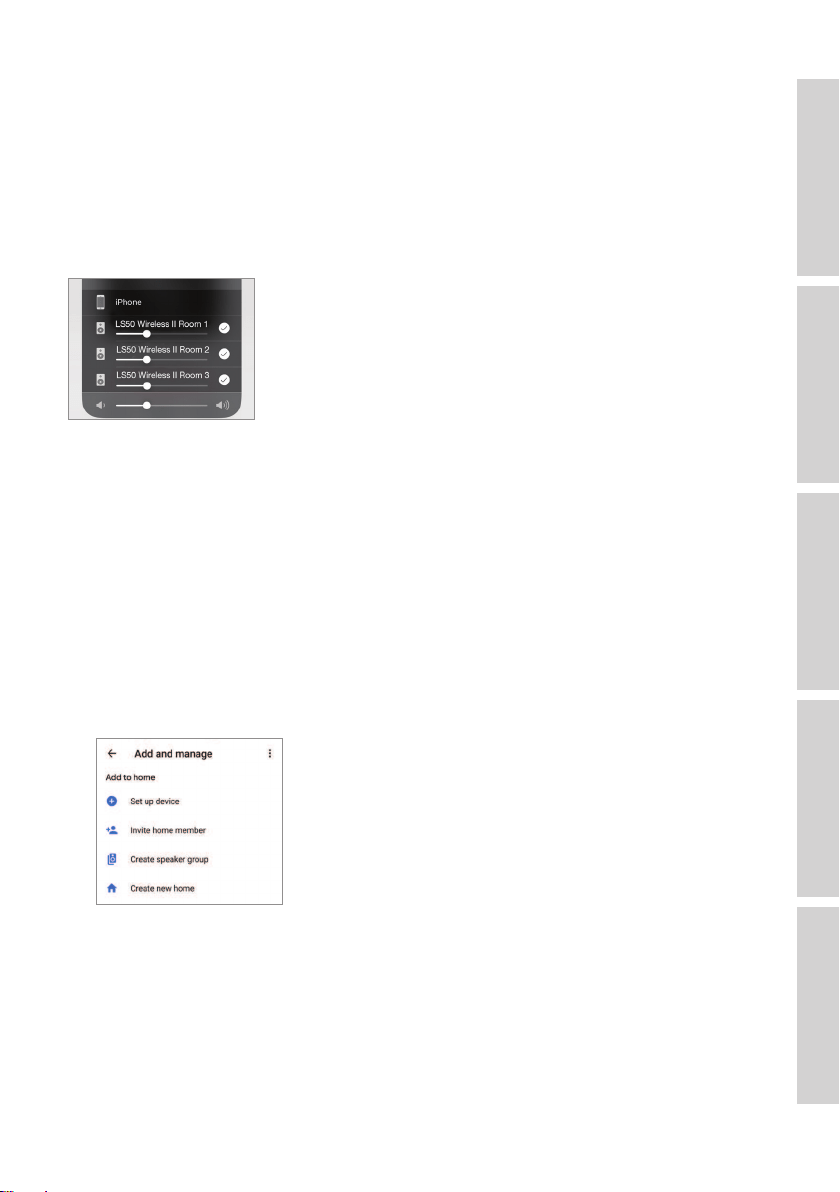
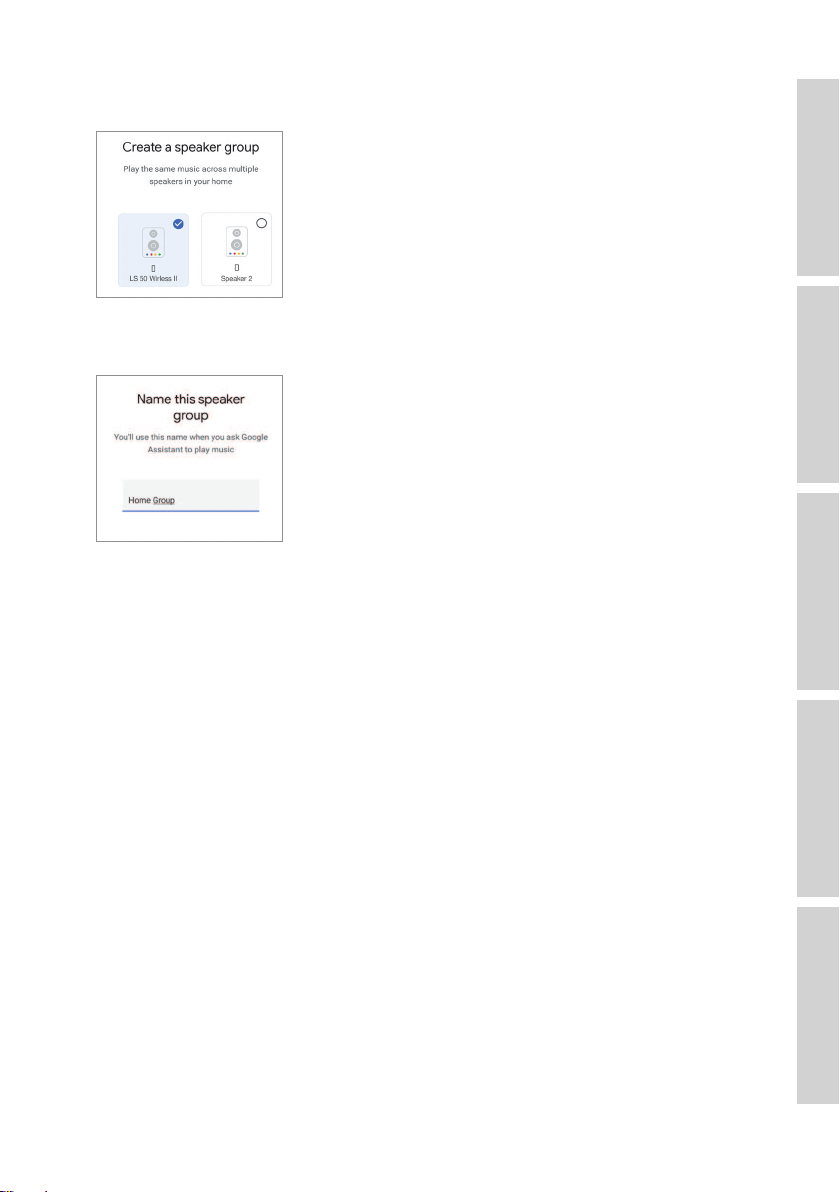
7.2 Chromecast
You can group the speakers and Chromecast devices together for synchronous music
throughout the home.
1. Make sure your mobile device is connected to the same Wi-Fi network or linked to
the same account as your speakers.
2. Open the Google Home App.
3. At the top left, tap “+” and then “Create a speaker group”.
35
Table of ContentsSetting UpWi-Fi StreamingUsing KEF Connect AppFAQ and Troubleshooting
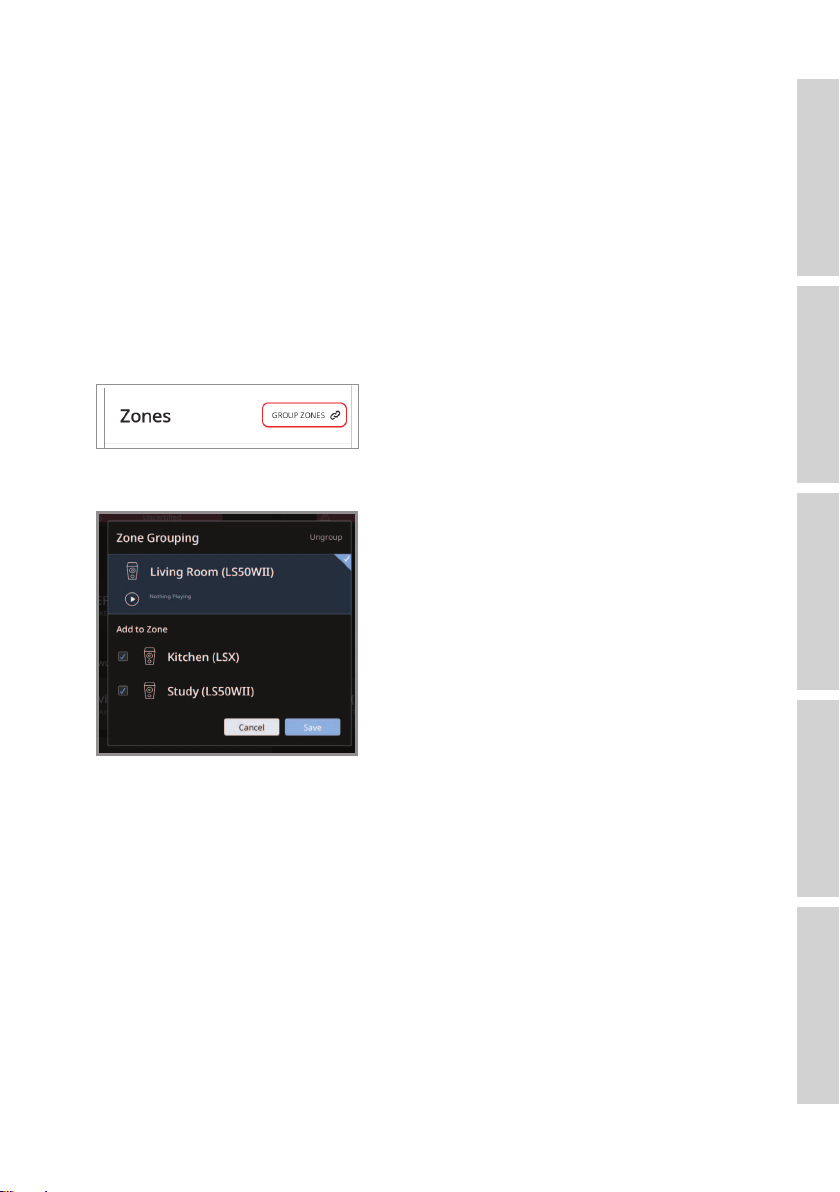
7.3 ROON
With Roon Ready certification, the speakers are compatible with Roon’s multi-room
streaming functionality.
Roon supports “Zone Grouping”, or synchronizing audio playback in several zones
within your house. Note that “Zones” can only be grouped with other zones of the
same type (e.g. RAAT, AirPlay etc.).
1. To group zones, select the zone you are controlling in desktop and tablet interface, by
clicking the “Zone Picker” in the footer, next to volume.
On a phone, select by clicking “Switch Zone” below the volume pop-up.
2. Tap “Group Zones”. This brings up the available zones for grouping.
3. Select the desired zone(s) to be added and then tap “Save”.
The speakers in the grouped zones will stream the same audio output.
36
Table of ContentsSetting UpWi-Fi StreamingUsing KEF Connect AppFAQ and Troubleshooting
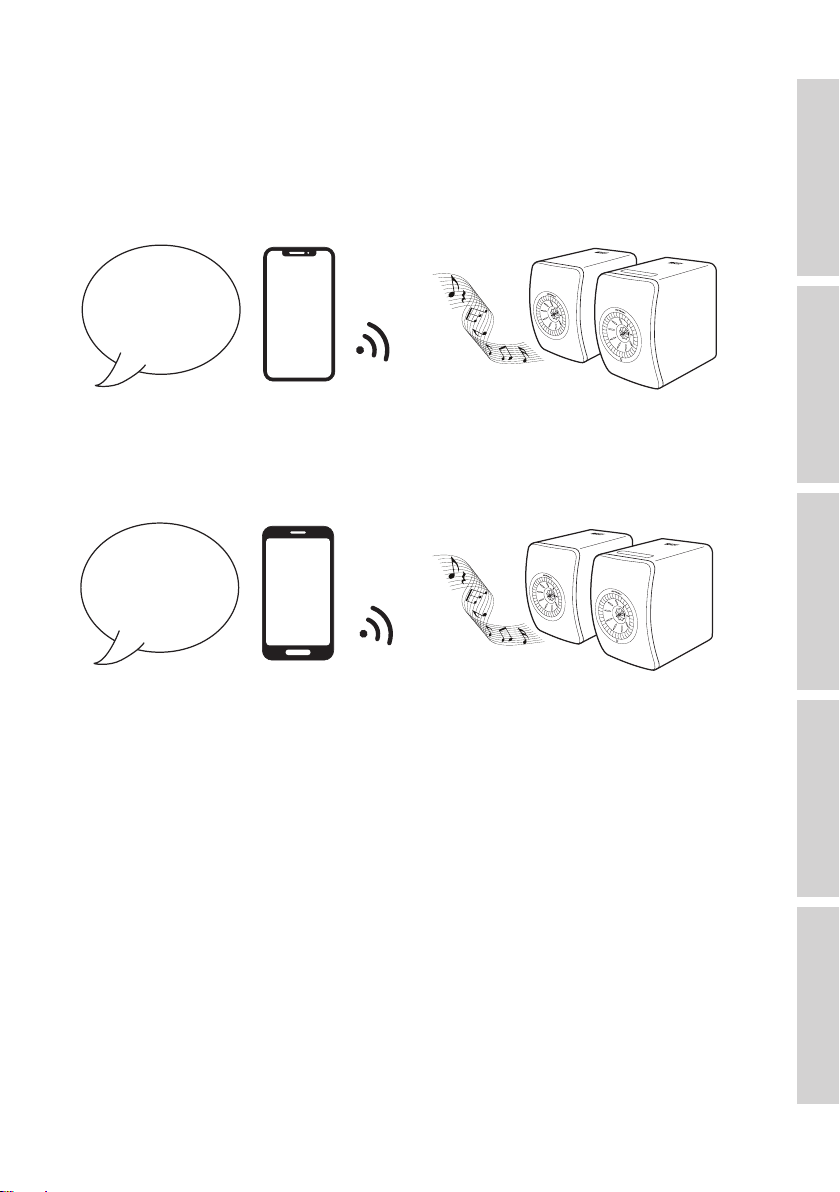
8. Voice Control Over Mobile Device
8.1 Siri
You can use Siri to control playback (e.g. skipping tracks, controlling the volume level)
while your iOS mobile device is streaming music to the speakers.
Hey Siri. Play some
music on the LS50
Wireless II.
8.2 Google Assistant
You can use Google Assistant to control playback (e.g. skipping tracks, controlling the
volume level) while your Android mobile device is streaming music to the speakers.
Hey Google. Play
some music on the
LS50 Wireless II.
37
Table of ContentsSetting UpWi-Fi StreamingUsing KEF Connect AppFAQ and Troubleshooting
9. Playback with Bluetooth
You can pair your Bluetooth devices (e.g. computers) with the speakers through
Bluetooth connection. The speakers must always be first connected to your local
network before Bluetooth connection.
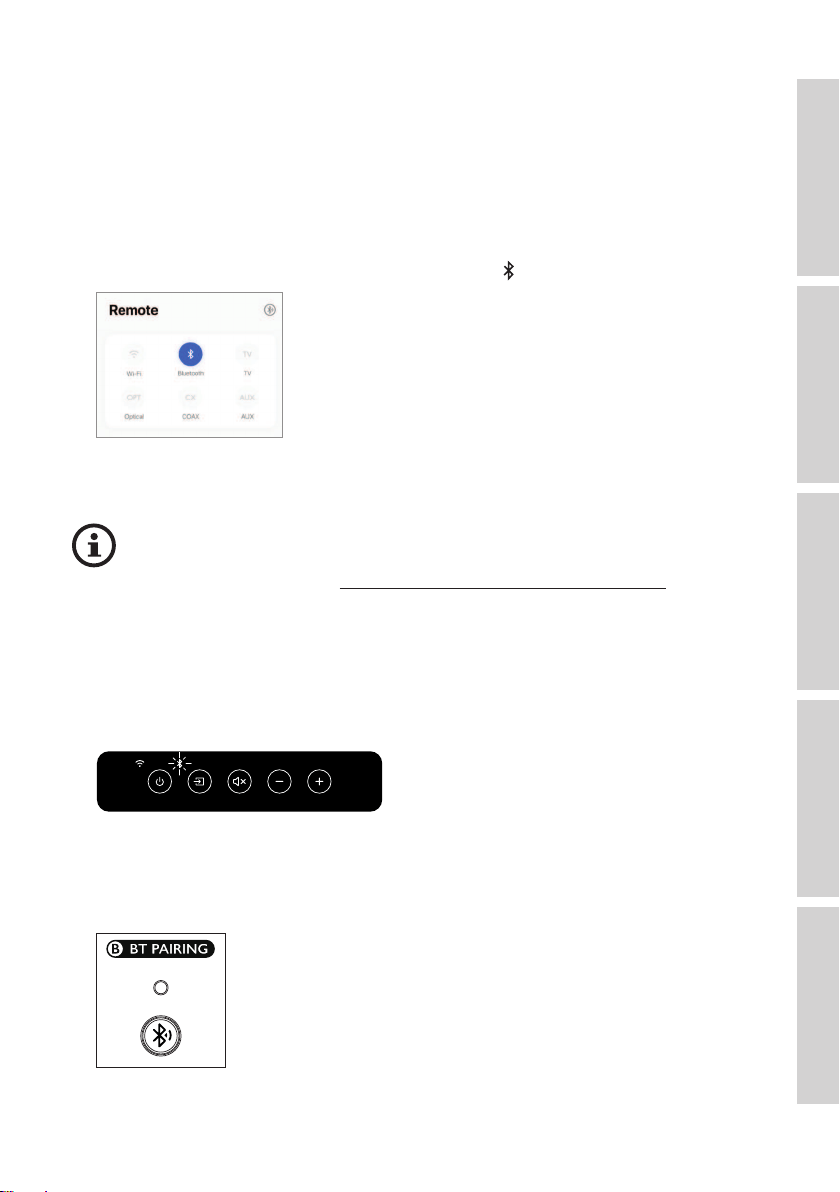
9.1 Selecting Bluetooth Mode
•In the KEF Connect App, tap the Bluetooth button (
) to switch to Bluetooth mode.
•Alternatively, press the source button on the top panel of the Primary Speaker;
•Or, press the source button on the remote control.
You can assign the Bluetooth mode as a second wake-up source to turn
on the speakers automatically when there is audio input through Bluetooth
connection. See chapter “Power Saver – Second Wake-Up Source”.
9.2 Bluetooth Pairing
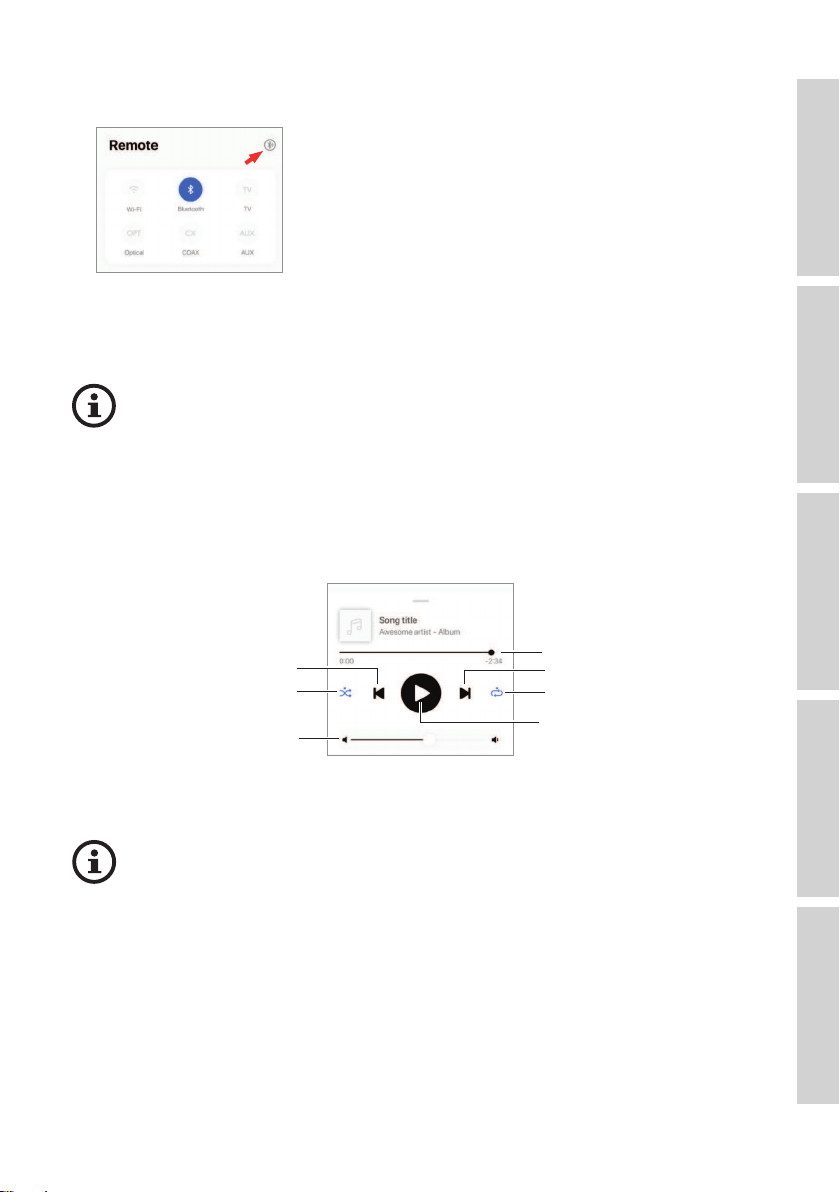
1. In Bluetooth mode, check the Bluetooth icon on the top panel of the Primary
Speaker. When the Bluetooth icon pulses slowly, the speakers are in the discovery
mode and ready to pair with a Bluetooth device.
If the Bluetooth icon is constantly lit, the speakers are already paired with a Bluetooth
device. To disconnect the connected Bluetooth device, short press the Bluetooth
pairing button (B) on the back panel of the Primary Speaker. The Bluetooth icon
blinks slowly when it is ready to pair with a new Bluetooth device.
38
Table of ContentsSetting UpWi-Fi StreamingUsing KEF Connect AppFAQ and Troubleshooting
Alternatively, press the Bluetooth pairing icon located at the upper right corner of the
remote control in the KEF Connect App to disconnect the paired device.
2. Turn on the Bluetooth feature of your device and select “KEF LS50 Wireless II” (or
the name you have created for the speakers) from the list of available devices to pair.
When Bluetooth pairing is done, the Bluetooth icon will stay lit.
The speakers remember your last paired Bluetooth device. Once Bluetooth
mode is selected, the speakers will automatically connect with your last paired
device if it is around.
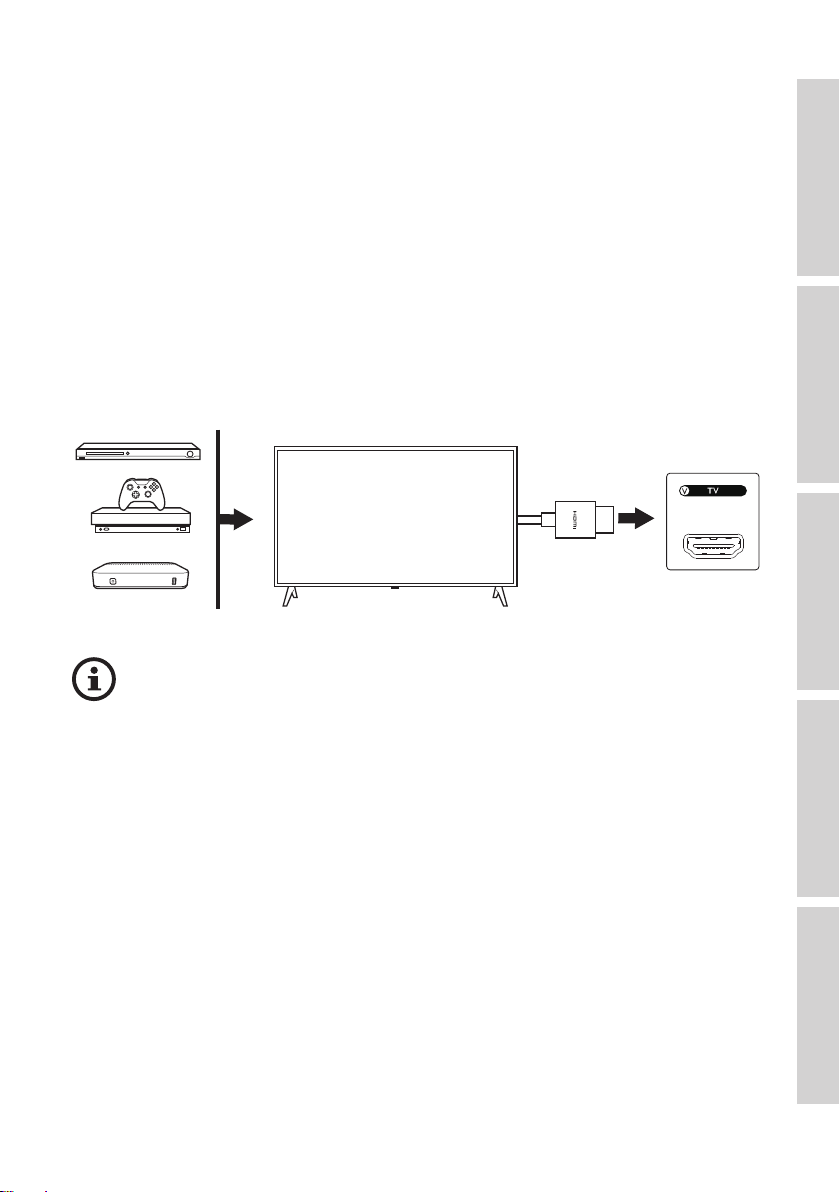
9.3 Playback Controls
In the KEF Connect App, use the control elements below for playback controls.
Play/pause
Next
Volume control
Previous
Track scroll
Repeat
Shuffle
•The volume can also be adjusted on the top panel or remote control.
•The previous and next functions can also be operated on the remote
control.
39
Table of ContentsSetting UpWi-Fi StreamingUsing KEF Connect AppFAQ and Troubleshooting
10. Playback with HDMI eARC input
The speakers are compatible with HDMI eARC (enhanced Audio Return Channel)
output from your TV for integrated control through a single HDMI cable. The speakers
must always be first connected to your local network before HDMI connection.
The speakers are also backward compatible with ARC and HDMI CEC. HDMI CEC
allows the use of the television remote control to adjust the volume of the speakers.
10.1 HDMI Cable Connection
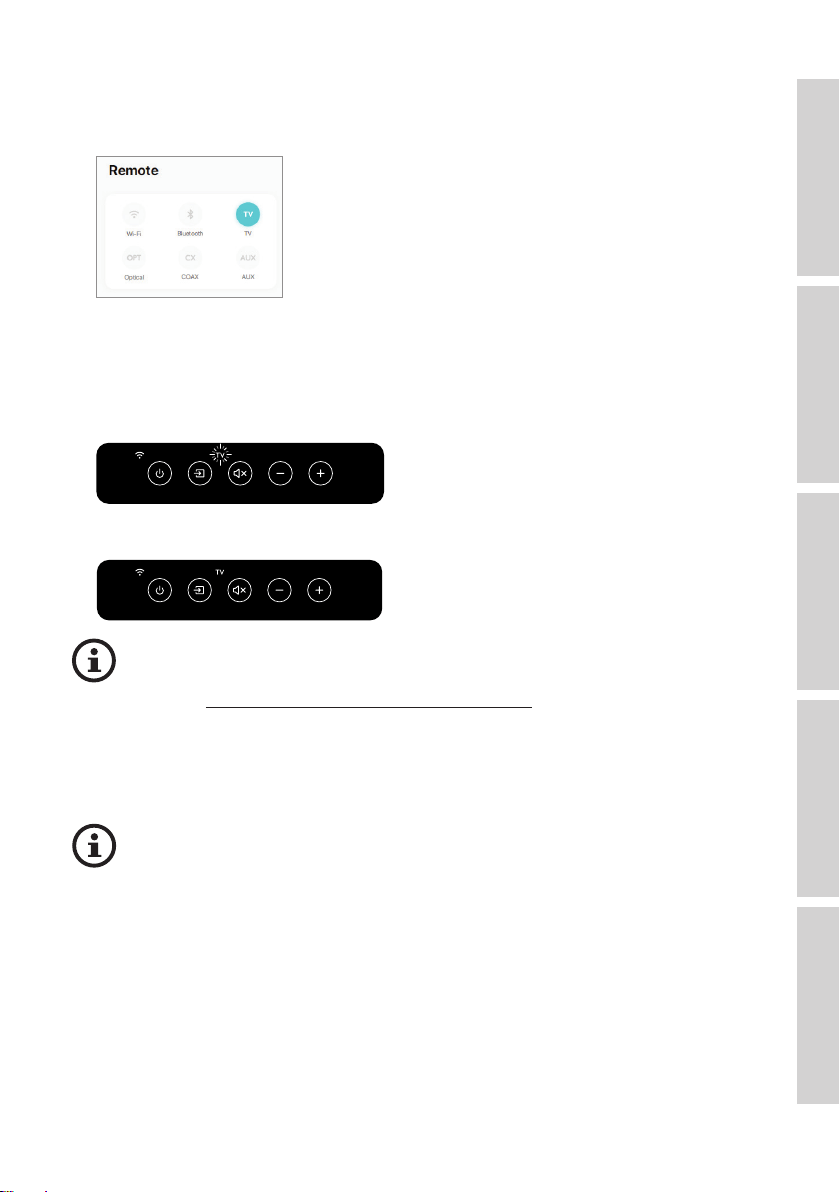
Connect the HDMI output port of your TV and the TV port (V) on the back panel of
the Primary Speaker via an HDMI cable.
•Connect the HDMI cable to the eARC or ARC port of your TV.
•In your TV setting, turn on eARC, ARC or CEC in the HDMI settings.
•Refer to the user manual of your TV for details as manufacturers may name
the HDMI connections differently (e.g. Anynet+ for Samsung, Simplink for
LG). Make sure the digital audio output setting for the television is set to
PCM (not Dolby, Bitstream, Auto or similar).
40
Table of ContentsSetting UpWi-Fi StreamingUsing KEF Connect AppFAQ and Troubleshooting
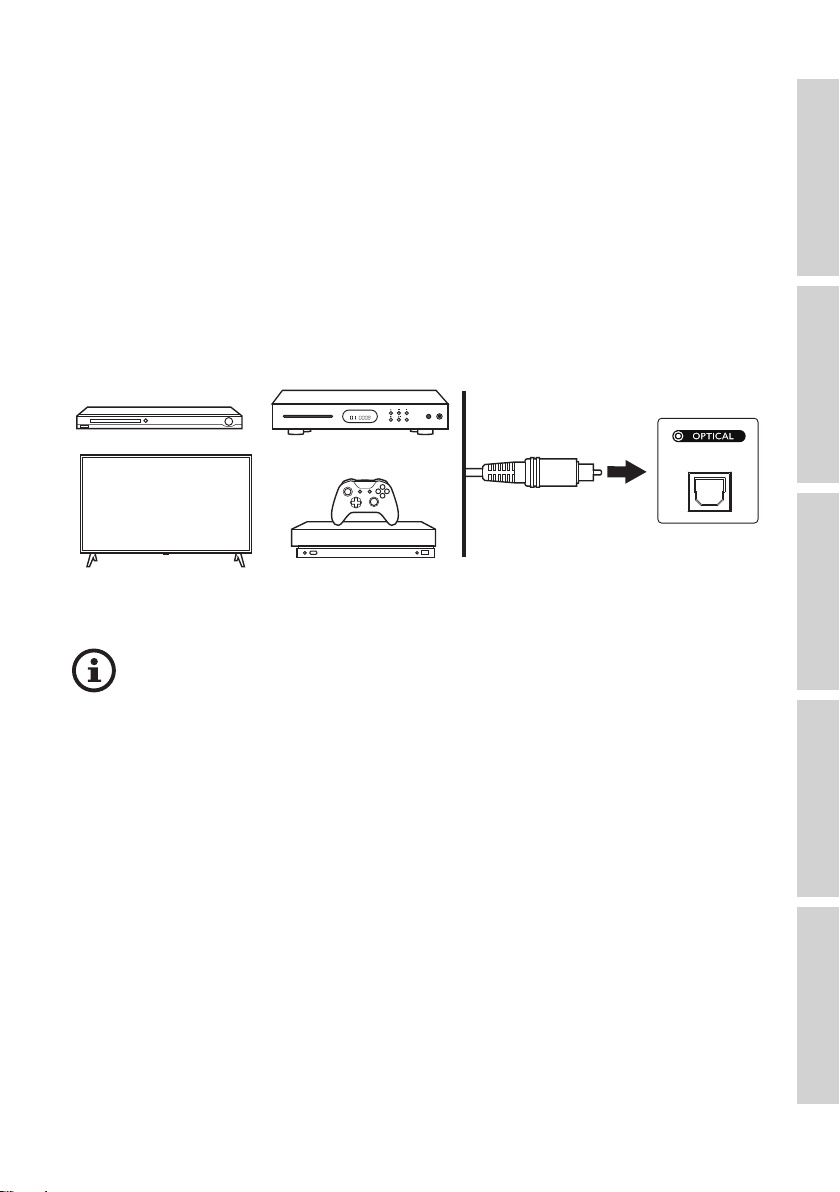
10.2 Selecting TV Mode
•In the KEF Connect App, tap the TV Mode button (TV) to switch to TV Mode.
•Alternatively, press the source button on the top panel of the Primary Speaker;
•Or, press the source button on the remote control.
•If no HDMI cable is conected to the speakers and TV mode is selected, the TV icon
will keep pulsing.
•The TV icon is lit when HDMI connection is established.
You can assign TV mode as a second wake-up source to turn on the speakers
automatically when there is audio input through the HDMI connection. See
chapter “Power Saver – Second Wake-Up Source”.
10.3 Playback Controls
All playback controls (except adjusting volume) must be done on the connected device.
The volume can also be adjusted on the top panel or remote control.
41
Table of ContentsSetting UpWi-Fi StreamingUsing KEF Connect AppFAQ and Troubleshooting
11. Playback with Optical Input
You can connect your devices with optical output (e.g. TV and game consoles) to the
speakers through an optical cable. The speakers must always be first connected to your
local network before optical connection.
11.1 Optical Cable Connection
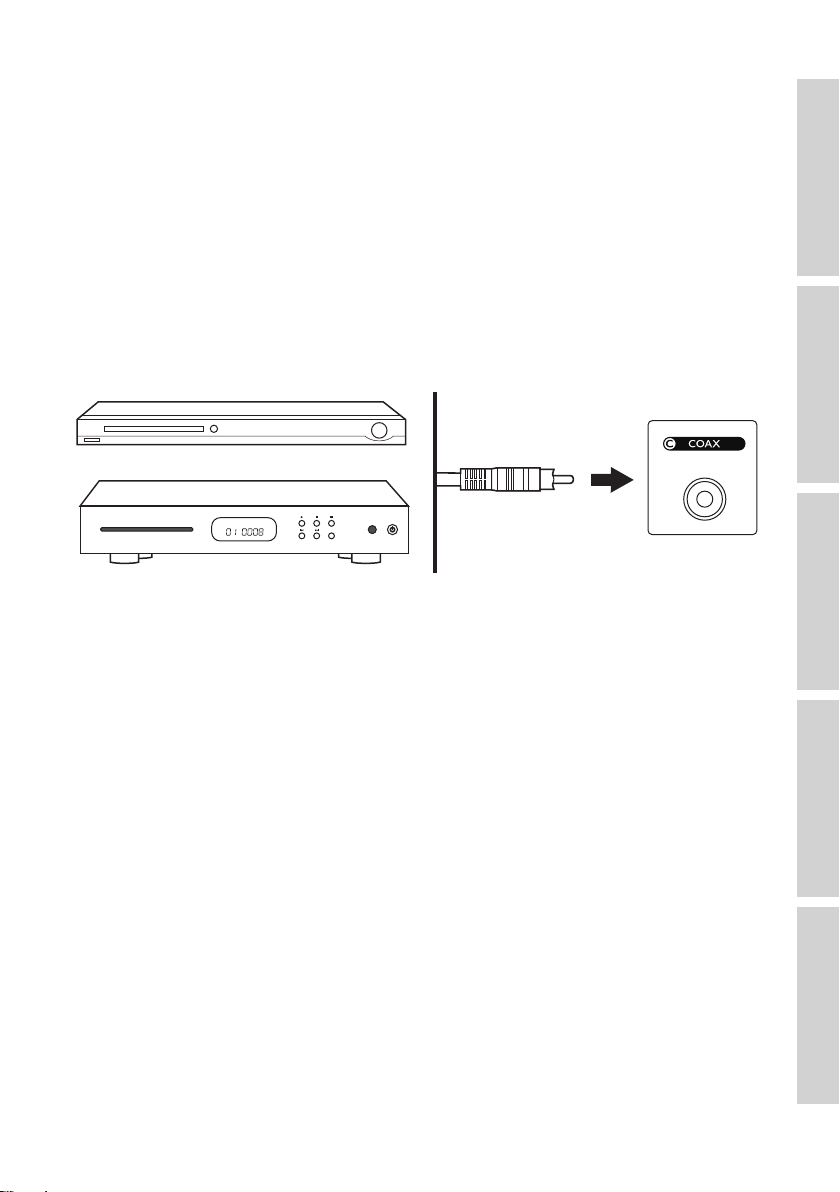
Connect the optical output jack of your device and the optical input jack (O) on the
back panel of the Primary Speaker via an optical cable.
Make sure your TV is set to output digital audio in PCM format. Refer to the
user manual of your TV for details.
42
Table of ContentsSetting UpWi-Fi StreamingUsing KEF Connect AppFAQ and Troubleshooting
11.2 Selecting Optical Mode
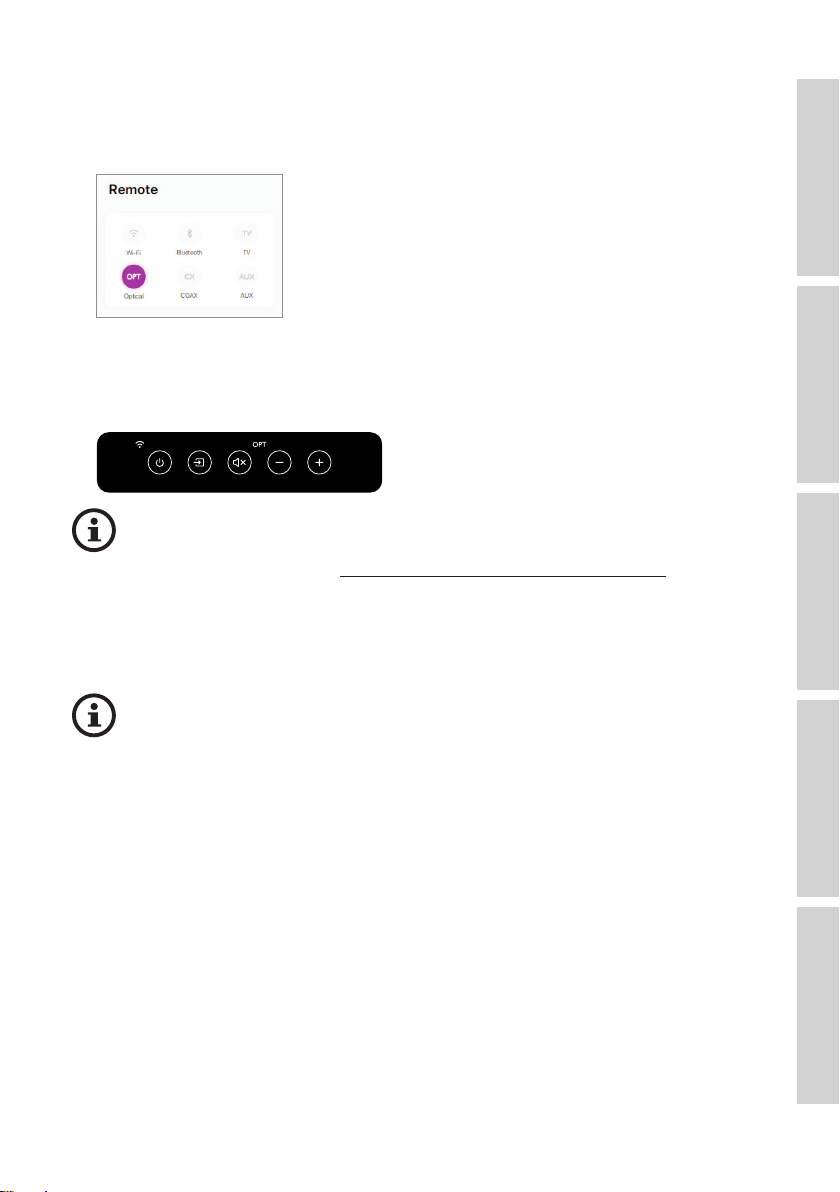
•In the KEF Connect App, tap the Optical Mode button (OPT) to switch to Optical
Mode.
•Alternatively, press the source button on the top panel of the Primary Speaker;
•Or, press the source button on the remote control.
•The OPT icon is lit when Optical mode is selected.
You can assign Optical mode as a second wake-up source to turn on
the speakers automatically when there is audio input through the optical
connection. See chapter “Power Saver – Second Wake-Up Source”.
11.3 Playback Controls
All playback controls (except adjusting volume) must be done on the connected device.
The volume can also be adjusted on the top panel or remote control.
43
Table of ContentsSetting UpWi-Fi StreamingUsing KEF Connect AppFAQ and Troubleshooting
12. Playback with Coaxial Input
You can connect your devices with coaxial output (e.g. DVD/CD player) to the
speakers through a coaxial cable. The speakers must always be first connected to your
local network before coaxial connection.
12.1 Coaxial Cable Connection
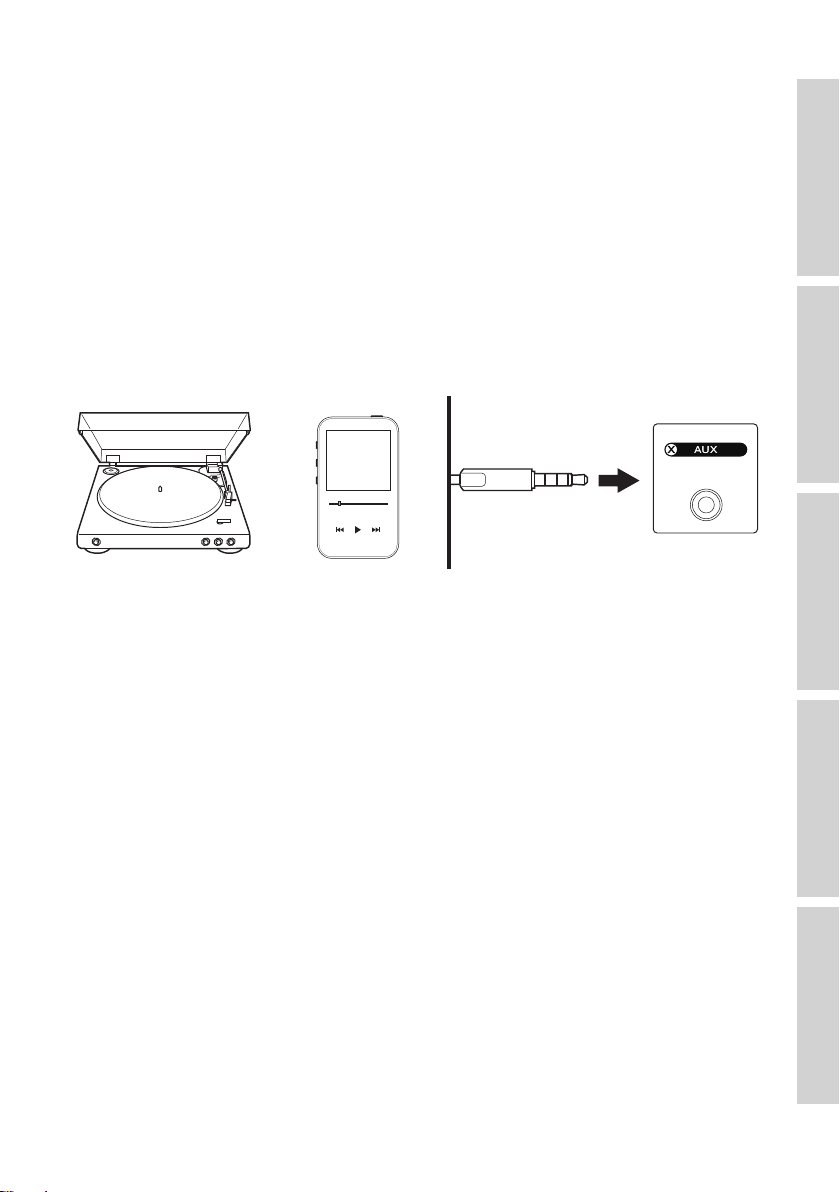
Connect the coaxial output jack of your device and the coaxial input jack (C) on the
back panel of the Primary Speaker via a coaxial cable.

44
Table of ContentsSetting UpWi-Fi StreamingUsing KEF Connect AppFAQ and Troubleshooting
12.2 Selecting Coaxial Mode
•In the KEF Connect App, tap the Coaxial button (CX) to switch to Coaxial mode.
•Alternatively, press the source button on the top panel of the Primary Speaker;
•Or, press the source button on the remote control.
•The CX icon is lit when Coaxial mode is selected.
You can assign Coaxial mode as a second wake-up source to turn on
the speakers automatically when there is audio input through the coaxial
connection. See chapter “Power Saver – Second Wake-Up Source.
12.3 Playback Controls
All playback controls (except adjusting volume) must be done on the connected device.
The volume can also be adjusted on the top panel or remote control.
45
Table of ContentsSetting UpWi-Fi StreamingUsing KEF Connect AppFAQ and Troubleshooting
13. Playback with Auxiliary Input
You can connect your devices with 3.5 mm audio output (e.g. turntables, computers,
portable music players) to the speakers through an audio cable. The speakers must
always be first connected to your local network before auxiliary connection.
13.1 Auxiliary Cable Connection
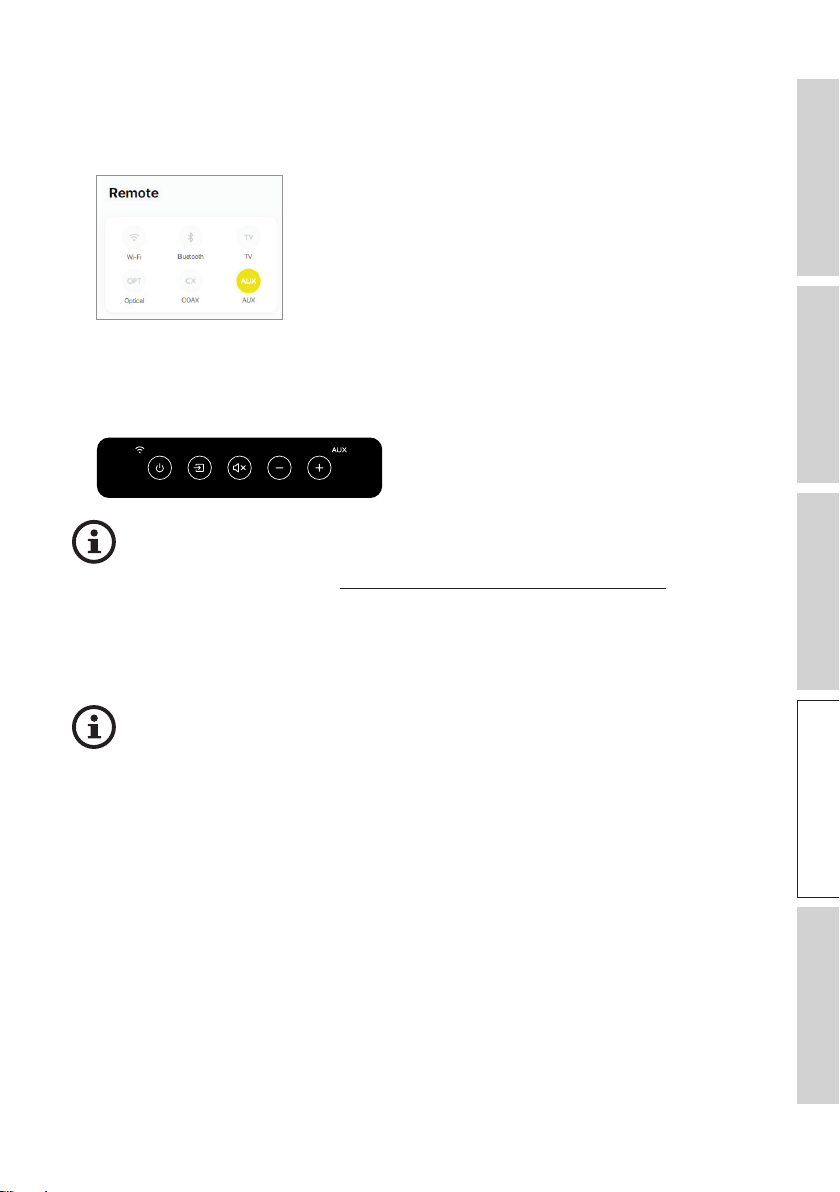
Connect the audio output jack of your device and the auxiliary input jack (X) on the
back of the Primary Speaker via a 3.5 mm audio cable.
46
Table of ContentsSetting UpWi-Fi StreamingUsing KEF Connect AppFAQ and Troubleshooting
13.2 Selecting Auxiliary Mode
•In the KEF Connect App, tap the Auxiliary Mode button (AUX) to switch to Auxiliary
mode.
•Alternatively, press the source button on the top panel of the Primary Speaker;
•Or, press the source button on the remote control.
•The AUX icon is lit when Auxiliary mode is selected.
You can assign Auxiliary mode as a second wake-up source to turn on
the speakers automatically when there is audio input through the auxiliary
connection. See chapter “Power Saver – Second Wake-Up Source”.
13.3 Playback Controls
All playback controls (except adjusting volume) must be done on the connected device.
The volume can also be adjusted on the top panel or remote control.
47
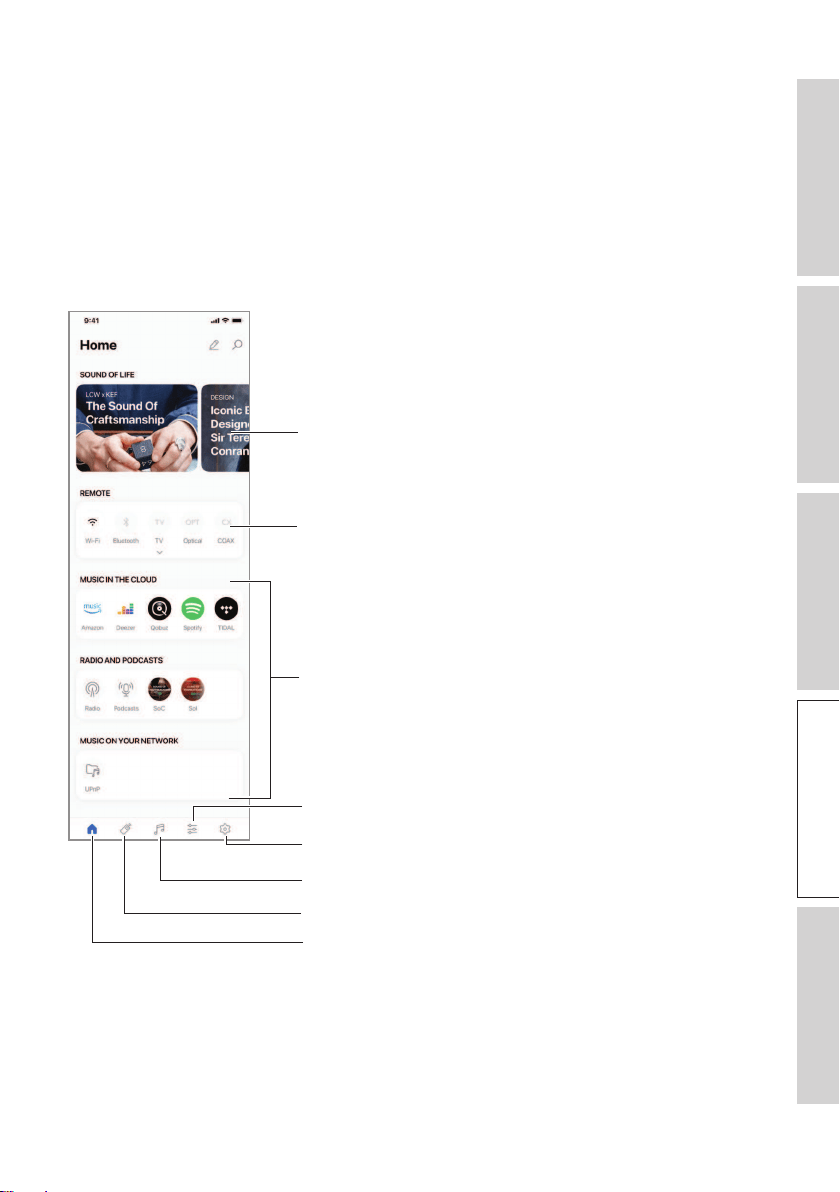
Table of ContentsSetting UpWi-Fi StreamingUsing KEF Connect AppFAQ and Troubleshooting
14. Using KEF Connect App
The KEF Connect App allows you to set up the speakers, apply EQ settings, turn on/
off the speakers, switch sound sources and access and play back your music streaming
services.
14.1 Home
14.1.1 Overview
Turn on/off the speakers and switch sources
Shortcuts to music content (music streaming
services, Internet radio stations, podcasts and
Media servers*)
EQ settings
Speaker settings
Latest news and stories from KEF
Music content
Remote control
Home
*Coming soon
48
Table of ContentsSetting UpWi-Fi StreamingUsing KEF Connect AppFAQ and Troubleshooting
14.1.2 Editing the Home Screen (coming soon)
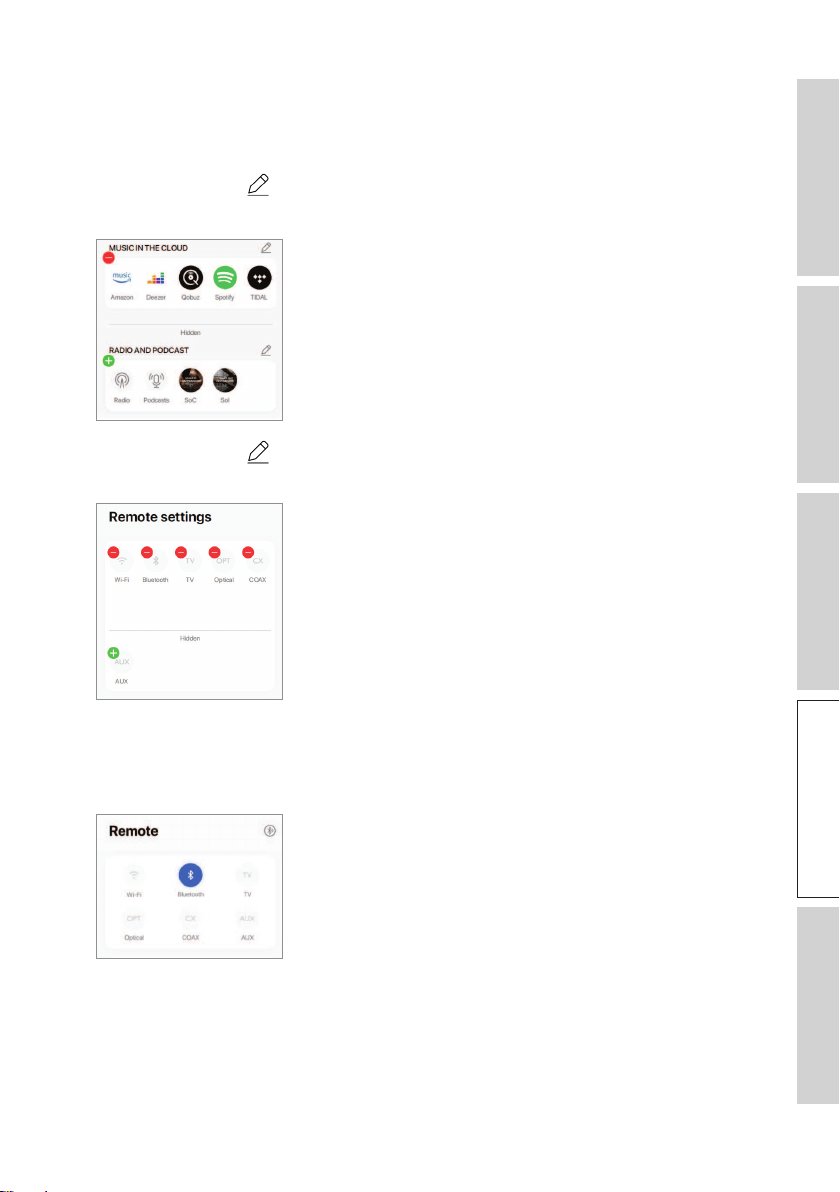
You may edit the Home screen to show or hide tiles (e.g. Music in the Cloud) or
buttons that are of frequent or less frequent use.
1. Tap the edit icon (
) at the top right of the app.
2. Tap the “+” or “–” symbols to show or hide a tile.
3. Tap the edit icon ( ) at the top right of a tile.
4. Tap the “+” or “–” symbols to show or hide a button in the tile.
14.2 Remote Control
•Use the buttons under “Remote Control” to directly turn on the speakers from that
particular source, or change the sound source.
•To turn off the speakers, tap the active source button.
50
Table of ContentsSetting UpWi-Fi StreamingUsing KEF Connect AppFAQ and Troubleshooting
14.3.1 Playing Music from Music Streaming Services
14.3.1.1 Amazon Music
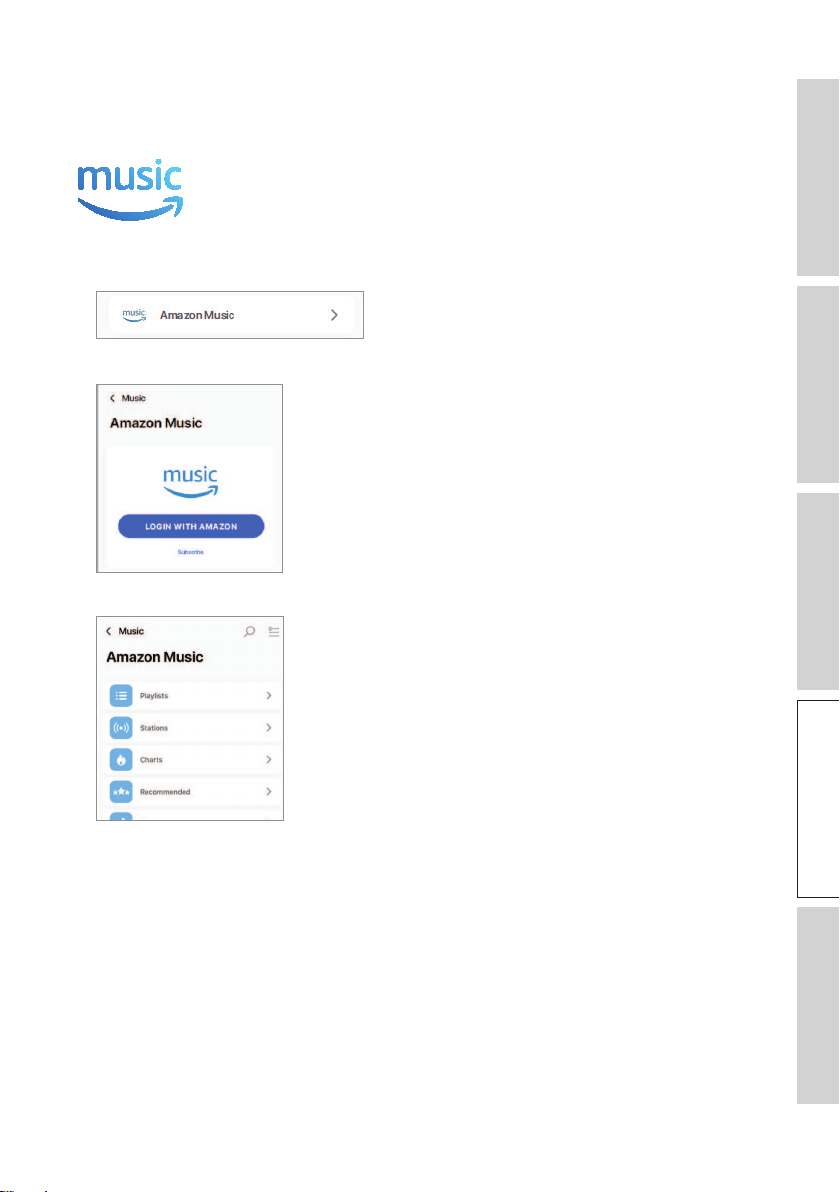
1. To stream music, tap “Amazon Music” under “Music in the Cloud” in the KEF
Connect App.
2. Login to your Amazon Music account.
3. Browse and play music to start streaming.
53
Table of ContentsSetting UpWi-Fi StreamingUsing KEF Connect AppFAQ and Troubleshooting
14.3.1.4 Spotify
Through the KEF Connect App, you can be prompted to the Spotify App on your
device to stream music to the speakers. See chapter “Spotify Connect”.
14.3.1.5 TIDAL
1. To stream music, tap “TIDAL” under “Music in the Cloud” in the KEF Connect App.
2. Login to your TIDAL account.
3. Browse and play music to start streaming.

54
Table of ContentsSetting UpWi-Fi StreamingUsing KEF Connect AppFAQ and Troubleshooting
14.3.1.6 Internet Radio
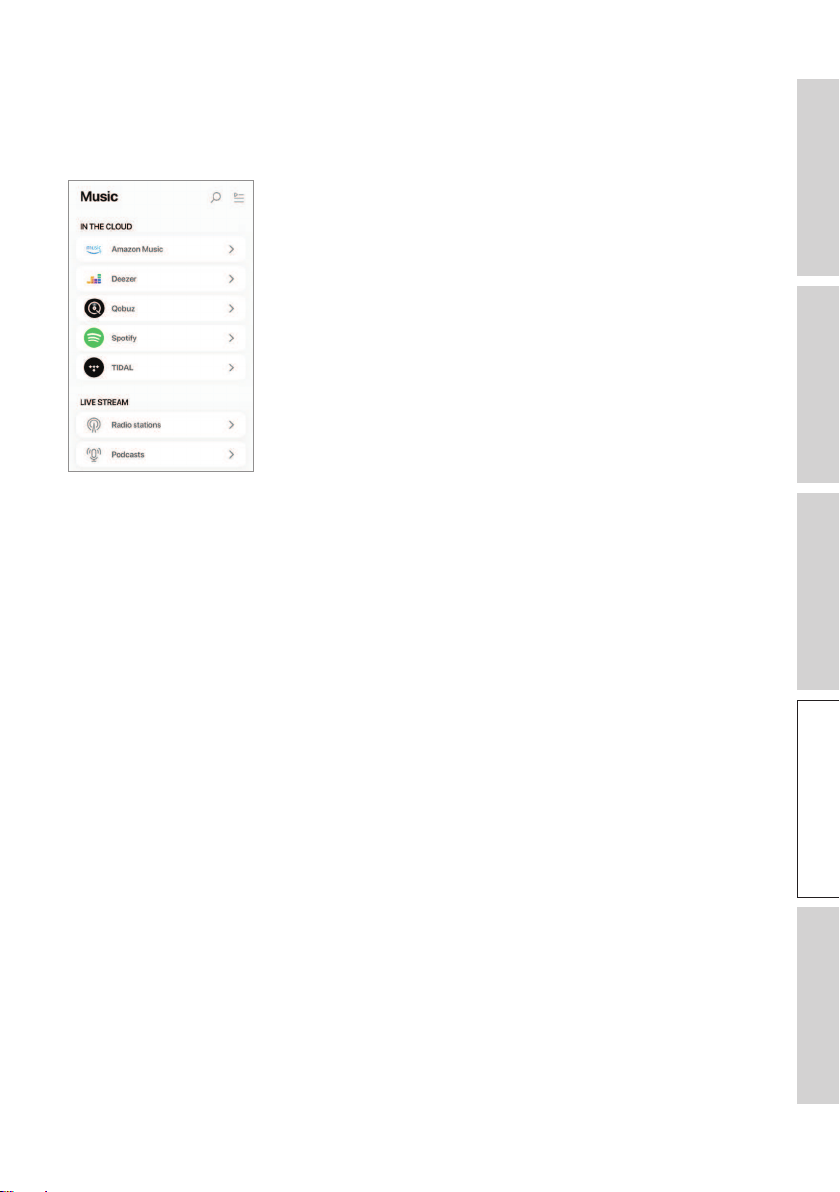
1. To access Internet radio, tap “Radio stations” under “Live Stream” in the KEF Connect
App.
2. Browse and play a radio station to start streaming.
14.3.1.7 Podcast
1. To access podcast contents, tap “Podcasts” under “Live Stream” in the KEF Connect
App.
2. Browse and play a podcast to start streaming.
55
Table of ContentsSetting UpWi-Fi StreamingUsing KEF Connect AppFAQ and Troubleshooting
14.3.2 Playback Controls
The below features are available to control playback or behaviour. Please note that
these features may not be available to all music sources and there may be slight
differences in the control interface.
14.3.2 .1 Playback Screen
Previous/next
Play/pause
Track scroll
Options
Repeat
Hide playback screen
Shuffle
Volume control
Favourites
Track metadata
Queue
MQA authentication type
14.3.2.2 Search
Tap the search icon (
) to look for artists, albums or songs in the current music
source.
56
Table of ContentsSetting UpWi-Fi StreamingUsing KEF Connect AppFAQ and Troubleshooting
14.3.2.3 Favourites
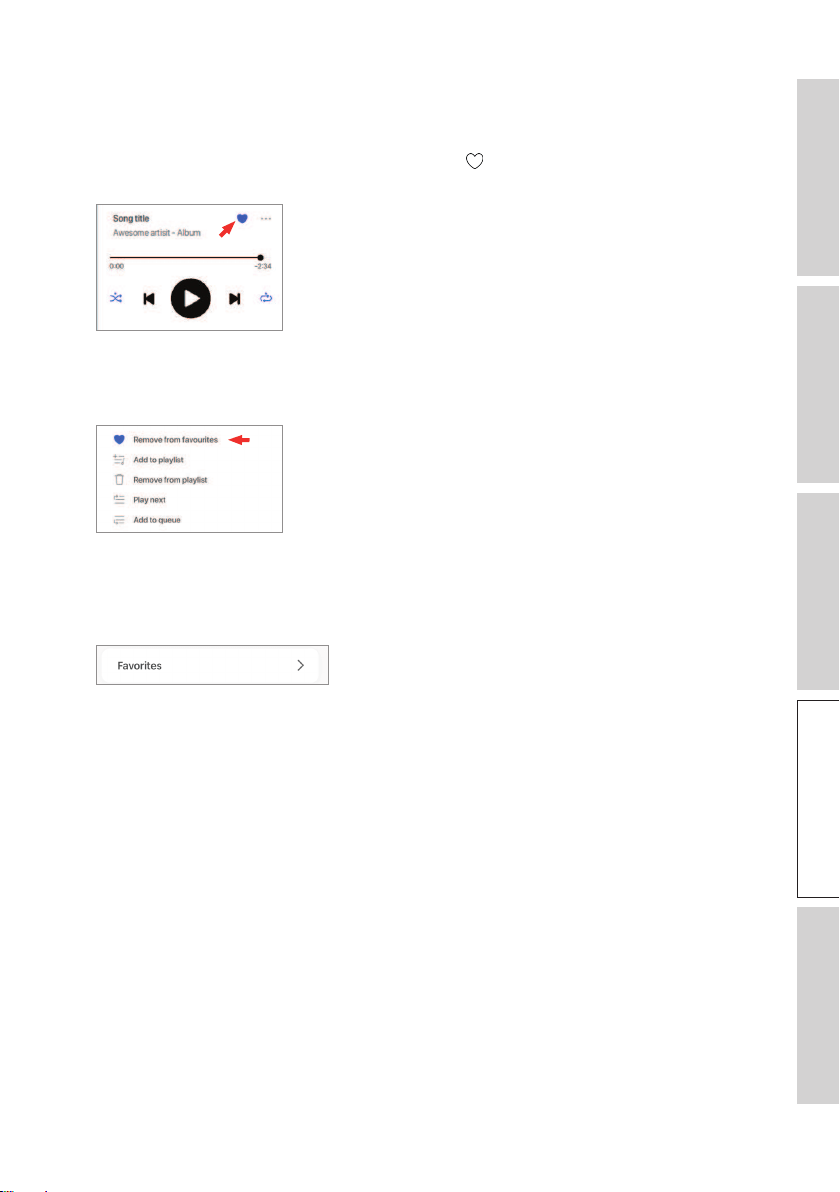
•Selecting or Deselecting Favourites
In the playback screen, tap the favourite icon (
) to select or deselect an item
(music, podcast, radio station) as favourites.
Alternatively, tap the option icon (
…
) next to an item (e.g. track, album, playlist),
or press and hold on an item and then select “Add to Favorites” or “Remove from
Favourites”.
•Accessing your favourites
To show the favourites in your current music source, tap “Favourites” in the main
menu.
57
Table of ContentsSetting UpWi-Fi StreamingUsing KEF Connect AppFAQ and Troubleshooting
14.3.2.4 Play Queue
Adding a track to the queue means the track will be played after the current playing
track. The queue is not permanent and cannot be saved.
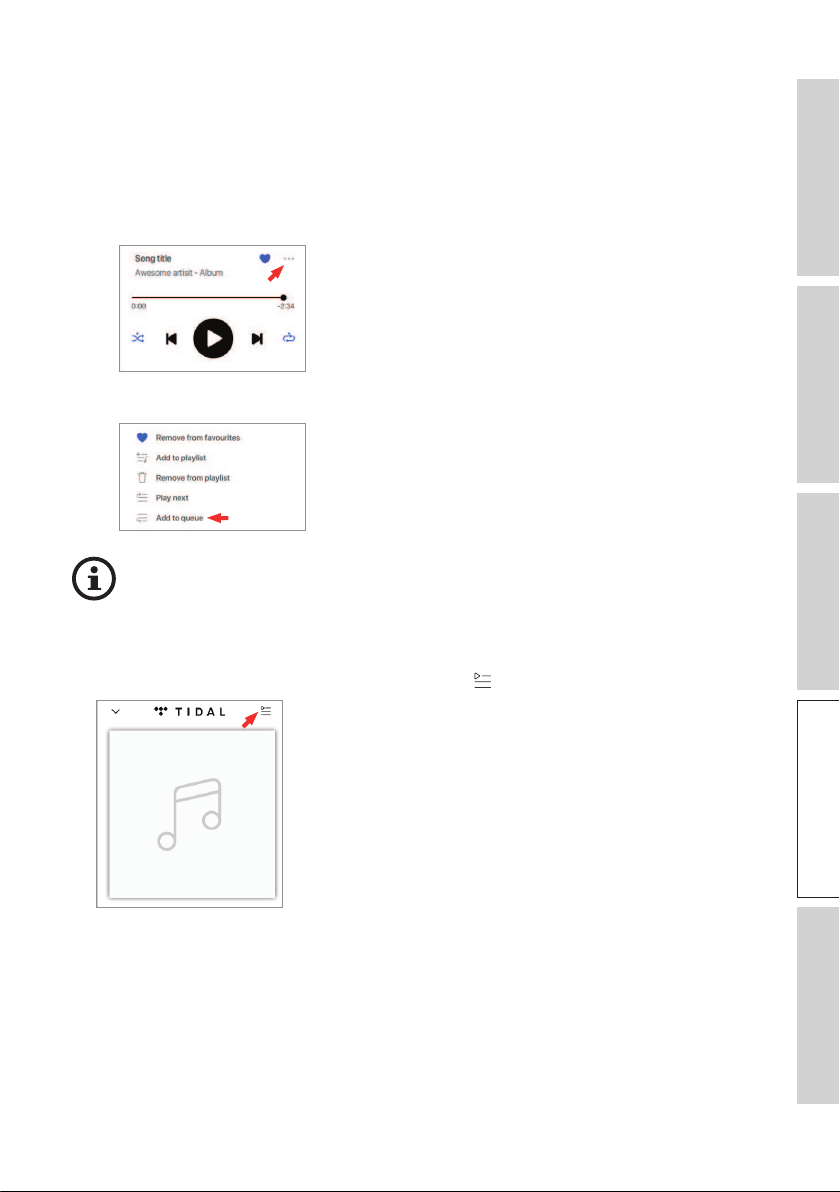
•Adding a Track to the Queue
1. From the playback screen, tap the option icon (
…
).
2. Select “Add to Queue”.
Depending on your selections, you can also add all tracks from an artist, all
tracks from an album, or all tracks from a playlist to the queue.
•Showing the Current Queue
From the playback screen, tap the queue icon (
) at the top right.
58
Table of ContentsSetting UpWi-Fi StreamingUsing KEF Connect AppFAQ and Troubleshooting
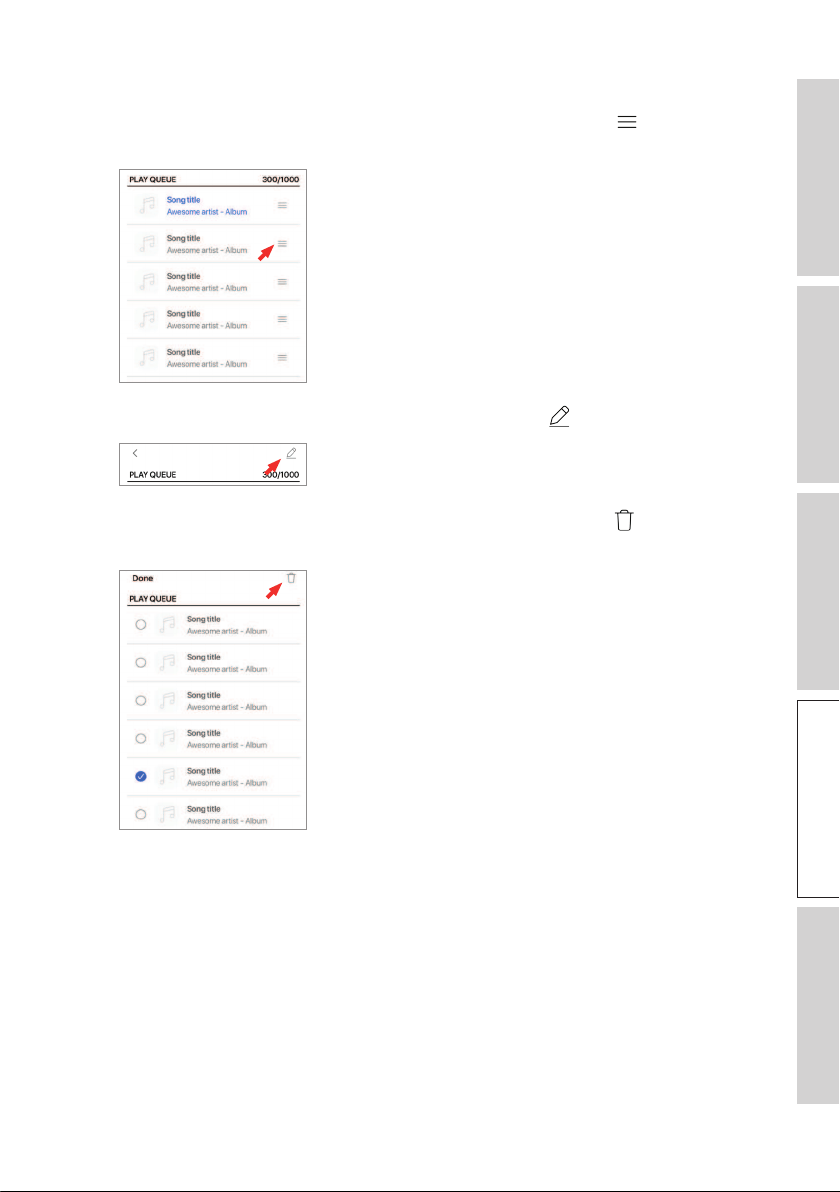
•Editing the Queue
1. To edit the playback sequence, press and hold the three bars ( ) on the right
hand side of a track and then drag the track up or down the queue.
2. To remove a track from the queue, tap the edit icon ( ) at the top right.
3. Select the track in the queue and then tap the trash bin icon ( ) to remove it
from the queue. You may also select multiple tracks for removal.
59
Table of ContentsSetting UpWi-Fi StreamingUsing KEF Connect AppFAQ and Troubleshooting
14.3.2.5 Playlists
A playlist is a list of tracks that can be played back in the preferred sequential order.
Playlists can be saved for future listening.
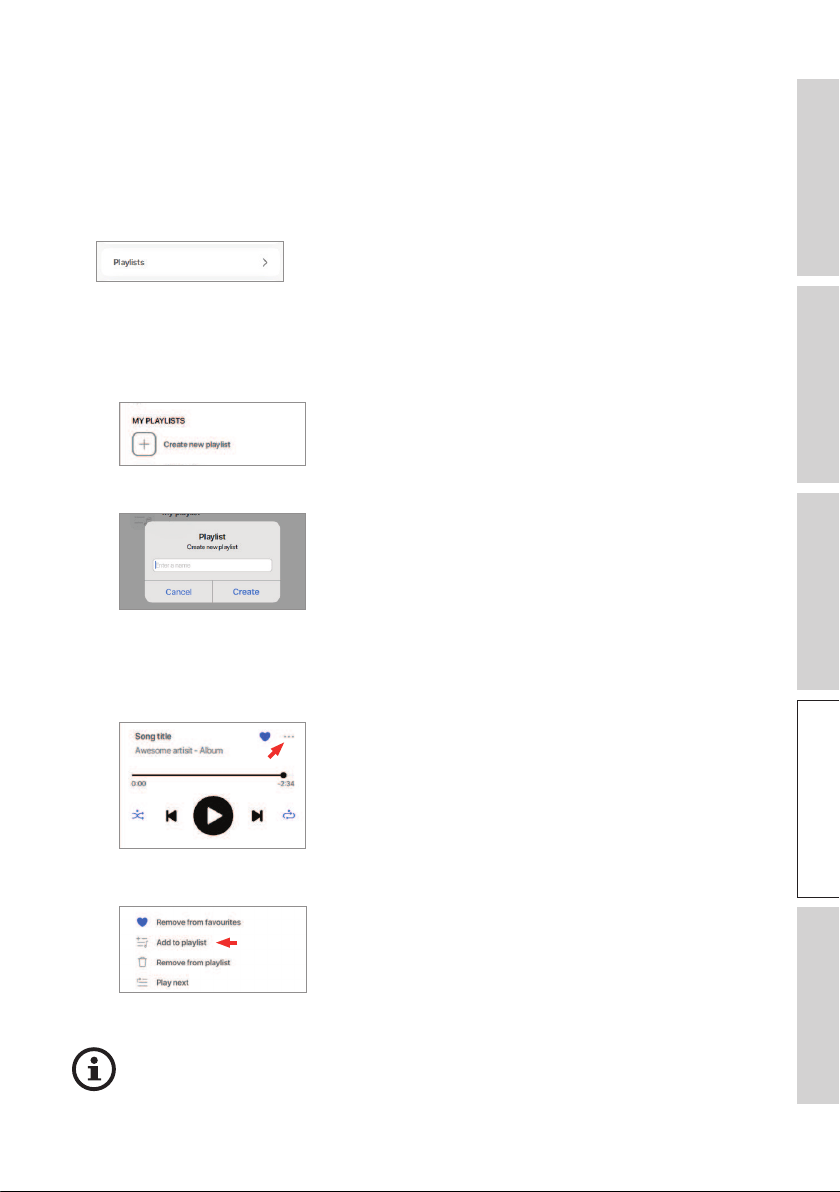
•Accessing the Playlists
In the current music source, tap “Playlists” in the main menu.
•Creating a Playlist
1. In the current music source, tap “Playlists” in the main menu.
2. Tap “Create new playlist”.
3. Create a name for the playlist and then tap “Create”.
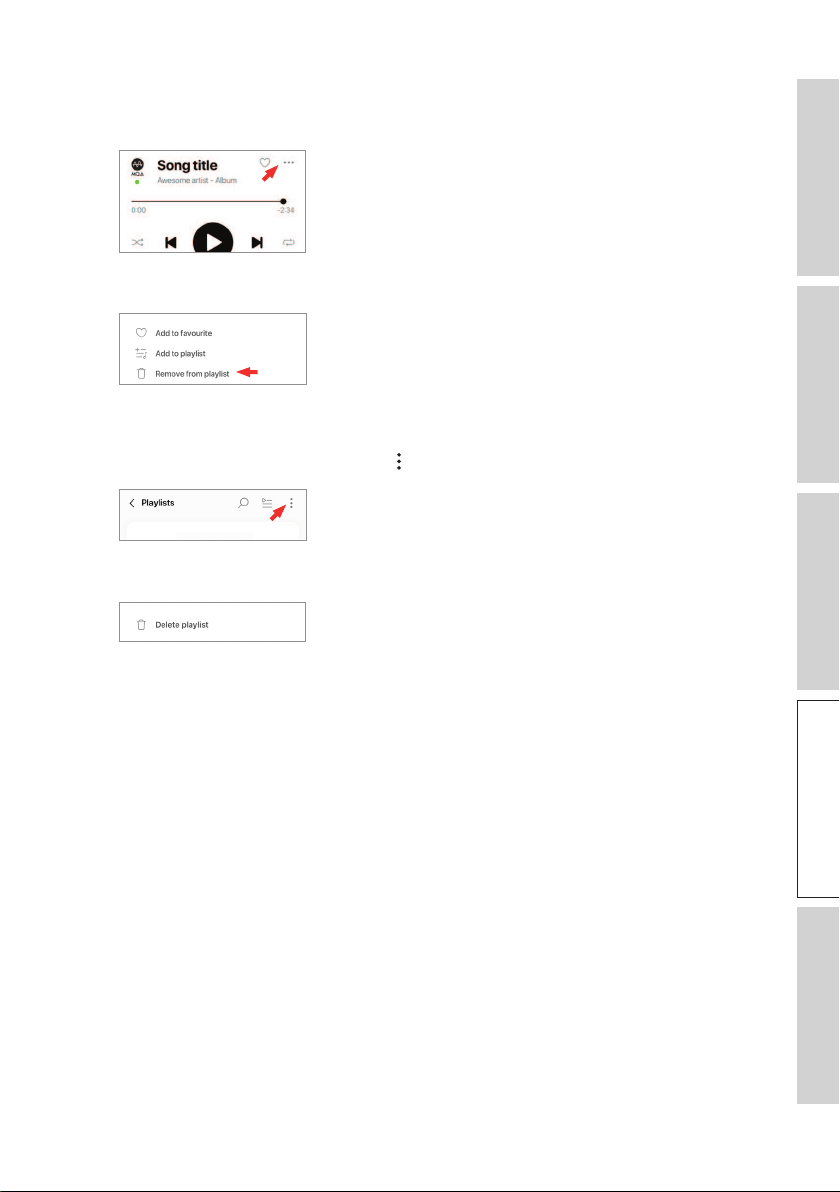
•Adding Tracks to a Playlist
1. From a list of tracks or from the playback screen, tap the option icon (
…
) on the
right
2. Tap “Add to playlist”.
3. Select the playlist you want to add the track to.
Depending on your selections, you can also add all tracks from an artist or all
tracks from an album to the playlist.
60
Table of ContentsSetting UpWi-Fi StreamingUsing KEF Connect AppFAQ and Troubleshooting
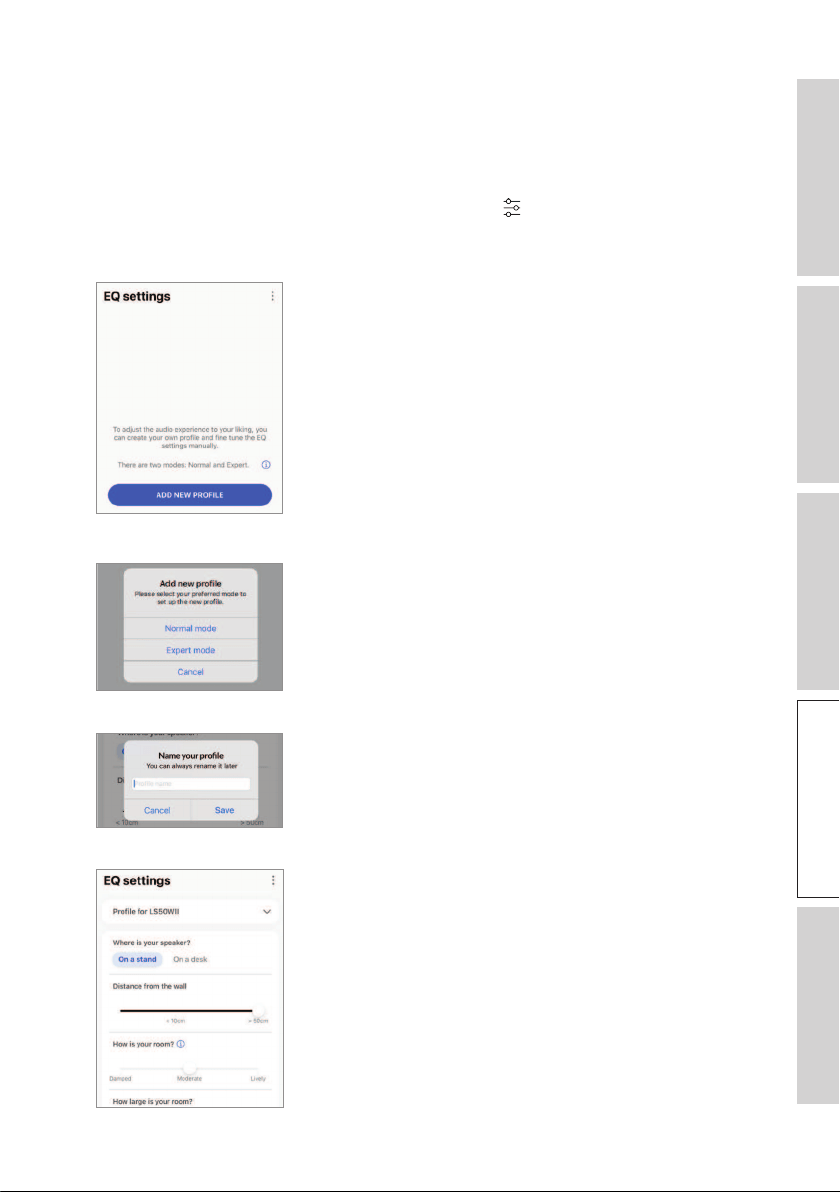
•Editing a Playlist
1. In the playback screen of the track to be removed, tap the option icon (
…
).
2. Tap “Remove from playlist”.
•Deleting a Playlist
1. In the playlist, tap the option icon (
) at the top right corner.
2. Tap “Delete playlist”.
61
Table of ContentsSetting UpWi-Fi StreamingUsing KEF Connect AppFAQ and Troubleshooting
14.4 Equalisations
For the best audio performance, apply sound settings according to your listening area.
14.4.1 Normal Mode
1. In the KEF Connect App, tap the EQ settings icon (
) at the bottom of the Home
screen.
2. Tap“Addnewprole”
3. Select “Normal mode”.
4. Createanameforyournewproleandthentap“Save”.
5. Congurethesettingsaccordingtoyourlisteningarea.
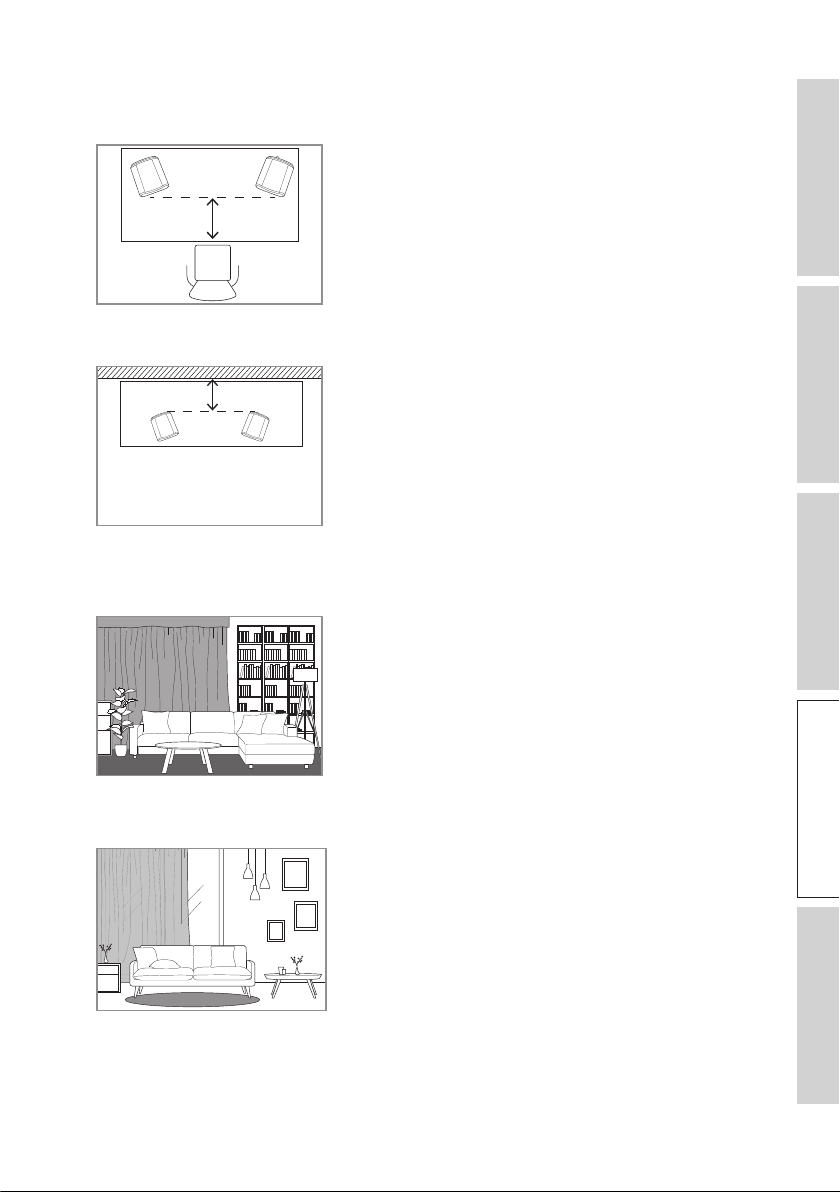
62
Table of ContentsSetting UpWi-Fi StreamingUsing KEF Connect AppFAQ and Troubleshooting
•Installation location: On a stand or on a desk
•Distance from the front edge of the table (on a desk only) (> 50 cm to 0 cm)
•Distance to the wall (< 10 cm to > 50 cm)
•How is your room? (Damped / Moderate / Lively)
Damped: Large furniture, thick carpet and heavy curtains
Moderate: Medium furniture, thinner carpet or rug, some curtains and features on
walls
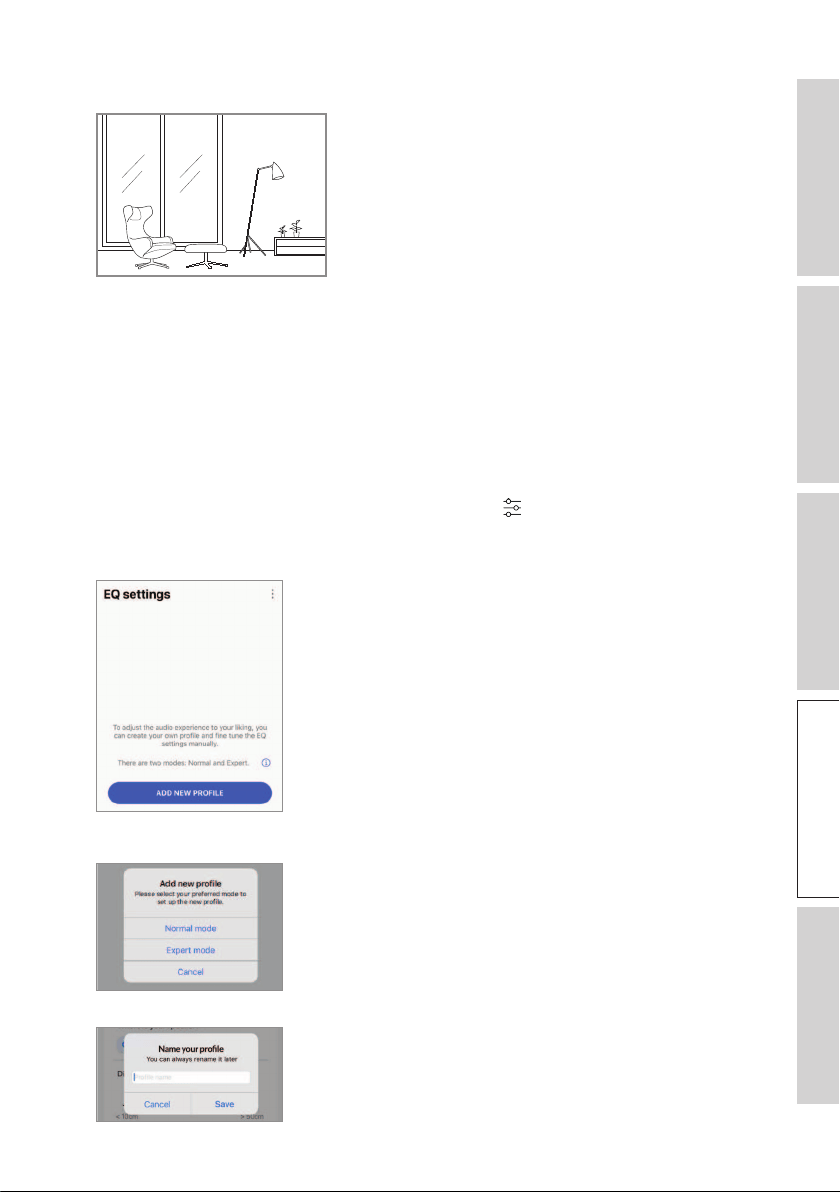
63
Table of ContentsSetting UpWi-Fi StreamingUsing KEF Connect AppFAQ and Troubleshooting
Lively: Hard floor, less furniture, large windows and no curtains
•How large is the room? (< 20 m
2
/ 20–40 m2 / > 40 m
2
)
•Subwoofer is plugged in (On/Off).
If a subwoofer is plugged in, set up the subwoofer volume and speaker/subwoofer
balance.
6. Tap “Save” when the settings are done.
14.4.2 Expert Mode
1. In the KEF Connect App, tap the EQ settings icon (
) at the bottom of the Home
screen.
2. Tap“Addnewprole”.
3. Select “Expert mode”.
4. Createanameforyournewproleandthentap“Save”.
64
Table of ContentsSetting UpWi-Fi StreamingUsing KEF Connect AppFAQ and Troubleshooting
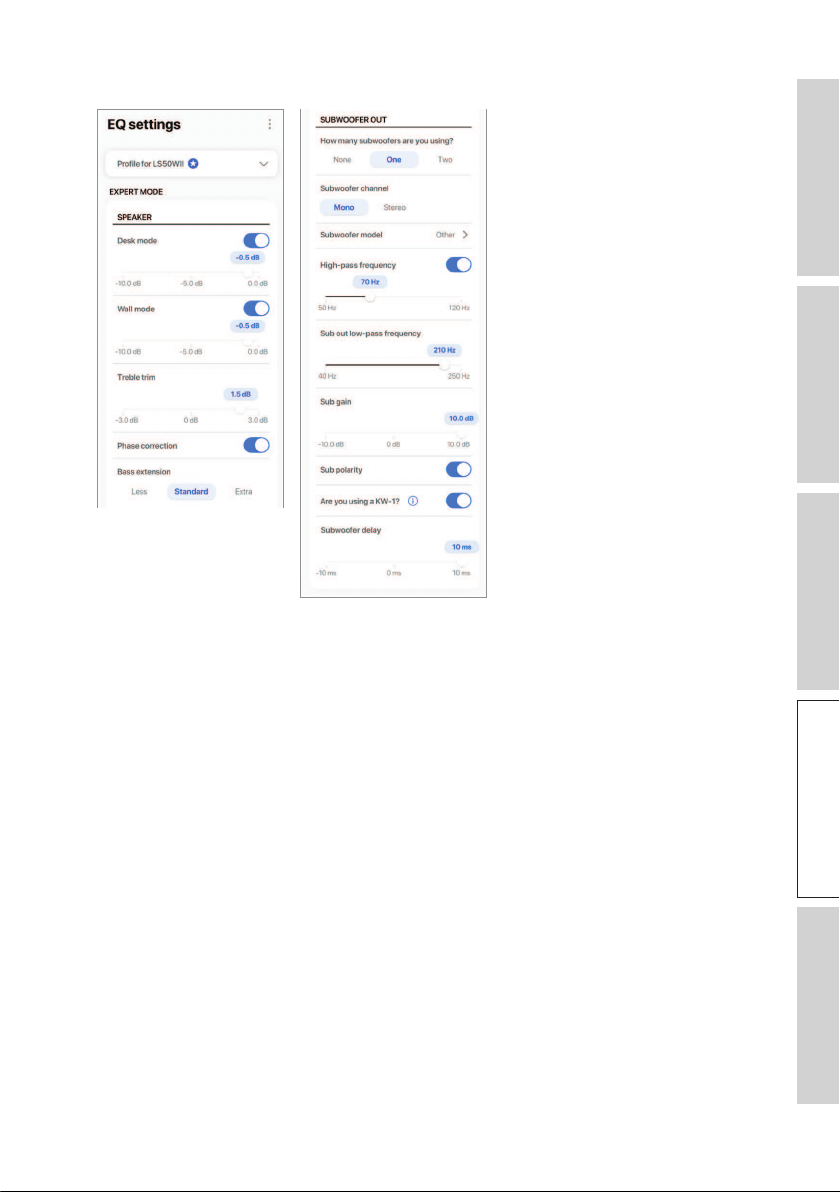
5. The Expert Mode lets you configure the EQ preferences in greater precision.
The settings include:
•Desk Mode (On/Off, -10.0 dB to 0.0 dB)
•Wall Mode (On/Off, -10.0 dB to 0.0 dB)
•Treble Trim (-4.0 dB to 4.0 dB)
•Phase Correction (On/Off)
•Bass Extension (Less / Standard / Extra)
•High-Pass Frequency (On/Off, 50 Hz to 120 Hz)
•Sub Out Low-Pass Frequency (40 Hz to 250 Hz)
•Sub Gain (-10 dB to 10 dB)
•Sub Polarity (On/Off)
65
Table of ContentsSetting UpWi-Fi StreamingUsing KEF Connect AppFAQ and Troubleshooting
Understanding the EQ Settings
On a desk/distance from the front edge of the table (Expert Mode: Desk
Mode): This setting adjusts the “presence” region (170 Hz +/- 1 octave). Too
much causes a muddy sound, while a lack of presence makes the sound distant
and empty.
Distance to the wall (Expert Mode: Wall Mode): This setting adjusts all
frequencies from around 500 Hz downwards, causing broader changes than
Desk Mode. A dip in these frequencies causes a tinny sound, while too much
of these frequencies can overwhelm the overall presentation with lower
frequencies.
How is your room? (Expert Mode: Treble Trim): This adjusts the frequencies
above 500 Hz. A damped room (lots of curtains, soft furnishings) can make
sound seem muted, while a lively room (high ceiling, flat surfaces, glass) can
make it sound harsh. Move towards damped to reduce the muting effect, or
move towards lively to tame harshness.
How large is your room (Expert Mode: Bass Extension): This setting adjusts
the bass extension of the speakers. The larger the room selected, the lower
the roll-off point.
Understanding the Subwoofer Settings
Subwoofer/Speaker Balance (Normal mode): This controls the bass output
between the subwoofer and the speakers. If the slider is moved more to
“Subwoofer”, most of the bass output will be handled by the subwoofer.
High-Pass Frequency: Frequencies above the set point will be played by the
speakers.
Sub Out Low-Pass Frequency: Frequencies below the set point will be
handled by the subwoofer. This can overlap with the high-pass frequency to
help integrate the speaker/subwoofer more effectively with no dip or peak in
overall response.
Sub Gain: This changes the signal level output to the subwoofer.
Sub Polarity: Ideally, the speakers and subwoofer should be moving in the
same direction at the same time, otherwise frequencies can be cancelled out.
Switching the polarity of the subwoofer can resolve a perceived lack of bass
response.
66
Table of ContentsSetting UpWi-Fi StreamingUsing KEF Connect AppFAQ and Troubleshooting
14.4.3 Selecting a Sound Profile
1. In the KEF Connect App, tap the EQ settings icon (
) at the bottom of the Home
screen.
2. Tap “Default” and then select a sound profile to apply to the speakers. The profiles
with a star icon are created in Expert mode.
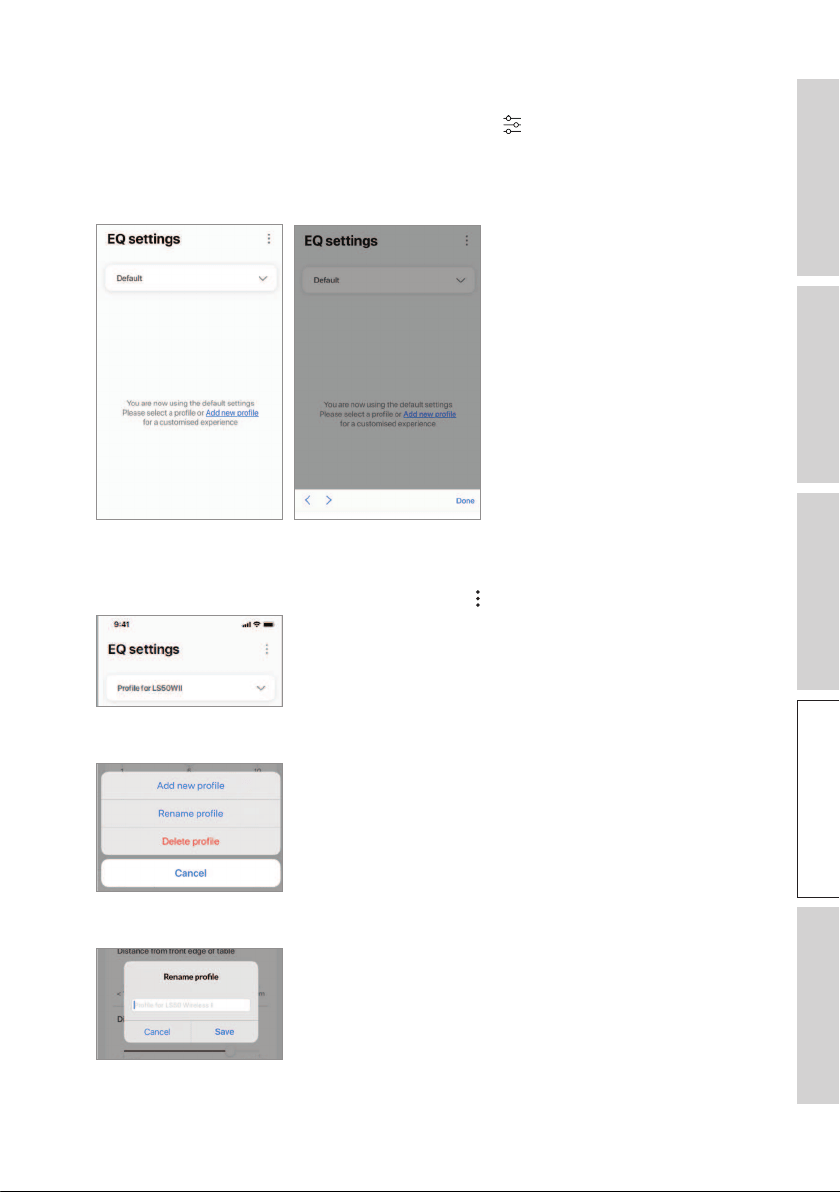
14.4.4 Renaming a Sound Profile
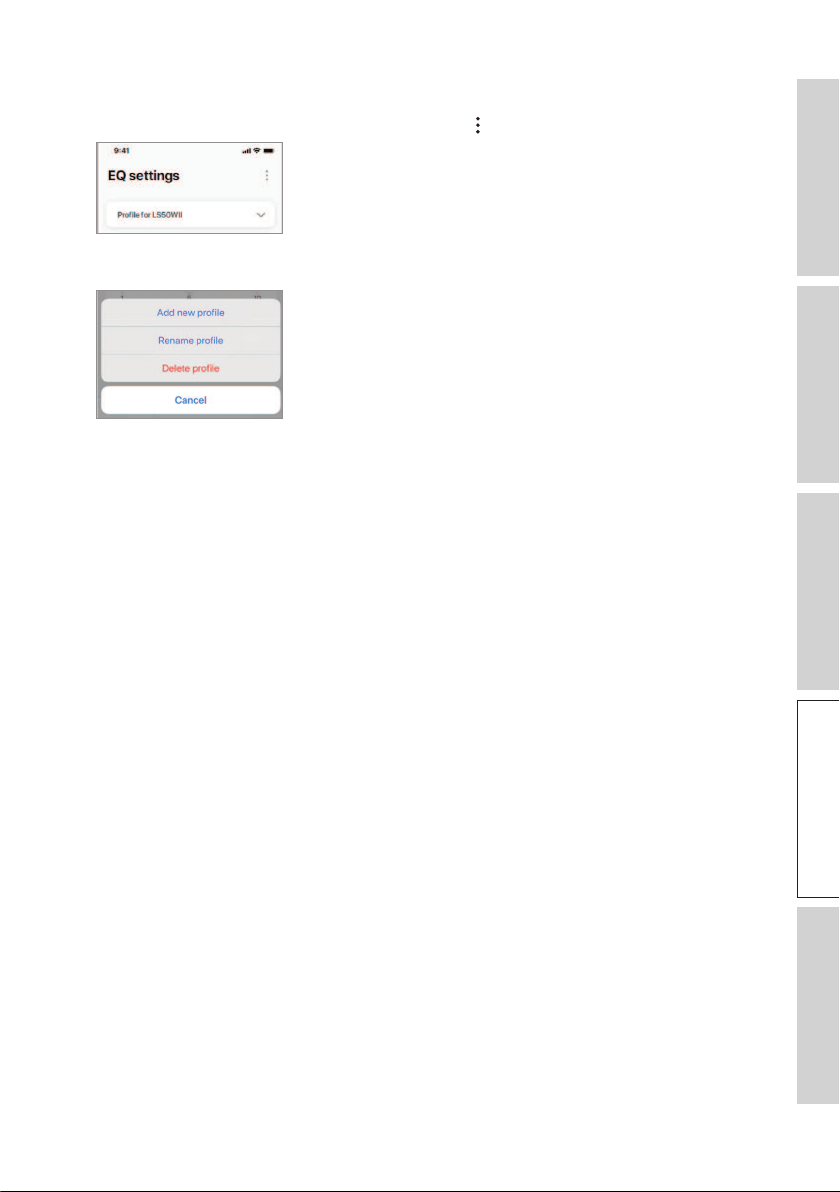
1. IntheselectedEQprole,taptheoptionicon( ) at the top right.
2. Tap“Renameprole”.
3. Createanewnameforyourproleandthentap“Save”.
68
Table of ContentsSetting UpWi-Fi StreamingUsing KEF Connect AppFAQ and Troubleshooting
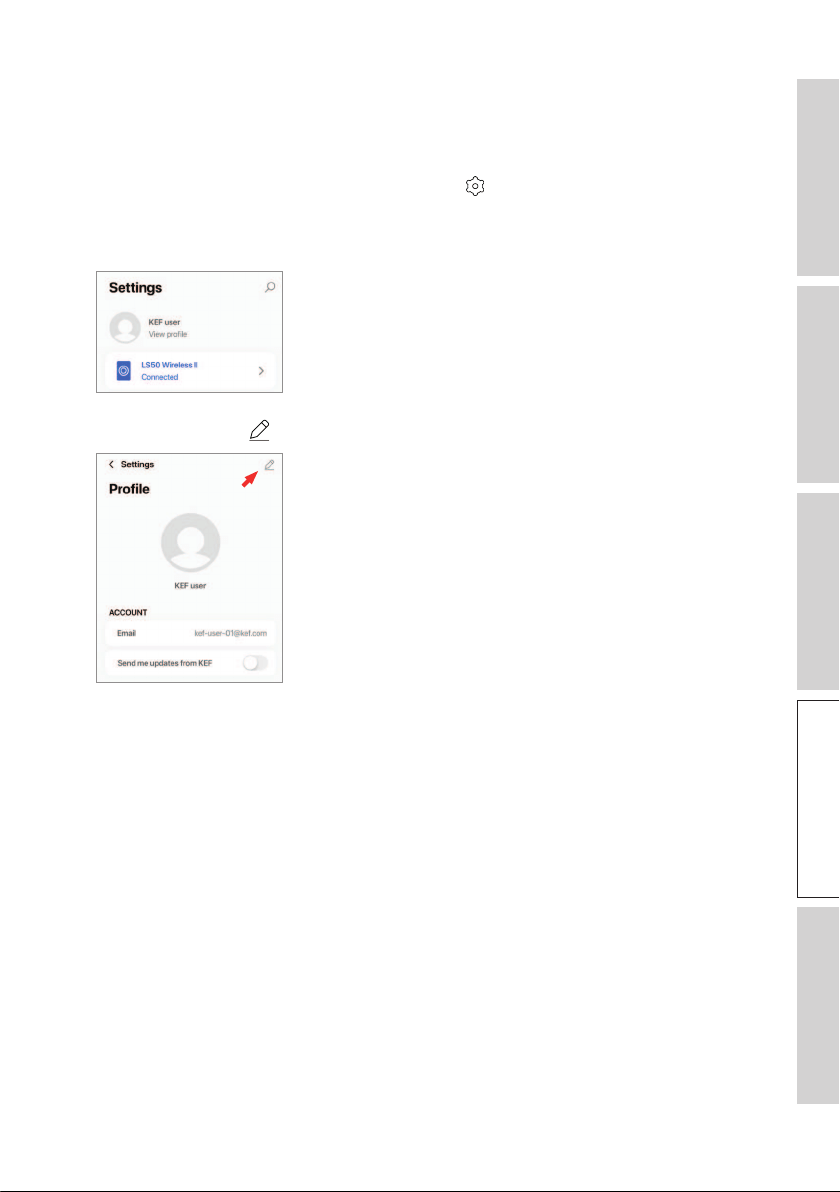
14.5 Profile
This menu allows you to edit your personal details (account name and profile picture)
of your registered user account.
1. In the KEF Connect App, tap the Setting icon (
) at the bottom of the Home
screen.
2. Tap“Viewprole”.
3. Tap the edit icon ( ) at the top right and start editing.
69
Table of ContentsSetting UpWi-Fi StreamingUsing KEF Connect AppFAQ and Troubleshooting
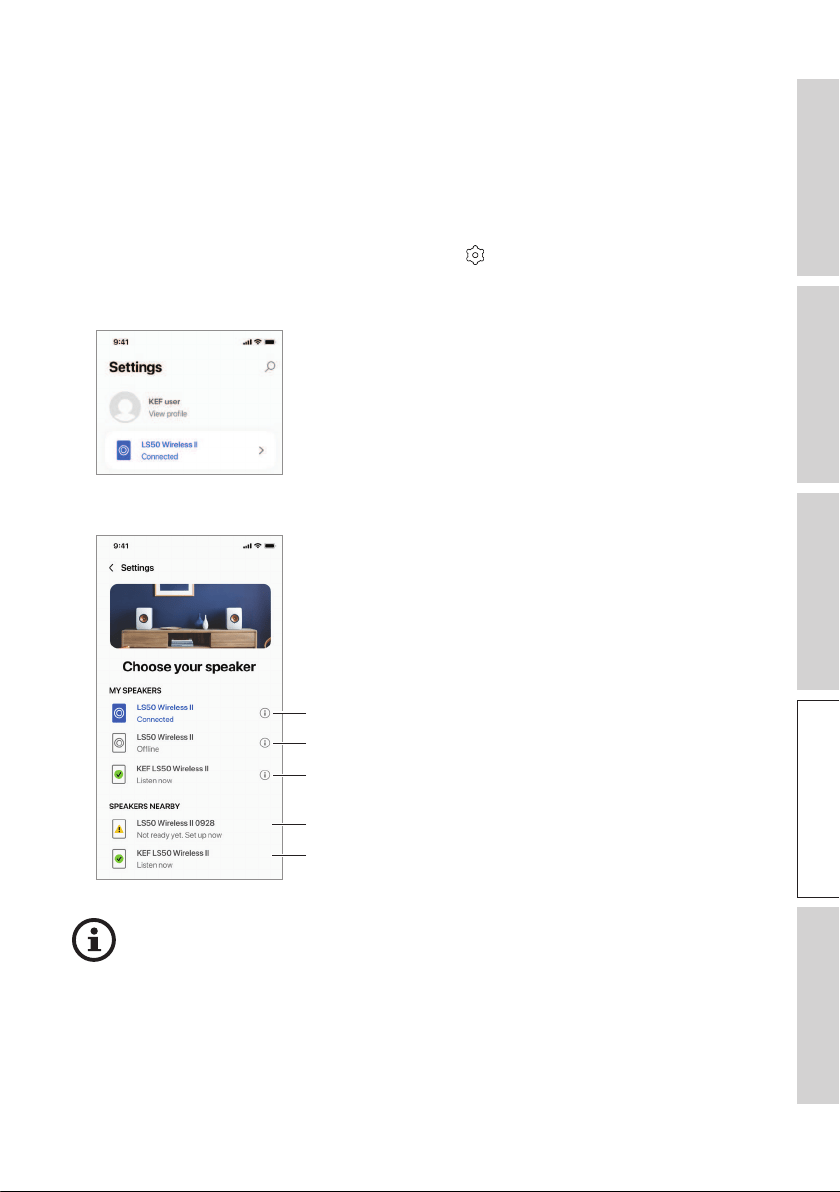
14.6 Choosing Your Speaker
14.6.1 My Speaker and Speakers Nearby
This menu allows the KEF Connect App to switch to another pair of speakers for
control and streaming. All speakers must first be set up through the same KEF Connect
App before they are available for selection.
1. In the KEF Connect App, tap the Setting icon (
) at the bottom of the Home
screen.
2. Tap the name of the connected speakers.
3. Select another pair of speakers for control and streaming.
Not set up yet with KEF Connect App
Already set up with KEF Connect
App on another mobile device
Current speakers
Speakers on the same network but turned off
Speakers on the same network and ready for switching
The speakers under “Speakers Nearby” are on the same network but not
ready yet to be controlled through the KEF Connect App on your mobile
device.
70
Table of ContentsSetting UpWi-Fi StreamingUsing KEF Connect AppFAQ and Troubleshooting
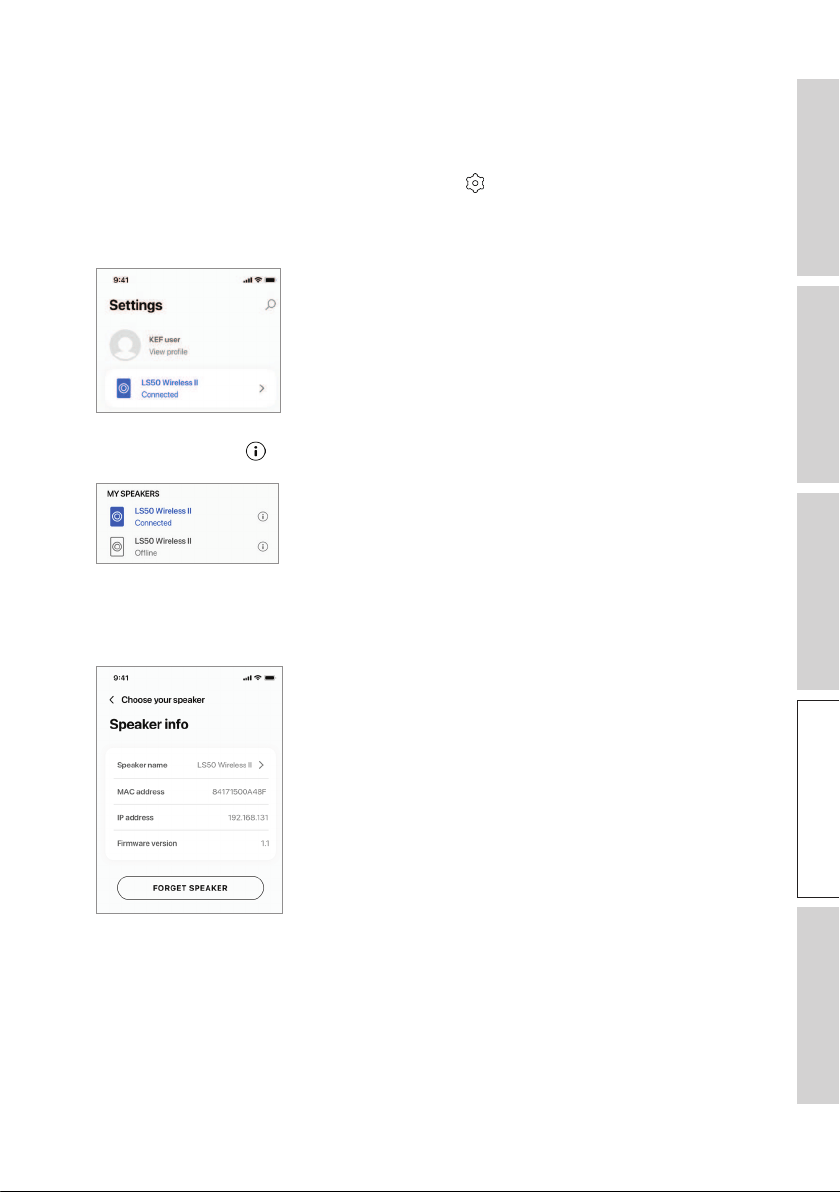
14.6.2 Speaker Info
This menu allows you to find out more information about the connected speakers,
rename the speakers and disconnect the speakers from the KEF Connect App.
1. In the KEF Connect App, tap the Setting icon (
) at the bottom of the Home
screen.
2. Tap the name of the connected speakers.
3. Tap the info icon ( ) next to the name of the speakers.
4. ChecktheMACaddress,IPaddressandrmwareversionofthespeakers.Youcan
also rename the speakers or forget the speakers (disconnect them from the KEF
Connect App).
71
Table of ContentsSetting UpWi-Fi StreamingUsing KEF Connect AppFAQ and Troubleshooting
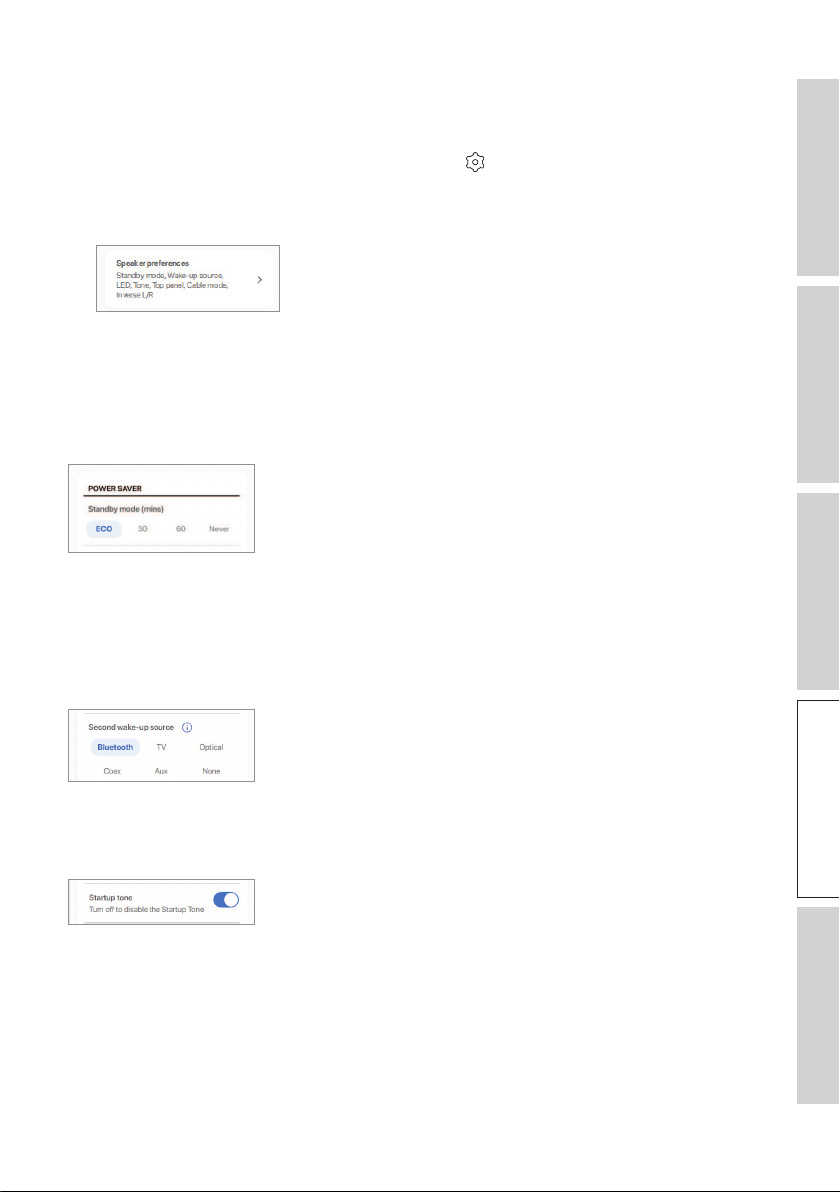
14.7 Speaker Preferences
This menu allows you to configure various speaker preferences. To access this menu:
1. In the KEF Connect App, tap the Setting icon (
) at the bottom of the Home
screen.
2. Tap “Speaker preferences”.
14.7.1 Power Saver – Standby Mode
This setting determines how long (ECO (20), 30 or 60 mins) the speakers will remain
idle before automatically entering Standby Mode. If “never” is selected, the speakers
must be manually turned off.
14.7. 2 Power Saver – Second Wake-Up Source
This setting enables a second source to automatically turn on the speakers when there
is audio input from the selected source. This option is not available when Standby
Mode is set to ECO.
14.7. 3 Do Not Disturb – Start Up Tone (coming soon)
This setting enables the start up tone to be muted when the speakers are turned on.
72
Table of ContentsSetting UpWi-Fi StreamingUsing KEF Connect AppFAQ and Troubleshooting
14.7.4 Do Not Disturb – Top Panel Lock
This setting enables the buttons on the top panel of the Primary Speaker to be
disabled (child lock). The LED indicators will still be on. The control of the speakers can
still be performed in the KEF Connect App and on the remote control.
14.7. 5 Speaker System Options – Cable Mode
You can connect the Primary Speaker and Secondary Speaker with the provided
inter-speaker cable through the “To L/R” connection ports on the back panels of the
speakers. Once the cable is connected, enable this setting to enable Cable mode and
disable the wireless connection.
Cable Mode is required/recommended when:
•You prefer a higher resolution at 192 kHz/24 bit (wireless: 96 kHz/24 bit).
•You are experiencing audio dropouts due to interference.
14.7.6 Speaker System Options – Inverse L/R Speakers
This setting changes which speaker plays left and right. By default, the Primary Speaker
plays the right channel.

73
Table of ContentsSetting UpWi-Fi StreamingUsing KEF Connect AppFAQ and Troubleshooting
14.8 Volume
This menu allows you to configure volume settings. To access this menu:
1. In the KEF Connect App, tap the Setting icon (
) at the bottom of the Home
screen.
2. Tap “Volume”.
14.8.1 Volume Display Setting
This setting allows you to configure how the volume control should be displayed.
•None: No volume control will be displayed during playback.
•Slider: The volume control will be displayed as a slider for adjustment.
Tap the speaker icon on the left to mute or restore audio output from the speakers.
•–
/+: The volume control will be displayed as “–” and “+” buttons for adjustment.
Tap the speaker icon in the middle to mute or restore audio output from the
speakers.

74
Table of ContentsSetting UpWi-Fi StreamingUsing KEF Connect AppFAQ and Troubleshooting
14.8.2 Hardware Volume
This setting is only available on iOS devices.
The hardware volume buttons refer to the
physical volume buttons on your device. Disable this setting when you are experiencing
conflicts with other music streaming apps over Wi-Fi connection.
14.8.3 Speaker Volume Sensitivity
This setting allows you to configure the number of volume steps for each single press of
the physical volume buttons of your device.
14.8.4 Maximum Volume
This setting allows you to configure the maximum level when adjusting the volume. The
setting applies to all sources.
14.8.5 Balance Control
This setting allows you to adjust the volume balance between the left and right
channels.
75
Table of ContentsSetting UpWi-Fi StreamingUsing KEF Connect AppFAQ and Troubleshooting
14.9 Firmware Upgrade
14.9.1 Automatic Firmware Update after Onboarding
After you have successfully set up the speakers with the KEF Connect App, you may be
required to update the firmware if a new version is available. Follow the instructions in
the KEF Connect App to complete the update process.
14.9.2 Automatic Firmware Check
The speakers check the server every 4 hours if a new firmware update is available. If a
firmware is available, it will check if the firmware update is compulsory or not.
If a firmware update is compulsory, it will start the update when:
•The speakers are in standby mode, or
•The Wi-Fi source or Bluetooth source has been idle for 60 minutes.
If a firmware update is not compulsory, it will be carried out when:
•The speakers are in standby mode between 2–3 am, or
•The Wi-Fi source or Bluetooth source has been idle for 60 minutes.
A firmware update will not occur when the speakers are in use.
76
Table of ContentsSetting UpWi-Fi StreamingUsing KEF Connect AppFAQ and Troubleshooting
14.9.3 Manual Firmware Update
This menu allows you to manually check for firmware updates.
To access this menu:
1. In the KEF Connect App, tap the Setting icon (
) at the bottom of the Home
screen.
2. Tap “Speaker update”.
3. Ifanupdateisavailable,tap“Updatenow”toproceedwiththermwareupdate.
77
Table of ContentsSetting UpWi-Fi StreamingUsing KEF Connect AppFAQ and Troubleshooting
14.10 Application
This menu allows you to customise the streaming audio quality, theme and send analytics.
To access this menu:
1. In the KEF Connect App, tap the Setting icon (
) at the bottom of the Home
screen.
2. Tap “Application”.
14.10.1 Streaming Settings – Audio Quality
This setting allows you to select the audio quality for music streaming.
•Hi-Fi (Hi-Fi quality): Always select this setting for the best audio quality. The highest
quality depends on the music streaming service and your subscription.
•High (CD quality): Select this setting when the speakers are in a crowded network
and experiencing quality drop-outs.
•Normal (MP3 quality): Select this setting when the speakers are in a crowded
network and experiencing audio drop-outs.
14.10.2 Theme Settings – Dark Theme (coming soon)
This setting allows you to change the app to a dark background. This improves text
readability in a low light environment and saves battery life.
14.10.3 Theme Settings – Reset Home Screen (coming soon)
This setting allows you to reset the Home screen of the app to default settings.

79
Table of ContentsSetting UpWi-Fi StreamingUsing KEF Connect AppFAQ and Troubleshooting
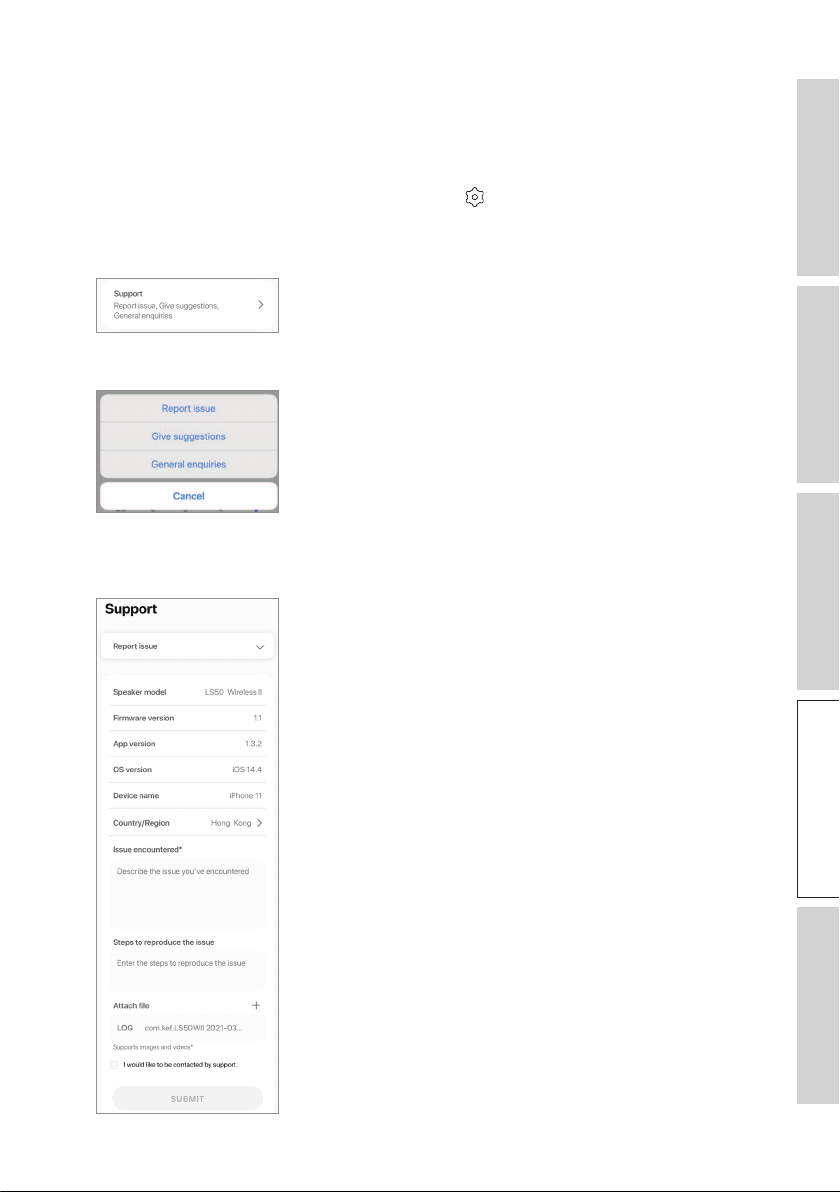
14.11 Support
This menu allows you to report issues, give suggestions and make general enquiries.
To access this menu:
1. In the KEF Connect App, tap the Setting icon (
) at the bottom of the Home
screen.
2. Tap “Support”.
3. Select the type of support you need and proceed as instructed on the screen.
4. When reporting an issue, your email program will automatically attach the speaker
logs that helps KEF investigate the issue. Please add a description of the problem in the
email message as well.

80
Table of ContentsSetting UpWi-Fi StreamingUsing KEF Connect AppFAQ and Troubleshooting
15. Cleaning and Maintenance
WARNING!
Risk of electric shock!
Improper cleaning of the speakers may result in injury.
•Always unplug the power cables from the power sockets/outlets before cleaning the
speakers.
NOTICE!
Risk of short circuit!
Water and other liquids that have penetrated the housing may cause a short circuit.
•Make sure that no water or other liquids penetrate the housing of the speakers.
•Never immerse the speakers in water or other liquids.
NOTICE!
Risk of damage!
Improper handling of the speakers may result in damage.
•Do not use any aggressive cleaners, brushes with metal or nylon bristles, or sharp
or metallic utensils such as knives, hard scrapers and the like. They could damage
the surface.
1. Disconnect the power cables of the speakers from the power sockets/outlets before
cleaning.
2. Clean the surfaces of the speakers with a clean lint-free cloth. If necessary, use an
alcohol-free cleaner (e.g. screen cleaner, eyeglass lens cleaner) to remove stubborn
stains.
3. To clean the Uni-Q drivers (speaker cones), use an anti-static cleaner and a soft
sponge. Be careful as the driver may be damaged if too much force is used.

81
Table of ContentsSetting UpWi-Fi StreamingUsing KEF Connect AppFAQ and Troubleshooting
16. Disposal
16.1 Disposing of the Packaging
Sort the packaging before you dispose of it. Dispose of paperboard, cardboard and
wrappings in accordance with your local guidelines.
16.2 Disposing of the Speakers
Old appliances may not be disposed of in the household waste!
LS50 Wireless II is an electronic product and may not be able to be disposed of as
household waste. Please dispose of your speaker in accordance with the regulations
in force in your city or county. This ensures that old appliances are recycled in a
professional manner and reduces negative consequences.
16.3 Disposing of the Battery
Batteries may not be disposed of with household waste!
As the end user you are required by law to bring all batteries, regardless whether
they contain harmful substances* or not, to a collection point run by the communal
authority or to a retailer, so that they can be disposed of in an environmentally friendly
manner.
* labeled with: Cd = cadmium, Hg = mercury, Pb = lead

82
Table of ContentsSetting UpWi-Fi StreamingUsing KEF Connect AppFAQ and Troubleshooting
17. FAQ and Troubleshooting
17.1 Set-up
1. How do I set up LS50 Wireless II?
•First of all, a home Wi-Fi network is required. This is to ensure you can enjoy the full
range of features and keep the system up to date.
•Then, download the KEF Connect App from the App Store or Google Play Store and
install it on your mobile device. Follow the instructions in the KEF Connect App to get
the speakers connected (onboarded) to your home Wi-Fi network.
2. What router specications does LS50 Wireless II support?
•IEEE 802.11a/b/g/n/ac, IPv4, IPv6, Dual-band 2.4 GHz / 5 GHz
•For better streaming stability, especially on hi-resolution music files, a 5 GHz Wi-Fi
network with a router transmission speed of at least 1300 Mbps is recommended.
•Office, hotel, guest and public networks often feature additional security or
authentication methods which may prevent the speakers from connecting. You may
need the help of the network administrator to configure the network to allow full
functionality if using these kinds of networks.
•LTE routers/mobile hotspots will work, but may also consume a significant amount of
battery power and mobile data.
3. Can I use a mesh router?
•Yes, we have tested the most popular mesh routers and they are working well with
LS50 Wireless II. However, as there is not yet an industrial standard for mesh routers,
each manufacturer may have their own meshing technology. If your mesh router does
not work with LS50 Wireless II, make sure you have updated your router to the latest
firmware or contact the manufacturer for solutions.
4. How far apart can I place the two speakers?
•Wireless: up to 8 meters apart depending on your network condition. A congested
network environment will have more interferences and may reduce this distance.
•Wired: Cable length up to 10 meters.
•Optimal listening distance between the speakers and the listener will depend on
how far the Primary Speaker and Secondary Speaker are separated from each other.
Try to aim for approximately the same distance between the Primary Speaker and
Secondary Speaker and between the speakers and the listener.
5. How large a room can LS50 Wireless II cover?
•10–100 m
2

83
Table of ContentsSetting UpWi-Fi StreamingUsing KEF Connect AppFAQ and Troubleshooting
6. Can I change the Primary Speaker as the left channel?
•By default, the Primary Speaker is the right channel and the Secondary speaker is
the left channel. After connecting the speakers to your home Wi-Fi network, you can
inverse the L/R channels in the KEF Connect App.
7. Do I need to pair the two speakers?
•No, the two speakers are already paired at the factory. If you do not hear any sound
from the Secondary Speaker, see chapter “Troubleshooting”.
8. What is the purpose of the ethernet cable in the packaging box?
•Use this inter-speaker cable to connect the Primary Speaker and Secondary Speaker
if you prefer a higher sound reolution (192 kHz/24 bit), or if the wireless connection
between the speakers is not stable. After connecting the inter-speaker cable, you must
also enable Cable Mode in the KEF Connect App.
9. Can I rename the speaker?
•Yes, renaming can be done in the KEF Connect App. This will change the name for
both Wi-Fi and Bluetooth connections.
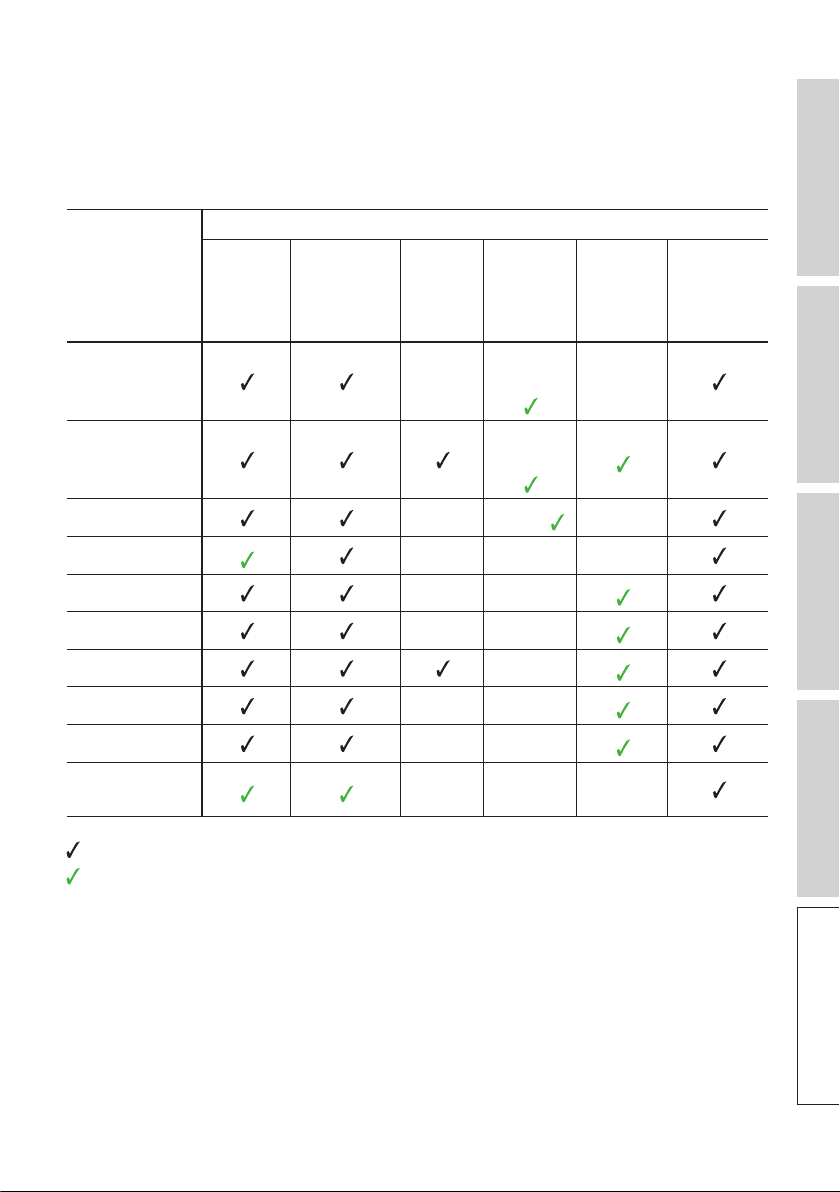
84
Table of ContentsSetting UpWi-Fi StreamingUsing KEF Connect AppFAQ and Troubleshooting
17.2 Playback and Streaming
1. Which is the best wireless streaming option for dierent apps?
•Recommendations for the best wireless streaming options with regard to music/
media apps on your mobile devices.
App
Wireless streaming protocol
AirPlay 2 Chromecast ROON
Ready
Music
streaming
app native
protocol
KEF
Connect
App
Bluetooth
Spotify
–
Spotify
Connect –
TIDAL
TIDAL
Connect
QQ Music –
QPlay
–
Apple Music – – –
Amazon Music – –
Deezer – –
Qobuz –
Internet radio – –
Audio podcast – –
Youtube
(audio)
– – –
= Supported
= Supported and recommended for the best audio quality and streaming stability.
2. Can I stream audio output from Youtube, Netix and other media contents to
LS50 Wireless II?
•Depending on the service, you can stream through AirPlay, Chromecast or Bluetooth.
3. Is the subwoofer output mono or stereo?
•The output is mono.

85
Table of ContentsSetting UpWi-Fi StreamingUsing KEF Connect AppFAQ and Troubleshooting
4. How should I set the speakers if I prefer to adjust the volume on an external
equipment (preamplier, streamers/multi-room systems) rather than through the
KEF Connect App?
•In the KEF Connect App:
1) In Settings, go to “Volume”, change “Volume Display” to “-/+”
2) Select the relevant source input.
3) Change the volume to 71. The source selection is now set to “Unity gain”.

86
Table of ContentsSetting UpWi-Fi StreamingUsing KEF Connect AppFAQ and Troubleshooting
17.3 Troubleshooting
1. What should I do to set up LS50 Wireless II to another network?
•A factory reset is necessary. This will clear the previous network settings and all EQ
and system preferences. For this purpose, press and hold the Reset button (R) on the
back panel until the LED light above the button blinks.
2. What should I do if I cannot nd my LS50 Wireless II in the network during set-up?
•Wait for about 30–40 seconds for the speakers to be visible on the speaker list.
•If you still cannot see the speakers, make sure your mobile device, the speakers and
the router are within line of sight (the closer the better).
•The speakers broadcast on Channel 2 (2.4 GHz band). If your router overlaps this
channel, it may cause issues with discoverability and connection. Go to your router
settings and configure the 2.4 GHz channel to avoid overlapping with Channel 2.
3. How do I report a bug or an issue?
•In the KEF Connect App, go to “Settings” > “Support”. To let us better understand the
bug or issue, please provide a descriptive report.
4. There is no sound from both speakers.
•Check if the speakers are already turned on and not muted.
•Make sure you are playing the correct set of speakers and have selected the correct
sound source.
•Check the volume level, you may need to turn up the volume.
5. There is dropout from both speakers.
•Check if there is a network problem or you need to set up the speakers to a less
crowded router channel.
•Change the audio streaming quality in the KEF Connect App.
6. There is no sound from the Secondary Speaker.
•Make sure the Secondary Speaker is connected to power.
•Check if the connection between the two speakers is lost (Source and Volume Down
buttons on the top panel of the Primary Speaker are blinking).
If the connection is lost, short press the P/S pairing button (P) on the back panel of
the Primary Speaker to re-establish the connection. Wait a while until the connection
is established. Note: Do not press the button for more than 1 second.
•If the problem persists, connect the speakers with the inter-speaker cable and turn on
Cable Mode in the KEF Connect App.

87
Table of ContentsSetting UpWi-Fi StreamingUsing KEF Connect AppFAQ and Troubleshooting
7. There is dropout from the Secondary Speaker.
•If the speakers are connected wirelessly, try to move them closer to each other.
•If the problem persists, connect the speakers with the inter-speaker cable and turn on
Cable Mode in the KEF Connect App.
8. The audio is out of sync with the picture when using LS50 Wireless II with a TV.
•If available, try the video delay/lip sync function of your TV.
9. I have connected the speakers to the TV with an HDMI cable, why is there no
sound?
•Make sure the source is switched to TV for the speakers.
•Check the TV icon on the top panel of the Primary Speaker.
If the TV icon is blinking, the HDMI connection is not found. In this case, make sure
that the HDMI cable is connected to the eARC or ARC port of the TV.
If the TV icon is pulsing (fade in/fade out), only CEC (not ARC) connection is
established (TV may respond without sound). In this case, do the following:
•The HDMI CEC connection needs to be enabled on the TV. As manufacturers
may name this connection differently (e.g. Anynet+ for Samsung, Simplink for LG),
please check the user manual of your TV on how to turn on HDMI connection for
your TV. Once the HDMI CEC connection is enabled, the TV icon on the top panel
should turn solid (both CEC and ARC connections are now established).
•If there is only no sound but everything else is working, please make sure that the
audio output of HDMI is set to PCM (this is often set to Dolby Digital by default).
As the settings menu of each TV manufacturer is different, please refer to the user
manual of your TV.
•For HDMI eARC input, make sure the connecting HDMI cable is of high speed with
Ethernet to provide sufficient bandwidth and speed.
•Change the HDMI cable (our internal tests found that HDMI cables of lower quality
may not be able to establish the connection).
•If the problem persists, please report the issue in the Support section of the KEF
Connect App for investigation. In the meantime, use the Optical connection as a
fall-back solution.
10. I have connected the speakers to the TV with an optical cable, why is there no
sound?
•Make sure your TV is set to output digital audio in PCM format.
•If the problem persists, try a different optical cable or connection option (e.g. HDMI).

88
Table of ContentsSetting UpWi-Fi StreamingUsing KEF Connect AppFAQ and Troubleshooting
11. I cannot nd a radio station or podcast in the KEF Connect App.
•We are constantly updating and expanding our database for radio stations and
podcasts. Please use the Support function in the KEF Connect App and send us the
RSS link of the website. After verification, we will add it to our database.
12. I cannot adjust the speaker volume.
•Check if you have set a maximum level for volume adjustment.
•Check if you are connecting and controlling the correct set of speakers in the
network.
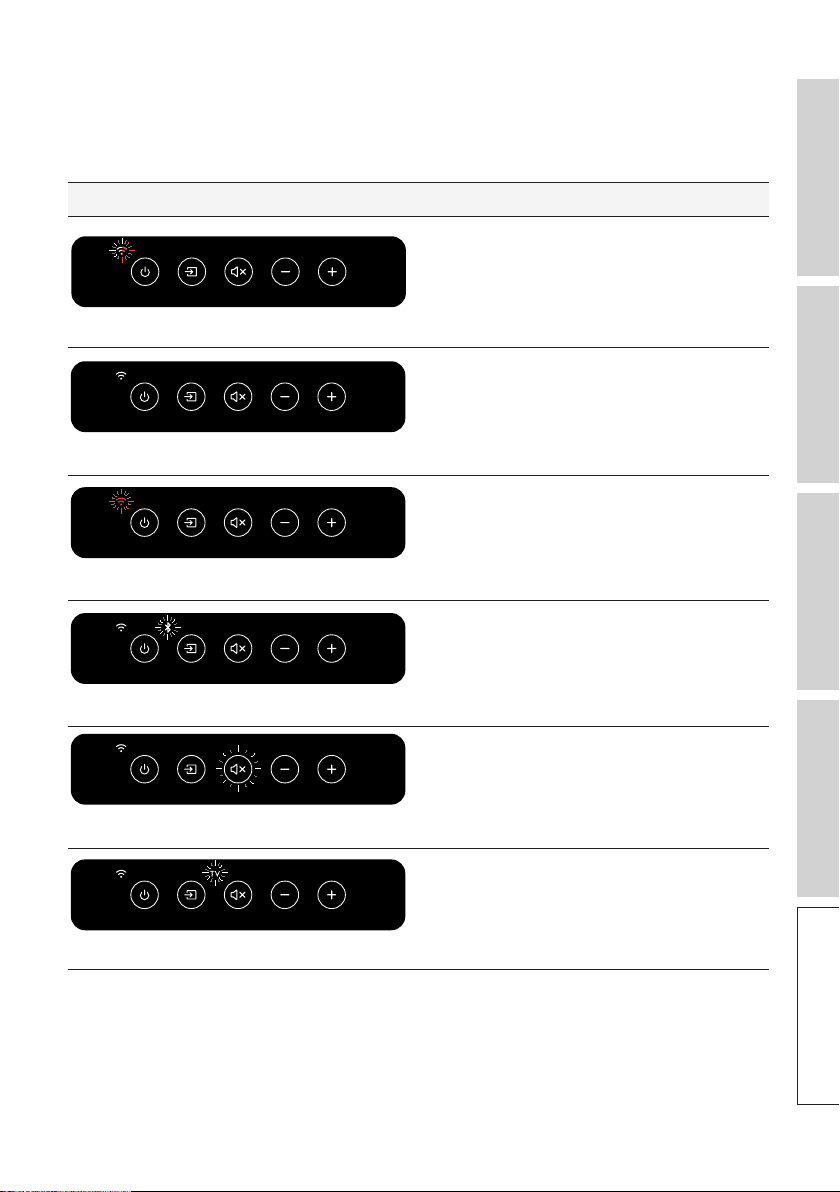
89
Table of ContentsSetting UpWi-Fi StreamingUsing KEF Connect AppFAQ and Troubleshooting
17.4 LED Indicators
The connection and operation status can be checked through the colours and patterns
of the LED indicators on the top panel of the Primary Speaker.
LED indicator Status
The speakers are trying to connect to a
Wi-Fi network.
Wi-Fi icon is blinking white and amber.
The speakers are connected to a Wi-Fi
network.
Wi-Fi icon is solid white.
The speakers are unable to connect to a
Wi-Fi network.
Wi-Fi icon is blinking amber slowly.
Bluetooth discovery mode – The speakers
are ready to pair with a Bluetooth device.
Bluetooth icon is pulsing.
The speakers are muted.
Mute button is blinking.
TV mode is selected but HDMI cable is
not connected.
TV icon is blinking.
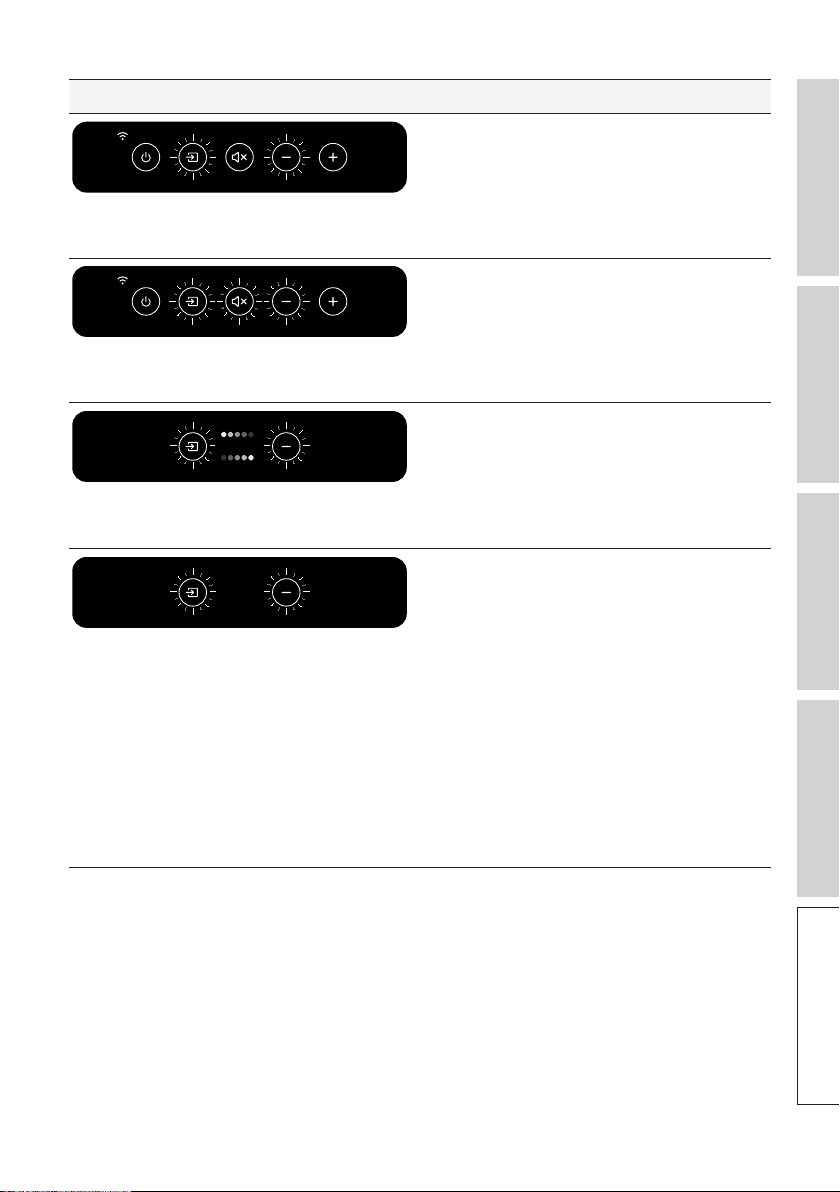
90
Table of ContentsSetting UpWi-Fi StreamingUsing KEF Connect AppFAQ and Troubleshooting
LED indicator Status
The Primary Speaker cannot find the
Secondary Speaker wirelessly. Short
press the P/S pairing button (P) on the
back panel of the Primary Speaker to re-
establish connection.
Source button and
Volume Down button are blinking.
Cable Mode is enabled but the connection
between the speakers is not established.
Connect the inter-speaker cable to the
Primary/Secondary connection ports (T)
on the speakers.
Source button, Mute button and
Volume Down button are blinking.
Firmware update is in progress. Do not
unplug the power cables until the firmware
update is completed.
Source button and Volume Down button
are blinking alternately.
Firmware update failed. Do not press the
Reset button (R) on the Primary Speaker.
1. Pull the power cables from both
speakers.
2. Wait approximately 60 seconds.
3. Plug the power cables back to both
speakers.
4. Performthermwareupdateagainon
the KEF Connect App.
If the problem persists, please contact your
KEF dealer.
Source button and Volume Down button
are blinking slowly.

91
Table of ContentsSetting UpWi-Fi StreamingUsing KEF Connect AppFAQ and Troubleshooting
LED indicator Status
There is a system error.
1. Pull the power cables from both
speakers.
2. Wait approximately 30 minutes.
3. Plug the power cables back to both
speakers to resume normal operation.
If the problem persists, please contact your
KEF dealer.
Note: System error may occur with
improper power connections. Do not
use a socket/outlet extender with the
speakers.
TV icon, OPT icon and Mute button
are blinking.

92
Table of ContentsSetting UpWi-Fi StreamingUsing KEF Connect AppFAQ and Troubleshooting
18. Appendix
18.1 Specifications
Model LS50 Wireless II
Drive units Uni-Q Driver Array:
LF: 130 mm (5.25 in.) aluminium cone
HF: 25 mm (1 in.) vented aluminium dome with
Metamaterial Absorption Technology
#
Frequency range (-6 dB)
measured at 85 dB/1 m
40 Hz – 47 kHz
(Depends on EQ settings)
Frequency response (±3 dB)
measured at 85 dB/1 m
45 Hz – 28 kHz
(Depends on EQ settings)
Amplifier output power
(per speaker)
LF: 280 W HF: 100 W
Amplifier class (per speaker) LF: Class D HF: Class AB
Max SPL measured at 1m 108 dB
Wireless streaming features AirPlay 2
Google Chromecast
ROON Ready
UPnP Compatible
Bluetooth 4.2
Streaming services Spotify via Spotify Connect
Tidal
Amazon Music
Qobuz
Deezer
QQ Music via QPlay
Internet Radio
Podcast
(Depends on services availability in different countries)
Source resolution Network up to 384 kHz / 24 bit
Optical up to 96 kHz / 24 bit
Coaxial up to 192 kHz / 24 bit
HDMI up to 192 kHz / 24 bit
(Depends on source resolution)
Interspeaker connection Wireless: all sources resampled to 96 kHz / 24 bit PCM
Wired: all sources resampled to 192 kHz / 24 bit PCM

93
Table of ContentsSetting UpWi-Fi StreamingUsing KEF Connect AppFAQ and Troubleshooting
Supported format (all inputs) MP3, M4A, AAC, FLAC, WAV, AIFF, ALAC, WMA,
LPCM and Ogg Vorbis
Supported format (network) MQA
DSF: DSD64, DSD128, DSD256
DFF: DSD64
Dimensions
(H x W x D per speaker)
305 × 200 × 311 mm (12.0 × 7.9 × 12.2 in.)
Weight (per set) 20.1 kg (44.31 lbs)
Power input 100–240 VAC 50/60 Hz
Power consumption 200 W (operating power)
< 2.0 W (standby power)
Primary Speaker Secondary Speaker
Inputs HDMI eARC
TOSLINK Optical
Digital Coaxial
Analog 3.5 mm Auxiliary
USB Type A (service)
RJ45 Ethernet (network)
RJ45 Ethernet
(interspeaker)
USB Type A (service)
RJ45 Ethernet
(interspeaker)
Output RCA Subwoofer output RCA Subwoofer output
Wi-Fi network standard IEEE 802.11a/b/g/n/ac
IPv4, IPv6
–
Wi-Fi network frequency
band
Dual-band 2.4 GHz / 5
GHz
–
#
Metamaterial Absorption Technology is a joint development with Acoustic Metamaterials Group
Wireless performance depends on many factors, including network traffic, distance from access point,
room materials and construction, interference and other adverse conditions.
For further information and troubleshooting, please visit the KEF website: KEF.COM
KEF reserves the right, in line with continuous research and development, to amend or change
specifications without prior notice. E. & O.E
The Bluetooth word mark and logos are registered trademarks owned by Bluetooth
SIG, Inc.
Amazon Music is a registered trademark of Amazon.com Inc.

94
Table of ContentsSetting UpWi-Fi StreamingUsing KEF Connect AppFAQ and Troubleshooting
Apple and AirPlay are registered trademarks of Apple Inc., registered in the U.S. and
other countries.
Deezer is a registered trademark of Access Industries.
Google Play store and Chromecast are registered trademarks of Google LLC.
Qobuz is a registered trademark of Xandrie SA.
QQ Music is a registered trademark of Tencent Music Entertainment Group (TME).
ROON is a registered trademark of Roon Labs LLC or Roon Labs’s licensors.
Spotify is a registered trademark of Spotify AB.
TIDAL is a registered trademark of Aspiro AB.
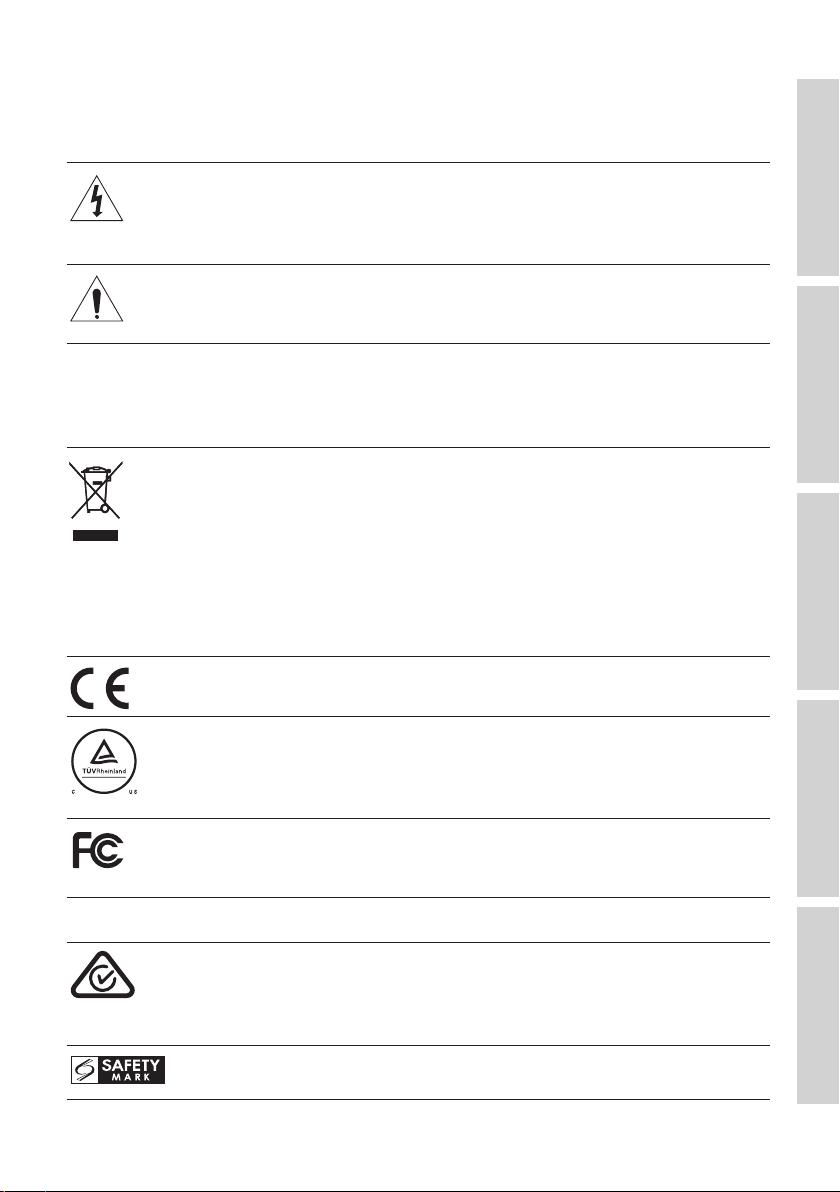
95
Table of ContentsSetting UpWi-Fi StreamingUsing KEF Connect AppFAQ and Troubleshooting
18.2 Explanation of symbols
18.2 .1 Warning Symbols
The lightning flash with arrowhead symbol, within an equilateral triangle,
is intended to alert the user to the presence of uninsulated “dangerous
voltage” within the products enclosure that may be of a sufficient
magnitude to constitute a risk of electrical shock to persons.
The exclamation mark within an equilateral triangle is intended to alert
the user to the presence of important operating and maintenance
(servicing) instructions in the literature accompanying the appliance.
18.2.2 Regional Symbols
Europe and North America
This marking indicates that this product should not be disposed with
other household wastes throughout the EU. To prevent possible harm
to the environment or human health from uncontrolled waste disposal,
recycle it responsibly to promote the sustainable reuse of material
resources.
To dispose of your used device, please use the proper collection system
or contact the retailer where the product was purchased, they may be
able to take the product for environmentally safe recycling.
Products marked with this symbol meet all applicable Community
regulations for the European Economic Area.
Products bearing the cTUVus Certification Mark reflect supplier
commitment and confidence and have been independently confirmed to
meet the minimum requirements of US and Canadian electrical safety
standards.
This FCC mark certifies that the electromagnetic interference from the
device is under the limits approved by the Federal Communications
Commission in the US.
Asia-Pacific
The Regulatory Compliance Mark (Australia, New Zealand) indicates that
the product complies with the relevant guidelines of the ACMA as well
as corresponding government requirements for the safety of electrical
devices.
The symbol indicates that the product meets the specified safety
requirements of Singapore Consumer Protection Registration Scheme.

96
Table of ContentsSetting UpWi-Fi StreamingUsing KEF Connect AppFAQ and Troubleshooting
The Japan PSE Mark Certification indicates that the product meets the
technical requirements of the Electrical Appliance and Material Safety
Law (DENAN).
These marks indicate compliance with technical and design requirements
for telecommunication terminal equipment in Japan.
The Korean Certification mark indicates that the product complies
with Korea’s product safety requirements for electrical and electronic
equipment.
The China Compulsory Certificate mark indicates that the product
meets the safety requirements of the Chinese national standards
(Guobiao).
The product is only suitable for use in areas under 2,000 m above sea
level (China).
RoHS (China): This product contains certain hazardous substances
and can be used safely during its environmental friendly use period
(10 years). The product should enter into the recycling system after its
environmental friendly use period.
RoHS (Taiwan): This symbol means that the product does not exceed
the specified concentration limits for specific hazardous substances.
The product obtained the certification from the Taiwan National
Communications Commission (NCC) for low-power radio frequency
appliances.
This MCMC certification mark indicates that a communications device is
certified for compliance to standards according to the Communications
and Multimedia (Technical Standards) Regulations 2000 in Malaysia.
Products bearing this mark is a proof that the product has been
approved by the United Arab Emirates (UAE) Federal Government
through Emirates Authority for Standardization and Metrology (ESMA).

97
Table of ContentsSetting UpWi-Fi StreamingUsing KEF Connect AppFAQ and Troubleshooting
18.3 IR Command Codes
LS50 Wireless II works with universal programmable remote control provided that
the remote control manufacturers have implemented KEF IR command codes in their
remote controls.
The following table lists the command codes required.
Code Format: NEC
Factory Code: 0x01
Functions Function codes
1 Power on/off toggle 0x40
2 Mute/un-mute toggle 0x20
3 Play/Pause 0x18
4 Forward 0x52
5 Next source 0x58
6 Volume up 0x60
7 Volume down 0xA0
8 Backward 0xD2
9 Power ON 0x38
10 Power OFF 0x3A
11 Mute 0x48
12 Un-mute 0x4A
13 Source: Wi-Fi 0x30
14 Source: Bluetooth 0x2A
15 Bluetooth pairing 0x98
16 Source: AUX 0x02
17 Source: Optical 0x0A
18 Preset volume (30 %) 0x78
19 Source: HDMI 0x88 / 0x8A
20 Source: Coaxial 0xE0
21 Previous source 0xD0