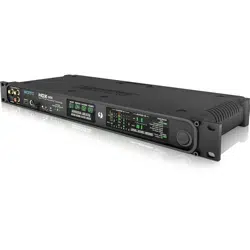
About the Mark of the Unicorn License Agreement and
Limited Warranty on Software
TO PERSONS WHO PURCHASE OR USE THIS PRODUCT: carefully read all the
terms and conditions of the “click-wrap” license agreement presented to you when
you install the software. Using the software or this documentation indicates your
acceptance of the terms and conditions of that license agreement.
Mark of the Unicorn, Inc. (“MOTU”) owns both this program and its documentation.
Both the program and the documentation are protected under applicable copyright,
trademark, and trade-secret laws. Your right to use the program and the
documentation are limited to the terms and conditions described in the license
agreement.
Reminder of the terms of your license
This summary is not your license agreement, just a reminder of its terms. The actual
license can be read and printed by running the installation program for the software.
That license agreement is a contract, and clicking “Accept” binds you and MOTU to
all its terms and conditions. In the event anything contained in this summary is
incomplete or in conflict with the actual click-wrap license agreement, the terms of the
click-wrap agreement prevail.
YOU MAY: (a) use the enclosed program on a single computer; (b) physically transfer
the program from one computer to another provided that the program is used on only
one computer at a time and that you remove any copies of the program from the
computer from which the program is being transferred; (c) make copies of the
program solely for backup purposes. You must reproduce and include the copyright
notice on a label on any backup copy.
YOU MAY NOT: (a) distribute copies of the program or the documentation to others;
(b) rent, lease or grant sublicenses or other rights to the program; (c) provide use of
the program in a computer service business, network, time-sharing, multiple CPU or
multiple user arrangement without the prior written consent of MOTU; (d) translate,
adapt, reverse engineer, decompile, disassemble, or otherwise alter the program or
related documentation without the prior written consent of MOTU.
MOTU warrants to the original licensee that the disk(s) on which the program is
recorded be free from defects in materials and workmanship under normal use for a
period of ninety (90) days from the date of purchase as evidenced by a copy of your
receipt. If failure of the disk has resulted from accident, abuse or misapplication of the
product, then MOTU shall have no responsibility to replace the disk(s) under this
Limited Warranty.
THIS LIMITED WARRANTY AND RIGHT OF REPLACEMENT IS IN LIEU OF,
AND YOU HEREBY WAIVE, ANY AND ALL OTHER WARRANTIES, BOTH
EXPRESS AND IMPLIED, INCLUDING BUT NOT LIMITED TO WARRANTIES
OF MERCHANTABILITY AND FITNESS FOR A PARTICULAR PURPOSE. THE
LIABILITY OF MOTU PURSUANT TO THIS LIMITED WARRANTY SHALL BE
LIMITED TO THE REPLACEMENT OF THE DEFECTIVE DISK(S), AND IN NO
EVENT SHALL MOTU OR ITS SUPPLIERS, LICENSORS, OR AFFILIATES BE
LIABLE FOR INCIDENTAL OR CONSEQUENTIAL DAMAGES, INCLUDING
BUT NOT LIMITED TO LOSS OF USE, LOSS OF PROFITS, LOSS OF DATA OR
DATA BEING RENDERED INACCURATE, OR LOSSES SUSTAINED BY THIRD
PARTIES EVEN IF MOTU HAS BEEN ADVISED OF THE POSSIBILITY OF
SUCH DAMAGES. THIS WARRANTY GIVES YOU SPECIFIC LEGAL RIGHTS
WHICH MAY VARY FROM STATE TO STATE. SOME STATES DO NOT ALLOW
THE LIMITATION OR EXCLUSION OF LIABILITY FOR CONSEQUENTIAL
DAMAGES, SO THE ABOVE LIMITATION MAY NOT APPLY TO YOU.
Update Policy
In order to be eligible to obtain updates of the program, you must complete and return
the attached Mark of the Unicorn Purchaser Registration Card to MOTU.
Copyright Notice
Copyright © 2011, 2010, 2009 by Mark of the Unicorn, Inc. All rights reserved. No
part of this publication may be reproduced, transmitted, transcribed, stored in a
retrieval system, or translated into any human or computer language, in any form or
by any means whatsoever, without express written permission of Mark of the
Unicorn, Inc., 1280 Massachusetts Avenue, Cambridge, MA, 02138, U.S.A.
Limited Warranty on Hardware
Mark of the Unicorn, Inc. and S&S Research (“MOTU/S&S”) warrant this equipment
against defects in materials and workmanship for a period of TWO (2) YEARS from
the date of original retail purchase. This warranty applies only to hardware products;
MOTU software is licensed and warranted pursuant to separate written statements.
If you discover a defect, first write or call Mark of the Unicorn at (617) 576-2760 to
obtain a Return Merchandise Authorization Number. No service will be performed on
any product returned without prior authorization. MOTU will, at its option, repair or
replace the product at no charge to you, provided you return it during the warranty
period, with transportation charges prepaid, to Mark of the Unicorn, Inc., 1280
Massachusetts Avenue, MA 02138. You must use the product’s original packing
material for in shipment, and insure the shipment for the value of the product. Please
include your name, address, telephone number, a description of the problem, and
the original, dated bill of sale with the returned unit and print the Return Merchandise
Authorization Number on the outside of the box below the shipping address.
This warranty does not apply if the equipment has been damaged by accident,
abuse, misuse, or misapplication; has been modified without the written permission
of MOTU, or if the product serial number has been removed or defaced.
ALL IMPLIED WARRANTIES, INCLUDING IMPLIED WARRANTIES OF
MERCHANTABILITY AND FITNESS FOR A PARTICULAR PURPOSE, ARE
LIMITED IN DURATION TO TWO (2) YEARS FROM THE DATE OF THE
ORIGINAL RETAIL PURCHASE OF THIS PRODUCT.
THE WARRANTY AND REMEDIES SET FORTH ABOVE ARE EXCLUSIVE
AND IN LIEU OF ALL OTHERS, ORAL OR WRITTEN, EXPRESS OR IMPLIED.
No MOTU/S&S dealer, agent, or employee is authorized to make any modification,
extension, or addition to this warranty.
MOTU/S&S ARE NOT RESPONSIBLE FOR SPECIAL, INCIDENTAL, OR
CONSEQUENTIAL DAMAGES RESULTING FROM ANY BREACH OF
WARRANTY, OR UNDER ANY LEGAL THEORY, INCLUDING LOST PROFITS,
DOWNTIME, GOODWILL, DAMAGE OR REPLACEMENT OF EQUIPMENT
AND PROPERTY AND COST OF RECOVERING REPROGRAMMING, OR
REPRODUCING ANY PROGRAM OR DATA STORED IN OR USED WITH
MOTU/S&S PRODUCTS.
Some states do not allow the exclusion or limitation of implied warranties or liability for
incidental or consequential damages, so the above limitation or exclusion may not
apply to you. This warranty gives you specific legal rights, and you may have other
rights which vary from state to state.
MOTU, Mark of the Unicorn and the unicorn silhouette logo are trademarks of Mark
of the Unicorn, Inc. All other trademarks are the property of their respective owners.
This equipment has been type tested and found to comply with the limits for a Class A digital device,
pursuant to Part 15 of the FCC Rules. These limits are designed to provide reasonable protection
against harmful interference in a residential installation. This equipment generates, uses, and can
radiate radio frequency energy and, if not installed and used in accordance with the instruction manual,
may cause harmful interference to radio communications or television reception. However, there is no
guarantee that interference will not occur in a particular installation. If this equipment does cause
interference to radio or television equipment reception, which can be determined by turning the
equipment off and on, the user is encouraged to try to correct the interference by any combination of the
following measures:
• Relocate or re-orient the receiving antenna
• Increase the separation between the equipment and the receiver
• Plug the equipment into an outlet on a circuit different from that to which the receiver is connected
If necessary, consult a dealer or experienced radio/television technician for additional assistance.
PLEASE NOTE: only equipment certified to comply with Class A (computer input/output devices,
terminals, printers, etc.) should be attached to this equipment, and it must have shielded interface
cables in order to comply with the Class A FCC limits on RF emissions.
WARNING: changes or modifications to this unit not expressly approved by the party
responsible for compliance could void the user's authority to operate the equipment.

1
Contents
Part 1: Getting Started
3
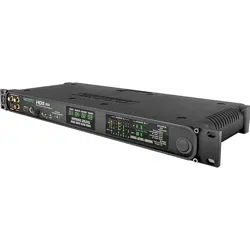
Quick Reference: HDX-SDI Front Panel
4
Quick Reference: HDX-SDI Rear Panel
5
Quick Reference: MOTU Video Console
7
About the HDX-SDI
11
Packing List and System Requirements
13
Installing the HDX-SDI Windows Software
15
Installing the HDX-SDI Hardware
Part 2: Using the HDX-SDI
31
HDX-SDI Basics
33
MOTU Video Console
43
Adobe Premiere Pro
Part 3: Appendices
55
Troubleshooting
57
DB-25 to XLR Pin Outs
59
Index
2
SAFETY PRECAUTIONS AND ELECTRICAL REQUIREMENTS
CAUTION! READ THIS SAFETY GUIDE BEFORE YOU BEGIN INSTALLATION OR OPERATION. FAILURE TO COMPLY WITH SAFETY INSTRUCTIONS
COULD RESULT IN BODILY INJURY OR EQUIPMENT DAMAGE.
HAZARDOUS VOLTAGES: CONTACT MAY CAUSE ELECTRIC SHOCK OR BURN. TURN OFF UNIT BEFORE SERVICING.
WARNING: TO REDUCE THE RISK OF FIRE OR ELECTRICAL SHOCK, DO NOT EXPOSE THIS APPLIANCE TO RAIN OR OTHER MOISTURE.
CAUTION: TO REDUCE THE RISK OF ELECTRICAL SHOCK, DO NOT REMOVE COVER. NO USER-SERVICEABLE PARTS INSIDE. REFER SERVICING TO
QUALIFIED SERVICE PERSONNEL.
WARNING: DO NOT PERMIT FINGERS TO TOUCH THE TERMINALS OF PLUGS WHEN INSTALLING OR REMOVING THE PLUG TO OR FROM THE OUTLET.
WARNING: IF NOT PROPERLY GROUNDED THE MOTU HDX-SDI COULD CAUSE AN ELECTRICAL SHOCK.
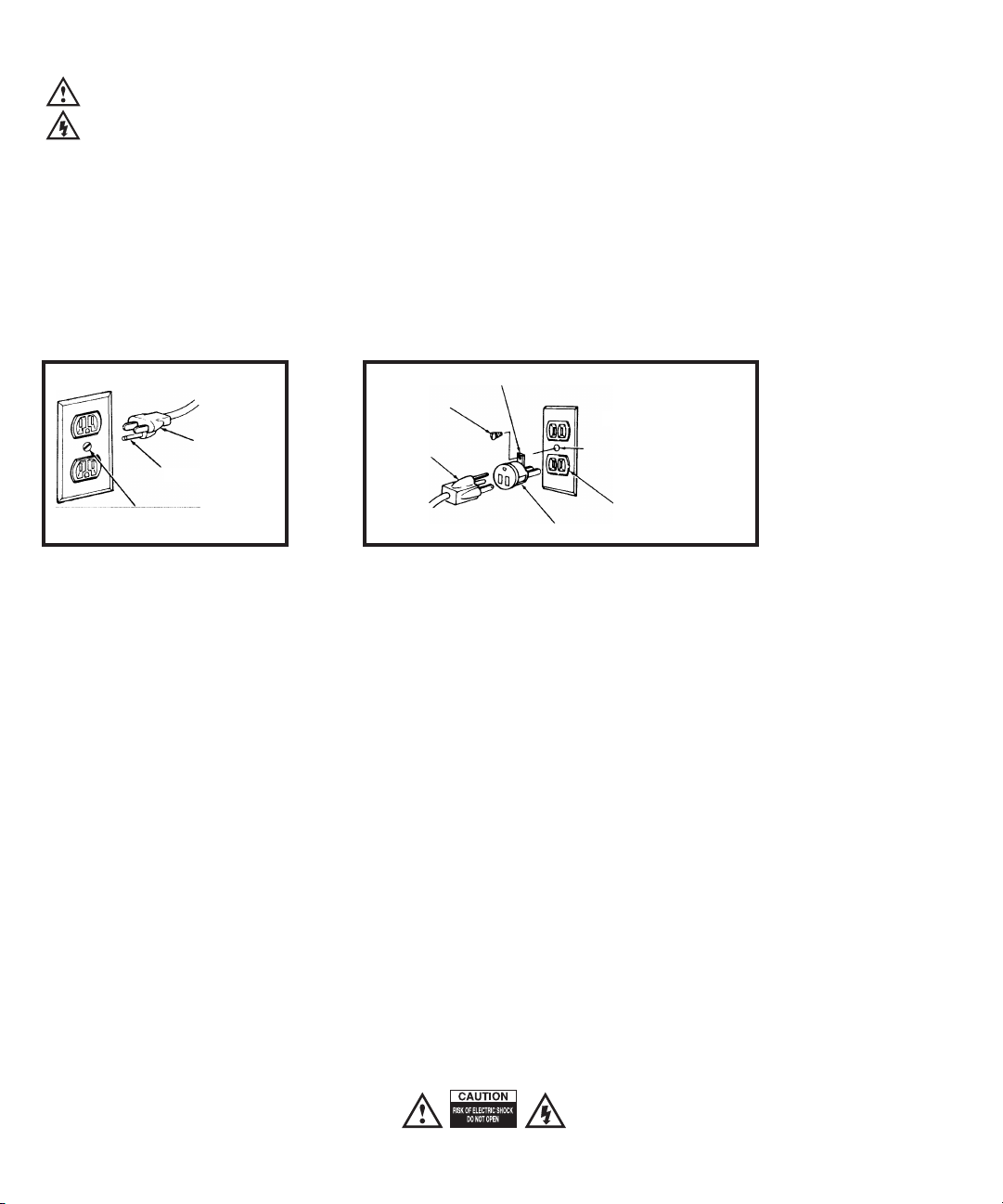
The MOTU HDX-SDI is equipped with a three-conductor cord and grounding type plug which has a grounding prong, approved by Underwriters' Laboratories and the Canadian Standards Association.
This plug requires a mating three-conductor grounded type outlet as shown in Figure A below. If the outlet you are planning to use for the MOTU HDX-SDI is of the two prong type, DO NOT REMOVE
OR ALTER THE GROUNDING PRONG IN ANY MANNER. Use an adapter as shown below and always connect the grounding lug to a known ground. It is recommended that you have a qualified
electrician replace the TWO prong outlet with a properly grounded THREE prong outlet. An adapter as illustrated below in Figure B is available for connecting plugs to two-prong receptacles.
WARNING: THE GREEN GROUNDING LUG EXTENDING FROM THE ADAPTER MUST BE CONNECTED TO A PERMANENT GROUND SUCH AS TO A
PROPERLY GROUNDED OUTLET BOX. NOT ALL OUTLET BOXES ARE PROPERLY GROUNDED.
If you are not sure that your outlet box is properly grounded, have it checked by a qualified electrician. NOTE: The adapter illustrated is for use only if you already have a properly grounded two-prong
receptacle. Adapter is not allowed in Canada by the Canadian Electrical Code. Use only three wire extension cords which have three-prong grounding type plugs and three-prong receptacles which
will accept the MOTU HDX-SDI plug.
IMPORTANT SAFEGUARDS
1. Read these instructions. All the safety and operating instructions should be read before operating the HDX-SDI.
2. Keep these instructions. These safety instructions and the HDX-SDI owner’s manual should be retained for future reference.
3. Heed all warnings. All warnings on the HDX-SDI and in the owner’s manual should be adhered to.
4. Follow all Instructions. All operating and use instructions should be followed.
5. Do not use the HDX-SDI near water.
6. Cleaning - Unplug the HDX-SDI from the computer and clean only with a dry cloth. Do not use liquid or aerosol cleaners.
7. Ventilation - Do not block any ventilation openings. Install in accordance with the manufacturer’s instructions.
8. Heat - Do not install the HDX-SDI near any heat sources such as radiators, heat registers, stoves, or another apparatus (including an amplifier) that produces heat.
9. Overloading - Do not overload wall outlets and extension cords as this can result in a risk of fire or electrical shock.
10. Grounding - Do not defeat the safety purpose of the polarized or grounding-type plug. A polarized plug has two blades with one wider than the other. A grounding-type plug has two blades and a third grounding prong. The wide blade
or the third prong are provided for your safety. If the provided plug does not fit into your outlet, consult and electrician for replacement of the obsolete outlet.
11. Power cord - Protect the HDX-SDI power cord from being walked on or pinched by items placed upon or against them. Pay particular attention to cords and plugs, convenience receptacles, and the point where they exit from the
HDX-SDI.
12. Power switch - Install the HDX-SDI so that the power switch can be accessed and operated at all times.
13. Disconnect - The main plug is considered to be the disconnect device for the HDX-SDI and shall remain readily operable.
14. Accessories - Only use attachments/accessories specified by the manufacturer.
15. Placement - Use only with the cart, stand, tripod, bracket or table specified by the manufacturer, or sold with the HDX-SDI. When a cart is used, use caution when moving the cart/apparatus combination to avoid injury from tip-over.
16. Surge protection - Unplug the HDX-SDI during lightning storms or when unused for long periods of time.
17. Servicing - Refer all servicing to qualified service personnel. Servicing is required when the HDX-SDI has been damaged in any way, such as when a power-supply cord or plug is damaged, liquid has been spilled or objects have
fallen into the HDX-SDI, the HDX-SDI has been exposed to rain or moisture, does not operate normally, or has been dropped.
18. Power Sources - Refer to the manufacturer’s operating instructions for power requirements. Be advised that different operating voltages may require the use of a different line cord and/or attachment plug.
19. Installation - Do not install the HDX-SDI in an unventilated rack, or directly above heat-producing equipment such as power amplifiers. Observe the maximum ambient operating temperature listed below.
20. Power amplifiers- Never attach audio power amplifier outputs directly to any of the unit’s connectors.
21. Replacement Parts - When replacement parts are required, be sure the service technician has used replacement parts specified by the manufacturer or have the same characteristics as the original part. Unauthorized substitutions
may result in fire, electric shock or other hazards.
22. Safety Check - Upon completion of any service or repairs to this MOTU HDX-SDI, ask the service technician to perform safety checks to determine that the product is in safe operating conditions.
ENVIRONMENT
Operating Temperature: 10°C to 40°C (50°F to 104°)
TO REDUCE THE RISK OF ELECTRICAL SHOCK OR FIRE
Do not handle the power cord with wet hands. Do not pull on the power cord when disconnecting it from an AC wall outlet. Grasp it by the plug. Do not expose this apparatus to rain or moisture. Do not place objects containing liquids on it.
AC INPUT
100 - 240VAC ~ • 50 / 60Hz • 20 Watts.
3-prong plug
Grounding prong
Properly grounded 3-prong outlet
Grounding lug
Screw
3-prong plug
Adapter
Make sure this is connected to
a known ground.
Two-prong receptacle
Figure A Figure B

Part 1
Getting Started

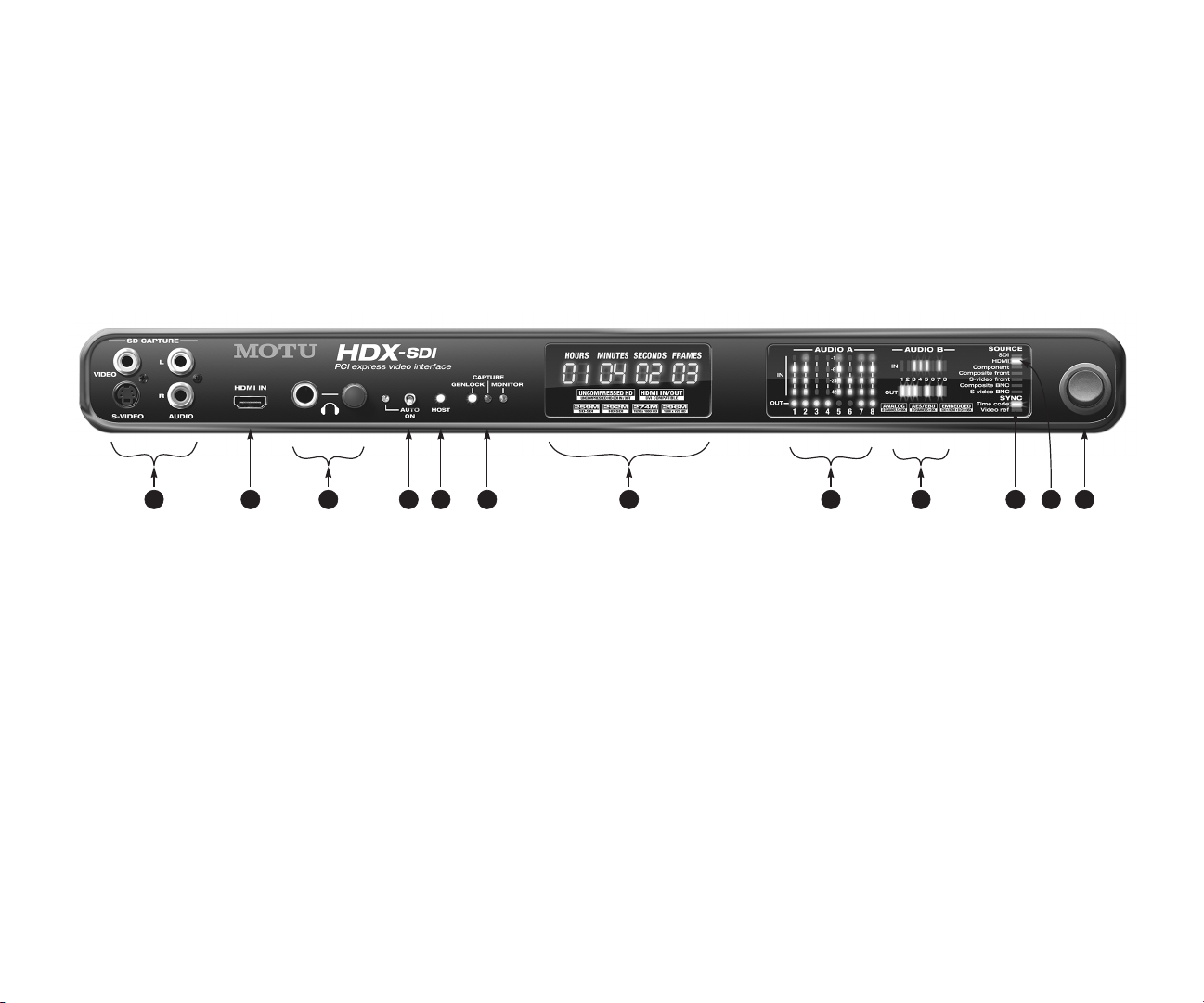
Quick Reference: HDX-SDI Front Panel
1. Connect an SD source here, such as a camcorder, DVD
player, VHS deck or any other composite or S-Video
source.
2. Connect an HDMI source here, such as a camcorder, DVD
player, set-top box, video game console, AV receiver or
other HDMI device. Note that many consumer HDMI
sources (such as DVD players) implement HDCP (High
Bandwidth Digital Content Protection), which does not
allow video capture of copy-protected signals via I/O
devices like the HDX-SDI.
3. This is a standard quarter-inch stereo headphone jack.
Its output always matches analog outputs 1-2 on the
rear panel. Use the volume knob to control its level.
4. Keep this switch in the down position to enable AUTO ON
mode. When AUTO ON mode is enabled you can leave the
main power switch (item #12) on and the HDX-SDI will
power up when you power on your computer and power
down when you power off your computer.
5. The HOST light illuminates when the HDX-SDI interface
successfully establishes communication with the
computer via the PCIe card or ExpressCard adapter.
6. The GENLOCK light glows when the HDX-SDI has success-
fully locked to the currently selected clock source. The
CAPTURE light glows when the HDX-SDI is capturing or
previewing video; the MONITOR light glows when the
HDX-SDI is playing back (whether still-framed or not).
7. The Timecode Display rolls whenever the HDX-SDI is
converting timecode, either from the timecode input or
perhaps from SDI-embedded timecode. It also rolls
during playback from host software (Premiere Pro) and
reflects the position of the play head on the time line.
8. This bank of audio level meters is for Bank A (channels
1-8). The four-segment meters above show input; the
round activity LEDs in the bottom row show output. The
HDX-SDI provides several 8-channel banks of audio input
and output, which you can assign to either Bank A or
Bank B (channels 9-16). Formats include Analog, HDMI
embedded, SDI embedded and AES/EBU digital. For
input, there is also a mixed bank of stereo RCA and BNC
AES/EBU. Use MOTU Video Console to make audio bank
assignments. See “Audio tab” on page 43. NOTE: these
meters and activity LEDs only operate when audio is
actually being sent to/from the computer. For example,
if audio is being fed to HDX-SDI inputs, but no host appli-
cation is running on the computer to receive the audio,
the meters won’t reflect the audio input.
9. This bank of audio activity meters can be programmed
(via the MOTU Video Console software) to display a
second bank of audio channels (9-16).
10. The Timecode Lock LED illuminates when the HDX-SDI is
converting timecode. The Video Ref LED flashes when
the Video ref input has been activated in the MOTU Video
Console software, and it glows solid when genlock has
been successfully achieved.
11. The VIDEO STATUS section indicates which HDX-SDI video
input is chosen as the current video source. This setting is
made in the MOTU Video Console software.
12. With AUTO ON mode enabled (see item #4) and this
main power switch flipped to the on position, the
HDX-SDI will power on and off with your computer.
When using the HDX-SDI rack-mount interface with the
laptop ExpressCard adapter, operation is plug-and-play:
you can disconnect and reconnect the interface, and
freely switch it on or off as desired.
When using the PCIe card on a desktop machine, the
HDX-SDI rack-mount interface must be connected and
powered on before powering on the computer. Similarly,
you must power down the computer before powering on
or disconnecting the HDX-SDI. If the interface is discon-
nected or powered off before the computer is powered
down, you’ll need to restart the computer to bring the
interface back online.
8 1110731 2 4 5 6 9 12
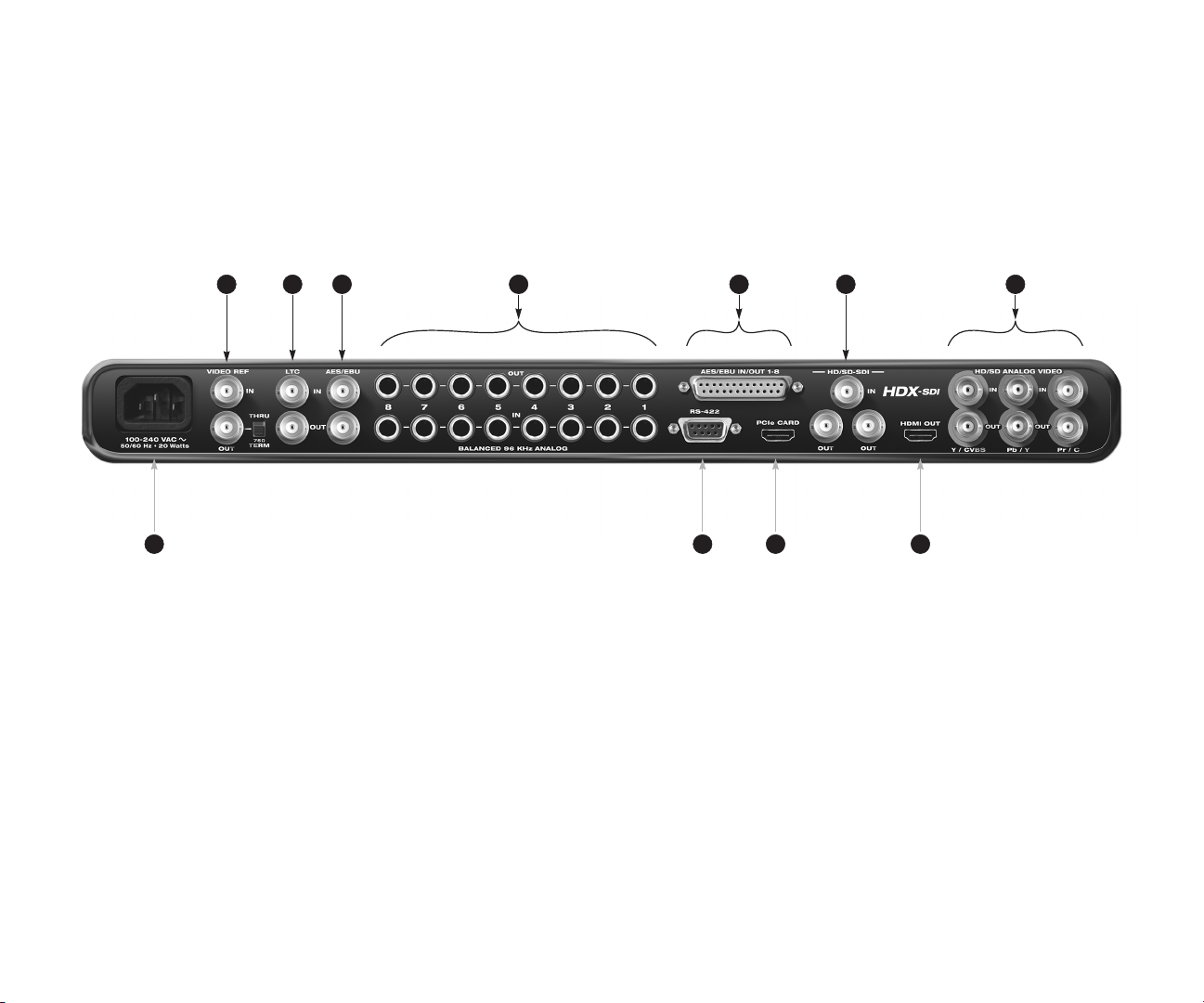
Quick Reference: HDX-SDI Rear Panel
4
1. Connect blackburst or another video reference signal
to the VIDEO REF IN. If the HDX-SDI is at the end of the
video sync daisy chain, flip the THRU/TERM switch to
the 75Ω TERM position. If you are daisy-chaining
another device, flip it to THRU. This jack also supports
HD Tri-level sync.
2. Connect timecode input and output here, to the LTC IN
and LTC OUT. The HDX-SDI supports all standard
timecode formats.
3. If you only need two channels of AES/EBU digital
audio I/O, connect them to these BNC jacks. If you
need eight channels, connect a breakout cable to the
DB-25 connector to the right.
4. These eight gold-plated, balanced +4 dB TRS
(tip/ring/sleeve) quarter-inch analog inputs and
outputs are equipped with 24-bit converters that
support sample rates from 44.1 kHz up to 96 kHz.
These connectors can also accept an unbalanced plug.
5. If you need more than stereo AES/EBU input/output,
connect an 8-channel DB-25 to XLR breakout cable to
this DB-25 connector. When you do so, the BNC
AES/EBU output jack mirrors DB-25channels 1-2. The
BNC inputs, however, are mutually exclusive from the
DB-25inputs, and you must choose one input or the
other in MOTU Video Console. See “Audio tab” on
page 43.
6. Connect HD-SDI or SD-SDI devices here. The SDI
outputs provide the same (duplicated) signal on both
outputs, so you can route SDI output to both a monitor
and a deck, for example.
7. Connect component HD or SD input and output here.
The analog video I/O section of the HDX-SDI is
equipped with 12-bit converters that deliver 10-bit
capture and playback, with support for either RGB or
YPbPr component color space. Alternately, you can
connect a composite video (CVBS) input or output
signal to the Y connectors or an S-Video input or
output signal to the Y/C connectors.
8. Connect a plasma, LCD, DLP or other HDMI-equipped
monitor here. Alternately, you can connect a
DVI-equipped device with an adapter cable. The
HDX-SDI supports 8-channel PCM (uncompressed)
embedded audio over HDMI, so you could also
connect this output to an HDMI-equipped home
theater receiver to deliver both picture and multi-
channel audio.
9. Connect the HDX-SDI to the computer here using any
standard HDMI cable. If you are connecting the inter-
face to an ExpressCard adapter for laptop operation,
use a standard HDMI-to-mini-HDMI cable. In either
case, it is recommended that you use the supplied
cable. If you use another cable, the length should not
exceed six feet, and use a high-quality cable.
10. For 9-pin machine control over an RS-422 equipped
device, such as a VTR or camera, connect it here. This
allows you to control the transport of the device from
Premiere Pro.
11. The HDX-SDI has an internal, international, auto-
switching power supply. Connect any AC power source
from 100V to 240V.
1 2 3 5 7
11
6
8910
CHAPTER
7
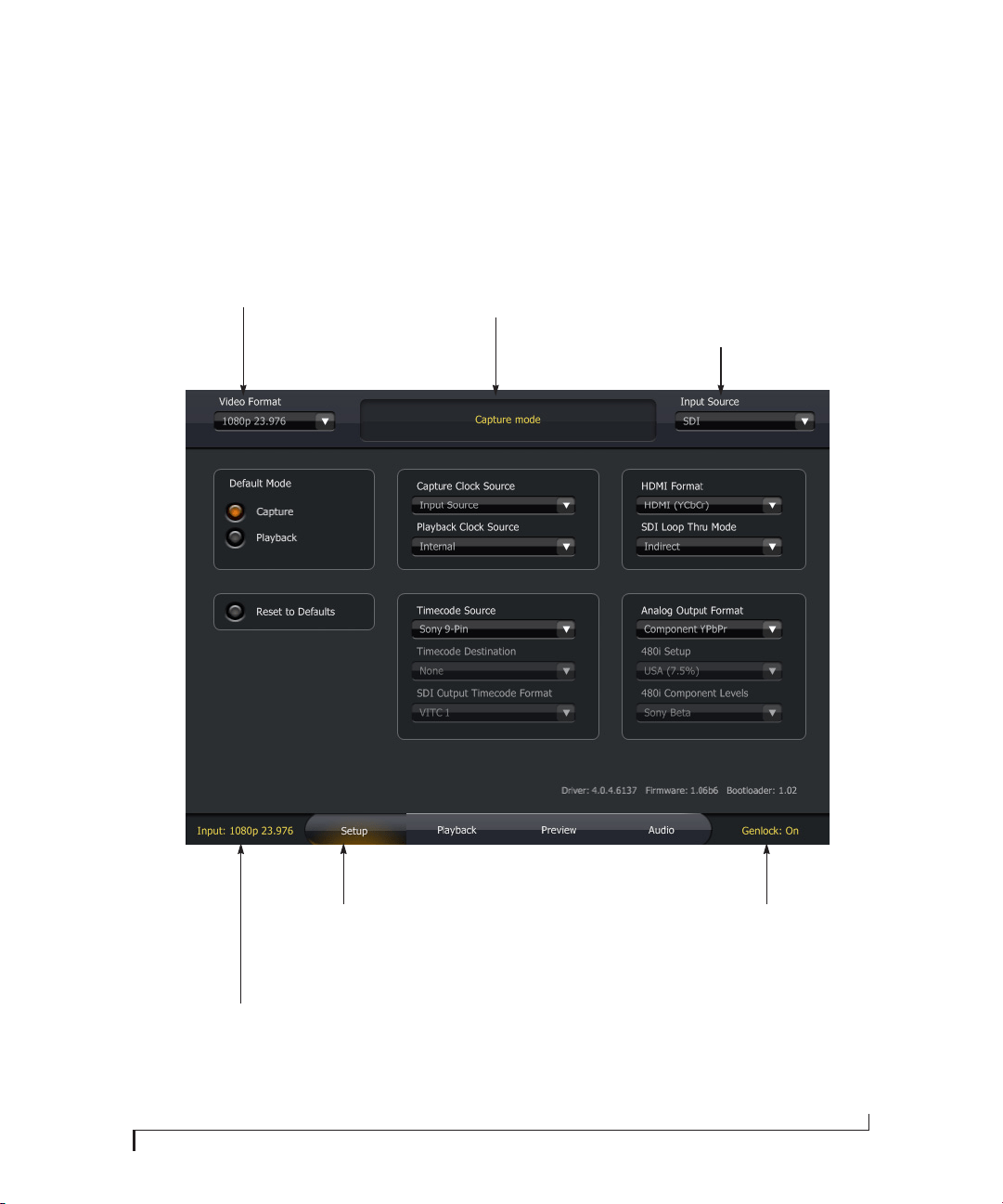
Quick Reference: MOTU Video Console
When capturing video, choose the
input source here. Also deter-
mines the clock source for
playback, if the Playback Clock
Source is set to Input Source.
Click a tab to view its settings
above. For complete details on
the settings in these tabs, see
chapter 6, “MOTU Video Console”
(page 35).
Indicates when the HDX-SDI has
successfully achieved lockup to the
currently selected clock source, which
could be the HDX-SDI’s internal clock,
the video REF IN jack or the current
video input source.
The status area tells you what mode
the HDX-SDI hardware is in. It also
provides helpful troubleshooting info.
Choose the video format that you
wish to capture or play back.
Indicates the video format detected on the
currently chosen video Input Source (above).

8

CHAPTER
9
1 About the HDX-SDI
OVERVIEW
The HDX-SDI is a PCI Express video interface for
Windows that provides broadcast-quality video
capture and monitoring for Adobe Premiere Pro.
The HDX-SDI connects to a PC desktop computer
via a standard PCI Express card or a PC laptop via
an ExpressCard adapter and turns the computer
into a powerful HD/SD video production
workstation equipped with all the video and audio
I/O needed to produce broadcast quality HD and
SD video material.
In Premiere Pro, the HDX-SDI supports playback
of any video format supported natively by Premiere
Pro, including uncompressed, P2, XDCAM, HDV,
and AVCHD. Video can be captured as 8- or 10-bit
uncompressed, or as DVCPRO, DVCPro 50, or
DVCPRO HD.
The HDX-SDI is ideal for any natively supported
workflow because you can immediately play back
clips (either imported or ingested) with no
transcoding necessary. Conversely, you can
connect any SD or HD video source such as an
HDV camera, legacy video deck, or DVD player
and then capture it directly in the format of your
choice in Premiere Pro. Many cameras now feed
their uncompressed SDI or component output
directly from the camera’s optics and image sensor,
before compression, for the best-possible picture
quality during capture with the HDX-SDI.
A wide range of video equipment can be connected
to the HDX-SDI, from legacy SD camcorders and
CRT monitors to the latest HD cameras, video
decks, LCD reference monitors and plasmas.
The HDX-SDI provides advanced synchronization
and machine control features, including support
for timecode, 9-pin machine control, and video
reference. For audio synchronization, the
HDX-SDI employs Direct Digital Synthesis (DDS),
a DSP-driven phase lock engine that delivers fast
lockup times and sub-frame accuracy.
The HDX-SDI is housed in a rugged aluminum
alloy chassis with a standard 19-inch, single-space,
rack-mountable form factor. Included rack
mounting brackets can easily be removed for
convenient desktop operation.
The HDX-SDI is designed to streamline your video
production workflow, with unified control over all
your video gear from the convenience of your
computer desktop.
FEATURE HIGHLIGHTS
■ HD/SD PCI Express video interface for Mac and
Windows — provides HD and SD capture and
playback for any current-generation PCIe- or
ExpressCard-equipped computer.
■ Tower or laptop operation — connects to a Mac
or PC tower via PCI Express for ultra-fast
operation, or connect to a laptop via ExpressCard
connectivity for mobile operation.
■ Comprehensive video capture & monitoring —
captures and plays uncompressed video in all
standard SD and HD video formats up to and
including 1080p30 (720p, 1080i, 1080p &
1080PsF).
■ Supports Adobe Premiere Pro.

ABOUT THE HDX-SDI
10
■ Captures and plays uncompressed HD and SD
— 10-bit 4:2:2 color depth and 1920 x 1080
resolution, all standard HD and SD formats up to
and including 1080p30 (720p, 1080i, 1080p and
1080PsF).
■ Support for all codecs supported natively by
Premiere Pro — monitor any host-based codecs
supported by Premiere Pro.
■ Support for file-based workflows — lets you edit
and monitor file-based workflow codecs supported
natively in Premiere Pro, including HDV, XD
CAM, P2/DVCPro, AVCHD, and others with no
transcoding needed.
■ Broadcast quality — 10-bit 4:2:2 signal path
throughout.
■ HDMI capture and monitoring — provides
both HDMI in and out.
■ Color lookup tables — provides flexible,
industry-standard color adjustment with separate
color lookup tables for capture and playback.
■ Sync and machine control — advanced sync
features include timecode, large front panel
timecode display, video ref input and 9-pin
machine control.
■ Comprehensive audio — capture or monitor up
to 16 channels of audio via any two 8-channel
banks of TRS analog, AES/EBU digital or
embedded (SDI or HDMI) at sample rates up to
96kHz.
■ Single rack space form factor with dedicated
connectors — no cable swapping or gangly,
inconvenient breakout cables.
■ International auto-switching internal power
supply with powersave mode.
VIDEO I/O
The HDX-SDI provides comprehensive video
input and output connectivity. The SDI section
supplies two mirrored outputs so that you can
connect both a deck and a monitor simultaneously.
The front panel provides convenient inputs for
legacy SD capture and full 10-bit uncompressed
HDMI capture from today’s latest HD camcorders.
The component section provides both RGB and
YPbPr, but can alternately serve as CVBS
(composite) in/out or even Y/C (S-Video) in/out.
■ 1 x HD/SD-SDI in and out (4:2:2 10-bit) on BNC
connectors
■ 1 x extra HD/SD-SDI output BNC connector
■ 1 x HDMI in and out (4:2:2 10-bit, YCbCr or
RGB)
■ Support for DVI output with HDMI-to-DVI
adapter (sold separately)
■ 1 x HD/SD component in and out (10-bit, YPbPr
or RGB) on BNCs
■ 1 x composite in (10-bit) on RCA
■ 1 x S-Video in (10-bit) on 4-pin mini-DIN
■ 1 x composite in and out (10-bit CVBS) on
shared BNC
■ 1 x S-Video in and out (10-bit Y/C) on shared
BNC
VIDEO FORMATS
■ SD — 576i25 (PAL) and 486i29.97 (NTSC)
■ HD — 720p23.976, 720p24, 720p25, 720p29.97,
720p30, 720p50, 720p59.94, 720p60, 1080p23.976,
1080p24, 1080p25, 1080p29.97, 1080p30,
1080PsF23.976, 1080PsF24, 1080PsF25,
1080PsF29.97, 1080PsF30, 1080i25, 1080i29.97,
1080i30

ABOUT THE HDX-SDI
11
■ Supported Premiere Pro HD formats —
Uncompressed HD (8-bit and 10-bit), DVCProHD
720p at all eight frame rates listed above, plus
DVCProHD 1080 (1280 and 1440 rasters) at all
1080 frame rates listed above
■ Supported Premiere Pro SD formats —
Uncompressed 8-bit and 10-bit, DVCPro and
DVCPro 50 at 486i29.97 and 576i25
AUDIO I/O
The HDX-SDI delivers comprehensive audio
capture and monitoring in stereo or full surround
with support for both 5.1 or 7.1 configurations.
The HDX-SDI provides four 8-channels banks of
audio output: analog, AES/EBU digital, SDI
embedded, and HDMI embedded. All four banks
can be active at once, and each can be
independently assigned to either channels 1-8
(Bank A) or 9-16 (Bank B).
The HDX-SDI also provides four banks of audio
input: analog, AES/EBU on DB-25 breakout,
SDI/HDMI embedded, and one mixed bank of
stereo AES/EBU on BNC connectors plus stereo
analog on RCA connectors. Any two banks can be
active at one time, except for the mixed bank,
which cannot be active at the same time as either
the analog bank or the AES/EBU DB-25 bank.
The HDX-SDI’s bank of quarter-inch analog TRS
connectors makes it a snap to connect cameras and
a wide range of video and audio gear up to eight
channels at a time.
■ 16 channels of simultaneous audio input and
output
■ Supports all standard audio sample rates from
44.1 to 96kHz
■ 8 x quarter-inch TRS analog in and out via direct
connection (no breakout cable)
■ 2 x RCA analog input on the front panel for SD
Composite/S-Video capture
■ 2 x AES/EBU digital in and out on BNC
connectors
■ 8 x AES/EBU digital in and out on standard
DB-25 breakout cable (sold separately)
■ 8 x HD/SD-SDI embedded audio in and out
■ 8 x HDMI embedded audio in and out
■ Front panel headphone jack with dedicated
volume control
■ Front panel audio channel metering — two
8-channel banks of status LEDs
SYNC AND DEVICE CONTROL
The HDX-SDI provides comprehensive video and
audio synchronization features, including
timecode I/O, video ref with loop through, large
front panel timecode readout and RS-422 (Sony 9-
pin) machine control.
Synchronize your HDX-SDI system with reliable
performance and fast lock-up times. Perform
batch capture and edit/export to tape operations in
Premiere Pro with a 9-pin compatible camera or
deck connected to the HDX-SDI.
■ Video reference in and thru — resolve to
blackburst, composite or HD Tri-level sync.
■ Timecode in and out — generate and resolve to
timecode (LTC, SD VITC or embedded).
■ Front panel timecode display — provides frame-
accurate timecode readout when converting
timecode, or during playback from host software.
■ RS-422 machine control — control the
transports of a connected camera or video deck
using Premiere Pro.
■ Direct Digital Synthesis — DSP-driven phase
lock engine provides ultra-low jitter.

ABOUT THE HDX-SDI
12
POWER
■ International auto-switching internal power
supply
INCLUDED SOFTWARE AND
COMPATIBILITY
■ MOTU Video console software — provides
complete control of all programmable features and
settings.
■ Supports Premiere Pro CS5 (version 5.0.3) or
later

CHAPTER
13
2 Packing List and
System Requirements
PACKING LIST
The HDX-SDI ships with the items listed below. If
any of these items are not present in your
HDX-SDI box when you first open it, please
immediately contact your dealer or MOTU.
■ One HDX-SDI with removable rack ears
■ One HDMI cable
■ One PCI card or ExpressCard adapter
■ One power cord
■ One HDX-SDI Mac/Windows manual
■ One software installer disc
■ Product registration card
SYSTEM REQUIREMENTS
The HDX-SDI system requires the following
Windows system:
■ Intel Core 2 Duo, AMD Phenom II, or equivalent
64-bit processor; multiple processors or multi-core
processor required
■ Available PCI Express slot or ExpressCard slot
■ 2 GB RAM; 4 GB or more is recommended
■ Windows 7 or Vista, 64-bit versions only; Vista
SP1 or later required
■ Large hard disk drive, preferably at least 500 GB
■ Adobe Premiere Pro CS5 or CS5.5; version 5.0.3
or later required
PLEASE REGISTER TODAY!
Please register your HDX-SDI today. There are two
ways to register.
■ Visit www.motu.com/registration to register
online
OR
■ Fill out and mail the included product
registration card
As a registered user, you will be eligible to receive
technical support and announcements about
product enhancements as soon as they become
available. Only registered users receive these
special update notices, so please register today.
Thank you for taking the time to register your new
MOTU products!

PACKING LIST AND SYSTEM REQUIREMENTS
14

CHAPTER
15
3 Installing the HDX-SDI Windows
Software
IMPORTANT! INSTALL THE HDX-SDI
SOFTWARE FIRST!
Before you connect the HDX-SDI interface to your
computer and turn it on, run the HDX-SDI
Software Installer. This ensures that all the
HDX-SDI components are properly installed in
your system.
If Windows asks you to locate the drivers
If you’ve already connected the HDX-SDI to your
computer and switched it on, Windows probably
issued an alert notifying you that the HDX-SDI
requires drivers, followed by another window
asking you to locate the drivers. If this happens:
1 Cancel the driver search.
2 Run the HDX-SDI Software Installer as
instructed in the next section.
INSTALLING THE HDX-SDI SOFTWARE
Install the HDX-SDI software as follows:
1 Insert the HDX-SDI Installer disc; or, if you
have downloaded the MOTU Video installer, locate
the folder containing the download.
2 If there are Read Me files or other documents
containing installation assistance or other
important information, review each one.
3 Open the installer application.
4 Follow the installer’s directions.
The HDX-SDI ships with the following software
for Windows:
Software
component Purpose
For more
information
MOTU Sequence
presets
Provides sequence
presets for Premiere
Pro. These help you
quickly configure Pre-
miere for the
HDX-SDI.
See “Sequence
presets” on
page 46
MOTU PCI
Video
Console
Provides access to all
of the HDX-SDI’s
video settings.
See chapter 6,
“MOTU Video
Console”
(page 35)

INSTALLING THE HDX-SDI WINDOWS SOFTWARE
16

CHAPTER
17
4 Installing the HDX-SDI Hardware
OVERVIEW
Here’s an overview for installing the HDX-SDI:
Did you run the software installer first? . . . . . . . . . . . . . . 17
Precautions before you begin . . . . . . . . . . . . . . . . . . . . . . . 17
Installing the PCI Express card . . . . . . . . . . . . . . . . . . . . . . . 17
Installing the ExpressCard adapter . . . . . . . . . . . . . . . . . . 18
Connect the HDX-SDI to your computer . . . . . . . . . . . . . 18
Power-up/power-down sequence . . . . . . . . . . . . . . . . . . . 19
Connect video inputs and outputs. . . . . . . . . . . . . . . . . . . 20
Example HDX-SDI video connections. . . . . . . . . . . . . . . . 23
Connect audio inputs and outputs . . . . . . . . . . . . . . . . . . 24
Example HDX-SDI audio connections. . . . . . . . . . . . . . . . 26
Video sync connections. . . . . . . . . . . . . . . . . . . . . . . . . . . . . . 27
Timecode connections . . . . . . . . . . . . . . . . . . . . . . . . . . . . . . 27
RS-422 machine control . . . . . . . . . . . . . . . . . . . . . . . . . . . . . 27
Syncing digital audio devices . . . . . . . . . . . . . . . . . . . . . . . . 28
DID YOU RUN THE SOFTWARE INSTALLER
FIRST?
Before installing the HDX-SDI hardware in your
computer, be sure to run the software installer first.
See chapter 3, “Installing the HDX-SDI Windows
Software” (page 15).
PRECAUTIONS BEFORE YOU BEGIN
Installing the HDX-SDI hardware requires the
handling of sensitive electronic components that
can be easily damaged by static electricity, even in
the very small amounts generated by our bodies
every time we move. Please take these basic
precautions before and during installation to avoid
permanently damaging your HDX-SDI hardware:
■ Completely review the installation procedure on
the following pages before you begin the
installation.
■ Avoid wool or synthetic clothing, which tends to
generate much more static electricity than cotton.
■ Static electricity occurs much more readily in
dry climate conditions. If you can, perform the
installation with a relative humidity of at least 50%.
■ Leave the HDX-SDI PCIe card in its anti-static
bag until you are ready to install it.
■ When you are ready to begin installation, have
the PCIe card, still in its anti-static bag, close by so
it is in within easy reach during installation.
■ Before you begin, turn off the computer and
unplug it from any power source. Do the same for
any connected components (hard drives, etc.)
■ When handling the HDX-SDI PCIe card
adapter, hold it by the silver bulkhead, or by the
edges of the circuit board. Be careful not to touch
the components on the circuit board or the metal
contacts on the insert tab.
INSTALLING THE PCI EXPRESS CARD
If you have a PCI Express card for the HDX-SDI,
install it as follows:
1 Power off and unplug your computer.
☛ Failure to do so may result in serious shock or
injury.
2 Open your computer.
3 Find an available PCI Express slot.
4 Remove the slot cover, if necessary.
5 Before removing the HDX-SDI PCIe card from
it’s anti-static bag, touch the power supply inside
your computer to discharge any static electricity
that may have built up on you.
INSTALLING THE HDX-SDI HARDWARE
18
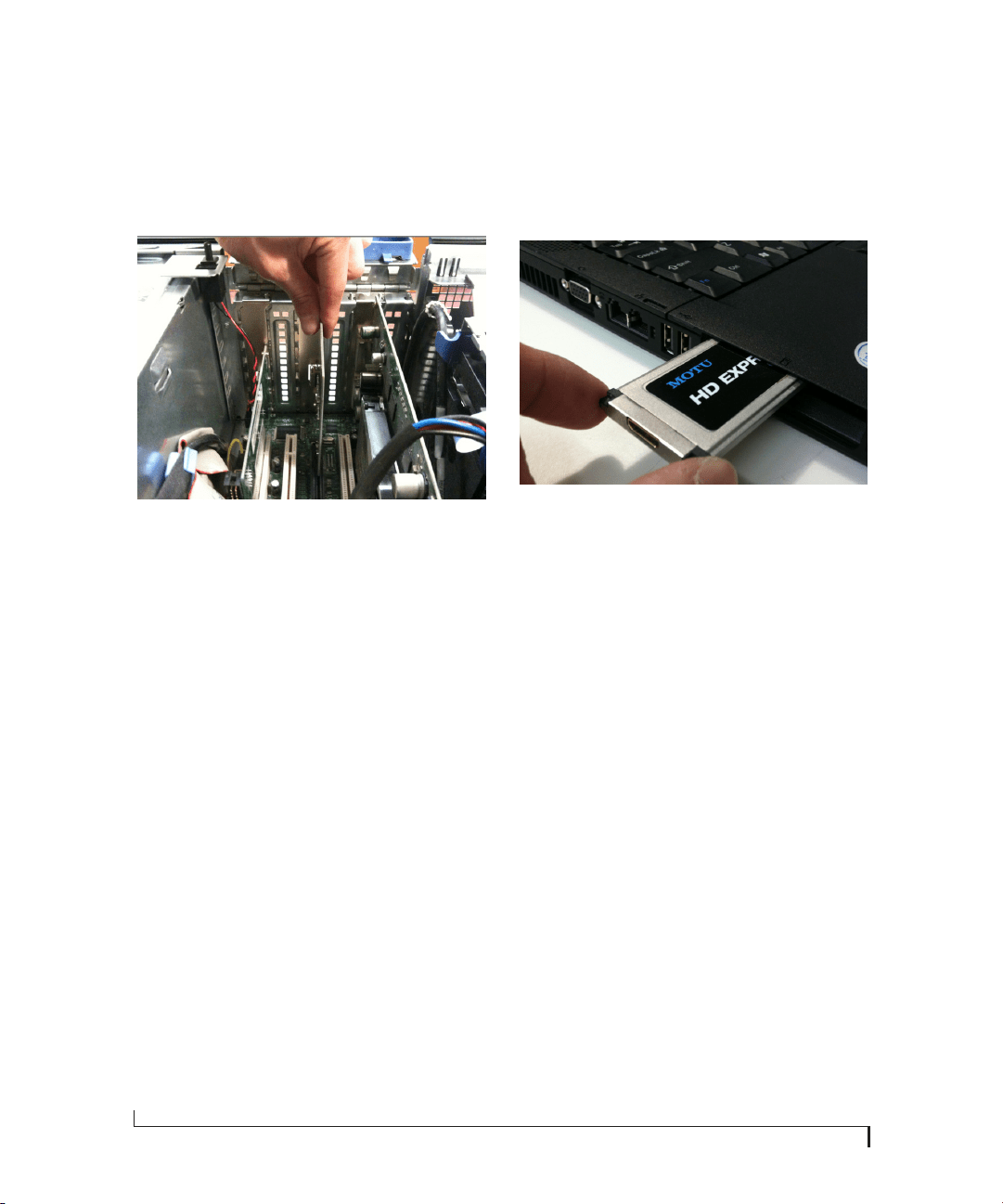
6 Remove the HDX-SDI PCIe card from its anti-
static bag.
7 Gently but firmly insert the card into any
available PCIe slot.
Figure 4-1: Inserting the HDX-SDI PCIe card.
8 Secure the bulkhead of the card to the computer
chassis with the bolt from the slot cover.
☛ We strongly recommend securing the
HDX-SDI PCIe card in this manner. Doing so
allows you to ensure secure connections to the card
later on in the installation.
9 Place the cover back on your computer.
10 Reconnect the power cord to the computer
before proceeding.
INSTALLING THE EXPRESSCARD ADAPTER
If you have a laptop ExpressCard adapter for the
HDX-SDI, you can install it as follows, with your
laptop computer turned on or off:
1 Before removing the ExpressCard adapter from
it’s anti-static bag, touch the metal chassis of your
laptop computer to discharge any static electricity
that may have built up on you.
2 Remove the ExpressCard adapter from its anti-
static bag.
3 Insert the adapter into the ExpressCard slot on
your laptop computer with the top of the
ExpressCard adapter (the side with the label on it)
facing up and the mini-HDMI connector (the
smaller of the two connectors) facing out.
Figure 4-2: Inserting the HDX-SDI ExpressCard adapter.
4 Push the adapter into the slot until it clicks into
place.
☛ Do not force the ExpressCard adapter into the
slot. If it does not easily slide into place, remove it
and try again.
When the card is properly seated in the slot, it
should be flush with the side of your laptop.
Removing the ExpressCard adapter
To safely remove the ExpressCard adapter, first
disconnect the HDMI cable, and then push the
adapter inwards until you hear and feel it click.
This releases it from its installed position and it
should pop out of the slot far enough for you to
grasp it and gently remove it. Immediately place it
in its anti-static bag.
CONNECT THE HDX-SDI TO YOUR
COMPUTER
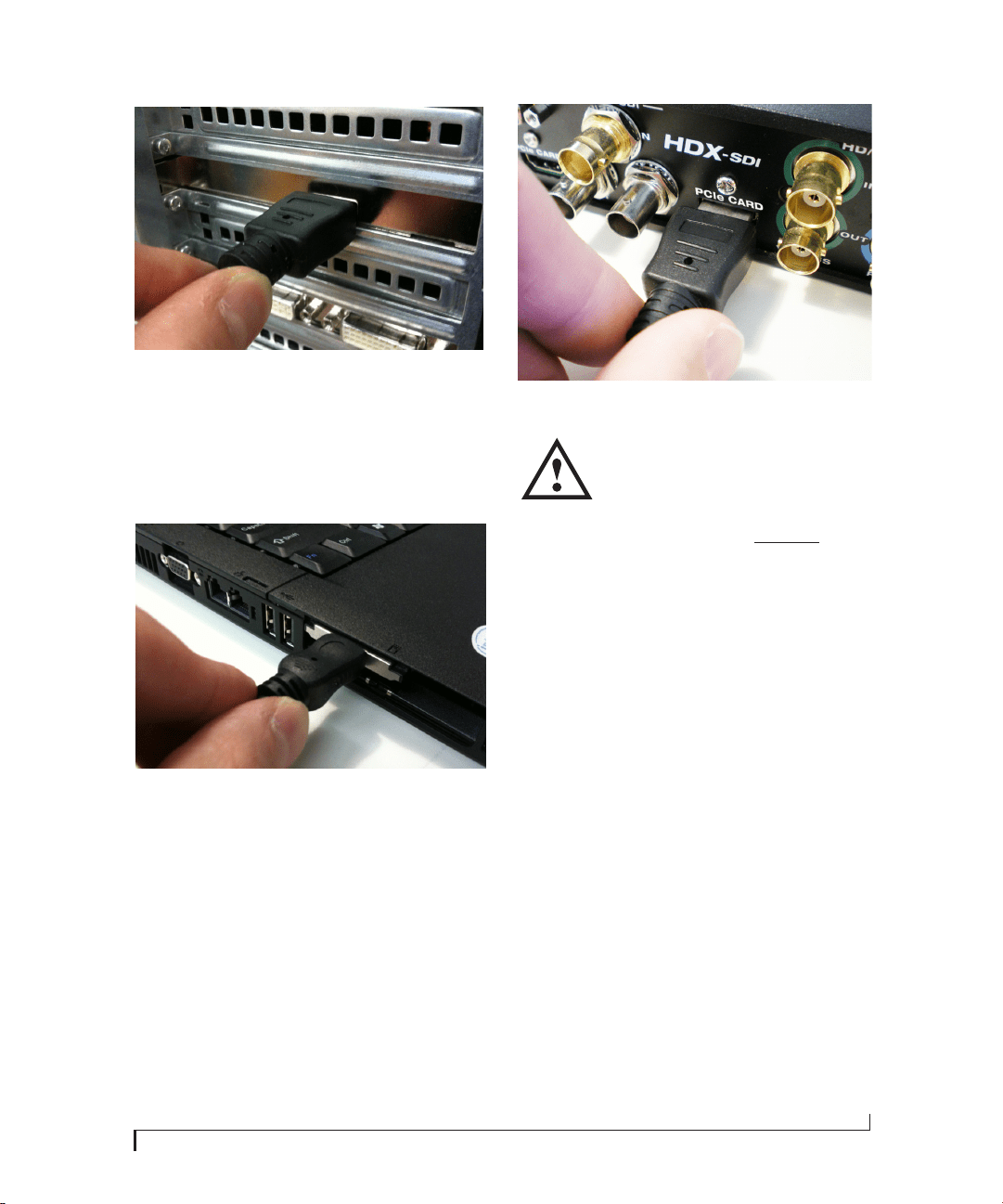
1 Plug one end of the supplied HDMI cable into
the HDMI socket on the PCI card or ExpressCard
adapter as shown below in Figure 4-3.
INSTALLING THE HDX-SDI HARDWARE
19
Figure 4-3: Connecting the HDX-SDI to the computer.
☛ If you are using the HDX-SDI with an
ExpressCard adapter, the included HDMI cable
has a regular HDMI plug at one end and a smaller,
mini-HDMI plug at the other end. Plug the mini-
HDMI plug into the ExpressCard adapter.
2 Plug the other end of the HDMI cable into the
HDX-SDI I/O “PCIe CARD” jack as shown below
in Figure 4-4.
Figure 4-4: Making the connection from the computer to the
HDX-SDI.
☛When making the connection from
the computer (Figure 4-3) to the
interface (Figure 4-4), be sure to plug
the HDMI cable into the jack labeled
PCIe Card, as shown in Figure 4-4. D
O NOT plug it
into the HDMI OUT jack. The computer must be
connected to the PCIe Card jack for proper
operation.
POWER-UP/POWER-DOWN SEQUENCE
When using the HDX-SDI rack-mount interface
with the laptop ExpressCard adapter, operation is
plug-and-play: you can disconnect and reconnect
the interface, and freely switch it on or off as
desired.
However, when using the PCIe card adapter on a
desktop machine, the HDX-SDI rack-mount
interface must be connected and switched on
before starting up the computer. Similarly, you
must shut down the computer before switching it
off and/or disconnecting it. If the interface gets
disconnected or switched off before computer
shut-down, you’ll need to restart the computer to
bring the interface back online.

INSTALLING THE HDX-SDI HARDWARE
20
CONNECT VIDEO INPUTS AND OUTPUTS
The HDX-SDI provides a wealth of video input
and output connectivity, from consumer analog
formats such as S-video and composite to
broadcast formats such as HD-SDI.
Support for both NTSC and PAL
The HDX-SDI supports both NTSC and PAL
formats on all inputs and outputs. It does not,
however, convert between NTSC and PAL. Instead,
it operates all inputs and outputs in one format or
the other, as determined by the chosen video
source. For details about choosing a video source,
see “Input Source” on page 36.
S-video (Y/C) input
You have two choices for connecting S-video (Y/C)
input: you can use the 4-pin mini-DIN jack on the
HDX-SDI front panel, or you can use the two BNC
inputs on the rear panel labeled “Y” and “C”. Either
way, be sure to make the corresponding Input
Source setting in the software. See “Input Source”
on page 36.
Connect any S-video source, including consumer
or prosumer camcorders, desktop video
converters, VTRs, etc. For best results, use
standard, high-quality shielded BNC or 4-pin
mini-DIN S-video cables.
You can connect the same device to both the input
and output, or you can connect two separate
devices (one to the input and the other to the
output).
S-video (Y/C) output
Connect a monitor or other S-video output device
to the BNC Y/C connectors on the rear panel. Be
sure to make the necessary settings in the software
to change the output of these connectors from
component (the factory default format) to S-video.
See “Analog Output Mode” on page 39 for details.
Composite (CVBS) input
You have two choices for connecting composite
(CVBS) input: you can use the RCA jack on the
HDX-SDI front panel labeled VIDEO, or you can
use the BNC input on the rear panel labeled CVBS.
Either way, be sure to make the corresponding
Input Source setting in the software. See “Input
Source” on page 36.
Connect any composite source, including
consumer or prosumer camcorders, desktop video
converters, VTRs, etc. For best results, use a
standard, high-quality shielded video RCA or BNC
cable. You can connect the same device to both the
input and output, or you can connect two separate
devices (one to the input and the other to the
output).
Composite (CVBS) output
Connect a monitor or other composite output
destination to the BNC CVBS connector on the
rear panel. Be sure to make the necessary settings
in the software to change the output of these
INSTALLING THE HDX-SDI HARDWARE
21
connectors from component (the factory default
format) to composite. See “Analog Output Mode”
on page 39 for details.
Component
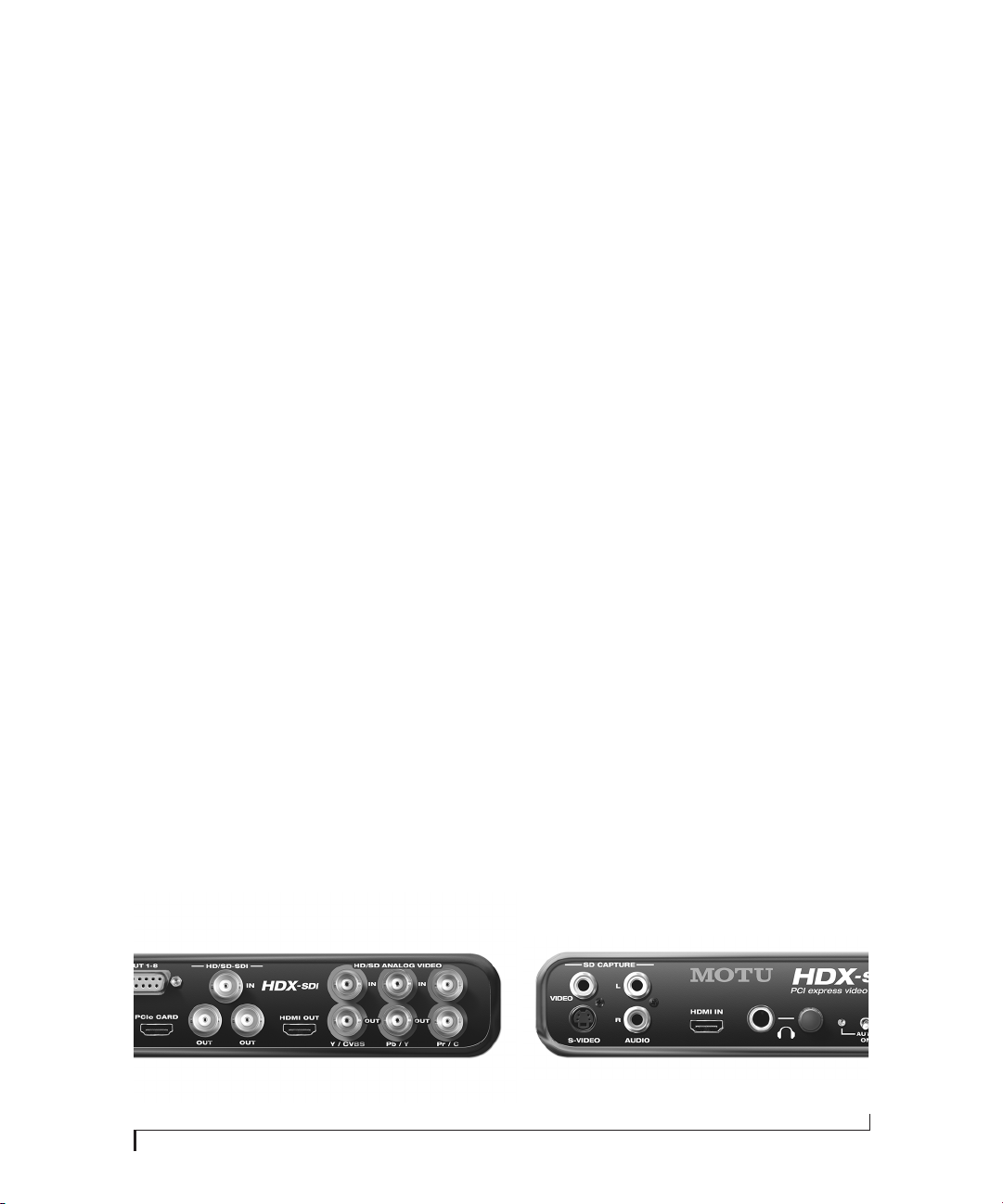
The HD/SD Analog Video Section (Figure 4-5)
provides either HD or SD component input and
output. The HDX-SDI provides 10-bit analog
performance with 12-bit A/D and D/A converters.
In general, component video signals tend to be
higher quality than composite or S-video, so to
take full advantage of the component format, be
sure to use high quality shielded BNC cables.
Configuring the analog video section
The HDX-SDI component input and output
supports YPbPr or RGB operation, as shown by the
labeling below the connectors in the Analog Video
section. Accordingly, the input and output jacks in
this section can be independently configured for
one of three different analog video formats:
■ Component RGB
■ Component YPbPr
■ Composite + S-video
This setting is made in the MOTU Video console
software. For the component inputs, see “Input
Source” on page 36. For the component outputs,
see “Analog Output Mode” on page 39. Be sure that
the mode you choose for each bank matches the
component video source or destination to which it
is connected. If the device you are connecting
supports both RGB and YPbPr, use YPbPr, as it is
the standard for broadcast video.
☛ Analog YPbPr component video is sometimes
referred to by other names, such as YUV,
Y/R-Y/B-Y or YCbCr.
SD (480i) component formats
The HDX-SDI supports four different SD
component formats: SMPTE/EBU N10, Sony Beta,
Sony Beta Japan and Panasonic MII. This setting is
made in the MOTU Video console software. See
“480i Component Levels” on page 39 and “480i
Setup” on page 39. For PAL (576i) and HD
component operation, the HDX-SDI supports the
industry standard SMPTE/EBU N10 specification.
HD-SDI and SD-SDI
The HDX-SDI provides HD-SDI or SD-SDI input
and output in professional, broadcast quality
10-bit 4:2:2 resolution. A second, duplicate SDI
output is provided, allowing you to connect a
second SDI output device. For example, you could
connect both an HD monitor and an HD video
deck.
For best results, be sure to use cables that are
designed for SDI use (such as Belden part number
8281, or similar). The HDX-SDI has been designed
to support SDI cable lengths up 500 feet with SDI
rated cables.
Figure 4-5: The HDX-SDI video connectors.

INSTALLING THE HDX-SDI HARDWARE
22
HDMI
The HDX-SDI provides HDMI input and output in
professional, broadcast quality 10-bit 4:2:2
resolution. The input is ideal for capturing video
from HDMI-equipped cameras, many of which
send the video signal to their HDMI output before
it is compressed in the camera.
The HDMI output can be connected to any device
equipped with an HDMI input, such as a plasma
screen, LCD screen or even a home theater receiver.
The HDX-SDI supports up to 8 channels of PCM
(uncompressed) audio output via the HDMI
connection for devices that can receive digital
audio via HDMI.
DVI output
Using a HDMI-to-DVI cable, or a female HDMI-
to-male DVI plug adaptor connected to one end of
an HDMI-to-HDMI cable, you can connect the
HDX-SDI’s HDMI output to the DVI input of
another device, such as a computer monitor. In
addition to the cable connection, you also need to
make a software setting that changes the
HDX-SDI’s HDMI output signal to the DVI
format. See “HDMI format” on page 39.
INSTALLING THE HDX-SDI HARDWARE
23
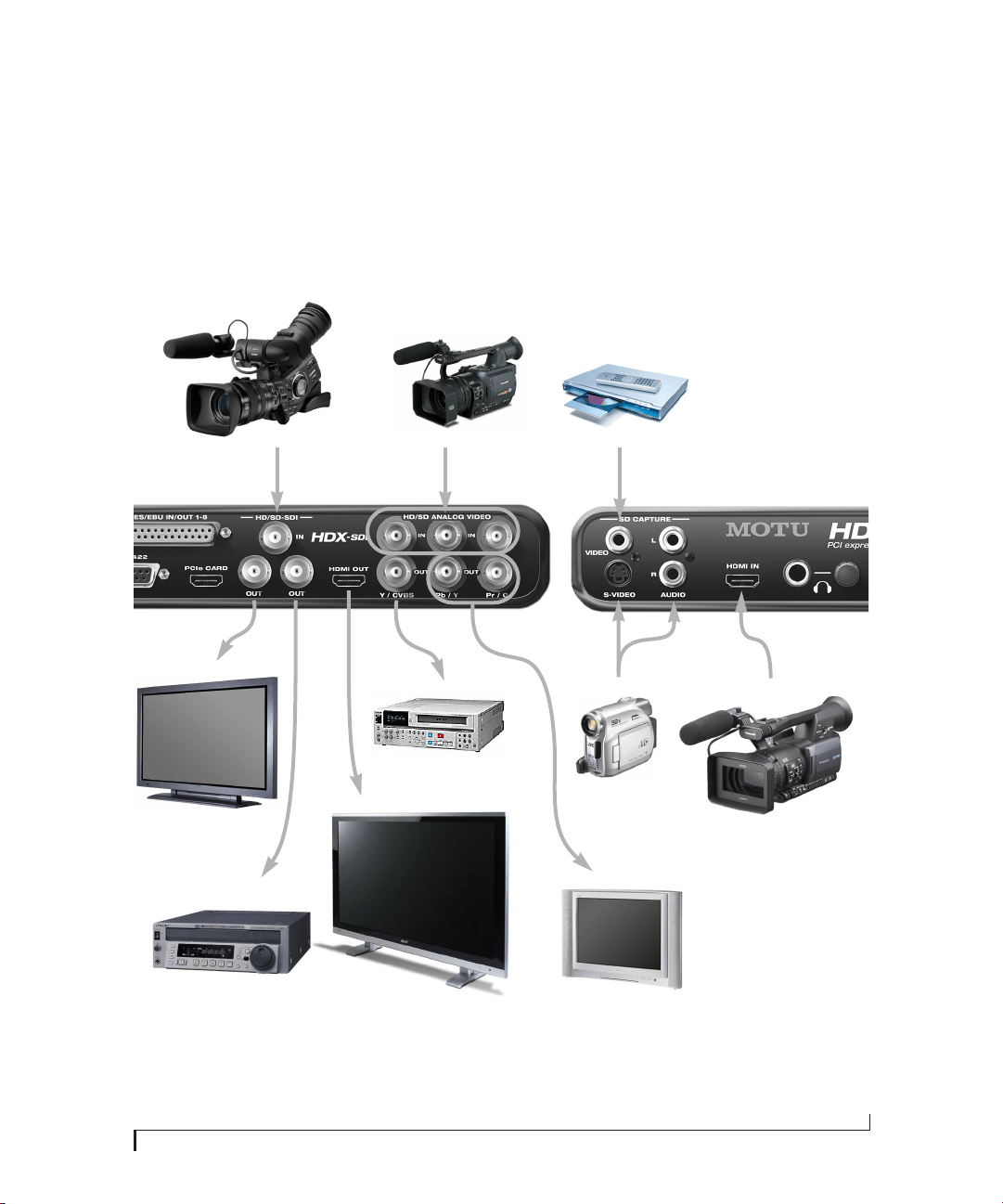
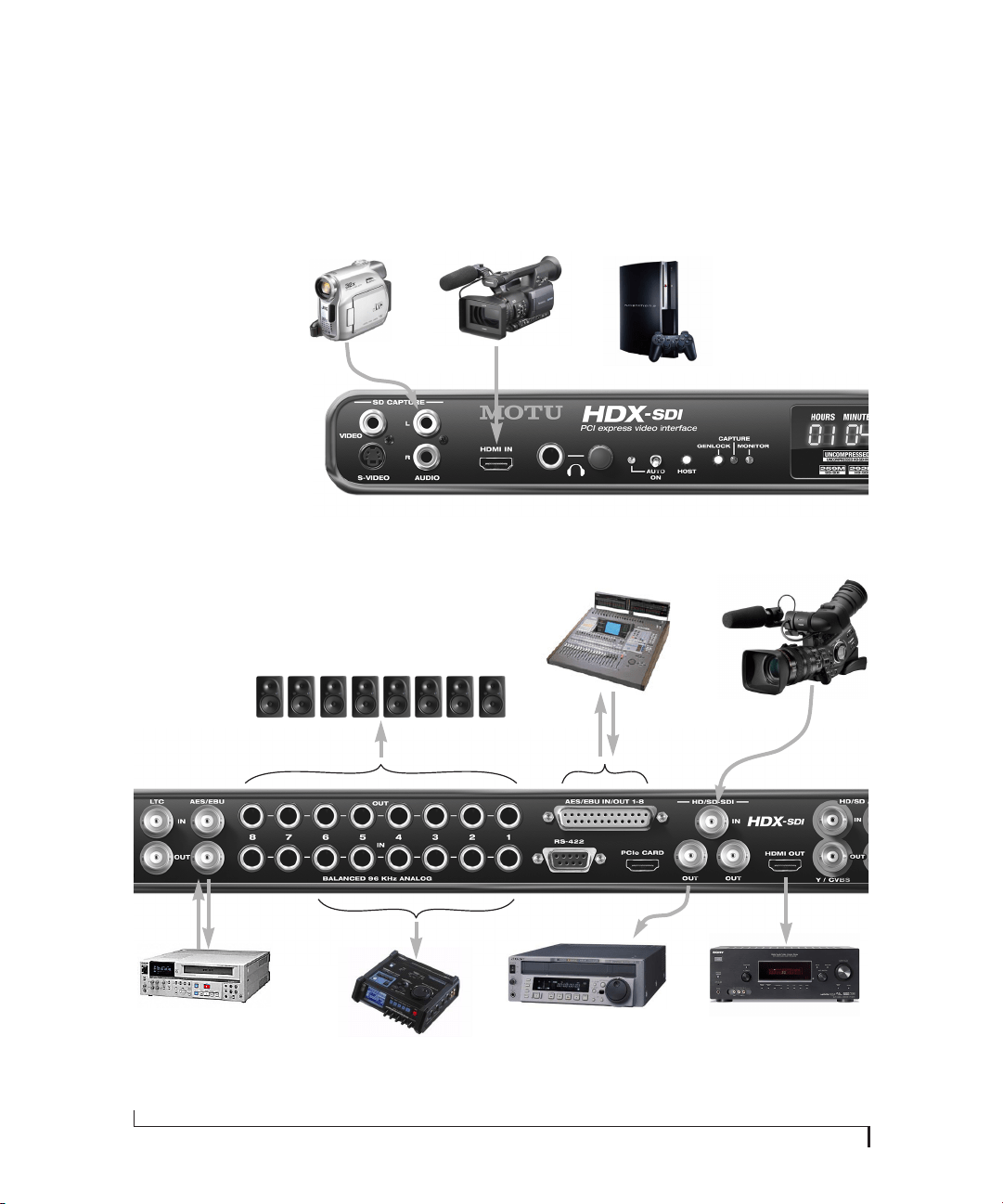
EXAMPLE HDX-SDI VIDEO CONNECTIONS
Here is an example of the types of video devices
that you can connect to the HDX-SDI. You can mix
and match HD and SD sources and destinations,
connect them all, and then choose the desired
source from the MOTU Video console software.
Figure 4-6: HDX-SDI video connections.
SD camcorder
S-Video OUT
DVD Player
Composite OUT
SD Composite IN
SD VTR (VHS, SVHS, etc.)
S-video IN
SD TV (LCD or plasma)
HD-SDI
IN
HD broadcast VTR
HDMI IN
Large format
consumer plasma or LCD
monitor
HD camera
HD-SDI OUT
HD-SDI IN
HD reference monitor
HD camera
HD Component OUT
HD camera
HDMI out
INSTALLING THE HDX-SDI HARDWARE
24
CONNECT AUDIO INPUTS AND OUTPUTS
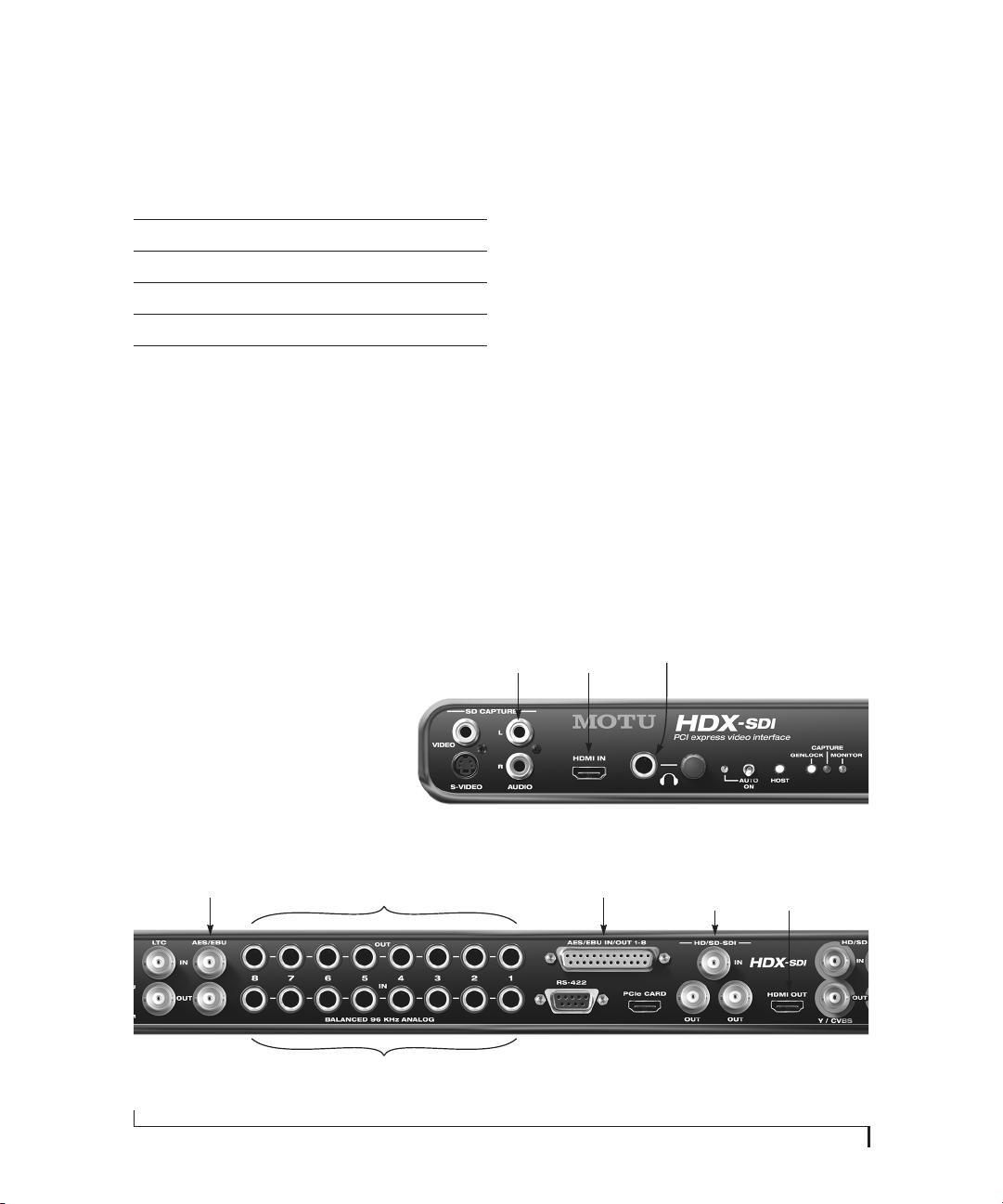
The HDX-SDI provides the following audio input
and output:
*HDMI audio is stereo at sample rates above 48kHz when playing or
capturing SD video.
Up to two 8-channel banks can be enabled at a
time, for a total of sixteen channels of simultaneous
audio input and output.
Analog audio I/O
The eight quarter-inch analog inputs and outputs
(Figure 4-7) are balanced (TRS) connectors that
can also accept an unbalanced plug.
The quarter-inch outputs are calibrated to produce
a +4 dBu line level output signal.
Quarter-inch analog input trims
The quarter-inch inputs are calibrated to
accommodate either +4 or -10 dBu signals and are
equipped with digitally controlled analog trims
that provide +22 dB of gain and -12 dB of cut. To
adjust these trims, see “Analog input trims” on
page 44.
AES/EBU digital audio I/O
The HDX-SDI provides eight channels of 24-bit
AES/EBU digital audio input and output at
standard sample rates from 44.1 kHz up to 96 kHz.
Audio format
Input
channels
Output
channels
96 kHz quarter-inch TRS analog 8 8
96 kHz AES/EBU on DB-25 breakout 8 8
48 kHz embedded SDI 8 8
96 kHz embedded HDMI* 8 8
Stereo AES/EBU on BNC + stereo
analog on RCA
2+2 2 (AES/EBU
only)
Figure 4-7: The HDX-SDI audio connectors.
Analog audio inputs
Analog audio outputsStereo AES/EBU 8-channel AES/EBU 8-channel SDI
embedded
8-channel HDMI
embedded out
8-channel HDMI
embedded in
Stereo RCA
analog in
Headphones
INSTALLING THE HDX-SDI HARDWARE
25
Stereo AES/EBU with sample rate conversion
As shown in Figure 4-7, there are two sets of
AES/EBU connectors: stereo BNC and 8-channel
DB-25. The BNC input and output jacks provide
stereo AES/EBU digital audio input and output via
direct connection to the HDX-SDI rear panel using
standard broadcast-grade BNC cables.
The stereo BNC AES/EBU input in the HDX-SDI is
sample-rate converted, so you do not need to
worry about digital audio clocking issues when
using BNC AES/EBU input. Simply set the
HDX-SDI clock source as desired (see “Capture
Clock Source” on page 38), and any AES/EBU
digital audio transfers will be clean and trouble-
free. Just make sure that the AES/EBU device is
resolved to the video in some way to prevent drift.
See “Syncing digital audio devices” on page 28.
8-channel AES/EBU
The HDX-SDI provides eight channels of
AES/EBU digital audio input or output using a
DB-25–to–XLR breakout cable (sold separately).
The AES/EBU breakout cable supplies 8 channels
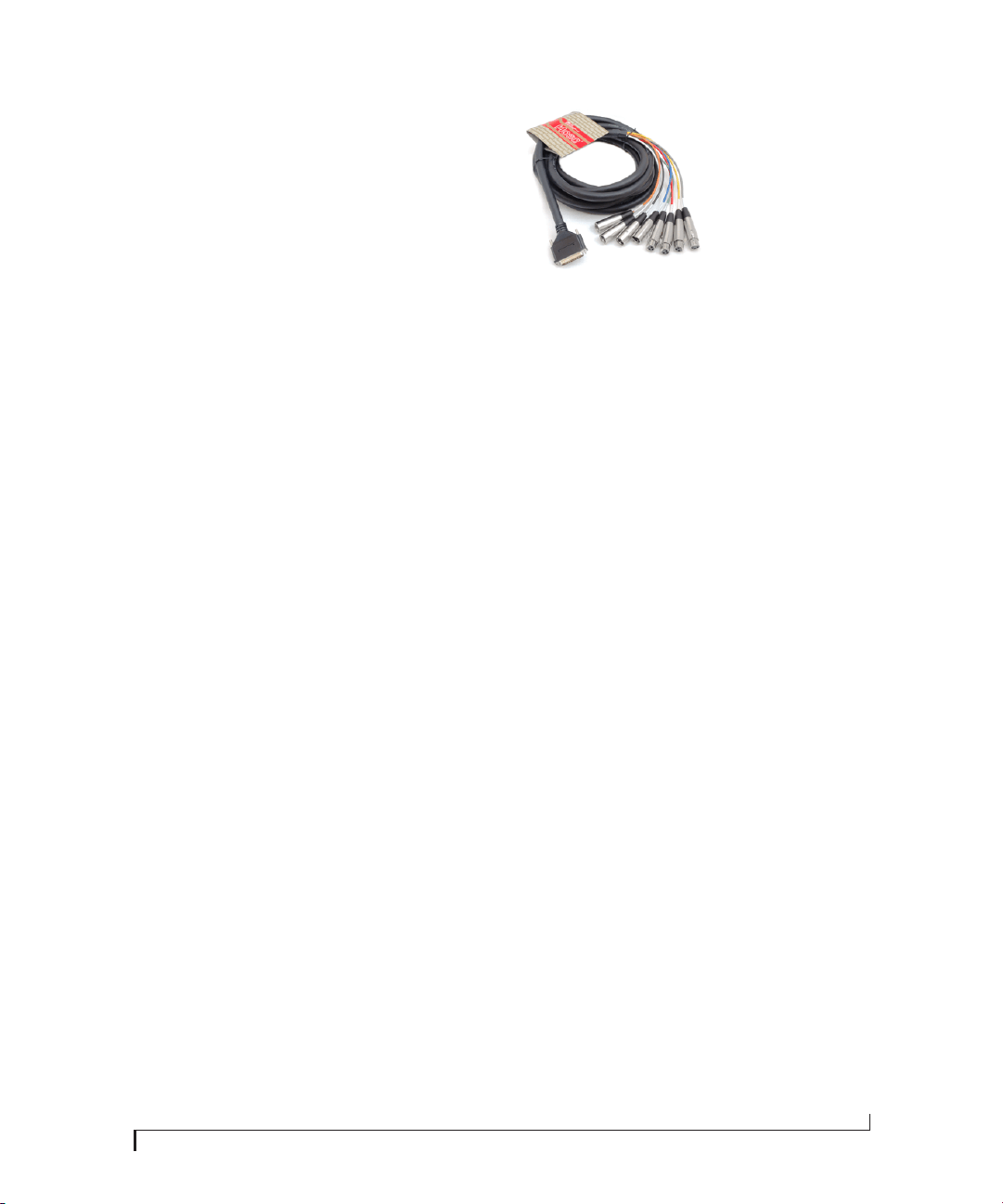
of AES/EBU input on four female XLR connectors
and 8 channels of AES/EBU output on four male
XLR connectors, as shown in Figure 4-8.
Figure 4-8: An example of a DB-25–to–XLR breakout cable (sold
separately) for 8-channel AES/EBU input and output. This cable has
four female XLR connectors and four male XLR connectors. See
Appendix B, “DB-25 to XLR Pin Outs” page (59) for pin out details.
For AES/EBU input, BNC and breakout cable
operation in the AES/EBU section are mutually
exclusive. You cannot capture from both the BNC
inputs and the breakout cable inputs at the same
time.
For AES/EBU output, the stereo BNC outputs
mirror the DB-25 breakout cable output channels
1-2.
Synchronization and sample rate conversion
When making AES/EBU digital audio transfers to
and from the HDX-SDI via the 8-channel DB-25
breakout cable, the two devices must be
synchronized with one another. See “Syncing
digital audio devices” on page 28.
INSTALLING THE HDX-SDI HARDWARE
26
EXAMPLE HDX-SDI AUDIO CONNECTIONS
Figure 4-9 shows an example of the types of audio
connections you can make between other devices
and the HDX-SDI. You can mix and match analog
and digital sources and destinations, connect them
all. The 8-channel banks of AES/EBU digital I/O
are ideal for connection to a digital mixer.
Figure 4-9: HDX-SDI audio connections.
Powered 5.1 or 7.1 surround monitors
VTR
CameraDigital mixer
8 channels of AES/EBU
digital audio I/O
Stereo AES/EBU
digital audio in/out
HD camera Game console
OR
SD camcorder
Multi-channel surround
field recorder
8 channel
embedded
Broadcast VTR Home theater receiver
Stereo
embedded
Stereo
embedded
INSTALLING THE HDX-SDI HARDWARE
27
VIDEO SYNC CONNECTIONS
Connect a video sync source, such as blackburst, to
the VIDEO REF IN jack (Figure 4-10). This input
accepts either a Bi-level (SD) sync source or a
Tri-level (HD) sync source. The HDX-SDI can
resolve to a VIDEO REF IN signal only when it is in
Playback mode, or when it is capturing SDI. When
capturing other sources, it genlocks to the current
video source, or its own Master (Internal) clock.
For further information, see “Capture Clock
Source” on page 38.
Video ref termination and “thru”
The HDX-SDI lets you daisy-chain the VIDEO
REF signal to another video device using the
THRU jack below the VIDEO REF jack. If you
connect a device to the THRU jack, set the
termination switch (Figure 4-10) to the THRU
position.
If the HDX-SDI is the only device (or the last
device in a daisy-chain), set the termination switch
to the 75Ω TERM position. This is crucial for
successful genlock.
Figure 4-10: Video sync connectors.
TIMECODE CONNECTIONS
Connect any timecode source, such as the
timecode output from a camera or VTR, to the LTC
IN jack (Figure 4-10). If you wish to transmit
timecode from the HDX-SDI to another device,
connect the HDX-SDI LTC OUT to the timecode
input on the other device. See “Setup tab” on
page 37 and “Playback tab” on page 40 for
information about managing the HDX-SDI’s
timecode features.
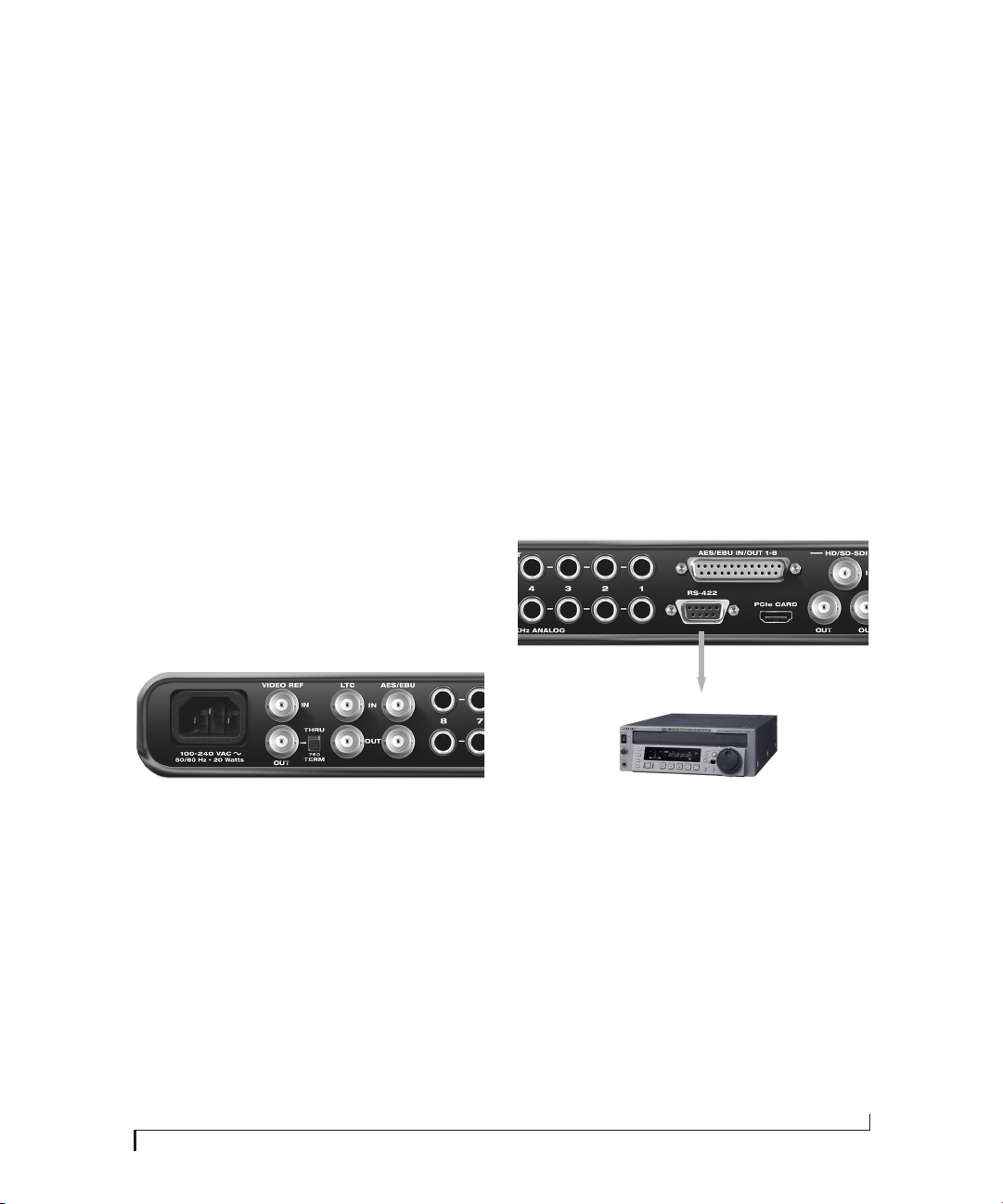
RS-422 MACHINE CONTROL
If you have a VTR or other device equipped with
Sony 9-pin compatible machine control, and you
would like to control it using Premiere Pro’s
machine control features, connect its RS-422 port
to the HDX-SDI’s RS-422 port (Figure 4-11). Also
see “Device control” on page 52.
Figure 4-11: RS-422 machine control.
RS-422 IN
VTR or other device equipped
with machine control
INSTALLING THE HDX-SDI HARDWARE
28
SYNCING DIGITAL AUDIO DEVICES
The HDX-SDI’s stereo BNC AES/EBU input is
equipped with sample rate converters (SRC). This
allows the digital audio data to be transferred
cleanly, with no dropped samples, clicks, or pops ,
even when the two devices are not resolved to one
another. However, it is still a good idea to resolve
digital audio devices with the HDX-SDI during
digital audio transfers to prevent audio from
drifting out of sync with picture.
The 8-channel DB-25 AES/EBU connection is not
equipped with sample rate conversion and
therefore requires that the HDX-SDI is
synchronized with the connected digital audio
device.
Audio clock synchronization is described in the
following sections, starting with a general
discussion of digital audio phase lock, and why it is
essential for clean and successful digital audio
transfers.
Digital audio phase lock
Without sample rate conversion, when you transfer
digital audio between two devices, their audio
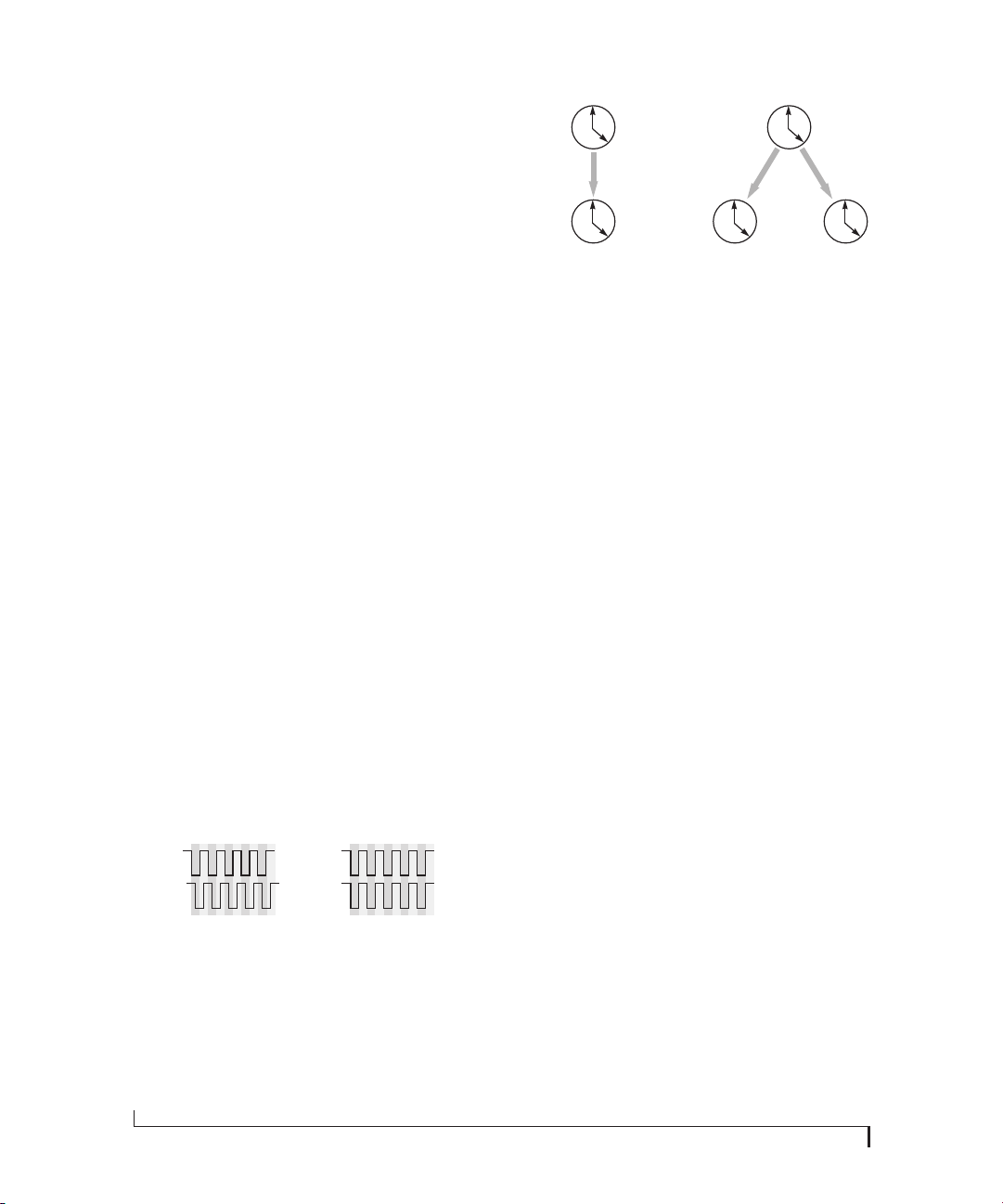
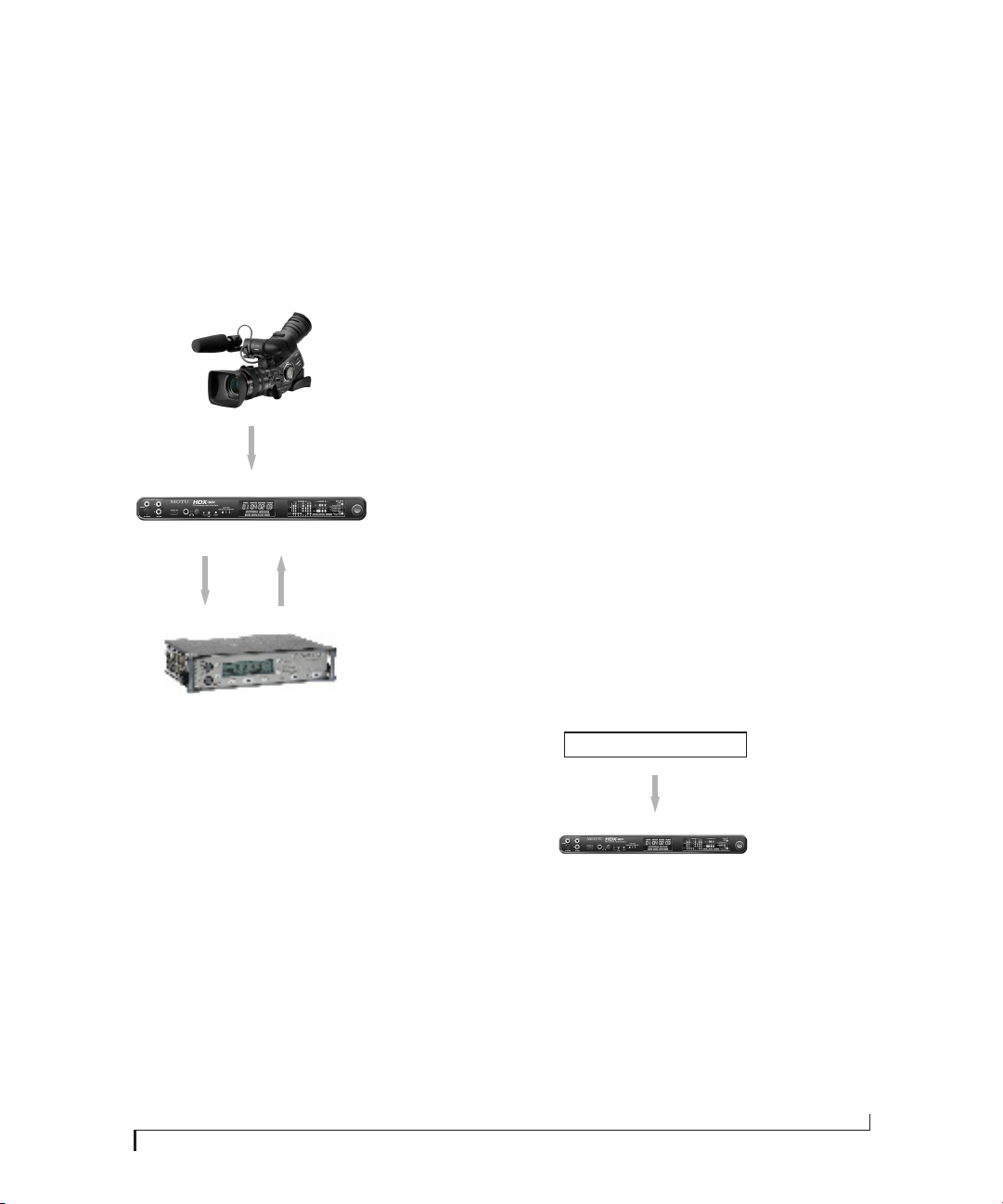
clocks must be in phase with one another — or
phase-locked — as demonstrated below in
Figure 4-12. Otherwise, you’ll hear clicks, pops,
and distortion in the audio, or perhaps no audio at
all.
Figure 4-12: When transferring audio without sample rate conver-
sion, two devices must have phased-locked audio clocks to prevent
clicks, pops or other artifacts.
Without sample rate conversion, there are two ways
to achieve phase lock: slave one device to the other,
or slave both devices to a third master clock. If you
have three or more digital audio devices, you need
to slave them all to a single master audio clock.
Figure 4-13: Without sample rate conversion, you need to choose a
clock master to which all other devices slave. Each slaved device
remains continuously resolved to the master, meaning that there will
be no drift over time.
Audio phase lock as shown above in Figure 4-13
can be achieved independently of timecode
(location). For example, one device can be the
timecode master while another is the clock master.
But only one device can be the audio clock master.
Another benefit of direct master/slave clocking
(without sample rate conversion) is that each
slaved device remains continuously resolved to the
master, which means that there will be no gradual
drift over time. This form of synchronization is
best for audio that must remain resolved to picture.
Audio synchronization when capturing or
playing video
The HDX-SDI audio clock always resolves to its
video clock. The HDX-SDI has three possible
sources for video clock:
■ The currently chosen video input source
(Figure 6-3 on page 36)
■ The VIDEO REF IN jack
■ The HDX-SDI’s own internal video clock
Resolving to the current video source
If the HDX-SDI is transmitting or receiving digital
audio from the current video source, the video
genlock between the two devices ensures that their
digital audio clocks remain resolved and phase
locked.
Not phase-locked Phase-locked
Device A
Device B
Master
Slave
Master
Slave Slave
INSTALLING THE HDX-SDI HARDWARE
29
Resolving a third device to the HDX-SDI
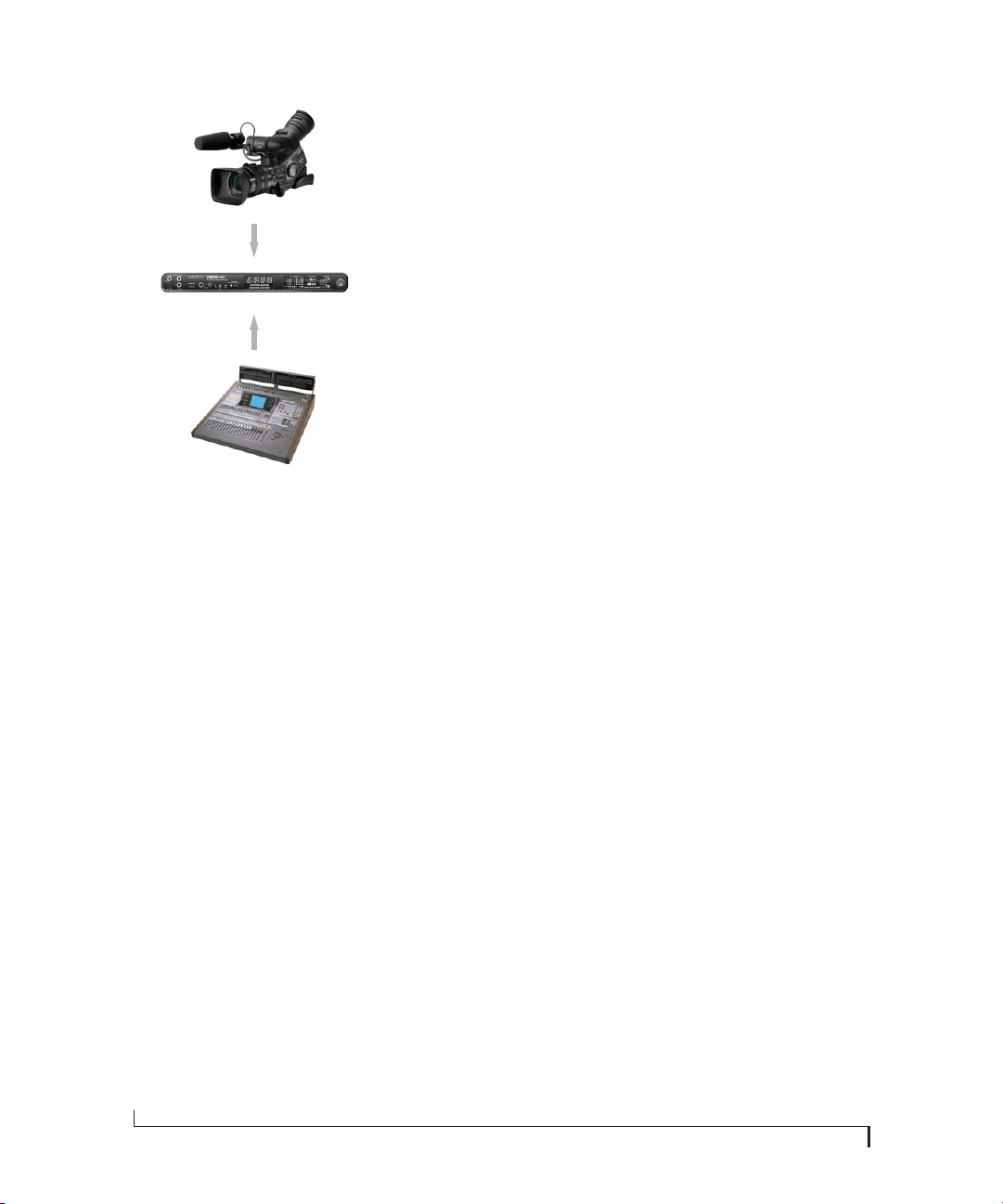
If you need to make digital audio transfers between
the HDX-SDI and third device (that is not the
current video source), you must resolve the third
device to the HDX-SDI, as demonstrated in
Figure 4-14. In this example, the third device, a
field recorder, is being resolved to the HDX-SDI
via AES/EBU input.
Figure 4-14: Capturing digital audio from a third device that is not
the current video source. In this case, the third device must resolve to
the HDX-SDI via its AES/EBU input.
Resolving a digital mixer to the HDX-SDI
If you would like to connect a digital mixer via the
8-channel AES/EBU DB-25 connector, resolve the
digital mixer to the HDX-SDI, either via its
AES/EBU connection, similar to what is shown in
Figure 4-14.
Resolving to the VIDEO REF IN
If the HDX-SDI is currently resolved to its VIDEO
REF IN, you can either resolve the other digital
audio device to the HDX-SDI (Figure 4-14), or you
can resolve the other device to the same genlock
source that is feeding the HDX-SDI’s VIDEO REF
IN. In this scenario, the genlock source serves as a
master clock to which both the HDX-SDI and the
other device are resolved (Figure 4-13).
Sample rate conversion
The HDX-SDI BNC AES/EBU input is equipped
with stereo real-time sample rate conversion. This
feature provides a great deal of flexibility in making
digital transfers. For example, you can:
■ Transfer digital audio into the HDX-SDI at a
sample rate that is completely different than the
HDX-SDI system clock rate.
■ Transfer digital audio into the HDX-SDI without
the need for any external synchronization
arrangements.
Rate conversion does not add any appreciable noise
or distortion to the audio signal (under -120 dB).
Here are a few examples:
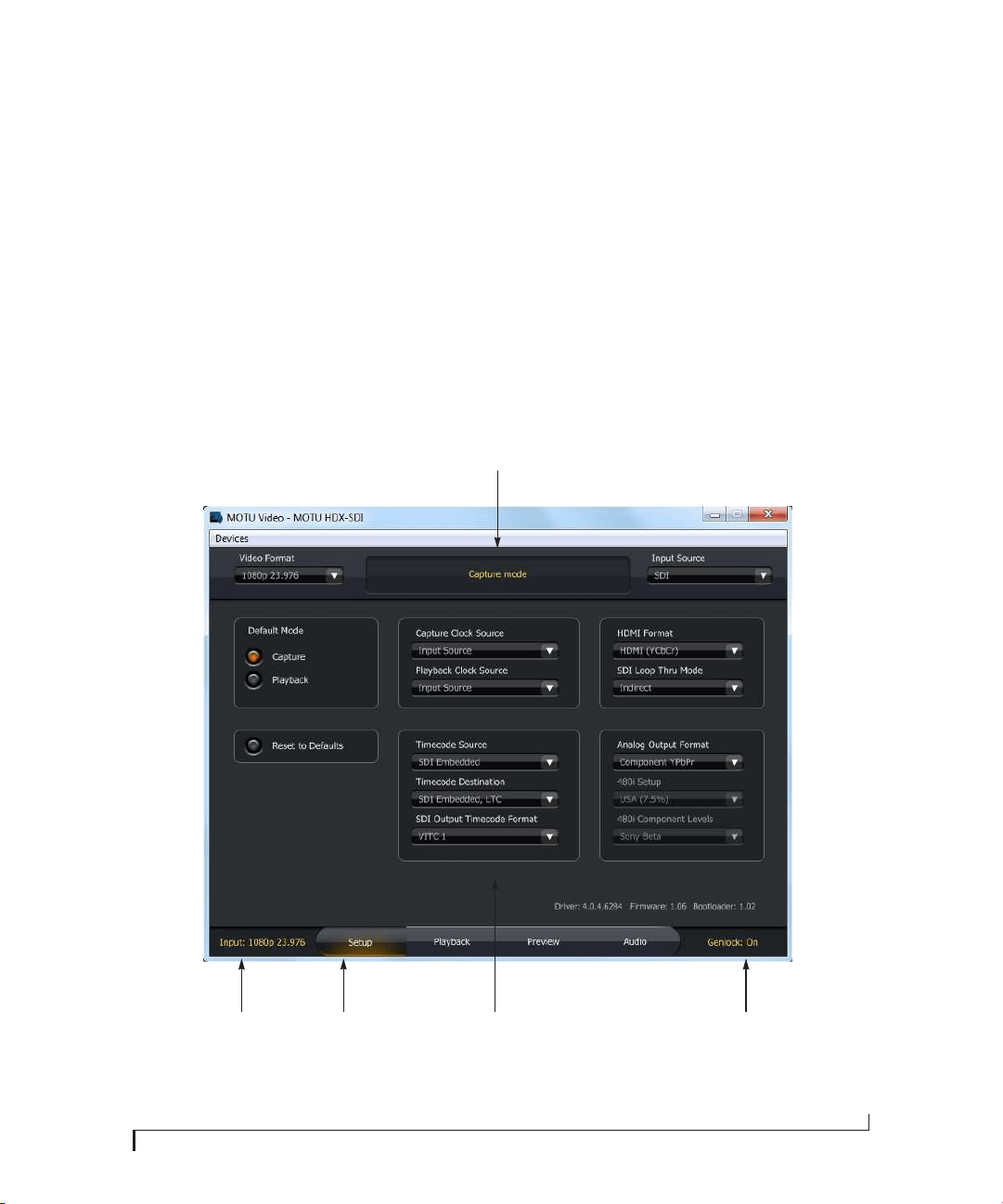
Figure 4-15: Rate-converting AES/EBU input.
Video out
Camera
Video in
AES/EBU
in
AES/EBU
out
Field audio recorder resolved
to its AES/EBU input
AES/EBU
out
AES/EBU
in
Master
Slave
AES/EBU OUT
AES/EBU IN
Other device
HDX-SDI clock source
setting: Internal
HDX-SDI
INSTALLING THE HDX-SDI HARDWARE
30
Figure 4-16: Capturing digital audio from a device that is not resolved
with the HDX-SDI. In this case, sample rate conversion is used.
A caution about using rate conversion
Rate conversion can be a life saver in situations
where resolving digital audio clocks is difficult or
impossible. As long as you are capturing audio and
video together, audio will remain perfectly in sync
with picture.
However, if you use sample rate conversion when
capturing audio separately from its corresponding
video, you run the risk of the audio drifting apart
from picture over time. If the audio clip being
captured is short, this may not be an issue. But for
longer record/playback passes (more than a few
minutes), you are much better off resolving the
HDX-SDI to picture during the digital audio
transfer.
As a general rule of thumb, most devices employ a
clock crystal that has an accuracy of about ±50
parts per million, which produces drift that
amounts to approximately one frame every five
minutes at 60 fps.
Video out
Camera
Video in
AES/EBU BNC in
Digital mixer running under
its own digital audio clock
AES/EBU out
HDX-SDI clock source
setting: Input Source

Part 2
Using the HDX-SDI


CHAPTER
33
5 HDX-SDI Basics
TWO MODES
The HDX-SDI provides two basic modes of
operation:
■ Capture
■ Playback (monitor)
The current mode is clearly indicated by the Status
area in MOTU Video Console (Figure 6-1 on
page 35), unless there is no genlock, in which case
it will display a message explaining why not.
The HDX-SDI is always either in Capture mode or
Playback mode. If no application is actively
capturing, previewing or playing back, the Default
Mode setting (“Default Mode” on page 37)
determines which mode the box is in.
CAPTURE
The HDX-SDI is in Capture mode when it is
successfully communicating with the computer
(the HOST LED is illuminated) and video software
has actively taken control of the HDX-SDI
hardware for the purposes of capturing video and
audio from the HDX-SDI. Here are some examples
of when video software would put the HDX-SDI
into Capture mode:
■ You open the Capture window in Premiere Pro.
Or you use any Premiere Pro feature that involves
capturing or previewing the live video input from
the HDX-SDI.
■ You run the MOTU Video console software and
click the Preview tab (Figure 6-1 on page 35,
Figure 6-10 on page 42). This causes MOTU Video
console to “take over” the video signal being
supplied by the HDX-SDI and display it in the
preview window.
In Capture mode, the HDX-SDI uses the Capture
Clock Source setting (“Capture Clock Source” on
page 38), and if it is set to Input Source, the input
signal is passed through to the video outputs (SD
in to SD out or HD in to HD out).
Even though the primary purpose of Capture
mode is to feed video to the computer, the
HDX-SDI continues to send the source video
signal to any video outputs that match the source
format (HD or SD). This allows you to simulta-
neously monitor what you are capturing via the
HDX-SDI’s video outputs. You could even dub the
source signal to a video deck or other video
recorder during capture.
Live monitoring is only active when the Capture
Clock Source setting (“Capture Clock Source” on
page 38) is set to Input Source. When it is set to
Master or REF In, the HDX-SDI outputs a black
image (i.e. black burst) on all video outputs.
PLAYBACK (MONITOR)
The HDX-SDI goes into Playback mode when an
application is sending video to it. When not
playing or capturing, the HDX-SDI reverts to the
Default Mode setting (“Default Mode” on page 37).
In Playback mode, the HDX-SDI uses the Playback
Clock Source setting (“Playback Clock Source” on
page 38), and if no application is playing back, will
output black.
ONE SOURCE TO MANY OUTPUTS
The HDX-SDI allows you to choose a single video
source and route it to the video outputs that match
the input format. (A standard definition input is
routed to the standard definition outputs; a high
definition input is routed to the high definition
outputs.) Multiple input devices such as cameras,

HDX-SDI BASICS
34
playback decks, or DVD players, can be connected
to the HDX-SDI along with multiple output
devices such as monitors, recording decks, or
distribution amplifiers. Choose the input source in
the Setup tab in MOTU Video console, and the
HDX-SDI will route that input to the
corresponding outputs (either SD or HD).
Choosing the current video source
The MOTU Video console software lets you choose
the current video source (input). For details, see
“Input Source” on page 36.
Audio I/O and monitoring
On the audio side, the HDX-SDI feeds audio input
to the computer and plays audio back from the
computer, so that you can easily capture and
playback audio in Premiere Pro.
If you are capturing multi-channel audio and wish
to monitor all channels on stereo headphones or
speakers, you can configure the HDX-SDI’s audio
monitoring settings in Premiere Pro. For more
information, see “Audio Monitoring” on page 50.
CHAPTER
35
6 MOTU Video Console
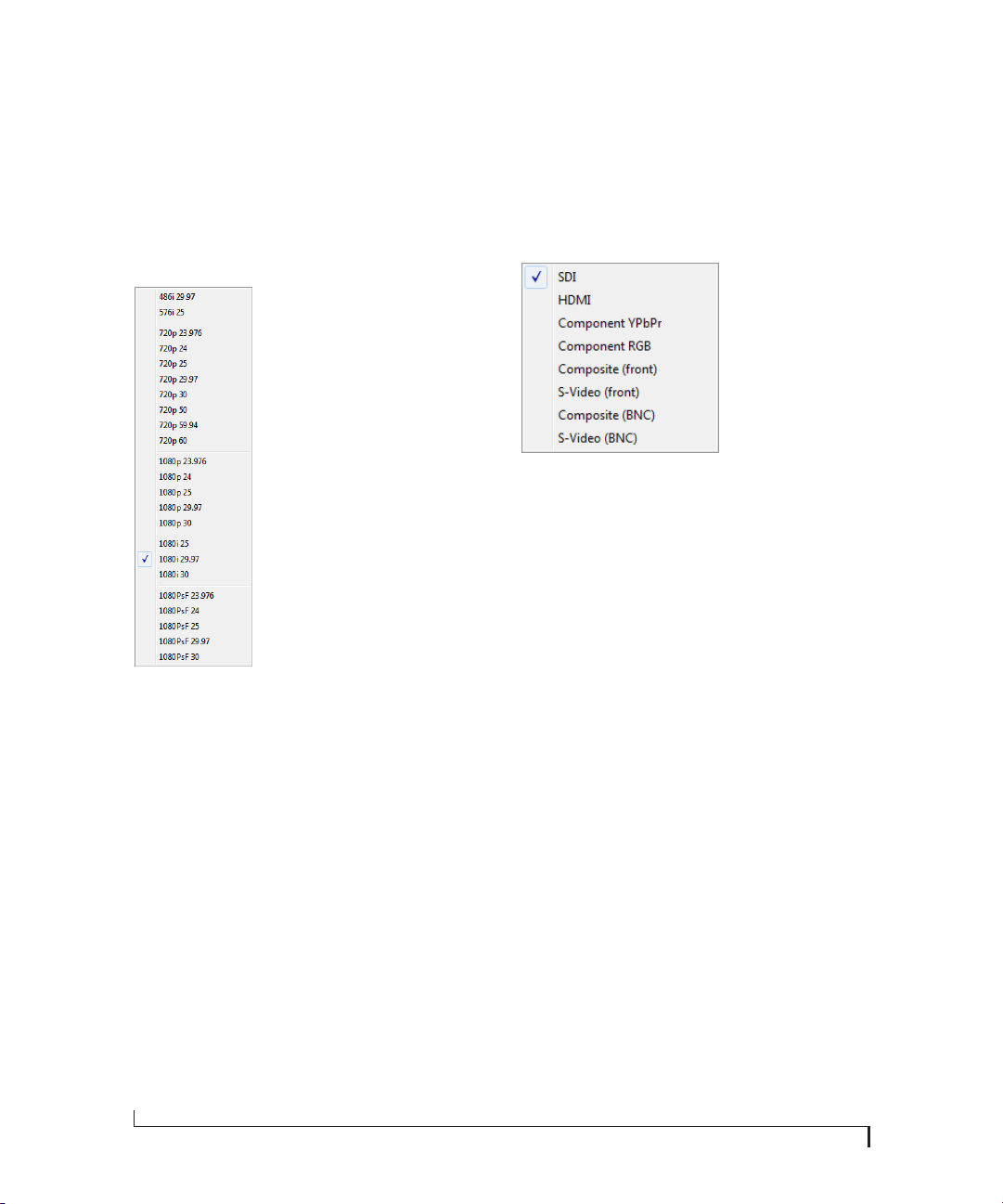
MOTU Video Console (Figure 6-1) is accessed via
the Windows Start menu and provides convenient
access to all HDX-SDI settings from your
computer desktop.
Video format . . . . . . . . . . . . . . . . . . . . . . . . . . . . . . . . . . . . . . . . . 36
Input Source . . . . . . . . . . . . . . . . . . . . . . . . . . . . . . . . . . . . . . . . . 36
Status area . . . . . . . . . . . . . . . . . . . . . . . . . . . . . . . . . . . . . . . . . . . 37
Input status . . . . . . . . . . . . . . . . . . . . . . . . . . . . . . . . . . . . . . . . . . 37
Genlock status . . . . . . . . . . . . . . . . . . . . . . . . . . . . . . . . . . . . . . . 37
Setup tab. . . . . . . . . . . . . . . . . . . . . . . . . . . . . . . . . . . . . . . . . . . . . 37
Playback tab . . . . . . . . . . . . . . . . . . . . . . . . . . . . . . . . . . . . . . . . . 40
Preview tab . . . . . . . . . . . . . . . . . . . . . . . . . . . . . . . . . . . . . . . . . . 42
Audio tab . . . . . . . . . . . . . . . . . . . . . . . . . . . . . . . . . . . . . . . . . . . . 43
Figure 6-1: MOTU Video console.
Status
Tabs Tab settings Genlock statusInput status
MOTU VIDEO CONSOLE
36
VIDEO FORMAT
The Video Format setting (Figure 6-1 on page 35)
shows the format in which the HDX-SDI is
capturing or playing back video, and allows you to
change the format manually. When capturing or
playing video from Premiere Pro, this setting will
be changed automatically by the host application.
Figure 6-2: The Video Format menu.
INPUT SOURCE
The Input Source menu (Figure 6-1) is important
because this is where you choose the video input
from which the HDX-SDI will capture. This input
may also be used as the clock source for playback
(see “Playback Clock Source” on page 38).
Figure 6-3: The Input Source menu.
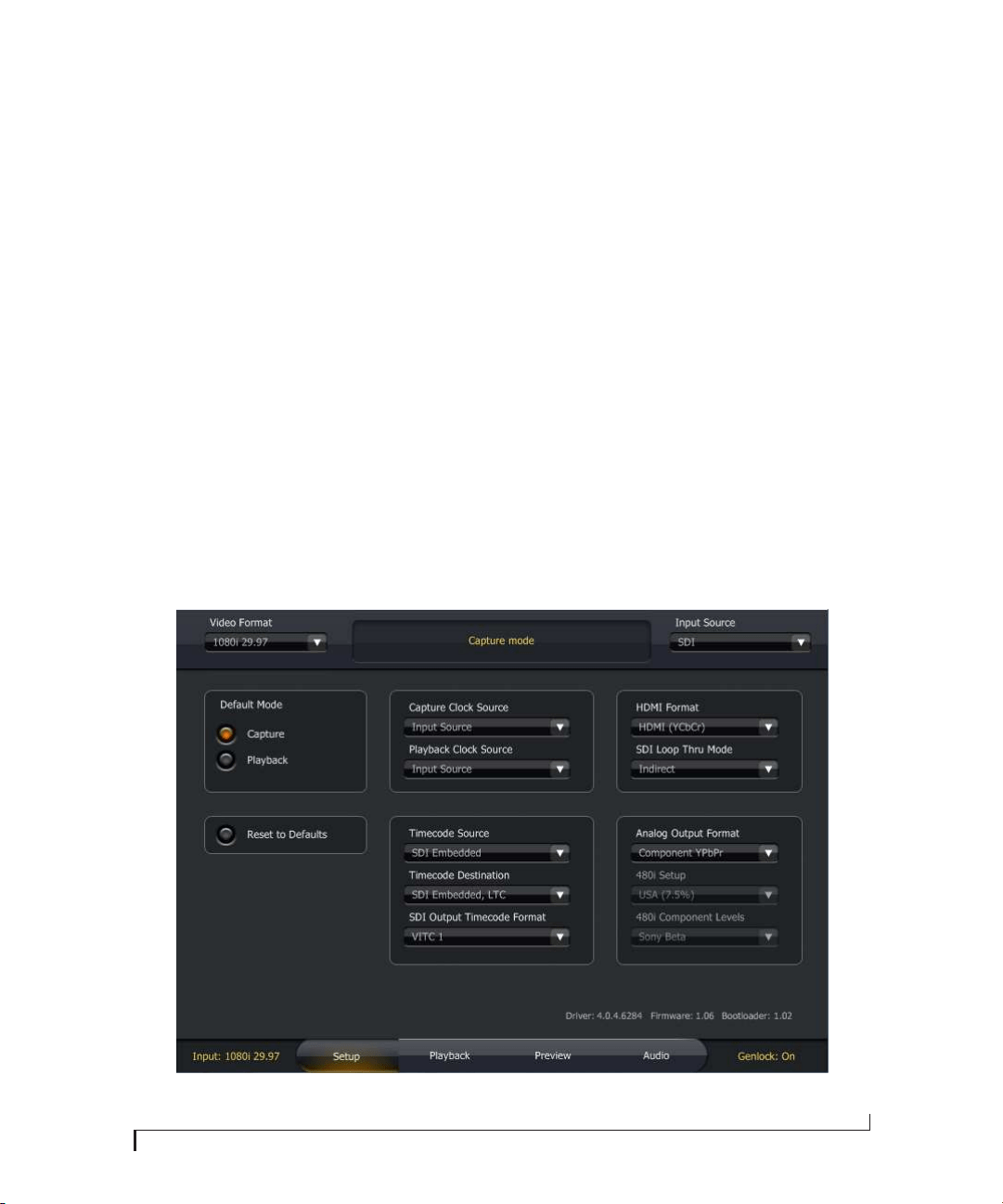
The menu choices with front or BNC in their names
(Figure 6-3) refer to the video inputs on the front
panel of the HDX-SDI or the BNC video input
connectors on the rear panel.
MOTU VIDEO CONSOLE
37
STATUS AREA
The Status area (Figure 6-1) displays what mode
the HDX-SDI is in. It also provides helpful status
information and troubleshooting suggestions. For
example, if there is no video signal because of a
wrong setting, the Status area will tell you which
setting(s) to check.
INPUT STATUS
The Input Status (Figure 6-1) indicates the video
format detected on the currently chosen video
Input Source.
GENLOCK STATUS
The Genlock Status (Figure 6-1) indicates when the
HDX-SDI has successfully achieved lockup to the
currently selected clock source, which could be the
HDX-SDI’s internal clock, the video REF IN jack
or the current video input source.
SETUP TAB
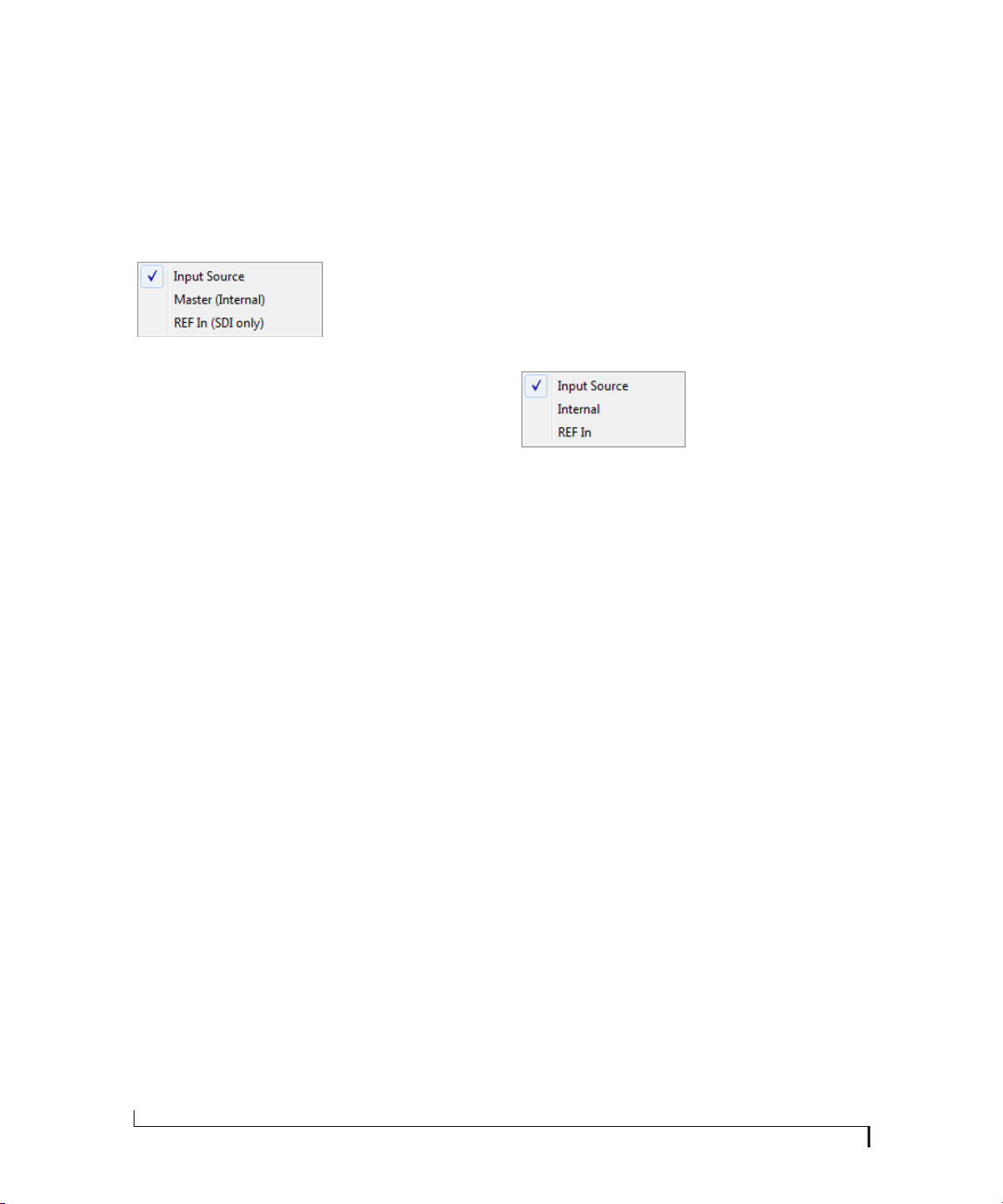
The Setup tab (Figure 6-4) provides several general
settings for HDX-SDI operation.
Default Mode
The HDX-SDI has two modes of operation:
Capture and Playback. Your host video software
determines the mode, depending on what you are
doing (i.e. capturing or playing back the timeline).
The Default Mode setting (Figure 6-1) lets you
choose which mode the HDX-SDI enters when the
host relinquishes control over the HDX-SDI
hardware, such as when you quit or switch out of
your host software. If you spend most of your time
just monitoring or just capturing, operation will be
faster if you set this to the mode you expect to use
most.
Figure 6-4: Setup tab.
MOTU VIDEO CONSOLE
38
Capture Clock Source
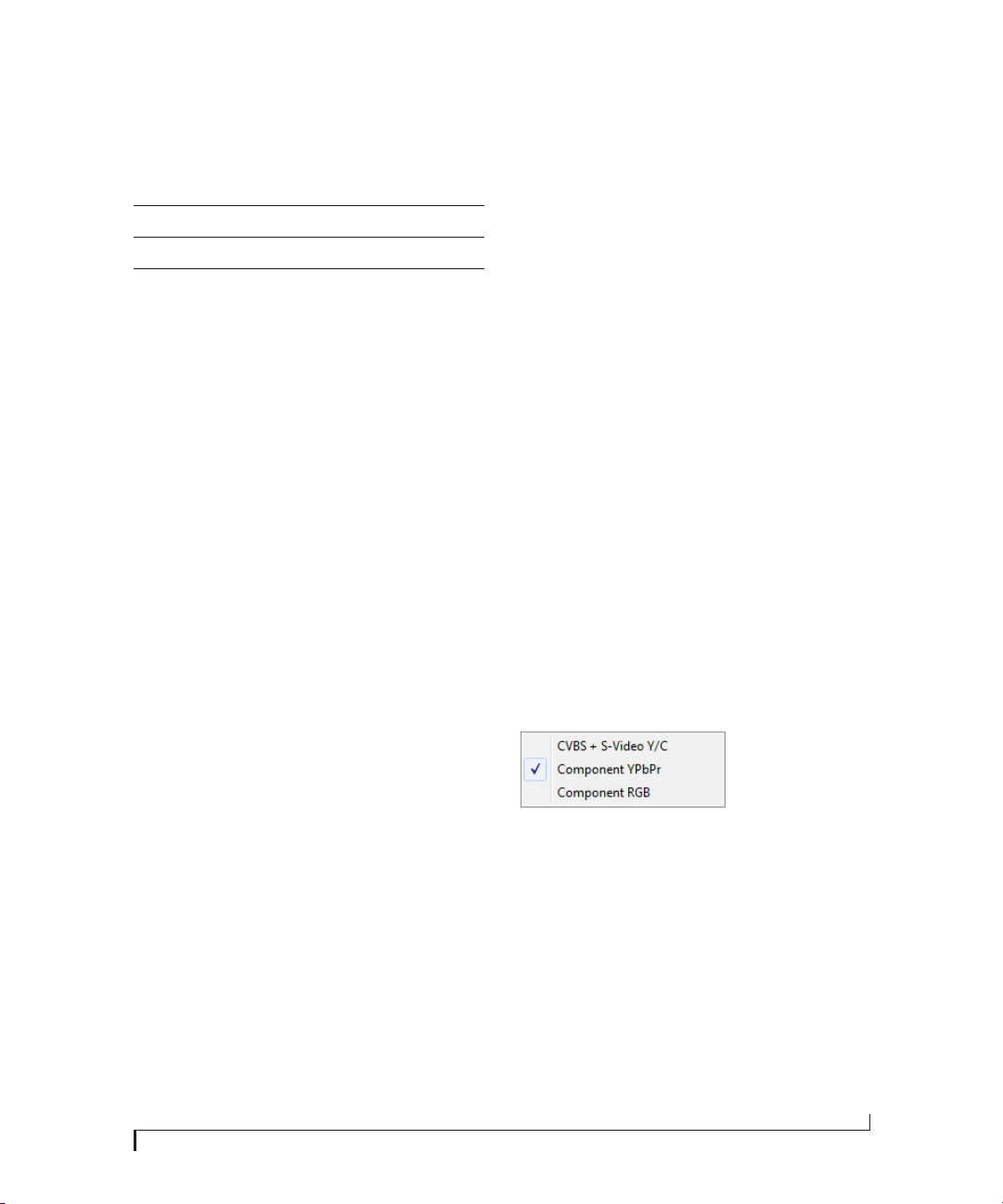
The Capture Clock Source setting (Figure 6-4) lets
you specify the timing reference for the HDX-SDI
when it is in Capture mode. Three choices are
provided in the menu, as shown below in
Figure 6-5:
Figure 6-5: Capture Clock Source menu.
Input Source
Choose Input Source (Figure 6-5) when you wish to
resolve the HDX-SDI to the video signal being
received on the currently chosen input in the Input
Source menu (Figure 6-3).
Master (Internal)
Choose Master (Internal) (Figure 6-5) to make the
HDX-SDI resolve to its own internal clock when
capturing from a device (such as a deck) that is
resolved to the HDX-SDI’s output. For example,
when using RS-422 machine control to drive a
video deck connected to the HDX-SDI, the
HDX-SDI serves as the clock master and drives the
video deck. Because the deck is resolved to the
HDX-SDI, the video signal being captured from
the deck is genlocked.
REF In (SDI only)
Choose REF In (SDI only) (Figure 6-5) when you
wish to resolve the HDX-SDI to house sync
(blackburst) or another clock source connected to
its VIDEO REF input while capturing video from
the SDI input. The REF IN can only be used when
capturing SDI input and cannot be used when
capturing other video formats. For other formats,
use the Input Source or Master (Internal) setting
instead.
When capturing HD, the REF In option supports
both Bi-Level and Tri-Level sync. When capturing
SD, the reference input must be bi-level.
Clock source during capture
If the input source is SDI, you can choose any of the
three available clock source options. For other
input formats, use either the Input Source or Master
(Internal) Capture Clock Source setting.
Playback Clock Source
The Playback Clock Source setting (Figure 6-1) lets
you specify the timing reference for the HDX-SDI
when it is in Playback mode. Three choices are
provided in the menu, as shown in Figure 6-6:
Figure 6-6: Playback Clock Source menu.
Input Source
Choose Input Source (Figure 6-6) when you wish to
resolve the HDX-SDI to the video signal being
received on the currently chosen input in the Input
Source menu (Figure 6-3) during playback.
Internal
Choose Internal (Figure 6-6) when you wish to
resolve the HDX-SDI to its own internal clock
during playback.
REF In
Choose REF In (Figure 6-6) when you wish to
resolve the HDX-SDI to house sync (blackburst) or
another clock source connected to its VIDEO REF
input while playing video.
When playing back HD, the REF In option
supports both Bi-Level and Tri-Level sync. When
playing back SD, the reference input must be
bi-level.
Clock source when switching between Capture
and Playback modes
When the HDX-SDI switches its clock source, it
may take a brief moment for it to resolve to the new
source. If you need to frequently switch between
MOTU VIDEO CONSOLE
39
Capture and Playback modes, set the capture and
playback clock sources to one of the combinations
listed below:
With any of these combinations, you can switch
back and forth between capture and playback
without losing genlock. This ensures a smooth,
quick, seamless transition when switching modes.
HDMI format
The HDMI Format menu (Figure 6-4) lets you
choose the output format for the HDMI output on
the rear panel of the HDX-SDI. If you choose DVI,
you’ll need an HDMI-to-DVI cable or adapter.
SDI Loop Thru Mode
The SDI Loop Thru Mode (Figure 6-4) setting
controls the routing of audio and timecode to the
SDI output during SDI capture.
If set to Direct, audio and timecode from the SDI
source are passed through to the SDI output, as if
the output was just connected directly to the input.
You could use this mode to make a dub of an SDI
source including audio and timecode.
If set to Indirect, audio from the computer and
timecode from the selected timecode source are
inserted into the SDI output. In this case, the SDI
output is acting in the same way as the other audio
outputs and timecode outputs.
Timecode Source
The Timecode Source menu (Figure 6-4) lets you
specify which timecode source you would like the
HDX-SDI to resolve to: Sony 9-pin (via the RS-422
port), the LTC jack on the rear panel of the
HDX-SDI, SD VITC (vertical interval timecode)
from the currently chosen SD source input, or SDI
Embedded timecode from the SDI input currently
chosen in the Input Source menu (Figure 6-3 on
page 36).
Timecode Destination
The Timecode Destination menu (Figure 6-4) lets
you specify the video destination for timecode
generated or regenerated by the HDX-SDI. You can
choose None, SD VITC, LTC (vertical interval
timecode plus longitudinal timecode), or SDI
Embedded, LTC. For the SDI option, the timecode
is encoded as standard embedded timecode in the
chosen SDI stream. This setting also determines
the timecode format to be transmitted from the
HDX-SDI’s LTC output jack on the rear panel.
SDI Output Timecode Format
Use the SDI Output Timecode Format menu
(Figure 6-4) to specify the form of embedded
timecode to include in the HDX-SDI SDI output
signal. Choices are LT C, VITC 1 and VITC 2.
Analog Output Mode
The Analog Output Mode menu (Figure 6-4) lets
you configure the analog outputs as Composite and
S-Video (CVBS + S-Video Y/C), Component
YPbPr, or Component RGB.
Figure 6-7: Analog Output Mode menu.
480i Setup
The 480i Setup option (Figure 6-4) lets you choose
between USA (7.5%) and Japan (0%) for NTSC
composite and S-video input and output.
480i Component Levels
The 480i Component Levels option (Figure 6-4) lets
you specify the voltage level standard for the
HDX-SDI’s SD component inputs and outputs
when running at 480i (NTSC). Choices are: EBU
N10, Sony Beta, Sony Beta Japan and Panasonic
Capture Playback
Input Source Input Source
Master (Internal) Internal
REF In (SDI only) REF In
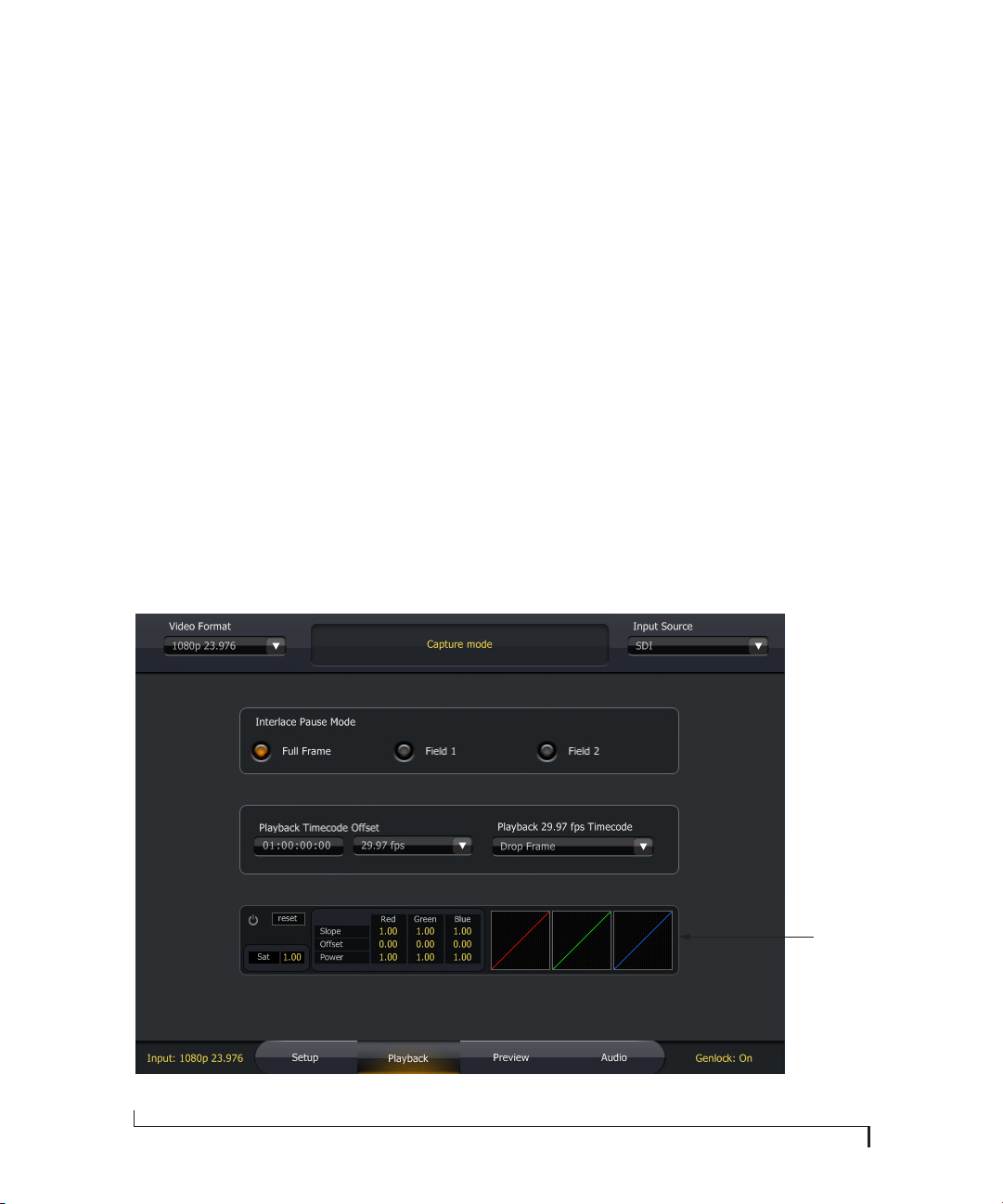
MOTU VIDEO CONSOLE
40
MII. Choose the format that best matches the
device(s) connected to the SD component input
and output.
Reset to Defaults
The Reset to Defaults button (Figure 6-4) restores
all settings in the HDX-SDI hardware to their
original (factory) values.
PLAYBACK TAB
The Playback tab (Figure 6-8) provides settings
that apply to video playback from Premiere Pro (as
opposed to capturing). Therefore, these settings
relate to the current settings in Premiere Pro and its
timeline.
Interlace Pause Mode
If you are working with an interlaced video format,
the Interlace Pause Mode (Figure 6-8) lets you
choose between viewing a Full Frame or individual
Fields (1 or 2) when Premiere Pro parks on a frame.
.
Playback Timecode Offset
The Playback Timecode Offset options (Figure 6-8)
let you specify the frame format and timecode
offset for timecode generated by the HDX-SDI
during playback. Make sure these settings match
their corresponding settings in your Premiere Pro
project, so that the HDX-SDI generates timecode
that matches Premiere Pro’s time line.
Playback 29.97 fps Timecode
If your Premiere Pro timeline is currently set to the
29.97 drop-frame format, choose Drop Frame from
the Playback 29.97 fps Timecode menu (Figure 6-8)
so that the HDX-SDI matches Premiere Pro’s frame
format. If Premiere Pro is running 29.97 non-drop,
choose Non-Drop Frame. (If you are running
Premiere Pro at any other frame rate besides 29.97,
this setting is ignored.)
Figure 6-8: The Playback tab settings.
Color
Lookup
Table for
playback
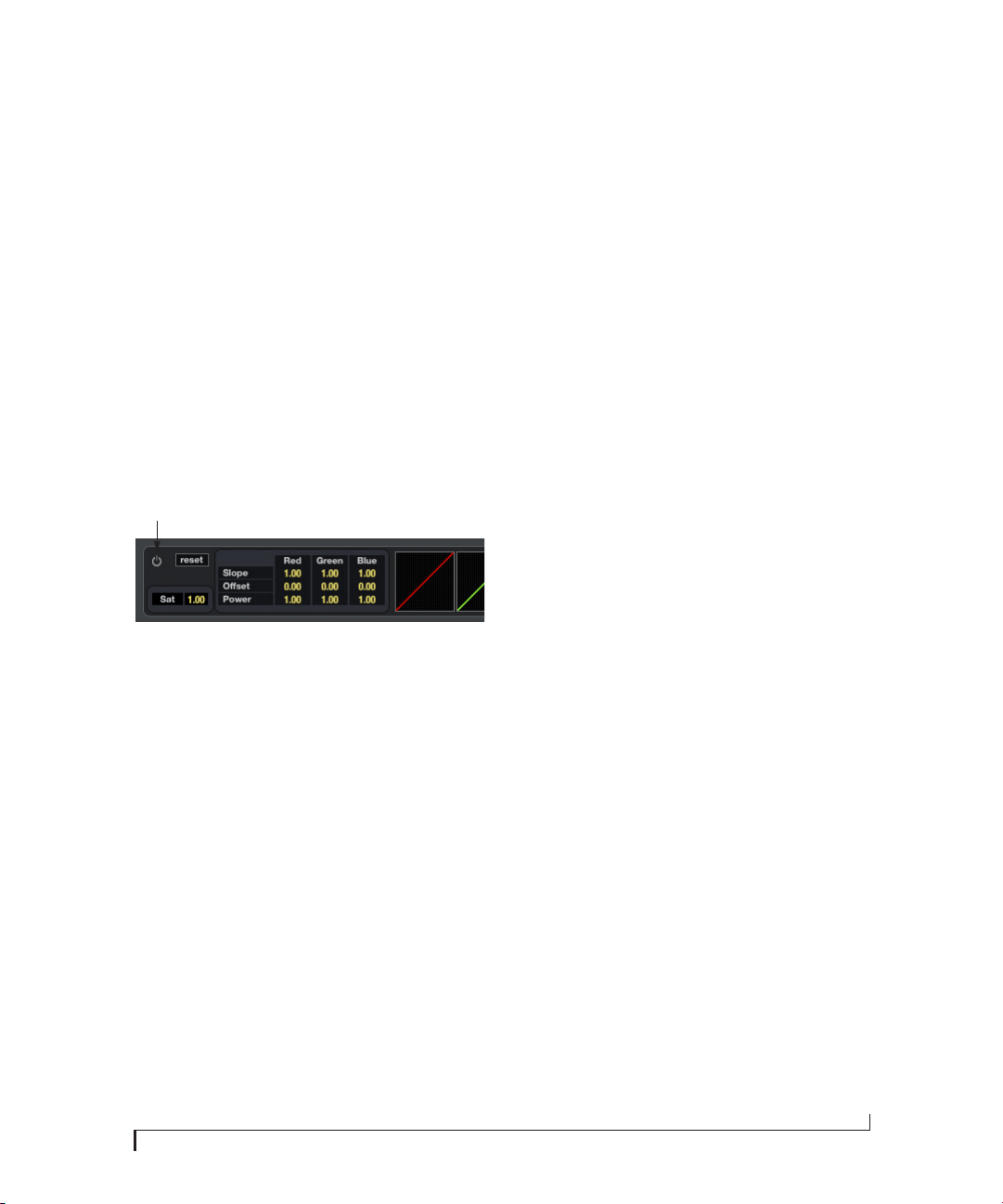
MOTU VIDEO CONSOLE
41
Color lookup table
In the Color Lookup Table (CLUT) section
(Figure 6-8), there are ten parameters which define
a color transfer function, as defined by the
American Society of Cinematographers Color
Decision List (ASC CDL) specification.
The Color Lookup Table controls in the Playback
tab (Figure 6-8) define a transfer function which
applies to the output on playback. The controls in
the Preview pane (Figure 6-10) define a transfer
function which applies to the input on capture. In
this case, it affects pass through as well as capture.
The power switch icon (Figure 6-9) is an enable/
bypass control. Click it to turn the Color Lookup
Table o n o r of f.
Figure 6-9: Color lookup table controls.
The Reset button resets the transfer function to its
default, which passes through each pixel
unchanged, and also switches to bypass mode.
Changing any control automatically enables the
transfer function, but you can also toggle between
Enabled and Bypassed by clicking on the enable/
bypass control.
The Sat parameter is ASC CDL Saturation. A value
of 1.0 passes each pixel through unchanged. Values
below 1.0 will desaturate, with 0.0 resulting in a
monochrome image. Values greater than 1.0
increases saturation. The maximum legal value is
10.0, which produces extreme results.
The Slope, Offset, and Power parameters for each
component define a transfer function for that
component, as per the ASC CDL specification.
Offset ranges from -1 to +1, with a default of 0.
Power and Slope range from 0.10 to 10.00, with a
default of 1.0.
Each of the numeric controls may be modified in
three ways:
■ If the console window is in front, click on a
control to select it, and type a new value
■ Click and drag up or down
■ Use the mouse wheel
The capture color correction controls (in the
Preview tab) only appear over the preview when
the mouse is over the preview. The panel holding
the capture color correction controls can be
dragged around within the preview pane, allowing
you to see any part of the preview while adjusting
the controls. To drag it, click on any part of the
panel other than one of the buttons or numeric
controls.
Enable/disable
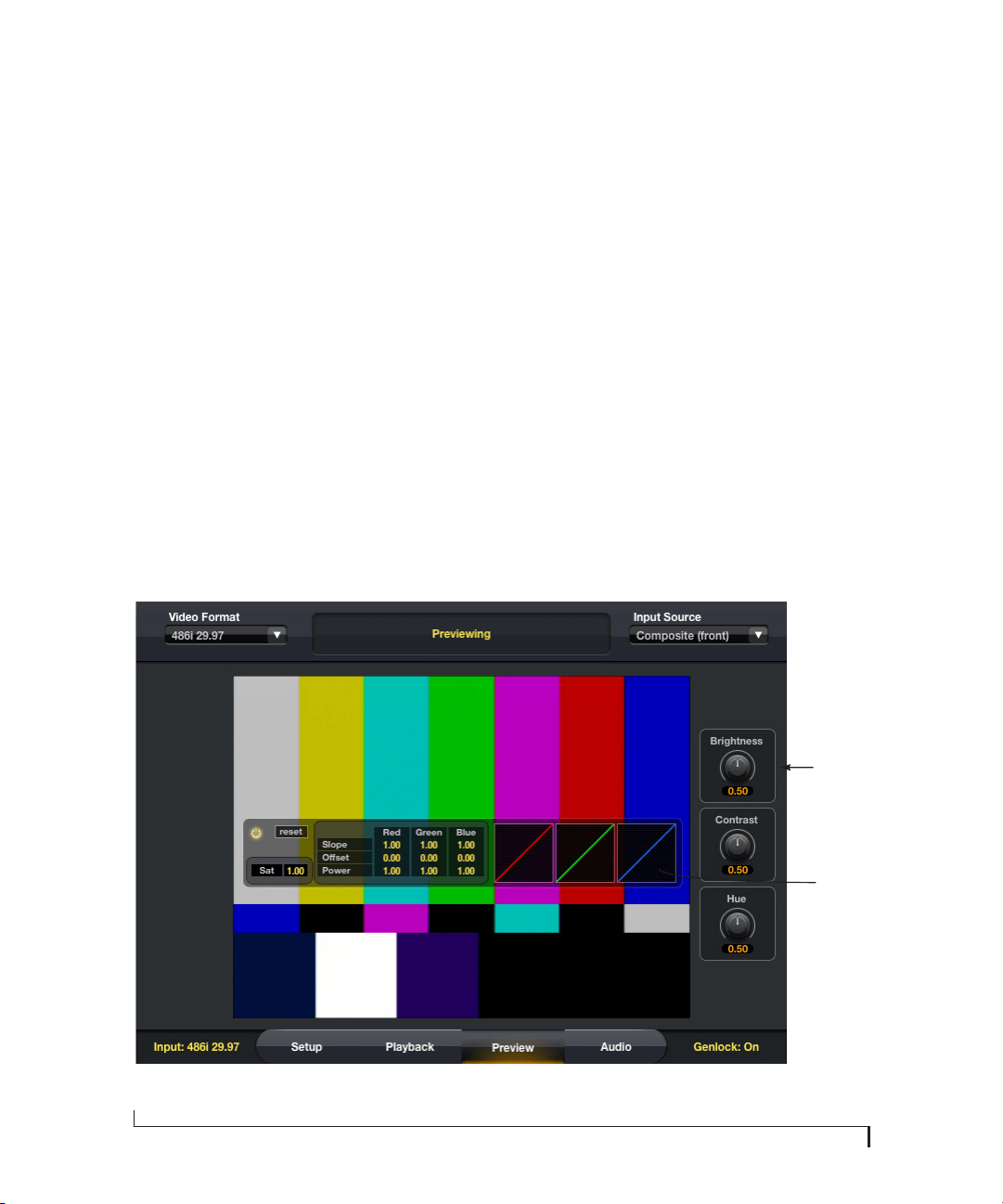
MOTU VIDEO CONSOLE
42
PREVIEW TAB
The Preview tab (Figure 6-10) lets you preview the
video signal being received from the currently
selected input in the Input Source menu
(Figure 6-3 on page 36).
If you don’t see the source video signal
If you have trouble getting the source video signal
to appear in the preview frame, make sure the Final
Cut Pro Capture window isn’t open in the
background. If so, the Status area (Figure 6-1 on
page 35) will alert you to the fact that the host
application is currently capturing or previewing.
The Preview tab and Premiere Pro
When Premiere Pro is running, it takes over the
HDX-SDI hardware in regards to previewing. In
this situation, the Preview window simply displays
a message saying that previewing is unavailable.
When you quit Premiere Pro, the Preview tab
operates normally, as described above.
Color lookup table
See “Color lookup table” on page 41.
Brightness, Contrast and Hue
When previewing a Composite or S-Video signal,
the Preview tab provides several settings for
adjusting the Brightness, Contrast and Hue, as
shown in Figure 6-10 below.
Figure 6-10: The Preview tab.
Color
Lookup
Table for
capturing
Composite
and S-Vide
o
image
adjustment
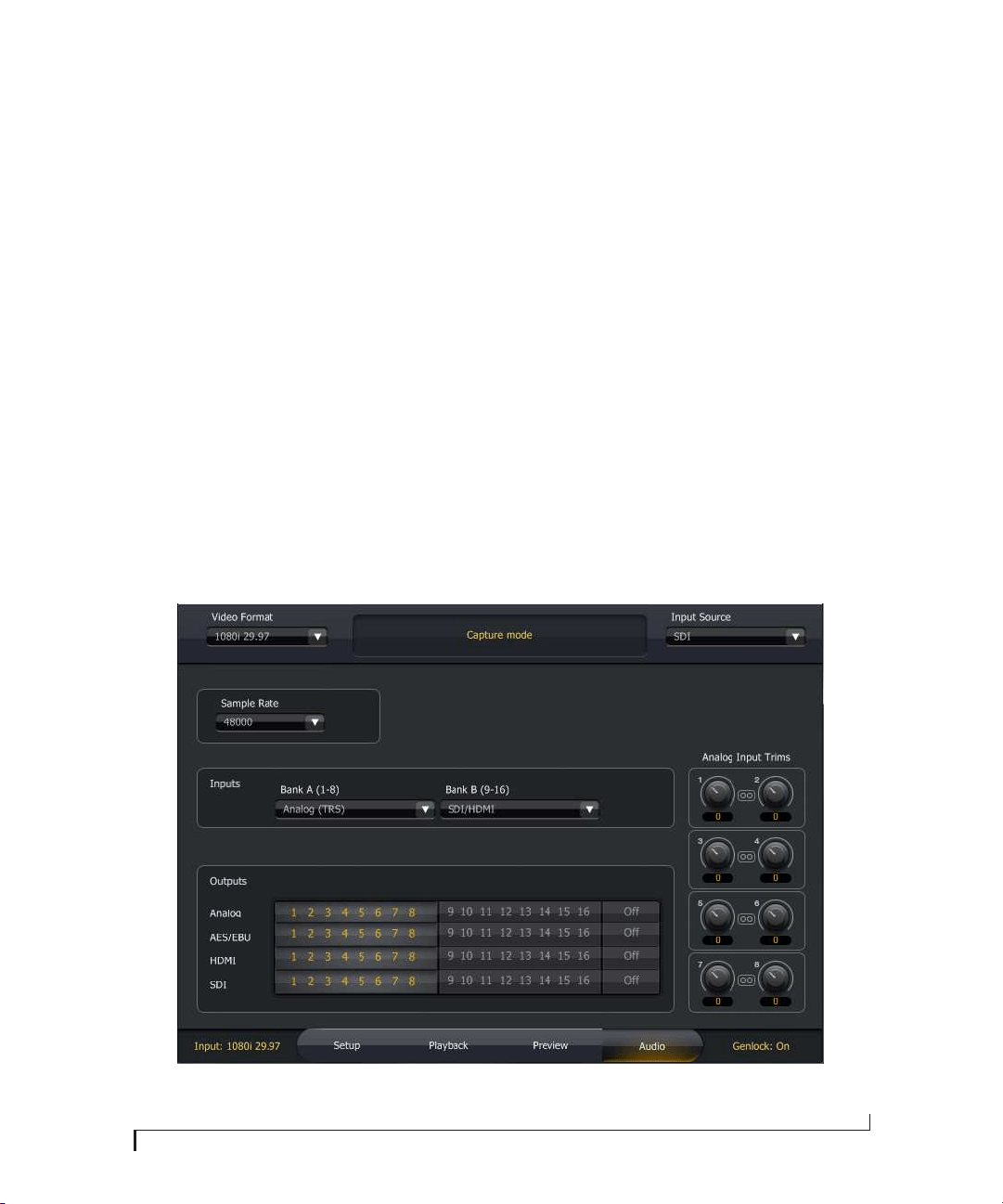
MOTU VIDEO CONSOLE
43
AUDIO TAB
The Audio tab (Figure 6-11) provides access to the
HDX-SDI’s audio features. The HDX-SDI provides
16 channels (two 8-channel banks) of
simultaneous audio input and output. For a
summary of audio bank formats, see “Connect
audio inputs and outputs” on page 24.
Sample rate
Choose the audio sample rate (Figure 6-11) for
capture or playback. Make sure this setting
matches the rate of the audio being captured or
played back. Sample rates up to 96 kHz are
supported, with the following restrictions:
■ The HDMI input and output are stereo at sample
rates above 48000 Hz when playing SD video.
■ SDI audio output is disabled at sample rates over
48000 Hz.
When using the HDX-SDI with Premiere Pro, the
sample rate should be set from within Premiere
Pro.
Inputs
Choose the desired audio input format for Bank A
(channels 1-8) and Bank B (channels 9-16) from
the menus provided. These banks correspond to
the channel assignments for host software
(Premiere Pro), as well as the meters and activity
LEDs on the front panel of the HDX-SDI. The
menus provide the following choices:
Figure 6-11: Audio tab.
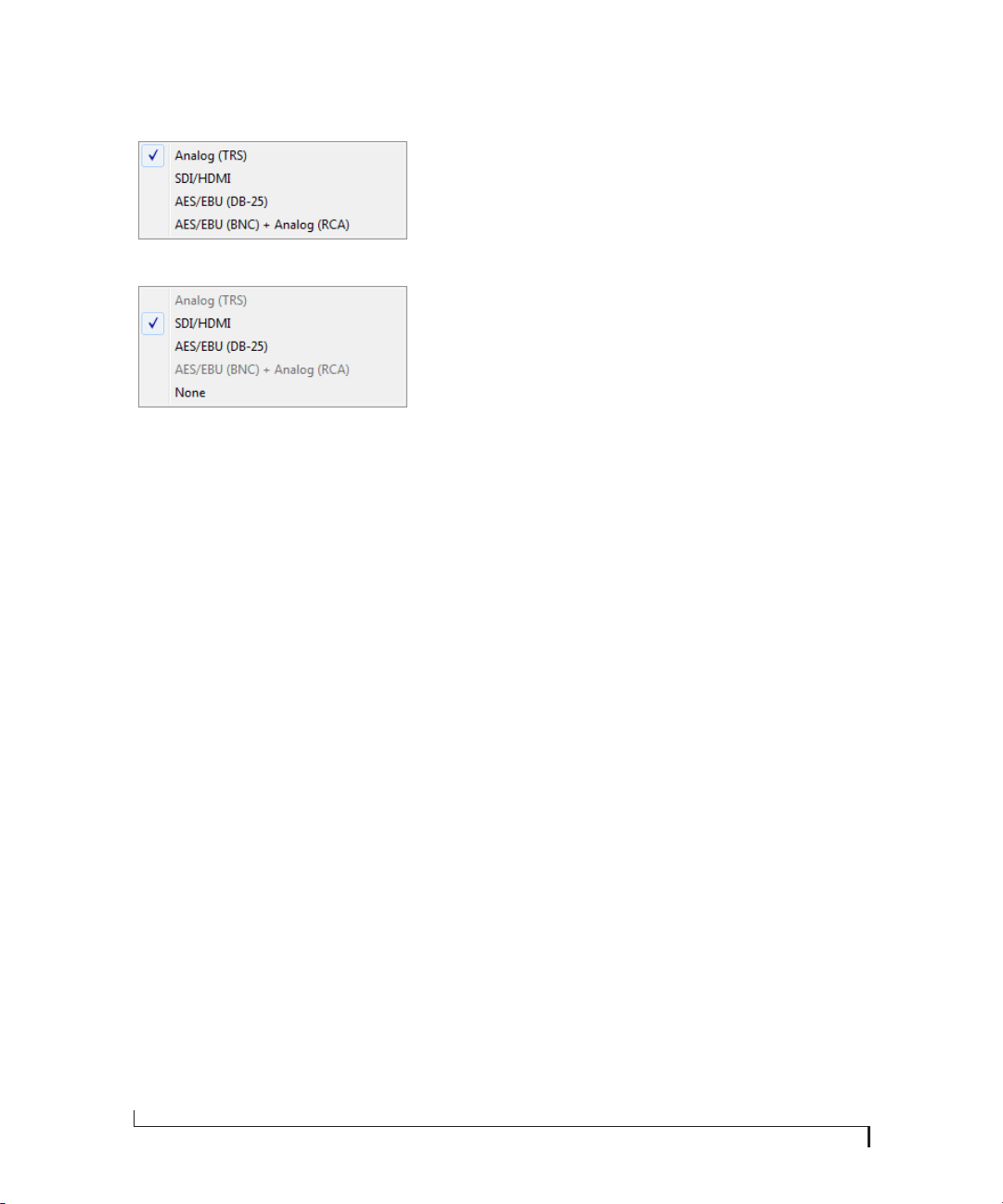
MOTU VIDEO CONSOLE
44
Figure 6-12: Input bank assignments.
The first three choices are Analog (TRS), SDI/
HDMI and AES/EBU (DB-25). These are all 8-
channel banks. The fourth choice,
AES/EBU (BNC) + Analog (RCA), is a four channel
bank referring to the stereo AES/EBU BNC input
on the rear panel (channels 1-2 in the bank) and
the stereo RCA analog inputs on the front
(channels 3-4 in the bank).
AES/EBU input
The HDX-SDI provides two different banks of
AES/EBU input:
■ Stereo BNC
■ Eight channels on DB-25 breakout
These two banks operate exclusively. For example,
if you choose AES/EBU DB-25 for Bank A, the
AES/EBU (BNC) + Analog (RCA) bank will be
grayed out in the menu for Bank B, since they
cannot both be enabled at the same time.
Analog input
Similar to the AES/EBU banks explained above,
The HDX-SDI provides two different banks of
analog input:
■ Stereo RCA
■ Eight channels of TRS
These two banks operate exclusively. For example,
if you choose Analog (TRS) for Bank A, the
AES/EBU (BNC) + Analog (RCA) bank will be
grayed out in the menu for Bank B, since they
cannot both be enabled at the same time.
Grayed out input menu items
If an item is grayed out in the Bank A or Bank B
input menus, it is disabled. See the previous two
sections for further information.
Analog input trims
Use the analog input trim controls (Figure 6-11 on
page 43) to apply up to +22 dB of gain or -12 dB of
cut to each individual TRS analog input. You can
also apply up to +18 dB of gain or -6 dB of cut to
RCA analog inputs.
Outputs
Use the buttons provided to assign each audio
output format to the desired HDX-SDI output
channel bank (1-8 or 9-16). You can assign two or
more formats to the same bank, in which case the
audio output is mirrored (duplicated) on each
output format.
Mirroring output banks
To make two or more output banks produce the
same audio output, simply assign them to the same
output bank (either 1-8 or 9-16).
Disabling output banks
To disable a bank completely, click its Off button.
Audio banks and front-panel metering
The HDX-SDI front panel provides two banks of
activity LEDs for audio input and output. Bank A
represents channels 1-8 and Bank B represents
channels 9-16. These input meters and output
activity LEDs only operate when at least one bank
is assigned to them. In addition, they are only
active when audio is being sent to/from the
computer (i.e. the HDX-SDI driver is sending
audio to/from a host application).
Bank A (1-8)
Bank B (9-16)

CHAPTER
45
7 Adobe Premiere Pro
OVERVIEW
The HDX-SDI serves as a powerful video capture
and playback device for Adobe Premiere Pro.
Operation is straightforward and follows the
general workflow prescribed by Premiere Pro for
capture procedures and time line playback.
Familiarity with Premiere Pro . . . . . . . . . . . . . . . . . . . . . . . . 45
Before you launch Premiere Pro . . . . . . . . . . . . . . . . . . . . . 45
Getting started . . . . . . . . . . . . . . . . . . . . . . . . . . . . . . . . . . . . . . 46
Sequence presets . . . . . . . . . . . . . . . . . . . . . . . . . . . . . . . . . . . . 46
HDX-SDI video settings . . . . . . . . . . . . . . . . . . . . . . . . . . . . . . 47
Video capture. . . . . . . . . . . . . . . . . . . . . . . . . . . . . . . . . . . . . . . . 48
Playback and monitoring . . . . . . . . . . . . . . . . . . . . . . . . . . . . 51
Audio hardware settings. . . . . . . . . . . . . . . . . . . . . . . . . . . . . 51
Timecode . . . . . . . . . . . . . . . . . . . . . . . . . . . . . . . . . . . . . . . . . . . . 52
Device control . . . . . . . . . . . . . . . . . . . . . . . . . . . . . . . . . . . . . . . 52
Export to tape . . . . . . . . . . . . . . . . . . . . . . . . . . . . . . . . . . . . . . . 53
Batch capture. . . . . . . . . . . . . . . . . . . . . . . . . . . . . . . . . . . . . . . . 54
FAMILIARITY WITH PREMIERE PRO
This chapter assumes that you have a working
knowledge of basic Premiere Pro operation.
BEFORE YOU LAUNCH PREMIERE PRO
Before you launch Premiere Pro, be sure to:
■ Insert the HDX-SDI software, as explained in
chapter 3, “Installing the HDX-SDI Windows
Software” (page 15).
■ Install the HDX-SDI hardware and connect your
video devices to it as explained in chapter 4,
“Installing the HDX-SDI Hardware” (page 17).
■ Power on the HDX-SDI and run the MOTU
Video Console to make sure that installation has
been successful. If MOTU Video Console launches
without any error messages, then Premiere Pro
should successfully communicate with the
HDX-SDI.
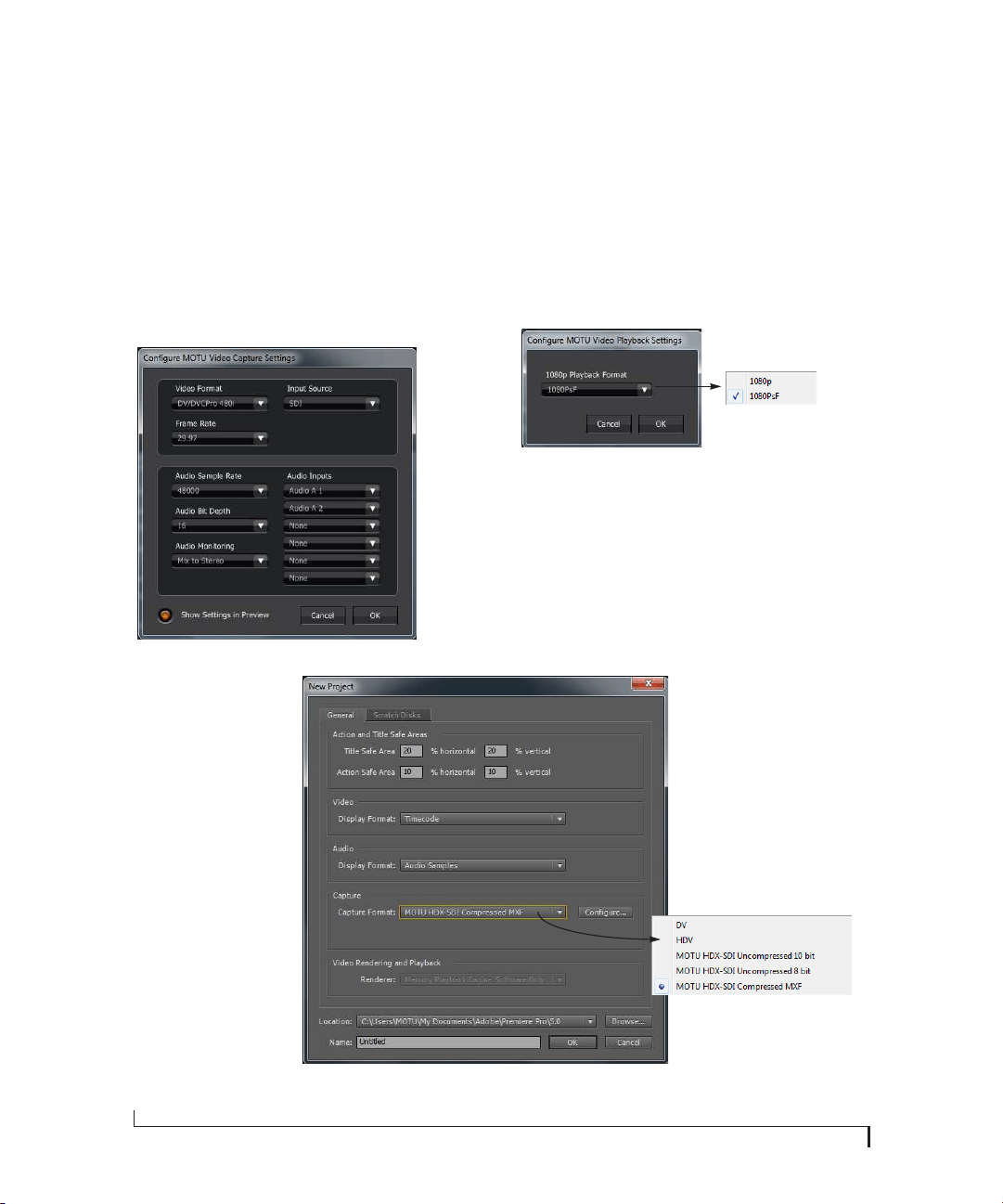
ADOBE PREMIERE PRO
46
GETTING STARTED
1 Launch Premiere Pro.
2 When the Welcome screen appears, click New
Project and choose the desired Capture
Compression Codec from the Capture Format
menu (Figure 7-1).
3 Click Configure... to access capture parameters
of the HDX-SDI (Figure 7-2).
Figure 7-2: MOTU video capture settings.
4 Name the project and click OK.
PLAYBACK SETTINGS
If you are using a progressive 1080 line timeline,
click Playback Settings to choose the desired 1080p
Playback Format (Figure 7-3). This setting
determines whether the video will be played back
as progressive (1080p) or progressive segmented
frame (1080PsF).
Figure 7-3: Playback settings.
SEQUENCE PRESETS
The HDX-SDI software installer provides the
MOTU HDX-SDI factory-supplied sequence
presets shown in Figure 7-4. These presets are
organized in directories by video format. Each
preset is clearly named with a video frame format,
raster size and frame rate. Choose the preset that
Figure 7-1: Creating a new project in Premiere Pro.
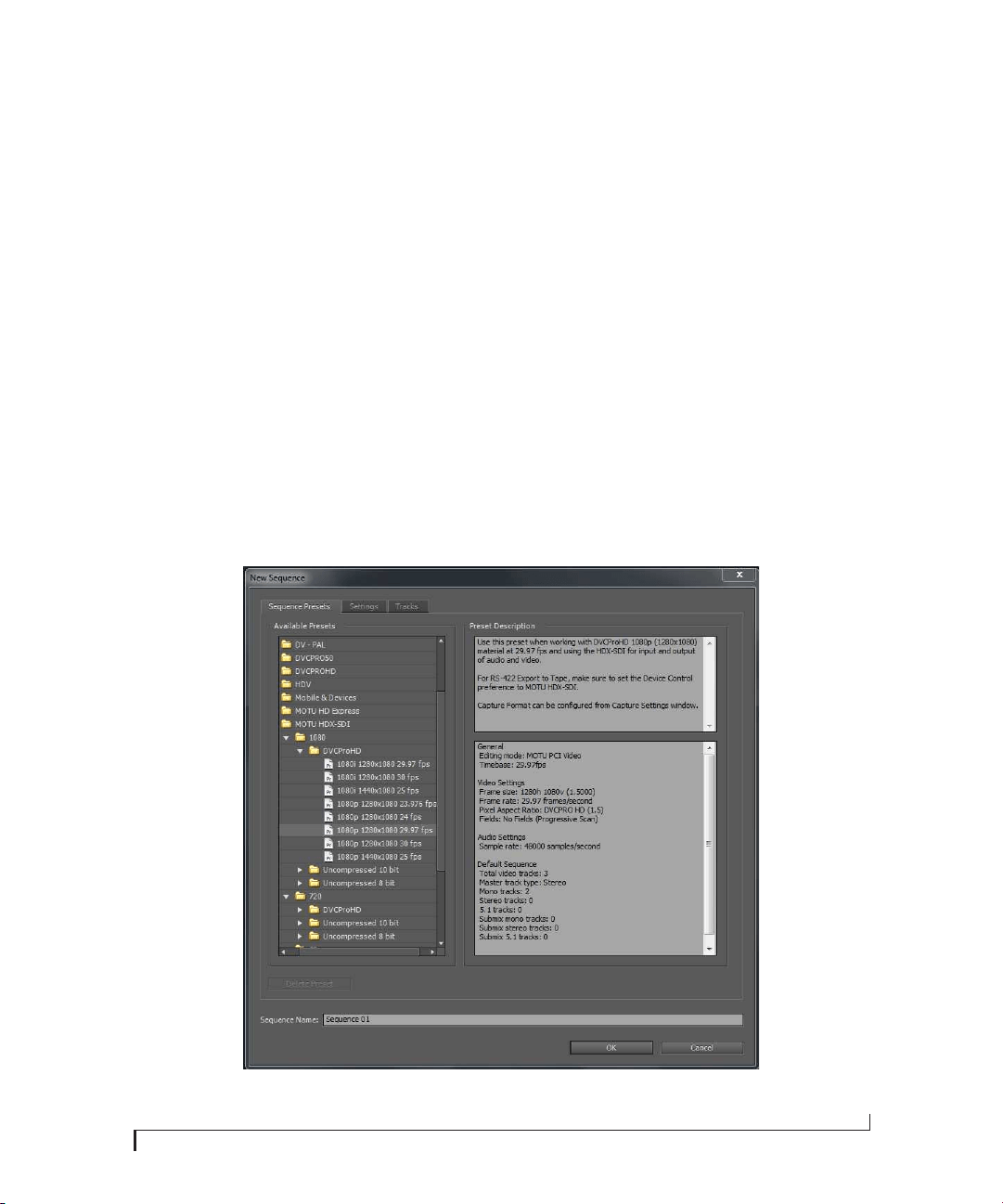
ADOBE PREMIERE PRO
47
most closely matches the settings you need. You
can adjust settings further using the Settings tab
(General tab in 5.0) and Tracks tab.
Custom settings
You can further adjust project settings or even
create your own custom sequence presets to suit
your workflow. Click the Settings tab (Figure 7-5)
to further configure your settings. (This is the
General tab in version 5.0.) Always be sure,
however, to choose a MOTU PCI video preset from
the Editing Mode menu. This ensures that you will
be able to play video via the HDX-SDI hardware.
For information about other custom settings,
consult your Premiere Pro documentation.
HDX-SDI VIDEO SETTINGS
Once the HDX-SDI hardware has been configured
by the Premiere Pro settings you made in the
previous section, open the MOTU Video Console
application (Figure 6-1 on page 35) to view the
HDX-SDI’s hardware settings and make any
adjustments, if necessary, as explained in the
following sections.
Basic hardware settings
Check the three basic hardware settings:
■ “Video format” on page 36
■ “Input Source” on page 36
■ “Capture Clock Source” on page 38
■ “Playback Clock Source” on page 38
Input/capture settings
To access the HDX-SDI’s capture settings, click the
Setup tab (Figure 6-4 on page 37) and Preview tab
(Figure 6-10 on page 42).
Figure 7-4: Sequence presets.
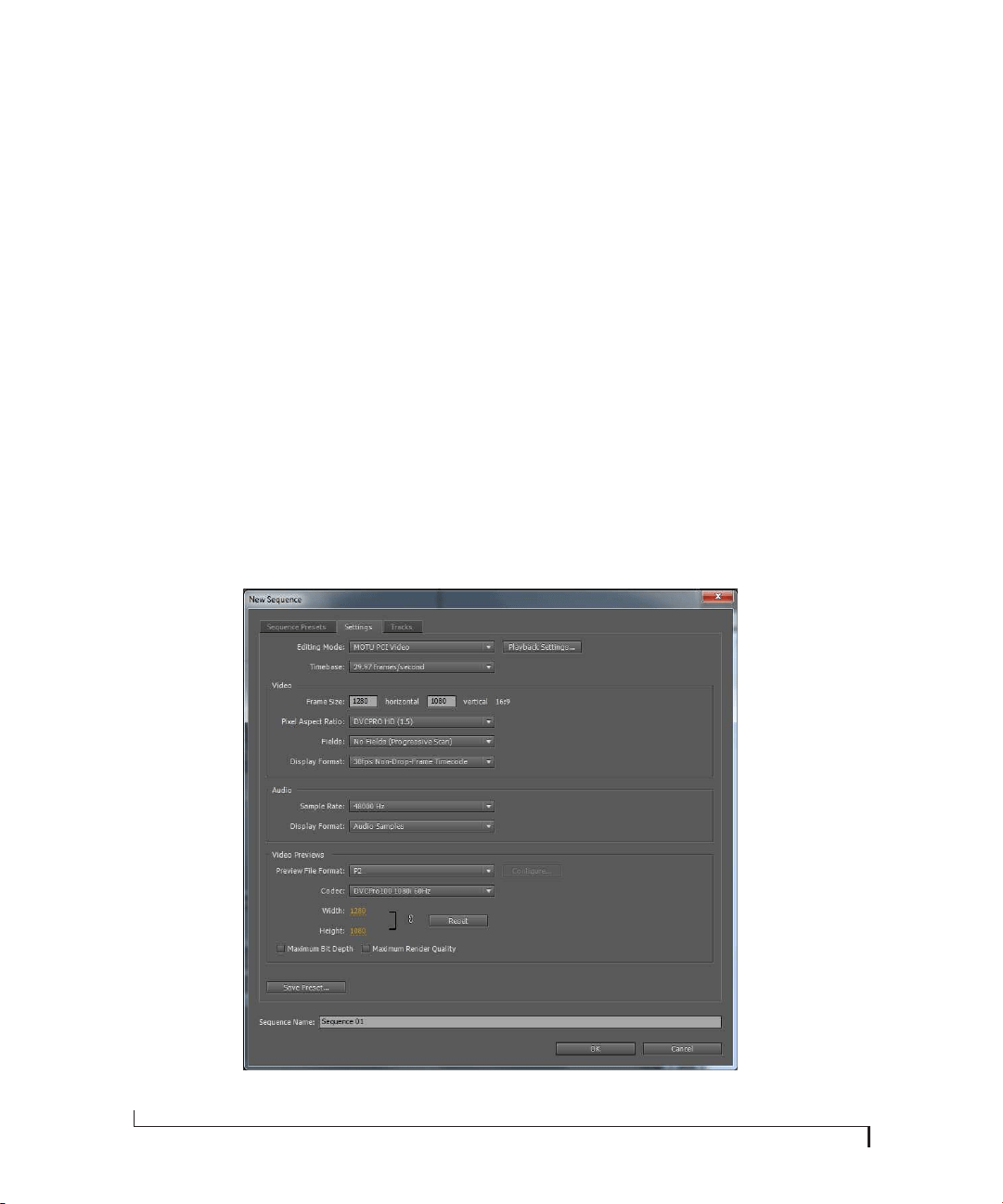
ADOBE PREMIERE PRO
48
For details on other Capture settings, review
chapter 6, “MOTU Video Console” (page 35).
Playback settings
Click the Playback tab (Figure 6-8 on page 40) to
view Playback settings.
In the Playback tab, make sure the Playback
Timecode Offset and frame rate match your
Premiere Pro sequence offset and frame rate. If you
are working with drop frame timecode, be sure to
choose Drop frame from the Playback 29.97 fps
Timecode menu (Figure 6-8 on page 40).
If you want Premiere Pro to resolve to an external
sync source during playback, choose the desired
source from the Playback Clock Source menu
(Figure 6-5 on page 38); otherwise, leave it set to
Internal.
For details on other playback settings, review
chapter 6, “MOTU Video Console” (page 35).
VIDEO CAPTURE
Once you’ve made the appropriate settings in
Premiere Pro and you’ve reviewed the capture
settings in MOTU Video Console, you are ready to
capture video from the HDX-SDI:
1 In Premiere Pro, choose Capture from the File
menu to open the Capture window (Figure 7-6).
2 Click the Settings tab and click the Edit button
(Figure 7-6) to access the Capture settings
(Figure 7-7).
Figure 7-5: Settings tab.
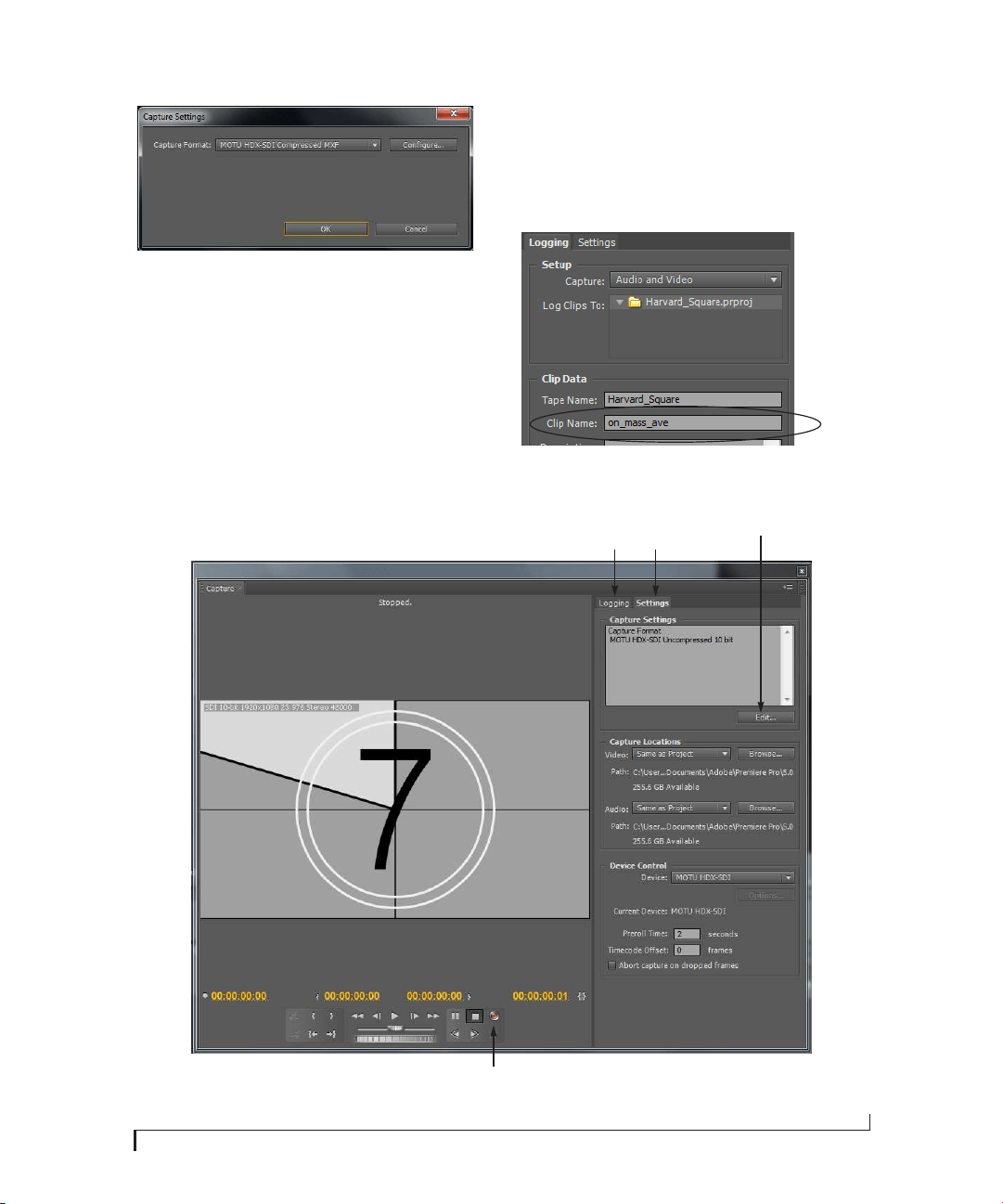
ADOBE PREMIERE PRO
49
Figure 7-7: Capture settings.
3 Choose the desired Capture Compression
Codec from the Capture Format menu.
4 Click Configure... to access the capture
parameters for the HDX-SDI.
Refer to the following sections for information
about the Capture settings (Figure 7-9 on page 50).
5 Click the Logging tab (Figure 7-6) and name the
clip (Figure 7-8).
☛ Be sure to name the clip before you begin
capture to avoid potential issues during capture.
Figure 7-8: Be sure to name the clip before you capture.
Figure 7-6: Capture window.
Settings
tab
Capture settings
Logging
tab
Record
button
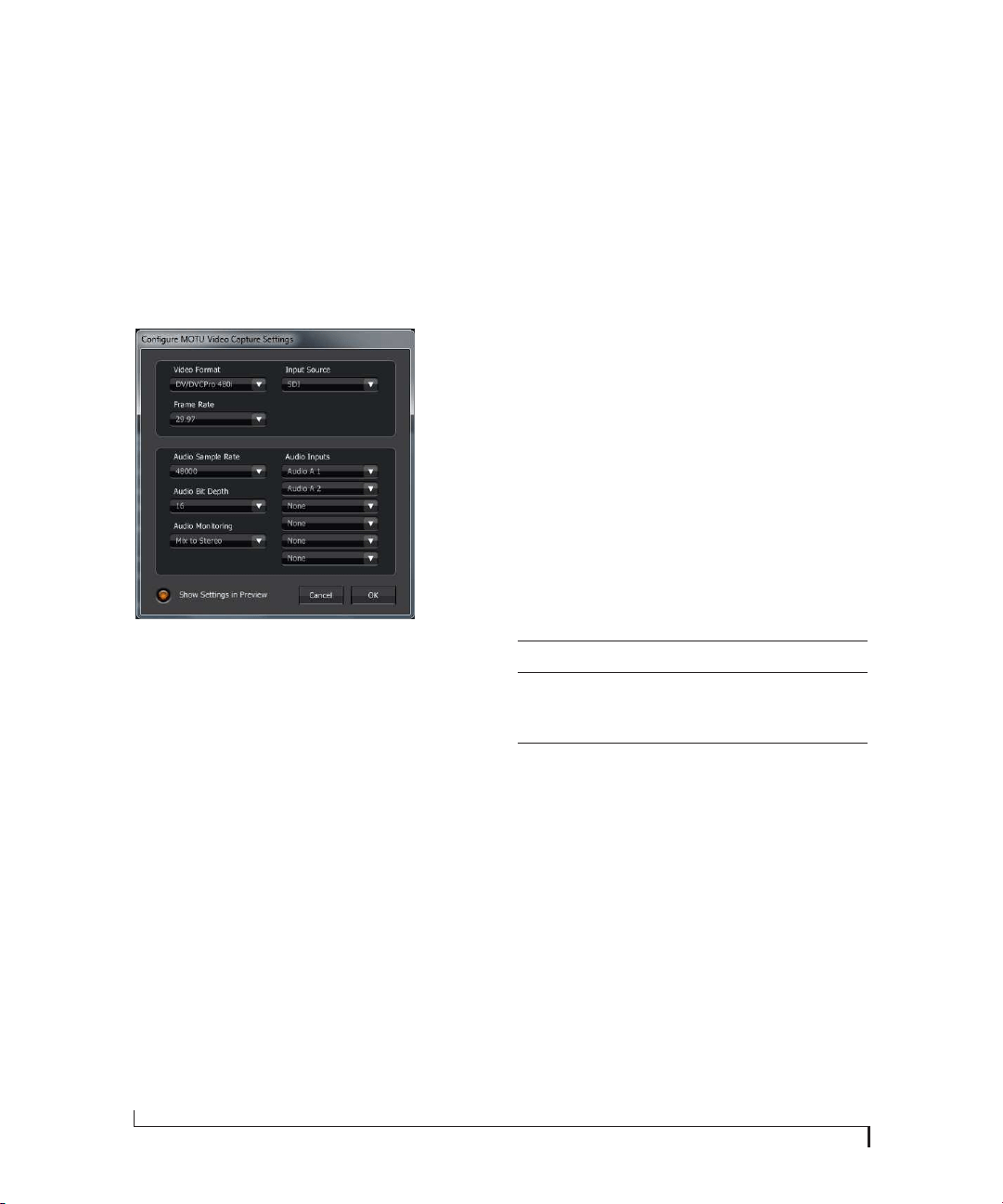
ADOBE PREMIERE PRO
50
6 Click the Record button (Figure 7-6) to start
capturing.
Capture settings
To access the capture settings, choose File menu>
Capture to open the Capture window, click the
Settings tab (Figure 7-6 on page 49), then click
Configure (Figure 7-7 on page 49). Each setting is
explained briefly below.
Figure 7-9: Capture settings.
Video format
Choose the desired video format Figure 7-2 on
page 46.
Input source
Choose the desired video input on the HDX-SDI
from the Input Source menu (Figure 7-9). This is
the physical input on the interface that you wish to
capture from, and it is the same setting as the Input
Source menu in MOTU Video Console (Figure 6-3
on page 36).
Frame rate
Choose the desired video frame rate from the
Frame Rate menu (Figure 7-9). Make sure this
setting matches your project frame rate.
Audio Sample Rate
From the Audio Sample Rate menu, choose the
desired audio sample rate for the captured audio.
Audio Inputs
From the Audio Inputs menu, choose the audio
channels that you wish to capture. These audio
channels correspond to the audio bank
configuration settings in the Audio tab in MOTU
Video Console (Figure 6-11 on page 43).
For example, if Input Bank A is set to SDI/HDMI,
choosing Audio A 1 and A 2 will capture the first
two audio channels from SDI/HDMI inputs.
☛ The SDI/HDMI audio input bank is available
only when the Video Input Source is set to SDI or
HDMI.
Audio Bit Depth
The HDX-SDI supports both 16-bit and 24-bit
audio capture and playback. Choose the desired
format from the Audio bit depth menu
(Figure 7-9).
Audio Monitoring
Audio monitoring menu settings are as follows:
Show Settings in Preview
This option will overlay the current video and
audio settings in the Capture window.
☛ NOTE: The overlay is for monitoring only and
will not be captured with the video signal.
Setting What it does
None No audio patch-through during capture.
Mix to Stereo All audio inputs will be mixed down to
outputs 1 and 2. This lets you monitor any
inputs being recorded in Premiere Pro on
headphones or stereo monitors.
Direct All audio inputs will be routed directly to
their corresponding outputs.
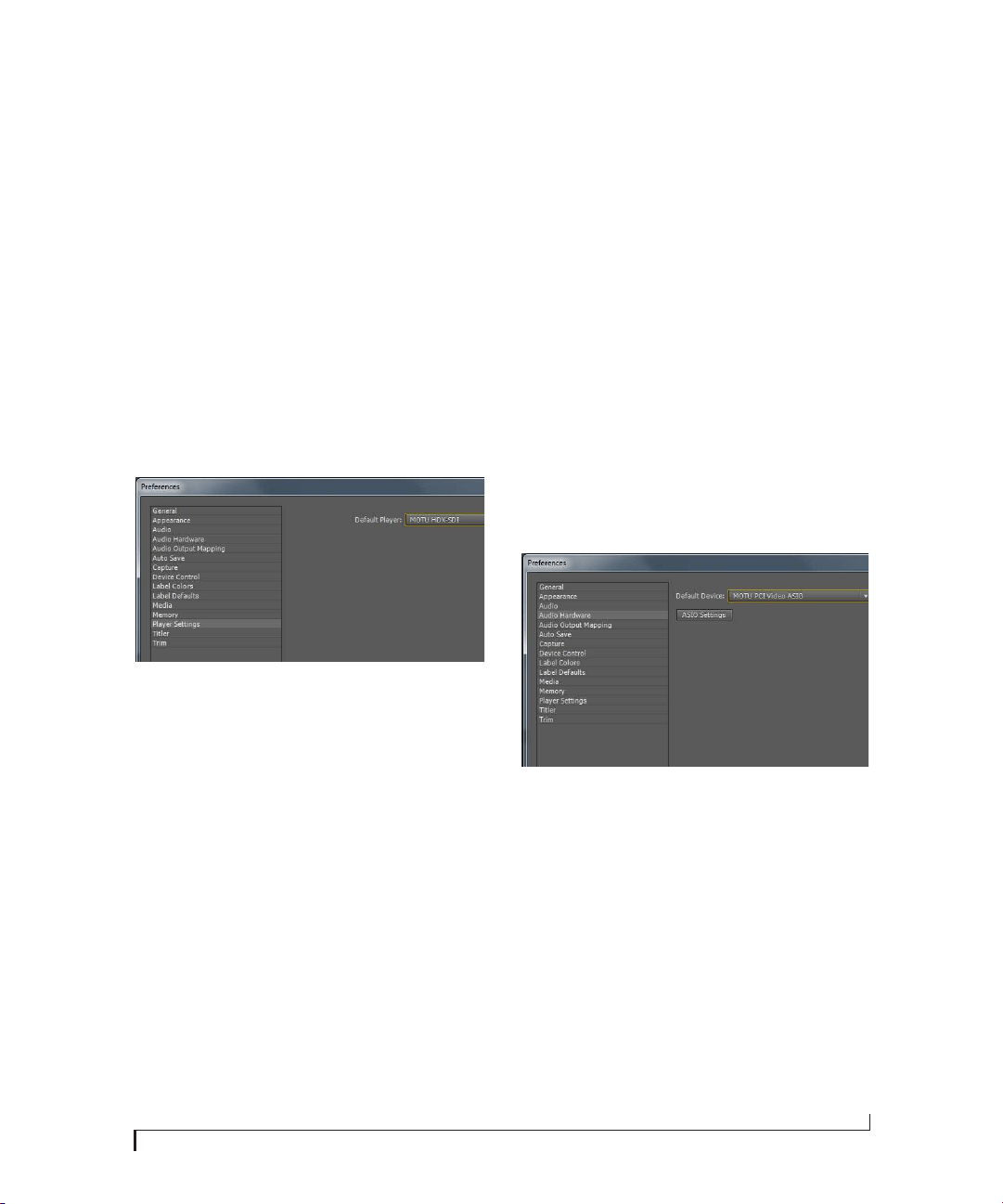
ADOBE PREMIERE PRO
51
PLAYBACK AND MONITORING
To play back your Premiere Pro project and view it
on any monitor or other device connected to the
HDX-SDI’s video outputs:
1 Choose Edit menu > Preferences > Player
Settings.
2 Choose the MOTU HDX-SDI as the Default
Player (Figure 7-10).
This allows you to view the Source window on any
monitor connected to the HDX-SDI’s video
outputs.
3 Start playback.
Figure 7-10: Choosing the HDX-SDI as the default player.
Native versus non-native clips
Clips that match the native video format of your
Premiere Pro project and don’t require any further
rendering will play back. Clips that don’t match the
native video format of your Premiere Pro project
will appear in the time line with the red render bar.
For example, if you place an HDV clip in the time
line, it will appear with a red render bar. In this
case, it will likely not play smoothly, unless your
computer is fast enough to transcode it in real time
during playback (see “Mercury playback engine”
below). For smooth playback, render the clip to
convert it to the native video format for your
project.
Mercury playback engine
The HDX-SDI take full advantage of Premiere Pro’s
Mercury playback engine. If your system is
equipped with a Mercury-enabled video card, you
will enjoy industry-leading rendering speeds.
Consult your Premiere Pro documentation for full
details.
The HDX-SDI does not require any additional
configuration or settings to support the Mercury
engine. If you enable Mercury as explained in the
Premiere Pro documentation, the HDX-SDI will
take full advantage of the engine.
AUDIO HARDWARE SETTINGS
Choose MOTU PCI Video ASIO as a Default Audio
Device (Edit > Preferences > Audio Hardware) to
ensure that audio and video stay in sync during
playback (Figure 7-11).
Figure 7-11: Default Audio Device.
Two 8-channel banks of audio
The HDX-SDI provides two 8-channel banks of
simultaneous audio input and output: Bank A
(channels 1-8) and Bank B (channels 9-16). Use
the settings in the Audio tab (Figure 6-11 on
page 43) to assign the desired audio formats to
each input and output bank.
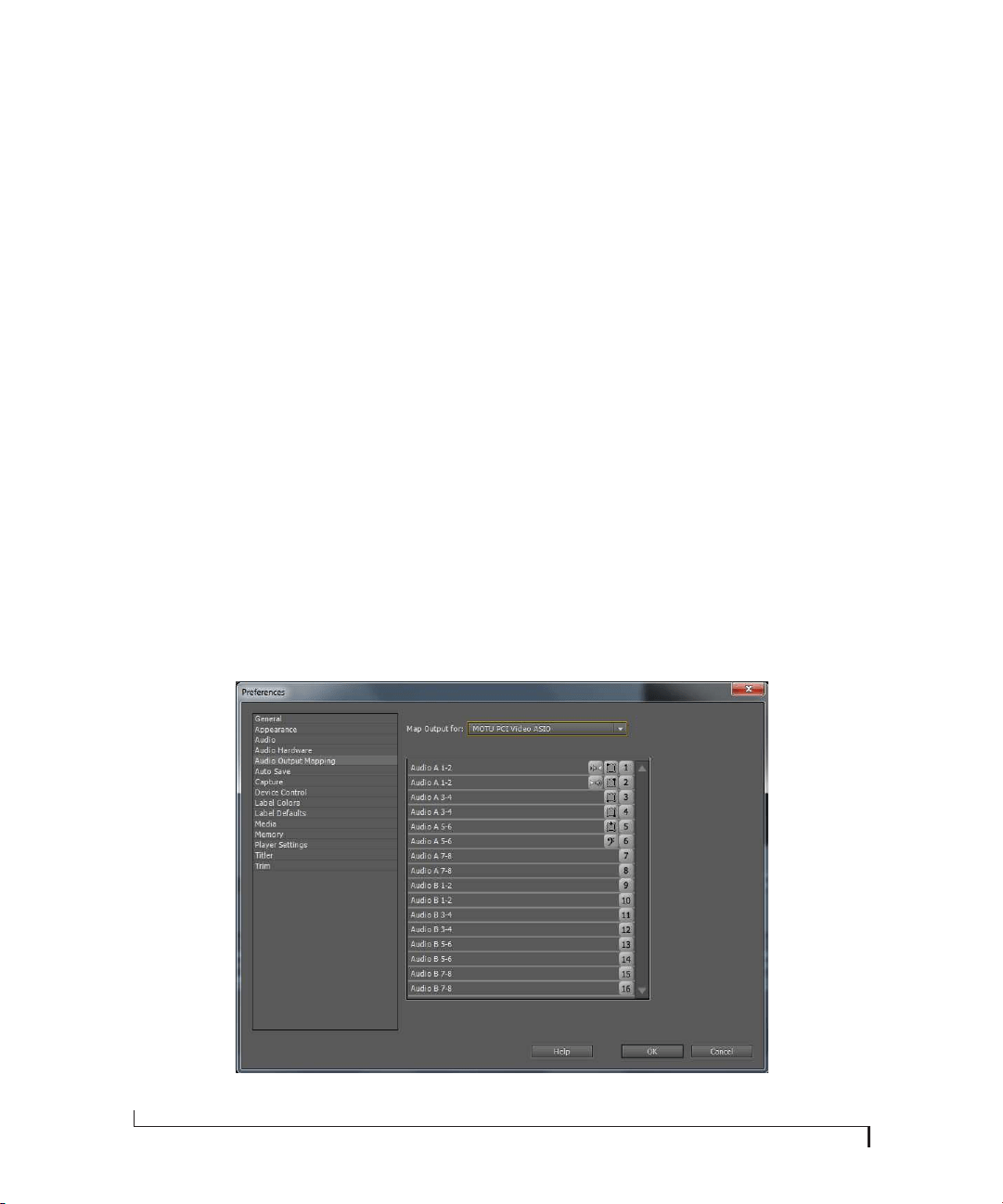
ADOBE PREMIERE PRO
52
Audio Output Mapping
Audio Output Mapping (Edit > Preferences >
Audio Output Mapping) lets you configure the
audio output destination. Choose MOTU PCI
Video ASIO to view and make changes to fit your
workflow (Figure 7-12).
TIMECODE
To lock Premiere Pro to timecode during capture,
go to the Setup tab (Figure 6-4 on page 37) in
MOTU Video Console and choose the Timecode
Source (page 39).
To configure the timecode format being output by
the HDX-SDI hardware while Premiere Pro is
playing back, go to the Setup tab (Figure 6-4 on
page 37) in MOTU Video Console and choose the
desired destination from Timecode Destination
menu. Also check the following additional
Playback tab settings:
■ Playback 29.97 fps Timecode (page 40)
■ Playback Timecode Offset (page 40)
DEVICE CONTROL
To configure HDX-SDI RS-422 (Sony 9-pin)
device control in Premiere Pro:
1 Connect an RS-422 cable from HDX-SDI to the
video deck or other machine control device.
2 Make sure the video deck is configured properly
for remote operation via RS-422 machine control.
3 In MOTU Video Console, choose Sony 9-Pin
from the Timecode Source menu (Figure 6-4 on
page 37), which is found in the Setup tab, or choose
LTC if your deck is feeding timecode to the
computer via the LTC input (instead of via 9-pin).
4 Back in Premiere Pro, choose Edit menu>
Preferences> Device Control and choose MOTU
HDX-SDI from the Devices menu (Figure 7-13).
You can now use Premiere Pro’s transport features
to control your deck. Consult the Premiere Pro
documentation for complete information about
using machine control.
Figure 7-12: Audio Output Mapping.
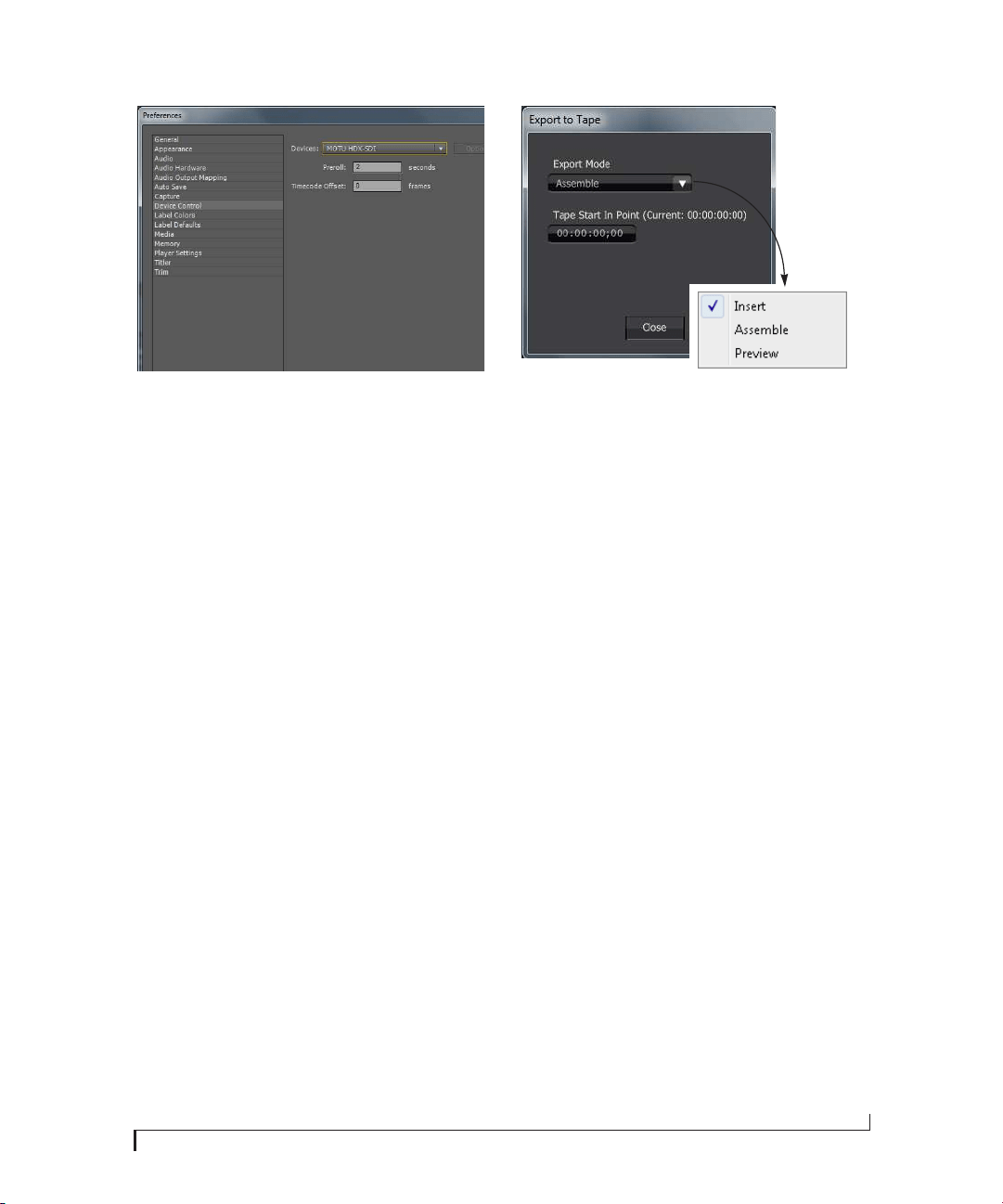
ADOBE PREMIERE PRO
53
Figure 7-13: Device control.
EXPORT TO TAPE
The HDX-SDI provides an Export to Tape feature.
This allows you to lay back material in your
Premiere Pro time line to a tape deck equipped
with RS-422 device (machine) control support.
Setting up device control
Before using the HDX-SDI’s Export to Tape
feature, you must first connect your tape deck to
the HDX-SDI’s RS-422 machine control port to
establish device control, as described in the
previous section.
Exporting to tape
To export to tape:
1 Select a work area in your project time line.
2 To access the Export to Tape settings
(Figure 7-14), choose File menu> Export> Export
to Tape.
Figure 7-14: Export to Tape.
3 Choose the desired Export Mode (see
explanations below) and specify the insert time in
the timecode field provided (Figure 7-14).
4 Click the Export button (Figure 7-14) to begin
the export operation.
Three Export to Tape modes are provided: Insert,
Assemble and Preview.
Insert
Insert mode records the current Sequence Work
Area to tape, replacing any existing video and
audio on the tape. Because timecode and control
track are not replaced, this mode keeps the tape
playing at the proper speed, resulting in a smooth
transition at the In and Out points.
Assemble
Assemble mode records the current Sequence Work
Area to tape, replacing all existing video, audio,
timecode and control track information on the
tape. Because of the potential discrepancy between
the timing of the newly recorded signal and the
original signal on tape, the Out point transition
may not be as smooth as Insert mode.
Preview
Preview mode previews the Sequence Work Area
without actually recording to tape.
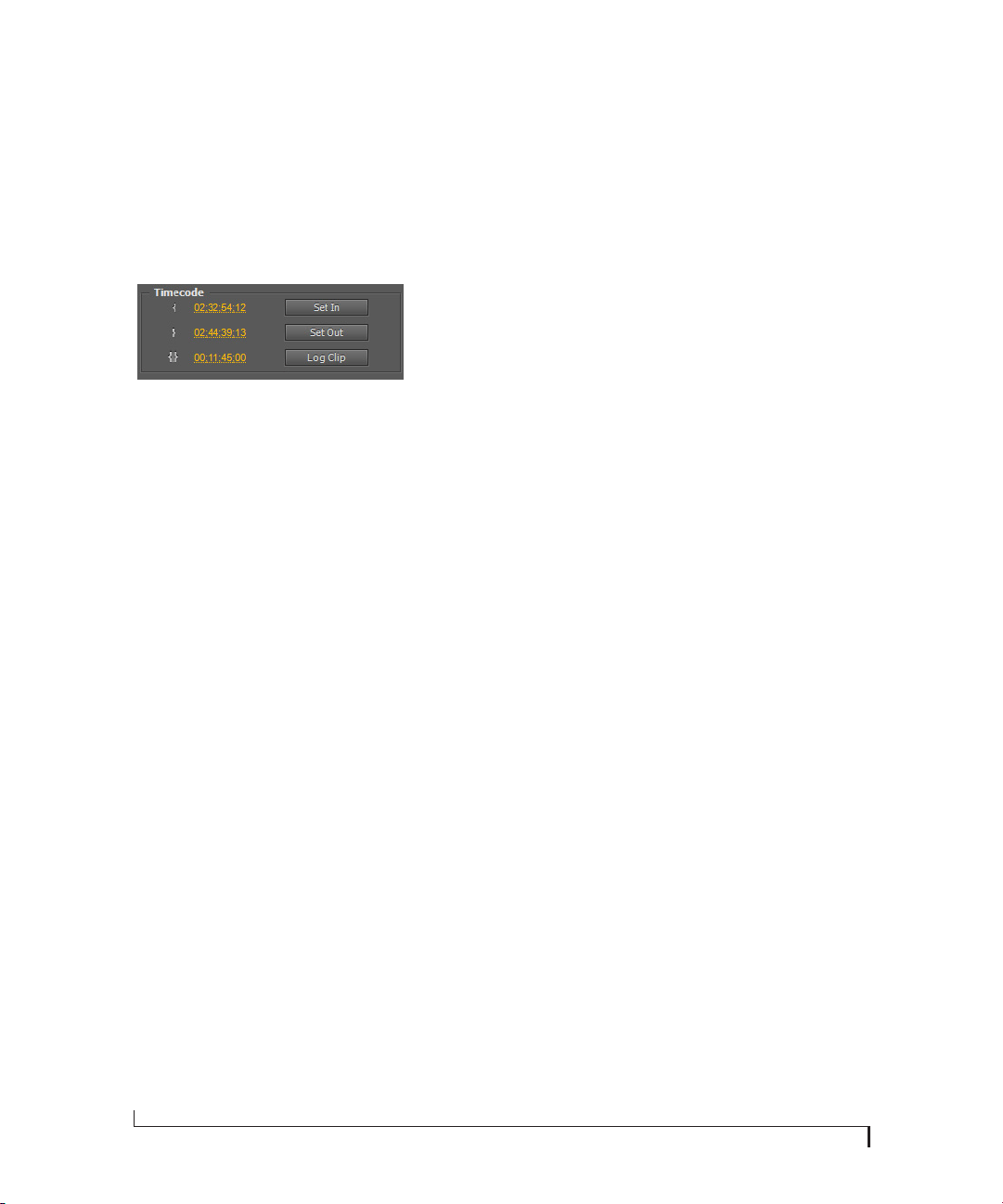
ADOBE PREMIERE PRO
54
BATCH CAPTURE
The HDX-SDI supports Premiere Pro’s Batch
Capture feature, as follows:
1 In the Capture panel, use the Set In and Set Out
buttons (Figure 7-15) to specify the desired log
region.
Figure 7-15: Logging clips.
2 Click the Log Clip button (Figure 7-15) to log
the clip you specified, and name the clip when
prompted.
3 When you are ready to begin, select all logged
clips in the Project panel.
4 Choose File menu> Batch Capture.
5 Follow the on-screen instructions.
For more information about Batch Capture, refer
to the Adobe Premiere Pro CS5 user guide.

Part 3
Appendices


APPENDIX
57
A Troubleshooting
USE THE STATUS DISPLAY
Use the Status display in MOTU Video Console
(Figure 6-1 on page 35) for help with various issues
having to do with capture, playback, sync and
other aspects of HDX-SDI operation. MOTU
Video Setup is engineered to detect problems and
report them in the Status area. Most common
issues can be resolved by following the instructions
given by the Status display.
FREQUENTLY ASKED QUESTIONS
MOTU Video Console cannot detect the HDX-SDI.
Why not?
Is the HDX-SDI connected to the PCIe card
adapter installed in a desktop computer? If so, did
the HDX-SDI breakout interface get disconnected
or powered off while the computer is still powered
on? In this case, you need to shut down the
computer, plug in the interface, switch it on and
then power up the computer. The breakout
interface must remain connected and powered on
while the computer is running. The HDX-SDI’s
Auto On mode lets you leave the power switch on,
and the interface will power up and power down
with your computer. See page 5 for details on Auto
On mode.
Connecting or powering gear during operation
It is not recommended that you connect,
disconnect, or power on/off devices connected to
the HDX-SDI while recording or playing back
audio. Doing so may cause a brief glitch in the
audio.
When I try to genlock via the HDX-SDI’s VIDEO
REF input, I have problems.
If there is no device connected to the REF THRU
jack, make sure that the termination switch is set to
the 75Ω TERM position. Proper termination is
critical for successful genlock.
The HDX-SDI is having trouble genlocking to my
video deck.
Is the deck connected to a video output from the
HDX-SDI? If so, it could be a clock loop problem,
where the deck is trying to resolve to its video
input, while the HDX-SDI is trying to resolve to
video input from the video deck. See “Master
(Internal)” on page 38.
I experience glitching in my video signal when
switching between Capture and Playback.
See “Clock source when switching between
Capture and Playback modes” on page 38.
My HDMI output does not output any video.
Make sure the HDMI Format setting is set to
HDMI, not DVI.
I hear clicks and pops on audio from an external
SDI device.
Make sure your Capture Clock Source and
Playback Clock Source settings are properly set to
work with an external SDI device. See “Capture
Clock Source” on page 38 and “Playback Clock
Source” on page 38.
The audio meters on the front panel don’t work.
The meters and activity LEDs only operate when
audio is actually being sent to/from the computer.
For example, if audio is being fed to HDX-SDI
inputs, but no host application is running on the
computer to receive the audio, the meters won’t be

APPENDIX A: TROUBLESHOOTING
58
active. To activate the meters, run your video host
application or MOTU Video Console and enable
its audio capture features.
CUSTOMER SERVICE
We are happy to provide customer service to our
registered users. If you haven’t already done so,
please take a moment to register on line at
www.motu.com/register, or fill out and mail the
registration card included with your HDX-SDI.
Doing so entitles you to technical support and
notices about new products and software updates.
TECHNICAL SUPPORT
If you are unable, with your dealer’s help, to solve
problems you encounter with the HDX-SDI
system, you may contact our technical support
department in one of the following ways:
■ Tech support hotline: (617) 576-2760 (Monday
through Friday, 9 am to 6 pm EST)
■ Online support: www.motu.com/support
Please provide the following information to help us
solve your problem as quickly as possible:
■ The serial number of the HDX-SDI system. This
is printed on a sticker placed on the bottom of the
HDX-SDI rack unit. You must be able to supply this
number to receive technical support.
■ A brief explanation of the problem, including the
exact sequence of actions which cause it, and the
contents of any error messages which appear on the
screen.
■ The pages in the manual which refer to the parts
of the HDX-SDI with which you are having
trouble.
■ Windows version information.
We’re not able to solve every problem immediately,
but a quick call to us may yield a suggestion for a
problem which you might otherwise spend hours
trying to track down.
If you have features or ideas you would like to see
implemented, we’d like to hear from you. Please
visit www.motu.com/suggestions or write to the
HDX-SDI Development Team, MOTU Inc., 1280
Massachusetts Avenue, Cambridge, MA 02138.
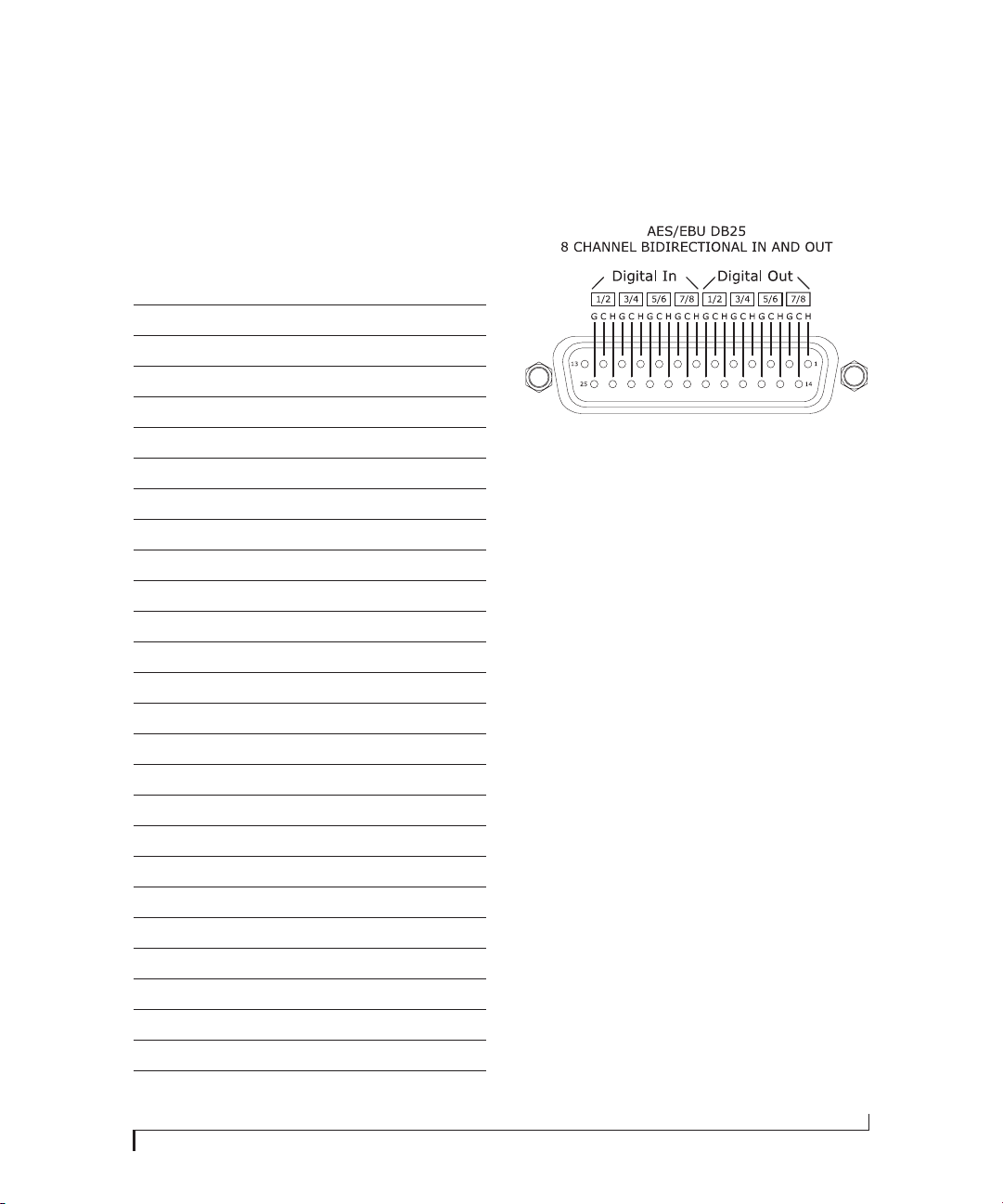
APPENDIX
59
B DB-25 to XLR Pin Outs
DB-25 TO 4 FEMALE (IN) / 4 MALE (OUT) XLR
For bi-directional HDX-SDI AES/EBU digital I/O
Panasonic/Tascam standard
Pin Signal
1 Channel 7/8 Out (+)
2 SG (Signal Ground)
3 Channel 5/6 Out (-)
4 Channel 3/4 Out (+)
5SG
6 Channel 1/2 Out (-)
7 Channel 7/8 In (+)
8SG
9 Channel 5/6 In (-)
10 Channel 3/4 In (+)
11 SG
12 Channel 1/2 In (-)
13 Not used
14 Channel 7/8 Out (-)
15 Channel 5/6 Out (+)
16 SG
17 Channel 3/4 Out (-)
18 Channel 1/2 Out (+)
19 SG
20 Channel 7/8 In (-)
21 Channel 5/6 In (+)
22 SG
23 Channel 3/4 In (-)
24 Channel 1/2 In (+)
25 SG

APPENDIX B: DB-25 TO XLR PIN OUTS
60

INDEX
61
29.97 drop/non-drop 40
480i
component 21
Component Levels 39
Setup option 39
75Ω TERM 6, 27
96kHz operation
AES/EBU 24
9-pin
connector 6, 27
device control 53
A
Adobe Premiere Pro (see Premiere Pro)
AES/EBU
breakout cable 25
connections 24
connectors 6
DB-25 input 44
in/out 1-8 25
sample rate conversion 29
synchronization 28, 29
Analog
audio connectors 24
connectors 6
input meters 5, 44
input trims 44
video connectors 6
Analog inputs/outputs 6
Analog Output Mode 39
ASC CDL 41
Assemble 53
Audio
AES/EBU connections 24
analog connections 24
analog input 44
bit depth 50
connections 26
connectors 24
digital audio sync 28
disabling banks 44
embedded 6
features 34
input 43
Input Source (Premiere Pro) 50
input trims 44
metering (front panel) 5, 44
mirroring outputs 44
monitoring 26, 50
output 44
overview 34
sample rate 43, 50
sample rate conversion 25, 28
tab 43
Auto On 5
B
Bi-level sync 38
Bit depth (audio) 50
BNC
AES/EBU 6
BNC cables for SDI 21
Breakout cables 25
Brightness option 42
C
Cables
breakout 25
PCIe cable length 6
Camcorders
connecting 23, 26
Camera
connecting via HD-SDI 23
Capture 48
LED (front panel) 5
Capture mode 33, 37
Capture settings (Premiere Pro) 49
CDL 41
Clipping 5, 44
Clock source 38
CLUT (see Color Lookup Table)
Color Decision List 41
Color Lookup Table 41
Component 21
analog format options 21
connectors 6
Levels 39
output color mode settings 39
RGB 21
YPbPr 21
Composite
connectors 6, 20
example 23
Computer
connecting the HDX-SDI 18
Contrast option 42
Customer support 58
CVBS
connectors 20
D
Daisy-chain
video ref 6, 27
DB-25
AES/EBU input 44
DB-25 connector (AES/EBU) 6
DB-25 XLR cables 25
DDS 9
Default Mode 37
Default Player 51
Device control 52, 53
Digital audio
phase lock 28
synchronization 29
Digital mixer
example 26
synchronizing 29
Direct 50
Direct (SDI Loop Thru mode) 39
Direct Digital Synthesis 9
DLP display
connecting 6
DVD Player
connecting 23
DVI
cable requirements 22
connector 6, 22
output 22
output setting 39
E
EBU N10 39
Edit to Tape 52
Embedded
timecode 39
timecode display 5
Embedded audio
HDMI 6, 22
Export to Tape 53
ExpressCard adapter
cable length 6
connecting to HDX-SDI interface 6
installation 18
power-up/power-down 19
removal 18
F
Field 1/2 options 40
Frame rate
playback 40
Frame rate (Premiere Pro) 50
Front panel 5, 44
G
Genlock
indicator (video Console software)
35
LED (front panel) 5
LED (video Console software) 37
status (video Console software) 35
troubleshooting 57
H
HD
Analog Output Mode 39
camera 23
component connectors 6
reference monitor 23
tri-level sync 6, 27, 38
HDCP 5
HDMI
DVI output 22
embedded audio 22
format menu 39
HDCP 5
input 5, 22
output 6, 22
PCIe card connector 18
HD-SDI
BNC cable specs 21
connectors 6, 21
reference monitor 23
timecode destination option 39
HDX-SDI
basic operation 33
capture mode 33
clock source 38
Index

INDEX
62
installing 17
playback mode 33
software installation 15
summary of features 9
Headphone jack 5
Host LED 5
Hue option 42
I
Indirect (SDI Loop Thru mode) 39
Input
indicator (Video Setup software) 37
source menu 36
Input level meters 5, 44
Input Source (Capture Clock option) 38
Input Source (Playback Clock option) 38
Inputs
analog 6
trims 44
Insert 53
Installation
hardware 17
precautions 17
sequence presets 15
software 15
Interlace Pause Mode 40
Interlaced Field When Paused options 40
Internal (Playback Clock option) 38
Internal (sync setting) 28
J
Japan (0.0%) option 39
L
LCD display
example 23
Load preset (Premiere Pro) 46
Logging (Premiere Pro) 49
LTC
connectors 6
output format 39
sync setting 39
M
Machine control 52, 53
connector 6, 27
Master (Internal) sync setting 38
Mercury engine 51
Mirroring audio banks 44
Mix to Stereo 50
Mixer
example 26
synchronizing 29
MODE LEDs 5
Monitor
LED (front panel) 5
Monitoring 51
Premiere Pro 51
Monitors
connecting 26
MOTU Sequence Presets
installing 15
MOTU Video Console 15, 33, 35-44, 57, 58
Audio tab 43
Genlock indicator 35
Genlock LED 37
Genlock status 35
input indicator 37
input source menu 36
Playback tab 40
Preview tab 42
Setup tab 37
status area 37, 57
video format menu 36
N
NTSC 20
Component Levels 39
O
Offset 40
Offset (color lookup table) 41
Outputs
analog 6
P
Packing list 13
PAL 20
Panasonic MII option 21, 39
Patch-thru (audio) 50
PCIe card
cable length 6
installation 17
power-up/power-down 19
PCIe Card connector 6
Phase lock 28
Phones 5
Plasma display
connecting 6
example 23
Playback 33
29.97 fps Timecode option 40
frame rate 40
only mode 33
Premiere Pro 51
tab 40
Timecode Offset options 40
Playback mode 37
Power (color lookup table setting) 41
Power supply 6
Power switch 5, 19
Auto On 5
Premiere Pro 45-54
assemble mode 53
audio 34
audio connections for 34
Audio Input Source 50
capture 33, 48, 49
capture settings 47
clock source during playback 38
device control 52
Edit to Tape 52
Export to Tape 53
frame rate 40, 50
insert mode 53
machine control 6, 11, 27, 52
machine control connector 6, 27
monitoring 51
offset 40
pausing video 40
playback 33, 40, 51
playback settings 48
playback settings in HDX-SDI hard-
ware 40
preparation 45
preview mode 53
previewing 42
Print to Video 52
sequence presets 15, 46
supported video formats 11
timecode display 5
timecode offset 40
timecode settings 52
video input 50
Preview mode (Export to Tape) 53
Preview tab 42
Print to Video 52
R
REF in (Capture Clock Source option) 38
REF in (Playback Clock Source option) 38
Reference monitor
connecting 23
Registration 13
Reset (color lookup table) 41
Reset to Defaults 40
RGB 21, 39
RS-422
connector 6, 27
setup in Premiere Pro 52, 53
sync option 39
S
Sample rate 43, 50
Sample rate conversion 25, 28, 29
Sat (saturation color lookup table setting)
41
SD
Analog Output Mode settings 39
bi-level sync 38
camcorder 23, 26
capture connectors 5
component 21
component connectors 6
Component Output Color Mode
settings 21
composite 23
monitor 23
video deck 23
VITC timecode dest option 39
VITC timecode source option 39
SDI
BNC cable specs 21
connectors 6, 21
HD-SDI example 23
Loop Thru Mode 39
Output Timecode Format menu 39
SD-SDI
BNC cable specs 21

INDEX
63
connectors 21
timecode destination option 39
Sequence presets
installing 15
Setup tab 37
Show Settings in Preview 50
Single Field option 40
Slope (color lookup table) 41
SMPTE
timecode display 5
SMPTE/EBU N10 21
Software installation 15
Sony
9-pin connector 6, 27
9-pin setup in Premiere Pro 52
9-pin sync option 39
Beta Japan option 21, 39
Beta option 21, 39
Source LEDs 5
Speakers
connecting 26
SRC 25, 28, 29
Status 57
S-video
connectors 20
connectors (front panel) 5
connectors (rear panel) 6
Sync LEDs 5
Synchronization
digital audio 28, 29
phase lock 28
sample rate conversion 25, 28
video 6, 27
System requirements
minimum 13
recommended computer 13
T
Technical support 58
Termination
video ref 6, 27
Thru
video ref 6, 27
Timecode
29.97 drop/non-drop 40
Destination menu 39
display (front panel) 5
Drop-frame 40
lock LED 5
LTC connectors 6
Non-drop 40
offset 40
output format options 39
Premiere Pro settings 52
Source menu 39
Tri-level sync 6, 27, 38
Trim (audio input) 44
Troubleshooting 57-58
audio metering 5, 44, 57
basic concepts 33
playback (default player) 51
video glitching 38
U
USA (7.5%) option 39
V
VHS deck
connecting 23
Video
capture mode 33
clock 28
connections 20, 23
connectors (front panel) 5
console application 35, 44
format menu 36
input (choosing) 34
modes 33
playback mode 33
source menu 21, 34
status LEDs 5
synchronization 6, 27
Video input (Premiere Pro) 50
VIDEO REF
connectors 6, 27
IN 28, 29
LED (front panel) 5
troubleshooting 57
VITC
generating 39
resolving to 39
timecode output options 39
W
Windows
system requirements 13
X
XLR
analog 6
Y
Y/C connectors 20
Y/R-Y/B 21
YCbCr 21
YPbPr 21, 39
YUV 21

INDEX
64