CONNECT
PRO
CASE
1
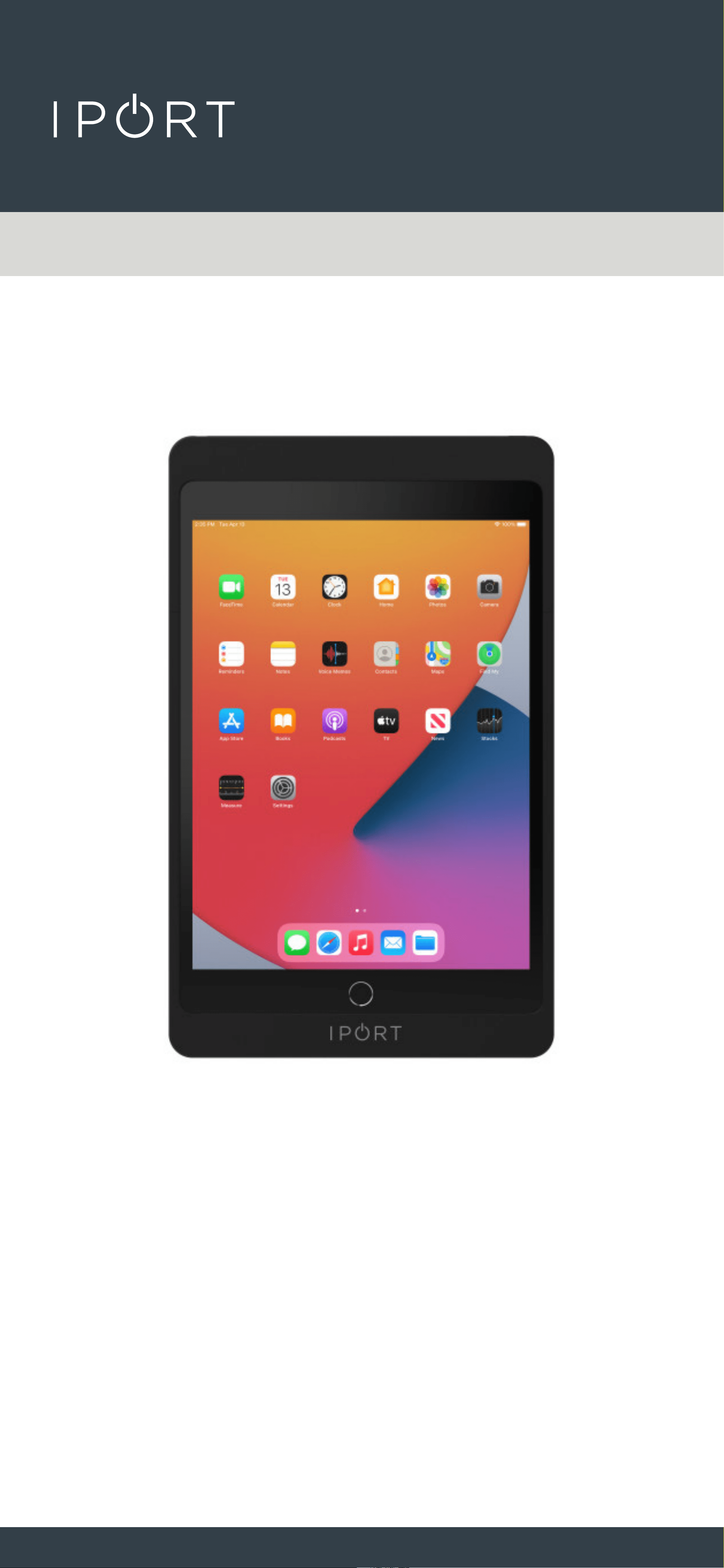
72300 - 10.2 - Inch (8th & 9th gen) - Black
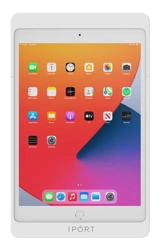
72301 - 10.2 - Inch (8th & 9th gen) - White
72310 - Mini (4 & 5th gen) - Black

CONNECT
PRO
CASE
2
IPORT CONNECT PRO Case Install Manu-
Whats in box:
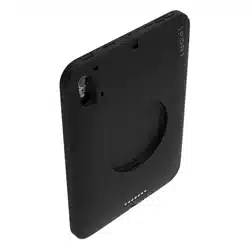
1 - IPORT CONNECT Case
1 - IPORT Security tool - 1.5mm hex key
1 - Info Card
Glossary of Terms:
• Case - The fully assembled CONNECT PRO Case.
• Case Top - The short removable portion of the chase
including the locking portion of the Case.
• IPORT Security Tool - The orange handled 1.5mm hex
tool used for locking and unlocking IPORT
Products.
• Station Interface Module - The main electronics
portion of the new IPORT CONNECT
Platform consisting of the round electronic
components.
• Dock Interface Module - The secondary linear
electronics found on the IPORT CONNECT
Case.
Product Info Page - www.iportproducts.com/cpcase
Thank you for purchasing the all new IPORT
CONNECT Platform. We hope you enjoy this revo-
lutionary new system and if at any time you need
more assistance please contact IPORT Tech Sup-
port via Online chart or through our help desk.
- IPORT Team
CONNECT
PRO
CASE
3
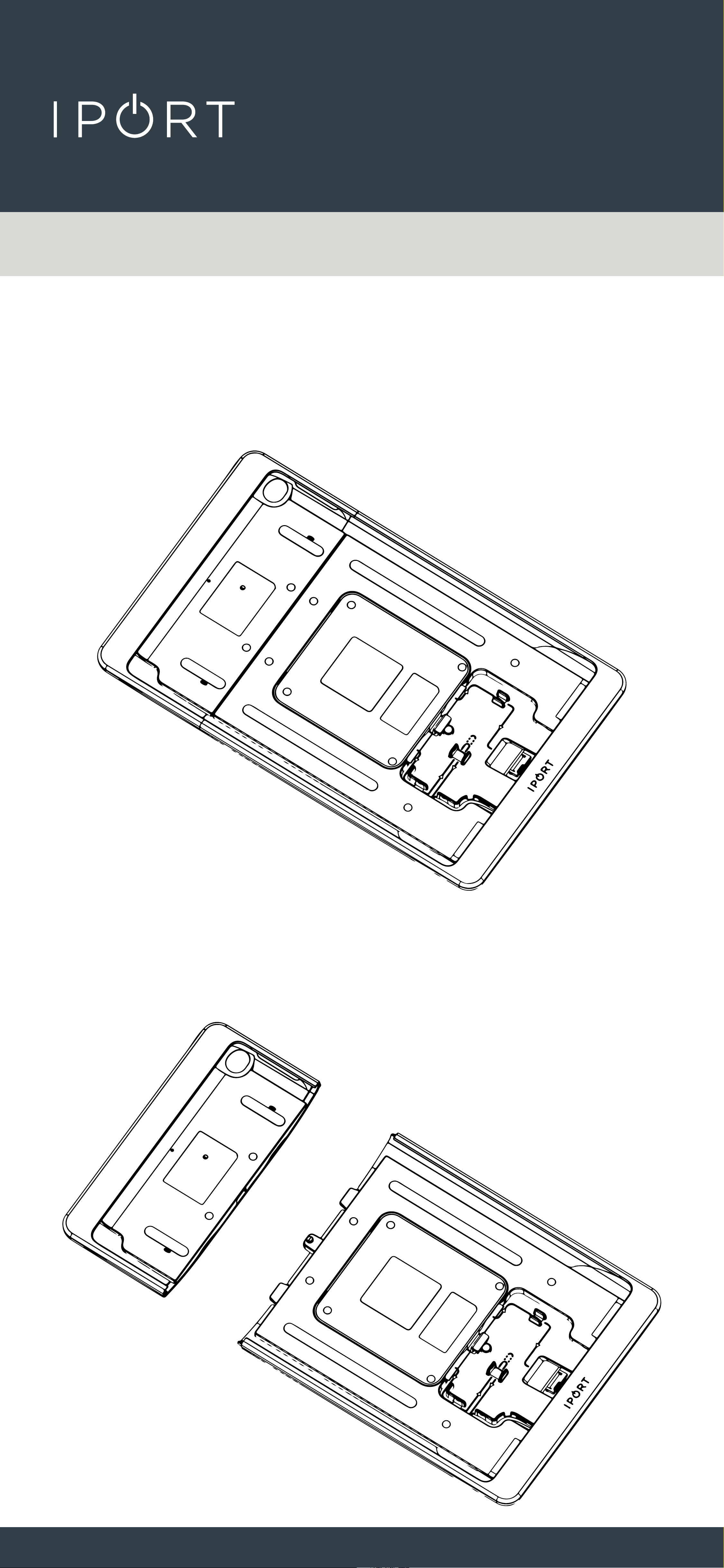
1. Remove Case from the box and place
on a table.
2. Remove the short Case Top.
CONNECT
PRO
CASE
4
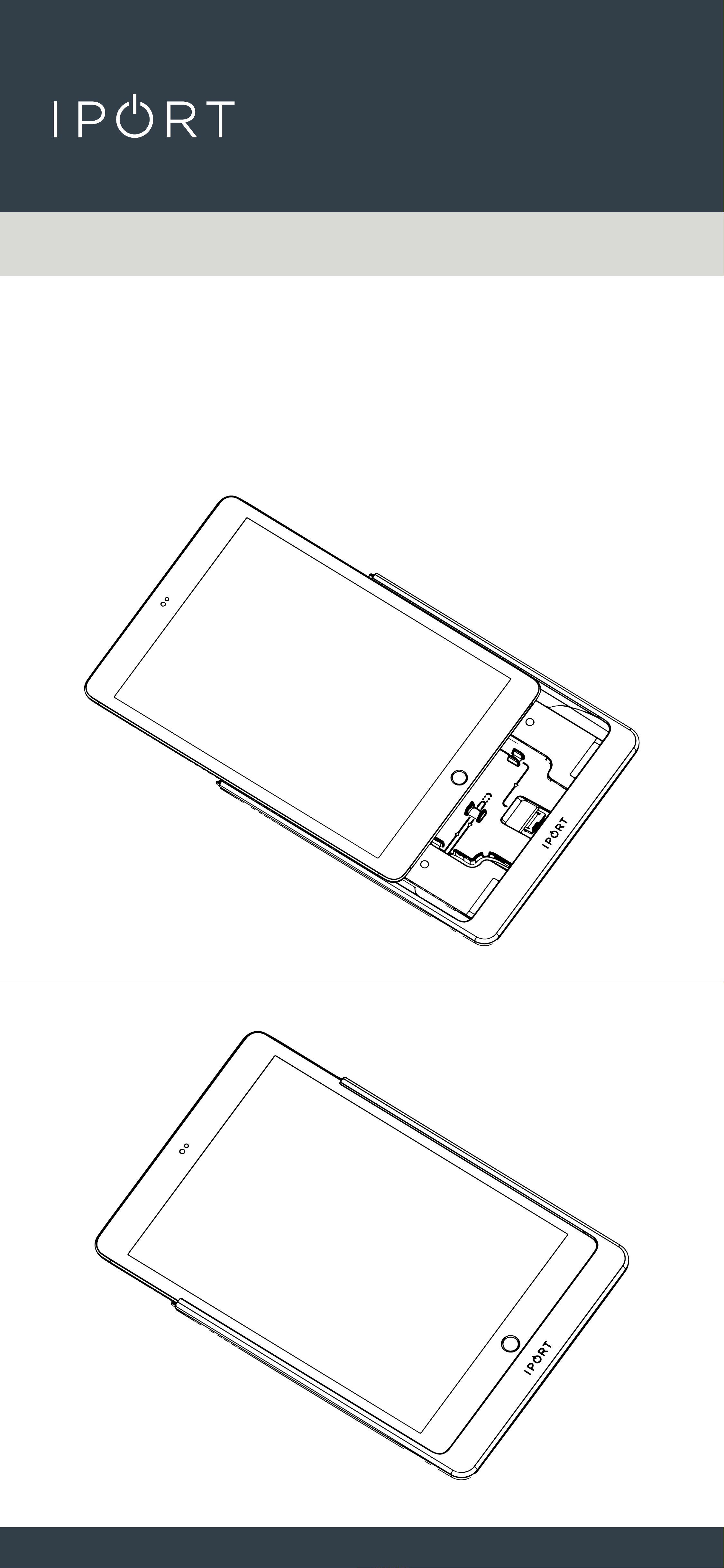
3. Slide iPad into the Case making sure
the lighting cable is snugly inserted
into the iPad.
CONNECT
PRO
CASE
5
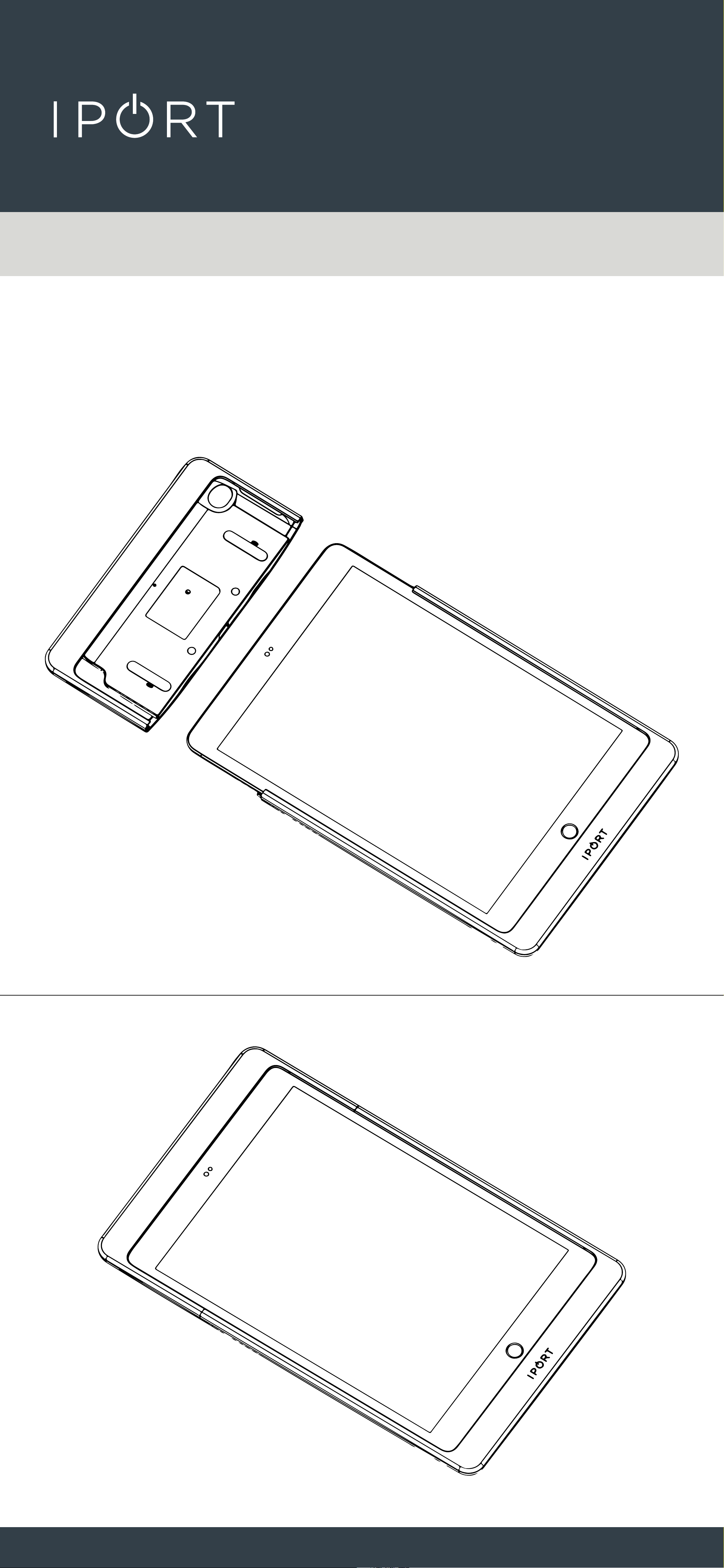
4. Reinstall the Case top onto the
lower half if the Case and iPad.
CONNECT
PRO
CASE
6
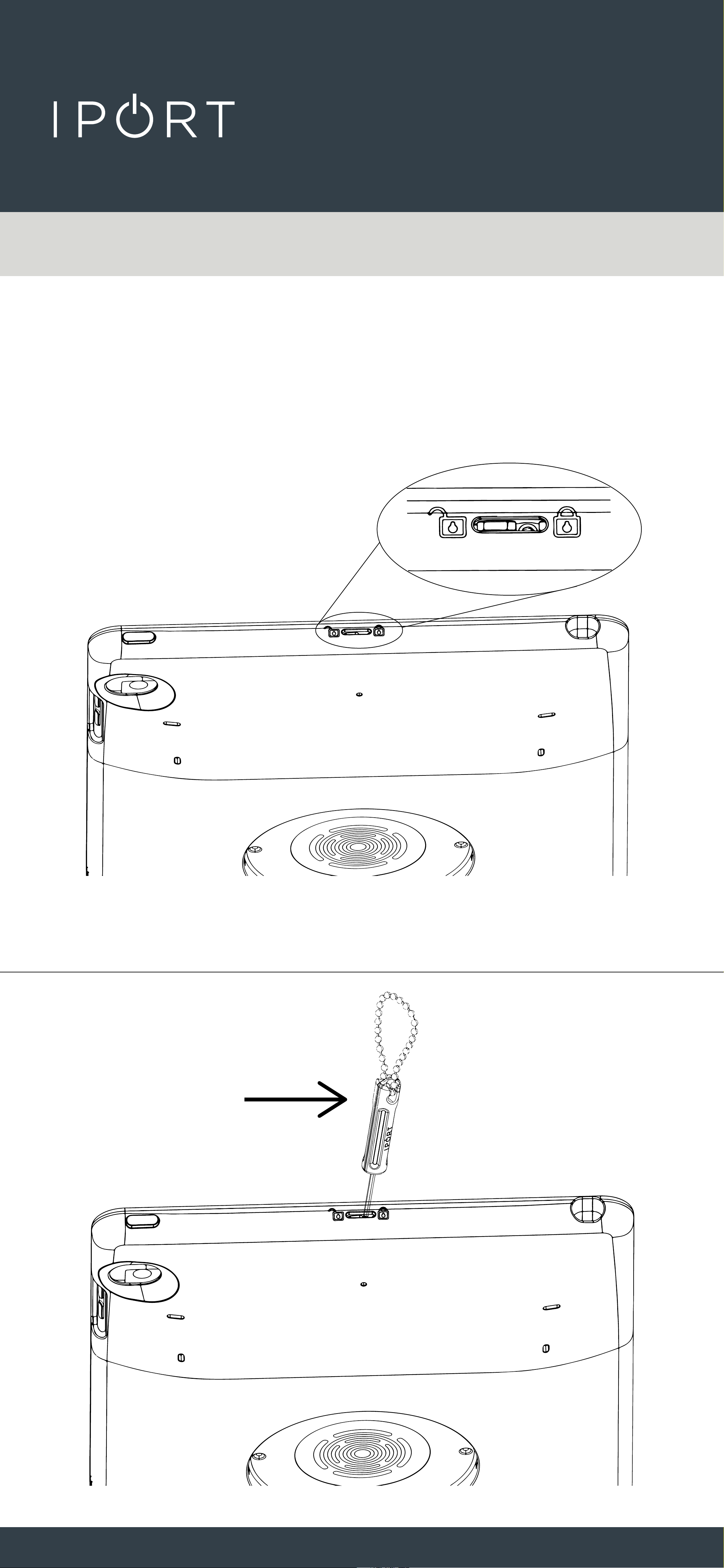
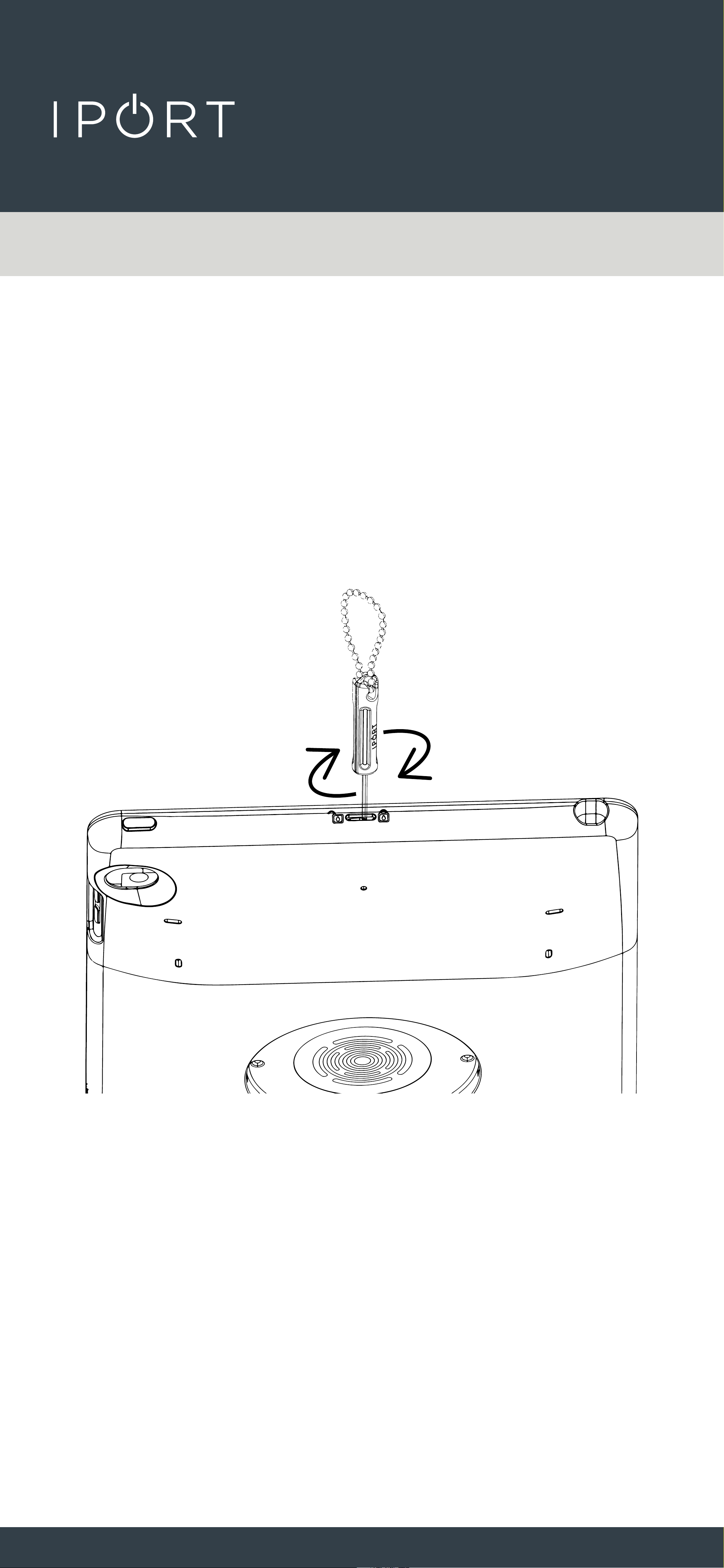
5. Use the provided IPORT tool, insert
the tool into the top of the case and
slide the tool towards the lock
position icon.
CONNECT
PRO
CASE
7
• For added security rotate the IPORT
tool clockwise to tighten the
setscrew in place holding the lock
secure.
CONNECT
PRO
CASE
8
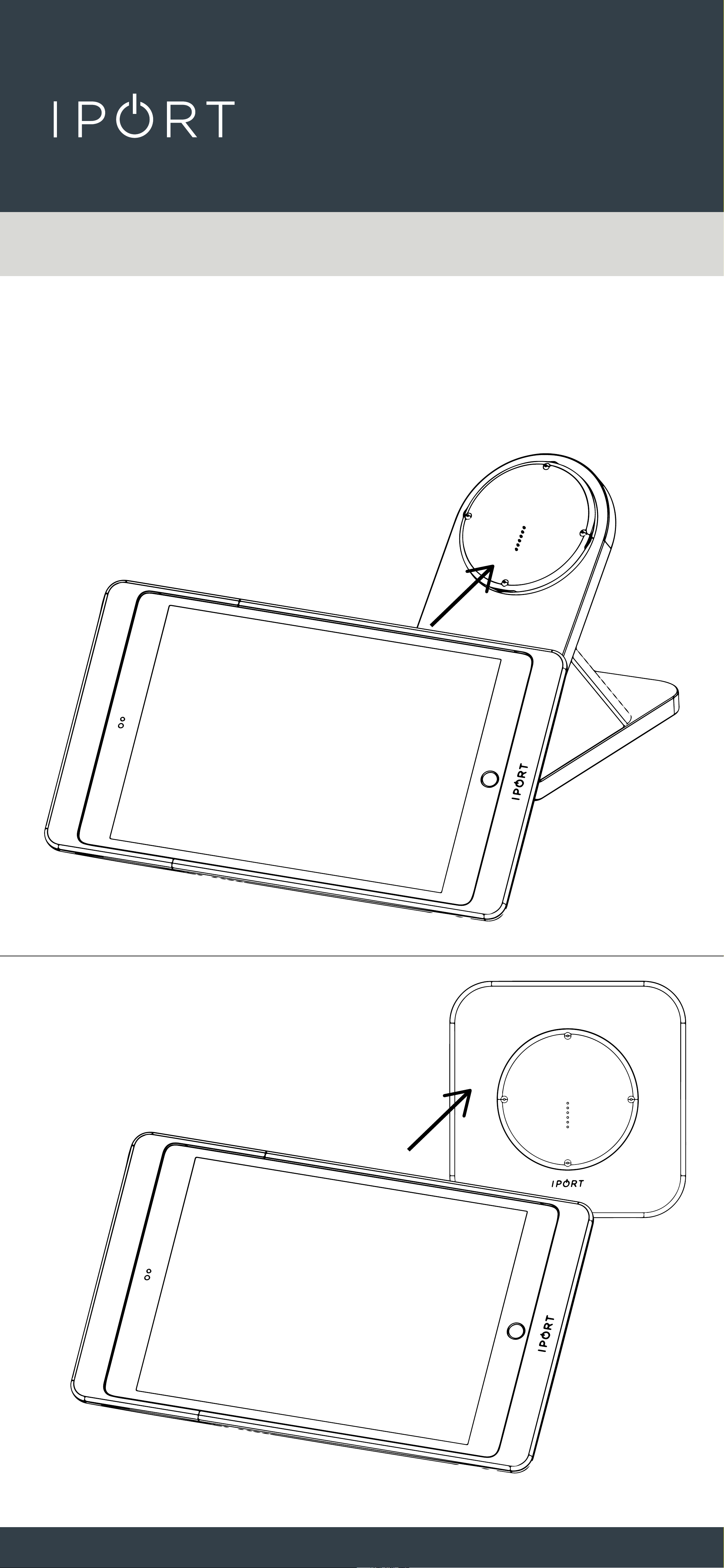
6. Place the IPORT CONNECT Pro Case
onto a BaseStation or WallStation for
charing.
CONNECT
PRO
CASE
9
Hand Strap Install - (sold separate)
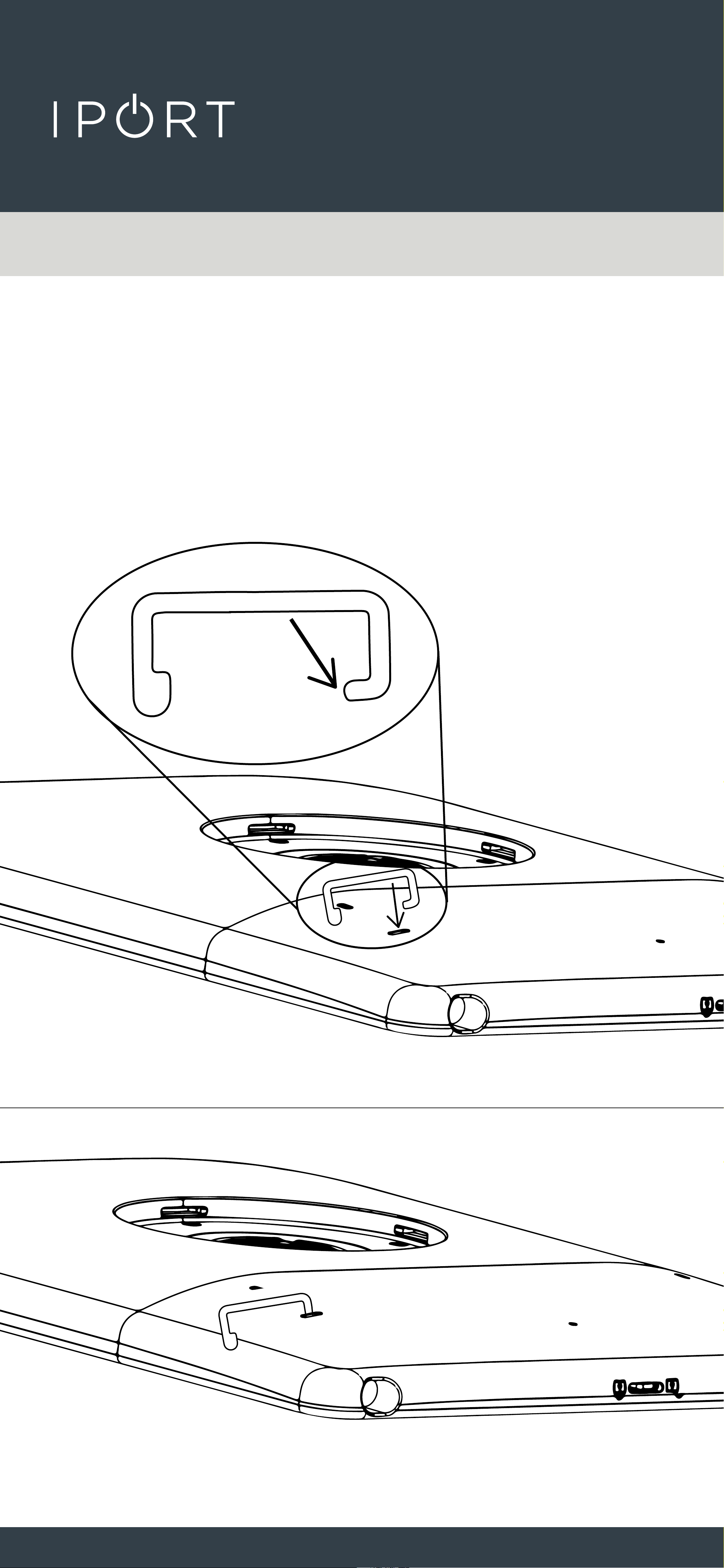
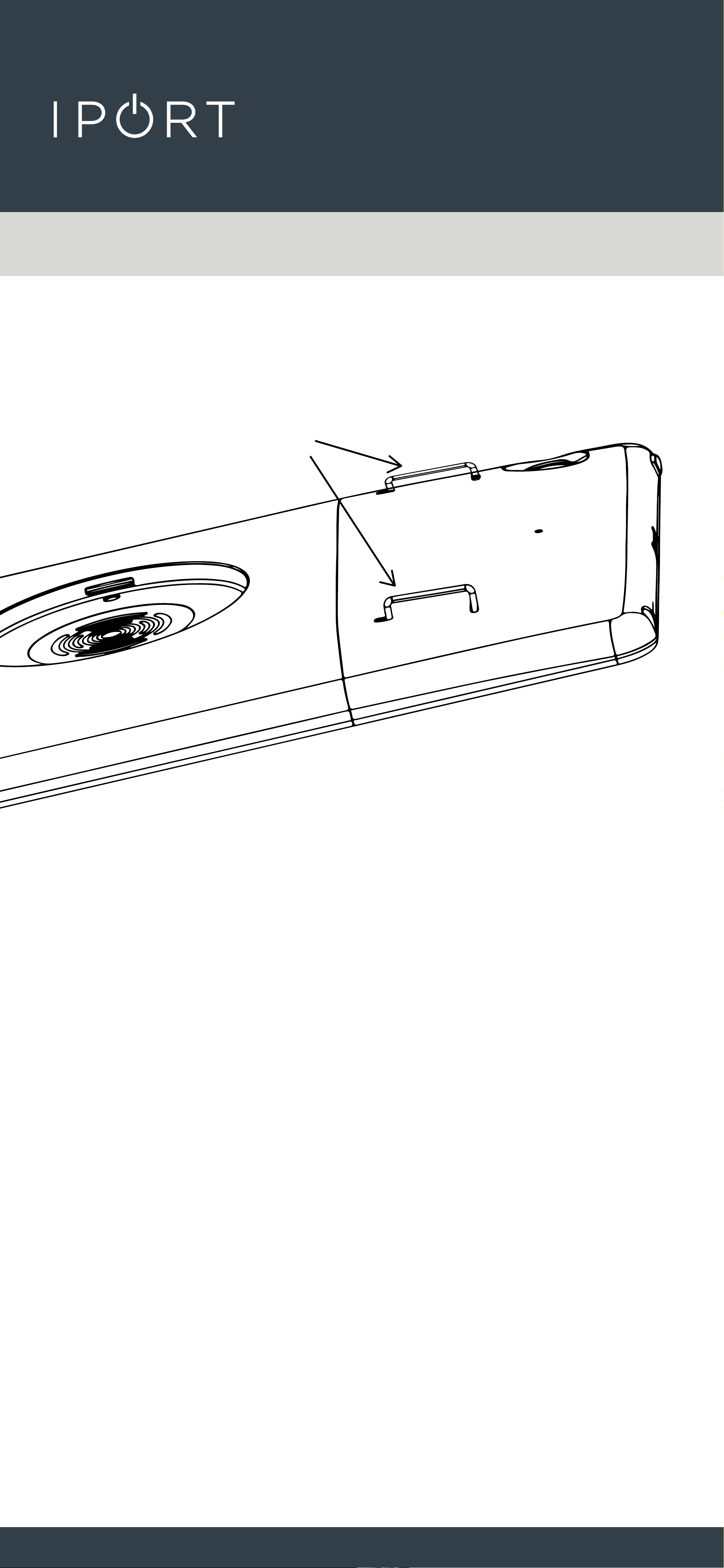
1. Insert the metal strap loops with the
flat end pointing towards the left or
right side of the case.
CONNECT
PRO
CASE
10
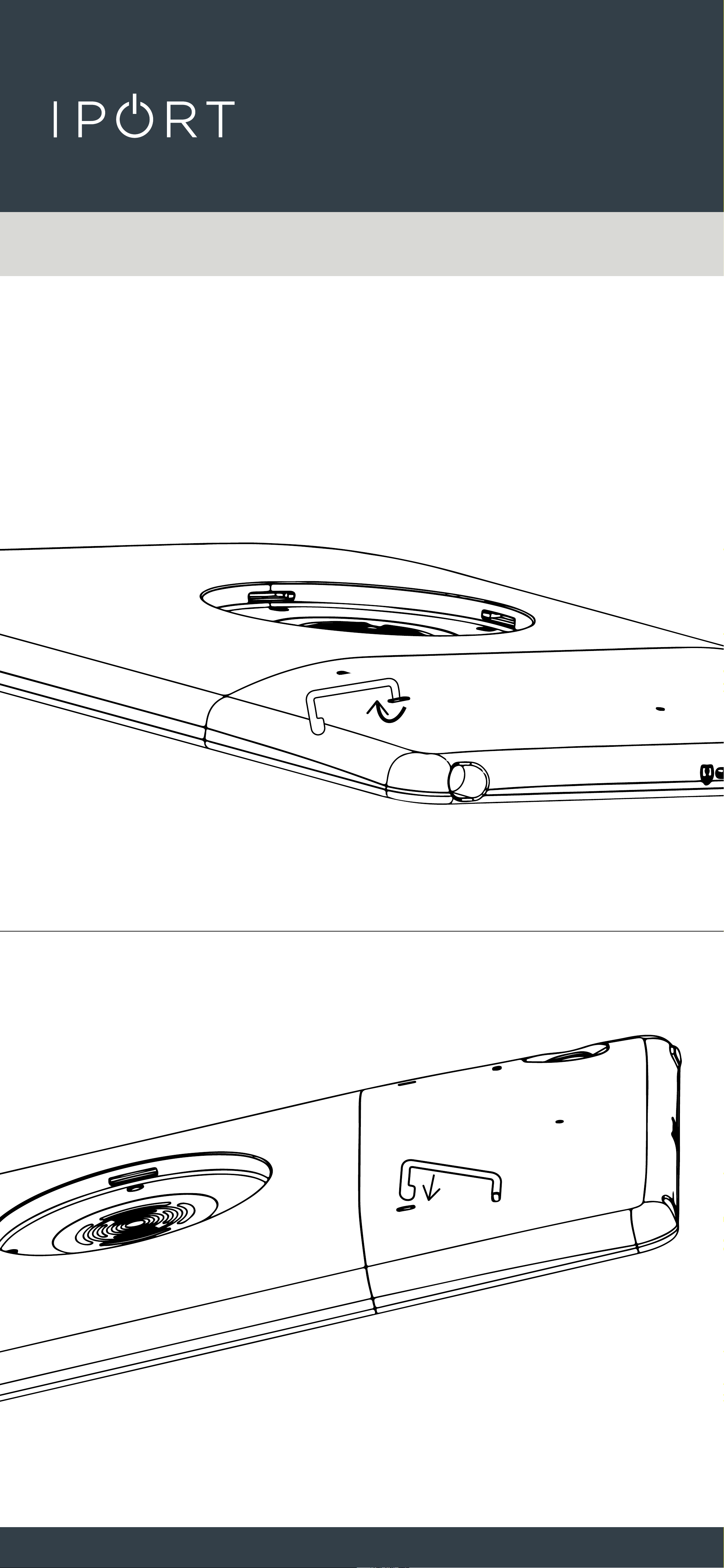
2. Rotate the strap clip towards the
bottom of the Case and insert into
the hole until the strap clip snaps
into place.
CONNECT
PRO
CASE
11
3. Repeat for the second clip.
4. Insert the IPORT CONNECT Hand
Strap under both strap loops with
the Velcro facing out from the case,
fold over the Hand Strap and attach
to the Velcro. Adjust hand strap to a
snug but comfortable fit around the
top of your hand.
• NOTE Case Top and Bottom MUST be
locked together to properly secure the iPad
and CONNECT PRO Case together.
X 2
CONNECT
PRO
CASE
12
Hand Strap Removal
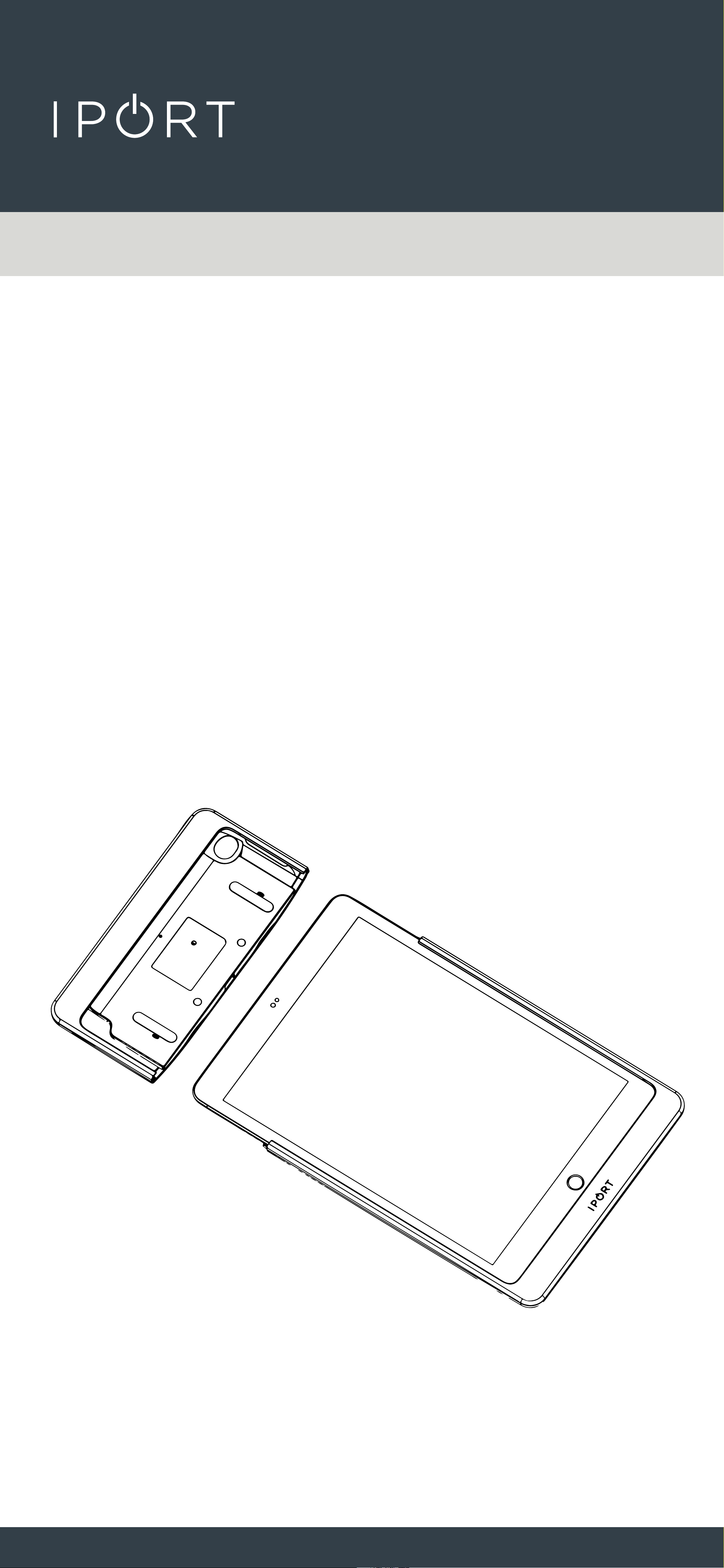
1. Unlock the CONNECT PRO Case Top
from the Case Bottom. See step 5 of
installing the Case.
2. Remove the Case Top from the Case
Bottom.
CONNECT
PRO
CASE
13
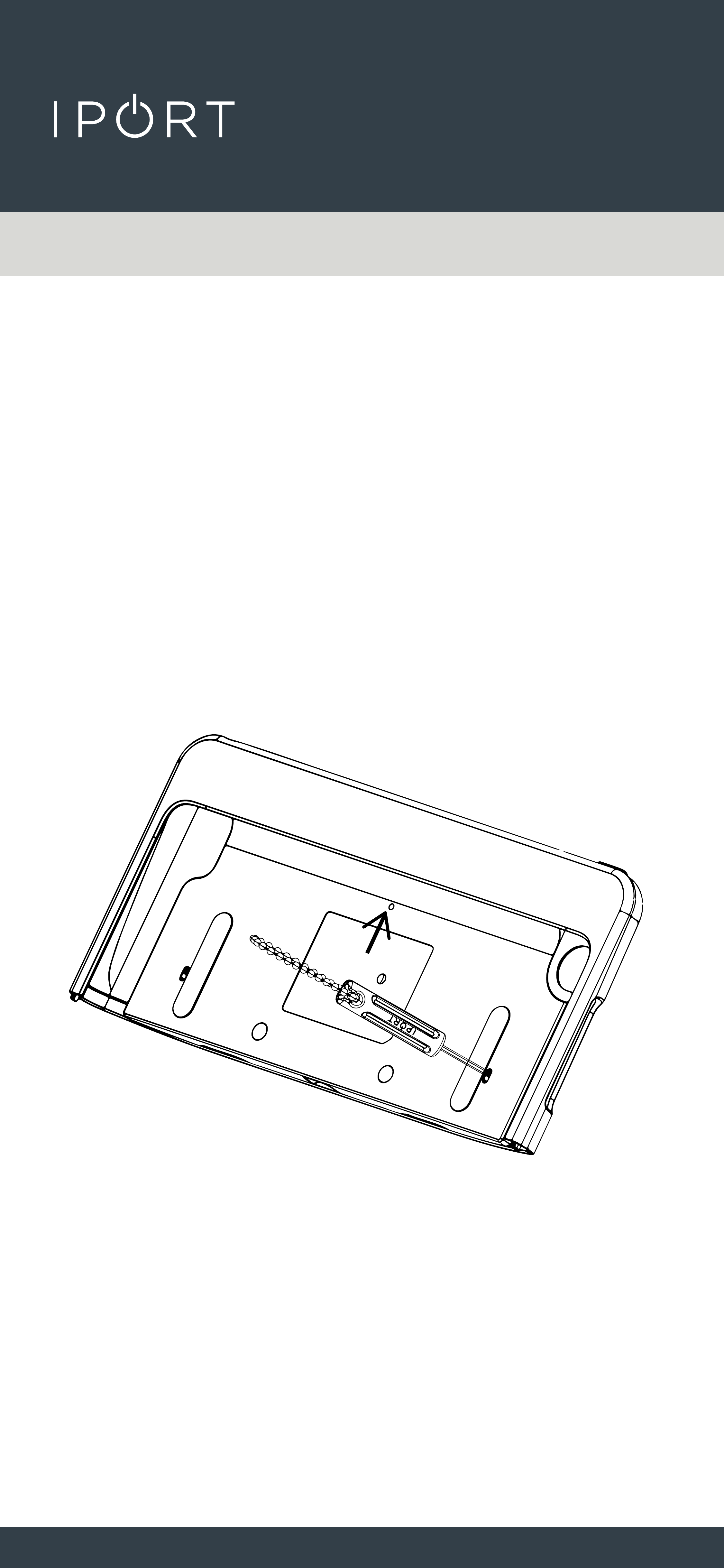
3. On the inside of the Case Top, locate
the small oval hole and insert the
IPORT CONNECT Security tool. Pivot
the IPORT Security tool toward
the top of the Case Top freeing the
Strap loop. Rotate the Strap loop
90 degrees left or right to remove
the Strap Loop from the Case Top.
4. Repeat for the second strap loop.