
RV 795 / CAMPER 795 /
AVTEX
®
TOURERTHREE
Owner’s Manual

© 2022 Garmin Ltd. or its subsidiaries
All rights reserved. Under the copyright laws, this manual may not be copied, in whole or in part, without the written consent of Garmin. Garmin reserves the right to change
or improve its products and to make changes in the content of this manual without obligation to notify any person or organization of such changes or improvements. Go to
www.garmin.com for current updates and supplemental information concerning the use of this product.
Garmin
®
and the Garmin logo are trademarks of Garmin Ltd. or its subsidiaries, registered in the USA and other countries. These trademarks may not be used without the express
permission of Garmin.
BC
™
, Garmin Drive
™
, Garmin Express
™
, and myTrends
™
are trademarks of Garmin Ltd. or its subsidiaries. These trademarks may not be used without the express permission of
Garmin.
Android
™
is a trademark of Google Inc. Apple
®
and Mac
®
are trademarks of Apple Inc, registered in the U.S. and other countries. Avtex
®
is a registered trademark of Avtex Limited.
The BLUETOOTH
®
word mark and logos are owned by the Bluetooth SIG, Inc., and any use of such word mark or logo by Garmin is under license. Foursquare
®
is a trademark of
Foursquare Labs, Inc. in the U.S. and in other countries. microSD
®
and the microSDHC logo are trademarks of SD-3C, LLC. Pilot Flying J
™
and Pilot Flying J Travel Centers
™
are
trademarks of Pilot Travel Centers LLC and its affiliate companies. Tripadvisor
®
is a registered trademark of TripAdvisor LLC. Ultimate Campgrounds is a trademark of The Ultimate
Public Campground Project. Windows
®
is a registered trademark of Microsoft Corporation in the United States and other countries. Wi‑Fi
®
is a registered mark of the Wi-Fi Alliance
Corporation.

Table of Contents
Getting Started................................. 1
Garmin® Device Overview...................... 1
Mounting and Powering the Garmin
Device in Your Vehicle............................ 2
Turning the Device On or Off.................. 3
Acquiring GPS Signals............................ 4
Status Bar Icons...................................... 4
Using the On-Screen Buttons................. 4
Adjusting the Volume..............................5
Using the Audio Mixer......................... 5
Adjusting the Screen Brightness............ 5
Vehicle Profiles................................ 5
Adding a Vehicle Profile..........................5
Adding an Environmental Zone Vehicle
Profile....................................................... 6
Car Profile................................................ 6
Switching the Vehicle Profile.................. 6
Editing a Vehicle Profile.......................... 6
Adding Propane Tanks........................ 6
Driver Awareness Features and
Alerts............................................... 7
Enabling or Disabling Driver Alerts.........7
Red Light and Speed Cameras............... 8
Warning and Alert Symbols.................... 8
Restriction Warnings........................... 9
Road Condition Warnings................... 9
Alerts.................................................. 10
Finding and Saving Locations......... 10
Finding a Location Using the Search
Bar.......................................................... 10
Trendy Places........................................ 11
Performing a Trendy Places
Search................................................ 11
Finding an Address............................... 11
Location Search Results....................... 11
Changing the Search Area................ 12
Points of Interest...................................12
Finding a Location by Category........ 12
Finding Campgrounds.......................13
Finding RV Services...........................13
Finding National Parks...................... 13
Tripadvisor......................................... 14
Navigating to Points of Interest Within
a Venue.............................................. 14
Search Tools..........................................14
Finding an Intersection..................... 15
Finding a Location Using
Coordinates....................................... 15
Viewing Recently Found Locations...... 15
Clearing the List of Recently Found
Locations........................................... 15
Viewing Current Location
Information............................................ 15
Finding Emergency Services and
Fuel..................................................... 15
Getting Directions to Your Current
Location............................................. 15
Adding a Shortcut................................. 16
Removing a Shortcut......................... 16
Saving Locations................................... 16
Saving a Location.............................. 16
Saving Your Current Location........... 16
Editing a Saved Location.................. 16
Assigning Categories to a Saved
Location............................................. 17
Deleting a Saved Location................ 17
Following a Route........................... 17
Routes.................................................... 17
Starting a Route.....................................17
Starting a Route by Using the Map...18
Starting a Route Using the Road Trip
Routes Feature.................................. 18
Going Home....................................... 18
Changing the Route Calculation
Mode...................................................... 18
Your Route on the Map......................... 19
Active Lane Guidance....................... 20
Viewing Turns and Directions...........20
Viewing the Entire Route on the
Map.................................................... 20
Arriving at Your Destination................. 20
Changing Your Active Route.................21
Adding a Location to Your Route..... 21
Shaping Your Route...........................21
Taking a Detour................................. 21
Stopping the Route............................... 21
Using Suggested Routes...................... 21
Avoiding Delays, Tolls, and Areas........ 22
Table of Contents i

Avoiding Traffic Delays on Your
Route.................................................. 22
Avoiding Toll Roads.......................... 22
Avoiding Road Features.................... 22
Avoiding Environmental Zones On
Your Route......................................... 22
Custom Avoidances.......................... 22
Using the Map................................ 23
Map Tools.............................................. 24
Viewing a Map Tool...........................24
Up Ahead............................................... 24
Viewing Upcoming Locations........... 24
Customizing the Up Ahead
Categories..........................................25
Cities Ahead.......................................... 25
Viewing Upcoming Cities and Exit
Services..............................................25
Trip Information.................................... 25
Viewing Trip Data from the Map...... 25
Viewing Trip Data.............................. 26
Viewing the Trip Log......................... 26
Resetting Trip Information................26
Viewing Upcoming Traffic.................... 27
Viewing Traffic on the Map.............. 27
Searching for Traffic Incidents......... 27
Customizing the Map............................ 27
Customizing the Map Layers............ 27
Changing the Map Data Field........... 27
Changing the Map Perspective........ 27
Live Services, Traffic, and
Smartphone Features..................... 28
Pairing with Your Smartphone............. 28
Disabling Bluetooth Features
(Android™)..........................................28
Disabling Bluetooth Features
(iPhone®)...........................................29
Bluetooth Feature Status Icons............29
Smart Notifications............................... 29
Receiving Notifications..................... 30
Viewing the List of Notifications...... 30
Going to an Address or Location Using
the Garmin Drive App............................ 31
Hands-Free Calling................................ 31
Placing a Call..................................... 31
Receiving a Call................................. 31
Using the Call History........................32
Using In-Call Options......................... 32
Saving a Home Phone Number........ 32
Disconnecting a Bluetooth Device....... 32
Deleting a Paired Phone....................... 32
Traffic............................................ 33
Receiving Traffic Data Using Your
Smartphone........................................... 33
Enabling Traffic..................................... 33
Voice-Activated Features............... 33
Voice Command Tips........................... 33
Launching Garmin Voice-Activated
Navigation............................................. 33
Starting a Route................................. 34
Placing a Phone Call Using Your
Voice...................................................... 34
Changing Device Settings Using Your
Voice...................................................... 35
Using the Apps............................... 35
Viewing the Owner's Manual on
YourDevice............................................35
Viewing the Weather Forecast............. 35
Viewing Weather Near a Different
City..................................................... 35
Viewing the Weather Radar.............. 35
Viewing Weather Alerts.....................36
Checking Road Conditions............... 36
Route Planner........................................ 36
Planning a Route............................... 36
Editing and Reordering Locations in a
Route.................................................. 36
Changing Routing Options for a
Route.................................................. 37
Navigating to a Saved Route............ 37
Editing and Saving Your Active
Route.................................................. 37
Loyalty Programs.................................. 37
Logging Service History........................ 37
Adding Service Categories............... 37
Deleting Service Categories..............38
Renaming Service Categories.......... 38
Editing a Service Record................... 38
Deleting Service Records.................. 38
photoLive Traffic Cameras................... 38
ii Table of Contents

Viewing and Saving photoLive Traffic
Cameras.............................................38
Viewing photoLive Traffic Cameras on
the Map.............................................. 39
Saving a Traffic Camera................... 39
Garmin PowerSwitch™ App.................. 39
Activating a Power Switch................ 40
Turning Off All Switches................... 40
Customizing a Button....................... 40
Assigning a Switch to a Control
Input................................................... 41
Adding a Custom Layout.................. 41
Routines............................................. 42
Settings..........................................43
Map and Vehicle Settings..................... 43
Enabling Maps................................... 43
Navigation Settings............................... 43
Setting a Simulated Location........... 43
Wireless Network Settings................... 44
Driver Assistance Settings................... 44
Proximity Alerts Settings.................. 44
Display Settings.....................................44
Traffic Settings...................................... 45
Units and Time Settings....................... 45
Setting the Time................................ 45
Language and Keyboard Settings........ 45
Device and Privacy Settings................. 45
Restoring Settings................................. 45
Device Information......................... 46
Viewing E-label Regulatory and
Compliance Information....................... 46
Specifications........................................46
Charging the Device.............................. 46
Device Maintenance....................... 46
Map and Software Updates.................. 46
Connecting to a Wi‑Fi Network......... 47
Updating Maps and Software Using a
Wi‑Fi Network.................................... 47
Updating Maps and Software with
Garmin Express................................. 48
Device Care............................................49
Cleaning the Outer Casing................ 49
Cleaning the Touchscreen................ 49
Avoiding Theft................................... 49
Resetting the Device............................. 49
Removing the Device, Mount, and
Suction Cup........................................... 49
Removing the Device from the
Mount................................................. 49
Removing the Mount from the Suction
Cup..................................................... 50
Removing the Suction Cup from the
Windshield......................................... 50
Troubleshooting............................. 50
The suction cup will not stay on my
windshield..............................................50
My device is not acquiring satellite
signals....................................................50
The device does not charge in my
vehicle.................................................... 50
My battery does not stay charged for
very long................................................ 50
My device does not connect to my
phone..................................................... 50
Appendix........................................ 51
Garmin PowerSwitch............................ 51
Mounting Considerations................. 51
Mounting the Device......................... 51
Opening the Front Cover................... 52
Connecting Accessories................... 53
Connecting a Control Input............... 53
Connecting the Device to Vehicle
Power................................................. 54
Pairing with a Garmin Navigation
Device.................................................54
Garmin PowerSwitch
Specifications.................................... 55
Troubleshooting................................ 55
Installing a Memory Card for Maps and
Data........................................................ 55
Data Management................................ 55
About Memory Cards........................ 56
Connecting the Device to Your
Computer........................................... 56
Transferring Data From Your
Computer........................................... 56
Disconnecting the USB Cable........... 56
Viewing GPS Signal Status................... 56
Purchasing Additional Maps................ 56
Purchasing Accessories....................... 56
Table of Contents iii

Getting Started
WARNING
See the Important Safety and Product Information guide in the product box for product warnings and other
important information.
• Update the maps and software on your device (Map and Software Updates, page46).
• Mount the device in your vehicle and connect it to power (Mounting and Powering the Garmin Device in Your
Vehicle, page2).
• Acquire GPS signals (Acquiring GPS Signals, page4).
• Adjust the volume (Adjusting the Volume, page5) and display brightness (Adjusting the Screen Brightness,
page5).
• Set up a vehicle profile (Adding a Vehicle Profile, page5).
• Navigate to your destination (Starting a Route, page17).
Garmin
®
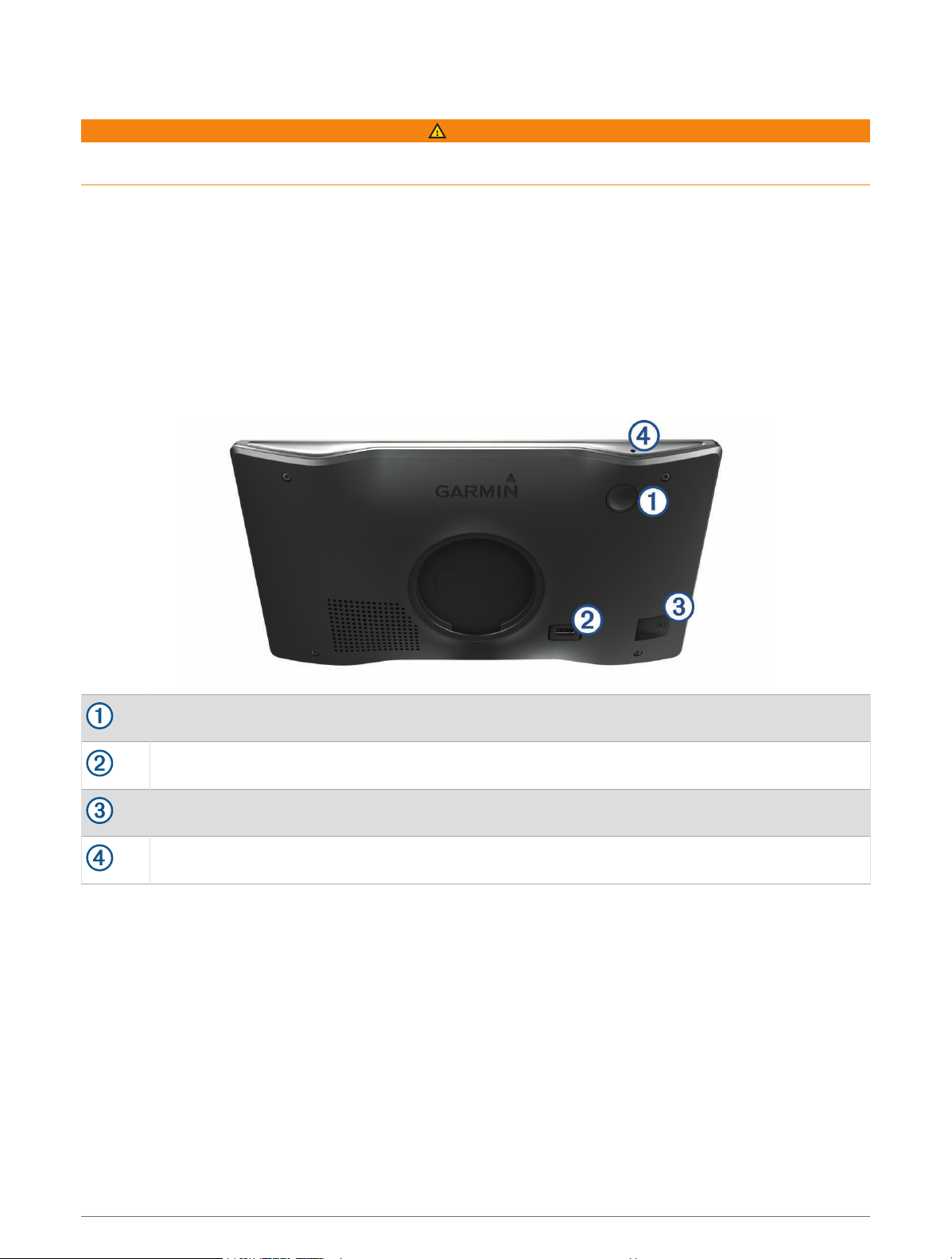
Device Overview
Power key
USB power and data port
Map and data memory card slot
Microphone for Voice Command or hands-free calling
Getting Started 1
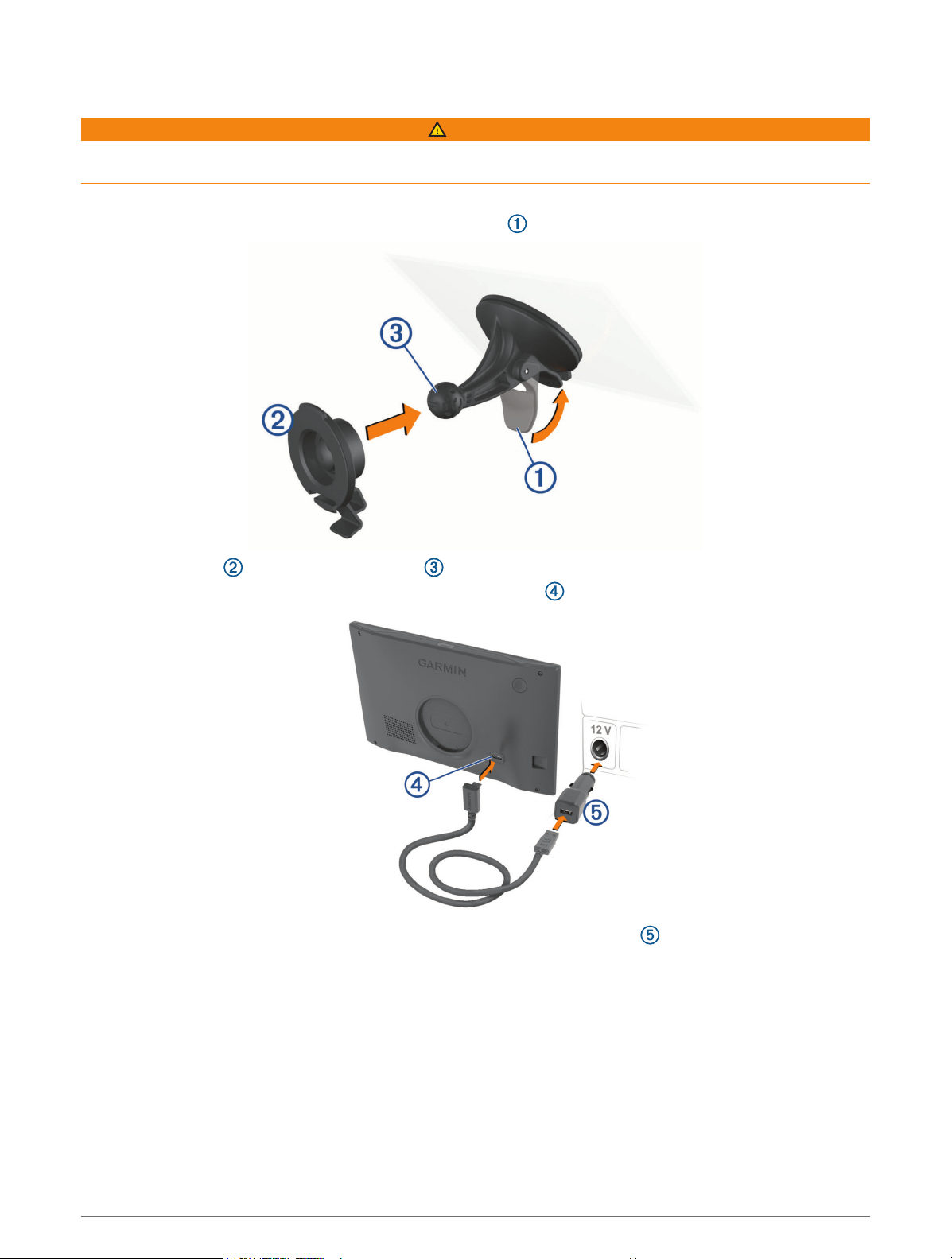
Mounting and Powering the Garmin Device in Your Vehicle
WARNING
This product contains a lithium-ion battery. To prevent the possibility of personal injury or product damage
caused by battery exposure to extreme heat, store the device out of direct sunlight.
Before you use your device on battery power, you should charge it.
1 Press the suction cup to the windshield, and flip the lever back toward the windshield.
2 Press the mount onto the suction cup ball until it snaps into place.
3 Plug the vehicle power cable into the USB power and data port on the device.
4 Plug the other end of the vehicle power cable into the vehicle power adapter .
2 Getting Started
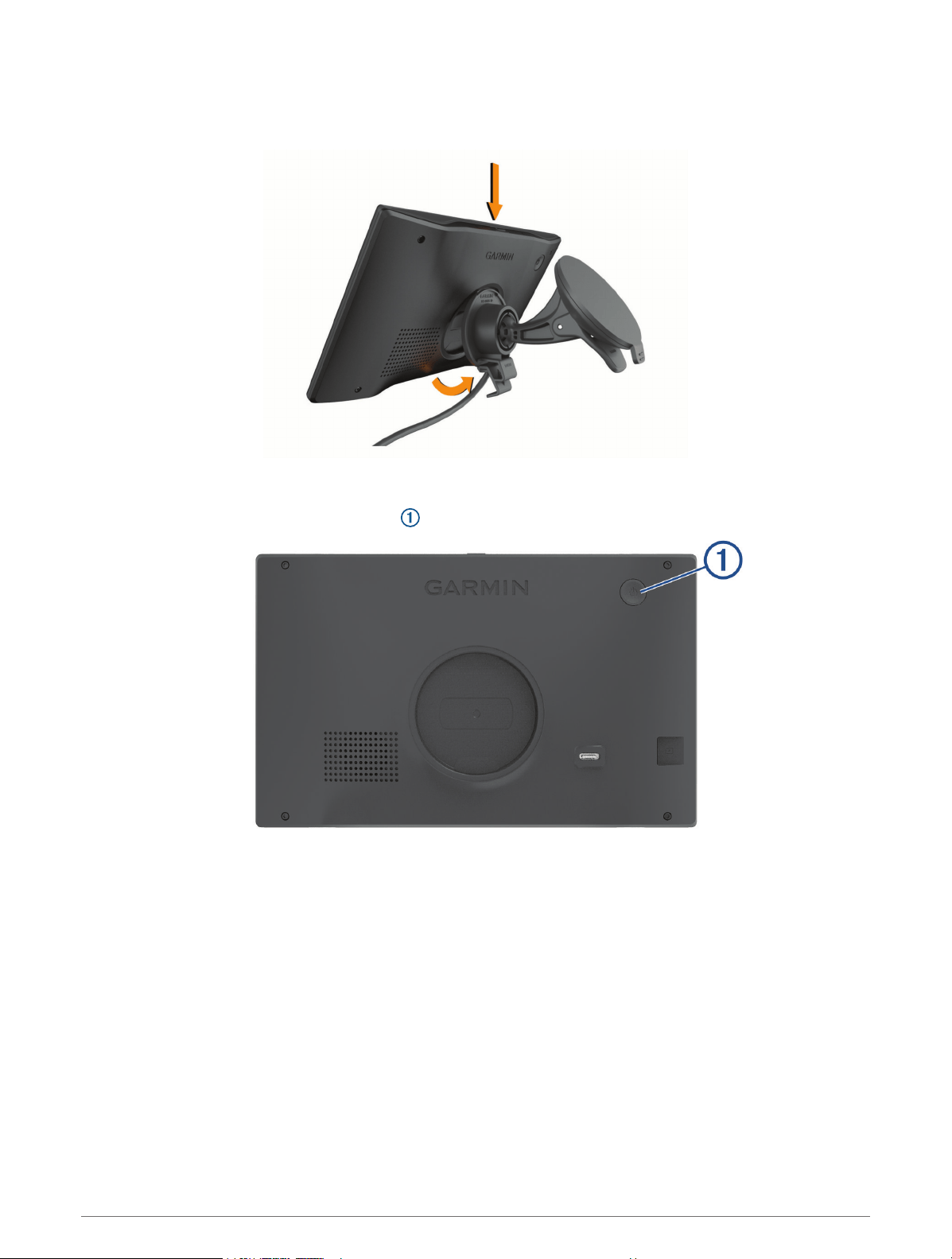
5 Plug the vehicle power adapter into a power outlet in your vehicle.
6 Fit the tab on the top of the mount into the slot on the back of the device, and press the bottom of the mount
into the device until it clicks.
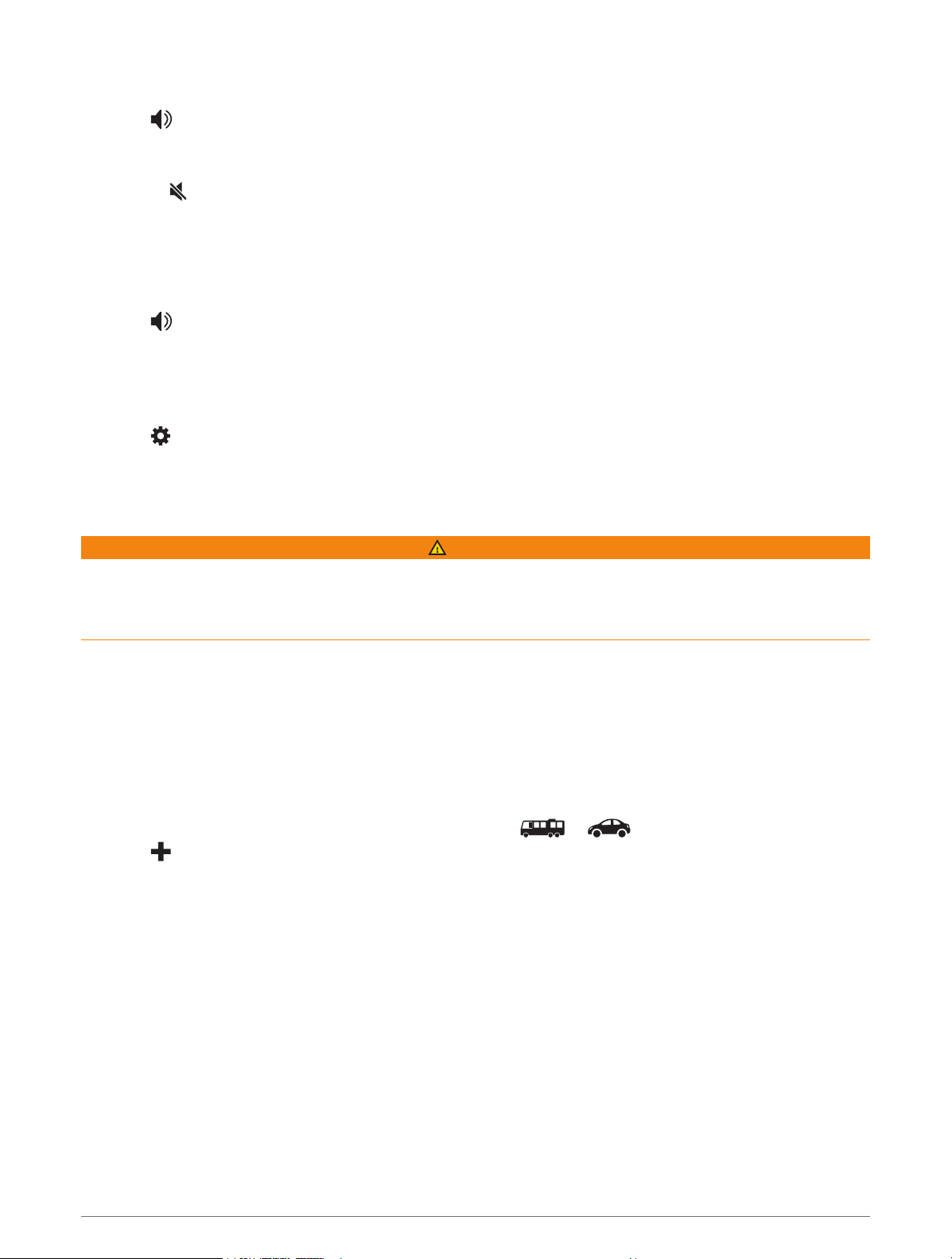
Turning the Device On or Off
• To turn the device on, press the power key , or connect the device to power.
• To put the device in power saving mode, press the power key while the device is on.
While in power saving mode, the screen is off and the device uses very little power, but it can wake instantly
for use.
TIP: You can charge your device faster by putting it in power saving mode while charging the battery.
• To turn off the device completely, hold the power key until a prompt appears on the screen, and select Off.
The prompt appears after five seconds. If you release the power key before the prompt appears, the device
enters power saving mode.
Getting Started 3

Acquiring GPS Signals
When you turn on your navigation device, the GPS receiver must collect satellite data and establish the current
location. The time required to acquire satellite signals varies based on several factors, including how far you are
from the location where you last used your navigation device, whether you have a clear view of the sky, and how
long it has been since you last used your navigation device. The first time you turn on your navigation device, it
may take several minutes to acquire satellite signals.
1 Turn on the device.
2 Wait while the device locates satellites.
3 If necessary, go to an open area, away from tall buildings and trees.
in the status bar indicates the satellite signal strength. When at least half the bars are filled, the device is
ready for navigation.
Status Bar Icons
The status bar is located at the top of the main menu. The status bar icons display information about features
on the device. You can select some icons to change settings or view additional information.
GPS signal status. Hold to view GPS accuracy and acquired satellite information (Viewing GPS
Signal Status, page56).
Bluetooth
®
technology status. Select to view the Bluetooth settings (Wireless Network Settings,
page44).
Wi‑Fi
®
signal strength. Select to change the Wi‑Fi settings (Wireless Network Settings, page44).
Connected to hands-free calling. Select to place a phone call (Hands-Free Calling, page31).
Active vehicle profile. Select to view the vehicle profile settings (Editing a Vehicle Profile, page6).
Current time. Select to set the time (Setting the Time, page45).
Battery charge level.
Garmin Drive
™
app connection status (Pairing with Your Smartphone, page28).
Temperature. Select to view the weather forecast (Viewing the Weather Forecast, page35).
Using the On-Screen Buttons
On-screen buttons allow you to navigate the pages, menus, and menu options on your device.
• Select to return to the previous menu screen.
• Hold to quickly return to the main menu.
• Select or to scroll through lists or menus.
• Hold or to scroll faster.
• Select
to see a context-based menu of options for the current screen.
4 Getting Started
Adjusting the Volume
1 Select .
2 Select an option:
• Use the slider bar to adjust the volume.
• Select to mute the device.
• Select a check box to enable or disable additional sound options.
Using the Audio Mixer
You can use the audio mixer to set the volume levels for different audio types, such as navigation prompts or
phone calls. The level for each audio type is a percentage of the master volume.
1 Select .
2 Select Mixer.
3 Use the sliders to adjust the volume for each audio type.
Adjusting the Screen Brightness
1 Select > Display > Brightness.
2 Use the slider bar to adjust the brightness.
Vehicle Profiles
WARNING
Entering your vehicle profile characteristics does not guarantee that your vehicle's characteristics will be
accounted for in all route suggestions or that you will receive the warning icons in all cases. Limitations may
exist in the map data such that your device cannot account for these restrictions or road conditions in all cases.
Always defer to all posted road signs and road conditions when making driving decisions.
Routing and navigation are calculated differently based on your vehicle profile. The activated vehicle profile
is indicated by an icon in the status bar. The navigation and map settings on your device can be customized
separately for each vehicle type.
When you activate a camper vehicle profile, the device avoids including restricted or impassable areas in routes
based on the dimensions, weight, and other characteristics you entered for your vehicle.
Adding a Vehicle Profile
You should add a vehicle profile for each camper to be used with your device.
1 From the status bar, select the vehicle profile icon, such as or .
2 Select
3 Select your vehicle type:
• To add a motorhome with a permanently attached camper, select Motorhome.
• To add a motorhome pulling a trailer, select Motorhome with Trailer.
• To add a camper pulled behind a passenger vehicle, select Vehicle With Trailer.
4 If necessary, select your trailer type:
• To add a camper pulled using a standard hitch, select Travel Trailer.
• To add a camper pulled using a fifth-wheel hitch, select Fifth Wheel.
NOTE: This trailer type is not available in all areas.
• To add a boat trailer pulled using a standard hitch, select Boat Trailer.
• To add a trailer pulled using a standard hitch, select Trailer.
5 Follow the on-screen instructions to enter the vehicle characteristics.
After you add a vehicle profile, you can edit the profile to enter additional detailed information (
Editing a Vehicle
Profile, page6).
Vehicle Profiles 5
Adding an Environmental Zone Vehicle Profile
You can add a vehicle profile for the environmental zone settings specific to your vehicle, such as fuel type and
emission standard.
NOTE: This feature is not available for all regions or product models.
1 Select > Navigation > Environmental Zones.
2 Follow the on-screen instructions.
Car Profile
The car profile is a preloaded vehicle profile intended for use in an automobile without a trailer. While using
the car profile, the device calculates standard automobile routes, and routing for large vehicles is not available.
Some features and settings specific to large vehicles are not available while using the car profile.
Switching the Vehicle Profile
You can manually switch to another vehicle profile at any time.
1 From the status bar, select the vehicle profile icon, such as or .
2 Select a vehicle profile.
The vehicle profile information appears, including measurements and weight.
3 Select Select.
Editing a Vehicle Profile
You can change basic vehicle profile information or add detailed information to a vehicle profile, such as
maximum speed.
1 From the home screen, select the vehicle profile widget .
2 Select the vehicle profile to edit.
3 Select an option:
• To edit the vehicle profile information, select , and select a field to edit.
• To rename a vehicle profile, select > > Rename Profile.
• To delete the vehicle profile, select > > Delete.
Adding Propane Tanks
NOTE: This feature is not available on all product models.
When you add your propane tanks to your vehicle profile, the device avoids routing through areas with propane
tank restrictions that may affect your route. The device also alerts you when you approach areas that require
you to shut off your propane tanks.
1 From the vehicle profile, select > Add Tank.
2 Enter the weight of the propane tank, and select OK.
6 Vehicle Profiles

Driver Awareness Features and Alerts
CAUTION
The driver alerts and speed limit features are for information only and do not replace your responsibility to abide
by all posted speed limit signs and to use safe driving judgment at all times. Garmin is not responsible for any
traffic fines or citations you receive for failing to follow all applicable traffic laws and signs.
Your device provides features that can help encourage safer driving and increase efficiency, even when you are
driving in a familiar area. The device plays an audible tone or message and displays information for each alert.
You can enable or disable the audible tone for some types of driver alerts. Not all alerts are available in all areas.
Schools: The device plays a tone and displays the speed limit (if available) for an upcoming school or school
zone.
Speed limit exceeded: The device displays a red border on the speed limit icon when you exceed the posted
speed limit for the current road.
Speed limit reduced: The device plays a tone and displays the upcoming speed limit so you can be prepared to
adjust your speed.
Wrong way on a one-way street: The device plays a message and displays a full-screen warning if you travel the
wrong way on a one-way street. The edges of the screen appear red and an alert remains at the top of the
screen until you leave the one-way street or correct your direction of travel.
Railroad crossing: The device plays a tone to indicate an upcoming railroad crossing.
Animal crossing: The device plays a tone to indicate an upcoming animal crossing area.
Curves: The device plays a tone to indicate a bend in the road.
Slower traffic: The device plays a tone to indicate slower traffic when you approach slower traffic at a higher
speed. Your device must be receiving traffic information to use this feature (Traffic, page33).
Construction zone: The device plays a tone and displays a message when you approach a construction zone.
Lane closure: The device plays a tone and displays a message when you approach a lane closure.
Break planning: The device plays a tone and suggests upcoming rest stops after you have been driving for a
long time.
Risk of grounding: The device plays a tone and displays a message when you approach a road where your
vehicle could become grounded.
Lateral wind: The device plays a tone and displays a message when you approach a road where there is risk of
lateral wind.
Narrow road: The device plays a tone and displays a message when you approach a road that may be too
narrow for your vehicle.
Steep hill: The device plays a tone and displays a message when you approach a steep hill.
State and country borders: The device plays a tone and displays a message when you approach the border of a
state or country.
Shut off propane: The device plays a tone and displays a message when you approach an area where propane
should be turned off.
Enabling or Disabling Driver Alerts
You can enable or disable several types of driver alerts.
1 Select > Driver Assistance > Driver Alerts.
2 Select or clear the check box next to each alert.
Driver Awareness Features and Alerts 7
Red Light and Speed Cameras
NOTICE
Garmin is not responsible for the accuracy of or the consequences of using a red light or speed camera
database.
NOTE: This feature is not available for all regions or product models.
Information about red light and speed camera locations is available in some areas for some product models.
The device alerts you when you approach a reported speed or red light camera.
• In some areas, your device can receive red light and speed camera data while connected to a smartphone
running the Garmin Drive app.
• You can use the Garmin Express
™
software (garmin.com/express) to update the camera database stored on
your device. You should update your device frequently to receive the most up-to-date camera information.
Warning and Alert Symbols
WARNING
Entering your vehicle profile characteristics does not guarantee that your vehicle's characteristics will be
accounted for in all route suggestions or that you will receive the warning icons in all cases. Limitations may
exist in the map data such that your device cannot account for these restrictions or road conditions in all cases.
Always defer to all posted road signs and road conditions when making driving decisions.
Warning and alert symbols may appear on the map or in route directions to alert you to potential hazards and
road conditions.
8 Driver Awareness Features and Alerts
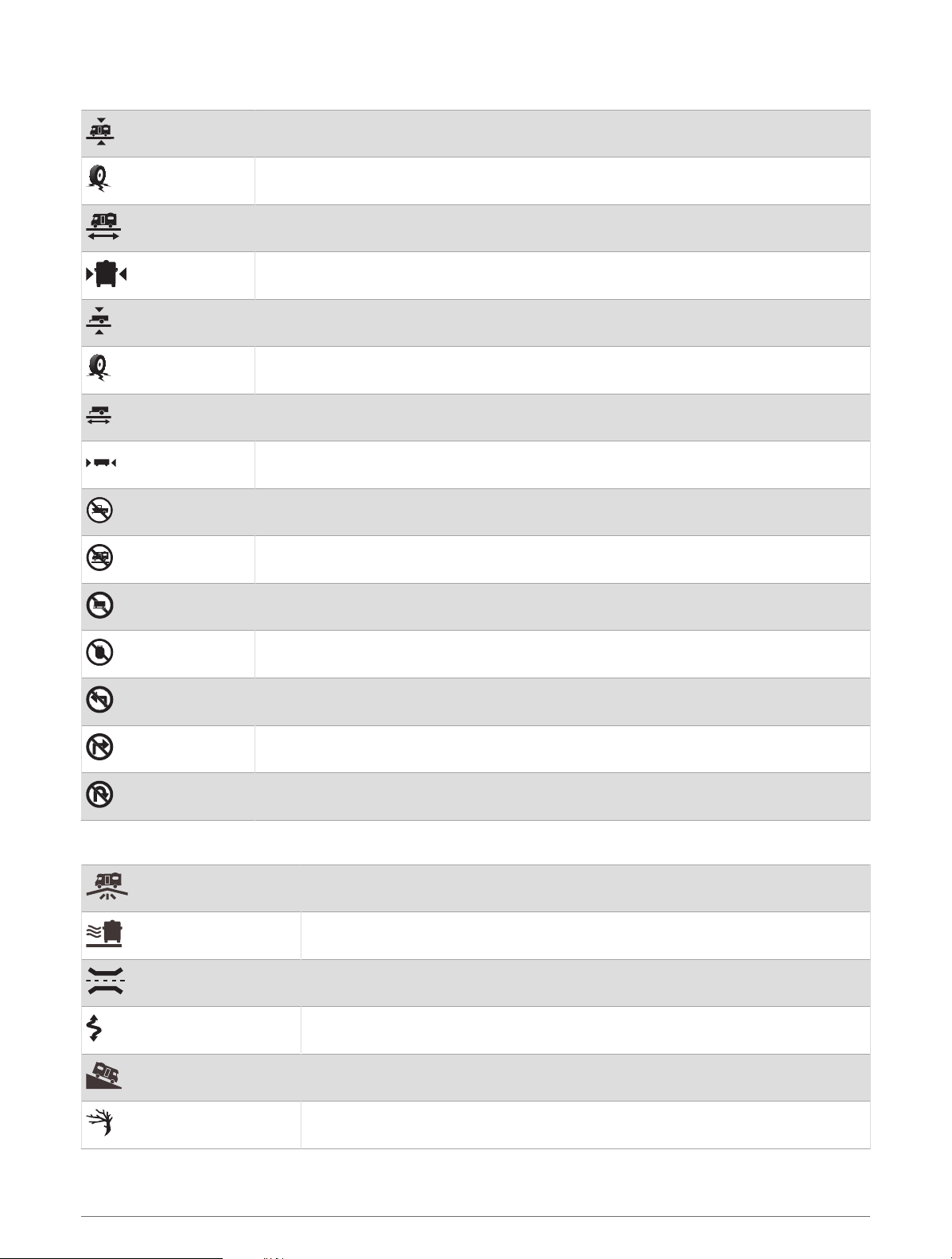
Restriction Warnings
Height
Weight
Length
Width
Trailer height
Trailer weight
Trailer length
Trailer width
No boat trailers allowed
No campers allowed
No trailers allowed
No propane
No left turn
No right turn
No U turn
Road Condition Warnings
Risk of grounding
Lateral wind
Narrow road
Sharp curve
Steep down hill
Tree overhang
Driver Awareness Features and Alerts 9
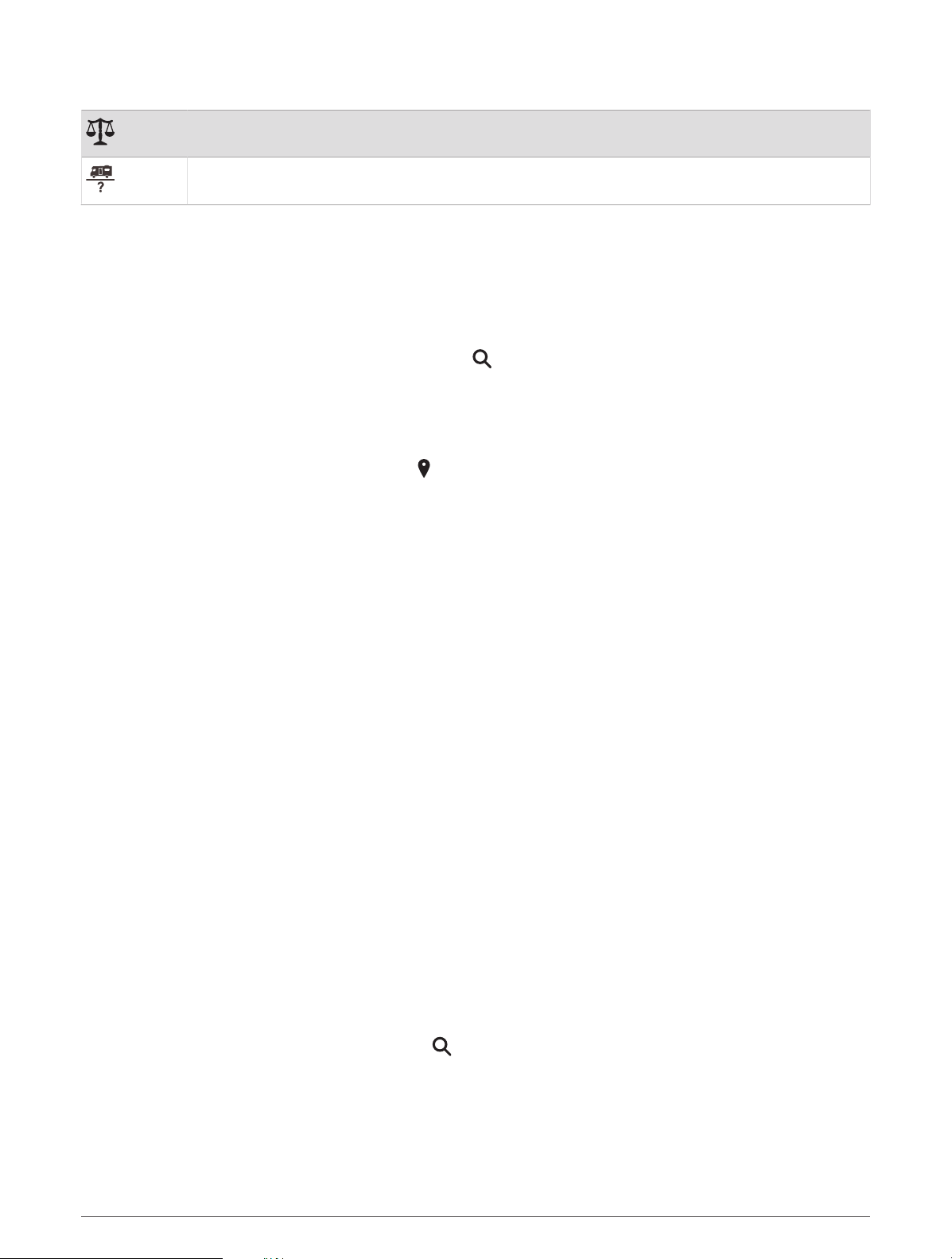
Alerts
Weigh station
Road not verified for motorhomes
Finding and Saving Locations
The maps loaded in your device contain locations, such as restaurants, hotels, auto services, and detailed street
information. The Where To? menu helps you find your destination by providing several methods to browse,
search, and save this information.
From the main menu, select Where To?.
• To quickly search all locations on your device, select Search (Finding a Location Using the Search Bar,
page10).
• To find an address, select Address (Finding an Address, page11).
• To browse or search pre-loaded points of interest by category, select Categories (Finding a Location by
Category, page12).
• To search near a different city or area, select next to the current search area (Changing the Search Area,
page12).
• To view and edit your saved locations, select Saved (Saving Locations, page16).
• To view locations you have recently selected from the search results, select Recent (Viewing Recently Found
Locations, page15).
• To search for RV parks and campgrounds, select Campgrounds (Finding Campgrounds, page13).
• To browse and search Tripadvisor
®
traveler ratings, select Tripadvisor (Tripadvisor, page14).
• To navigate to specific geographic coordinates, select Coordinates (Finding a Location Using Coordinates,
page15).
Finding a Location Using the Search Bar
You can use the search bar to search for locations by entering a category, brand name, address, or city name.
1 Select Where To?.
2 Select Search in the search bar.
3 Enter all or part of the search term.
Suggested search terms appear below the search bar.
4 Select an option:
• To search for a type of business, enter a category name (for example, "movie theaters").
• To search for a business name, enter all or part of the name.
• To search for an address near you, enter the house number and street name.
• To search for an address in another city, enter the house number, street name, city, and state.
• To search for a city, enter the city and state.
• To search for coordinates, enter latitude and longitude coordinates.
5 Select an option:
• To search using a suggested search term, select the term.
• To search using the text you entered, select .
6 If necessary, select a location.
10 Finding and Saving Locations
Trendy Places
NOTICE
Garmin is not responsible for the accuracy or timeliness of the Tripadvisor or Michelin
®
information. You are
responsible for understanding and complying with any applicable rules, laws, or regulations associated with
points of interest.
The Trendy Places search feature includes both Tripadvisor and Michelin points of interest and ratings,
providing a comprehensive list of attractions. You can filter the search results by categories, ratings, and
distance from the route.
Performing a Trendy Places Search
1 Select Trendy Places.
2 Select Filter by Amenities to filter the displayed points of interest by category or rating (optional).
3 Select , and enter a search term (optional).
Finding an Address
NOTE: The order of the steps may change depending on the map data loaded on your device.
1 Select Where To?.
2 If necessary, select to search near a different city or area.
3 Select Address.
4 Follow the on-screen instructions to enter address information.
5 Select the address.
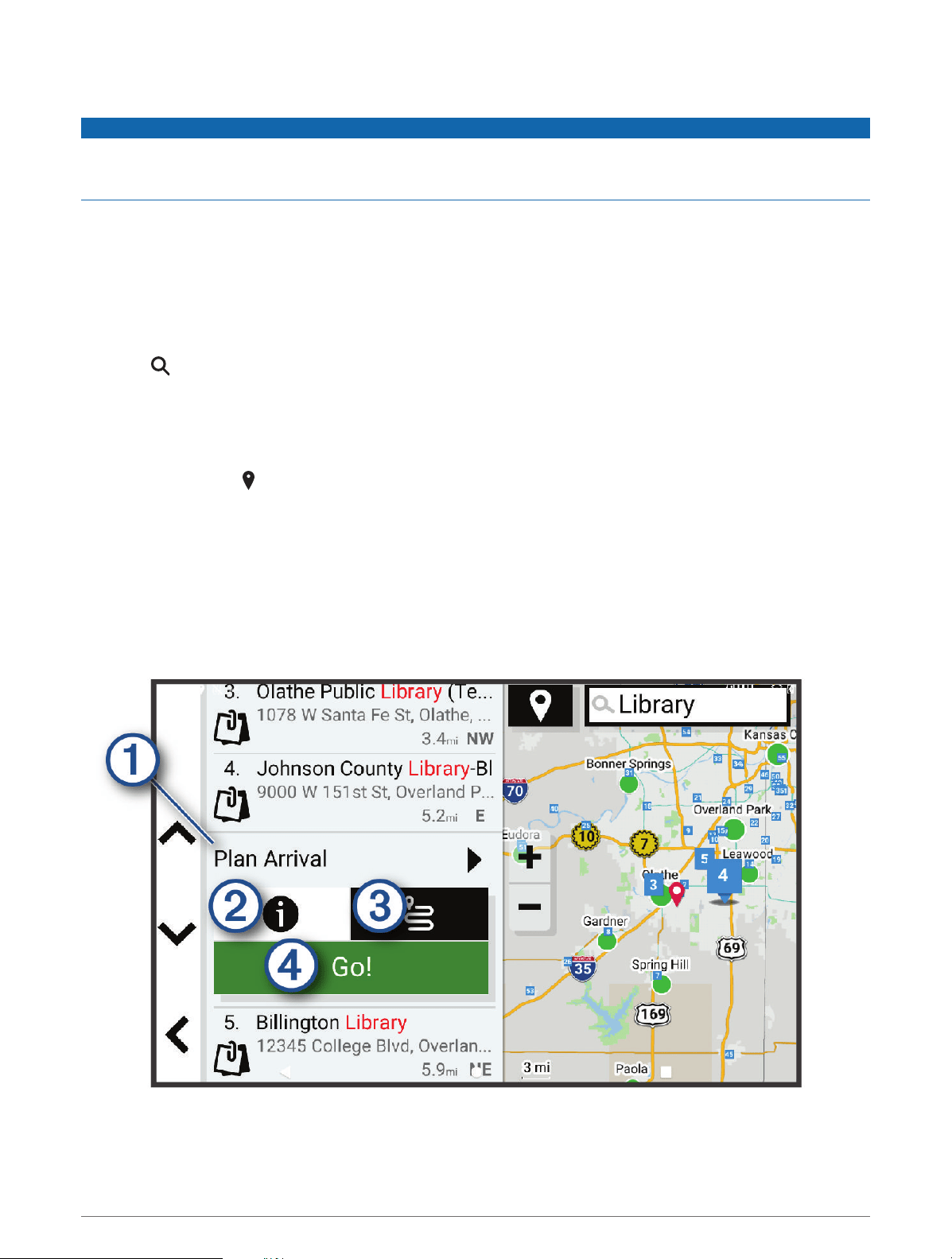
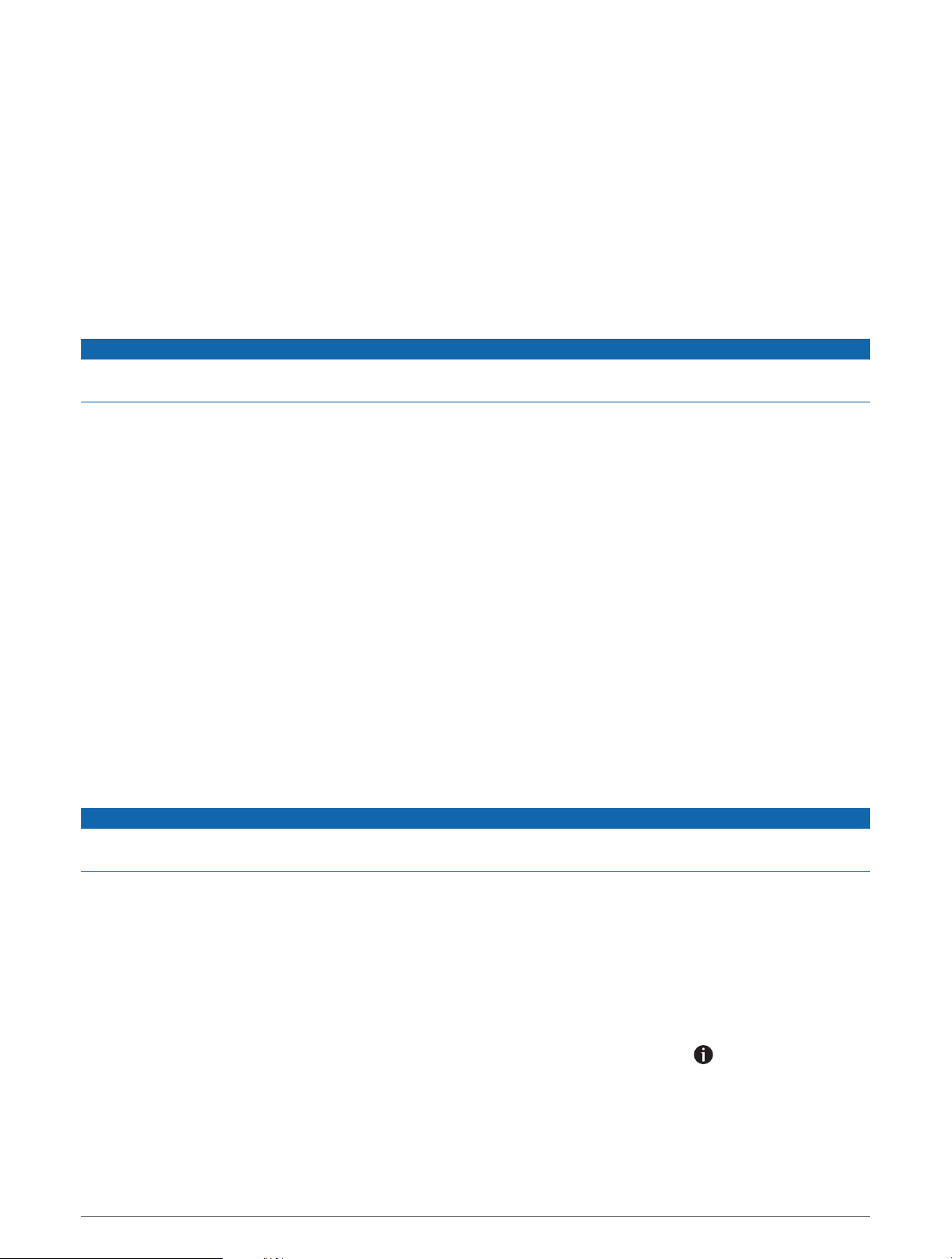
Location Search Results
The location search results appear in a list, with the nearest location at the top. Each numbered location also
appears on the map. You can scroll down to view more results.
Finding and Saving Locations 11
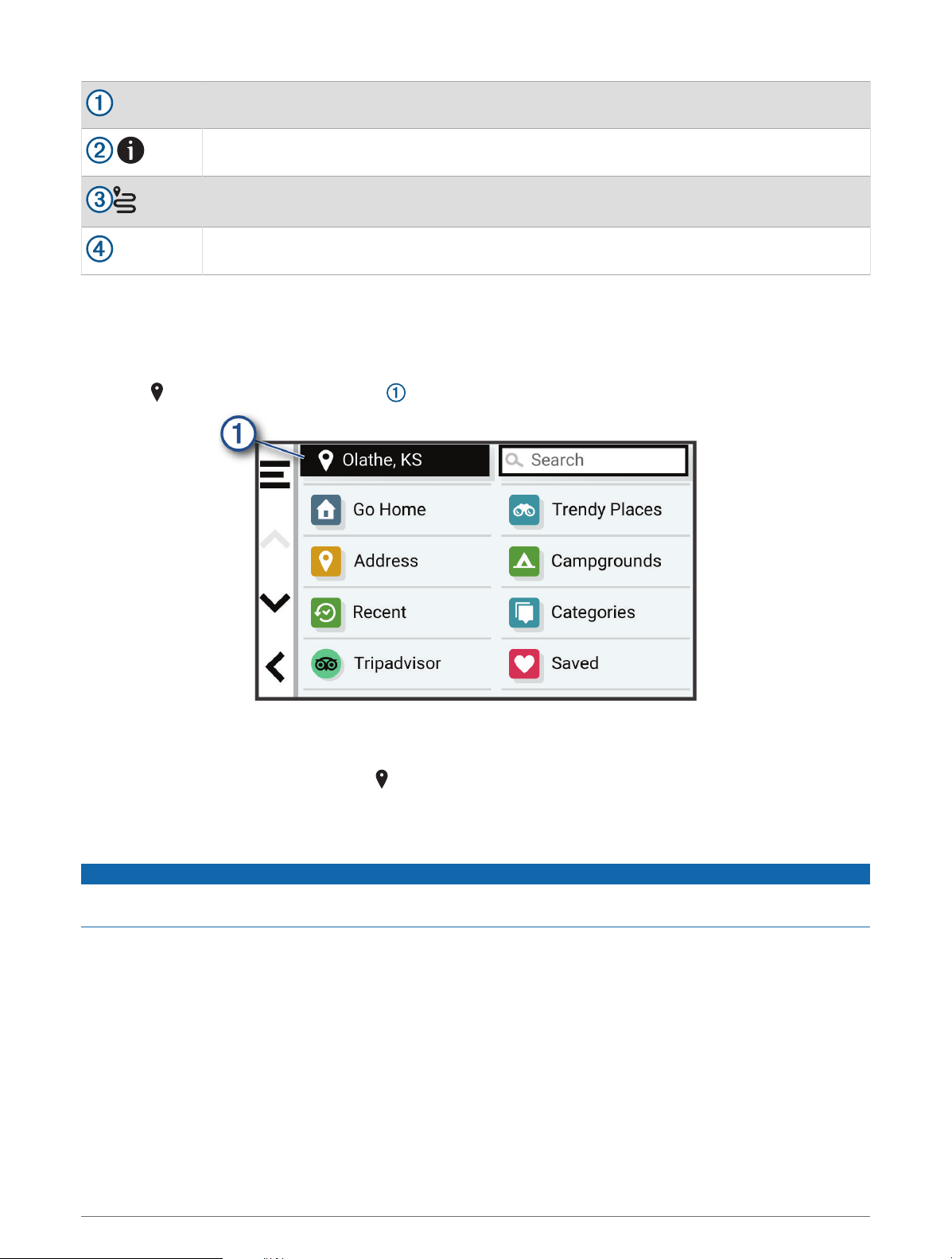
Plan Arrival
Select to use the Plan Arrival tool.
Select to view detailed information about the location.
Select to create a route to the location using the feature (Starting a Route Using the Road Trip
Routes Feature, page18).
Go!
Select to start navigating to the location using the recommended route.
Changing the Search Area
By default, the device searches for locations near your current location. You can also search other areas, such
as near your destination, near another city, or along your active route.
1 Select Where To?.
2 Select next to the current search area .
3 Select a search area.
4 If necessary, follow the on-screen instructions to select a specific location.
The selected search area appears next to . When you search for a location using any of the options in the
Where To? menu, the device suggests locations near this area first.
Points of Interest
NOTICE
You are responsible for understanding and complying with any applicable rules, laws, or regulations associated
with points of interest.
A point of interest is a place that you may find useful or interesting. Points of interest are organized by category
and can include popular travel destinations such as gas stations, restaurants, hotels, and entertainment venues.
Finding a Location by Category
1 Select Where To?.
2 Select a category, or select Categories.
3 If necessary, select a subcategory.
4 Select a location.
12 Finding and Saving Locations
Searching Within a Category
After you have performed a search for a point of interest, certain categories may display a Quick Search list that
shows the last four destinations you selected.
1 Select Where To? > Categories.
2 Select a category.
3 Select an option:
• Select a destination from the quick search list on the right side of the screen.
The quick search list provides a list of recently found locations in the selected category.
• Select a subcategory, if necessary, and select a destination.
Finding Campgrounds
NOTICE
You are responsible for understanding and complying with any applicable rules, laws, or regulations associated
with campgrounds.
Select Where To? > Campgrounds.
Finding Campgrounds with Amenities
You can search for RVparks and campgrounds based on the amenities available.
1 Select Where To?.
2 Select an RV parks and campgrounds search provider, such as ACSI, Campercontact, or KOA.
3 If necessary, select a category.
4 Select Filter by Amenities, select one or more amenities, and select OK.
5 Select a location.
Finding RV Services
NOTE: This feature is not available in all areas.
You can find nearby locations that offer repair, towing, and other services for RVs.
Select Where To? > PlanRV™ Services.
Finding National Parks
Device models that include maps for North America or the United States also include detailed information for
national parks in the United States. You can navigate to a national park or to a location within a national park.
NOTICE
You are responsible for understanding and complying with any applicable rules, laws, or regulations associated
with national parks.
1 Select Where To? > National Parks.
A list of national parks appears, with the nearest park at the top.
2 Select Search, and enter all or part of the park name to narrow the results (optional).
3 Select a national park.
A list of categories for locations of features and amenities within the park appears below the park name.
4 Select an option:
• To start navigating to the park, select Go!.
• To view more park information or explore the park features and amenities, select .
• To quickly find a location within the park, select a category from the list below the park name, and select a
location.
Finding and Saving Locations 13
Exploring National Park Features and Amenities
On North American product models, you can explore detailed information about the features and amenities
available inside a national park, and navigate to specific locations in the park. For example, you can find
campgrounds, landmarks, visitor centers, and popular attractions.
1 From the location search results, select a national park.
A list of categories for park features and amenities appears.
2 Select a category.
3 Select a location, and select Go!.
Tripadvisor
NOTICE
Garmin is not responsible for the accuracy or timeliness of the Tripadvisor information.
You are responsible for understanding and complying with any applicable rules, laws, or regulations associated
with points of interest.
Your device includes Tripadvisor traveler ratings. Tripadvisor ratings appear automatically in the search results
list for restaurants, hotels, and attractions. You can also search for nearby Tripadvisor points of interest and
sort by distance or popularity.
Finding Tripadvisor Points of Interest
1 Select Where To? > Tripadvisor.
2 Select a category.
3 If necessary, select a subcategory.
A list of nearby Tripadvisor points of interest for the category appears.
4 Select Sort Results to filter the displayed points of interest by distance or popularity (optional).
5 Select , and enter a search term (optional).
Navigating to Points of Interest Within a Venue
NOTE: This feature may not be available in all areas or for all product models.
You can create a route to a point of interest (POI) within a larger venue, such as a store in a shopping mall or a
specific terminal in an airport.
1 Select Where To? > Search.
2 Enter the name of the venue, and select .
3 Select the venue.
A list of categories for POIs within the venue appears.
4 Select a category, select a location, and select Go!.
The device creates a route to the parking area or venue entrance closest to the POI. When you arrive at the
destination, a checkered flag indicates the recommended parking area. A labeled point indicates the location of
the POI within the venue.
Exploring a Venue
NOTE: This feature may not be available in all areas or for all product models.
You can view a list of all points of interest located within each venue.
1 Select a venue.
2 Select > Explore this Venue.
Search Tools
Search tools allow you to search for specific types of locations by responding to on-screen prompts.
14 Finding and Saving Locations

Finding an Intersection
You can search for an intersection or junction between two streets, highways, or other roads.
1 Select Where To? > Intersections.
2 Follow the on-screen instructions to enter street information.
3 Select the intersection.
Finding a Location Using Coordinates
You can find a location using latitude and longitude coordinates.
1 Select Where To? > Coordinates.
2 If necessary, select , and change the coordinate format or datum.
3 Select Coordinates.
4 Enter the latitude and longitude coordinates, and select Done.
5 Select an option:
• To save the coordinates as a location, select Save.
• To start a route to the coordinates, select Go!.
Viewing Recently Found Locations
Your device stores a history of the last 50 locations you have found.
Select Where To? > Recent.
Clearing the List of Recently Found Locations
Select Where To? > Recent > > Clear > Yes.
Viewing Current Location Information
You can use the Where Am I? page to view information about your current location. This feature is helpful if you
need to tell emergency personnel your location.
From the map, select the vehicle.
Finding Emergency Services and Fuel
You can use the Where Am I? page to find the nearest hospitals, police stations, and fuel stations.
1 From the map, select the vehicle.
2 Select Hospitals, Police Stations, or Fuel.
A list of locations for the selected service appears, with the nearest locations at the top.
3 Select a location.
4 Select an option:
• To navigate to the location, select Go!
• To view the phone number and other location details, select .
Getting Directions to Your Current Location
If you need to tell another person how to get to your current location, your device can give you a list of
directions.
1 From the map, select the vehicle.
2 Select > Directions to Me.
3 Select a starting location.
4 Select Select.
Finding and Saving Locations 15

Adding a Shortcut
You can add shortcuts to the Where To? menu. A shortcut can point to a location, a category, or a search tool.
The Where To? menu can contain up to 36 shortcut icons.
1 Select Where To? > Add Shortcut.
2 Select an item.
Removing a Shortcut
1 Select Where To? > > Remove Shortcut(s).
2 Select a shortcut to remove.
3 Select the shortcut again to confirm.
4 Select Done.
Saving Locations
Saving a Location
1 Search for a location (Finding a Location by Category, page12).
2 From the search results, select a location.
3 Select > Save.
4 If necessary, enter a name, and select Done.
5 Select Save.
Saving Your Current Location
1 From the map, select the vehicle icon.
2 Select OK.
3 Enter a name, and select Done.
Editing a Saved Location
1 Select Where To? > Saved.
2 If necessary, select a category.
3 Select a location.
4 Select .
5 Select > Edit.
6 Select an option:
• Select Name.
• Select Phone Number.
• Select Categories to assign categories to the saved location.
• Select Change Map Symbol to change the symbol used to mark the saved location on a map.
7 Edit the information.
8 Select Done.
16 Finding and Saving Locations

Assigning Categories to a Saved Location
You can add custom categories to organize your saved locations.
NOTE: Categories appear in the saved locations menu after you have saved at least 12 locations.
1 Select Where To? > Saved.
2 Select a location.
3 Select .
4 Select > Edit > Categories.
5 Enter one or more category names, separated by commas.
6 If necessary, select a suggested category.
7 Select Done.
Deleting a Saved Location
NOTE: Deleted locations cannot be recovered.
1 Select Where To? > Saved.
2 Select > Delete.
3 Select the box next to the saved locations to delete, and select Delete > Yes.
Following a oute
Routes
A route is a path from your current location to one or more destinations.
• The device calculates a recommended route to your destination based on the preferences you set, including
the route calculation mode (Changing the Route Calculation Mode, page18) and avoidances (Avoiding
Delays, Tolls, and Areas, page22).
• The device can automatically avoid roads that are not appropriate for the active vehicle profile.
• You can start navigating to your destination quickly using the recommended route, or you can select an
alternate route (Starting a Route, page17).
• If there are specific roads you need to use or avoid, you can customize the route (Shaping Your Route,
page21).
• You can add multiple destinations to a route (Adding a Location to Your Route, page21).
Starting a Route
1 Select Where To?, and search for a location (Finding and Saving Locations, page10).
2 Select a location.
3 Select an option:
• To start navigating using the recommended route, select Go!.
• To edit the course of the route, select > , and add shaping points to the route (Shaping Your Route,
page21).
The device calculates a route to the location and guides you using voice prompts and information on the map
(Your Route on the Map, page19). A preview of the major roads in your route appears at the edge of the map
for several seconds.
If you need to stop at additional destinations, you can add the locations to your route (Adding a Location to Your
Route, page21).
Following a Route 17

Starting a Route by Using the Map
You can start a route by selecting a location from the map.
1 Select View Map.
2 Drag and zoom the map to display the area to search.
3 If necessary, select to filter the displayed points of interest by category.
Location markers (colored dots) appear on the map.
4 Select an option:
• Select a location marker.
• Select a point, such as a street, intersection, or address location.
5 Select Go!.
Starting a Route Using the Road Trip Routes Feature
Your device can calculate routes that prefer curvy roads, hills, and fewer highways. This feature can provide a
more enjoyable drive, but it may increase the time or distance to your destination.
1 Select Where To? > Categories.
2 If necessary, select a subcategory.
3 Select a location.
4 Select .
5 Use the slider to increase or decrease the length of your route.
6 If necessary, select to add shaping points to your route.
7 Select Go!.
Going Home
The first time you start a route home, the device prompts you to enter your home location.
1 Select Where To? > Go Home.
2 If necessary, enter your home location.
Editing Your Home Location
1 Select Where To? > > Set Home Location.
2 Enter your home location.
Changing the Route Calculation Mode
1 Select > Navigation > Calculation Mode.
2 Select an option:
• Select Turn-by-Turn to calculate routes on streets that are faster to drive but can be longer in distance.
• Select Straight Line to calculate off-road, point-to-point routes in a straight line.
18 Following a Route
Your Route on the Map
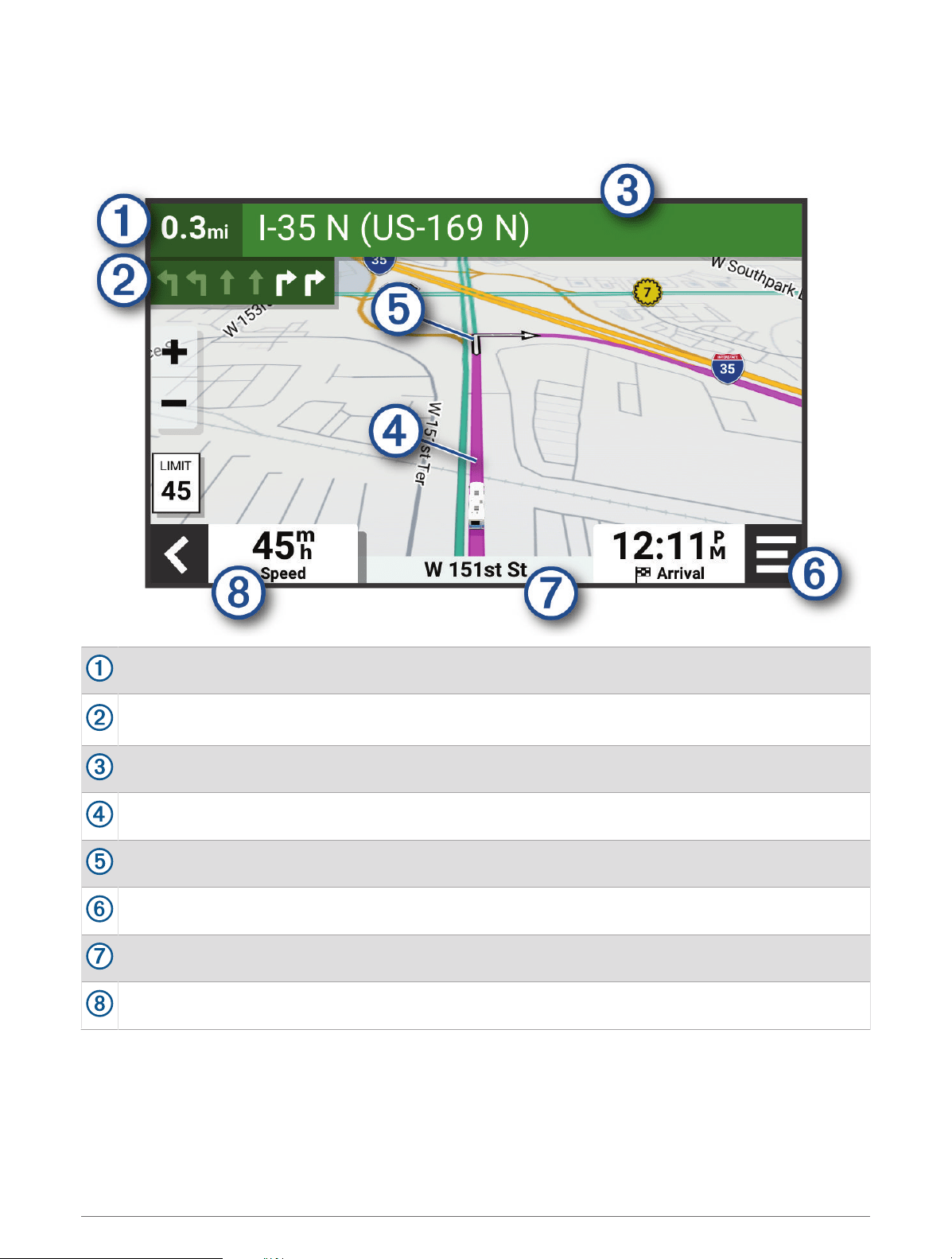
As you travel, the device guides you to your destination using voice prompts and information on the map.
Instructions for your next turn or exit, or other actions appear across the top of the map.
Distance to the next action.
Next action in the route. Indicates the next turn, exit, or other action and the lane in which you should
travel, if available.
Name of the street or exit associated with the next action.
Route highlighted on the map.
Next action in the route. Arrows on the map indicate the location of upcoming actions.
Map tools. Provides tools to show you more information about your route and surroundings.
Name of the road on which you are traveling.
Vehicle speed.
Following a Route 19
Active Lane Guidance
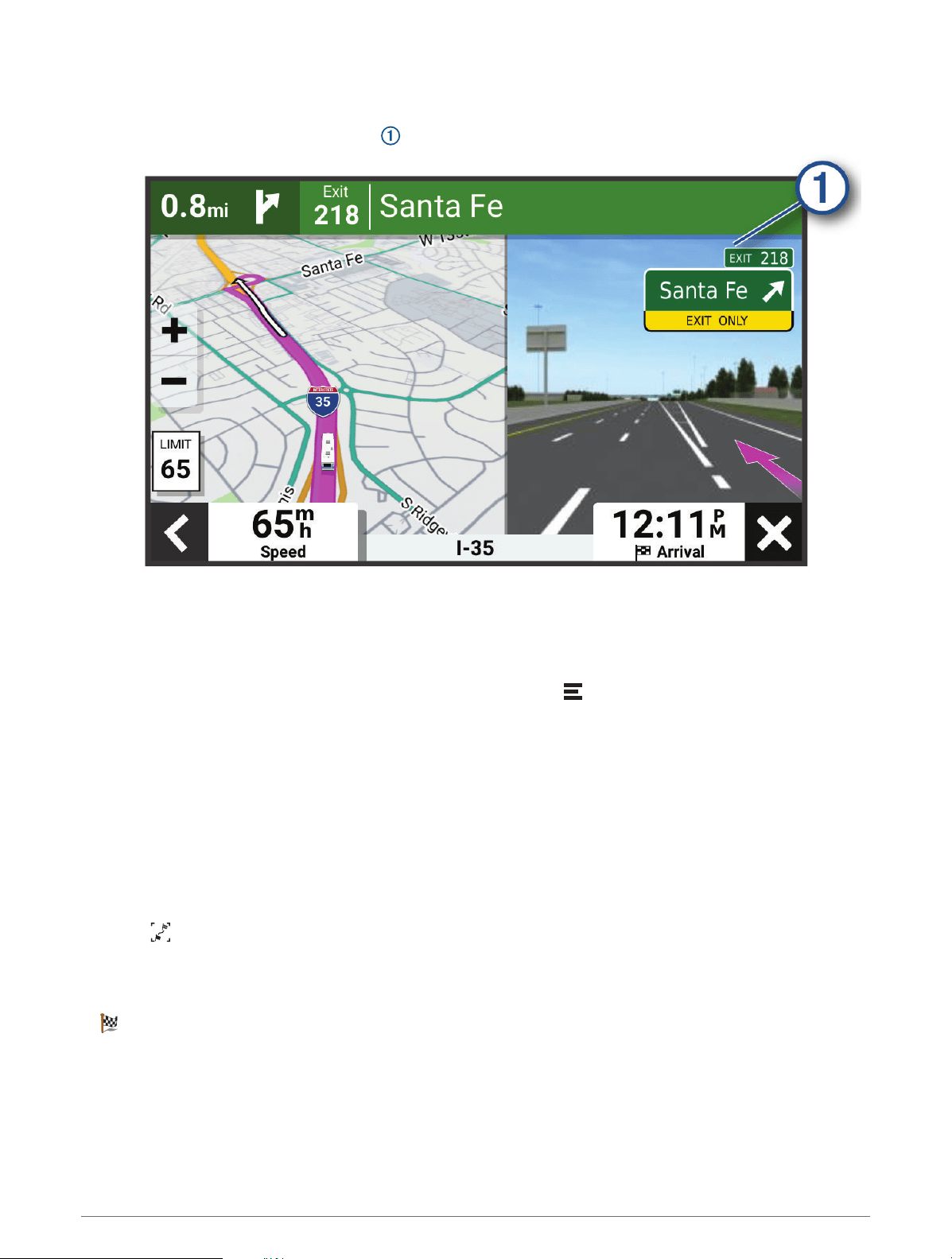
As you approach some turns, exits, or interchanges in your route, a detailed simulation of the road appears
beside the map, if available. A colored line indicates the proper lane for the turn.
Viewing Turns and Directions
While navigating a route, you can view upcoming turns, lane changes, or other directions for your route.
1 From the map, select an option:
• To view upcoming turns and directions as you navigate, select > Turns.
The map tool displays the next several turns or directions beside the map. The list updates automatically
as you navigate the route.
• To view the complete list of turns and directions for the entire route, select the text bar at the top of the
map.
2 Select a turn or direction (optional).
Detailed information appears. An image of the junction may appear for junctions on major roadways, if
available.
Viewing the Entire Route on the Map
1 While navigating a route, select anywhere on the map.
2 Select .
Arriving at Your Destination
When you approach your destination, the device provides information to help you complete your route.
• indicates the location of your destination on the map, and a voice prompt announces you are approaching
your destination.
• When you stop at your destination, the device automatically ends the route. If the device does not detect your
arrival automatically, you can select Stop to end your route.
20 Following a Route
Changing Your Active Route
Adding a Location to Your Route
Before you can add a location to your route, you must be navigating a route (Starting a Route, page17).
You can add locations to the middle or end of your route. For example, you can add a fuel station as the next
destination in your route.
TIP: To create complex routes with multiple destinations or scheduled stops, you can use the route planner to
plan, schedule, and save a route (Route Planner, page36).
1 From the map, select > Where To?.
2 Search for a location (Finding and Saving Locations, page10).
3 Select a location.
4 Select Go!.
5 Select an option:
• To add the location as the next destination in your route, select Add As Next Stop.
• To add the location to the end of your route, select Add As Last Stop.
• To add the location and edit the order of destinations in your route, select Add to Active Route.
The device re-calculates the route to include the added location and guides you to the destinations in order.
Shaping Your Route
Before you can shape your route, you must start a route (Starting a Route, page17).
You can manually shape your route to change its course. This allows you to direct the route to use a certain
road or go through a certain area without adding a destination to the route.
1 From the map, select > Edit Route > Shape Route.
TIP: You can select to zoom in on the map and select a more precise location.
The device enters route shaping mode and recalculates the route to travel through the selected location.
2 Select > .
3 If necessary, select an option:
• To add more shaping points to the route, select additional locations on the map.
• To remove a shaping point, select the shaping point and select .
Taking a Detour
You can take a detour for a specified distance along your route or detour around specific roads. This is useful if
you encounter construction zones, closed roads, or poor road conditions.
1 From the map, select > Edit Route.
2 Select an option:
• To detour your route for a specific distance, select Detour by Distance.
• To detour around a specific road on the route, select Detour by Road.
Stopping the Route
From the map, select > Stop.
Using Suggested Routes
Before you can use this feature, you must save at least one location and enable the travel history feature (Device
and Privacy Settings, page45).
Using the myTrends
™
feature, your device predicts your destination based on your travel history, the day of the
week, and the time of day. After you have driven to a saved location several times, the location may appear in
the navigation bar on the map, along with the estimated time of travel, and traffic information.
Select the navigation bar to view a suggested route to the location.
Following a Route 21

Avoiding Delays, Tolls, and Areas
Avoiding Traffic Delays on Your Route
Before you can avoid traffic delays, you must be receiving traffic information (Receiving Traffic Data Using Your
Smartphone, page33).
By default, the device optimizes your route to avoid traffic delays automatically. If you have disabled this option
in the traffic settings (Traffic Settings, page45), you can view and avoid traffic delays manually.
1 While navigating a route, select > Traffic.
2 Select Alternate Route, if available.
3 Select Go!.
Avoiding Toll Roads
Your device can avoid routing you through areas that require tolls, such as toll roads, toll bridges, or congestion
areas. The device may still include a toll area in your route if no other reasonable routes are available.
1 Select > Navigation > Avoidances > Tolls and Fees.
2 Select OK.
Avoiding Road Features
1 Select > Navigation > Avoidances.
2 Select the road features to avoid on your routes, and select Save.
Avoiding Environmental Zones On Your Route
Your device can avoid areas with environmental or emissions restrictions that may apply to your vehicle.
Before you can use this feature, you must add an environmental zone vehicle profile to your device (Adding an
Environmental Zone Vehicle Profile, page6).
Before you can avoid environmental zones on your route, you must start a route.
NOTE: This feature is not available for all regions or product models.
When the device prompts you, select Go! to take an alternate route.
Custom Avoidances
Custom avoidances allow you to select specific areas or sections of road to avoid. When the device calculates a
route, it avoids these areas and roads unless no other reasonable route is available.
Avoiding a Road
1 Select > Navigation > Custom Avoidances.
2 Select Add Avoid Road.
3 Select the starting point of the section of road to avoid, and select Next.
4 Select the ending point of the road section, and select Next.
5 Select Done.
Avoiding an Area
1 Select > Navigation > Custom Avoidances.
2 If necessary, select Add Avoidance.
3 Select Add Avoid Area.
4 Select the upper-left corner of the area to avoid, and select Next.
5 Select the lower-right corner of the area to avoid, and select Next.
The selected area is shaded on the map.
6 Select Done.
22 Following a Route

Disabling a Custom Avoidance
You can disable a custom avoidance without deleting it.
1 Select > Navigation > Custom Avoidances.
2 Select an avoidance.
3 Select > Disable.
Deleting Custom Avoidances
1 Select > Navigation > Custom Avoidances > .
2 Select an option:
• To delete all custom avoidances, select Select All > Delete.
• To delete one custom avoidance, select the avoidance, and select Delete.
Using the Map
You can use the map to navigate a route (Your Route on the Map, page19) or to view a map of your
surroundings when no route is active.
1 Select View Map.
2 Touch anywhere on the map.
3 Select an option:
• Drag the map to pan left, right, up, or down.
• To add or remove map layers such as topographic and BirdsEye imagery, select .
• To zoom in or out, select or .
• To switch between North Up, 2-D, and 3-D views, select .
• To open the route planner, select (Route Planner, page36).
• To start a route, select a location on the map, and select Go! (Starting a Route by Using the Map, page18).
Using the Map 23

Map Tools
Map tools provide quick access to information and device functions while you view the map. When you activate
a map tool, it appears in a panel at the edge of the map.
Stop: Stops navigation of the active route.
Edit Route: Allows you to take a detour or skip locations in your route (Changing Your Active Route, page21).
Mute Navigation: Mutes the device audio.
Cities Ahead: Displays upcoming cities and services along your active route or along a highway (Cities Ahead,
page25).
Up Ahead: Displays upcoming locations along the route or the road on which you are traveling (Up Ahead,
page24).
Elevation: Displays upcoming elevation changes.
Traffic: Displays traffic conditions along your route or in your area (Viewing Upcoming Traffic, page27). This
feature is not available in all areas or for all device models.
Trip Data: Displays customizable trip data, such as speed or mileage (Viewing Trip Data from the Map,
page25).
Track Recorder: Displays the track data for your active route.
Turns: Displays a list of upcoming turns in your route (Viewing Turns and Directions, page20).
Phone: Displays a list of recent phone calls from your connected phone, and displays in-call options while a
phone call is active (Using In-Call Options, page32).
Weather: Displays weather conditions for your area.
Music Controls: Displays media controls and media information.
Plan Arrival: Displays a map of your destination and allows you to find a truck destination.
Pilot Flying J: Displays upcoming Pilot Flying J Travel Centers
™
along your route.
NOTE: This feature is available only in North America.
Viewing a Map Tool
1 From the map, select .
2 Select a map tool.
The map tool appears in a panel at the edge of the map.
3 When you are done using the map tool, select .
Up Ahead
The Up Ahead tool provides information about upcoming locations along your route or the road on which you
are traveling. You can view upcoming points of interest by category, such as restaurants, fuel stations, or rest
areas.
You can customize the categories that show in the Up Ahead tool.
Viewing Upcoming Locations
1 From the map, select > Up Ahead.
While you are traveling, the map tool shows the next location along your road or route.
2 Select an option:
• If the map tool shows categories, select a category to view a list of nearby locations in that category.
• If the map tool shows upcoming locations, select a location to view location details or start a route to the
location.
24 Using the Map

Customizing the Up Ahead Categories
You can change the location categories that appear in the Up Ahead tool.
1 From the map, select > Up Ahead.
2 Select a category.
3 Select .
4 Select an option:
• To move a category up or down in the list, select and drag the arrow next to the category name.
• To change a category, select the category.
• To create a custom category, select a category, select Custom Search, and enter the name of a business
or category.
5 Select Save.
Cities Ahead
While you are traveling on a highway or navigating a route that includes a highway, the Cities Ahead tool
provides information about upcoming cities along the highway. For each city, the map tool shows the distance
to the highway exit and the services available, similar to the information on highway road signs.
Viewing Upcoming Cities and Exit Services
1 From the map, select > Cities Ahead.
While you are traveling along a highway or an active route, the map tool shows information about upcoming
cities and exits.
2 Select a city.
The device shows a list of points of interest located at the selected city exit, such as fuel stations, lodging, or
restaurants.
3 Select a location, and select Go! to start navigating.
Trip Information
Viewing Trip Data from the Map
Before you can view trip data on the map, you must add the tool to the map tools menu.
From the map, select > Trip Data.
Using the Map 25
Viewing Customized TripInformation on the Map
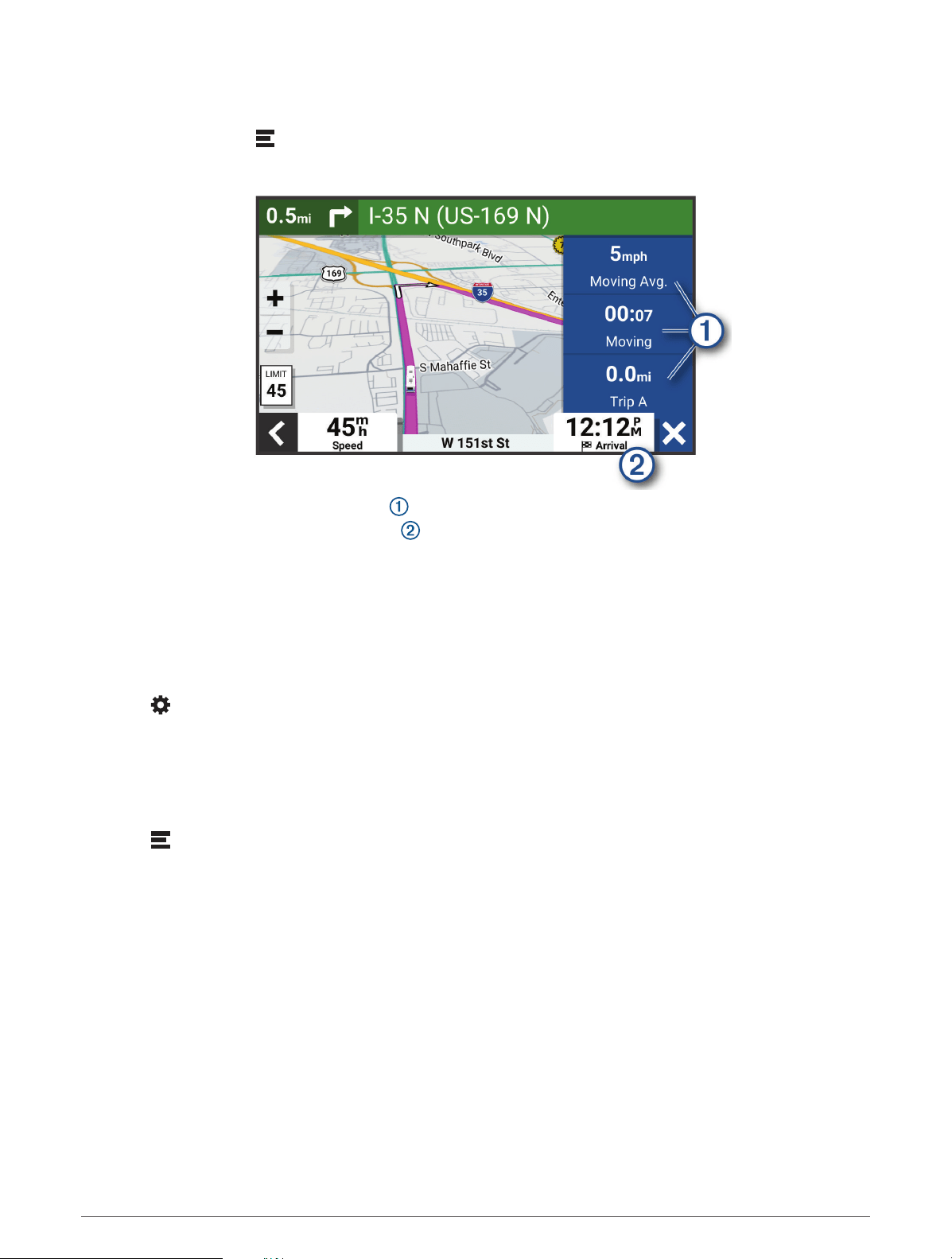
You can use the trip data map tool to show customized trip information on the map.
1 From the map, select > Trip Data.
2 Select an option:
• Select a data field in the trip data tool , and select the information to show in the field.
• Select the customizable map data field , and select the information to show in the field.
Viewing Trip Data
The trip data tool displays your speed and provides statistics about your trip.
From the map, select Speed.
Viewing the Trip Log
Your device keeps a trip log, which is a record of the path you have traveled.
1 Select > Map Display > Map Layers.
2 Select the Trip Log check box.
Resetting Trip Information
1 From the map, select Speed.
2 Select a trip information data field.
3 Select > Reset Field(s).
4 Select an option:
• When not navigating a route, select Select All to reset every data field except the speedometer, on the first
page.
• Select Reset Overall Data to reset Trip A and total data.
• Select Reset Max. Speed to reset the maximum speed.
• Select Reset Trip B to reset the odometer.
26 Using the Map
Viewing Upcoming Traffic
NOTICE
Garmin is not responsible for the accuracy or timeliness of the traffic information.
Before you can use this feature, your device must be receiving traffic data (Traffic, page33).
You can view traffic incidents coming up along your route or along the road on which you are traveling.
1 While navigating a route, select > Traffic.
The nearest upcoming traffic incident appears in a panel on the right side of the map.
2 Select the traffic incident to view additional details.
Viewing Traffic on the Map
The traffic map shows color-coded traffic flow and delays on nearby roads.
1 From the main menu, select > Traffic.
2 If necessary, select > Legend to view the legend for the traffic map.
Searching for Traffic Incidents
1 From the main menu, select > Traffic.
2 Select > Incidents.
3 Select an item in the list.
4 If there is more than one incident, use the arrows to view additional incidents.
Customizing the Map
Customizing the Map Layers
You can customize which data appear on the map, such as topographic maps and BirdsEye imagery.
1 Select > Map Display > Map Layers.
2 Select the check box next to each layer you want to show on the map.
Changing the Map Data Field
1 From the map, select a data field.
NOTE: You cannot customize Speed.
2 Select a type of data to display.
Changing the Map Perspective
1 Select > Map Display > Driving Map View.
2 Select an option:
• Select Track Up to display the map in two dimensions (2-D), with your direction of travel at the top.
• Select North Up to display the map in 2-D with north at the top.
• Select 3-D to display the map in three dimensions.
Using the Map 27

Live Services, Traffic, and Smartphone Features
WARNING
Do not read or interact with notifications while driving, because doing so can cause distraction that could lead
to an accident resulting in serious personal injury or death.
The Garmin Drive app allows your device to receive smart notifications and live information, such as live traffic
data and weather information.
Live traffic data: Sends real-time traffic data to your device, such as traffic incidents and delays, construction
zones, and road closings (Traffic, page33).
Weather information: Sends real-time weather forecasts, road conditions, and weather radar to your device
(Viewing the Weather Forecast, page35).
Smart Notifications: Displays phone notifications and messages on your device. This feature is not available for
all languages.
Hands-Free calling: Allows you to place and receive phone calls using your device, and allows you to use the
device as a hands-free speaker phone. If the selected language supports the voice command feature, you can
place calls using voice commands.
Send locations to device: Allows you to send locations from your smartphone to your navigation device.
Pairing with Your Smartphone
You can pair your Garmin device with your smartphone and the Garmin Drive app to enable additional features
and access live information (Live Services, Traffic, and Smartphone Features, page28).
1 From the app store on your smartphone, install the Garmin Drive app.
2 Turn on your Garmin device, and place the device and your smartphone within 3m (10ft.) of each other.
3 On your phone, open the Garmin Drive app.
4 Follow the on-screen instructions to sign in to a Garmin account and complete the pairing and setup
process.
The main app dashboard appears. After the devices are paired, they connect automatically when they are turned
on and within range.
Disabling Bluetooth Features (Android
™
)
By default, all compatible Bluetooth features are enabled when you pair your phone. You can disable specific
Bluetooth features and remain connected to the other features.
1 Select > Wireless Networks.
2 Select an option:
• To disable all Bluetooth features, clear the Bluetooth check box.
• To disable only hands-free calling, select the phone name and clear the Phone calls check box.
Showing or Hiding App Notifications (Android)
You can use the Garmin Drive app to customize which types of smartphone notifications appear on your Garmin
device.
1 On your phone, open the Garmin Drive app.
2 Select > Smart Notifications.
A list of smartphone app categories appears.
3 Select a category to enable or disable notifications for that type of app.
28 Live Services, Traffic, and Smartphone Features
Disabling Bluetooth Features (iPhone
®
)
By default, all compatible Bluetooth features are enabled when you pair your phone. You can disable specific
Bluetooth features and remain connected to the other features.
1 Select > Wireless Networks.
2 Select an option:
• To disable all Bluetooth features, clear the Bluetooth check box.
• To disable hands-free calling, select the phone name, and clear the Phone calls check box.
Showing or Hiding Notification Categories (iPhone)
You can filter the notifications shown on your device by showing or hiding categories.
1 Select > Wireless Networks.
2 Select Smartphone services.
TIP: appears colored when the services are active.
3 Select Smart Notifications.
4 Select the check box next to each notification to show.
Bluetooth Feature Status Icons
Status icons appear in the Bluetooth settings next to each paired device.
Select > Wireless Networks.
• A gray icon indicates the feature is disabled or disconnected for that device.
• A colored icon indicates the feature is connected and active for that device.
Hands-free calling
Smart notifications
Garmin Drive features and services
Smart Notifications
While your device is connected to the Garmin Drive app, you can view notifications from your smartphone on
your Garmin device, such as text messages, incoming calls, and calendar appointments.
NOTE: You may need to wait a few minutes to receive notifications on your navigation device after it connects
to the Garmin Drive app. appears colored in the Bluetooth settings when smart notifications are connected
and active (Bluetooth Feature Status Icons, page29).
Live Services, Traffic, and Smartphone Features 29
Receiving Notifications
WARNING
Do not read or interact with notifications while driving, because doing so can cause distraction that could lead
to an accident resulting in serious personal injury or death.
Before you can use this feature, your device must be connected to a supported phone running the Garmin Drive
app (Live Services, Traffic, and Smartphone Features, page28).
From most pages, a popup appears when the device receives a notification from your smartphone. If the device
is moving, you must verify you are a passenger and not the driver before you can view notifications.
NOTE: If you are viewing the map, notifications appear in a map tool.
• To ignore a notification, select OK.
The popup closes, but the notification remains active on your phone.
• To view a notification, select View.
• To listen to the notification, select View > Play.
The device reads the notification using text-to-speech technology. This feature is not available for all
languages.
• To perform additional actions, such as dismissing the notification from your phone, select View, and select
an option.
NOTE: Additional actions are available for only some notification types and must be supported by the app
generating the notification.
Receiving Notifications while Viewing the Map
WARNING
Do not read or interact with notifications while driving, because doing so can cause distraction that could lead
to an accident resulting in serious personal injury or death.
Before you can use this feature, your device must be connected to a supported phone running the Garmin Drive
app (Live Services, Traffic, and Smartphone Features, page28).
When you are viewing the map, new notifications appear in a map tool at the edge of the screen. If the device is
moving, you must verify you are a passenger and not the driver before you can view notifications.
• To ignore a notification, select , or wait for popup to expire.
The popup closes, but the notification remains active on your phone.
• To view a notification, select the notification text.
• To listen to the notification, select Play Message.
The device reads the notification using text-to-speech technology. This feature is not available for all
languages.
Viewing the List of Notifications
You can view a list of all active notifications.
1 Select > Smart Notifications.
The list of notifications appears. Unread notifications appear black, and previously read notifications appear
gray.
2 Select an option:
• To view a notification, select the notification description.
• To listen to a notification, select .
The device reads the notification using text-to-speech technology. This feature is not available for all
languages.
30 Live Services, Traffic, and Smartphone Features

Going to an Address or Location Using the Garmin Drive App
You can use the Garmin Drive app to search for an address, business, or point of interest, and send it to your
Garmin device for navigation.
1 From the Garmin Drive app, select Where To?.
2 Select an option:
• To search for an address near you, enter the house number and street name.
• To search for an address in another city, enter the house number, street name, city, and state.
• To search for a business name, enter all or part of the name.
• To search for a city, enter the city and state.
As you type, suggestions appear below the search field.
3 Select a suggested search result.
The app displays the location on a map.
4 Select Go! to start a route.
The Garmin device starts navigating to the selected location, and the location is added to your recent searches
in the Where To? menu.
Hands-Free Calling
NOTE: While most phones are supported and can be used, it cannot be guaranteed that a particular phone can
be used. All features may not be available for your phone.
Using Bluetooth wireless technology, your device can connect to your mobile phone to become a hands-free
device (Live Services, Traffic, and Smartphone Features, page28). While connected, you can place or receive
calls using your device.
Placing a Call
Dialing a Number
1 Select > Phone > Dial.
2 Enter the number.
3 Select Dial.
Calling a Contact in Your Phone Book
Your phone book is loaded from your phone to the device each time your phone and the device connect. It may
take a few minutes for the phone book to be available. Some phones do not support this feature.
1 Select > Phone > Phone Book.
2 Select a contact.
3 Select Call.
Calling a Location
1 Select > Phone > Browse Categories.
2 Select a point of interest.
3 Select > Call.
Receiving a Call
When you receive a call, select Answer or Ignore.
Live Services, Traffic, and Smartphone Features 31

Using the Call History
Your call history is loaded from your phone to the device each time your phone and the device connect. It may
take a few minutes for the call history to be available. Some phones do not support this feature.
1 Select > Phone > Call History.
2 Select a category.
A list of calls appears, with the most recent calls at the top.
3 Select a call.
Using In-Call Options
In-call options are available when you answer a call. Some options may not be compatible with your phone.
TIP: If you close the in-call options page, you can open it again by selecting from any screen. You can also
select the caller from the map.
• To set up a conference call, select Add Call.
• To transfer audio to your phone, select Call in Progress Navigator.
TIP: You can use this feature if you want to disconnect the Bluetooth connection and remain on the call, or if
you need privacy.
• To use the dial pad, select Keypad.
TIP: You can use this feature to use automated systems, such as voice mail.
• To mute the microphone, select Mute.
• To hang up, select End Call.
Saving a Home Phone Number
TIP: After you save a home number, you can edit the home number by editing “Home” in your list of saved
locations (Editing a Saved Location, page16).
1 Select > Phone > > Set Home Number.
2 Enter your phone number.
3 Select Done.
Calling Home
Before you can call home, you must enter a phone number for your home location.
Select > Phone > Call Home.
Disconnecting a Bluetooth Device
You can temporarily disconnect a Bluetooth device without deleting it from the paired devices list. The
Bluetooth device can connect to your Garmin device automatically in the future.
1 Select > Wireless Networks.
2 Select the device to disconnect.
3 Select Disconnect.
Deleting a Paired Phone
You can delete a paired phone to prevent it from automatically connecting to your device in the future.
1 Select > Wireless Networks.
2 Select the phone, and select Unpair device.
32 Live Services, Traffic, and Smartphone Features
Traffic
NOTICE
Garmin is not responsible for the accuracy or timeliness of the traffic information.
Your device can provide information about traffic on the road ahead or on your route. You can set your device to
avoid traffic when calculating routes, and to find a new route to your destination if a large traffic delay occurs on
your active route (Traffic Settings, page45). The traffic map allows you to browse the map for traffic delays in
your area.
To provide traffic information, your device must be receiving traffic data.
• All product models can receive subscription-free traffic data using the Garmin Drive app.
Traffic data is not available in all areas. For information about traffic coverage areas, go to garmin.com/traffic.
Receiving Traffic Data Using Your Smartphone
Your device can receive subscription-free traffic data while connected to a smartphone running the Garmin
Drive app.
1 Connect your device to the Garmin Drive app (Live Services, Traffic, and Smartphone Features, page28).
2 On your Garmin device, select > Traffic > Traffic, and verify the Traffic option is selected.
Enabling Traffic
You can enable or disable traffic data.
1 Select > Traffic.
2 Select the Traffic check box.
Voice-Activated Features
WARNING
The Garmin device uses natural language processing to understand the intent of your spoken requests. You
can ask questions or speak commands in natural language, using complete sentences. Many example phrases
are provided in the manual, but you can experiment with speaking to the device using the language most
comfortable to you.
Garmin voice-activated navigation allows you to search for locations and addresses, start routes with turn-by-
turn directions, place hands-free phone calls, and more. You can launch Garmin voice-activated navigation by
saying OK, Garmin followed by a request.
NOTE: This feature is not available for all product models or languages.
Voice Command Tips
• Speak in a normal voice directed at the device.
• Reduce background noise, such as voices, or the radio, to increase the accuracy of the voice recognition.
• Respond to prompts from the device as needed.
Launching Garmin Voice-Activated Navigation
Garmin voice-activated navigation allows you to use plain language spoken requests to search for locations and
addresses, start routes with turn-by-turn directions, place hands-free phone calls, and more.
• Say OK, Garmin, and make a spoken request.
For example, you can say phrases like these:
◦ OK, Garmin, take me home.
◦ OK, Garmin, where's the library?
Traffic 33

Starting a Route
Going to a Saved Location Using Your Voice
It is useful to start a route on your Garmin device each time you travel to a saved location, even though you may
already know how to get there. Your device can help you avoid reported traffic delays and construction that may
affect your route.
You can say phrases like these to start a route to your saved locations (Saving Locations, page16).
• OK, Garmin, take me home.
• OK, Garmin, take me to work.
• OK, Garmin, start a route to school.
Going to an Address Using Your Voice
You can say phrases like these to start a route to a nearby address, or to an address in a specific city.
• OK, Garmin, take me to One Garmin Way.
• OK, Garmin, start a route to twelve hundred East 151st Street in Olathe, Kansas.
Going to a Business or Named Location Using Your Voice
You can say phrases like these to find and navigate to a business or location by name or category.
Nearby locations
• OK, Garmin, find a coffee shop.
• OK, Garmin, where's the library?
• OK, Garmin, take me to Starbucks.
Locations near a different city
• OK, Garmin, find Mexican food near Denver, Colorado.
• OK, Garmin, find The Field Museum near Chicago, Illinois.
• OK, Garmin, find Casa Bonita near Denver, Colorado.
Locations near an intersection
• OK, Garmin, find barbecue near 12th Street and Vine Street.
• OK, Garmin, find Arthur Bryant’s Barbecue near 12th Street and Vine Street.
Going to a City or Intersection Using Your Voice
You can say phrases like these to find and navigate to a city or intersection.
• OK, Garmin, find Chandler, Arizona.
• OK, Garmin, find Michigan Avenue and Erie Street.
Checking Your Arrival Time
While a route is active, you can say a phrase to check your estimated time of arrival at your destination.
Say OK, Garmin, what time will we arrive?.
Stopping a Route Using Your Voice
You can say phrases like these to stop navigating a route.
• OK, Garmin, stop the route.
• OK, Garmin, stop navigating.
Placing a Phone Call Using Your Voice
You can use a voice command to call to a contact from the phone book of your paired smartphone.
Say OK, Garmin, call, and say the contact name.
For example, you can say OK, Garmin, call Mom..
34 Voice-Activated Features
Changing Device Settings Using Your Voice
You can say phrases like these to set device settings to a value from 0 to 10.
• OK, Garmin, increase the volume.
• OK, Garmin, set the volume to 0.
• OK, Garmin, set the volume to 9.
• OK, Garmin, decrease the brightness.
• OK, Garmin, set the brightness to 5.
Using the Apps
Viewing the Owner's Manual on YourDevice
You can view the complete owner's manual on the device screen in many languages.
1 Select > Owner's Manual.
The owner's manual appears in the same language as the software text (Language and Keyboard Settings,
page45).
2 Select to search the owner's manual (optional).
Viewing the Weather Forecast
NOTICE
Garmin is not responsible for the accuracy or timeliness of the weather data.
Before you can use this feature, your device must be receiving weather data. You can connect your device to the
Garmin Drive app to receive weather data (Live Services, Traffic, and Smartphone Features, page28).
1 Select > Weather.
The device shows the current weather conditions and a forecast for the next several days.
2 Select a day.
The detailed forecast for that day appears.
Viewing Weather Near a Different City
1 Select > Weather > Current Location.
2 Select an option:
• To view weather for a favorite city, select a city in the list.
• To add a favorite city, select Add City, and enter a city name.
Viewing the Weather Radar
Before you can use this feature, your device must be connected to a supported phone running the Garmin Drive
app (Live Services, Traffic, and Smartphone Features, page28).
1 Select > Weather Radar.
2 Select to animate the radar map.
Using the Apps 35

Viewing Weather Alerts
Before you can use this feature, your device must be connected to a supported phone running the Garmin Drive
app (Live Services, Traffic, and Smartphone Features, page28).
NOTE: This feature is not available in all areas.
While you are traveling with your device, weather alerts may appear on the map. You can also view a map of
weather alerts near your current location or near a selected city.
1 Select > Weather.
2 If necessary, select a city.
3 Select > Weather Alerts.
Checking Road Conditions
Before you can use this feature, your device must be connected to a supported phone running the Garmin Drive
app (Live Services, Traffic, and Smartphone Features, page28).
You can view weather-related road conditions for the roads in your area, on your route, or in another city.
1 Select > Weather.
2 If necessary, select a city.
3 Select > Road Conditions.
Route Planner
You can use the route planner to create and save a route, which you can navigate later. This can be useful for
planning a delivery route, a vacation, or a road trip. You can edit a saved route to further customize it, including
reordering locations, adding suggested attractions, and adding shaping points.
You can also use the route planner to edit and save your active route.
Planning a Route
A route can include many locations, and it must include at least a starting location and one destination. The
starting location is the location from which you plan to start your route. If you start navigating the route from
a different location, the device gives you the option to route to your starting location first. For a round trip, the
starting location and final destination can be the same.
1 Select > Route Planner > Create Route.
2 Select Select Start Location.
3 Choose a location for your starting point, and select Select.
4 Select Select Destination.
5 Choose a location for a destination, and select Select.
6 Select Add Location to add more locations (optional).
7 After you have added all the necessary locations, select Next > .
8 Enter a name, and select Done.
Editing and Reordering Locations in a Route
1 Select Route Planner.
2 Select a saved route.
3 Select List.
4 Select a location.
5 Select an option:
• To change the location, select , and enter a new location.
• To move the location up or down, select
, and drag the location to a new position in the route.
• To add a new location after the selected location, select .
• To remove the location, select .
36 Using the Apps

Changing Routing Options for a Route
You can customize how the device calculates your route.
1 Select > Route Planner.
2 Select a saved route.
3 Select .
4 Select an option:
• To add shaping points to your route, select , and select at least one location.
• To change the calculation mode for the route, touch a route segment, and select a calculation mode.
Navigating to a Saved Route
1 Select > Route Planner.
2 Select a saved route.
3 Select Go!.
4 Select the first location to navigate to, and select OK.
5 Select OK.
The device calculates a route from your current location to the selected location, and then it guides you to
the remaining route destinations in order.
Editing and Saving Your Active Route
If a route is active, you can use the route planner to edit and save it.
1 Select > Route Planner > My Active Route.
2 Edit your route using any of the route planner features.
The route recalculates each time you make a change.
3 Select OK to save your route, which you can navigate again later (optional).
Loyalty Programs
From your Garmin device, you can access loyalty programs from some of the travel plazas in the United States,
including Pilot Flying J Travel Centers. You can use the loyalty program apps on your Garmin device to check
reward points balances and other loyalty program information. To activate loyalty program features, sign in to
your loyalty program account in the Garmin Drive app.
NOTE: This feature is available only in the United States.
Logging Service History
You can log the date and odometer reading when service or maintenance is performed on your vehicle. The
device provides several service categories, and you can add custom categories (Adding Service Categories,
page37).
1 Select > Service History.
2 Select a service category.
3 Select Add Record.
4 Enter the odometer reading, and select Next.
5 Enter a comment (optional).
6 Select Done.
Adding Service Categories
1 Select > Service History.
2 Select
> Add Category.
3 Enter a category name, and select Done.
Using the Apps 37

Deleting Service Categories
When you delete a service category, all service records in the category are also deleted.
1 Select > Service History.
2 Select > Delete Categories.
3 Select the service categories to delete.
4 Select Delete.
Renaming Service Categories
1 Select > Service History.
2 Select the category to be renamed.
3 Select > Rename Category.
4 Enter a name, and select Done.
Editing a Service Record
You can edit the comment, odometer reading, and date of a service record.
1 Select > Service History.
2 Select a category.
3 Select a field.
4 Enter the new information, and select Done.
Deleting Service Records
1 Select > Service History.
2 Select a service category.
3 Select > Delete Records.
4 Select the service records to be deleted.
5 Select Delete.
photoLive Traffic Cameras
Before you can use this feature, your device must be connected to the Garmin Drive app (Live Services, Traffic,
and Smartphone Features, page28).
photoLive traffic cameras provide live images of traffic conditions on major roadways and intersections.
The photoLive service is not available in all areas.
Viewing and Saving photoLive Traffic Cameras
You can view live images from nearby traffic cameras. You can also save traffic cameras for areas you travel
frequently.
1 Select > photoLive.
2 Select Touch to Add
3 Select a road.
4 Select a traffic camera location.
A preview of the live image from the camera appears next to a map of the camera's location. You can select
the image preview to view the full-sized image.
5 Select OK to save the camera (optional).
A thumbnail image preview of the camera is added to the main screen of the photoLive app.
38 Using the Apps
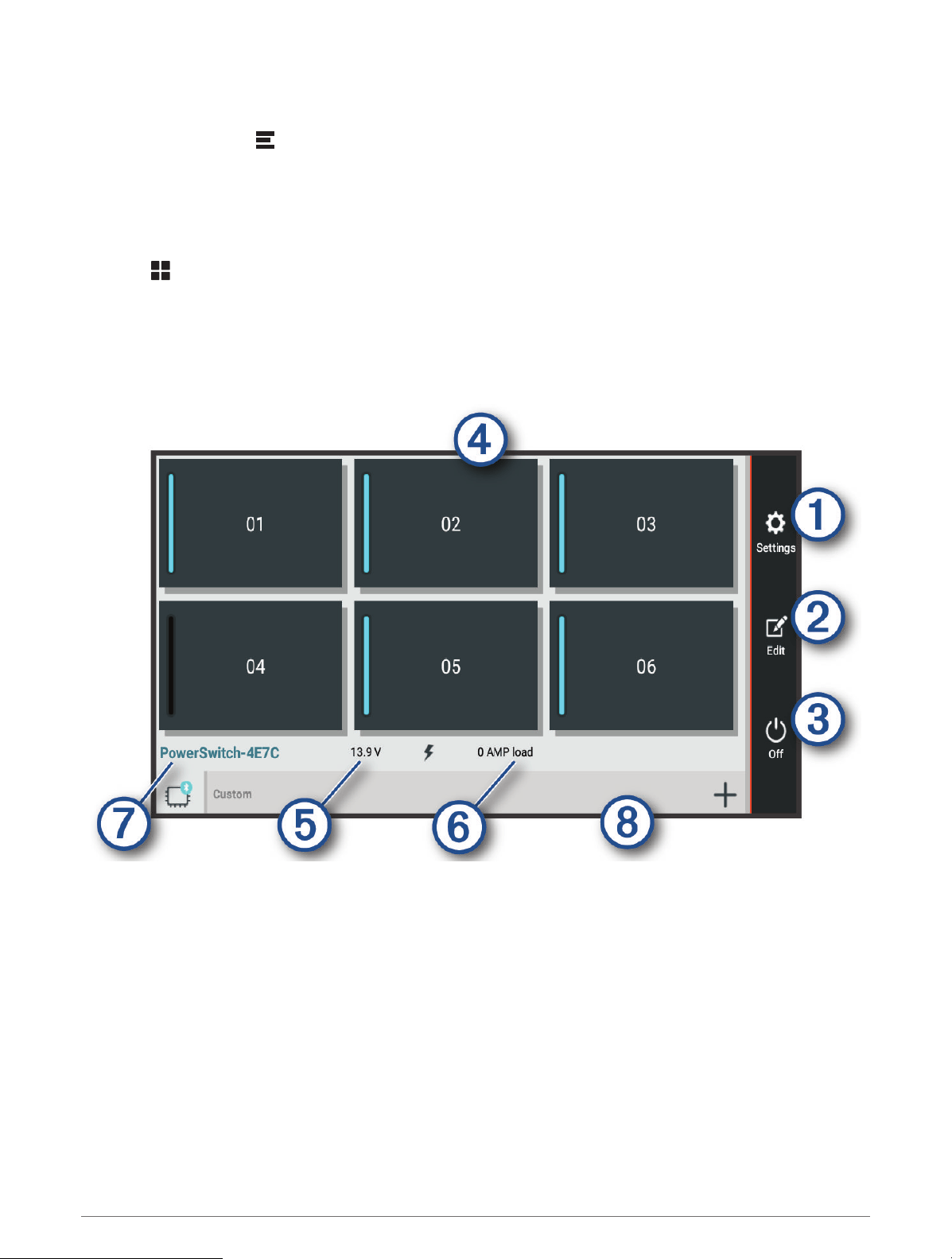
Viewing photoLive Traffic Cameras on the Map
The photoLive map tool shows traffic cameras from the road ahead of you.
1 From the map, select > photoLive.
The device shows the live image from the nearest traffic camera on the road ahead, along with the distance
to the camera. When you pass the camera, the device loads the live image of the next camera on the road.
2 If no cameras are found for the road, select Find Cameras to view or save nearby traffic cameras (optional).
Saving a Traffic Camera
1 Select > photoLive.
2 Select Touch to Add.
3 Select a traffic camera.
4 Select OK.
Garmin PowerSwitch
™
App
Using the Apps 39
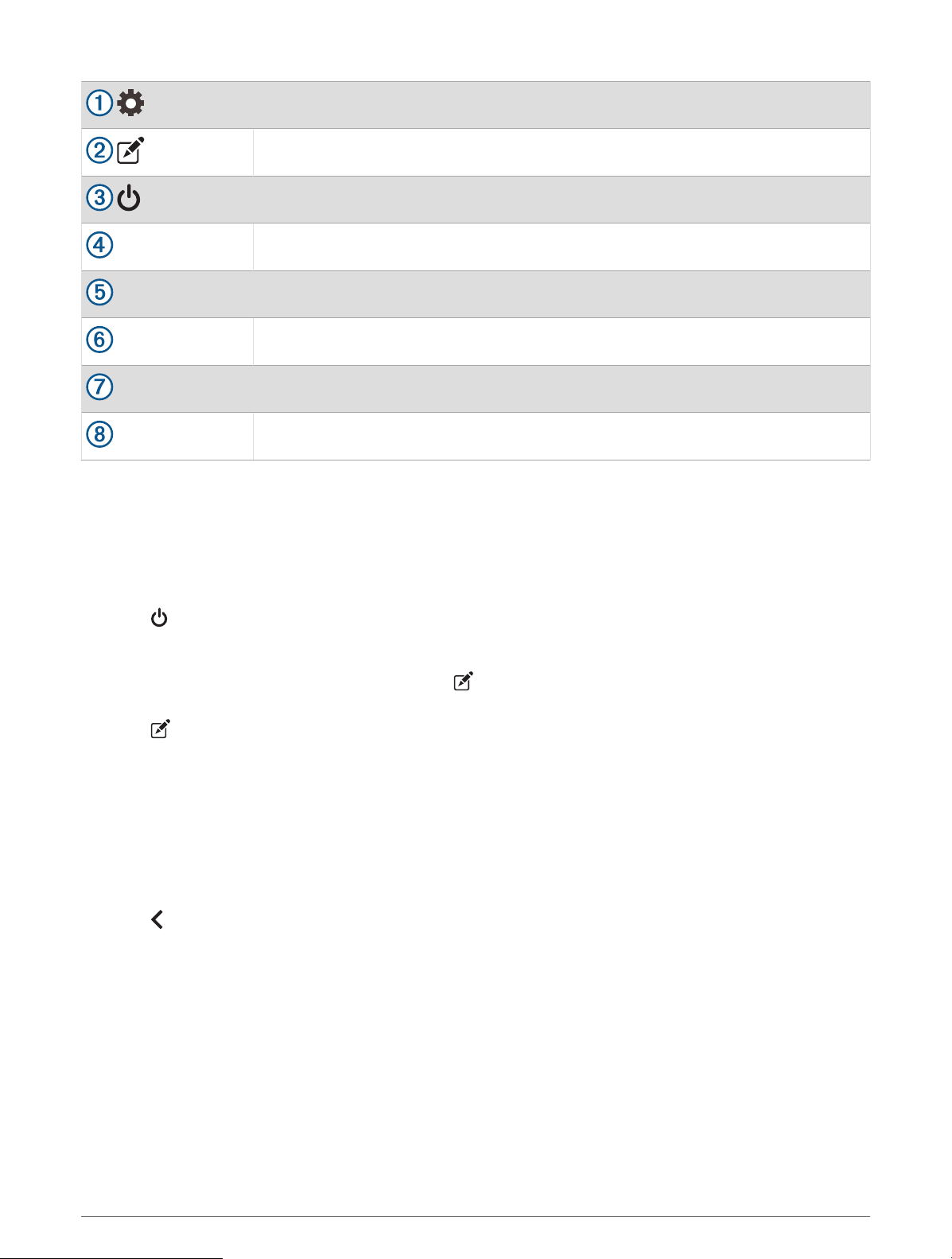
Opens the app settings menu
Enters editing mode to customize the app layout and functions
Turns off all outputs
Power buttons
Activates each connected output
Displays input voltage
Displays the total amperage of the selected Garmin PowerSwitch device
Displays the device name
Displays Garmin PowerSwitch device tabs and custom layout tabs
Activating a Power Switch
Before you can use the Garmin PowerSwitch app to activate a switch, you must install your Garmin
PowerSwitch device in your vehicle and pair it with the Garmin PowerSwitch app.
From the Garmin PowerSwitch app, select a power button to turn a switch on or off.
Turning Off All Switches
Select .
Customizing a Button
1 From the Garmin PowerSwitch app screen, select .
The app enters editing mode.
2 Select on the button you want to customize.
3 Select an option:
• To change the name of the button, select the Button Label field, and enter a name.
• To add an icon to the button, select the Icon field, and select an icon.
• To change the button color, select a color.
• To change the button mode, select a button mode.
• To adjust the intensity of the switch, use the slider.
• To set the button to activate with a control input, select a control input.
4 Select .
5 Select Done.
40 Using the Apps

Assigning a Switch to a Control Input
Before you can use control input functions, you must connect a control input to your Garmin PowerSwitch
device (Connecting a Control Input, page53).
You can assign one or more switches to turn on when the Garmin PowerSwitch device receives a signal from a
control input.
1 Select .
2 Select your Garmin PowerSwitch device.
3 Select a control input.
4 Select one or more switches.
Adding a Custom Layout
You can add a custom layout tab to the Garmin PowerSwitch app. Buttons added to a custom layout can control
multiple switches at the same time.
1 From the Garmin PowerSwitch app, select .
The device enters editing mode.
2 Select .
Adding a Button to a Custom Layout
1 From the Garmin PowerSwitch app, select a custom layout tab.
2 Select .
The app enters editing mode.
3 Select Add Button.
4 On the new button, select .
5 Select an option:
• To change the name of the button, select the Button Label field, and enter a name.
• To add an icon to the button, select the Icon field, and select an icon.
• To change the button color, select a color.
6 Select Add Action.
7 If necessary, select a Garmin PowerSwitch device and a switch.
8 Select an action:
• To set the button to turn the switch on or off with each press, select Toggle.
• To set the button to turn on the switch, select Turn On.
• To set the button to turn off the switch, select Turn Off.
9 Select a button mode:
• To set the button to activate with one touch, select Normal.
• To set the button to activate only while touching the button, select Momentary.
• To set the button to turn on and off repeatedly, select Strobe, and select time intervals.
10 If applicable, use the slider to set the brightness of lights.
11 Select .
12 If necessary, select Add Action to add additional actions for the button.
You can add one action for every switch on the Garmin PowerSwitch device.
Arranging Buttons In a Custom Layout
1 From the Garmin PowerSwitch app, select a custom layout tab.
2 Select .
The app enters editing mode.
3 On the button you want to move, hold
, and drag the button to a new location.
Using the Apps 41

Deleting a Custom Layout or Button
1 From the Garmin PowerSwitch app, select a custom layout tab.
2 Select .
The app enters editing mode.
3 Select an option:
• To delete a button, select on the button you want to delete.
• To delete a layout tab, select on the layout tab.
Routines
Routines automate your Garmin PowerSwitch device. When you define a routine on your compatible Garmin
navigation device, it turns switches on or off automatically when the conditions of the routine are met. For
example, you can set a routine to turn on a switch at specific time each day or when your vehicle reaches a
specific speed. Routines are available only when using a compatible Garmin navigation device.
Adding a Routine
1 From the Garmin PowerSwitch app, select > Routines.
2 If necessary, select Add Routine.
3 Select When.
4 Select a trigger:
• To set a switch to trigger when your vehicle reaches a specific speed, select Speed > Next, and follow the
on-screen instructions to enter speed thresholds.
• To set a switch to trigger at a specific time each day, select Time > Next, and enter a time.
• To set a switch to trigger at sunrise, select Sunrise.
• To set a switch to trigger at sunset, select Sunset.
5 Select Add Action.
6 Select a device, a switch, an action, and a button mode.
7 If necessary, use the slider to adjust the dimmer.
8 Select Save.
Editing a Routine
1 From the Garmin PowerSwitch app, select > Routines.
2 Select on the routine you want to edit.
3 Select an option:
• To change the trigger for the routine, select When, and select a trigger.
• To change an action, select on the action you want to change, and update the action.
• To add an action to the routine, select Add Action, and enter information about the action.
4 Select Save.
Deleting a Routine
1 From the Garmin PowerSwitch app, select > Routines.
2 Select on the routine you want to delete.
42 Using the Apps

Settings
Map and Vehicle Settings
Select > Map Display.
Map Vehicle Icon: Sets the icon that represents your position on the map.
Driving Map View: Sets the perspective on the map.
Map Detail: Sets the level of detail on the map. More detail may cause the map to draw slower.
Map Theme: Changes the color of the map data.
Map Layers: Sets the data that appears on the map page (Customizing the Map Layers, page27).
Auto Zoom: Automatically selects the zoom level for optimal use of your map. When disabled, you must zoom
in or out manually.
myMaps: Sets which installed maps the device uses.
Enabling Maps
You can enable map products installed on your device.
TIP: To purchase additional map products, go to garmin.com/maps.
1 Select > Map Display > myMaps.
2 Select a map.
Navigation Settings
Select > Navigation.
Calculation Mode: Sets the route calculation method.
Avoidances: Sets road features to avoid on a route.
Custom Avoidances: Allows you to avoid specific roads or areas.
Tolls and Fees: Sets preferences for avoiding toll roads and toll stickers.
NOTE: This feature is not available in all areas.
Environmental Zones: Sets the avoidance preferences for areas with environmental or emissions restrictions
that may apply to your vehicle.
Restricted Mode: Disables all functions that require significant operator attention.
GPS Simulator: Stops the device from receiving a GPS signal, and saves battery power.
Setting a Simulated Location
If you are indoors or not receiving satellite signals, you can use the GPS simulator to plan routes from a
simulated location.
1 Select > Navigation > GPS Simulator.
2 From the main menu, select View Map.
3 Tap the map twice to select an area.
The address of the location appears at the bottom of the screen.
4 Select the location description.
5 Select Set Location.
Settings 43

Wireless Network Settings
The wireless network settings allow you to manage Wi‑Fi networks, paired Bluetooth devices, and Bluetooth
features.
Select > Wireless Networks.
Bluetooth: Enables Bluetooth wireless technology.
Paired Device Name: The names of paired Bluetooth devices appear in the menu. You can select a device name
to change Bluetooth feature settings for that device.
Search for Devices: Searches for nearby Bluetooth devices.
Friendly Name: Allows you to enter a friendly name that identifies your device on other devices with Bluetooth
wireless technology.
Wi-Fi: Enables the Wi‑Fi radio.
Saved Networks: Allows you to edit or remove saved networks.
Search for Networks: Searches for nearby Wi‑Fi networks (Connecting to a Wi‑Fi Network, page47).
Driver Assistance Settings
Select > Driver Assistance.
Driver Alerts: Allows you to enable or disable alerts for upcoming zones or road conditions (Driver Awareness
Features and Alerts, page7).
Speeding Alert: Alerts you when you are exceeding the speed limit.
Reduced Speed Tone: Alerts you when the speed limit decreases.
Route Preview: Shows a preview of the major roads in your route when you start navigation.
BreakPlanning: Reminds you to take a break and shows upcoming services after you drive for an extended
time. You can enable or disable break reminders and upcoming service suggestions.
Proximity Alerts: Alerts you when you approach speed cameras or red light cameras.
Plan Arrival: Shows a map of your destination at the end of a route.
Proximity Alerts Settings
NOTE: You must have custom points of interest (POIs) loaded for proximity points alerts to display.
NOTE: This feature is not available in all areas.
Select > Driver Assistance > Proximity Alerts.
Audio: Sets the style of alert that plays when you approach proximity points.
Alerts: Sets the type of proximity points for which alerts are played.
Display Settings
Select > Display.
Color Mode: Allows you to select day or night color mode. If you select the Auto option, the device automatically
switches to day or night colors based on the time of day.
Brightness: Allows you to adjust the display brightness.
Display Timeout: Allows you to set the amount of idle time before your device enters sleep mode while using
battery power.
Screenshot: Allows you to take a picture of the device screen. Screenshots are saved in the Screenshot folder of
the device storage.
44 Settings

Traffic Settings
From the main menu, select > Traffic.
Traffic: Enables the traffic feature.
Current Provider: Sets the traffic provider to use for traffic data. The Auto option selects the best available
traffic data automatically.
Subscriptions: Lists the current traffic subscriptions.
Traffic Alerts: Sets the traffic delay severity for which the device displays a traffic alert.
Units and Time Settings
To open the Units and Time settings page, from the main menu, select > Units & Time.
Current Time: Sets the device time.
Time Format: Allows you to select a 12-hour, 24-hour, or UTC display time.
Units: Sets the unit of measure used for distances.
Position Format: Sets the coordinate format and datum used for geographical coordinates.
Setting the Time
1 From the main menu, select the time.
2 Select an option:
• To set the time automatically using GPS information, select Automatic.
• To set the time manually, drag the numbers up or down.
Language and Keyboard Settings
To open the Language and Keyboard settings, from the main menu, select > Language & Keyboard.
Voice Language: Sets the language for voice prompts.
Text Language: Sets all on-screen text to the selected language.
NOTE: Changing the text language does not change the language of user-entered data or map data, such as
street names.
Keyboard Language: Enables keyboard languages.
Device and Privacy Settings
Select > Device.
About: Displays the software version number, the unit ID number, and information on several other software
features.
Regulatory: Displays regulatory markings and information.
EULAs: Displays the end-user license agreements.
NOTE: You need this information when you update the system software or purchase additional map data.
Software Licenses: Displays software licensing information.
Device Data Reporting: Shares anonymous data to improve the device.
Travel History: Allows the device to store a record of the places you go. This allows you to view the trip log, use
the Trip History feature, and use myTrends suggested routes.
Reset: Allows you to clear your travel history, reset settings, or delete all user data.
Restoring Settings
You can restore a category of settings or all settings to the factory default values.
1 Select
.
2 If necessary, select a settings category.
3 Select > Restore.
Settings 45
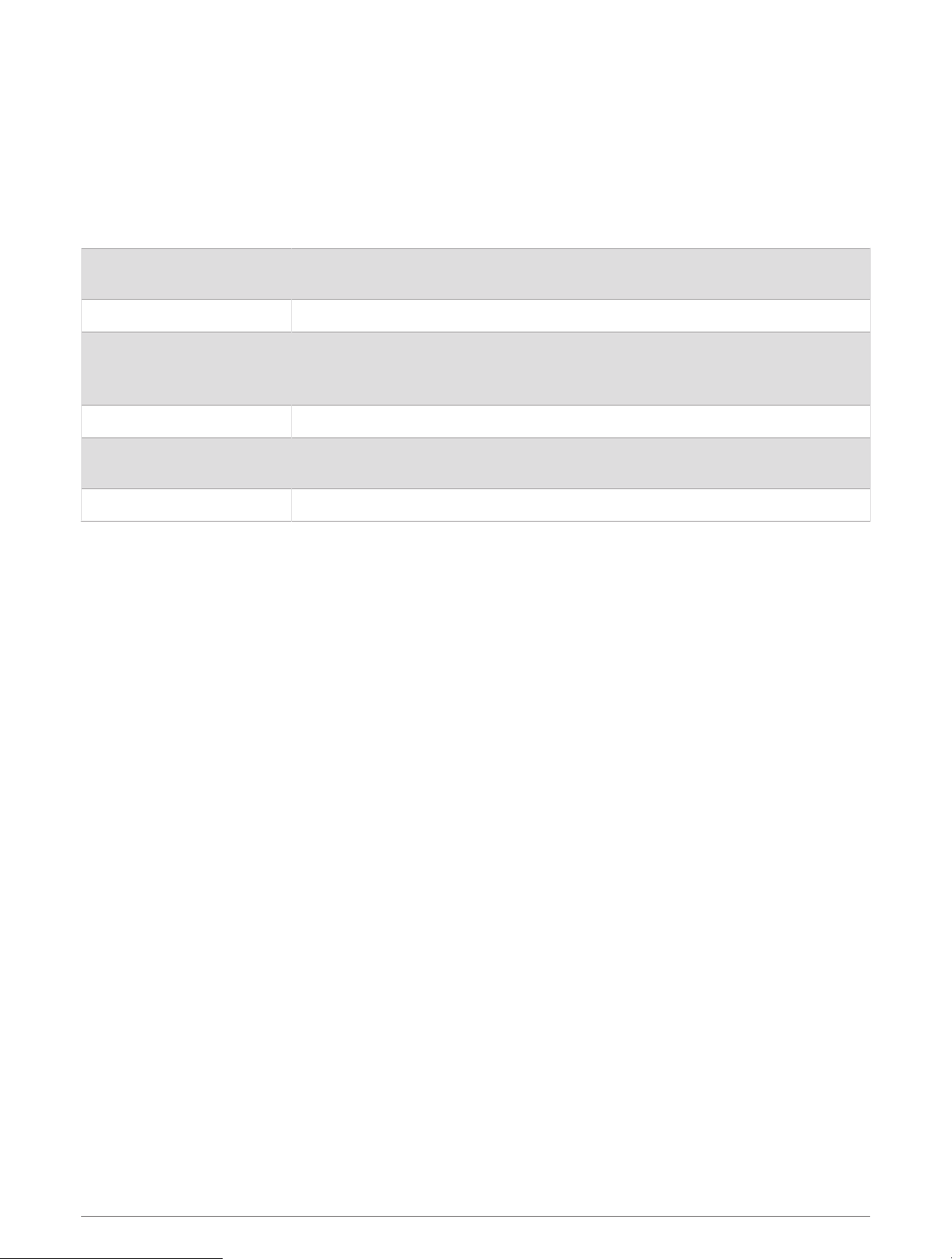
Device Information
Viewing E-label Regulatory and Compliance Information
1 From the settings menu, swipe to the bottom of the menu.
2 Select Device > Regulatory > Regulatory.
Specifications
Operating temperature
range
From -20° to 55°C (from -4° to 131°F)
Charging temperature range From 0° to 45°C (from 32° to 113°F)
Radio frequency
2.4GHz @ 16 dBm maximum
5.1 GHz @ 17 dBm maximum
5.2 GHz @ 17 dBm maximum
EU SAR 0.543 W/kg torso; 0.543 W/kg limb
Power input
Vehicle power using the included vehicle power cable. AC power using an
optional accessory (for home and office use only).
Battery type Rechargeable lithium-ion
Charging the Device
NOTE: This Class III product shall be powered by an LPS power supply.
You can charge the battery in the device using any of these methods.
• Connect the device to vehicle power.
• Connect the device to an optional power adapter accessory, such as a wall power adapter.
You can purchase an approved Garmin AC-DC adapter suitable for home or office use from a Garmin dealer
or www.garmin.com. The device may charge slowly when connected to a third-party adapter.
Device Maintenance
Map and Sofware Updates
For the best navigation experience, you should keep the maps and software on your device up to date.
Map updates provide the newest available changes to roads and locations in the maps used by your device.
Keeping maps up to date helps your device find recently added locations and calculate more accurate routes.
Map updates are large and may take several hours to complete.
Software updates provide changes and improvements to the device features and operation. Software updates
are small and take a few minutes to complete.
You can update your device using two methods.
• You can connect the device to a Wi‑Fi network to update directly on the device (recommended). This option
allows you to update your device conveniently without connecting it to a computer.
• You can connect the device to a computer and update it using the Garmin Express application (garmin.com
/express).
46 Device Information
Connecting to a Wi‑Fi Network
The first time you turn on the device, it prompts you to connect to a Wi‑Fi network and register your device. You
can also connect to a Wi‑Fi network using the settings menu.
1 Select > Wireless Networks.
2 If necessary, select Wi-Fi to enable Wi‑Fi technology.
3 Select Search for Networks.
The device displays a list of nearby Wi‑Fi networks.
4 Select a network.
5 If necessary, enter the password for the network, and select Done.
The device connects to the network, and the network is added to the list of saved networks. The device
reconnects to this network automatically when it is within range.
Updating Maps and Sofware Using a Wi‑Fi Network
NOTICE
Map and software updates may require the device to download large files. Regular data limits or charges from
your Internet service provider apply. Contact your Internet service provider for more information about data
limits or charges.
You can update the maps and software by connecting your device to a Wi‑Fi network that provides access to the
Internet. This allows you to keep your device up to date without connecting it to a computer.
1 Connect the device to a Wi‑Fi network (Connecting to a Wi‑Fi Network, page47).
While connected to a Wi‑Fi network, the device checks for available updates. When an update is available,
appears on the icon in the main menu.
2 Select > Updates.
The device checks for available updates. When an update is available, Update Available appears below Map
or Software.
3 Select an option:
• To install all available updates, select InstallAll.
• To install only map updates, select Map > InstallAll.
• To install only software updates, select Software > InstallAll.
4 Read the license agreements, and select Accept All to accept the agreements.
NOTE: If you do not agree with the license terms, you can select Reject. This stops the update process. You
cannot install updates until you accept the license agreements.
5 Using the included USBcable, connect the device to external power, and select Continue (Charging the
Device, page46).
For the best results, a USBwall charger that provides at least 1A power output is recommended. Many
USBpower adapters for smartphones, tablets, or portable media devices may be compatible.
6 Keep the device connected to external power and within range of the Wi‑Fi network until the update process
is complete.
TIP: If a map update is interrupted or canceled before it completes, your device may be missing map data. To
repair missing map data, you must update the maps again using either Wi‑Fi or Garmin Express.
Device Maintenance 47
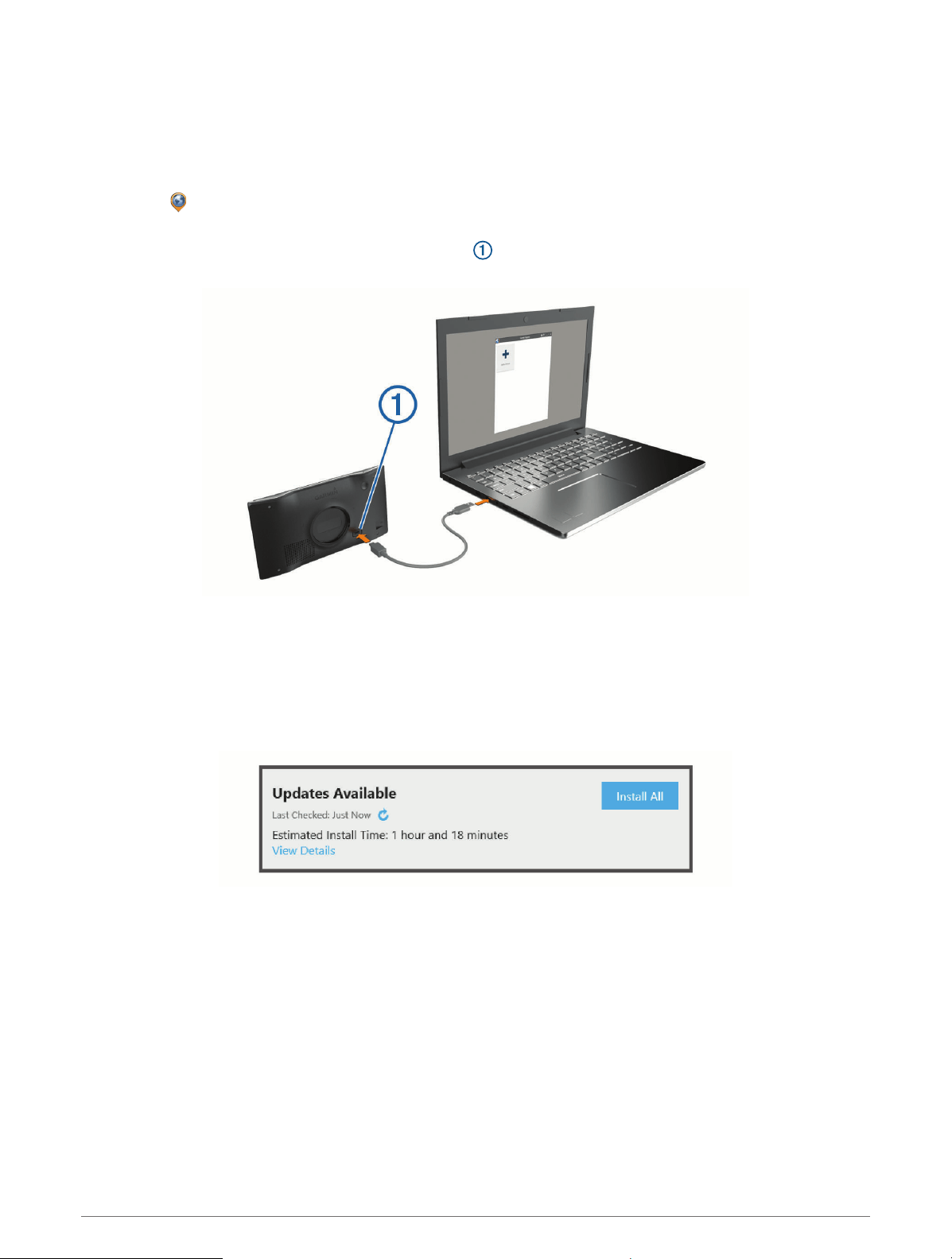
Updating Maps and Sofware with Garmin Express
You can use the Garmin Express application to download and install the latest map and software updates for
your device.
1 If you do not have the Garmin Express application installed on your computer, go to garmin.com/express and
follow the on-screen instructions to install it (Installing Garmin Express, page49).
2 Open the Garmin Express application.
3 Connect your device to your computer using a USBcable.
The small end of the cable connects to the USB port on your Garmin device, and the large end connects to
an available USBport on your computer.
4 From your Garmin device, select Tap to Connect to Computer.
5 When your Garmin device prompts you to enter file transfer mode, select Continue.
6 In the Garmin Express application, click Add a Device.
The Garmin Express application searches for your device and displays the device name and serial number.
7 Click Add Device, and follow the on-screen instructions to add your device to the Garmin Express application.
When setup is complete, the Garmin Express application displays the updates available for your device.
8 Select an option:
• To install all available updates, click Install All.
• To install a specific update, click View Details, and click Install next to the update you want.
The Garmin Express application downloads and installs the updates onto your device. Map updates are very
large, and this process may take a long time on slower internet connections.
NOTE: If a map update is too large for the internal storage of the device, the software may prompt you to
install a microSD
®
card in your device to add storage space (Installing a Memory Card for Maps and Data,
page55).
9 Follow the on-screen instructions during the update process to finish installing updates.
For example, during the update process, the Garmin Express application may instruct you to disconnect and
reconnect your device.
48 Device Maintenance
Installing Garmin Express
The Garmin Express application is available for Windows
®
and Mac
®
computers.
1 On your computer, go to garmin.com/express.
2 Select an option:
• To view the system requirements and verify the Garmin Express application is compatible with your
computer, select System Requirements.
• To install on a Windows computer, select Download for Windows.
• To install on a Mac computer, select Download for Mac.
3 Open the downloaded file, and follow the on-screen instructions to complete the installation.
Device Care
NOTICE
Avoid dropping your device.
Do not store the device where prolonged exposure to extreme temperatures can occur, because it can cause
permanent damage.
Never use a hard or sharp object to operate the touchscreen, or damage may result.
Do not expose the device to water.
Cleaning the Outer Casing
NOTICE
Avoid chemical cleaners and solvents that can damage plastic components.
1 Clean the outer casing of the device (not the touchscreen) using a cloth dampened with a mild detergent
solution.
2 Wipe the device dry.
Cleaning the Touchscreen
1 Use a soft, clean, lint-free cloth.
2 If necessary, lightly dampen the cloth with water.
3 If using a dampened cloth, turn off the device and disconnect the device from power.
4 Gently wipe the screen with the cloth.
Avoiding Thef
• Remove the device and mount from sight when not in use.
• Remove the residue left on the windshield by the suction cup.
• Do not keep your unit in the glove compartment.
• Register your device using the Garmin Express software (garmin.com/express).
Resetting the Device
You can reset your device if it stops functioning.
Hold the power key for 10 seconds.
Removing the Device, Mount, and Suction Cup
Removing the Device from the Mount
1 Press the release button on the bottom of the device.
2 Tilt the bottom of the device upward, and lift the device from the mount.
Device Maintenance 49

Removing the Mount from the Suction Cup
1 If necessary loosen the nut that secures the mount to the suction cup ball.
2 Turn the device mount to the right or left.
3 Apply pressure until the socket on the mount releases the ball on the suction cup.
Removing the Suction Cup from the Windshield
1 Flip the lever on the suction cup toward you.
2 Pull the tab on the suction cup toward you.
Troubleshooting
The suction cup will not stay on my windshield
1 Clean the suction cup and windshield with rubbing alcohol.
2 Dry with a clean, dry cloth.
3 Mount the suction cup (Mounting and Powering the Garmin Device in Your Vehicle, page2).
My device is not acquiring satellite signals
• Verify the GPS simulator is turned off (Navigation Settings, page43).
• Take your device out of parking garages and away from tall buildings and trees.
• Remain stationary for several minutes.
The device does not charge in my vehicle
• Verify the vehicle is turned on and is supplying power to the power outlet.
• Verify the interior temperature of the vehicle is within the charging temperature range indicated in the
specifications.
• In the vehicle fuse box, verify the fuse for the vehicle power outlet is not broken.
My battery does not stay charged for very long
• Decrease the screen brightness (Display Settings, page44).
• Shorten the display timeout (Display Settings, page44).
• Decrease the volume (Adjusting the Volume, page5).
• Turn off the wi-fi radio when it is not in use (Wireless Network Settings, page44).
• Put the device in power saving mode when not in use (Turning the Device On or Off, page3).
• Keep your device away from extreme temperatures.
• Do not leave your device in direct sunlight.
My device does not connect to my phone
• Select > Wireless Networks > Bluetooth.
The Bluetooth option must be enabled.
• Enable Bluetooth wireless technology on your phone and bring your phone within 10m (33ft.) of the device.
• Verify your phone is compatible.
Go to www.garmin.com/bluetooth for more information.
• Complete the pairing process again.
To repeat the pairing process, you must unpair your phone and device (Deleting a Paired Phone, page32), and
complete the pairing process (
Live Services, Traffic, and Smartphone Features, page28).
50 Troubleshooting
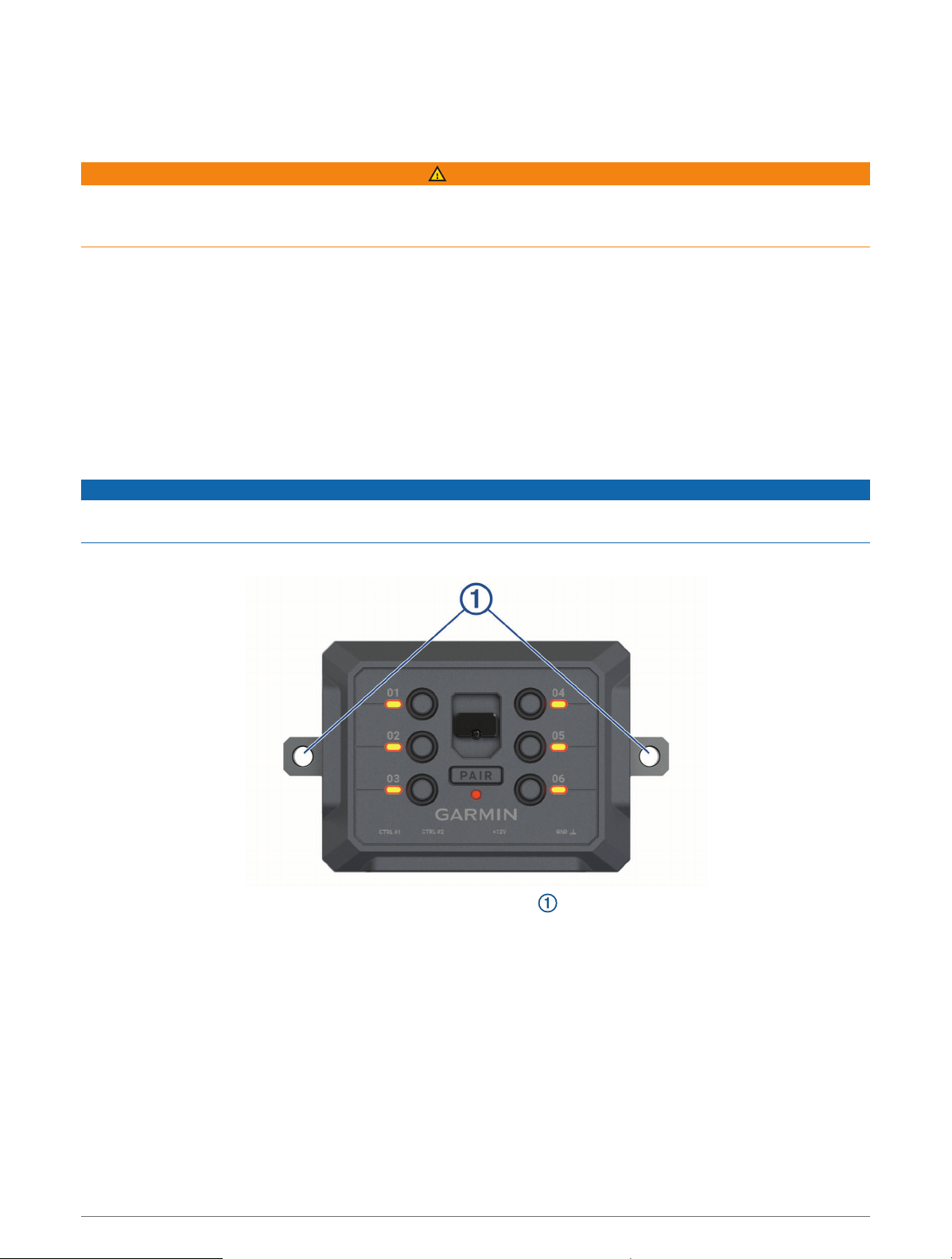
Appendix
Garmin PowerSwitch
WARNING
Garmin strongly recommends having an experienced installer with the proper knowledge of electrical systems
install the device. Incorrectly wiring the power cable can result in damage to the vehicle or the battery and can
cause bodily injury.
You can use a connected Garmin PowerSwitch device to control lights, fans, and more from your Garmin device.
Mounting Considerations
• The device must be mounted close to the battery and within the range of the supplied power cable.
• The mounting surface must be strong enough to support the weight of the device.
• The location must allow room for the routing and connection of all cables.
Mounting the Device
Before you can mount the device, you must select a mounting location and purchase the appropriate hardware
for your mounting surface.
NOTICE
Avoid wires, gauges, air bags, air bag covers, HVAC, and other items when drilling pilot holes and attaching the
mount to the vehicle. Garmin is not responsible for any damages or consequences arising from the installation.
1 Place the mount on the selected location.
2 Using the mount as a template, mark the two screw locations .
3 Drill pilot holes (optional).
For some types of mounting material, drilling pilot holes is necessary. Do not drill through the mount.
4 Securely fasten the mount to the surface using the appropriate hardware for your mounting surface.
Appendix 51
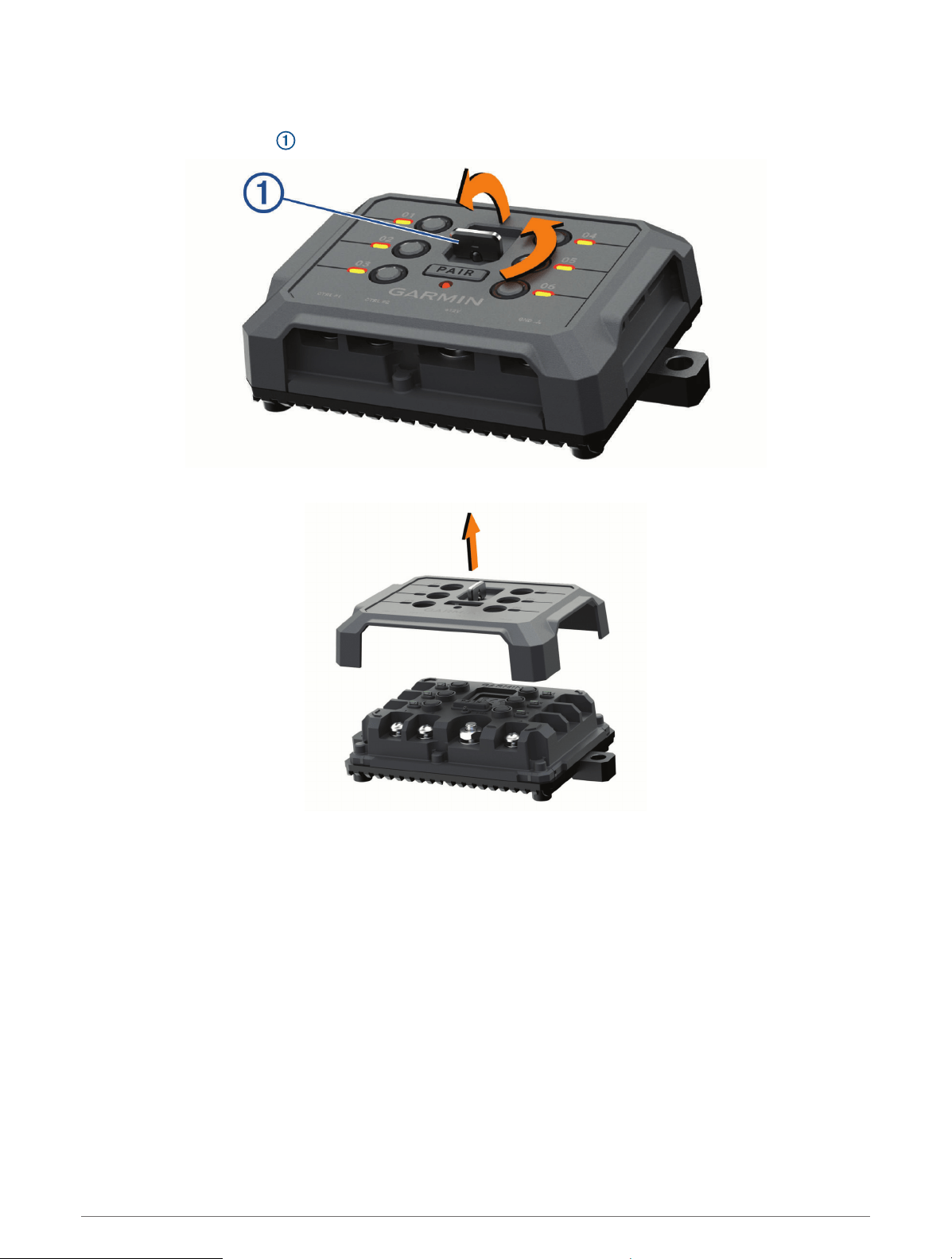
Opening the Front Cover
You must open the front cover to make electrical connections.
1 Lift the front cover latch and rotate it counter-clockwise.
2 Pull the front cover off of the device.
52 Appendix
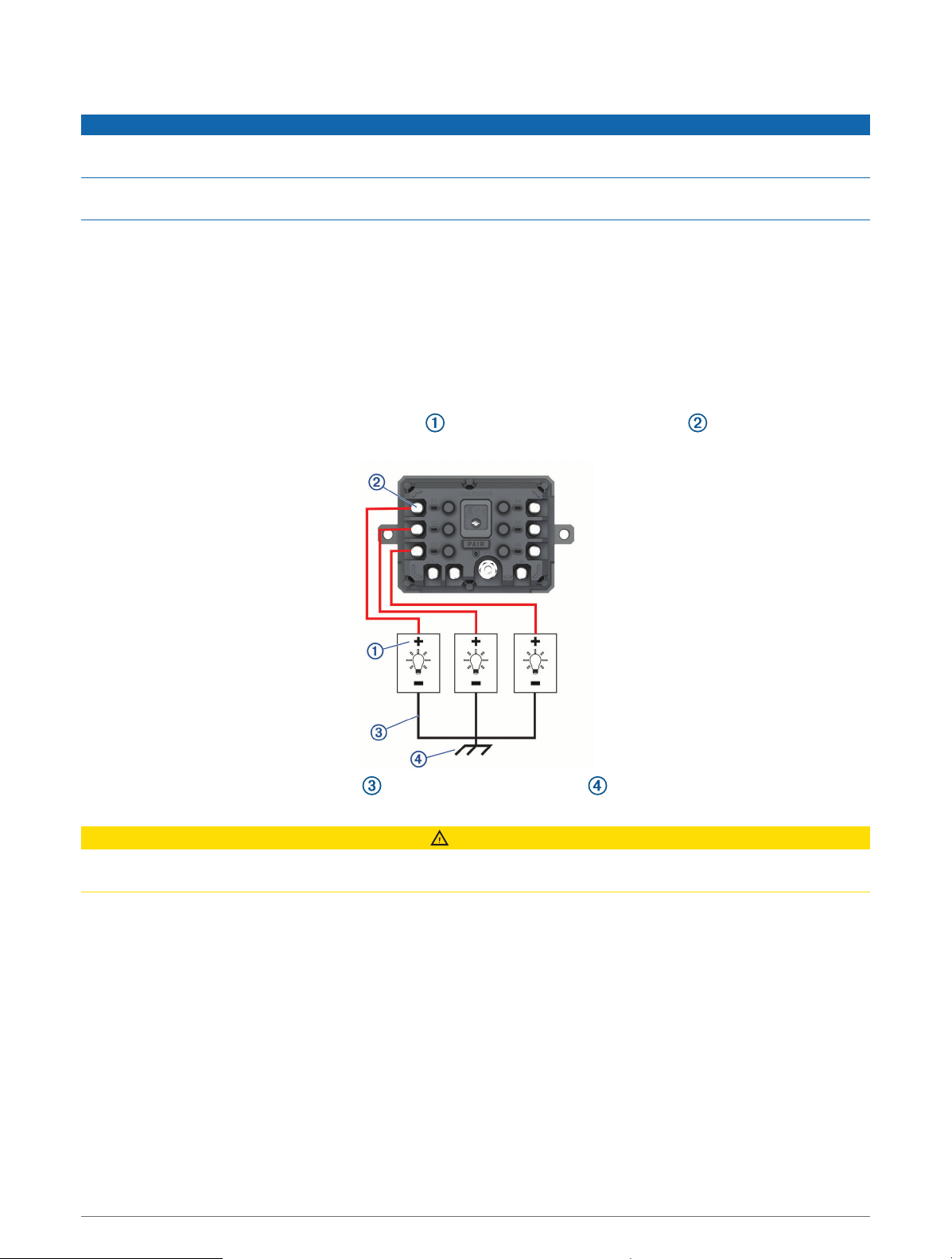
Connecting Accessories
NOTICE
Do not use the device to control or power a winch. Failure to follow this notice could cause damage to your
vehicle or your device.
Do not connect a power source to an accessory output terminal. Failure to follow this notice could cause
damage to your vehicle or your device.
Accessory requirements:
• Verify the amperage rating of each accessory before wiring it to the Garmin PowerSwitch device. The device
supports accessories up to 30A for each channel and a maximum of 100A for the entire system.
• Use 10AWG (6mm
2
) wires for accessories that use 20 to 30A.
• Use 12AWG (4mm
2
) wires for accessories that use 10 to 20A.
• Use 14AWG (2.5mm
2
) wires for accessories that use less than 10A.
• Use the appropriate size terminals for all accessory connections.
• Crimp all terminal connectors securely.
1 Connect the positive wire from the accessory to one of the accessory terminals on the Garmin
PowerSwitch device.
2 Connect the negative or ground wire to an unpainted ground stud on the vehicle frame, to a ground
distribution block, or directly to the negative terminal on the battery.
CAUTION
Do not connect the accessory ground wires to the ground terminal (GND) on the Garmin PowerSwitch device, as
doing so could result in personal injury or property damage, or could negatively impact device functionality.
3 Verify that all electrical connections are tight and will not come loose during use.
Connecting a Control Input
You can connect to the control terminals to enable the Garmin PowerSwitch device to turn on customizable
outputs. For example, you can connect your vehicle ignition switch to a control input terminal to turn on
accessories automatically each time you start your vehicle. The control terminals detect a signal from 3.3V to
18V. You can configure output functions with the Garmin PowerSwitch app.
Connect the control wire from the control source in your vehicle to one of the two control terminals on the
Garmin PowerSwitch device.
Appendix 53
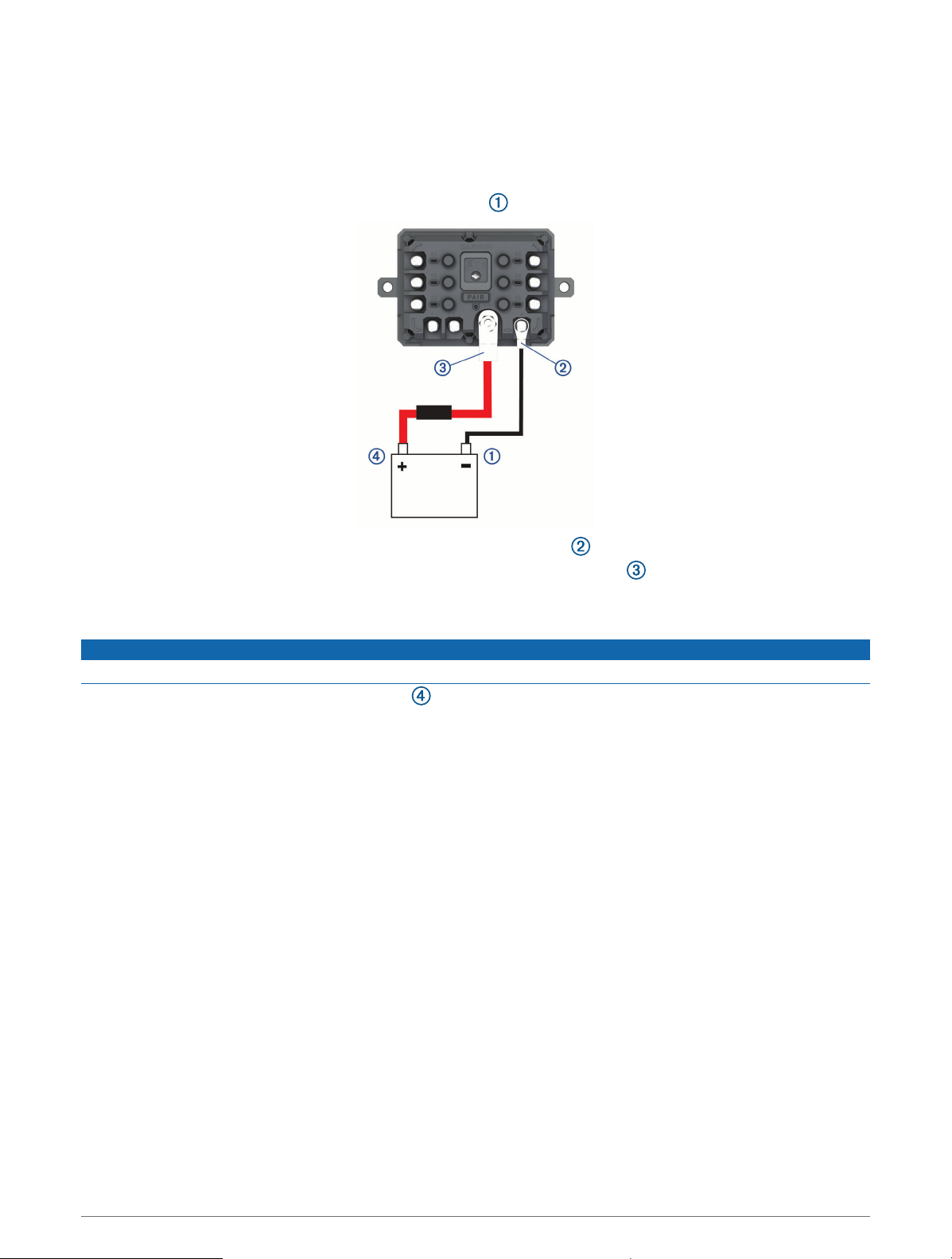
Connecting the Device to Vehicle Power
Before you can connect the device to vehicle power, you must remove the warning tag from the +12V terminal
on the device.
You should always confirm all electrical connections are secure and will not come loose while operating the
device.
1 Connect the large ring end of the included ground wire to the negative terminal on the vehicle battery.
2 Connect the small ring end of the ground wire to the GND terminal on the device.
3 Connect the small ring end of the included 12V cable to the +12V terminal on the device.
4 Tighten the
3
/
8
in. nut on the +12V terminal to a maximum torque specification of 4.52N-m (40lbf-in.).
You should confirm the nut cannot be loosened by hand.
NOTICE
Do not overtighten the +12V terminal to prevent damage to the terminal.
5 Connect the large ring end of the 12V cable to the positive terminal on the vehicle battery.
Pairing with a Garmin Navigation Device
You can pair your Garmin PowerSwitch device with a compatible Garmin navigation device.
1 Turn on power to your Garmin PowerSwitch device, and place your compatible Garmin navigation device
within 1m (3.3ft.) of it.
2 On your compatible navigation device, open the Garmin PowerSwitch app.
3 Follow the on-screen instructions to complete the pairing and setup process.
The main app dashboard appears. After the devices are paired, they connect automatically when they are turned
on and within range.
54 Appendix
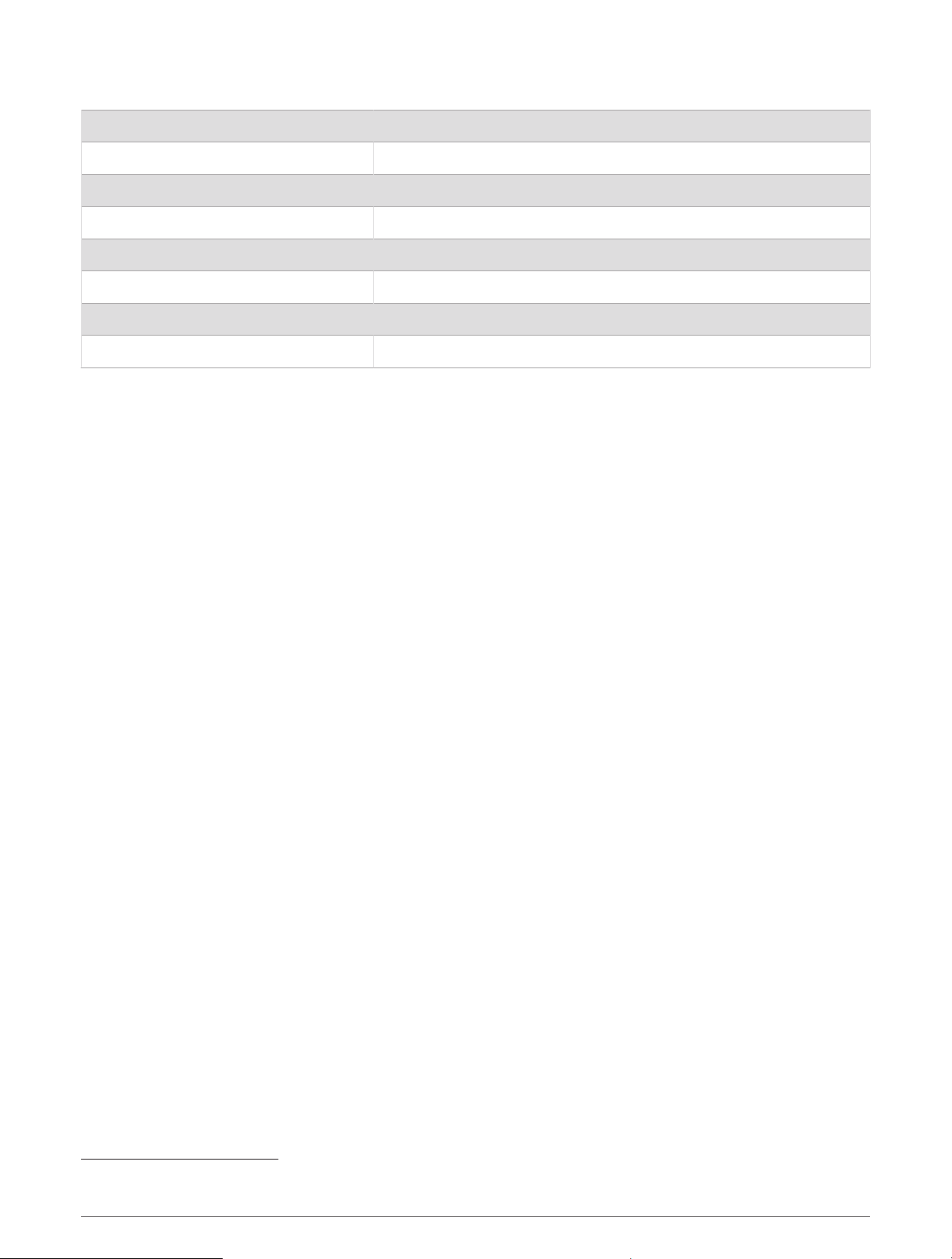
Garmin PowerSwitch Specifications
Dimensions (DxWxH) 75 x 125 x 32mm (2.95 x 4.92 x 1.26in.)
Operating temperature range From -25° to 85°C (from -13° to 185°F)
Wireless frequency 2.4GHz @ 13 dBm
Power input From 12 to 16V using the included vehicle power cable.
Maximum accessory output 30A
Maximum system output 100A
Current draw with all outputs off 3mA
Water rating IEC 60529 IPX7
1
Troubleshooting
My Garmin PowerSwitch will not stay connected
• Verify the Garmin PowerSwitch device is receiving power.
• Verify that Bluetooth technology is enabled on your paired navigation device or smartphone.
• Move the navigation device or smartphone closer to your Garmin PowerSwitch device.
• Verify that your vehicle's battery is supplying at least 12V of power.
The Garmin PowerSwitch device turns off all outputs automatically to preserve your vehicle's battery if it is
receiving less than 11V of power (My accessories are not receiving power, page55).
My accessories are not receiving power
• Verify the Garmin PowerSwitch device is receiving power from the vehicle battery.
• Verify that your vehicle's battery is supplying at least 12V of power.
The Garmin PowerSwitch device turns off all outputs automatically to preserve your vehicle's battery if it is
receiving less than 11V of power. Outputs turn back on when the device detects more than 12V of power.
• Verify that all electrical connections are secure and will not come loose while operating the vehicle.
• Verify that each connected accessory draws less than 30A.
If an accessory draws more than 30A, the device turns off that output automatically.
• Verify that the total system load is less than 100A.
If the device detects a system load of more than 100A, it turns off all outputs automatically.
• Inspect all electrical connections for an electrical short circuit.
Installing a Memory Card for Maps and Data
You can install a memory card to increase the storage space for maps and other data on your device. You can
purchase memory cards from an electronics supplier. The device supports microSD memory cards from 4 to
256GB. Memory cards must use the FAT32 file system format. Memory cards greater than 32GB must be
formatted using the device .
1 Locate the map and data memory card slot on your device (Garmin
®
Device Overview, page1).
2 Insert a memory card into the slot.
3 Press it in until it clicks.
Data Management
The device has a memory card slot for additional data storage.
NOTE: The device is compatible with Windows 7 and newer, and Mac OS 10.7 and newer.
1
The device withstands incidental exposure to water of up to 1m for up to 30min. For more information, go to
www.garmin.com/waterrating.
Appendix 55

About Memory Cards
You can purchase memory cards from an electronics supplier, or purchase pre-loaded Garmin mapping
software (www.garmin.com). Memory cards can be used to store files such as maps and custom POIs.
Connecting the Device to Your Computer
You can connect the device to your computer using a USB cable.
1 Plug the small end of the USB cable into the port on the device.
2 Plug the larger end of the USB cable into a port on your computer.
3 From your Garmin device, select Tap to Connect to Computer.
4 When your Garmin device prompts you to enter file transfer mode, select Continue.
A picture of your device connected to a computer appears on the device screen.
Depending on your computer operating system, the device appears as either a portable device, a removable
drive, or a removable volume.
Transferring Data From Your Computer
1 Connect the device to your computer (Connecting the Device to Your Computer, page56).
Depending on your computer operating system, the device appears as either a portable device, a removable
drive, or a removable volume.
2 On your computer, open the file browser.
3 Select a file.
4 Select Edit > Copy.
5 Browse to a folder on the device.
NOTE: For a removable drive or volume, you should not place files in the Garmin folder.
6 Select Edit > Paste.
Disconnecting the USB Cable
If your device is connected to your computer as a removable drive or volume, you must safely disconnect your
device from your computer to avoid data loss. If your device is connected to your Windows computer as a
portable device, it is not necessary to safely disconnect the device.
1 Complete an action:
• For Windows computers, select the Safely Remove Hardware icon in the system tray, and select your
device.
• For Apple
®
computers, select the device, and select File > Eject.
2 Disconnect the cable from your computer.
Viewing GPS Signal Status
Hold for three seconds.
Purchasing Additional Maps
1 Go to your device product page at .
2 Click the Maps tab.
3 Follow the on-screen instructions.
Purchasing Accessories
• Optional accessories are available at garmin.com or from your Garmin dealer.
56 Appendix

European Emission Standards
The European Emission Standards are standards for exhaust emissions that limit the amount of air pollutants
that are released from new vehicles sold in Europe.
You can find your vehicle's emission standards in your vehicle's owner's manual, your vehicle registration
documents, or printed on your vehicle's door frame. If you are unable to locate the emission standard for your
vehicle, you can contact your vehicle dealer or manufacturer for more information.
Appendix 57

support.garmin.com
GUID-CA7AA54D-CB83-4144-9D67-F6EFCC67D442 v7February 2023