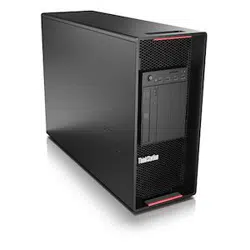

P920 User Guide
Machine Types: 30BD, 30BV, and 30BC

Note: Before using this information and the product it supports, be sure to read and understand the “Read
this first: Important safety information” on page iii and Appendix G “Notices” on page 157.
Eighth Edition (March 2022)
© Copyright Lenovo 2022.
LIMITED AND RESTRICTED RIGHTS NOTICE: If data or software is delivered pursuant to a General Services
Administration “GSA” contract, use, reproduction, or disclosure is subject to restrictions set forth in Contract No. GS-
35F-05925.

Contents
Read this first: Important safety
information . . . . . . . . . . . . . . . . iii
Before using this manual . . . . . . . . . . . . iii
Service and upgrades . . . . . . . . . . . . . iii
Static electricity prevention . . . . . . . . . . . iv
Power cords and power adapters . . . . . . . . . iv
Extension cords and related devices. . . . . . . . v
Plugs and outlets . . . . . . . . . . . . . . . v
External devices . . . . . . . . . . . . . . . v
Heat and product ventilation . . . . . . . . . . . v
Computer placement notices . . . . . . . . . . vi
Operating environment . . . . . . . . . . . . . vi
Laser compliance statement . . . . . . . . . . . vii
Hazardous energy statement . . . . . . . . . . vii
Lithium coin-cell battery notice . . . . . . . . . . vii
Using earphones, headphones, or a headset . . . viii
Cleaning and maintenance . . . . . . . . . . . ix
Chapter 1. Product overview . . . . . . 1
Hardware locations . . . . . . . . . . . . . . 1
Front view . . . . . . . . . . . . . . . . 1
Rear view . . . . . . . . . . . . . . . . 3
Computer components . . . . . . . . . . . 7
Parts on the system board . . . . . . . . . . 8
Internal storage drives . . . . . . . . . . 10
Machine type and model label . . . . . . . 12
Computer features. . . . . . . . . . . . . . 12
Computer specifications . . . . . . . . . . . 15
Programs . . . . . . . . . . . . . . . . . 16
Accessing a program on your computer . . . 16
An introduction to Lenovo programs . . . . . 16
Chapter 2. Using your computer . . . 19
Registering your computer . . . . . . . . . . 19
Setting the computer volume . . . . . . . . . 19
Using a disc . . . . . . . . . . . . . . . . 19
Guidelines about using the optical drive . . . 19
Handling and storing a disc . . . . . . . . 19
Playing and removing a disc . . . . . . . . 20
Recording a disc . . . . . . . . . . . . 20
Connecting to a network . . . . . . . . . . . 21
Chapter 3. You and your computer . . 23
Arranging your workspace . . . . . . . . . . 23
Glare and lighting . . . . . . . . . . . . 23
Air circulation . . . . . . . . . . . . . . 23
Electrical outlet locations and cable lengths . . 23
Comfort . . . . . . . . . . . . . . . . 23
Accessibility information . . . . . . . . . . . 24
Cleaning your computer . . . . . . . . . . . 27
Maintenance . . . . . . . . . . . . . . . . 27
Basic maintenance tips . . . . . . . . . . 27
Good maintenance practices . . . . . . . . 27
Keeping your computer current . . . . . . . 28
Moving your computer . . . . . . . . . . . . 28
Chapter 4. Security . . . . . . . . . . 29
Locking your computer . . . . . . . . . . . . 29
Locking the computer cover . . . . . . . . 29
Attaching a Kensington-style cable lock . . . 30
Viewing and changing security settings in the
Setup Utility program . . . . . . . . . . . . 30
Using passwords and Windows accounts . . . . 31
Using fingerprint authentication . . . . . . . . 31
Using the cover presence switch . . . . . . . . 31
Using firewalls . . . . . . . . . . . . . . . 31
Protecting data against viruses . . . . . . . . . 32
Using the Smart USB Protection function . . . . . 32
Computrace Agent software embedded in
firmware (for selected models) . . . . . . . . . 32
Trusted Platform Module (TPM). . . . . . . . . 32
Intel BIOS guard . . . . . . . . . . . . . . 33
Chapter 5. Advanced
configuration . . . . . . . . . . . . . . 35
Using the Setup Utility program . . . . . . . . 35
Starting the Setup Utility program . . . . . . 35
Changing the display mode of the Setup Utility
program . . . . . . . . . . . . . . . . 35
Changing the display language of the Setup
Utility program . . . . . . . . . . . . . 35
Enabling or disabling a device . . . . . . . 36
Enabling or disabling the automatic power-on
of your computer . . . . . . . . . . . . 36
Enabling or disabling the ErP LPS compliance
mode . . . . . . . . . . . . . . . . . 36
Enabling or disabling the configuration change
detection . . . . . . . . . . . . . . . 37
Change BIOS settings before installing a new
operating system . . . . . . . . . . . . 37
Using BIOS passwords . . . . . . . . . . 38
Selecting a startup device . . . . . . . . . 39
Changing the fan speed level . . . . . . . . 40
Exiting the Setup Utility program . . . . . . 40
Updating and recovering the BIOS . . . . . . . 40
Configuring RAID . . . . . . . . . . . . . . 41
An Introduction to RAID . . . . . . . . . . 42
© Copyright Lenovo 2022 i

Configuring RAID with Intel RSTe . . . . . . 42
Configure RAID with AVAGO MegaRAID
Configuration Utility . . . . . . . . . . . 44
Configuring RAID with Intel Virtual RAID on
CPU . . . . . . . . . . . . . . . . . 46
Chapter 6. Troubleshooting,
diagnostics, and recovery . . . . . . . 49
Basic procedure for resolving computer
problems . . . . . . . . . . . . . . . . . 49
Troubleshooting . . . . . . . . . . . . . . 49
Startup problems . . . . . . . . . . . . 49
Audio problems . . . . . . . . . . . . . 50
CD or DVD problems . . . . . . . . . . . 51
Intermittent problems. . . . . . . . . . . 52
Storage drive problems . . . . . . . . . . 52
Ethernet LAN problems . . . . . . . . . . 52
Wireless LAN problem . . . . . . . . . . 53
Bluetooth problems . . . . . . . . . . . 54
Performance problems . . . . . . . . . . 54
Serial connector problem . . . . . . . . . 55
USB device problems . . . . . . . . . . 55
Software and driver problems . . . . . . . 56
Lenovo diagnostic tools . . . . . . . . . . . 56
Recovery information . . . . . . . . . . . . 56
Chapter 7. Hardware removal and
installation . . . . . . . . . . . . . . . 59
Handling static-sensitive devices . . . . . . . . 59
Preparing your computer and removing the
computer cover . . . . . . . . . . . . . . . 59
Removing and installing hardware . . . . . . . 60
External options . . . . . . . . . . . . . 60
Cover presence switch (intrusion switch) . . . 61
Direct cooling air baffle . . . . . . . . . . 63
Device in a flex bay. . . . . . . . . . . . 65
Device in the multi-drive conversion kit . . . . 68
3.5-inch storage drive . . . . . . . . . . 78
2.5-inch storage drive . . . . . . . . . . 81
Front fan assembly. . . . . . . . . . . . 87
Rear fan assembly . . . . . . . . . . . . 88
M.2 solid-state drive . . . . . . . . . . . 90
Power supply assembly . . . . . . . . . . 103
Memory module . . . . . . . . . . . . . 105
PCIe card . . . . . . . . . . . . . . . 107
Full-length PCIe card . . . . . . . . . . . 115
Super capacitor module. . . . . . . . . . 122
Multi-function brackets . . . . . . . . . . 125
Coin-cell battery. . . . . . . . . . . . . 129
Wi-Fi units . . . . . . . . . . . . . . . 131
Completing the parts replacement . . . . . . . 135
Chapter 8. Getting information, help,
and service . . . . . . . . . . . . . . . 137
Information resources . . . . . . . . . . . . 137
Accessing the user guide in various
languages . . . . . . . . . . . . . . . 137
Windows help system . . . . . . . . . . 137
Safety and warranty . . . . . . . . . . . 137
Lenovo Web site. . . . . . . . . . . . . 137
Lenovo Support Web site . . . . . . . . . 137
Frequently asked questions . . . . . . . . 138
Help and service . . . . . . . . . . . . . . 138
Calling for service . . . . . . . . . . . . 138
Using other services . . . . . . . . . . . 139
Purchasing additional services . . . . . . . 139
Appendix A. System memory
speed. . . . . . . . . . . . . . . . . . 141
Appendix B. Supplemental
information about the Ubuntu operating
system . . . . . . . . . . . . . . . . . 143
Appendix C. Regulatory and TCO
Certified information of countries and
regions . . . . . . . . . . . . . . . . . 145
Appendix D. WEEE and recycling
information of countries and
regions . . . . . . . . . . . . . . . . . 149
Appendix E. Restriction of
Hazardous Substances (RoHS) Directive
of countries and regions . . . . . . . . 153
Appendix F. ENERGY STAR model
information . . . . . . . . . . . . . . . 155
Appendix G. Notices. . . . . . . . . . 157
Appendix H. Trademarks . . . . . . . 159
ii P920 User Guide

Read this first: Important safety information
This chapter contains the safety information that you must be familiar with.
Before using this manual
CAUTION:
Before using this manual, be sure to read and understand all the related safety information for this
product. Refer to the information in this section and the safety information in the Safety, Warranty, and
Setup Guide that you received with this product. Reading and understanding this safety information
reduces the risk of personal injury and damage to your product.
If you no longer have a copy of the Safety, Warranty, and Setup Guide, you can obtain a Portable Document
Format (PDF) version from the Lenovo Support Web site at
https://support.lenovo.com. The Lenovo Support
Web site also provides the Safety, Warranty, and Setup Guide and this User Guide in additional languages.
Service and upgrades
Do not attempt to service a product yourself unless instructed to do so by the Customer Support Center or
your documentation. Only use a Service Provider who is approved to repair your particular product.
Note: Some computer parts can be upgraded or replaced by the customer. Upgrades typically are referred
to as options. Replacement parts approved for customer installation are referred to as Customer
Replaceable Units, or CRUs. Lenovo provides documentation with instructions when it is appropriate for
customers to install options or replace CRUs. You must closely follow all instructions when installing or
replacing parts. The Off state of a power indicator does not necessarily mean that voltage levels inside a
product are zero. Before you remove the covers from a product equipped with a power cord, always ensure
that the power is turned off and that the product is unplugged from any power source. For more information
about CRUs, refer to Chapter 7 “Hardware removal and installation” on page 59. If you have any questions or
concerns, contact the Customer Support Center.
Although there are no moving parts in your computer after the power cord has been disconnected, the
following warnings are required for your safety.
CAUTION:
Keep fingers and other parts of your body away from hazardous, moving parts. If you suffer an injury,
seek medical care immediately.
CAUTION:
Avoid contact with hot components inside the computer. During operation, some components
become hot enough to burn the skin. Before you open the computer cover, turn off the computer,
disconnect power, and wait approximately 10 minutes for the components to cool.
CAUTION:
After replacing a CRU, reinstall all protective covers, including the computer cover, before connecting
power and operating the computer. This action is important to help prevent unexpected electrical
shock and help ensure the containment of an unexpected fire that could happen under extremely rare
conditions.
CAUTION:
© Copyright Lenovo 2022 iii

When replacing CRUs, be cautious of sharp edges or corners that might cause injury. If you suffer an
injury, seek medical care immediately.
Static electricity prevention
Static electricity, although harmless to you, can seriously damage computer components and options.
Improper handling of static-sensitive parts can damage the part. When you unpack an option or CRU, do not
open the static-protective package containing the part until the instructions direct you to install it.
When you handle options or CRUs, or perform any work inside the computer, take the following precautions
to avoid static-electricity damage:
• Limit your movement. Movement can cause static electricity to build up around you.
• Always handle components carefully. Handle adapters, memory modules, and other circuit boards by the
edges. Never touch exposed circuitry.
• Prevent others from touching components.
• When you install a static-sensitive option or CRU, touch the static-protective package containing the part
to a metal expansion-slot cover or other unpainted metal surface on the computer for at least two
seconds. This reduces static electricity in the package and your body.
• When possible, remove the static-sensitive part from the static-protective packaging and install the part
without setting it down. When this is not possible, place the static-protective packaging on a smooth, level
surface and place the part on it.
• Do not place the part on the computer cover or other metal surface.
Power cords and power adapters
Use only the power cords and power adapters supplied by the product manufacturer. Do not use the ac
power cord for other devices.
The power cords shall be safety approved. For Germany, it shall be H05VV-F, 3G, 0.75 mm
2
, or better. For
other countries, the suitable types shall be used accordingly.
Never wrap a power cord around a power adapter or other object. Doing so can stress the cord in ways that
can cause the cord to fray, crack, or crimp. This can present a safety hazard.
Always route power cords so that they will not be walked on, tripped over, or pinched by objects.
Protect power cord and power adapters from liquids. For instance, do not leave your power cord or power
adapter near sinks, tubs, toilets, or on floors that are cleaned with liquid cleansers. Liquids can cause a short
circuit, particularly if the power cord or power adapter has been stressed by misuse. Liquids also can cause
gradual corrosion of power cord terminals and/or the connector terminals on a power adapter, which can
eventually result in overheating.
Ensure that all power cord connectors are securely and completely plugged into receptacles.
Do not use any power adapter that shows corrosion at the ac input pins or shows signs of overheating (such
as deformed plastic) at the ac input or anywhere on the power adapter.
Do not use any power cords where the electrical contacts on either end show signs of corrosion or
overheating or where the power cord appears to have been damaged in any way.
iv
P920 User Guide
Extension cords and related devices
Ensure that extension cords, surge protectors, uninterruptible power supplies, and power strips that you use
are rated to handle the electrical requirements of the product. Never overload these devices. If power strips
are used, the load should not exceed the power strip input rating. Consult an electrician for more information
if you have questions about power loads, power requirements, and input ratings.
Plugs and outlets
If a receptacle (power outlet) that you intend to use with your computer equipment appears to be damaged
or corroded, do not use the outlet until it is replaced by a qualified electrician.
Do not bend or modify the plug. If the plug is damaged, contact the manufacturer to obtain a replacement.
Do not share an electrical outlet with other home or commercial appliances that draw large amounts of
electricity. Otherwise, unstable voltage might damage your computer, data, or connected devices.
Some products are equipped with a three-pronged plug. This plug fits only into a grounded electrical outlet.
This is a safety feature. Do not defeat this safety feature by trying to insert it into a non-grounded outlet. If
you cannot insert the plug into the outlet, contact an electrician for an approved outlet adapter or to replace
the outlet with one that enables this safety feature. Never overload an electrical outlet. The overall system
load should not exceed 80 percent of the branch circuit rating. Consult an electrician for more information if
you have questions about power loads and branch circuit ratings.
Be sure that the power outlet you are using is properly wired, easily accessible, and located close to the
equipment. Do not fully extend power cords in a way that will stress the cords.
Be sure that the power outlet provides the correct voltage and current for the product you are installing.
Carefully connect and disconnect the equipment from the electrical outlet.
External devices
Do not connect or disconnect any external device cables other than Universal Serial Bus (USB) cables while
the computer power is on; otherwise, you might damage your computer. To avoid possible damage to
connected devices, wait at least five seconds after the computer is shut down to disconnect external
devices.
Heat and product ventilation
Computers, power adapters, and many accessories can generate heat when turned on and when batteries
are charging. Always follow these basic precautions:
• Do not leave your computer, power adapter, or accessories in contact with your lap or any part of your
body for an extended period when the products are functioning or when the battery is charging. Your
computer, power adapter, and many accessories produce some heat during normal operation. Extended
contact with the body could cause discomfort or, potentially, a skin burn.
© Copyright Lenovo 2022 v

• Do not charge the battery or operate your computer, power adapter, or accessories near flammable
materials or in explosive environments.
• Ventilation slots, fans, and heat sinks are provided with the product for safety, comfort, and reliable
operation. These features might inadvertently become blocked by placing the product on a bed, sofa,
carpet, or other flexible surface. Never block, cover, or disable these features.
Inspect your desktop computer for dust accumulation at least once every three months. Before inspecting
your computer, turn off the power and unplug the computer's power cord from the electrical outlet; then
remove any dust from vents and perforations in the bezel. If you notice external dust accumulation, then
examine and remove dust from the inside of the computer including heat sink inlet fins, power supply vents,
and fans. Always turn off and unplug the computer before opening the cover. If possible, avoid operating
your computer within two feet of high-traffic areas. If you must operate your computer in or near a high-traffic
area, inspect and, if necessary, clean your computer more frequently.
For your safety and to maintain optimum computer performance, always follow these basic precautions with
your desktop computer:
• Keep the cover closed whenever the computer is plugged in.
• Regularly inspect the outside of the computer for dust accumulation.
• Remove dust from vents and any perforations in the bezel. More frequent cleanings might be required for
computers in dusty or high-traffic areas.
• Do not restrict or block any ventilation openings.
• Do not store or operate your computer inside furniture, as this might increase the risk of overheating.
• Airflow temperatures into the computer should not exceed 35°C (95°F).
• Do not install air filtration devices. They may interfere with proper cooling.
Computer placement notices
Inappropriate computer placement might cause harm to children.
• Place the computer on a sturdy piece of low-rise furniture or furniture that has been anchored.
• Do not place the computer at the edge of the furniture.
• Keep the computer cables out of the reach of children.
• Some items, such as toys, might attract children. Keep such items away from the computer.
Supervise children in rooms where the above safety instructions cannot be fully implemented.
Operating environment
The optimal environment in which to use your computer is 10°C–35°C (50°F–95°F) with humidity ranging
between 35% and 80%. If your computer is stored or transported in temperatures less than 10°C (50°F),
allow the cold computer to rise slowly to an optimal operating temperature of 10°C–35°C (50°F–95°F) before
use. This process could take two hours in extreme conditions. Failure to allow your computer to rise to an
optimal operating temperature before use could result in irreparable damage to your computer.
If possible, place your computer in a well-ventilated and dry area without direct exposure to sunshine.
Keep electrical appliances such as an electric fan, radio, high-powered speakers, air conditioner, and
microwave oven away from your computer because the strong magnetic fields generated by these
appliances can damage the monitor and data on the storage drive.
vi
P920 User Guide

Do not place any beverages on top of or beside the computer or other connected devices. If liquid is spilled
on or in the computer or a connected device, a short circuit or other damage might occur.
Do not eat or smoke over your keyboard. Particles that fall into your keyboard can cause damage.
Laser compliance statement
CAUTION:
When laser products (such as CD-ROMs, DVD drives, fiber optic devices, or transmitters) are
installed, note the following:
• Do not remove the covers. Removing the covers of the laser product could result in exposure to
hazardous laser radiation. There are no serviceable parts inside the device.
• Use of controls or adjustments or performance of procedures other than those specified herein
might result in hazardous radiation exposure.
DANGER
Some laser products contain an embedded Class 3A or Class 3B laser diode. Note the following:
Laser radiation when open. Do not stare into the beam, do not view directly with optical
instruments, and avoid direct exposure to the beam.
Hazardous energy statement
DANGER
Disconnect all power cords from electrical outlets before removing the computer cover or any part
that has the above label attached.
DO NOT disassemble components that have the above label attached. There are no serviceable parts inside
these components.
Your product is designed for safe use. However, hazardous voltage, current, and energy levels are present
inside any component that has this label attached. Disassembling of these components might cause fire or
might even result in death. If you suspect a problem with one of these parts, contact a service technician.
Lithium coin-cell battery notice
DANGER
Danger of explosion if battery is incorrectly replaced.
© Copyright Lenovo 2022 vii

When replacing the lithium coin-cell battery, use only the same type or equivalent type that is recommended
by the manufacturer. The battery contains lithium and can explode if not properly used, handled, or disposed
of. Swallowing the lithium coin-cell battery will cause chocking or severe internal burns in just two hours and
might even result in death.
Keep batteries away from children. If the lithium coin-cell battery is swallowed or placed inside any part of
the body, seek medical care immediately.
Do not:
• Throw or immerse into water
• Heat to more than 100 °C (212°F).
• Repair or disassemble
• Leave in an extremely low air pressure environment
• Leave in an extremely high-temperature environment
• Crush, puncture, cut, or incinerate
Dispose of the battery as required by local ordinances or regulations.
The following statement applies to users in the state of California, U.S.A.
California Perchlorate Information:
Products containing manganese dioxide lithium coin-cell batteries may contain perchlorate.
Perchlorate Material - special handling may apply, see
https://www.dtsc.ca.gov/hazardouswaste/
perchlorate/
.
Using earphones, headphones, or a headset
• If your computer has both a headphone connector and an audio line-out connector, always use the
headphone connector for earphones, headphones, or a headset. However, the headphone connector
does not support the microphone of the headset.
• If your computer has both a headset connector and an audio line-out connector, always use the headset
connector for earphones, headphones, or a headset.
CAUTION:
Excessive sound pressure from earphones and headphones can cause hearing loss. Adjustment of
the equalizer to maximum increases the earphone and headphone output voltage and the sound
pressure level. Therefore, to protect your hearing, adjust the equalizer to an appropriate level.
Excessive use of headphones or earphones for a long period of time at high volume can be dangerous if the
output of the headphone or earphone connectors do not comply with specifications of EN 50332-2. The
headphone output connector of your computer complies with EN 50332-2 Sub clause 7. This specification
limits the computer’s maximum wide band true RMS output voltage to 150 mV. To help protect against
hearing loss, ensure that the headphones or earphones you use also comply with EN 50332-2 (Clause 7
Limits) or a wide band characteristic voltage of 75 mV. Using headphones that do not comply with EN 50332-
2 can be dangerous due to excessive sound pressure levels.
If your Lenovo computer came with headphones or earphones in the package, as a set, the combination of
the headphones or earphones and the computer already complies with the specifications of EN 50332-1. If
different headphones or earphones are used, ensure that they comply with EN 50332-1 (Clause 6.5
Limitation Values). Using headphones that do not comply with EN 50332-1 can be dangerous due to
excessive sound pressure levels.
viii
P920 User Guide

Cleaning and maintenance
Keep your computer and workspace clean. Shut down the computer and then disconnect the power cord
before cleaning the computer. Do not spray any liquid detergent directly on the computer or use any
detergent containing flammable material to clean the computer. Spray the detergent on a soft cloth and then
wipe the computer surfaces.
© Copyright Lenovo 2022 ix

x P920 User Guide

Chapter 1. Product overview
This chapter provides basic information to help you get familiar with your computer.
Hardware locations
This section provides information about the locations of your computer hardware.
Front view
Note: The computer hardware might look slightly different from the illustration.
© Copyright Lenovo 2022 1
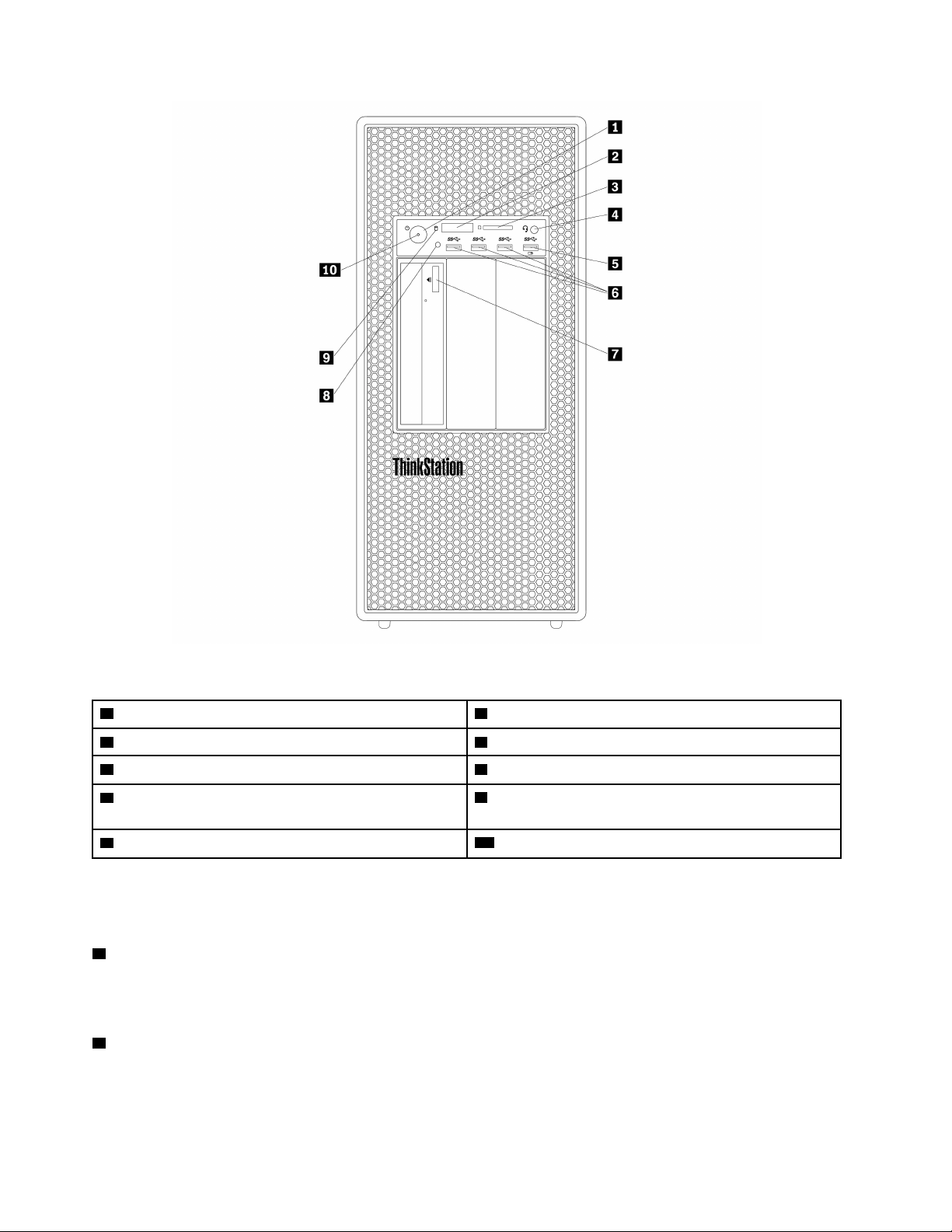
Figure 1. Front connectors, controls, and indicators
1 Power button 2 Four-digit diagnostics display
3 SD card slot
4 Headset connector
5 Always On USB 3.0 connector 6 USB 3.0 connectors (3)
7 Optical-drive eject/close button (available on some
models)
8 Photoelectric sensor
9 Storage drive activity indicator
10 Power indicator
Note: The orientation of the ThinkStation
®
logo plate on the front of your computer is adjustable. When you
lay the computer on its side, you can slightly pull out the logo plate, turn it 90-degree counterclockwise, and
then push it back in.
1 Power button
Press the power button to turn on your computer. If your computer is unresponsive, you can turn off the
computer by pressing and holding the power button for four or more seconds.
2 Four-digit diagnostics display
The four-digit diagnostics display on the front of the computer displays text and a numerical error code when
the computer detects an issue or error.
2 P920 User Guide
3 SD card slot
Insert a secure digital (SD) card into the slot so that the data on the card can be accessed and read.
4 Headset connector
Connect the headset to your computer through the headset connector.
5 Always On USB 3.0 connector
Use this connector to attach a USB-compatible device, such as a USB keyboard, mouse, storage drive, or
printer. With the power cord connected, you can charge the connected USB device even when the computer
is in hibernation mode or turned off. If the Always On USB connector function is not enabled, open the Power
Manager program and enable the function. To open the Power Manager program, see “Accessing a program
on your computer” on page 16. To enable the Always On USB connector, refer to the help system of the
Power Manager program.
6 USB 3.0 connector (3)
Use this connector to attach a USB-compatible device, such as a USB keyboard, mouse, storage drive, or
printer.
7 Optical-drive eject/close button
Press the button to eject or close the tray of the optical drive.
8 Photoelectric sensor
This sensor receives the flash light initiated by the Lenovo PC Diagnostic application installed in the
smartphone. Then, the sensor triggers the computer to send the tune of the current error event to the
smartphone.
9 Storage drive activity indicator
This indicator shows the status of the internal storage drives (such as hard disk drives or solid-state drives).
On: The storage drives are active and data is being transferred.
Off (when the computer is powered on): The storage drives are not in use or no data is being transferred.
10 Power indicator
When the power indicator is on, the computer is turned on.
Rear view
Some connectors on the rear of your computer are color-coded to help you determine where to connect the
cables on your computer.
Note: The computer hardware might look slightly different from the illustration.
Chapter 1. Product overview 3
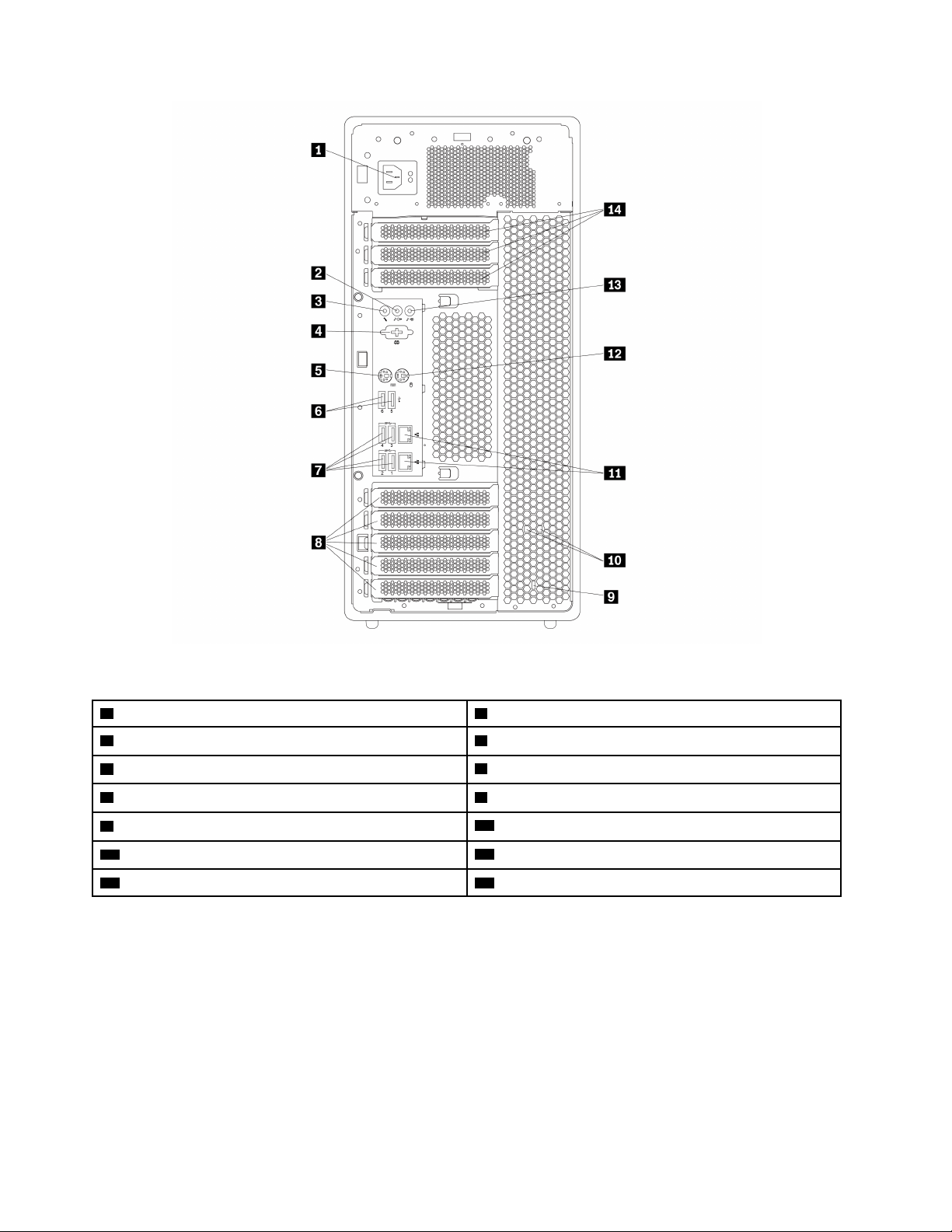
Figure 2. Rear connectors
1 Power cord connector 2 Audio line-out connector
3 Microphone connector
4 Serial connector (available on some models)
5 PS/2 keyboard connector 6 USB 2.0 connectors (2)
7 USB 3.0 connectors (4) 8 PCIe card area*
9 Security-lock slot
10 Key-nest slots
11 Ethernet connectors (2) 12 PS/2 mouse connector
13 Audio line-in connector
14 PCIe card area*
Notes:
• * A discrete graphics card or a network adapter can be installed in the appropriate Peripheral Component
Interconnect Express (PCIe) card slot. If such a card is installed, use the connectors on the card instead of
the corresponding connectors on the computer to optimize the performance.
• Depending on your computer model, the preinstalled cards might vary. One or more graphics cards might
be installed to provide the following connectors:
– DisplayPort
®
connector
– Digital Visual Interface (DVI) connector
– Mini DisplayPort
®
connector
4
P920 User Guide
DisplayPort connector
Use this connector to attach a high-performance monitor, a direct-drive monitor, or other compatible
devices.
DVI monitor connector
Use this connector to attach a DVI monitor or other compatible devices.
Mini DisplayPort connector
Use this connector to attach a high-performance monitor, a direct-drive monitor, or other compatible
devices. The Mini DisplayPort connector is a miniaturized version of a DisplayPort connector.
1 Power cord connector
Connect the power cord to your computer for power supply.
2 Audio line-out connector
The audio line-out connector is used to send audio signals from the computer to external devices, such as
headphones.
3 Microphone connector
Use this connector to attach a microphone to your computer when you want to record sound or if you use
speech-recognition software.
4 Serial connector (available on some models)
Connect an external modem, a serial printer, or other devices that use a 9-pin serial connector to the serial
connector.
5 PS/2 keyboard connector
Use this connector to attach a Personal System/2 (PS/2) keyboard.
6 USB 2.0 connectors (2)
Use this connector to attach a USB-compatible device, such as a USB keyboard, mouse, storage drive, or
printer.
7 USB 3.0 connectors (4)
Use this connector to attach a USB-compatible device, such as a USB keyboard, mouse, storage drive, or
printer.
8 14 PCIe card area
To further improve the computer performance, you can install PCIe cards into this area. Depending on your
computer model, the preinstalled cards might vary.
9 Security-lock slot
Attach a Kensington-style cable lock to the security-lock slot to secure your computer. For more information,
see “Attaching a Kensington-style cable lock” on page 30.
10 Key-nest slots
Install the key holder that comes with the computer cover lock key to the key-nest slots.
Chapter 1. Product overview 5
11 Ethernet connectors (2)
Connect an Ethernet cable for a local area network (LAN).
Note: To operate the computer within Federal Communications Commission (FCC) Class B limits, use a
Category 5 Ethernet cable.
12 PS/2 mouse connector
Use this connector to attach a PS/2 mouse, a trackball, or other pointing devices.
13 Audio line-in connector
The audio line-in connector is used to receive audio signals from an external audio device, such as a stereo
system. When you attach an external audio device, a cable connection is established between the audio line-
out connector of the device and the audio line-in connector of the computer.
6
P920 User Guide
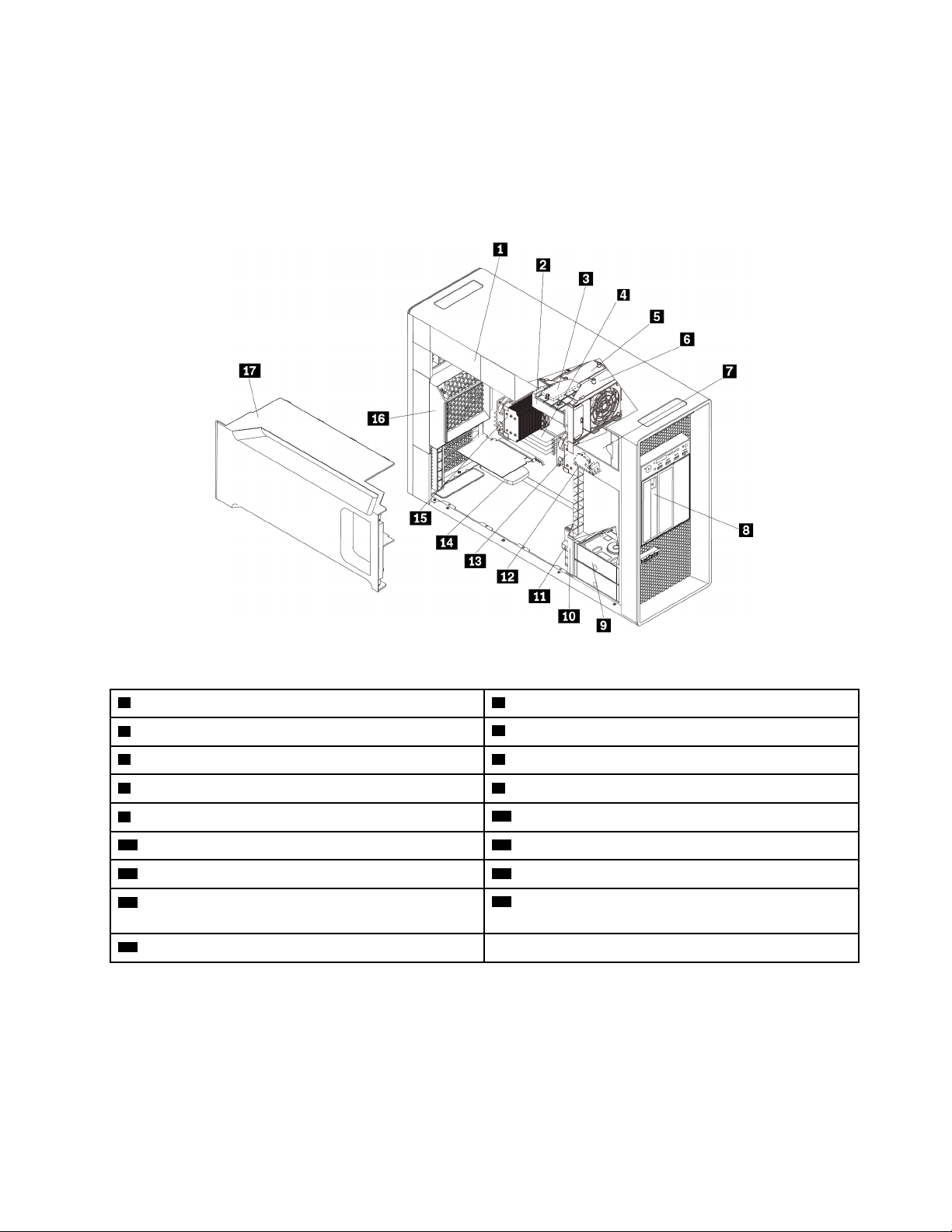
Computer components
Notes:
• Depending on the model, your computer might look slightly different from the illustration.
• To remove the computer cover, see “Preparing your computer and removing the computer cover” on
page 59.
Figure 3. Component locations
1 Power supply assembly 2 M.2 solid-state drive holder
3 M.2 solid-state drive (available on some models)
4 Memory modules*
5 Multi-function bracket in the upper position 6 Front fan assembly
7 Storage drives or a storage-drive-bay cover*
8 Flex bays*
9 Storage drives*
10 Front fan assembly
11 Multi-function bracket in the bottom position
12 Cover presence switch (intrusion switch)
13 Heat-sink-and-fan assembly 1
14 PCIe card*
15 Heat-sink-and-fan assembly 2 (available on some
models)
16 Rear fan assembly
17 Direct cooling air baffle
* Configuration varies by computer models.
Chapter 1. Product overview 7
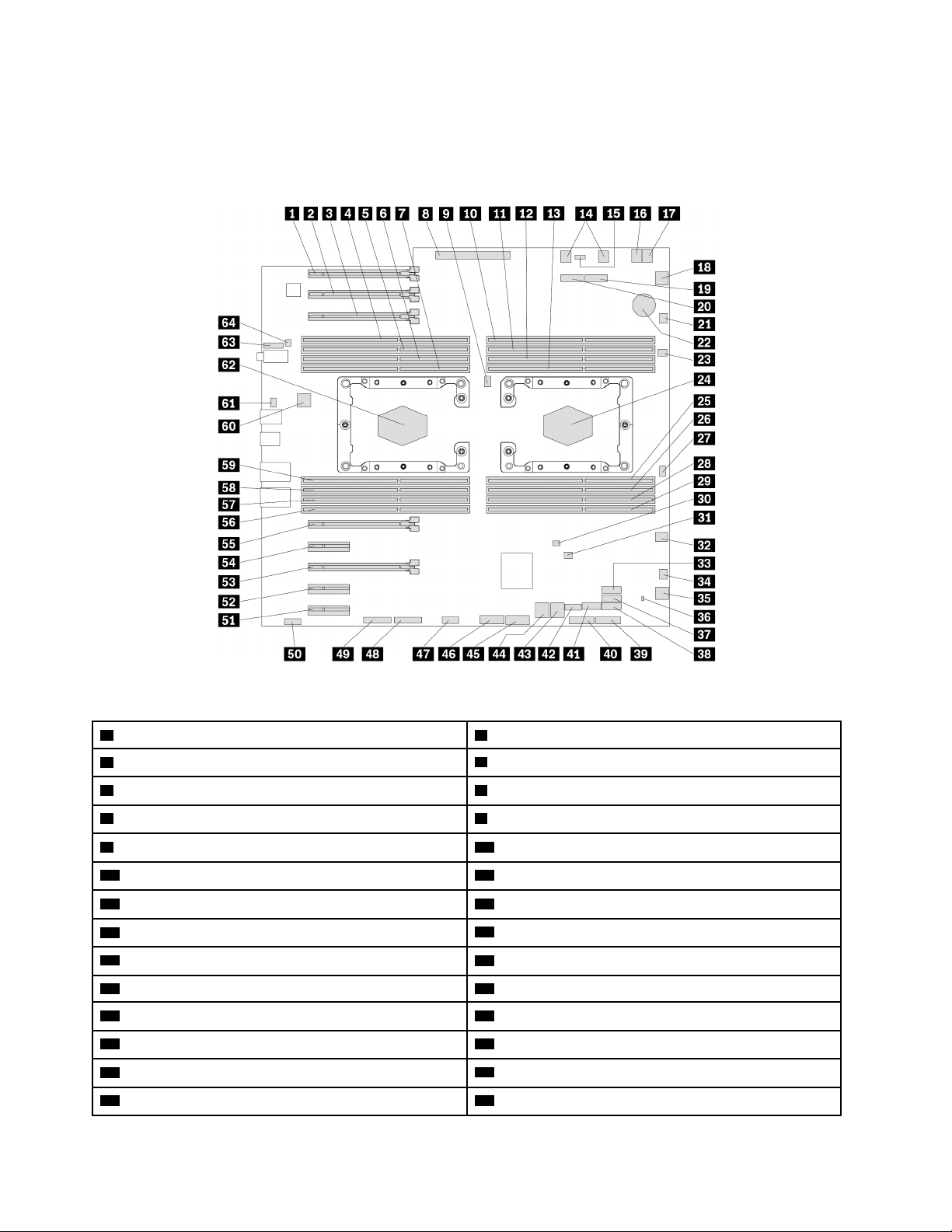
Parts on the system board
The following illustration shows the locations of the parts on the system board.
Note: The system board might look slightly different from the illustration.
Figure 4. Parts on the system board
1 PCIe 3.0 x16 card slot 6 2 PCIe 3.0 x16 card slot 7
3 PCIe 3.0 x16 card slot 8
4 Microprocessor 2 memory slot 2
5 Microprocessor 2 memory slot 6 6 Microprocessor 2 memory slot 4
7 Microprocessor 2 memory slot 8 8 Power supply connector
9 Microprocessor fan connector 2
10 Microprocessor 1 memory slot 1
11 Microprocessor 1 memory slot 5 12 Microprocessor 1 memory slot 3
13 Microprocessor 1 memory slot 7
14 Optical-drive fan connectors
15 VROC connector
16 4-pin power connector
17 4-pin power connector
18 Front-fan-assembly connector
19 M.2 solid-state drive slot 2 20 M.2 solid-state drive slot 1
21 Blind-connect assembly (BCA) 2 connector 22 Coin-cell battery
23 Thermal-sensor connector 24 Microprocessor socket 1
25 Microprocessor 1 memory slot 8 26 Microprocessor 1 memory slot 4
27 Microprocessor fan connector 1
28 Microprocessor 1 memory slot 6
8 P920 User Guide
29 Microprocessor 1 memory slot 2
30 Cover presence switch connector (intrusion switch
connector)
31 Clear CMOS /Recovery jumper
32 4-pin power connector
33 SATA 9 connector 34 BCA 1 connector
35 Front-fan-assembly connector
36 Storage-drive activity indicator connector
37 SATA 8 connector 38 SATA 7 connector
39 15-in-1 card reader connector
40 USB 3.0 extension connector
41 eSATA connector 42 Internal USB 2.0 connector
43 Mini-SAS connector (SATA 5–6 connector) 44 Mini-SAS connector (SATA 1–4 connector)
45 Front USB 3.0 connector 46 Front USB 3.0 connector
47 Thunderbolt™ control connector
48 Trusted Cryptography Module (TCM) connector
49 Front panel connector 50 Four-digit-diagnostics-display connector
51 PCIe 3.0 x4 card slot 5 52 PCIe 3.0 x4 card slot 4
53 PCIe 3.0 x16 card slot 3 54 PCIe 3.0 x4 card slot 2
55 PCIe 3.0 x16 card slot 1
56 Microprocessor 2 memory slot 1
57 Microprocessor 2 memory slot 5 58 Microprocessor 2 memory slot 3
59 Microprocessor 2 memory slot 7
60 Rear-fan-assembly connector
61 Serial (COM1) connector
62 Microprocessor socket 2
63 Front-audio connector 64 Internal-speaker connector
Chapter 1. Product overview 9
Internal storage drives
Internal storage drives are devices that your computer uses to read and store data. You can add drives to
your computer to increase storage capacity and enable your computer to read other types of media. Internal
storage drives are installed in bays.
When you install or replace an internal storage drive, note the type and size of the drive that each bay
supports and correctly connect the required cables. Refer to the appropriate section in Chapter 7 “Hardware
removal and installation” on page 59 for instructions on how to install or replace internal storage drives for
your computer.
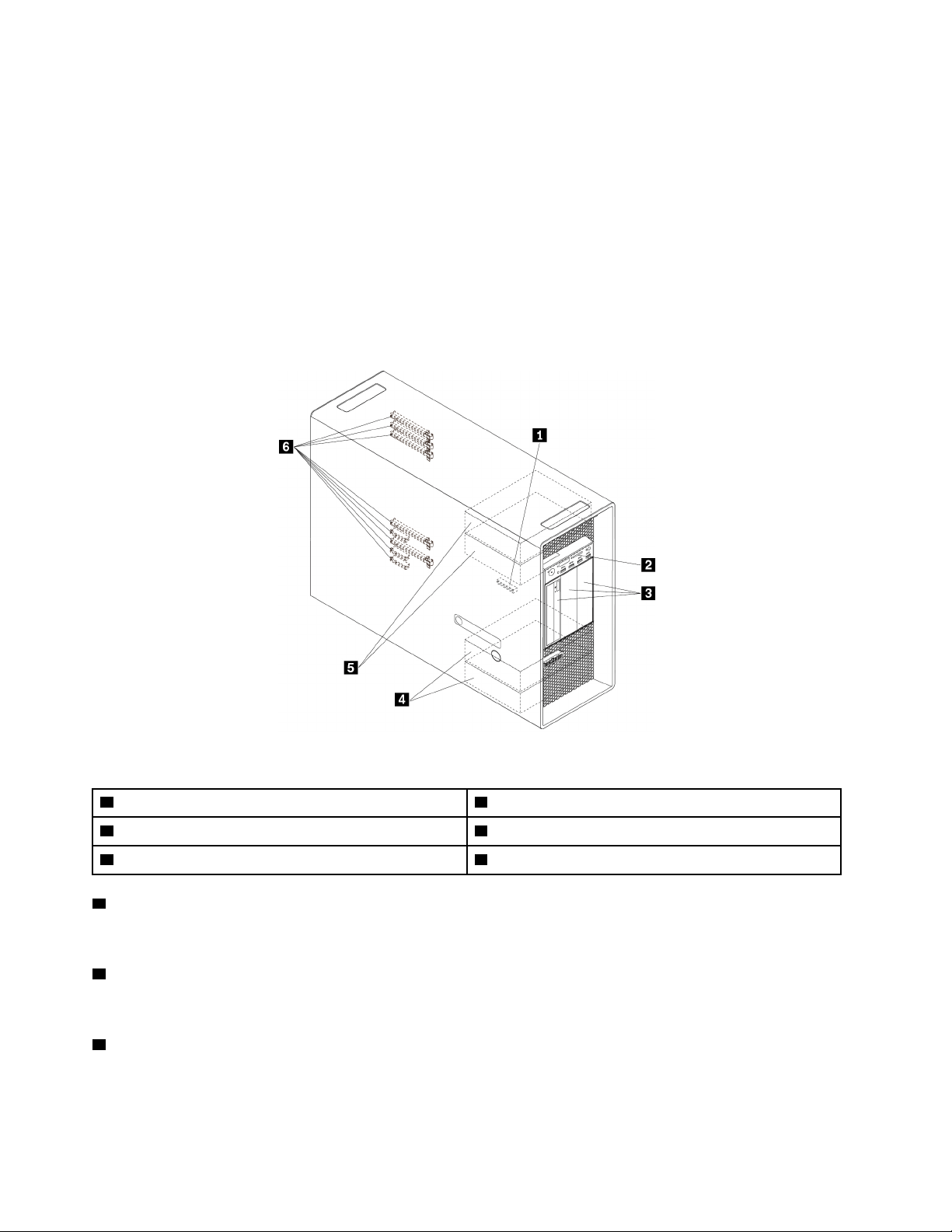
The following illustration shows the locations of the storage drive bays.
Note: The computer hardware might look slightly different from the illustration.
Figure 5. Drive bay locations
1 M.2 solid-state drive slots (2) 2 SD card slot
3 Flex bays (3) 4 Storage drive bays (2)
5 Optional storage drive bays (2) 6 PCIe card slots (8)
1 M.2 solid-state drive slots (2)
One or two M.2 solid state drives are installed in some models.
2 SD card slot
An SD card is installed in some models.
3 Flex bays (3)
Depending on your computer model, the following devices might be installed in the flex bays:
• Flex module
10
P920 User Guide

Depending on your computer model, the following parts might be preinstalled in the flex module:
– 15-in-1 card reader
– External Serial Advanced Technology Attachment (eSATA) connector
– Front Thunderbolt adapter kit
– Institute of Electrical and Electronics Engineers (IEEE) 1394 connector
– Slim optical drive
– USB-C connector
• Front-access storage enclosure
• Multi-drive conversion kit
Depending on your computer model, the following parts might be preinstalled in the multi-drive
conversion kit:
– Hard disk drive
– Slim optical drive
• Optical drive
• Slim-optical-drive adapter
4 Storage drive bays (2)
You can install hard disk drives, solid-state drives, or hybrid drives in the storage drive bays.
5 Optional storage drive bays (2)
If you want to install storage drives into the
5 optional storage drive bays, contact the Lenovo Customer
Support Center for help.
6 PCIe card slots (8)
You can install compatible PCIe cards and PCIe solid-state drives in the PCIe card slots.
Chapter 1. Product overview 11
Machine type and model label
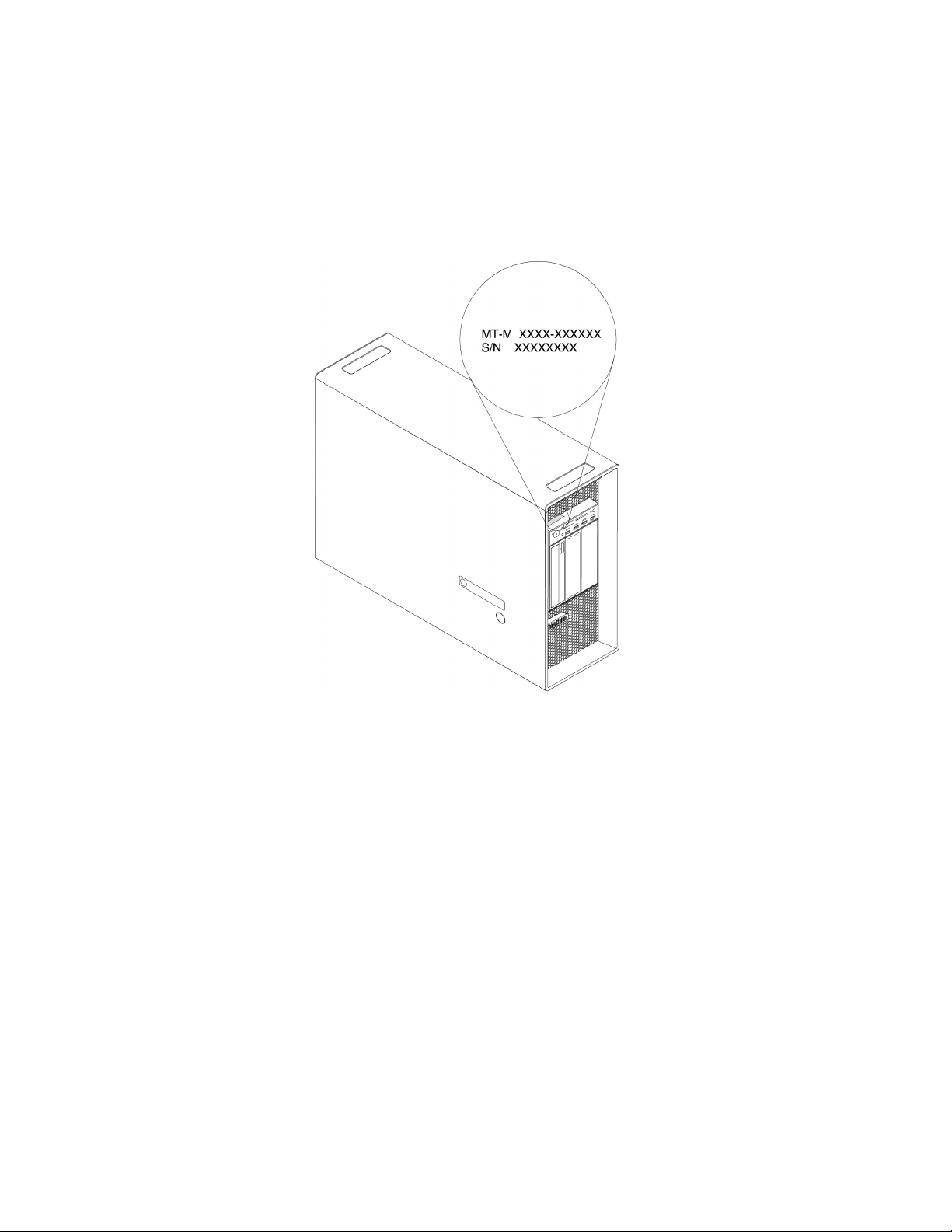
The machine type and model label identifies your computer. When you contact Lenovo for help, the machine
type and model information helps support technicians to identify your computer and provide faster service.
The following is a sample of the machine type and model label.
Note: The computer hardware might look slightly different from the illustration.
Figure 6. Machine type and model label
Computer features
For your specific computer model, some features might vary or not apply.
Information about your computer
• To view basic information (such as microprocessor and memory information) about your computer, type
About in the Windows search box and then press Enter.
• To view detailed information about the devices (such as the optical drive and network adapters) on your
computer, do the following:
1. Type Device Manager in the Windows search box and then press Enter.
2. Type the administrator password or provide confirmation, if prompted.
Memory
Your computer supports up to 16 double data rate 4 (DDR4) error correction code (ECC) registered dual in-
line memory modules (RDIMMs)or DDR4 ECC three-dimensional stack registered DIMMs (3DS RDIMMs).
For more information, see “Memory module” on page 105.
12
P920 User Guide

Internal storage drives
Your computer supports the following storage drives:
• Hard disk drive
• Hybrid drive (available on some models)
• M.2 solid-state drive (available on some models)
• Optical drive (available on some models)
• SD card (available on some models)
• Solid-state drive (available on some models)
To view the amount of storage drive space, type Disk Management in the Windows search box and then
press Enter.
Video features
Discrete graphics card installed in one of the PCIe 3.0 x16 card slots (available on some models) (the
connectors vary by graphics card)
Notes: Your computer is installed with one or more graphics cards that vary by computer model. Depending
on your computer model, the graphics cards might provide the following connectors:
• DisplayPort connector
• DVI connector
• Mini DisplayPort connector
Audio features
Integrated audio controller supports the following connectors and devices on your computer:
• Audio line-in connector
• Audio line-out connector
• Headset connector
• Internal speaker
• Microphone connector
Input/Output (I/O) features
• 100/1000 Mbps Ethernet connector
• 9-pin serial connectors (available on some models)
• Audio connectors (audio line-in connector, audio line-out connector, headset connector, and microphone
connector)
• Display connectors (DisplayPort connector, DVI connector, and Mini DisplayPort connector) (vary by
graphics card)
• eSATA connector
• IEEE 1394 connector (available on some models)
• Mini-SAS connectors
• PS/2 keyboard connector
• PS/2 mouse connector
• SATA connectors
• USB connectors
Chapter 1. Product overview 13

• USB-C connector (available on some models)
Expansion
• Flex bays
• M.2 solid-state drive slots
• Memory slots
• PCIe 3.0 x4 card slots
• PCIe 3.0 x16 card slots
• SD card slot
• Storage drive bays
Power supply
1400-watt automatic voltage-sensing power supply
Wireless features
Depending on your computer model, the following wireless features are supported:
• Wireless LAN
• Bluetooth
System management features
• Ability to store power-on self-test (POST) hardware test results
• Desktop Management Interface (DMI)
Desktop Management Interface provides a common path for users to access information about all
aspects of a computer. The information includes the processor type, installation date, attached printers
and other peripherals, power sources, and maintenance history.
• ErP LPS compliance mode
The energy-related products directive (ErP) lowest power state (LPS) compliance mode reduces the
consumption of electricity when your computer is in sleep or off mode. For more information, see
“Enabling or disabling the ErP LPS compliance mode” on page 36.
• Intel Standard Manageability (ISM)
Intel Standard Manageability builds certain functionalities into computer hardware and firmware.
Therefore, computers are less expensive for businesses and easier to monitor, maintain, update, upgrade,
and repair.
• Intel Active Management Technology (Intel AMT)
With specific Intel platform capabilities and third-party management and security applications, Intel Active
Management Technology enables IT administrators or managed service providers to easily and remotely
discover, repair, and protect their networked computing assets.
• Intel Rapid Storage Technology enterprise (Intel RSTe)
The Intel RSTe configuration utility enables you to configure Redundant Array of Independent Disks (RAID)
for computers with specific Intel chipset system boards. It supports RAID levels 0, 1, 5, and 10 on
computers installed with Serial Advanced Technology Attachment (SATA) storage devices.
• Preboot Execution Environment (PXE)
Preboot Execution Environment enables you to start computers using a network interface. This manner is
independent of starting computers from data storage devices (such as the hard disk drive) or installed
operating systems.
14
P920 User Guide

• System Management (SM) basic input/output system (BIOS) and SM software
The SMBIOS specification defines data structures and access methods in a BIOS. Therefore, a user or an
application can store and retrieve information specific about the computer in question.
• Wake on LAN (WOL)
Wake on LAN is an Ethernet computer networking standard that allows a computer to be turned on or
woken up by a network message. The message is usually sent by a program running on another computer
on the same local area network.
• Windows Management Instrumentation (WMI)
Windows Management Instrumentation is a set of extensions to the Windows Driver Model. It provides an
operating system interface through which instrumented components provide information and notification.
Security features
• Ability to enable and disable a device
• Ability to enable and disable USB connectors individually
• Antivirus program
• BIOS passwords and Windows accounts to deter unauthorized use of your computer
• Computrace Agent software embedded in firmware
• Cover presence switch (also called intrusion switch)
• Finger authentication (available on some models)
• Firewalls
• Intel BIOS guard
• Smart USB Protection function
• Startup sequence control
• Startup without keyboard or mouse
• Support for a Kensington-style cable lock
• Support for a key lock on the computer cover (available on some models)
• Trusted Platform Module (TPM)
Preinstalled operating system
Your computer is preinstalled with the Windows operating system. Additional operating systems might be
identified by Lenovo as compatible with your computer. To determine if an operating system has been
certified or tested for compatibility, check the Web site of the operating system provider.
Computer specifications
This section lists the physical specifications for your computer.
Dimensions
• Width: 200 mm (7.87 inches)
• Height: 446 mm (17.56 inches)
• Depth: 620 mm (24.41 inches)
Weight
Maximum configuration as shipped: 32.3 kg (71.3 lb)
Chapter 1. Product overview 15

Environment
• Air temperature:
Operating: From 10°C (50°F) to 35°C (95°F)
Storage in original shipping package: From -40°C (-40°F) to 60°C (140°F)
Storage without package: From -10°C (14°F) to 60°C (140°F)
• Humidity:
Operating: 10%–80% (non-condensing)
Storage: 10%–90% (non-condensing)
• Altitude:
Operating: From -15.2 m (-50 ft) to 3048 m (10 000 ft)
Storage: From -15.2 m (-50 ft) to 10 668 m (35 000 ft)
Electrical input
• Input voltage: From 100 V ac to 240 V ac
• Input frequency: 50/60 Hz
Programs
This section provides information about the programs on your computer.
Accessing a program on your computer
To access a program on your computer, do one of the following:
• From Windows Search:
1.Type the program name into the search box next to the Start button.
2.In the search results, click the name of the desired program to launch the program.
• From the Start menu:
Click the Start button to open the Start menu. Then, click the name of the desired program to launch the
program.
• From Control Panel:
If the program name is not displayed on the Start menu, access the program from Control Panel.
1.Type Control Panel in the Windows search box and then press Enter.
2.View Control Panel by Large icons or Small icons, and then click the name of the desired program to
launch the program.
An introduction to Lenovo programs
This section provides information about the major Lenovo programs available on your operating system.
Note: Depending on your computer model, some of the following programs might not be available.
16 P920 User Guide

• The Vantage app
The preinstalled Vantage app is a customized one-stop solution to help you maintain your computer with
automated updates and fixes, configure hardware settings, and get personalized support.
To access the Vantage app, type Vantage in the search box.
The Vantage app enables you to:
– Know the device status easily and customize device settings.
– Download and install UEFI BIOS, firmware and driver updates to keep your computer up-to-date.
– Monitor your computer health, and secure your computer against outside threats.
– Scan your computer hardware and diagnose hardware problems.
– Look up warranty status (online).
– Access User Guide and helpful articles.
Notes:
– The available features vary depending on the computer model.
– The Vantage app makes periodic updates of the features to keep improving your experience with your
computer. The description of features might be different from that on your actual user interface.
• ThinkStation Diagnostics
The ThinkStation Diagnostics program enables you to troubleshoot and resolve computer problems. The
program notifies you of any issues detected by the real-time hardware diagnostic monitoring function. The
program also provides the details of the issue, analyzes possible causes, and provides solutions.
Chapter 1. Product overview 17

18 P920 User Guide

Chapter 2. Using your computer
This chapter provides information to help you use the various features provided by your computer.
Registering your computer
When you register your computer with Lenovo, you enter required information into a Lenovo database. The
information enables Lenovo to contact you when there is a recall or other severe problem and provide
quicker service when you call Lenovo for help. In addition, some locations offer extended privileges and
services to registered users.
To register your computer with Lenovo, go to
https://support.lenovo.com/productregistration and follow the
instructions on the screen.
Setting the computer volume
To set the computer volume, do the following:
1. Click the volume icon in the Windows notification area on the taskbar.
Note: If the volume icon is not displayed in the Windows notification area, add the icon to the
notification area. See the Windows help system.
2. Follow the instructions on the screen and the hover text to adjust the volume, mute the speaker, or
unmute the speaker.
Using a disc
This section provides instructions on how to use a disc and the optical drive.
Guidelines about using the optical drive
When using the optical drive, follow these guidelines:
• Do not place the computer in a location where the drive is exposed to any of the following conditions:
– High temperature
– High humidity
– Excessive dust
– Excessive vibration or sudden shock
– An inclined surface
– Direct sunlight
• Do not insert any object other than a disc into the drive.
• Do not insert damaged discs into the drive. Warped, scratched, or dirty discs can damage the drive.
• Before moving the computer, remove the disc from the drive.
Handling and storing a disc
When handling and storing a disc, follow these guidelines:
• Hold the disc by its edges. Do not touch the surface of the side that is not labeled.
© Copyright Lenovo 2022 19

• To remove dust or fingerprints, wipe the disc with a clean, soft cloth from the center to the outside. Wiping
the disc in a circular direction might cause loss of data.
• Do not write or stick paper on the disc.
• Do not scratch or mark the disc.
• Do not place or store the disc in direct sunlight.
• Do not use benzene, thinners, or other cleaners to clean the disc.
• Do not drop or bend the disc.
Playing and removing a disc
To play a disc, do the following:
1. With the computer on, press the eject/close button on the front of the optical drive. The tray slides out of
the drive.
2. Insert a disc into the tray. Some optical drive has a snap hub in the center of the tray. If your drive has a
snap hub, support the tray with one hand and then push the center of the disc until it snaps into place.
3. Press the eject/close button again or gently push the tray forward to close the tray. The disc player
program starts automatically. For more information, refer to the help system of the disc player program.
To remove a disc from the optical drive, do the following:
1. With the computer on, press the eject/close button on the front of the optical drive. The tray slides out of
the drive.
2. Carefully remove the disc from the tray.
3. Press the eject/close button again or gently push the tray forward to close the tray.
Note: If the tray does not slide out of the drive when you press the eject/close button, turn off your
computer. Then, insert a straightened paper clip into the emergency-eject hole adjacent to the eject/close
button. Use the emergency eject only in an emergency.
Recording a disc
If your optical drive supports recording, you can record a disc.
Recording a disc using Windows tools
To record a disc using Windows tools, do one of the following:
• Burn a disc using the AutoPlay window.
1. Ensure that the disc is played automatically.
a. Type AutoPlay in the Windows search box and then press Enter.
b. Turn on Use AutoPlay for all media and devices.
2. Insert a recordable disc into the optical drive that supports recording. The AutoPlay window opens.
3. Follow the instructions on the screen.
• Burn a disc using Windows Media
®
Player.
1. Insert a recordable disc into the optical drive that supports recording.
2. Open Windows Media Player. See “Accessing a program on your computer” on page 16.
3. Follow the instructions on the screen.
• Burn a disc from an ISO file.
1. Insert a recordable disc into the optical drive that supports recording.
20
P920 User Guide
2. Double-click the ISO file.
3. Follow the instructions on the screen.
Recording a disc using preinstalled programs
To record a disc using preinstalled programs, do the following:
1. Insert a recordable disc into the optical drive that supports recording.
2. Open the PowerDVD Create, PowerProducer, or Power2Go program. See “Accessing a program on
your computer” on page 16.
3. Follow the instructions on the screen.
Connecting to a network
This section provides instructions on how to connect to a network.
Connecting to an Ethernet LAN
You can connect your computer to an Ethernet LAN by connecting an Ethernet cable to the Ethernet
connector.
DANGER
To avoid the risk of electrical shock, do not connect the telephone cable to the Ethernet connector.
Connecting to a wireless LAN
You can connect your computer to a wireless LAN without the use of an Ethernet cable but by means of
radio waves only.
Note: The wireless LAN feature is available only on some models.
To establish a wireless-LAN connection, do the following:
1. Ensure that a wireless LAN is available and the wireless LAN feature on your computer is working.
2. Click the wireless-network-connection-status icon in the Windows notification area to display available
wireless networks.
Note: If the wireless-network-connection-status icon is not displayed in the Windows notification area,
add the icon to the notification area. See the Windows help system.
3. Click a wireless LAN, and then click Connect to connect your computer to it. Provide required
information if needed.
Connecting to a Bluetooth-enabled device
Bluetooth is a short-range wireless communications technology. Use Bluetooth to establish a wireless
connection between your computer and another Bluetooth-enabled device within a distance of about 10 m
(32.8 ft).
Note: The Bluetooth feature is available only on some models.
To connect to a Bluetooth-enabled device, do the following:
1. Turn on the Bluetooth feature of your computer. Ensure that the Bluetooth-enabled device is located
within a distance of about 10 m (32.8 ft) from your computer.
Chapter 2. Using your computer 21

2. Click the Bluetooth icon in the Windows notification area on the taskbar. Then, click Add a Device and
follow the instructions on the screen.
Note: If the Bluetooth icon is not displayed in the Windows notification area, add the icon to the
notification area. See the Windows help system.
22
P920 User Guide

Chapter 3. You and your computer
This chapter provides information about accessibility, ergonomic, and cleaning and maintenance.
Arranging your workspace
Arrange your workspace to suit your needs and the kind of work you do. This section provides information
about the factors that affect the way you arrange your workspace.
Glare and lighting
Position the monitor to minimize glare and reflections from overhead lights, windows, and other light
sources. Reflected light from shiny surfaces can cause annoying reflections on your screen. When possible,
place the monitor at right angles to windows and other light sources. If necessary, reduce overhead lighting
by turning off lights or using lower wattage bulbs. If you install the monitor near a window, use curtains or
blinds to block the sunlight. You can adjust the brightness and contrast controls on the monitor as the room
lighting changes throughout the day.
Where it is impossible to avoid reflections or to adjust the lighting, an antiglare filter placed over the screen
might be helpful. However, these filters might affect the clarity of the image on the screen; try them only after
you have exhausted other methods of reducing glare.
Air circulation
Your computer produces heat. The computer has a fan that pulls in fresh air and forces out hot air through
the air vents. Blocking the air vents can cause overheating, which might result in a malfunction or damage.
Position the computer so that nothing blocks the air vents; usually, 51 mm (2 inches) of air space is sufficient.
Ensure that the vented air is not blowing on people.
Electrical outlet locations and cable lengths
The following factors might determine the final placement of your computer:
• Locations of electrical outlets
• Length of power cords or power adapters
• Length of the cables that are connected to other devices
For more information about power cords or power adapters, see “Power cords and power adapters” on page
iv.
Comfort
Although no single working position is ideal for everyone, here are a few guidelines to help you find a position
that suits you best. The following figure sets an example for your reference.
© Copyright Lenovo 2022 23
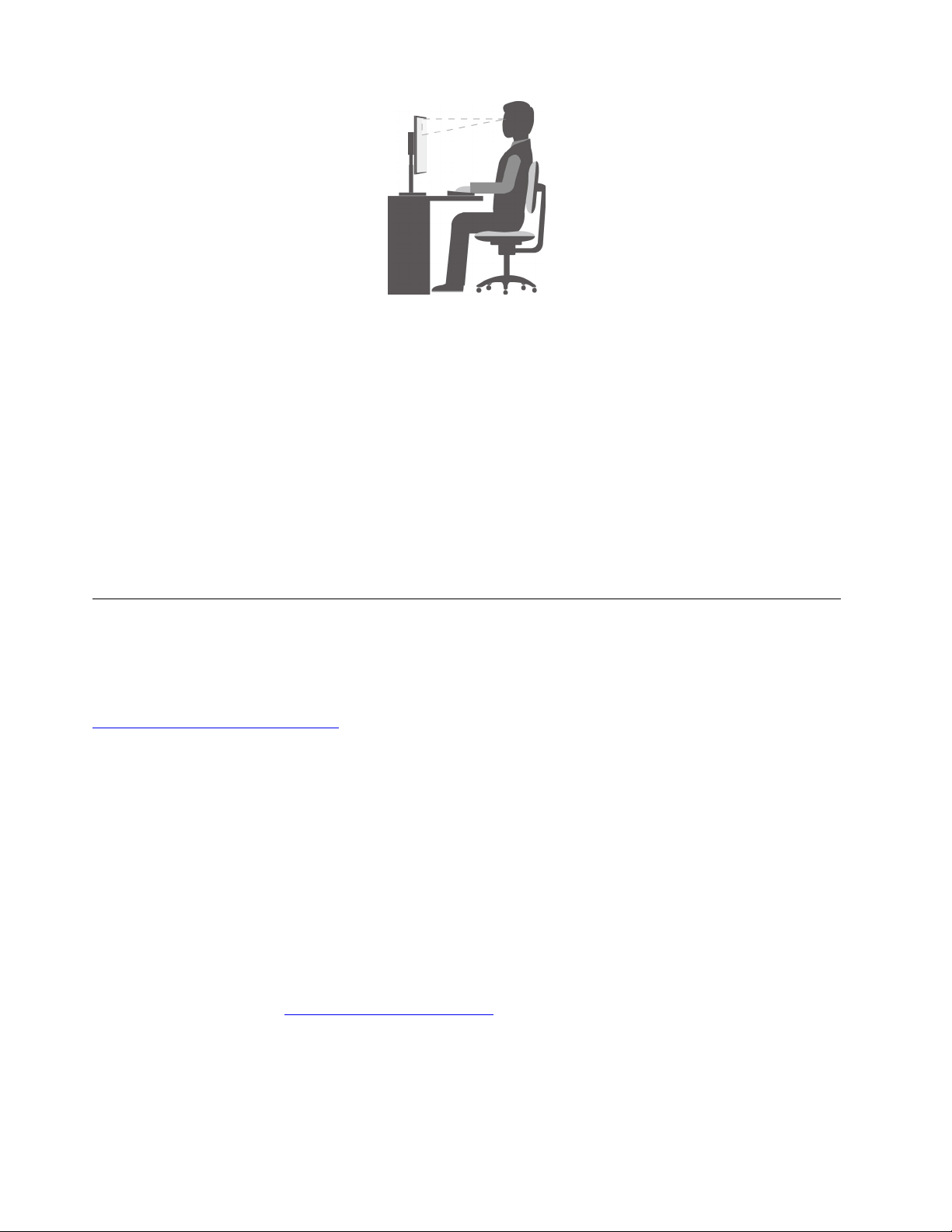
• Screen position: Keep the screen at a comfortable viewing distance, usually 51–61 cm (20–24 inches).
Then, adjust the screen so that the top of the screen is at or slightly below eye level and you can view it
without twisting your body.
• Chair position: Use a chair that gives you good back support and seat height adjustment. Use chair
adjustments to best suit your desired posture.
• Head position: Keep your head and neck in a comfortable and neutral (vertical or upright) position.
• Arm and hand positions: Keep your forearms, wrists, and hands in a relaxed and neutral (horizontal)
position. Type with a soft touch without pounding the keys.
• Leg position: Keep your thighs parallel to the floor and your feet flat on the floor or on a footrest.
Make minor modifications in your working posture to deter the onset of discomfort caused by long periods of
working in the same position. Frequent short breaks from your work also help to prevent minor discomfort
associated with your working posture.
Accessibility information
Lenovo is committed to providing users who have hearing, vision, and mobility limitations with greater
access to information and technology. This section provides information about the ways these users can get
the most out of their computer experience. You also can get the most up-to-date accessibility information
from the following Web site:
https://www.lenovo.com/accessibility
Keyboard shortcuts
The following list contains keyboard shortcuts that can help make your computer easier to use.
Note: Depending on your keyboard, some of the following keyboard shortcuts might not be available.
• Windows logo key + U: Open Ease of Access Center
• Right Shift for eight seconds: Turn on or turn off Filter Keys
• Shift five times: Turn on or turn off Sticky Keys
• Num Lock for five seconds: Turn on or turn off Toggle Keys
• Left Alt+Left Shift+Num Lock: Turn on or turn off Mouse Keys
• Left Alt+Left Shift+PrtScn (or PrtSc): Turn on or turn off High Contrast
For more information, go to
https://windows.microsoft.com/, and then search using any of the following
keywords: keyboard shortcuts, key combinations, shortcut keys.
Ease of Access Center
Ease of Access Center on the Windows operating system enables you to configure your computer to suit
your physical and cognitive needs.
24
P920 User Guide

To use Ease of Access Center, do the following:
1. Type Ease of Access in the Windows search box and then press Enter.
2. Choose the appropriate tool by following the instructions on the screen.
Ease of Access Center mainly includes the following tools:
• Magnifier
Magnifier is a useful utility that enlarges the entire screen or part of the screen so that you can see the
items better.
• Narrator
Narrator is a screen reader that reads aloud what is displayed on the screen and describes events such as
error messages.
• On-Screen Keyboard
To input data into your computer using a mouse, joystick, or other pointing devices instead of a physical
keyboard, you can use On-Screen Keyboard.
• High Contrast
High Contrast is a feature that heightens the color contrast of some text and images on your screen. As a
result, those items are more distinct and easier to identify.
• Personalized keyboard
Adjust keyboard settings to make your keyboard easier to use. For example, you can use your keyboard
to control the pointer and type certain key combinations easier.
• Personalized mouse
Adjust mouse settings to make your mouse easier to use. For example, you can change the pointer
appearance and make it easier to manage windows with the mouse.
Speech Recognition
Speech Recognition enables you to control your computer by voice.
Using only your voice, you can start programs, open menus, click objects on the screen, dictate text into
documents, and write and send e-mails. Everything you do with the keyboard and mouse can be done with
only your voice.
To use Speech Recognition, do the following:
1. Type Control Panel in the Windows search box and then press Enter. View by large icons or Small
icons.
2. Click Speech Recognitionand then follow the instructions on the screen.
Screen-reader technologies
Screen-reader technologies are primarily focused on software program interfaces, help information systems,
and various online documents. For additional information about screen readers, see the following:
• Using PDFs with screen readers:
https://www.adobe.com/accessibility.html?promoid=DJGVE
• Using the JAWS screen reader:
https://www.freedomscientific.com/Products/Blindness/JAWS
• Using the NVDA screen reader:
https://www.nvaccess.org/
Chapter 3. You and your computer 25

Screen resolution
You can make the text and images on your screen easier to read by adjusting the screen resolution of your
computer.
To adjust the screen resolution, do the following:
1. Right-click a blank area on the desktop.
2. Click Display settings ➙ Display.
3. Follow the instructions on the screen.
Note: Setting the resolution too low might prevent some items from fitting on the screen.
Customizable item size
You can make the items on your screen easier to read by changing the item size.
• To change the item size temporarily, use the Magnifier tool in Ease of Access Center.
• To change the item size permanently, do the following:
– Change the size of all the items on your screen. Do the following:
1. Right-click a blank area on the desktop.
2. Click Display settings ➙ Display.
3. Follow the on-screen instructions to change the item size. For some applications, your
configuration might not take effect until you sign out and then sign in again.
– Change the size of the items on a Web page.
Press and hold Ctrl, and then press the plus-sign key (+) to enlarge or the minus-sign key (-) to reduce
the text size.
– Change the size of the items on the desktop or a window.
Note: This function might not work on some windows.
If your mouse has a wheel, press and hold Ctrl, and then scroll the wheel to change the item size.
Industry-standard connectors
Your computer provides industry-standard connectors that enable you to connect assistive devices.
For more information about the location and function of each connector, see “Hardware locations” on page
1.
TTY/TDD conversion modem
Your computer supports the use of a text telephone (TTY) or the telecommunications device for the deaf
(TDD) conversion modem. The modem must be connected between your computer and a TTY/TDD
telephone. Then, you can type a message on your computer and send it to the telephone.
Documentation in accessible formats
Lenovo provides electronic documentation in accessible formats, such as properly tagged PDF files or
HyperText Markup Language (HTML) files. Lenovo electronic documentation is developed to ensure that
visually impaired users can read the documentation through a screen reader. Each image in the
documentation also includes adequate alternative text so that visually impaired users can understand the
image when they use a screen reader.
26
P920 User Guide

Cleaning your computer
Attention: Do not open your computer or attempt any repair before reading and understanding the “Read
this first: Important safety information” on page iii. Properly remove or install your computer cover. See
Chapter 7 “Hardware removal and installation” on page 59.
CAUTION:
Remove any media from the drives and turn off all connected devices and the computer. Then,
disconnect all power cords from electrical outlets and disconnect all cables that are connected to the
computer.
It is a good practice to clean your computer periodically to protect the surfaces and ensure trouble-free
operation. Use only mild cleaning solutions and a damp cloth to clean the painted surfaces of the computer.
Dust buildup compounds problems associated with glare, so remember to clean the screen periodically.
Wipe the screen surface gently with a soft, dry cloth, or blow on the screen to remove grit and other loose
particles. Depending on the type of the screen, moisten a soft, lint-free cloth with an LCD cleaner or liquid
glass cleaner and then wipe the screen surface.
Maintenance
With appropriate care and maintenance, your computer will serve you reliably. This section provides
instructions on how to maintain your computer so that it can keep working in better condition.
Basic maintenance tips
Here are some basic points about keeping your computer functioning properly:
• Keep your computer in a clean, dry environment. Ensure that the computer rests on a flat, steady surface.
• Do not cover any of air vents. These air vents provide airflow to keep your computer from overheating.
• Keep food and drinks away from all parts of your computer. Food particles and spills might make the
keyboard and mouse stick and unusable.
• Do not get the power switches or other controls wet. Moisture can damage these parts and cause an
electrical hazard.
• Always disconnect a power cord by grasping the plug instead of the cord.
Good maintenance practices
By performing a few good maintenance practices, you can maintain good computer performance, protect
your data, and be prepared in case of a computer failure.
• Empty your recycle bin on a regular basis.
• Use the disk defragmentation or disk optimization feature of your operating system occasionally to
prevent performance problems caused by an excessive number of fragmented files.
• Clean out your Inbox, Sent Items, and Deleted Items folders in your e-mail application on a regular basis.
• Back up critical data regularly on removable media memory, such as discs and USB storage devices, and
store the removable media in a safe location. The frequency of making backup copies depends on how
critical the data is to you or your business.
• Back up your data on the storage drive regularly. See “Recovery information” on page 56.
• Keep your computer software, device drivers, and operating system up-to-date. See “Keeping your
computer current” on page 28.
Chapter 3. You and your computer 27

• Keep a log book. Entries might include major software or hardware changes, device-driver updates,
intermittent problems and what you did to resolve them, and other issues you might have experienced.
The cause of a problem might be change in hardware, change in software, or any other actions that might
have taken place. A log book can help you or a Lenovo technician determines the cause of a problem.
• Create Product Recovery discs. See “Recovery information” on page 56 for more information about using
Product Recovery discs to restore the hard disk drive to the factory-default settings.
Keeping your computer current
In most cases, it is a good practice to have the most up-to-date operating system update patches, software
programs, and device drivers. This section provides instructions on how to get the latest updates for your
computer.
Getting the latest system updates
To get the latest system updates for your computer, ensure that your computer is connected to the Internet
and do one of the following:
• Open the Vantage app to check the available update packages. If the latest update package is available,
follow the on-screen instructions to download and install the package.
To open the Vantage app, see “Accessing a program on your computer” on page 16.
• Use Windows Update to get the system updates, such as security fixes, new versions of Windows
components, and device driver updates.
1. Type Settings in the Windows search box and then press Enter.
2. Navigate to the update category for operating system and do the on-screen instructions.
Note: The device drivers provided by Windows Update might not be tested by Lenovo. It is recommended
that you get device drivers by using Lenovo programs or from the Lenovo Web site at
https://
support.lenovo.com
.
Moving your computer
Before moving your computer, take the following precautions:
1. Back up your data on the storage drive. See “Good maintenance practices” on page 27.
2. Remove any media from the drives and turn off all connected devices and the computer. Then,
disconnect all power cords from electrical outlets and disconnect all cables that are connected to the
computer.
3. If you saved the original shipping cartons and packing materials, use them to pack the units. If you are
using different cartons, cushion the units to avoid damage.
Moving your computer to another country or region
When you move your computer to another country or region, you must take local electrical standards into
consideration. If the local electrical outlet style is different from the type you are using, use either an electrical
plug adapter or a new power cord. To purchase such items, contact the Lenovo Customer Support Center.
For a list of Lenovo Support phone numbers, go to
https://pcsupport.lenovo.com/supportphonelist. If you
cannot find the support telephone number for your country or region, contact your Lenovo reseller.
28
P920 User Guide
Chapter 4. Security
This chapter provides information about how to protect your computer from unauthorized use.
Locking your computer
This section provides instructions on how to lock your computer with the locking devices to keep your
computer safe.
Locking the computer cover
Locking the computer cover helps prevent unauthorized people from gaining access to the inside of your
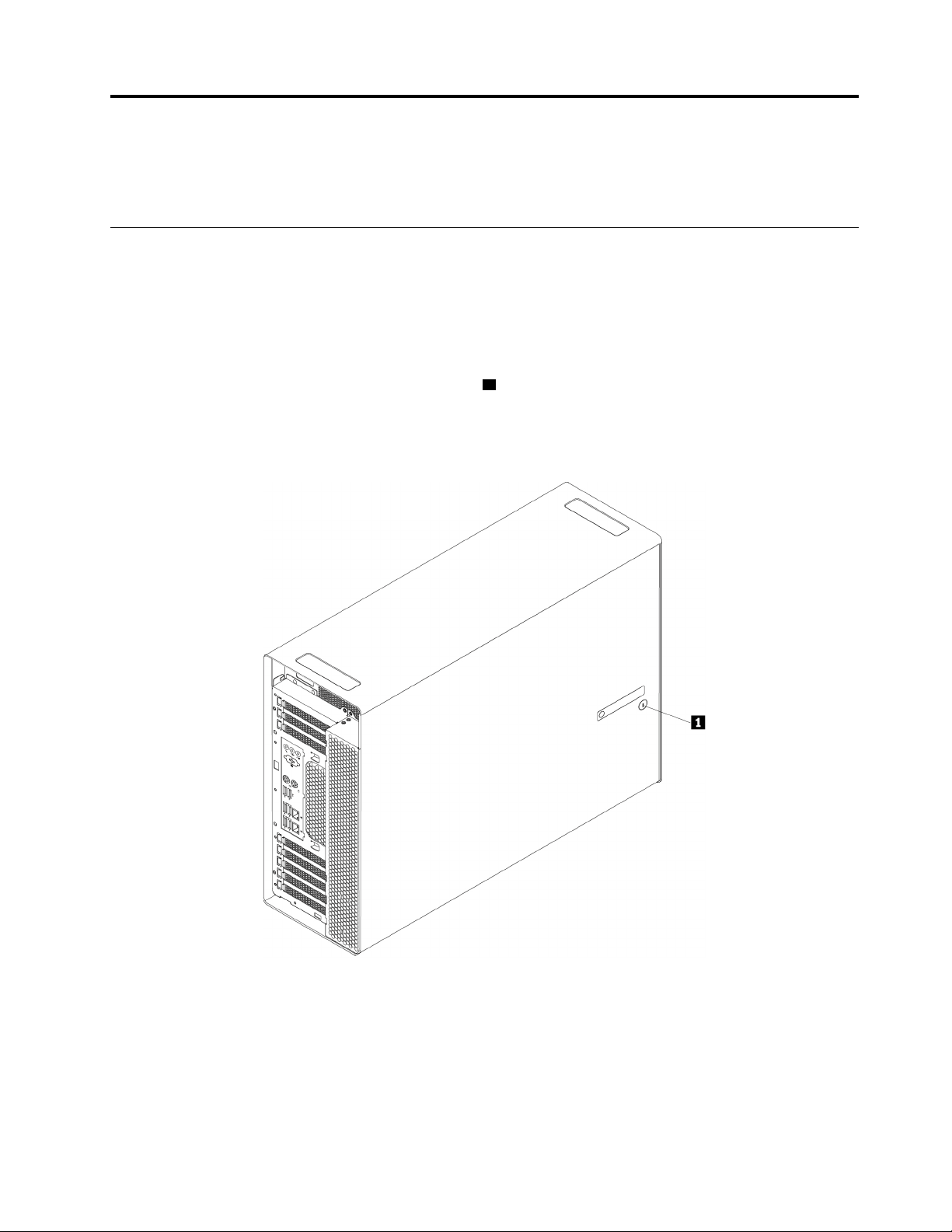
computer. Your computer might come with a key lock
1 that is built into the computer cover. The keys for
the key lock are attached to the rear of the machine. For security, store the keys in a secure place when you
are not using them. Lenovo does not provide spare keys in case of any loss of keys.
Note: The key lock and keys are available only on some models.
Figure 7. Locking the computer cover
© Copyright Lenovo 2022 29
Attaching a Kensington-style cable lock
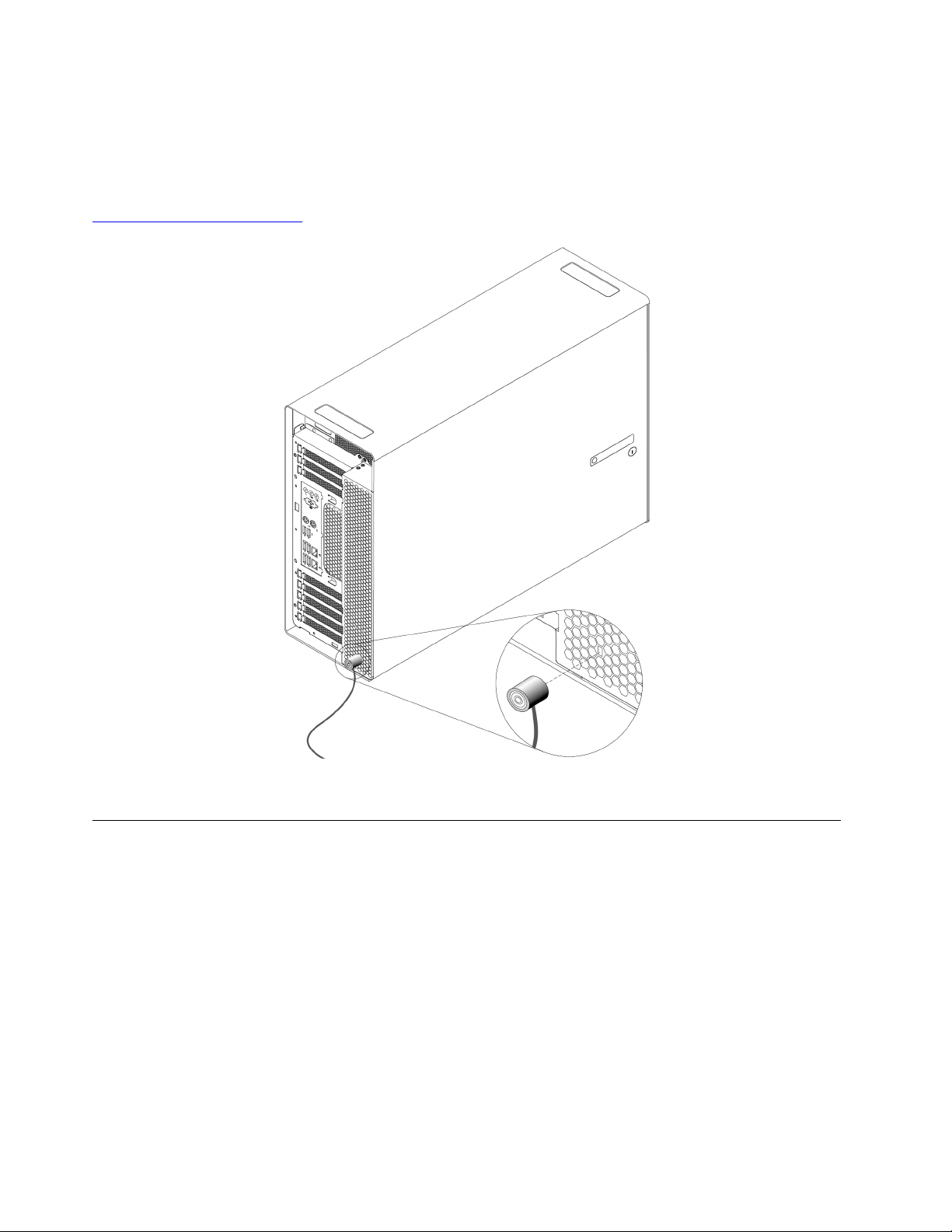
You can use a Kensington-style cable lock to secure your computer to a desk, table, or other non-permanent
fixture. The cable lock attaches to the security-lock slot at the rear of your computer. Depending on the type
selected, the cable lock can be operated with a key or combination. You can order such a cable lock directly
from Lenovo by searching for Kensington at:
http://www.lenovo.com/support
Figure 8. Kensington-style cable lock
Viewing and changing security settings in the Setup Utility program
To view and change security settings in the Setup Utility program, do the following:
1. Start the Setup Utility program. See “Starting the Setup Utility program” on page 35.
2. Select Security.
3. Follow the instructions on the right side of the screen to view and change security settings. You can refer
to “Using the Setup Utility program” on page 35 to get basic information about some major security
settings.
4. To save settings and exit the Setup Utility program, press F10 or Fn+F10 (depending on the keyboard
settings). Then, select Yes in the window displayed, and press Enter.
30
P920 User Guide

Using passwords and Windows accounts
You can use BIOS passwords and Windows accounts to prevent unauthorized access to your computer and
data. To use the BIOS passwords or the Windows accounts, do the following:
• To use BIOS passwords, see “Using BIOS passwords” on page 38.
• To use Windows accounts, do the following:
1. Type Settings in the Windows search box and then press Enter.
2. Click Accounts and follow the on-screen instructions.
Using fingerprint authentication
If your keyboard has a fingerprint reader, you can use fingerprint authentication to replace passwords for
simple and secure user access. To use fingerprint authentication, first enroll your fingerprints and associate
them with your passwords (such as the power-on password, hard disk password, and Windows password).
Use the fingerprint reader and the fingerprint program to complete this procedure.
To use fingerprint authentication, use the fingerprint tool provided by the Windows operating system. Type
Settings in the Windows search box and then press Enter, and then click Accounts ➙ Sign-in options.
Follow the instructions on the screen.
To use the fingerprint reader, refer to the documentation shipped with the fingerprint keyboard or located on
the Lenovo Support Web site at
https://pcsupport.lenovo.com/solutions/pd014444.
Using the cover presence switch
The cover presence switch prevents your computer from logging in to the operating system when the
computer cover is not properly installed or closed.
To use the cover presence switch, enable the cover-presence-switch connector on the system board first. To
achieve this, do the following:
1. Start the Setup Utility program. See “Starting the Setup Utility program” on page 35.
2. Select Security ➙ Chassis Intrusion Detection and press Enter.
3. Select Enabled and press Enter.
4. To save settings and exit the Setup Utility program, press F10 or Fn+F10 (depending on the keyboard
settings), select Yes in the window displayed, and press Enter. The cover-presence-switch connector on
the system board is enabled.
The cover presence switch starts functioning. If the switch detects that the computer cover is not correctly
installed or closed, an error message is displayed when you turn on the computer. To fix the error and log in
to the operating system, do the following:
1. Properly remove or install your computer cover. See Chapter 7 “Hardware removal and installation” on
page 59.
2. Start and then exit the Setup Utility program. See “Starting the Setup Utility program” on page 35 and
“Exiting the Setup Utility program” on page 40.
Using firewalls
A firewall can be hardware, software, or a combination of both depending on the level of security required.
Firewalls work on a set of rules to determine which inbound and outbound connections are authorized. If
Chapter 4. Security 31

your computer is preinstalled with a firewall program, it helps protect against computer Internet security
threats, unauthorized access, intrusions, and Internet attacks. It also protects your privacy. For more
information about how to use the firewall program, refer to the help system of your firewall program.
To use Windows Firewall, do the following:
1. Type Control Panel in the Windows search box and then press Enter. View by large icons or small
icons.
2. Click Windows Defender Firewall and follow the on-screen instructions.
Protecting data against viruses
Your computer is preinstalled with an antivirus program to help you guard against, detect, and eliminate
viruses.
Lenovo provides a full version of antivirus software on your computer with a free 30-day subscription. After
30 days, you must renew the license to continue receiving the antivirus software updates.
Note: Virus definition files must be kept up-to-date to guard against new viruses.
For more information about how to use your antivirus software, refer to the help system of your antivirus
software.
Using the Smart USB Protection function
The Smart USB Protection function is a security function that helps prevent data from being copied from the
computer to USB storage devices connected to the computer. You can set the Smart USB Protection
function to one of the following modes:
• Disabled (default setting): You can use the USB storage devices without limitation.
• Read Only: You cannot copy data from the computer to the USB storage devices. However, you can
access or modify data on the USB storage devices.
• No Access: You cannot access the USB storage devices from the computer.
To configure the Smart USB Protection function, do the following:
1. Start the Setup Utility program. See “Starting the Setup Utility program” on page 35.
2. Select Security ➙ Smart USB Protection and press Enter.
3. Select the desired setting and press Enter.
4. To save settings and exit the Setup Utility program, press F10 or Fn+F10 (depending on the keyboard
settings). Then, select Yes in the window displayed, and press Enter.
Computrace Agent software embedded in firmware (for selected
models)
The Computrace Agent software is an IT asset management and computer theft recovery solution. The
software detects if changes have been made on the computer, such as hardware, software, or the computer
call-in location. You might have to purchase a subscription to activate the Computrace Agent software.
Trusted Platform Module (TPM)
TPM is a secure cryptoprocessor that stores cryptographic keys, which in turn protects information stored in
your computer.
32
P920 User Guide


34 P920 User Guide

Chapter 5. Advanced configuration
This chapter provides information to help you further configure the computer.
Using the Setup Utility program
The Setup Utility program is used to view and change the configuration settings of your computer. This
section provides information about only the major configuration settings available in the program.
Note: The operating system settings might override any similar settings in the Setup Utility program.
Starting the Setup Utility program
To start the Setup Utility program, do the following:
1. Turn on or restart your computer.
2. Before the operating system starts up, repeatedly press and release F1 or Fn+F1 (depending on the
keyboard settings). Based on the Setup Utility display mode setting, one of the following situations
occurs:
• Text mode: The Setup Utility program opens.
• Graphic mode (available on some models): The start screen is displayed. Then, select Setup and
press Enter to open the Setup Utility program.
Note: If a BIOS password has been set, the Setup Utility program will not open until you enter the
correct password. For more information, see “Using BIOS passwords” on page 38.
To view and change the configuration settings, follow the instructions on the screen.
Changing the display mode of the Setup Utility program
You can use the Setup Utility program in the graphic mode or the text mode according to your needs.
• Text mode: The keys on the keyboard used to perform various tasks are displayed at the bottom of the
screen.
Note: The Serial Port Console Redirection item is available only in the text mode.
• Graphic mode (available on some models): In addition to the keyboard, you also can use the mouse to
make selections.
To change the display mode of the Setup Utility program, do the following:
1. Start the Setup Utility program. See “Starting the Setup Utility program” on page 35.
2. From the main interface, select Setup mode select and press Enter.
3. Select Graphic or Text and press Enter.
4. To save settings and exit the Setup Utility program, press F10 or Fn+F10 (depending on the keyboard
settings), select Yes in the window displayed, and press Enter.
Changing the display language of the Setup Utility program
The Setup Utility program supports three display languages: English, French, and simplified Chinese.
To change the display language of the Setup Utility program, do the following:
© Copyright Lenovo 2022 35

1. Start the Setup Utility program. See “Starting the Setup Utility program” on page 35.
2. From the main interface, locate System Language and press Enter.
3. Select the display language according to your needs.
Enabling or disabling a device
This section provides information about how to enable or disable user access to hardware devices (such as
USB connectors or storage drives).
To enable or disable a device, do the following:
1. Start the Setup Utility program. See “Starting the Setup Utility program” on page 35.
2. Select Devices.
3. Select the device you want to enable or disable and press Enter.
4. Select the desired setting and press Enter.
5. To save settings and exit the Setup Utility program, press F10 or Fn+F10 (depending on the keyboard
settings). Then, select Yes in the window displayed, and press Enter.
Enabling or disabling the automatic power-on of your computer
The Automatic Power On item in the Setup Utility program provides various options for you to make your
computer start up automatically.
To enable or disable the Automatic Power On features, do the following:
1. Start the Setup Utility program. See “Starting the Setup Utility program” on page 35.
2. Select Power ➙ Automatic Power On and press Enter.
3. Select the feature you want to enable or disable and press Enter.
4. Select the desired setting and press Enter.
5. To save settings and exit the Setup Utility program, press F10 or Fn+F10 (depending on the keyboard
settings). Then, select Yes in the window displayed, and press Enter.
Enabling or disabling the ErP LPS compliance mode
Lenovo computers meet the eco-design requirements of the ErP Lot 3 regulation. For more information, go
to:
https://www.lenovo.com/ecodeclaration
You can enable the ErP LPS compliance mode in the Setup Utility program to reduce the consumption of
electricity when your computer is off or in sleep mode.
To enable or disable the ErP LPS compliance mode, do the following:
1. Start the Setup Utility program. See “Starting the Setup Utility program” on page 35.
2. Select Power ➙ Enhanced Power Saving Mode and press Enter.
3. Select Enabled or Disabled depending on your needs, and then press Enter. If you select Enabled, you
also need to disable the Wake on LAN feature. See “Enabling or disabling the automatic power-on of
your computer” on page 36.
4. To save settings and exit the Setup Utility program, press F10 or Fn+F10 (depending on the keyboard
settings). Then, select Yes in the window displayed, and press Enter.
When the ErP LPS compliance mode is enabled, you can wake up your computer by doing one of the
following:
36
P920 User Guide

• Press the power button.
• Enable the Wake Up on Alarm feature to make your computer wake up at a set time. See “Enabling or
disabling the automatic power-on of your computer” on page 36.
• Enable the After Power Loss feature to make your computer wake up when the power supply resumes
after a sudden loss of electricity.
To enable the After Power Loss feature, do the following:
1. Start the Setup Utility program. See “Starting the Setup Utility program” on page 35.
2. Select Power ➙ After Power Loss and press Enter.
3. Select Power On and press Enter.
4. To save settings and exit the Setup Utility program, press F10 or Fn+F10 (depending on the keyboard
settings). Then, select Yes in the window displayed, and press Enter.
Enabling or disabling the configuration change detection
With the configuration-change detection enabled, if the POST detects configuration changes of some
hardware devices (such as storage drives or memory modules), an error message is displayed.
To enable or disable the configuration change detection, do the following:
1. Start the Setup Utility program. See “Starting the Setup Utility program” on page 35.
2. Select Security ➙ Configuration Change Detection and press Enter.
3. Select the desired setting and press Enter.
4. To save settings and exit the Setup Utility program, press F10 or Fn+F10 (depending on the keyboard
settings). Then, select Yes in the window displayed, and press Enter.
To bypass the error message and log in to the operating system, do one of the following:
• Press F2 or Fn+F2 (depending on the keyboard settings).
• Start and then exit the Setup Utility program. See “Starting the Setup Utility program” on page 35 and
“Exiting the Setup Utility program” on page 40.
Change BIOS settings before installing a new operating system
BIOS settings vary by operating system. Change the BIOS settings before installing a new operating system.
Microsoft constantly makes updates to the Windows operating system. Before installing a particular
Windows version, check the compatibility list for the Windows version. For details, go to:
https://support.lenovo.com/us/en/solutions/windows-support
To change the BIOS settings:
1. Restart the computer. When the logo screen is displayed, press F1 or Fn+F1.
2. From the main interface, select Security ➙ Secure Boot and press Enter.
3. Depending on the operating system to be installed, do one of the following:
• To install a Windows operating system that supports secure boot, select Enabled for Secure Boot.
• To install an operating system that does not support secure boot, such as some Linux operating
systems, select Disabled for Secure Boot.
4. Press F10 or Fn+F10 to save the changes and exit.
Chapter 5. Advanced configuration 37

Using BIOS passwords
By using the Setup Utility program, you can set passwords to prevent unauthorized access to your computer
and data.
You do not have to set any passwords to use your computer. However, using passwords improves computer
security. If you decide to set any passwords, read the following topics.
Password types
The following types of passwords are available in the Setup Utility program:
• Power-on password
When a power-on password is set, you are prompted to enter a valid password each time the computer is
turned on. The computer cannot be used until the valid password is entered.
• Administrator password
Setting an administrator password deters unauthorized users from changing configuration settings. If you
are responsible for maintaining the configuration settings of several computers, you might want to set an
administrator password.
When an administrator password is set, you are prompted to enter a valid password each time you try to
access the Setup Utility program. The Setup Utility program cannot be accessed until a valid password is
entered.
If both the power-on password and administrator password are set, you can enter either password.
However, you must use your administrator password to change any configuration settings.
• Hard disk password
Setting a hard disk password prevents unauthorized access to the data on the internal storage drive (such
as a hard disk drive). When a hard disk password is set, you are prompted to enter a valid password each
time you try to access the storage drive.
Notes:
– Even if the storage drive is removed from one computer and installed in another, the hard-disk
password is still valid.
– If the hard disk password is forgotten, there is no way to reset the password or recover data from the
storage drive.
Password considerations
A password can be any combination of up to 64 alphabetic and numeric characters. For security reasons, it
is recommended to use a strong password that cannot be easily compromised.
Note: The Setup Utility program passwords are case-sensitive.
To set a strong password, consider the following guidelines:
• Have at least eight characters in length
• Contain at least one alphabetic character and one numeric character
• Not be your name or your user name
• Not be a common word or a common name
• Be significantly different from your previous passwords
Setting, changing, or deleting a password
To set, change, or delete a password, do the following:
38 P920 User Guide

1. Start the Setup Utility program. See “Starting the Setup Utility program” on page 35.
2. Select Security.
3. Depending on the password type, select Set Power-On Password, Set Administrator Password, or
Hard Disk Password and press Enter.
4. Follow the instructions on the right side of the screen to set, change, or delete a password.
Note: A password can be any combination of up to 64 alphabetic and numeric characters. For more
information, see “Password considerations” on page 38.
5. To save settings and exit the Setup Utility program, press F10 or Fn+F10 (depending on the keyboard
settings). Then, select Yes in the window displayed, and press Enter.
Erasing lost or forgotten passwords (clearing CMOS)
This section provides instructions on how to erase lost or forgotten passwords, such as a user password.
Note: The instructions in this section do not apply to the hard disk password.
To erase a lost or forgotten password, do the following:
1. Remove any media from the drives and turn off all connected devices and the computer. Then,
disconnect all power cords from electrical outlets and disconnect all cables that are connected to the
computer.
2. Remove the computer cover. See Chapter 7 “Hardware removal and installation” on page 59.
3. Locate the Clear Complementary Metal Oxide Semiconductor (CMOS) /Recovery jumper on the system
board. See “Hardware locations” on page 1.
4. Move the jumper from the standard position (pin 1 and pin 2) to the maintenance position (pin 2 and pin
3).
5. Reinstall the computer cover and connect the power cord. See Chapter 7 “Hardware removal and
installation” on page 59.
6. Turn on the computer and leave it on for approximately 10 seconds. Then, turn off the computer by
holding the power button for approximately five seconds.
7. Repeat step 1 and step 2.
8. Move the Clear CMOS /Recovery jumper back to the standard position (pin 1 and pin 2).
9. Reinstall the computer cover and connect the power cord.
10. Turn on the computer and the monitor. When the logo screen is displayed, press F1 or Fn+F1.
11. To prevent data loss, ensure that BIOS settings are restored to an earlier point.
Selecting a startup device
If your computer does not start up from the expected device, you can either change the startup device
sequence or select a temporary startup device.
Changing the startup device sequence permanently
To change the startup device sequence permanently, do the following:
1. Depending on the type of the storage device, do one of the following:
• If the storage device is internal, go to step 2.
• If the storage device is a disc, ensure that your computer is turned on. Then, insert the disc into the
optical drive.
• If the storage device is an external device other than a disc, connect the storage device to the
computer.
Chapter 5. Advanced configuration 39

2. Start the Setup Utility program. See “Starting the Setup Utility program” on page 35.
3. Select Startup.
4. Follow the instructions on the right side of the screen to change the startup device sequence.
5. To save settings and exit the Setup Utility program, press F10 or Fn+F10 (depending on the keyboard
settings). Then, select Yes in the window displayed, and press Enter.
Selecting a temporary startup device
Note: Not all discs and storage drives are bootable.
To select a temporary startup device, do the following:
1. Depending on the type of the storage device, do one of the following:
• If the storage device is internal, go to step 2.
• If the storage device is a disc, ensure that your computer is turned on. Then, insert the disc into the
optical drive.
• If the storage device is an external device other than a disc, connect the storage device to the
computer.
2. Turn on or restart the computer. Before Windows starts up, repeatedly press and release F12 or Fn+F12
(depending on the keyboard settings) until Startup Device Menu is displayed.
3. Select the desired storage device and press Enter. The computer then starts up from the device you
select.
If you want to select a permanent startup device, select Enter Setup on Startup Device Menu and press
Enter to start the Setup Utility program. For more information about how to select a permanent startup
device, see “Changing the startup device sequence permanently” on page 39.
Changing the fan speed level
The Fan Control Stepping item enables you to adjust the thermal performance of your computer. From level 1
to level 7, a higher fan speed level indicates better thermal performance with more noise.
To change the fan speed level, do the following:
1. Start the Setup Utility program. See “Starting the Setup Utility program” on page 35.
2. Select Power ➙ Fan Control Stepping and press Enter.
3. Select a fan speed level and press Enter.
4. To save settings and exit the Setup Utility program, press F10 or Fn+F10 (depending on the keyboard
settings), select Yes in the window displayed, and press Enter.
Exiting the Setup Utility program
To exit the Setup Utility program, do one of the following:
• If you want to save the new settings, press F10 or Fn+F10 (depending on the keyboard settings). Then,
select Yes in the window displayed and press Enter.
• If you do not want to save the new settings, select Exit ➙ Discard Changes and Exit and press Enter.
Then, select Yes in the window displayed and press Enter.
Updating and recovering the BIOS
The BIOS is the first program that the computer runs when you turn on the computer. The BIOS initializes the
hardware components and loads the operating system and other programs.
40
P920 User Guide

Updating the BIOS
When you install a new program, hardware device, or device driver, you might be informed to update the
BIOS. You can update the BIOS from your operating system or a flash update disc (available only on some
models).
To update the BIOS, do the following:
1. Go to
https://support.lenovo.com.
2. To update the BIOS from your operating system, download the flash BIOS update driver according to
your operating system version. To update the BIOS from a flash update disc, download the ISO image
version (used to create a flash update disc). Then, download the installation instructions for the flash
BIOS update driver.
3. Print the installation instructions you download and follow the instructions to update the BIOS.
Note: If you want to update the BIOS from a flash update disc, the installation instructions might not
provide the instructions on how to record the update disc. See “Recording a disc” on page 20.
Recovering from a BIOS update failure
To recover from a BIOS update failure, do the following:
1. Remove any media from the drives and turn off all connected devices and the computer. Then,
disconnect all power cords from electrical outlets and disconnect all cables that are connected to the
computer.
2. Remove the computer cover. See Chapter 7 “Hardware removal and installation” on page 59.
3. Locate the Clear CMOS /Recovery jumper on the system board. See “Hardware locations” on page 1.
4. Remove any parts and cables that impede your access to the Clear CMOS /Recovery jumper.
5. Move the jumper from the standard position (pin 1 and pin 2) to the maintenance position (pin 2 and pin
3).
6. Reinstall the parts and cables that were removed.
7. Reinstall the computer cover and reconnect any cables that were disconnected. See Chapter 7
“Hardware removal and installation” on page 59.
8. Turn on the computer and insert the BIOS update disc into the optical drive. Wait a few minutes. The
recovery process begins. After the recovery process is completed, your computer will shut down
automatically.
Note: If the computer does not start up from the disc, select the disc as the startup device. See
“Selecting a temporary startup device” on page 40.
9. Repeat steps 1–4.
10. Move the Clear CMOS /Recovery jumper back to the standard position (pin 1 and pin 2).
11. Repeat step 6 and step 7.
12. Turn on the computer and the monitor. When the logo screen is displayed, press F1 or Fn+F1.
13. To prevent data loss, ensure that BIOS settings are restored to an earlier point before the BIOS update.
Configuring RAID
This section provides information about storage drive requirements for RAID levels, and instructions on how
to configure RAID for your computer. Depending on your computer model and configuration, you can
configure RAID using one of the following utilities:
• Intel Rapid Storage Technology enterprise (RSTe) configuration utility
• AVAGO MegaRAID Configuration Utility
Chapter 5. Advanced configuration 41

• Intel Virtual RAID on CPU configuration utility
An Introduction to RAID
RAID is a technology that provides increased storage functions and reliability through redundancy.
When a group of independent physical storage drives is set up to use RAID technology, they are in a RAID
array. This array distributes data across multiple storage drives, but the array appears to the host computer
as one single storage unit. Creating and using RAID arrays provides high performance, such as the expedited
I/O performance, because several drives can be accessed simultaneously.
RAID drive groups configured according to certain RAID levels also improve data storage reliability and fault
tolerance compared with single-drive storage systems. Data loss resulting from a drive failure can be
prevented by reconstructing missing data from the remaining drives.
Note: For RAID 0, the missing data resulting from a drive failure cannot be reconstructed.
Configuring RAID with Intel RSTe
If your computer comes with the Intel RSTe configuration utility, you can follow the sections below to
configure RAID with Intel RSTe.
Storage drive requirements for RAID levels
Your computer supports the following RAID levels:
• RAID 0: striped disk array
– Consists of at least two SATA storage drives
– Supported strip size: 4 KB, 8 KB, 16 KB, 32 KB, 64 KB, or 128 KB
– Better performance without fault tolerance
• RAID 1: mirrored disk array
– Consists of two SATA storage drives
– Improved reading performance and 100% redundancy
• RAID 10: striped and mirrored disk array (a combination of RAID 0 and RAID 1)
– Consists of four SATA storage drives
– Supported strip size: 4 KB, 8 KB, 16 KB, 32 KB, or 64 KB
• RAID 5: block-level striped disk array with distributed parity
– Consists of at least three SATA storage drives
– Supported strip size: 16 KB, 32 KB, 64 KB, or 128 KB
– Better performance and fault tolerance
Creating a RAID volume
Attention: All the existing data stored on the selected drives will be erased while the RAID volume is being
created.
To create a RAID volume, do the following:
1. Enable RAID by doing the following:
a. Start the Setup Utility program. See “Starting the Setup Utility program” on page 35.
b. Select Devices ➙ PCH SATA Configuration and press Enter.
c. Select Configure SATA as and press Enter. Then, select RAID and press Enter.
42
P920 User Guide

d. To save settings and exit the Setup Utility program, press F10 or Fn+F10 (depending on the
keyboard settings), select Yes in the window displayed, and press Enter.
2. Start the Setup Utility program again. See “Starting the Setup Utility program” on page 35.
3. Select Advanced ➙ Intel RSTe SATA Controller and press Enter.
4. Select Create RAID Volume and press Enter. The Create RAID Volume window is displayed.
5. Select and configure the options one by one.
a. Name: You can use the default name Volume0 or type a preferred name for the RAID volume.
b. RAID Level: You can set the RAID level to one of the following:
• RAID0
• RAID1
• RAID10
• RAID5
Note: Some of the RAID levels might not be displayed because the number of installed SATA
storage drives varies.
c. Select Disks: Select a storage drive and press Enter. Then, select X and press Enter to add it to a
group.
d. Strip Size (if applicable): Select a strip size and press Enter.
e. Capacity: Customize the capacity of the RAID volume. The default RAID volume is the largest value.
6. Select Create Volume and press Enter to create a RAID volume.
7. To save settings and exit the Setup Utility program, press F10 or Fn+F10 (depending on the keyboard
settings), select Yes in the window displayed, and press Enter.
Viewing the information about a RAID volume
To view the information about a RAID volume, do the following:
1. Start the Setup Utility program. See “Starting the Setup Utility program” on page 35.
2. Select Advanced ➙ Intel RSTe SATA Controller and press Enter.
3. Select RAID Volumes and press Enter.
4. Select a RAID volume and press Enter to view the detailed information.
Deleting a RAID volume
Attention: All the existing data stored on the selected drives will be erased after you delete RAID volumes.
To delete a RAID volume, do the following:
1. Start the Setup Utility program. See “Starting the Setup Utility program” on page 35.
2. Select Advanced ➙ Intel RSTe SATA Controller and press Enter.
3. Under RAID Volumes, select the RAID volume that you want to delete and press Enter. The RAID
VOLUME INFO window is displayed.
4. Select Delete under Volume Actions and press Enter. When prompted, select Yes and press Enter to
confirm the deletion of the selected RAID volume.
5. To save settings and exit the Setup Utility program, press F10 or Fn+F10 (depending on the keyboard
settings), select Yes in the window displayed, and press Enter.
Chapter 5. Advanced configuration 43

Configure RAID with AVAGO MegaRAID Configuration Utility
Before configuring RAID with AVAGO MegaRAID Configuration Utility, you must set the profile ID for the
RAID controller:
1. Restart the computer. When the logo screen is displayed, press F1 or Fn+F1.
2. Select Advanced ➙ AVAGO MegaRAID Configuration Utility and press Enter.
3. Select Main Menu and press Enter.
4. Select Controller Management and press Enter.
5. Select Advanced Controller Properties and press Enter.
6. Select Profile Management and press Enter.
7. Select Choose Profile.
• If the RAID controller is Lenovo 9460-16i, select Profile 13.
• If the RAID controller is Lenovo 9440-8i and the connected storage drive type is NVMe, select Profile
11.
• If the RAID controller is Lenovo 9440-8i and the connected storage drive type is SATA or SAS, select
Profile 10.
8. Select Set Profile and press Enter.
9. Press F10 or Fn+F10 to save the changes and exit.
10. Restart the computer.
To configure RAID with AVAGO MegaRAID Configuration Utility, ensure that:
• An AVAGO MegaRAID adapter is installed in your computer.
• The storage drives used for RAID configuration are connected to the installed AVAGO MegaRAID adapter
instead of the system board.
Storage drive requirements for RAID levels
Your computer supports the following RAID levels:
• RAID 0: striped disk array
– Consists of at least two SATA or Serial Attached SCSI (SAS) storage drives
– Supported strip size: 64 KB, 128 KB, 256 KB, 512 KB, or 1 MB
– Better performance without fault tolerance
• RAID 1: mirrored disk array
– Consists of two or four SATA or SAS storage drives
– Improved read performance and 100% redundancy
• RAID 10: striped and mirrored disk array (a combination of RAID 0 and RAID 1)
– Consists of four SATA or SAS storage drives
– Data being striped across storage drive groups
– Provides both high data transfer rates and complete data redundancy
• RAID 5: block-level striped disk array with distributed parity
– Consists of at least three SATA or SAS storage drives
– Supported strip size: 64 KB, 128 KB, 256 KB, 512 KB, or 1 MB
– Better performance and fault tolerance
– Available only on selected models of AVAGO MegaRAID adapters
44
P920 User Guide

• RAID 6: block-level striped disk array with dual distributed parity
– Consists of at least four SATA or SAS storage drives
– Supported strip size: 64 KB, 128 KB, 256 KB, 512 KB, or 1 MB
– Better performance and fault tolerance that can stand up to loss of two storage drives
– Available only on selected models of AVAGO MegaRAID adapters
Create a RAID volume
Attention: All the existing data stored on the selected drives is erased while the RAID volume is being
created.
To create a RAID volume:
1. Restart the computer. When the logo screen is displayed, press F1 or Fn+F1.
2. Select Advanced ➙ AVAGO MegaRAID Configuration Utility and press Enter.
3. Select Main Menu and press Enter.
4. Select Configuration Management and press Enter.
5. Select Create Virtual Drive and press Enter.
6. Select and configure the options one by one.
a. Select RAID Level: You can set the RAID level to one of the following:
• RAID0
• RAID1
• RAID5
• RAID6
• RAID10
Note: Some of the RAID levels might not be displayed because the number of installed SATA
storage drives and the model of the AVAGO MegaRAID adapter vary.
b. Select Drives From: Select Unconfigured capacity or Free capacity depending on your needs and
press Enter.
c. Select Drives: Select a storage drive and press Enter. After selecting all storage drives for creating
the RAID volume, select Apply Changes and press Enter. When promoted, select Confirm and
press Enter. Then, select Yes and press Enter to save the storage drive selection. Finally, select OK
and press Enter.
d. Virtual Drive Name: You can type a preferred name for the volume name.
e. Strip Size (if applicable): Select a strip size and press Enter.
7. Select Save Configuration and press Enter. When promoted, select Confirm and press Enter. Then,
select Yes and press Enter to confirm the creation of the RAID volume.
8. Press F10 or Fn+F10 to save the changes and exit.
View the information about a RAID volume
To view the information about a RAID volume:
1. Restart the computer. When the logo screen is displayed, press F1 or Fn+F1.
2. Select Advanced ➙ AVAGO MegaRAID Configuration Utility and press Enter.
3. Select Main Menu and press Enter.
4. Select Virtual Drive Management and press Enter.
Chapter 5. Advanced configuration 45

5. Select a RAID volume and press Enter to view the detailed information.
6. Press F10 or Fn+F10 to save the changes and exit.
Delete a RAID volume
Attention: All the existing data stored on the selected drives will be erased after you delete RAID volumes.
To delete a RAID volume:
1. Restart the computer. When the logo screen is displayed, press F1 or Fn+F1.
2. Select Advanced ➙ AVAGO MegaRAID Configuration Utility.
3. Select Main Menu and press Enter.
4. Select Virtual Drive Management and press Enter.
5. Select the RAID volume that is not needed and press Enter.
6. Under Operation, select Delete Virtual Drive and press Enter.
7. Select Go and press Enter. When prompted, select Confirm and press Enter. Then, select Yes and
press Enter to delete the RAID volume.
8. Press F10 or Fn+F10 to save the changes and exit.
Configuring RAID with Intel Virtual RAID on CPU
To configure RAID with the Intel Virtual RAID on CPU configuration utility, ensure that:
• An upgrade key module is connected to the Virtual RAID on CPU (VROC) connector on the system board.
See “Hardware locations” on page 1.
• M.2 solid-state drives are installed in your computer.
Storage drive requirements for RAID levels
Your computer supports the following RAID levels:
• RAID 0: striped disk array
– Consists of at least two M.2 solid-state drives
– Supported strip size: 4 KB, 8 KB, 16 KB, 32 KB, 64 KB, or 128 KB
– Better performance without fault tolerance
• RAID 1: mirrored disk array
– Consists of two M.2 solid-state drives
– Improved reading performance and 100% redundancy
• RAID 10: striped and mirrored disk array (a combination of RAID 0 and RAID 1)
– Consists of four M.2 solid-state drives
– Supported strip size: 4 KB, 8 KB, 16 KB, 32 KB, or 64 KB
• RAID 5: block-level striped disk array with distributed parity
– Consists of at least three M.2 solid-state drives
– Supported strip size: 16 KB, 32 KB, 64 KB, or 128 KB
– Better performance and fault tolerance
– Available only on some models of upgrade key modules
46
P920 User Guide

Creating a RAID volume
Attention: All the existing data stored on the selected drives will be erased while the RAID volume is being
created.
To create a RAID volume, do the following:
1. Enable VMD for the selected M.2 solid-state drives by doing the following:
a. Start the Setup Utility program. See “Starting the Setup Utility program” on page 35.
b. Select Advanced ➙ Intel(R) VMD technology and press Enter.
c. Select each menu item and press Enter. Then, select Enabled and press Enter.
d. Select an occupied M.2 solid-state drive slot as you need and press Enter. Then, select VMD and
press Enter.
e. To save settings and exit the Setup Utility program, press F10 or Fn+F10 (depending on the
keyboard settings), select Yes in the window displayed, and press Enter.
2. Start the Setup Utility program again. See “Starting the Setup Utility program” on page 35.
3. Select Advanced ➙ Intel Virtual RAID on CPU and press Enter.
4. Select All Intel VMD Controllers and press Enter.
5. Select Create Volumes and press Enter.
6. Select and configure the options one by one.
a. Name: You can use the default name Volume0 or type a preferred name for the RAID volume.
b. RAID Level: You can set the RAID level to one of the following:
• RAID0
• RAID1
• RAID10
• RAID5
Note: Some of the RAID levels might not be displayed because the number of installed M.2 solid-
state drives and the model of the upgrade key module vary.
c. Select Disks: Select an M.2 solid-state drive and press Enter. Then, select X and press Enter to add
it to a group.
d. Stripe Size (if applicable): Select a stripe size and press Enter.
e. Capacity: Customize the capacity of the RAID volume. The default RAID volume is the largest value.
7. Select Create Volume and press Enter to create a RAID volume.
8. To save settings and exit the Setup Utility program, press F10 or Fn+F10 (depending on the keyboard
settings), select Yes in the window displayed, and press Enter.
Viewing the information about a RAID volume
To view the information about a RAID volume, do the following:
1. Start the Setup Utility program. See “Starting the Setup Utility program” on page 35.
2. Select Advanced ➙ Intel Virtual RAID on CPU and press Enter.
3. Select RAID Volumes and press Enter.
4. Select a RAID volume and press Enter to view the detailed information.
Deleting a RAID volume
Attention: All the existing data stored on the selected drives will be erased after you delete RAID volumes.
Chapter 5. Advanced configuration 47

To delete a RAID volume, do the following:
1. Start the Setup Utility program. See “Starting the Setup Utility program” on page 35.
2. Select Advanced ➙ Intel Virtual RAID on CPU and press Enter.
3. Select Intel VROC Mananged Volumes and press Enter.
4. Under Volume Actions, select Delete and press Enter.
5. When prompted, select Yes and press Enter to confirm the deletion of the selected RAID volume.
6. To save settings and exit the Setup Utility program, press F10 or Fn+F10 (depending on the keyboard
settings), select Yes in the window displayed, and press Enter.
48
P920 User Guide

Chapter 6. Troubleshooting, diagnostics, and recovery
This chapter provides solutions to resolve your computer problems. Follow the steps in the basic procedure
for resolving computer problems, which helps you make good use of the troubleshooting, diagnostics, and
recovery information.
Basic procedure for resolving computer problems
It is recommended that you use the following procedure to resolve computer problems you are experiencing:
1. Ensure that:
a. The cables for all connected devices are connected correctly and securely.
b. All connected devices that require ac power are connected to properly grounded, functioning
electrical outlets.
c. All connected devices are enabled in the BIOS settings of your computer. See “Enabling or disabling
a device” on page 36.
If these actions do not resolve your problem, continue with the next step.
2. Use an antivirus program to see if your computer has been infected by a virus. If the program detects a
virus, remove the virus. If the antivirus program does not resolve your problem, continue with the next
step.
3. Go to “Troubleshooting” on page 49 and follow the instructions for the type of problem you are
experiencing. If these troubleshooting instructions do not resolve your problem, continue with the next
step.
4. Run the diagnostic program. See “Lenovo diagnostic tools” on page 56. If the diagnostic program does
not resolve your problem, continue with the next step.
5. Recover your operating system. See “Recovery information” on page 56.
6. If none of these actions solve your problem, contact the Lenovo Customer Support Center. For a list of
Lenovo Support phone numbers, go to
https://pcsupport.lenovo.com/supportphonelist. For more
information about help, service, and technical assistance, see Chapter 8 “Getting information, help, and
service” on page 137.
Troubleshooting
Attention: Do not open your computer or attempt any repair before reading and understanding the “Read
this first: Important safety information” on page iii.
Use the troubleshooting information to find solutions to problems that have definite symptoms.
Startup problems
The computer does not start up when you press the power button.
Solutions:
Ensure that:
• The power cord is correctly connected to the rear of the computer and to a working electrical outlet.
• If your computer has a secondary power switch on the rear of the computer, ensure that it is switched on.
• The power indicator on the front of the computer is on.
© Copyright Lenovo 2022 49

• The computer voltage matches the voltage available at the electrical outlet for your country or region.
The operating system fails to start up.
Solution:
Ensure that the startup device sequence set in the Setup Utility program includes the device where the
operating system resides. Usually, the operating system is on the internal storage drive. For more
information, see “Changing the startup device sequence permanently” on page 39.
The computer beeps multiple times before the operating system starts up.
Solution:
Ensure that no keys are stuck.
Audio problems
The audio cannot be heard on the Windows operating system.
Solutions:
• If you are using powered external speakers that have an On/Off control, ensure that:
– The On/Off control is set to the On position.
– The speaker power cable is connected to a properly grounded, functional ac electrical outlet.
• If your external speakers have a volume control, ensure that the volume is not set too low.
• Click the volume icon in the Windows notification area on the taskbar. Ensure that the mute speakers
settings are not selected and none of the volume settings is set too low.
Note: If the volume icon is not displayed in the Windows notification area, add the icon to the notification
area. See the Windows help system.
• For some computers that have a front audio panel, ensure that the volume is not set too low.
• Ensure that your external speakers (and headphones, if used) are connected to the correct audio
connectors on the computer. Most speaker cables are color-coded to match the connectors.
Note: When external-speaker or headphone cables are connected to the audio connectors, the internal
speaker, if present, is disabled. In most cases, if an audio adapter is installed in one of the expansion
slots, the audio function built into the system board is disabled. Therefore, you must use the audio
connectors on the audio adapter.
• Ensure that the program you are running is designed for use on the Windows operating system. If the
program is designed to run in DOS, the program does not use the Windows sound feature. The program
must be configured to use Sound Blaster Pro or Sound Blaster emulation.
• Ensure that the audio device drivers are correctly installed.
The sound comes from one of the external speakers.
Solutions:
• Ensure that the speaker cable is inserted completely into the connector on the computer.
• Right-click the volume icon in the Windows notification area on the taskbar. Then, click Open Volume
Mixer and select the desired speaker. Click the Levels tab and ensure that the Balance settings are set
correctly.
Note: If the volume icon is not displayed in the Windows notification area, add the icon to the notification
area. See the Windows help system.
50
P920 User Guide

CD or DVD problems
A CD or DVD does not work.
Solutions:
• Ensure that the power cable and signal cable are securely connected to the drive.
• Ensure that the disc is inserted correctly, with its label up.
• Ensure that the disc you are using is clean. To remove dust or fingerprints, wipe the disc clean with a soft
cloth from the center to the outside. Wiping a disc in a circular motion might cause loss of data.
• Ensure that the disc you are using is not scratched or damaged. Try inserting another disc that you know
is good. If you cannot read from a known-good disc, you might have a problem with your optical drive or
the cabling to your optical drive.
• If you have multiple CD or DVD drives installed (or a combination of CD and DVD drives), try inserting the
disc into the other drive. In some cases, only one of the drives is connected to the audio subsystem.
A bootable recovery medium, such as the Product Recovery CD, cannot be used to start your
computer.
Solution:
Ensure that the CD or DVD drive is set as the top priority of the Boot Priority Order in the Setup Utility
program. Refer to “Selecting a temporary startup device” on page 40 for information about viewing and
changing the startup sequence.
Note: On some computer models, the startup sequence is permanently set and cannot be changed.
A black screen is displayed instead of the DVD video.
Solutions:
• Restart the DVD player program.
• Try a lower screen resolution or color depth.
• Close any open files, and then restart the computer.
A DVD movie does not play.
Solutions:
• Ensure that the disc surface is clean and not scratched.
• Check the disc or package for regional coding. You might need to purchase a disc with coding for the
region where you are using your computer.
No audio or only an intermittent audio comes out while a DVD movie is playing.
Solutions:
• Check the volume control settings on your computer and on your speakers.
• Ensure that the disc surface is clean and not scratched.
• Check all cable connections to and from the speakers.
• Use the DVD menu for the video to select a different audio track.
The playback is slow or choppy.
Solutions:
• Disable any background programs, such as AntiVirus or Desktop Themes.
Chapter 6. Troubleshooting, diagnostics, and recovery 51

• Ensure that video resolution is lower than 1152 x 864 pixels.
A message indicating invalid disc or no disc found is displayed.
Solutions:
• Ensure that the disc is in the drive with the shiny side of the disc facing down.
• Ensure that video resolution is lower than 1152 x 864 pixels.
• Ensure that the DVD or CD is inserted into an appropriate optical drive. For example, do not insert a DVD
into a CD-only drive.
Intermittent problems
Intermittent problems refer to the problems occur only occasionally and are difficult to repeat.
Solutions:
• Ensure that all cables and cords are securely connected to the computer and attached devices.
• Ensure that when the computer is on, the fan grill is not blocked (there is air flow around the grill), and the
fans are working. If airflow is blocked or the fans are not working, the computer might overheat.
• If Small Computer System Interface (SCSI) devices are installed, ensure that the last external device in
each SCSI chain is terminated correctly. For more information, see your SCSI documentation.
Storage drive problems
Some or all storage drives are missing from the Setup Utility program.
Solutions:
• Ensure that the signal cables and power cables for all the storage drives are connected correctly.
• If the computer is installed with SAS storage drives, ensure that the AVAGO MegaRAID adapter is
correctly connected.
The computer cannot start up from the correct storage drive or the message “No Operating System
Found” is displayed.
Solutions:
• Ensure that the signal cables and power cables for all the storage drives are connected correctly.
• Ensure that the computer starts up from the correct storage drive. Set the storage drive, on which the
operating system resides, as the first startup device in the Setup Utility program. Refer to “Changing the
startup device sequence permanently” on page 39.
Note: In rare cases, the storage drive with the operating system might get corrupted or damaged. If this
problem occurs, replace the storage drive. Refer to Chapter 7 “Hardware removal and installation” on page
59.
Ethernet LAN problems
The computer cannot connect to an Ethernet LAN.
Solutions:
• Connect the cable from the Ethernet connector to the RJ45 connector of the hub.
• Enable the Ethernet LAN feature in the Setup Utility program.
• Enable the Ethernet LAN adapter.
52 P920 User Guide

1. Type Control Panel in the Windows search box and then press Enter. View by large icons or small
icons.
2. Click Network and Sharing Center ➙ Change adapter settings.
3. Right-click the Ethernet LAN adapter icon and click Enable.
• Update or reinstall the Ethernet LAN driver. See “Keeping your computer current” on page 28.
• Install all networking software that is necessary for your network environment. Check with your LAN
administrator for the necessary networking software.
• Set the same duplex for the switch port and the adapter. If you configured the adapter for full duplex,
ensure that the switch port is also configured for full duplex. Setting the wrong duplex mode might
degrade performance, cause data loss, or result in lost connections.
When a Gigabit Ethernet model computer is used at a speed of 1000 Mbps, the Ethernet LAN
connection fails or errors occur.
Solution:
Connect the network cable to the Ethernet connector using Category 5 wiring and a 100 BASE-T hub/switch
(not 100 BASE-X).
A Gigabit Ethernet model computer should connect to the network at a speed of 1000 Mbps but at
only a speed of 100 Mbps.
Solutions:
• Try another cable.
• Set the link partner to auto-negotiate.
• Set the switch to be 802.3ab-compliant (gigabit over copper).
The Wake On LAN feature does not work.
Solution:
Enable the Wake On LAN feature in the Setup Utility program.
Wireless LAN problem
Note: The wireless LAN feature is available only on some models.
The wireless LAN feature does not work.
Solutions:
• Enable the wireless LAN feature in the Setup Utility program.
• For Windows operating system, enable the wireless LAN feature in Windows Settings. Type WLAN in the
Windows search box and then press Enter. Turn on the Wi-Fi feature.
• Enable the wireless LAN adapter.
1. Type Control Panel in the Windows search box and then press Enter. View by large icons or small
icons
2. Click Network and Sharing Center ➙ Change adapter settings.
3. Right-click the wireless LAN adapter icon and click Enable.
• Update or reinstall the wireless LAN driver. See “Keeping your computer current” on page 28.
Chapter 6. Troubleshooting, diagnostics, and recovery 53

Bluetooth problems
Note: The Bluetooth feature is available only on some models.
The Bluetooth feature does not work.
Solutions:
• Enable the Bluetooth feature in the Setup Utility program.
• Enable the Bluetooth devices. Do the following:
1. Type Device Manager in the Windows search box and then press Enter.
2. Type the administrator password or provide confirmation if prompted.
3. Expand Bluetooth to display the Bluetooth devices. Then, right-click each Bluetooth device and then
Click Enable device.
4. Expand Network adapters. Then, right-click each Bluetooth device and then Click Enable device.
• Turn on the Bluetooth radio on Windows operating system. Do the following:
1. Type Bluetooth & other devices in the Windows search box and then press Enter.
2. Turn on the Bluetooth switch to enable the Bluetooth feature.
• Update or reinstall the Bluetooth driver. See “Keeping your computer current” on page 28.
No sound comes from the Bluetooth headset or headphones.
Solution:
Select the Bluetooth headset or headphones as the default audio output device in advanced sound settings.
Performance problems
Excessive fragmented files exist on the storage drives.
Solution:
Use the Windows disk defragmentation or disk optimization feature to clean up the files.
Note: Depending on the volume of the storage drives and amount of data stored on the storage drives, the
disk-defragmentation process might take up to several hours.
1. Close any open programs and windows.
2. Type This PC in the Windows search box and then press Enter.
3. Right-click your C drive and then click Properties.
4. Click the Tools tab.
5. Click Optimize. Select the desired drive and then click Optimize.
6. Follow the instructions on the screen.
The free storage drive space is insufficient.
Solutions:
Free up the storage drive space.
• Clean out your Inbox, Sent Items, and Deleted Items folders from your e-mail application.
• Clean up your C drive.
1. Type This PC in the Windows search box and then press Enter.
54
P920 User Guide

2. Right-click your C drive and then click Properties.
3. Check the amount of free space, and then click Disk Cleanup.
4. A list of unnecessary file categories is displayed. Select each file category you want to delete, and
then click OK.
• Turn some Windows features off or remove some unnecessary programs.
1. Type Control Panel in the Windows search box and then press Enter. View by large icons or small
icons
2. Click Programs and Features.
3. Do one of the following:
– To turn some Windows features off, click Turn Windows features on or off. Follow the
instructions on the screen.
– To remove some unnecessary programs, select the program you want to remove, and then click
Uninstall/Change or Uninstall.
The free memory space is insufficient.
Solutions:
• Right-click a blank area on the taskbar and open Task Manager. Then, end some tasks you are not
performing.
• Install additional memory modules. See Chapter 7 “Hardware removal and installation” on page 59. To
purchase memory modules, go to:
https://www.lenovo.com
Serial connector problem
The serial connector cannot be accessed.
Solutions:
• Connect the serial cable from the serial connector on the computer to the serial device. If the serial device
has its own power cord, connect the power cord to a grounded electrical outlet.
• Turn on the serial device and keep the device online.
• Install any programs supplied with the serial device. Refer to the documentation that comes with the serial
device for more information.
• If you added one serial-connector adapter, ensure that the adapter is installed correctly.
USB device problems
A USB device cannot be accessed.
Solutions:
• Connect the USB cable from the USB connector to the USB device. If the USB device has its own power
cord, connect the power cord to a grounded electrical outlet.
• Turn on the USB device and keep the device online.
• Install any device drivers or programs supplied with the USB device. Refer to the documentation that
comes with the USB device for more information.
• Disconnect and reconnect the USB connector to reset the USB device.
• Ensure that the Smart USB Protection function is disabled. To configure the Smart USB Protection
function, see “Using the Smart USB Protection function” on page 32.
Chapter 6. Troubleshooting, diagnostics, and recovery 55

Software and driver problems
For some programs, dates cannot be sorted in correct order.
Solution:
Some programs developed before the year 2000 use only the last two digits of a year to sort dates, assuming
the first two digits are 19. Consequently, dates cannot be sorted in correct order nowadays. Check with your
software manufacturer to see if any updates are available. Many software manufacturers make updates
available from the World Wide Web.
Some programs do not work as expected.
Solutions:
1. Check whether the problem is caused by a program.
a. Ensure that the software is compatible with your computer. Refer to the information supplied with the
software for more information.
b. Verify that other software works properly on your computer.
c. Verify that the software you are using works on another computer.
2. If the problem is caused by a program:
• Refer to the printed documentation that comes with the program or the help system of the program
for troubleshooting information.
• Update the program. See “Keeping your computer current” on page 28.
• Uninstall the program and then reinstall it. To download a program that is preinstalled on your
computer, go to
https://support.lenovo.com and follow the instructions on the screen.
A device does not work properly due to device driver problems.
Solution:
Update the device driver. See “Keeping your computer current” on page 28.
Lenovo diagnostic tools
For information about Lenovo diagnostic tools, go to:
https://pcsupport.lenovo.com/lenovodiagnosticsolutions
Recovery information
This section provides instructions on how to recover your operating system.
Note: If a device does not work correctly after recovering the operating system, update the device driver.
See “Keeping your computer current” on page 28.
To recover your Windows operating system, use the following solutions:
• Use Windows recovery solutions.
– Use recovery solutions in Windows Settings.
1. Type Settings in the Windows search box and then press Enter.
2. Click Update & Security ➙ Recovery, and then follow the on-screen instructions to choose the
appropriate recovery solution.
– Use System Restore to restore system files and settings to an earlier point.
56
P920 User Guide

1. Type Control Panel in the Windows search box and then press Enter. View by large icons or small
icons.
2. Click Recovery ➙ Open System Restore and follow the instructions on the screen.
– Use the File History tool to restore your files from a backup.
Note: If you use the File History tool to restore your files from a backup, ensure that you backed up
your data earlier with the tool.
1. Type Control Panel in the Windows search box and then press Enter. View by large icons or small
icons.
2. Click File History ➙ Restore personal files and follow the on-screen instructions.
– Use the Windows recovery environment by doing one of the following:
– After several consecutive failed boot attempts, the Windows recovery environment might start
automatically. Follow the instructions on the screen to choose the appropriate recovery solution.
– Select the recovery medium you created earlier with the Windows tool as the startup device. See
“Selecting a temporary startup device” on page 40. Then, follow the instructions on the screen to
choose the appropriate recovery solution.
• Use the recovery USB key provided by Lenovo to restore the entire storage drive to the factory-default
settings.
– If your computer comes with the recovery USB key, follow the instructions shipped with the USB key.
– If your computer does not come with the recovery USB key, contact the Lenovo Customer Support
Center to order a recovery USB key. See “Calling for service” on page 138.
Chapter 6. Troubleshooting, diagnostics, and recovery 57

58 P920 User Guide

Chapter 7. Hardware removal and installation
This chapter provides instructions on how to remove and install hardware for your computer.
Handling static-sensitive devices
Do not open the static-protective package containing the new part until the defective part has been removed
and you are ready to install the new part. Static electricity, although harmless to you, can seriously damage
computer components and options.
When you handle options and other computer components, take these precautions to avoid static-electricity
damage:
• Limit your movement. Movement can cause static electricity to build up around you.
• Always handle options and other computer components carefully. Handle PCI/PCIe cards, memory
modules, system boards, and microprocessors by the edges. Never touch any exposed circuitry.
• Prevent others from touching the options and other computer components.
• Touch the static-protective package containing the part to a metal expansion-slot cover or other
unpainted metal surface on the computer for at least two seconds. This reduces static electricity from the
package and your body before you install or replace a new part.
• When possible, remove the new part from the static-protective package, and install it directly in the
computer without setting the part down. When this is not possible, place the static-protective package on
a smooth, level surface and place the part on the package.
• Do not place the part on the computer cover or other metal surface.
Preparing your computer and removing the computer cover
Attention: Do not open your computer or attempt any repair before reading and understanding the “Read
this first: Important safety information” on page iii.
CAUTION:
Avoid contact with hot components inside the computer. During operation, some components
become hot enough to burn the skin. Before you open the computer cover, turn off the computer,
disconnect power, and wait approximately 10 minutes for the components to cool.
Before removing or installing any hardware component in your computer, do the following to prepare your
computer and remove the computer cover:
1. Remove any media from the drives and turn off all connected devices and the computer. Then,
disconnect all power cords from electrical outlets and disconnect all cables that are connected to the
computer.
2. Unlock any locking device that secures the computer cover. See “Locking your computer” on page 29.
© Copyright Lenovo 2022 59

3. Press the pit 1 so that the handle 2 is lifted. Then, pivot the handle as shown and pull the handle to
remove the cover from the chassis.
Figure 9. Removing the computer cover
Notes:
• Depending on your computer model, some of the hardware parts in the removal or installation section
might not be available.
• Use computer parts provided only by Lenovo.
• When removing or installing an option, use the appropriate instructions in this section along with the
instructions that come with the option.
• In most areas of the world, Lenovo requires the return of the defective CRU. Information about this will
come with the CRU or will come a few days after the CRU arrives.
Removing and installing hardware
This section provides instructions on how to remove and install hardware for your computer. You can expand
the capabilities of your computer and maintain your computer by removing or installing hardware.
Attention: Do not open your computer or attempt any repair before reading and understanding the “Read
this first: Important safety information” on page iii.
External options
You can connect external options to your computer, such as external speakers, a printer, or a scanner. For
some external options, you must install additional software in addition to making the physical connection.
When installing an external option, see “Front view” on page 1 and “Rear view” on page 3 to identify the
60
P920 User Guide
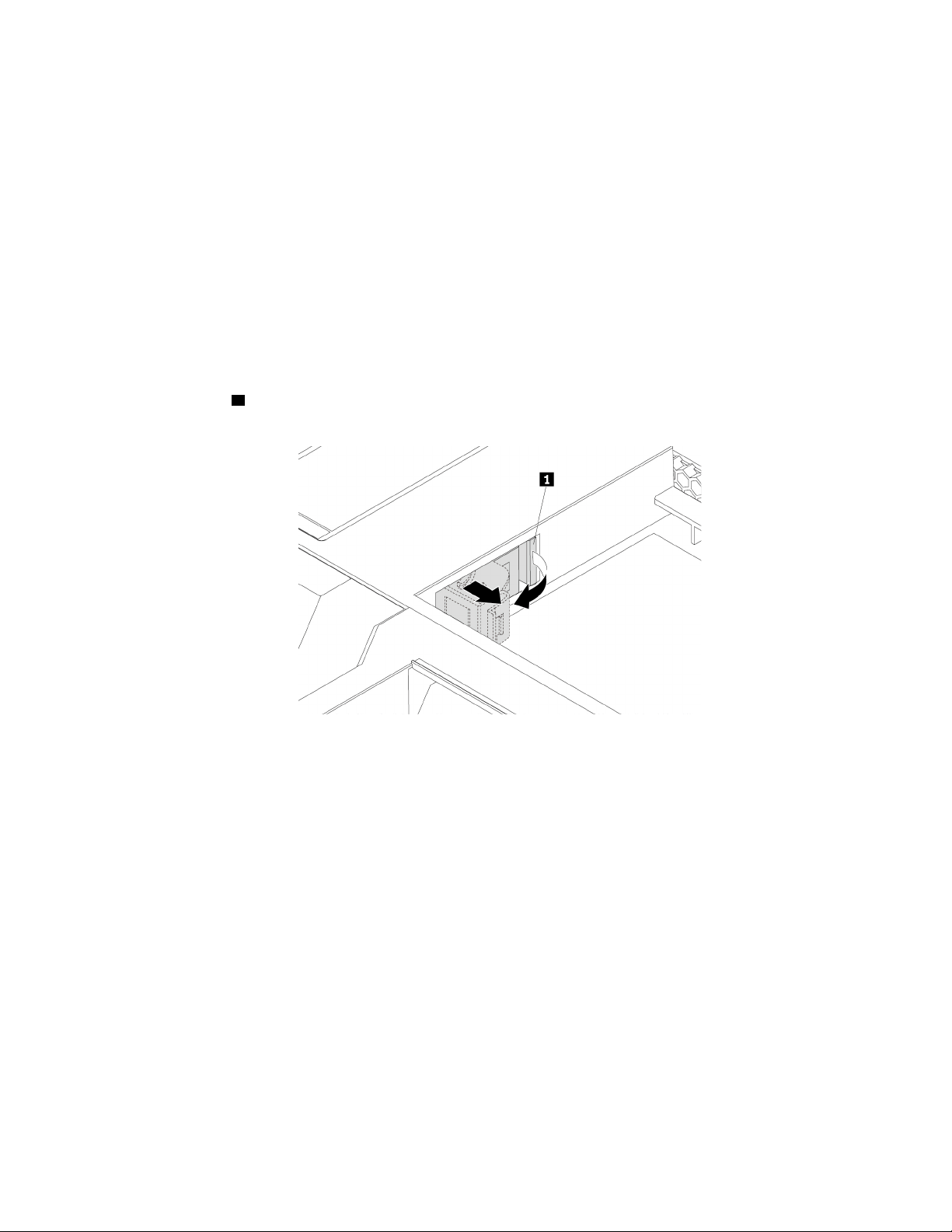
required connector. Then, use the instructions that come with the option to help you make the connection
and install any required software or device drivers.
Cover presence switch (intrusion switch)
Attention: Do not open your computer or attempt any repair before reading and understanding the “Read
this first: Important safety information” on page iii.
To remove or install the cover presence switch (also known as intrusion switch), do the following:
1. Prepare your computer. See “Preparing your computer and removing the computer cover” on page 59.
2. Lay the computer on its side for easier access to the cover presence switch bracket.
3. Locate the cover presence switch bracket. See “Computer components” on page 7.
4. Note the routing of the cover presence switch cable, and then disconnect the cover presence switch
cable from the system board.
5. Pivot the tab
1 on the cover presence switch bracket as shown. Then, remove the bracket together with
the cover presence switch from the chassis.
Figure 10. Removing the cover presence switch bracket
Chapter 7. Hardware removal and installation 61
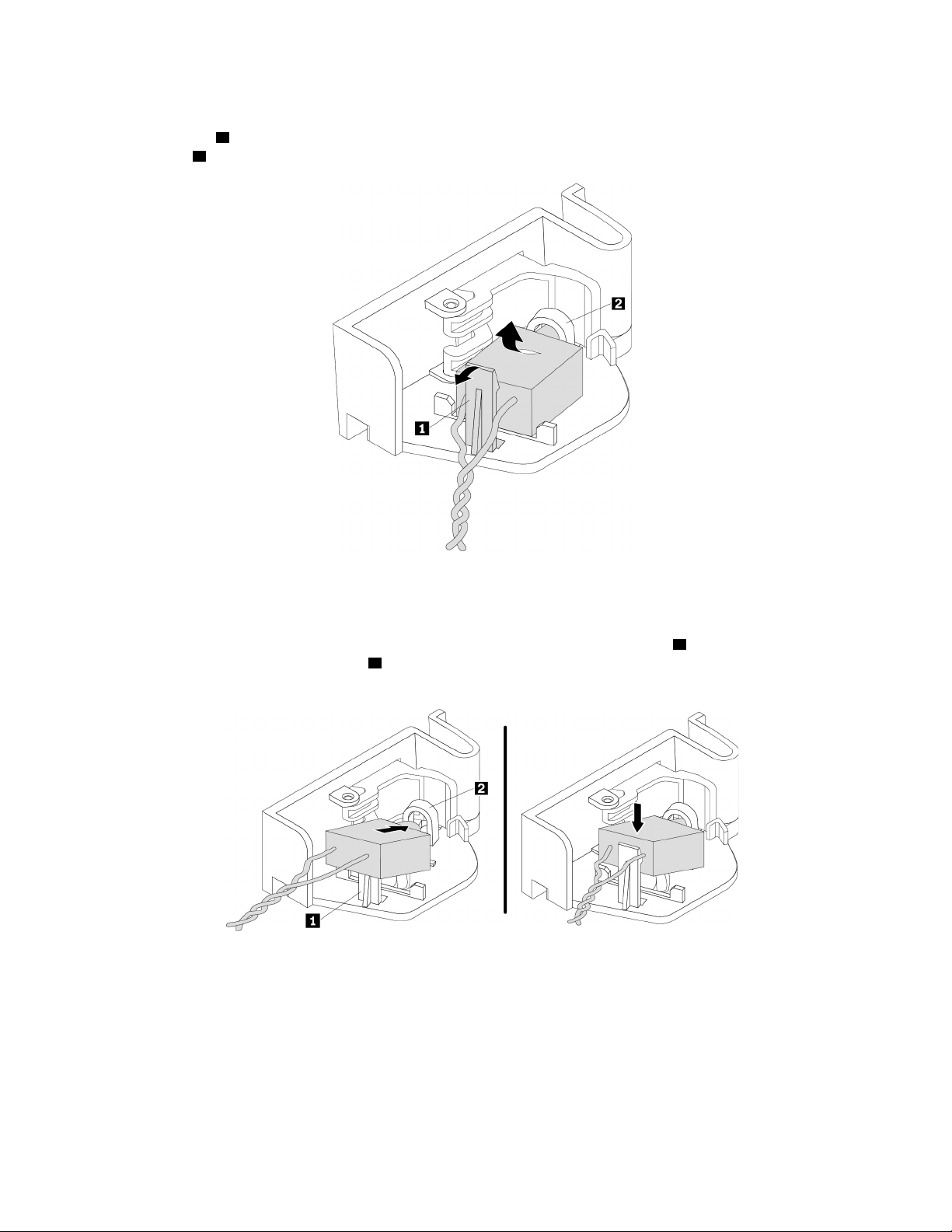
6. To remove the cover presence switch, do the following:
Pivot the clip
1 on the bracket outward, and then disengage the failing cover presence switch from the
circle clip
2 to remove it from the bracket.
Figure 11. Removing the cover presence switch from the bracket
7. To install the cover presence switch, do the following:
Insert the end of the new cover presence switch with the post into the circle clip
2 of the cover presence
switch bracket. Ensure that the clip
1 is placed between the two branched cables of the new cover
presence switch. Then, press the cover presence switch downward until it snaps into position.
Figure 12. Installing the cover presence switch into the bracket
62 P920 User Guide
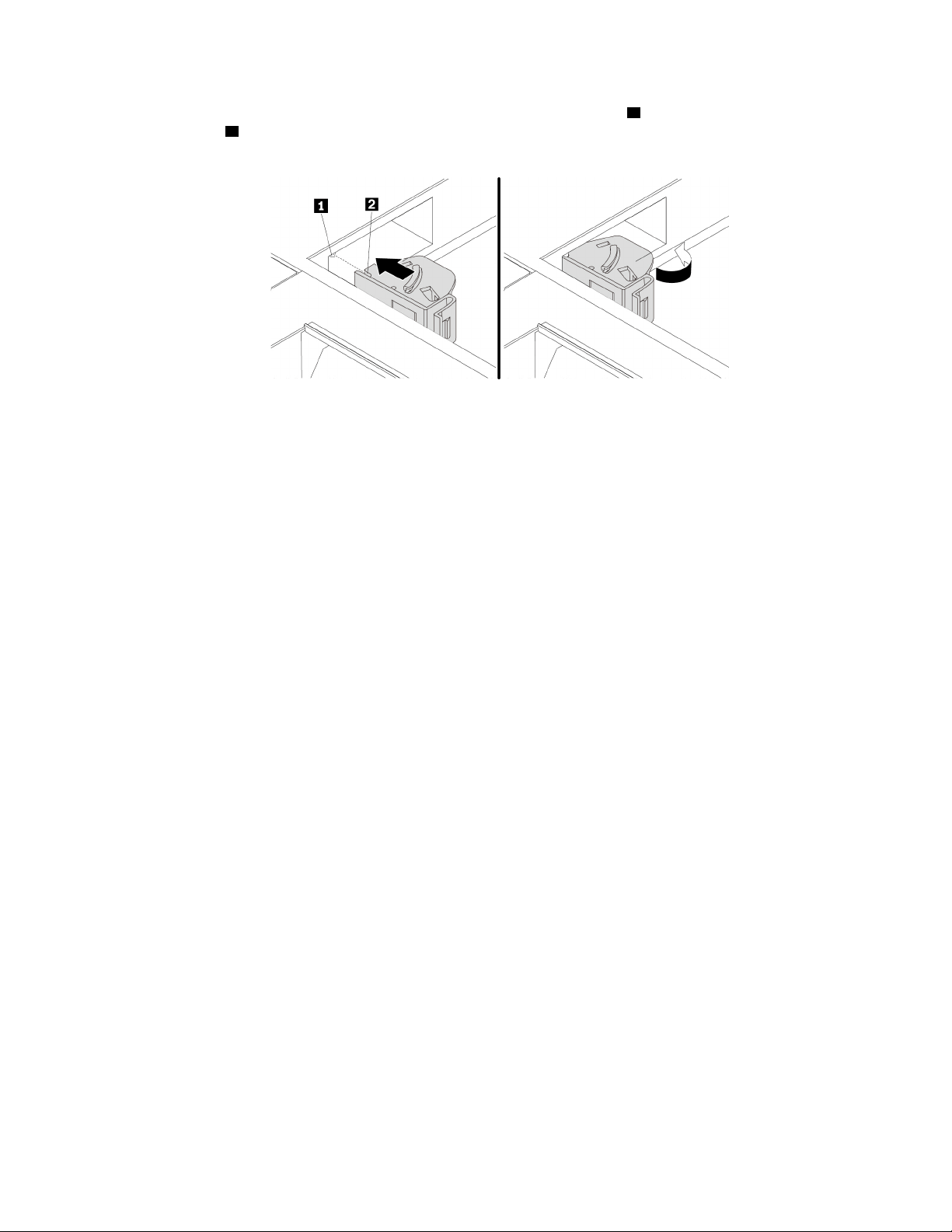
8. Route the cable of the new cover presence switch, and align the notch 2 on the cover presence switch
with the tab
1 in the chassis. Then pivot the cover presence switch bracket as shown until it snaps into
position.
Figure 13. Installing the cover presence switch bracket
9. Connect the cable of the new cover presence switch to the system board. See “Parts on the system
board” on page 8.
What to do next:
• To work with another piece of hardware, go to the appropriate section.
• To complete the installation or replacement, go to “Completing the parts replacement” on page 135.
Direct cooling air baffle
Attention: Do not open your computer or attempt any repair before reading and understanding the “Read
this first: Important safety information” on page iii.
To remove or install the direct cooling air baffle, do the following:
1. Prepare your computer. See “Preparing your computer and removing the computer cover” on page 59.
Chapter 7. Hardware removal and installation 63
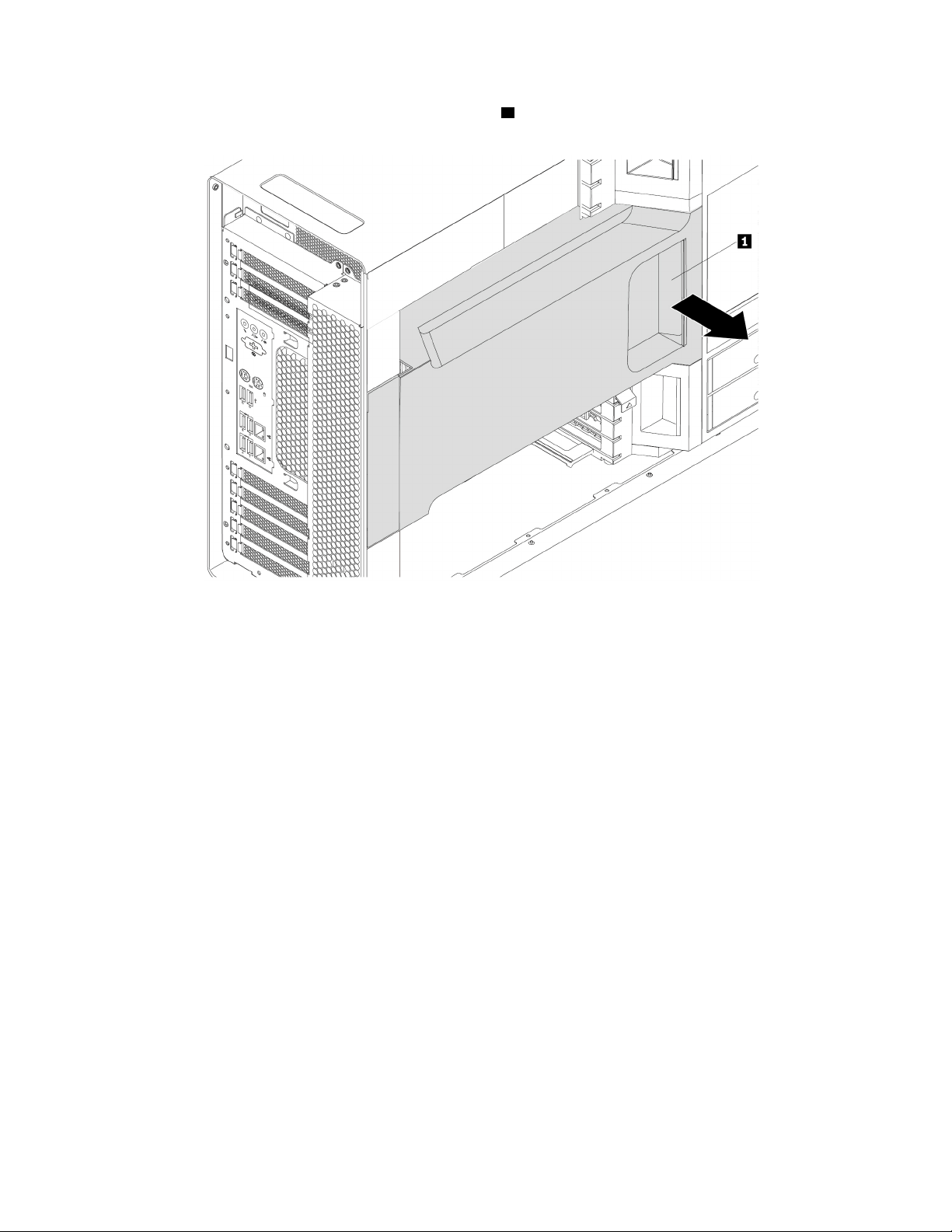
2. To remove the direct cooling air baffle, hold the handle 1 to pull the direct cooling air baffle out of the
chassis.
Figure 14. Removing the direct cooling air baffle
3. To install the direct cooling air baffle, do the following:
64
P920 User Guide
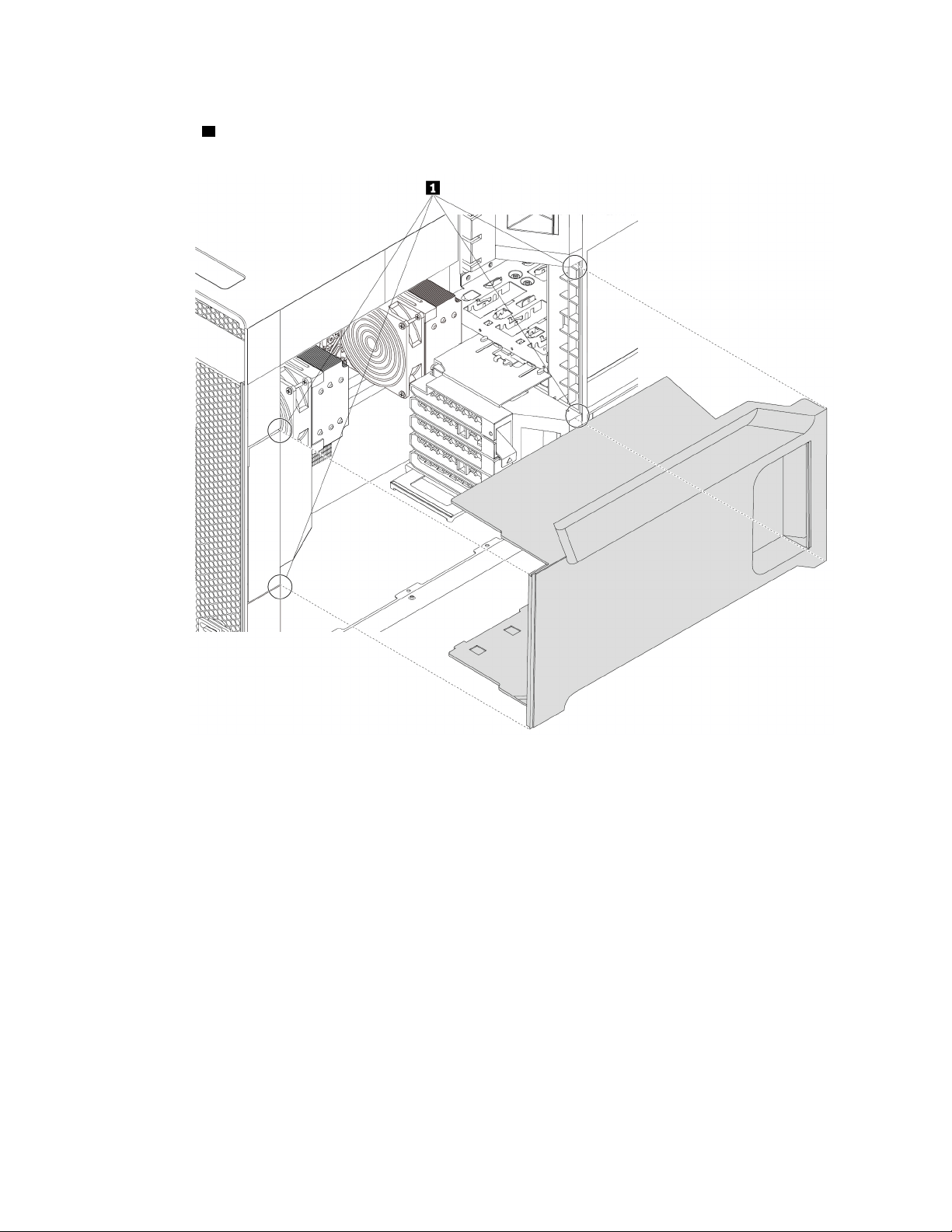
a. Align the plastic boards on the top and bottom sides of the direct cooling air baffle with the small
gaps
1 in the chassis. Ensure that the handle of the direct cooling air baffle faces toward the front of
the chassis.
Figure 15. Aligning the plastic boards with the small gaps
b. Slide the direct cooling air baffle into the chassis until it is secured firmly.
Note: If necessary, adjust the position of the direct cooling air baffle slightly to avoid any interference
with other components in the chassis.
What to do next:
• To work with another piece of hardware, go to the appropriate section.
• To complete the installation or replacement, go to “Completing the parts replacement” on page 135.
Device in a flex bay
Attention: Do not open your computer or attempt any repair before reading and understanding the “Read
this first: Important safety information” on page iii.
Depending on your computer model, the following devices might be installed in the flex bays:
• Flex module
Chapter 7. Hardware removal and installation 65
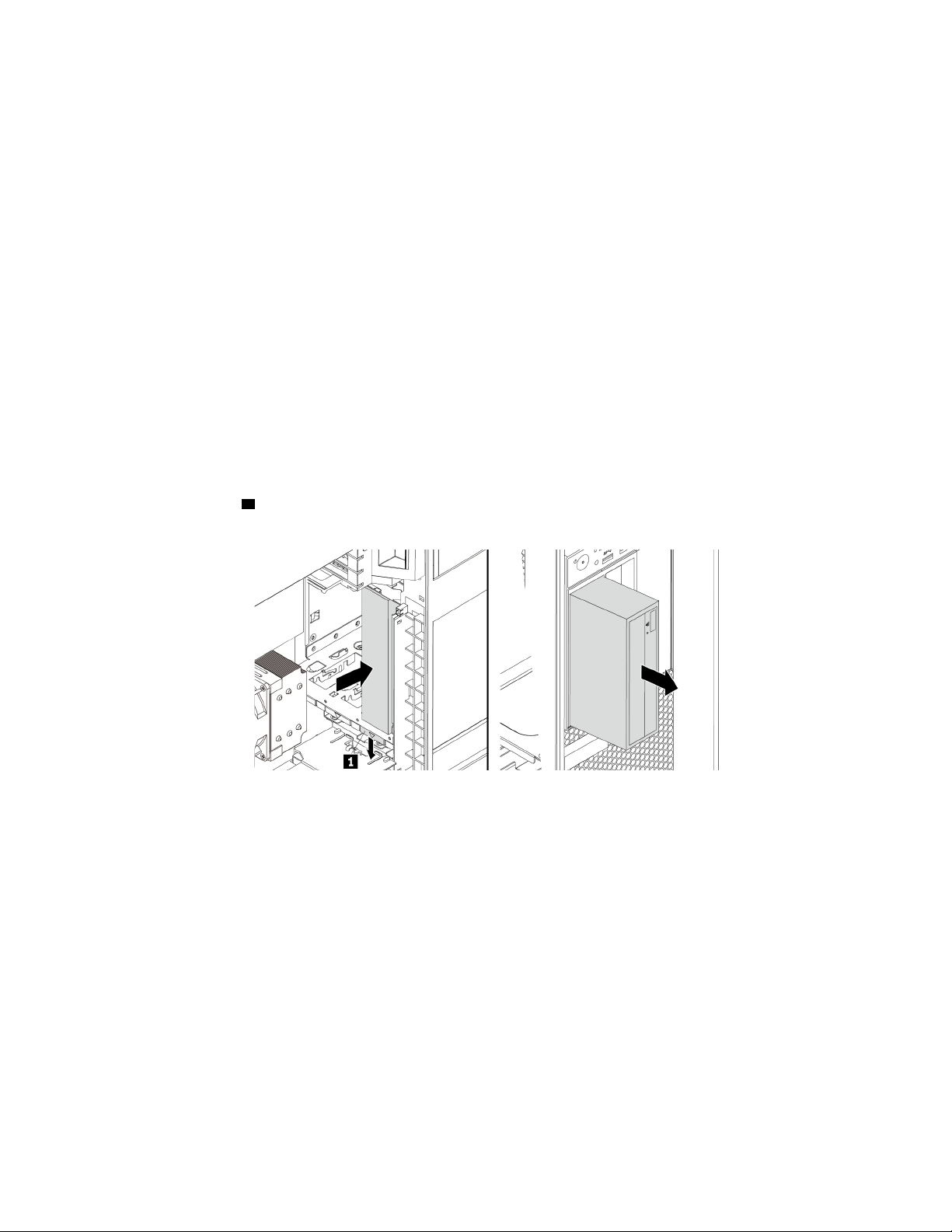
• Front-access storage enclosure
• Multi-drive conversion kit
• Optical drive
• Slim-optical-drive adapter
• Storage drive bracket
Note: The following instructions on how to remove or install an optical drive also apply to other supported
devices in the flex bay.
To remove or install an optical drive, do the following:
1. Prepare your computer. See “Preparing your computer and removing the computer cover” on page 59.
2. Remove the direct cooling air baffle. See “Direct cooling air baffle” on page 63.
3. Locate the flex bay. See “Internal storage drives” on page 10.
4. To remove an optical drive, do the following:
a. Disconnect the cables from the optical drive.
Note: If you are removing other supported devices from the flex bay, disconnect any additional
cables.
b. Press the tab
1 downward and push the optical drive to the front of the chassis. Then, remove the
optical drive from the front of the chassis.
Figure 16. Removing the optical drive
5. To install an optical drive, do the following:
66
P920 User Guide
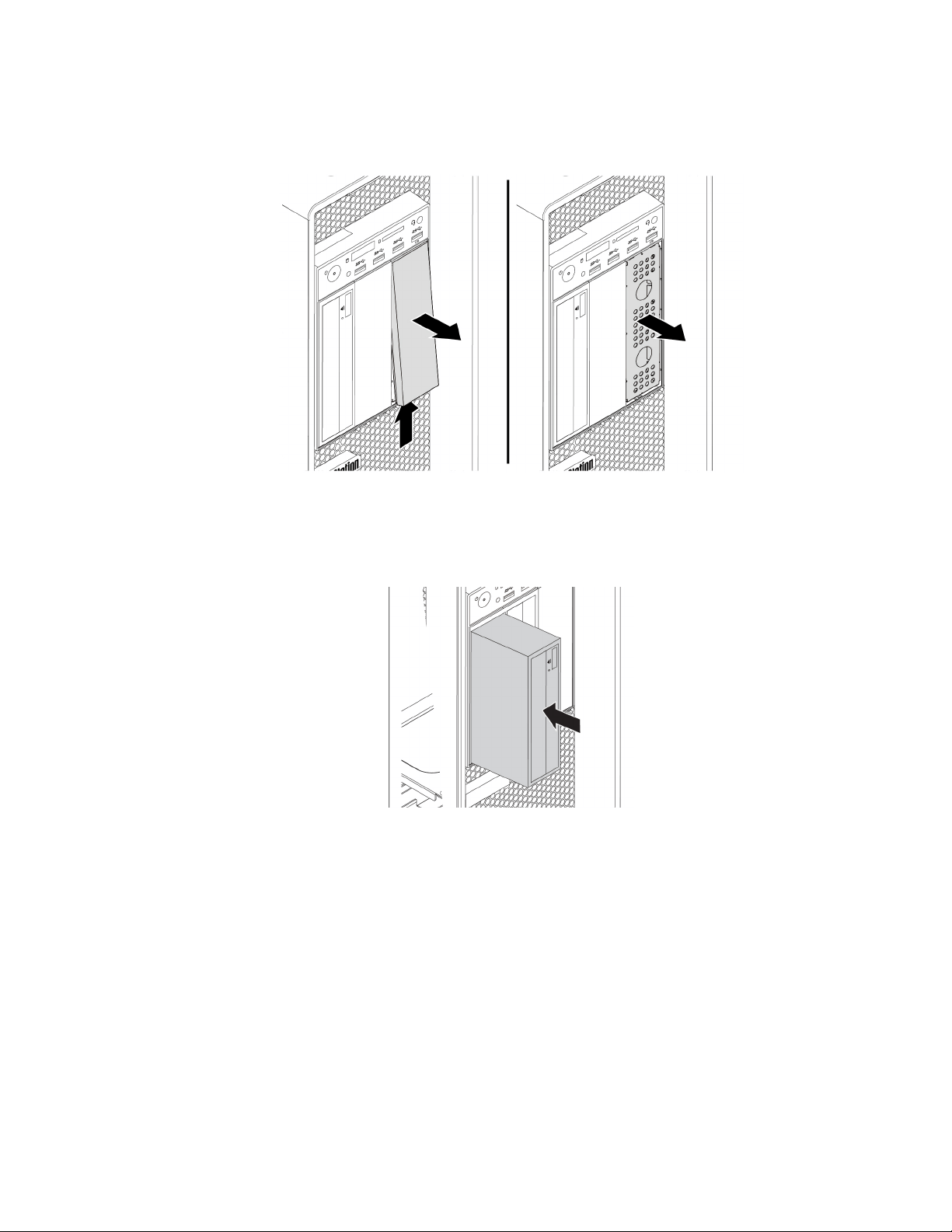
a. If necessary, press the clip underneath the plastic shield until the plastic shield is ejected out of the
bay. Remove the plastic shield from the bay. Then, grasp the metal shield inside the bay and pull it
out of the chassis.
Figure 17. Removing the shields from the flex bay
b. Note the orientation of the new optical drive. Then, slide the optical drive into the flex bay from the
front of the chassis until it snaps into position.
Figure 18. Installing the optical drive
c. Connect the cables to the new optical drive.
Note: If you are installing other supported devices, connect any additional cables. See “Parts on the
system board” on page 8.
6. Reinstall the direct cooling air baffle. See “Direct cooling air baffle” on page 63.
What to do next:
• To work with another piece of hardware, go to the appropriate section.
• To complete the installation or replacement, go to “Completing the parts replacement” on page 135.
Chapter 7. Hardware removal and installation 67
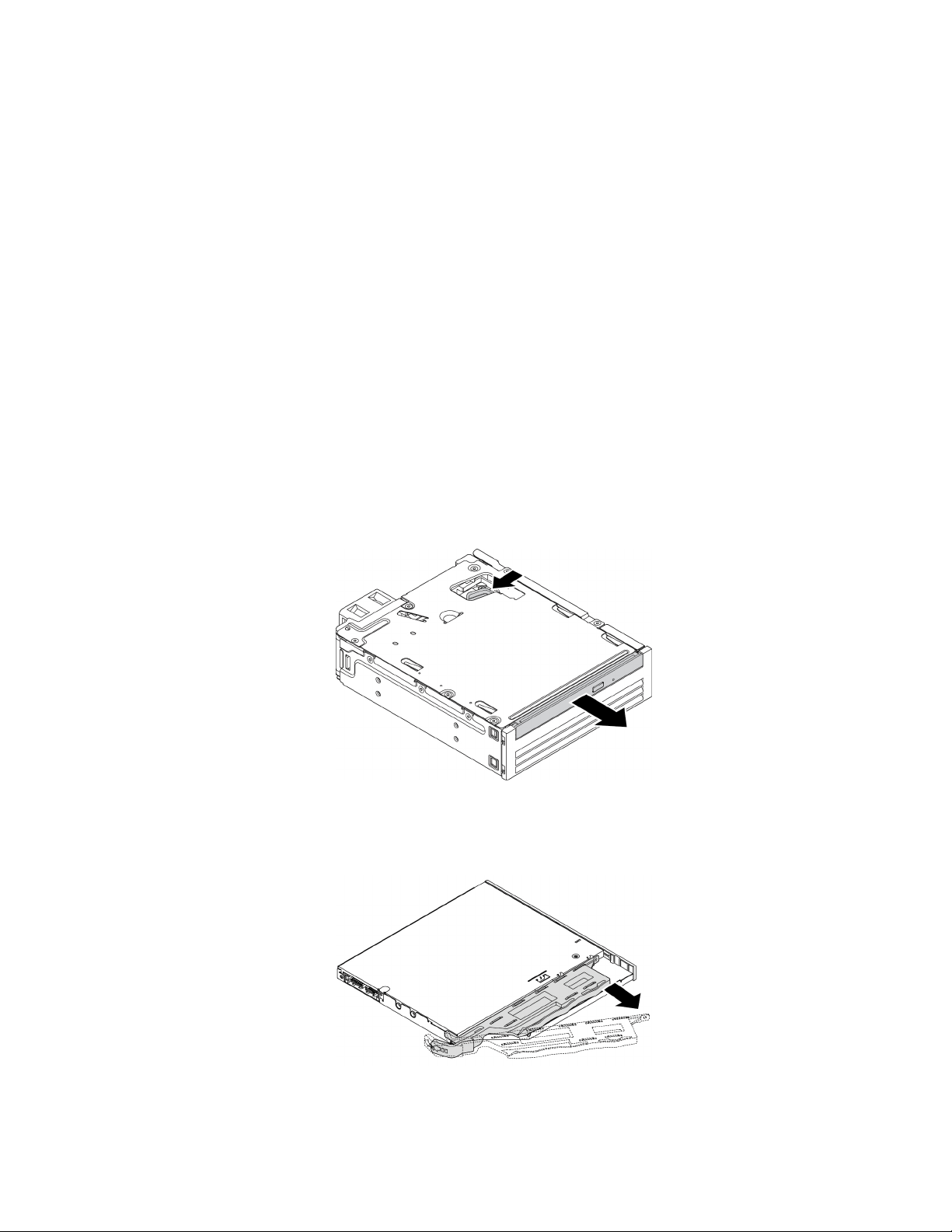
Device in the multi-drive conversion kit
Attention: Do not open your computer or attempt any repair before reading and understanding the “Read
this first: Important safety information” on page iii.
The multi-drive conversion kit (hereafter referred to as kit) might be equipped with either one or both of the
following components:
• Slim optical drive
• Storage drive (such as hard disk drive, solid-state drive, or hybrid drive)
Slim optical drive
Note: The instructions on how to remove or install a slim optical drive in the kit also apply to the slim-optical-
drive adapter.
To remove or install a slim optical drive, do the following:
1. Prepare your computer. See “Preparing your computer and removing the computer cover” on page 59.
2. Ensure that all the cables are disconnected from the kit. Remove the kit from the front of the computer.
See “Device in a flex bay” on page 65.
3. To remove the slim optical drive from the kit, do the following:
a. Press the clip through the hole in the top of the kit as shown and push forward the slim optical drive.
Then, remove the slim optical drive out of the kit.
Figure 19. Removing the slim optical drive from the kit
b. Detach the bracket as shown to remove it from the slim optical drive.
Figure 20. Removing the bracket from the slim optical drive
68 P920 User Guide
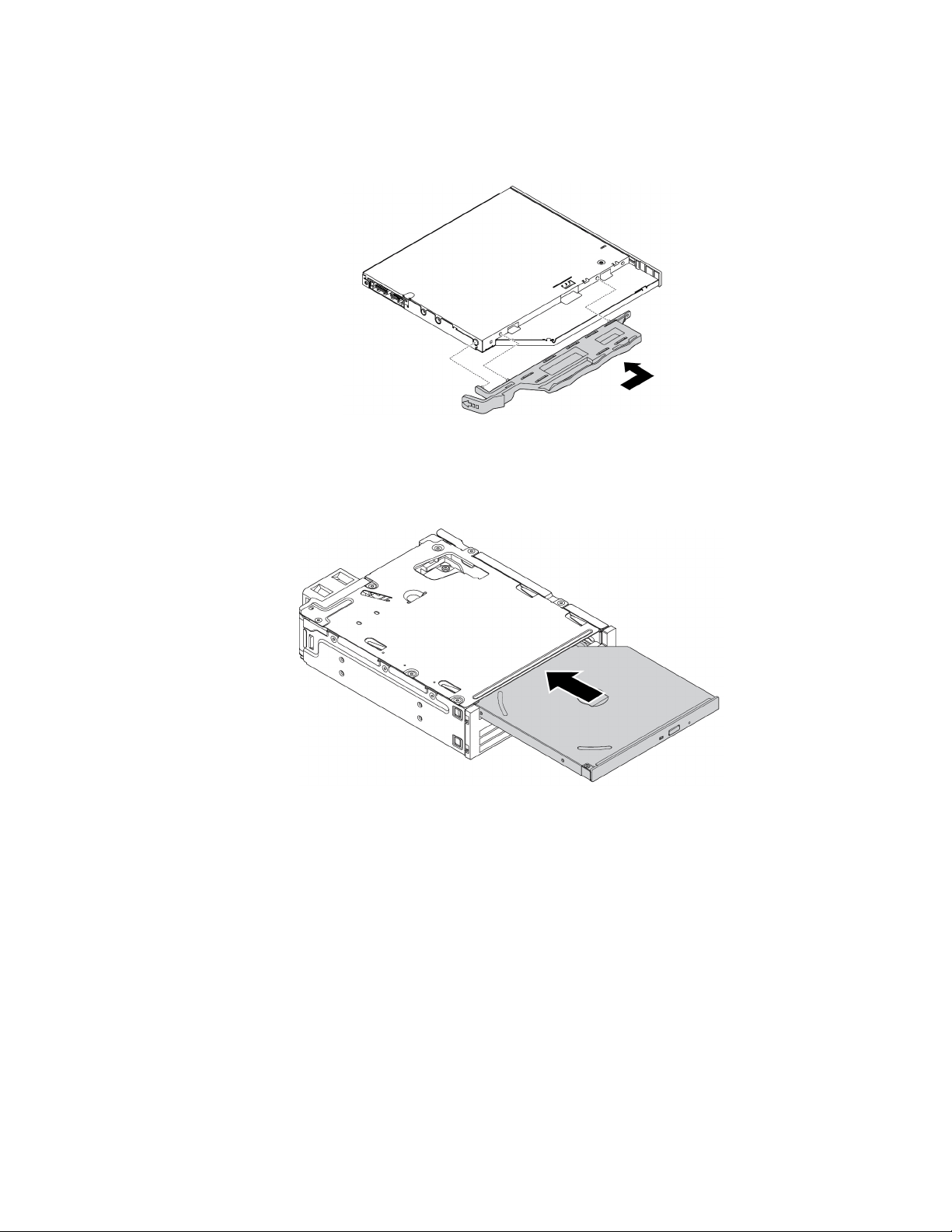
4. To install a new slim optical drive into the kit, do the following:
a. Align the three tabs on the bracket with the corresponding holes in the new slim optical drive. Then,
install the bracket to the new slim optical drive.
Figure 21. Installing the bracket to the new slim optical drive
b. Insert the new slim optical drive into the kit until you hear a click. The slim optical drive is secured in
place.
Figure 22. Installing the slim optical drive into the kit
5. Slide the kit into the flex bay and reconnect the cables.
What to do next:
• To work with another piece of hardware, go to the appropriate section.
• To complete the installation or replacement, go to “Completing the parts replacement” on page 135.
3.5-inch storage drive
To remove or install a 3.5-inch storage drive, do the following:
1. Prepare your computer. See “Preparing your computer and removing the computer cover” on page 59.
2. Ensure that all the cables are disconnected from the kit. Remove the kit from the front of the computer.
See “Device in a flex bay” on page 65.
Chapter 7. Hardware removal and installation 69
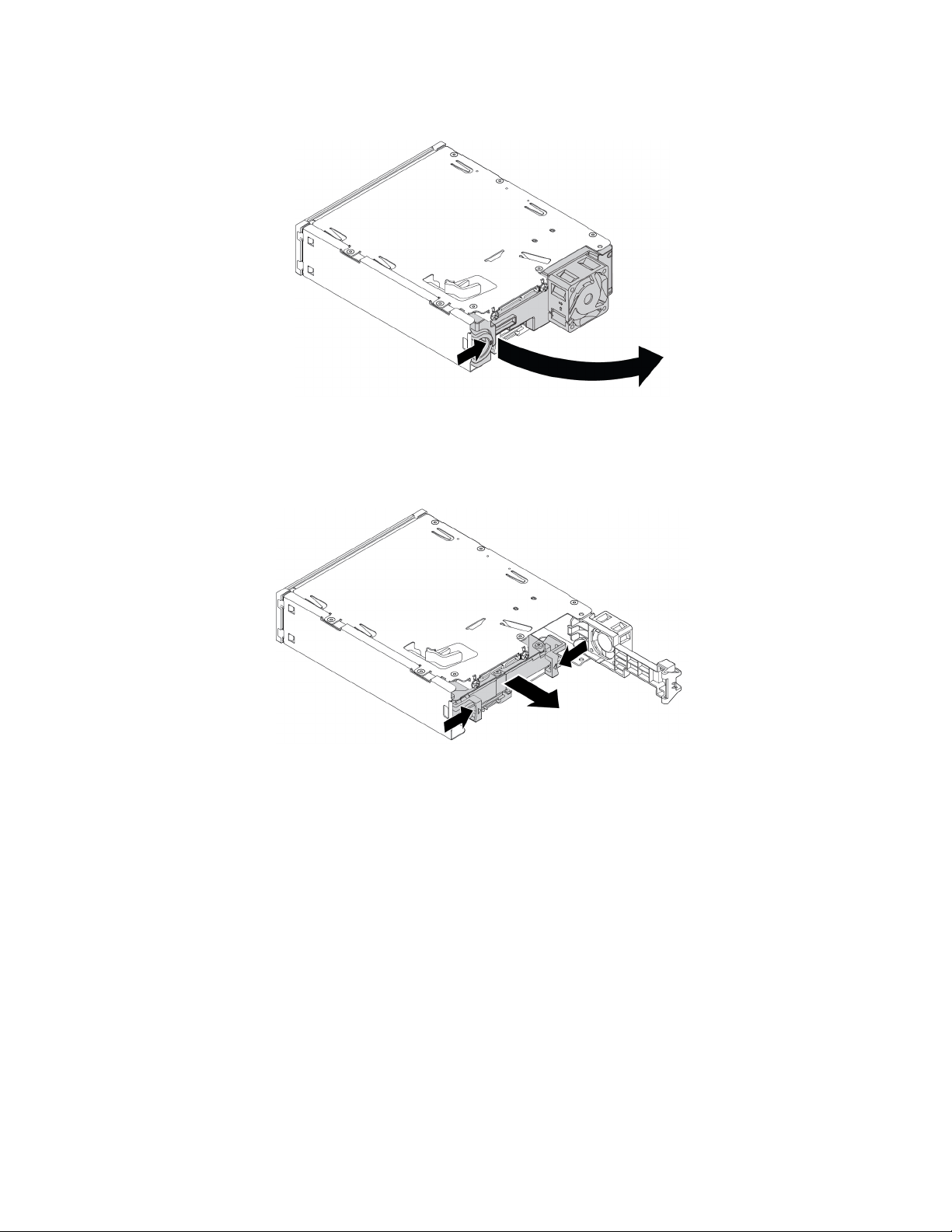
3. Press the clip as shown to open the rear cover of the kit.
Figure 23. Opening the rear cover of the kit
4. Press both clips simultaneously toward each other and pull the conversion bracket out of the rear of the
kit.
Figure 24. Removing the conversion bracket from the kit
70 P920 User Guide
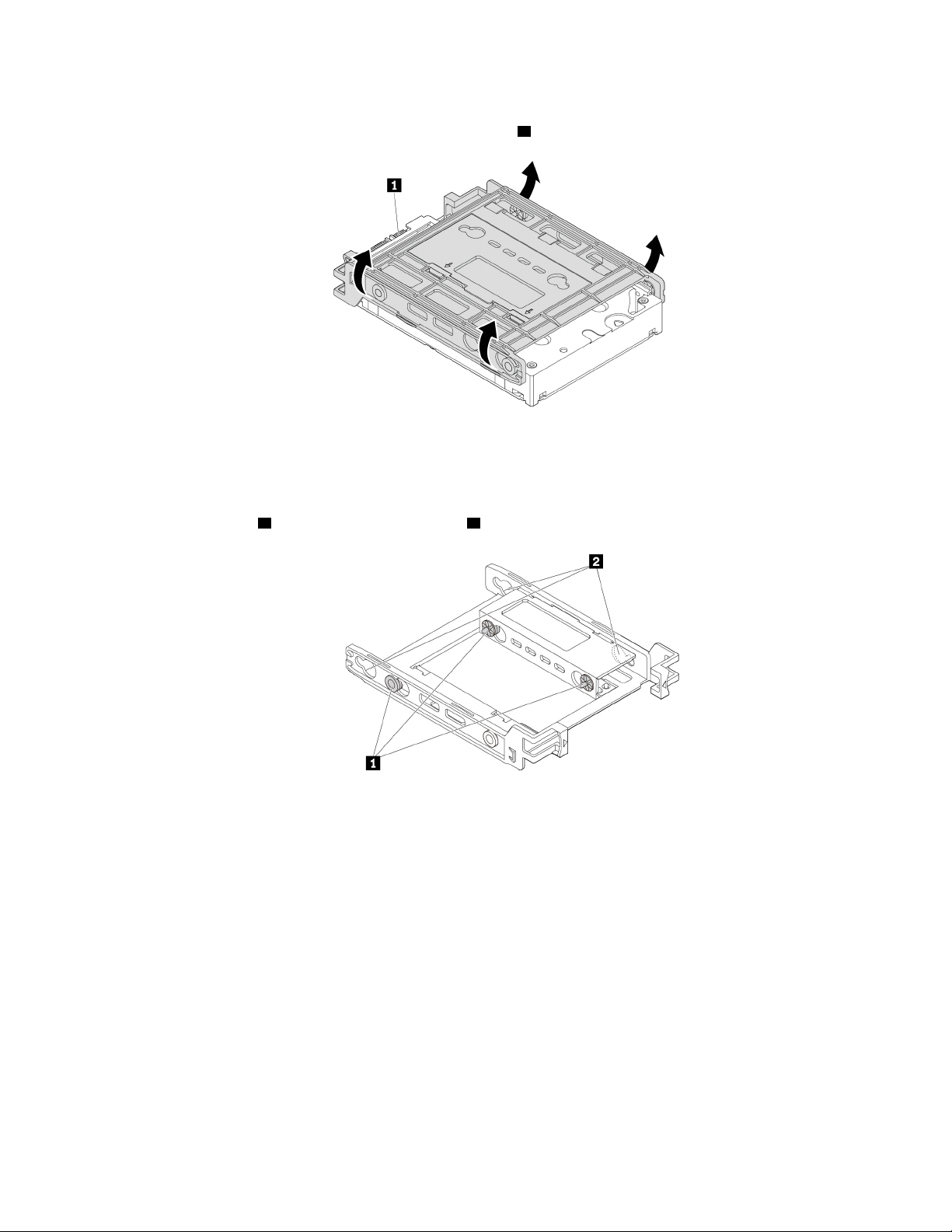
5. To remove the 3.5-inch storage drive, flex both sides of the conversion bracket and then remove the
drive out of the bracket. Do not touch the circuit board
1 on the drive.
Figure 25. Removing the storage drive from the bracket
6. To install a 3.5-inch storage drive, ensure that the conversion bracket is unfolded. To unfold the bracket,
do the following:
a. Remove pins
1 and reinstall them into slots 2 .
Figure 26. Removing pins and reinstalling them into slots
Chapter 7. Hardware removal and installation 71
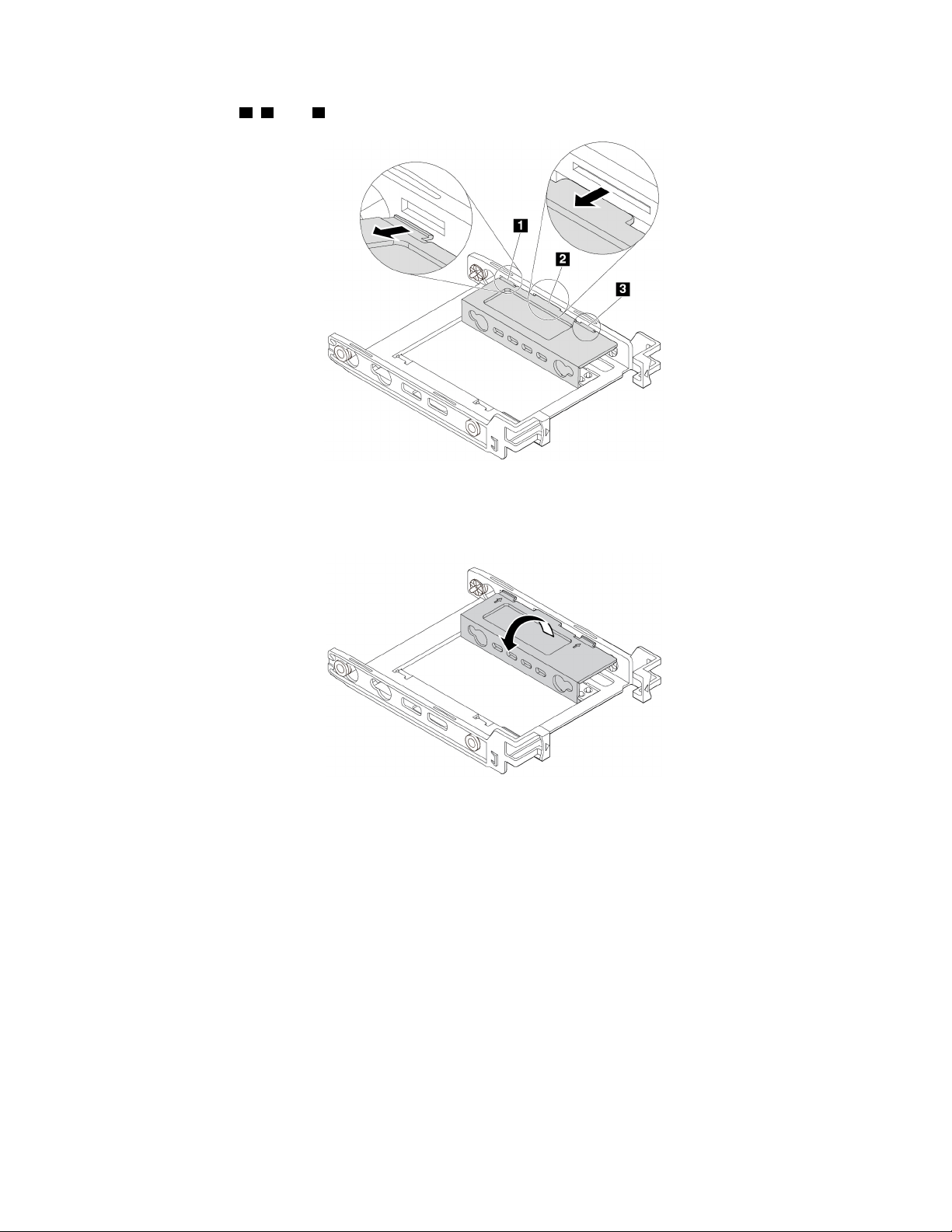
b. Release tabs 1 , 2 , and 3 from the corresponding slots.
Figure 27. Releasing tabs from the corresponding slots
c. Unfold the bracket as shown.
Figure 28. Unfolding the bracket
72 P920 User Guide
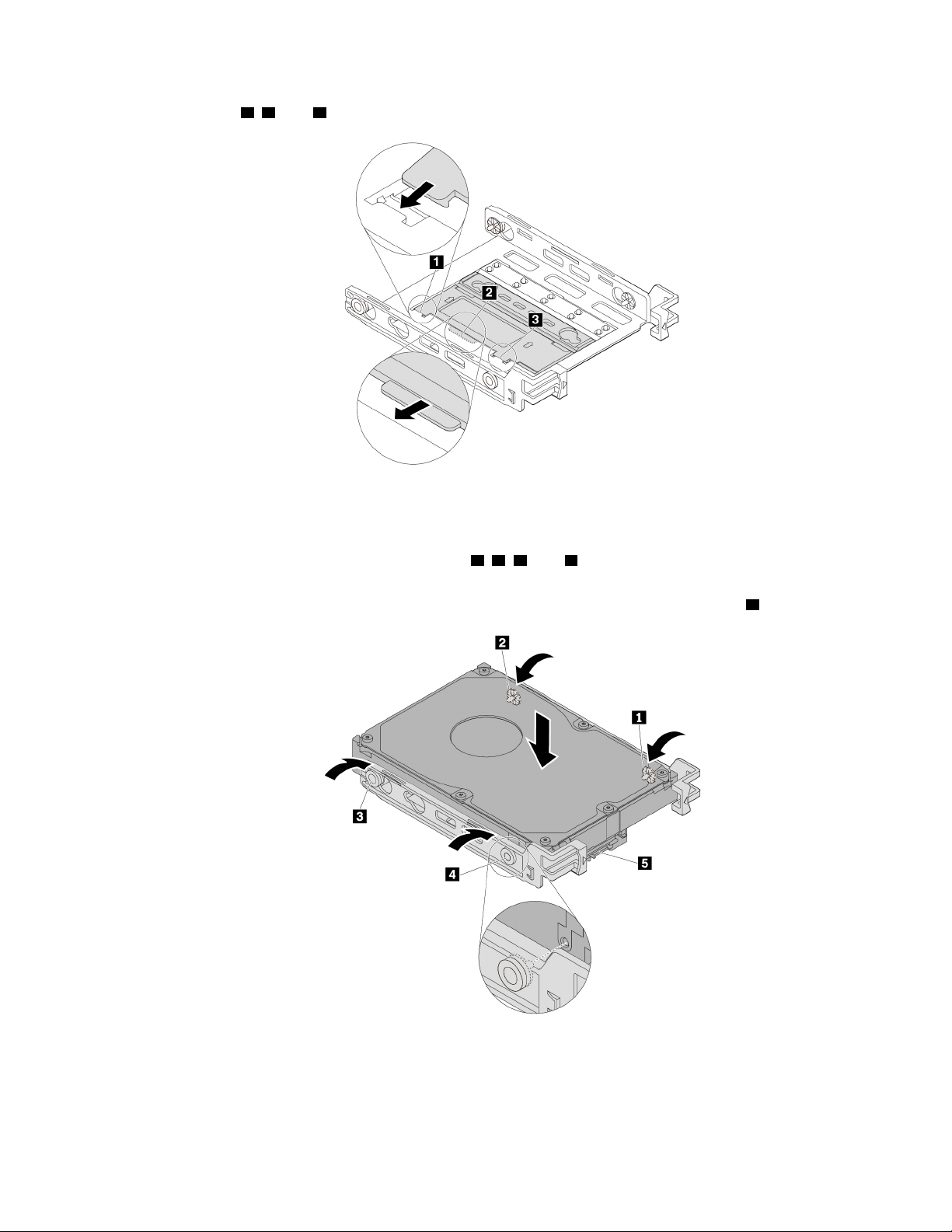
d. Insert tabs 1 , 2 , and 3 into the corresponding slots. Ensure that the tabs are secured in place.
Figure 29. Inserting tabs into the corresponding slots
7. Install a 3.5-inch storage drive into the bracket by doing the following:
a. Flex both sides of the bracket and align pins
1 , 2 , 3 , and 4 on the bracket with the corresponding
holes in the new 3.5-inch storage drive.
b. Install the new 3.5-inch storage drive into the bracket. Do not touch the circuit board
5 on the drive.
Figure 30. Installing the new 3.5-inch storage drive into the bracket
Chapter 7. Hardware removal and installation 73
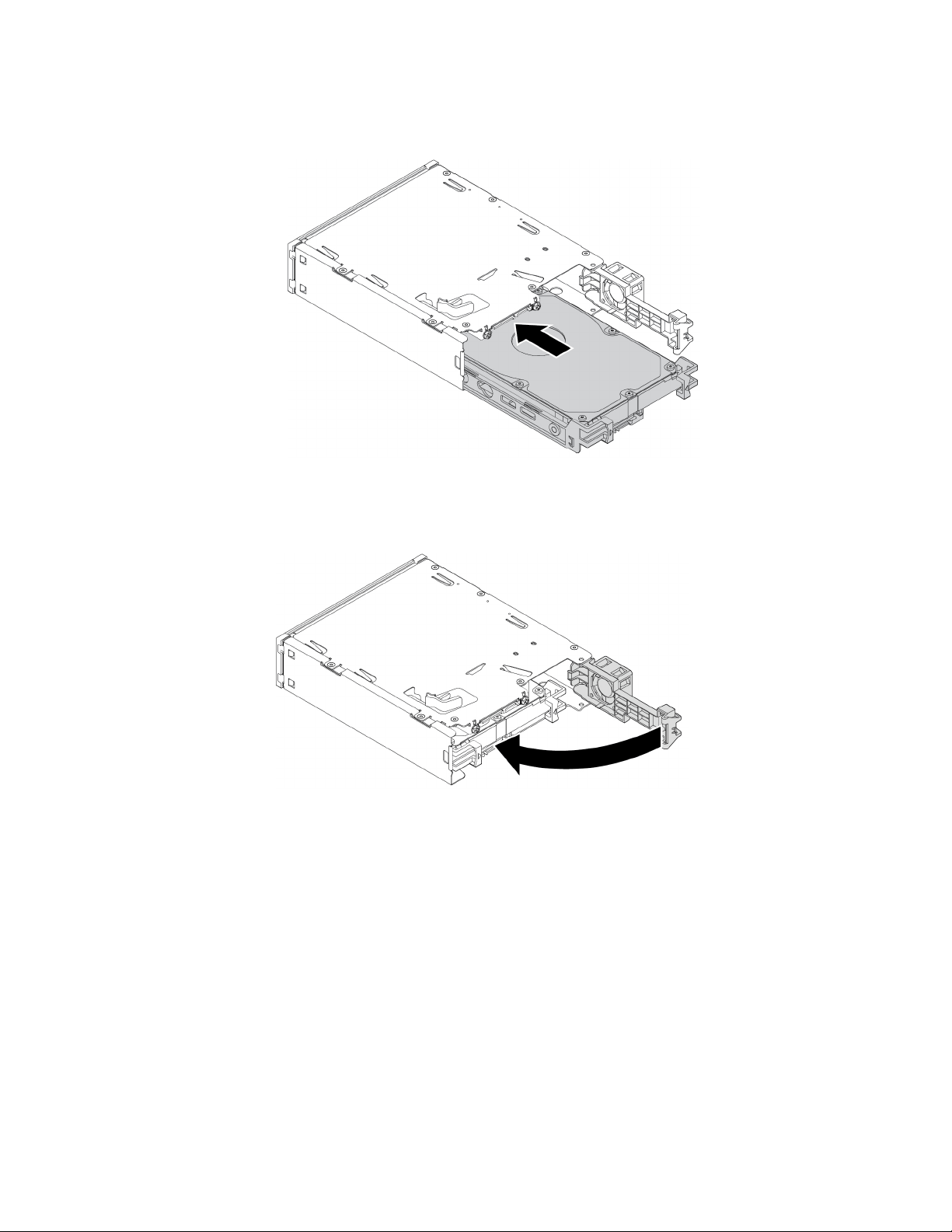
c. Slide the new 3.5-inch storage drive with bracket into the kit from the rear until the drive snaps into
position.
Figure 31. Installing the new 3.5-inch storage drive with bracket into the kit
8. Pivot the rear cover of the kit inward until you hear a click. Ensure that the rear cover is secured in place.
Figure 32. Pivoting the rear cover inward
9. Slide the kit into the flex bay and reconnect the cables.
What to do next:
• To work with another piece of hardware, go to the appropriate section.
• To complete the installation or replacement, go to “Completing the parts replacement” on page 135.
2.5-inch storage drive
To remove or install a 2.5-inch storage drive, do the following:
1. Prepare your computer. See “Preparing your computer and removing the computer cover” on page 59.
2. Ensure that all the cables are disconnected from the kit. Remove the kit from the front of the computer.
See “Device in a flex bay” on page 65.
74
P920 User Guide
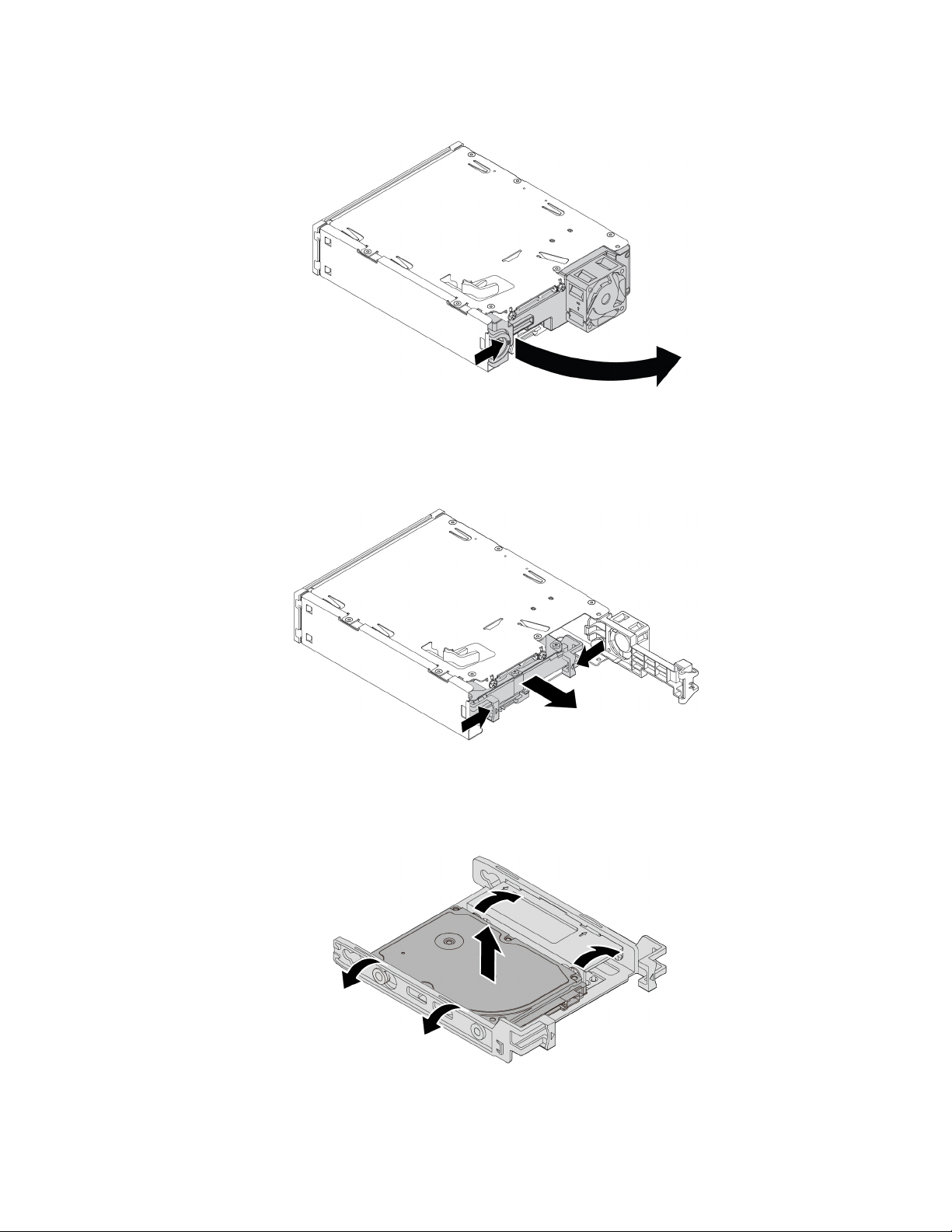
3. Press the clip as shown to open the rear cover of the kit.
Figure 33. Opening the rear cover of the kit
4. Press both clips simultaneously toward each other and pull the conversion bracket out of the rear of the
kit.
Figure 34. Removing the 2.5-inch storage drive from the kit
5. To remove the 2.5-inch storage drive, flex both sides of the conversion bracket and then remove the
drive out of the bracket. Do not touch the circuit board on the drive.
Figure 35. Removing the 2.5-inch storage drive from the bracket
Chapter 7. Hardware removal and installation 75
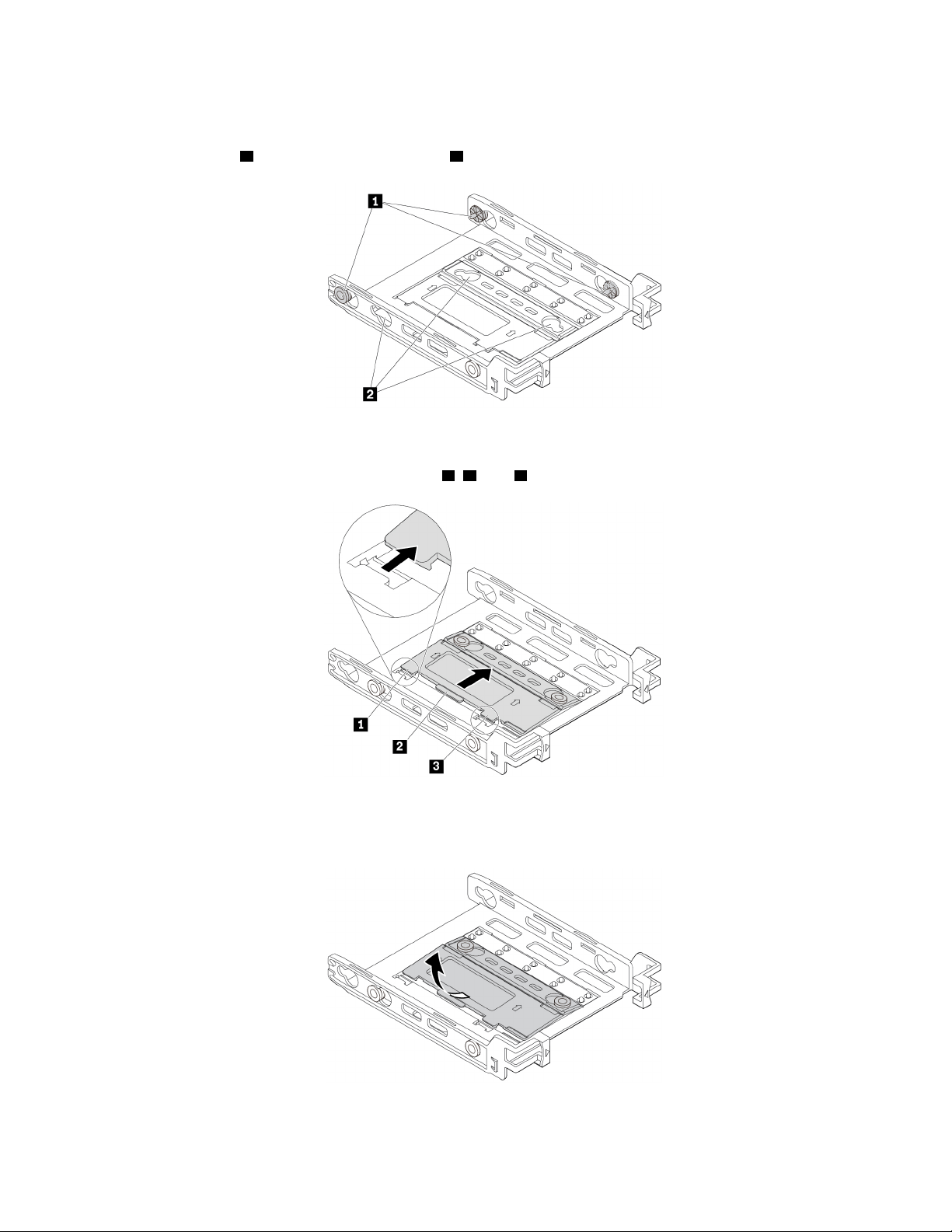
6. To install a 2.5-inch storage drive, ensure that the conversion bracket is folded. To fold the bracket, do
the following:
a. Remove pins
1 and reinstall them into slots 2 .
Figure 36. Removing pins and reinstalling them into new slots
b. Pivot the bracket as shown to release tabs
1 , 2 , and 3 from the slots.
Figure 37. Pivoting the bracket
c. Fold the bracket as shown.
Figure 38. Folding the bracket
76 P920 User Guide
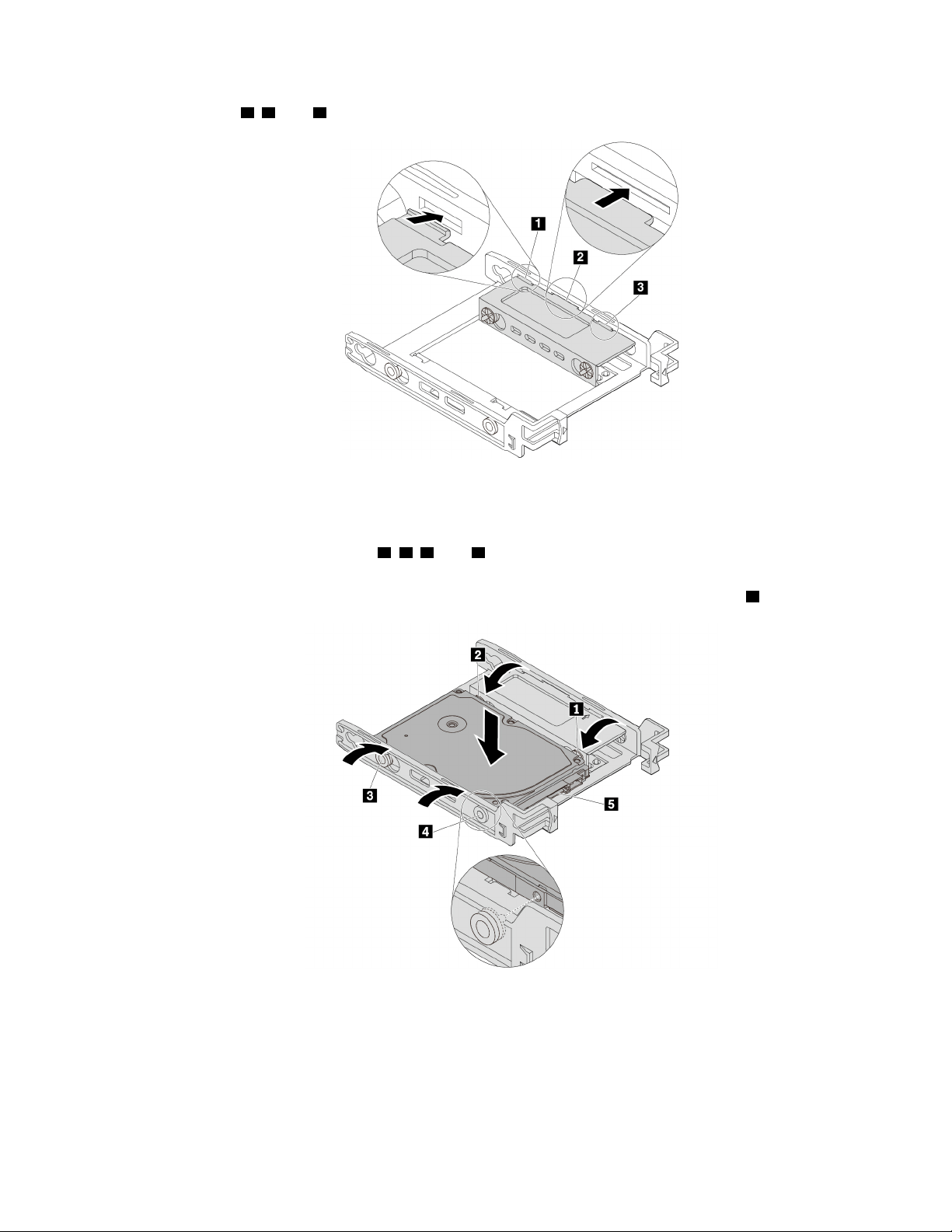
d. Insert tabs 1 , 2 , and 3 into the corresponding slots. Ensure that the tabs are secured in place.
Figure 39. Inserting the tabs into the corresponding slots
7. To install a 2.5-inch storage drive, do the following:
a. Flex the bracket and align pins
1 , 2 , 3 , and 4 on the bracket with the corresponding holes in the
new 2.5-inch storage drive.
b. Install the new 2.5-inch storage drive into the bracket. Do not touch the circuit board
5 on the drive.
Figure 40. Installing the new 2.5-inch storage drive into the bracket
Chapter 7. Hardware removal and installation 77
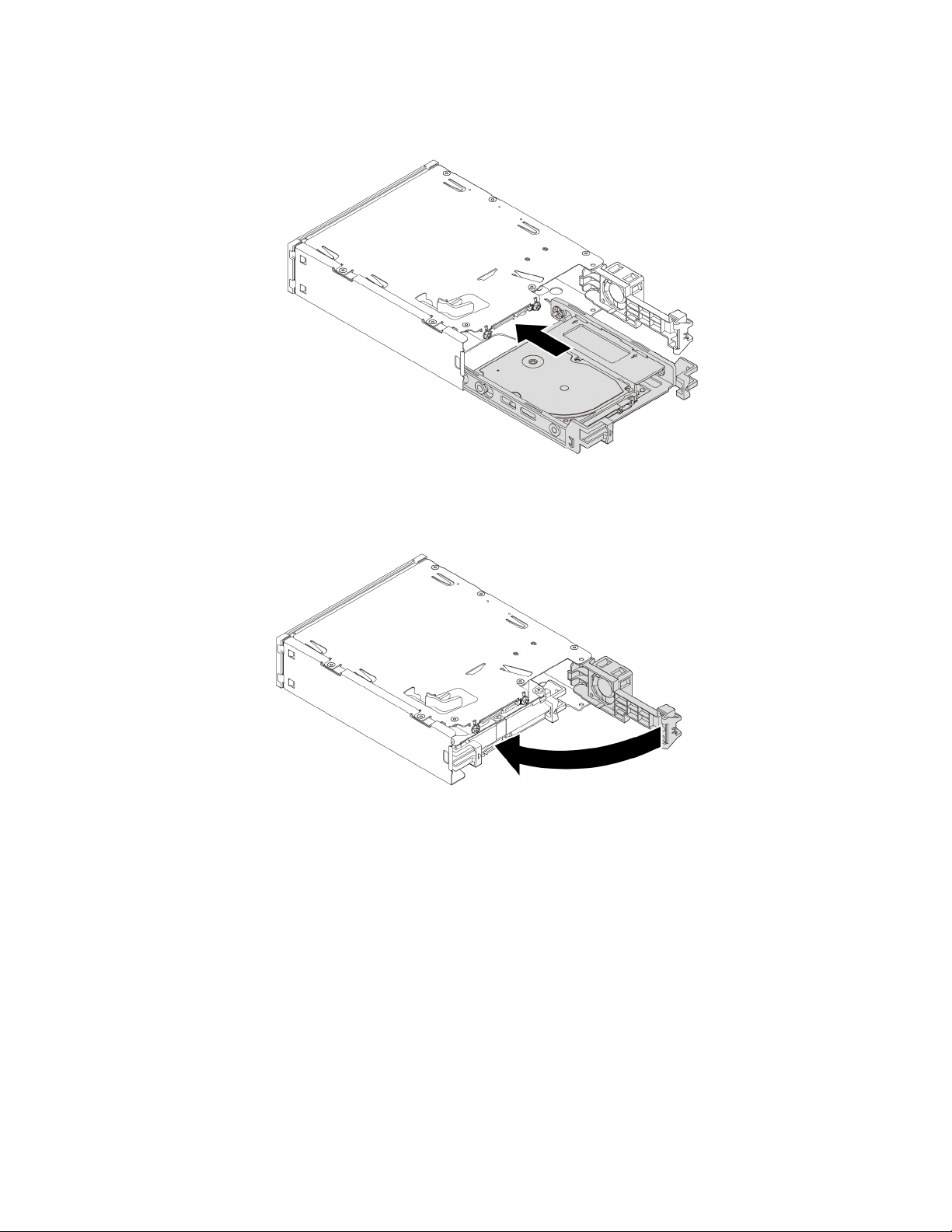
c. Slide the new 2.5-inch storage drive with bracket into the kit from the rear until the drive snaps into
position.
Figure 41. Installing the new 2.5-inch storage drive with bracket into the kit
8. Pivot the rear cover of the kit inward until you hear a click. Ensure that the rear cover is secured in place.
Figure 42. Pivoting the rear cover inward
9. Slide the kit into the flex bay and reconnect the cables.
What to do next:
• To work with another piece of hardware, go to the appropriate section.
• To complete the installation or replacement, go to “Completing the parts replacement” on page 135.
3.5-inch storage drive
Note: Depending on your computer model, a 3.5-inch hard disk drive or a 3.5-inch hybrid drive might come
with your computer.
To remove or install a 3.5-inch storage drive in a storage drive bay, do the following:
1. Prepare your computer. See “Preparing your computer and removing the computer cover” on page 59.
2. Locate the storage drive bay. See “Internal storage drives” on page 10.
78 P920 User Guide
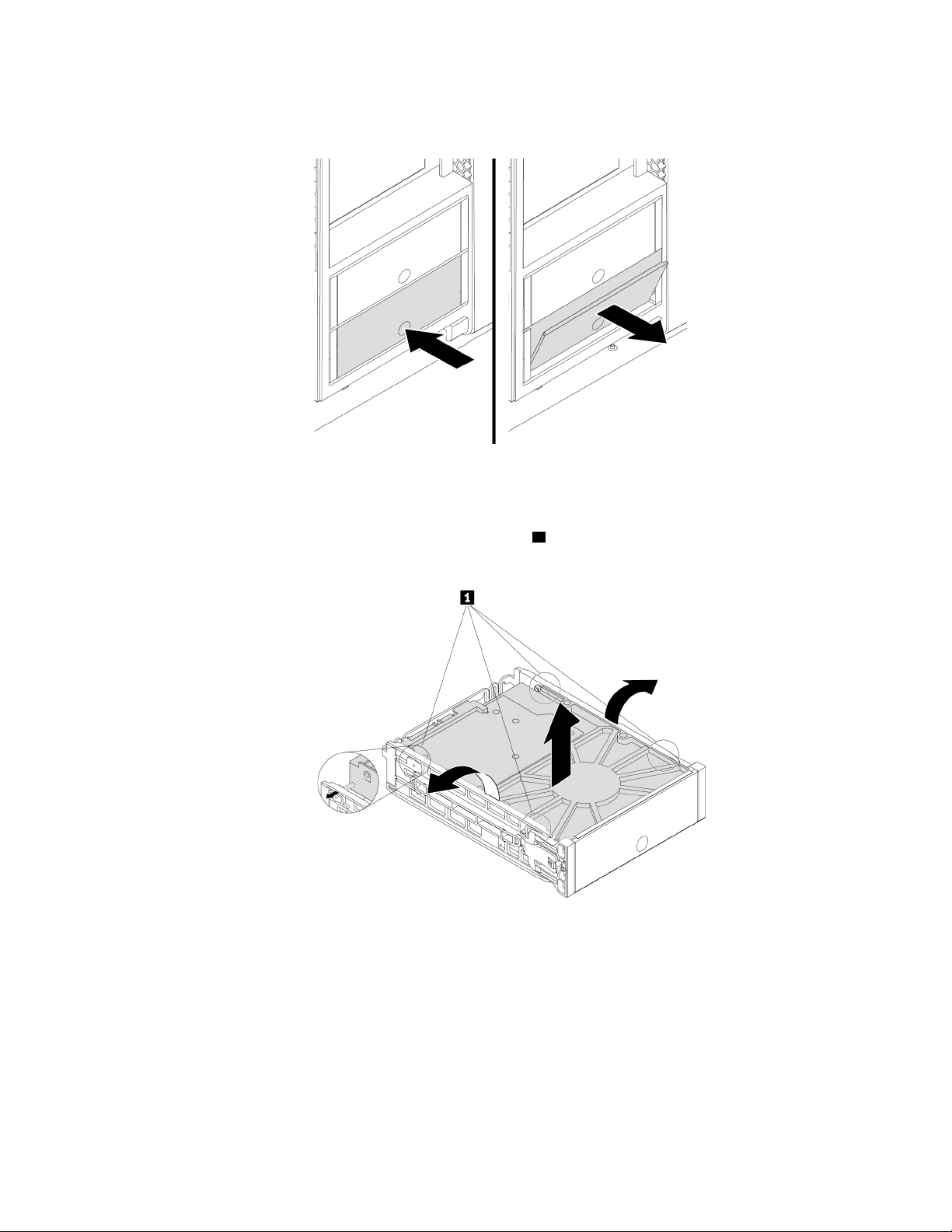
3. Press the pit on the cover of the storage drive bay so that the cover is opened. Then, pull the cover edge
as shown to remove the storage drive bracket from the storage drive bay.
Figure 43. Removing the storage drive bracket
4. To remove a 3.5-inch storage drive, do the following:
a. Flex both sides of the bracket to release the four pins
1 from the storage drive.
b. Remove the storage drive from the bracket.
Figure 44. Removing the 3.5-inch storage drive from the bracket
5. To install a 3.5-inch storage drive, do the following:
Chapter 7. Hardware removal and installation 79
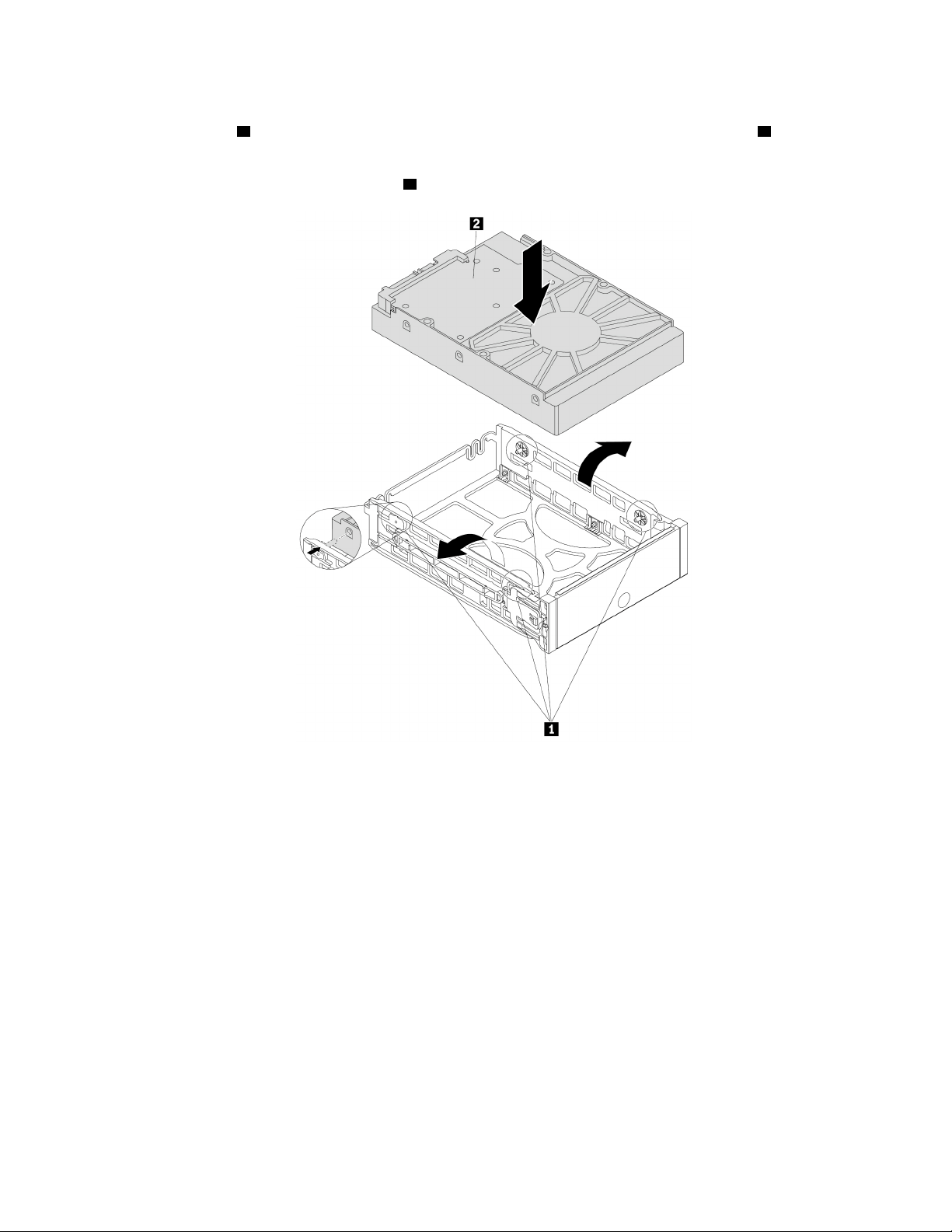
a. Hold the 3.5-inch storage drive so that the connectors face toward the rear of the bracket and the
circuit board
2 faces upward. Then, flex both sides of the bracket and align the four pins 1 on the
bracket with the corresponding holes in the storage drive.
Note: Do not touch the circuit board
2 of the storage drive.
Figure 45. Installing the storage drive into the bracket
80 P920 User Guide
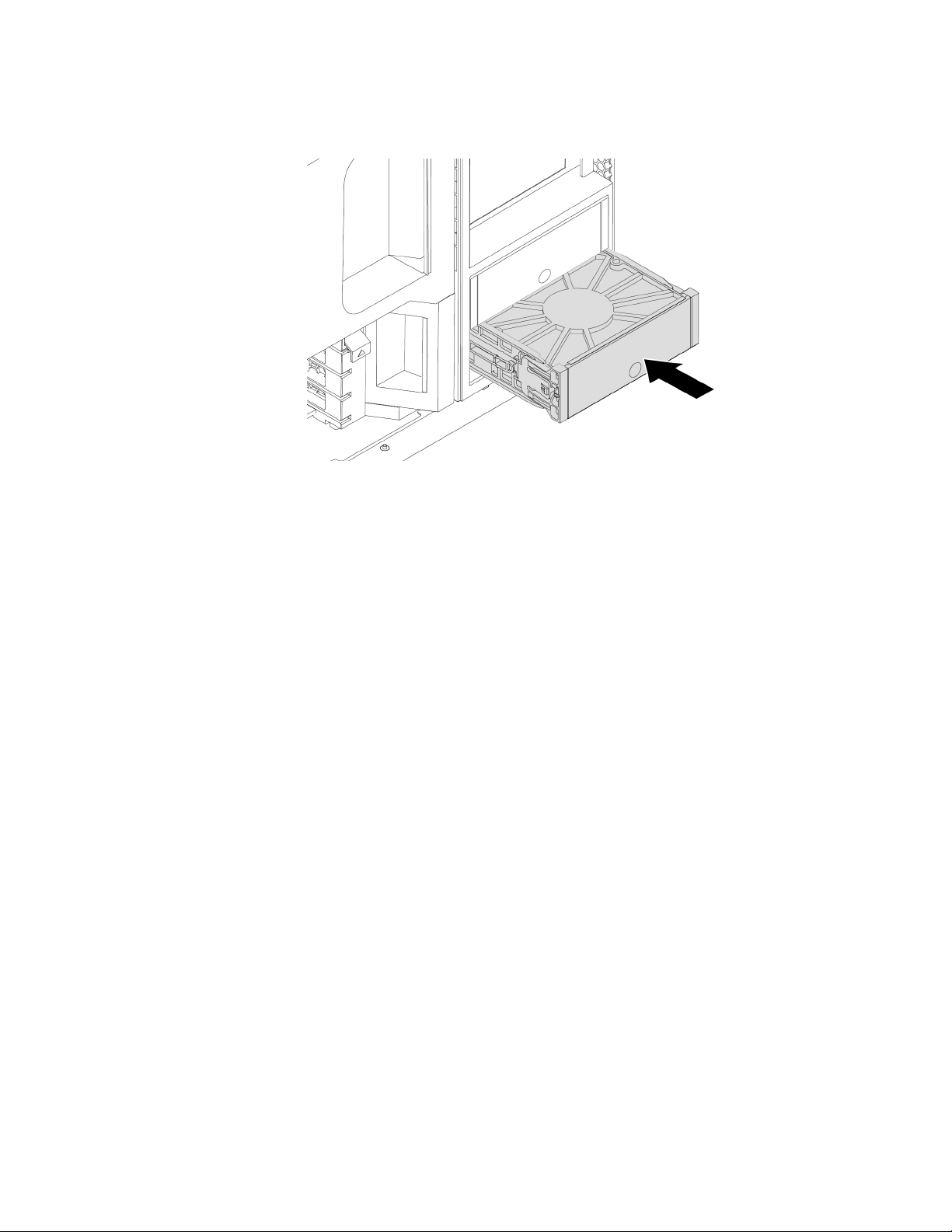
b. Slide the bracket together with the installed storage drive into the storage drive bay until the bracket
snaps into position.
Figure 46. Installing the storage drive bracket
What to do next:
• To work with another piece of hardware, go to the appropriate section.
• To complete the installation or replacement, go to “Completing the parts replacement” on page 135.
2.5-inch storage drive
Note: Depending on your computer model, a 2.5-inch hard disk drive or a 2.5-inch solid-state drive might
come with your computer.
Attention: Do not open your computer or attempt any repair before reading and understanding the “Read
this first: Important safety information” on page iii.
2.5-inch storage drive without a converter
To remove or install a 2.5-inch storage drive without a converter in a storage drive bay, do the following:
1. Prepare your computer. See “Preparing your computer and removing the computer cover” on page 59.
2. Locate the storage drive bay. See “Internal storage drives” on page 10.
Chapter 7. Hardware removal and installation 81
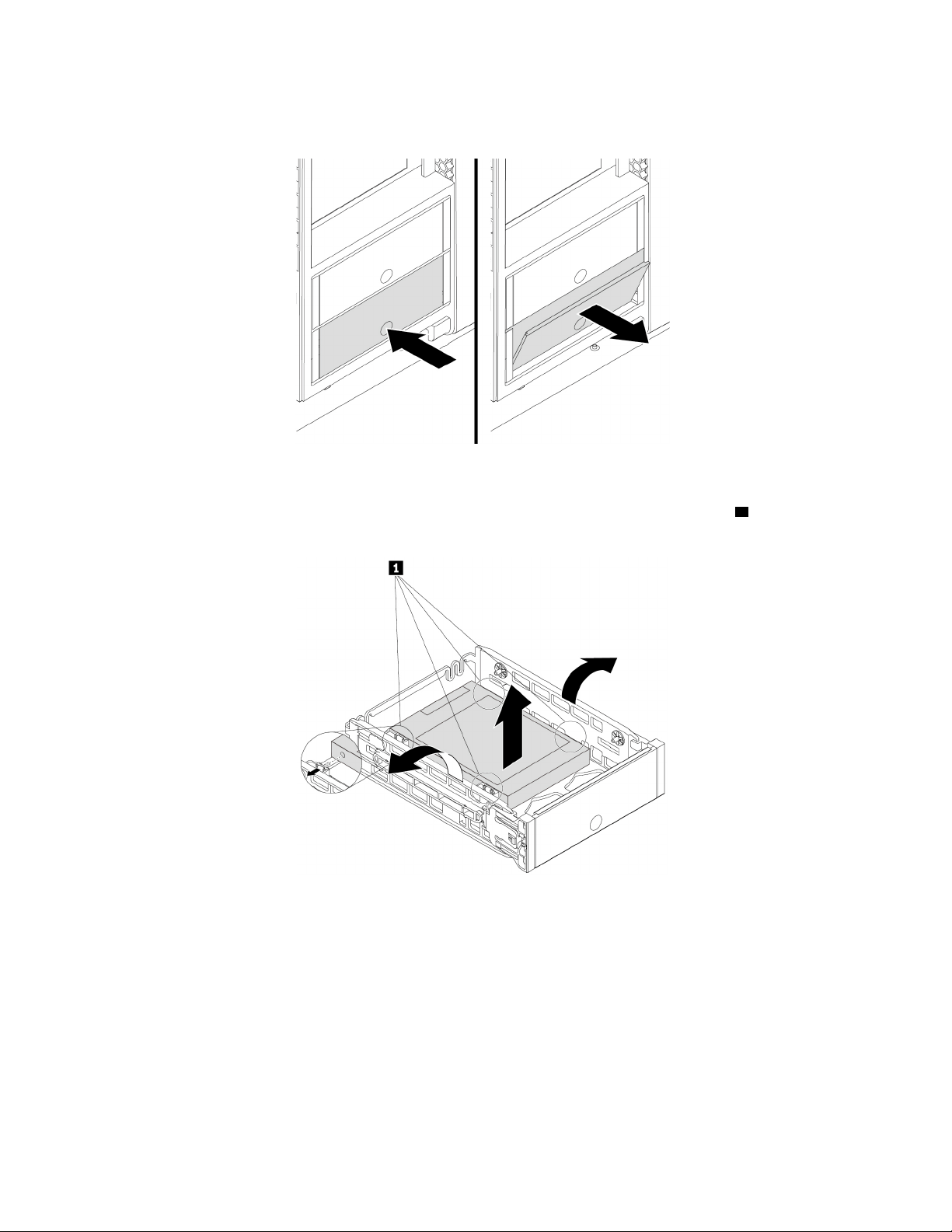
3. Press the pit on the cover of the storage drive bay so that the cover is opened. Then, pull the cover edge
as shown to remove the storage drive bracket from the storage drive bay.
Figure 47. Removing the storage drive bracket
4. To remove a 2.5-inch storage drive, flex both sides of the bracket to release the four pins
1 from the
storage drive. Then, remove the storage drive out of the bracket.
Figure 48. Removing the storage drive from the bracket
5. To install a 2.5-inch storage drive, do the following:
82
P920 User Guide
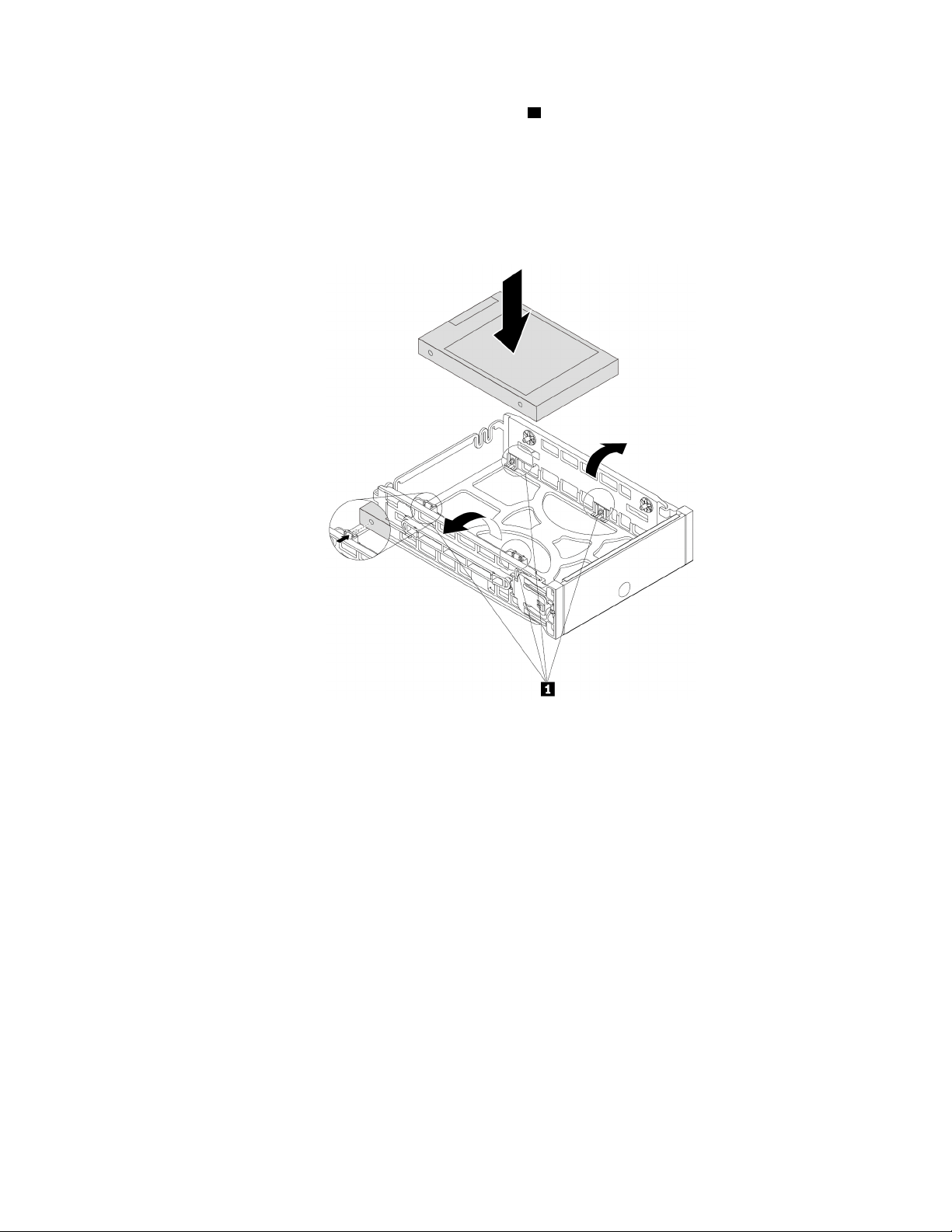
a. Flex both sides of the bracket and align the four pins 1 on the bottom of the bracket with the
corresponding holes in the storage drive.
Notes:
• If you are installing a 2.5-inch hard disk drive, ensure that the circuit board faces downward and
the connectors face toward the rear of the bracket.
• Do not touch the circuit board (if accessible) of the 2.5-inch storage drive.
Figure 49. Installing the storage drive into the bracket
b. Slide the bracket together with the installed storage drive into the storage drive bay until the bracket
snaps into position.
What to do next:
• To work with another piece of hardware, go to the appropriate section.
• To complete the installation or replacement, go to “Completing the parts replacement” on page 135.
2.5-inch storage drive with a converter
To remove or install a 2.5-inch storage drive with a 2.5-inch to 3.5-inch converter in a storage drive bay, do
the following:
1. Prepare your computer. See “Preparing your computer and removing the computer cover” on page 59.
2. Locate the storage drive bay. See “Internal storage drives” on page 10.
Chapter 7. Hardware removal and installation 83
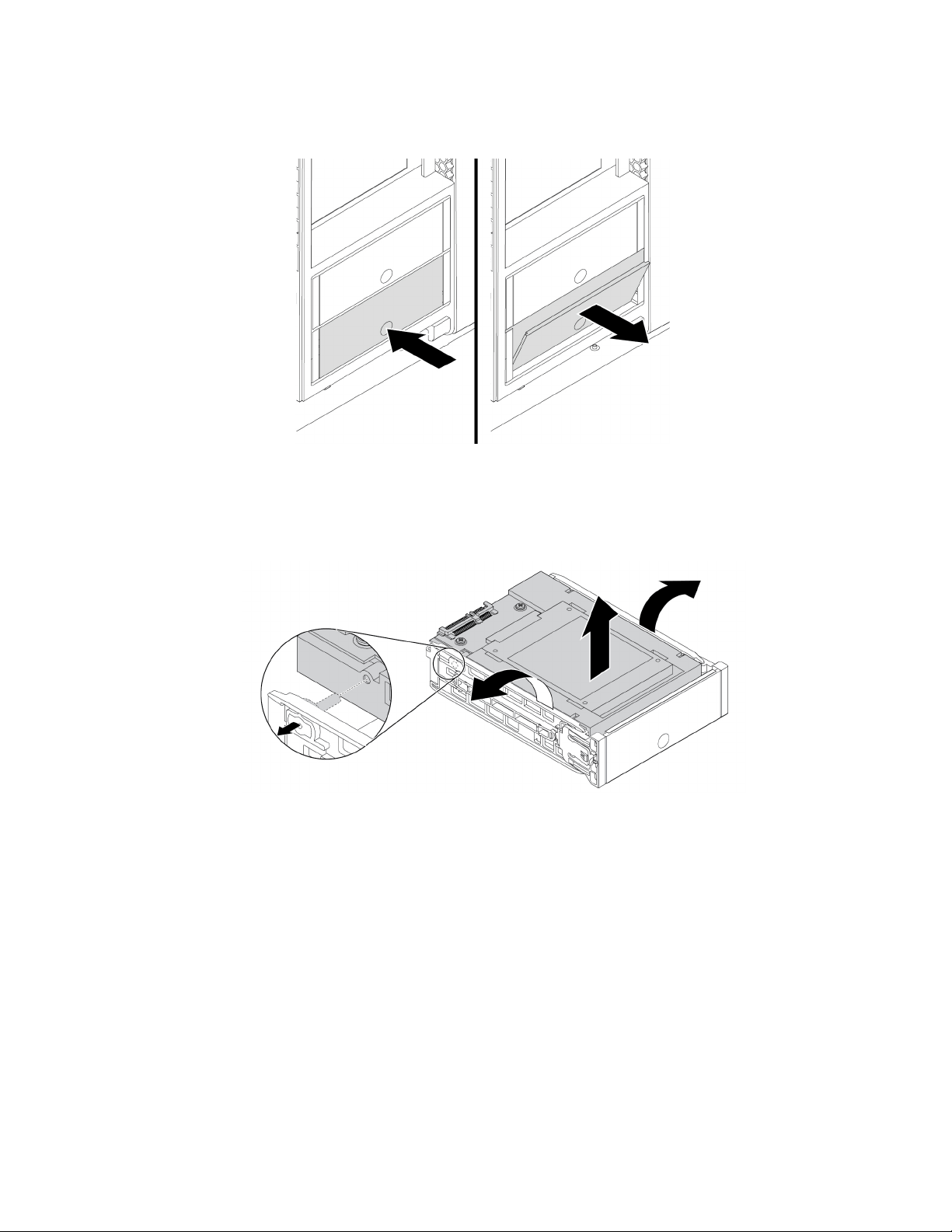
3. Press the pit on the cover of the storage drive bay so that the cover is opened. Then, pull the cover edge
as shown to remove the storage drive bracket from the storage drive bay.
Figure 50. Removing the storage drive bracket
4. To remove a 2.5-inch storage drive with the converter, do the following:
a. Flex both sides of the bracket to remove the converter from the bracket.
Figure 51. Removing the converter from the bracket
84 P920 User Guide
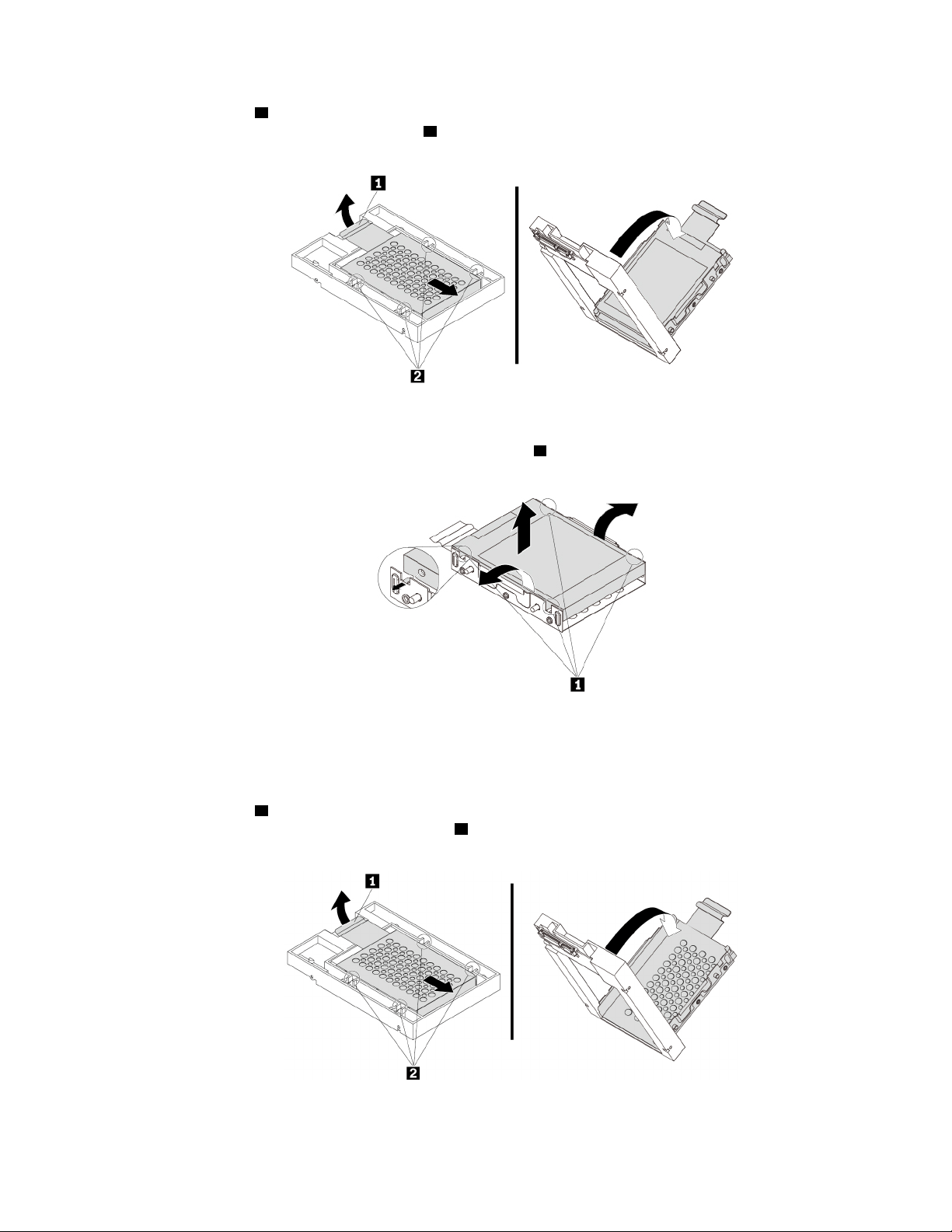
b. Pivot the tab 1 of the metal adapter upward. Then, push the adapter as shown until the four tabs on
the adapter are slide into the notches
2 . Pivot the adapter as shown to remove it with the storage
drive from the converter.
Figure 52. Removing the adapter from the converter
c. Flex both sides of the adapter to release the four pins 1 from the storage drive. Then, remove the
storage drive from the adapter.
Figure 53. Removing the storage drive from the adapter
5. To install a 2.5-inch storage drive with the converter, do the following:
a. Flex both sides of the bracket to remove the converter from the bracket.
b. Pivot the tab
1 of the metal adapter upward. Then, push the adapter as shown until the four tabs on
the adapter are slide into the four notches
2 . Pivot the adapter as shown to remove it from the
converter.
Figure 54. Removing the adapter from the converter
Chapter 7. Hardware removal and installation 85
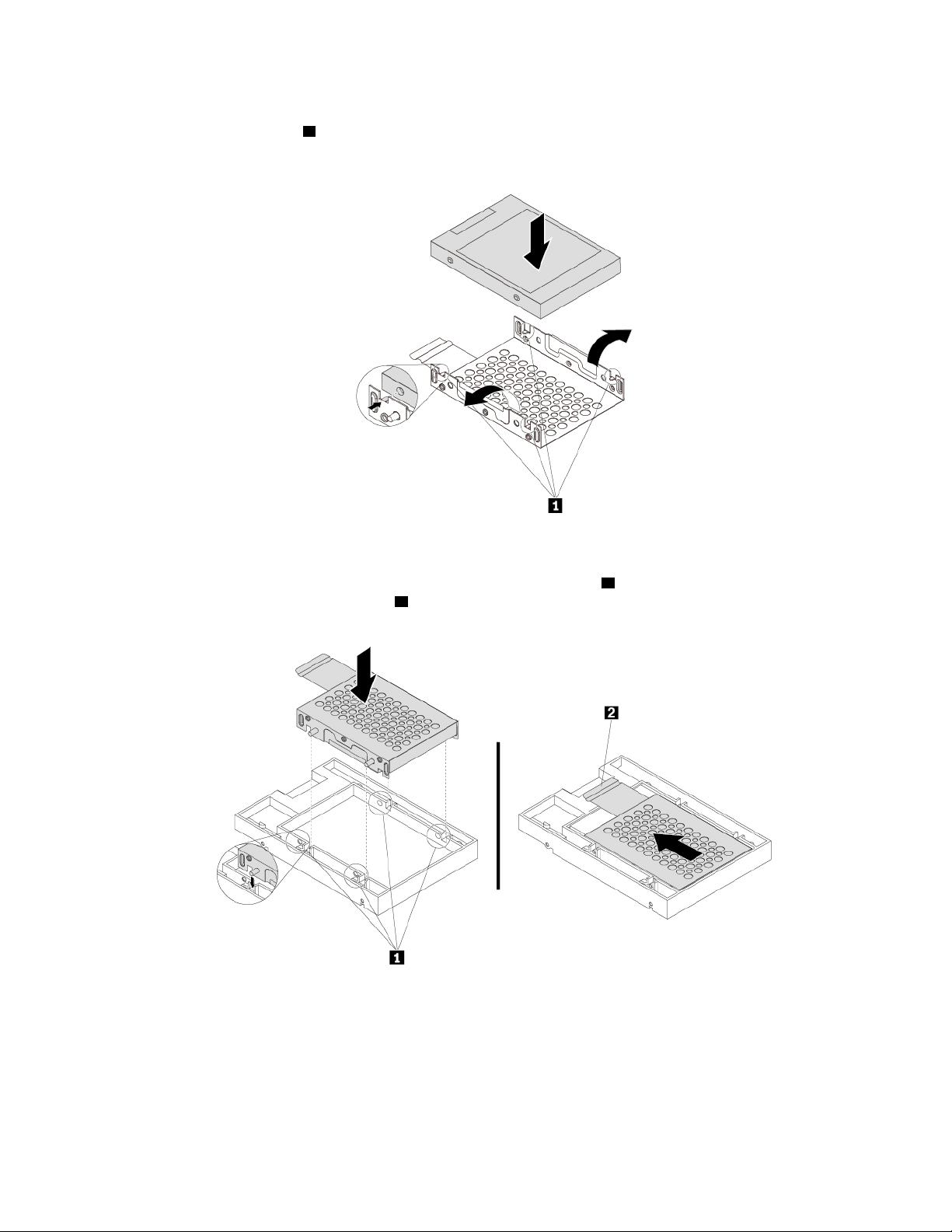
c. Note the orientation of the connector on the new storage drive. Then, flex both sides of the adapter
and align the four pins
1 with the corresponding holes in the storage drive.
Note: Do not touch the circuit board (if accessible) of the 2.5-inch storage drive.
Figure 55. Installing the storage drive into the adapter
d. Align the four tabs on the adapter with the corresponding notches 1 in the converter. Then, slide the
storage drive as shown until the tab
2 snaps into position. The adapter with the storage drive is
installed into the converter.
Figure 56. Installing the adapter into the converter
86 P920 User Guide
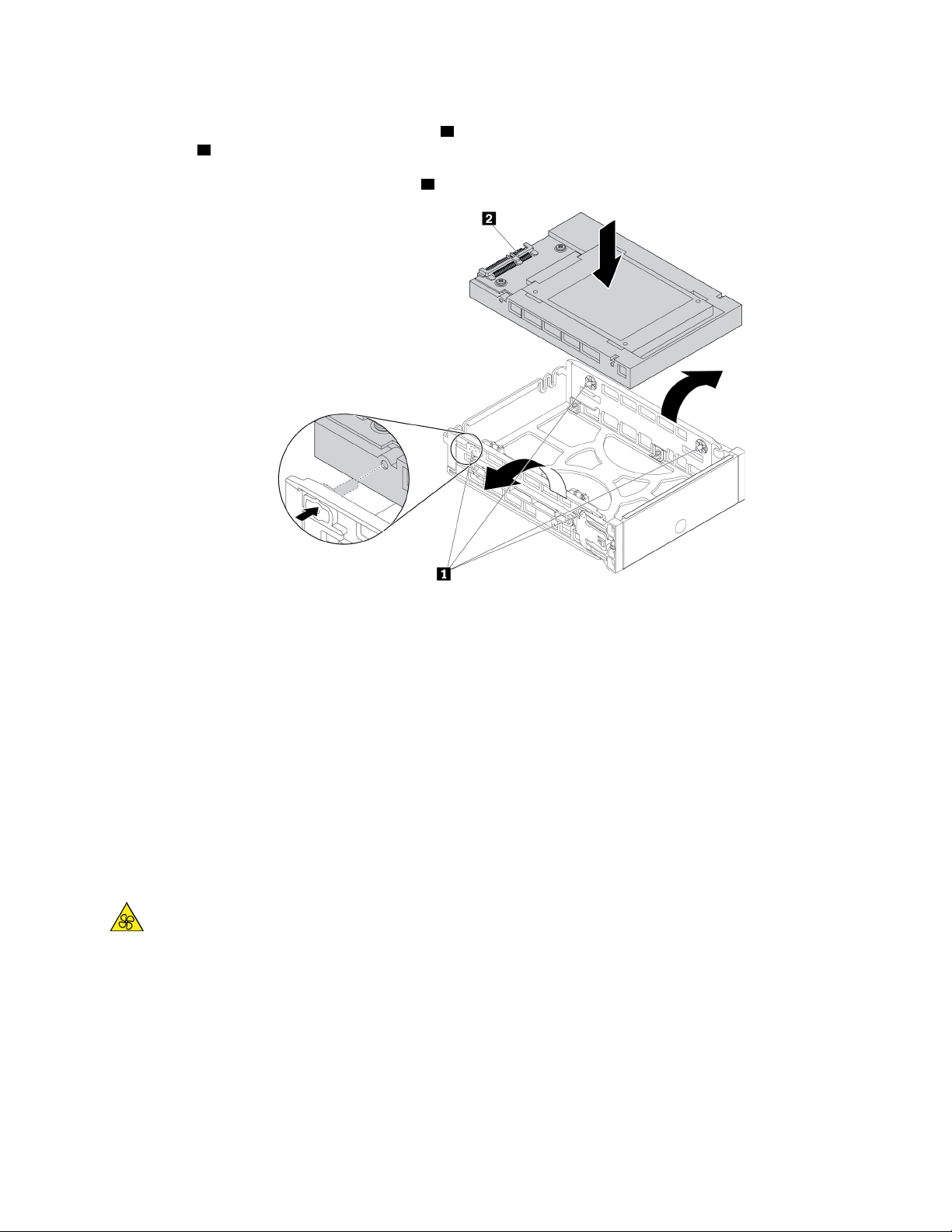
e. Hold the converter with the installed 2.5-inch storage drive so that the connectors face toward the
rear of the bracket and the circuit board
2 faces upward. Then, flex sides of the bracket and align
pins
1 on the bracket with the corresponding holes in the converter.
Note: Do not touch the circuit board
2 of the storage drive.
Figure 57. Installing the converter into the bracket
f. Slide the bracket together with the installed storage drive into the storage drive bay until the bracket
snaps into position.
What to do next:
• To work with another piece of hardware, go to the appropriate section.
• To complete the installation or replacement, go to “Completing the parts replacement” on page 135.
Front fan assembly
Attention: Do not open your computer or attempt any repair before reading and understanding the “Read
this first: Important safety information” on page iii.
CAUTION:
Keep fingers and other parts of your body away from hazardous, moving parts. If you suffer an injury,
seek medical care immediately.
To remove or install a front fan assembly, do the following:
1. Prepare your computer. See “Preparing your computer and removing the computer cover” on page 59.
2. Locate the front fan assembly. See “Computer components” on page 7.
Chapter 7. Hardware removal and installation 87
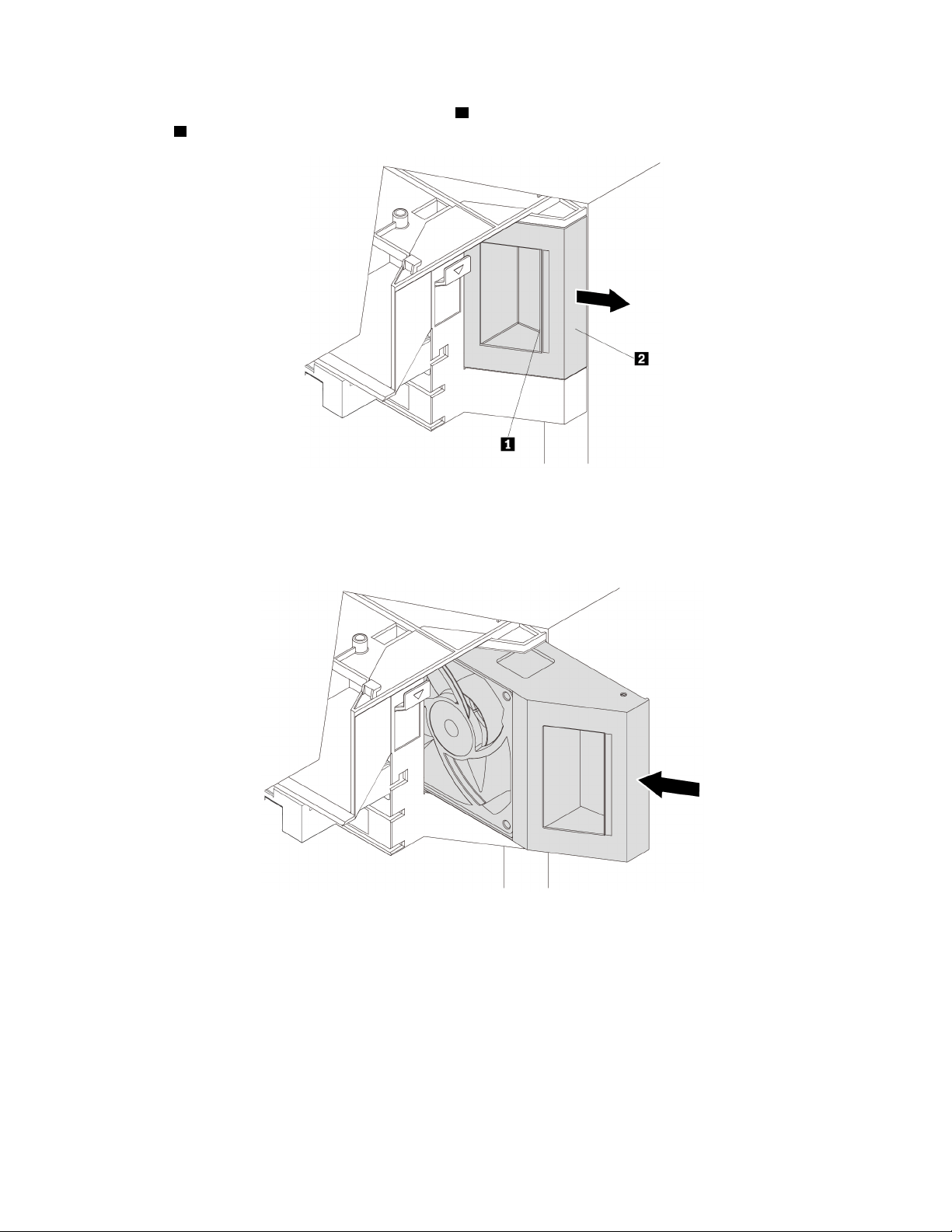
3. To remove the front fan assembly, press the tab 1 and slide the front fan assembly outward by the
handle
2 to remove it from the chassis.
Figure 58. Removing the front fan assembly
4. To install the front fan assembly, slide the front fan assembly into the multi-function bracket until it snaps
into position.
Figure 59. Installing the front fan assembly
What to do next:
• To work with another piece of hardware, go to the appropriate section.
• To complete the installation or replacement, go to “Completing the parts replacement” on page 135.
Rear fan assembly
Attention: Do not open your computer or attempt any repair before reading and understanding the “Read
this first: Important safety information” on page iii.
88
P920 User Guide
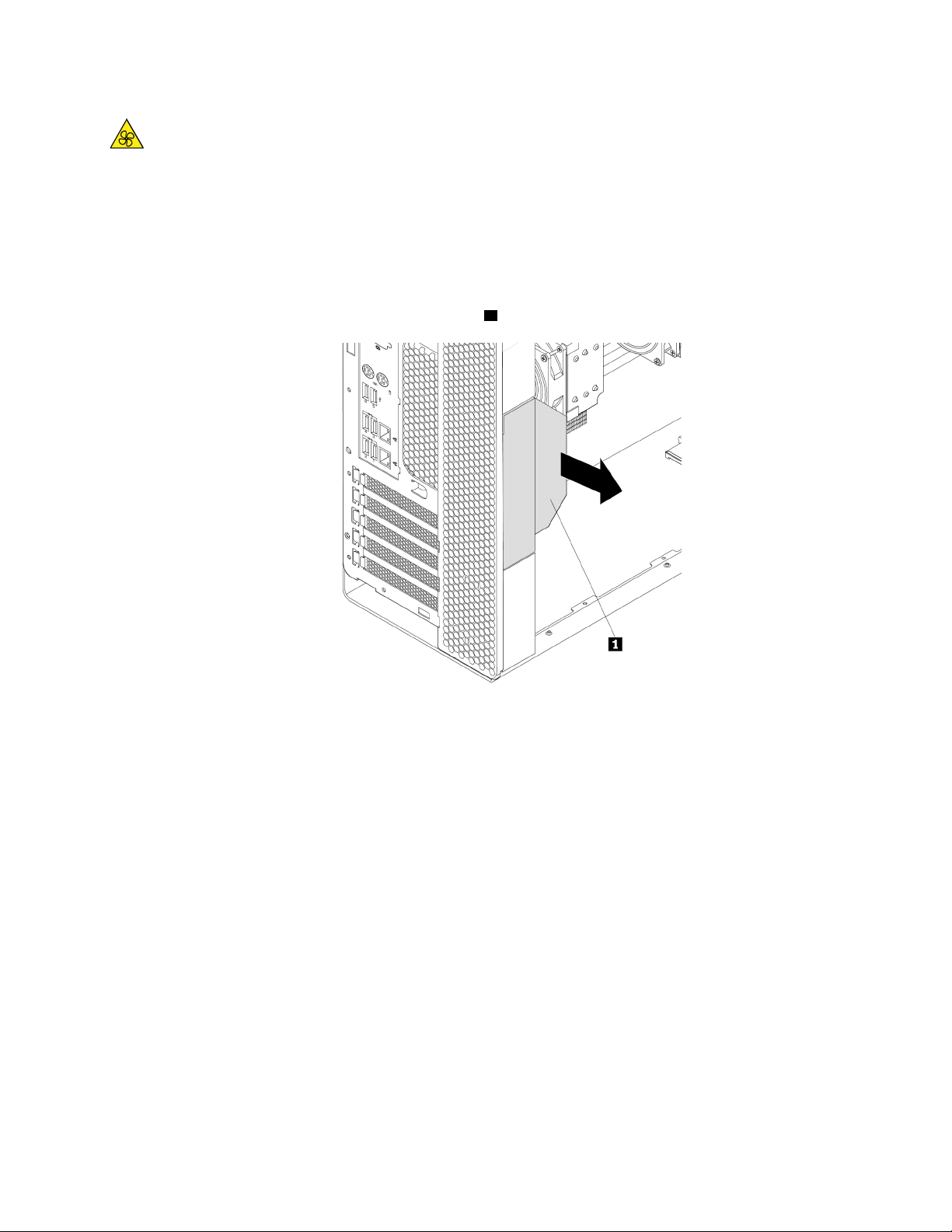
CAUTION:
Keep fingers and other parts of your body away from hazardous, moving parts. If you suffer an injury,
seek medical care immediately.
To remove or install the rear fan assembly, do the following:
1. Prepare your computer. See “Preparing your computer and removing the computer cover” on page 59.
2. Remove the direct cooling air baffle. See “Direct cooling air baffle” on page 63.
3. Locate the rear fan assembly. See “Computer components” on page 7.
4. To remove the rear fan assembly, hold the handle
1 to slide the rear fan assembly out of the chassis.
Figure 60. Removing the rear fan assembly
Chapter 7. Hardware removal and installation 89
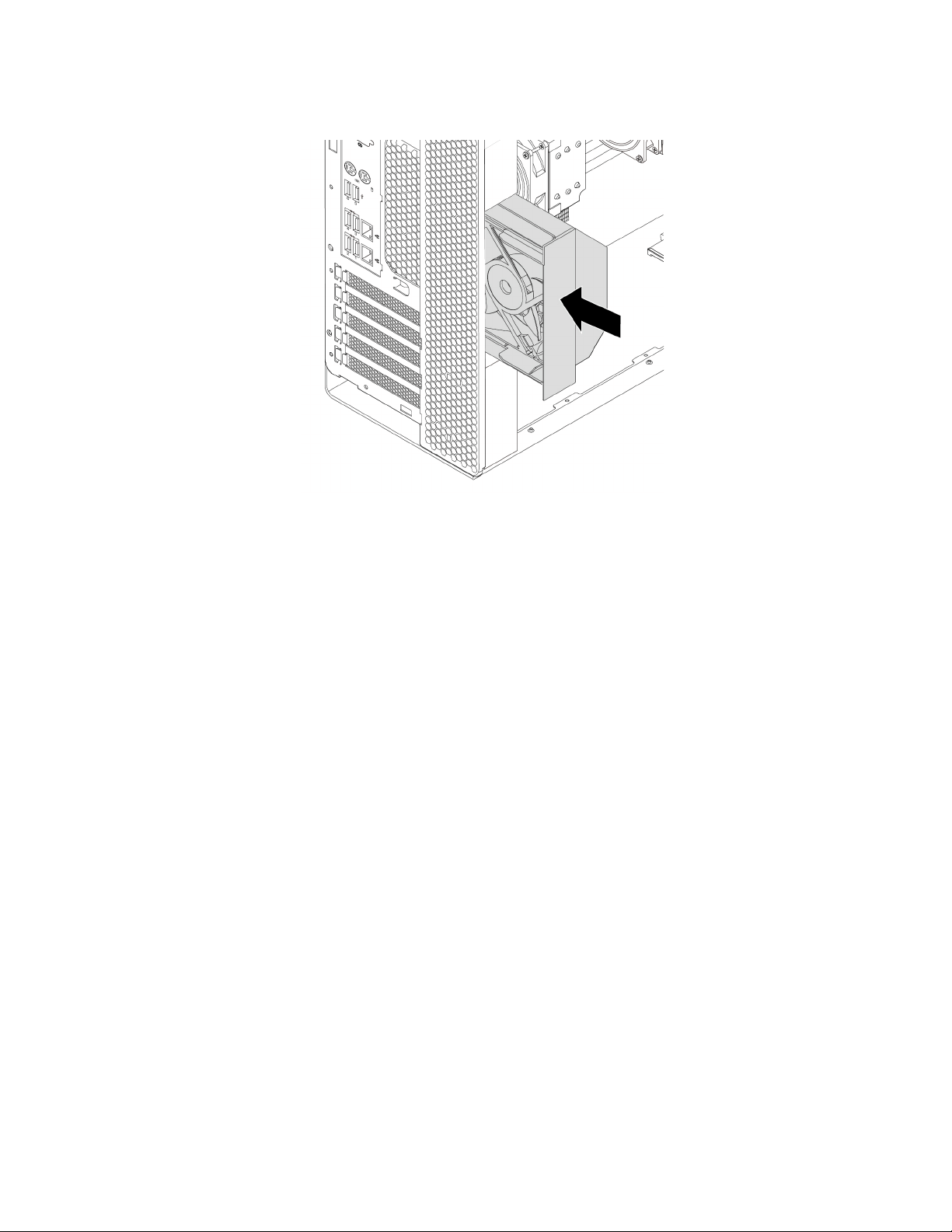
5. To install the rear fan assembly, slide it into the rear fan assembly bay until it snaps into position.
Figure 61. Installing the rear fan assembly
6. Reinstall the direct cooling air baffle. See “Direct cooling air baffle” on page 63.
What to do next:
• To work with another piece of hardware, go to the appropriate section.
• To complete the installation or replacement, go to “Completing the parts replacement” on page 135.
M.2 solid-state drive
Attention: Do not open your computer or attempt any repair before reading and understanding the “Read
this first: Important safety information” on page iii.
An M.2 solid-state drive can be installed in the storage drive carrier, on the M.2 solid-state drive holder or on
an M.2 solid-state drive PCIe adapter.
M.2 solid-state drive in the storage drive bracket
To remove or install an M.2 solid-state drive, do the following:
1. Prepare your computer. See “Preparing your computer and removing the computer cover” on page 59.
2. To remove the failing M.2 solid-state drive, do the following:
90
P920 User Guide
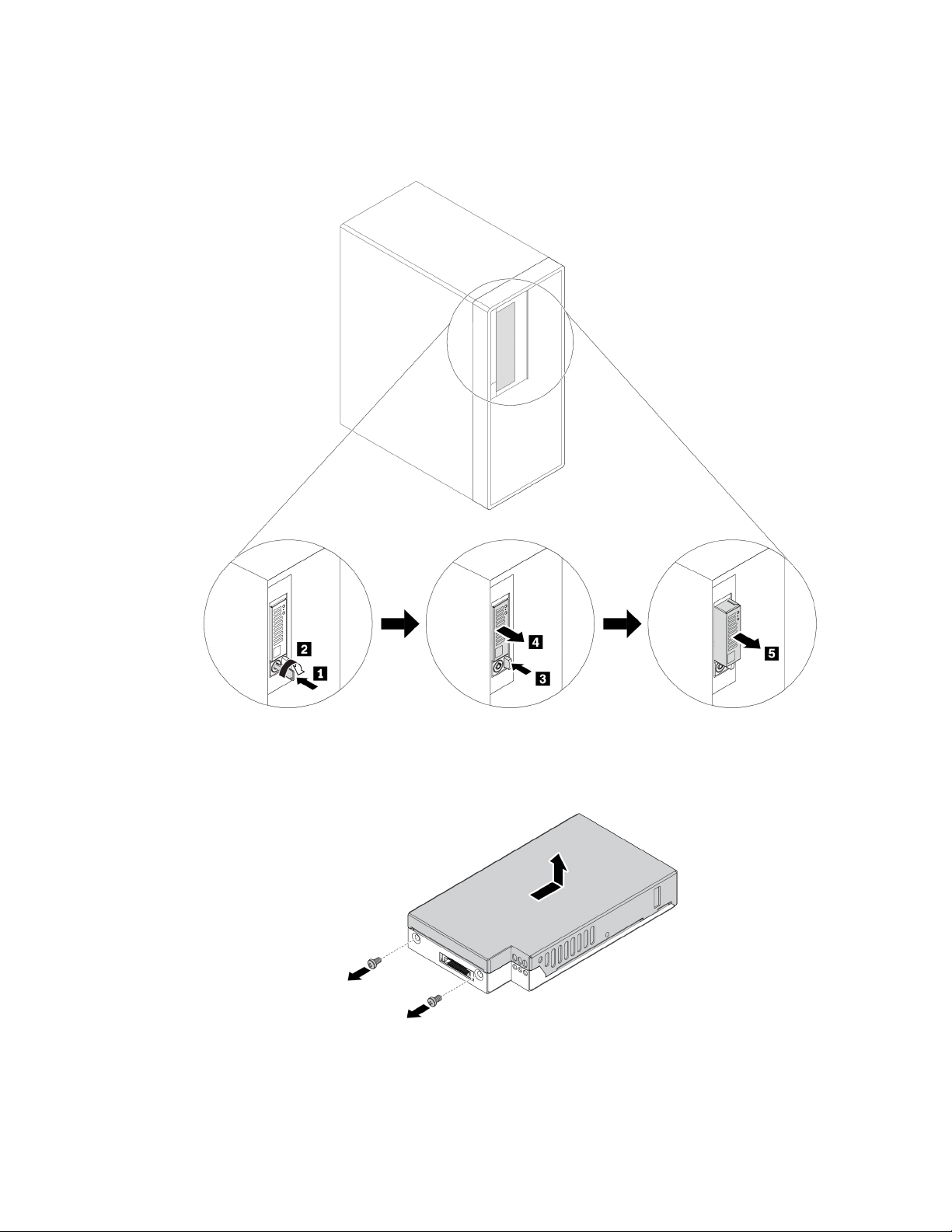
a. Unlock the M.2 solid-state drive carrier with the provided key as shown. Store the key in a secure
place for later use. Press the eject button to eject the carrier from the storage drive bracket. Then,
grasp the M.2 solid-state drive carrier by its edge and gently pull it out of the bracket.
Figure 62. Removing the M.2 solid-state drive carrier
b. Remove two screws and slide the cover as shown to remove the cover from the carrier.
Figure 63. Removing the cover of the M.2 solid-state drive carrier
Chapter 7. Hardware removal and installation 91
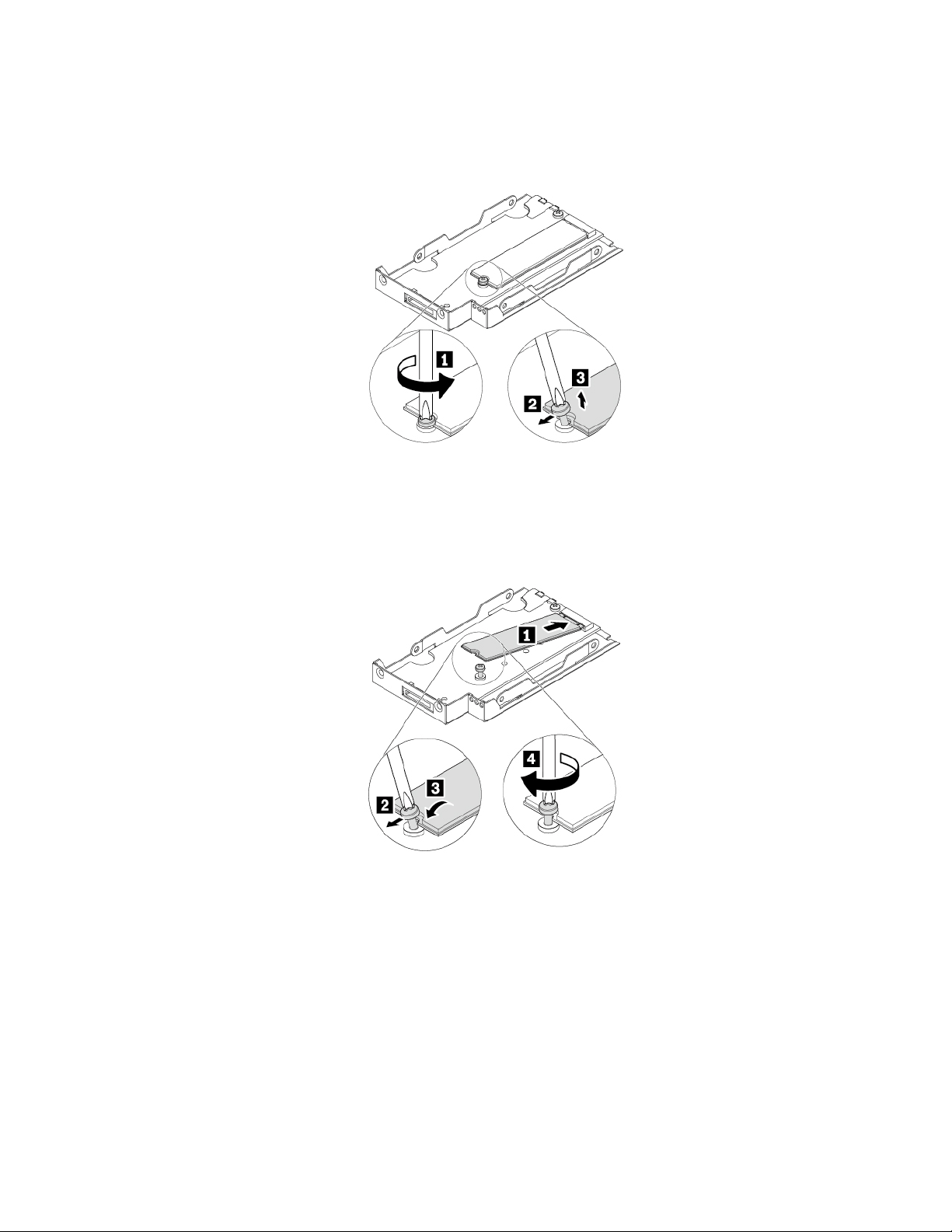
c. Loosen the screw that secures the M.2 solid-state drive. Then, remove the M.2 solid-state drive out
of the slot at an angle of about 20 degrees.
Note: Do not touch the circuit board of the M.2 solid-state drive.
Figure 64. Removing the M.2 solid-state drive
3. To install the M.2 solid-state drive, do the following:
a. Insert the new M.2 solid-state drive into the slot at an angle of about 20 degrees. Pivot the M.2 solid-
state drive downward. Then, tighten the screw to secure the M.2 solid-state drive.
Figure 65. Installing the M.2 solid-state drive
92 P920 User Guide
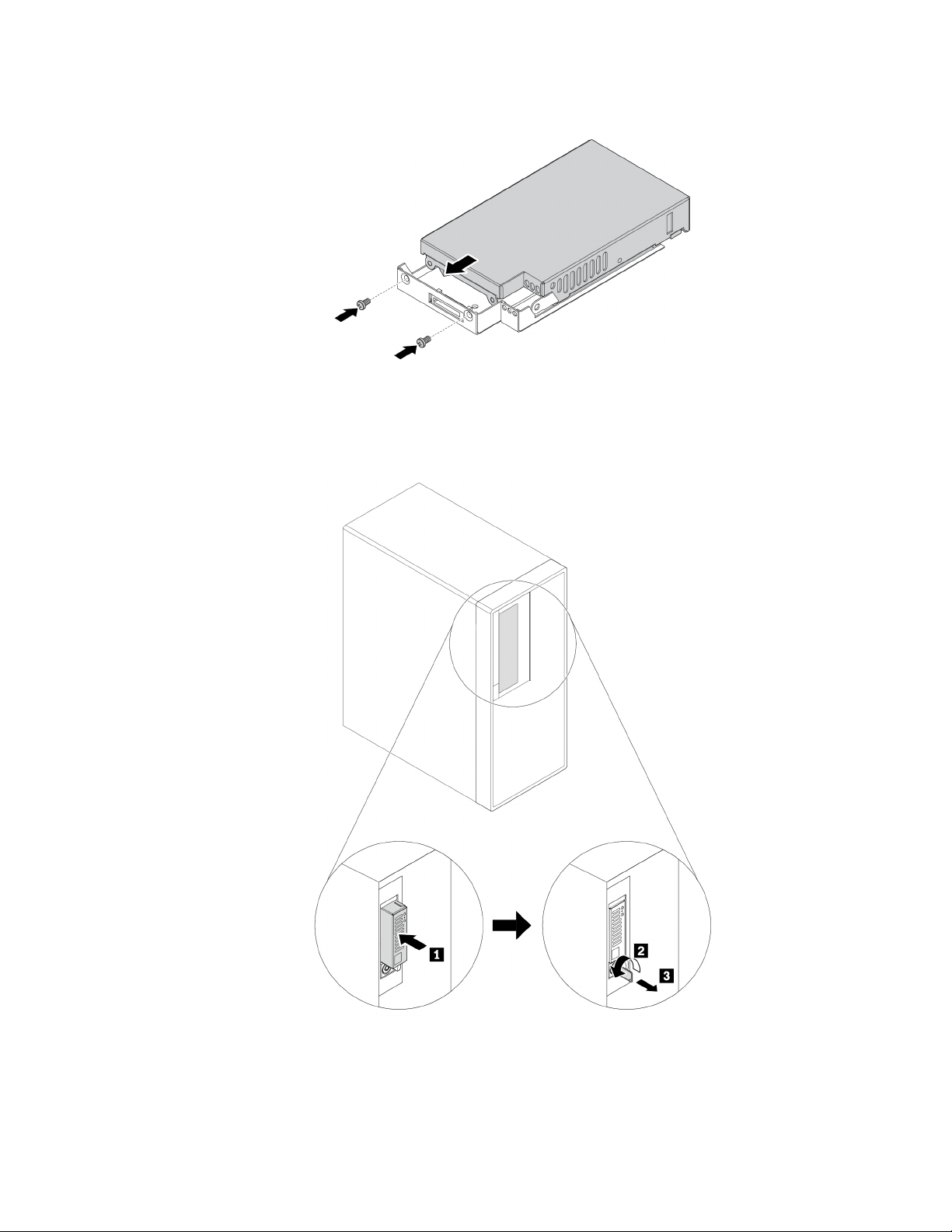
b. Reinstall the cover of the carrier as shown and reinstall the screws to secure the cover.
Figure 66. Installing the cover of the M.2 solid-state drive carrier
c. Reinstall the carrier into the bracket as shown until it snaps in to position. Lock the carrier with the
key. Always store the key in a secure place.
Figure 67. Reinstalling the M.2 solid-state drive carrier
M.2 solid-state drive in the M.2 solid-sate drive holder
To remove or install an M.2 solid-state drive in the M.2 solid-sate drive holder, do the following:
Chapter 7. Hardware removal and installation 93
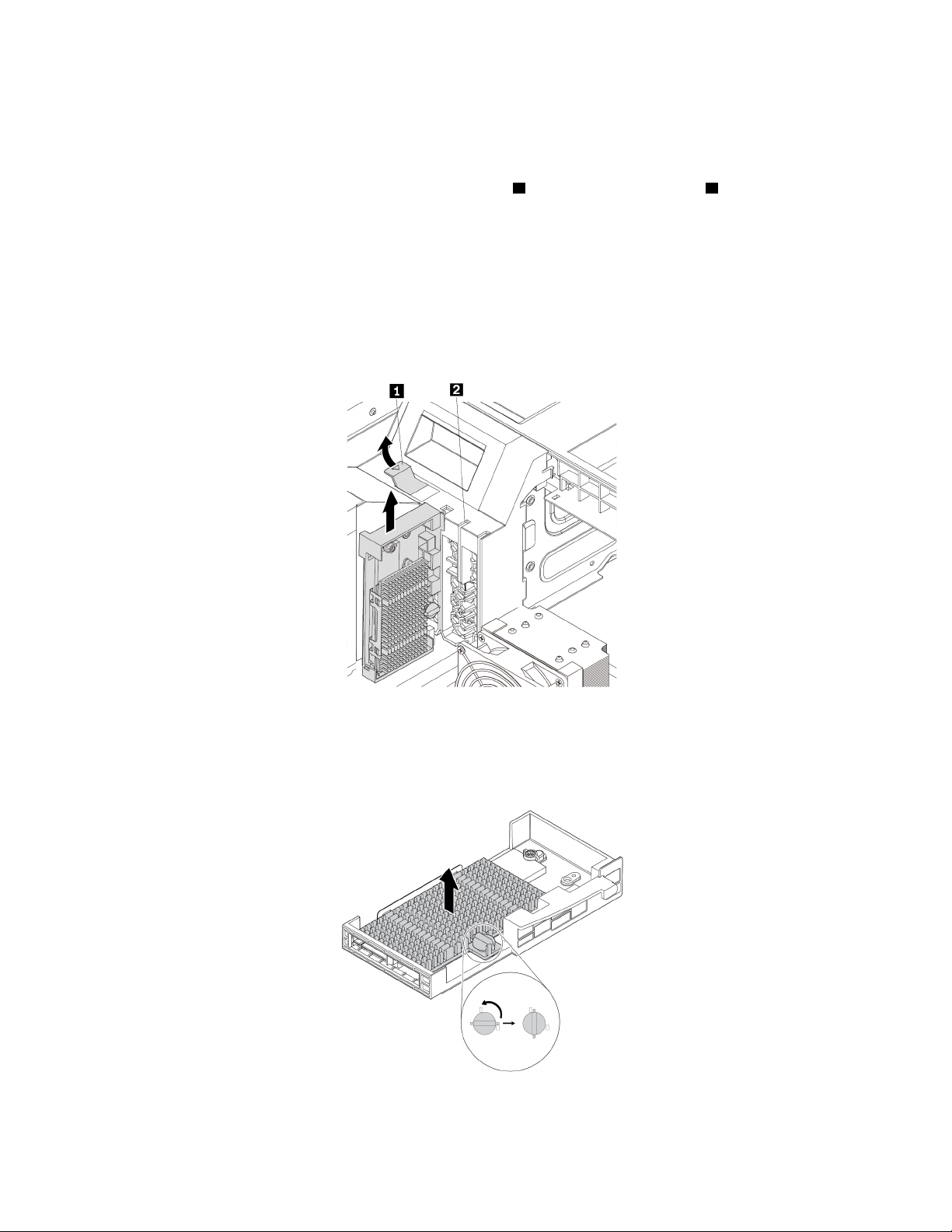
1. Prepare your computer. See “Preparing your computer and removing the computer cover” on page 59.
2. Lay the computer on its side for easier access to the M.2 solid-state drive slots.
3. Locate the M.2 solid-state drive slots. See “Parts on the system board” on page 8.
4. To remove the M.2 solid-state drive holder, pivot the tab
1 upward to open the latch 2 inside the multi-
function bracket. Then, grasp the M.2 solid-state drive holder by its edges and gently pull it out of the
M.2 solid-state drive slots.
Notes:
• The M.2 solid-state drive holder might fit tightly into the M.2 solid-state drive slots. If necessary,
alternately move each side of the holder a small amount until it is removed from the slots.
• Depending on the model, the M.2 solid-state drive holder might look slightly different from the
illustration.
Figure 68. Removing the M.2 solid-state drive holder
5. Turn the mounting stud 90-degree counterclockwise to release the heat sink. Then, lift the heat sink off
the M.2 solid-state drive holder.
Figure 69. Removing the heat sink from the M.2 solid-state drive holder
94 P920 User Guide
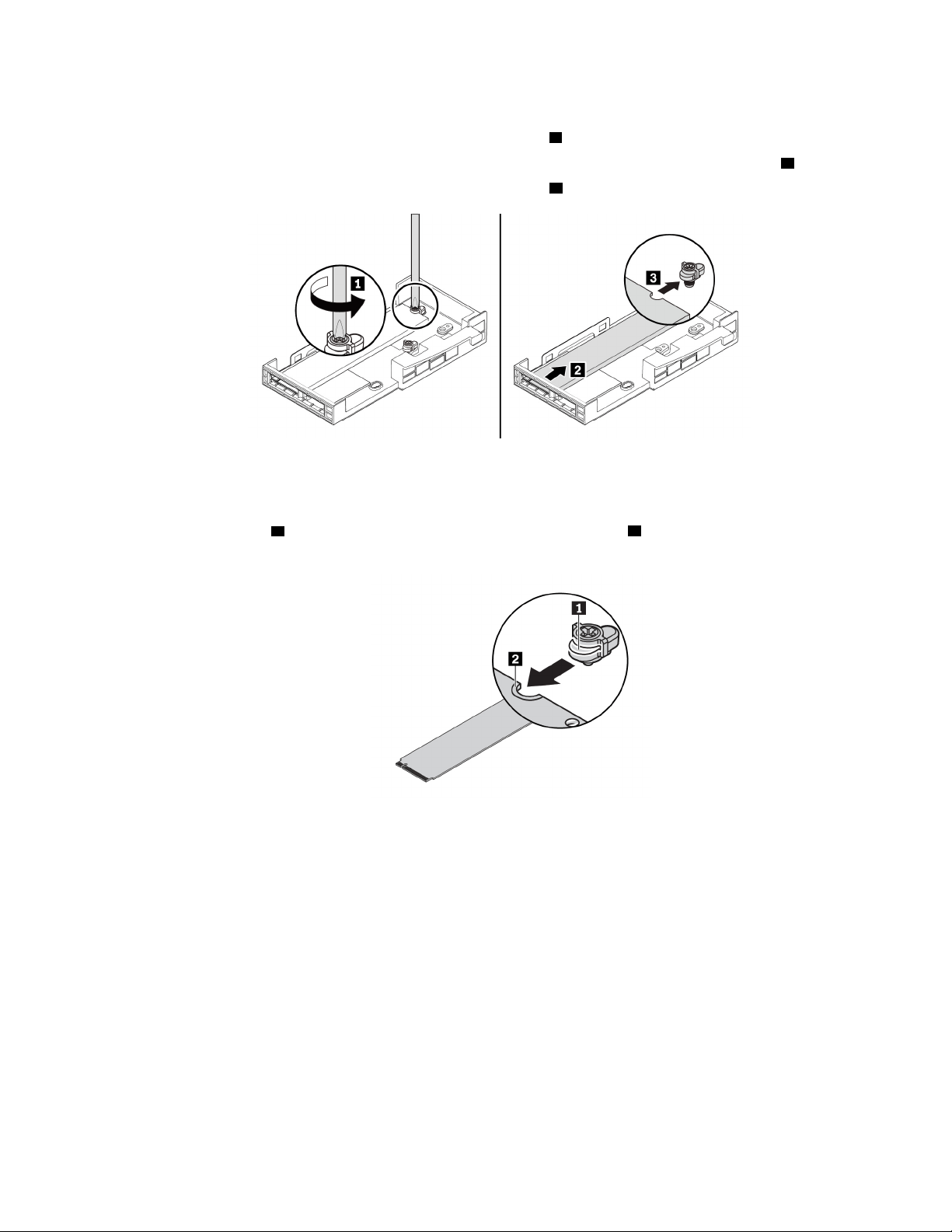
6. To remove an M.2 solid-state drive, do the following:
a. Loosen the screw that secures the M.2 solid-state drive
1 .
b. Remove the M.2 solid-state drive with the screw holder from the M.2 solid-state drive slot
2 .
c. Remove the screw holder from the M.2 solid-state drive
3 .
Figure 70. Removing the M.2 solid-state drive
7. To install an M.2 solid-state drive, do the following:
a. Align the notch
1 in the screw holder with the corresponding notch 2 in the M.2 solid-state drive.
Insert the screw holder onto the new M.2 solid-state drive as shown.
Figure 71. Inserting the screw holder onto the M.2 solid-state drive
Chapter 7. Hardware removal and installation 95
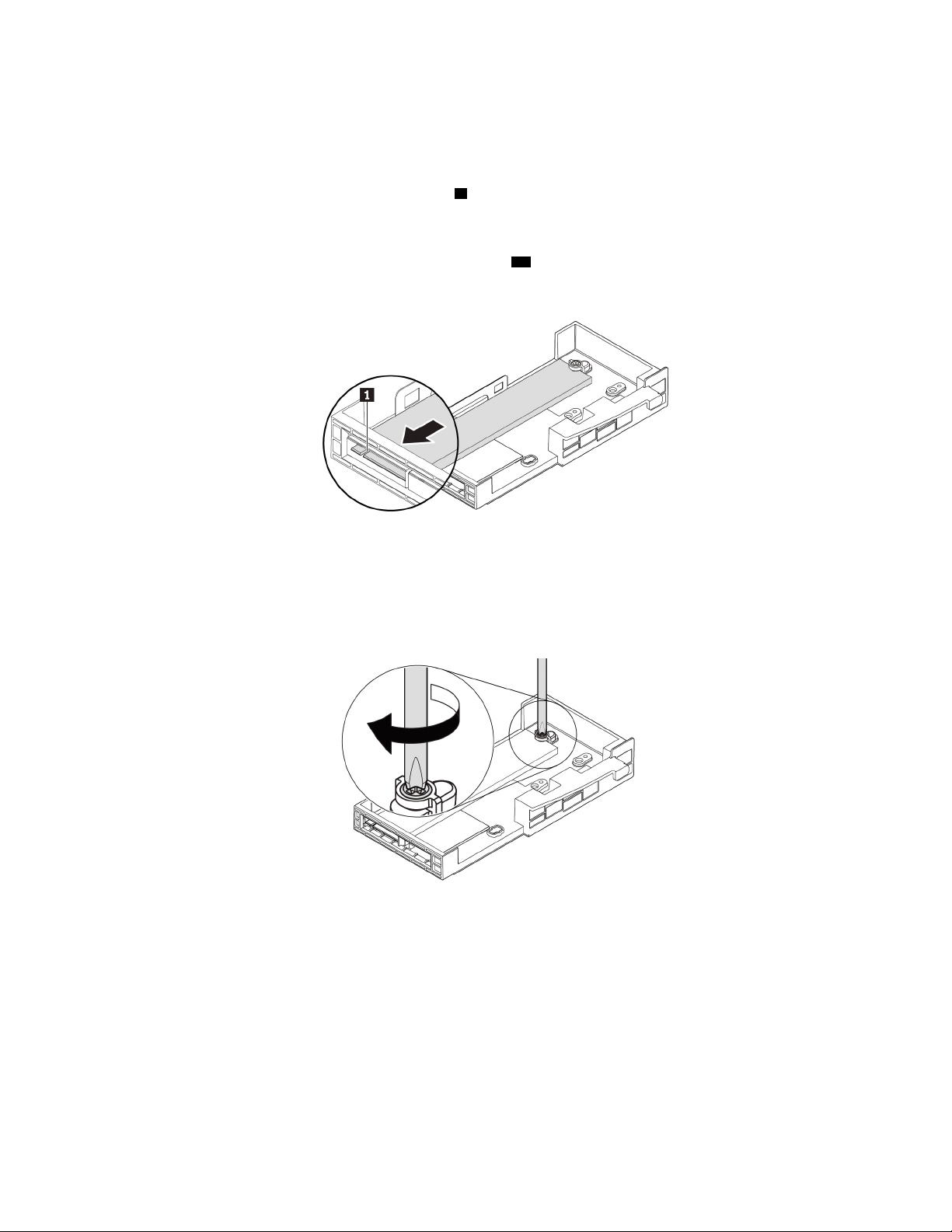
b. Hold the new M.2 solid-state drive by its edges and ensure that the circuit board side is facing
upward. Insert the drive into the corresponding slot until it is firmly secured.
Notes:
• Pay attention to the direction of the notch
1 in the new drive.
• Do not touch the circuit board of the M.2 solid-state drive.
• If only one M.2 solid-state drive is installed on the M.2 solid-state drive holder, ensure that the
drive is installed in the M.2 solid-state drive slot 1 (
20 ). See “Parts on the system board” on page
8.
Figure 72. Installing the M.2 solid-state drive
c. Tighten the screw to secure the new M.2 solid-state drive.
Note: Do not overtighten the screw.
Figure 73. Securing the M.2 solid-state drive
8. To install the M.2 solid-state drive heat sink, do the following:
a. If necessary, remove the film that protects the thermal pad on the heat sink.
96
P920 User Guide
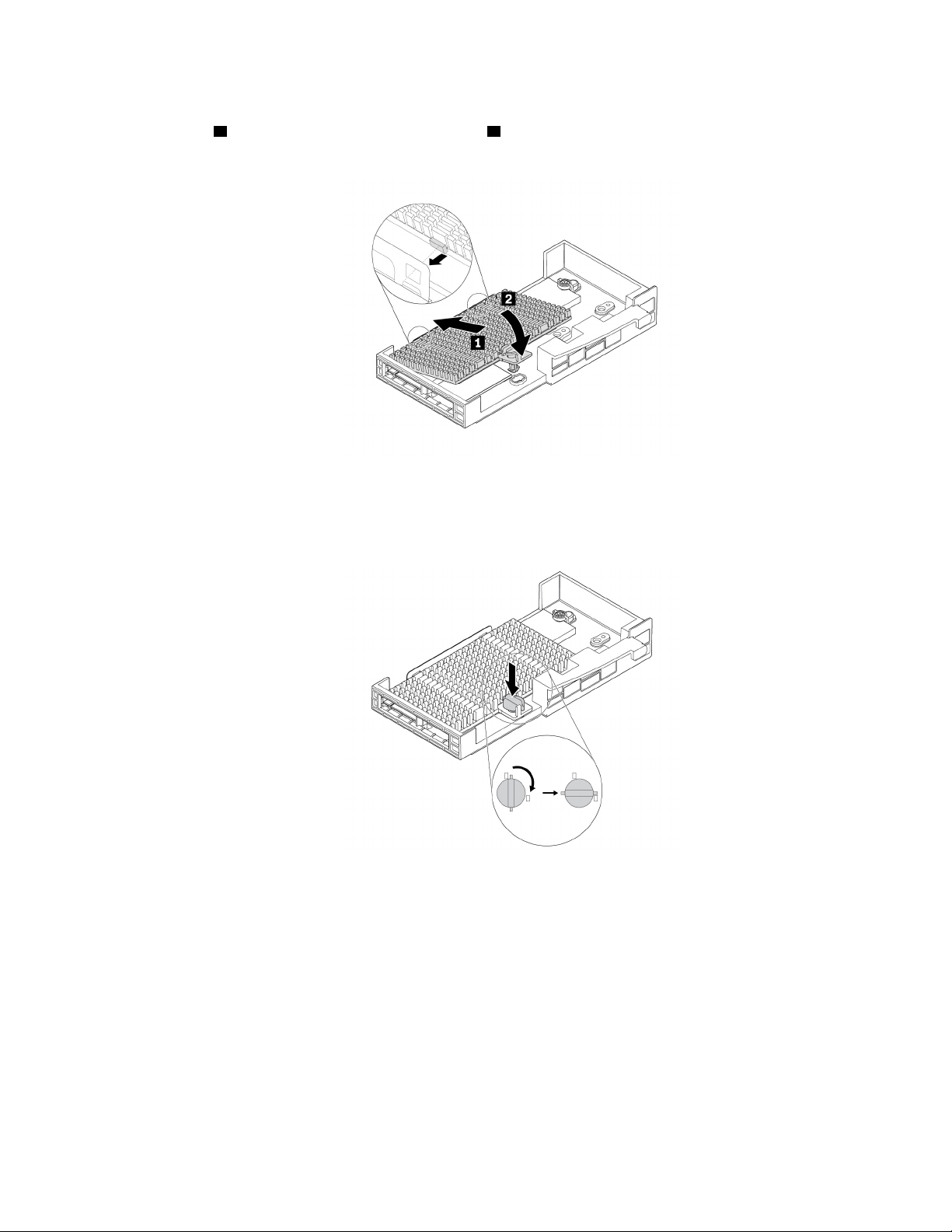
b. Insert two hooks on the heat sink into the corresponding holes in the M.2 solid-state drive holder as
shown
1 . Then, press the heat sink downward 2 . Ensure that the mounting stud on the heat sink is
inserted into the hole in the M.2 solid-state drive holder.
Figure 74. Installing the heat sink onto the M.2 solid-state drive holder
c. Press the mounting stud downward and press the mounting stud downward. Then, turn the
mounting stud 90-degree clockwise to secure the heat sink to the M.2 solid-state drive holder.
Figure 75. Securing the heat sink to the M.2 solid-state drive holder
9. To install the M.2 solid-state drive holder, do the following:
Chapter 7. Hardware removal and installation 97
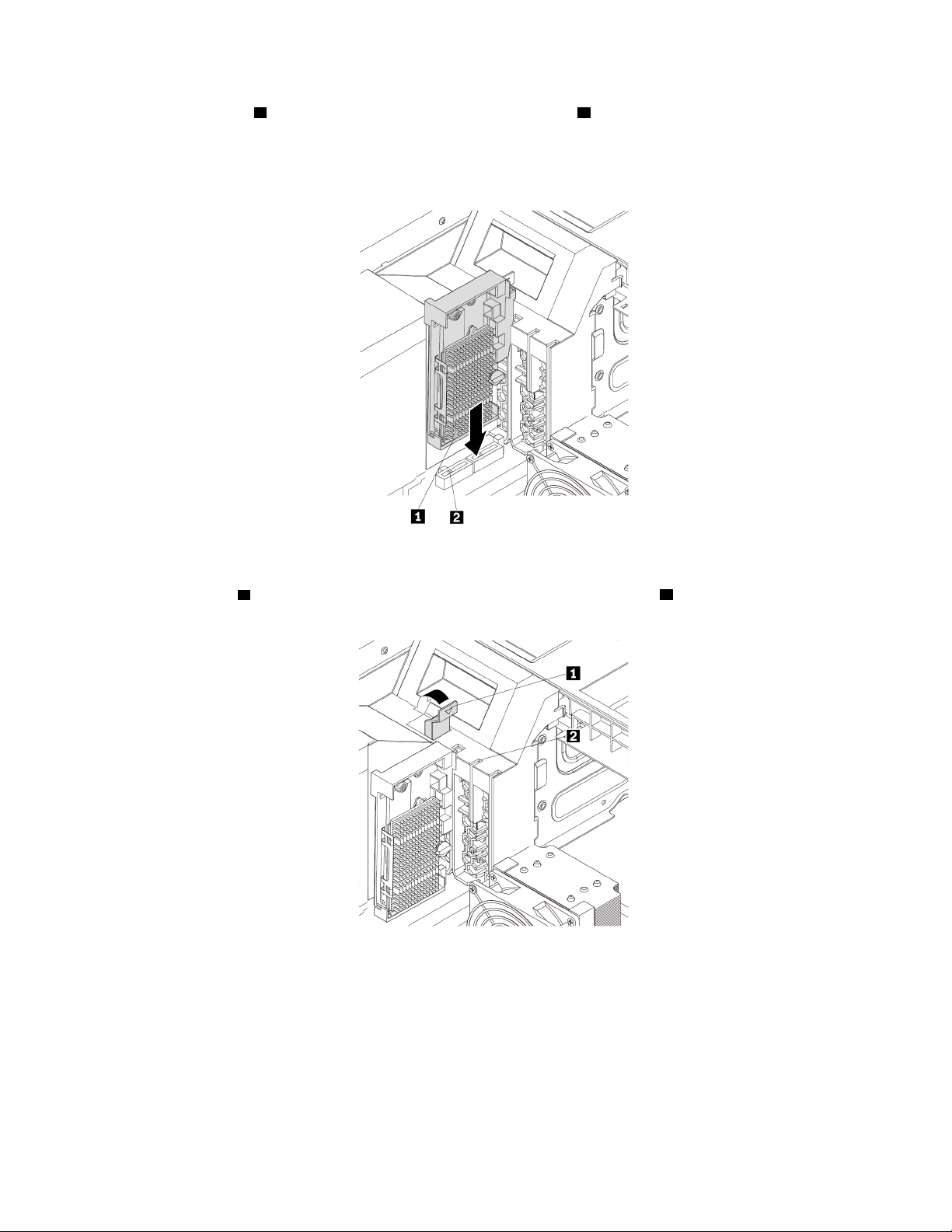
a. Align the notch 1 on the M.2 solid-state drive with the slot key 2 in the M.2 solid-state drive slot.
Then, slide the holder against the multi-function bracket and press the holder downward until the M.2
solid-state drive is securely seated.
Note: Do not touch the circuit board of the M.2 solid-state drive.
Figure 76. Installing the M.2 solid-state drive holder
b. Pivot the tab 1 downward until it snaps into position. Ensure that the latch 2 inside the multi-
function bracket is closed.
Figure 77. Closing the card latch
What to do next:
• To work with another piece of hardware, go to the appropriate section.
• To complete the installation or replacement, go to “Completing the parts replacement” on page 135.
98
P920 User Guide
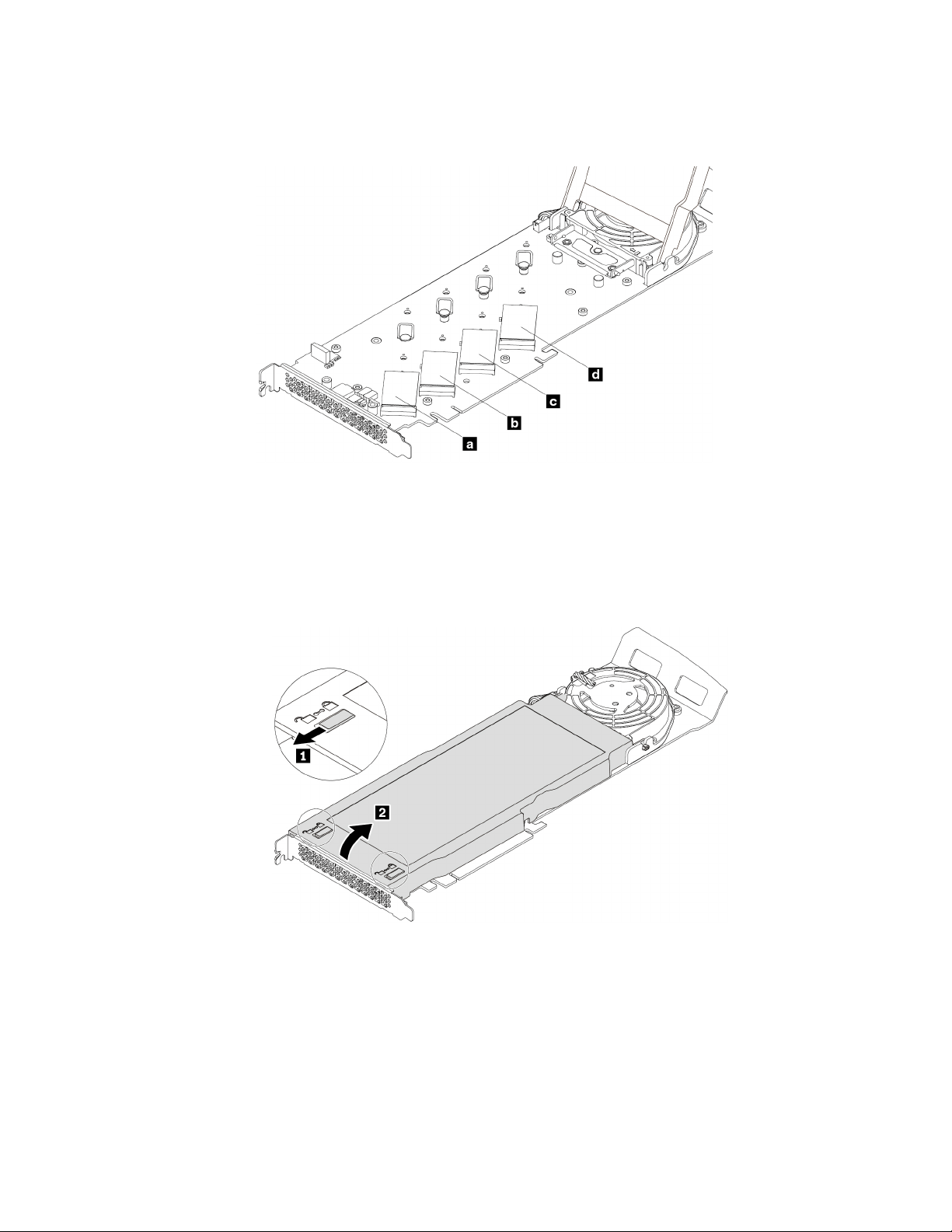
M.2 solid-state drive in an M.2 solid-state drive PCIe adapter
Install M.2 solid-state drives in the alphabetic order as shown.
Figure 78. M.2 solid-state drive installation order
To remove or install an M.2 solid-state drive in the M.2 solid-state drive PCIe adapter, do the following:
1. Remove the M.2 solid-state drive PCIe adapter from the PCIe card slot. See “Full-length PCIe card” on
page 115.
2. Slide the cover latches to the open position. Then, pivot the cover as shown until it stops.
Figure 79. Opening the cover
Chapter 7. Hardware removal and installation 99
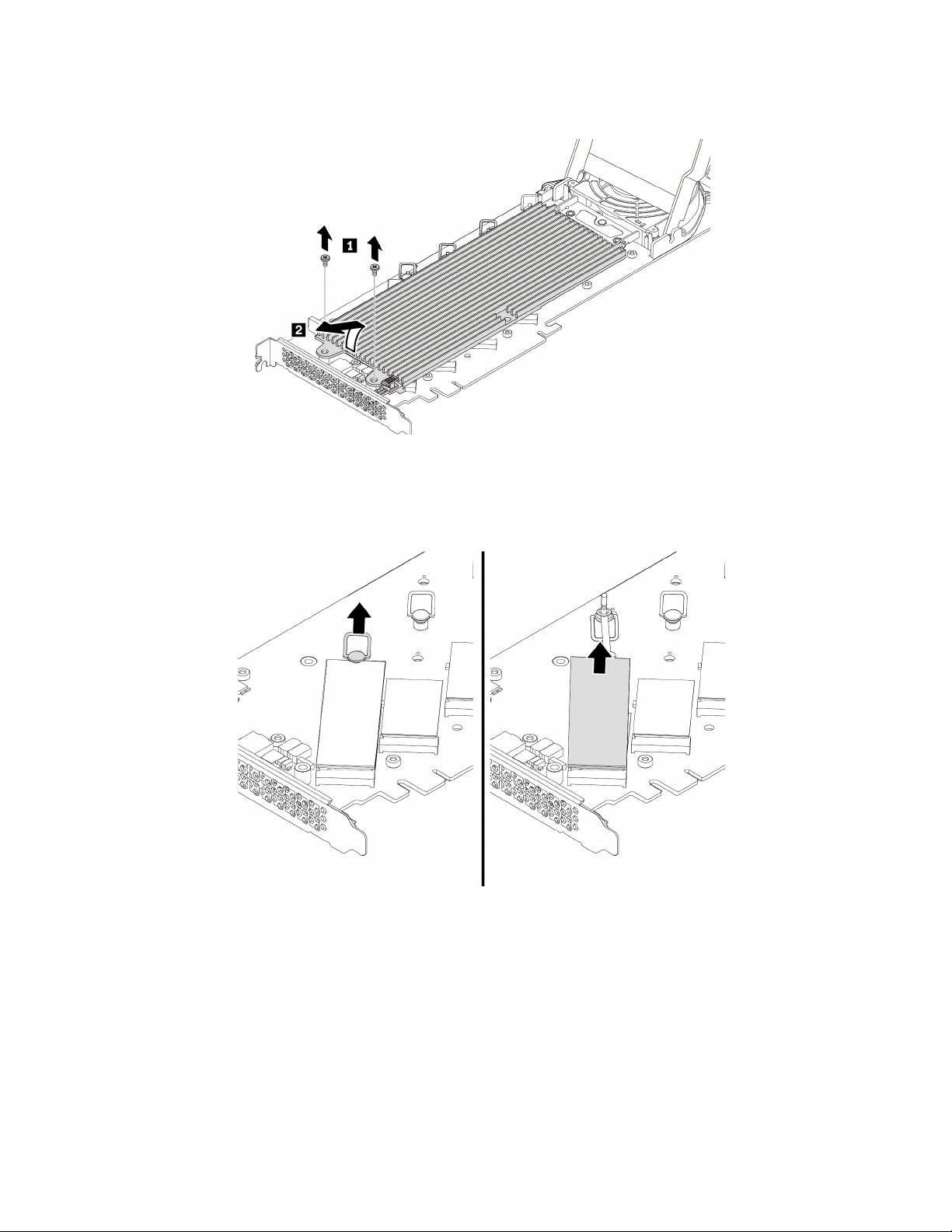
3. Loosen the screws that secure the M.2 solid-state drive heat sink. Then, remove the heat sink as shown.
Figure 80. Removing the heat sink
4. To remove the M.2 solid-state drive, pull the handle of the retention latch outward to release the M.2
solid-state drive. Then, remove the M.2 solid-state drive from the PCIe adapter.
Figure 81. Removing the M.2 solid-state drive
5. To install an M.2 solid-state drive, do the following:
100
P920 User Guide
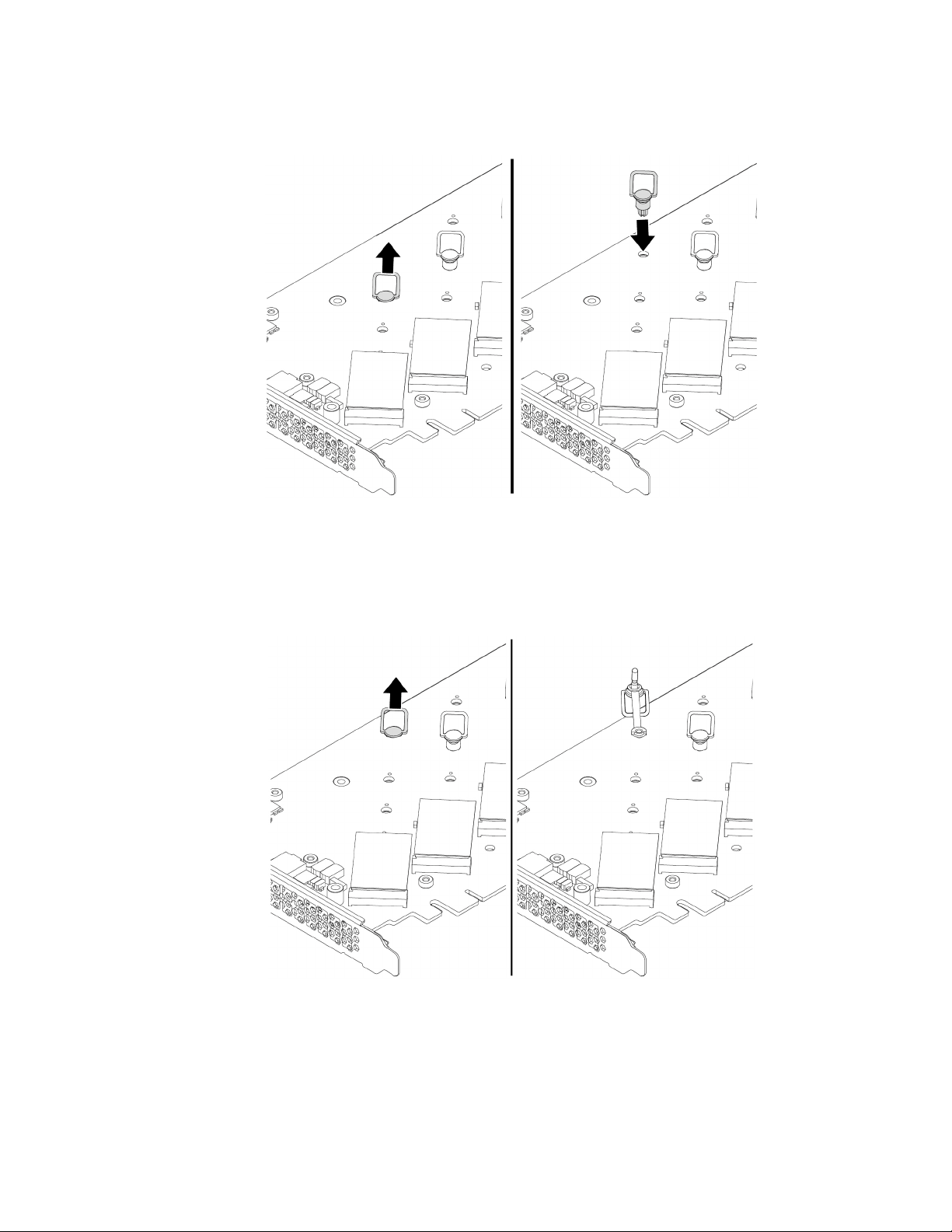
a. If necessary, move the retention latch to an appropriate location to suit the length of the new M.2
solid-state drive.
Figure 82. Adjusting the location of the retention latch on the PCIe adapter
b. If necessary, remove the film on the thermal pad on which you want to install the M.2 solid-state
drive.
c. Pull the handle of the retention latch outward to the open position.
Figure 83. Opening the retention latch
Chapter 7. Hardware removal and installation 101
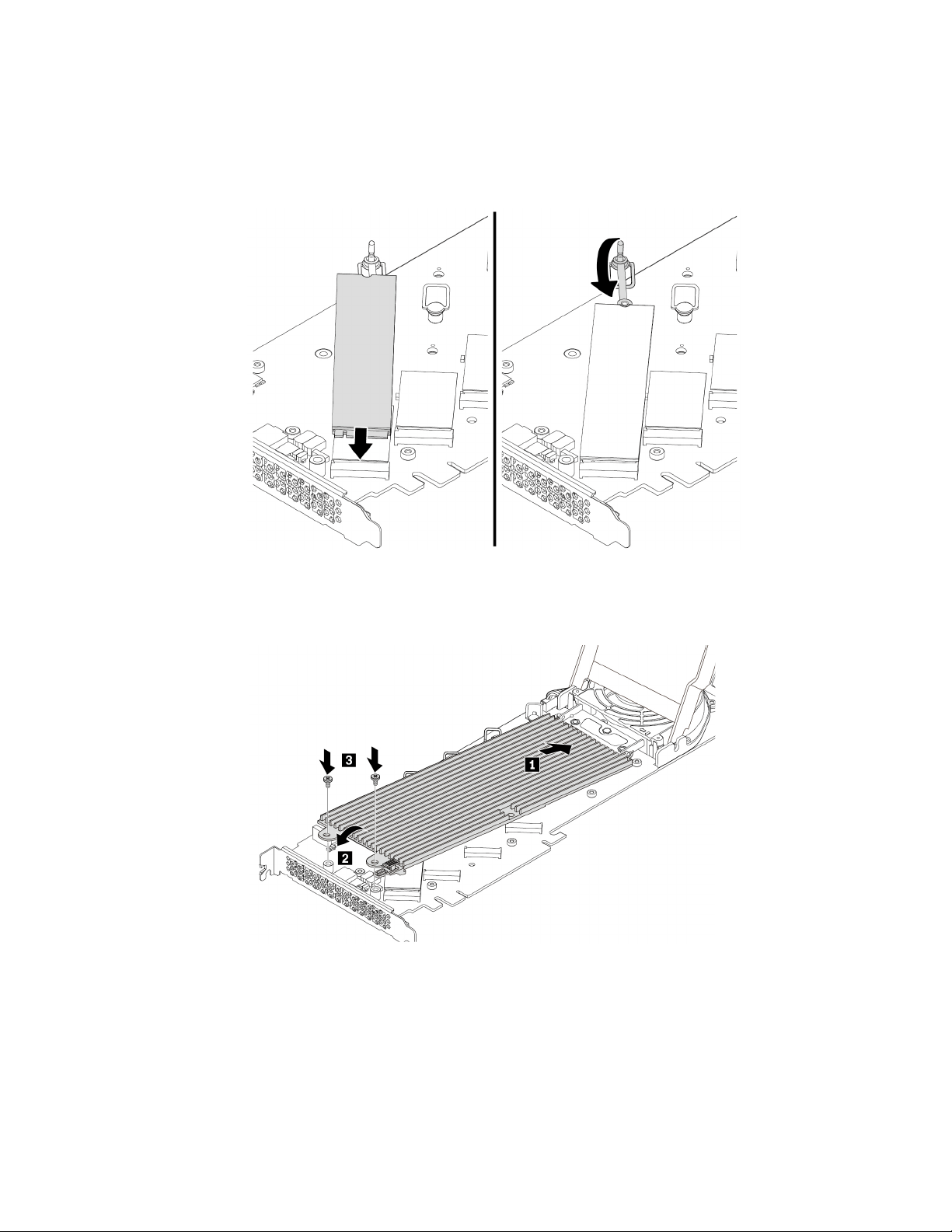
d. Hold the new M.2 solid-state drive by its edges and ensure that the circuit board side is facing
upward. Insert the drive into the M.2 solid-state drive slot on the PCIe adapter until it is firmly seated.
Then, insert the plug of the retention latch into the hole to secure the new drive.
Note: Do not touch the circuit board of the M.2 solid-state drive.
Figure 84. Installing the M.2 solid-state drive
6. Install the heat sink as shown. Then tighten the screws to secure the heat sink.
Figure 85. Installing the heat sink onto the PCIe adapter
102 P920 User Guide
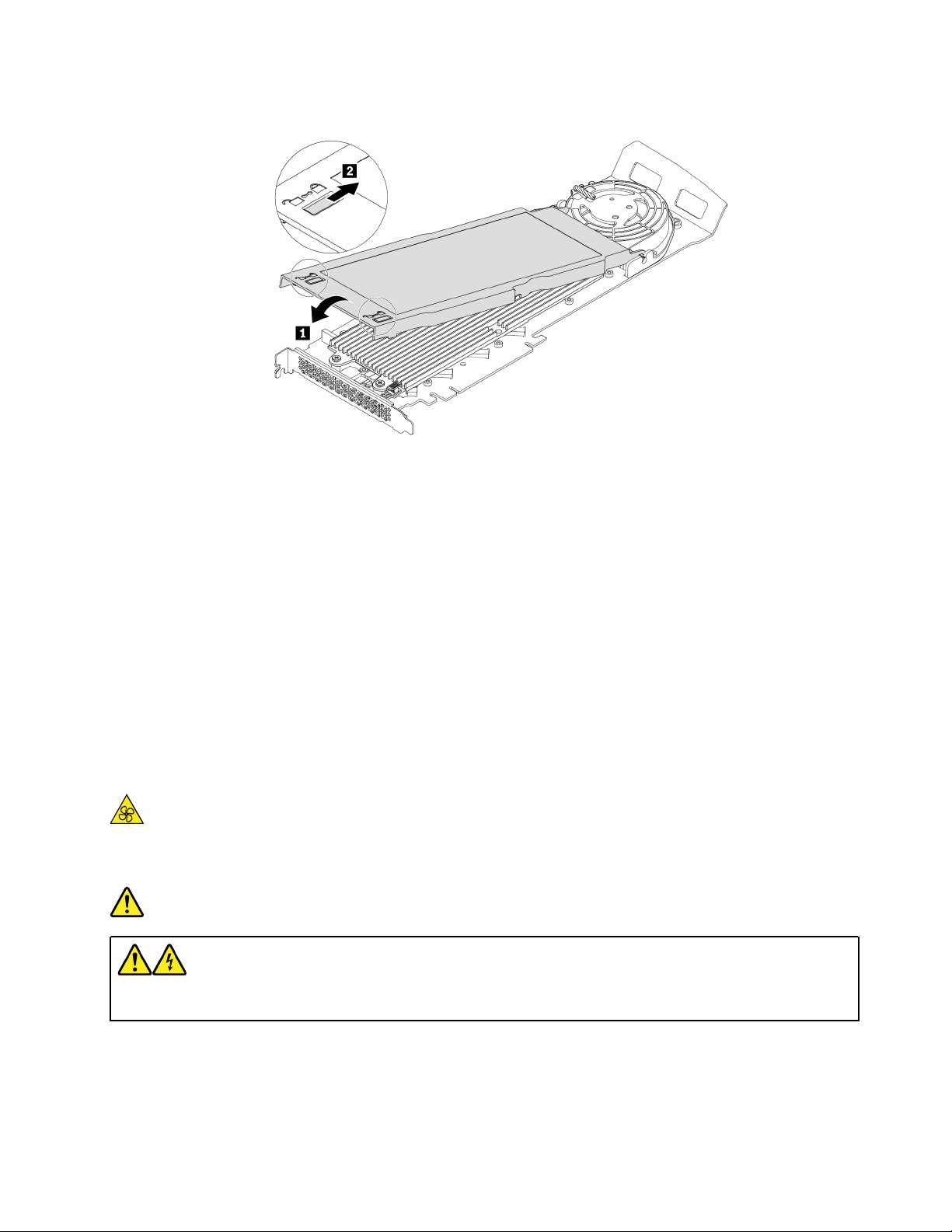
7. Install the cover as shown. Then, slide the cover latches to the locked position.
Figure 86. Closing the cover
8. Install the M.2 solid-state drive PCIe adapter in a PCIe x16 card slot. See “Full-length PCIe card” on
page 115.
What to do next:
• To work with another piece of hardware, go to the appropriate section.
• To complete the installation or replacement, go to “Completing the parts replacement” on page 135.
Power supply assembly
Attention: Do not open your computer or attempt any repair before reading and understanding the “Read
this first: Important safety information” on page iii.
Although there are no moving parts in your computer after the power cord has been disconnected, the
following warnings are required for your safety and proper Underwriters Laboratories (UL) certification.
CAUTION:
Keep fingers and other parts of your body away from hazardous, moving parts. If you suffer an injury,
seek medical care immediately.
DANGER
Disconnect all power cords from electrical outlets before removing the computer cover or any part
that has the above label attached.
To remove and install the power supply assembly, do the following:
1. Prepare your computer. See “Preparing your computer and removing the computer cover” on page 59.
2. Locate the power supply assembly. See “Computer components” on page 7.
Chapter 7. Hardware removal and installation 103
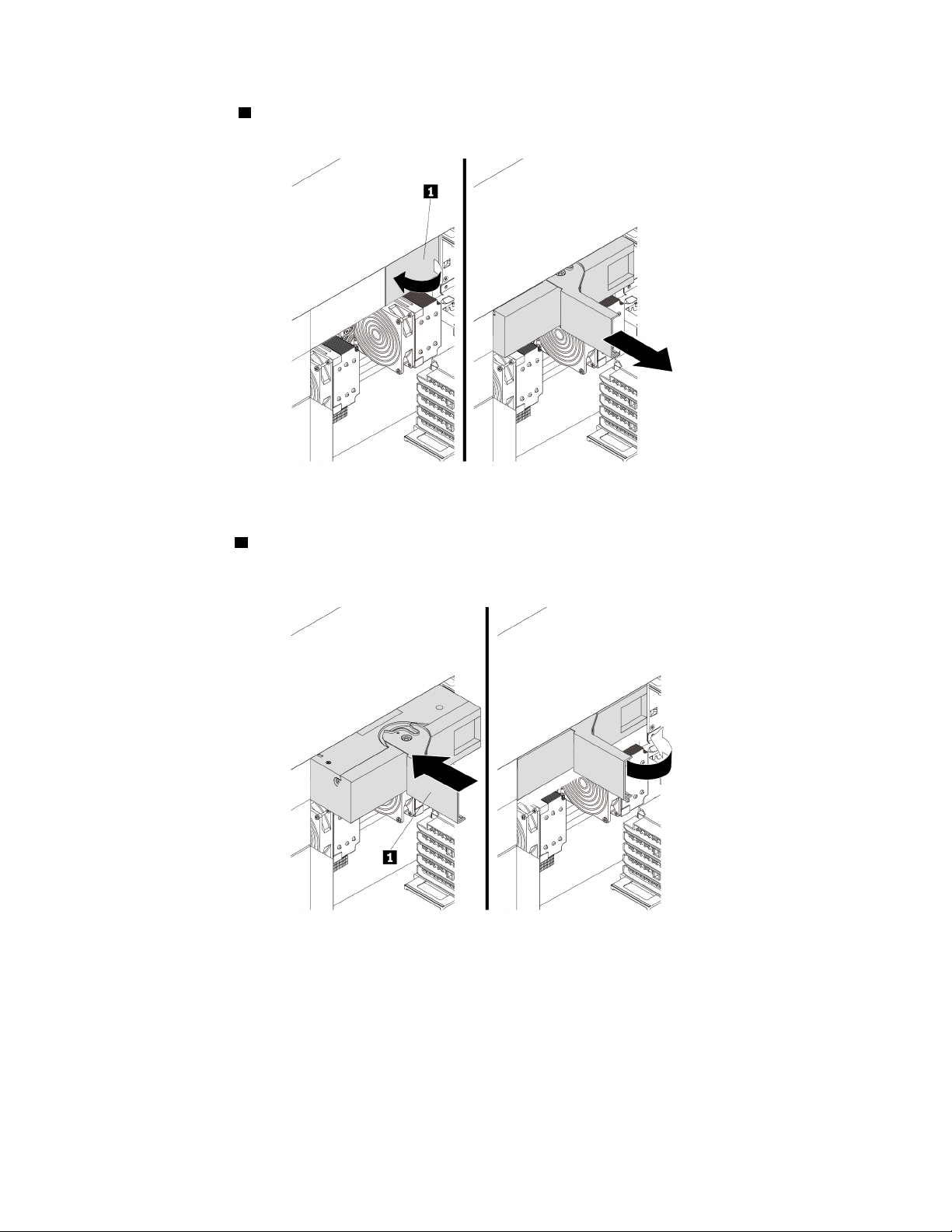
3. Pivot the handle 1 at an angle of about 90 degrees as shown. Then, pull the handle as shown to remove
the power supply assembly from the chassis.
Figure 87. Removing the power supply assembly
4. With the handle 1 open, slide the power supply assembly into the power supply assembly bay until it
snaps into position. Pivot the handle to the closed position to ensure that the new power supply
assembly is fully installed into position.
Figure 88. Installing the power supply assembly
What to do next:
• To work with another piece of hardware, go to the appropriate section.
• To complete the installation or replacement, go to “Completing the parts replacement” on page 135.
104
P920 User Guide
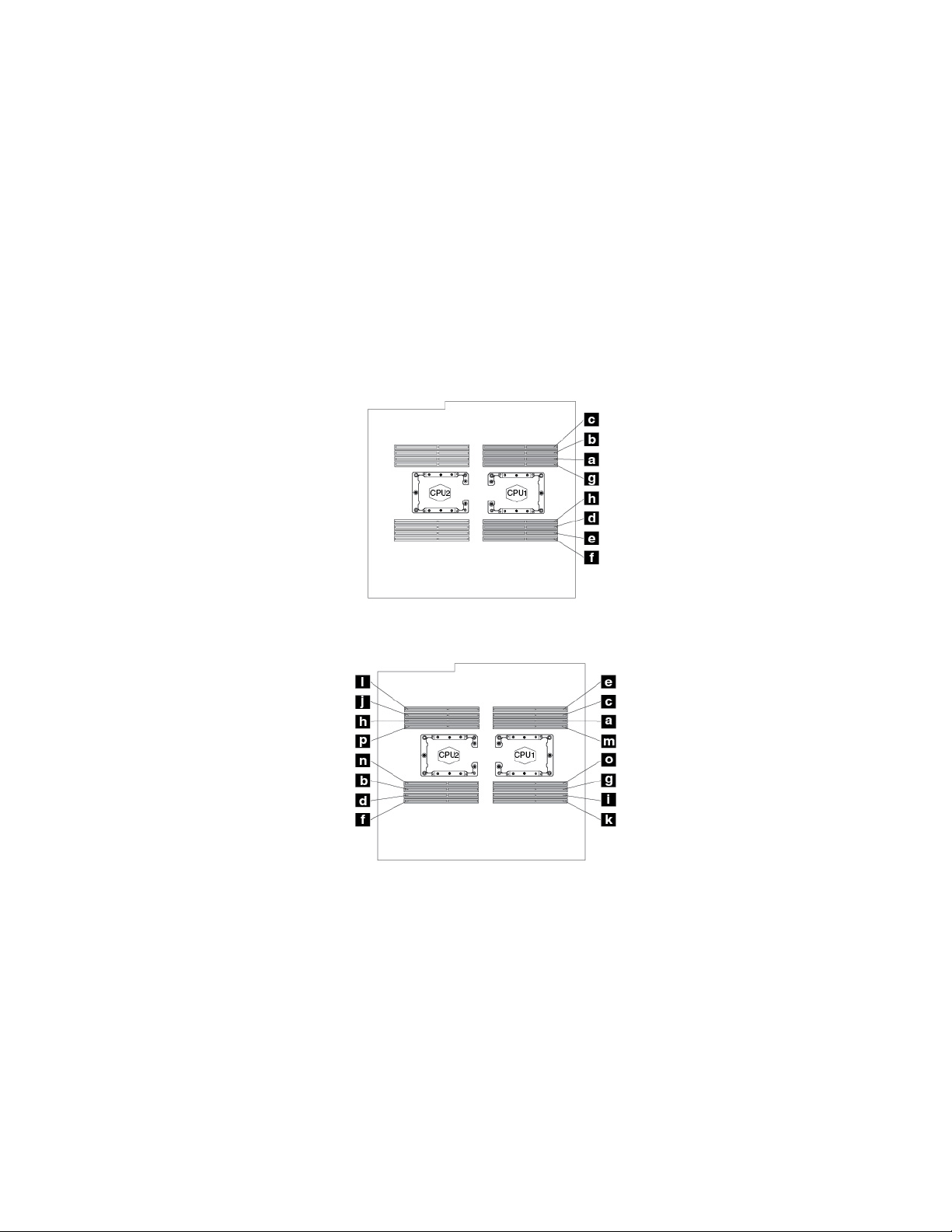
Memory module
Attention: Do not open your computer or attempt any repair before reading and understanding the “Read
this first: Important safety information” on page iii.
Your computer has 16 slots for installing or replacing DDR4 DIMMs that provide up to a maximum of 4096
GB system memory. When installing or replacing a memory module, use the following guidelines:
• Use any of DDR4 ECC RDIMMs or DDR4 ECC 3DS RDIMMs for your computer. Do not install the RDIMMs
or 3DS RDIMMs into the same computer.
• Use 8 GB, 16 GB, 32 GB, or 64 GB RDIMMs in any combination up to a maximum of 1024 GB.
• Use 256 GB 3DS RDIMM up to a maximum of 4096 GB.
Memory module installation rules
Install memory modules in the alphabetic order as shown.
Figure 89. Memory module installation order for computers with one microprocessor
Figure 90. Memory module installation order for computers with two microprocessors
Chapter 7. Hardware removal and installation 105
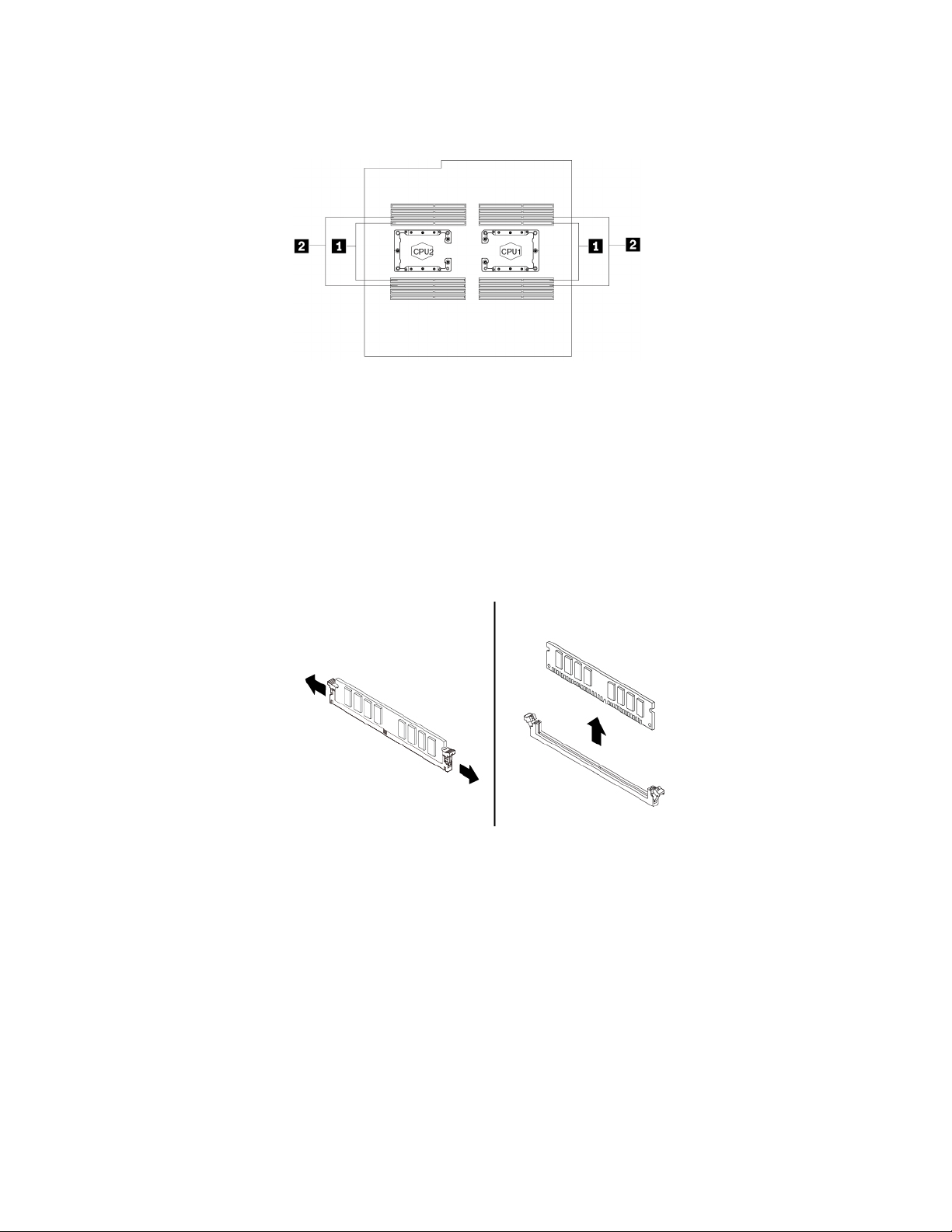
Note: To avoid performance loss, if the memory slots 1 are occupied while the adjacent memory slots 2 are
empty, move the memory modules from slots 1 to the adjacent slots 2 respectively.
Figure 91. Additional notice for removing memory modules
To remove or install a memory module, do the following:
1. Prepare your computer. See “Preparing your computer and removing the computer cover” on page 59.
2. Remove the direct cooling air baffle. See “Direct cooling air baffle” on page 63.
3. Lay the computer on its side for easier access to the memory slots.
4. Locate the memory slot. See Parts on the system board.
5. To remove a memory module, open the retaining clips and gently pull the memory module out of the
memory slot.
Figure 92. Removing the memory module
6. To install a memory module, do the following:
106
P920 User Guide
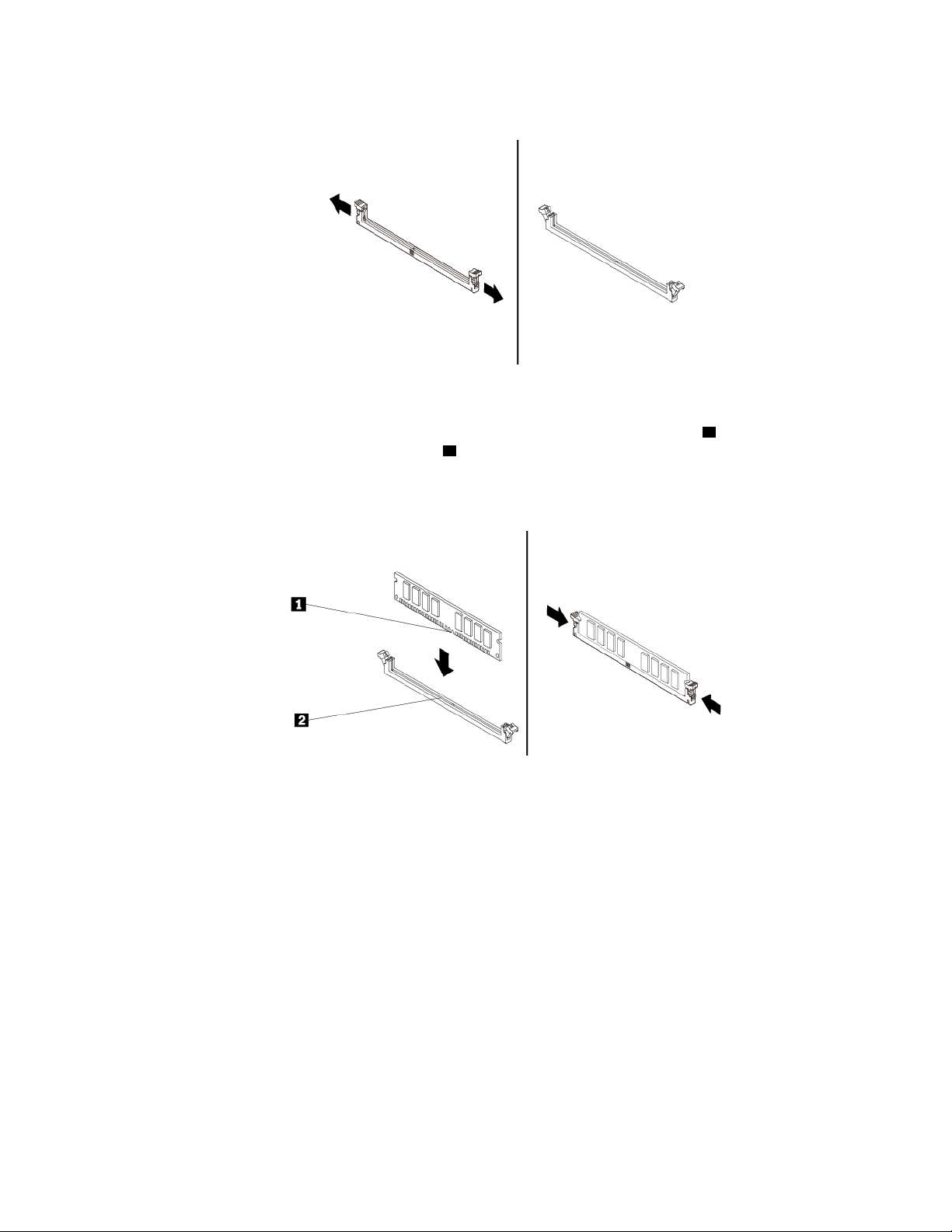
a. Open the retaining clips of the memory slot into which you want to install the memory module.
Figure 93. Opening retaining clips
b. Position the new memory module over the memory slot. Ensure that the notch 1 on the memory
module aligns correctly with the slot key
2 on the system board. Push the memory module straight
down into the slot until the retaining clips close.
Note: Do not touch the circuit board of the memory module.
Figure 94. Installing the memory module
c. Reinstall the direct cooling air baffle. See “Direct cooling air baffle” on page 63.
What to do next:
• To work with another piece of hardware, go to the appropriate section.
• To complete the installation or replacement, go to “Completing the parts replacement” on page 135.
PCIe card
Attention: Do not open your computer or attempt any repair before reading and understanding the “Read
this first: Important safety information” on page iii.
Your computer has the following PCIe card slots:
• PCIe 3.0 x4 card slots
• PCIe 3.0 x16 card slots
Notes:
Chapter 7. Hardware removal and installation 107
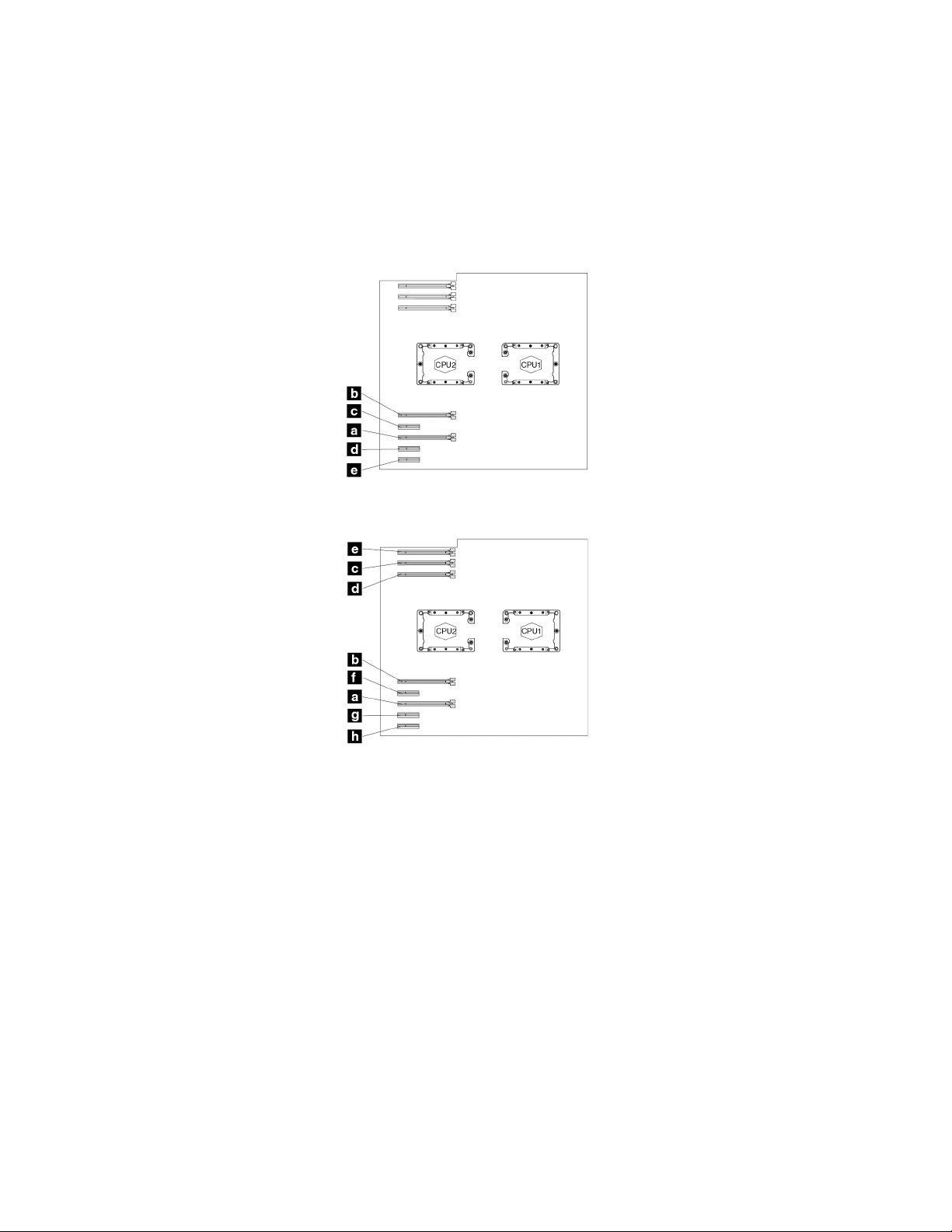
• PCIe cards available vary by computer model.
• To remove or install a full-length PCIe card, see “Full-length PCIe card” on page 115.
• If you want to use an NVIDIA compute card, ensure that your computer also has an NVIDIA graphics card
installed.
PCIe card installation rules
Install PCIe cards in the alphabetic order as shown.
Figure 95. PCIe card installation order for computers with one microprocessor
Figure 96. PCIe card installation order for computers with two microprocessors
To remove or install a PCIe card, do the following:
1. Prepare your computer. See “Preparing your computer and removing the computer cover” on page 59.
2. Lay the computer on its side for easier access to the PCIe card slots.
3. Locate the PCIe card slot. See “Parts on the system board” on page 8.
4. If necessary, remove the direct cooling air baffle for easier operation. See “Direct cooling air baffle” on
page 63.
5. To remove a PCIe card, do the following:
a. For some models, remove the PCIe card retainer first.
108
P920 User Guide
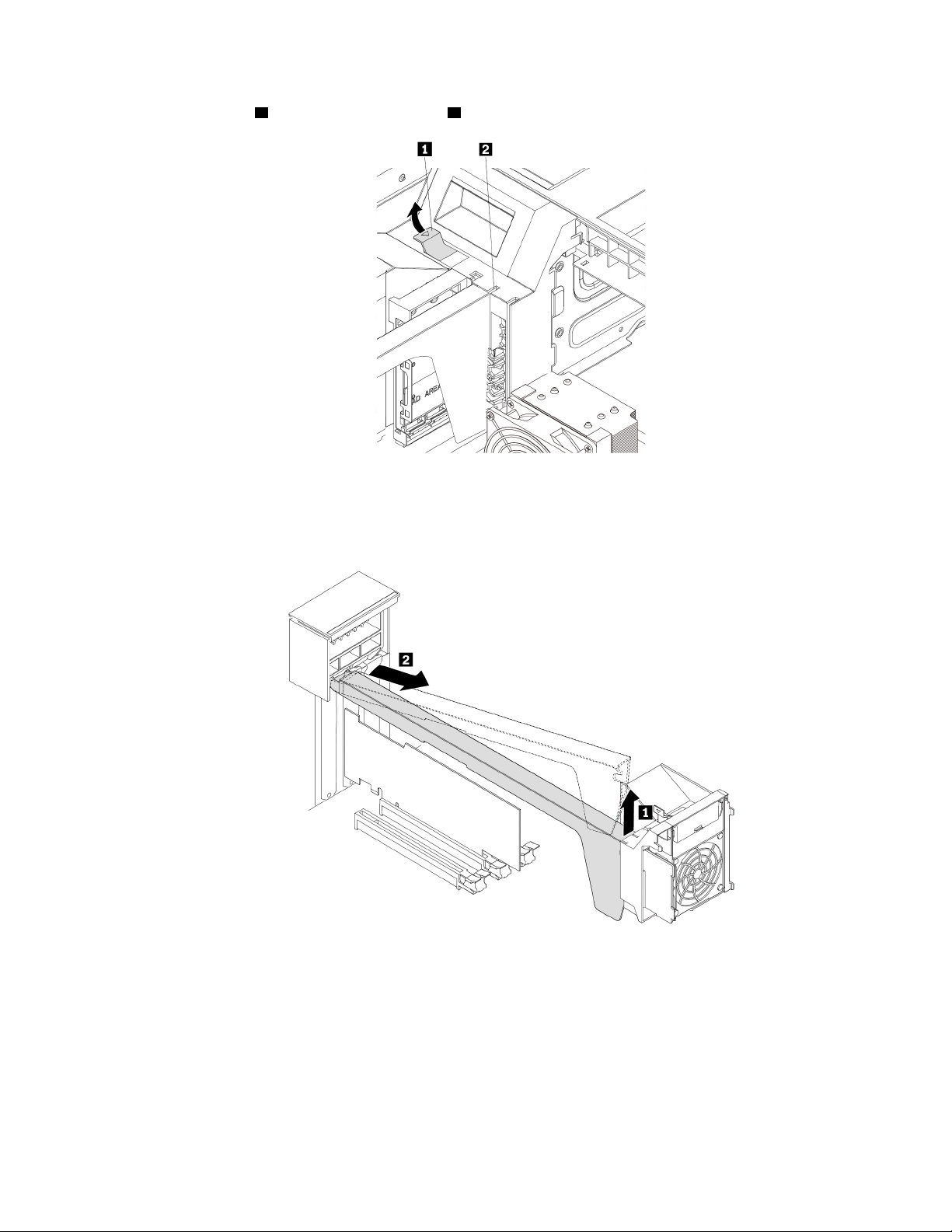
Pivot the tab 1 upward to open the latch 2 inside the multi-function bracket.
Figure 97. Opening the card latch
Grasp the PCIe card retainer by its edges and gently pull it out of the latch. Remove the retainer
completely from the PCIe card latch.
Figure 98. Removing the PCIe card retainer
Chapter 7. Hardware removal and installation 109
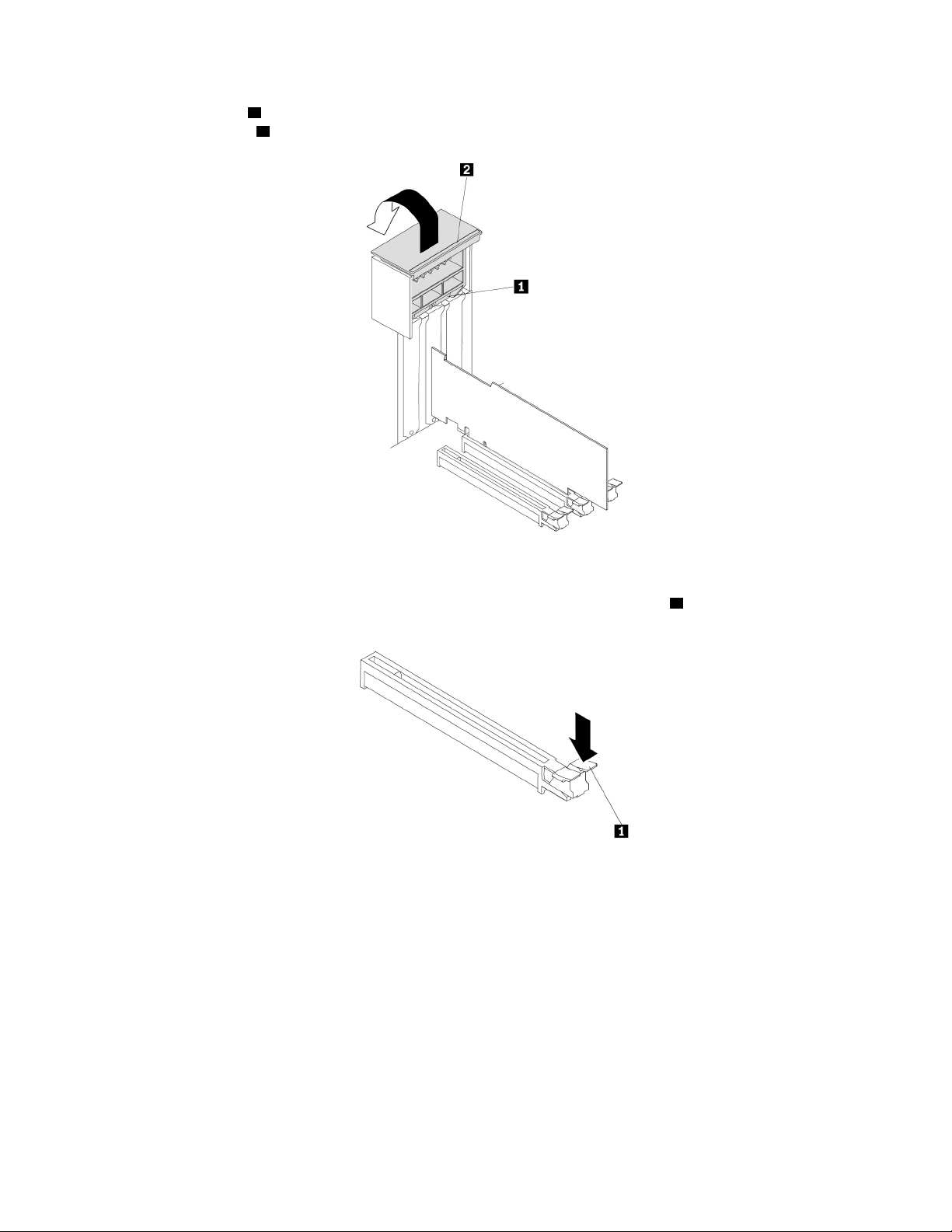
b. Lift the handle 2 on the rear of the chassis until it stops, and then pivot it as shown until it stops. The
PCIe card latch
1 is opened.
Figure 99. Opening the PCIe card latch
c. If the PCIe card is held in place by a retaining latch, press the retaining latch 1 as shown to
disengage the latch.
Figure 100. Disengaging the retaining latch
110 P920 User Guide
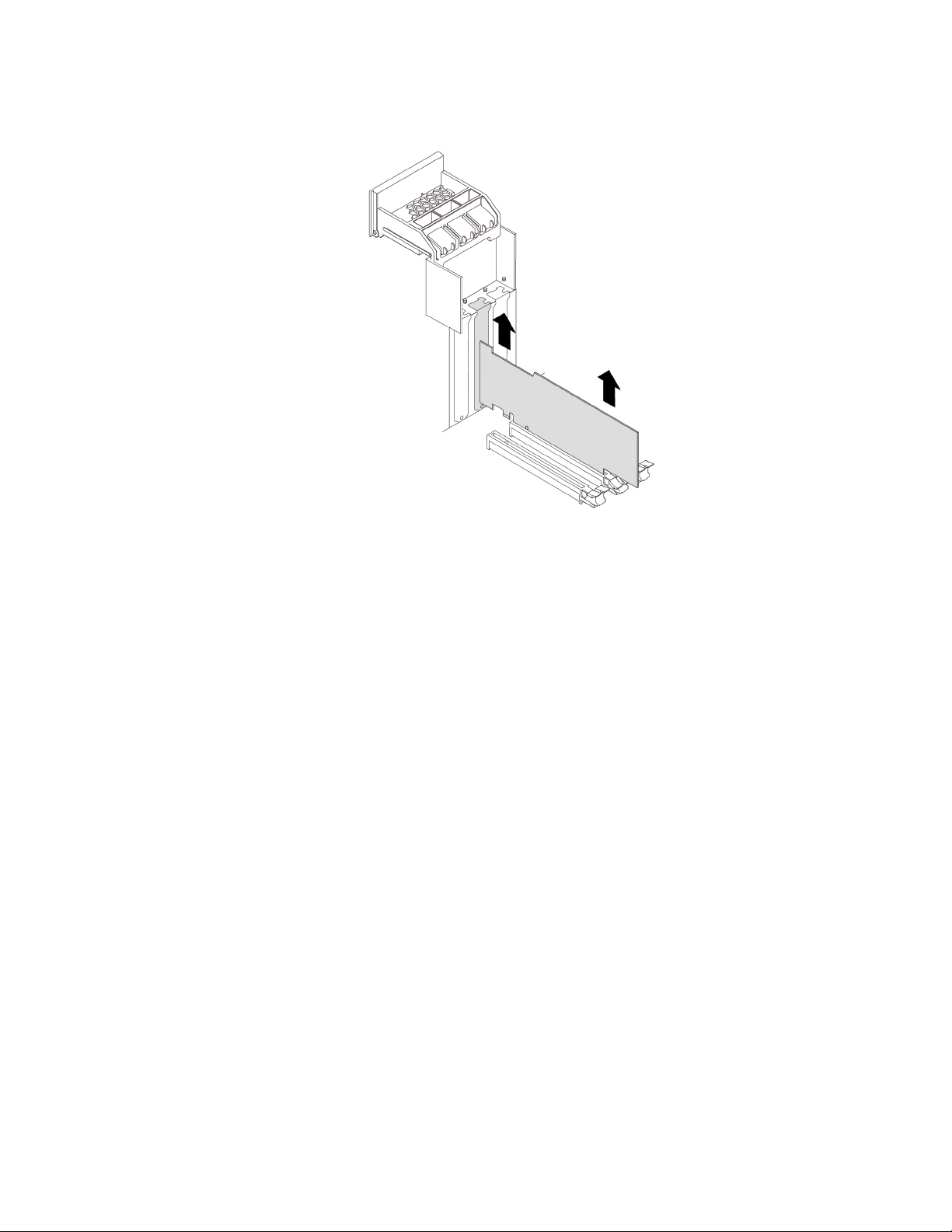
d. Grasp the card and gently pull it out of the slot.
Figure 101. Removing the PCIe card
Notes:
• If the card is connected to other device, disconnect the cables from the card.
• The card might fit tightly into the slot. If necessary, alternately move each side of the card a small
amount until the card is removed from the slot.
6. To install a PCIe card, do the following:
Chapter 7. Hardware removal and installation 111

a. Lift the handle 2 on the rear of the chassis until it stops, and then pivot it as shown until it stops. The
PCIe card latch
1 is opened.
Figure 102. Opening the PCIe card latch
b. If needed, remove the appropriate metal slot cover on the rear of the chassis.
c. If the PCIe card slot has a retaining latch, press the card retaining latch downward to disengage the
latch.
112
P920 User Guide
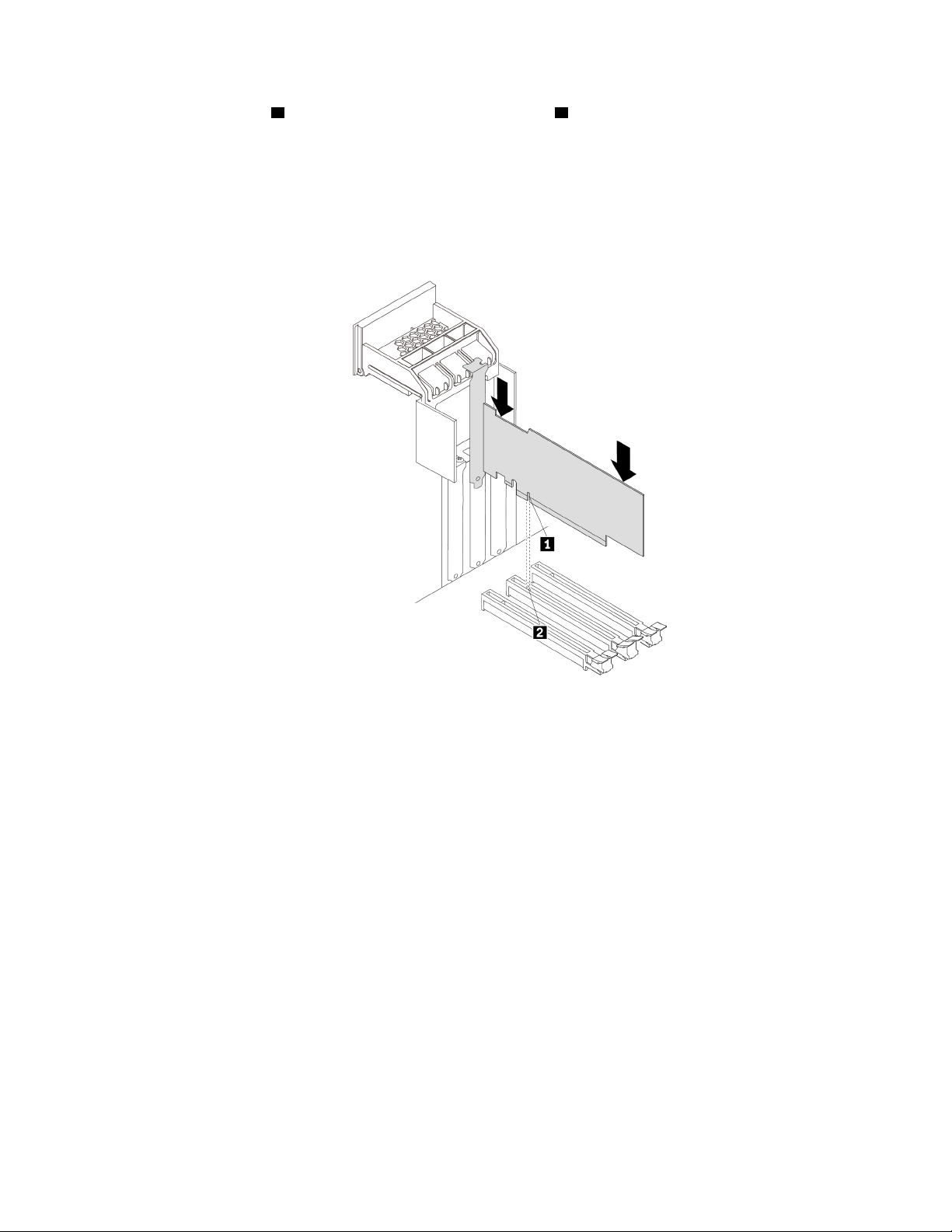
d. Align the notch 1 on the new PCIe card with the slot key 2 in the PCIe card slot. Then, insert the new
PCIe card downward into the card slot until it is securely seated. See “Parts on the system board” on
page 8.
Notes:
• Do not touch the circuit board of the PCIe card.
• If the new PCIe card needs to be connected to another device, connect the cable of the device to
the card.
Figure 103. Installing the PCIe card
Chapter 7. Hardware removal and installation 113
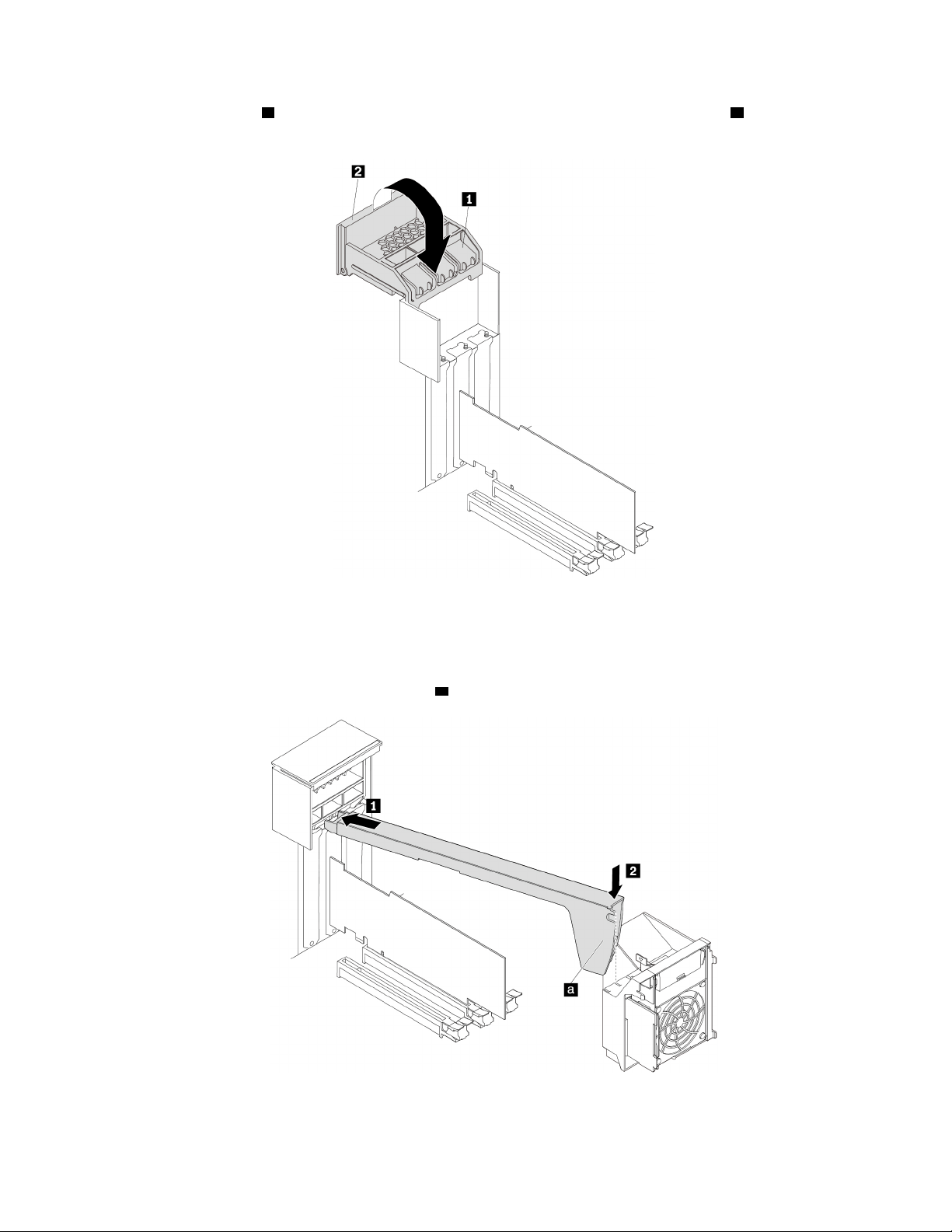
e. Pivot the handle 2 as shown until it stops, and then press it downward until the latch 1 snaps into
position.
Figure 104. Closing the PCIe card latch
f. For some models, install the PCIe card retainer.
Insert the corresponding end of the PCIe card retainer into the gaps in the PCIe card latch as shown.
Pivot the retainer downward to insert part
a into the corresponding slot in the multi-function bracket.
Figure 105. Installing the PCIe card retainer
114 P920 User Guide

Pivot the tab 1 downward until it snaps into position.
Figure 106. Closing the card latch
7. Reinstall the direct cooling air baffle if you have removed it. See “Direct cooling air baffle” on page 63.
Note: If the replaced PCIe card is a PCIe RAID controller, make sure that the profile ID of the new RAID
controller is correct. See “Configure RAID with AVAGO MegaRAID Configuration Utility” on page 44.
What to do next:
• To work with another piece of hardware, go to the appropriate section.
• To complete the installation or replacement, go to “Completing the parts replacement” on page 135.
Full-length PCIe card
Attention: Do not open your computer or attempt any repair before reading and understanding the “Read
this first: Important safety information” on page iii.
Your computer has the following PCIe card slots:
• PCIe 3.0 x4 card slots
• PCIe 3.0 x16 card slots
Notes:
• The full-length PCIe card is available only on some models.
• If you want to use an NVIDIA compute card, ensure that your computer also has an NVIDIA graphics card
installed.
PCIe card installation rules
Install PCIe cards in the alphabetic order as shown.
Chapter 7. Hardware removal and installation 115
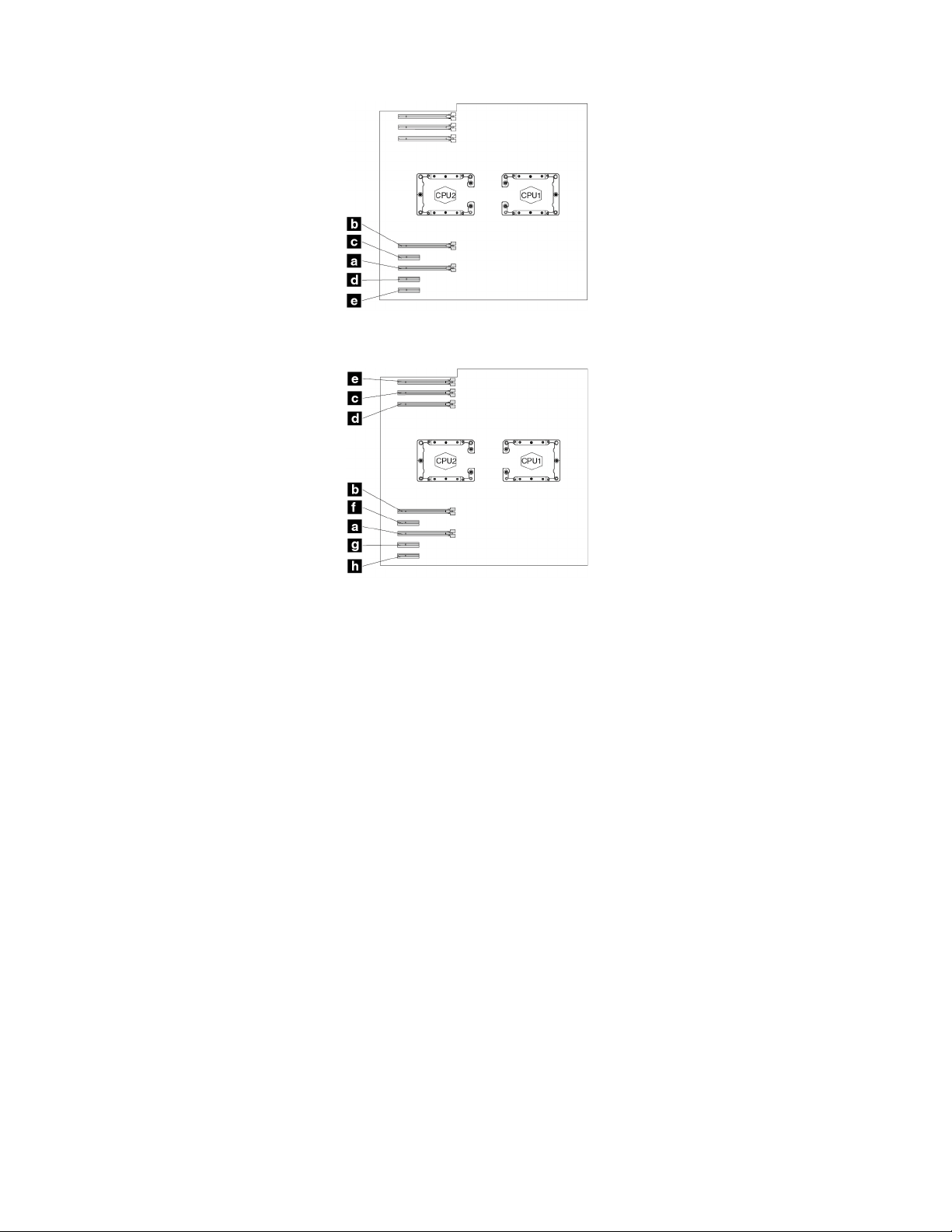
Figure 107. PCIe card installation order for computers with one microprocessor
Figure 108. PCIe card installation order for computers with two microprocessors
To remove or install a full-length PCIe card, do the following:
1. Prepare your computer. See “Preparing your computer and removing the computer cover” on page 59.
2. Lay the computer on its side for easier access to the PCIe card slots.
3. Locate the PCIe card slot. See “Parts on the system board” on page 8.
4. If necessary, remove the direct cooling air baffle for easier operation. See “Direct cooling air baffle” on
page 63.
5. To remove a full-length PCIe card, do the following:
116
P920 User Guide
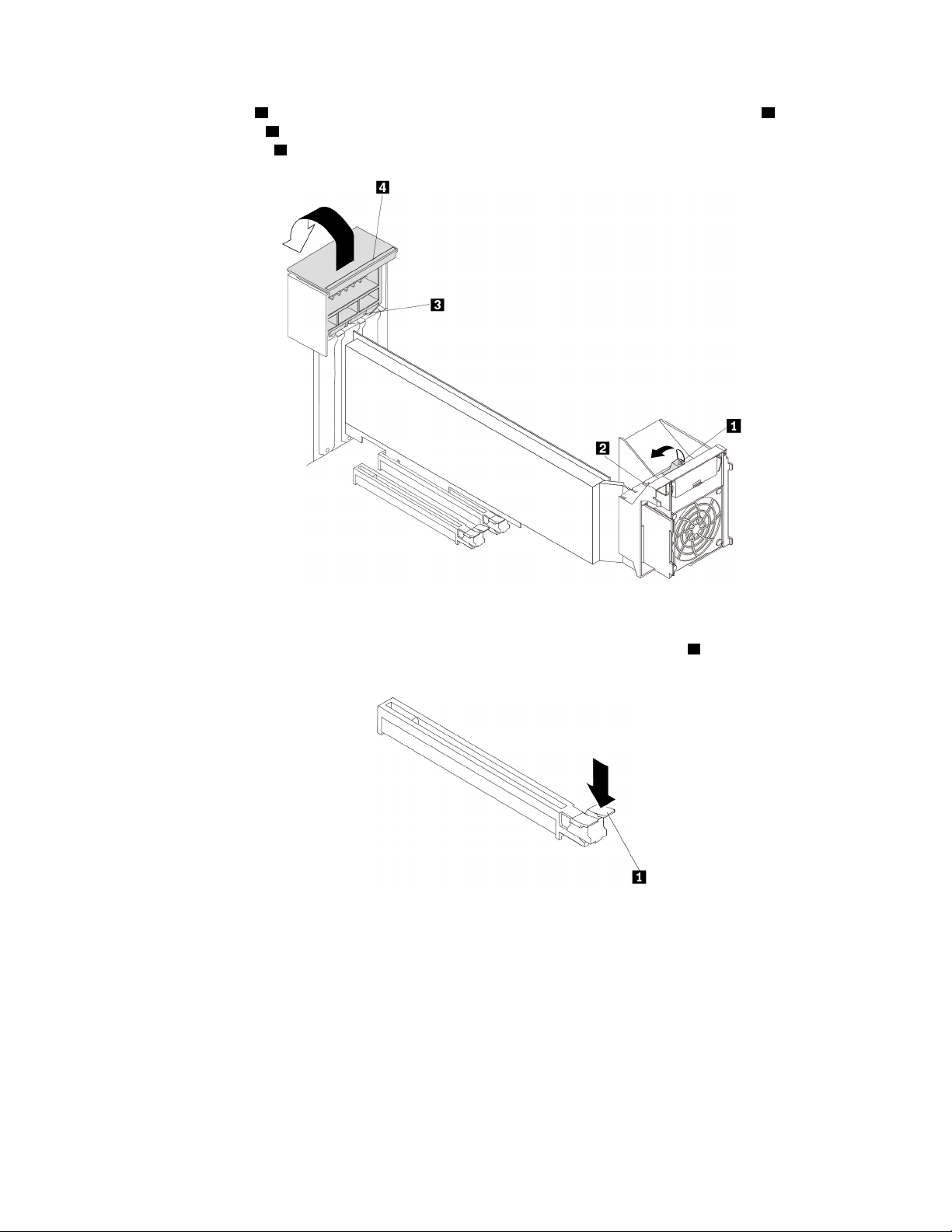
a. Pivot the tab 1 on the multi-function bracket upward until it stops. The PCIe card latch 2 is opened.
Lift the handle
4 on the rear of the chassis until it stops, and then pivot it as shown until it stops. The
PCIe card latch
3 is opened.
Figure 109. Opening PCIe card latches
b. If the PCIe card is held in place by a retaining latch, press the retaining latch 1 as shown to
disengage the latch.
Figure 110. Disengaging the retaining latch
Chapter 7. Hardware removal and installation 117
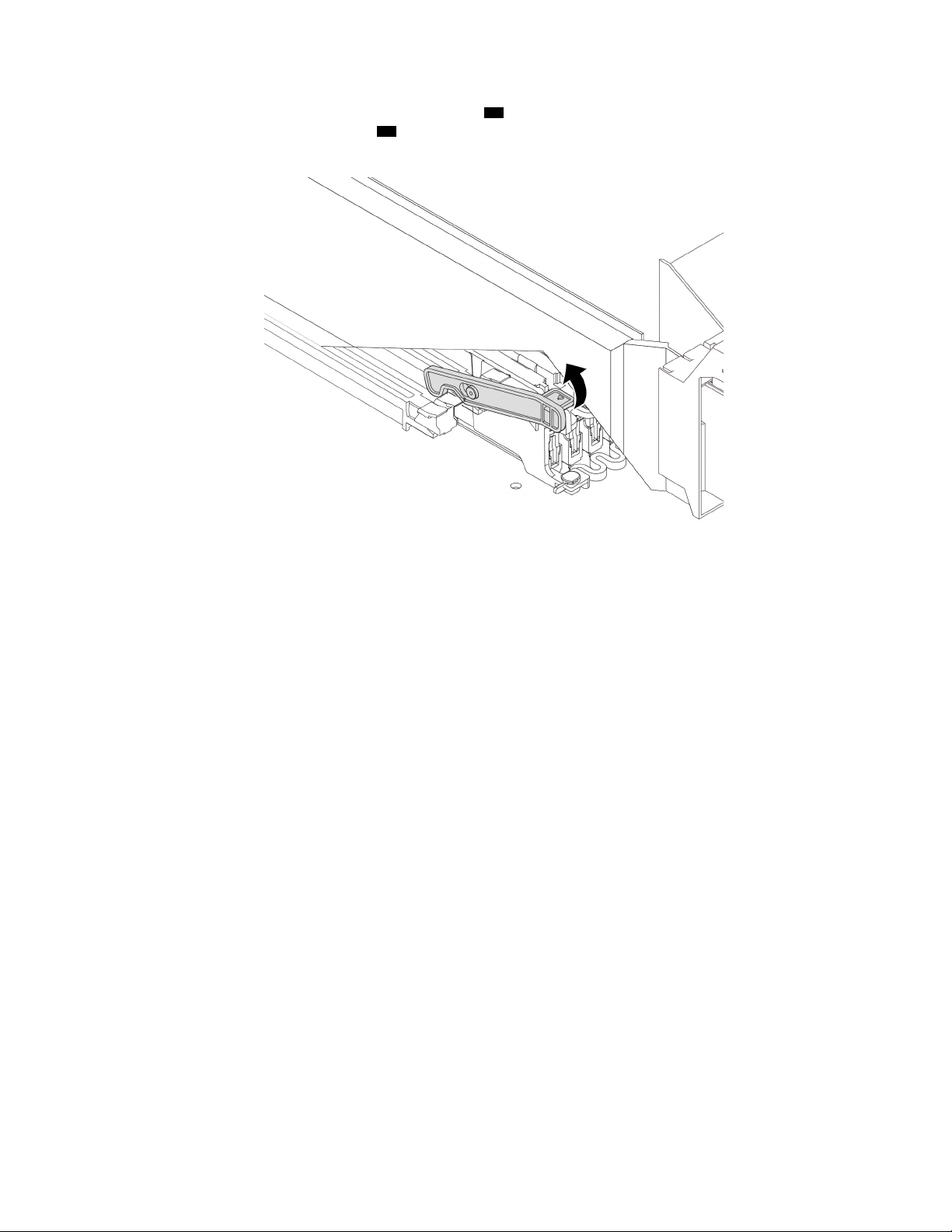
If the card is installed in PCIe 3.0 x16 card slot 1 ( 55 ), pull the tab in the bracket next to
microprocessor 2 memory slot 1 (
56 ) upward to disengage the retaining latch of the PCIe card slot.
See “Parts on the system board” on page 8.
Figure 111. Disengaging the retaining latch of the PCIe card slot
118 P920 User Guide
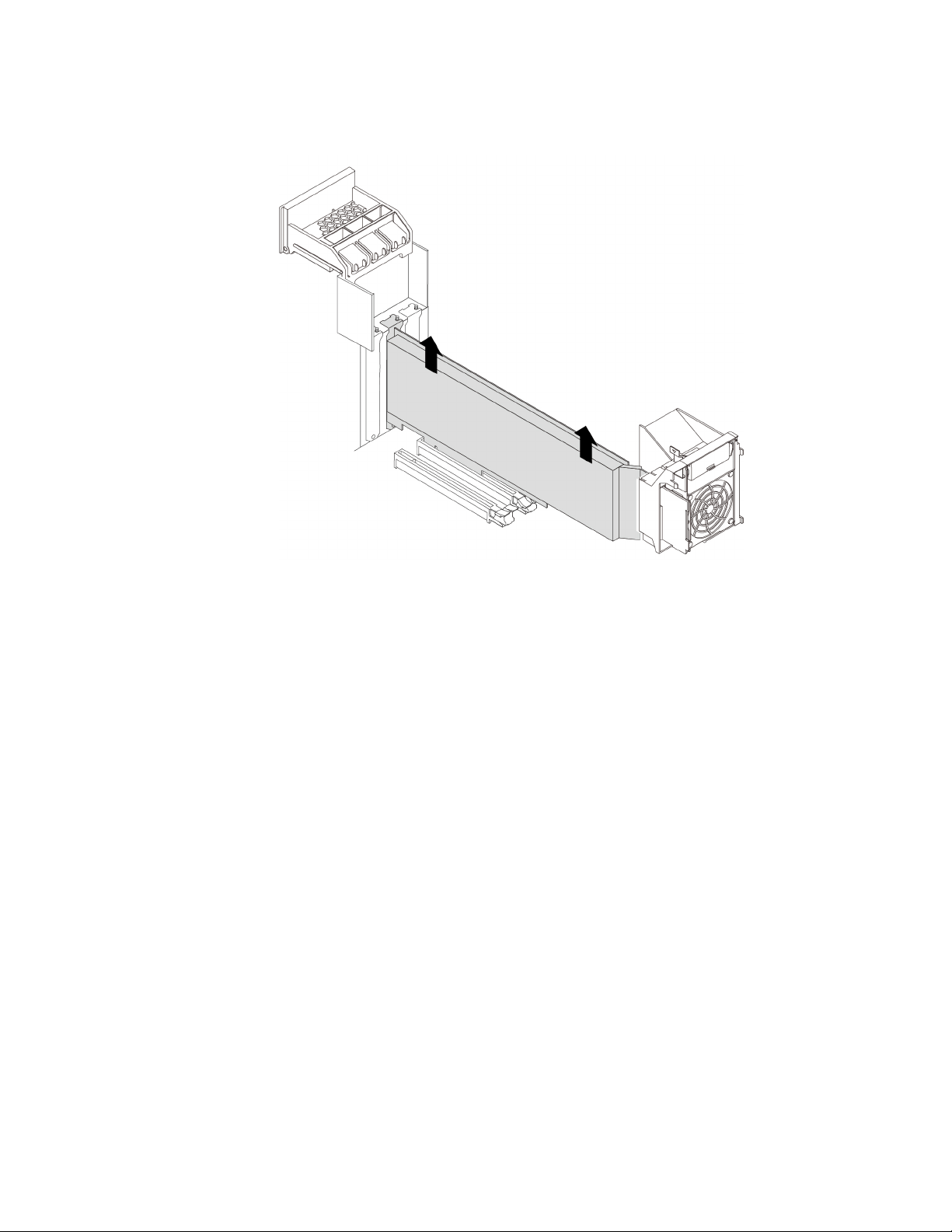
c. Disconnect the power cable from the full-length PCIe card, and then grasp the card and gently pull it
out of the slot.
Figure 112. Removing the full-length PCIe card
Notes:
• If the card is connected to other device, disconnect the cables from the card.
• The card might fit tightly into the slot. If necessary, alternately move each side of the card a small
amount until the card is removed from the slot.
6. To install a full-length PCIe card, do the following:
Chapter 7. Hardware removal and installation 119
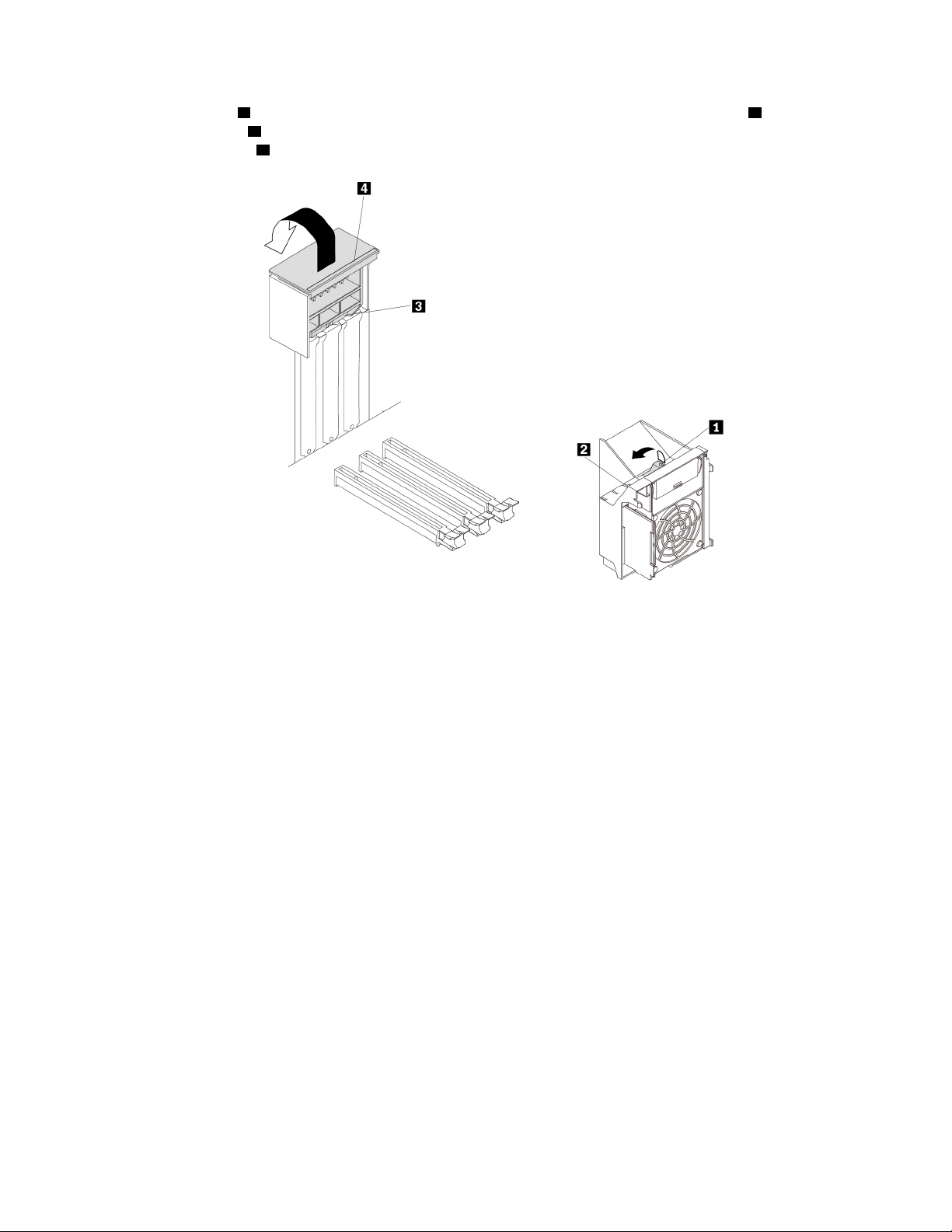
a. Pivot the tab 1 on the multi-function bracket outward until it stops. The PCIe card latch 2 is opened.
Lift the handle
4 on the rear of the chassis until it stops, and then pivot it as shown until it stops. The
PCIe card latch
3 is opened.
Figure 113. Opening PCIe card latches
b. If needed, remove the appropriate metal slot cover on the rear of the chassis.
c. If the PCIe card slot has a retaining latch, press the card retaining latch downward to disengage the
latch.
120
P920 User Guide
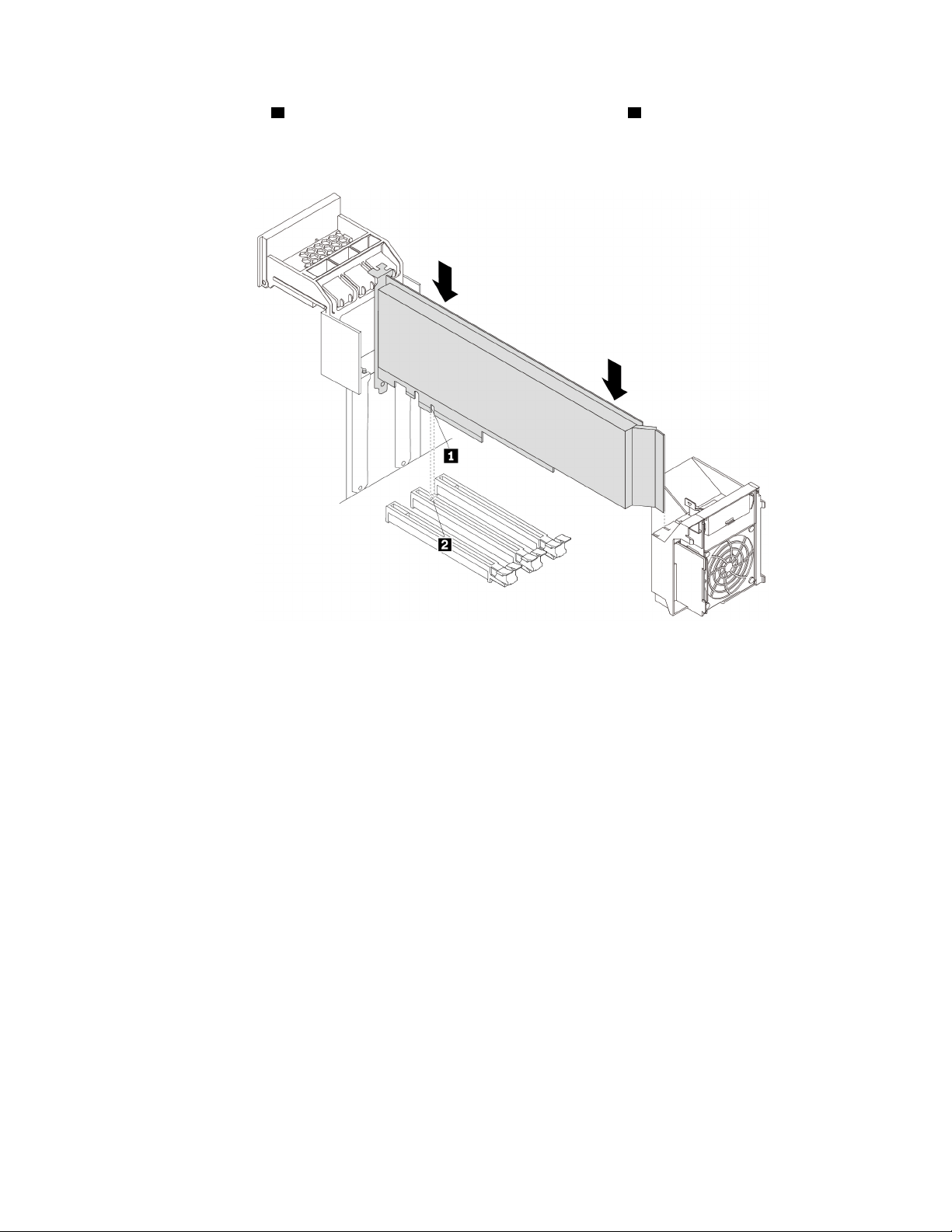
d. Align the notch 1 on the new full-length PCIe card with the slot key 2 in the PCIe card slot. Then,
insert the new card downward into the card slot until it is securely seated.
Note: Do not touch the circuit board of the PCIe card.
Figure 114. Installing the full-length PCIe card
Chapter 7. Hardware removal and installation 121
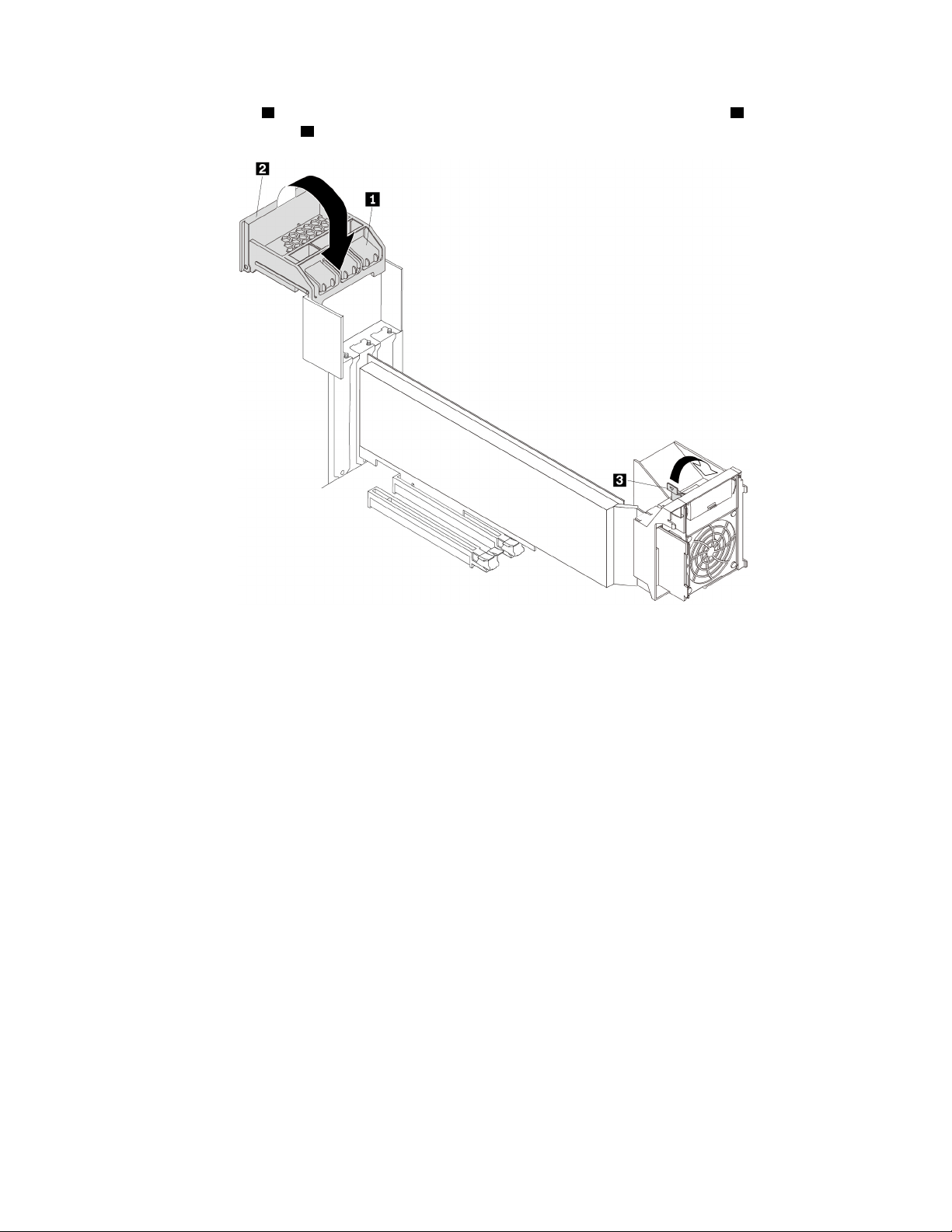
e. Pivot the handle 2 as shown until it stops, and then press it downward until the latch 1 snaps into
position. Pivot the tab
3 downward until it snaps into position.
Figure 115. Closing PCIe card latches
f. Connect the power cable of the full-length PCIe card to the new card. See “Parts on the system
board” on page 8.
7. Reinstall the direct cooling air baffle if you have removed it. See “Direct cooling air baffle” on page 63.
What to do next:
• To work with another piece of hardware, go to the appropriate section.
• To complete the installation or replacement, go to “Completing the parts replacement” on page 135.
Super capacitor module
Attention: Do not open your computer or attempt any repair before reading and understanding the “Read
this first: Important safety information” on page iii.
To remove or install a super capacitor module, do the following:
1. Prepare your computer. See “Preparing your computer and removing the computer cover” on page 59.
2. Lay the computer on its side for easier access to the super capacitor module.
3. If necessary, remove the direct cooling air baffle for easier operation. See “Direct cooling air baffle” on
page 63.
4. Locate the PCIe card slot in which the RAID adapter with the super-capacitor-module holder is installed.
See “Computer components” on page 7.
5. To remove a super capacitor module, do the following:
122
P920 User Guide
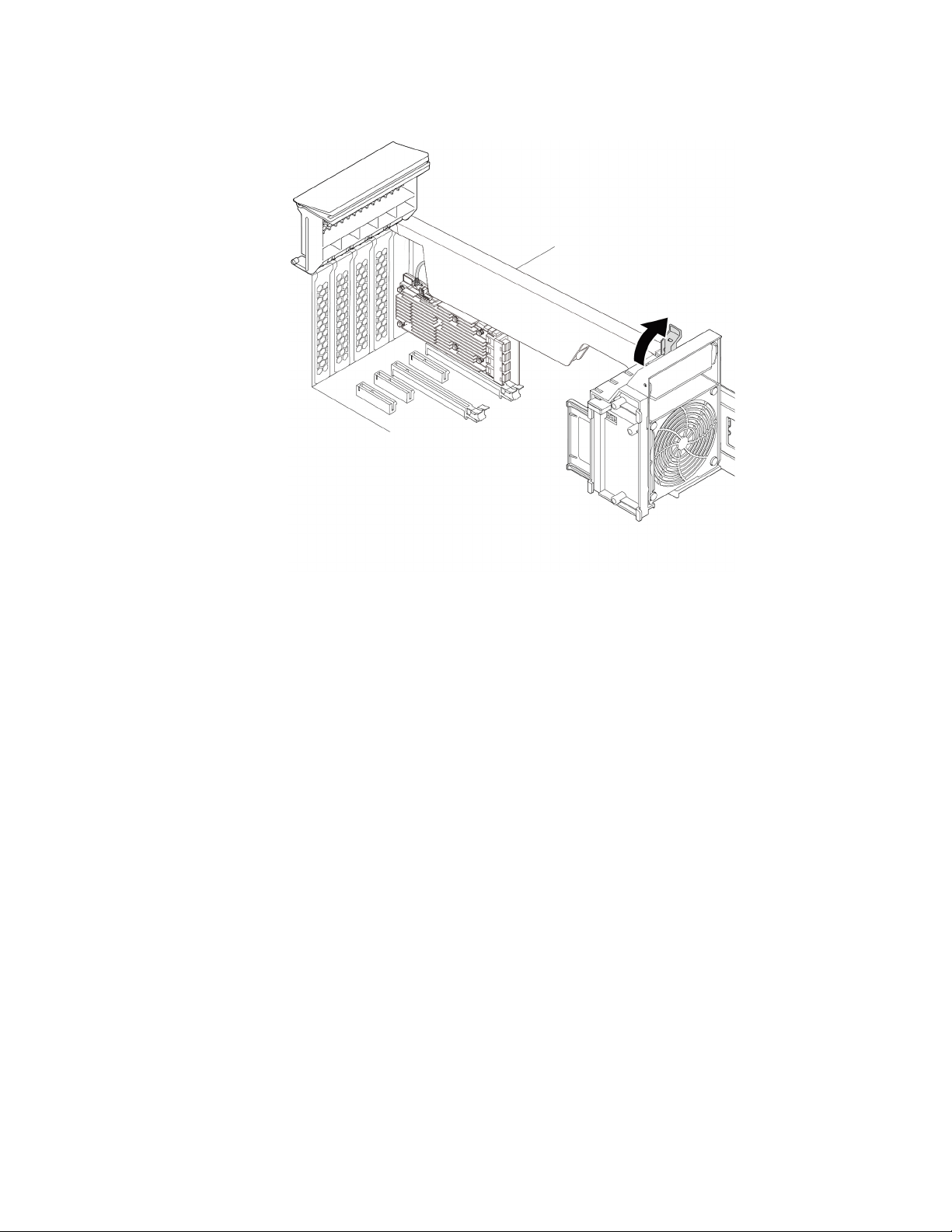
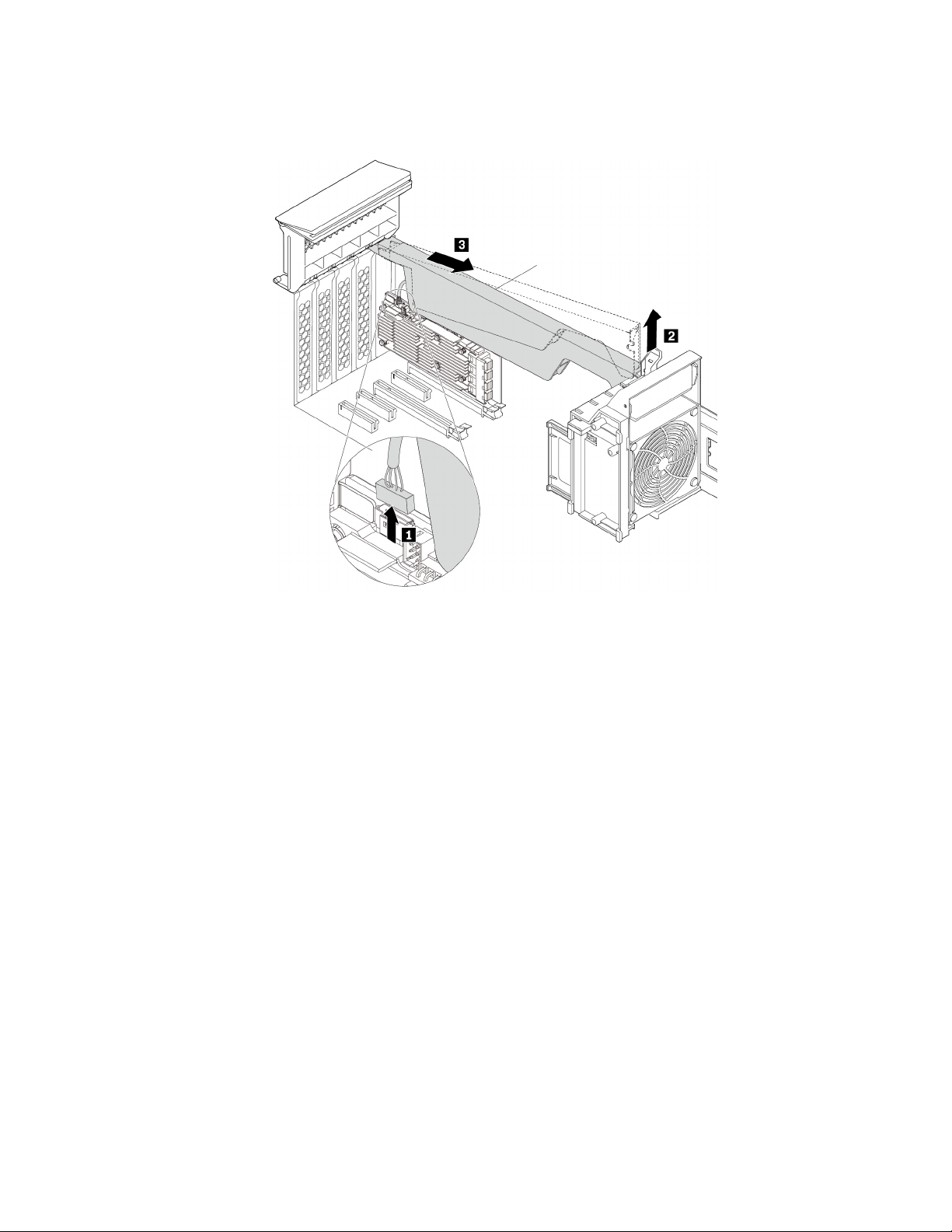
b. Disconnect the super-capacitor-module cable from the RAID adapter. Then remove the holder with
the failing super capacitor module.
Figure 117. Removing the super capacitor module
6. To install a super capacitor module, do the following:
a. Pull and pivot the tab on the multi-function bracket to open the latch inside.
b. Touch the static-protective package that contains the new super capacitor module and its holder to
any unpainted surface on the outside of the computer. Then, remove the new super capacitor
module and its holder from the package.
c. Connect the super-capacitor-module cable to the super-capacitor-module connector on the RAID
adapter.
124
P920 User Guide
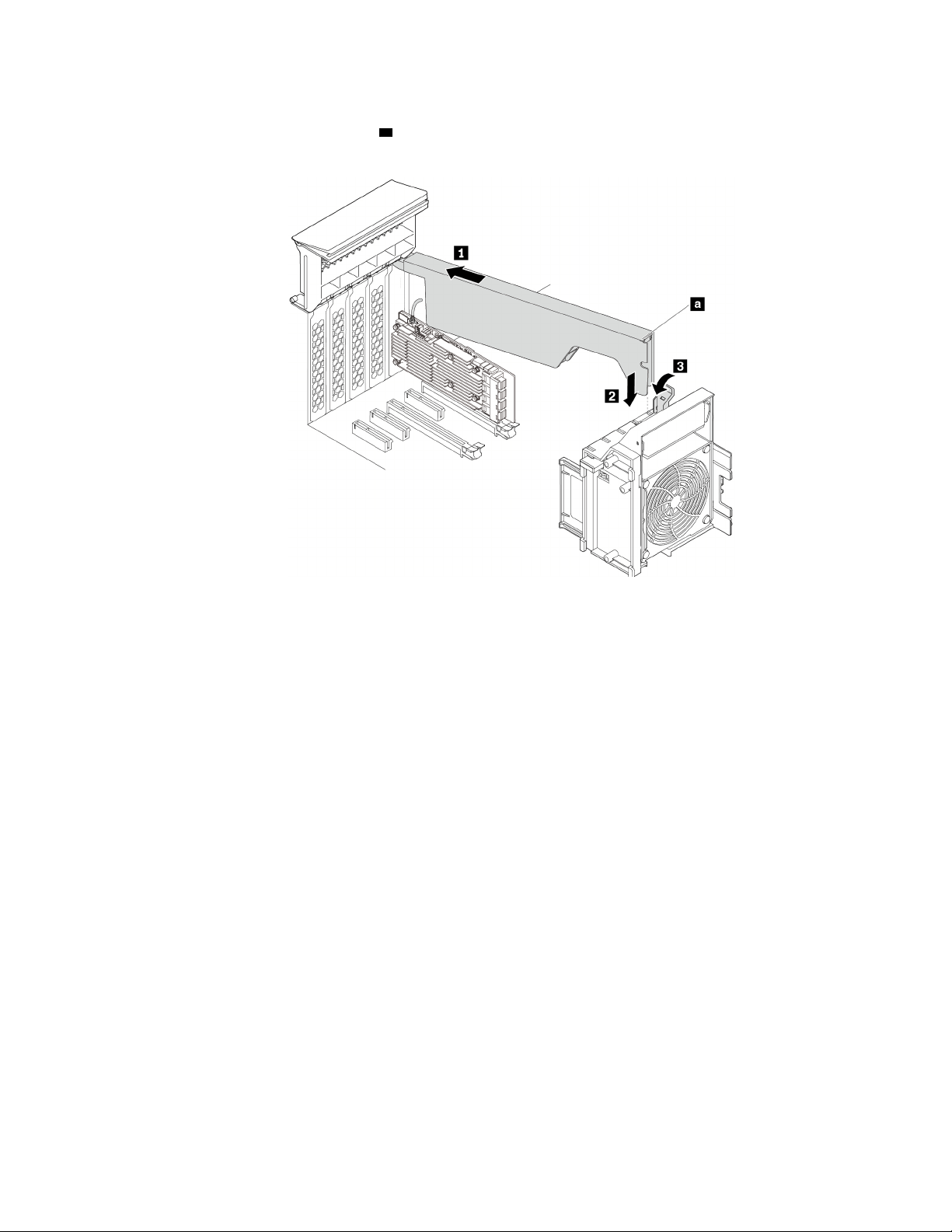
d. Insert the corresponding end of the holder into the gaps in the PCIe card latch as shown. Pivot the
holder downward to insert part
a into the corresponding slot in the multi-function bracket. Then,
pivot the tab on the multi-function bracket to secure the holder.
Figure 118. Installing the super capacitor module
7. Reinstall the direct cooling air baffle if you have removed it. See “Direct cooling air baffle” on page 63.
What to do next:
• To work with another piece of hardware, go to the appropriate section.
• To complete the installation or replacement, go to “Completing the parts replacement” on page 135.
Multi-function brackets
Attention: Do not open your computer or attempt any repair before reading and understanding the “Read
this first: Important safety information” on page iii.
Your computer is installed with two multi-function brackets. The brackets are used to secure the front fan
assembly, super capacitor module, PCIe card retainer, and full-length PCIe cards. The bracket installed in
the upper position of the chassis also can be used to secure the M.2 solid-state drive holder and power
supply assembly.
Multi-function bracket in the upper position
To remove and reinstall the multi-function bracket installed in the upper position of the chassis, do the
following:
1. Prepare your computer. See “Preparing your computer and removing the computer cover” on page 59.
2. Locate the multi-function bracket in the upper position of the chassis. See “Computer components” on
page 7.
3. To access the multi-function bracket, remove the following parts:
• “Direct cooling air baffle” on page 63 (if necessary)
Chapter 7. Hardware removal and installation 125
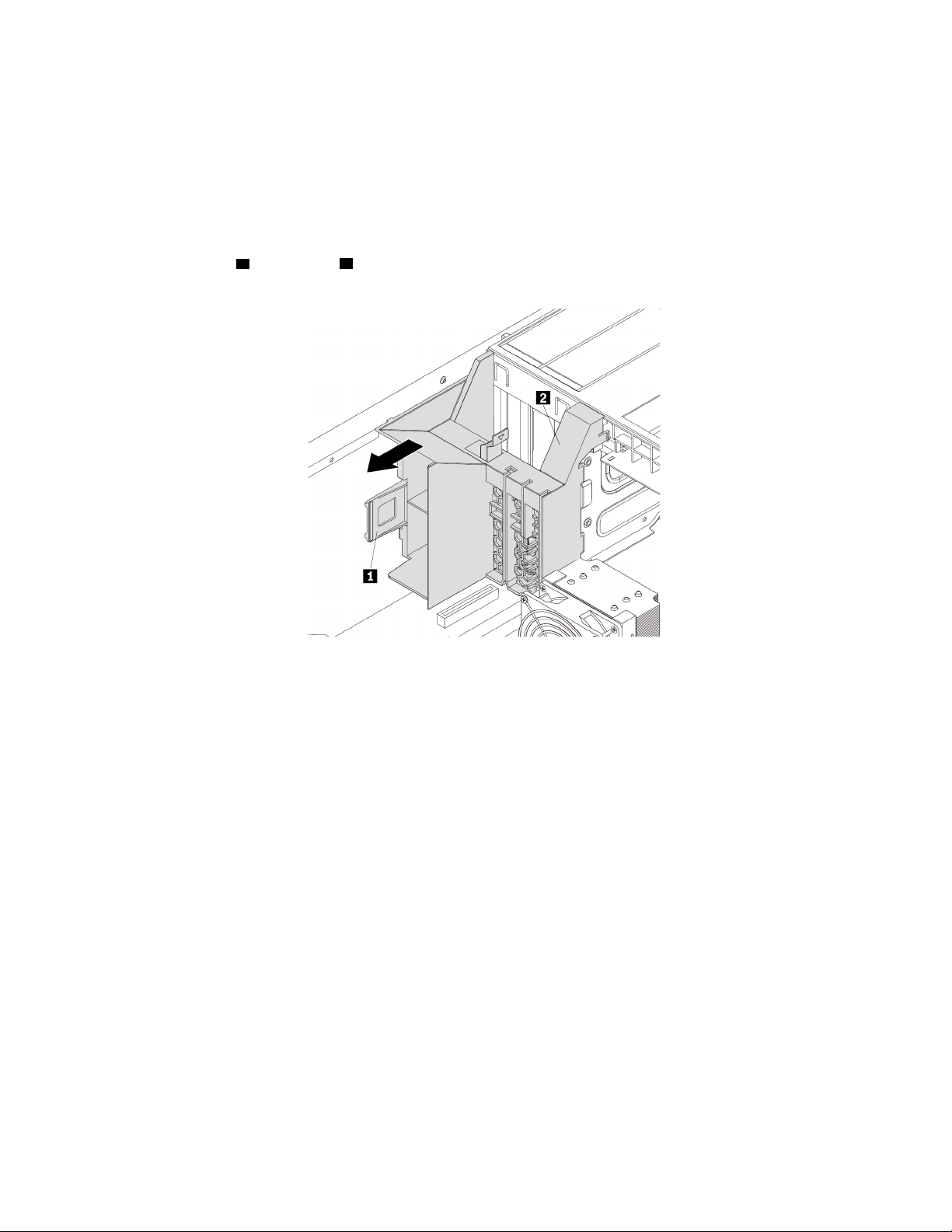
• “Power supply assembly” on page 103
• “Front fan assembly” on page 87
• “M.2 solid-state drive holder” on page 90
• “PCIe card” on page 107 (if necessary)
• “Super capacitor module” on page 122 (if necessary)
• “Full-length PCIe card” on page 115 (if necessary)
4. Hold the handle
1 and the foot 2 at the same time and pull the bracket to the rear of the chassis to
remove the bracket.
Figure 119. Removing the multi-function bracket
126 P920 User Guide
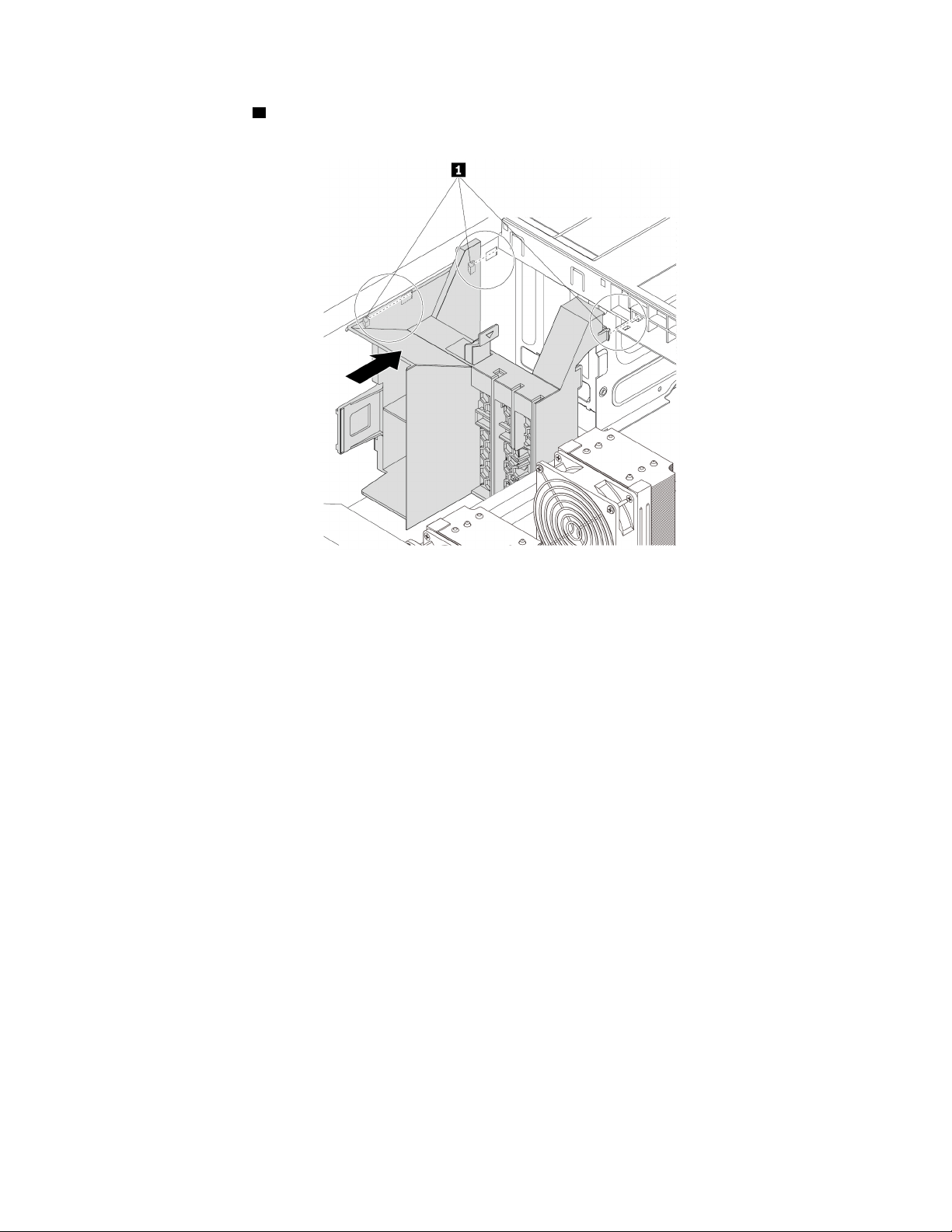
5. Align three tabs 1 on the bracket with the corresponding holes in the chassis. Then, insert the three tabs
into the corresponding holes until the bracket snaps into position.
Figure 120. Reinstalling the multi-function bracket
6. Reinstall the following parts if you have removed them:
• “M.2 solid-state drive holder” on page 90
• “PCIe card” on page 107
• “Super capacitor module” on page 122
• “Full-length PCIe card” on page 115
• “Front fan assembly” on page 87
• “Power supply assembly” on page 103
• “Direct cooling air baffle” on page 63
What to do next:
• To work with another piece of hardware, go to the appropriate section.
• To complete the installation or replacement, go to “Completing the parts replacement” on page 135.
Multi-function bracket in the bottom position
To remove and reinstall the multi-function bracket installed in the bottom position of the chassis, do the
following:
1. Prepare your computer. See “Preparing your computer and removing the computer cover” on page 59.
2. Locate the multi-function bracket in the bottom position of the chassis. See “Computer components” on
page 7.
3. Remove the following parts:
• “Direct cooling air baffle” on page 63 (if necessary)
• “Front fan assembly” on page 87
Chapter 7. Hardware removal and installation 127
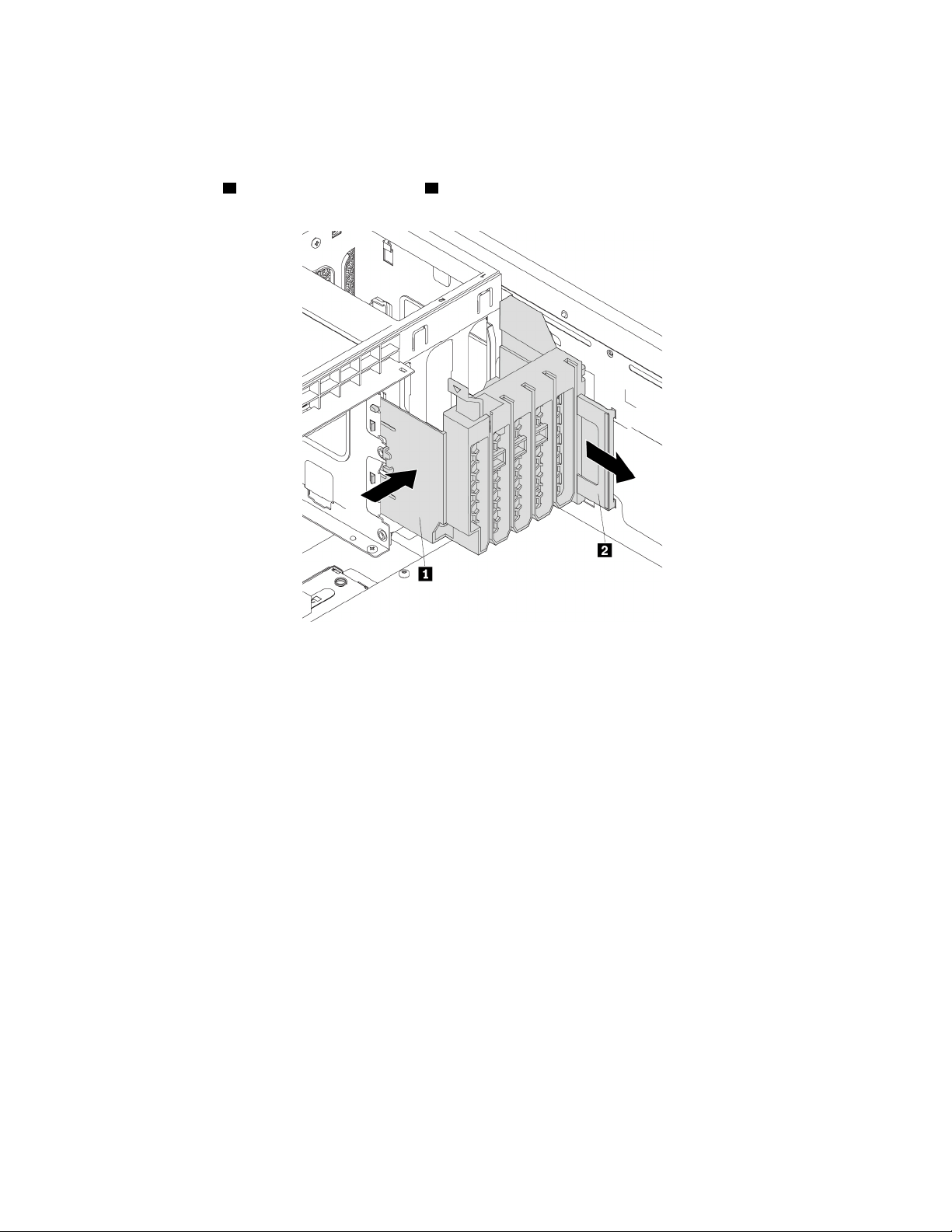
• “PCIe card” on page 107 (if necessary)
• “Super capacitor module” on page 122 (if necessary)
• “Full-length PCIe card” on page 115 (if necessary)
4. Press the foot
1 inward and pull the handle 2 to the rear of the chassis at the same time to remove the
bracket.
Figure 121. Removing the multi-function bracket
128 P920 User Guide
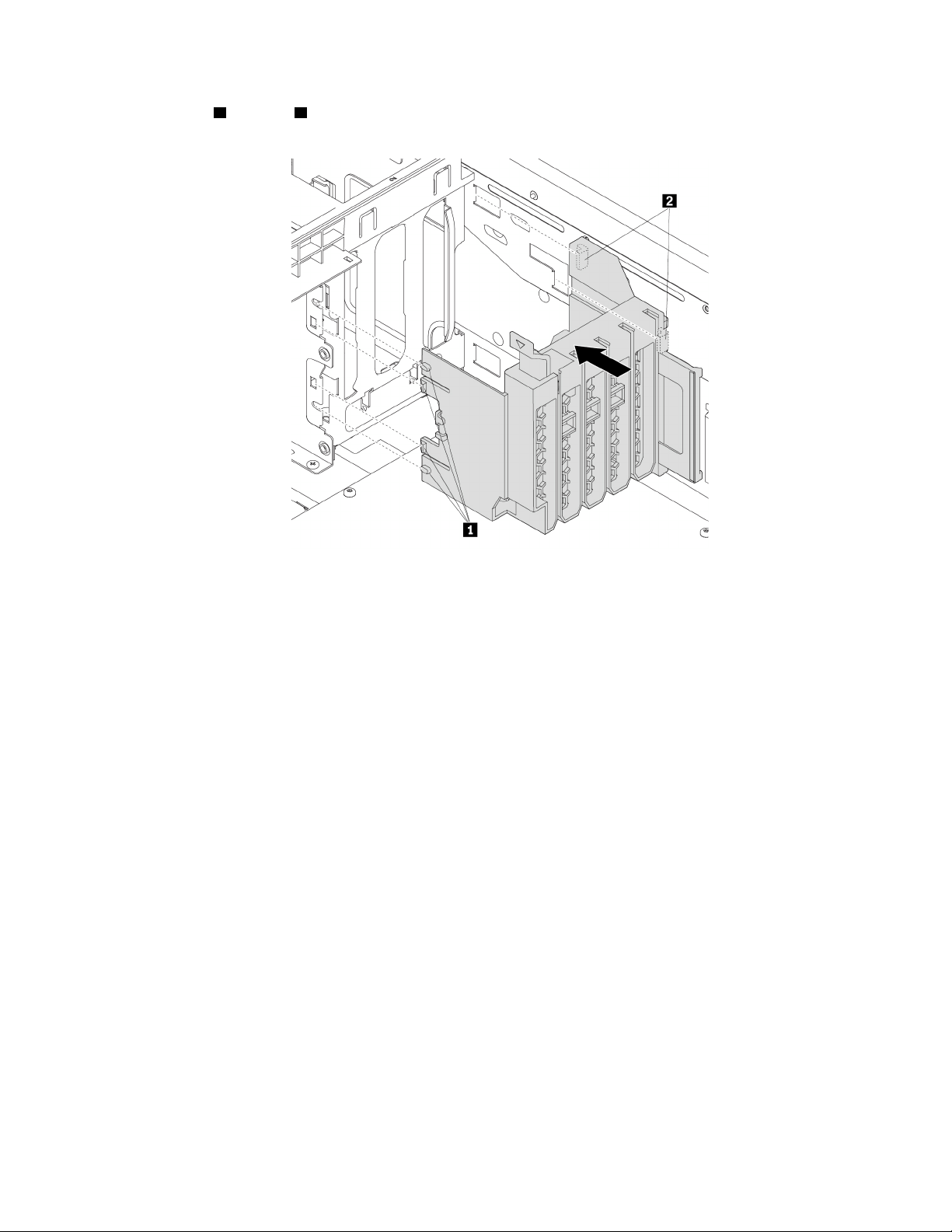
5. Align tabs 1 and tabs 2 on the bracket with the corresponding holes in the chassis. Then, insert the
tabs into the corresponding holes until the bracket snaps into position.
Figure 122. Reinstalling the multi-function bracket
6. Reinstall the following parts if you have removed them:
• “PCIe card” on page 107
• “Super capacitor module” on page 122
• “Full-length PCIe card” on page 115
• “Front fan assembly” on page 87
• “Direct cooling air baffle” on page 63
What to do next:
• To work with another piece of hardware, go to the appropriate section.
• To complete the installation or replacement, go to “Completing the parts replacement” on page 135.
Coin-cell battery
Attention: Do not open your computer or attempt any repair before reading and understanding the “Read
this first: Important safety information” on page iii.
Your computer has a special type of memory that maintains the date, time, and settings for built-in features,
such as parallel-connector assignments (configuration). A coin-cell battery keeps this information active
when you turn off the computer.
The coin-cell battery normally requires no charging or maintenance throughout its life; however, no battery
lasts forever. If the coin-cell battery fails, the date and time information is lost.
Refer to the “Lithium coin-cell battery notice” in the Safety, Warranty, and Setup Guide for information about
disposing of the coin-cell battery.
Chapter 7. Hardware removal and installation 129
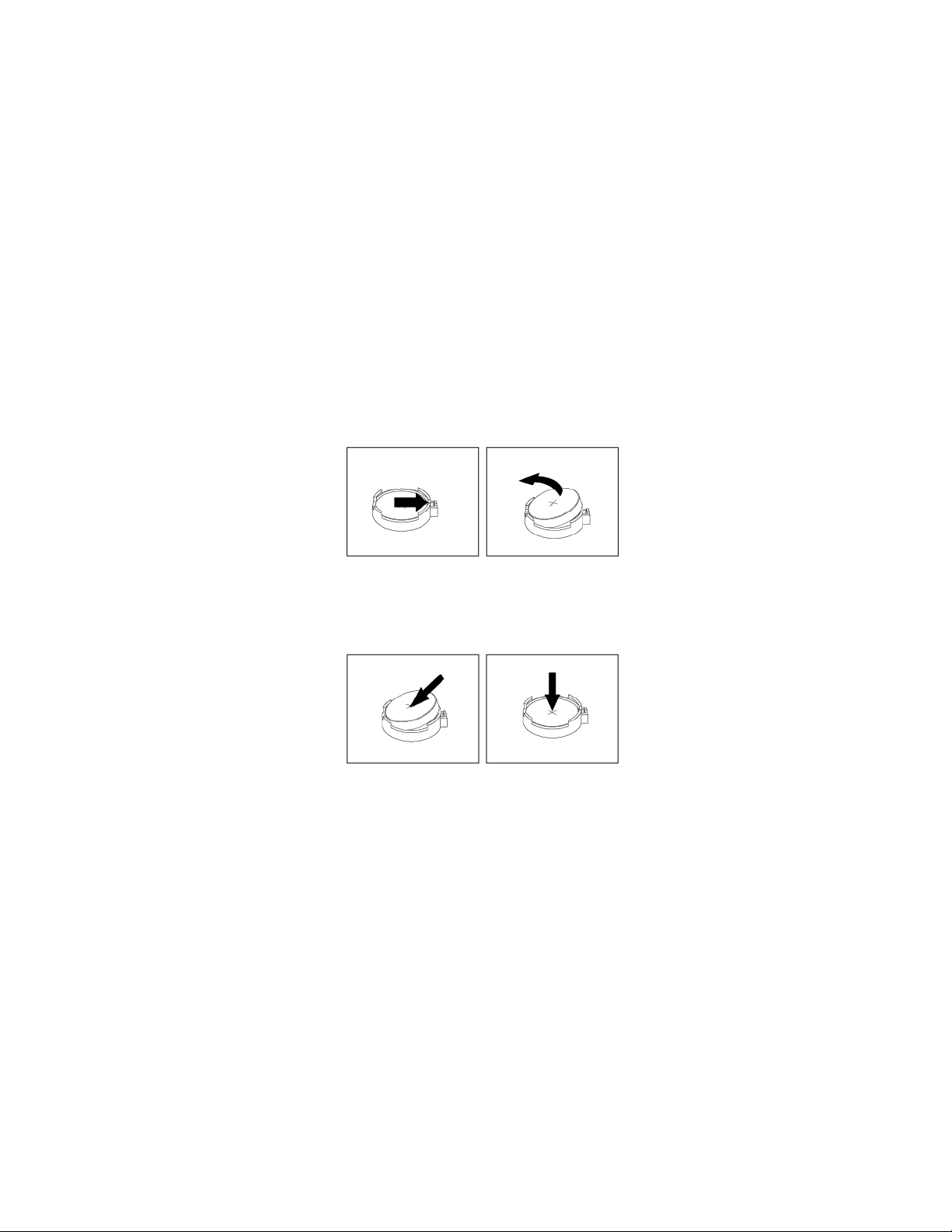
To remove and install the coin-cell battery, do the following:
1. Prepare your computer. See “Preparing your computer and removing the computer cover” on page 59.
2. To access the coin-cell battery, remove the following parts:
• “Direct cooling air baffle” on page 63 (if necessary)
• “Power supply assembly” on page 103
• “Front fan assembly” on page 87
• “M.2 solid-state drive holder” on page 90
• “PCIe card” on page 107 (if necessary)
• “Super capacitor module” on page 122 (if necessary)
• “Full-length PCIe card” on page 115 (if necessary)
• “Multi-function bracket in the upper position” on page 125
3. Locate the coin-cell battery. See “Parts on the system board” on page 8.
4. Remove the old coin-cell battery as shown.
Figure 123. Removing the coin-cell battery
5. Install the new coin-cell battery as shown.
Figure 124. Installing the coin-cell battery
6. Reinstall the following parts if you have removed them:
• “Multi-function bracket in the upper position” on page 125
• “Front fan assembly” on page 87
• “Power supply assembly” on page 103
• “M.2 solid-state drive holder” on page 90
• “PCIe card” on page 107
• “Super capacitor module” on page 122
• “Full-length PCIe card” on page 115
• “Direct cooling air baffle” on page 63
7. Reinstall the computer cover and reconnect the cables. See “Completing the parts replacement” on
page 135.
130
P920 User Guide
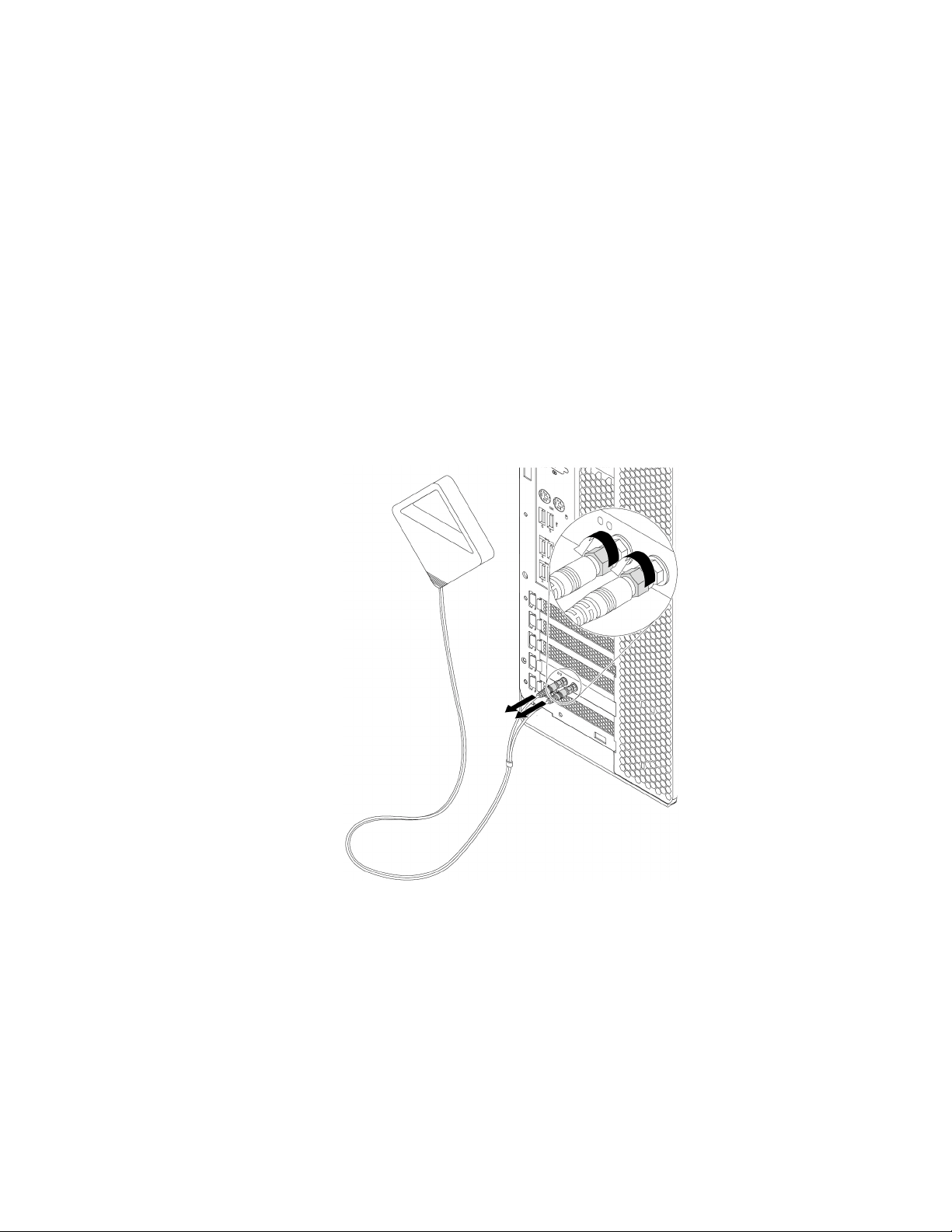
Note: When the computer is turned on for the first time after the coin-cell battery is replaced, an error
message might be displayed. This is normal after the coin-cell battery is replaced.
8. Turn on the computer and all attached devices.
9. Use the Setup Utility program to set the date and time. See “Using the Setup Utility program” on page
35.
Wi-Fi units
Attention: Do not open your computer or attempt any repair before reading and understanding the “Read
this first: Important safety information” on page iii.
The Wi-Fi units include a Wi-Fi adapter, a Wi-Fi card, and a Wi-Fi antenna.
To remove or install the Wi-Fi units, do the following:
1. Prepare your computer. See “Preparing your computer and removing the computer cover” on page 59.
2. To remove the Wi-Fi units, do the following:
a. Unscrew the Wi-Fi antenna connectors to remove the Wi-Fi antenna from the rear of the computer.
Figure 125. Removing the Wi-Fi antenna
Chapter 7. Hardware removal and installation 131
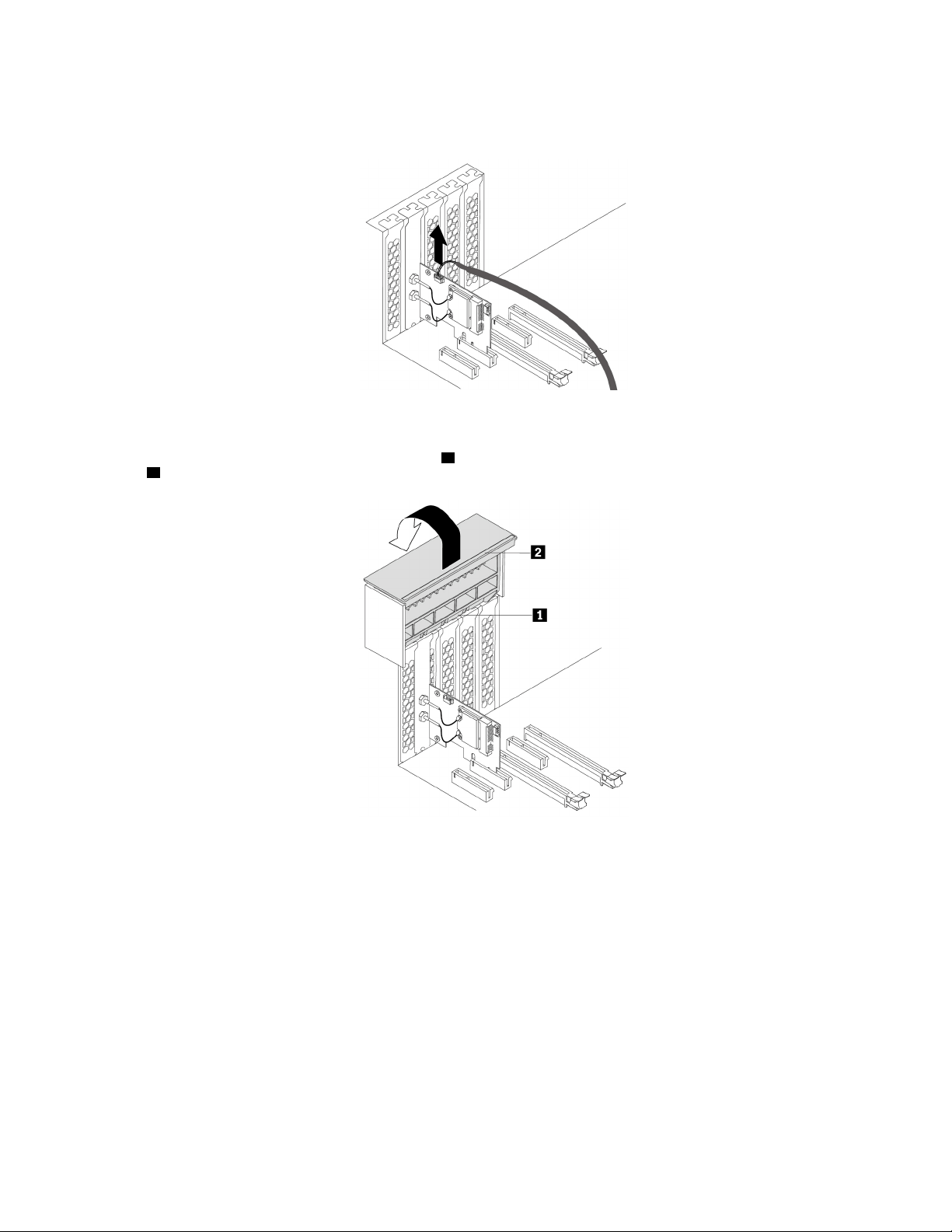
b. If your computer comes with a Wi-Fi card that supports the Bluetooth function, disconnect the
Bluetooth cable from the Wi-Fi adapter.
Figure 126. Disconnecting the Bluetooth cable
c. On the rear of the computer, lift the handle
2 and pivot it as shown until it stops. The PCIe card latch
1 is opened.
Figure 127. Opening the PCIe card latch
132 P920 User Guide
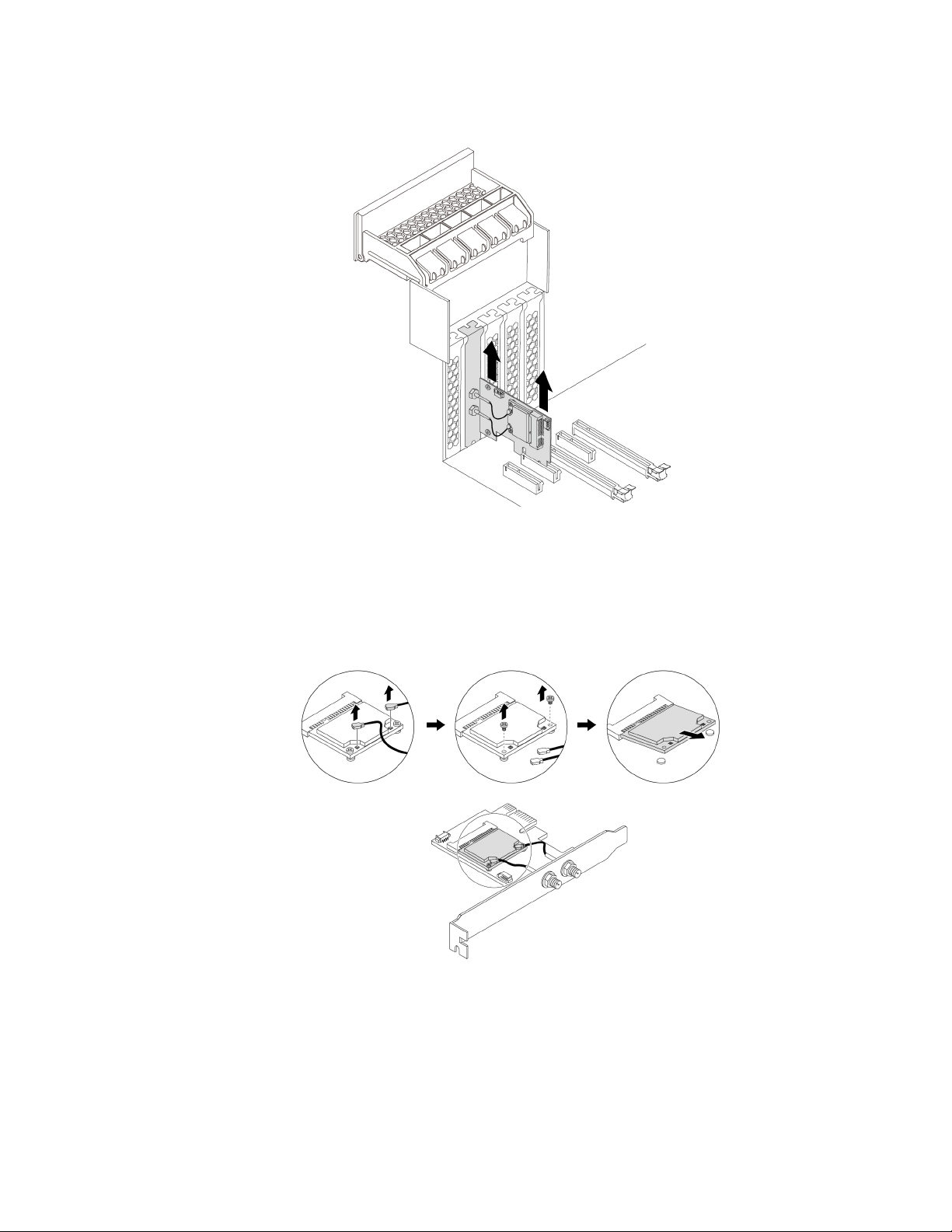
d. Grasp the Wi-Fi adapter and gently pull it out of the slot.
Figure 128. Removing the Wi-Fi adapter
Note: The card might fit tightly into the slot. If necessary, alternately move each side of the card a
small amount until the card is removed from the slot.
e. Disconnect two Wi-Fi antenna cables from the Wi-Fi card. Remove the two screws that secure the
Wi-Fi card to the Wi-Fi adapter. Then, pull the Wi-Fi card out of the mini PCIe slot.
Figure 129. Removing the Wi-Fi card
3. To install the Wi-Fi units, do the following:
Chapter 7. Hardware removal and installation 133
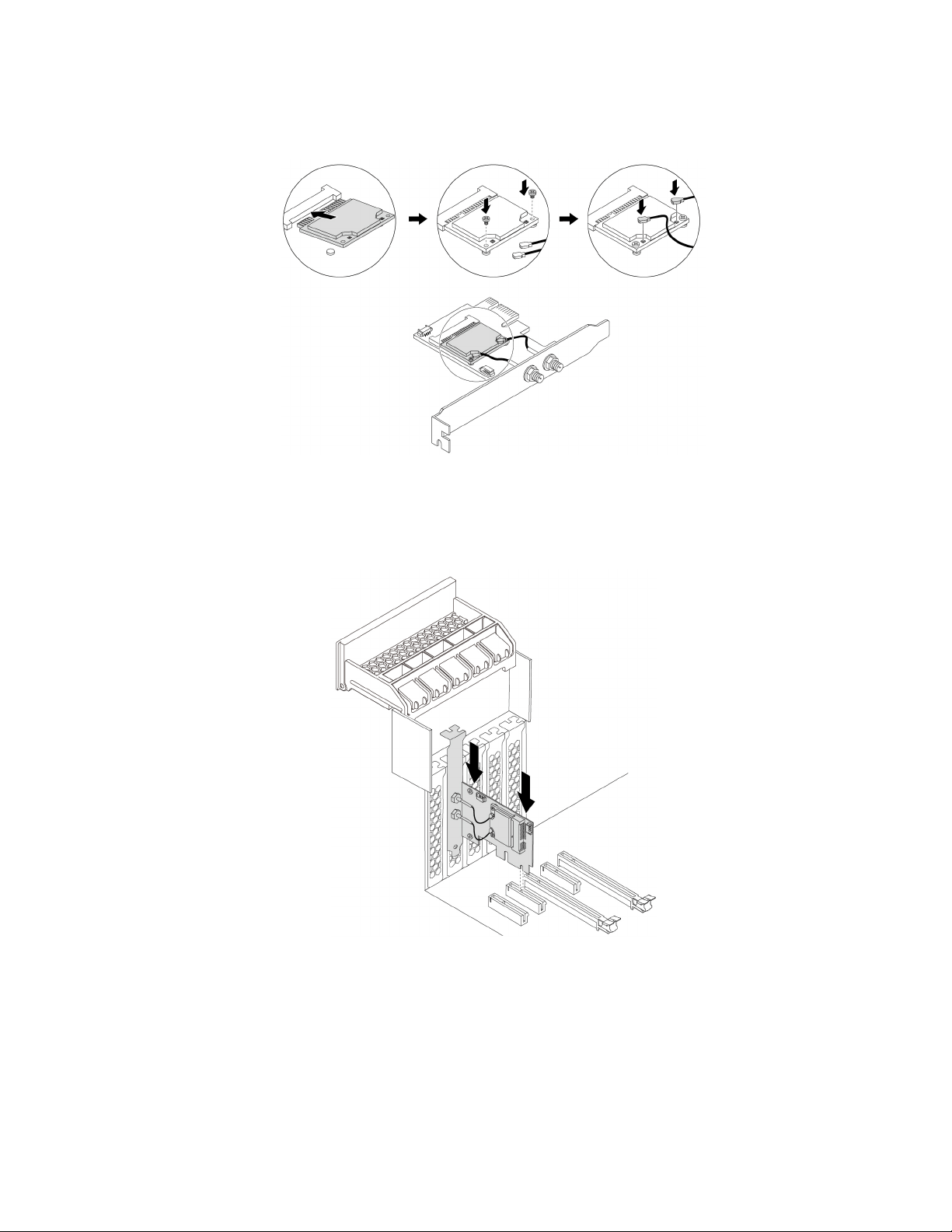
a. Insert the Wi-Fi card into the mini PCIe slot on the Wi-Fi adapter. Install two screws to secure the Wi-
Fi card to the Wi-Fi adapter. Connect two Wi-Fi antenna cables to the Wi-Fi card.
Figure 130. Installing the Wi-Fi card
b. Install the Wi-Fi adapter into the PCIe card slot on the system board. See “Parts on the system
board” on page 8.
Figure 131. Installing the Wi-Fi adapter
c. Pivot the PCIe card latch and push it back in until it snaps into position.
d. If the installed Wi-Fi card supports the Bluetooth function, connect a Bluetooth cable to the Wi-Fi
adapter.
Note: The Bluetooth cable connects the Bluetooth connector on the Wi-Fi adapter to the 15-in-1
card reader connector on the system board. See “Parts on the system board” on page 8.
134
P920 User Guide
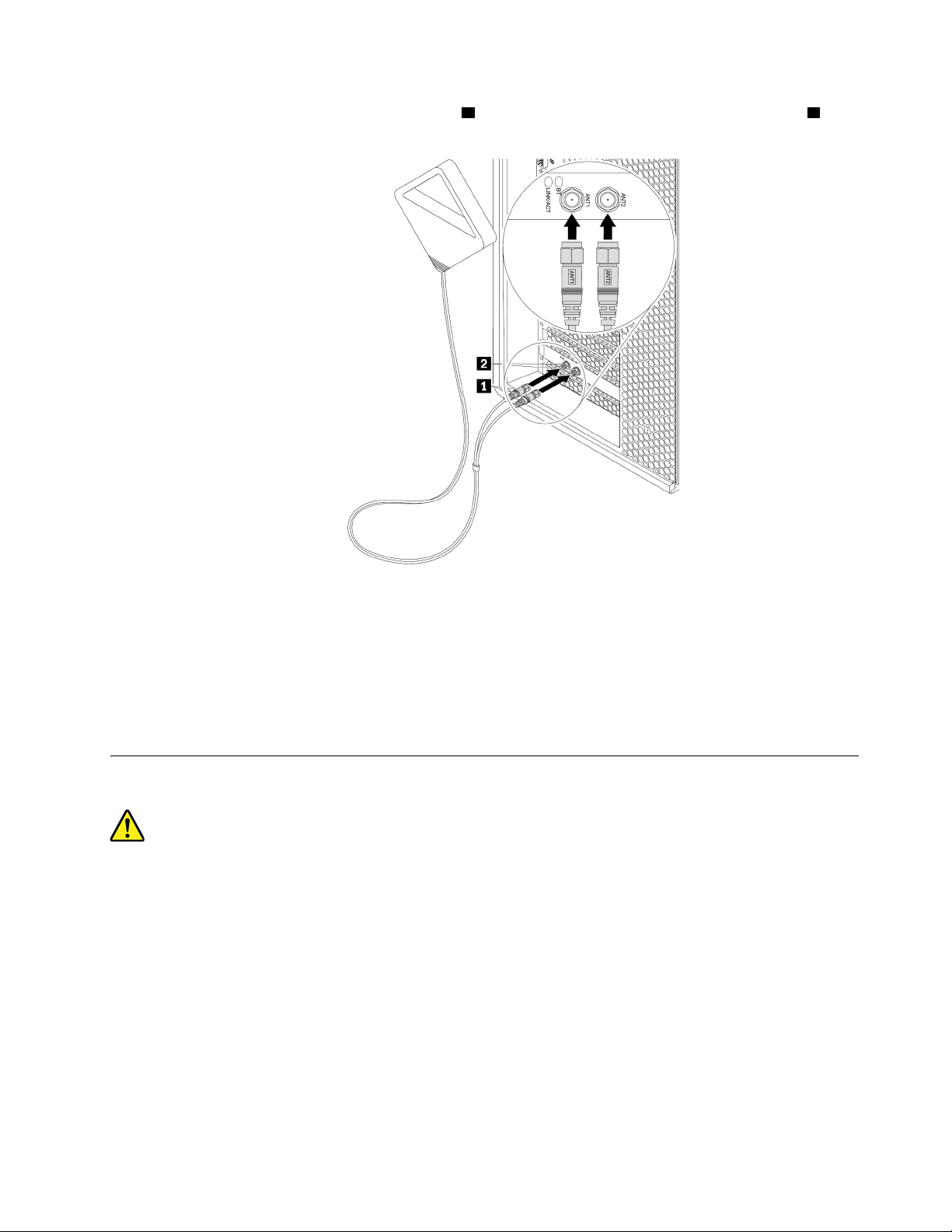
e. Attach the Wi-Fi antenna cable connectors 1 to the corresponding Wi-Fi antenna connectors 2 on
the rear of the computer as shown.
Figure 132. Installing the Wi-Fi antenna
f. Tighten the Wi-Fi antenna cable connectors to secure them to the rear of the computer.
What to do next:
• To work with another piece of hardware, go to the appropriate section.
• To complete the installation or replacement, go to “Completing the parts replacement” on page 135.
Completing the parts replacement
CAUTION:
After replacing a CRU, reinstall all protective covers, including the computer cover, before connecting
power and operating the computer. This action is important to help prevent unexpected electrical
shock and help ensure the containment of an unexpected fire that could happen under extremely rare
conditions.
After completing the removal or installation for all parts, reinstall the computer cover and reconnect cables.
Depending on the parts you removed or installed, you might need to confirm the updated information in the
Setup Utility program. Refer to “Using the Setup Utility program” on page 35.
To reinstall the computer cover and reconnect cables to your computer, do the following:
1. Ensure that all components have been reassembled correctly and that no tools or loose screws are left
inside your computer. See “Computer components” on page 7 for the locations of various components
in your computer.
Chapter 7. Hardware removal and installation 135
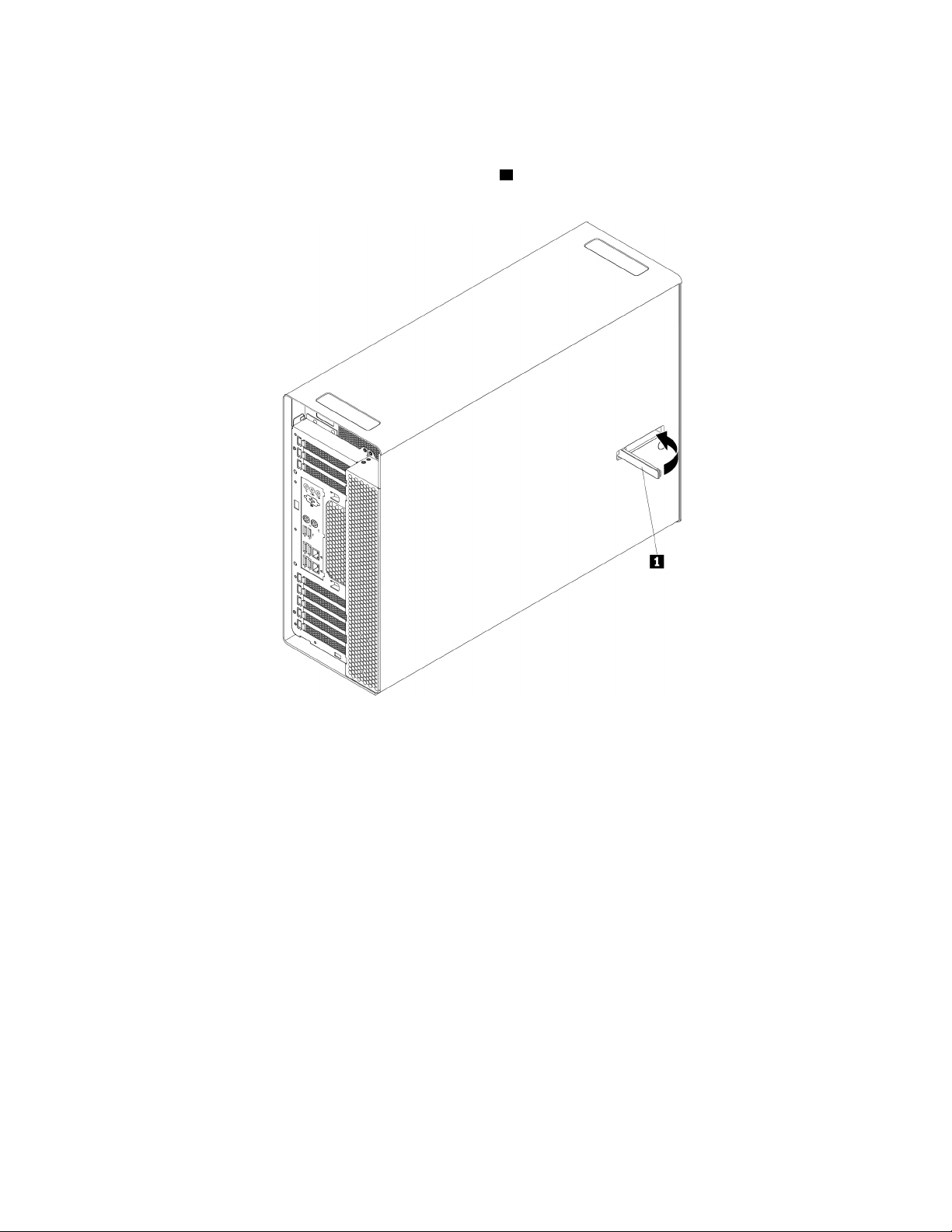
2. Ensure that the cables are routed correctly before reinstalling the computer cover. Keep cables clear of
the hinges and sides of the computer chassis to avoid interference with reinstalling the computer cover.
3. Position the computer cover on the chassis so that the rail guides on the bottom of the computer cover
engage the rails on the chassis. Then, pivot the handle
1 inward until it snaps into position so that the
cover is secured tightly.
Figure 133. Reinstalling the computer cover
4. Place the computer in an upright position.
5. If there is any locking device available, lock the computer cover. See “Locking your computer” on page
29.
6. Reconnect the external cables and power cords to the corresponding connectors on the computer. See
“Hardware locations” on page 1.
7. Update the configuration of your computer if necessary. See “Using the Setup Utility program” on page
35.
8. If a newly installed hardware component does not work correctly, update the device driver. See
“Keeping your computer current” on page 28.
136
P920 User Guide

Chapter 8. Getting information, help, and service
This chapter provides information about getting help and support from Lenovo.
Information resources
You can use the information in this section to access useful resources relating to your computing needs.
Accessing the user guide in various languages
To access the user guide in various languages, go to:
https://support.lenovo.com
Windows help system
The Windows help system provides you with detailed information about using the Windows operating
system.
Note: Using the help for Windows operating system requires an active Internet connection.
To access the Windows help system, do the following:
1. Type Get Help or Tips in the Windows search box and press Enter.
Safety and warranty
The Safety, Warranty, and Setup Guide provided with your computer contains important safety information,
product warranty terms, initial setup procedure, and legal notices. Ensure that you read and understand all
safety information in the Safety, Warranty, and Setup Guide before using your computer.
In addition, read and understand “Read this first: Important safety information” on page iii before using your
computer. This preface provides additional safety information that applies to topics and tasks described in
this User Guide.
Lenovo Web site
The Lenovo Web site (
https://www.lenovo.com) provides up-to-date information and services to help you buy,
upgrade, and maintain your computer. You also can do the following:
• Shop for desktop and notebook computers, monitors, projectors, upgrades, and accessories for your
computer, and special offers.
• Purchase additional services, such as support for hardware, operating systems, programs, network setup
and configuration, and custom installations.
• Purchase upgrades and extended hardware repair services.
• Access troubleshooting and support information for your computer model and other supported products.
• Find a Service Provider located near you.
Lenovo Support Web site
Technical support information is available on the Lenovo Support Web site at:
https://support.lenovo.com
This Web site is updated with the latest support information such as the following:
© Copyright Lenovo 2022 137

• Drivers and software
• Diagnostic solutions
• Product and service warranty
• Product and parts details
• User guides and manuals
• Knowledge base and frequently asked questions
• Lenovo Support phone numbers
Frequently asked questions
For the answers to frequently asked questions about your computer, go to:
http://www.lenovo.com/support/faq
Help and service
This section provides information about obtaining help and service.
Calling for service
During the warranty period, you can get help and information by telephone through the Customer Support
Center. For the warranty period of your computer, go to
https://www.lenovo.com/warranty-status. For a list of
Lenovo Support phone numbers, go to
https://pcsupport.lenovo.com/supportphonelist.
Note: Phone numbers are subject to change without notice. If the number for your country or region is not
provided, contact your Lenovo reseller or Lenovo marketing representative.
The following services are available during the warranty period:
• Problem determination - Trained service personnel are available to assist you with determining a
hardware problem and deciding what action is necessary to fix the problem.
• Hardware repair - If the problem is caused by hardware under warranty, trained service personnel are
available to provide the applicable level of service.
• Engineering Change management - There might be changes that are required after a product has been
sold. Lenovo or your reseller will make selected Engineering Changes (ECs) that apply to your hardware
available.
These items are not covered by the warranty:
• Replacement or use of parts not manufactured for or by Lenovo or non-warranted Lenovo parts
• Identification of software problem sources
• Configuration of BIOS as part of an installation or upgrade
• Changes, modifications, or upgrades to device drivers
• Installation and maintenance of network operating systems (NOS)
• Installation and maintenance of programs
If possible, be at your computer when you call. Have the following information available:
• Machine type and model
• Serial numbers of your hardware products
• Description of the problem
• Exact wording of any error messages
• Hardware and software configuration information
138
P920 User Guide

Using other services
You might travel with your computer or relocate it to a country or region where the machine type for your
desktop or notebook computer is sold. In such a situation, your computer might be eligible for International
Warranty Service, which automatically entitles you to obtain warranty service throughout the warranty period.
Service will be performed by service providers authorized to perform warranty service.
Service methods and procedures vary by country, and some services might not be available in all countries.
International Warranty Service is delivered through the method of service (such as depot, carry-in, or on-site
service) that is provided in the servicing country. Service centers in certain countries might not be able to
service all models of a particular machine type. In some countries, fees and restrictions might apply at the
time of service.
To determine whether your computer is eligible for International Warranty Service and to view a list of the
countries or regions where service is available, go to
https://support.lenovo.com.
For technical assistance with the installation of or questions related to Service Packs for your preinstalled
Microsoft Windows product, go to
https://support.microsoft.com. You also can contact the Lenovo Customer
Support Center for help. Some fees might apply.
Purchasing additional services
During and after the warranty period, you can purchase additional services. Examples of these additional
services include:
• Support for hardware, operating systems, and programs
• Network setup and configuration services
• Upgraded or extended hardware repair services
• Custom installation services
Service availability and service name might vary by country or region. For more information about these
services, go to the Lenovo Web site at:
https://www.lenovo.com
Chapter 8. Getting information, help, and service 139

140 P920 User Guide

Appendix A. System memory speed
The Intel Xeon
®
microprocessor families compatible with this ThinkStation computer feature an integrated
memory controller. The memory controller provides the microprocessor with direct access to the system
memory. Therefore, the system memory speed will be determined by the memory module type, frequency,
size (capacity), the number of memory modules installed, and the microprocessor model.
Notes:
• The actual system memory speed of the memory modules varies depending on the microprocessor
model. For example, your computer comes with 2666 MT/s memory modules, but microprocessor only
supports up to 2400 MT/s memory modules. Then the system memory speed will be no faster than 2400
MT/s.
• The microprocessor models supported in your computer might vary. For a list of supported
microprocessor models, contact the Lenovo Customer Support Center.
Refer to the following information about the system memory speed:
• Memory module types:
– DDR4 RDIMM
– DDR4 3DS RDIMM
• DIMM operating voltage: 1.2 V
• Memory frequency: 2133 MT/s
• Microprocessor model:
– Intel Xeon Bronze series
– Intel Xeon Bronze series 2nd Generation
• DIMM operating voltage: 1.2 V
• Memory frequency: 2400 MT/s
• Microprocessor model:
– Intel Xeon Silver series
– Intel Xeon Silver series 2nd Generation
• DIMM operating voltage: 1.2 V
• Memory frequency: 2666 MT/s
• Microprocessor model:
– Intel Xeon Platinum series
– Intel Xeon Gold series
• DIMM operating voltage: 1.2 V
• Memory frequency: 2933 MT/s
• Microprocessor model:
– Intel Xeon Platinum series 2nd Generation
– Intel Xeon Gold series 2nd Generation
– Intel Xeon W-3200 Processors
© Copyright Lenovo 2022 141

142 P920 User Guide

Appendix B. Supplemental information about the Ubuntu
operating system
In limited countries or regions, Lenovo offers customers an option to order computers with the preinstalled
Ubuntu
®
operating system.
If the Ubuntu operating system is available on your computer, read the following information before you use
the computer. Ignore any information related to Windows-based programs, utilities, and Lenovo preinstalled
applications in this documentation.
Accessing the Lenovo Limited Warranty
This product is covered by the terms of the Lenovo Limited Warranty (LLW), version L505-0010-02 08/2011.
You can view the LLW in a number of languages from the following Web site. Read the Lenovo Limited
Warranty at:
https://www.lenovo.com/warranty/llw_02
The LLW also is preinstalled on the computer. To access the LLW, go to the following directory:
/opt/Lenovo
If you cannot view the LLW either from the Web site or from your computer, contact your local Lenovo office
or reseller to obtain a printed version of the LLW.
Accessing the Ubuntu help system
The Ubuntu help system provides information about how to use the Ubuntu operating system. To access the
help system from the Unity, move your pointer to the Launch bar, and then click the Help icon. If you cannot
find the Help icon from the Launch bar, click the Search icon, and type Help to search it.
To learn more about the Ubuntu operating system, go to:
https://www.ubuntu.com
Getting support information
If you need help, service, technical assistance, or more information about the Ubuntu operating system or
other applications, contact the provider of the Ubuntu operating system or the provider of the application. If
you need the service and support for hardware components shipped with your computer, contact Lenovo.
For more information about how to contact Lenovo, refer to the User Guide and Safety, Warranty, and Setup
Guide.
To access the latest User Guide and Safety, Warranty, and Setup Guide, go to:
https://support.lenovo.com
Note: For information about configuring RAID in the Linux
®
environment, contact your Linux software
provider.
© Copyright Lenovo 2022 143

144 P920 User Guide

Appendix C. Regulatory and TCO Certified information of
countries and regions
The latest compliance information is available at:
https://www.lenovo.com/compliance
TCO Certified
Selected models are TCO Certified and bear the TCO Certified logo.
Note: TCO Certified is an international third-party sustainability certification for IT products. For details, go
to
https://www.lenovo.com/us/en/compliance/tco.
Export classification notice
This product is subject to the United States Export Administration Regulations (EAR) and has an Export
Classification Control Number (ECCN) of 5A992.c. It can be re-exported except to any of the embargoed
countries in the EAR E1 country list.
Electronic emissions notices
Federal Communications Commission Declaration of Conformity
The following information refers to Lenovo personal computer machine types 30BD, 30BV, and 30BC.
This equipment has been tested and found to comply with the limits for a Class B digital device, pursuant to
Part 15 of the FCC Rules. These limits are designed to provide reasonable protection against harmful
interference in a residential installation. This equipment generates, uses, and can radiate radio frequency
energy and, if not installed and used in accordance with the instructions, may cause harmful interference to
radio communications. However, there is no guarantee that interference will not occur in a particular
installation. If this equipment does cause harmful interference to radio or television reception, which can be
determined by turning the equipment off and on, the user is encouraged to try to correct the interference by
one or more of the following measures:
• Reorient or relocate the receiving antenna.
• Increase the separation between the equipment and receiver.
• Connect the equipment into an outlet on a circuit different from that to which the receiver is connected.
• Consult an authorized dealer or service representative for help.
Lenovo is not responsible for any radio or television interference caused by using other than specified or
recommended cables and connectors or by unauthorized changes or modifications to this equipment.
Unauthorized changes or modifications could void the user's authority to operate the equipment.
This device complies with Part 15 of the FCC Rules. Operation is subject to the following two conditions: (1)
this device may not cause harmful interference, and (2) this device must accept any interference received,
including interference that may cause undesired operation.
Responsible Party:
Lenovo (United States) Incorporated
1009 Think Place - Building One
Morrisville, NC 27560
Phone Number: 919-294-5900
© Copyright Lenovo 2022 145

Industry Canada Class B emission compliance statement
CAN ICES-3(B)/NMB-3(B)
European Union (EU) / United Kingdom (UK) – Radio Equipment Compliance
EU Contact: Lenovo (Slovakia), Landererova 12, 811 09 Bratislava, Slovakia
UK contact: Lenovo, Redwood, Crockford Lane, Basingstoke, RG24 8WQ, UK.
This product is in conformity with all the requirements and essential norms that apply to EU Council Radio
Equipment Directive 2014/53/EU on the approximation of the laws of the Member States, as well as the UK
Radio Equipment Regulations SI 2017 No. 1206, relating to radio equipment.
The full text of the system EU declaration of conformity is available at:
https://www.lenovo.com/us/en/compliance/eu-doc
The full text of the system UK declaration of conformity is available at:
https://www.lenovo.com/us/en/compliance/uk-doc
Lenovo cannot accept responsibility for any failure to satisfy the protection requirements resulting from a
non-recommended modification of the product, including the installation of option cards from other
manufacturers. This product has been tested and found to comply with the limits for Class B equipment
according to European and UK compliance standards. The limits for Class B equipment were derived for
typical residential environments to provide reasonable protection against interference with certified
communication devices.
European Union (EU) / United Kingdom (UK) — Electromagnetic Compatibility Compliance
This product is in conformity with the protection requirements of EU Council Directive 2014/30/EU on the
approximation of the laws of the Member States, as well as UK SI 2016 No. 1091 with amendments, relating
to the electromagnetic compatibility limits for Class B equipment. These Class B requirements are intended
to offer adequate protection to broadcast services within residential environments.
German Class B compliance statement
Deutschsprachiger EU Hinweis:
Hinweis für Geräte der Klasse B EU-Richtlinie zur Elektromagnetischen Verträglichkeit
Dieses Produkt entspricht den Schutzanforderungen der EU-Richtlinie 2014/30/EU zur Angleichung der
Rechtsvorschriften über die elektromagnetische Verträglichkeit in den EU-Mitgliedsstaaten und hält die
Grenzwerte der Klasse B der Norm gemäß Richtlinie.
Um dieses sicherzustellen, sind die Geräte wie in den Handbüchern beschrieben zu installieren und zu
betreiben. Des Weiteren dürfen auch nur von der Lenovo empfohlene Kabel angeschlossen werden. Lenovo
übernimmt keine Verantwortung für die Einhaltung der Schutzanforderungen, wenn das Produkt ohne
146
P920 User Guide
Zustimmung der Lenovo verändert bzw. wenn Erweiterungskomponenten von Fremdherstellern ohne
Empfehlung der Lenovo gesteckt/eingebaut werden.
Deutschland:
Einhaltung des Gesetzes über die elektromagnetische Verträglichkeit von Betriebsmitteln
Dieses Produkt entspricht dem „Gesetz über die elektromagnetische Verträglichkeit von Betriebsmitteln“
EMVG (früher „Gesetz über die elektromagnetische Verträglichkeit von Geräten“). Dies ist die Umsetzung der
EMV EU-Richtlinie 2014/30/EU in der Bundesrepublik Deutschland.
Zulassungsbescheinigung laut dem Deutschen Gesetz über die elektromagnetische Verträglichkeit von
Betriebsmitteln, EMVG vom 20. Juli 2007 (früher Gesetz über die elektromagnetische Verträglichkeit von
Geräten), bzw. der EMV EU Richtlinie 2014/30/EU, für Geräte der Klasse B.
Dieses Gerät ist berechtigt, in Übereinstimmung mit dem Deutschen EMVG das EG-Konformitätszeichen -
CE - zu führen. Verantwortlich für die Konformitätserklärung nach Paragraf 5 des EMVG ist die Lenovo
(Deutschland) GmbH, Meitnerstr. 9, D-70563 Stuttgart.
Informationen in Hinsicht EMVG Paragraf 4 Abs. (1) 4:
Das Gerät erfüllt die Schutzanforderungen nach EN 55024 und EN 55032 Klasse B.
Korean wireless-radio compliance information
Japan VCCI Class B compliance statement
Japan compliance statement for products which connect to the power mains with rated current less
than or equal to 20 A per phase
Japan notice for ac power cord
The ac power cord shipped with your product can be used only for this specific product. Do not use the ac
power cord for other devices.
Lenovo product service information for Taiwan
Keyboard and mouse compliance statement for Taiwan
Appendix C. Regulatory and TCO Certified information of countries and regions 147

Eurasian compliance mark
Brazil audio notice
Ouvir sons com mais de 85 decibéis por longos períodos pode provocar danos ao sistema auditivo.
Mexico wireless-radio compliance information
Advertencia: En Mexico la operación de este equipo estásujeta a las siguientes dos condiciones: (1) es
posible que este equipo o dispositivo no cause interferencia perjudicial y (2) este equipo o dispositivo debe
aceptar cualquier interferencia, incluyendo la que pueda causar su operación no deseada.
Additional regulatory information
For additional regulatory information, refer to the Regulatory Notice shipped with your computer. Depending
on the configuration of your computer and the country or region where the computer was purchased, you
might have received additional printed regulatory notices. All regulatory notices are available on the Lenovo
Support Web site in electronic format. To access electronic copies of the documentation, go to
https://
support.lenovo.com
.
148
P920 User Guide
Appendix D. WEEE and recycling information of countries and
regions
Lenovo encourages owners of information technology (IT) equipment to responsibly recycle their equipment
when it is no longer needed. Lenovo offers various programs and services to assist equipment owners in
recycling their IT products. The latest environmental information is available at:
https://www.lenovo.com/ecodeclaration
Important battery recycling and WEEE information
Take back and recycling information for WEEE and batteries/accumulators in the European Union and the
United Kingdom
The crossed-out wheeled bin marking applies only to countries with WEEE and batteries waste regulations
including the European Union (EU), and United Kingdom (UK).
Appliances and batteries/accumulators are labeled in accordance with local regulations concerning waste
electrical and electronic equipment (WEEE) and waste batteries and waste accumulators. These regulations
determine the framework for the return and recycling of used appliances and used batteries/accumulators as
applicable within each geography. This label is applied to various products to indicate that the product is not
to be thrown away, but rather put in the established collection systems for reclaiming these end of life
products.
The label on the battery may also include a chemical symbol for the metal concerned in the battery (Pb for
lead, Hg for mercury, and Cd for cadmium).
Users of electrical and electronic equipment (EEE) and users of batteries/accumulators with the crossed-out
wheeled bin marking must not dispose of end of life products as unsorted municipal waste, but use the
collection framework available to them for the return, recycle, and recovery of WEEE and waste batteries/
accumulators and to minimize any potential effects of EEE and batteries on the environment and human
health due to the presence of hazardous substances.
Lenovo electrical and electronic equipment (EEE) may contain parts and components, which at end-of-life
might qualify as hazardous waste.
EEE and waste electrical and electronic equipment (WEEE) can be delivered free of charge to the place of
sale or any distributor that sells electrical and electronic equipment of the same nature and function as the
used EEE or WEEE.
Before placing electrical and electronic equipment (EEE) in the waste collection stream or in waste collection
facilities, the end user of equipment containing batteries and/or accumulators must remove those batteries
and accumulators for separate collection.
Dispose of lithium batteries and battery packs from Lenovo products:
A coin-cell type lithium battery might be installed inside your Lenovo product. You can find details about the
battery in the product documentation. If the battery needs to be replaced, contact your place of purchase or
© Copyright Lenovo 2022 149

contact Lenovo for service. If you need to dispose of a lithium battery, insulate it with vinyl tape, contact your
place of purchase or a waste-disposal operator, and follow their instructions.
Your Lenovo device might contain a lithium-ion battery pack or a nickel metal hydride battery pack. You can
find details on the battery pack in the product documentation. If you need to dispose of a battery pack,
insulate it with vinyl tape, contact Lenovo sales, service, or your place of purchase, or a waste-disposal
operator, and follow their instructions. You also can refer to the instructions provided in the user guide for
your product.
For proper collection and treatment, go to:
https://www.lenovo.com/environment
For additional WEEE information, go to:
https://www.lenovo.com/recycling
WEEE information for Hungary
Lenovo, as a producer, bears the cost incurred in connection with the fulfillment of Lenovo’s obligations
under Hungary Law No. 197/2014 (VIII.1.) subsections (1)-(5) of section 12.
EU ErP (EcoDesign) Directive (2009/125/EC) - external power adapters
(Regulation (EU) 2019/1782), Ecodesign for Energy-Related Products
Regulations 2010 - UK SI 2010 No. 2617 (Ext PSU), SI 2020 No. 485 (Ntwk
Standby), SI 2014 No. 1290 as amended
Lenovo products are compliant with the EU EcoDesign (ErP) Directive and UK EcoDesign for Energy-related
Products Regulations. Refer to the following for details. For EU, refer to the system declaration
https://
www.lenovo.com/us/en/compliance/eu-doc
, and for UK refer to the system declaration https://
www.lenovo.com/us/en/compliance/uk-doc
.
Recycling information for Japan
Collecting and recycling a disused Lenovo computer or monitor
If you are a company employee and need to dispose of a Lenovo computer or monitor that is the property of
the company, you must do so in accordance with the Law for Promotion of Effective Utilization of Resources.
Computers and monitors are categorized as industrial waste and should be properly disposed of by an
industrial waste disposal contractor certified by a local government. In accordance with the Law for
Promotion of Effective Utilization of Resources, Lenovo Japan provides, through its PC Collecting and
Recycling Services, for the collecting, reuse, and recycling of disused computers and monitors. For details,
visit the Lenovo Web site at
https://www.lenovo.com/recycling/japan. Pursuant to the Law for Promotion of
Effective Utilization of Resources, the collecting and recycling of home-used computers and monitors by the
manufacturer was begun on October 1, 2003. This service is provided free of charge for home-used
computers sold after October 1, 2003. For details, visit the Lenovo Web site at
https://www.lenovo.com/
recycling/japan
.
Disposing of Lenovo computer components
Some Lenovo computer products sold in Japan may have components that contain heavy metals or other
environmental sensitive substances. To properly dispose of disused components, such as a printed circuit
board or drive, use the methods described above for collecting and recycling a disused computer or monitor.
150
P920 User Guide
Disposing of disused lithium batteries from Lenovo computers
A button-shaped lithium battery is installed inside your Lenovo computer to provide power to the computer
clock while the computer is off or disconnected from the main power source. If you need to replace it with a
new one, contact your place of purchase or contact Lenovo for service. If you need to dispose of a disused
lithium battery, insulate it with vinyl tape, contact your place of purchase or an industrial-waste-disposal
operator, and follow their instructions. Disposal of a lithium battery must comply with local ordinances and
regulations.
Recycling information for Brazil
Declarações de Reciclagem no Brasil
Descarte de um Produto Lenovo Fora de Uso
Equipamentos elétricos e eletrônicos não devem ser descartados em lixo comum, mas enviados à pontos de
coleta, autorizados pelo fabricante do produto para que sejam encaminhados e processados por empresas
especializadas no manuseio de resíduos industriais, devidamente certificadas pelos orgãos ambientais, de
acordo com a legislação local.
A Lenovo possui um canal específico para auxiliá-lo no descarte desses produtos. Caso você possua um
produto Lenovo em situação de descarte, ligue para o nosso SAC ou encaminhe um e-mail para:
[email protected], informando o modelo, número de série e cidade, a fim de enviarmos as instruções
para o correto descarte do seu produto Lenovo.
Battery recycling information for Taiwan
Appendix D. WEEE and recycling information of countries and regions 151

152 P920 User Guide
Appendix E. Restriction of Hazardous Substances (RoHS)
Directive of countries and regions
The latest environmental information about Lenovo products is available at:
https://www.lenovo.com/ecodeclaration
European Union (EU) / United Kingdom (UK) RoHS
This Lenovo product, with included parts (cables, cords, and so on) meets the requirements of EU Directive
2011/65/EU (as amended by Directive 2015/863/EU) and UK SI 2012 No. 3032 on the restriction of the use of
certain hazardous substances in electrical and electronic equipment ("RoHS recast" or "RoHS 2").
For more information about Lenovo worldwide compliance on RoHS, go to:
https://www.lenovo.com/rohs-communication
Turkish WEEE / RoHS
Ukraine RoHS
India RoHS
RoHS compliant as per E-Waste (Management) Rules.
© Copyright Lenovo 2022 153
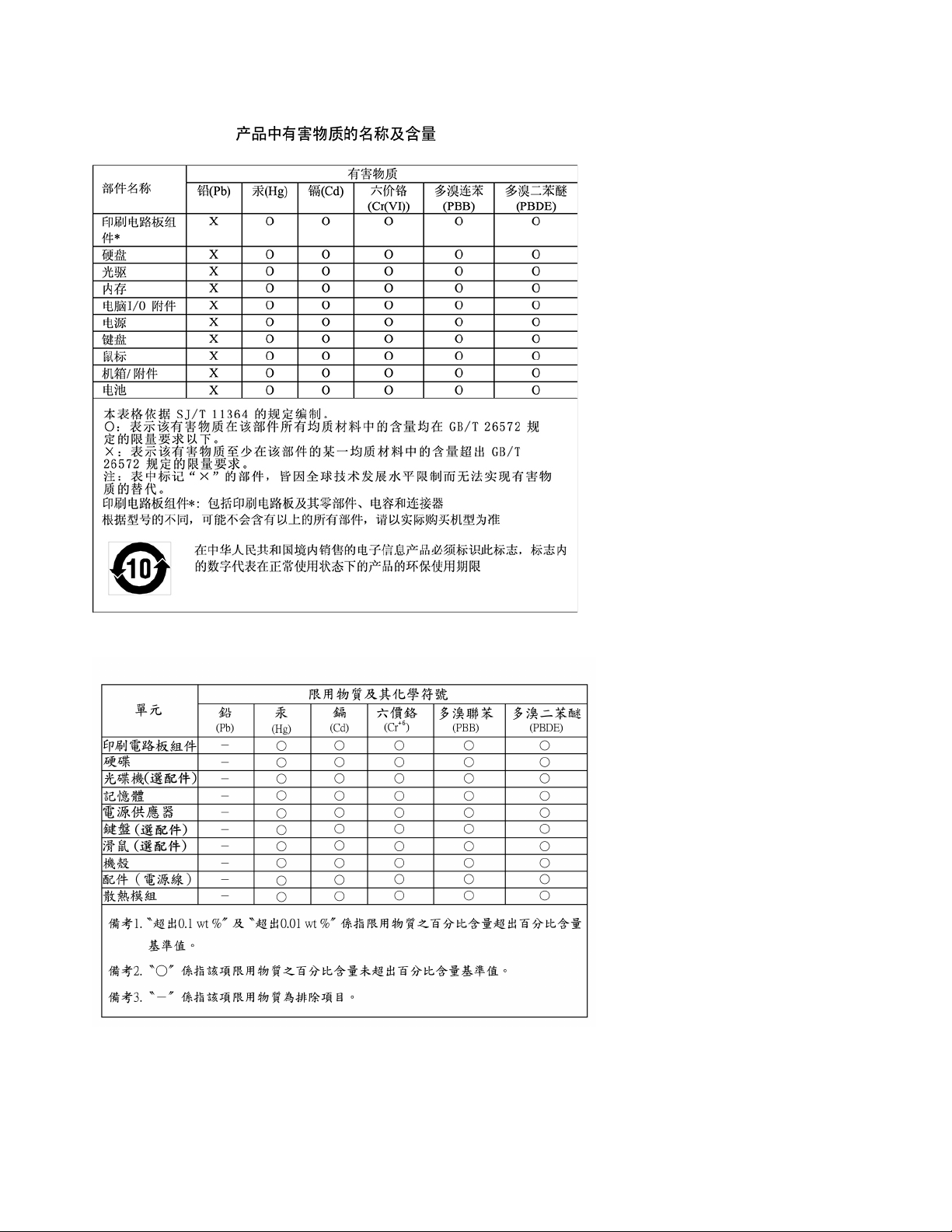
Mainland China RoHS
Taiwan RoHS
154 P920 User Guide
Appendix F. ENERGY STAR model information
ENERGY STAR
®
is a joint program of the U.S. Environmental Protection Agency and the U.S. Department of
Energy aimed at saving money and protecting the environment through energy efficient products and
practices.
Lenovo is proud to offer products with the ENERGY STAR certified designation. Lenovo computers, if carry
an ENERGY STAR mark, have been designed and tested to conform to the ENERGY STAR program
requirements for computers as prescribed by the U.S. Environmental Protection Agency. For a certified
computer, an ENERGY STAR mark may be affixed to the product, the product packaging, or displayed
electronically on the E-label screen or the power settings interface.
By using ENERGY STAR compliant products and taking advantage of the power-management features of
your computer, you reduce the consumption of electricity. Reduced electrical consumption contributes to
potential financial savings, a cleaner environment, and the reduction of greenhouse gas emissions. For more
information about ENERGY STAR, go to
https://www.energystar.gov/.
Lenovo encourages you to make efficient use of energy an integral part of your day-to-day operations. To
help in this endeavor, set the following power-management features to take effect when your computer has
been inactive for a specified duration:
Table 1. Default power plan (when plugged into ac power)
• Turn off the display: After 10 minutes
• Put the computer to sleep: After 25 minutes
To awaken your computer from Sleep mode, press any key on your keyboard.
To change power settings, do the following:
1. Type Control Panel in the Windows search box and then press Enter. View by large icons or small icons
2. Click Power Options and follow the instructions on the screen.
© Copyright Lenovo 2022 155

156 P920 User Guide

Appendix G. Notices
Lenovo may not offer the products, services, or features discussed in this document in all countries. Consult
your local Lenovo representative for information on the products and services currently available in your
area. Any reference to a Lenovo product, program, or service is not intended to state or imply that only that
Lenovo product, program, or service may be used. Any functionally equivalent product, program, or service
that does not infringe any Lenovo intellectual property right may be used instead. However, it is the user's
responsibility to evaluate and verify the operation of any other product, program, or service.
Lenovo may have patents or pending patent applications covering subject matter described in this
document. The furnishing of this document does not give you any license to these patents. You can send
license inquiries, in writing, to:
Lenovo (United States), Inc.
8001 Development Drive
Morrisville, NC 27560
U.S.A.
Attention: Lenovo Director of Licensing
LENOVO PROVIDES THIS PUBLICATION "AS IS" WITHOUT WARRANTY OF ANY KIND, EITHER EXPRESS
OR IMPLIED, INCLUDING, BUT NOT LIMITED TO, THE IMPLIED WARRANTIES OF NON-INFRINGEMENT,
MERCHANTABILITY OR FITNESS FOR A PARTICULAR PURPOSE. Some jurisdictions do not allow
disclaimer of express or implied warranties in certain transactions, therefore, this statement may not apply to
you.
This information could include technical inaccuracies or typographical errors. Changes are periodically made
to the information herein; these changes will be incorporated in new editions of the publication. Lenovo may
make improvements and/or changes in the products and/or the programs described in this publication at any
time without notice.
The products described in this document are not intended for use in implantation or other life support
applications where malfunction may result in injury or death to persons. The information contained in this
document does not affect or change Lenovo product specifications or warranties. Nothing in this document
shall operate as an express or implied license or indemnity under the intellectual property rights of Lenovo or
third parties. All information contained in this document was obtained in specific environments and is
presented as an illustration. The result obtained in other operating environments may vary.
Lenovo may use or distribute any of the information you supply in any way it believes appropriate without
incurring any obligation to you.
Any references in this publication to non-Lenovo Web sites are provided for convenience only and do not in
any manner serve as an endorsement of those Web sites. The materials at those Web sites are not part of the
materials for this Lenovo product, and use of those Web sites is at your own risk.
Any performance data contained herein was determined in a controlled environment. Therefore, the result
obtained in other operating environments may vary significantly. Some measurements may have been made
on development-level systems and there is no guarantee that these measurements will be the same on
generally available systems. Furthermore, some measurements may have been estimated through
extrapolation. Actual results may vary. Users of this document should verify the applicable data for their
specific environment.
© Copyright Lenovo 2022 157

158 P920 User Guide

Appendix H. Trademarks
LENOVO, LENOVO logo, THINKSTATION, and THINKSTATION logo are trademarks of Lenovo.
Microsoft, Windows, and Windows Media are trademarks of the Microsoft group of companies.
Intel, Thunderbolt, and Xeon are trademarks of Intel Corporation in the U.S. and/or other countries.
Linux is a registered trademark of Linus Torvalds.
DisplayPort and Mini DisplayPort are trademarks of the Video Electronics Standards Association.
Ubuntu is a registered trademark of Canonical Ltd.
All other trademarks are the property of their respective owners.
© Copyright Lenovo 2022 159

160 P920 User Guide