
APP User Guide
EN
TO EXPERIENCE ALL ADVANCED FEATURES,
IT IS RECOMMENDED TO CONTROL YOUR
ROBOT VACUUM VIA THE PROSCENIC APP.
1. How to Connect your Robot Vacuum with the Proscenic APP
Before you start, make sure that:
Your robot vacuum is on and ensure it has enough power during setup.
Your smartphone is connected to a 2.4GHz Wi-Fi network. If your router is a
dual-band router, please select the 2.4GHz network.
The WiFi name and password are correct and avoid using an emoji or
special characters or symbols.
Keep the robot vacuum and your mobile device as close as possible to the
router when connecting.
1.1 APP Download and Installation
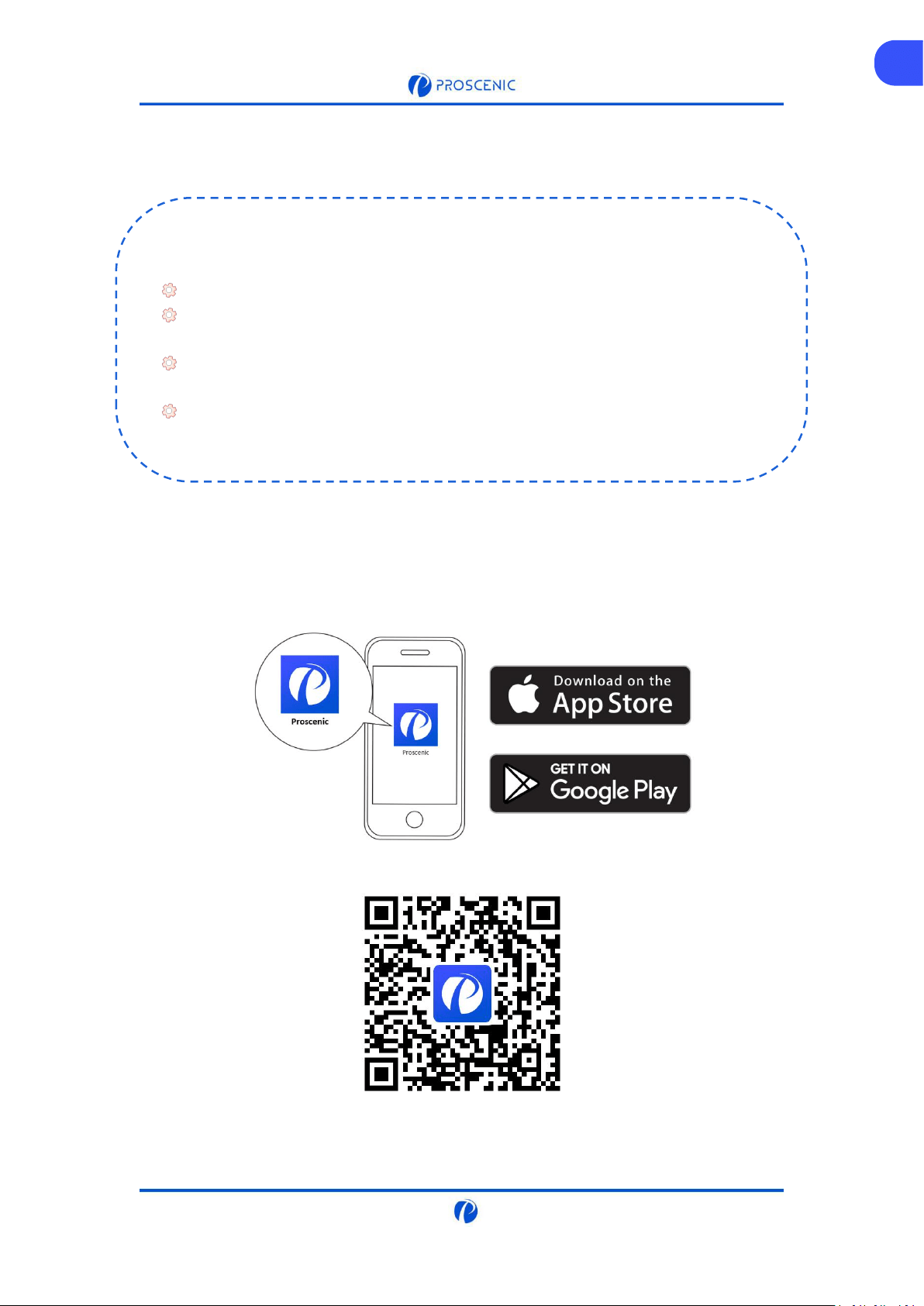
Search for Proscenic APP on App Store (IOS devices) or Google Play (Android devices).
Or you could scan the QR Code below to download the APP.
EN
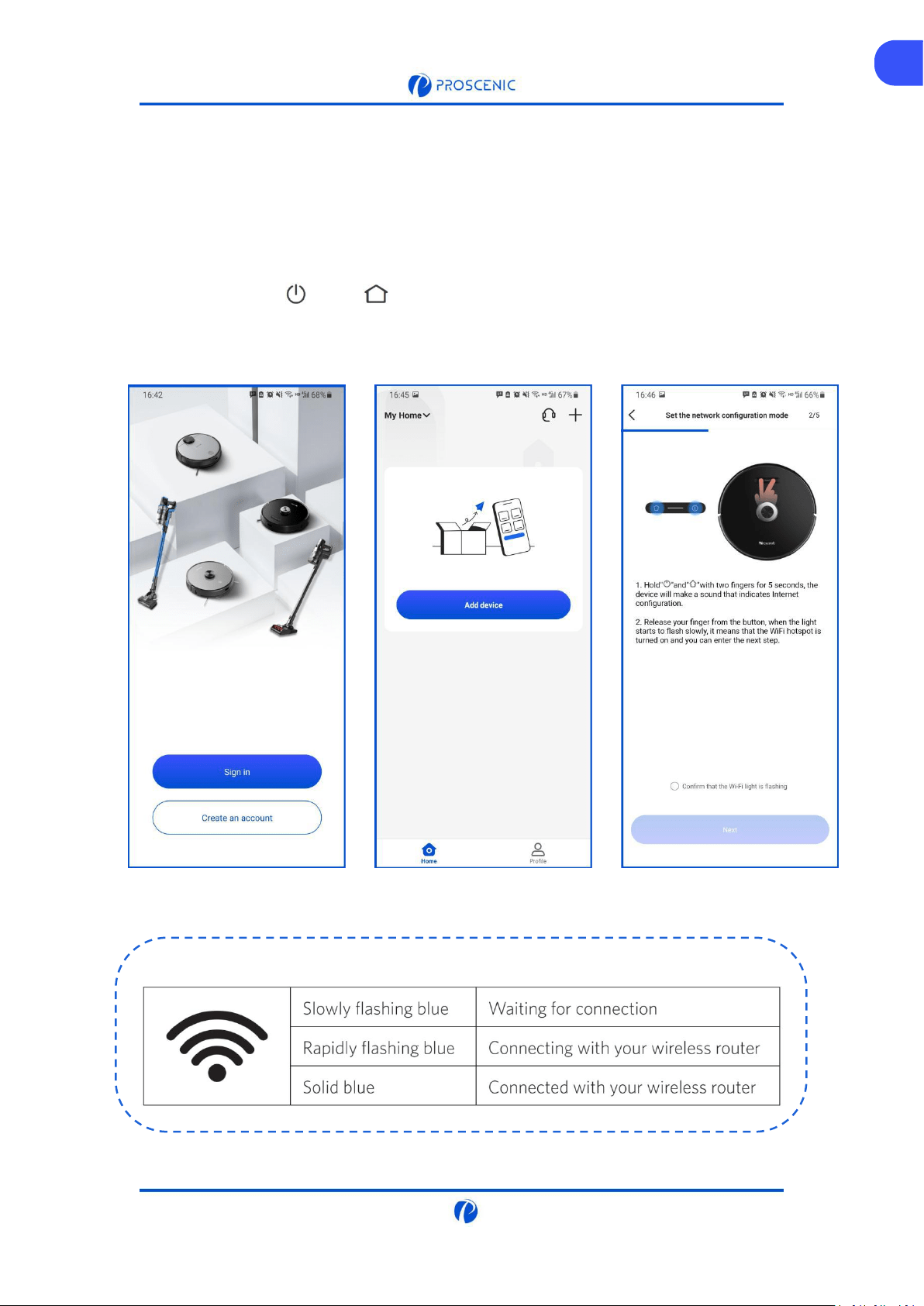
WiFi Indicator Light
1.2 WiFi Connection
A. Open the APP and create a new account at your first use, and then log in your account.
(Please agree the Terms and Conditions for the connection.)
B. Click “Add advice” and select the model of your robot vacuum.
C. Press and hold “ ” and “ ” for 5 seconds until the WiFi indicator light is flashing.
EN
1.2 WiFi Connection
A. Open the APP and create a new account at your first use, and then log in your account.
(Please agree the Terms and Conditions for the connection.)
B. Click “Add advice” and select the model of your robot vacuum.
C. Press and hold “ ” and “ ” for 5 seconds until the WiFi indicator light is flashing.
EN
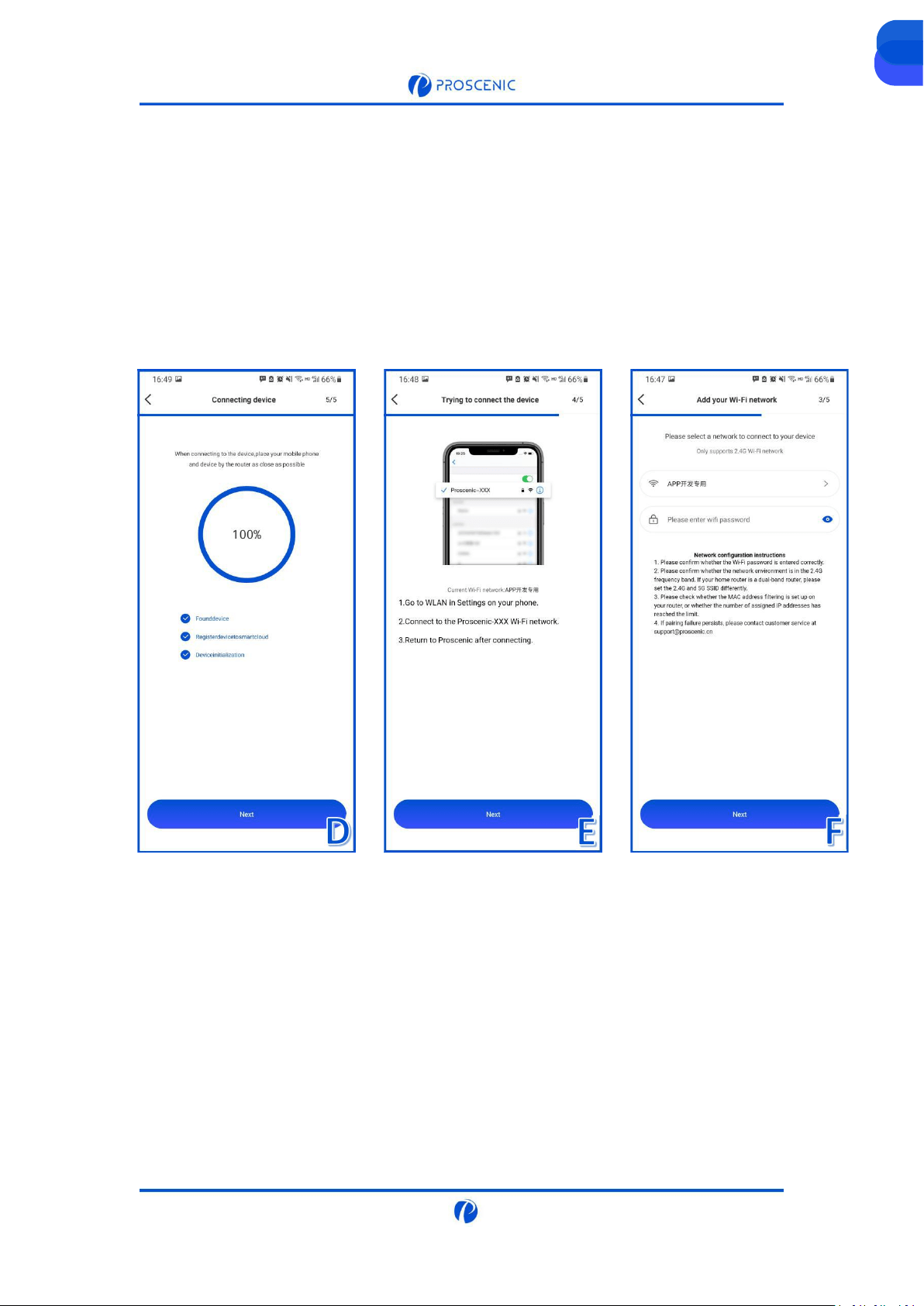
1.2 WiFi Connection
D. Select the same 2.4GHz WiFi as your smartphone is connecting and enter the WiFi password.
E. Go to WiFi setting page to connect to the robot vacuum’s hotspot named
“Proscenic-XXX-XXXXXXX”.
F. Go back to Proscenic APP and complete the WiFi connection.
ENEN
EN
2. How to Control your Robot Vacuum with the Alexa
Before you start, make sure that:
Your robot vacuum is on and ensure it has enough power during setup.
Your robot vacuum is successfully connected to Proscenic APP.
You already have a device that can use Alexa, such as the Amazon Echo Dot.
The Amazon Alexa APP has been installed on your smartphone and connected to
the Wi-Fi network.
2.1 Alexa Connection
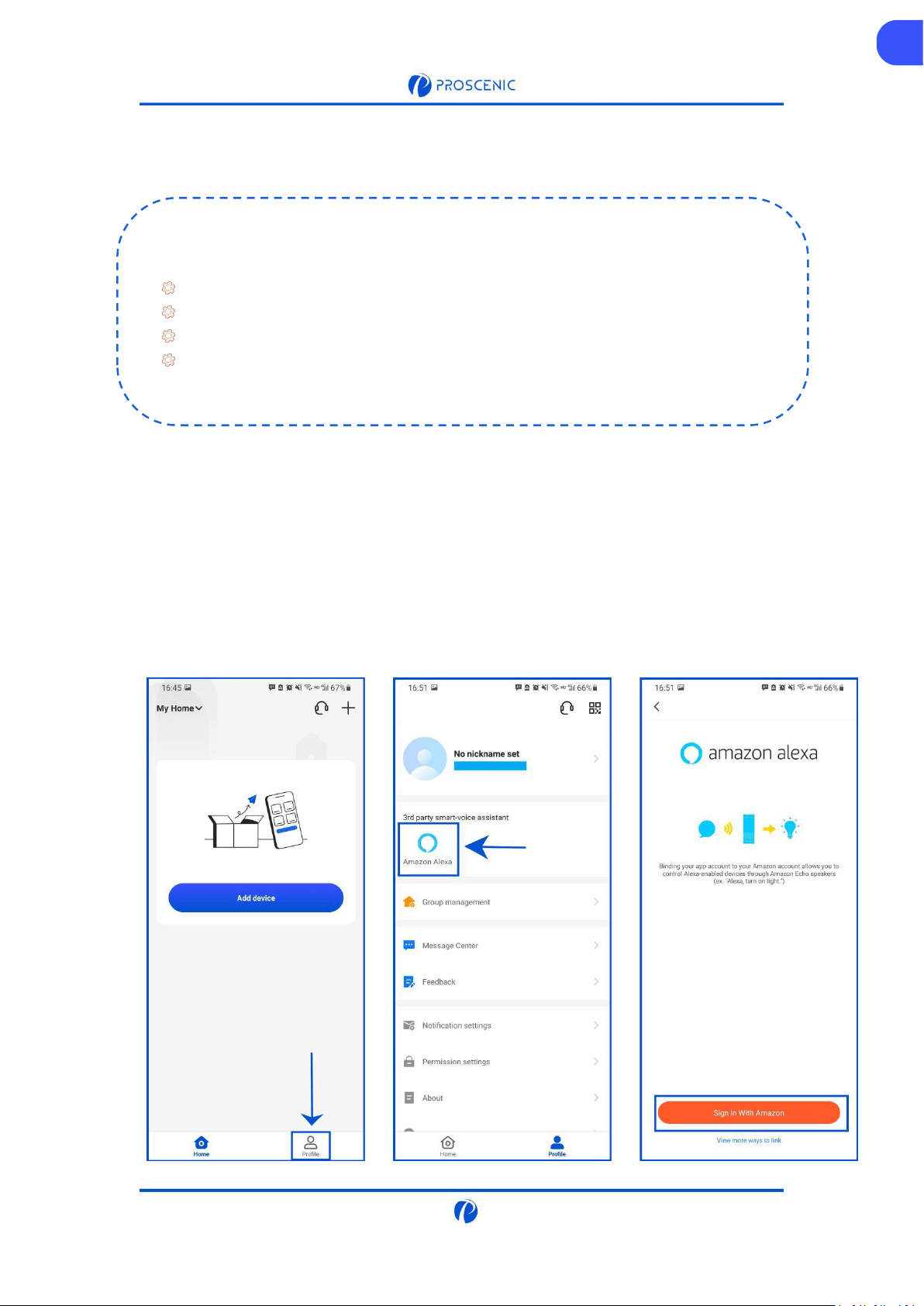
A. Open Proscenic APP and Click the “Profile”.
B. Click “Amazon Alexa”.
C. Click “Sign In With Amazon”, and it will jump to the Alexa APP.
EN
EN
2.1 Alexa Connection
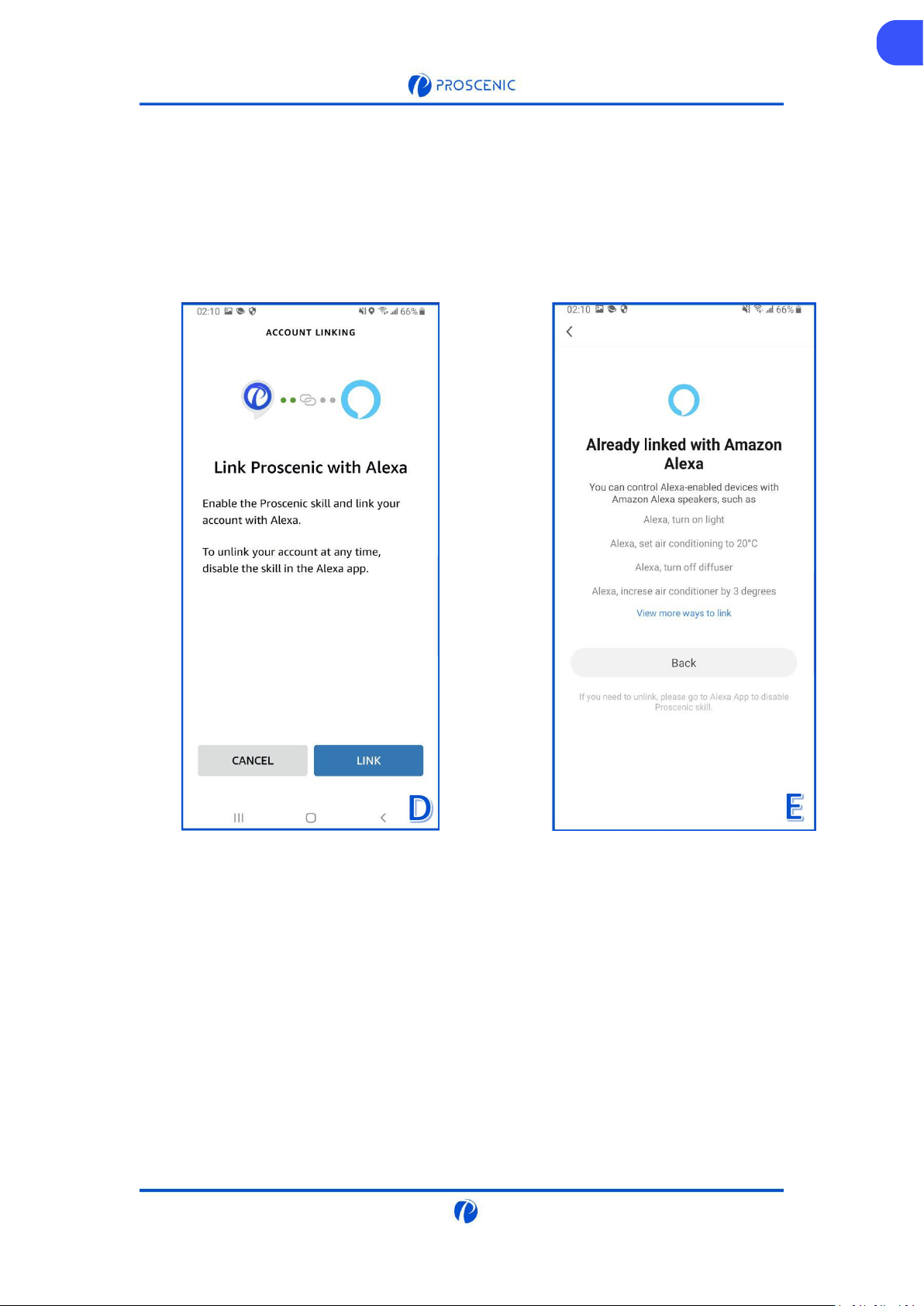
D. Click “LINK” to enable the Proscenic skill.
E. After the authorization is done, it’s linked to Alexa successfully.

EN
EN
2.2 Alexa Voice Command
Switch On/Off
Alexa, turn on <device name>
Alexa, turn off <device name>
Change Working Mode
Alexa, set <device name> to <spot>
Alexa, set <device name> to <dock>
Alexa, set <device name> to <smart>
Alexa, set <device name> to <mop>
Alexa, what is the mode on <device name>?
Change Suction Level
Alexa, set <device name> fan speed to <one>
Alexa, set <device name> fan speed to <two>
Alexa, set <device name> fan speed to <three>
Alexa, what is the fanspeed on <device name>?
Ask about Battery Leval
Alexa, what is the battery level on <device name>?
3. How to Control your Robot Vacuum with the Google Assistant
3.1 Goolgle Assistant Connection
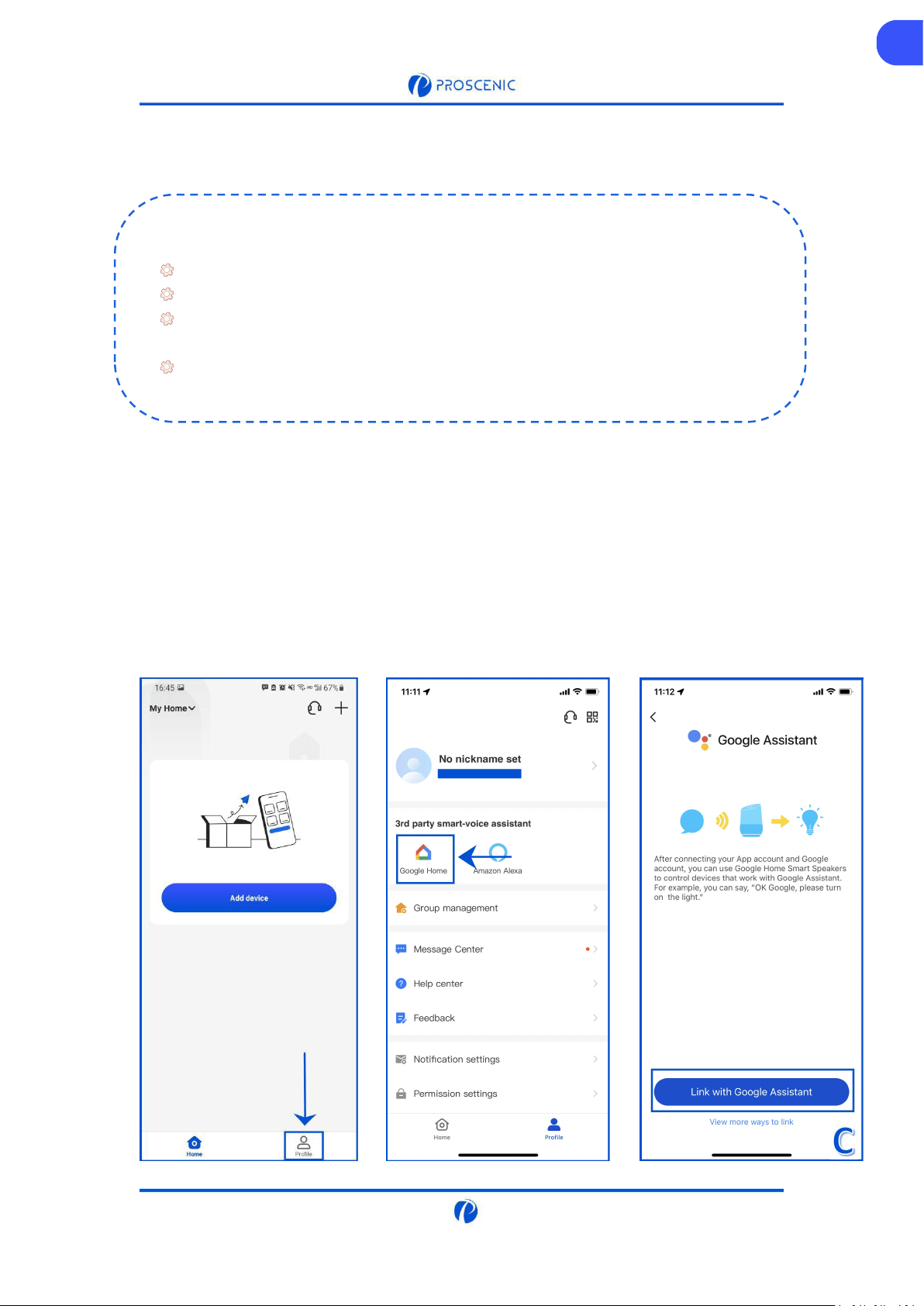
A. Open Proscenic APP and Click the “Profile”.
B. Click “Google Home”.
C. Click “Link with Google Assistant”, and it will jump to the Google Home APP.
EN
Before you start, make sure that:
Your robot vacuum is on and ensure it has enough power during setup.
Your robot vacuum is successfully connected to Proscenic APP.
You already have a device that can use Google Assistant, such as Google Home
Mini.
The Google Home APP has been installed on your smartphone and connected to
the Wi-Fi network.
EN
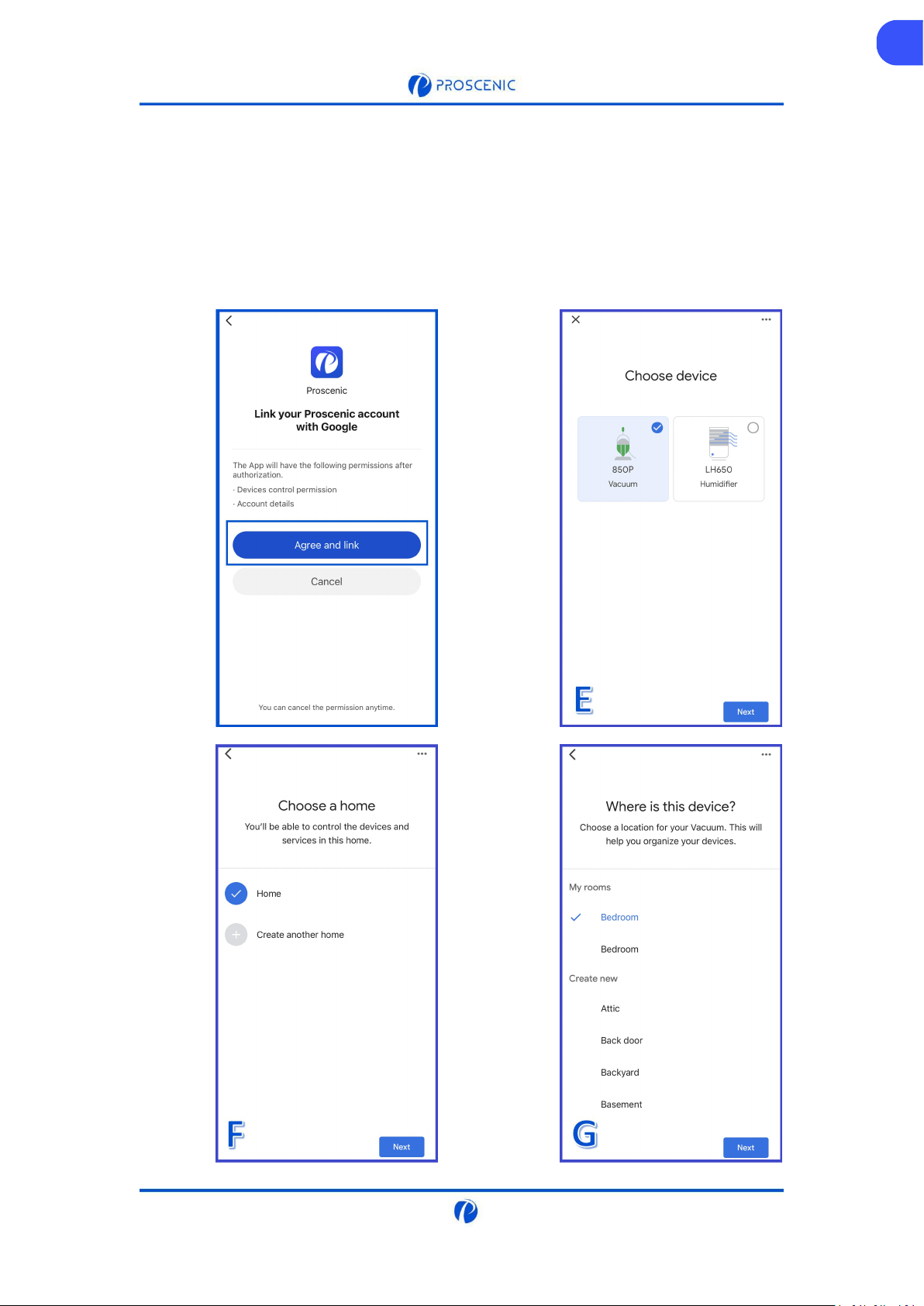
D. Click “Agree and link”.
E. Choose the device and click “Next”.
F. Choose your home and click “Next”.
G. Choose a location for your robot vacuum and click “Next”. And it’s linked to Google Assistant
successfully.

3.2 Google Assistant Voice Command
Switch On/Off
Ok Google, start <device name>
Ok Google, stop <device name>
Change Working Mode
OK Google, set <device name> to <spot>
OK Google, set <device name> to <dock>
OK Google, set <device name> to <smart>
OK Google, set <device name> to <mop>
Change Suction Level
OK Google, set fanspeed to <three> on <device name>
OK Google, set fanspeed to <one> on <device name>
OK Google, set fanspeed to <two> on <device name>
Ask about Battery Leval
OK Google, What is the <device name> battery level?
EN

The robot vacuum is not able to connect to the WiFi network.
The robot vacuum is not able to connect to the WiFi network.
* Make sure you entered the Wi-Fi password correctly .
* Make sure your robot vacuum, router, and mobile phone are close enough to
ensure a strong signal strength.
* Make sure your Wi-Fi router supports the 2.4GHz, the 5GHz band is not supported.
The robot vacuum is not able to be controlled with Amazon Alexa.
* Please check the network connection of your mobile device.
* Make sure you've connected the robot to Proscenic APP.
* Make sure you've enabled "Proscenic" Skill in Alexa APP.
* Make sure your robot has been discovered in Alexa APP.
* Make sure you are using correct Alexa voice-commands.
The robot vacuum is not able to be controlled with Google Assistant.
* Please check the network connection of your mobile device.
* Make sure you've connected the robot to Proscenic APP.
* Make sure you've enabled "Proscenic" Skill in Google Home APP.
* Make sure your robot has been connected in Google Home APP.
* Make sure you are using correct Google Assitant voice-commands.
EN
4. Troubleshooting
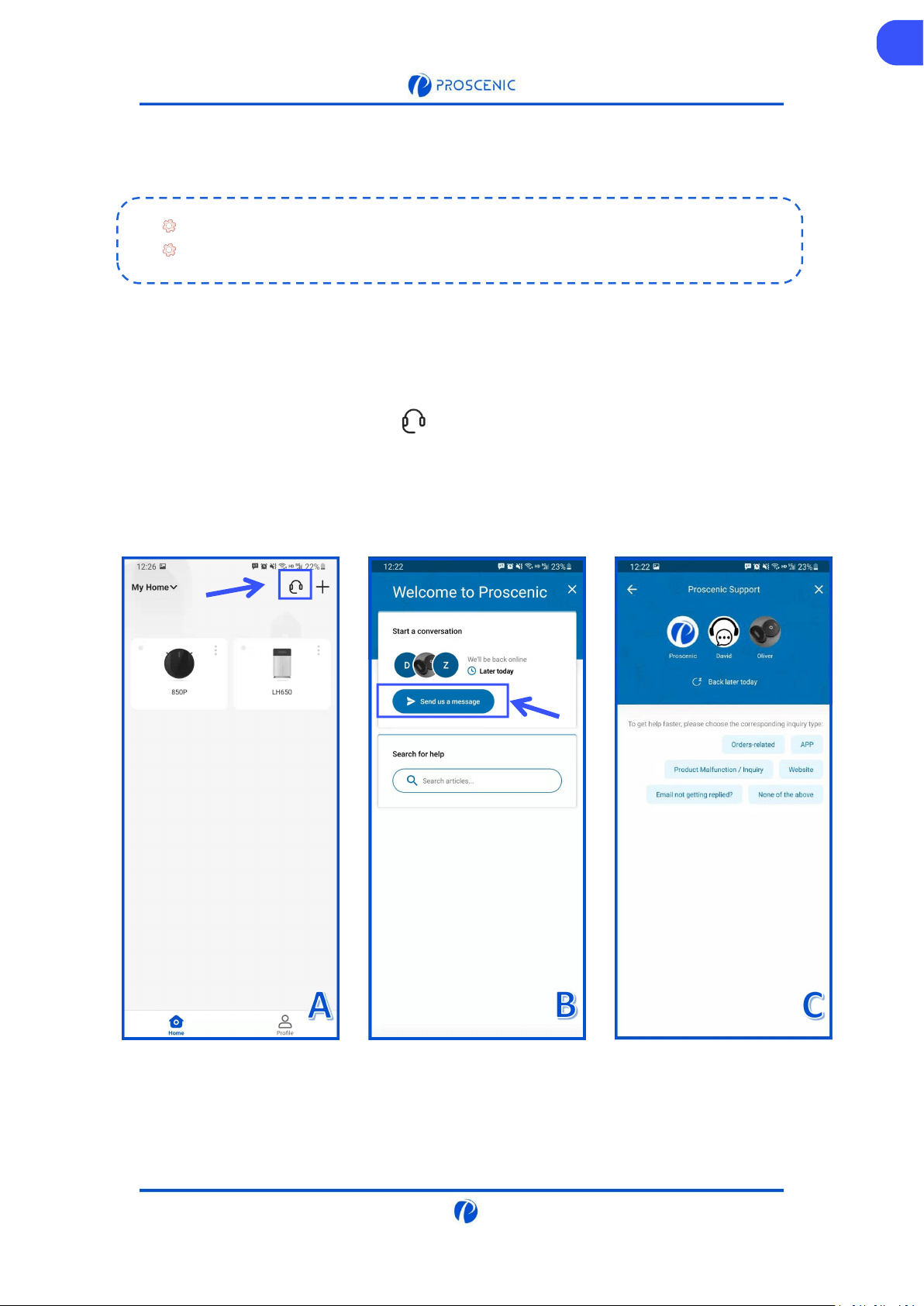
5.1 How to contact the APP Online Customer Service
A. Open Proscenic APP and Click the “ ”.
B. Click “Send us a message”.
C. Select a corresponding inquiry type and start the online chat.
ENEN
5. APP Online Customer Service
If you have any questions or suggestions, please feel free to contact us.
The online customer service team will answer you as soon as possible.

Email Service
Phone Service
United States
Service-us@proscenic.cn
+1(833) 313 1310
Canada
Service-ca@proscenic.cn
United Kingdom
Service-uk@proscenic.cn
+44 (0)808 273 7688
Deutschland
Service-de@proscenic.cn
France
Service-fr@proscenic.cn
Italia
Service-it@proscenic.cn
España
Service-es@proscenic.cn
日本
Service-jp@proscenic.cn
050-5533-2720
Other Countries
Support@proscenic.com
/
6. Customer Service Contacts
EN