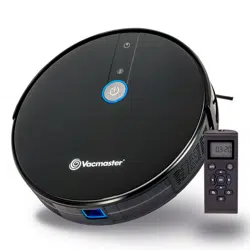
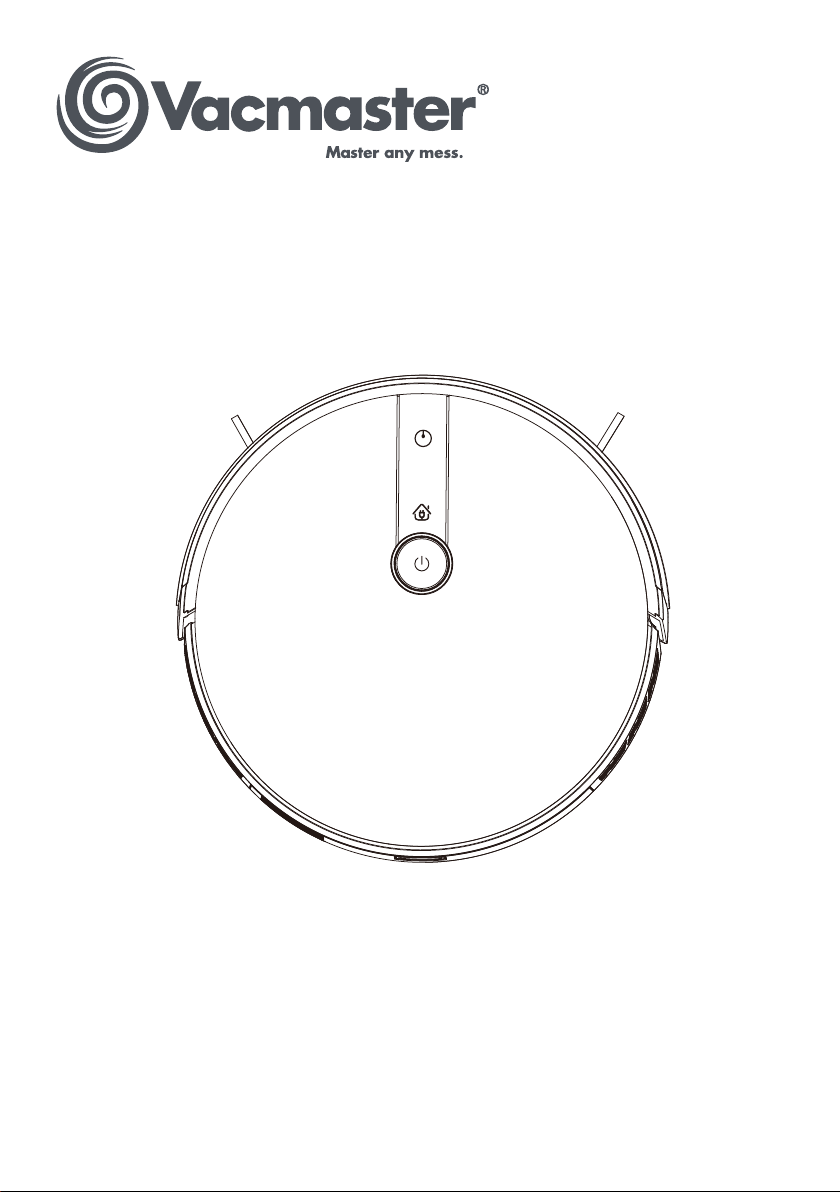
Use & Care Guide
MODEL NO. C12
ROBOT VACUUM CLEANER
www.vacmaster.com
Cleva North America, Inc.
Greenville, SC 29607
Made in China
(866) 384-8432

-2-
SECTION
Important Safety Instructions.............................................................................................................3
Warranty…………....................................................................................................................................6
Technical Data
.....................................................................................................................................6
Getting To Know Your Vacuum............................................................................................................7
Installation Instructions............................................................................................................11
Operating Instructions.........................................................................................................17
Maintaining Your Vacuum.................................................................................................................. 22
Troubleshooting...................................................................................................................................29
TABLE OF CONTENTS
PAGE
Thank you for purchasing this Vacmaster
®
vacuum cleaner. With it you are
obtaining a high quality product that is engineered for optimal performance.
FOR YOUR SAFETY
Read and understand this manual before use.
Keep this manual and your sales check (receipt) in a safe place for future
reference.

-3-
IMPORTANT SAFETY INSTRUCTIONS
When using an electrical appliance, basic precautions should always be
followed, including the following:
READ ALL INSTRUCTIONS BEFORE USING THIS ROBOT VACUUM
CLEANER.
Failure to follow the warnings and instructions may result in electric shock, re
and/or serious injury.
WARNING -
To reduce the risk of re, electric shock, or injury:
• Do not use outdoors or on wet surfaces.
• Do not allow to be used as a toy. Close attention is necessary when used by
or near children, pets or plants.
• Use only as described in this manual. Use only manufacturer’s recommended
attachments.
• Do not use with damaged cord or plug. If appliance is not working as it should,
has been dropped, damaged, left outdoors, or dropped into water, call (866)
384-8432 for assistance.
• Do not pull or carry by cord, use cord as a handle, close a door on cord, or
pull cord around sharp edges or corners. Do not run appliance over cord.
Keep cord away from heated surfaces.
• Do not unplug by pulling on cord. To unplug, grasp the plug, not the cord.
• Do not handle charger, including charger plug, and charger terminals with wet
hands.
• Do not put any object into openings. Do not use with any opening blocked;
keep free of dust, lint, hair, and anything that may reduce air ow.
• Keep hair, loose clothing, ngers, and all parts of body away from openings
and moving parts.
• Do not use to pick up ammable or combustible liquids, such as gasoline, or
use in areas where they may be present.
• Do not pick up anything that is burning or smoking, such as cigarettes,
matches, or hot ashes.
• Do not use without dust bin.
• Turn off the appliance before making any adjustments, changing accessories,
or storing appliance. Such preventive safety measures reduce the risk of
starting the appliance accidentally.

-4-
• Use only the charging dock specially equipped by the manufacturer.
• Under abusive conditions, liquid may be ejected from the battery; avoid
contact. If contact accidentally occurs, ush with water. If liquid contacts eyes,
additionally seek medical help. Liquid ejected from the battery may cause
irritation or burns.
• Do not use the appliance that is damaged or modied. Damaged or modied
batteries may exhibit unpredictable behavior resulting in re, explosion or risk of
injury.
• Do not expose the appliance to re or excessive temperature. Exposure to re
or temperature above 130°C (265°F) may cause explosion.
• It is recommended to operate appliance at room temperature between 39.2°F
(4°C) and 104°F (40°C).
• It is recommended to store the appliance between 32°F (0°C) and 104°F (40°C).
• It is recommended to apply the boundary strips (not included) to block off areas
on top stair where the appliance may fall.
• Follow all charging instructions and do not charge the appliance outside of
the temperature range specied in the instructions. Charging improperly or
at temperatures outside of the specied range may damage the battery and
increase the risk of re.
• Have servicing performed by a qualied repair person using only identical
replacement parts. This will ensure that the safety of the appliance is
maintained.
• Do not modify or attempt to repair the appliance or the battery pack except as
indicated in the instructions for use and care.
• Place the cords from other appliances out of the area to be cleaned.
• Do not operate the appliance in a room where an infant or child is sleeping.
• Do not operate the appliance in an area where there are lit candles, fragile
objects or a working heater on the oor to be cleaned. The appliance may
accidentally hit or bump into the heat resources resulting in re or risk of injury.
• Do not allow children to sit on the appliance.
WARNING:
Any changes or modications to this unit not expressly
approved by the party responsible for compliance could void the user’s authority
to operate the equipment.

-5-
NOTE:
This equipment has been tested and found to comply with the limits for
a Class B digital device, pursuant to Part 15 of the FCC Rules. These limits are
designed to provide reasonable protection against harmful interference in a
residential installation. This equipment generates, uses and can radiate radio
frequency energy and, if not installed and used in accordance with the
instructions, may cause harmful interference to radio communications. However,
there is no guarantee that interference will not occur in a particular installation. If
this equipment does cause harmful interference to radio or television reception,
which can be determined by turning the equipment off and on, the user is
encouraged to try to correct the interference by one or more of the following
measures:
• Reorient or relocate the receiving antenna.
• Increase the separation between the equipment and receiver.
• Connect the equipment into an outlet on a circuit different from that to which the
receiver is connected.
• Consult the dealer or an experienced radio/TV technician for help.
Product Disposal
This product contains an internal Lithium-ion battery pack formulated from
environmentally sensitive materials. This product must be disposed of properly
with due care for the environment.
Do not dispose of product with household garbage. Consult your local waste
authority for information regarding available recycling or disposal options.
SAVE THESE INSTRUCTIONS
Household use only.

-6-
FOR ONE YEAR from the date of sale, this product is warranted against defects
in material or workmanship when it is assembled, operated and maintained
according to all supplied instructions.
WITH PROOF OF SALE, a defective appliance will be replaced free of charge.
For warranty coverage details to obtain free replacement, visit the web page:
www.vacmaster.com or call (866) 384-8432.
• This warranty does not cover lters, which are expendable parts that
can wear out from normal use within the warranty period.
• This warranty is void if this product is ever used for other than private household
purposes.
• This warranty gives you specic legal rights, and you may also have other
rights which vary from state to state.
Robot Vacuum Cleaner
Rated Voltage: 14.4VDC
Rated Power: 28W
Model: C12
Battery Charger
Model: GQ12-190060-AU
Input: 100- 240VAC, 50/60Hz, 0.4A Max
Output: 19VDC, 0.6A
Battery
Type: 14.4V rechargeable Lithium-Ion 2500mAh
WARRANTY
TECHNICAL DATA
-7-
GETTING TO KNOW YOUR VACUUM
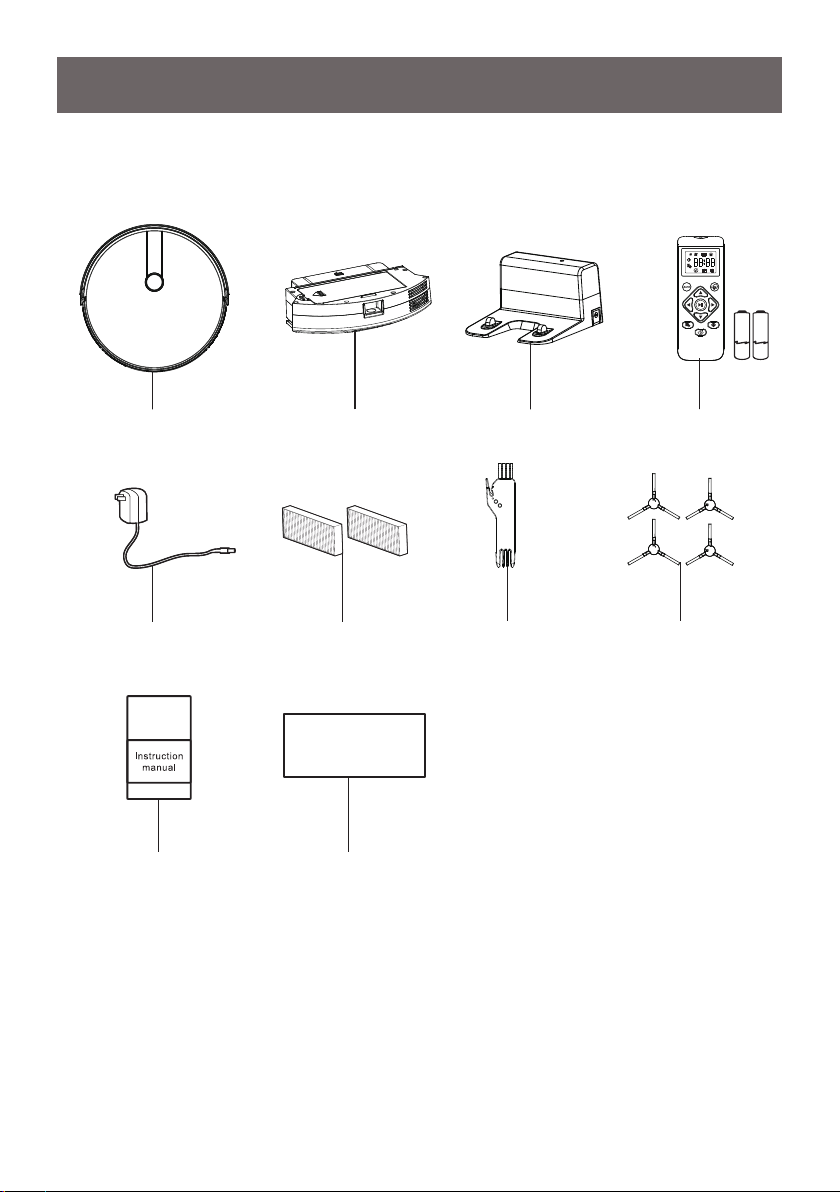
Included in the Box:
Robot Vacuum Cleaner
Charging Adapter
Use & Care Guide
Cleaning Tool
High Efciency
Filter (x2)
Quick Start Guide
Side Brush (x2 sets)
Dust Bin Charging Dock Remote Control
with 2 AAA Batteries
-8-
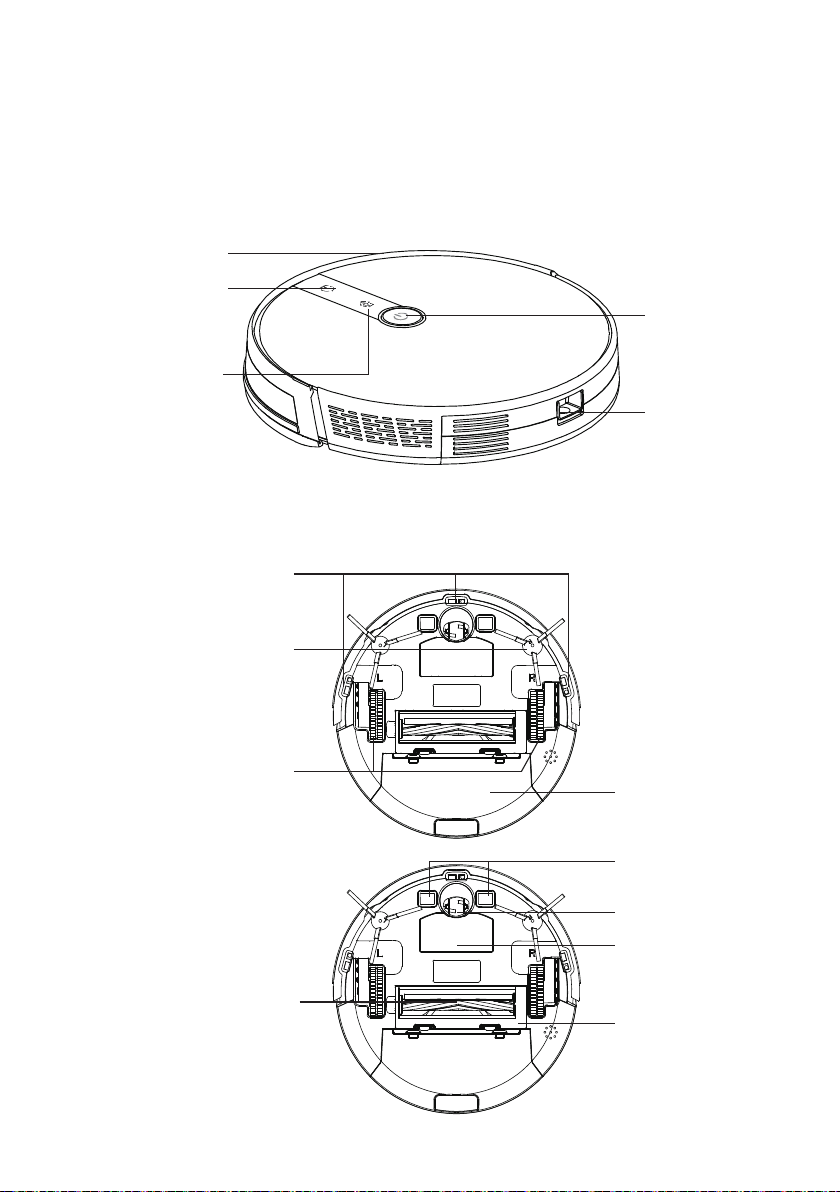
About Your Robot Vacuum
Front Robot
Back Robot
Front Bumper
Quick Start
Power Button
Charging Contacts
Front Swivel Wheel
Battery Cover
Brushroll Cover
Dust Bin Release
Button
Power Indicator Light
Docking Indicator Light
Anti-Drop Cliff
Sensors
Side Brushes
Brushroll
Dust Bin & Filter
Drive Wheels
-9-
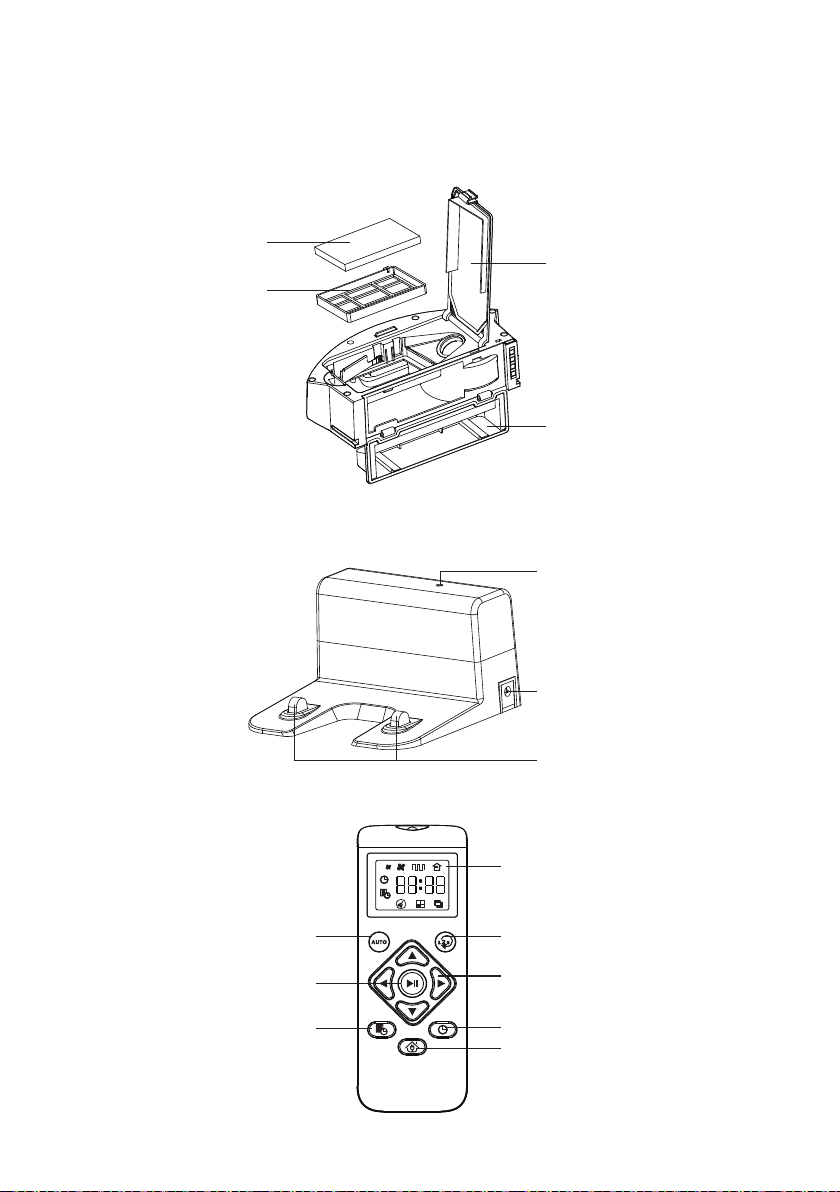
Charging Dock
Remote Control
Dust Bin & Filter
High Efciency Filter
Start Cleaning Session
Start / Pause Cleaning Session
Schedule Cleaning Session
Filter Basket
Dust Bin Door
Charging Dock Indicator
DC Socket
Charging Pins
Return Robot to Charging Dock
Clock Set-Up
Control Cleaning Direction Manually
Screen Display
Select Cleaning Mode:Spot Cleaning
Mode,Single Room Cleaning Mode,
Edge Cleaning Mode
Filter Door

-10-
NOTE:
Install 2 AAA batteries before using the remote control for the rst time.
Make sure the positive and negative ends are facing the correct polarity direction
as marked in the battery compartment.
REPLACEMENT PARTS
Available online at www.vacmaster.com or call (866) 384-8432.
Item Part No.
High Efciency Filter 611002101
Filter Basket 611002102
Side Brushes (L/R) 611002106 / 611002107
Remote Control 611002108
Cleaning Tool 611002103
Brushroll 611002105
Brushroll Cover 611002109
Front Swivel Wheel 611002110
Charging Dock 611002119
Charging Adapter 611002112
Battery 611002120
Dust Bin 611002111
Boundary Strip
(not included, but available on Vacmaster.com)
611002130
-11-
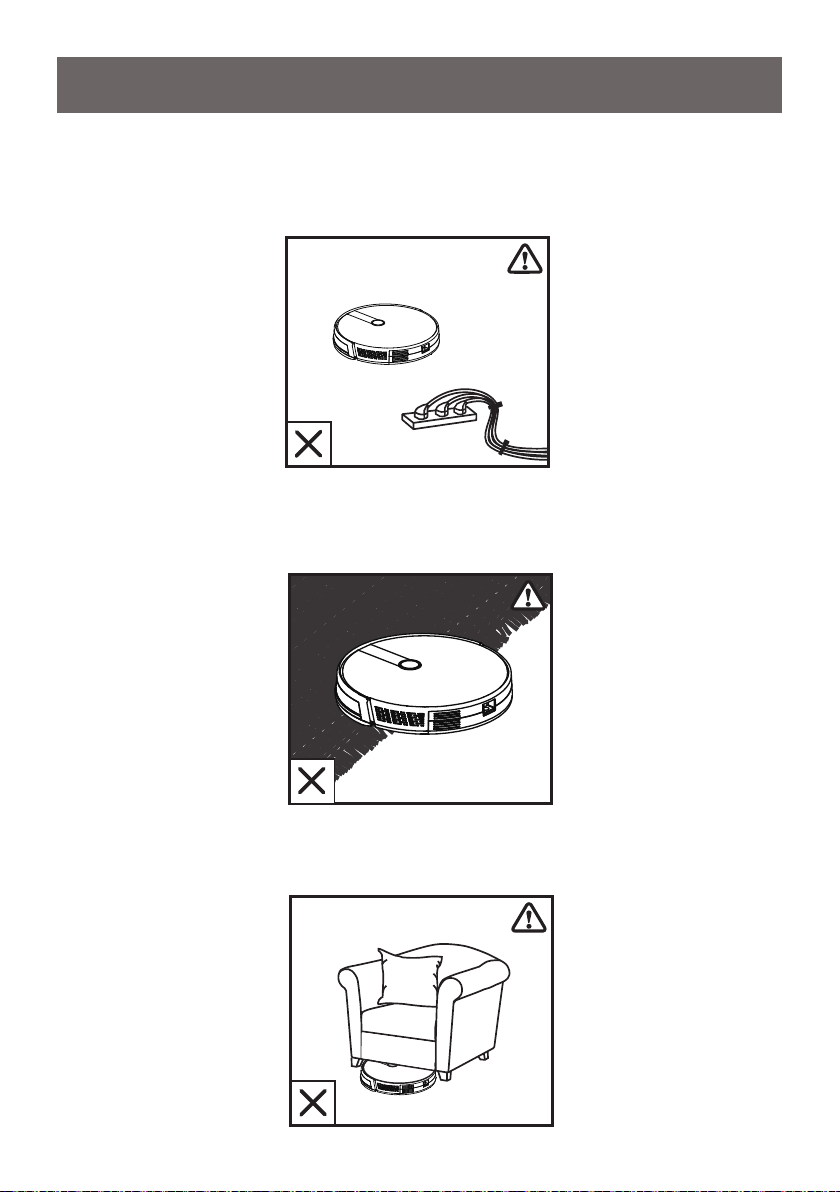
2. Fold tasseled edges of area rugs underneath to prevent these from getting
entangled or trapped. Your robot may have trouble with dark colored rugs.
Block off areas as necessary.
INSTALLATION INSTRUCTIONS
Important Tips Before Use
1. Remove power cords and other obstructions to prevent your robot from getting
entangled or trapped. You can use cable ties to organize your wires and power
cords.
3. To prevent your robot from becoming stuck, use furniture rises for spaces
lower than 3.15 inches (80mm). If necessary, place a physical barrier to block
off the problem areas.
-12-
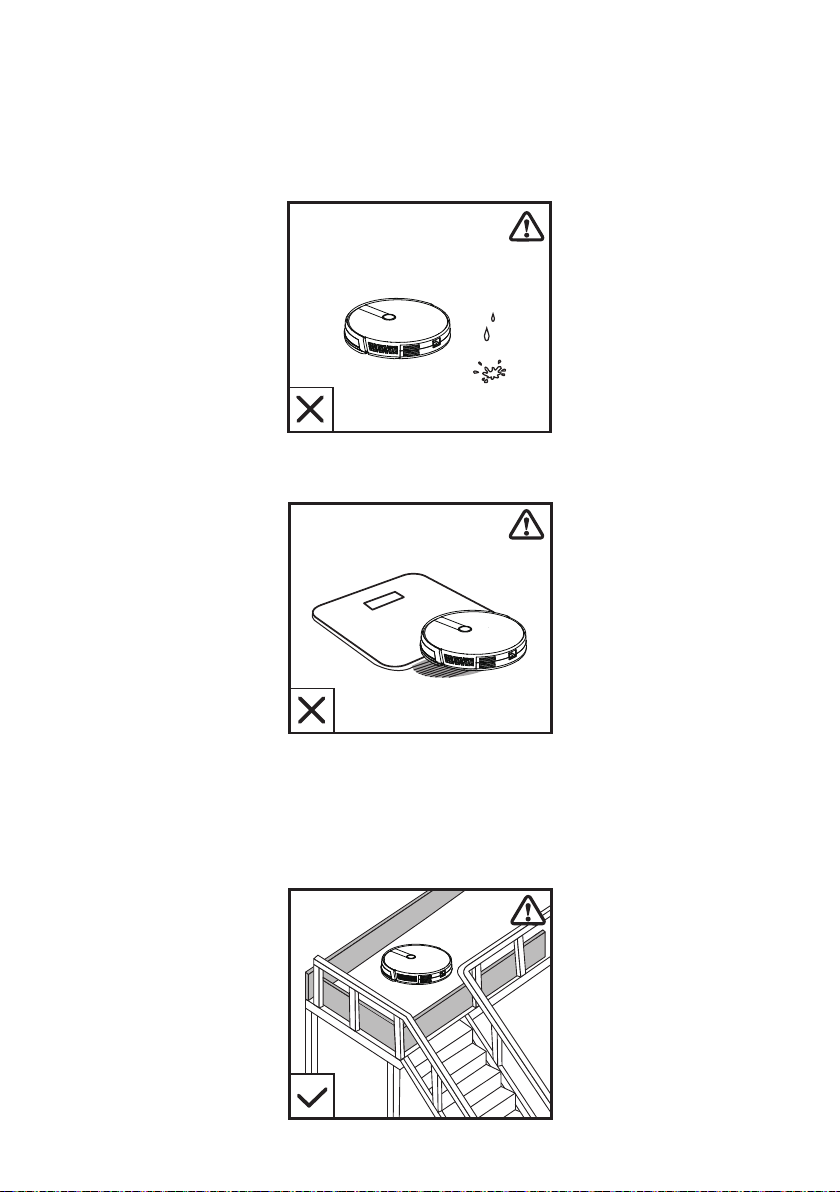
4. Prevent your robot from vacuuming wet areas as this could damage your
vacuum.
5. Remove any objects less than 0.6 inches (15mm) in height as robot may climb
over.
6. Anti-drop cliff sensors prevent the robot from tumbling down stairs and
steep drops. Your robot may have trouble if the sensors are dirty or if used
on reective / dark colored oors. If necessary, place a physical barrier or
boundary strip (sold separately) to block off.
-13-
7. Use Boundary Strips (Sold Separately)
The boundary strips allow you to keep your robot from entering an area or picking
up an item that the robot should not clean. The robot will recognize the boundary
strips and will not cross into the blocked-off area. See page 27 for installation
instructions.
NOTE:
Place physical barriers or boundary strips (sold separately) in front of
replaces and areas that you do not want the robot to enter. To order boundary
strips, please visit www.vacmaster.com or call us at (866) 384-8432.
Installation Instructions
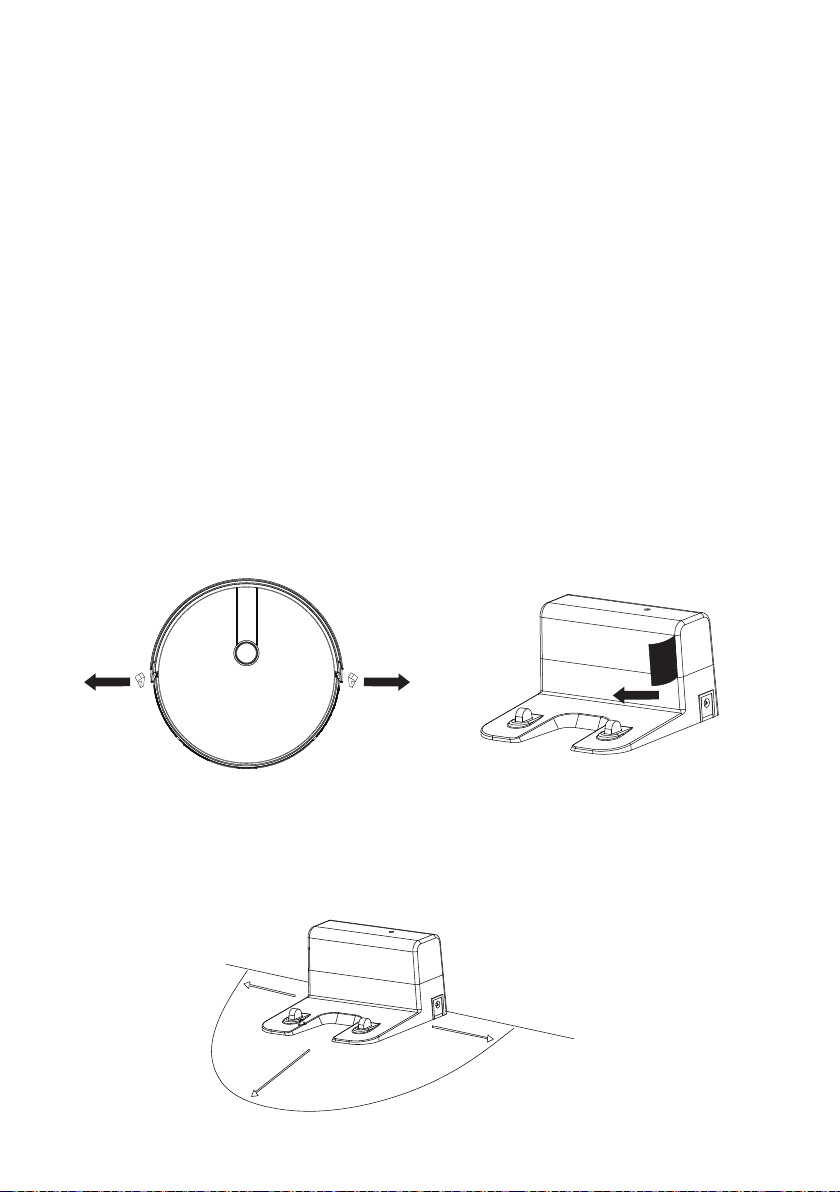
1. Remove Protection
Before using robot, remove the protective covers on the robot and charging
dock.
2. Set-Up the Charging Dock
Your charging dock should be on a level, hard surface against the wall in a
central location that can easily be accessed by your robot vacuum. Remove
any objects that are closer than 5ft (1.5m) from the front and 3ft (1m) from
either side of the dock.
5ft/1.5m
3ft/1m
3ft/1m
-14-
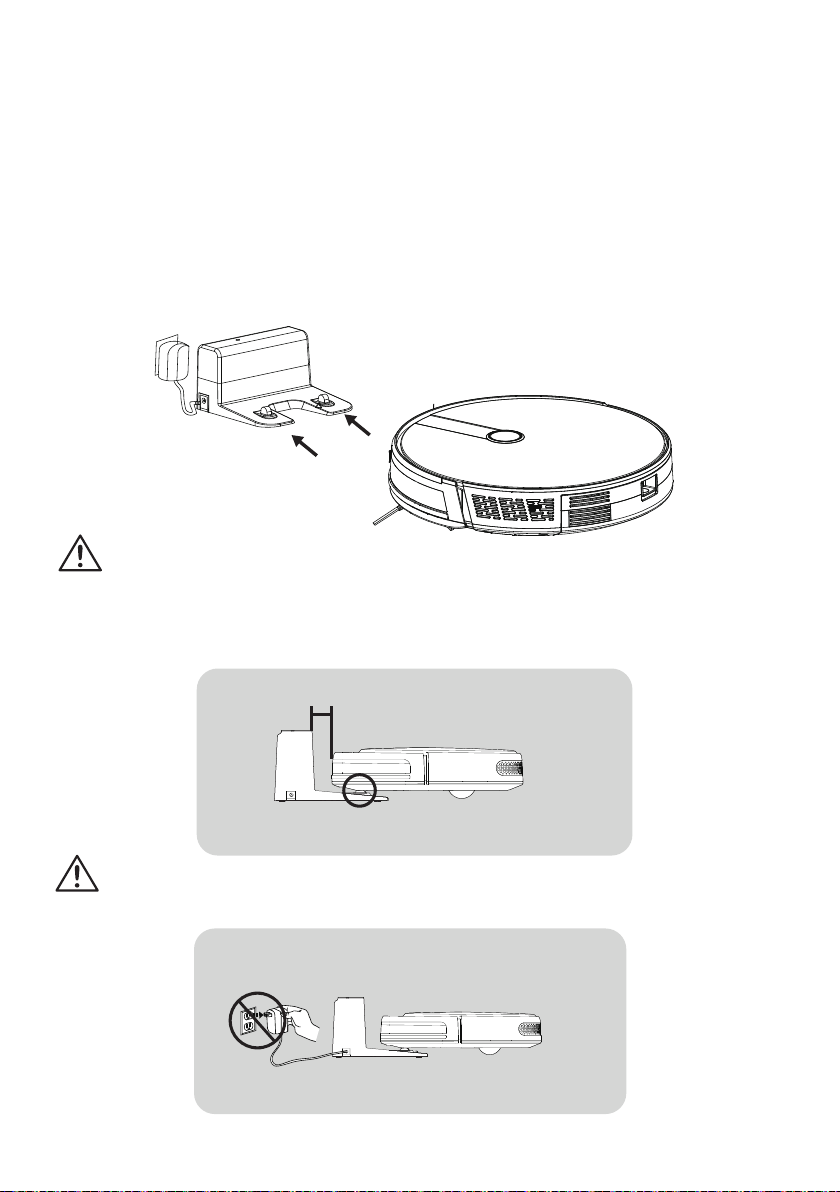
4. Install Side Brushes
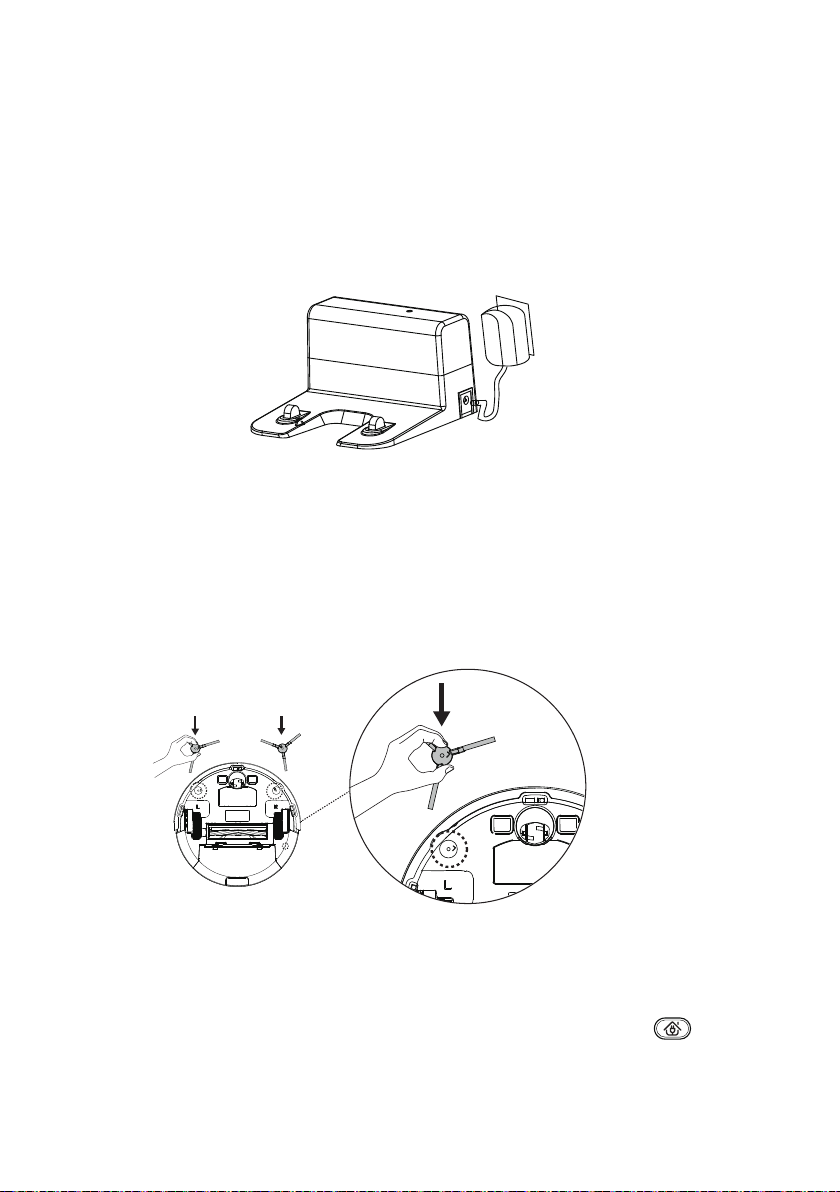
3. Connect the Charging Adapter
Plug the charging adapter into a wall outlet and plug the connector into the
socket on the side of the charging dock. When the charging dock connects to
a power supply, the LED indicator on the charging dock will ash. The charging
dock must be plugged in at all times for the robot to nd the dock.
Your Vacmaster
®
robot comes with two side brushes that need to be installed
on the bottom of the vacuum. Each side brush is installed on a specic side of
the robot and indicated with an L or R on the front of the side brush. Match up
the letter on the side brush with the letter on the back of the robot. To install,
simply push side brush onto the square peg.
5. Charge the Robot
Your Vacmaster
®
robot has a pre-installed rechargeable battery, which must
be charged before using. There are two options for charging, which include
manually placing robot on the charging dock or by pressing the button on
the remote control.
-15-
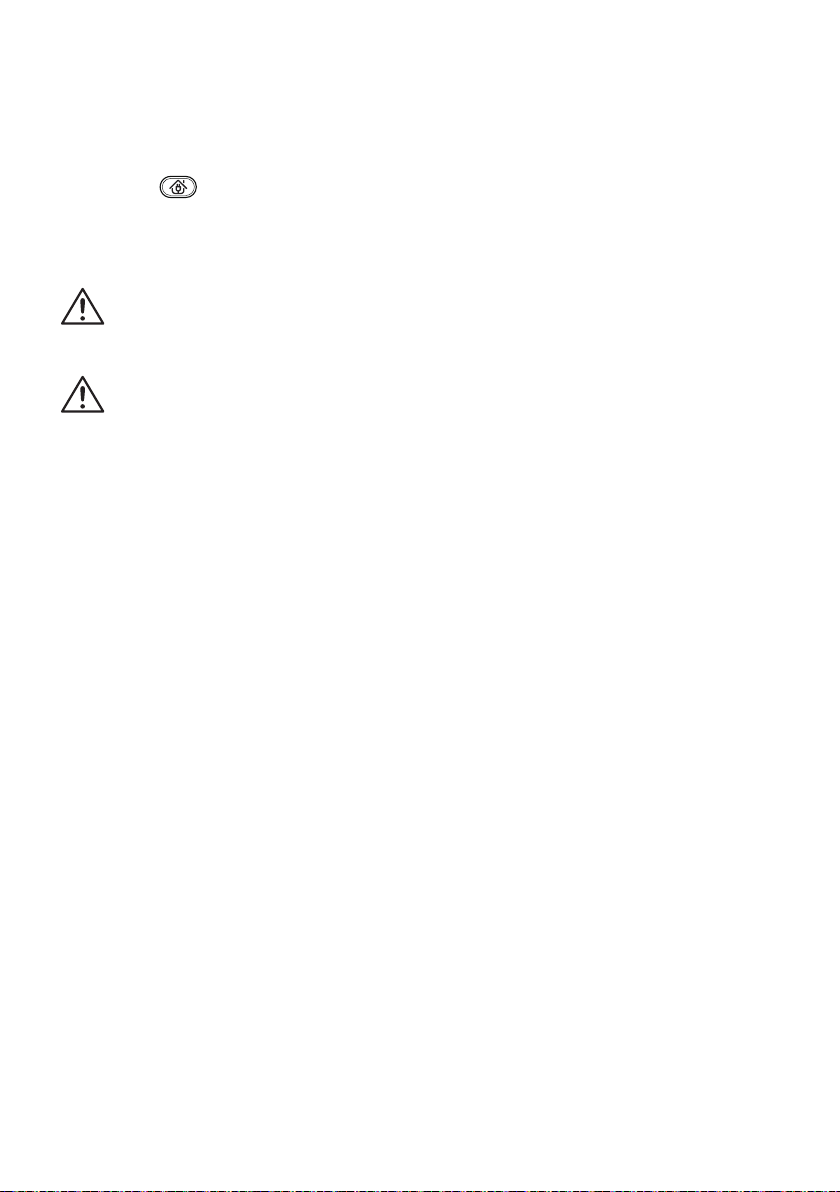
Option 1 – Manually Connect Robot to Charging Dock
Align the charging pins on the bottom of the robot with the charging pins on
the dock. When the robot is successfully connected to the charging dock, an
audible tone will activate. The docking indicator light on the robot will ash to
indicate the robot is charging. Once charging is completed, the indicator light
will illuminate steadily. Charging time is approximately 5 hours.
CAUTION:
When manually charging your robot, keep the robot 1cm away
from the back of the charging dock. Make sure the charging pins of the robot
are well connected to the charging pins of the charging dock. Ensure that
there is nothing obstructing the connections which may prevent charging.
1cm
CAUTION:
In order to ensure the battery life of the robot, do not remove
the charging adapter before the robot is fully charged.
-16-
CAUTION:
Use only original adapter for charging to avoid damages to
vacuum cleaner.
CAUTION:
To optimize the battery longevity, charge the vacuum cleaner
for at least 5 hours before using for the rst time. Never charge the batteries
in temperatures above 104°F (40°C) or below 39.2°F (4°C). It is normal for
the charger to become warm when charging. It is recommended to store the
robot between 32°F (0°C) and 104°F (40°C).
NOTE:
To preserve the battery’s longevity, recharge at least once every 3 months.
Option 2 – Remote Control Charging
Press on the remote control to return the robot to the charging dock.
During the cleaning process, the robot can sense when battery power is
low and automatically converts to recharging mode to start its return to the
charging dock.
-17-
CAUTION:
Operate robot at room temperature between 39.2°F (4°C) and
104°F (40°C) in order to ensure its safety and normal function. Make sure
the dust bin is installed before use.
NOTE:
The robot will return to the charging dock automatically when the battery
level becomes low or when the robot nishes cleaning.
NOTE:
If the robot stops working for more than ten minutes, it automatically
enters the sleep mode (all the lights on the robot will turn off). Press on the
robot or any key on the remote control to wake up robot.
NOTE:
The suction control feature only works in Smart Cleaning Mode.
Select a Cleaning Mode (If Desired)
Your advanced robot has the capability of operating in 5 different modes to satisfy
all your cleaning needs.
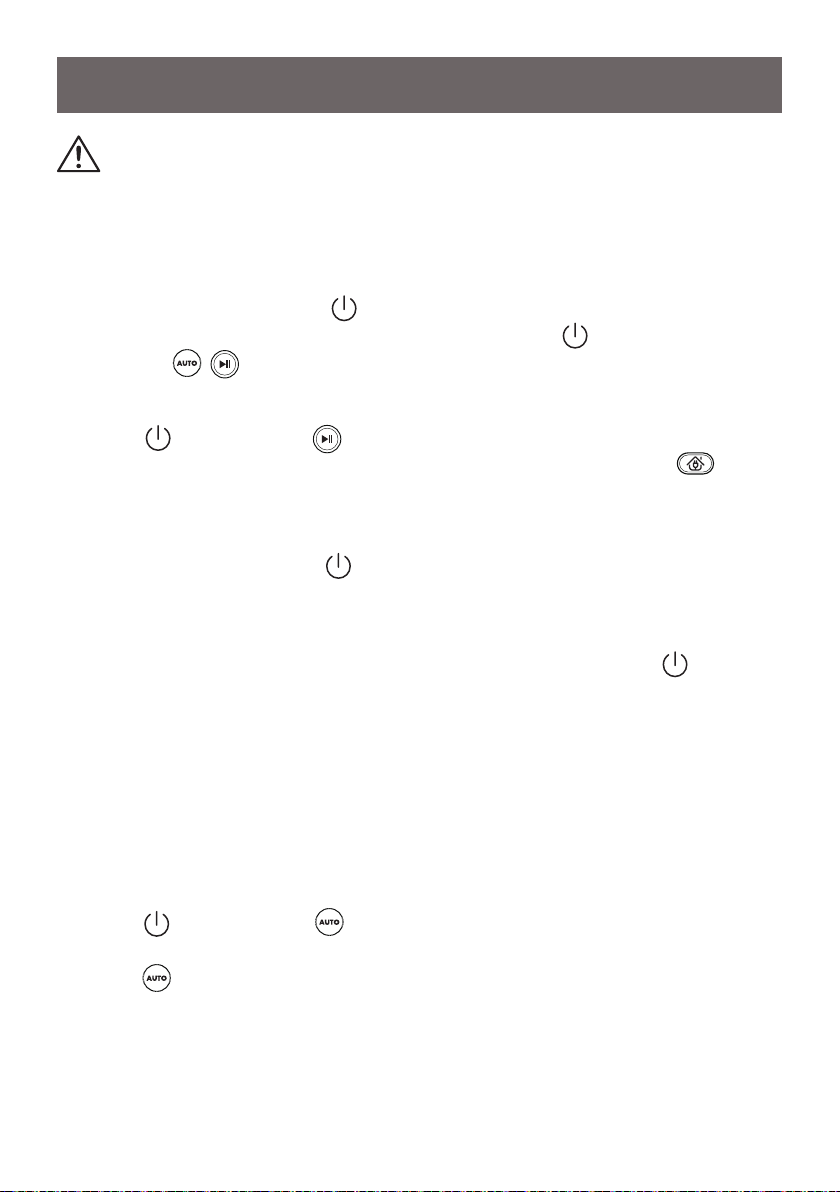
1. Smart Cleaning Mode
Press on the robot or on the remote control to start cleaning in Smart
Cleaning Mode.
Press again on the remote control to adjust the suction power level among
3 suction modes: Standard Mode, Max Power Mode and Quiet Mode. Max
Power Mode is ideal for cleaning thicker carpets and hard-to-sweep messes.
OPERATING INSTRUCTIONS
General Operating Instructions
· Turn On Robot
Wake up robot by pressing on the robot. The power indicator light will
illuminate. To start the robot vacuum, either press the button again, or
press the / button on the remote control.
· Pause or Stop a Cleaning Session
Press on the robot or on the remote control to pause a cleaning
session. If you want the robot to return to the charging dock, press on the
remote control.
· Power Off Robot
Pause the robot and press on the robot for three seconds to turn off the
robot.
-18-
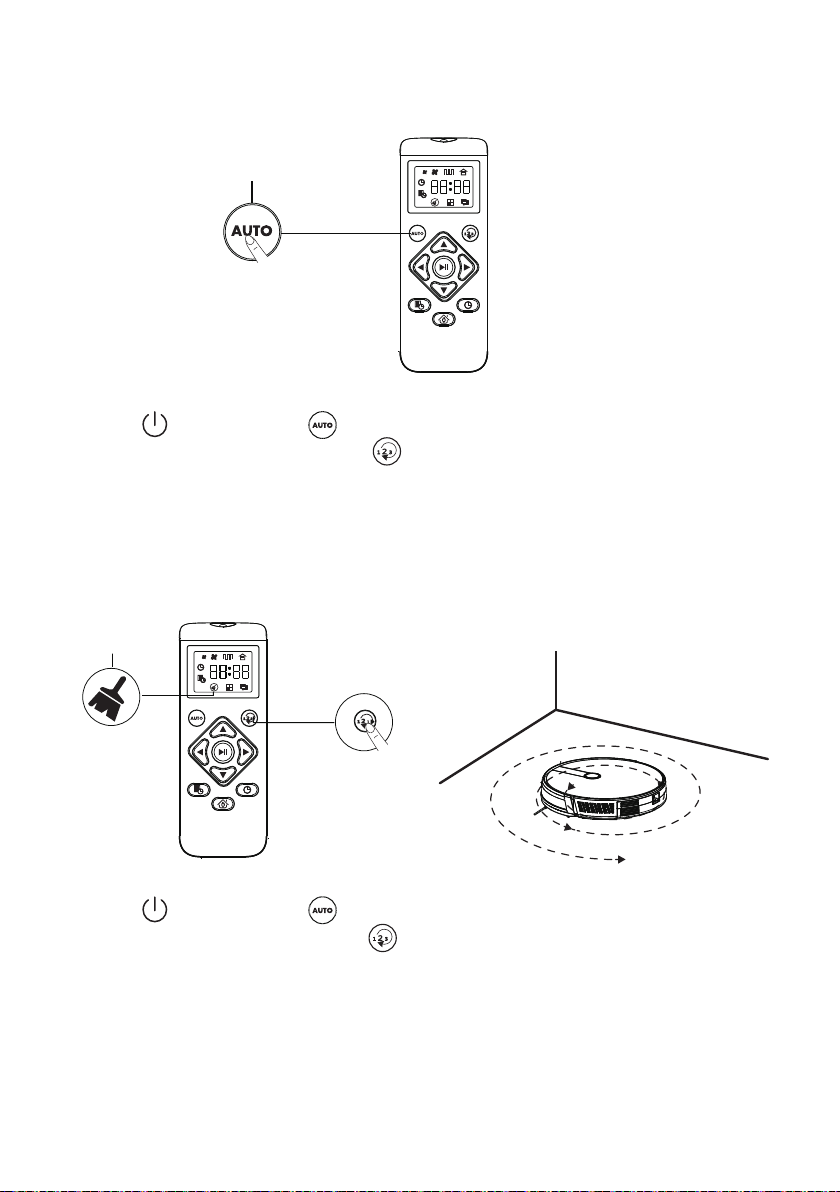
Suction Control Button
2. Spot Cleaning Mode
Press on the robot or on the remote control to start cleaning in Smart
Cleaning Mode. Then press the button one time on the remote control to
start the robot in Spot Cleaning Mode. The Spot Cleaning icon will display on
the remote control screen.
Spot cleaning is designed to clean a specic area with a spiral movement in a
radius of 3ft (1m) and should be used to clean a concentrated area of dust or
debris.
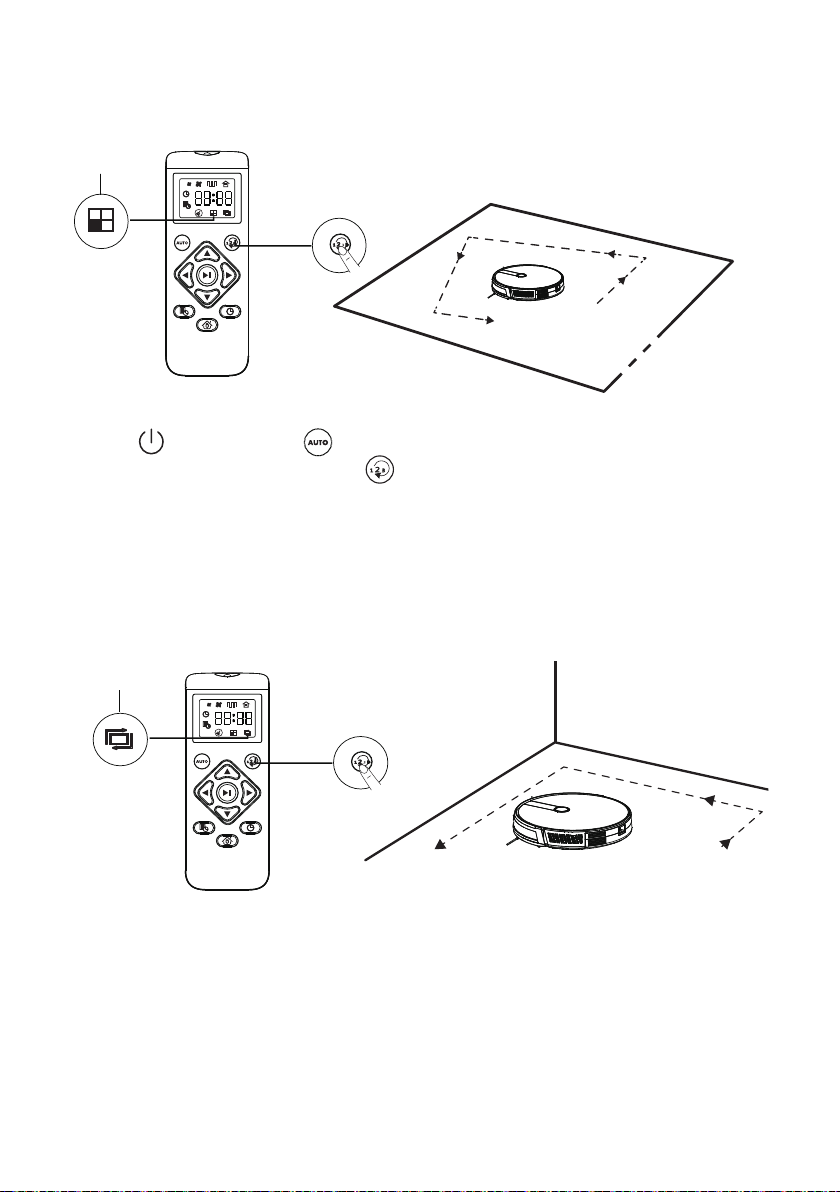
3. Single Room Cleaning Mode
Press on the robot or on the remote control to start cleaning in Smart
Cleaning Mode. Then press the button twice on the remote control to start
the robot in Single Room Cleaning Mode. The Room Cleaning icon will display
on the remote control screen. The robot will operate in Max Power Mode and
also vacuum the edges before nishing the cleaning session.
Make sure to conne the robot to the room by closing the door or creating a
physical barrier. The robot will automatically return to the start location once
nished.
Spot Cleaning Icon
-19-
Edge Cleaning Icon
Single Room
Cleaning Icon
4. Edge Cleaning Mode
Press on the robot or on the remote control to start cleaning in Smart
Cleaning Mode. Then press the button three times on the remote control to
start the robot in Edge Cleaning Mode. The Edge Cleaning icon will display on
the remote control screen.
This intelligent robot automatically reduces its moving speed once it detects a
wall and then cleans along the wall to ensure the edge is cleaned thoroughly.
The robot will return to the charging dock once nished.
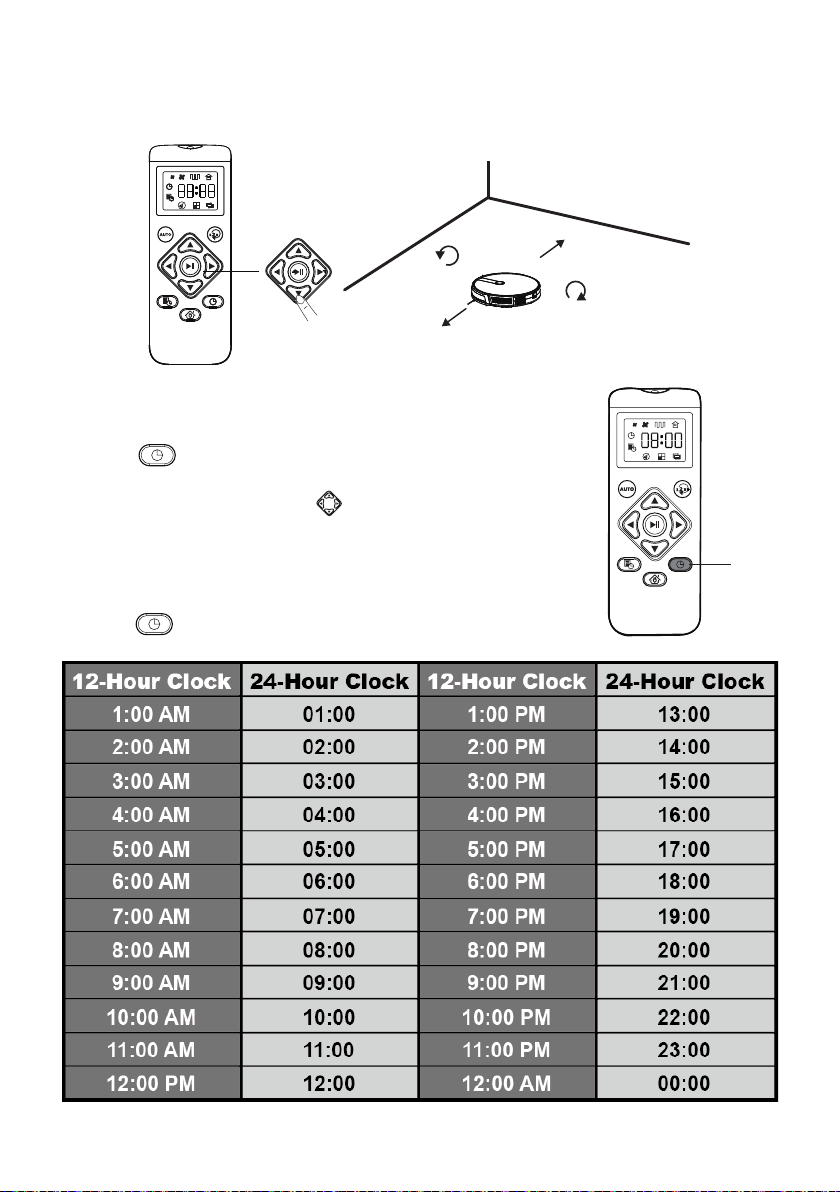
5. Manual Cleaning
You can direct the robot to clean a particular area by using the directional
buttons on the remote control. Start the robot in Smart Cleaning Mode and
then use the directional arrows on the remote control to adjust the cleaning
path of the vacuum cleaner as necessary.
-20-
Move backward
Turn left
Turn right
Move forward
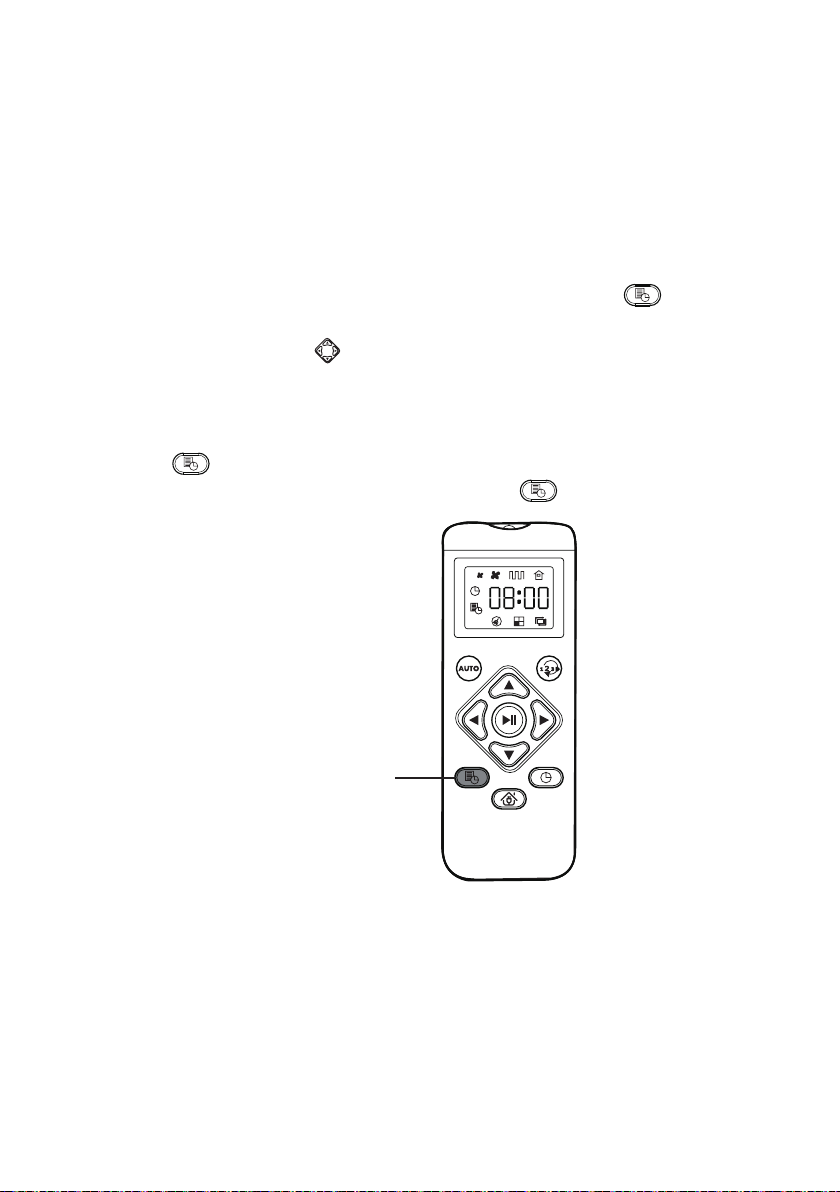
Set Up Clock
1.
Insert the included 2 AAA batteries into the remote control.
2. Press on the remote control. The time will blink on
the display screen.
3. Use the directional arrows on the remote to set the
“hour” and “minute”.
The remote uses a 24 hour clock. Reference the chart
below when setting the clock and scheduling cleaning
sessions.
4. Press to save the clock setting.
Clock
Set-Up
-21-
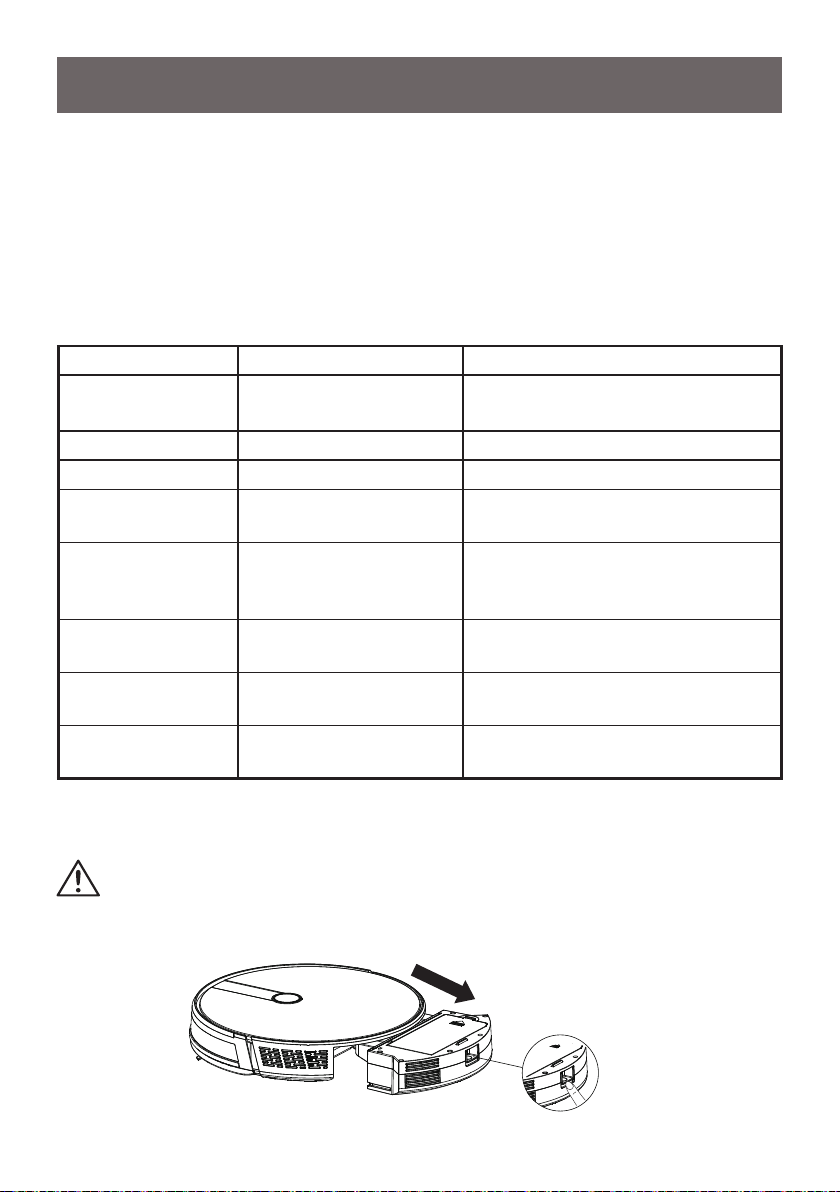
Schedule a Cleaning Session
You can schedule the robot to start cleaning at a specied time.
NOTE:
The robot will automatically turn on once you connect the robot to the
charging dock.
1. Within a couple feet of the robot and with no obstacles between you and the
robot, point the remote control directly at the robot and press on the
remote control. The time will blink on the display screen..
2. Use the directional arrows on the remote to set the “hour” and “minute”.
The remote uses a 24 hour clock. Reference the clock chart to schedule
cleaning sessions at the appropriate time.
1
)
For example, to schedule a cleaning for 5:30 pm, set the remote for 17:30.
2
)
Press to save the setting
3. To cancel a previously scheduled cleaning, press for 3 seconds.
Schedule Cleaning Session
-22-
MAINTAINING YOUR VACUUM
Regular Maintenance
For optimal performance, follow the instructions below to clean and maintain the
robot. Reference the table below as a guide for how often you should be cleaning
and replacing parts of your robot.
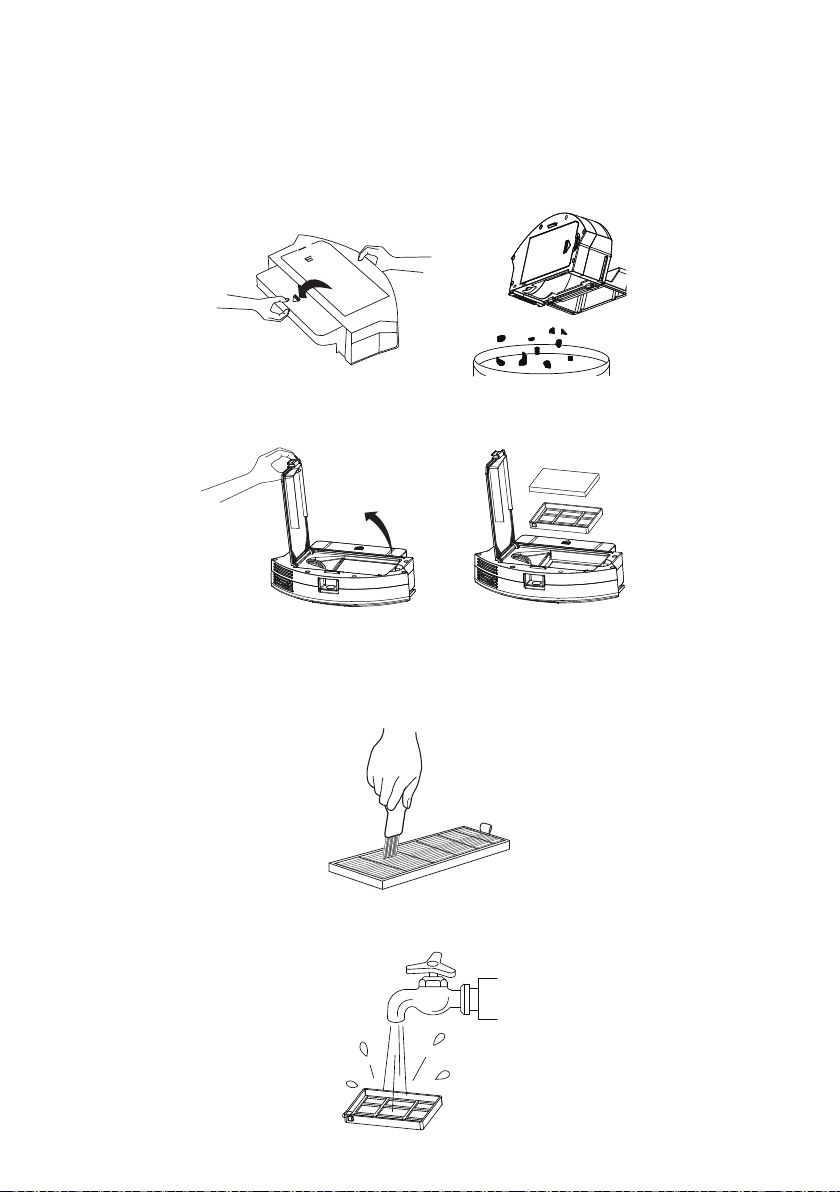
1. Press the Dust Bin Release Button and slide out the dust bin from robot.
Emptying the Dust Bin and Cleaning Filters
NOTE:
The cleaning and/or replacement frequency will depend on your usage
of the robot.
Robot Part Cleaning Frequency Replacement Frequency
High Efciency
Filter
Once every week Every 2 months
Filter Basket Once every week Every 2 months
Brushroll Once every week Every 6-12 months
Side Brushes Once every month
Every 3-6 months (or when visibly
worn)
Brushroll
Cover
Once every month
Every 3-6 months (or when the
silicone rubber strip on the cover
becomes visibly worn)
Anti-Drop Cliff
Sensors
Once every month N/A
Charging Dock
Pins
Once every month N/A
Front Swivel
Wheel
Once every month N/A
CAUTION:
Do not use the robot when the dust bin is full.
-23-
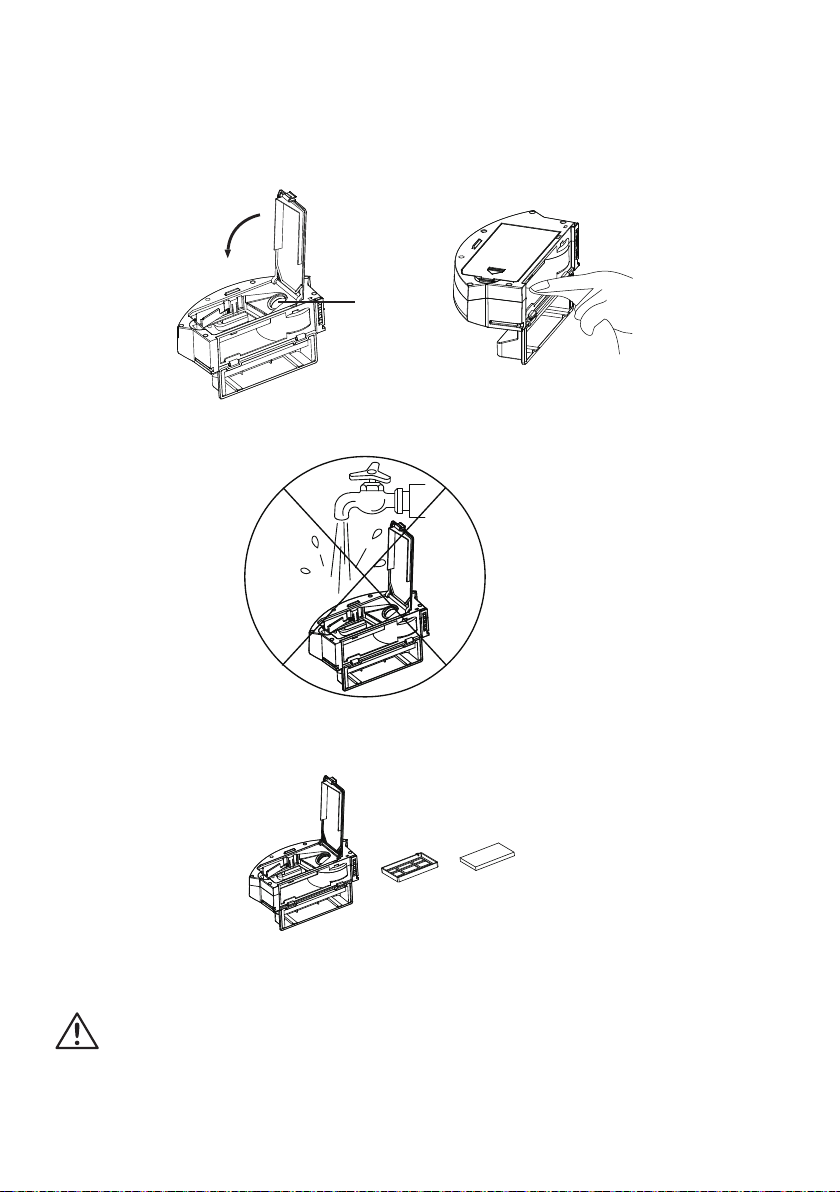
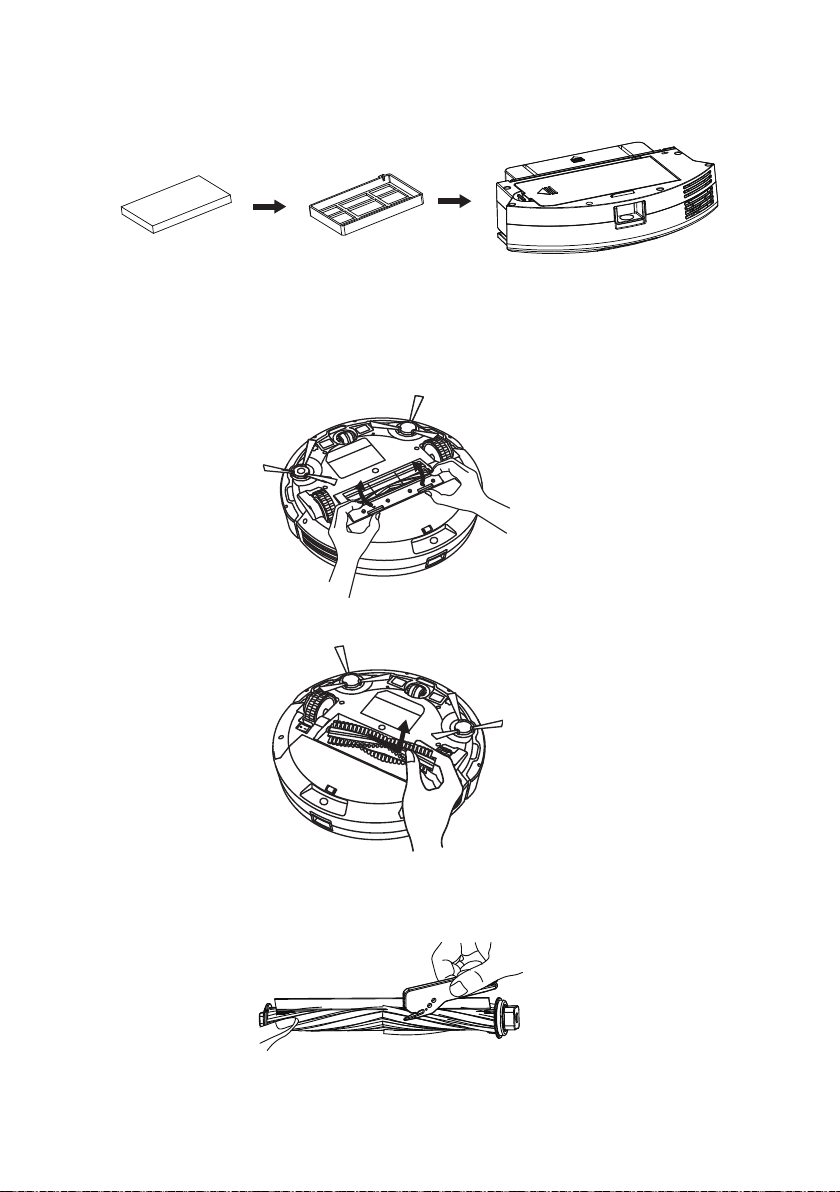
2. Holding the dust bin upright, snap the back panel open and empty contents into
receptacle. To re-install, snap panel back into dust bin.
3. Open the high efciency lter cover and take out the lter and lter basket.
4. Clean the dust bin and lters with the included cleaning tool.
5. Your lter basket is washable. Clean with water only and leave to air dry before
re-installing in robot.
NOTE:
Do not wash the high efciency lter. Use the included cleaning tool to
remove debris from lter.
-24-
6. With the lter removed, close lter door and clean out dust bin with a dishcloth.
Do not allow water into the vent.
7. Dry the dust bin, lter basket and lter completely. Keep the inside of the robot
dry to ensure the life of the vacuum.
8. Re-install the high efciency lter into the lter basket and place into dust bin.
NOTE:
Do not wash the dust bin.
Vent
CAUTION:
Before installing the lters, ensure that the lter basket and the
high efciency lter are dry.
-25-
9. Close the dust bin door and slide the dust bin into the robot.
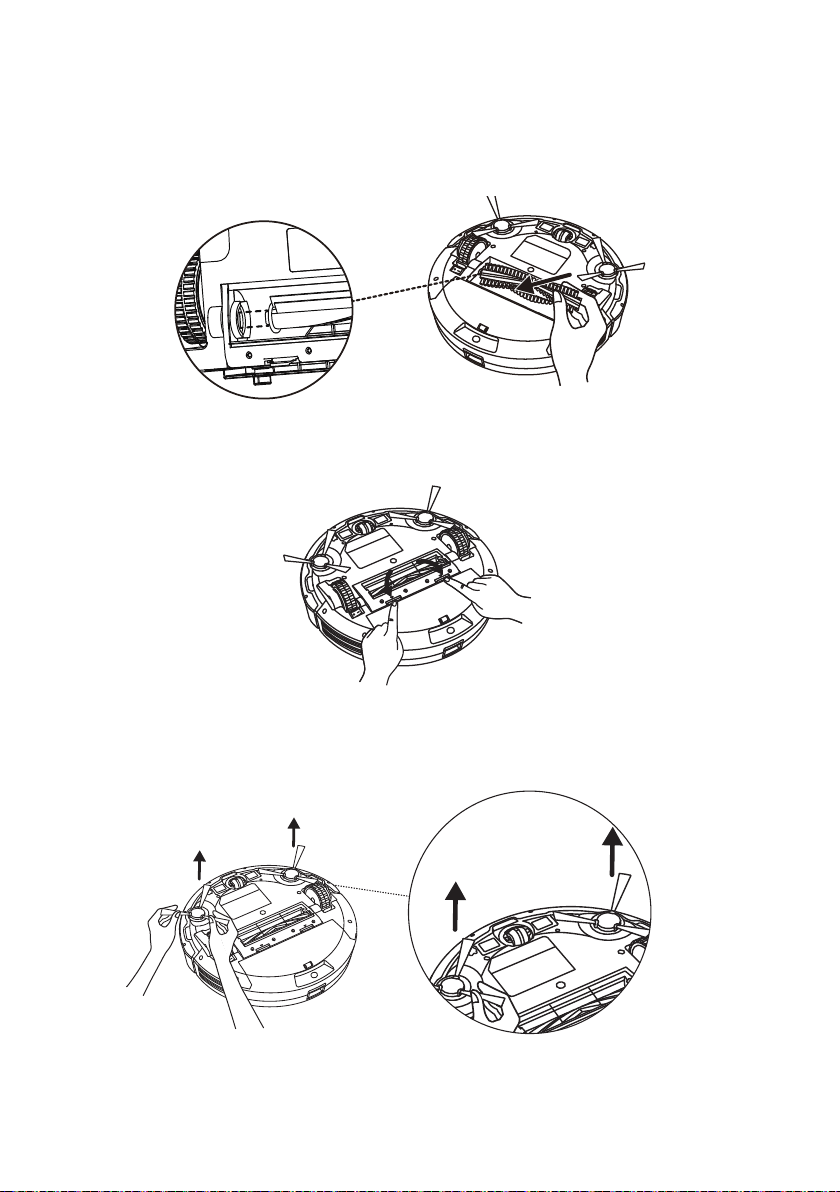
1. Press the two release tabs to unlock the brushroll cover.
2. Lift the brushroll to remove.
3. Clean the brushroll with the provided cleaning tool. Make sure that you
remove any hair wrapped around the edges of the brushroll.
Cleaning the Brushroll
-26-
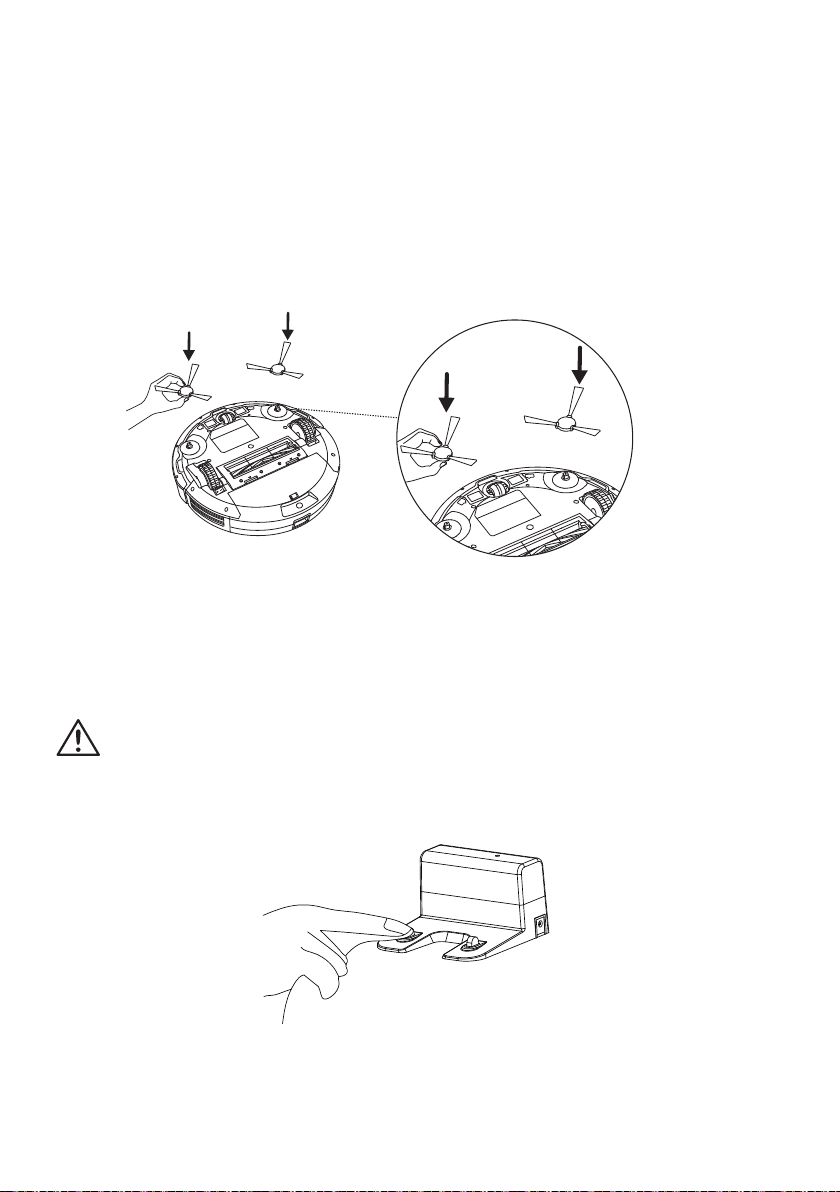
4. Reinstall the brushroll by inserting the xed protruding end rst and then
clicking into place.
5. Align cover into place on the robot and then press down until you hear a ‘click’
indicating the cover is securely installed.
1. Remove the side brushes by pulling upwards.
Cleaning and Replacing the Side Brushes
L
R
R
-27-
L
R
L
R
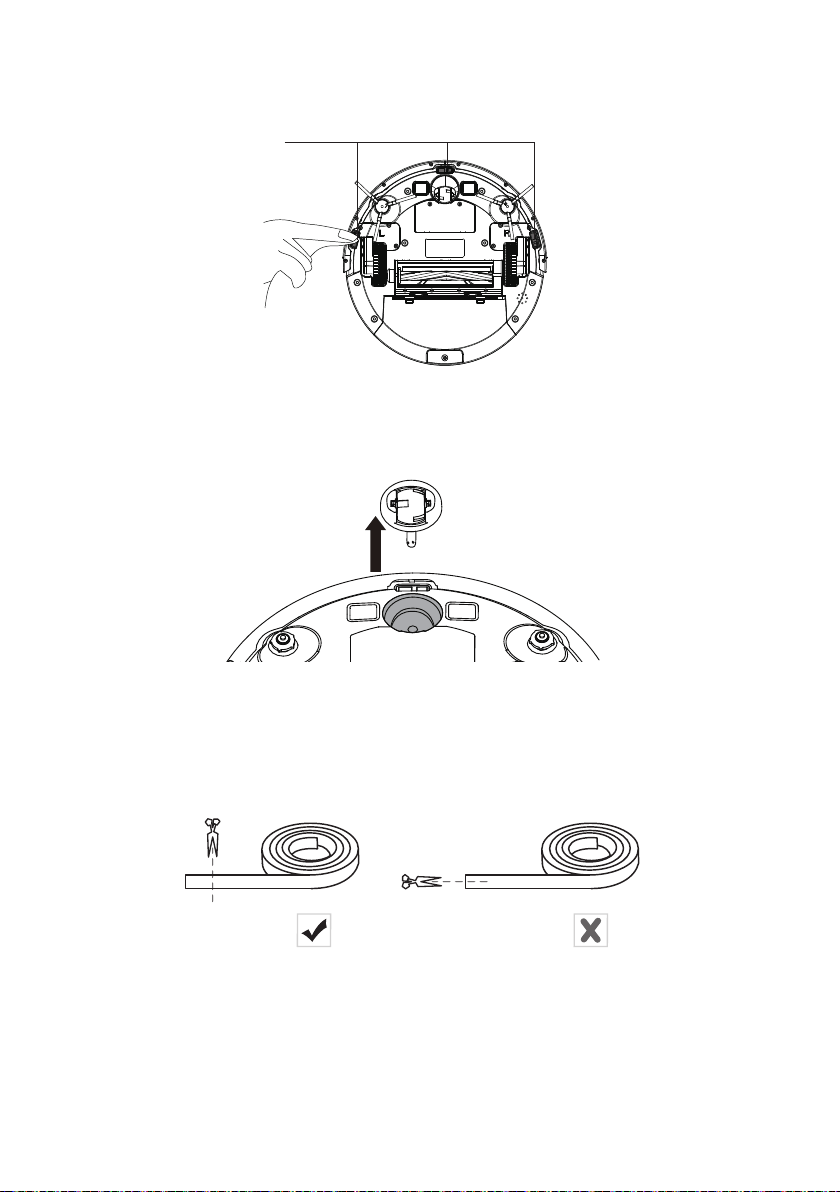
Cleaning the Sensors and Charging Pins
To maintain the best performance, clean the anti-drop cliff sensors and charging
pins regularly.
Dust off the anti-drop cliff sensors and charging contact pins using a cloth or the
provided cleaning brush.
2. Carefully unwind and pull off any hair or string that is wrapped between the
main unit and the side brushes.
3. Use a cloth dampened with warm water to remove dust from the brushes.
4. Re-install the side brushes according to the left (L) and right (R) markings.
1. Clean the charging dock pins.
2. Clean the three anti-drop cliff sensors and drive wheels.
NOTE:
Only use the side brushes when completely dry.
CAUTION:
Use dry dishcloth for cleaning, and do not use wet dishcloth to
prevent damage caused by water.
-28-
Boundary Strip Installation Instructions
1. Identify the area or item where you want to install the boundary strips.
2. If necessary, use scissors to cut the boundary strip to a shorter length. Be sure
to correctly measure the length before cutting. Do not try and reduce the width
of the boundary strips by cutting.
3. Apply adhesive tape to lay the boundary strip at on the oor. Make sure the
strip is placed at on the oor or under a rug.
NOTE:
Make sure the boundary strip is placed on the same surface plane the
robot is used on. Be careful not to damage the oor when using adhesive tape.
It is not recommended for use on carpets. Keep the boundary strip away from
objects that emit excessive heat.
3. Hair and dust can become tangled in the front swivel wheel. Remove the swivel
wheel from the unit and clean.
NOTE:
Reinstall the wheel onto the robot after cleaning and ensure it is fully
and securely locked into place.
Anti-drop Cliff
Sensors
-29-
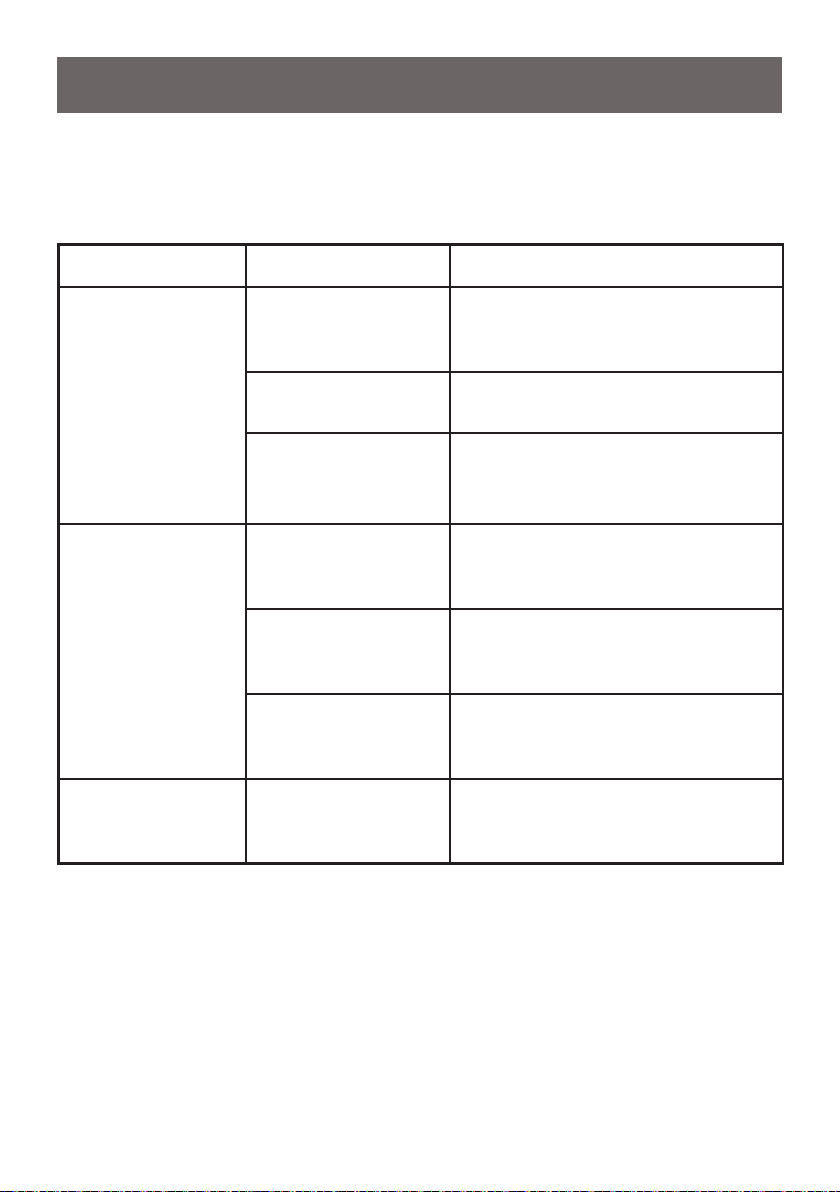
TROUBLESHOOTING
PROBLEM POSSIBLE CAUSE SOLUTION
Robot vacuum
cleaner will not
power on.
The robot vacuum
cleaner is powered
off.
Press the power button to turn the
robot vacuum cleaner on.
The battery may be
depleted.
Charge the battery as instructed on
page 14.
The batteries in the
remote control may
be depleted.
Replace the batteries (2 AAA) in
the remote control.
The remote control
does not work.
The batteries in the
remote control are
depleted.
Replace the batteries (2 AAA) in
the remote control.
The robot vacuum
cleaner is powered
off.
Press the quick start power button
to turn the robot vacuum cleaner
on.
There is obstacle
between the robot
and remote control.
Ensure the remote control is
operated within direct line of sight
to the vacuum.
Robot vacuum
cleaner does not
work.
The anti-drop cliff
sensors are dirty.
Clean the anti-drop cliff sensors.
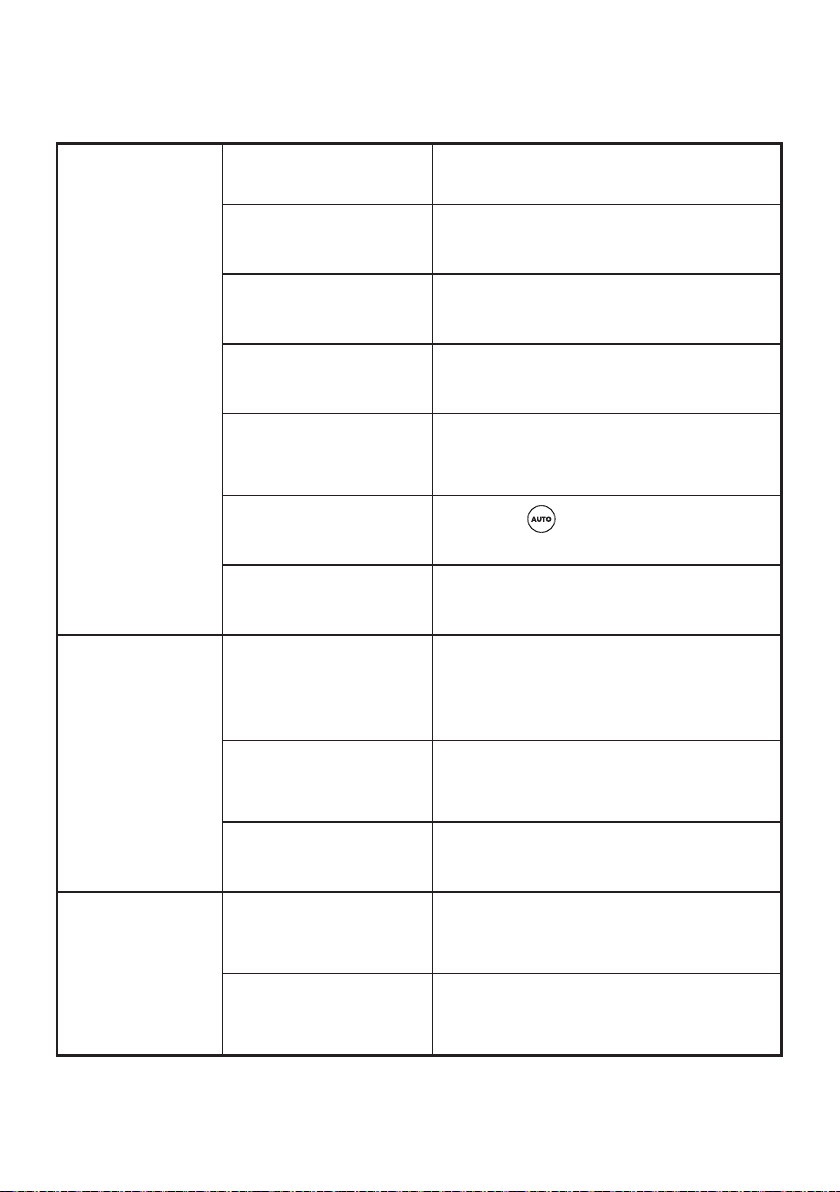
Should you have any problem(s) with your robot vacuum cleaner, review the table
below for solutions to minor performance issues. If the issues cannot be solved,
please try to turn off the robot vacuum cleaner and restart.

-30-
Robot vacuum
cleaner stops
working suddenly.
The side brushes are
jammed.
Remove any entangled objects
or string/hair wrapped around
brushes.
The wheels are
jammed.
Remove any entangled objects and
clean wheel housing by rotating
wheel while dusting.
The battery may be
depleted.
Charge the battery as instructed on
page 14.
The brushroll is
jammed or is installed
incorrectly.
Remove the obstruction and
reinstall the brushroll. Follow
instructions on page 24.
The robot vacuum
cleaner is stuck in an
area.
Free the robot vacuum cleaner and
remove the obstacles. Restart the
vacuum cleaner.
Robot vacuum
cleaner reverses
backwards
irregularly.
The front bumper
sensor is jammed .
Remove any debris that may have
become trapped behind the front
bumper sensor.
Robot vacuum
cleaner does
not clean
automatically at
scheduled time.
The robot vacuum
cleaner is powered off.
Press the power button to turn the
robot vacuum cleaner on.
The scheduled time is
set incorrectly.
Reset the scheduled time as
instructed on page 20.
The battery may be
depleted.
Charge the battery as instructed on
page 14.
The scheduled time
has been reset.
All settings may be erased when
robot vacuum cleaner is turned
off or when the battery power
is exhausted. You may need to
reset the time and reschedule the
cleaning time.
-31-
Suction power is
weak.
Dust bin is full. Empty dust bin.
Filter needs cleaning.
Follow lter cleaning instructions on
page 22.
Filter needs to be
replaced.
Purchase online at www.vacmaster.
com or call (866) 384-8432.
The battery may be
depleted.
Charge the battery as instructed on
page 14.
Dust bin is not
installed correctly.
Check dust bin for correct installation
and ensure it is snapped rmly in
place.
Robot sets on Quiet
Mode.
Press the button on the remote
control to switch to Max Power Mode.
Filters are missing or
installed incorrectly.
Check lters for correct installation.
Robot vacuum
cleaner cannot
be charged.
The charging pins
on the robot are not
aligning with the pins
on the charging dock.
Make sure charging pins are cleaned
and in direct contact with each other.
The charging dock or
charging adapter is
damaged.
Purchase online at www.vacmaster.
com or call (866) 384-8432.
Debris accumulated
on the charging pins.
Clean charging pins.
Robot vacuum
cleaner cannot
return to the
charging dock.
There are objects
near the charging
dock.
Remove any objects that are closer
than 5ft (1.5m) from the front and 3ft
(1m) from either side of the dock.
The robot is stuck in
an area or tangled
with an object.
Pick up the robot and remove any
obstructions. Manually re-connect
robot to charging dock.

-32-
Error Tones
NOTE
:
When the robot requires assistance, you will hear an alert sound and/or beeps.
ERROR TONE CAUSE SOLUTION
Alert Sound Only
Robot wheels have left
the ground.
Return the robot to the ground
ensuring the wheels are in contact
with the ground.
Dust bin is not installed
or installed incorrectly.
Follow installation instructions on
page 21.
Alert Sound with
3 Beeps
The side brushes are
jammed.
Pick up the robot and remove any
obstructions such as hair or string.
The wheels are jammed.
Pick up the robot and remove any
obstructions such as hair or string.
The brushroll is jammed.
Pick up the robot and remove
any obstructions such as hair or
string. Reinstall the brushroll with
instructions on page 24.
The front bumper is
jammed.
Remove any obstructions such as
hair or string.
Turn off the robot by holding down
the power button for 3 seconds.
Restart the robot by pressing the
power button twice. If problem
persists, call us at (866) 384-8432
for further assistance.
ERROR TONE CAUSE SOLUTION
Alert Sound Only Battery level is low.
Charge the robot.
Follow instructions on page 14.
For further questions, please visit us at www.vacmaster.com or call our support
team at (866) 384-8432.
Flashing Red Power Indicator Light
Solid Yellow Docking Indicator Light