User Guide
Multichannel Recorders | Mixers | USB Audio Interfaces
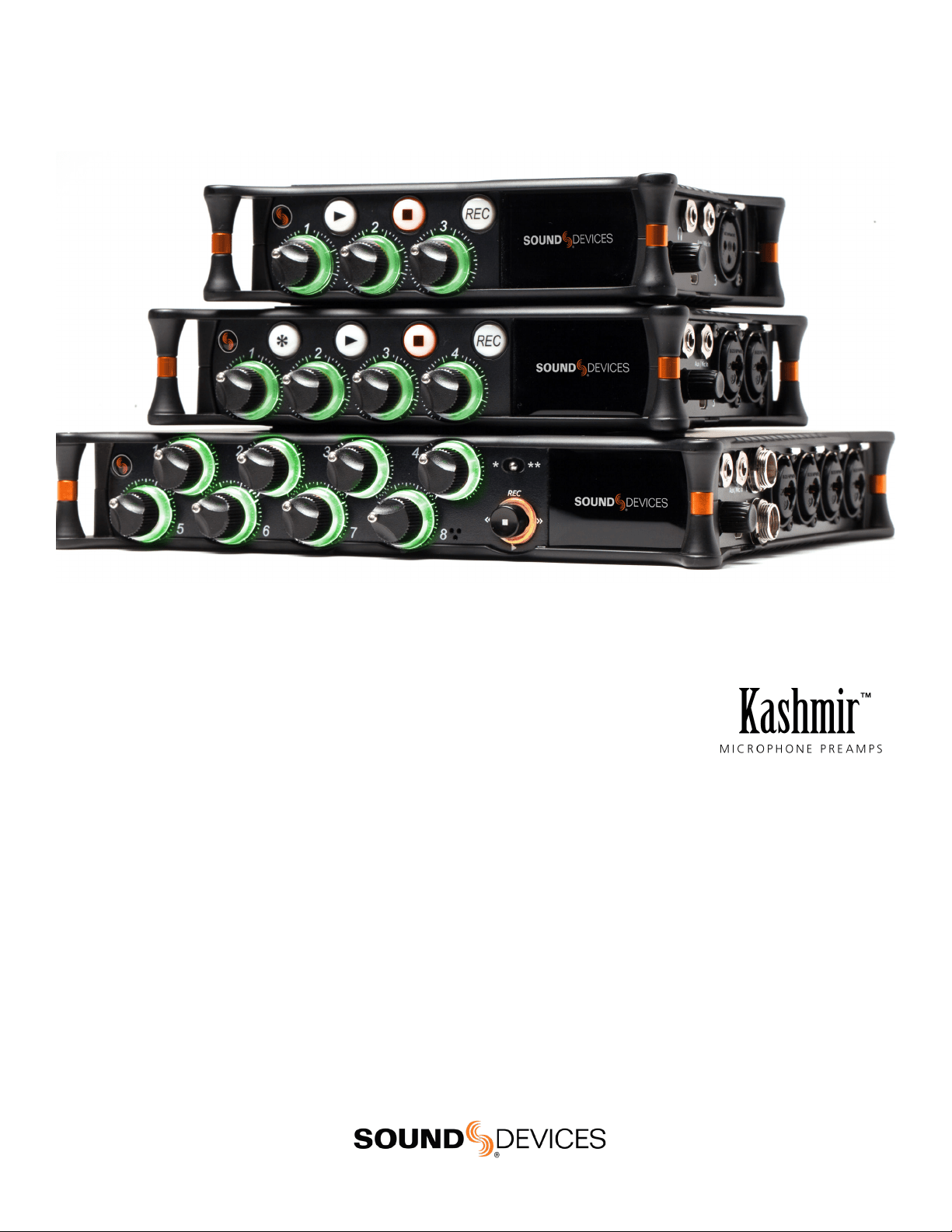
MixPre Series
Legal Notices
Product specications and features are subject to change without
prior notication.
Copyright
©
2022 Sound Devices, LLC. All rights reserved.
This product is subject to the terms and conditions of a
software license agreement provided with the product, and
may be used in accordance with the license agreement.
This document is protected under copyright law. An authorized
licensee of this product may reproduce this publication for the
licensee’s own personal use. This document may not be reproduced
or distributed, in whole or in part, for commercial purposes, such
as selling copies or providing educational services or support.
This document is supplied as a technical guide. Special care
has been taken in preparing the information for publication;
however, since product specications are subject to change,
this document might contain omissions and technical or
typographical inaccuracies. Sound Devices, LLC does not accept
responsibility for any losses due to the user of this guide.
Trademarks
The “wave” logo is a registered trademark and
Kashmir is a trademark of Sound Devices, LLC. iPad, iPhone,
Mac and OS X are trademarks of Apple Inc., registered in the
U.S. and other countries. Windows is a registered trademark of
Microsoft Corporation in the U.S. and other countries. Bluetooth
Smart is a registered trademark of Bluetooth SIG, Inc. ASIO is a
registered trademark of Steinberg Media Technologies. All other
trademarks herein are the property of their respective owners.
WEEE Statement
If you wish to discard a Sound Devices product in
Europe, contact Sound Devices UK Service Center:
+44 (0)1494 511711 for further information.
Warning! This device can drive headphones to potentially
dangerous levels. Do not listen at high volume levels for
long periods.
Read and fully understand this manual before operation.
Post Ofce Box 576
E7556 State Rd. 23 and 33
Reedsburg, Wisconsin 53959 USA
www.sounddevices.com
+1 608.524.0625 main
800.505.0625 toll free
DATE DESCRIPTION
11/19 v5.00. MixAssist, USB hub support, USB routing matrix.
06/20 v7.00 Output delay (MixPre-10T only), support for P.I.
Engineering X-keys.
7/20 v7.10 Support for front panel lock, additional USB keyboard
shortcuts.
8/21 v7.14 Added 100 HZ Low Cut Filter option.
1/22 v7.16 Inputs Menu section changes and general corrections
and improvements.
5/22 v8.00 Reporter Plugin added with other minor changes. The
Reporter Plugin is fully detailed in the Reporter Plugin User
Guide.
Manual Conventions
SYMBOLSYMBOL DESCRIPTION
>
This symbol is used to show the order in which you select menu
commands and sub-options, such as: Main Menu > Outputs
indicates you press the Menu button for the Main Menu, then
scroll to and select Outputs by pushing the Knob.
[ ] This symbol is used to convey selectable menu items.
* This symbol is used to convey factory default settings.
+
A plus sign is used to show button or keystroke combinations. For
instance, Ctrl+V means to hold the Control key down and press
the V key simultaneously. This also applies to other controls,
such as switches and knobs. For instance, MIC+HP turn means
to slide and hold the MIC/TONE switch left while turning the
Headphone (HP) knob. S+SELECT means to hold the METERS
button down as you press the SELECT knob.
Note
A
note
provides recommendations and important related
information. The text for notes appears italicized.
*
A cautionary warning about a specic action that could cause
harm to you, the device, or cause you to lose data. Follow the
guidelines in this document or on the unit itself when handling
electrical equipment. The text for cautionary notes also appears
italicized and bold in a different color.
MixPre User Guide 05/22
This document is distributed by Sound Devices, LLC in online electronic (PDF)
format only. Published in the USA.
This table provides the revision history and cross-reference
links to “what’s new” in this guide.

MixPre User Guide
1
Welcome to the MixPre
VERSATILE. DURABLE. HIGH-PERFORMANCE.
If you record eld audio, sound effects, audio for lm, podcasts,
voice-overs, music, or are just starting your audio journey, the MixPre
Series is for you! Lightweight, durable, and small, this powerhouse
audio recorder and USB interface will help you capture audio for any
application.
With Sound Devices’ hand-crafted, crystal-clear, ultra low-noise Kash-
mir preamps, you’ll record audio in superior quality..
The MixPre is highly customizable to your needs. Record internally to
a compatible SD card on set or stream your podcast over USB to your
computer at home. Power with your computer, wall power, or record
in the middle of nowhere with AA or Sony L-mount batteries. Adjust
limiters, bit depth, sample rates, gain, pan, low-cut, phase inversion
and phantom power to your liking. Use the MixPre’s high-precision
internal timecode generator to trigger the camera, or feed timecode
in. The choice is yours!
Professionals love the exibility of the MixPre Series. Don’t need all
those options? Basic mode has you covered.
All models are rugged, lightweight, and small, so you can throw it in a
bag or mount it to a tripod or camera - or get situated on set with our
Wingman App and one of our four supported USB control surfaces.
With the superior sound and build quality that you can expect from
the industry leader in production audio recording, your MixPre can
capture audio for any application. Our friendly and knowledgeable
support team, based in the USA and Germany, is here for all your
questions and comments. Our job is to make your job easier.
We are honored to be part of your kit.
Sincerely,
Sound Devices
CUSTOMIZE WITH PLUGINS
All plugins may be purchased and downloaded from the
Sound Devices Store.
Musician Plugin
Easily create a song using the MixPre as a standalone recorder or
USB interface. Use onboard features like overdub, bounce, reverb,
and tracking to a metronome.
Ambisonics Plugin
Record 360°audio and monitor binaurally with this plugin, an
ambisonic microphone, and your MixPre-6 or MixPre-10T.
MixAssist Plugin
Using multiple microphones with your MixPre? Enable MixAssist to
reduce unwanted microphone and room noise while recording.
Reporter Plugin
Simplify the settings of your MixPre so your contributors can focus on
capturing great content. The Reporter plugin allows you to congure
your MixPre-3 or MixPre-6 in advance and then lock the menus. Send
it off with a journalist, interviewee, or other contributor in condence!
Plugin features and functionality are detailed in the respective Plugin
User Guides.

MixPre User Guide
2
Table of Contents
PANEL VIEWS 3
MIXPRE-3 3
MIXPRE-6 4
MIXPRE-10T 5
POWERING THE MIXPRE 6
POWER SWITCHOVER AND PRIORITY 6
TOUCHSCREEN 7
TRANSPORT CONTROLS 8
NAVIGATING MENUS 9
FRONT PANEL LOCKS 10
CHOOSING YOUR MODE 11
CUSTOM MODE 14
CHANNEL SCREEN - BASIC MODE 15
CHANNEL SCREEN - ADVANCED MODE 16
LINKING CHANNELS 17
INPUTS MENU 18
LIMITERS 19
METERING 20
METERING BALLISTICS 20
OUTPUTS 21
HEADPHONE OUT 22
USING THE MIXPRE AS A USB AUDIO INTERFACE 23
USB OUTPUT ROUTING 24
SYSTEM 25
FORMATTING MEDIA 26
RECORD - BASIC MODE 27
RECORD - ADVANCED MODE 27
FILE SPLITS 28
TIMECODE 28
TIMECODE MODES 29
PRESETS 30
PROJECTS 30
FILE LIST - BASIC MODE 31
FILE LIST - ADVANCED MODE 32
CUE MARKS 33
USING STAR SHORTCUTS (*/**) 34
WINGMAN APPLICATION 35
USB HUB 37
USB KEYBOARD 38
X-KEYS PROGRAMMABLE KEYPADS 39
USB CONTROLLERS 40
MOUNTING TO CAMERA OR TRIPOD 45
MIXPRE-3 SPECIFICATIONS 46
MIXPRE-6 SPECIFICATIONS 47
MIXPRE-10T SPECIFICATIONS 48
MixPre User Guide
3
Panel Views
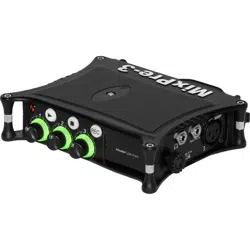
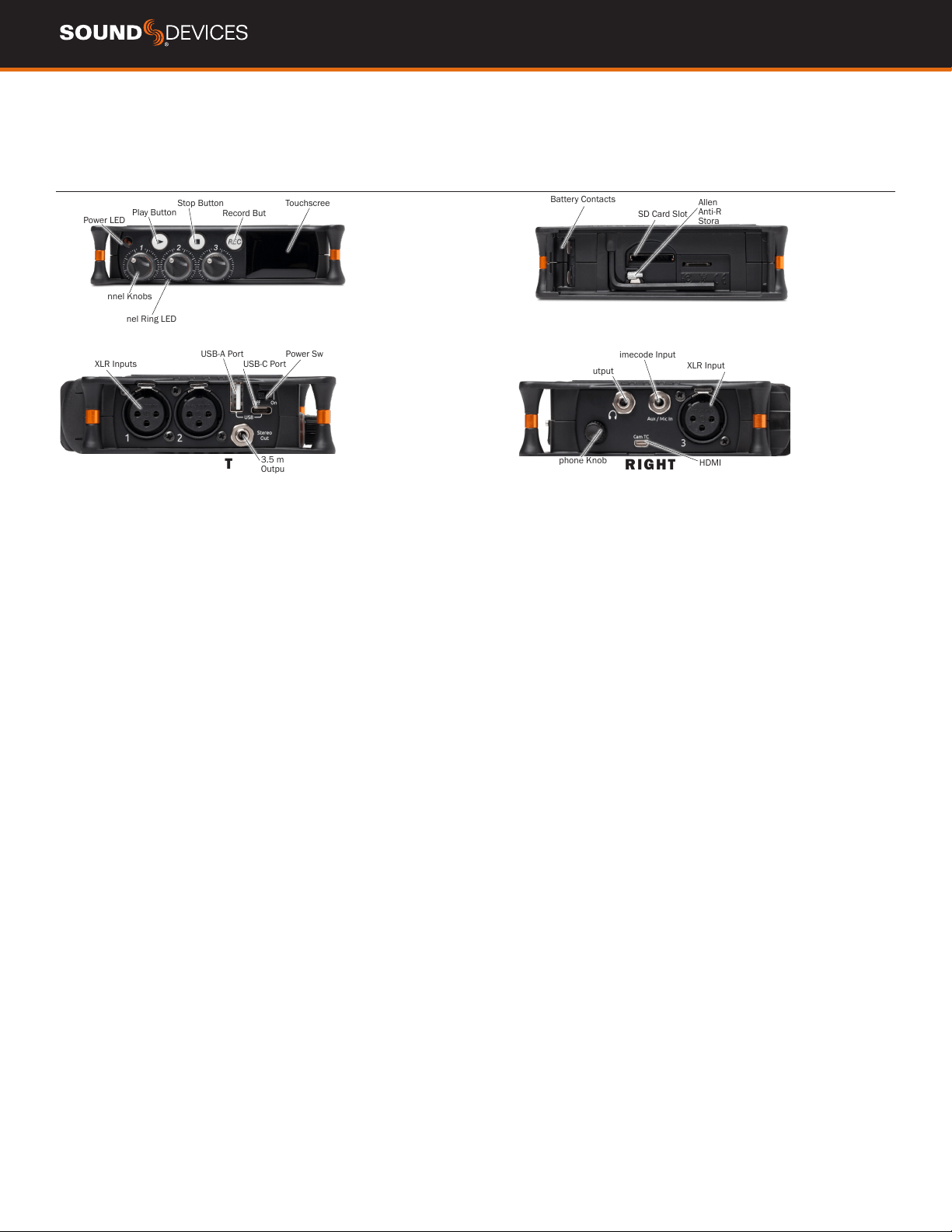
MIXPRE-3
FRONT
Power LED
Channel Knobs
Channel Ring LED
Touchscreen
Play Button
Stop Button
Record Button
REAR
Battery Contacts
SD Card Slot
Allen Wrench and
Anti-Rotational Pin
Storage
RIGHT
XLR Input
Headphone Knob
HDMI TC Input
Headphone Output
Aux/Mic/Timecode Input
LEFT
XLR Inputs
USB-A Port
USB-C Port
Power Switch
3.5 mm Stereo
Output
POWER LED Glows when the MixPre is powered on.
CHANNEL KNOBS Sets the input gain for the channel. Press in on
knob to access channel screen.
CHANNEL LED RING Provides visual indication of channel signal
condition, solo and mute.
PLAY BUTTON Press to begin playback. While in playback the button
glows green. See Transport.
STOP BUTTON Press to stop recording or playback. While stopped
the button glows orange. See Transport.
RECORD BUTTON Press to begin a recording. While recording the
button glows red. See Transport.
TOUCH SCREEN The sunlight-viewable, high-resolution, touch-
screen is used to navigate the MixPre user interface.
BATTERY CONTACTS Accepts power sled accessories designed for
MixPre. Allows powering from AA or Sony L-Mount batteries, such as
the included MX-4AA.
SD CARD SLOT Insert SD card for recording.
ALLEN WRENCH & ANTI-ROTATIONAL PIN Magnetically attach-
es to the MixPre for safe keeping. Used to attach MixPre to cameras
and tripods via ¼-inch-20-thread captive screw on MixPre top panel.
INPUTS 1-3 FEMALE XLR JACKS Active-balanced analog micro-
phone or line-level inputs. Inputs 1-2 on left panel, input 3 on the
right. [pin-1 = ground, pin-2 = hot (+), and pin-3 = cold (-)]
USB-A PORT
1. USB keyboard.
2. USB to approved 3rd party control surfaces.
3. USB hubs to support multiple devices.
USB-C PORT
1. Provides power to the unit.
2. Connects to computer as a USB Audio Interface.
3. Connects to computer for transferring les from the SD card.
STEREO OUTPUT Unbalanced stereo 3.5 mm female connector.
Routing determined in the Outputs menu. [Sleeve = ground, tip = X1,
ring = X2].
POWER SWITCH Turns the power on and off.
HEADPHONE OUTPUT 3.5 mm TRS headphone output. Warning!
This output can drive headphones to potentially dangerous levels.
[Sleeve = ground, tip = left, ring = right]
HEADPHONE KNOB
1. Rotate to control headphone volume.
2. Rotate to navigate some menus and the virtual keyboard. Press in
to select items.
AUX/MIC/TIMECODE INPUT Menu-selectable input. Accepts
unbalanced stereo audio signal, Plug in Power microphones, or LTC
timecode.
HDMI TC INPUT Connect to select cameras to receive HDMI time-
code and record start/stop ags.
MixPre User Guide
4
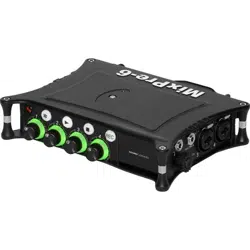
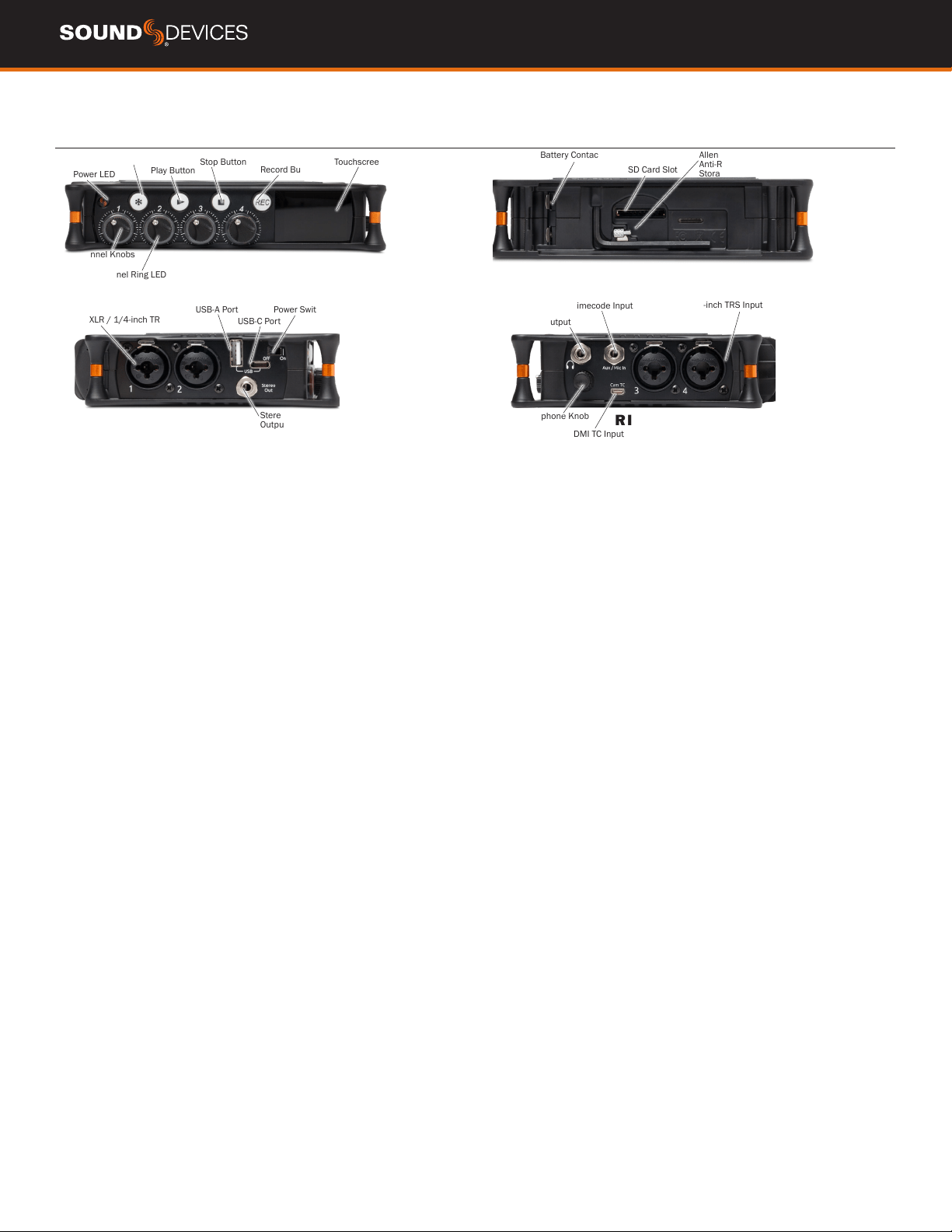
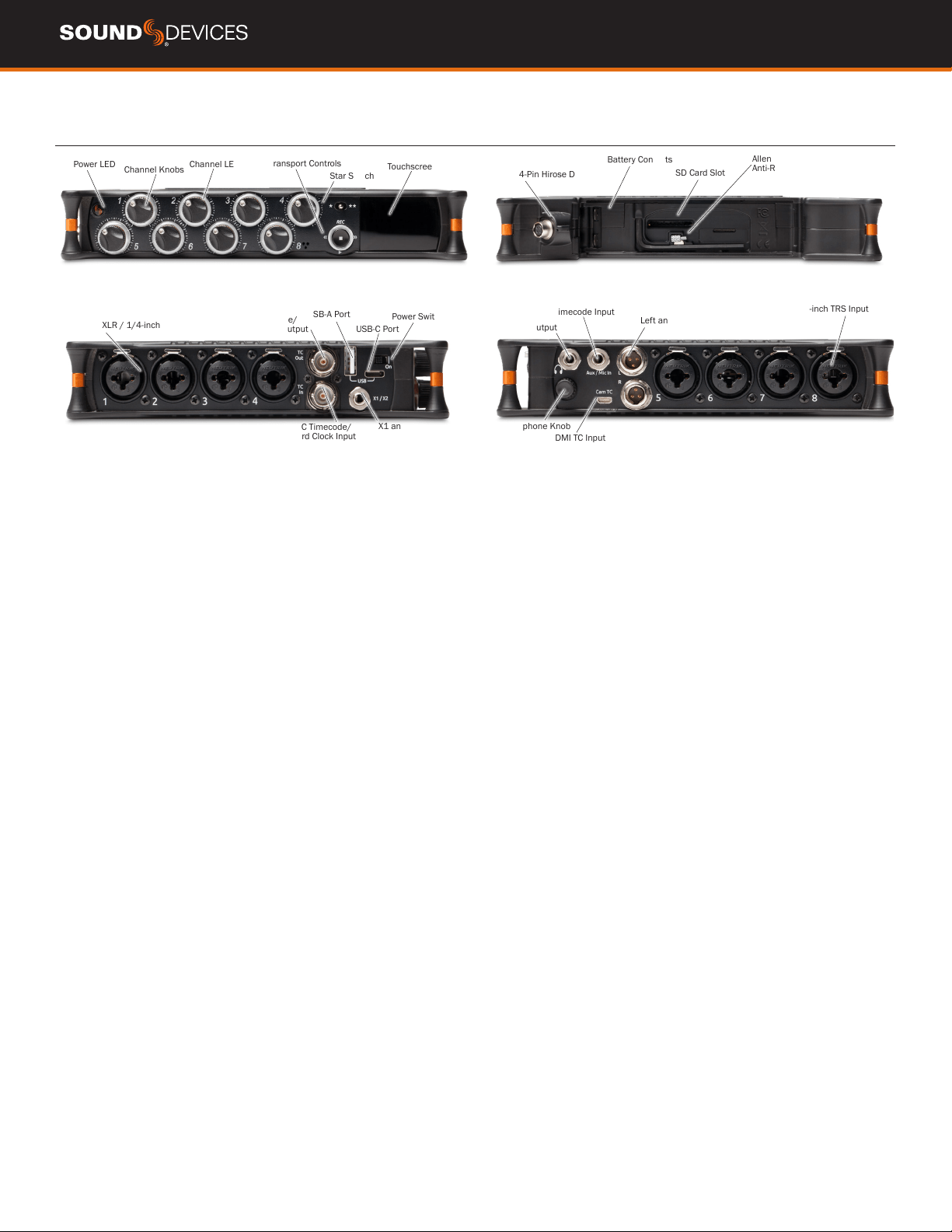
MIXPRE-6
REAR
RIGHT
FRONT
LEFT
Power LED
Channel Knobs
Channel Ring LED
Touchscreen
Play Button
XLR / 1/4-inch TRS Inputs
USB-A Port
USB-C Port
Power Switch
Stereo or Timecode
Output
XLR / 1/4-inch TRS Inputs
Battery Contacts
SD Card Slot
Allen Wrench and
Anti-Rotational Pin
Storage
Headphone Knob
HDMI TC Input
Headphone Output
Aux/Mic/Timecode Input
Star Button
Stop Button
Record Button
POWER LED Glows when the MixPre is powered on.
CHANNEL KNOBS Sets the input gain for the channel. Press in on
knob to access channel screen.
CHANNEL LED RING Provides visual indication of channel signal
condition, solo and mute.
STAR (* & **) BUTTON Provides a user-assignable hardware but-
ton to frequently used functions. See Shortcuts.
PLAY BUTTON Press to begin playback. While in playback the button
glows green. See Transport.
STOP BUTTON Press to stop recording or playback. While stopped
the button glows orange. See Transport.
RECORD BUTTON Press to begin a recording. While recording the
button glows red. See Transport.
TOUCH SCREEN The sunlight-viewable, high-resolution, touch-
screen is used to navigate the MixPre user interface.
BATTERY CONTACTS Accepts power sled accessories designed for
MixPre. Allows powering from AA or Sony L-Mount batteries, such as
the included MX-4AA.
SD CARD SLOT Insert SD card for recording.
ALLEN WRENCH & ANTI-ROTATIONAL PIN Magnetically attach-
es to the MixPre for safe keeping. Used to attach MixPre to cameras
and tripods via ¼-inch-20-thread captive screw on MixPre top panel.
INPUTS 1-4 FEMALE XLR / 1/4” TRS COMBO JACKS Active-bal-
anced analog microphone or line-level inputs. Inputs 1-2 on left
panel, inputs 3-4 on the right. [pin-1 = ground, pin-2 = hot (+), and
pin-3 = cold (-)]
USB-A PORT
1. USB keyboard.
2. USB to approved 3rd party control surfaces.
3. USB hubs to support multiple devices.
USB-C PORT
1. Provides power to the unit.
2. Connects to computer as a USB Audio Interface.
3. Connects to computer for transferring les from the SD card.
STEREO OUTPUT Unbalanced stereo 3.5 mm female connector.
Routing determined in the Outputs menu. [Sleeve = ground, tip = X1,
ring = X2].
POWER SWITCH Turns the power on and off.
HEADPHONE OUTPUT 3.5 mm TRS headphone output. Warning!
This output can drive headphones to potentially dangerous levels.
[Sleeve = ground, tip = left, ring = right]
HEADPHONE KNOB
1. Rotate to control headphone volume.
2. Rotate to navigate some menus and the virtual keyboard. Press in
to select items.
AUX/MIC/TIMECODE INPUT Menu-selectable input. Accepts
unbalanced stereo audio signal, Plug in Power microphones, or LTC
timecode.
HDMI TC INPUT Connect to select cameras to receive HDMI time-
code and record start/stop ags.
MixPre User Guide
5
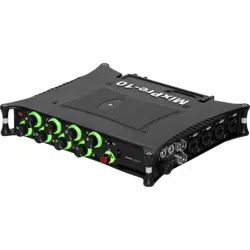
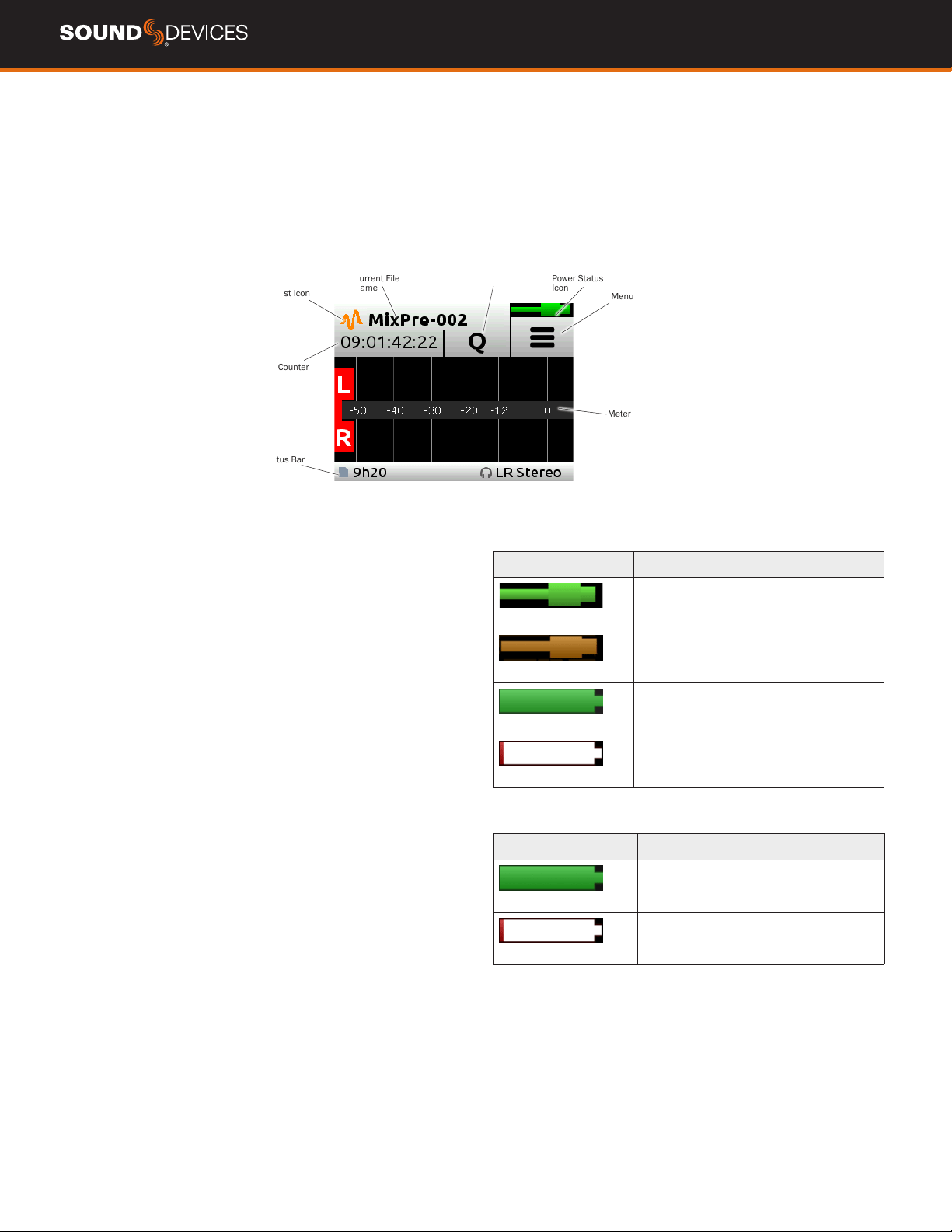
MIXPRE-10T
REAR
RIGHT
FRONT
LEFT
Power LED
Channel Knobs
Channel LED Ring
Star Switch
Touchscreen
Transport Controls
XLR / 1/4-inch TRS Inputs
BNC Timecode/
Word Clock Output
BNC Timecode/
Word Clock Input
USB-A Port
USB-C Port
Power Switch
X1 and X2 Output
XLR / 1/4-inch TRS Inputs
Battery Contacts
4-Pin Hirose DC Input
SD Card Slot
Allen Wrench and
Anti-Rotational Pin
Headphone Knob
HDMI TC Input
Headphone Output
Aux/Mic/Timecode Input
Left and Right TA3 Outputs
POWER LED Glows when the MixPre is powered on.
CHANNEL KNOBS Sets the input gain for the channel. Press in on
knob to access channel screen.
CHANNEL LED RING Provides visual indication of channel signal
condition, solo and mute.
TRANSPORT CONTROLS A joystick (with its illuminated LED ring)
on the front panel is used to perform various transport control func-
tions. (see Transport).
STAR (* & **) SWITCH Provides a user-assignable hardware switch
to frequently used functions. See Shortcuts.
TOUCH SCREEN The sunlight-viewable, high-resolution, touch-
screen is used to navigate the MixPre user interface.
4-PIN HIROSE DC INPUT Accepts DC voltages from 10–17 V for
powering. [pin-4=+, pin-1=-] Works with included XL-WPH3.
BATTERY CONTACTS Accepts power sled accessories designed for
MixPre. Allows powering from AA or Sony L-Mount batteries, such as
the included MX-8AA.
ALLEN WRENCH & ANTI-ROTATIONAL PIN Magnetically attach-
es to the MixPre for safe keeping. Used to attach MixPre to cameras
and tripods via ¼-inch-20-thread captive screw on MixPre top panel.
SD CARD SLOT Insert SD card for recording.
INPUTS 1-8 FEMALE XLR / 1/4” TRS COMBO JACKS Active-bal-
anced analog microphone or line-level inputs. Inputs 1-4 on left
panel, inputs 5-8 on the right. [pin-1 = ground, pin-2 = hot (+), and
pin-3 = cold (-).
BNC TIMECODE OR WORD CLOCK OUTPUT Menu-selectable
between timecode or word clock functionality. Set to timecode to
send LTC timecode to cameras, digi-slates or other timecode-enabled
equipment. Set to word clock to use the MixPre-10T as a master
precision clock source for external equipment.
BNC TIMECODE OR WORD CLOCK INPUT Menu-selectable be-
tween timecode or word clock functionality. Set to timecode to receive
LTC timecode from a camera or timecode generator. Set to word clock
to sync to an external clock source.
USB-A PORT
1. USB keyboard.
2. Auto-copy to USB drives.
3. USB to approved 3rd party control surfaces.
4. USB hubs to support multiple devices.
USB-C PORT Used to connect to a computer for USB audio or trans-
ferring les from the SD card.
X1/X2 OUTPUT Unbalanced stereo 3.5 mm female connector.
Routing determined in the Outputs menu. [Sleeve = ground, tip = X1,
ring = X2].
POWER SWITCH Turns the power on and off.
HEADPHONE OUTPUT 3.5 mm TRS headphone output. Warning!
This output can drive headphones to potentially dangerous levels.
[Sleeve = ground, tip = left, ring = right]
AUX/MIC/TIMECODE INPUT Menu-selectable input. Accepts
unbalanced stereo audio signal, Plug in Power microphones, or LTC
timecode.
HEADPHONE KNOB
1. Rotate to control headphone volume.
2. Rotate to navigate some menus and the virtual keyboard. Press in
to select items.
HDMI TC INPUT Connect to select cameras to receive HDMI time-
code and record start/stop ags.
LEFT & RIGHT TA3 OUTPUTS +7.8 dBu line level outputs. Routing
determined in the Outputs menu. [pin-1 = Ground, pin-2 = hot (+), pin-
3 = cold (-). Float pin-3 to unbalance.

MixPre User Guide
6
Powering the MixPre
Apply your choice of power source. Turn the master power switch
located in the upper right corner of the left side panel to the On
position. To ensure the battery/power status indicator displayed on
the touchscreen shows accurate level and status, select your battery/
power type in the Power menu.
When using AA batteries to power the MixPre, we recommend
Energizer Ultimate Lithium (not alkaline batteries). The high internal
resistance of alkaline batteries makes them only suited to devices
requiring low current (less than 25 mA), not higher power electronic
devices such as the MixPre.
Incorrect use of batteries poses a danger of explosion. Replace only
with the same or equivalent type. Properly recycle batteries. Do not
crush, disassemble, incinerate, dispose in a re or expose batteries to
high temperatures.
Save power by turning off unused channels.
With multiple options for powering, your MixPre can operate in a wide
array of applications and environments.
MIXPRE-3 AND MIXPRE-6 POWER OPTIONS
1. Optional MX-PSU AC wall adapter to USB-C power supply.
2. Four AA batteries installed in the included MX-4AA Battery Sled.
3. Eight AA batteries installed in the optional MX-8AA Battery Sled
accessory.
4. One or two Sony-type L-Mount batteries installed in the optional
MX-LMount battery sled accessory.
5. USB-C to USB-C cable connected to a USB-C host computer or AC
wall adapter.
6. USB-A to USB-C cable connected to a USB-A host computer or
AC wall adapter. The unit will enter a low power state and some
functionality will be limited with this power option.
7. MX-USBY Dual USB-A to USB-C optional accessory
cable connected to a USB-A host computer. Use this
cable option if your computer is unable to provide
adequate power with only one USB-A port.
MIXPRE-10T POWER OPTIONS
1. Included XL-WPH3 AC to DC 12 V Power supply with 4-pin Hirose.
2. Eight AA batteries installed in the included MX-8AA Battery Sled.
3. One or two Sony-type L-Mount batteries installed in the optional
MX-LMount battery sled accessory.
Power Switchover and Priority
MIXPRE-3 AND MIXPRE-6
To preserve battery power, USB-C power sources take priority over bat-
teries if both are connected with one exception - if the USB-C power
source does not meet the full power requirements of the MixPre, you
can choose to power from battery or continue to power from USB-C.
An underpowered MixPre will be able to use two of the three or four
channels with 48 V phantom mics. Other channels can still be used
with dynamic mics and line level, Aux, or USB sources. In a low power
state, the MixPre automatically:
1. Dims LCD and LED Brightness.
2. Disables USB-A port.
3. Disables HDMI TC port.
For protection against accidental loss of power, the MixPre incorpo-
rates circuitry to automatically switch over from USB-C to batteries.
MIXPRE-10T
For preservation of battery power, 4-pin Hirose power sources take
priority over batteries if both are connected. For protection against
accidental loss of power, the MixPre-10T incorporates circuitry to
automatically switch power sources.
MixPre User Guide
7
Touchscreen
The MixPre has a sunlight-viewable, high-resolution, touch-screen-based user interface, which consists of the Home screen, Main Menu screen,
and Channel screen views. There are several touch zones on the touch screen for controls. As you become familiar with the user interface, chang-
ing settings for inputs, outputs, recording and metering will become fast and intuitive.
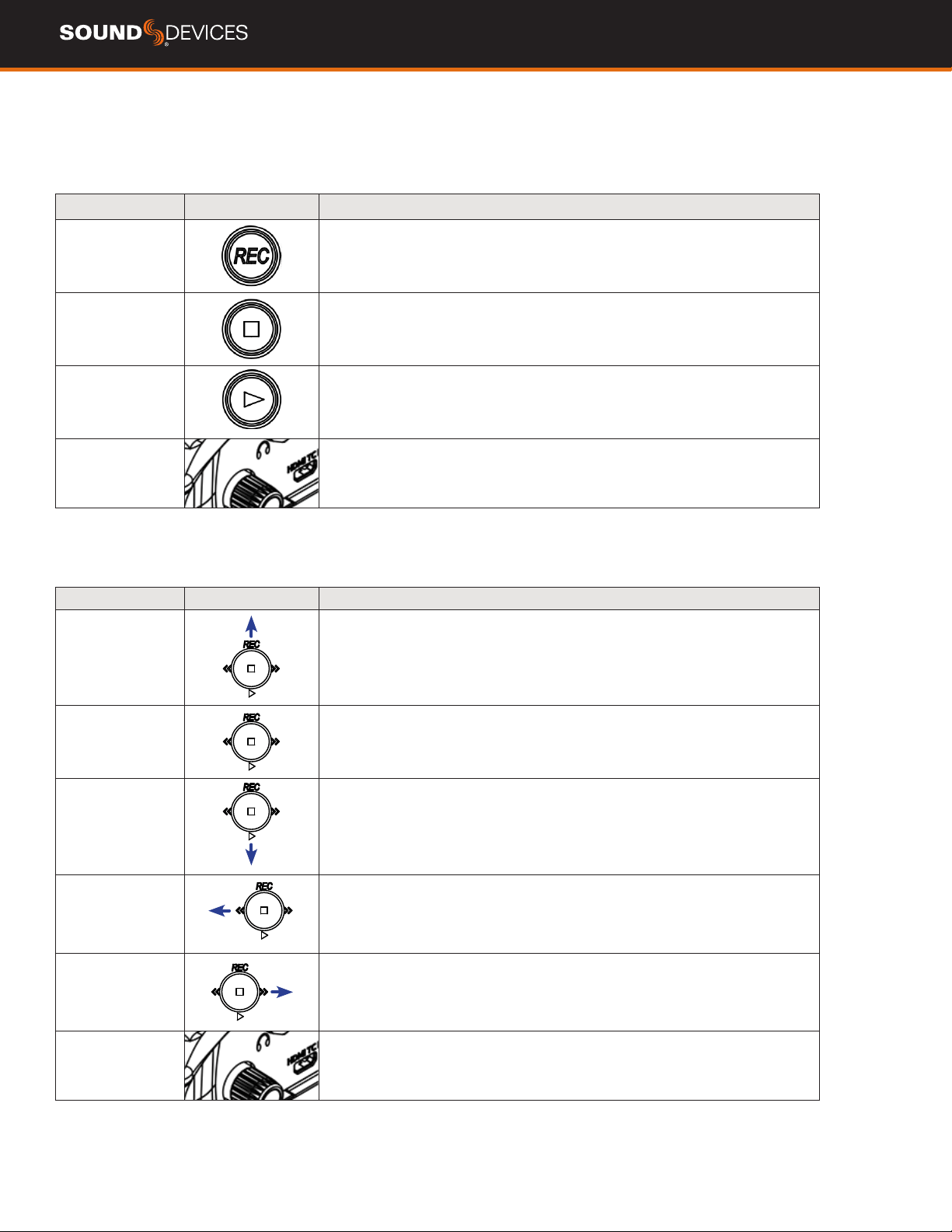
HOME SCREEN
The Home screen view appears on the touchscreen when the device is powered up.
Power Status
Icon
File List Icon
Time Counter
Status Bar
Meter View
Current File
Name
Menu Icon
Cue Marker
Icon
FILE LIST ICON Touch to enter the File List.
CURRENT FILE NAME Displays the current le name.
TIME COUNTER Displays current timecode value. If timecode is Off,
displays time counter of recording le.
CUE MARKER ICON Touch to lay a cue marker during record or play-
back. Displays current cue mark point.
POWER STATUS ICON Displays the status of the active power
source. See tables opposite for further details.
MENU ICON Touch to enter the setup menu.
METER VIEW Displays audio activity. Touch to toggle through avail-
able meter views:.
1. Left and Right mix tracks.
2. Left and Right mix tracks with isolated tracks.
3. Left and Right mix tracks, USB inputs 1 and 2, and 2 camera
returns (when Aux inputs are set to camera).
STATUS BAR Touch to toggle information displayed:
1. SD card status: card/drive activity, available recording time, le
duration, elapsed time, and headphone preset.
2. USB drive status: remaining space on drive, sample rate, bit depth.
3. Sync Source (if external), sample rate, and bit depth.
4. Date and time.
While auto-copying on the MixPre-10T, copy status is displayed on all
status bars. Copy status will alternate with default info.
MIXPRE-3 AND MIXPRE-6
Power Status Icon Description
(Green USB)
USB power source is ideal.
(Orange USB)
USB power source low. Brightness
dimmed, HDMI & USB-A ports disabled,
48 V phantom on 2 channels only.
(Green Battery)
Healthy battery. Plan to change batteries
when green level drops to about ¼ full.
(Flashing Red Battery)
Battery power is critically low. Change
batteries.
MIXPRE-10T
Power Status Icon Description
(Green Battery)
Healthy battery. Plan to change batteries
when green level drops to about ¼ full.
(Flashing Red Battery)
Battery power is critically low. Change
batteries.
MixPre User Guide
8
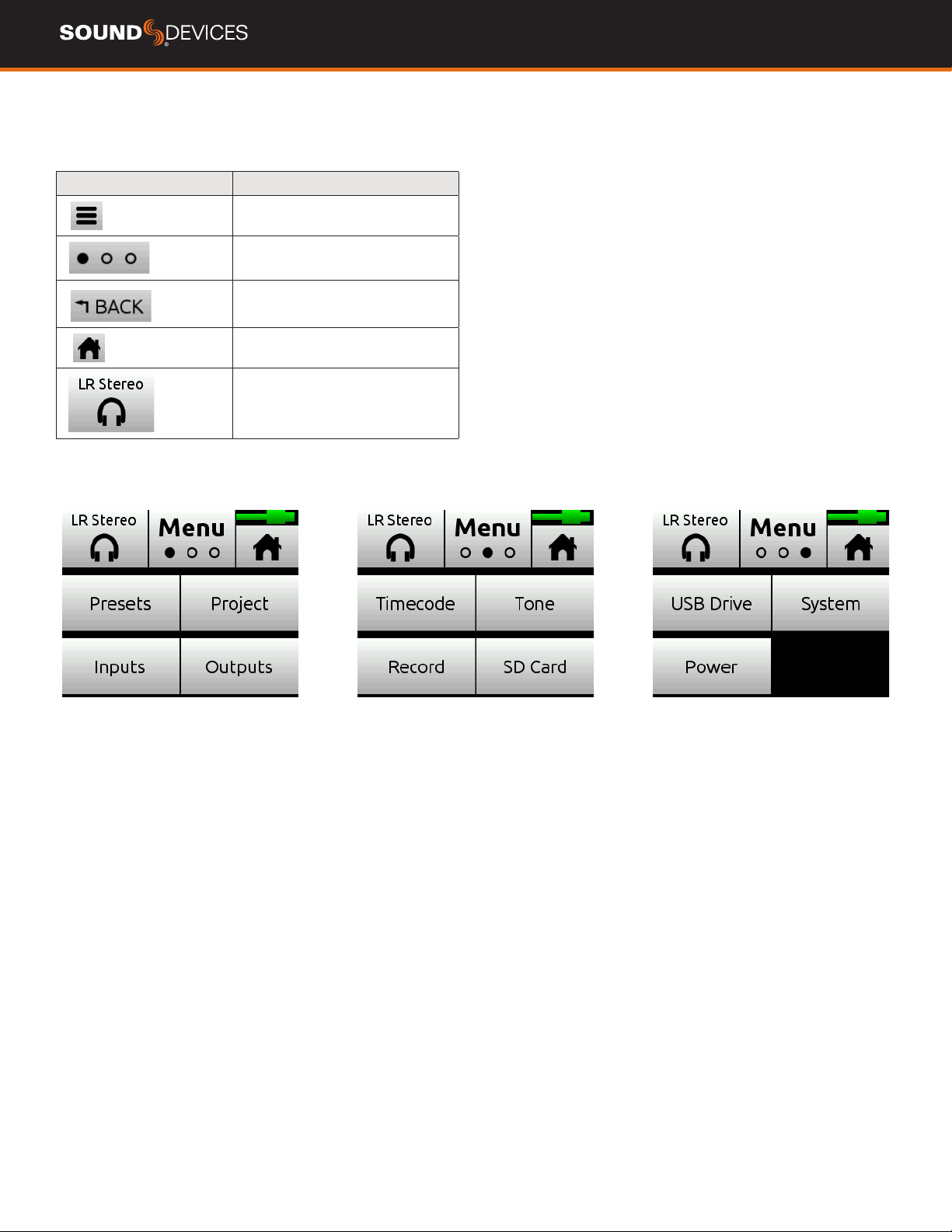
Transport Controls
MIXPRE-3 AND MIXPRE-6
e three Transport controls (illuminated buttons) on the front panel are used to perform recording and playback functions.
FUNCTION CONTROL ACTION
Record
Press to begin recording a new le. The button illuminates red while recording is in
underway.
Stop
While recording, press once to stop recording. While in playback, press once to stop
playback. While in standby, press and hold to display next name.
Play / Pause
Press to begin playback of the last le recorded or le currently loaded. The button
illuminates green during playback. While in playback, press once to pause, and press
again to resume playback. Whenever playback is paused, the button and the current
le name will ash green.
Scrub
While playing or paused, press and hold the headphone encoder to enter Scrub
mode. Then rotate clockwise for fast forward or counter-clockwise for rewind at
speeds of 0x, 1/8x, 1/4x, 1/2x, 1x, 2x, 4x, 8x and 16x. The audio is heard in Scrub
mode up to 2x speed.
MIXPRE-10T
A joystick (with its illuminated LED ring) on the front panel is used to perform various transport control functions.
FUNCTION CONTROL ACTION
Record
Push up the Transport control to begin recording a new le. The LED ring illuminates
red while recording is underway.
Stop
Press in the Transport control to stop recording or playback. While in standby, press
and hold to display next take name. The LED ashes red while auto-copying to a USB
thumbdrive. While in Standby and auto-copying is in progress, press Stop to bring up
a dialogue box which gives the option to suspend auto-copying.
Play
Push down the Transport control to begin playback of the last le recorded or le
currently loaded. While in playback, push down again to pause playback. The LED
ring as well as the active le in the display will ash to indicate that Pause is active.
Push down again to continue playback.
Rewind / Load
previous take
While in standby, push left to load the previous take. While in playback, push and
hold left to rewind.
When the MixPre is playing back or paused, moving the joystick to the left (<<)
rewinds at 2x speed, then after holding for 5 seconds, it increases to 16x speed.
Fast forward / Load
next take
While in standby, push right to load the next take. While in playback, push and hold
right to fast forward.
When the MixPre is playing back or paused, moving the joystick to the right (>>) fast-
forwards at 2x speed, then after holding for 5 seconds, it increases to 16x speed.
Scrub
While playing or paused, press and hold the headphone encoder to enter Scrub
mode. Then rotate clockwise for fast forward or counter-clockwise for rewind at
speeds of 0x, 1/8x, 1/4x, 1/2x, 1x, 2x, 4x, 8x and 16x. The audio may be heard in
Scrub mode up to 2x speed.
MixPre User Guide
9
Navigating Menus
Most features and functions are selected and set up in the Menu.
ICON FUNCTION
Touch the Menu icon from the Home
Screen to enter the Menu.
Touch the Page (dots) icon to view
the next page of options.
Touch the Back icon to return to the
main Menu from any submenu.
Touch the Home icon to immediately
return the the Home Screen.
Touch the Headphone icon to enter
the Headphone menu.
MAIN MENU SCREEN
Touch any menu item to enter the submenu. The menus available depend on model and Mode. See Choosing Your Mode for more information.
MixPre User Guide
10
Front Panel Locks
All MixPre mixer-recorders can lock the front panels controls to pre-
vent accidental adjustments.
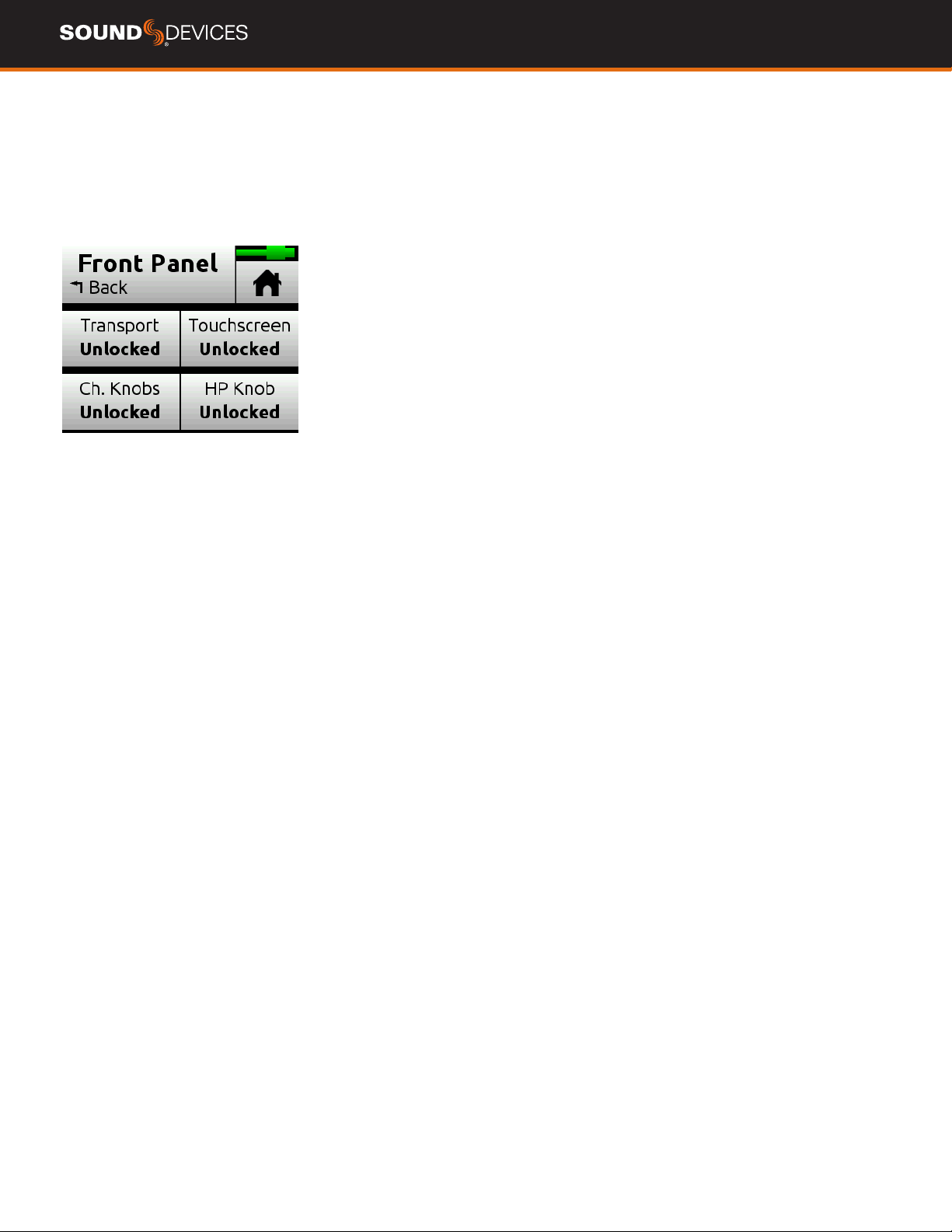
Press channel knobs 1, 2 and 3 simultaneously to enter the Front
Panel Menu.
TRANSPORT Locks or unlocks transport controls on the MixPre.
(Locked, Unlocked*)
MIXPRE-3
Play, Stop, Record, and scrub mode on headphone knob. (Locked,
Unlocked*)
MIXPRE-6
Play, Stop, Record, scrub mode on headphone knob, and the * short-
cut. (Locked, Unlocked*)
MIXPRE-10T
All joystick controls (record, stop, play, rewind, ff), and */** toggle.
(Locked, Unlocked*)
TOUCHSCREEN Locks or unlocks all touch activity of the LCD for all
models. (Locked, Unlocked*)
CH. KNOBS Locks or unlocks the front panel gain knobs from
making level adjustments and entering the channel screens for all
models. (On, Off*)
HP KNOB Locks or unlocks headphone knob press and rotate func-
tions. (Locked, Unlocked*)
If any parameter change is attempted while locked, a popup will
appear. Enter the Front Panel Menu and toggle that parameter option
Off to regain control of that parameter.
Controls from the Wingman application, USB keyboard or USB MIDI
controllers are unaffected by Front Panel Lock Mode.
All Front Panel functions are unlocked when the MixPre is rebooted.
MixPre User Guide
11
Choosing your Mode
The MixPre has three different modes of operation to suit you and your application: Basic, Advanced, and Custom. Basic mode is intended for sim-
ple, hassle-free, plug-and-play use and beginners. Advanced mode is for professionals and anyone who wants to have every available setting and
option at their disposal. Custom mode allows you to select your own mixture of basic and advanced operation.
The MixPre-3 and MixPre-6 default to Basic mode. The MixPre-10T defaults to Advanced mode. To change mode, go to Menu>System>Mode.
MIXPRE-3 BASIC VS ADVANCED
FEATURE BASIC ADVANCED
Gain Channel knob controls all gain for a
channel.
Dual gain stage. Input gain is set in the Channel Screen. Channel
knob controls post-fade levels to mix bus.
Channel Screen Options Pan (Left, Center, Right)
Input
Phantom
Low Cut (On or Off)
Solo
Mute
Track Arm (Iso Tracks)
Gain
Pan (variable options)
Input
Phantom
Low Cut (variable options)
Phase
Delay
Stereo and MS Linking
Headphone Options LR Stereo
USB 1,2
LR Stereo
LR Mono
USB 1,2
Presets 1-4
Edit Presets
Camera Stereo
Camera Mono
HP Solo mode (Multiple or Individual)
Outputs Fixed routing of LR mix Stereo Output exible routing
Stereo Output gain
Stereo Out Mute
USB Output 1-6 routing
File List Options Name
Number
Trash File
Cue Move
Cue Name
Cue Delete
Undo Recording
Name
Number
Notes
Track Names
Trash File
Cue Move
Cue Name
Cue Delete
Aux In Options Mic
Line
Off
Mic
Line
Timecode
Camera Return
Off
MixAssist Not Available Requires Plugin
Record Options Sample Rate xed at 48 kHz
Bit Depth xed at 24 bit
Records only the Left/Right mix
Pre-roll
Record Triggers
Record Bells
Sample Rate Options 44.1 - 96 kHz
Bit Depth options 16, 24
Record Isolated channels and mix tracks
Individual control of Left and Right gain
Individual control of Left and Right record arming
Pre-roll
Record Triggers
Record Bells
Remix & Rerecord
Tone Menu On or Off On or Off
L Ident Tone
Tone Level
Limiters Always On On or Off
MixPre User Guide
12
MIXPRE-6 BASIC VS ADVANCED
FEATURE BASIC ADVANCED
Gain Channel knob controls all gain for a
channel.
Dual gain stage. Input gain is set in the Channel Screen. Channel
knob controls post-fade levels to mix bus.
Channel Screen Options Pan (Left, Center, Right)
Input
Phantom
Low Cut (On or Off)
Solo
Mute
Track Arm (Iso Tracks)
Gain
Pan (variable options)
Input
Phantom
Low Cut (variable options)
Phase
Delay
Stereo and MS Linking
Headphone Options LR Stereo
USB 1,2
USB 3,4
LR Stereo
LR Mono
USB 1,2
USB 3,4
Presets 1-4
Edit Presets
Camera Stereo
Camera Mono
HP Solo mode (Multiple or Individual)
Outputs Fixed routing of LR mix Stereo Output exible routing
Stereo Output gain
Stereo Out Mute
USB Output 1-8
File List Options Name
Number
Trash File
Cue Move
Cue Name
Cue Delete
Undo Recording
Name
Number
Notes
Track Names
Trash File
Cue Move
Cue Name
Cue Delete
Aux In Options Mic
Line
Off
Mic
Line
Timecode
Camera Return
Off
Ambisonics Not Available Requires Plugin
MixAssist Not Available Requires Plugin
Record Options Sample Rate xed at 48 kHz
Bit Depth xed at 24 bit
Records only the Left/Right mix
Pre-roll
Record Triggers
Record Bells
Sample Rate Options 44.1 - 192 kHz
Bit Depth options 16, 24
Record Isolated channels and mix tracks
Individual control of Left and Right gain
Individual control of Left and Right record arming
Pre-roll
Record Triggers
Record Bells
Remix & Rerecord
Tone Menu On or Off On or Off
L Ident Tone
Tone Level
Limiters Always On On or Off
MixPre User Guide
13
MIXPRE-10T BASIC VS ADVANCED
FEATURE BASIC ADVANCED
Gain Channel knob controls all gain for a
channel.
Dual gain stage. Input gain is set in the Channel Screen. Channel
knob controls post-fade levels to mix bus.
Channel Screen Options Pan (Left, Center, Right)
Input
Phantom
Low Cut (On or Off)
Solo
Mute
Track Arm (Iso Tracks)
Gain
Pan (variable options)
Input
Phantom
Low Cut (variable options)
Phase
Delay
Linking
Headphone Options LR Stereo
X1X2 Stereo
USB 1,2
USB 3,4
LR Stereo
LR Mono
X1X2 Stereo
USB 1,2
USB 3,4
Presets 1-4
Edit Presets
Camera Stereo
Camera Mono
HP Solo mode (Multiple or Individual)
Outputs Fixed routing of LR mix L,R and X1,X2 exible routing
L,R and X1,X2 gain
L,R and X1,X2 Out Mute
L,R and X1,X2 Delay
USB Output 1-12
File List Options Name
Number
Trash File
Cue Move
Cue Name
Cue Delete
Undo Recording
Name
Number
Notes
Track Names
Trash File
Cue Move
Cue Name
Cue Delete
Aux In Options Mic
Line
Timecode
Off
Mic
Line
Timecode
Camera Return
Off
Ambisonics Not Available Requires Plugin
MixAssist Not Available Requires Plugin
Record Options Sample Rate xed at 48 kHz
Bit Depth xed at 24 bit
Records only the Left/Right mix
Pre-roll
Record Triggers
Record Bells
Sample Rate options 44.1 - 192 kHz
Bit Depth options 16, 24
Record Isolated channels and mix tracks
Individual control of Left and Right gain
Individual control of Left and Right record arming
Pre-roll
Record Triggers
Record Bells
Remix & Rerecord
Tone On or Off Flexible Tone Routing
Tone Level
L Ident Tone
Tone Level
Limiters Always On On or Off
MixPre User Guide
14
Custom Mode
Custom mode allows you to select your own mixture of basic and
advanced operation. This mode grants access to select categories of
Advanced Mode.
CONFIGURE CUSTOM SETUP
1. Set System > Mode to Custom.
2. In System > Custom Setup set each category to basic or ad-
vanced.
Custom Setup options are:
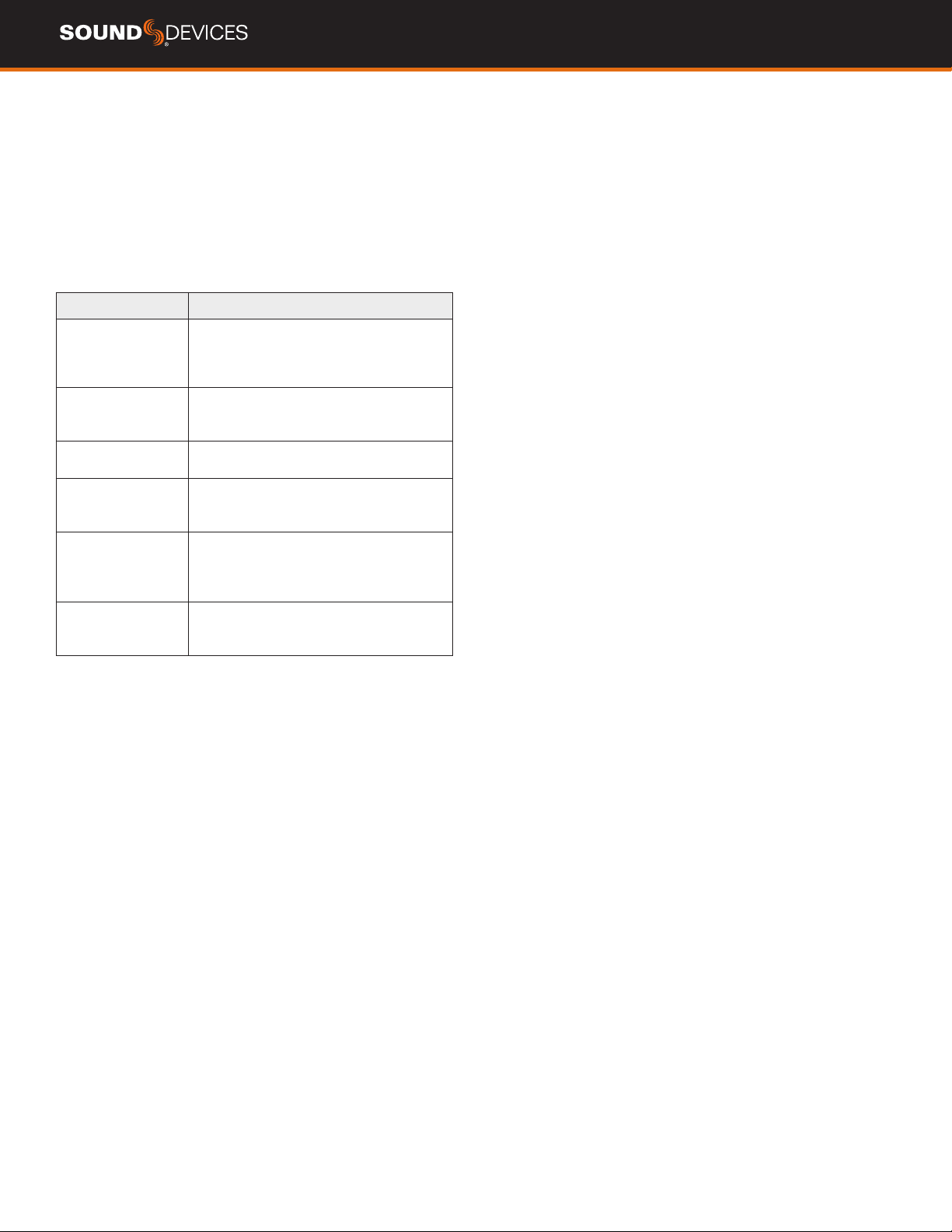
CATEGORY DESCRIPTION
Channel Allows advanced operation of the following
items: Channel Solo, Mute, Track Arm, Pan,
Low Cut, Phase, Delay, Channel Linking,
and isolated track recording.
Gain Allows advanced operation of channel gain,
including dual gain stage (gain and fader)
and Remix.
Headphone Allows access to advanced headphone
presets and channel solo.
Record Allows advanced operation of isolated track
arming and recording, LR track linking and
gain, sample rate, and bit depth.
Metadata Allows advanced operation in the File List.
This includes metadata entry and editing
of name, number, notes, track names, and
access to the undo recording feature.
Outputs Allows advanced operation of Output
menu items such as mute, gain, delay, and
routing.
MixPre User Guide
15
Channel Screen - Basic Mode
The MixPre’s exibility is enhanced by its ability to select various input
types to its mixer channels. On the MixPre-3. channels can be sourced
from XLR mic/line input, 3.5 mm Aux In or mic input, or from USB
channels. On the MixPre-6 and MixPre-10T , channels can be sourced
from XLR or TRS mic/line input, 3.5 mm Aux In or mic input, or from
USB channels.
Access the channel’s input settings by pushing in the channel’s knob.
There are three channel inputs on the MixPre-3, 6 channel inputs on
the MixPre-6, and 10 channel inputs on the MixPre-10T .
Channels 5 and 6 on MixPre-6 and 9 and 10 on the MixPre-10T are
controlled in the Inputs menu. Input source, gain, pan, and low-cut are
all available in this menu.
Channels use a single gain stage adjusted by the knob. Levels set at
the channel knob are sent to the LR mix record channels and the LR
outputs. Limiters are present on each channel and the LR mix bus
and will ensure that your audio is safe from accidental clipping.
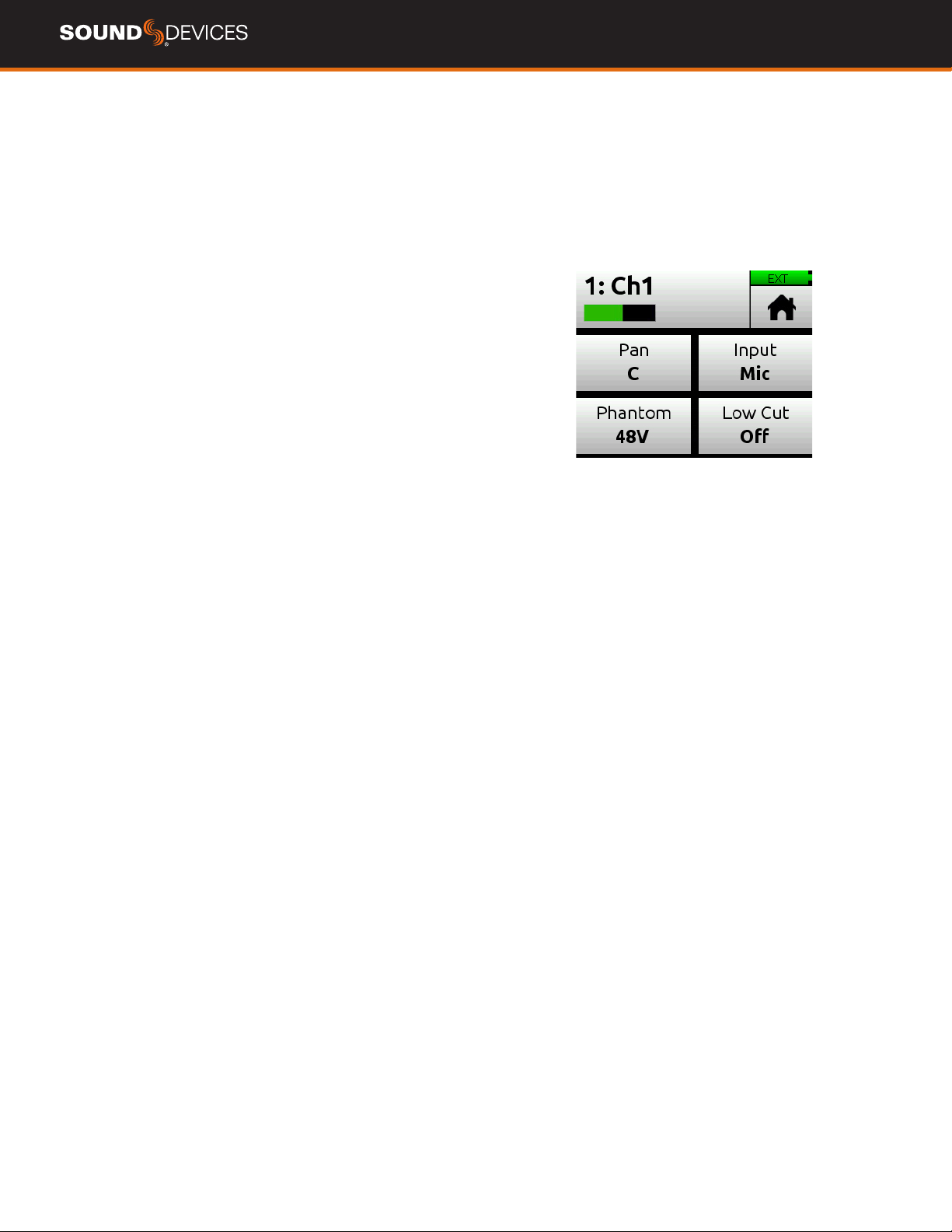
PAN Pan the channel’s signal Left, Center or Right in the stereo LR
mix and Stereo Out.
LOW CUT Turn Low Cut lter on or off. Useful for reducing unwanted
low frequency in the audio of the select channel. In Basic Mode Low
Cut is xed at 80 Hz.
INPUT Select one of the available Mic, Line, Aux (available when Aux
In Mode is Mic or Line) or USB inputs as the channel source.
PHANTOM Turn on 48 V phantom power when using a condenser
microphone in the selected channel (available when Input is Mic).
MixPre User Guide
16
Channel Screen - Advanced Mode
The MixPre’s exibility is enhanced by its ability to select various input
types to its mixer channels. On the MixPre-3, channels can be sourced
from XLR mic/line input, 3.5 mm Aux line or mic input, or from USB
channels. On the MixPre-6 and MixPre-10T , channels can be sourced
from XLR or TRS mic/line input, 3.5 mm Aux line or mic input, or from
USB channels.
Access the channel’s input settings by pushing in the channel’s knob.
There are three channel inputs on the MixPre-3 , 6 channel inputs on
the MixPre-6, and 10 channel inputs on the MixPre-10T .
Channels 5 and 6 on MixPre-6 and 9 and 10 on the MixPre-10T are
controlled in the Inputs menu. Input source, solo, mute, arm, gain,
pan, low cut, and linking are all available in this menu.
Channels use a dual gain stage. Adjust the gain control in the Channel
Screen and fader level with the knob. Limiters are present on each
channel and the LR mix bus and will ensure that your audio is safe
from accidental clipping.
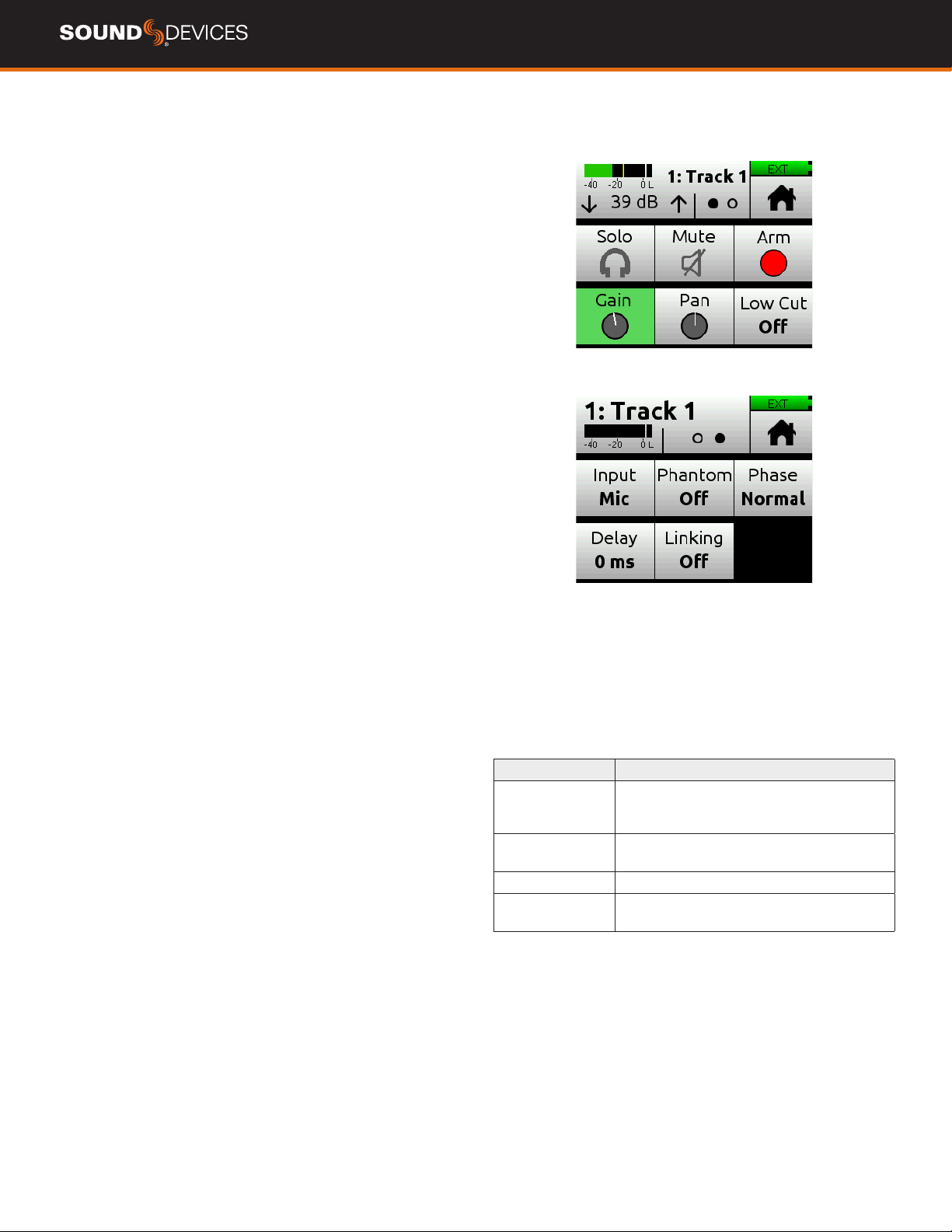
SOLO Lets you “solo” the selected channel in the headphone output.
Solo mode can be set to “Individual” or “Multiple” in the HP menu.
When a channel is soloed, the LED ring will ash orange.
MUTE Provides quick access to muting an input.
ARM Allows pre-fade recording of the channel to an individual track
on the SD card.
GAIN Sets the sensitivity of the input. Generally, the Gain should be
set so that the loudest parts of the audio signal just touch the red
segments of the meters. The control knobs on the front panel act as
faders.
PAN Lets you position the audio of the channel anywhere between
Left and Right in the stereo image of the LR mix and Stereo Out.
LOW CUT Turn Low Cut lter on or off. Useful for reducing unwanted
low frequency in the audio of the select channel. Frequency is adjust-
able from 40, 80, 100, 120, or 160 Hz.
INPUT Select one of the available Mic, Line, Aux (available when Aux
In Mode is Mic or Line) or USB inputs as the channel source.
PHANTOM Turn on 48 V phantom power when using a condenser
microphone in the selected channel (available when Input is Mic)
PHASE Phase inversion (or polarity reversal) is used to compensate
for incorrectly wired, balanced cables, to prevent signal cancellation
when a source is dual-mic’d from opposite directions, or to reverse
left/right with microphones in a mid-side (MS) conguration.
DELAY Input delay may be used to compensate for ‘phasey’ sounding
audio because of time-of-arrival differences between sound sources,
such as a boom mic and wireless radio mic picking up the same
sound source.
LINKING All MixPre’s can link channels 1 and 2 either as a stereo
pair, mid side pair, or turn linking off.
MIXPRE-3 BASIC MODE FEATURES AND MENUS
Screen Sub-menu Available Options and Functions
File List File Options The File List is where you manage upcoming and previously recorded les’ metadata and cue
markers. Available options:
Name - Names the le and scene metadata.
Number - Three digit number that follows the Name entry for the le name. Number resets to 001
when the Name is changed. Number is also stored in the take metadata eld.
Trash File - Sends the select le to the Trash folder.
Cue List - Enters the Cue List where
Menu Presets Save and load user presets to and from SD card and internal memory or reset unit to factory default
settings.
Menu Project Create New Projects
Open Projects
Copy Project from SD card to USB drive.
Trash existing projects.
Menu Inputs Aux In Mode sets the source for the 3.5 mm Aux/Mic In. Select from Mic, Line, Timecode, or Off.
Menu Timecode Timecode Mode (Free Run, Time of Day, Record Run, Aux In 1, Aux In 2, HDMI TC In, Off)
Frame Rate (23.98, 24, 25, 29.97 ND, 29.97 DF, 30, 30 DF
Jam - Jams the timecode generator from sources Aux 1 or Aux 2
Set TC -Sets the Timecode value for Free Run or Rec Run modes set Hour, Minutes, Seconds,
Frames
Set UBits - Sets the User Bit format and value (Custom User, Month/Day/User, Day/Month/User,
External)
Menu Tone Turn the test tone on or off. Test tone is a 1kHz sine wave at -20dBFS.
Menu Record Pre-roll (1-10 seconds)
Record Trigger (Off, HDMI ag, or Timecode)
Record Bells (On or Off)
Menu SD Card Displays SD card info, allows formatting the SD card, and emptying their trash folder.
Menu USB Drive Displays USB drive info and allows formatting of the USB drive.
Menu Date/Time Sets current date/time and format.
Menu System Mode - Select your mode of operation from Basic, Advanced, or Custom
Custom Mode - Available when in Custom Mode. Select functions to be Basic or Advanced (Channel,
Gain, Headphone, Record, Metadata, Outputs)
USB-C - Sets the functionality of the USB-C connector from Audio (and power) or Power Only
USB Audio - sets the content of the USB audio inputs and outputs (Normal = advertises all USB
channels to computer or Stereo Out = Left and Right mix only advertised to computer)
File Transfer - Enters le transfer mode so that you can transfer les from the SD card to a computer.
Bluetooth
®
- turn the Bluetooth circuitry on or off.
Wingman App password -Setup a password to prevent other mobile devices from connecting to
MixPre over Bluetooth.
LCD/LED brightness setup
System date and time setup
Updating Firmware
Version
Regulatory information
Plugins - Displays installed Plugins and applies Plugins, such as the Musicians plugin.
Menu Power Select the type of batteries being used (Alkaline, NiMH, L-Mount) to ensure that the Power Status
icon on the Home screen accurately displays remaining battery level.
Menu HP Preset Select either LR Stereo or USB 1,2 as the headphone sources.
Channel Pan
Channel Input
Channel Phantom
Channel Low Cut
3
MIXPRE-3 ADVANCED MODE FEATURES AND MENUS
Screen Sub-menu DeScription
Home File List The File List is where you manage upcoming and previously recorded les’ metadata and cue
markers. Available options:
Undo - Sends the last recorded le to the Undo folder and rolls back the Number to the previous
value.
Name - Names the le and scene metadata.
Number - Three digit number that follows the Name entry for the le name. Number resets to 001
when the Name is changed. Number is also stored in the take metadata eld.
Notes - Enter or edit notes that are stored in the le’s metadata.
Track Names - Enter or edit names for all record tracks.
Rename - Renames the le.
Trash File - Sends the select le to the Trash folder.
Cue List - Enters the Cue List where
Re-Record LR - This function requires Iso track recording and Remix to be on. Allows you to rerecord
the LR mix track.
Menu Presets Save and load user presets to and from SD card and internal memory or reset unit to factory default
settings.
Input Types Description
Mic Use for microphones. For condenser mics
requiring 48 V phantom power, set Phantom
to On.
Line Use this type for balanced analog line level
sources.
Aux In 1-2 Use for unbalanced stereo input.
USB Use for sources coming from a computer via
USB-C.

MixPre User Guide
17
Linking Channels
Are you working with a stereo source—a keyboard or stereo mic
perhaps? To make it easy to adjust these types of sources, the MixPre
offers linking of channel pairs either as a stereo pair or mid-side (MS)
pair.
STEREO PAIR LINKING
Control the level of both channels 1 and 2 with the Channel 1 knob.
The Channel 2 knob will now function as a balanced control if stereo
linked.
MS PAIR LINKING
Control the level of both channels 1 and 2 with the Channel 1 knob.
The Channel 2 knob will now function as a width control. You can
choose to have the MS decoder apply to the mix only and not isolated
tracks in th menu Inputs > MS Decode.
MULTICHANNEL LINKING
When multiple channels are linked, gain, fader, limiters, track arming,
low cut lters, and input delay are all linked and controlled from the
single Channel. Additionally, the Link Type menu provides the options
for which parameters are linked.
1. All links input type, trim gains, faders, limiters, low cuts, record
arms, and delays
2. Faders Only links only fader level.
The MixPre-6 can link channels 1-3 and 1-4.
The MixPre-10T can additionally link channels 1-3, 1-4, 1-5, 1-6, 1-7
and 1-8.
GAIN STAGING WITH LINKING
You can use linking with single gain stage or two-gain stage (trim/
fader) operation. For instance, users wanting to link inputs 1-2 or 1-4,
but control all levels from the front-panel Channel 1 knob should set
System > Mode to Custom and then in Custom Setup, set Gain to
Basic and Channel to Advanced.
Users wanting to link those same inputs but use two gain stages
should use Advanced Mode or Custom mode with both Gain and
Channel set to Advanced. Then, you can adjust trim gain levels for
linked channels from the Channel 1 screen and adjust fader levels for
linked channels with the Channel 1 knob.

MixPre User Guide
18
Inputs Menu
The Inputs menu allows you to access software-controlled channels (5
and 6 on MixPre-6 or 9 and 10 on MixPre-10T), Aux In Mode settings,
MS Decode settings, Knob Press options, Ambisonics
(MixPre-6 and MixPre-10T only with optional Plugin), and MixAssist
(with optional Plugin).
SOFTWARE-CONTROLLED CHANNEL SCREENS
Channel 5 and 6 on MixPre-6 or channels 9 and 10 on MixPre-10T
Channel screens provide access to a channel’s settings and func-
tions. This includes input source, solo, mute, arm tracks, gain, pan,
low cut, and linking.
INPUT SOURCE Selects Input source of channels 5 and 6 on
MixPre-6 or channels 9 and 10 on MixPre-10T from Off, USB 1-4, Aux
In 1, or Aux In 2.
MixPre-6 channel 5 can be set to Aux 1, USB 1, or USB 3 and
channel 6 can be set to Aux In 2, USB 2, or USB 4.
MixPre-10T channel 9 can be set to Aux 1, USB 1, or USB 3 and chan-
nel 10 can be set to Aux In 2, USB 2, or USB 4.
AUX IN MODE Congures how the Aux/Mic In 3.5 mm connector is
used.
1. Mic: Select this option when the Aux/Mic In is to be used with a
mic. The MixPre provides bias voltage for PiP (plug-in-power) mics. Aux
1 and 2 are available as input sources to any channel.
2. Line: Select this option when the Aux/Mic In is to be used with an
unbalanced 2ch line source, such as smartphone headphone output,
stereo line source, etc. Aux 1 and 2 are available as input sources to
any channel.
3. Camera: Select this option when the Aux/Mic In is to be used for
monitoring a video camera’s audio output via the MixPre’s head-
phones and camera return (C1/C2) meters located on meter view.
This is particularly useful when you want to use the MixPre to drasti-
cally improve the sound quality recorded on the camera. It is common
knowledge that camera mic inputs are not of high quality so by con-
necting your mics to the MixPre instead, then connecting the MixPre’s
L/R outputs to your camera audio input, you will achieve far superior
sound quality. Then by connecting the camera’s audio output to the
MixPre’s Aux/Mic In, it allows you to check that the camera audio is
noise and distortion-free.
When this option is selected an additional setting appears in the
Input Menu called Camera Gain. This lets you adjust the gain of the
incoming camera audio level. You also get additional camera monitor-
ing options in the HP Presets menu.
When Aux In Mode is set to Camera, you cannot route Aux In to a
channel and thus you cannot record it.
4. Timecode: Select this option is for using an external timecode
source connected to the Aux/Mic In port. The 3.5 mm TRS connector
is wired to receive timecode on its tip.
Also ensure Menu > Timecode > TC Mode is set to Aux TC In.
Off: Select this option to turn off the Aux/Mic Input.
MS DECODE
Choose between ISOs & Mix and Mix Only.

MixPre User Guide
19
KNOB PRESS
Selects the behavior of pressing a Channel Knob. Available in Ad-
vanced Mode.
1. Ch.View: Pressing the channel knob enters the channel view. Chan-
nel Gain is automatically selected upon entry.
2. Ch.View + Solo: Pressing the channel knob enters the channel view
and automatically solos the channel. Channel Gain is automatically
selected upon entry.
AMBISONICS
MixPre-6 and MixPre-10T only. Requires plugin; see separate
Ambisonics guide for more information.
MIXASSIST
Requires plugin. MixAssist is not available in Music or Ambisonics
mode. See separate MixAssist guide for more information.
Limiters
The MixPre has analog limiters ensuring that even your loudest audio
remains pristine.
ON/OFF Toggles the Limiters On or Off. While set to On the limiter is
a global setting and applies to every channel.
MixPre User Guide
20
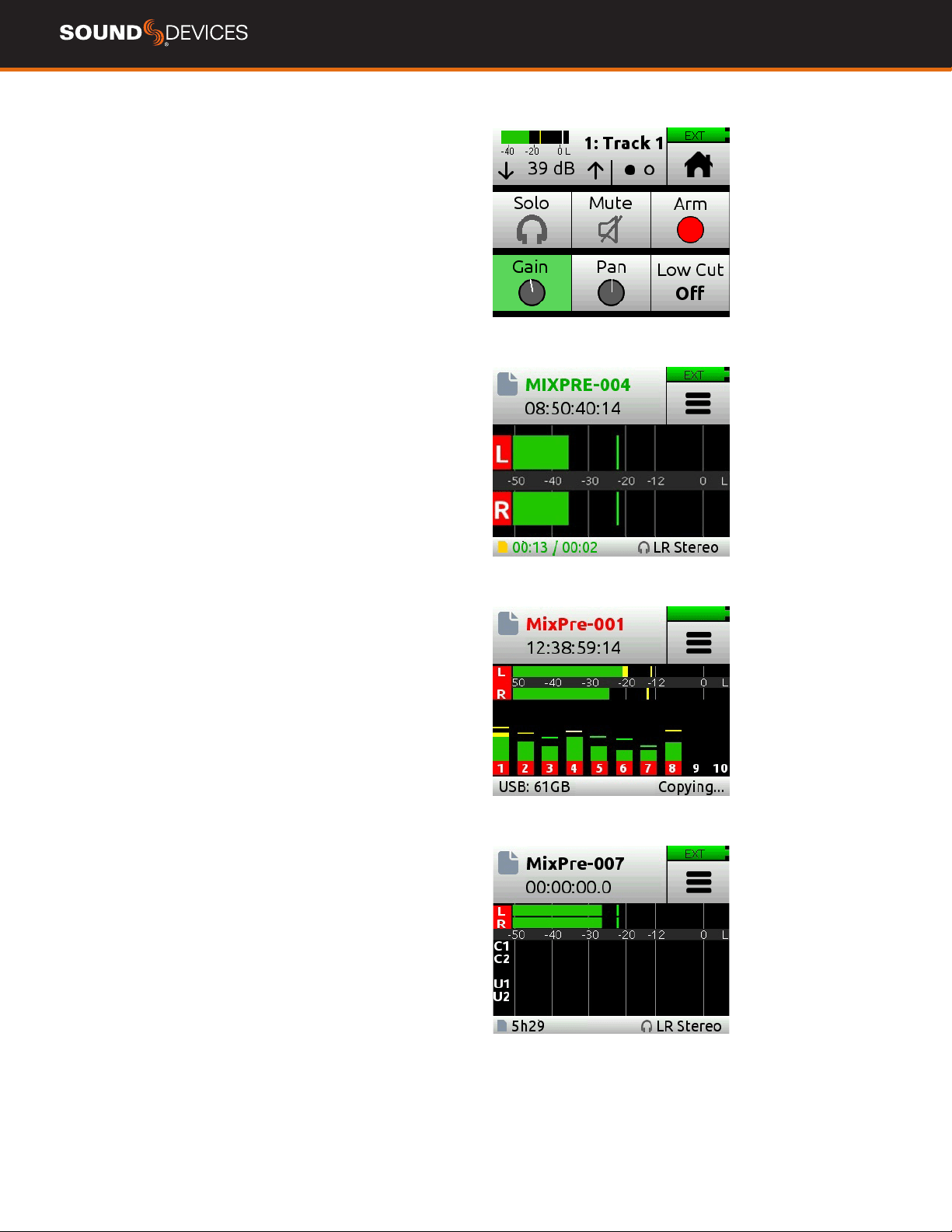
CHANNEL SCREEN METER
MAIN LR STEREO METER VIEW
LR, ISO MULTI-TRACK METER VIEW (MIXPRE-10T SHOWN)
LR, CAMERA RETURNS, AND USB 1,2 METER VIEW
Metering
There are ve basic methods for observing input and output levels on
the MixPre.
CHANNEL KNOB RING LEDS The brightness of the light ring indi-
cates the level of the input. Green = signal present, red = signal peak-
ing, orange = signal limiting. A channel’s ring LED will ash orange
when in solo and glow red when the channel is muted.
CHANNEL SCREEN METER The Channel screen displays the isolat-
ed channel meter in the top left-hand corner.
HOME SCREEN METERS To switch meter views, touch the meters
to cycle through the three different views. The meters will show signal
levels, current arm status of each track for the recorder and limiting
activity for L,R and each channel.
METERING BALLISTICS
Audio meter ballistics is the manner in which a visual meter responds
to audio signal levels. Peak-reading ballistics correspond to actual
signal peaks, but do not necessarily correspond to perceived signal
loudness. Peak meters have an instant attack and slow decay and
are useful in digital audio workows where signal overload can cause
immediate distortion. Volume Units (VU) meter ballistics correspond
closely to how the human ear perceives loudness. VU meters provide
good visual indication of how loud a signal will be, but provides poor
information of actual signal peaks.
The MixPre uses a combination Peak+VU ballistics for all meters,
where the perceived loudness (or VU) is simultaneously displayed as a
standard bar while the peak signal is displayed as a single, indepen-
dent segment above the VU.
MixPre User Guide
21
Outputs
The MixPre features multiple Output congurations for exible record-
ing scenarios. The Outputs menu is available in Advanced mode. In
the Outputs menu, you may send any channel, Aux input, USB input
or LR mix to either the outputs, mute outputs, and control gain. The
MixPre-3 and MixPre-6 Stereo Out can be congured to send audio or
LTC timecode.
MIXPRE-3 & MIXPRE-6:
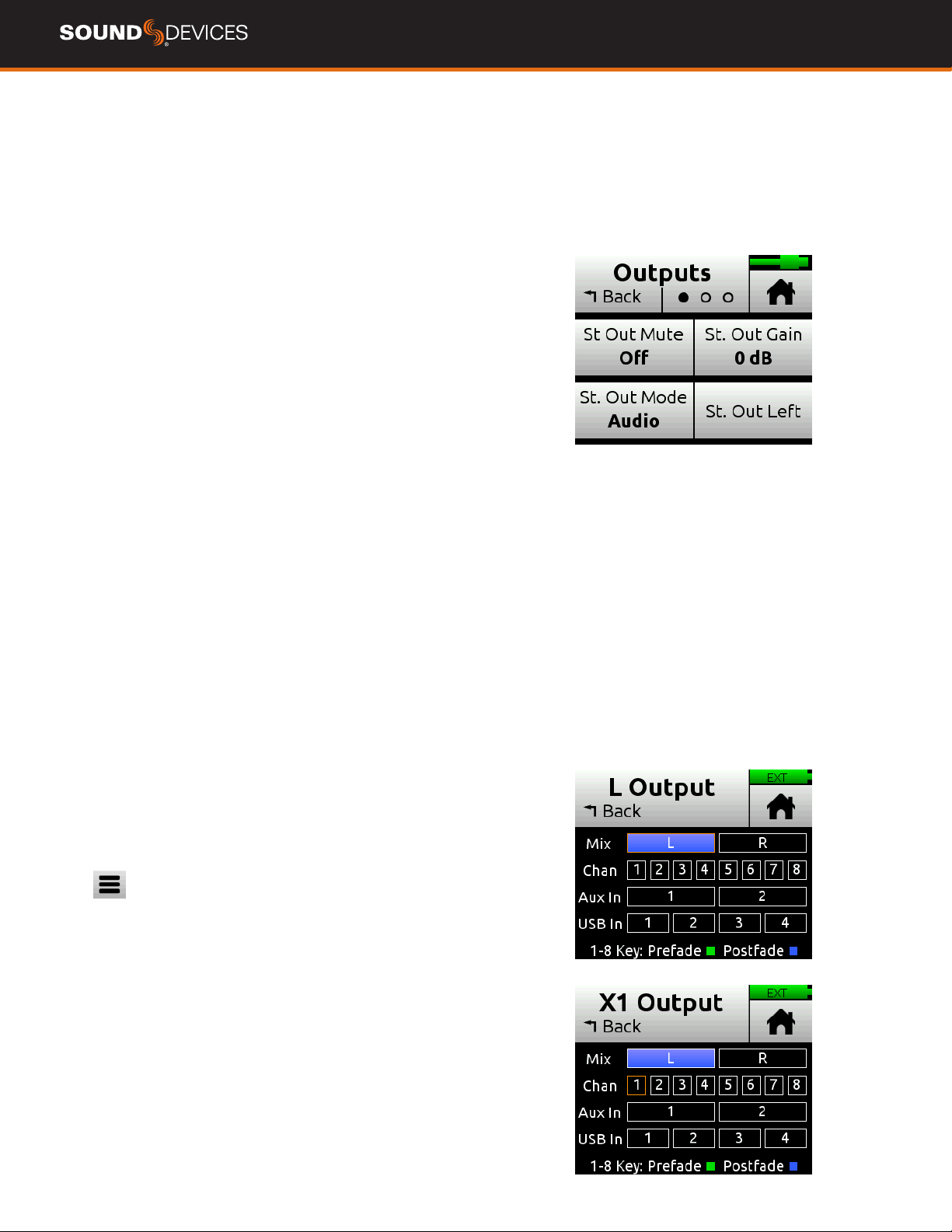
STEREO OUT MUTE Mutes the output.
STEREO OUT GAIN Adjusting output gains is useful for optimizing
the level feeding downstream devices such as transmitters, external
mixers, PA, etc. The level of the output can be set to Off, 40 to +20 dB
in 1 dB steps.
STEREO OUT LEFT OR RIGHT Congures output source, select
from Mix L, Mix R, Isolated Channels (pre or post-fade), Aux In, or USB
streaming into the MixPre from a computer.
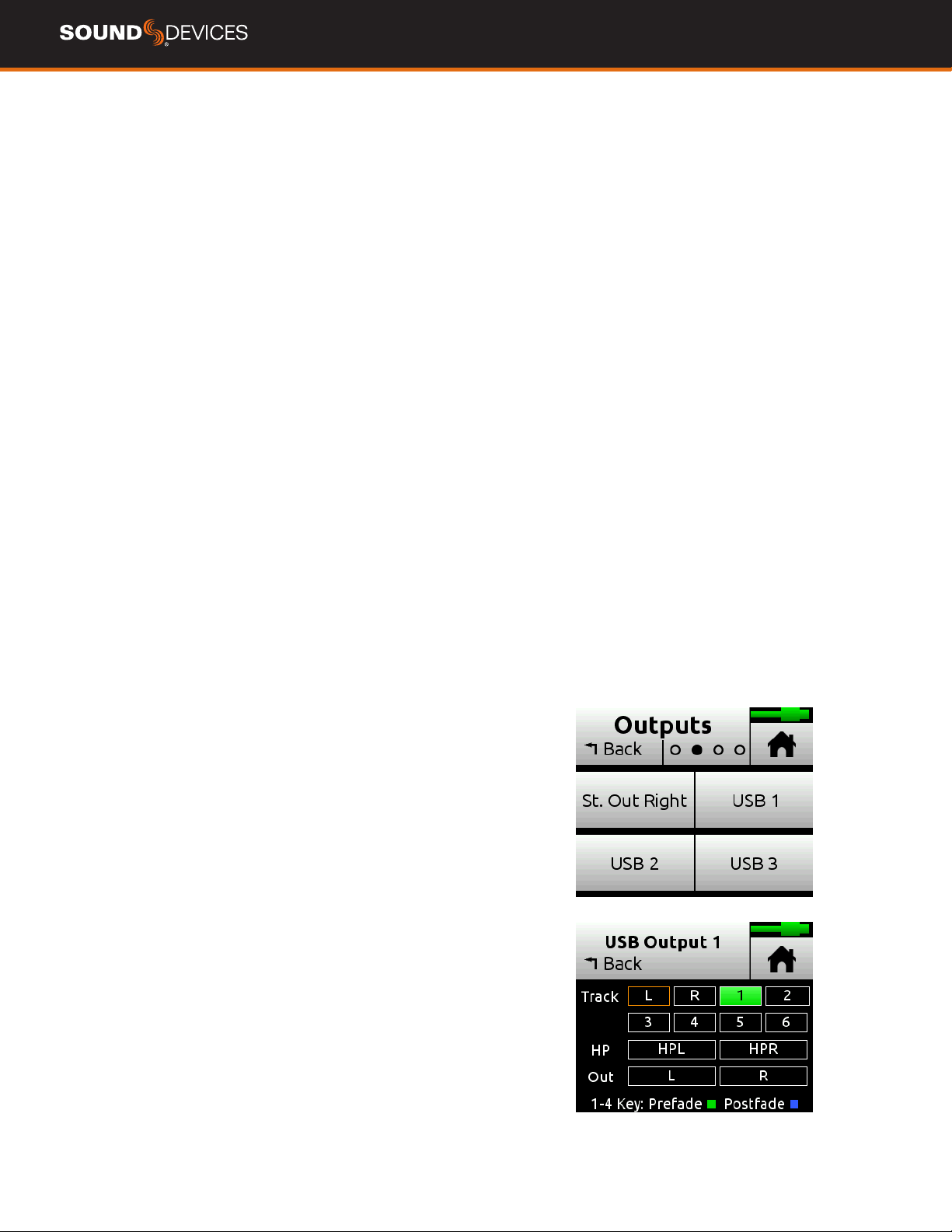
USB 1-6 (MIXPRE-3) Congures output source from L,R, 1-3 (pre- or
post-fade), Headphone L, R, or Output L,R.
USB 1-8 (MIXPRE-6) Congures output source from L,R, 1-6 (pre- or
post-fade), Headphone L, R, or Output L,R.
MIXPRE-10T :
L/R OUT MUTE Mutes the output.
X1/X2 OUT MUTE Mutes the output.
L/R GAIN Adjusting output gains is useful for optimizing the level
feeding downstream devices such as transmitters, external mixers,
PA, etc. The level of the output can be set to Off, 40 to +20 dB in 1 dB
steps.
X1/X2 GAIN Adjusts the level of the output from Off, 40 to +20 dB
in 1 dB steps.
LEFT OR RIGHT OUTPUT Congures output source, select from Mix
L, Mix R, Isolated Channels (pre or post-fade), Aux In, or USB stream-
ing into the MixPre from a computer.
LEFT, RIGHT, X1, X2 OUTPUT DELAY Output delay is particularly
useful when sending audio to video operators on a production set to
ensure that audio is in sync with their camera video feeds. Outputs
can be delayed from 0 to 400 ms.
USB 1-12 Congures output source from L,R, 1-10 (pre- or post-fade,
Headphone L, R, or Output L,R, X1,X2.
TO ROUTE THE L/R AND X1/X2 STEREO OUTPUTS:
1. Tap .
2. Tap Outputs.
3. Select any of the following:
L Output
R Output
X1 Output
X2 Output
4. From the routing matrix, select what channel to send to the output.
In addition, if you choose to send the channels to outputs, you can
select either pre-fade (Channel knob has no effect) or post-fade
(Channel knob controls level).
MixPre User Guide
22
Headphone Out
The MixPre’s high quality headphone amplier provides high power
and very low noise performance so that you can accurately hear the
audio, regardless of headphones or environment.
Connect headphones via 3.5 mm jack to the headphone jack (located
on the right side panel). The volume of the headphones is set using
the knob directly adjacent to the headphone jack.
The headphone amplier is capable of very high output levels. Please
use caution when wearing headphones as hearing damage could
result with inappropriate volume levels.
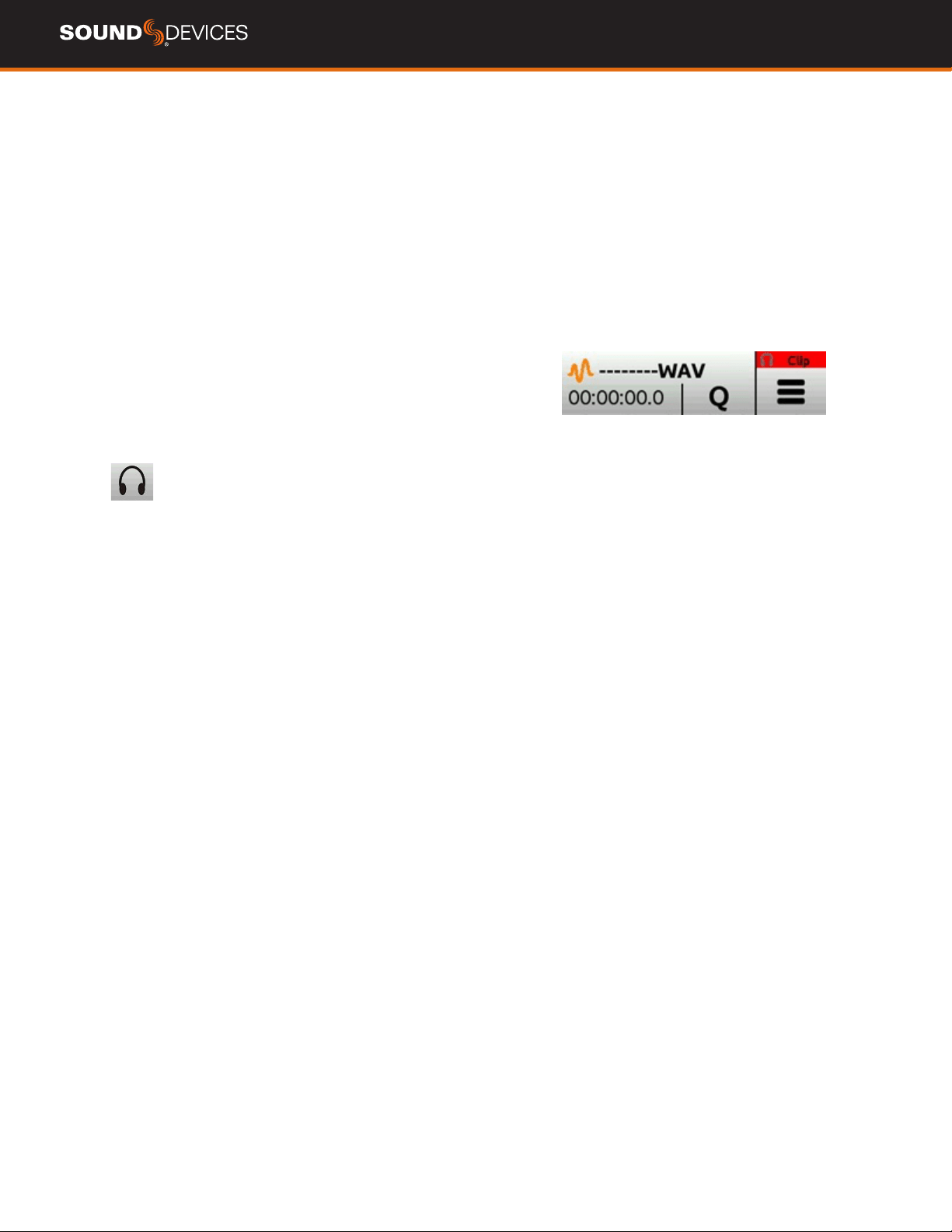
When clipping occurs in the headphones, the Headphone Clip indica-
tor appears in the top right corner of screen, over the Power Status
indicator.
ACCESS THE HEADPHONE PRESET MENU
1. Enter the main menu.
2. Tap in the upper left hand corner.
3. Above this icon, the currently selected HP preset is displayed.
ADVANCED MODE - CREATING A CUSTOM HP PRESET
Select Edit HP Preset (Advanced Mode Only) to edit and name any of
the User HP Presets.
ADVANCED MODE - HP SOLO
HP Solo mode provides options for single or multi-channel solo moni-
toring. Soloing channels is performed in the channel screens.
DISABLING RECORD BELLS IN HEADPHONES
Record bells, heard in headphones when recording is started and
stopped, may be turned off. The record bells can be turned off in the
Record menu.
PRESET OPTIONS BY MODEL
MIXPRE-3
Basic Mode: LR Stereo, USB 1, 2,
Advanced Mode: LR Stereo, LR Mono, USB 1, 2, and User Presets 1-4
Camera options appear when Aux In is set to Camera.
MIXPRE-6
Basic Mode: LR Stereo, USB 1, 2, USB 3,4
Advanced Mode: LR Stereo, LR Mono, USB 1, 2, and User Presets 1-4
Camera options appear when Aux In is set to Camera.
MIXPRE-10T
Basic Mode: LR Stereo, X1X2 Stereo, USB 1,2, USB 3,4, and User
Presets 1-4.
Advanced Mode: LR Stereo, LR Mono, X1X2 Stereo, USB 1,2, USB
3,4, and User Presets 1-4.
Camera options appear when Aux In is set to Camera.

MixPre User Guide
23
Using the MixPre as a
USB Audio Interface
The MixPre Series perform as highly capable and pristine quality
USB audio interfaces. They support up to 96 kHz sample rate at
bit depths of 16 or 24.
For PC users, the MixPre will appear as a 2x2 audio interface unless
a specic ASIO® driver is installed. The latest ASIO drivers are avail-
able for free at www.sounddevices.com/download
Please install the correct ASIO driver relative to your operating
system.
To work with the USB audio from a host computer, it is necessary
to route the USB 1 - 4 sources appropriately. To mix the USB audio
from the host computer with live audio from the inputs to the LR
bus, use the channel screen and select input source. To hear the
USB host computer audio in the headphones only, switch the HP
preset to USB 1,2 or USB 3,4.
The MixPre is capable of recording and streaming audio to a USB
host simultaneously, or recording the USB audio stream out of a
computer directly to its SD recorder.
When connected to a computer as a USB Audio Interface the sam-
ple rate of the MixPre is determined by the computer.
LOW-LATENCY MONITORING Latency has been minimized
while using the MixPre as a USB interface. In situations where the
throughput latency is higher than desired, the input can be directly
monitored in the headphone output.
MixPre User Guide
24
TO MONITOR WITH ZERO-LATENCY:
1. Connect via USB-C to the USB port on your computer.
2. Conrm that the LR Stereo HP Preset is selected.
3. Select USB 1 for Channel 1 source (MixPre-3), Channel 5
source (MixPre-6), or Channel 9 source (MixPre-10T) and Pan L.
4. Select USB 2 for Channel 2 source (MixPre-3), Channel 6
source (MixPre-6), or Channel 10 source (MixPre-10T) and Pan
R.
OR
• Create a custom HP preset that mixes the microphone or input
you want to record from with the USB 1 and/or USB 2 feed from
the computer. For example, HP L = Ch1 + U1 and HP R = Ch1
+ U2.
5. Connect microphone or other inputs to remaining channels.
6. Select USB 1 for Channel 1 source (MixPre-3), Channel 5
source (MixPre-6), or Channel 9 source (MixPre-10T) and
Pan L.
7. Select USB 2 for Channel 2 source (MixPre-3), Channel 6
source (MixPre-6), or Channel 10 source (MixPre-10T) and Pan
R.
8. Connect microphone or other inputs to remaining channels.
9. Select the appropriate inputs for remaining channels.
10. Setup your DAW software for a new track with its source being
any of the available channels.
11. Disable record monitoring or mute the channel’s output in the
DAW.
You should now be able to hear and adjust the output of your DAW
audio through the channels you set to USB 1 and 2 on your MixPre
while adjusting your low-latency feed in your headphones (and send
levels to DAW) using the remaining channel knobs.
USB Output Routing
Each of the MixPre’s USB audio output streams can be sourced from
any channel (pre- or post-fade), LR mix bus, headphone output or LR
output and X1,X2 (on the MixPre-10T only).
MIX-MINUS SENDS
A mix-minus send is used when working with remote contributors in
podcasting, conferencing and broadcast applications. It allows the
remote contributor to hear the program mix, minus their own voice,
the remove distracting latency.
TO SETUP UP A MIX-MINUS SEND:
1. In the Outputs>St.Out Left or St.Out Right menus (or L, R, X1, or
X2 Output menus on the MixPre-10T), create a summed mix of all the
channels you want to send to the remote contributor minus their own
channel. You can mix the channels pre-fade or post-fade.
2. Select the Output you have congured in step 1 as the source for
the USB channel you are sending to the remote contributor.

MixPre User Guide
25
System
MODE Switch between Basic, Advanced and
Custom.
FILE TRANSFER Transfer les between the MixPre and a host
computer.
USB-AUDIO Switch between Normal or Stereo Out. The Stereo Out
option allows you to set the USB Audio interface to output only 2
channels in order to increase compatibility with applications that do
not support multichannel USB audio.
USB-C (MIXPRE-3 AND MIXPRE-6 ONLY) Switch between Power
only or Audio when using with a USB-C power or audio source.
LIMITERS Set limiters to On or Off.
BLUETOOTH Switch Bluetooth on/off.
WINGMAN PASSWORD Set a required
password for the Wingman app.
BRIGHTNESS Adjust the brightness of the
touch screen and the ring LEDs.
DATE/TIME
Set current date/time and format.
TUNE CRYSTAL (MIXPRE-1OT ONLY) Fine tune the internal
crystal frequency to an external word clock or LTC signal via BNC In.
REGULATORY Provides full Federal Communications
Commission (FCC) compliance information.
VERSION Provides the model type, current
rmware version, and serial
number.
UPDATE FIRMWARE Update the rmware
from a le on the SD card. The
latest rmware can be downloaded from the Sound Devices
website: www.sounddevices.com/support/downloads
When upgrading to rmware version 7.0 or higher from any version
lower than 6.0 the rmware installation process will need to be
completed twice. After the rst installation is complete, the MixPre
will prompt you to start the second installation process.
PLUGINS View and apply plugins.
MixPre User Guide
26
Formatting Media
SD cards must be formatted by the MixPre for reliable recording and
playback. Back-up any wanted audio recordings or data on the SD
card before formatting. The formatting process erases all data on
the SD card.
If a USB thumbdrive is inserted into the USB A port, the MixPre
automatically copies the current project’s recorded les to it. The
thumbdrive must also be formatted before use.
We highly recommend using Sound Devices branded SD cards as
these have been optimized to provide the best performance. If these
are not available, most reputable manufacturers’ cards (such as
SanDisk or Delkin) that meet or exceed class 10 speeds are accept-
able. Similarly, we highly recommend only using Sound Devices’
approved USB thumbdrives to ensure reliable operation.
Current approved media can be found here.
All media will be formatted as exFAT. If any media is formatted
differently, the MixPre will display a formatting reminder. The exFAT
le system is not compatible with Windows XP or Mac OS X 10.6.4
and lower.
FORMAT AN SD CARD
1. Insert an SD card in the slot located on the rear panel.
2. Navigate to SD Card > Edit > Format.
3. When asked to conrm the command to format the card, touch
OK.
FORMAT A USB THUMBDRIVE (MIXPRE-10T ONLY)
1. Connect a USB Thumbdrive to the USB-A port located on the
left panel or USB hub.
2. Navigate to USB Drive > Edit > Format.
3. Conrm the command to format the card, and touch OK.
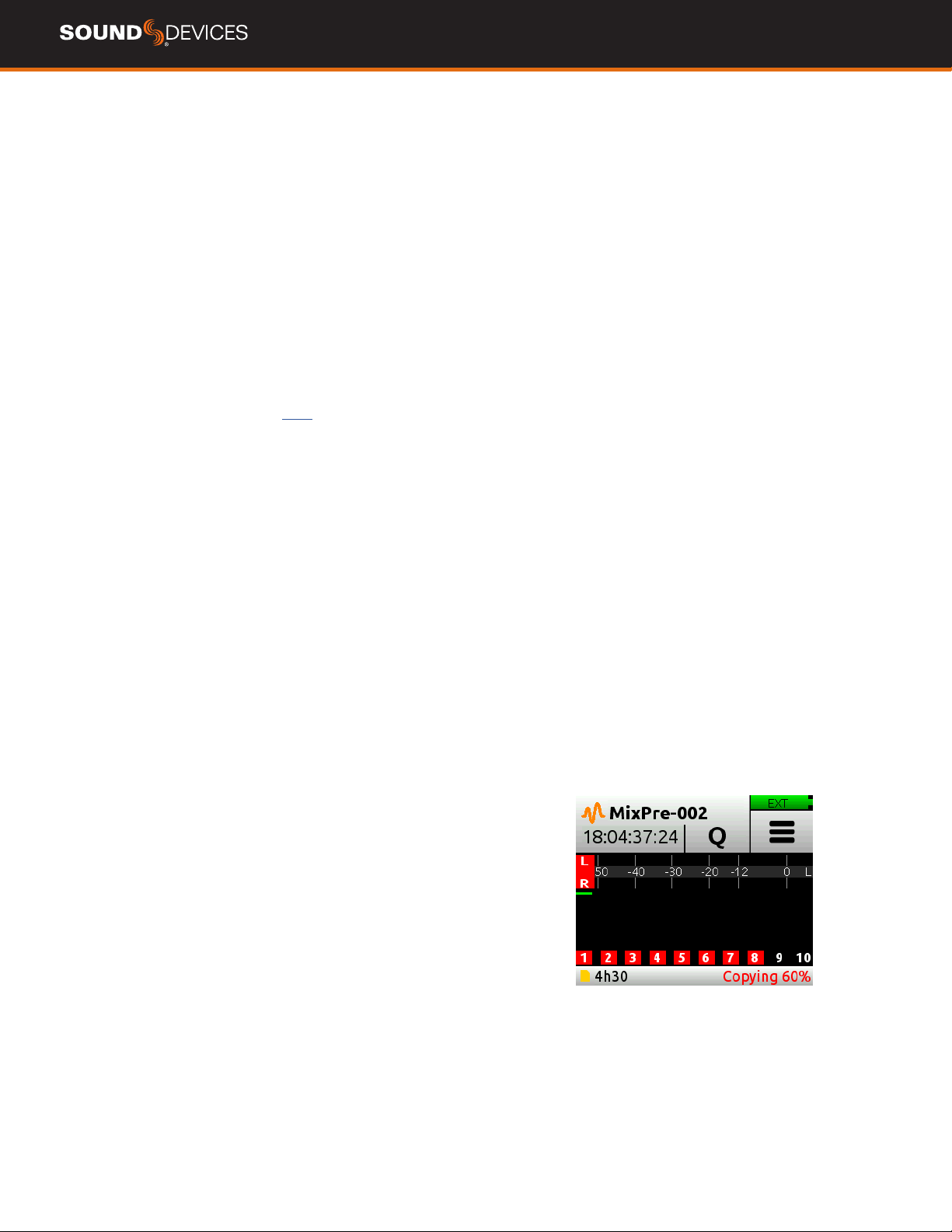
USB AUTO-COPY
The MixPre-10T will auto-copy to a formatted USB-A thumbdrive when
inserted directly into the USB-A port or when using a USB hub. Stop-
ping a recording will automatically copy the last recorded le to the
thumbdrive. While copying, the ring LED on the MixPre-10T will ash
while the process is being completed. The completion rate will display
as a percentage on the bottom right corner of the status bar. If a new
recording is started while auto-copying is still in progress, auto-copying
will still continue.
INTERRUPTING USB AUTO COPY WITH POWER CYCLE
Auto-copy can be suspended during longer copying times.
During auto-copy in stop mode, pressing stop or toggling the power
switch to OFF brings up the following popup:
“Suspend USB auto-copy? Copying will resume when record is next
pressed. OK, Cancel”
If “OK” is pressed, Auto-copying is suspended and will resume copying
when record is next pressed.
If “Cancel” is pressed, Auto-copying will continue until complete then
power down if switch is off or sit in idle if power switch is on.
While the MixPre-10T is auto-copying, the USB Drive and SD Card
menu are unavailable.

MixPre User Guide
27
Record - Basic Mode
PRE-ROLL TIME Pre-roll captures audio for a set amount of time
before Record is pressed, ensuring important audio is never missed.
Pre-roll time decreases as sample rate increases. Choose up to 10
seconds of pre-roll at 48 kHz. At 96 kHz pre-roll is limited to a maxi-
mum of 5 seconds. At 192 kHz pre-roll is limited to a maximum of 2
seconds. Pre-roll is not available in record run mode or when using a
record trigger.
REC TRIGGER Sets record triggering from either timecode,HDMI
ag or HDMI FUJIFILM ag. The default is Off.
RECORD BELLS Enable or disable record bell notications. Record
bells are On by default.
Record - Advanced Mode
REC L, R Arms L and/or R mix buses. Choose between Off, Off &
Linked, L, R, L&R, and L&R Linked.
L GAIN Sets the gain for the L mix.
RIGHT GAIN Set the gain for the R mix. This setting is disabled
when Rec L,R Mix is set to LR Linked.
SAMPLE RATE Set the internal sample rate and sample rate of
recorded WAV les. Choose between 44.1 kHz, 47.952 kHz, 48 kHz,
48.048 kHz, 96 kHz, and 192 kHz.
When Timecode Mode is set to HDMI TC In, the connected camera
determines the sample rate of the MixPre II.
When using the MixPre II as a computer audio interface, the sample
rate is determined by the computer.
BIT DEPTH Select between 16, 24, and 32 oat bit depth.
PRE-ROLL TIME Pre-roll captures audio for a set amount of time
before Record is pressed, ensuring important audio is never missed.
Pre-roll time decreases as sample rate increases. Choose up to 10
seconds of pre-roll at 48 kHz. At 96 kHz pre-roll is limited to a maxi-
mum of 5 seconds. At 192 kHz pre-roll is limited to a maximum of 2
seconds. Pre-roll is not available in record run mode or when using a
record trigger.
REC TRIGGER The MixPre may be congured to begin recording
when it is triggered. Setting the Record Trigger to HDMI ag will ini-
tiate record when a compatible device issues the record ag via the
HDMI input. The MixPre has two HDMI rec trigger options. HDMI ag
for Sony, Panasonic, Nikon, Canon and Blackmagic cameras and
HDMI FUJIFILM for FUJIFILM cameras. Setting the Record Trigger to
Timecode will initiate record when the MixPre detects running LTC
timecode via the Aux or BNC inputs (MixPre-10T only). Set record
triggers in the Record Menu. When record triggers are used, Pre-
roll is disabled. Setting the Record Trigger to Timecode will initiate
record when the MixPre detects running LTC timecode via the Aux
or BNC inputs (MixPre-10T only). Set record triggers in the Record
Menu. When record triggers are used, Pre-roll is disabled.
REMIX Allows you to simultaneously play back a le and record a
new L/R mix while adjusting the gains with the fader knobs. To remix
a recording, turn on Remix in the Record menu. Select a le from the
File List that has isolated tracks and select Remix.
RECORD BELLS Enable or disable record bell notications. Record
bells are On by default.
MixPre User Guide
28
File Splits
To conform to the Broadcast WAV File standard ,the maximum size of
a le recorded by the MixPre is 4GB. If a recording exceeds this limit,
the MixPre will automatically begin recording a new le. The recording
process is seamless, meaning the two les can be joined together in
post with no loss in audio.
Timecode
When timecode is enabled, it is displayed on the home screen
beneath the current lename. Standard timecode is displayed as
HH:MM:SS:FF. Drop-frame timecode is displayed with a semi-colon
between the seconds and frames elds: HH:MM:SS;FF.
Each time you press record, the current timecode value is stored in-
side the Broadcast WAV le. Most popular video editing applications
can read this timecode value to help sync the audio with picture.
When power is removed, the internal battery maintains accurate
timecode for up to 4 hours. An alert will be issued whenever the
timecode generator (in Free Run and Time of Day timecode modes)
has reset due to internal battery depletion. This internal battery is
automatically charged anytime the MixPre is powered on.
TC MODE Select between Free Run, Time of Day, Rec Run, BNC In
(MixPre-10T only), Aux In 1, Aux In 2, HDMI TC In, HDMI FUJIFILM or
Off.
FRAME RATE Select between 23.98, 24, 25, 29.97nd, 29.97dF,
30, and 30 dF. Setting the frame rate is not necessary when using
BNC, Aux, or HDMI In.
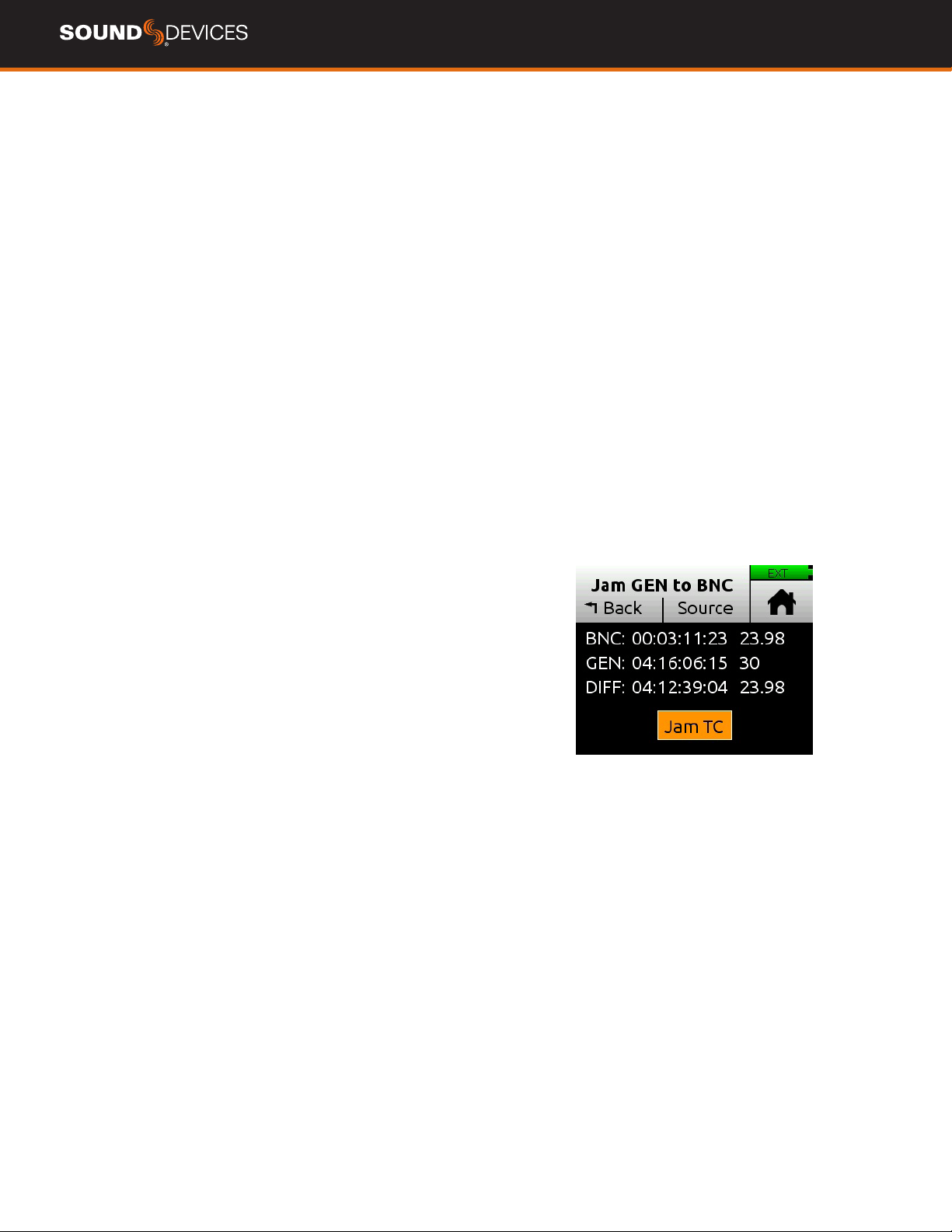
JAM With the MixPre to Free Run and the frame rate set to the
source’s frame rate, tap Source and select BNC In or Aux TC.
Tap Jam TC to jam timecode. Jamming is successful if Diff =
00:00:00:00.
SET TC Manually set timecode.
BNC IN MixPre-10T only. Set BNC to Timecode or Word Clock.
BNC OUT MixPre-10T only. Set BNC to Timecode or Word Clock.
SYNC REF MixPre-10T only. Select from BNC In or Internal. When
BNC In is selected, the MixPre-10T can be set to sync to an external
timecode or word clock sync reference connected to BNC In.
SET UBITS Click “Mode” at top to edit UBits Mode. From the main
screen, press in with the headphone encoder to modify the value of
a UBit. Use the arrows or scroll with the encoder to select.
It is best practice to rejam timecode devices after switching modes
(Basic, Advanced or Custom) or after any setting change requiring a
reboot (MixAssist, Music mode or Ambisonics).

MixPre User Guide
29
Timecode Modes
MIXPRE-3 AND MIXPRE-6:
AUX IN Timecode can be derived from external timecode connected
to the TC In BNC or to the 3.5 mm Aux/Mic In connector.
HDMI TC IN Many DSLR-style cameras output timecode via HDMI.
If HDMI TC In is selected without an HDMI source connected, the
MixPre will report missing sync. The MixPre has two HDMI timecode
modes,. HDMI ag for Sony, Panasonic, Nikon, Canon and
Blackmagic cameras and HDMI FUJIFILM for FUJIFILM cameras.
When set to HDMI TC In, the connected camera determines the
sample rate of the MixPre.
TIME OF DAY (TOD) Alternatively known as 24 hr run mode, this
is similar to free run mode except that the timecode generator is
automatically loaded with the time of day. Use TOD mode when you
want the recorded WAV les to be timecode stamped with the time
of day generated by the internal clock.
OFF Setting TC Mode to Off disables the timecode feature. When
Off, the time counter below the lename region on the home screen
displays elapsed time instead of timecode.
MIXPRE-10T:
FREE RUN Timecode runs continuously. Timecode continues count-
ing accurately for up to four hours after power-down.
REC RUN Timecode runs while recording and is stationary when
not recording. In this mode, timecode defaults to the last stationary
value at power-up. When switching to Record Run from another
mode, the internal generator will stop at the last timecode value.
Timecode output can be used to trigger other equipment that sup-
ports timecode remote triggering to start and stop recording.
TIME OF DAY (TOD) Alternatively known as 24 hr run mode, this
is similar to free run mode except that the timecode generator is
automatically loaded with the time of day. Use TOD mode when you
want the recorded WAV les to be timecode stamped with the time
of day generated by the internal clock.
BNC IN, AUX IN Timecode can be derived from external timecode
connected to the TC In BNC or to the 3.5 mm Aux/Mic In connector.
HDMI TC IN Many DSLR-style cameras output timecode via HDMI.
If HDMI TC In is selected without an HDMI source connected, the
MixPre will report missing sync. The MixPre has two HDMI timecode
modes, HDMI ag for Sony, Panasonic, Nikon, Canon and
Blackmagic cameras and HDMI FUJIFILM for FUJIFILM cameras.
LTC Timecode is not present on the MixPre-10T BNC out when HDMI
TC In is in use.
When set to HDMI TC In, the connected camera determines the
sample rate of the MixPre.
OFF Setting TC Mode to Off disables the timecode feature. When
Off, the time counter below the lename region on the home screen
displays elapsed time instead of timecode.

MixPre User Guide
30
Presets
If you plan to use the MixPre in a wide variety of situations, you can
store and recall snapshots of all of the MixPre’s settings. Setup les
can be saved and recalled from the SD card or to one of four internal
preset slots. You can also restore the MixPre to the factory default
settings from the Presets menu.
LOAD Loads factory defaults or user presets from SD Card or from on
of four internal slots.
SAVE TO INT 1 Saves the current setup to internal slot 1.
SAVE TO INT 2 Saves the current setup to internal slot 2.
SAVE TO INT 3 Saves the current setup to internal slot 3.
SAVE TO INT 4 Saves the current setup to internal slot 4.
SAVE TO SD Saves the current setup to the SD card.
Projects
NEW Create a custom project name or project name based on the
current date. Names may be up to 18 characters long.
OPEN Select the required project. This will load the File List with the
selected Project’s les.
COPY Select the project to copy to a USB-A Drive.
TRASH PROJECT Select which project to trash. This moves the
selected project and all its les to the TRASH folder. Projects in this
folder are accessible using a computer. You can permanently delete
projects in the SD card’s TRASH folder using a computer or by format-
ting the card.
CREATE REPORT The MixPre includes the ability to create a CSV
sound report le for the active project. It contains useful descriptive
information about the project settings and all its recorded les. This
can be used as a log of your recording session or as an electronic
report that you can send along with your audio les to post-production
or a client. The CSV sound report le is stored in the active project’s
folder alongside audio les and is named as follows: ActiveProject-
Name_Report.csv
REPORT INFO The MixPre can customize the sound report’s de-
scriptive header information to include various project details, such
as Producer, Director, Job, Name, Location, Phone, E-mail, Client, etc.
Enter details for each info item using the on-screen virtual keyboard,
a USB keyboard. If items are blank, they will not be included in the
report le.
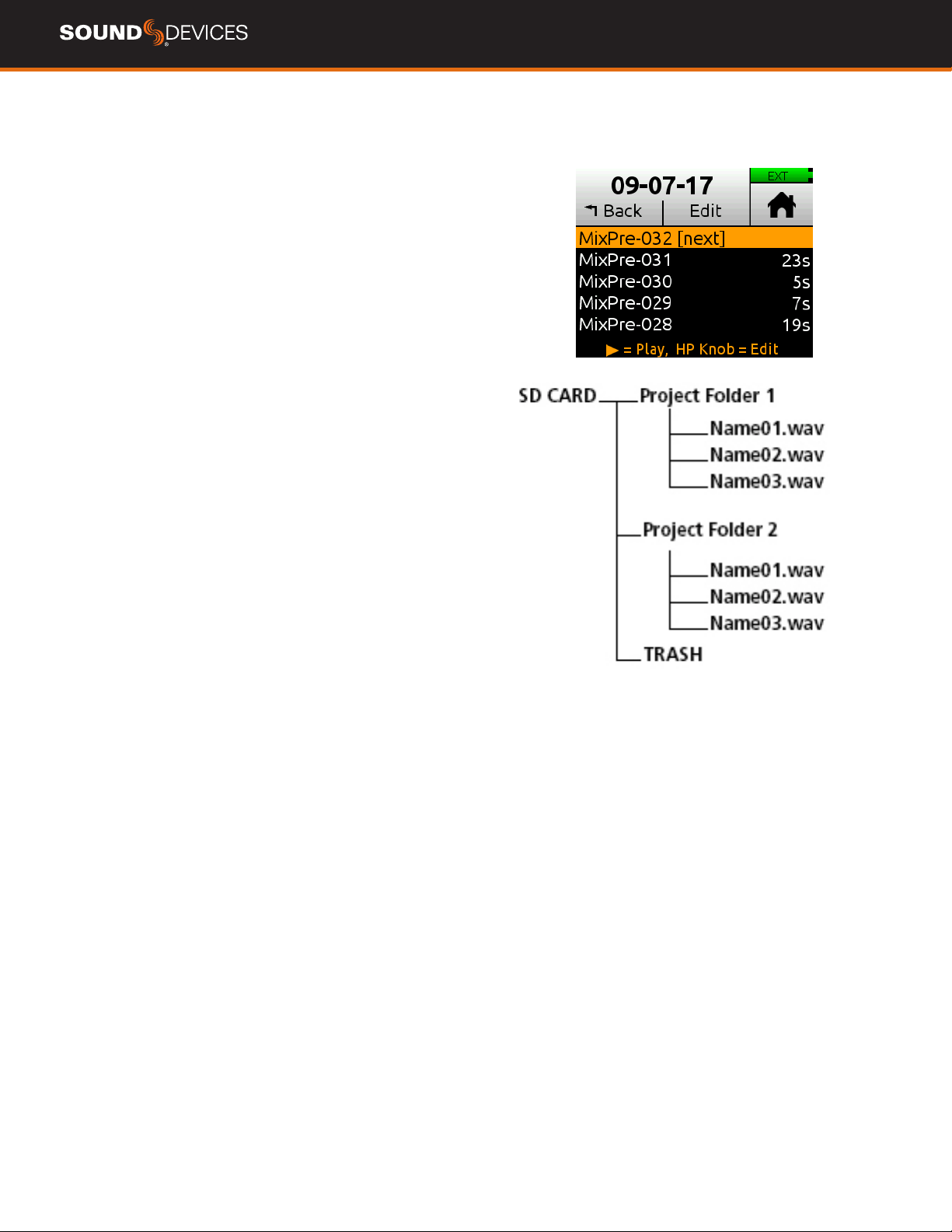
MixPre User Guide
31
File List - Basic Mode
TO ACCESS THE FILE LIST
1. Touch the lename at the top of the Home screen.
2. Scroll through the chronological list of all les in an active proj-
ect with the headphone encoder. The top item in the list is the
next le to be recorded. Directly below that is the last recorded
le or le currently being recorded, followed by all previously
recorded les.
3. Press Edit or push the headphone encoder in to access sub-
menus for each le.
TO PLAYBACK A FILE FROM THE LIST
Scroll to a le and press Play to play it back.
NAME Edit the le’s name.
NUMBER Edit the le’s number. File numbers are reset to 001
when a new Project is created.
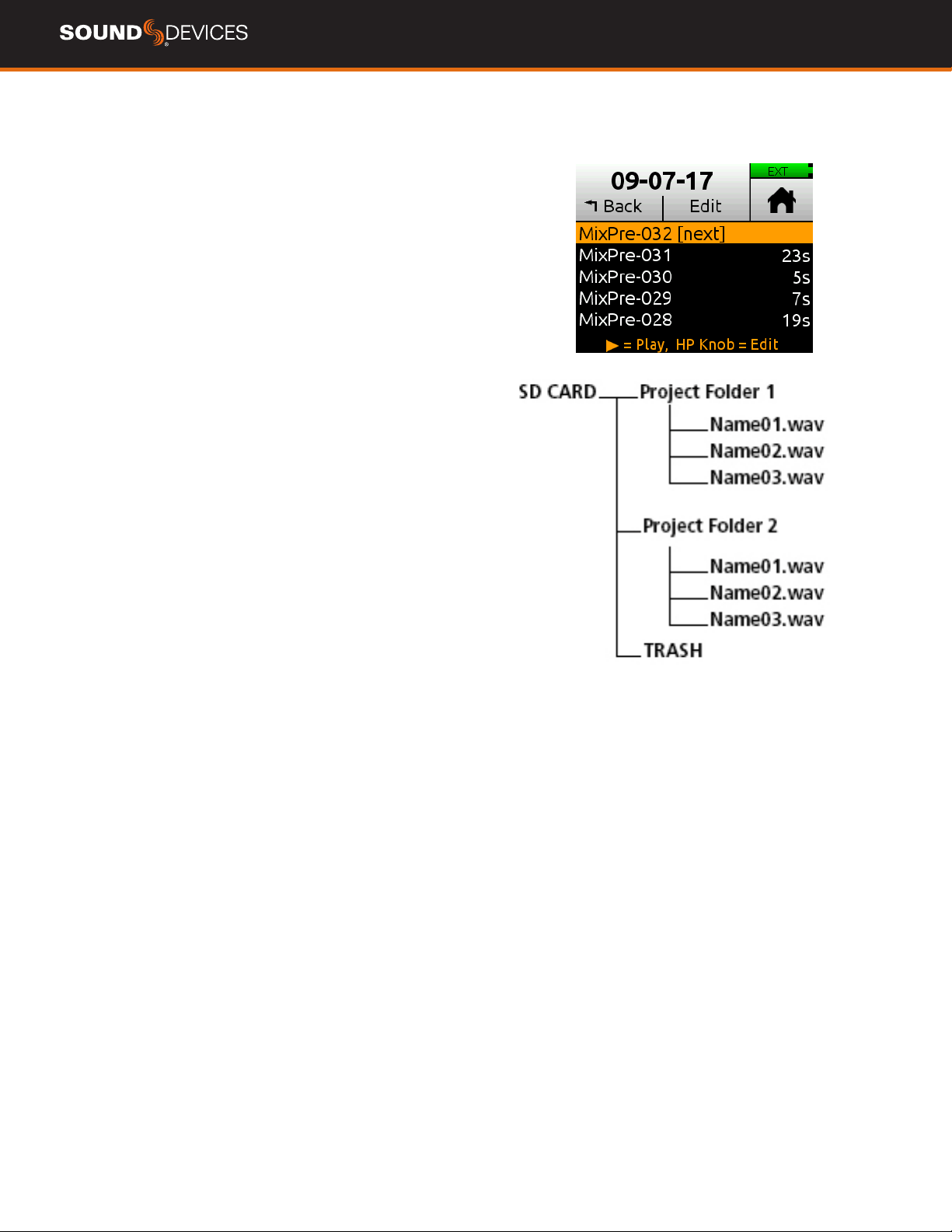
MixPre User Guide
32
File List - Advanced Mode
TO ACCESS THE FILE LIST
1. Touch the lename at the top of the Home screen.
2. Scroll through the chronological list of all les in an active proj-
ect with the headphone encoder. The top item in the list is the
next le to be recorded. Directly below that is the last recorded
le or le currently being recorded, followed by all previously
recorded les.
3. Press Edit or push the headphone encoder in to access sub-
menus for each le.
TO PLAYBACK A FILE FROM THE LIST
Select a le and press Play to play it back.
UNDO Undo moves the last recorded le to the SD card’s UNDO
folder and resets the number of the next le. Files in this folder are
accessible using a computer.
NAME,NUM,NOTES Edit the le’s name, number, and, in advanced
mode, make notes. File numbers are reset to 001 when a new
Project is created.
TRACK NAMES Edit track names within a le.
RENAME Rename the le’s name and number.
TRASH FILE Deletes the le.
CUE LIST Brings up list of all cue marks added during record or
playback. Name, move, and delete cue marks on this list.
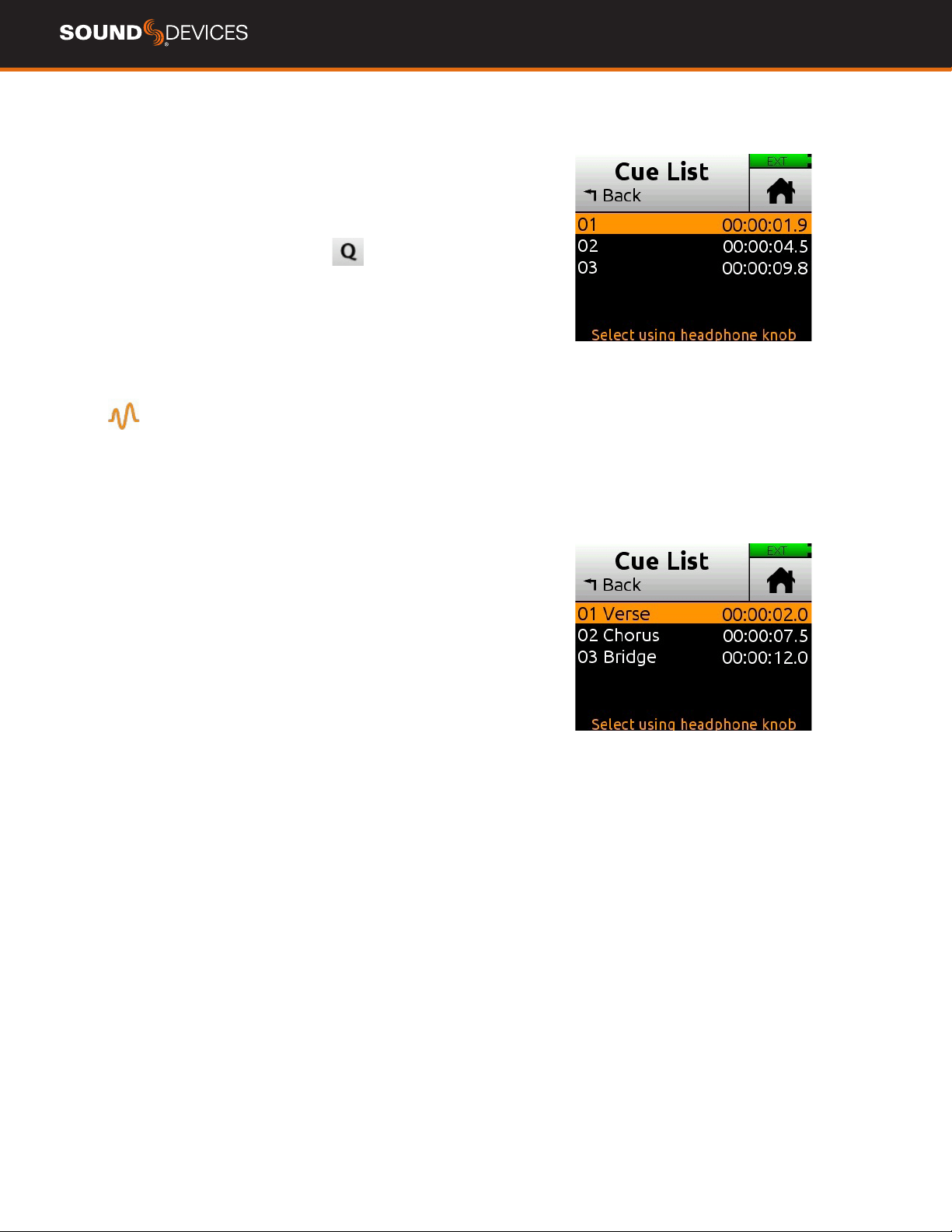
MixPre User Guide
33
Cue Marks
Cue marks make it easy to quickly locate points of interest within
a le. A maximum of 99 cues are allowed per le. Cues appear in
numerical order in the Cue List.
ADD A CUE MARK
1. During recording, playback, or pause, tap to add a cue
mark. The Q icon is found at the top of the Home screen.
2. A cue mark number (starting from 01 and incrementing each
time a new cue mark is added) is displayed next to the Q icon.
The MixPre automatically renumbers cue marks when inserted
between existing cue marks. This maintains the cue markers
ascending numerical order from start to nish—01, 02, 03, etc.
ACCESS THE CUE LIST
1. Tap .
2. Use the Headphone knob to select a le (or highlight a le and
tap Edit).
3. Tap Cue List from the Edit menu.
4. Cues may be played, named, moved, or deleted.
PLAYBACK FROM A CUE MARK
1. From the Cue List, use the Headphone knob to highlight a cue.
2. Press Play.
NAME A CUE MARK
1. From the Cue List, use the Headphone knob to select a cue
mark.
2. Tap Name.
3. Enter a new name then tap Ok.
MOVE A CUE MARK
You can nely tune the position of cue marks in 0.1 second
increments.
1. From the Cue List, use the Headphone knob to select a cue
mark.
2. Tap Move
3. Turn the Headphone knob to adjust the selection in 0.1 second
increments.
4. Press the Headphone knob to save the new cue position.
DELETE A CUE MARK
1. From the Cue List, use the Headphone knob to select a cue
mark.
2. Tap Delete.

MixPre User Guide
34
Using Star Shortcuts (*/**)
MIXPRE-6
For your convenience, we have included a front panel programma-
ble button. This lets you dedicate a hardware shortcut to frequently
used functions without having to navigate the menus. Program the *
button in the *Button menu.
MIXPRE-10T
For your convenience, we have included a two-position programma-
ble toggle switch on the front panel. This lets you dedicate hardware
shortcuts to frequently used functions. Program the * and ** switch
in the *Shortcuts menu.
PROGRAMMABLE FUNCTIONS
1. Ch 5/6 Screen Toggle (MixPre-6)
2. Ch 9/10 Screen (MixPre-10T )
3. Solo/Mute screen
4. Project screen
5. SD Card screen
6. Undo
7. Slate Mic
8. Tone
9. Q
10. St Out Mute (MixPre-6)
11. L/R Mute (MixPre-10T )
12. X1/X2 Mute (MixPre-10T )
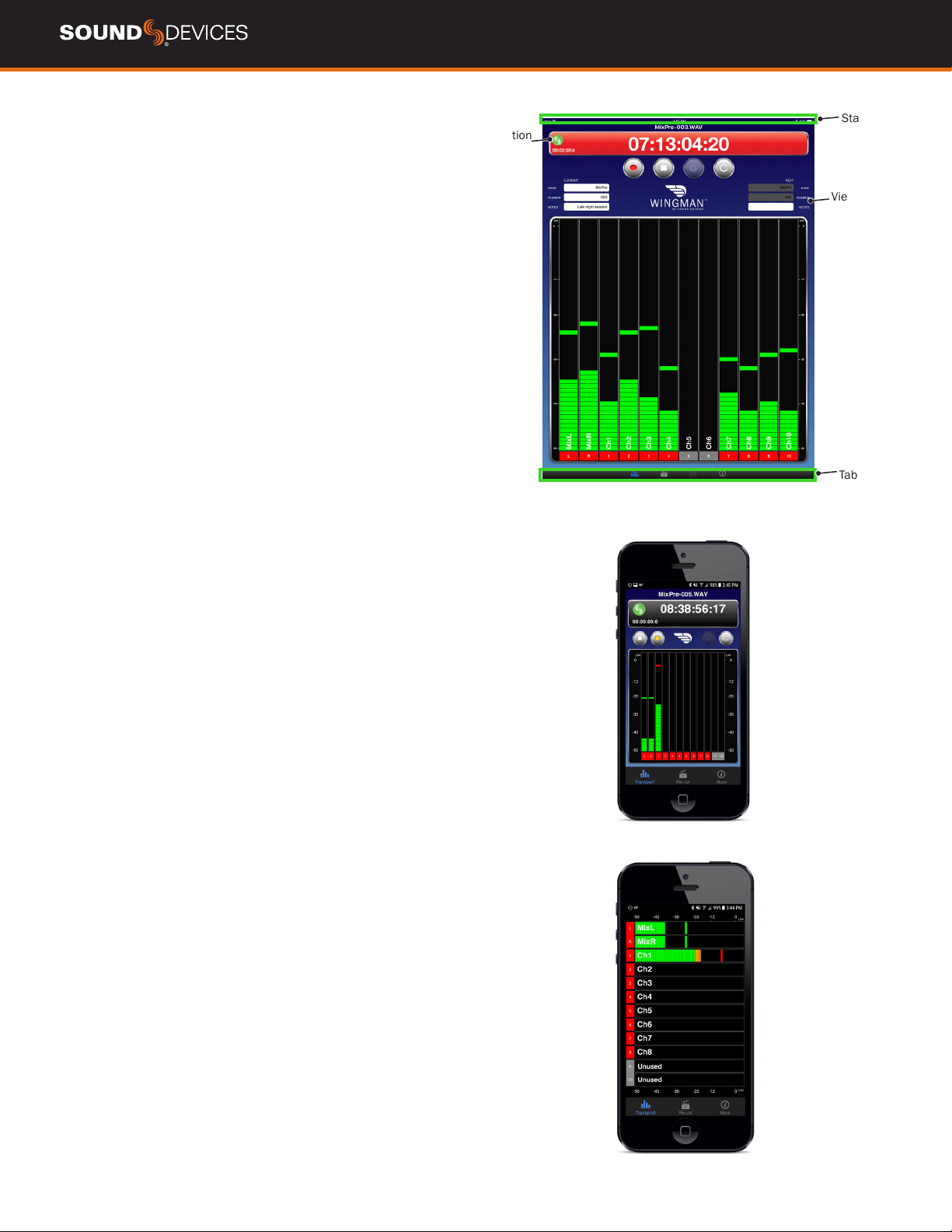
MixPre User Guide
35
Wingman Application
Sound Devices Wingman is a free app that allows wireless remote
control of the Bluetooth Smart-enabled MixPre Series from iOS or
Android devices.
VIEWING AREA
On smaller devices, the viewing area displays transport and track
views. Swipe horizontally to toggle between views. On larger devices,
the viewing area shows only transport view.
TRANSPORT VIEW
Displays control buttons, metadata elds, and meters. Swiping verti-
cally toggles to other meters. On larger devices, arming and naming
of tracks is done in transport view.
TRACK VIEW
On smaller devices, arming and naming of tracks is done in track
view.
RENAMING TRACKS
1. On large mobile devices, from the Transport view, tap anywhere
in a vertical meter for the track you want to edit.
2. On small mobile devices, swipe horizontally to display the Track
view, then tap anywhere in a horizontal meter for the track you
want to edit.
3. Use the virtual on-screen keyboard to modify the track name.
4. Tap Done when nished to save the changes.
5. Tap anywhere on screen other than the keyboard to exit without
saving changes.
ARMING/DISARMING TRACKS
1. Tap the meter label. When armed the label turns red. When on
but disarmed, the label is gray. When the input is off, the label
is black and cannot be armed.
2. Meter labels are joined (displayed as a single label) to indicate
when channels are linked.
Status Bar
Viewing Area
Tab Bar
Connection
Icon
Transport View
Track View
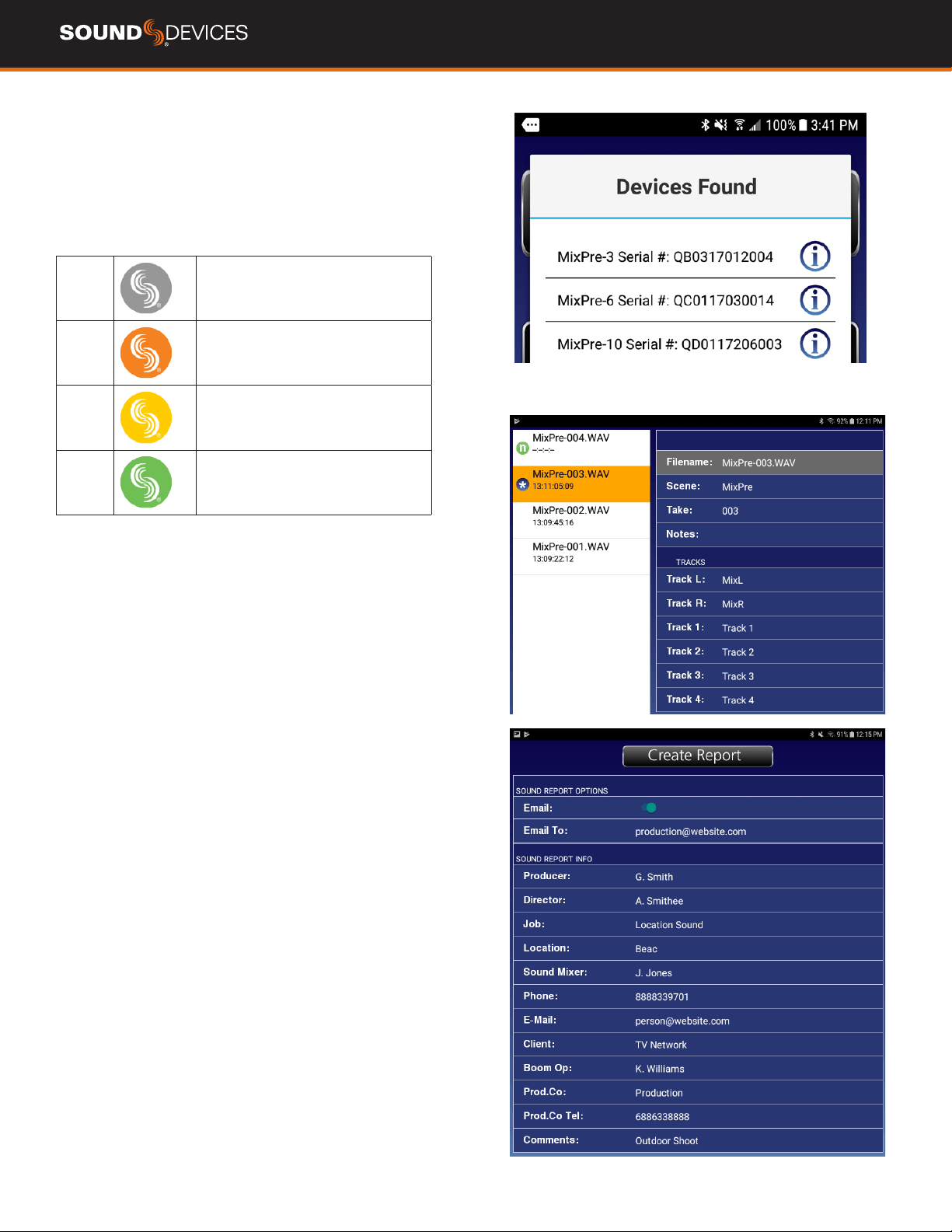
MixPre User Guide
36
CONNECTION ICON
Tap the Connection icon to efciently switch connection from
one device to another from within the app.
Tapping the Circled-I icon helps identify a listed MixPre by dis-
playing an “Identifying from Wingman” message on the chosen
recorder’s screen.
CONNECTION ICON STATUS COLORS
Gray Disconnected - either no activity or
scanning for devices
Orange Bluetooth connection in progress
Yellow Connected - authentication underway
Green Connected and authenticated
ENABLE BLUETOOTH ON THE MIXPRE This toggles Blue-
tooth On and Off. If a remote password is congured on the
recorder in the System>Wingman Password menu, Wingman
will prompt for that password to be entered prior to making the
connection.
SET AND CLEAR THE WINGMAN PASSWORD
For added security, set up the MixPre recorder to require a
password for remote access. Use the virtual keyboard or a USB
keyboard to enter a password up to 18 alpha-numeric charac-
ters . Punctuation other than a hyphen or an underscore is not
permitted.
FILE LIST TAB
MixPre les and their embedded BWF/iXML metadata can be
viewed and edited in the File List tab.
SOUND REPORT
Sound reports can be created and sent direct from Wingman as
CSV les.

MixPre User Guide
37
USB Hub
The MixPre will support multiple USB devices such as USB thumb
drives, Midi controllers, and/or USB Keyboards via a USB hub.
To maximize USB hub support, note:
Powered hubs are recommended as these can deliver appropriate
current.
If using non-powered hubs, do not connect more than three low power
devices.
Connect each USB device individually rather than all at once.
The peak current of all three devices at once may exceed the max
peak current of the supply.
If devices are randomly dismounting there is not enough current to
power all the attached devices. Remove one or more devices or use a
powered hub.
USB-A support (with or without hub) is only available when MixPre is
fully powered and not in low power mode.
Only one USB controller can be used at a time.
Only one USB drive can be used at a time (MixPre-10T only)
When using non-powered hubs with the MixPre-3 or MixPre-6, use an
L-mount battery, a 4-pin Hirose DC adapter (e.g. from Hawkwoods),
a USB-C wall adapter, or USB-C battery pack (e.g. from Anker or
Ravpower). USB-C from a computer may not provide sufcient power
to operate all USB devices connected to a non-powered USB hub.
The USB-A port does not support hubs when being powered from AA
batteries.
Use a high quality USB-C to C cable when powering from a USB-C
power source, preferably one meter or less. Low quality USB-C cables
could cause erratic behavior.
MixPre User Guide
38
USB Keyboard
A connected USB keyboard may be used as a wired remote control
for certain functions. Holding a keyboard function for longer than
0.5 seconds will repeat the shortcut action.
KEYSTROKE DESCRIPTION
Escape Back. Also cancels out of editing mode when virtual
keyboard is on screen
F1 or Menu key Accesses the Main menu
F12 Home
F2 File list
F3 Cycles between available Meters views and the Main
screen
Ctrl + R Record
Ctrl + S Stop
Spacebar Play
Left Arrow Main screen: Rewind
Menu and Channel screens: Toggles through pages
Right Arrow Main screen: Fast forward
Menu and Channel screens: Toggles through pages
Up / Down Arrows Main screen: Adjusts headphone volume
In menus: Duplicates encoder rotation, such as moves
highlight, scrolls list
While editing parameters: Changes the value
Enter In menus: Activates current selection. (Same as
encoder press.) Also, same as choosing OK when
virtual keyboard is on screen
Q In menus: select top left option in quad button view
W In menus: select top right option in quad button view
MixPre-10: Top Center
A In menus: select bottom left option in quad button view
S In menus: select bottom right option in quad button
view
MixPre-10: Bottom Center
E MixPre-10T menus: Top Right
D MixPre-10T menus: Bottom Right
1-0 Channel screen for 1-10
* Toggles assigned * Shortcut Action
Ctrl + M Add cue mark
Ctrl + F File transfer mode
Ctrl + 1-0 Toggle arm status of channels 1-10
Option + 1-0 Solo Channels 1-10
Ctrl + Option + 1-0 Mute Channels 1-10
1 + 2 + 3 Front Panel Lock Menu

MixPre User Guide
39
X-KEYS® PROGRAMMABLE KEYPADS, STICKS &
KEYBOARDS
X-keys include a variety of compact, tactile input devices that can be
programmed to emulate USB keyboard commands. Their various but-
tons and tactile controls are programmed via P.I. Engineering’s Mac-
roWorks Windows software. When mapped as individual commands
or as macro commands to MixPre’s USB Keyboard shortcuts listed
above, they offer quick-access to many MixPre functions including
Record, Stop, Play, and many more.
To use with MixPre, the X-Keys device must be connected to the
MixPre’s USB-A port.
Please visit P.I. Engineering’s website for more information.
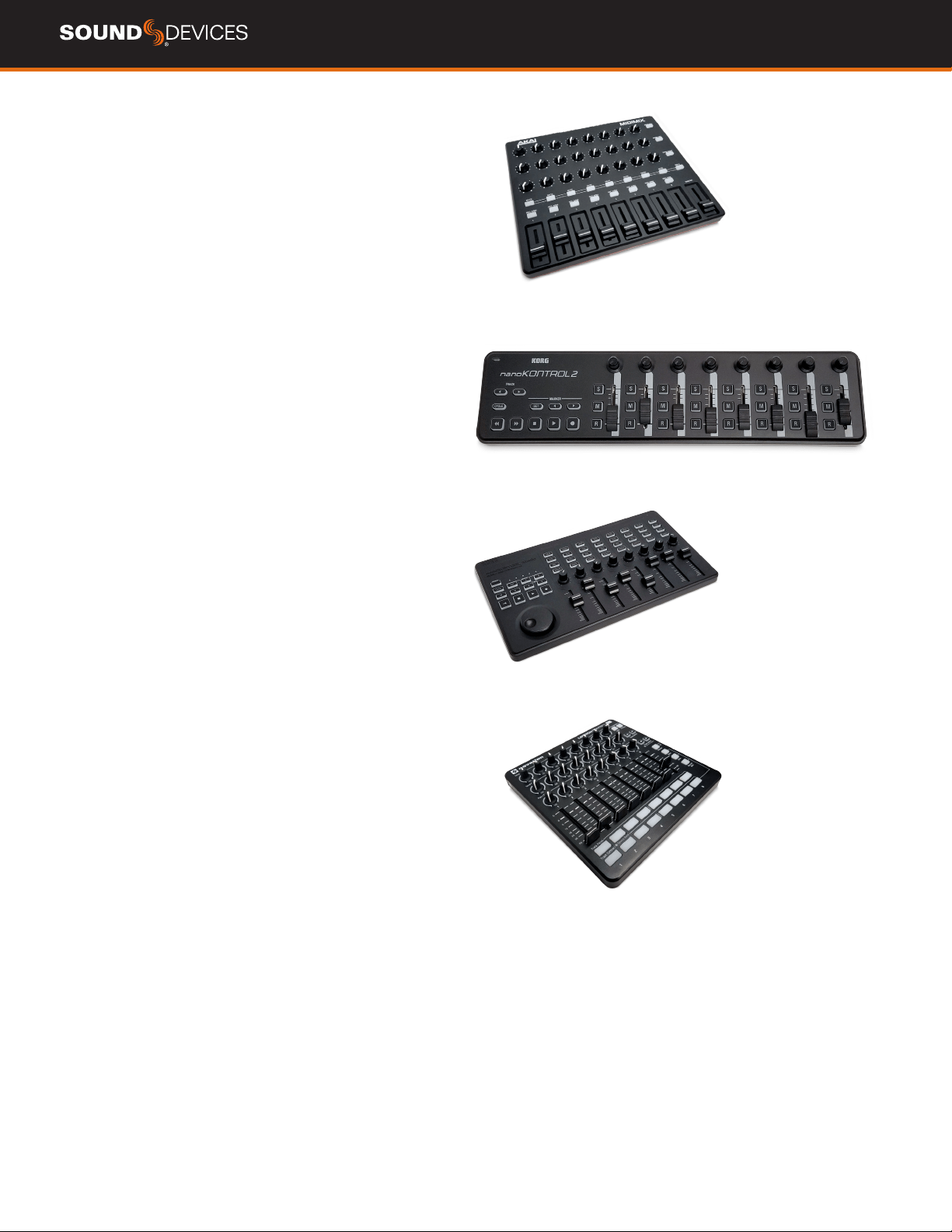
MixPre User Guide
40
USB Controllers
The MixPre Series can be connected to select third party con-
trollers for tactile control of mixing and recording. These control
surfaces provide a varied range of physical sliders, pots, and
buttons to set fader levels, trim gains, pans, reverb sends, solos,
mutes, record arming, transport control and more. Functionality
varies depending on controller model. When connected to the
MixPre, some functions are taken over by the controller and are
therefore disabled on the MixPre.
COMPATIBLE RECORDERS
1. Korg NanoKontrol Studio
2. Korg NanoKontrol 2
3. Novation LaunchControl XL
4. AKAI MidiMix
CONNECTING THE MIXPRE TO A CONTROLLER
Power and control is provided via a single USB cable to better
facilitate simple connection between the MixPre and controller.
For the MixPre-3 and -6, USB Controllers will only function if the
MixPre is adequately powered.
1. The MixPre may be powered on before USB connection or
may be turned on after USB connection.
2. Connect one end of a USB cable to the MixPre’s USB-A port
and the other end to the controller’s USB port, which can
be a USB-B, Micro USB, or Mini USB port, depending on
the controller model. We recommend using the USB cable
supplied with the controller.
3. A popup screen displays the controller model. After a few
seconds of conguration, the popup closes and the control-
ler is ready to use.
MAP USER-DEFINABLE BUTTONS TO FUNCTIONS
1. Connect a controller.
2. On the MixPre, access Menu > * Shortcuts > Control Sur-
face
3. Set any of the user-denable shortcut buttons to the assign-
able functions listed below.
ASSIGNABLE FUNCTIONS
1. Tone
2. L/R Mute
3. X1/X2 Mute
4. Undo
5. Slate Mic
6. Add Q
7. Record
8. Stop
9. Play
10. Rewind
11. Fast Fwd
12. Shuttle (not all controllers)
AKAI MidiMix
Korg NanoKontrol 2
Korg NanoKontrol Studio
Novation LaunchControl XL

MixPre User Guide
41
Akai MidiMix Interface Functions
FUNCTION ACTION
Fader Bank Switching --
User-Denable Shortcut Buttons Solo + Bank Left
Solo + Bank Right
Record via user-denable shortcut
PLAY via user-denable shortcut
STOP via user-denable shortcut
FFWD X2, X16 via user-denable shortcut
RWD X2, X16 via user-denable shortcut
Skip Next File via user-denable shortcut
(Tap Fast Forward)
Skip Prev File via user-denable shortcut
(Tap Rewind)
Skip Next Mark via user-denable shortcut
(Fast Forward)
Skip Prev Mark via user-denable shortcut
(Rewind)
Return to Zero via user-denable shortcut
(Stop)
Shuttle Only via MixPre
Record Arm REC Arm button
Record Arm Status Red REC Arm button when armed
Input Monitor --
Input Monitor Status --
Channel Screen Access Solo + REC Arm buttons
Faders Linear faders 1-8
Trims Top row knobs
Pans Bottom row knobs
Reverb --
Low Cut Middle row knobs
Mute Mute button
Solo Solo + Mute buttons
Mute Status Yellow Mute button
Solo Status Yellow Mute button when Solo is pressed
L/R (Stereo) Output Gain Master fader
L/R (Stereo) Output Mute via user-denable shortcut
X1/X2 Mute (10T only) via user-denable shortcut
Tone via user-denable shortcut
Metronome --
Create Q via user-denable shortcut
Undo via user-denable shortcut
Internal Mic (10T only) via user-denable shortcut
SEND ALL Button Sends all current fader, knob settings to MixPre

MixPre User Guide
42
Korg NanoKontrol 2 Interface Functions
FUNCTION ACTION
Fader Bank Switching --
User-Denable Shortcut Buttons Cycle + Marker Set
Cycle + Marker <
Cycle + Marker >
Cycle + <<
Cycle + >>
Record Record button
PLAY/Pause Play button
STOP Stop button
FFWD X2, X16 Hold >> button
RWD X2, X16 Hold << button
Skip Next File Tap >> button
Skip Prev File Tap << button
Skip Next Mark Tap >> button
Skip Prev Mark Tap << button
Return to Zero Tap Stop
Shuttle Only via MixPre
Record Arm R button
Record Arm Status Red R button when armed
Input Monitor --
Input Monitor Status --
Channel Screen Access Cycle + S button
Faders Linear faders 1-8
Trims Rotary knobs (set to trim)
Pans Rotary knobs (set to pan)
Reverb --
Low Cut Rotary knobs (set to low-cut)
Mute M button
Solo S button
Mute Status Red M button
Solo Status Red S button
L/R (Stereo) Output Gain Only via MixPre
L/R (Stereo) Output Mute via user-denable shortcut
X1/X2 Mute (10T only) via user-denable shortcut
Tone via user-denable shortcut
Metronome --
Create Q Marker Set button
Undo via user-denable shortcut
Internal Mic (10T only) via user-denable shortcut

MixPre User Guide
43
Korg NanoKontrol Studio Interface Functions
FUNCTION ACTION
Fader Bank Switching --
User-Denable Shortcut Buttons Cycle + Marker Set
Cycle + Marker <
Cycle + Marker >
Cycle + <<
Cycle + >>
Record Record button
PLAY Play button
STOP Stop button
FFWD X2, X16 Hold >> button
RWD X2, X16 Hold << button
Skip Next File Tap >> or Marker >button
Skip Prev File Tap << or Marker < button
Skip Next Mark Tap >> or Marker > button
Skip Prev Mark Tap << or Marker < button
Return to Zero Tap |< or Stop
Shuttle Press MixPre HP encoder or set Shuttle as a shortcut, then use selected shortcut and scrub
wheel.
Record Arm REC Arm button
Record Arm Status White REC Arm button when armed
Input Monitor --
Input Monitor Status --
Channel Screen Access Select button
Faders Linear faders 1-8
Trims Scene 1 then use knobs
Pans Scene 3 then use knobs
Reverb --
Low Cut Scene 2 then use knobs
Mute Mute button
Solo Solo button
Mute Status White Mute button
Solo Status White Solo button
L/R (Stereo) Output Gain Only via MixPre
L/R (Stereo) Output Mute via user-denable shortcut
X1/X2 Mute (10T only) via user-denable shortcut
Tone via user-denable shortcut
Metronome --
Create Q Marker Set button
Undo via user-denable shortcut
Internal Mic (10T only) via user-denable shortcut

MixPre User Guide
44
Novation LaunchControl XL Interface Functions
FUNCTION ACTION
Fader Bank Switching --
User-Denable Shortcut Buttons UP
DOWN
Device + UP
Device + Down
Device + Left
Device + Right
Record via user-denable shortcut
PLAY via user-denable shortcut
STOP via user-denable shortcut
FFWD X2, X16 via user-denable shortcut
RWD X2, X16 via user-denable shortcut
Skip Next File via user-denable shortcut
Skip Prev File via user-denable shortcut
Skip Next Mark via user-denable shortcut
Skip Prev Mark via user-denable shortcut
Return to Zero via user-denable shortcut (Stop)
Shuttle Only via MixPre
Record Arm Select Record Arm, then Track Control button
Record Arm Status Red Track Control button when Record Arm is selected
Input Monitor --
Input Monitor Status --
Channel Screen Access Track Focus buttons
Faders Linear Faders 1-8
Trims Top row of knobs
Pans Bottom row of knobs
Reverb --
Low Cut Middle row of knobs
Mute Select Mute, then Track Control button
Solo Select Solo, then Track Control button
Mute Status Red Track Control button when Mute is selected
Solo Status Flashing Track Control button when Solo is selected
L/R (Stereo) Output Gain Only via MixPre
L/R (Stereo) Output Mute via user-denable shortcut
X1/X2 Mute (10T only) via user-denable shortcut
Tone via user-denable shortcut
Metronome --
Create Q via user-denable shortcut
Undo via user-denable shortcut
Internal Mic (10T only) via user-denable shortcut
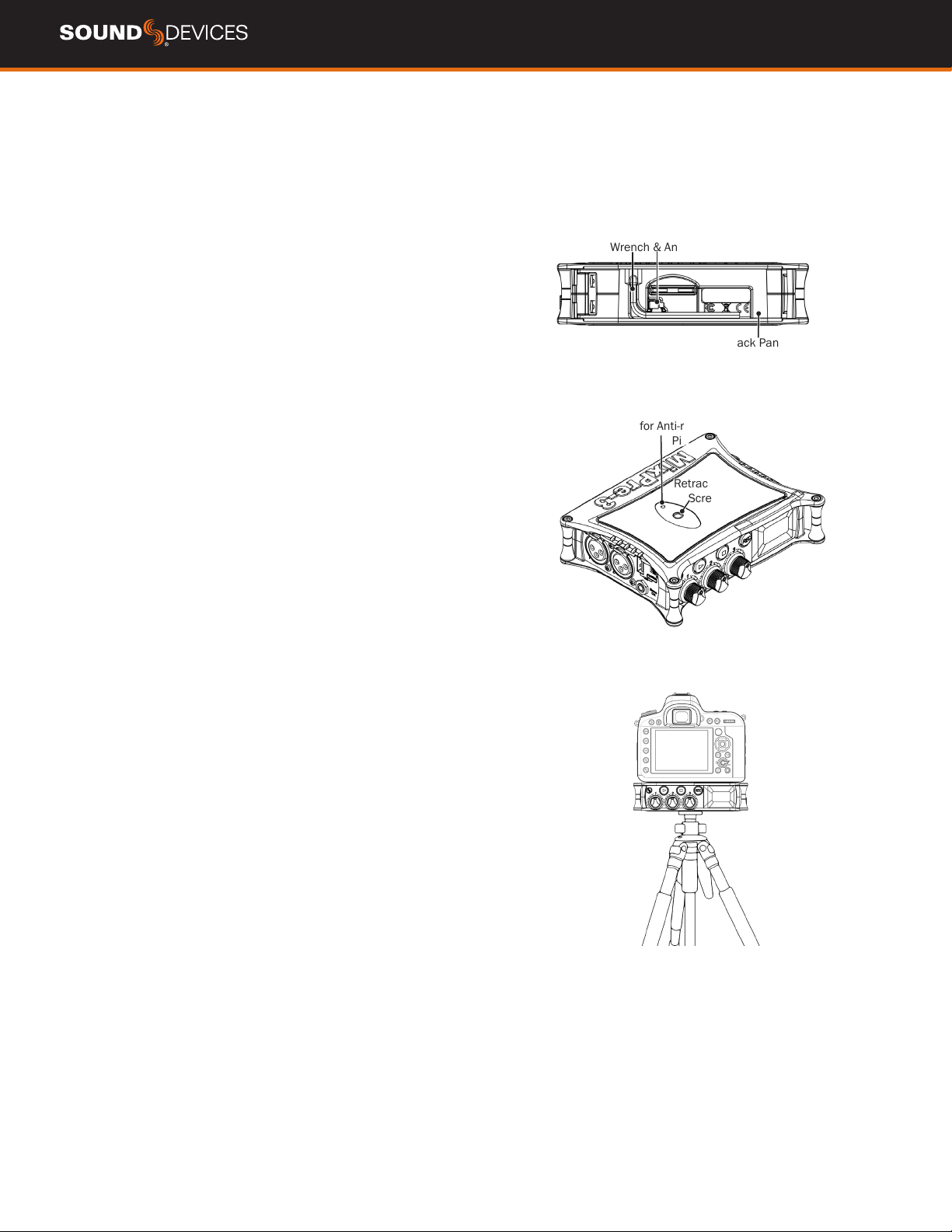
MixPre User Guide
45
Mounting to a Camera or Tripod
All MixPre Series recorders have ¼-inch, 20-threaded screw mounts
on their top and bottom panels for mounting to gear.
To attach your MixPre between a camera and tripod:
1. Remove the battery sled to gain access to the back panel.
2. Retrieve the anti-rotation pin and Allen wrench. Both are
magnetically held in place in the back panel.
3. From the MixPre’s bottom panel, insert the Allen wrench into
the mounting screw hole and push up to reveal the retractable
screw. Rotate
to screw the MixPre into place underneath the camera.
4. Align the mounting screw hole on the bottom panel of the
MixPre with the screw on the tripod plate. Rotate the screw on
the tripod plate until the MixPre is afxed.
If your camera has a slot for the anti-rotation pin, screw the pin into
place on top of the MixPre, and then position the MixPre against the
bottom of the camera so that the pin ts into the camera’s slot. The
anti-rotation pin may also be screwed into a tripod and slotted into
the bottom of the MixPre.
Allen Wrench & Anti-rotation Pin
Back Panel
Retractable
Screw
Threaded hole
for Anti-rotation
Pin

MixPre User Guide
46
MixPre-3 Specications
Specications are subject to change without prior notice.
For the latest information available on all Sound Devices products,
visit our website: www.sounddevices.com.
FREQUENCY RESPONSE
10 Hz to 40 kHz +/- 0.5 dB re 1 kHz @ 96 kHz sample rate
THD + NOISE
0.005% max (@1kHz, 22-22kHz BW, gain=20dB, -10dBu in)
ADC*
32 bit precision; 120dB dynamic range min (A-weighted, gain=10dB,
fader=0dB)
EQUIVALENT INPUT NOISE
-130dBV (-128dBu) max (A-weighting, gain=76dB, 150 ohm source
impedance)
INPUTS
Mic: XLR active-balanced; 4k input Z
Line: XLR active-balanced; 4k input Z
Aux/Mic in: 3.5 mm TRS, 2-channel unbalanced; 2.2k
USB Audio: 2 channels
All inputs fully RF-ltered and overload protected
GAIN
Mic input: +6 dB to +76 dB
Line input: -20 dB to +30 dB
Fader: -inf to +20 dB
Headphone: -inf to +20 dB
Total, Mic-to-recording (max): +96 dB
Aux In (Mic): Gain = +10 dB to +40 dB
Aux In (Line): Gain = -10 dB to +20 dB
Total Aux Gain including Fader (Mic-to-recording): +60 dB
MAXIMUM INPUT LEVEL
Mic XLR: +14 dBu (limiters on or off)
Line XLR: +40 dBu (limiters on or off)
Aux In (Mic): -10 dBu
Aux In (Line): +10 dBu
LOW-CUT FILTERS
40 Hz to 160 Hz (adjustable), 18 dB/oct. First stage analog,
subsequent stages digital
LIMITERS
Limiter at all gain stages, range > 40 dB
First stage analog, subsequent stages digital
MICROPHONE POWERING
Mic XLRs: 48 V via 6.8k resistors, 10 mA each
Mic 3.5 mm: 3 V @ 3k source
STEREO OUTPUT
3.5 mm TRS stereo unbalanced, 500 ohm output impedance, +7.8
dBu max output level
HEADPHONE OUTPUTS
3.5 mm TRS stereo unbalanced, 300 mW + 300 mW, for use with any
impedance headphones
DAC FEEDING STEREO OUT, HEADPHONE OUT
32 bit precision; 115 dB dynamic range (A-weighted)
OUTPUT LIMITERS
Digital
USB
Audio Interface (USB-C): 6-in/2-out (from computer); 44.1 kHz/48
kHz/96 kHz; 16/24-bit; Class-compliant USB 2.0 high speed or ASIO
(supplied)
Mass Storage (USB-C): USB 2.0 high speed
Keyboard (USB-A): Text entry and control
Midi Control Surface (USB-A)
USB Hub
RECORDING
5 Tracks: stereo mix + 3 ISO’s
44.1 kHz, 48 kHz, 96 kHz, sampling frequencies
16, 24, bit depths
Polyphonic WAV
RECORDING STORAGE
Type: SD, SDXC, SDHC Card
Max Storage Size: 512 GB (SDXC)
FAT32 formatted (32GB or less), exFAT for (>32GB), on-board memory
card formatting
FILE DELIVERY TO CLOUD
Compatible with Viviana Cloud
TIMECODE
Modes: Time of Day (le stamped w/current ToD), Ext LTC (le
stamped w/incoming LTC on 3.5mm Aux In), HDMI TC (le stamped
w/incoming TC from HDMI & sample clock synched from HDMI
sample
clock. Only works on specic cameras that support HDMI TC
Frame Rates: auto-detects (fps): 23.98 (same as 23.976), 24, 25,
29.97DF, 29.97ND, 30,
3.5 mm Aux In Timecode Input: 20k ohm impedance, 0.3 V - 3.0 V p-p
(–17 dBu - +3 dBu)
TC Reader via HDMI
POWER
AA Batteries: 4x AA sled (included); 8x AA sled (optional accessory).
Energizer Ultimate Lithium recommended
L-Mount: Optional sled for 2x (hot-swappable) Li-ion batteries
From computer: Bus-powered via USB-C port: included MX-USBY
cable, connects one USB-C to two USB-A ports, optional USB C to USB
C cable
AC Adapter: MX-PSU (optional) Power supply wall adapter w/ USB-C
connector; 15 W; has 4 adapter plugs for US, UK, AU & Europe
REMOTE CONTROL
Bluetooth Smart: Wireless control using Wingman app
HDMI (micro): Auto-record start/stop trigger from cameras with output
record ag over HDMI
Timecode: Auto-record start/stop trigger via Aux In timecode
ENVIRONMENTAL
Operating: -20°C to 60°C, 0 to 90% relative humidity; (non-
condensing)
Storage: -40°C to 85°C
DIMENSIONS AND WEIGHT
36 mm x 144 mm x 110 mm (H x W x D); 1.40” x 5.68” x 4.35”
Weight: .48 kg; 16.8 oz. (unpackaged, without batteries)
Touch Screen: 320x240; 1.6-inch, color, sunlight-viewable IPS LCD
*patents #US9654134B2 (USA), #CA2973142C (Canada), and #EP3259845 (Europe)

MixPre User Guide
47
MixPre-6 Specications
Specications are subject to change without prior notice.
For the latest information available on all Sound Devices
products, visit our website: www.sounddevices.com.
FREQUENCY RESPONSE
10 Hz to 80 kHz +/- 0.5 dB re 1 kHz @ 192 kHz sample rate
THD + NOISE
0.005% max (@1kHz, 22-22kHz BW, gain=20dB, -10dBu in)
ADC*
32 bit precision; 120dB dynamic range min (A-weighted, gain=10dB,
fader=0dB)
EQUIVALENT INPUT NOISE
-130 dBV (-128 dBu) max (A-weighting, gain = 76 dB, 150 ohm source
impedance)
INPUTS
Mic: XLR active-balanced; 4k input Z
Line: XLR active-balanced; 4k input Z
Aux/Mic in: 3.5 mm TRS, 2-channel unbalanced; 2.2k
Line: ¼-inch TRS active-balanced; 4k input Z
USB Audio: 4 channels
All inputs fully RF-ltered and overload protected
GAIN
Mic input: +6 dB to +76 dB
Line input: -20 dB to +30 dB
Fader: -inf to +20 dB
Headphone: -inf to +20 dB
Total, Mic-to-recording (max): +96 dB
Aux In (Mic): Gain = +10 dB to +40 dB
Aux In (Line): Gain = -10 dB to +20 dB
Total Aux Gain including Fader (Mic-to-recording): +60 dB
MAXIMUM INPUT LEVEL
Mic XLR: +14 dBu (limiters on or off)
Line XLR/¼-inch: +28 dBu (limiters on or off)
Aux In (Mic): -10 dBu
Aux In (Line): +10 dBu
LOW-CUT FILTERS
40 Hz to 160 Hz (adjustable), 18 dB/oct. First stage analog,
subsequent stages digital
LIMITERS
Limiter at all gain stages, range > 40 dB
First stage analog, subsequent stages digital
MICROPHONE POWERING
Mic XLRs: 48 V via 6.8k resistors, 10 mA each
Mic 3.5 mm: 3 V @ 3k source Z
STEREO OUTPUT
3.5 mm TRS stereo unbalanced, 500 ohm output impedance, +7.8
dBu max output level
HEADPHONE OUTPUTS
3.5 mm TRS stereo unbalanced, 300 mW + 300 mW, for use with any
impedance headphones
DAC FEEDING STEREO OUT, HEADPHONE OUT
32 bit precision; 115 dB dynamic range (A-weighted)
OUTPUT LIMITERS
Digital
USB
Audio Interface (USB-C): 8-in/4-out; 44.1 to 96 kHz; 16/24-bit; Class-
compliant USB 2.0 high speed or ASIO® (supplied via download)
Mass Storage (USB-C): USB 2.0 high speed
Keyboard (USB-A): Text entry and control
Midi Control Surface (USB-A)
USB Hub
RECORDING
8 Tracks: stereo mix + 6 ISOs
44.1 kHz, 48 kHz, 96 kHz, 192 kHz sampling frequencies
16, 24 bit depths
Polyphonic WAV
RECORDING STORAGE
Type: SD, SDXC, SDHC Card
Max Storage Size: 512 GB (SDXC)
FAT32 formatted (32GB or less), exFAT for (>32GB), on-board memory
card formatting
File type: WAV (Broadcast Wave File format), with embedded timecode
stamp and metadata
FILE DELIVERY TO CLOUD
Compatible with Viviana Cloud
TIMECODE
Modes: Time of Day (le stamped w/current ToD), Ext LTC (le
stamped w/incoming LTC on 3.5mm Aux In), HDMI TC (le stamped
w/incoming TC from cameras that output TC)
Frame Rates: auto-detects (fps): 23.98 (same as 23.976), 24, 25,
29.97DF, 29.97ND, 30
3.5 mm Aux In Timecode Input: 20k ohm impedance, 0.3 V - 3.0 V p-p
(–17 dBu - +3 dBu)
TC Reader via HDMI
POWER
AA Batteries: 4x AA sled (included); 8x AA sled (optional accessory).
Energizer Ultimate Lithium recommended
L-Mount: Optional sled for 2x (hot-swappable) Li-ion batteries
From computer: Bus-powered via USB-C port: included MX-USBY
cable, connects one USB-C to two USB-A ports, optional USB C to USB
C cable
AC Adapter: MX-PSU (optional) Power supply wall adapter w/ USB-C
connector; 15 W; has 4 adapter plugs for US, UK, AU & Europe
REMOTE CONTROL
Bluetooth Smart: Wireless control using Wingman app
HDMI (micro): Auto-record start/stop trigger from cameras with output
record ag over HDMI
Timecode: Auto-record start/stop trigger via Aux In timecode
ENVIRONMENTAL
Operating: -20°C to 60°C, 0 to 90% relative humidity; (non-
condensing)
Storage: -40°C to 85°C
DIMENSIONS AND WEIGHT
36mm x 166 mm x 118 mm (H x W x D); 1.40” x 6.53” x 4.65”
Weight: 0.56 kg; 19.9 oz. (unpackaged, without batteries)
Touch Screen: 320x240; 1.6-inch, color, sunlight-viewable IPS LCD
*patents #US9654134B2 (USA), #CA2973142C (Canada), and #EP3259845 (Europe)

MixPre User Guide
48
MixPre-10T Specications
Specications are subject to change without prior notice.
For the latest information available on all Sound Devices
products, visit our website: www.sounddevices.com.
FREQUENCY RESPONSE
10 Hz to 80 kHz +/- 0.5dB re 1 kHz @ 192 kHz sample rate
THD + NOISE
0.005% max (@1 kHz, 22-22 kHz BW, gain=20 dB, -10 dBu in)
ADC*
32 bit precision; 120 dB dynamic range min (A-weighted, gain=10 dB,
fader=0 dB)
EQUIVALENT INPUT NOISE
-130 dBV (-128 dBu) max (A-weighting, gain=76 dB, 150 ohm source
impedance)
INPUTS
Mic: XLR active-balanced; 4k input Z
Line: XLR active-balanced; 4k input Z
Aux/Mic in: 3.5 mm TRS, 2-channel unbalanced; 2.2k
Line: ¼-inch TRS active-balanced; 4k input Z
USB Audio: 4 channels
All inputs fully RF-ltered and overload protected
GAIN
Mic input: +6 dB to +76 dB
Line input: -20 dB to +30 dB
Fader: -inf to +20 dB
Headphone: -inf to +20 dB
Total, Mic-to-recording (max): +96 dB
Aux In (Mic): Gain = +10 dB to +40 dB
Aux In (Line): Gain = -10 dB to +20 dB
Total Aux Gain including Fader (Mic-to-recording): +60 dB
MAXIMUM INPUT LEVEL
Mic XLR: +14 dBu (limiters on or off)
Line XLR/¼-inch: +28 dBu (limiters on or off)
Aux In (Mic): -10 dBu
Aux In (Line): +10 dBu
LOW-CUT FILTERS
40 Hz to 160 Hz (adjustable), 18 dB/oct. First stage analog,
subsequent stages digital
LIMITERS
Limiter at all gain stages, range > 40 dB
First stage analog, subsequent stages digital
MICROPHONE POWERING
Mic XLRs: 48 V via 6.8k resistors, 10 mA each
Mic 3.5 mm: 3 V @ 3k source Z
OUTPUTS
L/R: TA3 2-channel balanced, 1.1 K max output impedance, +7.8 dBu
max output level
X1/X2: 3.5 mm TRS stereo unbalanced, 500 ohm output impedance,
+7.8 dBu max output level
HEADPHONE OUTPUTS
3.5 mm TRS stereo unbalanced, 300 mW + 300 mW, for use with any
impedance headphones
DAC FEEDING STEREO OUT, HEADPHONE OUT
32 bit precision; 115 dB dynamic range (A-weighted)
OUTPUT LIMITERS
Digital
USB
Audio Interface (USB-C): 12-in/4-out; 44.1 to 96 kHz; 16/24-bit;
Class-compliant USB 2.0 high speed or ASIO® driver (supplied via
download)
Mass Storage (USB-C): USB 2.0 high speed
Keyboard (USB-A): Text entry and control
Thumbdrive (USB-A): Manual or auto-copy to drive
Midi Control Surface (USB-A)
USB Hub
RECORDING
12 Tracks: Stereo mix + 10 ISOs
44.1 kHz, 47.952 kHz, 48 kHz, 48.048 kHz, 96 kHz, 192 kHz
sampling frequencies
16, 24 bit depths
Polyphonic WAV
RECORDING STORAGE
Type: SD, SDXC, SDHC Card, & USB thumbdrive (copy only)
Max Storage Size: 512 GB (SDXC)
FAT32 formatted (32GB or less), exFAT for (>32GB), on-board memory
card formatting
File type: WAV (Broadcast Wave File format), with embedded timecode
stamp and metadata
FILE DELIVERY TO CLOUD
Compatible with Viviana Cloud
TIMECODE
Modes: Free Run, Time of Day (le stamped w/current ToD), Rec Run,
Ext LTC (le stamped w/incoming LTC on BNC or 3.5mm Aux In), HDMI
TC (le stamped w/incoming TC from cameras that output TC)
Accurracy: 0.1 ppm (0.25 frame in 24 hr)
Frame Rates: auto-detects (fps): 23.98 (same as 23.976), 24, 25,
29.97DF, 29.97ND, 30, 30DF
Sync Source: Internal, Word Clock, Ext LTC
BNC In (TC In): switchable between Timecode (default) or Word Clock
Input; 20k ohm impedance, 0.3 V - 3.0 V p-p (–17 dBu - +3 dBu);
Word Clock: 5k ohm impedance, 1.5V p-p
BNC Out (TC Out): switchable between Timecode (default) or Word
Clock Output; 1k ohm impedance, 3.0V p-p (+12 dBu); Word Clock:
75 ohm impedance, 5 V p-p
TC Reader via HDMI
POWER
AA Batteries: 8x AA sled (included); Energizer Ultimate Lithium
recommended
L-Mount: Optional sled for 2x (hot-swappable) Li-ion batteries
AC Adapter: XL-WPH3 (included): Universal, 45 W in-line AC-to-DC
power supply Hirose 4-pin DC plug, with detachable IEC power cord;
100-240, 50/60Hz
External: 10-18 V on locking 4-pin Hirose connector, pin-4= (+), pin-
1=(-)
REMOTE CONTROL
Bluetooth Smart: Wireless control using Wingman app
HDMI (micro): Auto-record start/stop trigger from cameras with output
record ag over HDMI
Timecode: Auto-record start/stop trigger via Aux In timecode
Keyboard (USB-A): Text entry and control
ENVIRONMENTAL
Operating: -20°C to 60°C, 0 to 90% relative humidity; (non-
condensing)
Storage: -40°C to 85°C
DIMENSIONS AND WEIGHT
36 mm x 206 mm x 175 mm (H x W x D); 1.40” x 8.15” x 6.88”
Weight: 0.91 kg; 32.1 oz. (unpackaged, without batteries)
Touch Screen: 320x256; 1.6-inch, color, sunlight-viewable IPS LCD
*patents #US9654134B2 (USA), #CA2973142C (Canada), and #EP3259845 (Europe)

MixPre User Guide
49
Software License
End-user license agreement for Sound Devices MixPre Series Software / Embedded Firmware
Important Read carefully:
This Sound Devices, LLC end-user license agreement (“EULA”) is a legal agreement between you (either an individual or a single entity) and
Sound Devices, LLC for the Sound Devices, LLC software product identied above, which includes computer software, embedded rmware, and
may include associated media, printed materials, and “online” or electronic documentation (“SOFTWARE PRODUCT”). By using, installing, or
copying the SOFTWARE PRODUCT, you agree to be bound by the terms of this EULA. If you do not agree to the terms of this EULA, do not use or
install the SOFTWARE PRODUCT.
Software Product License
The SOFTWARE PRODUCT is protected by copyright laws and international copyright treaties, as well as other intellectual property laws and trea-
ties. The SOFTWARE PRODUCT is licensed, not sold.
Grant of license. This EULA grants you the following limited, non-exclusive rights: In consideration of payment of the licensee fee, Sound Devices,
LLC, as licensor, grants to you, the licensee, a non-exclusive right to use this copy of a Sound Devices, LLC software program (hereinafter the
“SOFTWARE”) on a single product and/or computer. All rights not expressly granted to licensee are reserved to Sound Devices, LLC.
Software ownership. As the licensee, you own the hardware on which the SOFTWARE is recorded or xed. Sound Devices, LLC shall retain full and
complete title to the SOFTWARE and all subsequent copies of the SOFTWARE, regardless of the media or form on or in which the original copies
may exist. The license is not a sale of the original SOFTWARE.
Two Level Segregated Fit memory allocator, version 3.1. Written by Matthew Conte http://tlsf.baisoku.org
Based on the original documentation by Miguel Masmano: http://www.gii.upv.es/tlsf/main/docs
This implementation was written to the specication of the document, therefore no GPL restrictions apply.
Copyright (c) 2006-2016, Matthew Conte
All rights reserved.
Redistribution and use in source and binary forms, with or without modication, are permitted provided that the following conditions are met: Re-
distributions of source code must retain the above copyright notice, this list of conditions and the following disclaimer. Redistributions in binary
form must reproduce the above copyrightnotice, this list of conditions and the following disclaimer in the documentation and/or other materials
provided with the distribution. Neither the name of the copyright holder nor the names of its contributors may be used to endorse or promote
products derived from this software without specic prior written permission.
** THIS SOFTWARE IS PROVIDED BY THE COPYRIGHT HOLDERS AND CONTRIBUTORS “AS IS” AND
** ANY EXPRESS OR IMPLIED WARRANTIES, INCLUDING, BUT NOT LIMITED TO, THE IMPLIED
** WARRANTIES OF MERCHANTABILITY AND FITNESS FOR A PARTICULAR PURPOSE ARE
** DISCLAIMED. IN NO EVENT SHALL MATTHEW CONTE BE LIABLE FOR ANY
** DIRECT, INDIRECT, INCIDENTAL, SPECIAL, EXEMPLARY, OR CONSEQUENTIAL DAMAGES
** (INCLUDING, BUT NOT LIMITED TO, PROCUREMENT OF SUBSTITUTE GOODS OR SERVICES;
** LOSS OF USE, DATA, OR PROFITS; OR BUSINESS INTERRUPTION) HOWEVER CAUSED AND
** ON ANY THEORY OF LIABILITY, WHETHER IN CONTRACT, STRICT LIABILITY, OR TORT
** (INCLUDING NEGLIGENCE OR OTHERWISE) ARISING IN ANY WAY OUT OF THE USE OF THIS
** SOFTWARE, EVEN IF ADVISED OF THE POSSIBILITY OF SUCH DAMAGE.
Copyright
All rights, title, and copyrights in and to the SOFTWARE PRODUCT (including, but not limited to, any images, photographs, animations, video,
audio, music, text, and “applets” incorporated into the SOFTWARE PRODUCT) and any copies of the SOFTWARE PRODUCT are owned by Sound
Devices, LLC or its suppliers. The SOFTWARE PRODUCT is protected by copyright laws and international treaty provisions. Therefore, you must
treat the SOFTWARE PRODUCT like any other copyrighted material, except that you may make copies as only provided below. You may not copy
the printed materials accompanying the SOFTWARE PRODUCT.
Restrictions on use. Licensee may not distribute copies of the SOFTWARE or accompanying materials to others. Licensee may not modify, adapt,
translate, reverse engineer, decompile, disassemble, or create derivative works based on the SOFTWARE or its accompanying printed or written
materials.
Transfer restrictions. Licensee shall not assign, rent, lease, sell, sublicense, or otherwise transfer the SOFTWARE to another party without prior
written consent of Sound Devices, LLC. Any party authorized by Sound Devices, LLC to receive the SOFTWARE must agree to be bound by the
terms and conditions of this agreement.
Termination
Without prejudice to any other rights, Sound Devices, LLC may terminate this EULA if you fail to comply with the terms and conditions of this EULA.
In such event, you must destroy all copies of the SOFTWARE PRODUCT and all of its component parts.
MixPre User Guide
50
Limited Warranty
No warranties. Sound Devices, LLC expressly disclaims any warranty for the SOFTWARE PRODUCT. The SOFTWARE PRODUCT and any related
documentation is provided “as is” without warranty or condition of any kind, either express or implied, including, without limitation, the implied
warranties and conditions of merchantability, tness for a particular purpose, or non-infringement. The entire risk arising out of use or perfor-
mance of the SOFTWARE PRODUCT remains with you.
No liability for damages. In no event shall Sound Devices, LLC or its suppliers be liable for any damages whatsoever (including, without limitation,
damages for loss of business prots, business interruption, loss of business information, or any other pecuniary loss) arising out of the use of or
inability to use this Sound Devices, LLC product, even if Sound Devices, LLC has been advised of the possibility of such damages. In any case,
Sound Devices, LLC’s entire liability under any provision of this evaluation license shall be limited to the greater of the amount actually paid by
you for the SOFTWARE PRODUCT or U.S. $5.00. Because some states/jurisdictions do not allow the exclusion or limitation of liability for conse-
quential or incidental damages, the above limitation may not apply to you.
Governing Law
This agreement and limited warranty are governed by the laws of the state of Wisconsin.
FCC & ISED Compliance Statements
This device complies with part 15 of the FCC Rules. Operation is subject to the following two conditions: (1) This device may not cause
harmful interference, and (2) this device must accept any interference received, including interference that may cause undesired operation.
FCC Part 15.19 (a) (3)
Changes or modications not expressly approved by the party responsible for compliance could void the user’s authority to operate the equip-
ment.
FCC Interference Statement
This equipment has been tested and found to comply with the limits for a Class B digital device, pursuant to part 15 of the FCC Rules. These
limits are designed to provide reasonable protection against harmful interference in a residential installation. This equipment generates, uses
and can radiate radio frequency energy and, if not installed and used in accordance with the instructions, may cause harmful interference to
radio communications. However, there is no guarantee that interference will not occur in a particular installation. If this equipment does cause
harmful interference to radio or television reception, which can be determined by turning the equipment off and on, the user is encouraged to
try to correct the interference by one or more of the following measures:
—Reorient or relocate the receiving antenna.
—Increase the separation between the equipment and receiver.
—Connect the equipment into an outlet on a circuit different from that to which the receiver is connected.
—Consult the dealer or an experienced radio/TV technician for help.
FCC & ISED User Statement
This device complies with FCC and ISED RF Exposure SAR limits exposure limits for general population / uncontrolled exposure.
Cet appareil est conforme à la norme FCC et USED RF Exposure SAR limite les limites d’exposition pour la population générale / l’exposition
incontrôlée.
This Device complies with Industry Canada License-exempt RSS standard(s). Operation is subject to the following two conditions: 1) this device
may not cause interference, and 2) this device must accept any interference, including interference that may cause undesired operation of the
device.
Cet appareil est conforme avec Industrie Canada, exempts de licence standard RSS (s). Son fonctionnement est soumis aux deux conditions
suivantes: 1) ce dispositif ne peut pas causer d’interférences, et 2) ce dispositif doit accepter toute interférence, y compris les interférences qui
peuvent causer un mauvais fonctionnement de l’appareil.

Post Ofce Box 576
E7556 State Rd. 23 and 33
Reedsburg, Wisconsin 53959 USA
+1 608.524.0625 main
800.505.0625 toll free
www.sounddevices.com