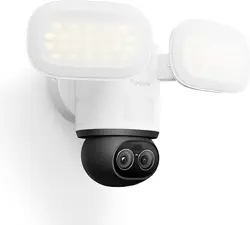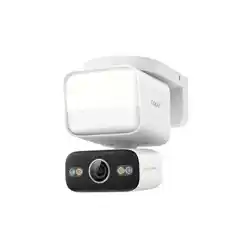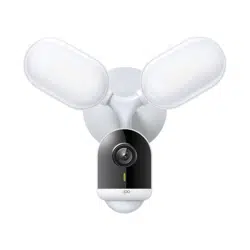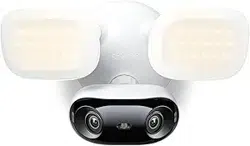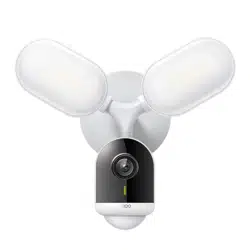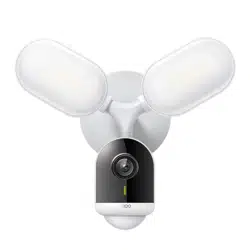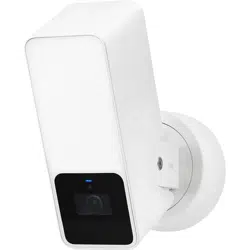
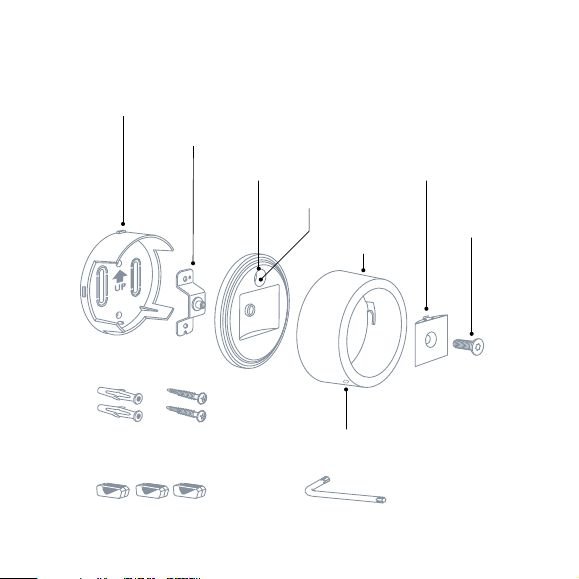
Meet Eve Outdoor Cam
Mounting Plate (1)
Wall Anchors / Screws
Allen KeyConnection Terminals
Mounting Bracket (2)
Mounting Cover (3)
Moisture Outlet
Tilt Adjustment
Ingress
Seal (8)
Ingress Seal
Bracket (7)
Mounting
Ring (4)
Mounting Clip (5)
Flood Light /
Night Vision Light
Status LED
Wide-angle camera
Brightness Sensor
Mounting
Screw (6)
Cable Inlet
Reset
Metal Bracket
Motion Sensor
Microphone / Speaker
32
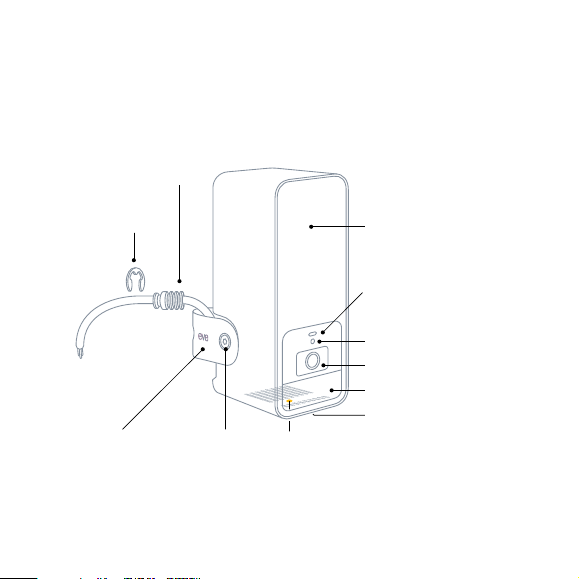
Meet Eve Outdoor Cam
Mounting Plate (1)
Wall Anchors / Screws
Allen KeyConnection Terminals
Mounting Bracket (2)
Mounting Cover (3)
Moisture Outlet
Tilt Adjustment
Ingress
Seal (8)
Ingress Seal
Bracket (7)
Mounting
Ring (4)
Mounting Clip (5)
Flood Light /
Night Vision Light
Status LED
Wide-angle camera
Brightness Sensor
Mounting
Screw (6)
Cable Inlet
Reset
Metal Bracket
Motion Sensor
Microphone / Speaker
32
Get started
View the installation video at www.evehome.com/outdoorcam-installation
Choose a location
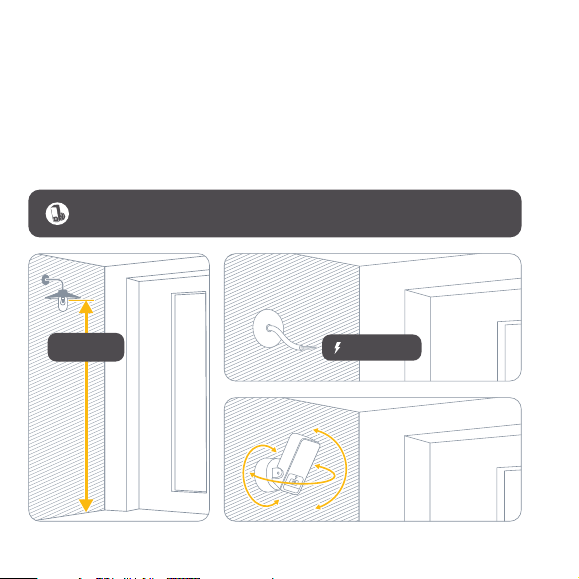
Eve Outdoor Cam is best installed replacing an existing outdoor light. An installation height of
2.5 m / 8 ft and a tilt angle of 30° is ideal, however you can easily adapt Eve Outdoor Cam to
your needs thanks to the three-axis camera angle adjustment.
If you are unsure or uncomfortable about installing Eve Outdoor Cam, consult a
qualified electrician. To be installed and/or used in accordance with appropriate
electrical codes and regulations.
2.5 m / 8 ft
100 - 240 V~
Please respect local laws regarding the filming of public spaces.
2.5 m / 8 ft
54
Get started
View the installation video at www.evehome.com/outdoorcam-installation
Choose a location
Eve Outdoor Cam is best installed replacing an existing outdoor light. An installation height of
2.5 m / 8 ft and a tilt angle of 30° is ideal, however you can easily adapt Eve Outdoor Cam to
your needs thanks to the three-axis camera angle adjustment.
If you are unsure or uncomfortable about installing Eve Outdoor Cam, consult a
qualified electrician. To be installed and/or used in accordance with appropriate
electrical codes and regulations.
2.5 m / 8 ft
100 - 240 V~
Please respect local laws regarding the filming of public spaces.
2.5 m / 8 ft
54
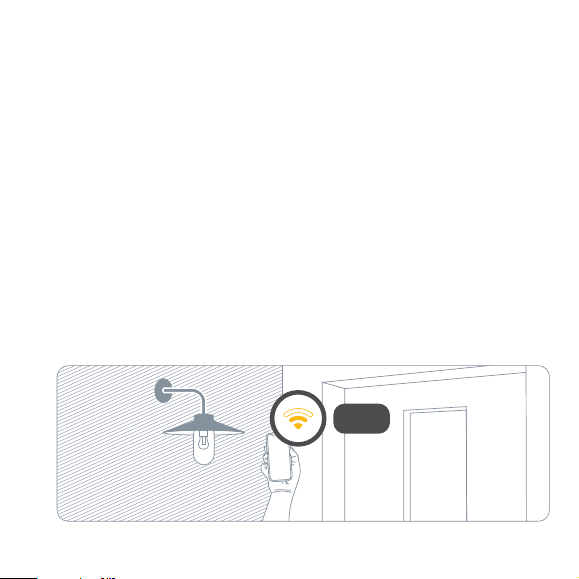
Get started
Check Wi-Fi coverage
Outdoor install locations often oer challenging conditions for Wi-Fi reception. Before you
proceed with the installation of Eve Outdoor Cam, ensure that Wi-Fi coverage is sucient at
the desired location.
Eve Outdoor Cam connects exclusively to 2.4 GHz Wi-Fi networks for greater range and
reliability. To check coverage using your iPhone, make sure it is connected to a 2.4 GHz Wi-Fi
network. You may need to temporarily disable the 5 GHz network of your router.
Hold your iPhone close to the wall at the location you want to install Eve Outdoor Cam. Wait
for at least 10 seconds and check the Wi-Fi signal on your iPhone. You should have at least two
bars of reception.
If your Wi-Fi signal does not reach the desired location, you may try to move your Wi-Fi access
point closer, use a Wi-Fi repeater or an additional mesh node, or choose a dierent location for
Eve Outdoor Cam.
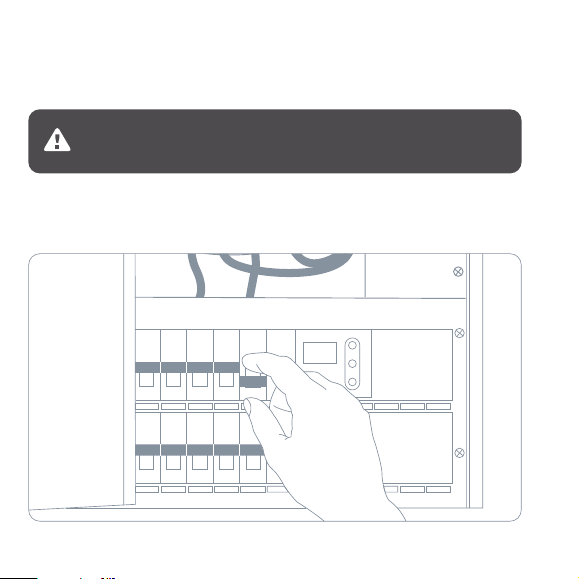
In your fuse box, switch o the fuse connected to your existing outdoor light. Switch the
associated light switch on and o to make sure that there is no current flowing.
Disconnect power
CAUTION - Risk of electric shock!
1 0 4 9 6 8
2.4 GHz
76
Get started
Check Wi-Fi coverage
Outdoor install locations often oer challenging conditions for Wi-Fi reception. Before you
proceed with the installation of Eve Outdoor Cam, ensure that Wi-Fi coverage is sucient at
the desired location.
Eve Outdoor Cam connects exclusively to 2.4 GHz Wi-Fi networks for greater range and
reliability. To check coverage using your iPhone, make sure it is connected to a 2.4 GHz Wi-Fi
network. You may need to temporarily disable the 5 GHz network of your router.
Hold your iPhone close to the wall at the location you want to install Eve Outdoor Cam. Wait
for at least 10 seconds and check the Wi-Fi signal on your iPhone. You should have at least two
bars of reception.
If your Wi-Fi signal does not reach the desired location, you may try to move your Wi-Fi access
point closer, use a Wi-Fi repeater or an additional mesh node, or choose a dierent location for
Eve Outdoor Cam.
In your fuse box, switch o the fuse connected to your existing outdoor light. Switch the
associated light switch on and o to make sure that there is no current flowing.
Disconnect power
CAUTION - Risk of electric shock!
1 0 4 9 6 8
2.4 GHz
76
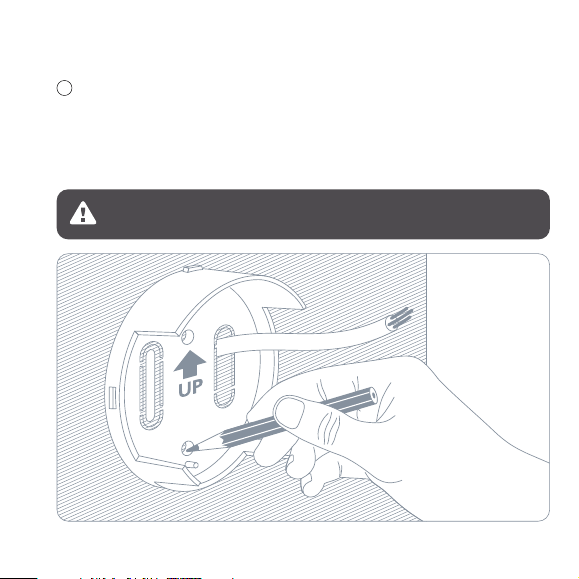
Install the Mounting Plate
Disassemble and remove your existing outdoor light. Position the mounting plate (1) and remove
one of the plastic clips to create an opening for passing the power cable through. Ensure the UP
arrow is pointing upwards and trace the screw holes. Remove the mounting plate (1), drill into
your tracings and insert the supplied wall anchors.
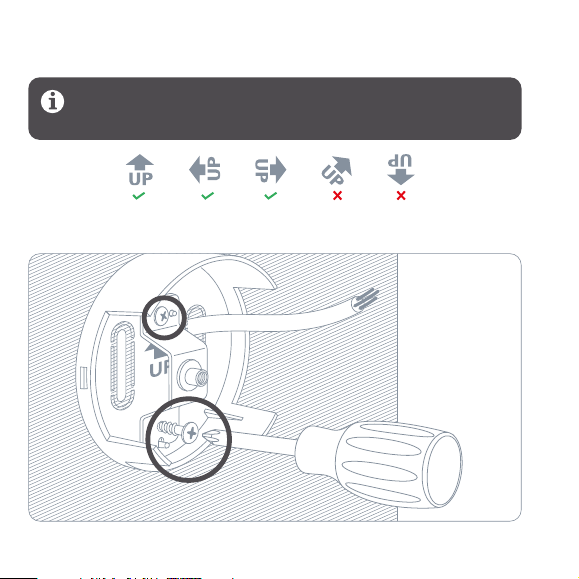
Place the mounting bracket (2) on top of the mounting plate (1) and secure them using
the supplied screws.
Installation
Eve Outdoor Cam requires both a neutral wire and a connection to a ground wire. If
these are not present, Eve Outdoor Cam is not compatible at this location.
You may also use the wall anchors from your existing outdoor light if they’re spaced
as required. In this case, please ensure that the UP arrow is pointed upwards, or
horizontally to the left or right.
1
98
Install the Mounting Plate
Disassemble and remove your existing outdoor light. Position the mounting plate (1) and remove
one of the plastic clips to create an opening for passing the power cable through. Ensure the UP
arrow is pointing upwards and trace the screw holes. Remove the mounting plate (1), drill into
your tracings and insert the supplied wall anchors.
Place the mounting bracket (2) on top of the mounting plate (1) and secure them using
the supplied screws.
Installation
Eve Outdoor Cam requires both a neutral wire and a connection to a ground wire. If
these are not present, Eve Outdoor Cam is not compatible at this location.
You may also use the wall anchors from your existing outdoor light if they’re spaced
as required. In this case, please ensure that the UP arrow is pointed upwards, or
horizontally to the left or right.
1
98
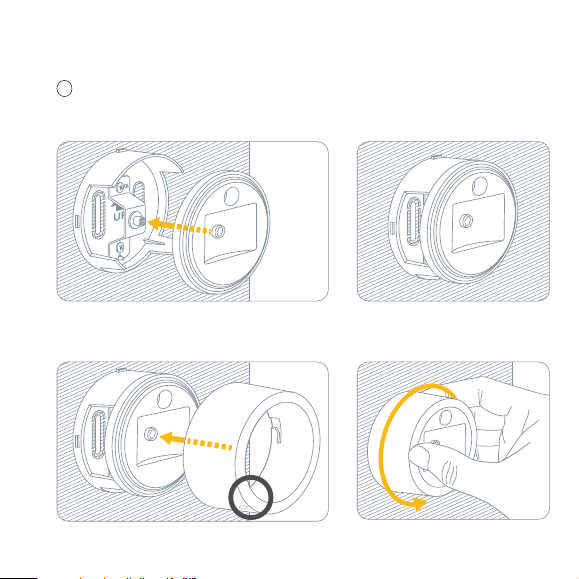
Place the mounting clip (5) along with the metal bracket in the recessed area of the mounting
cover (3) and snap in the mounting clip (5). Turn the supplied mounting screw (6) clockwise to
attach Eve Outdoor Cam.
Mount Eve Outdoor Cam
Place the mounting cover (3) on top of the mounting bracket (2) with the cable inlet at the top.
2
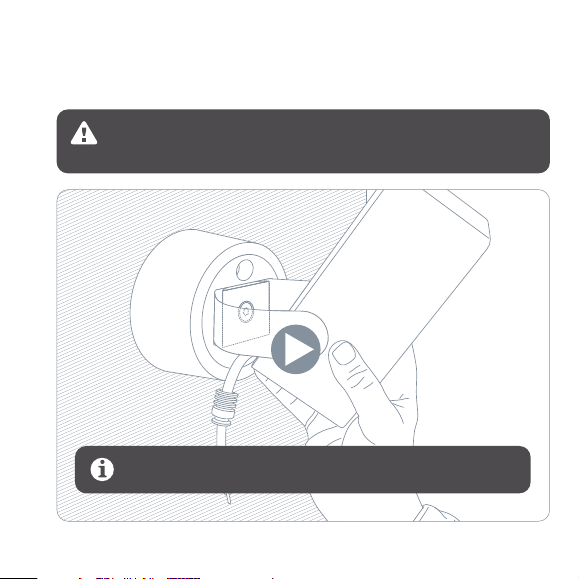
Please ensure you keep holding Eve Outdoor Cam until the screw is suciently
fastened. You don’t need to fasten the screw all the way, and don’t need to use the
supplied allen key just yet – simply use your fingers.
Place the mounting ring (4) with the moisture outlet facing downwards and secure it
by twisting it to the left.
1110
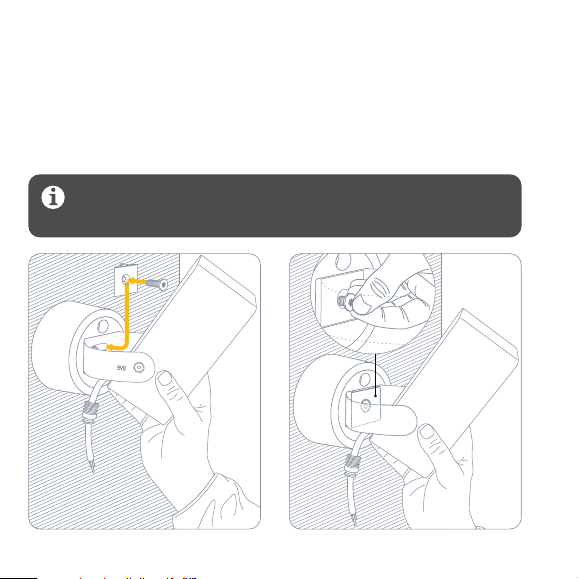
Place the mounting clip (5) along with the metal bracket in the recessed area of the mounting
cover (3) and snap in the mounting clip (5). Turn the supplied mounting screw (6) clockwise to
attach Eve Outdoor Cam.
Mount Eve Outdoor Cam
Place the mounting cover (3) on top of the mounting bracket (2) with the cable inlet at the top.
2
Please ensure you keep holding Eve Outdoor Cam until the screw is suciently
fastened. You don’t need to fasten the screw all the way, and don’t need to use the
supplied allen key just yet – simply use your fingers.
Place the mounting ring (4) with the moisture outlet facing downwards and secure it
by twisting it to the left.
1110
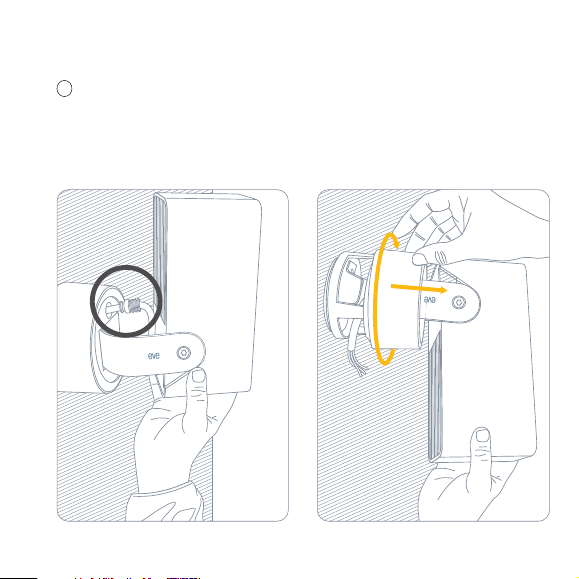
Connect Eve Outdoor Cam
Pass the cable through the cable inlet.
3
Secure the ingress seal (8) with the ingress
seal bracket (7).
Pass the cable of Eve Outdoor Cam through
the wall mount so that the ingress seal sits
flush with the mounting cover (3).
Turn Eve Outdoor Cam upside down and open
the mounting ring (5) again by twisting it to
the right and pulling it towards you for easy
access to the cabling.
1312

Connect Eve Outdoor Cam
Pass the cable through the cable inlet.
3
Secure the ingress seal (8) with the ingress
seal bracket (7).
Pass the cable of Eve Outdoor Cam through
the wall mount so that the ingress seal sits
flush with the mounting cover (3).
Turn Eve Outdoor Cam upside down and open
the mounting ring (5) again by twisting it to
the right and pulling it towards you for easy
access to the cabling.
1312
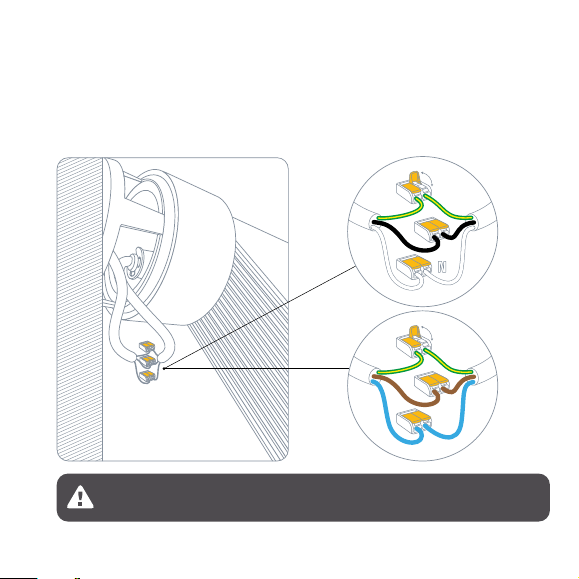
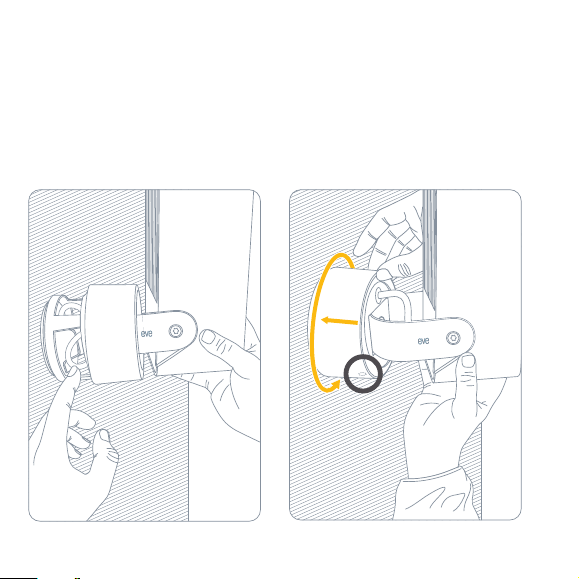
Connect the corresponding wires from your power cable to Eve Outdoor Cam using the supplied
connection terminals.
Turn Eve Outdoor Cam back to the original
position and stow the terminals and cables in
the wall mount.
Secure the mounting ring (5) again by
pushing it towards the wall and twisting it
to the left. Please ensure the moisture outlet
continues to face downwards.
Eve Outdoor Cam requires both a neutral wire and a connection to a ground wire.
If these are not present, Eve Outdoor Cam is not compatible at this location.
PE
L
PE
L
N
1514
Connect the corresponding wires from your power cable to Eve Outdoor Cam using the supplied
connection terminals.
Turn Eve Outdoor Cam back to the original
position and stow the terminals and cables in
the wall mount.
Secure the mounting ring (5) again by
pushing it towards the wall and twisting it
to the left. Please ensure the moisture outlet
continues to face downwards.
Eve Outdoor Cam requires both a neutral wire and a connection to a ground wire.
If these are not present, Eve Outdoor Cam is not compatible at this location.
PE
L
PE
L
N
1514
Eve
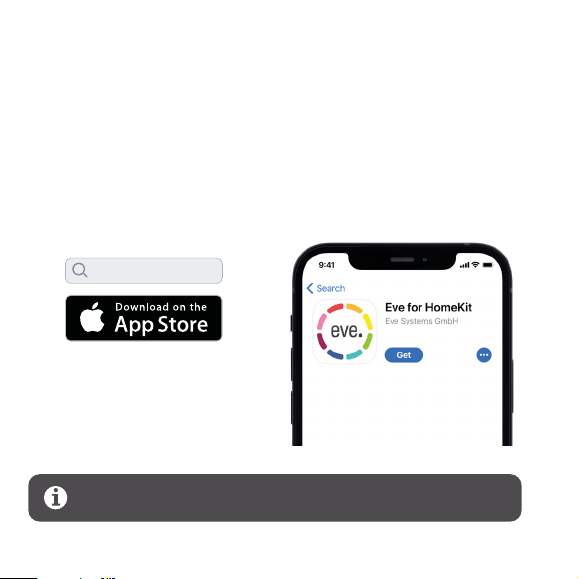
Download the Eve app from the App Store.
Open the Eve app and tap Add Accessories. Eve will now guide you through the setup process.
If you have already set up another accessory, go to the Eve settings to add Eve Outdoor Cam to your
home.
To add Eve Outdoor Cam, use the HomeKit code on the back of this manual.
Set up Eve Outdoor Cam
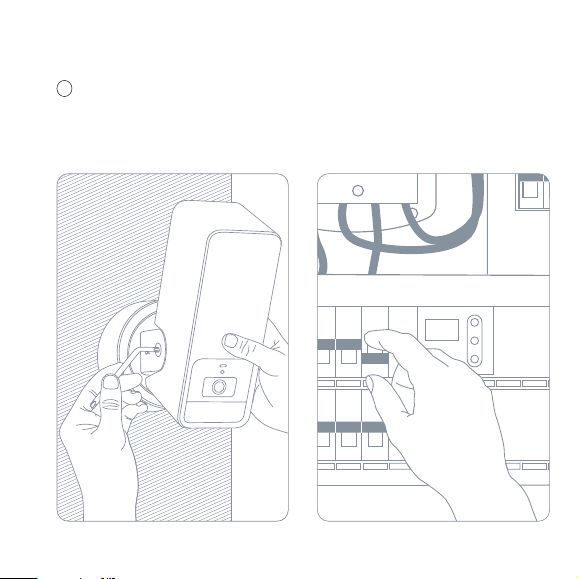
Align Eve Outdoor Cam and fully secure it
using the supplied allen screw.
4
Switch the fuse in your fuse box back on.
The status LED should now turn on.
1 0 4 9 6 8
1716
Eve
Download the Eve app from the App Store.
Open the Eve app and tap Add Accessories. Eve will now guide you through the setup process.
If you have already set up another accessory, go to the Eve settings to add Eve Outdoor Cam to your
home.
To add Eve Outdoor Cam, use the HomeKit code on the back of this manual.
Set up Eve Outdoor Cam
Align Eve Outdoor Cam and fully secure it
using the supplied allen screw.
4
Switch the fuse in your fuse box back on.
The status LED should now turn on.
1 0 4 9 6 8
1716
Recordings
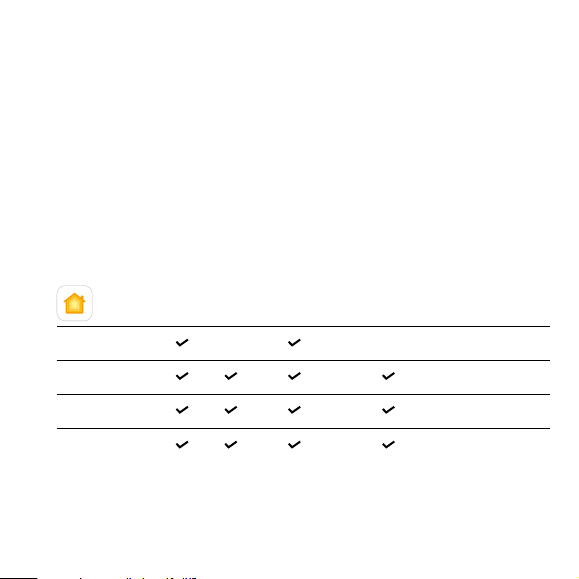
Eve Outdoor Cam exclusively supports Apple HomeKit Secure Video, enabling you to securely
store activity detected by Eve Outdoor Cam in iCloud. HomeKit Secure Video requires iCloud+
(not included). iCloud+ with 50 GB storage supports one camera, iCloud+ with 200 GB storage
supports up to five cameras, and iCloud+ with 2 TB storage supports an unlimited number of
cameras. Camera recordings don’t count against your iCloud+ storage limit. Recordings are
saved for ten days and then deleted automatically. If you want to hold on to a recording, you
have the option to save it permanently.
Enjoy
Live Video Recordings Notify every motion Notify specific motion
(people/pet/vehicle/package)
Number of cameras supported
No iCloud+
iCloud+ with 50 GB storage 1
iCloud+ with 200 GB storage
5
iCloud+ with 2 TB storage
Unlimited
Securely access Eve Outdoor Cam while
you’re away from home and intelligently
determine when a person, animal, or vehicle
is in the video recorded by Eve Outdoor Cam.
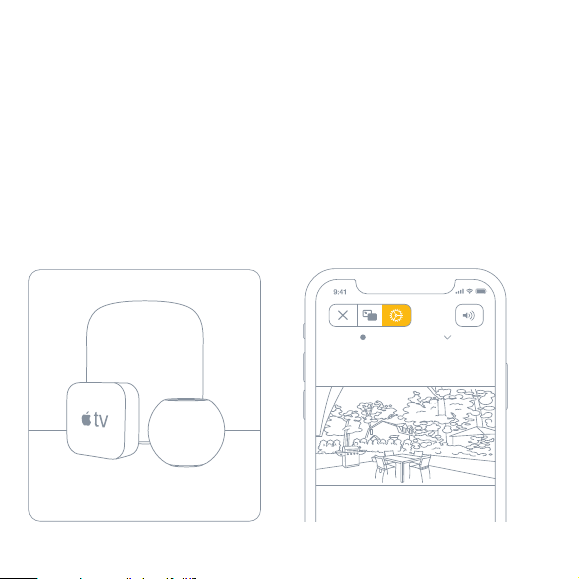
Any Apple TV HD, Apple TV 4K or HomePod
using the same iCloud account as your iPhone
will automatically serve as a home hub, no
further setup required.
To adjust the settings of Eve Outdoor Cam,
tap the Settings icon in the video feed of the
Home app on your iPhone or iPad.
Eve Outdoor Cam
1918
Recordings
Eve Outdoor Cam exclusively supports Apple HomeKit Secure Video, enabling you to securely
store activity detected by Eve Outdoor Cam in iCloud. HomeKit Secure Video requires iCloud+
(not included). iCloud+ with 50 GB storage supports one camera, iCloud+ with 200 GB storage
supports up to five cameras, and iCloud+ with 2 TB storage supports an unlimited number of
cameras. Camera recordings don’t count against your iCloud+ storage limit. Recordings are
saved for ten days and then deleted automatically. If you want to hold on to a recording, you
have the option to save it permanently.
Enjoy
Live Video Recordings Notify every motion Notify specific motion
(people/pet/vehicle/package)
Number of cameras supported
No iCloud+
iCloud+ with 50 GB storage 1
iCloud+ with 200 GB storage
5
iCloud+ with 2 TB storage
Unlimited
Securely access Eve Outdoor Cam while
you’re away from home and intelligently
determine when a person, animal, or vehicle
is in the video recorded by Eve Outdoor Cam.
Any Apple TV HD, Apple TV 4K or HomePod
using the same iCloud account as your iPhone
will automatically serve as a home hub, no
further setup required.
To adjust the settings of Eve Outdoor Cam,
tap the Settings icon in the video feed of the
Home app on your iPhone or iPad.
Eve Outdoor Cam
1918
Access Status
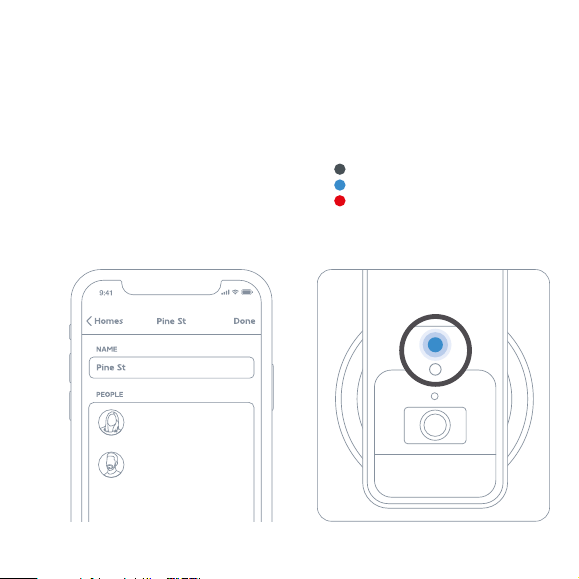
To invite people with an iCloud account to ac-
cess Eve Outdoor Cam, select Home Settings
in the Home app. Only the owner of the home
in the Home app can change the streaming
and recording mode when home or away and
determine if others can view recordings of
Eve Outdoor Cam.
You can turn o the camera status light in the
Eve Outdoor Cam settings in the Home app.
O – Streaming / Recording disabled
Blue – Streaming enabled and inactive
Red – Streaming active / Recording enabled
Eve Outdoor Cam is designed to safeguard your personal data. Video streamed from Eve Outdoor
Cam and iCloud is end-to-end encrypted to your devices, so only you and the people you share
your Apple Home app with can view it.
Learn more at evehome.com/privacy
evehome.com/privacy
Ina
Resident (Owner)
Tim
Resident
All members in the shared home can control and see
updates from accessories. This may include others
not shown in the list above.
2120
Access Status
To invite people with an iCloud account to ac-
cess Eve Outdoor Cam, select Home Settings
in the Home app. Only the owner of the home
in the Home app can change the streaming
and recording mode when home or away and
determine if others can view recordings of
Eve Outdoor Cam.
You can turn o the camera status light in the
Eve Outdoor Cam settings in the Home app.
O – Streaming / Recording disabled
Blue – Streaming enabled and inactive
Red – Streaming active / Recording enabled
Eve Outdoor Cam is designed to safeguard your personal data. Video streamed from Eve Outdoor
Cam and iCloud is end-to-end encrypted to your devices, so only you and the people you share
your Apple Home app with can view it.
Learn more at evehome.com/privacy
evehome.com/privacy
Ina
Resident (Owner)
Tim
Resident
All members in the shared home can control and see
updates from accessories. This may include others
not shown in the list above.
2120
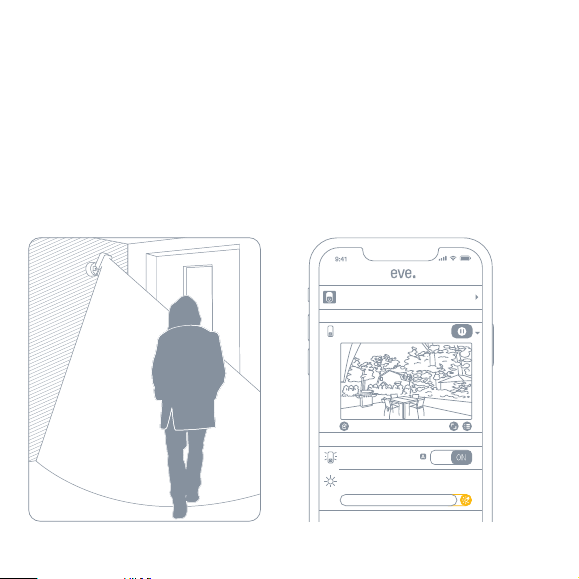
Light Boost
If you want the integrated flood light to shine
extra-bright, tap the light boost button in the
Eve app. You can also enable light boost for
the automatic motion light. Light boost will
turn o automatically after a period of time.
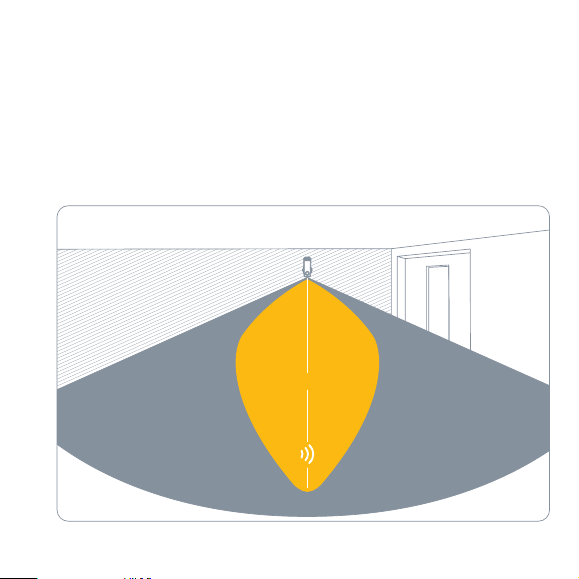
Eve Outdoor Cam will automatically turn on
the flood light when motion is detected by
the dedicated motion sensor. To limit the au-
tomatic motion light to nighttimes, adjust the
duration, or deactivate it altogether, access
the accessory settings in the Eve app.
Motion Light
8m
Thanks to a dedicated motion sensor, Eve Outdoor Cam will not bother you with reacting to
leaves blowing in the wind, small animals, and other events that do not require your attention.
You can adjust the motion sensitivity in the accessory settings in the Eve app.
Motion Detection
Eve Outdoor Cam
FLOOD LIGHT
MOTION
Boost
Power
Brightness
Clear
1 h ago
Motion
Last Motion
EVE OUTDOOR CAM
Camera
STREAMING
OFF
2322
Light Boost
If you want the integrated flood light to shine
extra-bright, tap the light boost button in the
Eve app. You can also enable light boost for
the automatic motion light. Light boost will
turn o automatically after a period of time.
Eve Outdoor Cam will automatically turn on
the flood light when motion is detected by
the dedicated motion sensor. To limit the au-
tomatic motion light to nighttimes, adjust the
duration, or deactivate it altogether, access
the accessory settings in the Eve app.
Motion Light
8m
Thanks to a dedicated motion sensor, Eve Outdoor Cam will not bother you with reacting to
leaves blowing in the wind, small animals, and other events that do not require your attention.
You can adjust the motion sensitivity in the accessory settings in the Eve app.
Motion Detection
Eve Outdoor Cam
FLOOD LIGHT
MOTION
Boost
Power
Brightness
Clear
1 h ago
Motion
Last Motion
EVE OUTDOOR CAM
Camera
STREAMING
OFF
2322
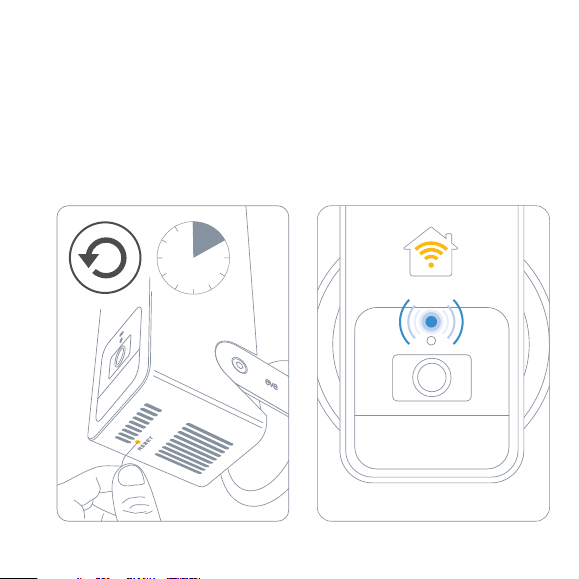
Wi-Fi Reset
To connect Eve Outdoor Cam to a dierent Wi-Fi network, push and hold the reset button on the
bottom of the camera with a paper clip for 5 seconds until the LED starts blinking blue. Release
the reset button as soon as the LED starts blinking blue and open the Home app to add Eve
Outdoor Cam to the Wi-Fi network your iPhone is currently connected to.
Reset
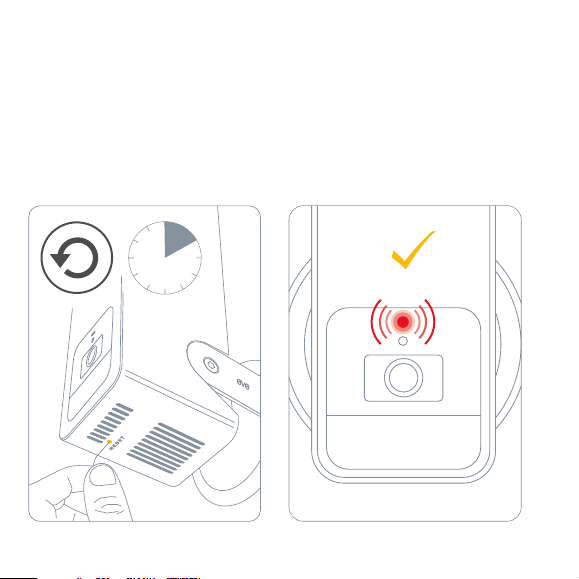
To reset all settings of Eve Outdoor Cam, including the HomeKit pairing, push and hold the reset
button on the bottom of the camera with a paper clip for 10 seconds until the LED starts blinking
red.
Reset
5 s 10 s
2524
Wi-Fi Reset
To connect Eve Outdoor Cam to a dierent Wi-Fi network, push and hold the reset button on the
bottom of the camera with a paper clip for 5 seconds until the LED starts blinking blue. Release
the reset button as soon as the LED starts blinking blue and open the Home app to add Eve
Outdoor Cam to the Wi-Fi network your iPhone is currently connected to.
Reset
To reset all settings of Eve Outdoor Cam, including the HomeKit pairing, push and hold the reset
button on the bottom of the camera with a paper clip for 10 seconds until the LED starts blinking
red.
Reset
5 s 10 s
2524

Legal Information
This device complies with part 15 of the FCC Rules and Industry Canada licence-exempt RSS standard(s). Ope-
ration is subject to the following two conditions: (1) This device may not cause interference, and (2) this device
must accept any interference received, including interference that may cause undesired operation.
This equipment has been tested and found to comply with the limits for a Class B digital device, pursuant to part
15 of the FCC Rules. These limits are designed to provide reasonable protection against harmful interference
in a residential installation. This equipment generates, uses and can radiate radio frequency energy and, if not
installed and used in accordance with the instructions, may cause harmful interference to radio communi
-
cations. However, there is no guarantee that interference will not occur in a particular installation. If this
equipment does cause harmful interference to radio or television reception, which can be determined by turning
the equipment o and on, you are encouraged to try to correct the interference by one or more of the following
measures: reorient or relocate the receiving antenna; increase the separation between the equipment and
receiver; consult the dealer or an experienced radio/TV technician for help. • This Class B digital apparatus
complies with Canadian ICES-003.
Changes or modifications not expressly approved by Eve Systems could void your authority to operate this
device.
This equipment complies with FCC RF, IC RSS-102 and CE radiation exposure limits set forth for an uncontrolled
environment. This equipment should be installed and operated with a minimum distance of 20 centimeters
between the radiator and your body. This transmitter must not be co-located or operating in conjunction with
any other antenna or transmitter.
Le présent appareil est conforme aux CNR d‘Industrie Canada applicables aux appareils radio exempts de
licence. L‘exploitation est autorisée aux deux conditions suivantes : (1) l‘appareil ne doit pas produire de
brouillage, et (2) l‘utilisateur de l‘appareil doit accepter tout brouillage radioélectrique subi, même si le bouillage
est susceptible d‘en compromettre le fonctionnement. Cet appareil numérique de la classe B est conforme à la
norme NMB-003 du Canada.
Cet équipement est conforme aux CNR-102 d‘Industrie Canada. Cet équipement doit être installé et utilisé
avec une distance minimale de 20 centimètres entre le radiateur et votre corps. Cet émetteur ne doit pas être
co-localisée ou opérant en conjonction avec autre antenne ou émetteur.
For questions about compliance with FCC regulations, please contact: Compliance Ocer, Eve Systems, 100
Pine St., Suite 1250, San Francisco CA 94111, USA • UK Authorised Representative: Authorised Representative
Service, The Old Methodist Chapel, Great Hucklow, SK17 8RG, UK
Hereby, Eve Systems declares that this device is in compliance with the essential requirements and other rele
-
vant provisions of Directive 2014/53/EC. The declaration of conformity is available at www.evehome.com/doc
Purpose of control: operating control; construction of control: plug-in operating control; type 1 action, operating
time: continuous; temperature range: -20 °C - 45 °C; frequency range: 2412 - 2472 MHz (2462 for FCC, ISED),
max. EIRP: 20 dBm
Product: 10ECA4101/ 10ECA8101• Model: 20ECA8101 / 20ECA4101
Part: 51ECA9901• FCC ID: SNE-ODC-001 • IC: 11192A-ODC001
Eve Systems GmbH, Rotkreuzplatz 1, 80634 Munich, Germany
2726

Legal Information
This device complies with part 15 of the FCC Rules and Industry Canada licence-exempt RSS standard(s). Ope-
ration is subject to the following two conditions: (1) This device may not cause interference, and (2) this device
must accept any interference received, including interference that may cause undesired operation.
This equipment has been tested and found to comply with the limits for a Class B digital device, pursuant to part
15 of the FCC Rules. These limits are designed to provide reasonable protection against harmful interference
in a residential installation. This equipment generates, uses and can radiate radio frequency energy and, if not
installed and used in accordance with the instructions, may cause harmful interference to radio communi
-
cations. However, there is no guarantee that interference will not occur in a particular installation. If this
equipment does cause harmful interference to radio or television reception, which can be determined by turning
the equipment o and on, you are encouraged to try to correct the interference by one or more of the following
measures: reorient or relocate the receiving antenna; increase the separation between the equipment and
receiver; consult the dealer or an experienced radio/TV technician for help. • This Class B digital apparatus
complies with Canadian ICES-003.
Changes or modifications not expressly approved by Eve Systems could void your authority to operate this
device.
This equipment complies with FCC RF, IC RSS-102 and CE radiation exposure limits set forth for an uncontrolled
environment. This equipment should be installed and operated with a minimum distance of 20 centimeters
between the radiator and your body. This transmitter must not be co-located or operating in conjunction with
any other antenna or transmitter.
Le présent appareil est conforme aux CNR d‘Industrie Canada applicables aux appareils radio exempts de
licence. L‘exploitation est autorisée aux deux conditions suivantes : (1) l‘appareil ne doit pas produire de
brouillage, et (2) l‘utilisateur de l‘appareil doit accepter tout brouillage radioélectrique subi, même si le bouillage
est susceptible d‘en compromettre le fonctionnement. Cet appareil numérique de la classe B est conforme à la
norme NMB-003 du Canada.
Cet équipement est conforme aux CNR-102 d‘Industrie Canada. Cet équipement doit être installé et utilisé
avec une distance minimale de 20 centimètres entre le radiateur et votre corps. Cet émetteur ne doit pas être
co-localisée ou opérant en conjonction avec autre antenne ou émetteur.
For questions about compliance with FCC regulations, please contact: Compliance Ocer, Eve Systems, 100
Pine St., Suite 1250, San Francisco CA 94111, USA • UK Authorised Representative: Authorised Representative
Service, The Old Methodist Chapel, Great Hucklow, SK17 8RG, UK
Hereby, Eve Systems declares that this device is in compliance with the essential requirements and other rele
-
vant provisions of Directive 2014/53/EC. The declaration of conformity is available at www.evehome.com/doc
Purpose of control: operating control; construction of control: plug-in operating control; type 1 action, operating
time: continuous; temperature range: -20 °C - 45 °C; frequency range: 2412 - 2472 MHz (2462 for FCC, ISED),
max. EIRP: 20 dBm
Product: 10ECA4101/ 10ECA8101• Model: 20ECA8101 / 20ECA4101
Part: 51ECA9901• FCC ID: SNE-ODC-001 • IC: 11192A-ODC001
Eve Systems GmbH, Rotkreuzplatz 1, 80634 Munich, Germany
2726
Please keep your HomeKit Setup Code in a safe place. You need it to securely
add Eve to your home, and nobody but you has a copy.