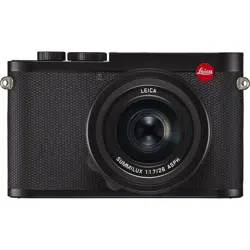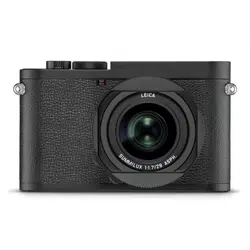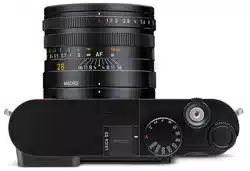

LEICA Q3
Instruction manual
Q3/EN/2023/05/1.1/1

FOREWORD
2
FOREWORD
Dear Customer,
We wish you a great deal of fun and success taking photographs
with your new Leica Q3. Please read this manual thoroughly to fa-
miliarize yourself with the full scope of functions your camera has to
offer. You can find all information about the Leica Q3 whenever you
need it at https://leica-camera.com.
Your Leica Camera AG
SCOPE OF DELIVERY
Before using your camera for the first time, please check that the
accessories supplied are complete*.
– Leica Q3 with attached lens hood
– Lithium-ion rechargeable battery Leica BP-SCL6
– Charger Leica BC-SCL4, incl. mains cable (US, EU)
– “Leica FOTOS Cable”
– Lens hood cap
– Thread protection ring
– Accessory shoe cover
– Carry strap
– Quick Start Guide
– Test certificate
– CE flyer
* Subject to change with regard to construction and appearance.
FOREWORD / SCOPE OF DELIVERY
REPLACEMENT PARTS / ACCESSORIES
3
REPLACEMENT PARTS / ACCESSORIES
Please contact Leica Customer Care or visit the Leica Camera AG
website for information on the extensive range of Leica replacement
parts/accessories:
https://leica-camera.com/en-US/photography/accessories
Only the accessories specified and described in this manual or
by Leica Camera AG must be used with the camera (battery,
charger, mains plug, mains cable, etc.). These accessories must
only be used with this product. Third-party accessories may
result in malfunctions or damage to the product.
Please read the chapters “Legal information”, “Safety remarks”,
and “General information” before using your camera for the
first time. Knowledge of the content will prevent inadvertent
damage to the product, possible injuries and other risks.

LEGAL INFORMATION
4
LEGAL INFORMATION
COPYRIGHT NOTICE
• Compliance with copyright laws is mandatory. The recording
and publication of pre-recorded media like tapes, CDs, or other
published or broadcast material may breach copyright laws. The
same applies for all software supplied as part of the scope of
delivery.
• The following applies for all video material created with this cam-
era: This product is governed by the AVC Patent Portfolio license
and is meant for private use by a consumer only. The device
may furthermore be used for purposes for which the consumer
receives no remuneration, e.g. (i) encoding in accordance with
the AVC Standard (“AVC Video”) and/or (ii) decoding of AVC
Video that was encoded by a consumer in accordance with the
AVC Standard within the scope of personal use and/or which the
consumer has received from the provider, who is in possession
of a license to offer AVC Video. No license is granted or implied
for any other use. Any other use, specifically the provision of AVC
video in exchange for remuneration, may require a separate li-
cense agreement with MPEG LA, L.L.C. Please visit the MPEG LA,
L.L.C. website at: www.mpegla.com for more information.
• The designations SD, SDHC, SDXC, microSDHC and their associ-
ated logos are registered trademarks of SD-3C, LLC.
LEGAL INFORMATION ABOUT THIS MANUAL
COPYRIGHT
All rights reserved.
All text, images and graphics are subject to copyright and other
laws to protect intellectual property. They must not be copied, mod-
ified or used for any purpose including trade purposes.
TECHNICAL DATA
Product changes with regards to the product or services may have
occurred after the editorial deadline. The manufacturer reserves
the right to effect structural or shape changes, color deviations and
changes to the scope of delivery or service, where these changes or
deviations are reasonably acceptable for the customer, while taking
into consideration the interests of Leica Camera AG. To that extent,
Leica Camera AG reserves the right to changes and errors. The im-
ages in this manual may depict accessory, special features or other
items that are not part of the standard scope of delivery or service.
Some pages may contain model types and services, which are not
offered in specific countries.

LEGAL INFORMATION
5
BRANDS AND LOGOS
The brand names and logos used in this document are protected
trademarks. These brands or logos must not be used without prior
approval by Leica Camera AG.
LICENSE RIGHTS
Leica Camera AG intends to provide you with innovative and
informative documentation. Due to the amount of creativity that
has gone into its design, we ask for your understanding that Leica
Camera AG must protect its intellectual property, including patents,
trademarks and copyrights, and that possession of the documenta-
tion does not infer any licensing rights of the intellectual property of
Leica Camera AG.
REGULATORY INFORMATION
You will find the manufacturing date of your camera on the stickers
in the Warranty Card and/or on the packaging.
The date format is year/month/day.
COUNTRY-SPECIFIC LICENSES
Specific regional approvals for this device can be found in the cam-
era menu.
▸ Select Camera Information in the main menu
▸ Select
Regulatory information
LICENSE INFORMATION
The device-specific license information can be found in the camera
menu.
▸ Select
Camera Information in the main menu
▸ Select
License Information
LEGAL INFORMATION
6
CE MARK
The CE mark on our products documents compliance with the fun-
damental requirements of applicable EU guidelines.
English
Declaration of Conformity (DoC)
“Leica Camera AG” hereby declares that this product is in compliance
with the basic requirements and other relevant provisions of Directive
2014/53/EU.
Customers can download a copy of the original DoC for our Radio
Equipment products from our DoC server:
https://cert.leica-camera.com
Please contact Leica Camera AG, Am Leitz-Park 5, 35578 Wetzlar,
Germany in case of any further questions
Usable frequency band/ Usage limitations:
see technical data
DISPOSAL OF ELECTRICAL AND ELECTRONIC
EQUIPMENT
(Applies within the EU and for other European countries
with active waste separation policies.)
This device contains electrical and/or electronic components which
must not be disposed of in general household waste. Instead, it
should be disposed of at a recycling collection point provided by
your local authority.
This service is free of charge. Any standard or rechargeable batter-
ies used in this device must be removed and disposed of separately
in accordance with local regulations.
Please contact your local authorities, waste disposal collection
point or the retailer, from whom you purchased the device for more
information on correct waste disposal.

LEGAL INFORMATION
7
IMPORTANT NOTES REGARDING THE USE OF
WLAN/BLUETOOTH
®
• Appropriate measures must be taken to ensure security and pro-
tect against disruptions to the systems in place where devices or
computer systems are in use that require more stringent security
than WLAN devices.
• Leica Camera AG shall not accept liability for damages arising
from the use of the camera for purposes other than as a WLAN
device.
• It is assumed that the WLAN function will be used in countries
where this camera is sold. There may be a risk of breaching stat-
utory wireless communication regulations when using the camera
in other countries. Leica Camera AG shall not accept liability for
such breaches.
• Please note that there is a risk of unauthorized third party inter-
ception of wirelessly communicated data. We highly recommend
that you activate encryption in the wireless access point settings
to ensure data safety.
• Avoid using the camera in areas where it can be exposed to mag-
netic fields, static electricity or other interferences, e.g. near a
microwave oven. RF transmissions may otherwise not reach the
camera.
• Using the camera near devices like microwave ovens or wireless
phones that use the 2.4 GHz RF band may negatively affect the
performance of both devices.
• Do not attempt to connect to wireless networks you are not au-
thorized to use.
• The device will automatically search for wireless networks, once
the WLAN function is enabled. A list, including networks you are
not authorized to access, will be displayed (SSID: Network identi-
fier for a WLAN network). Do not attempt to connect to third par-
ty network, as this could be construed as unauthorized access.
• We recommend disabling the WLAN function while on an aircraft.
• The use of the WLAN-RF band between 5150 MHz and 5350 MHz
is permitted only in enclosed spaces.
• Please read the important notes on specific functions of Leica
FOTOS on p. 228.
IMPORTANT NOTES REGARDING THE USE OF
“LEICA FOTOS CABLE”
• The use of the “Made for Apple” icon signifies that an accessory
part was developed specifically for a connection to the Apple
product(s) named in the icon, and was certified by the developer
to comply with Apple performance standards. Apple bears no re-
sponsibility for the operation of that device or its compliance with
safety and regulatory standards.
• Please note that the use of this accessory with an Apple product
may impede RF performance.

SAFETY REMARKS
8
SAFETY REMARKS
GENERAL INFORMATION
• Do not use your camera in the immediate vicinity of devices that
generate powerful magnetic, electrostatic or electromagnetic
fields (e.g. induction ovens, microwave ovens, television sets or
computer screens, video game consoles, cell phones, broadcast-
ing equipment). Their electromagnetic fields can interfere with
image capturing.
• Strong magnetic fields, e.g. from speakers or large electric mo-
tors can damage the stored data or disrupt shooting.
• Switch off the camera, remove the battery briefly, replace it and
switch the camera back on in case of a camera malfunction due
to the effects of electromagnetic fields.
• Do not use the camera in the immediate vicinity of radio trans-
mitters or high-voltage power lines. Their electromagnetic fields
may also interfere with image capturing.
• Always store small parts e.g. the accessory shoe cover as follows:
– out of the reach of children
– in a safe location, where they will not get lost or stolen
• State-of-the-art electronic components are sensitive to static
discharge. You can easily pick up charges of several 10,000 volts
by simply walking on synthetic floor coverings. A static discharge
can occur when you touch the camera and especially if it is
placed on a conductive surface. A static discharge on the camera
housing poses no risk for the electronics. Despite built-in safety
circuits, you should avoid direct contact with external camera
contacts like those in the flash shoe.
• Take care not to soil or scratch the sensor for lens detection in
the bayonet. You must similarly prevent direct contact of the bay-
onet with grains of sand or similar particles, as these could cause
irreparable damage. This component must only be cleaned with a
dry cloth (in system cameras).
• Use a cotton or linen cloth instead of a microfiber cloth from an
optician's (synthetic) when cleaning the contacts. Make sure
to discharge any electrostatic charge by deliberately touching
a heating or water pipe (conductive, grounded material). Dirt
deposits and oxidation on the contacts can be avoided by storing
your camera in a dry location with the lens cap and the flash
shoe/viewfinder cap (in system cameras) attached.
• Only use accessories specified for this model to prevent faults,
short circuits or electric shock.
• Do not attempt to remove parts of the housing (covers) yourself.
Repairs must be done at authorized service centers only.
• Protect the camera against contact with insect sprays and other
aggressive chemicals. Petroleum spirit, thinner and alcohol must
not be used for cleaning. Some chemicals and liquids can dam-
age the camera housing or the surface finish.
• Rubber and plastics are known to expel aggressive chemicals
and should therefore not be kept in contact with the camera for
extended periods of time.
• Prevent any sand or dust or water penetration into the camera,
e.g. during snowfall or rain or on the beach. Be extra careful
when changing the lens (in system cameras) and when inserting
or removing the memory card and rechargeable battery. Sand
and dust can damage the camera, the lens, the memory card and
the battery. Moisture can cause malfunctions and irreparable
damage to the camera and memory card.
LENS
• A camera lens can have the effect of a magnifying glass when
exposed to direct frontal sunlight. The camera must therefore be
protected against extended exposure to direct sunlight.

SAFETY REMARKS
9
• Attaching the lens cap and keeping the camera in the shade or
ideally in its camera case, will help prevent damage to the interior
of the camera.
RECHARGEABLE BATTERY
• Improper use of the batteries or the use of unapproved battery
types may result in an explosion!
• Do not expose the rechargeable battery to sunlight, heat, humid-
ity or moisture for prolonged periods of time. Likewise, the bat-
teries must not be placed in a microwave oven or a high-pressure
container as this would pose a fire or explosion hazard!
• Do not under any circumstances charge or insert a damp or wet
battery into the camera!
• A safety valve in the battery ensures that any excess pressure
caused by improper handling is discharged safely. It is neverthe-
less important to dispose of a bloated battery immediately. It
may pose an explosion hazard!
• Keep the battery contacts clean and easily accessible. Although
lithium-ion batteries are secured against short circuits, they
should still be protected against contact with metal objects like
paper clips or jewelry. A short-circuited battery can get very hot
and cause severe burns.
• When a battery is accidentally dropped, make sure to check the
housing and the contacts immediately for any damage. A dam-
aged battery can damage the camera.
• The battery must be removed from the camera or charger and
must be replaced immediately in case of a strange smell, discol-
oration, deformation, overheating or leakage. Continued use of
the battery may result in overheating, which can cause fire and/
or explosion!
• Never throw batteries into a fire as they may explode.
• Keep the battery away from sources of heat in case of leakage or
if you smell burning. Leaked fluid can catch fire!
• The use of other chargers not approved by Leica Camera AG can
cause damage to the batteries – and in extreme cases – cause
serious or life-threatening injuries.
• Make sure that the power socket is freely accessible at all times.
• Do not attempt to open the battery or the charger. Repairs must
only be carried out by authorized service centers.
• Keep batteries out of the reach of children. Batteries can cause
suffocation when swallowed.
FIRST AID
• Battery fluid may cause blindness if it comes into contact with
the eyes. Rinse the eyes thoroughly with clean water immedi-
ately. Avoid rubbing. Seek medical attention immediately.
• Leaked battery fluid poses an injury hazard when it comes in
contact with clothing or skin. Rinse the affected areas thor-
oughly with clean water.
CHARGER
• Using the charger in the vicinity of broadcasting receivers may in-
terfere with reception. Ensure a distance of at least 1 m between
the charger and the receiver.
• When the charger is in use, it may emit a buzzing sound – that is
normal and not a malfunction.
• Disconnect the charger from the mains when it is not in use, as
it consumes electricity (a very small amount), even if no battery
is inserted.
• Always keep the charger contacts clean, and never short-circuit
them.

SAFETY REMARKS
10
• Only the mains cables supplied must be used. The mains cables
must only be used for the supplied charger unit. Do not attempt
to use the mains cable or charger unit for other purposes.
MEMORY CARD
• Never remove the memory card during a data save or card reading
process. The camera must not be switched off or be subjected to
impact or vibrations while working.
• Do not open the cover/remove the memory card or the battery
from the camera while the status LED is lit, which indicates mem-
ory access. Data on the card may otherwise be destroyed and
camera malfunctions may occur.
• Do not drop or bend memory cards as this will cause damage and
result in the loss of stored data.
• Do not touch the connections on the reverse of the memory card
and keep them clean and dry.
• Keep memory cards out of the reach of children. Swallowing a
memory card may cause suffocation.
SENSOR
• Cosmic radiation (e.g. during flights) may cause pixel defects.
CARRY STRAP
• Carry straps are usually made of very robust material. You should
therefore keep it out of the reach of children. A carry strap is not
a toy and poses a strangulation risk.
• Use the carry strap only for its intended purpose on a camera
or on binoculars. Any other use poses the risk of injury and may
possibly result in damage to the carry strap and is therefore not
permitted.
• Carry straps should also not be used for cameras/binoculars
during sports activities that pose a risk of entanglement (e.g.
when mountain climbing and similar outdoor activities).
TRIPOD
• When using a tripod, make sure it is standing securely and turn
the camera only by turning the tripod, not the actual camera.
Ensure that the tripod screw is hand-tightened only. Avoid trans-
porting the camera while the tripod is attached. You might injure
yourself or others and the camera could get damaged.
FLASH
• The use of incompatible flash units with your Leica Q3 may result
in irreparable damage to the camera and/or the flash unit.

GENERAL INFORMATION
11
IMPORTANT NOTES ON CHARGING VIA USB /
WIRELESS CHARGING
• Use a switching adapter with a max. 100 W output or less, which
complies with the USB-PD standard. Ensure compliance with the
safety standards IEC62368-1 (ES1, PS2-compliant – 60 V or less,
100 W or less). Contact the manufacturer of the switching adapt-
er if you are not sure that it complies with the safety standards.

GENERAL INFORMATION
12
GENERAL INFORMATION
Please read the section about “Care/Storage” for more information
about what to do in case of problems.
CAMERA/LENS
• Make a note of the serial numbers of your camera and lenses, as
this information will be extremely important in case of loss.
• Depending on model, you will find the serial number of your cam-
era on the flash shoe or engraved in the underside of the camera.
• Never store the camera bayonet cover or the lens back cover in a
pants pocket, as they will attract lint and dust, which could then
be accidentally introduced into the camera.
LCD PANEL
• Condensation may form on the LCD panel if the camera is exposed
to great temperature fluctuations. Wipe the screen carefully with a
soft, dry cloth.
• The screen image will initially be slightly darker than normal if the
camera is very cold when it is switched on. The normal level of
brightness will be reached as soon as the LCD panel warms up.
RECHARGEABLE BATTERY
• The rechargeable battery must only be charged within a specific
temperature range. See chapter “Technical Data” (p. 262) for
details about operating conditions.
• Lithium-ion batteries can be charged at any time, regardless of
their current charge level. A partially charged battery will charge
to full capacity faster than a fully discharged one.
• The rechargeable batteries come only partly charged ex works
and should therefore be charged fully before their first use.
• A new battery only reaches its full capacity after it has been fully
charged and – by using it in the camera – depleted 2 to 3 times.
This depletion process should be repeated roughly every 25
cycles.
• Battery and charger heat up during the charging process. That is
normal and not a malfunction.
• Rapid flashing of the two LEDs (> 2 Hz) when charging commenc-
es indicates a charging error (e.g. maximum charging time ex-
ceeded, voltages or temperatures outside permitted ranges or a
short circuit). Disconnect the charger from the mains and remove
the battery. Ensure that the above temperature conditions are
met and then restart the charging process. Please contact your
dealer, the Leica representative in your region or Leica Camera
AG if the problem persists.
• Rechargeable lithium-ion batteries generate power by way of
internal chemical reactions. These reactions are influenced by
ambient temperature and humidity. Do not expose the battery
to extreme temperatures (high or low) for extended periods of
time (e.g. in a parked car in the summer or winter) to ensure a
maximum service life.
• However, every battery has its limits – even in optimal conditions!
After several hundred charging cycles, the operating times will
get significantly shorter.
• The replaceable battery supplies power to a backup battery,
which is permanently installed in the camera. This backup bat-
tery retains the date and time for some weeks. Once the backup
battery is depleted, it must be replenished by inserting a charged
main battery. The time and date will have to be set again after a
full depletion of both batteries.
• As the battery capacity deteriorates or if using an older battery,
warning messages may appear and some functions may be re-
stricted or blocked entirely.

GENERAL INFORMATION
13
• Always remove the battery if the camera will not be used for an
extended period of time. Make sure to switch the camera off via
the main switch before removing the battery. Leaving the battery
in the camera will result in a deep discharge after a few weeks.
Voltage levels will decrease significantly, as the camera uses a
low idle current to maintain settings.
• Dispose of damaged batteries in accordance with the relevant
regulations at an approved collection point for proper recycling.
• The date of manufacture can be found on the battery. The date
format is week/year.
MEMORY CARD
• The range of available SD/SDHC/SDXC cards on the market is
too extensive for Leica Camera AG to test for compatibility and
quality. Generally, any type of memory card may be used without
any damage to the camera or memory card. As some “no name”
cards may not fully comply with the SD/SDHC/SDXC standards,
Leica Camera AG cannot provide any guarantee of function.
• We recommend formatting the memory card from time to time,
as fragmented residual data from deleted files may block some of
the storage capacity.
• Generally, it is not necessary to format (initialize) memory cards
that have been previously used. Formatting will, however, be
necessary if you insert an unformatted memory card or a card
that was formatted in another device (e.g. a computer) for the
first time.
• We recommend backing up your data on a PC, because electro-
magnetic fields, static electricity and any damage to the memory
card or camera defects may result in irretrievable damage or loss
of your data.
• SD, SDHC, and SDXC memory cards come with a write protec-
tion slider to prevent accidental overwriting. This slider is located
on the non-beveled side of the card. All data on the card is pro-
tected when the slider is set to its lower position, marked LOCK.
• All data stored on the memory card will be lost during formatting.
Formatting will not be prevented by a deletion protection set for
individual shots.
SENSOR
• Any dust or dirt particles stuck to the glass cover of the sensor
may result in noticeable dark stains or specks on the images (in
system cameras). Alternatively, send your camera to the Leica
Customer Care department for sensor cleaning (see p. 270).
This service is not part of the warranty offering and will therefore
incur charges.
DATA
• All data, including personal information, may be changed or de-
leted due to incorrect or accidental operation, static discharge,
accidents, malfunctions, repairs and other measures.
• Please note that Leica Camera AG does NOT accept liability for
direct or consequential damage due to the manipulation or de-
struction of data and personal information.

GENERAL INFORMATION
14
FIRMWARE UPDATE
Leica is continuously working on the further improvement and opti-
mization of Leica Q3. As digital cameras have many functions that
are controlled electronically, improvements and enhancements to
the functions can be installed on the camera at a later date. Leica
releases so-called firmware updates at irregular intervals. Cameras
are always supplied ex works with the latest firmware installed or
you can download the latest version from our website yourself and
transfer it to your camera.
You will receive a newsletter informing you of the availability of a
new firmware update if you register your camera on the Leica Cam-
era homepage.
Visit the download section or the “Customer Area” for information
about how to register or how to get firmware updates for your Leica
Q3. Additionally, you can find information about changes or addi-
tions to the manual at: https://club.leica-camera.com
WARRANTY
15
WARRANTY
In addition to your statutory warranty rights regarding your retailer,
you will receive an additional Leica Camera AG product warranty
valid from the date of purchase from an authorized Leica retailer.
Previously, the product warranty was included in the packaging with
the product. As a new service, the product warranty will from now
on only be available online. You will be able to review the warranty
conditions for your product at any time, without having to search for
the document. Please note that this new policy applies only for prod-
ucts that are no longer delivered with a hardcopy product warranty
included in the delivery. Any products still delivered with the war-
ranty document remain governed exclusively by that document. For
more information regarding the warranty scope, warranty services,
and limitations, please visit: https://warranty.leica-camera.com
Leica Q3 comes with splash water and dust protection.
The camera was tested under controlled laboratory conditions
and is classes as IP52 in accordance with DIN EN 60529. Please
note: The splash water and dust protection coating is not per-
manent and will diminish over time. Please read the section on
“Care/Storage” for detailed instructions on how to clean and
dry the camera. The warranty does not cover liquid damage. Any
attempt to open the camera casing by an unauthorized retailer or
service partner will cause an immediate expiration of the splash
water and dust warranty.

TABLE OF CONTENTS
16
THUMBWHEEL ......................................................................................................... 40
THUMBWHEEL BUTTON ...........................................................................................41
DIRECTIONAL PAD/CENTER BUTTON.....................................................................41
PLAY BUTTON/MENU BUTTON .............................................................................. 42
LCD PANEL ............................................................................................................... 42
FUNCTION BUTTONS .............................................................................................. 44
LCD PANEL (TOUCH SCREEN) ................................................................................ 45
MENU CONTROL ................................................................................................ 46
CONTROL ELEMENTS .............................................................................................. 46
MENU SECTIONS ..................................................................................................... 46
SETTINGS IN PHOTO AND VIDEO MODE ........................................................................ 47
SWITCHING MENU SECTIONS ........................................................................................ 48
STATUS SCREEN ...................................................................................................... 49
MAIN MENU ..............................................................................................................51
MENU NAVIGATION ................................................................................................. 52
SUBMENU ................................................................................................................ 54
KEYBOARD/NUMBER PAD .............................................................................................. 54
MENU BAR....................................................................................................................... 55
SCALE MENU .................................................................................................................. 55
DATE/TIME MENU........................................................................................................... 56
COMBI MENU (IMAGE PROPERTIES) ............................................................................... 56
USER-DEFINED OPERATION ............................................................................ 58
FAVORITES MENU .................................................................................................... 58
MANAGING THE FAVORITES MENU ................................................................................ 59
DIRECT ACCESS TO MENU FUNCTIONS ................................................................ 59
USER PROFILES ........................................................................................................61
CAMERA BASIC SETTINGS .................................................................. 64
MENU LANGUAGE ............................................................................................. 64
DATE/TIME ......................................................................................................... 64
POWER SAVE MODE (STANDBY MODE) .......................................................... 65
LCD PANEL/VIEWFINDER SETTINGS ............................................................. 66
LCD PANEL/EVF USE .............................................................................................. 66
EYE SENSOR SENSITIVITY .......................................................................................67
TABLE OF CONTENTS
FOREWORD ..............................................................................................2
SCOPE OF DELIVERY ..............................................................................2
REPLACEMENT PARTS / ACCESSORIES ..............................................3
LEGAL INFORMATION.............................................................................4
SAFETY REMARKS ..................................................................................8
GENERAL INFORMATION .....................................................................12
WARRANTY ........................................................................................... 15
TABLE OF CONTENTS ...........................................................................16
PART DESIGNATIONS .......................................................................... 22
DISPLAYS .............................................................................................. 24
PHOTO ................................................................................................................. 24
VIDEO .................................................................................................................. 26
PREPARATION ...................................................................................... 30
ATTACHING THE CARRY STRAP ....................................................................... 30
PREPARING THE CHARGER .............................................................................. 30
CHARGING THE BATTERY ................................................................................. 31
CHARGING VIA USB ................................................................................................ 32
INSERTING/REMOVING THE BATTERY ........................................................... 32
INSERTING/REMOVING THE MEMORY CARD ............................................... 33
ATTACHING/DETACHING THE LENS HOOD ................................................... 35
DIOPTER SETTINGS ........................................................................................... 36
CAMERA OPERATION .......................................................................... 38
CONTROL ELEMENTS ....................................................................................... 38
MAIN SWITCH .......................................................................................................... 38
SHUTTER BUTTON ................................................................................................... 39
SHUTTER-SPEED DIAL ............................................................................................ 40

TABLE OF CONTENTS
17
BRIGHTNESS .............................................................................................................67
LCD PANEL ...................................................................................................................... 67
EVF .................................................................................................................................. 67
COLOR RENDERING................................................................................................. 68
LCD PANEL ...................................................................................................................... 68
EVF .................................................................................................................................. 68
AUTOMATIC LCD PANEL AND EVF SHUTDOWN ................................................... 68
EVF FRAME RATE ..................................................................................................... 68
ACOUSTIC SIGNALS .......................................................................................... 69
VOLUME ................................................................................................................... 69
ACOUSTIC SIGNALS ................................................................................................ 69
ELECTRONIC SHUTTER SOUND ............................................................................. 69
AUTOFOCUS CONFIRMATION ................................................................................ 69
SILENT PHOTOGRAPHY .......................................................................................... 69
< < < PHOTO MODE > > > ..................................................................... 70
STILL IMAGE SETTINGS....................................................................... 70
FILE FORMAT ...................................................................................................... 70
RESOLUTION ...................................................................................................... 71
DNG RESOLUTION ....................................................................................................71
JPG RESOLUTION ......................................................................................................71
ASPECT RATIO ....................................................................................................72
IMAGE PROPERTIES .......................................................................................... 72
FILM STYLE .............................................................................................................. 73
COLOR PROFILE .............................................................................................................. 74
MONOCHROME PROFILE ................................................................................................ 74
CUSTOMIZING PHOTO PROFILES ................................................................................... 75
LEICA LOOKS ............................................................................................................75
AUTOMATIC OPTIMIZATION ............................................................................. 76
NOISE REDUCTION ...................................................................................................76
NOISE REDUCTION FUNCTION FOR LONG-TERM EXPOSURE ....................................... 76
NOISE REDUCTION IN JPG IMAGES ................................................................................ 77
IMAGE STABILIZATION ............................................................................................ 77
DARK AREA OPTIMIZATION (IDR) ........................................................................... 78
DYNAMIC RANGE ............................................................................................................ 78
iDR FUNCTION ................................................................................................................ 78
DATA MANAGEMENT ......................................................................................... 79
FORMATTING A MEMORY CARD ............................................................................ 79
DATA STRUCTURE .................................................................................................... 80
EDIT FILE NAMES ...................................................................................................... 81
CREATING A NEW FOLDER ......................................................................................81
ADDING COPYRIGHT INFORMATION ......................................................................81
LOGGING THE SHOOTING LOCATION .................................................................... 82
DATA TRANSFER ...................................................................................................... 83
PRACTICAL DEFAULT SETTINGS ........................................................ 84
TOUCH AF ........................................................................................................... 84
TOUCH AF + SHUTTER BUTTON ............................................................................. 85
TOUCH AF IN EVF MODE ......................................................................................... 85
AUXILIARY DISPLAYS ........................................................................................85
INFO DISPLAYS IN SHOOTING MODE .................................................................... 86
SHOW AVAILABLE ................................................................................................... 86
INFO BARS ...................................................................................................................... 86
GRID ................................................................................................................................ 86
FOCUS PEAKING ............................................................................................................. 87
LEVEL GAUGE ................................................................................................................. 88
CLIPPING ......................................................................................................................... 89
HISTOGRAM .................................................................................................................... 89
TEMPORARY ACTIVATION/DEACTIVATION OF INDIVIDUAL FUNCTIONS.......... 90
MF ASSIST FUNCTIONS .................................................................................... 90
AF ASSIST LAMP ...................................................................................................... 90
ACOUSTIC AF CONFIRMATION ................................................................................91
PHOTOGRAPHY .................................................................................... 92
DRIVE MODE ...................................................................................................... 92
FOCUSING .......................................................................................................... 93
AF PHOTOGRAPHY .................................................................................................. 93

TABLE OF CONTENTS
18
AUTOFOCUS MODES ............................................................................................... 93
INTELLIGENT AF .............................................................................................................. 93
AFs (single) ...................................................................................................................... 93
AFc (continuous) ............................................................................................................. 93
AUTOFOCUS METERING METHODS ....................................................................... 94
MULTI-FIELD METERING ................................................................................................. 94
SPOT/FIELD METERING .................................................................................................. 94
ZONE ............................................................................................................................... 95
TRACKING ....................................................................................................................... 95
PERSON DETECTION (FACE DETECTION) ....................................................................... 96
AF QUICK SETTING .................................................................................................. 97
ACCESSING AF QUICK SETTING ..................................................................................... 97
ADJUSTING THE AF FRAME SIZE..................................................................................... 97
MF ASSIST FUNCTIONS .......................................................................................... 98
ENLARGEMENT IN AF MODE .......................................................................................... 98
AF ASSIST LAMP ............................................................................................................. 99
ACOUSTIC AF CONFIRMATION ....................................................................................... 99
SHIFTING THE AF FRAME ....................................................................................... 99
MANUAL FOCUSING (MF) ..................................................................................... 100
MF ASSIST FUNCTIONS ........................................................................................ 100
FOCUS PEAKING ........................................................................................................... 100
ENLARGEMENT IN MF MODE ........................................................................................ 101
MACRO FUNCTION ................................................................................................ 102
ISO SENSITIVITY ..............................................................................................103
FIXED ISO VALUES ................................................................................................. 103
AUTOMATIC SETTING ............................................................................................ 103
LIMITING SETTING RANGES ......................................................................................... 103
DYNAMIC ISO SETTING ......................................................................................... 104
WHITE BALANCE .............................................................................................105
AUTOMATIC CONTROL/FIXED SETTINGS ........................................................... 105
MANUAL SETTING VIA METERING ....................................................................... 106
DIRECT SETTING OF THE COLOR TEMPERATURE............................................... 107
EXPOSURE ........................................................................................................107
SHUTTER TYPE ....................................................................................................... 107
EXPOSURE MODES .................................................................................................110
SELECTING A MODE.......................................................................................................110
FULLY AUTOMATIC EXPOSURE SETTING – P ....................................................... 111
PROGRAM AE MODE – P ................................................................................................ 111
CHANGING THE PRESET SHUTTER SPEED AND APERTURE COMBINATIONS (SHIFT)
.......111
SEMI-AUTOMATIC EXPOSURE SETTING – A/S ....................................................112
APERTURE-PRIORITY MODE- A ...................................................................................... 112
SHUTTER-PRIORITY MODE – S ......................................................................................112
MANUAL EXPOSURE SETTING – M .......................................................................113
SETTING SHUTTER SPEEDS ...................................................................................114
LONG-TERM EXPOSURE .........................................................................................114
FIXED SHUTTER SPEEDS ...............................................................................................114
T FUNCTION ...................................................................................................................115
NOISE REDUCTION ........................................................................................................115
EXPOSURE CONTROL.............................................................................................116
EXPOSURE PREVIEW......................................................................................................116
EXPOSURE LOCK ...........................................................................................................117
EXPOSURE COMPENSATION .........................................................................................119
SHOOTING MODES ..........................................................................................120
CONTINUOUS SHOOTING ..................................................................................... 120
INTERVAL SHOOTING .............................................................................................121
EXPOSURE BRACKETING ...................................................................................... 123
SELF-TIMER ............................................................................................................ 124
SPECIAL SHOOTING MODES .......................................................................... 125
DIGITAL ZOOM ....................................................................................................... 125
SCENE MODE ......................................................................................................... 127
PERSPECTIVE CONTROL ....................................................................................... 128
ACTIVE PERSPECTIVE CONTROL .................................................................................. 129
DETECTED PERSPECTIVE IN LIVE VIEW MODE ............................................................. 129
CORRECTED PERSPECTIVE IN REVIEW MODE ............................................................. 129
JPG FORMAT IMAGES .................................................................................................... 130
DNG FORMAT IMAGES .................................................................................................. 130
PERSPECTIVE CONTROL IN ADOBE LIGHTROOM
®
AND ADOBE PHOTOSHOP
®
......... 130

TABLE OF CONTENTS
19
FLASH PHOTOGRAPHY ................................................................................... 131
COMPATIBLE FLASH UNITS ...................................................................................131
FLASH EXPOSURE METERING (TTL METERING) ................................................. 132
SETTINGS ON THE FLASH UNIT ........................................................................... 133
FLASH MODES ....................................................................................................... 133
AUTOMATIC FLASH ACTIVATION .................................................................................. 133
MANUAL FLASH ACTIVATION ....................................................................................... 133
AUTOMATIC FLASH ACTIVATION AT SLOWER SHUTTER SPEEDS
(LONG-TERM SYNCHRONIZATION)............................................................................... 134
FLASH CONTROL ................................................................................................... 134
SYNC POINT .................................................................................................................. 134
FLASH RANGE ........................................................................................................ 135
FLASH EXPOSURE COMPENSATION ................................................................... 136
REVIEW MODE .................................................................................... 138
CONTROL ELEMENTS IN REVIEW MODE .....................................................138
DIRECT ACCESS IN REVIEW MODE ...................................................................... 139
CONTROL ELEMENTS ON THE LCD PANEL ......................................................... 139
STARTING/EXITING REVIEW MODE ..............................................................140
SELECTING/SCROLLING THROUGH IMAGES .............................................. 141
INFO DISPLAYS IN REVIEW MODE ................................................................ 142
DISPLAYING ASSIST FUNCTIONS ........................................................................ 142
PICTURE SERIES REVIEW ............................................................................... 143
JUMPING TO A SPECIFIC PICTURE IN THE GROUP ....................................................... 144
RESUMING PLAYBACK .................................................................................................. 14 4
SAVE AS A VIDEO .......................................................................................................... 144
SCROLLING THROUGH THE INDIVIDUAL PICTURES OF A SERIES ............................... 145
CROPPED SECTION ZOOM .............................................................................145
DISPLAYING MULTIPLE IMAGES AT ONCE ................................................... 147
TAGGING/RATING OF IMAGES .......................................................................148
DELETING IMAGES .......................................................................................... 149
DELETING INDIVIDUAL IMAGES ........................................................................... 149
DELETING MULTIPLE IMAGES .............................................................................. 150
DELETING ALL IMAGES ..........................................................................................151
DELETING UNRATED IMAGES ............................................................................... 152
DELETING PICTURE SERIES .................................................................................. 152
PREVIEW OF LATEST IMAGE .......................................................................... 153
SLIDE SHOW .................................................................................................... 153
< < < VIDEO MODE > > > .................................................................... 156
VIDEO SETTINGS ................................................................................ 156
FILE FORMAT ....................................................................................................156
VIDEO FORMAT ................................................................................................ 156
MOV ........................................................................................................................ 156
MP4 ......................................................................................................................... 157
AVAILABLE RESOLUTIONS ................................................................................... 157
AVAILABLE FRAME RATES .................................................................................... 157
SETTING THE VIDEO FORMAT .............................................................................. 158
IMAGE PROPERTIES ........................................................................................ 158
VIDEO STYLE .......................................................................................................... 159
COLOR PROFILE ............................................................................................................ 160
MONOCHROME PROFILE .............................................................................................. 160
CUSTOMIZING VIDEO PROFILES .................................................................................. 160
LEICA LOOKS ..........................................................................................................161
AUDIO SETTINGS ............................................................................................. 161
MICROPHONE .........................................................................................................161
WIND NOISE REDUCTION ..................................................................................... 162
VIDEO GAMMA ................................................................................................. 162
HLG SETTINGS ....................................................................................................... 163
L-LOG SETTINGS .................................................................................................... 163
SETUP/MANAGEMENT OF LUT PROFILES .................................................................... 163
USING LUT PROFILES.................................................................................................... 166
AUTOMATIC OPTIMIZATION ........................................................................... 168
VIDEO STABILIZATION ........................................................................................... 168
DARK AREA OPTIMIZATION (IDR) ......................................................................... 168
DYNAMIC RANGE .......................................................................................................... 168
iDR FUNCTION .............................................................................................................. 169

TABLE OF CONTENTS
20
DATA MANAGEMENT ....................................................................................... 170
FORMATTING A MEMORY CARD .......................................................................... 170
DATA STRUCTURE ................................................................................................... 171
EDIT FILE NAMES ................................................................................................... 172
CREATING A NEW FOLDER ................................................................................... 172
DATA TRANSFER .................................................................................................... 172
PRACTICAL DEFAULT SETTINGS ...................................................... 174
TOUCH AF ......................................................................................................... 174
TOUCH AF + SHUTTER BUTTON ........................................................................... 175
TOUCH AF IN EVF MODE ....................................................................................... 175
AUDIO OUTPUT ................................................................................................ 175
HDMI OUTPUT WITH/WITHOUT SOUND ............................................................. 175
AUXILIARY DISPLAYS ...................................................................................... 176
SHOW AVAILABLE ..................................................................................................176
INFO BARS .....................................................................................................................176
GRID .............................................................................................................................. 177
ZEBRA............................................................................................................................ 177
FOCUS PEAKING ........................................................................................................... 178
LEVEL GAUGE ............................................................................................................... 179
HISTOGRAM .................................................................................................................. 180
TEMPORARY ACTIVATION/DEACTIVATION OF INDIVIDUAL FUNCTIONS........ 180
MF ASSIST FUNCTIONS .................................................................................. 181
ACOUSTIC AF CONFIRMATION ..............................................................................181
RECORDING VIDEO ............................................................................ 182
START/EXIT VIDEO MODE ..............................................................................182
START/END VIDEO RECORDING ....................................................................183
DUSPLAY AND OPERATION VIA USB-PTP USING EXTERNAL ACCESSORY
(LIKE GIMBALS) ..................................................................................................... 184
FOCUSING ........................................................................................................184
AUTOFOCUS MODES ............................................................................................. 185
CONTROLLING THE AUTOFOCUS ........................................................................ 185
TOUCH AF ..................................................................................................................... 185
CONTINUOUS FOCUSING ............................................................................................. 185
AUTOFOCUS METERING METHODS ..................................................................... 186
AF QUICK SETTING ................................................................................................ 189
ACCESSING AF QUICK SETTING ................................................................................... 189
ADJUSTING THE AF FRAME SIZE................................................................................... 189
MF ASSIST FUNCTIONS ........................................................................................ 189
SHIFTING THE AF FRAME ......................................................................................191
MANUAL FOCUSING (MF) ......................................................................................191
MF ASSIST FUNCTIONS ........................................................................................ 192
ENLARGEMENT IN MF MODE ........................................................................................ 192
MACRO FUNCTION ................................................................................................ 194
ISO SENSITIVITY ..............................................................................................194
FIXED ISO VALUES ................................................................................................. 194
AUTOMATIC SETTING ............................................................................................ 195
DYNAMIC ISO SETTING ......................................................................................... 196
WHITE BALANCE ............................................................................................. 196
AUTOMATIC CONTROL/FIXED SETTINGS ........................................................... 197
MANUAL SETTING VIA METERING ....................................................................... 197
DIRECT SETTING OF THE COLOR TEMPERATURE............................................... 198
EXPOSURE ........................................................................................................199
EXPOSURE METERING METHODS ....................................................................... 199
EXPOSURE MODES ................................................................................................ 200
SELECTING A MODE...................................................................................................... 201
FULLY AUTOMATIC EXPOSURE SETTING – P ...................................................... 201
SEMI-AUTOMATIC EXPOSURE SETTING – A/S ................................................... 202
MANUAL EXPOSURE SETTING – M ...................................................................... 203
SETTING SHUTTER SPEEDS .................................................................................. 203
EXPOSURE CONTROL............................................................................................ 204
EXPOSURE COMPENSATION ........................................................................................ 204
SPECIAL SHOOTING MODES ..........................................................................205
DIGITAL ZOOM ....................................................................................................... 205
PLAYBACK MODE ............................................................................... 208
CONTROL ELEMENTS IN PLAYBACK MODE .................................................208
DIRECT ACCESS IN PLAYBACK MODE ................................................................. 209
TABLE OF CONTENTS
21
EXECUTING A FIRMWARE UPDATE ...............................................................235
REMOTE CAMERA CONTROL .........................................................................236
CARE/STORAGE ................................................................................. 238
PIXEL MAPPING ..................................................................................................... 239
FAQ ......................................................................................................240
MENU OVERVIEW ..............................................................................246
INDEX .................................................................................................. 254
TECHNICAL DATA ............................................................................... 262
LEICA CUSTOMER CARE.................................................................... 270
LEICA AKADEMIE ............................................................................... 271
INITIATE/EXIT PLAYBACK MODE .................................................................. 210
SELECTING/SCROLLING THROUGH IMAGES .............................................. 210
INFO DISPLAYS IN PLAYBACK MODE ........................................................... 211
DISPLAYING MULTIPLE IMAGES AT ONCE ................................................... 212
TAGGING/RATING OF RECORDINGS ............................................................. 213
DELETING RECORDINGS ................................................................................ 214
DELETING INDIVIDUAL RECORDINGS ..................................................................214
DELETING MULTIPLE IMAGES ...............................................................................215
DELETING ALL RECORDINGS ................................................................................216
DELETING UNRATED RECORDINGS ......................................................................217
SLIDE SHOW .................................................................................................... 217
VIDEO PLAYBACK ............................................................................................ 218
VIDEO EDITING ...................................................................................................... 221
< < < > > > ............................................................................................ 223
OTHER FUNCTIONS ........................................................................... 224
RESETTING THE CAMERA TO FACTORY SETTINGS .....................................224
FIRMWARE UPDATES ......................................................................................225
EXECUTING A FIRMWARE UPDATE ...................................................................... 226
LEICA FOTOS ...................................................................................... 228
SELECTING A WI-FI BAND ..............................................................................228
CONNECTIVITY (iPhone users) ......................................................................229
FIRST-TIME CONNECTION TO A MOBILE DEVICE ............................................... 229
CONNECTING WITH PAIRED DEVICES ................................................................. 231
CONNECTIVITY (Android users) .................................................................... 232
FIRST-TIME CONNECTION TO A MOBILE DEVICE ............................................... 232
CONNECTING WITH PAIRED DEVICES ................................................................. 233
CONNECTIVITY MODES .................................................................................. 234
PERFORMANCE MODE .......................................................................................... 235
ECO MODE .............................................................................................................. 235
AIRPLANE MODE ................................................................................................... 235
Definition of the various categories of information found in
this manual
Note
Additional information
Important
Failure to comply with instructions may result in damage to the
camera, the accessories or the data files
Attention
Non-compliance may result in personal injury
PART DESIGNATIONS
22
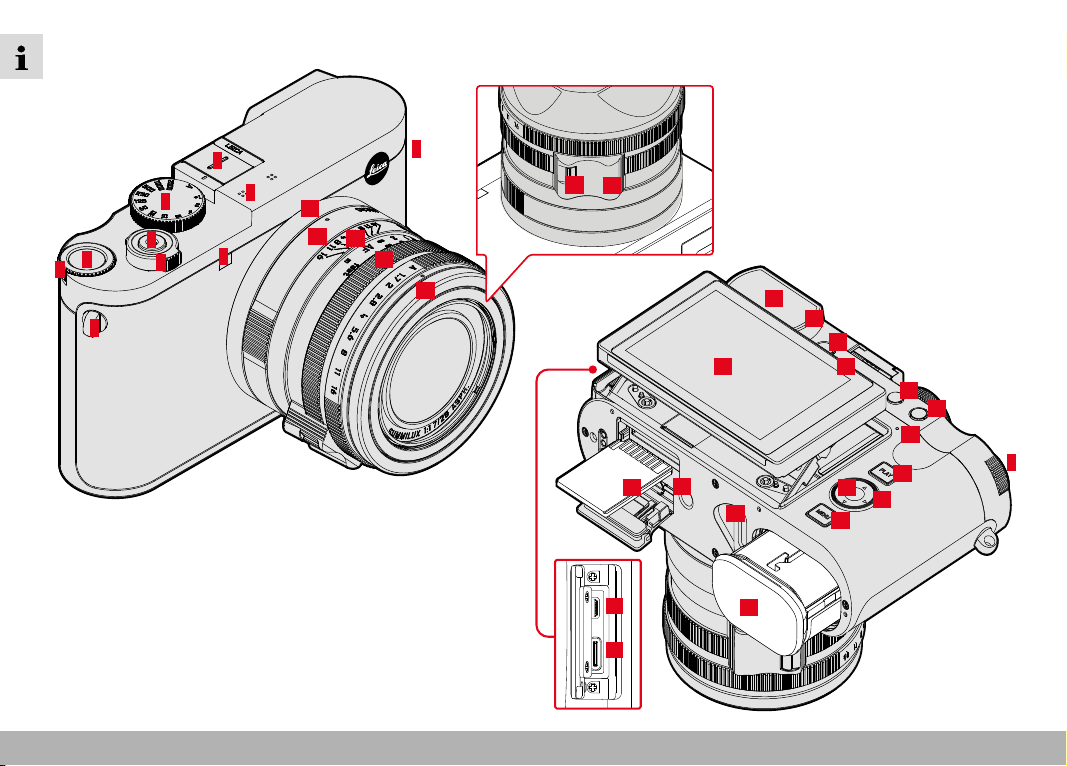
PART DESIGNATIONS
6
4
5
1
2
3
8
7
6
28
29
30
31
9
32
33
34
21
10
11
12
13
20
19
14
15
25
17
24
23
22
4
18
16
27
26
PART DESIGNATIONS
23
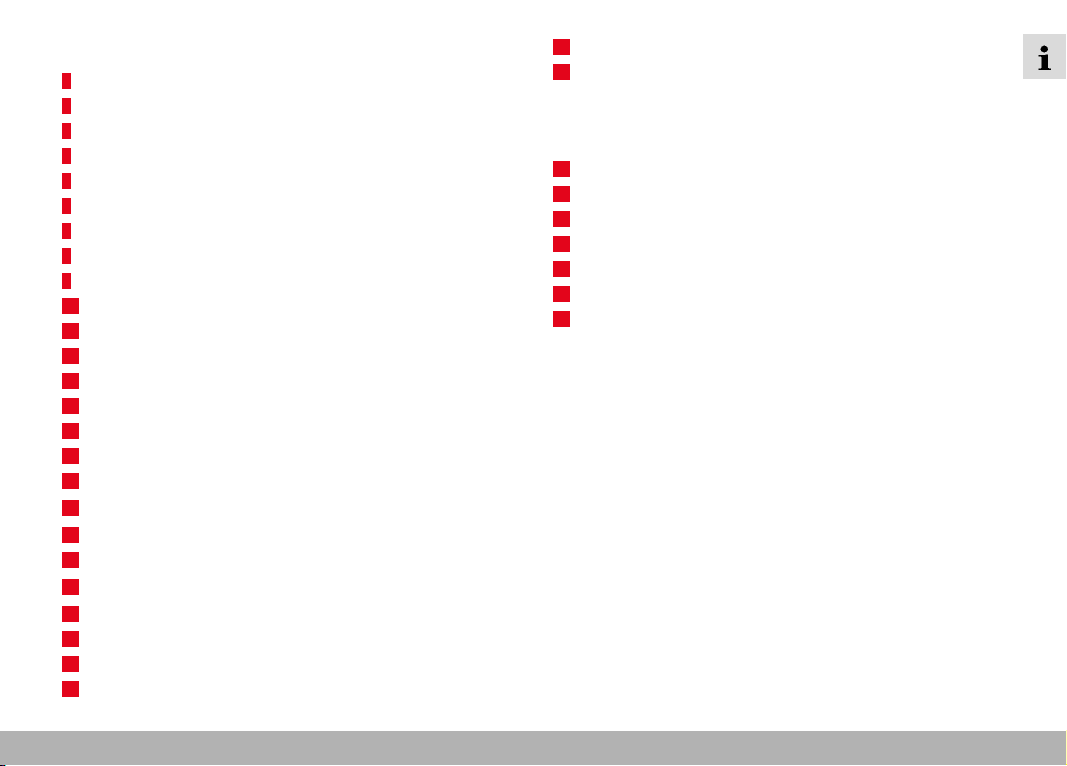
LEICA Q3
1
Main switch
2
Shutter button
3
Shutter-speed dial
4
Thumbwheel
5
Thumbwheel button
6
Strap lugs
7
Accessory shoe
8
Microphone
9
Self-timer LED / AF assist lamp
10
Viewfinder eyepiece
11
Eye sensor
12
Diopter wheel
13
FN Button 1 (function button)
14
FN Button 2 (function button)
15
LCD panel
16
Speaker
17
Status LED
18
PLAY button
19
Center button
20
Directional pad
21
MENU
button
22
Battery compartment
23
Battery release lever
24
Tripod thread
25
Memory card slot
26
HDMI output
27
USB-C output
LENS “SUMMILUX 28 f/1.7 ASPH.”
28 Alignment point for macro function
29 Macro ring
30 Focus ring
31 Aperture ring
32 Thread protection ring
33 AF/MF lock release
34 Focus tab
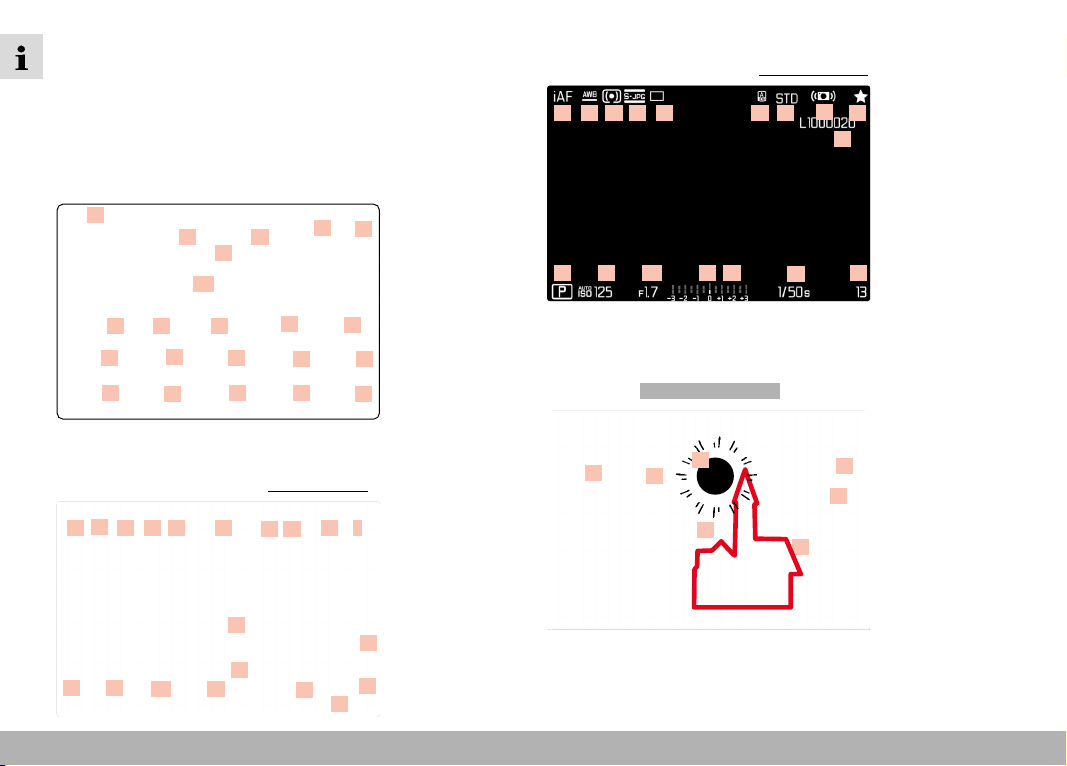
DISPLAYS ▸ PHOTO
24
DISPLAYS
The images displayed on the LCD panel and in the viewfinder are
identical.
PHOTO
STATUS SCREEN
01
04 05
07
06
08
13
18
14
19
15
20
16
21
17
22
09
10
11
12
02
03
IN SHOOTING MODE
All displays/values refer to the actual settings.
13
16
26
02
10
0609
1108
18 20 325
27
28
15
19
24
23
IN REVIEW MODE
All displays/values refer to the displayed image.
13 16
31
10
0609
1108
18
20
30
25
29
15 24
19
ACTIVATED Capture Assistants
22:45 PM 22.02.2012
999-9000
8234/999912MP
2.8F 1/8000 12500ISO EV
INFO
36
35
32
34
33
38
37
07
07
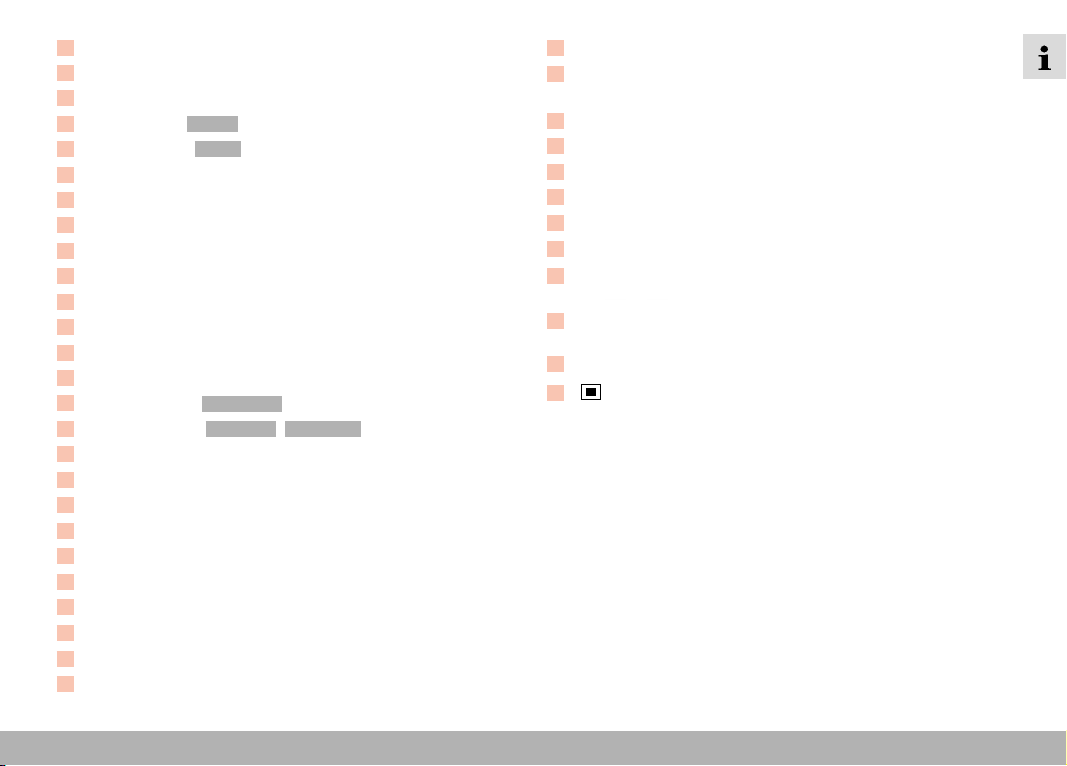
DISPLAYS ▸ PHOTO
25
01
Focal length
02
Remaining storage capacity
03
Battery capacity
04
Menu section PHOTO
05
Menu sections VIDEO
06
Light balance
07
Exposure compensation scale
08
Exposure mode
09
Aperture value
10
Shutter speed
11
ISO Sensitivity
12
Exposure compensation value
13
Focus mode
14
Autofocus metering method
15
Shooting mode ( Drive Mode )
16
Color rendering ( Film Style / Leica Look )
17
User profile
18
Exposure metering method
19
White balance mode
20
File format/compression level/resolution
21
Leica FOTOS
22
Favorites menu / Main menu
23
Flash mode/flash exposure compensation
24
iDR
25
Stabilization activated
26
AF Field
27
Bluetooth
®
(Leica FOTOS)
28
Geotagging
Automatic storage of the shooting location (Exif data)
29
Icon for marked picture
30
File name
31
File number of the image shown
32
Histogram
33
Grid lines
34
Clipping identification of overexposed subject elements
35
Automatic magnification as focus assistance for manual focusing
(3x
or 6x magnification available)
36
Focus peaking
(identification of in sharp edges in the object)
37
Level gauge
38
Display of cropped section size and position
(only visible for enlarged sections)
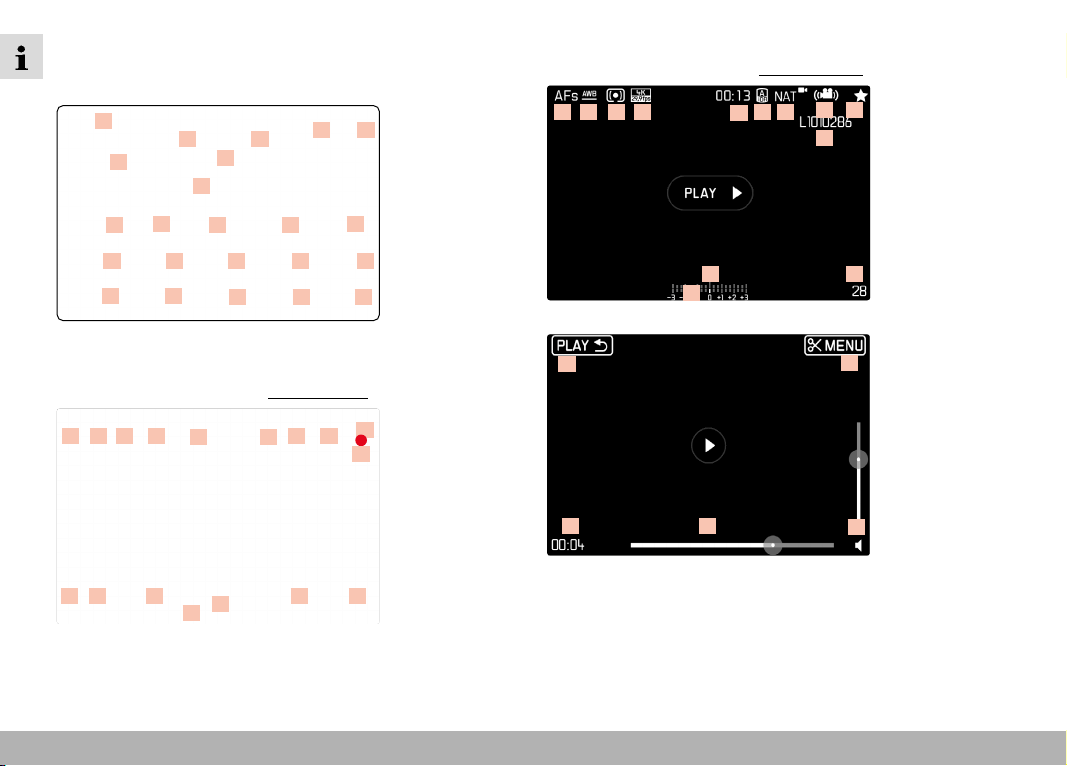
DISPLAYS ▸ VIDEO
26
VIDEO
STATUS SCREEN
39
42 43
46
45
47
52
57
53
58
54
59
55
60
56
61
48
49 50
51
40 41
44
IN RECORDING MODE
All displays/values refer to the actual settings.
52
40494847 50
45
57
55
58
41
63
64
59
44
62
IN PLAYBACK MODE
All displays/values refer to the displayed video.
5557
67
6845
65
63
5852 59 62
66
69
71 72
73
70
46
46
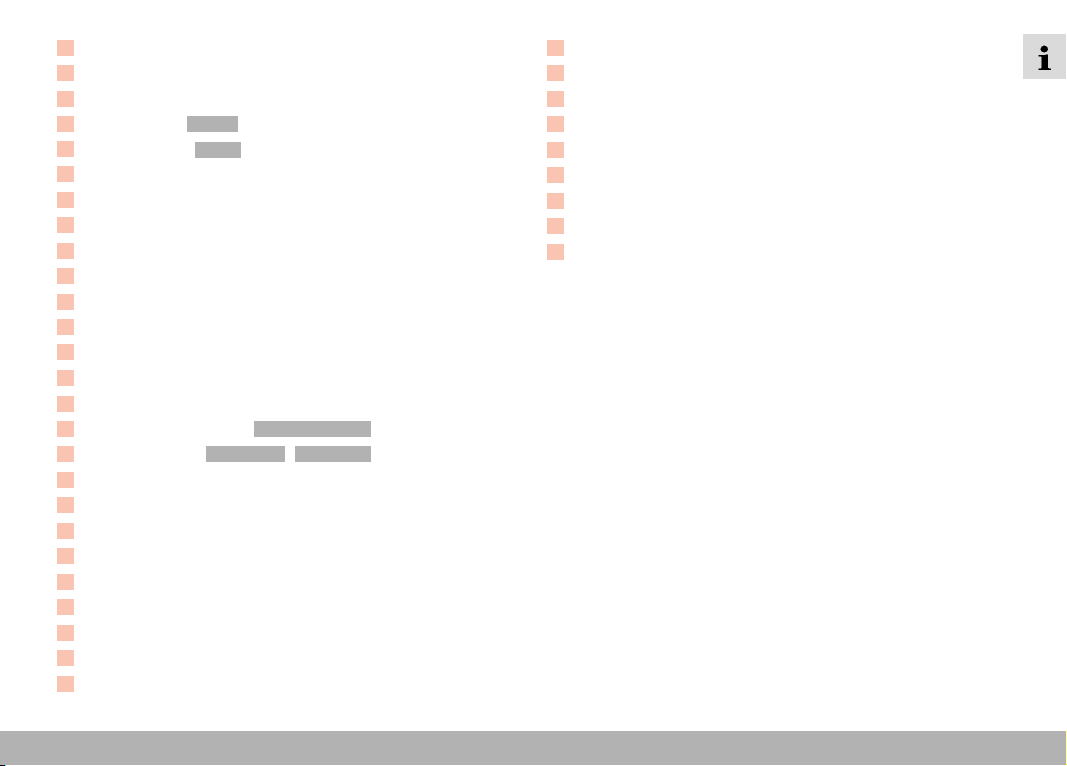
DISPLAYS ▸ VIDEO
27
39
Focal length
40
Remaining storage capacity
41
Battery capacity
42
Menu section PHOTO
43
Menu sections VIDEO
44
Microphone recording level
45
Light balance
46
Exposure compensation scale
47
Exposure mode
48
Aperture value
49
Shutter speed
50
ISO Sensitivity
51
Exposure compensation value
52
Focus mode
53
Autofocus metering method
54
Microphone sensitivity ( Microphone Gain )
55
Color rendering ( Video Style / Leica Look )
56
User profile
57
Exposure metering method
58
White balance mode
59
Resolution / Frame rate
60
Leica FOTOS
61
Favorites menu / Main menu
62
iDR
63
Stabilization activated
64
Indicates for video recording in progress
65
Length of video recording
66
Icon for marked video recording
67
File name
68
File number of the video recording shown
69
Exiting video playback
70
Video editing function
71
Current playback time
72
Playback status bar
73
Volume bar
DISPLAYS ▸ VIDEO
28
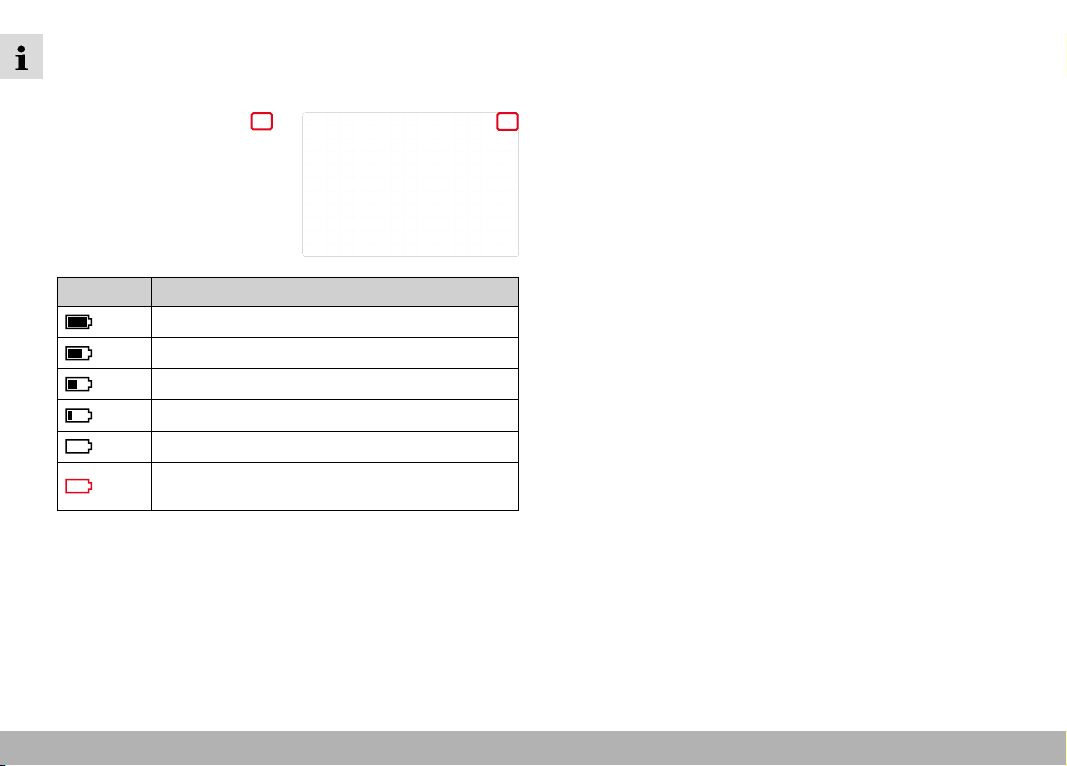
CHARGE STATUS INDICATOR ON THE LCD PANEL
The battery charge status is displayed in the status screen and in
the header line at the top right.
Display Charge status
Approx. 80 – 100%
Approx. 60 – 79%
Approx. 40 – 59%
Approx. 20 – 39%
Approx. 1 – 19%
Approx. 0%
The battery needs charging or replacing

29
PREPARATION ▸ ATTACHING THE CARRY STRAP / PREPARING THE CHARGER
30
PREPARATION
Please read the chapters “Legal information”, “Safety remarks”, and
“General information” before using your camera for the first time.
Knowledge of the content will prevent inadvertent damage to the
product, possible injuries and other risks.
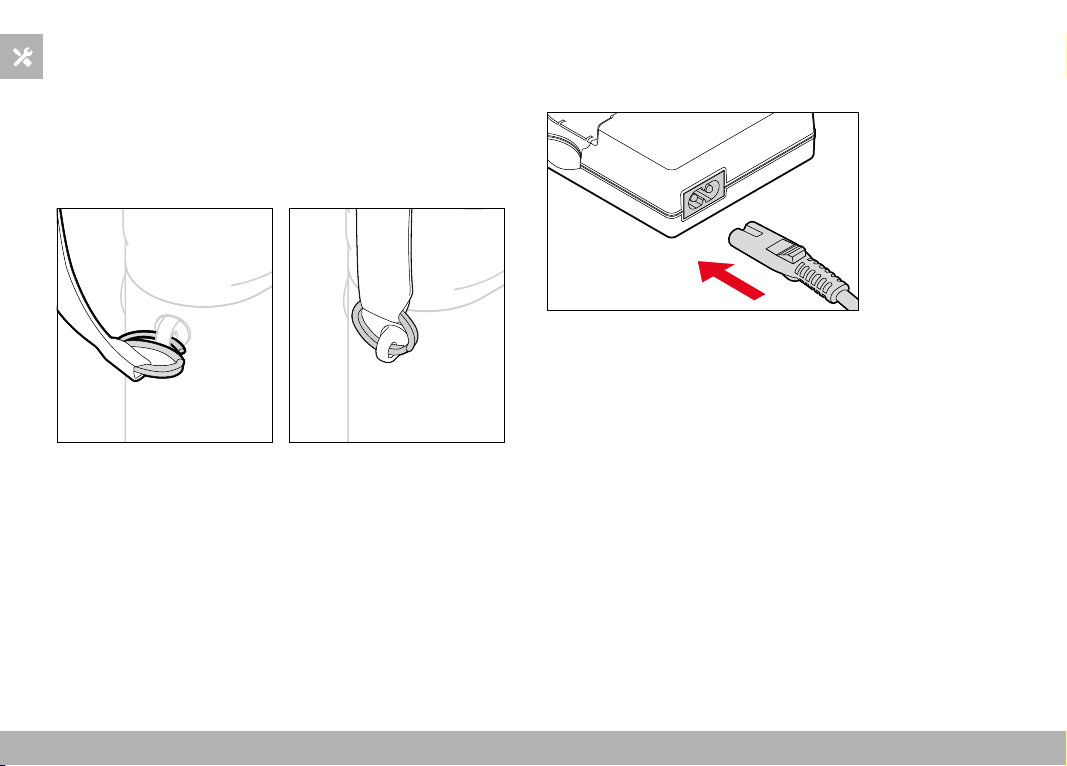
ATTACHING THE CARRY STRAP
Attention
• Once you have attached the carry strap, please make sure that
the clips are mounted correctly to prevent the camera from
falling.
PREPARING THE CHARGER
Use the mains cable with the matching regional plug to connect the
charger to mains electricity.
Note
• The charger will automatically adapt to local mains voltage.
PREPARATION ▸ CHARGING THE BATTERY
31
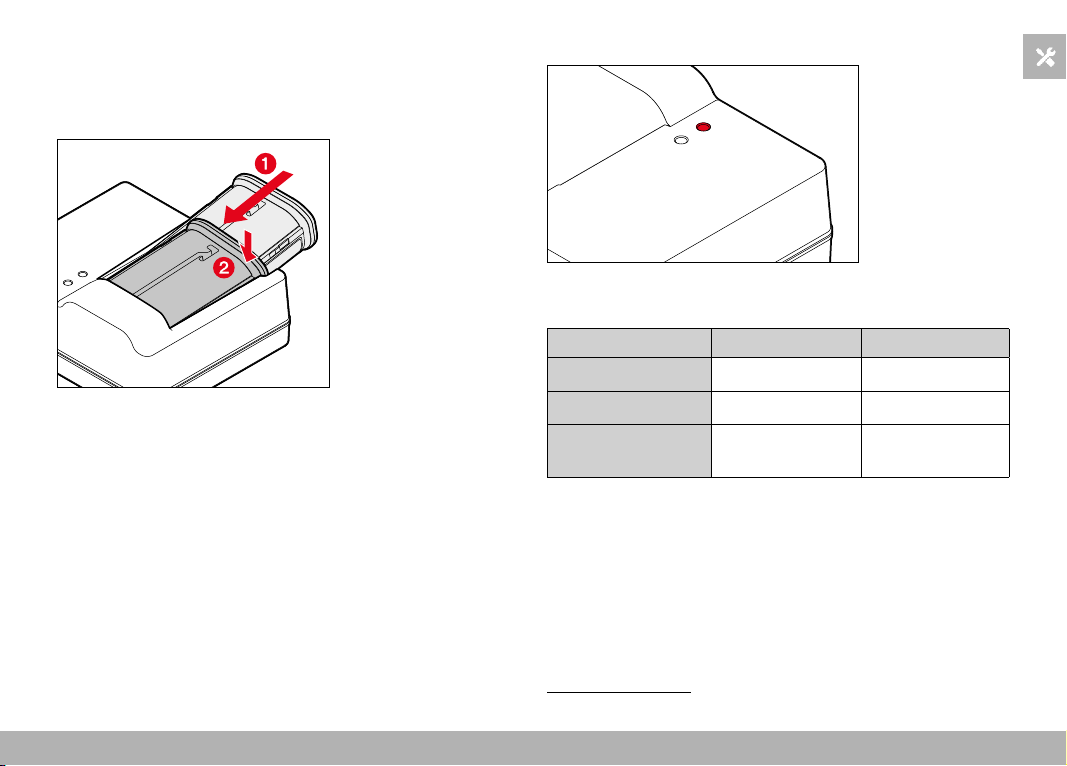
CHARGING THE BATTERY
The camera is powered by a lithium-ion battery.
INSERTING THE BATTERY IN THE CHARGER
▸ Slide the battery into the charger with the groove facing up until
the contacts meet
▸ Press down on the battery until you can hear and feel it clicking
into place
▸ Ensure that the battery is fully inserted into the charger
REMOVING THE BATTERY FROM THE CHARGER
▸ Tilt the battery up and lift it out at an angle
CHARGE STATUS INDICATORS ON THE CHARGER
CHARGE
80%
The status LED indicates a correct charging process.
Display Charge status Charge time*
CHARGE flashes green
Battery is charging
80% lights up orange
80% Approx. 2 h
CHARGE continuous
green light
100% Approx. 3.5 h
Disconnect the charger from mains electricity when the charging
process is complete. There is no risk of overcharging.
* starting from a discharged state
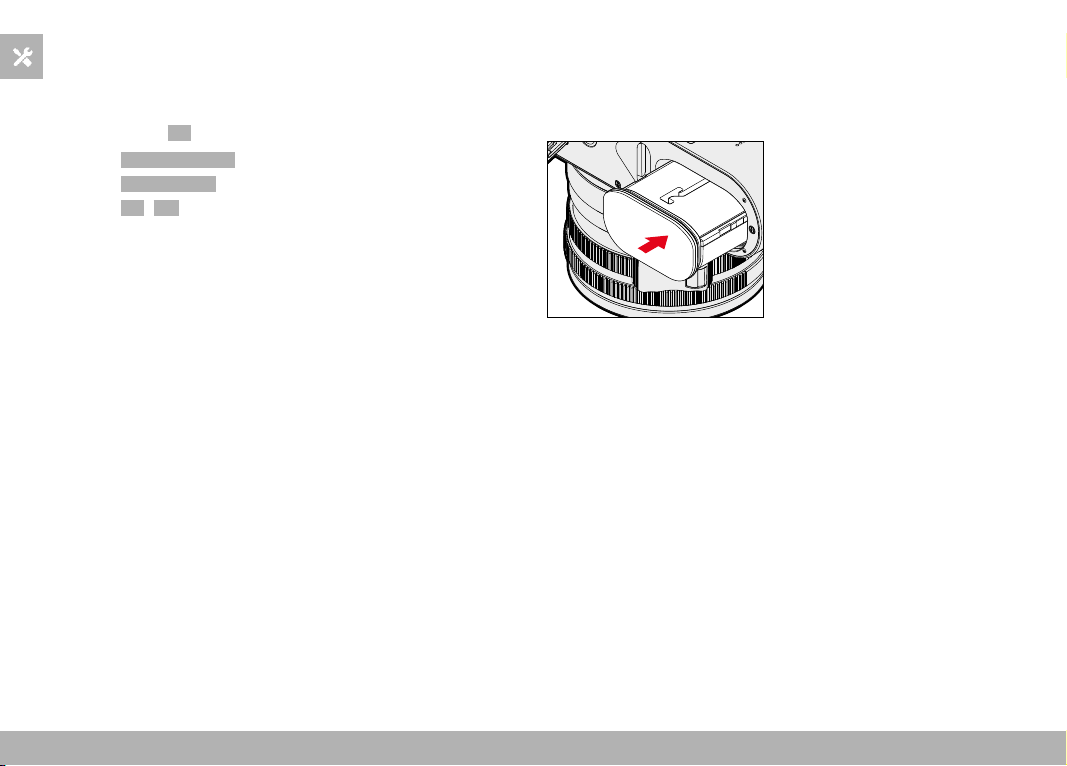
PREPARATION ▸ INSERTING/REMOVING THE BATTERY
32
CHARGING VIA USB
The rechargeable battery in the camera can be automatically
charged when the camera is connected to a computer or another
suitable power source via USB cable.
Factory setting:
On
▸ Select Camera Settings in the main menu
▸ Select
USB Charging
▸ Select On / Off
Notes
• A 9 V/3 A (≥ 27 W) switching adapter is required to charge the
battery while the camera is switched on. The camera can still be
operated when a lesser switching adapter is used, but the battery
will still discharge slowly.
• The charging will start automatically.
INSERTING/REMOVING THE BATTERY
▸ Ensure that the camera is switched OFF (see p. 38)
INSERTION
▸ Insert the battery into the slot with the groove pointing towards
the LCD panel and gently push until you hear and feel it clicking
into place
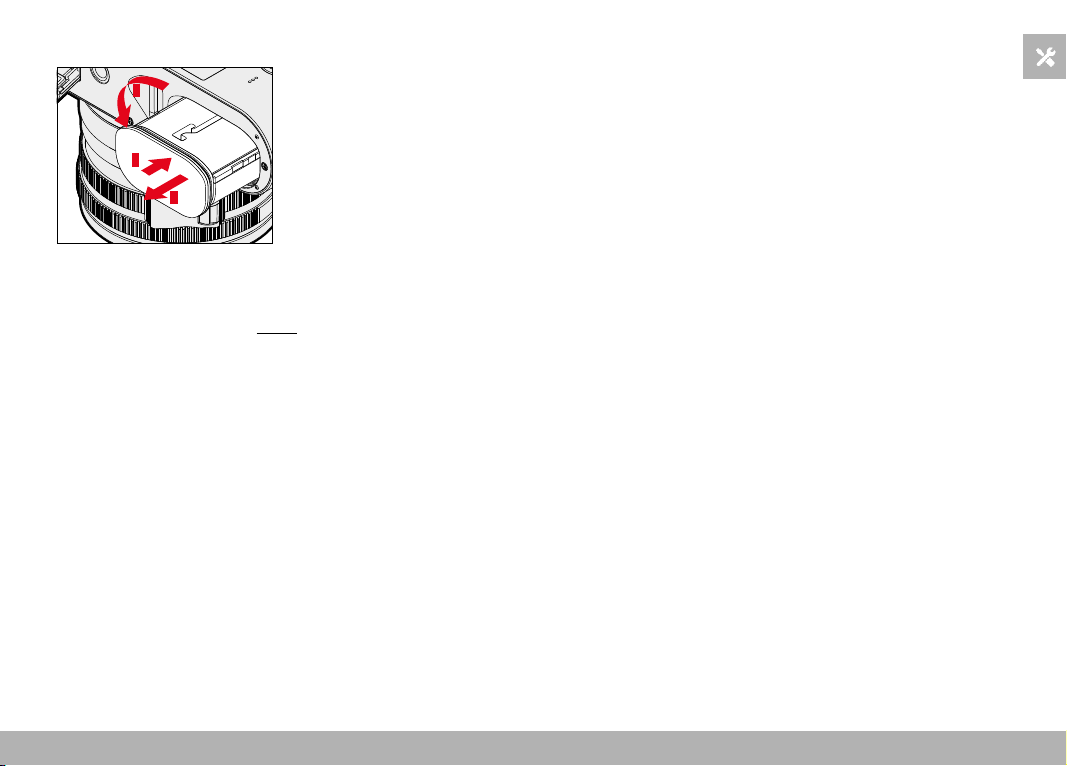
PREPARATION ▸ INSERTING/REMOVING THE MEMORY CARD
33
REMOVAL
1
2
3
▸ Turn the battery release lever
• Battery is pushing out slightly.
▸ Press down on the battery lightly
• The battery unlocks and pushes out fully.
▸ Remove the battery
Important
• Removing the battery while the camera is switched on may result
in the loss of custom settings or damage to the memory card.
INSERTING/REMOVING THE MEMORY CARD
The camera will save exposures to an SD (Secure Digital), SDHC
(High Capacity) or SDXC (eXtended Capacity) memory card.
Notes
• SD/SDHC/SDXC memory cards are available from various sup-
pliers in a range of sizes and with differing read/write speeds.
Memory cards with high storage capacities and high read/write
speeds offer quick storage and rendering.
• The memory card may not be supported (capacity) or will have
to be formated in the camera before first use (see p. 79). The
camera will in that case display a relevant message. Please see
the section “Technical Data” for information about supported
cards.
• Check the memory card for correct alignment if you are having
difficulties inserting it into the camera.
• See p. 10 and p. 13 for additional information.
• Video shootings require a high write speed.
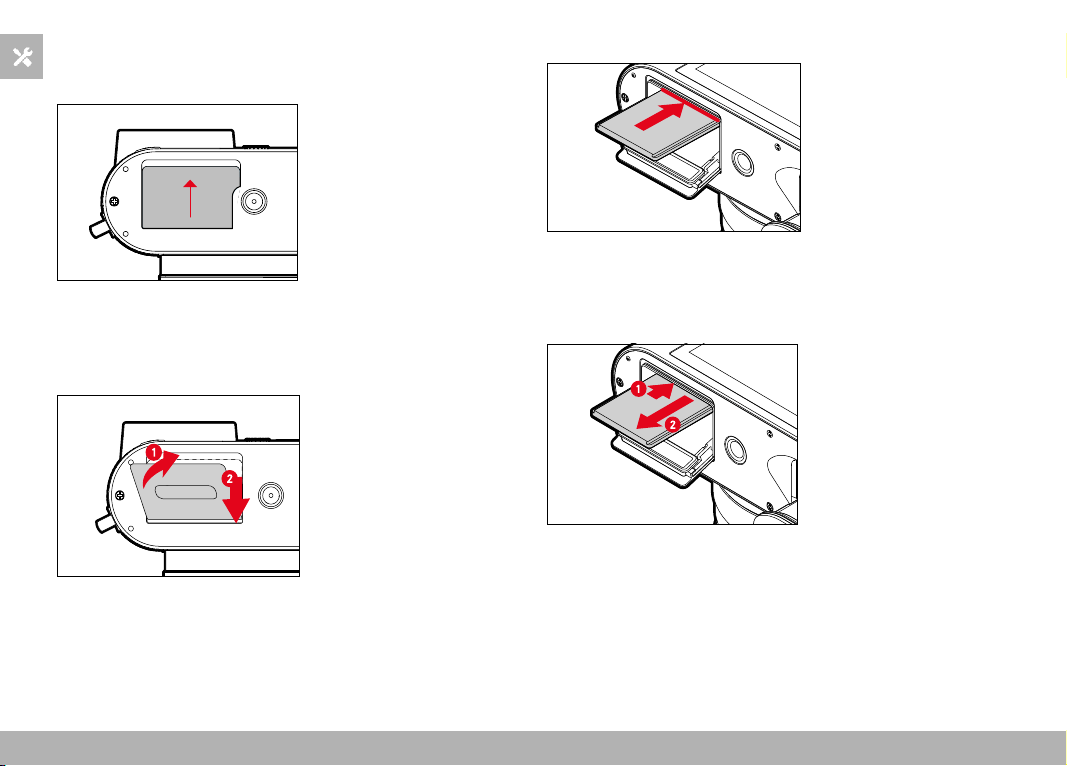
PREPARATION ▸ INSERTING/REMOVING THE MEMORY CARD
34
▸ Ensure that the camera is switched OFF (see p. 38)
OPENING THE COVER OVER THE MEMORY CARD SLOT
▸ Slide the cover as shown in the illustration until you hear a click
• The cover lifts automatically.
CLOSING THE COVER OVER THE MEMORY CARD SLOT
▸ Close and hold down the cover
▸ Slide the cover as shown in the illustration until it audibly clicks
into place
INSERTION
▸ Push the memory card into the slot with the contacts pointing to-
wards the LCD panel until you hear and feel it clicking into place
REMOVAL
▸ Push down on the card until you hear a click
• The card pushes out slightly.
▸ Remove the memory card
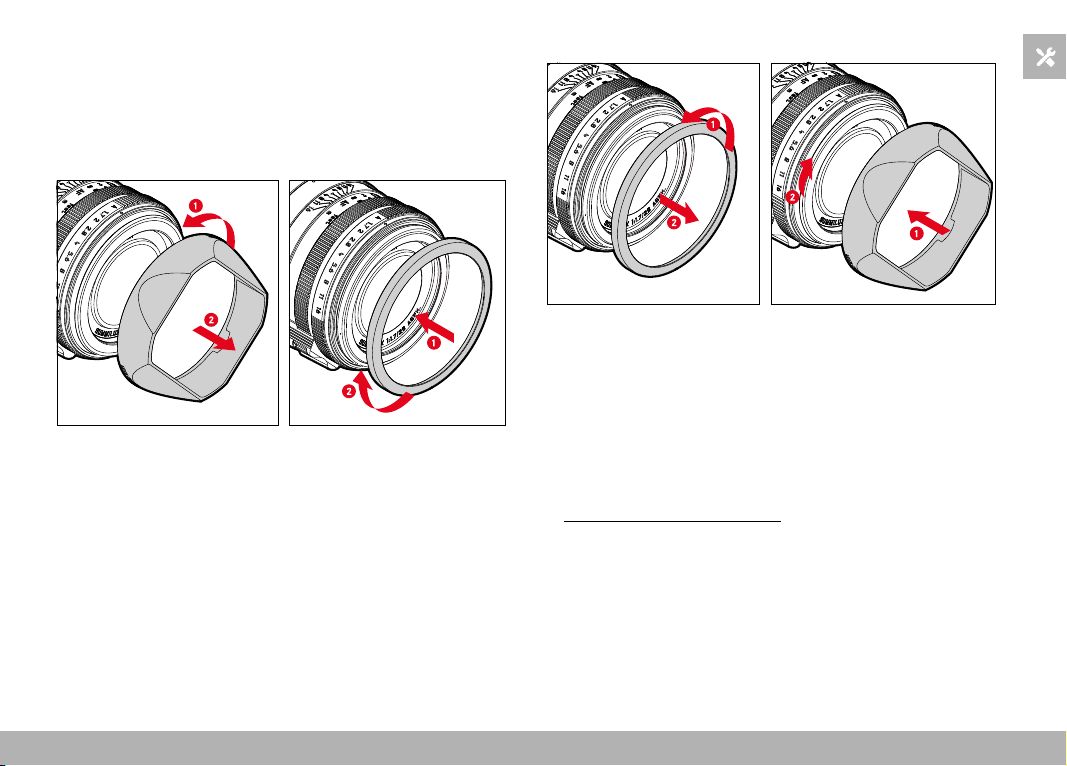
PREPARATION ▸ ATTACHING/DETACHING THE LENS HOOD
35
ATTACHING/DETACHING THE LENS HOOD
This camera comes with a matching lens hood. It is pre-mounted ex
works.
The use of the lens hood is recommended to reduce vignetting.
DETACHING
Fig. 1 Fig. 2
▸ Unscrew the lens hood in counter-clockwise direction (Fig. 1)
▸ Screw on the thread protection ring (Fig. 2)
ATTACHING
Fig. 1 Fig. 2
▸ Unscrew the thread protection ring in counter-clockwise direction
(Fig. 1)
▸ Screw on the lens hood in clockwise direction to the stop (Fig. 2)
Notes
• The lens hood cover supplied will only fit the lens hood and can-
not be used as lens cover on its own.
• A matching lens front cap E49 (Order No. 14001) is available as
an optional accessory for use of the camera without a lens hood:
https://store.leica-camera.com
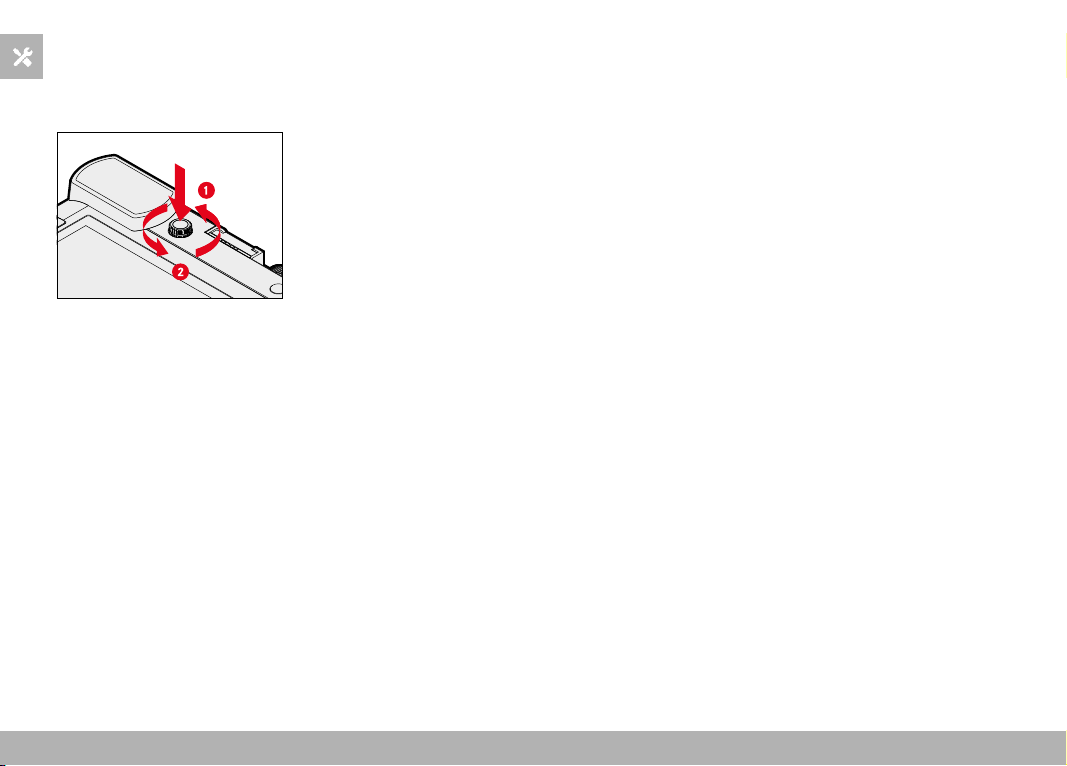
PREPARATION ▸ DIOPTER SETTINGS
36
DIOPTER SETTINGS
The viewfinder has a diopter setting function with a range between
-4 and +2 diopter to allow glasses wearers the use of the camera
without eyeglasses (diopter compensation).
▸ Push the diopter wheel into its groove until you hear an audible
click
• This unlocks the diopter wheel and it pushes out a little.
▸ Look through the viewfinder
▸ Aiming at and focusing on an object
▸ Push the diopter wheel back into its groove until it audibly clicks
into place

37
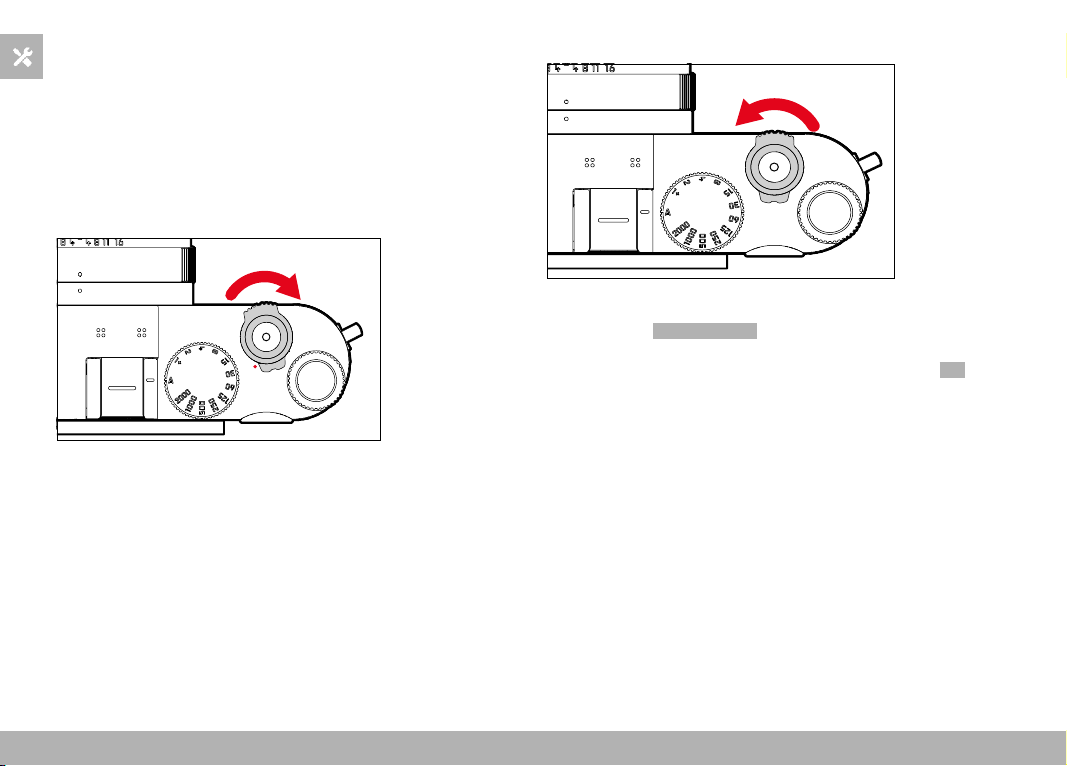
CAMERA OPERATION ▸ CONTROL ELEMENTS
38
CAMERA OPERATION
CONTROL ELEMENTS
MAIN SWITCH
The main switch switches the camera on and off.
SWITCHING THE CAMERA ON
Notes
• Once switched on, the camera will be ready to use after approx.
1 s.
• The LED lights up briefly and the displays in the viewfinder appear.
SWITCHING THE CAMERA OFF
Note
• The function Auto Power Off (
see p. 65) deactivates the camera
automatically if no operation occurs within a preset time. Use the
main switch to deactivate the camera if this function is Off to
prevent inadvertent exposures and battery discharge when the
camera is not in use.
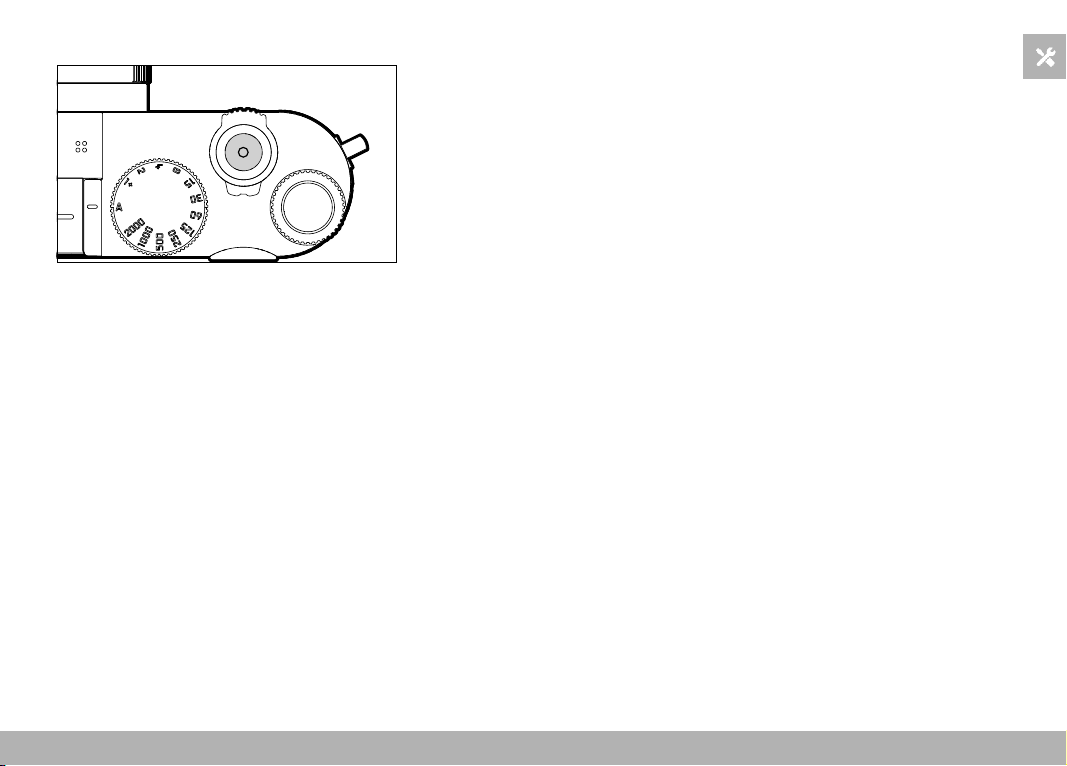
CAMERA OPERATION ▸ CONTROL ELEMENTS
39
SHUTTER BUTTON
The shutter button works in two stages.
1. Tapping (= Pressing the shutter button to the 1st pressure point)
– Activating the camera electronics and displays
– Exposure lock (metering & saving):
– AF mode: range measurement (AF-L)
– (semi) automatic exposure mode: exposure metering (AE-L)
– Canceling a running self-timer delay time
– Return to shooting mode
– from review mode
– from menu control
– from standby mode
2. Press down fully
– Shutter release
• The data is then transferred to the memory card.
– Starting a video shooting
– Starting a preselected self-timer delay time
– Starting a continuous shooting or interval shooting
Notes
• Press down the shutter button in a smooth motion until you hear
the click of the shutter to prevent camera shake.
• The shutter button remains locked:
– if the memory card inserted and/or the internal buffer memory
are (temporarily) full
– if the battery has exceeded its performance limits (capacity,
temperature, age)
– if the memory card is write-protected or damaged
– if the sensor is too hot
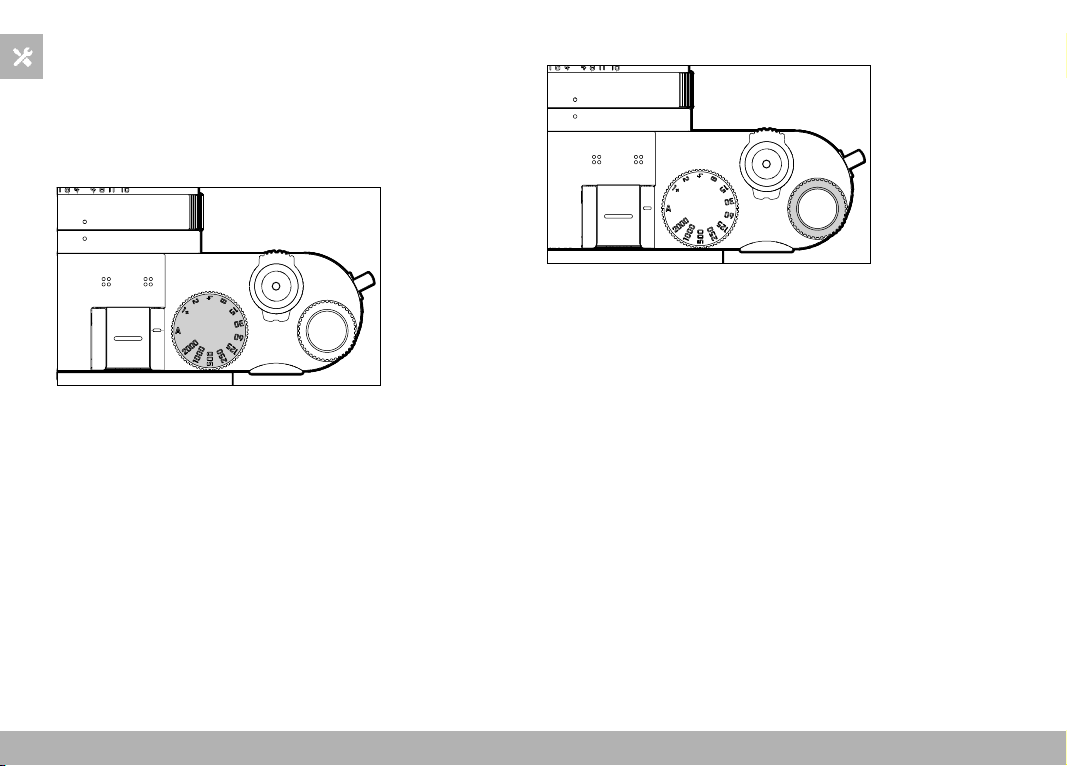
CAMERA OPERATION ▸ CONTROL ELEMENTS
40
SHUTTER-SPEED DIAL
The shutter-speed dial has no stop, which means it can be turned
in either direction from any position. It will click at each engraved
position and for intermediate values. Intermediate positions outside
the click positions must not be used. Please read the section “Ex-
posure” (see p. 107 and 199) for details about correct exposure
settings.
– A: aperture-priority mode
(Automatic shutter speed control)
– 2000 - 1+: Fixed shutter speeds
THUMBWHEEL
– Menu navigation
– Exposure compensation value selection
– Setting the ISO value
– Enlarging/reducing viewed images
– Setting selected menu items/functions
– Setting the program shift
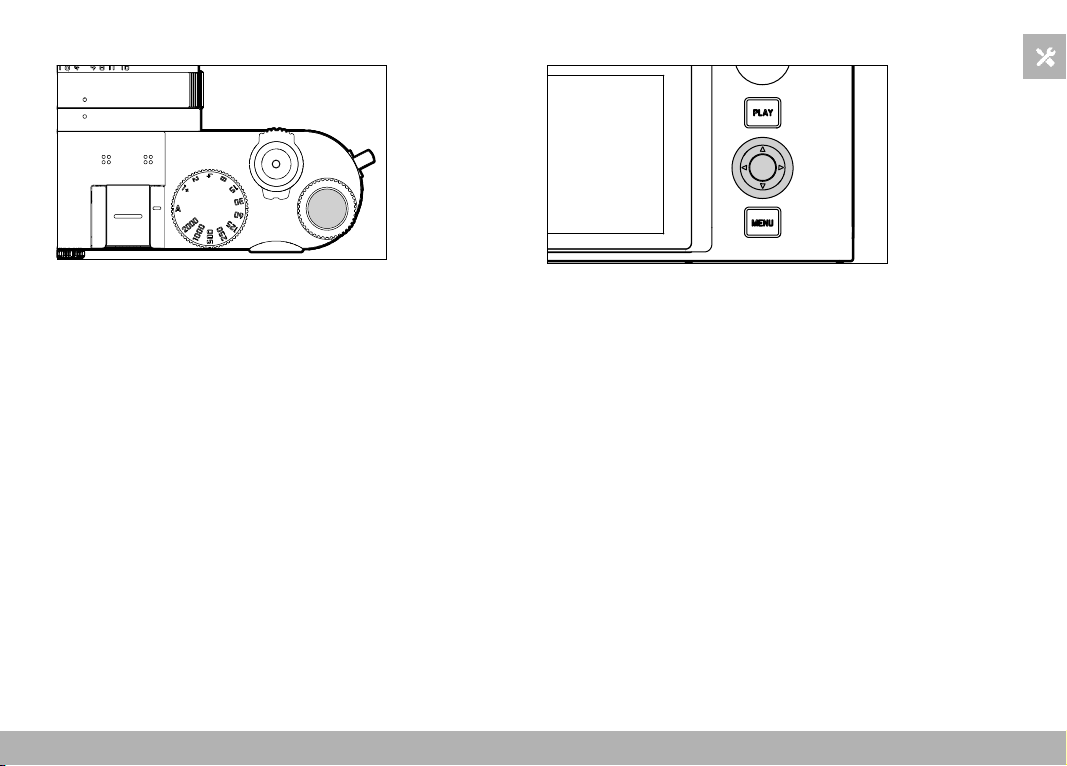
CAMERA OPERATION ▸ CONTROL ELEMENTS
41
THUMBWHEEL BUTTON
– Applying menu settings
– Direct access to menu functions
– Accessing the submenu
DIRECTIONAL PAD/CENTER BUTTON
DIRECTIONAL PAD
– Menu navigation
– Setting selected menu items/functions
– Scrolling through the gallery
– Shifting the focus frame
CENTER BUTTON
– Accessing the information display
– Accessing the submenu
– Applying menu settings
– Displaying settings/data in shooting mode
– Displaying image data in review mode
– Playback of video recordings
– Confirming the prompts
– Direct access to menu functions
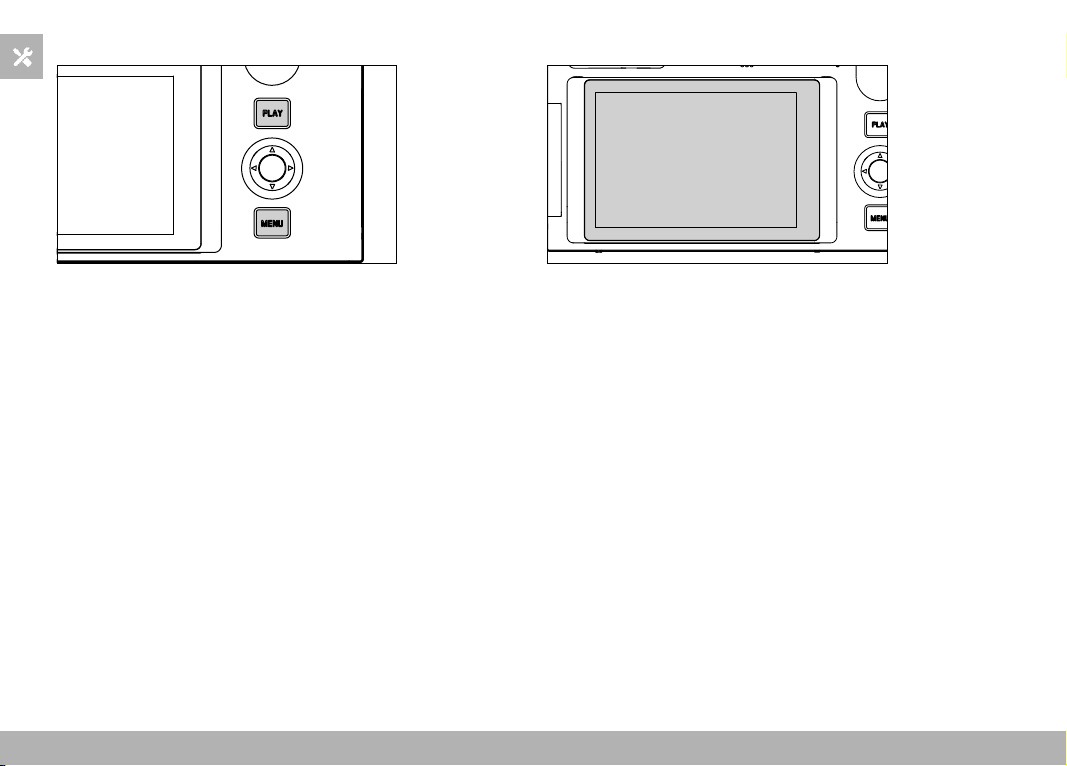
CAMERA OPERATION ▸ CONTROL ELEMENTS
42
PLAY BUTTON/MENU BUTTON
PLAY BUTTON
– Activation and deactivation of the (continuous) review mode
– Return to full-screen display
MENU BUTTON
– Accessing the menu (incl. status screen)
– Accessing the play menu
– Exiting the currently displayed (sub) menu
LCD PANEL
– Displaying most important current settings
– Quick access to some menus
– Touch control
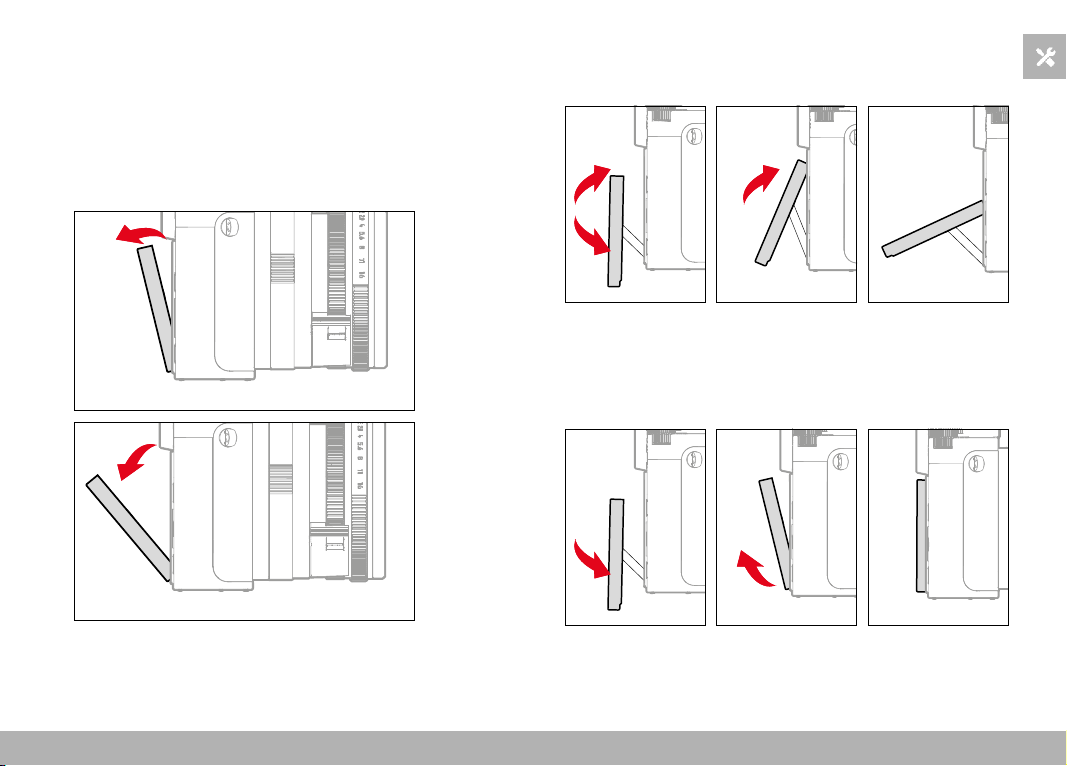
CAMERA OPERATION ▸ CONTROL ELEMENTS
43
FOLDING OUT THE SCREEN
The screen can be folded out and up or out and down. A convenient
feature for taking pictures from a very low or very high perspective.
The screen folds out in two steps.
Folding out the screen
▸ Grasp the screen at the upper edge.
▸ Carefully fold out the screen along the hinge on the lower edge
Aligning the screen
▸ Once folded out, the screen can be rotated around its center axis
to se the desired angle
Folding the screen in
▸ Swivel the screen downward on its center axis as needed
▸ Once straight, fold the screen along its hinge on the bottom edge
to lie flat against the rear of the camera
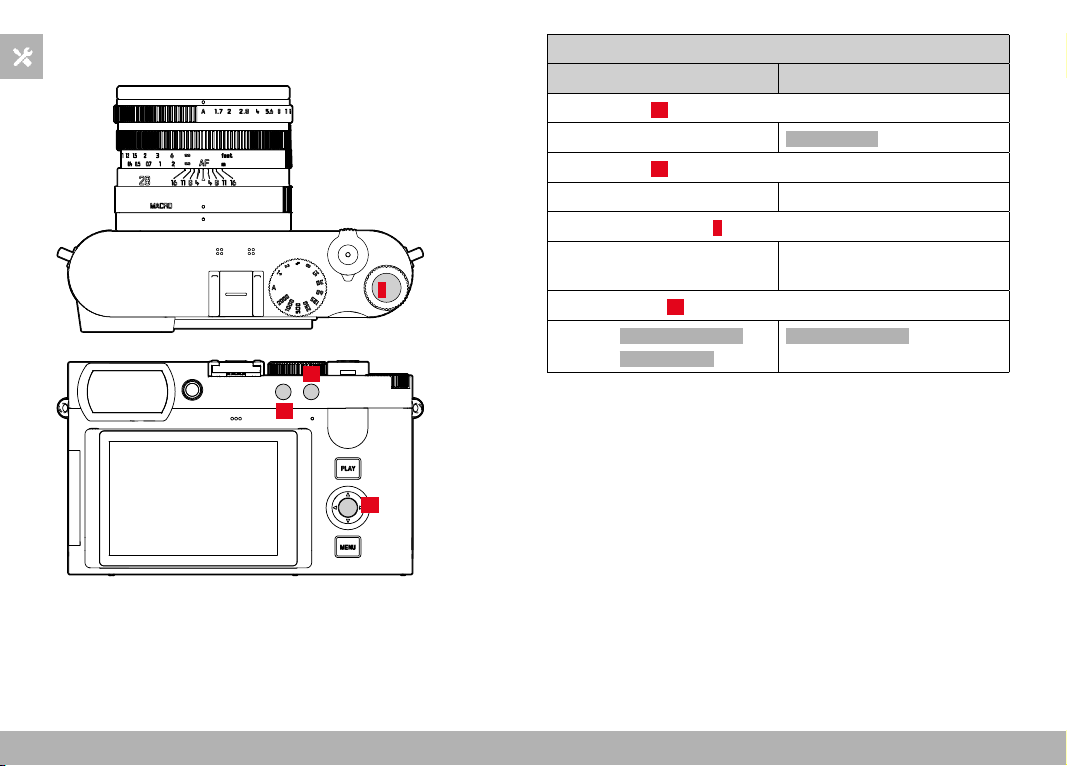
CAMERA OPERATION ▸ CONTROL ELEMENTS
44
FUNCTION BUTTONS
5
19
13
14
Direct access to various menus and functions. All function buttons
can be custom configured (see p. 59).
FACTORY SETTINGS
In shooting mode In review mode
FN button 1 (13)
Digital zoom
Delete Single
FN button 2 (14)
Mode change (photo/video) Rating photos
Thumbwheel button (5)
ISO settings Enlarging/reducing viewed
images
Center button (19)
– Photo: Toggle Info Levels
– Video: Magnification
Toggle Info Levels
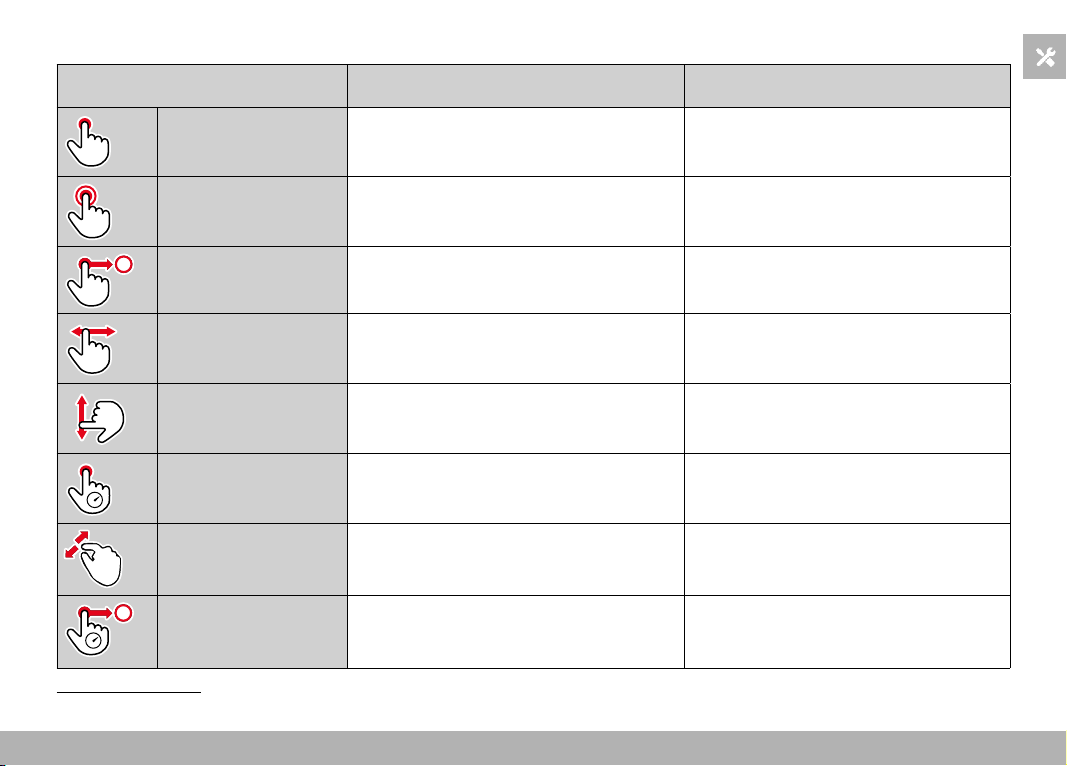
CAMERA OPERATION ▸ CONTROL ELEMENTS
45
LCD PANEL (TOUCH SCREEN)
TOUCH CONTROL* In shooting mode In review mode
“tap” Shifting the AF frame and focusing
(while Touch AF is activated)
Selecting images
“double tap” Resetting the AF frame Enlarging/reducing viewed images
“swipe” Scrolling through the gallery
Shifts the enlarged image section
“horizontal swipe”
(full length)
Mode change (photo/video) Scrolling through the gallery
“vertical swipe”
(full length)
Switching to review mode Switching to shooting mode
“tap and hold” Accessing the AF Quick Setting
“two-finger pinch”
“two-finger spread”
Changing the size of the AF frame
(in specific AF modes)
Enlarging/reducing viewed images
“swipe and hold”
“hold and swipe”
Continuous scrolling
* A light touch is enough, don't apply pressure.
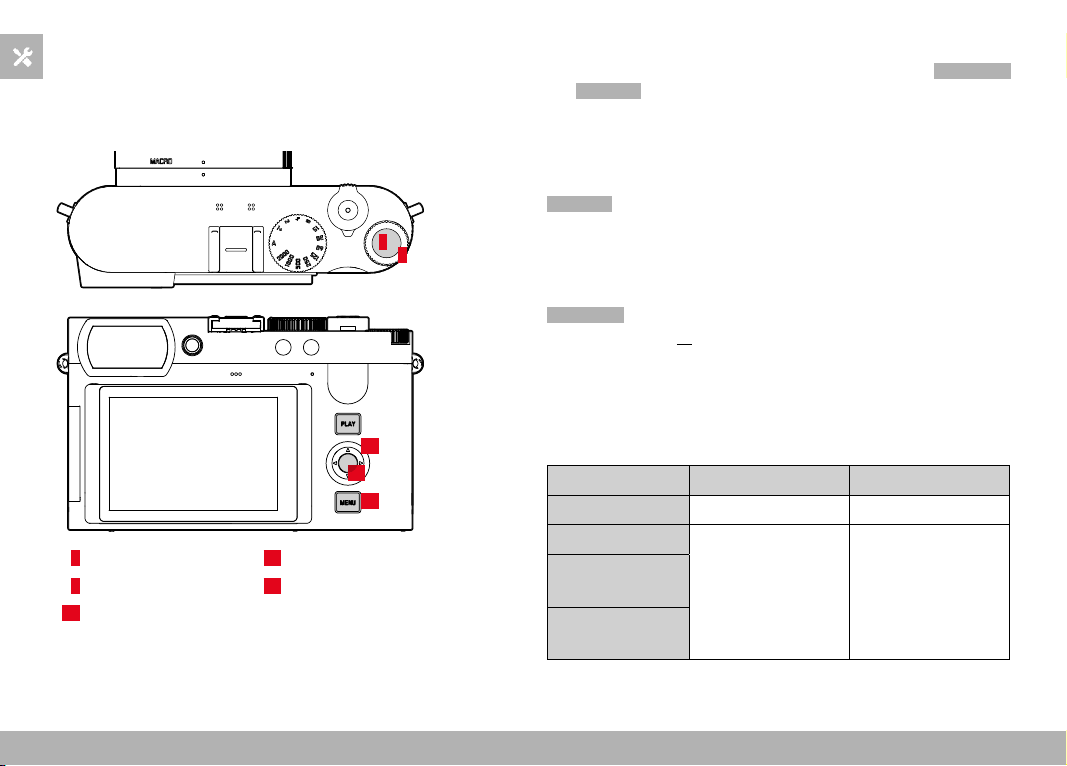
CAMERA OPERATION ▸ MENU CONTROL
46
MENU CONTROL
CONTROL ELEMENTS
The following elements are used for menu control.
5
19
20
21
4
4
Thumbwheel
20
Directional pad
5
Thumbwheel button
21
MENU button
19
Center button
MENU SECTIONS
The following menu sections are available: Status Screen,
Main Menu
and Favorites .
Status screen:
– quick access to the most important settings
Favorites :
– your custom list (see p. 58 for details on how to manage this list)
• The favorites menu can only be displayed if it has at least one
menu item assigned.
Main Menu :
– offers access to all menu items
– contains various submenus
The currently active operating mode (Photo or Video) is highlighted
in color in all menu areas.
Section PHOTO VIDEO
Status screen Dark background Bright background
Favorites
Dark header line Bright header line
Main menu
(top level)
Main menu
(Submenus)
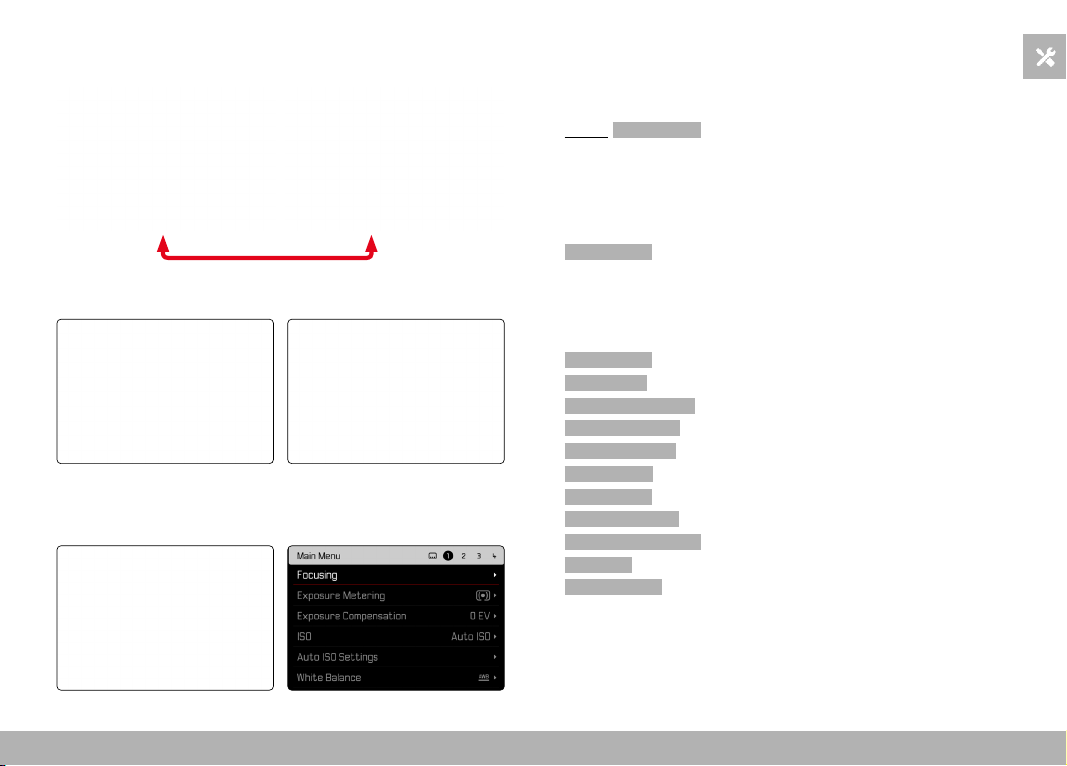
CAMERA OPERATION ▸ MENU CONTROL
47
STATUS SCREEN
Photo Video
FAVORITES
MAIN MENU
SETTINGS IN PHOTO AND VIDEO MODE
The available settings depend on the operating mode (Photo or
Video) currently in use.
– All menu items and their sub items available in the main menu
before
Digital Zoom are mode-specific. That means that any
changes made here, will only apply for the operating mode
currently in use. Any menu items of the same name in the other
operating mode will be unaffected. That includes settings for
focusing, exposure metering or white balance.
– All settings and functions after that in the main menu (including
Digital Zoom ) are available in both operating modes and have
global effect. A setting selected in one of the modes will also
apply to the other.
Settings and functions with global effect are:
–
Digital Zoom
– User Profile
– Capture Assistants
– Play Mode Setup
– Display Settings
– Leica FOTOS
– Format Card
– Camera Settings
– Camera Information
– Language
– Reset Camera
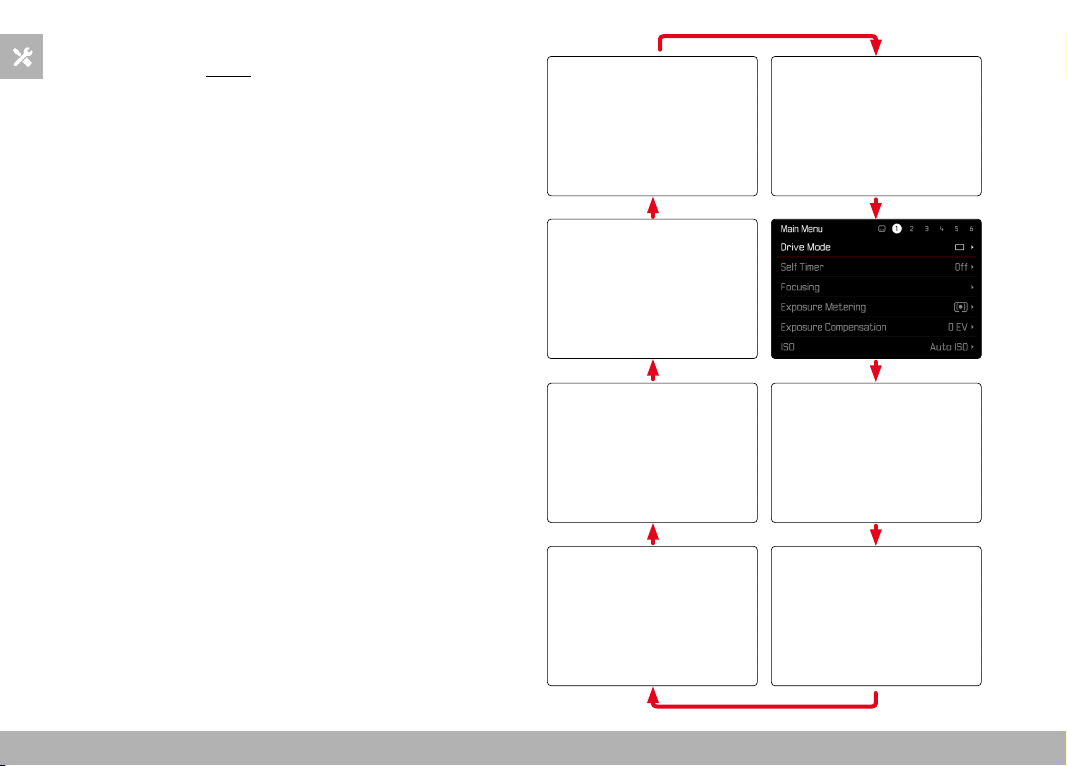
CAMERA OPERATION ▸ MENU CONTROL
48
SWITCHING MENU SECTIONS
The status screen will always be displayed as the first menu section.
The top level of the menu is organized into “pages”, which are dis-
played in the header line: Status screen, poss. Favorites menu (up
to 2 pages), and several sections of the Main menu. You can switch
between menu sections by scrolling through the pages. Alterna-
tively, the status screen and the favorites menu offer access to the
main menu as their respectively last menu item.
Scrolling forward
▸ Press the
MENU button
• The status screen will appear again after the last page of the
main menu.
Scrolling backward
▸ Press the directional pad left
• In reverse order, you can only browse back to the status
screen.
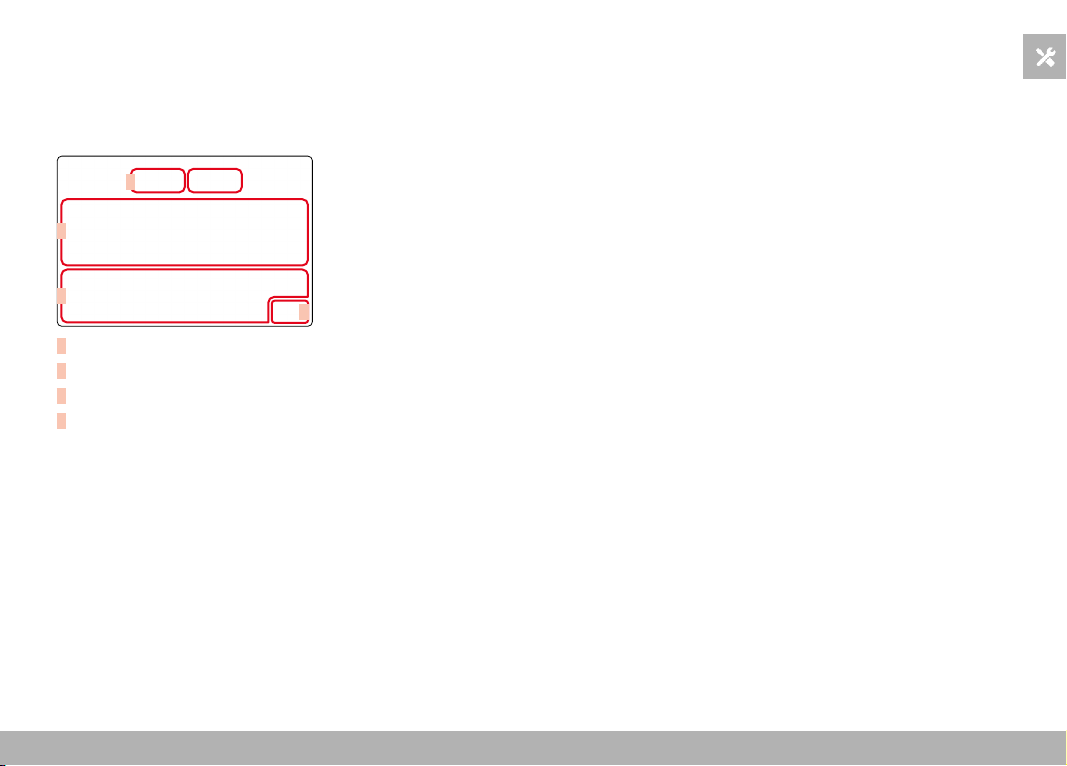
CAMERA OPERATION ▸ MENU CONTROL
49
STATUS SCREEN
The status screen offers an overview of the most important infor-
mation regarding the current camera status and active settings.
It furthermore allows direct access to important settings. The status
screen is optimized for touch control.
A
B
C
D
A
Mode: photo/video (see p. 182)
B
Exposure settings (see p. 107 and p. 199)
C
Menu items
D
Access to the main menu
Notes
• Where touch control is not possible or not desirable (e.g. in EVF
mode), the status screen can alternatively be controlled via the
directional pad, center button, thumbwheel and the thumbwheel
button.
• The settings become effective immediately.
• The framed control panels can be selected. Unframed values are
added in automatically (depending on the active exposure mode).
• The available menu items in photo and video mode differ (see
p. 24 and p. 26).
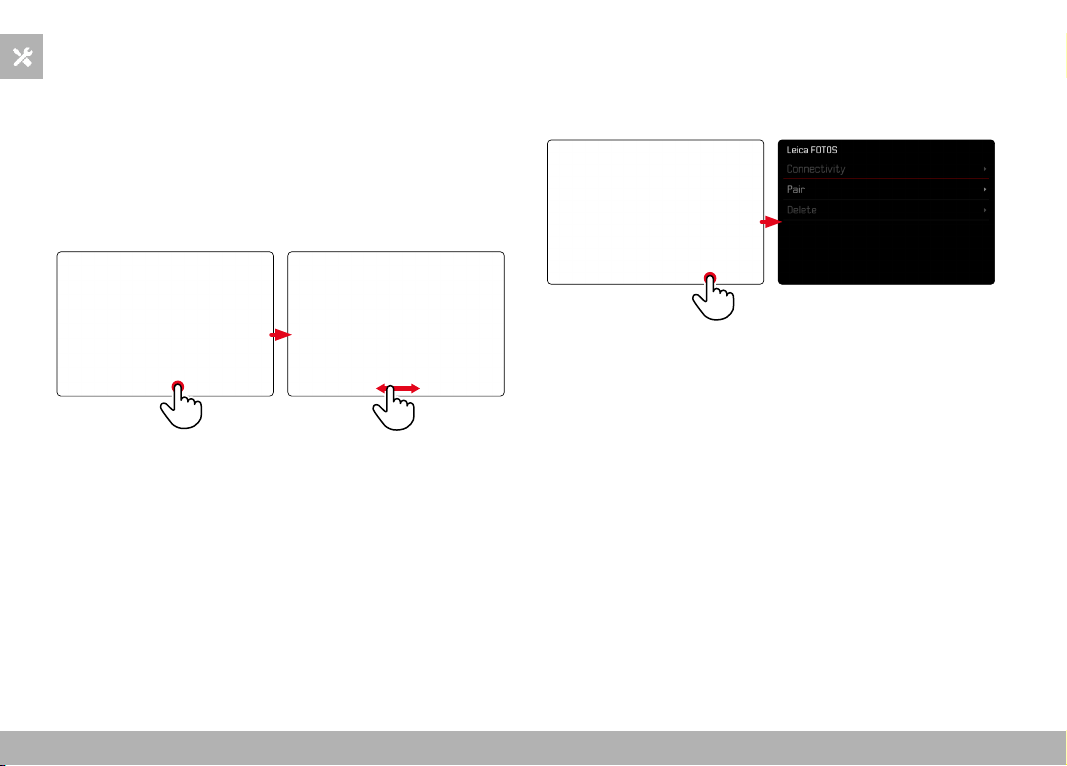
CAMERA OPERATION ▸ MENU CONTROL
50
SELECTING SETTINGS
Settings can be selected in various ways from within the status
screen. The setting types vary from menu to menu.
▸ Tap the desired control panel
• The relevant menu appears.
DIRECT SETTINGS
A version of the menu bar appears in the lower area of the status
screen (see p. 55).
▸ Select the desired function directly or swipe
ACCESSING A STANDARD SUBMENU
These menus behave as if they were accessed from within the main
menu (see p. 52). Touch control is therefore unavailable. From
there, you return to the status screen and not to the next higher
menu item.
▸ Select the desired setting
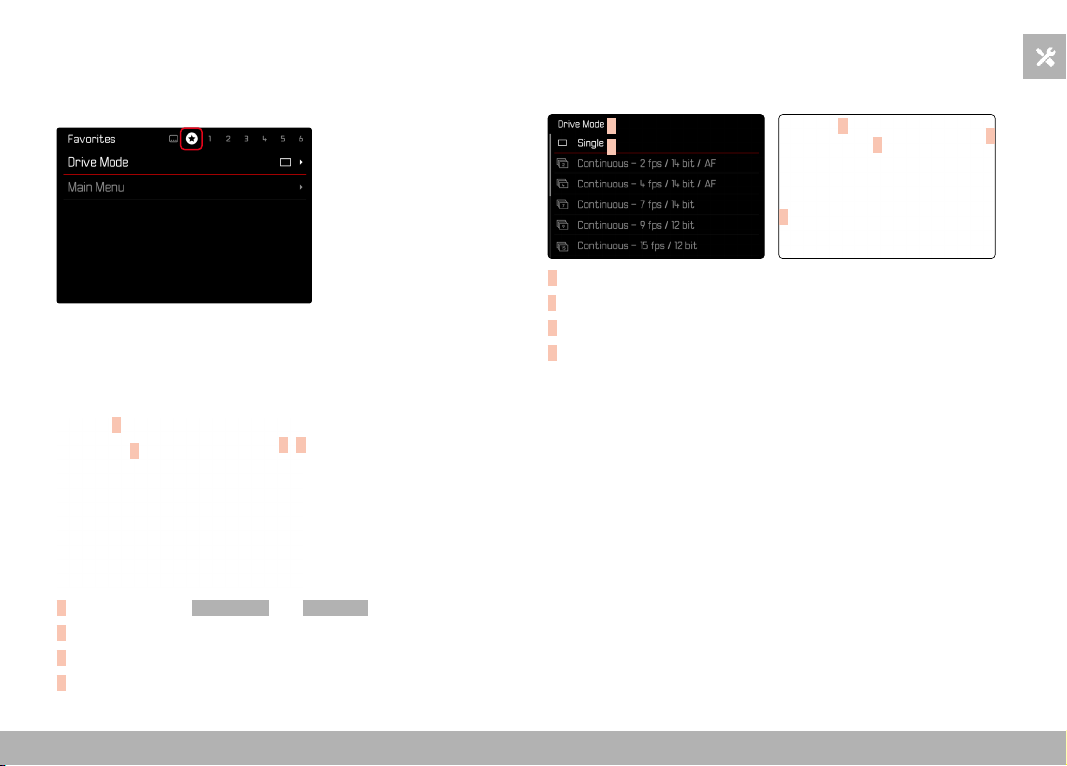
CAMERA OPERATION ▸ MENU CONTROL
51
FAVORITES MENU
The favorites menu offers quick access to the most frequently used
menu items. It can contain up to 11 menu items. These can be as-
signed individually (see p. 59).
MAIN MENU
The main menu offers access to all settings. Most of these are orga-
nized in submenus.
A
B
C
D
A
Menu sections: Main Menu and Favorites
B
Menu item name
C
Menu item setting
D
Submenu reference
SUBMENU
There are various types of submenus available. The following pages
describe their operation.
A
B
A
B
C
D
A
Current menu item
B
Submenu item
C
References to other submenus
D
Scrollbar

CAMERA OPERATION ▸ MENU CONTROL
52
MENU NAVIGATION
SCREEN BY SCREEN NAVIGATION
Scrolling forward
▸ Press the
MENU button (repeatedly if needed)
• The status screen will appear again after the last page of the
main menu.
Scrolling backward
▸ Press the directional pad left
• In reverse order, you can only browse back to the status
screen.
LINE BY LINE NAVIGATION
(Function/function option selection)
▸ Press the directional pad up/down
or
▸ Turn the thumbwheel
(to the right = down, to the left = up)
• Once the last menu item has been reached scrolling up or
down, the display will automatically jump to the previous or
next screen. The currently active menu section (Favorites,
Main Menu) is not exited.
Note
• Some menu items can only be accessed under specific circum-
stances. The text in the relevant line is displayed in gray to signify
the existence of a submenu.

CAMERA OPERATION ▸ MENU CONTROL
53
SHOW SUBMENU
▸ Press the center button/thumbwheel button
or
▸ Press the directional pad to the right
CONFIRM SELECTION
▸ Press the center button/thumbwheel button
• The screen image changes back to the active menu item. The
set function variant is shown on the right in the relevant menu
line.
Note
• No confirmation is needed for the selection of
On or Off . An
automatic save is done.
GO BACK ONE STEP
(Return to the superordinate menu item)
▸ Press the directional pad left
• This option is only available for list-type submenus.
GO BACK TO TOP MENU LEVEL
▸ Press the
MENU button 1x
• The top level of the currently selected menu section is displayed.
EXITING THE MENU
You can exit the menus and submenus at any time – with/without
applying the settings selected there.
Go to shooting mode
▸ Tap the shutter button
Go to review mode
▸ Press the
PLAY button
CAMERA OPERATION ▸ MENU CONTROL
54
SUBMENU
KEYBOARD/NUMBER PAD
D
C
B
E
A
F
G
D
C
B
E
A
G
G
A
E
C
B
D
A
Entry line
B
Keyboard/Number pad
C
“Delete” button (deletes the last character entered)
D
“Confirm” button
(to apply individual values and existing settings)
E
Return to previous menu level
F
Shift key (toggles between upper and lower case letters)
G
Changing the character type
SELECTING A BUTTON (ICON/FUNCTION BUTTON)
Using button control
▸ Press the directional pad in the relevant direction
• The currently active button will be highlighted.
▸ Press the center button/thumbwheel button
or
▸ Turn the thumbwheel
• The currently active button will be highlighted.
• There will be an automatic jump to the next/previous line
when the end/beginning of the line is reached.
▸ Press the center button/thumbwheel button
Using touch control
▸ Press the button of your choice
SAVE
▸ Select button D
CANCEL
▸ Select button E
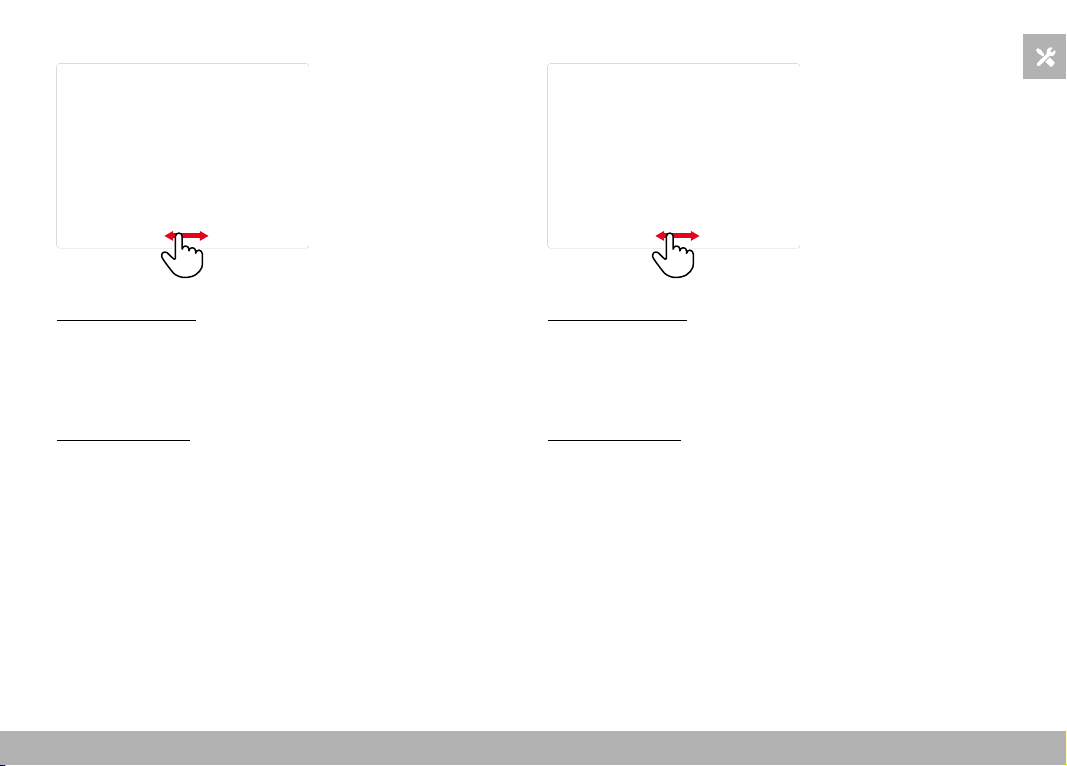
CAMERA OPERATION ▸ MENU CONTROL
55
MENU BAR
Using button control
▸ Press the directional pad left/right
or
▸ Turn the thumbwheel
Using touch control
▸ Select the desired function directly or swipe
Notes
• The currently active setting displayed in the center is highlighted
in red.
• The set value is displayed above the scale/below the menu bar.
• The following applies for direct access: The selected function re-
quires no additional confirmation and will be active immediately.
SCALE MENU
Using button control
▸ Press the directional pad left/right
or
▸ Turn the thumbwheel
Using touch control
▸ Select the desired setting directly or swipe
Notes
• The currently active setting displayed in the center is highlighted
in red.
• The set value is displayed above the scale/below the menu bar.
CAMERA OPERATION ▸ MENU CONTROL
56
DATE/TIME MENU
Moving to the next settings field
▸ Press the directional pad left/right
Setting values
▸ Press the directional pad up/down
or
▸ Turn the thumbwheel
Saving and returning to superordinate menu item
▸ Press the center button
COMBI MENU (IMAGE PROPERTIES)
A B C
D
A
“Back” button
(Exit without saving)
B
“Parameter” button
C
“Setting” button
D
“Confirm” button
(Save and exit)
The operation is slightly different, depending on whether the settings
are done via key control or touch control.
The screen image will remains visible continuously while settings are
being adjusted. The result of the setting can be observed directly.
CAMERA OPERATION ▸ MENU CONTROL
57
Using button control
Navigating between buttons
▸ Press the directional pad left/right
• An active button is indicated by a red frame.
Applying setting
▸ Press the directional pad up/down
• The button toggles directly between each of the options.
or
▸ Press the center button
• All selectable options are displayed.
• The “Parameter” button displays the currently set value for
each of the parameter options.
▸ Press the directional pad up/down
• An active button is indicated by a red frame.
▸ Press the center button
• The options are no longer displayed.

CAMERA OPERATION ▸ USER-DEFINED OPERATION
58
Using touch control
▸ Tap the desired button
• All available options are displayed for the buttons “Parameter”
and “Setting”.
• The “Parameter” button displays the currently set value for
each of the parameter options.
▸ Tap the desired alternative
SAVE
▸ Select the “Confirm” button
CANCEL
▸ Select the “Back” button
USER-DEFINED OPERATION
FAVORITES MENU
Assign your most frequently used menu items to a favorites menu
(up to 11 items) for quick and easy access. The available functions
are shown in the list on p. 246.
As there are separate menu sections for photo and video mode, the
associated favorite menus can also be assigned individually.
The favorites menu will be represented by an asterisk in the header
line, provided it contains at least one menu item.
CAMERA OPERATION ▸ USER-DEFINED OPERATION
59
MANAGING THE FAVORITES MENU
▸ Switch to the desired mode (photo or video)
▸ Select
Customize Control in the main menu
▸ Select
Edit Favorites
▸ Select the desired menu item
▸ Select On / Off
• A warning message appears when the favorites menu has
reached the maximum of 11 menu items and no further items
can be added.
Note
• The favorites menu will be deleted completely if all menu items
are set to
Off .
DIRECT ACCESS TO MENU FUNCTIONS
You can assign specific menu functions to the following operating
elements (function buttons) for extra quick direct access to menu
items in shooting mode from a custom list.
– FN button 1 (
13)
– FN button 2 (
14)
– Center button (
19)
– Thumbwheel button (
5)
The assignments in photo and video mode are completely indepen-
dent of each other. The available functions are shown in the list on
p. 246. For factory settings see p. 44.
Notes
• The submenus accessed via direct access may look differently
than when they are accessed via the main menu. Specifically,
they often appear as menu bars to allow quick settings.
• The settings can be done via key control or using touch control
on the LCD panel. The operating mode depends on the type of
submenu.
CAMERA OPERATION ▸ USER-DEFINED OPERATION
60
CHANGING AN ASSIGNMENT
▸ Switch to the desired mode (photo or video)
▸ Press the function button longer
• The direct access list you have created will appear on the LCD
panel.
• This list can be modified at any time via the menu item
Customize Control .
▸ Select the menu item you want by pressing the center button
• You will not be prompted to acknowledge your selection. The
change is applied immediately.
ACCESSING THE ASSIGNED MENU FUNCTION
▸ Press the function button briefly
• The assigned function is accessed, or a submenu appears on
screen.
CREATING THE CUSTOM LIST
▸ Switch to the desired mode (photo or video)
▸ Select
Customize Control in the main menu
▸ Select
FN Button 1 / FN Button 2 / Center Button / Thumbwheel
Button
▸ Select On or Off for each menu item
THUMBWHEEL ASSIGNMENT
Factory setting:
Auto
In factory settings, the thumbwheel function depends on the active
exposure mode. However, the thumbwheel can also be assigned
another function.
▸ Switch to the desired mode (photo or video)
▸ Select
Customize Control in the main menu
▸ Select
Wheel Assignment
▸ Select the desired setting
The thumbwheel has varying functions depending on the exposure
mode (see p. 107/p. 199) when it is set to
Auto .
Off Auto Exp. Comp. ISO
P
– Program shift Exposure compensation ISO
A
– Exposure compensation Exposure compensation ISO
S
– Shutter speed Exposure compensation ISO
M
– Shutter speed Exposure compensation ISO
ACCESSING THE ASSIGNED MENU FUNCTION
▸ Turn the thumbwheel to the left/right
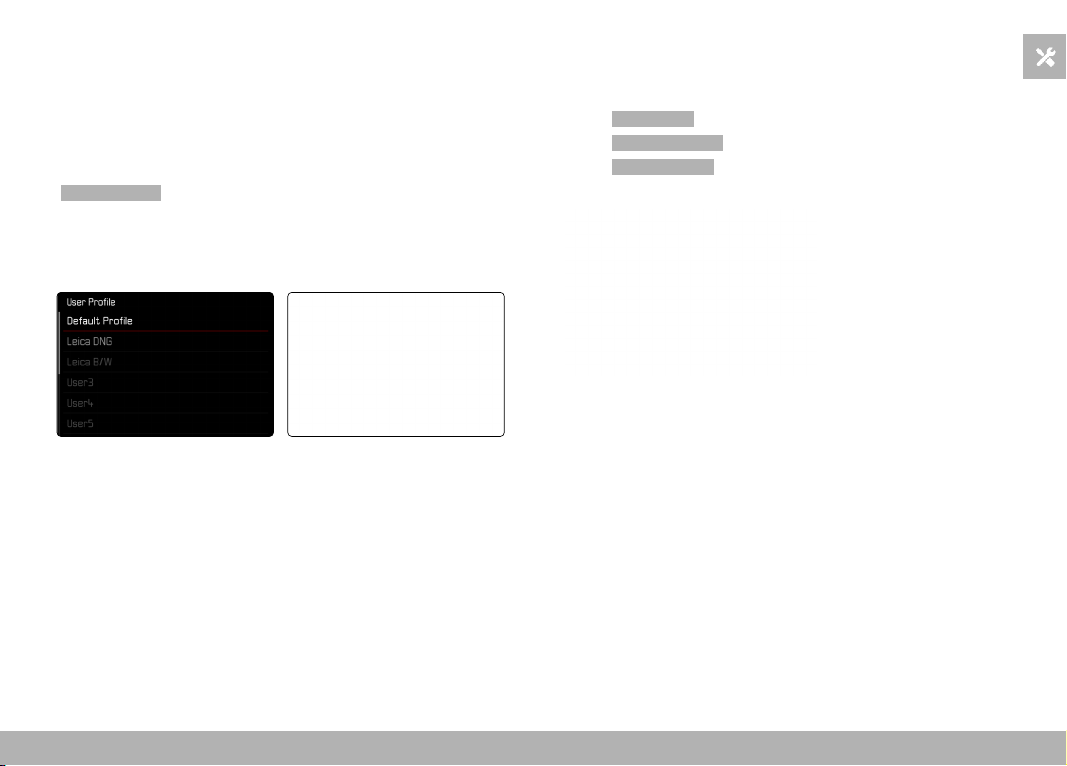
CAMERA OPERATION ▸ USER-DEFINED OPERATION
61
USER PROFILES
This camera allows the permanent storage of any menu settings,
to e.g. access them quickly and easily for recurring conditions/im-
age objects. The camera will also save the currently selected mode
(Photo/Video).
Six memory slots are provided to store custom settings, plus the
factory setting, which is always available and cannot be modified
(
Default Profile ). You can assign names for the saved profiles your-
self.
Any profiles configured for the camera can be saved to a memory
card for use on another camera. Similarly, profiles saved on a mem-
ory card can be transferred to the camera.
CREATING PROFILES
Saving settings/creating a profile.
▸ Create custom settings for the desired functions via menu control
▸ Select User Profile in the main menu
▸ Select
Manage Profiles
▸ Select Save as Profile
▸ Select a memory slot
▸ Confirm the selection
Notes
• Existing profiles are overwritten with the latest settings.
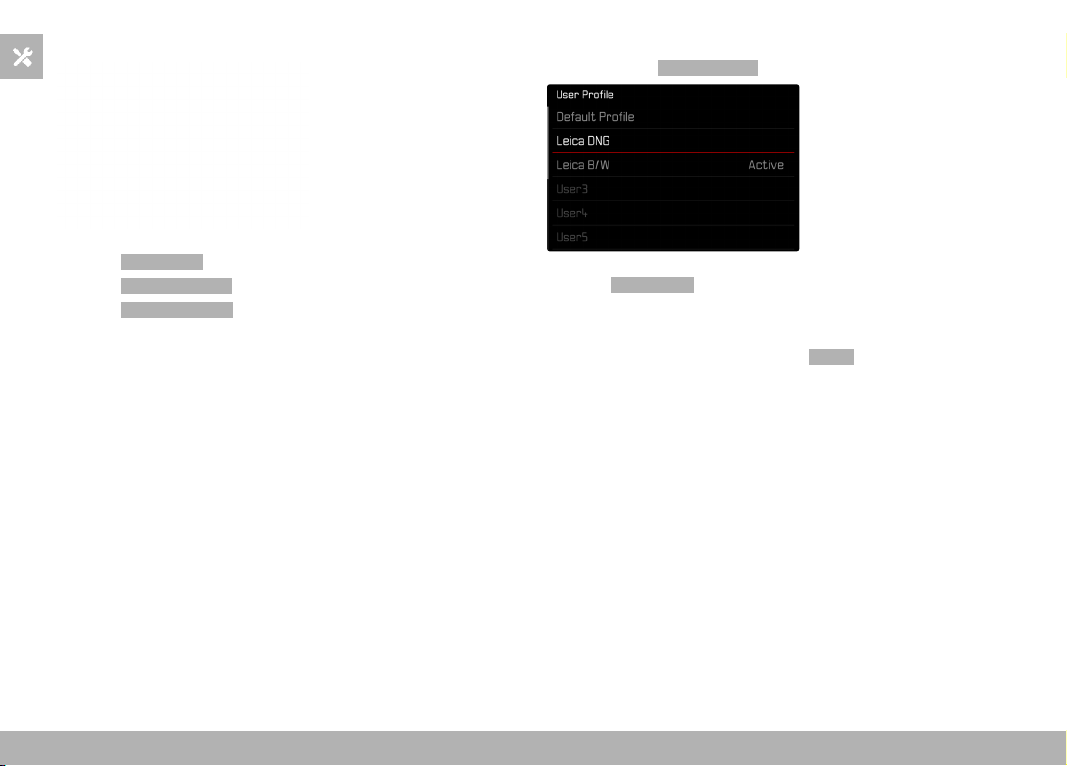
CAMERA OPERATION ▸ USER-DEFINED OPERATION
62
RENAMING PROFILES
▸ Select User Profile in the main menu
▸ Select
Manage Profiles
▸ Select Rename Profiles
▸ Select a profile
▸ Enter a name for the profile via the associated submenu keyboard
and confirm your input (see p. 54)
• Profile names must be between 3 and 10 characters in length.
APPLYING/ACTIVATING PROFILES
Factory setting:
Default Profile
▸ Select User Profile in the main menu
• A list of profile names is displayed.
▸ Select a profile
• The selected profile is marked as
Active .
• Free memory slots appear in gray.
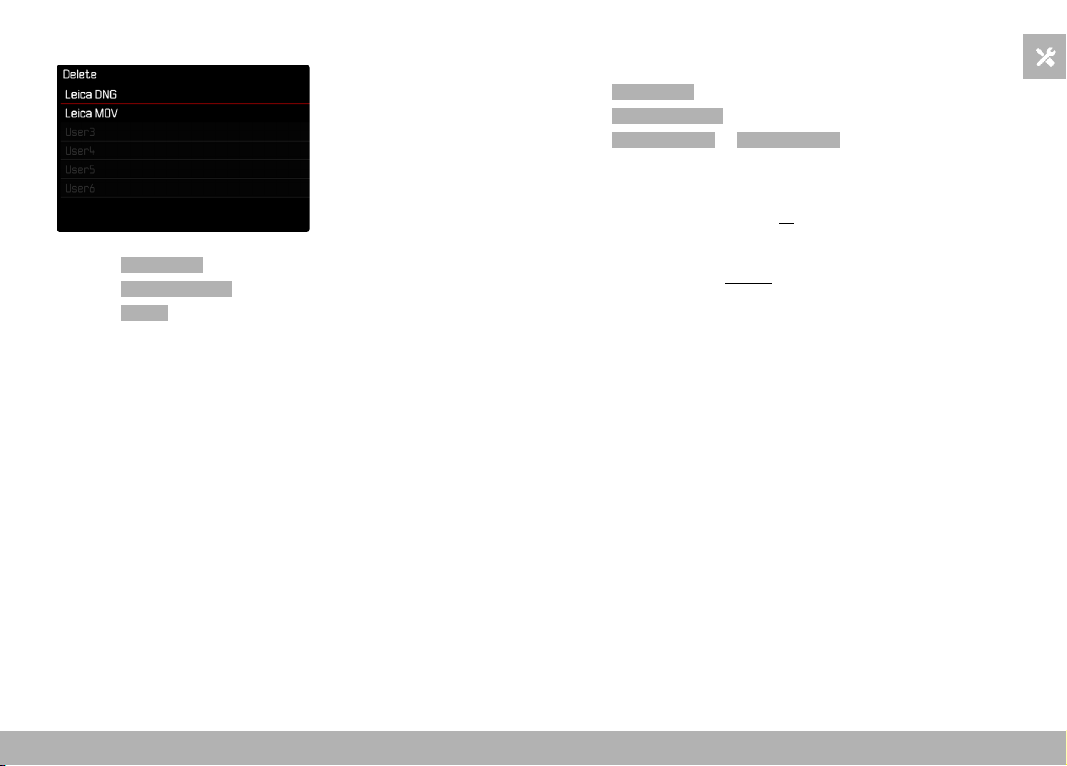
CAMERA OPERATION ▸ USER-DEFINED OPERATION
63
DELETING PROFILES
▸ Select User Profile in the main menu
▸ Select
Manage Profiles
▸ Select Delete
▸ Select a profile
▸ Confirm the selection
EXPORTING/IMPORTING PROFILES TO/FROM THE MEMORY
CARD
▸ Select
User Profile in the main menu
▸ Select
Manage Profiles
▸ Select Export Profiles or Import Profiles
▸ Confirm the selection
Notes
• When importing and exporting, all profile slots are transferred
to the card, i.e. including any empty slots. Any existing profiles
stored in the camera will be overwritten, during the profile im-
port. Individual profiles cannot be imported or exported.
• Any existing set of profiles will be replaced on the memory card
during an export without an acknowledgment prompt.

CAMERA BASIC SETTINGS ▸ MENU LANGUAGE / DATE/TIME
64
CAMERA BASIC SETTINGS
The two menu items Language and Date & Time appear automati-
cally when switching the camera on for the first time, after a reset
to factory settings (see p. 224), or after a firmware update.
MENU LANGUAGE
Factory setting: English
Available menu languages: German, French, Italian, Spanish, Por-
tuguese, Russian, Japanese, Korean and Traditional or Simplified
Chinese
▸ Select
Language in the main menu
▸ Select your language
• Aside from a few exceptions, the language will be changed for
all information.
DATE/TIME
DATE
You can choose one of 3 options for the display sequence.
▸ Select
Camera Settings in the main menu
▸ Select
Date & Time
▸ Select Date Setting
▸ Select the desired date format
( Day/Month/Year , Month/Day/Year , Year/Month/Day )
▸ Set the date
TIME
▸ Select Camera Settings in the main menu
▸ Select
Date & Time
▸ Select Time Setting
▸ Select the desired brightness
( 12 Hours , 24 Hours )
▸ Set the time
(Select
am or pm for the 12-hour format)
CAMERA BASIC SETTINGS ▸ POWER SAVE MODE (STANDBY MODE)
65
TIME ZONE
▸ Select Camera Settings in the main menu
▸ Select
Date & Time
▸ Select Time Zone
▸ Select your time zone/current location
– The Greenwich Mean Time offset is shown on the left of the
line
– Major cities in the relevant time zones are shown on the right
DAYLIGHT SAVING TIME
▸ Select Camera Settings in the main menu
▸ Select
Date & Time
▸ Select Daylight Saving Time
▸ Select On / Off
POWER SAVE MODE (STANDBY MODE)
The camera will switch to the power-saving standby mode after a
preset time to extend battery life if this function is activated.
The device has two power save levels.
– Standby mode is activated after 30 s/1 min/2 min/5 min/10 min
– Automatic LCD panel shutdown (see p. 68)
Factory setting:
2 min
▸ Select Camera Settings in the main menu
▸ Select
Power Saving
▸ Select Auto Power Off
▸ Select the desired setting
( Off , 30 s , 1 min , 2 min , 5 min , 10 min )
Note
• The camera can be woken from standby mode at any time by
pressing the shutter button or by switching the main switch off
and on again.
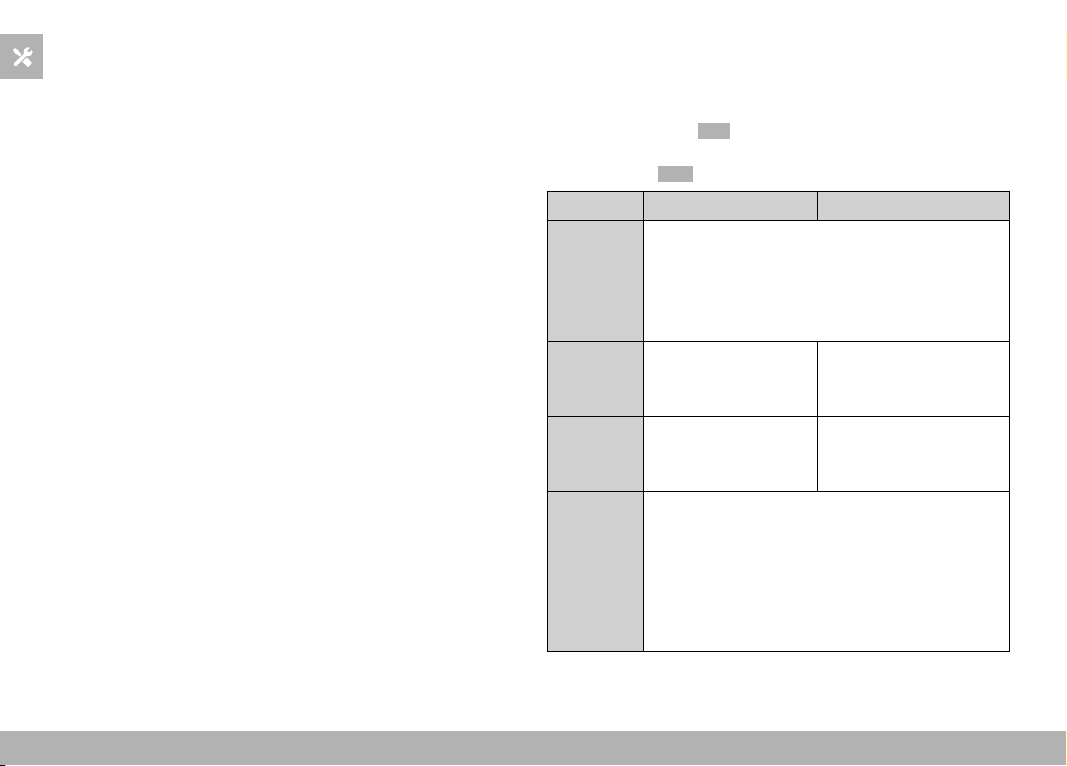
CAMERA BASIC SETTINGS ▸ LCD PANEL/VIEWFINDER SETTINGS
66
LCD PANEL/VIEWFINDER SETTINGS
The camera comes equipped with a 3” liquid crystal color panel,
which is protected by a glass cover made of extremely hard and
scratch-resistant glass.
The following functions can be configured and used individually:
– Use of the LCD panel and EVF (electronic viewfinder)
– Eye sensor sensitivity
– Brightness
– Color rendering
– EVF Frame Rate
– Automatic LCD panel and EVF shutdown
LCD PANEL/EVF USE
You can preset the situations in which EVF and LCD panel should
be used. The displays appearing on screen and in the electronic
viewfinder are identical.
The setting toggles to
LCD automatically when the screen is folded
out. The original setting resumes, once the screen is folded back in.
Factory setting:
Auto
EVF LCD panel
Auto
The eye sensor in the viewfinder automatically tog-
gles the camera between LCD panel and EVF.
• Shooting
• Review
• Menu control
LCD
• Shooting
• Review
• Menu control
EVF
• Shooting
• Review
• Menu control
EVF
extended
Only EVF is used for shooting mode. The eye
sensor in the viewfinder automatically toggles the
camera between LCD panel and EVF for review and
menu control.
• Shooting
• Review
• Menu control

CAMERA BASIC SETTINGS ▸ LCD PANEL/VIEWFINDER SETTINGS
67
▸ Select Display Settings in the main menu
▸ Select
EVF-LCD
▸ Select the desired setting
Note
• Select
EVF if you want to keep the LCD panel switched off (e.g.
on dark environments).
EYE SENSOR SENSITIVITY
You can adjust the eye sensor sensitivity to ensure that the change-
over functions reliably if you wear eyeglasses.
Factory setting:
High
▸ Select Display Settings in the main menu
▸ Select
Eye Sensor Sensitivity
▸ Select the desired setting
BRIGHTNESS
You can adjust brightness for best visibility in various lighting
conditions. Brightness is set individually for the LCD panel and the
viewfinder. Selection occurs via key control or touch control.
LCD PANEL
▸ Select
Display Settings in the main menu
▸ Select
LCD Brightness
▸ Select the desired brightness or Auto
▸ Confirm selection
EVF
▸ Select
Display Settings in the main menu
▸ Select
EVF Brightness
▸ Look through the viewfinder
▸ Select the desired brightness
▸ Confirm selection
Note
• The setting
Auto is not available here.

CAMERA BASIC SETTINGS ▸ LCD PANEL/VIEWFINDER SETTINGS
68
COLOR RENDERING
Color rendering can also be adjusted. Brightness is set individually
for the LCD panel and the viewfinder. Selection occurs via key con-
trol or touch control.
LCD PANEL
▸ Select
Display Settings in the main menu
▸ Select
LCD Color Adjustment
▸ Select the desired color setting
▸ Confirm selection
EVF
▸ Select
Display Settings in the main menu
▸ Select
EVF Color Adjustment
▸ Look through the viewfinder
▸ Select the desired color setting
▸ Confirm selection
AUTOMATIC LCD PANEL AND EVF SHUTDOWN
The LCD panel and EVF deactivate automatically to save power. The
time until power off can be set.
This setting also affects autofocus; the AF system will be deactivat-
ed at the time of automatic shutdown as well. We therefore recom-
mend the
Off setting if autofocus is to be used in HDMI recordings.
Factory setting:
1 min
▸ Select Camera Settings in the main menu
▸ Select
Power Saving
▸ Select Displays/AF Auto Off
▸ Select the desired setting
( Off , 5 s , 10 s , 30 s , 1 min , 5 min )
EVF FRAME RATE
The image frequency of the EVF can be set.
Factory setting:
60 fps
▸ Select Display Settings in the main menu
▸ Select
EVF Frame Rate
▸ Select the desired setting
( 60 fps , 120 fps )

CAMERA BASIC SETTINGS ▸ ACOUSTIC SIGNALS
69
ACOUSTIC SIGNALS
Some functions can be acknowledged with acoustic signals. The
following special functions can be configured separately:
– Electronic shutter sound
– AF confirmation
VOLUME
The volume of active signals can be set.
Factory setting:
Low
▸ Select Camera Settings in the main menu
▸ Select
Acoustic Signal
▸ Select Volume
▸ Select Low / High
ACOUSTIC SIGNALS
This setting specifies, whether the camera shout output general
notification signals, e.g. during the delay time of the self-timer or as
a warning signal, when the memory card is full.
Factory setting:
Off
▸ Select Camera Settings in the main menu
▸ Select
Acoustic Signal
▸ Select Acoustic Signals
▸ Select On
ELECTRONIC SHUTTER SOUND
Factory setting: Off
▸ Select Camera Settings in the main menu
▸ Select
Acoustic Signal
▸ Select Electronic Shutter Sound
▸ Select On
AUTOFOCUS CONFIRMATION
A signal sound can be selected for successful AF settings.
Factory setting:
Off
▸ Select Camera Settings in the main menu
▸ Select
Acoustic Signal
▸ Select AF Confirmation
▸ Select On
SILENT PHOTOGRAPHY
When pictures should be taken as quietly as possible.
▸ Select
Camera Settings in the main menu
▸ Select
Acoustic Signal
▸ Select Electronic Shutter Sound / AF Confirmation / Acoustic
Signals
▸ Select Off for each of these menu items

STILL IMAGE SETTINGS ▸ FILE FORMAT
70
STILL IMAGE SETTINGS
FILE FORMAT
Choose the JPG format JPG or the standardized raw data format
DNG (= digital negative). Both can be used individually or simulta-
neously.
When creating JPGs, an initial processing occurs in the camera. Var-
ious parameters, including contrast, saturation, black level, or edge
sharpness are set automatically. The result is then compressed
and stored. The immediate result is an image that is optimized for
various uses and a quick preview. For post-processing, on the other
hand, DNG images are recommended.
DNG files contain all raw data as recorded by the camera sensor at
the time the photo is taken. Special software (e.g. Adobe
®
Photo-
shop
®
Lightroom
®
or Capture One Pro
®
) will be needed to display
DNG format files or to work with this format. Post-processing will
allow exact adjustments of many parameters to your own expecta-
tions.
Factory setting:
DNG + JPG
▸ Select Photo File Format in the main menu
▸ Select a format
(
DNG , DNG + JPG , JPG )
Notes
• The standardized DNG format is used for the storage of raw
image data.
• The remaining number of shots shown in the LCD panel will not
necessarily change after every shooting. That very much depends
on the object; very fine image structures result in higher data
quantities, while homogeneous surfaces mean less data.
< < < PHOTO MODE > > >
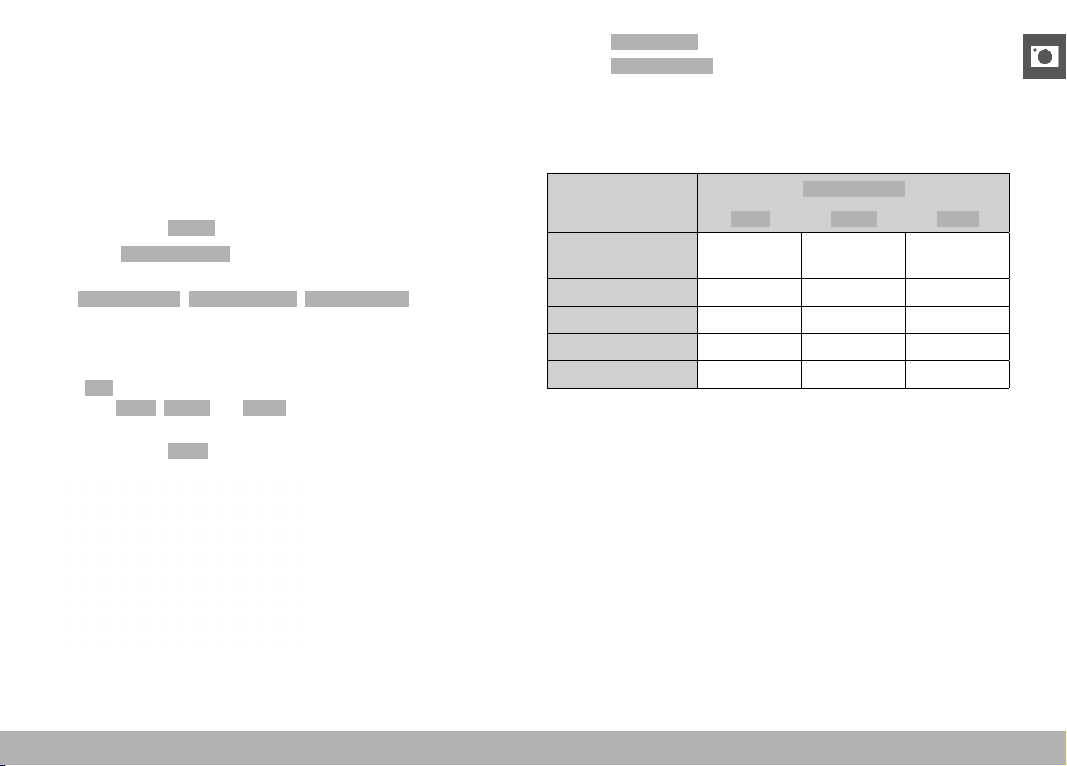
STILL IMAGE SETTINGS ▸ RESOLUTION
71
RESOLUTION
DNG RESOLUTION
Three different resolutions (number of pixels) are available for
shooting in raw data format (DNG).
All the benefits of DNG capture (like extensive color depth and
high dynamic range) can therefore be used even if the image size is
reduced.
Factory setting:
L-DNG
▸ Select DNG Resolution in the main menu
▸ Select the desired resolution
(
L-DNG (60 MP) , M-DNG (36 MP) , S-DNG (18 MP) )
JPG RESOLUTION
The JPG format setting offers 3 image resolution (number of pixels)
options. L-JPG , M-JPG and S-JPG . This choice allows an alignment
with the intended use and available memory card capacity.
Factory setting:
L-JPG
▸ Select JPG Settings in the main menu
▸ Select
JPG Resolution
▸ Select the desired resolution
When the Digital Zoom function (see p. 125) is selected, then im-
ages will be saved with the following actual resolutions.
Digital Zoom
JPG Resolution
L-JPG M-JPG S-JPG
Off
(28 mm)
60 MP 36 MP 18 MP
35 mm
39 MP 23 MP 12 M P
50 mm
19 MP 11 M P 6 MP
75 mm
8 MP 5 MP 3 MP
90 mm
6 MP 4 MP 2 MP

STILL IMAGE SETTINGS ▸ ASPECT RATIO / IMAGE PROPERTIES
72
ASPECT RATIO
You have a choice of aspect ratios to select in addition to the basic
3:2 (e.g. 1:1). The relevant cropped section will be displayed. Images
made in JPG format are saved with the relevant aspect ratio. DNG
images will always have the natural sensor format (3:2), the set
aspect ratio is only in aid of the image composition. In review mode,
DNG images will be displayed with horizontal or vertical auxiliary
lines showing the cropped section seen when shooting.
Factory setting:
3:2
▸ Select Photo Aspect Ratio in the main menu
▸ Select the desired setting
(
3:2 , 4:3 , 1:1 , 16:9 )
IMAGE PROPERTIES
One of the many advantages of digital photography is that it is very
easy to change essential image properties. The Leica Q3 offers two
functions for the adjustment of JPG format frames: user-defined
Film Style profiles, and professionally adapted, pre-defined Leica
Looks profiles.
Note
• The functions Film Style and Leica Looks can not be applied
concurrently. When a profile is selected under Film Style , any
profile selected previously under
Leica Looks
will be automatically
deactivated, and vice versa.

STILL IMAGE SETTINGS ▸ IMAGE PROPERTIES
73
FILM STYLE
The image properties of JPG files can be changes slightly using
several parameters. These are summarized in pre-configured Film
Style profiles.
CONTRAST
The contrast setting, i.e. the difference between light and dark im-
age sections, determines whether an image comes across as “flat”
or “brilliant”. Increasing or decreasing this difference impacts on
contrast, meaning that some image sections are rendered brighter
or darker.
SHARPNESS
The impression of sharpness in a image is largely determined by
edge sharpness, i.e. by how slight the transition area between light
and dark is at edges in the image. Expanding or reducing these ar-
eas will therefore change the impression of sharpness.
COLOR SATURATION
The saturation factor in color shots determines, whether colors in
the picture appear “pale” and pastel-like or “vivid” and bright. While
lighting conditions and weather (e.g. foggy/clear) are a given in
terms of shooting conditions, their rendering can be influenced.
HIGHLIGHT/SHADOW
Depending on the exposure selected and the dynamic scope of
the object, some details in brighter or darker areas may no longer
be clearly visible. The parameters
Highlight and Shadow allow
differentiated control over very brightly or less brightly lit areas.
Where, for example, part of the object is in shadow, a higher setting
for
Shadow can help brighten these areas to make details more
visible.
Conversely, existing shadows or particularly bright areas
might be additionally emphasized for reasons of image composition.
P
ositive values will brighten the targeted areas, while negative val-
ues will darken them.
STILL IMAGE SETTINGS ▸ IMAGE PROPERTIES
74
COLOR PROFILE
3 pre-configured color profiles are available:
Factory setting:
Standard
– Standard
– Vivid
– Natural
▸ Select JPG Settings in the main menu
▸ Select
Film Style
▸ Select a profile
MONOCHROME PROFILE
Two pre-configured monochrome profiles are available:
–
Monochrome
– Monochrome High Contrast
▸ Select JPG Settings in the main menu
▸ Select
Film Style
▸ Select a profile
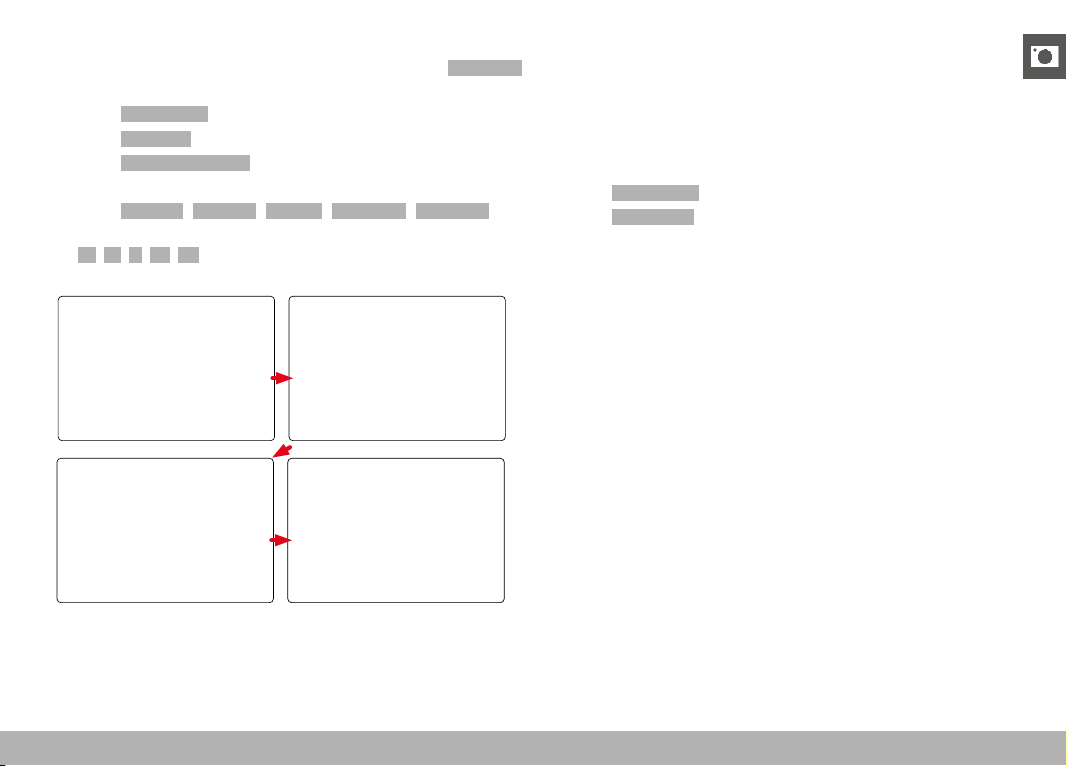
STILL IMAGE SETTINGS ▸ IMAGE PROPERTIES
75
CUSTOMIZING PHOTO PROFILES
These parameters can be adjusted for all available profiles
( Saturation
only for color profiles). See p. 56 for details on menu operation.
▸ Select
JPG Settings in the main menu
▸ Select
Film Style
▸ Select Film Style Settings
▸ Select a profile
▸ Select
Contrast / Highlight / Shadow / Sharpness / Saturation
▸ Select the desired level
( -2 , -1 , 0 , +1 , +2 )
▸ Confirm
LEICA LOOKS
Leica Looks offer a selection of professionally aligned, pre-defined
profiles. These can be conveniently loaded to the camera via Leica
FOTOS.
There are six memory slots available for Leica Looks.
Applying a Look
▸ Select
JPG Settings in the main menu
▸ Select
Leica Looks
▸ Select a memory slot
Selecting a memory slot
Leica Looks can be easily downloaded to the camera via Leica
FOTOS.
▸ Connecting to Leica FOTOS
▸ Follow the instructions provided by the Leica FOTOS app
Note
• The memory space assignments from the downloaded Leica
Looks apply for photo and video mode alike. The various profiles
can be selected individually for the two operating modes.
STILL IMAGE SETTINGS ▸ AUTOMATIC OPTIMIZATION
76
AUTOMATIC OPTIMIZATION
NOISE REDUCTION
NOISE REDUCTION FUNCTION FOR LONG-TERM EXPOSURE
In digital photography, the appearance of flawed pixels that can
be white, red, blue or green is referred to as "noise". Image noise
becomes more apparent when using higher sensitivities, particular-
ly on uniform dark areas. Long exposure times may cause severe
image noise. In order to reduce this annoying phenomenon, the
camera will take a second “dark frame” (taken with the shutter
closed) automatically after a shooting with slow shutter speed and
high ISO value. The noise metered in this parallel image is then
digitally “subtracted” from the data for the actual image. In such
cases the message
Noise reduction in progress... will appear with a
relevant time value.
The doubling of the “exposure” time must be taken into account for
long-term exposure times. The camera must not be switched off
during that time. We recommend disabling Noise Reduction to allow
shooting multiple frames in series and to apply noise reduction later
during the post-editing stage. The images will have to be taken in
raw data format.
Factory setting:
On
▸ Select Long exposure noise reduction in the main menu
▸ Select
On / Off
Under certain conditions, noise reduction will always be active as
long as the function is enabled. That includes shots taken with the
T function, as well as long-term exposure frames with shutter
speeds of ≥ +8 s.
In all other cases, noise reduction depends on a combination of fac-
tors (specifically ISO setting, exposure time, and sensor tempera-
ture). The following table contains a list of shutter speeds typical for
a sensor temperature of 25°C, at which noise reduction would be
applied.
ISO Shutter speed longer than
100
7 s
200
6.4 s
400
5.9 s
800
5.4 s
1600
4.9 s
3200
4.5 s
6400
4.2 s
≥ 12 500
3.8 s

STILL IMAGE SETTINGS ▸ AUTOMATIC OPTIMIZATION
77
NOISE REDUCTION IN JPG IMAGES
Except when high sensitivities are used, noise is luckily negligible.
Nevertheless, noise reduction is a component of data processing
when JPG files are generated. On the other hand, since it also
has an effect on the focus review, you can optionally weaken or
strengthen this noise reduction in comparison to the standard
setting.
Factory setting:
Low
▸ Select JPG Settings in the main menu
▸ Select
Noise Reduction (JPG)
▸ Select the desired setting
(
Low , Medium , High )
Note
• This setting will only affect images in JPG format.
IMAGE STABILIZATION
The less favorable the lighting conditions during shooting, the slower
will be the required shutter speeds for correct exposure. Visual
image stabilization is a great tool for preventing out-of-focus images
due to blurring.
Factory setting:
Auto
▸ Select Optical Image Stabilization in the main menu
▸ Select the desired setting
(
On , Off , Auto )
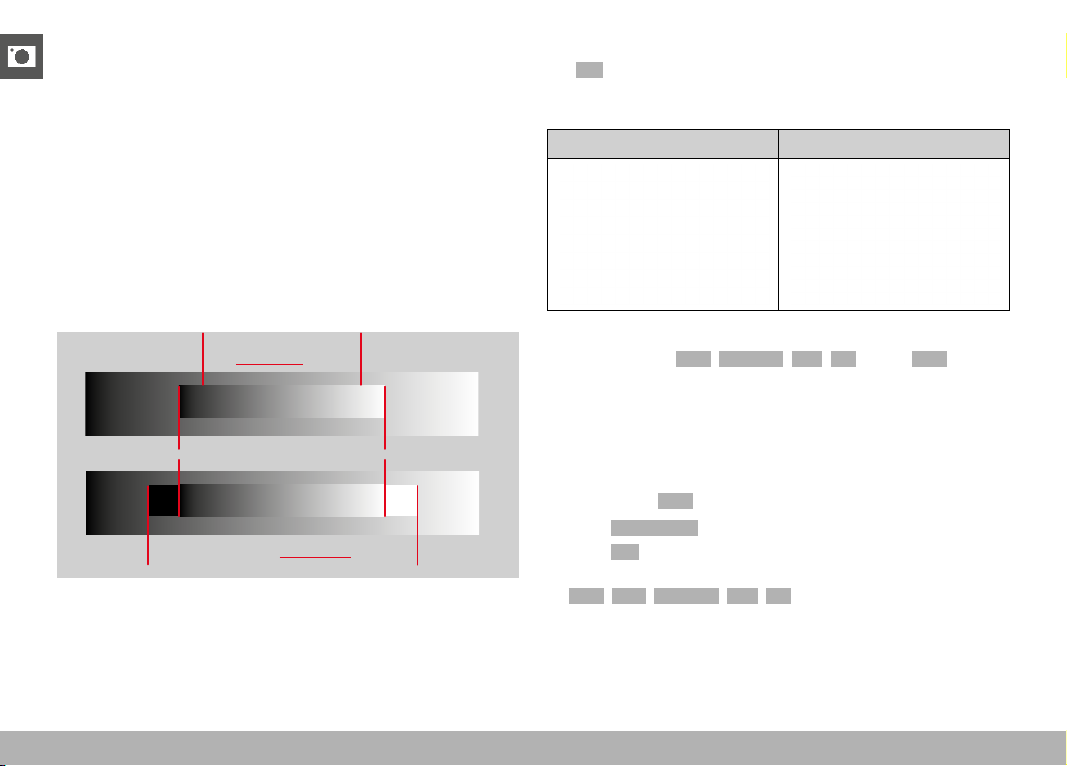
STILL IMAGE SETTINGS ▸ AUTOMATIC OPTIMIZATION
78
DARK AREA OPTIMIZATION (IDR)
DYNAMIC RANGE
The contrast range of an object comprises all levels of brightness
from the brightest to the darkest point in the image. All levels of
brightness can be captured by the sensor, provided the contrast
range of the object is lower than the dynamic range of the camera.
In case of significant differences of brightness in the object (e.g.
shootings of interior spaces with bright windows in the background,
shootings with subject elements in shadow or directly lit by the sun,
landscapes with dark areas and a very bright sky), the camera with
its limited dynamic range will not be able to map the entire contrast
range of the object. Information in 'edge areas' will be lost (under
and overexposure).
Contrast range of
a low-contrast object
Contrast range of a high-contrast object
Dynamic range of the camera
Underexposure Overexposure
iDR FUNCTION
The
iDR (Intelligent Dynamic Range) function allows an optimization
of the darker areas. Object details become much clearer. This func-
tion will only affect images in JPG format.
Without iDR With iDR
You can specify beforehand if and to what extent you want to opti-
mize darker areas ( High , Standard , Low , Off ). In the Auto setting,
the camera will automatically select the right setting depending
on the contrast range of the object. In addition to that setting, the
effect also depends on the exposure settings. The function will
have the strongest effect in combination with low ISO values and
fast shutter speeds. The effect is less pronounced with higher ISO
values and/or slower shutter speeds.
Factory setting:
Auto
▸ Select JPG Settings in the main menu
▸ Select
iDR
▸ Select the desired setting
( Auto , High , Standard , Low , Off )
Notes
• The optimization of darker areas will slightly reduce differentiation
in very bright areas.
• This function will only affect images in JPG format.

STILL IMAGE SETTINGS ▸ DATA MANAGEMENT
79
DATA MANAGEMENT
FORMATTING A MEMORY CARD
Memory cards that have already been in use with this camera will
usually not require formatting. An unformatted memory card that
is inserted into the camera for the first time must be formatted. We
recommend formatting memory cards from time to time, because
residual data traces (data pertaining to individual shots) may reduce
the card’s memory capacity.
▸ Select
Format Card in the main menu
▸ Confirm the selection
• The status LED will flash during the process.
Notes
• Never switch off the camera while data transfer is in progress.
• All data stored on the memory card will be lost during formatting.
Formatting will not be prevented by a deletion protection set for
individual shots.
• All images should therefore be regularly transferred to a safe
mass storage medium, e.g. the hard disk of a computer.
• A simple formatting process will initially not irretrievably destroy
existing data on the card. Only the directory will be deleted,
which means the data will no longer be directly accessible. Data
access can be restored with appropriate software. Only data that
is overwritten when new data is saved will actually be irretriev-
able.
• A memory card should be formatted again in the camera if it was
formatted in another device, e.g. a computer.
• Contact your retailer or Leica Customer Care for assistance if the
memory card cannot be formatted/overwritten (see p. 270).

STILL IMAGE SETTINGS ▸ DATA MANAGEMENT
80
DATA STRUCTURE
FOLDER STRUCTURE
The files (= photos) on the memory cards are saved in automatically
generated folders. The first three characters signify the folder num-
ber (numerals), the last five the folder name (letters). The first folder
is assigned the name “100LEICA”, the second “101LEICA”. A folder
will always be created with the next available number; you can have
max. 999 folders.
FILE STRUCTURE
The file names in these folders consist of eleven characters. In
the factory settings, the first file is named “L1000001.XXX”, the
second “L1000002.XXX”, etc. The first letter can be selected, the
“L” from the factory settings denotes the camera brand. The first
three characters signify the folder number (numerals). The next four
digits denote the sequential file number. Once file number 9999 is
reached, then a new folder will be automatically created, in which
the file numbering begins at 0001 again. The last three places after
the dot denote the file format (DNG or JPG).
Notes
• When using memory cards that were not formatted with this
camera, the file numbering will begin with 0001 again. Should the
memory card already contain a file with a higher number, then
numbering will be continued from that number.
• A relevant message will be displayed on the LCD panel once
folder number 999 and file number 9999 are reached, and all
numbering must be reset.
• Format the memory card and reset the frame number right after
to reset the folder number to 100.

STILL IMAGE SETTINGS ▸ DATA MANAGEMENT
81
EDIT FILE NAMES
▸ Select Camera Settings in the main menu
▸ Select
Edit File Name
• A keyboard submenu is displayed.
• The input line contains the factory setting “L” as the first letter
of the file name. Only this letter can be changed.
▸ Enter a letter of your choice (see p. 54)
▸ Confirm
Notes
• The change to a file name applies to all subsequent files or until a
new change is made. The sequential number will not be affected;
but it will be reset when a new folder is created.
• During a reset to factory settings, the first letter will always be
reset to “L”.
• Lower case letters are unavailable.
CREATING A NEW FOLDER
▸ Select Camera Settings in the main menu
▸ Select
Reset Image Numbering
• A relevant prompt is displayed.
▸ Confirm the creation of a new folder (
Yes ) or cancel the new
folder ( No )
Note
• The name part (first letter) of a new folder created this way re-
mains unchanged. The file numbers in that folder will start again
at 0001.
ADDING COPYRIGHT INFORMATION
This camera allows you to enter letters and other characters as a
copyright mark for your image files.
You can enter up to 20 characters of information under 2 headings
per shot.
▸ Select
Camera Information in the main menu
▸ Select
Copyright Information
▸ Activate the Copyright function ( On )
▸ Select
Information / Artist in the submenu
• A keyboard submenu is displayed.
▸ Enter the desired information (see p. 54)
▸ Confirm

STILL IMAGE SETTINGS ▸ DATA MANAGEMENT
82
LOGGING THE SHOOTING LOCATION
(ONLY IN CONNECTION WITH THE LEICA FOTOS APP)
Location information can be sourced from a mobile device in con-
nection with the Leica FOTOS app. Current location information will
then be written to the Exif data of the images (geotagging).
▸ Activating GPS functions on a mobile device
▸ Activate Leica FOTOS and connect to the camera (see chapter
“Leica FOTOS”)
▸ Activate geotagging for this camera in Leica FOTOS
Notes
• The use of GPS and associated technologies may be restricted in
some countries or regions. Violations will be prosecuted by local
authorities. You should therefore contact your travel agent or
the embassy of your destination country for relevant information
beforehand.
• It will take a few seconds for the Bluetooth connection to estab-
lish. The configured shutdown time should be considered when
choosing a delay time if shutdown is enabled in the camera.
• All images with location information are marked with the geotag-
ging icon in review mode.
GEOTAGGING STATUS
The status of existing location information is displayed on screen,
provided the info bars are displayed and geotagging is enabled. The
status screen will always show the current geotagging status.
The location information is current (most recent geolo-
cation max. 15 mins prior).
The location information is not necessarily current any-
more (most recent geolocation max. 12 h prior).
The available location information is outdated (most
recent geolocation more than 12 h in the past).
No location data will be written to Exif data.
No icon Geotagging is deactivated.
Location information will be continuously updated as long as the
camera is connected to Leica FOTOS. The Bluetooth function of the
camera and the mobile device must therefore remain enabled to
ensure latest information. It is, however, not necessary for the app
to be running in the foreground.

STILL IMAGE SETTINGS ▸ DATA MANAGEMENT
83
DATA TRANSFER
Data can be conveniently transferred to mobile devices via Leica
FOTOS. Alternatively, a card reader or USB cable can be used for
the transfer.
ABOUT LEICA FOTOS
▸ See chapter “Leica FOTOS” (p. 228)
VIA USB CABLE OR “LEICA FOTOS CABLE”
The camera supports multiple data transfer options. A transfer mode
can be permanently selected or chosen every time a connection is
established.
Factory setting: Apple MFi
▸ Select Camera Settings in the main menu
▸ Select
USB mode
▸ Select the desired setting
( Mass Storage , PTP , Apple MFi , Select on connection )
–
Apple MFi is used for the communication with iOS devices
(iPhone and iPad)
–
PTP
allows a data transfer to computers using MacOS or Windows
with PTP-capable programs, as well as tethering to Capture One
Pro and Lightroom Classic
Notes
• We recommend using a card reader for the transfer of large files.
• The USB connection must not be interrupted while data is being
transferred, as the computer or the camera could otherwise
“crash” and irreparable damage could occur on the memory
card.
• The camera must not be turned off or automatically shut itself
down due to a lack of battery power while data is being trans-
ferred, as this can cause the computer to crash. For the same
reason, the battery must never be removed from the camera
while the connection is active.
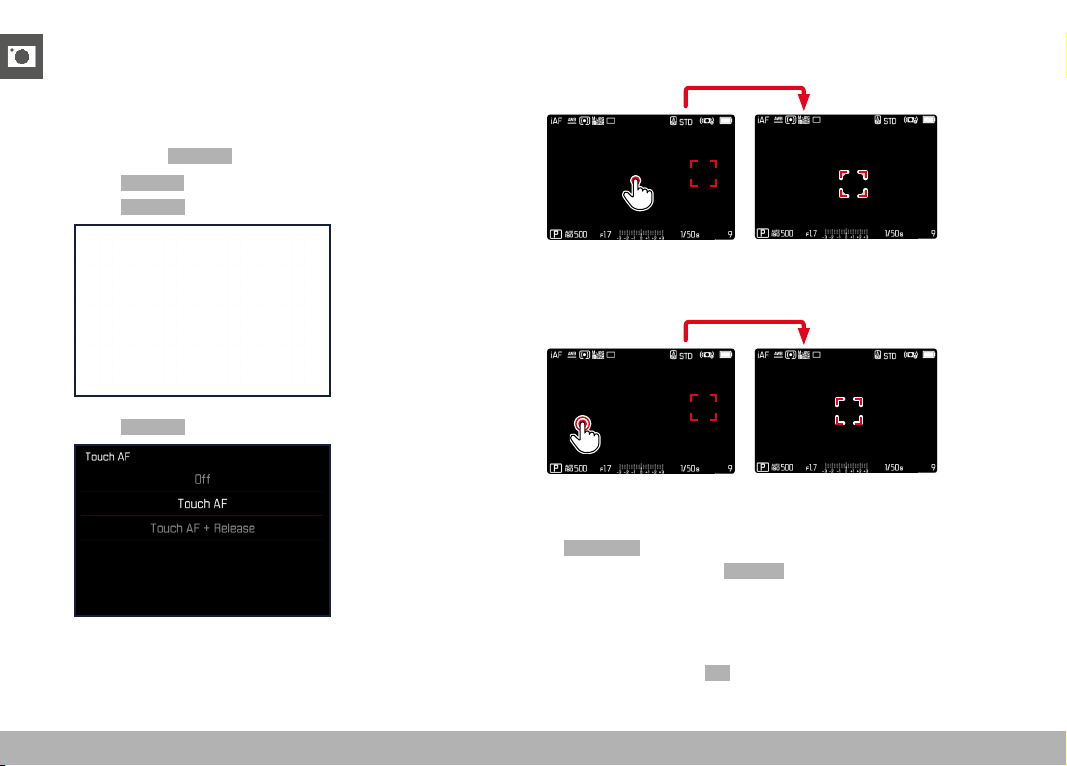
PRACTICAL DEFAULT SETTINGS ▸ TOUCH AF
84
PRACTICAL DEFAULT SETTINGS
TOUCH AF
Touch AF allows a direct placement of the AF frame.
Factory setting:
Touch AF
▸ Select Focusing in the main menu
▸ Select
Touch AF
▸ Select Touch AF
Positioning the AF frame
▸ Tap the LCD panel in the desired position
1/80002.8F 12500ISO EV
-3 2 1 0 21 3+
823412MP
Moving the focus frame back to the center of the screen
▸ Double-tap the LCD panel
1/80002.8F 12500ISO EV
-3 2 1 0 21 3+
823412MP
Notes
• This function is available with all AF metering methods except
Multi-Field .
• If the metering method
Tracking is selected, the focus frame will
remain at the selected position and autofocus commences when
the shutter button is tapped. For all other AF metering methods,
focusing occurs automatically.
• The position of the AF frame can only be reset with a double-tap,
even if the setting is
Off .
PRACTICAL DEFAULT SETTINGS ▸ AUXILIARY DISPLAYS
85
TOUCH AF + SHUTTER BUTTON
The combination Touch AF + Release allows a direct placement of
the AF frame for immediate recording.
▸ Select
Focusing in the main menu
▸ Select
Touch AF
▸ Select Touch AF + Release
▸ Tap the LCD panel in the desired position
Note
• The AF frame cannot be reset as usual via a double tap if
Touch
AF + Release is activated.
TOUCH AF IN EVF MODE
Touch AF is deactivated by default when EVF is in use to prevent
any inadvertent altering of the AF frame. AF Quick Setting (see
p. 189) continues to be accessible. This function can also be dis-
abled if that is not wanted (e.g. when focusing with the left eye).
Factory setting:
Off
▸ Select Focusing in the main menu
▸ Select
Touch AF in EVF
▸ Select the desired setting
( On , AF Quick Setting only , Off )
–
On
– Positioning the AF frame (tap)
– Accessing the AF Quick Setting (tap and hold)
–
AF Quick Setting only
– Accessing the AF Quick Setting (tap and hold)
–
Off
AUXILIARY DISPLAYS
You can select a number of other displays in addition to the standard
information contained in the header and footer to adapt the screen
image to your needs. The following functions are available:
– Grid (only shooting mode, see p. 86)
– Focus Peaking (see p. 87)
– Clipping (see p. 89)
– Level Gauge (only shooting mode, see p. 88)
– Histogram (see p. 89)
E
A
A
B
D
C
A
Info Bars (= header and footer line)
B
Grid
C
Focus peaking
D
Clipping
E
Level gauge
F
Histogram
▸ Select
Capture Assistants in the main menu
▸ Select the desired function
▸ Select
On / Off
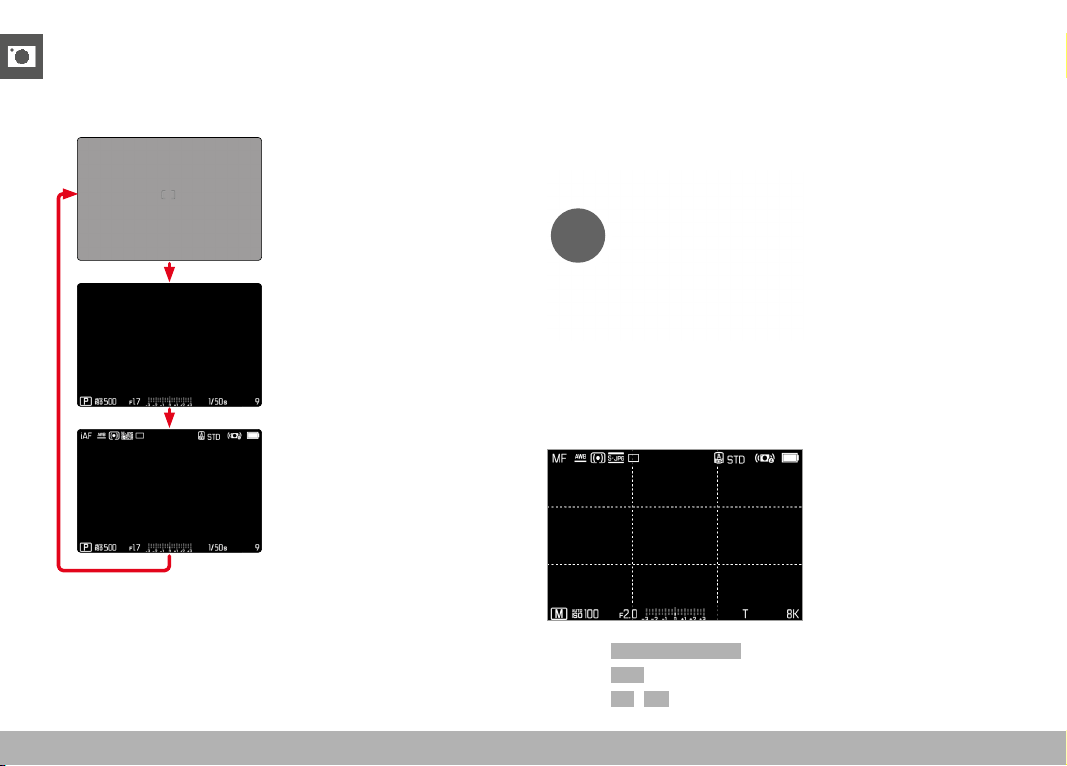
PRACTICAL DEFAULT SETTINGS ▸ AUXILIARY DISPLAYS
86
INFO DISPLAYS IN SHOOTING MODE
Select one of the three available display options.
▸ Press the center button
• The display cycles through the display options.
– No picture data
– Footer with exposure information,
auxiliary displays
– Header with recording information,
footer with exposure information,
auxiliary displays
Briefly showing/hiding information
▸ Tap and hold the shutter button
• (Only) the exposure information and currently active auxiliary
functions will be visible.
SHOW AVAILABLE
INFO BARS
The header and footer lines show the currently active settings and
exposure values. See chapter “Displays” for a full list of the various
displays (see p. 24).
GRID
The grids divide the image frame into multiple fields. They facilitate
pictorial composition and an exact camera orientation.
▸ Select Capture Assistants in the main menu
▸ Select
Grid
▸ Select On / Off

PRACTICAL DEFAULT SETTINGS ▸ AUXILIARY DISPLAYS
87
FOCUS PEAKING
This assist function highlights the edges of in focus subject elements
in color. The color can be user-specified. The sensitivity can be addi-
tionally adjusted.
HIGHLIGHT COLOR
Factory setting: Red
▸ Select Focusing in the main menu
▸ Select
Focus Assist
▸ Select Focus Peaking
▸ Select the desired setting
(
Off , Red , Green , Blue , White )
SENSITIVITY
Factory setting: Medium
▸ Select Focusing in the main menu
▸ Select
Focus Assist
▸ Select Peaking Sensitivity
▸ Select the desired setting
(
Low , Medium , High )
Note
• Focus peaking is based on subject contrast, i.e. differences be-
tween light and dark. As a result, high contrast subject elements
could be marked, even if they are not completely in focus.
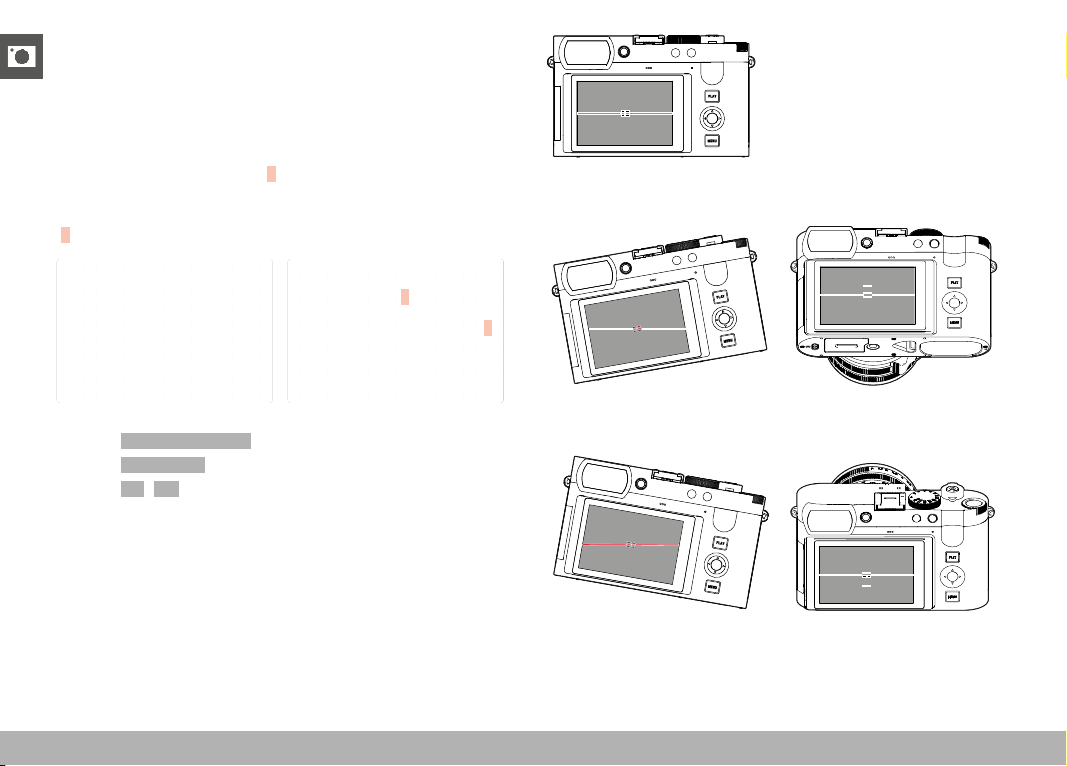
PRACTICAL DEFAULT SETTINGS ▸ AUXILIARY DISPLAYS
88
LEVEL GAUGE
The integrated sensors of the camera show its orientation. These
indicators ensure exact camera orientation along the longitudinal
and transverse axes of critical objects, e.g. architecture.
Deviations in relation to the longitudinal axis (i.e. when the camera
is tilted up or down in the direction of view) are indicated by a short
line in the center of the image (
1). Deviations in relation to the
transverse axis (when the camera is tilted to the left or right) are
indicated by two long lines to the left and right of the image center
(
2).
2
1
▸ Select Capture Assistants in the main menu
▸ Select
Level Gauge
▸ Select On / Off
Note
• The camera will switch the aspect of the level gauge autono-
mously for shoots in vertical format.
Correct alignment
Tilted laterally to the left Tilted downward in the direction
of view
Tilted laterally to the right Tilted upward in the direction
of view
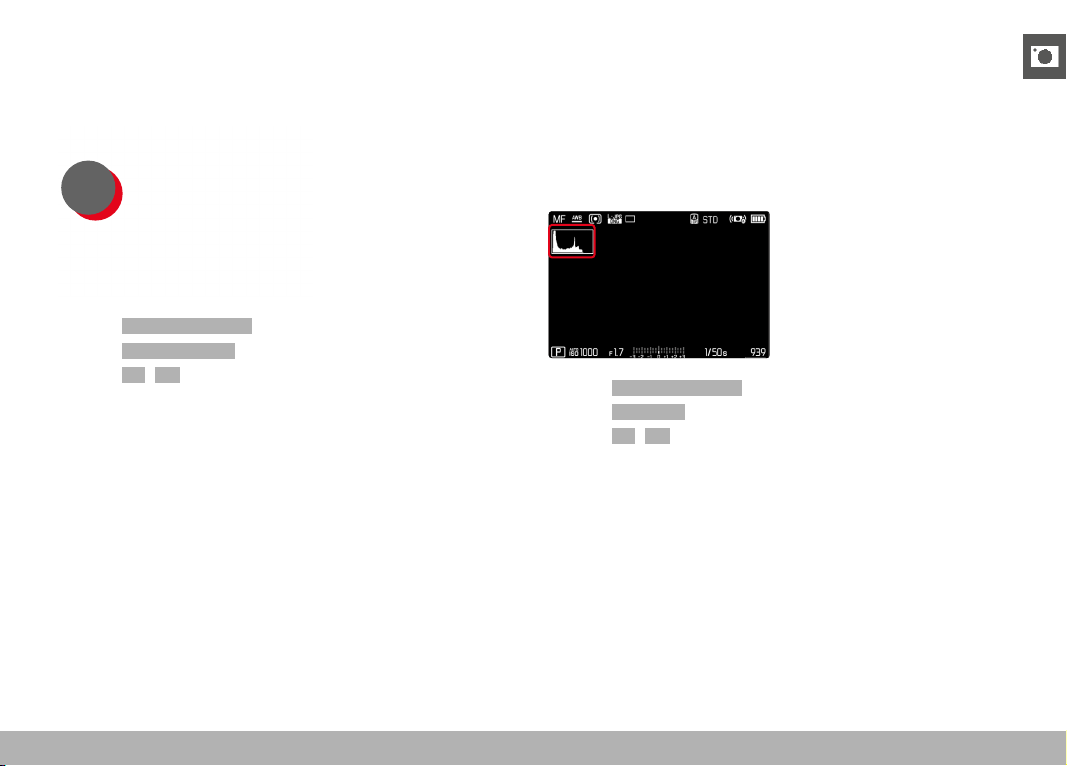
PRACTICAL DEFAULT SETTINGS ▸ AUXILIARY DISPLAYS
89
CLIPPING
The Clipping display marks very bright image areas. This function is
a very easy and exact tool for checking the correct exposure set-
ting. Overexposed areas flash black.
▸ Select Capture Assistants in the main menu
▸ Select
Clipping / Zebra
▸ Select On / Off
▸ Tap and hold the shutter button
• The clipping display appears.
HISTOGRAM
Histogram represents the brightness distribution in the image. The
horizontal axis shows the graduated values from black (left) through
gray to white (right). The vertical axis corresponds to the number of
pixels at each brightness level.
This type of rendering allows an additional quick and easy assess-
ment of the exposure setting.
▸ Select Capture Assistants in the main menu
▸ Select
Histogram
▸ Select On / Off
Notes
• The histogram is always based on the brightness displayed;
depending on the settings used, it may not represent the final
exposure.
• In shooting mode, the histogram should be regarded as a “trend
indicator”.
• The histogram during rendering may differ slightly from the one
during exposure.
• The Histogram always refers to the currently displayed cropped
section of the image.
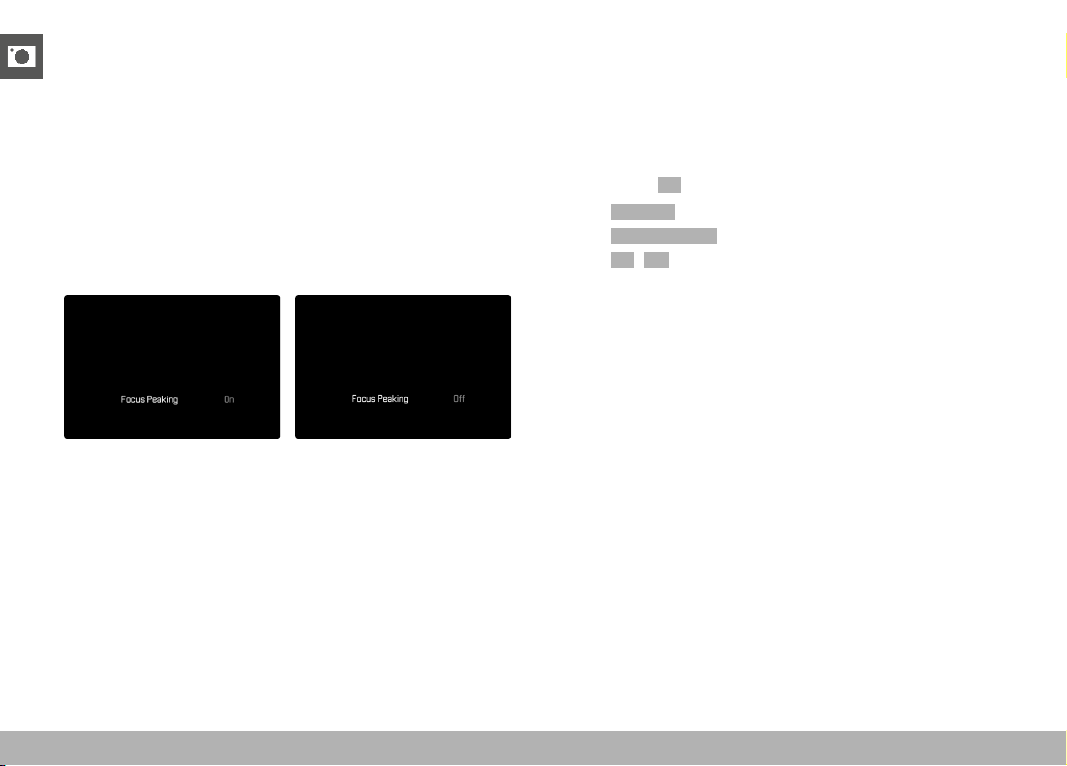
PRACTICAL DEFAULT SETTINGS ▸ MF ASSIST FUNCTIONS
90
TEMPORARY ACTIVATION/DEACTIVATION OF INDIVIDUAL
FUNCTIONS
The following assist functions can be activated/deactivated tempo-
rarily:
– Focus peaking
– Clipping
▸ Assigning the desired assist function to a function button (see
p. 59)
▸ Press the corresponding function button
• The status of the assist function toggles On/Off.
• A relevant indicator appears in the screen image.
The temporary setting is reset when the camera is switched off.
MF ASSIST FUNCTIONS
AF ASSIST LAMP
The integrated AF assist lamp allows operation of the AF system in
unfavorable lighting conditions. This lamp comes on while metering
is performed, provided the function is activated.
Factory setting:
On
▸ Select Focusing in the main menu
▸ Select
AF Assist Lamp
▸ Select On / Off
Notes
• The AF assist lamp illuminates an area of up to approx. 5 m.
• The AF assist lamp switches off automatically, once focusing was
successful (AF frame is green) or has failed (AF frame is red).

PRACTICAL DEFAULT SETTINGS ▸ MF ASSIST FUNCTIONS
91
ACOUSTIC AF CONFIRMATION
You can set an acoustic confirmation signal for successful focus
metering in AF mode.
Factory setting:
Off
▸ Select Acoustic Signal in the main menu
▸ Select
AF Confirmation
▸ Select On
▸ Select Volume
▸ Select Low / High
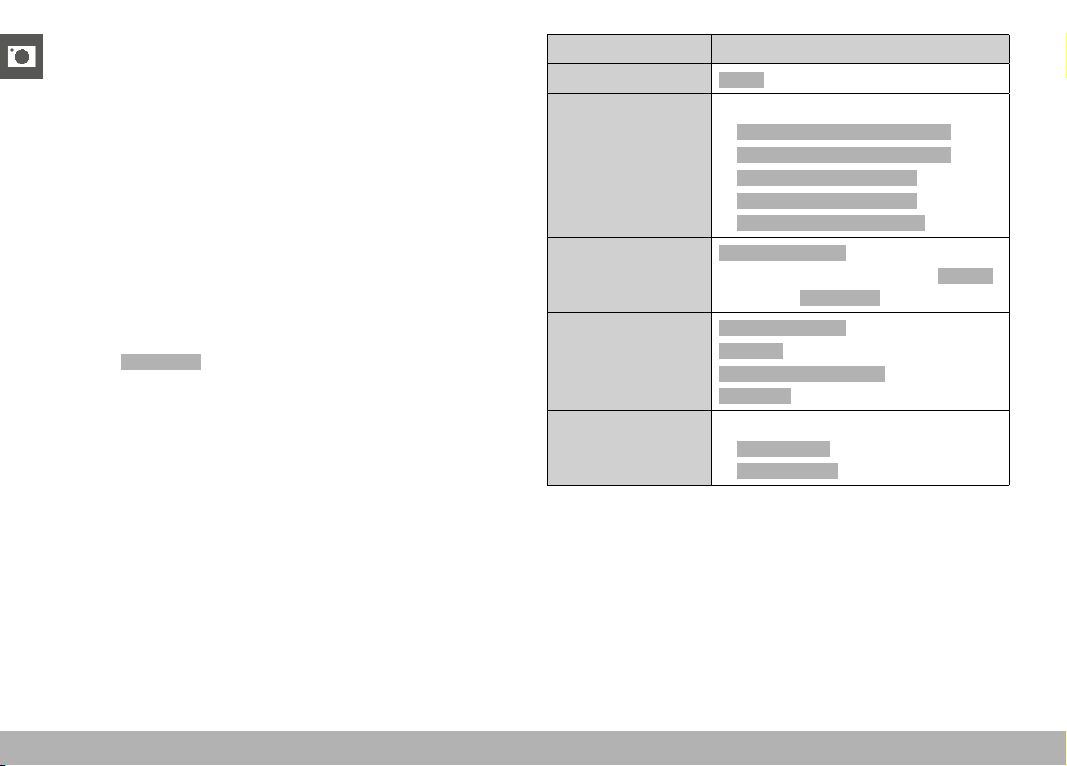
PHOTOGRAPHY ▸ DRIVE MODE
92
PHOTOGRAPHY
The settings described in this chapter only apply for photo mode.
They are therefore part of the photo menu and must always be
accessed and configured from within photo mode (see chapter
“Camera operation” in the section “Menu Control”). Any menu
items of the same name in the video menu are entirely independent
of these.
DRIVE MODE
The functions and settings described in the following generally
refer to the exposure of individual shots. In addition to single frame
shooting, the Leica Q3 offers a number of other exposure modes.
Please read the relevant sections for information about functional-
ities and setting options.
▸ Select
Drive Mode in the main menu
▸ Select the desired function options
Mode Setting options / Variants
Single frame shooting
Single
Continuous shooting
(see p. 120)
Speed:
–
Continuous - 2 fps / 14 bit / AF
– Continuous - 4 fps / 14 bit / AF
– Continuous - 7 fps / 14 bit
– Continuous - 9 fps / 12 bit
– Continuous - 15 fps / 12 bit
Interval shooting
(see p. 121)
Number of Frames
Interval between the shootings ( Interval )
Delay time (
Countdown )
Exposure bracketing
(see p. 123)
Number of Frames (3 or 5)
EV Steps
Exposure Compensation
Automatic
Self-timer
(see p. 124)
Delay time:
–
Self-timer 2 s
– Self-timer 12 s

PHOTOGRAPHY ▸ FOCUSING
93
FOCUSING
Your Leica Q3 allows automatic as well as manual focusing. There
are 3 operating modes and 4 metering methods available for AF
photography.
AF PHOTOGRAPHY
▸ Press and hold the AF/MF release button
▸ Turn the focus ring to the
AF position
▸ Position the AF frame as needed
▸ Tap and hold the shutter button
• Focusing occurs one time (AFs) or continuously (AFc).
• Metering was successful: The AF frame lights up green.
• Metering was unsuccessful: The AF frame lights up red.
• Alternatively, focus and/or exposure settings can be config-
ured and saved via one of the function buttons (“Exposure
lock”, see p. 117).
▸ Shutter release
MF PHOTOGRAPHY
▸ Press and hold the AF/MF release button
▸ Turn the focus ring away from the
AF position
▸ Use the focus ring to manually focus on the object
▸ Shutter release
Please read the following chapters for more information.
AUTOFOCUS MODES
The following AF modes are available: AFs , AFc and Intelligent AF .
The currently selected AF mode is shown in the header line.
Factory setting:
Intelligent AF
▸ Select Focusing in the main menu
▸ Select
Focus Mode
▸ Select the desired setting
( Intelligent AF , AFs , AFc )
INTELLIGENT AF
Suitable for all objects. The camera automatically selects between
AFs and AFc.
AFs (single)
Suitable for objects with little or no movement. Focusing is done only
once and the setting remains as long as the shutter button is held
at the pressure point. That also applies if the AF frame is pointed at
another object.
AFc (continuous)
Suitable for objects in motion. As long as the shutter button is held
at the 1st pressure point, focusing is continuously adjusted to the
object in the AF frame.
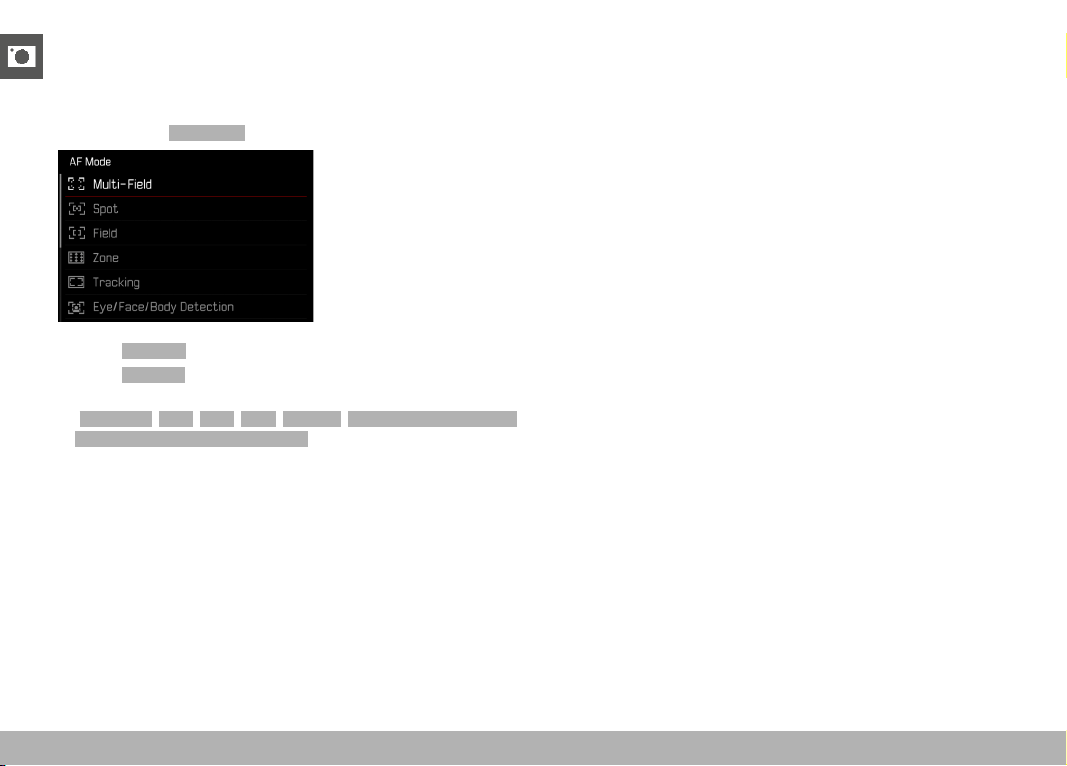
PHOTOGRAPHY ▸ FOCUSING
94
AUTOFOCUS METERING METHODS
The AF mode offers various metering methods for focusing. A suc-
cessful focus setting is identified by a green frame, an unsuccessful
one is shown in red.
Factory setting:
Multi-Field
▸ Select Focusing in the main menu
▸ Select
AF Mode
▸ Select the desired setting
(
Multi-Field
,
Spot
,
Field
,
Zone
,
Tracking
,
Eye/Face/Body Detection
,
Eye/Face/Body + Animal Detection
)
Notes
• AF focusing can be unsuccessful:
– if the distance to the object is too great (macro mode) or too
small
– if the object is not sufficiently illuminated
• Touch AF allows a direct placement of the AF frame. See p. 84
for more information.
MULTI-FIELD METERING
Several focus area are detected automatically. This function is par-
ticularly useful for snapshots.
SPOT/FIELD METERING
Both methods detect only those parts of the object that are within
the relevant AF frames. The metering fields are indicated by a small
frame (field metering) or a cross (spot metering). The very small
measuring range for spot metering allows focusing on tiny details of
the subject.
The slightly larger measuring range in field metering is less critical
for focusing, but still permits selective metering.
These metering methods can also be used for serial exposures in
which the part of the object you want to focus on will always be at
the same off-center position in the image.
Simply move the AF frame to another position (see p. 99).
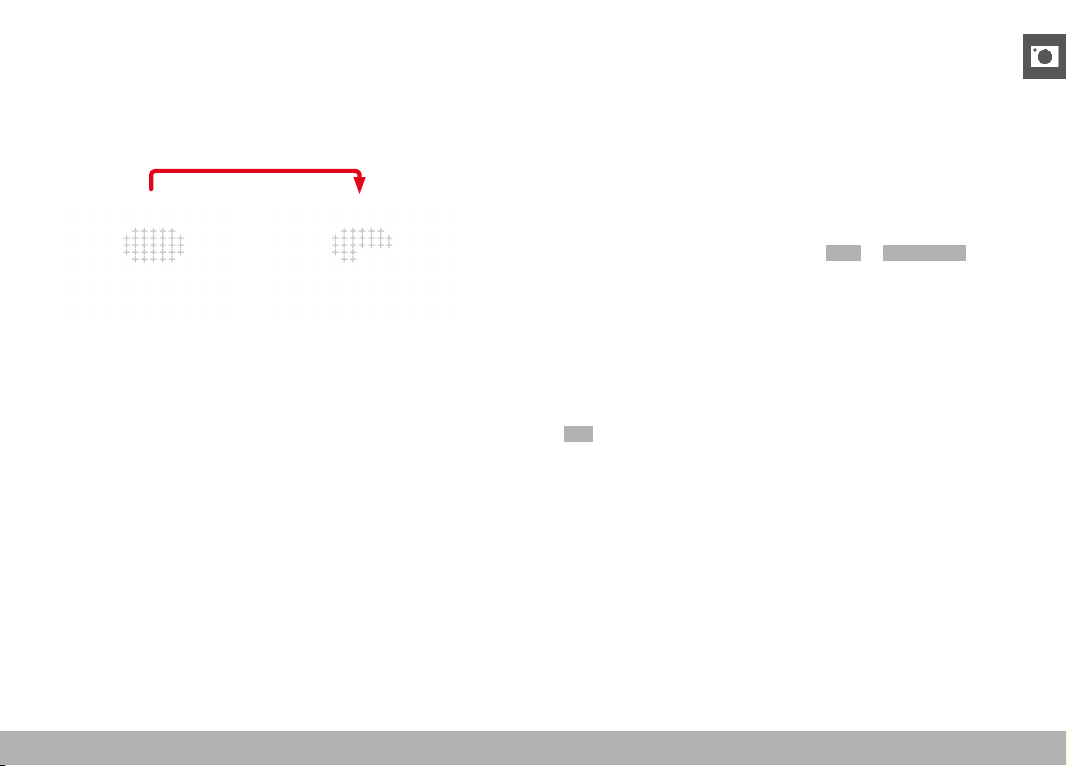
PHOTOGRAPHY ▸ FOCUSING
95
ZONE
With this metering method, subject sections are recorded with a co-
herent group comprising 5 x 5 fields. This function combines some
security for snapshots with the option of aiming at larger objects
reliably.
Once the setting has been made, the focus frames are displayed
where object sections are displayed in focus.
TRACKING
This field metering variant helps in the capture of moving objects.
The focus on the object in the focus frame is continuously adjusted,
once it is detected.
▸ Aim the focus frame at the desired object
(by panning the camera shifting the focus frame)
▸ Tap and hold the shutter button
or
▸ Press the function button
(provided it was assigned the function
AF-L or AF-L + AE-L , see
p. 117 )
• The camera focuses on the object.
▸ Pan the camera to the desired cropped section
• The focus frame “tracks” the saved object and focus is contin-
uously adjusted.
Note
• This metering method focuses continuously, even if the AF mode
AFs was set.
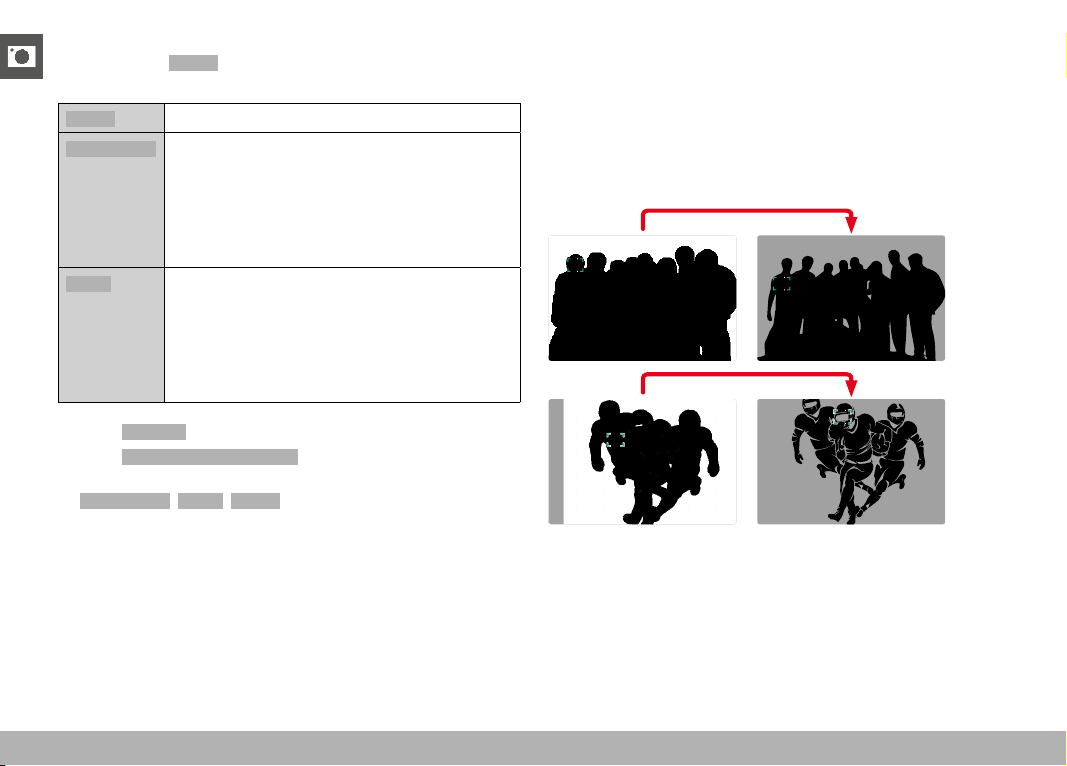
PHOTOGRAPHY ▸ FOCUSING
96
START POSITION FOR TRACKING
Factory setting: Center
You can specify the starting point for tracking.
Center
Center of the screen
Last Position
Ending position of the most recent tracking
Example:
A car drives thought he picture from left to right.
The picture is taken on the right edge of the
frame. The subsequent measurement is taken at
the right edge of the frame.
Recall
Starting position of the most recent tracking
Example:
A car drives thought he picture from left to right.
The picture is taken on the right edge of the
frame. The subsequent measurement is taken at
the left edge of the frame.
▸ Select
Focusing in the main menu
▸ Select
AF Tracking Start Position
▸ Select the desired setting
( Last Position , Recall , Center )
PERSON DETECTION (FACE DETECTION)
Person detection is an expansion of the face detection feature. In
addition to biometric patterns of faces, the camera also detects
body patterns and uses them for focusing. Tracking will therefore
continue, once a person is detected and measured, even if the face
may not be in view at some point. This feature prevents inadvertent
“jumps” to other faces if several persons are in the frame.
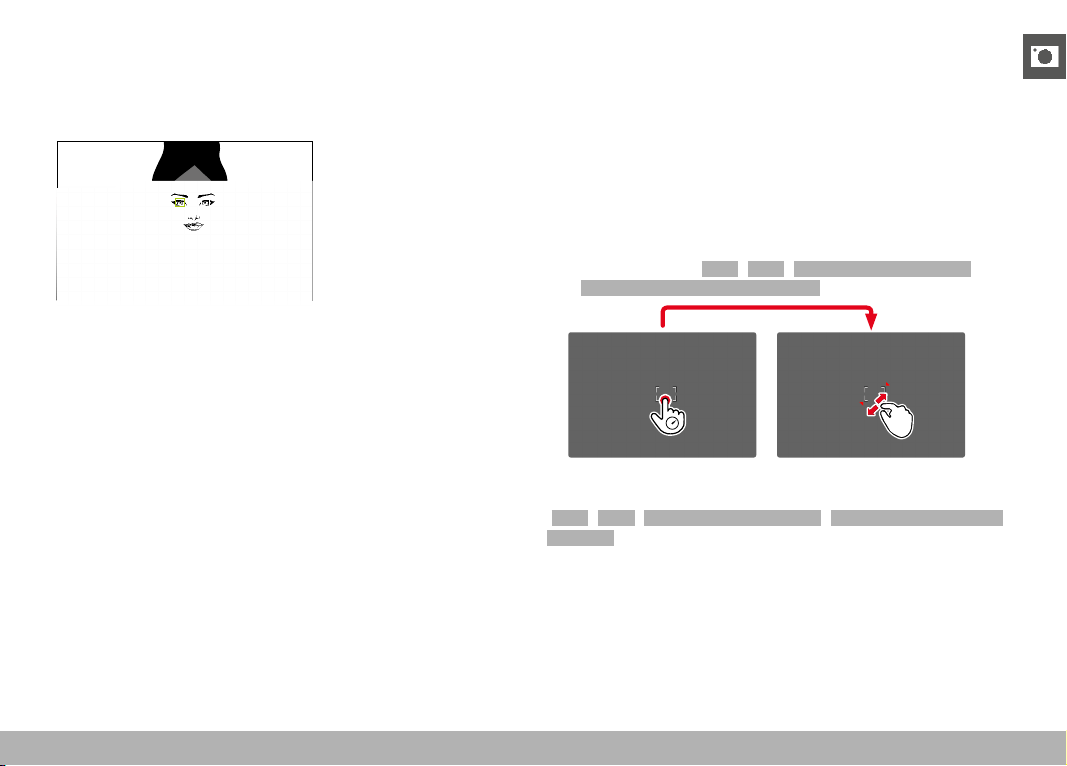
PHOTOGRAPHY ▸ FOCUSING
97
When face detection detects an eye, the focus will be on that eye.
Should more than one eye be detected, then the user can choose
the eye to focus on. The currently selected eye will be highlighted.
Additionally, the desired face can be easily selected if there are
several faces in the frame.
Toggling between faces and/or eyes
▸ Press the directional pad in the relevant direction
EYE/FACE/BODY + ANIMAL DETECTION
This version of Eye/Face/Body Detection also includes the recogni-
tion of some typical pet types.
AF QUICK SETTING
The AF Quick Setting allows quick changes to the focus frame size
in some AF metering methods.
The screen image will remains visible continuously while settings
are being adjusted.
ACCESSING AF QUICK SETTING
▸ Tap and hold the LCD panel
• All auxiliary displays are hidden.
• Red triangles appear at two corners of the focus frame if the
metering method
Field / Zone / Eye/Face/Body Detection /
Eye/Face/Body + Animal Detection is set.
ADJUSTING THE AF FRAME SIZE
( Field / Zone / Eye/Face/Body Detection / Eye/Face/Body + Animal
Detection only)
▸ Turn the thumbwheel
or
▸ Two-finger pinch/spread
• The size of the AF frame is adjustable in 3 increments.
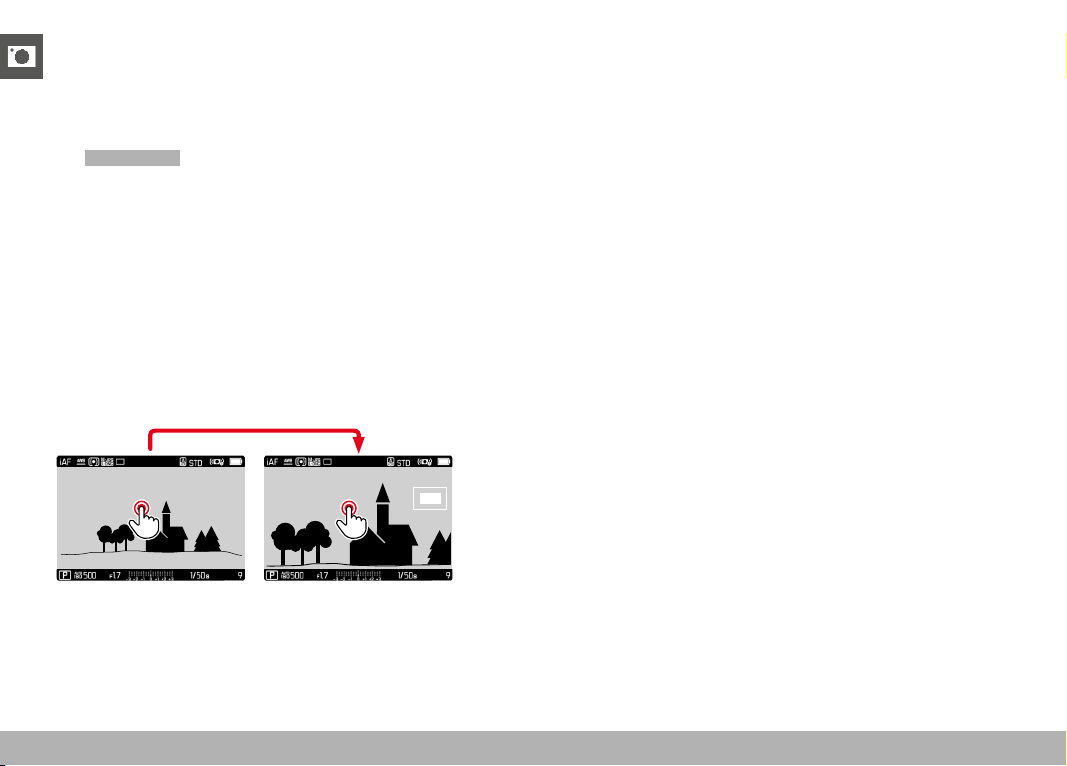
PHOTOGRAPHY ▸ FOCUSING
98
MF ASSIST FUNCTIONS
ENLARGEMENT IN AF MODE
You can access the enlargement function independent of focusing
for a better assessment of the settings.
The
Magnification function must be assigned to one of the function
buttons to use this feature (see p. 59).
Assigning a function to a function button
▸ See p. 59
Accessing the enlargement function
▸ Press the function button
• An enlarged image section appears. The position of the en-
largement depends on the position of the AF frame.
• The rectangle within the frame at the top right represents the
current magnification, as well as its position in the displayed
cropped section.
Adjusting the enlargement function
▸ Press the center button
• The image section toggles between magnification factors.
Changing the position of the enlarged section
▸ Press the directional pad in the relevant direction
Exiting the enlargement function
▸ Tap the shutter button
or
▸ Press the function button again
Notes
• The enlargement function remains active until it is exited.
• The most recently magnification function will still be active the
next time the feature is accessed.

PHOTOGRAPHY ▸ FOCUSING
99
AF ASSIST LAMP
The integrated AF assist lamp allows operation of the AF system in
unfavorable lighting conditions. This lamp comes on while metering
is performed, provided the function is activated.
See p. 90 for settings.
ACOUSTIC AF CONFIRMATION
You can set an acoustic confirmation signal for successful focus
metering in AF mode (see p. 69).
SHIFTING THE AF FRAME
All AF metering methods permit shifting the AF frame before focusing.
▸ Press the directional pad in the relevant direction
or
▸ Tap the LCD panel in the desired position
(While Touch AF is activated)
Notes
• The focus frame will remain at the most recently used position
for this AF metering method even if the user changes the AF me-
tering method or the camera is switched off.
• The metering fields are joined together when the exposure meter-
ing method
Spot is combined with the AF metering methods
Spot , Field and Zone . Exposure metering will then occur at the
point specified by the AF frame, even if it is moved.
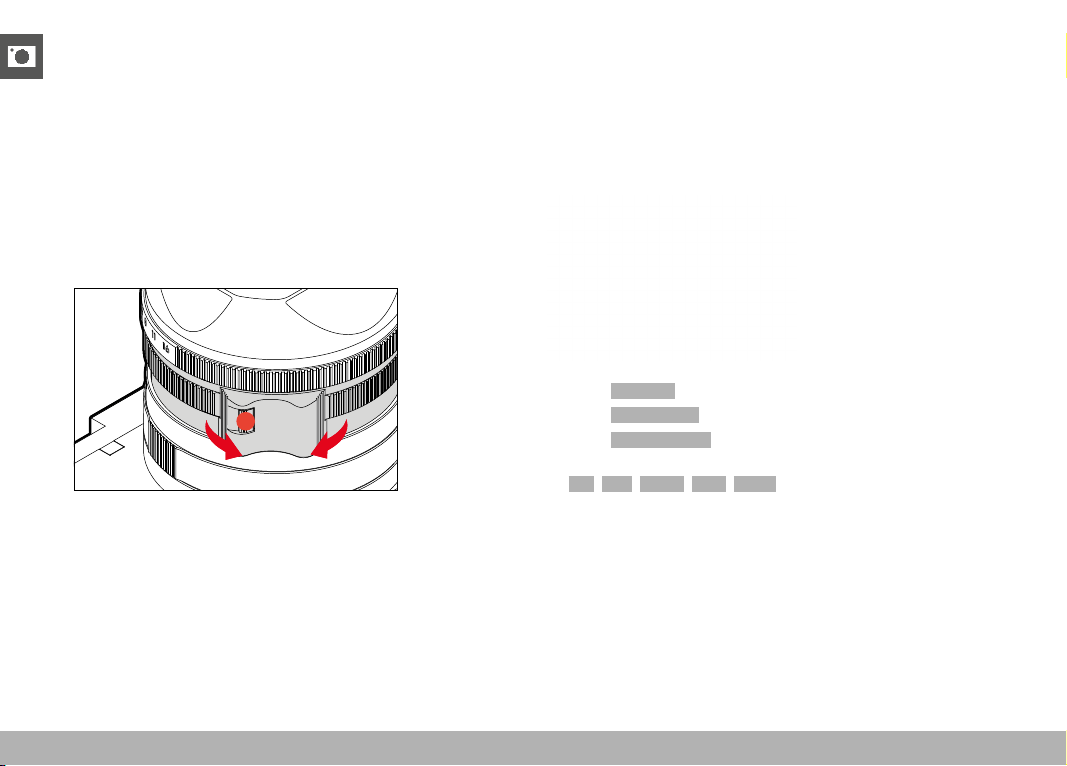
PHOTOGRAPHY ▸ FOCUSING
100
MANUAL FOCUSING (MF)
Focusing manually may in some situations be a better choice than
autofocus.
– the same setting is used for several shoots
– it would take longer to use the metering memory lock function
– the setting is to be kept at infinity for landscape pictures
– poor, i.e. very dark lighting conditions prevent AF operation or
would slow it down
▸ Move the focus ring out of the
AF position
(press and hold the AF/MF lock release)
▸ Turn the focus ring until the desired part of the object is in clear
focus
MF ASSIST FUNCTIONS
The following assist functions are available in MF mode.
FOCUS PEAKING
This assist function highlights the edges of in focus subject elements
in color. The color can be user-specified. The sensitivity can be
additionally adjusted. See p. 87 for settings.
▸ Select Focusing in the main menu
▸ Select
Focus Assist
▸ Select Focus Peaking
▸ Select the desired setting
( Off , Red , Green , Blue , White )
▸ Select an image section
▸ Turn the focus ring to mark the desired subject elements
Note
• Focus peaking is based on subject contrast, i.e. differences be-
tween light and dark. As a result, high contrast subject elements
could be marked, even if they are not completely in focus.

PHOTOGRAPHY ▸ FOCUSING
101
ENLARGEMENT IN MF MODE
The larger the details of the object are shown, the better you can
assess their sharpness and the more accurately you can focus.
This function can be automatically activated during manual focusing
or can be accessed independently.
ACCESS VIA THE FOCUS RING
Turning the focus ring will automatically enlarge a image section.
▸ Select
Focusing in the main menu
▸ Select
Focus Assist
▸ Select Auto Magnification
▸ Select On
▸ Turn the focus ring
• An enlarged image section appears. The position of the enlarge-
ment depends on the position of the AF frame.
• The rectangle within the frame at the top right represents the
current magnification, as well as its position in the displayed
cropped section.
Adjusting the enlargement function
▸ Press the center button
• The image section toggles between magnification factors.
Changing the position of the enlarged section
▸ Press the directional pad in the relevant direction
Exiting the enlargement function
▸ Tap the shutter button
Note
• The enlargement will automatically return to normal viewing size
about 5 s after the last movement of the focus ring.
• The most recently magnification function will still be active the
next time the feature is accessed.
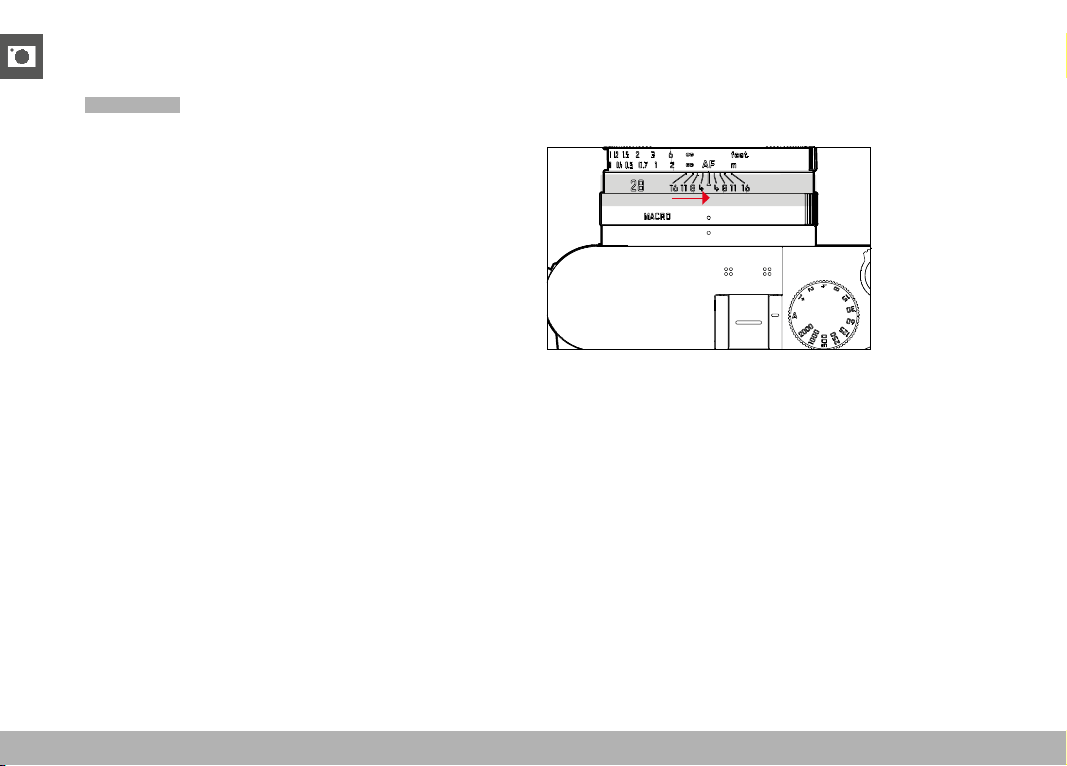
PHOTOGRAPHY ▸ FOCUSING
102
ACCESS VIA THE FUNCTION BUTTON
You can access the enlargement function independent of focusing
for a better assessment of the settings.
The
Magnification function must be assigned to one of the function
buttons to use this feature (see p. 59).
Assigning a function to a function button
▸ See p. 59
Accessing the enlargement function
▸ Press the function button
• An enlarged image section appears. The position of the enlarge-
ment depends on the position of the AF frame.
• The rectangle within the frame at the top right represents the
current magnification, as well as its position in the displayed
cropped section.
Adjusting the enlargement function
▸ Press the center button
• The image section toggles between magnification factors.
Changing the position of the enlarged section
▸ Move the position of an enlarged cropped section by swiping
or
▸ Press the directional pad in the relevant direction
Exiting the enlargement function
▸ Tap the shutter button
Note
• The enlargement function remains active until it is exited.
MACRO FUNCTION
The working range for the focus setting can be switched quickly and
easily from the standard focus range (30 cm to infinity) to the macro
range (17 cm to 30 cm) using the macro ring. AF and MF mode are
available in both ranges.
▸ Turn the macro ring until the alignment point is set to MACRO
• The distance scales on the focus ring change when the focus
ranges change.

PHOTOGRAPHY ▸ ISO SENSITIVITY
103
ISO SENSITIVITY
The ISO setting covers a range between ISO 50 and ISO 100 000,
allowing you to adapt to the relevant situation as required.
There is more leeway for the use of preferred shutter-speed/ap-
erture combinations when choosing an automatic ISO setting. You
can set priorities within the scope of the automatic setting, e.g. for
reasons of pictorial composition.
Factory setting:
Auto ISO
FIXED ISO VALUES
Values between ISO 50 and ISO 100 000 can be selected in 14
increments. Manual ISO settings are initially done in full EV steps,
and from ISO 50,000 in 1/3 EV steps.
▸ Select
ISO in the main menu
▸ Select the desired value
Note
• When high ISO values are used or the image is edited later, image
noise, as well as vertical and horizontal stripes may become visi-
ble, particularly in larger, evenly lit areas of the object.
AUTOMATIC SETTING
The camera automatically adjusts the sensitivity to ambient bright-
ness and/or to the configured shutter-speed/aperture combination.
In conjunction with aperture-priority mode, this function extends
the range for automatic exposure control. The automatic setting of
ISO sensitivity occurs in increments of 1⁄3 EV.
▸ Select
ISO in the main menu
▸ Select
Auto ISO
LIMITING SETTING RANGES
A max. ISO value can be set, which will then limit the automatic
setting (
Maximum ISO ). A max. exposure time can also optionally
be configured. There are automatic settings and fixed max. shutter
speeds 1/2 s and 1/2000 s available for that purpose.
Separate settings are available for flash photography.
LIMITING ISO VALUES
All values from ISO 200 are available.
Factory setting:
6400
▸ Select Auto ISO Settings in the main menu
▸ Select
Maximum ISO
▸ Select the desired value

PHOTOGRAPHY ▸ ISO SENSITIVITY
104
LIMITING SHUTTER SPEED RANGES
Factory setting: Auto
▸ Select Auto ISO Settings in the main menu
▸ Select
Shutter Speed Limit
▸ Select the desired value
( Auto , 1/2000 , 1/1000 , 1/500 , 1/250 , 1/125 , 1/60 , 1/30 ,
1/15 , 1/8 , 1/4 , 1/2 )
LIMITING ISO VALUES (FLASH)
All values from ISO 200 are available.
Factory setting:
6400
▸ Select Auto ISO Settings in the main menu
▸ Select
Maximum ISO (Flash)
▸ Select the desired value
LIMITING SHUTTER SPEED RANGES (FLASH)
Factory setting: Auto
▸ Select Auto ISO Settings in the main menu
▸ Select
Shutter Speed Limit (Flash)
▸ Select the desired value
( Auto , 1/2000 , 1/1000 , 1/500 , 1/250 , 1/125 , 1/60 , 1/30 ,
1/15 , 1/8 , 1/4 , 1/2 )
DYNAMIC ISO SETTING
The thumbwheel can be configured to allow manual ISO settings
in real time (see p. 60). The settings will cycle through all values
available in the ISO menu. That means that Auto ISO can also be
selected.
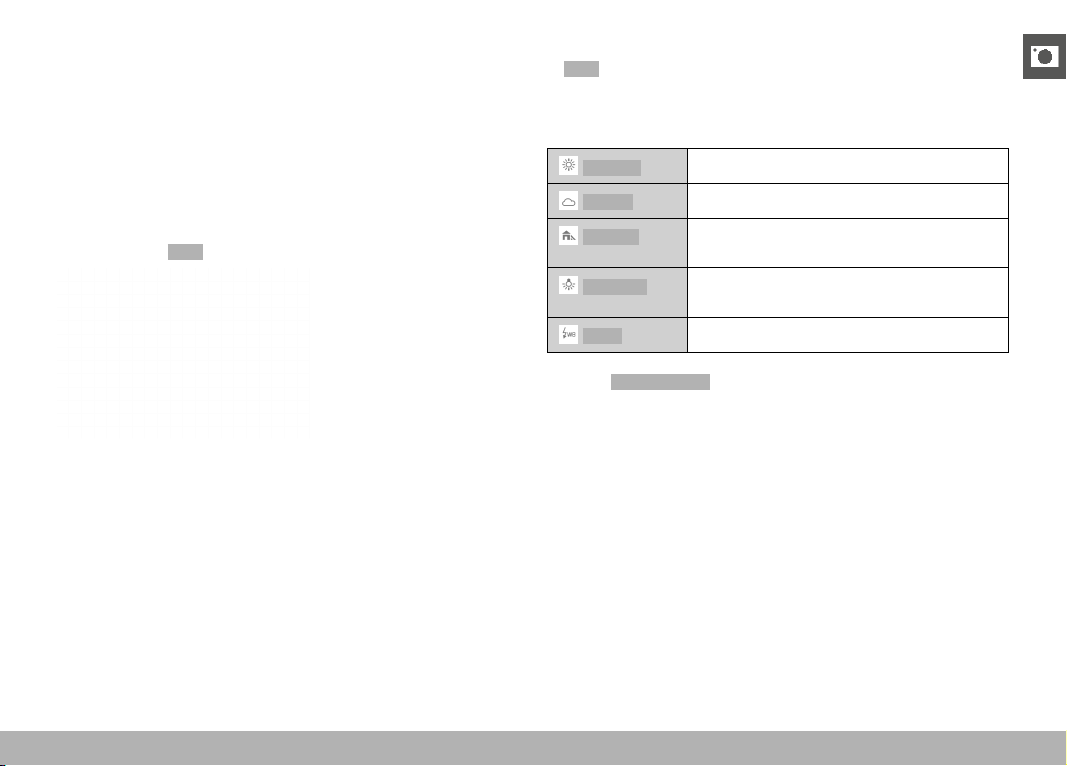
PHOTOGRAPHY ▸ WHITE BALANCE
105
WHITE BALANCE
In digital photography, White Balance ensures neutral color rendering
in any light. White Balance relies on the setting made in the camera,
which light color is to be rendered as 'white'.
Four methods are available:
– automatic control
– fixed presets
– manual setting via metering
– direct setting of the color temperature
Factory setting:
Auto
AUTOMATIC CONTROL/FIXED SETTINGS
– Auto : for automatic control, which delivers neutral results in
most situations
– Various fixed presets for most frequently encountered light
sources:
Daylight
For outdoor shootings in sunlight
Cloudy
For outdoor shootings in cloudy conditions
Shadow
For outdoor shootings with the main subject
in shadow
Tungsten
For indoor shootings with (predominantly)
incandescent lamp light
Flash
For flash photography
▸ Select
White Balance in the main menu
▸ Select the desired setting
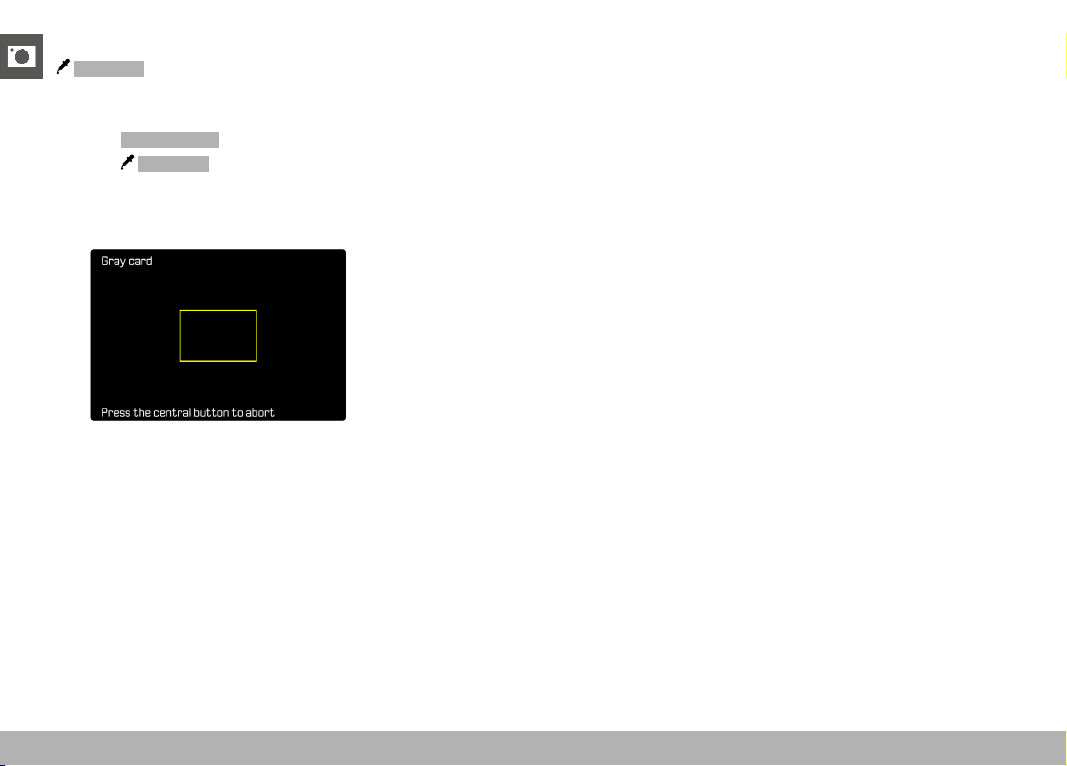
PHOTOGRAPHY ▸ WHITE BALANCE
106
MANUAL SETTING VIA METERING
Gray Card
This metering variant captures all color hues in the metering field
and uses these to calculate a mean gray value.
▸ Select
White Balance in the main menu
▸ Select
Gray Card
• The following appears on the LCD panel:
– the image based on automatic white balance
– a frame in the center of the image
▸ Aim the metering field at a white or neutral gray area
• The screen image changes dynamically in line with the refer-
ence area in the frame.
Performing measurement
▸ Shutter release
• The measurement is taken.
Cancelling measurements
▸ Press the center button
Note
• A value configured using this method will remain unchanged (i.e.
it will be used for all subsequent photographs) until new mea-
surements are taken or one of the other white balance settings is
selected.
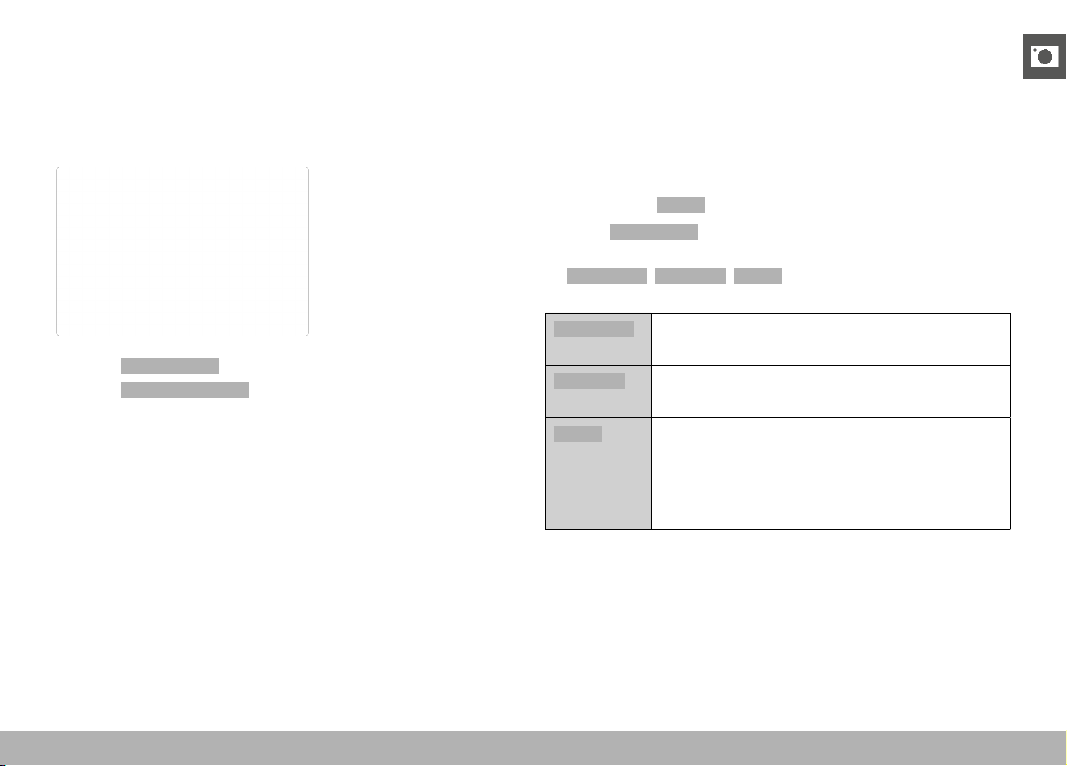
PHOTOGRAPHY ▸ EXPOSURE
107
DIRECT SETTING OF THE COLOR TEMPERATURE
Values between 2000 and 11500 K (Kelvin) can be set directly. That
gives you a very wide range, which covers virtually all color tem-
peratures occurring in real life and within which you can adapt color
rendering to any light color and your personal preferences with
incredible detail.
▸ Select White Balance in the main menu
▸ Select
Color Temperature
▸ Select the desired value
EXPOSURE
SHUTTER TYPE
The Leica Q3 comes equipped with a mechanical shutter and a
purely electronic shutter function. The electronic shutter expands
the available shutter area and functions completely noiseless, which
may be important in some work environments.
Factory setting:
Hybrid
▸ Select Shutter Type in the main menu
▸ Select the desired setting
(
Mechanical , Electronic , Hybrid )
Mechanical
Only the mechanical shutter is used.
Working range: 120 s to 1⁄2000 s.
Electronic
Only the electronic shutter function is used.
Working range: 1 s to 1⁄16000 s.
Hybrid
You can add the electronic shutter function if you
need faster shutter speeds than can be achieved
with the mechanical shutter.
Working range: 120 s to 1⁄2000 s + 1⁄2500 s to
1⁄16000 s.
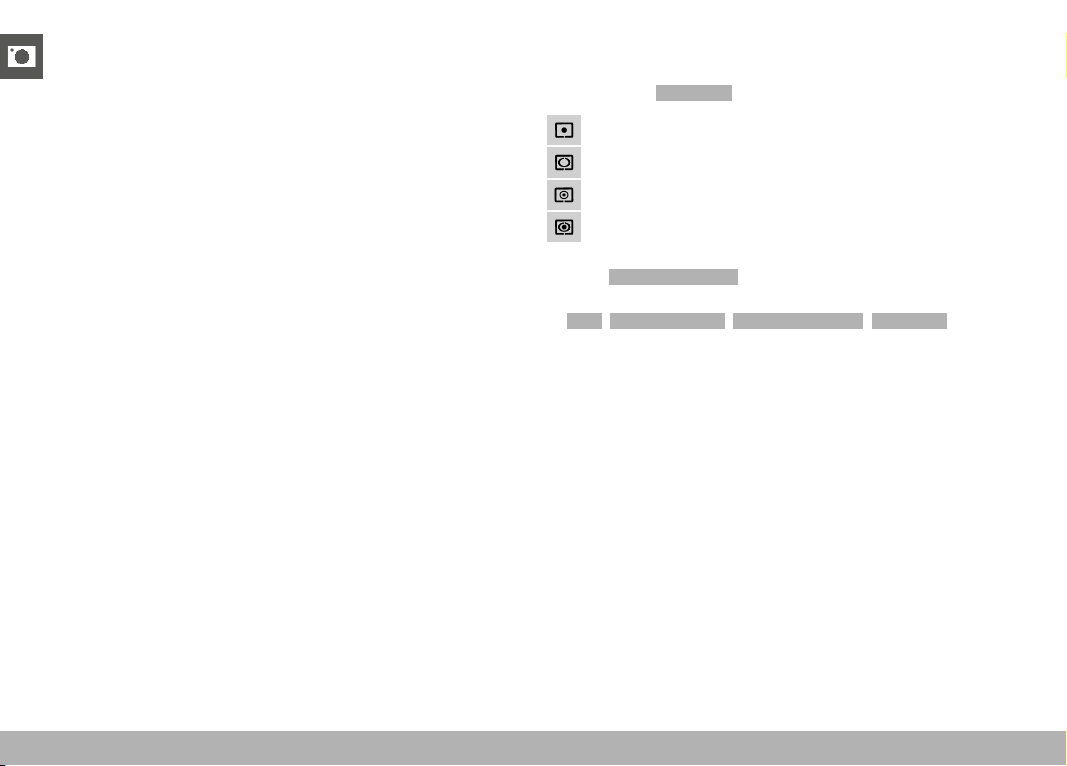
PHOTOGRAPHY ▸ EXPOSURE
108
APPLICATION
The classic shutter sound of the mechanical shutter conveys an
auditive feedback. It is well suited for long-term exposures, as well
as for shots of moving objects.
The electronic shutter function allows photography with an open ap-
erture in very bright due to very fast shutter speeds. The distinctive
“rolling shutter” effect makes it less suitable for moving objects.
Notes
• The electronic shutter function does not allow flash photography.
• The electronic shutter function in combination with fast shutter
speeds can result in stripe effects on the images when used with
LED or fluorescent tube lighting.
EXPOSURE METERING METHODS
The following exposure metering methods are selectable.
Factory setting:
Multi-Field
Spot
Center-weighted
Highlight-Weighted
Multi-field
▸ Select
Exposure Metering in the main menu
▸ Select the desired metering method
(
Spot , Center-Weighted , Highlight-Weighted , Multi-Field )
• The selected metering method is displayed in the header line of
the screen image.
Spot metering allows a shifting of the focus point:
▸ Press the directional pad in the relevant direction
Notes
• The exposure information (ISO value, aperture, shutter speed
and light balance with exposure compensation scale) will help to
determine the settings required for correct exposure.
PHOTOGRAPHY ▸ EXPOSURE
109
SPOT
This metering method is concentrated exclusively on a small area
in the center of the image. The metering fields are joined together
when the exposure metering method
Spot is combined with the AF
metering methods Spot and Field . Exposure metering will then oc-
cur at the point specified by the AF frame, even if it is moved.
CENTER-WEIGHTED
This method considers the entire image field. The subject elements
captured in the center will, however, impact on the calculation of
the exposure value more so than areas around the edges.
MULTI-FIELD
This metering method is based on the detection of multiple values.
These values are used in an algorithm to calculate an exposure value
appropriate for a good rendering of the assumed main subject.
HIGHLIGHT-WEIGHTED
This method considers the entire image field. The exposure value
will, however, be adjusted to very bright subject elements. That pre-
vents the overexposure of bright subject elements without having
to measure them individually. This metering method is particularly
useful for objects that are significantly more brightly lit than the
rest of the image (e.g. people in a spotlight), or that reflect the light
significantly (e.g. white clothing).
Multi-field Highlight-weighted
PHOTOGRAPHY ▸ EXPOSURE
110
EXPOSURE MODES
There are four exposure modes available to adjust the rendering of
the object or to create the desired pictorial composition:
– Program AE mode (P)
– Aperture-priority mode (A)
– Shutter-priority mode (S)
– Manual setting (M)
These four “classic” modes are accessed via a relevant setting of
the shutter-speed dial and the aperture ring. A correct setting for
the menu item
Scene Mode (see p. 127) is prerequisite for the use
of P, A, S and M. The menu item P-A-S-M must be selected. Should
one of the 10 object and situational automatic program variants be
selected instead, then that setting will take precedence over the
settings of the physical control elements. The shutter-speed dial
and the aperture ring will in that case have no assigned function.
SELECTING A MODE
The four operating modes are activated automatically via the follow-
ing setting combinations:
Setting via
the shutter-speed dial
Setting via
the aperture ring
P A A
A A
manual setting
(not
A)
S
manual setting
(not
A)
A
M
manual setting
(not
A)
manual setting
(not A)
▸ Select
Scene Mode in the main menu
▸ Select
P-A-S-M
▸ Set the shutter-speed dial to the relevant position
▸ Set the aperture ring to the relevant position

PHOTOGRAPHY ▸ EXPOSURE
111
FULLY AUTOMATIC EXPOSURE SETTING – P
PROGRAM AE MODE – P
The program AE mode facilitates fast and fully automatic photogra-
phy. The exposure is controlled by an automatic shutter speed and
aperture setting.
▸ Select Scene Mode in the main menu
▸ Select
P-A-S-M
▸ Turn the shutter-speed dial to the A position
▸ Turn the aperture ring to the
A position
▸ Tap and hold the shutter button
• Exposure information is displayed at the bottom of the screen.
This contains the automatically set value pair of aperture set-
ting and shutter speed.
• All other visible displays of the info bars will be hidden.
▸ Shutter release
or
▸ Adjusting the automatically set value pair
(Program shift)
CHANGING THE PRESET SHUTTER SPEED AND APERTURE
COMBINATIONS (SHIFT)
Changing the preset values using the Shift function combines the
reliability and speed of fully automatic exposure control with the
opportunity to vary the speed/aperture combination selected by
the camera at any time to fit in with your own ideas and intentions.
The overall exposure, i.e. the brightness of the image, remains
unchanged. Faster shutter speeds are a good choice for e.g. sports
pictures, while longer speeds will offer more depth of field for e.g.
landscape pictures.
▸ Turn the thumbwheel to the left/right
(right = greater depth of field with slower shutter speeds, left =
faster shutter speeds with lesser depth of field)
• Shifted value pairs are marked with an asterisk next to the P .
Note
• The adjustment range is limited to guarantee correct exposure.

PHOTOGRAPHY ▸ EXPOSURE
112
SEMI-AUTOMATIC EXPOSURE SETTING – A/S
APERTURE-PRIORITY MODE- A
Aperture-priority mode sets the exposure automatically according
to the manually selected aperture. This mode is suitable for shots in
which the depth of field is a critical compositional element.
By selecting an appropriately low aperture value, you can reduce
the depth of field range, for example to make a face “stand out”
in sharp focus against an unimportant or distracting background
for a portrait. Conversely, you can use a higher aperture value to
increase the depth of field range, so that everything from the fore-
ground to the background will be in full focus in a landscape shot.
▸ Select
Scene Mode in the main menu
▸ Select
P-A-S-M
▸ Turn the shutter-speed dial to the A position
▸ Set the desired aperture value
▸ Tap and hold the shutter button
• Exposure information is displayed at the bottom of the screen.
This contains the automatically set value pair of aperture set-
ting and shutter speed.
• All other visible displays of the info bars will be hidden.
▸ Shutter release
SHUTTER-PRIORITY MODE – S
Shutter-priority mode will set exposure automatically according
to the manually selected shutter speed. It is therefore particularly
suitable for pictures of moving objects, where the sharpness of the
movement depicted is a critical picture composition element.
An appropriately fast shutter speed can help to avoid e.g. unwanted
motion blurring and will “freeze” the object. Conversely, an appro-
priately longer shutter speed can help create a better feeling of
motion in the image with targeted “tracer effects”.
▸ Select
Scene Mode in the main menu
▸ Select
P-A-S-M
▸ Turn the aperture ring to the A position
▸ Set the desired shutter speed
– using the shutter-speed dial: in full increments
– using the thumbwheel: fine tuning in 1⁄3 increments
▸ Tap and hold the shutter button
• Exposure information is displayed at the bottom of the screen.
This contains the automatically set value pair of aperture set-
ting and shutter speed.
• All other visible displays of the info bars will be hidden.
▸ Shutter release
Note
• Fine tuning can alternatively be done via the status screen.
Depending on the thumbwheel assignment, this may be the only
option (see p. 60).
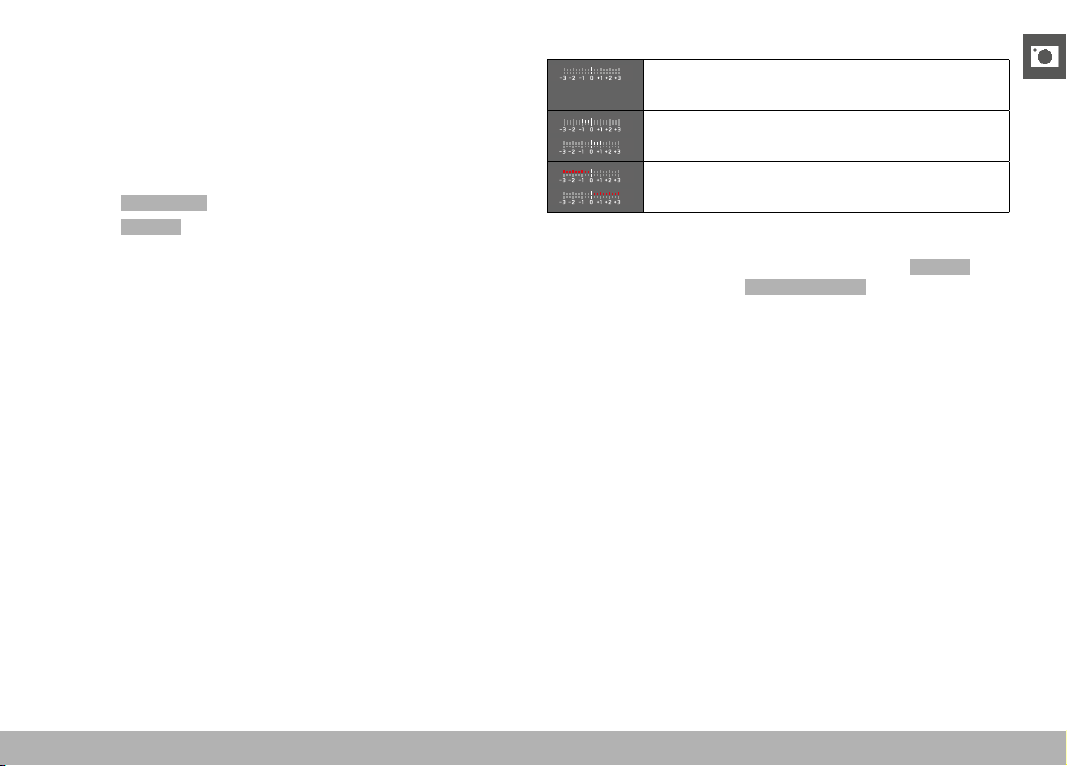
PHOTOGRAPHY ▸ EXPOSURE
113
MANUAL EXPOSURE SETTING – M
The following manual settings for shutter speed and aperture are a
good choice:
– to create a special image mood that can only be achieved with a
very specific type of exposure
– to ensure a perfectly identical exposure for multiple images with
different cropped sections
▸ Select
Scene Mode in the main menu
▸ Select
P-A-S-M
▸ Set the desired exposure manually (using the shutter-speed dial
and the aperture ring of the lens).
• The exposure compensation is done using the scale of the light
balance.
▸ Tap and hold the shutter button
• Exposure information is displayed at the bottom of the screen.
• All other visible displays of the info bars will be hidden.
▸ Shutter release
Displays on the light balance:
Correct exposure
Underexposure or overexposure by the displayed
value
Underexposure or overexposure by more than 3 EV
(Exposure Value)
Notes
• The screen image will show an exposure preview if
P-A-S-M is
selected in the menu item Exposure Preview (after exposure
metering, see p. 116).
• The shutter-speed dial must be clicked to one of the engraved
exposure shutter speeds.
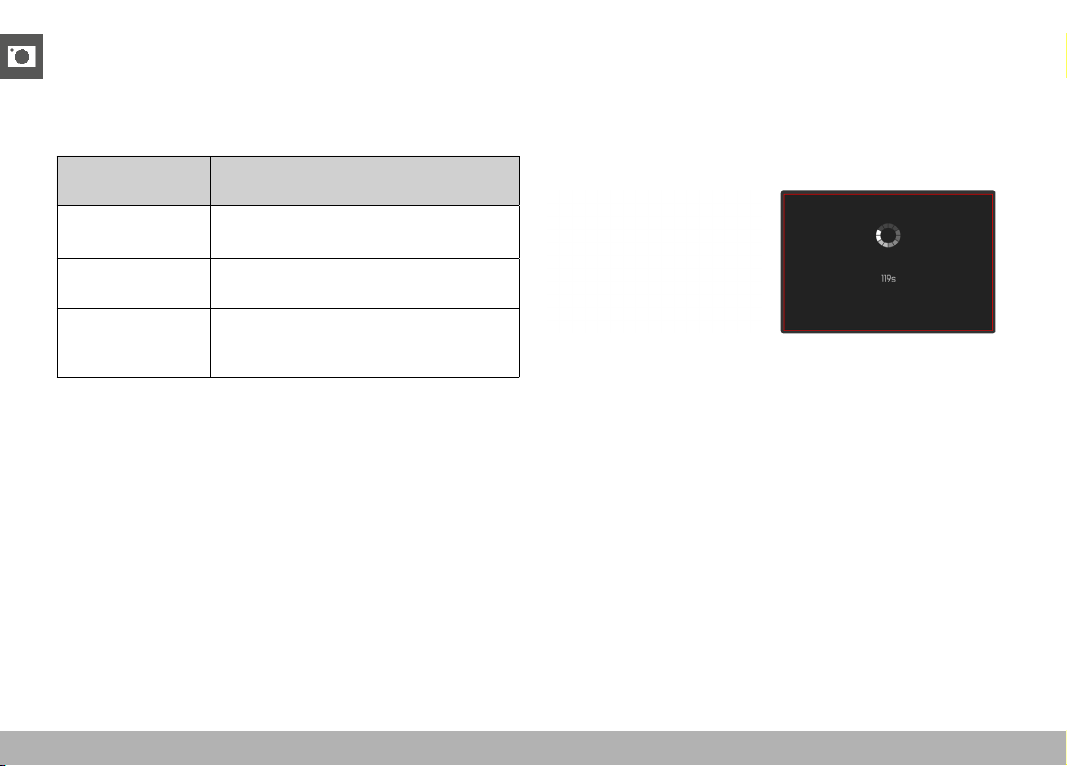
PHOTOGRAPHY ▸ EXPOSURE
114
SETTING SHUTTER SPEEDS
The shutter speed is set in two steps.
using the shutter-speed dial: in full increments
using the thumbwheel: fine tuning in 1⁄3 increments
Shutter-speed
dial
Thumbwheel
All settings from
2
to 1000
Fine tuning the shutter speed in 1⁄3 EV
increments, max. ±2⁄3 EV
Set to
1+
Longer shutter speeds than 1 s (0.6 s to
120 s in 1⁄3 EV increments)
Set to
2000
Shorter shutter speeds than 1⁄1000 s
(1⁄1250 s to 1⁄16000 s in 1⁄3 EV incre-
ments)
EXAMPLES FOR SHUTTER SPEED FINE TUNING SETTINGS
– set shutter speed 1⁄125 s + move the thumbwheel one click to
the left = 1⁄100 s
– set shutter speed 1⁄500 s + move the thumbwheel two clicks to
the right = 1⁄800 s
Note
• Fine tuning can alternatively be done via the status screen.
Depending on the thumbwheel assignment, this may be the only
option (see p. 60).
LONG-TERM EXPOSURE
FIXED SHUTTER SPEEDS
Your Leica Q3 allows shutter speeds up to 2 minutes in modes
S and M (depending on the selected ISO setting). The remaining
exposure time after shutter release is counted down in seconds on
the display for shutter speeds greater than 1 s.
▸ Set the shutter-speed dial to 1+
▸ Select the desired shutter speed
(Must be done via fine tuning of the shutter speed, see p. 114)
▸ Shutter release
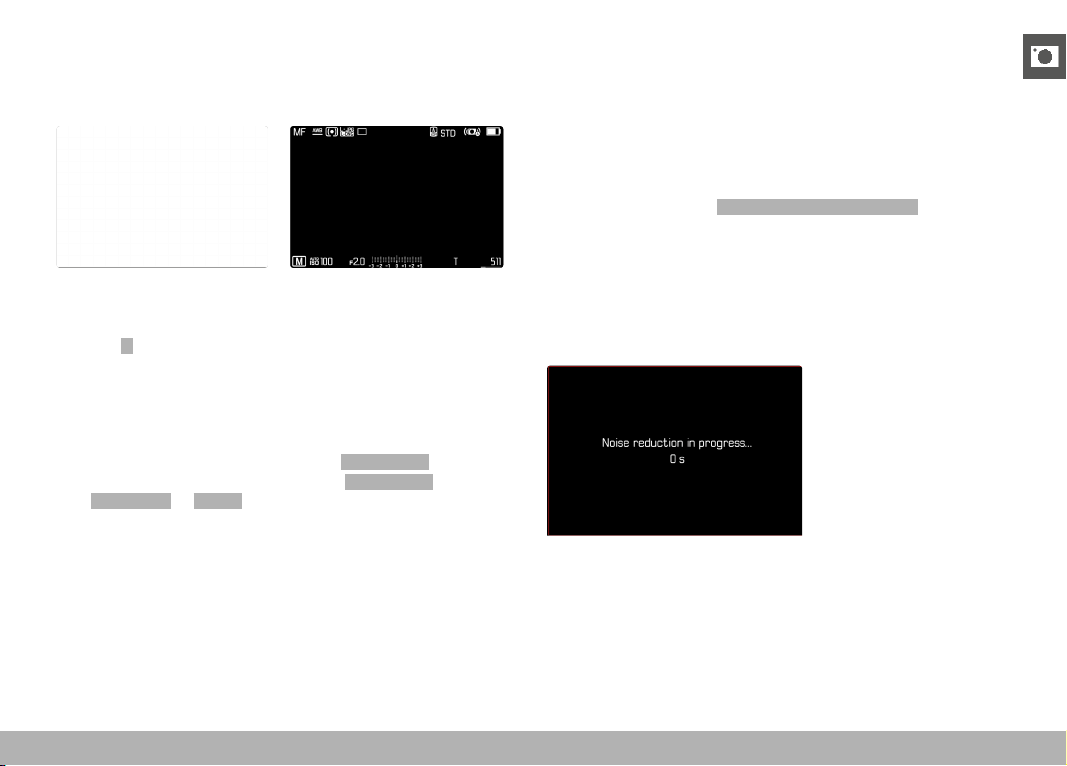
PHOTOGRAPHY ▸ EXPOSURE
115
T FUNCTION
In this setting, the shutter remains open after shutter release until
the shutter button is pressed again (ax. 2 min depending on ISO
setting).
▸ Set the shutter-speed dial to 1+
▸ Set the aperture ring to a fixed value
▸ Select
T as the shutter speed
(Must be done via fine tuning of the shutter speed, see p. 114)
▸ Shutter release
Notes
• The maximum selectable shutter speed depends, among other
things, on the setting of the menu item
Shutter Type , see
p. 107. The T function is available only if Shutter Type is set
to Mechanical or Hybrid .
• The remaining exposure time after shutter release is counted
down in seconds on the display for shutter speeds greater than
1 s.
NOISE REDUCTION
Image noise becomes more apparent when using higher sensitivi-
ties, particularly on uniform dark areas. Long exposure times may
cause severe image noise. In order to reduce this annoying phe-
nomenon, the camera will take a second “dark frame” (taken with
the shutter closed) automatically after a shooting with slow shutter
speed and high ISO value. The noise metered in this parallel image
is then digitally “subtracted” from the data for the actual image. In
such cases the message
Noise reduction in progress... will appear
with a relevant time value.
The doubling of the “exposure” time must be taken into account for
long-term exposure times. The camera must not be switched off
during that time. We recommend disabling Noise Reduction to allow
shooting multiple frames in series and to apply noise reduction later
during the post-editing stage. The images will have to be taken in
raw data format.
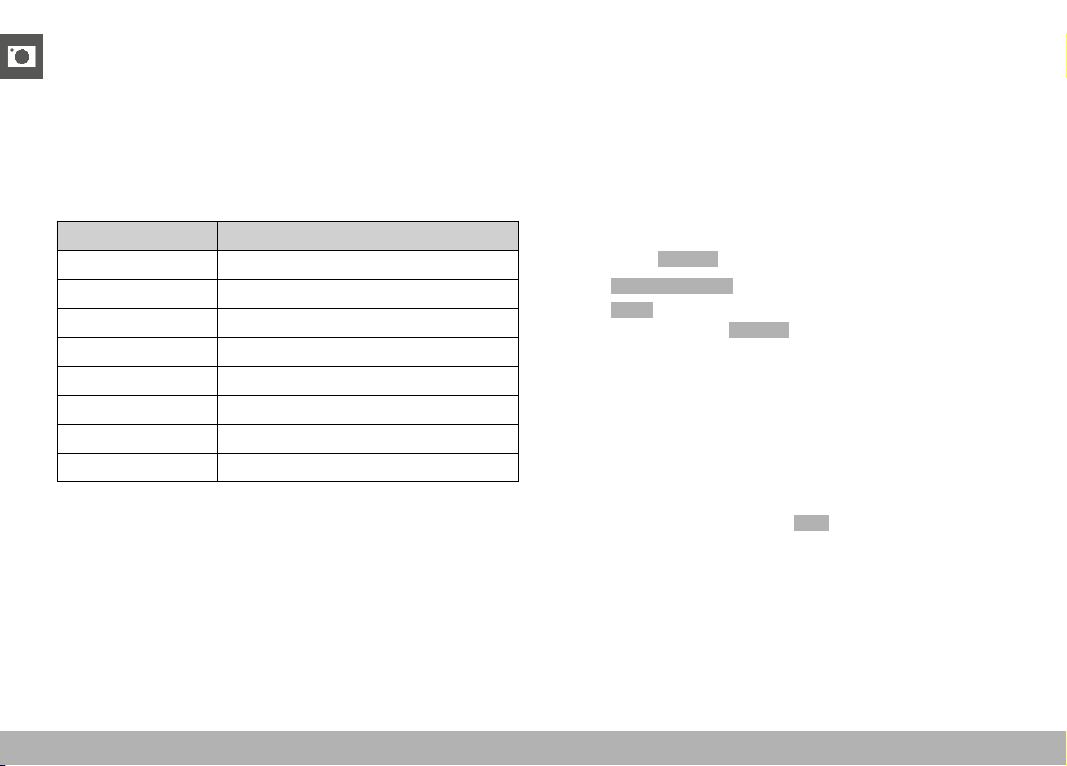
PHOTOGRAPHY ▸ EXPOSURE
116
Under certain conditions, noise reduction will always be active as
long as the function is enabled. That includes shots taken with the T
function, as well as long-term exposure frames with shutter speeds
of ≥ +8 s.
In all other cases, noise reduction depends on a combination of fac-
tors (specifically ISO setting, exposure time, and sensor tempera-
ture). The following table contains a list of shutter speeds typical for
a sensor temperature of 25°C, at which noise reduction would be
applied.
ISO Shutter speed longer than
100
7 s
200
6.4 s
400
5.9 s
800
5.4 s
1600
4.9 s
3200
4.5 s
6400
4.2 s
≥ 12 500
3.8 s
Noise Reduction can be optionally deactivated (see p. 76).
EXPOSURE CONTROL
EXPOSURE PREVIEW
The brightness of the screen image mirrors the effects of the select-
ed exposure settings when pressing and holding the shutter button
on the first pressure point. That allows an assessment the effect of
the relevant exposure setting on the image before taking the photo.
This will apply as long as the subject brightness and the set expo-
sure don’t result in excessively low or high brightness values.
This function can be disabled for the manual exposure setting (M).
Factory setting:
P-A-S-M
▸ Select Exposure Preview in the main menu
▸ Select
P-A-S (only in program AE, aperture-priority AE and shut-
ter-priority AE mode) or P-A-S-M (also for manual setting)
Notes
• Depending on ambient lighting conditions, the brightness of the
screen image may differ from that of the actual images, despite
the settings described above. The screen image will appear con-
siderably darker than the – correctly exposed – picture. That is
particularly the case in long-term exposures.
• The exposure preview will also be displayed if exposure metering
is done via another control element (e.g. using the function but-
ton, provided is was assigned the
AE-L function).

PHOTOGRAPHY ▸ EXPOSURE
117
EXPOSURE LOCK
We often want to arrange important subject elements outside
the center of the image for reasons of pictorial composition and
these elements may sometimes be very bright or very dark. Cen-
ter-weighted metering and spot metering, however, mainly capture
an area in the center of the image and are calibrated to an average
gray scale value.
In that case, the exposure lock initially allows a metering of the
main subject, as well as storing of the relevant settings until the
final image section is set. The same applies for focusing (AF-L) in
any autofocus mode.
Usually both lock functions (focusing and exposure) are done at
the same time with the shutter button. Additionally, you can divide
the memory functions between the shutter button and the function
button, or assign both to a function button.
The functions include settings and storage.
AE-L (AUTO EXPOSURE LOCK)
The camera stores the exposure value. The focus can therefore be
set on another object, no matter which exposure value is selected.
AF-L (AUTO FOCUS LOCK)
The camera stores the focus setting. That makes it easier to change
the image section when focusing is fixed.
AE-L/AF-L
With this option enabled, the camera stores the exposure value and
the focus setting when the assigned button is pressed and held.
Notes
• An exposure lock doesn’t make much sense in conjunction with
multi-field metering, because a targeted capture of an individual
object element will not be possible.
• Any previously set exposure lock will be removed by a manual
setting of the aperture ring or the shutter-speed dial.
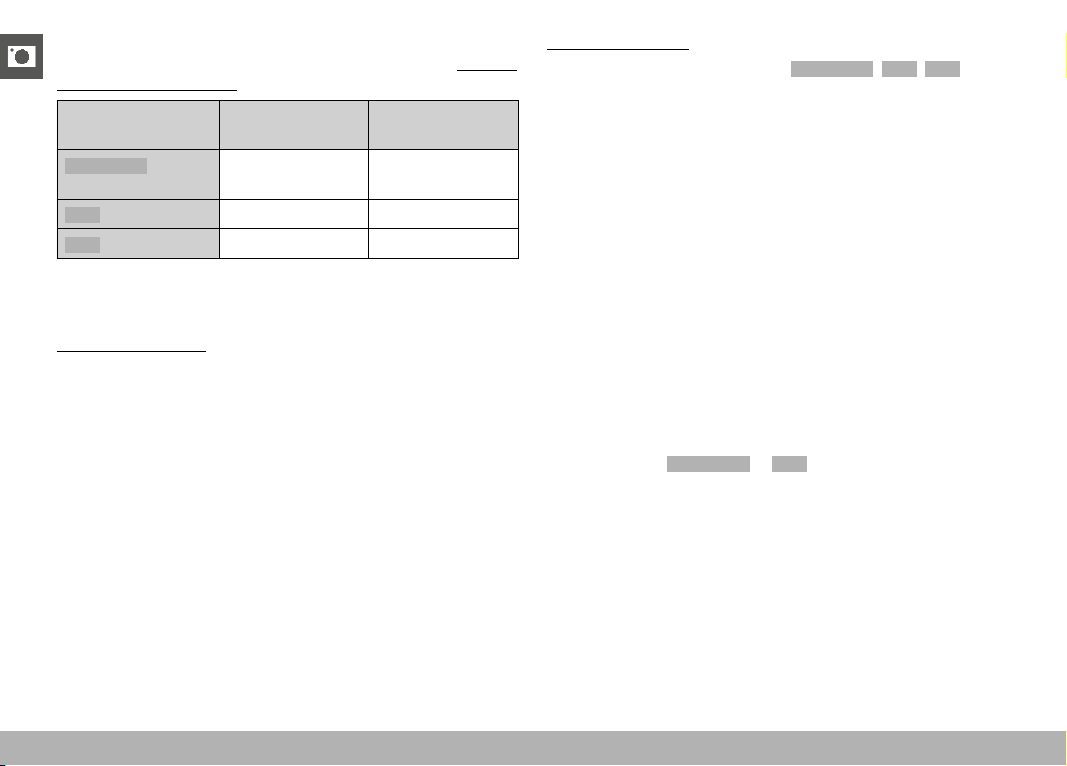
PHOTOGRAPHY ▸ EXPOSURE
118
EXPOSURE LOCK IN AF MODE
The metering functions are distributed as follows while the function
button is pressed and held:
Function button
assignment
Function button Shutter button
AF-L + AE-L
Exposure and
focus
No function
AF-L
Sharpness Exposure
AE-L
Exposure Sharpness
The shutter button will retain both functions, provided no exposure
lock is done via the function button.
Via the shutter button
▸ Aim at the key part of the object or at a similar detail
▸ Tap and hold the shutter button
• The measurement is taken and saved.
▸ Pan the camera to capture the final image section while keeping
the shutter button pressed
▸ Shutter release
Via a function button
▸ Assign the desired memory lock (
AF-L + AE-L , AE-L , AF-L ) to
one of the function buttons (see p. 59)
▸ Aim at the object
▸ Press the function button
• The measurement is taken and saved.
• A small padlock icon with the letters AE appear at the bottom
left of the screen to signify that the exposure value was saved.
• A green AF frame signifies that the focusing was saved.
▸ Store more measurements via the shutter button as needed
▸ Select the final image section
▸ Shutter release
EXPOSURE LOCK IN MF MODE
In MF mode, only the exposure can be locked via the shutter button.
Similarly, the function button will only have that one function (with
an assignment of AF-L + AE-L or AE-L ).
PHOTOGRAPHY ▸ EXPOSURE
119
EXPOSURE COMPENSATION
Exposure meters are calibrated for a medium gray scale value,
which matches a standard, i.e. average image object. Should the
measured image detail not fulfill that requirement, then the a rele-
vant exposure compensation can be effected.
Specifically where several shots are taken in sequence, for example
if for a series a slightly lesser or greater exposure is desired for a
particular reason, then exposure compensation can be a very useful
function: Unlike with exposure lock, the setting remains active until
it is reset.
Exposure compensation values can be set in the range ±3 EV in
1⁄3 EV increments (EV: Exposure Value).
A
Set compensation value (marks at 0 = Off)
Using thumbwheel control
▸ Select
Customize Control in the main menu
▸ Select
Wheel Assignment
▸ Select Exp. Comp.
▸ Set the desired value using the thumbwheel
Using menu control
▸ Select
Exposure Compensation in the main menu
• A scale appears as a submenu item on the LCD panel.
▸ Set the value on the scale
• The set value is displayed above the scale.
Notes
• While setting the value, you can see the effect on the screen
image, which becomes darker or lighter.
• The following applies for set compensation values, no matter how
they were initially set: They remain effective until they are manu-
ally reset to
0 , even if the camera is switched off and on again in
the meantime.
• The set exposure compensation is indicated by a mark on the
exposure compensation scale in the footer line.
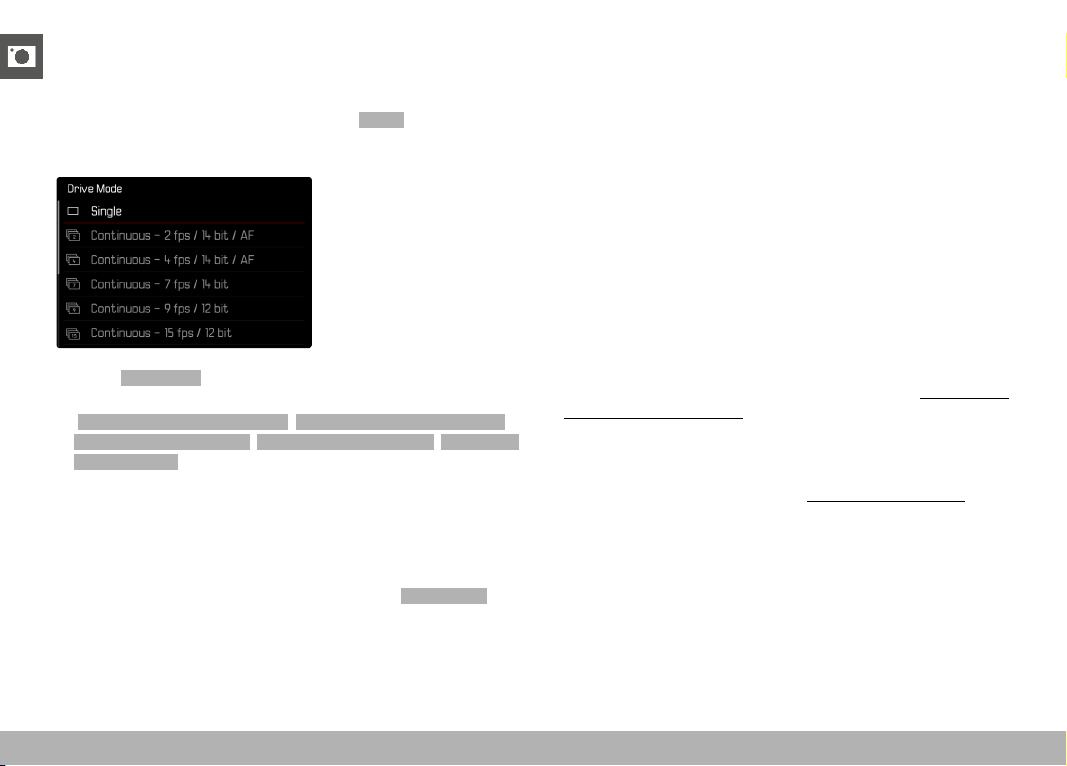
PHOTOGRAPHY ▸ SHOOTING MODES
120
SHOOTING MODES
CONTINUOUS SHOOTING
The camera is set to single shots by default ( Single ). Series of shots
can also be created to e.g. capture motion sequences at various
stages.
▸ Select Drive Mode in the main menu
▸ Select the desired setting
(
Continuous - 2 fps / 14 bit / AF
,
Continuous - 4 fps / 14 bit / AF
,
Continuous - 7 fps / 14 bit
,
Continuous - 9 fps / 12 bit
,
Continuous
- 15 fps / 12 bit
)
Once you have finalized your settings, the camera will do continu-
ous shootings as long as you keep the shutter button pressed down
fully (and you have sufficient space on your memory card).
Notes
• We recommend deactivating the preview mode (
Auto Review )
when using this function.
• Regardless of how many frames were taken in a series, the last
image in the series or the last image saved on the memory card
while the saving process is ongoing will be displayed first in both
review modes.
• Continuous shooting is not possible if a flash is used. Only a single
shot will be taken if the flash function is activated.
• Continuous shooting mode is not available in combination with
the self-timer function.
• The buffer memory of the camera only allows a limited number
of frames in series and in the selected exposure frequency. The
exposure frequency is reduced, once the capacity limit of the
camera's buffer memory is reached. This slow-down is due to
the time required to transfer the data from the buffer memory to
the card. The remaining number of exposures is displayed at the
bottom right.
• The following applies for continuous shooting with +2 fps – +4 fps:
Automatic settings (exposure settings in operating modes
P/A/S, automatic white balance and autofocus) are implemented
individually for each frame.
• The following applies for continuous shooting with +7 fps – +15 fps:
Automatic settings (exposure settings in operating modes P/A/S,
automatic white balance and autofocus) are implemented for the
first frame, and are then applied for each subsequent frame in the
same picture series.

PHOTOGRAPHY ▸ SHOOTING MODES
121
INTERVAL SHOOTING
This camera allows you to automatically capture motion sequences
over extended periods of time using the interval shooting function.
You specify the number of frames, the intervals between shots, and
the start time of the series.
When applying exposure and focus settings, keep in mind that con-
ditions may change during the course of the operation.
SPECIFYING THE NUMBER OF FRAMES
▸ Select
Drive Mode in the main menu
▸ Select
Interval Shooting
▸ Select Number of Frames
▸ Enter the desired value
SPECIFYING THE INTERVALS BETWEEN SHOTS
▸ Select
Drive Mode in the main menu
▸ Select
Interval Shooting
▸ Select Interval
▸ Enter the desired value
SETTING THE DELAY TIME
▸ Select
Drive Mode in the main menu
▸ Select
Interval Shooting
▸ Select Countdown
▸ Enter the desired value
Getting started
▸ Press the shutter button
• The LCD panel will switch off automatically between record-
ings. Tapping the shutter button reactivates the LCD panel.
• The remaining time until the next shoot and its number is dis-
played at the top right.
Cancelling a running series of shots
▸ Press the
PLAY button
• A small menu appears.
▸ Select
End

PHOTOGRAPHY ▸ SHOOTING MODES
122
Notes
• The use of autofocus in interval shooting may result in not all
exposures having their focus on the same object.
• The camera may switch off and on again if “Auto power off” is set
and no other camera operation occurs between the individual
shots.
• Interval shooting over an extended period of time in a cold loca-
tion or in a place with high temperature and humidity may result
in malfunctions.
• Interval shooting will be interrupted or canceled in the following
situations:
– if the battery is depleted
– if the camera is switched off
Make sure to check the battery for sufficient charge.
• Interrupted or canceled interval shooting can be resumed by
switching the camera off, replacing the battery or memory card
as needed and then switching the camera back on. A prompt will
be displayed on screen if the camera is switched off and on again
while the
Interval Shooting shooting function is active.
• The interval function remains active after the shoot, and also
after the camera is switched off and on again, until another
shooting mode (Drive Mode) is set.
• Availability of the interval function does not mean that the camera
is suitable for use as a monitoring device.
• Regardless of how many frames were taken in a series, the last
image in the series, or the last image saved on the memory card
while the saving process is ongoing, will be displayed first in both
review modes.
• The shots of an interval shooting are marked with
in review
mode.
• The camera may under some circumstances be unable to take
good pictures. That may happen if, for example, focusing was
unsuccessful. In that case, the camera will not take a picture and
the series will continue with the next interval. The message Some
Frames are dropped appears on screen.

PHOTOGRAPHY ▸ SHOOTING MODES
123
EXPOSURE BRACKETING
Many attractive objects are rich in contrast, which means they have
very bright and very dark areas. The image effect can be dramatically
different, depending on which of these areas you choose to align your
exposure with. The automatic bracketing function in aperture-prior-
ity mode allows you to produce several alternatives with graduated
exposure values and varying shutter speeds. You can then select the
image you like best or use relevant photo editing software to calcu-
late an image with a particularly broad contrast spectrum (HDR).
A
B
C
D
E
A
Number of frames
B
Exposure difference between shots
C
Exposure compensation
D
Light value scale
E
Exposure values of the images marked in red
(The scale will be offset by the relevant value if exposure
compensation is set concurrently.)
You can select the desired number of frames (3 or 5). The exposure
difference, which can be set via EV Steps , can be up to 3 EV.
▸ Select
Drive Mode in the main menu
▸ Select
Exposure Bracketing
▸ Select the desired number of frames under Number of Frames in
the submenu
▸ Select the desired exposure offset under
EV steps in the submenu
▸ Select the desired
Exposure Compensation value in the submenu
• The marked exposure values change positions according to the
settings selected. In the case of exposure compensation, the
scale also shifts.
• The selected exposure compensation value will be applied to
the entire series of shots.
▸ Select the desired setting under
Automatic in the submenu
• With the factory setting in place (
On ), the entire exposure se-
ries will run after the shutter button is pressed once; when the
setting is Off , each picture must be taken individually.
▸ Take one or several shots by pressing the shutter button
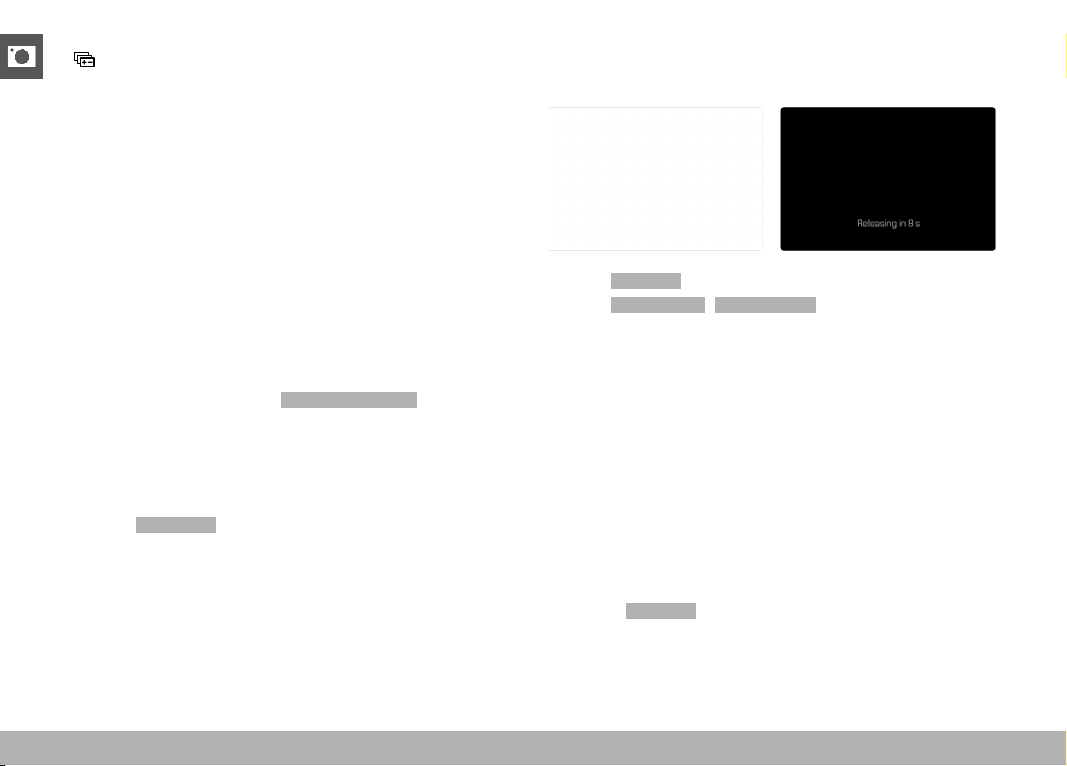
PHOTOGRAPHY ▸ SHOOTING MODES
124
Notes
•
appears on the LCD panel if the bracketing function is activated.
You can watch the effect of the function on screen during shoot-
ing (brighter or darker).
• Depending on the exposure mode, the exposure gradations are
produced by changing the shutter speed and/or aperture value:
– Shutter speed (A/M)
– Aperture (S)
– Shutter speed and aperture value (P)
• The sequence of shots: underexposure/correct exposure/over-
exposure.
• The working range for automatic bracketing may be limited de-
pending on the available shutter speed/aperture combination.
• With automatic ISO sensitivity control enabled, the sensitivity
calculated by the camera automatically for the raw files will also
be applied to all other shots in the series, i.e. the ISO value will
not change during bracketing. This may mean that the slowest
shutter speed specified under
Shutter Speed Limit is exceeded.
• The working range for automatic bracketing may be limited (de-
pending on the originally set shutter speed). The specified num-
bers of frames will be taken regardless. Several shots in a series
may consequently have the same exposure values.
• The function remains active until another function is selected
from the
Drive Mode submenu. If no other function is select-
ed, another bracketing is taken each time the shutter button is
pressed.
SELF-TIMER
The self-timer function allows shoot with a preset time delay. We
recommend that the camera is placed on a tripod.
▸ Select Self-timer in the main menu
▸ Select
Self-timer 2 s / Self-timer 12 s
▸ Shutter release
• The remaining time until exposure is counted down on the LCD
panel. The self-timer LED at the front of the camera counts
down the delay time. It flashes slowly during the first 10 s, then
fast for the last 2 s.
• The self-timer delay time can be canceled at any time by tap-
ing the shutter button; the relevant settings remain intact.
Notes
• Exposure metering is done first; in autofocus mode, focusing is
first. Only then will the delay time commence.
• The self-timer function is available only for single frame shooting
and for bracketing.
• The function remains active until another function is selected
from the
Self-timer submenu.
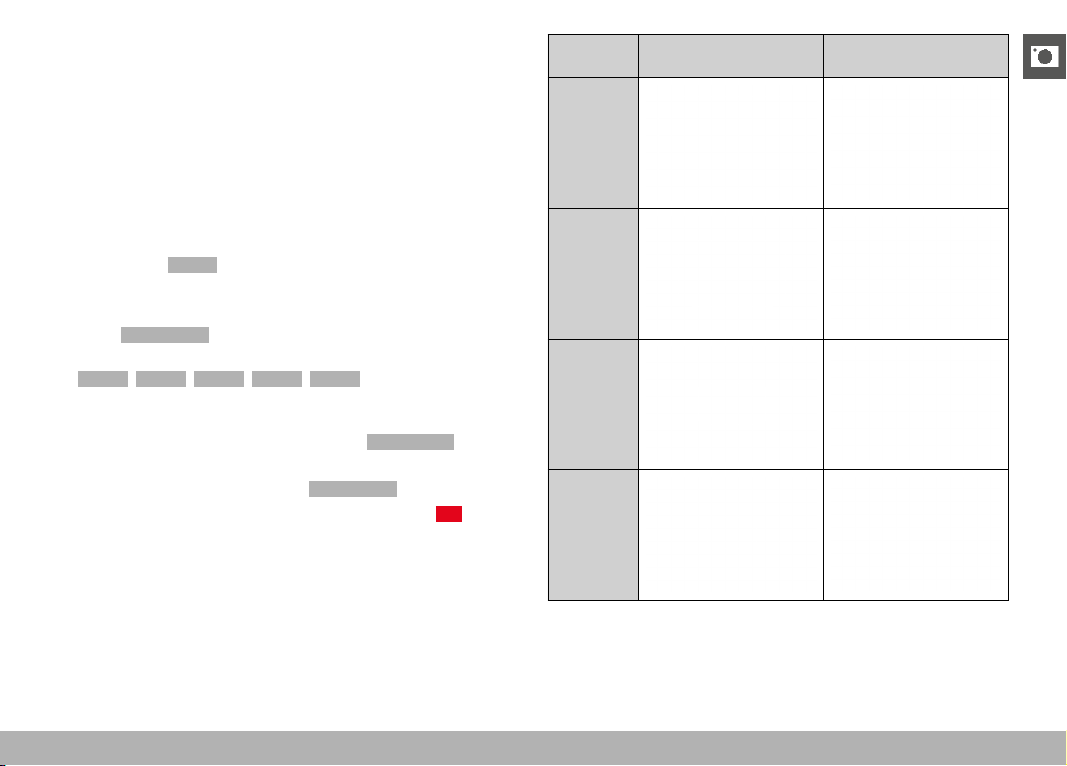
PHOTOGRAPHY ▸ SPECIAL SHOOTING MODES
125
SPECIAL SHOOTING MODES
DIGITAL ZOOM
Several other cropped section sizes are available in addition to the
Summilux 28 f/1.7 ASPH. image sections. These are similar to the
focal lengths 35 mm, 50 mm, 75 mm, or 90 mm.
A frame appears around the image section on screen, indicating the
final image size. Th magnification level is displayed as an equivalent
focal length, i.e. the system displays the focal length corresponding
to the image section shown.
Factory setting:
28 mm (no Digital Zoom)
PERMANENT SETTING
▸ Select
Digital Zoom in the main menu
▸ Select the desired setting
(
28 mm , 35 mm , 50 mm , 75 mm , 90 mm )
DIRECT ZOOM CHANGE
The zoom level can be switched quickly if the
Digital Zoom function
is assigned to a function button (see p. 59).
▸ Press the function button with the
Digital Zoom assignment
• In the factory setting, that will be the FN Button 1 (
+13).
• A frame appears around the image section on screen, indicat-
ing the final image size.
• The display cycles through the magnification factors each time
the button is pressed.
• The set level will remain until the next change.
Digital
Zoom
In shooting mode In Review mode
Digital
Zoom
35 mm
35
Digital
Zoom
50 mm
50
Digital
Zoom
75 mm
75
Digital
Zoom
90 mm
90
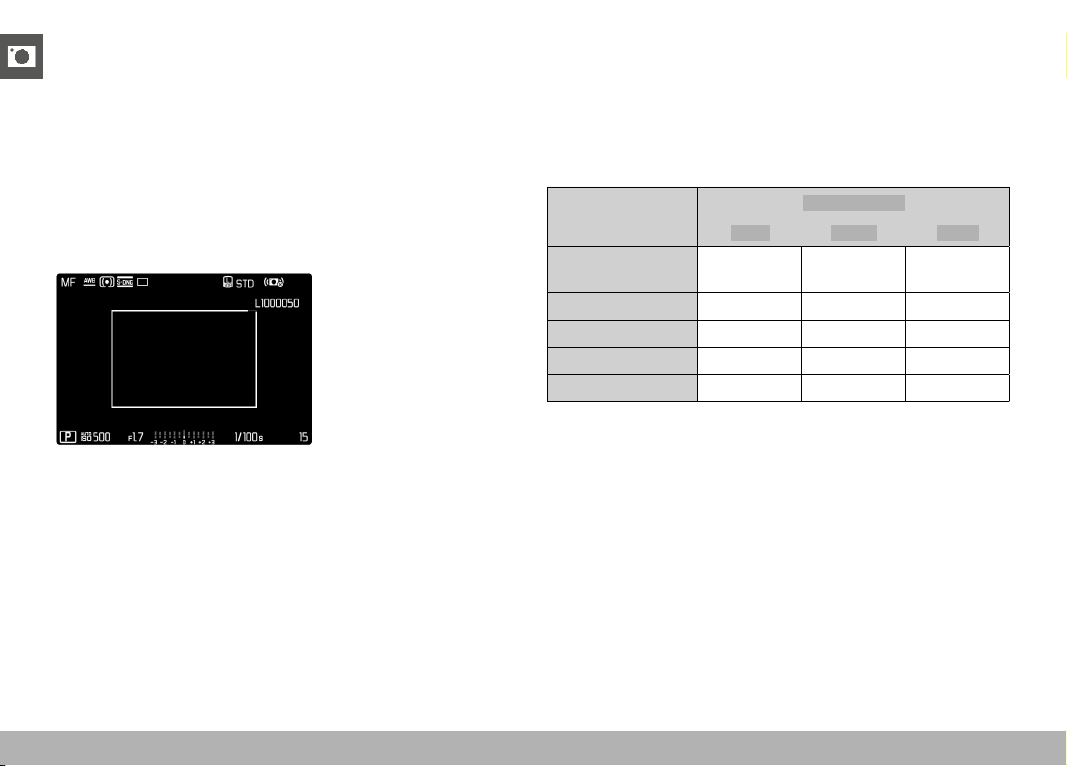
PHOTOGRAPHY ▸ SPECIAL SHOOTING MODES
126
EFFECT ON THE RESULTING IMAGES
The Digital Zoom will have differing effects on the resulting files,
depending on the selected file format.
DNG IMAGES
DNG files are always saved unchanged (at full size). The relevant
information is written to the meta data. The images appear cropped
when they are opened in an image editing software, but can be re-
set to their full size. That will allow a later editing of the full image.
In Review mode, the entire picture is shown in the camera, and a
frame marks the image section captured with Digital Zoom.
JPG IMAGES
Only an enlarged cropped section will be displayed and stored for
JPG files. The image areas outside the frame are “cropped”. This
operation cannot be reversed.
A higher zoom value means a lower resolution as shown in the
following table. Cropped sections can also be created using editing
software.
Digital Zoom
JPG Resolution
L-JPG M-JPG S-JPG
Off
(28 mm)
60 MP 36 MP 18 MP
35 mm
39 MP 23 MP 12 M P
50 mm
19 MP 11 M P 6 MP
75 mm
8 MP 5 MP 3 MP
90 mm
6 MP 4 MP 2 MP
Note
• The stated resolution will always relate to an aspect ratio of 3:2.
PHOTOGRAPHY ▸ SPECIAL SHOOTING MODES
127
SCENE MODE
10 automatic program variants are available under the menu item
Scene Modes . All 10 offer automatically controlled shutter speed
and aperture for extra easy photography (as with the “normal” auto-
matic program P ), as well as a number of other functions to suit the
selected scene type. These may include the ISO setting or focusing.
▸ Select Scene Mode in the main menu
▸ Select the desired setting
– AUTO : Automatic snapshot function for general use
– 9 scene modes, which are designed to accommodate the require-
ments of common object types:
–
Sports , Portrait , Landscape , Night Portrait , Snow / Beach ,
Fireworks , Candlelight , Sunset , Digiscoping
The following sections offer detailed information about these three
functions.
Notes
• The selected program will remain active until a different program
is selected (even after the camera is switched off).
• The menu item Scene Mode will reset to
P-A-S-M if the shooting
mode is changed (Photo/Video).
• The program shift function and some of the menu items are
unavailable.
• The shutter-speed dial and the aperture ring are without function.
• A fixed camera setup on a tripod is recommended for the
Digis-
coping setting.
• Exposure preview (see p. 116) is active in all programs.

PHOTOGRAPHY ▸ SPECIAL SHOOTING MODES
128
PERSPECTIVE CONTROL
This assist function displays a frame showing the expected cropped
section of the image after a correction of the perspective of ver-
tical falling lines. Perspective Control helps to achieve a generally
straighter vertical line and straight horizon, which ensures a natural
image effect, specifically in architectural images.
The function “Perspective Control” calculates the image section
and the required distortion correction based on the actual panning
angles of the camera and the lens used. In effect, the camera ori-
entation during shooting (determined by internal camera sensors)
is the decisive factor and not the lines visible in the image object.
The function is therefore unlike automatic perspective control fea-
tures used for post-editing, which are generally based on the image
content.
The functionality depends on the image file format used (JPG or
DNG). For JPG format images, the correction occurs directly in the
camera and the corrected image is stored. For DNG format images,
the relevant information is written to the meta data of the original
image. Image correction is done later on using a program like Ado-
be Photoshop Lightroom
®
or Adobe Photoshop
®
*.
Factory setting:
Off
* See p. 107 for more information.
Notes
• In case of large panning angles, the distortion correction needed
for a complete perspective control would be too extreme. That is
why this function is automatically skipped or only partially used
where angles are too large. In that case, we recommend creating
DNG format images and effecting the desired corrections in a
post-editing step.
• A histogram will not be available for technical reasons, while the
function
Perspective Control is active.

PHOTOGRAPHY ▸ SPECIAL SHOOTING MODES
129
This function can only be used in Live View mode.
▸ You may have to activate Live View
▸ Select
Perspective Control in the main menu
▸ Select
On
ACTIVE PERSPECTIVE CONTROL
DETECTED PERSPECTIVE IN LIVE VIEW MODE
CORRECTED PERSPECTIVE IN REVIEW MODE

PHOTOGRAPHY ▸ SPECIAL SHOOTING MODES
130
JPG FORMAT IMAGES
For JPG format images, the correction occurs directly in the camera
and only the corrected image is stored. Any image content outside
the frame will be lost.
DNG FORMAT IMAGES
In DNG format, the entire sensor image is stored unchanged. The
data calculated by Perspective Control is written to the meta data
of the image. Image correction is done later, using appropriate
software like Adobe Photoshop Lightroom
®
or Adobe Photoshop
®
*.
A corrected preview version of the image (thumbnail) is displayed in
review mode. The same applies for automatic review directly after
the image is taken.
However, when opening the file in Adobe Photoshop Lightroom
®
or
Adobe Photoshop
®
, the original image will be displayed. Depend-
ing on the default settings of the software, the image can also be
directly displayed with the corrections from the auxiliary frame.
PERSPECTIVE CONTROL IN ADOBE LIGHTROOM
®
AND ADOBE
PHOTOSHOP
®
Perspective Control can be done as part of the post-editing process
for DNG format images using e.g. Adobe Photoshop Lightroom
®
or
Adobe Photoshop
®
. Read the Adobe Online Help for more detailed
information about the topic.
ADOBE LIGHTROOM
®
:
https://helpx.adobe.com/en/lightroom-classic/help/guided-up-
right-perspective-correction.html
ADOBE PHOTOSHOP
®
:
https://helpx.adobe.com/en/photoshop/using/perspective-warp.
html
CORRECTION AND DISPLAY OF AUXILIARY LINES
Select the function “With auxiliary lines” under “Geometry” > “Up-
right” to apply the correction defaults of the camera and display the
auxiliary lines.
Correction will automatically applied if the RAW default setting
“Camera Settings” is selected.
Correction can be disabled under “Upright” at any time.
https://helpx.adobe.com/en/photoshop/kb/acr-raw-defaults.html
▸ Select “Camera Settings” as the RAW default setting

PHOTOGRAPHY ▸ FLASH PHOTOGRAPHY
131
FLASH PHOTOGRAPHY
The camera determines the necessary flash intensity by firing one
or more pre-flashes before taking the actual photo. The main flash
fires immediately after, i.e. during exposure. All factors influencing
exposure (e.g. filters, aperture settings, distance to the main sub-
ject, reflective ceilings, etc.) are automatically considered.
COMPATIBLE FLASH UNITS
The full functional scope described in this instruction manual,
including TTL flash exposure is available only in conjunction with
Leica system flash units like the SF 40, or devices by Profoto. Other
flash units, which only have a positive center contact, can be safely
fired via the Leica Q3, but cannot be controlled via the camera. Cor-
rect function cannot be guaranteed when using any other flash unit.
Note
• When using flash units that are not specifically designed for the
camera and can therefore not automatically switch over the white
balance of the camera should be used in the
flash setting.
Important
• The use of incompatible flash units with your Leica Q3 may result
in irreparable damage to the camera and/or the flash unit.
Notes
• A flash unit that is not ready to flash may cause incorrect expo-
sures or error messages.
• Studio flash systems may have a very long flash firing duration. It
may therefore be advantageous to select a slower shutter speed
than 1⁄200 s when using such a system. The same applies for
RF-controlled flash firing for so-called “off-camera” flashes, as
the transmission time may cause a delay.
• Serial exposures and automatic bracketing with flash are not
available.
• Use a tripod to prevent blurring at slow shutter speeds. Alterna-
tively, you can select a higher sensitivity.

PHOTOGRAPHY ▸ FLASH PHOTOGRAPHY
132
ATTACHING THE FLASH UNIT
▸ Switch off the camera and flash unit
▸ Pull off the accessory shoe cover and store it in a safe place
▸ Slide the foot of the flash unit all the way into the accessory shoe
and use the clamping nut (where available) to secure it against
accidental movement
• Movement inside the accessory shoe can interrupt required
contacts and therefore cause malfunctions.
DETACHING THE FLASH UNIT
▸ Switch off the camera and flash unit
▸ Release the lock as needed
▸ Detach the flash unit
▸ Replace the accessory shoe cover
Note
• Make sure that the accessory shoe cover is always in place when
no accessory is attached (e.g. a flash unit).
FLASH EXPOSURE METERING (TTL METERING)
In conjunction with system-compatible flash units (see p. 131), the
camera offers a fully automated flash mode, which is also available
in the exposure modes Aperture Priority and Manual.
In aperture-priority mode and with manual setting, the camera
furthermore allows the use of other interesting flash techniques like
flash synchronization and firing with slower shutter speeds than the
max. sync time.
The camera additionally communicates the sensitivity setting to the
flash unit. The flash unit can use this information to automatically
adjust its range data, provided the device comes with these dis-
plays and the aperture setting selected on the lens is also entered
manually on the flash unit. The ISO sensitivity setting cannot be
altered via the flash unit on system-compatible units, because the
information is received from the camera.
PHOTOGRAPHY ▸ FLASH PHOTOGRAPHY
133
SETTINGS ON THE FLASH UNIT
Operating mode
TTL
Automatic control by the camera
A
SF 40, SF 60:
Automatic camera control, no flash exposure compensation
SF 58, SF 64:
Control via the flash unit using a built-in exposure sensor
M
The flash exposure must be set to an output level to match
the aperture and shutter speed settings determined by the
camera.*
Notes
• Set the flash unit to
TTL mode to allow automatic control of the
unit by the camera.
• When set to
A, objects with above or below average brightness
may not be exposed correctly.
• Please read the relevant manual provided with third party flash
units regarding their various operating modes.
*
FLASH MODES
Select one of the three available operating modes.
– Automatic
– Manual
– Long-term exposure
AUTOMATIC FLASH ACTIVATION
That is the default flash mode. The flash unit will fire automatically if
poor lighting conditions would mean slower shutter speeds, which
could result in blurred images.
MANUAL FLASH ACTIVATION
This mode is suitable for backlit pictures in which the main subject
does not fill the entire frame and is in shadow, or in situations
where a fill-in flash will moderate sharp contrasts (e.g. in direct
sunlight). The flash will fire each time a picture is taken, regardless
of prevailing lighting conditions. The flash intensity depends on the
metered ambient brightness: in poor light it is the same output as in
automatic mode, with output decreasing with increasing bright-
ness. The flash will then work as a fill-in light, e.g. to light up dark
shadows in the foreground or backlit objects, and to create more
balanced overall lighting.
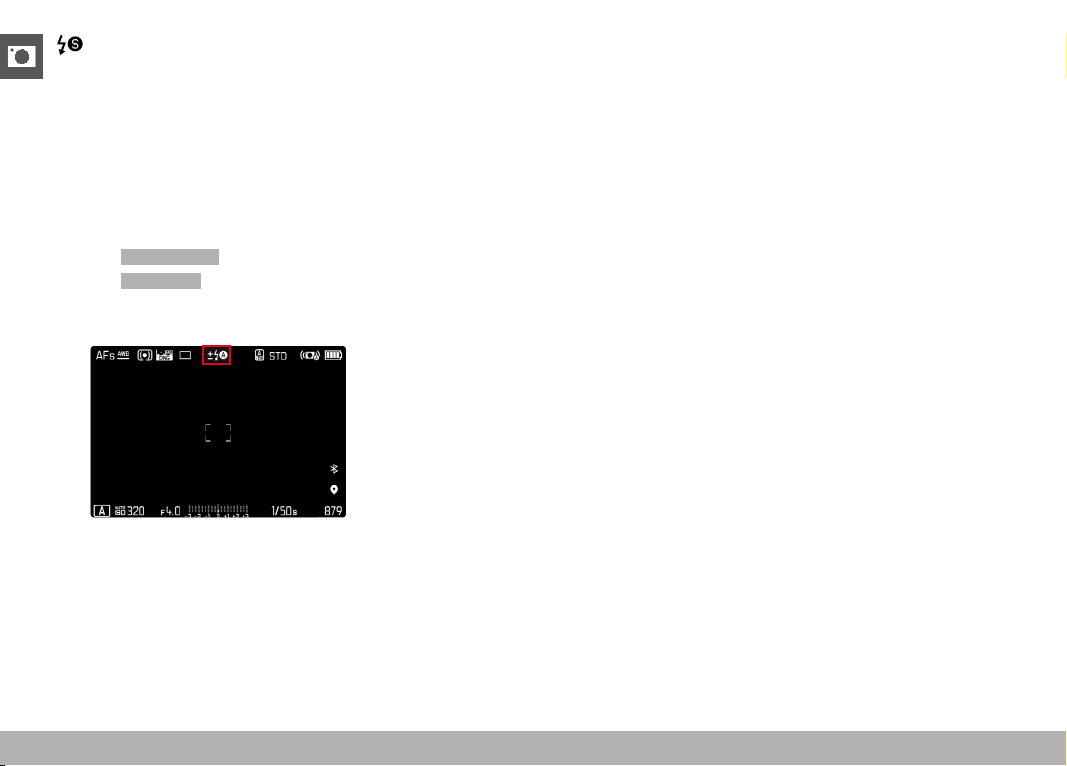
PHOTOGRAPHY ▸ FLASH PHOTOGRAPHY
134
AUTOMATIC FLASH ACTIVATION AT SLOWER SHUTTER
SPEEDS (LONG-TERM SYNCHRONIZATION)
This mode ensures appropriately exposed, brighter dark backgrounds
and bright foreground.
The shutter speed is not extended beyond 1⁄30 s in the other flash
modes to minimize the risk of blurring. This may mean, however, that
pictures with flash exposure can end up with objects in the back
-
ground not illuminated by the flash and therefore being underex-
posed. In this mode, slower shutter speeds (up to 30 s) are permitted
to avoid this effect.
▸ Select Flash Settings in the main menu
▸ Select
Flash Mode
▸ Select the desired setting
• The currently active mode is displayed on screen.
FLASH CONTROL
The settings and functions described in the following sections only
apply to settings and functions available in this camera and in sys-
tem-compatible flash units.
SYNC POINT
Flash exposures are lit by two light sources:
– existing light from the environment
– the additional flash
Any subject elements lit primarily by the flash will almost always be
rendered in perfect focus by the short burst of light, provided the
focus is set correctly. All other subject elements in the same frame
lit by ambient light or lit from within will be rendered with varying
degrees of sharpness. Whether or not these object elements will be
rendered in sharp focus or blurred, as well as the degree of “blurri-
ness” depends on two interdependent factors:
– the shutter speeds
– the speed of movement of the subject elements or camera during
shooting
The longer the shutter speed and the faster the motion, the greater
the difference between the two superimposed partial images.

PHOTOGRAPHY ▸ FLASH PHOTOGRAPHY
135
A flash is usually fired at the start of exposure ( Start of Exposure ).
This may result in apparent contradictions, e.g. the image of a vehi-
cle being overtaken by its own light trail. This camera alternatively
allows synching with the end of exposure ( End of Exposure ). The
sharp image will in this case be a rendering of the end of the cap-
tured motion. This flash technique creates a more natural impres-
sion of movement and dynamics in the image.
This function is available with all camera and flash unit settings.
Factory setting:
End of Exposure
▸ Select Flash Settings in the main menu
▸ Select
Flash Sync
▸ Select the desired setting
( Start of Exposure , End of Exposure )
• The set sync point is shown in the header line.
Notes
• Do not use sync cables that are longer than 3 m.
• When using the flash with faster shutter speeds, a difference be-
tween the two flash firing points will be barely discernible or only
noticeable for very fast movements.
FLASH RANGE
The usable flash range depends on the aperture and sensitivity val-
ues set manually or calculated by the camera. It is important to en-
sure that the subject is within the relevant flash range for sufficient
illumination. A permanent setting to the shortest available shutter
speed for flash mode (sync time) may often result in unnecessary
underexposure of those subject elements that are not lit sufficiently
by the flash.
This camera allows the fine tuning of the shutter speed used in flash
mode in combination with aperture-priority mode depending on the
conditions of the object or your own pictorial composition ideas.
Factory setting:
Auto
▸ Select Auto ISO Settings in the main menu
▸ Select
Shutter Speed Limit (Flash)
▸ Select the desired value
( Auto , 1/2000 , 1/1000 , 1/500 , 1/250 , 1/125 , 1/60 , 1/30 ,
1/15 , 1/8 , 1/4 , 1/2 )
Note
• The menu item
Shutter Speed Limit (Flash) in submenu Flash
Settings
is identical to the menu item of the same name in sub-
menu
Auto ISO Settings . A setting in one menu will affect the
other.

PHOTOGRAPHY ▸ FLASH PHOTOGRAPHY
136
FLASH EXPOSURE COMPENSATION
This function can be used to selectively reduce or enhance flash
exposure regardless of ambient light, e.g. to brighten the face of a
person in the foreground when taking a photo outdoors in the eve-
ning while retaining the same general lighting mood.
Factory setting:
0 EV
▸ Select Flash Settings in the main menu
▸ Select
Flash Exp. Compensation
• The submenu displays a scale with a red setting mark. The
function is deactivated if the value is set to 0 .
▸ Set the value on the scale
• The set value is displayed above the scale.
Notes
• The following applies for set compensation values, no matter how
they were initially set: They remain effective until they are manu-
ally reset to 0 , even if the camera is switched off and on again in
the meantime.
• The menu item
Flash Exp. Compensation can only be used in con-
junction with flash units on which the compensation value cannot
be set manually (e.g. Leica SF 26).
•
Flash Exp. Compensation is unavailable, if flash units with an own
compensation function are used (e.g. Leica SF 58 or Leica SF 60).
A compensation value set on the camera would in that case have
no effect.
• A brighter flash illumination with Plus compensation will require
a greater flash intensity. Flash exposure compensation will there-
fore impact on the flash range: A Plus correction will decrease it,
a Minus correction will increase it.
• An exposure compensation set on the camera will only affect
the measurement of ambient light. If a simultaneous TTL flash
exposure metering compensation is desired in flash mode, then it
must be additionally set on the flash unit.

PHOTOGRAPHY ▸ FLASH PHOTOGRAPHY
137
FLASH PHOTOGRAPHY
▸ Switch on the flash unit
▸ Set the desired guide number control mode (e.g. TTL or GNC =
Guide Number Control) on the flash unit
▸ Switch the camera on
▸ Set the desired exposure mode, shutter speed and/or aperture
setting
• It is imperative to take note of the shortest flash sync speed,
as it determines whether a “normal” flash or an HSS flash is
fired.
▸ Tap the shutter button before each flash exposure to activate
exposure metering
• The flash unit may not fire if this step is missed by pressing the
shutter button down completely and skipping these settings.
Note
• It is recommended to use a different exposure metering method
than
Spot in flash photography.
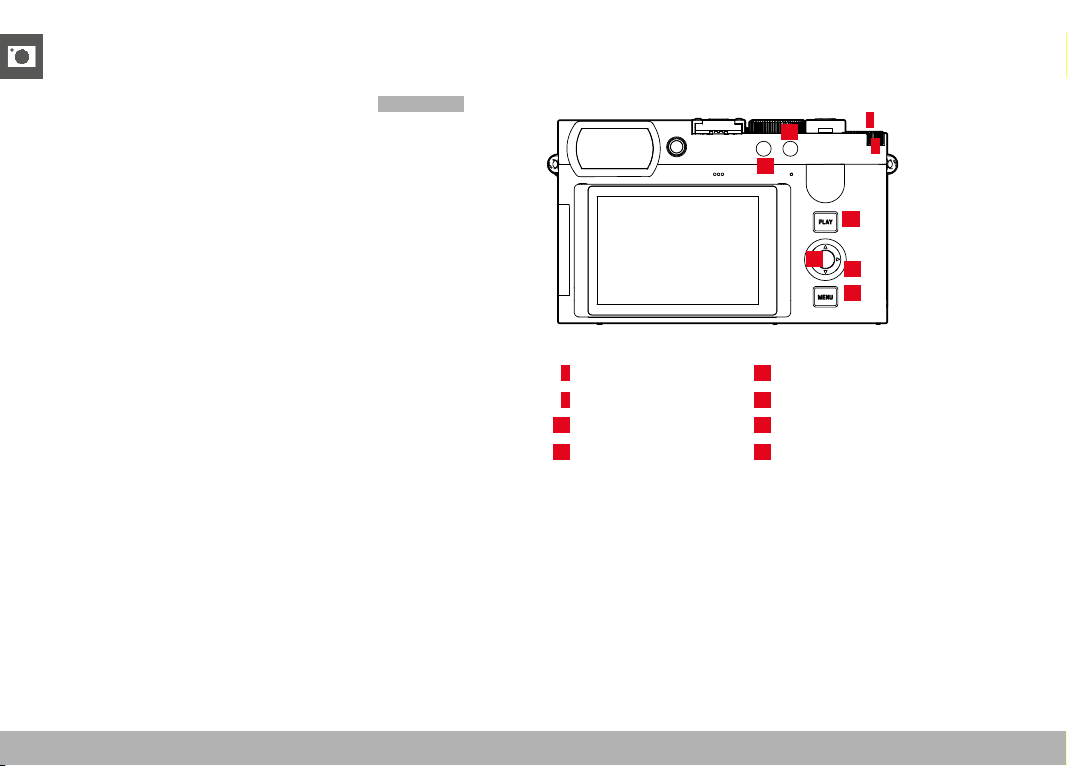
REVIEW MODE ▸ CONTROL ELEMENTS IN REVIEW MODE
138
REVIEW MODE
There are two completely independent review functions available:
– short-term rendering directly after shooting (
Auto Review )
– normal review mode, in which the stored mages can be viewed
and managed for any length of time
The switchover between shooting and review mode, as well as most
other actions can be completed using gesture or key control. Please
see p. 45 for more information about the available gestures.
Notes
• Recorded images are not automatically rotated in review mode to
utilize the full screen area.
• It may not be possible to render files with this camera that were
not recorded with this device.
• In some cases, the screen image may not have the expected
quality, or the LCD panel will remain blank and only display the
file name.
• You can toggle back from review mode to shooting mode at any
time by tapping the shutter button.
• The histogram and clipping displays are available only when
viewing the full size picture, but not during zooming or in the
overview.
CONTROL ELEMENTS IN REVIEW MODE
CONTROL ELEMENTS ON THE CAMERA
18
14
21
13
20
19
4
5
4
Thumbwheel
18
PLAY button
5
Thumbwheel button
19
Center button
13
FN button 1
20
Directional pad
14
FN button 2
21
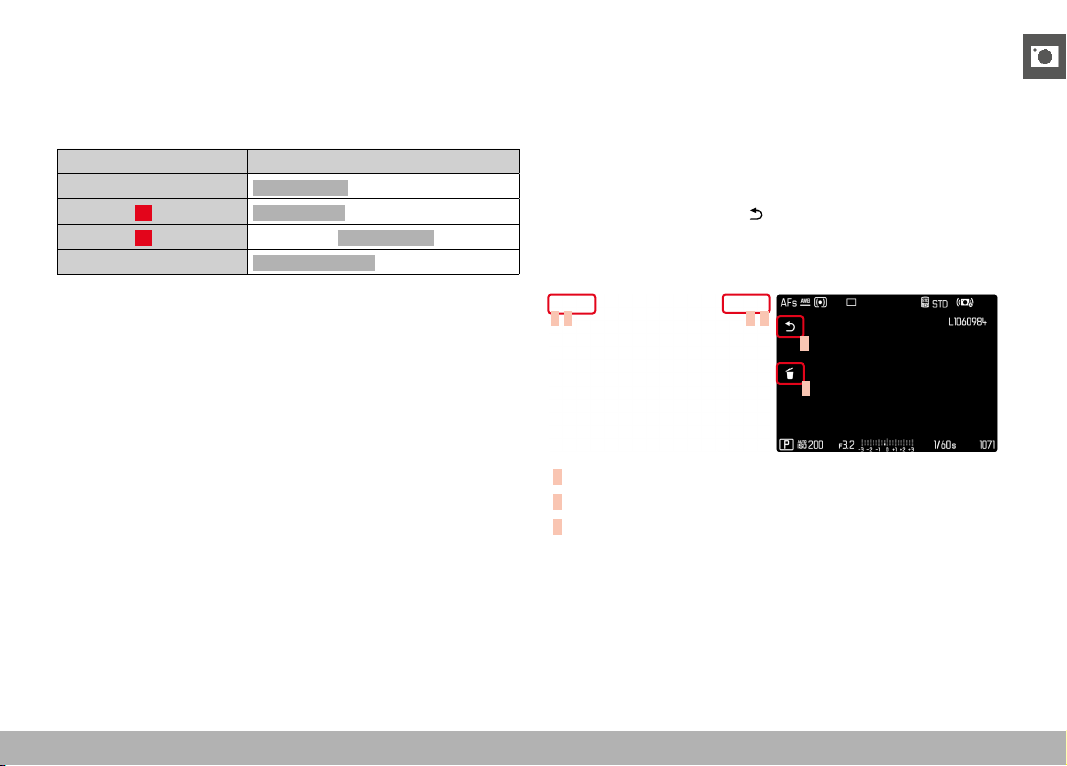
REVIEW MODE ▸ CONTROL ELEMENTS IN REVIEW MODE
139
DIRECT ACCESS IN REVIEW MODE
The function buttons can have individual assignments in review
mode as well.
In factory settings, the function buttons have the following assign-
ments:
Button Function
Thumbwheel button
Magnification
FN button 13
Delete Single
FN button 14
Mark shots ( Rate / Unrate )
Center button
Toggle Info Levels
The descriptions in the next few sections presume factory settings.
Note
• The assigned function is independent of the current display
mode; the delete functions overview can therefore be accessed
directly in full screen display mode.
• The assigned function is unavailable if the function button
addresses an on-screen control element (e.g. in the “Delete”
screen).
CONTROL ELEMENTS ON THE LCD PANEL
On-screen control elements generally function by intuitively by
touch. Many can also be selected by pressing one of the three
buttons to the right of the LCD panel (PLAY button, center button,
MENU button). A control element in the header is accompanied by
an icon denoting the relevant button. A control element on the edge
of the screen will be positioned directly next to the relevant button.
Example: The “Go back” icon
can be selected in one of two ways:
– tap on the “Go Back” icon directly
– press the relevant button
(top button =
PLAY button)
C B A C
A
B
A
Control element “Go back”
B
Control element “Delete”
C
Display of the relevant button
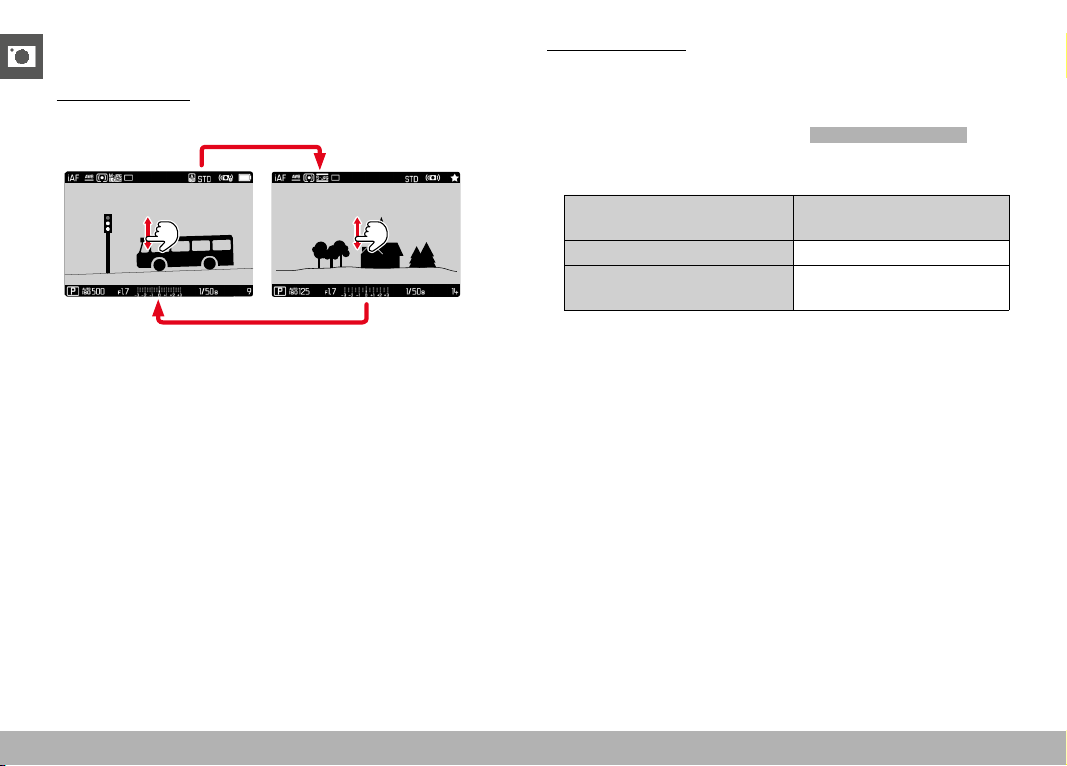
REVIEW MODE ▸ STARTING/EXITING REVIEW MODE
140
STARTING/EXITING REVIEW MODE
Using touch control
▸ Swipe up or down
INFO
1/80002.8F 12500ISO EV
A
-3 2 1 0 21 3+
823412MP
ReviewShooting
Using button control
▸ Press the
PLAY button
• The last captured image appears on the screen.
• The following message appears if the inserted memory card
does not contain any image data:
No valid picture to play .
• The
PLAY button function differs, depending on the current
camera setting:
Initial situation After pressing the PLAY
button
Full screen display of an image Shooting mode
Display of an enlarged cropped
section/or several thumbnails
Full screen display of the
image
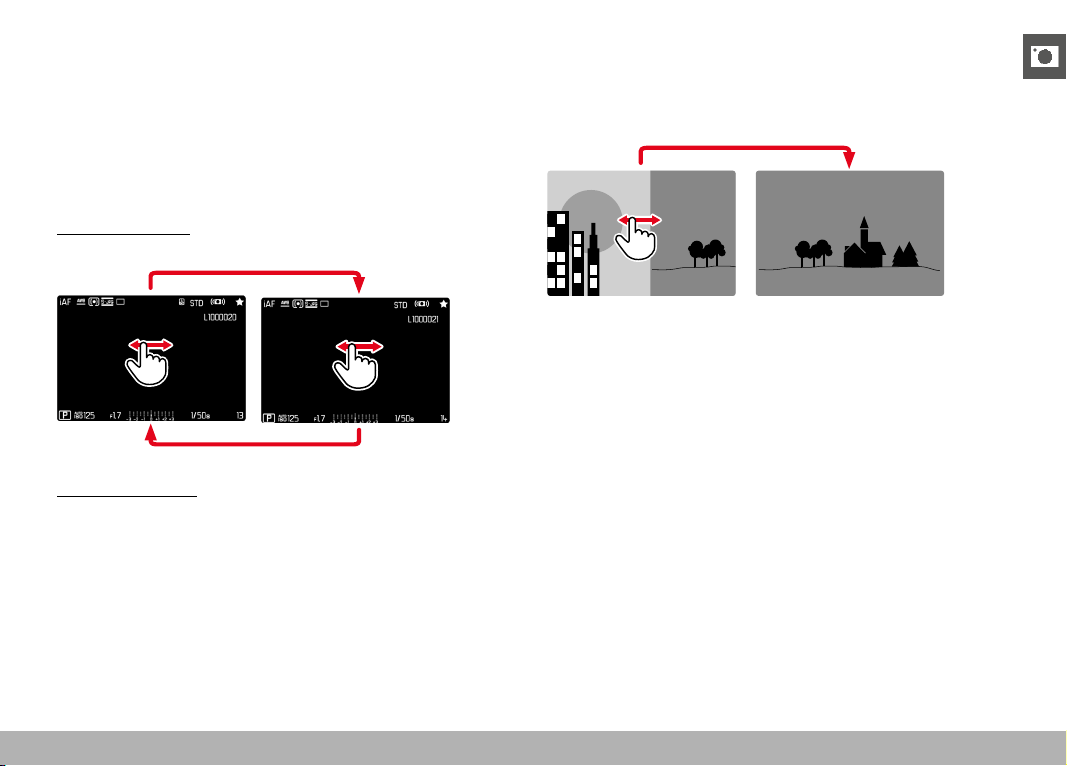
REVIEW MODE ▸ SELECTING/SCROLLING THROUGH IMAGES
141
SELECTING/SCROLLING THROUGH IMAGES
The images are visually arranged in a horizontal reel. The sorting
will be strictly chronological. When the end of an image series is
reached, the display automatically jumps back to the first image in
the series. All images can therefore be reached by scrolling either
right or left.
SINGLE
Using touch control
▸ Swipe to the left or right
Using button control
▸ Press the directional pad left/right
CONTINUOUS
▸ Swipe to the left or right and hold the finger on the edge of the
screen
• The subsequent shots will move past continuously.
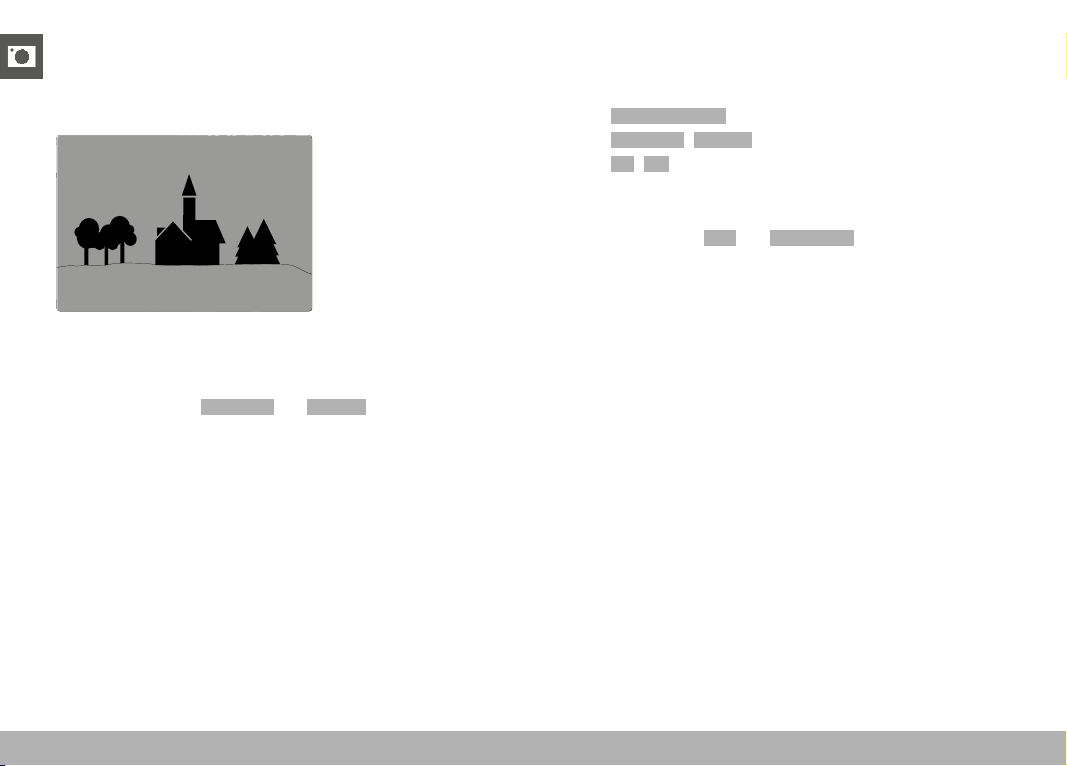
REVIEW MODE ▸ INFO DISPLAYS IN REVIEW MODE
142
INFO DISPLAYS IN REVIEW MODE
In factory settings, images are displayed without header and footer
information for unimpeded viewing.
22:45 PM 22.02.2012
999-9000
8234/999912MP
2.8F 1/8000 12500ISO EV
INFO
▸ Press the center button
• The info bars appear (header and footer line always appear/
disappear together in review mode).
• The displays for
Histogram and Clipping will appear if these
functions are activated.
DISPLAYING ASSIST FUNCTIONS
The display of histogram and clipping in review mode can be set
separately from the relevant settings for the shooting mode.
▸ Select
Play Mode Setup in the main menu
▸ Select
Histogram / Clipping
▸ Select On / Off
Notes
• The clipping display is not available in video mode.
• The assist functions
Grid and Level Gauge are not available in
review mode.
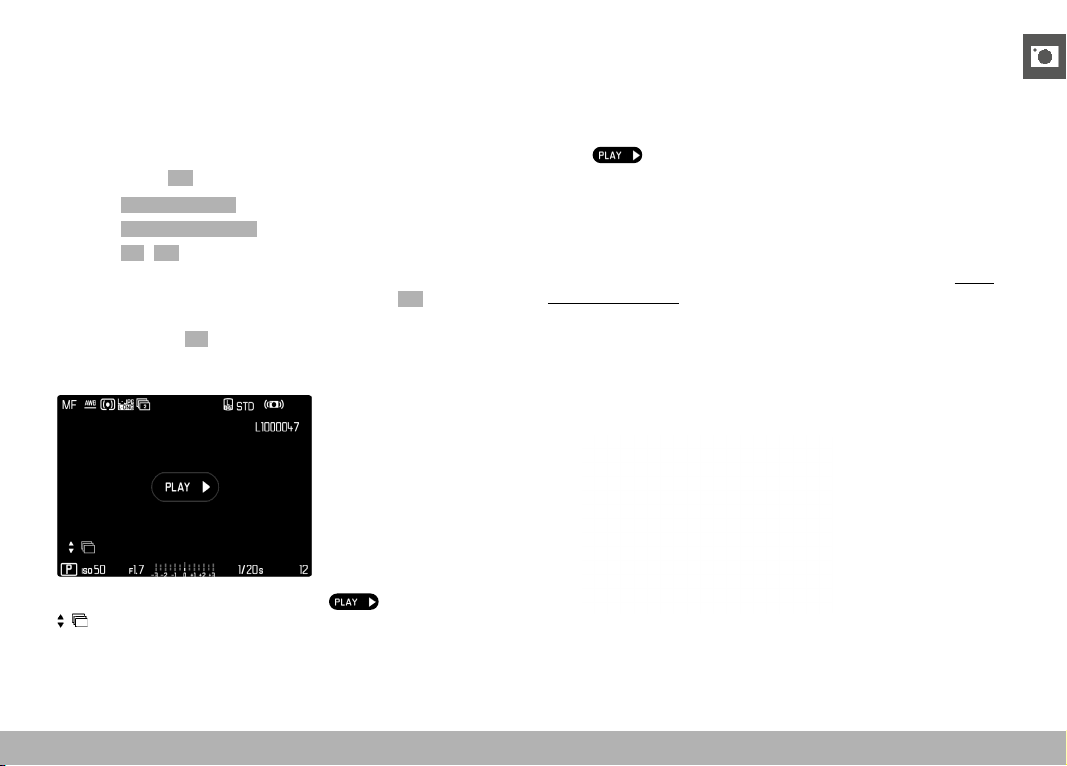
REVIEW MODE ▸ PICTURE SERIES REVIEW
143
PICTURE SERIES REVIEW
Serial and interval shootings often produce a large number of indi-
vidual images. It would be very difficult to find other pictures that
are not part of a series if every image of all these series was dis-
played individually. Organizing the images in groups creates more
clarity in review mode.
Factory setting:
Off
▸ Select Play Mode Setup in the main menu
▸ Select
Group display mode
▸ Select On / Off
All images in all series are displayed individually if Off is selected.
The images are grouped in series and only one representative image
will be displayed if On is selected. Only that one representative im-
age will be displayed and all other images in that series are hidden
during scrolling.
The representative image is shown with in the center and
at the bottom left.
There are two options for viewing the images in a group: manual
scrolling or automatic playback. Automatic review is the default
setting.
UNINTERRUPTED PLAYBACK OF THE PICTURE SERIES
The images in a group can be played back from start to finish with-
out interruption. This may be very helpful to get a better idea of the
processes or conditions rendered than if the images were scrolled
manually.
▸ Tap
or
▸ Press the center button
• Auto Review commences.
A prompt screen with additional functions can be accessed while
playback is running.
▸ Tap anywhere on the LCD panel
or
▸ Press the center button
• Playback stops, the current picture in the series is displayed.
Various control elements appear on screen.
Note
• The control elements disappear after about 3 s. Touching the
LCD panel or pressing the center button will cause them to be
displayed again.
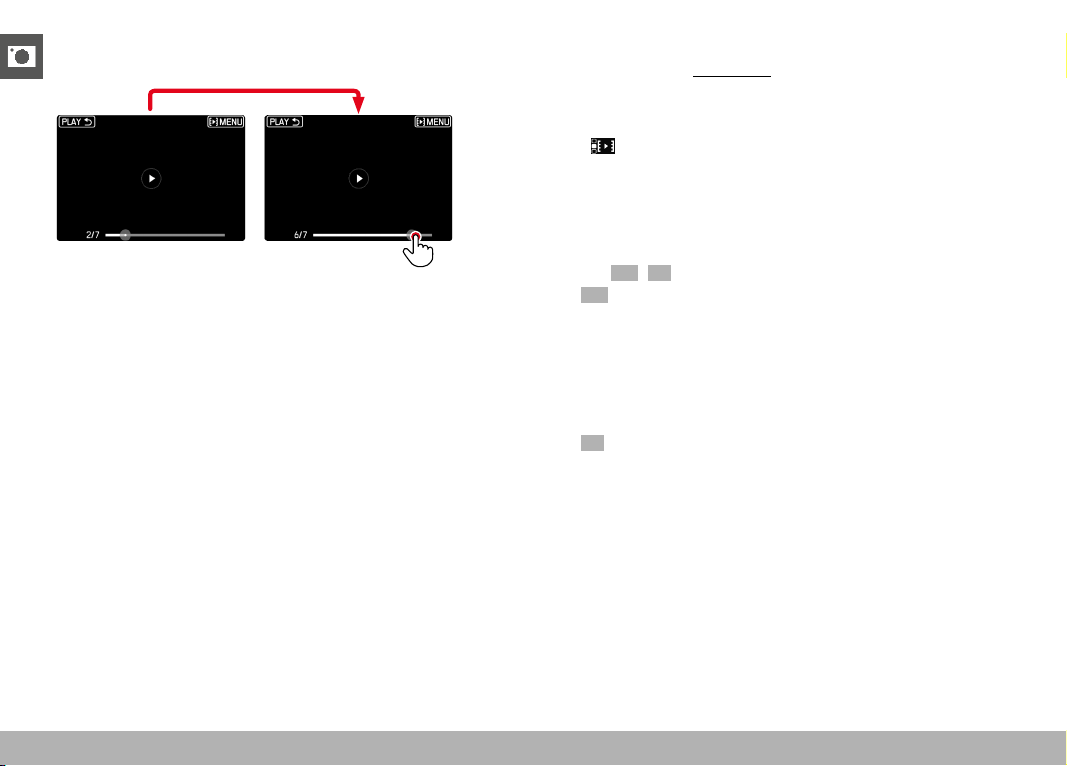
REVIEW MODE ▸ PICTURE SERIES REVIEW
144
JUMPING TO A SPECIFIC PICTURE IN THE GROUP
▸ Tap the playback status bar in the desired position
RESUMING PLAYBACK
While the control elements are visible:
▸ Tap anywhere on the LCD panel
or
▸ Press the center button
SAVE AS A VIDEO
The frame series can additionally be saved as a video.
▸ Starting and stopping review
• The control elements appear.
▸ Tap
or
▸ Start playback
▸ Press the center button
• The prompt screen for video creation appears.
▸ Select
Yes / No
– Yes : A video is created
• A progress screen for the video creation is displayed
briefly (while the data is being processed). It also offers
the option of canceling the process by pressing the center
button.
• Once video creation is complete, the first frame of the
new video is displayed.
–
No : Revert to the same picture of the (still paused) automatic
review
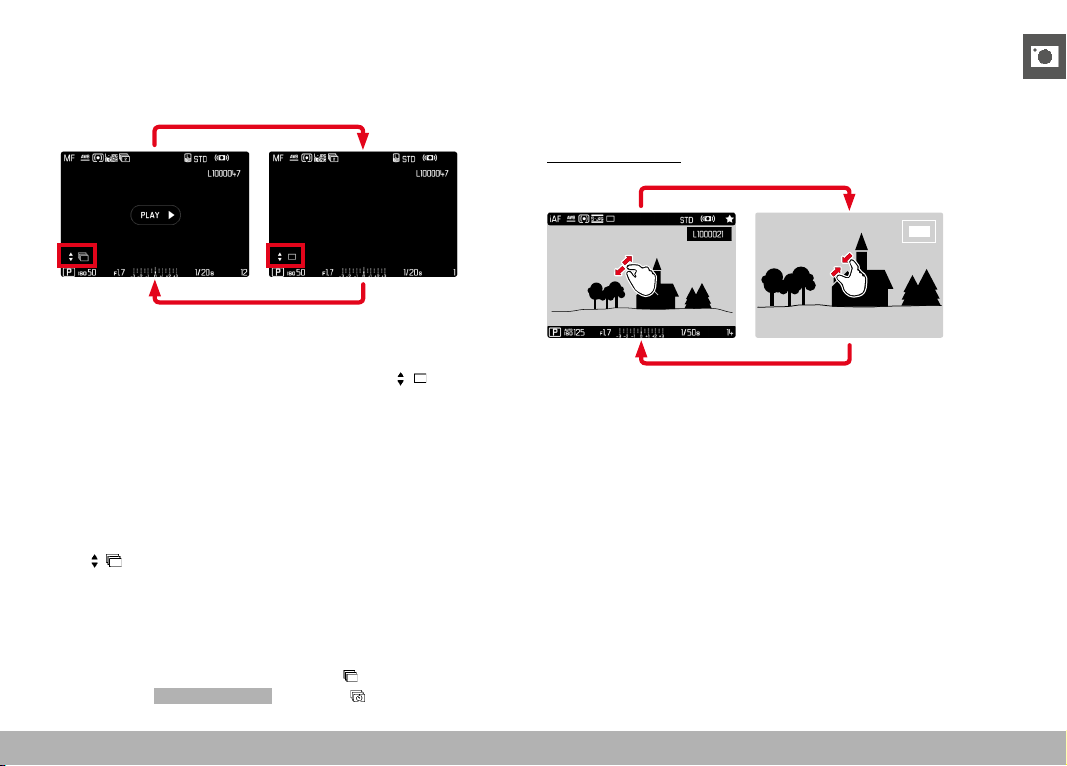
REVIEW MODE ▸ CROPPED SECTION ZOOM
145
SCROLLING THROUGH THE INDIVIDUAL PICTURES OF A
SERIES
The images in a picture series can also be viewed individually.
Switch to the manual scrolling function to do so.
▸ Press the directional pad up/down
• The information displays disappear in full-screen mode.
• When the information displays are activated,
will appear
at the bottom left of the image.
▸ Press the directional pad left/right
or
▸ Swipe to the left or right
Returning to standard review mode
▸ Press the directional pad up/down
•
Is displayed at the bottom left of the image.
Notes
• The review will be limited to the current picture series for as long
as you are scrolling in that series, which also applies to the over-
view display of 12 or 30 thumbnails.
• The images of a series are marked with
in the header line,
those of an Interval Shooting shoot by a .
CROPPED SECTION ZOOM
You can zoom in to any section of an image for closer inspection.
You have a five-step zoom factor available via the thumbwheel,
while zooming is stepless if you use touch control.
Using touch control
▸ Two-finger pinch/spread
• The image will be zoomed in/zoomed out at the desired point.
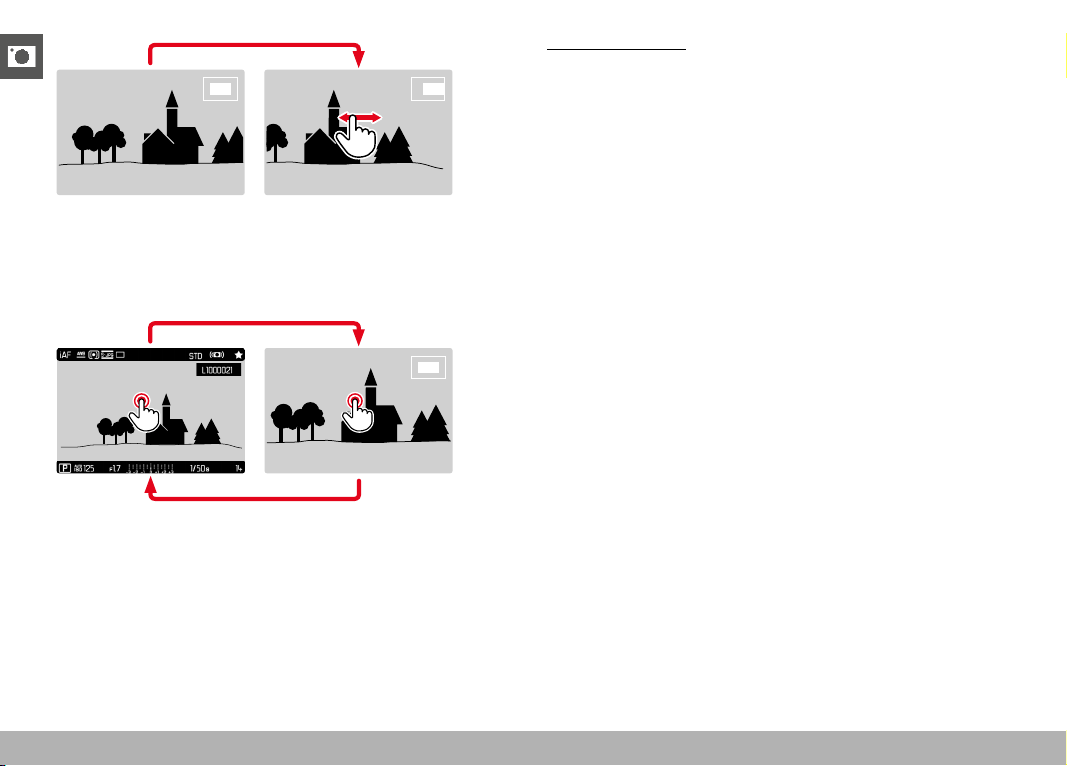
REVIEW MODE ▸ CROPPED SECTION ZOOM
146
▸ Move the position of an enlarged cropped section by swiping
• The rectangle within the frame at the top right represents the
current magnification, as well as its position in the displayed
cropped section.
▸ Double tap
• Toggles between the third zoom increment at the tap position
and standard full screen view.
Using button control
▸ Turn the thumbwheel
(to the right: increase magnification, to the left: decrease magni-
fication)
or
▸ Press the thumbwheel button
• Toggles between the third zoom increment at the tap position
and standard full screen view.
▸ Press the directional pad to move the enlarged section anywhere
in the image
• The rectangle within the frame at the top right represents the
current magnification, as well as its position in the displayed
cropped section.
You can move directly from one image to the next in magnification
mode, which will then also be displayed with the same magnifica-
tion.
▸ Press and hold the
PLAY button while turning the thumbwheel
Notes
• It may not be possible to enlarge images taken with other camera
types.
• Video recordings cannot be enlarged.
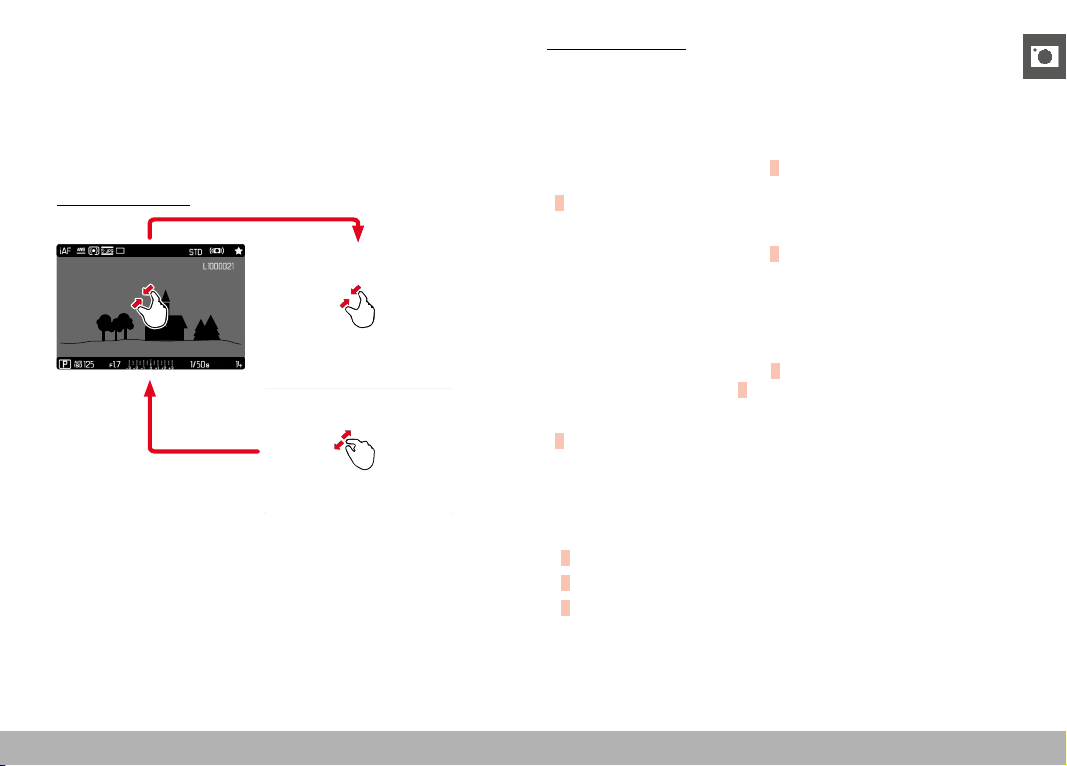
REVIEW MODE ▸ DISPLAYING MULTIPLE IMAGES AT ONCE
147
DISPLAYING MULTIPLE IMAGES AT ONCE
The camera offers an overview function in which several thumbnail
images can be viewed on one screen, which makes it easier to find
a specific image. You can choose 12 or 30 images per overview.
OVERVIEW
Using touch control
▸ Two-finger pinch
• The display toggles from 12 to 30 thumbnails.
Viewing other images
▸ Swipe up or down
Using button control
▸ Turn the thumbwheel to the left
• 12 thumbnails are shown at the same time. Another turn on
the thumbwheel increases the number of displayed thumbnails
to 30.
A
B
C
A
B
C
A
Currently selected image
B
Number of the currently selected images
C
Scrollbar
The currently viewed image is framed in red and can be selected for
a closer look.
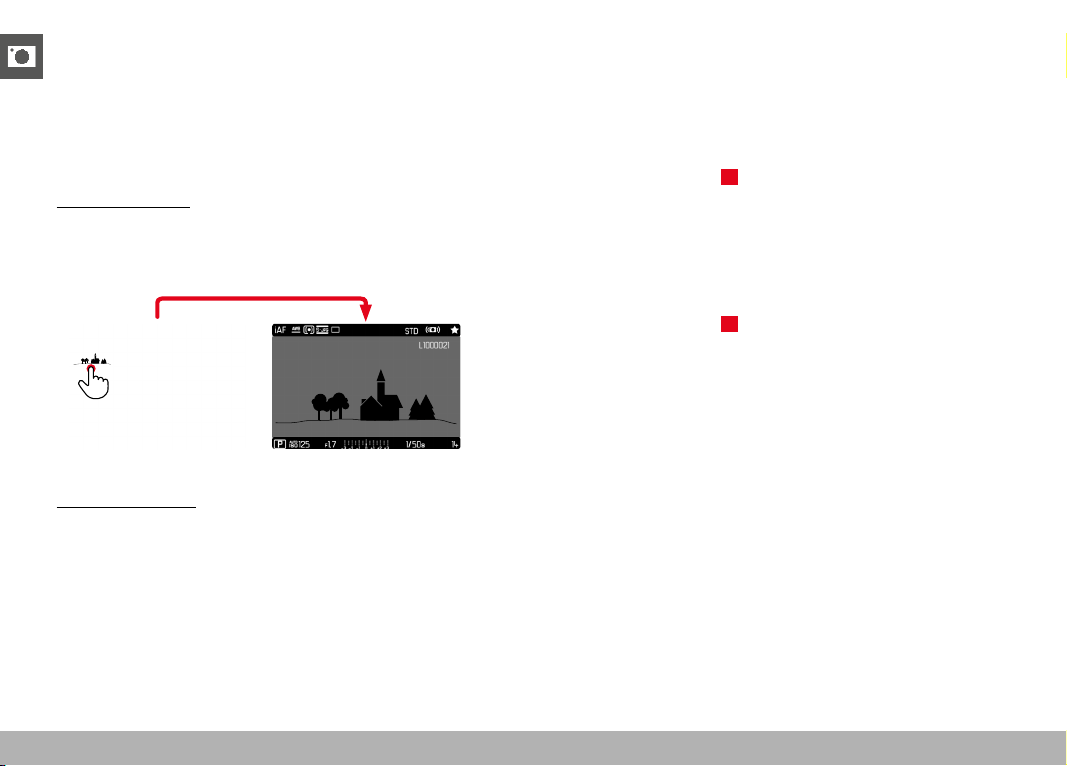
REVIEW MODE ▸ TAGGING/RATING OF IMAGES
148
Navigating between images
▸ Press the directional pad in the relevant direction
or
▸ Press and hold the
PLAY button while turning the thumbwheel
Displaying the image in full size
Using touch control
▸ Two-finger spread
or
▸ Tap the desired image
Using button control
▸ Turn the thumbwheel to the right
or
▸ Press the thumbwheel button / the
PLAY button / the center
button
TAGGING/RATING OF IMAGES
Images can be marked as favorites to find them quicker or to sim-
plify the later deletion of multiple images. Tagging can be done in
regular view mode or in the overviews.
Tagging a photos
▸ Press the FN button 2 (
14)
• The image is marked with ★.
• The icon will appear in the header line on the far right when
viewing images in full size, and in the top left corner of the
thumbnail in overview mode.
Removing a tag
▸ Press the FN button 2 (
14)
• The ★ marking disappears.
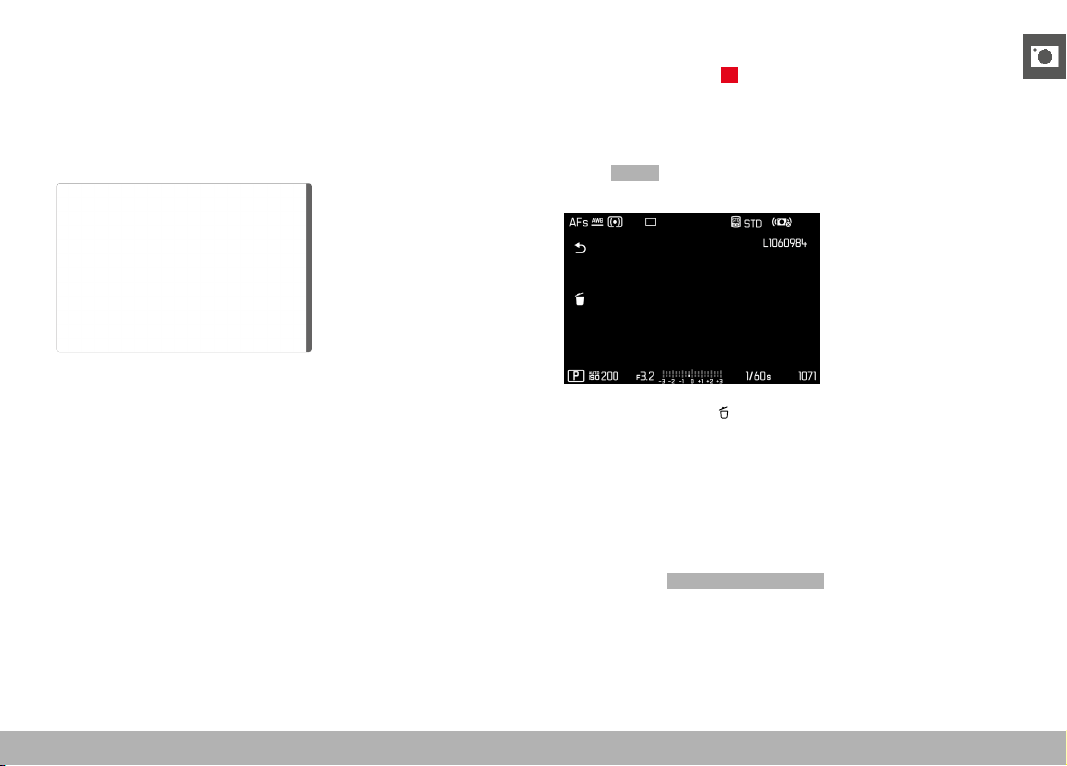
REVIEW MODE ▸ DELETING IMAGES
149
DELETING IMAGES
There are several methods available to delete images:
– deleting individual images
– deleting multiple images
– deleting all images without a icon/ranking
– deleting all images
Important
• Once deleted, images are no longer retrievable.
DELETING INDIVIDUAL IMAGES
▸ Press the FN button 1 (13)
• The Delete screen appears.
or
▸ Press the
MENU button
▸ Select
Delete in the play menu
• The Delete screen appears.
▸ Select the Delete icon
(tap the icon directly or press the center button)
• The picture will be deleted without additional confirmation
prompt.
• The LED will flash during the delete process. The process may
take a few seconds.
• The next image will be displayed once deletion is complete.
The following message appears if no other images are saved
on the card:
No valid picture to play .

REVIEW MODE ▸ DELETING IMAGES
150
Cancelling a deletion and returning to normal review mode
▸ Select the “Go back” icon
(tap the icon directly or press the PLAY button)
Notes
• The Delete screen can be called up only by pressing the
MENU
button when in overview mode, because the menu function
Delete of the “Play menu” is not available in this context.
• The “Scroll” and “Magnify” functions continue to be available
when the “Delete” screen is active.
DELETING MULTIPLE IMAGES
Several images can be marked in a Delete overview with twelve
thumbnails and can then be deleted all at once. This overview can
be reached in two ways.
▸ Turn the thumbwheel to the left
• The overview screen appears.
▸ Press the
MENU button
▸ Select
Delete Multi in the play menu
• The Delete overview appears.
or
▸ Press the
MENU button
▸ Select
Delete in the play menu
• The Delete screen appears.
▸ Turn the thumbwheel to the left
• The Delete overview appears.
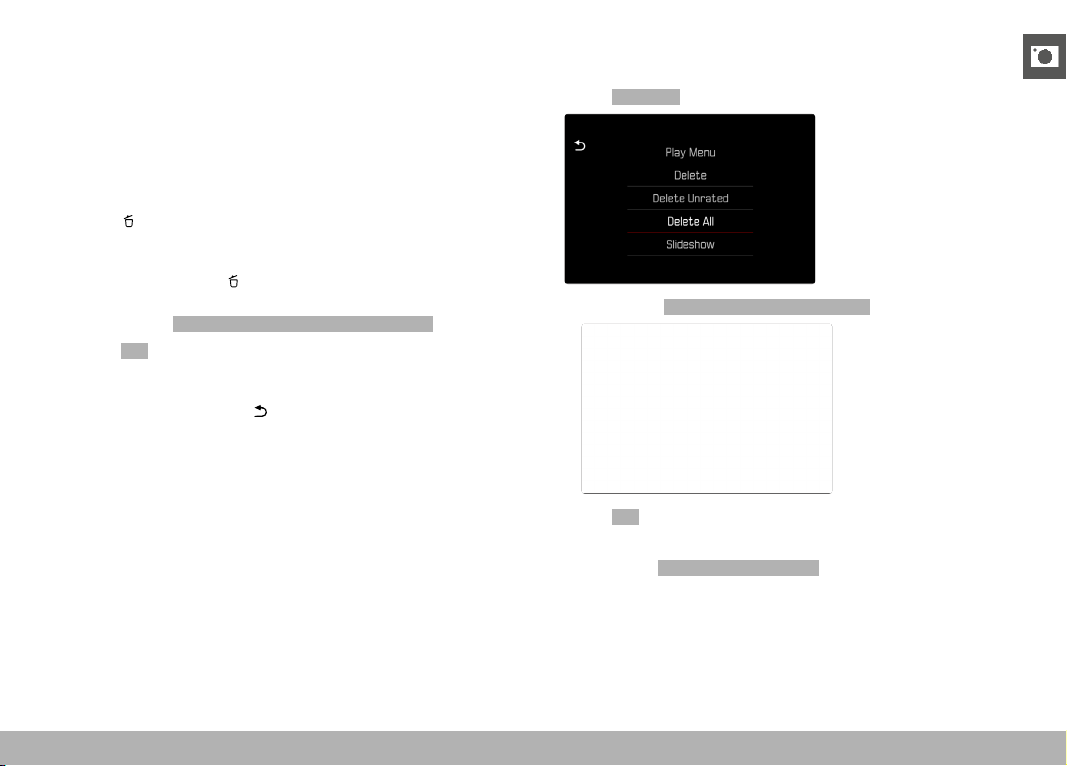
REVIEW MODE ▸ DELETING IMAGES
151
Any number of images can be selected in this view.
Selecting images for deletion
▸ Select an image
▸ Press the center button/thumbwheel button
or
▸ Tap the desired image
• The images selected for deletion are marked with a red Delete
icon
.
Deleting the selected images
▸ Select the Delete icon
(tap the icon directly or press the center button)
• The prompt
Do you want to delete all marked files? appears.
▸ Select
Yes
Cancelling a deletion and returning to normal review mode
▸ Select the “Go back” icon
(tap the icon directly or press the PLAY button)
DELETING ALL IMAGES
▸ Press the MENU button
▸ Select
Delete All in the play menu
• The prompt Do you want to delete all files? appears.
▸ Select Yes
Note
• The message No valid picture to play. appears after successful
deletion. The same image is displayed again if deletion was
unsuccessful. When deleting several or all images, a notification
screen may appear for the time needed to process the data.
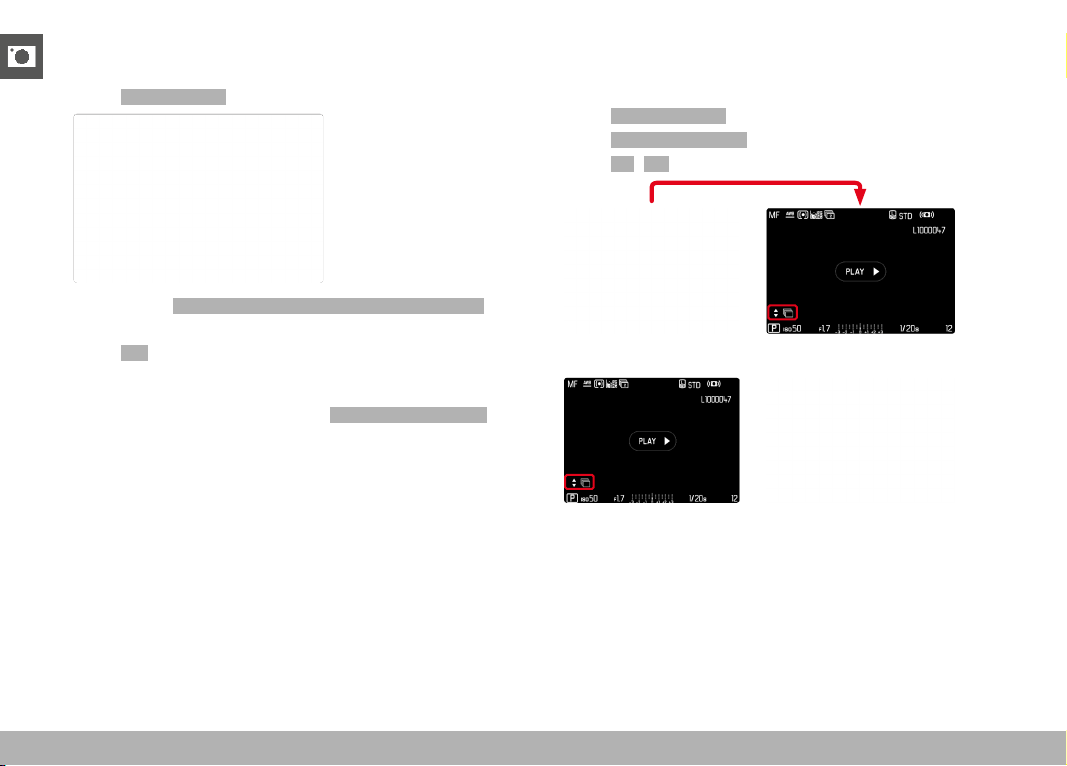
REVIEW MODE ▸ DELETING IMAGES
152
DELETING UNRATED IMAGES
▸ Press the MENU button
▸ Select
Delete Unrated in the play menu
• The prompt Do you really want to delete all not rated files?
appears.
▸ Select
Yes
• The LED will flash during the deletion process. The process
may take a few seconds. The next marked image appears once
deletion is complete. The message No valid picture to play
appears if no other images are saved on the card.
DELETING PICTURE SERIES
Picture series can be displayed in groups for quick deletion. The
pictures will have to be displayed in groups.
▸ Select
Play Mode Setup in the main menu
▸ Select
Group display mode
▸ Select On / Off
▸ Select the representative image
▸ Delete
• All pictures in the picture series will be deleted.
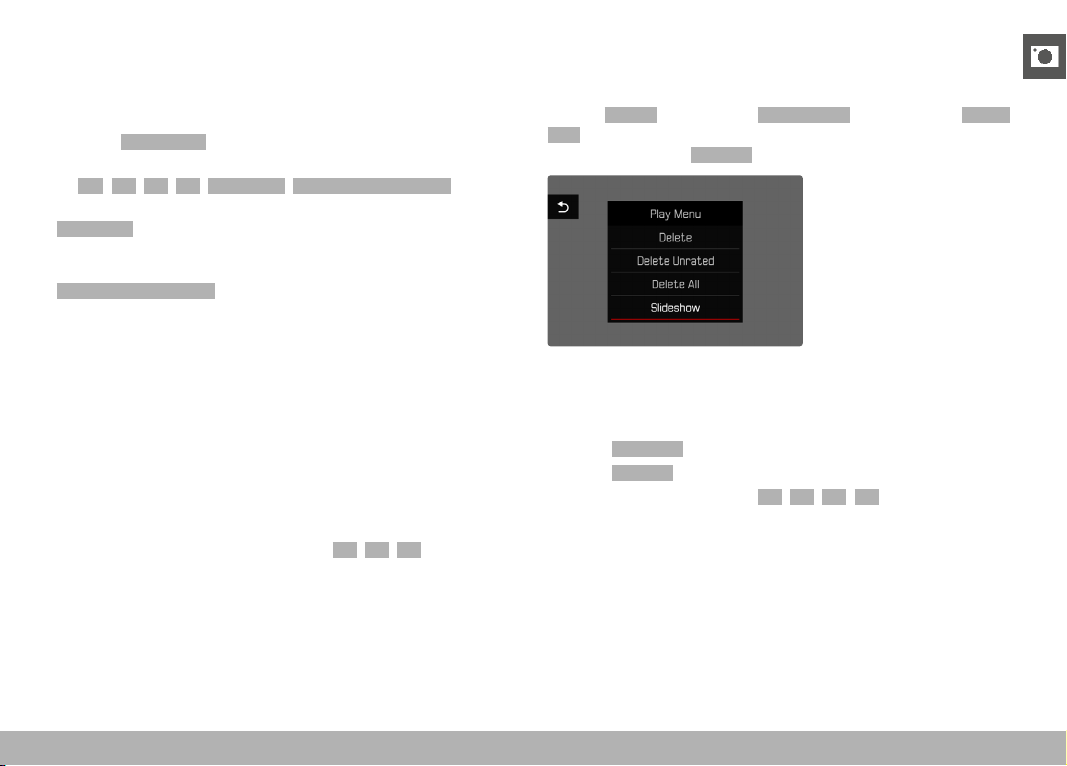
REVIEW MODE ▸ PREVIEW OF LATEST IMAGE / SLIDE SHOW
153
PREVIEW OF LATEST IMAGE
Photos can be displayed automatically directly after they are taken
to e.g. check the success of the shots quickly and easily. A duration
for the automatic display can be configured.
▸ Select
Auto Review in the main menu
▸ Select the desired function or duration in the submenu
(
Off , 1 s , 3 s , 5 s , Permanent , Shutter button pressed )
Permanent : The most recent frame is displayed until automatic re-
view is ended by pressing the PLAY button or by tapping the shutter
button.
Shutter button pressed : The most recent frame is displayed for as
long as the shutter button is pressed down.
Notes
• Various control elements change back to regular review mode to
execute their normal functions while automatic review is select-
ed. The camera will remain in review mode until it is exited.
• Marking and deleting can only be done in regular review mode
and not during automatic review.
• When shooting with the Continuous Shooting or Interval Shooting
functions, then the last image in the series will be displayed or
– if the save process is still incomplete – the last image in the
series saved to the memory card.
• Where display times were configured (
1 s , 3 s , 5 s ) automatic
review can be ended immediately by pressing the PLAY button or
tapping the shutter button.
SLIDE SHOW
A slide show function is available in review mode, in which the
saved images are shown automatically in series. Choose to see all
images ( Play All ), only photos ( Pictures Only ) or only videos ( Videos
Only ) should be displayed. For photos, select how long each image
should be displayed ( Duration ).
SETTING THE DURATION
▸ Press the MENU button
▸ Select
Slideshow in the play menu
▸ Select
Duration
▸ Select the desired duration ( 1 s , 2 s , 3 s , 5 s )
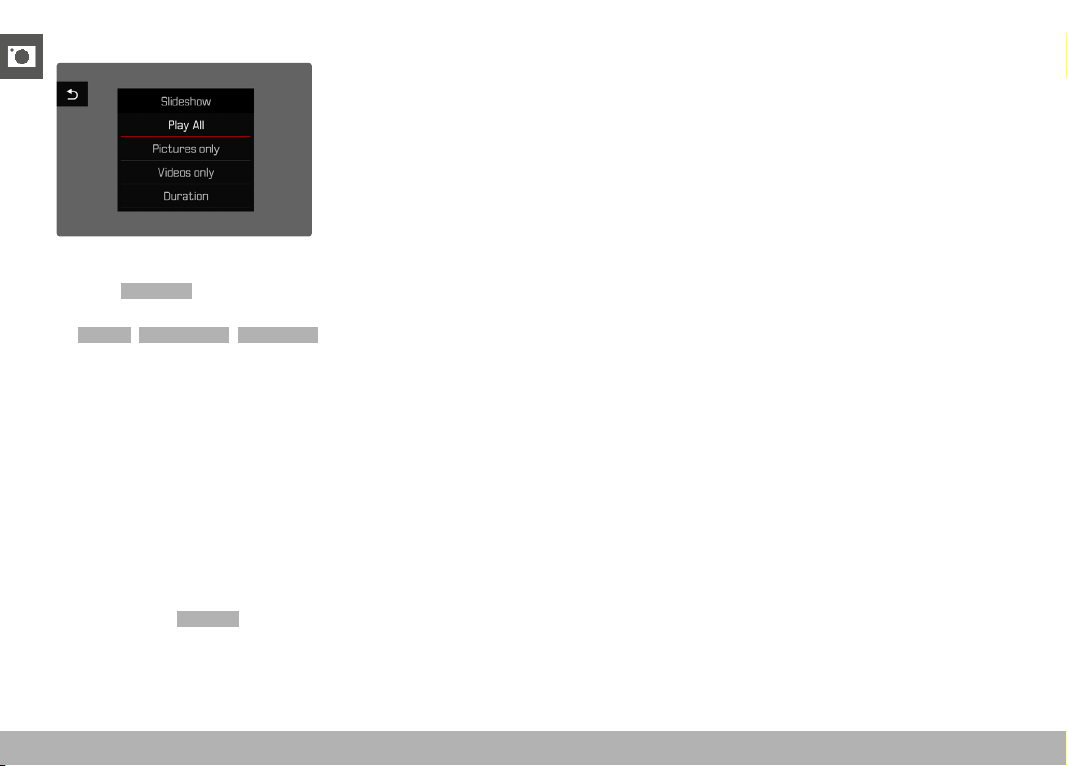
REVIEW MODE ▸ SLIDE SHOW
154
STARTING THE SLIDE SHOW
▸ Press the MENU button
▸ Select
Slideshow in the play menu
▸ Select the desired setting
(
Play All , Pictures only , Videos only )
• The slide show will start automatically with the selected images
and runs in an endless loop until it is exited.
ENDING THE SLIDE SHOW
▸ Press the PLAY button
or
▸ Tap the shutter button
• The camera switches to the relevant mode.
Notes
• An intermediate screen may appear while the data is prepared
for review.
• The settings in
Duration remain intact even after the camera is
switched off and on again.

155
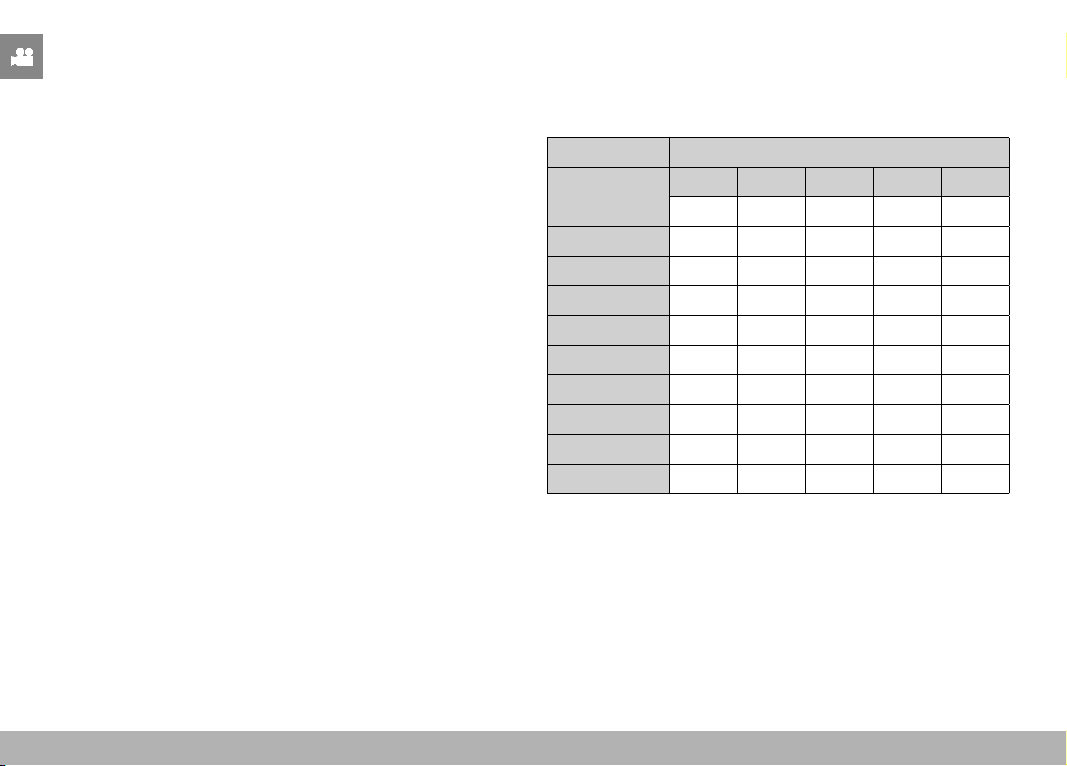
VIDEO SETTINGS ▸ FILE FORMAT / VIDEO FORMAT
156
VIDEO SETTINGS
FILE FORMAT
Video can be recorded in the file formats MOV or MP4.
Various combinations of resolution and frame rate can be configured
depending on the file format chosen. This choice allows an align-
ment with the intended use and available memory card capacity.
VIDEO FORMAT
The following combinations of resolution and frame rate are available:
MOV
Frame rate Resolution
23.98 fps
C8K 8K C4K 4K FHD
✓ ✓ ✓ ✓ ✓
24 fps
✓ ✓ ✓ ✓ ✓
25 fps
✓ ✓ ✓ ✓ ✓
29.97 fps
✓ ✓ ✓ ✓ ✓
47.95 f ps
✓ ✓ ✓
48 fps
✓ ✓ ✓
50 fps
✓ ✓ ✓
59.94 f ps
✓ ✓ ✓
100 fps
✓
119. 88 f ps
✓
< < < VIDEO MODE > > >

VIDEO SETTINGS ▸ VIDEO FORMAT
157
MP4
Frame rate Resolution
23.98 fps
8K 4K FHD
✓ ✓ ✓
25 fps
✓ ✓ ✓
29.97 fps
✓ ✓ ✓
50 fps
✓ ✓
59.94 f ps
✓ ✓
AVAILABLE RESOLUTIONS
You can choose resolutions with the associated aspect ratios.
File Format Available resolutions
MOV C8K
8192 x 4320
MOV + MP4 8K
7680 x 4320
MOV C4K 4096 x 2160
MOV + MP4 4K 3840 x 2160
MOV + MP4 FHD 1920 x 1080
AVAILABLE FRAME RATES
Up to 9 different frame rates between 23.98 fps and 119.88 fps are
available depending on the selected resolution.
Two frame rates (100 fps and 119.88 fps) allow slow motion record-
ing with four times slower playback (one second of recording equals
four seconds of playback).

VIDEO SETTINGS ▸ IMAGE PROPERTIES
158
SETTING THE VIDEO FORMAT
Factory setting: file format MOV, resolution 4K, frame rate 29.97 fps
MOV
▸ Select
Video Format / Resolution in the main menu
▸ Select
MOV
▸ Select the desired resolution
( C8K , 8K , C4K , 4K , FHD (ProRes) , FHD (264) , FHD Slow Motion
(H265) )
▸ Select the desired frame rate
MP4
▸ Select
Video Format / Resolution in the main menu
▸ Select
MP4
▸ Select the desired resolution
( 8K , 4K , FHD )
▸ Select the desired frame rate
Notes
• The list of available resolutions for this camera also contains
additional information, e.g. on video compression.
• More details about available video formats can be found in the
chapter “Technical Data” (see p. 262). There you will also find
information regarding possible limitations for HDMI output.
IMAGE PROPERTIES
The Leica Q3 offers two functions for the adjustment of video
recordings: user-defined Film Style profiles, and professionally
adapted, pre-defined Leica Looks profiles.
Notes
• The functions Video Style and Leica Looks can not be applied
concurrently. When a profile is selected under Video Style , any
profile selected previously under
Leica
Looks
will be automatically
deactivated, and vice versa.
• The
Video Style function is unavailable if any other setting but
Off is selected for Video Gamma .

VIDEO SETTINGS ▸ IMAGE PROPERTIES
159
VIDEO STYLE
The image properties of video recordings can be changes slightly
using several parameters. These are summarized in pre-configured
Video Style profiles.
CONTRAST
The contrast setting, i.e. the difference between light and dark im-
age sections, determines whether an image comes across as “flat”
or “brilliant”. Increasing or decreasing this difference impacts on
contrast, meaning that some image sections are rendered brighter
or darker.
SHARPNESS
The impression of sharpness in a picture is largely determined by
edge sharpness, i.e. by how slight the transition area between light
and dark is at edges in the shot. Expanding or reducing these areas
will therefore change the impression of sharpness.
COLOR SATURATION
The saturation factor in color images determines, whether colors
in the shots appear “pale” and pastel-like or “bright” and colorful.
While lighting conditions and weather (e.g. foggy/clear) are a given
in terms of shooting conditions, their rendering can be influenced.
HIGHLIGHT/SHADOW
Depending on the exposure selected and the dynamic scope of
the object, some details in brighter or darker areas may no longer
be clearly visible. The parameters
Highlight and Shadow allow
differentiated control over very brightly or less brightly lit areas.
Where, for example, part of the object is in shadow, a higher setting
for Shadow
can help brighten these areas to make details more vis-
ible. Conversely, existing shadows or particularly bright areas might
be additionally emphasized for reasons of image composition. Posi-
tive values will brighten the targeted areas, while negative values will
darken them.
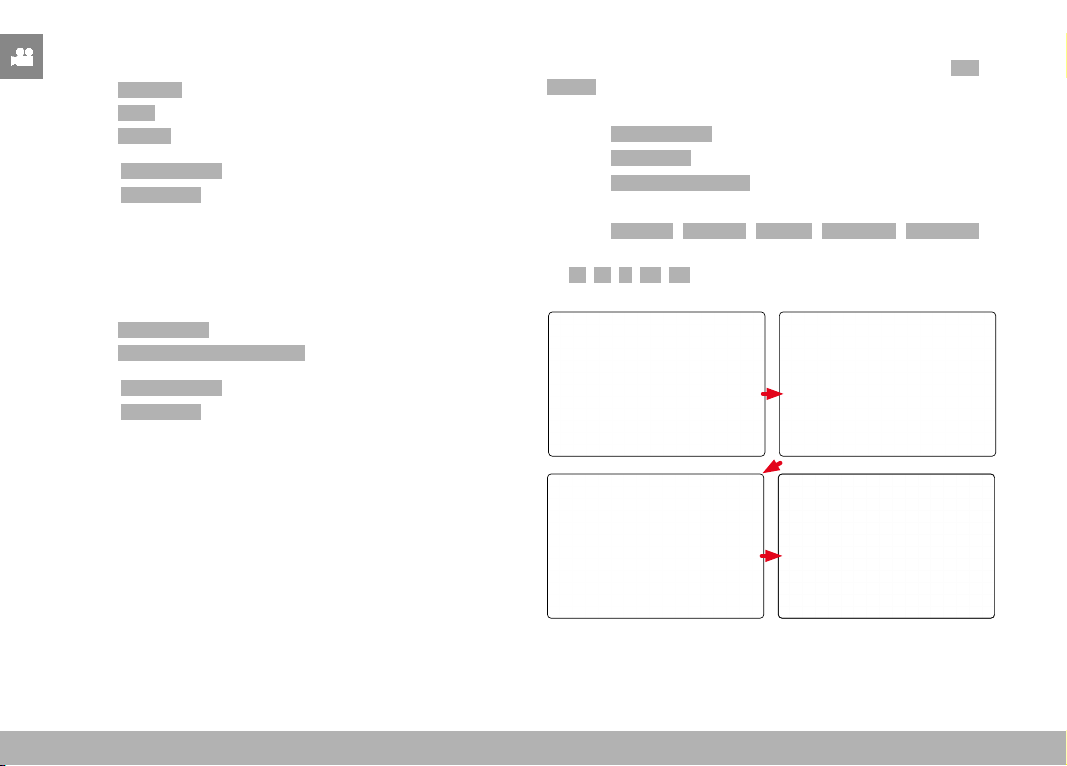
VIDEO SETTINGS ▸ IMAGE PROPERTIES
160
COLOR PROFILE
3 pre-configured color profiles are available:
–
Standard
– Vivid
– Natural
▸ Select Video Settings in the main menu
▸ Select
Video Style
▸ Select a profile
MONOCHROME PROFILE
There are two additional profiles available for monochrome video
recordings:
–
Monochrome
– Monochrome High Contrast
▸ Select Video Settings in the main menu
▸ Select
Video Style
▸ Select a profile
CUSTOMIZING VIDEO PROFILES
These parameters can be adjusted for all available profiles (
Sat-
uration only for color profiles). See p. 56 for details on menu
operation.
▸ Select
Video Settings in the main menu
▸ Select
Video Style
▸ Select Video Style Settings
▸ Select a profile
▸ Select
Contrast / Highlight / Shadow / Sharpness / Saturation
▸ Select the desired level
( -2 , -1 , 0 , +1 , +2 )

VIDEO SETTINGS ▸ AUDIO SETTINGS
161
LEICA LOOKS
Leica Looks offer a selection of professionally aligned, pre-defined
profiles. These can be conveniently downloaded to the camera.
There are six memory slots available for Leica Looks.
Applying a Look
▸ Select
Video Settings in the main menu
▸ Select
Leica Looks
▸ Select a memory slot
Selecting a memory slot
Leica Looks can be easily downloaded to the camera via Leica
FOTOS.
▸ Connecting to Leica FOTOS
▸ Follow the instructions provided by the Leica FOTOS app
Note
• The memory space assignments from the downloaded Leica
Looks apply for photo and video mode alike. The various profiles
can be selected individually for the two operating modes.
AUDIO SETTINGS
MICROPHONE
The sensitivity of the integrated microphone can be set.
Factory setting:
Medium
▸ Select Video Settings in the main menu
▸ Select
Microphone Gain
▸ Select the desired level
( High , Medium , Medium low , Low , Off )
Notes
• The Autofocus function and manual focusing adjustments generate
noise that may be picked up in the recording.
• There will be no audio recorded if this setting is Off . As notifica-
tion, the icon for the recording level changes as shown here
.
VIDEO SETTINGS ▸ VIDEO GAMMA
162
WIND NOISE REDUCTION
Wind Noise Reduction can be activated or deactivated as needed.
Factory setting:
On
▸ Select Video Settings in the main menu
▸ Select
Wind Noise Reduction
▸ Select On / Off
VIDEO GAMMA
Video gamma can be set to HLG and L-Log or can be deactivated
altogether.
Off
Optimization for playback compatible with all screen/TV
devices in compliance with the BT.709 standard.
HLG
Optimization for HDR-capable UHD-TV devices.
L-Log
Optimization for professional reworking, e.g. color grading.
Factory setting: Off
▸ Select Video Settings in the main menu
▸ Select
Video Gamma
▸ Select the desired setting
( Off , HLG , L-Log )
Notes
•
Video Gamma is not available under the following conditions:
– Recordings in MP4 format
– Recordings in 8 bit
– Recordings in slow motion
• The following functions are unavailable when
Video Gamma is
used:
–
iDR
– ISO 50 , ISO 100 and ISO 200
– Video Style / Leica Looks

VIDEO SETTINGS ▸ VIDEO GAMMA
163
HLG SETTINGS
Sharpness and saturation can be set. The factory setting is a median
value 0 in both cases.
▸ Select
Video Settings in the main menu
▸ Select
Video Gamma
▸ Select Settings
▸ Select HLG
▸ Select Sharpness or Saturation
▸ Select the desired setting
( -2 , -1 , 0 , +1 , +2 )
L-LOG SETTINGS
The sharpness for L-Log can be adjusted. Additionally, various LUT
profiles can be applied as preview when using L-Log. Saved record-
ings remain unaffected.
SHARPNESS
Factory setting:
-2
▸ Select Video Settings in the main menu
▸ Select
Video Gamma
▸ Select Settings
▸ Select L-Log
▸ Select Sharpness
▸ Select the desired setting
( -2 , -1 , 0 , +1 , +2 )
SETUP/MANAGEMENT OF LUT PROFILES
You can import custom LUT profiles to the camera to optimally
meet your LUT preview expectations.
▸ Select Video Settings in the main menu
▸ Select
Video Gamma
▸ Select Settings
▸ Select L-Log
▸ Select Custom LUT
• A list of six memory slots is displayed. Three are reserved for
use with HDMI output, and three for internal camera use (LCD
panel/EVF).
• Filled memory slots will show the name of the saved LUT profile.
Free memory slots display the word Unused .

VIDEO SETTINGS ▸ VIDEO GAMMA
164
EXAMPLE
In the following, the assignment shown below will be used for all
subsequent figures. Two profile slots for internal camera display
(LCD panel/EVF) are taken, all others are unused.
Importing a custom LUT profile
▸ Download or export an LUT profile as a CUBE file
▸ Give the file a meaningful name (file name max. 8 characters, file
ending “.cub”)
• This file name (without the ending) will appear as a profile
name in the camera after import. A later file name change on
the camera will not be possible.
▸ Save the download to the memory card
• Store the file in the main directory of the memory card (not in
a sub-directory).
▸ Insert the memory card into the camera
▸ Select an unused memory slot
• You will have to delete an existing profile first if there is no
unused memory slot available.
• The “Import” dialog appears. It displays the files found on the
memory card.
• The message Import Failed will appear if the camera does not
find a compatible file.
▸ Select the profile to import
▸ Select
Yes
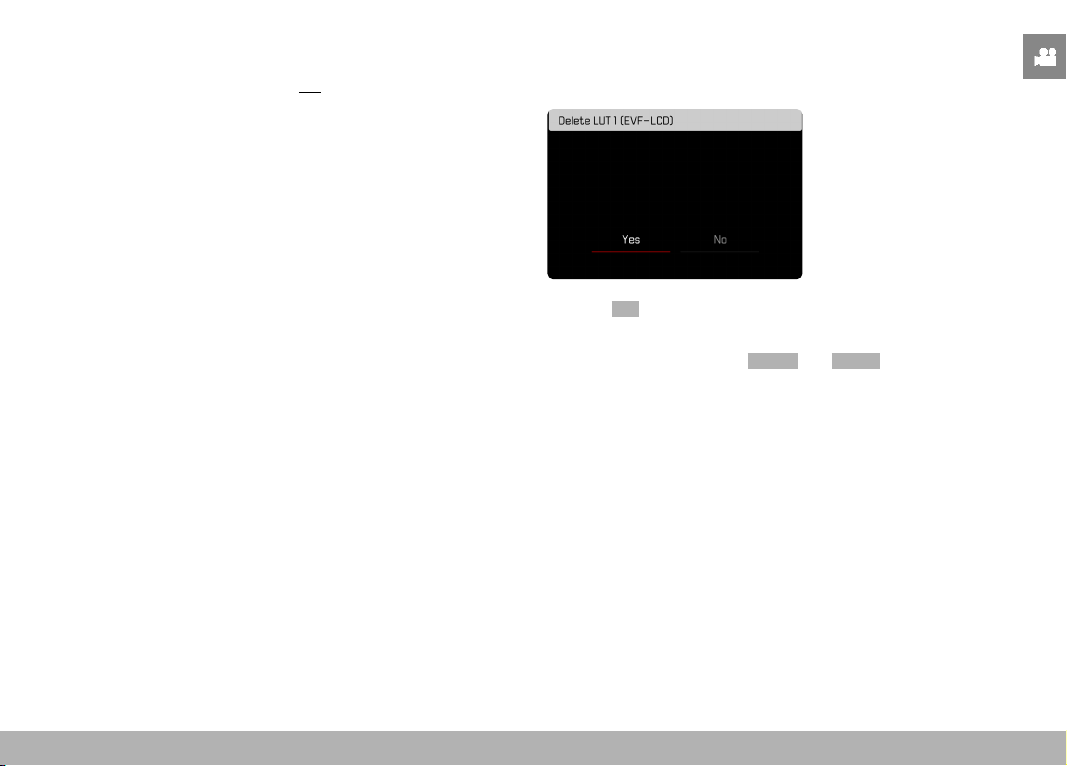
VIDEO SETTINGS ▸ VIDEO GAMMA
165
Notes
• You can only import LUT profiles with the file ending “.cub”.
• Files with the ending “.cube” will not be recognized. These can,
however, simply be renamed before saving them to the SD card.
• File names must be max. 8 characters (incl. spaces) long.
• Incompatible files will not be recognized.
• A maximum of six profiles saved to the memory card will be dis-
played. The profiles found on the card will be displayed chrono-
logically in ascending order: the most recently saved profile will
appear at the top.
• In rare cases, a particular combination of memory card and com-
puter may result in a search returning only three profile files.
• Where two memory cards are in use, and both contain compatible
files, only the files on SD1 will be considered.
Freeing a memory slot
▸ Select a profile
• The “Delete” dialog appears.
▸ Select Yes
Notes
• The pre-configured profiles
Natural
and
Classic
cannot be deleted.
• A profile that is currently in use cannot be deleted.
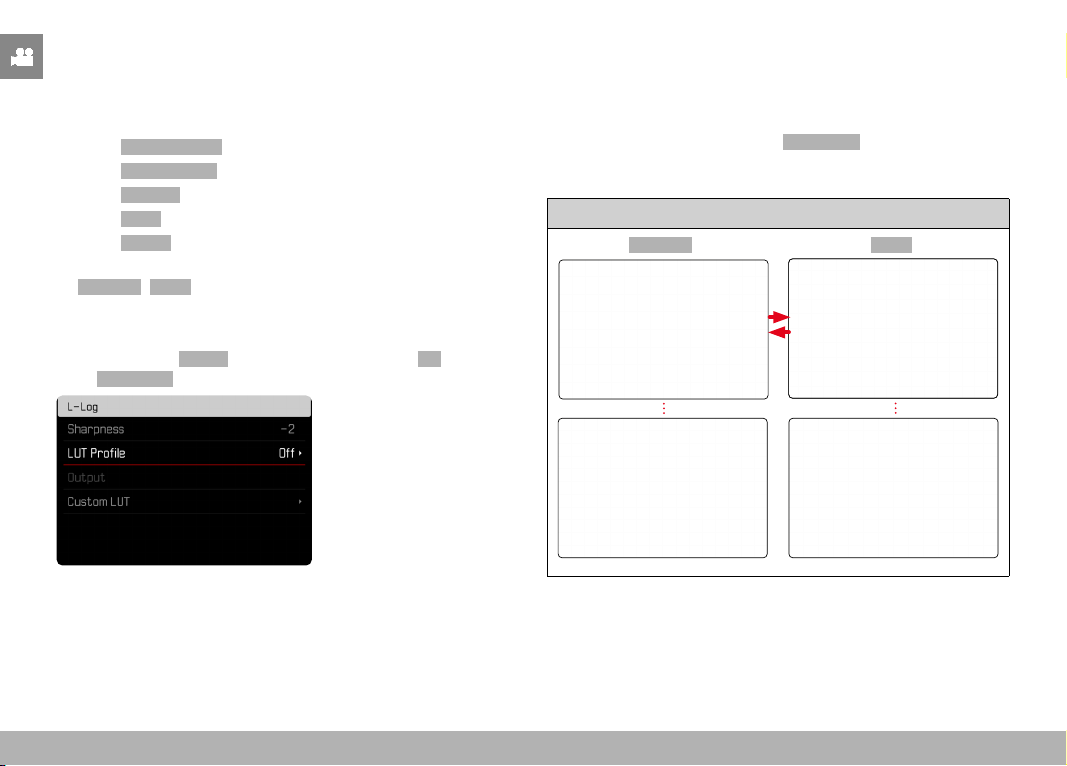
VIDEO SETTINGS ▸ VIDEO GAMMA
166
USING LUT PROFILES
CHANGING THE OUTPUT CHANNEL
The user can choose to apply the LUT profile for output via HDMI or
in the camera (LCD panel/EVF).
▸ Select
Video Settings in the main menu
▸ Select
Video Gamma
▸ Select Settings
▸ Select L-Log
▸ Select Output
▸ Select the desired setting
( EVF-LCD , HDMI )
Note
• The menu item
Output is unavailable if the setting
Off
is selected
for LUT Profile .
When toggling between the two output channels, the setting for the
selected memory slot will remain unchanged. Since it is possible
that different profiles are saved on the same slot depending on the
output channel, it is possible that a different profile or an unused
memory slot is selected. The name of the active profile will change
accordingly next to the menu item
LUT Profile . This does not apply
for the pre-configured profiles, which exist on the same memory
slot for both output channels.
Active output channel
EVF-LCD HDMI
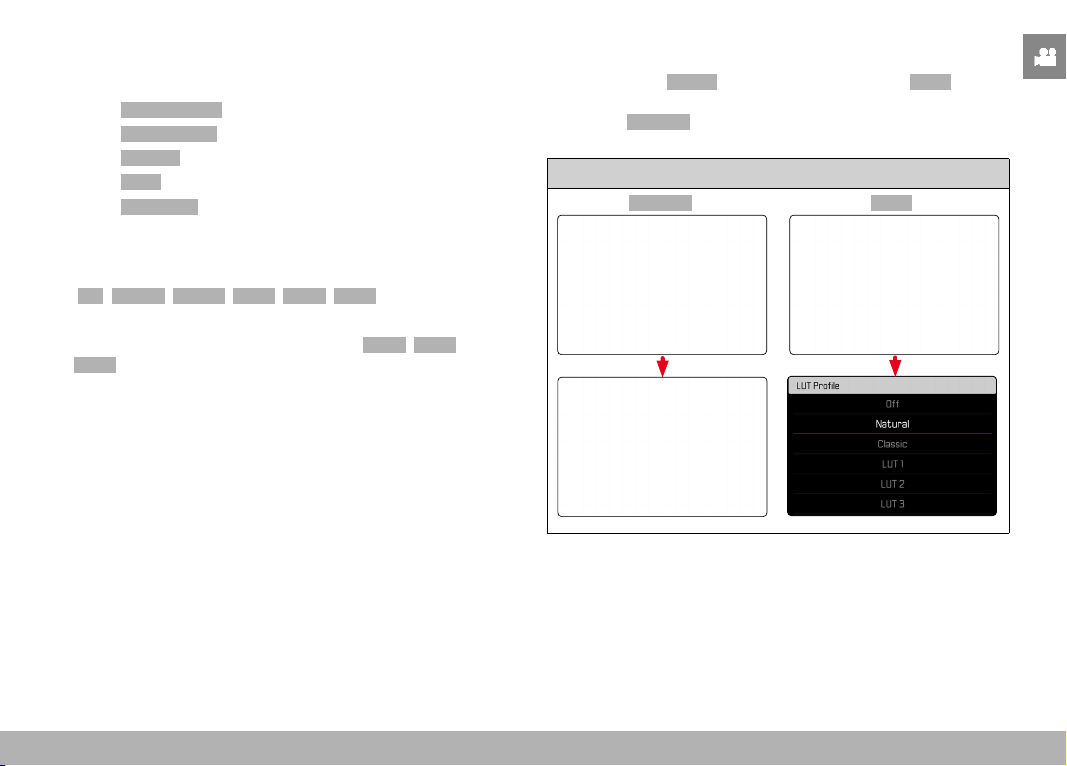
VIDEO SETTINGS ▸ VIDEO GAMMA
167
SELECTING THE LUT PROFILE
In addition to the two pre-configured LUT profiles, three more mem-
ory slots are available for custom LUT profiles.
▸ Select
Video Settings in the main menu
▸ Select
Video Gamma
▸ Select Settings
▸ Select L-Log
▸ Select LUT Profile
• The list of profiles available for the active output channel
appears.
▸ Select the desired setting
(
Off , Natural , Classic , LUT 1 , LUT 2 , LUT 3 )
Note
• Unused memory slots appear in the list as
LUT 1 , LUT 2 , and
LUT 3 . A memory slot filled with a custom LUT profile will display
its name instead.
The list of selectable LUT profiles depends on the currently selected
output channel (camera/HDMI). The channel is displayed next
to the menu item Output . When the channel is set to HDMI , the
selection list will display the profiles available for HDMI output.
The setting
EVF-LCD will therefore show the profiles available for
camera display.
Active output channel
EVF-LCD HDMI
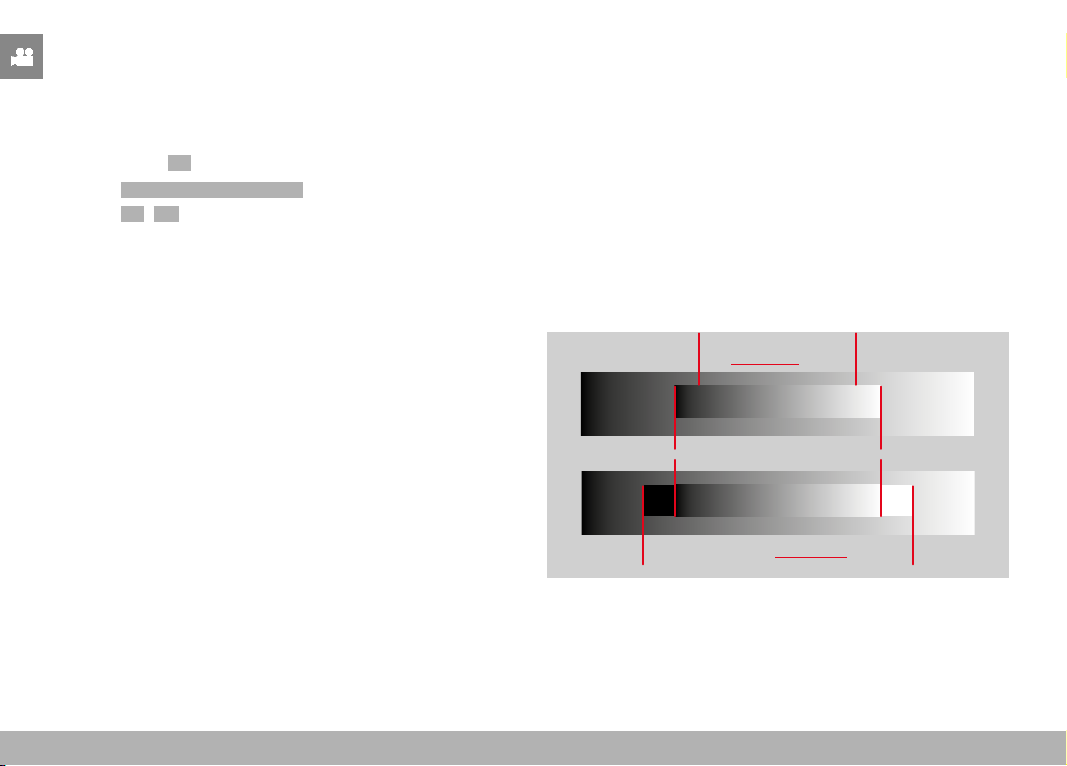
VIDEO SETTINGS ▸ AUTOMATIC OPTIMIZATION
168
AUTOMATIC OPTIMIZATION
VIDEO STABILIZATION
The stabilization function helps to reduce blurring for handheld
recordings.
Factory setting:
On
▸ Select Optical Image Stabilization in the main menu
▸ Select
On / Off
DARK AREA OPTIMIZATION (IDR)
DYNAMIC RANGE
The contrast range of an object comprises all levels of brightness
from the brightest to the darkest point in the image. All levels of
brightness can be captured by the sensor, provided the contrast
range of the object is lower than the dynamic range of the camera.
In case of significant differences of brightness in the object (e.g.
shootings of interior spaces with bright windows in the background,
shootings with subject elements in shadow or directly lit by the sun,
landscapes with dark areas and a very bright sky), the camera with
its limited dynamic range will not be able to map the entire contrast
range of the object. Information in 'edge areas' will be lost (under
and overexposure).
Contrast range of
a low-contrast object
Contrast range of a high-contrast object
Dynamic range of the camera
Underexposure
Overexposure
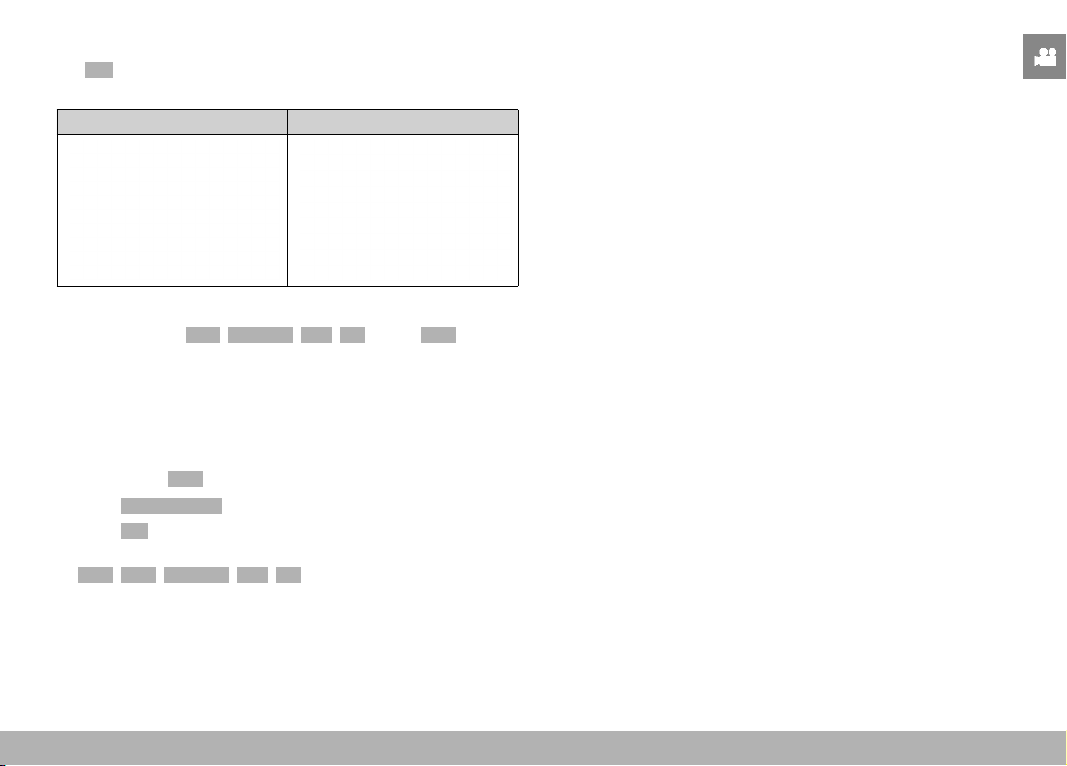
VIDEO SETTINGS ▸ AUTOMATIC OPTIMIZATION
169
iDR FUNCTION
The
iDR (Intelligent Dynamic Range) function allows an optimization
of the darker areas. Object details become much clearer.
Without iDR With iDR
You can specify beforehand if and to what extent you want to opti-
mize darker areas ( High , Standard , Low , Off ). In the Auto setting,
the camera will automatically select the right setting depending on
the contrast range of the object.
In addition to that setting, the effect also depends on the exposure
settings. The function will have the strongest effect in combination
with low ISO values and fast shutter speeds. The effect is less pro-
nounced with higher ISO values and/or slower shutter speeds.
Factory setting:
Auto
▸ Select Video Settings in the main menu
▸ Select
iDR
▸ Select the desired setting
( Auto , High , Standard , Low , Off )
Note
• The optimization of darker areas will slightly reduce differentiation
in very bright areas.

VIDEO SETTINGS ▸ DATA MANAGEMENT
170
DATA MANAGEMENT
FORMATTING A MEMORY CARD
Memory cards that have already been in use with this camera will
usually not require formatting. An unformatted memory card that
is inserted into the camera for the first time must be formatted. We
recommend formatting memory cards from time to time, because
residual data traces (data pertaining to individual shots) may reduce
the card’s storage capacity.
▸ Select
Format Card in the main menu
▸ Confirm the selection
• The lower status LED will flash during that process.
Notes
• Never switch off the camera while data transfer is in progress.
• All data stored on the memory card will be lost during formatting.
Formatting will not be prevented by the deletion protection set
for individual shots.
• All images should therefore be regularly transferred to a safe
mass storage medium, e.g. the hard disk of a computer.
• A simple formatting process will initially not irretrievably destroy
existing data on the card. Only the directory will be deleted, which
means the data will no longer be directly accessible. Data access
can be restored with appropriate software. Only data that is over-
written when new data is saved will actually be irretrievable.
• A memory card should be formatted again in the camera if it was
formatted in another device, e.g. a computer.
• Contact your retailer or Leica Customer Care for assistance if the
memory card cannot be formatted/overwritten (see p. 270).

VIDEO SETTINGS ▸ DATA MANAGEMENT
171
DATA STRUCTURE
FOLDER STRUCTURE
The files (= shots) on the memory cards are saved in automatically
generated folders. The first three characters signify the folder num-
ber (numerals), the last five the folder name (letters). The first folder
is assigned the name “100LEICA”, the second “101LEICA”. A folder
will always be created with the next available number; you can have
max. 999 folders.
FILE STRUCTURE
The file names in these folders consist of eleven characters. In
the factory settings, the first file is named “L1000001.XXX”, the
second “L1000002.XXX”, etc. The first letter can be selected, the
“L” from the factory settings denotes the camera brand. The first
three characters signify the folder number (numerals). The next four
digits denote the sequential file number. Once file number 9999 is
reached, then a new folder will be automatically created, in which
the file numbering begins at 0001 again. The last three places after
the dot denote the file format (MOV or MP4).
Notes
• When using memory cards that were not formatted with this
camera, the file numbering will begin with 0001 again. Should the
memory card already contain a file with a higher number, then
numbering will be continued from that number.
• A relevant message will be displayed on the LCD panel once
folder number 999 and file number 9999 are reached, and all
numbering must be reset.
• Format the memory card and reset the frame number right after
to reset the folder number to 100.

VIDEO SETTINGS ▸ DATA MANAGEMENT
172
EDIT FILE NAMES
▸ Select Camera Settings in the main menu
▸ Select
Edit File Name
• A keyboard submenu is displayed.
• The input line contains the factory setting “L” as the first letter
of the file name. Only this letter can be changed.
▸ Enter a letter of your choice (see p. 54)
▸ Confirm
Notes
• The change to a file name applies to all subsequent shots or until
a new change is made. The sequential number will not be affected;
but it will be reset when a new folder is created.
• During a reset to factory settings, the first letter will always be
reset to “L”.
• Lower case letters are unavailable.
CREATING A NEW FOLDER
▸ Select Camera Settings in the main menu
▸ Select
Reset Image Numbering
• A relevant prompt is displayed.
▸ Confirm the creation of a new folder (
Yes ) or cancel the new
folder ( No )
Note
• The name part (first letter) of a new folder created this way remains
unchanged. The file numbers in that folder will start again at 0001.
DATA TRANSFER
Data can be conveniently transferred to mobile devices via Leica
FOTOS. Alternatively, a card reader or USB cable can be used for
the transfer.
ABOUT LEICA FOTOS
▸ See chapter “Leica FOTOS” (p. 228)
VIA USB CABLE OR “LEICA FOTOS CABLE”
The camera supports multiple data transfer options. A transfer mode
can be permanently selected or chosen every time a connection is
established.
Factory setting: Apple MFi
▸ Select Camera Settings in the main menu
▸ Select
USB mode
▸ Select the desired setting
( Mass Storage , PTP , Apple MFi , Select on connection )
–
Apple MFi is used for the communication with iOS devices
(iPhone and iPad)
–
PTP
allows a data transfer to computers using MacOS or Windows
with PTP-capable programs, as well as tethering to Capture One
Pro and Lightroom Classic

VIDEO SETTINGS ▸ DATA MANAGEMENT
173
Notes
• We recommend using a card reader for the transfer of large files.
• The USB connection must not be interrupted while data is being
transferred, as the computer or the camera could otherwise
“crash” and irreparable damage could occur on the memory
card.
• The camera must not be turned off or automatically shut itself
down due to a lack of battery power while data is being trans-
ferred, as this can cause the computer to crash. For the same
reason, the battery must never be removed from the camera
while the connection is active.
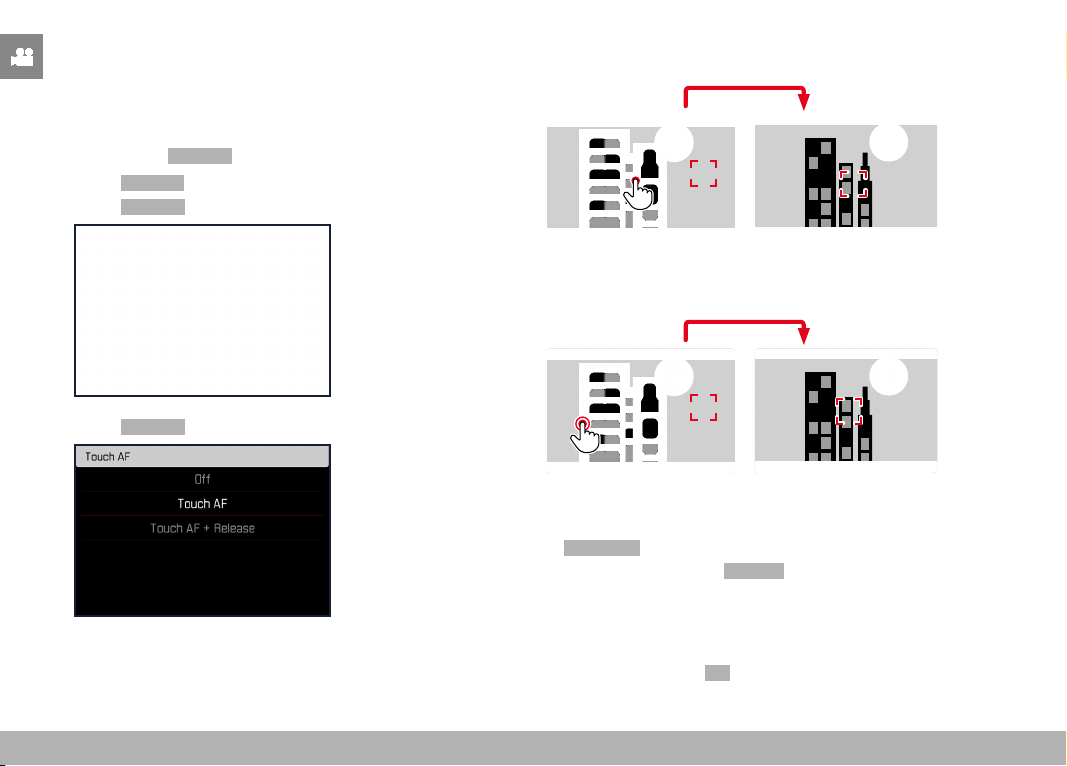
PRACTICAL DEFAULT SETTINGS ▸ TOUCH AF
174
PRACTICAL DEFAULT SETTINGS
TOUCH AF
Touch AF allows a direct placement of the AF frame.
Factory setting:
Touch AF
▸ Select Focusing in the main menu
▸ Select
Touch AF
▸ Select Touch AF
Positioning the AF frame
▸ Tap the LCD panel in the desired position
1/80002.8F 12500ISO EV
-3 2 1 0 21 3+
823412MP
Moving the focus frame back to the center of the screen
▸ Double-tap the LCD panel
1/80002.8F 12500ISO EV
-3 2 1 0 21 3+
823412MP
Notes
• This function is available with all AF metering methods except
Multi-Field .
• If the metering method
Tracking is selected, the focus frame will
remain at the selected position and autofocus commences when
the shutter button is tapped. For all other AF metering methods,
focusing occurs automatically.
• The position of the AF frame can only be reset with a double-tap,
even if the setting is
Off .

PRACTICAL DEFAULT SETTINGS ▸ AUDIO OUTPUT
175
TOUCH AF + SHUTTER BUTTON
The combination Touch AF + Release allows a direct placement of
the AF frame for immediate recording.
▸ Select
Focusing in the main menu
▸ Select
Touch AF
▸ Select Touch AF + Release
▸ Tap the LCD panel in the desired position
Note
• The AF frame cannot be reset as usual via a double tap if
Touch
AF + Release is activated.
TOUCH AF IN EVF MODE
Touch AF is deactivated by default when EVF is in use to prevent
any inadvertent altering of the AF frame. AF Quick Setting (see
p. 189) continues to be accessible. This function can also be dis-
abled if that is not wanted (e.g. when focusing with the left eye).
Factory setting:
Off
▸ Select Focusing in the main menu
▸ Select
Touch AF in EVF
▸ Select the desired setting
( On , AF Quick Setting only , Off )
–
On
– Positioning the AF frame (tap)
– Accessing the AF Quick Setting (tap and hold)
–
AF Quick Setting only
– Accessing the AF Quick Setting (tap and hold)
–
Off
AUDIO OUTPUT
HDMI OUTPUT WITH/WITHOUT SOUND
HDMI output is available with or without audio.
Factory setting:
On
▸ Select HDMI with audio in the main menu
▸ Select the desired setting
(
On , Off )
Note
• An output with audio may result in some negligible delays. We rec-
ommend the setting
Off
to avoid this effect (if, for example HDMI
Live View is required for a recording with an external recorder).

PRACTICAL DEFAULT SETTINGS ▸ AUXILIARY DISPLAYS
176
AUXILIARY DISPLAYS
You can select a number of other displays in addition to the standard
information contained in the header and footer to adapt the screen
image to your needs. The following functions are available:
– Grid (only shooting mode, see p. 177)
– Focus Peaking (see p. 178)
– Zebra (see p. 177)
– Level Gauge (only shooting mode, see p. 179)
– Histogram (see p. 180)
E
A
A
B
D
C
A
Info Bars (= header and footer line)
B
Grid
C
Focus peaking
D
Zebra
E
Level gauge
F
Histogram
▸ Select
Capture Assistants in the main menu
▸ Select the desired function
▸ Select
On / Off
Note
• All displays are visible at all times in video mode.
SHOW AVAILABLE
INFO BARS
The header and footer lines show the currently active settings and
exposure values. See chapter “Displays” for a full list of the various
displays (see p. 24).
PRACTICAL DEFAULT SETTINGS ▸ AUXILIARY DISPLAYS
177
GRID
The grids divide the image frame into multiple fields. They facilitate
pictorial composition and an exact camera orientation.
▸ Select Capture Assistants in the main menu
▸ Select
Grid
▸ Select On / Off
ZEBRA
The Zebra display marks very bright image areas. This function is a
very easy and exact tool for checking the correct exposure setting.
Overexposed areas will appear white with moving black stripes.
▸ Select Capture Assistants in the main menu
▸ Select
Clipping / Zebra
▸ Select On / Off

PRACTICAL DEFAULT SETTINGS ▸ AUXILIARY DISPLAYS
178
FOCUS PEAKING
This assist function highlights the edges of in focus subject elements
in color. The color can be user-specified. The sensitivity can be addi-
tionally adjusted.
HIGHLIGHT COLOR
Factory setting: Red
▸ Select Focusing in the main menu
▸ Select
Focus Assist
▸ Select Focus Peaking
▸ Select the desired setting
(
Off , Red , Green , Blue , White )
SENSITIVITY
Factory setting: Medium
▸ Select Focusing in the main menu
▸ Select
Focus Assist
▸ Select Peaking Sensitivity
▸ Select the desired setting
(
Low , Medium , High )
Note
• Focus peaking is based on subject contrast, i.e. differences be-
tween light and dark. As a result, high contrast subject elements
could be marked, even if they are not completely in focus.
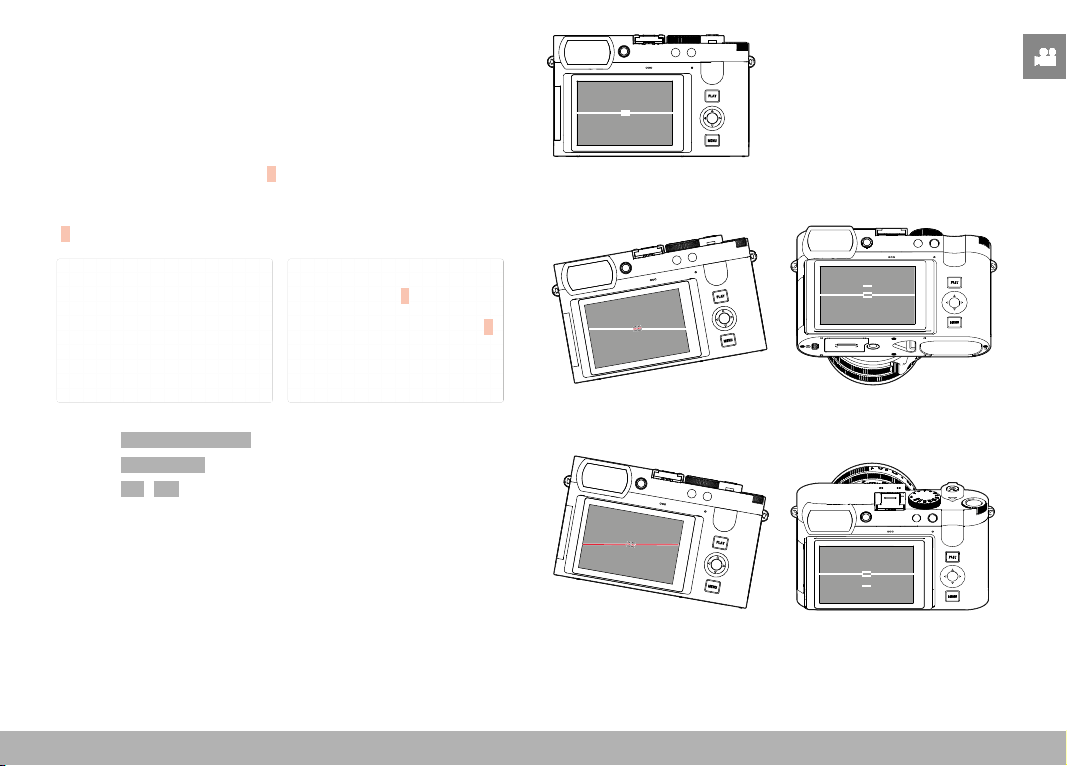
PRACTICAL DEFAULT SETTINGS ▸ AUXILIARY DISPLAYS
179
LEVEL GAUGE
The integrated sensors of the camera show its orientation. These
indicators ensure exact camera orientation along the longitudinal
and transverse axes of critical objects, e.g. architecture.
Deviations in relation to the longitudinal axis (i.e. when the camera
is tilted up or down in the direction of view) are indicated by a short
line in the center of the image (
1). Deviations in relation to the
transverse axis (when the camera is tilted to the left or right) are
indicated by two long lines to the left and right of the image center
(
2).
2
1
▸ Select Capture Assistants in the main menu
▸ Select
Level Gauge
▸ Select On / Off
Note
• The camera will switch the aspect of the level gauge autonomously
for shoots in vertical format.
Correct alignment
Tilted laterally to the left Tilted downward in the direction
of view
Tilted laterally to the right Tilted upward in the direction
of view
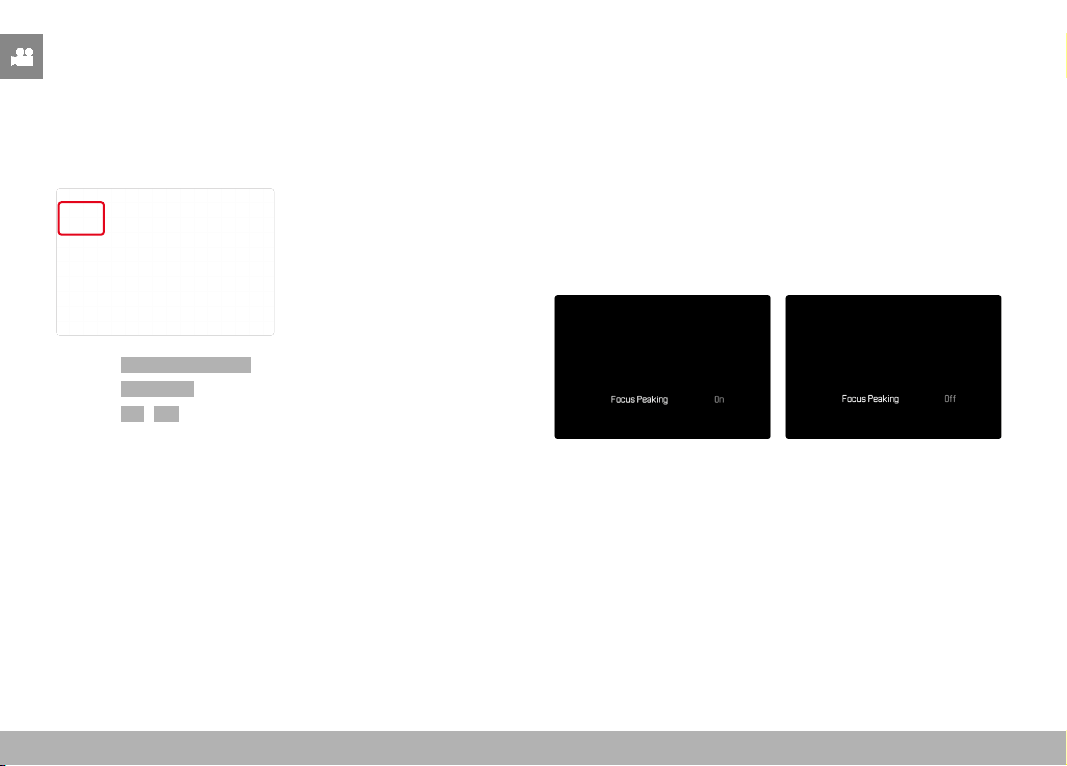
PRACTICAL DEFAULT SETTINGS ▸ AUXILIARY DISPLAYS
180
HISTOGRAM
Histogram represents the brightness distribution in the image. The
horizontal axis shows the graduated values from black (left) through
gray to white (right). The vertical axis corresponds to the number of
pixels at each brightness level.
This type of rendering allows an additional quick and easy assess-
ment of the exposure setting.
▸ Select Capture Assistants in the main menu
▸ Select
Histogram
▸ Select On / Off
Notes
• The histogram is always based on the brightness displayed;
depending on the settings used, it may not represent the final
exposure.
• In shooting mode, the histogram should be regarded as a “trend
indicator”.
TEMPORARY ACTIVATION/DEACTIVATION OF INDIVIDUAL
FUNCTIONS
The following assist functions can be activated/deactivated tempo-
rarily:
– Focus peaking
– Clipping
▸ Assigning the desired assist function to a function button (see
p. 59)
▸ Press the corresponding function button
• The status of the assist function toggles On/Off.
• A relevant indicator appears in the screen image.
The temporary setting is reset when the camera is switched off.

PRACTICAL DEFAULT SETTINGS ▸ MF ASSIST FUNCTIONS
181
MF ASSIST FUNCTIONS
ACOUSTIC AF CONFIRMATION
You can set an acoustic confirmation signal for successful focus
metering in AF mode.
Factory setting:
Off
▸ Select Acoustic Signal in the main menu
▸ Select
AF Confirmation
▸ Select On
▸ Select Volume
▸ Select Low / High
Note
• The signal only appears during the focusing for a recording, not
during recording.
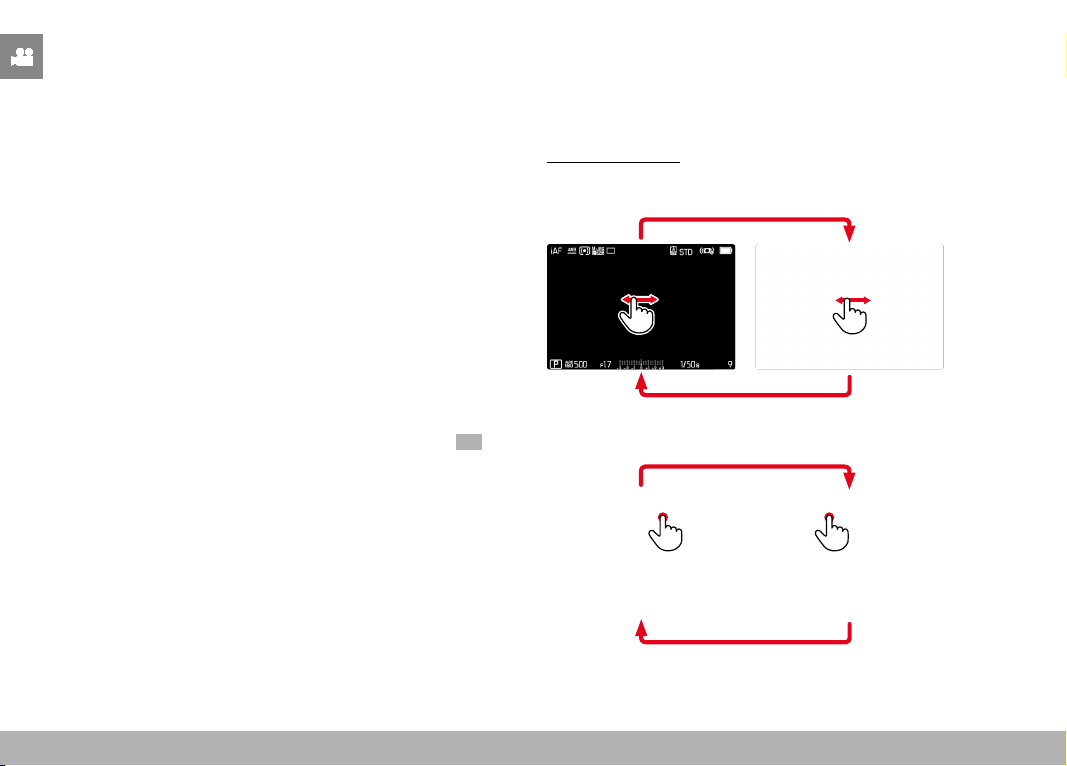
RECORDING VIDEO ▸ START/EXIT VIDEO MODE
182
RECORDING VIDEO
The settings described in this chapter only apply for video opera-
tions. They are therefore part of the video menu and must always
be accessed and configured from within video mode (see chapter
“Camera operation” in the section “Menu Control”). Any menu
items of the same name in the photo menu are not affected.
Notes
• You can record up to 29 minutes of uninterrupted video.
• Some menu items are unavailable in Video mode. The text in
the relevant line is displayed in gray to signify the existence of a
submenu.
• As only part of the sensor area is used in video recordings, the
relevantly effective focal length is increased, which slightly re-
duces the size of the image sections.
• The screen image of video recordings with the Leica Q3 appears
with corresponding frame depending on the selected resolution
and aspect ratio.
• The automatic LCD panel and EVF shutdown will also deactivate
the AF system (see p. 68). We therefore recommend the
Off
setting if autofocus is to be used in HDMI recordings.
START/EXIT VIDEO MODE
The camera will always be in Photo mode at initial activation or
after a reset to factory settings. There are two methods for toggling
between Photo and Video mode:
Using touch control
Variant 1
VideoPhoto
Variant 2
VideoPhoto
• The color of the status screen changes accordingly.
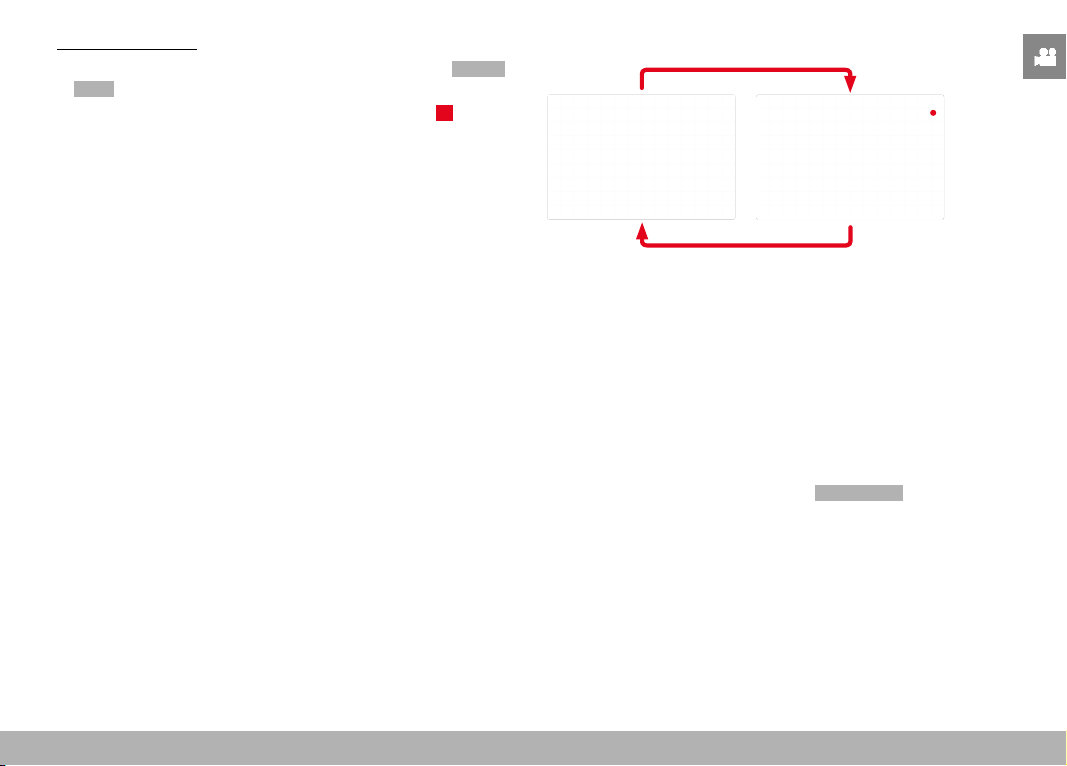
RECORDING VIDEO ▸ START/END VIDEO RECORDING
183
Using button control
▸ Press the function button with the function assignment
Photo -
Video
• In the factory setting, that will be the FN Button 2 (14).
Note
• The camera switches to the most recently set photo or video
mode.
START/END VIDEO RECORDING
▸ Press the shutter button
• Video recording begins.
• The dot flashes red.
• Recording time is running.
• The Status LED flashes.
▸ Press the shutter button again
• Video recording ends.
• The dot lights in gray.
Notes
• Basic video settings (see p. 156) and
Digital Zoom (see p. 205)
must be configured before recording.
• Access to menu functions (including direct access) is limited
during video recording.

RECORDING VIDEO ▸ FOCUSING
184
DUSPLAY AND OPERATION VIA USB-PTP USING EXTERNAL
ACCESSORY (LIKE GIMBALS)
Leica Q3 allows connecting an optional Gimbal like DJI Ronin RS2
via USB-PTP. The Gimbal supports blur-free recordings.
▸ Select
USB-Mode in the main menu
▸ Select
PTP or Select on connection
▸ Connecting the Gimbal to the camera (see Gimbal operating
instructions)
Once the PTP connection is established, the camera can also be
triggered via the shutter button on the Gimbal.
Many Gimbal models allow controlling the focus function of the
camera, provided it is in MF mode.
Note
• The camera screen will switch off for technical reasons if exter-
nal devices connected to the USB or HDMI output are operated
simultaneously.
FOCUSING
Your Leica Q3 allows automatic as well as manual focusing. There
are 3 operating modes and 4 metering methods available for auto-
matic focusing.
TAKING VIDEOS WITH AF
Focusing is done as needed when AFs is in use. The area in the AF
frame will be focused continuously if AFc is in use.
▸ Press and hold the AF/MF release button
▸ Turn the focus ring to the
AF position
▸ Start video recording
▸ Controlling the autofocus (see p. 185)
TAKING VIDEOS WITH MF
Focusing is done manually via the focus ring.
▸ Press and hold the AF/MF release button
▸ Turn the focus ring away from the
AF position
▸ Use the focus ring to manually focus on the object

RECORDING VIDEO ▸ FOCUSING
185
AUTOFOCUS MODES
The following AF modes are available: AFs , AFc and Intelligent AF .
The currently selected AF mode is shown in the header line.
Factory setting:
Intelligent AF
▸ Select Focusing in the main menu
▸ Select
Focus Mode
▸ Select the desired setting
( Intelligent AF , AFs , AFc )
INTELLIGENT AF
Suitable for all objects. The camera automatically selects between
AFs and AFc.
AFs (single)
A meaningful option if the focus setting should remain constant for
an extended period of time. Allows greater control over focusing
and helps to avoid incorrect focusing.
AFc (continuous)
Suitable for objects in motion. Focusing is continuously adjusted to
the object in the AF frame.
Facilitates an intuitive focus control, specifically in conjunction with
Touch AF.
CONTROLLING THE AUTOFOCUS
TOUCH AF
During video recordings, Touch AF facilitates a more intuitive focus
control, even if the main object moves outside the center of the
frame. See p. 174 for additional information.
▸ Tap the LCD panel in the desired position
• Focusing is done after the touch.
CONTINUOUS FOCUSING
The area in the AF frame will be focused continuously if
AFc
and iAF are in use. That occurs automatically, without having to tap
and hold the shutter button. This type of focusing is significantly
smoother than focusing accessed via the shutter button, as jumps
are avoided. Quick focusing can, however, be forced via the shutter
button or Touch AF.
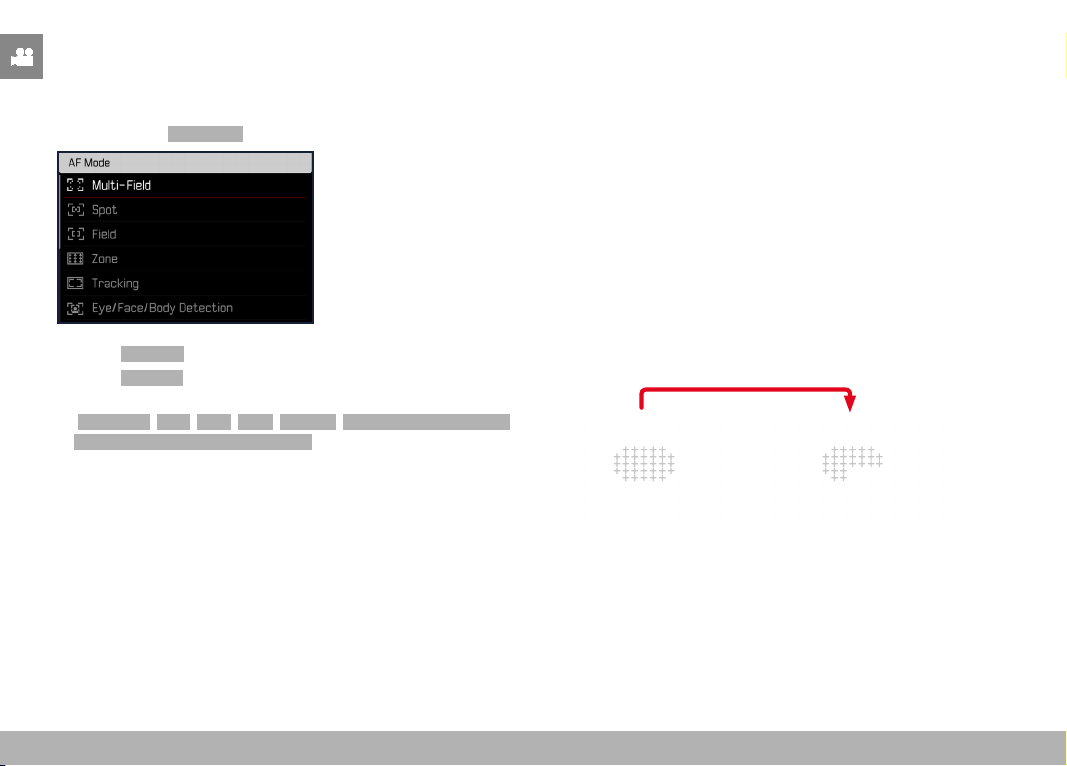
RECORDING VIDEO ▸ FOCUSING
186
AUTOFOCUS METERING METHODS
The AF mode offers various metering methods for focusing. A suc-
cessful focus setting is identified by a green frame, an unsuccessful
one is shown in red.
Factory setting:
Multi-Field
▸ Select Focusing in the main menu
▸ Select
AF Mode
▸ Select the desired setting
(
Multi-Field
,
Spot
,
Field
,
Zone
,
Tracking
,
Eye/Face/Body Detection
,
Eye/Face/Body + Animal Detection )
Note
• AF focusing can be unsuccessful:
– if the distance to the object is too great (macro mode) or too
small
– if the object is not sufficiently illuminated
MULTI-FIELD
Several focus area are detected automatically.
SPOT/FIELD
Both methods detect only those parts of the object that are within
the relevant AF frames. The metering fields are indicated by a small
frame (field metering) or a cross (spot metering). The very small
measuring range for spot metering allows focusing on tiny details of
the subject. Simply move the AF frame to another position.
The slightly larger measuring range in field metering is less critical
for focusing, but still permits selective metering.
Simply move the AF frame to another position (see p. 191).
ZONE
With this metering method, subject sections are recorded with a
coherent group comprising 5 x 5 fields.
Once the setting has been made, the focus frames are displayed
where object sections are displayed in focus.
RECORDING VIDEO ▸ FOCUSING
187
TRACKING
This field metering variant helps in the capture of moving objects.
The focus on the object in the focus frame is continuously adjusted,
once it is detected.
▸ Aim the focus frame at the desired object
(by panning the camera shifting the focus frame)
▸ Tap and hold the shutter button
• The camera focuses on the object.
• The focus frame “tracks” the saved object and focus is contin-
uously adjusted.
Note
• This metering method focuses continuously, even if the AF
mode
AFs was set.
START POSITION FOR TRACKING
Factory setting:
Center
You can specify the starting point for tracking.
Center
Center of the screen
Last Position
Ending position of the most recent tracking
Recall
Starting position of the most recent tracking
▸ Select
Focusing in the main menu
▸ Select
AF Tracking Start Position
▸ Select the desired setting
( Last Position , Recall , Center )
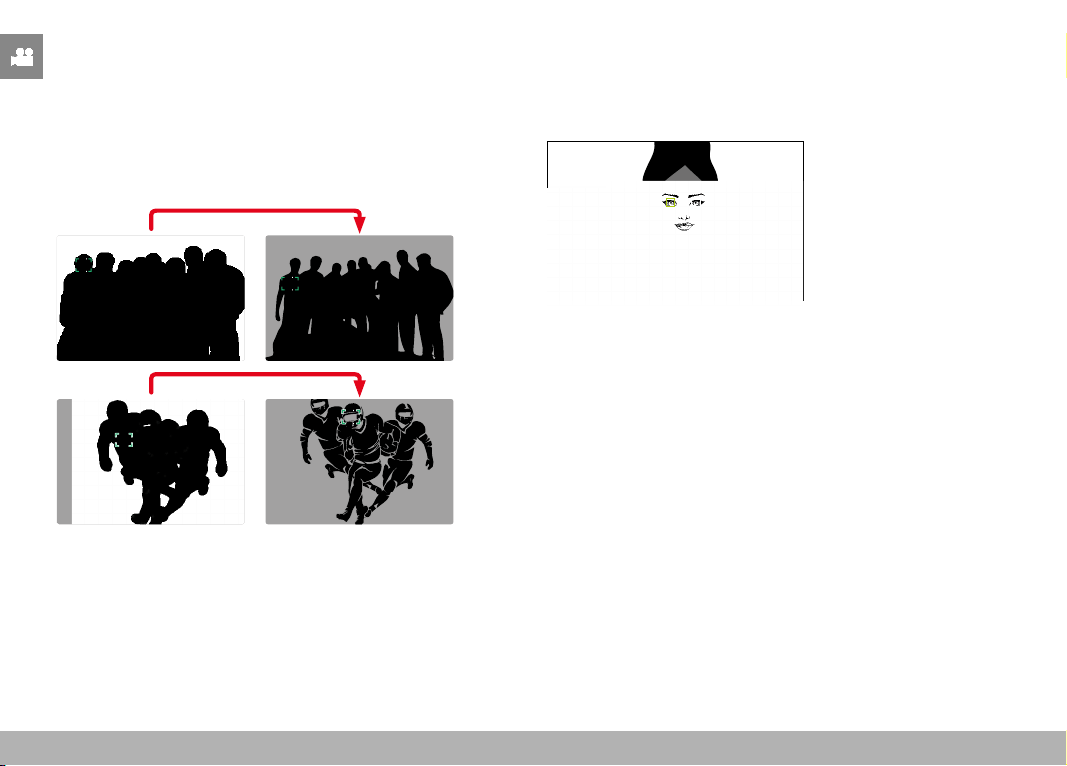
RECORDING VIDEO ▸ FOCUSING
188
PERSON DETECTION (FACE DETECTION)
Person detection is an expansion of the face detection feature. In
addition to biometric patterns of faces, the camera also detects
body patterns and uses them for focusing. Tracking will therefore
continue, once a person is detected and measured, even if the face
may not be in view at some point. This feature prevents inadvertent
“jumps” to other faces if several persons are in the frame.
When face detection detects an eye, the focus will be on that eye.
Should more than one eye be detected, then the user can choose
the eye to focus on. The currently selected eye will be highlighted.
Additionally, the desired face can be easily selected if there are
several faces in the frame.
Toggling between faces and/or eyes
▸ Press the directional pad in the relevant direction
EYE/FACE/BODY + ANIMAL DETECTION
This version of Eye/Face/Body Detection also includes the recogni-
tion of some typical pet types.
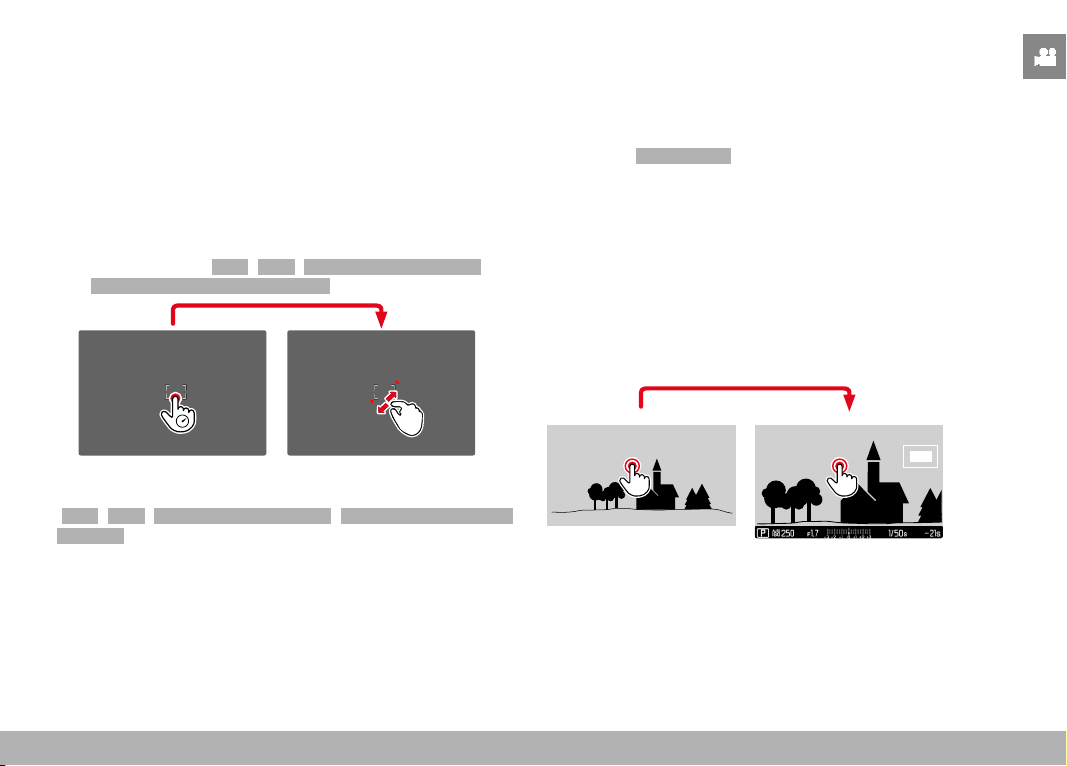
RECORDING VIDEO ▸ FOCUSING
189
AF QUICK SETTING
The AF Quick Setting allows quick changes to the focus frame size
in some AF metering methods.
The screen image will remains visible continuously while settings
are being adjusted.
ACCESSING AF QUICK SETTING
▸ Tap and hold the LCD panel
• All auxiliary displays are hidden.
• Red triangles appear at two corners of the focus frame if the
metering method
Field / Zone / Eye/Face/Body Detection /
Eye/Face/Body + Animal Detection is set.
ADJUSTING THE AF FRAME SIZE
( Field / Zone / Eye/Face/Body Detection / Eye/Face/Body + Animal
Detection only)
▸ Turn the thumbwheel
or
▸ Two-finger pinch/spread
• The size of the AF frame is adjustable in 3 increments.
MF ASSIST FUNCTIONS
ENLARGEMENT IN AF MODE
You can access the enlargement function independent of focusing
for a better assessment of the settings.
The function
Magnification must be assigned to one of the function
buttons to use this feature (see p. 59). In factory settings, that
will be center button.
Accessing the enlargement function
▸ Press the function button
• An enlarged image section appears. The position of the enlarge-
ment depends on the position of the AF frame.
• The rectangle within the frame at the top right represents the
current magnification, as well as its position in the displayed
cropped section.

RECORDING VIDEO ▸ FOCUSING
190
Adjusting the enlargement function
▸ Press the center button
• The image section toggles between magnification factors.
Changing the position of the enlarged section
▸ Press the directional pad in the relevant direction
Exiting the enlargement function
▸ Tap the shutter button
or
▸ Press the center button again
Notes
• The enlargement function remains active until it is exited.
• The most recently used magnification level will still be set the
next time the function is accessed.
• This function is unavailable while recording.
AF ASSIST LAMP
The AF assist lamp is not active in video mode.
ACOUSTIC AF CONFIRMATION
You can set an acoustic confirmation signal for successful focus
metering in AF mode (see p. 69).
Note
• This function is unavailable while recording.
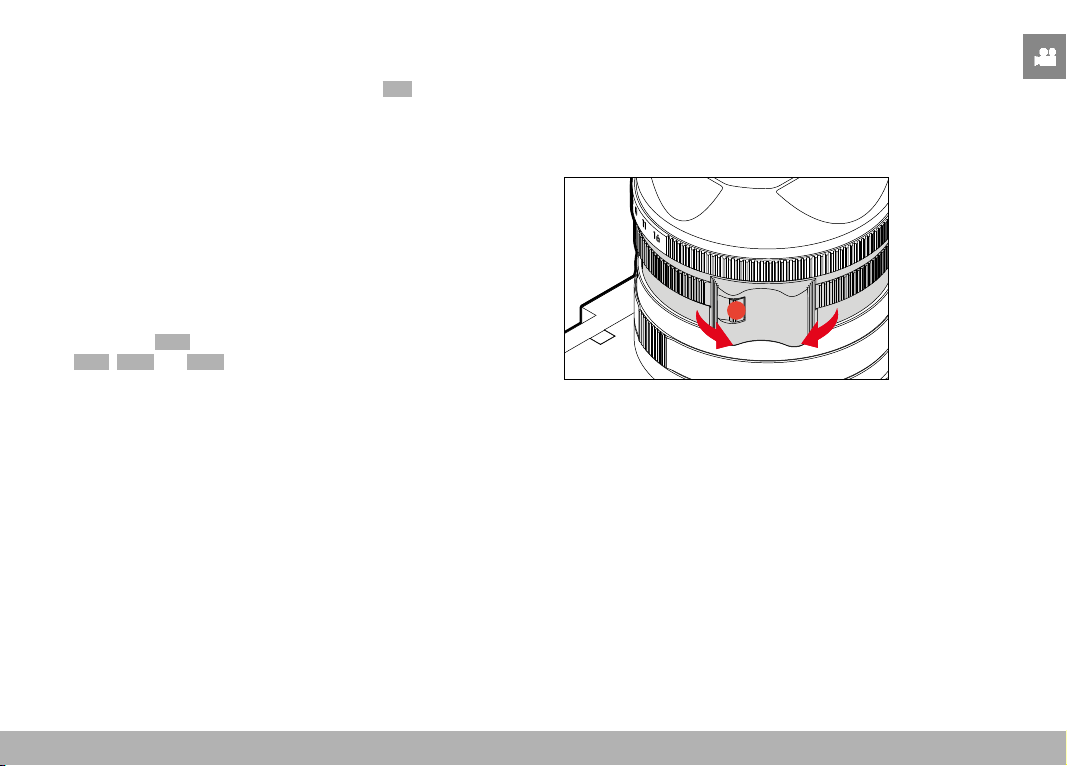
RECORDING VIDEO ▸ FOCUSING
191
SHIFTING THE AF FRAME
All AF metering methods permit shifting the AF frame before focus-
ing. Continuous focusing during recording (with AFc ) tracks the AF
frame.
▸ Press the directional pad in the relevant direction
or
▸ Tap the LCD panel in the desired position
(While Touch AF is activated)
Notes
• The focus frame will remain at the most recently used position
for this AF metering method even if the user changes the AF me-
tering method or the camera is switched off.
• The metering fields are joined together when the exposure meter-
ing method
Spot is combined with the AF metering methods
Spot , Field and Zone . Exposure metering will then occur at the
point specified by the AF frame, even if it is moved.
MANUAL FOCUSING (MF)
Manual focusing offers more control and is less prone to incorrect
settings than the AF modes.
▸ Move the focus ring out of the
AF position
(press and hold the AF/MF lock release)
▸ Start video recording
▸ Turn the focus ring to select the desired focusing

RECORDING VIDEO ▸ FOCUSING
192
MF ASSIST FUNCTIONS
The following assist functions are available in MF mode.
FOCUS PEAKING
This assist function highlights the edges of in focus subject elements
in color. The color can be user-specified. The sensitivity can be addi-
tionally adjusted.
See p. 178 for settings.
▸ Select Focusing in the main menu
▸ Select
Focus Assist
▸ Select Focus Peaking
▸ Select the desired setting
( Off , Red , Green , Blue , White )
▸ Select an image section
▸ Turn the focus ring to mark the desired subject elements
Note
• Focus peaking is based on subject contrast, i.e. differences be-
tween light and dark. As a result, high contrast subject elements
could be marked, even if they are not completely in focus.
ENLARGEMENT IN MF MODE
The larger the details of the object are shown, the better you can
assess their sharpness and the more accurately you can focus.
This function can be automatically activated during manual focusing
or can be accessed independently.
ACCESS VIA THE FOCUS RING
Turning the focus ring will automatically enlarge a image section.
▸ Select
Focusing in the main menu
▸ Select
Focus Assist
▸ Select Auto Magnification
▸ Select On
▸ Turn the focus ring
• An enlarged image section appears. The position of the enlarge-
ment depends on the position of the AF frame.
• The rectangle within the frame at the top right represents the
current magnification, as well as its position in the displayed
cropped section.

RECORDING VIDEO ▸ FOCUSING
193
Adjusting the enlargement function
▸ Press the center button
• The image section toggles between magnification factors.
Changing the position of the enlarged section
▸ Press the directional pad in the relevant direction
Exiting the enlargement function
▸ Tap the shutter button
Note
• The magnification will automatically return to normal viewing size
about 5 s after the last movement of the focus ring.
• The most recently magnification function will still be active the
next time the feature is accessed.
ACCESS VIA THE FUNCTION BUTTON
You can access the enlargement function independent of focusing
for a better assessment of the settings.
The function
Magnification must be assigned to one of the function
buttons to use this feature (see p. 59). In factory settings, that
will be center button.
Accessing the enlargement function
▸ Press the center button
• An enlarged image section appears. The position of the enlarge-
ment depends on the position of the AF frame.
• The rectangle within the frame at the top right represents the
current magnification, as well as its position in the displayed
cropped section.
Adjusting the enlargement function
▸ Press the center button
• The image section toggles between magnification factors.
Changing the position of the enlarged section
▸ Move the position of an enlarged cropped section by swiping
or
▸ Press the directional pad in the relevant direction
Exiting the enlargement function
▸ Tap the shutter button
Note
• The enlargement function remains active until it is exited.
• This function is unavailable while recording.
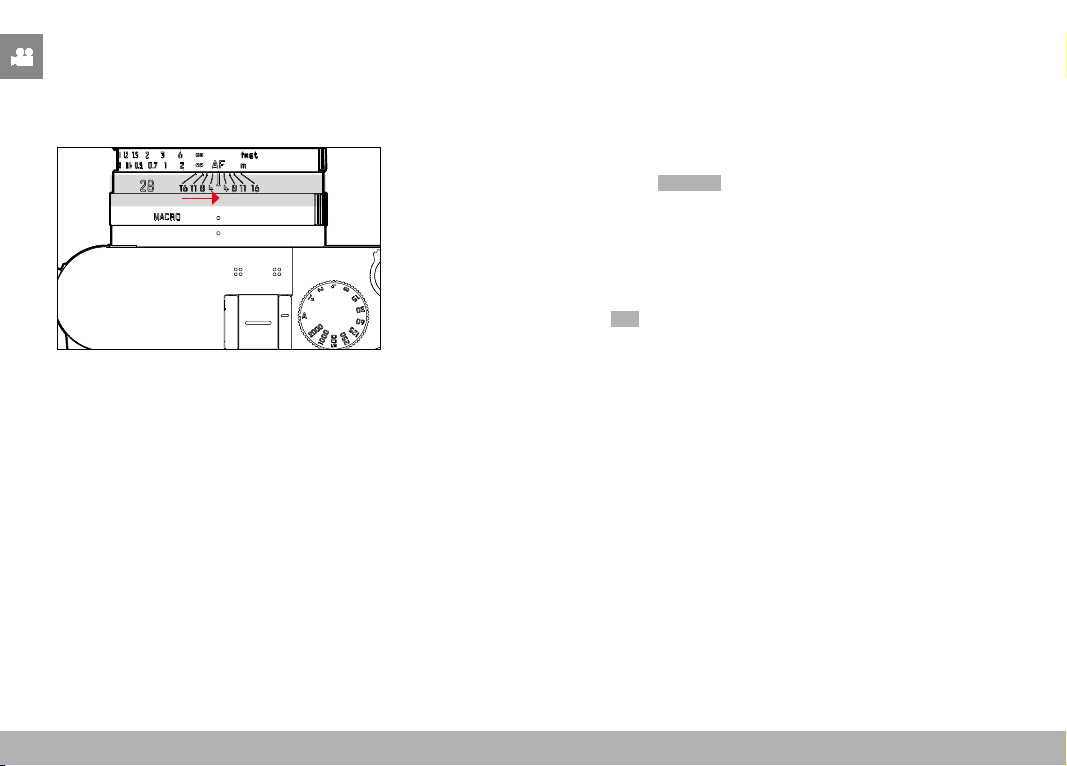
RECORDING VIDEO ▸ ISO SENSITIVITY
194
MACRO FUNCTION
The working range for the focus setting can be switched quickly and
easily from the standard focus range (30 cm to infinity) to the macro
range (17 cm to 30 cm) using the macro ring. AF and MF mode are
available in both ranges.
▸ Turn the macro ring until the alignment point is set to MACRO
• The distance scales on the focus ring change when the focus
ranges change.
ISO SENSITIVITY
The ISO setting covers a range between ISO 50 and ISO 100 000,
allowing you to adapt to the relevant situation as required.
There is more leeway for the use of preferred shutter-speed/ap-
erture combinations when choosing an automatic ISO setting. You
can set priorities within the scope of the automatic setting.
Factory setting:
Auto ISO
FIXED ISO VALUES
Values between ISO 50 and ISO 100 000 can be selected in 14
increments. Manual ISO settings are initially done in full EV steps,
and from ISO 50,000 in 1/3 EV steps.
▸ Select
ISO in the main menu
▸ Select the desired value
Note
• When high ISO values are used or the image is edited later, image
noise, as well as vertical and horizontal stripes may become visi-
ble, particularly in larger, evenly lit areas of the object.
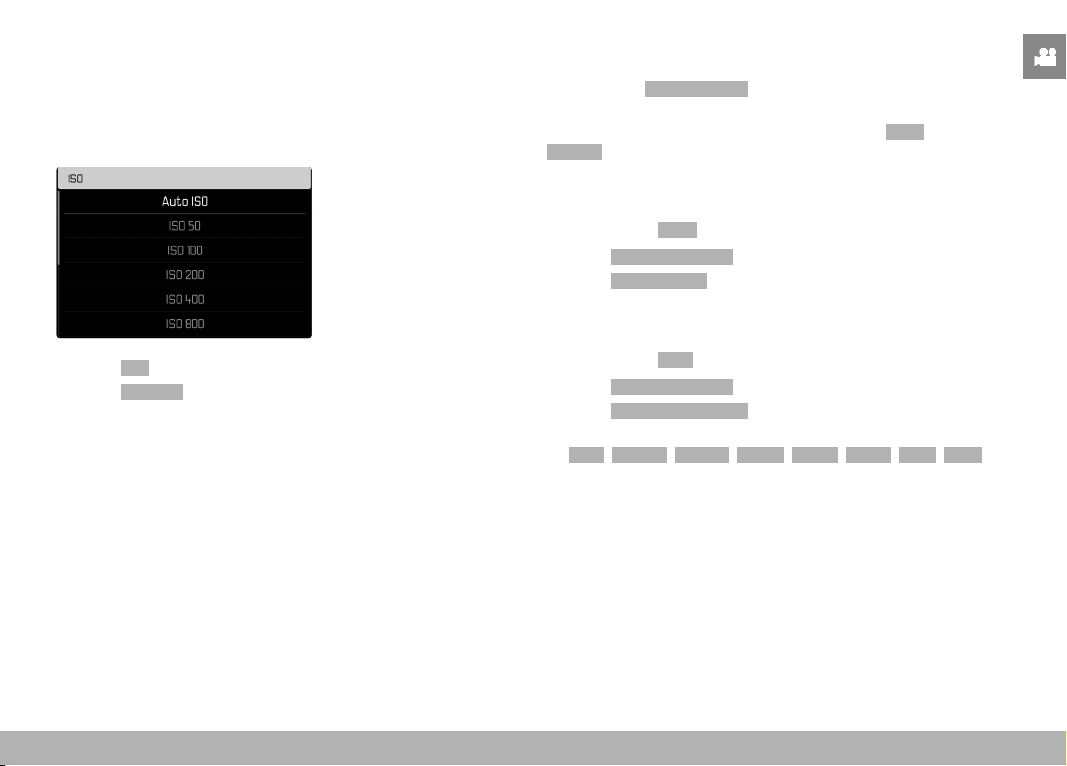
RECORDING VIDEO ▸ ISO SENSITIVITY
195
AUTOMATIC SETTING
The camera automatically adjusts the sensitivity to ambient bright-
ness and/or to the configured shutter-speed/aperture combination.
In conjunction with aperture-priority mode, this function extends the
range for automatic exposure control. The automatic setting of ISO
sensitivity occurs in increments of 1⁄3 EV.
▸ Select ISO in the main menu
▸ Select
Auto ISO
LIMITING SETTING RANGES
A max. ISO value can be set, which will then limit the automatic
setting range (
Max. ISO value ).
A max. exposure time can also optionally be configured. There are
automatic settings and fixed max. shutter speeds
1/30 s and
1/2000 s available for that purpose.
LIMITING ISO VALUES
All values from ISO 200 are available.
Factory setting:
6400
▸ Select Auto ISO Settings in the main menu
▸ Select
Maximum ISO
▸ Select the desired value
LIMITING SHUTTER SPEED RANGES
Factory setting: Auto
▸ Select Auto ISO Settings in the main menu
▸ Select
Shutter Speed Limit
▸ Select the desired value
( Auto , 1/2000 , 1/1000 , 1/500 , 1/250 , 1/125 , 1/60 , 1/30 )
Note
• When Auto ISO is active, the camera uses the dynamic adjust-
ment function for the ISO value for the exposure setting. Depend-
ing on the exposure mode selected, the automatic ISO setting
interacts with automatically controlled aperture and/or shutter
speed settings.

RECORDING VIDEO ▸ WHITE BALANCE
196
DYNAMIC ISO SETTING
The thumbwheel can be configured to allow manual ISO settings
in real time (see p. 60). The settings will cycle through all values
available in the ISO menu. That means that Auto ISO can also be
selected.
WHITE BALANCE
In white balance ensures neutral color rendering in any light. White
Balance relies on the setting made in the camera, which light color
is to be rendered as 'white'.
Four methods are available:
– automatic control
– fixed presets
– manual setting via metering
– direct setting of the color temperature
Factory setting:
Auto
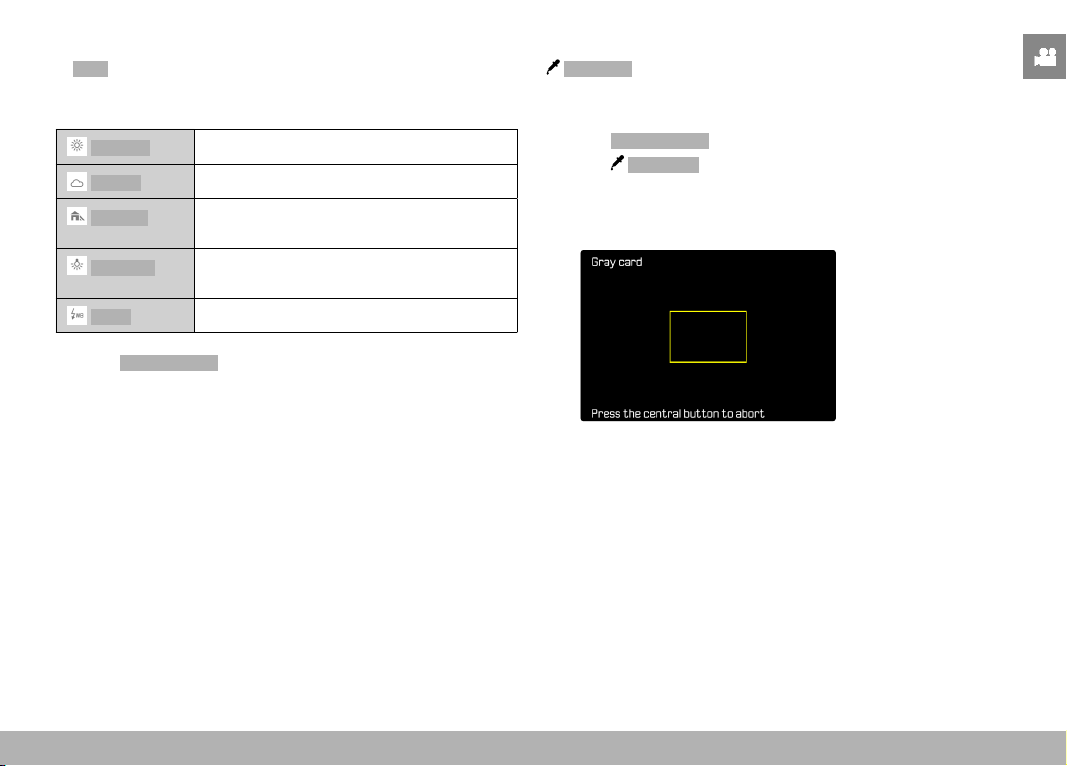
RECORDING VIDEO ▸ WHITE BALANCE
197
AUTOMATIC CONTROL/FIXED SETTINGS
– Auto : for automatic control, which delivers neutral results in
most situations
– Various fixed presets for most frequently encountered light sources:
Daylight
For outdoor shootings in sunlight
Cloudy
For outdoor shootings in cloudy conditions
Shadow
For outdoor shootings with the main subject
in shadow
Tungsten
For indoor shootings with (predominantly)
incandescent lamp light
Flash
For shooting with flash
▸ Select
White Balance in the main menu
▸ Select the desired setting
MANUAL SETTING VIA METERING
Gray card
This metering variant captures all color hues in the metering field
and uses these to calculate a mean gray value.
▸ Select
White Balance in the main menu
▸ Select
Gray Card
• The following appears on the LCD panel:
– the image based on automatic white balance
– a frame in the center of the image
▸ Aim the metering field at a white or neutral gray area
• The screen image changes dynamically in line with the refer-
ence area in the frame.

RECORDING VIDEO ▸ WHITE BALANCE
198
Performing measurement
▸ Shutter release
• The measurement is taken.
Cancelling measurements
▸ Press the center button
Note
• A value configured using this method will remain unchanged (i.e.
it will be used for all subsequent photographs) until new mea-
surements are taken or one of the other white balance settings
is selected.
DIRECT SETTING OF THE COLOR TEMPERATURE
Values between 2000 and 11,500 K (Kelvin) can be set directly.
That gives you a very wide range, which covers virtually all color
temperatures occurring in real life and within which you can adapt
color rendering to any light color and your personal preferences
with incredible detail.
▸ Select White Balance in the main menu
▸ Select
Color Temperature
▸ Select the desired value

RECORDING VIDEO ▸ EXPOSURE
199
EXPOSURE
EXPOSURE METERING METHODS
The following exposure metering methods are selectable.
Factory setting:
Multi-Field
Spot
Center-weighted
Highlight-Weighted
Multi-field
▸ Select
Exposure Metering in the main menu
▸ Select the desired metering method
(
Spot , Center-Weighted , Highlight-Weighted , Multi-Field )
• The selected metering method is displayed in the header line
of the screen image.
Notes
• The exposure information (ISO value, aperture, shutter speed
and light balance with exposure compensation scale) will help to
determine the settings required for correct exposure.
SPOT
This metering method is concentrated exclusively on a small area
in the center of the image. The metering fields are joined together
when the exposure metering method
Spot is combined with the
AF metering methods Spot and Field . Exposure metering will then
occur at the point specified by the AF frame, even if it is moved.
CENTER-WEIGHTED
This method considers the entire image field. The subject elements
captured in the center will, however, impact on the calculation of
the exposure value more so than areas around the edges.
MULTI-FIELD
This metering method is based on the detection of multiple values.
These values are used in an algorithm to calculate an exposure value
appropriate for a good rendering of the assumed main subject.
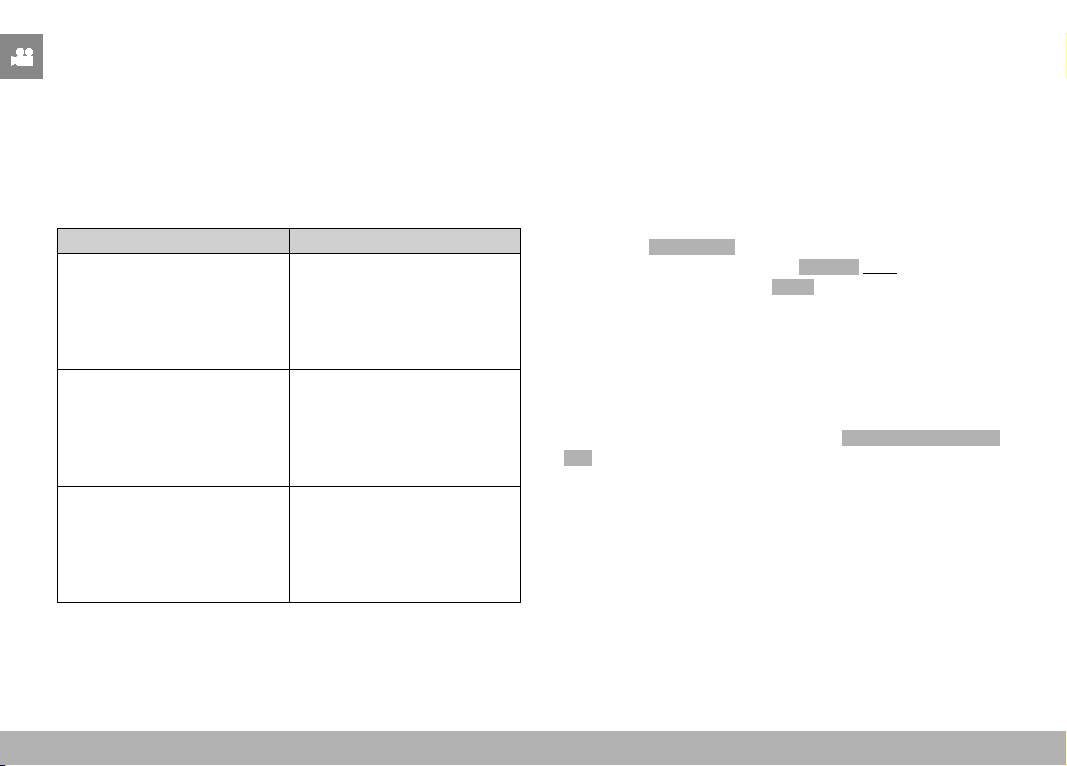
RECORDING VIDEO ▸ EXPOSURE
200
HIGHLIGHT-WEIGHTED
This method considers the entire image field. The exposure value
will, however, be adjusted to very bright subject elements. That pre-
vents the overexposure of bright subject elements without having
to measure them individually. This metering method is particularly
useful for objects that are significantly more brightly lit than the
rest of the frame (e.g. people in a spotlight), or that reflect the light
significantly (e.g. white clothing).
Multi-field Highlight-weighted
EXPOSURE MODES
You can choose one of four video shooting modes:
– Program AE mode (P)
– Aperture-priority mode (A)
– Shutter-priority mode (S)
– Manual setting (M)
These four “classic” modes are accessed via a relevant setting of
the shutter-speed dial and the aperture ring. A correct setting for
the menu item
Scene Mode (see p. 206) is prerequisite for the
use of P, A, S and M. The menu item P-A-S-M must be selected.
Where the fully automated mode AUTO is selected instead, then
that setting takes precedence over settings on the physical control
elements. The shutter-speed dial and the aperture ring will in that
case have no assigned function.
Notes
• The following applies for all exposure modes: the available shutter
speeds for custom settings or those available for automatic set-
tings depend on the selected frame rate (
Video Format / Resolu-
tion , see p. 156).
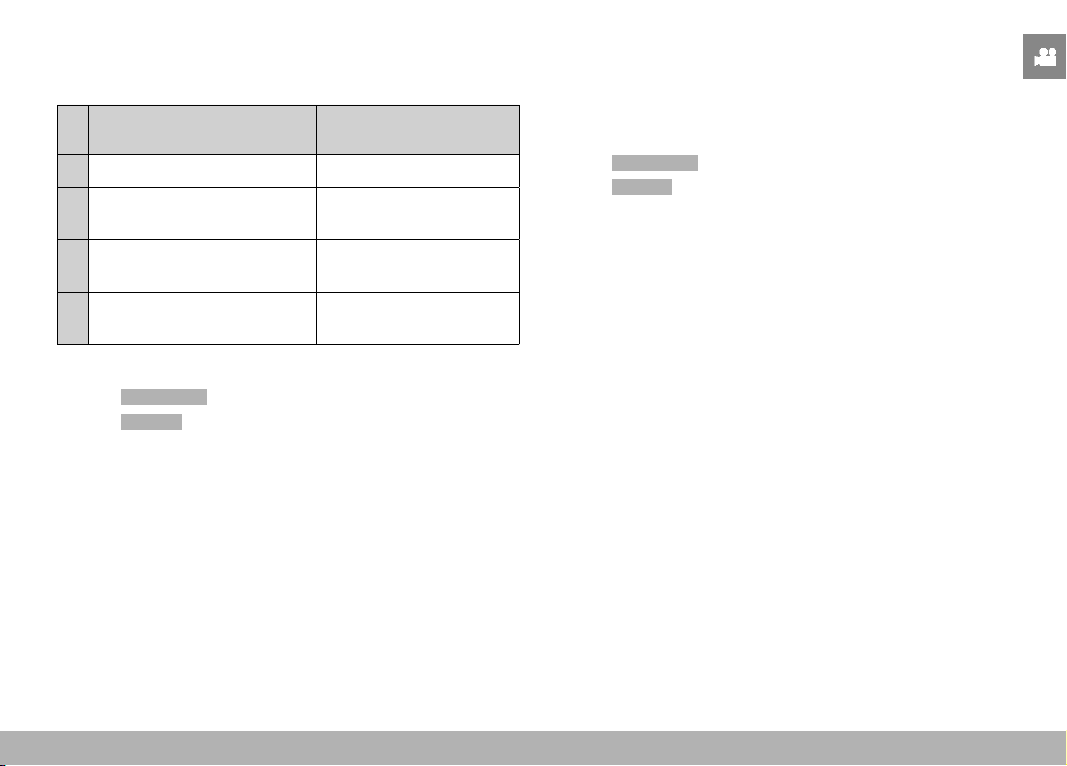
RECORDING VIDEO ▸ EXPOSURE
201
SELECTING A MODE
The four operating modes are activated automatically via the follow-
ing setting combinations:
Setting
via the shutter-speed dial
Setting
via the aperture ring
P A A
A A
manual setting
(not
A)
S
manual setting
(not
A)
A
M
manual setting
(not
A)
manual setting
(not A)
▸ Select
Scene Mode in the main menu
▸ Select
P-A-S-M
▸ Set the shutter-speed dial to the relevant position
▸ Set the aperture ring to the relevant position
FULLY AUTOMATIC EXPOSURE SETTING – P
PROGRAM AE MODE – P
The exposure is controlled by an automatic shutter speed and aper-
ture setting.
▸ Select
Scene Mode in the main menu
▸ Select
P-A-S-M
▸ Turn the shutter-speed dial to the A position
▸ Turn the aperture ring to the
A position
▸ Set exposure compensation as needed
▸ Start video recording
Note
• Automatic exposure control takes into account any fluctuations in
brightness. Set the shutter speed manually if this is undesirable,
e.g. for landscape recordings or panning.

RECORDING VIDEO ▸ EXPOSURE
202
SEMI-AUTOMATIC EXPOSURE SETTING – A/S
APERTURE-PRIORITY MODE- A
Aperture-priority mode sets the exposure automatically accord-
ing to the manually selected aperture. It is therefore specifically
suitable for video recordings in which the depth of field is a critical
compositional element.
The range of the depth of field can be diminished with an according-
ly small aperture value. This will set off the focused area against the
unfocused background. Conversely, a greater aperture value will in-
crease the range of the depth of field. Such a setting is advisable if
the foreground and background should be rendered in sharp focus.
The selected aperture setting will be maintained for the duration of
the recording.
▸ Select
Scene Mode in the main menu
▸ Select
P-A-S-M
▸ Turn the shutter-speed dial to the A position
▸ Set the desired aperture value
▸ Start video recording
SHUTTER-PRIORITY MODE – S
Shutter-priority mode will set exposure automatically according to
the manually selected shutter speed. The selected shutter speed
will be maintained for the duration of the recording.
▸ Select Scene Mode in the main menu
▸ Select
P-A-S-M
▸ Turn the aperture ring to the A position
▸ Set the desired shutter speed
– using the shutter-speed dial: in full increments
– using the thumbwheel: fine tuning in 1⁄3 increments
▸ Start video recording
Note
• Fine tuning can alternatively be done via the status screen.
Depending on the thumbwheel assignment, this may be the only
option (see p. 60).
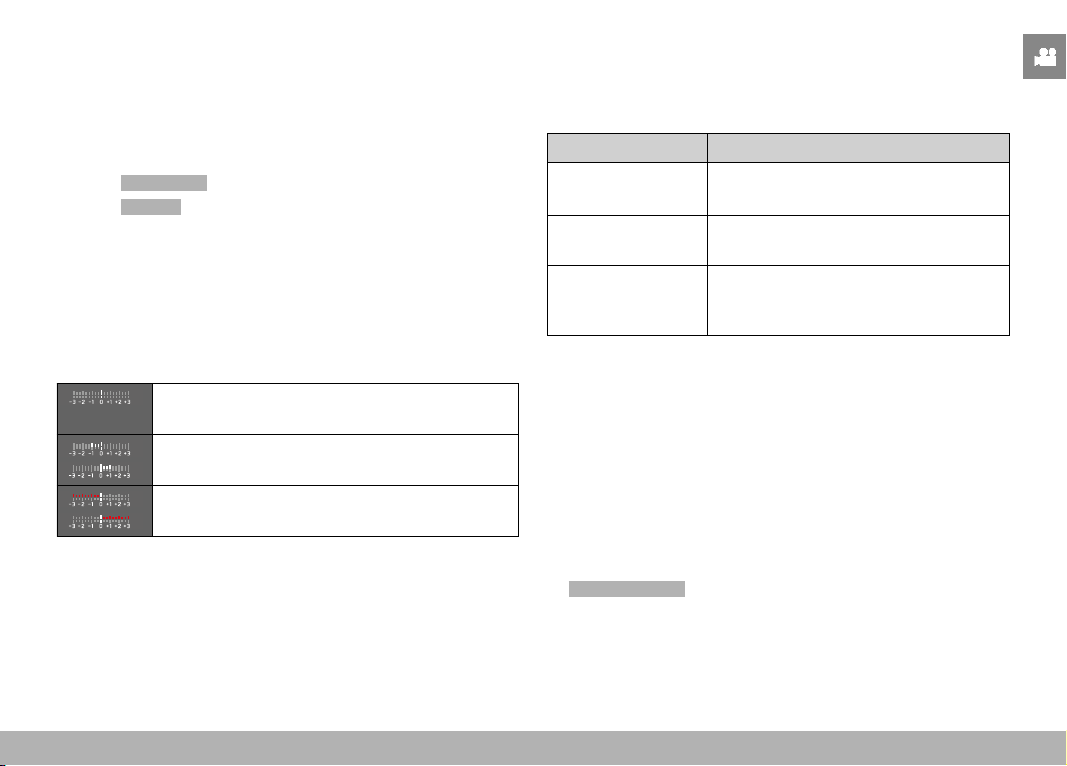
RECORDING VIDEO ▸ EXPOSURE
203
MANUAL EXPOSURE SETTING – M
The following manual settings for shutter speed and aperture are a
good choice:
– to maintain constant exposure settings between multiple recordings
– to maintain constant exposure settings while recording, specifically
in conjunction with fixed ISO settings
▸ Select Scene Mode in the main menu
▸ Select
P-A-S-M
▸ Set the desired exposure manually (using the shutter-speed dial
and the aperture ring of the lens).
• The exposure compensation is done using the scale of the light
balance.
▸ Start video recording
Displays on the light balance:
Correct exposure
Underexposure or overexposure by the displayed
value
Under or overexposure by more than 3 EV
Notes
• The shutter-speed dial must be clicked to one of the engraved
exposure shutter speeds.
SETTING SHUTTER SPEEDS
The shutter speed is set in two steps.
using the shutter-speed dial: in full increments
using the thumbwheel: fine tuning in 1⁄3 increments
Shutter-speed dial Thumbwheel
All settings from
2
to 1000
Fine tuning the shutter speed in 1⁄3 EV
increments, max. ±2⁄3 EV
Set to
1+
Longer shutter speeds than 1 s (0.6 s to
120 s in 1⁄3 EV increments)
Set to
2000
Shorter shutter speeds than 1⁄1000 s
(1⁄1250 s to 1⁄16000 s in 1⁄3 EV incre-
ments)
EXAMPLES FOR SHUTTER SPEED FINE TUNING SETTINGS
– set shutter speed 1⁄125 s + move the thumbwheel one click to
the left = 1⁄100 s
– set shutter speed 1⁄500 s + move the thumbwheel two clicks to
the right = 1⁄800 s
Notes
• Fine tuning can alternatively be done via the status screen.
Depending on the thumbwheel assignment, this may be the only
option (see p. 60).
• The max. available shutter speed is limited by the set frame rate
(
Video Resolution ).
RECORDING VIDEO ▸ EXPOSURE
204
EXPOSURE CONTROL
EXPOSURE COMPENSATION
Exposure compensation values can be set in the range ±3 EV in
1⁄3 EV increments (EV: Exposure Value).
A
A
Set compensation value (marks at 0 = Off)
Using thumbwheel control
▸ Select
Customize Control in the main menu
▸ Select
Customize Wheel
▸ Select Exp. Comp.
▸ Set the desired value using the thumbwheel
Using menu control
▸ Select
Exposure Compensation in the main menu
• A scale appears as a submenu item on the LCD panel.
▸ Set the value on the scale
• The set value is displayed above the scale.
• While setting the value, you can see the effect on the screen
image, which becomes darker or lighter.
Notes
• While setting the value, you can see the effect on the screen
image, which becomes darker or lighter.
• The set exposure compensation is indicated by a mark on the
exposure compensation scale in the footer line (see p. 26).
• The following applies for set compensation values, no matter how
they were initially set: They remain effective until they are manu-
ally reset to
0 , even if the camera is switched off and on again in
the meantime.
RECORDING VIDEO ▸ SPECIAL SHOOTING MODES
205
SPECIAL SHOOTING MODES
DIGITAL ZOOM
Several other cropped section sizes are available in addition to the
Summilux 28 f/1.7 ASPH. image sections. These are similar to the
focal lengths 35 mm, 50 mm, 75 mm, or 90 mm.
A frame appears around the image section on screen, indicating the
final image size. Th magnification level is displayed as an equivalent
focal length, i.e. the system displays the focal length corresponding
to the image section shown.
Factory setting:
28 mm (no Digital Zoom)
PERMANENT SETTING
▸ Select
Digital Zoom in the main menu
▸ Select the desired setting
(
28 mm , 35 mm , 50 mm , 75 mm , 90 mm )
DIRECT ZOOM CHANGE
The zoom level can be switched quickly if the
Digital Zoom function
is assigned to a function button (see p. 59).
▸ Press the function button with the
Digital Zoom assignment
• In the factory setting, that will be the FN Button 1 (
+13).
• A frame appears around the image section on screen, indicat-
ing the final image size.
• The display cycles through the magnification factors each time
the button is pressed.
• The set level will remain until the next change.
Digital
Zoom
In shooting mode In Playback mode
Digital
Zoom
35 mm
35
Digital
Zoom
50 mm
50
Digital
Zoom
75 mm
75
Digital
Zoom
90 mm
90
Notes
• The screen image is magnified to the selected image section
during recording.
• The use of digital zoom may result in reduced image quality.

RECORDING VIDEO ▸ SPECIAL SHOOTING MODES
206
FULLY AUTOMATIC VIDEO RECORDING
In fully automated video mode, exposure is controlled by the
camera just like for recordings in automatic program mode (P).
Additionally, all other exposure-relevant factors like ISO values and
exposure metering are controlled automatically.
▸ Select
Scene Mode in the main menu
▸ Select
AUTO
Notes
• The selected program will remain active until a different program
is selected (even after the camera is switched off).
• The menu item Scene Mode will reset to
P-A-S-M if the shooting
mode is changed (Photo/Video).
• The program shift function and some of the menu items are
unavailable.
• The shutter-speed dial and the aperture ring are without function.

207

PLAYBACK MODE ▸ CONTROL ELEMENTS IN PLAYBACK MODE
208
PLAYBACK MODE
Playback mode is used to display and manage the stored recordings.
The switchover between shooting and playback mode, as well as most
other actions can be completed using gesture or key control. Please
see p. 45 for more information about the available gestures.
Notes
• Recorded videos are not automatically rotated in playback mode
to utilize the full screen area.
• It may not be possible to render files with this camera that were
not recorded with this device.
• In some cases, the screen image may not have the expected
quality, or the LCD panel will remain blank and only display the
file name.
• You can toggle back from playback mode to shooting mode at
any time by tapping the shutter button.
• Video recordings cannot be enlarged.
CONTROL ELEMENTS IN PLAYBACK MODE
CONTROL ELEMENTS ON THE CAMERA
18
14
21
13
20
19
4
5
4
Thumbwheel
18
PLAY button
5
Thumbwheel button
19
Center button
13
FN button 1
20
Directional pad
14
FN button 2
21
MENU button
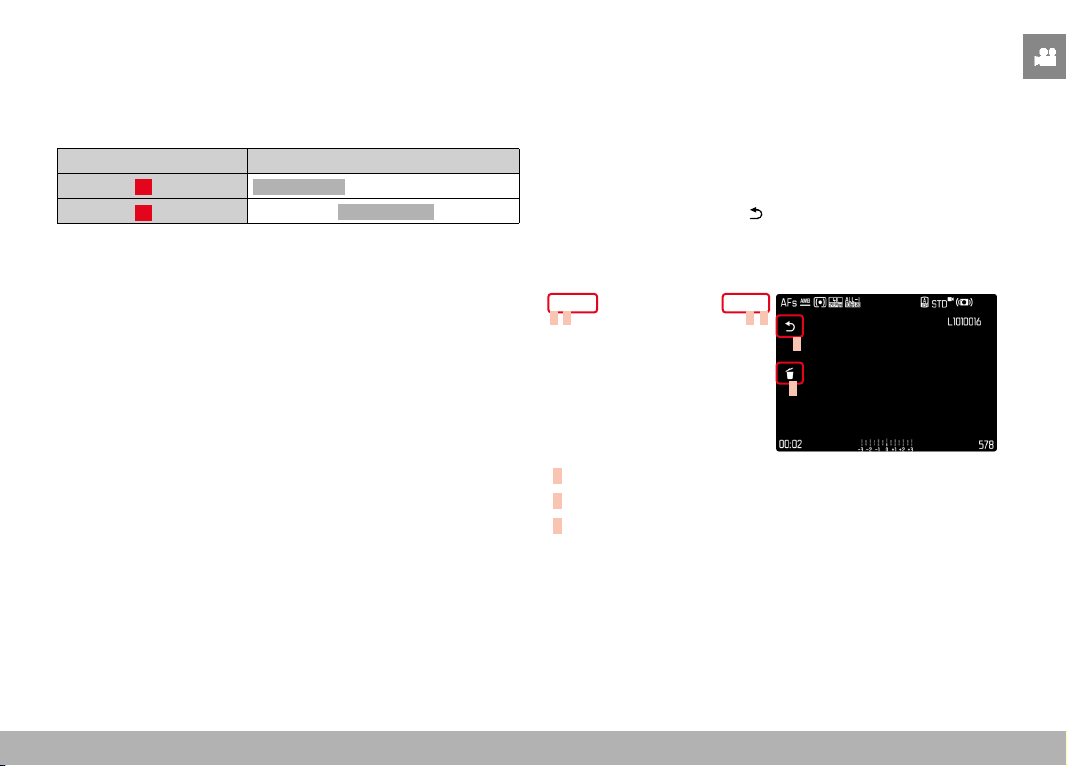
PLAYBACK MODE ▸ CONTROL ELEMENTS IN PLAYBACK MODE
209
DIRECT ACCESS IN PLAYBACK MODE
The function buttons can have individual assignments in playback
mode as well.
In factory settings, the function buttons have the following assign-
ments:
Button Function
FN button 13
Delete Single
FN button 14
Mark shots ( Rate / Unrate )
The descriptions in the next few sections presume factory settings.
Note
• The assigned function is independent of the current display
mode; the delete functions overview can therefore be accessed
directly in full screen display mode.
• The assigned function is unavailable if the function button
addresses an on-screen control element (e.g. in the “Delete”
screen).
CONTROL ELEMENTS ON THE LCD PANEL
On-screen control elements generally function by intuitively by
touch. Many can also be selected by pressing one of the three but-
tons to the right of the LCD panel. A control element in the header
is accompanied by an icon denoting the relevant button. A control
element on the edge of the screen will be positioned directly next
to the relevant button.
Example: The “Go back” icon
can be selected in one of two ways:
– tap on the “Go Back” icon directly
– press the relevant button
(top button =
PLAY button)
C B A C
A
B
A
Control element “Go back”
B
Control element “Delete”
C
Display of the relevant button
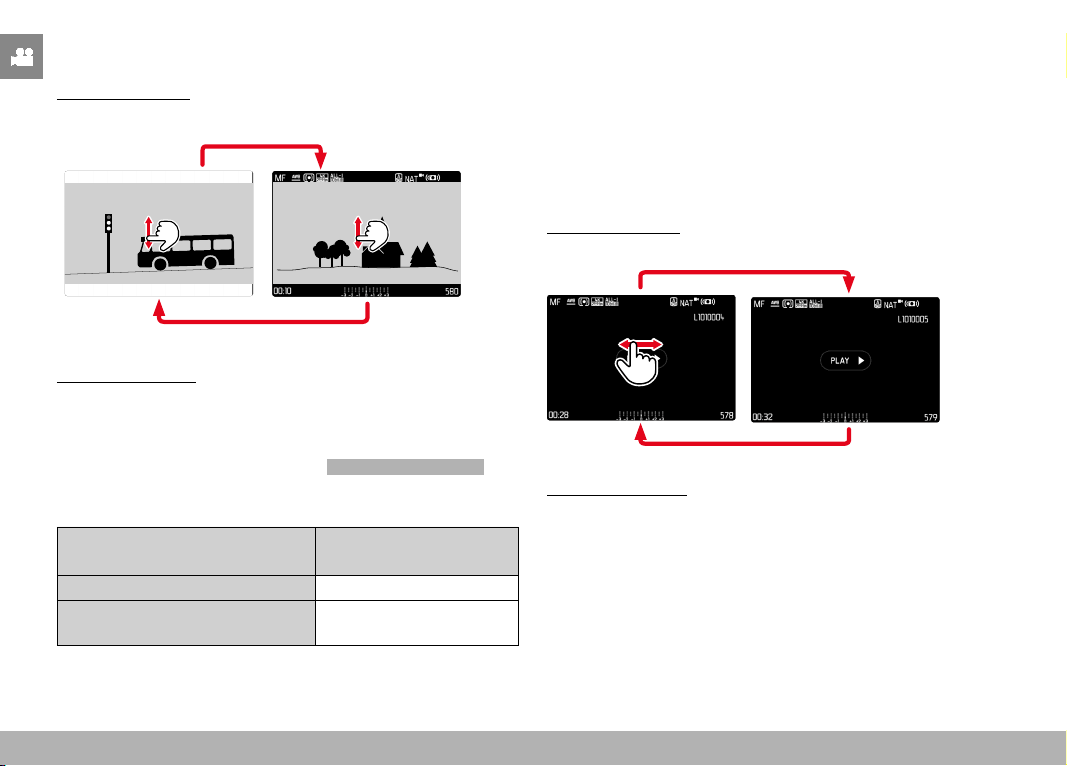
PLAYBACK MODE ▸ INITIATE/EXIT PLAYBACK MODE / SELECTING/SCROLLING THROUGH IMAGES
210
INITIATE/EXIT PLAYBACK MODE
Using touch control
▸ Swipe up or down
INFO
1/80002.8F 12500ISO EV
A
-3 2 1 0 21 3+
823412MP
PlaybackShooting
Using button control
▸ Press the
PLAY button
• The last shot taken appears on the screen.
• The following message appears if the inserted memory card
does not contain any (image) files:
No valid picture to play .
• The
PLAY button function differs, depending on the current
camera setting:
Initial situation
After pressing the
PLAY
button
Full screen display of a recording Recording mode
Display of multiple small recordings Full screen display of the
recording
SELECTING/SCROLLING THROUGH IMAGES
The images are visually arranged in a horizontal reel. The sorting
will be strictly chronological. When the end of an image series is
reached, the display automatically jumps back to the first image in
the series. All images can therefore be reached by scrolling either
right or left.
SINGLE
Using touch control
▸ Swipe to the left or right
Using button control
▸ Press the directional pad left/right
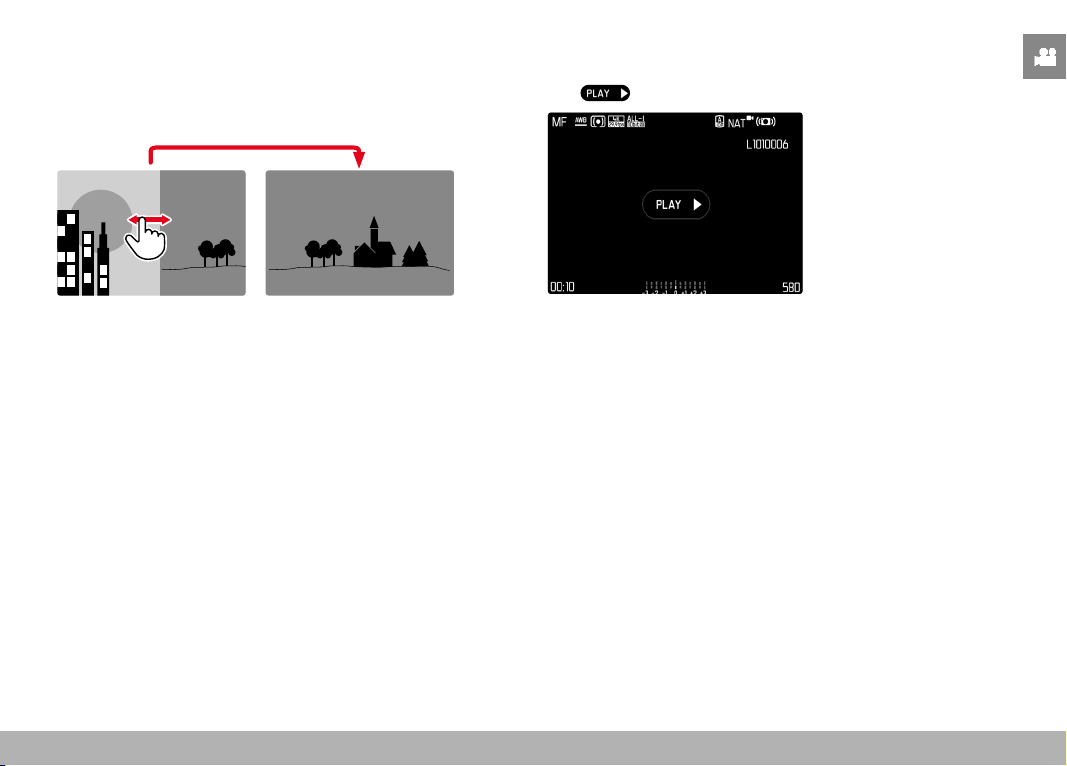
PLAYBACK MODE ▸ INFO DISPLAYS IN PLAYBACK MODE
211
CONTINUOUS
▸ Swipe to the left or right and hold the finger on the edge of the
screen
• The subsequent shots will move past continuously.
INFO DISPLAYS IN PLAYBACK MODE
Video recordings are always rendered with header and footer and
with on screen. No other auxiliary displays will appear.
All information is hidden during the playback of a video recording.
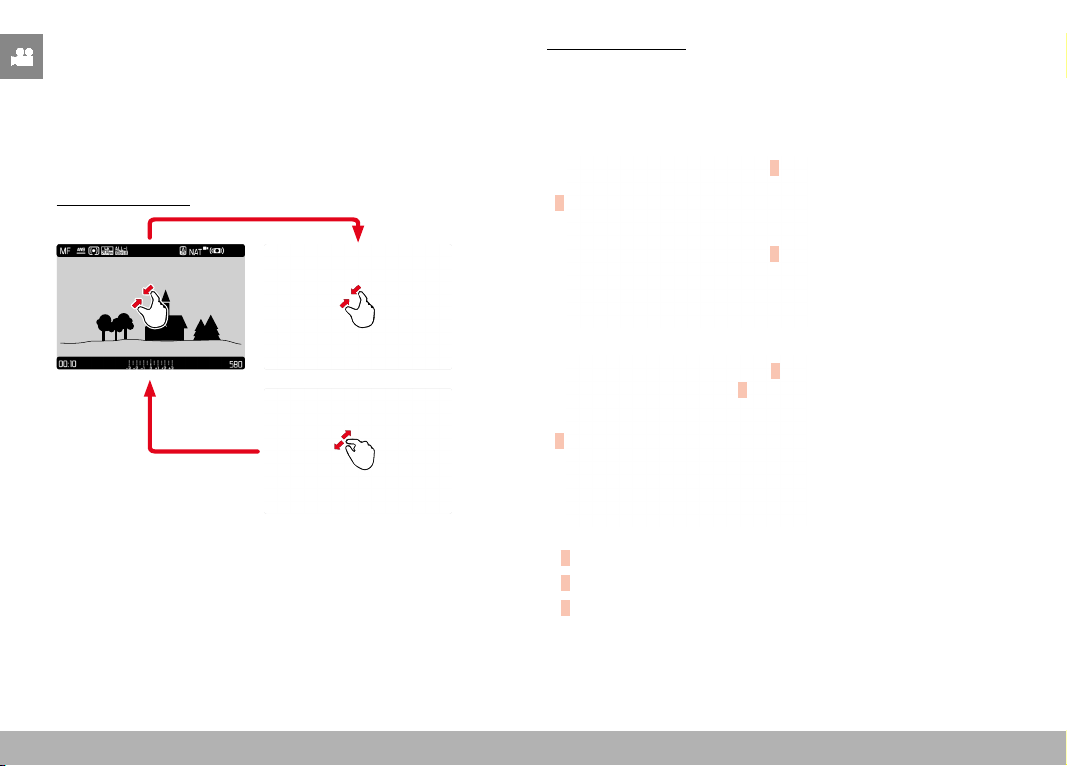
PLAYBACK MODE ▸ DISPLAYING MULTIPLE IMAGES AT ONCE
212
DISPLAYING MULTIPLE IMAGES AT ONCE
The camera offers an overview function in which several thumbnail
images can be viewed on one screen, which makes it easier to find
a specific image. You can choose 12 or 30 images per overview.
OVERVIEW
Using touch control
▸ Two-finger pinch
• The display toggles from 12 to 30 thumbnails.
Viewing other images
▸ Swipe up or down
Using button control
▸ Turn the thumbwheel to the left
• 12 thumbnails are shown at the same time. Another turn on
the thumbwheel increases the number of displayed thumbnails
to 30.
A
B
C
A
B
C
A
Currently selected image
B
Number of the currently selected images
C
Scrollbar
The currently viewed image is framed in red and can be selected for
a closer look.
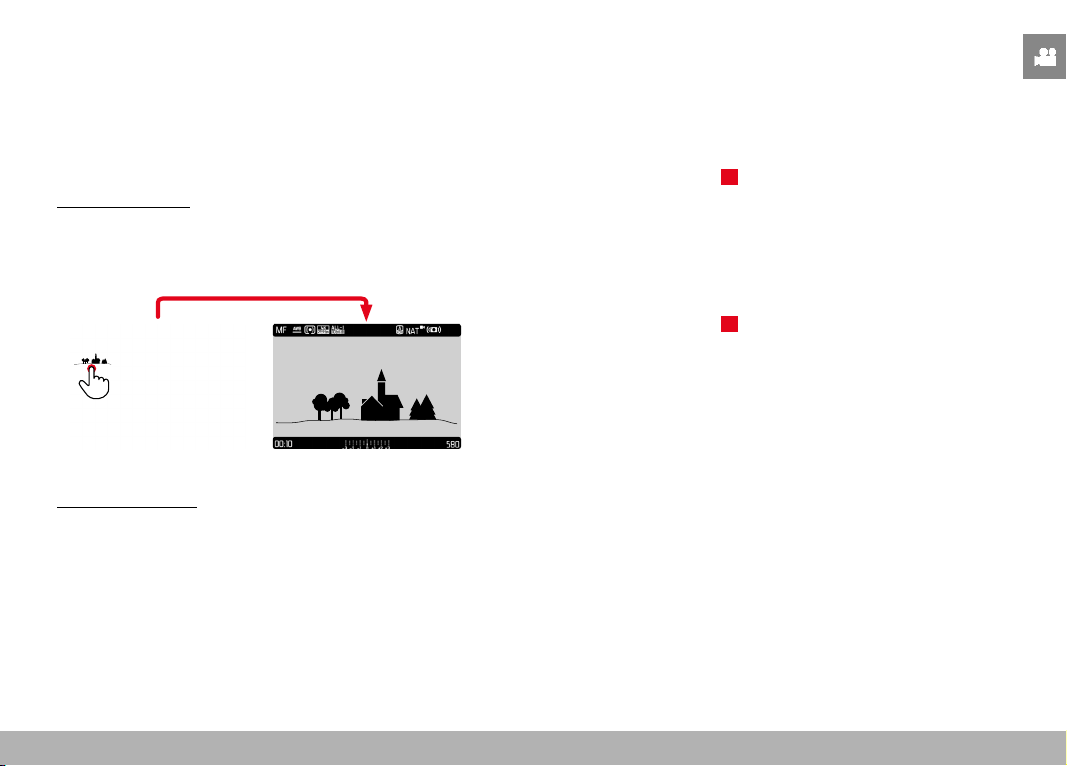
PLAYBACK MODE ▸ TAGGING/RATING OF RECORDINGS
213
Navigating between images
▸ Press the directional pad in the relevant direction
or
▸ Press and hold the
PLAY button while turning the thumbwheel
Displaying the recording in full size
Using touch control
▸ Two-finger spread
or
▸ Tap the desired image
Using button control
▸ Turn the thumbwheel to the right
or
▸ Press the thumbwheel button / the
PLAY button / the center
button
TAGGING/RATING OF RECORDINGS
Images can be marked as favorites to find them quicker or to simplify
the later deletion of multiple images. Tagging can be done in regular
view mode or in the overviews.
Tagging a recording
▸ Press the FN button 2 (
14)
• The image is marked with ★.
• The icon will appear in the header line on the far right when
viewing images in full size, and in the top left corner of the
thumbnail in overview mode.
Removing a tag
▸ Press the FN button 2 (
14)
• The ★ marking disappears.
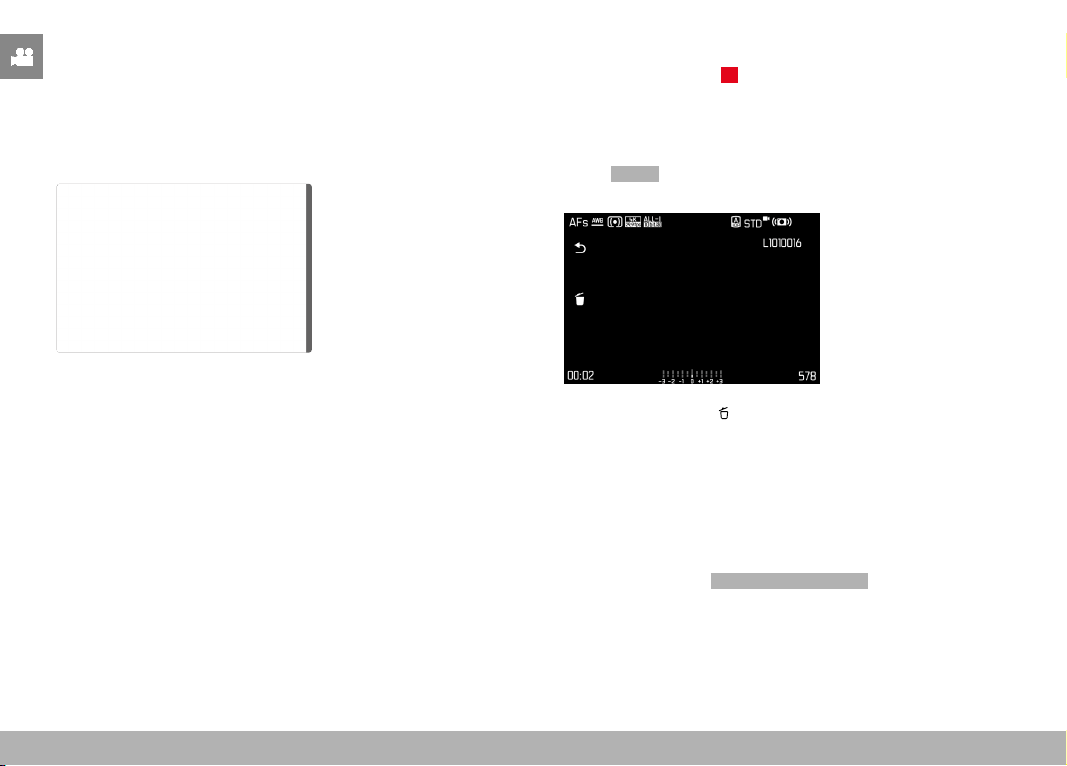
PLAYBACK MODE ▸ DELETING RECORDINGS
214
DELETING RECORDINGS
There are several methods available to delete recordings:
– deleting individual recordings
– deleting multiple recordings
– deleting all recordings without a icon/ranking
– deleting all recordings
Important
• Once deleted, images are no longer retrievable.
DELETING INDIVIDUAL RECORDINGS
▸ Press the FN button 1 (13)
• The Delete screen appears.
or
▸ Press the
MENU button
▸ Select
Delete in the play menu
• The Delete screen appears.
▸ Select the Delete icon
(tap the icon directly or press the center button)
• The recording will be deleted without additional confirmation
prompt.
• The LED will flash during the delete process. The process may
take a few seconds.
• The next image will be displayed once deletion is complete.
The following message appears if no other recordings are
saved on the card:
No valid picture to play .

PLAYBACK MODE ▸ DELETING RECORDINGS
215
Cancelling a deletion and return to the normal playback mode
▸ Select the “Go back” icon
(tap the icon directly or press the PLAY button)
Notes
• The Delete screen can be called up only by pressing the
MENU
button when in overview mode, because the menu function De-
lete of the “Play menu” is not available in this context.
• The “Scroll” and “Magnify” functions continue to be available
when the “Delete” screen is active.
DELETING MULTIPLE IMAGES
Several recordings can be marked in a Delete overview with twelve
thumbnails and can then be deleted all at once. This overview can
be reached in two ways.
▸ Turn the thumbwheel to the left
• The overview screen appears.
▸ Press the
MENU button
▸ Select
Delete Multi in the play menu
• The Delete overview appears.
or
▸ Press the
MENU button
▸ Select
Delete in the play menu
• The Delete screen appears.
▸ Turn the thumbwheel to the left
• The Delete overview appears.
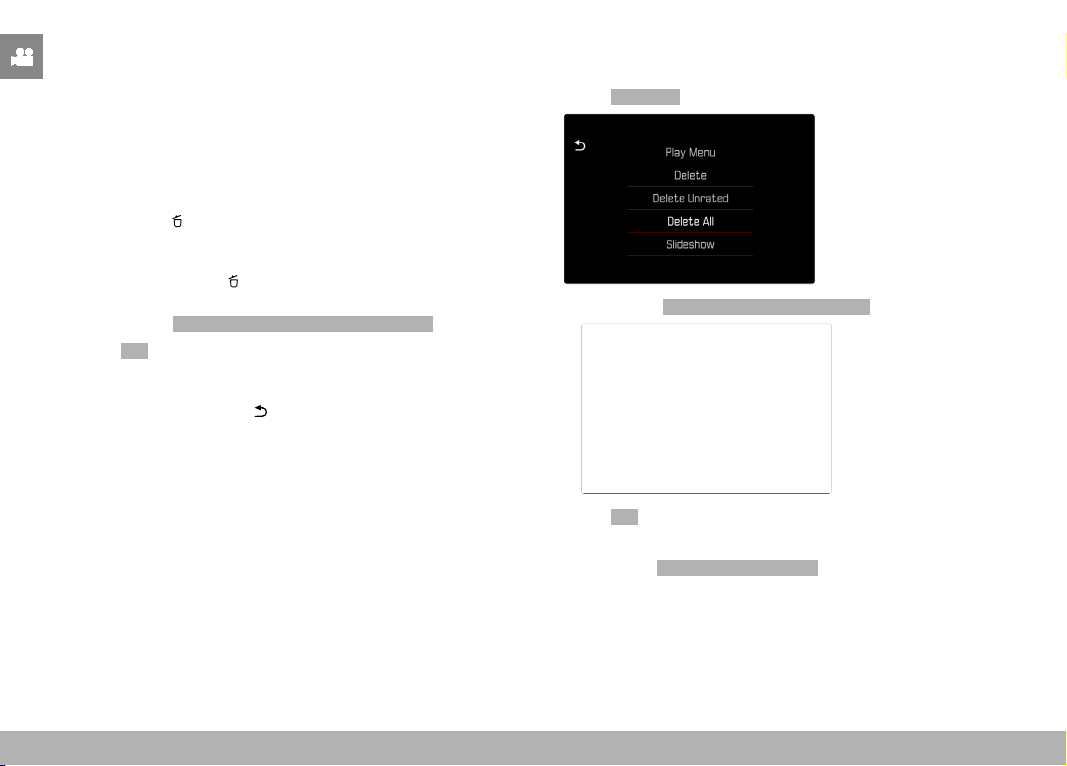
PLAYBACK MODE ▸ DELETING RECORDINGS
216
Any number of recordings can be selected in this view.
Selecting recordings for deletion
▸ Select an image
▸ Press the center button/thumbwheel button
or
▸ Tap the desired image
• The recordings selected for deletion are marked with a red
Delete icon
.
Deleting the selected recordings
▸ Select the Delete icon
(tap the icon directly or press the center button)
• The prompt
Do you want to delete all marked files? appears.
▸ Select
Yes
Cancelling a deletion and return to the normal playback mode
▸ Select the “Go back” icon
(tap the icon directly or press the PLAY button)
DELETING ALL RECORDINGS
▸ Press the MENU button
▸ Select
Delete All in the play menu
• The prompt Do you want to delete all files? appears.
▸ Select Yes
Note
• The message No valid picture to play. appears after successful
deletion. The same shot is displayed again if deletion was unsuc-
cessful. When deleting several or all recordings, a notification
screen may appear for the time needed to process the data.
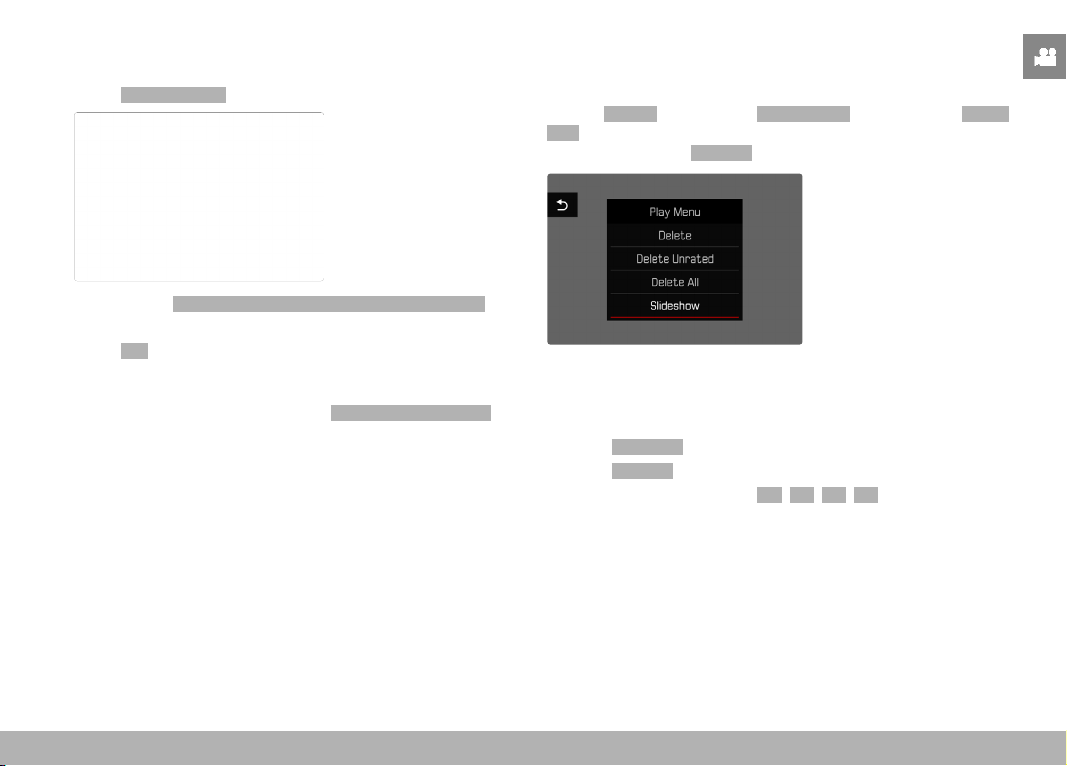
PLAYBACK MODE ▸ SLIDE SHOW
217
DELETING UNRATED RECORDINGS
▸ Press the MENU button
▸ Select
Delete Unrated in the play menu
• The prompt Do you really want to delete all not rated files?
appears.
▸ Select
Yes
• The LED will flash during the deletion process. The process
may take a few seconds. The next marked image appears once
deletion is complete. The message No valid picture to play.
appears if no other recordings are saved on the card.
SLIDE SHOW
A slide show function is available in playback mode, in which the
saved images are shown automatically in series. Choose to see all
images ( Play All ), only photos ( Pictures Only ) or only videos ( Videos
Only ) should be displayed. For photos, select how long each image
should be displayed ( Duration ).
SETTING THE DURATION
▸ Press the MENU button
▸ Select
Slideshow in the play menu
▸ Select
Duration
▸ Select the desired duration ( 1 s , 2 s , 3 s , 5 s )
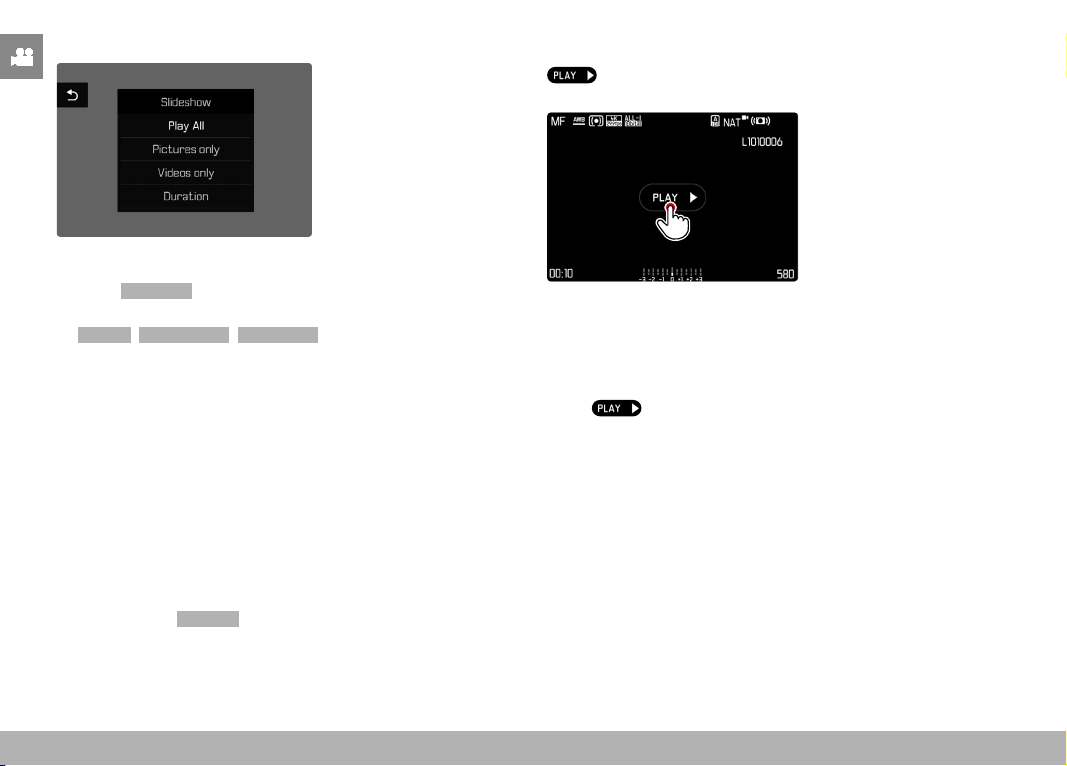
PLAYBACK MODE ▸ VIDEO PLAYBACK
218
STARTING THE SLIDE SHOW
▸ Press the MENU button
▸ Select
Slideshow in the play menu
▸ Select the desired setting
(
Play All , Pictures only , Videos only )
• The slide show will start automatically with the selected images
and runs in an endless loop until it is exited.
ENDING THE SLIDE SHOW
▸ Press the PLAY button
or
▸ Tap the shutter button
• The camera switches to the relevant mode.
Notes
• An intermediate screen may appear while the data is prepared for
playback.
• The settings in
Duration remain intact even after the camera is
switched off and on again.
VIDEO PLAYBACK
appears on screen if you have selected a video file in play-
back mode.
START PLAYBACK
▸ Press the center button
or
▸ Tap

PLAYBACK MODE ▸ VIDEO PLAYBACK
219
ACCESSING THE CONTROL ELEMENTS
The control elements are displayed when playback is stopped.
Using touch control
▸ Tap anywhere on the LCD panel
INFO
1/80002.8F 12500ISO EV
SET
-3 2 1 0 21 3+
823412MP
INFO
1/80002.8F 12500ISO EV
SET
-3 2 1 0 21 3+
823412MP
2
3
1
4
5
1
Video editing function
2
Exiting video playback
3
Current playback time
4
Playback status bar
5
Volume bar
INFO
1/80002.8F 12500ISO EV
SET
-3 2 1 0 21 3+
823412MP
Using button control
▸ Press the center button
Note
• The control elements disappear after about 3 s. Tapping the LCD
panel again or pressing a button will make them reappear.
PAUSE PLAYBACK
▸ Tap anywhere on the LCD panel
or
▸ Press the center button
RESUMING PLAYBACK
Using touch control
While the control elements are visible:
▸ Tap anywhere on the LCD panel
INFO
1/80002.8F 12500ISO EV
SET
-3 2 1 0 21 3+
823412MP
18:26
Using button control
While the control elements are visible:
▸ Press the center button
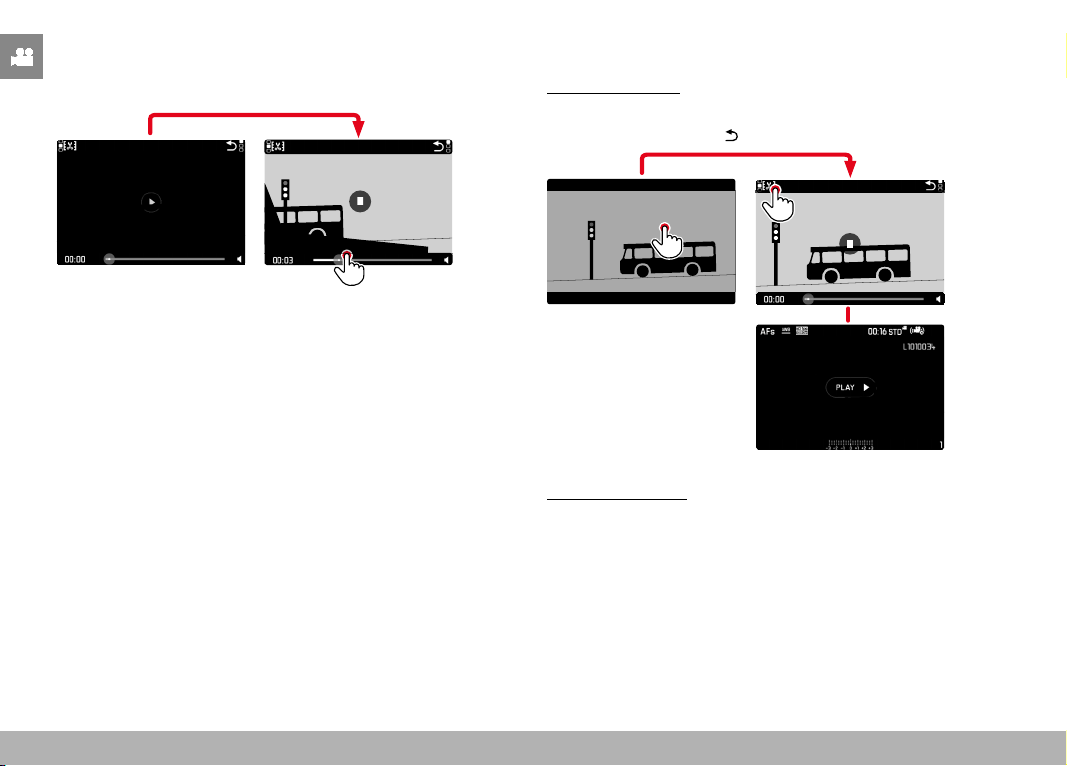
PLAYBACK MODE ▸ VIDEO PLAYBACK
220
NAVIGATE TO ANY POINT IN THE FILE
While the control elements are visible:
▸ Tap the Playback status bar at the desired position
INFO
1/80002.8F 12500ISO EV
SET
-3 2 1 0 21 3+
823412MP
18:26
END PLAYBACK
Using touch control
While the control elements are visible:
▸ Tap the “Go back” icon
INFO
1/80002.8F 12500ISO EV
SET
-3 2 1 0 21 3+
823412MP
16:12
Using button control
▸ Press the
PLAY button

PLAYBACK MODE ▸ VIDEO PLAYBACK
221
SETTING THE VOLUME
Using touch control
While the control elements are visible:
▸ Tap the volume icon
▸ Tap the volume bar at the desired position
INFO
1/80002.8F 12500ISO EV
SET
-3 2 1 0 21 3+
823412MP
18:26
Using button control
▸ Press the directional pad up/down
• The volume bar appears.
▸ Press the directional pad up (louder) or down (quieter)
Note
• Sound is switched off at the lowest part of the bar and the volume
icon changes to
.
VIDEO EDITING
Using touch control
INFO
1/80002.8F 12500ISO EV
SET
-3 2 1 0 21 3+
823412MP
PLAYBACK MODE ▸ VIDEO PLAYBACK
222
Using button control
ACCESSING THE VIDEO EDITING FUNCTION
▸ Press the MENU button
• The video editing screen appears, the left cutting mark is high-
lighted in red (= active).
CHANGING THE CURRENT CUTTING POINT
▸ Press the directional pad left/right
• The selected cutting point is highlighted in red (= active).
MOVING THE ACTIVE CUTTING POINT
▸ Turn the thumbwheel
• The currently selected time of the relevant cutting point is dis-
played at the bottom left of the footer line. A still of the video
sequence at that point is displayed in the background.
CUTTING
▸ Press the center button to confirm the cuts
• The
Video Trimming menu appears.
▸ Select a function from the
Video Trimming menu
( Save as new , Overwrite , Preview )
Save as new
The new video is additionally saved, the original
video remains unchanged.
Overwrite
The newly cut video is saved and the original one
is deleted.
Preview
The new video is played. The newly cut video is
not saved and the original remains unchanged.
CANCELLING THE VIDEO EDITING FUNCTION
The editing function can be canceled at any time, provided no se-
lection was made in the Video Trimming menu.
▸ Press the
PLAY button
• The video playback screen reappears.
Notes
• In all three cases, a notification screen appears while the data is
being processed. Then the new video is played back.
• The numbering of existing recordings will not be changed
when
Save as new is selected. The newly created video will be
added to the end of the series of videos.

223
< < < > > >

OTHER FUNCTIONS ▸ RESETTING THE CAMERA TO FACTORY SETTINGS
224
OTHER FUNCTIONS
The settings described in this chapter apply for photo and video
mode alike. They are therefore available in the picture and video
menu (see chapter “Camera Operation” under “Menu Control”). A
setting selected in one of the modes will also apply to the other.
RESETTING THE CAMERA TO FACTORY SETTINGS
This function allows you to reset all your custom menu settings
back to the factory settings. You can optionally exclude the user
profiles, Wi-Fi and Bluetooth settings, as well as the image number-
ing from the reset individually.
▸ Select
Reset Camera in the main menu
• The prompt
Reset camera to basic settings? appears.
▸ Confirm or reject the reset to factory settings (
Yes ) / ( No )
• Selecting
No will cancel the reset and the display will return to
the main menu. Selecting
Yes will trigger additional prompts
regarding the settings you can opt to keep.
▸ Confirm or reject the reset of the user profiles (
Yes ) / ( No )
▸ Confirm or reject the reset of the Wi-Fi and Bluetooth settings
(
Yes ) / ( No )
▸ Confirm or reject the reset of the image numbering (
Yes )/ ( No )
▸ Confirm or reject the reset of the LUT profiles (
Yes )/( No )
▸ Confirm or reject the reset of the Leica Looks profiles (
Yes )/( No )
• The message
Please Restart the Camera appears.
▸ Switch the camera off and on again
Notes
• Date & time, as well as the preferred language will have to be set
up again after a reset. Relevant prompts will appear on screen.
• You reset the image numbering separately via the menu item
Reset Image Numbering (see p. 224).

OTHER FUNCTIONS ▸ FIRMWARE UPDATES
225
FIRMWARE UPDATES
Leica is continuously working on the further improvement and opti-
mization of your camera. Since many camera functions are entirely
controlled by software, some of these improvements and additions
to the functional scope can be installed in retrospect. Leica offers
firmware updates at irregular intervals, which you can download
from our website.
Leica will notify you of any new updates, once you have registered
your camera. Users of Leica FOTOS will also be automatically noti-
fied about firmware updates for their Leica cameras.
There are two options for installing firmware updates.
– conveniently via the Leica FOTOS app (see p. 228)
– directly via the camera menu
Finding the currently installed firmware version
▸ Select
Camera Information in the main menu
• The current firmware version is displayed in the
Firmware
menu item.
More information about registering, firmware updates and how to
download them to your camera, as well as any amendments and
additions to this manual can be found in the customer area of our
website at:
https://club.leica-camera.com
OTHER FUNCTIONS ▸ FIRMWARE UPDATES
226
EXECUTING A FIRMWARE UPDATE
Any interruption of a running firmware update may cause serious
and irreparable damage to your equipment!
You will therefore have to take particular note of the following,
when carrying out a firmware update:
• Do not switch off the camera!
• Do not remove the memory card!
• Do not remove the rechargeable battery!
Notes
• A warning message will appear if the battery is insufficiently
charged. Recharge the battery and then repeat the process de-
scribed above.
• You will find additional device and country-specific registration
marks and numbers in the
Camera Information submenu.
PREPARATION
▸ Fully charge and insert the rechargeable battery
▸ Any stored firmware files on the memory card must be removed
• We recommend saving any images on the memory card and
reformatting it before the update.
(Caution: Loss of data! All data stored on the memory card will
be lost during formatting.)
▸ Download the latest firmware version
▸ Save the download to the memory card
• The firmware file must be stored in the main directory of the
memory card (not in a sub-directory).
▸ Insert the memory card into the camera
▸ Switch the camera on

OTHER FUNCTIONS ▸ FIRMWARE UPDATES
227
UPDATING THE CAMERA FIRMWARE
▸ Preparation
▸ Select
Camera Information in the main menu
▸ Select
Firmware
▸ Select Start Update
• A prompt with information about the camera is displayed.
▸ Check the version information
▸ Select
Yes
• The prompt Save profiles on SD Card? appears.
▸ Select
Yes / No
• The update will start automatically.
• The status LED will flash during this process.
• Once the process has completed successfully, a relevant on-
screen message and prompt to restart the device will appear
on screen.
▸ Switch the camera off and on again
Note
• Date & time, as well as the preferred language will have to be
set up again after the restart. Relevant prompts will appear on
screen.
• These settings will be applied automatically if the update is loaded
via Leica FOTOS.
LEICA FOTOS ▸ SELECTING A WI-FI BAND
228
LEICA FOTOS
The camera can be controlled remotely using a smartphone/tablet
PC. This will require an installation of the Leica FOTOS app on the
mobile device. Leica FOTOS furthermore offers a variety of other
useful functions:
– Geotagging for images (see p. 82)
– File transfer
– Downloading firmware updates
– Self-timer delay time selection via remote control, e.g. for group
photographs
A list of available functions and instructions for their use can be
found in the Leica FOTOS app. Please read the legal notes on page
7.
▸ Scan the following QR code with the mobile device
or
▸ The app is available from Apple App Store™/Google Play Store™
SELECTING A WI-FI BAND
Leica Q3 supports the use of various Wi-Fi frequencies in a number
of regions.
▸ Select
Camera Settings in the main menu
▸ Select
WLAN
▸ Select Wi-Fi band
▸ Select the desired setting
Note
• The menu item will appear grayed out, where this option is un-
available.

LEICA FOTOS ▸ CONNECTIVITY (iPhone users)
229
CONNECTIVITY (iPhone users)
FIRST-TIME CONNECTION TO A MOBILE DEVICE
A pairing of the camera and the mobile device is required for a first-
time connection to a mobile device. A connection is established via
the connection wizard at initial setup of the camera or later via the
menu.
CONNECTION WIZARD
The connection wizard appears at initial startup of the camera or
after a camera reset. These settings are also available via the menu
item
Leica FOTOS .
The following screen appears after you have selected the language.
Starting the connection wizard
▸ Select
Connect to app
Exiting the connection wizard
▸ Tap the icon in the top right corner of the screen
Going back one step
▸ Tap the icon in the top left corner of the screen
VIA LEICA FOTOS CABLE (for iPhone only)
▸ Select iOS
• The following screen appears.
▸ Connect the camera and mobile device via the Leica FOTOS
cable
▸ Follow the instructions provided by the Leica FOTOS app

LEICA FOTOS ▸ CONNECTIVITY (iPhone users)
230
VIA WI-FI
IN THE CAMERA
▸ Select iOS
• The following screen appears.
▸ Select I don't have a cable
▸ Select Next
▸ Wait until the QR code appears on the LCD panel
ON THE MOBILE DEVICE
▸ Launch the Leica FOTOS app
▸ Select “Add Camera”
▸ Select the camera model
▸ Select “Scan the QR code”
▸ Scan the QR code
• Connection is being established. The process may take a few
seconds.
• Once successfully connected, the Status LED will light briefly,
and the camera displays a relevant message.

LEICA FOTOS ▸ CONNECTIVITY (iPhone users)
231
USING THE MENU TO
Where the connection wizard was not used or other mobile devices
should be connected, the same settings are always accessible via
the menu item
Leica FOTOS .
IN THE CAMERA
▸ Select Leica FOTOS in the main menu
▸ Select
Pairing
▸ Wait until the QR code appears on the LCD panel
ON THE MOBILE DEVICE
▸ Launch the Leica FOTOS app
▸ Select “Add Camera”
▸ Select the camera model
▸ Select “Scan the QR code”
▸ Scan the QR code
• Connection is being established. The process may take a few
seconds.
• Once successfully connected, the Status LED will light briefly,
and the camera displays a relevant message.
Notes
• The pairing process may take a few minutes to complete.
• Each mobile device only needs to be paired with the camera
once. The process adds the device to the list of known devices.
• The Bluetooth function is disabled if the connectivity mode
Airplane mode is selected (see p. 234). Pairing will not be avail-
able, and the relevant menu item will be grayed out.
CONNECTING WITH PAIRED DEVICES
VIA LEICA FOTOS CABLE (for iPhone only)
The Leica FOTOS Cable makes connectivity particularly easy and
quick.
▸ Connect the camera and mobile device via the Leica FOTOS
cable
• The connection is established automatically.
VIA WI-FI
IN THE CAMERA
▸ Select Leica FOTOS in the main menu
▸ Select
Connectivity
▸ Select Performance mode or Eco mode
ON THE MOBILE DEVICE
▸ Launch the Leica FOTOS app
▸ Select the camera model
▸ Confirm the prompt
• The camera connects to the mobile device automatically.

LEICA FOTOS ▸ CONNECTIVITY (Android users)
232
CONNECTIVITY (Android users)
FIRST-TIME CONNECTION TO A MOBILE DEVICE
The connection is established via WLAN. A pairing of the camera
and the mobile device is required for a first-time connection to a
mobile device. A connection is established via the connection wiz-
ard at initial setup of the camera or later via the menu.
CONNECTION WIZARD
The connection wizard appears at initial startup of the camera or
after a camera reset. These settings are also available via the menu
item
Leica FOTOS .
The following screen appears after you have selected the language.
Starting the connection wizard
▸ Select
Connect to app
Exiting the connection wizard
▸ Tap the icon in the top right corner of the screen
Going back one step
▸ Tap the icon in the top left corner of the screen
IN THE CAMERA
▸ Select Android
▸ Select Next
▸ Wait until the QR code appears on the LCD panel
ON THE MOBILE DEVICE
▸ Launch the Leica FOTOS app
▸ Select “Add Camera”
▸ Select the camera model
▸ Select “Scan the QR code”
▸ Scan the QR code
• Connection is being established. The process may take a few
seconds.
• Once successfully connected, the Status LED will light briefly,
and the camera displays a relevant message.

LEICA FOTOS ▸ CONNECTIVITY (Android users)
233
USING THE MENU TO
Where the connection wizard was not used or other mobile devices
should be connected, the same settings are always accessible via
the menu item
Leica FOTOS .
IN THE CAMERA
▸ Select Leica FOTOS in the main menu
▸ Select
Pairing
▸ Wait until the QR code appears on the LCD panel
ON THE MOBILE DEVICE
▸ Launch the Leica FOTOS app
▸ Select “Add Camera”
▸ Select the camera model
▸ Select “Scan the QR code”
▸ Scan the QR code
• Connection is being established. The process may take a few
seconds.
• Once successfully connected, the Status LED will light briefly,
and the camera displays a relevant message.
Notes
• The pairing process may take a few minutes to complete.
• Each mobile device only needs to be paired with the camera
once. The process adds the device to the list of known devices.
• The Bluetooth function is disabled if the connectivity mode
Off
is selected (see p. 234). Pairing will not be available, and the
relevant menu item will be grayed out.
CONNECTING WITH PAIRED DEVICES
IN THE CAMERA
▸ Select
Leica FOTOS in the main menu
▸ Select
Connectivity
▸ Select Performance mode or Eco mode
ON THE MOBILE DEVICE
▸ Launch the Leica FOTOS app
▸ Select the camera model
▸ Confirm the prompt
• The camera connects to the mobile device automatically.
LEICA FOTOS ▸ CONNECTIVITY MODES
234
CONNECTIVITY MODES
Three connection options are available.
Factory setting:
Performance mode
▸ Select Leica FOTOS in the main menu
▸ Select
Connectivity
▸ Select Performance mode / Eco mode / Off
Faster connection
(Factory setting)
Extended battery life All RF connections deactivated
Performance mode Eco mode Off
Bluetooth
(Geotagging)
On On -
Wi-Fi
(Data transfer)
(Remote control)
Always On
The connection to the Leica
FOTOS app is permanently active
Automatic On / Off
The connection to the Leica
FOTOS app is established automat-
ically as needed, and disconnected
after ≥ 5 min. of inactivity
-
Wi-Fi Sleep Timer
Never After 5 min -
Remote Camera Activa-
tion
Always available
This function is available up to
7 days after the camera was
switched off
-
LEICA FOTOS ▸ EXECUTING A FIRMWARE UPDATE
235
PERFORMANCE MODE
Bluetooth is permanently activated, allowing anytime Geotagging
(where enabled). Wi-Fi is similarly permanently activated. This
option offers the fastest access to Leica FOTOS and therefore an
excellent user experience.
▸ Select
Leica FOTOS in the main menu
▸ Select
Connectivity
▸ Select Performance mode
ECO MODE
Bluetooth is permanently activated, allowing anytime Geotagging
(where enabled). Camera Wi-Fi will be enabled only during the
transfer of settings or files, and will otherwise remain off. This is a
power saving option.
▸ Select
Leica FOTOS in the main menu
▸ Select
Connectivity
▸ Select Eco mode
AIRPLANE MODE ( Off )
All RF connections will be deactivated if this option is selected
▸ Select
Leica FOTOS in the main menu
▸ Select
Connectivity
▸ Select Off
EXECUTING A FIRMWARE UPDATE
Any interruption of a running firmware update may cause serious
and irreparable damage to your equipment!
You will therefore have to take particular note of the following,
when carrying out a firmware update:
• Do not switch off the camera!
• Do not remove the memory card!
• Do not remove the rechargeable battery!
• Do not detach the lens!
Leica FOTOS will notify you when firmware updates are available for
your Leica cameras.
▸ Follow the instructions provided by the Leica FOTOS app
Notes
• A warning message will appear if the battery is insufficiently
charged. Recharge the battery and then repeat the process de-
scribed above.
• Alternatively, firmware updates can also be installed via the camera
menu
(see p. 225).
LEICA FOTOS ▸ REMOTE CAMERA CONTROL
236
REMOTE CAMERA CONTROL
You can take pictures and record video remotely via the mobile
device, and can also change image settings or transfer data to the
mobile device. A list of available functions and instructions for their
use can be found in the Leica FOTOS app.
REMOTE CAMERA ACTIVATION
The camera can be activated remotely from off or standby if this
function is activated in the camera. The Bluetooth function must be
active.
▸ Select
Leica FOTOS in the main menu
▸ Select
Remote Wakeup
▸ Select On
• The camera will scan for known devices and automatically
establishes a connection.
Important information
• Remote activation will activate the camera even if it was
switched off via the main switch.
• Accidental remote camera activation may result in unwanted
pictures taken and excessive power consumption.
• A third-party device can – provided is has been paired with
the camera – access the camera remotely if your own mobile
device is not currently connected or its Bluetooth function is
deactivated. This poses a danger of unauthorized access to
your data or camera functions.
Solution
• Only activate this function just before you want to use it.
• Disable the function as soon as it is no longer needed.

237

CARE/STORAGE
238
CARE/STORAGE
We recommend the following if the camera will not be used for an
extended period of time:
– Switching the camera off
– Remove the memory card
– Remove the battery (after approx. 2 months the set date and
time will be lost)
CAMERA HOUSING
• Keep your equipment meticulously clean, as any kind of dirt resi-
due presents a breeding ground for micro organisms.
• Only clean the camera with a soft, dry cloth. Stubborn dirt should
first be moistened with a watered-down detergent and can then
be wiped away with a dry cloth.
• Wet a soft cloth with tap water, wring it out thoroughly and use
it to wipe down the camera. Then wipe it down thoroughly with a
dry cloth.
• Wipe the camera with a clean, lint-free cloth to remove stains
and fingerprints. Tougher dirt in hard to reach corners of the
camera housing can be removed with a small brush. Take care
not to touch the shutter blades.
• Store the camera in a closed and padded container to prevent
friction damage and protect it against dust accumulation.
• Keep the camera in a dry, sufficiently ventilated place, where it
will not be subjected to high temperatures and humidity. Make
sure to remove all moisture from the camera if it was used in
humid conditions.
• Do not store the camera in a leather case for extended periods of
time to prevent fungal contamination.
• Empty you camera bag completely if it ever gets wet during use.
Your equipment might otherwise be subjected to moisture and
tanning residue released by the moist leather.
• All mechanical bearings and sliding surfaces on your camera are
lubricated. Remember to press the shutter button several times
every three months to prevent the lubrication points hardening if
the camera will not be used for an extended period of time. We
also recommend repeated adjustment and use of all the other
operating elements.
• When using your camera in tropical climates, make sure to expose
the equipment to daylight and fresh air as much as possible to
prevent fungal growth. Storage in airtight containers or cases is
recommended only in conjunction with a desiccant like silica gel.
LENS
• A soft-bristle brush will usually suffice to remove dust from the
outer lenses. Remove more severe soiling with a clean, soft cloth
that is completely free of foreign matter. Wipe the lens in a circu-
lar motion from the center outward. We recommend using micro-
fiber cloths that come in a protective container and are available
from photography shops and other optical retailers. These cloths
are machine-washable at 40°C. Do not use fabric softener and
do not iron them. Never use spectacle lens cleaning cloths, as
these are soaked in chemicals, which could damage the glass of
the camera lenses.
• Attach a transparent UVA filter for optimal front lens protection
in unfavorable conditions (e.g. sand, salt water spray). Please
remember that the filter may create unwanted light reflections in
some backlight situations and in case of high contrasts.
• Lens caps also protect the lens against accidental fingerprint
smudges and rain.

CARE/STORAGE
239
• All mechanical bearings and sliding surfaces on your lens are
lubricated. Make sure to periodically move the focus ring and the
aperture ring to prevent seizing if the lens will not be used for an
extended period of time.
VIEWFINDER/LCD PANEL
• Switch off your camera and leave it to stand at room temperature
for around 1 hour if condensation has formed on or in the cam-
era. The condensation will disappear, once the camera tempera-
ture has reached room temperature.
RECHARGEABLE BATTERY
• Lithium-ion rechargeable batteries should only be stored partially
charged, i.e. not fully depleted or fully charged. The camera LCD
panel will show the current charge level of the battery. Charge
the battery twice a year for around 15 minutes to avoid deep
discharge in case of very long storage periods.
MEMORY CARDS
• Make sure to store memory cards in their anti-static container
when not in use.
• Do not store memory cards where they will be exposed to high
temperatures, direct sunlight, magnetic fields or static electricity.
Always remove the memory card if the camera will not be used
for an extended period of time.
• We recommend formatting memory cards from time to time, as
fragmented residual data from deleted files may block some of
the storage capacity.
SENSOR
PIXEL MAPPING
Defective pixels may appear on the image sensor of digital cameras
over time. The camera compensates for these defective pixels auto-
matically by calculating the data captured by other pixels surround-
ing defective ones. This feature requires a process known as “pixel
mapping” to recognize and register defective pixels. The camera
does this automatically every two weeks. The function can also be
accessed manually if needed.
▸ Select
Camera Settings in the main menu
▸ Select
Pixel Mapping
▸ Select Yes
• Pixel mapping is executed. The process may take a few seconds.
• The message Please Restart the Camera appears.
▸ Switch the camera off and on again
Note
• This function is unavailable if the sensor is warmed up.
FAQ
240
FAQ
Problem Possible causes to check Troubleshooting suggestions
Battery issues
Battery is depleted too quickly Battery too cold Warm the battery (e.g. in pants pocket) and only insert
directly before use
Battery too hot Allow battery to cool down
LCD panel or EVF set too bright Reduce brightness
Power save mode deactivated
Activate Auto Power Off
AF mode permanently activated Select other mode
Permanent WLAN connection Deactivate WLAN when not in use
Continuous use of LCD panel (e.g. in Live View mode) Deactivate the function
Battery has been recharged too many times The battery has reached the end of its operating time
Replace battery
Tracking-AF with AFc activated Use AFs or MF
Preview of the recorded images ( Auto Review ) activated
Deactivate the function
Charging process not starting Incorrect battery polarization or faulty charger connection Check polarization and connection
Charging takes too long Battery too hot or too cold Charge the battery at room temperature
Charging pilot light is on, but battery isn't
charging
The battery contacts are dirty Clean the contacts with a soft, dry cloth
Battery has been recharged too many times The battery has reached the end of its operating time
Replace battery
Camera problems
The camera suddenly switches itself off Battery is depleted Charge or replace the battery
The camera won’t switch on Battery is depleted Charge or replace the battery
Battery too cold Warming the battery (e.g. in pants pocket)
The camera switches off again immediately
after it is switched on
Battery is depleted Charge or replace the battery
Camera is heating up Heat development due to high-res video recording (4K) or
serial exposures with DNG
Not a fault; allow camera to cool down if it gets too hot
Camera does not recognize the memory card The memory card is not compatible or defective Replace the memory card
Memory card is incorrectly formatted Format the memory card in the camera
(Caution: Loss of data!)
FAQ
241
Menus and displays
Electronic viewfinder is dark EVF brightness is set too low Set the EVF brightness
Display language is not English -
Select English in the Language menu
Electronic viewfinder is dark Switchover between EVF and LCD incorrectly set Select a suitable setting
Viewfinder is out of focus Check the diopter setting and adjust as needed
The LCD panel is to dark or too bright/not
clear
The brightness setting is incorrect Adjust the display brightness
Viewing angle is too small View the LCD panel at a perpendicular angle
Brightness sensor is blocked Make sure that the brightness sensor is not blocked
Favorites menu does not appear
The favorites menu is empty Add at least one function
Live View stops suddenly or doesn't start The camera is hot due to high ambient temperature,
extended Live View operation, extended video shooting or
continuous shooting
Allow camera to cool down
The brightness in Live View mode is not the
same as in the images
The brightness settings for the LCD panel have no
influence over the exposures
Adjust the brightness settings as needed
Exposure preview is deactivated Activate the function
The number of remaining shots does not count
down after shooting
The image requires only very little memory space This is not a fault; the number of remaining shots is
calculated as approximations
Shooting
Image noise appears on the LCD panel/in the
viewfinder when the shutter button is pressed
to the first pressure point
The gain is increased to aid image composition if the
object is insufficiently lit with reduced lens aperture
Not a fault – image quality will not be impacted
LCD panel/viewfinder deactivates after a very
short time
Power Save settings are activated Change the settings as needed
The display switches off after shooting/the
LCD panel goes dark after shooting
Flash loads after shooting, LCD panel deactivates during
load time
Wait until the flash is charged
Flash won't fire The flash cannot be used with the current settings Refer to the list of flash function-compatible settings
Battery is depleted Charge or replace the battery
Pressing the shutter button while flash is still loading Wait until the flash is loaded
Electronic shutter function is selected Change the setting
Automatic bracketing or continuous shooting is activated Change the setting
The flash does not fully illuminate the object Object is outside the flash range Move object into flash range
Flash is covered Make sure the flash unit is not covered by your finger or
some object
FAQ
242
The camera won’t release/shutter button is
deactivated/shooting not passible
Memory card is full Replace the memory card
The memory card is not formated Reformat the memory card
(Caution: Loss of data!)
The memory card is write protected Deactivate the write protection on the memory card (small
lever on the side of the memory card)
Dirt on the memory card contacts Clean the contacts with a soft cotton or linen cloth
The memory card is damaged Replace the memory card
The sensor is overheating Allow camera to cool down
The camera has switched off automatically (Auto Power
Off
)
Switch the camera on again
deactivate auto shutdown as needed
Image data is being written to the memory card and the
cache is full
Wait
Noise reduction function is working (e.g. after night
photography with long exposure times)
Wait or deactivate noise reduction
Battery is depleted Charge or replace the battery
Camera is processing a image Wait
Image numbering has reached its limit See section “Data Management”
Image does not sharpen automatically AF is deactivated Activate AF
No face detection/faces are not recognized Face is covered (sunglasses, hat, long hair, etc.) Remove distracting objects
Face takes up to little space in the picture composition Change image composition
Face is tilted or horizontal Keep face straight
Camera not held straight Hold camera straight
Face is insufficiently lit Use flash, improve illumination
Camera selects incorrect object The incorrectly selected object is closer to the image
center that the main object
Change the image section or take picture using the focus
lock
The incorrectly selected object is a face Deactivate face detection
No continuous shooting available The camera is overheated and the function was
temporarily disabled to protect the camera
Allow camera to cool down
The image on the LCD panel displays lots of
noise
Light enhancement function of the LCD panel in dark
surroundings
Not a fault – image quality will not be impacted
Image storage takes a long time Noise reduction is activated for long-term exposures Deactivate the function
The memory card inserted is slow Use a suitable memory card
Manual white balance is unavailable The image object is too bright or too dark
FAQ
243
Camera does not focus Desired object part is too close to the camera Select Macro mode
Desired object part is very far away Exit Macro mode
Object not suitable for AF Use Focus lock or select manual focus
AF frame is framed in red with activated AF;
images out of focus
Focusing was unsuccessful Try to focus again
No AF frame selectable Focus ring not in AF position Turn the focus ring to the AF position
Automatic Metering Field Control or Face Detection in AF
Mode is selected
Select other control mode
One of the scene modes is currently active
Select the P-A-S-M setting under Scene Mode
Image review is activated Deactivate image review
Camera is in Standby mode Press the shutter button to the first pressure point
AF assist lamp does not light up Camera is in video shooting mode Change the mode
Function is deactivated Activate AF
Video recording
No video is recorded The camera is overheated and the function was
temporarily disabled to protect the camera
Allow camera to cool down
Video shooting stops Maximum length of individual video sequence was reached
The memory card's write speed is too low for the selected
video resolution/compression
Insert another memory card or change the storage method
L-Log is not selectable in video mode
A 10 bit format was not selected as the video format Switch to 10 bit format or MOV in video format
Review and photo management
Selected images cannot be deleted Some of the selected images are write protected Remove write protection (using the device with which the
file was originally set to write protected)
File numbering does not start at 1 The memory card contains previously stored images See section “Data Management”
The time and date settings are incorrect or are
not displayed
The camera has not been in use for an extended period of
time (the battery was removed)
Insert a charged battery and configure the correct settings
The time and date stamp on images are
incorrect
Time settings are incorrect Set the time correctly
Caution: Time settings will be lost if the camera is not
used/remains in storage with a depleted battery over an
extended period of time
The time and date stamp on images are
unwanted
Setting was ignored Cannot be removed in retrospect
Deactivate the function as needed
FAQ
244
Images are damaged or missing The memory card was removed while the readiness
indicator was flashing
Never remove the memory card while the readiness
indicator is flashing. Charge the battery.
The memory card formatting is faulty or the card is
damaged
Reformat the memory card
(Caution: Loss of data!)
The most recent image is not displayed on the
LCD panel
Preview is deactivated
Activate Auto Review
Parts of my video scenes are not fully in the
picture
Difference of aspect ratios between camera and playback
medium
Set the correct aspect ratio on the camera
Image quality
The image is too bright Light sensor was covered during shooting Make sure that the light sensor is not obstructed
Image noise Long exposure times (> 1 s) Activate the noise reduction function for long-term
exposure
ISO sensitivity set too high Decrease ISO sensitivity
Unnatural colors White balance not or incorrectly set Adjust white balance to light source or adjust manually
Round white stains, similar to soap bubbles Flash photography in a very dark environment: reflections
of dust particles
Deactivate the flash
Images are out of focus Lens is dirty Clean the lens
Lens is obstructed Make sure that lens is unobstructed
Camera moved during shooting Use flash
Mount the camera on a tripod
Use faster shutter speeds
Macro Function Select the appropriate mode
Images are overexposed Flash is activated in bright surroundings Change the flash mode
Strong light source in the image Avoid strong light sources in the image
(Half) backlight falling into the lens (also from light sources
outside the image range)
Use the lens hood or change to another object
Selected exposure time is too long Select a shorter exposure time
Out of focus/picture stabilizer not functioning Shooting at a dark location without flash Use a tripod
The image is grainy or there is image noise ISO sensitivity set too high Decrease ISO sensitivity
Horizontal stripes Picture was taken with electronic shutter under a light
source like a fluorescent lamp
Try shorter shutter speeds
Unnatural colors and brightness Shooting in artificial light or extreme brightness Set white balance or select correct lighting presets
FAQ
245
No images are displayed No memory card inserted Insert a memory card
The photos were taken with another camera Transfer the files to another device to view them
Images cannot be displayed File name was changed on a PC Use suitable software for file transfers from a PC to the
camera
Video quality
Video recordings show flickering/stripes Light source interference in artificial lighting
Select a different frame rate (suitable for the local
alternating current (AC) grid frequency) under
Video
Format / Resolution
Camera noise in video recording The setting wheels were used Avoid using the setting wheels during video shootings
No sound on video recording Playback volume is set too low Increase playback volume
Microphone was covered during shooting Make sure the microphone is not obstructed while
shooting video
Speakers are covered Make sure that speakers are unobstructed during playback
Microphone was deactivated while recording Activate the microphone
Flickering or horizontal stripes in the video
recording
CMOS sensors will display this phenomenon when light
sources like LED lamps or fluorescent tubes are used
Quality may be improved by selecting a manual shutter
speed (e.g. 1/100 s)
Smartphones/WLAN
WLAN connection gets interrupted Camera deactivates when it overheats (safety feature) Allow camera to cool down
Cannot pair with a mobile device The camera was already paired with the mobile device Delete the camera registration from the Bluetooth settings
in the mobile device and repeat pairing process
Mobile device connection/image transfer not
working
The mobile device is too far away Bring the devices closer to each other
Interference from other devices in the vicinity, e.g. other
smartphones or a microwave oven
Increase distance to interfering devices
Interference from multiple mobile devices in the vicinity Re-establish the connection/disconnect other mobile
devices
Mobile device is currently connected to another device Check connection
Camera does not appear on the WLAN
configuration screen of the mobile device
Mobile device does not recognize camera Switch the WLAN function of the mobile device off and on
again
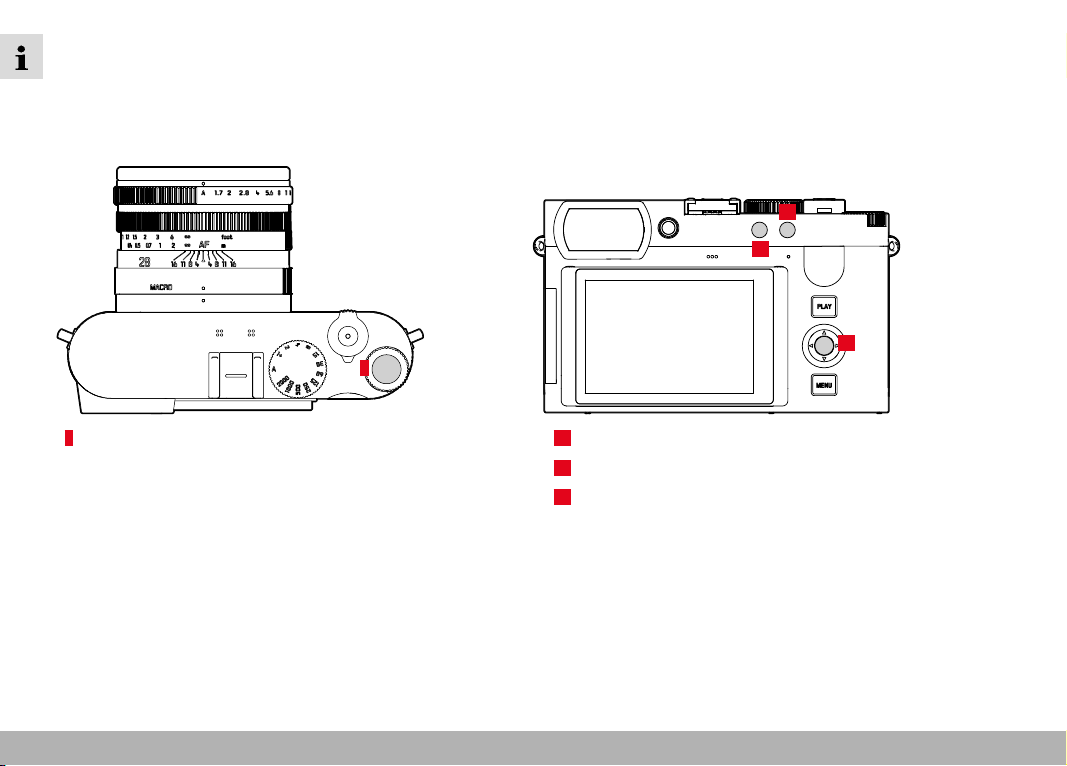
MENU OVERVIEW
246
MENU OVERVIEW
FUNCTION BUTTONS
The following control elements are available for direct access (see p. 59).
5
19
13
14
5
Thumbwheel button
13
FN button 1
14
FN button 2
19
Center button
LEGEND
u
=
Accessible via the status
screen
H
=
Available for the favorites
menu
l
=
Available for function
buttons
l
=
Factory setting on the
function buttons
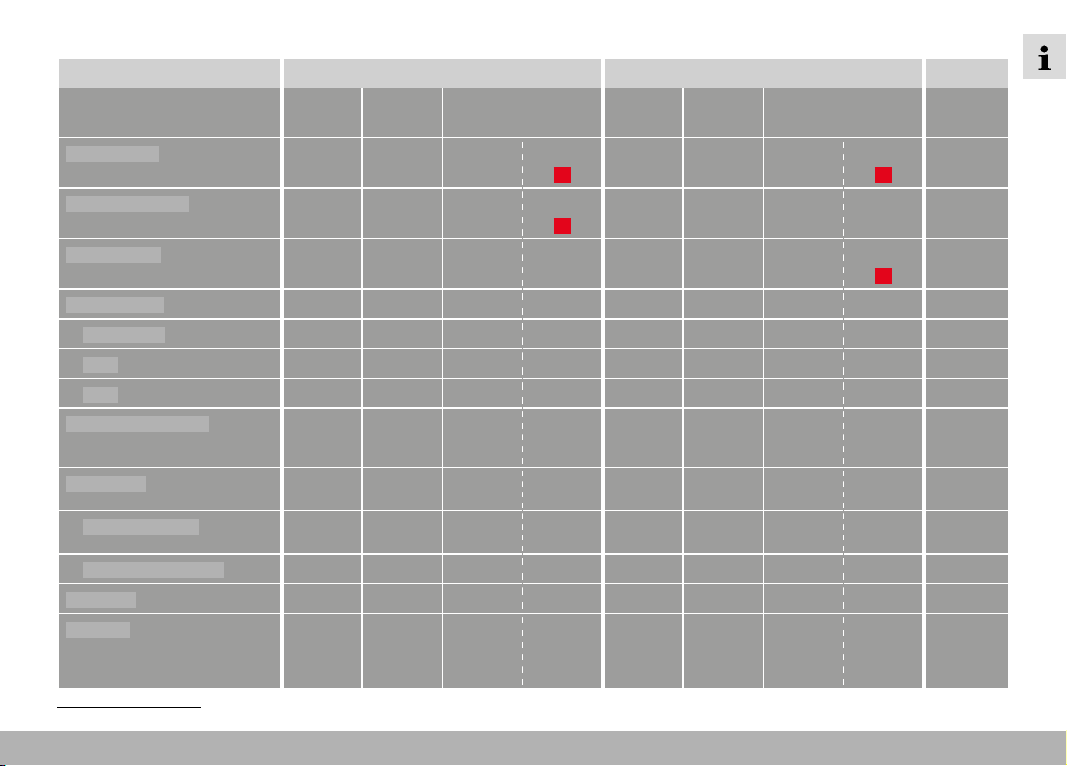
MENU OVERVIEW
247
DIRECT ACCESS
Function PHOTO VIDEO Page
Status
screen
Favorites Function buttons Status
screen
Favorites Function buttons
Photo - Video *
u
l l
(14)
u
l l
(14)
183
Toggle Info Levels
l l
(19)
44, 139
Magnification
l l l
(19)
Exposure lock
95 , 118
AF-L + AE-L
l
116 , 118
AE-L
l
95 , 118
AF-L
l
Toggle Video Gamma
l
44, 98, 102,
139, 189,
193
Drive Mode
u H
l
92,
120 –126
Interval shooting
H
l
121–122,
145
Exposure Bracketing
H
l
123
Self-timer
H
l
124
Focusing
H
l l
84–96,
100, 174,
185–187,
192
* Some function are available only via direct access. These are listed at the top of the table.
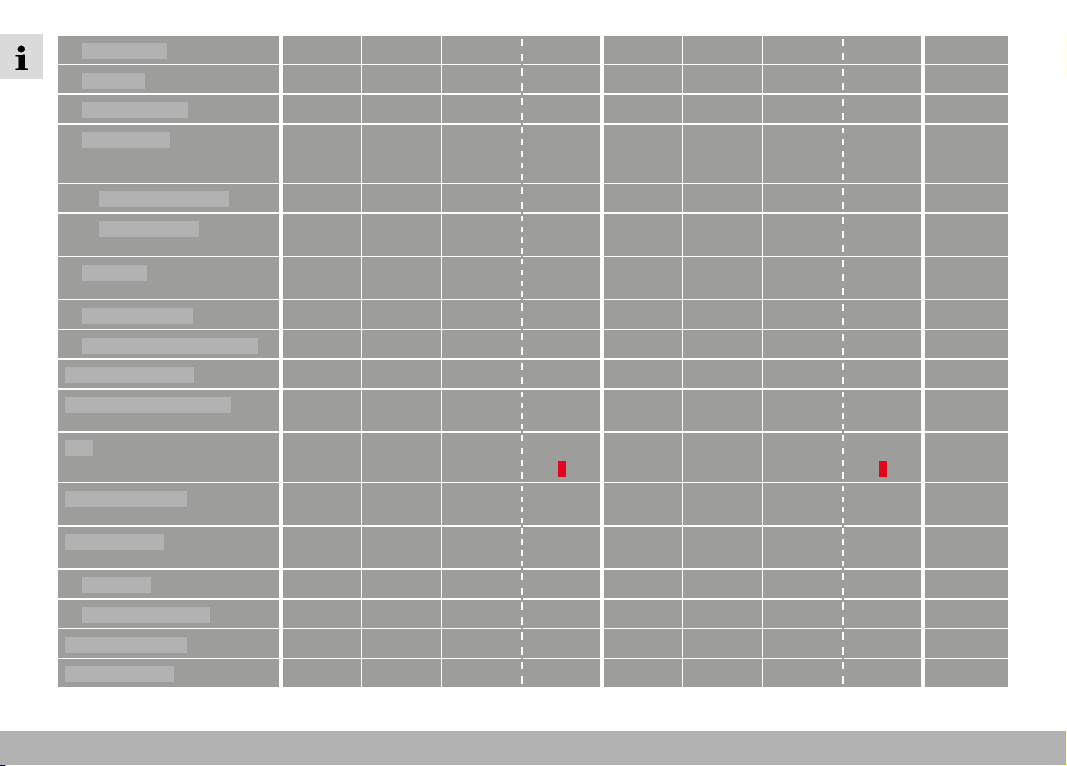
MENU OVERVIEW
248
Focus Mode
u H
l
u H
l
93, 185
AF Mode
u H
l
u H
l
94, 186
AF Assist Lamp
l
91
Focus Assist
H
l
H
l
87, 100,
101, 178,
192
Auto Magnification
l l
101, 192
Focus Peaking
l l
87, 100,
178, 192
Touch AF
l l
84–85,
174 –175
Touch AF in EVF
l l
85, 175
AF Tracking Start Position
H H
96, 187
Exposure Metering
u H
l
u H
l
108, 199
Exposure Compensation
u H
l
u H
l
119, 123,
204
ISO
u H
l l
(5)
u H
l l
(5)
60, 103,
194–196
Auto ISO Settings
H
l
H
l
103–104,
135, 195
White Balance
u H
l
u H
l
105–106,
197–198
Gray card
H
l
H
l
106, 197
Color Temperature
l l
107, 198
Photo File Format
u H
l
70
DNG Resolution
u H
l
71
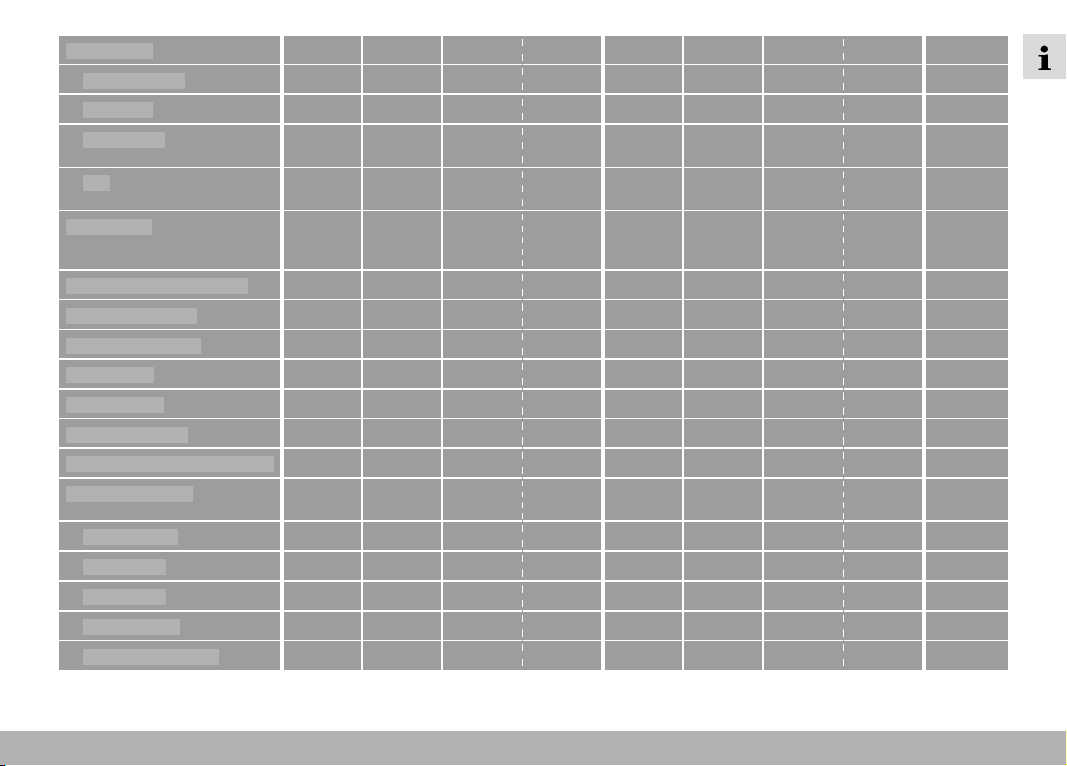
MENU OVERVIEW
249
JPG Settings
H
71, 74–78
JPG Resolution
u H
l
71, 126
Film Style
u H
l
72–75
Leica Looks
H
l
H
l
72, 75, 158,
161
iDR
H
l
H
l
78, 162,
169
Scene Mode
u H
l
u
l
110 –113,
127,
200–206
Optical Image Stabilization
H
l l
77, 168
Photo Aspect Ratio
H
72
Perspective Control
l
128–129
Shutter Type
H
l
107, 115
Flash Settings
H
l
134–136
Exposure Preview
H
l
113, 116
Long exposure noise reduction
H
l
76
Customize Control
H H
59–60, 119,
204
Edit Favorites
H H
59
FN Button 1
H H
60
FN Button 2
H H
60
Center Button
H H
60
Thumbwheel Button
H H
60
MENU OVERVIEW
250
Wheel Assignment
H
l
H
l
60, 119,
204
Auto Review
120, 138,
153
Flash Exp. Compensation
136
Video Format / Resolution
u H
l
158, 200
MOV
H
158
MP4
H
158
Video Settings
H
160–169
Microphone Gain
u
l
161
Video Gamma
l
158–167
LUT Profile
l
166 –167
Video Style
u H
l
158–162
Video Style Settings
H
160
Digital Zoom
H
l l
(13)
H
l l
(13)
47, 125,
183, 205
User Profile
u H
l
u H
l
61–63
Capture Assistants
H H
24, 85–89,
176–180
Clipping / Zebra
l
89, 17 7
Display Settings
H H
67–68
EVF-LCD
H
l
H
l
67
LCD Brightness
H H
67
EVF Brightness
H H
67
MENU OVERVIEW
251
EVF Frame Rate
H H
68
Leica FOTOS
u H
l
u H
l
229–236
Format Card
H
l
H
l
79–170
Camera Settings
32, 64–69,
81–83, 172,
228, 239
Acoustic Signal
l
69, 91, 181
MENU OVERVIEW
252
DIRECT ACCESS IN REVIEW MODE
Function Review (photo)/Playback (video) Page
Play Menu Function buttons
Toggle Info Levels
l l
(19)
44, 139
Rate / Unrate
l l
(14)
139, 209
EVF-LCD
l
67
Zoom
(photos only)
l l
(5)
Delete Single
l l l
(13)
44, 139, 209
Delete Multi
l l
150, 215
Delete Unrated
l l
152, 217
Delete All
l l
151, 216
Slideshow
l l
153–154

MENU OVERVIEW
253

INDEX
254
INDEX
4K ...............................................................................................157
8K ...............................................................................................157
A
A (aperture-priority mode) ...................................................112, 202
Academy, Leica .......................................................................... 271
Accessories .................................................................................... 3
Acoustic signals ........................................................................... 69
AE-L ............................................................................................117
AF assist lamp ........................................................................ 90, 99
AFc ........................................................................................93, 185
AF confirmation ............................................................... 69, 91, 181
AF-L ............................................................................................117
AF/MF, toggling ............................................................................ 93
AF mode ................................................................................93, 185
AF Quick Setting .......................................................................... 97
AFs ........................................................................................93, 185
Airplane mode ............................................................................ 235
Aperture .............................................................................. 110, 20 0
Aperture-priority mode .......................................................112 , 2 02
App ............................................................................................ 228
Apple MFi ..............................................................................83 , 172
Aspect ratio (video) .....................................................................157
Assist function ......................................................................85, 176
Assist functions, AF ................................................. 90, 98, 181, 189
Assist functions, MF ............................................................100, 192
Autofocus ..............................................................................93, 185
Auto ISO ..............................................................................103, 195
Automatic playback .....................................................................217
Automatic review .................................................................143, 153
Auxiliary displays ................................................................... 85, 176
B
Basic settings, camera ................................................................. 64
Basic settings, shooting (photo) ................................................... 70
Basic settings, shooting (video) .................................................. 156
Bluetooth .................................................................................... 234
Brightness, EVF ............................................................................ 67
Brightness, LCD panel .................................................................. 67
Button assignment ....................................................................... 59
C
C4K .............................................................................................157
C8K .............................................................................................157
Camera information.................................................................... 225
Camera, reset............................................................................. 224
Care ........................................................................................... 238
Carry strap ............................................................................. 10, 30
Center button ............................................................................... 41
Center-weighted metering ...................................................109, 199
Charger .................................................................................... 9, 30
Charge status, charger ................................................................. 31
Charge status, LCD panel ............................................................. 28
Charging the battery..................................................................... 31
Clipping ......................................................................... 89, 142, 177
Color profile ................................................................................. 74
Color rendering, EVF .................................................................... 68

INDEX
255
Color rendering, LCD panel .......................................................... 68
Color saturation, image properties (photo) ................................... 73
Color saturation, image properties (video) .................................. 159
Color settings, EVF ....................................................................... 68
Color settings, LCD panel ............................................................. 68
Color temperature ............................................................... 107, 198
Connection, mobile devices ....................................................... 228
Connectivity ............................................................................... 234
Contact, Leica ............................................................................ 270
Continuous shooting .................................................................. 120
Contrast, image properties (photo) ............................................... 73
Contrast, image properties (video) ............................................. 159
Copyright ..................................................................................... 81
Customer Service ....................................................................... 270
Custom LUT profiles ................................................................... 163
D
Dark area optimization ......................................................... 78, 168
Data management .................................................................79, 170
Data structure .......................................................................8 0 , 171
Data transfer .........................................................................83 , 172
Date ....................................................................................... 56, 64
Deactivation, LCD panel ............................................................... 68
Deletion, photos ..........................................................................149
Deletion, recordings (video) .........................................................214
Deletion, user profiles .............................................................61, 63
Digiscoping effect .......................................................................127
Digital zoom ........................................................................125, 205
Diopter compensation .................................................................. 36
Direct access ........................................................................59, 247
Directional pad ............................................................................. 41
Displays ..................................................................... 24, 26, 85, 176
Display, settings ........................................................................... 66
Display, standby ........................................................................... 68
Disposal ......................................................................................... 6
DNG ............................................................................................. 70
DNG Resolution ............................................................................ 71
Drive Mode .................................................................... 92, 120, 121
Dynamic ISO setting ............................................................ 104, 196
Dynamic Range .................................................................... 78, 168
E
Editing, video .............................................................................. 221
Electronic shutter .................................................................. 69, 107
Electronic shutter sound .............................................................. 69
EVF .............................................................................................. 68
Exposure ............................................................................. 107, 199
Exposure, automatic ............................................................ 111, 2 01
Exposure bracketing ....................................................................123
Exposure compensation ................................................ 60, 119, 204
Exposure compensation, flash .................................................... 136
Exposure lock ..............................................................................117
Exposure, long-term .............................................................. 76, 114
Exposure, manual ................................................................113, 20 3
Exposure metering, flash .............................................................132
Exposure, metering methods ...............................................108, 199
Exposure, modes .................................................................110, 20 0
Exposure preview ........................................................................116

INDEX
256
Exposure simulation ....................................................................116
Exposure time, max. .................................................................... 114
Eye sensor .................................................................................... 67
F
Face detection ......................................................................96, 188
Factory settings ......................................................................... 224
FAQ ............................................................................................ 240
Favorites, menu ...............................................................51, 58, 247
Favorites, recordings (video)........................................................213
Favorites, shots (photo) .............................................................. 148
FHD .............................................................................................157
Field metering .......................................................................94, 186
File format .............................................................................70, 156
File name ..............................................................................81, 172
Files, RAW .................................................................................... 70
Film Style ..................................................................................... 73
Firing point, flash ........................................................................ 134
Firmware ...............................................................................14, 225
Fixed ISO value .................................................................... 103, 194
Flash ...........................................................................................131
Flash, control ............................................................................. 134
Flash, exposure compensation ................................................... 136
Flash, exposure metering ............................................................132
Flash, firing point ........................................................................ 134
Flash, operating mode ................................................................ 133
Flash, range ................................................................................ 135
Flash, setting .............................................................................. 133
Flash, synchronization ................................................................ 134
Flash units, compatible................................................................131
FN button ............................................................................. 44, 247
Focus assist ........................................................................100, 192
Focusing ............................................................................... 93, 184
Focusing, automatic ..............................................................93, 185
Focusing, manual ................................................................100, 191
Focusing, metering methods .................................................94, 186
Focus mode.......................................................................... 93, 184
Focus peaking ....................................................... 87, 100, 178, 192
Folder, creating new ..............................................................81, 172
Folders ..................................................................................80, 171
Folder structure .....................................................................8 0 , 171
Format ..................................................................................70, 156
Formatting, memory card ...................................................... 79, 170
Frame rate ...................................................................................157
Full HD ........................................................................................157
G
General information.......................................................................12
Gimbal ........................................................................................ 184
Gray card ............................................................................106, 197
Grid .......................................................................................86, 17 7
H
HDMI ...........................................................................................175
HDR ............................................................................................123
Highlight, image properties (photo)............................................... 73
Highlight, image properties (video) ............................................. 159
Highlight-Weighted, exposure ..............................................109, 200
Histogram..............................................................................89, 180
Horizon..................................................................................88, 179

INDEX
257
I
iDR ........................................................................................78, 169
Image numbering ...................................................................80, 171
Image properties .................................................................. 72, 158
Image, series ............................................................... 120, 121, 123
Image stabilization (picture) .......................................................... 77
Image stabilization (video) .......................................................... 168
Individual button assignment ........................................................ 59
Info Bars ................................................................................ 86, 176
Info profiles ...........................................................................85, 176
Information displays ..............................................................85 , 176
Information, legal ........................................................................... 4
Information, regulatory ................................................................... 5
Inserting/removing the battery .................................................... 32
Intelligent AF .........................................................................93, 185
Intelligent Dynamic Range .................................................... 78, 168
Interval shooting ..........................................................................121
ISO Sensitivity .....................................................................103, 194
ISO setting, dynamic ...........................................................104, 196
ISO value, greatest ..............................................................103, 195
J
JPG ............................................................................................... 70
K
Keyboard ...................................................................................... 54
L
Language ...................................................................................... 64
LCD panel............................................................................... 42, 66
Legal information............................................................................ 4
Leica Akademie .......................................................................... 271
Leica Customer Care .................................................................. 270
Leica FOTOS ............................................................................ 7, 228
Leica FOTOS Cable ......................................................................... 7
Leica Looks ...........................................................................75, 161
Lens ....................................................................................... 8, 238
Lens hood .................................................................................... 35
Level gauge ...........................................................................88, 179
Long-term exposure .............................................................. 76, 114
LUT ............................................................................................. 163
M
Macro .................................................................................. 102, 194
Magnification, MF assist function ................................................101
Magnification, recording mode (video)................................. 189, 192
Magnification, review mode (photo) ............................................ 145
Magnification, shooting mode (photo) ...................................98, 101
Magnifying glass..........................................................................101
Main menu ................................................................................... 51
Main switch .................................................................................. 38
Manual exposure setting .....................................................113, 2 0 3
Manual focusing ..................................................................100, 191
Maximum Exposure Time ............................................................114
Memory card ............................................... 10, 13, 33, 79, 170, 239
Menu bar ...................................................................................... 55
Menu control ................................................................................ 46
Menu language ............................................................................. 64
Menu navigation ..................................................................... 48, 52
Menu screen ................................................................................ 46

INDEX
258
Metering method, AF .............................................................94, 186
Metering method, exposure .................................................108, 199
MF .......................................................................................100, 191
Microphone .................................................................................161
M (Manual exposure setting) ...............................................113 , 203
Mode, switching ......................................................................... 182
Monochrome (picture) .................................................................. 74
Monochrome shooting (photo) ..................................................... 74
Monochrome shooting (video) .................................................... 160
Monochrome (video) .................................................................. 160
MOV ........................................................................................... 156
MP4 ............................................................................................ 156
Multi-field metering, exposure ............................................. 109, 199
Multi-field metering, focusing ................................................94, 186
N
Name, file .................................................................80, 81, 171, 172
Name, folder .........................................................................80, 171
Navigation, menu.................................................................... 48, 52
Noiseless...................................................................................... 69
Noise reduction ........................................................ 76, 77, 112, 114
Number pad ................................................................................. 54
O
Offline mode............................................................................... 235
Operating mode, exposure ..................................................110, 2 0 0
Operating mode, flash ................................................................ 133
Operation, customized ................................................................. 58
Optical image stabilization ............................................................ 77
P
Person detection ...................................................................96, 188
Perspective Control .....................................................................128
Photo Aspect Ratio ....................................................................... 72
Photos, delete .............................................................................149
Photos, rating ............................................................................. 148
Photos, tagging .......................................................................... 148
Pixel Mapping ............................................................................. 239
Playback mode ........................................................................... 208
Playback, video ...........................................................................218
PLAY button ................................................................................. 42
Portrait ........................................................................................127
Power off, automatic ............................................................... 65, 68
Power save ................................................................................... 65
Power save mode ......................................................................... 65
P (program AE mode) ........................................................... 111, 201
Preview ...................................................................................... 153
Problems .................................................................................... 240
Profile, user .................................................................................. 61
Program AE mode ................................................................ 111, 201
PTP ........................................................................................83, 172
Q
Quick access .......................................................................... 58, 59
R
Rating, photo .............................................................................. 148
Rating, recordings (video) ............................................................213
Raw data ...................................................................................... 70
Rechargeable battery, capacity .................................................... 28

INDEX
259
Rechargeable battery, notes .............................................. 9, 12, 239
Recording, deleting (video) ..........................................................214
Recording, rating (video)..............................................................213
Recordings, tagging (video) .........................................................213
Regulatory information ................................................................... 5
Remote control ........................................................................... 236
Repair ......................................................................................... 270
Replacement parts ......................................................................... 3
Reset, camera ............................................................................ 224
Reset, image numbering ........................................................ 81, 172
Reset Image Numbering ........................................................81, 172
Resolution (photo) ........................................................................ 71
Resolution (video) ........................................................................157
Review, automatic (photo) .......................................................... 153
Review mode .............................................................................. 138
S
Safety remarks ............................................................................... 8
Saturation, image properties (photo) ............................................ 73
Saturation, image properties (video) ........................................... 159
Saving, energy .............................................................................. 65
Scale ............................................................................................ 55
Scene mode ................................................................................127
Scope of delivery ............................................................................ 2
SD card ....................................................... 10, 13, 33, 79, 170, 239
Self-timer ....................................................................................124
Sensitivity, eye sensor .................................................................. 67
Sensitivity, ISO ....................................................................103, 194
Sensor .....................................................................................10, 13
Service ....................................................................................... 270
Setting, LCD panel ....................................................................... 66
Settings, store .............................................................................. 61
Shadow, image properties (photo) ................................................ 73
Shadow, image properties (video) ............................................... 159
Sharpness, image properties (photo) ............................................ 73
Sharpness, image properties (video) .......................................... 159
Shift ......................................................................................6 0 , 111
Shooting, continuous.................................................................. 120
Shooting, interval ........................................................................121
Shooting Mode ............................................................................. 92
Shooting mode (Video) ............................................................... 182
Short cut ................................................................................ 58, 59
Shutter button .............................................................................. 39
Shutter, electronic ................................................................. 69, 107
Shutter-priority mode .......................................................... 112 , 2 0 2
Shutter release ............................................................................. 39
Shutter speed ........................................................ 60, 110, 114, 203
Shutter-speed/aperture combination ..................................110 , 2 00
Shutter-speed dial ........................................................................ 40
Signals, acoustic .......................................................................... 69
Silent ............................................................................................ 69
Silent operation ............................................................................ 69
Slide show ........................................................................... 153, 217
Smartphone ............................................................................... 228
Sound ....................................................................................69, 221
Spot metering, exposure .....................................................109, 199
Spot metering, focusing ........................................................94, 186
S (Shutter-priority mode) .....................................................112 , 2 02
Standby mode .............................................................................. 65
Status screen ....................................................................24, 26, 49

INDEX
260
Storage ...................................................................................... 238
Submenu ...................................................................................... 51
Switching, mode ..........................................................140, 182, 210
Switching off, camera ................................................................... 38
Switching on, camera ................................................................... 38
Sync point .................................................................................. 134
T
Tagging, recordings (video) ..........................................................213
Tagging, shots (photo) ................................................................ 148
Technical Data ............................................................................ 262
Tethering ...............................................................................83 , 172
T function ....................................................................................115
Thumbwheel ........................................................................... 40, 60
Thumbwheel button ...................................................................... 41
Time ....................................................................................... 56, 64
Time lapse ........................................................................... 121, 144
Time zone ..................................................................................... 65
Tones ........................................................................................... 69
Touch AF ...............................................................................8 4, 174
Touch control ..................................................................45, 84, 174
Tracking.................................................................................95, 187
Transfer, data ........................................................................83, 172
Troubleshooting .......................................................................... 240
TTL metering ....................................................................... 131, 132
U
Update, firmware ...................................................................14, 225
USB .............................................................................................. 32
USB mode .............................................................................83, 172
User-defined operation ................................................................. 58
User profiles ................................................................................. 61
V
Video ...................................................................................182, 218
Video format .............................................................................. 156
Video Gamma ..............................................................................162
Video mode ................................................................................ 182
Video stabilization ...................................................................... 168
Video Style ................................................................................. 159
Volume, acoustic signals .............................................................. 69
Volume, video ............................................................................. 221
W
Warning signal .............................................................................. 69
Warranty ...................................................................................... 15
White balance ...................................................................... 105, 196
Wi-Fi/WLAN ............................................................................7, 234
Wind noise reduction ...................................................................162
Z
Zebra ...........................................................................................177
Zone, focusing .......................................................................95, 186

INDEX
261

TECHNICAL DATA
262
TECHNICAL DATA
32.5 mm
92.6 mm
21.75 mm
12.4 mm
130.0 mm
75.0 mm
51.1 mm
37.5 mm
80.3 mm
62.8 mm
41.15 mm
51.5 mm
41.8 mm
75.1 mm
62.7 mm
69.0 mm
TECHNICAL DATA
263
Tripod threadTripod thread
A 1⁄4 DIN 4503 (1⁄4”) with stainless steel in the base
WeightWeight
Approx. 743 g/658 g (with/without battery)
SENSOR
Sensor sizeSensor size
CMOS sensor, 62.39 MP/60.3 MP (total/effective)
ProcessorProcessor
Leica Maestro series (Maestro IV)
FilterFilter
RGB color filter, UV/IR filter, no low-pass filter
File formatsFile formats
Photo: DNG™ (raw data), DNG + JPG, JPG (DCF 2.0, Exif 2.31)
Video:
MP4 h.265 AAC 48 kHz/16 bit
h.264 AAC 48 kHz/16 bit
MOV h.265 LPCM 28 kHz/24 bit
h.264 LPCM 28 kHz/24 bit
ProRes LPCM 28 kHz/24 bit
Image resolutionImage resolution
DNG™ 9520 x 6336 pixels (60.3 MP)
7404 x 4928 pixels (36.5 MP)
5288 x 3518 pixels (18.6 MP)
JPG 9520 x 6336 pixels (60.3 MP)
7392 x 4928 pixels (36.4 MP)
5280 x 3512 pixels (18.5 MP)
File sizeFile size
DNG™: approx. 70 MB, depending on resolution and image content
JPG: depending on resolution and image content
Video: max. length: 29 min
CAMERA
DesignationDesignation
Leica Q3
Camera typeCamera type
Digital 35 mm compact camera
Type No.Type No.
6506
Order No.Order No.
19 080 EU/US/CN, 19 081 JP, 19 082 ROW
Buffer memoryBuffer memory
8 GB
Capacity, depending on frame rate and picture format, estimated quan-
tity (number of possible images in the buffer memory)
DNG DNG + JPG JPG
15 f ps 63 63 67
9 fps 70 66 76
7 fps 74 69 83
4 fps 83 72 104
2 fps 16 4 88 947
Storage mediumStorage medium
UHS-II (recommended), UHS-I, SD/SDHC/SDXC memory card
MaterialMaterial
Full metal housing: magnesium die-cast, leather covering
Protection type IP52
Operating conditionsOperating conditions
0°C to +40°C
InterfacesInterfaces
ISO accessory shoe with additional control contacts for Leica flash
units, HDMI jack Type D, USB 3.1 Gen 2 Type C up to 10 Gbps
TECHNICAL DATA
264
MOV 8K (HDMI output without HLG/L-Log and without recording to SD)
29.97 f ps 8K 4:2:0 / 8 bit h.265 L-GOP 300 Mbps
25.00 fps 8K 4:2:0 / 8 bit h.265 L-GOP 300 Mbps
24.00 fps 8K 4:2:0 / 8 bit h.265 L-GOP 300 Mbps
23.98 fps 8K 4:2:0 / 8 bit h.265 L-GOP 300 Mbps
MOV 8K (HDMI output with HLG/L-Log or during recording to SD)
29.97 f ps 4K 4:2:2 / 10 bit h.265 L-GOP 300 Mbps
25.00 fps 4K 4:2:2 / 10 bit h.265 L-GOP 300 Mbps
24.00 fps 4K 4:2:2 / 10 bit h.265 L-GOP 300 Mbps
23.98 fps 4K 4:2:2 / 10 bit h.265 L-GOP 300 Mbps
MOV C4K
59.94 f ps 4:2:2 / 10 bit (SD & HDMI) h.264 ALL- I 600 Mbps
50.00 fps 4:2:2 / 10 bit (SD & HDMI) h.264 ALL- I 600 Mbps
48.00 fps 4:2:2 / 10 bit (SD) h.264 ALL- I 600 Mbps
24.00 fps 4:2:2 / 10 bit (HDMI)
47.95 fp s 4:2:2 / 10 bit (SD) h.264 ALL-I 600 Mbps
23.98 fps 4:2:2 / 10 bit (HDMI)
29.97 f ps 4:2:2 / 10 bit (SD & HDMI) h.264 ALL- I 400 Mbps
25.00 fps 4:2:2 / 10 bit (SD & HDMI) h.264 ALL- I 400 Mbps
24.00 fps 4:2:2 / 10 bit (SD & HDMI) h.264 ALL- I 400 Mbps
23.98 fps 4:2:2 / 10 bit (SD & HDMI) h.264 ALL- I 400 Mbps
MOV 4K
59.94 f ps 4:2:2 / 10 bit (SD & HDMI) h.264 ALL- I 600 Mbps
50.00 fps 4:2:2 / 10 bit (SD & HDMI) h.264 ALL- I 600 Mbps
48.00 fps 4:2:2 / 10 bit (SD) h.264 ALL- I 600 Mbps
24.00 fps 4:2:2 / 10 bit (HDMI)
47.95 fp s 4:2:2 / 10 bit (SD) h.264 ALL-I 600 Mbps
23.98 fps 4:2:2 / 10 bit (HDMI)
29.97 f ps 4:2:2 / 10 bit (SD & HDMI) h.264 ALL- I 400 Mbps
25.00 fps 4:2:2 / 10 bit (SD & HDMI) h.264 ALL- I 400 Mbps
24.00 fps 4:2:2 / 10 bit (SD & HDMI) h.264 ALL- I 400 Mbps
23.98 fps 4:2:2 / 10 bit (SD & HDMI) h.264 ALL- I 400 Mbps
MOV FHD
119. 8 8 f p s 4:2:2 / 10 bit (SD & HDMI) h.264 ALL- I 400 Mbps
100.00 fps 4:2:2 / 10 bit (SD & HDMI) h.264 ALL- I 400 Mbps
59.94 f ps 4:2:2 / 10 bit (SD & HDMI) h.264 ALL- I 200 Mbps
50.00 fps 4:2:2 / 10 bit (SD & HDMI) h.264 ALL- I 200 Mbps
48.00 fps 4:2:2 / 10 bit (SD) h.264 ALL- I 200 Mbps
24.00 fps 4:2:2 / 10 bit (HDMI)
47.95 fp s 4:2:2 / 10 bit (SD) h.264 ALL-I 200 Mbps
23.98 fps 4:2:2 / 10 bit (HDMI)
Color depthColor depth
DNG™: 14 bit
JPG: 8 bit
Color spaceColor space
Photo: sRGB
Video ResolutionVideo Resolution
RESOLUTION
C8K (17:9) 8192 x 4320
8K (16:9) 7680 x 4320
C4 K (17:9) 4096 x 2160
4K (16:9) 3840 x 2160
Full HD (16:9) 1920 x 1080
Video frame rate / bit rateVideo frame rate / bit rate
MOV C8K
MOV C8K (recording to SD)
29.97 f ps C8K 4:2:0 / 10 bit h.265 L-GOP 300 Mbps
25.00 fps C8K 4:2:0 / 10 bit h.265 L-GOP 300 Mbps
24.00 fps C8K 4:2:0 / 10 bit h.265 L-GOP 300 Mbps
23.98 fps C8K 4:2:0 / 10 bit h.265 L-GOP 300 Mbps
MOV C8K (HDMI output without HLG/L-Log and without recording to SD)
29.97 f ps 8K 4:2:0 / 8 bit h.265 L-GOP 300 Mbps
25.00 fps 8K 4:2:0 / 8 bit h.265 L-GOP 300 Mbps
24.00 fps 8K 4:2:0 / 8 bit h.265 L-GOP 300 Mbps
23.98 fps 8K 4:2:0 / 8 bit h.265 L-GOP 300 Mbps
MOV C8K (HDMI output with HLG/L-Log or during recording to SD)
29.97 f ps C4K 4:2:2 / 10 bit h.265 L-GOP 300 Mbps
25.00 fps C4K 4:2:2 / 10 bit h.265 L-GOP 300 Mbps
24.00 fps C4K 4:2:2 / 10 bit h.265 L-GOP 300 Mbps
23.98 fps C4K 4:2:2 / 10 bit h.265 L-GOP 300 Mbps
MOV 8K
MOV 8K (recording to SD)
29.97 f ps 8K 4:2:0 / 10 bit h.265 L-GOP 300 Mbps
25.00 fps 8K 4:2:0 / 10 bit h.265 L-GOP 300 Mbps
24.00 fps 8K 4:2:0 / 10 bit h.265 L-GOP 300 Mbps
23.98 fps 8K 4:2:0 / 10 bit h.265 L-GOP 300 Mbps
TECHNICAL DATA
265
LENS
DesignationDesignation
Leica Summilux 28 f/1.7 ASPH., 11 lenses in 9 segments, 3 aspherical
lens areas
Lens filter threadLens filter thread
E49
Digital ZoomDigital Zoom
Optionally approx. 1.25x (equivalent to 35 mm), approx. 1.8x (equivalent
to 50 mm), approx. 2.7x (equivalent to 75 mm), or approx. 3.2x (equiva-
lent to 90 mm)
Image stabilizationImage stabilization
Visual compensation system for photos and video recordings
Aperture rangeAperture range
F1.7 to F16 in 1⁄3 EV increments
VIEWFINDER/LCD PANEL
Viewfinder (EVF)Viewfinder (EVF)
Resolution: 5,760,000 dots, 120 fps, magnification: 0.79x at aspect
ratio: 4:3 / 0.76x at aspect ratio: 3:2, frame coverage: 100%, exit pupil
position: 20.75 mm, setting range -4/+2 dpt, with eye sensor for auto-
matic switchover between viewfinder and LCD panel, time delay 0.005 s
LCD panelLCD panel
3” TFT LCD, 1,843,200 dots, 384 ppi, aspect ratio 3:2, touch panel
SHUTTER
Shutter typeShutter type
Mechanical central shutter or optional electronic shutter
Shutter speedsShutter speeds
Mech. shutter: 120 s to 1⁄2000 s
Electro. shutter function: 1 s to 1⁄16000 s
Flash Synchronization: up to 1⁄2000 s
29.97 f ps 4:2:2 / 10 bit (SD & HDMI) h.264 ALL- I 200 Mbps
25.00 fps 4:2:2 / 10 bit (SD & HDMI) h.264 ALL- I 200 Mbps
24.00 fps 4:2:2 / 10 bit (SD & HDMI) h.264 ALL- I 200 Mbps
23.98 fps 4:2:2 / 10 bit (SD & HDMI) h.264 ALL- I 200 Mbps
MOV FHD Slow Motion
Sensor: 119.88 fps 4:2:0 / 10 bit (SD & HDMI) h.265 L-GOP 100 Mbps
Recording/Playback: 29.97 fps
Sensor: 100.00 fps 4:2:0 / 10 bit (SD & HDMI) h.265 L-GOP 100 Mbps
Recording/Playback: 25.00 fps
MOV FHD ProRes
59.94 f ps 422HQ ProRes 454 Mbps
50.00 fps 422HQ ProRes 378 Mbps
29.97 f ps 422HQ ProRes 227 Mbps
25.00 fps 422HQ ProRes 189 Mbps
24.00 fps 422HQ ProRes 182 Mbps
23.98 fps 422HQ ProRes 181 Mbps
MP4 8K
MP4 8K (recording to SD)
29.97 f ps 8K 4:2:0 / 10 bit h.265 L-GOP 300 Mbps
25.00 fps 8K 4:2:0 / 10 bit h.265 L-GOP 300 Mbps
23.98 fps 8K 4:2:0 / 10 bit h.265 L-GOP 300 Mbps
MP4 8K (HDMI output without recording to SD)
29.97 f ps 8K 4:2:0 / 8 bit h.265 L-GOP 300 Mbps
25.00 fps 8K 4:2:0 / 8 bit h.265 L-GOP 300 Mbps
23.98 fps 8K 4:2:0 / 8 bit h.265 L-GOP 300 Mbps
MP4 8K (HDMI output during recording to SD)
29.97 f ps 4K 4:2:2 / 10 bit h.265 L-GOP 300 Mbps
25.00 fps 4K 4:2:2 / 10 bit h.265 L-GOP 300 Mbps
23.98 fps 4K 4:2:2 / 10 bit h.265 L-GOP 300 Mbps
MP4 4K
59.94 f ps 4:2:0 / 10 bit (SD & HDMI) h.265 L-GOP 100 Mbps
50.00 fps 4:2:0 / 10 bit (SD & HDMI) h.265 L-GOP 100 Mbps
29.97 f ps 4:2:0 / 8 bit (SD & HDMI) h.264 L-GOP 100 Mbps
25.00 fps 4:2:0 / 8 bit (SD & HDMI) h.264 L-GOP 100 Mbps
23.98 fps 4:2:0 / 8 bit (SD & HDMI) h.264 L-GOP 100 Mbps
MP4 FHD
59.94 f ps 4:2:0 / 8 bit (SD & HDMI) h.264 L-GOP 28 Mbps
50.00 fps 4:2:0 / 8 bit (SD & HDMI) h.264 L-GOP 28 Mbps
29.97 f ps 4:2:0 / 8 bit (SD & HDMI) h.264 L-GOP 20 Mbps
25.00 fps 4:2:0 / 8 bit (SD & HDMI) h.264 L-GOP 20 Mbps
23.98 fps 4:2:0 / 8 bit (SD & HDMI) h.264 L-GOP 24 Mbps

TECHNICAL DATA
266
Shutter buttonShutter button
Two-stage
(1st stage: Activation of the camera electronics including autofocus and
exposure metering, 2nd stage: Taking the picture)
Self-timerSelf-timer
Delay time: 2 s or 12 s
Drive modeDrive mode
Single , Interval Shooting , Exposure Bracketing
Continuous shooting:
–
Continuous - 2 fps / 14 bit / AF , Continuous - 4 fps / 14 bit / AF :
Automatic settings (exposure settings in operating modes P/A/S,
automatic white balance and autofocus) are implemented individually
for each frame.
–
Continuous - 7 fps / 14 bit , Continuous - 9 fps / 12 bit , Continuous -
15 fps / 12 bit :
Automatic settings (exposure settings in operating modes P/A/S,
automatic white balance and autofocus) are implemented for the first
frame, and are then applied for each subsequent frame in the same
picture series.
FOCUSING
Focusing rangeFocusing range
30 cm to ∞
With macro setting: from 17 cm
Focus modeFocus mode
Automatic or manual
With manual setting: optional magnifying glass function (
Auto Magnifi-
cation ) and edge marking ( Focus Peaking ) available as focus aids
Autofocus systemAutofocus system
Hybrid-AF due to combination of contrast metering, depth mapping,
and phase comparison metering with AF metering points in the
sensor.
Autofocus modesAutofocus modes
Intelligent AF (autonomously selects AFs and AFc ), AFs , AFc , AF set-
ting can be saved, optional Touch AF
Autofocus metering methodsAutofocus metering methods
Spot (can be shifted), Field (can be shifted and scaled), Multi-Field ,
Zone (can be shifted), Eye/Face/Body Detection , Eye/Face/Body +
Animal Detection , Tracking
Autofocus metering fieldsAutofocus metering fields
315
EXPOSURE
Exposure meteringExposure metering
TTL (exposure metering through the lens), with working aperture
Exposure metering methodsExposure metering methods
Spot , Center-Weighted , Highlight-Weighted , Multi-Field
Exposure modesExposure modes
Program AE mode (P)
Aperture-priority mode (A): manual aperture setting
Shutter-priority mode (S): manual shutter-speed setting
Manual (M): manual setting for shutter speed and aperture
Various fully automated variants (
Scene Mode ): AUTO , Sport , Portrait ,
Landscape , Night Portrait , Snow/Beach , Fireworks , Candlelight ,
Sunset , Digiscoping
Exposure compensationExposure compensation
±3 EV in 1⁄3 EV increments
Automatic bracketingAutomatic bracketing
3 or 5 frames, graduations between shoots up to 3 EV, in 1⁄3 EV incre-
ments
additional optional exposure compensation: up to ±3 EV
TECHNICAL DATA
267
ISO sensitivity rangeISO sensitivity range
Photo Video
Auto ISO
ISO 100 to ISO 100 000 ISO 100 to ISO 100 000
Manual
ISO 50 to ISO 100 000 ISO 50 to ISO 100 000
White balanceWhite balance
Automatic (
Auto ), default ( Daylight
,
Cloudy
,
Shadow
,
Tungsten
,
Flash ),
manual metering ( Graycard ), manual color temperature settings ( Color
Temperature , 2000 K to 11500 K)
FLASH EXPOSURE CONTROL
Flash unit connectorFlash unit connector
Via the accessory shoe
Flash sync timeFlash sync time
: 1⁄2000 s, slower shutter speeds available, automatic changeover
to TTL linear flash mode with HSS-compatible Leica system flash units
if sync time is undercut
Flash exposure meteringFlash exposure metering
Using center-weighted TTL pre-flash metering with Leica flash units
(SF 26, SF 40, SF 58, SF 60, SF 64) or with system-compatible flash
units, remote controlled flash SF C1
Flash exposure compensationFlash exposure compensation
SF 40: ±2 EV in 1⁄2 EV increments
SF 60: ±2 EV in 1⁄3 EV increments
EQUIPMENT
MicrophoneMicrophone
Stereo
SpeakerSpeaker
Mono
WLANWLAN
WLAN function for connecting to the Leica FOTOS app. The Leica app is
available from the Apple App Store™ or the Google Play Store™.
2.4 GHz 5 GHz
EU/
US/
CN
IEEE802.11b/g/n:
channel 1–11 (2412–
2462 MHz)
Client mode:
(For indoor use only)
IEEE802.11a/n/ac: Channel 36–64
(5180–5320 MHz)
Access point + client mode:
IEEE802.11a/n/ac: Channel
149–165 (5745–5825 MHz)
JP
Access point + client mode:
(For indoor use only)
IEEE802.11a/n/ac: Channel 36–48
(5180–5240 MHz)
Client mode:
(For indoor use only)
IEEE802.11a/n/ac: Channel 52–144
(5260–5720 MHz)
ROW
-
Maximum output (e.i.r.p.): <14 dBm, encryption method: WLAN-compat-
ible WPA™/WPA2™/WPA3™
GPSGPS
Not available everywhere due to country-specific legislation; can be
added via the Leica FOTOS app. Data is written to Exif header of the
picture files.
BluetoothBluetooth
Bluetooth 5.0 LE: Channel 0–39 (2402–2480 MHz), maximum output
(e.i.r.p.): 10 dBm
Menu languagesMenu languages
English, German, French, Italian, Spanish, Portuguese, Russian, Japanese,
Traditional Chinese, Simplified Chinese, Korean
POWER SUPPLY
Rechargeable battery (Leica BP-SCL6)Rechargeable battery (Leica BP-SCL6)
Lithium-ion rechargeable battery, rated voltage: 7.2 V (DC); capacity:
2200 mAh (min.), 350 shots (based on CIPA standard, with
Displays/AF
Auto Off = 5 s); manufacturer: Panasonic Energy (Wuxi) Co. Ltd., Made
in China

TECHNICAL DATA
268
Charger (Leica BC-SCL4)Charger (Leica BC-SCL4)
Input: AC 100–240 V, 50/60 Hz, 0.25 A, automatic switchover; output:
DC 8.4 V 0.85 A; manufacturer: Salom Electric (Xiamen) Co., Ltd., Made
in China
Charging via USBCharging via USB
During operation: 9 V/3 A (min. 27 W)
With camera switched off: 5 V/1500 mA (2.5 W or greater)
Wireless ChargingWireless Charging
Optimal performance with 9 V chargers (10 W Charging Pad required)
Rated values for input voltage/powerRated values for input voltage/power
7.2 V
2.3 A (battery), 5 V 3.0 A / 9 V 2.5 A (USB)

269

LEICA CUSTOMER CARE
270
LEICA CUSTOMER CARE
Please contact the Customer Care department of Leica Camera AG
for the maintenance of your Leica equipment and for help and ad-
vice regarding Leica products and how to order them. You can also
contact the Customer Care department or the repair service provid-
ed by your regional Leica subsidiary for repairs or warranty claims.
LEICA GERMANY
Leica Camera AG
Leica Customer Care
Am Leitz-Park 5
35578 Wetzlar
Germany
Phone: +49(0)6441 2080-189
Fax: +49(0)6441 2080-339
Email: customer.care@leica-camera.com
https://leica-camera.com
YOUR NATIONAL REPRESENTATIVE
You will find the Customer Care department responsible for your
locality on our homepage:
https://leica-camera.com/en-US/contact

LEICA AKADEMIE
271
LEICA AKADEMIE
Have a look at our full seminar program with many interesting work-
shops on the topic of photography at:
https://leica-camera.com/en-US/leica-akademie