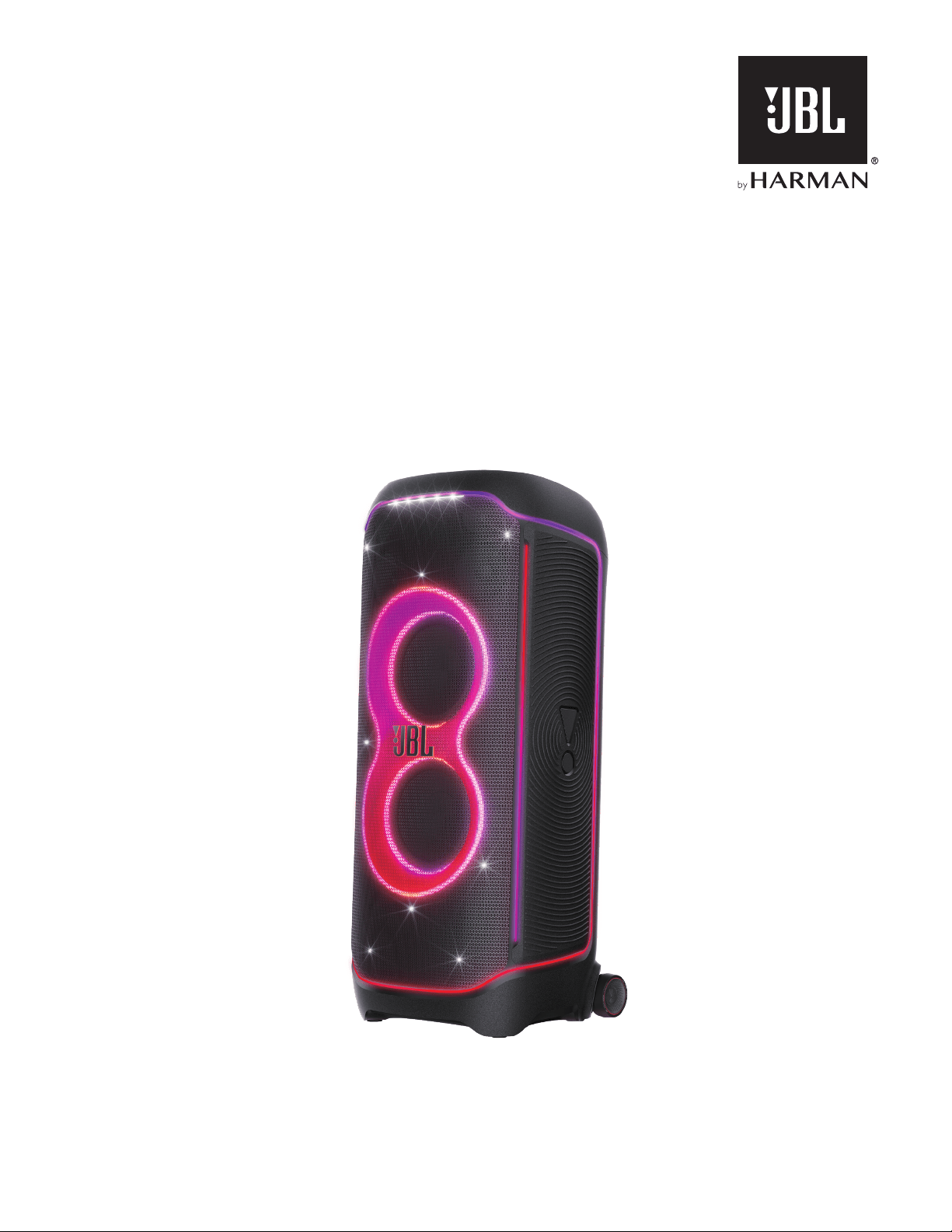
PARTYBOX ULTIMATE
OWNER’S MANUAL
22
IMPORTANT SAFETY INSTRUCTIONS
For all products:
1. Read these instructions.
2. Keep these instructions.
3. Heed all warnings.
4. Follow all instructions.
5. Do not block any ventilation openings. Install this apparatus
in accordance with the manufacturer’s instructions.
6. Do not install this apparatus near any heat sources such as
radiators, heat registers, stoves or other apparatus (including
ampliers) that produce heat.
7. Do not defeat the safety purpose of the polarized or grounding-
type plug. A polarized plug has two blades with one wider
than the other. A grounding-type plug has two blades and
a third grounding prong. The wide blade or the third prong
is provided for your safety. If the provided plug does not t
into your outlet, consult an electrician for replacement of the
obsolete outlet.
8. Protect the power cord from being walked on or pinched,
particularly at plugs, convenience receptacles and the point
where they exit from the apparatus.
9. Use only attachments/accessories specied by the
manufacturer.
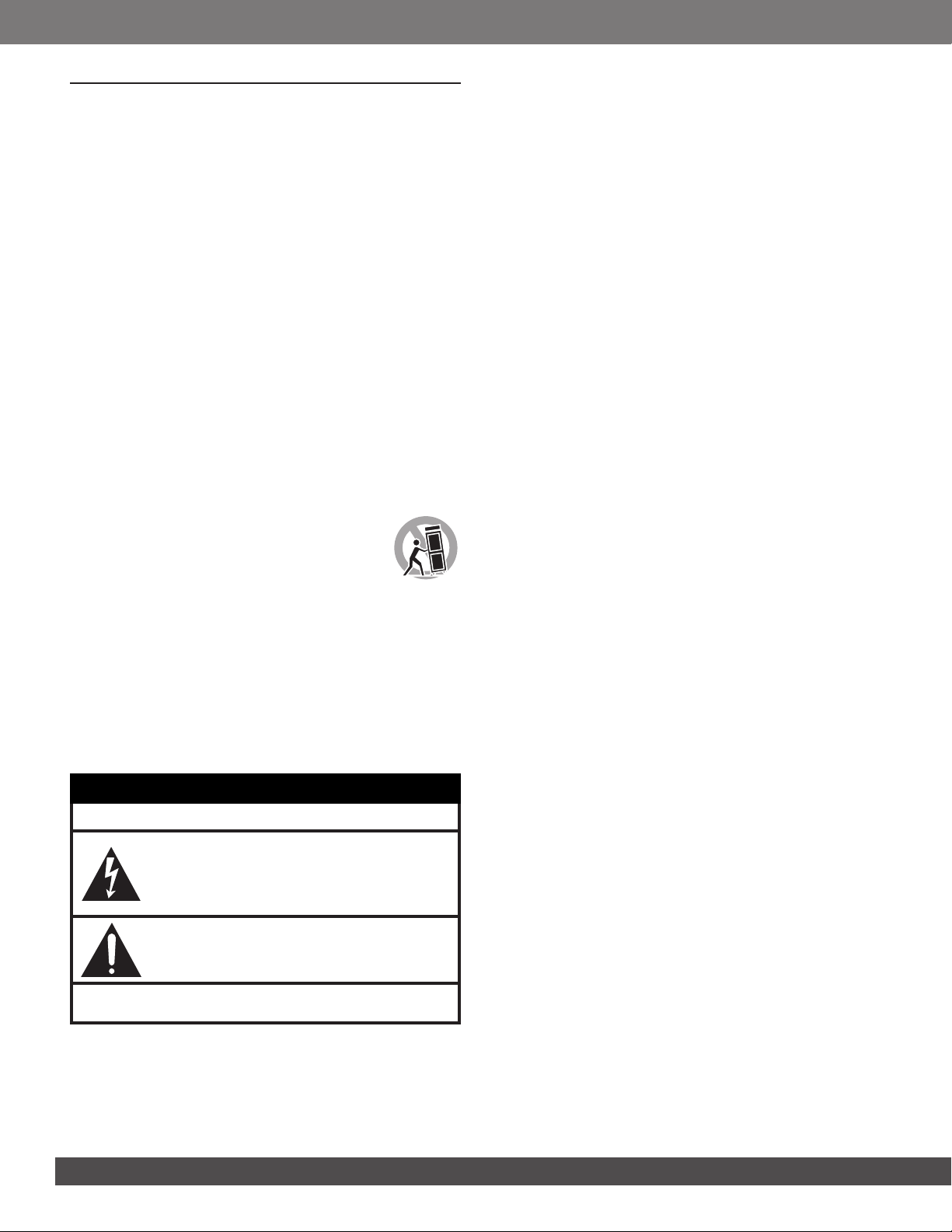
10. Use only with the cart, stand, tripod, bracket or
table specied by the manufacturer or sold with
the apparatus. When a cart is used, use caution
when moving the cart/apparatus combination
to avoid injury from tip-over.
11. Unplug this apparatus during lightning storms or when
unused for long periods of time.
12. To disconnect this apparatus from the AC mains completely,
disconnect the power-supply cord plug from the AC
receptacle.
13. The mains plug of the power-supply cord shall remain readily
operable.
14. This apparatus is intended to be used only with the power
supply and/or charging cable provided by the manufacturer.
CAUTION
RISK OF ELECTRIC SHOCK. DO NOT OPEN.
THE LIGHTNING FLASH WITH AN ARROWHEAD SYMBOL, WITHIN AN
EQUILATERAL TRIANGLE, IS INTENDED TO ALERT THE USER TO THE
PRESENCE OF UNINSULATED “DANGEROUS VOLTAGE” WITHIN THE
PRODUCT'S ENCLOSURE THAT MAY BE OF SUFFICIENT MAGNITUDE TO
CONSTITUTE A RISK OF ELECTRIC SHOCK TO PERSONS.
THE EXCLAMATION POINT WITHIN AN EQUILATERAL TRIANGLE IS
INTENDED TO ALERT THE USER TO THE PRESENCE OF IMPORTANT
OPERATING AND MAINTENANCE (SERVICING) INSTRUCTIONS IN THE
LITERATURE ACCOMPANYING THE PRODUCT.
WARNING: TO REDUCE THE RISK OF FIRE OR ELECTRIC SHOCK, DO NOT EXPOSE THIS
APPARATUS TO RAIN OR MOISTURE.
Caution FCC and IC statement for users (USA and Canada
only)
This device complies with part 15 of the FCC Rules. Operation
is subject to the following two conditions: (1) This device may
not cause harmful interference, and (2) this device must accept
any interference received, including interference that may cause
undesired operation.
CAN ICES-3(B)/NMB-3(B)
Federal Communication Commission
Interference Statement
This equipment has been tested and found to comply with the limits
for a Class B digital device, pursuant to Part 15 of the FCC Rules.
These limits are designed to provide reasonable protection against
harmful interference in a residential installation. This equipment
generates, uses and can radiate radio frequency energy and, if
not installed and used in accordance with the instructions, may
cause harmful interference to radio communications. However,
there is no guarantee that interference will not occur in a particular
installation. If this equipment does cause harmful interference to
radio or television reception, which can be determined by turning
the equipment off and on, the user is encouraged to try to correct
the interference by one or more of the following measures:
• Reorient or relocate the receiving antenna.
• Increase the separation between the equipment and receiver.
• Connect the equipment into an outlet on a circuit different
from that to which the receiver is connected.
• Consult the dealer or an experienced radio/TV technician for
help.
Caution: Changes or modications not expressly approved
by HARMAN could void the user’s authority to operate the
equipment.
For Products That Transmit RF Energy
FCC AND IC INFORMATION FOR USERS
This device complies with Part 15 of the FCC rules and Industry
Canada license-exempt RSS standard(s). Operation is subject
to the following two conditions: (1) This device may not cause
harmful interference; and (2) this device must accept any
interference received, including interference that may cause
undesired operation.
FCC/IC Radiation Exposure Statement
This equipment complies with FCC/IC RSS-102 radiation
exposure limits set forth for an uncontrolled environment.
FCC Caution:
High power radars are allocated as primary users of the 5.25 to
5.35 GHz and 5.65 to 5.85 GHz bands. These radar stations
can cause interference with and/or damage this device. No
conguration controls are provided for this wireless equipment
allowing any change in the frequency of operations outside the
FCC grant of authorization for US operation according to Part
15.407 of the FCC rules.
IC Caution:
User should also be advised that:
(i) The device for operation in the band 5150-5250 MHz is only
for indoor use to reduce the potential for harmful interference to
co-channel mobile satellite systems; (ii) the maximum antenna
gain permitted for devices in the bands 5250-5350 MHz and
5470-5725 MHz shall comply with the e.i.r.p. Limit: and (iii)
The maximum antenna gain permitted for devices in the band
5725-5825 MHz shall comply with the e.i.r.p. Limits specied for
33
www.jbl.com
English
point-to-point and non-point-to-point operation as appropriate.
(iv) Users should also be advised that high-power radars are
allocated as primary users (i.e. priority users) of the bands 5250-
5350 MHz and 5650-5850 MHz and that these radars could
cause interference and/or damage to LE-LAN devices.
Exposure of humans to RF fields (RSS-102)
The computers employ low gain integral antennas that do not
emit RF eld in excess of Health Canada limits for the general
population; consult Safety Code 6, obtainable from Health
Canada’s Website at http://www.hc-sc.gc.ca/
The radiated energy from the antennas connected to the wireless
adapters conforms to the IC limit of the RF exposure requirement
regarding IC RSS-102, Issue 5 clause 4. SAR tests are conducted
using recommended operating positions accepted by the FCC/
RSS with the device transmitting at its highest away from the
body. Non-compliance with the above restrictions may result in
a violation of FCC RF exposure guidelines.
Use Restriction: Attention in France, the operation is limited to
indoor use within the band 5150-5350 MHz.
For Products with Radio Receivers That Can
Use an External Antenna (USA ONLY)
CATV (Cable TV) or Antenna Grounding
If an outside antenna or cable system is connected to this
product, be certain that it is grounded so as to provide some
protection against voltage surges and static charges. Section
810 of the National Electrical Code (NEC), ANSI/NFPA No. 700-
1984, provides information with respect to proper grounding of
the mast and supporting structure, grounding of the lead-in wire
to an antenna discharge unit, of grounding conductors, location
of antenna discharge unit, connection to grounding electrodes
and requirements of the electrode.
Note to CATV System Installer
This reminder is provided to call the CATV(cable TV) system
installer’s attention to article 820-40 of the NEC, which provides
guidelines for proper grounding and, in particular, as close to the
point of cable entry as possible.
FOR ALL EU COUNTRIES
For products that include audio out
Prevention of hearing loss
CAUTION: Permanent hearing loss may occur
if earphones or headphones are used at high
volume for prolonged periods of time.
For France, the products have been tested to
comply with Sound Pressure Level requirement
laid down in the applicable NF EN 50332 L.5232-1.
NOTE:
– To prevent possible hearing damage, do not listen to high volume
levels for long periods.
WEEE Notice
The Directive on Waste Electrical Equipment (WEEE), which
entered into force as European law on 14/02/2014, resulted in
a major change in the treatment of electrical equipment at end-
of-life.
The purpose of this Directive is, a rst priority, the prevention of
WEEE, and in addition, to promote the reuse, recycling and other
forms of recovery of such wastes as so as to reduce disposal.
The WEEE logo on the product or on its box indicating collection
for electrical and electronic equipment consists of the crossed-
out wheeled bin, as shown below.
This product must not be disposed of or dumped with
your other household waste. You are liable to dispose
of all your electronic or electrical waste equipment by
relocating over to the specied collection point for
recycling of such hazardous waste. Isolated collection
and proper recovery of your electronic and electrical waste
equipment at the time of disposal will allow us to help conserving
natural resources. Moreover, proper recycling, and collection
points, please contact your local city center, household waste
disposal service, shop from where you purchased the equipment,
or manufacturer of the equipment.
RoHS Compliance
This product is in compliance with Directive 2011/65/EU of the
European Parliament and of the Council of 8 June 2011 on the
restriction of the use of certain hazardous substances in electrical
and electronic equipment.
For All Products Except Those with Wireless
Operation
HARMAN International hereby declares that this equipment is in
compliance with EMC 2014/30/EU Directive, LVD 2014/35/EU
Directive. The declaration of conformity may be consulted in the
support section of our Web Site, accessible from www.jbl.com.
For All Products with Wireless Operation
HARMAN International hereby declares that this equipment
is in compliance with the essential requirements and other
relevant provisions of Directive 2014/53/EU. The declaration of
conformity may be consulted in the support section of our Web
Site, accessible from www.jbl.com.
EPILEPSY
WARNING
A few people may experience epileptic
seizures when viewing ashing lights.
44
9. SPECIFICATIONS 16
10. TROUBLESHOOTING 16
11. COMPLIANCE 17
12. TRADEMARK 18
TABLE OF CONTENTS
IMPORTANT SAFETY INSTRUCTIONS 2
1. INTRODUCTION 5
2. WHAT’S IN THE BOX 5
3. PRODUCT OVERVIEW 6
3.1 TOP PANEL 6
3.2 BACK PANEL 7
4. PLACEMENT 7
5. POWER ON 8
6. USING YOUR PARTYBOX 8
6.1 WI-FI CONNECTION WITH YOUR HOME NETWORK 8
6.2 PLAY OVER YOUR HOME NETWORK 9
6.3 BLUETOOTH CONNECTION 11
6.4 USB CONNECTION 11
6.5 MUSIC CONTROL 12
6.6 AUX CONNECTION 12
6.7 MIXING SOUND WITH A MICROPHONE AND /
OR GUITAR 12
6.8 CHARGING YOUR MOBILE DEVICE 13
7. CARRYING YOUR PARTYBOX 14
8. ADVANCED USAGE 14
8.1 LIGHT EFFECT 14
8.2 JBL PARTYPAD™ 14
8.3 MULTI-SPEAKER CONNECTION 15
8.4 DAISY CHAIN 15
8.5 FACTORY RESET 15
8.6 IPX4 15
55
www.jbl.com
English
1. INTRODUCTION
Congratulations on your purchase! This manual includes
information about the PartyBox Ultimate speaker. We
encourage you to take a few minutes to read this manual, which
describes the product and includes step-by-step instructions to
help you to set up and get started. Read and understand all the
safety instructions before using your product.
If you have any questions about the product, its installation or
operation, please contact your retailer or customer service, or
visit us at www.jbl.com.
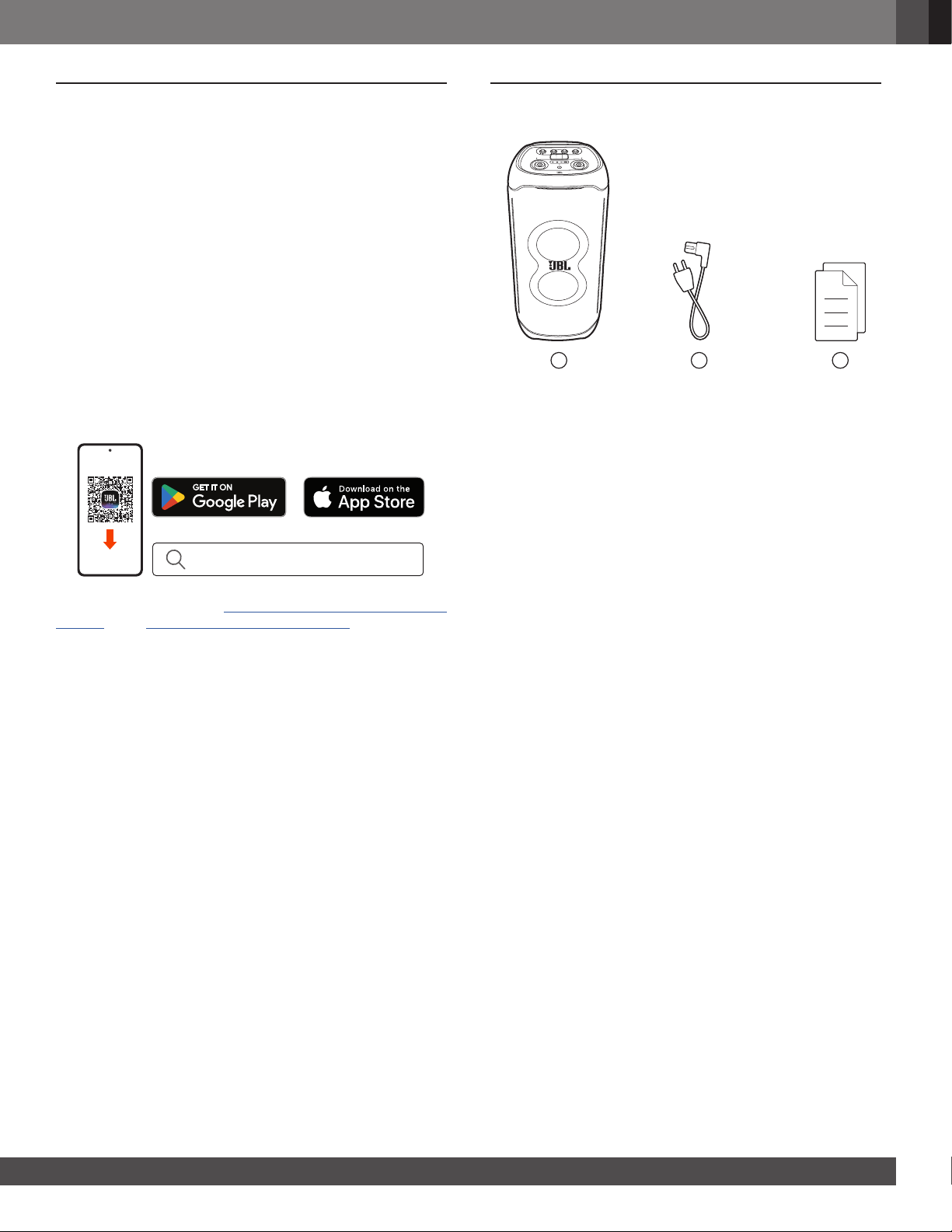
JBL One app
With the JBL One app, you can
• easily connect the speaker to your Wi-Fi network;
• connect *music streaming services;
• use one button to access your preset playlist and speaker
settings.
JBL One
For more information, see “6.1 Wi-Fi connection with your home
network” and “6.2 Play over your home network”.
NOTE:
– *Subscription may be needed and not provided by the JBL One
app.
2. WHAT’S IN THE BOX
*
1 2 3
1) Main unit
2) Power cord*
3) Quick Start Guide, Safety Sheet, Warranty Card
*Power cord quantity and plug type vary by regions.
66
3. PRODUCT OVERVIEW
3.1 Top panel
4
3
10
11
12
13
5
6
7
9
8
1
2
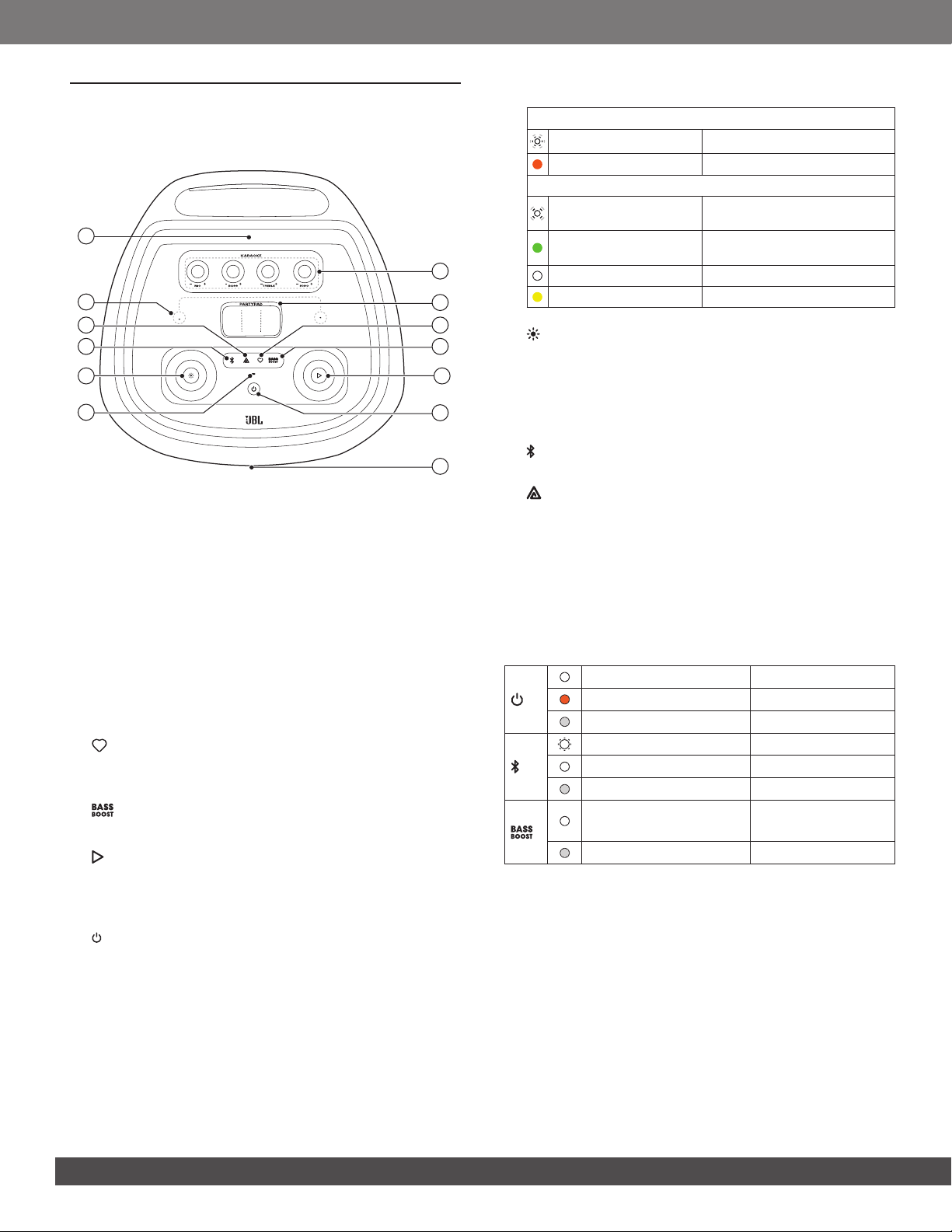
1) KARAOKE controls (for MIC input only)
- MIC +
• Adjust the microphone volume.
- BASS +
• Adjust the bass level.
- TREBLE +
• Adjust the treble level.
- ECHO +
• Adjust the echo level.
2) PARTYPAD
• Select a special sound effect.
3) (Moment)
• Press to directly access your music playlist and speaker
settings that you have personalized in the JBL One app.
4)
• Enhances the bass level: level 1, level 2, or off.
5)
• Play, pause or resume.
• Rotate clockwise / counterclockwise to increase /
decrease the main volume.
6)
• Turn the power on or off.
7) LED ring
8) Status indicator
System:
Regular breathing (white) System startup
Solid (amber) Restoring factory settings
Network connection:
Slow breathing (white)
Entering Wi-Fi setup mode, or
network disconnected
Solid (green)
Speaker discovered by the JBL
One app
Solid (white) Network connected
Solid (yellow) Weak Wi-Fi connection
9)
• Press to turn light effect on or off.
• Hold for more than 2 seconds to turn strobe, starry and
outline light on or off.
• Rotate clockwise / counterclockwise to switch between
different light patterns.
10)
• Press to enter Bluetooth pairing mode.
11)
• Press to enter multi-speaker connection.
12) Built-in microphones for calibration
13) Mobile device dock
CAUTION:
– Do not look directly at the light-emitting parts when the speaker
lights are turned on.
LED behavior
Solid white Power on
Solid amber Standby
Off Power off
Flashing white quickly Pairing
White (Constant) Connected
Off Not connected
Solid white
Level 1
Level 2
Off Off

77
www.jbl.com
English
3.2 Back panel
11
10
3
2
1
5
6
9
8
7
4
1) USB
• Connect to a USB storage device.
• Charge your mobile device.
2) AUX IN
• Connect to an external audio device through a 3.5 mm
audio cable (not supplied).
3)
• Connect to a microphone or guitar.
4) Microphone 2/guitar slider switch
5) Guitar volume knob
• Adjust volume of the guitar (if connected).
6) GAIN 2
• Adjust gain of the corresponding microphone ( ) or
guitar input.
7) IN/OUT
• Daisy-chain multiple PartyBox speakers through 3.5 mm
audio cables (not supplied).
8) GAIN 1
• Adjust gain of the corresponding microphone ( ) input.
9)
• Connect to a microphone.
10) Cable storage cabinet
11) AC power
• Connect to AC power supply.
4. PLACEMENT
CAUTION:
– Do not sit or lean on the speaker or push it sideways to avoid tip-
over and possible damages.
Place the speaker on a at, stable surface and ensure that the
rubber feet side is down.
88
5. POWER ON
CAUTION:
– Use the provided power cord only.
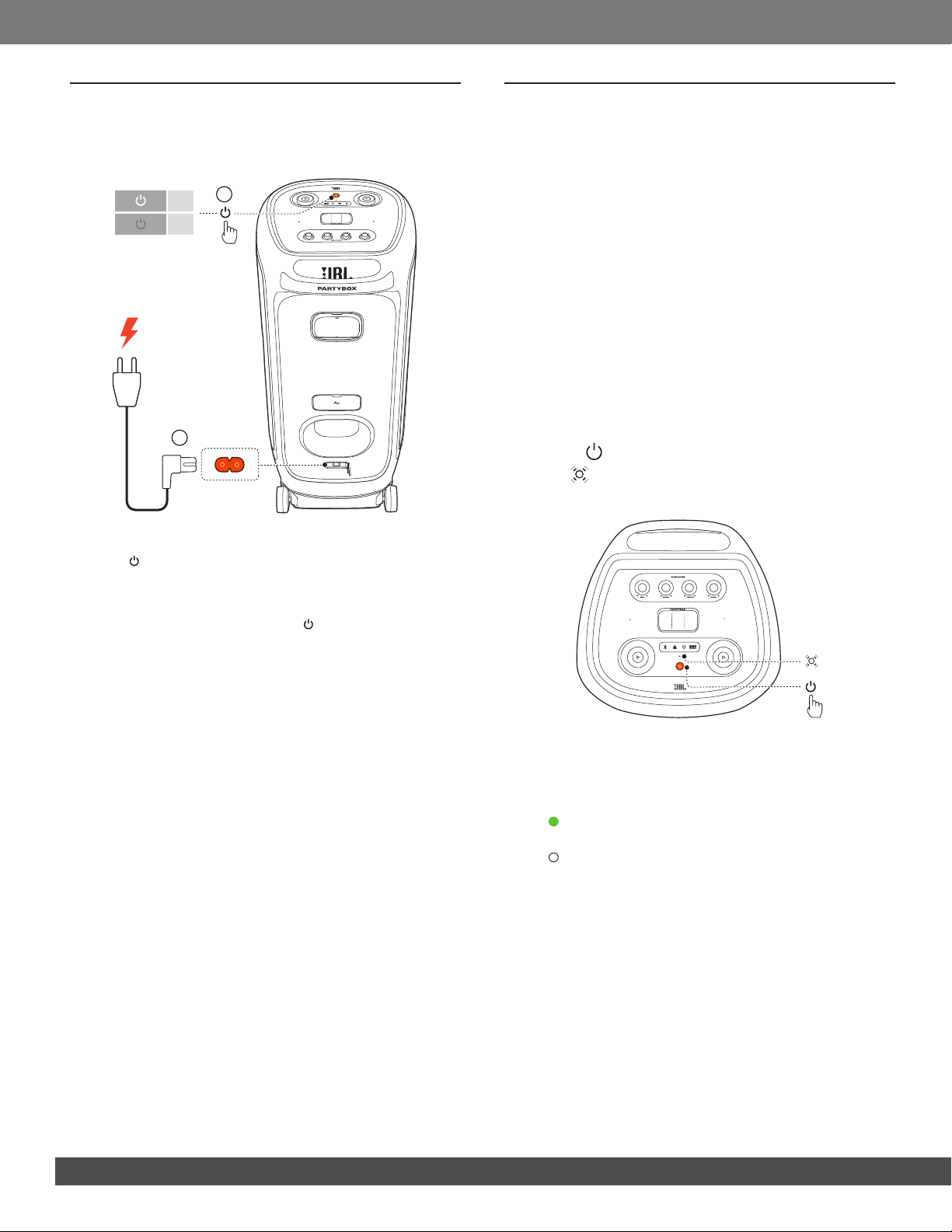
1
2
OFF
ON
1. Connect AC power.
2. Press to power on.
TIP:
– The speaker switches to network standby mode automatically after
10 minutes of inactivity. You can press on the speaker to switch
to normal operation.
6. USING YOUR PARTYBOX
NOTES:
– Only one sound source can be played at a time.
– Make sure that your speaker is connected to the same wireless
LAN as your smartphone or tablet.
– Starting playback from another source will always interrupt the
current source.
– The speaker can support audio streaming, but not video streaming.
– During music streaming through Chromecast built-in, AirPlay, Alexa
Cast, Bluetooth, or other streaming services enabled in the JBL
One app, music playback pauses on the current connected device
when you start music playback on a second connected device.
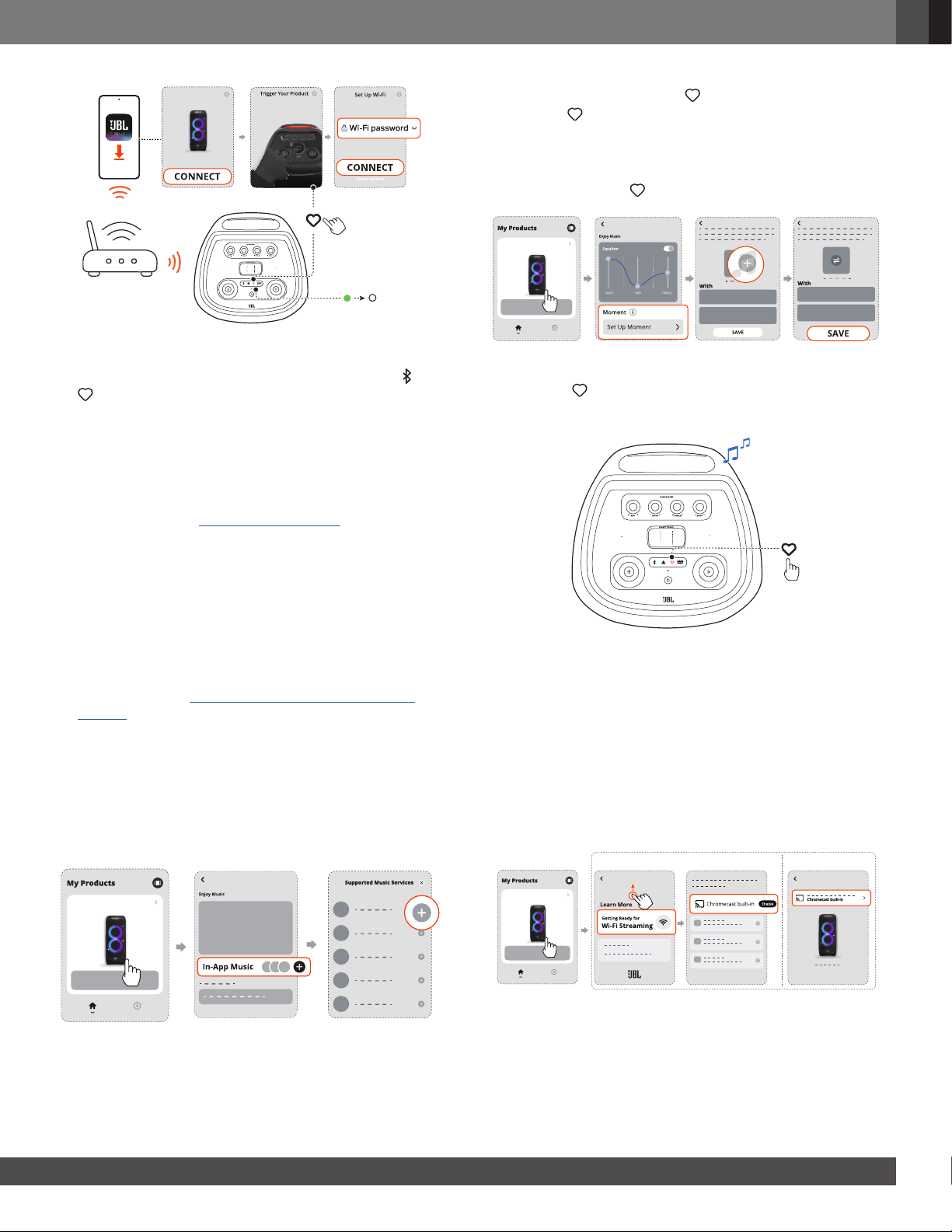
6.1 Wi-Fi connection with your home network
You can connect the speaker to your network through Wi-Fi.
With the JBL One app and the supported streaming services
(Chromecast built-in, AirPlay, Alexa Cast, and Spotify Connect), the
speaker allows you to stream music from smartphones or tablets.
1. On the speaker, enter the Wi-Fi setup mode:
• Press to switch on.
→ (Slow breathing white): The speaker enters Wi-Fi
setup mode.
2. Connect your Android™ or iOS device to your home Wi-Fi
network. Download the JBL One app.
3. Launch the JBL One app. Follow the app instructions to
complete setup.
→ (Solid green): The speaker is discovered by the JBL
One app.
→ (Solid white): The speaker is connected to your home
network.
→ You can stream music from the JBL One app or the
streaming service you have enabled in the JBL One app,
such as Chromecast built-in, AirPlay, Alexa Cast, and
Spotify Connect.
99
www.jbl.com
English
JBL PartyBox Ultimate
NOTES:
– If your speaker is not discovered by the JBL One app, hold and
together for more than 10 seconds to re-enter the Wi-Fi setup
mode.
– On your Android or iOS device, you can rename the speaker in the
JBL One app.
– On your iOS device, add the speaker to the Apple Home app and
manage it together with other AirPlay 2-compatible speakers.
– On your iOS device, if the speaker has been added to your
home network, you can start AirPlay streaming from an AirPlay-
compatible app (See “6.2.3 Play through AirPlay”).
– Availability of online music streaming services varies by country.
– Some features require subscriptions or services not available in all
countries.
6.2 Play over your home network
Before you start, make sure that:
• your Android or iOS device and your speakers are connected
to the same Wi-Fi network for music service streaming
and control. (See “6.1 Wi-Fi connection with your home
network”).
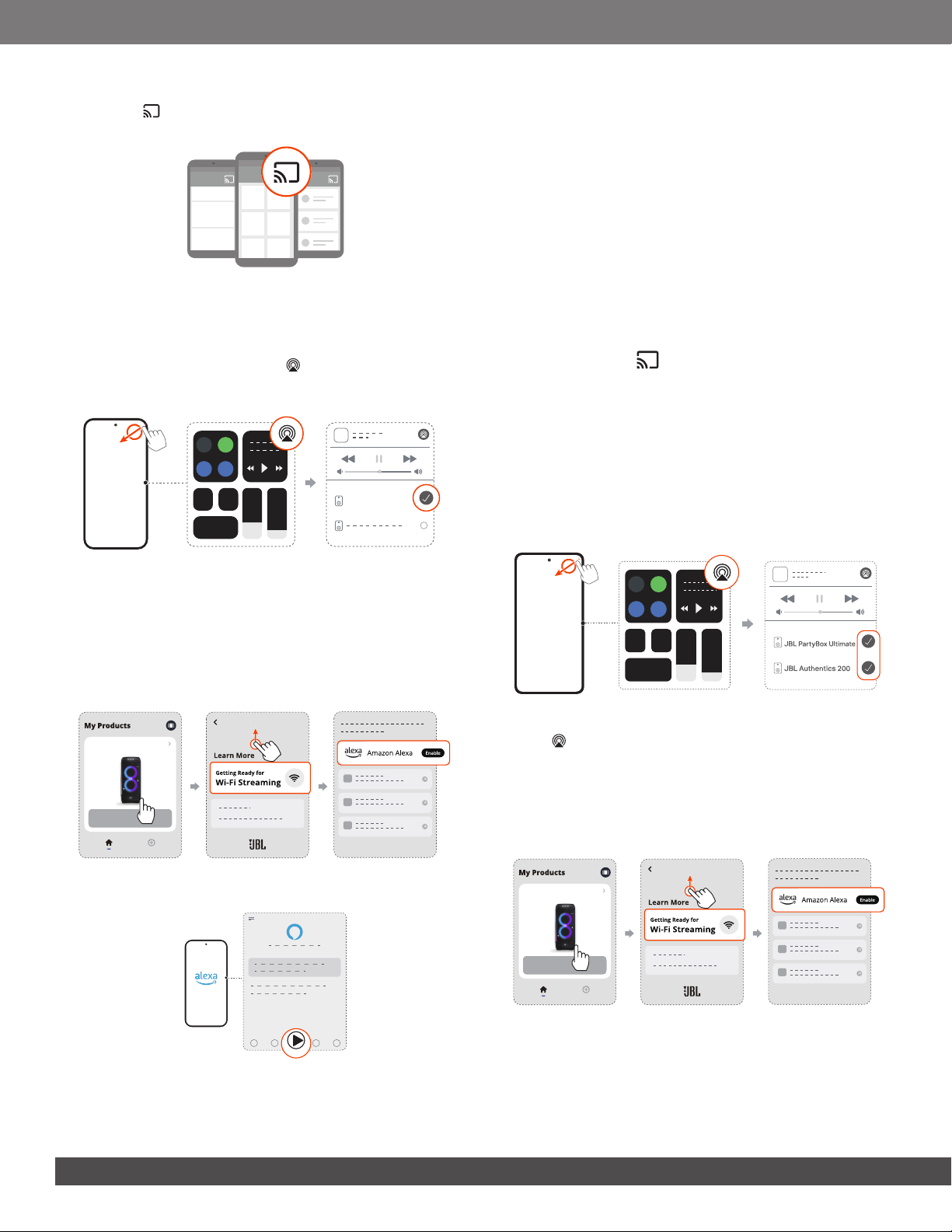
6.2.1 Play through the JBL One app
Through the JBL One app, stream audio from enabled music
services to the speaker.
• On your Android or iOS device, launch the JBL One app,
browse available *music streaming services to select music,
and then, start music streaming to the connected speaker.
JBL PartyBox Ultimate
JBL PartyBox Ultimate
NOTE:
– *Subscription may be needed and not provided by the JBL One
app.
Access your presets with the (Moment) button
By pressing on the speaker, you can access the playlist and
speaker settings that you have personalized on the JBL One
app.
1. On the JBL One app,
• Personalize the (Moment) feature.
JBL PartyBox Ultimate
JBL PartyBox Ultimate
2. On the speaker,
• Press to access the personalized playlist and speaker
settings.
6.2.2 Play through Chromecast built-in
With Chromecast built-in, stream audio on your Android or iOS
device to the speaker.
NOTE:
You can only access Chromecast built-in with a Google Assistant-
enabled device.
• On your Android or iOS device,
a) Launch the JBL One app, and check that you have
enabled Chromecast built-in.
JBL PartyBox Ultimate
JBL PartyBox Ultimate JBL PartyBox Ultimate
iOS Android
1010
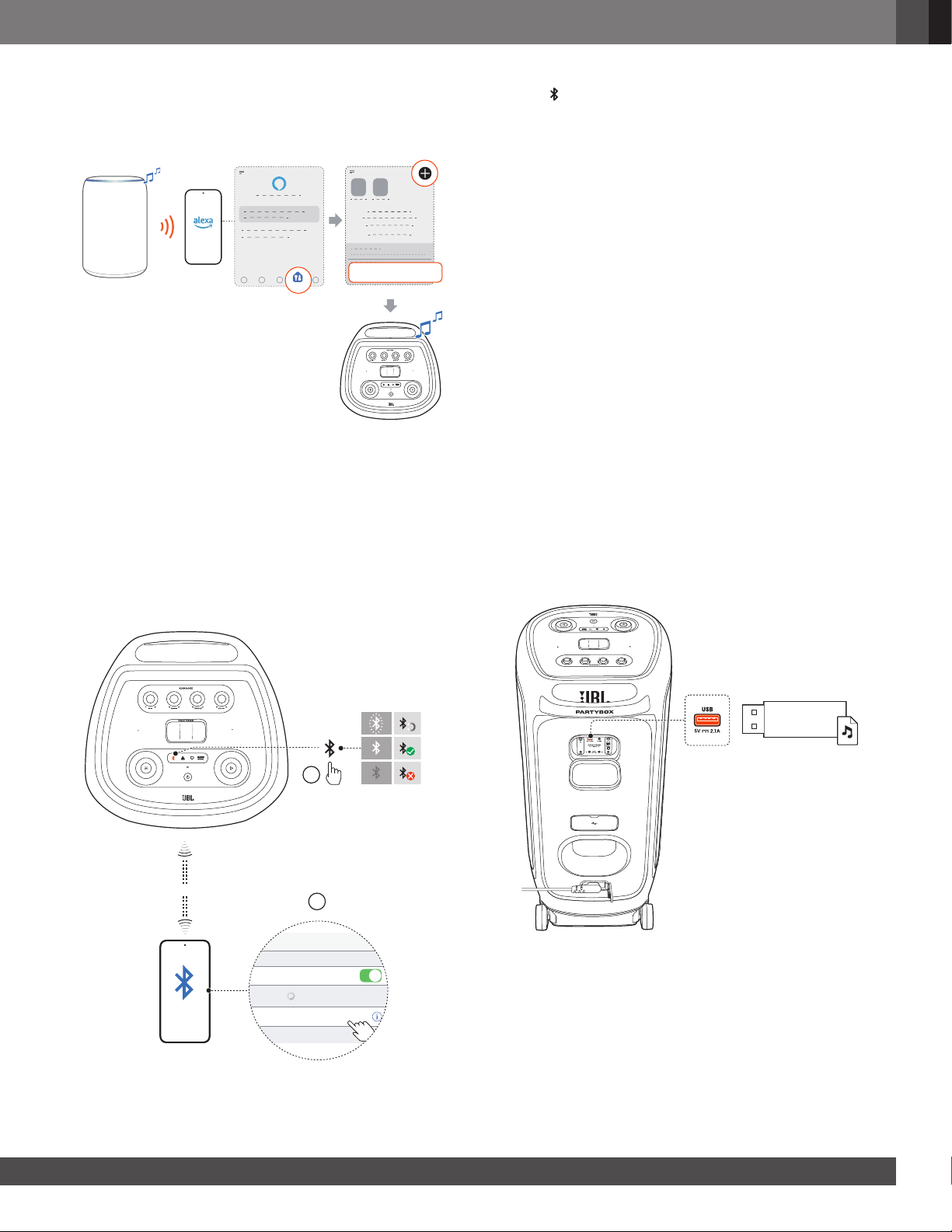
b) On a Chromecast-enabled app, play music, tap the cast
icon and select the connected speaker.
6.2.3 Play through AirPlay
Through AirPlay, stream audio on your iOS device to the speaker.
• To enter the Control Center on an iOS device, swipe down
from the upper right corner. Tap to select the connected
speaker and then, start audio streaming from an app.
JBL PartyBox Ultimate
6.2.4 Play through Alexa Cast
With the speaker connected to Alexa Cast, you can stream
music from the Amazon Music library to the speaker.
1. On your Android or iOS device, launch the JBL One app,
and check that you have enabled the streaming service of
Amazon Alexa.
JBL PartyBox Ultimate
JBL PartyBox Ultimate
2. Launch the Amazon Alexa app to start music playback.
Play
• Open the Amazon Music app to access the Amazon
Music library.
• Make sure that you start music playback from the same
Alexa account that you have enabled in the JBL One app.
Refer to the Amazon Alexa app for more details.
6.2.5 Multi-room playback
With the multi-room playback, you can stream music on your
Android or iOS device to multiple Chromecast-enabled / AirPlay /
Alexa speakers.
Chromecast built-in
1. Through the Google Home app, connect multiple
Chromecast-enabled speakers to the same network, assign
them to multiple rooms, and create groups as needed.
2. Run a Chromecast-enabled app on your smartphone or
tablet.
3. Play music. Press and select the grouped speakers.
NOTES:
– To create a multi-room speaker group in the Google Home app,
make sure that you have connected all the speakers to the same
home network and have used the same Google login account.
Refer to the Google Home app for more details.
– Depending on the bandwidth of your local network, you can stream
music to up to 6 Chromecast-enabled speakers.
AirPlay
1. On an iOS device, enter the Control Center.
2. Tap to select multiple connected speakers as needed.
3. Start music streaming from an app.
Alexa MRM: Multi-Room Music
1. Check that you have enabled the streaming service of
Amazon Alexa on the speaker through the JBL One app.
JBL PartyBox Ultimate
JBL PartyBox Ultimate
1111
www.jbl.com
English
2. Through the Amazon Alexa app, create a Multi-room Music
group for the speaker. Refer to the Amazon Alexa app for
more information.
DevicesDevices
DEVICES
Combine speakers
Amazon Echo
device
NOTE:
– To create a multi-room music group in the Amazon Alexa app,
make sure that you have connected all the devices to the same
home network and have used the same Alexa login account. Refer
to the Amazon Alexa app for more details.
6.3 Bluetooth connection
You can use the speaker with your Bluetooth enabled smartphone
or tablet.
ON
2
1
<10 m (33 ft)
Settings Bluetooth
Bluetooth
DEVICES
JBL PartyBox Ultimate
Now Discoverable
Connected
1. Press on the speaker to enter Bluetooth pairing mode.
2. Choose “JBL PartyBox Ultimate” on your Bluetooth device
to connect.
3. Once successfully connected, you can stream audio from
your Bluetooth device to this speaker.
NOTES:
– This speaker can memorize a maximum of 8 paired devices. The
ninth paired device will replace the rst one.
– This speaker supports multi-point connection. You can repeat the
above step 1 and 2 to pair a second Bluetooth device without
disconnecting the rst one.
– Enter “0000” if a PIN code is requested for connection to a
Bluetooth device.
– Bluetooth performance can be affected by the distance between
this product and your Bluetooth device and the environment of
operation.
To terminate the Bluetooth-enabled device:
• Turn off this speaker, or
• Disable Bluetooth on your device.
To reconnect the Bluetooth enabled device:
• When you turn on this speaker next time, it tries to reconnect
the last connected device automatically.
• If not, manually select “JBL PartyBox Ultimate” on your
Bluetooth device to connect.
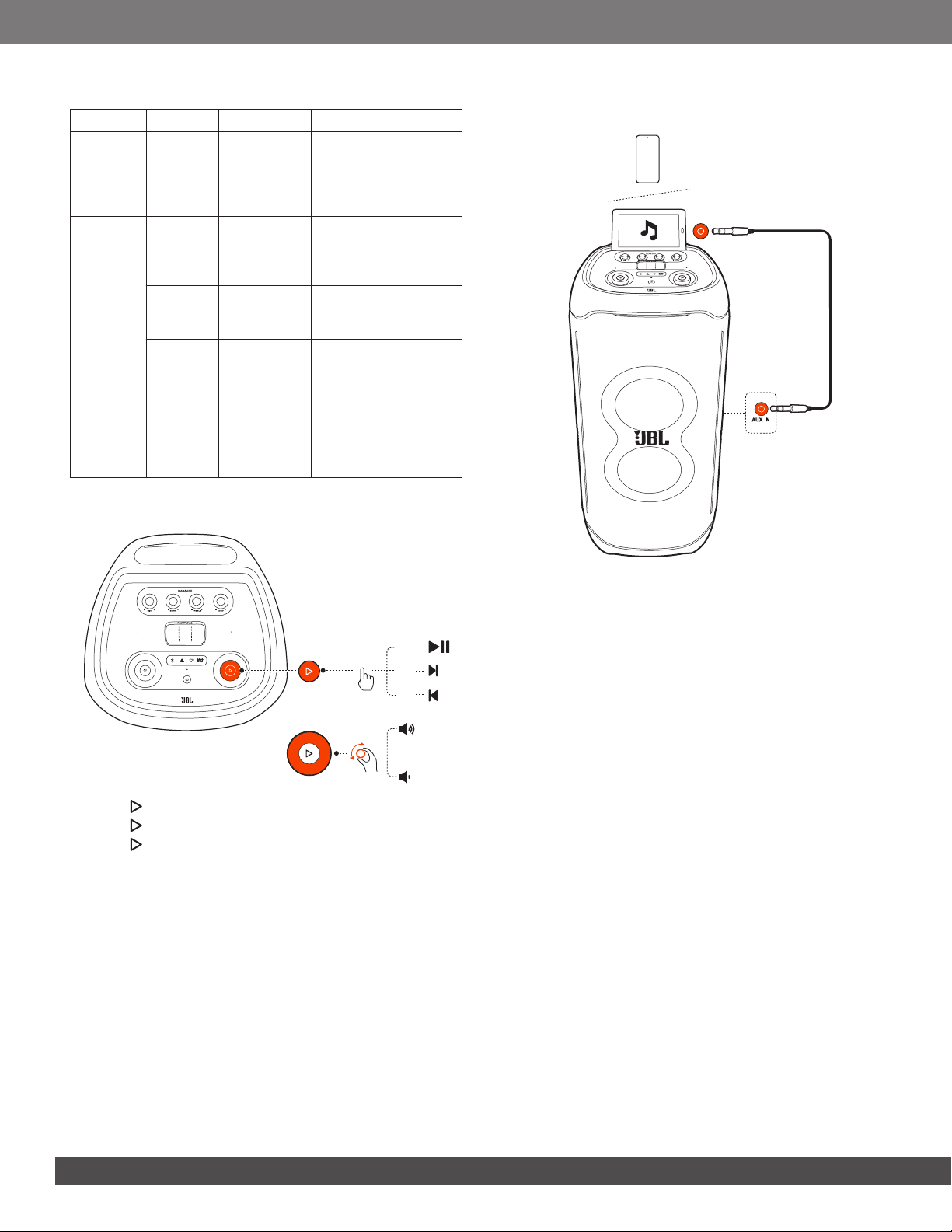
6.4 USB connection
Plug a USB storage device that contains playable audio contents
into the USB port of the speaker.
→ The speaker switches to the USB source automatically.
→ Audio playback will start automatically.
TIP:
– The speaker plays audio les on the USB storage device from the
root folder to the last level of subfolders in alphabetical sequence.
Up to 8 levels of subfolders are supported.
1212
Supported audio formats
Extension Codec Sample rate Bitrate
WAVE PCM
8 / 11.025 /
12 / 16 /
22.05 / 24 /
32 / 44.1 /
48
384 / 529.2 / 576 /
768 / 1058.4 / 1152 /
1536 / 2116.8 / 2304
MP3
MPEG1
layer2/3
32 / 44.1 /
48
32 / 40 / 48 / 56 / 64 /
80 / 96 / 112 / 128 /
160 / 192 / 224 / 256 /
320
MPEG2
layer2/3
16 / 22.05 /
24
8 / 16 / 24 / 32 / 40 /
48 / 56 / 64 / 80 / 96 /
112 / 128 / 144 / 160
MPEG2.5
layer3
8 / 11.025 /
12
8 / 16 / 24 / 32 / 40 /
48 / 56 / 64 / 80 / 96 /
112 / 128 / 144 / 160
WMA
8 / 11.025 /
16 / 22.05 /
32 / 44.1 / 48
5 / 6 / 8 / 10 / 12 / 16 /
20 / 22 / 32 / 36 / 40 /
44 / 48 / 64 / 80
/ 96 /
128 / 160 / 192 / 256 /
320
6.5 Music control
x 1
x 2
x 3
• Press once to pause or resume playback.
• Press twice to skip to the next track.
• Press three times to skip to the previous track.
• Rotate the volume knob clockwise or counterclockwise to
increase or decrease main volume.
• Press BASS BOOST to enhance the bass level: level 1, level
2, or off.
NOTE:
– The skip operation is unavailable in AUX mode.
6.6 AUX connection
1. Connect an external audio device to the speaker through a
3.5 mm audio cable (not supplied).
2. Start audio playback on the external device.
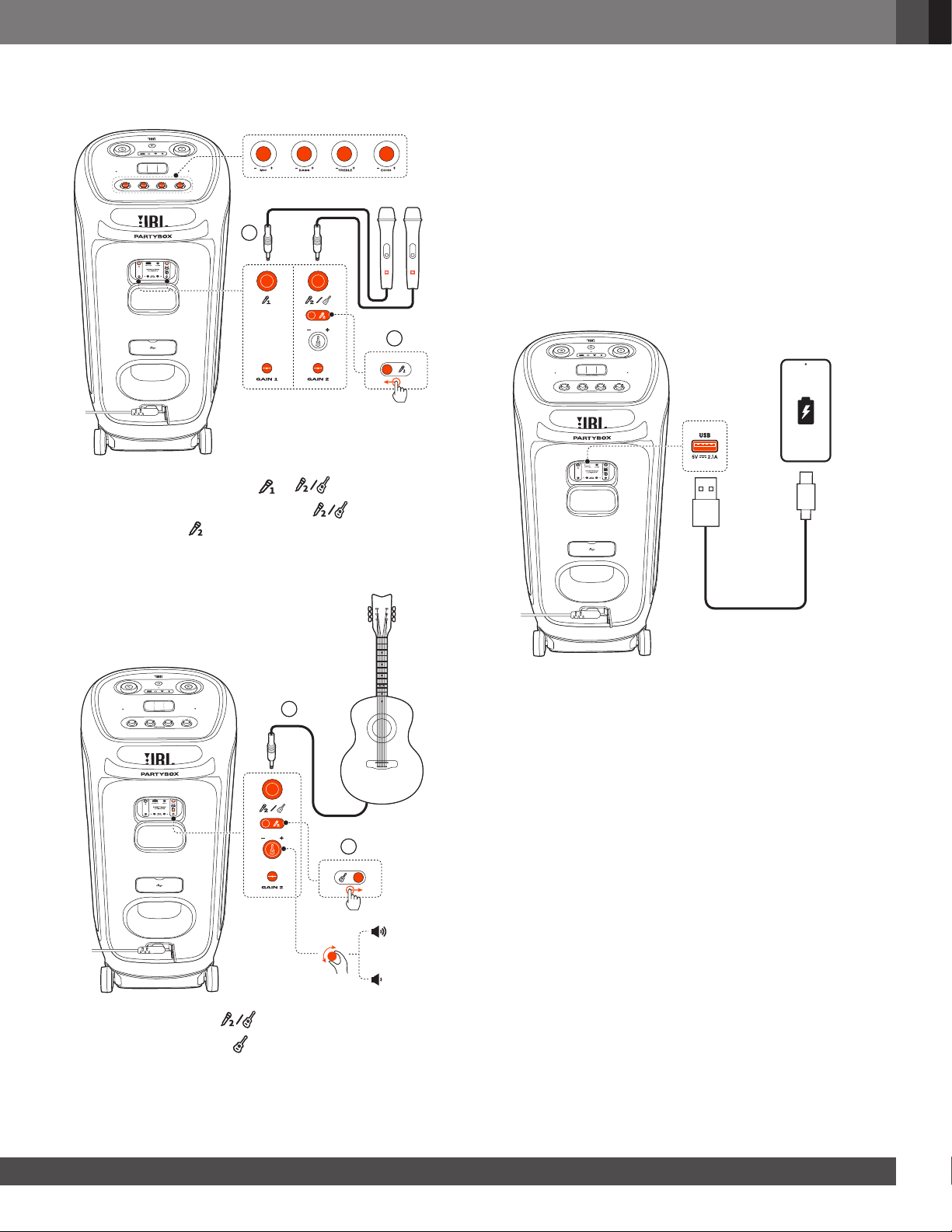
6.7 Mixing sound with a microphone and /
or guitar
By using a microphone or electric guitar (not supplied), you can
mix sound with an audio source.
NOTES:
– Always set the guitar or microphone volume to the minimum level
before guitar or microphone connection / disconnection.
– Always disconnect the guitar or microphone when you are not
using them.
1313
www.jbl.com
English
6.7.1 Connecting a Microphone
1
2
1. Connect a microphone to the or socket.
2. When connecting a microphone to the socket, switch
the slider to show .
6.7.2 Connecting a Guitar
1
2
1. Connect a guitar to the socket.
2. Switch the slider to show .
6.7.3 Mixing Sound
Sing through the microphone or play guitar.
• To adjust the volume of the microphone, rotate the volume
knob on the top panel clockwise or counterclockwise.
• To adjust the volume of the guitar, rotate the guitar volume
knob on the rear panel.
• To adjust the gain of the wired microphone or guitar, rotate
the corresponding GAIN 1 or GAIN 2 control respectively.
• To adjust the echo, treble and bass level of the microphone,
rotate the ECHO, TREBLE and BASS knob respectively.
6.8 Charging your mobile device

1414
7. CARRYING YOUR PARTYBOX
Cautions:
– Before carrying the speaker, ensure that all the cords are
disconnected.
– To avoid personal injury and/or property damage, hold the product
rmly while carrying.
The PartyBox Ultimate is designed with a handle to help you
move the speaker around easily.
8. ADVANCED USAGE
8.1 Light effect
• Press to turn light effect on or off.
• Hold for more than 2 seconds to turn strobe, starry and
outline light on or off.
• Rotate the knob clockwise / counterclockwise to switch
between different light patterns: NEON, LOOP, BOUNCE,
TRIM, SWITCH, or FREEZE.
8.2 JBL PARTYPAD™
Repeater
Filter
Horn
Tap the Partypad to select a special sound effect: Horn, Repeater,
or Filter.
Scan the above QR code to watch the online video tutorial.
1515
www.jbl.com
English
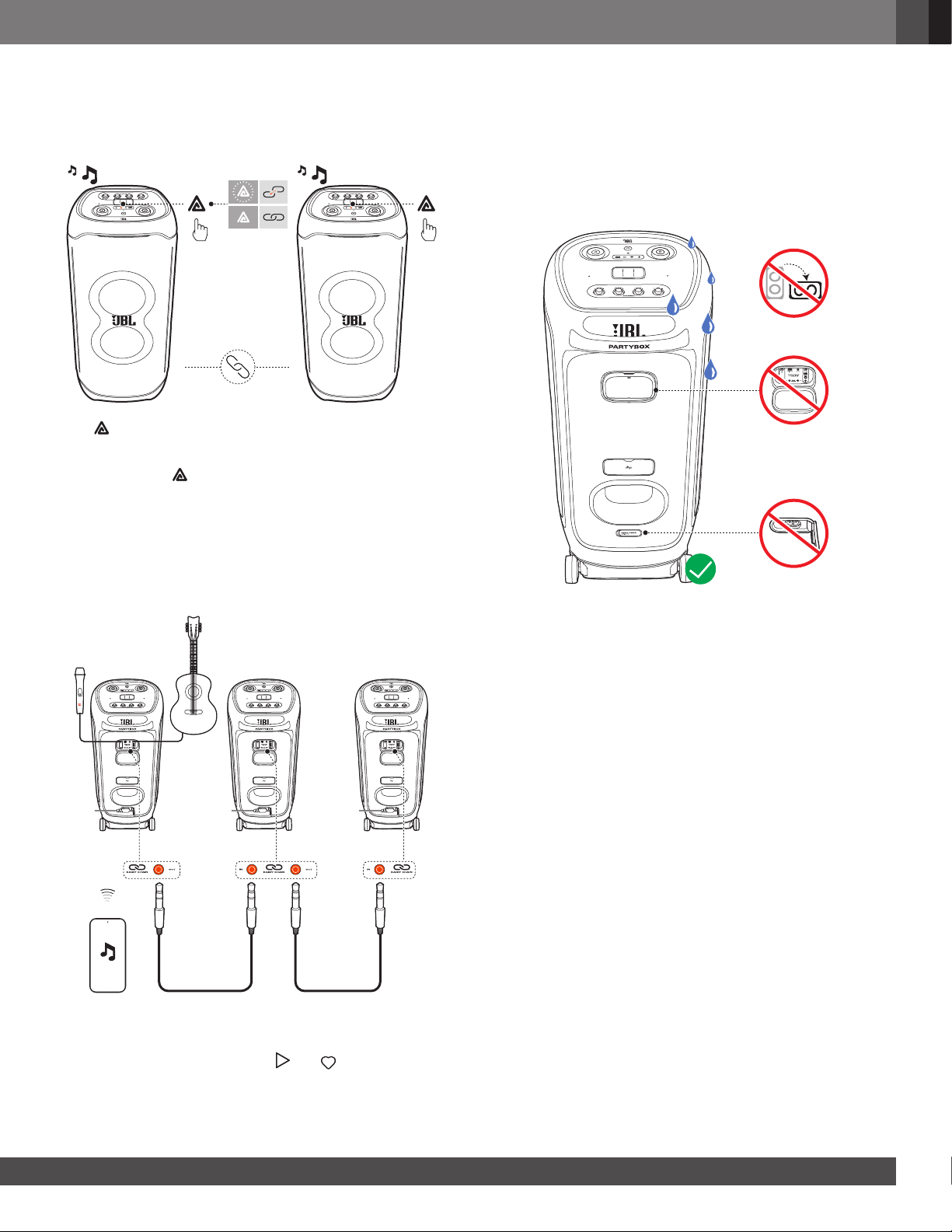
8.3 Multi-speaker connection
You can connect two or more PartyBox speakers together for
even bigger sound.
Press on both speakers.
To disconnect:
Power off or press on either speaker.
TIP:
– By default, the speaker connected to your Bluetooth device acts as
the primary speaker.
8.4 Daisy chain
8.5 Factory reset
To restore the factory settings, hold and together for more
than 10 seconds.
8.6 IPX4
CAUTIONS:
– Always keep the port dry before connecting AC power.
– To ensure splash resistance, always keep the protective covers
closed securely.
The speaker is IPX4 splash resistant.

1616
9. SPECIFICATIONS
• Output power: 1100W RMS (IEC60268)
• Power input: 100 – 240 VAC ~50/60Hz
• Frequency response: 30Hz-20KHz (-6dB)
• Signal-to-noise ratio: >80dB
• Cable type: right-angle AC power cable (type varies by
regions)
• Cable length: 2.0 m / 6.6 ft
• Supported formats: .mp3, .wma, .wav
• Transducers: 2 x 242 mm (2 x 9") subwoofer,
2 x 120 mm (2 x 4.5") mid-range,
2 x 74 mm (2 x 2.75") tweeter
• USB charge out: 5V / 2.1A (max)
• USB format: FAT16, FAT32
• 5G Wi-Fi transmitter frequency range:
5.15-5.35GHz, 5.470-5.725GHz, 5.725-5.825GHz
• 5G Wi-Fi transmitter power: <23dBm (EIRP)
• 5G Wi-Fi modulation: OFDM (BPSK, QPSK, 16QAM,
64QAM, 256QAM, 1024QAM)
• 5G Wi-Fi network compatibility: 802.11a/n/ac/ax
• 2.4G Wi-Fi transmitter frequency range:
2.4GHz-2.4835GHz
• 2.4G Wi-Fi transmitter power: <20dBm
• 2.4G Wi-Fi modulation: DSSS (DBPSK, DQPSK, CCK),
OFDM (BPSK, QPSK, 16QAM, 64QAM, 256QAM, 1024QAM)
• 2.4G Wi-Fi network compatibility: 802.11 b/g/n/ax
• Bluetooth
®
version: 5.3
• Bluetooth
®
prole: A2DP V1.3, AVRCP V1.5
• Bluetooth
®
transmitter frequency
range: 2400 MHz – 2483.5 MHz
• Bluetooth
®
transmitter power: ≤15dBm (EIRP)
• Bluetooth
®
transmitter modulation:
GFSK, π/4 DQPSK, 8DPSK
• Aux-In: 250 mVrms (3.5 mm connector)
• Mic-In: 20 mVrms
• Guitar-In: 100 mVrms
• Bluetooth/USB Input: -12 dBFS
• Product dimensions (W x H x D):
455 mm x 1049 mm x 440 mm / 17.91" x 41.30" x 17.32"
• Net Weight: 39.5 kg / 87.10 lbs
• Packaging dimensions (W x H x D):
1155 mm x 520 mm x 525 mm / 45.5" x 20.5" x 20.7"
• Gross Weight: 44.5 kg / 98.1 lbs
10. TROUBLESHOOTING
Caution:
– Never try to repair the product by yourself. If you have any
problems while using this product, check the following points
before you request service.
System
The speaker will not turn on.
• Check the AC power connection.
No response from some buttons
• The product may be in demo mode. In demo mode, all the
input sources and buttons, except
/ /
and the
volume and light pattern knobs, are disabled. Hold and
simultaneously for more than 10 seconds to exit.
Sound
No sound from the speaker.
• Ensure that the speaker is powered on.
• Adjust volume.
• Ensure that a sound source is active.
Bluetooth
A device cannot connect with the speaker.
• Ensure that the Bluetooth function of the device is enabled.
Poor audio quality from a connected Bluetooth device
• The Bluetooth reception is poor. Move the device closer to
the speaker, or remove any obstacle between the device and
speaker.
Wi-Fi
Failed to connect to Wi-Fi.
• Make sure that Wi-Fi is turned on.
• Make sure that you have selected the right network and
entered the correct password.
• Make sure that your router or modem is turned on and within
the range.
• In your router settings, make sure that you have set the
security type to WPA2 or auto.
• Make sure that your speaker is connected to the same
wireless LAN as your smartphone or tablet.
• If you have difculties in setting up Wi-Fi, hold and
together on the speaker until the status indicator slowly
breathes white.

1717
www.jbl.com
English
Playback
AirPlay cannot nd the speaker as an AirPlay speaker for
music streaming.
• On your Apple device, update the software to the latest
version: iOS 13.4 and later, macOS 10.15.4 and later, or
tvOS 14.3.
• Make sure that your Apple device has been connected to the
same network as the speaker.
• For a PC running iTunes for Windows, you can stream music
from your PC to the speaker through Bluetooth.
Music playback does not work smoothly when the sound
source switches from Bluetooth to Chromecast built-in,
AirPlay or Alexa.
• The quality of audio casting and playback are dependent on
the trafc and coverage of the network that connects the
speaker and your casting devices, such as phones, tablets
and PCs.
The speaker is in the “Ofine” status in the Amazon Alexa
app or there are issues with Alexa MRM-related playback.
• To recover the speaker, restore the speaker to its factory
settings by holding and together for more than
10 seconds.
No music playback on the Audio In source when the sound
source switches from Bluetooth to Audio In.
• Disconnect and reconnect the 3.5mm audio cable to the
speaker.
11. COMPLIANCE
The product is in compliance with the European Union energy
legislation.
1. Information on power consumption
This equipment complies with European Commission
Regulation (EC) No 1275/2008 and (EU) No 801/2013.
Off: N/A
Standby (when all wireless connections are deactivated):
< 0.5 W
Networked standby: < 2.0 W
2. The period of time after which the power management
function switches the equipment automatically into:
Off N/A
Standby When all wired ports
are disconnected and
all wireless network
connections are
deactivated
Switched to
standby mode after
10 minutes.
Networked
standby
When any wireless
network connection is
activated
Switched to
networked standby
mode after 10 minutes
of inactivity in
operational mode
3. If this equipment has the wireless network connections:
How to activate wireless network connections:
• Set up the equipment properly;
• Switch into wireless mode (Bluetooth,
Chromecast built-in™, AirPlay 2 casting audio, Alexa
Multi-Room Music & etc);
• Connect with energy using products (e.g. players/ game
consoles/ STB (Set-Top Boxes)/ phones/ tablets /PCs).
1818
12. TRADEMARK
The Bluetooth
®
word mark and logos are registered trademarks
owned by Bluetooth SIG, Inc. and any use of such marks by
HARMAN International Industries, Incorporated is under license.
Other trademarks and trade names are those of their respective
owners.
The Wi-Fi CERTIFIED™ Logo is a certication mark of Wi-Fi
Alliance
®
Dolby, Dolby Atmos, and the double-D symbol are registered
trademarks of Dolby Laboratories Licensing Corporation.
Manufactured under license from Dolby Laboratories.
Condential unpublished works. Copyright © 2012–2021 Dolby
Laboratories. All rights reserved.
Google, Android, Google Play, Google Home and other marks
are trademarks of Google LLC. Google Assistant is not available
in certain languages and countries.
Use of the Works with Apple badge means that an accessory has
been designed to work specically with the technology identied
in the badge and has been certied by the developer to meet
Apple performance standards.
Apple, and AirPlay are trademarks of Apple Inc., registered in the
U.S. and other countries.
To control this AirPlay 2–enabled speaker, iOS 13.4 or later is
required.
Amazon, Alexa and all related marks are trademarks of Amazon.
com, Inc. or its afliates.
Use your phone, tablet or computer as a remote control for
Spotify. Go to spotify.com/connect to learn how.
The Spotify Software is subject to third party licenses found here:
https://www.spotify.com/connect/third-party-licenses.

HARMAN International Industries,
Incorporated 8500 Balboa Boulevard,
Northridge, CA 91329 USA
www.jbl.com
© 2023 HARMAN International Industries, Incorporated.
All rights reserved.
JBL is a trademark of HARMAN International Industries, Incorporated, registered in the United
States and/or other countries. Features, specications and appearance are subject to change
without notice.
JBL_Partybox Ultimate_OM_Global_EN_V6

