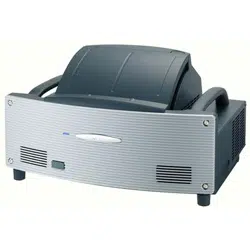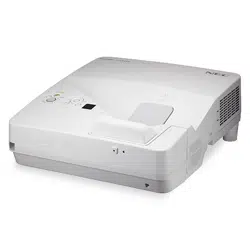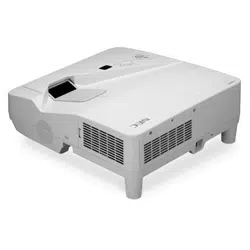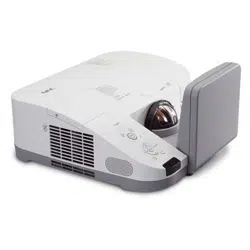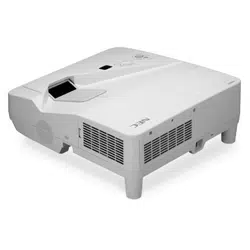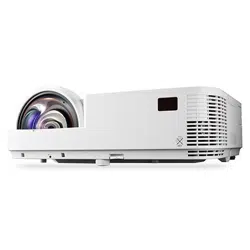

Projector
M403W/M363W/M323W/
M403X/M363X/M323X/M283X/
M353WS /M303WS/ M333 X S/
M403H/M323H
User’s Manual
The M403W, M303WS and M323H are not distributed in North
America.
Model No.
NP-M403W, NP-M363W, NP-M323W, NP-M403X, NP-M363X, NP-
M323X, NP-M283X, NP-M353WS, NP-M303WS, NP-M333XS, NP-
M403H, NP-M323H

Ver.1 6/15
• DLPisatrademarkofTexasInstruments.
• Apple,Mac,MacOS,andMacBookaretrademarksofAppleInc.registeredintheU.S.andothercountries.
• AppStoreisaservicemarkofAppleInc.
• iOSisatrademarkorregisteredtrademarkofCiscointheU.S.andothercountriesandisusedunderlicense.
• Microsoft,Windows,WindowsVista,InternetExplorer,.NETFrameworkandPowerPointareeitheraregistered
trademarkortrademarkofMicrosoftCorporationintheUnitedStatesand/orothercountries.
• IntelandIntelCorearetrademarksofIntelCorporationintheU.S.and/orothercountries.
• MicroSaverisaregisteredtrademarkofKensingtonComputerProductsGroup,adivisionofACCOBrands.
• VirtualRemoteToolusesWinI2C/DDClibrary,©NicomsoftLtd.
• ThetermsHDMIandHDMIHigh-DenitionMultimediaInterface,andtheHDMILogoaretrademarksorregistered
trademarksofHDMILicensingLLCintheUnitedStatesandothercountries.
• TrademarkPJLinkisatrademarkappliedfortrademarkrightsinJapan,theUnitedStatesofAmericaandother
countries and areas.
• Wi-Fi
®
,Wi-FiAlliance
®
,andWi-FiProtectedAccess(WPA,WPA2)
®
areregisteredtrademarksoftheWi-FiAlli-
ance.
• Blu-rayisatrademarkofBlu-rayDiscAssociation
• CRESTRONandROOMVIEWareregisteredtrademarksofCrestronElectronics,Inc.intheUnitedStatesandother
countries.
• EthernetiseitheraregisteredtrademarkortrademarkofFujiXeroxCo.,Ltd.
• GooglePlayandAndroidaretrademarksofGoogleInc.
• Otherproductnamesandcompanylogosmentionedinthisuser’smanualmaybethetrademarksorregistered
trademarksoftheirrespectiveholders.
• GPL/LGPLSoftwareLicenses
TheproductincludessoftwarelicensedunderGNUGeneralPublicLicense(GPL),GNULesserGeneralPublic
License(LGPL),andothers.
Formoreinformationoneachsoftware,see“readme.pdf”insidethe“aboutGPL&LGPL”folderonthesuppliedCD-
ROM.
NOTES
(1)Thecontentsofthisuser’smanualmaynotbereprintedinpartorwholewithoutpermission.
(2)Thecontentsofthisuser’smanualaresubjecttochangewithoutnotice.
(3)Greatcarehasbeentakeninthepreparationofthisuser’smanual;however,shouldyounoticeanyquestionable
points,errorsoromissions,pleasecontactus.
(4)Notwithstandingarticle(3),NECwillnotberesponsibleforanyclaimsonlossofprotorothermattersdeemed
toresultfromusingtheProjector.
i
Important Information
Safety Cautions
Precautions
PleasereadthismanualcarefullybeforeusingyourNECprojectorandkeepthemanualhandyforfuturereference.
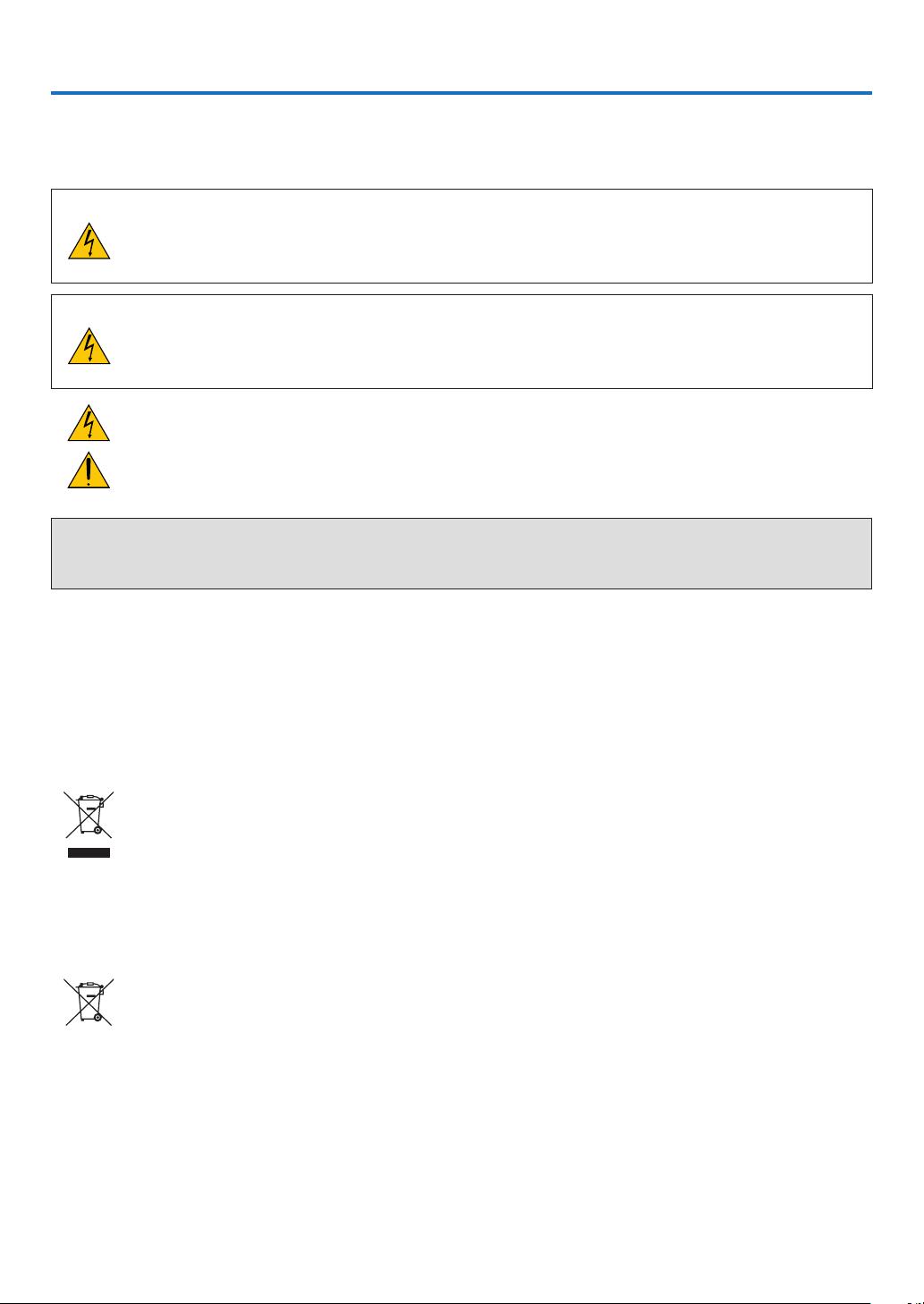
CAUTION
Toturnoffmainpower,besuretoremovetheplugfrompoweroutlet.
Thepoweroutletsocketshouldbeinstalledasneartotheequipmentaspossible,andshouldbeeasily
accessible.
CAUTION
TOPREVENTSHOCK,DONOTOPENTHECABINET.
THEREAREHIGH-VOLTAGECOMPONENTSINSIDE.
REFERSERVICINGTOQUALIFIEDSERVICEPERSONNEL.
Thissymbolwarnstheuserthatuninsulatedvoltagewithintheunitmaybesufcienttocauseelectrical
shock.Therefore,itisdangeroustomakeanykindofcontactwithanypartinsideoftheunit.
Thissymbolalertstheuserthatimportantinformationconcerningtheoperationandmaintenanceofthis
unithasbeenprovided.
Theinformationshouldbereadcarefullytoavoidproblems.
WARNING:TOPREVENTFIREORSHOCK,DONOTEXPOSETHISUNITTORAINORMOISTURE.
DONOTUSETHISUNIT’SPLUGWITHANEXTENSIONCORDORINANOUTLETUNLESSALLTHEPRONGS
CANBEFULLYINSERTED.
DOC Compliance Notice (for Canada only)
ThisClassBdigitalapparatuscomplieswithCanadianICES-003.
Machine Noise Information Regulation - 3. GPSGV,
Thehighestsoundpressurelevelislessthan70dB(A)inaccordancewithENISO7779.
Disposing of your used product
EU-widelegislationasimplementedineachMemberStaterequiresthatusedelectricalandelectronicprod-
uctscarryingthemark(left)mustbedisposedofseparatelyfromnormalhouseholdwaste.Thisincludes
projectorsandtheirelectricalaccessoriesorlamps.Whenyoudisposeofsuchproducts,pleasefollowthe
guidanceofyourlocalauthorityand/orasktheshopwhereyoupurchasedtheproduct.
Aftercollectingtheusedproducts,theyarereusedandrecycledinaproperway.Thiseffortwillhelpus
reducethewastesaswellasthenegativeimpactsuchasmercurycontainedinalamptothehumanhealth
andtheenvironmentattheminimumlevel.
ThemarkontheelectricalandelectronicproductsonlyappliestothecurrentEuropeanUnionMember
States.
For EU:Thecrossed-outwheeledbinimpliesthatusedbatteriesshouldnotbeputtothegeneralhousehold
waste!Thereisaseparatecollectionsystemforusedbatteries,toallowpropertreatmentandrecyclingin
accordancewithlegislation.
According the EU directive 2006/66/EC, the battery can’t be disposed improperly. The battery shall
be separated to collect by local service.

ii
Important Information
WARNING TO CALIFORNIA RESIDENTS:
Handlingthecablessuppliedwiththisproductwillexposeyoutolead,achemicalknowntotheStateofCalifornia
tocausebirthdefectsorotherreproductiveharm.WASHHANDSAFTERHANDLING.
RF Interference (for USA only)
WARNING
TheFederalCommunicationsCommissiondoesnotallowanymodicationsorchangestotheunitEXCEPTthose
speciedbyNECDisplaySolutionsofAmerica,Inc.inthismanual.Failuretocomplywiththisgovernmentregu-
lationcouldvoidyourrighttooperatethisequipment.Thisequipmenthasbeentestedandfoundtocomplywith
thelimitsforaClassBdigitaldevice,pursuanttoPart15oftheFCCRules.Theselimitsaredesignedtoprovide
reasonableprotectionagainstharmfulinterferenceinaresidentialinstallation.Thisequipmentgenerates,uses,and
canradiateradiofrequencyenergyand,ifnotinstalledandusedinaccordancewiththeinstructions,maycause
harmfulinterferencetoradiocommunications.However,thereisnoguaranteethatinterferencewillnotoccurina
particularinstallation.
Ifthisequipmentdoescauseharmfulinterferencetoradioortelevisionreception,whichcanbedeterminedby
turningtheequipmentoffandon,theuserisencouragedtotrytocorrecttheinterferencebyoneormoreofthe
followingmeasures:
• Reorientorrelocatethereceivingantenna.
• Increasetheseparationbetweentheequipmentandreceiver.
• Connecttheequipmentintoanoutletonacircuitdifferentfromthattowhichthereceiverisconnected.
• Consultthedealeroranexperiencedradio/TVtechnicianforhelp.
ForUKonly:InUK,aBSapprovedpowercordwithmouldedplughasaBlack(veAmps)fuseinstalledforusewith
thisequipment.Ifapowercordisnotsuppliedwiththisequipmentpleasecontactyoursupplier.
Important Safeguards
Thesesafetyinstructionsaretoensurethelonglifeofyourprojectorandtopreventreandshock.Pleasereadthem
carefullyandheedallwarnings.
Installation
• Donotplacetheprojectorinthefollowingconditions:
- Outdoors
- on an unstable cart, stand, or table.
- nearwater,baths,ordamprooms.
- indirectsunlight,nearheaters,orheatradiatingappliances.
- inadusty,smokyorsteamyenvironment.
- onasheetofpaperorcloth,rugsorcarpets.
• Donotinstallandstoretheprojectorinthebelowcircumstances.Failuretodosomaycauseofmalfunction.
- Inpowerfulmagneticelds.
- Incorrosivegasenvironment.
• Ifyouwishtohavetheprojectorinstalledontheceiling:
- Donotattempttoinstalltheprojectoryourself.
- Theprojectormustbeinstalledbyqualiedtechniciansinordertoensureproperoperationandreducetherisk
ofbodilyinjury.
- Inaddition,theceilingmustbestrongenoughtosupporttheprojectorandtheinstallationmustbeinaccordance
withanylocalbuildingcodes.
- Pleaseconsultyourdealerformoreinformation.
iii
Important Information
WARNING
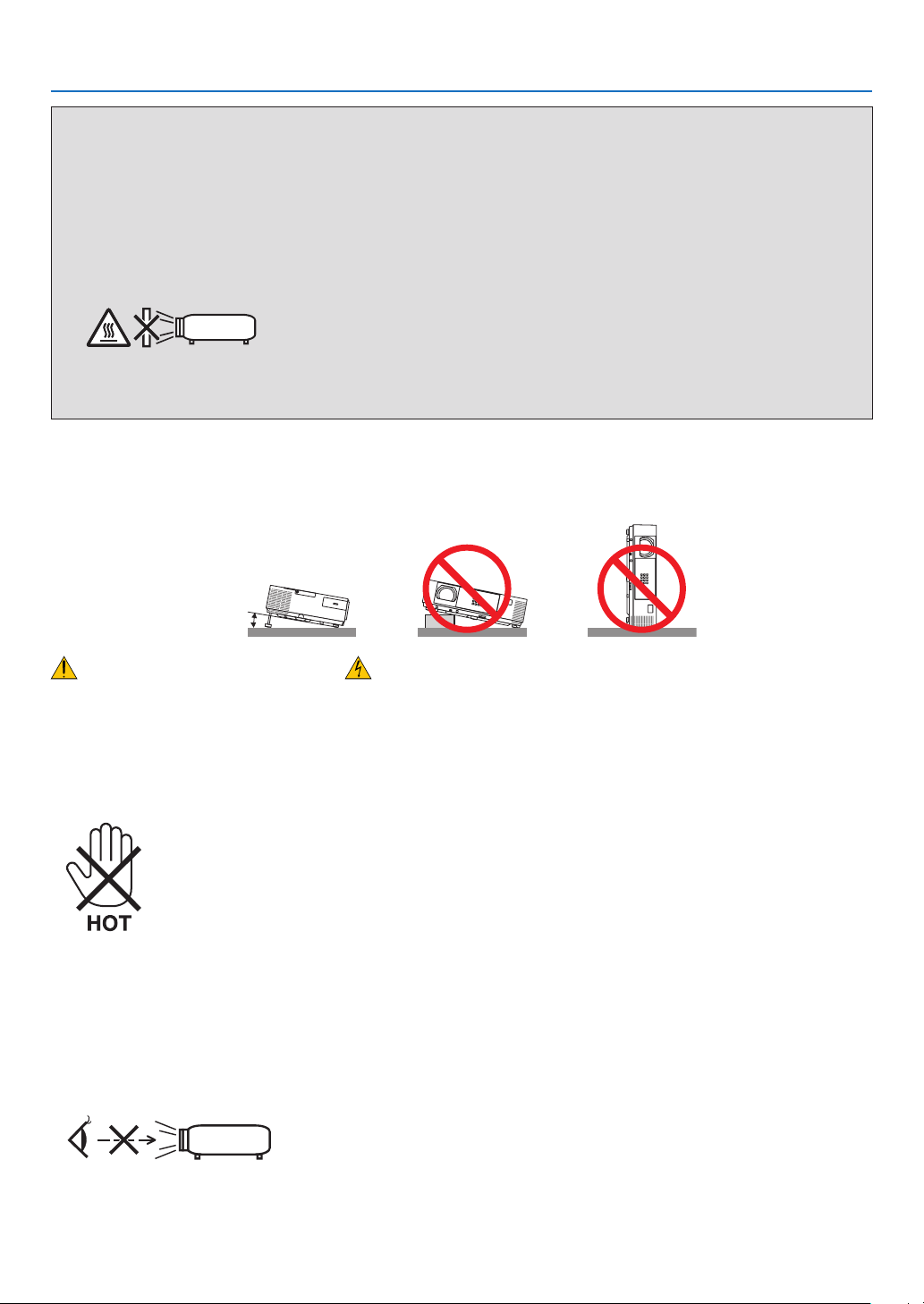
• Donotuseanyotherobjectthantheprojector’sslidinglenscovertocoverthelenswhiletheprojectorison.
Doingsocancausetheobjecttogetextremelyhot,andpossiblyresultinginareordamageduetotheheat
emittedfromthelightoutput.
• Donotcoverthelenswiththelenscaporequivalentwhiletheprojectorison.Doingsocanleadtomeltingof
thecapduetotheheatemittedfromthelightoutput.
• Donotplaceanyobjects,whichareeasilyaffectedbyheat,infrontoftheprojectorlens.Doingsocouldlead
totheobjectmeltingfromtheheatthatisemittedfromthelightoutput.
• Donotsprayammablegastogetridofdustanddirtthataccumulateinthelens.Doingsocouldcausea
re.
Place the projector in a horizontal position
Thetiltangleoftheprojectorshouldnotexceed10degrees,norshouldtheprojectorbeinstalledinanywayother
thanthedesktopandceilingmount,otherwiselamplifecoulddecreasedramatically.
10˚
Fire and Shock Precautions
• Ensurethatthereissufcientventilationandthatventsareunobstructedtopreventthebuild-upofheatinsideyour
projector.Allowatleast4inches(10cm)ofspacebetweenyourprojectorandawall.
• Donottrytotouchtheexhaustventontherightfront(whenseenfromthefront)asitcanbecomeheatedwhilethe
projectoristurnedonandimmediatelyaftertheprojectoristurnedoff.Partsoftheprojectormaybecometemporarily
heatediftheprojectoristurnedoffwiththePOWERbuttonoriftheACpowersupplyisdisconnectedduringnormal
projectoroperation.
Usecautionwhenpickinguptheprojector.
• Preventforeignobjectssuchaspaperclipsandbitsofpaperfromfallingintoyourprojector.Donotattempttoretrieve
anyobjectsthatmightfallintoyourprojector.Donotinsertanymetalobjectssuchasawireorscrewdriverintoyour
projector.Ifsomethingshouldfallintoyourprojector,disconnectitimmediatelyandhavetheobjectremovedbya
qualiedservicepersonnel.
• Donotplaceanyobjectsontopoftheprojector.
• Donottouchthepowerplugduringathunderstorm.Doingsocancauseelectricalshockorre.
• Theprojectorisdesignedtooperateonapowersupplyof100-240VAC50/60Hz.Ensurethatyourpowersupply
tsthisrequirementbeforeattemptingtouseyourprojector.
• Donotlookintothelenswhiletheprojectorison.Seriousdamagetoyoureyescouldresult.
• Keepanyitemssuchasmagnifyingglassoutofthelightpathoftheprojector.Thelightbeingprojectedfromthe
lensisextensive,thereforeanykindofabnormalobjectsthatcanredirectlightcomingoutofthelens,cancause
unpredictableoutcomesuchasreorinjurytotheeyes.

iv
Important Information
• Donotplaceanyobjects,whichareeasilyaffectedbyheat,infrontofaprojectorexhaustvent.
Doingsocouldleadtotheobjectmeltingorgettingyourhandsburnedfromtheheatthatisemittedfromtheexhaust
vent.
• Donotsplashwaterovertheprojector.Doingsocancauseelectricalshockorre.Iftheprojectorgetswet,turnoff
theprojector,unplugthepowercordandhavetheprojectorservicedbyaqualiedservicepersonnel.
• Handlethepowercordcarefully.Adamagedorfrayedpowercordcancauseelectricshockorre.
- Donotuseanypowercordotherthantheonesuppliedwiththeprojector.
- Donotbendortugthepowercordexcessively.
- Donotplacethepowercordundertheprojector,oranyheavyobject.
- Donotcoverthepowercordwithothersoftmaterialssuchasrugs.
- Donotheatthepowercord.
- Donothandlethepowerplugwithwethands.
• Turnofftheprojector,unplugthepowercordandhavetheprojectorservicedbyaqualiedservicepersonnelunder
thefollowingconditions:
- Whenthepowercordorplugisdamagedorfrayed.
- Ifliquidhasbeenspilledintotheprojector,orifithasbeenexposedtorainorwater.
- Iftheprojectordoesnotoperatenormallywhenyoufollowtheinstructionsdescribedinthisuser’smanual.
- Iftheprojectorhasbeendroppedorthecabinethasbeendamaged.
- Iftheprojectorexhibitsadistinctchangeinperformance,indicatinganeedforservice.
• Disconnectthepowercordandanyothercablesbeforecarryingtheprojector.
• Turnofftheprojectorandunplugthepowercordbeforecleaningthecabinetorreplacingthelamp.
• Turnofftheprojectorandunplugthepowercordiftheprojectorisnottobeusedforanextendedperiodoftime.
• WhenusingaLANcable(onlymodelswiththeRJ-45LANport):
Forsafety,donotconnecttotheterminalforperipheraldevicewiringthatmighthaveexcessivevoltage.
CAUTION
• Donotusethetilt-footforpurposesotherthanoriginallyintended.Misusessuchasgrippingthetilt-footorhang-
ingonthewallcancausedamagetotheprojector.
• Donotsendtheprojectorinthesoftcasebyparceldeliveryserviceorcargoshipment.Theprojectorinsidethe
softcasecouldbedamaged.
• Select[HIGH]inFanmodeifyoucontinuetousetheprojectorforconsecutivedays.(Fromthemenu,select
[SETUP]→[OPTIONS(1)]→[FANMODE]→[HIGH].)
• DonotturnofftheACpowerfor60secondsafterthelampisturnedonandwhilethePOWERindicatorisblink-
ingblue.Doingsocouldcauseprematurelampfailure.
Remote Control Precautions
• Handletheremotecontrolcarefully.
• Iftheremotecontrolgetswet,wipeitdryimmediately.
• Avoidexcessiveheatandhumidity.
• Donotshort,heat,ortakeapartbatteries.
• Donotthrowbatteriesintore.
• Ifyouwillnotbeusingtheremotecontrolforalongtime,removethebatteries.
• Ensurethatyouhavethebatteries’polarity(+/−)alignedcorrectly.
• Donotusenewandoldbatteriestogether,orusedifferenttypesofbatteriestogether.
• Disposeofusedbatteriesaccordingtoyourlocalregulations.
v
Important Information
Note for US Residents
Thelampinthisproductcontainsmercury.PleasedisposeaccordingtoLocal,StateorFederalLaws.
Lamp Replacement
• Usethespeciedlampforsafetyandperformance.
• Toreplacethelamp,followallinstructionsprovidedonpage133.
• Besuretoreplacethelampwhenthemessage[THE LAMP HAS REACHED THE END OF ITS USABLE LIFE.
PLEASE REPLACE THE LAMP.]appears.Ifyoucontinuetousethelampafterthelamphasreachedtheendof
itsusablelife,thelampbulbmayshatter,andpiecesofglassmaybescatteredinthelampcase.Donottouchthem
asthepiecesofglassmaycauseinjury.
Ifthishappens,contactyourdealerforlampreplacement.
A Lamp Characteristic
Theprojectorhasadischargelampforspecialpurposesasalightsource.
Alamphasacharacteristicthatitsbrightnessgraduallydecreaseswithage.Alsorepeatedlyturningthelampon
andoffwillincreasethepossibilityofitslowerbrightness.
Theactuallamplifemayvarydependingupontheindividuallamp,theenvironmentalconditionsandusage.
CAUTION:
• DONOTTOUCHTHELAMPimmediatelyafterithasbeenused.Itwillbeextremelyhot.Turntheprojectoroff
andthendisconnectthepowercord.Allowatleastonehourforthelamptocoolbeforehandling.
• Whenremovingthelampfromaceiling-mountedprojector,makesurethatnooneisundertheprojector.Glass
fragmentscouldfallifthelamphasbeenburnedout.
About High Altitude mode
• Set[FANMODE]to[HIGHALTITUDE]whenusingtheprojectorataltitudesapproximately5500feet/1700meters
orhigher.
Usingtheprojectorataltitudesapproximately5500feet/1700metersorhigherwithoutsettingto[HIGHALTITUDE]
cancausetheprojectortooverheatandtheprotectorcouldshutdown.Ifthishappens,waitacoupleminutesand
turnontheprojector.
• Usingtheprojectorataltitudeslessthanapproximately5500feet/1700metersandsettingto[HIGHALTITUDE]
cancausethelamptoovercool,causingtheimagetoicker.Switch[FANMODE]to[AUTO].
• Usingtheprojectorataltitudesapproximately5500feet/1700metersorhighercanshortenthelifeofopticalcom-
ponentssuchasthelamp.
About Copyright of original projected pictures:
Pleasenotethatusingthisprojectorforthepurposeofcommercialgainortheattractionofpublicattentioninavenue
suchasacoffeeshoporhotelandemployingcompressionorexpansionofthescreenimagewiththefollowingfunc-
tionsmayraiseconcernabouttheinfringementofcopyrightswhichareprotectedbycopyrightlaw.
[ASPECTRATIO],[KEYSTONE],Magnifyingfeatureandothersimilarfeatures.
Turkish RoHS information relevant for Turkish market
EEE Yonetmeliğine Uygundur.
Thisdeviceisnotintendedforuseinthedirecteldofviewatvisualdisplayworkplaces.Toavoidincommodingreec-
tionsatvisualdisplayworkplacesthisdevicemustnotbeplacedinthedirecteldofview.
vi
Important Information
Power management function
Theprojectorhaspowermanagementfunctions.Toreducepowerconsumption,thepowermanagementfunctions(1
and2)arefactorypresetasshownbelow.TocontroltheprojectorfromanexternaldeviceviaaLANorserialcable
connection,usetheon-screenmenutochangethesettingsfor1and2.
1. STANDBY MODE (Factory preset: NORMAL)
To control the projector from an external device, select [NETWORK STANDBY] for [STANDBY MODE].
NOTE:
• When[NORMAL]isselectedfor[STANDBYMODE],thefollowingterminalsandfunctionswillnotwork:
MONITOROUTterminal,AUDIOOUTterminal,USB-Bport,LANfunctions,MailAlertfunction,DDC/CI(VirtualRemoteTool)
2. AUTO POWER OFF (Factory preset: 1 hour)
To control the projector from an external device, select [OFF] for [AUTO POWER OFF].
NOTE:
• When[1:00]isselectedfor[AUTOPOWEROFF],youcanenabletheprojectortoautomaticallyturnoffin60minutesifthereis
nosignalreceivedbyanyinputorifnooperationisperformed.
Health precautions to users viewing 3D images
Beforeviewing,besuretoreadhealthcareprecautionsthatmaybefoundintheuser’smanualincludedwithyour
LCDshuttereyeglassesoryour3DcompatiblecontentsuchasDVDs,videogames,computer'svideolesand
thelike.
Toavoidanyadversesymptoms,heedthefollowing:
• DonotuseLCDshuttereyeglassesforviewinganymaterialotherthan3Dimages.
• Allowadistanceof2m/7feetorgreaterbetweenthescreenandauser.Viewing3Dimagesfromtooclosea
distancecanstrainyoureyes.
• Avoidviewing3Dimagesforaprolongedperiodoftime.Takeabreakof15minutesorlongeraftereveryhour
ofviewing.
• Ifyouoranymemberofyourfamilyhasahistoryoflight-sensitiveseizures,consultadoctorbeforeviewing3D
images.
• Whileviewing3Dimages,ifyougetsicksuchasnausea,dizziness,queasiness,headache,eyestrain,blurry
vision,convulsions,andnumbness,stopviewingthem.Ifsymptomsstillpersist,consultadoctor.
• View3Dimagesfromthefrontofthescreen.Viewingfromananglemaycausefatigueoreyestrain.
Model Number of Wireless LAN unit
WirelessLANunitisanoptionalitem.
Tondtheappropriatemodeltoyourarea,pleasevisitthecompanywebsite:
URL:http://www.nec-display.com/global/support/index.html

vii
Table of Contents
Important Information ............................................................................................i
1. Introduction ...........................................................................................................1
❶What’sintheBox? ..........................................................................................................1
❷IntroductiontotheProjector ...........................................................................................2
CongratulationsonYourPurchaseoftheProjector ..................................................2
Featuresyou’llenjoy: ................................................................................................2
Aboutthisuser’smanual ...........................................................................................3
ComparativeTableofMainFeatures ........................................................................4
❸PartNamesoftheProjector ...........................................................................................5
Front/Top ...................................................................................................................5
Rear ..........................................................................................................................6
Front/Top
...................................................................................................................7
Rear ..........................................................................................................................7
TopFeatures .............................................................................................................8
TerminalsFeatures ...................................................................................................9
❹PartNamesoftheRemoteControl ..............................................................................10
BatteryInstallation ..................................................................................................11
RemoteControlPrecautions ...................................................................................11
OperatingRangeforWirelessRemoteControl .......................................................11
❺SoftwareIncludedonCD-ROM ....................................................................................12
2. Projecting an Image (Basic Operation) ...............................................13
❶FlowofProjectinganImage .........................................................................................13
❷ConnectingYourComputer/ConnectingthePowerCord ..............................................14
❸TurningontheProjector ...............................................................................................15
NoteonStartupscreen(MenuLanguageSelectscreen) .......................................16
❹SelectingaSource .......................................................................................................17
Selectingthecomputerorvideosource..................................................................17
❺AdjustingthePictureSizeandPosition ........................................................................18
AdjusttheTiltFoot ..................................................................................................19
Zoom .......................................................................................................................20
Focus ......................................................................................................................21
❻CorrectingKeystoneDistortionManually .....................................................................22
Adjustingwithbuttonsonthecabinet .....................................................................22
Adjustingwiththeremotecontrol ............................................................................23
❼OptimizingComputerSignalAutomatically ..................................................................26
AdjustingtheImageUsingAutoAdjust ...................................................................26
❽TurningUporDownVolume .........................................................................................26
❾TurningofftheProjector ...............................................................................................27
❿AfterUse.......................................................................................................................28
3. Convenient Features ......................................................................................29
❶TurningofftheImageandSound .................................................................................29
❷FreezingaPicture ........................................................................................................29
❸MagnifyingaPicture .....................................................................................................29
❹ChangingEcoMode/CheckingEnergy-SavingEffect .................................................31
UsingEcoMode[ECOMODE] ...............................................................................31

viii
Table of Contents
CheckingEnergy-SavingEffect[CARBONMETER] ..............................................32
❺
PreventingtheUnauthorizedUseoftheProjector[SECURITY] .......................................33
❻UsingtheComputerCable(VGA)toOperatetheProjector(VirtualRemoteTool) ......36
❼
OperatingYourComputer’sMouseFunctionsfromtheProjector’sRemoteControl
viatheUSBCable(RemoteMouseFunction) .......................................................... 42
❽ProjectingYourComputer’sScreenImagefromtheProjectorviatheUSBCable
(USBDisplay) .........................................................................................................43
❾ControllingtheProjectorbyUsinganHTTPBrowser ..................................................45
❿
ControllingtheProjectoroveraLAN(PCControlUtilityPro4/Pro5) ............................. 52
⓫ProjectingYourComputer’sScreenImagefromtheProjectoroveraLAN(Image
ExpressUtilityLite) .................................................................................................56
StartingImageExpressUtilityLitefromaUSBMemoryorSDCard .....................59
DownloadingImageExpressUtilityLiteviatheHTTPserver .................................60
⓬ProjectinganImagefromanAngle(GeometricCorrectionToolinImageExpress
UtilityLite) ...............................................................................................................63
WhatyoucandowithGCT .....................................................................................63
ProjectinganImagefromanAngle(GCT) ..............................................................63
⓭Viewing3DImages .......................................................................................................66
⓮ConnectingYourMicrophone ........................................................................................70
⓯ProjectingphotosordocumentssavedonthesmartphoneoverawirelessLAN
(WirelessImageUtility) ...........................................................................................71
⓰Simultaneouslyprojectimagesreceivedfrommultipleterminalunits ..........................72
4. Using the Viewer ..............................................................................................73
❶WhatyoucandowiththeViewer ..................................................................................73
❷ProjectingimagesstoredinaUSBmemorydevice .....................................................75
5. Using On-Screen Menu .................................................................................81
❶UsingtheMenus ...........................................................................................................81
❷MenuElements .............................................................................................................82
❸ListofMenuItems ........................................................................................................83
❹MenuDescriptions&Functions[SOURCE] .................................................................86
COMPUTER ...........................................................................................................86
HDMI1and2 ...........................................................................................................86
VIDEO .....................................................................................................................86
USB-A(Viewer) .......................................................................................................86
LAN .........................................................................................................................86
USB-B(USBDisplay) .............................................................................................86
❺MenuDescriptions&Functions[ADJUST] ...................................................................87
[PICTURE] ..............................................................................................................87
[IMAGEOPTIONS] .................................................................................................90
❻MenuDescriptions&Functions[SETUP] .....................................................................95
[GENERAL] .............................................................................................................95
[MENU] ...................................................................................................................98
[INSTALLATION] ...................................................................................................100
[OPTIONS(1)] .......................................................................................................102
[OPTIONS(2)] .......................................................................................................104

ix
Table of Contents
[3D] .......................................................................................................................107
SettinguptheProjectorforaWiredLANConnection[WIREDLAN] ....................109
SettinguptheProjectorforaWirelessLANConnection(withtheoptionalUSB
WirelessLANUnitequipped)[WIRLESSLAN] .....................................................110
❼MenuDescriptions&Functions[INFO.] .....................................................................112
[USAGETIME] ......................................................................................................112
[SOURCE(1)] ........................................................................................................113
[SOURCE(2)] ........................................................................................................113
[WIREDLAN] ........................................................................................................113
[WIRELESSLAN] .................................................................................................114
[VERSION(1)] .......................................................................................................114
[VERSION(2)] .......................................................................................................114
[OTHERS] .............................................................................................................115
❽MenuDescriptions&Functions[RESET] ...................................................................116
ReturningtoFactoryDefault[RESET] ..................................................................116
6. Installation and Connections ..................................................................117
❶SettingUptheScreenandtheProjector ....................................................................117
SelectingaLocation..............................................................................................117
ThrowDistanceandScreenSize ..........................................................................120
❷MakingConnections ...................................................................................................122
ConnectingYourComputer ...................................................................................122
ConnectinganExternalMonitor ...........................................................................124
ConnectingYourDVDPlayerorOtherAVEquipment ...........................................125
ConnectingComponentInput ...............................................................................126
ConnectingHDMIInput.........................................................................................127
ConnectingtoaWiredLAN ..................................................................................128
ConnectingtoaWirelessLAN ..............................................................................129
7. Maintenance .....................................................................................................132
❶CleaningtheLens.......................................................................................................132
❷CleaningtheCabinet ..................................................................................................132
❸ReplacingtheLamp....................................................................................................133
8. Appendix ..............................................................................................................136
❶Troubleshooting ..........................................................................................................136
IndicatorMessages ...............................................................................................136
CommonProblems&Solutions ............................................................................137
Ifthereisnopicture,orthepictureisnotdisplayedcorrectly. ...............................138
❷Specications .............................................................................................................139
❸CabinetDimensions ...................................................................................................145
AttachingtheOptionalCableCover(NP05CV) ....................................................147
❹PinAssignmentsofD-SubCOMPUTERInputTerminal ............................................148
❺CompatibleInputSignalList .......................................................................................149
❻PCControlCodesandCableConnection ..................................................................150
❼TroubleshootingCheckList .........................................................................................151
❽TCOCertication ........................................................................................................153
❾REGISTERYOURPROJECTOR!(forresidentsintheUnitedStates,Canada,and
Mexico) .................................................................................................................154
1
Projector
[M403W/M363W/M323W/M403X/M363X/
M323X/M283X/M403H/M323H]
Power cord
(US: 7N080236/7N080242)
(EU: 7N080022/7N080028)
Soft case (24BS8391)
The M353WS/M303WS/M333XS do
not come with a soft case.
[M353WS/M303WS/M333XS] Power cord
(US: 7N080240/7N080243)
(EU: 7N080027/7N080029)
Computer cable (VGA)
(7N520089)
Remote control
(7N901052)
Batteries (AAA × 2)
For North America only
Limited warranty
For customers in Europe:
You will find our current valid Guarantee
Policy on our Web Site:
www.nec-display-solutions.com
• ImportantInfomation
(For North America: 7N8N6051)
(For Other countries than North
America: 7N8N6051 and 7N8N6061)
• QuickSetupGuide
(7N8N6071)/(7N8N6081)
NEC Projector CD-ROM
User’s manual (PDF) and the
utility software
(7N952231)
1. Introduction
❶ What’s in the Box?
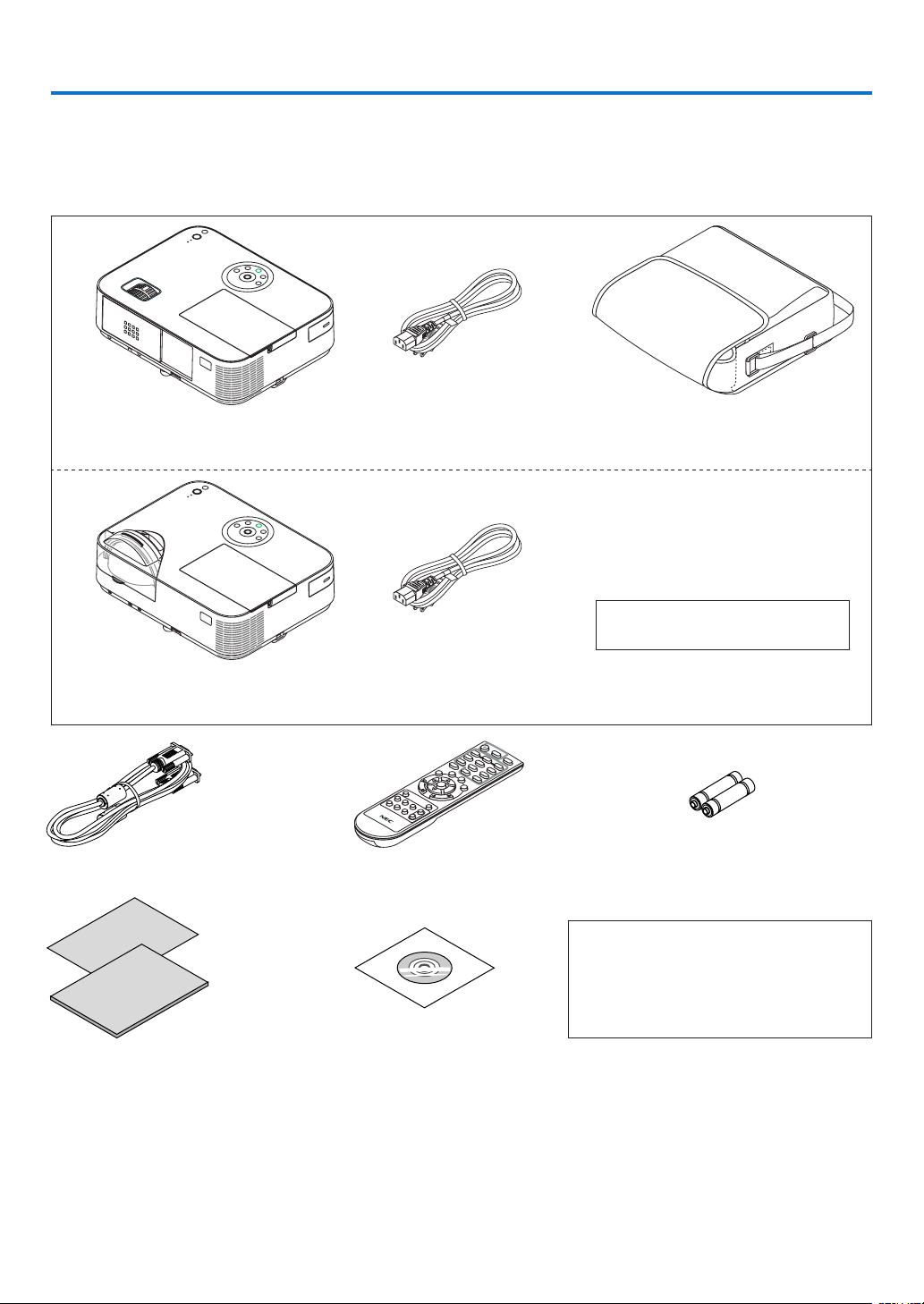
Makesureyourboxcontainseverythinglisted.Ifanypiecesaremissing,contactyourdealer.
Pleasesavetheoriginalboxandpackingmaterialsifyoueverneedtoshipyourprojector.
• Inthismanual,M403Wisexplainedmainly.
• However,theappearanceoftheprojectorisslightlydifferentbetweenM403W,M363W,M323W,M403X,M363X,
M323X,M283X,M403H,andM323H,theprojectorcabinetillustrationofM403W,M363W,M323W,M403X,M363X,
M323X,M283Xisusedforexplanations.

2
1. Introduction
❷ Introduction to the Projector
Thissectionintroducesyoutoyournewprojectoranddescribesthefeaturesandcontrols.
Congratulations on Your Purchase of the Projector
Thisprojectorisoneoftheverybestprojectorsavailabletoday.Theprojectorenablesyoutoprojectpreciseimages
upto300inches(150inchesforshortthrowmodels)across(measureddiagonally)fromyourPCorMaccomputer
(desktopornotebook),VCR,DVDplayer,ordocumentcamera.
Youcanusetheprojectoronatabletoporcart,youcanusetheprojectortoprojectimagesfrombehindthescreen,
andtheprojectorcanbepermanentlymountedonaceiling*
1
.Theremotecontrolcanbeusedwirelessly.
*
1
Donotattempttomounttheprojectoronaceilingyourself.
Theprojectormustbeinstalledbyqualiedtechniciansinordertoensureproperoperationandreducetherisk
ofbodilyinjury.
Inaddition,theceilingmustbestrongenoughtosupporttheprojectorandtheinstallationmustbeinaccordance
withanylocalbuildingcodes.Pleaseconsultyourdealerformoreinformation.
Features you’ll enjoy:
• 0.15W(100-130VAC)/0.32W(200-240VAC)instandbyconditionwithenergysavingtechnology
Selecting[NORMAL]for[STANDBYMODE]fromthemenucanputtheprojectorinpower-savingmode.
NORMAL:0.15W(100-130VAC)/0.32W(200-240VAC)
NETWORKSTANDBY:2.6W(100-130VAC)/2.9W(200-240VAC)
• CarbonMeter
Thisfeaturewillshowenergy-savingeffectintermsofCO
2
emissionreduction(kg)whentheprojector’s[ECO
MODE]issetto[AUTOECO],[NORMAL],or[ECO].
TheamountofCO
2
emissionreductionwillbedisplayedintheconrmationmessageatthetimeofpower-offand
intheINFOoftheon-screenmenu.
• Lamplifeupto8000hours
UsinginEcoModeallowsyoutoprolongtheprojector’slamplifeupto8000hours(upto3500hoursinECO
MODEOFF).
M283X:upto10000uphours(upto4500hoursinECOMODEOFF).
• Nolterreplacementrequired
Sincetheprojectorhasnolters,lterreplacementisnotrequired.
• TwoHDMIinputterminalsprovidedigitalsignal
ThetwoHDMIinputsprovideHDCPcompatibledigitalsignals.TheHDMIinputalsosupportsaudiosignal.
• 20Wbuilt-inspeakerforanintegratedaudiosolution/micinputsupprted
Powerful20wattmonauralspeakerprovidesvolumeneedforlargeroomsadynamicorcondensermiccanbe
used.
• ThesuppliedremotecontrolallowsyoutoassignaCONTROLIDtotheprojector
Multipleprojectorscanbeoperatedseparatelyandindependentlywiththesamesingleremotecontrolbyassigning
anIDnumbertoeachprojector.
• Autoverticalkeystonecorrection
AutoKeystonefeatureallowstheprojectortodetectitstiltandcorrectverticaldistortionautomatically.
• USBDisplay
UsingacommerciallyavailableUSBcable(compatiblewithUSB2.0specications)toconnectthecomputerwith
theprojectorallowsyoutosendyourcomputerscreenimagetotheprojectorwithouttheneedofatraditional
computercable(VGA).

3
1. Introduction
• IntegratedRJ-45terminalforwirednetworkingcapabilityalongwithwirelessnetworkingcapabilities
AnRJ-45terminalisstandard.AnoptionalUSBWirelessLANUnitisrequiredforwirelessLANconnection.
• Softwareprograms(UserSupportware)containedinthesuppliedCD-ROM
ThesuppliedNECProjectorincludesthreeprograms:VirtualRemoteTool,ImageExpressUtilityLite(forWindows/
MacOS),PCControlUtilityPro4(forWindows)/5(forMacOS).
ImageExpressUtilityLite(forWindows)canbestartedfromacommerciallyavailableUSBmemoryorSDcard
withouttheneedofinstallingonyourcomputer.
• Audiotransfercapability(forWindowsonly)
ImageExpressUtilityLiteallowsyoutosendthecomputer’sscreenimageandaudiototheprojectoroveranetwork
orUSBconnection.
* Audiotransfercapabilityisavailableonlywhenthecomputerconnectswiththeprojectorinpeer-to-peernet-
work.
• Quickstart(11seconds*),QuickPowerOff,DirectPowerOff
11seconds*afterturningonthepower,theprojectorisreadytodisplayPCorvideoimages.
Theprojectorcanbeputawayimmediatelyaftertheprojectorispowereddown.Nocooldownperiodisrequired
aftertheprojectoristurnedofffromtheremotecontrolorcabinetcontrolpanel.
Theprojectorhasafeaturecalled"DirectPowerOff".Thisfeatureallowstheprojectortobeturnedoff(evenwhen
projectinganimage)byusingtheMainPowerSwitchordisconnectingtheACpowersupply.
ToturnofftheACpowersupplywhentheprojectorispoweredon,useapowerstripequippedwithaswitchand
abreaker.
* Thequickstarttimeiseffectiveonlywhen[STANDBYMODE]issetto[NETWORKSTANDBY]intheon-screen
message.
• AUTOPOWERONandAUTOPOWEROFFfeatures
TheDIRECTPOWERON,AUTOPOWERON(COMP.),AUTOPOWEROFF,andOFFTIMERfeatureseliminate
theneedtoalwaysusethePOWERbuttonontheremotecontrolorprojectorcabinet.
• Preventingunauthorizeduseoftheprojector
Enhancedsmartsecuritysettingsforkeywordprotection,cabinetcontrolpanellock,securityslot,andsecurity
chainopeningtohelppreventunauthorizedaccess,adjustmentsandtheftdeterrence.
• HighresolutionuptoWUXGA
Highresolutiondisplay-uptoWUXGAcompatible,XGA(M403X/M363X/M323X/M283X/M333XS)/WXGA(M403W/
M363W/M323W/M353WS/M303WS)/FullHD(M403H/M323H)nativeresolution.
• 3DImagessupported
Theprojectorprovides3Dimagestoauserwearingcommerciallyavailable3Deyeglasses.
• CRESTRONROOMVIEWcompatibility
TheprojectorsupportsCRESTRONROOMVIEW,allowingmultipledevicesconnectedinthenetworktobeman-
agedandcontrolledfromacomputerorcontroller.
About this user’s manual
Thefastestwaytogetstartedistotakeyourtimeanddoeverythingrightthersttime.Takeafewminutesnowto
reviewtheuser’smanual.Thismaysaveyoutimelateron.Atthebeginningofeachsectionofthemanualyou’llnd
anoverview.Ifthesectiondoesn’tapply,youcanskipit.
4
1. Introduction
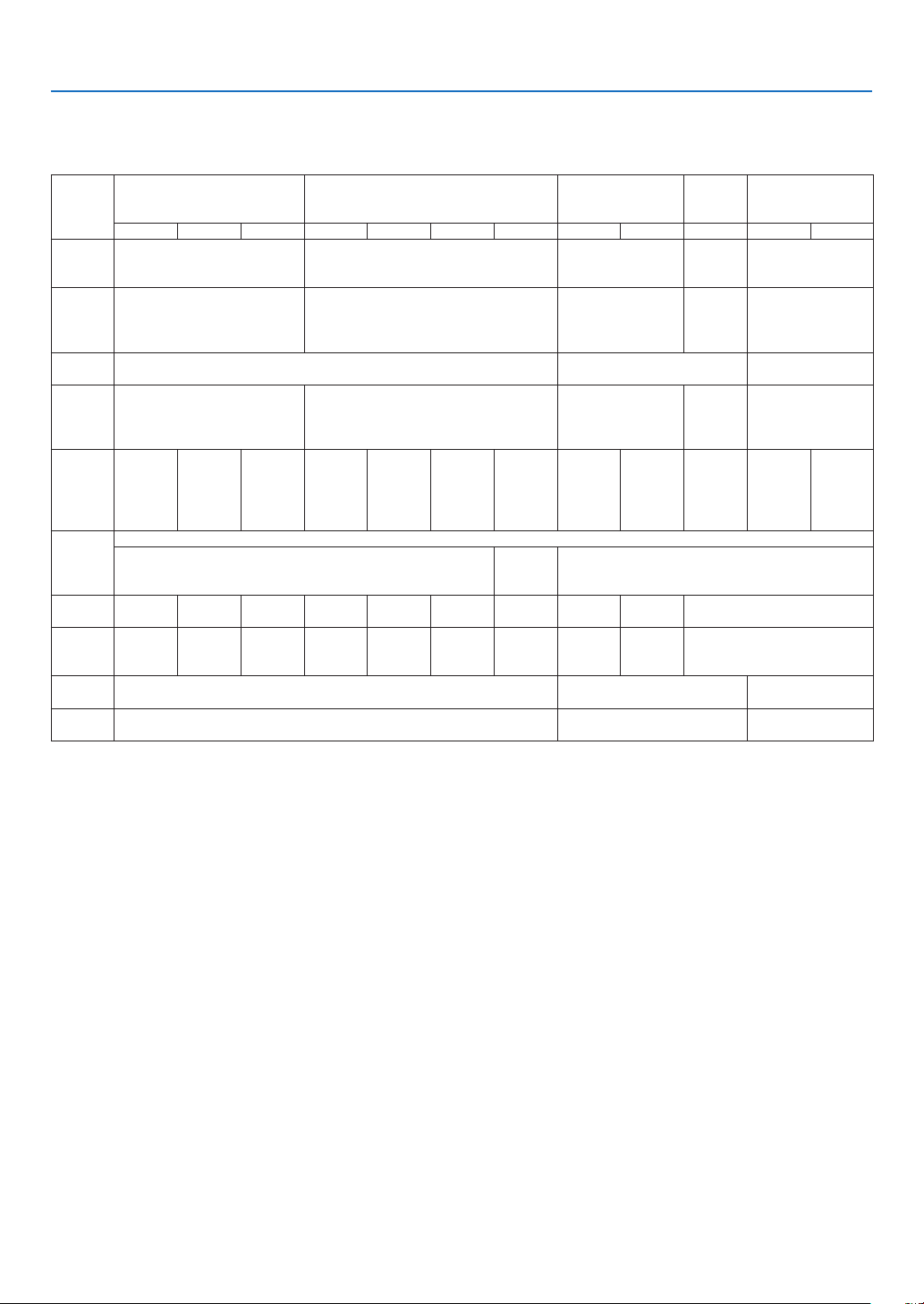
Comparative Table of Main Features
Themainfeaturesvarydependingonthemodelasfollows.
Standard Models with Wide Panel Standard Models Short-Throw Models
with Wide Panel
Short-
Throw
Model
Full HD Models
M403W M363W M323W M403X M363X M323X M283X M353WS M303WS M333XS M403H M323H
Native
Aspect
Ratio
16:10
Wide
4:3
Standard
16:10
Wide
4:3
Standard
16:9
Hi-Vision
Native
Resolution
(dots ×
lines*
1
)
WXGA (1280 × 800) XGA (1024 × 768) WXGA (1280 × 800) XGA (1024
× 768)
Full HD (1920 x 1080)
Screen
Size
30" - 300" 60" - 150" 30" - 300"
Projection
Distance
29–531 inches/0.75–13.5 m 35–627 inches/0.89–15.9 m 22–58 inch-
es/0.57–1.5 m
27–70
inches/
0.68–1.8
m
29-554 inches/
0.74−14.08 m
Light
output *
2
*
3
in OFF
for ECO
MODE
4000
lumens
3600
lumens
3200
lumens
4000
lumens
3600
lumens
3200
lumens
2800
lumens
3500
lumens
3000
lumens
3300
lumens
4000
lumens
3200
lumens
Lamp
Replace-
ment Time
(average)
OFF for ECO MODE/ON for ECO MODE (H)
3500/8000
4500/10000
3500/8000
Lamp
Model
NP30LP NP29LP NP28LP NP30LP NP29LP NP28LP NP27LP NP30LP NP28LP NP30LP
Lamp
Wattage
(AC)
270 W 250 W 225 W 270 W 250 W 225 W 200 W 270 W 225 W 270 W
Zoom Using the manual zoom lever Using the [DIGITAL ZOOM] function
from the menu
Using the manual
zoom lever
Focus Using the manual focus ring Using the manual focus lever Using the manual
focus ring
Forfurtherdetailsonthespecications,seepages139 to 141, 143.
*1 Effectivepixelsaremorethan99.99%.
*2 Thisisthelightoutputvalue(lumens)whenthe[PRESET]modeissetto[HIGH-BRIGHT].Ifanyothermodeisselectedasthe
[PRESET]mode,thelightoutputvaluemaydropslightly.
*3 CompliancewithISO21118-2005
TIP:Themodelnameislocatedonthecabinet.
5
1. Introduction
❸ Part Names of the Projector
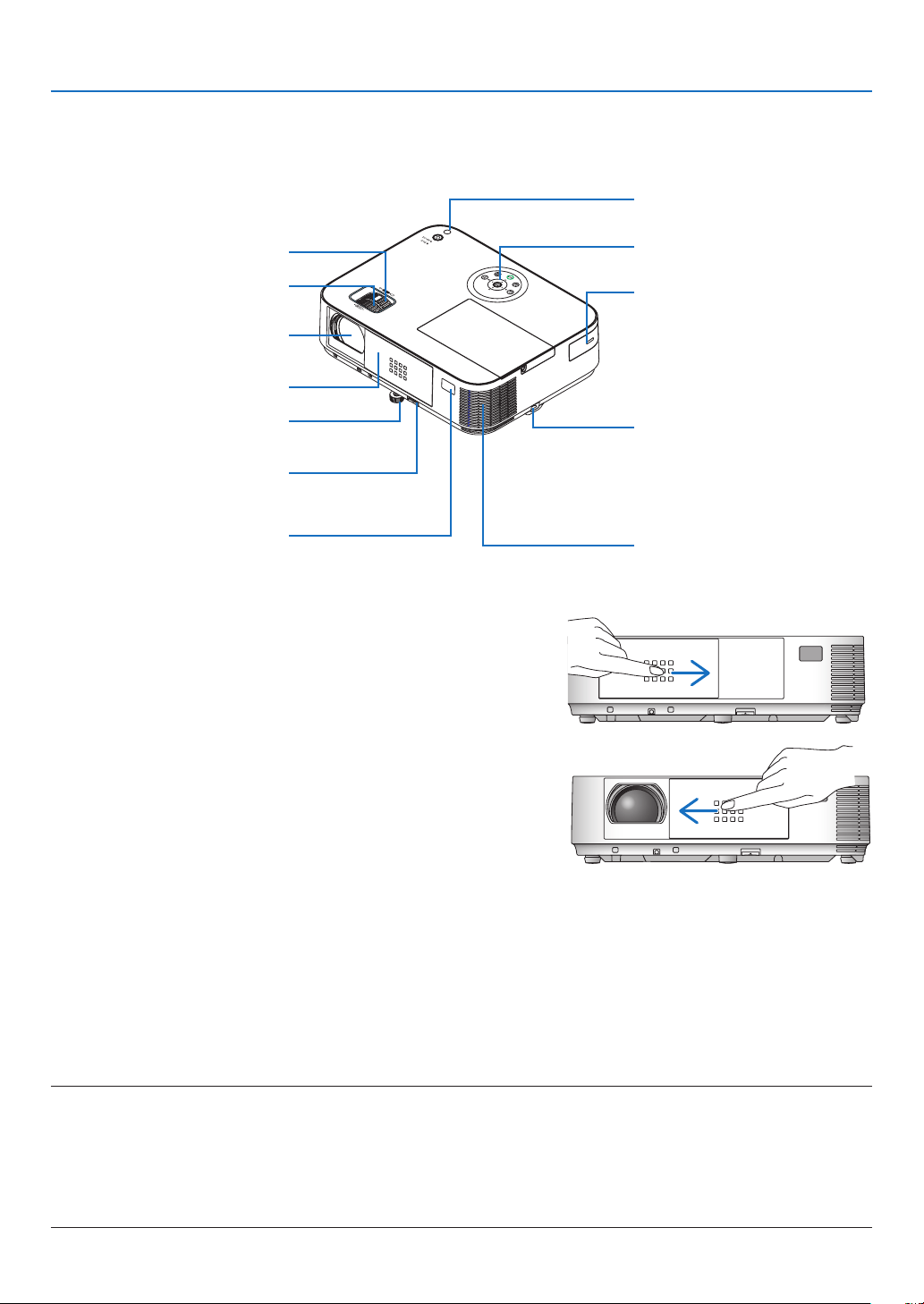
Front/Top
[M403W/M363W/M323W/M403X/M363X/M323X/M283X/M403H/M323H]
Controls
(→ page 8)
Remote Sensor
(→ page 11)
Exhaust Vent
Heated air is exhausted from here.
Port Cover for Optional USB
Wireless LAN Unit
When using the optional USB
Wireless LAN Unit, first remove
the cover. (→ page 130)
Zoom Lever
(→ page 20)
Lens Cover
Focus Ring
(→ page 21)
Adjustable Tilt Foot Lever
(→ page 19)
Adjustable Tilt Foot
(→ page 19)
Lens
Light Sensor
(→ page 96)
Security chain opening
Attach an anti-theft device.
The security chain opening accepts
security wires or chains up to 0.18
inch/4.6 mm in diameter.
Opening and closing the lens cover
Slidethelenscovertotherighttouncoverthelens.
Tocoverthelens,slidethelenscovertotheleft.
NOTE:
• ThelenscoverworksinconjunctionwiththeAV-MUTEfunction.Closingthelenscoverwillturnofftheimageandsoundduring
normalprojectoroperation;openingitwillrestoretheimageandsound.
Withthelenscoverclosedtheimageandsoundisturnedoff,howeverthelampisstilllit.Iftheprojectorstaysthiswayforabout
2hours,itwillturnoffautomatically.
• Donotpullthelenscoverwithexcessiveforceorapplystrongpressureineithertheupordowndirection.Doingsocancause
damagetothelenscoverslidingmechanism!
6
1. Introduction
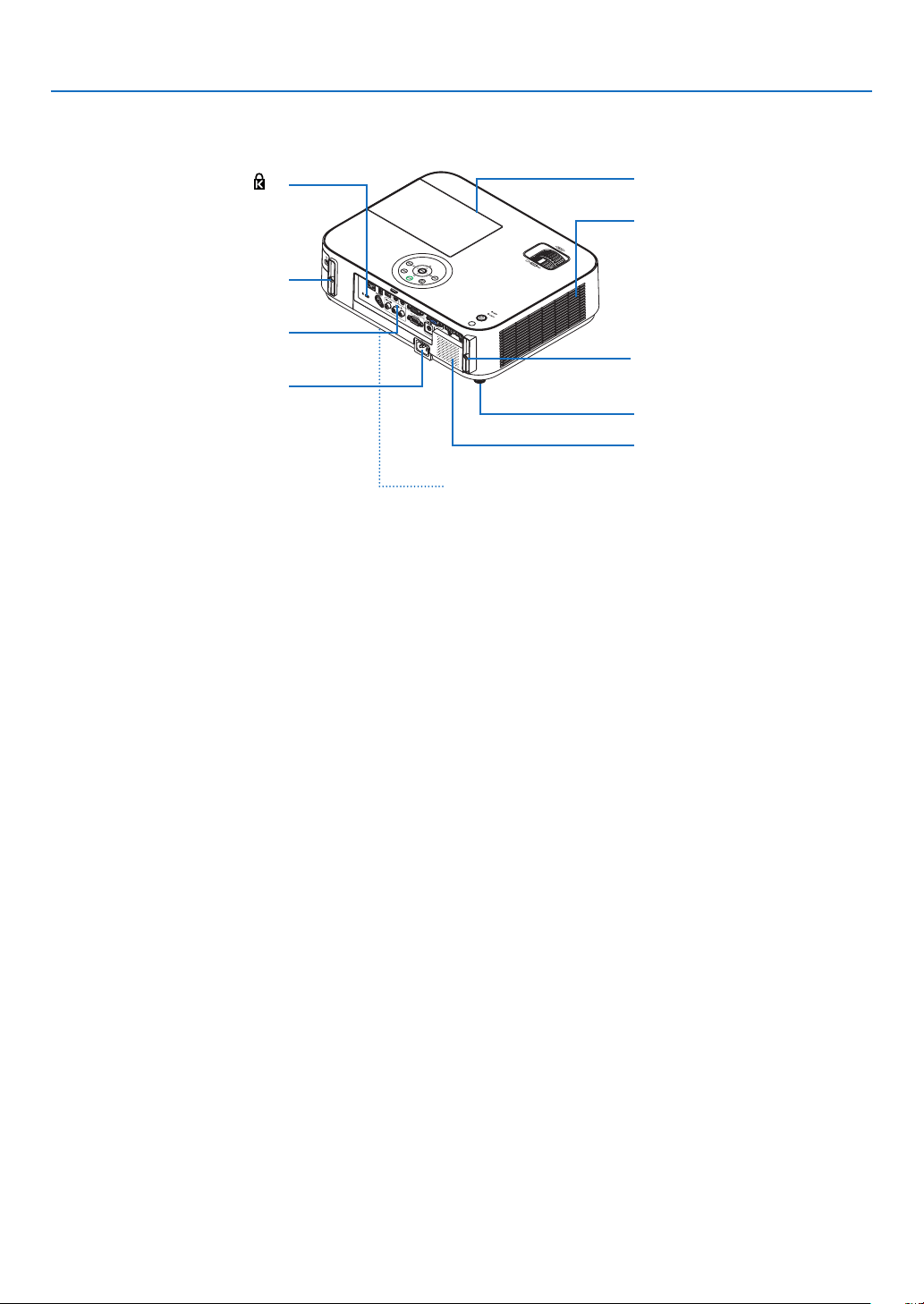
ACInput
Connect the supplied power cord’s
three-pin plug here, and plug the
other end into an active wall outlet.
(→ page 14)
Built-in Security Slot (
)*
Terminals (→ page 9)
Connection for cable cover (Left)
Screw holes
(→ page 147)
Connection for cable cover (Right)
Screw holes
(→ page 147)
Lamp Cover (→ page 133)
Rear Feet (→ page 19)
IntakeVent
(→ page 132)
Rear
[M403W/M363W/M323W/M403X/M363X/M323X/M283X/M403H/M323H]
MonauralSpeaker(20W)
* ThissecurityslotsupportstheMicroSaver
®
SecuritySystem.
Model name
Model name is indicated on the label sealed on
the bottom face of the projector.
7
1. Introduction
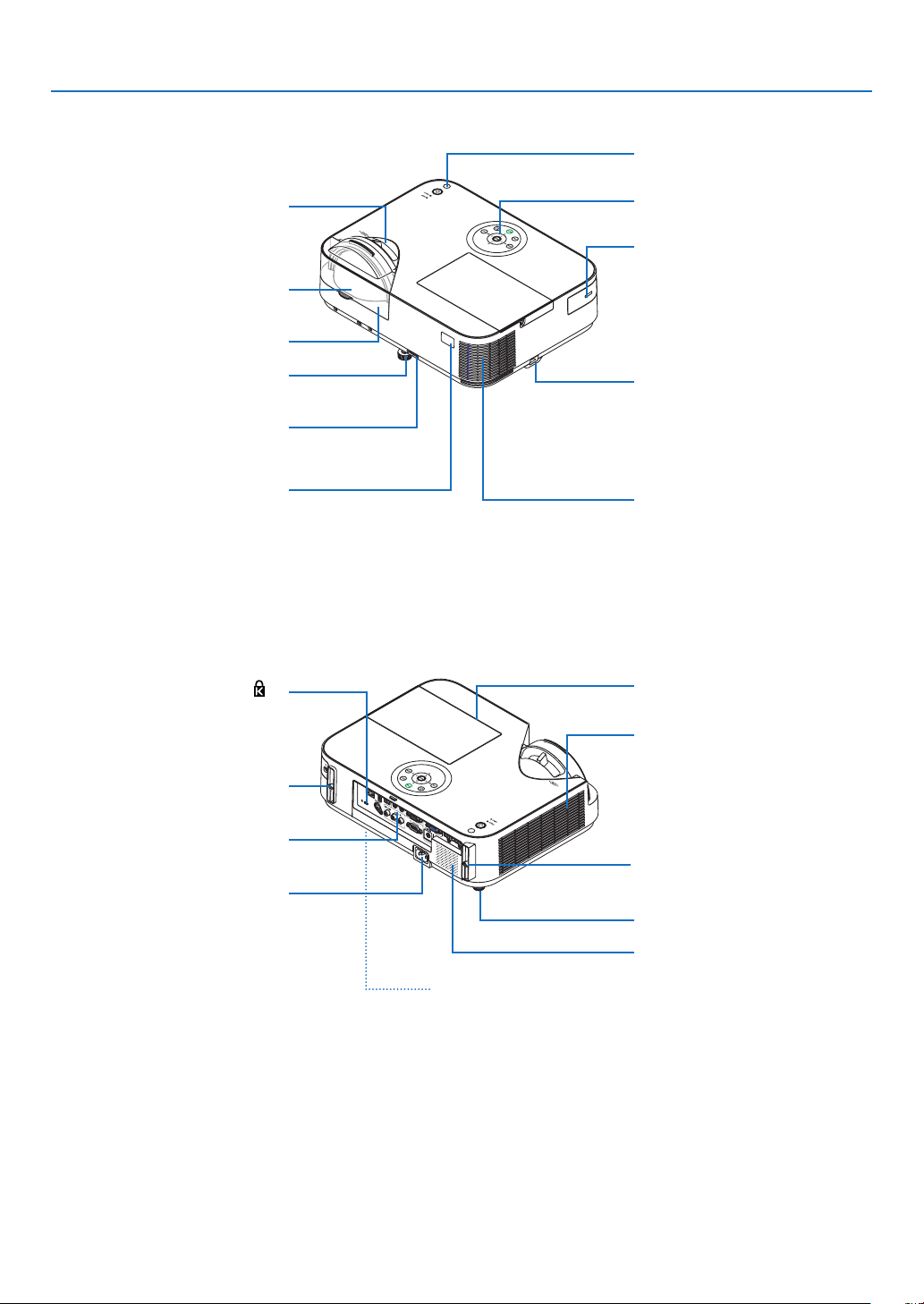
Focus Lever
(→ page 21)
Front/Top
[M353WS/M303WS/M333XS]
Remote Sensor
(→ page 11)
Exhaust Vent
Heated air is exhausted from here.
Lens Cap
Adjustable Tilt Foot Lever
(→ page 19)
Adjustable Tilt Foot
(→ page 19)
Lens
Security chain opening
Attach an anti-theft device.
The security chain opening accepts
security wires or chains up to 0.18
inch/4.6 mm in diameter.
Controls
(→ page 8)
Port Cover for Optional USB
Wireless LAN Unit
When using the optional USB
Wireless LAN Unit, first remove
the cover. (→ page 130)
Light Sensor
(→ page 96)
ACInput
Connect the supplied power cord’s
three-pin plug here, and plug the
other end into an active wall outlet.
(→ page 14)
Built-in Security Slot (
)*
Terminals (→ page 9)
Lamp Cover (→ page 133)
Rear Feet (→ page 19)
IntakeVent
(→ page 132)
Rear
[M353WS/M303WS/M333XS]
MonauralSpeaker(20W)
* ThissecurityslotsupportstheMicroSaver
®
SecuritySystem.
Connection for cable cover (Left)
Screw holes
(→ page 147)
Connection for cable cover (Right)
Screw holes
(→ page 147)
Model name
Model name is indicated on the label sealed on
the bottom face of the projector.
8
1. Introduction
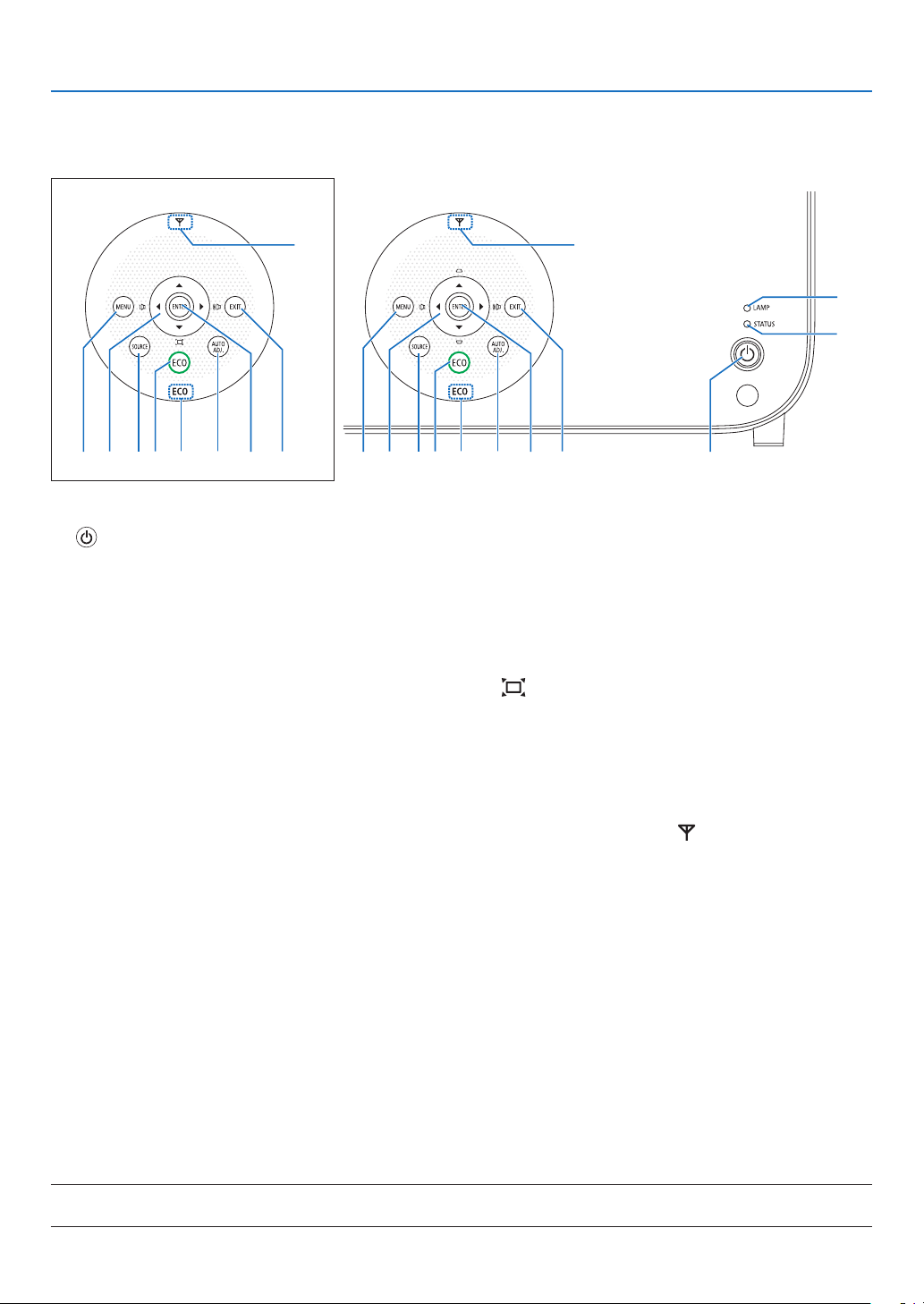
Top Features
M403W/M363W/M323W/M403X/
M363X/M323X/M283X/M403H/M323H
M353WS/M303WS/M333XS
1, 2
89 11
12
5610
3
4
71389 11
12
5610713
1. (POWER)Button
(→page15, 27)
2. POWER Indicator
(→page14, 15, 27, 136)
3. STATUS Indicator
(→page136)
4. LAMPIndicator
(→page133, 136)
5. ECOButton
(→page31)
6. SOURCE Button
(→page17)
7. AUTOADJ.Button
(→page26)
8. MENUButton
(→page81)
[M353WS/M303WS/M333XS]
9. ▲▼◀▶/VolumeButtons◀▶ / Keystone Buttons
▲▼
(→
page22, 26, 81)
[M403W/M363W/M323W/M403X/M363X/M323X/M283X/
M403H/M323H]
9. ▲▼◀▶/VolumeButtons◀▶ / Keystone Button ▼
( )
(→
page22, 26, 81)
10. ENTER Button
(→page81)
11.EXITButton
(→page81)
12.WirelessLANIndicator( )
Whentheprojectoristurnedonwiththeoptionalwire-
lessLANunitinserted,theindicatorwilllightupblue.
(→page129)
13. ECO Indicator
When[ECOMODE]issettotheotheroptionsthan
[OFF],thisindicatorwilllightupgreen.
(→page31)
NOTE:
• Allthebuttonsexcept▲▼◀▶willlightwhenpressed.Thelightwillturnoffifnobuttonoperationismadefor90seconds.
9
1. Introduction
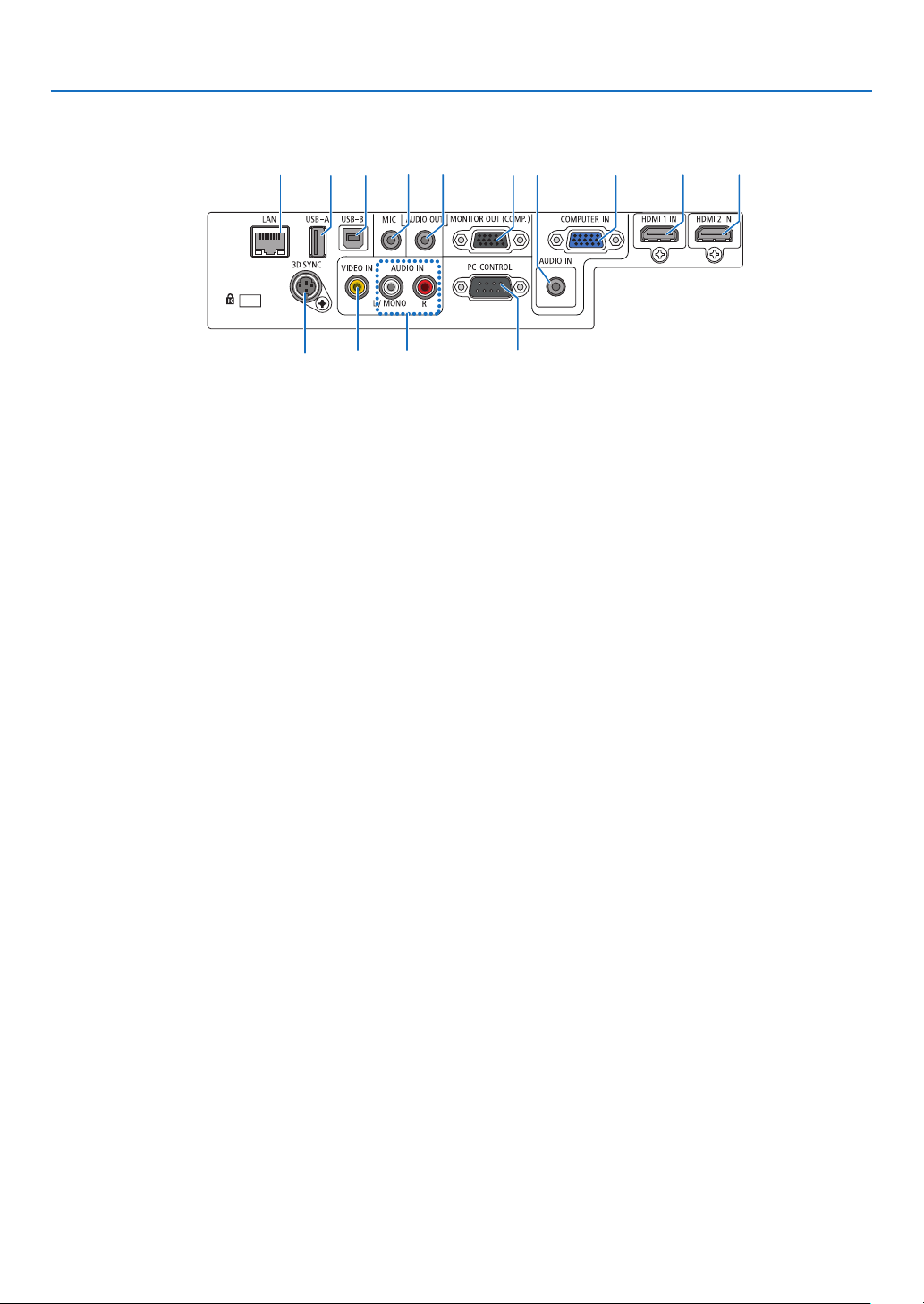
Terminals Features
1246
14
13
7
98
1211 10 35
1. COMPUTERIN/ComponentInputTerminal(Mini
D-Sub15Pin)
(→page122, 124, 126)
2. COMPUTERAUDIOINMiniJack(StereoMini)
(→page122, 124, 126)
3. HDMI1INTerminal(TypeA)
(→page122, 127)
4. HDMI2INTerminal(TypeA)
(→page122, 127)
5. USB-BPort(TypeB)
(→page42, 43)
6. MONITOROUT(COMP.)Terminal(MiniD-Sub15
Pin)
(→page124)
7. AUDIOOUTMiniJack(StereoMini)
(→page124)
8. VIDEOINTerminal(RCA)
(→page125)
9. VIDEOAUDIOINL/MONO,R(RCA)
(→page125)
10.MICInputJack(MonauralMini)
(→page70)
11.LANPort(RJ-45)
(→page128)
12.USB-APort(TypeA)
(→page75)
13.3DSYNC(MiniDIN3Pin)
(→page66)
14.PCCONTROL[PCCONTROL]Terminal(D-Sub9
Pin)
(→page150)
UsethisporttoconnectaPCorcontrolsystem.This
enablesyoutocontroltheprojectorusingserialcommu-
nicationprotocol.Ifyouarewritingyourownprogram,
typicalPCcontrolcodesareonpage150.
10
1. Introduction
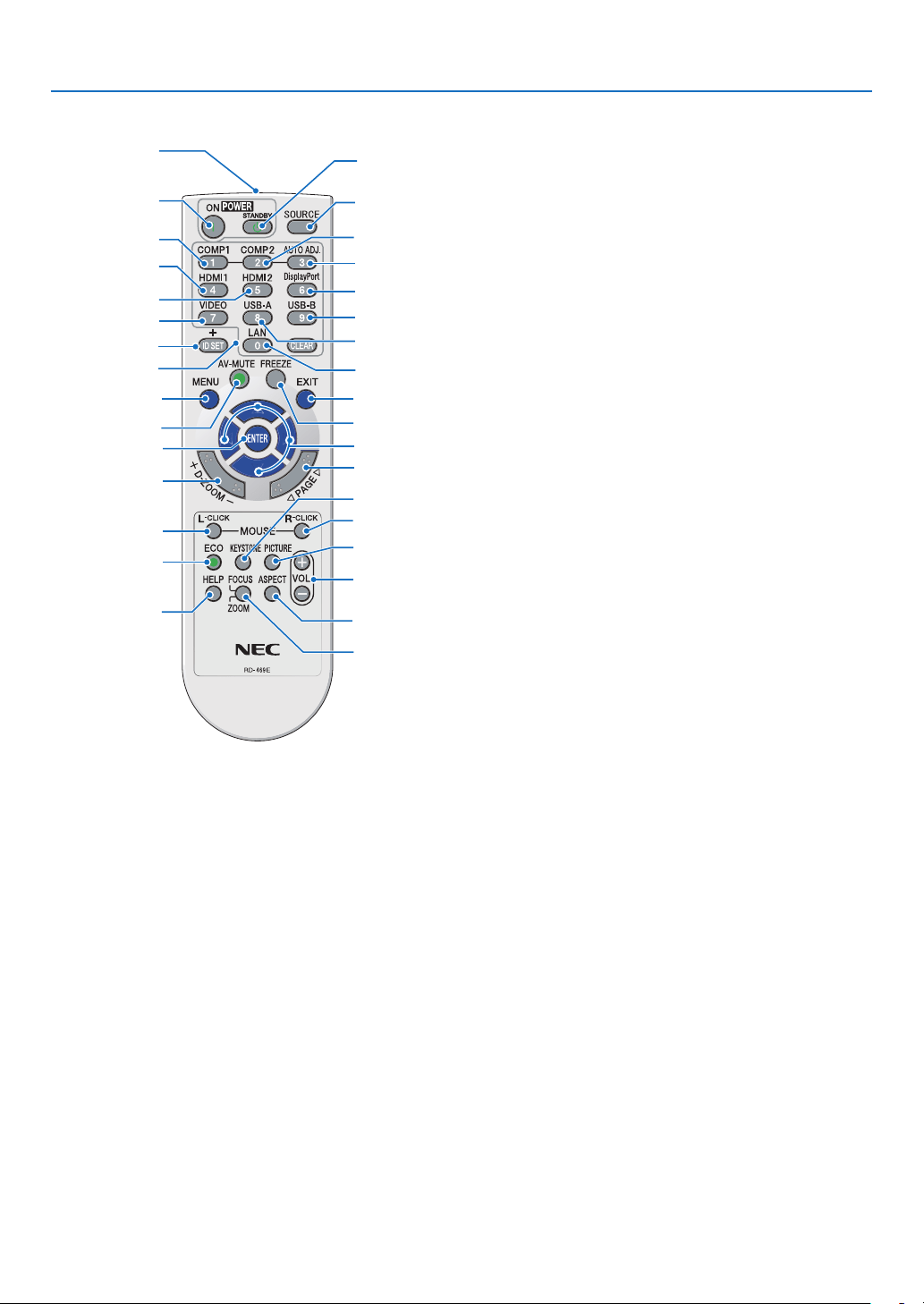
❹ Part Names of the Remote Control
3
4
6
7
1
2
10
13
16
12
17
15
11
19
9
5
8
30
31
32
20
21
26
28
29
25
14
18
24
23
22
27
33
1. Infrared Transmitter
(→page11)
2. POWER ON Button
(→page15)
3. POWER STANDBY Button
(→page27)
4. SOURCEButton
(→page17)
5. COMPUTER1Button
(→page17)
6. COMPUTER 2 Button
(Thisbuttondoesnotworkinthisseriesofprojectors)
7. AUTOADJ.Button
(→page26)
8. HDMI1/MHLButton
(→page17)
9. HDMI 2 Button
(→page17)
10. DisplayPort Button
(Thisbuttondoesnotworkinthisseriesofprojectors)
11.VIDEOButton(→page17)
12.USB-AButton(→page17, 75, 86)
13.USB-BButton(→page17, 86, 123)
14.LANButton(→page17)
15.IDSETButton
(→page101)
16. Numeric Keypad Button/CLEAR Button
(→page101)
17. FREEZE Button
(→page29)
18.AV-MUTEButton
(→page29)
19. MENU Button
(→page81)
20.EXITButton(→page81)
21. Button (→page81)
22. ENTER Button (→page81)
23.D-ZOOM(+)(–)Button
(→page29, 30)
24.MOUSEL-CLICKButton*
(→page42)
25.MOUSER-CLICKButton*
(→page42)
26. PAGE / Button
(→
page42)
27. ECO Button (→page31)
28.KEYSTONEButton
(→page23)
29. PICTURE Button
(→page87, 89)
30.VOL.(+)(–)Button
(→page26)
31. ASPECT Button
(→page92)
32. FOCUS/ZOOM Button
TheZOOMbuttonwilldisplaytheDIGITALZOOMbar.
(→page20, 95)TheFOCUSbuttondoesnotwork
onthisseriesofprojectors.
33. HELP Button
(→page112)
* TheMOUSEL-CLICKandMOUSER-CLICKbuttonsworkonlywhenaUSBcableisconnectedwithyourcom-
puter.
11
1. Introduction
Remote Control Precautions
• Handletheremotecontrolcarefully.
• Iftheremotecontrolgetswet,wipeitdryimmediately.
• Avoidexcessiveheatandhumidity.
• Donotshort,heat,ortakeapartbatteries.
• Donotthrowbatteriesintore.
• Ifyouwillnotbeusingtheremotecontrolforalongtime,removethebatteries.
• Ensurethatyouhavethebatteries’polarity(+/−)alignedcorrectly.
• Donotusenewandoldbatteriestogether,orusedifferenttypesofbatteriestogether.
• Disposeofusedbatteriesaccordingtoyourlocalregulations.
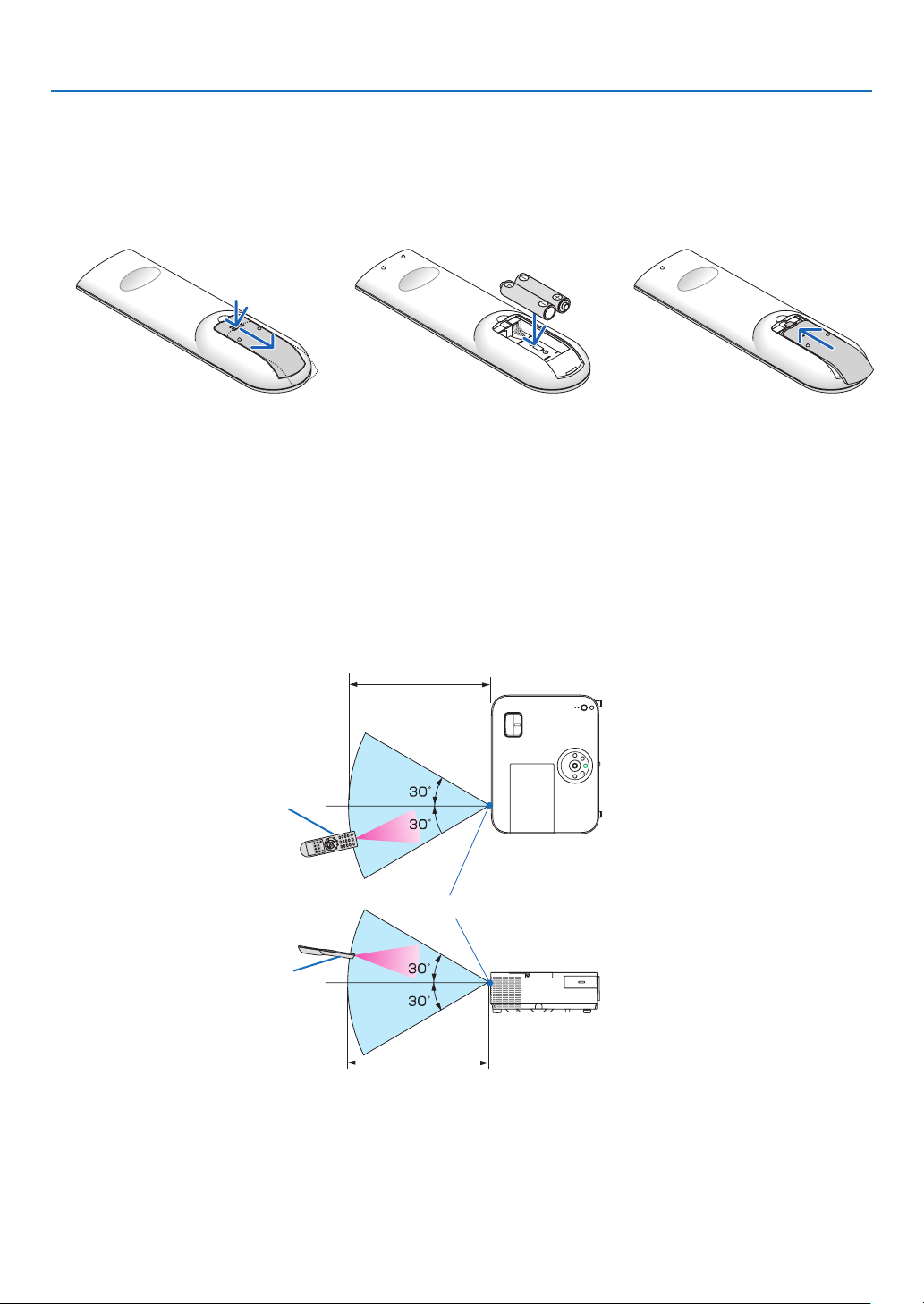
Operating Range for Wireless Remote Control
22 feet/7 m
22 feet/7 m
Remote control
Remote sensor on projector cabinet
Remote control
• Theinfraredsignaloperatesbyline-of-sightuptoadistanceofabout22feet/7mandwithina60-degreeangleof
theremotesensorontheprojectorcabinet.
• Theprojectorwillnotrespondifthereareobjectsbetweentheremotecontrolandthesensor,orifstronglightfalls
onthesensor.Weakbatterieswillalsopreventtheremotecontrolfromproperlyoperatingtheprojector.
1
Pressrmlyandslidethebattery
coveroff.
2
Installnewbatteries(AAA).Ensure
thatyouhavethebatteries’polarity
(+/−)alignedcorrectly.
Battery Installation
3
Slipthecoverbackoverthebat-
teriesuntilitsnapsintoplace.Do
notmixdifferenttypesofbatteries
ornewandoldbatteries.
OPEN
OPEN

12
1. Introduction
❺ Software Included on CD-ROM
NamesandFeaturesofBundledSoftwarePrograms
Nameofsoftwareprogram Features
VirtualRemoteTool
(Windowsonly)
ThisisasoftwareprogramusedtocontrolthepowerON/OFFandsourceselec-
tionoftheprojectorfromyourcomputerbyusingthesuppliedcomputercable
(VGA)andothers.Onlyviaserialconnectionitisalsousedtosendanimageto
theprojectorandregisteritasthelogodataoftheprojector.Afterregisteringit,
youcanlockthelogotopreventitfromchanging.(→page36)
Nameofsoftwareprogram Features
ImageExpressUtilityLite • Thisisasoftwareprogramusedtoprojectyourcomputer’sscreenorsound
fromthecomputerovertheUSBcableorthewired/wirelessnetwork.The
computercable(VGA)isnotrequired.(→page56)
• ThissoftwareprogramcanbeusedtocontrolthepowerON/OFFandsource
selectionoftheprojectorfromyourcomputer.
• TheGeometricCorrectionTool(GCT)functionallowsyoutocorrectdistortion
ofimagesprojectedonacurvedwall.(→page63)
ImageExpressUtilityLitefor
MacOS
• Thisisasoftwareprogramusedtoprojectyourcomputer'sscreenoverthe
wired/wirelessnetwork.Thecomputercable(VGA)isnotrequired.(→page
56, 61)
• ThissoftwareprogramcanbeusedtocontrolthepowerON/OFFandsource
selectionoftheprojectorfromyourcomputer.
* “Audiotransmission”,“USBDisplay”,and“GCT”functionsarenotsupported
byMac.
Nameofsoftwareprogram Features
PCControlUtilityPro4
PCControlUtilityPro5(forMac
OS)
Thisisasoftwareprogramusedtooperatetheprojectorfromthecomputerwhen
thecomputerandtheprojectorareconnectedwithLAN(wiredorwireless)or
aserialcable.(→page52)
NOTE:
• ImageExpressUtilityLitedoesnotsupport"MeetingMode"inImageExpressUtility2.0includedwithourothermodels.
Download Service and Operating Environment
Pleasevisitourwebsiteaboutoperatingenvironmentanddownloadserviceforeachsoftware:
VisitURL:http://www.nec-display.com/dl/en/index.html
Download-Projector→Software&Driver

13
Thissectiondescribeshowtoturnontheprojectorandtoprojectapictureontothescreen.
❶ Flow of Projecting an Image
Step 1
• Connectingyourcomputer/Connectingthepowercord(→page14)
Step 2
• Turningontheprojector(→page15)
Step 3
• Selectingasource(→page17)
Step 4
• Adjustingthepicturesizeandposition(→page18)
• Correctingkeystonedistortion[KEYSTONE](→page22)
Step 5
• Adjustingapictureandsound
- Optimizing a computer signal automatically (→ page 26)
- Turning up or down volume (→ page 26)
Step 6
• Makingapresentation
Step 7
• Turningofftheprojector(→page27)
Step 8
• Afteruse(→page28)
2. Projecting an Image (Basic Operation)
14
2. Projecting an Image (Basic Operation)
❷ Connecting Your Computer/Connecting the Power Cord
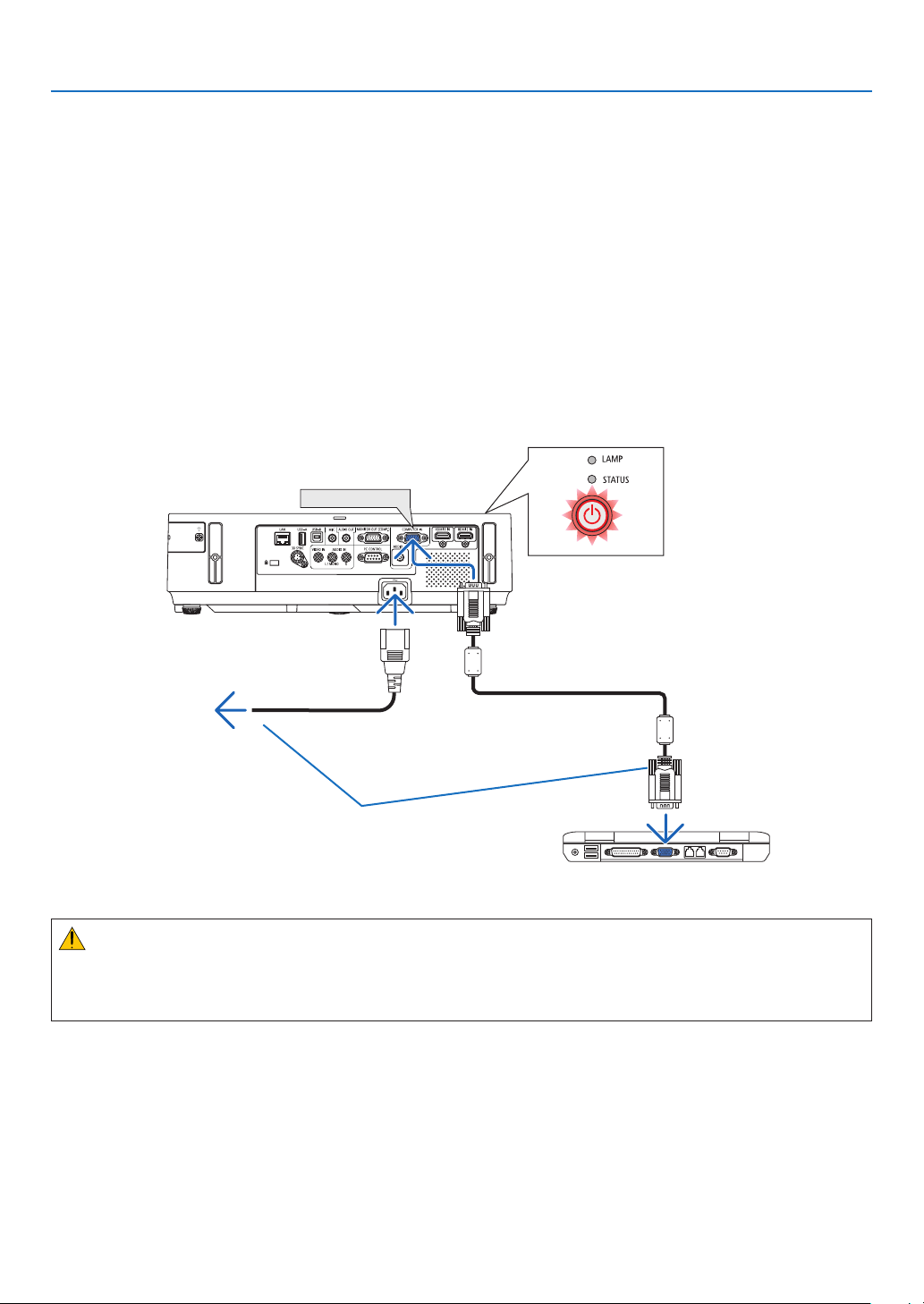
1. Connectyourcomputertotheprojector.
This section will show you a basic connection to a computer. For information about other connections, see “6.
InstallationandConnections”onpage122.
Connectthecomputercable(VGA)betweentheprojector’sCOMPUTERINterminalandthecomputer’sport(mini
D-Sub 15 Pin). Turn two thumb screws of both terminals to fix the computer cable (VGA).
2. Connectthesuppliedpowercordtotheprojector.
Firstconnectthesuppliedpowercord’sthree-pinplugtotheACINterminaloftheprojector,andthenconnectthe
other plug of the supplied power cord in the wall outlet.
The projector’s power indicator will light red* (standby mode).
SeethePowerIndicatorsection.(→ page 136)
COMPUTER IN
Makesurethattheprongsarefullyinsertedinto
boththeACINterminalandthewalloutlet.
To wall outlet
CAUTION:
PartsoftheprojectormaybecometemporarilyheatediftheprojectoristurnedoffwiththePOWERbuttonorifthe
ACpowersupplyisdisconnectedduringnormalprojectoroperation.
Usecautionwhenpickinguptheprojector.
15
2. Projecting an Image (Basic Operation)
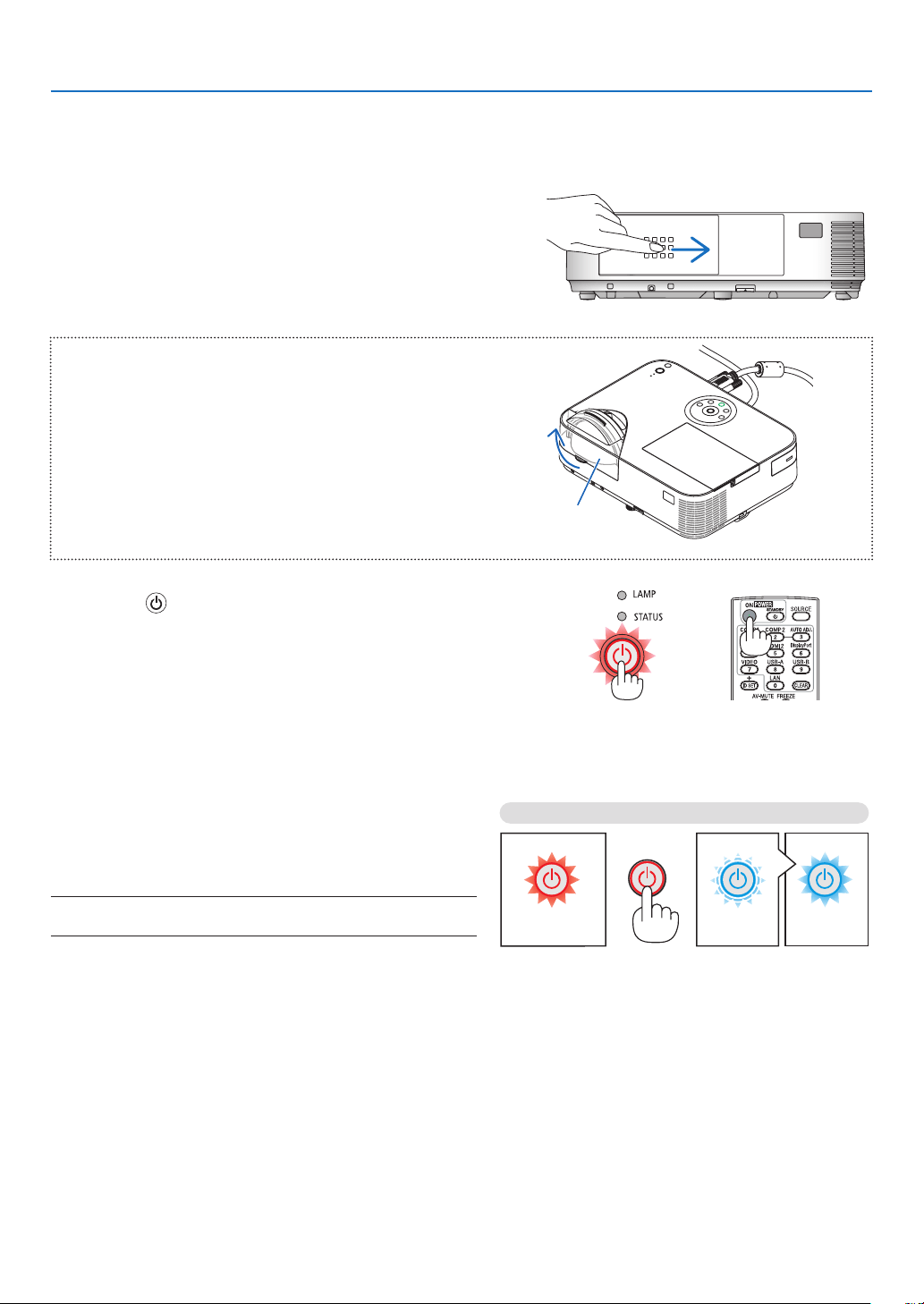
Standby Blinking PowerOn
Steady red light Blinking blue
light
Steady blue
light
❸ Turning on the Projector
1. Slidethelenscovertotherighttouncoverthelens.
[M353WS/M303WS/M333XS]
1. Removethelenscap.
2. Press the (POWER) button on the projector cabinet
or the POWER ON button on the remote control.
The POWER indicator will turn to blue and the projector
will become ready to use.
TIP:
• Whenthemessage“Projectorislocked!Enteryourpassword.”
isdisplayed,itmeansthatthe[SECURITY]featureisturnedon.
(→page33)
After you turn on your projector, ensure that the computer
or video source is turned on and that the lens cover is
open.
NOTE:Whennoinputsignalispresent,theno-signalguidanceis
displayed(factorymenusetting).
(→page136)
Lens cap
16
2. Projecting an Image (Basic Operation)
Note on Startup screen (Menu Language Select screen)
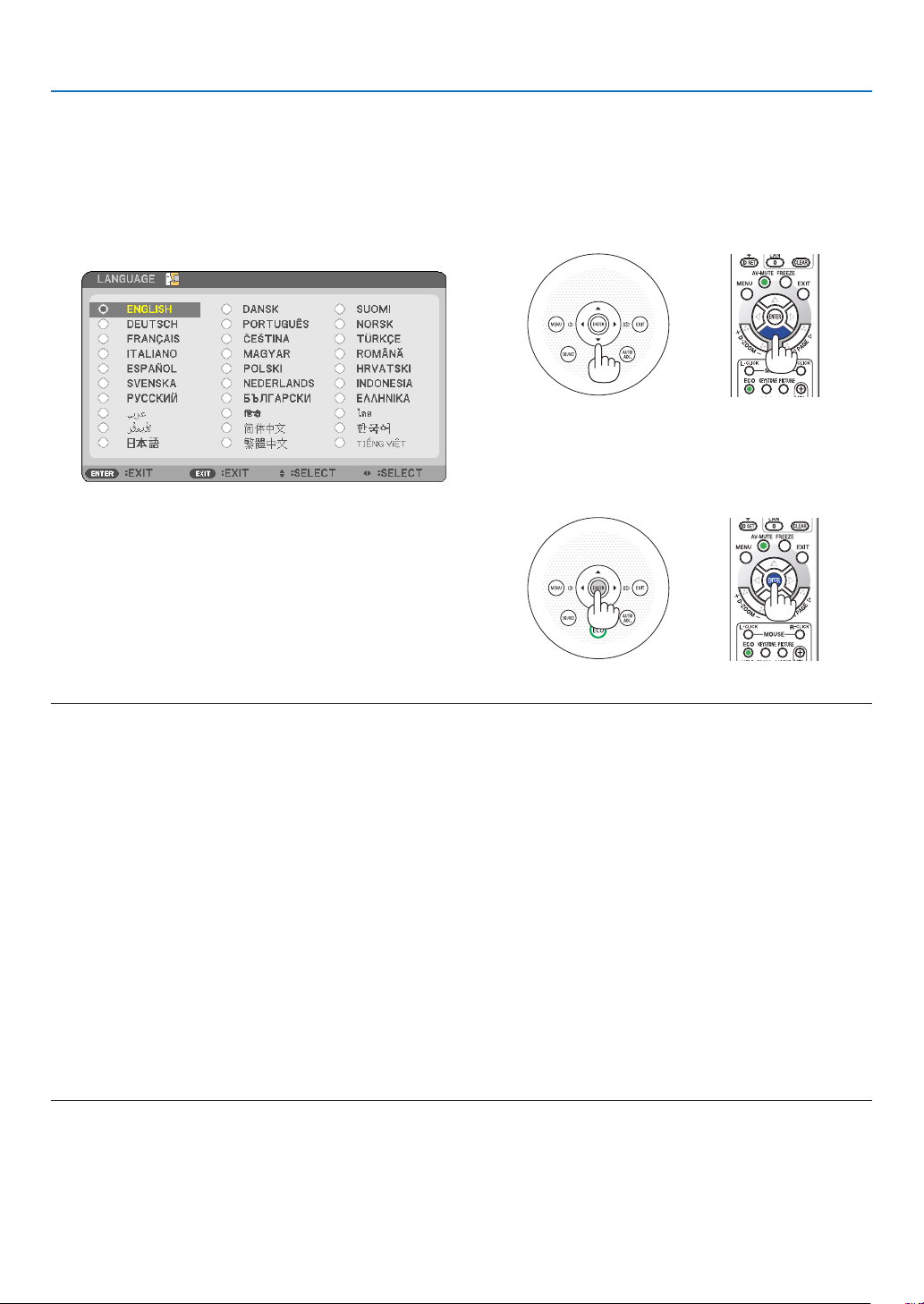
Whenyourstturnontheprojector,youwillgettheStartupmenu.Thismenugivesyoutheopportunitytoselectone
ofthemenulanguages.
To select a menu language, follow these steps:
1. Use the ▲, ▼, ◀ or ▶buttontoselectoneofthelan-
guagesfromthemenu.
2. Press the ENTER button to execute the selection.
After this has beendone, youcan proceed to the menu
operation.
Ifyouwant,youcanselectthemenulanguagelater.
(→[LANGUAGE]onpage84 and 97)
NOTE:
• Whenturningoffthepowersupplyandthenbackonbyusingapowerstriporbreaker.
Allowaminimumof1secondbetweenturningoffthemainpowersupplyandturningitbackonagain.
Failingtodosocouldresultinnopowertotheprojector.(Therewillbenostand-byLED)
Shouldthishappen,unplugthepowercordandplugitinagain.Turnonthemainpower.
• Ifoneofthefollowingthingshappens,theprojectorwillnotturnon.
• Iftheinternaltemperatureoftheprojectoristoohigh,theprojectordetectsabnormalhightemperature.Inthisconditionthe
projectorwillnotturnontoprotecttheinternalsystem.Ifthishappens,waitfortheprojector’sinternalcomponentstocool
down.
• Whenthelampreachesitsendofusablelife,theprojectorwillnotturnon.Ifthishappens,replacethelamp.
• IftheSTATUSindicatorlightsorangewiththepowerbuttonpressed,itmeansthatthe[CONTROLPANELLOCK]isturnedon.
Cancelthelockbyturningitoff.(→page100)
• Ifthelampfailstolight,andiftheSTATUSindicatorashesonandoffinacycleofsixtimes,waitafullminuteandthenturnon
thepower.
• WhilethePOWERindicatorisblinkingblueinshortcycles,thepowercannotbeturnedoffbyusingthepowerbutton.
• Immediatelyafterturningontheprojector,screenickermayoccur.Thisisnormal.Wait3to5minutesuntilthelamplightingis
stabilized.
• Whentheprojectoristurnedon,itmaytakesometimebeforethelamplightbecomesbright.
• Ifyouturnontheprojectorimmediatelyafterthelampisturnedofforwhenthetemperatureishigh,thefansrunwithoutdisplay-
inganimageforsometimeandthentheprojectorwilldisplaytheimage.
17
2. Projecting an Image (Basic Operation)
❹ Selecting a Source
Selecting the computer or video source
NOTE:Turnonthecomputerorvideosourceequipmentconnectedtotheprojector.
Detecting the Signal Automatically
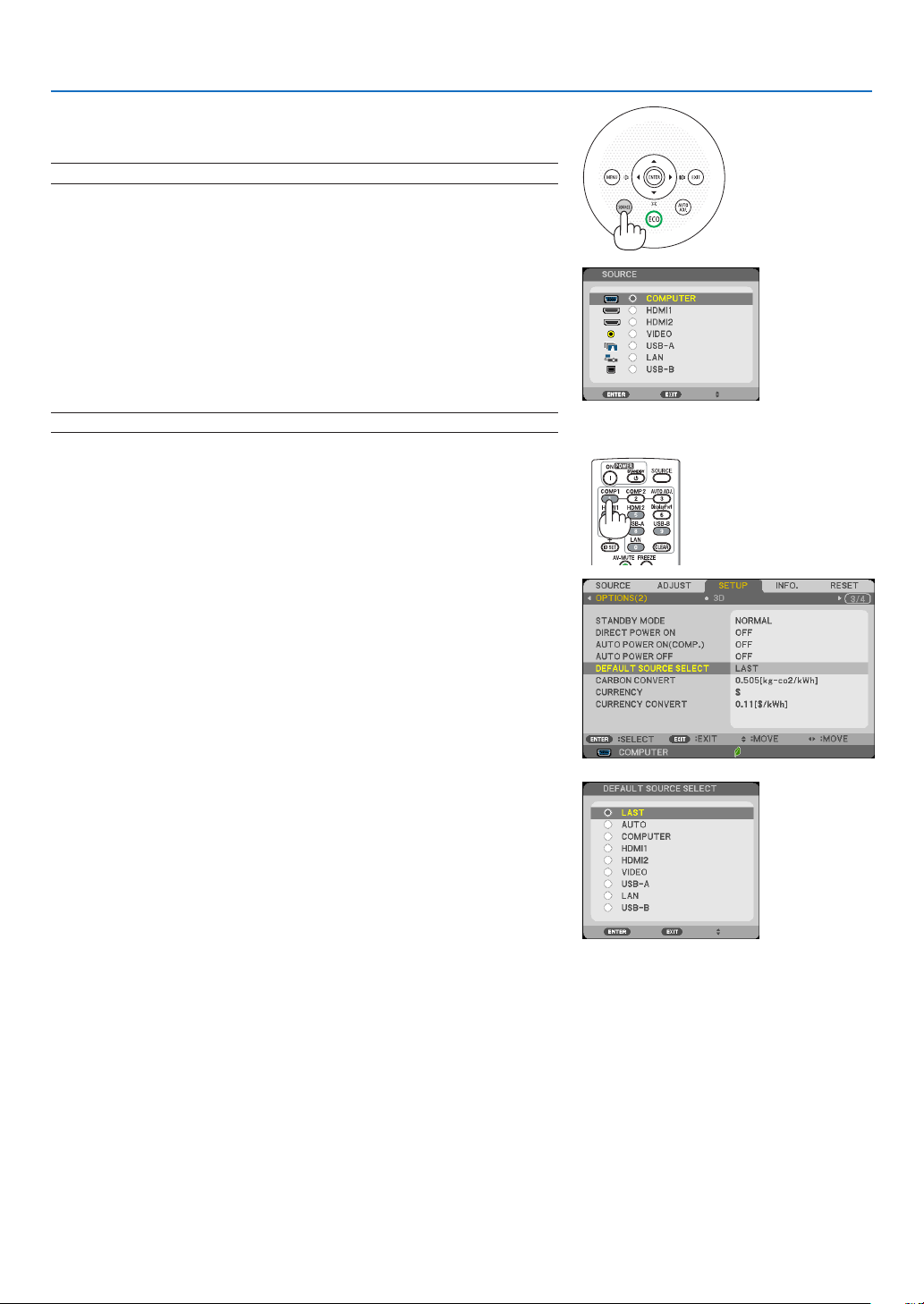
PresstheSOURCEbuttononce.Theprojectorwillsearchfortheavailable
inputsourceanddisplayit.Theinputsourcewillchangeasfollows:
COMPUTER→HDMI1→HDMI2→VIDEO→USB-A→LAN→USB-B
→COMPUTER→ ...
• WiththeSOURCEscreendisplayed,youcanpresstheSOURCE
buttonafewtimestoselecttheinputsource.
TIP:Ifnoinputsignalispresent,theinputwillbeskipped.
Using the Remote Control
PressanyoneoftheCOMP1,HDMI1,HDMI2,VIDEO,USB-A,LAN,or
USB-Bbuttons.
Selecting Default Source
Youcansetasourceasthedefaultsourcesothatitwillbedisplayed
eachtimetheprojectoristurnedon.
1. Press the MENU button.
The menu will be displayed.
2. Press the ▶buttontwicetoselect[SETUP]andpressthe▼ but-
tonortheENTERbuttontoselect[GENERAL].
3.
Press the
▶
buttonfourtimestoselect[OPTIONS(2)].
4. Press the ▼buttonvetimestoselect[DEFAULTSOURCESE-
LECT]andpresstheENTERbutton.
The [DEFAULT SOURCE SELECT] screen will be displayed.
(→ page 105)
5. Selectasourceasthedefaultsource,andpresstheENTERbut-
ton.
6. PresstheEXITbuttonafewtimestoclosethemenu.
7. Restart the projector.
The source you selected in step 5 will be projected.
TIP:
• Whentheprojectoris inStandbymode,applyinga computersignalfroma
computerconnectedtotheCOMPUTERINinputwillpowerontheprojector
andsimultaneouslyprojectthecomputer’simage.
([AUTOPOWERON(COMP.)]→page105)
• OnWindows7,acombinationoftheWindowsandPkeysallowsyoutosetup
externaldisplayeasilyandquickly.
18
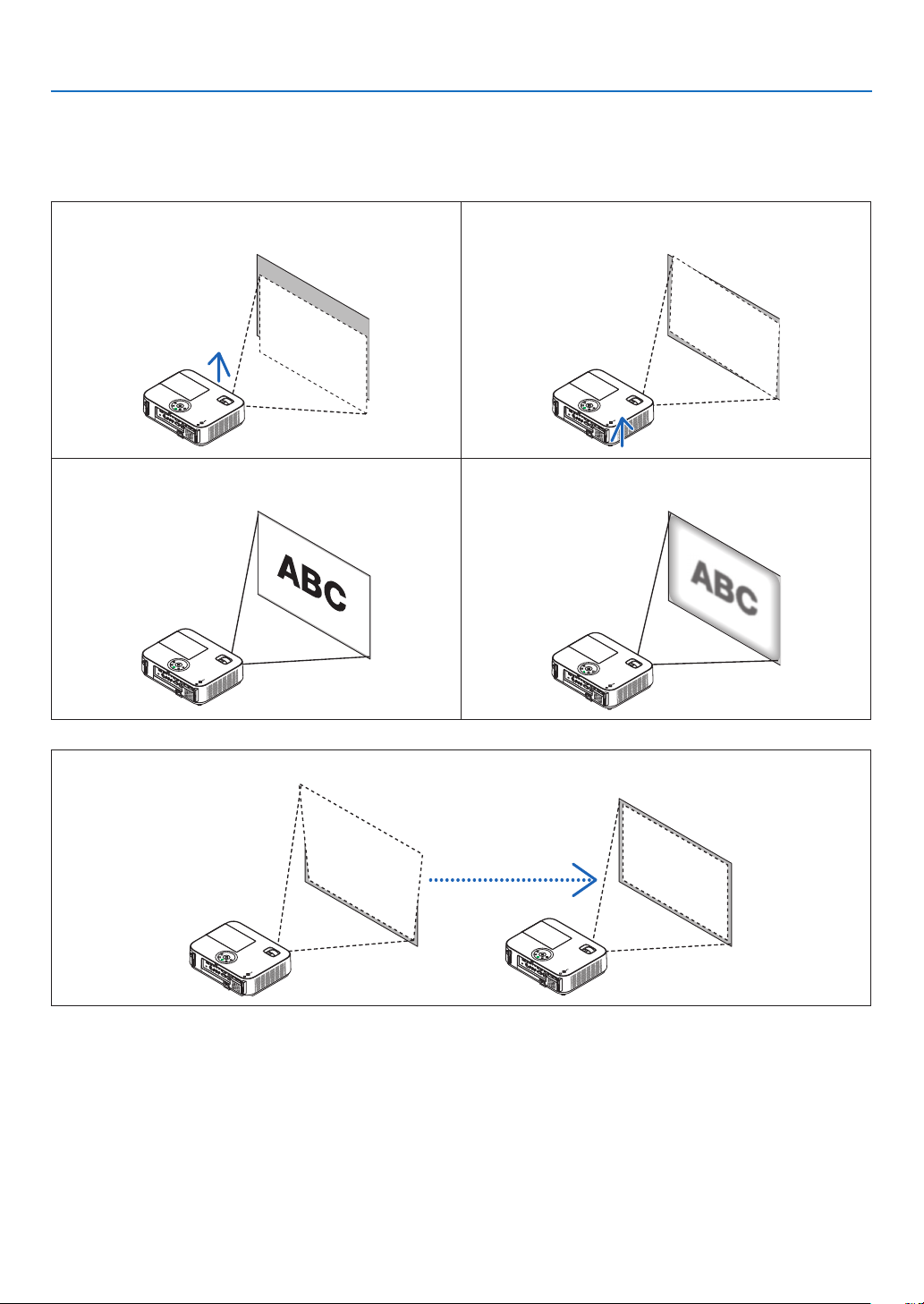
2. Projecting an Image (Basic Operation)
❺ Adjusting the Picture Size and Position
Usetheadjustabletiltfoot,thezoomfunctionorthefocusringtoadjustthepicturesizeandposition.
Inthischapterdrawingsandcablesareomittedforclarity.
Adjustingthethrowangle(theheightofanimage)
[Tiltfoot](→page19)
Adjustingtheleftandrighttiltofanimage
[Rearfoot](→page19)
Finelyadjustingthesizeofanimage
[Zoomfunction](→page20)
Adjustingthefocus
[Focusfunction](→page21)
Adjustingthekeystonecorrection[KEYSTONE]*(→page22)
* AutomaticKeystoneCorrectionfunctionisturnedonatthetimeofshipment.Toperformkeystonecorrectionmanually,see“6.
CorrectingKeystoneDistortionManually”onpage22.
19
2. Projecting an Image (Basic Operation)
2
1
3
Adjustable Tilt Foot
Adjustable Tilt
Foot Lever
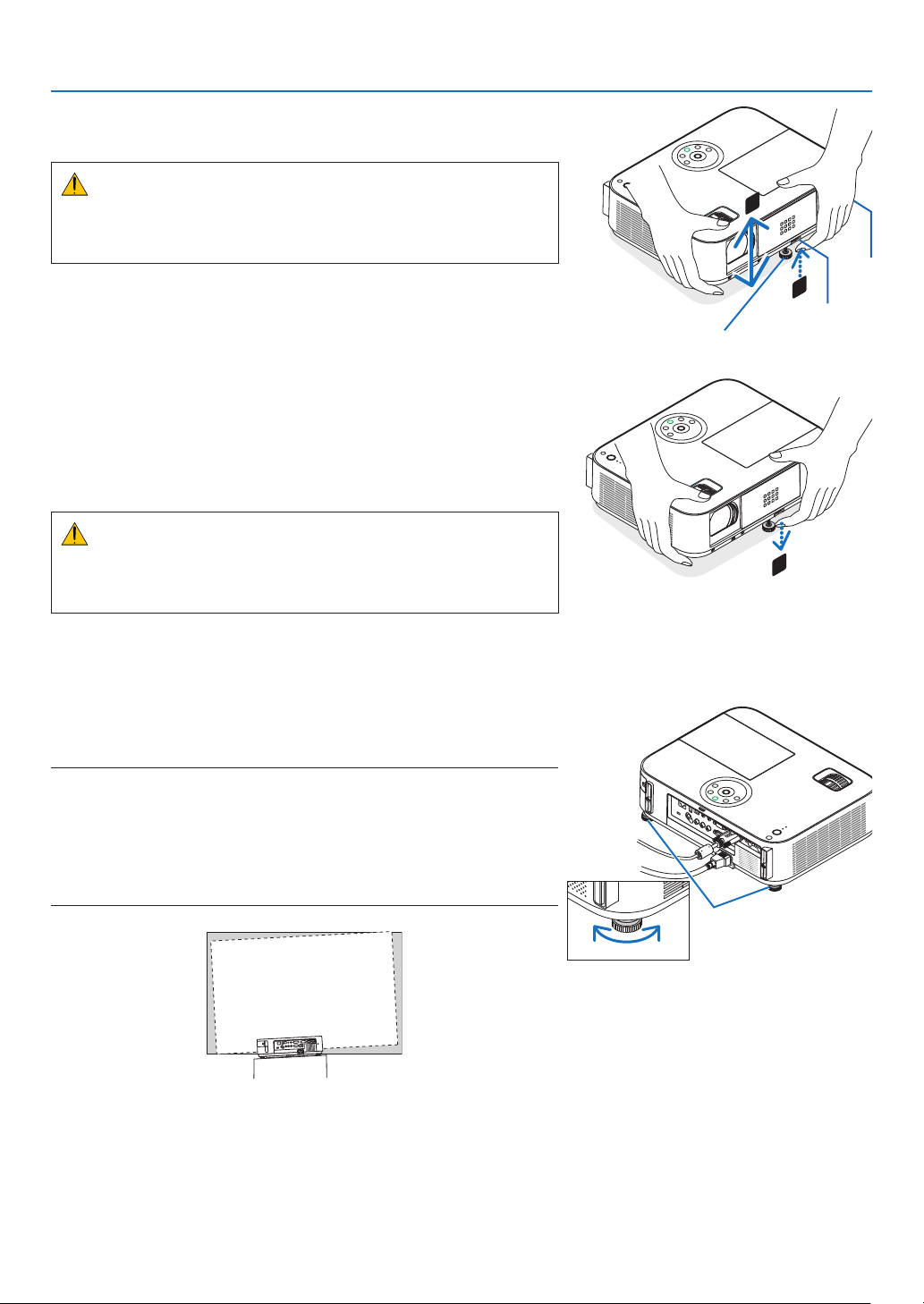
Adjust the Tilt Foot
1.Liftthefrontedgeoftheprojector.
CAUTION:
DonottrytotouchtheexhaustventduringTiltFootadjustmentas
itcanbecomeheatedwhiletheprojectoristurnedonandafteritis
turnedoff.
2.PushupandholdtheAdjustableTiltFootLeveronthefrontof
theprojectortoextendtheadjustabletiltfoot.
3.Lowerthefrontoftheprojectortothedesiredheight.
4.ReleasetheAdjustableTiltFootLevertolocktheAdjustabletilt
foot.
The tilt foot can be extended up to 2 inches/52 mm.
There is approximately 10 degrees (up) of adjustment for the front of
the projector.
Rotate the rear foot to the desired height in order to square the image
on the projection surface.
CAUTION:
• Donotusethetilt-footforpurposesotherthanoriginallyintended.
Misusessuchasusingthetiltfoottocarryorhang(fromthewallor
ceiling)theprojectorcancausedamagetotheprojector.
Adjustingtheleftandrighttiltofanimage[Rearfoot]
• Rotatetherearfoot.
The rear foot can be extended up to 1 inch/26.5 mm. Rotating the rear
foot allows the projector to be placed horizontally.
NOTE:
• Donotextendtherearfootbeyonditsheightlimit(0.8inch/21.5mm).Doing
somaycausetherearfoottocomeoutoftheprojector.
• Ifextendingtheleftrearfoot(viewedfromtherear)causestheprotrusionto
interferewiththeoor,extendtherightrearfootby0.5inch/12mmorlonger.
Ifextendingtherightrearfootcausestheprotrusiontointerferewiththeoor,
extendtheleftrearfootby0.3inch/8mm.
Rear feet
Up Down
20
2. Projecting an Image (Basic Operation)
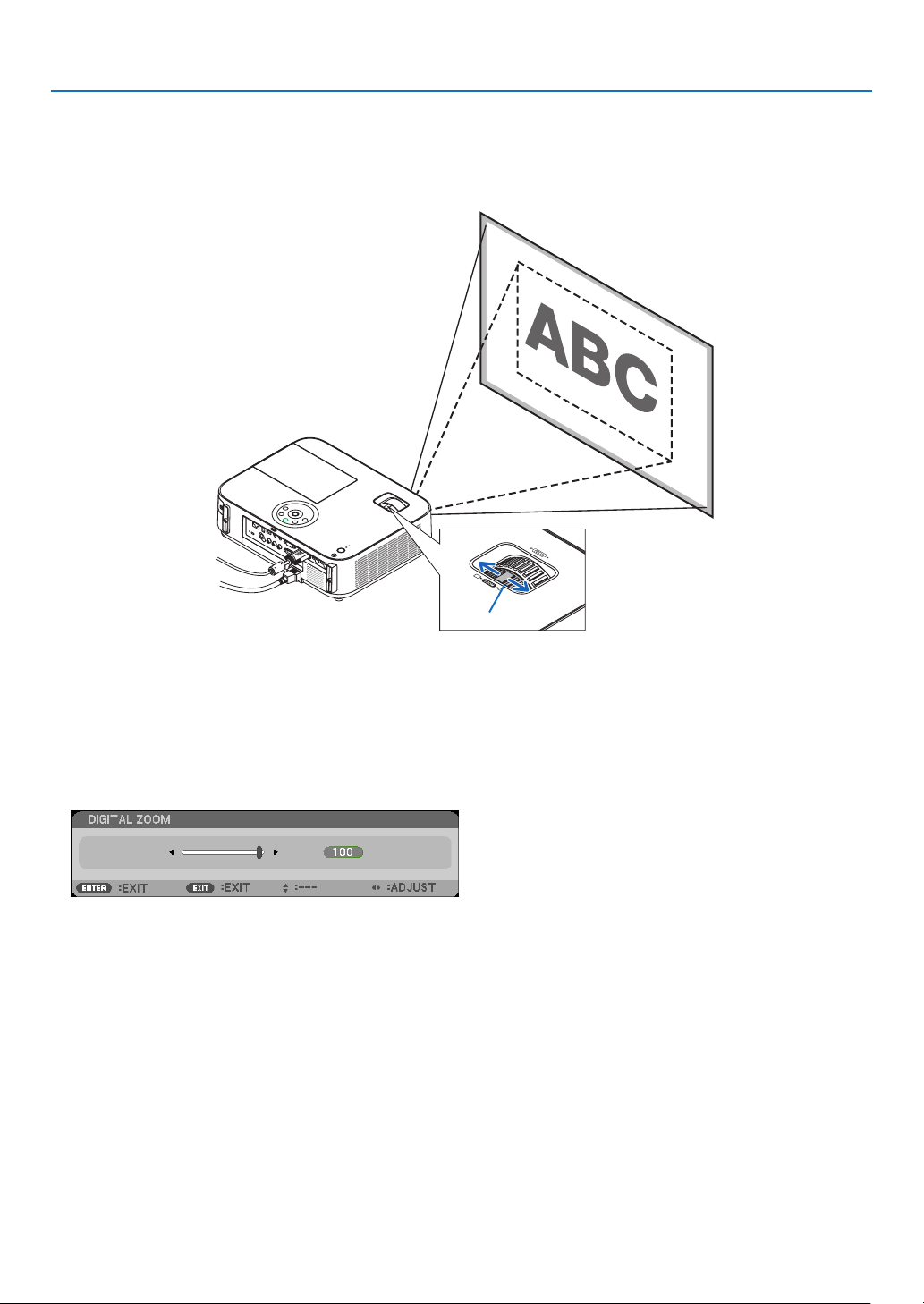
Zoom
[M403X/M363X/M323X/M283X/M403W/M363W/M323W/M403H/M323H]
UsetheZOOMlevertoadjusttheimagesizeonthescreen.
[M333XS/M353WS/M303WS]
Theimagesizecanbeadjustedelectronicallyfromthemenu.Todoso,followthestepsbelow.
AdjustingwiththeZOOMbuttonontheremotecontrol
1. Press the ZOOM button.
TheDIGITALZOOMbarwillbedisplayed.
2. Press the ◀ or ▶buttontoadjusttheimagesize.
3. PresstheEXITbutton.
TheDIGITALZOOMbarwillbeclosed.
Zoom Lever
21
2. Projecting an Image (Basic Operation)
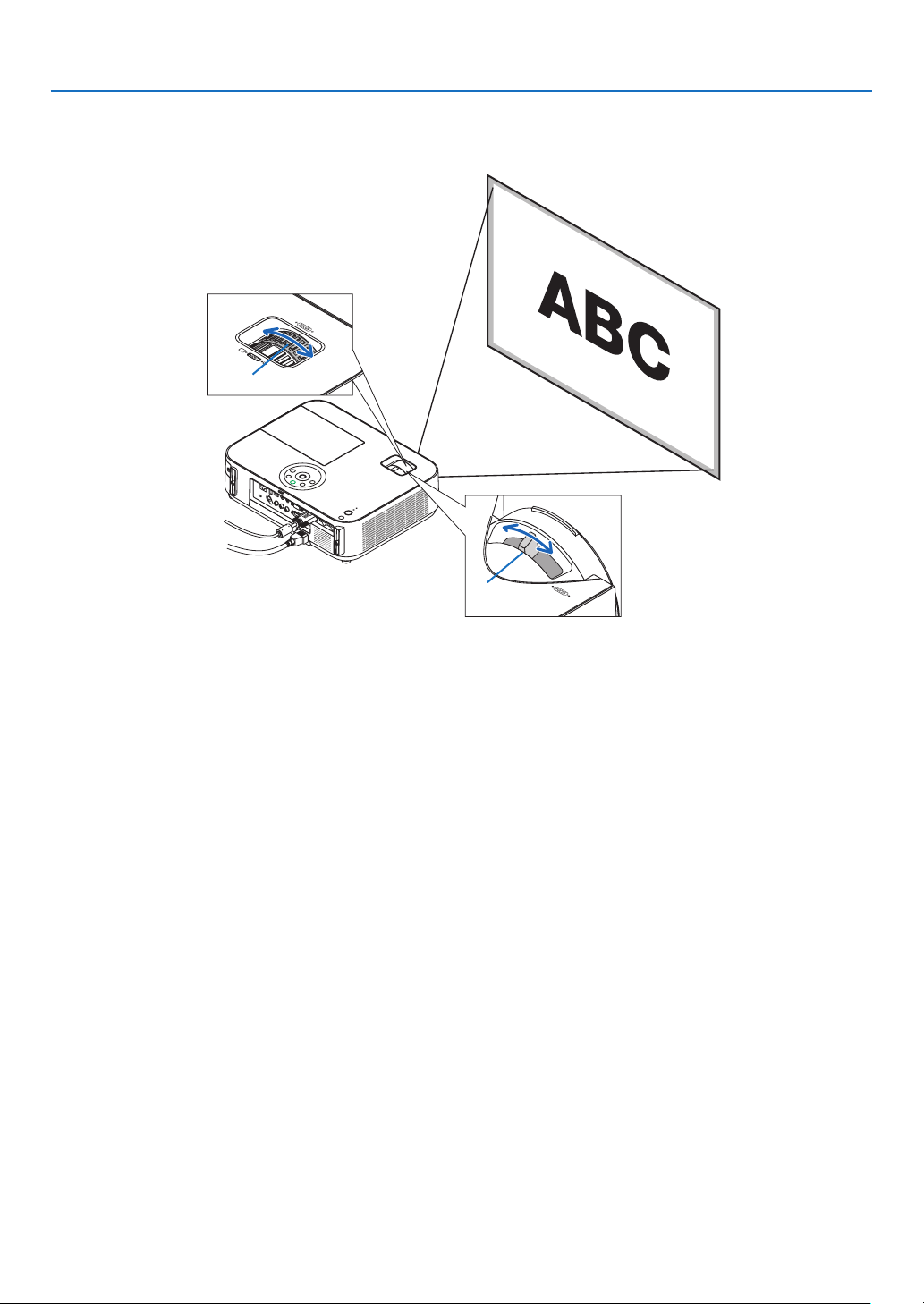
Focus
UsetheFOCUSringtoobtainthebestfocus.
Focus Ring
Focus Lever
[M403X/M363X//M323X/M283X/M403W/M363W/
M323W/M403H/M323H]
[M333XS/M353WS/M303WS]
UsetheFOCUSlevertoobtainthebestfocus.
22
2. Projecting an Image (Basic Operation)
❻ Correcting Keystone Distortion Manually
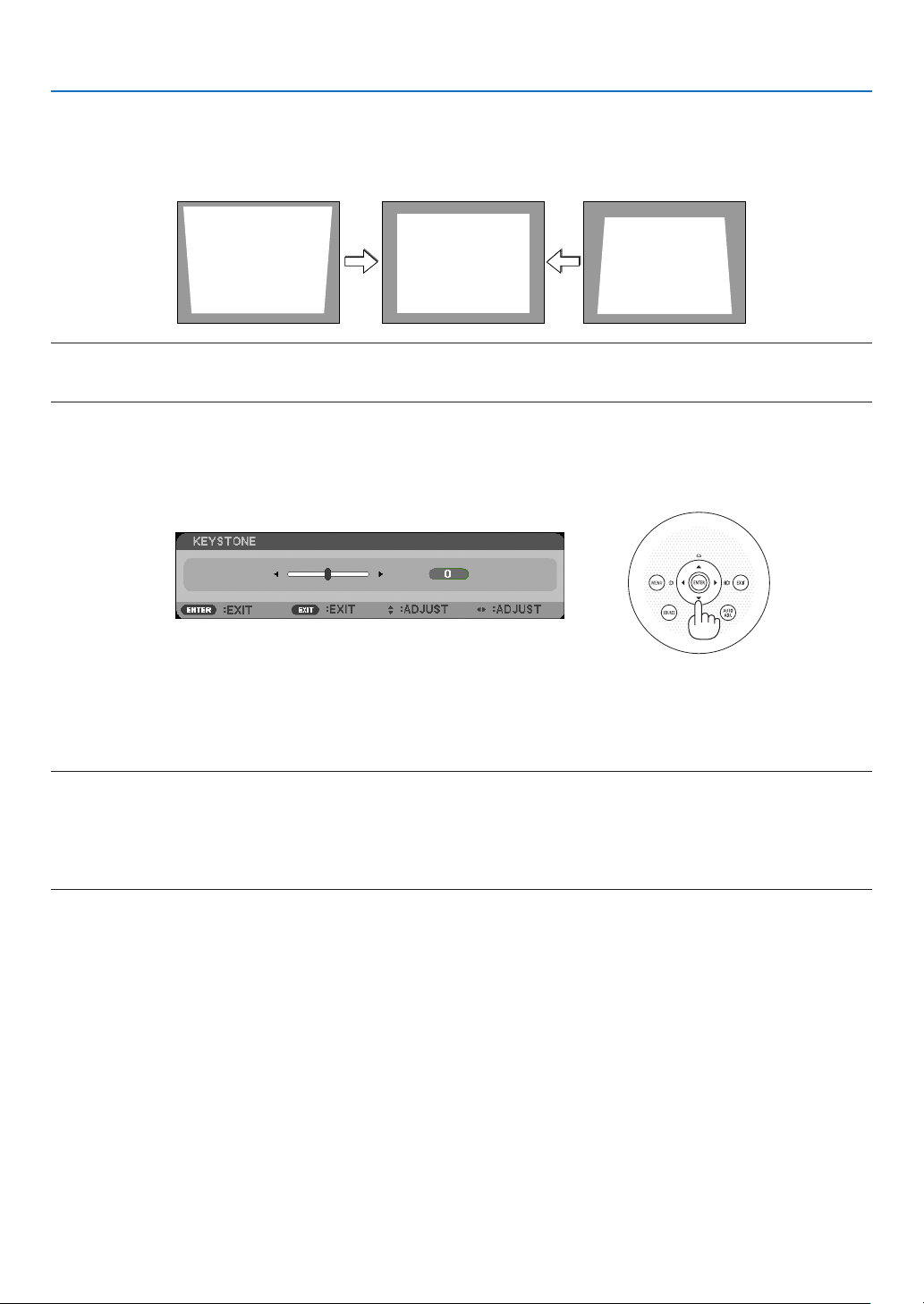
Ifthescreenistiltedvertically,keystonedistortionbecomeslarge.AutomaticKeystoneCorrectionfunctionisturnedon
atthetimeofshipment.Tocorrectkeystonedistortionmanually,proceedwiththefollowingstepstocorrectkeystone
distortion.
NOTE:
• TheKeystonecorrectioncancauseanimagetobeslightlyblurredbecausethecorrectionismadeelectronically.
• TheKeystonecorrectionrangecanbemadenarrower,dependingonasignaloritsaspectratioselection.
[M353WS/M303WS/M333XS]
Adjusting with buttons on the cabinet
1. Press the ▲ or ▼buttonwithnomenusdisplayed.
Thekeystonebarwillbedisplayed.
2. Use the ▲ or ▼tocorrectthekeystonedistortion.
Thekeystonebarwillbeclosedafteraperiodoftime.
3. Press the ENTER button.
Thekeystonebarwillbeclosed.
NOTE:
• Whenthemenuisdisplayed,theaboveoperationisnotavailable.Whenthemenuisdisplayed,presstheMENUbuttontoclose
themenuandstarttheKeystonecorrection.
Fromthemenu,select[SETUP]→[GENERAL]→[KEYSTONE].Thechangescanbesavedwith[KEYSTONESAVE].(→page
95)
• Keystonecontrolisnotavailablewiththe▲or▼buttonwhenthe[USB-B]inputisused.
23
2. Projecting an Image (Basic Operation)
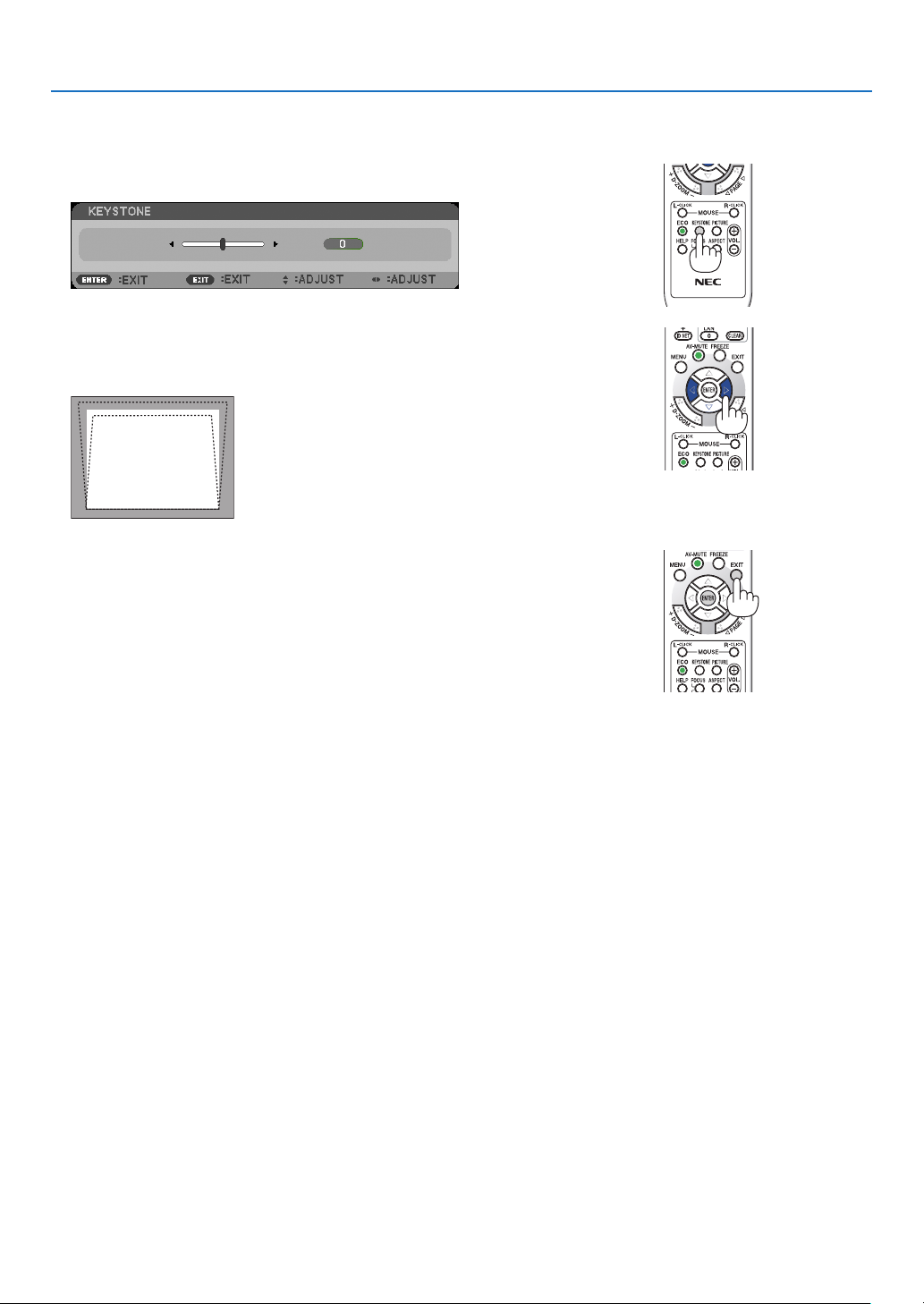
Adjusting with the remote control
1. PresstheKEYSTONEbutton.
The Keystone bar will be displayed.
2. Use the ◀ or ▶buttontocorrectthekeystonedistortion.
Adjust so that the right and left sides are parallel.
3. PresstheEXITbutton.
The Keystone bar will be closed.
24
2. Projecting an Image (Basic Operation)
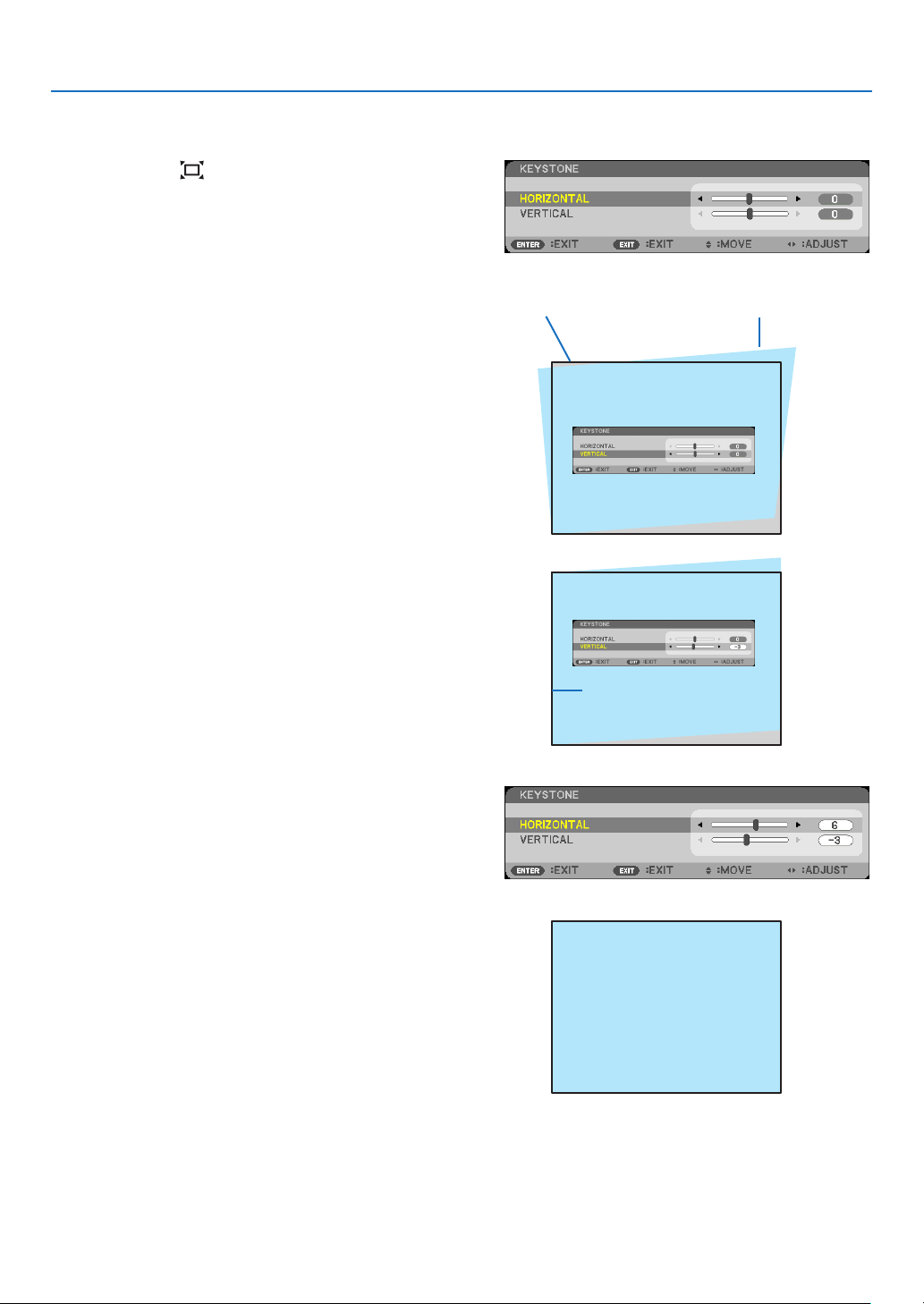
[M403W/M363W/M323W/M403X/M363X/M323X/M283X/M403H/M323H]
1. Press the ▼ ( ) button on the projector cabinet
withnomenusdisplayed.
The Keystone screen will be displayed on the screen.
• PresstheKEYSTONEbuttonwhenusingtheremote
control.
2. Press the ▼buttontoselect[VERTICAL]andthen
use the ◀ or ▶sothattheleftandrightsidesofthe
projectedimageareparallel.
* Adjusttheverticalkeystonedistortion.
Projected area
Screen frame
3. Aligntheleft(orright)sideofthescreenwiththe
left(orright)sideoftheprojectedimage.
• Usetheshortersideoftheprojectedimageasthe
base.
• Intherightexample,usetheleftsideasthebase.
Align left side
4. Press the ▲buttontoselect[HORIZONTAL]andthen
use the ◀ or ▶sothatthetopandbottomsidesof
theprojectedimageareparallel.
• Adjustthehorizontalkeystonedistortion.
5. Repeat steps 2 and 4 to correct keystone distor-
tion.

25
2. Projecting an Image (Basic Operation)
6. After completing Keystone correction, press the
EXITbutton.
The Keystone screen will disappear.
• ToperformKeystonecorrectionagain,pressthe▼
button to display the Keystone screen and repeat
above steps 1 to 6.
26
2. Projecting an Image (Basic Operation)
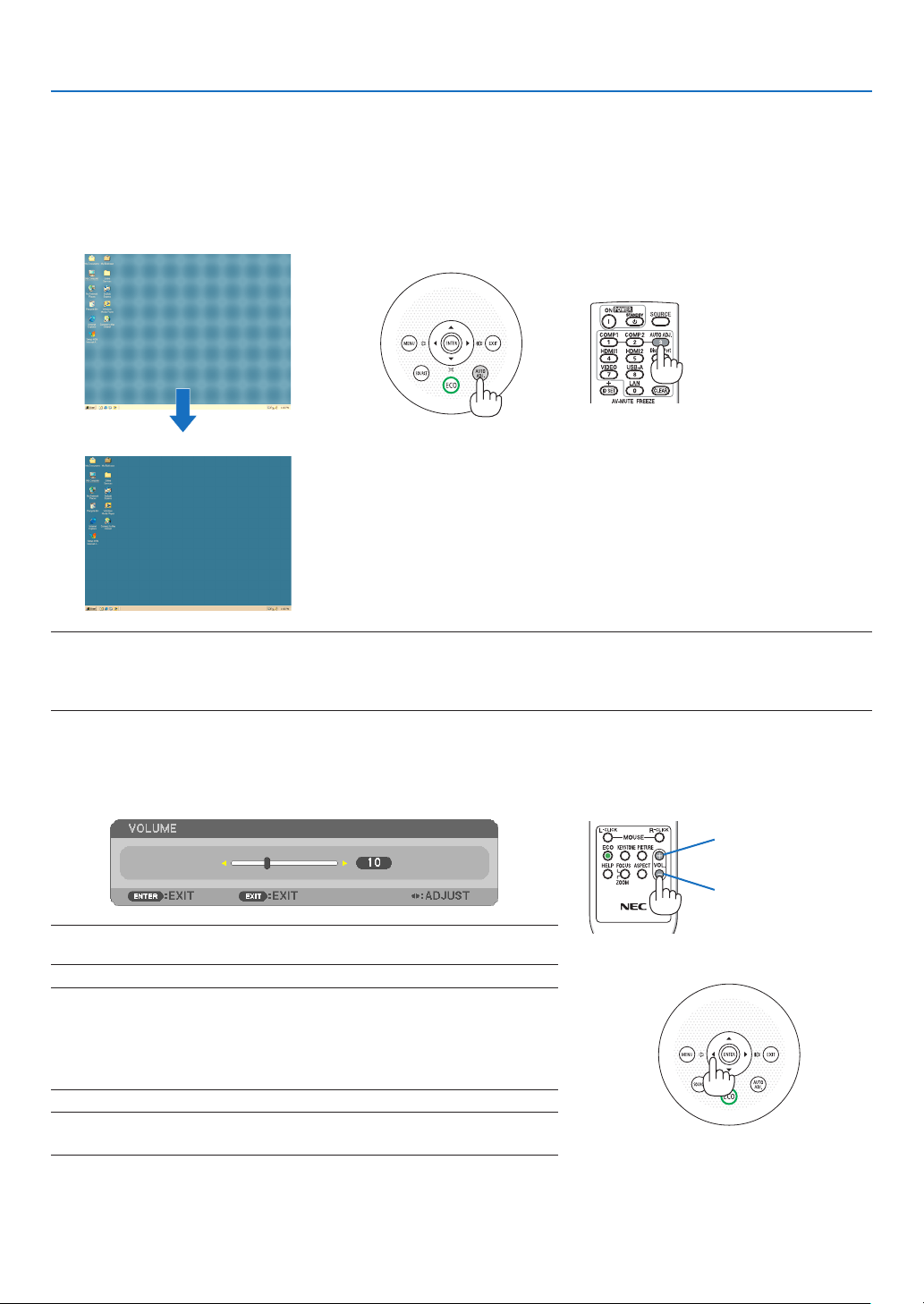
❼ Optimizing Computer Signal Automatically
Adjusting the Image Using Auto Adjust
Optimizingacomputerimageautomatically.(COMPUTER)
PresstheAUTOADJ.buttontooptimizeacomputerimageautomatically.
Thisadjustmentmaybenecessarywhenyouconnectyourcomputerforthersttime.
[Poor picture]
[Normal picture]
NOTE:
Somesignalsmaytaketimetodisplayormaynotbedisplayedcorrectly.
• IftheAutoAdjustoperationcannotoptimizethecomputersignal,trytoadjust[HORIZONTAL],[VERTICAL],[CLOCK],and[PHASE]
manually.(→page90,91)
❽ Turning Up or Down Volume
Soundlevelfromthespeakercanbeadjusted.
TIP:Whennomenusappear,the◀and▶buttonsontheprojectorcabinetwork
asavolumecontrol.
NOTE:
• Volumecontrolisnotavailablewiththe◀or▶buttonwhenanimageismagni-
edbyusingtheD-ZOOM(+)buttonorwhenthemenuisdisplayed.
• Volumecontrolis not availablewith the◀or ▶ button whenVIEWER is
used.
TIP:The[BEEP]soundvolumecannotbeadjusted.Toturnoffthe[BEEP]sound,
fromthemenu,select[SETUP]→[OPTIONS(1)]→[BEEP]→[OFF].
Increasevolume
Decrease volume
27
2. Projecting an Image (Basic Operation)
❾ Turning off the Projector
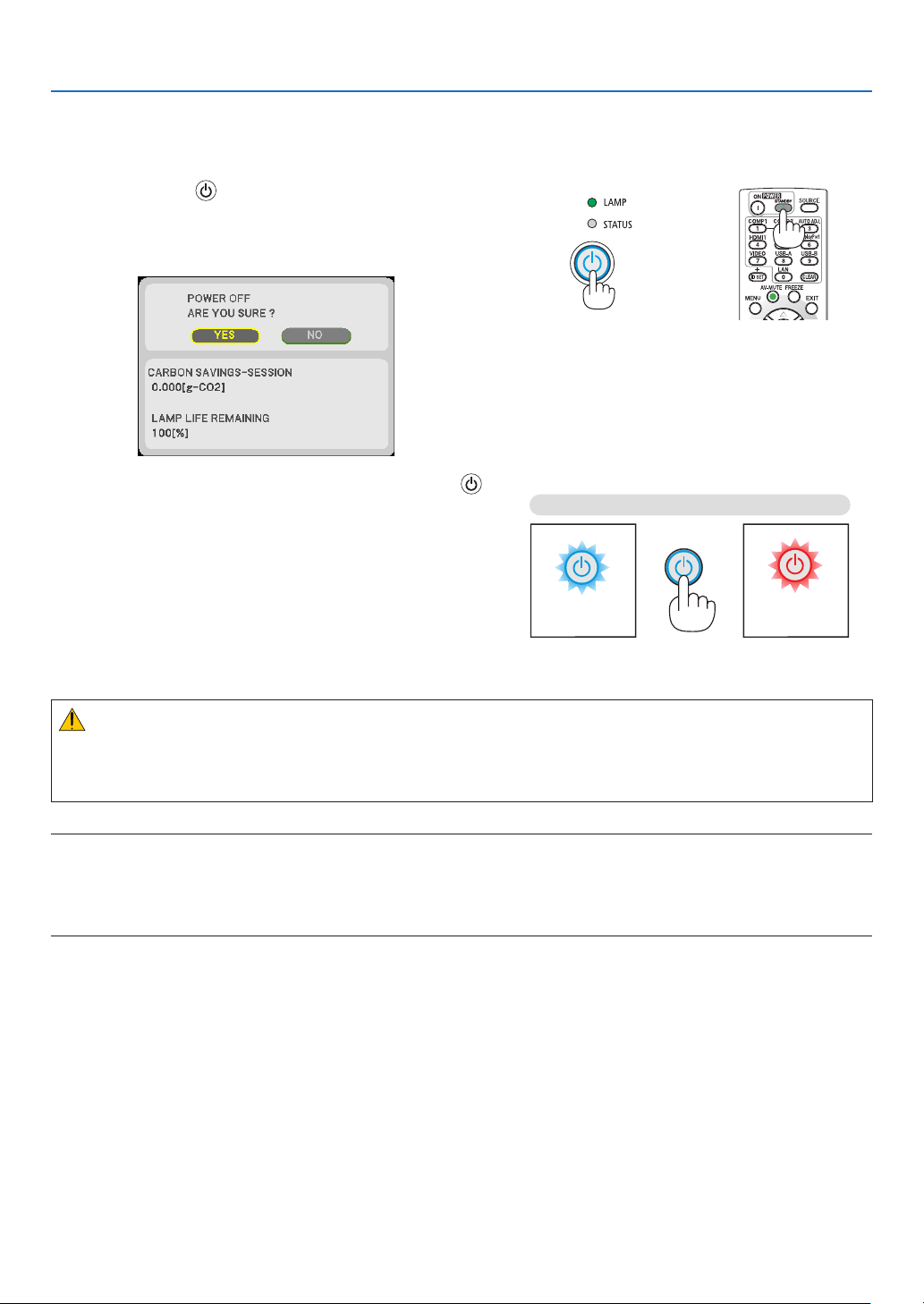
Toturnofftheprojector:
1. First, press the (POWER) button on the projector
cabinet or the STANDBY button on the remote con-
trol.
The confirmation message will be displayed.
2. Secondly, press the ENTER button or press the
(POWER)ortheSTANDBYbuttonagain.
The cooling fans stop operating when the projector turns off
and goes into standby mode. When in standby mode, the
POWER indicator will light red and the STATUS indicator
will light green approx. for 10 seconds and then will light off
when [NORMAL] is selected for [STANDBY MODE].
PowerOn
Steady blue light
Standby
Steady
red light
CAUTION:
PartsoftheprojectormaybecometemporarilyheatediftheprojectoristurnedoffwiththePOWERbuttonorifthe
ACpowersupplyisdisconnectedduringnormalprojectoroperation.
Usecautionwhenpickinguptheprojector.
NOTE:
• Whilethepowerindicatorisblinkingblueinshortcycles,thepowercannotbeturnedoff.
• Youcannotturnoffthepowerfor60secondsimmediatelyafterturningitonanddisplayinganimage.
• DonotdisconnecttheACpowersupplytotheprojectorwithin10secondsofmakingadjustmentorsettingchangesandclosing
themenu.Doingsocancauselossofadjustmentsandsettings.
28
2. Projecting an Image (Basic Operation)
❿ After Use
Preparation:Makesurethattheprojectoristurnedoff.
1. Unplugthepowercord.
2. Disconnect any other cables.
• RemovetheUSBmemoryifitisinsertedintotheprojector.
3. Retractadjustabletiltfootifextended.
(M403W/M363W/M323W/M403X/M363X/M323X/M283X/M403H/M323Honly)
4.Slidethelenscovertothelefttocoverthelens.
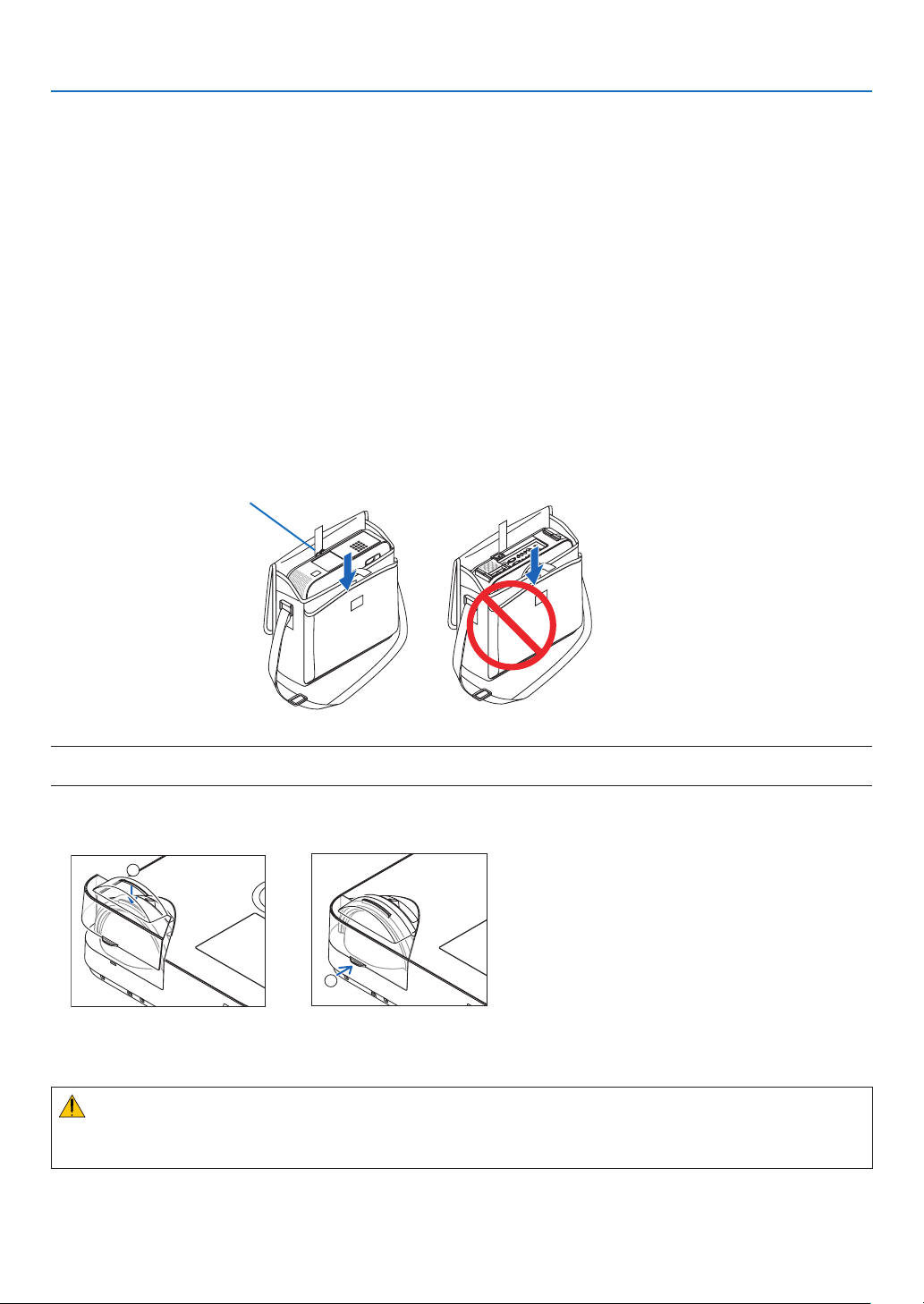
5. Puttheprojectorandaccessoriesinthesuppliedsoftcase.
Place the projector in the soft case with the lens facing upward as shown below. This is to prevent the lens from
damage.
Inserttheprojectorwiththelens
facing upward
NOTE:Whenplacingtheprojectorinthesoftcase,retractthetiltfootandtherearfeet.Failuretodosomaycasedamagetothe
projector.
(M353WS/M303WS/M333XSonly)
4. Reattach the lens cap
1
2
① Put the lens cap on the top of the lens.
② Push to cover the lens completely.
CAUTION:
Usecautionwhenputtingtheprojectorinthesoftcaseimmediatelyaftertheprojectorhasbeenoperating.The
projectorcabinetishot.
29
❶ Turning off the Image and Sound
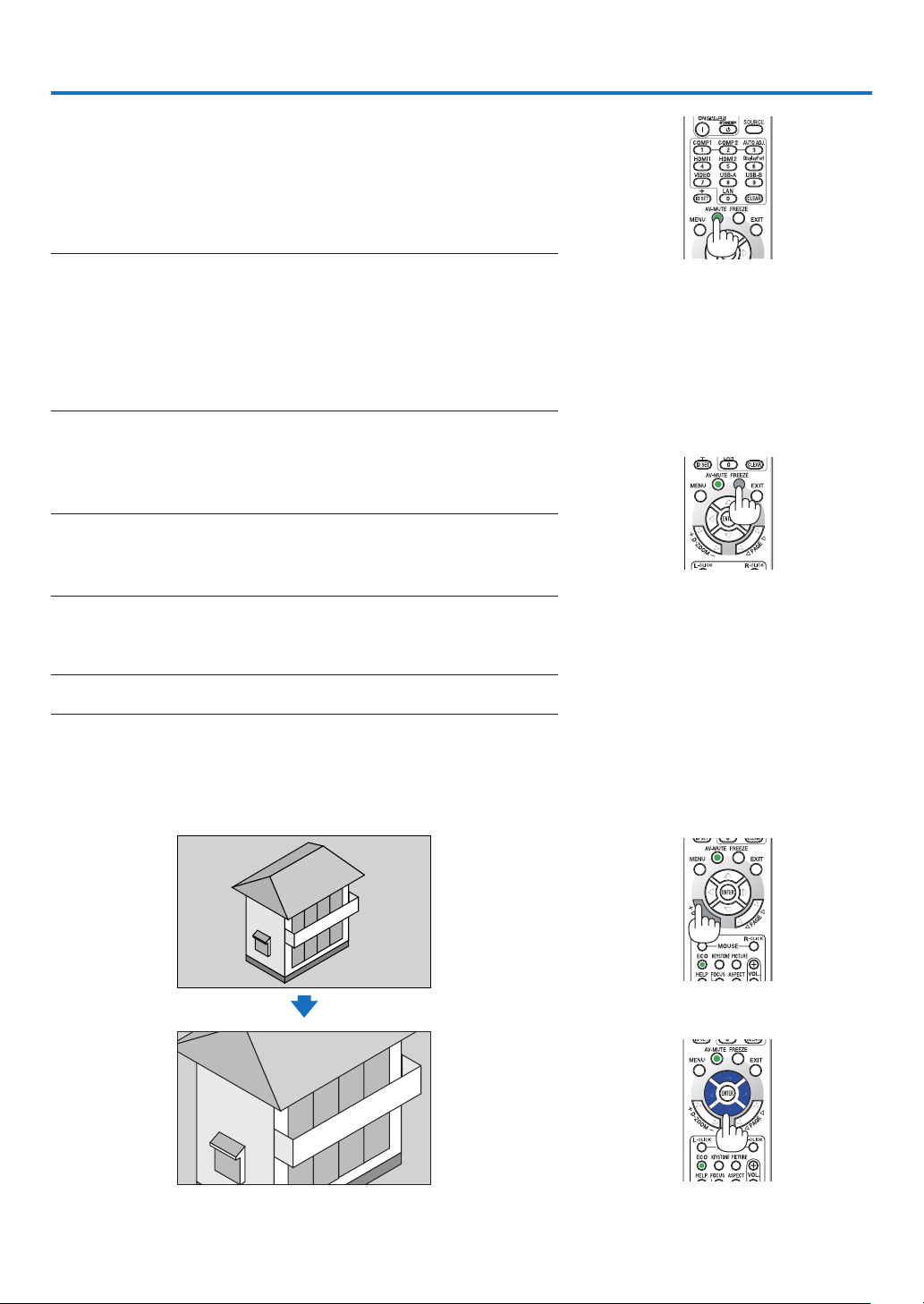
PresstheAV-MUTEbuttontoturnofftheimageandsoundforashort
periodoftime.Pressagaintorestoretheimageandsound.
Theprojector’spower-savingfunctionwillwork10secondsaftertheim-
ageisturnedoff.
Asaresult,thelamppowerwillbereduced.
NOTE:
•
Eventhoughtheimageisturnedoff,themenustillremainsonthescreen.
• SoundfromtheAUDIOOUTjack(Stereomini)canbeturnedoff.
• Evenwhenthepower-savingfunctionworks,thelamppowermayberestored
toitsoriginalleveltemporarily.
• Torestoretheimage,evenifyoupresstheAV-MUTEbuttonimmediatelyafter
thestartofthepower-savingfunction,thelampbrightnessmaynotberestored
toitsoriginallevel.
❷ Freezing a Picture
PresstheFREEZEbuttontofreezeapicture.Pressagaintoresume
motion.
NOTE:
• Theimageisfrozenbuttheoriginalvideoisstillplayingback.
• WithImageExpressUtilityincludingUSBDisplay,pressingtheFREEZEbutton
willeliminatesoundtemporarilyduringdisplayoffreezedimage.
❸ Magnifying a Picture
Youcanmagnifythepictureuptofourtimes.
NOTE:Themaximummagnicationmaybelessthanfourtimesdependingon
thesignal.
Todoso:
1. PresstheD-ZOOM(+)buttontomagnifythepicture.
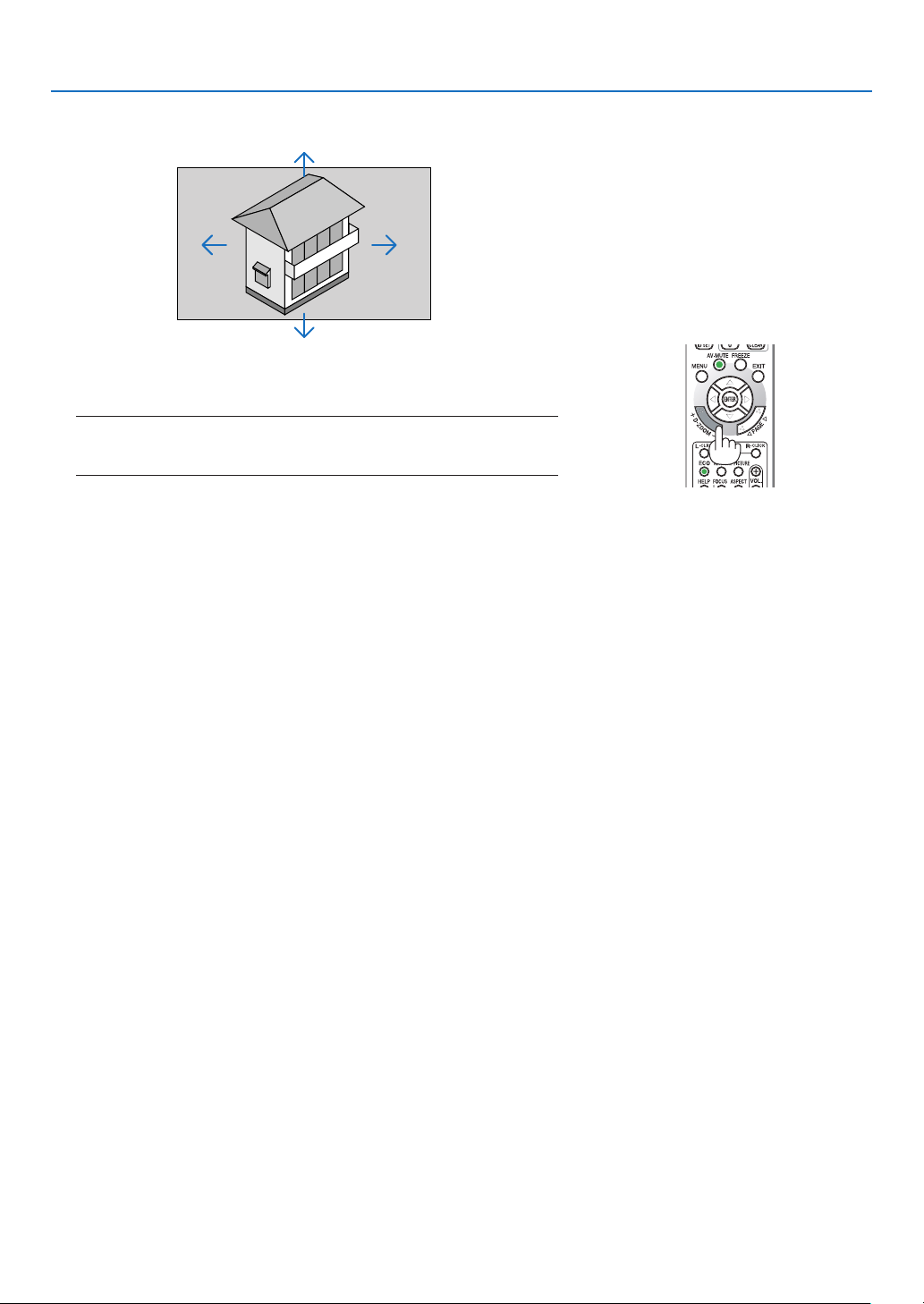
To move the magnified image, use the ▲,▼,◀ or ▶ button.
3. Convenient Features
30
3. Convenient Features
2. Press the ▲▼◀▶ button.
The area of the magnified image will be moved
3. Press the D-ZOOM (−) button.
Each time the D-ZOOM (−) button is pressed, the image is demagni-
fied.
NOTE:
• Theimagewillbemagniedordemagniedatthecenterofthescreen.
• Displayingthemenuwillcancelthecurrentmagnication.
31
3. Convenient Features
❹ Changing Eco Mode/Checking Energy-Saving Effect
Using Eco Mode [ECO MODE]
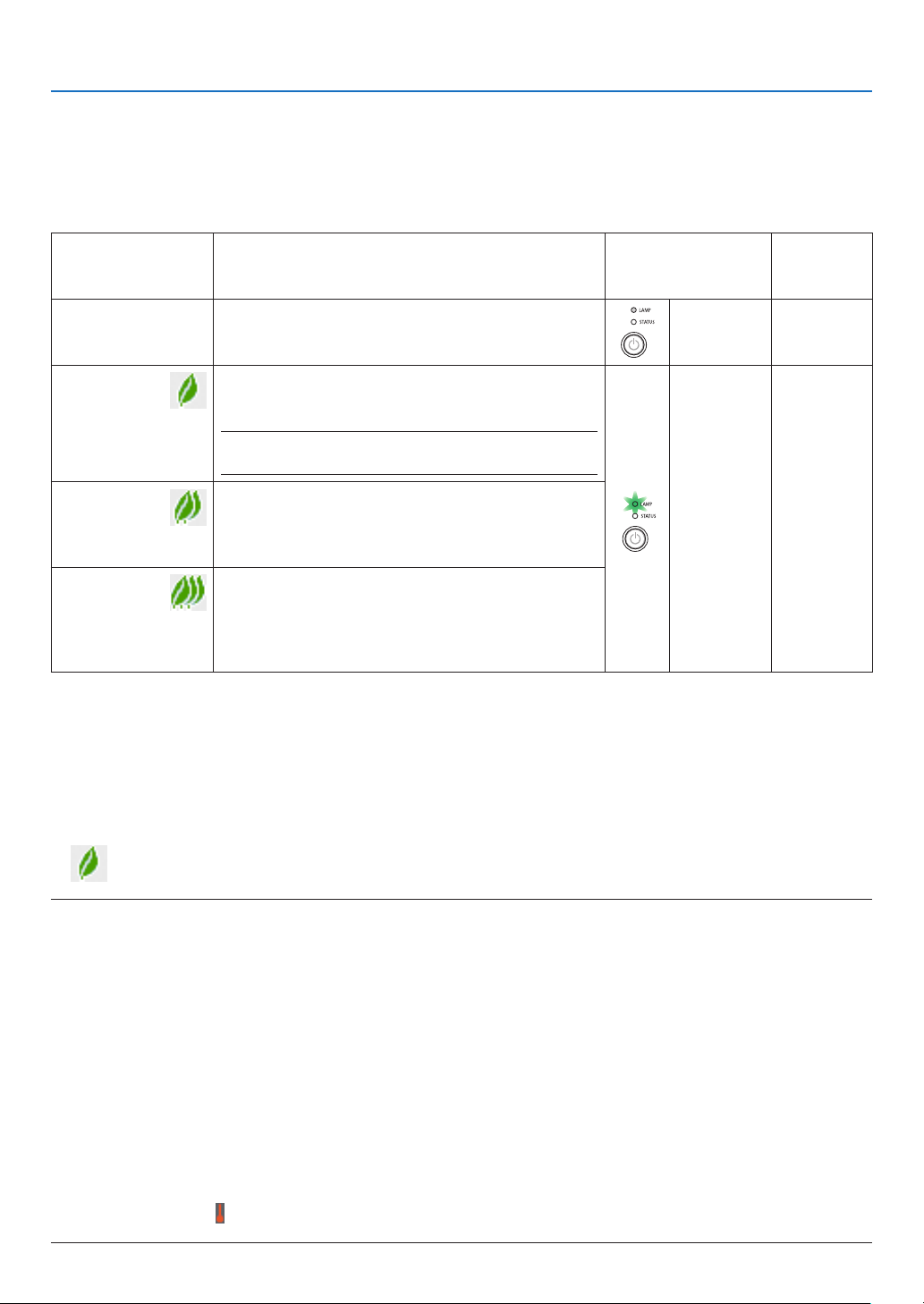
TheECOMODE(NORMALandECO)increaseslamplife,whileloweringpowerconsumptionandcuttingdownon
CO
2
emissions.
Fourbrightnessmodesofthelampcanbeselected:[OFF],[AUTOECO],[NORMAL]and[ECO]modes.
[ECOMODE] Description
StatusofLAMP
indicator
Statusof
ECOindi-
cator
[OFF]
Thelampbrightnessis100%.
Off Off
[AUTOECO] Lamppowerconsumptionwillbecontrolledbetween
[OFF]and[ECO]automaticallyaccording to picture
level.
NOTE:Abrightgradationmaybelessvisibledependingon
theimage.
Steady
Greenlight
Steady
Greenlight
[NORMAL] Lamp powerconsumption. (approx.81% brightness
on M403W/M403X/M353WS/M333XS/M403H/M323H
andapprox. 76% on M363W/M363X/M303WS)The
lamplifewillextendbyloweringthelamppower.
[ECO] Lamppowerconsumption(approx.60%brightness).
ThelamplifewillextendlongerthantheoneonNOR-
MALmode bycontrollingpowerappropriate forthe
lamp.Themaximumpowerbecomesequivalenttothe
powerinNORMAL.
Toturnonthe[ECOMODE],dothefollowing:
1. PresstheECOButtonontheremotecontroltodisplay[ECOMODE]screen.
2. PresstheECObuttonagaintoselectamodeyouwish.
• EachtimetheECObuttonispressed,thechoiceswillbechanged:
OFF → AUTO ECO → NORMAL → ECO → OFF
TIP:
• TheleafsymbolatthebottomofthemenushowsthecurrentselectionofECOmode.
NOTE:
• TheECOMODEandDYNAMICCONTRASTfeaturescontrolthelamppower.Somepicturesmaybecomeextremelybrightwhen
usingbothECOMODEandDYNAMICCONTRASTfeaturestocontrolthelamppower.Toavoidthisphenomena,turnofftheECO
MODEandDYNAMICCONTRAST.
• Immediatelyafterthemenuitemisselectedfor[ECOMODE],thescreenmayicker.Thisisnotmalfunction.
• Usingtheprojectorinthe[AUTOECO],[NORMAL],or[ECO]modefor[ECOMODE]maycausepoorhalftonesdependingonthe
projectedimage.
• The[ECOMODE]canbechangedbyusingthemenu.
Select[SETUP]→[GENERAL]→[ECOMODE].
• Thelampliferemainingandlamphoursusedcanbecheckedin[USAGETIME].Select[INFO.]→[USAGETIME].
• Theprojectorisalwaysin[NORMAL]for90secondsafterthelampisturnedonandwhilethePOWERindicatorisblinkinggreen.
Thelampconditionwillnotbeaffectedevenwhen[ECOMODE]ischanged.
• Afteralapseof1minutefromwhentheprojectordisplaysno-signalguidance,ablue,blackorlogoscreen,[ECOMODE]will
automaticallyswitchto[ECO].
• Iftheprojectorisoverheatedin[OFF]mode,theremaybeacasewherethe[ECOMODE]automaticallychangesto[NORMAL]
modetoprotecttheprojector.Whentheprojectorisin[NORMAL]mode,thepicturebrightnessdecreases.Whentheprojector
comesbacktonormaltemperature,the[ECOMODE]returnsto[OFF]mode.
Thermometersymbol[ ]indicatesthe[ECOMODE]isautomaticallysetto[NORMAL]modebecausetheinternaltemperature
istoohigh.
32
3. Convenient Features
Checking Energy-Saving Effect [CARBON METER]
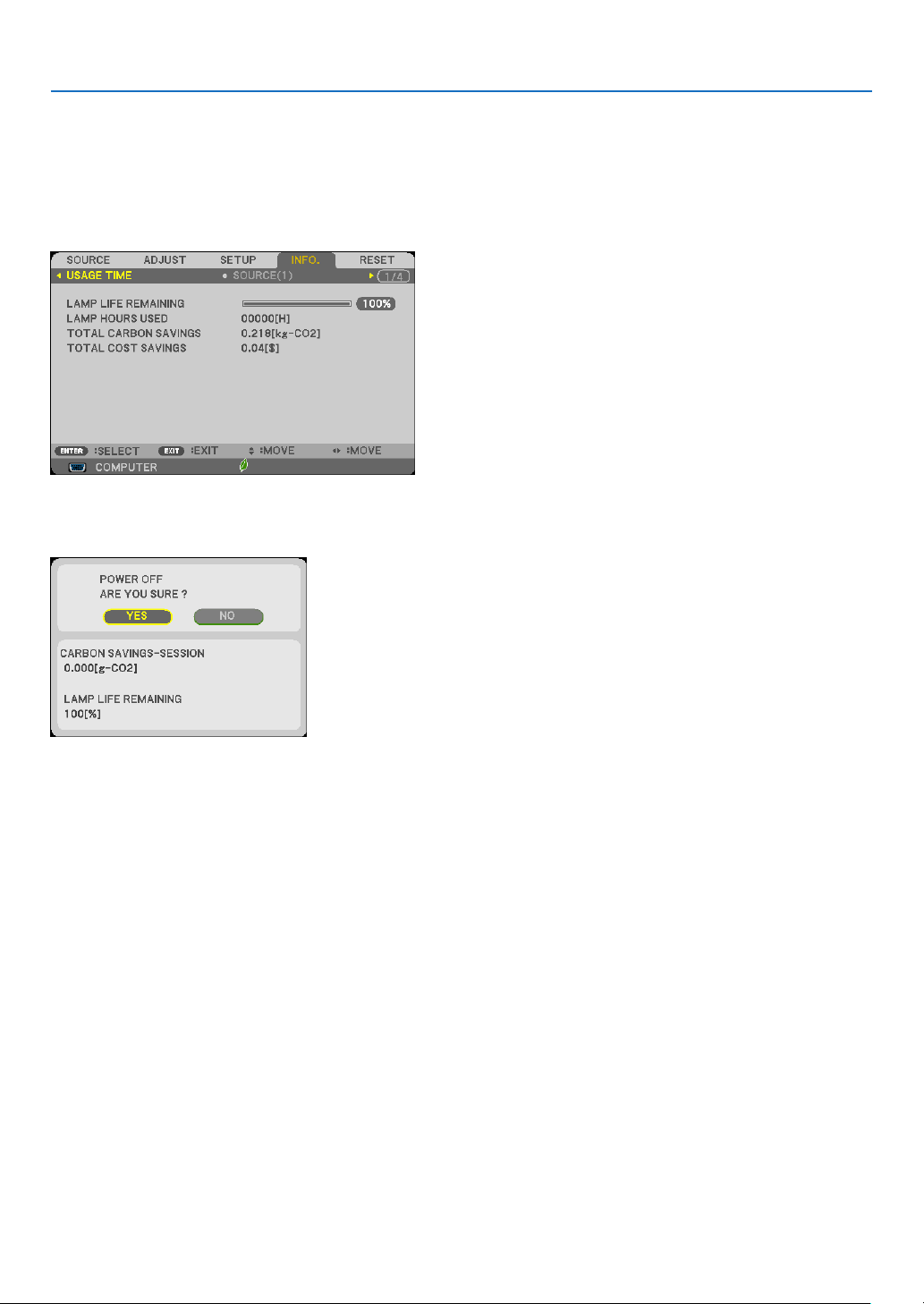
Thisfeaturewillshowenergy-savingeffectintermsofCO
2
emissionreduction(kg)whentheprojector’s[ECOMODE]
issetto[AUTOECO],[NORMAL],or[ECO].Thisfeatureiscalledas[CARBONMETER].
Therearetwomessages:[TOTALCARBONSAVINGS]and[CARBONSAVINGS-SESSION].The[TOTALCARBON
SAVINGS]messageshowsthetotalamountofCO
2
emissionreductionfromthetimeofshipmentuptonow.Youcan
checktheinformationon[USAGETIME]from[INFO.]ofthemenu.(→page112)
The[CARBONSAVINGS-SESSION]messageshowstheamountofCO
2
emissionreductionbetweenthetimeof
changingtoECOMODEimmediatelyafterthetimeofpower-onandthetimeofpower-off.The[CARBONSAVINGS-
SESSION]messagewillbedisplayedinthe[POWEROFF/AREYOUSURE?]messageatthetimeofpower-off.
TIP:
• TheformulaasshownbelowisusedtocalculatetheamountofCO
2
emissionreduction.
AmountofCO
2
emissionreduction=(PowerconsumptioninOFFforECOMODE−PowerconsumptioninAUTOECO/NORMAL/
ECOforECOMODE)×CO
2
conversionfactor.*WhentheimageisturnedoffwiththeAV-MUTEbuttonorwiththelenscover
closed,theamountofCO
2
emmissionreductionwillalsoincrease.
*CalculationforamountofCO
2
emissionreductionisbasedonanOECDpublication“CO
2
EmissionsfromFuelCombustion,2008
Edition”.
• The[TOTALCARBONSAVINGS]iscalculatedbasedonsavingsrecordedin15minutesintervals.
• Thisformulawillnotapplytothepowerconsumptionwhichisnotaffectedbywhether[ECOMODE]isturnedonoroff.
33
3. Convenient Features
❺
Preventing the Unauthorized Use of the Projector [SECURITY]
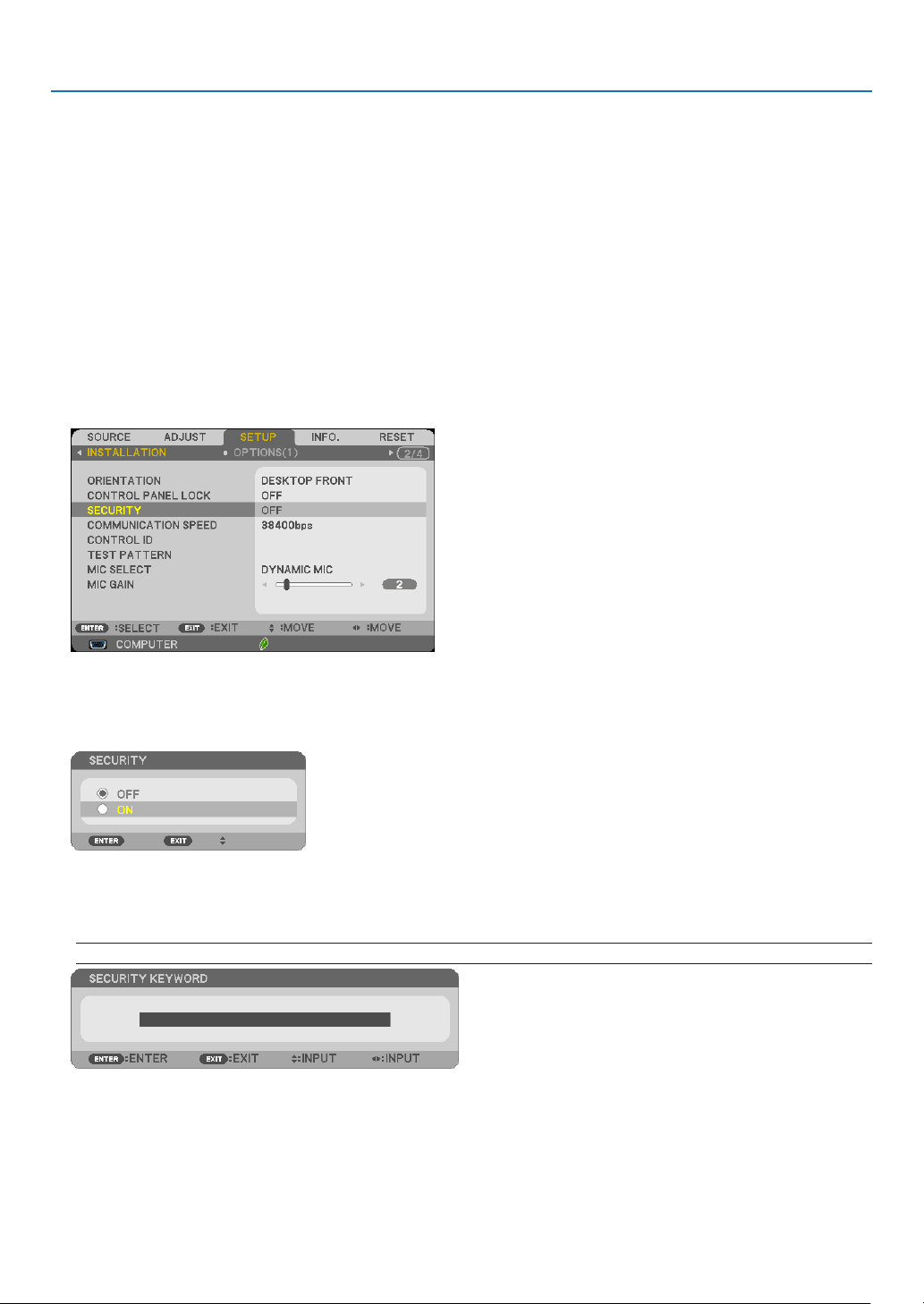
AkeywordcanbesetforyourprojectorusingtheMenutoavoidoperationbyanunauthorizeduser.Whenakeyword
isset,turningontheprojectorwilldisplaytheKeywordinputscreen.Unlessthecorrectkeywordisentered,thepro-
jectorcannotprojectanimage.
•The[SECURITY]settingcannotbecancelledbyusingthe[RESET]ofthemenu.
To enable the Security function:
1. Press the MENU button.
The menu will be displayed.
2. Press the ▶buttontwicetoselect[SETUP]andpressthe▼buttonortheENTERbuttontoselect[GEN-
ERAL].
3. Press the ▶buttontoselect[INSTALLATION].
4. Press the ▼buttonthreetimestoselect[SECURITY]andpresstheENTERbutton.
The OFF/ON menu will be displayed.
5. Press the ▼buttontoselect[ON]andpresstheENTERbutton.
The[SECURITYKEYWORD]screenwillbedisplayed.
6. Typeinacombinationofthefour▲▼◀▶buttonsandpresstheENTERbutton.
NOTE:Akeywordmustbe4to10digitsinlength.
The[CONFIRMKEYWORD]screenwillbedisplayed.
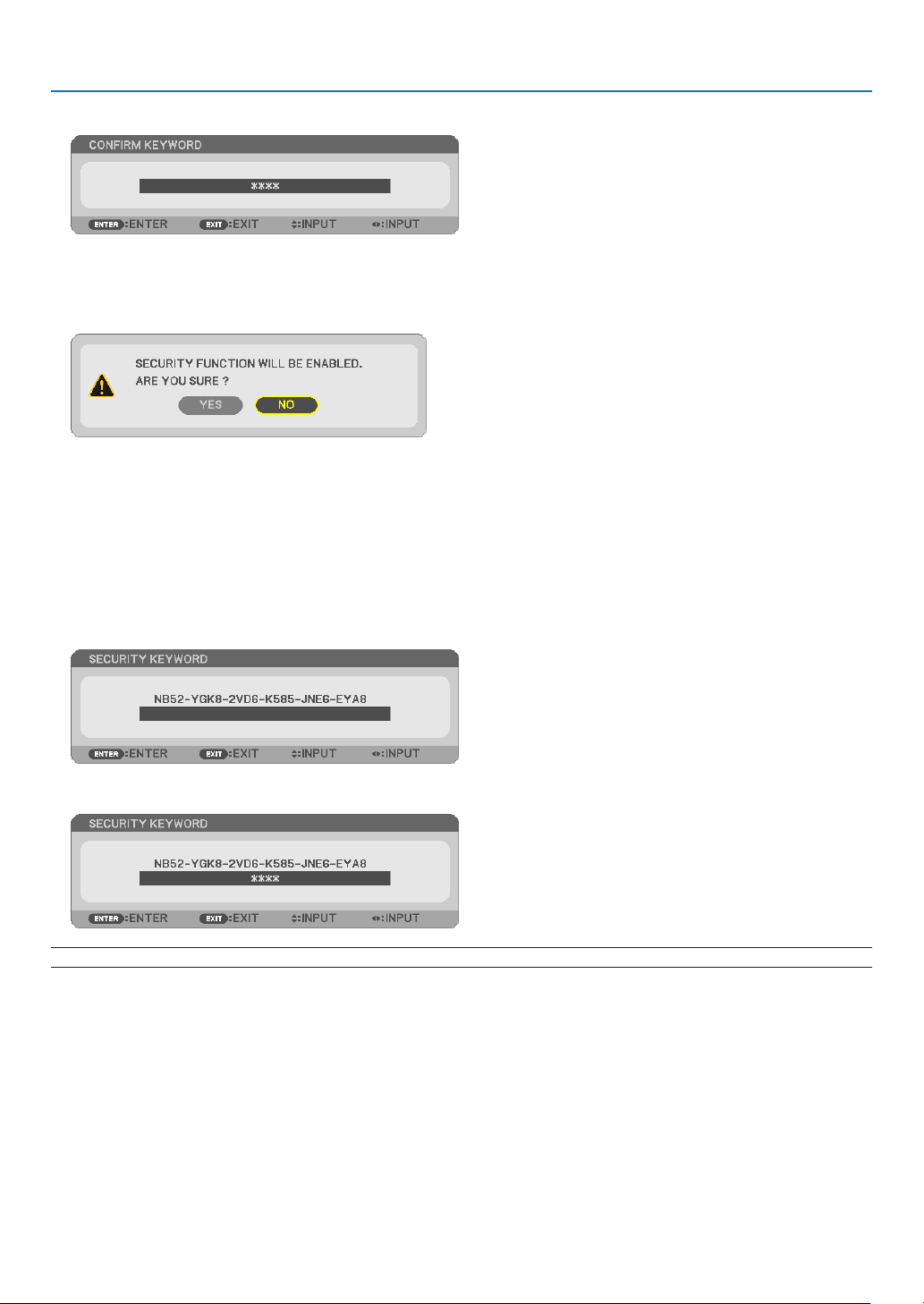
34
3. Convenient Features
7. Typeinthesamecombinationof▲▼◀▶buttonsandpresstheENTERbutton.
The confirmation screen will be displayed.
8. Select[YES]andpresstheENTERbutton.
TheSECURITYfunctionhasbeenenabled.
Toturnontheprojectorwhen[SECURITY]isenabled:
1. Press the POWER button.
Theprojectorwillbeturnedonanddisplayamessagetotheeffectthattheprojectorislocked.
2. Press the MENU button.
3. TypeinthecorrectkeywordandpresstheENTERbutton.Theprojectorwilldisplayanimage.
NOTE:Thesecuritydisablemodeismaintaineduntilthemainpoweristurnedofforunpluggingthepowercord.
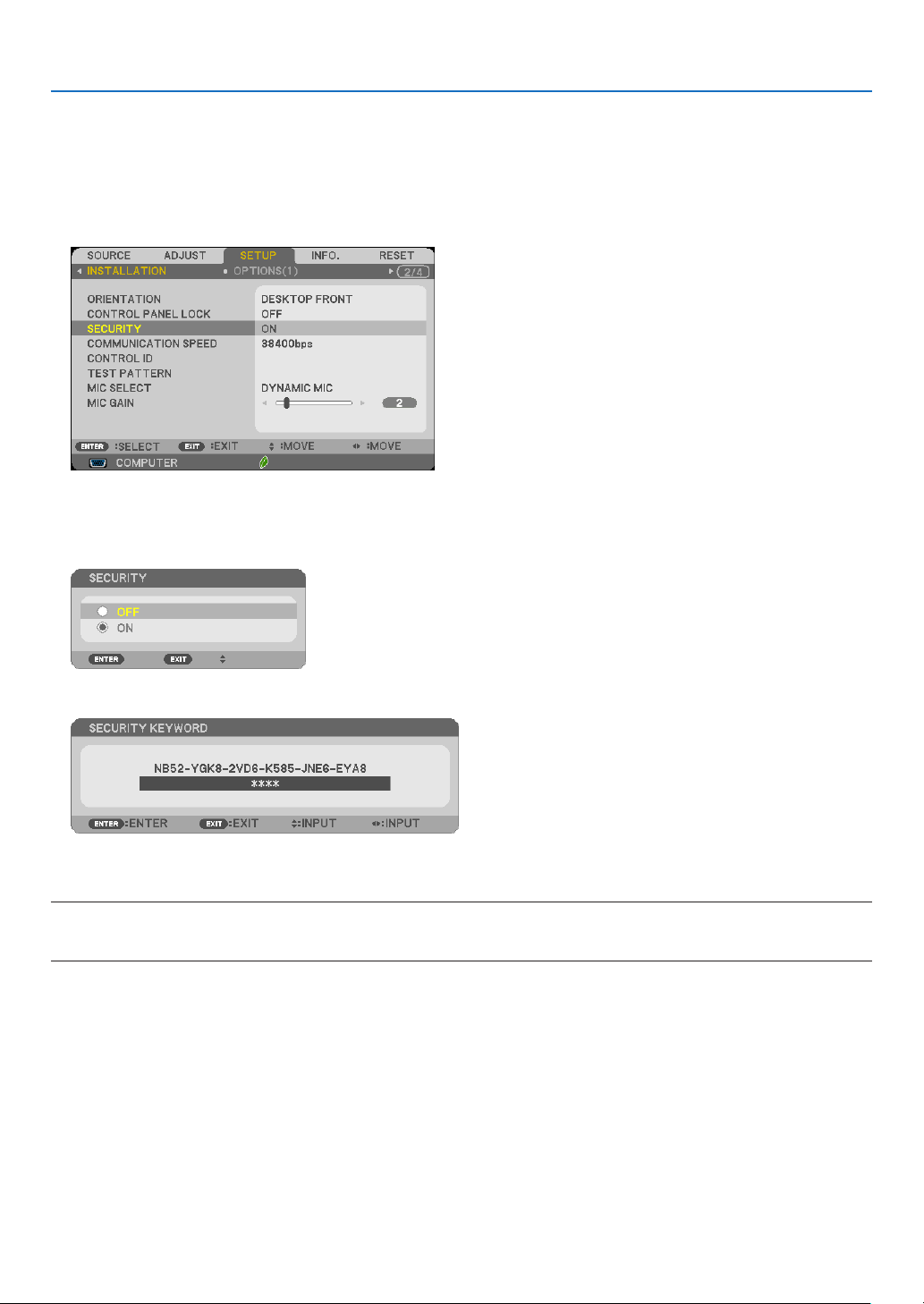
35
3. Convenient Features
To disable the SECURITY function:
1. Press the MENU button.
The menu will be displayed.
2.Select[SETUP]→[INSTALLATION]→[SECURITY]andpresstheENTERbutton.
The OFF/ON menu will be displayed.
3. Select[OFF]andpresstheENTERbutton.
TheSECURITYKEYWORDscreenwillbedisplayed.
4. TypeinyourkeywordandpresstheENTERbutton.
Whenthecorrectkeywordisentered,theSECURITYfunctionwillbedisabled.
NOTE:Ifyouforgetyourkeyword,contactyourdealer.Yourdealerwillprovideyouwithyourkeywordinexchangeforyourrequest
code.YourrequestcodeisdisplayedintheKeywordConrmationscreen.Inthisexample[NB52-YGK8-2VD6-K585-JNE6-EYA8]
isarequestcode.
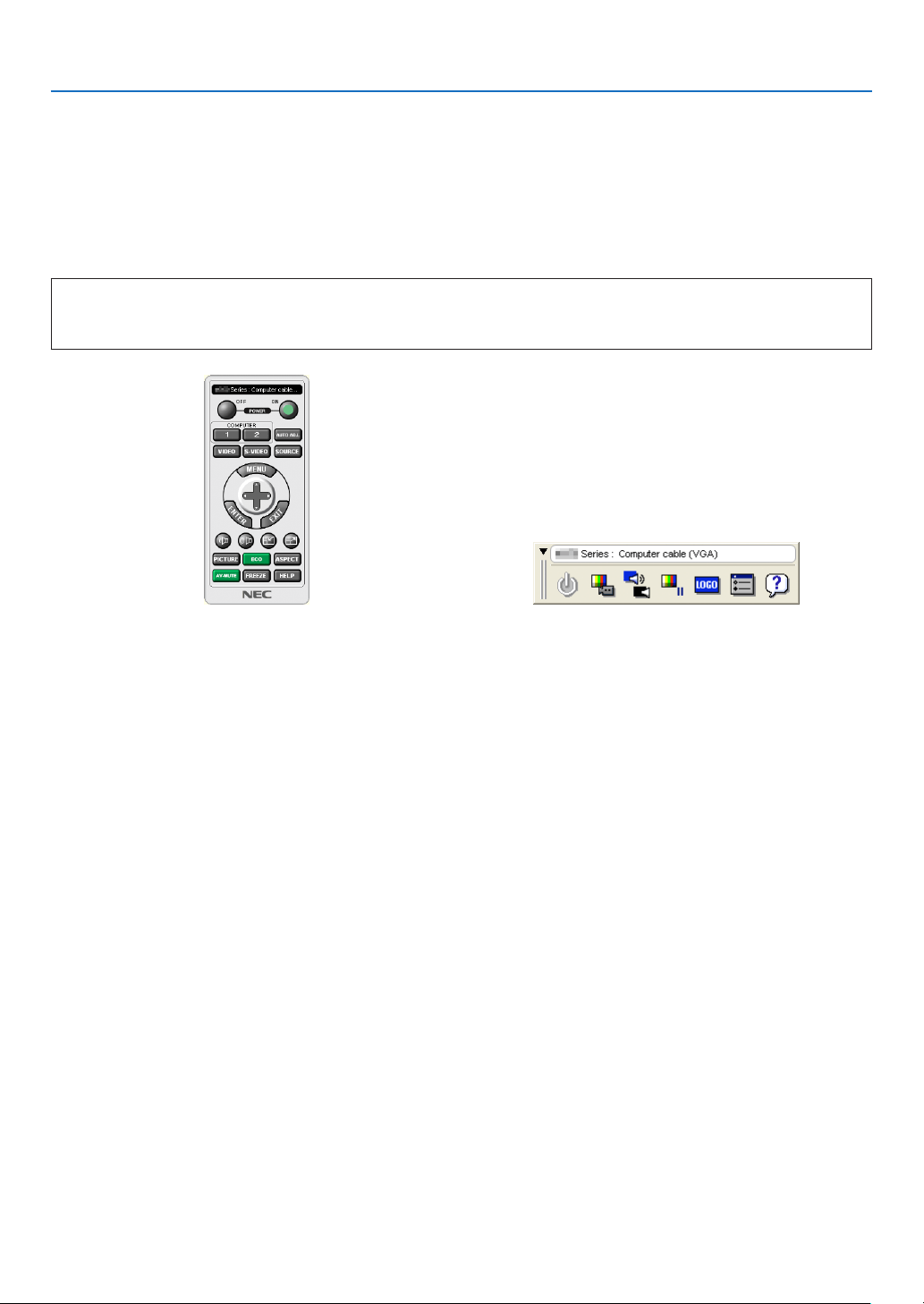
36
3. Convenient Features
❻ Using the Computer Cable (VGA) to Operate the
Projector (Virtual Remote Tool)
Usingtheutilitysoftware“VirtualRemoteTool”includedonthecompanionNECProjectorCD-ROM,VirtualRemote
screen(ortoolbar)canbedisplayedonyourcomputerscreen.
Thiswillhelpyouperformoperationssuchasprojector’spoweronoroffandsignalselectionviathecomputercable
(VGA),serialcable,orLANconnection.Onlyviaserialconnectionitisalsousedtosendanimagetotheprojectorand
registeritasthelogodataoftheprojector.Afterregisteringit,youcanlockthelogotopreventitfromchanging.
Control Functions
PowerOn/Off,signalselection,picturefreeze,picturemute,audiomute,Logotransfertotheprojector,andremote
controloperationonyourPC.
VirtualRemotescreen Toolbar
ThissectionprovidesanoutlineofpreparationforuseofVirtualRemoteTool.
ForinformationonhowtouseVirtualRemoteTool,seeHelpofVirtualRemoteTool.(→page41)
Step1:InstallVirtualRemoteToolonthecomputer.(→page37)
Step2:Connecttheprojectortothecomputer.(→page39)
Step3:StartVirtualRemoteTool.(→page40)
TIP:
• VirtualRemoteToolcanbeusedwithaLANandaserialconnection.USBconnectionisnotsupportedbyVirtualRemoteTool.
• ForupdateinformationonVirtualRemoteTool,visitourwebsite:
http://www.nec-display.com/dl/en/index.html
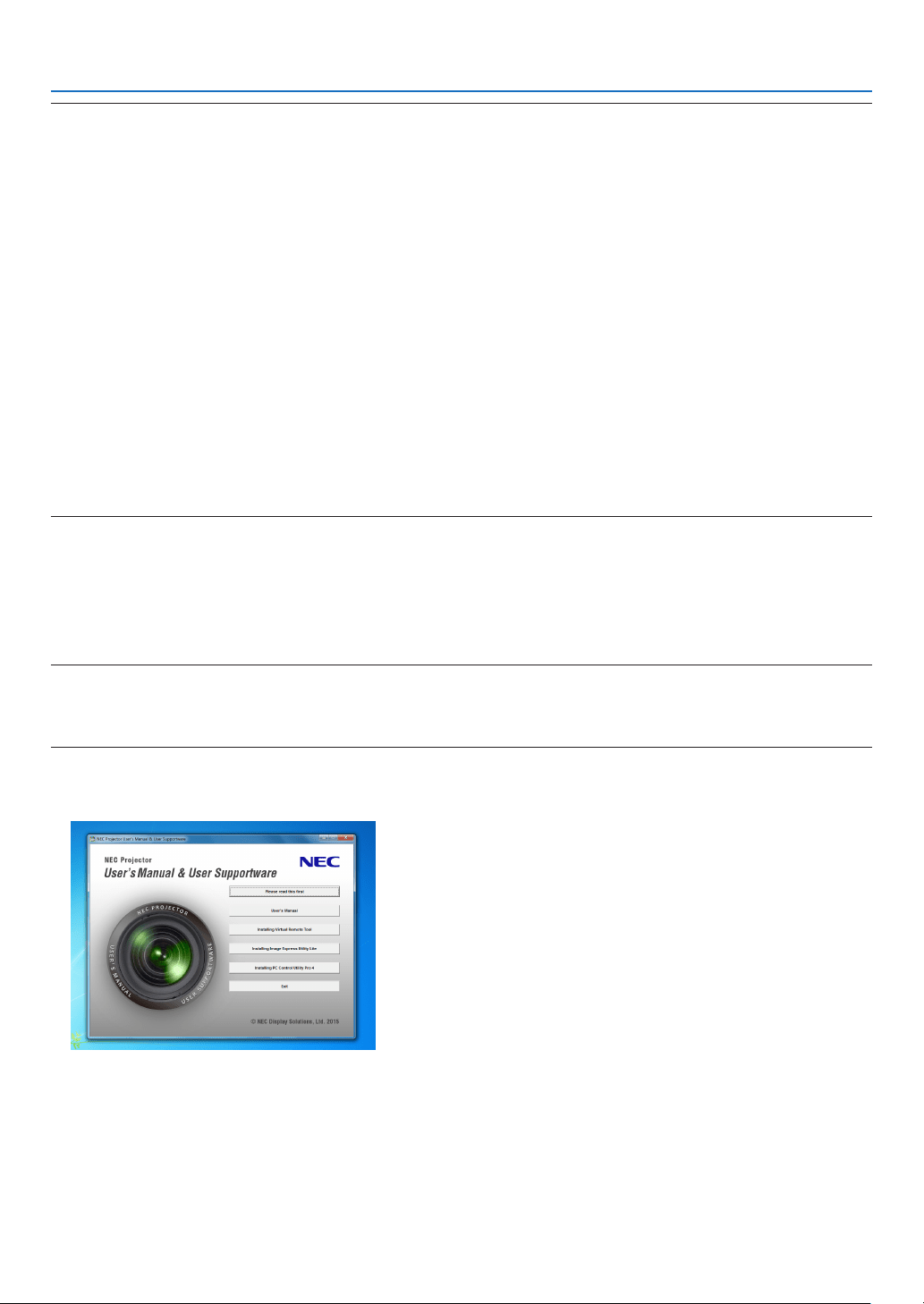
37
3. Convenient Features
NOTE:
• When[COMPUTER]isselectedfromyoursourceselection,theVirtualRemotescreenorthetoolbarwillbedisplayedaswellas
yourcomputerscreen.
• Usethesuppliedcomputercable(VGA)toconnecttheCOMPUTERINterminaldirectlywiththemonitoroutputterminalofthe
computertouseVirtualRemoteTool.
Usingaswitcherorothercablesthanthesuppliedcomputercable(VGA)maycausefailureinsignalcommunication.
VGAcableterminal:
PinNos.12and15arerequiredforDDC/CI.
• VirtualRemoteToolmaynotworkdependingonyourcomputer’sspecicationsandversionofgraphicadaptersordrivers.
• TorunVirtualRemoteToolonWindows8,“Microsoft.NETFrameworkVersion2.0”isrequired.TheMicrosoft.NETFramework
Version2.0,3.0or3.5isavailablefromMicrosoft’swebpage.Downloadandinstalltheitonyourcomputer.
• Logodata(graphics)thatcanbesenttotheprojectorwithVirtualRemoteToolhasthefollowingrestrictions:
(Onlyviaserial)
- Filesize:Lessthan768KB
- Imagesize(resolution):
M403X/M363X/M323X/M283X/M333XS:Horizontal1024×vertical768dotsorless
M403W/M363W/M323W/M353WS/M303WS:Horizontal1280xvertical800dotsorless
M403H/M323H:Horizontal1920×vertical1080dotsorless
• Toputthedefault"NEClogo"backinthebackgroundlogo,youneedtoregisteritasthebackgroundlogobyusingtheimage
le (M403W/M363W/M323W/M353WS/M303WS: NEC_logo2011_1280x800.bmp, M403X/M363X/M323X/M283X/M333XS:
NEC_logo2011_XGA.bmp,M403H/M323H:NEC_logo2012_1920x1080.bmp)incluldedonthesuppliedNECProjectorCD-ROM.
TIP:
• Theprojector’s COMPUTERINterminal supportsDDC/CI (Display DataChannel CommandInterface).DDC/CIis astandard
interfaceforbidirectionalcommunicationbetweendisplay/projectorandcomputer.
Step 1: Install Virtual Remote Tool on the computer
NOTE:
• ToinstallVirtualRemoteTool,theWindowsuseraccountmusthave“Administrator”privilege.
• ExitallrunningprogramsbeforeinstallingVirtualRemoteTool.Ifanotherprogramisrunning,theinstallationmaynotbecom-
pleted.
1 InserttheaccompanyingNECProjectorCD-ROMintoyourCD-ROMdrive.
The menu window will be displayed.
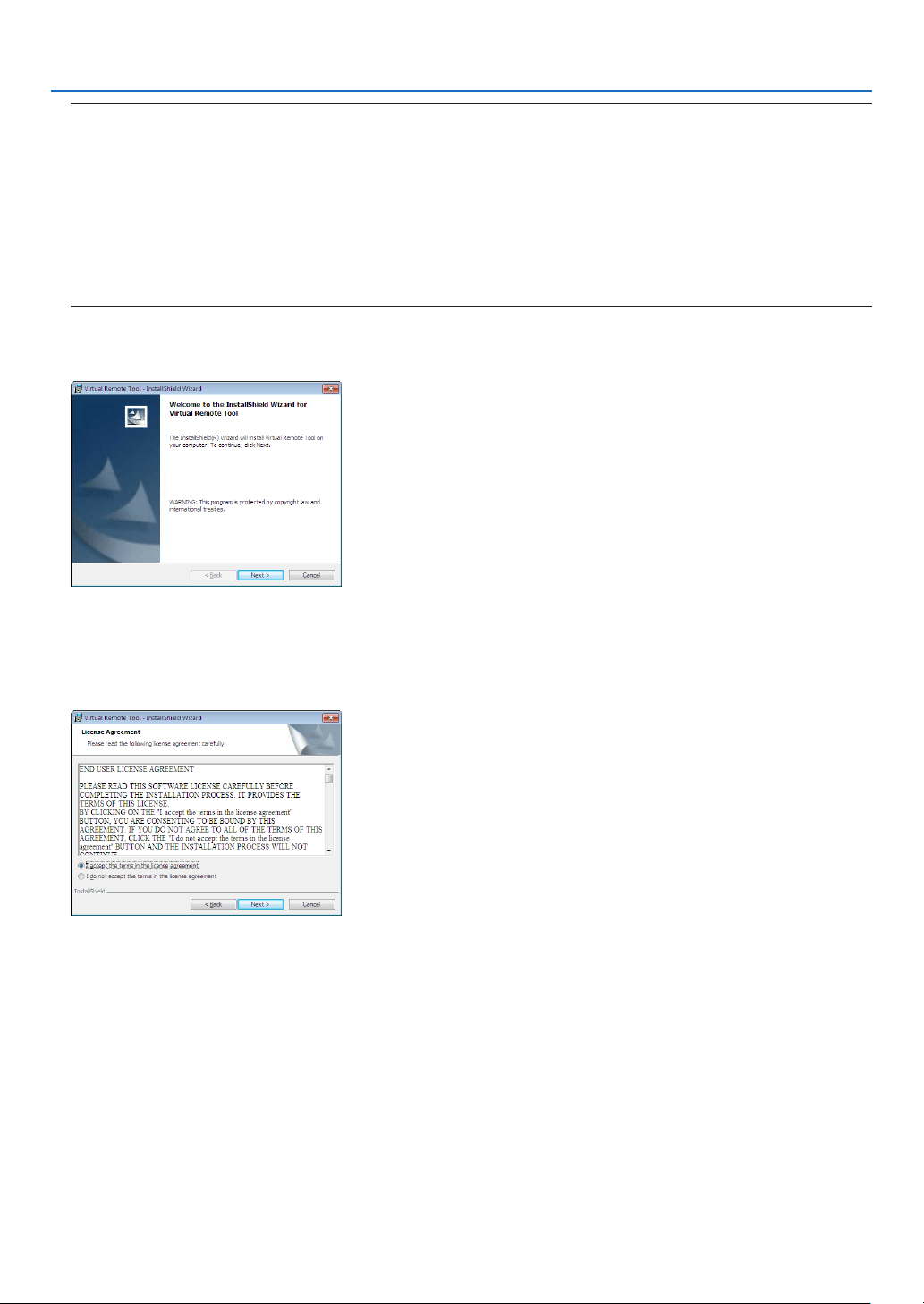
38
3. Convenient Features
TIP:
Ifthemenuwindowwillnotbedisplayed,trythefollowingprocedure.
ForWindows7
1. Click“start”onWindows.
2. Click“AllPrograms”→“Accessories”→“Run”.
3. Type your CD-ROM drive name (example:“Q:\”) and“LAUNCHER.EXE” in“Name”. (example: Q:\
LAUNCHER.EXE)
4. Click“OK”.
The menu window will be displayed.
2 Click“InstallVirtualRemoteTool”onthemenuwindow.
The installation will start.
When the installation is complete, the Welcome window will be displayed.
3 Click“Next”.
“ENDUSERLICENSEAGREEMENT”screenwillbedisplayed.
Read“ENDUSERLICENSEAGREEMENT”carefully.
4 Ifyouagree,click“Iacceptthetermsinthelicenseagreement”andthenclick“Next”.
• Followtheinstructionsontheinstallerscreenstocompletetheinstallation.
• Whentheinstallationiscomplete,youwillreturntothemenuwindow.
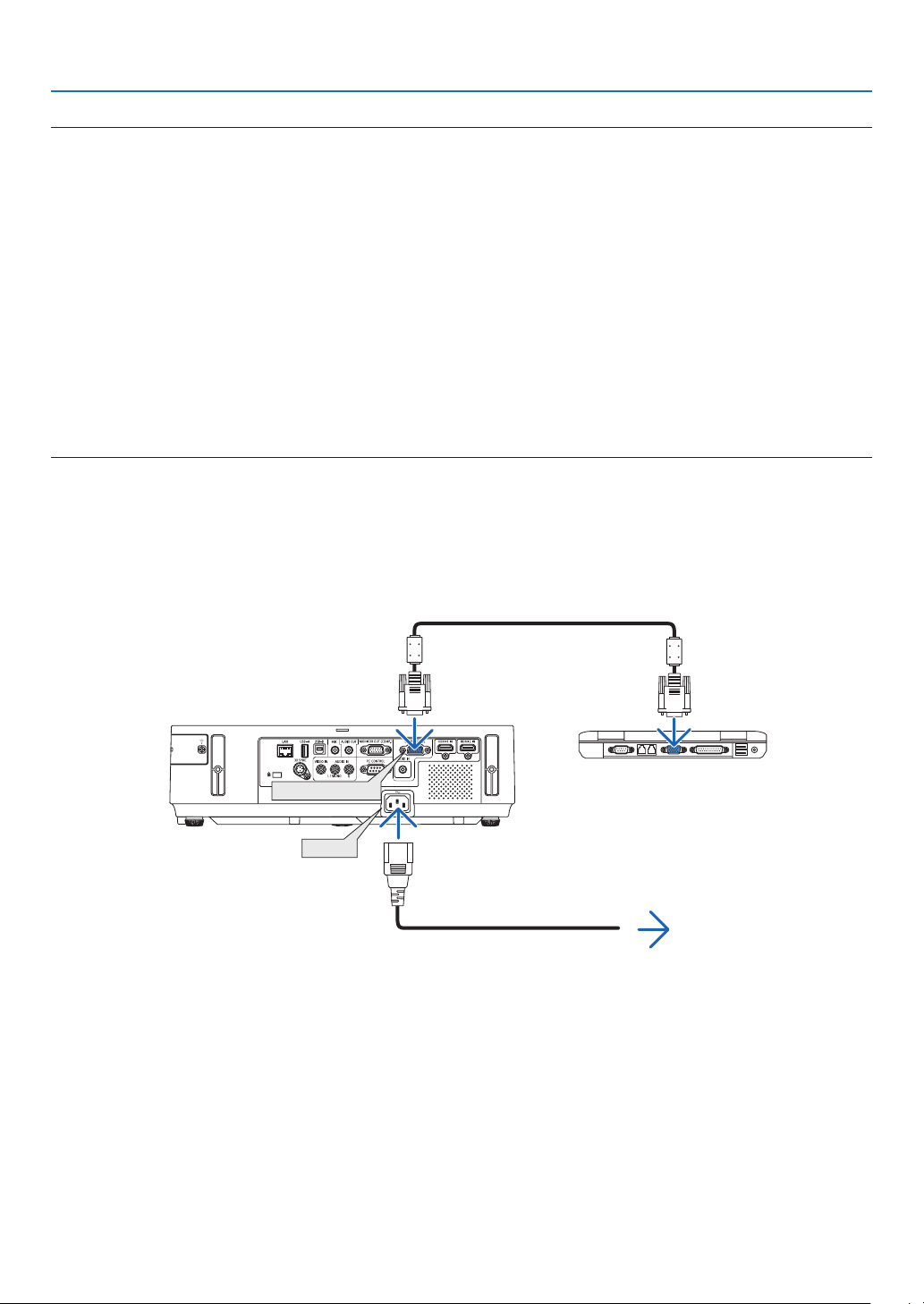
39
3. Convenient Features
TIP:
UninstallingVirtualRemoteTool
Preparation:
ExitVirtualRemoteToolbeforeuninstalling.TouninstallVirtualRemoteTool,theWindowsuseraccountmusthave
“Administrator”privilege.
1 Click“Start”andthen“ControlPanel”.
The Control Panel window will be displayed.
2 Click“Uninstallaprogram”under“Programs”
The“ProgramsandFeatures”windowwillbedisplayed.
3 SelectVirtualRemoteToolandclickit.
4 Click“Uninstall/Change”or“Uninstall”.
•Whenthe“UserAccountControl”windowsisdisplayed,click“Continue”.
Follow the instructions on the screens to complete the uninstallation.
Step 2: Connect the projector to the computer
1 Usethesuppliedcomputercable(VGA)toconnecttheCOMPUTERINterminaloftheprojectordirectly
withthemonitoroutputterminalofthecomputer.
2 ConnectthesuppliedpowercordtotheACINterminaloftheprojectorandthewalloutlet.
The projector is in the standby condition.
AC IN
COMPUTER IN
Supplied computer cable (VGA)
To wall outlet
Power cord (supplied)
TIP:
• WhenVirtualRemoteToolstartsforthersttime,“EasySetup”windowwillbedisplayedtonavigateyourconnections.
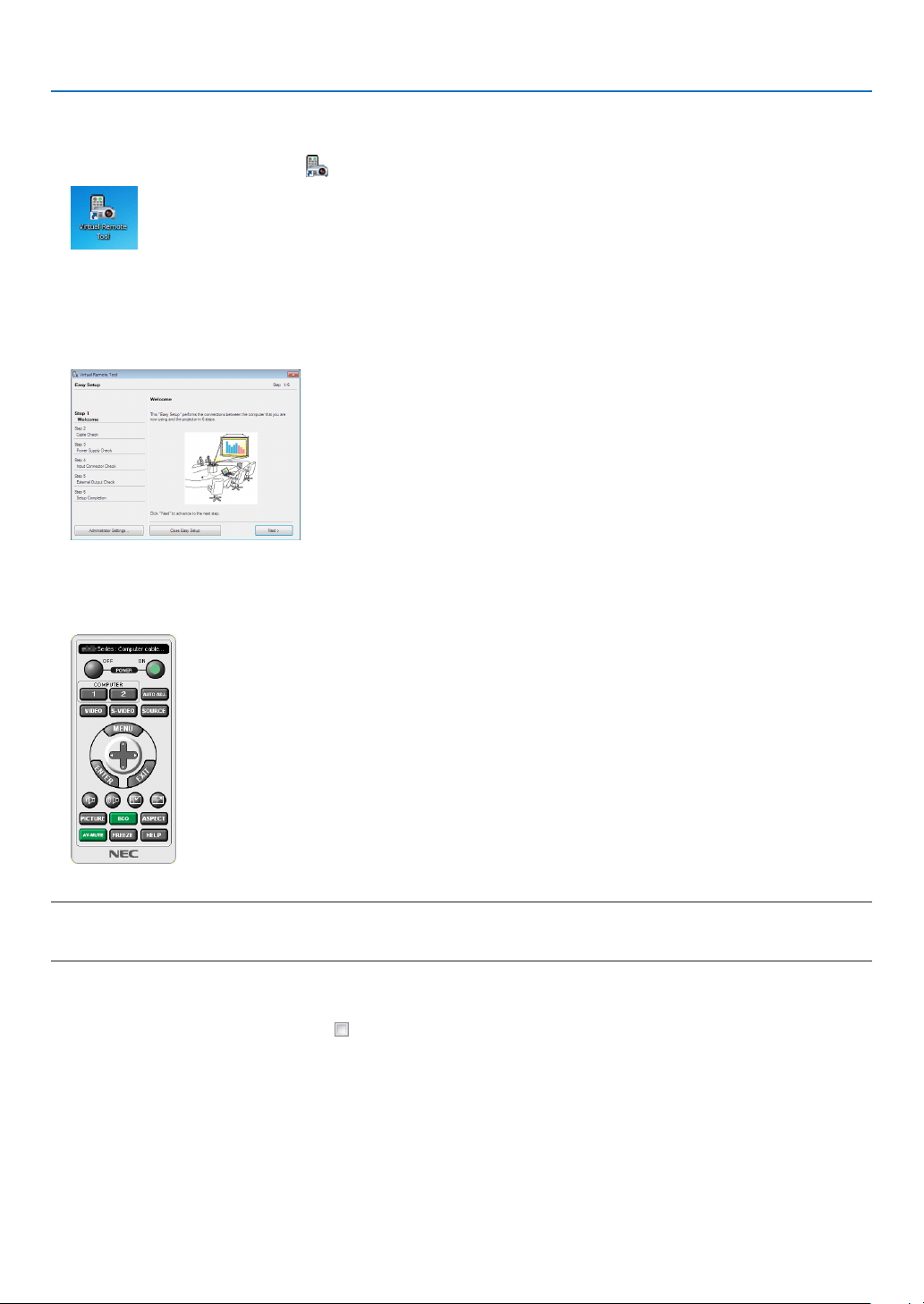
40
3. Convenient Features
Step 3: Start Virtual Remote Tool
Start using the shortcut icon
• Double-clicktheshortcuticon ontheWindowsDesktop.
Start from the Start menu
• Click[Start]→[AllPrograms]or[Programs]→[NECProjectorUserSupportware]→[VirtualRemoteTool]
→[VirtualRemoteTool].
WhenVirtualRemoteToolstartsforthersttime,“EasySetup”windowwillbedisplayed.
Follow the instructions on the screens
When“EasySetup”iscompleted,theVirtualRemoteToolscreenwillbedisplayed.
NOTE:
• When[NORMAL]isselectedfor[STANDBYMODE]fromthemenu,theprojectorcannotbeturnedonviathecomputercable
(VGA)ornetwork(wiredLAN/wirelessLAN)connection.
TIP:
• TheVirtualRemoteToolscreen(orToolbar)canbedisplayedwithoutdisplaying“EasySetup”window.
Todoso,clicktoplaceacheckmarkfor“ DonotuseEasySetupnexttime”onthescreenatStep6in“EasySetup”.
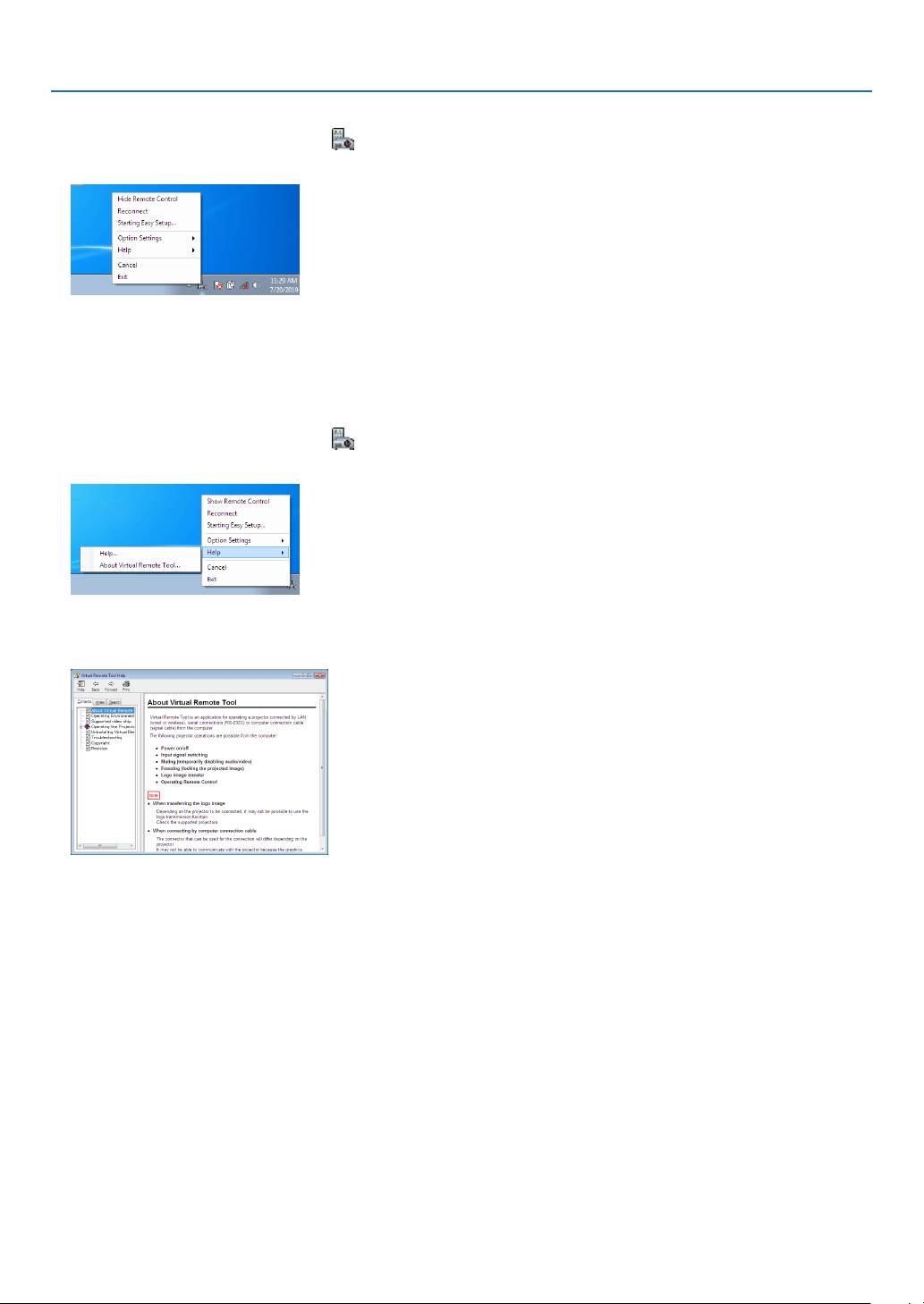
41
3. Convenient Features
ExitingVirtualRemoteTool
1 ClicktheVirtualRemoteToolicon ontheTaskbar.
The pop-up menu will be displayed.
2 Click“Exit”.
The Virtual Remote Tool will be closed.
ViewingthehelpleofVirtualRemoteTool
•Displayingthehelpleusingthetaskbar
1 ClicktheVirtualRemoteToolicon onthetaskbarwhenVirtualRemoteToolisrunning.
The pop-up menu will be displayed.
2. Click“Help”.
The Help screen will be displayed.
•DisplayingthehelpleusingtheStartMenu.
1. Click“Start”→“Allprograms”or“Programs”→“NECProjectorUserSupportware”→“VirtualRemote
Tool”→andthen“VirtualRemoteToolHelp”inthisorder.
The Help screen will be displayed.
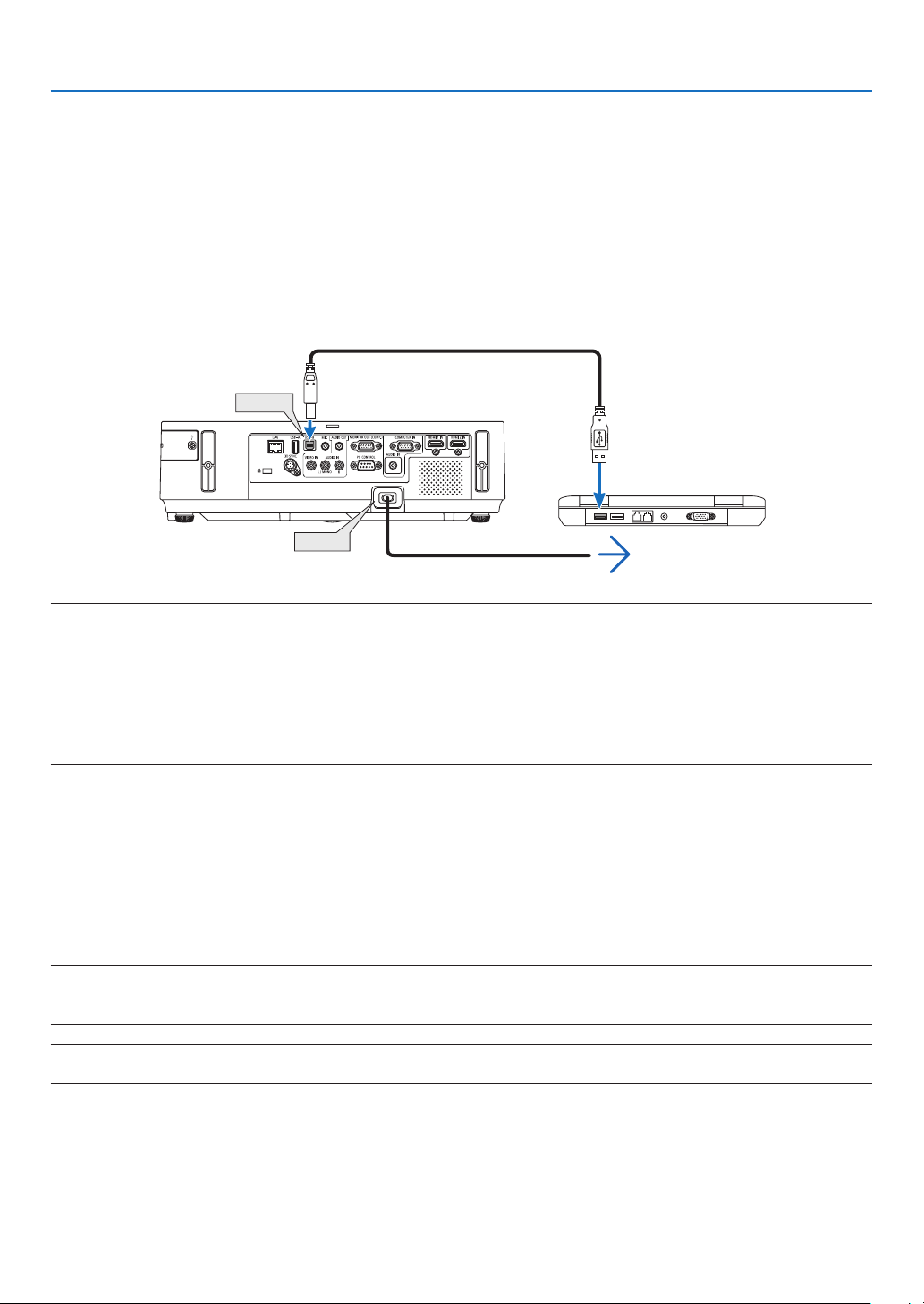
42
3. Convenient Features
❼
Operating Your Computer’s Mouse Functions from the
Projector’s Remote Control via the USB Cable (Remote Mouse
Function)
Thebuilt-inremotemousefunctionenablesyoutooperateyourcomputer’smousefunctionsfromthesuppliedremote
controlwhentheprojectorisconnectedtoacomputerviaacommerciallyavailableUSBcable(compatiblewithUSB
2.0specications).
TheRemoteMousefunctionworksfortheCOMPUTERinputwhilethecomputerscreenisdisplayed.
TheRemoteMousefunctionwillnotworkwhileyoufreezeormagnifyanimage.
- UsingtheUSBcabletoconnecttheprojectorandthecomputerwillalsostartUSBDisplayfunction.
AC IN
USB-B
USB cable (not supplied)
To wall outlet
NOTE:
• AUSBcablemustsupporttheUSB2.0Specications.
• Themousefunctioncanbeusedwiththefollowingoperatingsystems:
Windows8,Windows7,orWindowsVista
• Waitatleast5secondsafterdisconnectingtheUSBcablebeforereconnectingitandviceversa.Thecomputermaynotidentify
theUSBcableifitisrepeatedlyconnectedanddisconnectedinrapidintervals.
• ConnecttheprojectortothecomputerwithaUSBcableafterstartingthecomputer.Failuretodosomayfailtostartthecom-
puter.
Operating your computer’s mouse from the remote control
Youcanoperateyourcomputer’smousefromtheremotecontrol.
PAGE ▽/△ Button ���������������������������scrolls the viewing area of the window or to move to the previous or next slide in PowerPoint
on your computer�
▲▼◀▶ Buttons ������������������������������moves the mouse cursor on your computer�
MOUSE L-CLICK/ENTER Button ������works as the mouse left button�
MOUSE R-CLICK Button ������������������works as the mouse right button�
NOTE:
• Whenyouoperatethecomputerusingthe▲▼◀or▶buttonwiththemenudisplayed,boththemenuandthemousepointer
willbeaffected.Closethemenuandperformthemouseoperation.
TIP:YoucanchangethePointerspeedontheMousePropertiesdialogboxontheWindows.Formoreinformation,seetheuser
documentationoronlinehelpsuppliedwithyourcomputer.
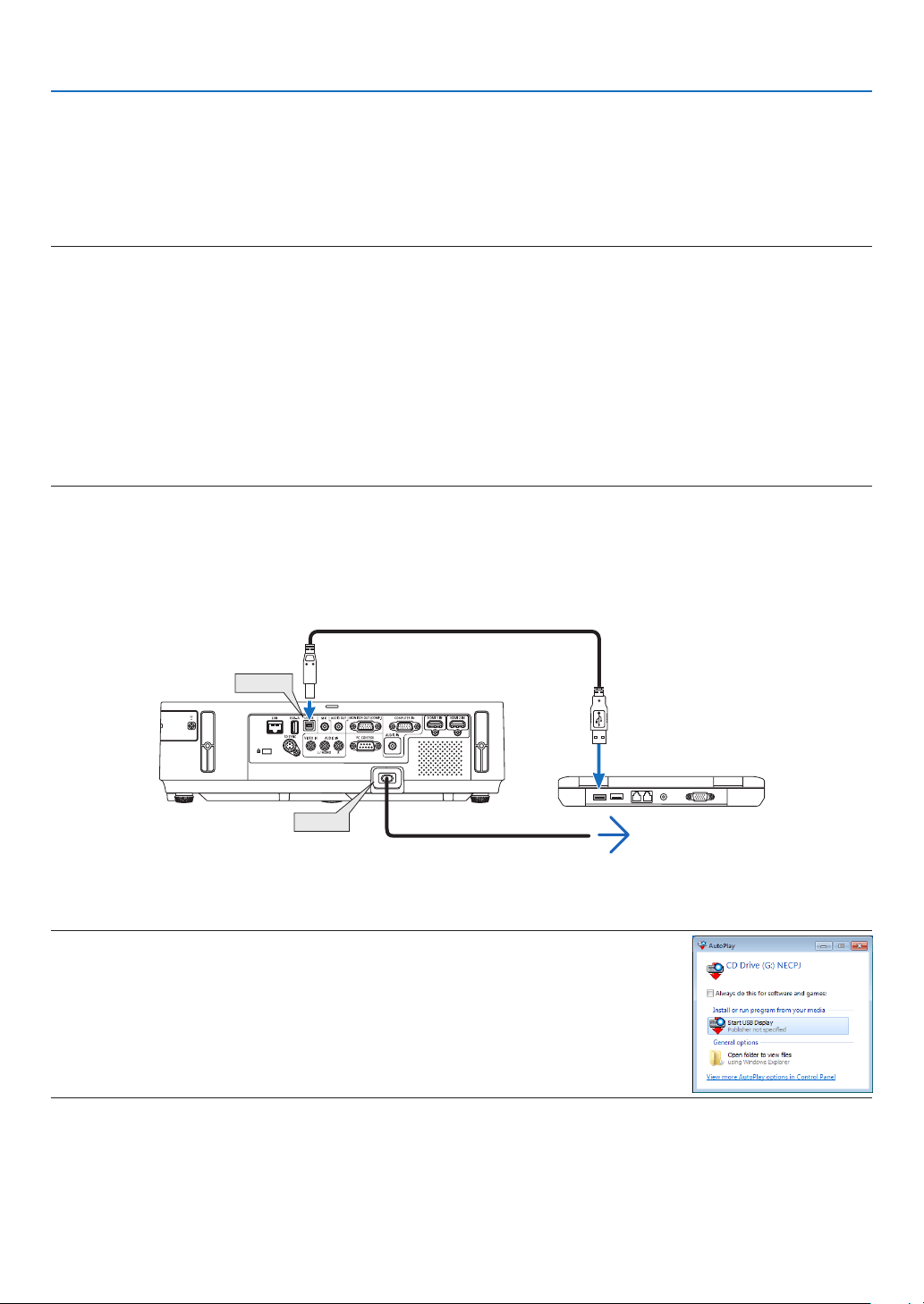
43
3. Convenient Features
❽ Projecting Your Computer’s Screen Image from the
Projector via the USB Cable (USB Display)
UsingacommerciallyavailableUSBcable(compatiblewithUSB2.0specications)toconnectthecomputerwiththe
projectorallowsyoutosendyourcomputerscreenimagetotheprojectorfordisplaying.PowerOn/Offandsource
selectionoftheprojectorcanbedonefromyourcomputerwithoutconnectingacomputercable(VGA).
NOTE:
• USBDisplayusesfunctionsofImageExpressUtilityLitecontainedonNECProjectorCD-ROM(→page56).
StartingUSBDisplay,however,willnotinstallImageExpressUtilityLiteonyourcomputer.ThisisbecauseUSBDisplayexecutes
theprojector’sprogramonly.
• WhenImageExpressUtilityLiteisinstalledtobothyourcomputerandtheprojector,theoneinstalledtoyourcomputeralways
startevenifitisolderversionthantheoneinstalledtotheprojector.
Ifaudiotransfercapabilityandotherfeatureswillnotwork,tryuninstallingImageExpressUtilityLitefromyourcomputer.This
willallowyoutouseallthefeatures.
• USBDisplaywillnotworkin[NORMAL]of[STANDBYMODE].TouseUSBDisplay,select[NETWORKSTANDBY]for[STANDBY
MODE].(→page104)
• WhenUSBDisplayisused,thesoundisoutputfromtheCOMPUTERAUDIOINMiniJack(StereoMini).Imageandsoundmay
notbesynchronized.
1. Start the computer.
2. Connecttheprojector’spowercordtothewalloutletandputtheprojectorintostandbycondition.
• Opentheprojector’slenscoverorlenscap.
3. UsetheUSBcabletoconnectthecomputerwiththeprojector.
AC IN
USB-B
USB cable (not supplied)
To wall outlet
Power cord (supplied)
Themessage“Theprojectorisinstandbymode.Connectit?”willbedisplayedonthecomputerscreen.
• ThecontrolwindowofImageExpressUtilityLitewillbedisplayedonthetopofthescreen.
NOTE:Dependingon thecomputersetting, the“AutoPlay”window maybedisplayed whenthe
computerdetects theconnectiontotheprojector.Ifthishappens, clickthe“StartUSBDisplay”
window.
4. Click“Yes”.
Theprojectorwillturnonandthemessage“Theprojectorisgettingready.Pleasewait.”willbedisplayedonthe
computer screen. This message will disappear in a few seconds.
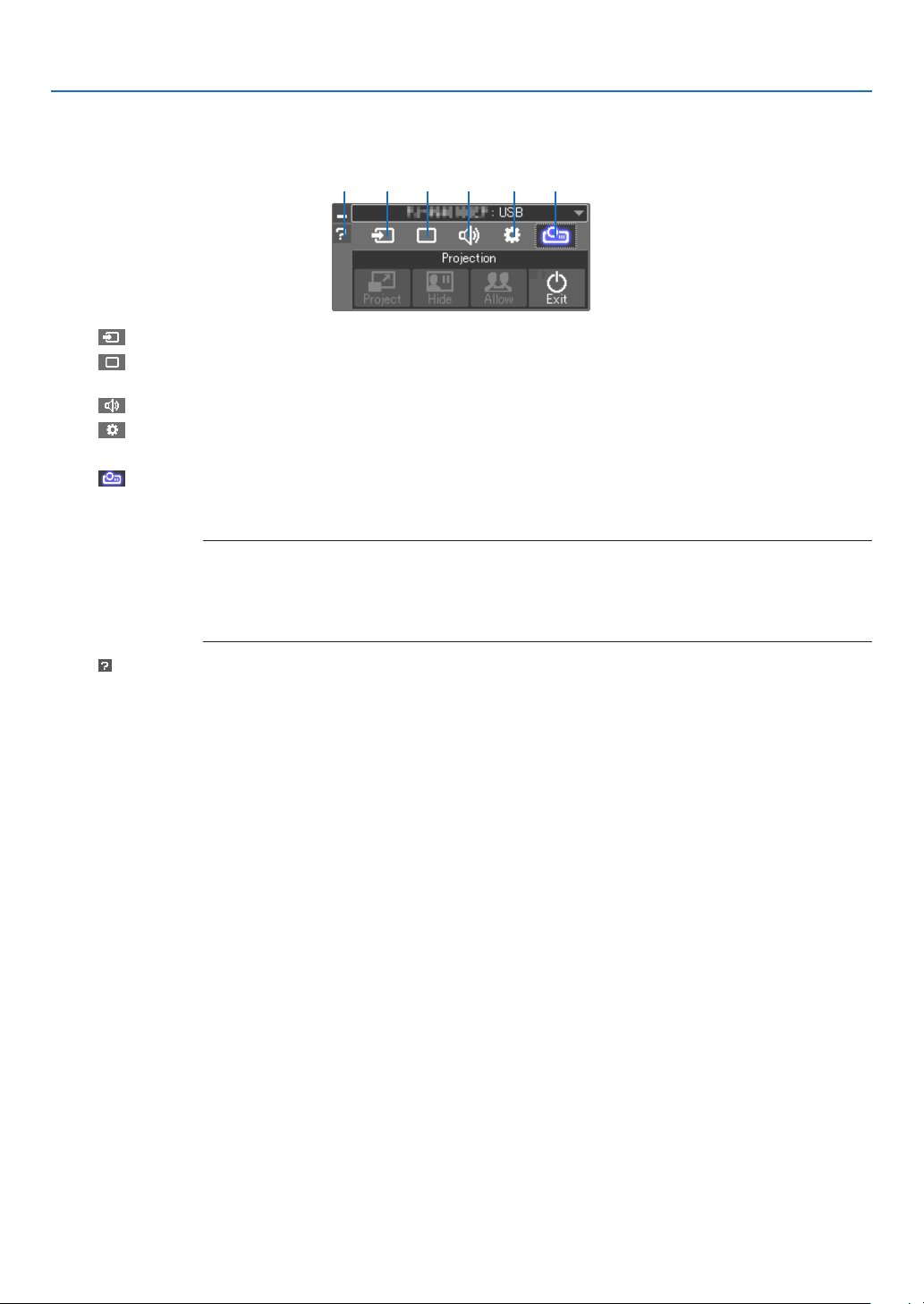
44
3. Convenient Features
5. Operatethecontrolwindow.
(1) (2) (3) (4) (5)(6)
(1) (Source) ��� Selects an input source of the projector�
(2) (Picture) ��� Turns on or off AV-MUTE (Picture mute), FREEZE (Freeze a picture), display, and GCT (geometric correction
tool)� Refer to page 63 about GCT�
(3) (Sound) ���� Turns on or off AV-MUTE (Sound mute), play the sound and control the volume�
(4) (Others) ���� Uses for “Update”, “HTTP Server”*, “Settings” and “Information”�
* The HTTP Server cannot be selected when a USB cable is connected�
(5) (Project) ��� Enables to change the screen display pattern, to hide/display images transmitted by each terminal, inter-
ruption prohibition/accept interruption and finishing the USB Display�
It also enables to power off the projector at the same time with finishing the USB Display�
NOTE:
• WhentheUSBcableisconnected,youcannotselecttochangebelow:
- Screensizeforpresentation
- menuindication(hide/indicate)
- Interruptionprohibition/acceptinterruption
(6) (Help) ����������� Displays the help of Image Express Utility Lite�

45
3. Convenient Features
❾ Controlling the Projector by Using an HTTP Browser
Overview
TheHTTPServerfunctionprovidessettingsandoperationsfor:
1. Settingforwired/wirelessnetwork(NETWORKSETTINGS)
To use wireless LAN connection, the optional USB Wireless LAN Unit is required. (→ page 129)
To use wired/wireless LAN connection, connect the projector to the computer with a commercially available LAN
cable. (→ page 128)
2. SettingAlertMail(ALERTMAIL)
Whentheprojectorisconnectedtoawired/wirelessnetwork,lampreplacetimeorerrormessageswillbesentvia
e-mail.
3. Operatingtheprojector
Power on/off, selecting input, volume control and picture adjustments are possible.
4. SettingPJLinkPASSWORDandAMXBEACON
5. AllowingImageExpressUtilityLitetobedownloadedandcopiedtoyourUSBmemory
Thisdeviceuses“JavaScript”and“Cookies”andthebrowsershouldbesettoacceptthesefunctions.Thesetting
methodwillvarydependingontheversionofbrowser.Pleaserefertothehelplesandtheotherinformationprovided
inyoursoftware.
TwowaysofaccesstotheHTTPserverfunctionareavailable:
• StarttheWebbrowseronthecomputerviathenetworkconnectedtotheprojectorandenterthefollowing
URL :
http://<theprojector’sIPaddress>/index.html
• UseImageExpressUtilityLitecontainedonthesuppliedNECProjectorCD-ROM.
TIP:ThefactorysettingIPaddressis[DHCPON].
NOTE:
• Tousetheprojectorinanetwork,consultwithyournetworkadministratoraboutnetworksettings.
• Thedisplay’sorbutton’sresponsecanbesloweddownoroperationmaynotbeaccepteddependingthesettingsofyournet-
work.
Shouldthishappen,consultyournetworkadministrator.Theprojectormaynotrespondifitsbuttonsarerepeatedlypressedin
rapidintervals.Shouldthishappen,waitamomentandrepeat.Ifyoustillcan’tgetanyresponse,turnoffandbackontheprojec-
tor.
• IfthePROJECTORNETWORKSETTINGSscreendoesnotappearinthewebbrowser,presstheCtrl+F5keystorefreshyourweb
browser(orclearthecache).
Preparation before Use
ConnecttheprojectortoacommerciallyavailableLANcablebeforeengaginginbrowseroperations.(→page128)
Operationwithabrowserthatusesaproxyservermaynotbepossibledependingonthetypeofproxyserverandthe
settingmethod.Althoughthetypeofproxyserverwillbeafactor,itispossiblethatitemsthathaveactuallybeenset
willnotbedisplayeddependingontheeffectivenessofthecache,andthecontentssetfromthebrowsermaynotbe
reectedinoperation.Itisrecommendedthataproxyservernotbeusedunlessitisunavoidable.
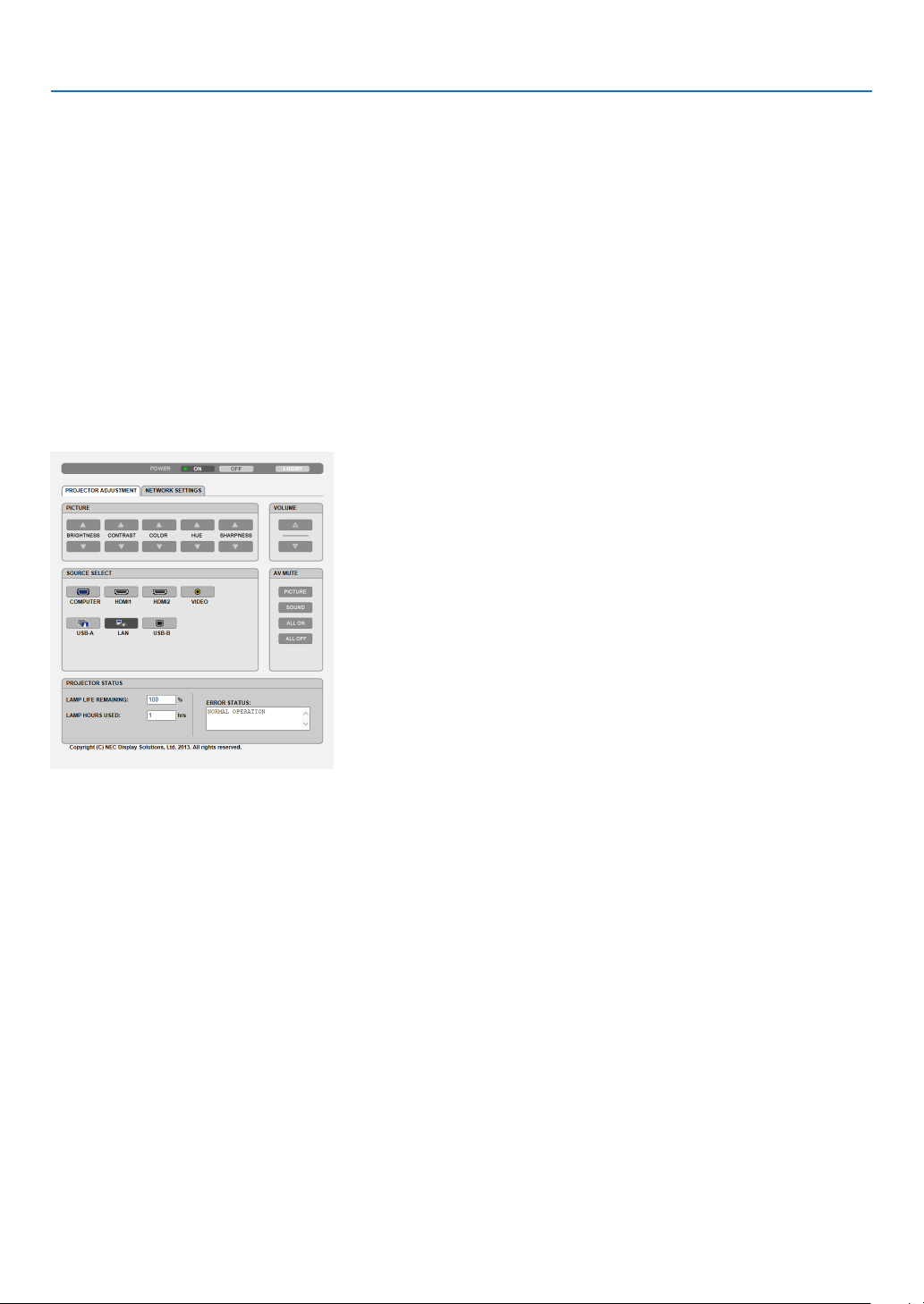
46
3. Convenient Features
Handling of the Address for Operation via a Browser
RegardingtheactualaddressthatisenteredfortheaddressorenteredtotheURLcolumnwhenoperationofthepro-
jectorisviaabrowser,thehostnamecanbeusedasitiswhenthehostnamecorrespondingtotheIPaddressofthe
projectorhasbeenregisteredtothedomainnameserverbyanetworkadministrator,orthehostnamecorresponding
totheIPaddressoftheprojectorhasbeensetinthe“HOSTS”leofthecomputerbeingused.
Example1:Whenthehostnameoftheprojectorhasbeensetto“pj.nec.co.jp”,accessisgainedtothenetwork
settingbyspecifying
http://pj.nec.co.jp/index.html
fortheaddressortheentrycolumnoftheURL.
Example2:WhentheIPaddressoftheprojectoris“192.168.73.1”,accessisgainedtothenetworksettingby
specifying
http://192.168.73.1/index.html
fortheaddressortheentrycolumnoftheURL.
PROJECTOR ADJUSTMENT
POWER:Thiscontrolsthepoweroftheprojector.
ON ������������������������� Power is switched on�
OFF ������������������������ Power is switched off�
VOLUME:Thiscontrolsthevolumeoftheprojector.
▲ ��������������������������� Increases the volume adjustment value�
▼ ��������������������������� Decreases the volume adjustment value�
AV-MUTE:Thiscontrolsthemutefunctionoftheprojector.
PICTURE ON ���������� Mutes the video�
PICTURE OFF ��������� Cancels the video muting�
SOUND ON ������������ Mutes the audio�
SOUND OFF ����������� Cancels the audio muting�
ALL ON ������������������ Mutes each of the video, and audio functions�
ALL OFF ����������������� Cancels the muting of each of the video, and audio functions�

47
3. Convenient Features
PICTURE:Controlsthevideoadjustmentoftheprojector.
BRIGHTNESS ▲ ���� Increases the brightness adjustment value�
BRIGHTNESS ▼ ���� Decreases the brightness adjustment value�
CONTRAST ▲ �������� Increases the contrast adjustment value�
CONTRAST ▼ �������� Decreases the contrast adjustment value�
COLOR ▲ �������������� Increases the color adjustment value�
COLOR ▼ �������������� Decreases the color adjustment value�
HUE ▲ ������������������� Increases the hue adjustment value�
HUE ▼ ������������������� Decreases the hue adjustment value�
SHARPNESS ▲ ����� Increases the sharpness adjustment value�
SHARPNESS ▼ ����� Decreases the sharpness adjustment value�
• Thefunctionsthatcanbecontrolledwillvarydependingonthesignalbeinginputtotheprojector.(→page
89)
SOURCESELECT:Thisswitchestheinputterminaloftheprojector.
COMPUTER ����������� Switches to the COMPUTER IN terminal�
HDMI 1 ������������������ Switches to the HDMI 1 IN terminal�
HDMI 2 ������������������ Switches to the HDMI 2 IN terminal�
VIDEO �������������������� Switches to the VIDEO IN terminal�
USB-A �������������������� Switches to the data on the USB memory device�
LAN ������������������������ Switches to a LAN signal�
USB-B �������������������� Switches to the USB-B Port�
PROJECTORSTATUS:Thisdisplaystheconditionoftheprojector.
LAMP LIFE REMAINING �����Displays the remaining life of the lamp as a percentage�
LAMP HOURS USED �����������Displays how many hours the lamp has been used�
ERROR STATUS ������������������Displays the status of errors occurring within the projector�
LOGOFF:Loggingoffyourprojectorandreturningtotheauthenticationscreen(LOGONscreen).
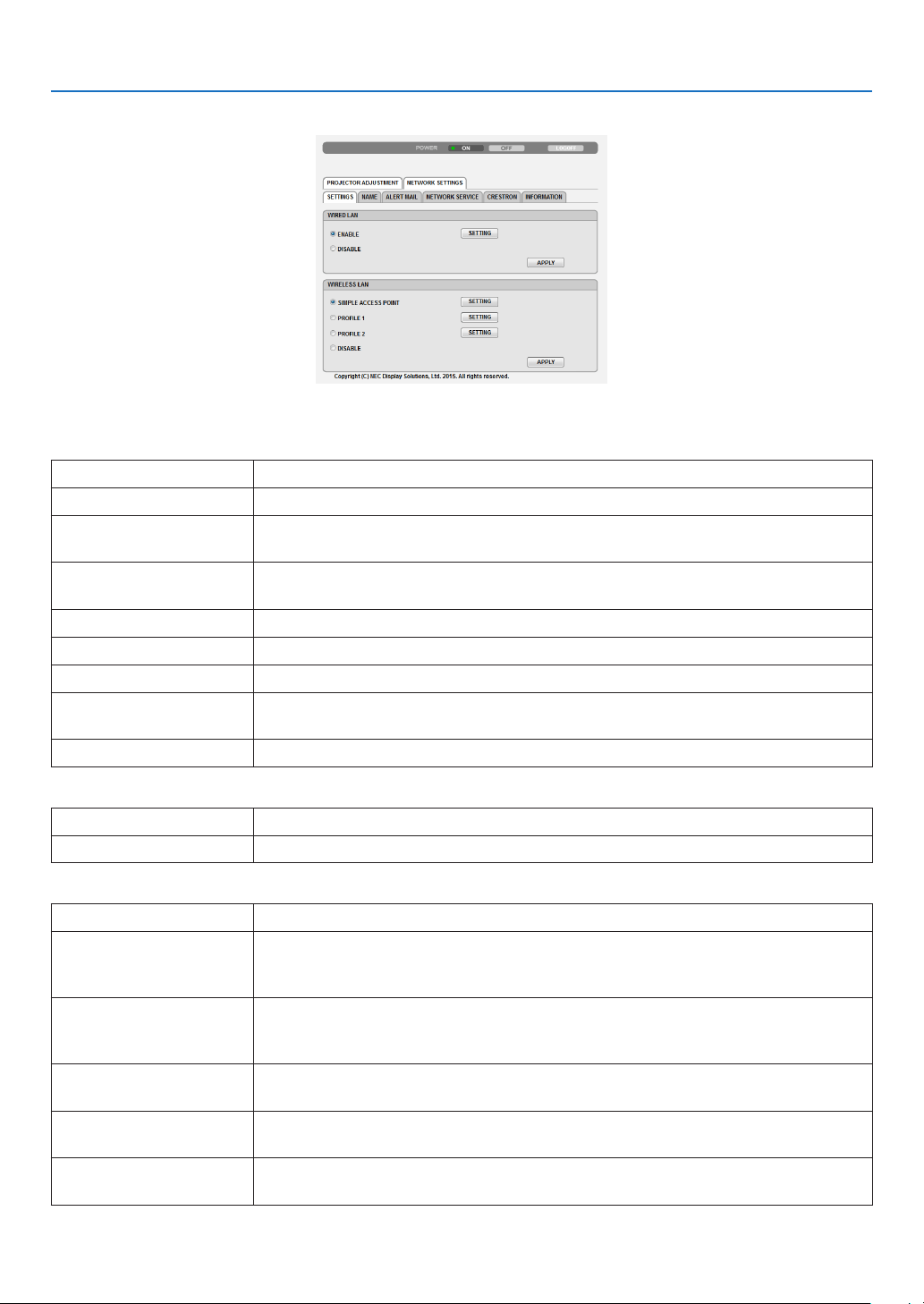
48
3. Convenient Features
NETWORK SETTINGS
•SETTINGS
WIRED or WIRELESS
SETTING SetforwiredLANorforwirelessLAN.
APPLY ApplyyoursettingstowiredLANorwirelessLAN.
DHCPON AutomaticallyassignIPaddress,subnetmask,andgatewaytotheprojectorfromyour
DHCPserver.
DHCPOFF SetIPaddress,subnetmask,andgatewaytotheprojectorassignedbyyournetwork
administrator.
IPADDRESS SetyourIPaddressofthenetworkconnectedtotheprojector.
SUBNETMASK Setyoursubnetmasknumberofthenetworkconnectedtotheprojector.
GATEWAY Setthedefaultgatewayofthenetworkconnectedtotheprojector.
AUTODNSON DHCPserverwillautomaticallyassignIPaddressofDNSserverconnectedtothe
projector.
AUTODNSOFF SetyourIPaddressofDNSserverconnectedtotheprojector.
Setting for WIRED LAN
ENABLE TurnonwiredLANconnection
DISABLE TurnoffwiredLANconnection
SettingforWIRELESSLAN(withtheoptionalUSBWirelessLANUnitequipped)
SIMPLEACCESSPOINT Settheprojectorforsimpleaccesspoint.
MODE Availablechannelsvarydependingonthecountryandregion.Whenyouselect[IN-
FRASTRUCTURE],makesurethattheprojectorandyouraccesspointareonthe
same channel.
CHANNEL
Availablechannelsvarydependingonthecountryandregion.Whenyouselect[IN-
FRASTRUCTURE],theaccesspointsamewiththewirelessLANisselectedautomati-
cally.
PROFILE1/PROFILE2 TwosettingscanbesetforwirelessLANconnection.SelectPROFILE1orPROFILE
2.
SSID
Enteranidentier(SSID)forwirelessLAN.Communicationcanbedoneonlywith
equipmentwhoseSSIDmatchesSSIDforyourwirelessLAN.
SITESURVEY DisplaysalistofavailableSSIDsforwirelessLANonsite.SelectanSSIDwhichyou
can access.
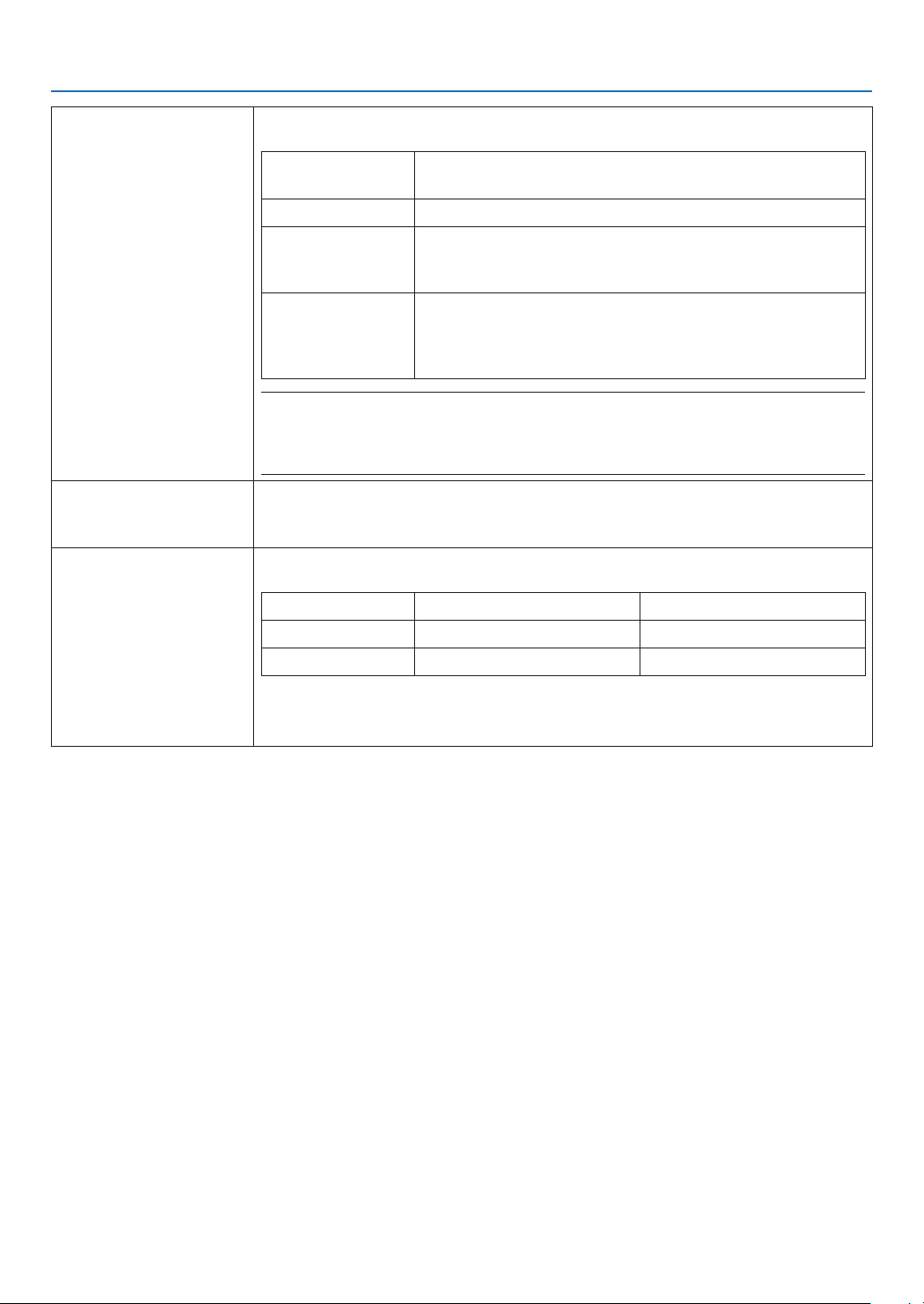
49
3. Convenient Features
SECURITYTYPE Turnonorofftheencryptionmodeforsecuretransmission.Whenturnontheencryp-
tionmode,setWEPkeyorencryptedkey.
DISABLE Willnotturnontheencryptionfeature.Yourcommunications
maybemonitoredbysomeone.
WEP64bit Uses64-bitdatalengthforsecuretransmission.
WEP128bit Uses128-bitdatalengthforsecuretransmission.Thisoptionwill
increaseprivacyandsecuritywhencomparedtouseof64-bit
datalengthencryption.
WPAPSK-TKIP/
WPAPSK-AES/
WPA2PSK-TKIP/
WPA2PSK-AES
TheseoptionsprovidestrongersecuritythanWEP.
NOTE:
• TheWEPsettingsmustbethesameascommunicationdevicessuchasPCoraccesspointin
yourwirelessnetwork.
• WhenyouuseWEP,yourimagetransmissionspeedwillslowdown.
INDEX Selectencryptionkeywhenselecting[WEP64bit]or[WEP128bit]in[SECURITY
TYPE].When[WEP64bit]or[WEP128bit]isselectedfor[SECURITYTYPE],theWEP
keyisxedto“1”andcannotbechanged.
KEY Whenselecting[WEP64bit]or[WEP128bit]in[SECURITYTYPE]:
EnterWEPkey.
Select Characters(ASCII) Hexadecimaldigit(HEX)
WEP64bit Upto5characters Upto10characters
WEP128bit Upto13characters Upto26characters
Whenselecting [WPA PSK-TKIP],[WPAPSK-AES], [WPA2 PSK-TKIP]or [WPA2
PSK-AES]:
Enterencryptionkey.Keylengthmustbe8orgreaterand63orless.

50
3. Convenient Features
•NAME
PROJECTORNAME Enteranameforyourprojectorsothatyourcomputercanidentifytheprojector.A
projectornamemustbe16charactersorless.
TIP:Projectornamewillnotbeaffectedevenwhen[RESET]isdonefromthemenu.
HOSTNAME Enterthehostnameofthenetworkconnectedtotheprojector.Ahostnamemustbe
15 or less.
DOMAINNAME Enterthedomainnameofthenetworkconnectedtotheprojector.Adomainname
must be 60 characters or less.
•ALERTMAIL
ALERTMAIL(English
only)
Thisoptionwillnotifyyourcomputeroflampreplacetimeorerrormessagesviae-mail
whenusingwirelessorwiredLAN.
PlacingacheckmarkwillturnontheAlertMailfeature.
ClearingacheckmarkwillturnofftheAlertMailfeature.
Sampleofamessagetobesentfromtheprojector:
Thelampisattheendofitsusablelife.Pleasereplacethelamp.
ProjectorName:NECProjector
LampHoursUsed:100[H]
SENDER’SADDRESS Entersender’saddress.
SMTPSERVERNAME EntertheSMTPservernametobeconnectedtotheprojector.
RECIPIENT’SADDRESS
1,2,3
Enteryourrecipient’saddress.Uptothreeaddressescanbeentered.
TESTMAIL Sendatestmailtocheckwhetheryoursettingsarecorrectornot
NOTE:
• Ifyouexecuteatest,youmaynotreceiveanAlertmail.Shouldthishappen,checkifnetwork
settingsarecorrect.
• Ifyouenteredanincorrectaddressinatest,youmaynotreceiveanAlertmail.Shouldthis
happen,checkiftheRecipient’sAddressiscorrect.
SAVE Clickthisbuttontoreecttheabovesettings.
•NETWORKSERVICE
PJLinkPASSWORD SetapasswordforPJLink*.Apasswordmustbe32charactersorless.Donotforget
yourpassword.However,ifyouforgetyourpassword,consultwithyourdealer.
HTTPPASSWORD SetapasswordforHTTPserver.Apasswordmustbe10charactersorless.
AMXBEACON TurnonorofffordetectionfromAMXDeviceDiscoverywhenconnectingtothenetwork
supportedbyAMX’sNetLinxcontrolsystem.
TIP:
WhenusingadevicethatsupportsAMXDeviceDiscovery,allAMXNetLinxcontrolsystemwillrec-
ognizethedeviceanddownloadtheappropriateDeviceDiscoveryModulefromanAMXserver.
PlacingacheckmarkwillenabledetectingtheprojectorfromAMXDeviceDiscovery.
ClearingacheckmarkwilldisabledetectingtheprojectorfromAMXDeviceDiscovery.
ImageExpressUtilityLite Click“DOWNLOAD”todisplaythedownloadpagefromwhichtheEXEleofImage
ExpressUtilityLitecanbedownloadedtoyourUSBmemoryconnectedtoyourcom-
puter.(→page60)
SAVE
Clickthisbuttontoreecttheabovesettings.
* WhatisPJLink?
PJLinkisastandardizationofprotocolusedforcontrollingprojectorsofdifferentmanufacturers.Thisstandardprotocolisestab-
lishedbyJapanBusinessMachineandInformationSystemIndustriesAssociation(JBMIA)in2005.
TheprojectorsupportsallthecommandsofPJLinkClass1.
SettingofPJLinkwillnotbeaffectedevenwhen[RESET]isdonefromthemenu.
51
3. Convenient Features
CRESTRONROOMVIEWcompatibility
TheprojectorsupportsCRESTRONROOMVIEW,allowingmultipledevicesconnectedinthenetworktobemanaged
andcontrolledfromacomputeroracontroller.
Formoreinformation,visithttp://www.crestron.com
<Setting Procedure>
AccesstotheHTTPserverfunction,andmakenecessarysettingsfor[CRESTRON]in[NETWORKSETTINGS].
•ROOMVIEWformanagingfromthecomputer.
DISABLE DisablesROOMVIEW.
ENABLE EnablesROOMVIEW.
•CRESTRONCONTROLformanagingfromthecontroller.
DISABLE DisablesCRESTRONCONTROL.
ENABLE EnablesCRESTRONCONTROL.
IPADDRESS SetyourIPaddressofCRESTRONSERVER.
IPID SetyourIPIDofCRESTRONSERVER.
TIP:TheCRESTRONsettingsarerequiredonlyforusewithCRESTRONROOMVIEW.
Formoreinformation,visithttp://www.crestron.com
•INFORMATION
WIREDLAN DisplayalistofsettingsofwiredLANconnection.
WIRELESSLAN DisplayalistofsettingsofwirelessLANconnection.
UPDATE Reectsettingswhentheyarechanged.
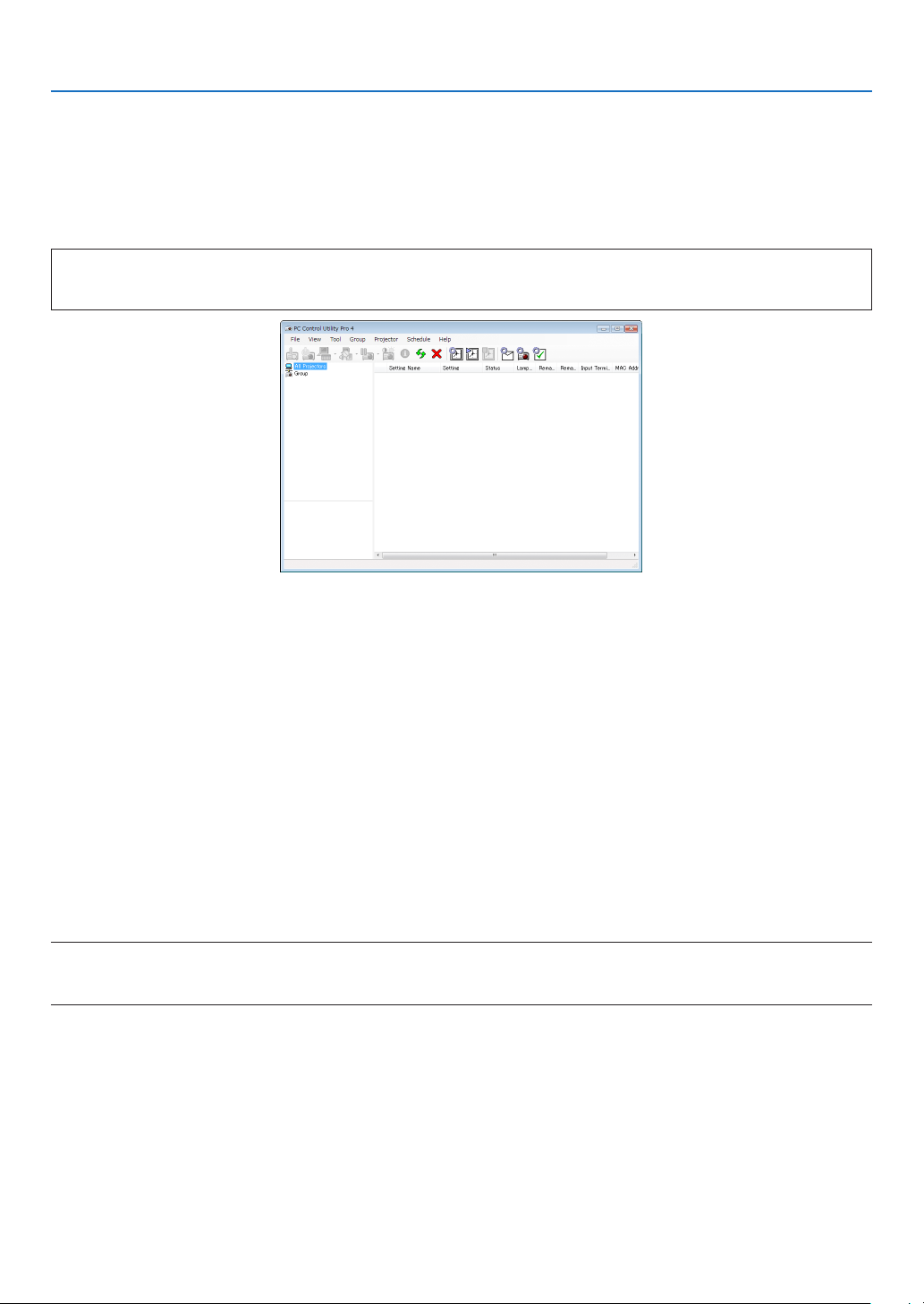
52
3. Convenient Features
❿
Controlling the Projector over a LAN (PC Control Utility Pro 4/
Pro 5)
Usingtheutilitysoftware“PCControlUtilityPro4”and“PCControlUtilityPro5”includedonthecompanionNEC
ProjectorCD-ROM,theprojectorcanbecontrolledfromacomputeroveraLAN.
PCControlUtilityPro4isaprogramcompatiblewithWindows.(→thispage)
PCControlUtilityPro5isaprogramcompatiblewithMacOS.(→page54)
Control Functions
PowerOn/Off,signalselection,picturefreeze,picturemute,audiomute,adjusting,errormessagenotication,event
schedule.
ScreenofPCControlUtilityPro4
ThissectionprovidesanoutlineofpreparationforuseofPCControlUtilityPro4/Pro5.Forinformationonhowtouse
PCControlUtilityPro4/Pro5,seeHelpofPCControlUtilityPro4/Pro5.(→page54, 55)
Step1:InstallPCControlUtilityPro4/Pro5onthecomputer.
Step2:ConnecttheprojectortoaLAN.
Step3:StartPCControlUtilityPro4/Pro5.
• TorunPCControlUtilityPro4onWindows8.1andWindows8,“Microsoft.NETFrameworkVersion2.0”isrequired.
TheMicrosoft.NETFrameworkVersion2.0,3.0or3.5isavailablefromMicrosoft’swebpage.Downloadandinstall
theitonyourcomputer.
TIP:
• PCControlUtilityPro4canbeusedwithaserialconnection.
Using on Windows
Step 1: Install PC Control Utility Pro 4 on the computer
NOTE:
• Toinstalloruninstalltheprogram,theWindowsuseraccountmusthave[Administrator]privilege.
• Exitallrunningprogramsbeforeinstallation.Ifanotherprogramisrunning,theinstallationmaynotbecompleted.
1 InserttheaccompanyingNECProjectorCD-ROMintoyourCD-ROMdrive.
The menu window will be displayed.
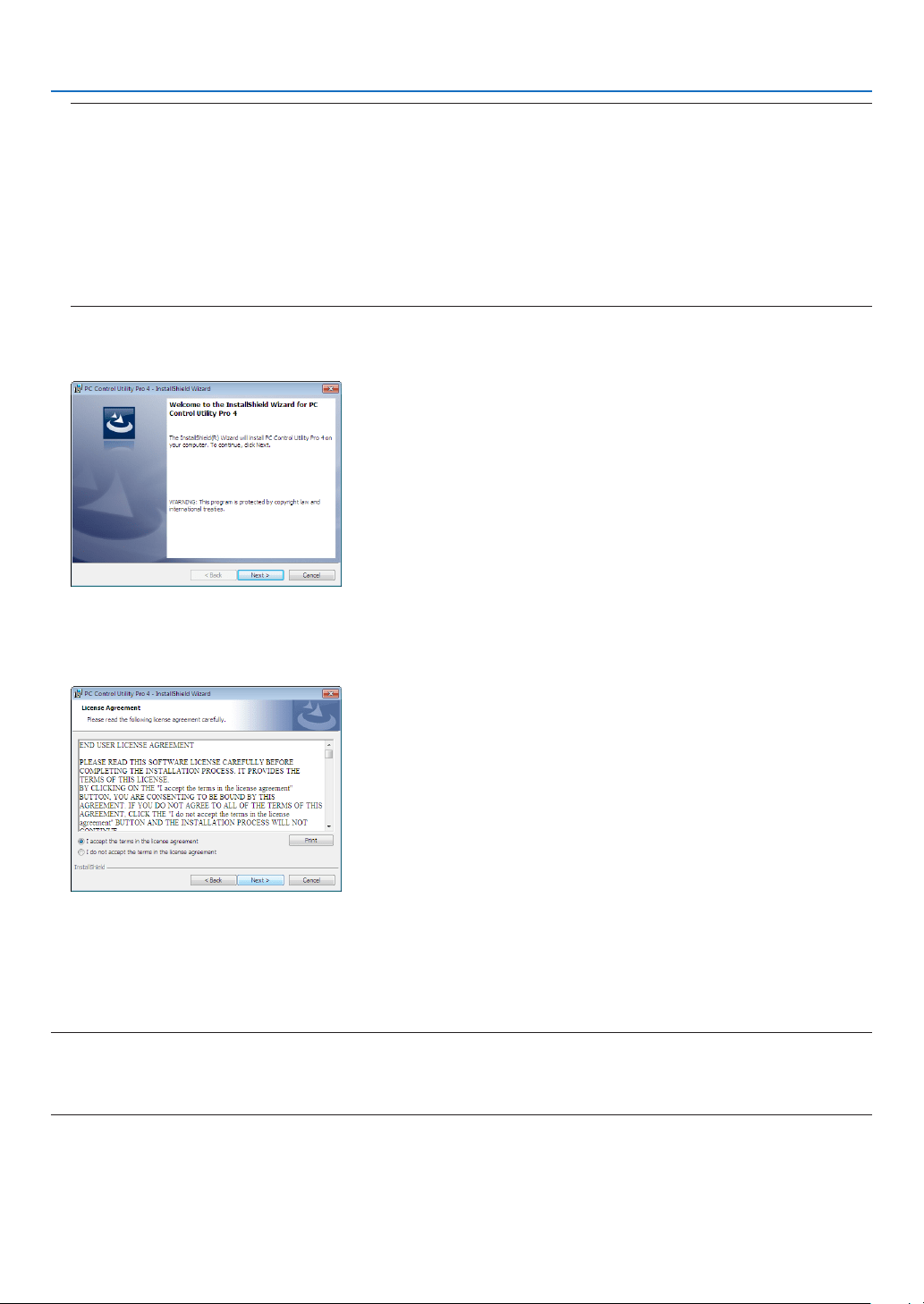
53
3. Convenient Features
TIP:
Ifthemenuwindowwillnotbedisplayed,trythefollowingprocedure.
ForWindows7:
1. Click“start”onWindows.
2. Click“AllPrograms”→“Accessories”→“Run”.
3. Type your CD-ROM drive name (example:“Q:\”) and“LAUNCHER.EXE” in“Name”. (example: Q:\
LAUNCHER.EXE)
4. Click“OK”.
the menu window will be displayed.
2 Click“PCControlUtilityPro4”onthemenuwindow.
The installation will start.
When the installation is complete, the Welcome window will be displayed.
3 Click“Next”.
“ENDUSERLICENSEAGREEMENT”screenwillbedisplayed.
Read“ENDUSERLICENSEAGREEMENT”carefully.
4 Ifyouagree,click“Iacceptthetermsinthelicenseagreement”andthenclick“Next”.
• Followtheinstructionsontheinstallerscreenstocompletetheinstallation.
• Whentheinstallationiscomplete,youwillreturntothemenuwindow.
TIP:
•UninstallingPCControlUtilityPro4
TouninstallPCControlUtilityPro4,dothesameproceduresstatedasin“UninstallingVirtualRemoteTool”.Read“VirtualRemote
Tool”as“PCControlUtilityPro4”(→page39)

54
3. Convenient Features
Step 2: Connect the projector to a LAN.
ConnecttheprojectortotheLANbyfollowingtheinstructionsin“ConnectingtoaWiredLAN”(→page128),“Con-
nectingtoaWirelessLAN”(→page129)and“9.ControllingtheProjectorbyUsinganHTTPBrowser”(→page45)
Step 3: Start PC Control Utility Pro 4
Click“Start”→“Allprograms”or“Programs”→“NECProjectorUserSupportware”→“PCControlUtilityPro4”→
“PCControlUtilityPro4”.
NOTE:
• FortheSchedulefunctionofthePCControlutilityPro4towork,youmusthaveyourcomputerrunningandnotinstandby/
sleepmode.Select“PowerOptions”fromthe“ControlPanel”inWindowsanddisableitsstandby/sleepmodebeforerunningthe
scheduler.
[Example]ForWindows7:
Select“ControlPanel”→“SystemandSecurity”→“PowerOptions”→“Changewhenthecomputersleeps”→“Putthecomputer
tosleep”→“Never”.
NOTE:
• When[NORMAL]isselectedfor[STANDBYMODE]fromthemenu,theprojectorcannotbeturnedonviathenetwork(wiredLAN/
wirelessLAN)connection.
TIP:
ViewingtheHelpofPCControlUtilityPro4
• DisplayingtheHelpleofPCControlUtilityPro4whileitisrunning.
Click“Help(H)”→“Help(H)…”ofwindowofPCControlUtilityPro4inthisorder.
The pop-up menu will be displayed.
• DisplayingthehelpleusingtheStartMenu.
Click“Start”→“Allprograms”or“Programs”→“NECProjectorUserSupportware”→“PCControlUtilityPro4”→
“PCControlUtilityPro4Help”.
The Help screen will be displayed.
Using on Mac OS
Step 1: Install PC Control Utility Pro 5 on the computer
1. InserttheaccompanyingNECProjectorCD-ROMinyourMacCD-ROMdrive.
TheCD-ROMiconwillbedisplayedonthedesktop.
2. Double-clicktheCD-ROMicon.
The CD-ROM window will be displayed.
3. Double-clickthe“MacOSX”folder.
4. Double-click“PCControlUtilityPro5.pkg”.
The installer will start.
5. Click“Next”.
“ENDUSERLICENSEAGREEMENT”screenwillbedisplayed.
6. Read“ENDUSERLICENSEAGREEMENT”andclick“Next”.
The confirmation window will be displayed
7. Click“Iacceptthetermsinthelicenseagreement”.
Follow the instructions on the installer screens to complete the installation.

55
3. Convenient Features
NOTE:
UninstallingPCControlUtilityPro5
1.Putthe"PCControlUtilityPro5"foldertotheTrashicon.
2.PutthecongurationleofPCControlUtilityPro5totheTrashicon.
Thecongurationleislocatedin"/Users/<yourusername>/ApplicationData/NECProjectorUserSupportware/PCControlUtility
Pro5".
Step 2: Connect the projector to a LAN
ConnecttheprojectortotheLANbyfollowingtheinstructionsin“ConnectingtoaWiredLAN”(→page128),“Connect-
ingtoaWirelessLAN”(→page129)and“❾ControllingtheProjectorbyUsinganHTTPBrowser”(→page45)
Step 3: Start PC Control Utility Pro 5
1. OpenyourApplicationsfolderinMacOS.
2. Clickthe“PCControlUtilityPro5”folder.
3. Clickthe“PCControlUtilityPro5”icon.
PC Control Utility Pro 5 will start.
NOTE:
• FortheSchedulefunctionofthePCControlutilityPro5towork,youmusthaveyourcomputerrunningandnotinsleepmode.
Select“EnergySaver”fromthe“SystemPreferences”inMacanddisableitssleepmodebeforerunningthescheduler.
• When[NORMAL]isselectedfor[STANDBYMODE]fromthemenu,theprojectorcannotbeturnedonviathenetwork(wiredLAN/
wirelessLAN)connection.
TIP:
ViewingtheHelpofPCControlUtilityPro5
•DisplayingtheHelpleofPCControlUtilityPro5whileitisrunning.
• Fromthemenubar,click“Help”→“Help”inthisorder.
The Help screen will be displayed.
•DisplayingtheHelpusingtheDock
1. Open“ApplicationFolder”inMacOS.
2. Clickthe“PCControlUtilityPro5”folder.
3. Clickthe“PCControlUtilityPro5Help”icon.
The Help screen will be displayed.

56
3. Convenient Features
⓫ Projecting Your Computer’s Screen Image from the
Projector over a LAN (Image Express Utility Lite)
UsingImageExpressUtilityLitecontainedonthesuppliedNECProjectorCD-ROMallowsyoutosendthecomputer’s
screenimageandsoundtotheprojectoroveraUSBcableorawiredorwirelessLAN.
ImageExpressUtilityLiteisaprogramcompatiblewithWindows.
ImageExpressUtilityLiteforMacOSisaprogramcompatiblewithMacOS.(→page61)
ThissectionwillshowyouanoutlineabouthowtoconnecttheprojectortoaLANandtouseImageExpressUtility
Lite.FortheoperationofImageExpressUtilityLite,seethehelpofImageExpressUtilityLite.
Step1:installImageExpressUtilityLiteonthecomputer.
Step2:ConnecttheprojectortoaLAN.
Step3:StartImageExpressUtilityLite.
TIP:
• ImageExpressUtilityLite(forWindows)canbestartedfrommostcommerciallyavailableremovablemediasuchasUSBmemory
devicesorSDcardswithouttheneedtoinstallonyourcomputer.(→page59)
What You can Do with Image Express Utility Lite
•Imagetransmission(forWindowsandMacOS)
• Thescreenofyourcomputercanbesenttotheprojectorviaawiredorwirelessnetworkwithoutacomputercable
(VGA).
•Audiotransfercapability(forWindowsonly)
• ImageExpressUtilityLiteallowsyoutosendthecomputer’sscreenimageandaudiototheprojectoroverwired/
wirelessLANorUSBconnection.
• Whenthecomputerscreenisprojectedontheprojector'sfullscreen,theprojectoroutputsthecomputersound.
•USBDisplay(forWindowsonly)
• Computer’sscreenimageandaudiocanbeprojectedviaaUSBcable,withoutconnectingacomputercable
(VGA).
• JustconnectingthecomputerandtheprojectoroveraUSBcablewillmaketheUSBDisplayfunctionavailable
(Plug&Play)evenwithoutinstallingImageExpressUtilityLiteonthecomputer.(→page43)
•GeometricCorrectionTool[GCT](forWindowsonly)
See“⓬ProjectinganImagefromanAngle(GeometricCorrectionToolinImageExpressUtilityLite)”.

57
3. Convenient Features
Using on Windows
Step 1: install Image Express Utility Lite on the computer.
NOTE:
• Toinstalloruninstalltheprogram,theWindowsuseraccountmusthave“Administrator”privilege.
• Exitallrunningprogramsbeforeinstallation.Ifanotherprogramisrunning,theinstallationmaynotbecompleted.
• ImageExpressUtilityLitewillbeinstalledtothesystemdriveofyourcomputer.
Ifthemessage“Thereisnotenoughfreespaceondestination”isdisplayed,freeupenoughspace(about100MB)toinstallthe
program.
1. InserttheaccompanyingNECProjectorCD-ROMintoyourCD-ROMdrive.
The menu window will be displayed.
TIP:
Ifthemenuwindowwillnotbedisplayed,trythefollowingprocedure.
ForWindows7:
1.Click“start”onWindows.
2.Click“AllPrograms”→“Accessories”→“Run”.
3. Type your CD-ROM drive name (example:“Q:\”) and“LAUNCHER.EXE” in“Name”. (example: Q:\
LAUNCHER.EXE)
4. Click“OK”.
The menu window will be displayed.
2. Click“InstallingImageExpressUtilityLite”onthemenuwindow.
The installation will start.
“ENDUSERLICENSEAGREEMENT”screenwillbedisplayed.
Read“ENDUSERLICENSEAGREEMENT”carefully
3. Ifyouagree,click“Iagree.”andthenclick“Next”.
• Followtheinstructionsontheinstallerscreenstocompletetheinstallation.
• Whentheinstallationiscomplete,youwillreturntothemenuwindow.
When the installation is complete, a completion message will be displayed.
4. Click“OK”.
This completes the installation.
TIP:
•UninstallingImageExpressUtilityLite
TouninstallImageExpressUtilityLite,dothesameproceduresstatedasin“UninstallingVirtualRemoteTool”.Read“VirtualRemote
Tool”as“ImageExpressUtilityLite”(→page39)
Step 2: Connect the projector to a LAN.
ConnecttheprojectortotheLANbyfollowingtheinstructionsin“ConnectingtoaWiredLAN”(→page128),“Con-
nectingtoaWirelessLAN”(→page129)and“9.ControllingtheProjectorbyUsinganHTTPBrowser”(→page45)
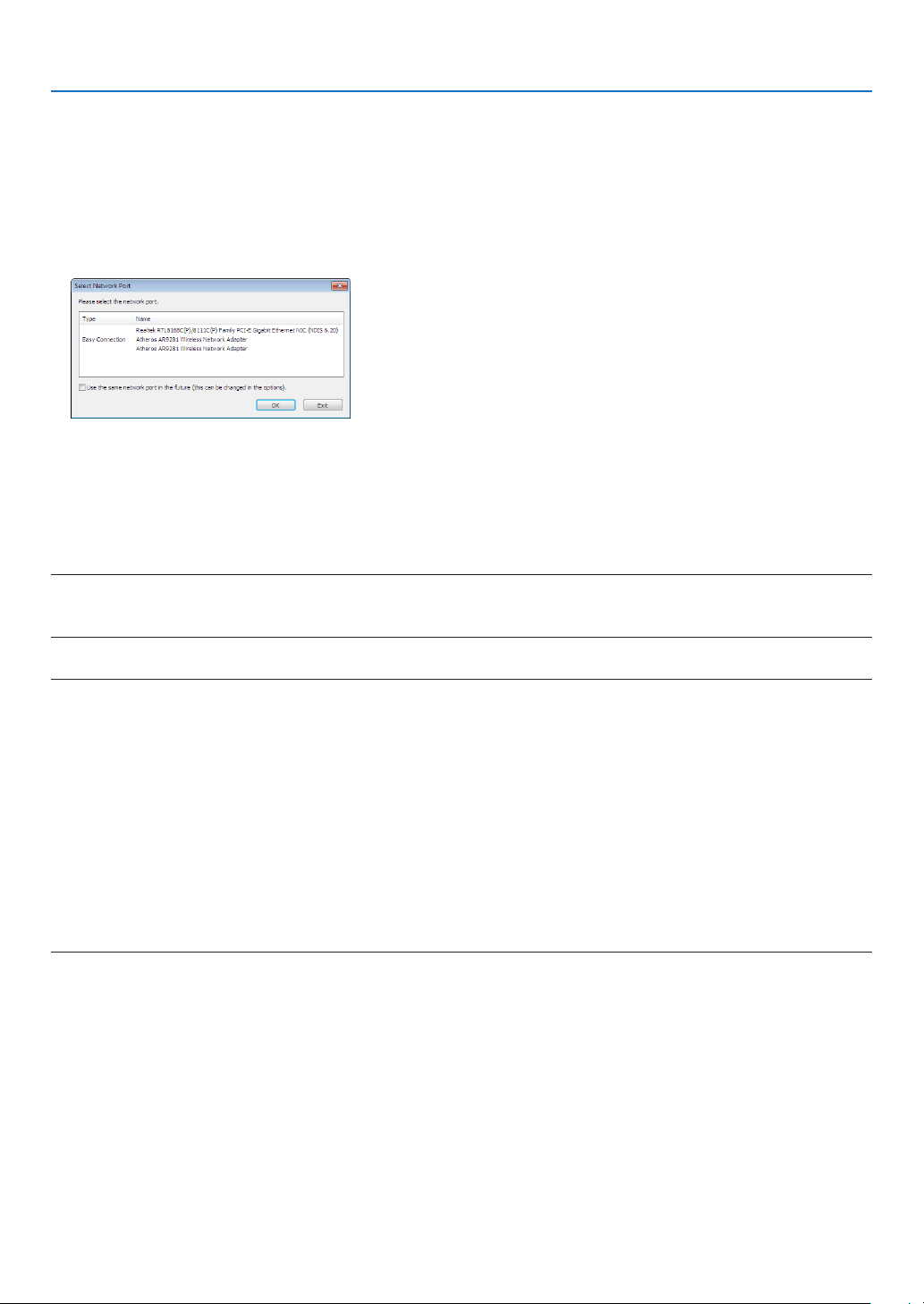
58
3. Convenient Features
Step 3: Start Image Express Utility Lite.
1. OnWindows,click“Start”→“Allprograms”→“NECProjectorUserSupportware”→“ImageExpressUtility
Lite”→“ImageExpressUtilityLite”.
ImageExpressUtilityLitewillstart.
Theselectwindowfornetworkconnectionwillbedisplayed
2. SelectNetworkandclick“OK”.
The select window for destination will show a list of connectable projectors.
3. Placeacheckmarkforprojectorstobeconnected,andthenclick“Connect”.
• Whenoneormoreprojectorsaredisplayed,fromthemenuontheprojector,select[INFO.]→[WIRELESSLAN]
→[IPADDRESS].
When connecting with the projector is established, you can operate the control window to control the projector. (→
page 44)
NOTE:
• When[NORMAL]isselectedfor[STANDBYMODE]fromthemenu,theprojectorthatisturnedoffwillnotbedisplayedinthe
selectwindowfordestination
TIP:
Viewingthe“Help”leofImageExpressUtilityLite
• DisplayingtheHelpleofImageExpressUtilityLitewhileitisrunning.
Clickthe[?](help)icononthecontrolwindow.
The Help screen will be displayed.
• DisplayingtheHelpleofGCTwhileitisrunning.
Click“Help”→“Help”ontheeditwindow.
The Help screen will be displayed.
• DisplayingthehelpleusingtheStartMenu.
Click“Start”→“Allprograms”or“Programs”→“NECProjectorUserSupportware”→“ImageExpressUtilityLite”
→“ImageExpressUtilityLiteHelp”.
The Help screen will be displayed.

59
3. Convenient Features
Starting Image Express Utility Lite from a USB Memory or SD Card
ImageExpressUtilityLitecanbestartedfromcommerciallyavailableremovablemediasuchUSBmemoryorSDcards
ifitiscopiedbeforehand.ThiswilleliminatethetroubleofinstallingImageExpressUtilityLitetoyourcomputer.
1. CopyImageExpressUtilityLitetoremovablemedia.
Copyallthefoldersandles(totalsizeapprox.6MB)fromthe“IEU_Lite(removable-media)”folderinthesupplied
NEC Projector CD-ROM to the root directory of your removable media.
2. Insertyourremovablemediaintoyourcomputer.
The“AutoPlay”screenwillbedisplayedonyourcomputer.
TIP:
• Ifthe“AutoPlay”screenisnotdisplayed,openthefolderfrom“Computer”.
3. Click“Openfoldertoviewles”
TheIEU_Lite.exe,otherfolder,andleswillbedisplayed.
4. Double-clickthe“IEU_Lite.exe”( ) icon.
ImageExpressUtilityLitewillstart.

60
3. Convenient Features
Downloading Image Express Utility Lite via the HTTP server
DownloadingprocedurewhentheprojectorisconnectedtotheInternet.
1. AccesstheHTTPserver.(→page45)
2. Selectthe“NETWORKSETTINGS”tabandthenthe“NETWORKSERVICE”tab.
3. Click“DOWNLOAD”for“ImageExpressUtilityLite”.
The download page will be displayed.
4. PlaceacheckmarkforIEU_Lite(removable-media).zipand/orgct.ngm.
5. Click“DOWNLOAD”.
6. Chooseafolderwhereyouwanttodownloadtheleandclick“SAVE”.
(A folder in your computer is recommeded.)
The downloading will start.
Afterthedownloadingiscompleted,makesurethattheleisplacedinthedestinationfolder.
Supported OS:
• Windows8.1(32-bit/64-bit)
• Windows8.1Pro(32-bit/64-bit)
• Windows8.1Enterprise(32-bit/64-bit)
• Windows8(32-bit/64-bit)
• Windows8Pro(32-bit/64-bit)
• Windows8Enterprise(32-bit/64-bit)
• Windows7HomeBasic(32-bit/64-bit)
• Windows7HomePremium(32-bit/64-bit)
• Windows7Professional(32-bit/64-bit)
• Windows7Ultimate(32-bit/64-bit)
• Windows7Enterprise(32-bit/64-bit)
• WindowsVistaHomeBasic(32-bit/64-bit)
• WindowsVistaHomePremium(32-bit/64-bit)
• WindowsVistaBusiness(32-bit/64-bit)
• WindowsVistaUltimate(32-bit/64-bit)
• WindowsVistaEnterprise(32-bit/64-bit)
StartingIEULite(removable-media).zipandgct.ngm
1. ExtractthedownloadedIEULite(removable-media)zipleintoyourremovablemedia.
2. Double-clicktheIEULite.exeiconintheIEULite(removable-media)folder.
• Ifyoudownloadedgct.ngmtoo,movegct.ngmtothesamefolderwhereIEU_Lite_GCT.exeisplaced.
• TousetheGeometricCorrectionToolfunction(GCT)ofImageExpressUtilitylitetogetherwithavideocable,
double-clickthe“IEU_Lite_GCT.exe”icon.WhenGCTcorrectiondata(*.ngm)issavedinthesamefolderwhere
IEU_Lite_GCT.exeisplaced,thedatawillbeautomaticallyusedwithouttheneedofLANconnection.
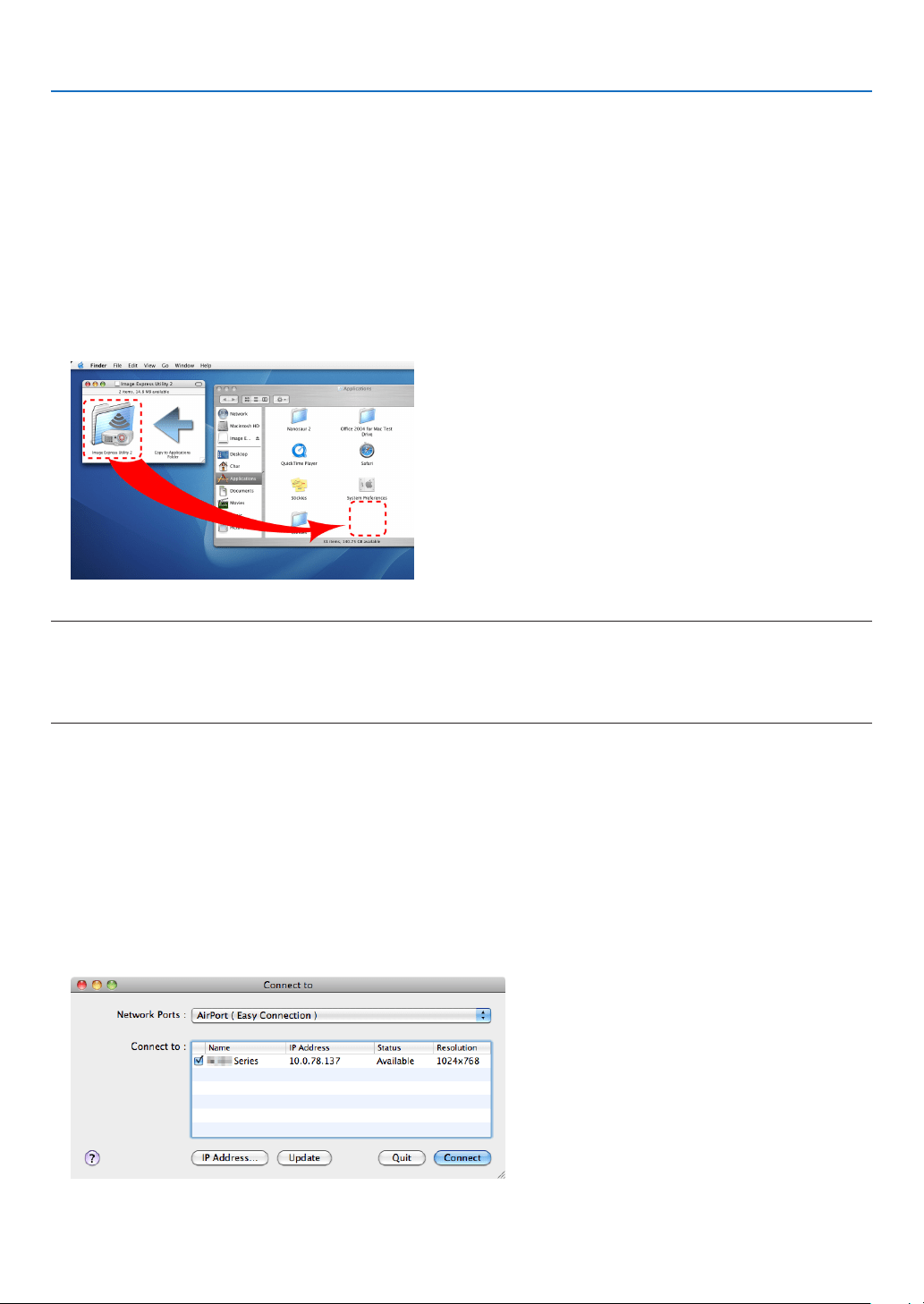
61
3. Convenient Features
Using on Mac OS
Step 1: Install Image Express Utility Lite for Mac OS on the computer
1. InserttheaccompanyingNECProjectorCD-ROMinyourMacCD-ROMdrive.
TheCD-ROMiconwillbedisplayedonthedesktop.
2. Double-clicktheCD-ROMicon.
The CD-ROM window will be displayed.
3. Double-clickthe“MacOSX”folder.
4. Double-click“ImageExpressUtilityLite.dmg”.inthe"ImageExpressUtilityLite"folder.
The“ImageExpressUtilityLite”windowwillbedisplayed.
5. Draganddropthe“ImageExpressUtilityLite”foldertoyourApplicationsfolderinMacOS.
NOTE:
UninstallingImageExpressUtilityLite
1.Putthe"ImageExpressUtilityLite"foldertotheTrashicon.
2.PutthecongurationleofImageExpressUtilityLitetotheTrashicon.
Thecongurationleislocatedin"/Users/<yourusername>/Library/Preferences/jp.necds.Image-Express-Utility-Lite.plist".
Step 2: Connect the projector to a LAN
ConnecttheprojectortotheLANbyfollowingtheinstructionsin“ConnectingtoaWiredLAN”(→page128),“Connect-
ingtoaWirelessLAN”(→page129)and“❾ControllingtheProjectorbyUsinganHTTPBrowser”(→page45)
Step 3: Start Image Express Utility Lite for Mac OS
1. OpenyourApplicationsfolderinMacOS.
2. Double-clickthe“ImageExpressUtilityLite”folder.
3. Double-clickthe“ImageExpressUtilityLite”icon.
WhenImageExpressUtilityLiteforMacOSstarts,theselectwindowfordestinationwillbedisplayed.

62
3. Convenient Features
• Atthersttimeofstartup,“ENDUSER LICENSEAGREEMENT”screenwillbedisplayedbeforetheselect
window for destination is displayed.
Read“ENDUSERLICENSEAGREEMENT”andselect“Iacceptthetermsinthelicenseagreement”,andclick
“OK”.
4. Selectaprojectortobeconnected,andthenclick“Connect”.
Yourdesktopscreenwillbedisplayedontheprojector.
TIP:
ViewingtheHelpofImageExpressUtilityLiteforMacOS
• Fromthemenubar,click“Help”→“ImageExpressUtilityLiteHelp”whileImageExpressUtilityisrun-
ning.
The Help screen will be displayed
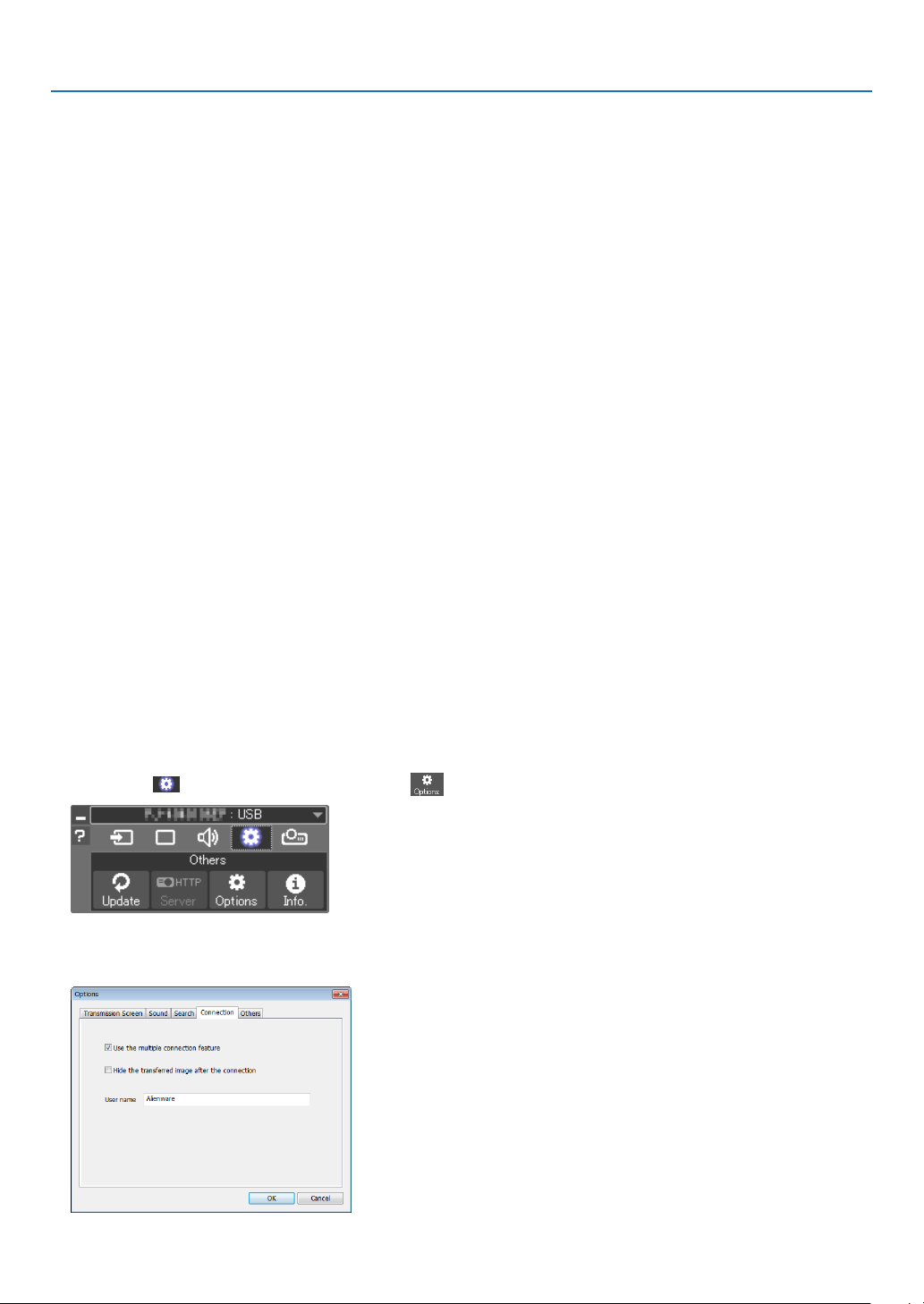
63
3. Convenient Features
⓬ Projecting an Image from an Angle (Geometric Correction
Tool in Image Express Utility Lite)
TheGeometricCorrectionTool(GCT)functionallowsyoutocorrectdistortionofimagesprojectedevenfroman
angle.
What you can do with GCT
• TheGCTfeatureincludesthefollowingthreefunctions
• 4-pointCorrection:Youcantaprojectedimagewithintheborderofthescreeneasilybyalignthefourcorners
ofanimagetotheonesofthescreen.
• Multi-pointCorrection:Youcancorrectadistortedimageonthecornerofawallorirregularshapedscreen
byusingmanyseparatedscreenstocorrecttheimageaswellas4-pointCorrection.
• Parameters Correction:Youcancorrectadistortedimagebyusingacombinationoftransformationalrules
preparedinadvance.
Thissectionwillshowanexampleforusewith4-pointCorrection.
Forinformationabout“Multi-pointCorrection”and“ParametersCorrection”,seethehelpleofImageExpress
UtilityLite.(→page58)
• Yourcorrectiondatacanbestoredintheprojectororyourcomputerwhichcanberestoredwhennecessary.
• TheGCTfunctionisavailablewithaUSBcable,wiredorwirelessLANconnection,andvideocable.
Projecting an Image from an Angle (GCT)
ThissectionwillshowanexampleforusewithUSBDisplay(usingaUSBcabletoconnectacomputerandthepro-
jector).
• TheUSBDisplayfunctionwillautomaticallydisplaythecontrolwindow
• ForavideocableorLANconnection,installandstartImageExpressUtilityLiteinyourcomputerbeforehand.(→
page56)
Preparation:Adjusttheprojectorpositionorthezoomsothattheprojectedimagecancoverthewholescreenarea.
1. Clickthe“ ”(Others)iconandthenthe“ ”(Options)button.
Options window will be displayed.
2. Clickthecheckbox“Usethemultipleconnectionfeature”andthenclearthecheckmark.
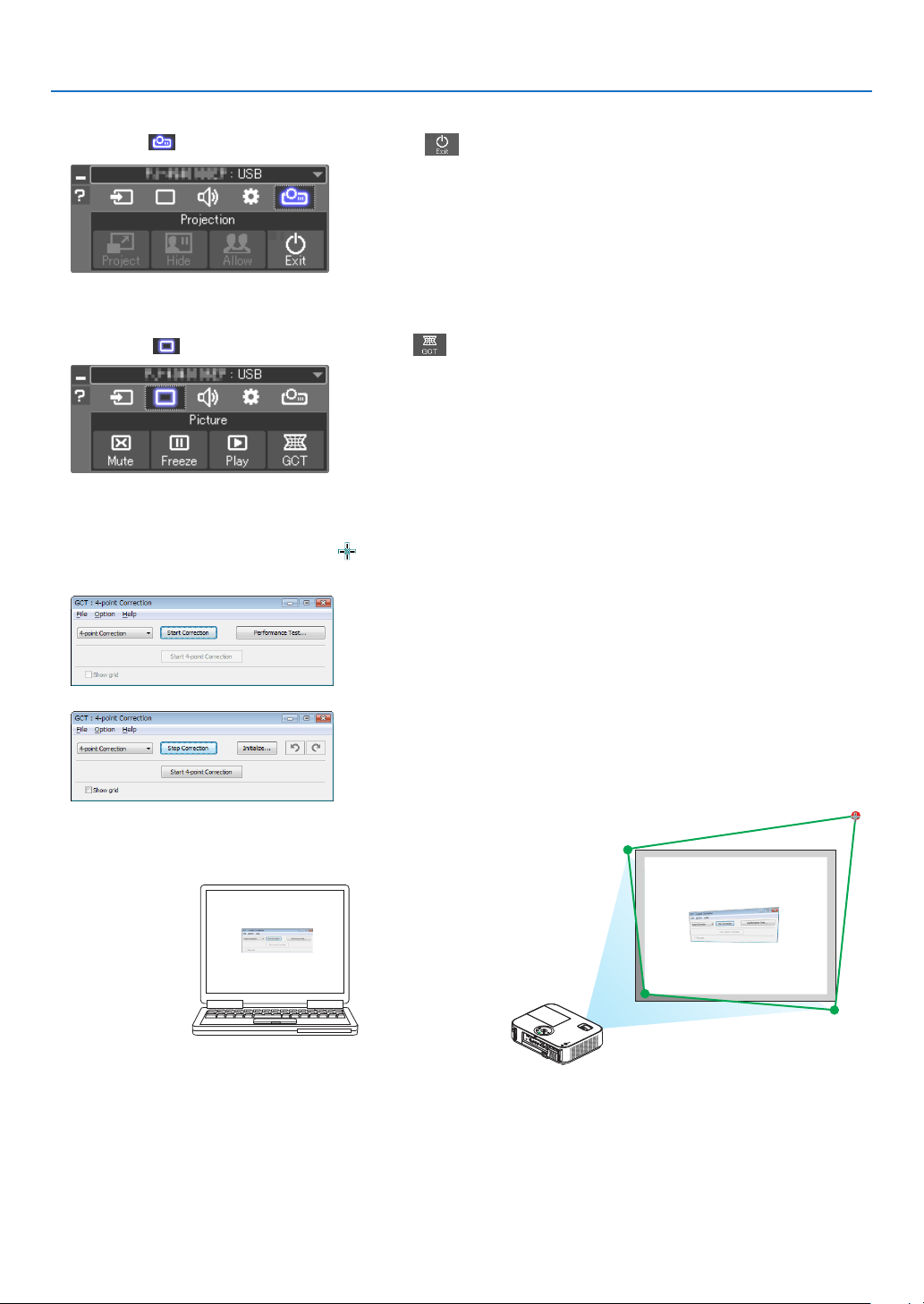
64
3. Convenient Features
3. Clickthe“OK”button.
4. Clickthe“ ”(Projection)iconandthenthe“ ”(Exit)button.
5. Click“Yes”.
6. StarttheImageExpressUtilityLiteagain.
7. Clickthe“ ”(Picture)iconandthenthe“ ”button.
The“4-pointCorrection”windowwillbedisplayed.
8. Clickthe“StartCorrection”buttonandthen“Start4-pointCorrection”button.
A green frame and a mouse pointer ( ) will be displayed.
• Four[•]markswillbeappearedatfourcornersofthegreenframe
9. Usethemousetoclickthe[•]markofwhichcorneryou
wishtomove.
The currently selected [ •]markwillturnred.
(Intheaboveexample,Windowsscreensareomittedforclarication.)
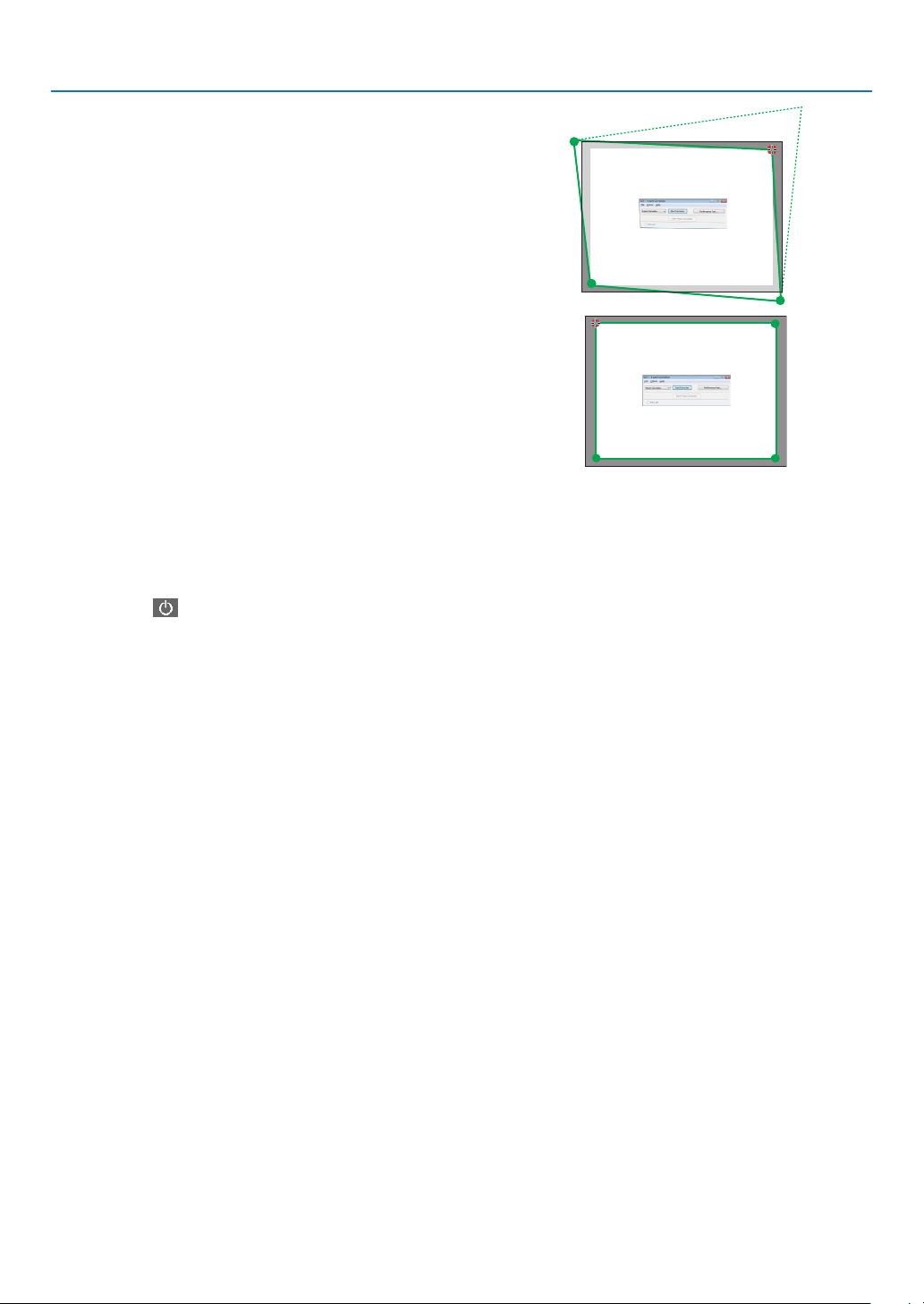
65
3. Convenient Features
10
.Dragtheselected[•]marktothepointyouwishtocor-
rectanddropit.
• Whenyouclicksomewherewithintheprojectimagearea,
the nearest [ •] markwillgo tothe positionwhere the
mouse cursor is.
11
.RepeatStep9and10tocorrectthedistortionofthepro-
jectedimage.
12
.Aftercompleting,right-clickthemouse.
The green frame and the mouse pointer will disappear from the projected image area. This will complete the cor-
rection.
13
.Clickthe“X”(close)buttononthe“4-pointCorrection”window.
The“4-pointCorrection”windowwilldisappearandthe4-pointcorrectionwilltakeeffect.
14
.Clickthe“ ”buttononthecontrolwindowtoexittheGCT.
TIP:
• Afterperformingthe4-pointcorrection,youcansavethe4-pointcorrectiondatatotheprojectorbyclicking“File”→“Exportto
theprojector…”onthe“4-pointCorrection”window.
• SeetheHelpofImageExpressUtilityLiteforoperating“4-pointCorrection”windowandotherfunctionsthanGCT.(→page
58)
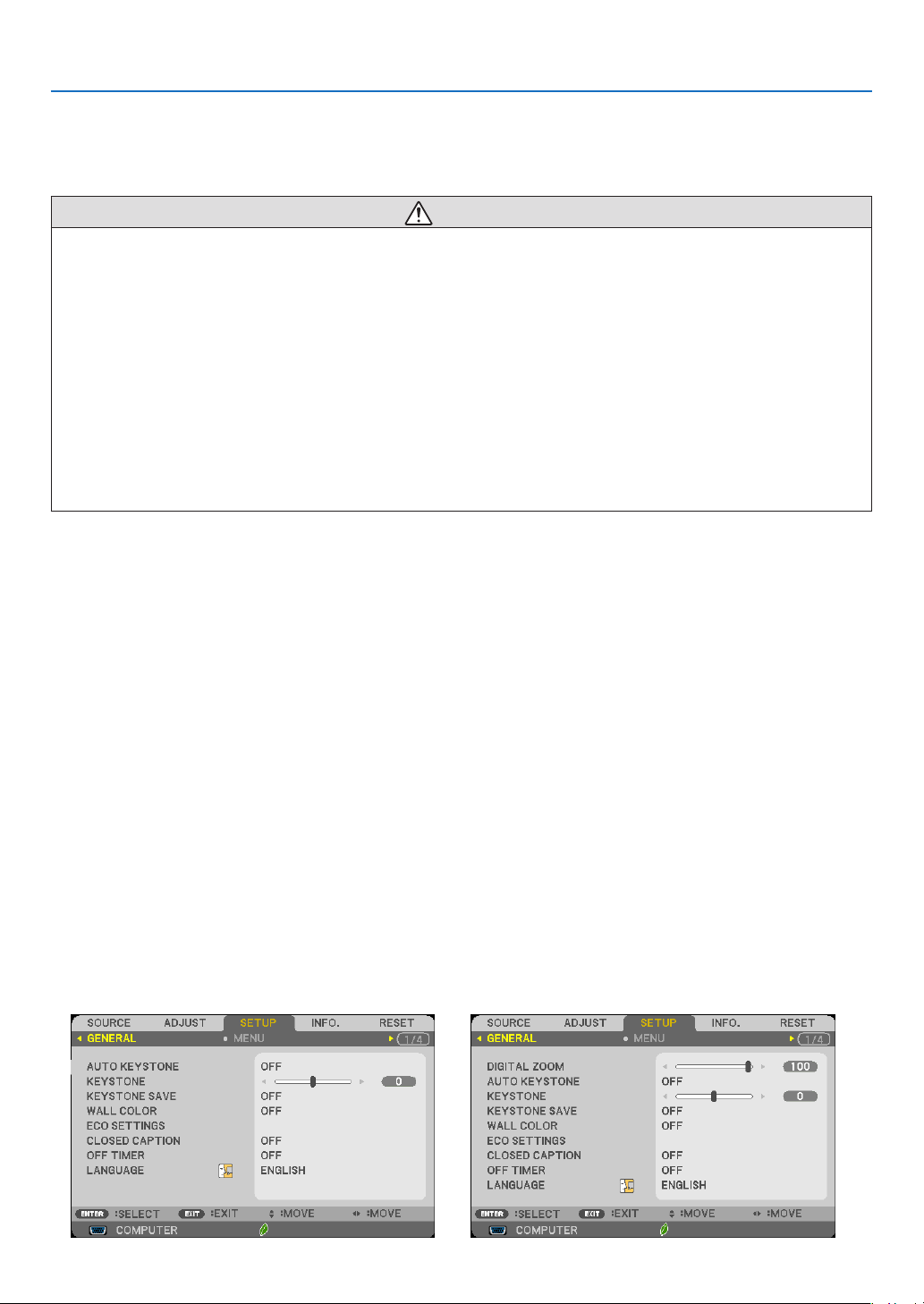
66
3. Convenient Features
⓭ Viewing 3D Images
Theprojectorprovides3DimagestoauserwearingcommerciallyavailableLCDshuttereyeglasses.
CAUTION
Health precautions
Beforeviewing,besuretoreadhealthcareprecautionsthatmaybefoundintheuser’smanualincludedwithyourLCD
shuttereyeglassesoryour3DcompatiblecontentsuchasDVDs,videogames,computer’svideolesandthelike.
Toavoidanyadversesymptoms,heedthefollowing:
• DonotuseLCDshuttereyeglassesforviewinganymaterialotherthan3Dimages.
• Allowadistanceof2m/7feetorgreaterbetweenthescreenandauser.Viewing3Dimagesfromtooclosea
distancecanstrainyoureyes.
• Avoidviewing3Dimagesforaprolongedperiodoftime.Takeabreakof15minutesorlongeraftereveryhour
ofviewing.
• Ifyouoranymemberofyourfamilyhasahistoryoflight-sensitiveseizures,consultadoctorbeforeviewing3D
images.
• Whileviewing3Dimages,ifyougetsicksuchasnausea,dizziness,queasiness,headache,eyestrain,blurry
vision,convulsions,andnumbness,stopviewingthem.Ifsymptomsstillpersist,consultadoctor.
• View3Dimagesfromthefrontofthescreen.Viewingfromananglemaycausefatigueoreyestrain.
LCDshuttereyeglasses(recommended)
• UsecommerciallyavailableDLP
®
LinkorothermethodcompatibleLCDshuttereyeglasses.
Stepsforviewing3Dimagesontheprojector
1. Connecttheprojectortoyourvideoequipment.
2. Turnontheprojector,displaytheon-screenmenu,andthenselect[ON]forthe3Dmode.
Fortheoperatingproceduretoturnonthe3Dmode,referto“On-screenmenufor3Dimages”onthefollowing
page.
3. Playyour3Dcompatiblecontentandusetheprojectortodisplaytheimage.
4. PutonyourLCDshuttereyeglassestoview3Dimages.
Also refer to the user’s manual accompanied with your LCD shutter eyeglasses for more information.
On-screenmenufor3Dimages
Followthestepstodisplaythe3Dmenu.
1. Press the MENU button.
The on-screen menu will be displayed.
2. Press the ▷buttontwice.
The [SETUP] menu will be displayed.
[M403W/M363W/M323W/M403X/M363X/M323X/
M283X/M403H/M323H]
[M353WS/M303WS/M333XS]
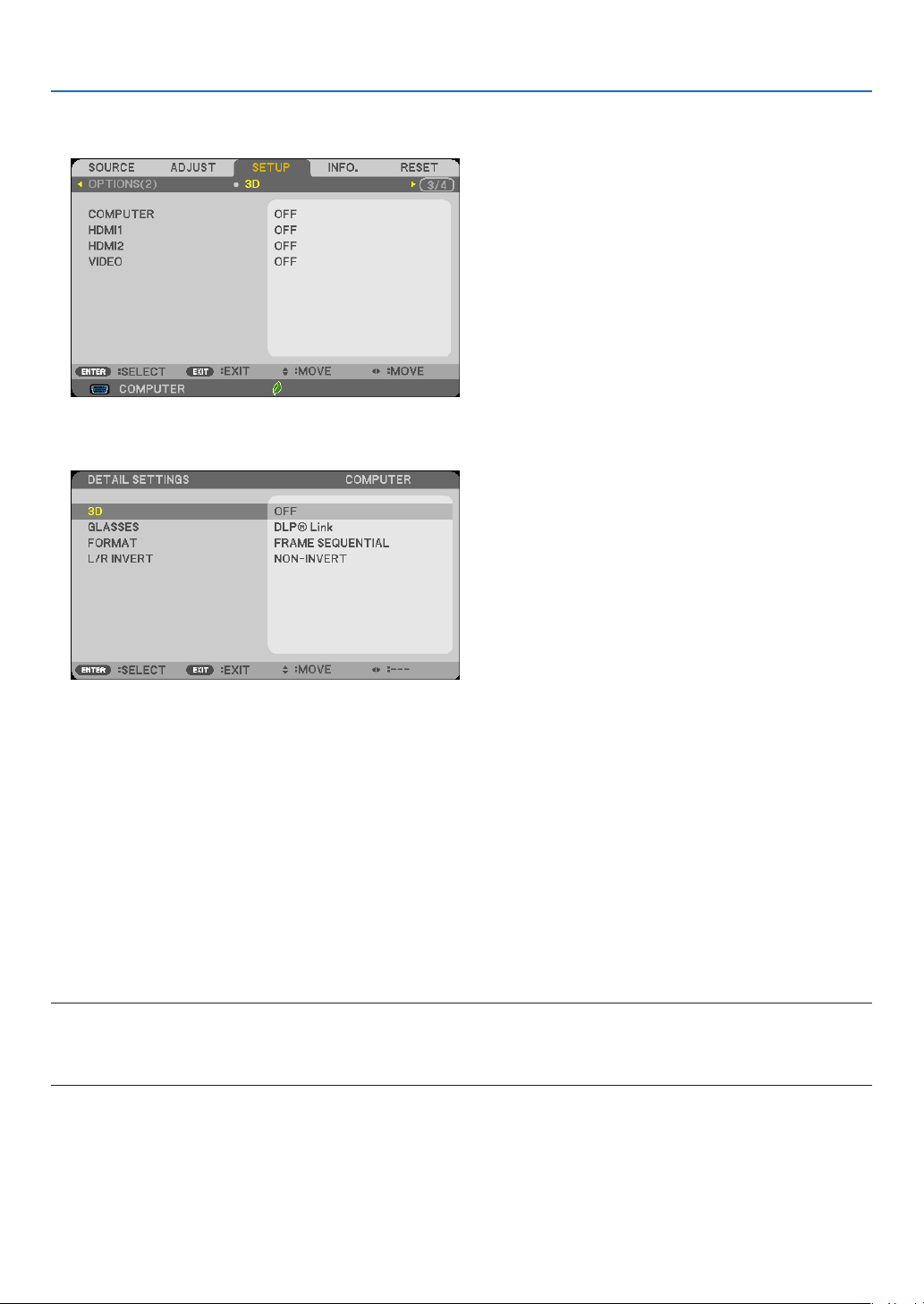
67
3. Convenient Features
3. Press the ▽buttononce,andthenpressthe▷buttonvetimes.
The [3D] menu will be displayed
4. Press the ▽buttontoselectasignalandpresstheENTERbutton.
The3D(DETAILSETTINGS)screenwillbedisplayed.
5. Press the ▽buttontoselect[3D]andpresstheENTERbutton.
6. Press the ▽buttontoselect[ON].
The selected signal will be displayed in 3D.
7. Press the ▽buttonto[GLASSES]andpresstheENTERbutton.
The [GLASSES] setting screen will be displayed.
8. Press the ▽buttontoselectacompatibleeyeglassmethodandpresstheENTERbutton.
Setother3D-relatedmenuoptionssuchas[FORMAT]and[L/RINVERT]asnecessary.
9. Press the MENU button once.
The menu will disappear.
Selectinginputconnectedtoasourceof3Dimages[COMPUTER/HDMI1/HDMI2/VIDEO]
Thisfunctionswitchesthe3DmodebetweenONandOFFforeachinput.
NOTE:
Toconrmthatthesupported3Dsignalisaccepted,useeitherwayofthefollowing:
• Makesurethat[3D]isdisplayedinthetoprightofthescreenafterthesourceisselected.
• Display[INFO.]→[SOURCE]→[3DSIGNAL]andmakesurethat“SUPPORTED”isdisplayed.

68
3. Convenient Features
Toview3Dimages,seepage66.
Select[COMPUTER],[HDMI1],[HDMI2],or[VIDEO].
NOTE:
• Themaximumdistanceforviewing3Dimagesis10m/394inchesfromthescreensurfaceunderthefollowingrestrictions:
- Brightnessontheprojector:2000lumensorgreater
- Screengain:1
- Viewingposition:Facingstraighttowardsthescreencenter
- Outsidelight:None
- LCDshuttereyeglasses:DLP
®
Linkcompatible3Deyeglasses
• If3DcontentisplayedbackonyourcomputerandtheperformanceispooritmaybecausedbytheCPUorgraphicschip.Inthis
caseyoumayhavedifcultyseeingthe3Dimagesastheywereintended.Checktoseeifyourcomputermeetstherequirements
providedinyouruser’smanualincludedwithyour3Dcontent.
• TheDLP
®
LinkcompatibleLCDshuttereyeglassesallowyoutoview3Dimagesbyreceivingsynchsignals,whichareincluded
inlefteyeandrighteyeimages,reectedfromthescreen.Dependingonenvironmentsorconditionssuchastheambientbright-
ness,screensizeorviewingdistance,theLCDshuttereyeglassesmayfailtoreceivesynchsignals,causingpoor3Dimages.
• Whenthe3Dmodeisenabled,theKeystonecorrectionrangewillbenarrower.
• Whenthe3Dmodeisenabled,thefollowingsettingsareinvalid.
[WALLCOLOR],[PRESET],[REFERENCE],[COLORTEMPERATURE]
• Refertothe[SOURCE]screenunderthe[INFO.]menuforinformationonwhethertheinputsignalis3Dcompatible.
• Signalsotherthanthoselistedin“CompatibleInputSignalList”onpage149willbeoutofrangeorwillbedisplayedin2D.
Using a 3D emitter
Thisprojectorcanbeusedtowatchvideosin3Dusingcommercially-availableactiveshutter-type3Deyewear.In
ordertosynchronizethe3Dvideoandeyewear,acommercially-available3Demitterneedstobeconnectedtothe
projector(ontheprojectorside).
The3Deyewearreceivesinformationfromthe3Demitterandperformsopeningandclosingontheleftandright.
3D eyewear and 3D emitter preparations
Pleaseuseanactiveshutter-type3DeyewearthatconformswiththeVESAstandard.
Acommercially-availableRFtypemadebyXpandisrecommended.
3D eyewear ������������ Xpand X105-RF-X2
3D emitter
�������������� Xpand AD025-RF-X1
Connectyour3Demittertothe3DSYNCterminaloftheprojector.
NOTE:
• Useanactiveshutter3Deyewear(compliancewithVESA)
• ChecktheoperatingconditionsdescribedintheusermanualoftheBlu-rayplayer.
• PleaseconnecttheDINterminalofthe3Demittertothe3DSYNCoftheprojector.
• The3Deyewearallowsvideostobeviewedin3Dbyreceivingsynchronizedopticalsignalsoutputfromthe3Demitter.Asaresult,
the3Dimagequalitymaybeaffectedbyconditionssuchasthebrightnessofthesurroundings,screensize,viewingdistance,
etc.
• Whenplayinga3Dvideosoftwareonacomputer,the3DimagequalitymaybeaffectedifthecomputerCPUandgraphicschip
performancearelow.Pleasechecktherequiredoperatingenvironmentofthecomputerthatisstatedintheoperatingmanual
attachedtothe3Dvideosoftware.

69
3. Convenient Features
Troubleshooting on viewing 3D images
Ifimageswillnotbedisplayedin3Dor3Dimagesappearas2D,checkthefollowingtable.Alsorefertotheuser’s
manualaccompaniedwithyour3DcontentorLCDshuttereyeglasses.
Possible causes Solutions
• Thecontentyouareplayingbackisnotcompatiblewith3D. • Playbackacontentcompatiblewith3D.
• The3Dmodewasturnedofffortheselectedsource.
• Usetheprojector’smenutoturnon3Dmodefortheselected
source.(→page107)
• YouarenotusingourrecommendedLCDshuttereyeglass-
es.
• Use ourrecommendedLCD shuttereyeglasses. (→ page
66)
• IftheshutterofyourLCDshuttereyeglassescannotsynchronizewiththecurrentlyprojectedsource,thefollowingarepossible
causes:
- YourLCDshuttereyeglassesarenotswitchedon.
• SwitchonyourLCDshuttereyeglasses.
Forusinga3Demitter:
• Useanactiveshutter-type3Deyewearand3Demitterrecom-
mended.
- ThebatteryintheLCDshuttereyeglassesrandown. • Rechargethebatteryorreplaceit.
- Thecorrecteyeglassmethodisnotselected.
• Changetheeyeglassmethodfor3Dbyusingthemenu..(→
page107)
- Theviewingdistancebetweentheviewerandthescreenis
toofar.
• Moveclosertothescreenuntiltheviewergets3Dimages.
• Orusetheprojector’smenutoselect[NON-INVERT]for[L/R
INVERT].
- Therearebrightlightsourcesorotherprojectorsnearthe
viewer.
• Keeplightsourcesorotherprojectorsawayfromtheviewer.
• Donotlooktowardabrightlightsource.
• Orusetheprojector’smenutoselect[NON-INVERT]for[L/R
INVERT].
• Ifyourcomputerisnotsetfor3Dviewing,thefollowingarepossiblecauses:
- Yourcomputerdoesnotmeettherequirementsfor3Dview-
ing.
• Checktoseeifyourcomputermeetstherequirementsprovided
inyouruser’smanualincludedwithyour3Dcontent.
- Yourcomputerisnotsetfor3Doutput. • Setyourcomputerfor3Doutput.
Forusinga3Demitter:
- Thereisanobstaclebetweentheopticalreceiverofthe3D
eyewearandthe3Demitter.
• Pleaseremovetheobstacle.
- The3Dformatofthe3Dvideocontentsisnotsupported.
• Please check withthecompany selling the 3Dvideo con-
tents.
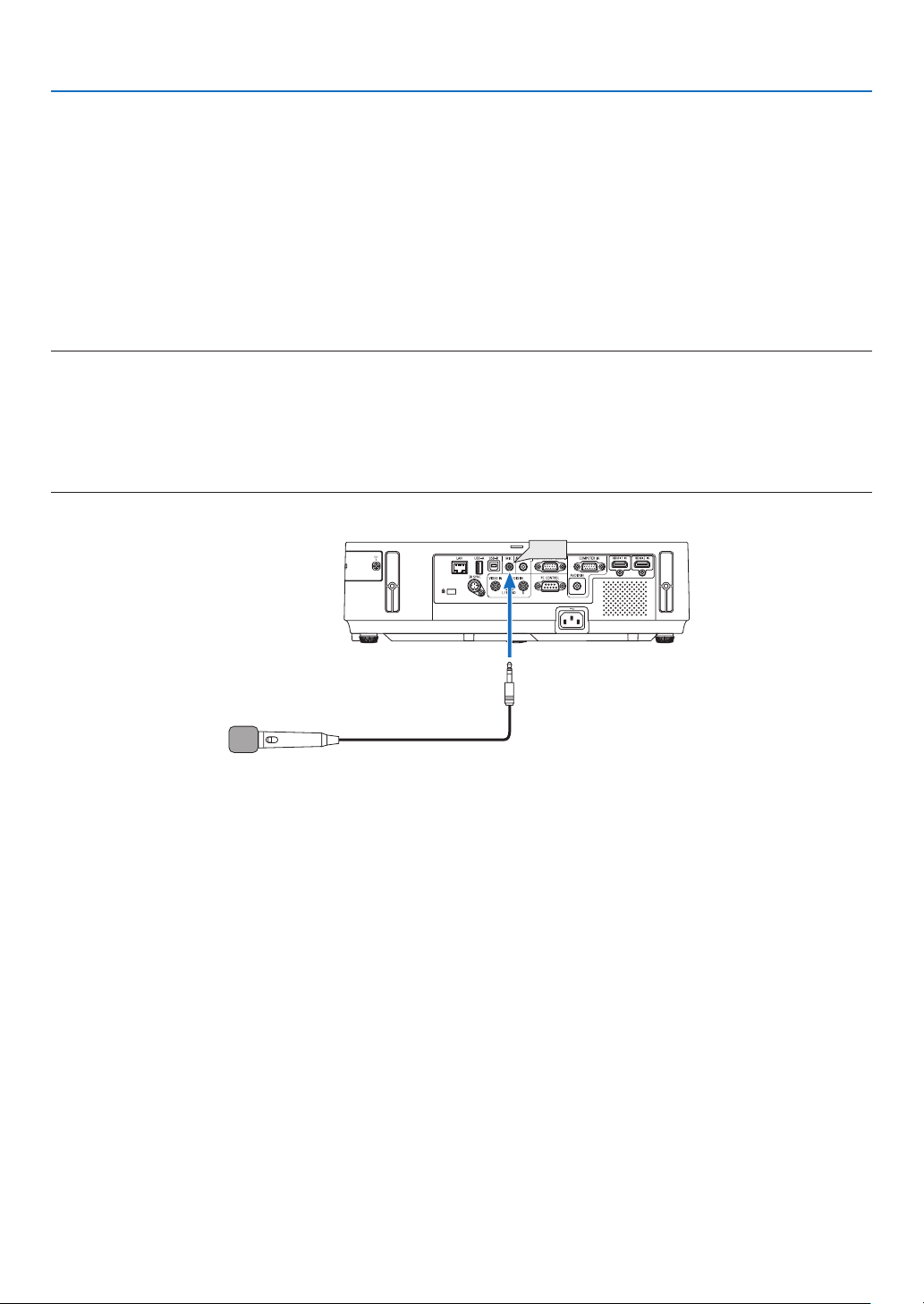
70
3. Convenient Features
⓮ Connecting Your Microphone
ConnectingacommerciallyavailabledynamicorcondensermicrophonetotheMICinputjackallowsyoutooutput
yourmicsoundfromthebuilt-inspeaker.
SoundfromCOMPUTER,HDMI1,HDMI2,andVIDEOaudioinputsorsoundofUSB-A/LANinputwillbeheardfrom
thespeakerwithyourmicrophonevoice.
Typeofmicrophonecanbeselected.Fromthemenu,select[SETUP]→[INSTALLATION]→[MICSELECT](→page
102)
Microphonesensitivitycanbeadjusted.Fromthemenu,select[SETUP]→[INSTALLATION]→[MICGAIN].(→page
102)
NOTE:
• DonotconnectanaudiosignaltotheMICinputjack.Doingsomaycauseexcessivelyloudsound,resultinginadamagetothe
speaker.
• IfthereisnosignalwheneitherHDMIinputisselected,soundoutputmaynotwork.
• WiththeHDMI1,HDMI2,USBDisplay(USB-B),ornetwork(LAN)portselected,thesoundofthemicrophonewillnotbeoutput
ifthereisnodigitalaudiosignalpresent.Inthiscase,fromtheon-screenmenu,select[SETUP]→[OPTIONS(1)]→[AUDIO
SELECT]→[COMPUTER].Thiswilloutputsoundofyourmicrophone.
MIC
Dynamic mic or condenser mic

71
3. Convenient Features
⓯ Projecting photos or documents saved on the smartphone
over a wireless LAN (Wireless Image Utility)
UtilizingtheWirelessImageUtility,itenablestotransferphotosanddocumentssavedonterminalsasasmartphone
oratablettotheprojectorviathewirelessLANandprojectthem.
TherearetwokindsofWirelessImageUtilitysoftwareoneforAndroidandanotherforiOSthatcanbedownloaded
fromGooglePlayorAppStore.
For Android
http://www.nec-display.com/dl/en/pj_android/wiu_for-android.html
For iOS
http://www.nec-display.com/dl/en/pj_ios/wiu_for-ios.html
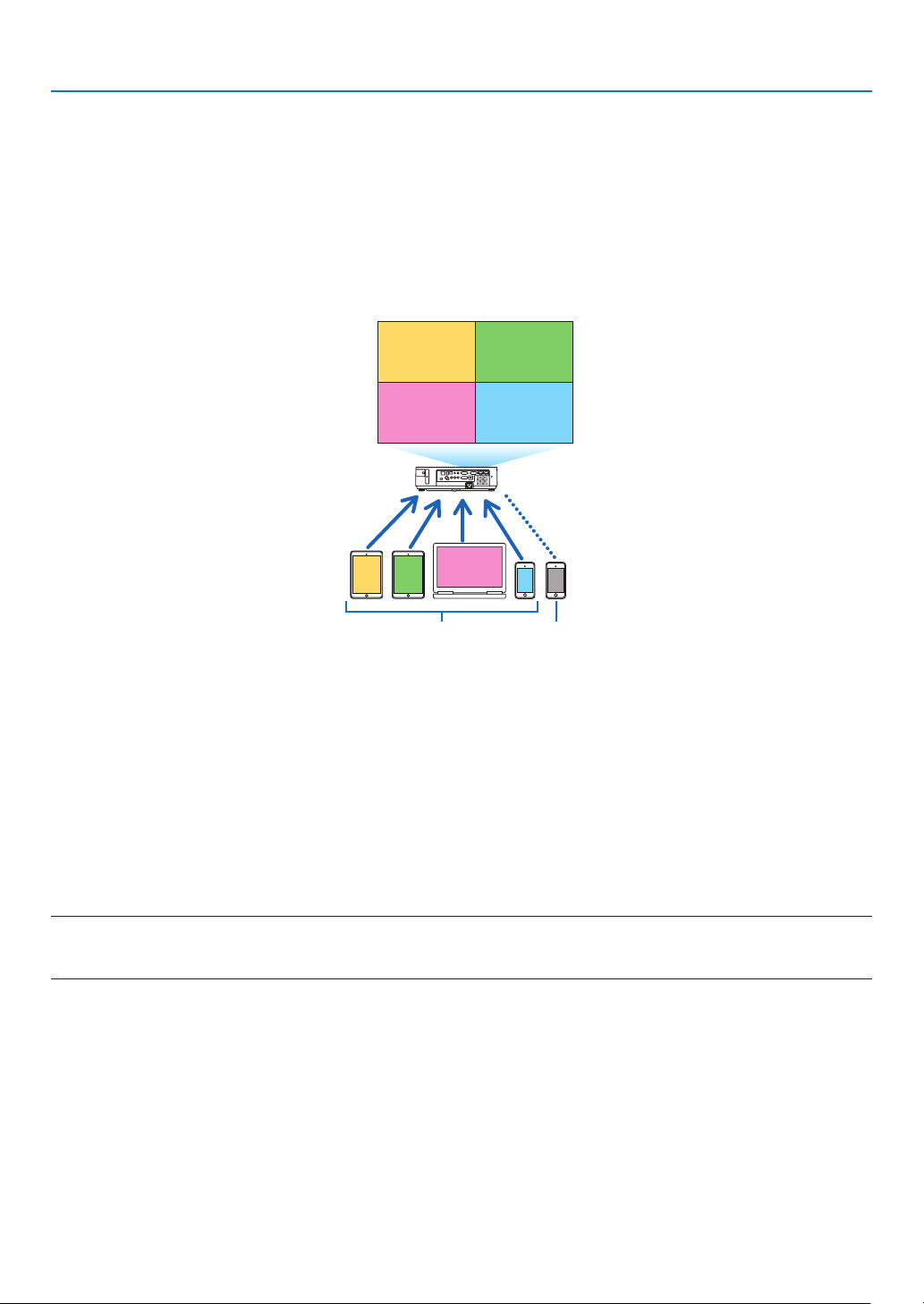
72
3. Convenient Features
⓰ Simultaneously project images received from multiple
terminal units
Theprojectorreceivesimagestransferredfrommultipleterminalunits(Max.16units)andprojectsthemonthescreen
dividingit(Max.4×4)atthesametime.
• Ifvariousterminalunitssuchasacomputer,asmartphone,andatabletareconnectedwiththeprojectorinthe
network,itenablestotransferimagessavedoneachterminaltotheprojectorandtoprojectthem.
• YoucanconnectterminalunitsinmultipleOS(Windows,MacOS,Android,andiOS)withtheprojectorsimultane-
ously.
BA
C
D
E
AB
CD
Transmit Stop
Simultaneous connection
Simultaneous display
• Installtheapplicationsoftware“ImageExpressUtilityLite”,includedintheCD-ROMsuppliedwiththeprojectoron
computers.(→page56)
• Forasmartphoneandatablet,downloadtheapplication“WirelessImageUtility”fromourwebsiteandinstalliton
these.(→page71)
ConnecttheprojectorwiththenetworkrstandthenbootuptheImageExpressUtilityLiteforoperation.
• Everytimepressing▲ or ▼buttonontheremotecontrol,displayedscreenwillswitchfrom/tothefull-screen
displayto/fromthedividedscreendisplay.
• If◀ or ▶buttonontheremotecontrolispressedinthestateofprojectioninthefull-screendisplay,itenablesto
changetheterminaltodisplay.
AboutdetailedinformationoftheImageExpressUtilityLite,pleaserefertotheHELPle.
NOTE:
• Thisprojectoronlysupportsthe[FREEmode]anddoesnotsupportthe[MANAGEDmode].
• ThisprojectordoesnotsupporttheUser'snameindication.

73
4. Using the Viewer
❶ What you can do with the Viewer
TheViewerhasthefollowingfeatures.
• WhenacommerciallyavailableUSBmemorythatstoresimagelesisinsertedintotheUSB-Aport(TypeA)of
theprojector,theViewerallowsyoutoviewtheimagelesontheUSBmemory.
Evenifnocomputerisavailable,presentationscanbeconductedsimplywiththeprojector.
• SupportedgraphicformatisJPEG.
• TheViewerdisplaysthethumbnailscreen(JPEGExifonly)onwhichyoucanjumptoanyspecicimageyouwish
toproject.
• Therearetwowaysofplaybackforslideshow:manualplaybackandautoplayback.Theintervaltimecanbe
changedinautoplayback.
• Theorderofdisplayingimagescanbesetbyname,dateorsize.Ascendingordescendingordercanbese-
lected.
• Imagescanberotatedby90degreesduringplayback.

74
4. Using the Viewer
NOTE
• TheUSB-AportoftheprojectordoesnotsupportUSBhub.
• ThefollowingoperationsbyusingthebuttonsontheprojectorarenotpossiblewhentheVIEWERscreensuchastheslidescreen
andthethumbnailscreenisdisplayed.
- Keystonecorrectionbyusingthe▲/▼button
- AutoAdjustmentbyusingtheAUTOADJ.button
- Volumecontrolwiththe◀or▶button
ToperformKeystonecorrectionorSourceselectionduringdisplayoftheViewer,presstheMENUbuttontwicetodisplaythe
menuandoperateViewerfromthemenu.
• FreezingpicturebyusingtheFREEZEbuttonontheremotecontrolisnotpossiblewhentheVIEWERscreensuchastheslide
screenandthethumbnailscreenisdisplayed.
• Executing[RESET]→[ALLDATA]fromthemenuwillreturnthesettingsfortheViewertoolbartothefactorydefault.
• USBmemory
- BesuretouseaUSBmemorydeviceformattedwiththeFAT32orFAT16lesystem.
TheprojectordoesnotsupportNTFSformattedUSBmemory.
IftheprojectordoesnotrecognizeyourUSBmemory,checkiftheformatissupported.
ToformatyourUSBmemoryinyourcomputer,refertothedocumentorhelplethatcomeswithyourWindows.
- WedonotwarrantthattheUSB-AportoftheprojectorwillsupportallUSBmemoriesinthemarket.
• Supportedimages
- SupportedleformatforViewerareasfollows.
WedonotwarrantalltheimagesaresupportedforViewer.
Imagesotherthanmentionedinthetablemaynotbesupported.
Imagetype Extension Description
JPEG JPG/JPEG
Baseline/Exifaresupported
- Slideshow,effect,andsoundeffectsetwithPowerPointcannotbeplayedback.
- Imagecanbedisplayedataresolutionupto10000×10000pixels.
- Evenifimagesaremetbytheaboveconditions,theremaybesomeimageswhichcannotbeplayedback.
- Morethan200icons(totalnumberofimageleiconsandfoldericons)cannotbedisplayedinathumbnailscreen.
- Longle/foldernamewillbelimitedtothespeciedlength.Thiscanbeshownbybracketadded.
- Ifonefolderhasmanyles,ittakessometimetoplayback.
• Ifasinglefoldercontainstoomanyles,switchingimageswilltaketime.Toshortenswitchingtime,reducethenumberofimages
containedinasinglefolder.
TIP:Exchangeableimageleformat(Exif)isastandardimageleformatusedbydigitalcameraswiththeadditionofspecic
shootingdata.
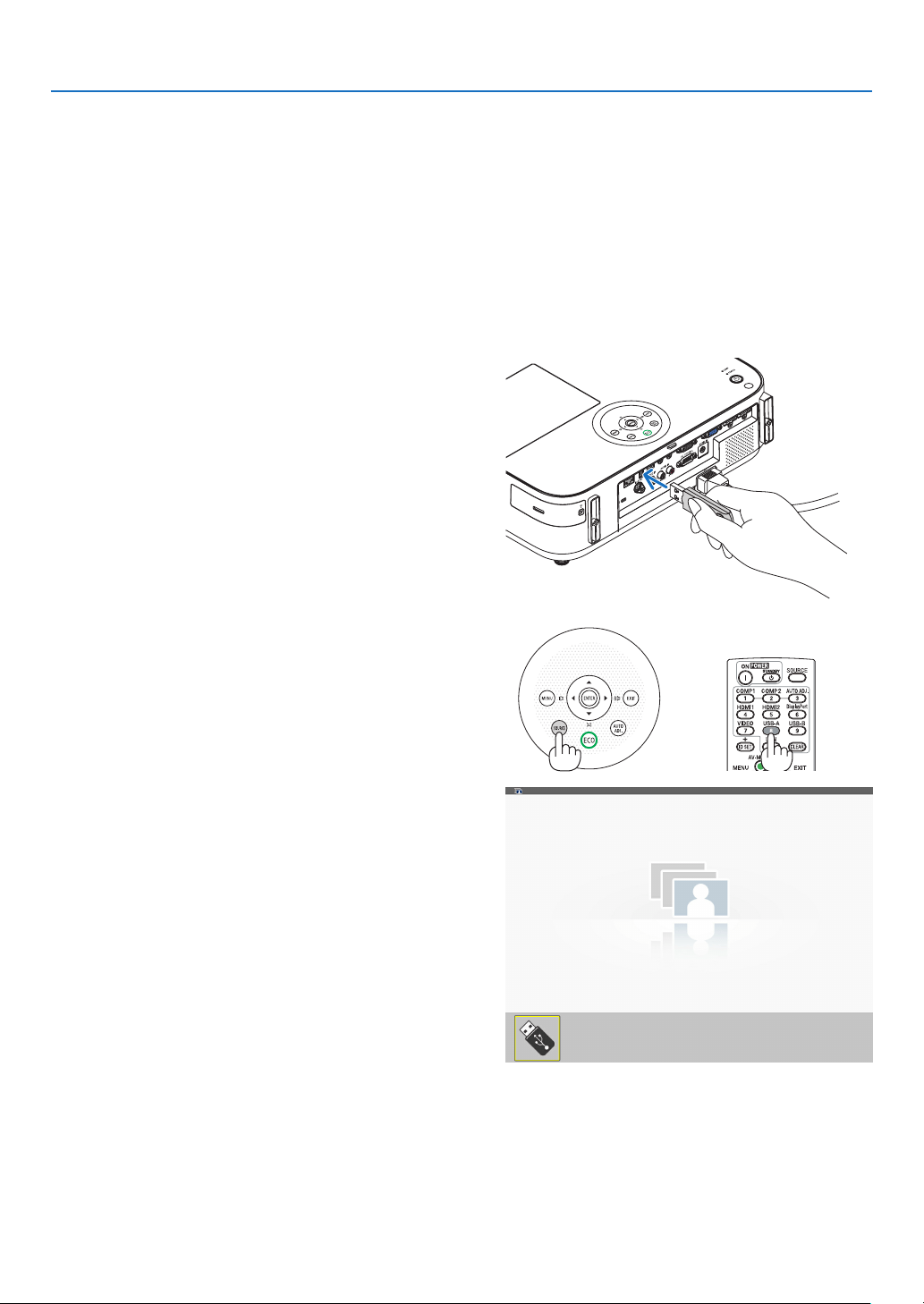
75
4. Using the Viewer
❷ Projecting images stored in a USB memory device
ThissectionexplainsthebasicoperationoftheViewer.
TheexplanationprovidestheoperationalprocedurewhentheViewertoolbar(→page79)issettothefactoryde-
fault.
•StartingtheViewer .......................................................................below
•RemovingtheUSBmemoryfromtheprojector ....................... page77
•ExitingtheViewer .................................................................... page77
Preparation:BeforestartingtheViewer,storeimagestotheUSBmemoryusingyourcomputer.
Starting the Viewer
1. Turn on the projector. (→page15)
2. InserttheUSBmemoryintotheUSB-Aportofthepro-
jector.
• DonotremovetheUSBmemoryfromtheprojectorwhile
it’s LED flashes. Doing so may corrupt the data.
3. PresstheSOURCEbuttonontheprojectorcabinet.
The Viewer start screen will be displayed.
• PresstheUSB-Abuttonontheremotecontrol.
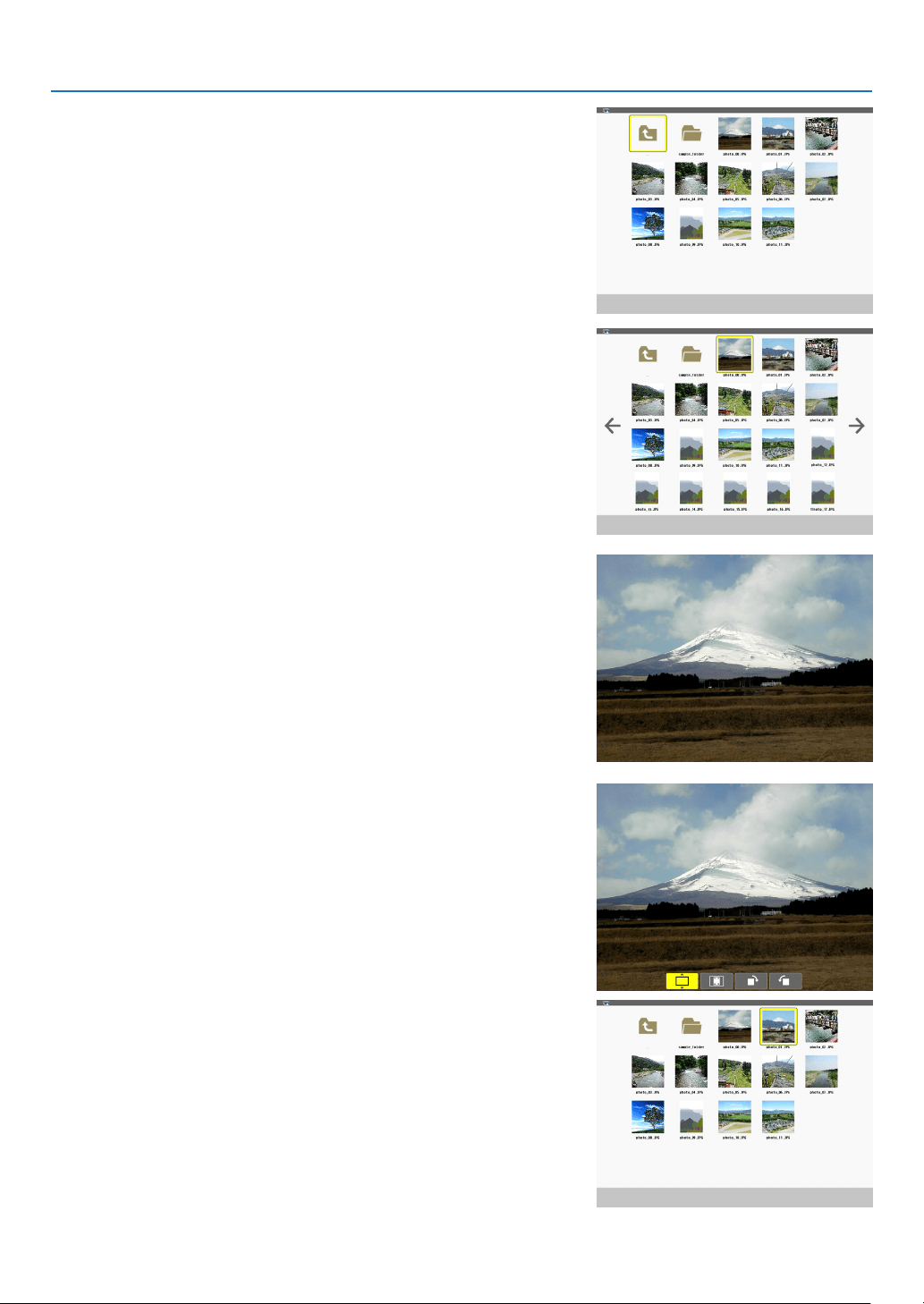
76
4. Using the Viewer
4. Press the ENTER button.
The thumbnail screen will be displayed. (→ page 78)
5. Use the ▲▼◀ or ▶ button to select an icon.
• The→ (arrow) symbol on the right indicates there are more
pages. pressing the PAGE ▽ (page down) button will show
the next page: pressing the PAGE △ (page up) will show
the previous page.
6. Press the ENTER button.
The selected slide will be displayed.
• Whenafoldericonisselected,iconscontainedinthefolder
will be displayed.
7. Press the ▶buttontoselectthenextslide.
The slide on the right will be displayed.
• The◀ or ▶ button can be used to select the next (right)
slide or the previous (left) slide in the thumbnail screen.
• PressingtheMENUbuttonduringdisplayofthethumbnail
screen, the slide screen, or the slideshow screen will display
the toolbar. The toolbar is used to select or rotate an slide.
(→ page 79)
8. Press the EXIT button when the toolbar is not dis-
played.
Thethumbnailscreenwillbedisplayed.
• Anotherwaytodisplaythethumbnailscreenistopressthe
ENTER button.
• Toclosethetoolbar,presstheMENUbuttontoreturntothe
SOURCE list, and press the MENU button again to close
the SOURCE list.
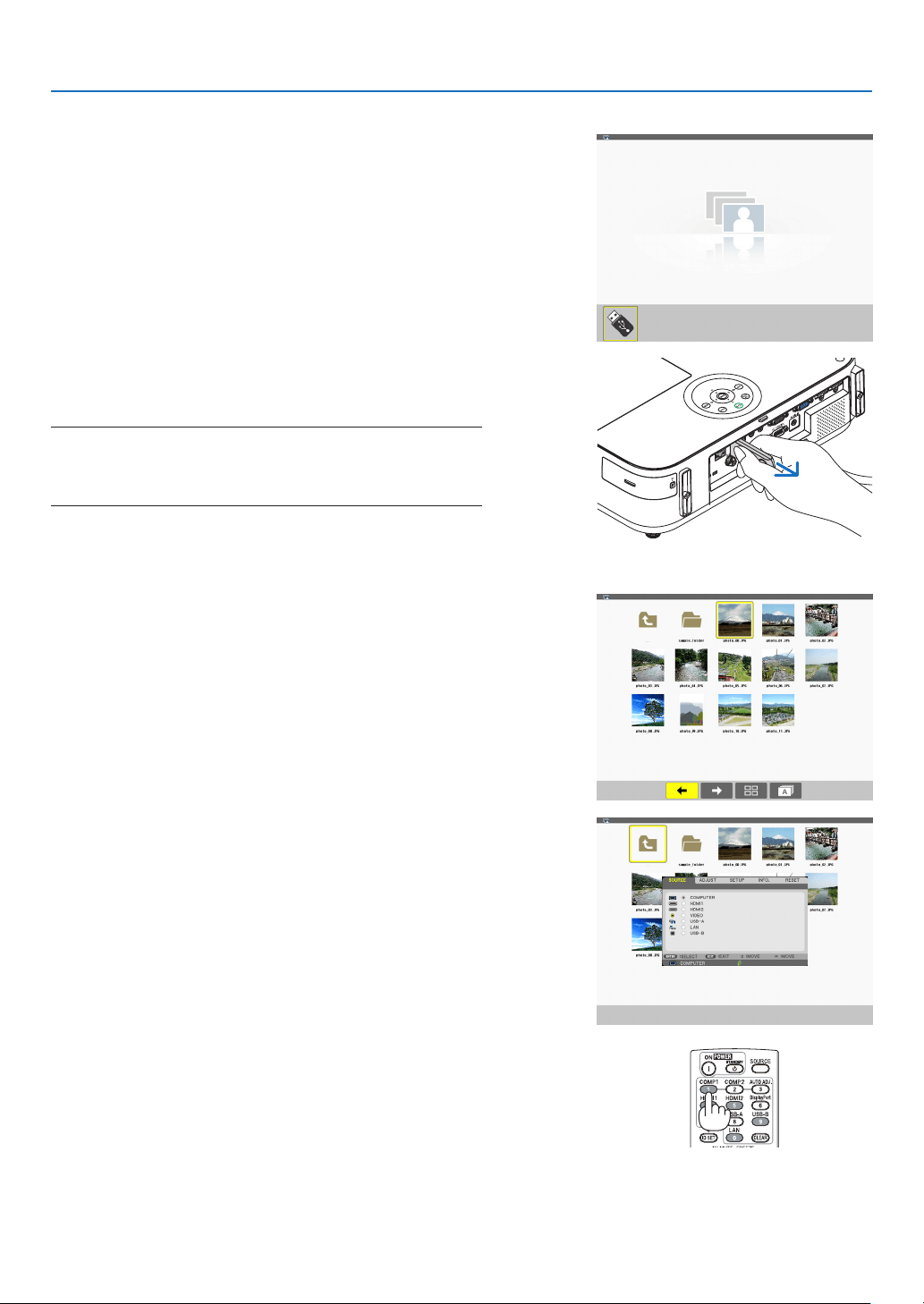
77
4. Using the Viewer
Removing the USB memory from the projector
1. SelecttheVIEWERstartscreen.
PresstheEXITbuttonwithnomenudisplayed.
2. RemovetheUSBmemoryfromtheprojector.
MakesurethattheLEDontheUSBmemoryisnotashing
before removing the USB memory.
NOTE:IfyouremovetheUSBmemoryfromtheprojectorwithaslide
displayed,theprojectormaynotoperatecorrectly.Ifthishappens,
turnofftheprojectorandunplugthepowercord.Wait3minutes,then
connectthepowercord,andturnontheprojector.
Exiting the Viewer
1. Press the MENU buttonwiththeslidescreenorthe
thumbnailscreendisplayed.
The control bar or the pop-up menu will be displayed.
2. PresstheMENUbuttonagain.
The on-screen menu will be displayed.
3. Selectasourceotherthan[USB-A]andpresstheEN-
TER button.
The Viewer will be exited.
TIP:ToexittheViewerusingtheremotecontrol,selectasourceother
than[USB-A].
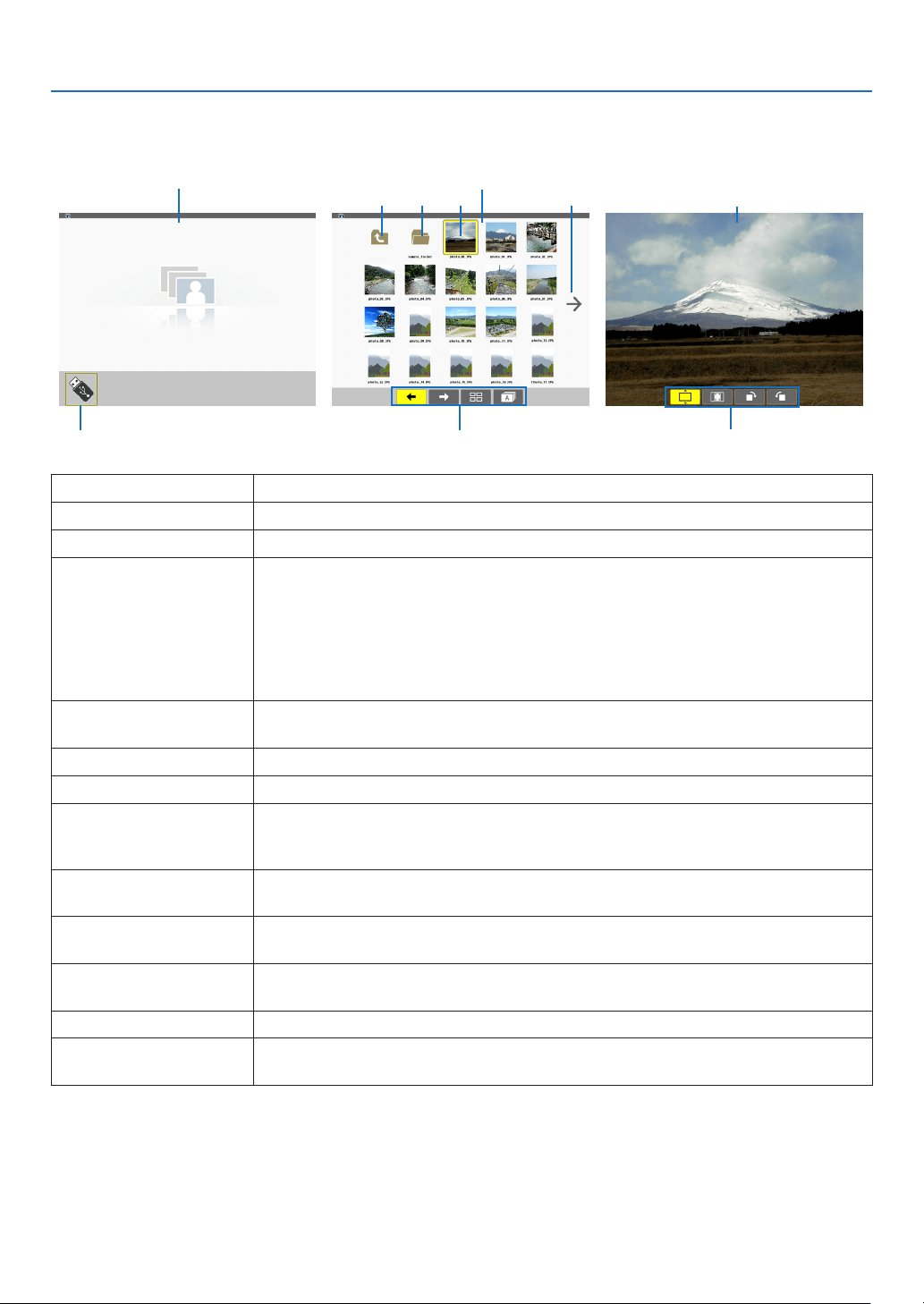
78
4. Using the Viewer
Parts of each screen
TheViewerhasfourscreens.
(1) Viewer start screen (3) Thumbnail screen (9) Slide screen/
(11) Slideshow screen
Name Description
(1)Viewerstartscreen ThisscreenwillbedisplayedrstwhenyouselecttheViewer.
(2)USBicon ThisiconindicatesthattheUSBmemoryisinsertedintotheprojector.
(3)Thumbnailscreen ThisscreenwillshowalistoffoldersandimagelesstoredintheUSBmemory.The
JPEGExifleswillbedisplayedinthumbnailscreenonly.
• Themaximumnumberofimagelesorfolderswithinonepageisdifferentdepending
on the model.
M403X/M363X/M323X/M283X/M333XSare5by4
M403W/M363W/M323W/M353WS/M303WSare6by4
M403HandM323Hare8by5
(4)Cursor Thecursorisusedtoselect(highlight)thefolderorimagelebyusing▲▼◀▶ but-
ton.
(5)Backicon Thisiconisusedtoreturntotheupper(parent)folder.
(6)Foldericon ThisiconshowsthattheUSBmemoryhasfolders.
(7)Pageup(Pagedown)
icon
Thisiconshowsfurtherfoldersorimagelesareavailableinthenext(previous)page.
Usethe▶buttontogotothenext(previous)row.ThePAGE▽orPAGE△ on the
remotecontrolisusedtogotothenextorpreviouspagedirectly.
(8)Thumbnailtoolbar Thistoolbarisusedinthethumbnailscreen.PressingtheMENUbuttonwilldisplay
thistoolbar.(→page79)
(9)Slidescreen Thisscreenisusedformanualplayback.Theselectedimagewillbedisplayedinfull
screen.
(10)Slidetoolbar Thistoolbarisusedintheslidescreen.PressingtheMENUbuttonwilldisplaythis
toolbar.(→page80)
(11)Slideshowscreen Thisscreenisusedforautoplayback.Theslideswillbechangedautomatically.
(12)Slideshowtoolbar Thistoolbarisusedintheslideshowscreen.PressingtheMENUbuttonwilldisplay
thistoolbar.(→page80)
(5) (6) (4) (7)
(8)(2) (10) (12)
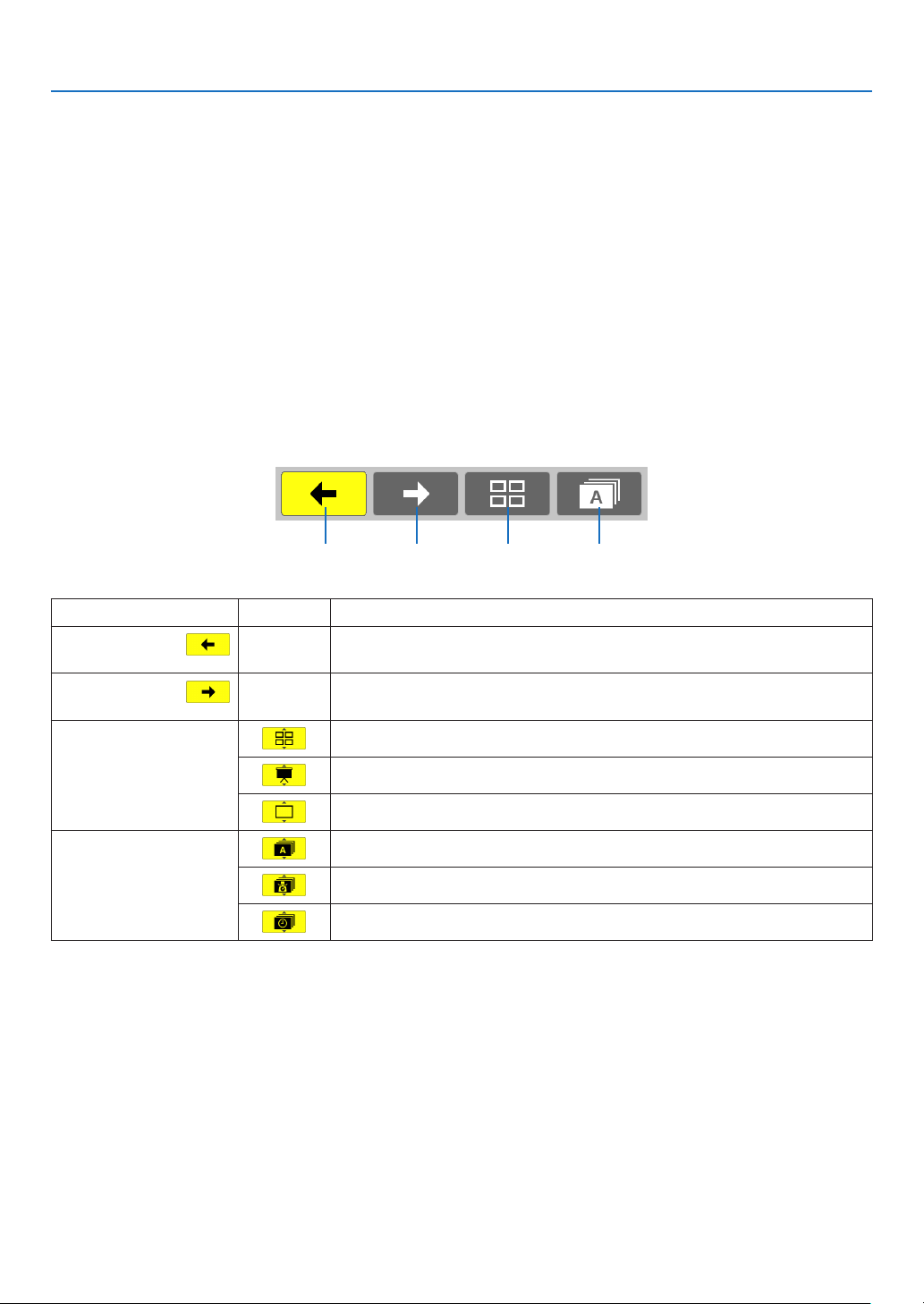
79
4. Using the Viewer
Using the toolbar
1. Press the MENU button.
The toolbar will be displayed.
The SOURCE screen will be displayed as Viewer connection screen.
2. Use the ◀ or ▶buttontoselectanitemandusethe▲ or ▼buttontoselectitsavailableoption.
When the cursor is placed, the selected item will be changed to yellow.
The ▲ or ▼ shows more available choices.
3. Press the ENTER button.
The selected item will be displayed.
4. PresstheMENUbuttontwotimes.
The toolbar will be closed and the SOURCE list will be displayed. Press the MENU button again to close the
SOURCE list.
Thumbnail toolbar
Menu Options Description
(1)Back — Goesbacktothepreviousimage.Whenthecursorreachesthetopleftof
thescreen,itwillgotothepreviouspage.
(2)Forward — Goestothenextimage.Whenthecursorreachesthebottomrightofthe
screen,itwillgotothenextpage.
(3)Display Closesthemenuandreturnstothethumbnailscreen.
Closesthemenuandstartstheslideshowfromthehighlighteditem.
Closesthemenuanddisplaystheslidescreen.
(4)Order Displaystheiconsalphabeticallybyname.(numberbeforealphabet)
Displaystheiconsindescendingorderoflesize.
Displaystheiconsintheorderofcreationdate
(1) (2) (3) (4)
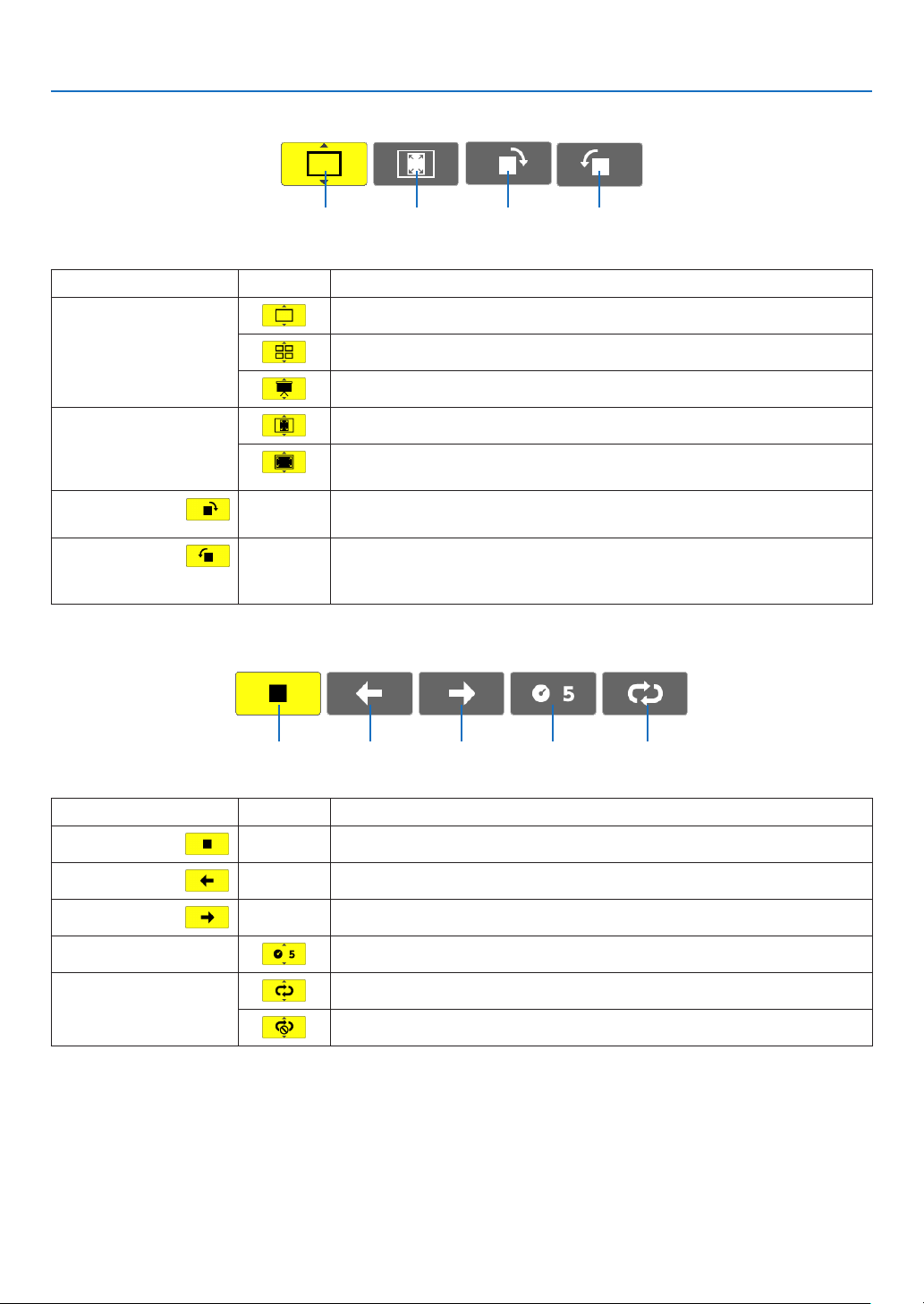
80
4. Using the Viewer
Slide toolbar
Menu Options Description
(1)Display Closesthemenuandswitchestotheslidescreen.
Closesthemenuanddisplaysthethumbnailscreen.
Closesthemenuandstartstheslideshowfromthehighlighteditem.
(2)Image
display
Closesthemenuanddisplaystheimageinitsactualsize.
Closesthemenuanddisplaystheimageintheprojector’smaximumreso-
lution.
(3)Clockwise
rotation
— Closethemenuandrotatetheimage90°clockwise
(4)Counter-
clockwise
rotation
— Closethemenuandrotatetheimage90°counterclockwise
Slideshow toolbar
Menu Options Description
(1)Stop — Closesthemenuandchangestotheslidescreen.
(2)Back — Goesbacktothepreviousimage.
(3)Forward — Goestothenextimage.
(4)Interval Speciesintervaltimewhenplayingbacktheslides.
(5)Repeat Repeatstoplaybacktheimagesinthefolder.
Returnstothethumbnailscreen.
TIP:
• Apictureiconatthecenterofthescreenshowsthatthelecannotbedisplayedintheslidescreenorthumbnailscreen.
• Slidetoolbarsettingforrotationwillbecancelledifthefolderismovedfromoneplacetoanother.
(1) (2) (3) (4)
(1) (2) (3) (4) (5)
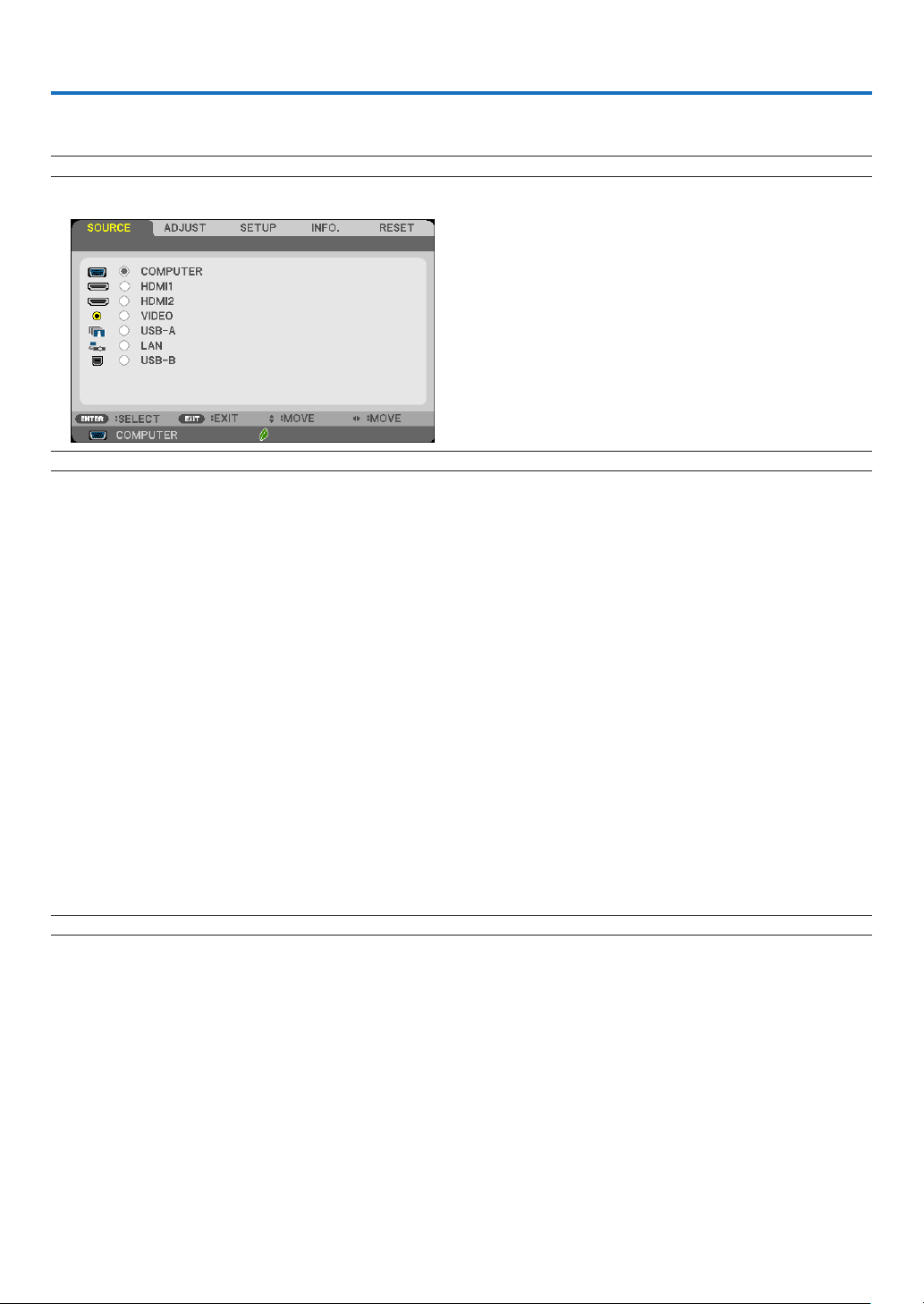
81
5. Using On-Screen Menu
❶ Using the Menus
NOTE:Theon-screenmenumaynotbedisplayedcorrectlywhileinterlacedmotionvideoimageisprojected.
1. PresstheMENUbuttonontheremotecontrolortheprojectorcabinettodisplaythemenu.
NOTE:ThecommandssuchasENTER,EXIT,▲▼,◀▶inthebottomshowavailablebuttonsforyouroperation.
2. Press the ◀▶buttonsontheremotecontrolortheprojectorcabinettodisplaythesubmenu.
3. PresstheENTERbuttonontheremotecontrolortheprojectorcabinettohighlightthetopitemortherst
tab.
4. Use the ▲▼buttonsontheremotecontrolortheprojectorcabinettoselecttheitemyouwanttoadjustor
set.
You can use the ◀▶buttonsontheremotecontrolortheprojectorcabinettoselectthetabyouwant.
5. PresstheENTERbuttonontheremotecontrolortheprojectorcabinettodisplaythesubmenuwindow.
6. Adjustthelevelorturntheselecteditemonoroffbyusingthe▲▼◀▶ buttons on the remote control or
the projector cabinet.
Changesarestoreduntiladjustedagain.
7. Repeatsteps2-6toadjustanadditionalitem,orpresstheEXITbuttonontheremotecontrolortheprojec-
torcabinettoquitthemenudisplay.
NOTE:Whenamenuormessageisdisplayed,severallinesofinformationmaybelost,dependingonthesignalorsettings.
8. Press the MENU button to close the menu.
Toreturntothepreviousmenu,presstheEXITbutton.
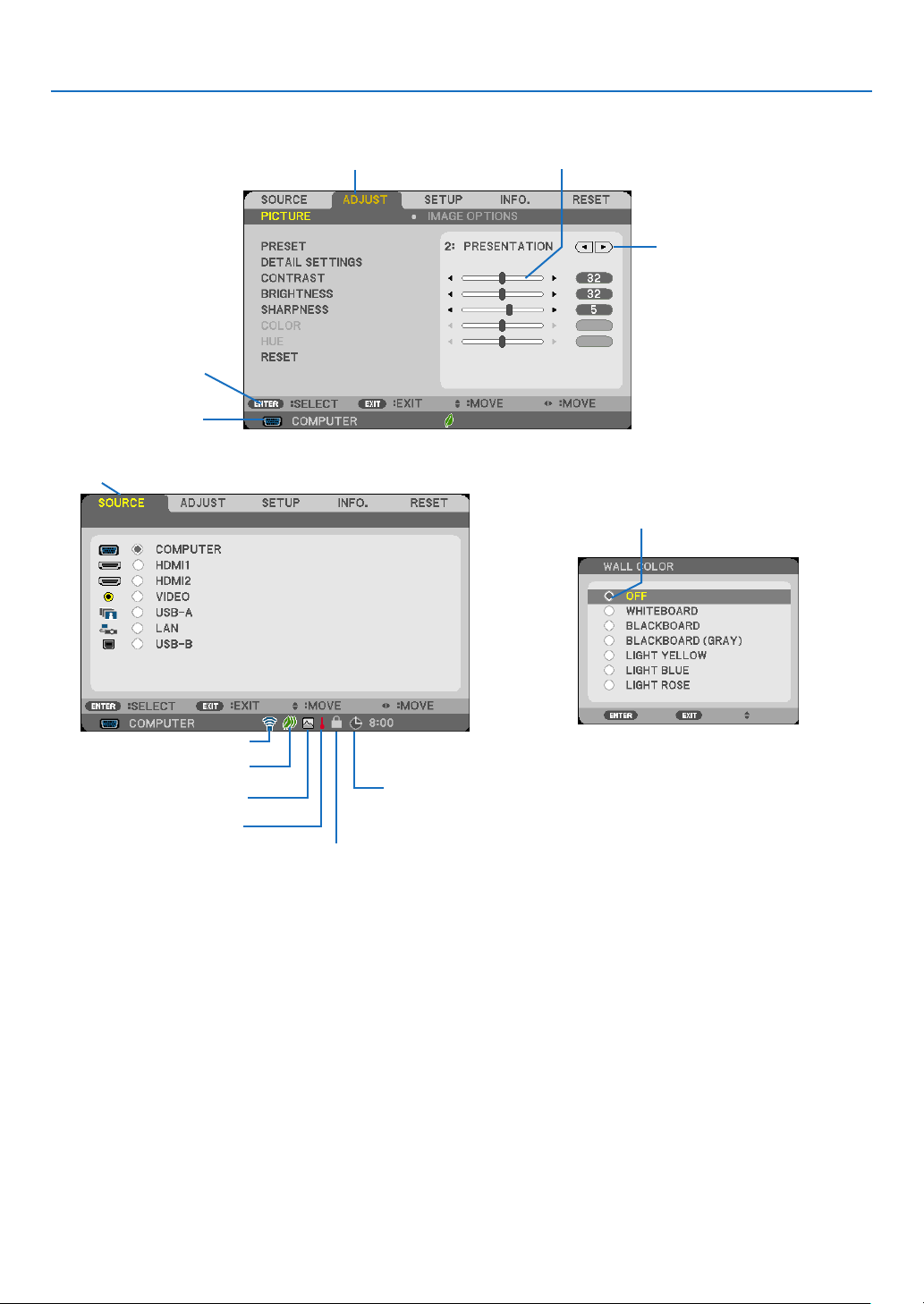
82
5. Using On-Screen Menu
❷
Menu Elements
Slide bar
Solid triangle
Tab
Radio button
High Altitude symbol
ECO mode symbol
Wireless symbol
Menu windows or dialog boxes typically have the following elements:
Highlight �����������������������������Indicates the selected menu or item�
Solid triangle ����������������������Indicates further choices are available� A highlighted triangle indicates the item is active�
Tab ��������������������������������������Indicates a group of features in a dialog box� Selecting on any tab brings its page to the front�
Radio button �����������������������Use this round button to select an option in a dialog box�
Source ��������������������������������Indicates the currently selected source�
Off Timer remaining time ����Indicates the remaining countdown time when the [OFF TIMER] is preset�
Slide bar �����������������������������Indicates settings or the direction of adjustment�
ECO mode symbol ��������������Indicates ECO MODE is set�
Key Lock symbol ����������������Indicates the [CONTROL PANEL LOCK] is enabled�
Thermometer symbol ���������Indicates the [ECO MODE] is forcibly set to [ON] mode because the internal temperature is too
high�
High Altitude symbol ����������Indicates the [FAN MODE] is set to [HIGH ALTITUDE] mode�
Wireless symbol �����������������Indicate the wireless LAN connection is enabled�
Source
Available buttons
Thermometer symbol
KeyLocksymbol
Off Timer remaining
time
Highlight
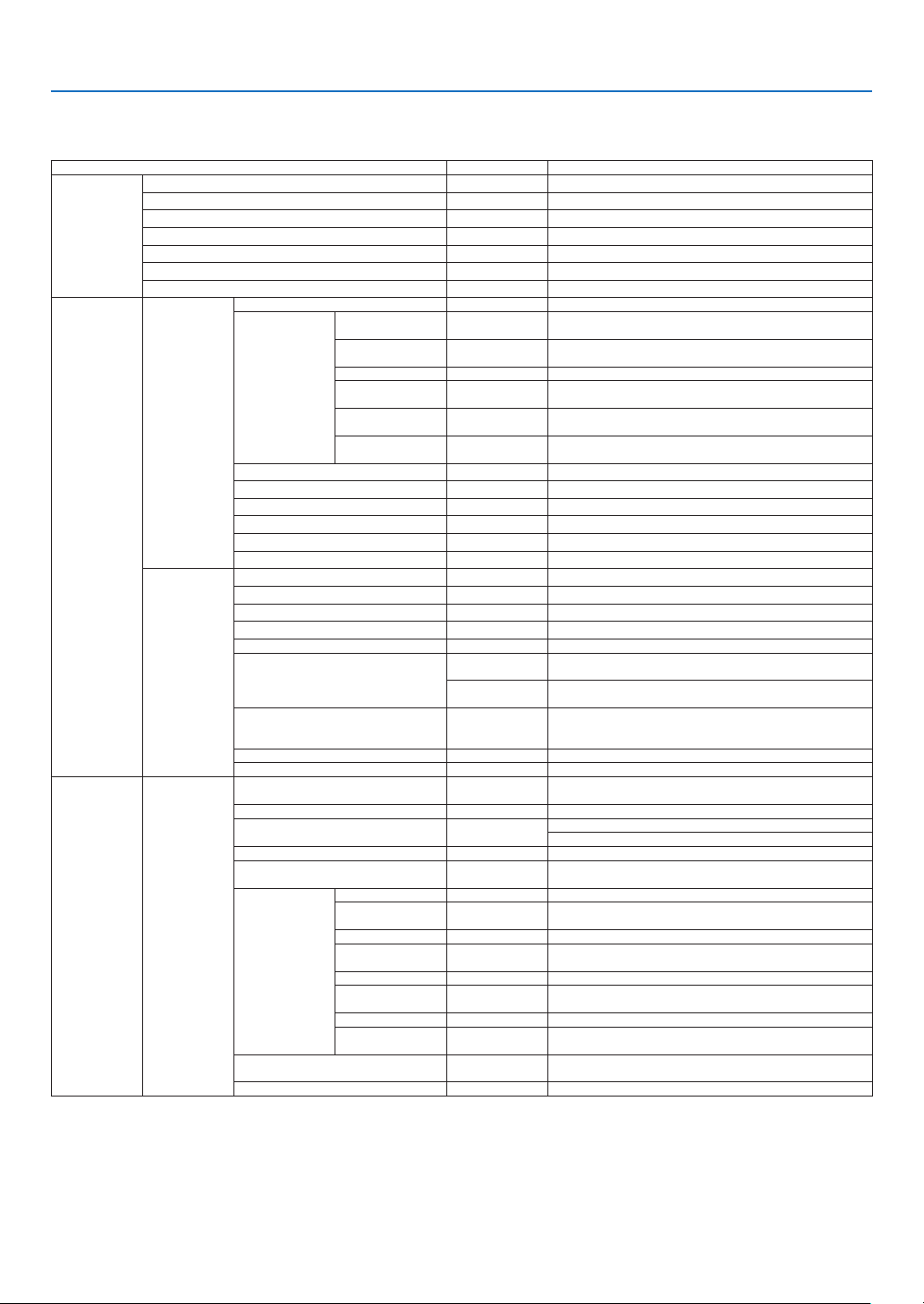
83
5. Using On-Screen Menu
❸ List of Menu Items
Somemenuitemsarenotavailabledependingontheinputsource.
MenuItem Default Options
SOURCE
COMPUTER *
HDMI1 *
HDMI2 *
VIDEO *
USB-A *
LAN *
USB-B *
ADJUST
PICTURE
PRESET * 1–8
DETAIL
SETTINGS
REFERENCE *
HIGH-BRIGHT,PRESENTATION,VIDEO,MOVIE,GRAPHIC,
sRGB,NATURAL,DICOMSIM.
GAMMA
CORRECTION*
1
DYNAMIC,NATURAL,BLACKDETAIL
SCREENSIZE*
2
* LARGE,MEDIUM,SMALL
COLOR
TEMPERATURE
*
5000,6500,7800,9300
COLOR
ENHANCEMENT
*
OFF,LOW,MEDIUM,HIGH
DYNAMIC
CONTRAST
*
OFF,ON
CONTRAST 64
BRIGHTNESS 64
SHARPNESS 8
COLOR 64
HUE 32
RESET
IMAGE
OPTIONS
CLOCK *
PHASE *
HORIZONTAL *
VERTICAL *
OVERSCAN AUTO
AUTO,OFF,ON
ASPECTRATIO
*
M403X/M363X/M323X/M283X/M333XS:AUTO,4:3,16:9,
15:9,16:10,WIDEZOOM,NATIVE
*
M403W/M363W/M323W/M353WS/M303WS/M403H/M323H:
AUTO,4:3,16:9,15:9,16:10,LETTERBOX,NATIVE
POSITION(NotavailableonM403W/
M363W/M323W/M353WS/M303WS/
M403H/M323H)
0 −16to16
NOISEREDUCTION OFF OFF,LOW,MEDIUM,HIGH
TELECINE 2-2/2-3AUTO OFF,2-2/2-3AUTO,2-2ON,2-3ON
SETUP GENERAL
DIGITALZOOM(M353WS/M303WS/
M333XS)
100 80 to 100
AUTOKEYSTONE(VERTICALonly) ON OFF,ON
KEYSTONE 0
HORIZONTAL*
3
VERTICAL
KEYSTONESAVE OFF OFF,ON
WALLCOLOR OFF
OFF,WHITEBOARD,BLACKBOARD,BLACKBOARD
(GRAY),LIGHTYELLOW,LIGHTBLUE,LIGHTROSE
ECOSETTINGS
ECOMODE AUTOECO OFF,AUTOECO,NORMAL,ECO
AUTOECO
OPTIONS
AUTODIM OFF OFF,0:01,0:03,0:10,0:20
ROOMLIGHT
SENSING
OFF
OFF,ON
NORMALOPTION
CONSTANT
BRIGHTNESS
OFF
OFF,ON
ECOOPTION
CONSTANT
BRIGHTNESS
OFF
OFF,ON
CLOSEDCAPTION OFF
OFF,CAPTION1,CAPTION2,CAPTION3,CAPTION4,
TEXT1,TEXT2,TEXT3,TEXT4
OFFTIMER OFF OFF,0:30,1:00,2:00,4:00,8:00,12:00,16:00
* Theasterisk(*)indicatesthatthedefaultsettingvariesdependingonthesignal.
*1 The[GAMMACORRECTION]itemisavailablewhenanitemotherthan[DICOMSIM.]isselectedfor[REFERENCE].
*2 The[SCREENSIZE]itemisavailablewhen[DICOMSIM.]isselectedfor[REFERENCE].
*3 The[HORIZONTAL]itemisnotavailableonM353WS,M303WS,andM333XS.
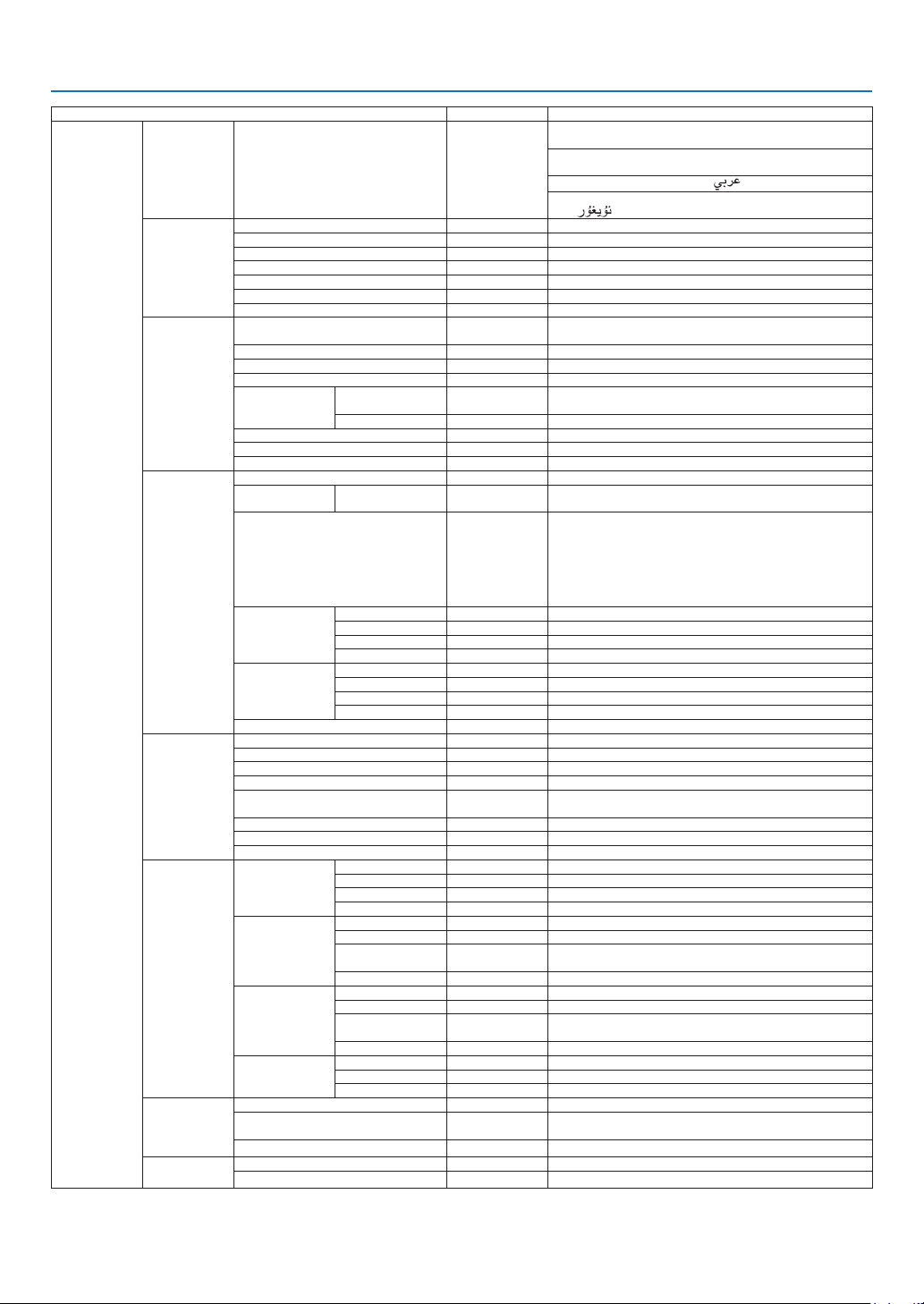
84
5. Using On-Screen Menu
MenuItem Default Options
SETUP
GENERAL LANGUAGE ENGLISH
ENGLISH,DEUTSCH,FRANÇAIS,ITALIANO,ESPAÑOL,
SVENSKA,日本語
DANSK,PORTUGUÊS,ČEŠTINA,MAGYAR,POLSKI,
NEDERLANDS,SUOMI
NORSK,TÜRKÇE,РУССКИЙ, , Ελληνικά, 中文, 한국어
ROMÂNĂ, HRVATSKI, БЪЛГАРСКИ, INDONESIA, ,
ไทย,
, 繁體中文, TIẾNG ViỆT
MENU
COLORSELECT COLOR COLOR,MONOCHROME
SOURCEDISPLAY ON OFF,ON
IDDISPLAY ON OFF,ON
ECOMESSAGE OFF OFF,ON
DISPLAYTIME AUTO45SEC MANUAL,AUTO5SEC,AUTO15SEC,AUTO45SEC
BACKGROUND BLUE BLUE,BLACK,LOGO
3DCAUTIONMESSAGE ON OFF,ON
INSTALLATION
ORIENTATION
DESKTOP
FRONT
DESKTOPFRONT,CEILINGREAR,DESKTOPREAR,
CEILINGFRONT
CONTROLPANELLOCK OFF OFF,ON
SECURITY OFF OFF,ON
COMMUNICATIONSPEED 38400bps 4800bps,9600bps,19200bps,38400bps
CONTROLID
CONTROLID
NUMBER
1 1 to 254
CONTROLID OFF OFF,ON
TESTPATTERN CROSSHATCH
MICSELECT DYNAMICMIC DYNAMICMIC,CONDENSERMIC
MICGAIN 2 0 to 15
OPTIONS(1)
FANMODE AUTO AUTO,HIGH,HIGHALTITUDE
COLORSYSTEM VIDEO AUTO
AUTO,NTSC3.58,NTSC4.43,PAL,PAL-M,PAL-N,PAL60,
SECAM
WXGAMODE
M403X/M363X/
M323X/M283X/
M333XS/M403H/
M323H:OFF
M403W/M363W/
M323W/M353WS/
M303WS:ON
OFF,ON
HDMISETTINGS
HDMI1
VIDEOLEVEL NORMAL AUTO,NORMAL,ENHANCED
HDMI2
VIDEOLEVEL NORMAL AUTO,NORMAL,ENHANCED
AUDIOSELECT
HDMI1 HDMI1 HDMI1,COMPUTER
HDMI2 HDMI2 HDMI2,COMPUTER
LAN LAN LAN,COMPUTER
USBB USBB USBB,COMPUTER
BEEP ON OFF,ON
OPTIONS(2)
STANDBYMODE NORMAL NORMAL,NETWORKSTANDBY
DIRECTPOWERON OFF OFF,ON
AUTOPOWERON(COMP.) OFF OFF,ON
AUTOPOWEROFF* 1:00 OFF,0:05,0:10,0:15,0:20,0:30,1:00
DEFAULTSOURCESELECT LAST
LAST,AUTO,COMPUTER,HDMI1,HDMI2,VIDEO,USB-A,
LAN,USB-B
CARBONCONVERT 0.505
CURRENCY $ $, €
,JP¥,RMB¥
CURRENCYCONVERT
3D
COMPUTER
3D OFF
OFF,ON
GLASSES DLP
®
Link DLP
®
Link,OTHERS
FORMAT SIDEBYSIDE SIDEBYSIDE,TOPANDBOTTOM,FRAMESEQUENTIAL
L/RINVERT NON-INVERT NON-INVERT,INVERT
HDMI1
3D OFF
OFF,ON
GLASSES DLP
®
Link DLP
®
Link,OTHERS
FORMAT AUTO
AUTO,FRAMEPACKING,SIDEBYSIDE,TOPAND
BOTTOM
L/RINVERT NON-INVERT NON-INVERT,INVERT
HDMI2
3D OFF
OFF,ON
GLASSES DLP
®
Link DLP
®
Link,OTHERS
FORMAT AUTO
AUTO,FRAMEPACKING,SIDEBYSIDE,TOPAND
BOTTOM
L/RINVERT NON-INVERT NON-INVERT,INVERT
VIDEO
3D OFF
OFF,ON
GLASSES DLP
®
Link DLP
®
Link,OTHERS
L/RINVERT NON-INVERT NON-INVERT,INVERT
WIREDLAN
WIREDLAN ENABLE DISABLE,ENABLE
SETTINGS
DHCP:ON
AUTODNS:OFF
DHCP,IPADDRESS,SUBNETMASK,GATEWAY,
AUTODNS,DNS
RECONNECT
WIRELESSLAN
PROFILE DISABLE DISABLE,SIMPLEACCESSPOINT,PROFILE1,PROFILE2
RECONNECT
*AUTOPOWEROFF:Thisitemcanbeselectedonlywhen[NORMAL]isselectedfor[STANDBYMODE].

85
5. Using On-Screen Menu
MenuItem Default Options
INFO.
USAGETIME
LAMPLIFEREMAINING
LAMPHOURSUSED
TOTALCARBONSAVINGS
TOTALCOSTSAVINGS
SOURCE(1)
RESOLUTION
HORIZONTALFREQUENCY
VERTICALFREQUENCY
SYNCTYPE
SYNCPOLARITY
SCANTYPE
SOURCE(2)
SIGNALTYPE
VIDEOTYPE
BITDEPTH
VIDEOLEVEL
3DSIGNAL
WIREDLAN
IPADDRESS
SUBNETMASK
GATEWAY
MACADDRESS
WIRELESSLAN
IPADDRESS
SUBNETMASK
GATEWAY
MACADDRESS
SSID
NETWORKTYPE
SECURITY
CHANNEL
SIGNALLEVEL
VERSION(1)
FIRMWARE
DATA
VERSION(2) FIRMWARE2
OTHERS
PROJECTORNAME
HOSTNAME
MODELNO.
SERIALNUMBER
LANUNITTYPE
CONTROLID(when[CONTROLID]
isset)
RESET
CURRENTSIGNAL
ALLDATA
CLEARLAMPHOURS
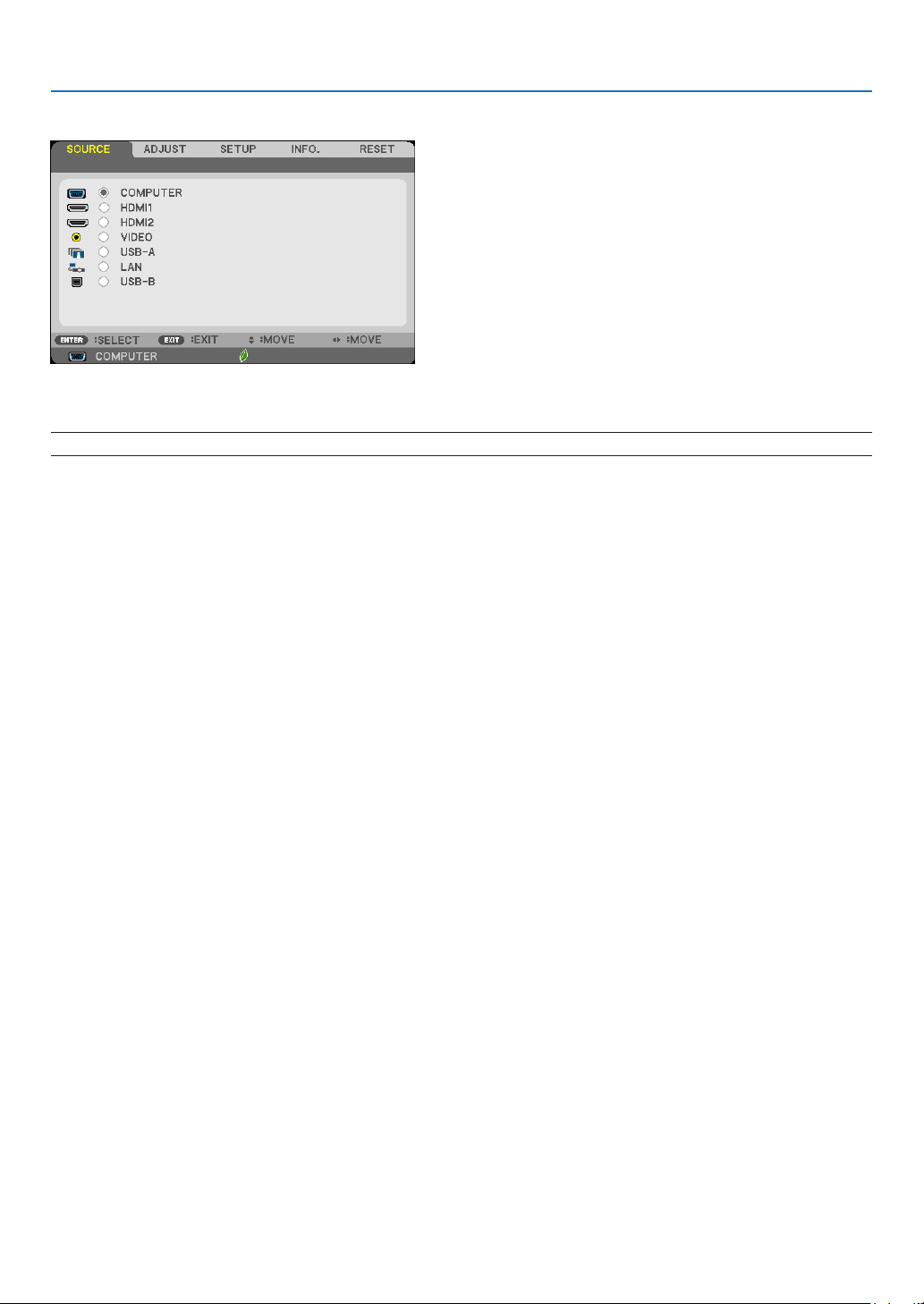
86
5. Using On-Screen Menu
❹ Menu Descriptions & Functions [SOURCE]
COMPUTER
SelectsthecomputerconnectedtoyourCOMPUTERinputterminalsignal.
NOTE:WhenthecomponentinputsignalisconnectedtotheCOMPUTERINterminal,select[COMPUTER]respectively.
HDMI1 and 2
SelectstheHDMIcompatibleequipmentconnectedtoyourHDMI1orHDMI2INterminal.
VIDEO
SelectswhatisconnectedtoyourVIDEOinput-VCR,DVDplayerordocumentcamera.
USB-A (Viewer)
ThisfeatureenablesyoutomakepresentationsusingaUSBmemorythatcontainsslides.
(→page73“4.UsingtheViewer”)
LAN
SelectsasignalfromtheLANport(RJ-45)ortheinstalledUSBwirelessLANunit(optional).
USB-B (USB Display)
SelectsthecomputerconnectedtotheUSB-Bport(typeB)byusingacommerciallyavailableUSBcable.
(→page43)
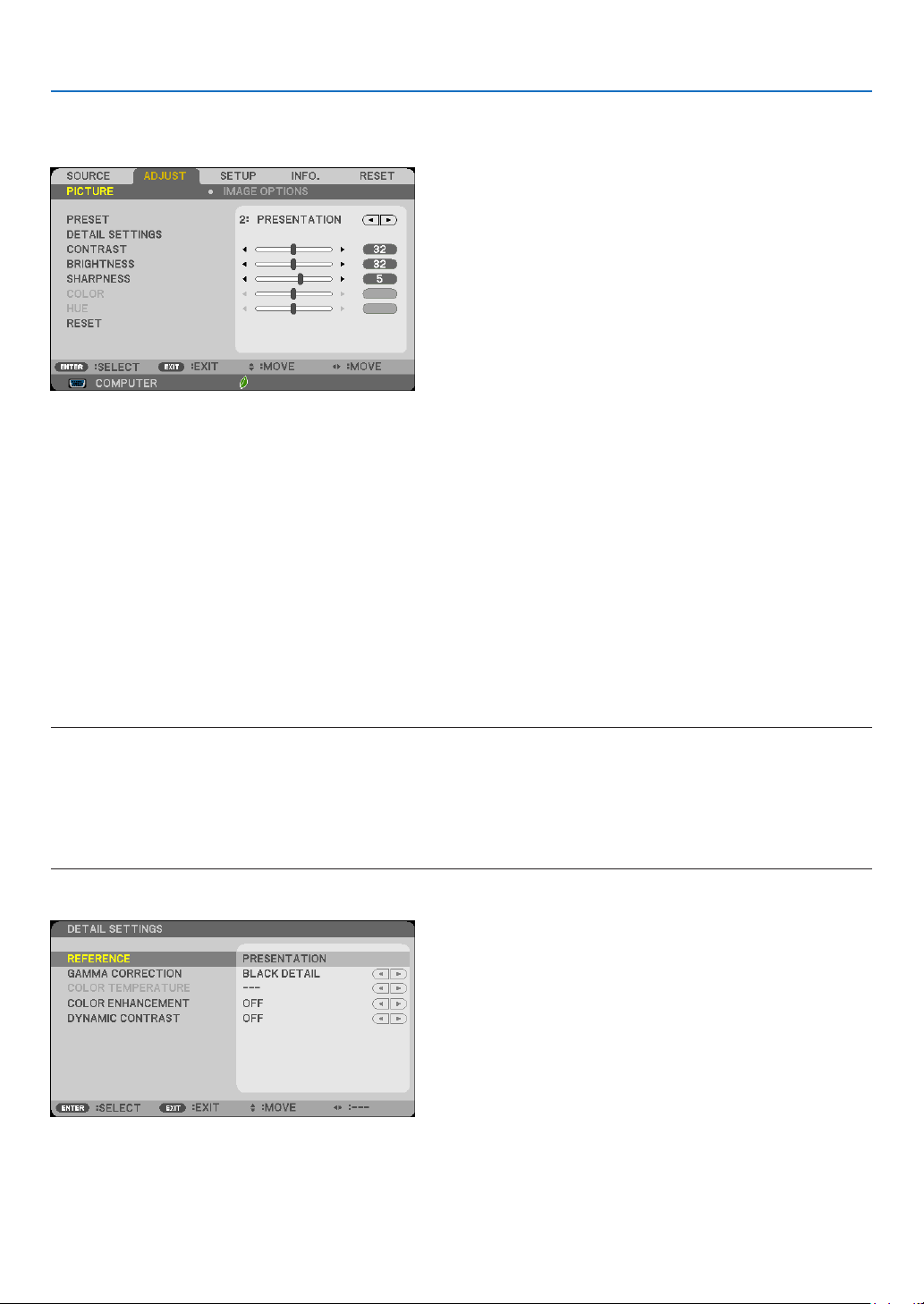
87
5. Using On-Screen Menu
❺ Menu Descriptions & Functions [ADJUST]
[PICTURE]
[PRESET]
Thisfunctionallowsyoutoselectoptimizedsettingsforyourprojectedimage.
Youcanadjustneutraltintforyellow,cyanormagenta.
Therearesevenfactorypresetsoptimizedforvarioustypesofimages.Youcanalsouse[DETAILSETTINGS]toset
useradjustablesettingstocustomizeeachgammaorcolor.
Yoursettingscanbestoredin[PRESET1]to[PRESET7].
HIGH-BRIGHT �������� Recommended for use in a brightly lit room�
PRESENTATION ����� Recommended for making a presentation using a PowerPoint file�
VIDEO �������������������� Recommended for typical TV program viewing�
MOVIE ������������������� Recommended for movies�
GRAPHIC ��������������� Recommended for graphics�
sRGB ��������������������� Standard color values
NATURAL
��������������� Well-balanced brightness and color setting�
DICOM SIM� ���������� Recommended for DICOM simulation format�
NOTE:
• The[DICOMSIM.]optionisfortraining/referenceonlyandshouldnotbeusedforactualdiagnosis.
• DICOMstandsforDigitalImagingandCommunicationsinMedicine.ItisastandarddevelopedbytheAmericanCollegeofRadiol-
ogy(ACR)andtheNationalElectricalManufacturersAssociation(NEMA).
Thestandardspecieshowdigitalimagedatacanbemovedfromsystemtosystem.
• Screenickermayhappendependingontheprojectedimage.Toavoidthis,fromtheon-screenmenuselect[ADJUST]→[PIC-
TURE]→[PRESET]andsettooneoftheitemsotherthan[HIGH-BRIGHT]and[PRESENTATION].
[DETAIL SETTINGS]

88
5. Using On-Screen Menu
StoringYourCustomizedSettings[REFERENCE]
Thisfunctionallowsyoutostoreyourcustomizedsettingsin[PRESET1]to[PRESET7].
First,selectabasepresetmodefrom[REFERENCE],thenset[GAMMACORRECTION],[SCREENSIZE],[COLOR
TEMPERATURE],[COLORENHANCEMENT],and[DYNAMICCONTRAST].
HIGH-BRIGHT �������� Recommended for use in a brightly lit room�
PRESENTATION ����� Recommended for making a presentation using a PowerPoint file�
VIDEO �������������������� Recommended for typical TV program viewing�
MOVIE ������������������� Recommended for movies�
GRAPHIC ��������������� Recommended for graphics�
sRGB ��������������������� Standard color values�
NATURAL ��������������� Well-balanced brightness and color setting�
DICOM SIM� ���������� Recommended for DICOM simulation format�
Selecting Gamma Correction Mode [GAMMA CORRECTION]
Eachmodeisrecommendedfor:
DYNAMIC �������������� Creates a high-contrast picture�
NATURAL ��������������� Natural reproduction of the picture�
BLACK DETAIL ������� Emphasizes detail in dark areas of the picture�
NOTE:Thisfunctionisnotavailablewhen[DICOMSIM.]isselectedfor[DETAILSETTINGS].
SelectingScreenSizeforDICOMSIM[SCREENSIZE]
Thisfunctionwillperformgammacorrectionappropriateforthescreensize.
LARGE ������������������� For screen size of 150"
MEDIUM
���������������� For screen size of 100"
SMALL
������������������� For screen size of 50"
NOTE:Thisfunctionisavailableonlywhen[DICOMSIM.]isselectedfor[DETAILSETTINGS].
AdjustingColorTemperature[COLORTEMPERATURE]
Thisoptionallowsyoutoselectthecolortemperatureofyourchoice.
NOTE:When[PRESENTATION]or[HIGH-BRIGHT]isselectedin[REFERENCE],thisfunctionisnotavailable.
Enhancing the Color [COLOR ENHANCEMENT]
Thisfunctionallowsyoutoadjustthecolordensityoftheimage.
Thecoloroftheimagewillbecomedeeperintheorderof“LOW”,“MEDIUM”and“HIGH”astheimagewillbecome
darker.
With[OFF]selected,theCOLORENHANCEMENTfunctionwillnotwork.
AdjustingBrightnessandContrast[DYNAMICCONTRAST]
Thisfunctionallowsyoutoadjustthecontrastratiooptically.
Toincreasethecontrastratio,select[ON].
NOTE:
• The[DYNMICCONTRAST]itemcannotbeselectedinthefollowingcases:
- When[CONSTANTBRIGHTNESS]isenabledwith[ON]selectedfor[ECOMODE]from[ECOSETTINGS].
- When[ON]isselectedfor[3D]whileimagesareprojected.
• TheECOMODEandDYNAMICCONTRASTfeaturescontrolthelamppower.Somepicturesmaybecomeextremelybrightwhen
usingbothECOMODEandDYNAMICCONTRASTfeaturestocontrolthelamppower.Toavoidthisphenomena,turnofftheECO
MODEandDYNAMICCONTRAST.

89
5. Using On-Screen Menu
[CONTRAST]
Adjuststheintensityoftheimageaccordingtotheincomingsignal.
[BRIGHTNESS]
Adjuststhebrightnesslevelorthebackrasterintensity.
[SHARPNESS]
Controlsthedetailoftheimage.
[COLOR]
Increasesordecreasesthecolorsaturationlevel.
[HUE]
Variesthecolorlevelfrom+/−greento+/−blue.Theredlevelisusedasreference.
Inputsignal CONTRAST BRIGHTNESS SHARPNESS COLOR HUE
COMPUTER/HDMI(RGB) Yes Yes Yes No No
COMPUTER/HDMI(COMPONENT) Yes Yes Yes Yes Yes
VIDEO/COMPONENT Yes Yes Yes Yes Yes
USB-A/LAN/USB-B Yes Yes Yes No No
Yes=Adjustable,No=Notadjustable
[RESET]
Thesettingsandadjustmentsfor[PICTURE]willbereturnedtothefactorysettingswiththeexceptionofthefollowing;
Presetnumbersand[REFERENCE]withinthe[PRESET]screen.
Thesettingsandadjustmentsunder[DETAILSETTINGS]withinthe[PRESET]screenthatarenotcurrentlyselected
willnotbereset.
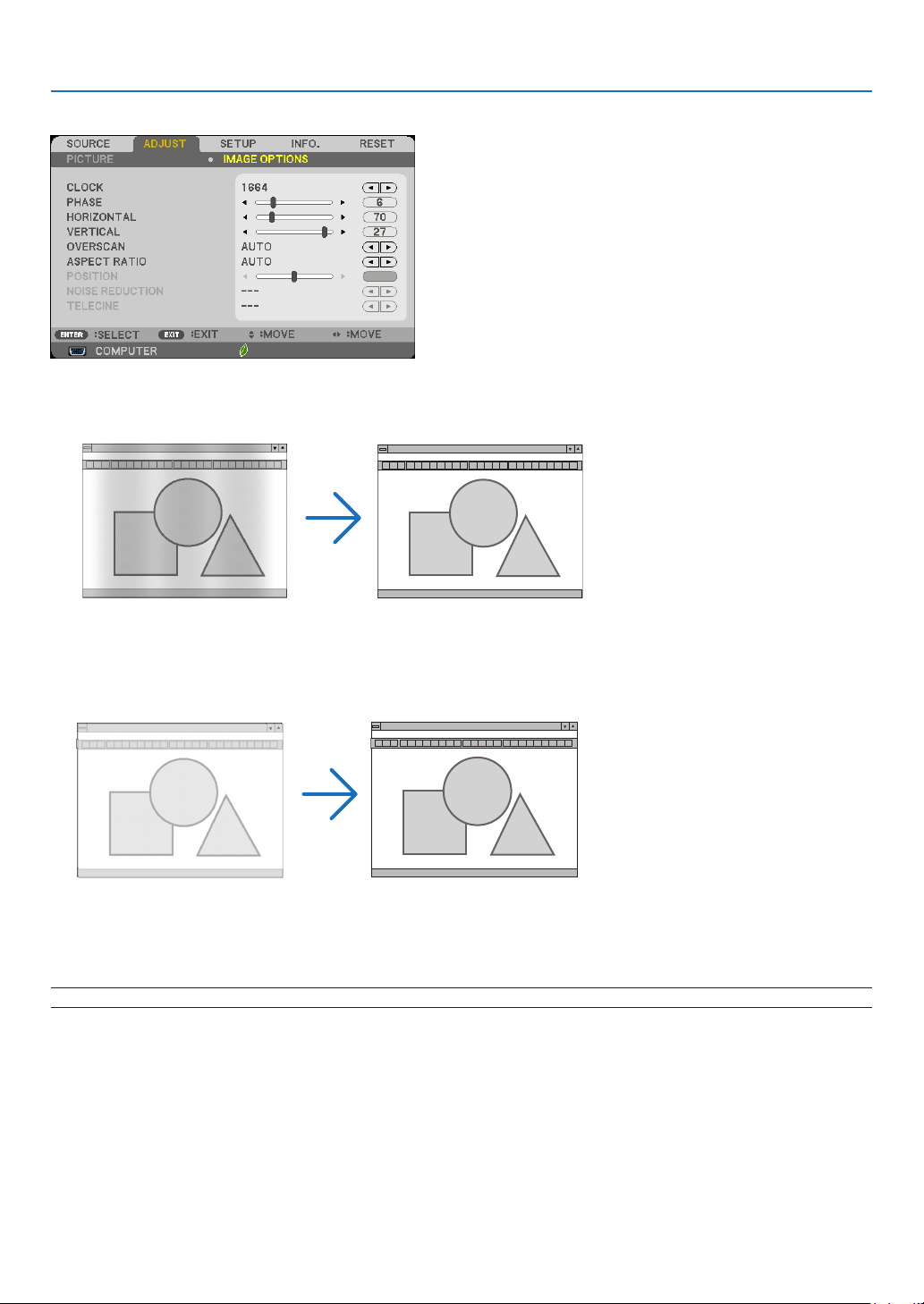
90
5. Using On-Screen Menu
[IMAGE OPTIONS]
AdjustingClockandPhase[CLOCK/PHASE]
ThisallowsyoutomanuallyadjustCLOCKandPHASE.
CLOCK ������������������� Use this item to fine tune the computer image or to remove any vertical banding that might appear� This
function adjusts the clock frequencies that eliminate the horizontal banding in the image�
This adjustment may be necessary when you connect your computer for the first time�
PHASE ������������������� Use this item to adjust the clock phase or to reduce video noise, dot interference or cross talk� (This is
evident when part of your image appears to be shimmering�)
Use [PHASE] only after the [CLOCK] is complete�
NOTE:The[CLOCK]and[PHASE]itemsareavailableforRGBsignalsonly.
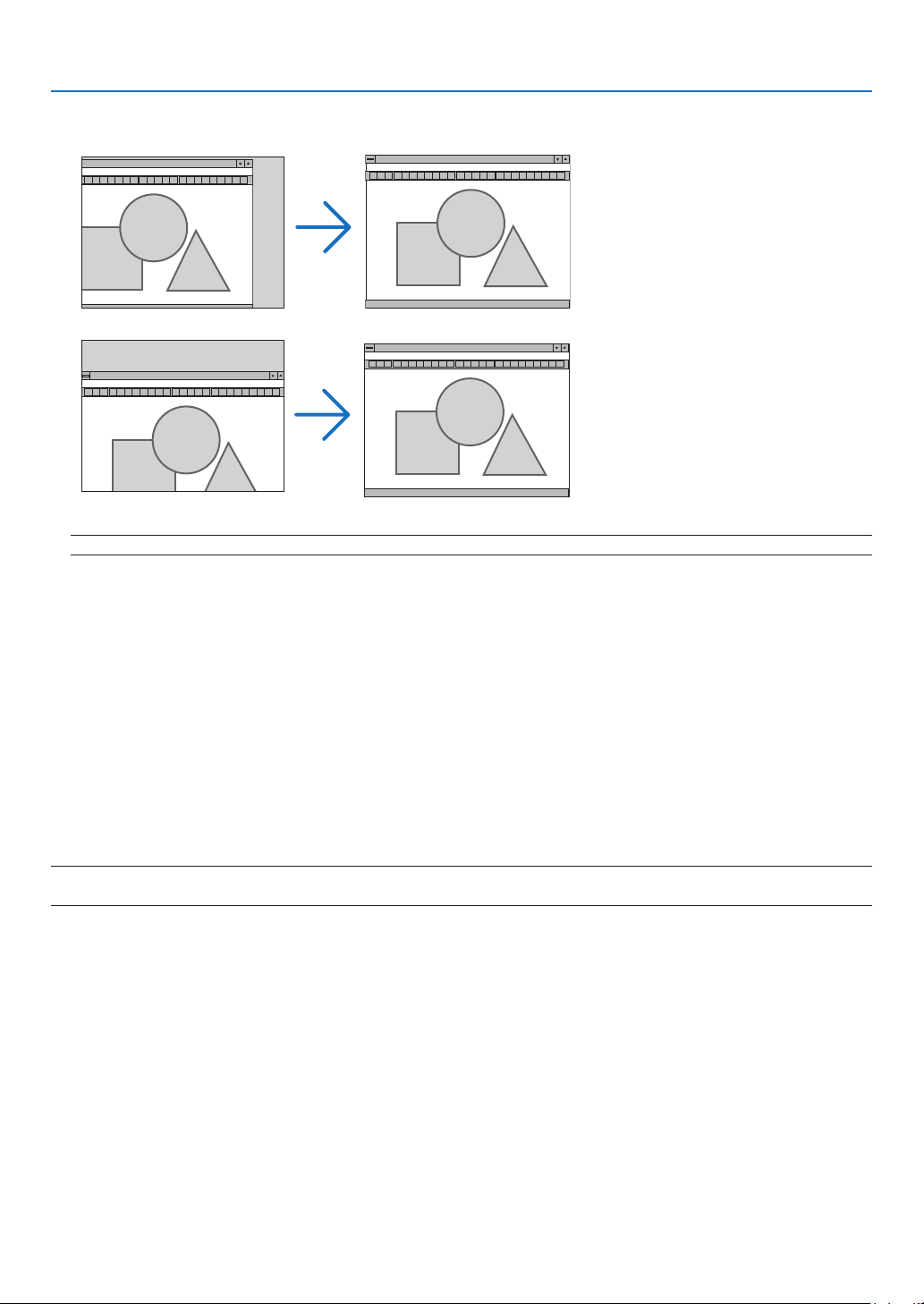
91
5. Using On-Screen Menu
AdjustingHorizontal/VerticalPosition[HORIZONTAL/VERTICAL]
Adjuststheimagelocationhorizontallyandvertically.
NOTE:The[HORIZONTAL]and[VERTICAL]itemsarenotavailableforVIDEO,HDMI1,HDMI2,USB-A,LAN,andUSB-B.
- Animagecanbedistortedduringtheadjustmentof[CLOCK]and[PHASE].Thisisnotmalfunction.
- Theadjustmentsfor[CLOCK],[PHASE],[HORIZONTAL],and[VERTICAL]willbestoredinmemoryforthe
currentsignal.Thenexttimeyouprojectthesignalwiththesameresolution,horizontalandverticalfrequency,
itsadjustmentswillbecalledupandapplied.
Todeleteadjustmentsstoredinmemory,fromthemenu,youselect[RESET]→[CURRENTSIGNAL]or[ALL
DATA]andresettheadjustments.
SelectingOverscanPercentage[OVERSCAN]
Thisallowsyoutosettheappropriateoverscanforanincomingsignal.
AUTO ��������������������� Display an appropriately overscanned image (factory setting)�
OFF ������������������������ Does not overscan the image�
ON ������������������������� Overscans the image�
NOTE:
• The[OVERSCAN]itemcannotbeselectedwhenVIDEOsignalsareusedorwhen[NATIVE]isselectedfor[ASPECTRATIO].
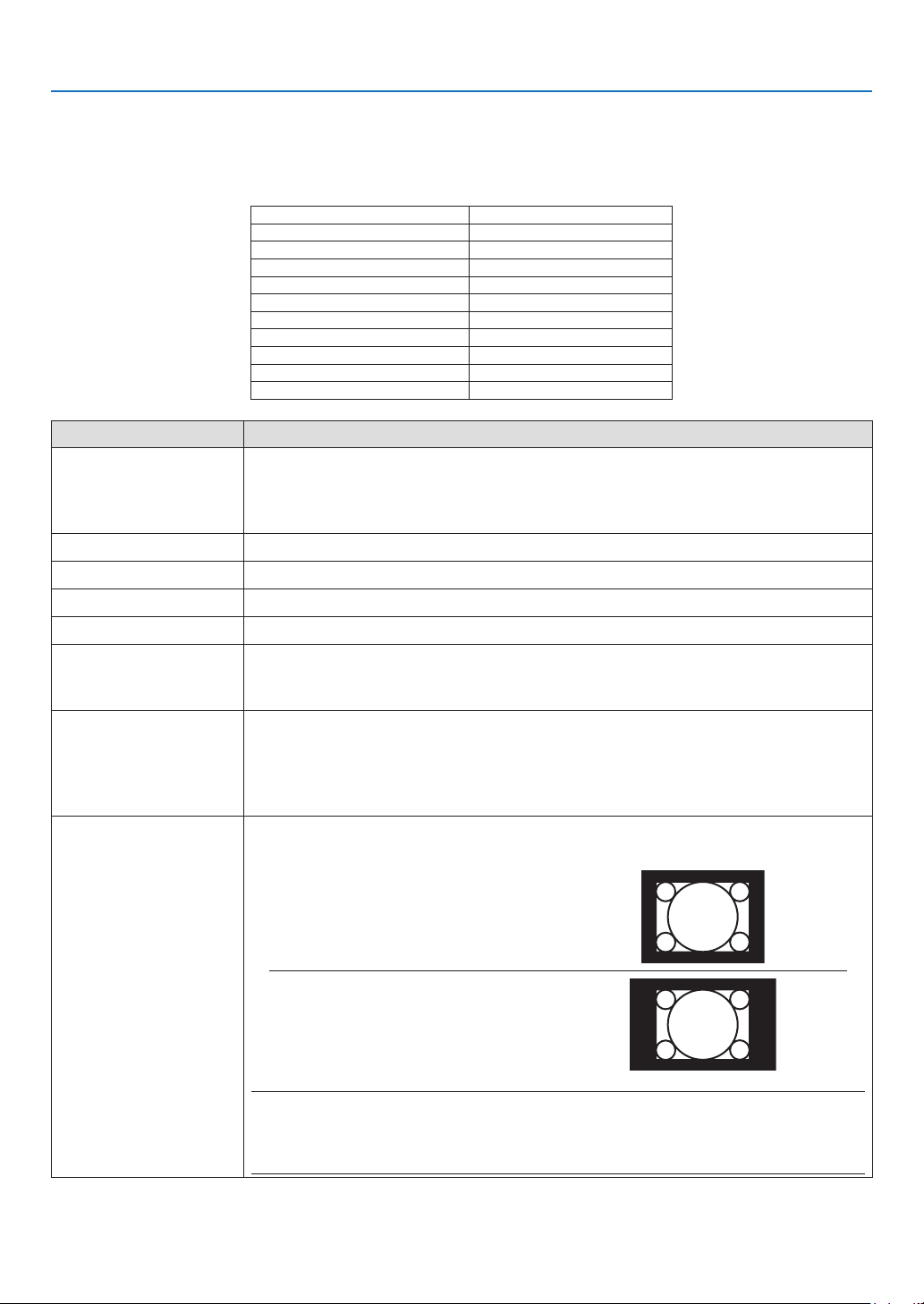
92
5. Using On-Screen Menu
Selecting Aspect Ratio [ASPECT RATIO]
Theterm“aspectratio”referstotheratioofwidthtoheightofaprojectedimage.
Theprojectorautomaticallydeterminestheincomingsignalanddisplaysitinitsappropriateaspectratio.
•Thistableshowstypicalresolutionsandaspectratiosthatmostcomputerssupport.
Resolution AspectRatio
VGA 640×480 4:3
SVGA
800×600 4:3
XGA
1024×768 4:3
WXGA
1280×768 15:9
WXGA
1280×800 16:10
WXGA+
1440×900 16:10
SXGA
1280×1024 5:4
SXGA+
1400×1050 4:3
UXGA
1600×1200 4:3
WUXGA
1920×1200 16:10
Options Function
AUTO
Theprojectorwillautomaticallydeterminetheincomingsignalanddisplayitinitsaspect
ratio.(→ nextpage)
Theprojectormayerroneouslydeterminetheaspectratiodependingonitssignal.Ifthis
occurs,selecttheappropriateaspectratiofromthefollowing.
4:3 Theimageisdisplayedin4:3aspectratio.
16:9 Theimageisdisplayedin16:9aspectratio.
15:9 Theimageisdisplayedin15:9aspectratio.
16:10 Theimageisdisplayedin16:10aspectratio.
WIDEZOOM
(M403X/M363X/M323X/
M283X/M333XS)
Theimageisstretchedleftandright.
Partsofthedisplayedimagearecroppedattheleftandrightedgesandthereforenot
visible.
LETTERBOX
(M403W/M363W/
M323W/M353WS/
M303WS/M403H/
M323H)
Theimageofaletterboxsignalisstretchedequallyinthehorizontalandverticaldirec-
tionstotthescreen.Partsofthedisplayedimagearecroppedatthetopandbottom
edgesandthereforenotvisible.
NATIVE Theprojectordisplaysthecurrentimageinitstrueresolutionwhentheincomingcomputer
signalhasalowerresolutionthantheprojector’snativeresolution.
[Example 1]When the incoming
signalwith theresolution of 800
×600isdisplayedontheM403X/
M363X/M323X/M283X/M333XS:
[Example 2] When the incom-
ingsignalwiththeresolution of
800 × 600 is displayed on the
M403W/M363W/M323W/M353WS/
M303WS/M403H/M323H:
NOTE:
• Whenanon-computersignalisdisplayed,the[NATIVE]isnotavailable.
• Whenasignalwithahigherresolutionthantheprojector’snativeresolutionisdisplayed,[NA-
TIVE]isnotavailable.
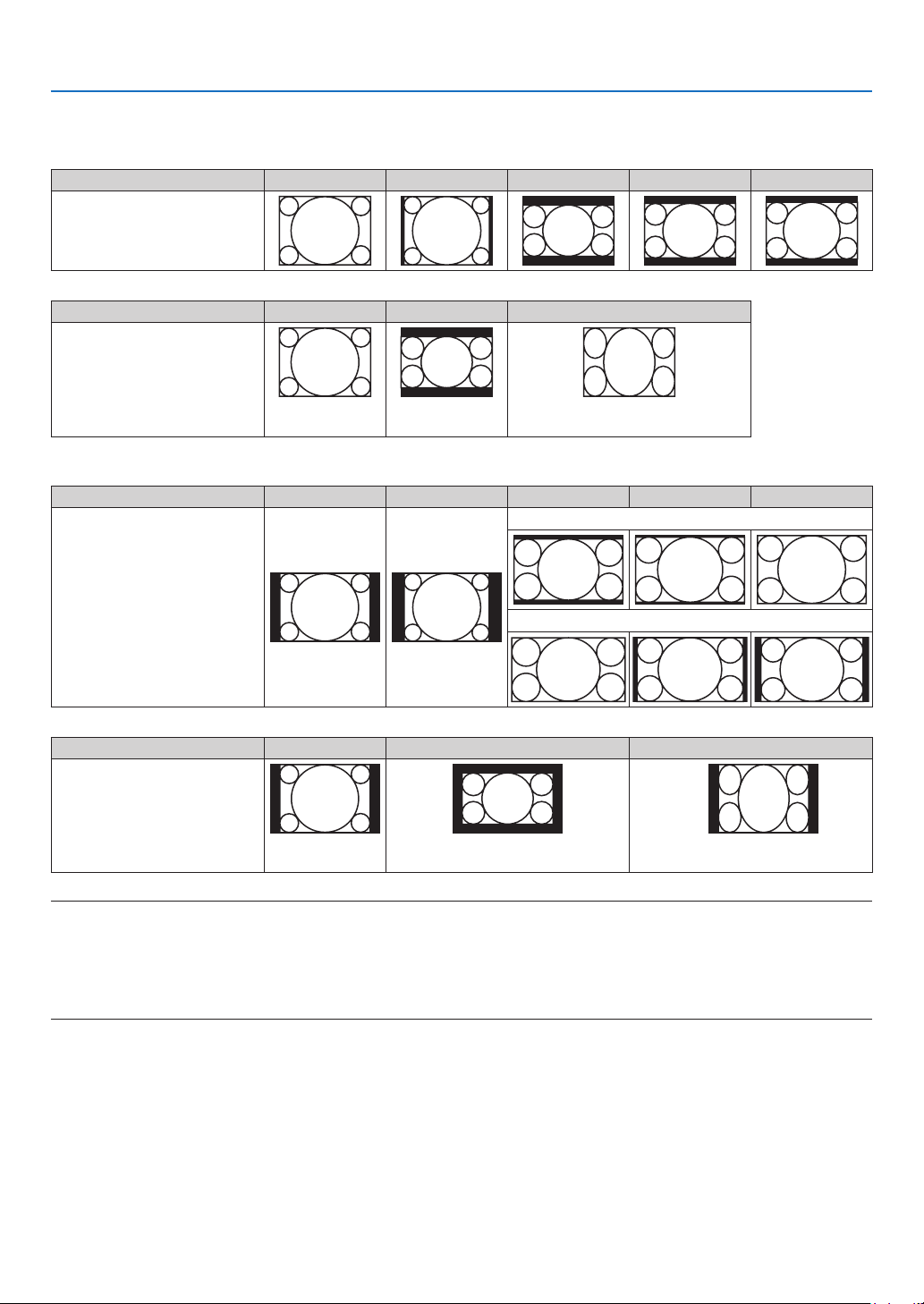
93
5. Using On-Screen Menu
Sample image when the appropriate aspect ratio is automatically determined
M403X/M363X/M323X/M283X/M333XS
[Computersignal]
Aspectratioofincomingsignal 4:3 5:4 16:9 15:9 16:10
Sampleimagewhentheappro-
priate aspectratiois automati-
callydetermined
[Videosignal]
Aspectratioofincomingsignal 4:3 Letterbox Squeeze
Sampleimagewhen the as-
pectratiois automaticallyde-
termined
NOTE:Todisplayasqueezedsignalprop-
erly,select[16:9]or[WIDEZOOM].
M403W/M363W/M323W/M353WS/M303WS/M403H/M323H
[Computersignal]
Aspectratioofincomingsignal 4:3 5:4 16:9 15:9 16:10
Sampleimagewhentheappro-
priate aspectratiois automati-
callydetermined
M403W/M363W/M323W/M353WS/M303WS
M403H/M323H
[Videosignal]
Aspectratioofincomingsignal 4:3 Letterbox Squeeze
Sampleimagewhen the as-
pectratiois automaticallyde-
termined
NOTE:Todisplayaletterboxsignalprop-
erly,select[LETTERBOX].
NOTE:Todisplayasqueezedsignalprop-
erly,select[16:9].
TIP:
• Imagepositioncanbeadjustedverticallyusing[POSITION]whenthe[16:9],[15:9],or[16:10]aspectratiosareselected.
• Theterm“letterbox”referstoamorelandscape-orientedimagewhencomparedtoa4:3image,whichisthestandardaspect
ratioforavideosource.
Theletterboxsignalhasaspectratioswiththevistasize“1.85:1”orcinemascopesize“2.35:1”formovielm.
• Theterm“squeeze”referstothecompressedimageofwhichaspectratioisconvertedfrom16:9to4:3.

94
5. Using On-Screen Menu
AdjustingtheVerticalPositionofImage[POSITION](notavailableonM403W/M363W/M323W/
M353WS/M303WS/M403H/M323H)
(onlywhen[16:9],[15:9],or[16:10]isselectedfor[ASPECTRATIO])
When[16:9],[15:9],or[16:10]isselectedin[ASPECTRATIO],theimageisdisplayedwithblackbordersonthetop
and bottom.
Youcanadjusttheverticalpositionfromthetoptothebottomoftheblackarea.
Turning on Noise Reduction [NOISE REDUCTION]
Thisfunctionallowsyoutoselectthelevelofnoisereduction.
Theprojectorissettotheoptimizedlevelforeachsignalatthefactory.
Selectyourpreferenceitemforyoursignalwhenvideonoiseisnoticeable.
Theoptionsare[OFF],[LOW],[MEDIUM],and[HIGH].
NOTE:ThisfeatureisnotavailablefortheRGBsignal.Noisereductionsettooffgivesbestimagequalitybywayofhigherbandwidth.
Noisereductionsettoonsoftenstheimage.
Setting Telecine Mode [TELECINE]
Thisfunctionallowsyoutoconvertmotionpicturelmimagesintovideo.Theprocessaddsadditionalframestothe
pictureinordertoincreasetheframerate.
NOTE:ThisfeatureisavailableonlywhenanSDTVsignalisselected.
OFF ������������������������ Turns off the TELECINE mode�
2-2/2-3 AUTO �������� Detects pull-down correction method�
2-2 ON ������������������� Uses 2-2 pull-down correction method
2-3 ON
������������������� Uses 2-3 pull-down correction method
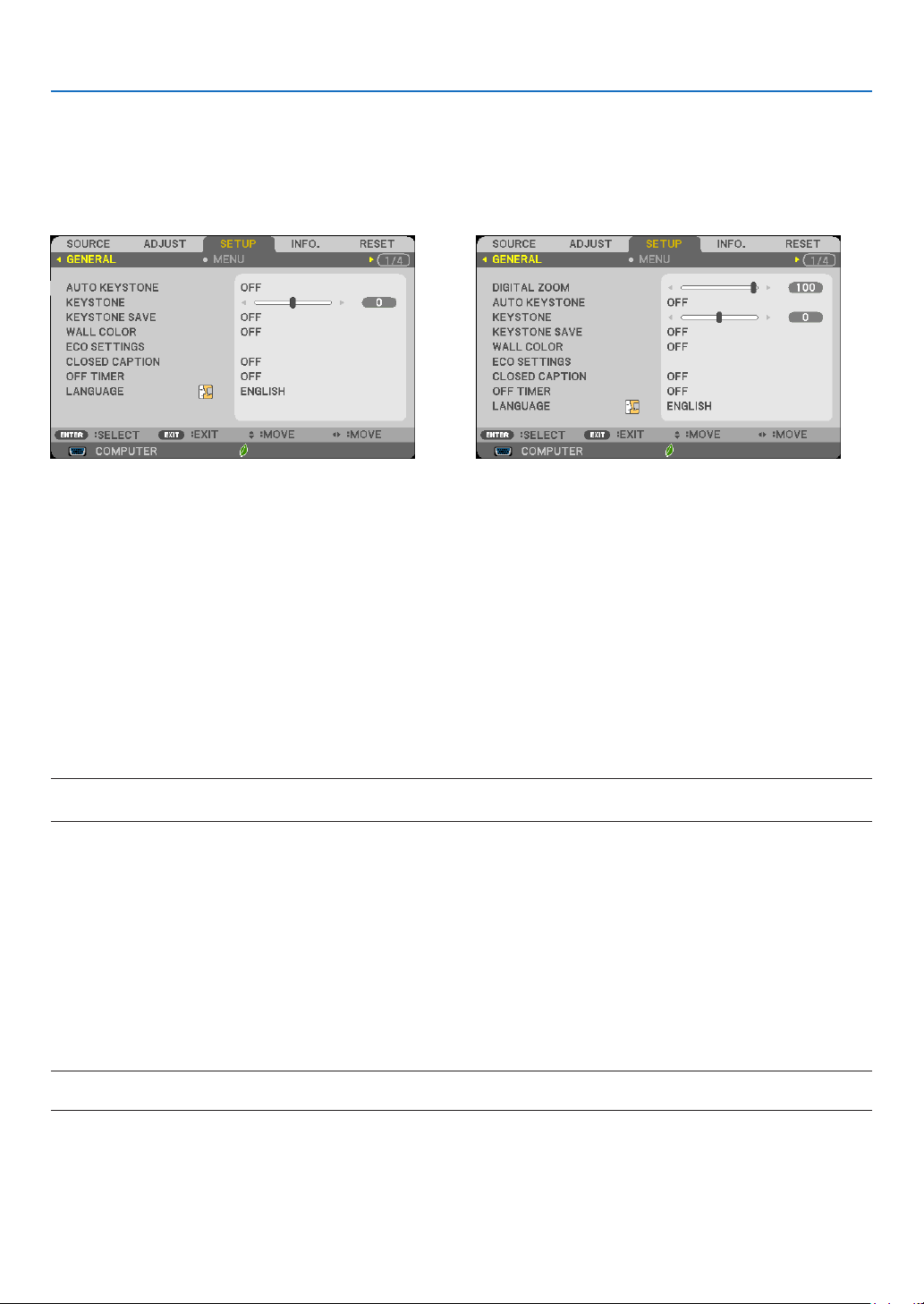
95
5. Using On-Screen Menu
❻ Menu Descriptions & Functions [SETUP]
[GENERAL]
[M403W/M363W/M323W/M403X/M363X/M323X/
M283X/M403H/M323H]
[M353WS/M303WS/M333XS]
UsingDigitalZoom[DIGITALZOOM](M353WS/M303WS/M333XS)
Thisfeatureallowsyoutoelectronicallyneadjusttheimagesizeonthescreen.Usethe◀ or ▶buttontolargeor
reducetheprojectedimage.
TIP:Toadjusttheprojectedimagesizeroughly,movetheprojectorawayorclosertothescreen.Toneadjustthezoom,usethe
[DIGITALZOOM]function.(→page20)
Enabling Auto Keystone [AUTO KEYSTONE]
Thisfeatureallowstheprojectortodetectitstiltandcorrectverticaldistortionautomatically.
ToturnontheAUTOKEYSTONEfeature,select[ON].ToadjusttheKEYSTONEfeaturemanually,select[OFF].
CorrectingHorizontalandVerticalKeystoneDistortionManually[KEYSTONE]
Youcancorrecthorizontalandverticaldistortionmanually.(→page22)
NOTE:
• The[HORIZONTAL]keystoneitemisnotavailableonM353WS/M303WS/M333XS.
TIP:Whenthisoptionishighlighted,pressingtheENTERbuttonwilldisplayitsslidebarforadjustment.
SavingKeystoneCorrection[KEYSTONESAVE]
Thisoptionenablesyoutosaveyourcurrentkeystonesettings.
OFF ������������������������ Does not save current keystone correction settings� It will return your keystone correction settings to
“zero”�
ON ������������������������� Saves current keystone correction settings
Savingyourchangeonceaffectsallsources.Thechangesaresavedwhentheprojectoristurnedoff.
NOTE:When[AUTOKEYSTONE]issetto[ON],[KEYSTONESAVE]isnotavailable.Nexttimeyouturnonthepower,theAUTO
KEYSTONEfunctionwillworkandthedatastoredwith[KEYSTONESAVE]willbeinvalid.
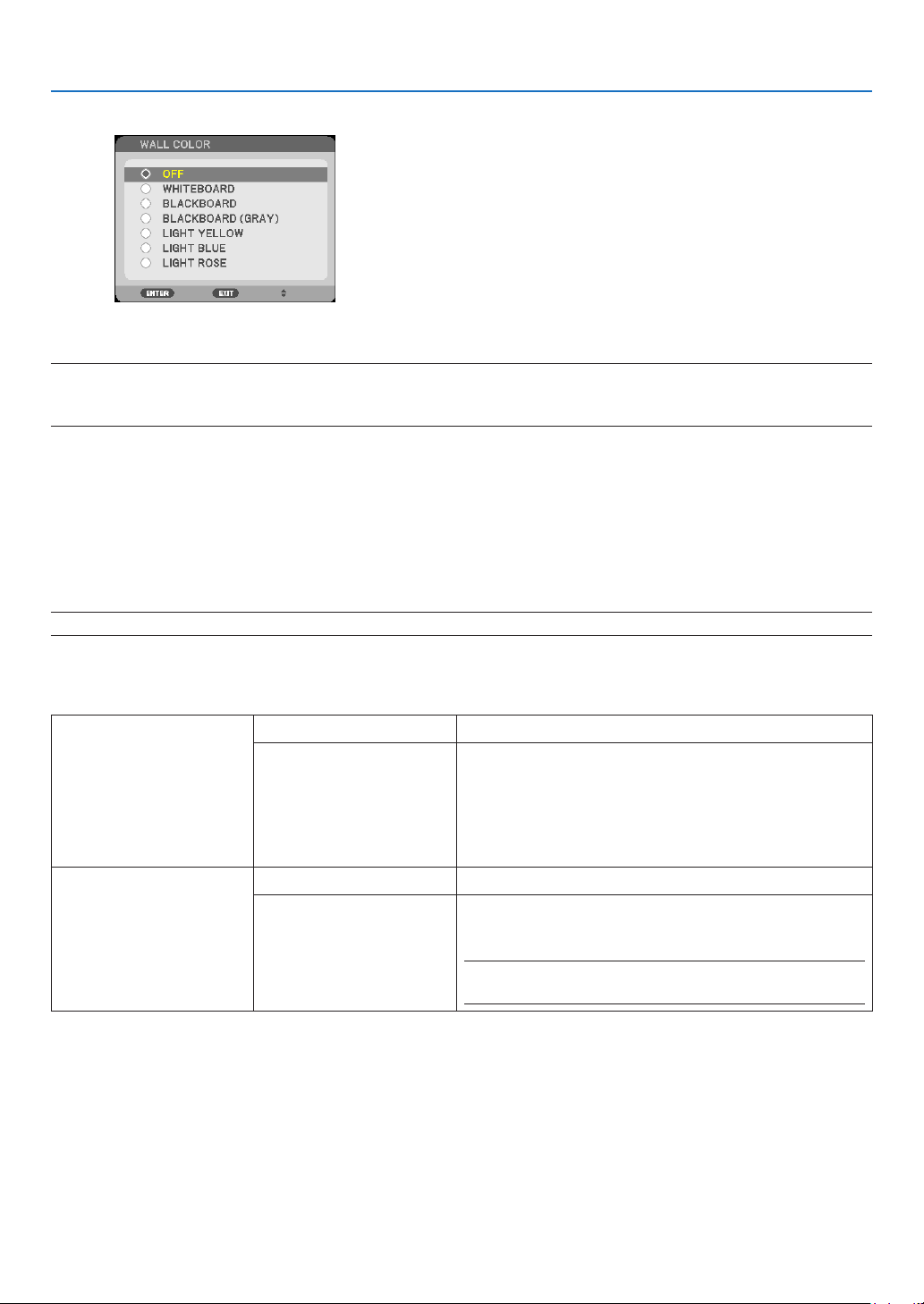
96
5. Using On-Screen Menu
Using the Wall Color Correction [WALL COLOR]
Thisfunctionallowsforquickadaptivecolorcorrectioninapplicationswherethescreenmaterialisnotwhite.
NOTE:
• Selecting[WHITEBOARD]reduceslampbrightness.
• The[WALLCOLOR]itemcannotbeselectedwhen[ON]isselectedfor[3D]whileimagesareprojected.
Setting various items related to lamp brightness [ECO SETTINGS]
Thisoptionallowsyoutodecreasethepowerconsumptionortoprolongthelamplifebycontrollingthelampbright-
ness.
ECO MODE
TheECOMODEincreaseslamplife,whileloweringpowerconsumptionandcuttingdownonCO2emissions.Four
brightnessmodesofthelampcanbeselected:[OFF],[AUTOECO],[NORMAL]and[ECO]modes.(→page31)
NOTE:The[OFF]itemisautomaticallyselectedfor[ECOMODE]when[ON]isselected[3D]whileimagesareprojected.
AUTO ECO OPTIONS
Setoptionswhen[AUTOECO]isselectedfor[ECOMODE].
AUTODIM OFF TheAUTODIMfeaturewillnotwork.
0:01,0:03,0:10,0:20
(min.)
This option will automaticallydim thelamp lightwhen
noinputsignalispresentforacertainperiodtime:0:01,
0:03,0:10,and0:20(minutes).Whenitreachesthepre-
settime,thelampbrightnesswilldecreasetoabout30%
immediatelyafterthescreenbecomesdimforamoment.
Changingimageswillreturntoitsoriginalbrightness.
ROOMLIGHTSENSING OFF Thesensorwillnotwork.
ON Thesensorwilldetectambientbrightnessandcontrolthe
lampbrightness.Iftheprojectorisplacedinadarkroom,
thelampbrightnesswillautomaticallydecrease.
NOTE:Thebrightnesscannotbechangedwhen[CEILINGREAR]
or[CEILINGFRONT]isselectedfor[ORIENTATION].
NORMAL OPTION
Settheoptionwhen[NORMAL]isselectedfor[ECOMODE].
CONSTANTBRIGHTNESS:
OFF ������������������������ The CONSTANT BRIGHTNESS feature will not work� The lamp brightness will gradually decrease over long
periods of time�
ON ������������������������� The lamp brightness will increase according to the lamp use of time and will be kept at the lamp brightness
equivalent to the brightness at NORMAL� After the lamp brightness reaches the maximum, the lamp bright-
ness will gradually decrease over long periods of time�

97
5. Using On-Screen Menu
ECO OPTION
Settheoptionwhen[ECO]isselectedfor[ECOMODE].
CONSTANTBRIGHTNESS:
OFF ������������������������ The CONSTANT BRIGHTNESS feature will not work� The lamp brightness will gradually decrease over long
periods of time�
ON ������������������������� The lamp brightness will increase according to the lamp use of time and will be kept at the lamp brightness
equivalent to the brightness at ECO� After the lamp brightness reaches the maximum, the lamp brightness will
gradually decrease over long periods of time� The lamp brightness will be kept longer than at NORMAL�
Setting Closed Caption [CLOSED CAPTION]
ThisoptionsetsseveralclosedcaptionmodesthatallowtexttobesuperimposedontheprojectedimageofVideo.
OFF ������������������������ This exits the closed caption mode�
CAPTION 1-4 ��������� Text is superimposed�
TEXT 1-4 ���������������� Text is displayed�
NOTE:
• Theclosedcaptionisnotavailableunderthefollowingconditions:
- whenmessagesormenusaredisplayed.
- whenanimageismagnied,frozen,ormuted.
• Portionsofsuperimposedtextorclosedcaptionmaybetruncated.Ifthathappens,trytoplacethesuperimposedtextor
closedcaptionwithinthescreen.
• Theprojectordoesnotsupportoptionalextendedcharactersforclosedcaptioning.
Using Off Timer [OFF TIMER]
1. Selectyourdesiredtimebetween30minutesand16hours:OFF,0:30,1:00,2:00,4:00,8:00,12:00,16:00.
2. Press the ENTER button on the remote control.
3. Theremainingtimestartscountingdown.
4. Theprojectorwillturnoffafterthecountdowniscomplete.
NOTE:
• Tocancelthepresettime,set[OFF]forthepresettimeorturnoffthepower.
• Whentheremainingtimereaches3minutesbeforetheprojectoristurnedoff,the[THEPROJECTORWILLTURNOFFWITHIN3
MINUTES]messagewillbedisplayedonthebottomofthescreen.
Selecting Menu Language [LANGUAGE]
Youcanchooseoneof29languagesforon-screeninstructions.
NOTE:Yoursettingwillnotbeaffectedevenwhen[RESET]isdonefromthemenu.
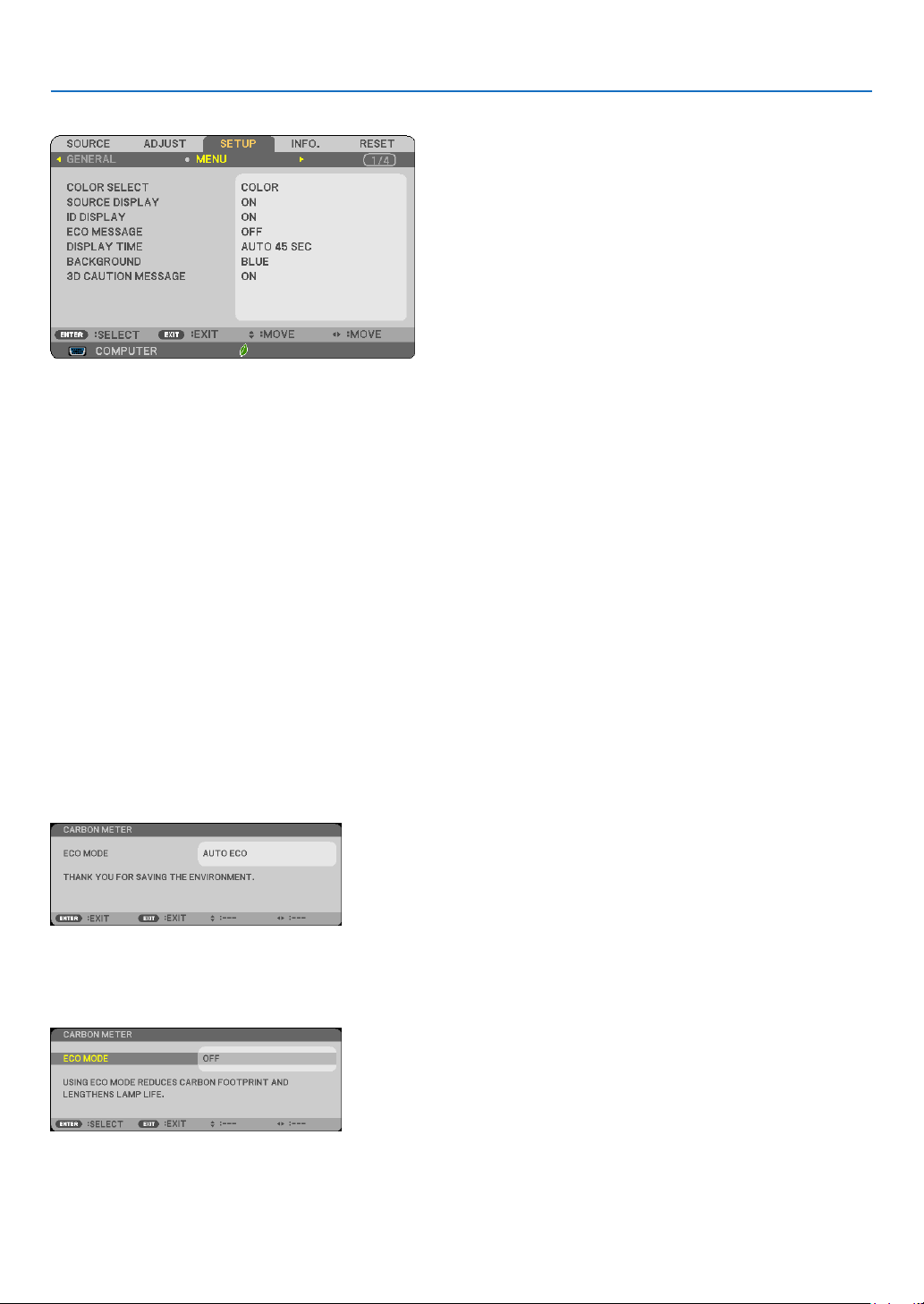
98
5. Using On-Screen Menu
[MENU]
Selecting Menu Color [COLOR SELECT]
Youcanchoosebetweentwooptionsformenucolor:COLORandMONOCHROME.
Turning On / Off Source Display [SOURCE DISPLAY]
ThisoptionturnsonoroffinputnamedisplaysuchasCOMPUTER,HDMI1,HDMI2,VIDEO,USB-A,LAN,USB-B,
tobedisplayedonthetoprightofthescreen.
Whennoinputsignalispresent,theno-signalguidancepromptingyoutocheckforanavailableinputwillbedisplayed
atthecenterofthescreen.Whenthe[USB-A]or[LAN]itemisselectedfor[SOURCE],theno-signalguidancewill
notbedisplayed.
Turning ON/OFF Control ID [ID DISPLAY]
ID DISPLAY ����������� This option turns on or off the ID number which is displayed when the ID SET button on the remote control
is pressed�
Turning On / Off Eco Message [ECO MESSAGE]
Thisoptionturnsonoroffthefollowingmessageswhentheprojectoristurnedon.
TheEcoMessagepromptstheusertosaveenergy.When[OFF]isselectedfor[ECOMODE],youwillgetamessage
topromptyoutoselect[AUTOECO],[NORMAL],or[ECO]for[ECOMODE].
When[AUTOECO],[NORMAL],or[ECO]isselectedfor[ECOMODE]
Toclosethemessage,pressanyoneofthebuttons.Themessagewilldisappearifnobuttonoperationisdonefor
30 seconds.
When[OFF]isselectedfor[ECOMODE]
PressingtheENTERbuttonwilldisplaythe[ECOMODE]screen.(→page31)
Toclosethemessage,presstheEXITbutton.

99
5. Using On-Screen Menu
Selecting Menu Display Time [DISPLAY TIME]
Thisoptionallowsyoutoselecthowlongtheprojectorwaitsafterthelasttouchofabuttontoturnoffthemenu.The
presetchoicesare[MANUAL],[AUTO5SEC],[AUTO15SEC],and[AUTO45SEC].The[AUTO45SEC]isthefac-
torypreset.
SelectingaColororLogoforBackground[BACKGROUND]
Use this feature to displayablue/black screen orlogowhen no signal isavailable.The default background is
[BLUE].
NOTE:
• Ifthe[LOGO]itemisselectedfor[BACKGROUND]withthe[LAN]or[USB-B]sourceselected,the[LOGO]itemwillbeselected
regardlessofitsselection.
• When[SOURCEDISPLAY]isturnedon,theno-signalguidancepromptingyoutocheckforanavailableinputwillbedisplayed
atthecenterofthescreenregardlessofitsselection.
• Yoursettingwillnotbeaffectedevenwhen[RESET]isdonefromthemenu.
[3D CAUTION MESSAGE]
Thisselectswhethertodisplayacautionmessageornotwhenswitchingtoa3Dvideo.
ThedefaultconditionwhenshippedfromthefactoryisON.
OFF ������������������������ The 3D caution message screen will not be displayed�
ON ������������������������� The 3D caution message screen will be displayed when switching to a 3D video�Press the ENTER button to
cancel the message�
• Themessagewilldisappearautomaticallyafter60secondsorwhenotherbuttonsarepressed.Ifitdisappears
automatically,the3Dcautionmessagewillbedisplayedagainwhenswitchingtoa3Dvideo.
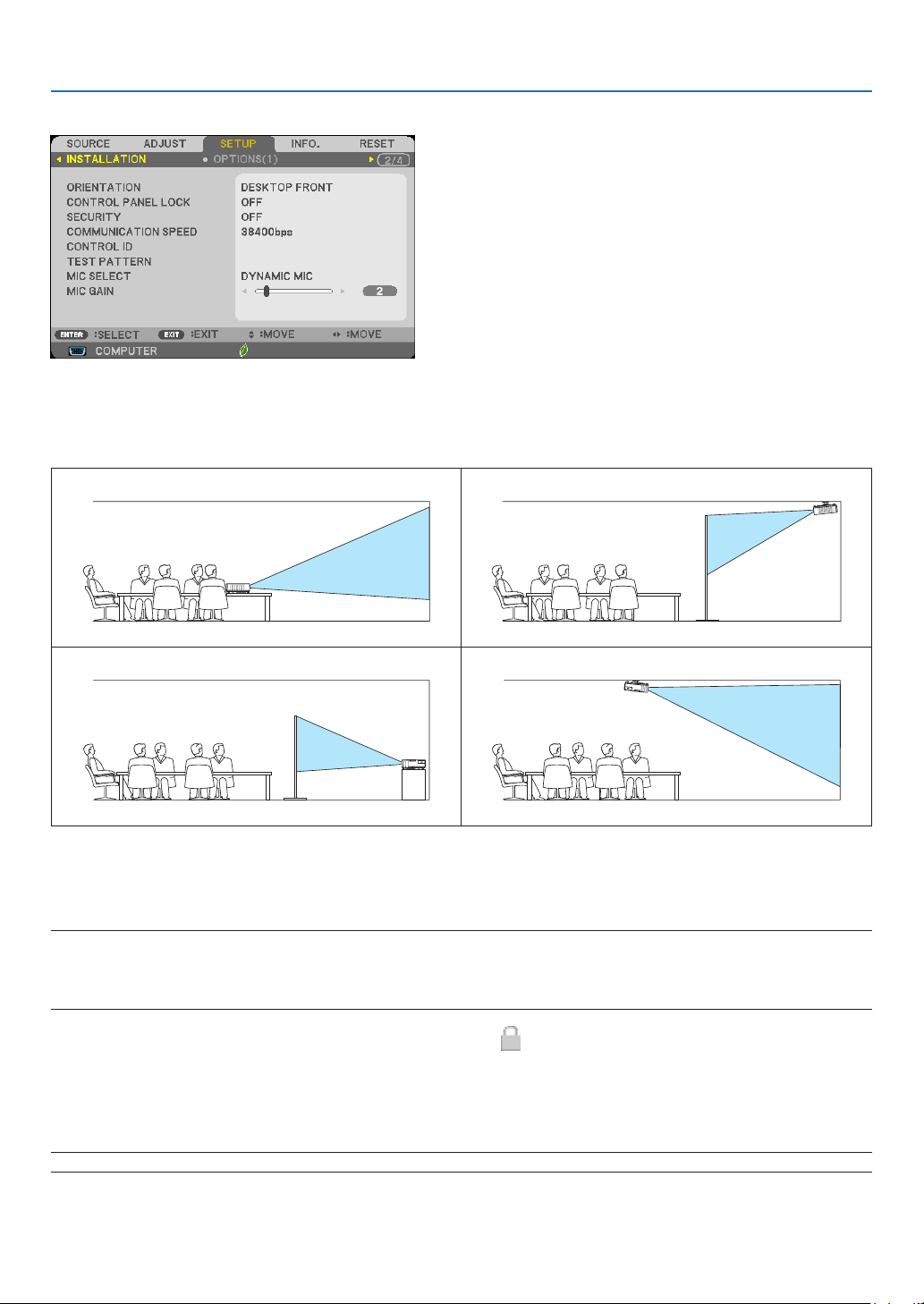
100
5. Using On-Screen Menu
[INSTALLATION]
SelectingProjectorOrientation[ORIENTATION]
Thisreorientsyourimageforyourtypeofprojection.Theoptionsare:desktopfrontprojection,ceilingrearprojection,
desktoprearprojection,andceilingfrontprojection.
DESKTOPFRONT CEILINGREAR
DESKTOPREAR CEILINGFRONT
Disabling the Cabinet Buttons [CONTROL PANEL LOCK]
ThisoptionturnsonorofftheCONTROLPANELLOCKfunction.
NOTE:
• ThisCONTROLPANELLOCKdoesnotaffecttheremotecontrolfunctions.
• Whenthecontrolpanelislocked,pressingandholdingtheSOURCEbuttonontheprojectorcabinetforabout10secondswill
changethesettingto[OFF].
TIP:Whenthe[CONTROLPANELLOCK]isturnedon,akeylockicon[ ]willbedisplayedatthebottomrightofthemenu.
Enabling Security [SECURITY]
ThisfeatureturnsonorofftheSECURITYfunction.
Unlessthecorrectkeywordisentered,theprojectorcannotprojectanimage.(→page33)
NOTE:Yoursettingwillnotbeaffectedevenwhen[RESET]isdonefromthemenu.
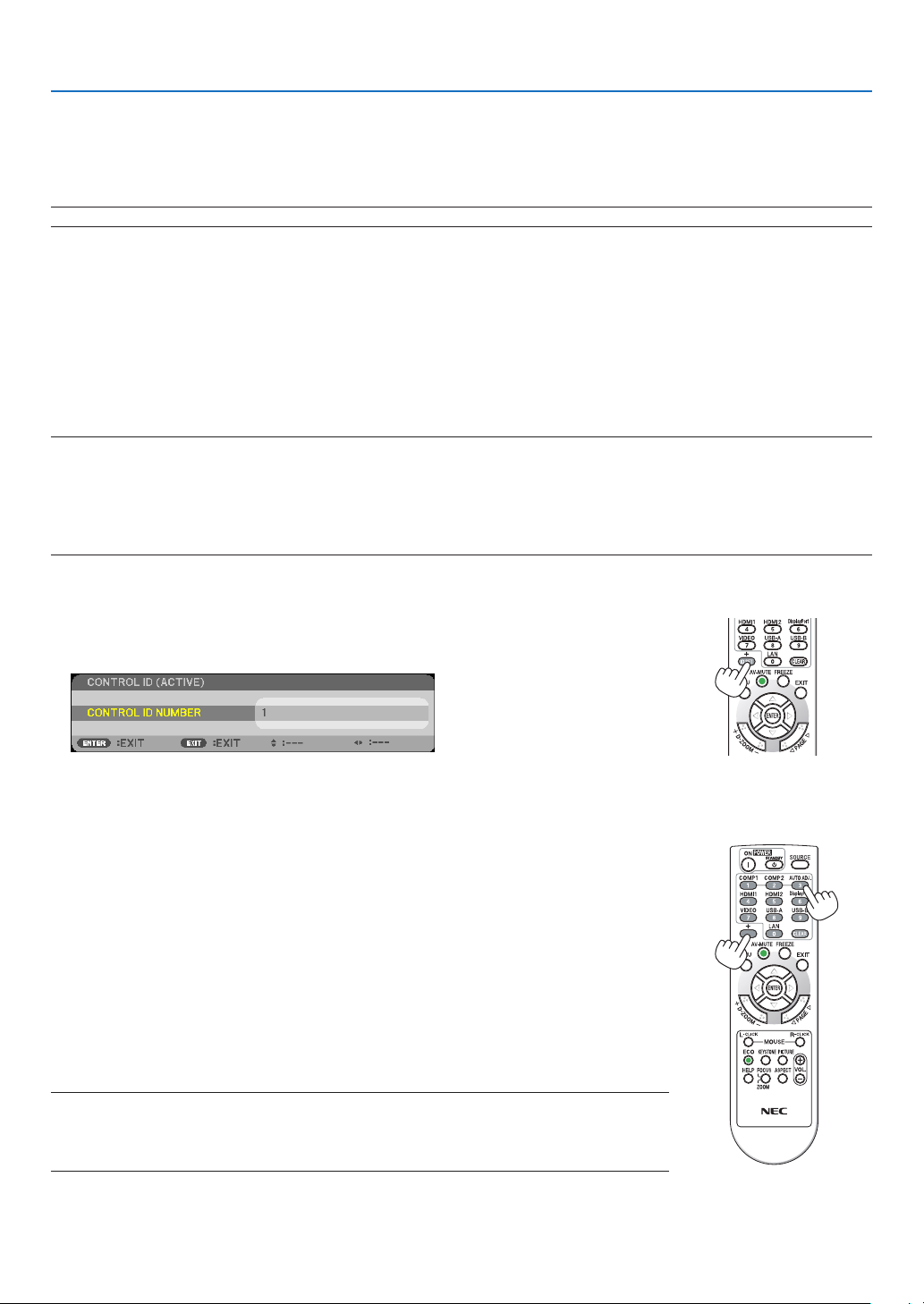
101
5. Using On-Screen Menu
Selecting Communication Speed [COMMUNICATION SPEED]
ThisfeaturesetsthebaudrateofthePCControlport(D-Sub9P).Itsupportsdataratesfrom4800to38400bps.The
defaultis38400bps.Selecttheappropriatebaudrateforyourequipmenttobeconnected(dependingontheequip-
ment,alowerbaudratemayberecommendedforlongcableruns).
NOTE:Yourselectedcommunicationspeedwillnotbeaffectedevenwhen[RESET]isdonefromthemenu.
SettingIDtotheProjector[CONTROLID]
YoucanoperatemultipleprojectorsseparatelyandindependentlywiththesingleremotecontrolthathastheCONTROL
IDfunction.IfyouassignthesameIDtoalltheprojectors,youcanconvenientlyoperatealltheprojectorstogether
usingthesingleremotecontrol.Todoso,youhavetoassignanIDnumbertoeachprojector.
CONTROL ID NUMBER �������Select a number from 1 to 254 you wish to assign to your projector�
CONTROL ID �����������������������Select [OFF] to turn off the CONTROL ID setting and select [ON] to turn on the CONTROL ID set-
ting�
NOTE:
• When[ON]isselectedfor[CONTROLID],theprojectorcannotbeoperatedbyusingtheremotecontrolthatdoesnotsupport
theCONTROLIDfunction.(Inthiscasethebuttonsontheprojectorcabinetcanbeused.)
• Yoursettingwillnotbeaffectedevenwhen[RESET]isdonefromthemenu.
•PressingandholdingtheENTERbuttonontheprojectorcabinetfor10secondswilldisplaythemenuforcancelingtheControl
ID.
Assigning or Changing the Control ID
1. Turn on the projector.
2. PresstheIDSETbuttonontheremotecontrol.
TheCONTROLIDscreenwillbedisplayed.
IftheprojectorcanbeoperatedwiththecurrentremotecontrolID,the[ACTIVE]willbedisplayed.Iftheprojector
cannotbeoperatedwiththecurrentremotecontrolID,the[INACTIVE]willbedisplayed.Tooperatetheinactive
projector,assignthecontrolIDusedfortheprojectorbyusingthefollowingprocedure(Step3).
3. PressoneofnumerickeypadbuttonswhilepressingandholdingtheIDSET
button on the remote control.
Example:
Toassign“3”,pressthe“3”buttonontheremotecontrol.
NoIDmeansthatalltheprojectorscanbeoperatedtogetherwithasingleremote
control.Toset“NoID”,enter“000”orpresstheCLEARbutton.
TIP:TherangeofIDsisfrom1to254.
4. ReleasetheIDSETbutton.
TheupdatedCONTROLIDscreenwillbedisplayed.
NOTE:
•TheIDscanbeclearedinafewdaysafterthebatteriesarerundownorremoved.
•Accidentallypressinganyoneofthebuttonsoftheremotecontrolwillclearcurrentlyspecied
IDwithbatteriesremoved.
ID SET
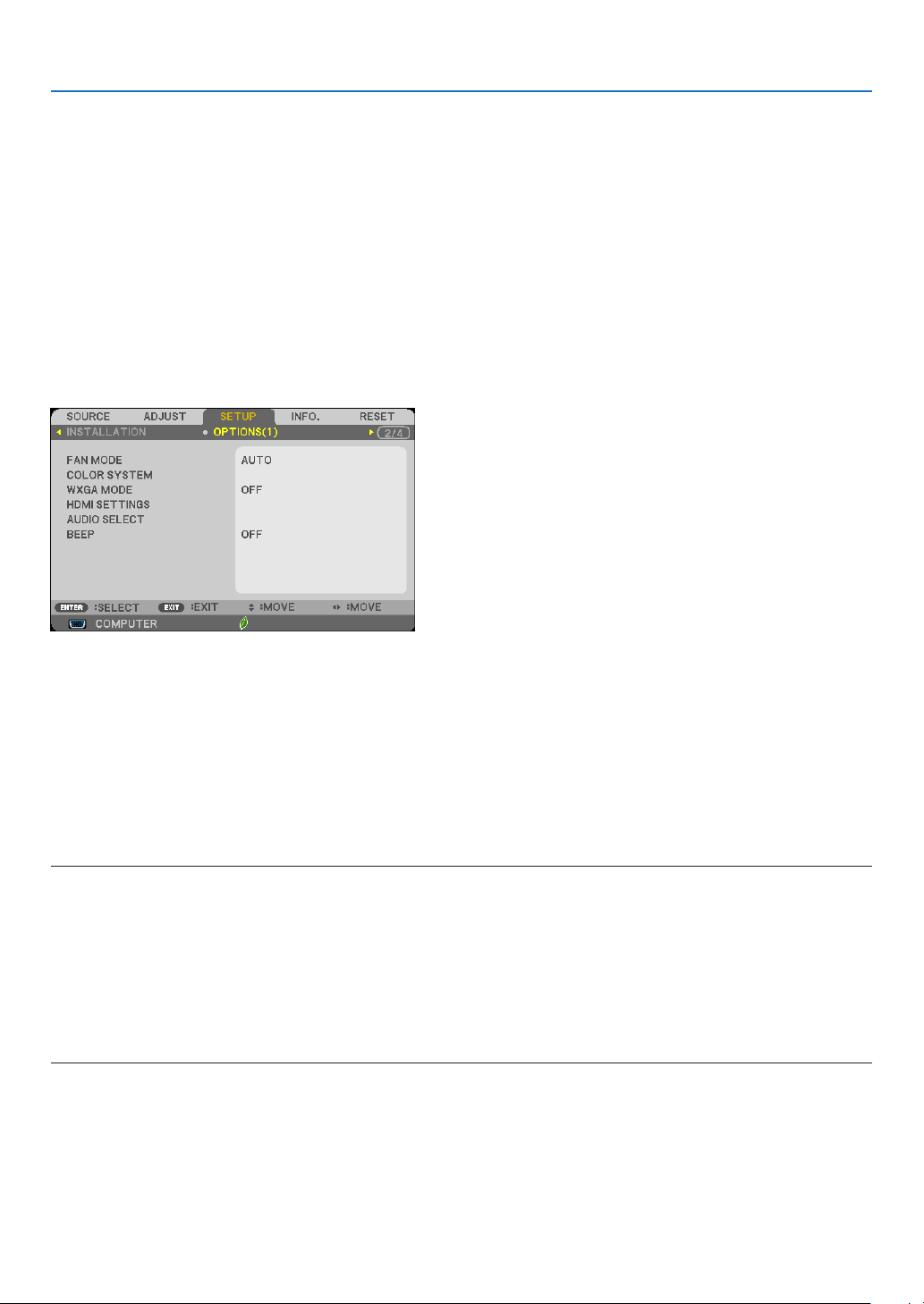
102
5. Using On-Screen Menu
Using Test Pattern [TEST PATTERN]
Displaysthetestpatterntocheckforimagedistortionatthetimeoftheprojectorsetup.PresstheENTERbuttonto
displaythetestpattern;presstheEXITbuttontoclosethetestpatternandreturntothemenu.Menuoperationand
keystonecorrectionarenotpossiblewhenthetestpatternisdisplayed.
Selecting Microphone Type [MIC SELECT]
Thisfeatureallowsyoutoselectdynamicorcondensertypeforyourmicrophone.
Setting MIC Gain [MIC GAIN]
ThisfeatureallowsyoutoadjustyourmicrophonesensitivitywhenitisconnectedtotheMICinputjackoftheprojec-
tor.MicrophonevolumecanbeadjustedwiththeVOL.(+)or(−)buttonontheremotecontrolorthe◀ or ▶ on the
projectorcabinet.
[OPTIONS(1)]
Selecting Fan Mode [FAN MODE]
Thisoptionallowsyoutoselectthreemodesforfanspeed:Automode,Highspeedmode,andHighAltitudemode.
AUTO ��������������������� The built-in fans automatically run at a variable speed according to the internal temperature�
HIGH ���������������������� The built-in fans run at high speed�
HIGH ALTITUDE ����� The built-in fans run at a high speed� Select this option when using the projector at altitudes approximately
5500 feet/1700 meters or higher�
Whenyouwishtocooldownthetemperatureinsidetheprojectorquickly,select[HIGH].
NOTE:
• ItisrecommendedthatyouselectHighspeedmodeifyouusetheprojectornon-stopforconsecutivedays.
•Set[FANMODE]to[HIGHALTITUDE]whenusingtheprojectorataltitudesapproximately5500feet/1700metersorhigher.
• Usingtheprojectorataltitudesapproximately5500feet/1700metersorhigherwithoutsettingto[HIGHALTITUDE]cancause
theprojectortooverheatandtheprotectorcouldshutdown.Ifthishappens,waitacoupleminutesandturnontheprojector.
•Usingtheprojectorataltitudeslessthanapproximately5500feet/1700metersandsettingto[HIGHALTITUDE]cancausethe
lamptoovercool,causingtheimagetoicker.Switch[FANMODE]to[AUTO].
•Usingtheprojectorataltitudesapproximately5500feet/1700metersorhighercanshortenthelifeofopticalcomponentssuch
asthelamp.
• Yoursettingwillnotbeaffectedevenwhen[RESET]isdonefromthemenu.

103
5. Using On-Screen Menu
Selecting Signal Format [COLOR SYSTEM]
Thisfeatureallowsyoutoselectvideostandardsmanually.
Normallyselect[AUTO].Selectthevideostandardfromthepulldownmenu.
EnablingorDisablingWXGAMode[WXGAMODE]
Selecting[ON]willgiveprioritytoWXGA(1280×768)/WUXGA(1920×1080)signalsinrecognizinganinputsig-
nal.
When[WXGAMODE]issetto[ON],XGA(1024×768)/UXGA(1600×1200)signalsmaynotberecognizedon
M403X/M363X/M323X/M283X/M333XS.Inthiscase,select[OFF].
NOTE:
• The[OFF]isselectedatthetimeofshipmentofM403X/M363X/M323X/M283X/M333XS/M403H/M323H.
• The[ON]isselectedatthetimeofshipmentofM403W/M363W/M323W/M353WS/M303WS.
Setting HDMI1/2 [HDMI SETTINGS]
MakethesettingsforeachvideolevelwhenconnectingHDMIequipmentsuchasaDVDplayer.
VIDEO LEVEL ��������� Select [AUTO] to automatically detect video level� If automatic detection may not work well, select [NOR-
MAL] to disable the [ENHANCED] feature of your HDMI equipment or select [ENHANCED] to improve image
contrast and increase detail in the dark areas�
NOTE:
• IftheprojectordoesnotreectthesettingsforyourHDMIequipmentsuchasaDVDplayerconnectedtotheHDMI1INorHDMI
2INterminal,selecttheHDMI1orHDMI2inputsourceagainontheprojector.
Setting Audio [AUDIO SELECT]
MakethesettingsforeachaudiolevelwhenconnectingHDMIequipment,yournetwork,andUSB-Bport.Select
betweeneachequipmentandcomputer.
HDMI ��������������������� Select [HDMI1] or [HDMI2] to switch the HDMI 1 or HDMI 2 IN digital audio signal or select [COMPUTER]
to switch the COMPUTER input audio signal�
LAN ������������������������ Select [LAN] or [COMPUTER] to switch the source connected to the network�
USB-B �������������������� Select [USB-B] or [COMPUTER] to switch the source connected over the USB cable (USB-B)�
Enabling Key Sound and Error Sound [BEEP]
Thisfeatureturnsonoroffthebuttonsoundoralarmwhenanerroroccursorthefollowingoperationsareper-
formed.
-Displayingthemainmenu
-Switchingsources
-Resettingdatabyusing[RESET]
-PressingPOWERONorSTANDBYbutton
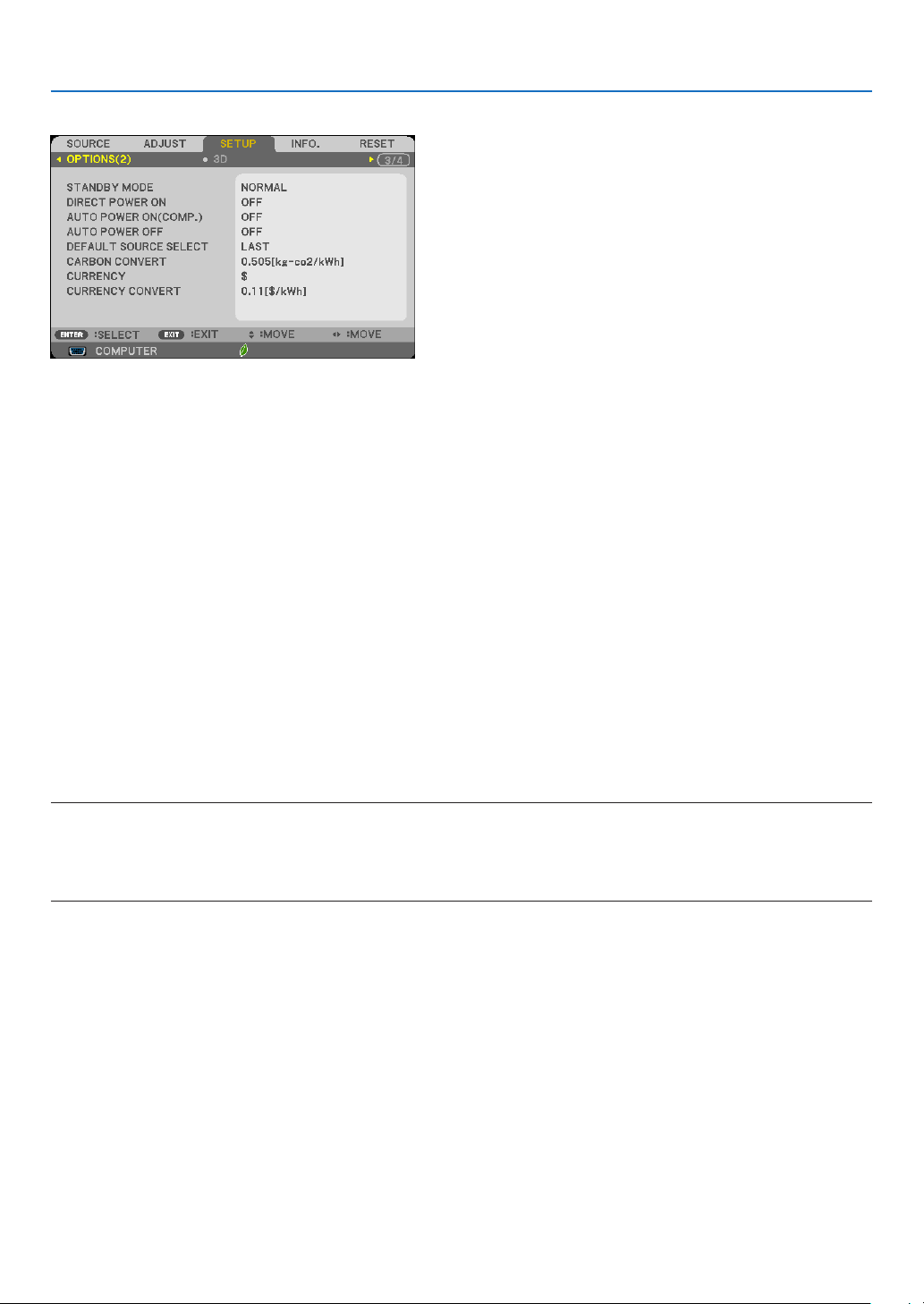
104
5. Using On-Screen Menu
[OPTIONS(2)]
Selecting Standby condition in [STANDBY MODE]
Theprojectorhastwostandbymodes:[NORMAL]and[NETWORKSTANDBY].
The[NORMAL]modeisthemodethatallowsyoutoputtheprojectorinthepower-savingconditionwhichconsumes
lesspowerthanthe[NETWORKSTANDBY]mode.Theprojectorispresetforthe[NORMAL]modeatthefactory.
NORMAL �����������������������������POWER indicator: Red light/STATUS indicator: Off
When [NORMAL] is selected, only the following buttons and feature will work:
POWER button on the projector cabinet and the remote control, and powering on from PC Control
command�
NETWORK STANDBY ����������POWER indicator: Orange light/STATUS indicator: Off
When [NETWORK STANDBY] is selected, the projector can be turned on over a wired LAN connec-
tion and only the following buttons, port, and features will work:
POWER button on the projector cabinet and the remote control, powering on from PC Control
command, AUTO POWER ON(COMP�), LAN port, wireless LAN unit (optional), Virtual Remote Tool,
LAN feature, and Mail Alert feature�
Important:
- When[NETWORKSTANDBY]isselected,[AUTOPOWEROFF]willturngreyincolorandbedisabled,and[0:15]willbeselected
automatically.
NOTE:
• Evenwhen[NORMAL]or[NETWORKSTANDBY]isselectedfor[STANDBYMODE],poweronoroffcanbedonebyusingthePC
CONTROLport.
• ThepowerconsumptioninthestandbymodewillnotbeincludedincalculatingCO
2
emissionreduction.
• Yoursettingwillnotbeaffectedevenwhen[RESET]isdonefromthemenu.
Enabling Direct Power On [DIRECT POWER ON]
Turnstheprojectoronautomaticallywhenthepowercordisinsertedintoanactivepoweroutlet.Thiseliminatesthe
needtoalwaysusethePOWERbuttonontheremotecontrolorprojectorcabinet.

105
5. Using On-Screen Menu
TurningOntheProjectorByApplyingComputerSignal[AUTOPOWERON(COMP.)]
WhentheprojectorisinStandbymode,applyingacomputersignalfromacomputerconnectedtotheCOMPUTER
INinputwillpowerontheprojectorandsimultaneouslyprojectthecomputer’simage.
ThisfunctionalityeliminatestheneedtoalwaysusethePOWERbuttonontheremotecontrolortheprojectorcabinet
topowerontheprojector.
Tousethisfunction,rstconnectacomputertotheprojectorandtheprojectortoanactiveACinput.
NOTE:
• Makesuretousethecomputercablesuppliedwiththisprojector.Ifacommerciallyavailablecomputercablethatdoesnothave
No.9pinfortheHotplugsignalisused,[AUTOPOWERON(COMP)]isnotfunctioned.
• Disconnectingacomputersignalfromthecomputerwillnotpowerofftheprojector.Werecommendusingthisfunctionincom-
binationoftheAUTOPOWEROFFfunction.
• Thisfunctionwillnotbeavailableunderthefollowingconditions:
- whenacomponentsignalisappliedtotheCOMPUTERINterminal
- whenaSynconGreenRGBsignalorcompositesyncsignalisapplied
- when[NORMAL]isselectedfor[STANDBYMODE].
• ToenabletheAUTOPOWERON(COMP.)afterturningofftheprojector,wait3secondsandinputacomputersignal.
Ifacomputersignalisstillpresentwhentheprojectoristurnedoff,theAUTOPOWERON(COMP.)willnotworkandtheprojector
remainsinstandbymode.
Enabling Power Management [AUTO POWER OFF]
Whenthisoptionisselectedyoucanenabletheprojectortoautomaticallyturnoff(attheselectedtime:5min.,10min.,
15min.,20min.,30min.,60min.)inoneofthebelowconditions.
- Nosignalisreceived.
- Thethumbnailscreenisdisplayed.
- Nooperationisperformed.
NOTE:
• Thisitemcanbeselectedonlywhen[NORMAL]isselectedfor[STANDBYMODE].
• When[NETWORKSTANDBY]isselected,[AUTOPOWEROFF]willturngreyincolorandbedisabledand[0:15]willbeselected
automatically.
Selecting Default Source [DEFAULT SOURCE SELECT]
Youcansettheprojectortodefaulttoanyoneofitsinputseachtimetheprojectoristurnedon.
LAST ���������������������� Sets the projector to default to the previous or last active input each time the projector is turned on�
AUTO ��������������������� Searches for an active source in order of COMPUTER → HDMI1 → HDMI2 → VIDEO → USB-A → USB-B
→ COMPUTER and displays the first found source�
COMPUTER ����������� Displays the computer signal from the COMPUTER IN terminal every time the projector is turned on�
HDMI1 ������������������� Displays the digital source from the HDMI 1 IN terminal every time the projector is turned on�
HDMI2 ������������������� Displays the digital source from the HDMI 2 IN terminal every time the projector is turned on�
VIDEO �������������������� Displays the Video source from the VIDEO IN terminal every time the projector is turned on�
USB-A �������������������� Displays slides or plays back movie files from the USB memory device every time the projector is turned
on�
LAN ������������������������ Displays a signal from LAN port (RJ-45) or the USB Wireless LAN Unit�
USB-B �������������������� Displays the computer signal from the USB-B port every time the projector is turned on�

106
5. Using On-Screen Menu
Settingcarbonfootprintfactor[CARBONCONVERT]
Adjuststhecarbonfootprintfactorinthecarbonsavingcalculation.Theinitialsettingis0.505[kg-CO2/kWh]basedon
theCO2EmissionsfromFuelCombustion(2008Edition)publishedbyOECD.
Selecting your currency [CURRENCY]
Displayselectricitypricing(availablein4currencyunits).
$ ���������������������������� US Dollar
€
��������������������������� EU Euro
JP¥
������������������������ Japanese Yen
RMB¥
�������������������� Chinese Yuan
Changingcurrencysettingandcurrencyconvertsetting[CURRENCYCONVERT]
ChangescurrencysettingandcurrencyconvertsettingforCARBONMETER.
Theinitialsettingareasfollows:
US Dollar ��������������� 0�11 [$/kWh]
EU Euro ����������������� 0�19 [€/kWh]
Japanese Yen
��������� 20 [¥/kWh]
Chinese Yuan
��������� 0�48 [¥/kWh]
TheinitialsettingsforUSdollar,EUEuro,andJapaneseYenarebasedon“EnergyPricesandTaxes(secondquarter
2010”publishedbyOECD.
TheinitialsettingforChineseYuanisbasedon“ChineseDataFile(2010)”publishedbyJETRO.
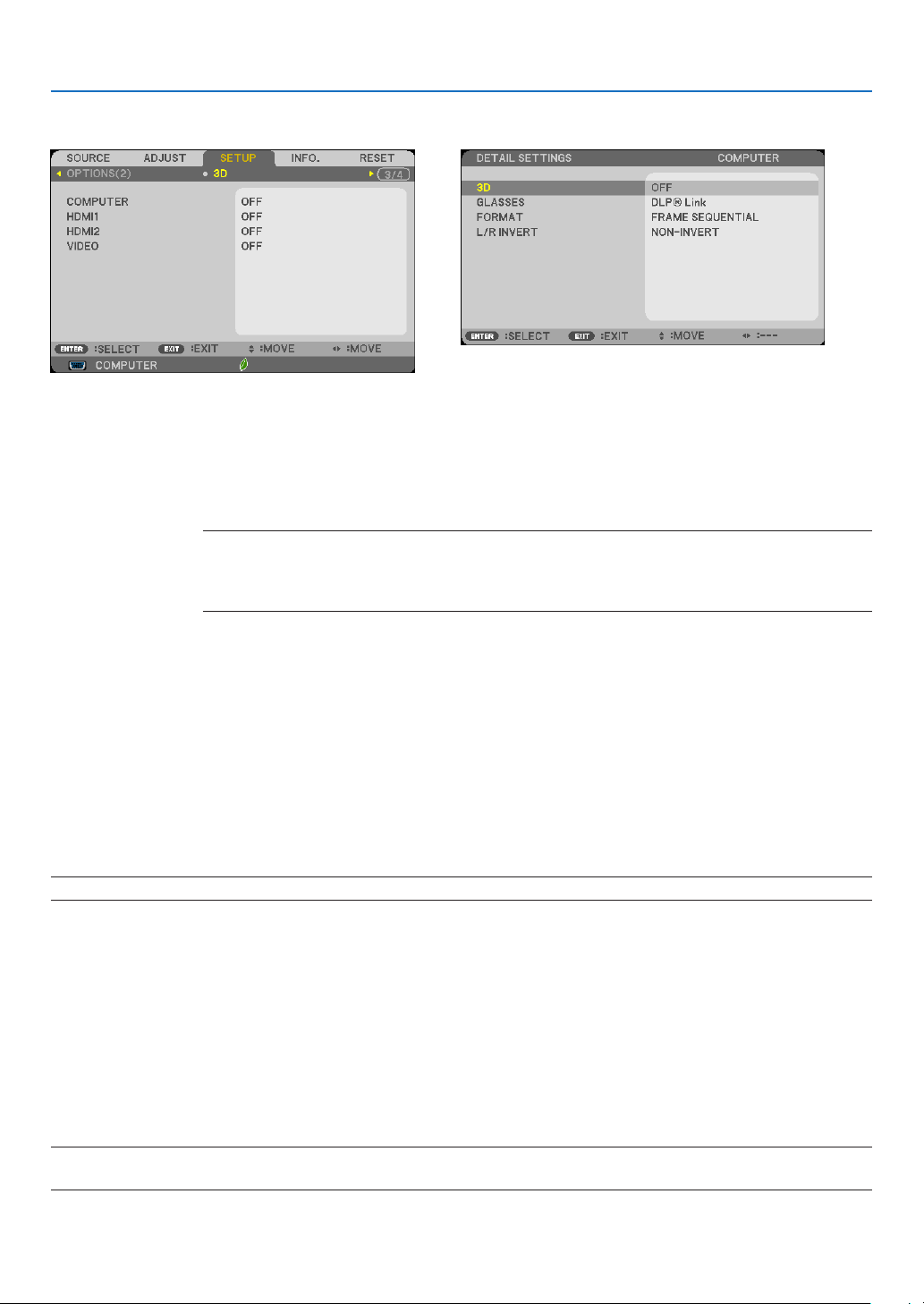
107
5. Using On-Screen Menu
[3D]
Selectinginputconnectedtoasourceof3Dimages[COMPUTER/HDMI1/HDMI2/VIDEO]
[3D]
Thisfunctionswitchesthe3DmodebetweenONandOFFforeachinput.
ON ������������������������� Turns on the 3D mode for the selected input�
NOTE:
Toconrmthatthesupported3Dsignalisaccepted,useeitherwayofthefollowing:
• Makesurethat[3D]isdisplayedinthetoprightofthescreenafterthesourceisselected.
• Display[INFO.]→[SOURCE]→[3DSIGNAL]andmakesurethat“SUPPORTED”isdisplayed.
OFF ������������������������ Turns off the 3D mode for the selected input�
[GLASSES]
Select3Dglassesmethod.
DLP
®
Link �������������� For 3D eyeglasses (ones manufactured by XPAND are recommended) or DLP
®
Link compatible LCD shutter
eyeglasses�
Others �������������������� For other LCD shutter eyeglasses such as IR or wired LCD shutter types�
[FORMAT]
Sets3Dformat.
NOTE:ThisoptionwillnotworkforVIDEOsource.
AUTO ����������������������������������Automatically selects the appropriate format� The supported format is HDMI 3D only�
SIDE BY SIDE ���������������������Selects this format for the SIDE BY SIDE 3D image� SIDE BY SIDE is a format that stores the left
and right eye images displayed horizontally� Only the half of the horizontal resolution is supported
TOP AND BOTTOM �������������Selects this format for the TOP AND BOTTOM 3D image� TOP AND BOTTOM is a format that stores the
left and right eye images displayed vertically� Only the half of the vertical resolution is supported�
FRAME PACKING ����������������Selects this format for the FRAME PACKING 3D image� FRAM PACKING is a format that stores the
left and right eye images without compression�
FRAME SEQUENTIAL ����������Selects this format for the FRAME SEQUENTIAL 3D image� FRAME SEQUENTIAL is a format that
displays the left and right eye images alternately� This format is available only for COMPUTER
input�
NOTE:
ThisfunctionwillnotworkforVIDEOsource.

108
5. Using On-Screen Menu
[L/RINVERT]
Changethesettingifyouhavedifcultyseeing3Dimages.
NON-INVERT ��������� Normal setting�
INVERT ������������������ Changes the order of displaying the images for left eye and right eye�
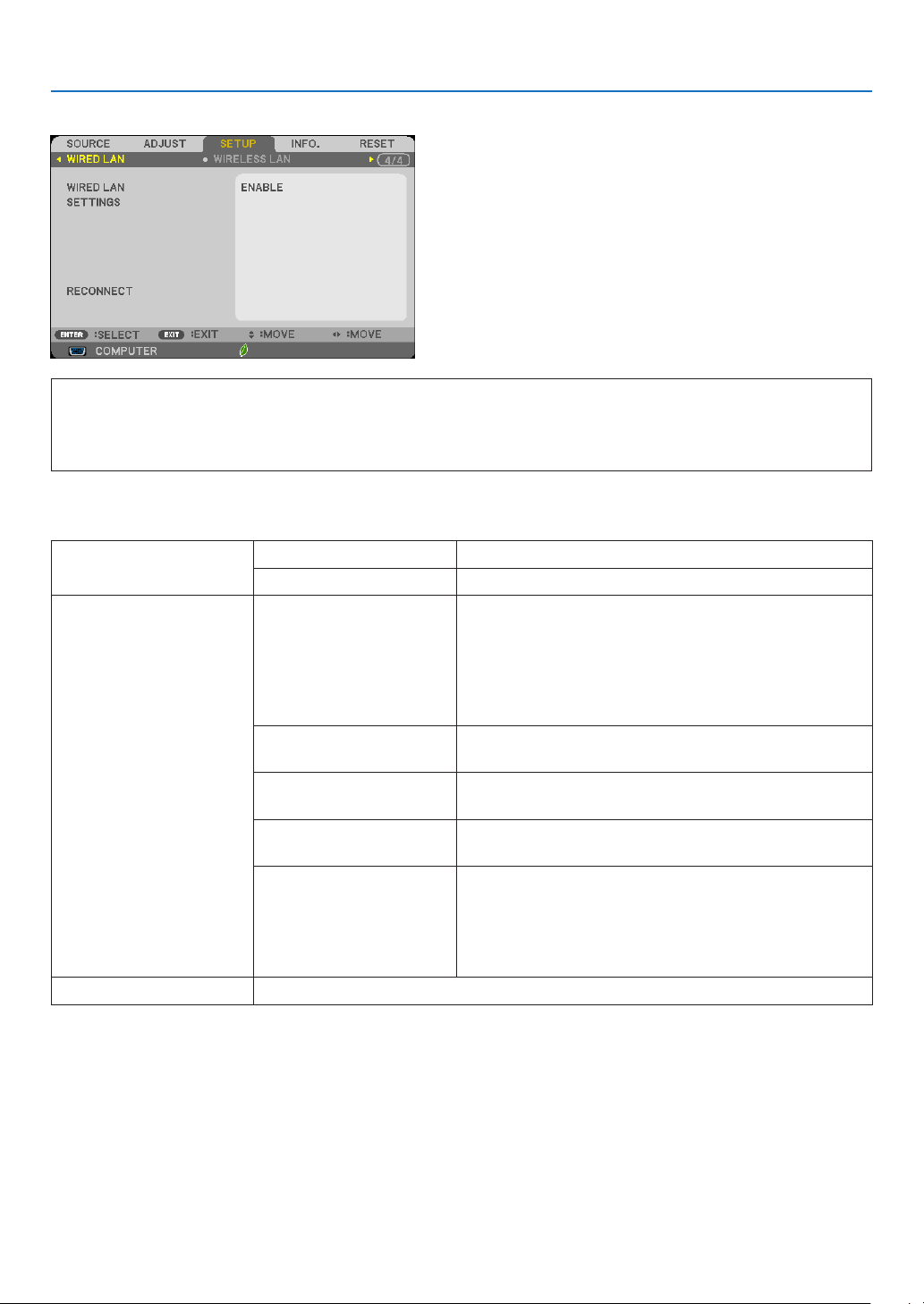
109
5. Using On-Screen Menu
Setting up the Projector for a Wired LAN Connection [WIRED LAN]
Important
• Consultwithyournetworkadministratoraboutthesesettings.
• WhenusingawiredLANconnection,connectaLANcable(Ethernetcable)totheLANport(RJ-45)oftheprojec-
tor.(→page128)
TIP:Thenetworksettingsyoumakewillnotbeaffectedevenwhen[RESET]isdonefromthemenu.
[WIREDLAN] [DISABLE] WiredLANconnectionwillbeturnedoff.
[ENABLE] WiredLANconnectionwillbeturnedon.
[SETTINGS] [DHCP]
ON
�������������������������� IP address, subnet mask, and gateway will
be automatically assigned to the projector
from your DHCP server�
OFF ������������������������� Specify IP address, subnet mask, and gate-
way assigned by your network administra-
tor�
[IPADDRESS] Set your IPaddressof the networkconnected to the
projector.
[SUBNETMASK] Setyoursubnetmasknumberofthenetworkconnected
totheprojector.
[GATEWAY] Setthedefaultgatewayofthenetworkconnectedtothe
projector.
[AUTODNS]
ON �������������������������� DHCP server will automatically assign IP
address of DNS server connected to the
projector�
OFF ������������������������� Set your IP address of DNS server connected
to the projector�
[RECONNECT] Retrytoconnecttheprojectortoanetwork.
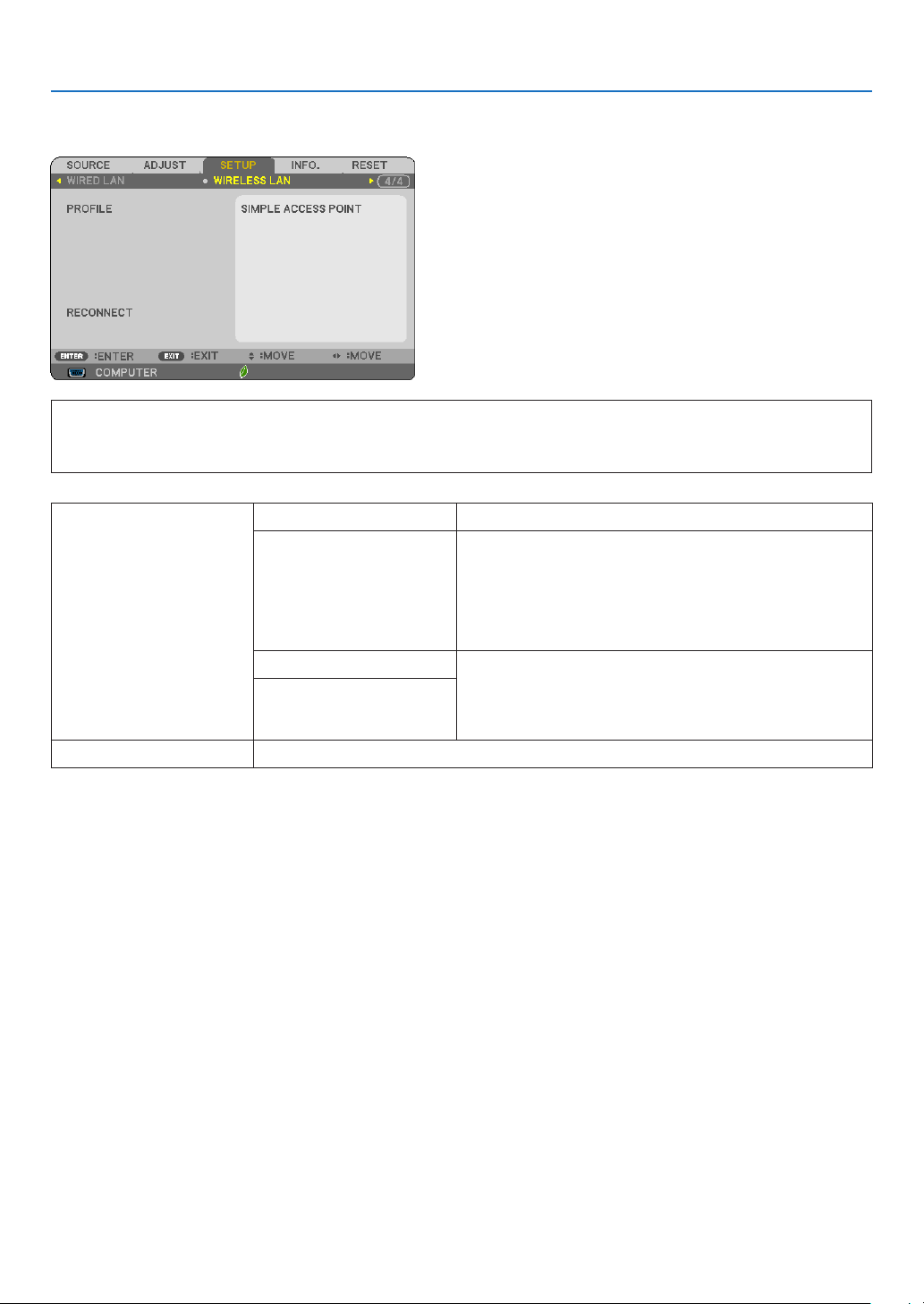
110
5. Using On-Screen Menu
Setting up the Projector for a Wireless LAN Connection (with the optional USB Wireless
LAN Unit equipped) [WIRLESS LAN]
Important
• Consultwithyournetworkadministratoraboutthesesettings.
• WhenusingawirelessLANconnection,attachtheoptionalUSBWirelessLANtotheprojector.(→page129)
[PROFILE] [DISABLE] WirelessLANconnectionwillbeturnedoff
[SIMPLEACCESS
POINT]
Settheprojectorforsimpleaccesspoint.
Selecting[SIMPLEACCESSPOINT]willallowtheprojec-
tortocreateaninfrastructurenetwork.TheIPaddressof
theprojectorwillbesetautomatically.
Select"ObtainanIPAddressAutomatically"tosettheIP
addressofaconnectedcomputer.
[PROFILE1] UptotwosettingsfortheUSBwirelessLANunitcanbe
storedinmemoryoftheprojector.(→page48)
Torecallthesettingsfrommemory,select[PROFILE1]or
[PROFILE2]from[PROFILE].
[PROFILE2]
[RECONNECT] Retrytoconnecttheprojectortoanetwork.Trythisifyouhavechanged[PROFILE].
Whenyouconnectwithyourcomputertosaveyourproleandselect"Automaticallyconnectwhenwithinrange"from
thePropertiestabofWirelessNetworkinWindowsforyourselectedprole,yourwirelessLANwillbeaccessedunder
thefollowingconditions:
• atthetimeofturningonthecomputerortheprojector
• whenthenotebooktypeiswithintherangeoftheprojector'swirelessLANcanbeachieved.
DatatransmissionbetweenwirelessLANandwiredLANisnotpossible.
Inthe[SIMPLEACCESSPOINT]mode,youcanconnectupto20terminals.
However,recommendednumberofterminalsisapprox.10fornormaloperation.

111
5. Using On-Screen Menu
Hints on How to Set Up LAN Connection
TosetuptheprojectorforaLANconnection:
AccesstheHTTPserverfunctiontodisplaythewebbrowser(→page45)andselect[NETWORKSETTINGS]→
[SETTINGS]→[WIRELESSLAN]→[PROFILE1]or[PROFILE2].
TwosettingscanbesetfortheUSBWirelessLANUnit.
Nextselect[SETTINGS]foryourselectedprole,andset[ENABLE]or[DISABLE]for[DHCP],[IPADDRESS],
[SUBNETMASK],and[GATEWAY].Lastclick[SAVE].Toreectchanges,clickthe[SETTING]tabandthenclick
[APPLY].(→page48)
TorecallLANsettingsstoredintheprolenumber:
Touse[PROFILE1]or[PROFILE2]setontheHTTPserver,fromtheprojector’menu,select[SETUP]→[WIRE-
LESSLAN]→[PROFILE]→[PROFILE1]or[PROFILE2].Lastselect[YES]andpresstheENTERbutton.(→
page110)
To connect a DHCP server:
Fromtheprojectormenu,select[SETUP]→[WIREDLAN]→[SETTINGS]→[DHCP]→[ON]andpresstheENTER
button.TospecifyIPaddresswithoutusingtheDHCPserver,usetheHTTPserverfunction.(→page45)
TosetonlyforwirelessLAN(NETWORKTYPEandWEP/WPA):
AccesstheHTTPserverfunctiontodisplaythewebbrowser(→page45)andselect[NETWORKSETTINGS]→
[SETTINGS]→[WIRELESSLAN]→[PROFILE1]or[PROFILE2].
Makenecessarysettingsfor[SETTINGS]andclick[SAVE].
Fromtheprojectormenu,select[SETUP]→[WIRELESSLAN]→[PROFILE]→[PROFILE1]or[PROFILE2].
To select an SSID:
AccesstheHTTPserverfunctiontodisplaythewebbrowser(→page45)andselect[NETWORKSETTINGS]→
[SETTINGS]→[WIRELESSLAN]→[CONNECTION]→[SITESURVEY]andselecttheID.
Ifyoudonotuse[SITESURVEY],typetheSSIDin[CONNECTION].(→page48)
Toreceivelampreplacementtimeorerrormessagesviae-mail:
AccesstheHTTPserverfunctiontodisplaythewebbrowser(→page45)andselect[NETWORKSETTINGS]→
[ALERTMAIL],andset[SENDER’SADDRESS],[SMTPSERVERNAME],and[RECIPIENT’SADDRESS].Last,
click[SAVE].(→page50)
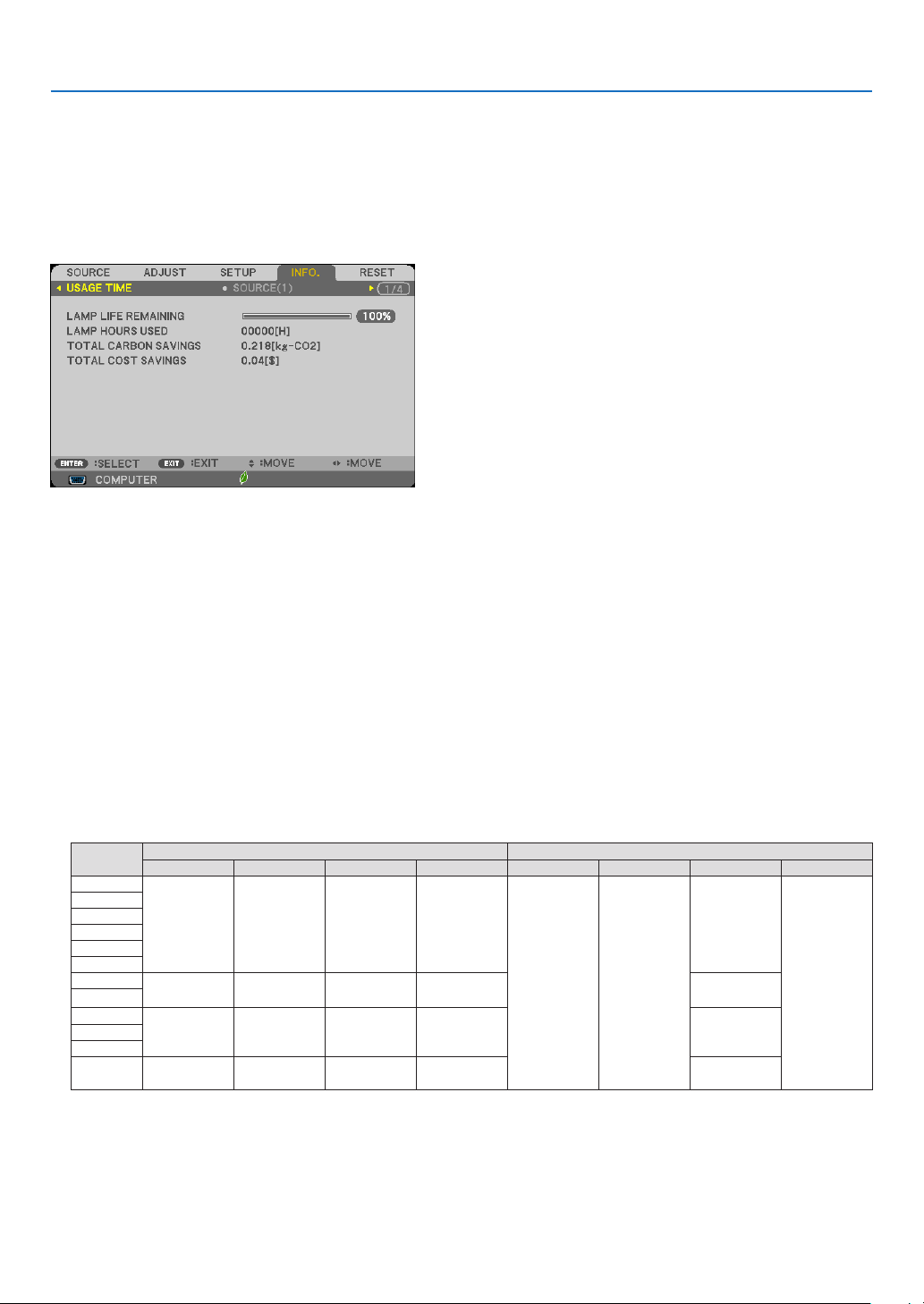
112
5. Using On-Screen Menu
❼ Menu Descriptions & Functions [INFO.]
Displaysthestatusofthecurrentsignalandlampusage.Thisitemhassixpages.Theinformationincludedisas
follows:
TIP:PressingtheHELPbuttonontheremotecontrolwillshowthe[INFO.]menuitems.
[USAGE TIME]
[LAMPLIFEREMAINING](%)*
[LAMPHOURSUSED](H)
[TOTALCARBONSAVINGS](kg-CO2)
[TOTALCOSTSAVINGS]($)
* Theprogressindicatorshowsthepercentageofremainingbulblife.
Thevalueinformsyouoftheamountoflampusage.Whentheremaininglamptimereaches0,theLAMPLIFE
REMAININGbarindicatorchangesfrom0%to100Hoursandstartscountingdown.
Iftheremaininglamptimereaches0hours,theprojectorwillnotturnon.
• Themessagetotheeffectthatthelampshouldbereplacedwillbedisplayedforoneminutewhentheprojec-
toristurnedonandwhenthePOWERbuttonontheprojectorortheSTANDBYbuttonontheremotecontrolis
pressed.
Todismissthismessage,pressanybuttonontheprojectorortheremotecontrol.
Lamplife(H) Brightness by mode
OFF AUTO ECO NORMAL ECO OFF AUTO ECO NORMAL ECO
M403W 3500H 3500H to
6000H
5000H 8000H 100%
OFFthru
ECO
Approx.81% Approx.60%
M403X
M353WS
M333XS
M403H
M323H
M363W 3500H 3500H to
6500H
5000H 8000H
Approx.74%
M363X
M323W 3500H 3500H to
7000H
5500H 8000H
Approx.76%
M323X
M303WS
M283X 4500H 4500H to
8000H
6000H 10000H
Approx.78%
• [TOTALCARBONSAVINGS]
Thisdisplaystheestimatedcarbonsavinginformationinkg.Thecarbonfootprintfactorinthecarbonsavingcal-
culationisbasedontheOECD(2008Edition).(→page32)
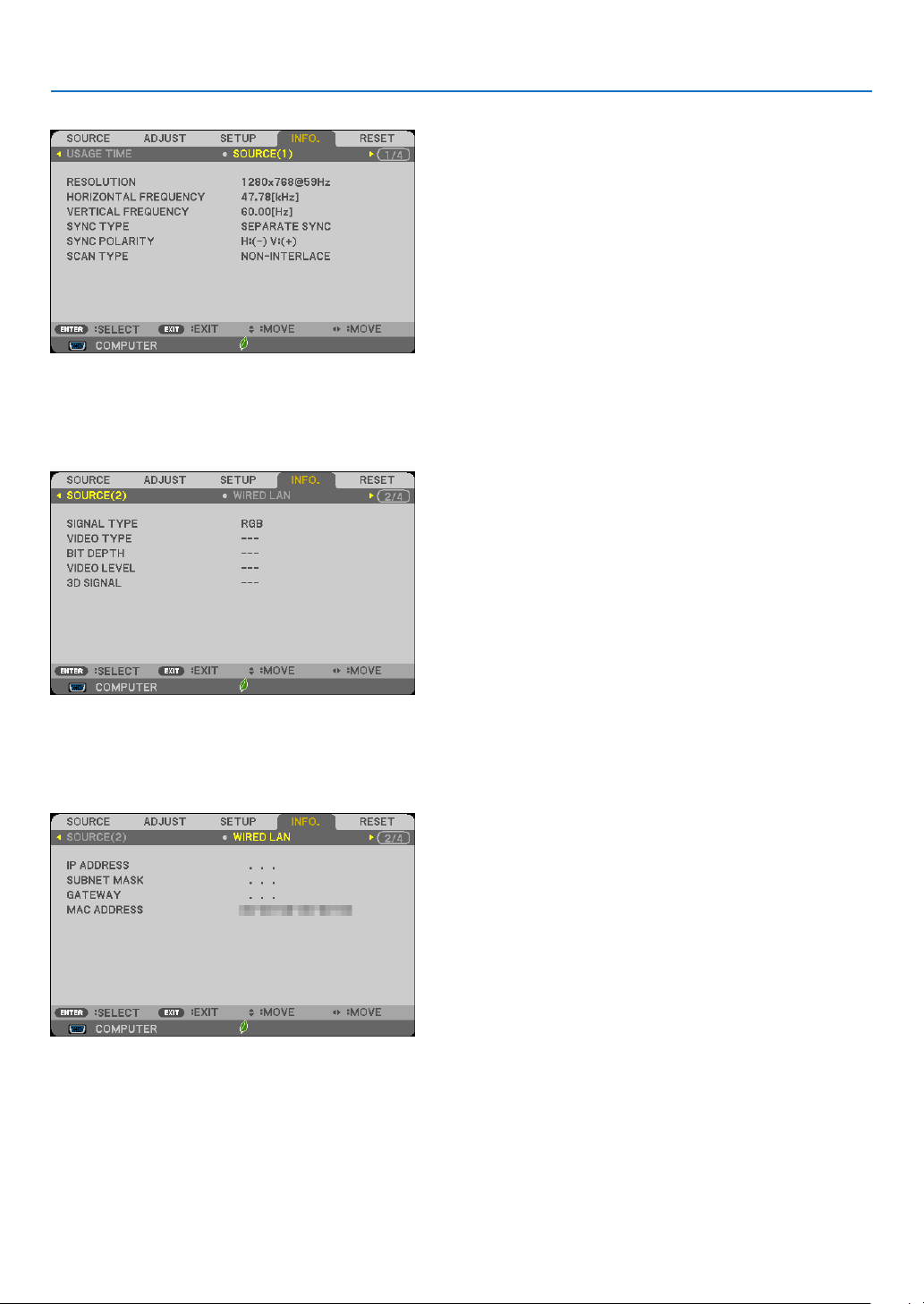
113
5. Using On-Screen Menu
[SOURCE(1)]
[RESOLUTION] [HORIZONTALFREQUENCY]
[VERTICALFREQUENCY] [SYNCTYPE]
[SYNCPOLARITY] [SCANTYPE]
[SOURCE(2)]
[SIGNALTYPE] [VIDEOTYPE]
[BITDEPTH] [VIDEOLEVEL]
[3DSIGNAL]
[WIRED LAN]
[IPADDRESS] [SUBNETMASK]
[GATEWAY] [MACADDRESS]
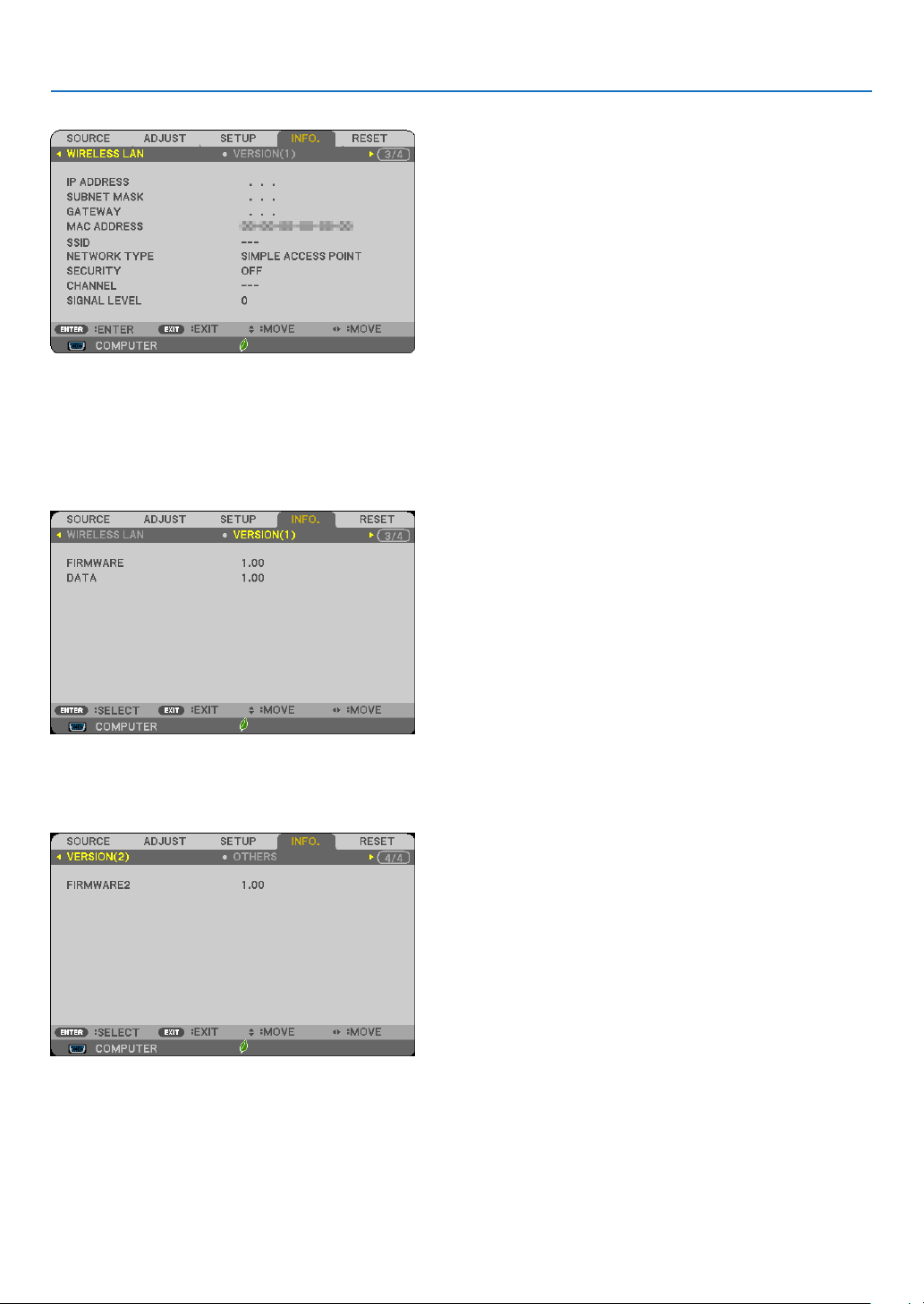
114
5. Using On-Screen Menu
[WIRELESS LAN]
[IPADDRESS] [SUBNETMASK]
[GATEWAY] [MACADDRESS]
[SSID] [NETWORKTYPE]
[SECURITY] [CHANNEL]
[SIGNALLEVEL]
[VERSION(1)]
[FIRMWARE]Version
[DATA]Version
[VERSION(2)]
[FIRMWARE2]Version

115
5. Using On-Screen Menu
[OTHERS]
[PROJECTORNAME]
[HOSTNAME]
[MODELNO.]
[SERIALNUMBER]
[LANUNITTYPE]
[CONTROLID](when[CONTROLID]isset)

116
5. Using On-Screen Menu
❽ Menu Descriptions & Functions [RESET]
Returning to Factory Default [RESET]
TheRESETfeatureallowsyoutochangeadjustmentsandsettingstothefactorypresetfora(all)source(s)except
thefollowing:
[CURRENTSIGNAL]
Resetstheadjustmentsforthecurrentsignaltothefactorypresetlevels.
Theitemsthatcanberesetare:[PRESET],[CONTRAST],[BRIGHTNESS],[COLOR],[HUE],[SHARPNESS],
[ASPECTRATIO],[HORIZONTAL],[VERTICAL],[CLOCK],[PHASE],[OVERSCAN],[NOISEREDUCTION],and
[TELECINE].
[ALLDATA]
Resetalltheadjustmentsandsettingsforallthesignalstothefactorypreset.
All items can be reset EXCEPT[LANGUAGE],[BACKGROUND],[SECURITY],[COMMUNICATION SPEED],
[CONTROLID],[STANDBYMODE],[FANMODE],[CARBONCONVERT],[CURRENCY],[CURRENCYCON-
VERT],[LAMPLIFEREMAINING],[LAMPHOURSUSED],[TOTALCARBONSAVINGS],[WIREDLAN],and
[WIRELESSLAN].
Toresetthelampusagetime,see“ClearingLampHourMeter[CLEARLAMPHOURS]”below.
Clearing Lamp Hour Meter [CLEAR LAMP HOURS]
Resetsthelampclockbacktozero.Selectingthisoptiondisplayssubmenuforaconrmation.Select[YES]andpress
theENTERbutton.
NOTE:Elapsedtimeofthelampusewillnotbeaffectedevenwhen[RESET]isdonefromthemenu.
NOTE:Theprojectorwillturnoffandgointostandbymodewhenyoucontinuetousetheprojectorforanother100hoursafterthe
lamphasreachedtheendofitslife.Inthisconditionyoucannotclearthelamphourmeteronthemenu.Ifthishappens,pressthe
HELPbuttonontheremotecontrolfor10secondstoresetthelampclockbacktozero.Dothisonlyafterreplacingthelamp.
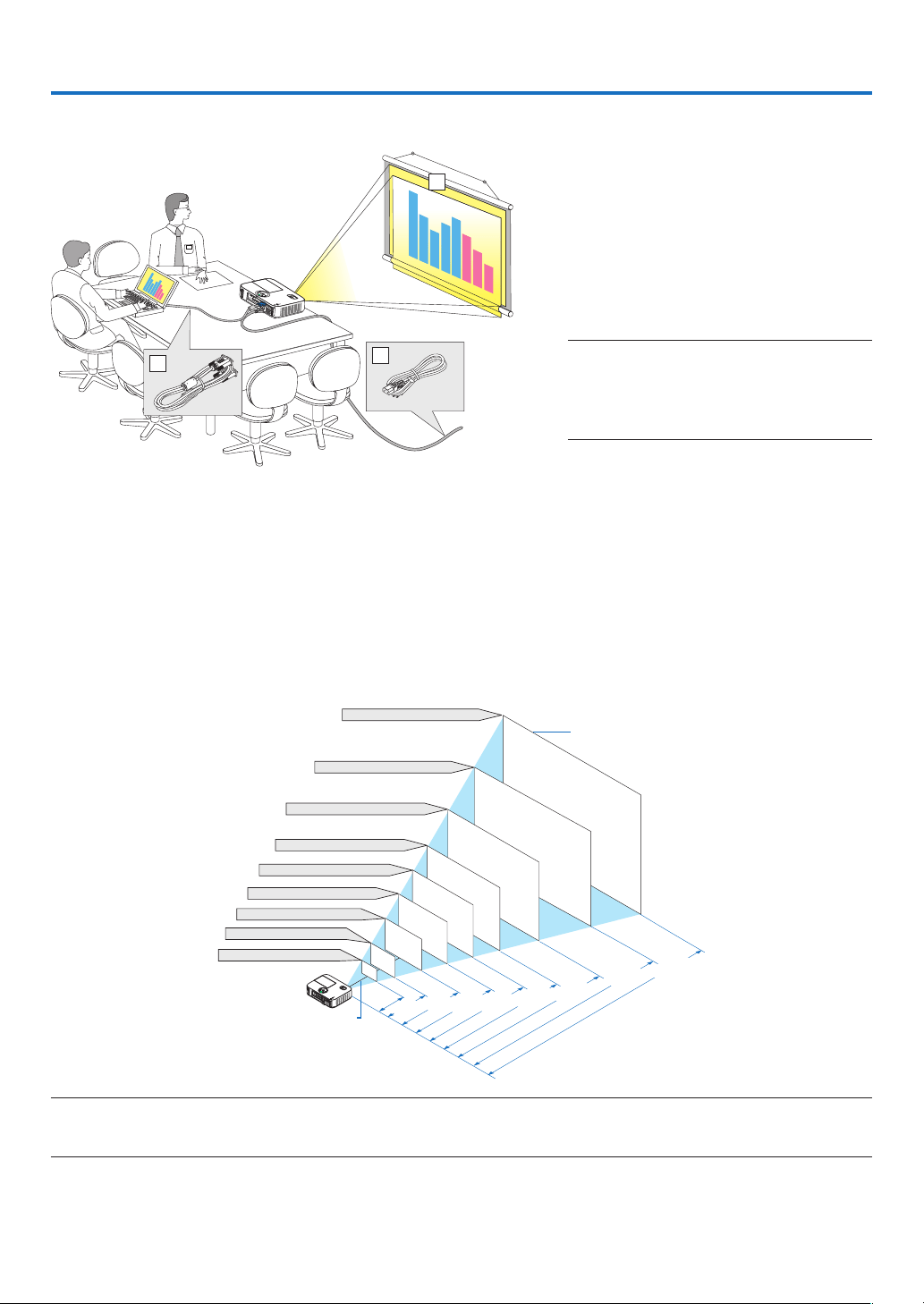
117
6. Installation and Connections
3
2
1
Thissectiondescribeshowtosetupyourprojectorandhowtoconnectvideoandaudiosources.
Yourprojectorissimpletosetupanduse.Butbeforeyougetstarted,youmustrst:
① Setupascreenandtheprojector.
② Connectyourcomputerorvideoequip-
menttotheprojector.
(→page122, 124, 125, 126, 127,
128)
③
Connectthesuppliedpower cord.
(→page14)
NOTE:Ensurethatthepowercordandanyother
cablesaredisconnectedbeforemovingthepro-
jector.Whenmovingtheprojectororwhenitis
notinuse,cover thelenswiththesliding lens
cover.
❶ Setting Up the Screen and the Projector
Selecting a Location
[M403X/M363X/M323X/M283X]
Thefurtheryourprojectorisfromthescreenorwall,thelargertheimage.Theminimumsizetheimagecanbeis
approximately30"(0.76m)measureddiagonallywhentheprojectorisroughly48inches(1.2m)fromthewallor
screen.Thelargesttheimagecanbeis300"(7.6m)whentheprojectorisabout499inches(12.7m)fromthewall
or screen.
300"
Distance
(Unit: m/inch)
Lens center
Screen Size
Screen Size (Unit: cm/inch)
200"
150"
120"
100"
80"
12.7/498
"
6.3/248
"
5.0/198
"
4.2/164
"
3.3/131
"
2.5/97
"
1.6/64
"
40"
8.4/331
"
60"
30"
1.2/47"
609.6(W)�457.2(H) / 240(W)�180(H)
406.4(W)�304.8(H) / 160(W)�120(H)
304.8(W)�228.6(H) / 120(W)�90(H)
243.8(W)�182.9(H) / 96(W)�72(H)
203.2(W)�152.4(H) / 80(W)�60(H)
162.6(W)�121.9(H) / 64(W)�48(H)
121.9(W)�91.4(H) / 48(W)�36(H)
81.3(W)�61.0(H) / 32(W)�24(H)
61.0(W)�45.7(H) / 24(W)�18(H)
TIP:
• Thedistancesareindicatedbyintermediatevaluesbetweenteleandwide.Useasaruleofthumb.
• Formoredetailsonthrowdistance,seepage120.
To the wall outlet.
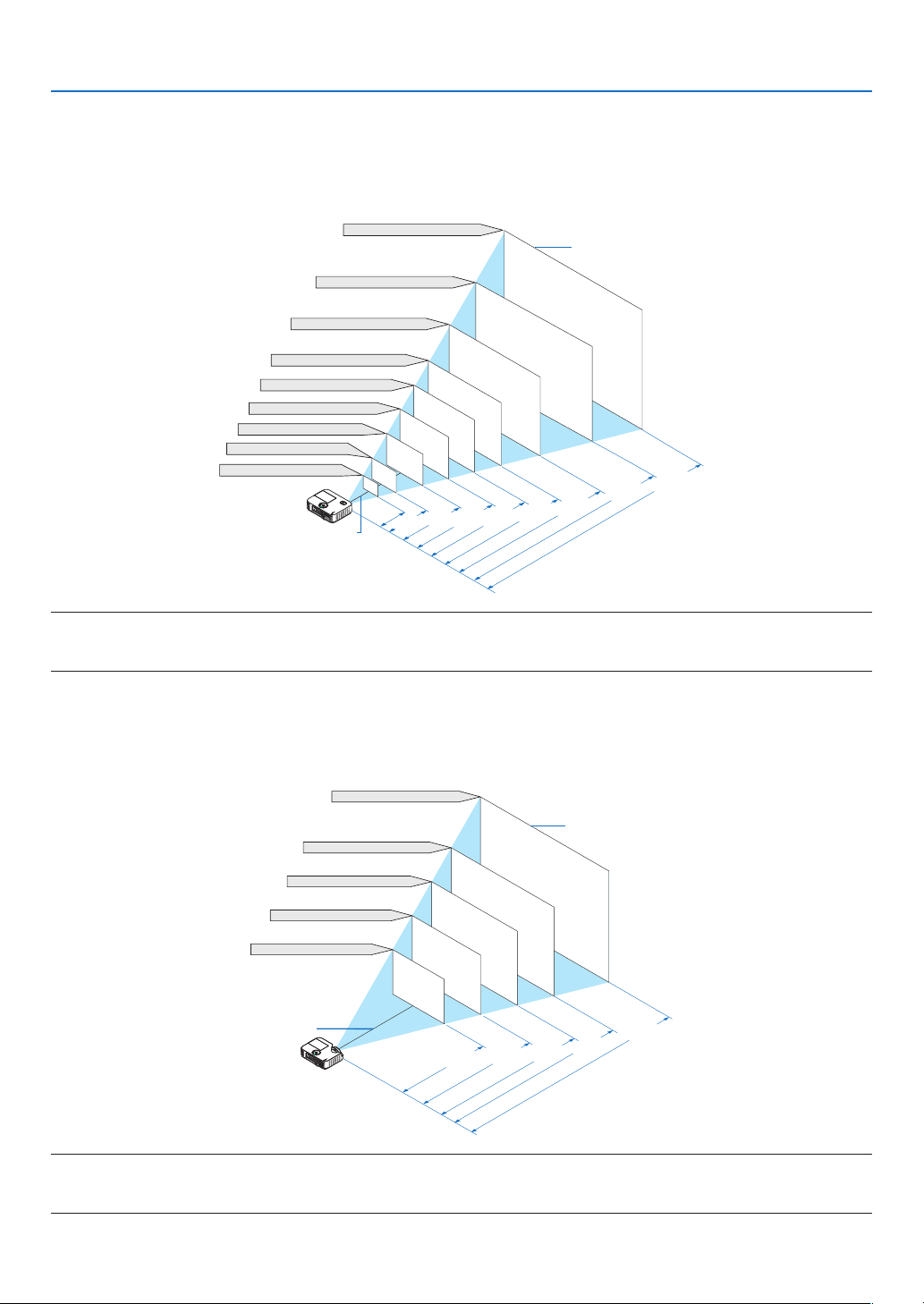
118
6. Installation and Connections
[M403W/M363W/M323W]
Thefurtheryourprojectorisfromthescreenorwall,thelargertheimage.Theminimumsizetheimagecanbeis
approximately30"(0.76m)measureddiagonallywhentheprojectorisroughly41inches(1.0m)fromthewallor
screen.Thelargesttheimagecanbeis300"(7.6m)whentheprojectorisabout423inches(10.7m)fromthewall
or screen.
300"
Distance
(Unit: m/inch)
Screen Size
Screen Size (Unit: cm/inch)
200"
150"
120"
100"
80"
10.7/422
"
5.3/210
"
4.2/167
"
3.5/139
"
2.8/111
"
2.1/82
"
1.4/54
"
40"
7.1/280
"
60"
30"
1.0/40
"
646.2(W)�403.9(H) / 254(W)�159(H)
430.8(W)�269.2(H) / 170(W)�106(H)
323.1(W)�201.9(H) / 127(W)�79(H)
258.5(W)�161.5(H) / 102(W)�64(H)
215.4(W)�134.6(H) / 85(W)�53(H)
172.3(W)�107.7(H) / 68(W)�42(H)
129.2(W)�80.8(H) / 51(W)�32(H)
86.2(W)�53.8(H) / 34(W)�21(H)
64.6(W)�40.4(H) / 25(W)�16(H)
Lens center
TIP:
• Thedistancesareindicatedbyintermediatevaluesbetweenteleandwide.Useasaruleofthumb.
• Formoredetailsonthrowdistance,seepage120.
[M333XS]
Thefurtheryourprojectorisfromthescreenorwall,thelargertheimage.Theminimumsizetheimagecanbeisap-
proximately60"(1.52m)measureddiagonallywhentheprojectorisroughly27inches(0.68m)fromthewallorscreen.
Thelargesttheimagecanbeis150"(3.8m)whentheprojectorisabout69inches(1.8m)fromthewallorscreen.
150"
120"
Distance
(Unit: m/inch)
Lens center
Screen Size
1.4/55"
1.8/69.2"
1.2/45.5"
0.9/36"
0.7/26.6"
203.2(W)�152.4(H) / 80(W)�60(H)
162.6(W)�121.9(H) / 64(W)�48(H)
121.9(W)�91.4(H) / 48(W)�36(H)
Screen Size (Unit: cm/inch)
304.8(W)�228.6(H) / 120(W)�90(H)
243.8(W)�182.9(H) / 96(W)�72(H)
100"
80"
60"
TIP:
• DigitalZoomcanresultinablurryimageduetotheelectroniczoom.
• Formoredetailsonthrowdistance,seepage120.
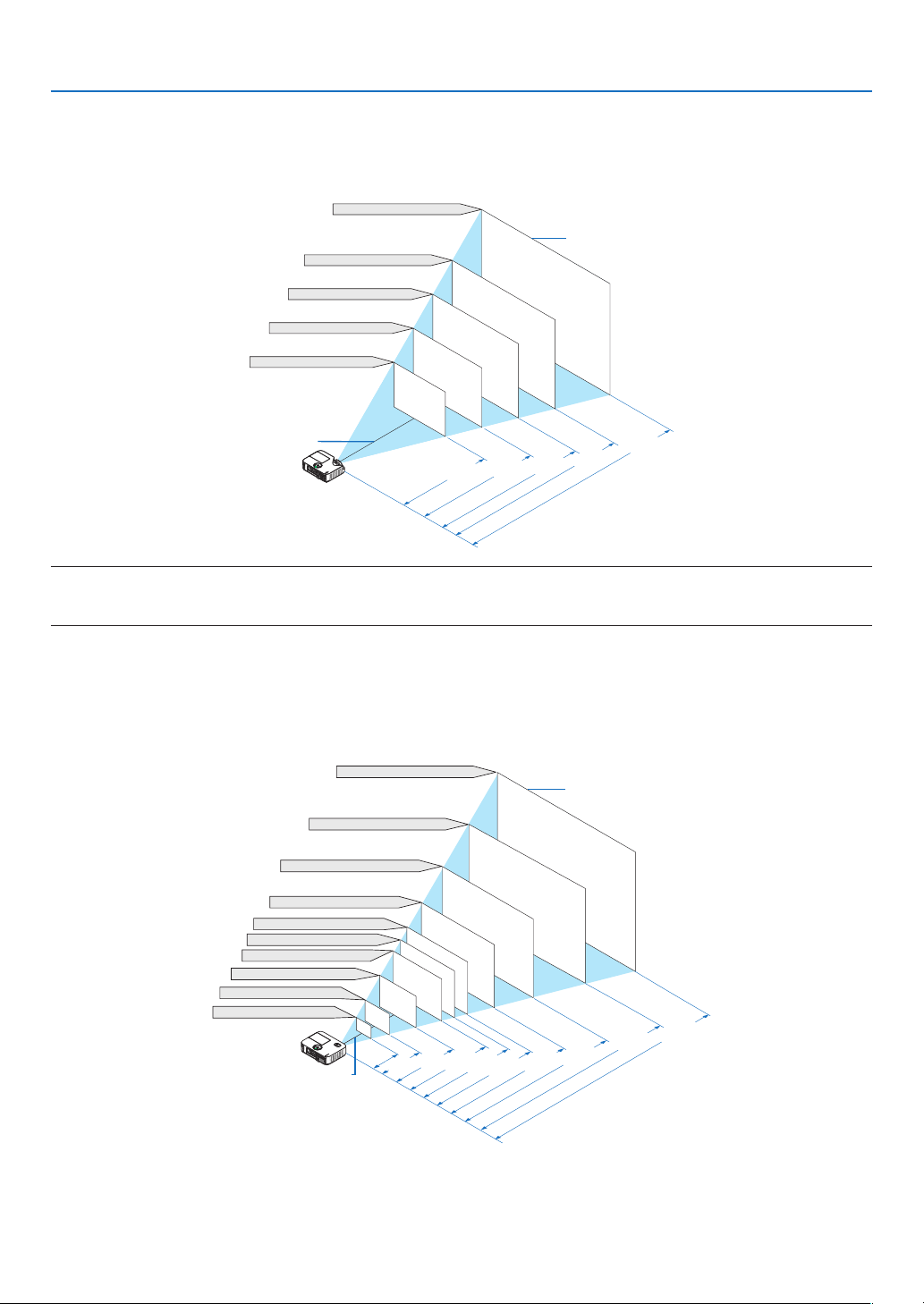
119
6. Installation and Connections
[M353WS/M303WS]
Thefurtheryourprojectorisfromthescreenorwall,thelargertheimage.Theminimumsizetheimagecanbeisap-
proximately60"(1.52m)measureddiagonallywhentheprojectorisroughly22inches(0.6m)fromthewallorscreen.
Thelargesttheimagecanbeis150"(3.8m)whentheprojectorisabout58inches(1.5m)fromthewallorscreen.
150"
120"
Distance
(Unit: m/inch)
Lens center
Screen Size
1.2/46.3"
1.5/58.3"
1/38.3"
0.8/30.3"
0.6/22.2"
Screen Size (Unit: cm/inch)
323.1(W)�201.9(H) / 127(W)�79(H)
258.5(W)�161.5(H) / 102(W)�64(H)
100"
80"
60"
215.4(W)�134.6(H) / 85(W)�53(H)
172.3(W)�107.7(H) / 68(W)�42(H)
129.2(W)�80.8(H) / 51(W)�32(H)
TIP:
• DigitalZoomcanresultinablurryimageduetotheelectroniczoom.
• Formoredetailsonthrowdistance,seepage120.
[M403H/M323H]
Thefurtheryourprojectorisfromthescreenorwall,thelargertheimage.Theminimumsizetheimagecanbeisap-
proximately30"(0.76m)measureddiagonallywhenprojectorisroughly41inches(1.0m)fromthewallorscreen.The
largesttheimagecanbeis300"(7.62m)whentheprojectorisabout436inches(11.1m)fromthewallorscreen.
300"
Distance
(Unit: m/inch)
Lens center
Screen Size
Screen Size (Unit: cm/inch)
200"
150"
120"
100"
90"
80"
11.1/436"
5.5/216"
4.4/173"
3.6/143"
3.3/129"
2.9/114"
2.2/86"
1.4/56"
40"
7.4/290"
60"
30"
1.0/41"
664(W)�374(H) / 261(W)�147(H)
443(W)�249(H) / 174(W)�98(H)
332(W)�187(H) / 131(W)�74(H)
266(W)�149(H) / 105(W)�59(H)
221(W)�125(H) / 87(W)�49(H)
199(W)�112(H) / 78(W)�44(H)
177(W)�100(H) / 70(W)�39(H)
133(W)�75(H) / 52(W)�29(H)
89(W)�50(H) / 35(W)�20(H)
66(W)�37(H) / 26(W)�15 (H)
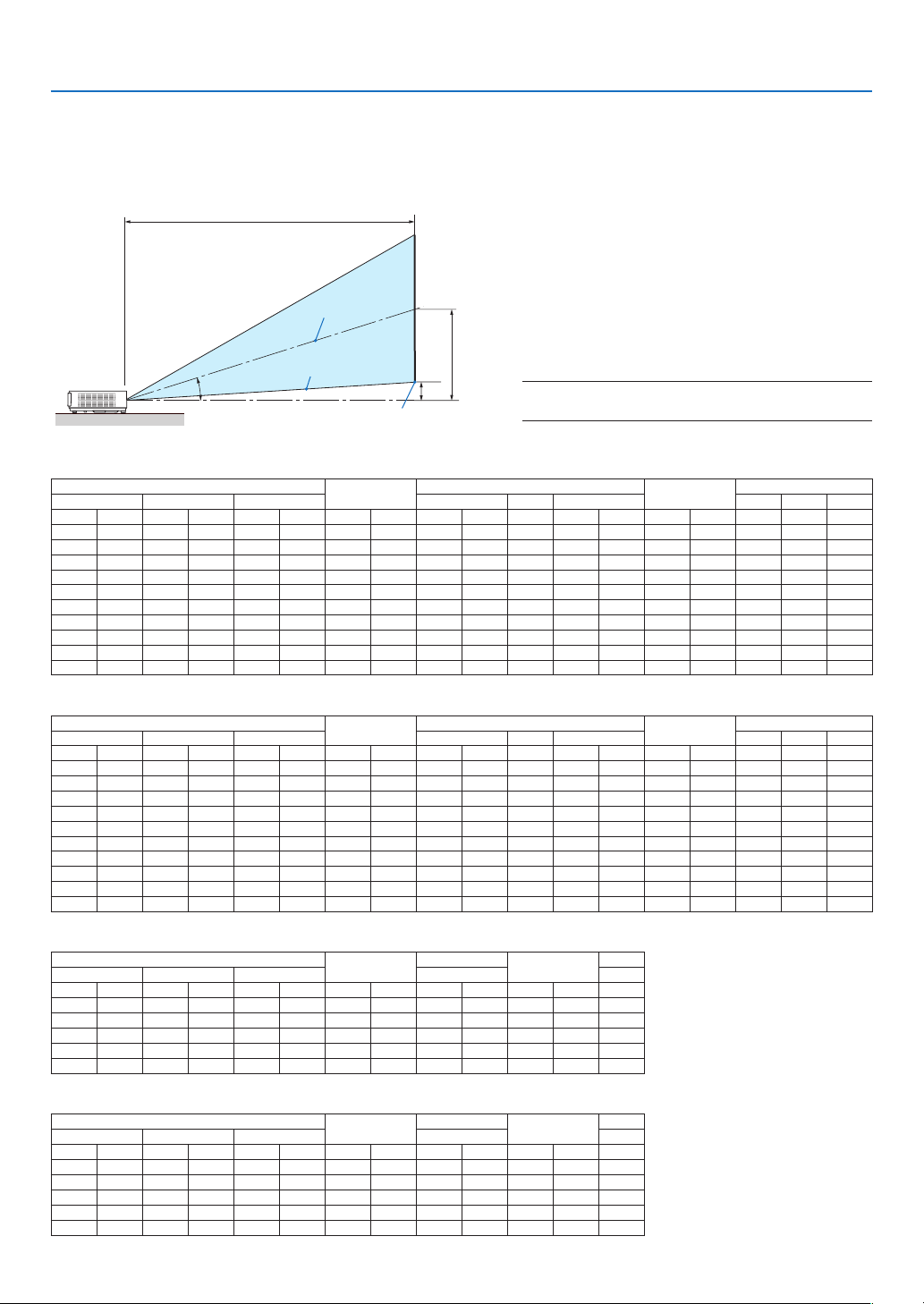
120
6. Installation and Connections
B
D
C
α
Throw Distance and Screen Size
Thefollowingshowstheproperrelativepositionsoftheprojectorandscreen.Refertothetabletodeterminethe
positionofinstallation.
Distance Chart
B= Vertical distance between lens centerand
screen center
C= Throwdistance
D= Vertical distance between lens centerand
screenbottom(topofscreenforceilingap-
plication)
α= Throwangle
NOTE:Thevaluesinthetablesaredesignvalues and
mayvary.
[M403X/M363X/M323X/M283X]
Screen Size
B
C
D
α
Diagonal Width Height wide tele wide tele
inch mm inch mm inch mm inch mm inch mm - inch mm inch mm degree
-
degree
30 762 24 610 18 457 12 297 35 892 - 60 1523 3 69
17�6
-
10�5
40 1016 32 813 24 610 16 396 47 1206 - 81 2056 4 91 17�5
-
10�5
60 1524 48 1219 36 914 23 594 72 1833 - 123 3123 5 137 17�5
-
10�5
80 2032 64 1626 48 1219 31 792 97 2461 - 165 4192 7 183 17�5
-
10�5
90 2286 72 1829 54 1372 35 892 109 2775 - 186 4725 8 206 17�5
-
10�5
100 2540 80 2032 60 1524 39 990 122 3088 - 207 5258 9 228 17�5
-
10�5
120 3048 96 2438 72 1829 47 1188 146 3716 - 249 6324 11 274 17�5
-
10�5
150 3810 120 3048 90 2286 59 1486 183 4658 - 312 7925 14 343 17�5
-
10�5
200 5080 160 4064 120 3048 78 1981 245 6228 - 417 10594 18 457 17�5
-
10�5
300 7620 240 6096 180 4572 117 2971 369 9367 - 627 15931 27 685 17�5
-
10�5
[M403W/M363W/M323W]
Screen Size
B
C
D
α
Diagonal Width Height wide tele wide tele
inch mm inch mm inch mm inch mm inch mm - inch mm inch mm degree
-
degree
30 762 25 646 16 404 10 252 29 749 - 50 1278 2 50
17�6
-
10�5
40 1016 34 862 21 538 13 336 40 1015 - 68 1731 3 67 17�6
-
10�5
60 1524 51 1292 32 808 20 504 61 1547 - 104 2636 4 100 17�5
-
10�5
80 2032 68 1723 42 1077 26 672 82 2080 - 139 3541 5 133 17�5
-
10�5
90 2286 76 1939 48 1212 30 756 92 2346 - 157 3995 6 151 17�5
-
10�5
100 2540 85 2154 53 1346 33 840 103 2611 - 175 4447 7 167 17�5
-
10�5
120 3048 102 2585 64 1615 40 1008 124 3144 - 211 5353 8 200 17�5
-
10�5
150 3810 127 3231 79 2019 50 1260 155 3942 - 264 6708 10 250 17�5
-
10�5
200 5080 170 4308 106 2692 66 1680 208 5273 - 353 8971 13 333 17�5
-
10�5
300 7620 254 6462 159 4039 99 2520 312 7936 - 531 13497 20 500 17�5
-
10�5
[M333XS]
Screen Size
B
C
D
α
Diagonal Width Height wide wide
inch mm inch mm inch mm inch mm inch mm inch mm degree
60 1524 48 1219 36 914 24 617
27
675 6 160
40�8
80 2032 64 1626 48 1219 32 823
36
915 8 214 40�8
100 2540 80 2032 60 1524 41 1029
46
1156 11 267 40�7
120 3048 96 2438 72 1829 49 1235
55
1396 13 320 40�7
150 3810 120 3048 90 2286 61 1543
69
1757 16 400 40�7
[M353WS/M303WS]
Screen Size
B
C
D
α
Diagonal Width Height wide wide
inch mm inch mm inch mm inch mm inch mm inch mm degree
60 1524 51 1292 32 808 21 524
22
565 5 120
40�9
80 2032 68 1723 42 1077 27 698
30
769 6 160 40�8
100 2540 85 2154 53 1346 34 873
38
973 8 199 40�8
120 3048 102 2585 64 1615 41 1047
46
1177 9 239 40�7
150 3810 127 3231 79 2019 52 1309
58
1482 12 299 40�7
Screen center
Lens center
Screen bottom

121
6. Installation and Connections
[M403H/M323H]
Screen Size
B
C
D
α
Diagonal Width Height wide tele wide tele
inch mm inch mm inch mm inch mm inch mm - inch mm inch mm degree
-
degree
30 762 26 664 15 374
9�7 246�4 29 744 52 1324 2�3 59�6 17�9 10�2
40 1016 35 886 20 498 12�9 328�6 40 1017 71 1796 3�1 79�5 17�6 10�1
60 1524 52 1328 29 747 19�4 492�9 61 1562 108 2742 4�7 119�3 17�3 10�0
80 2032 70 1771 39 996 25�9 657�2 83 2107 145 3687 6�3 159�1 17�2 10�0
90 2286 78 1992 44 1121 29�1 739�3 94 2379 164 4159 7�0 178�9 17�1 10�0
100 2540 87 2214 49 1245 32�3 821�5 104 2651 182 4632 7�8 198�8 17�1 10�0
120 3048 105 2657 59 1494 38�8 985�8 126 3196 220 5577 9�4 238�6 17�0 9�9
150 3810 131 3321 74 1868 48�5 1232�2 158 4014 275 6994 11�7 298�2 17�0 9�9
200 5080 174 4428 98 2491 64�7 1642�9 212 5376 368 9356 15�7 397�7 16�9 9�9
300 7620 261 6641 147 3736 97�0 2464�4 319 8101 554 14082 23�5 596�5 16�9 9�9
WARNING
* Installingyourprojectorontheceilingmustbedonebyaqualiedtechnician.ContactyourNECdealerformore
information.
* Donotattempttoinstalltheprojectoryourself.
• Onlyuseyourprojectoronasolid,levelsurface.Iftheprojectorfallstotheground,youcanbeinjuredandthe
projectorseverelydamaged.
• Donotusetheprojectorwheretemperaturesvarygreatly.Theprojectormustbeusedattemperaturesbetween
41°F(5°C)and104°F(40°C)(Ecomodeselectedautomaticallyat95°Fto104°F/35°Cto40°C).
• Donotexposetheprojectortomoisture,dust,orsmoke.Thiswillharmthescreenimage.
• Ensurethatyouhaveadequateventilationaroundyourprojectorsoheatcandissipate.Donotcovertheventson
thesideorthefrontoftheprojector.
Reflecting the Image
Usingamirrortoreectyourprojector’simageenablesyoutoenjoyamuchlargerimagewhenasmallerspaceis
required.ContactyourNECdealerifyouneedamirrorsystem.Ifyou’reusingamirrorsystemandyourimageis
inverted,usetheMENUand▲▼◀▶buttonsonyourprojectorcabinetoryourremotecontroltocorrecttheorienta-
tion.(→page100)
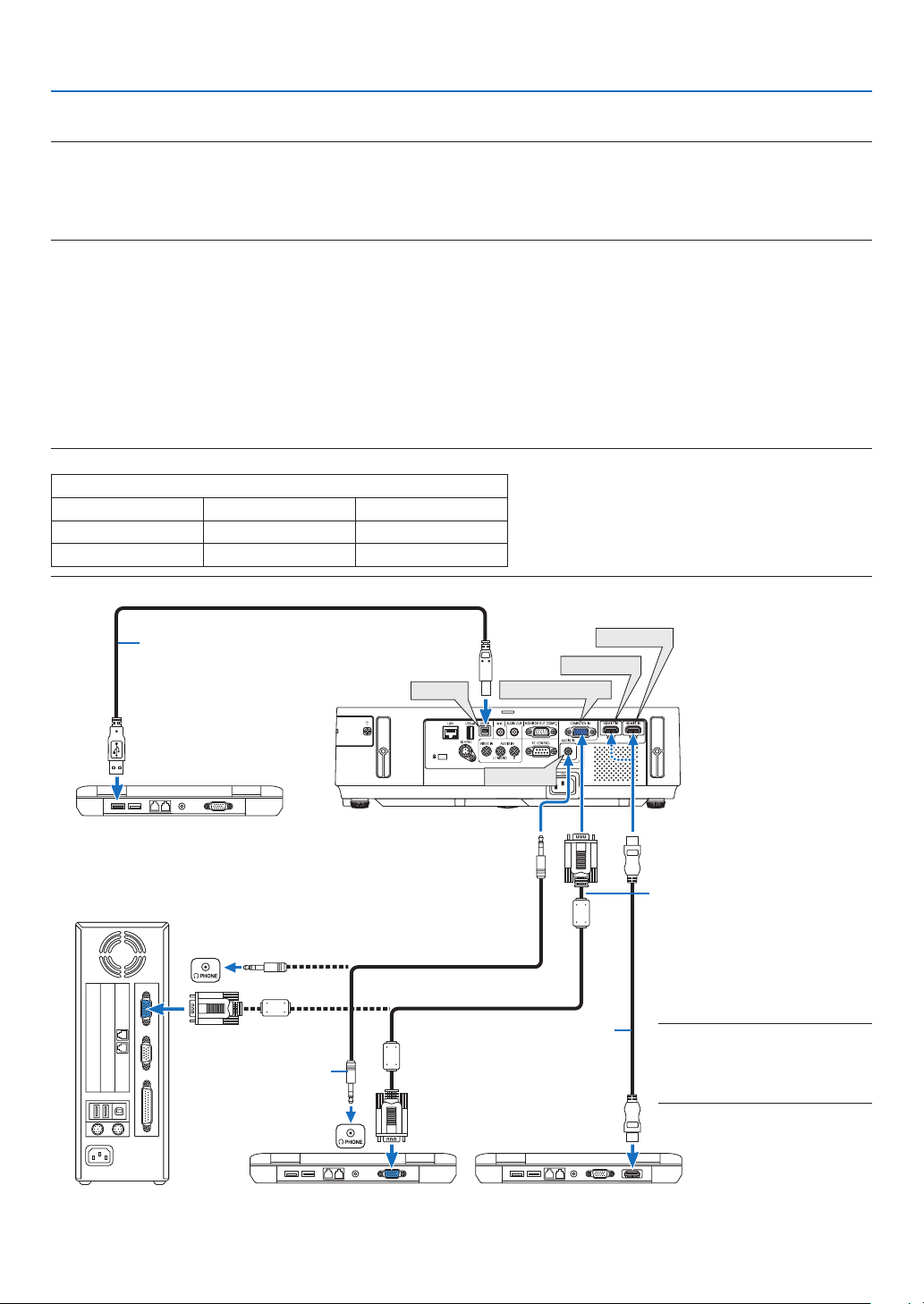
122
6. Installation and Connections
HDMI 2 IN
HDMI 1 IN
COMPUTER IN
USB-B
AUDIO IN
Computer cable (VGA) (supplied)
To mini D-Sub 15-pin terminal on
theprojector.Itisrecommended
that you use a commercially
available distribution amplifier if
connecting a signal cable longer
than the cable supplied.
NOTE:ForMac,useacommercially
available pinadapter (not sup-
plied) toconnect to your Mac’s
videoport.
A commercially available USB cable
(compatible with USB 2.0 specifications)
Stereo mini-plug audio
cable (not supplied)
❷ Making Connections
NOTE:WhenusingwithanotebookPC,besuretoconnecttheprojectorandnotebookPCwhiletheprojectorisinstandbymode
andbeforeturningonthepowertothenotebookPC.
InmostcasestheoutputsignalfromthenotebookPCisnotturnedonunlessconnectedtotheprojectorbeforebeingpoweredup.
* Ifthescreengoesblankwhileusingyourremotecontrol,itmaybetheresultofthecomputer’sscreen-saverorpowermanage-
mentsoftware.
Enabling the computer’s external display
DisplayinganimageonthenotebookPC’sscreendoesnotnecessarilymeanitoutputsasignaltotheprojector.
WhenusingaPCcompatiblelaptop,acombinationoffunctionkeyswillenable/disabletheexternaldisplay.
Usually,thecombinationofthe“Fn”keyalongwithoneofthe12functionkeysgetstheexternaldisplaytocomeon
oroff.Forexample,NEClaptopsuseFn+F3,whileDelllaptopsuseFn+F8keycombinationstotogglethrough
externaldisplayselections.
Connecting Your Computer
NOTE:SignalssupportedbyPlug&Play(DDC2)
INPUT
COMPUTER IN HDMI 1 IN HDMI 2 IN
analog digital digital
Yes Yes Yes
HDMIcable(notsupplied)
UseHighSpeedHDMI
®
Cable.
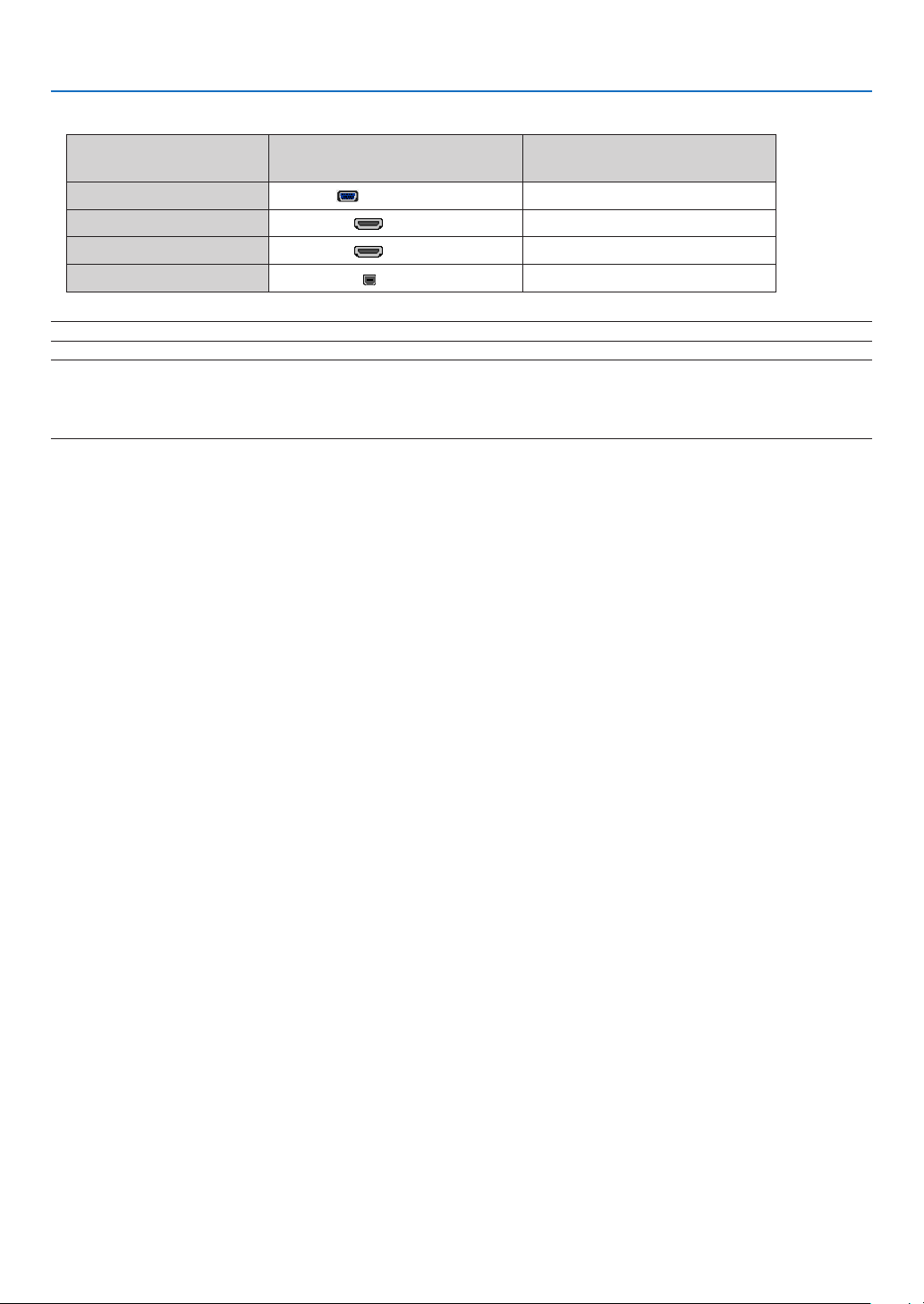
123
6. Installation and Connections
• Selectthesourcenameforitsappropriateinputterminalafterturningontheprojector.
Inputterminal
SOURCEbuttonontheprojector
cabinet
Buttonontheremotecontrol
COMPUTERIN COMPUTER (COMP1)
HDMI1IN HDMI1 HDMI1
HDMI2IN HDMI2 HDMI2
USB-B
USB-B (USB-B)
NOTE:TheprojectorisnotcompatiblewithvideodecodedoutputsoftheNECISS-6020switcher.
NOTE:AnimagemaynotbedisplayedcorrectlywhenaVideosourceisplayedbackviaacommerciallyavailablescanconverter.
Thisisbecausetheprojectorwillprocessavideosignalasacomputersignalatthedefaultsetting.Inthatcase,dothefollowing.
* Whenanimageisdisplayedwiththelowerandupperblackportionofthescreenoradarkimageisnotdisplayedcorrectly:
ProjectanimagetollthescreenandthenpresstheAUTOADJ.buttonontheremotecontrolortheprojectorcabinet.
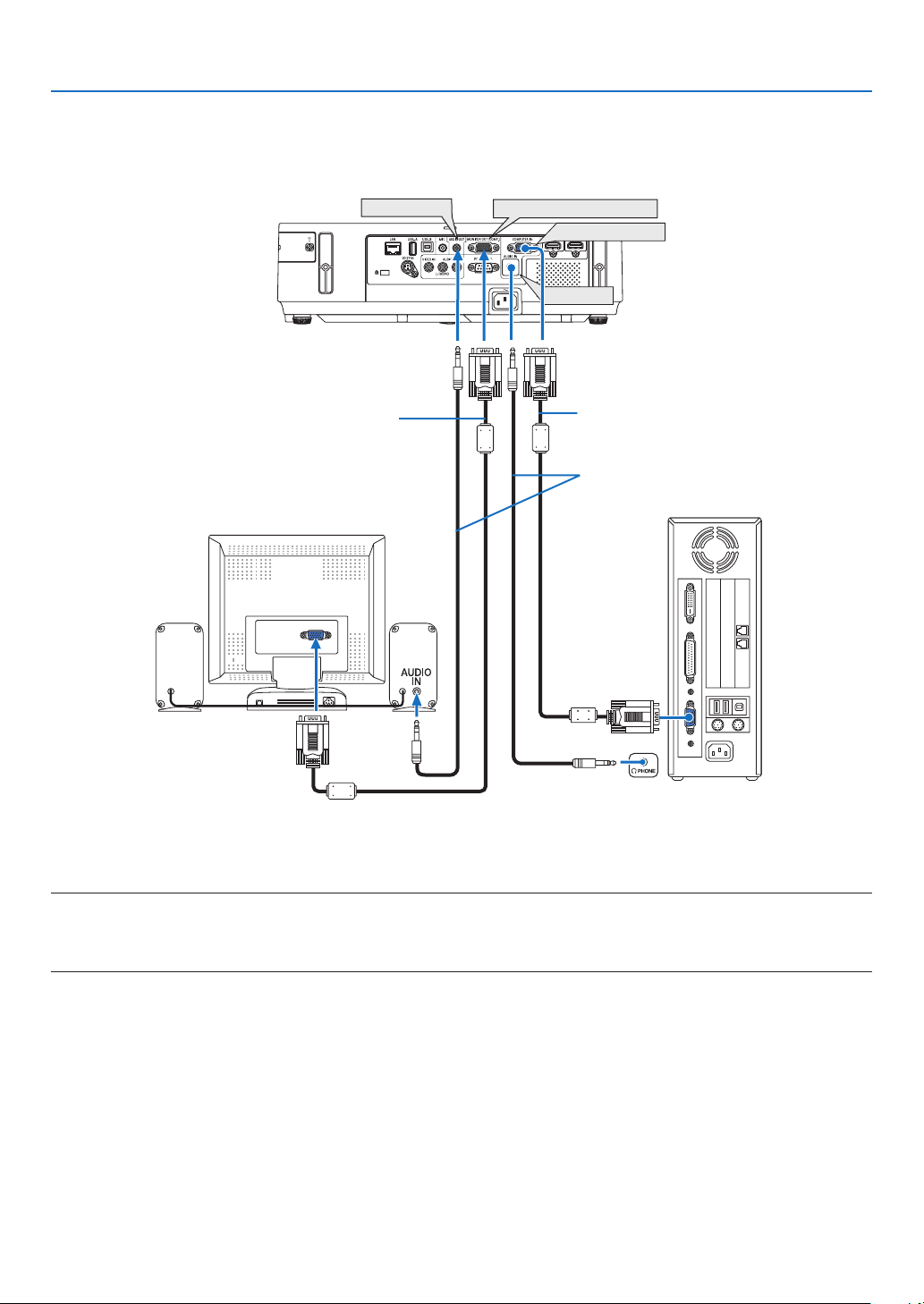
124
6. Installation and Connections
Connecting an External Monitor
Youcanconnectaseparate,externalmonitortoyourprojectortosimultaneouslyviewonamonitorthecomputer
analogimageyou’reprojecting.
NOTE:
• TheAUDIOOUTminijackdoesnotsupportHeadphoneterminal.
• Daisychainconnectionisnotpossible.
• Whenaudioequipmentisconnected,theprojectorspeakerisdisabled.
Monitoroutandsleepmode:
• TheMONITOROUT(COMP.)terminalwillnotworkwhen[NORMAL]isselectedfor[STANDBYMODE].
TheMONITOROUT(COMP.)terminalwillworkonlyinthesleepmode.
ApplyingasignalfromtheCOMPUTERINterminalwillputtheprojectorinthesleepmode,whichallowsyoutouse
theMONITOROUT(COMP.)terminalandtheAUDIOOUTminijack.SoundfromtheMICinputjackwillbeoutput
totheAUDIOOUTminijack.
Thesleepmodeisoneofthestandbymodes.Thesleepmodecannotbeselectedfromthemenu.
• Inthenetworkstandbymode,soundforthelastviewedcomputerorvideosourcewillbeheard.
BNC-to-D-SUBconvertedsignalwillnotbeoutputinthestandbymodeandsleepmode.
MONITOR OUT(COMP.)
AUDIO OUT
AUDIO IN
COMPUTER IN
Computer cable (VGA) (supplied)
Stereo mini-plug audio cable (not supplied)
Computer cable (VGA)
(not supplied)
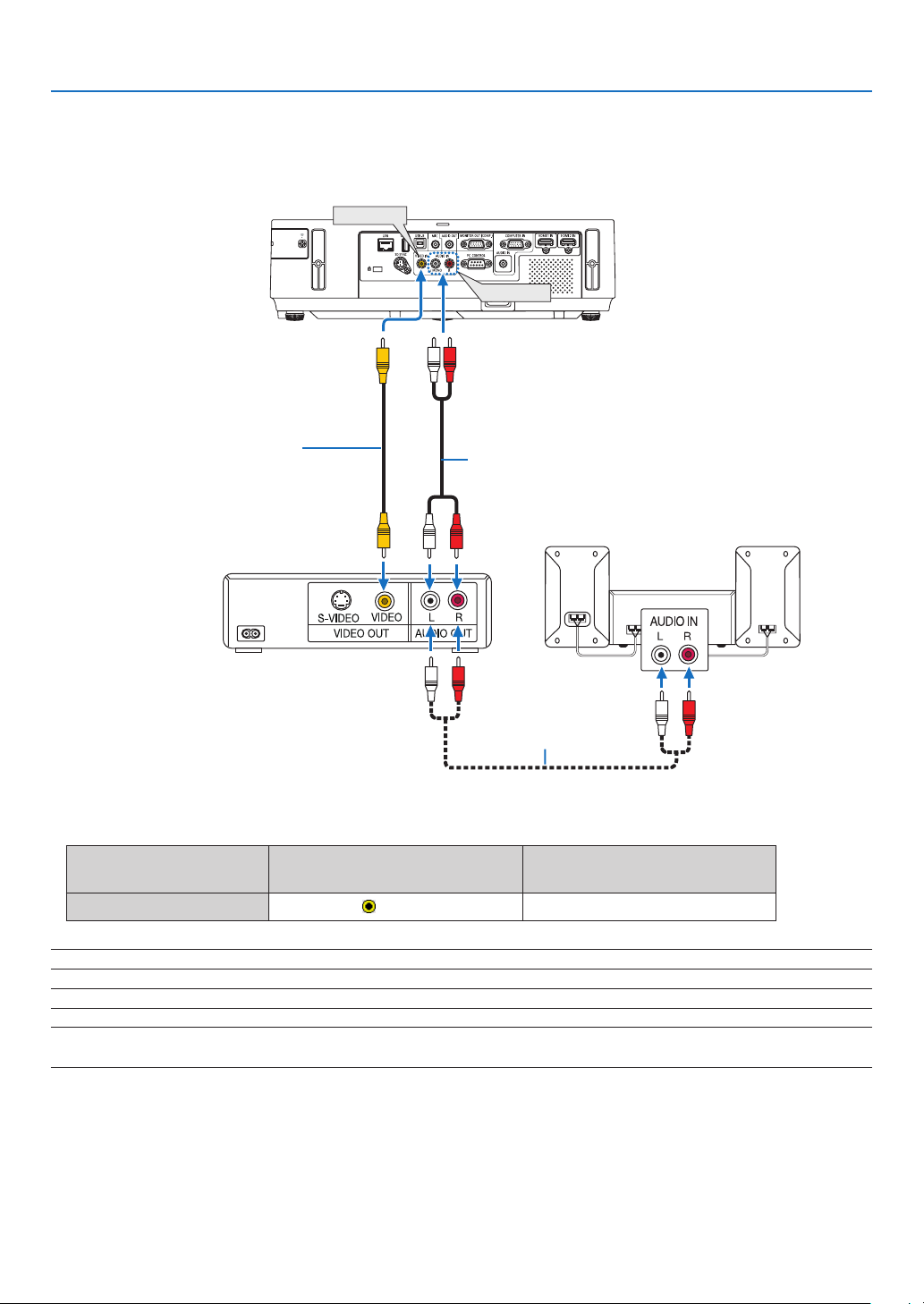
125
6. Installation and Connections
Connecting Your DVD Player or Other AV Equipment
ConnectingVideoInput
• Selectthesourcenameforitsappropriateinputterminalafterturningontheprojector.
Inputterminal
SOURCEbuttonontheprojector
cabinet
Buttonontheremotecontrol
VIDEOIN
VIDEO
(VIDEO)
NOTE:TheAUDIOINLandRjacks(RCA)aresharedbetweentheVideoinputs.
NOTE:RefertoyourVCRowner’smanualformoreinformationaboutyourequipment’svideooutputrequirements.
NOTE:Animagemay notbedisplayedcorrectlywhen aVideosourceisplayedbackinfast-forwardorfast-rewind viaascan
converter.
VIDEO IN
AUDIO IN
Audio cable (not supplied)
Video cable (not supplied)
Audio equipment
Audio cable (not supplied)
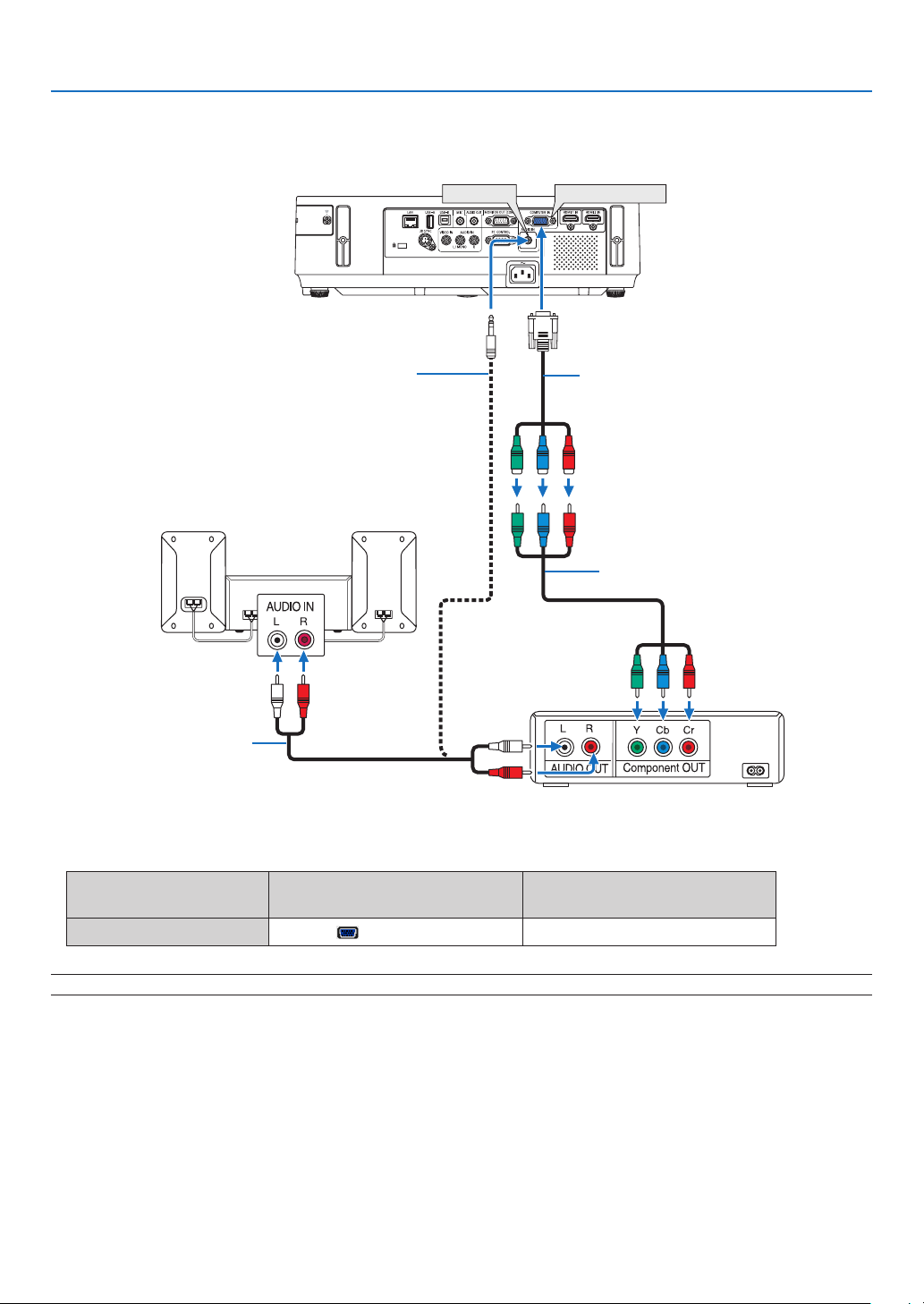
126
6. Installation and Connections
Connecting Component Input
• Selectthesourcenameforitsappropriateinputterminalafterturningontheprojector.
Inputterminal
SOURCEbuttonontheprojector
cabinet
Buttonontheremotecontrol
COMPUTERIN COMPUTER (COMP1)
NOTE:RefertoyourDVDplayer’sowner’smanualformoreinformationaboutyourDVDplayer’svideooutputrequirements.
COMPUTER IN
AUDIO IN
Audio cable (not supplied)
15-pin - to - RCA (fe-
male) × 3 cable adapter
(ADP-CV1E)
Stereo mini plug - to - RCA audio
cable (not supplied)
Component video RCA × 3
cable (not supplied)
DVD player
Audio Equipment
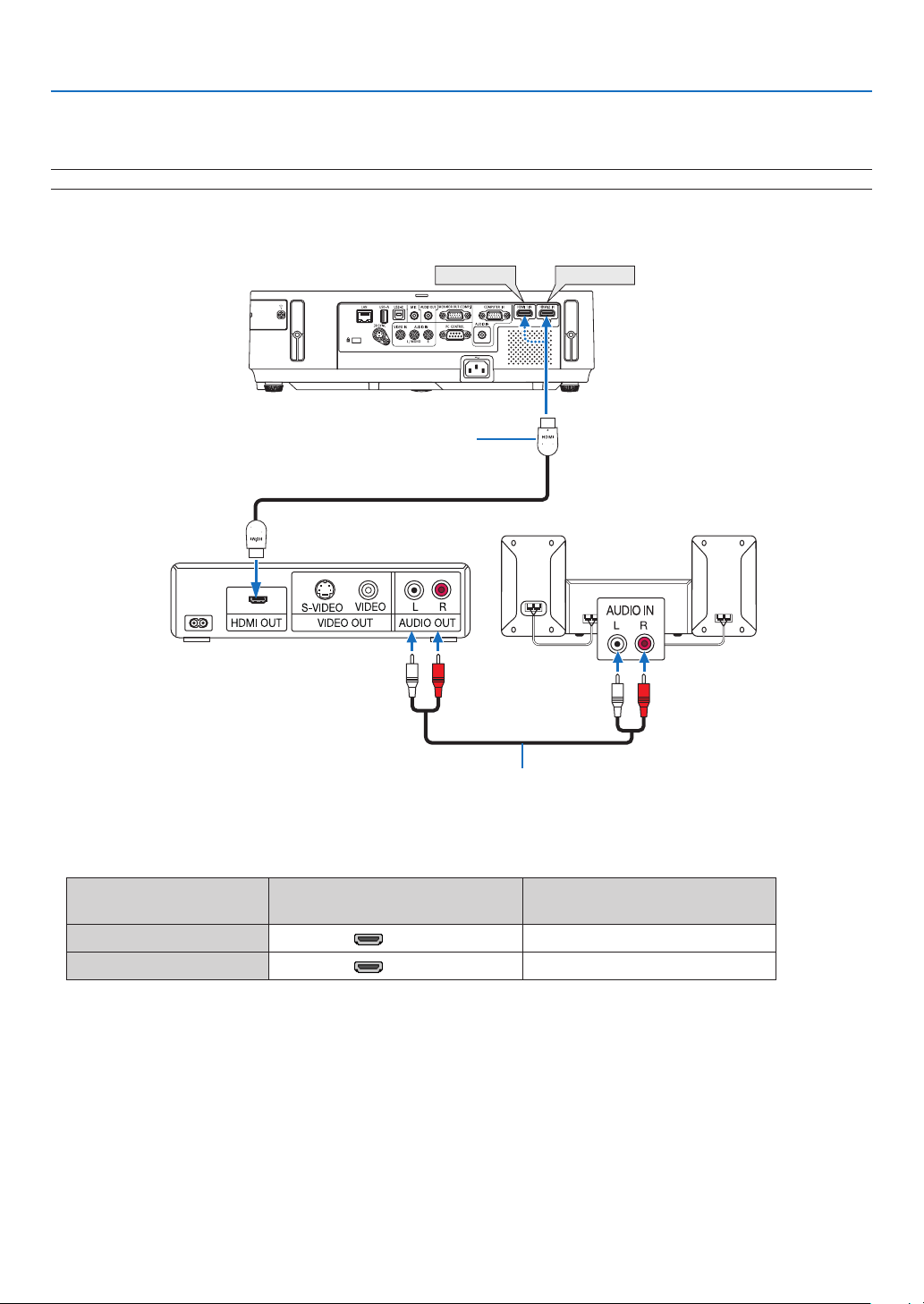
127
6. Installation and Connections
HDMI 2 IN
HDMI 1 IN
Connecting HDMI Input
YoucanconnecttheHDMIoutputofyourDVDplayer,harddiskplayer,Blu-rayplayer,ornotebooktypePCtothe
HDMIINterminalofyourprojector.
NOTE:TheHDMIINterminalsupportsPlug&Play(DDC2B).
Audio cable (not supplied)
HDMIcable(notsupplied)
UseHighSpeedHDMI
®
Cable.
Inputterminal
SOURCEbuttonontheprojector
cabinet
Buttonontheremotecontrol
HDMI1IN HDMI1 HDMI1
HDMI2IN HDMI2 HDMI2
TIP:ForusersofaudiovideoequipmentwithanHDMIterminal:
Select“Enhanced”ratherthan“Normal”ifHDMIoutputisswitchablebetween“Enhanced”and“Normal”.
Thiswillprovideimprovedimagecontrastandmoredetaileddarkareas.
Formoreinformationonsettings,refertotheinstructionmanualoftheaudiovideoequipmenttobeconnected.
• WhenconnectingtheHDMIINterminaloftheprojectortotheDVDplayer,theprojector’svideolevelcanbemade
settingsinaccordancewiththeDVDplayer’svideolevel.Inthemenuselect[HDMISETTINGS]→[VIDEOLEVEL]
andmakenecessarysettings.
• IftheHDMIinputsoundcannotbeheard,inthemenuselect[HDMISETTINGS]→[AUDIOSELECT]→[HDMI1]
or[HDMI2].
Audio Equipment
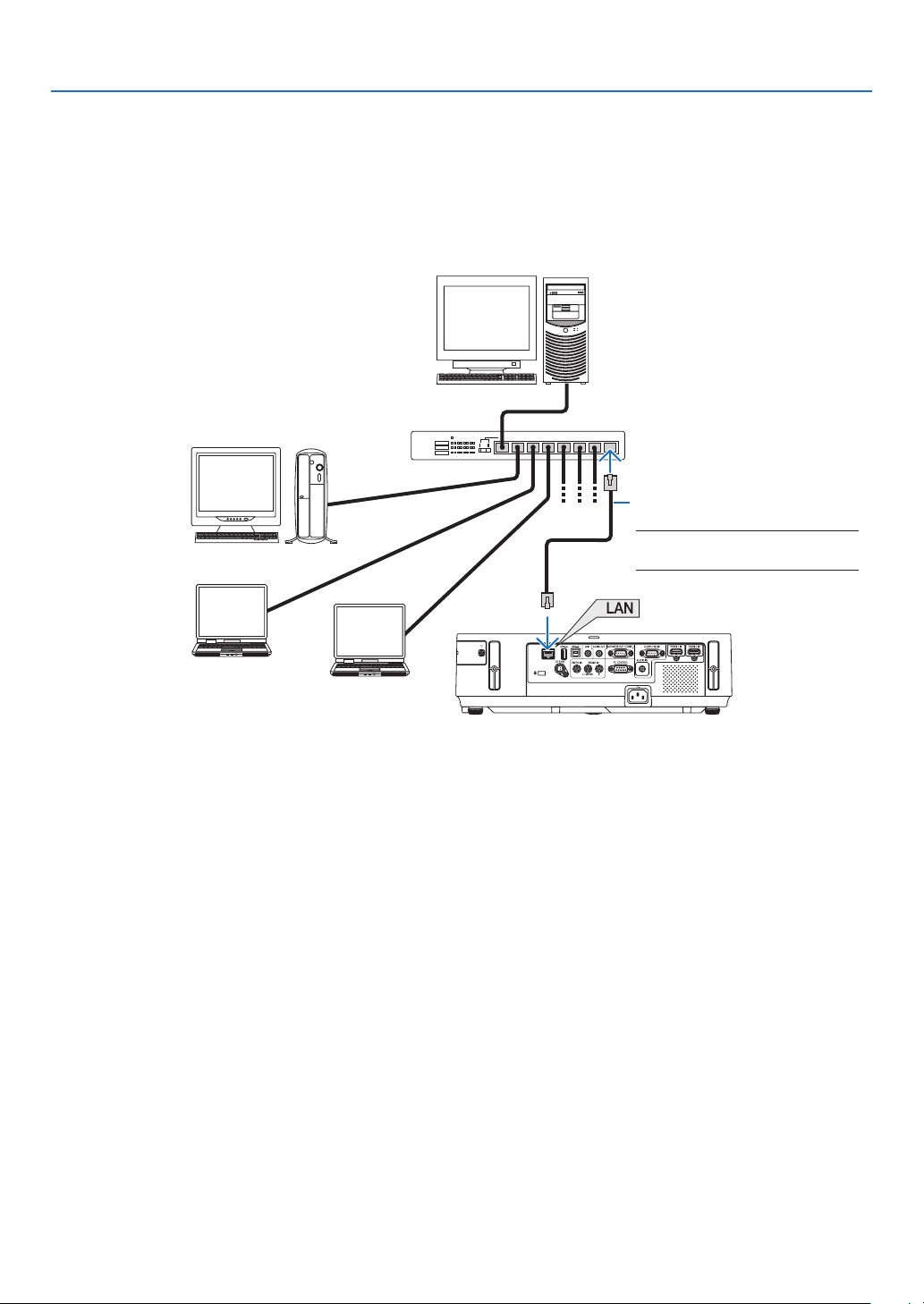
128
6. Installation and Connections
Connecting to a Wired LAN
TheprojectorcomesstandardwithaLANport(RJ-45)whichprovidesaLANconnectionusingaLANcable.
TouseaLANconnection,youarerequiredtosettheLANontheprojectormenu.Select[SETUP]→[WIREDLAN].
(→page109).
Example of LAN connection
ExampleofwiredLANconnection
Server
Hub
LAN cable (not supplied)
NOTE:UseaCategory5orhigher
LANcable.

129
6. Installation and Connections
Connecting to a Wireless LAN
TheUSBWirelessLANUnitalsoprovidesawirelessLANconnection.TouseawirelessLANconnection,youare
requiredtoassignanIPaddresstotheprojector.
Important:
• IfyouusetheprojectorwiththeUSBWirelessLANUnitintheareawheretheuseofwirelessLANequipmentis
prohibited,removetheUSBWirelessLANUnitfromtheprojector.
• BuytheappropriateUSBWirelessLANUnitforyourcountryorarea.
NOTE:
• WhentheprojectoristurnedonwiththeoptionalwirelessLANunitinserted,theindicatorwilllightupblueandthegreenLED
ontheUSBWirelessLANUnitashestoshowthattheUSBWirelessLANUnitisworking.
• Yourcomputer’swirelessLANadapter(orunit)mustbecompliedwithWi-Fi(IEEE802.11b/g/n)standard.
Flow of Setting Wireless LAN
Step 1: Attach the USB Wireless LAN Unit to the projector.
Step 2: ConnectthecomputertotheprojectorviawiredLAN.(→page128)
Usethecomputer’sbrowsertodisplaytheprojector’sHTTPserver.(→page45)
Step 3: UseanHTTPservertosetthewirelessLAN.(→page48)
AccesstheHTTPserverfunctiontoset[NETWORKSETTINGS]→[SETTINGS]→[WIRELESS]→
[SIMPLEACCESSPOINT],[PROFILE1]or[PROFILE2].
NOTE:
• TousetheHTTPserverfunction,theprojectormustbeconnectedtoanetwork.
FirstusethewiredLANtoconnecttheprojectortoanetworkandthenusetheHTTPservertosetthewirelessLAN.
• AftersettingthewirelessLANbyusingtheHTTPserver,set[NETWORKSETTINGS]→[SETTINGS]→[WIRED]→[DISABLE]
WhenswitchingtosetontheprojectorafterconnectingtothewirelessLAN:
UsethemenutosetthewirelessLANconnectionfortheprojector.
(→page110)
Select[DISABLE],[PROFILE1]or[PROFILE2]yousetfromtheHTTPserver.
Attaching the USB Wireless LAN Unit
NOTE:
• TheUSBWirelessLANUnitmustbeinsertedintotheUSBWirelessLANUnitportinthecorrectdirection.Itcannotbeinserted
inthereversedirection.IftheUSBWirelessLANUnitisinsertedinthereversedirectionwithexcessiveforceapplied,theUSB
portmaybreak.
• BeforetouchingtheUSBWirelessLANUnit,touchametallicobject(suchasadoorknoboraluminumwindowframe)todischarge
thestaticelectricityfromyourbody.
• AlwaysinsertorremovetheUSBWirelessLANunitwhenthemainpoweristurnedoff.Failuretodosomaycauseprojector
malfunctionordamagetotheUSBwirelessLANunit.Iftheprojectorwillnotworkcorrectly,turnofftheprojector,disconnect
thepowercord,andthenconnectitagain.
• DonotinsertotherUSBdevicesintotheUSBWirelessLANunitport.DonotinserttheUSBWirelessLANunitintotheUSB-B
port(TypeB).
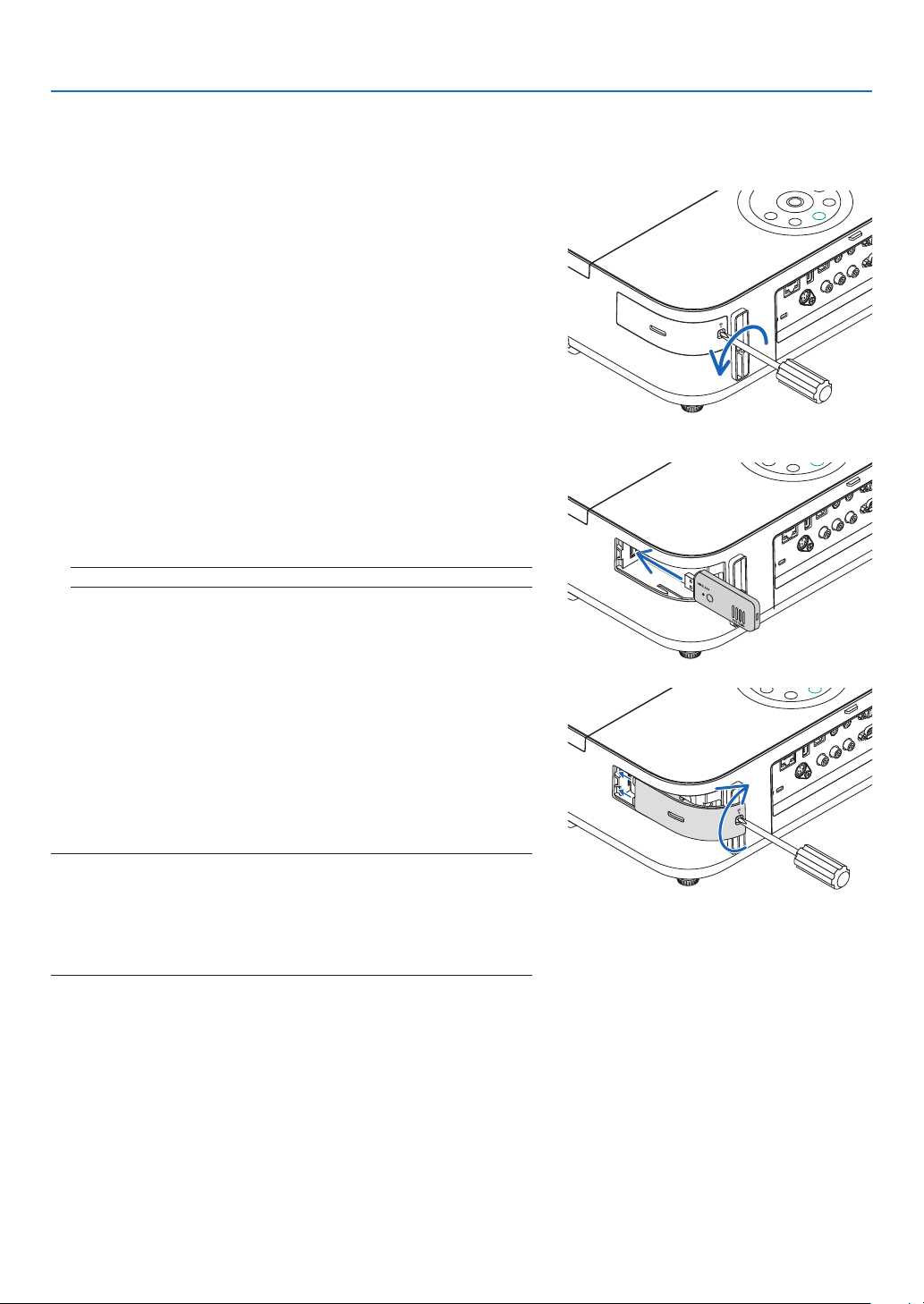
130
6. Installation and Connections
PrepareaPhillipsscrewdriverbeforehand.
1. PressthePOWERbuttontoturnofftheprojectorandsetit
intostandbycondition,anddisconnectthepowercord.
2. RemovetheUSB(LAN)portcover.
Loosen the screw securing the port cover.
•Thescrewisnotremovable.
3. SlowlyinserttheUSBWirelessLANUnitintotheUSB(LAN)
port.
Remove the cap from the USB Wireless LAN Unit, and then insert
it with the surface (side of indicator) facing outward. Keep the cap
for later use.
NOTE:DonotforcetoinserttheUSBWirelessLANUnit.
4. PuttheUSB(LAN)portcoverbackintoplace.
InsertthecatchoftheUSB(LAN)portcoverintothegrooveofthe
projector cabinet, and then tighten the screw to secure the port
cover.
ToremovetheUSBWirelessLANUnit,disconnectthepowercord
andusetheaboveprocedure.
NOTE:
• ThegreenLEDontheUSBWirelessLANUnitashestoshowthatWireless
LANUnitisworking.IftheUSBWirelessLANUnitisincorrectlyattached,
theblueLEDwillnotash.
• DonotpressthebuttonontheUSBWirelessLANUnit.Thebuttonwillnot
workwiththismodel.
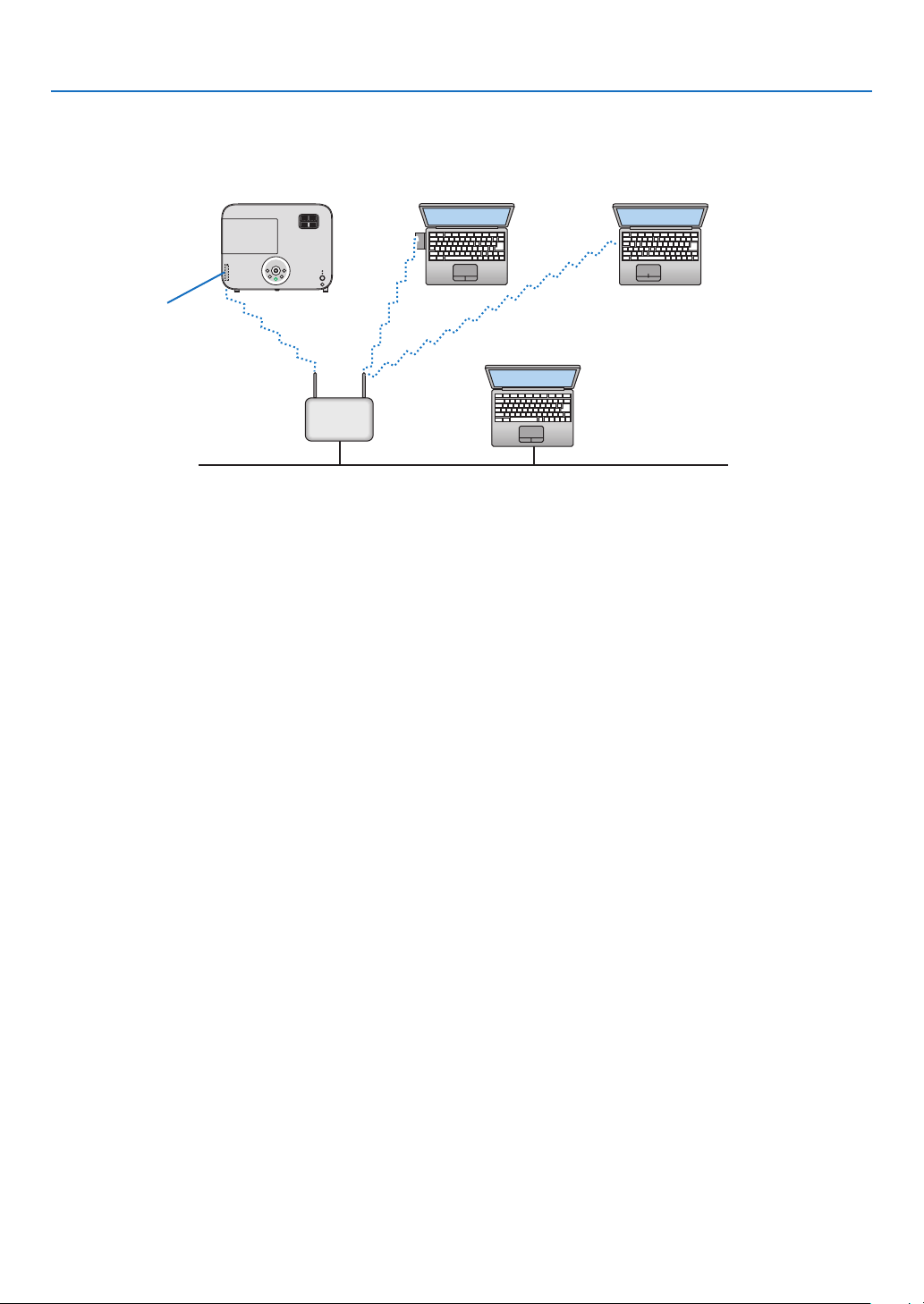
131
6. Installation and Connections
ExampleofwirelessLANconnection
(NetworkType→WirelessLANPROFILE1orPROFILE2)
PC with wireless
LAN card inserted
PC with built-in wireless
LAN function
Wired LAN
Wireless access point
USB Wireless LAN Unit
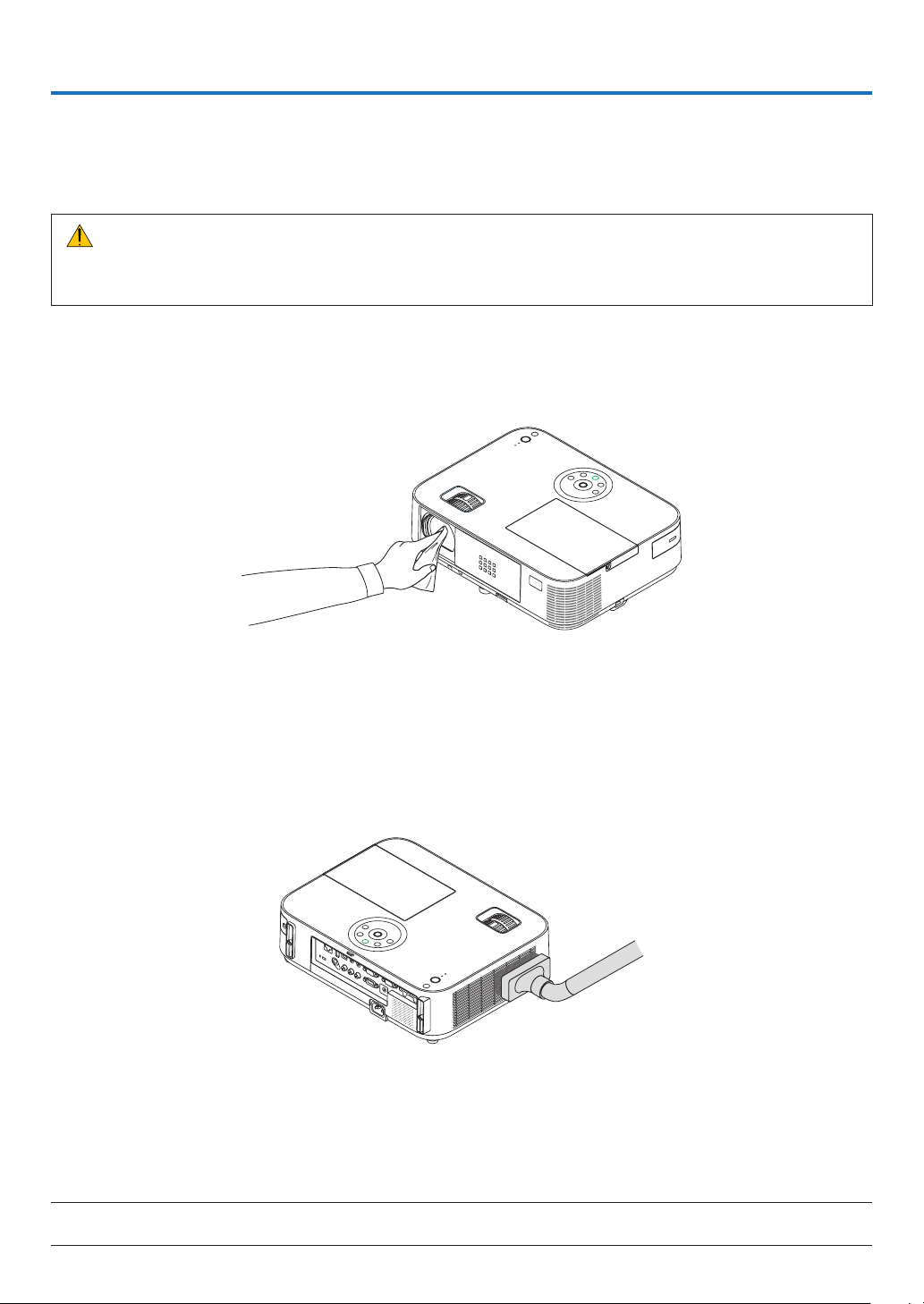
132
Thissectiondescribesthesimplemaintenanceproceduresyoushouldfollowtocleanthelens,thecabinet,andto
replacethelamp.
❶ Cleaning the Lens
WARNING
• Donotsprayammablegastogetridofdustanddirtthataccumulateinthelens.Doingsocouldcausea
re.
• Turnofftheprojectorbeforecleaning.
• Theprojectorhasaplasticlens.Useacommerciallyavailableplasticlenscleaner.
• Donotscratchormarthelenssurfaceasaplasticlensiseasilyscratched.
• Neverusealcoholorglasslenscleanerasdoingsowillcausedamagetotheplasticlenssurface.
❷ Cleaning the Cabinet
Turnofftheprojector,andunplugtheprojectorbeforecleaning.
• Useadrysoftclothtowipedustoffthecabinet.
Ifheavilysoiled,useamilddetergent.
• Neverusestrongdetergentsorsolventssuchasalcoholorthinner.
• Whencleaningtheventsorthespeakerusingavacuumcleaner,donotforcethebrushofthevacuumcleaner
intotheslitsofthecabinet.
Vacuum the dust off the vents.
• Cloggedventsmaycauseariseintheinternaltemperatureoftheprojector,resultinginmalfunction.
• Donotscratchorhitthecabinetwithyourngersoranyhardobjects
• Contactyourdealerforcleaningtheinsideoftheprojector.
NOTE:Donotapplyvolatileagentsuchasinsecticideonthecabinet,thelens,orthescreen.Donotleavearubberorvinylproduct
inprolongedcontactwithit.Otherwisethesurfacenishwillbedeterioratedorthecoatingmaybestrippedoff.
7. Maintenance

133
7. Maintenance
❸ Replacing the Lamp
Whenthelampreachestheendofitslife,theLAMPindicatorinthecabinetwillblinkredandthemessage“THELAMP
HASREACHEDTHEENDOFITSUSABLELIFE.PLEASEREPLACETHELAMP.”willappear(*).Eventhoughthe
lampmaystillbeworking,replacethelamptomaintaintheoptimalprojectorperformance.Afterreplacingthelamp,
besuretoclearthelamphourmeter.(→page116)
CAUTION
• DONOTTOUCHTHELAMPimmediatelyafterithasbeenused.Itwillbeextremelyhot.Turntheprojector
offandthendisconnectthepowercord.Allowatleastonehourforthelamptocoolbeforehandling.
• Usethespeciedlampforsafetyandperformance.
Toorderthereplacementlamp,specifyyourlamptype.
Replacementlamp:
NP30LP:M403W/M403X/M353WS/M333XS/M403H/M323H
NP29LP:M363W/M363X
NP28LP:M323W/M323X/M303WS
NP27LP:M283X
• DONOTREMOVEANYSCREWSexceptonelampcoverscrewandthreelamphousingscrews.Youcouldreceive
anelectricshock.
• Donotbreaktheglassonthelamphousing.
Keepngerprintsofftheglasssurfaceonthelamphousing.Leavingngerprintsontheglasssurfacemightcause
anunwantedshadowandpoorpicturequality.
• Theprojectorwillturnoffandgointostandbymodewhenyoucontinuetousetheprojectorforanother100hours
afterthelamphasreachedtheendofitslife.Ifthishappens,besuretoreplacethelamp.Ifyoucontinuetouse
thelampafterthelampreachestheendofitslife,thelampbulbmayshatter,andpiecesofglassmaybescattered
inthelampcase.Donottouchthemasthepiecesofglassmaycauseinjury.Ifthishappens,contactyourNEC
dealerforlampreplacement.
*NOTE:Thismessagewillbedisplayedunderthefollowingconditions:
• foroneminuteaftertheprojectorhasbeenpoweredon
• whenthe (POWER)buttonontheprojectorcabinetortheSTANDBYbuttonontheremotecontrolispressed
Toturnoffthemessage,pressanybuttonontheprojectorcabinetortheremotecontrol.
Optionallampandtoolsneededforreplacement:
• Phillipsscrewdriver(plus-head)
• Replacementlamp
Flow of Replacing the Lamp
Step 1. Replace the lamp
Step 2. Clearthelampusagehours(→page116)
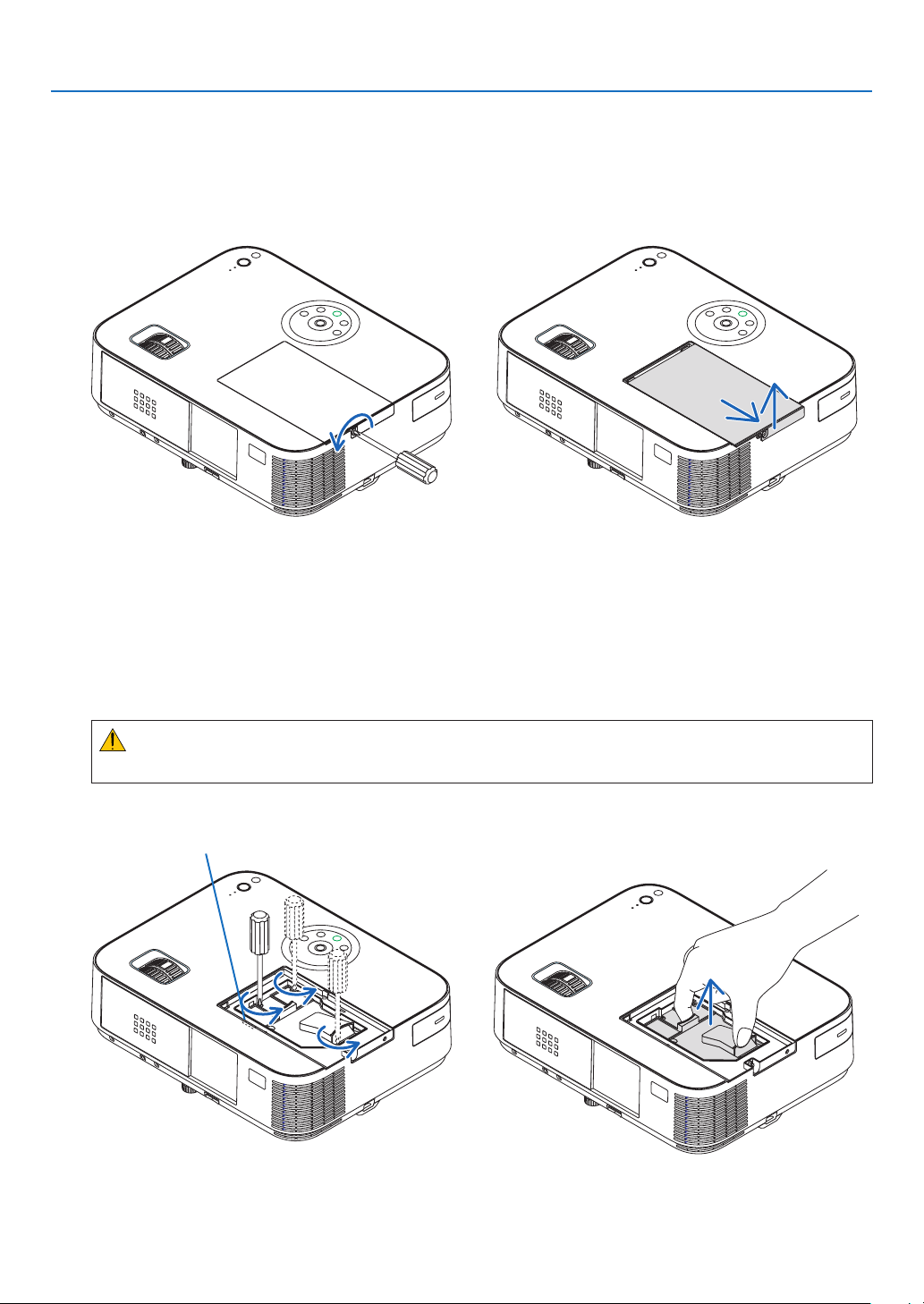
134
7. Maintenance
2. Removethelamphousing.
(1)Loosenthethreescrewssecuringthelamphousinguntilthephillipsscrewdrivergoesintoafreewheelingcondi-
tion.
•Thethreescrewsarenotremovable.
•Thereisaninterlockonthiscasetopreventtheriskofelectricalshock.Donotattempttocircumventthis
interlock.
(2)Removethelamphousingbyholdingit.
CAUTION:
Makesurethatthelamphousingiscoolenoughtobeforeremovingit.
Interlock
To replace the lamp:
1. Removethelampcover.
(1)Loosenthelampcoverscrew
•Thelampcoverscrewisnotremovable.
(2)Pushandslidethelampcoveroff.
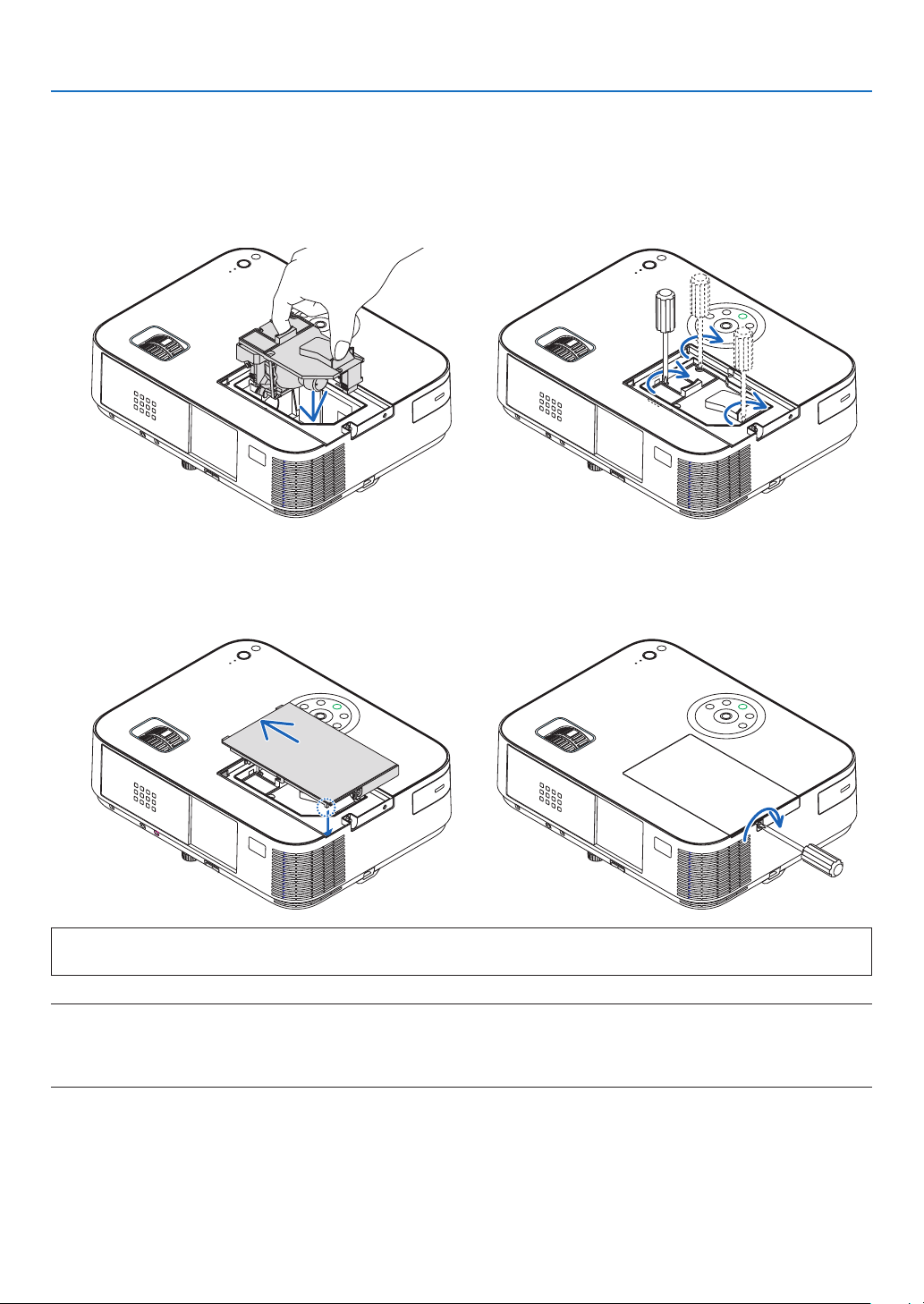
135
7. Maintenance
This completes the lamp replacement.
Go on to the clearing lamp hour meters.
NOTE:Whenyoucontinuetousetheprojectorforanother100hoursafterthelamphasreachedtheendofitslife,theprojector
cannotturnonandthemenuisnotdisplayed.
Ifthishappens,presstheHELPbuttonontheremotecontrolfor10secondstoresetthelampclockbacktozero.
Whenthelamptimeclockisresettozero,theLAMPindicatorgoesout.
To clear the lamp usage hours:
1. Placetheprojectorwhereyouuseit.
2. Plugthepowercordintothewalloutlet,andthenturnontheprojector.
3. Clearthelampusagehours.
From the menu, select [RESET] → [CLEAR LAMP HOURS] and reset the lamp usage hours.
4. Reattachthelampcover.
(1)Slidethelampcoverbackuntilitsnapsintoplace.
(2)Tightenthescrewtosecurethelampcover.
•Besuretotightenthescrew.
3. Installanewlamphousing.
(1)Insertanewlamphousinguntilthelamphousingispluggedintothesocket.
(2)Pushthetopcenterofthelamphousingtosecureit.
(3)Secureitinplacewiththethreescrews.
•Besuretotightenthescrews.
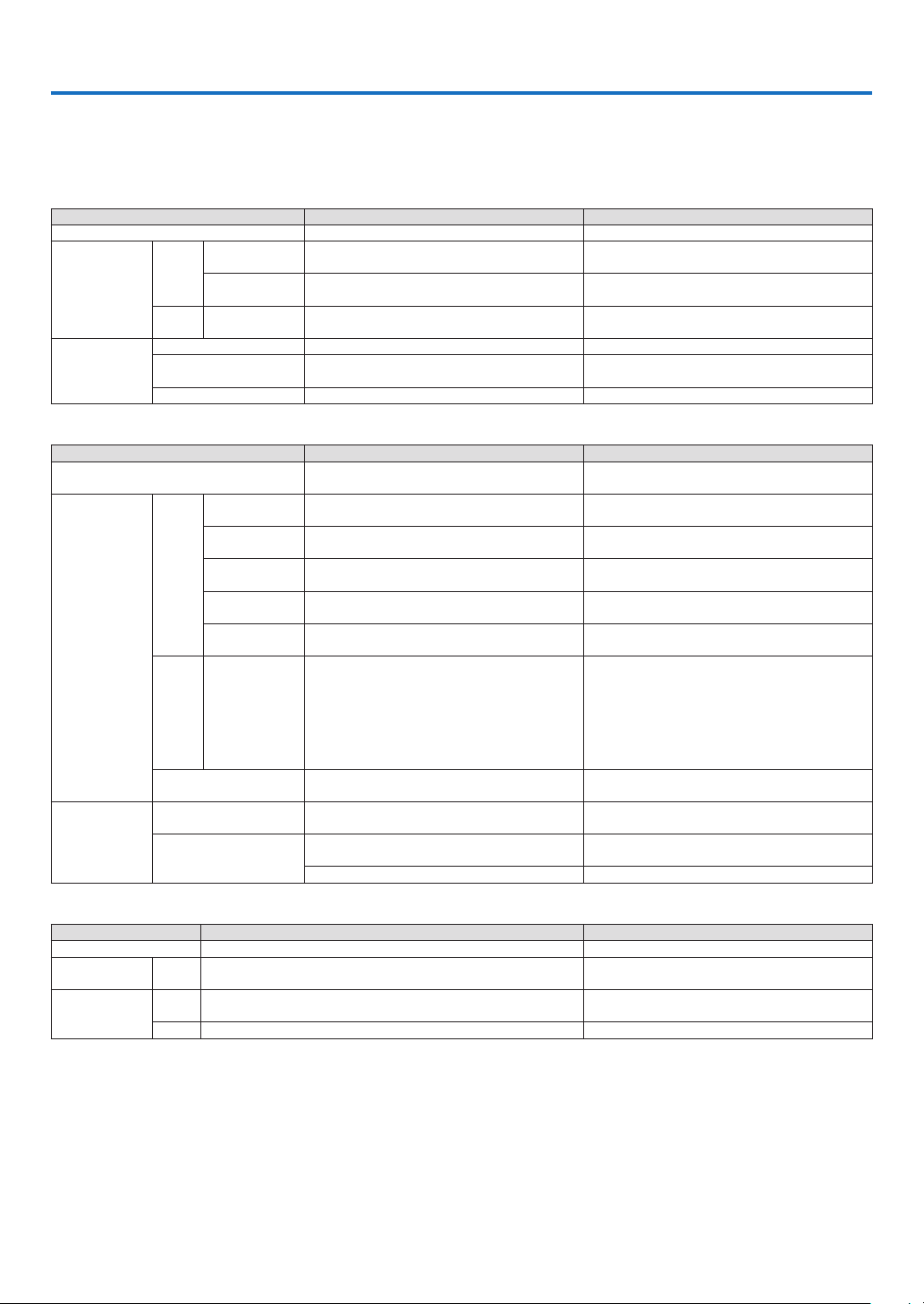
136
8. Appendix
❶ Troubleshooting
Thissectionhelpsyouresolveproblemsyoumayencounterwhilesettinguporusingtheprojector.
Indicator Messages
Power Indicator
Indicator Condition Projector Condition Note
Off The main power is off –
Blinking light Blue 0.5 sec On,
0.5 sec Off
The projector is getting ready to turn on. Wait for a moment.
2.5 sec On,
0.5 sec Off
Off Timer is enabled.
–
Orange 0.5 sec On,
0.5 sec Off
The projector is cooling down. Wait for a moment.
Steady light Blue The projector is turned on. –
Orange The projector is [NETWORK STANDBY] mode or
sleep mode*.
–
Red [NORMAL] is selected for [STANDBY MODE] –
Status Indicator
Indicator Condition Projector Condition Note
Off Power on or Standby ([NORMAL] or [NETWORK
STANDBY] for [STANDBY MODE])
–
Blinking light Red 1 cycle (0.5 sec
On, 2.5 sec Off)
Lamp cover error or lamp housing error Replace the lamp cover or lamp housing correctly.
2 cycle (0.5 sec
On, 0.5 sec Off)
Temperature error The projector is overheated. Move the projector to a
cooler location.
3 cycle (0.5 sec
On, 0.5 sec Off)
Power error Power unit is not working properly. Contact your
dealer.
4 cycle (0.5 sec
On, 0.5 sec Off)
Fan error Fans will not work correctly.
6 cycle (0.5 sec
On, 0.5 sec Off)
Lamp error Lamp fails to light. Wait a full minute and then turn
on again.
Orange 1 cycle (0.5 sec
On, 2.5 sec Off)
Network conflict
Both the built-in wired LAN and the wireless LAN cannot be
connected to the same network at the same time.
To use both built-in wired LAN and wireless LAN at the same
time, connect them to different networks. When the projector
is in NORMAL STANDBY mode or NETWORK STANDBY mode,
even if a network conflict occurs, the STATUS indicator will
not blink orange.
Green Re-firing the lamp (The projector is cooling down.) The projector is re-firing.
Wait for a moment.
Steady light Green In transition to STANDBY MODE. (The projector is in
NORMAL or sleep mode)
–
Orange CONTROL PANEL LOCK is on. You have pressed cabinet button when Control Panel
Lock is on.
CONTROL ID error Remote control ID and projector ID are not matched.
Lamp Indicator
Indicator Condition Projector Condition Note
Off Normal –
Blinking light Red Lamp has reached its end of life. Lamp replacement message will be
displayed.
Replace the lamp.
Steady light Red Lamp has been used beyond its limit. The projector will not turn on until
the lamp is replaced.
Replace the lamp.
Green [ECO MODE] is set to [AUTO ECO], [NORMAL] or [ECO] –
*Formoreinformationon"sleepmode",seepage124.
Over-TemperatureProtection
Ifthetemperatureinsidetheprojectorrisestoohigh,theover-temperatureprotectorwillautomaticallyturnoffthelamp
withtheSTATUSindicatorblinking(2-cycleOnandOff.)
Shouldthishappen,dothefollowing:
• Unplugthepowercordafterthecoolingfansstop.
• Movetheprojectortoacoolerlocationiftheroomwhereyouarepresentingisparticularlytoowarm.
• Cleantheventsiftheyarecloggedwithdust.
• Waitabout60minutesuntiltheinsideoftheprojectorbecomescoolenough.

137
8. Appendix
Common Problems & Solutions
(→“Power/Status/LampIndicator”onpage136.)
Problem CheckTheseItems
Does not turn on
or shut down
• Checkthatthepowercordispluggedinandthatthepowerbuttonontheprojectorcabinetortheremotecontrol
is on� (→ pages 14, 15)
• Ensurethatthelampcoverisinstalledcorrectly.(→ page 135)
• Checktoseeiftheprojectorhasoverheated.Ifthereisinsufcientventilationaroundtheprojectororiftheroom
where you are presenting is particularly warm, move the projector to a cooler location�
• Checktoseeifyoucontinuetousetheprojectorforanother100hoursafterthelamphasreachedtheendofits
life� If so, replace the lamp� After replacing the lamp, reset the lamp hours used� (→ page 116)
• Thelampmayfailtolight.Waitafullminuteandthenturnonthepoweragain.
• Set[FANMODE]to[HIGHALTITUDE]whenusingtheprojectorataltitudesapproximately5500feet/1700meters
or higher� Using the projector at altitudes approximately 5500 feet/1700 meters or higher without setting to [HIGH
ALTITUDE] can cause the projector to overheat and the projector could shut down� If this happens, wait a couple
minutes and turn on the projector� (→ page 102)
If you turn on the projector immediately after the lamp is turned off, the fans run without displaying an image for
some time and then the projector will display the image� Wait for a moment�
Will turn off
• Ensurethatthe[OFFTIMER]or[AUTOPOWEROFF]isoff.(→ page 97, 105)
No picture
• Usetheinputselectbuttonontheremotecontroltoselectyoursource(COMPUTER,HDMI1,HDMI2,VIDEO,
USB-A, LAN, or USB-B)� (→ page 17) If there is still no picture, press the button again�
• Ensureyourcablesareconnectedproperly.
• Usemenustoadjustthebrightnessandcontrast.(→ page 89)
• Ensurethatthelenscoverisopen.(orlenscapisremovedonM353WS/M303WS/M333XS)(→ page 5, 15)
• Resetthesettingsoradjustmentstofactorypresetlevelsusingthe[RESET]intheMenu.(→ page 116)
• EnteryourregisteredkeywordiftheSecurityfunctionisenabled.(→ page 33)
• BesuretoconnecttheprojectorandnotebookPCwhiletheprojectorisinstandbymodeandbeforeturningon
the power to the notebook PC�
In most cases the output signal from the notebook PC is not turned on unless connected to the projector before
being powered up�
* If the screen goes blank while using your remote control, it may be the result of the computer’s screen-saver
or power management software�
• Seealsothenext page�
Picture suddenly be-
comes dark
• CheckiftheprojectorisintheForcedECOmodebecauseoftoohighambienttemperature.Ifthisisthecase,
lower the internal temperature of the projector by selecting [HIGH] for [FAN MODE]� (→ page 102)
Color tone or hue is un-
usual
• Checkifanappropriatecolorisselectedin[WALLCOLOR].Ifso,selectanappropriateoption.(→ page 96)
• Adjust[HUE]in[PICTURE].(→ page 89)
Image isn’t square to the
screen
• Repositiontheprojectortoimproveitsangletothescreen.(→ page 18)
• UsetheKeystonecorrectionfunctiontocorrectthetrapezoiddistortion.(→ page 22)
Picture is blurred
• Adjustthefocus.(→ page 21)
• Repositiontheprojectortoimproveitsangletothescreen.(→ page 18)
• Ensure that the distance between the projector and screen is within the adjustment range of the lens.
(→ page 117)
• Condensationmayformonthelensiftheprojectoriscold,broughtintoawarmplaceandisthenturnedon.
Should this happen, let the projector stand until there is no condensation on the lens�
Fl ick er ap pea rs on
screen
•
Set [FAN MODE] to other than [HIGH ALTITUDE] mode when using the projector at altitudes approximately 5500 feet/1700
meters or lower� Using the projector at altitudes less than approximately 5500 feet/1700 meters and setting to [HIGH ALTI-
TUDE] can cause the lamp to overcool, causing the image to flicker� Switch [FAN MODE] to [AUTO]� (→ page 102)
Image is scrolling ver-
tically, horizontally or
both
• Checkthecomputer’sresolutionandfrequency.Makesurethattheresolutionyouaretryingtodisplayissupported
by the projector� (→ page 149)
• AdjustthecomputerimagemanuallywiththeHorizontal/Verticalinthe[IMAGEOPTIONS].(→ page 91)
Remote control does
not work
• Installnewbatteries.(→ page 11)
• Makesuretherearenoobstaclesbetweenyouandtheprojector.
• Standwithin22feet(7m)oftheprojector.(→ page 11)
Indicator is lit or blink-
ing
• SeethePOWER/STATUS/LAMPIndicator.(→ page 136)
Cross color in RGB
mode
• PresstheAUTOADJ.buttonontheprojectorcabinetortheremotecontrol.(→ page 26)
• Adjustthecomputerimagemanuallywith[CLOCK]/[PHASE]in[IMAGEOPTIONS]inthemenu.(→ page 90)
Formoreinformationcontactyourdealer.

138
8. Appendix
If there is no picture, or the picture is not displayed correctly.
• PoweronprocessfortheprojectorandthePC.
BesuretoconnecttheprojectorandnotebookPCwhiletheprojectorisinstandbymodeandbeforeturningon
thepowertothenotebookPC.
InmostcasestheoutputsignalfromthenotebookPCisnotturnedonunlessconnectedtotheprojectorbefore
beingpoweredup.
NOTE:Youcancheckthehorizontalfrequencyofthecurrentsignalintheprojector’smenuunderInformation.Ifitreads“0kHz”,
thismeansthereisnosignalbeingoutputfromthecomputer.(→page113orgotonextstep)
• Enablingthecomputer’sexternaldisplay.
DisplayinganimageonthenotebookPC’sscreendoesnotnecessarilymeanitoutputsasignaltotheprojector.
WhenusingaPCcompatiblelaptop,acombinationoffunctionkeyswillenable/disabletheexternaldisplay.Usu-
ally,thecombinationofthe“Fn”keyalongwithoneofthe12functionkeysgetstheexternaldisplaytocomeon
oroff.Forexample,NEClaptopsuseFn+F3,whileDelllaptopsuseFn+F8keycombinationstotogglethrough
externaldisplayselections.
• Non-standardsignaloutputfromthecomputer
IftheoutputsignalfromanotebookPCisnotanindustrystandard,theprojectedimagemaynotbedisplayed
correctly.Shouldthishappen,deactivatethenotebookPC’sLCDscreenwhentheprojectordisplayisinuse.Each
notebookPChasadifferentwayofdeactivate/reactivatethelocalLCDscreensasdescribedinthepreviousstep.
Refertoyourcomputer’sdocumentationfordetailedinformation.
• ImagedisplayedisincorrectwhenusingaMac
WhenusingaMacwiththeprojector,settheDIPswitchoftheMacadapter(notsuppliedwiththeprojector)ac-
cordingtoyourresolution.Aftersetting,restartyourMacforthechangestotakeaffect.
ForsettingdisplaymodesotherthanthosesupportedbyyourMacandtheprojector,changingtheDIPswitchon
aMacadaptermaybounceanimageslightlyormaydisplaynothing.Shouldthishappen,settheDIPswitchto
the13"xedmodeandthenrestartyourMac.Afterthat,restoretheDIPswitchestoadisplayablemodeandthen
restarttheMacagain.
NOTE:AVideoAdaptercablemanufacturedbyAppleInc.isneededforaMacBookwhichdoesnothaveaminiD-Sub15-pin
terminal.
• MirroringonaMacBook
* WhenusingtheprojectorwithaMacBook,outputmaynotbesetto1024×768unless“mirroring”isoffonyour
MacBook.Refertoowner’smanualsuppliedwithyourMaccomputerformirroring.
• FoldersoriconsarehiddenontheMacscreen
Foldersoriconsmaynotbeseenonthescreen.Shouldthishappen,select[View]→[Arrange]fromtheApple
menuandarrangeicons.
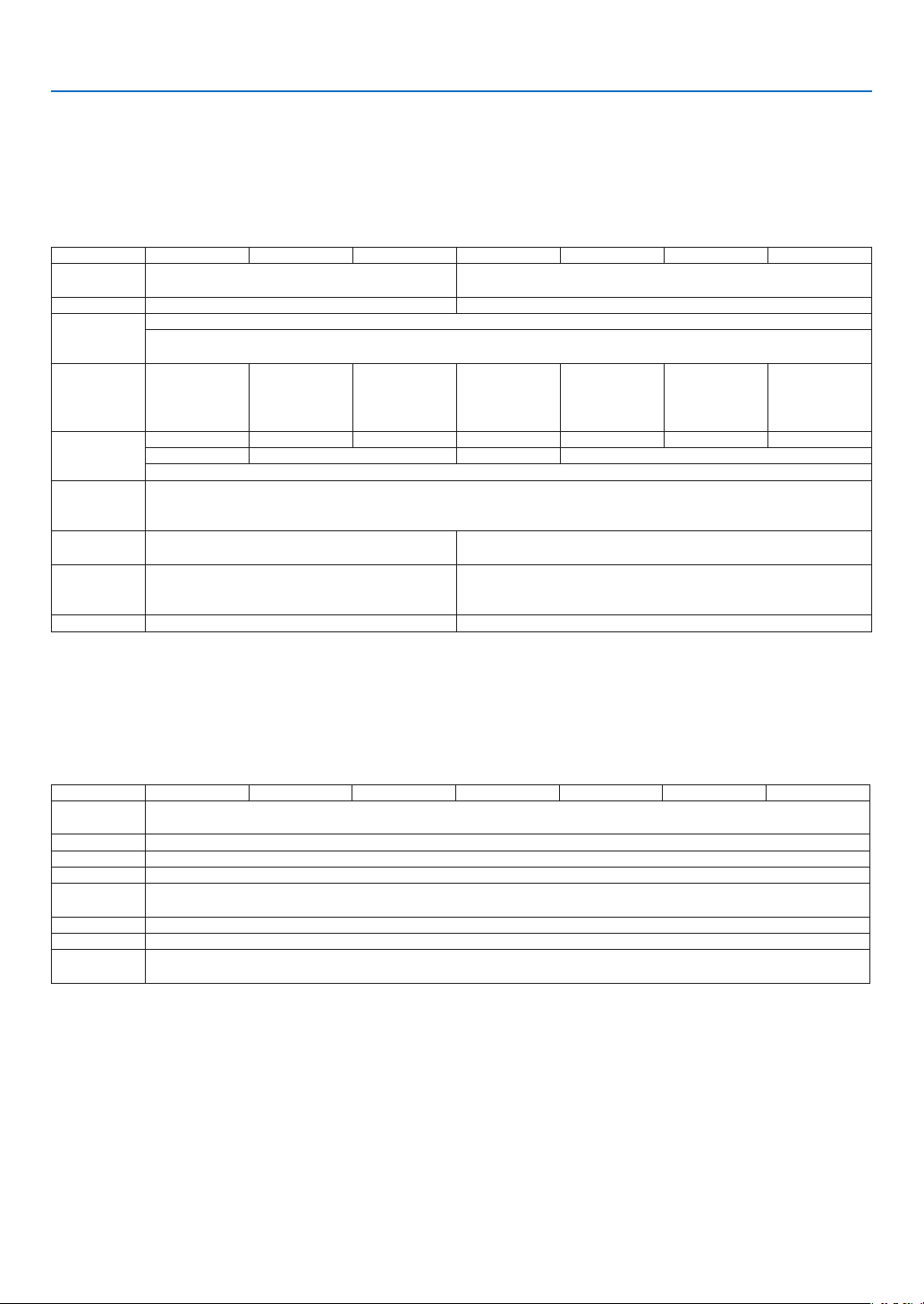
139
8. Appendix
❷ Specifications
Thissectionprovidestechnicalinformationaboutprojector’sperformance.
[M403W/M363W/M323W/M403X/M363X/M323X/M283X]
Optical
Model Number NP-M403W NP-M363W NP-M323W NP-M403X NP-M363X NP-M323X NP-M283X
Projection
System
Single DLP® chip (0.65", aspect 16:10) Single DLP® chip (0.55", aspect 4:3)
Resolution*
1
1280 × 800 pixels (WXGA) 1024 × 768 pixels (XGA)
Lens Manual zoom and focus
Zoom Ratio = 1.7
F2.4–3.1/f = 17.09–29.05 mm
Lamp 270 W AC
(219 W in NOR-
MAL)
(162 W in ECO)
250 W AC
(189 W in NOR-
MAL)
(150 W in ECO)
225W AC
(171W in NOR-
MAL)
(135W in ECO)
270 W AC
(219 W in NOR-
MAL)
(162 W in ECO)
250 W AC
(189 W in NOR-
MAL)
(150 W in ECO)
225W AC
(171W in NOR-
MAL)
(135W in ECO)
200W AC
(160W in NOR-
MAL)
(120W in ECO)
Light Output*
2
*
3
4000 lumens 3600 lumens 3200 lumens 4000 lumens 3600 lumens 3200 lumens 2800 lumens
NORMAL: 81% NORMAL: 76% NORMAL: 81% NORMAL: 76%
ECO: 60%*
4
Contrast Ratio*
3
(full white: full
black)
10000:1 with DYNAMIC CONTRAST ON
Image Size
(Diagonal)
30–300 inches/0.76 m–7.6 m (16:10) 30–300 inches/0.76 m–7.6 m (4:3)
Projection
Distance
(Min.–Max.)
29"–312" (wide) / 50"–531" (tele)
0.75–7.94 m (wide) / 1.28–13.5 m (tele)
35"–369" (wide) / 60"–627" (tele)
0.89–9.37 m (wide) / 1.52–15.93 m (tele)
Projection Angle 10.5° (wide)/17.5°–17.6° (tele) 10.5° (wide)/17.5°–17.6° (tele)
*1 Effectivepixelsaremorethan99.99%.
*2 Thisisthelightoutputvalue(lumens)whenthe[PRESET]modeissetto[HIGH-BRIGHT].Ifanyothermodeisselectedasthe
[PRESET]mode,thelightoutputvaluemaydropslightly.
*3 CompliancewithISO21118-2012
*4ThemaximumpowerbecomesequivalenttopowerinECO(ECOMODE).
Electrical
Model Number NP-M403W NP-M363W NP-M323W NP-M403X NP-M363X NP-M323X NP-M283X
Inputs 1 × RGB/Component (D-Sub 15 P), 2 × HDMI Type A (19P, HDMI
®
Terminal) HDCP supported*
5
,
1 × Video (RCA), 1 × (L/R) RCA Audio, 1 × Stereo Mini Audio
Outputs 1 × RGB (D-Sub 15P), 1 × Stereo Mini Audio
PC Control 1 × PC Control Port (D-Sub 9P)
Wired LAN Port 1 × RJ-45 (10BASE-T/100BASE-TX)
Wireless LAN
Port (Optional)
IEEE 802.11 b/g/n (optional USB Wireless LAN Unit required)
USB Port 1 × Type A, 1 × Type B
MIC Input 1 × Monaural Mini Audio
Color Reproduc-
tion
10-bit signal processing (1.07 billion colors) (USB-A, LAN: 16.7 million colors)
*5 HDMI
®
(DeepColor,LipSync,3D)withHDCP
WhatisHDCP/HDCPtechnology?
HDCPisanacronymforHigh-bandwidthDigitalContentProtection.HighbandwidthDigitalContentProtection(HDCP)isasystem
forpreventingillegalcopyingofvideodatasentoveraHigh-DenitionMultimediaInterface(HDMI).
IfyouareunabletoviewmaterialviatheHDMIinput,thisdoesnotnecessarilymeantheprojectorisnotfunctioningproperly.With
theimplementationofHDCP,theremaybecasesinwhichcertaincontentisprotectedwithHDCPandmightnotbedisplayed
duetothedecision/intentionoftheHDCPcommunity(DigitalContentProtection,LLC).
Video:DeepColor;8/10/12-bit,LipSync
Audio:LPCM;upto2ch,samplerate32/44.1/48KHz,samplebit;16/20/24-bit
*6 Animagewithhigherorlowerresolutionthantheprojector’snativeresolution(M403X/M363X/M323X/M283X:1024×768/
M403W/M363W/M323W:1280×800)willbedisplayedwithAdvancedAccuBlend.
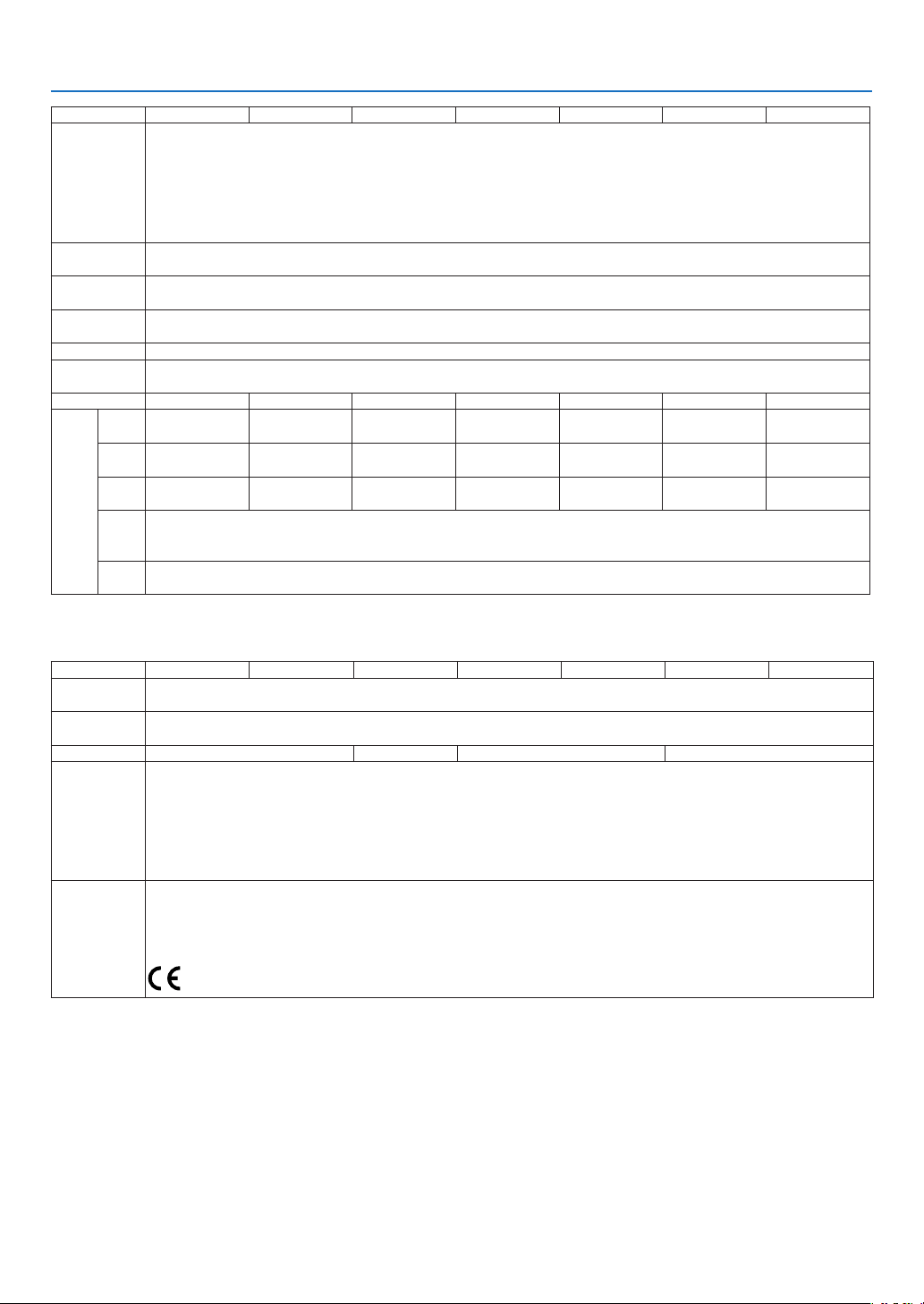
140
8. Appendix
Model Number NP-M403W NP-M363W NP-M323W NP-M403X NP-M363X NP-M323X NP-M283X
Compatible
Signals*
6
Analog: VGA/SVGA/XGA/WXGA/Quad-VGA/SXGA/SXGA+/WXGA+/WXGA++/UXGA/WSXGA+/HD/Full HD/WUXGA/Mac13"/Mac16"/Mac
19"/Mac 21"/Mac 23"
Component: 480i/480p/720p/1080i (60Hz), 576i/576p/1080i (50Hz), DVD Progressive (50/60Hz)
Digital: VGA/SVGA/XGA/WXGA/Quad-VGA/SXGA/SXGA+/WXGA+/WXGA++/WSXGA+/HDTV (1080p)/HDTV (1080i)/HDTV (720p)/
SDTV(480p)/SDTV(576p)/SDTV(480i)/SDTV(576i)
3D: For PC XGA/1280 × 720/WXGA, For Video SDTV (480i), For HDMI-1.4a 720p (Frame Packing)/
1080p (Frame Packing)/1080i (Side by Side (Half))/720p (Top and Bottom)/1080p (Top and Bottom)
Horizontal
Resolution
540 TV lines: NTSC/NTSC4.43/PAL/PAL-M/PAL-N/PAL60
300 TV lines: SECAM
Scan Rate Horizontal: 15 kHz to 100 kHz (RGB: 24 kHz or over)
Vertical: 50 Hz to 120 Hz (HDMI: 50 Hz to 85 Hz)
Sync Compat-
ibility
Separate Sync
Built-in Speaker 20 W (monaural)
Power Require-
ment
100–240 V AC, 50/60Hz
Input Current 3.9 - 1.6 A 3.6 - 1.5 A 3.3 -1.4 A 3.9 - 1.6 A 3.6 - 1.5 A 3.3 -1.4 A 3.0 - 1.2 A
Power
Consump-
tion
(Typical
value)
ECO MODE
OFF
338W (100-130 V)
320W (200-240 V)
316W (100-130 V)
301W (200-240 V)
283W (100-130 V)
269W (200-240 V)
338W (100-130 V)
320W (200-240 V)
316W (100-130 V)
301W (200-240 V)
283W (100-130 V)
269W (200-240 V)
255W (100-130 V)
242W (200-240 V)
NORMAL
276W (100-130 V)
264W (200-240 V)
240W (100-130 V)
229W (200-240 V)
218W (100-130 V)
208W (200-240 V)
276W (100-130 V)
264W (200-240 V)
240W (100-130 V)
229W (200-240 V)
218W (100-130 V)
208W (200-240 V)
207W (100-130 V)
197W (200-240 V)
ECO
221W (100-130 V)
210W (200-240 V)
205W (100-130 V)
197W (200-240 V)
186W (100-130 V)
179W (200-240 V)
221W (100-130 V)
210W (200-240 V)
205W (100-130 V)
197W (200-240 V)
186W (100-130 V)
179W (200-240 V)
170W (100-130 V)
162W (200-240 V)
STANDBY
(NETWORK
STANDBY)
2.6W (100-130 V)/ 2.9W (200-240 V)
STANDBY
(NORMAL)
0.15W (100-130 V)/0.32W (200-240 V)
Mechanical
Model Number NP-M403W NP-M363W NP-M323W NP-M403X NP-M363X NP-M323X NP-M283X
Installation
Orientation
Desktop/Front, Desktop/Rear, Ceiling/Front, Ceiling/Rear
Dimensions 14.5" (W) × 3.8" (H) × 11.3" (D) /368 mm (W) × 97.5 mm (H) × 286 mm (D)
(not including protrusions)
Weight 7.7 lbs/3.5 kg 7.5 lbs/3.4 kg 7.7 lbs/3.5 kg 7.5 lbs/3.4 kg
Environmental
Considerations
Operational Temperatures : 41° to 104°F (5° to 40°C),
(ECO mode selected automatically at 95°F to 104°F/35°C to 40°C)
20% to 80% humidity (non-condensing)
Storage Temperatures : 14° to 122°F (-10° to 50°C),
20% to 80% humidity (non-condensing)
Operating altitude: 0 to 2400 m/8000 feet (Set [FAN MODE] to [HIGH ALUTITUDE] when using the projector at altitudes approximately
1700 meters /5500 feet)
Regulations UL/C-UL Approved (UL 60950-1, CSA 60950-1)
Meets DOC Canada Class B requirements
Meets FCC Class B requirements
Meets AS/NZS CISPR.22 Class B
Meets EMC Directive (EN55022, EN55024, EN61000-3-2, EN61000-3-3)
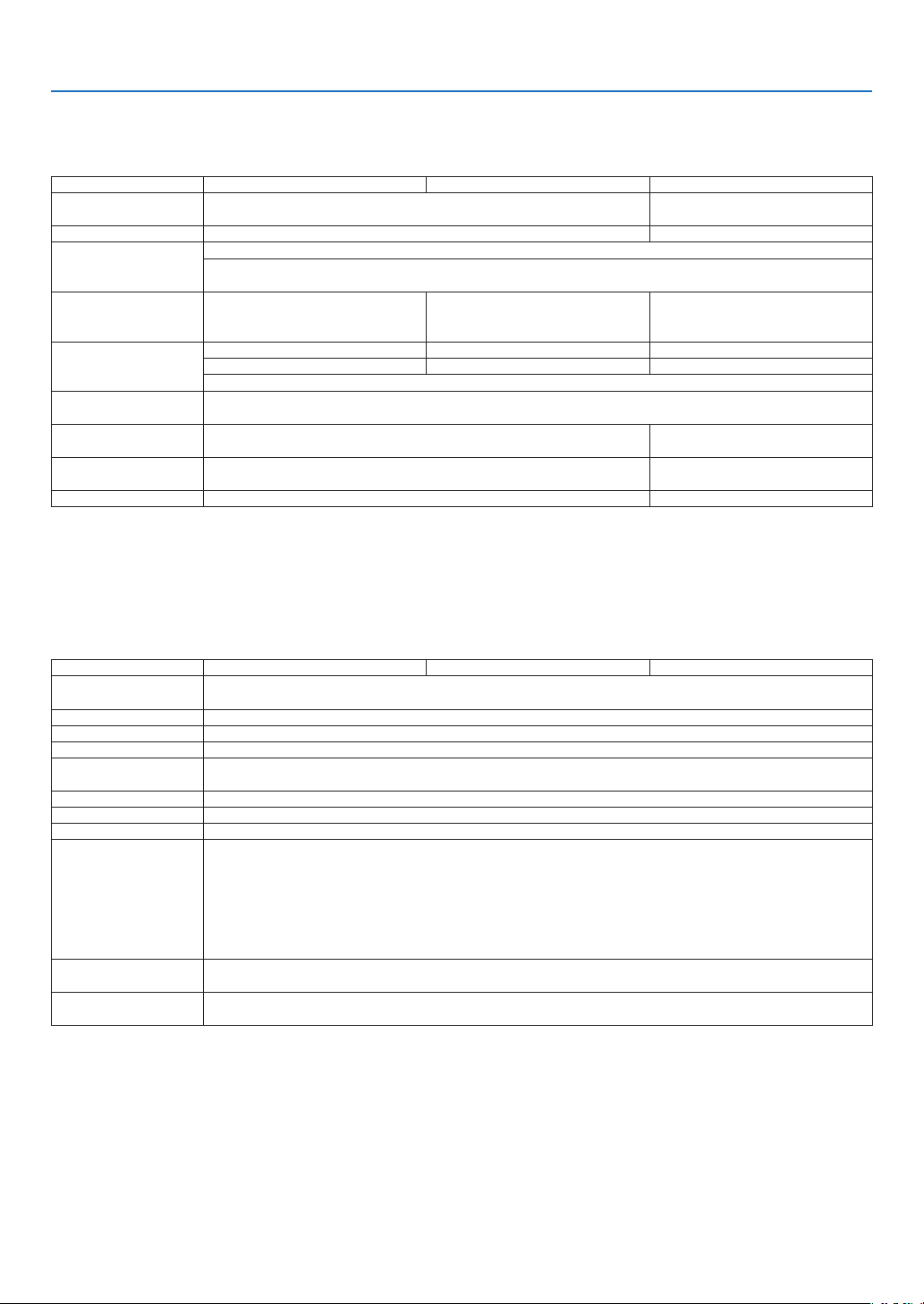
141
8. Appendix
[M353WS/M303WS/M333XS]
Optical
Model Number NP-M353WS NP-M303WS NP-M333XS
ProjectionSystem SingleDLP®chip(0.65",aspect16:10) SingleDLP®chip(0.55",aspect
4:3)
Resolution*
1
1280×800pixels(WXGA) 1024×768pixels(XGA)
Lens Digitalzoomandmanualfocus
DigitalZoomRatio=1.2
F2.4/f=6.5mm
Lamp 270WAC
(219WinNORMAL)
(162WinECO)
225WAC
(171WinNORMAL)
(135WinECO)
270WAC
(219WinNORMAL)
(162WinECO)
LightOutput*
2
*
3
3500 lumens 3000 lumens 3300 lumens
NORMAL:81% NORMAL:76% NORMAL:81%
ECO:60%*
4
ContrastRatio*
3
(fullwhite:fullblack)
10000:1withDYNAMICCONTRASTON
ImageSize(Diagonal) 60–150inches/1.52m–3.81m(16:10) 60–150 inches/1.52 m–3.81 m
(4:3)
ProjectionDistance
(Min.–Max.)
22.2–58.3inches/0.57–1.48m 26.6–69.2inches/0.68–1.76m
ProjectionAngle 40.7°–40.9° 40.7°–40.8°
*1 Effectivepixelsaremorethan99.99%.
*2 Thisisthelightoutputvalue(lumens)whenthe[PRESET]modeissetto[HIGH-BRIGHT].Ifanyothermodeisselectedasthe
[PRESET]mode,thelightoutputvaluemaydropslightly.
*3 CompliancewithISO21118-2012
*4ThemaximumpowerbecomesequivalenttopowerinECO(ECOMODE).
Electrical
Model Number NP-M353WS NP-M303WS NP-M333XS
Inputs
1×RGB/Component(D-Sub15P),2×HDMITypeA(19P,HDMI
®
Terminal)HDCPsupported*
5
,
1×Video(RCA),1×(L/R)RCAAudio,1×StereoMiniAudio
Outputs 1×RGB(D-Sub15P),1×StereoMiniAudio
PCControl 1×PCControlPort(D-Sub9P)
WiredLANPort 1×RJ-45(10BASE-T/100BASE-TX)
WirelessLANPort
(Optional)
IEEE802.11b/g/n(optionalUSBWirelessLANUnitrequired)
USBPort 1×TypeA,1×TypeB
MICInput 1×MonauralMiniAudio
ColorReproduction 10-bitsignalprocessing(1.07billioncolors)(USB-A,LAN:16.7millioncolors)
CompatibleSignals*
6
Analog:VGA/SVGA/XGA/WXGA/Quad-VGA/SXGA/SXGA+/WXGA+/WXGA++/UXGA/WSXGA+/HD/
FullHD/WUXGA/Mac13"/Mac16"/Mac19"/Mac21"/Mac23"
Component:480i/480p/720p/1080i(60Hz),576i/576p/1080i(50Hz),DVDProgressive(50/60Hz)
Digital:VGA/SVGA/XGA/WXGA/Quad-VGA/SXGA/SXGA+/WXGA+/WXGA++/WSXGA+/HDTV(1080p)/
HDTV(1080i)/HDTV(720p)/SDTV(480p)/SDTV(576p)/SDTV(480i)/SDTV(576i)
3D:ForPCXGA/1280×720/WXGA,ForVideoSDTV(480i),ForHDMI-1.4a720p(FramePacking)/
1080p(FramePacking)/1080i(SidebySide(Half))/720p(TopandBottom)/1080p(TopandBottom)
HorizontalResolution 540TVlines:NTSC/NTSC4.43/PAL/PAL-M/PAL-N/PAL60
300TVlines:SECAM
ScanRate Horizontal:15kHzto100kHz(RGB:24kHzorover)
Vertical:50Hzto120Hz(HDMI:50Hzto85Hz)
*5 HDMI
®
(DeepColor,LipSync,3D)withHDCP
WhatisHDCP/HDCPtechnology?
HDCPisanacronymforHigh-bandwidthDigitalContentProtection.HighbandwidthDigitalContentProtection(HDCP)isasystem
forpreventingillegalcopyingofvideodatasentoveraHigh-DenitionMultimediaInterface(HDMI).
IfyouareunabletoviewmaterialviatheHDMIinput,thisdoesnotnecessarilymeantheprojectorisnotfunctioningproperly.With
theimplementationofHDCP,theremaybecasesinwhichcertaincontentisprotectedwithHDCPandmightnotbedisplayed
duetothedecision/intentionoftheHDCPcommunity(DigitalContentProtection,LLC).
Video:DeepColor;8/10/12-bit,LipSync
Audio:LPCM;upto2ch,samplerate32/44.1/48KHz,samplebit;16/20/24-bit
*6 Animagewithhigherorlowerresolutionthantheprojector’snativeresolution(M333XS:1024×768/M353WS/M303WS:1280
×800)willbedisplayedwithAdvancedAccuBlend.
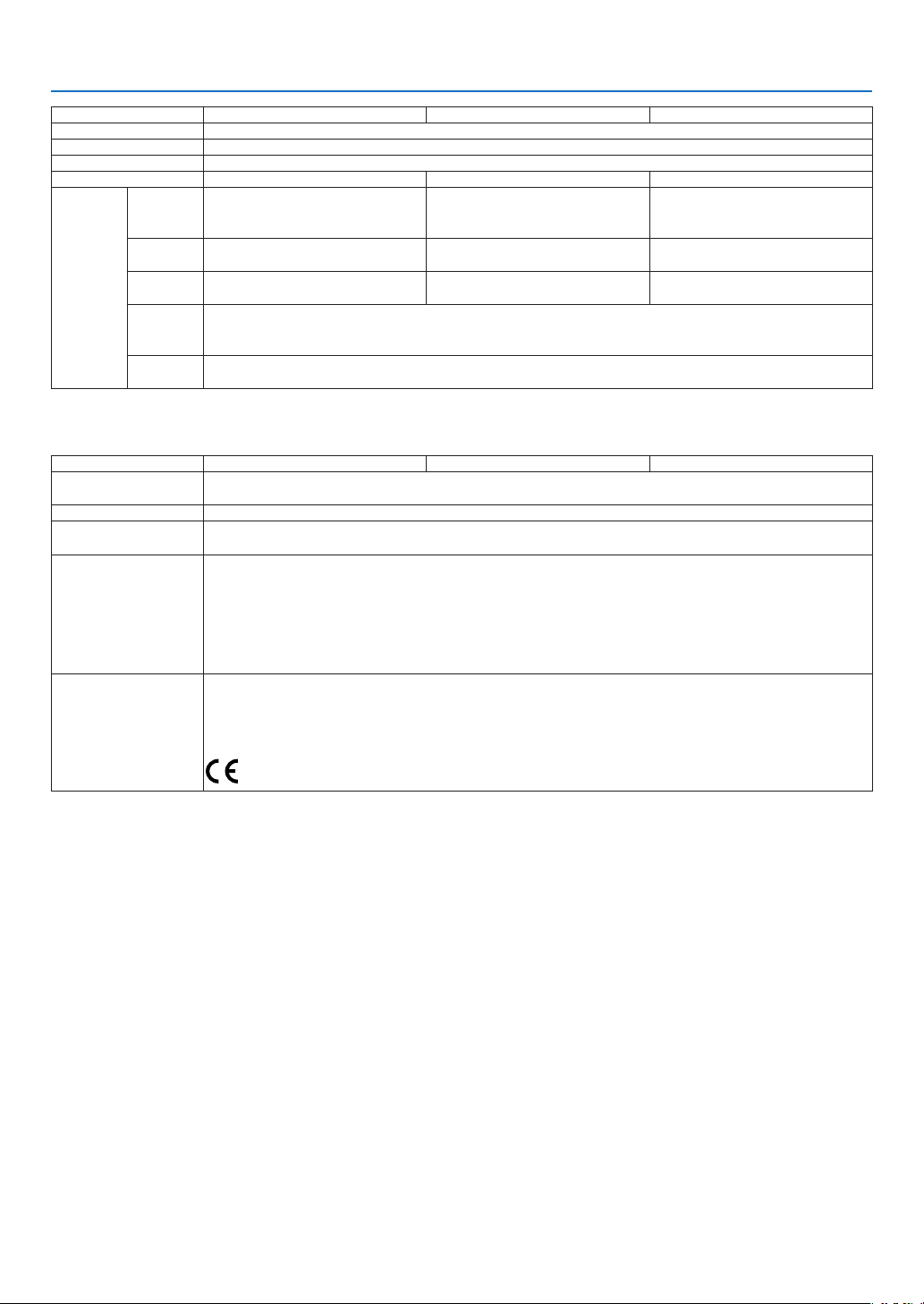
142
8. Appendix
Model Number NP-M353WS NP-M303WS NP-M333XS
SyncCompatibility SeparateSync
Built-inSpeaker 20W(monaural)
PowerRequirement 100–240VAC,50/60Hz
InputCurrent 3.9-1.6A 3.3-1.4A 3.9-1.6A
Power
Consump-
tion
(Typical
value)
ECO
MODE
OFF
338W(100-130V)
320W(200-240V)
283W(100-130V)
269W(200-240V)
338W(100-130V)
320W(200-240V)
NORMAL 276W(100-130V)
264W(200-240V)
218W(100-130V)
208W(200-240V)
276W(100-130V)
264W(200-240V)
ECO 221W(100-130V)
210W(200-240V)
186W(100-130V)
179W(200-240V)
221W(100-130V)
210W(200-240V)
STANDBY
(
NETWORK
STANDBY
)
2.6W(100-130V)/2.9W(200-240V)
STANDBY
(NORMAL)
0.15W(100-130V)/0.32W(200-240V)
Mechanical
Model Number NP-M353WS NP-M303WS NP-M333XS
Installation
Orientation
Desktop/Front,Desktop/Rear,Ceiling/Front,Ceiling/Rear
Dimensions 14.5"(W)×3.9"(H)×11.3"(D)/368mm(W)×98mm(H)×286mm(D)(notincludingprotrusions)
Weight M353WS/M333XS:8.2lbs/3.7kg
M303WS:8.0lbs/3.6kg
Environmental
Considerations
OperationalTemperatures:41°to104°F(5°to40°C),
(ECOmodeselectedautomaticallyat95°Fto104°F/35°Cto40°C)
20%to80%humidity(non-condensing)
StorageTemperatures:14°to122°F(-10°to50°C),
20%to80%humidity(non-condensing)
Operatingaltitude:0to2400m/8000feet(Set[FANMODE]to[HIGHALUTITUDE]whenusingthepro-
jectorataltitudesapproximately1700meters/5500feet)
Regulations UL/C-ULApproved(UL60950-1,CSA60950-1)
MeetsDOCCanadaClassBrequirements
MeetsFCCClassBrequirements
MeetsAS/NZSCISPR.22ClassB
MeetsEMCDirective(EN55022,EN55024,EN61000-3-2,EN61000-3-3)
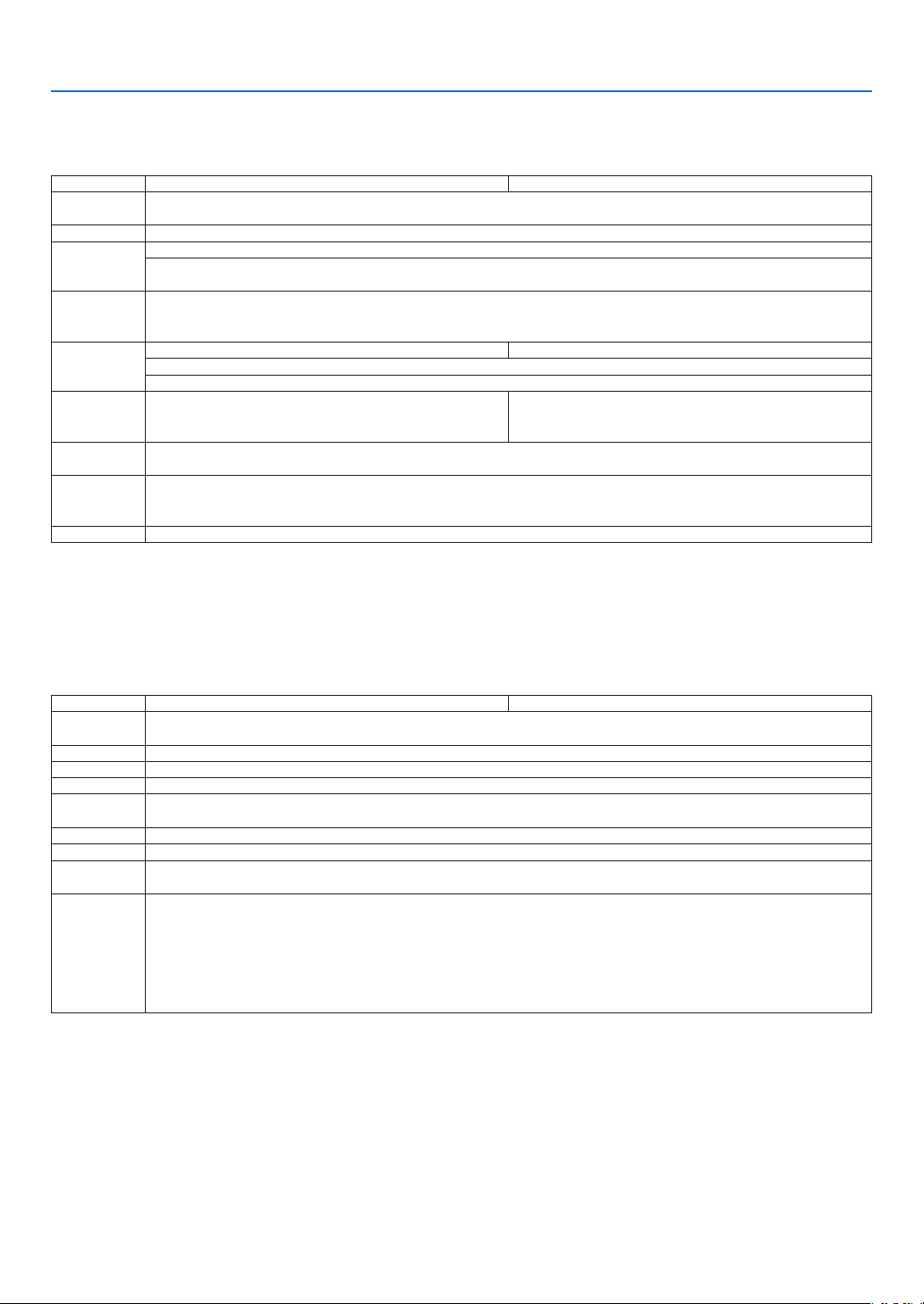
143
8. Appendix
[M403H/M323H]
Optical
Model Number NP-M403H NP-M323H
Projection
System
Single DLP® chip (0.65", aspect 16:9)
Resolution*
1
1920 X 1080 pixels (Full HD)
Lens Manual zoom and focus
Zoom Ratio = 1.7
F=2.4 - 3.2, f=18.0 - 30.6mm
Lamp 270 W AC
(219 W in NORMAL)
(162 W in ECO)
Light Output*
2
*
3
4000 lumens 3200 lumens
NORMAL: 81%
ECO: 60%*
4
Contrast Ratio*
3
(full white: full
black)
10000:1 with DYNAMIC CONTRAST ON 8000:1 with DYNAMIC CONTRAST ON
Image Size
(Diagonal)
30–300 inches/0.76 m–7.6 m (16:9)
Projection
Distance
(Min.–Max.)
29"-319" (wide) / 52"-554" (tele)
0.75m-8.10m (wide) / 1.32m-14.08m (tele)
Projection Angle 16.9°-17.9° (wide) / 9.9°-10.2° (tele)
*1 Effectivepixelsaremorethan99.99%.
*2 Thisisthelightoutputvalue(lumens)whenthe[PRESET]modeissetto[HIGH-BRIGHT].Ifanyothermodeisselectedasthe
[PRESET]mode,thelightoutputvaluemaydropslightly.
*3 CompliancewithISO21118-2012
*4ThemaximumpowerbecomesequivalenttopowerinECO(ECOMODE).
Electrical
Model Number NP-M403H NP-M323H
Inputs 1 × RGB/Component (D-Sub 15 P), 2 × HDMI Type A (19P, HDMI
®
Terminal) HDCP supported*
5
,
1 × Video (RCA), 1 × (L/R) RCA Audio, 1 × Stereo Mini Audio
Outputs 1 × RGB (D-Sub 15P), 1 × Stereo Mini Audio
PC Control 1 × PC Control Port (D-Sub 9P)
Wired LAN Port 1 × RJ-45 (10BASE-T/100BASE-TX)
Wireless LAN
Port (Optional)
IEEE 802.11 b/g/n (optional USB Wireless LAN Unit required)
USB Port 1 × Type A, 1 × Type B
MIC Input 1 × Monaural Mini Audio
Color Reproduc-
tion
10-bit signal processing (1.07 billion colors) (USB-A, LAN: 16.7 million colors)
Compatible
Signals*
6
Analog: VGA/SVGA/XGA/WXGA/Quad-VGA/SXGA/SXGA+/WXGA+/WXGA++/UXGA/WSXGA+/HD/Full HD/WUXGA/Mac13"/Mac16"/Mac
19"/Mac 21"/Mac 23"
Component: 480i/480p/720p/1080i (60Hz), 576i/576p/1080i (50Hz), DVD Progressive (50/60Hz)
Digital: VGA/SVGA/XGA/WXGA/Quad-VGA/SXGA/SXGA+/WXGA+/WXGA++/WSXGA+/HDTV (1080p)/HDTV (1080i)/HDTV (720p)/
SDTV(480p)/SDTV(576p)/SDTV(480i)/SDTV(576i)
3D: For PC XGA/1280 × 720/WXGA, For Video SDTV (480i), For HDMI-1.4a 720p (Frame Packing)/
1080p (Frame Packing)/1080i (Side by Side (Half))/720p (Top and Bottom)/1080p (Top and Bottom)
*5 HDMI
®
(DeepColor,LipSync,3D)withHDCP
WhatisHDCP/HDCPtechnology?
HDCPisanacronymforHigh-bandwidthDigitalContentProtection.HighbandwidthDigitalContentProtection(HDCP)isasystem
forpreventingillegalcopyingofvideodatasentoveraHigh-DenitionMultimediaInterface(HDMI).
IfyouareunabletoviewmaterialviatheHDMIinput,thisdoesnotnecessarilymeantheprojectorisnotfunctioningproperly.With
theimplementationofHDCP,theremaybecasesinwhichcertaincontentisprotectedwithHDCPandmightnotbedisplayed
duetothedecision/intentionoftheHDCPcommunity(DigitalContentProtection,LLC).
Video:DeepColor;8/10/12-bit,LipSync
Audio:LPCM;upto2ch,samplerate32/44.1/48KHz,samplebit;16/20/24-bit
*6 Animagewithhigherorlowerresolutionthantheprojector’snativeresolution(1920×1080)willbedisplayedwithAdvanced
AccuBlend.
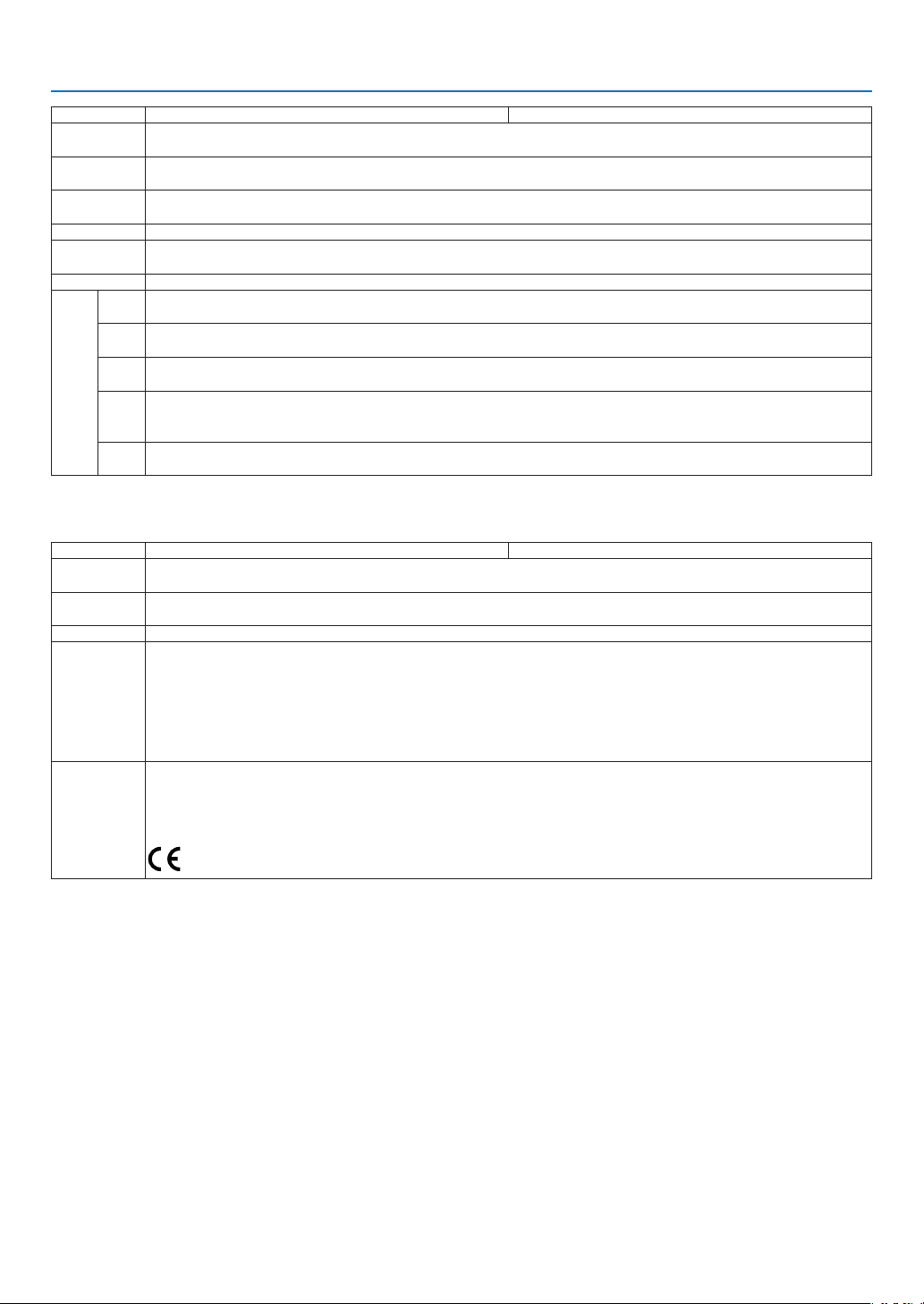
144
8. Appendix
Model Number NP-M403H NP-M323H
Horizontal
Resolution
540 TV lines: NTSC/NTSC4.43/PAL/PAL-M/PAL-N/PAL60
300 TV lines: SECAM
Scan Rate Horizontal: 15 kHz to 100 kHz (RGB: 24 kHz or over)
Vertical: 50 Hz to 120 Hz (HDMI: 50 Hz to 85 Hz)
Sync Compat-
ibility
Separate Sync
Built-in Speaker 20 W (monaural)
Power Require-
ment
100–240 V AC, 50/60Hz
Input Current 3.9 - 1.6 A
Power
Consump-
tion
(Typical
value)
ECO MODE
OFF
338W (100-130 V)
320W (200-240 V)
NORMAL
276W (100-130 V)
264W (200-240 V)
ECO
221W (100-130 V)
210W (200-240 V)
STANDBY
(NETWORK
STANDBY)
2.6W (100-130 V)/ 2.9W (200-240 V)
STANDBY
(NORMAL)
0.15W (100-130 V)/0.32W (200-240 V)
Mechanical
Model Number NP-M403H NP-M323H
Installation
Orientation
Desktop/Front, Desktop/Rear, Ceiling/Front, Ceiling/Rear
Dimensions 14.5" (W) × 3.9" (H) × 11.3" (D) /368 mm (W) × 97.5 mm (H) × 286 mm (D)
(not including protrusions)
Weight 8.2 lbs (3.7 kg)
Environmental
Considerations
Operational Temperatures : 41° to 104°F (5° to 40°C),
(ECO mode selected automatically at 95°F to 104°F/35°C to 40°C)
20% to 80% humidity (non-condensing)
Storage Temperatures : 14° to 122°F (-10° to 50°C),
20% to 80% humidity (non-condensing)
Operating altitude: 0 to 2400 m/8000 feet (Set [FAN MODE] to [HIGH ALUTITUDE] when using the projector at altitudes approximately
1700 meters /5500 feet)
Regulations UL/C-UL Approved (UL 60950-1, CSA 60950-1)
Meets DOC Canada Class B requirements
Meets FCC Class B requirements
Meets AS/NZS CISPR.22 Class B
Meets EMC Directive (EN55022, EN55024, EN61000-3-2, EN61000-3-3)
Foradditionalinformationvisit:
US:http://www.necdisplay.com/
Europe:http://www.nec-display-solutions.com/
Global:http://www.nec-display.com/global/index.html
Forinformationonouroptionalaccessories,visitourwebsiteorseeourbrochure.
Thespecicationsaresubjecttochangewithoutnotice.
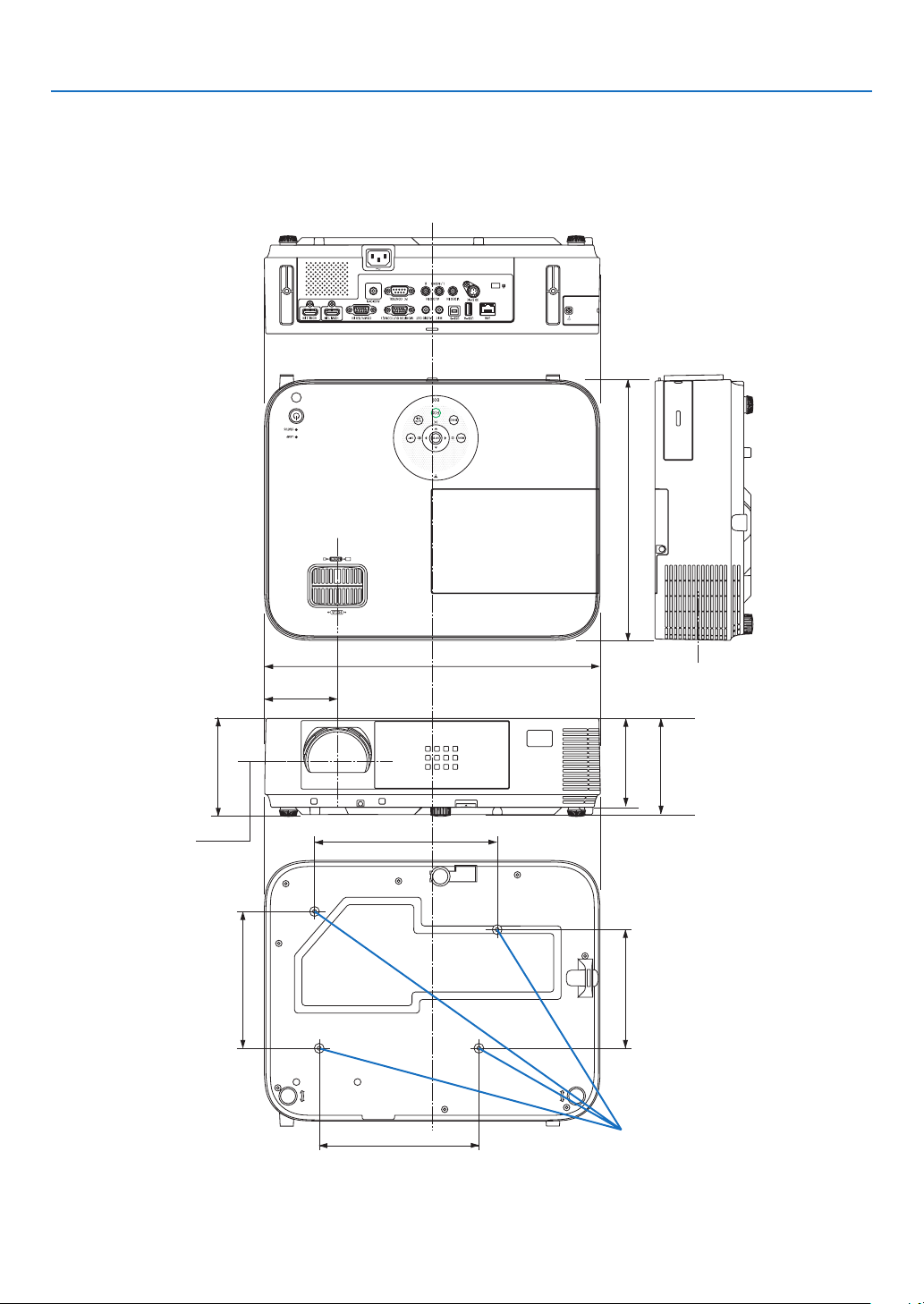
145
8. Appendix
368 (14.5)
291 (11.46)
107.5 (4.23)
130 (5.12)
150 (5.91)
200 (7.87)
175 (6.89)
98 (3.9)
108 (4.3)
80 (3.15)
❸ Cabinet Dimensions
[M403W/M363W/M323W/M403X/M363X/M323X/M283X/M403H/M323H]
Lens center
Lens center
Holes for ceiling mount
Unit:mm(inch)
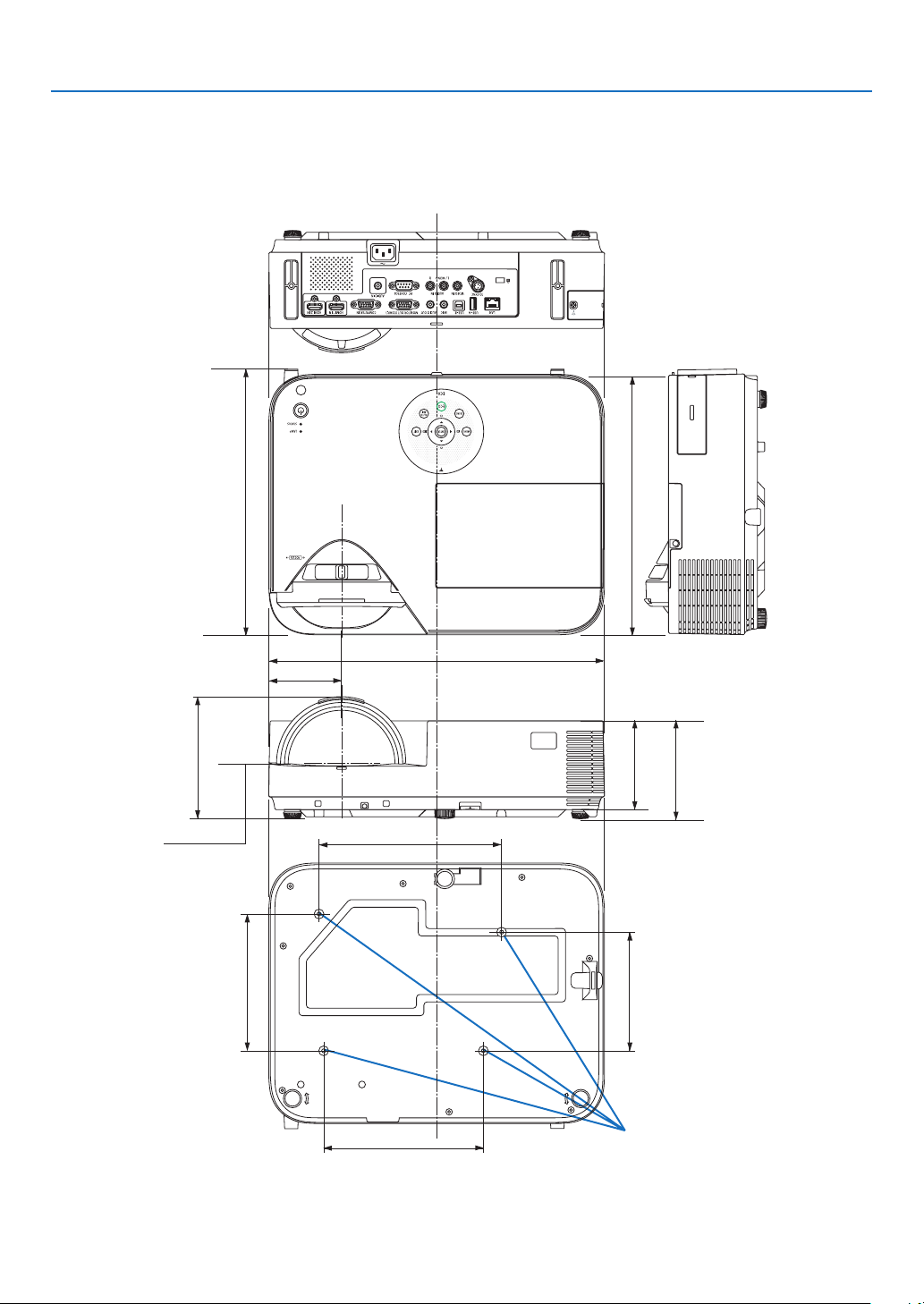
146
8. Appendix
368 (14.5)
286(11.3)
134 (5.3)
130 (5.2)
150 (5.9)
200 (7.9)
175 (6.9)
98 (3.9)
80 (3.2)
108 (4.3)
291 (11.5)
[M353WS/M303WS/M333XS]
Lens center
Lens center
Holes for ceiling mount
Unit:mm(inch)
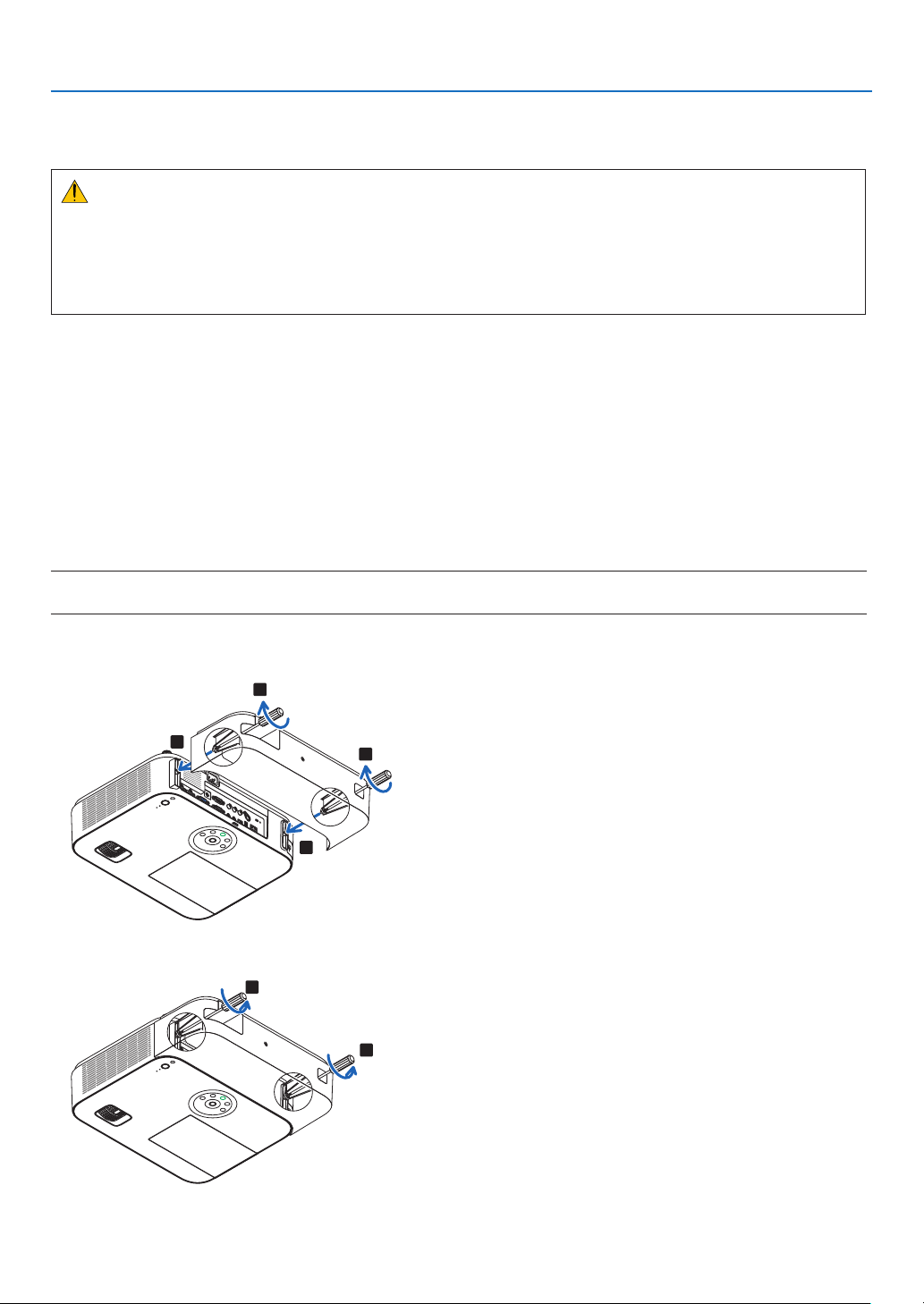
147
8. Appendix
Attaching the Optional Cable Cover (NP05CV)
Anoptionalcablecover(NP05CV)isavailableforhidingcables.
CAUTION:
• Besuretotightenthescrewsafterattachingthecablecover.Failuretodosomaycausethecablecovertocome
offandfall,resultingininjuryordamagetothecablecover.
• Donotputbundledcablesinthecablecover.Failuretodosomaydamagethepowercord,resultingare.
• Donotforceexcessivepressuretothecablecover.Doingsomaycausedamagetothecablecover,resulting
ininjury.
Attaching the cable cover
Attachthecablecoverafterinstallingtheprojectorontheceilingandconnectingcables.
Toolneededforattaching:
• Phillipsscrewdriver(plus-head)
1. Aligntwotabsontheoutsideofthecablecoverwithgroovesoftheprojectorandpushthetopend.
• Atthesametimetwotabsontheinsideofthecablecoverwillbeengagedintherespondinggroovesofthe
projector.
NOTE:
• Becarefulnottogetcablescaughtinbetweenthecablecoverandtheprojector.
2. Tightenthecablecoverscrews.
• Besuretotightenthescrews.
1
1
2
2
Removing the cable cover
1. LoosenthecablecoverscrewsuntilthePhillipsscrewdrivergoesintoafreewheelingcondition
1
1
2. Removethecablecover.
Push up the cable cover slightly and rotate it to release.
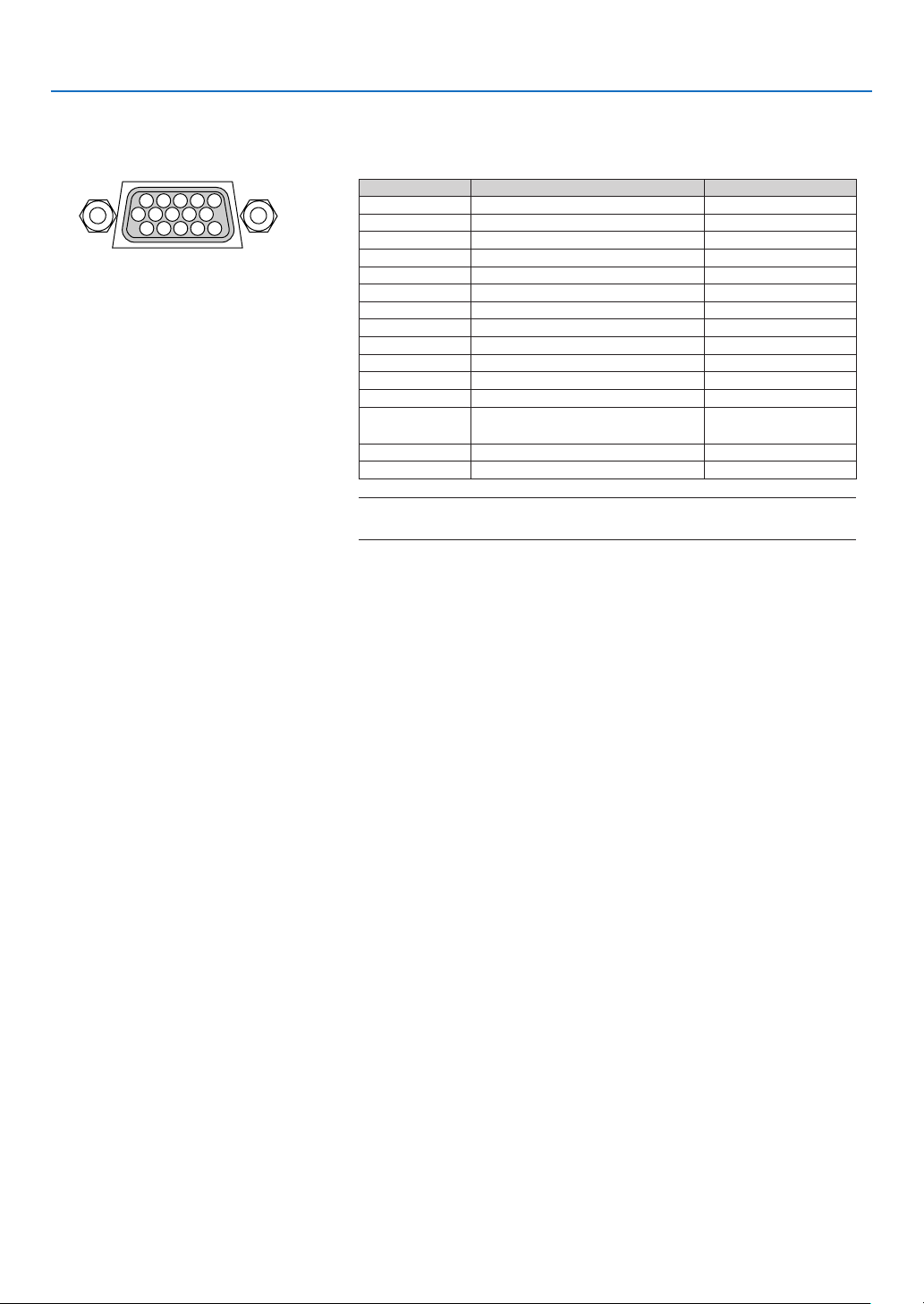
148
8. Appendix
❹ Pin Assignments of D-Sub COMPUTER Input Terminal
Mini D-Sub 15 Pin Terminal
SignalLevel
Videosignal:0.7Vp-p(Analog)
Syncsignal:TTLlevel
51423
10
11 12 13 14 15
6978
Pin No. RGBSignal(Analog) YCbCr Signal
1 Red Cr
2
GreenorSynconGreen Y
3 Blue Cb
4 Ground
5 Ground
6
RedGround CrGround
7 GreenGround YGround
8 BlueGround CbGround
9 Hotplug
10 SyncSignalGround
11 NoConnection
12 Bi-directionalDATA(SDA)
13 HorizontalSyncorComposite
Sync
14
VerticalSync
15 DataClock
COMPUTER IN
NOTE:PinNos.12and15arerequiredforDDC/CI.
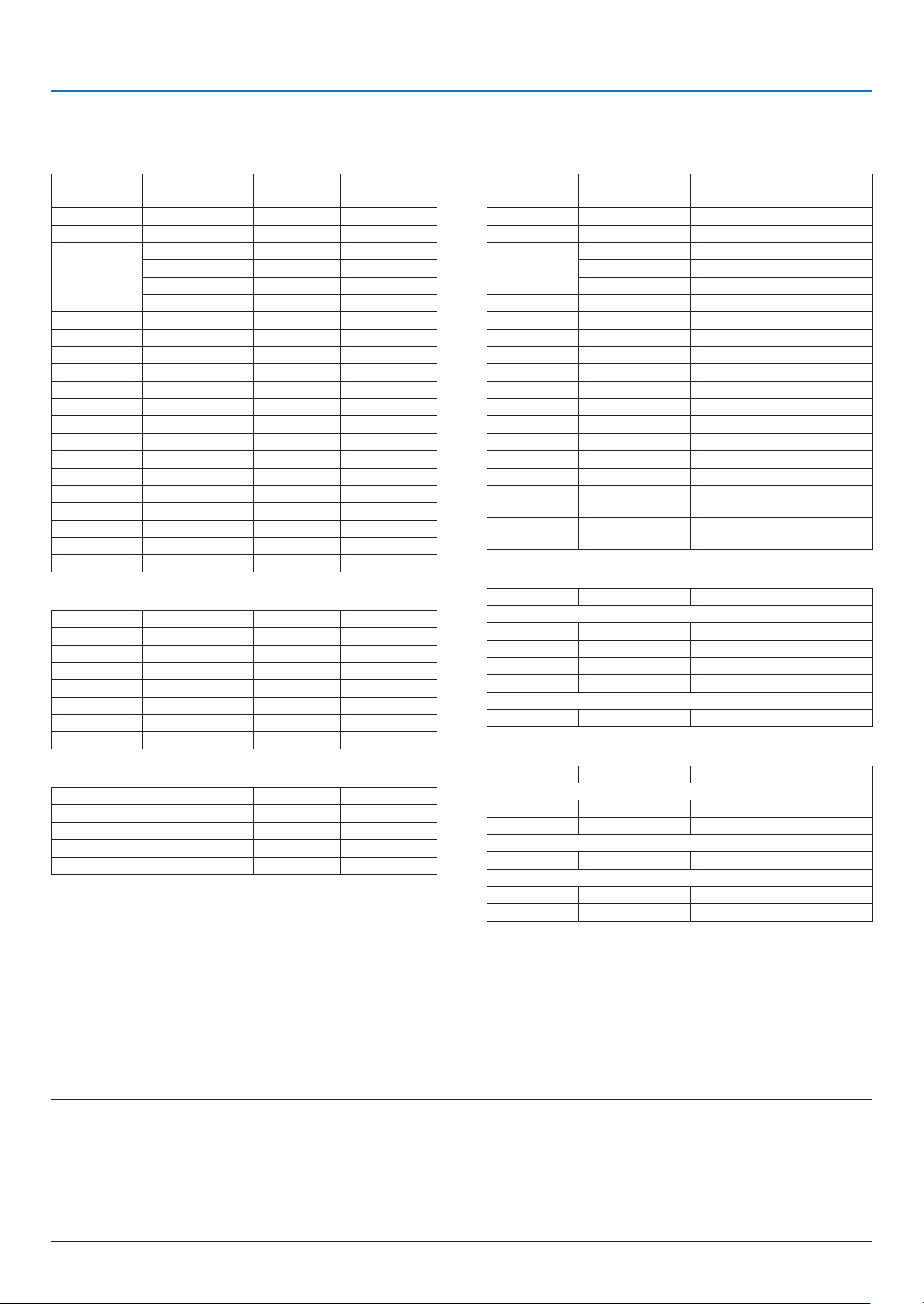
149
8. Appendix
❺ Compatible Input Signal List
Analog RGB
Signal Resolution(dots) AspectRatio
RefreshRate(Hz)
VGA 640 × 480 4:3 60/72/75/85
SVGA 800 × 600 4:3 56/60/72/75/85
XGA 1024 × 768 *
1
4:3 60/70/75/85
WXGA 1280 × 768 *
2
15:9 60
1280 × 800 *
2
16:10 60
1360 × 768 *
3
16:9 60
1366 × 768 *
3
16:9 60
Quad-VGA 1280 × 960 4:3 60/75
SXGA 1280 × 1024 5:4 60/75
SXGA+ 1400 × 1050 4:3 60
WXGA+ 1440 × 900 16:10 60
WXGA++ 1600 × 900 *
3
16:9 60
UXGA 1600 × 1200 *
4
4:3 60
WSXGA+ 1680 × 1050 16:10 60
HD 1280 × 720 16:9 60
FullHD 1920 × 1080 16:9 60
WUXGA 1920 × 1200 *
5
16:10 60
MAC13" 640 × 480 4:3 67
MAC16" 832 × 624 4:3 75
MAC19" 1024 × 768 4:3 75
MAC21" 1152 × 870 4:3 75
MAC23" 1280 × 1024 5:4 65
Component
Signal Resolution(dots) AspectRatio
RefreshRate(Hz)
HDTV(1080p) 1920 × 1080 *
6
16:9 50/60
HDTV(1080i) 1920 × 1080 *
6
16:9 50/60
HDTV(720p) 1280 × 720 16:9 50/60
SDTV(480p) 720 × 480 4:3/16:9 60
SDTV(576p) 720 × 576 4:3/16:9 50
SDTV(480i) 720 × 480 4:3/16:9 60
SDTV(576i) 720 × 576 4:3/16:9 50
CompositeVideo
Signal AspectRatio
RefreshRate(Hz)
NTSC 4:3 60
PAL 4:3 50
PAL60 4:3 60
SECAM 4:3 50
HDMI
Signal Resolution(dots) AspectRatio
RefreshRate(Hz)
VGA 640 × 480 4:3 60
SVGA 800 × 600 4:3 60
XGA 1024 × 768 *
1
4:3 60
WXGA 1280 × 768 *
2
15:9 60
1280 × 800 *
2
16:10 60
1366 × 768 16:9 60
Quad-VGA 1280 × 960 4:3 60
SXGA 1280 × 1024 5:4 60
SXGA+ 1400 × 1050 4:3 60
WXGA+ 1440 × 900 16:10 60
WXGA++ 1600 × 900 16:9 60
WSXGA+ 1680 × 1050 16:10 60
HDTV(1080p) 1920 × 1080 *
6
16:9 50/60
HDTV(1080i) 1920 × 1080 *
6
16:9 50/60
HDTV(720p) 1280 × 720 16:9 50/60
SDTV(480p) 720 × 480 4:3/16:9 60
SDTV(576p) 720 × 576 4:3/16:9 50
SDTV(480i) 720
(1440)
× 480 4:3/16:9 60
SDTV(576i) 720
(1440)
× 576 4:3/16:9 50
3D
Signal Resolution(dots) AspectRatio
RefreshRate(Hz)
ForPCSignal*
7
XGA 1024 × 768 4:3 60*
8
/120*
9
HD 1280 × 720 16:9 60*
8
/120*
9
WXGA 1280 × 800 16:10 60*
8
/120*
9
HDTV(1080p) 1920 × 1080 16:9 60
ForVideoSignal*
10
SDTV(480i) 720 × 480 4:3/16:9 60
HDMI 3D
Signal Resolution(dots) AspectRatio
RefreshRate(Hz)
Structure:FramePacking
1080p 1920 × 1080 16:9 23.98/24
720p 1280 × 720 16:9 50/59.94/60
Structure:SidebySide(Half)
1080i 1920 × 1080 16:9 50/59.94/60
Structure:TopandBottom
1080p 1920 × 1080 16:9 23.98/24
720p 1280 × 720 16:9 50/59.94/60
*1Native resolution on XGAmodel (M403X/M363X/M323X/M283X/
M333XS)
*2Native resolution on WXGA model (M403W/M363W/M323W/
M353WS/M303WS)
*3Theprojectormayfailtodisplaythesesignalscorrectlywhen[AUTO]
isselectedfor[ASPECTRATIO]intheon-screenmenu.
Thefactorydefaultis[AUTO]for[ASPECTRATIO].Todisplaythese
signals,select[16:9]for[ASPECTRATIO].
*4 WXGAMODE:OFF
*5 WXGAMODE:ON
*6 NativeresolutiononM403H/M323H
*7: HDMIsignalsareincluded.
*8 60HzsignalsaresupportedforSidebySide,TopandBottom,andFrame
Sequential.
*9 120HzsignalsaresupportedforFrameSequentialonly.
*10Videosignal(SDTV480i)issupportedforFrameSequentialonly.
NOTE:
• Animagewithhigherorlowerresolutionthantheprojector’snativeresolution(M403X/M363X/M323X/M283X/M333XS:1024×
768/M403W/M363W/M323W/M353WS/M303WS:1280×800/M403H/M323H:1920×1080)willbedisplayedwithAdvanced
AccuBlend.
• SynconGreenandCompositesyncsignalsarenotsupported.
• Signalsotherthanthosespeciedinthetableabovemaynotbedisplayedcorrectly.Ifthisshouldhappen,changetherefresh
rateorresolutiononyourPC.RefertoDisplayPropertieshelpsectionofyourPCforprocedures.
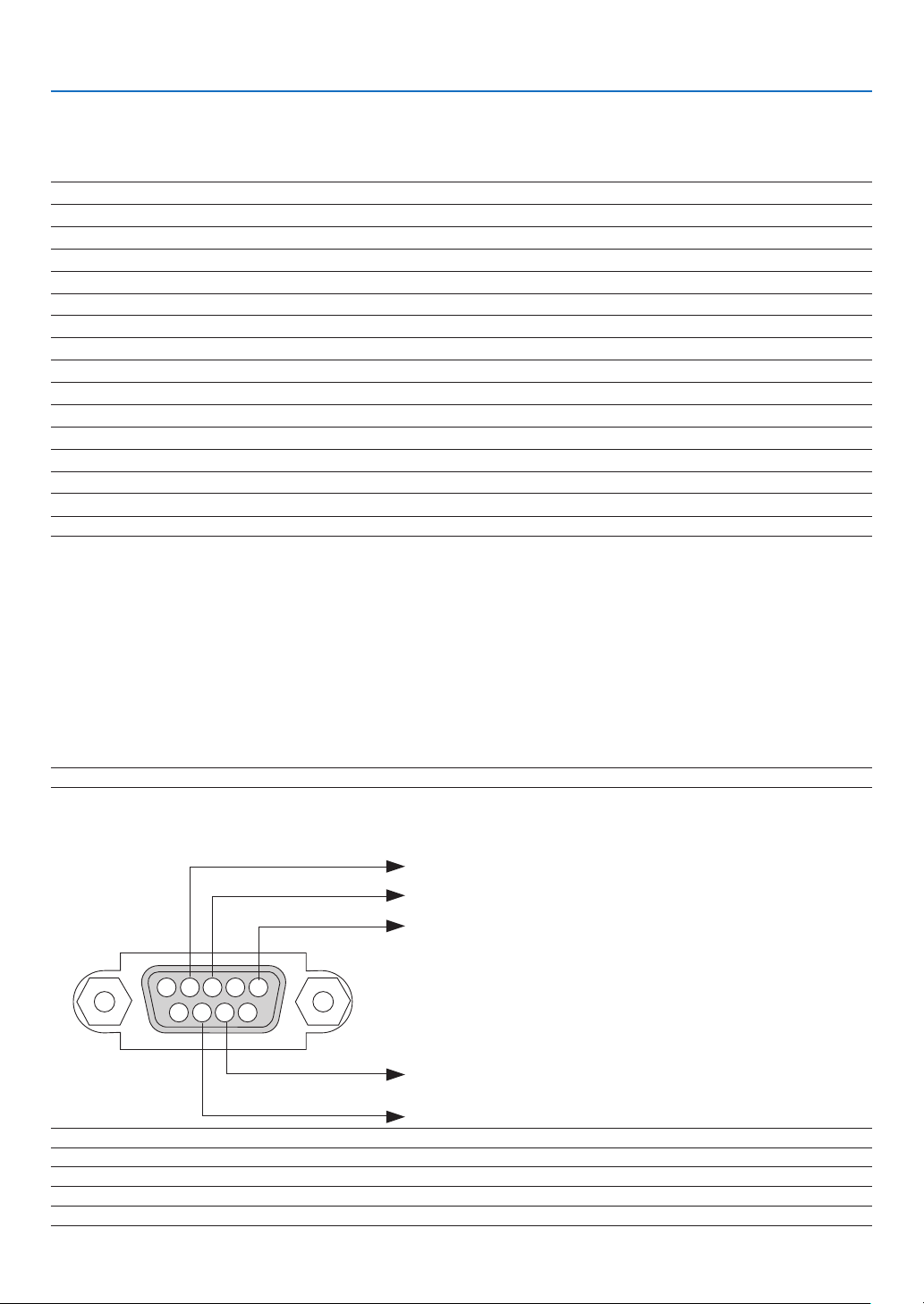
150
8. Appendix
❻ PC Control Codes and Cable Connection
PC Control Codes
Function Code Data
POWER ON 02H 00H 00H 00H 00H 02H
POWER OFF 02H 01H 00H 00H 00H 03H
INPUT SELECT COMPUTER 02H 03H 00H 00H 02H 01H 01H 09H
INPUT SELECT HDMI 1 02H 03H 00H 00H 02H 01H A1H A9H
INPUT SELECT HDMI 2 02H 03H 00H 00H 02H 01H A2H AAH
INPUT SELECT VIDEO 02H 03H 00H 00H 02H 01H 06H 0EH
INPUT SELECT USB-A 02H 03H 00H 00H 02H 01H 1FH 27H
INPUT SELECT LAN 02H 03H 00H 00H 02H 01H 20H 28H
INPUT SELECT USB-B 02H 03H 00H 00H 02H 01H 22H 2AH
PICTURE MUTE ON 02H 10H 00H 00H 00H 12H
PICTURE MUTE OFF 02H 11H 00H 00H 00H 13H
SOUND MUTE ON 02H 12H 00H 00H 00H 14H
SOUND MUTE OFF 02H 13H 00H 00H 00H 15H
NOTE:ContactyourlocaldealerforafulllistofthePCControlCodesifneeded.
Cable Connection
CommunicationProtocol
Baud rate �����������������������������������������38400 bps
Data length
��������������������������������������8 bits
Parity
�����������������������������������������������No parity
Stop bit
��������������������������������������������One bit
X on/off
��������������������������������������������None
Communications procedure
�������������Full duplex
NOTE:Dependingontheequipment,alowerbaudratemayberecommendedforlongcableruns.
PC Control Terminal (D-SUB 9P)
NOTE1:Pins1,4,6and9arenoused.
NOTE2:Jumper“RequesttoSend”and“CleartoSend”togetheronbothendsofthecabletosimplifycableconnection.
NOTE3:Forlongcablerunsitisrecommendedtosetcommunicationspeedwithinprojectormenusto9600bps.
15243
67 98
To GND of PC
To RxD of PC
To TxD of PC
To RTS of PC
To CTS of PC

151
8. Appendix
No image is displayed from your PC or video equipment to the
projector�
Still no image even though you connect the projector to the PC
first, then start the PC�
Enabling your notebook PC’s signal output to the projector�
• Acombinationoffunctionkeyswillenable/disabletheexter-
naldisplay.Usually,thecombinationofthe“Fn”keyalong
withoneofthe12functionkeysturnstheexternaldisplay
onoroff.
No image (blue or black background, no display)�
Still no image even though you press the AUTO ADJUST
button�
Still no image even though you carry out [RESET] in the
projector’s menu�
Signal cable’s plug is fully inserted into the input terminal
A message appears on the screen�
( _____________________________________________ )
The source connected to the projector is active and available�
Still no image even though you adjust the brightness and/or
the contrast�
Input source’s resolution and frequency are supported by the
projector�
❼ Troubleshooting Check List
Beforecontactingyourdealerorservicepersonnel,checkthefollowinglisttobesurerepairsareneededalsoby
referringtothe“Troubleshooting”sectioninyouruser’smanual.Thischecklistbelowwillhelpussolveyourproblem
moreefciently.
*Printthispageandthenextpageforyourcheck.
Frequency of occurrence always sometimes (How often?_____________________) other (__________________)
Power
No power (POWER indicator does not light blue) See also “Status
Indicator (STATUS)”�
Power cord’s plug is fully inserted into the wall outlet�
Lamp cover is installed correctly�
Lamp Hours Used (lamp operation hours) was cleared after
lamp replacement�
No power even though you press and hold the POWER but-
ton�
Shut down during operation�
Power cord’s plug is fully inserted into the wall outlet�
Lamp cover is installed correctly �
[AUTO POWER OFF] is turned off (only models with the [AUTO
POWER OFF] function)�
[OFF TIMER] is turned off (only models with the [OFF TIMER]
function)�
Video and Audio
Image is too dark�
Remains unchanged even though you adjust the brightness
and/or the contrast�
Image is distorted�
Image appears to be trapezoidal (unchanged even though you
carry out the [KEYSTONE] adjustment)�
Parts of the image are lost�
Still unchanged even though you press the AUTO ADJUST
button�
Still unchanged even though you carry out [RESET] in the
projector’s menu�
Image is shifted in the vertical or horizontal direction�
Horizontal and vertical positions are correctly adjusted on a
computer signal�
Input source’s resolution and frequency are supported by the
projector�
Some pixels are lost�
Image is flickering�
Still unchanged even though you press the AUTO ADJUST
button�
Still unchanged even though you carry out [RESET] in the
projector’s menu�
Image shows flickering or color drift on a computer signal�
Still unchanged even though you change [FAN MODE] from
[HIGH ALTITUDE] to [AUTO]�
Image appears blurry or out of focus�
Still unchanged even though you checked the signal’s resolution
on PC and changed it to projector’s native resolution�
Still unchanged even though you adjusted the focus�
No sound�
Audio cable is correctly connected to the audio input of the
projector�
Still unchanged even though you adjusted the volume level�
AUDIO OUT is connected to your audio equipment (only models
with the AUDIO OUT terminal)�
Other
Remote control does not work�
No obstacles between the sensor of the projector and the
remote control�
Projector is placed near a fluorescent light that can disturb the
infrared remote controls�
Batteries are new and are not reversed in installation�
Buttons on the projector cabinet do not work (only models with the
[CONTROL PANEL LOCK] function)
[CONTROL PANEL LOCK] is not turned on or is disabled in
the menu�
Still unchanged even though you press and hold the EXIT button
for a minimum of 10 seconds�
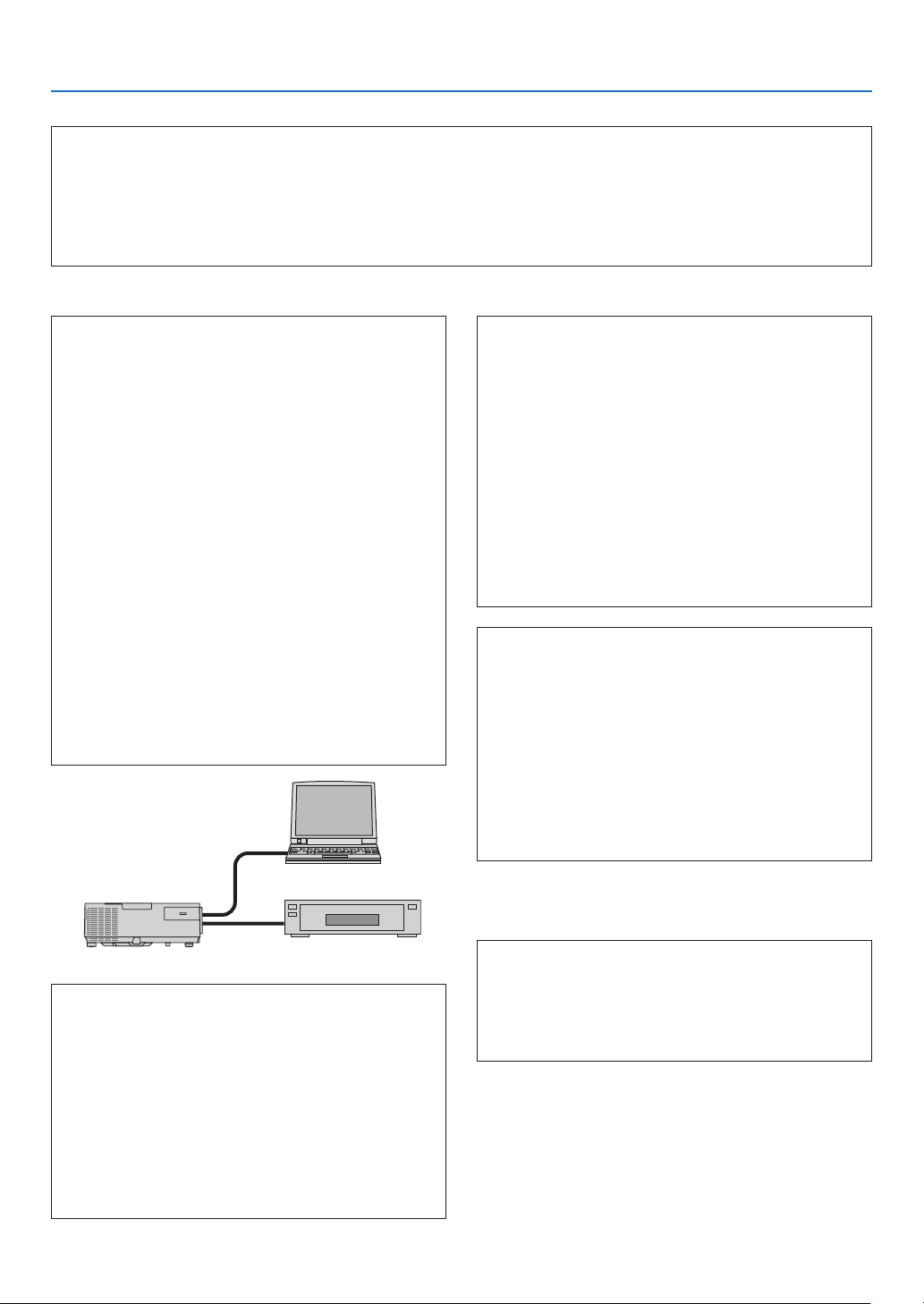
152
8. Appendix
In the space below please describe your problem in detail.
Information on application and environment where your projector is used
Projector
Model number:
Serial No�:
Date of purchase:
Lamp operating time (hours):
Eco Mode: OFF AUTO ECO
NORMAL ECO
Information on input signal:
Horizontal synch frequency [ ] kHz
Vertical synch frequency [ ] Hz
Synch polarity H (+) (−)
V (+) (−)
Synch type Separate Composite
Sync on Green
STATUS Indicator:
Steady light Orange Green
Flashing light [ ]] cycles
Remote control model number:
Signal cable
NEC standard or other manufacturer’s cable?
Model number: Length: inch/m
Distribution amplifier
Model number:
Switcher
Model number:
Adapter
Model number:
Installation environment
Screen size: inch
Screen type: White matte Beads Polarization
Wide angle High contrast
Throw distance: feet/inch/m
Orientation: Ceiling mount Desktop
Power outlet connection:
Connected directly to wall outlet
Connected to power cord extender or other (the
number of connected equipment______________)
Connected to a power cord reel or other (the number
of connected equipment______________)
Computer
Manufacturer:
Model number:
Notebook PC / Desktop
Native resolution:
Refresh rate:
Video adapter:
Other:
Videoequipment
VCR, DVD player, Video camera, Video game or other
Manufacturer:
Model number:
Projector
PC
DVD player

153
8. Appendix
❽ TCO Certification
SomemodelsinthisproductfamilyareTCOcertied.AllTCOcertiedmodelshavetheTCOmarkonthemarking
plate(onthebottomoftheproduct).ToseealistofourTCOcertiedprojectorsandtheirTCOCertication(inEnglish
only),visitourwebsiteathttp://www.nec-display.com/ap/en_projector/tco/index.html
TheTCOcertication,designedbyTCODevelopment,isaninternationalenvironmentalandergonomicsstandard
forITequipment.
InsomecaseswemaypostalistofTCOcertiedmodelsonourwebsitebeforetheTCOmarkisplacedontheprod-
uct.Thisdifferenceintimingisrelatedtothedatecerticationisreceivedcomparedwiththeprojectorsmanufacturing
date.

154
8. Appendix
❾ REGISTER YOUR PROJECTOR! (for residents in the United
States, Canada, and Mexico)
Pleasetaketimetoregisteryournewprojector.ThiswillactivateyourlimitedpartsandlaborwarrantyandInstaCare
serviceprogram.
Visitourwebsiteatwww.necdisplay.com,clickonsupportcenter/registerproductandsubmityourcompletedform
online.
Uponreceipt,wewillsendaconrmationletterwithallthedetailsyouwillneedtotakeadvantageoffast,reliable
warrantyandserviceprogramsfromtheindustryleader,NECDisplaySolutionsofAmerica,Inc.

©NECDisplaySolutions,Ltd.2015 7N952231