User’s Manual
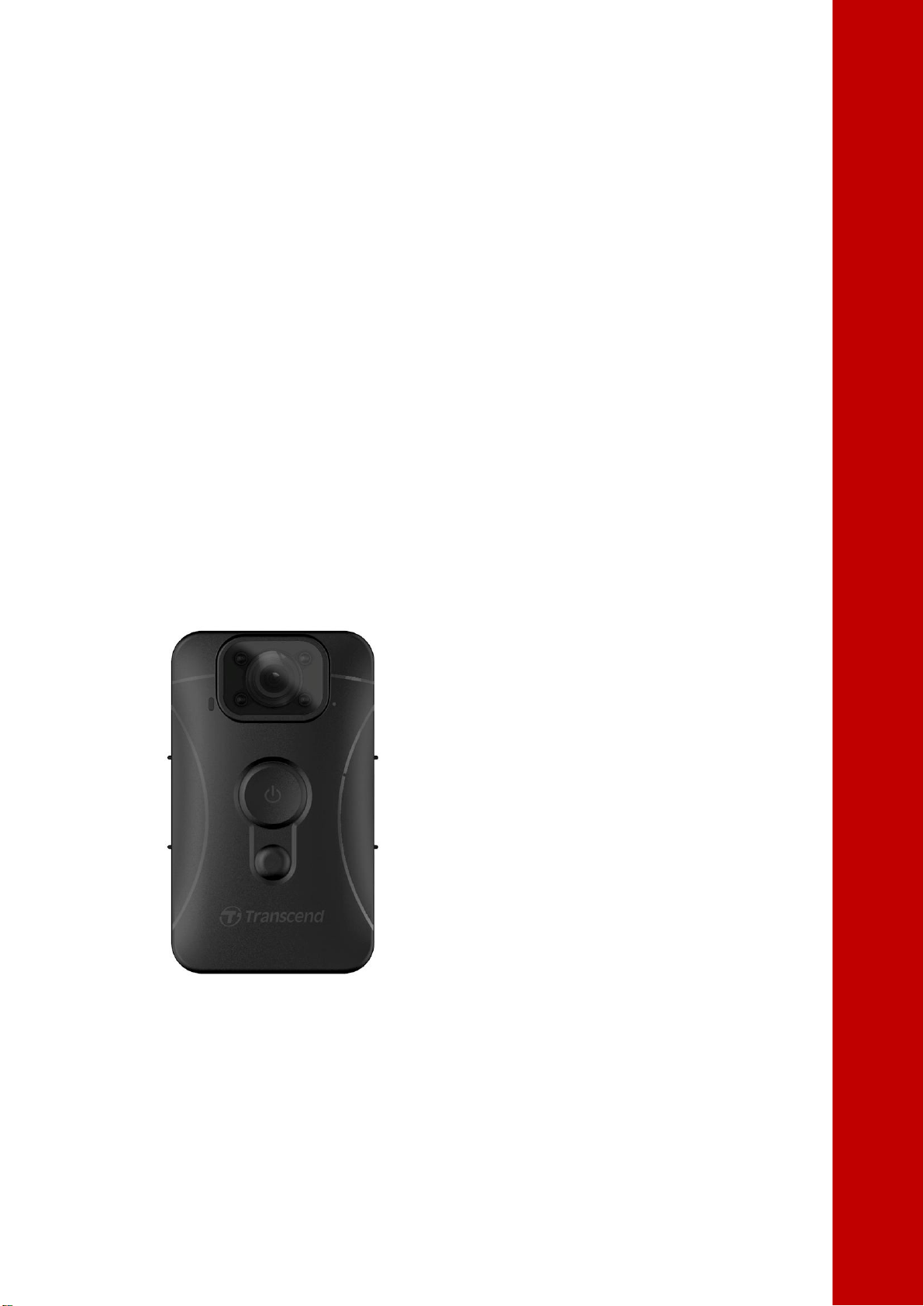
Body Camera
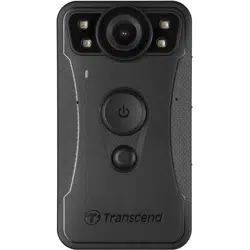
DrivePro™ Body 10
(Version 1.0)

Table of Contents
1. Introduction ...........................................................................................................................2
2. Features ...............................................................................................................................3
3. System Requirements ..........................................................................................................3
4. Getting Started .....................................................................................................................4
Function Buttons ............................................................................................................................. 4
Charging the DrivePro Body 10 ....................................................................................................... 5
Changing the microSD memory card .............................................................................................. 5
LED Indicator Chart ........................................................................................................................ 6
Setting the Date/Time and Video/Photo User Stamp ....................................................................... 6
5. Recording Videos .................................................................................................................7
Normal Recording ........................................................................................................................... 7
Recording Videos with Infrared LEDs .............................................................................................. 7
Event Recording ............................................................................................................................. 7
6. Taking Photos ......................................................................................................................8
7. Playing, Transferring & Deleting Videos / Photos .................................................................8
Playing Videos & Viewing Photos ................................................................................................... 8
Transferring and Deleting Videos & Photos ..................................................................................... 8
8. DrivePro™ Body Toolbox Software .................................................................................... 10
9. Precautions ........................................................................................................................ 16
10. IPX4 Water Resistant ....................................................................................................... 16
11. Package Contents ............................................................................................................ 17
12. Specifications ................................................................................................................... 19
13. Frequently Asked Questions ............................................................................................ 20
14. Recycling and Environmental Protection .......................................................................... 21
15. Two-year Limited Warranty .............................................................................................. 22
16. GNU General Public License (GPL) Disclosure ............................................................... 23
17. End-User License Agreement (EULA) .............................................................................. 23
18. Federal Communications Commission (FCC) Statement ................................................. 26

2
1. Introduction
Transcend’s DrivePro
TM
Body 10 is an easy-to-operate wearable video camera that is
tailor-made for police officers, security guards and other professionals to capture real time videos
and photos of events.
Attached with the convenient 360° rotatable clip or Velcro holder to your uniform or jacket, the
DrivePro Body 10 features Sony sensor to capture high-resolution images even in low light. It also
has a 130° wide angle lens for the best field of view, and records videos in crystal clear Full HD 1080P
(30 FPS) with a F2.8 aperture to ensure both the important details of your actions and those in the
camera’s field are clearly recorded. The handy snapshot function also allows you to take photos
while recording. The infrared LED enhances recording at night and in low light conditions.
Transcend’s DrivePro Body 10 has a built-in Li-Polymer battery that can record up to 5 hours and
takes approximately 2 hours to be fully recharged. The DrivePro Body 10 bundles with a 32GB
Transcend microSD memory card, allowing you to record around 5.5 hours of Full HD footage without
the need to purchase additional storage. In addition, the camera is rugged and IPX4 water resistant,
providing extra protection and durability.
The DrivePro
TM
Body Toolbox is exclusively designed for the DrivePro Body 10, featuring a
user-friendly interface that allows Windows users to set User Stamp and adjust the settings of the
camera and video files to enhance security and reliability.

3
2. Features
Smooth, detailed Full HD 1080P recording at 30fps resolution with Sony sensor
Handy snapshot button to take photos while recording
2M pixels camera
F2.8 aperture with 130° wide angle lens
Infrared LED for clear night vision and low light conditions
Bundled with a 32GB Transcend microSD memory card
Hi-Speed USB 2.0 connector for easy computer connectivity and fast file transfers
Record videos in .MP4 file format with 12Mbps high video bit rate
Meet U.S. military drop-test standards and IPX4 water resistant (non-submersible)
360° rotatable clip and Velcro holder attached for easy operation
Built-in microphone
Built-in Li-Polymer battery to record up to 5 hours of footage
3. System Requirements
System requirements for connecting the DrivePro Body 10 to a computer:
A desktop or a laptop with a working USB port
Windows
®
7
Windows
®
8
Windows
®
8.1
Mac
®
OS X 10.8.2 or later
Windows
®
10
System requirements for using the DrivePro Body Toolbox:
Windows
®
7
Windows
®
8
Windows
®
8.1
Windows
®
10
4
4. Getting Started
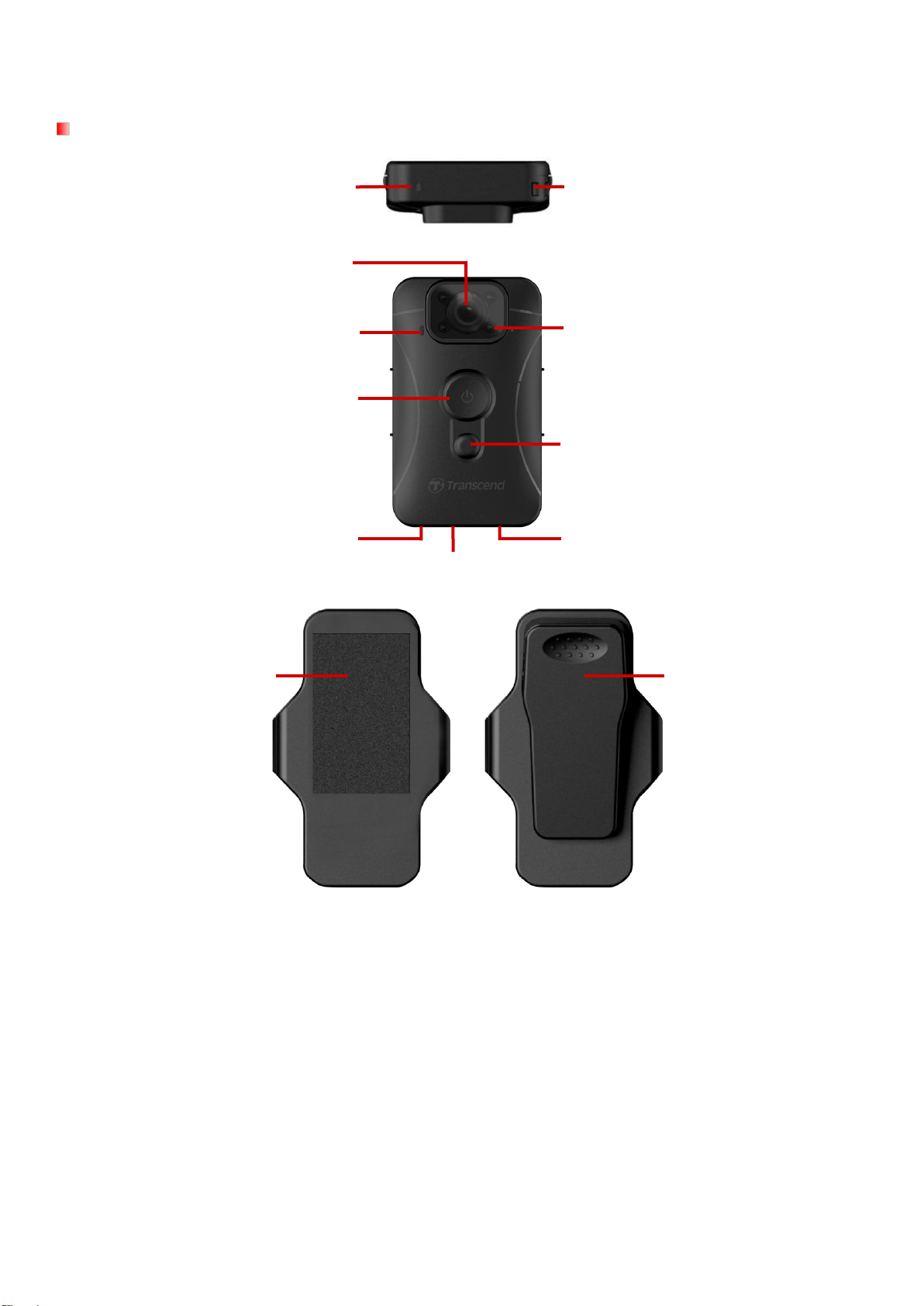
Function Buttons
or
Warning Indicator
Lens
Recording Indicator
Power Button
Reset Button
microSD Slot
Infrared LED
Snapshot Button
micro USB Slot
360° Rotatable Clip
Velcro Holder
Lanyard Loop
5
Charging the DrivePro Body 10
Before use, please ensure that the battery is fully charged. Charge the DrivePro Body 10 via the
power supply or USB cable. A solid orange LED light of the warning indicator is visible while charging.
The LED light will turn off when fully charged.
To charge the DrivePro Body 10, you can either:
1. Connect the charging USB cable to a wall outlet with the included adapter.
2. Connect the micro USB end to the bottom of the camera and the USB to a computer.
Changing the microSD memory card
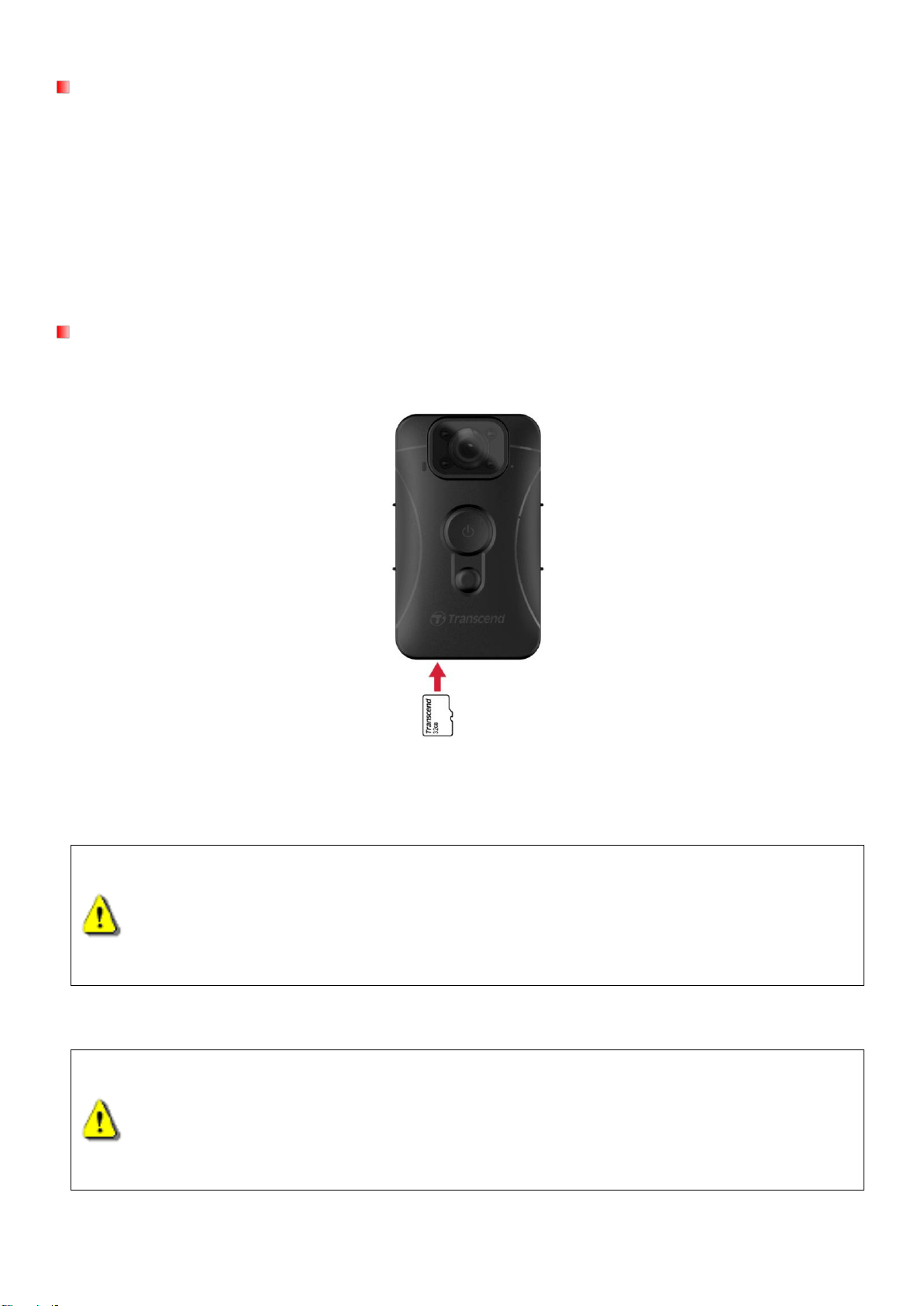
A Transcend microSD memory card is pre-inserted in the DrivePro Body. If you want to change a
memory card, please use a microSD card with 8GB, 16GB or 32GB capacity (Class 10 or above).
1. Insert a microSD memory card into the card slot on the bottom of the camera.
Note: Always format new memory cards before using them for the first time.
WARNING:
1. The DrivePro Body 10 only supports FAT32 file format.
2. Please format the microSD memory card by DrivePro Body Toolbox. Otherwise, be
sure to set the Allocation Unit Size to 32 KB if you format the microSD card in other
ways.
2. To remove, push to eject the memory card out of the slot.
WARNING:
1. Do not remove the memory card during shutdown to avoid damages to the memory
card and loss of recorded videos
2. Transcend does NOT take any responsibility for data loss or damage during
operation.
6
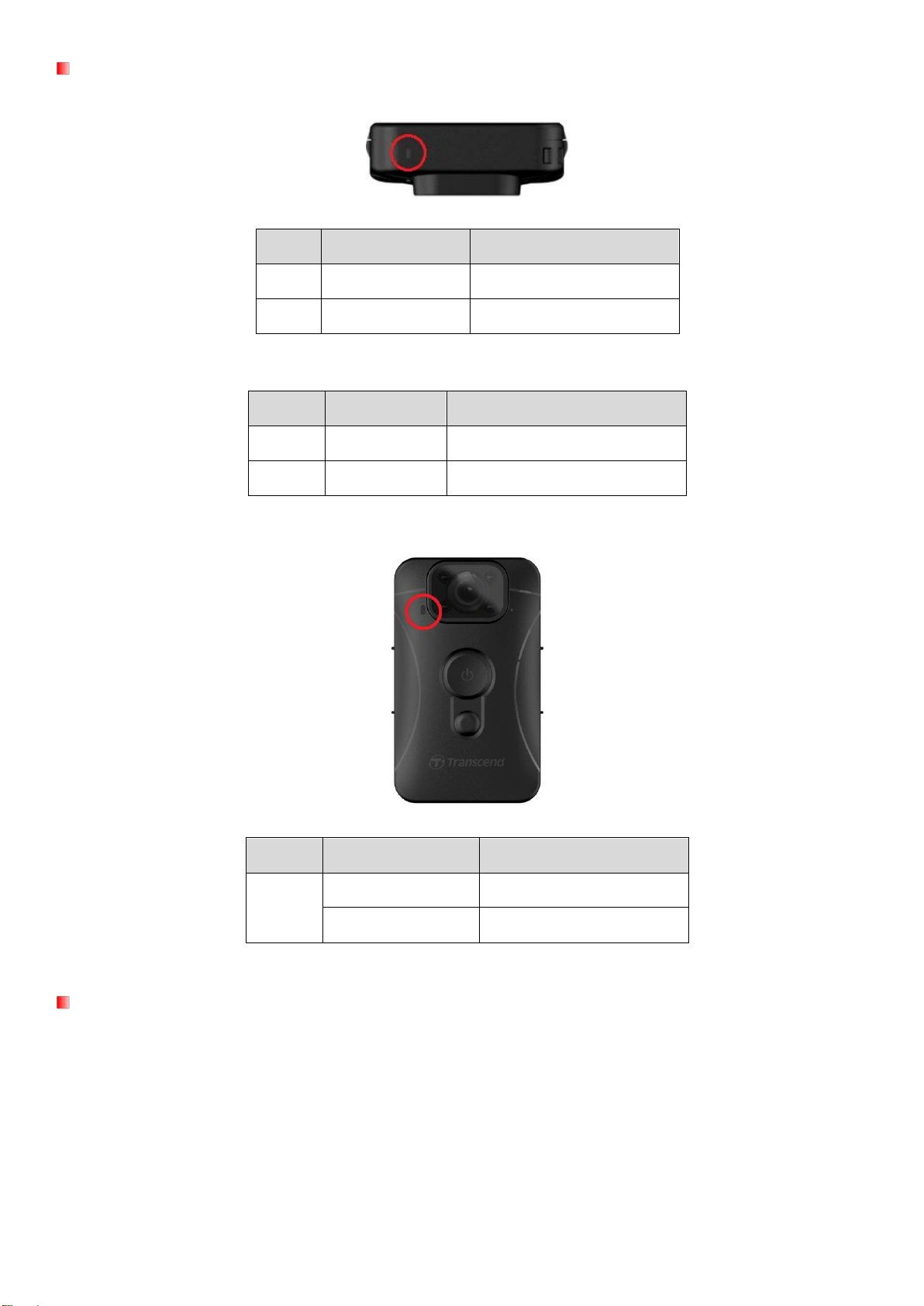
LED Indicator Chart
Top View
Recording
LED
Status
Definition
Flashing
Memory almost full
Flashing
Low battery
Connected to computer/power
LED
Status
Definition
Flashing
Transferring data
Solid
Charging
Front View
Recording
LED
Status
Definition
Flashing steadily
Normal recording
Flashing rapidly
Event recording
Setting the Date/Time and Video/Photo User Stamp
Before use, you are advised to download and use the DrivePro Body Toolbox™ software to connect
to your computer and set the date/time and video/photo user stamp. By doing so, both date/time and
user stamp will be displayed on the recorded videos and photos.
Please see DrivePro™ Body Toolbox Software section for more details.
7
5. Recording Videos
Normal Recording
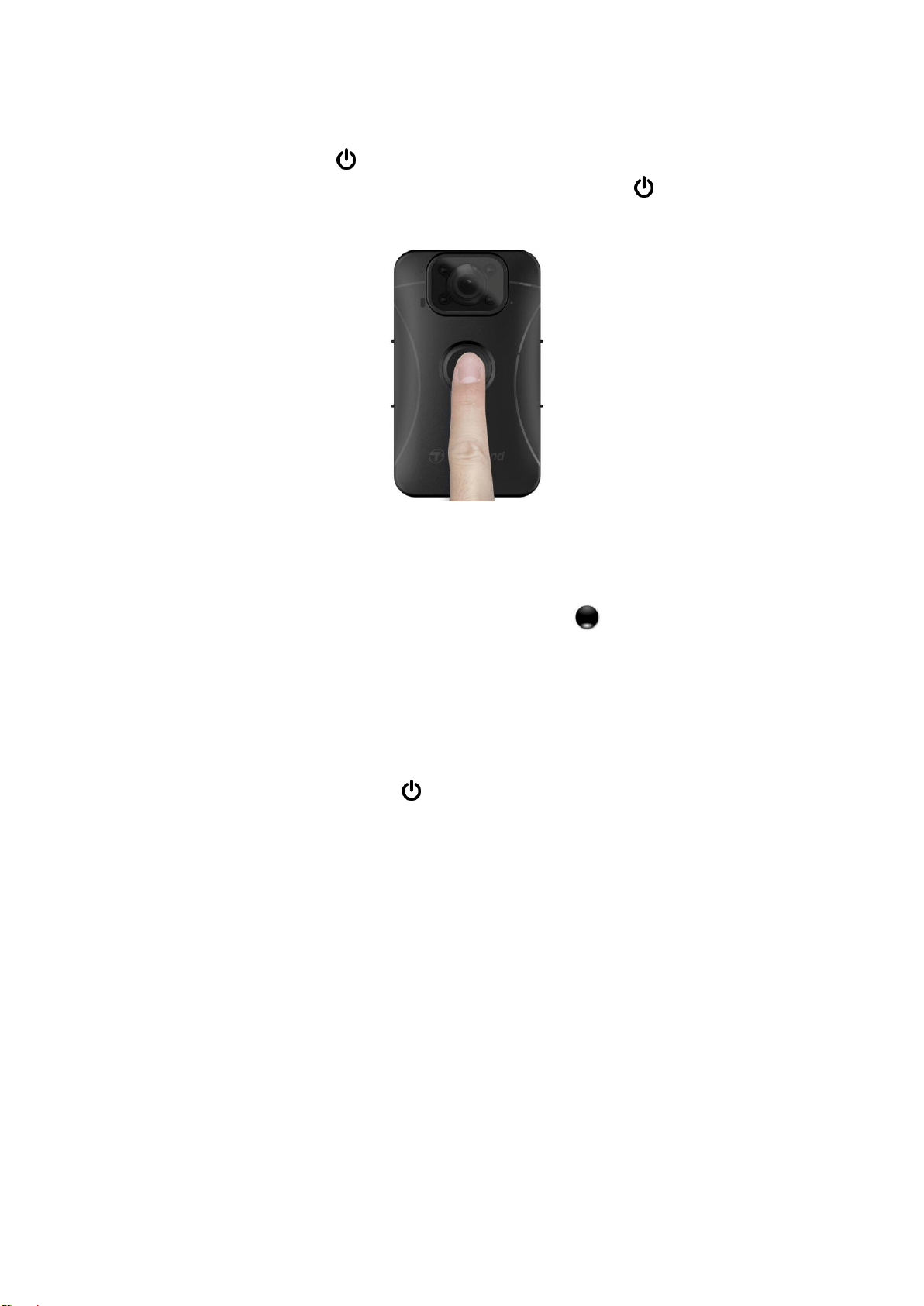
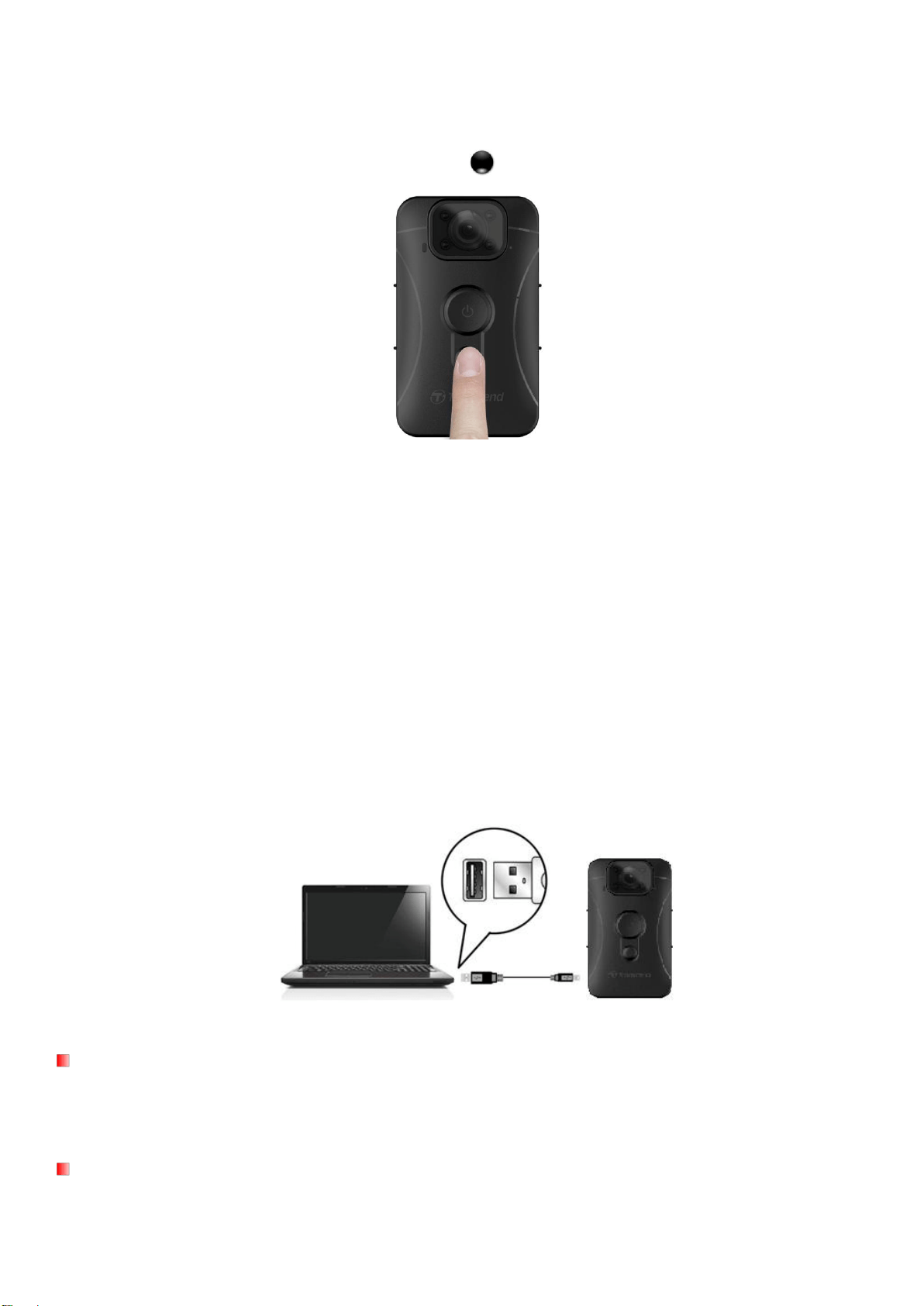
To start recording, long press the button; you will hear 1 beep. The red LED light of the recording
indicator will flash during recording. To stop recording, long press the button again; you will hear
1 beep. The red LED light will then turn off. One video file is saved for every 3 minutes of recording.
Recording Videos with Infrared LEDs
At night or in low light conditions, the Infrared LED mode will be activated automatically; the four
Infrared LEDs will then light up. You can also long press the button to turn on/off the Infrared
LED mode manually. Please keep the DrivePro Body 10 at least 50 centimeters away from the
object to avoid misjudgement of the light condition due to a reflection of LED light.
Note: Videos recorded with Infrared LED will be in grayscale.
Event Recording
To start event recording, short press the button once while recording; you will hear 2 beeps (1
short beep and 1 long beep), and the red LED light of the recording indicator will flash faster than in
normal recording. The mode will automatically switch back to normal recording after the file finishes
recording (depending on the video length set). Video files recorded in event recording are saved in the
“Event” folder and are protected from being overwritten.
8
6. Taking Photos
To take photos during recording, simply press the button.
Note: Photos taken with Infrared LED will be in grayscale.
7. Playing, Transferring & Deleting Videos / Photos
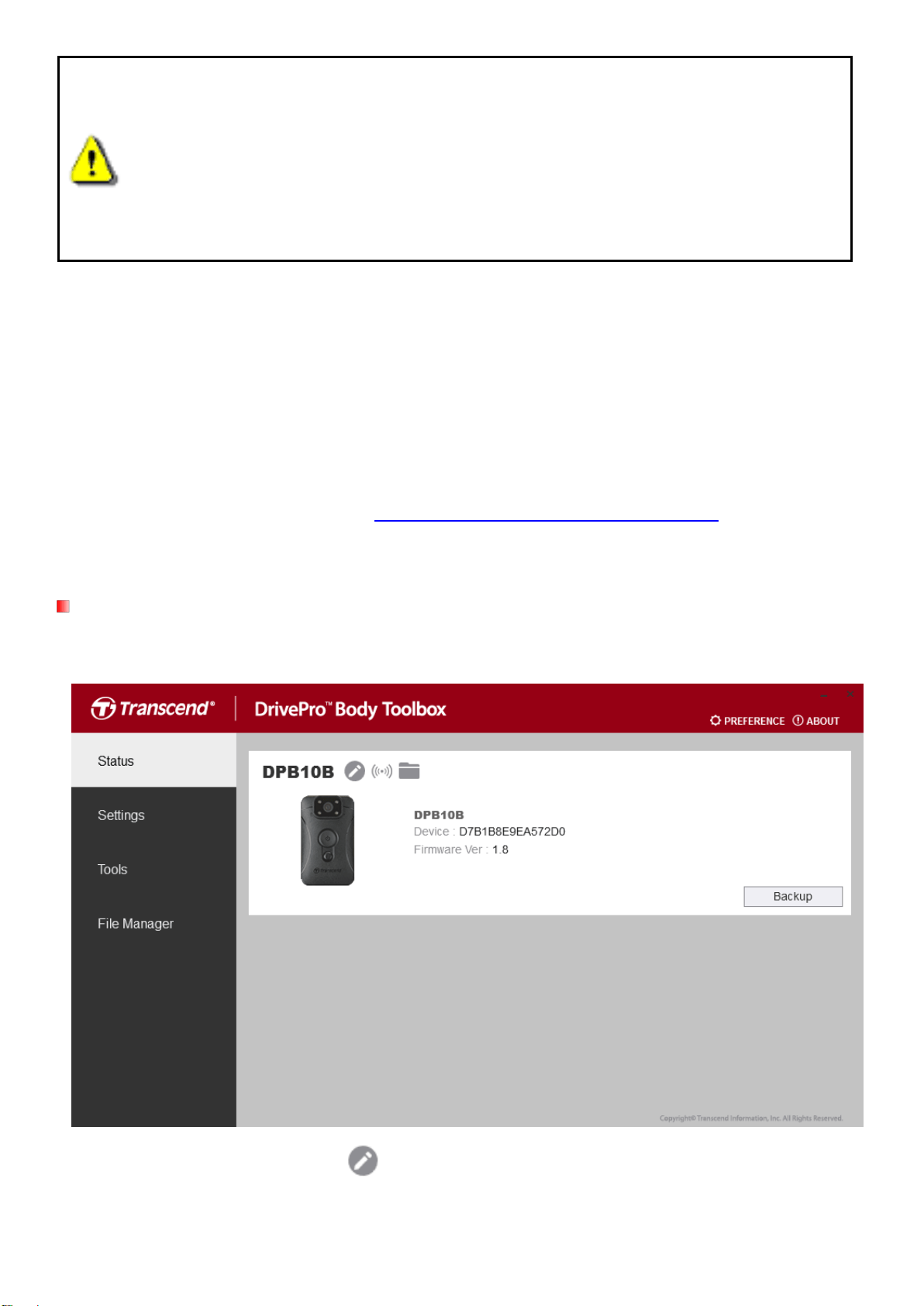
To play the recorded videos or view the photos, connect the DrivePro Body 10 to your desktop or
laptop:
Option 1: Take the microSD memory card out of the DrivePro Body 10, and insert it to a compatible
card reader to transfer files to your computer.
Option 2:
1. Plug the small end of a USB cable into the micro USB port located on the bottom of the
DrivePro
Body 10.
2. Plug the large end of the cable into an available USB port on your desktop or laptop.
Playing Videos & Viewing Photos
Select the DrivePro Body 10 folder and then click on the VIDEO folder to play your recorded videos;
alternatively, click on the PHOTO folder to view your photos.
Transferring and Deleting Videos & Photos
Windows 7, 8 , 8.1 or 10

9
No drivers are required for connecting the DrivePro Body 10 to your desktop or laptop. Windows
®
Operating Systems have built-in drivers to support your camera. Upon successful connection to your
computer, a new Removable Disk drive with a newly assigned drive letter representing the DrivePro
Body 10 will automatically appear in My Computer, and a Removable Hardware
icon will
appear in the Windows System Tray.
*Note: (E:) is an example drive letter – the letter in your “My Computer” window may differ.
Your DrivePro Body 10 is now ready to transfer data just like an external storage. To transfer videos
and photos, simply drag-and-drop files from the folder that represents the DrivePro Body 10. You
can also delete unwanted files in case your memory card is full.
Proper removal of your DrivePro Body 10 from Windows:
1. Click once on the Removable Hardware icon
in the system tray.
2. A Safely Remove Hardware window will pop up. Click to continue.
3. A window stating, “Safe To Remove Hardware,” will pop up. Unplug your DrivePro Body 10
from the USB port after seeing this message.
Mac
®
OS X 10.8.2 or later
No drivers are required. Plug your DrivePro Body 10 into an available USB port directly, and your
computer will automatically detect it.
Proper removal of your DrivePro Body 10 from Mac OS:
Drag-and-drop the Disk icon corresponding to your Camera into the trashcan, and then unplug your
DrivePro Body 10 from the USB port.
10
WARNING:
1. To prevent data loss, always follow the proper removal procedures when
disconnecting the DrivePro Body 10 from your computer.
2. When the DrivePro Body 10 is connected to a computer, it can only be used for
transferring files. You will not be able to record videos or take photos at this
time. Please disconnect your camera from the computer to resume normal
function.
8. DrivePro™ Body Toolbox Software
Exclusively designed for Transcend's DrivePro Body 10, DrivePro Body Toolbox™ is a secure video
file management system which simplifies the settings of the camera and video/photo files. DrivePro
Body Toolbox features a user-friendly interface that allows Windows users to set the basic functions
of the DrivePro Body 10.
To use DrivePro Body Toolbox:
1. Download the installation files from: http://www.transcend-info.com/downloads
2. Install DrivePro Body Toolbox software on your desktop or laptop.
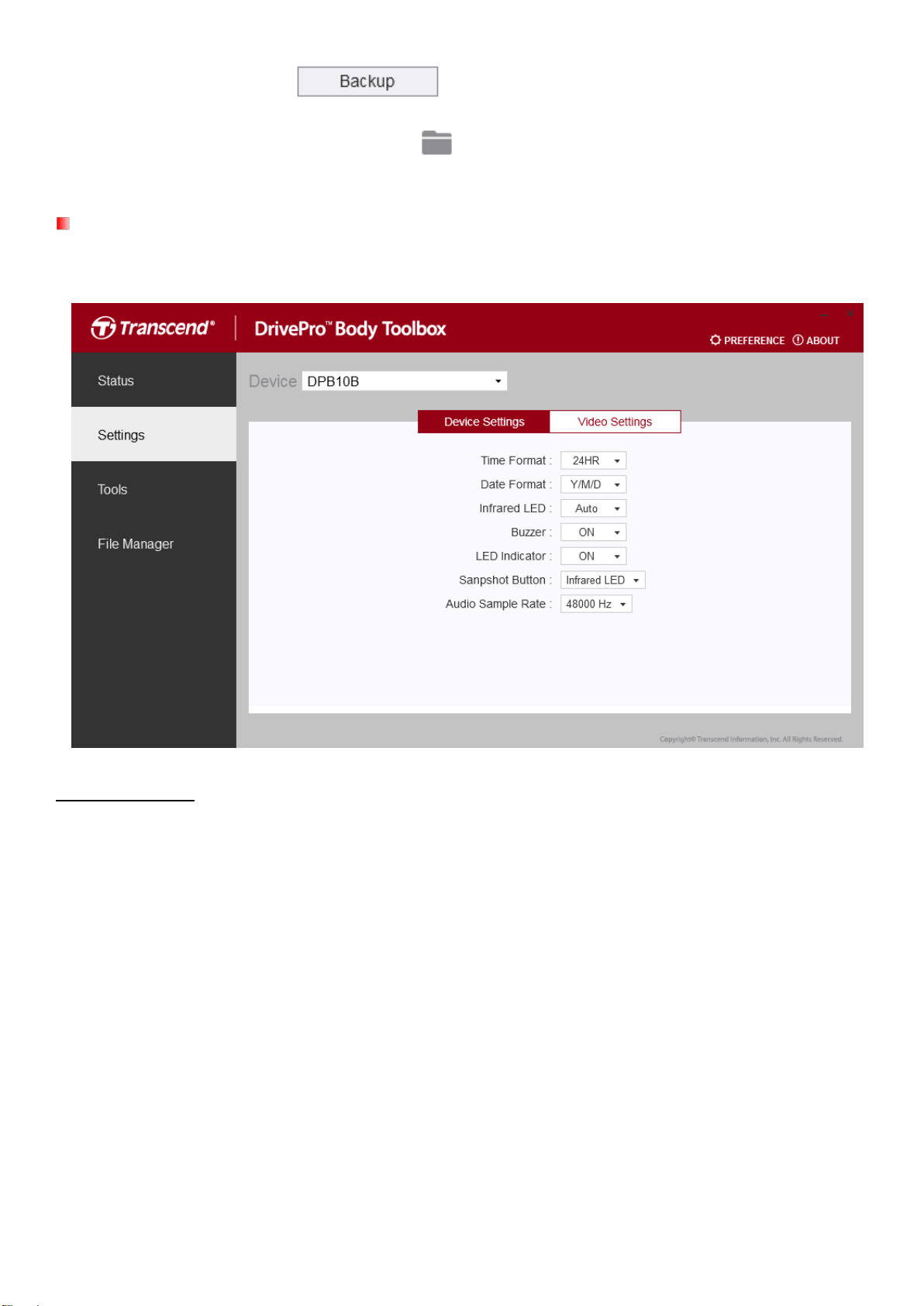
Status
On the Status page, the basic information of the DrivePro Body is displayed, including device serial
number, firmware version, user label and model name.
To change the user label, click on .
11
To start backing up, click on .
To play videos and browse photos, click on .
Settings
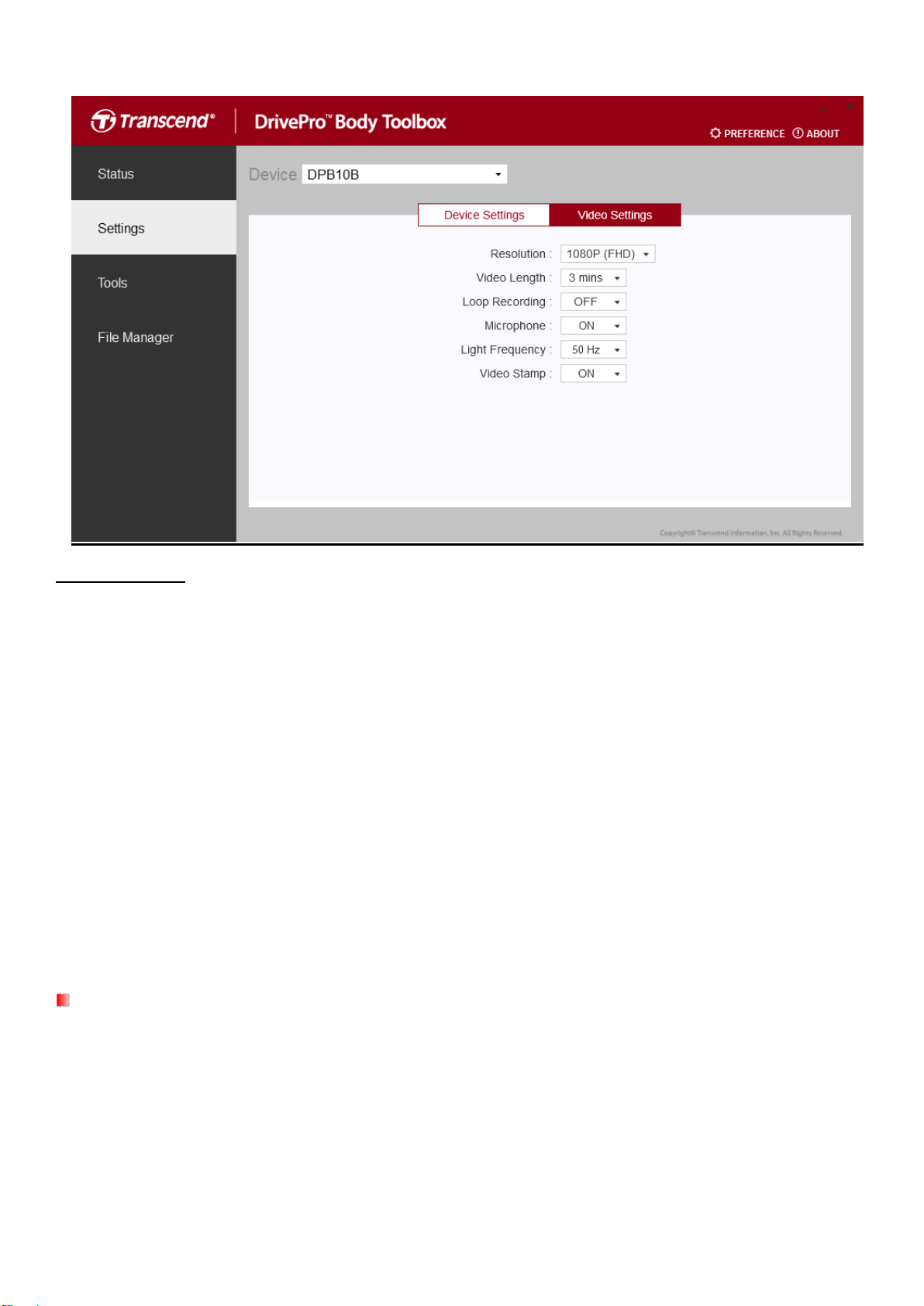
On the Settings page, you can adjust the Device settings or Video settings.
Device Settings
Time Format: Select the 24-hour or 12-hour AM/PM time format.
Available options: 24HR / AM/PM
Date Format: Set the date format.
Available options: YY/MM/DD or MM/DD/YY or DD/MM/YY
Infrared LED: Select to activate the Infrared LED manually or automatically.
Available options: Manual / Auto
Buzzer: Turn on/off the buzzer of the DrivePro™ Body.
Available options: On / Off
LED Indicator: Turn on/off the LED Indicator.
Available options: On / Off
Snapshot Button: Select snapshot button function
Available options: Infrared LED or Audio Recording
Audio Sample Rate: Set audio sample rate.
Available options: 48000 Hz/ 44100 Hz/ 32000 Hz/ 24000 Hz/ 22050Hz
12
Video Settings
Resolution: Set the resolution/quality for video recording.
Available options: FHD / HD
Video Length: Set the recording length of each recorded video file.
Available options: 3 mins / 5 mins / 10 mins
Loop recording: Overwrite the old video files with new ones.
Available options: Disable / Enable
Microphone: Turn on/off the microphone during video recording.
Available options: On / Off
Light Frequency: Select the appropriate frequency to avoid flashing A/C light.
Available options: 50Hz / 60Hz
Video Stamp: Display the time of the event being recorded and the video label.
Available options: on/off
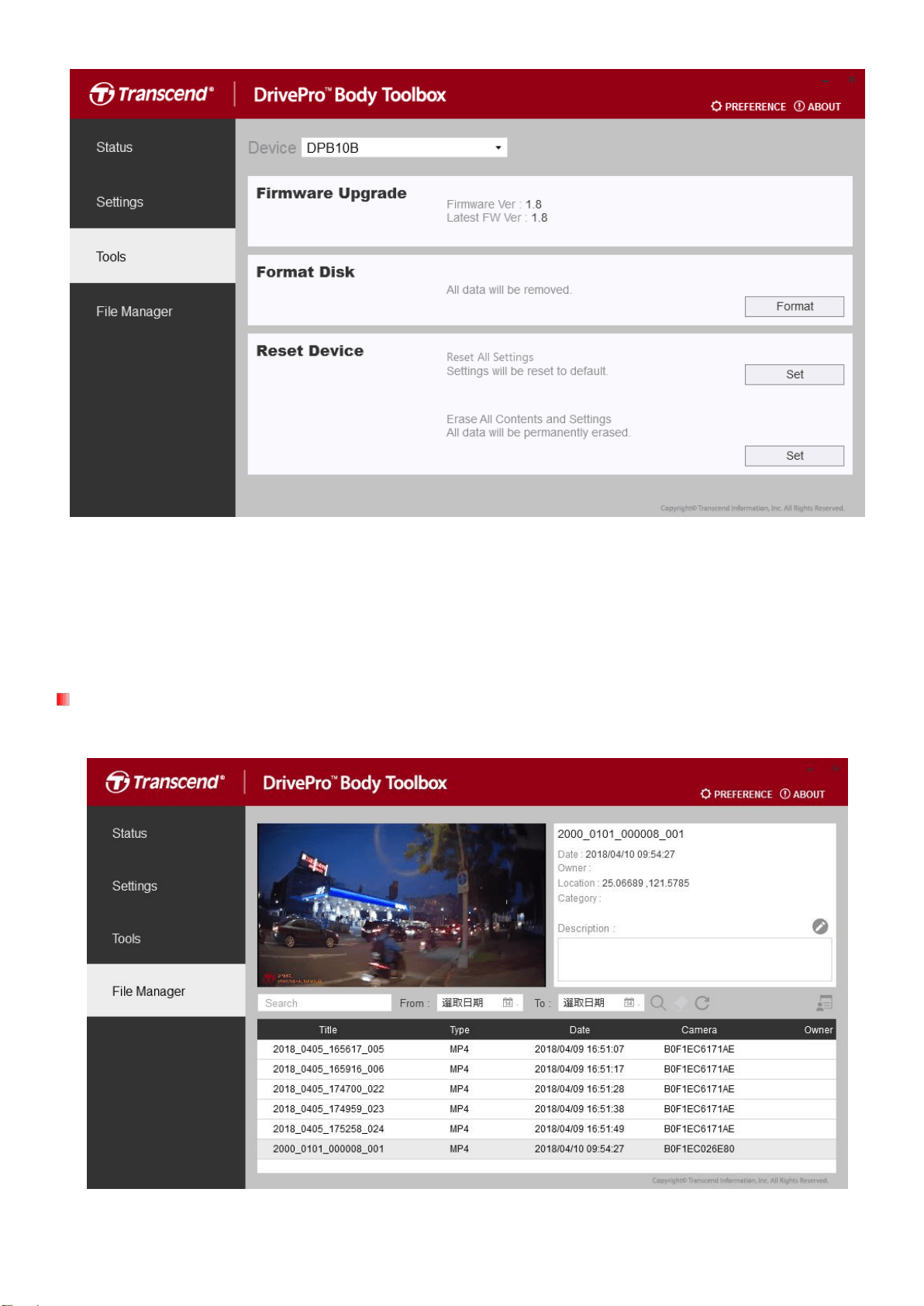
Tools
On the Tools page, you can upgrade firmware to the latest version, format disk or reset DrivePro Body
to its default status.
13
Note: Formatting the disk and resetting the device will permanently remove all data.
Firmware Upgrade: Upgrade your firmware to the latest version available.
Format Disk: Format your device.
Reset Device: Reset all settings to default or erase all contents and settings.
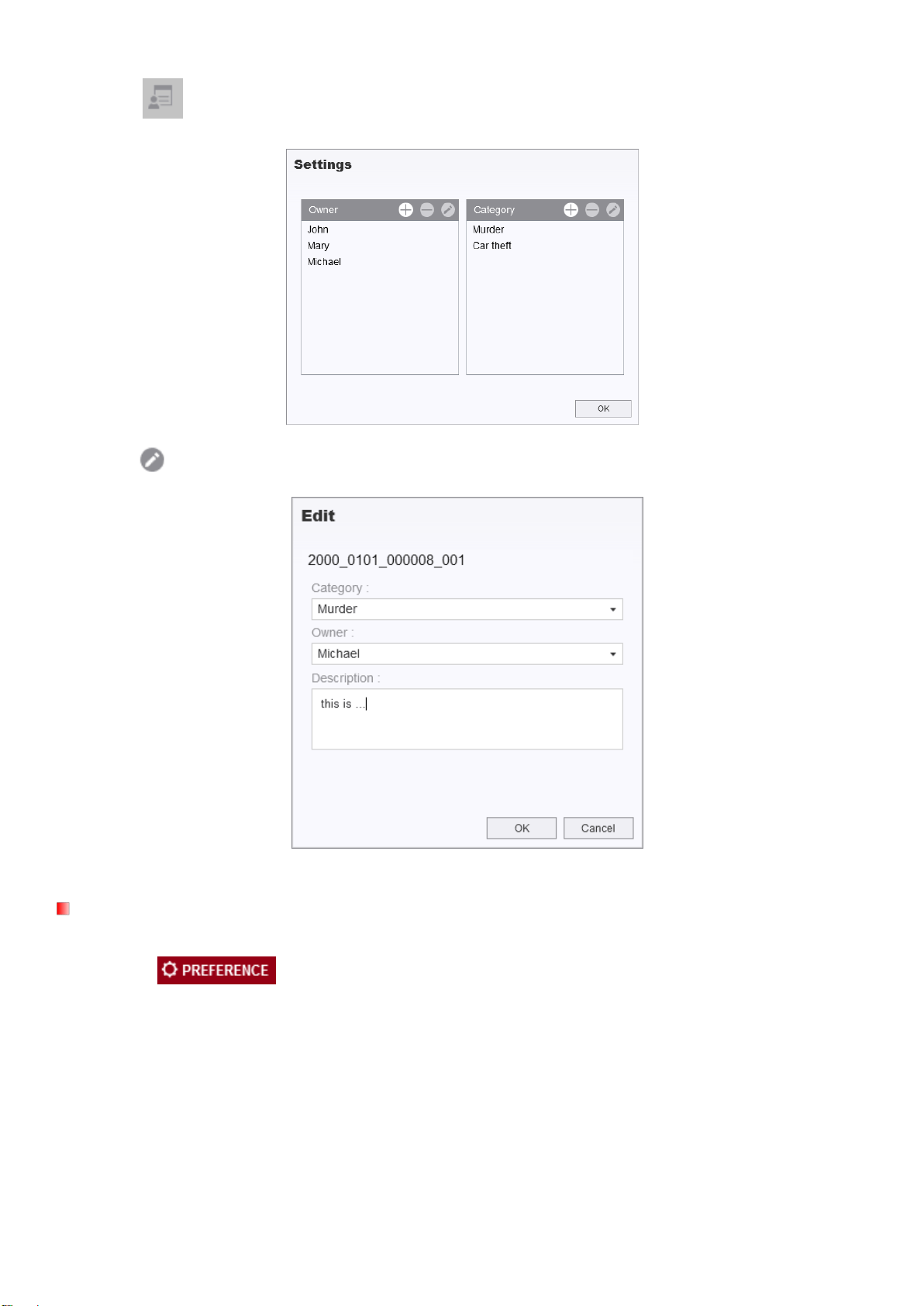
File Manager
On the File Manager page, you can search and manage your videos and photos, or edit photos.
14
Click on in the middle of the page to add, delete, or edit the Owner and Category.
Click on to classify the Owner and Category of the selected file.
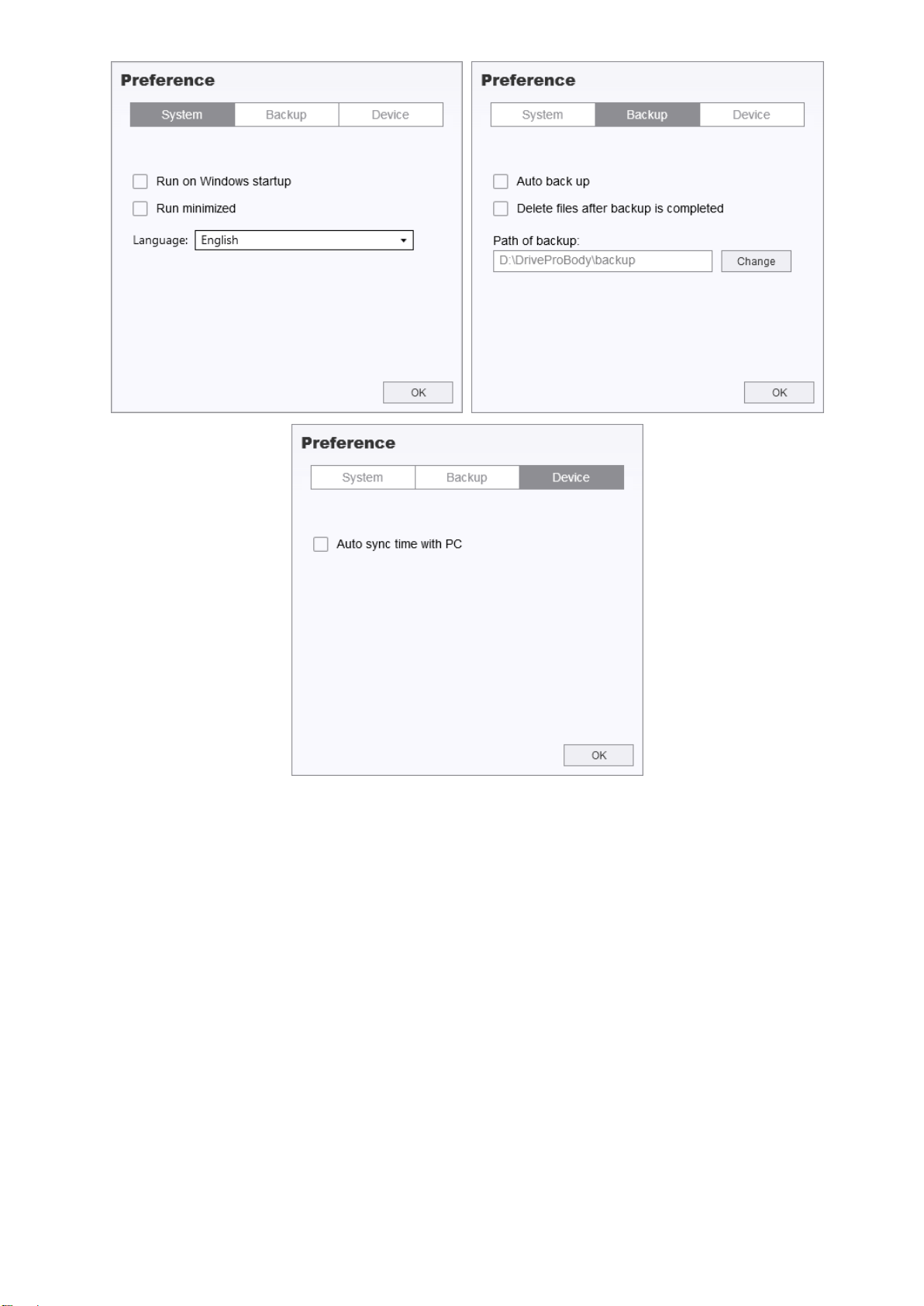
Preference
Click on on top of the page to adjust the settings of the DrivePro Body Toolbox.
Check the available options below according to your preference.
15

16
9. Precautions
Do not use or store the DrivePro Body 10 in the following places to prevent malfunction or
deformation:
In extremely hot, cold or humid places such as in a car parked in the sun
Under direct sunlight or near a heater
Near strong magnetic fields
In sandy or dusty places
Care and storage of the DrivePro Body 10 lens
Wipe the surface of the lens clean with a soft cloth in the following cases:
‐ When there are fingerprints on the lens surface
‐ When the lens is exposed to salty air such as at the seaside
Store in a well-ventilated location subject to little dirt or dust
To prevent mold, periodically clean the lens as described above
Cleaning
Clean the DrivePro Body 10 surface with a soft cloth slightly moistened with water, then wipe the
surface with a dry cloth. Do not use any of the following as they may damage the finish or the casing:
Chemical products such as thinner, benzine, alcohol, disposable cloths, insect repellent,
sunscreen or
insecticide, etc.
Do not touch the camera with any of the above on your hand.
Do not leave the camera in contact with rubber or vinyl for a long time.
Moisture condensation
If the DrivePro Body 10 is brought directly from a cold to a warm place (or vice versa), moisture may
condense inside or outside the camera. This moisture condensation may cause malfunction of the
DrivePro Body 10.
If moisture condensation occurs, turn off the DrivePro Body 10 and wait about 1 hour for the moisture
to evaporate.
10. IPX4 Water Resistant
The camera body of the DrivePro Body 10 is IPX4 water resistant (not waterproof), offering
protection against splashing water from any direction. However, it is not protected against
pressurized water such as from a shower or tap.
WARNING: DrivePro Body 10 is not water resistant when connected to a USB cable.
Failure caused from incorrect use is not covered by the limited warranty.
Do not use the DrivePro Body 10 in water as it is not waterproof.
Firmly close the memory card cover. (If the cover is not fully closed, water may leak inside the
camera.
17
Do not open/close the cover when your hands are wet).
Do not use the DrivePro Body 10 in high temperature and high humidity environments (i.e.
saunas,
steam and shower rooms).
Do not use the DrivePro Body 10 for a long time in heavy rains to avoid the moisture from
penetrating
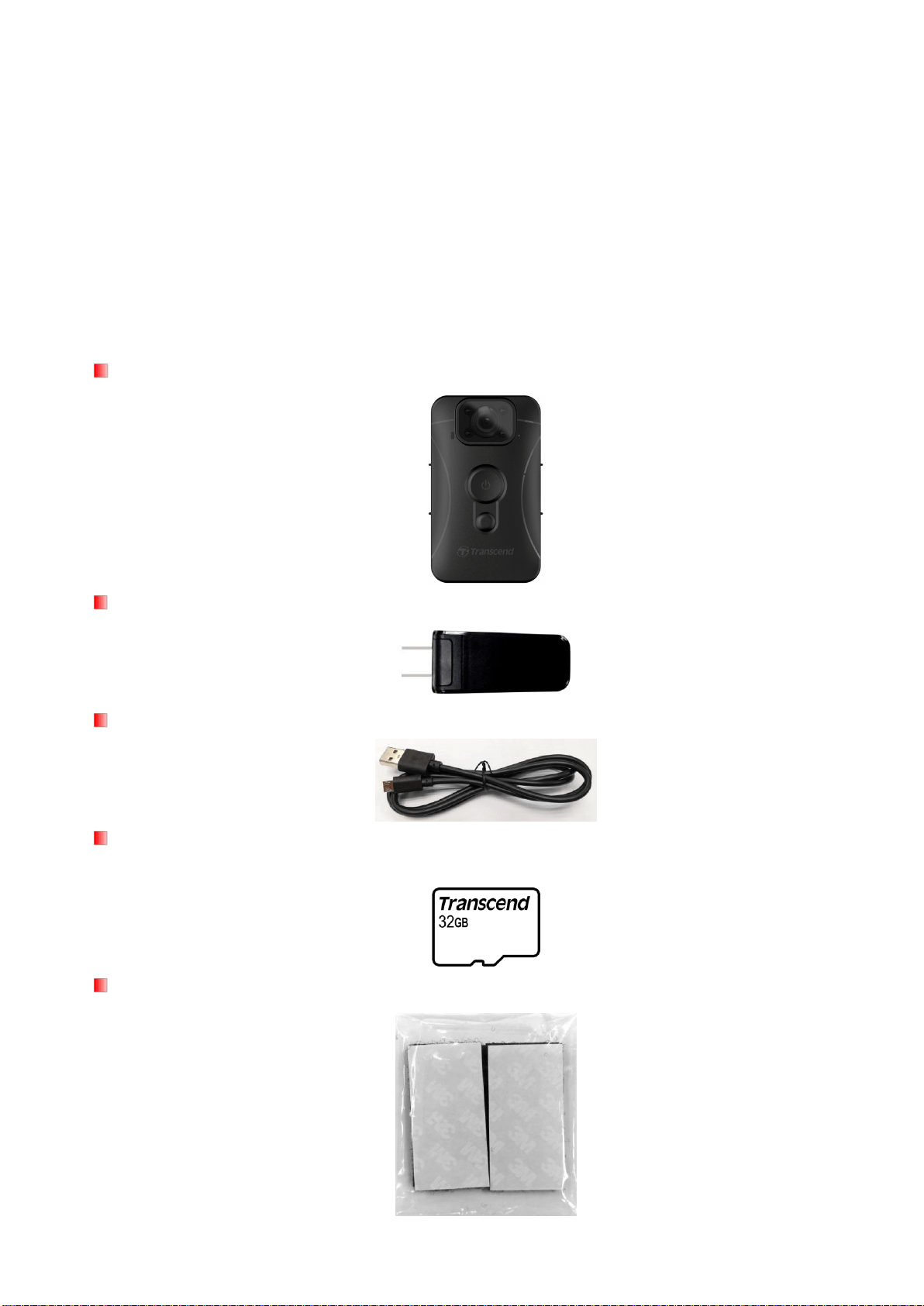
11. Package Contents
The DrivePro Body 10 package includes the following items:
DrivePro Body 10
Adapter
micro USB cable
32GB microSD memory card (Pre-inserted in the DrivePro Body)
Velcro
18
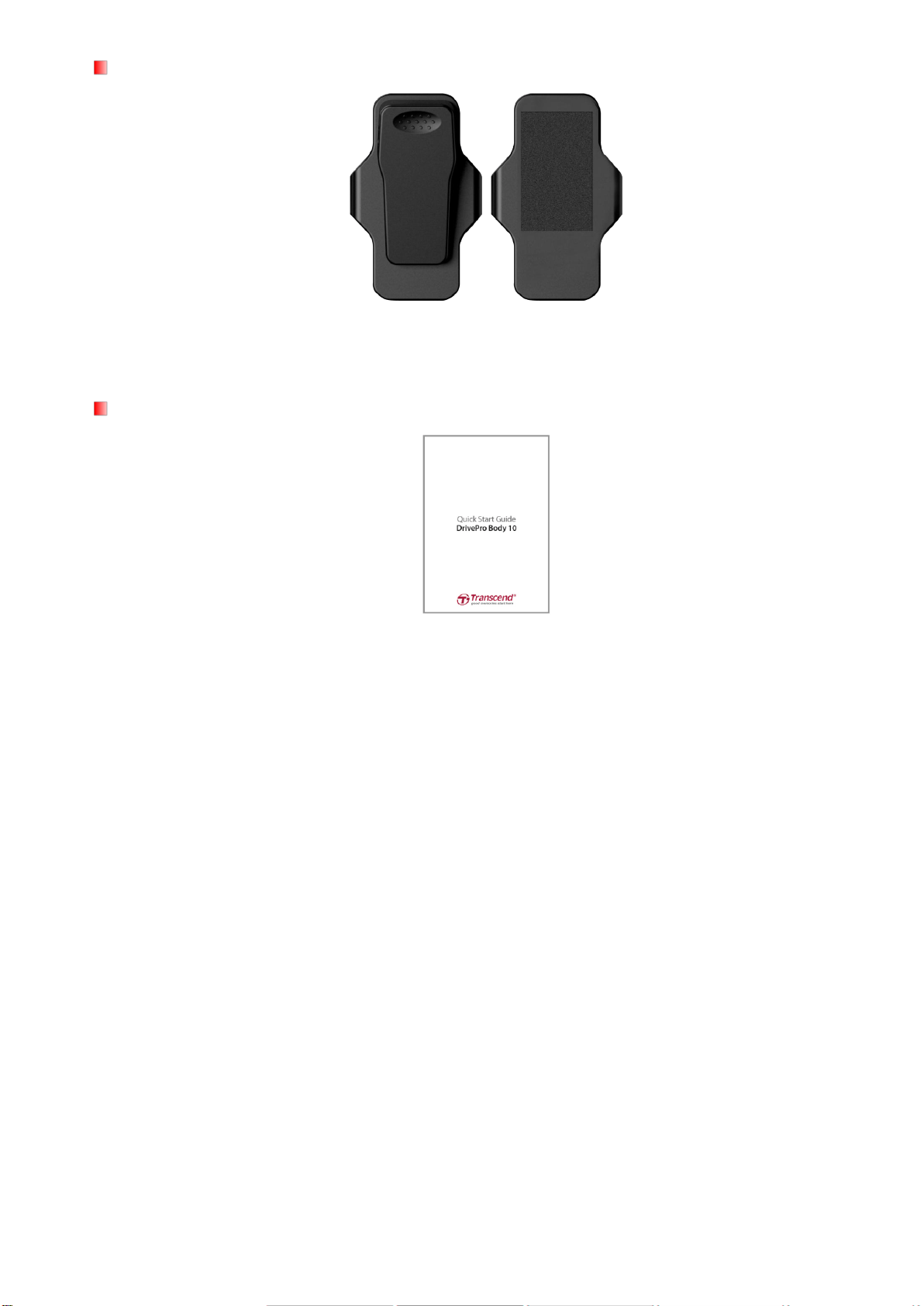
Rotatable clip & Velcro holder
Note: When removing the DrivePro™ Body from the holder, please pull from left and right side.
When reassembling, make sure the DrivePro™ Body is securely attached to the holder.
Quick Start Guide

19
12. Specifications
Connect Interface
USB 2.0
Storage Capacity
microSD, 8GB / 16GB / 32GB (Class 10 or above)
Dimensions
88.4 mm (L) × 52.2 mm (W)× 19.6 mm (H)
3.48” (L) x 2.06” (W) x 0.77” (H)
Weight
88g (124g with holder attached)
3.1 oz (4.37 oz with holder attached)
Battery
Li-Polymer
Power Supply
Input: AC100V-240V, 50-60Hz, 0.4A Max
Output: DC5V/2A
Recording Life
Up to 5 hours*
Operating
Temperature
-20°C (-4°F) ~ 60°C (140°F)
-20°C (-4°F) ~ 45°C (113°F) when charging with the
adapter
Video Format
H.264 (MP4: up to 1920x1080 30fps)
Water Resistance
IPX4
Shock Resistance
MIL-STD-810G 516.6-Transit Drop Test
Lens
F/2.8, 130° wide angle
Resolution / Frame
Rate
Full HD (1920 x 1080) / 30fps
Certification
CE, FCC, BSMI
Warranty
2-Year Limited
* Environmental conditions may increase or decrease specifications

20
13. Frequently Asked Questions
If you have any question or a problem occurs to your DrivePro Body 10, please first check the
instructions listed below before sending your DrivePro for repair. If you cannot find any ideal solution
to your question below, please consult your dealer, service center, or local Transcend branch office
for further help. You can also visit Transcend website (http://www.transcend-info.com/) for more
FAQs and Technical Support services (http://www.transcend-info.com/Support/contact_form).
My computer operating system cannot detect my DrivePro Body 10
Please check the followings:
1. Is your DrivePro Body 10 properly connected to the USB port? If not, unplug and connect it
again. Make sure that both ends of the USB cables are properly connected as shown in the
User’s Manual.
2. Is your DrivePro Body 10 connected to the Mac keyboard? If yes, try to plug it in an available
USB port on your Mac Desktop directly.
3. Is the computer’s USB ports enabled? If not, refer to the user’s manual of your computer (or
motherboard) to enable them.
None of the DrivePro Body 10 buttons are responding.
Please press the Reset button on the bottom of the DrivePro Body 10 with a pointed object
such as a paper clip.
Is the DrivePro Body 10 shockproof and waterproof?
The DrivePro is IPX4 water resistant and meets rigorous U.S. military drop-test standards*.
*Based on MIL-STD-810G 516.6-Transit Drop Test
Can I use the DrivePro Body 10 to record at nighttime?
Yes, the DrivePro Body 10 will activate the Infrared LED automatically at night or in low light
conditions. However, please note that photos taken and videos recorded with Infrared LED will
be in grayscale.

21
14. Recycling and Environmental Protection
Recycling the Product (WEEE): Your product is designed and manufactured with high quality
materials and components, which can be recycled and reused. When you see the crossed-out wheel
bin symbol attached to a product, it means that the product is covered by the European Directive
2002/96/EC:
Never dispose of your product with other household waste. Please inform yourself about the local
rules on the separate collection of electrical and electronic products. The correct disposal of your old
product helps prevent potential negative consequences on the environment and human health.
Battery Disposal: Your product contains a built-in rechargeable battery covered by the European
Directive 2006/66/EC, which cannot be disposed of with normal household waste. Please inform
yourself about the local rules on separate collection of batteries. The correct disposal of batteries
helps prevent potentially negative consequences on the environment and human health.
For products with non-exchangeable built in batteries: The removal of (or the attempt to remove) the
battery invalidates the warranty. This procedure is only to be performed at the end of the product’s life.

22
15. Two-year Limited Warranty
This product is covered by a Two-year Limited Warranty. Should your product fail under normal use
within two years from the original purchase date, Transcend will provide warranty service pursuant
to the terms of the Transcend Warranty Policy. Proof of the original purchase date is required for
warranty service. Transcend will inspect the product and in its sole discretion repair or replace it with
a refurbished product or functional equivalent. Under special circumstances, Transcend may refund
or credit the current value of the product at the time the warranty claim is made. The decision made
by Transcend shall be final and binding upon you. Transcend may refuse to provide inspection,
repair or replacement service for products that are out of warranty, and will charge fees if these
services are provided for out-of-warranty products.
Limitations
Any software or digital content included with this product in disc, downloadable, or preloaded form, is
not covered under this Warranty. This Warranty does not apply to any Transcend product failure
caused by any accident, abuse, mishandling or improper usage (including use contrary to the
product description or instructions, outside the scope of the product’s intended use, or for tooling or
testing purposes), alteration, abnormal mechanical or environmental condition (including prolonged
exposure to humidity), acts of nature, improper installation (including connection to incompatible
equipment), or problems with electrical power (including undervoltage, overvoltage, or power supply
instability). In addition, damage or alteration of warranty, quality or authenticity stickers, and/or
product serial or electronic numbers, unauthorized repair or modification, or any physical damage to
the product or evidence of opening or tampering with the product casing will also void this Warranty.
This Warranty shall not apply to the transferees of Transcend products and/or anyone who stands to
profit from this Warranty without Transcend’s prior written authorization. This Warranty only applies
to the product itself, and excludes integrated LCD panels, rechargeable batteries, and all product
accessories (such as card adapters, cables, earphones, power adapters, and remote controls).
Transcend Warranty Policy
Please visit www.transcend-info.com/warranty to view the Transcend Warranty Policy. By using
the product, you agree that you accept the terms of the Transcend Warranty Policy, which may be
amended from time to time.
Transcend Information, Inc.
www.transcend-info.com
*The Transcend logo is a registered trademark of Transcend Information, Inc.
*The specifications mentioned above are subject to change without notice.
*All logos and marks are trademarks of their respective companies.

23
16. GNU General Public License (GPL) Disclosure
Firmware incorporated into this product and/or software used for this product may include third party
copyrighted software licensed under the GPL (hereinafter referred to as “GPL Software”). In
accordance with the GPL, if applicable: 1) the source code for the GPL Software may be
downloaded at no charge or obtained on CD for a nominal charge by calling Customer Support
within three years of the date of purchase; 2) you may copy, re-distribute and/or modify the GPL
Software under the terms of the GNU General Public License as below or any later version, which
may be obtained at http://www.gnu.org/licenses/gpl.html; 3) the GPL Software is distributed
WITHOUT ANY WARRANTY, without even implied warranty of MERCHANTABILITY or FITNESS
FOR A PARTICULAR PURPOSE. The entire risk as to the quality and performance of the GPL
Software is with you. Transcend does not provide any support for the GPL software.
17. End-User License Agreement (EULA)
Software license terms and conditions
1. Generally. Transcend Information, Inc. ("Transcend") is willing to grant the following license to
install or use the software and/or firmware (“Licensed Software”) pursuant to this End-User License
Agreement (“Agreement”), whether provided separately or associated with a Transcend product
(“Product”), to the original purchaser of the Product upon or with which the Licensed Software was
installed or associated as of the time of purchase ("Customer") only if Customer accepts all of the
terms and conditions of this Agreement. PLEASE READ THESE TERMS CAREFULLY. USING
THE SOFTWARE WILL CONSTITUTE CUSTOMER'S ACCEPTANCE OF THE TERMS AND
CONDITIONS OF THIS AGREEMENT. IF YOU DO NOT AGREE TO THE TERMS AND
CONDITIONS OF THIS AGREEMENT, DO NOT INSTALL OR USE THE LICENSED SOFTWARE.
2. License Grant. Transcend grants to Customer a personal, non-exclusive, non-transferable,
non-distributable, non-assignable, non-sublicensable license to install and use the Licensed
Software on the Product in accordance with the terms and conditions of this Agreement.
3. Intellectual Property Rights. As between Transcend and Customer, the copyright and all other
intellectual property rights in the Licensed Software are the property of Transcend or its supplier(s)
or licensor(s). Any rights not expressly granted in this License are reserved to Transcend.
4. License Limitations. Customer may not, and may not authorize or permit any third party to: (a)
use the Licensed Software for any purpose other than in connection with the Product or in a manner
inconsistent with the design or documentations of the Licensed Software; (b) license, distribute,
lease, rent, lend, transfer, assign or otherwise dispose of the Licensed Software or use the Licensed
Software in any commercial hosted or service bureau environment; (c) reverse engineer, decompile,
disassemble or attempt to discover the source code for or any trade secrets related to the Licensed
Software, except and only to the extent that such activity is expressly permitted by applicable law
notwithstanding this limitation; (d) adapt, modify, alter, translate or create any derivative works of the
Licensed Software; (e) remove, alter or obscure any copyright notice or other proprietary rights
notice on the Licensed Software or Product; or (f) circumvent or attempt to circumvent any methods
employed by Transcend to control access to the components, features or functions of the Product or

24
Licensed Software.
5. Copying. Customer may not copy the Licensed Software except that one copy of any separate
software component of the Licensed Software may be made to the extent that such copying is
necessary for Customer's own backup purposes.
6. Open Source. The Licensed Software may contain open source components licensed to
Transcend pursuant to the license terms specified as below,
(a) GNU General Public License (GPL), the terms of which is currently available at
http://www.gnu.org/licenses/gpl.html;
(b) GNU Lesser General Public License (LGPL), the terms of which is currently available at
http://www.gnu.org/copyleft/lesser.html;and/or
(c) Code Project Open License (CPOL), the terms of which is currently available at
http://www.codeproject.com/info/cpol10.aspx
The above license terms will control solely with respect to the open source components. In the
event that this Agreement conflicts with the requirements of the above one or more terms with
respect to the use of the corresponding open source components, Customer agrees to be bound by
such one or more license terms.
7. Disclaimer. TRANSCEND MAKES NO WARRANTY AND REPRESENTATIONS ABOUT THE
SUITABILITY, RELIABILITY, AVAILABILITY, TIMELINESS, LACK OF VIRUSES OR OTHER
HARMFUL COMPONENTS AND ACCURACY OF THE INFORMATION, LICENSED SOFTWARE,
PRODUCTS, SERVICES AND RELATED GRAPHICS CONTAINED WITHIN THE LICENSED
SOFTWARE FOR ANY PURPOSE. ALL SUCH INFORMATION, LICENSED SOFTWARE,
PRODUCTS, SERVICES AND RELATED GRAPHICS ARE PROVIDED "AS IS" WITHOUT
WARRANTY OF ANY KIND. TRANSCEND HEREBY DISCLAIMS ALL WARRANTIES AND
CONDITIONS WITH REGARD TO THIS INFORMATION, LICENSED SOFTWARE, PRODUCTS,
SERVICES AND RELATED GRAPHICS, INCLUDING ALL IMPLIED WARRANTIES AND
CONDITIONS OF MERCHANTABILITY, FITNESS FOR A PARTICULAR PURPOSE,
WORKMANLIKE EFFORT, TITLE, AND NON-INFRINGEMENT.
IN NO EVENT SHALL TRANSCEND BE LIABLE FOR ANY DIRECT, INDIRECT, PUNITIVE,
INCIDENTAL, SPECIAL, CONSEQUENTIAL DAMAGES OR ANY DAMAGES WHATSOEVER
INCLUDING, WITHOUT LIMITATION, DAMAGES FOR LOSS OF USE, DATA OR PROFITS,
ARISING OUT OF OR IN ANY WAY CONNECTION WITH THE USE, PERFORMANCE OR
ACCURACY OF THE LICENSED SOFTWARE OR WITH THE DELAY OR INABILITY TO USE THE
LICENSED SOFTWARE, OR THE PRODUCT WITH WHICH THE LICENSED SOFTWARE IS
ASSOCIATED, WHETHER BASED ON CONTRACT, TORT, NEGLIGENCE, STRICT LIABILITY
OR OTHERWISE, EVEN IF TRANSCEND HAS BEEN ADVISED OF THE POSSIBILITY OF SUCH
DAMAGES.
8. Limitation of Liability. IN ANY CASE, TRANSCEND 'S LIABILITY ARISING OUT OF OR IN
CONNECTION WITH THIS AGREEMENT WILL BE LIMITED TO THE TOTAL AMOUNT
ACTUALLY AND ORIGINALLY PAID AT RETAIL BY CUSTOMER FOR THE PRODUCT. The
foregoing Disclaimer and Limitation of Liability will apply to the maximum extent permitted by

25
applicable law. Some jurisdictions do not allow the exclusion or limitation of incidental or
consequential damages, so the exclusions and limitations set forth above may not apply.
9. Termination. Transcend may, in addition to any other remedies available to Transcend,
terminate this Agreement immediately if Customer breaches any of its obligations under this
Agreement.
10. Miscellaneous. (a) This Agreement constitutes the entire agreement between Transcend and
Customer concerning the subject matter hereof, and it may only be modified by a written
amendment signed by an authorized executive of Transcend. (b) Except to the extent applicable law,
if any, provides otherwise, this Agreement will be governed by the law of the Republic of China,
excluding its conflict of law provisions. (c) If any part of this Agreement is held invalid or
unenforceable, and the remaining portions will remain in full force and effect. (d) A waiver by either
party of any term or condition of this Agreement or any breach thereof, in any one instance, will not
waive such term or condition or any subsequent breach thereof. (e) Transcend may assign its rights
under this Agreement without condition. (f) This Agreement will be binding upon and will inure to the
benefit of the parties, their successors and permitted assigns.

26
18. Federal Communications Commission (FCC) Statement
This device complies with Part 15 FCC Rules. Operation is subject to the following two conditions:
(1) This device may not cause harmful interference. (2) This device must accept any interference
received including interference that may cause undesired operation.
This equipment has been tested and found to comply with the limits for a Class B digital device,
pursuant to part 15 of the FCC Rules. These limits are designed to provide reasonable protection
against harmful interference in a residential installation. This equipment generates, uses and can
radiate radio frequency energy and, if not installed and used in accordance with the instructions,
may cause harmful interference to radio communications. However, there is no guarantee that
interference will not occur in a particular installation. If this equipment does cause harmful
interference to radio or television reception, which can be determined by turning the equipment off
and on, the user is encouraged to try to correct the interference by one or more of the following
measures:
- Reorient or relocate the receiving antenna.
- Increase the separation between the equipment and receiver.
- Connect the equipment into an outlet on a circuit different from that to which the receiver is
connected.
- Consult the dealer or an experienced radio/TV technician for help.
Transcend Information Inc (USA)
1645 North Brian Street, Orange, CA 92867, U.S.A
TEL: +1-714-921-2000