......,. Owner's
instructions
Register your product at www,samsung.com/global/register
Record your Model and Serial number here for future reference.
• Model . Serial No.
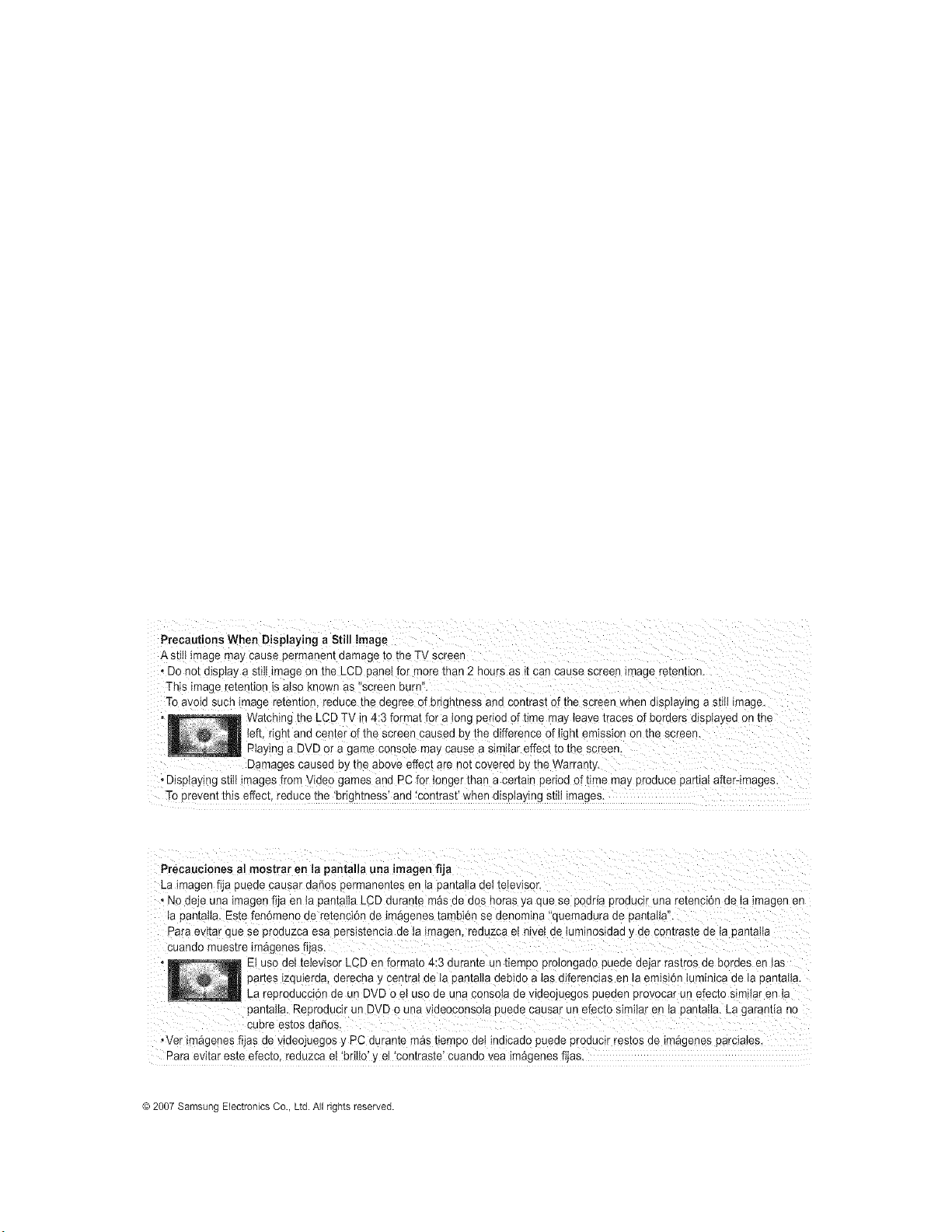
Precautions When Displaying a Still image
A stih _magemay cause permanen[ oamage 1othe TV screer
• Do no[ o_sptaya stitt in-age on the LCD panel for Fore than 2 hours as _[can cause screen _mageretention.
This image retention _salso known as "screen burn"
Tc avoid sucn image retention, reduce the degree of brightness ana con[fast of the screen when displaying a still image.
Watching the LCD TV ir 4:3 format for a long period of time ma] _eavetraces of bc "aers aJsptayeaon [ne
left, right and center of the screen caused by the difference of light emission on the screen.
Playing a DVD or a game console may cause a similar effect to the screen.
Damages causea oy me above effect are not covered by the Warranty.
• Diselaying still _mages from Video games and PC for onger than a certain period of time may proauce partiat after-images.
To erevent this effect reduce the 'brightness' and 'contrast' when displaying still images.
La imagen fija puede causar dories permanentes en ta pantal!a deI teIevisor,
, N0 deje una imagen fiJa en ta pantalia LCD durante m_s de dOShoras ya que se podrta produc!r una retenci6n de !a !magen en
ta pantaiia. Este fen6meno de retenci6n de im_genes tambien se denomina 'quemadura de pantalla".
Para evitar clue se produzca esa persistencia de ta imagen, reduzca e! hive! de tuminesidad y de contraste de ta Isantaita
Cuando muestre iF&genes fijas.
E! use det televiso r LCD en formate 4;3 durante un tiempo protongado puede dejar rastros de hordes en tas
partes izquierda, derecha y centra! de ta pantai!a debido a tas diferencias en la ernisi6n iuminica de ia pantai!a.
La reproducci6n de un DVD o el use de una consota de videojuegos pueden provocar un efecto similar en la
pantalla. Reproducir un DVD 0 una v!deec0ns#ta puede causar un efecto simi!ar en la pantatia. La garantia no
cubre estos daSos.
,Vet im_genes fijas de videojuegos y PC durante m_s tiempo dei indicado puede producir testes de im_genes parciates.
Para evitar este efecto, reduzca eI 'britlo' y et 'contraste' cuando vea im_genes fijas
@ 2007 Samsung Electronics Co., Ltd. All rights reserved.
Contents
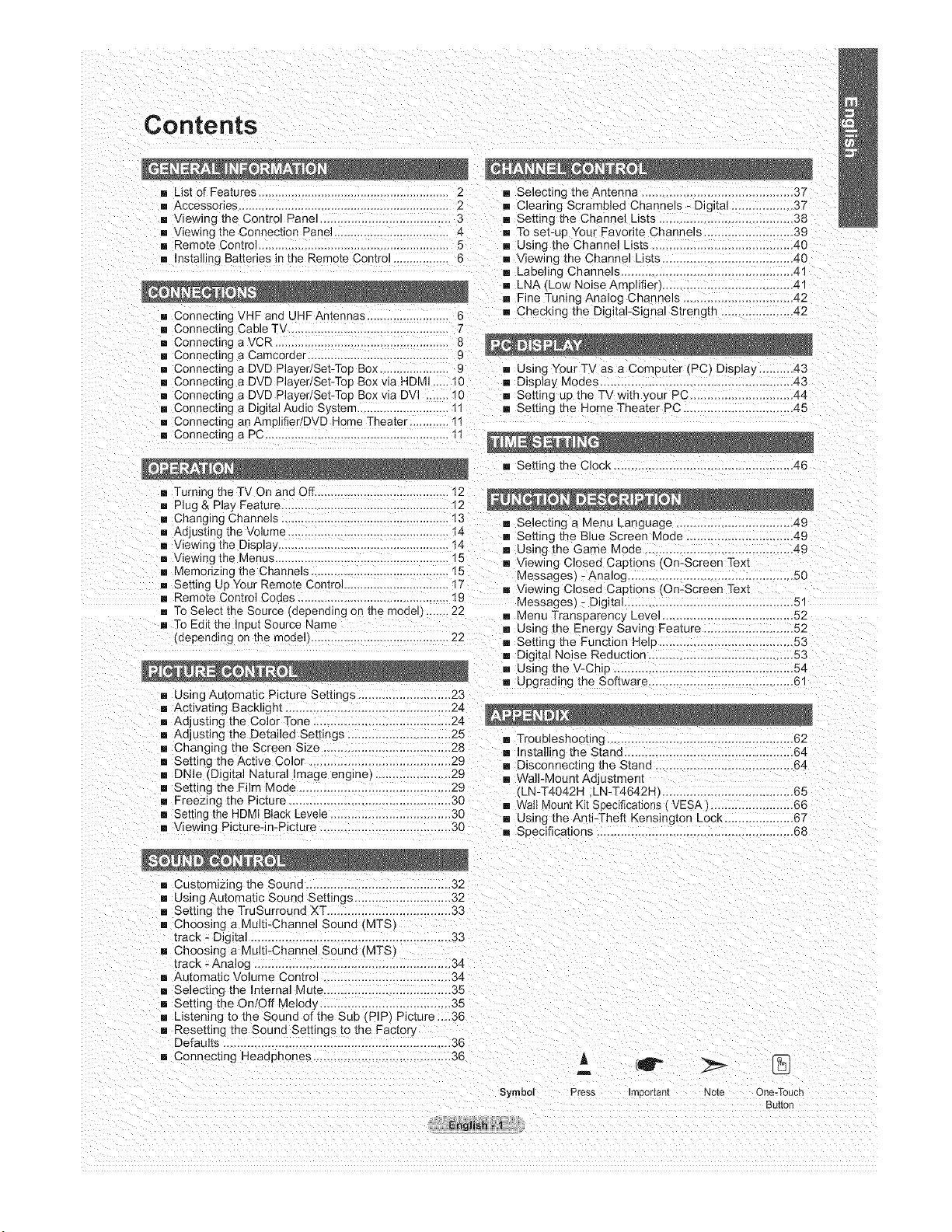
[] List of Features 2 [] Selecting the Antenna ............................................ 37
[] Accessories ................................................................ 2 [] Clearing Scrambled Channels - Digkal _37
[] Viewing the Control Panel 3 [] Setting the Channel Lists ........................ 38
[] Viewing the Connection Panel 4 [] To set-up Your Favorite Channels .......................... 39
[] Remote Control .......................................................... 5 [] Using the Channel Lists ......................................... 40
[] nstalling Batteries in the Remote Control ............... 6 [] Viewing the Channel Lists 40
[] Labeling Channels ................................................. 41
[] LNA (Low Noise Amplifier) ..... 41
[] Fine Tuning Analog Channels .......................... 42
[] Connecting VHF and UHF Antennas 6 [] Checking the Digital-Signal Strength ..................... 42
[] Connecting Cable TV 7
[] Connecting a VCR 8
[] Connecting a Camcon]er 9
[] Connecting a DVD Player/Set-Top Box 9 [] Using Your TV as a Computer (PC) Display ...43
[] Connecting a DVD Player/Set-Top Box via HDMI ..... 10 [] Display Moues ....................................................... 43
[] Connecting a DVD Player/Set-Top Box via DVl ....... 10 [] Setting up the TV with your PC .............................. 44
[] Connecting a Digital Audio S;s[em ................ 1! [] Setting the Home Theater PC _45
[] Connecting an Amolifier/DVD Home Theater ............ 11
[] Connecting a PC ..................... 1t
[] Setting the Clock .................................................... 46
[] Turning theTV On and Off 12
[] P Jg & Pla_ Feature ......... t2
[] Changing Channels .... t3 [] Selecting a Menu Language .49
[] Adjusbng the Volume 14 [] Setting the Blue Screen Mode ............................... 49
[] Viewing the Display .................................................... 14 [] Using me Game Mode ....... 49
[] Viewing the Menus !5 [] Viewing Closed Capuons ,On-Screen Text
[] Memorizing the Channe s ....................................... 15 Messages) -Analog ............................... 50
[] Setting Up Your Remote Control 17 [] Viewing Closed Capuons tOn-Screen Text
[] Remote Control Codes .............................................. 19 Messages) - Digital ................................................. 51
[] To Select the Source (depending on tee model 22 [] Menu Transparency Level 52
[] To Edit the Input Source Name
,',depending on the model 22
[] Using Automatic Picture Settings 23
[] Activating BacklJght 24
[] Adjusting the Color Tone ................................ 24
[] Adjusting the Detailed Settings ............................. 25
[] Changing the Screen Size ..................................... 28
[] Setting the Active Color ......................................... 29
[] DNle (Digital Natural Image engine) 29
[] Setting the Film Mode ............................................ 29
[] Freezing me Picture ............................................... 30
[] Setting the HDMI Black Levele .................................. 30
[] Viewing Picture-in-Picture 30
[] Using the Energy Saving Feature .......................... 52
[] Setting the Function Help .............. 53
[] Digital Noise Reduction .................................... 53
[] Using the V-Chip .......................................... 54
[] Upgrading the Software 61
[] Troubleshooting ............................................... 62
[] Installing the Stano 64
[] Disconnecung the Stand ......................... 64
[] Wall-Mount Adjus_men[
LN-T4042H LN-T4642H ............................... 65
[] Watt Mount Kit Seecifications VESA] ........................ 66
[] Using the Anti-Theft Kensington Lock.. 67
[] Specifications ........................................... 68
[] Customizing the Souna ............... 32
[] Using Automatic Sound Settings 32
[] Setting the TruSurround XT .................................... 33
[] Choosing a Multi-Channel Sound ,MTS_
track - D_g]tal ........................................ 33
[] Choosing a Multi-Channel Sound (MTS_
track - AnaJog .................................................. 34
[] Au[omatlc Volume Control ..................................... 34
[] Selecting [ne Internal Mute ..................................... 35
[] Setting the On!Off Melod_ ......... 35
[] Listening to the Sound of the Sub (PIP Picture _..36
[] Resetting the Sound Settings to the Factory
Defaults .................................................................. 36
[] Connecting Headphones 36
Symbol
m
Press m_)or[am Note One-Touch
3U[[O{]
English - _]
General information
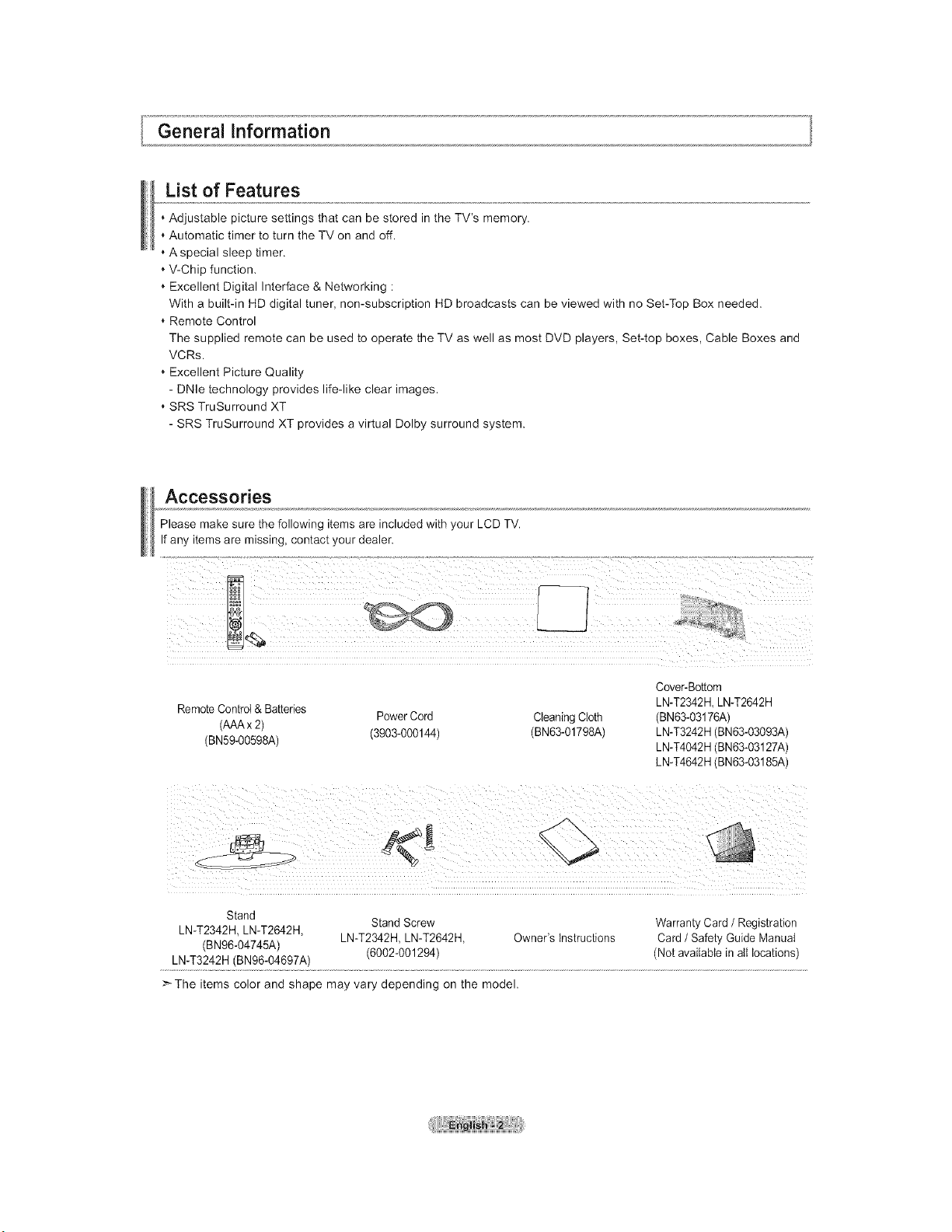
List of Features
, Adjustable picture settings that can be stored in the TV's memory.
Automatic timer to turn the TV on and off.
A special sleep timer.
V-Chip function,
Excellent Digital Interface & Networking :
With a built-in HD digital tuner, non-subscription HD broadcasts can be viewed with no Set-Top Box needed.
Remote Control
The supplied remote can be used to operate the TV as well as most DVD players, Set-top boxes, Cable Boxes and
VCRs.
Excellent Picture Quality
- DNle technology provides life-like clear images.
SRS TruSurround XT
- SRS TruSurround XT provides a virtual Dolby surround system.
Accessories
Please make sure the following items are included with your LCD TV.
If any items are missing, contact your dealer.
RemoteControl & Batteries
Power Cord CleaningCloth
(AAAx 2)
(BN59-00598A) (3903-000144) (BN63-01798A)
Cover-Bottom
LN-T2342H LN-T2642H
(BN63-03176A)
LN-T3242H (BN63-03093A)
LN-T4042H (BN63-03127A)
LN-T4642H (BN63-03185A)
Stand
Stand Screw Warranty Card / Registration
LN-T2342H, LN-T2642H,
(BN96-04745A) LN-T2342H, LN-T2642H, Owner's instructions Card / Safety Guide Manual
LN-T3242H (BN96-04697A) (6002-001294) (Not available in aIt locations)
>The items color and shape may vary depending on the model.
_,o,View!n. 9 the Control Panel
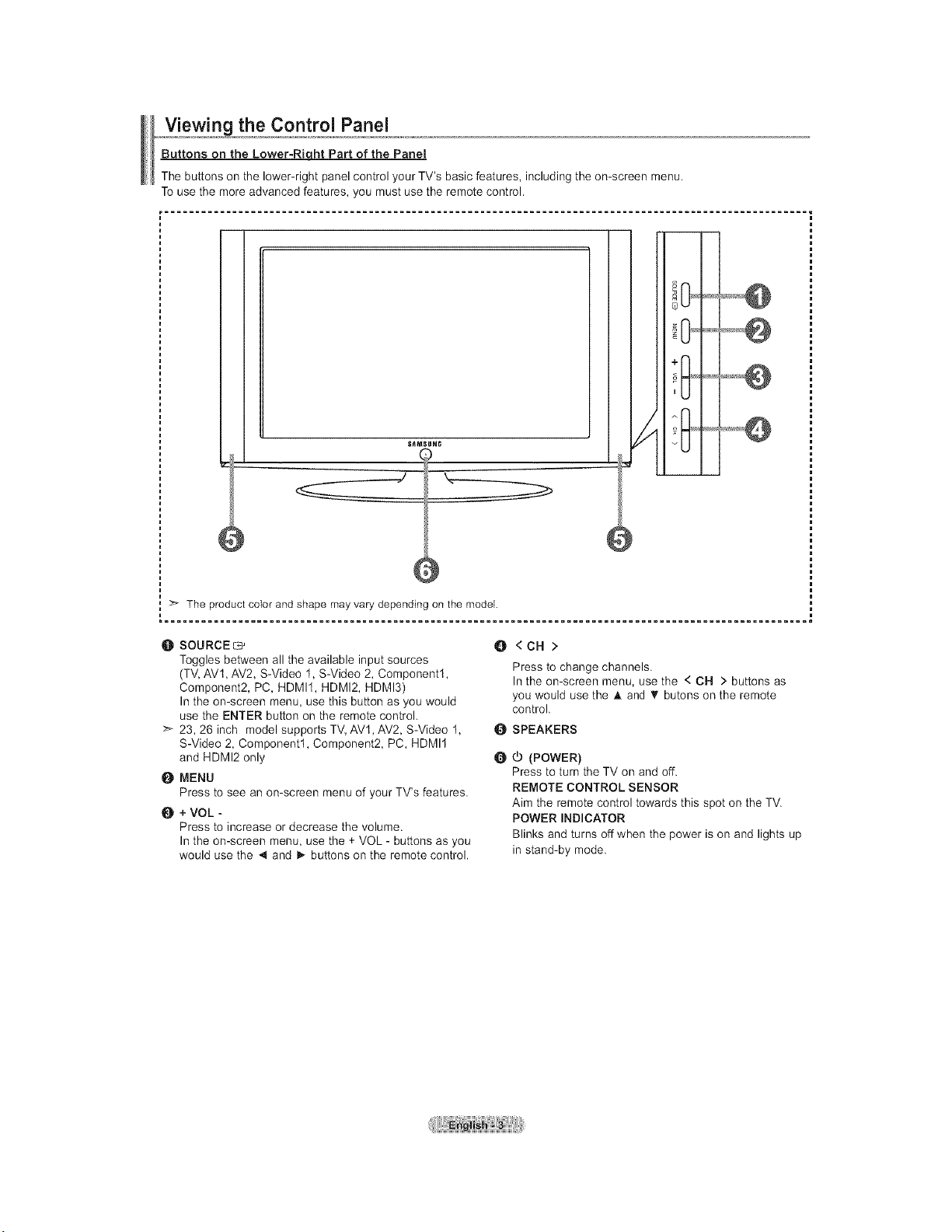
Buttons on the Lower-Right Part of the Panel
The buttons on the lower-right panel control your TV's basic features, including the on-screen menu.
To use the more advanced features, you must use the remote control.
S_MSUNG
The product color and shape may vary depending on the model.
..................@
+1 J
y ..................@
O SOURCE G'
Toggles between all the available input sources
(TV, AVt, AV2, S-Video 1, S-Video 2, Component1,
Component2, PC, HDMI1, HDMI2, HDMI3)
In the on-screen menu, use this button as you would
use the ENTER button on the remote control.
>_ 23, 26 inch model supports TV, AV1, AV2, S-Video 1,
S-Video 2, Component1, Component2, PC, HDMI1
and HDMI2 only
MENU
Press to see an on-screen menu of your TV's features.
+VOL -
Press to increase or decrease the volume.
In the on-screen menu, use the + VOL - buttons as you
would use the 4 and _ buttons on the remote control.
O<CH>
Press to change channels.
In the on-screen menu, use the < CH > buttons as
you would use the A and _' butons on the remote
control.
_SPEAKERS
O _ (POWER)
Press to turn the TV on and off.
REMOTE CONTROL SENSOR
Aim the remote control towards this spot on the TV.
POWER INDICATOR
Blinks and turns off when the power is on and lights up
in stand-by mode.
_,.,V!ew!onogthe Connection Panel
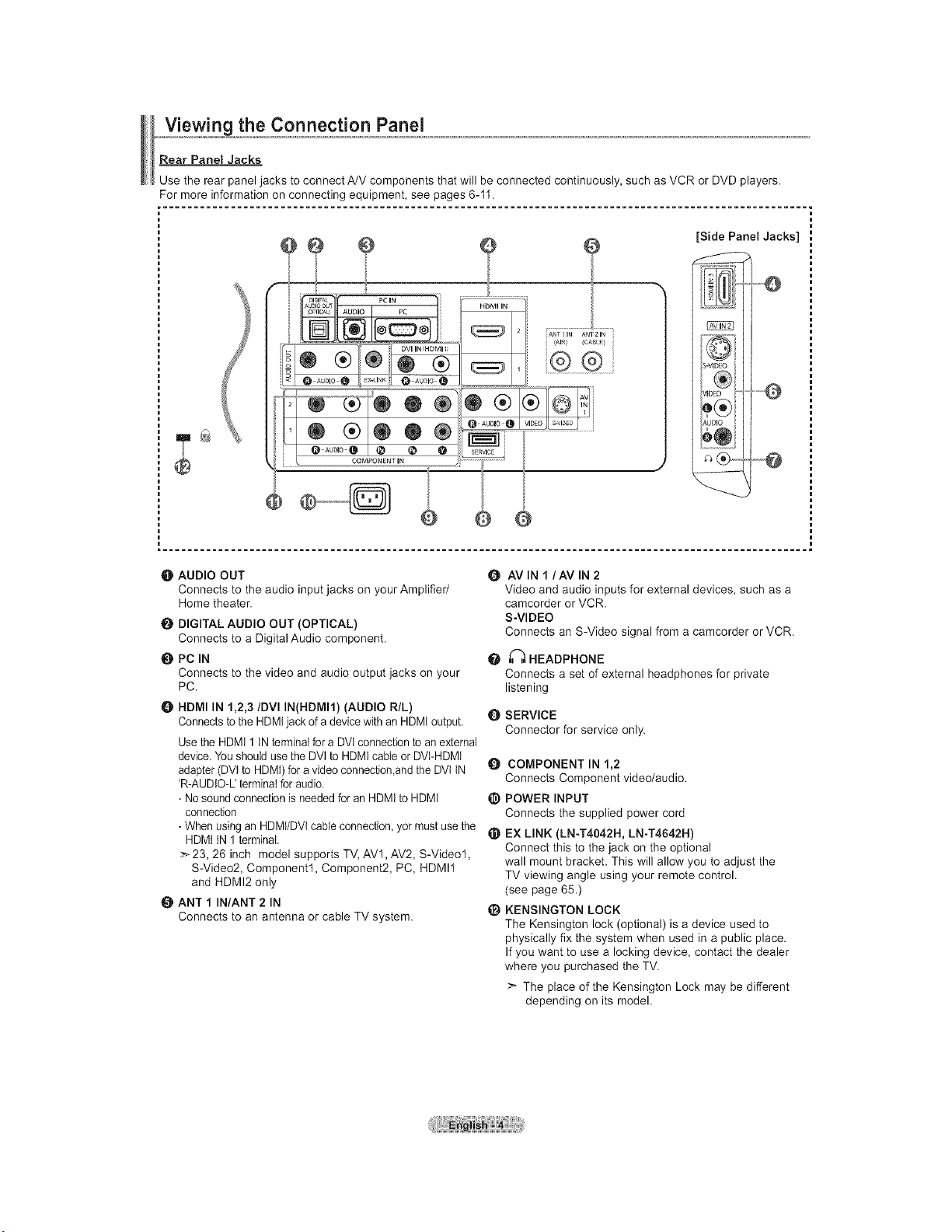
Rear Panel Jacks
Use the rear panel jacks to connect A/V components that will be connected continuously, such as VCR or DVD players.
For more information on connecting equipment, see pages 6-11.
[Side Panel Jacks]
®
rid
,o
AU[
6
O AUDIO OUT
Connects to the audio input jacks on your Amplifier/
Home theater.
DIGITAL AUDIO OUT (OPTICAL)
Connects to a Digital Audio component.
O PC IN
Connects to the video and audio output jacks on your
PC.
HDMI IN 1,2,3/DVI IN(HDMI1) (AUDIO R/L)
Connects to the HDMIjack of a device with an HDMI output.
Use the HDMt 1 IN terminalfor a DVl connection to an external
device.You should use the DVl to HDMI cane or DVt-HDMI
adapter (DVl to HDMI)for a video connection,andthe DVt tN
'R-AUDtO-L' terminaIfor audio.
- No sound connection is needed for an HDMI to HDMI
connection
- When using an HDMt/DVtcable connection, yor must use the
HDMt tN 1 terminal.
>_23, 26 inch model supports TV, AVl, AV2, S-Video1,
S-Video2, Component1, Component2, PC, HDMI1
and HDMI2 only
tt_ ANT 1 IN/ANT 2 IN
Connects to an antenna or cable TV system.
O AVIN I/AV IN 2
Video and audio inputs for external devices, such as a
camcorder or VCR.
S-VIDEO
Connects an S-Video signal from a camcorder or VCR.
_ HEADPHONE
Connects a set of external headphones for private
listening
Q SERVICE
Connector for service only.
Q COMPONENT IN 1,2
Connects Component video/audio.
_) POWER INPUT
Connects the supplied power cord
_) EX LINK (LN-T4042H, LN-T4642H)
Connect this to the jack on the optional
wall mount bracket. This will allow you to adjust the
TV viewing angle using your remote control.
(see page 65.)
_) KENSINGTON LOCK
The Kensington lock (optional) is a device used to
physically fix the system when used in a public place.
If you want to use a locking device, contact the dealer
where you purchased the TV.
>_ The place of the Kensington Lock may be different
depending on its model.
Remote Control
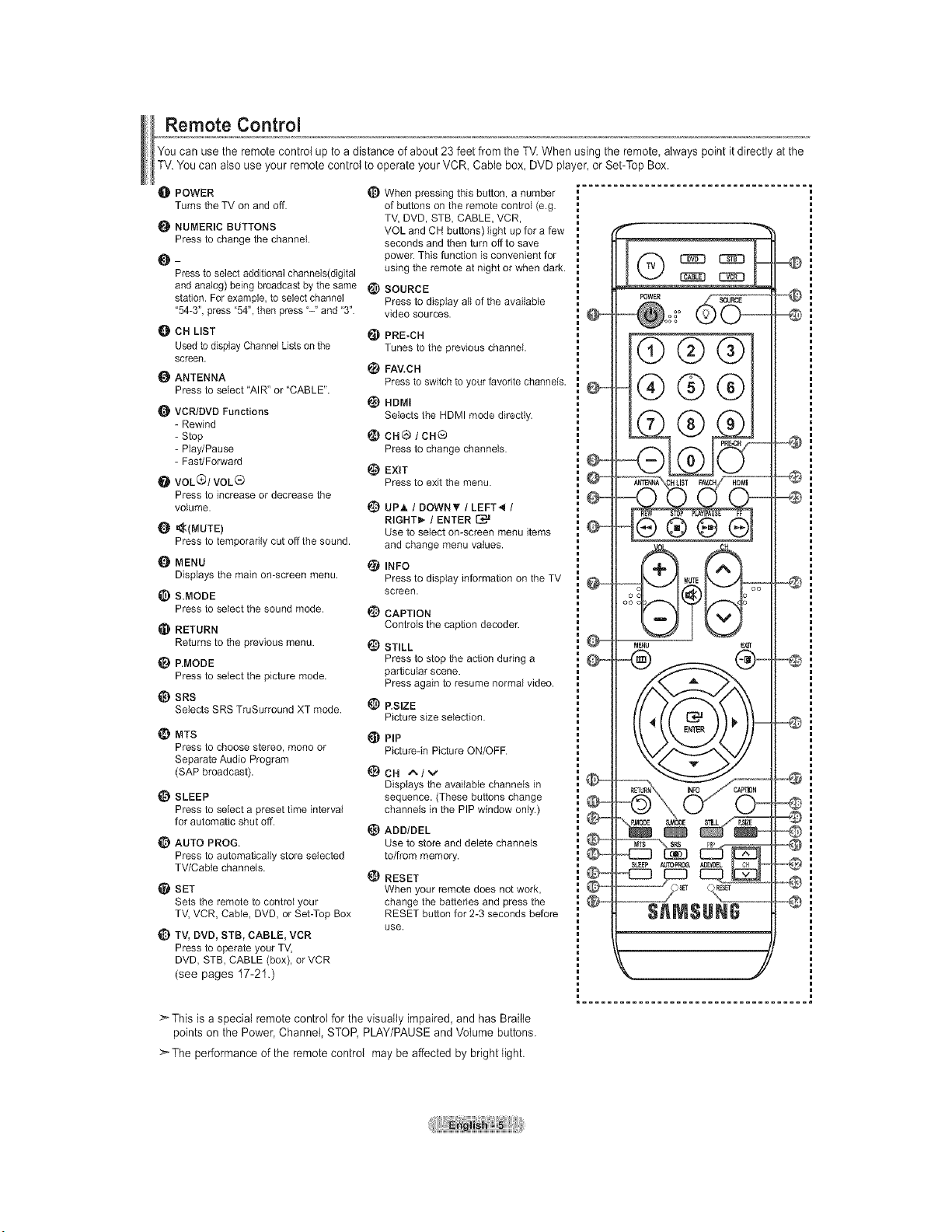
You can use the remote control up to a distance of about 23 feet from the TV. When using the remote, always point it directly at the
TV. You can also use your remote control to operate your VCR, Cable box, DVD pla/er, or Set-Top Box.
O POWER
Turns the TV on and off.
NUMERIC BUTTONS
Press to change the channel
Press to select additional channels(digital
and analog) being broadcast by the same _)
station. For example, to select channel
"54-3", press "54", then press "-" and "3".
_]b CH LIST
Used to display Channel Lists on the
screen.
ANTENNA
Press to select "AIR" or "CABLE".
VCR/DVD Functions
- Rewind
- Stop
- Play/Pause
- Fast/Forward
@ VOL(_I VOL_
Press to increase or decrease the
volume.
_(MUTE)
Press to temporarily cut off the sound.
{) MENU
Displays the main on-screen menu.
_) S.MODE
Press to select the sound mode.
_! RETURN
Returns to the previous menu.
_) P.MODE
Press to select the picture mode.
_) SRS
Selects SRS TruSurround XT mode.
_) When pressing this button, a number
of buttons on the remote control (e.g.
TV, DVD, STB, CABLE, VCR,
VOL and CH buttons) light up for a few
seconds and then turn off to save
powe_: This function is convenient for
using the remote at night or when dark.
SOURCE
Press to display all of the available
video sources.
PRE-CH
Tunes to the previous channel.
_) FAV.C H
Press to switch to your favorite channels.
_) HDMI
Selects the HDMI mode directly.
ca ® / Ca®
Press to change channels.
@ EXIT
Press to exit the menu.
_) UPh, / DOWN_ / LEFT4 /
RIGHT_," / ENTER
Use to select on-screen menu items
and change menu values.
INFO
Press to display information on the TV
screen.
@
@
@
_) MTS
Press to choose stereo, mono or
Separate Audio Program
(SAP broadcast).
SLEEP
Press to select a preset time interval
for automatic shut off.
1_) AUTO PROG.
Press to automatically store selected
TV/Cabie channels.
SET
Sets the remote to control your
TV, VCR, Cable, DVD, or Set-Top Box
_} TV, DVD, STB, CABLE, VCR
Press to operate your TV,
DVD, STB, CABLE (box), or VCR
(see pages 17-21.)
CAPTION
Controls the caption decoder.
STILL
Press to stop the action during a
particular scene.
Press again to resume normal video.
P.SIZE
Picture size selection.
PIP
Picture-in Picture ON/OFF.
I_CH A/v
Displays the available channels in
sequence. (These buttons change
channels in the PIP window only.)
_) ADD/DEL
Use to store and delete channels
to/from memory.
_) RESET
When your remote does not work,
change the batteries and press the
RESET button for 2-3 seconds before
use.
>This is a special remote control for the visually impaired, and has Brailte
points on the Power, Channel, STOP, PLAY/PAUSE and Volume buttons.
> The performance of the remote control may be affected by bright light.
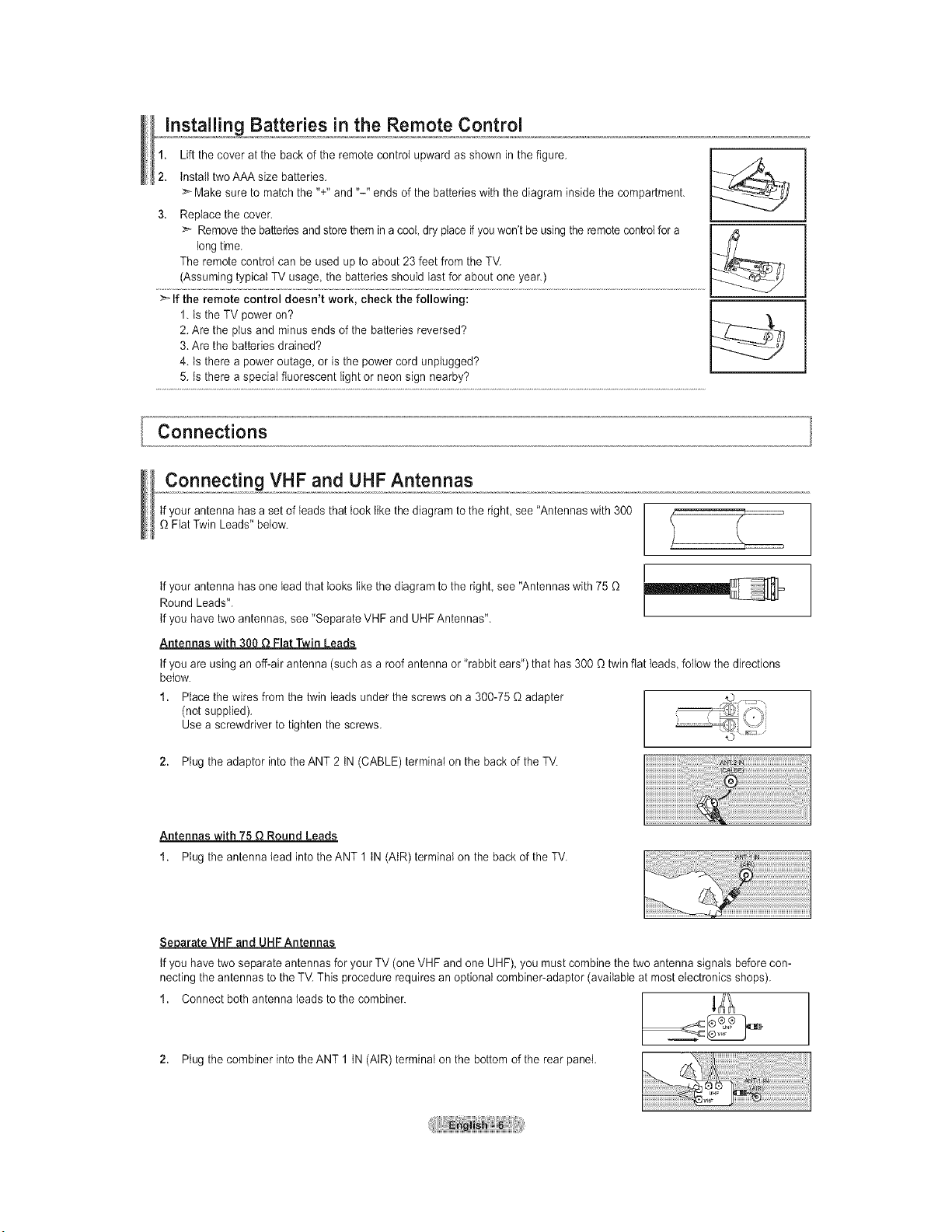
jnsota!!]n_ Batteries in the Remote Control
1. Lift the cover at the back of the remote control upward as shown in the figure.
/7,
2. tnsta{l two AAA size batteries. -_/_----,_
>_ Make sure to match the "+" and "-" ends of the batteries with the diagram inside the compartment.
3. Replace the cover.
>- Remove the batteries and store themin a cool, dry place _ youwon't be using theremotecontrol for a /&
long time.
The remote control can be used up to about 23 feet from the TV.
(Assuming typical TV usage, the batteries should last for about one year.)
>_ If the remote control doesn't work, check the following:
1. Is the TV power on?
2. Are the plus and minus ends of the batteries reversed?
3. Are the batteries drained?
4. ts there a power outage, or is the power cord unplugged?
5. Is there a special fluorescent light or neon sign nearby?
Connections
Connecting VHF and UHF Antennas
tf your antenna has a set of leads that took like the diagram to the right see "Antennas with 300
Fiat Twin Leads" below.
tf your antenna has one lead that looks like the diagram to the right see "Antennas with 75
Round Leads".
If you have two antennas see "Separate VHF and UHF Antennas".
Antennas with 300 Q Flat Twin Leads
tf you are using an off-air antenna (such as a roof antenna or "rabbit ears") that has 300 _ twin flat leads, follow the directions
below.
1. Place the wires from the twin leads under the screws on a 300-75 _ adapter
(not supplied).
Use a screwdriver to tighten the screws.
2. Plug the adaptor into the ANT 2 tN (CABLE) terminal on the back of the TV.
Antennas with 75 Q Round Leads
1. Plug the antenna lead into the ANT 1 tN (AtR) terminal on the back of the TV.
Separate VHF and UHF Antennas
tf you have two separate antennas for your TV (one VHF and one UHF), you must combine the two antenna signals before con-
necting the antennas to the TV. This procedure requires an optional combiner-adaptor (available at most electronics shops).
1. Connect both antenna leads to the combiner.
,ogthecomb,ner,ntothe term,na,onthebottomoftherearpane,.
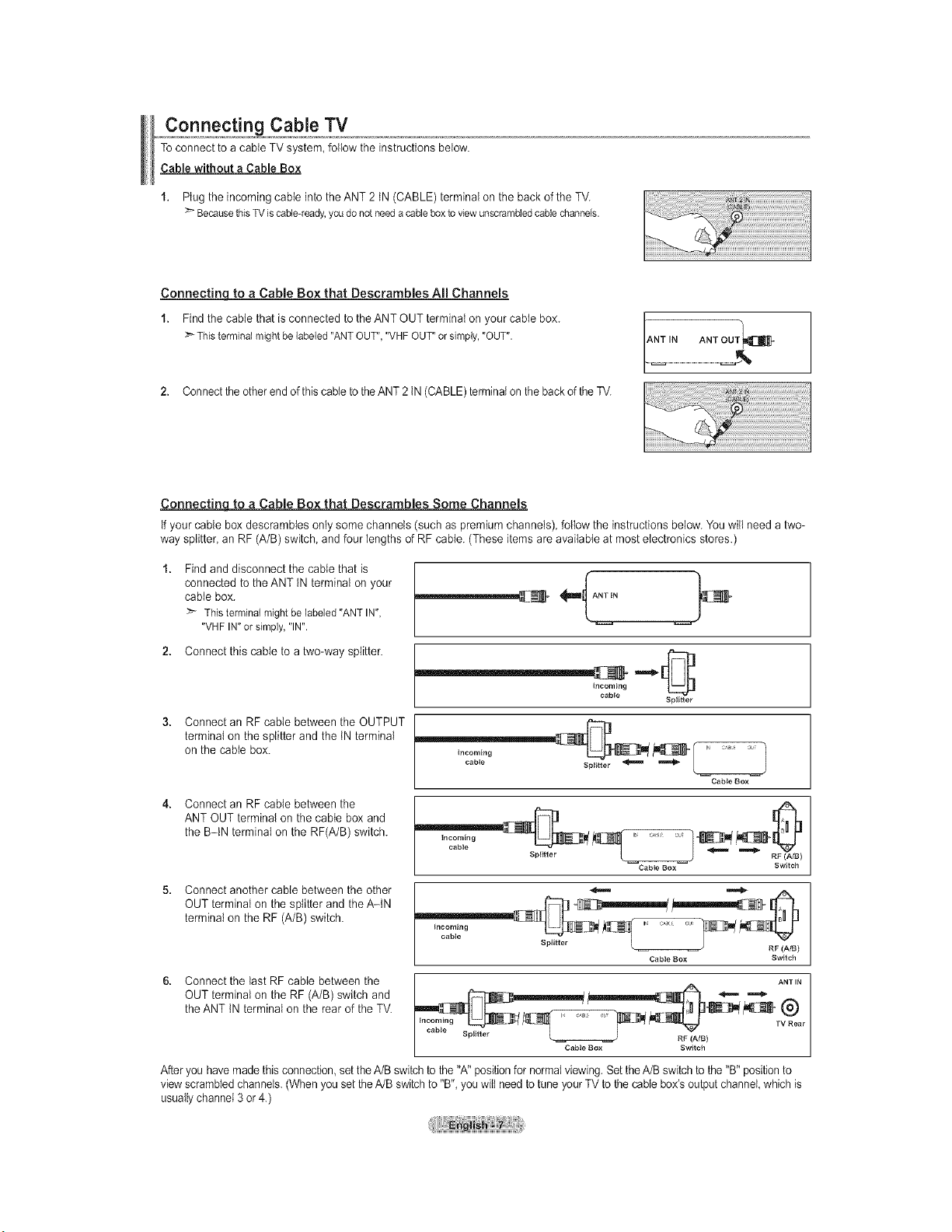
Connecting Cable TV
Toconnect to a cable TV system, follow the instructions below.
Cable without a Cable Box
1. Ptug the incoming cable into the ANT 2 tN (CABLE) terminal on the back of the TV.
BecausethisTVis cable<eady,youdonot needacableboxto viewunscrambledcablechannels.
Connectinq to a Cable Box that Descrambles All Channels
1. Find the cable that is connected to the ANT OUT terminat on your cable box.
Thisterminalmightbelabeled"ANTOUT","VHFOUT"or simply,"OUT".
2. Connectthe other end of this cable to theANT 2 tN (CABLE)terminal on the back of the TV.
ANT IN ANT OUT_]_
Connectinq to a Cable Box that Descrambles Some Channels
if your cable box descrambtes only some channels (such as premium channels), follow the instructions below. You will need a two-
way splitter, an RF (A/B) switch, and four lengths of RF cable. (These items are available at most electronics stores.)
Find and disconnect the cable that is
connected to the ANT tN terminal on your
cable box.
> Thisterminalmightbe labeled"ANTIN",
"VHFIN"or simply,"IN".
2. Connect this cable to a two-way splitter.
Connect an RF cable between the OUTPUT
terminal on the splitter and the tN terminal
on the cable box.
Incoming
cabte
spg_ter
Incoming
cable
J
Cabie Box
Connect an RF cable between the
ANT OUT terminal on the cable box and
the B-IN terminal on the RF(A/B) switch.
Switch
Connect another cable between the other
OUT terminal on the splitter and the A-IN
terminal on the RF (A/B) switch.
Incoming J cAi o_ s
S pittt er L RF (A/B)
Cable Box Switch
Connect the last RF cable between the
OUT terminal on the RF (A/B) switch and
the ANT tN terminal on the rear of the TV.
ANT IN
cable , _
Splitter L _ RF (A/B)
Cable Box Switch
After you havemade this connection, set the A/B switch to the "A" position for normal viewing.Set theA/B switch to the "B" positionto
viewscrambled channels. (When you set the A/B switch to "B", you wilt need to tune your TV to the cable box's output channel,which is
usually channel 3 or 4.)
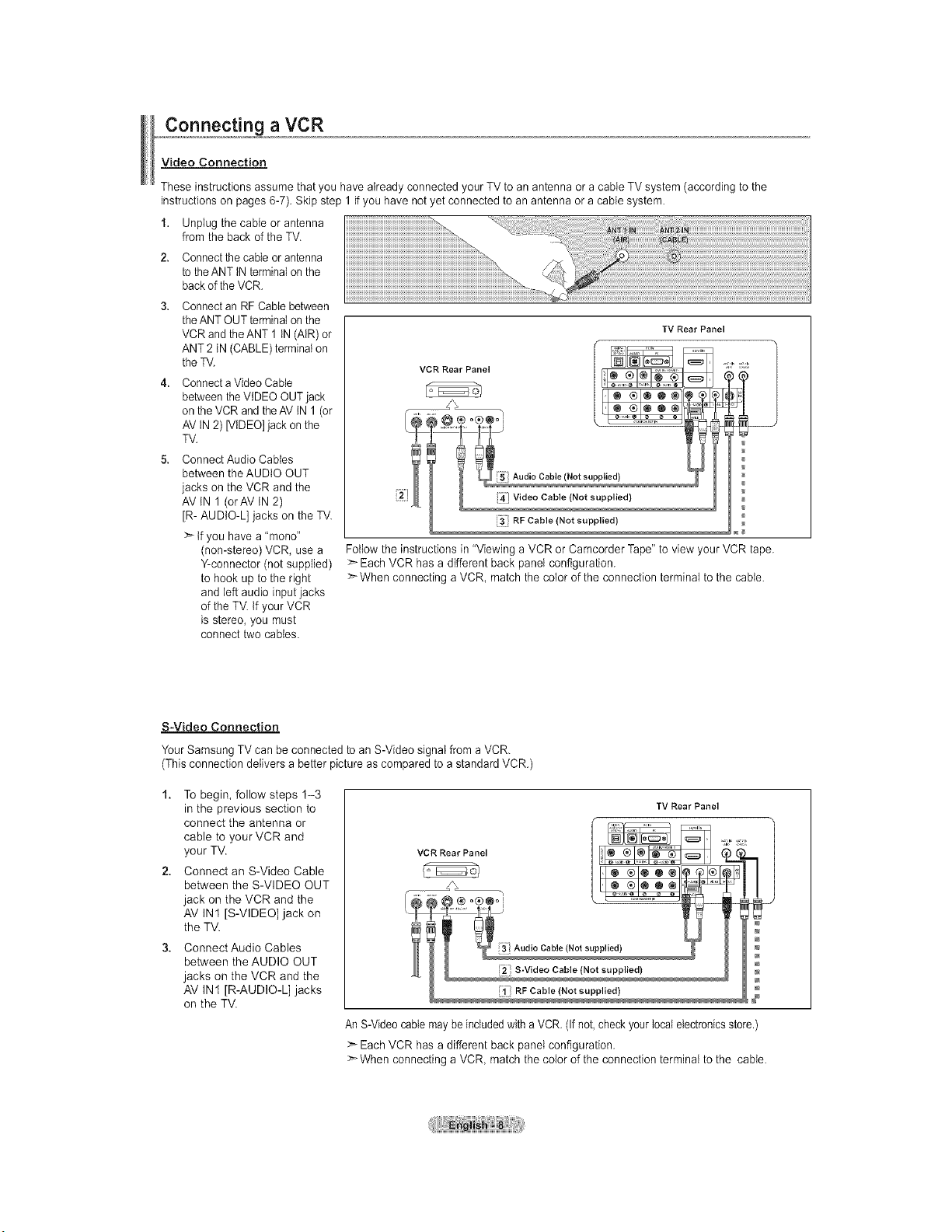
Connecting a VCR
Video Connection
These instructions assume that you have already connected your TV to an antenna or a cable TV system (according to the
instructions on pages 6-7). Skip step 1 if you have not yet connected to an antenna or a cable system.
1. Unplug the cable or antenna
from the back of the TV.
2. Connectthe cable or antenna
to the ANT tN terminal on the
back of the VCR.
3. Connectan RF Cable between
the ANT OUT terminal on the
VCR and the ANT 1 tN (AIR) or
ANT 2 IN (CABLE)terminal on
the TV.
4. Connecta Video Cable
between the VIDEO OUT jack
on the VCR and theAV IN 1 (or
AV tN 2) [VIDEO]jack on the
TV.
5. Connect Audio Cables
between the AUDIO OUT
jacks on the VCR and the
AV IN 1 (orAV IN 2)
JR- AUDIO-L] jacks on the TV.
>` tf you have a "mono"
(non-stereo) VOR, use a
Y-connector (not supplied)
to hook up to the right
and left audio input jacks
of the TV. tf your VCR
is stereo, you must
connect two cables.
TV Rear Panel
VCR Rear "'_
Audio Cable (Not supplied)
Video Cable (Not supplied)
RFCabletNotsupplied)
Follow the instructions in "Viewing a VCR or Camcorder Tape" to view your VCR tape.
Each VCR has a different back panel configuration.
>`When connecting a VCR, match the color of the connection terminal to the cable.
S-Video Connection
Your Samsung TV can be connected to an S-Video signal from a VCR.
(This connection delivers a better picture as compared to a standard VCR.)
1. To begin, follow steps 1-3
in the previous section to
connect the antenna or
cable to your VCR and
your TV.
2. Connect an S-Video Cable
between the S-VIDEO OUT
jack on the VCR and the
AV IN1 [S-VIDEO] jack on
the TV.
3. Connect Audio Cables
between the AUDIO OUT
jacks on the VCR and the
AV IN1 [R-AUDIO-L] jacks
on the TV.
TV Rear Panel
RF Cab e (Not supp ed)
An S-Videocable may be included with a VCR. (If not, check your localelectronicsstore.)
:_ Each VCR has a different back panel configuration.
>-When connecting a VCR, match the color of the connection terminal to the cable.
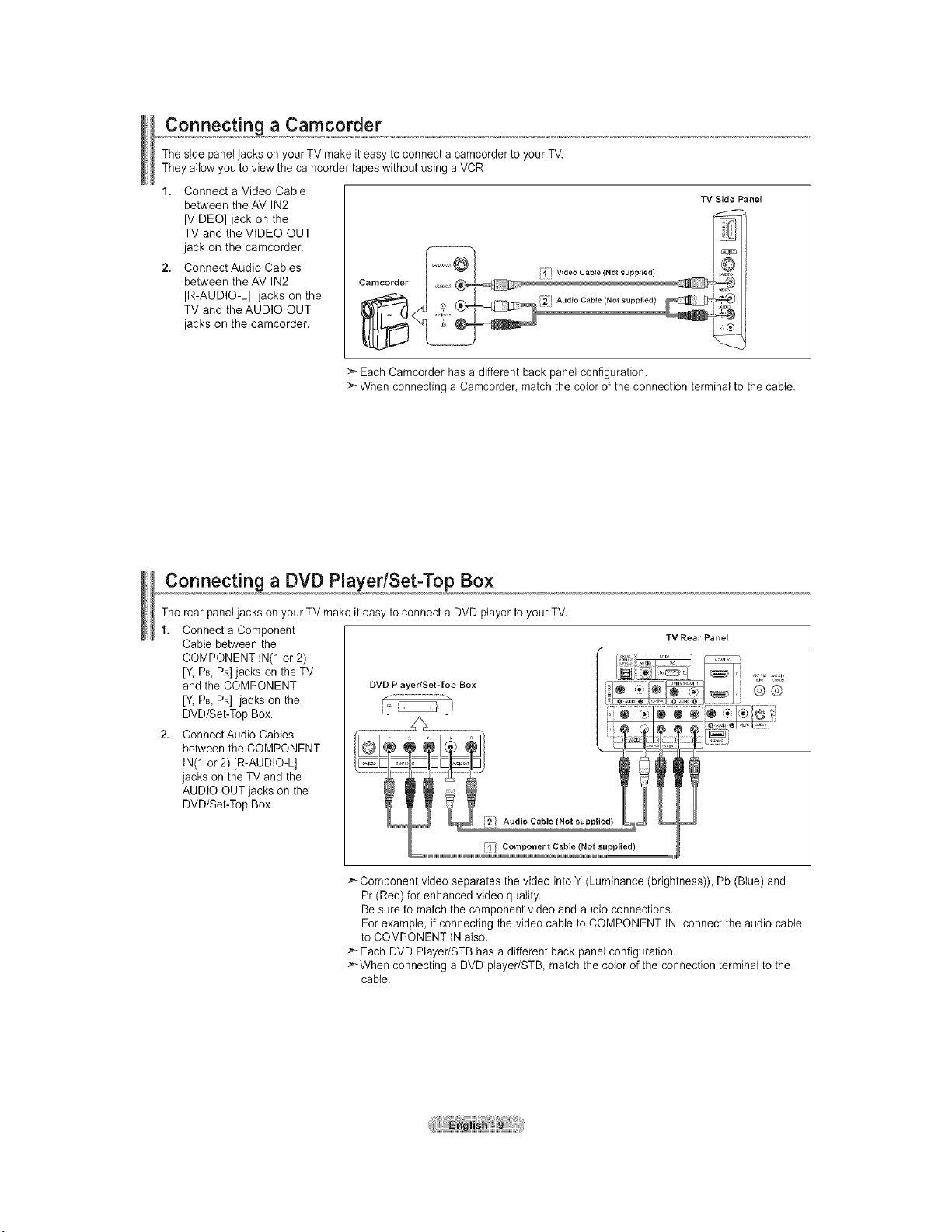
Connecting a Camcorder
The side panel jacks on your TV make it easy to connect a camcorder to your TV.
They allow you to view the camcorder tapes without using a VCR
1. Connect a Video Cable
between the AV IN2
[VIDEO] jack on the
TV and the VIDEO OUT
jack on the camcorder.
2. Connect Audio Cables
between the AV IN2
[R-AUDIO-L] jacks on the
TV and the AUDIO OUT
jacks on the camcorder.
TV Side Panel
>- Each Camcorder has a different back panel configuration.
When connecting a Camcorder, match the color of the connection terminal to the cable.
Connecting a DVD Player/Set-Top Box
The rear panel jacks on your TV make it easy to connect a DVD player to your TV.
1. Connect a Component
Cable between the
COMPONENT IN(1 or 2)
[Y. PB,PR]jacks on the TV
and the COMPONENT
IV, PB, PR] jacks on the
DVD/Set-Top Box.
2. ConnectAudio Cables
between the COMPONENT
tN(1 or 2) JR-AUDIO-L]
jacks on the TV and the
AUDIO OUT jacks on the
DVD/Set-Top Box.
TV Rear Panel
i_i! Component Cable (Not supplied)
>_Component video separates the video into Y (Luminance (brightness)), Pb (Blue) and
Pr (Red) for enhanced video quality.
Be sure to match the component video and audio connections.
For example, if connecting the video cable to COMPONENT tN, connect the audio cable
to COMPONENT IN also.
Each DVD Player/STB has a different back panel configuration.
>_When connecting a DVD player/STB match the color of the connection terminal to the
cable.
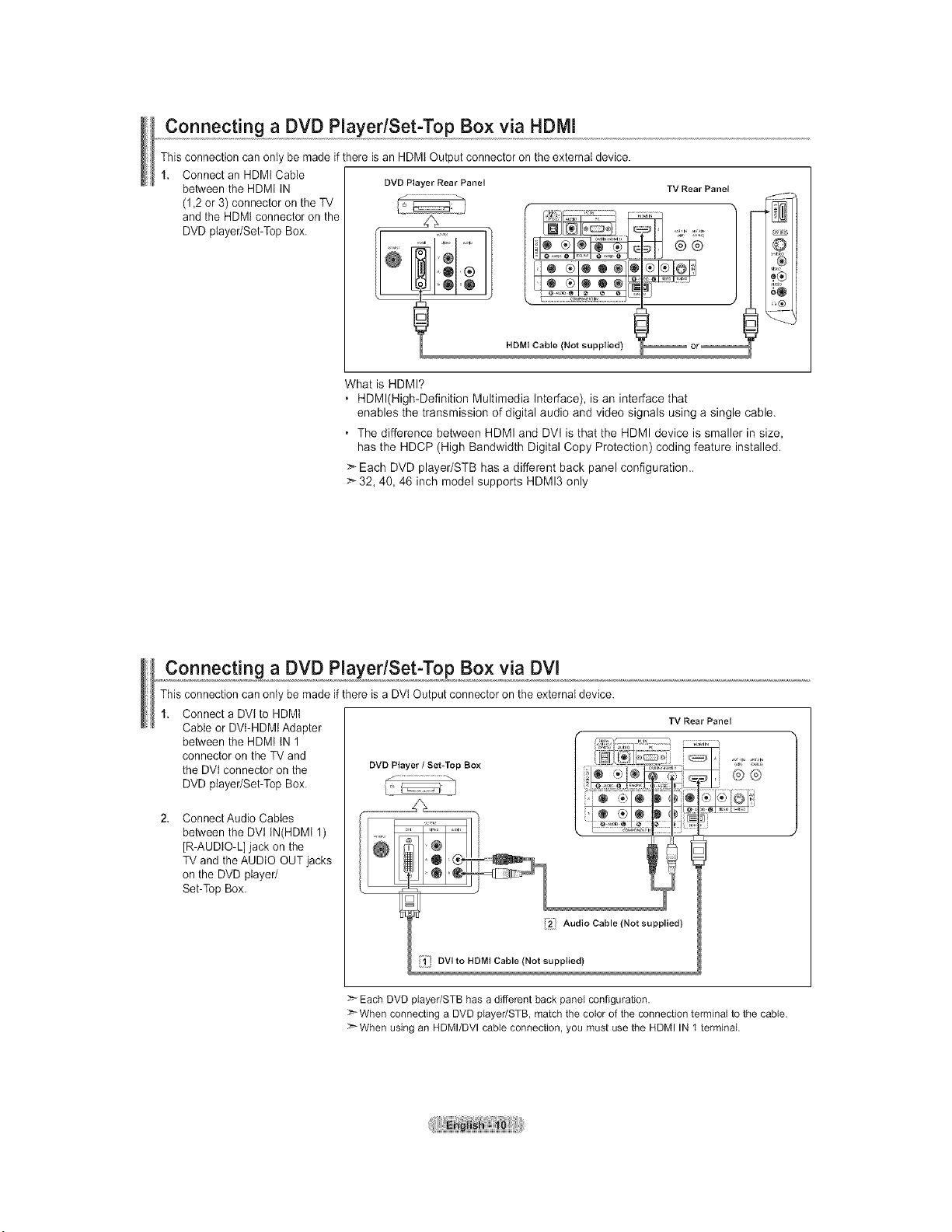
Connecting a DVD Player/Set-Top Box via HDMI
This connection can only be made if there is an HDMt Output connector on the external device.
1. Connect an HDMI Cable
between the HDMI IN DVO Player Rear Panel
(1,2 or 3) connector on the TV
and the HDMt connector on the
DVDplayer/Set-TopBox. I_ _i i ,i
TV Rear Panel
HDMI Cable (Not supplied) _ or_
®
9®
_®
What is HDMI?
• HDMl(High-Definition Multimedia Interface), is an interface that
enables the transmission of digital audio and video signals using a single cable.
• The difference between HDMI and DVI is that the HDMI device is smaller in size,
has the HDCP (High Bandwidth Digital Copy Protection) coding feature installed.
>` Each DVD player/STB has a different back panel configuration..
>-32, 40, 46 inch model supports HDMI3 only
Connecting a DVD Player/Set-Top Box via DVl
This connection can only be made if there is a DVt Output connector on the external device.
1. Connect a DVlto HDMI
Cable or DVt-HDMI Adapter
between the HDMt IN 1
connector on the TV and
the DVI connector on the
DVD player/Set-Top Box.
Connect Audio Cables
between the DVt IN(HDMt 1)
[R-AUDIO-L] jack on the
TV and theAUDtO OUT jacks
on the DVD player/
Set-Top Box.
Audio Cable (Not supplied)
DVI to HDMI Cable (Not supplied)
TV Rear Panel
>- Each DVD p}ayer/STB has a different back pane} configuration.
>-When connecting a DVD player/STB, match the co}or of the connection terminal to the cable.
>- When using an HDMI/DVl cable connection, you must use the HDMI IN 1 terminal.
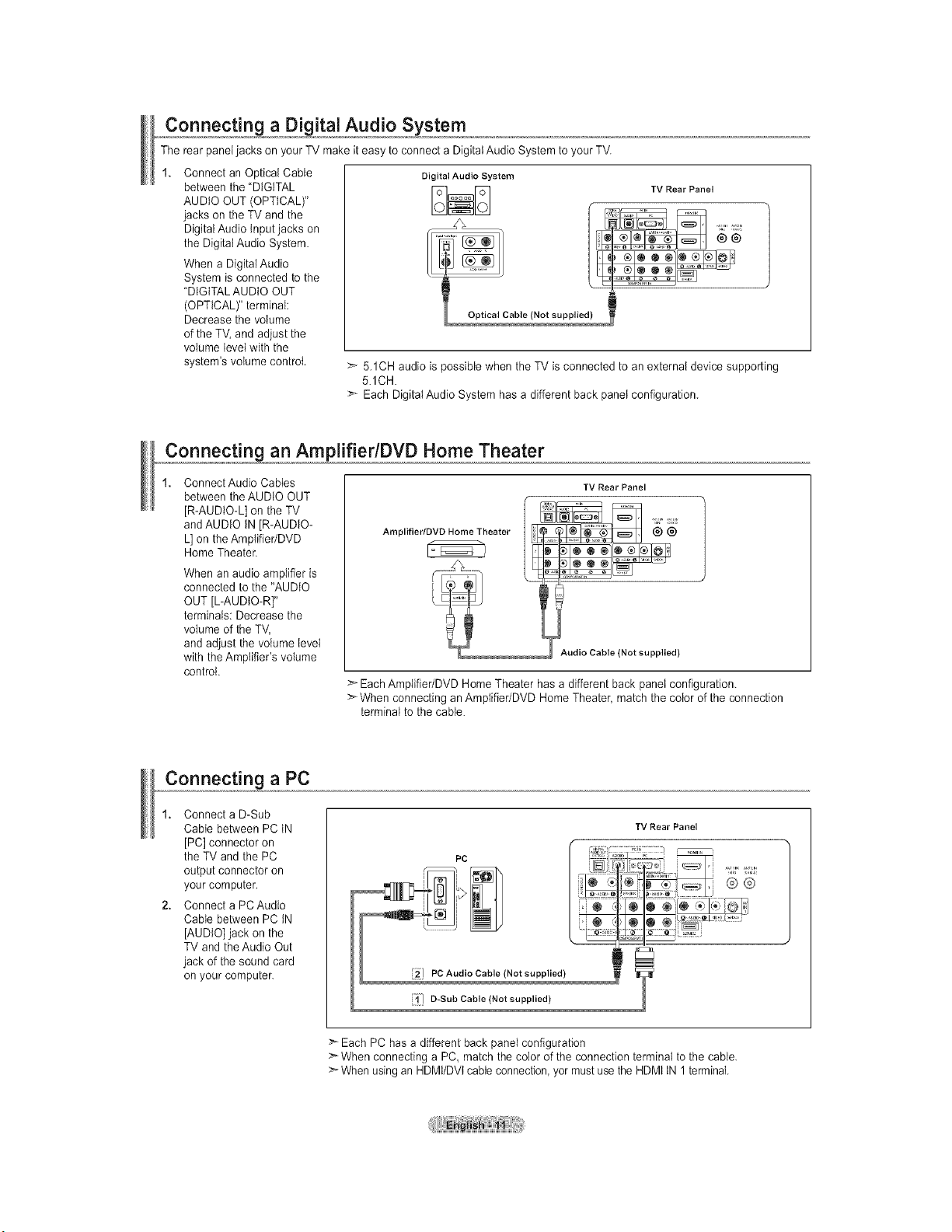
Connecting a Digital Audio System
The rear panel jacks on your TV make it easy to connect a Digital Audio System to your TV.
Connect an Optical Cable
between the "DIGITAL
AUDIO OUT (OPTICAL)"
jacks on the TV and the
Digital Audio Input jacks on
the Digital Audio System.
When a Digital Audio
System is connected to the
"DIGITAL AUDIO OUT
(OPTICAL)" terminal:
Decrease the volume
of the TV, and adjust the
volume level with the
system's volume control.
Digital Audio System
TV Rear Panel
>- 5.1CH audio is possible when the TV is connected to an external device supporting
5.1CH
>- Each Digital Audio System has a different back panet configuration.
,,,,,,C0nnect_Ln_an AmplifierlDVD Home Theater
Connect Audio Cables
between the AUDIO OUT
[R-AUDIO-L] on the TV
and AUDIO IN [R-AUDIO-
L] on the Amptifier/DVD
Home Theater.
When an audio amplifier is
connected to the "AUDIO
OUT [L-AUDIO-R]"
terminals: Decrease the
volume of the TV,
and adjust the volume level
with the Amplifier's volume
control.
TV Rear Panel
Amplifier/DVD Home Theater
®®
Audio Cable (Not supplied)
>- Each Amplifier/DVD Home Theater has a different back panel configuration.
:_ When connecting an Amplifier/DVD Home Theater, match the color of the connection
terminal to the cable.
Connecting a PC
1. Connect a D-Sub
Cable between PC tN
[PC] connector on
the TV and the PC
output connector on
your computer.
2. Connect a PCAudio
Cable between PC IN
[AUDIO] jack on the
TV and the Audio Out
jack of the sound card
on your computer.
D-Sub Cable (Not supplied)
TV Rear Panel
Each PC has a different back panel configuration
>* When connecting a PC, match the color of the connection terminal to the cable.
:_ When using an HDMt/DVt cable connection, yor must use the HDMt tN 1 terminal.
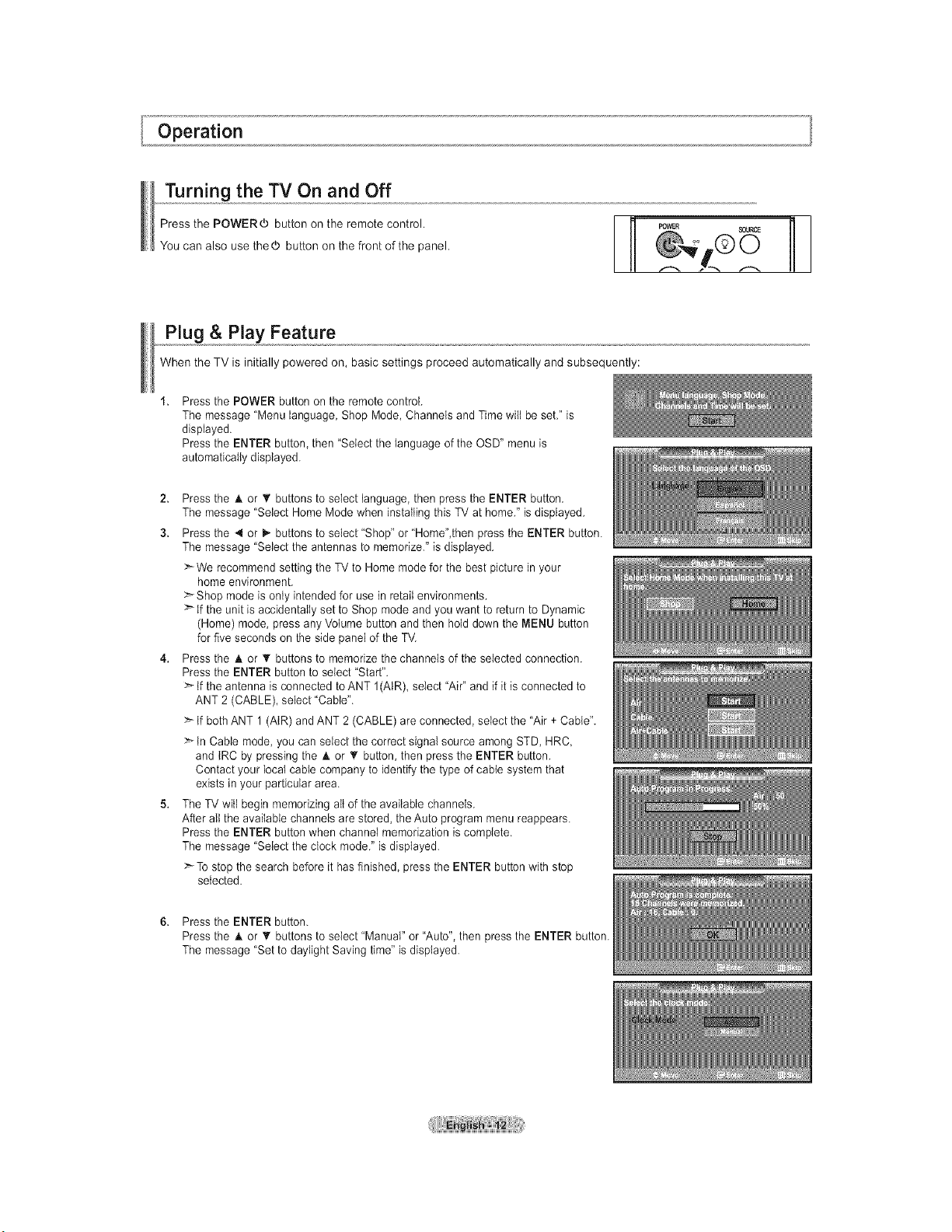
Operation
Turning the TV On and Off
Press the POWER_ button on the remote control.
You can also use thed) button on the front of the panel.
Plug & Play Feature
When the TV is initially powered on, basic settings proceed automatically and subsequently:
Press the POWER button on the remote control.
The message "Menu language, Shop Mode, Channels and Time wilt be set." is
displayed.
Press the ENTER button, then "Select the language of the OSD" menu is
automatically displayed.
2. Press the A. or • buttons to select language, then press the ENTER button.
The message "Select Home Mode when installing this TV at home." is displayed.
3. Press the _ or i_ buttons to select "Shop" or 'Home",then press the ENTER button.
The message "Select the antennas to memorize." is displayed.
>*We recommend setting the TV to Home mode for the best picture in your
home environment.
>*Shop mode is only intended for use in retail environments.
>* tf the unit is accidentally set to Shop mode and you want to return to Dynamic
(Home) mode, press any Volume button and then hold down the MENU button
for five seconds on the side panel of the TV.
4. Press the A or T buttons to memorize the channels of the selected connection.
Press the ENTER button to select "Start".
>* tf the antenna is connected to ANT 1(AtR), select "Air" and if it is connected to
ANT 2 (CABLE), select 'Cable".
>* If both ANT 1 (AIR) and ANT 2 (CABLE) are connected, select the "Air + Cable".
>* tn Cable mode, you can select the correct signal source among STD, HRC,
and IRC by pressing the A. or _' button, then press the ENTER button.
Contact your local cable company to identify the type of cable system that
exists in your particular area.
5. The TV will begin memorizing aIt of the available channels.
After aIt the available channels are stored, the Auto program menu reappears.
Press the ENTER button when channel memorization is complete.
The message "Select the clock mode." is displayed
>*To stop the search before it has finished, press the ENTER button with stop
selected.
6. Press the ENTER button.
Press the A. or _' buttons to select "Manual" or "Auto", then press the ENTER button.
The message "Set to daylight Saving time" is displayed.
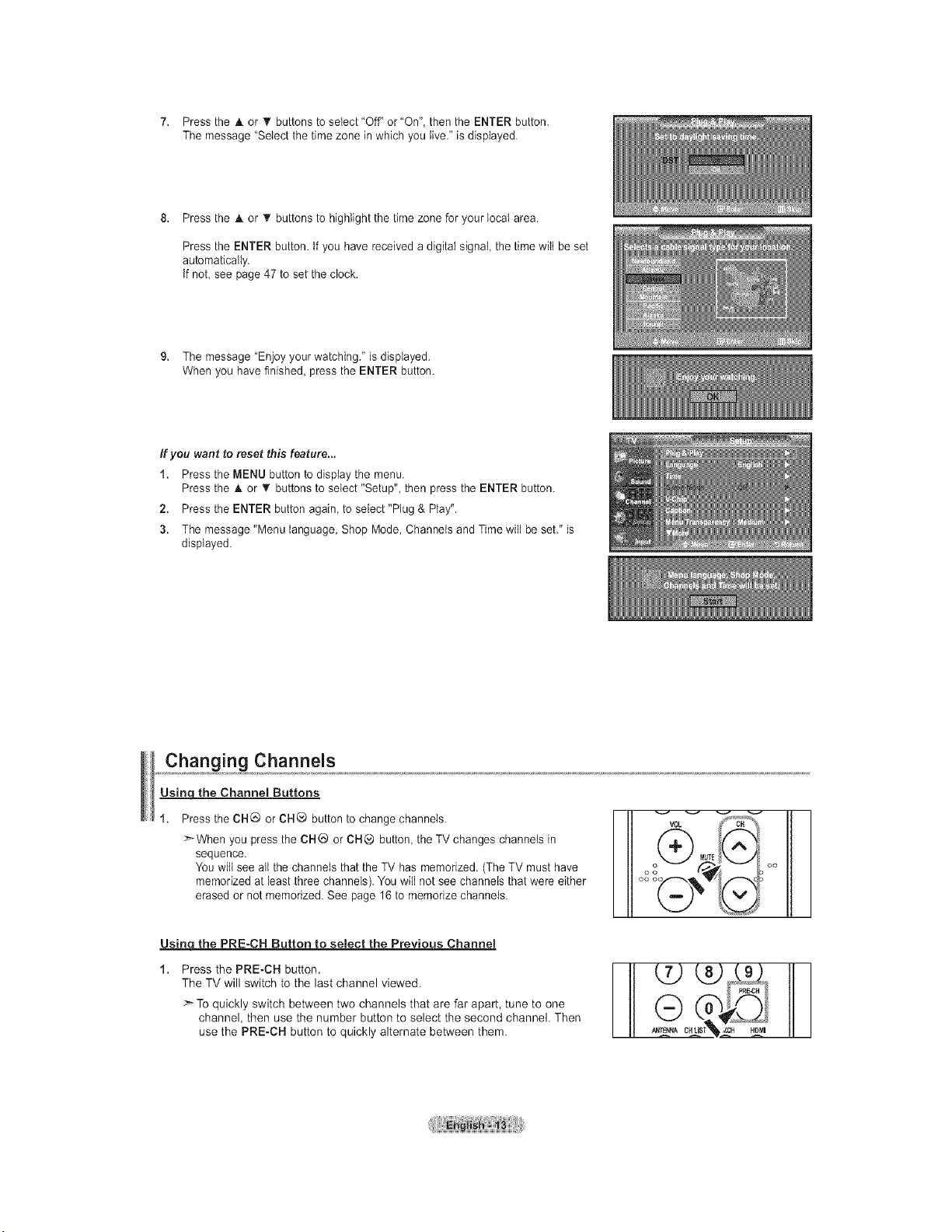
7. PresstheAorTbuttonstoselect"Off"or"On",thentheENTERbutton.
Themessage"Selectthetimezoneinwhichyoulive."isdisplayed.
8. PresstheAor_'buttonstohighlightthetimezoneforyourlocalarea.
PresstheENTERbutton,tfyouhavereceivedadigitalsignalthetimewiltbeset
automatically.
tfnot,seepage47tosettheclock.
9. Themessage"Enjoyyourwatching."isdisplayed.
Whenyouhavefinished,presstheENTERbutton.
If you want to reset this feature...
1. Press the MENU button to display the menu.
Press the _kor '_ buttons to select "Setup", then press the ENTER button.
2. Press the ENTER button again to select "Plug & Play".
3. The message "Menu language, Shop Mode, Channets and Time wilt be set." is
displayed.
Changing Channels
Us_ the Channel Buttons
Press the CHQ or CH_ button to change channels.
_When you press the CHG or CH@ button, the TV changes channels in
sequence.
You will see all the channels that the TV has memorized. (The TV must have
memorized at least three channels). You wilt not see channels that were either
erased or not memorized. See page 16 to memorize channels.
VOL c"%"_%
It
MUTE
Usima the PRE-CH Button to select the Previous Channel
Press the PRE-CH button.
The TV will switch to the last channel viewed.
:_ To quickly switch between two channels that are far apart, tune to one
channel, then use the number button to select the second channel. Then
use the PRE-CH button to quickly alternate between them.
_aRE.CH
cu r_ _
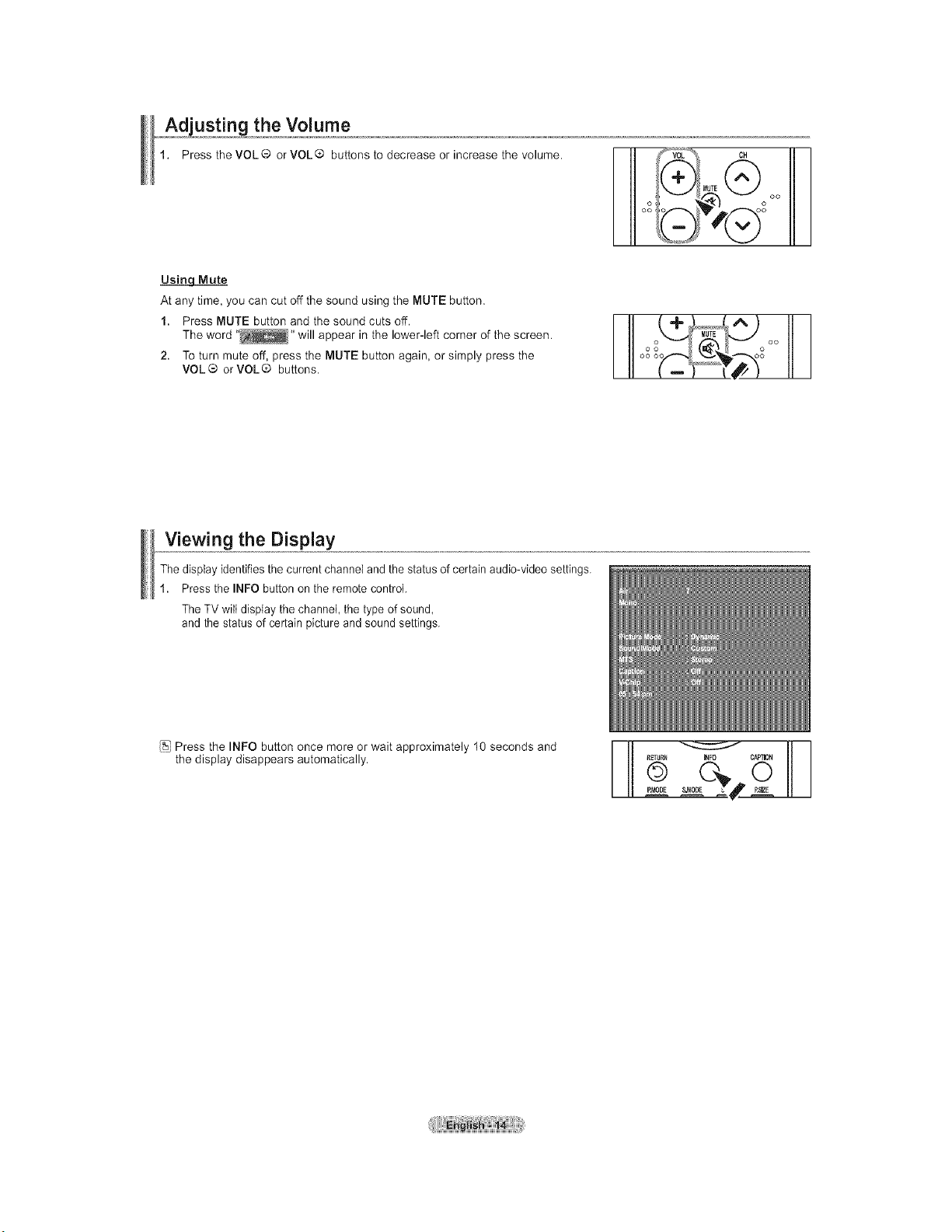
usting the Volume
Press the VOL ® or VOL ® buttons to decrease or increase the volume.
III oo
02 _I
Usin_LMute
At any time, you can cut off the sound using the MUTE button.
1. Press MUTE button and the sound cuts off.
The word .... will appear in the lower-left corner of the screen.
2. To turn mute off, press the MUTE button again, or simply press the
VOL® orVOL® buttons.
I ooo oo
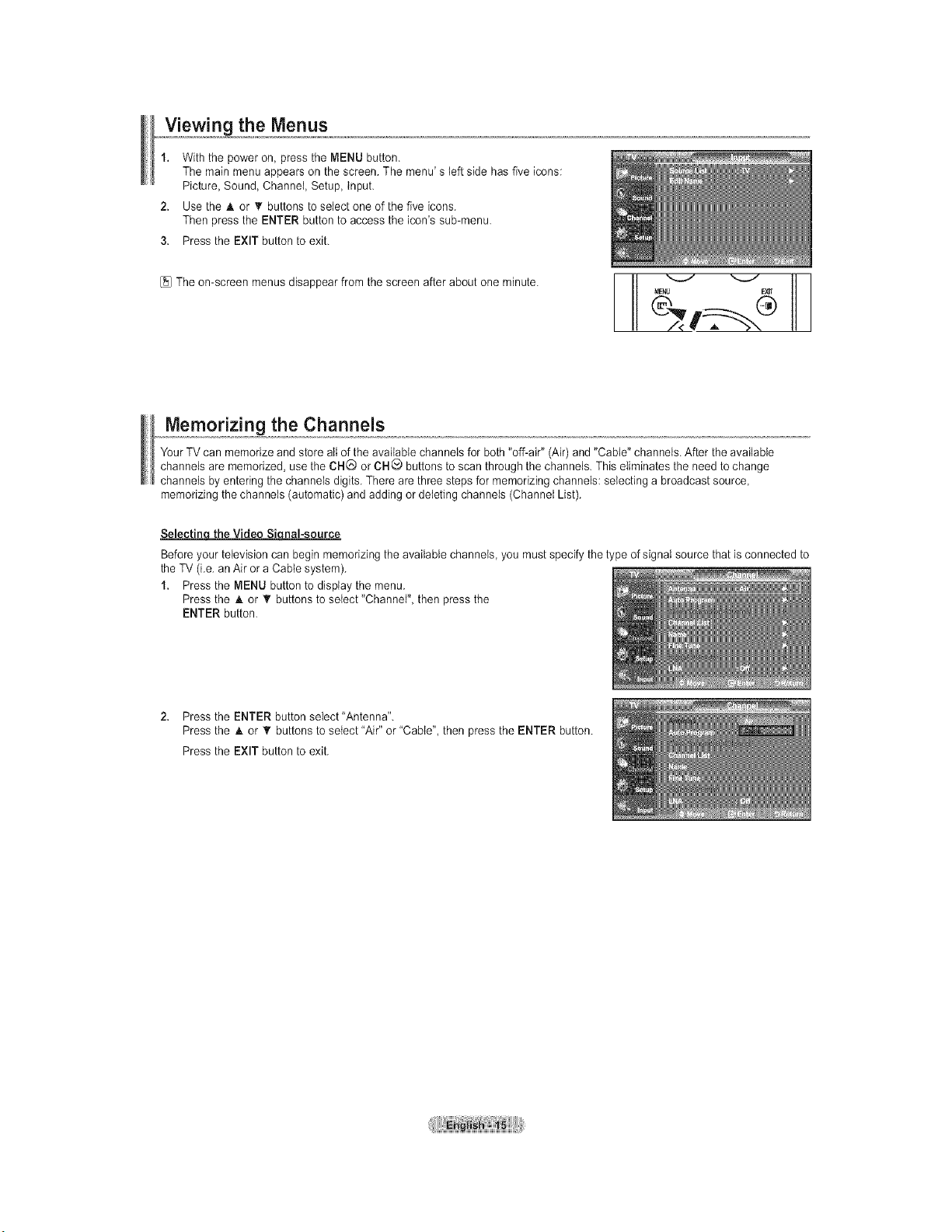
Viewing the Display
The display identifies the current channel and the status of certain audio-video settings.
1. Press the INFO button on the remote control.
The TV wilt display the channel, the type of sound,
and the status of certain picture and sound settings.
Press the INFO button once more or wait approximately 10 seconds and
the display disappears automatically.
RETURR _FO CAPTION
III .oo0E_E Z# __L
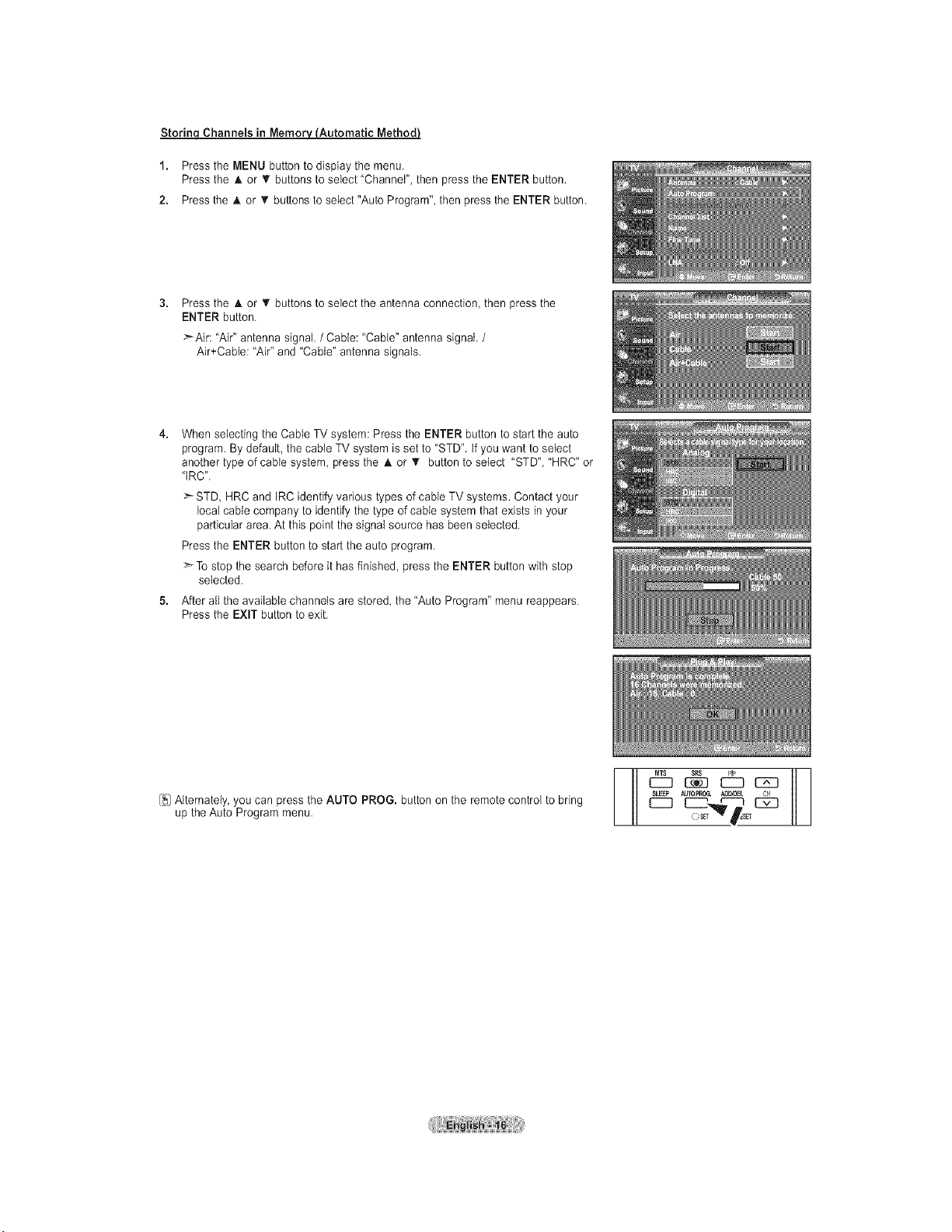
Viewing the Menus
1. With the power on, press the MENU button.
The main menu appears on the screen. The menu' s left side has five icons:
Picture, Sound, Channel, Setup, Input.
2. Use the A or _' buttons to select one of the five icons.
Then press the ENTER button to access the icon's sub-menu.
3. Press the EXIT button to exit.
[_JThe on-screen menus disappear from the screen after about one minute.
Memorizing the Channels
Your TV can memorize and store all of the available channels for both "off-air" (Air) and "Cable" channels. After the available
channels are memorized, use the CH@ or CHO buttons to scan through the channels. This eliminates the need to change
channels by entering the channels digits. There are three steps for memorizing channels: selecting a broadcast source,
memorizing the channels (automatic) and adding or deleting channels (Channet List).
Selectin theVideo Si nal-source
Before your television can begin memorizing the available channels, you must specify the type of signal source that is connected to
the TV (i.e. an Air or a Cable system).
1. Press the MENU button to display the menu.
Press the A or _r buttons to setect "Channel", then press the
ENTER button.
2. Press the ENTER button select "Antenna".
Press the & or _r buttons to select "Air" or "Cable", then press the ENTER button.
Press the EXIT button to exit.
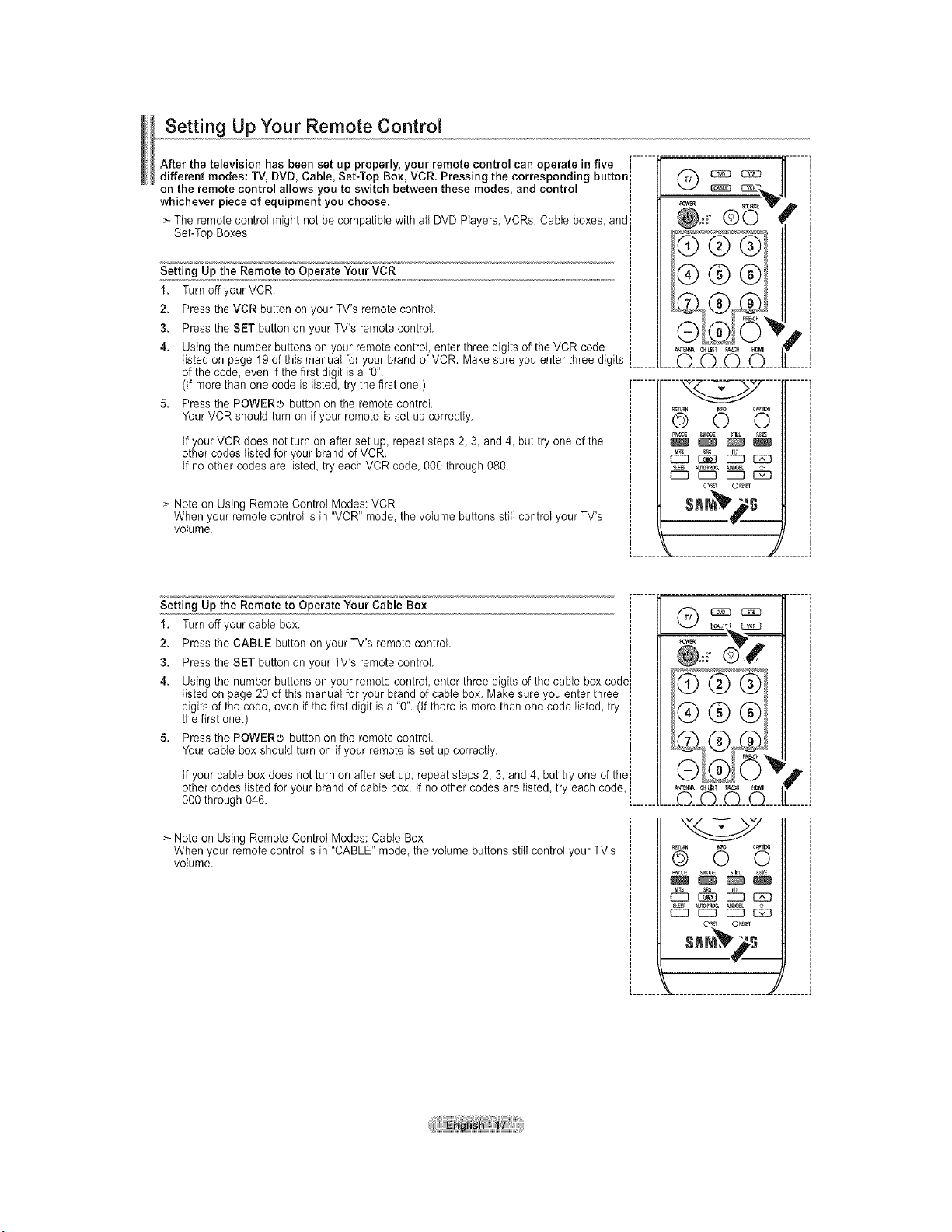
StorinqChannels in Memorv_Automatic MethodJ
1. Press the MENU button to display the menu.
Press the A or _' buttons to select "Channel", then press the ENTER button.
2. Press the A or _' buttons to seiect"Auto Program", then press the ENTER button.
Press the A or _' buttons to select the antenna connection, then press the
ENTER button.
>-Air: "Air" antenna signal. /Cable: "Cable" antenna signal. /
Air+Cable: "Air" and "Cable" antenna signals.
When selecting the Cable TV system: Press the ENTER button to start the auto
program. By default, the cable TV system is set to "STD". tf you want to select
another type of cable system, press the A or T button to select "STD", "HRC" or
"tRC".
STD, HRC and tRC identify various types of cable TV systems. Contact your
local cable company to identify the type of cable system that exists in your
particular area. At this point the signal source has been selected.
Press the ENTER button to start the auto program.
>_Tostop the search before it has finished, press the ENTER button with stop
selected.
After all the available channels are stored, the "Auto Program" menu reappears.
Press the EXIT button to exit.
[_JAlternately, you can press the AUTO PROG. button on the remote control to bring
up the Auto Program menu.
Setting Up Your Remote Control
After the television has been set up properly, your remote control can operate in five J
different modes: TV, DVD, Cable, Set-Top Box, VCR. Pressing the corresponding buttonl
on the remote control allows you to switch between these modes, and control
whichever piece of equipment you choose.
> The remote control might not be compatible with all DVD Players, VCRs, Cable boxes, and
Set-Top Boxes.
Setting Up the Remote to Operate Your VCR
1. Turn off yourVCR.
2. Press the VCR button on your TV's remote control.
3. Press the SET button on your TV's remote control.
4. Using the number buttons on your remote control, enter three digits of the VCR code
listed on page 19 of this manual for your brand of VCR. Make sure you enter three digits [......
of the code, even if the first digit is a "0".
(tf more than one code is listed, try the first one.) .......
5. Press the POWERd_ button on the remote control.
Your VCR should turn on if your remote is set up correctly.
If your VCR does not turn on after set up, repeat steps 2, 3, and 4, but try one of the
other codes listed for your brand of VCR.
tf no other codes are listed, try each VCR code, 000 through080.
> Note on Using Remote Control Modes: VCR
When your remote control is in "VCR" mode, the volume buttons stitt control your TV's
volume.
©0
_t_/NA C_L_T _V,_ HOMI
____Q___Q___Q___Q....
BMOBE _0_
O_ O_ r
p,
Setting Up the Remote to Operate Your Cable Box
1. Turn off your cable box. i
I
2. Press the CABLE button on your TV's remote control. !
3. Press the SET button on your TV's remote control. J
4. Using the number buttons on your remote control, enter three digits of the cable box codell
listed on page 20 of this manual for your brand of cable box. Make sure you enter three iI
digits of the code, even if the first digit is a "0". (If there is more than one code listed, try !
the first one.) j
5. Press the POWER(L, button on the remote control, i
Your cable box should turn on if your remote is set up correctly. !
If your cable box does not turn on after set up, repeat steps 2, 3, and 4, but try one of thei
other codes listed for your brand of cable box. tf no other codes are listed, try each code, i
000 through 046. L......
>_Note on Using Remote Control Modes: Cable Box
When your remote control is in "CABLE" mode, the volume buttons still control your TV's
volume.
...........................................
;®®®
___Q__Q___O___Q....
.... ....
QR_N 6 C_O
O_ 0_
s.r #s
P
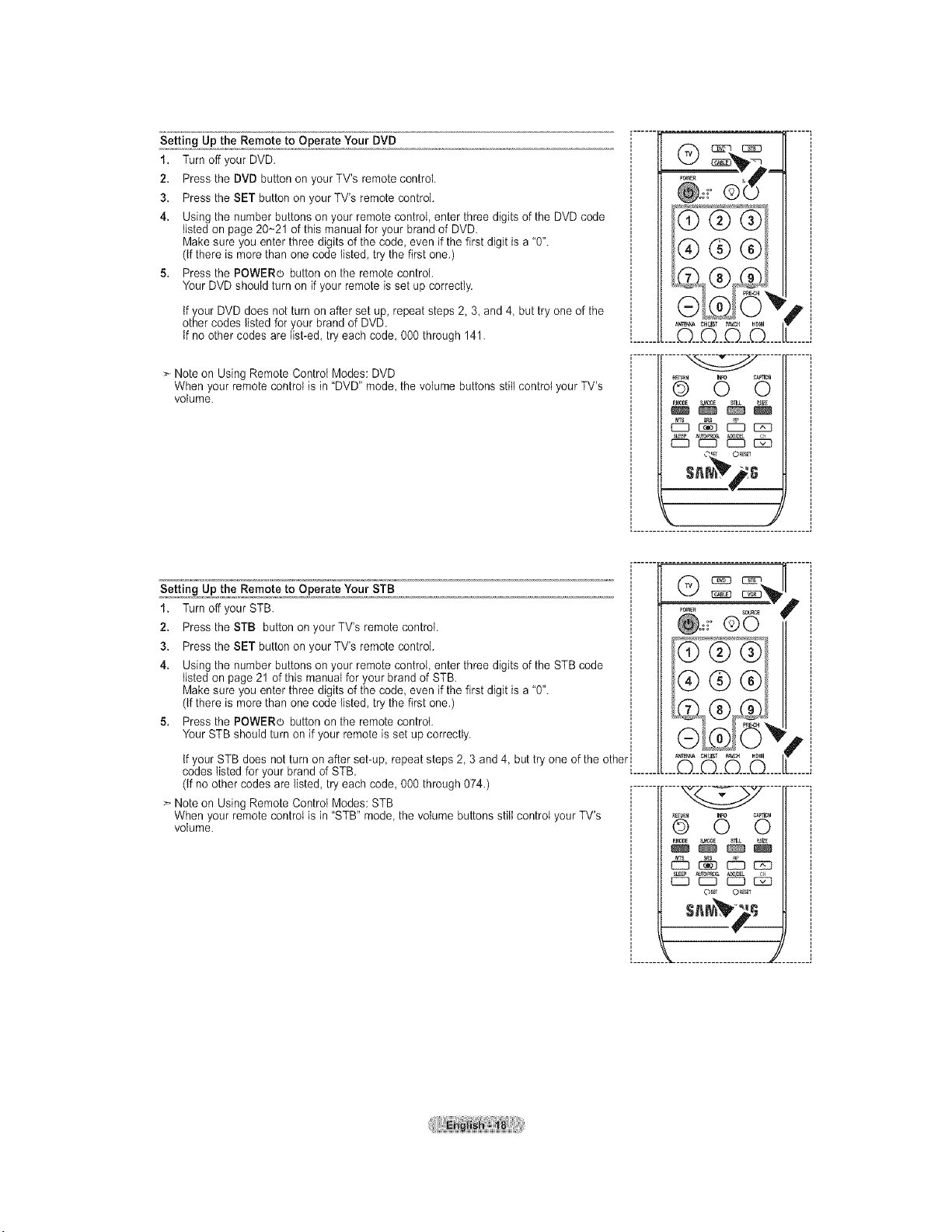
Setting Up the Remote to Operate Your DVD
1. Turn off your DVD.
2. Press the DVD button on your TV's remote control.
3. Press the SET button on your TV's remote control.
4. Using the number buttons on your remote controI, enter three digits of the DVD code
listed on page 20~21 of this manual for your brand of DVD.
Make sure you enter three digits of the code, even if the first digit is a "0".
(if there is more than one code listed, try the first one.)
5. Press the POWERo button on the remote control.
Your DVD should turn on if your remote is set up correctly.
If your DVD does not turn on after set up, repeat steps 2 3, and 4, but try one of the
other codes listed for your brand of DVD.
tf no other codes are list-ed, try each code, 000 through 141.
> Note on Using Remote Control Modes: DVD
When your remote control is in "DVD" mode, the volume buttons still control your TV's
volume.
_OWER S
0
....©__©__D___©....
Q_Tlkl O c_lr_o
_M0_ S.e33E
SL_p _tOF_O& _I_
C]9 C]9 EZ]] _
F
Setting Up the Remote to Operate Your STB
1. Turn off your STB
2. Press the STB button on your TV's remote control.
3. Press the SET button on your TV's remote control.
4. Using the number buttons on your remote controI, enter three digits of the STB code
listed on page 21 of this manual for your brand of STB
Make sure you enter three digits of the code even if the first digit is a "0".
(if there is more than one code listed, try the first one.)
5. Press the POWERo button on the remote control.
Your STB should turn on if your remote is set up correctly.
If your STB does not turn on after set-up repeat steps 2 3 and 4, but try one of the other l
codes listed for your brand of STB [......
(if no other codes are listed, try each code, 000 through 074.) .......
> Note on Using Remote Control Modes: STB
When your remote control is in "STB" mode, the volume buttons still control your TV's
volume.
CH LIST F_CH HOI_I
....D___Q_D___©....
db _ _ czo
EC3 CC3 EC3 _
O_ O_
¥
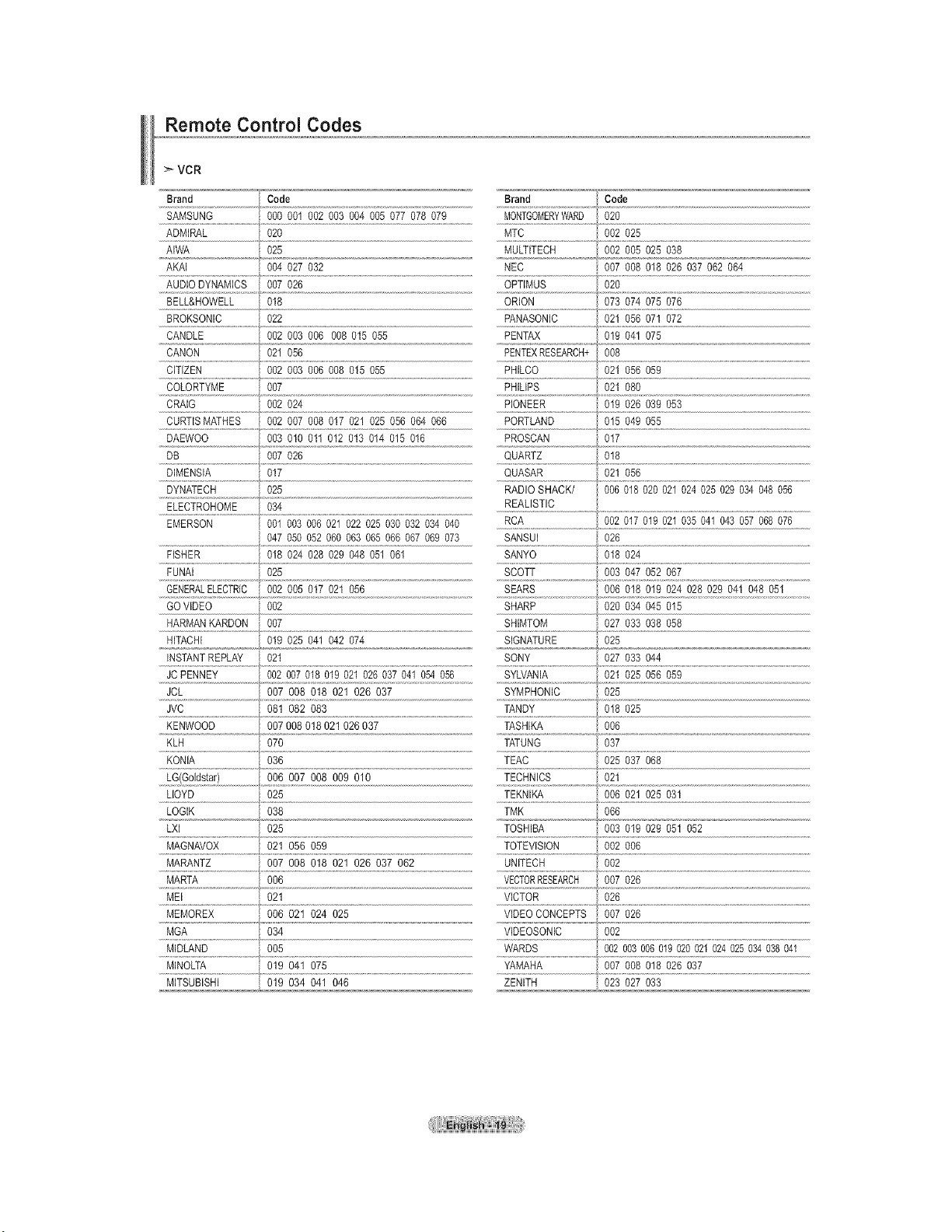
Remote Control Codes
VCR
Brand Code Brand Code
SAMSUNG %0 001 002 003 004 005 077 078 079 NONTGOMERYWARD 020
ADMIRAL 020 MTC 002 025
AIWA _ 025 MULTITECH 002 005 025 038
AKAI 004 027 032 NEC 007 008 018 026 037 062 064
AUDIO DYNAMICS 007 026 OPTIMUS 020
BELL&HOWELL 018 ORION 073 074 075 076
BROKSONIC 022 PANASONIC 021 056 07I 072
CANDLE 002 003 006 008 015 055 PENTAX 019 04t 075
CANON 021 056 PENTEXRESEARCH+ 008
CITIZEN 002 003 006 008 015 055 PHILCO 021 056 059
COLORTYME 007 PHILIPS 021 080
CRAIG 002 024 PIONEER 019 026 039 053
CURTISMATHES 002 007 008 017 021 025 056 064 066 PORTLAND 015 049 055
DAEWOO 003 010 011 012 013 014 015 016 PROSCAN 017
DB 007 026 QUARTZ 018
DIMENSIA 017 QUASAR 021 056
DYNATECH 025 RADIO SHACK/ 006 018 020 021 024 025 029 034 048 056
ELECTROHOME 034 REALISTIC
EMERSON 001 003 006 021 022 025 030 032 034 040 RCA 002 017 019 021 035 041 043 057 068 076
047 050 052 060 063 065 066 067 069 073 SANSUI 026
FISHER 018 024 028 029 048 051 061 SANYO 018 024
FUNAI 025 SCOTT 003 047 052 067
GENERALELECTRIC 002 005 017 021 056 SEARS 006 018 019 024 028 029 041 048 051
GO VIDEO 002 SHARP 020 034 045 015
HARMAN RARDON 007 SHIMTOM 027 033 038 058
HITACHI 019 025 041 042 074 SIGNATURE 025
INSTANTREPLAY 021 SONY 027 033 044
JC PENNEY 002 007 018 019 021 026 037 041 054 056 SYLVANIA 021 025 056 059
JCL 007 008 018 021 026 037 SYMPHONIC 025
JVC 081 082 083 TANDY 018 025
KENWOOD 007 008 018 021 026 037 TASHIRA 006
......KLH.............................................070 TATUNG 037
KONIA 036 TEAC 025 037 068
006 007 008 009 010
NQ4
.....X_ZX]_,ff_t!LL.................................. .....LEZ_!_]Xt ...................................._L ...............................................................................................................................
LLOYD 025 TEKNW_ 006 021 025 031
LOGIK 038 TMK 066
LXI 025 TOSHIBA 003 019 029 051 052
......M 9.Avox..........................op To!Evisiooo o%
MARTA 006 VECTORRESEARCH 007 026
MEI 021 VICTOR 026
MEMOREX 006 021 024 025 VIDEO CONCEPTS 007 026
MGA 034 VIDEOSONIC 002
MIDLAND 005 WARDS 002 003 006 019 020 021 024 025 034 038 041
YAMAHA
MINOLTA 019 041 075 007 008 018 026 037
MITSUBISHI 019 034 041 046 ZENITH 023 027 033
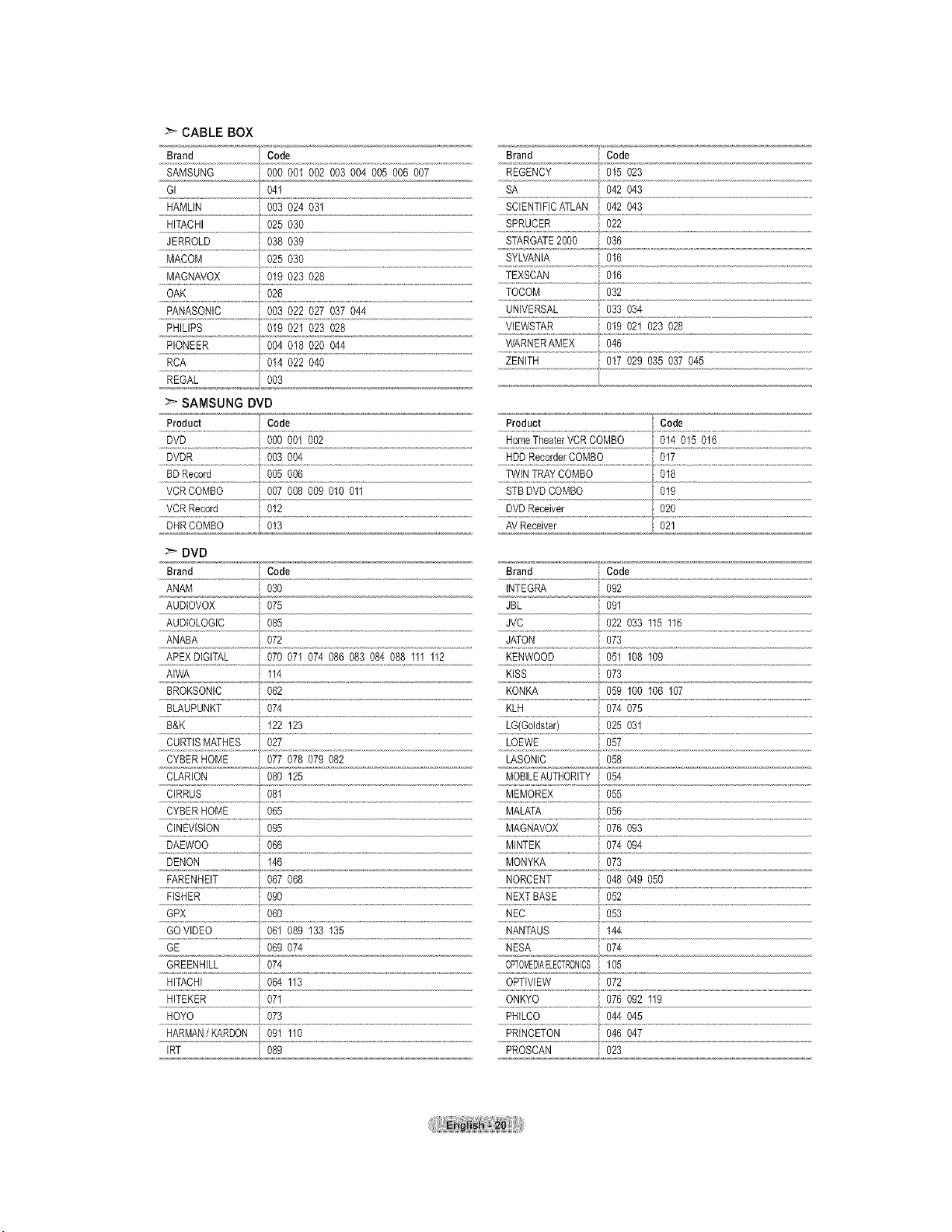
CABLEBOX
Brand Code
SAMSUNG 000 00I 002 003 004 005 006 007
GI 04I
HAMLIN 003 024 03I
HITACHI 025 030
JERROLD 038 039
MACOM 025 030
MAGNAVOX 019 023 028
Brand Code
REGENCY 015 023
SA 042 043
SCIENTIFICATLAN 042 043
SPRUCER 022
STARGATE2000 036
SYLVANIA 016
TEXSCAN 016
OAK 026 TOCOM 032
PANASONIC 003 022 027 037 044 UNIVERSAL 033 034
PHuPS 01902I02s028 ......V[EWSXR....................,01902102s028
PIONEER 004 018 020 044 WARNERAMEX
046
RCA 014 022 040 ZENITH 017 029 035 037 945
REGAL 003
:_ SAMSUNG DVD
Product Code
DVD 000 001 002
DVDR 003 004
BDRecord 005 006
VCRCOMBO 007 008 009 010 011
VCR Record 012
DHR COMBO 013
Product Code
HomeTheaterVCR COMBO 014 015 016
HDD RecorderCOMBO 017
TWINTRAY COMBO 018
STB DVD COMBO 019
DVD Receiver 020
AV Receiver 02_
DVD
Brand Code Brand Code
ANAM 030 INTEGRA 092
AUDIOVOX 075 JBL 091
AUDIOLOGIC 085 JVC 022 033 115 116
ANABA 072 JATON 073
APEX DIGITAL 070 07I 074 086 083 084 088 III 112 KENWOOD 051 108 109
AIWA II4 KISS 073
BROKSONIC 062 KONKA 059 100 I06 107
BLAUPUNKT 074 KLH 074 075
.....B_K !_ !2_ _G{e°!d!!a!:!..........................025031
CURTISMATHES 027 LOEWE 057
CYBER HOME 077 078 079 082 LASONIC 058
CLARION 080 I25 MOBILEAUTHORITY 054
CIRRUS 081 MEMOREX 055
CYBER HOME 065 MALATA 056
CINEVISION 095 MAGNAVOX 076 093
DAEWOO 066 MINTEK 074 094
DENON I46 MONYKA 073
FARENHEIT 067 068 NORCENT 048 049 050
FISHER 090 NEXT BASE 052
GPX 060 NEC 053
GOVIDEO 061 089 133 135 NANTAUS 144
GE 069 074 NESA 074
GREENHILL 074 OPTOMEDIAELECTRONCS 105
.............................................................. #
HITACHI 064 II3 OPTIVlEW 072
HITEKER 071 ONKYO 076 092 119
HOYO 073 PHILCO 044 045
HARMAN/KARDON 091 110 PRINCETON 046 047
IRT _ 08 PROSCAN 023
S
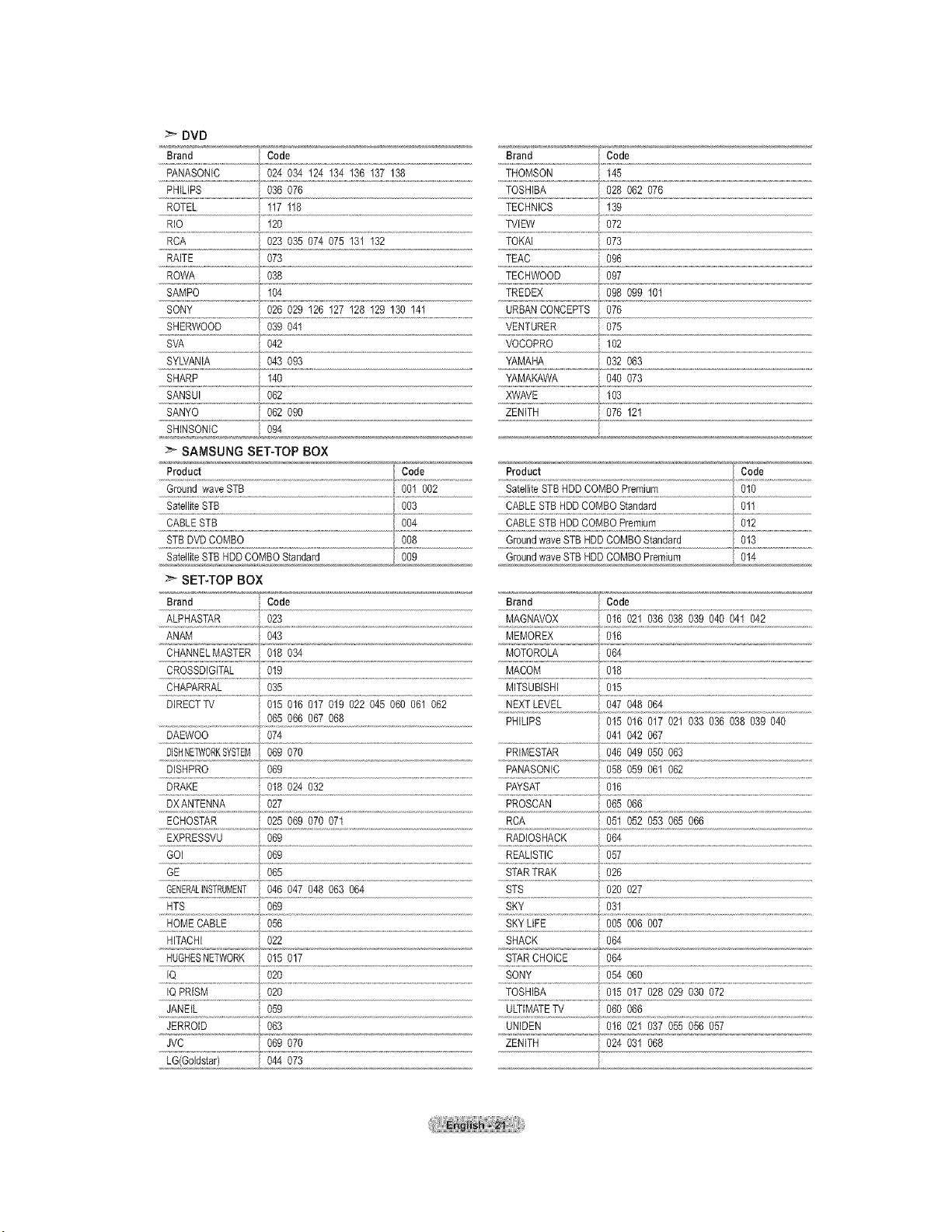
DVD
Brand Code Brand Code
PANASONIC 024 034 124 134 136 137 138 THOMSON 145
PHILIPS 036 076 TOSHIBA 028 062 076
ROTEL 117 118 TECHNICS , 139
RIO 120 TVlEW 072
......................................................................................................................................................RCA 023 035 074 075 131 132 TOKAi 073
RAITE 073 TEAC 096
ROWA 038 TECHWOOD 097
SAMPO 104 TREDEX 098 099 101
SONY 026 029 I26 127 I28 129 130 141 URBAN CONCEPTS 076
.............................................................................................................................................................................................................................................................................................},
SHERWOOD 039 041 VENTURER 075
SVA 042 VOCOPRO 102
SYLVANIA 043 093 YAMAHA 032 063
................................................................../..........................................................................................................................
SHARP t40 YAMAKAWA 040 073
SANSUI 062 XWAVE 103
SANYO 062 090 ZENITH 076 121
SHINSONIC 094
> SAMSUNG SET-TOPBOX
Product *:i_ Code Product Code
Ground wave STB 001 002 Satellite STB HDD COMBO Premium 010
STB DVD COMBO 008 Ground wave STB HDD COMBO Standard 013
Satellite STB HDD COMBO Standard j 009 Ground wave STB HDD COMBO Premium 014
:_ SET-TOP BOX
Brand Code Brand Code
ALPHASTAR 023 MAGNAVOX 016 021 036 038 039 040 041 042
ANAM 043 MEMOREX 016
CHANNELMASTER 018 034 MOTOROLA 064
CROSSDIGITAL 019 MACOM 018
CHAPARRAL 035 MITSUBISHI 015
DIRECTTV 015 016 017 019 022 045 060 06I 062 NEXTLEVEL 047 048 064
065 066 067 068 PHILIPS 015 016 017 021 033 036 038 039 040
DAEWOO 074 041 042 067
DISHNETW0RKSYSTEM069 070 PRIMESTAR 046 049 050 063
DISHPRO 069 PANASONIC 058 059 061 062
DRAKE 018 024 032 PAYSAT 016
DXANTENNA 027 PROSCAN 065 066
ECHOSTAR 025 069 070 071 RCA 05t 052 053 065 066
EXPRESSVU 069 RADIOSHACK 064
GOI 069 ......REAlISTiC ...................................@ .........................................................................................
GE 065 STARTRAK 026
GENERALINSTRUMENT046 047 048 063 064 STS 020 027
HTS 06g SKY 031
HOME CABLE 056 SKY LIFE 005 006 007
HITACHI 022 SHACK 064
HUGHESNETWORK 015 017 STAR CHOICE 064
IQ 020 SONY 054 060
IQ PRISM 020 TOSHIBA 015 017 028 029 030 072
osg ULTIMATEW 06006B
JERROID....................................063 ,,,,UN[DE,N ,] ,,11,6,`021,o,,03Z,'0,,55,9,,56,05_
JVC 069 070 ZENITH 024 031 068
LG(Goldstar) 044 073
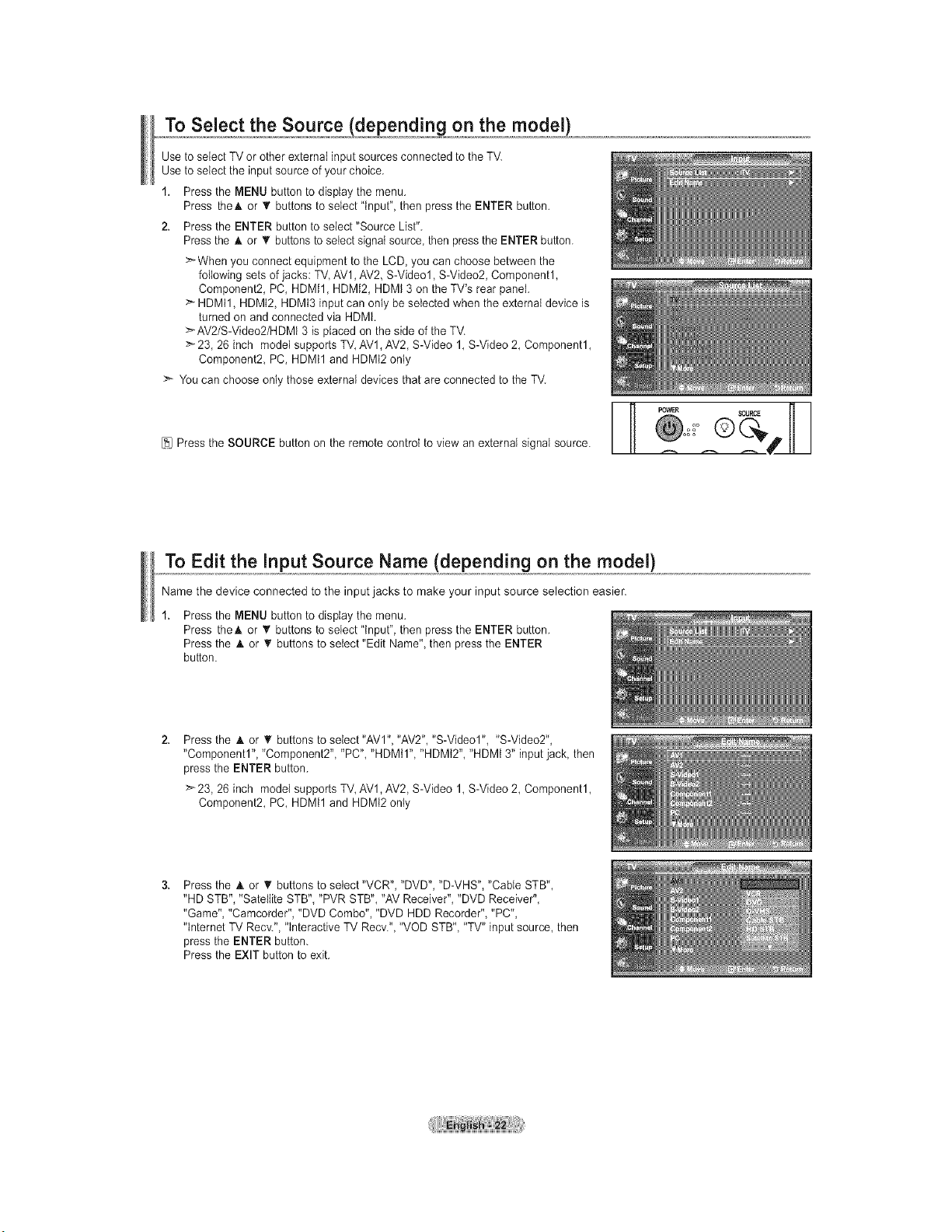
TO Select the Source ,/d nd!onogpn the,m, gde !}
Use to select TV or other external input sources connected to the TV.
Use to select the input source of your choice.
1. Press the MENU button to display the menu.
Press theA or _' buttons to select "input", then press the ENTER button.
2. Press the ENTER button to select "Source List".
Press the A or T buttons to select signal source, then pressthe ENTER button.
>When you connect equipment to the LCD, you can choose between the
following sets of jacks: TV AV1,AV2, S-Video1, S-Video2, Component1,
Component2, PC, HDMI1, HDMI2, HDMt 3 on the TV's rear panel.
> HDMtl, HDMI2, HDMI3 input can only be selected when the external device is
turned on and connected via HDMI.
>AV2/S-Video2/HDMt 3 is placed on the side of the TV.
:_ 23, 26 inch model supports TV, AV1, AV2, S-Video 1, S-Video 2, Component1,
Component2 PC, HDMtl and HDMt2 only
> You can choose only those external devices that are connected to the TV.
[_1 Press the SOURCE button on the remote control to view an external signal source.
To Edit the input Source Name (depending on the model)
Name the device connected to the input jacks to make your input source selection easier.
Press the MENU button to display the menu.
Press theA or V buttons to select "input", then press the ENTER button.
Press the A or _r buttons to setect "Edit Name", then press the ENTER
button.
Press the A or _r buttons to select "AVI", "AV2", "S-Video1", "S-Video2",
"Component1", "Component2", "PC", "HDMil", "HDMi2", "HDMi 3" input jack, then
press the ENTER button.
>23, 26 inch model supports TV, AV1, AV2, S-Video 1, S-Video 2, Component1,
Component2, PC, HDMtl and HDMt2 only
Press the A or _' buttons to select "VCR", "DVD", "D-VHS", "Cable STB",
"HD STB", "Satellite STB", "PVR STB", "AV Receiver", "DVD Receiver",
"Game", "Camcorder", "DVD Combo", "DVD HDD Recorder", "PC",
"tnternet TV Recv.", "interactive TV Recv.", "VOD STB", "TV" input source, then
press the ENTER button.
Press the EXIT button to exit.
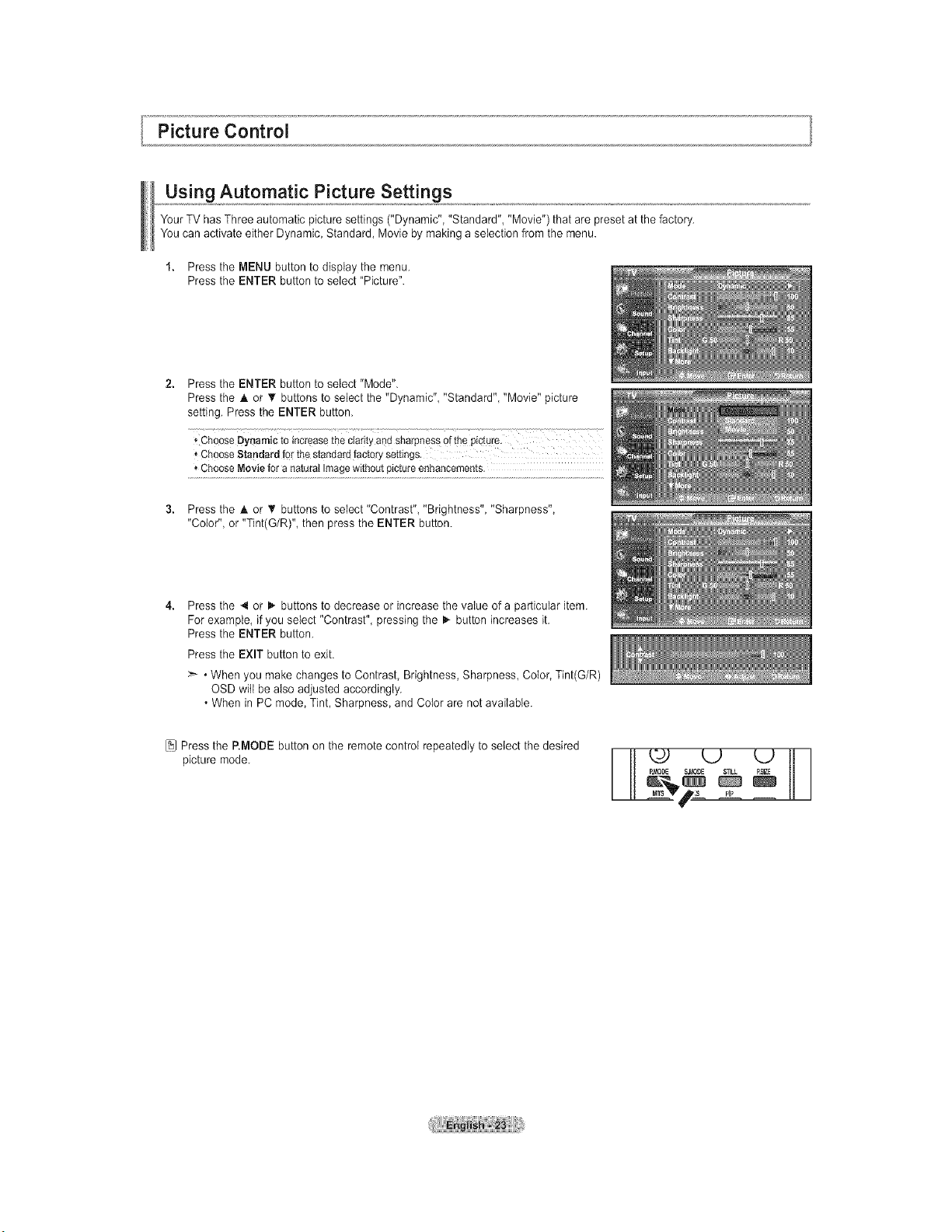
Picture Control
Using Automatic Picture Settings
Your TV has Three automatic picture settings ("Dynamic", "Standard", "Movie") that are preset at the factory.
You can activate either Dynamic, Standard, Movie by making a selection from the menu.
1. Press the MENU button to display the menu.
Press the ENTER button to select "Picture".
Press the ENTER button to select "Mode".
Press the A or T buttons to select the "Dynamic" "Standard" "Movie" picture
setting. Press the ENTER button.
* ChooseDynamicto increasethe Clarityand sharpnessof the picture.
,' ChooseStandardforthe standardfactorysettings.
* ChooseMoviefor a naturatImagewithoutpictureenhancements.
Press the A or V' buttons to select "Contrast", "Brightness", "Sharpness",
"Color", or "Tint(G/R)", then press the ENTER button.
Press the 4 or I,. buttons to decrease or increase the value of a particular item.
For example, if you select "Contrast", pressing the 1_-button increases it.
Press the ENTER button.
Press the EXIT button to exit.
>_ • When you make changes to Contrast, Brightness, Sharpness Color, Tint(G/R)
OSD will be also adjusted accordingly.
• When in PC mode, Tint, Sharpness, and Color are not available.
[_1Press the RMODE button on the remote control repeatedly to select the desired
picture mode.
L2 L2
M._LT_T_,sL i_
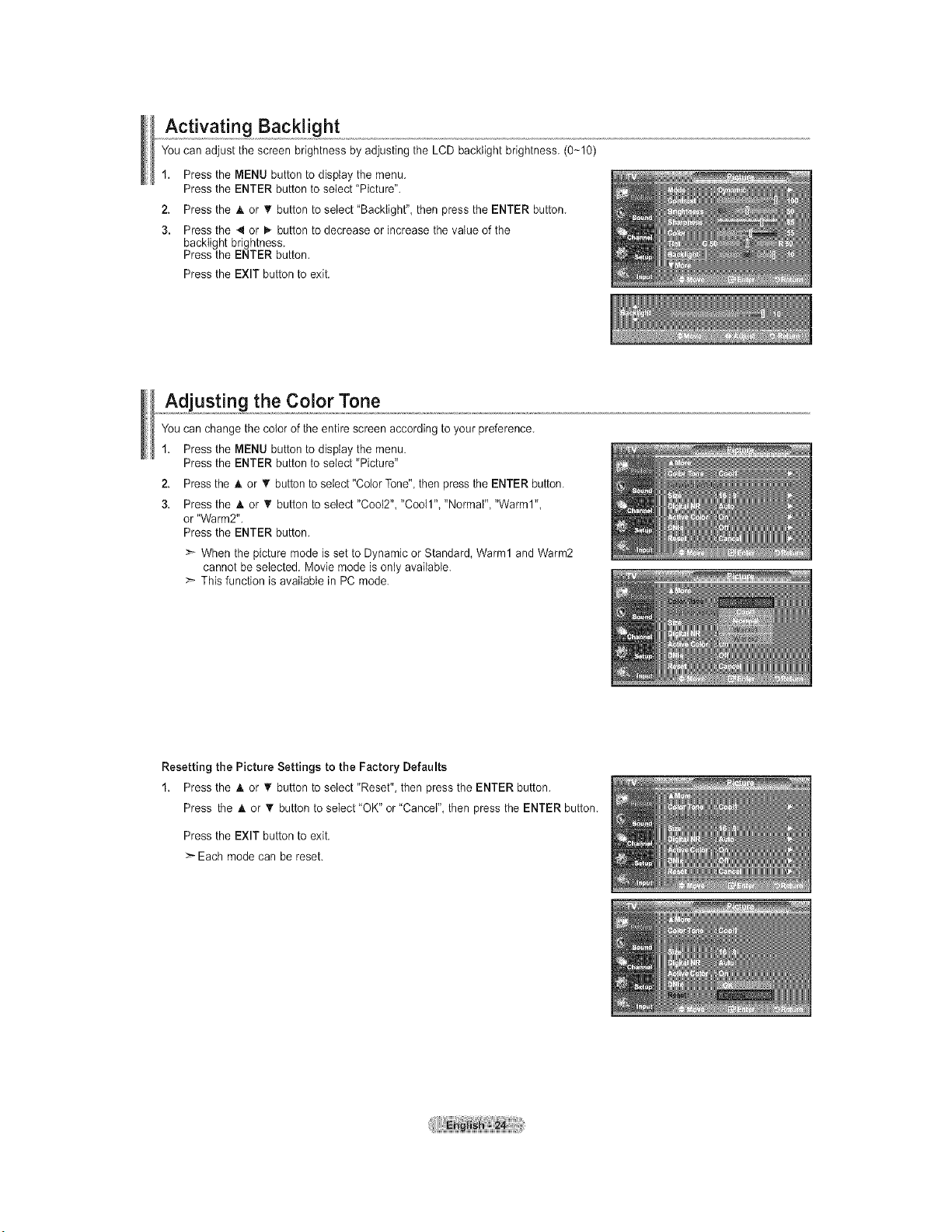
Activating Backlight
You can adjust the screen brightness by adjusting the LCD backtight brightness. (0-10)
1. Press the MENU button to display the menu.
Press the ENTER button to select "Picture".
2. Press the _k or T button to select "Backlight", then press the ENTER button.
3. Press the 4 or I_ button to decrease or increase the value of the
backtight brightness.
Press the ENTER button.
Press the EXIT button to exit.
Adjusting the Color Tone
You can change the color of the entire screen according to your preference.
1. Press the MENU button to display the menu.
Press the ENTER button to select "Picture"
2. Press the h. or T button to select "Color Tone", then press the ENTER button.
3. Press the A or _r button to select "Coo12","Coo11","Normal", "Warm1",
or "Warm2".
Press the ENTER button.
>* When the picture mode is set to Dynamic or Standard, Warm1 and Warm2
cannot be selected. Movie mode is only available.
>- This function is available in PC mode.
Resetting the Picture Settings to the Factory Defaults
1. Press the A or _' button to select "Reset", then press the ENTER button.
Press the & or _' button to select "OK" or "Cancel", then press the ENTER button.
Press the EXIT button to exit.
>- Each mode can be reset.
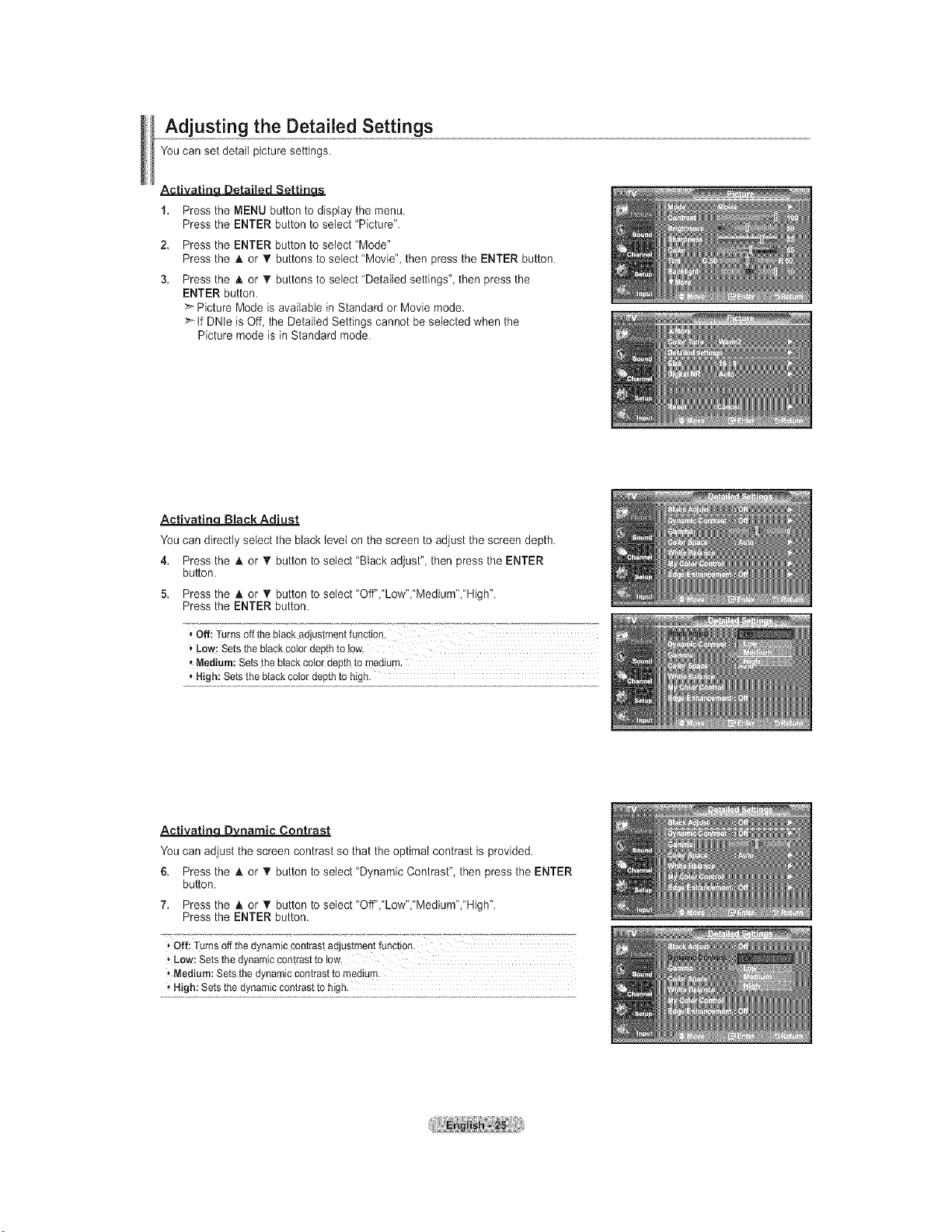
Adjusting the Detailed Settings
You can set detail picture settings.
• " t" t'_
1. Press the MENU button to display the menu.
Press the ENTER button to select "Picture".
2. Press the ENTER button to select "Mode"
Press the A or _' buttons to select 'Movie", then press the ENTER button.
3. Press the A or • buttons to select 'Detailed settings", then press the
ENTER button.
_'- Picture Mode is available in Standard or Movie mode.
_tf DNte is Off, the Detailed Settings cannot be selected when the
Picture mode is in Standard mode.
Activatin Black Ad'ust
You can directly select the black level on the screen to adjust the screen depth.
4. Press the A or T button to select 'Black adjust", then press the ENTER
button.
5. Press the A or T button to select"Off","Low","Medium","High".
Press the ENTER button.
"Off: Turnsoff tile blackadjustmentfunction, .............................
* Medium:Setsthe btackcotordepthto medium.
* High:Setsthe blackcotordepthto high.
ActivatinqD3LDnarnic Contrast
You can adjust the screen contrast so that the optimal contrast is provided.
6. Press the A or T button to select "Dynamic Contrast", then press the ENTER
button.
7. Press the _. or _' button to select "Off","Low","Medium","High".
Press the ENTER button.
Off;TurnsOffthe dynamiccontrastadjustmentfunction.
* Low: Setsthedynamiccont[asttotow.
Medium:Setsthe dynamiccontrastto medium.
* High:Setsthe dynamiccontrastto high.
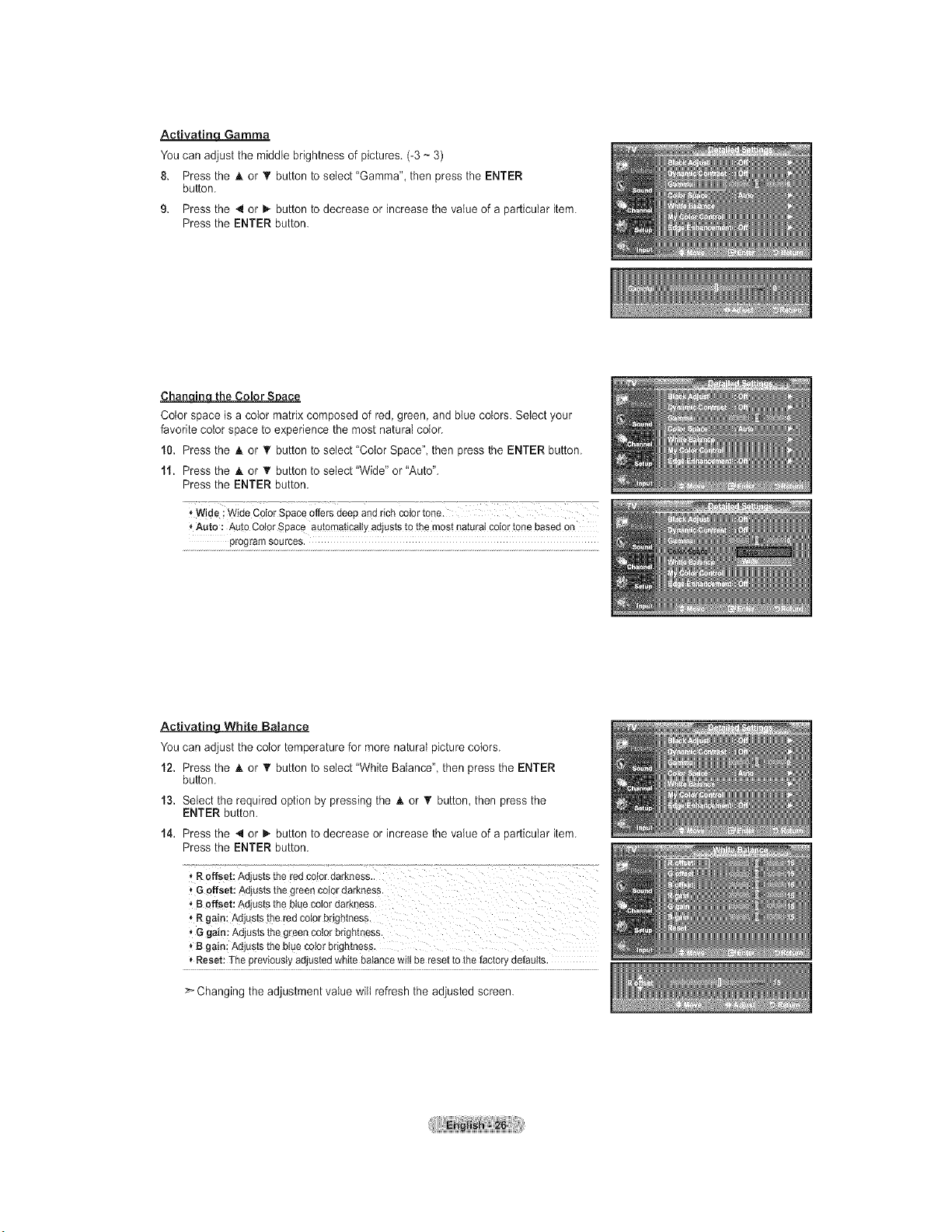
Activatinq Gamma
You can adjust the middle brightness of pictures. (-3 ~ 3)
8. Press the h. or T button to select "Gamma", then press the ENTER
button.
9. Press the 4 or _ button to decrease or increase the value of a particular item.
Press the ENTER button.
Chan_ the Color S_ace
Color space is a color matrix composed of red, green, and btue colors. Select your
favorite color space to experience the most natural color.
10. Press the _kor _' button to select "Color Space" then press the ENTER button.
11. Press the _kor _' button to select "Wide" or "Auto".
Press the ENTER button.
sAute: Aut0CotorSpace autQmaticatlyadjuststo themostnaturalco!Qrtonebasedon
programsources.
Activating White Balance
You can adjust the color temperature for more naturaI picture colors.
12. Press the h. or _' button to select "White Balance", then press the ENTER
button.
13. Select the required option by pressing the h. or • button, then press the
ENTER button.
14. Press the 4 or _,.button to decrease or increase the value of a particular item.
Press the ENTER button.
, Roffset: Adjuststhe redcolordarkness..
I Goffset: Adjuststhe greenceiordarkness.
'_B offset: Adjuststhe bluecolordarkness.
• R gain."Adjuststhe redcolorbrightness.
'_Ggain_Adjuststhe greencoterbrightness.
• B gain; Adjuststhe btuecolorbrightness.
• Reset:]-hepreviouslyadjustedwhitebalancewilt be resetto the factorydefaults.
Changing the adjustment value wilt refresh the adjusted screen.
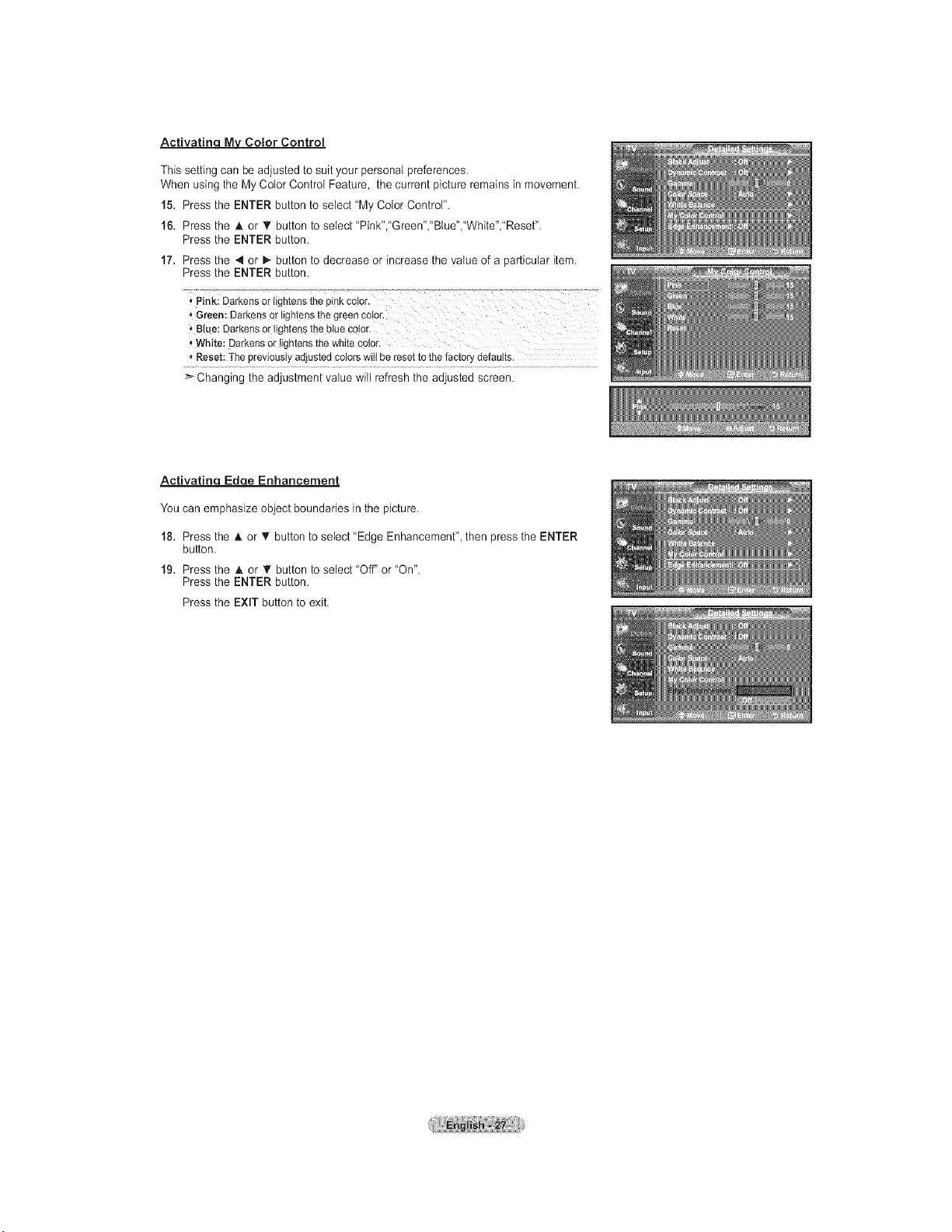
Activatinc_MyM Color Control
This setting can be adjusted to suit your personal preferences.
When using the My Color Control Feature, the current picture remains in movement.
15. Press the ENTER button to select "My Color Control".
16. Press the A or T button to select 'Pink","Green',"Btue","White","Reset".
Press the ENTER button.
17. Press the 4 or _- button to decrease or increase the value of a particular item.
Press the ENTER button.
i Pi,lk; Darkensortightensthepinkcelor,
* Green:DarkensOrlightensthe g[eenc0ior.
'_Bl_e:Darkenso_"!ightsn$theblueco!or.
_,White: Darkensor tighter_sthe whitecolor.
"_Reset:Thepreviouslyadjustedcotorswitibe resetto thefactorydefaults.
>-Changing the adjustment value wilt refresh the adjusted screen.
Activatin_ Enhancement
You can emphasize object boundaries in the picture.
18. Press the A or T button to select "Edge Enhancement", then press the ENTER
button.
19. Press the A or T button to select 'Off" or "On".
Press the ENTER button.
Press the EXIT button to exit.
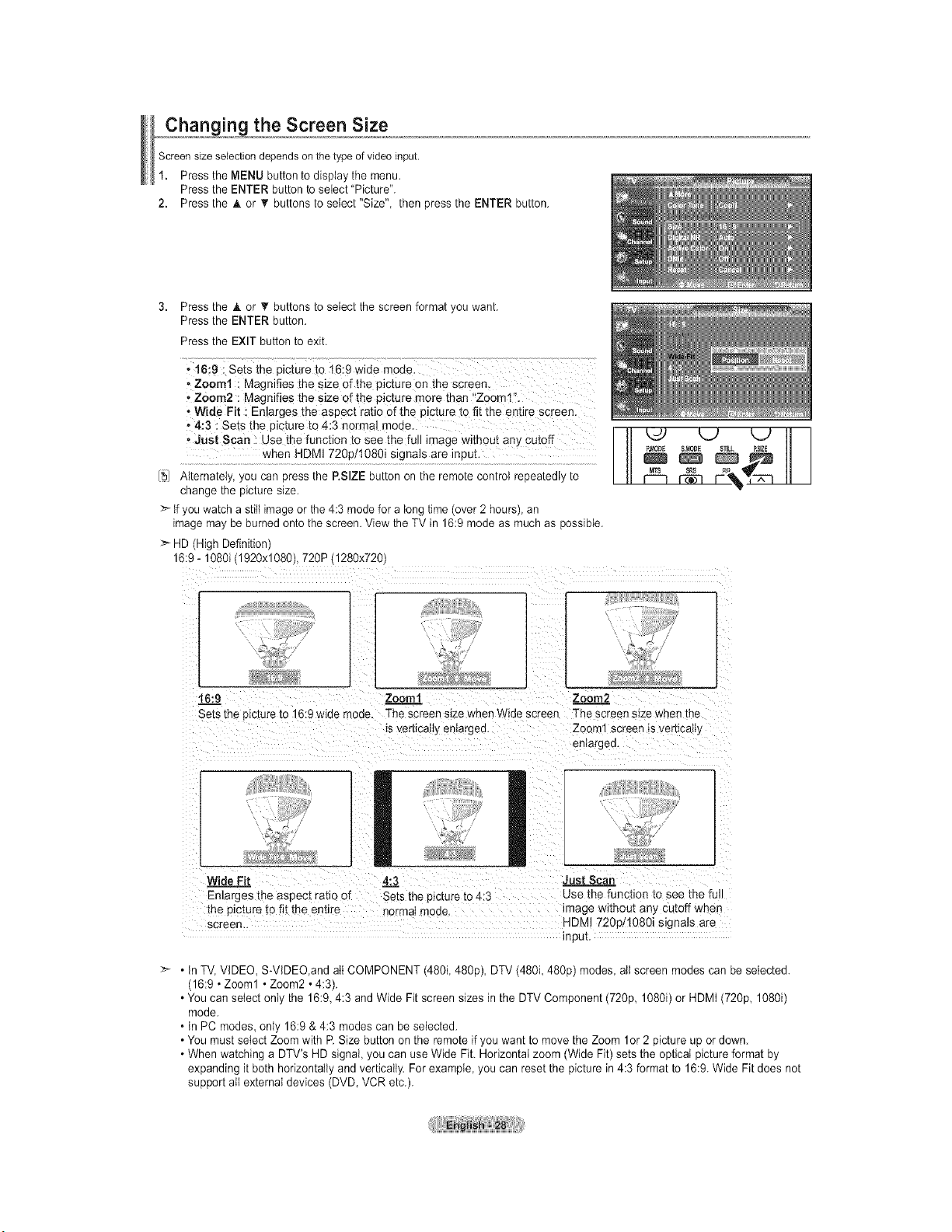
,,, chaon ingthe Screen Size
Screensize selectiondepends on thetype of video input.
1. Press the MENU button to display the menu.
Press the ENTER button to select "Picture".
2. Press the A or _r buttons to setect "Size", then press the ENTER button.
3. Press the _k or _' buttons to select the screen format you want.
Press the ENTER button.
Press the EXIT button to exit.
.16:9 i sets the picture to t6:9 wide mode.
, Zoom1 ! Magnifies the Size 0f the picture on the Screen.
oZ0om2 :Magnifies the size of the picture more than '_Zooml'L
o Wide Fit _Enlarges the aspect ratio efth € picture to fit the entire screen.
• 4:3 : Sets the picture to 4-:3 normal mode.
o ,,lust Scan : Use the function to See the full image without any Cutoff
[_/ Alternately, you can press the P.SIZE button on the remote control repeatedly to
change the picture size.
>" tf you watch a still image or the 4:3 mode for a long time (over 2 hours), an
image may be burned onto the screen. View the TV in 16:9 mode as much as possible.
> HD (High Definition)
16:9 - 1080i (1920xl 080), 720P (1280x720)
16:9 Zoomt Zoom2.2
Sets the picture to 16:9 wide -'lode. The screen size when Wide screen The screen size when the
is verbcaHy en_argea. Zoom1 screen _sver_icalty
anlargea.
Wide Fit 4:3 Just Scan
Enlarges _ne aspect ratio of Sets the picture to 4:3 Use the function to see the full
the picture to fit the entire norma; mode. image without any cutoff when
screen HDMI 720p/1080i signals are
input.
• In TV, VIDEO, S-VIDEO,and att COMPONENT (480i 480p), DTV (480i 480p) modes all screen modes can be selected.
(16:9 • Zoom1 • Zoom2 • 4:3).
• You can select only the 16:9, 4:3 and Wide Fit screen sizes in the DTV Component (720p, 1080i) or HDMI (720p, 1080i)
mode.
• In PC modes, only 16:9 & 4:3 modes can be selected.
• You must select Zoom with R Size button on the remote if you want to move the Zoom 1or 2 picture up or down.
• When watching a DTV's HD signal, you can use Wide Fit. Horizontal zoom (Wide Fit) sets the optical picture format by
expanding it both horizontally and vertically. For example you can reset the picture in 4:3 format to 16:9. Wide Fit does not
support atl external devices (DVD, VCR etc.).
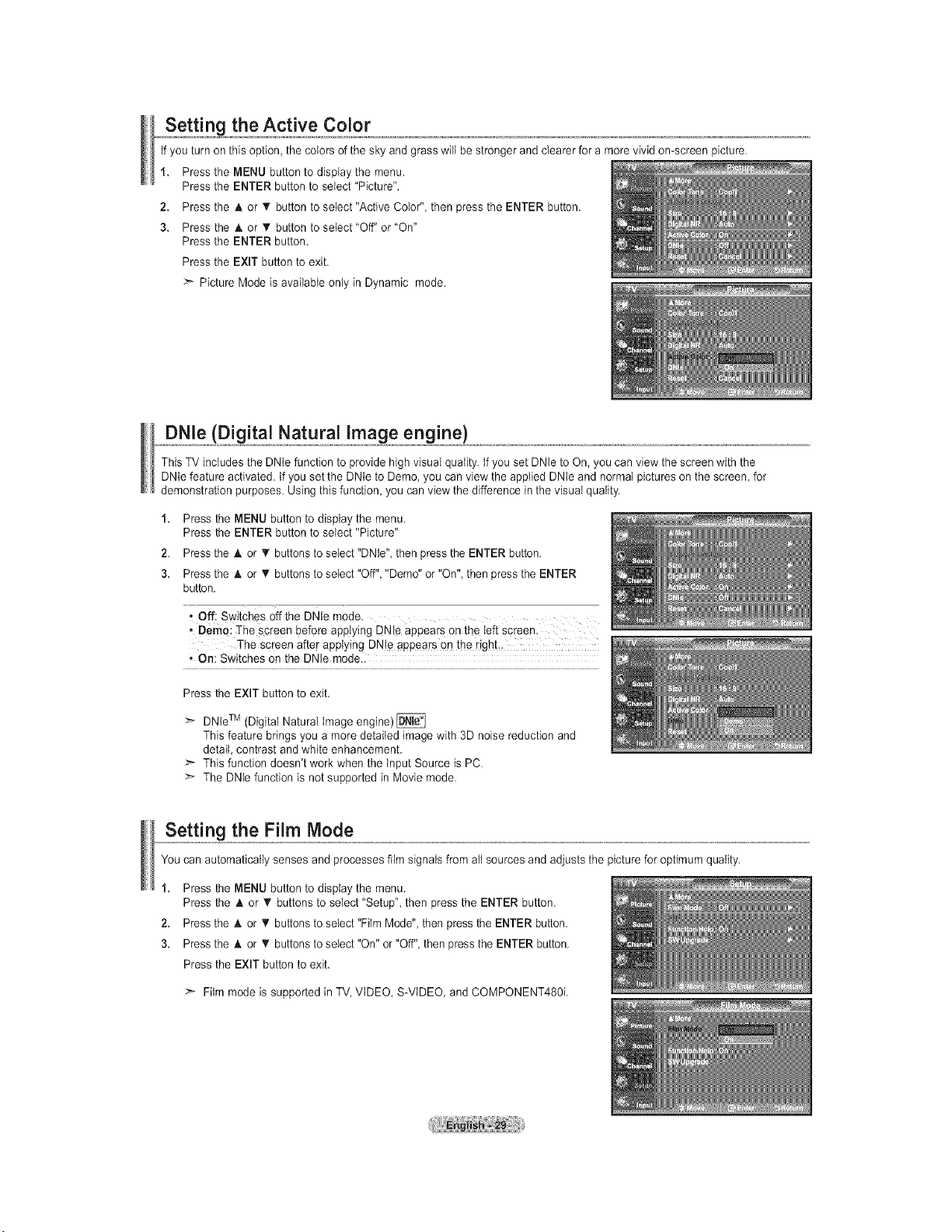
Setting the Active Color
tf you turn on this option, the colors of the sky and grass wilt be stronger and clearer for a more vivid on-screen picture.
1. Press the MENU button to display the menu.
Press the ENTER button to select "Picture".
2. Press the A or _' button to select"Active Color", then press the ENTER button.
3. Press the A or T button to setect"Off" or "On"
Press the ENTER button.
Press the EXIT button to exit.
Picture Mode is available only in Dynamic mode.
DNle (Digital Natural Image engine)
This TV includes the DNIe function to provide high visual quality If you set DNte to On, you can view the screen with the
DNIe feature activated. If you set the DNIe to Demo, you can view the applied DNIe and normal pictures on the screen, for
demonstration purposes. Using this function you can view the difference in the visual quality.
1.
2.
3.
Press the MENU button to display the menu.
Press the ENTER button to select "Picture"
Press the A or _' buttons to select "DNIe", then press the ENTER button.
Press the A or _' buttons to select "Off" "Demo" or "On", then press the ENTER
button.
• Off: Switches offthe DNle mode.
• Demo: The screen before applying DNle appears on the Ieft screen.
The screen after applying DNte appears on the right..
• On: Switches on the DNle mode..
Press the EXIT button to exit.
:-'> DNteTM (Digital Natural tmage engine)
This feature brings you a more detailed image with 3D noise reduction and
detail, contrast and white enhancement.
This function doesn't work when the Input Source is PC.
The DNie function is not supported in Movie mode.
Setting the Film Mode
You can automatically senses and processes film signals from all sources and adjusts the picture for optimum quality.
1. Press the MENU button to display the menu.
Press the h. or _' buttons to select "Setup", then press the ENTER button.
2. Press the _t.or _' buttons to select "Film Mode", then press the ENTER button.
3. Press the A or _r buttons to select "On" or "Off", then press the ENTER button.
Press the EXIT button to exit.
:_ Film mode is supported in TV, VIDEO, S-VtDEO, and COMPONENT480L
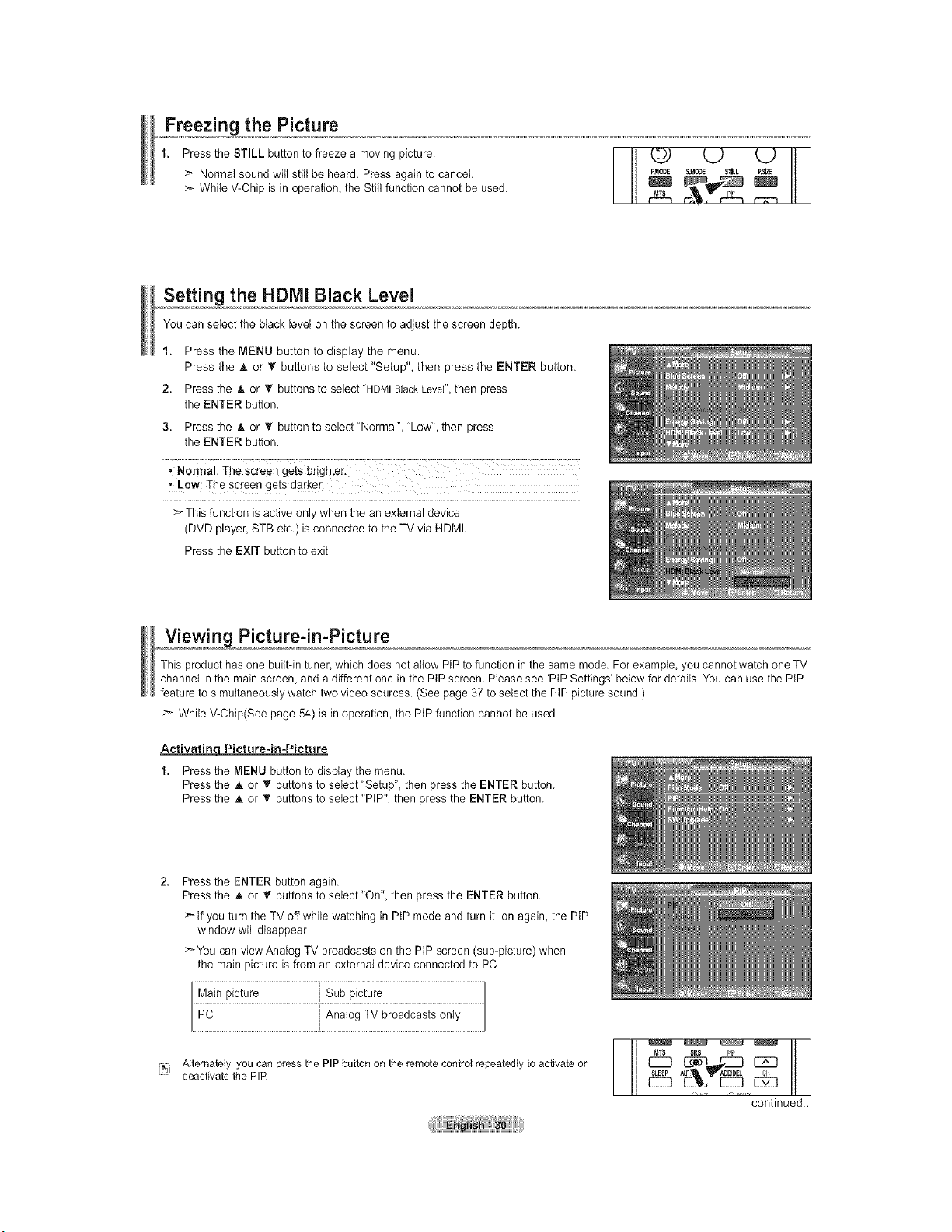
Freezing the Picture
1. Press the STILL button to freeze a moving picture.
> Normal sound witl still be heard. Press again to cancel.
>" While V-Chip is in operation, the Still function cannot be used.
-- t# U UF1
R_ODE SJ_OOE S_EL R_E
Setting the HDMI Black Level
You can select the black level on the screen to adjust the screen depth.
1. Press the MENU button to display the menu.
Press the _kor _' buttons to select "Setup", then press the ENTER button.
2. Press the A. or '_ buttons to select "HDMIBlackLevel",then press
the ENTER button.
3. Press the A or T button to select "Normal", "Low", then press
the ENTER button.
, Normal: The screen gets brighter,
• Low: The screen gets darker.
>" This function is active only when the an external device
(DVD player, STB etc.) is connected to the TV via HDMI.
Press the EXIT button to exit.
Viewing Picture-in-Picture
This product has one built-in tuner, which does not aliow PIP to function in the same mode. For example, you cannot watch one TV
channel in the main screen, and a different one in the PtP screen. Please see 'PIP Settings' below for details. You can use the PtP
feature to simultaneously watch two video sources. (See page 37 to select the PtP picture sound.)
>" While V-Chip(See page 54) is in operation, the PtP function cannot be used.
Activatine_ Picture-in-Picture
1. Press the MENU button to display the menu.
Press the A or T buttons to select "Setup", then press the ENTER button.
Press the A or _r buttons to setect "PIP", then press the ENTER button.
Press the ENTER button again.
Press the A or T buttons to select "On", then press the ENTER button.
>" tf you turn the TV off while watching in PIP mode and turn it on again, the PtP
window will disappear
>-You can view Analog TV broadcasts on the PIP screen (sub-picture) when
the main picture is from an external device connected to PC
PC i Analog TV broadcasts only
i_} Alternately, you can press the PIP button on the remote control repeatedly to activate or
deactivate the PIP.
continued..
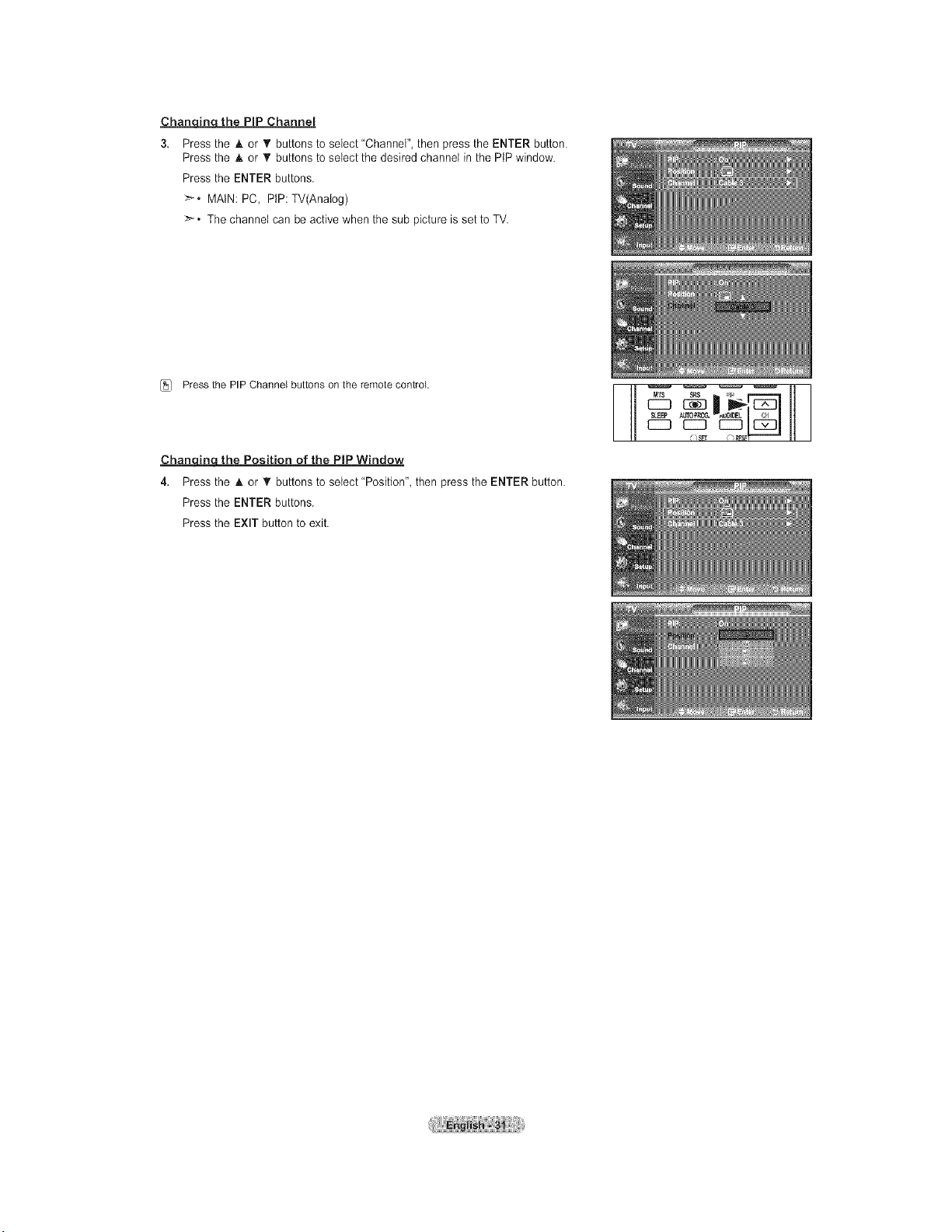
Chanc_nqthe PiP Channel
3. Press the _kor • buttons to select"Channel", then press the ENTER button.
Press the _kor T buttons to select the desired channel in the PtP window.
Press the ENTER buttons.
_'-. MAIN: PC, PtP: TV(Analog)
>-. The channel can be active when the sub picture is set to TV.
[_ Press the PIP Channel buttons on the remote control
Chanc_n_tthe Position of the PiP Window
4. Press the _kor T buttons to setect"Position", then press the ENTER button.
Press the ENTER buttons.
Press the EXIT button to exit.
C_SFr
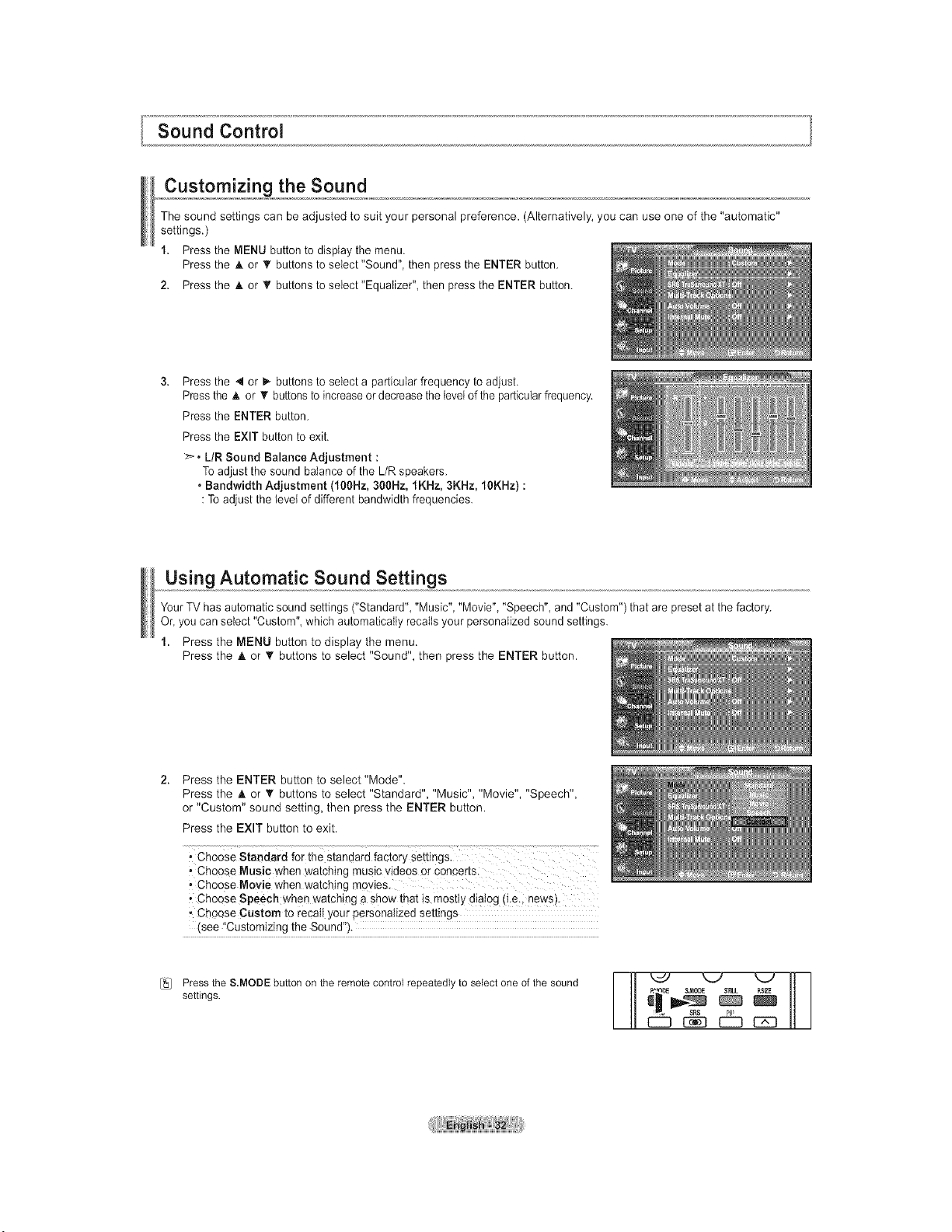
Customizing the Sound
The sound settings can be adjusted to suit your personal preference. (Alternatively, you can use one of the "automatic"
settings.)
1. Press the MENU button to display the menu.
Press the _, or _' buttons to select "Sound", then press the ENTER button.
2. Press the _, or • buttons to seIect"EquaIizer", then press the ENTER button.
Press the 4 or P-buttons to select a particular frequency to adjust.
Press the A or T buttonsto increase or decreasethe levelof the particularfrequency.
Press the ENTER button.
Press the EXIT button to exit.
>. LtR Sound Balance Adjustment :
Toadjust the sound balance of the L/R speakers.
• Bandwidth Adjustment (100Hz, 300Hz, 1KHz, 3KHz, 10KHz) :
: To adjust the level of different bandwidth frequencies.
Using Automatic Sound Settings
Your TV has automatic sound settings ("Standard", "Music", "Movie", "Speech", and "Custom") that are preset at the factory.
Or, you can select "Custom", which automatically recalls your personalized sound settings.
1. Press the MENU button to display the menu.
Press the _, or _' buttons to select "Sound", then press the ENTER button.
2. Press the ENTER button to select "Mode".
Press the A or '_ buttons to select "Standard", "Music", "Movie", "Speech",
or "Custom" sound setting, then press the ENTER button.
Press the EXIT button to exit.
, Choose Music when watching music videos or concerts.
, Choose Movie when watching movies
,, Choose Speech when watching a show that is mostly dialog (i.e., news).
• Choose Custom to recaii your personalized settings
(see "Customizing the Sound").
Press the S.MODE button on the remote control repeatedly to select one of the sound
settings.
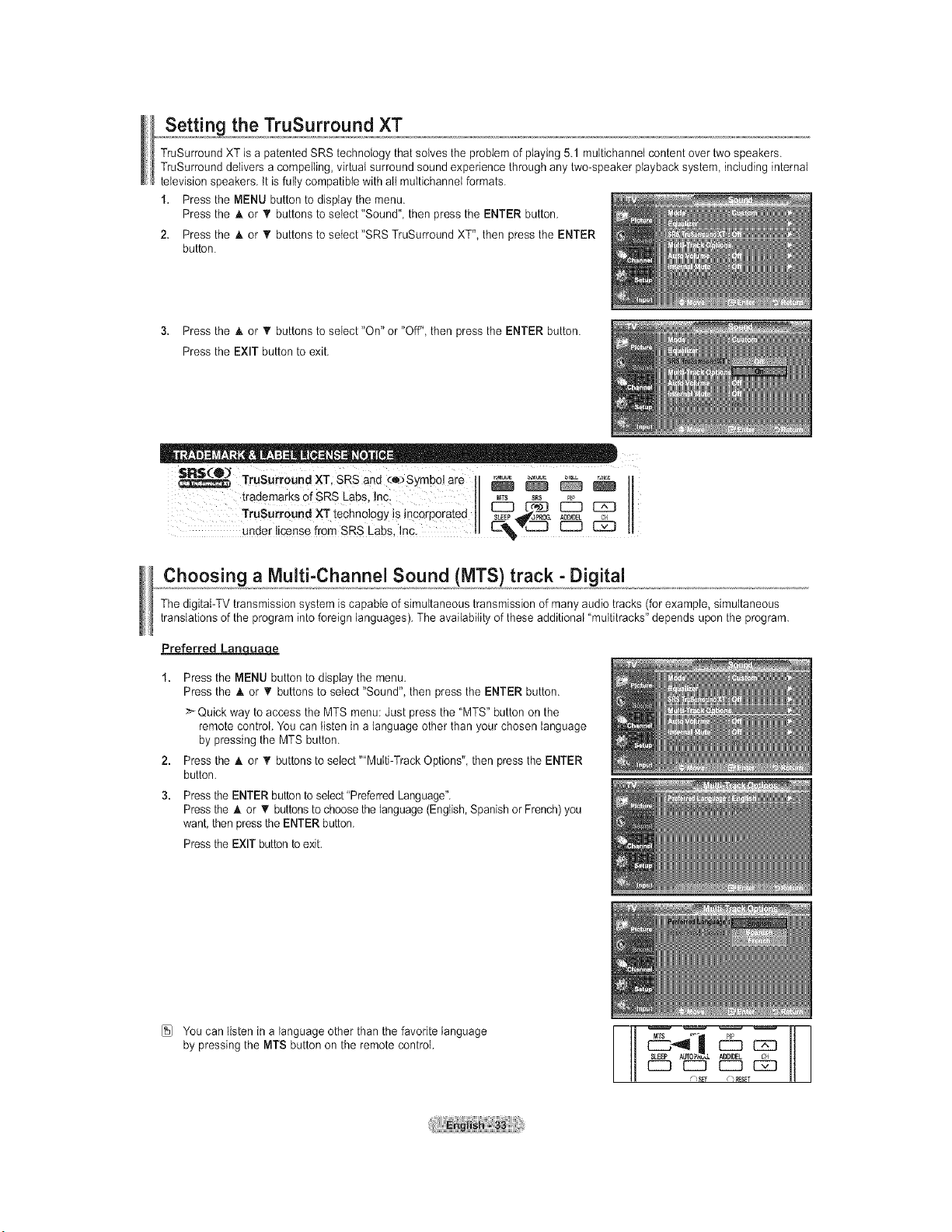
Setting the TruSurround XT
TruSurround XT is a patented SRS technology that solves the problem of playing 5.1 multichannel content over two speakers.
TruSurround delivers a compelling, virtual surround sound experience through any two-speaker playback system, including internal
television speakers, tt is fully compatible with all multichannei formats.
1. Press the MENU button to display the menu.
Press the A or _' buttons to select "Sound", then press the ENTER button.
2. Press the A or • buttons to setect"SRS TruSurround XT", then press the ENTER
button.
3. Press the h, or _' buttons to select "On" or "Off", then press the ENTER button.
Press the EXIT button to exit.
TruSurr0undXT, sRS and _:e:>Symb01are _ _ _
trademarks of SRS Labs, Inc M_ sRs _, II
TruSutround XT techn01ogy is inc0rp0rated s_C:_._,_[_. _
under license fr0m SRS Labs, lnc: tl C:7%_ C::3 _ 11
Choosing a Multi-Channel Sound (MTS) track - Digital
The digitat-TV transmission system is capable of simultaneous transmission of many audio tracks (for example, simultaneous
translationsof the program into foreign languages). The availability of these additional "multitracks" depends upon the program.
Preferred Lancjuao.e
2,
3.
Press the MENU button to display the menu.
Press the A or _' buttons to select "Sound", then press the ENTER button.
>_Quick way to access the MTS menu: Just press the "MTS" button on the
remote control. You can listen in a language other than your chosen language
by pressing the MTS button.
Press the h, or _' buttons to select ""Multi-Track Options", then press the ENTER
button.
Press the ENTER button to select"Preferred Language".
Press the A or • buttons to choose the language (English,Spanish or French)you
want, then pressthe ENTER button.
Press the EXIT button to exit.
[_} You can listen in a language other than the favorite language
by pressing the MTS button on the remote control. E2:3
ADD/DEL
CZ] CZ]] CZ]] C]E]
¢?SFT d_ _FT
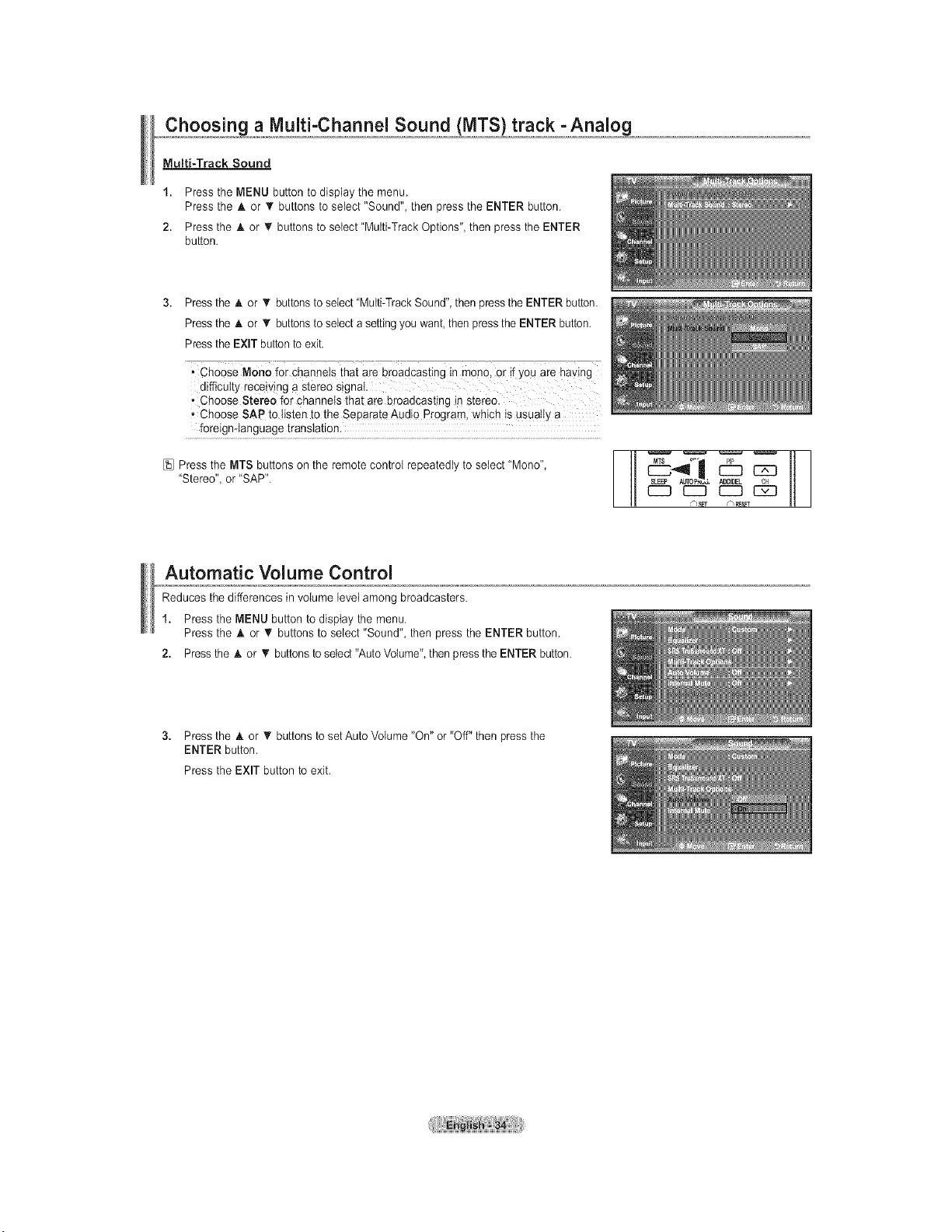
Multi-Track Sound
1. Press the MENU button to dispIay the menu.
Press the A or T buttons to select "Sound", then press the ENTER button.
2. Press the A or V buttons to setect"Multi-Track Options", then press the ENTER
button.
3. Press the _k or _' buttons to select "Multi-TrackSound", then press the ENTER button.
Press the A or T buttons to select a settingyou want then press the ENTER button.
Press the EXIT button to exit.
, Choose Mono for channels that are broadcasting in rnon0, Or if you are having
difficulty receiving a Stereo Signal
, Choose Stereo for channeIs that ate broadcasting in stereo.
-Choose SAP to listen to the Separate Audio Program, which is usually a
foreign-Ianguage translation.
[sJ Press the MTS buttons on the remote control repeatedly to select "Mono",
"Stereo", or "SAP".
I
Automatic Volume Control
Reduces the differences in volume Bevelamong broadcasters.
1. Press the MENU button to display the menu.
Press the A or V buttons to select "Sound", then press the ENTER button.
2. Press the A or T buttons to select "AutoVolume", then pressthe ENTER button.
3. Press the A or T buttons to set Auto Volume "On" or "Off" then press the
ENTER button.
Press the EXIT button to exit.
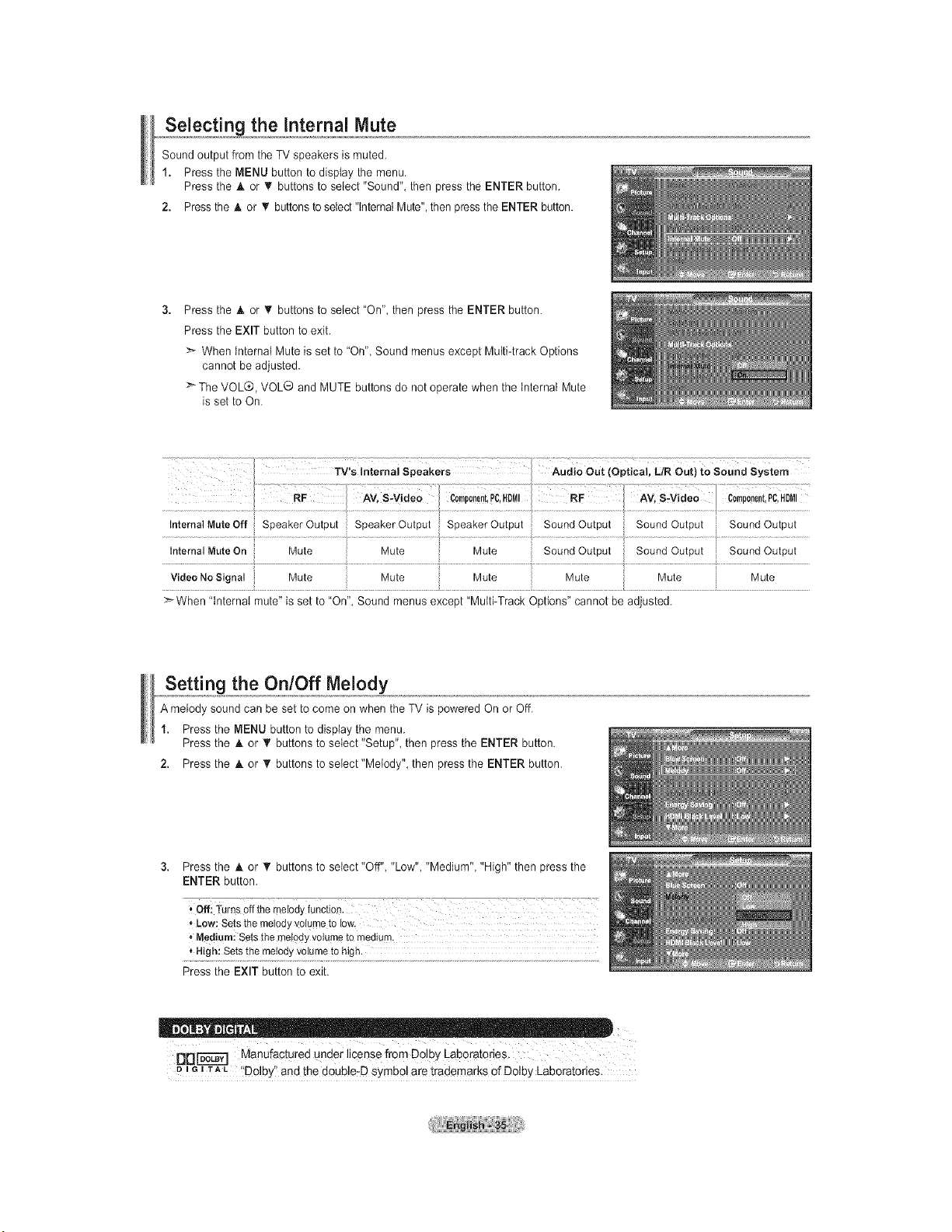
,,o,,,Se!ect!n_ the Internal Mute
Sound output from the TV speakers is muted.
1. Press the MENU button to display the menu.
Press the A or _' buttons to select "Sound", then press the ENTER button.
2. Press the A or • buttons to select "internal Mute",then pressthe ENTER button.
Press the _kor T buttons to select "On", then press the ENTER button.
Press the EXIT button to exit.
:_ When internal Mute is set to "On", Sound menus except Multi-track Options
cannot be adjusted.
The VOLQ, VOL® and MUTE buttons do not operate when the tnternal Mute
is set to On.
When "internal mute" is set to "On", Sound menus except "Multi-Track Options" cannot be adjusted.
Sett!n 9 the On/Off Melody
A melody sound can be set to come on when the TV is powered On or Off.
1. Press the MENU button to display the menu.
Press the A or _' buttons to select "Setup", then press the ENTER button.
2. Press the A or T buttons to setect"Metody", then press the ENTER button.
3. Press the A or T buttons to select"Off" "Low" "Medium", "High" then press the
ENTER button.
_"Medium:Setsthe metodyvolumeto medium.
* High: Setsthe melodyvolumeto high.
Press the EXIT button to exit.
_Di-'_-'_'] Manufactured under license from Dolby Laboratories.
u, G, TAL 'DoIby'_and the d0Uble-D SYmbol are trademarks Of Delby Laboraiories.
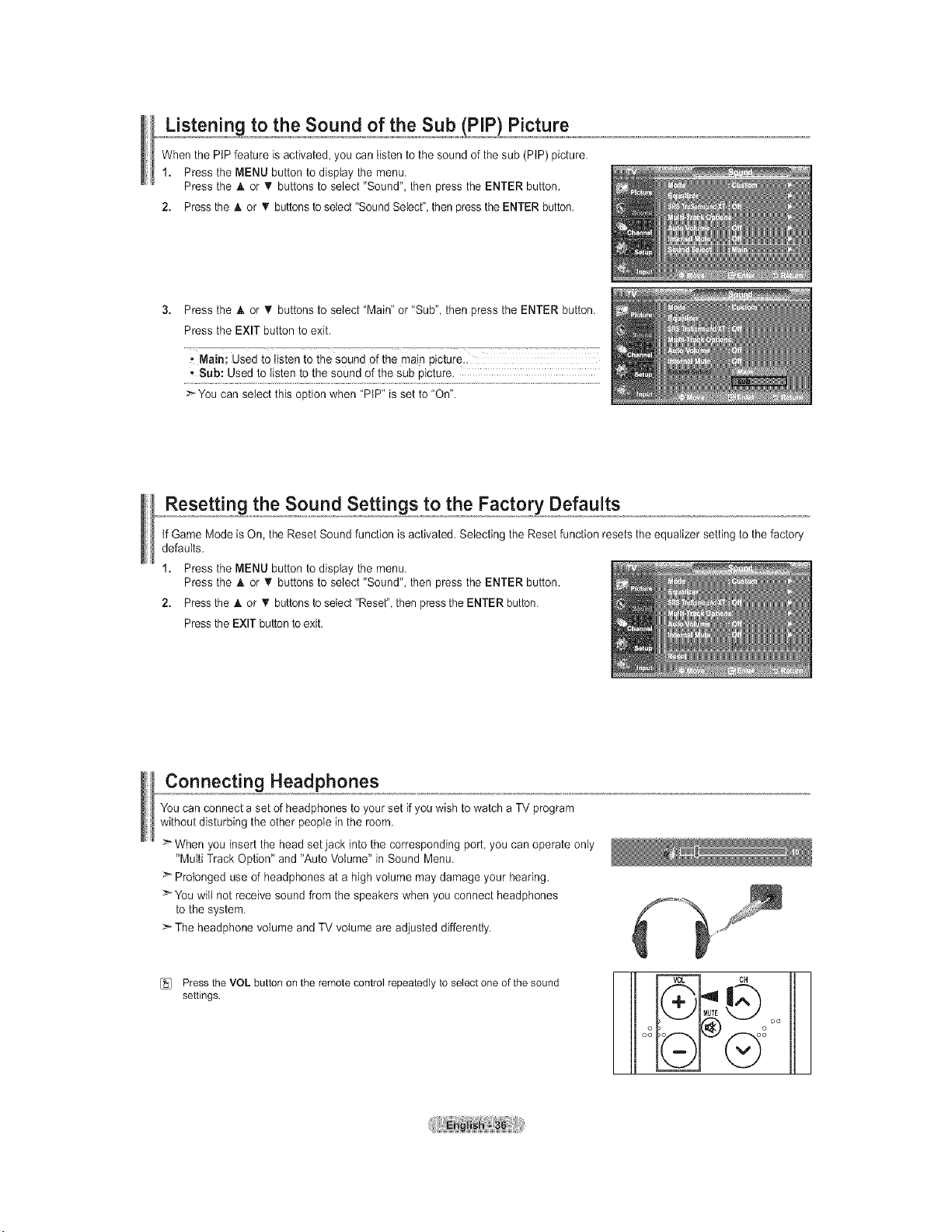
_,_Usten!n_,to the Sound of the Sub (PIP) Picture
When the PIP feature is activated, you can listen to the sound of the sub (PIP) picture.
1. Press the MENU button to display the menu,
Press the & or _' buttons to select "Sound", then press the ENTER button,
2. Press the A or _r buttons to select "Sound Seiecf', then press the ENTER button,
3. Press the A or _r buttons to select "Main" or "Sub", then press the ENTER button.
Press the EXIT button to exit.
, Sub: Used to listen to the sound of the sub picture.
>You can select this option when "PIP" is set to "On".
Resetting the Sound Settings to the Factory Defaults
tf Game Mode isOn, the Reset Sound function is activated. Selecting the Reset function resets the equalizer setting to the factory
defaults.
1. Press the MENU button to display the menu.
Press the h. or _' buttons to select "Sound", then press the ENTER button.
2. Press the A or _r buttons to select "Reset_',then pressthe ENTER button.
Press the EXIT buttonto exit.
Connecting Headphones
You can connect a set of headphones to your set if you wish to watch a TV program
without disturbing the other people in the room.
>When you insert the head set jack into the corresponding port you can operate only
"Multi Track Option" and "Auto Voiume" in Sound Menu.
Prolonged use of headphones at a high volume may damage your hearing.
> You will not receive sound from the speakers when you connect headphones
to the system.
> The headphone volume and TV volume are adjusted differently.
[_ Press the VOL button on the remote control repeatedly to select one of the sound
settings.
m o
oo
Go
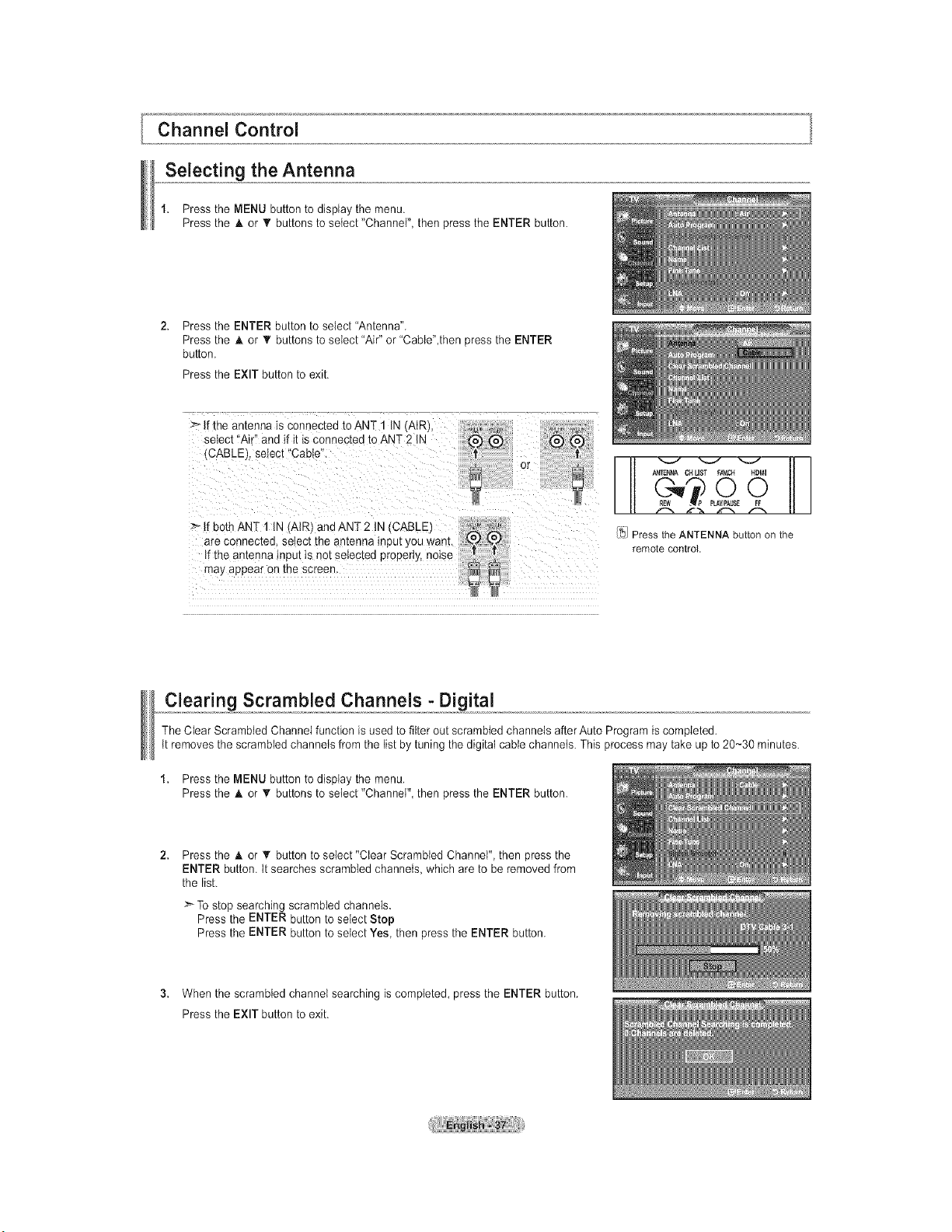
Channel Control
Selecting the Antenna
1. Press the MENU button to display the menu.
Press the A or _r buttons to setect "Channel", then press the ENTER button.
Press the ENTER button to select "Antenna".
Press the A or _' buttons to select "Air" or "Cabte",then press the ENTER
button.
Press the EXIT button to exit.
:_ If the antenna is connected to ANT 1 IN AIR/.
select "Air" and if it is connected to ANT 2 IN
tCABLEI, select "Cable".
>- If both ANT 1 IN AIR/and ANT 2 IN (CABLE _" "'._
are connec,ea, setec, _neantenna input you wan,. {_J £,05
If the antenna inout is not selected properly, noise
may appear on the screen
A_TEi_NA CNLIST FAV.CH HDMI
E
['_!Press the ANTENNA buttonon the
remote control
Clearing Scrambled Channels - Digital
The Clear Scrambled Channel function is used to filter out scrambled channels after Auto Program is completed.
tt removes the scrambled channels from the list by tuning the digital cable channels. This process may take up to 20-30 minutes.
1. Press the MENU button to display the menu.
Press the A or _r buttons to setect "Channel", then press the ENTER button.
Press the A or T button to select "Clear Scrambled Channel", then press the
ENTER button, tt searches scrambled channels, which are to be removed from
the list.
>-To stop searching scrambled channels.
Press the ENTER button to select Stop
Press the ENTER button to setect Yes, then press the ENTER button.
3. When the scrambled channel searching is completed, press the ENTER button.
Press the EXIT button to exit.
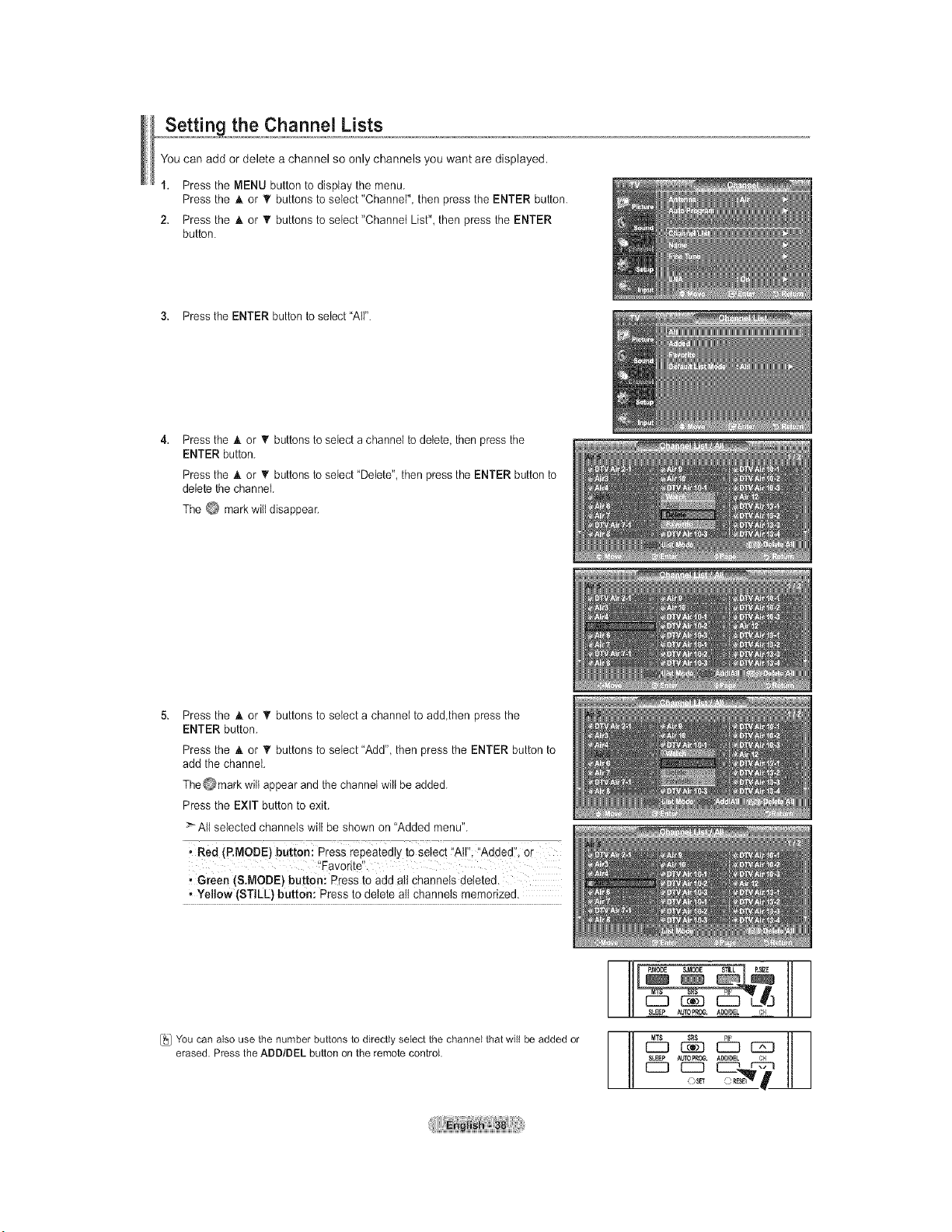
_,,,_,_t!,,ng_the Channel Lists
You can add or delete a channel so only channels you want are displayed.
1. Press the IVlENUbutton to display the menu.
Press the A or _' buttons to select "Channel", then press the ENTER button.
2. Press the A or _' buttons to seiect"Channet List", then press the ENTER
button.
3. Press the ENTER button to select "All".
Press the A or _t' buttons to select a channel to delete, then press the
ENTER button.
Press the A or _' buttons to select "Delete", then pressthe ENTER button to
delete the channel.
The C_ mark will disappear.
Press the A or • buttons to select a channet to add,then press the
ENTER button.
Press the A or _' buttons to select "Add", then press the ENTER button to
add the channel.
TheOmark will appear and the channel wilt be added.
Press the EXIT button to exit.
All selected channels will be shown on "Added menu".
, Green (S.MODE) button: Press to add all channels deleted.
• Yellow (STILL) button: Press to delete all channels memorized.
You can also use the number buttons to directly select the channel that will be added or
erased. Press the ADD/DEL button on the remote control
, ADD_DEL {_1
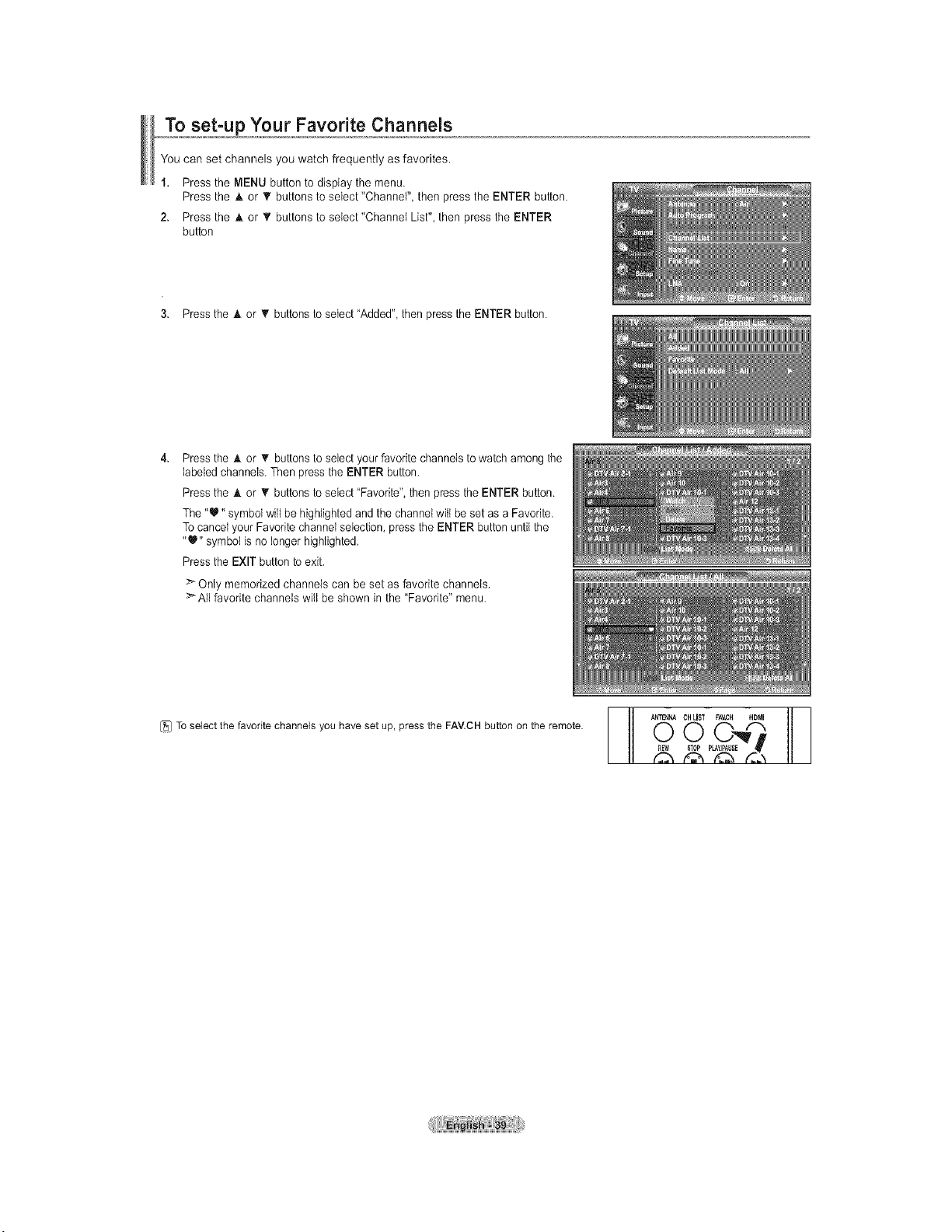
To set-up Your Favorite Channels
You can set channels you watch frequently as favorites.
1. Press the MENU button to display the menu.
Press the A or _' buttons to select "Channel", then press the ENTER button.
2. Press the A or _' buttons to seiect"Channet List", then press the ENTER
button
3. Press the A or _' buttons to setect"Added", then press the ENTER button.
Press the A or _' buttons to select your favorite channels to watch among the
labeled channels. Then press the ENTER button.
Press the A. or _' buttons to select "Favorite", then press the ENTER button.
The "U" symbol will be highlighted and the channel will be set as a Favorite.
To cancel your Favorite channel selection, press the ENTER button until the
"_" symbol is no longer highlighted.
Press the EXIT button to exit.
> Only memorized channels can be set as favorite channels.
>All favorite channels wilt be shown in the "Favorite" menu.
_1 To selectthe favorite channels you haveset up, press the FAV.CHbutton on the remote. O
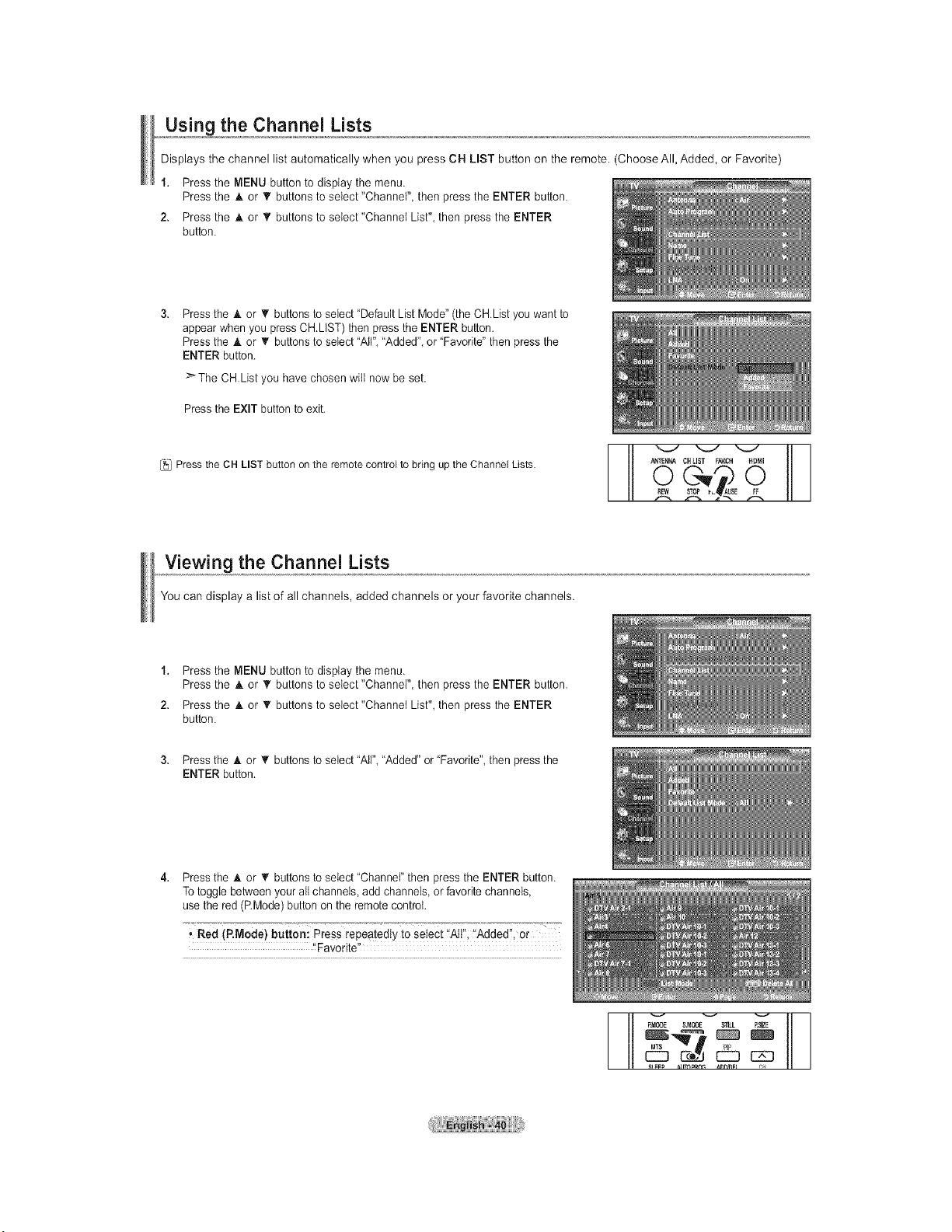
Using the Channel Lists
Displays the channel list automatically when you press CH LIST button on the remote. (Choose All, Added, or Favorite)
1. Press the MENU button to display the menu.
Press the A or _' buttons to select "Channel", then press the ENTER button.
2. Press the A or _' buttons to seiect"Channet List", then press the ENTER
button.
Press the A or V buttons to select "Default List Mode" (the CH.List you want to
appear when you press CH.LtST) then press the ENTER button.
Press the A or T buttons to select "All", "Added", or "Favorite" then press the
ENTER button.
> The CHList you have chosen wilt now be set.
Press the EXIT button to exit.
Press the OH LIST button on the remote control to bring up the Channel Lists.
I-
ANTENNACHLIST FAV.CH HDMI
E
L
Viewing the Channel Lists
You can display a list of all channels, added channels or your favorite channels.
1. Press the MENU button to display the menu.
Press the A or _' buttons to select "Channel", then press the ENTER button.
2. Press the A or _' buttons to seiect"Channet List", then press the ENTER
button.
3. Press the A or _r buttons to select "All", "Added" or "Favorite", then press the
ENTER button.
Press the A or T buttons to select "Channer' then press the ENTER button.
To toggle between your all channels, add channels or favorite channels
use the red (PMode) button on the remote control.
• Red (P,Mode) button: Press repeatedly to Select !tAll'!;'!Added'!, or
'!Favorite"
_ v v v
P.MODE &MODE S'_LL P,SIZE
MTS --
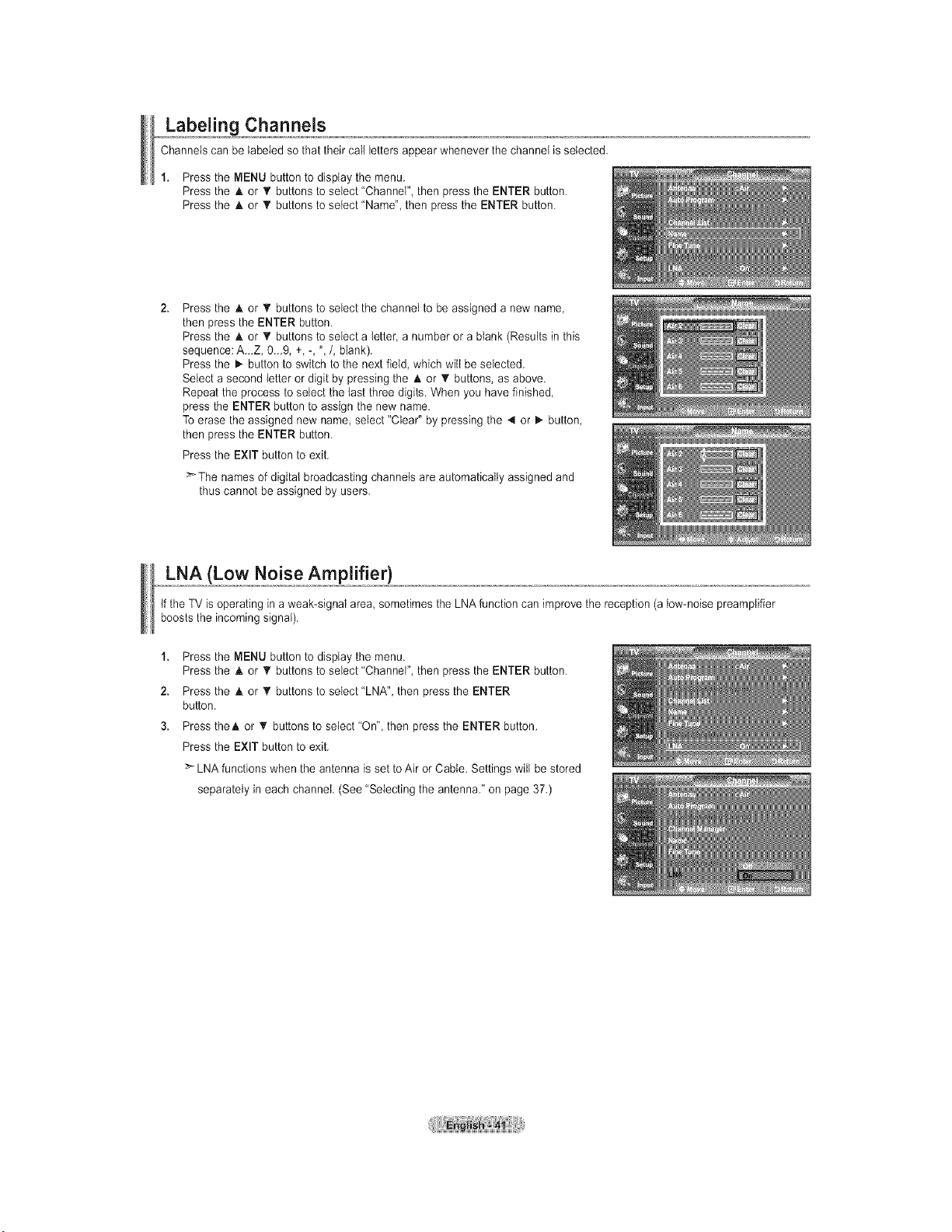
Labeling Channels
Channels can be labeled so that their call letters appear whenever the channet is selected.
1. Press the MENU button to display the menu.
Press the A or T buttons to select "Channel", then press the ENTER button.
Press the A or _r buttons to select "Name", then press the ENTER button.
Press the A or _r buttons to select the channel to be assigned a new name,
then press the ENTER button.
Press the A or T buttons to select a letter, a number or a blank (Results in this
sequence: A._Z, 0._9, +, -, *,/, blank).
Press the _ button to switch to the next field, which wilt be selected.
Select a second letter or digit by pressing the A or _' buttons, as above.
Repeat the process to select the last three digits. When you have finished,
press the ENTER button to assign the new name.
To erase the assigned new name, select "Clear" by pressing the 4 or D,.button,
then press the ENTER button.
Press the EXIT button to exit.
The names of digital broadcasting channels are automatically assigned and
thus cannot be assigned by users.
LNA (Low Noise Amplifier)
tf the TV is operating in aweak-signal area sometimes the LNA function can improve the reception (a low-noise preamplifier
boosts the incoming signal).
1. Press the MENU button to display the menu.
Press the A or V buttons to select 'Channel", then press the ENTER button.
2. Press the h, or _r buttons to select"LNA", then press the ENTER
button.
3. Press theA or _r buttons to select "On", then press the ENTER button.
Press the EXIT button to exit.
>- LNA functions when the antenna is set to Air or Cable. Settings wilt be stored
separately in each channet. (See "Selecting the antenna." on page 37.)
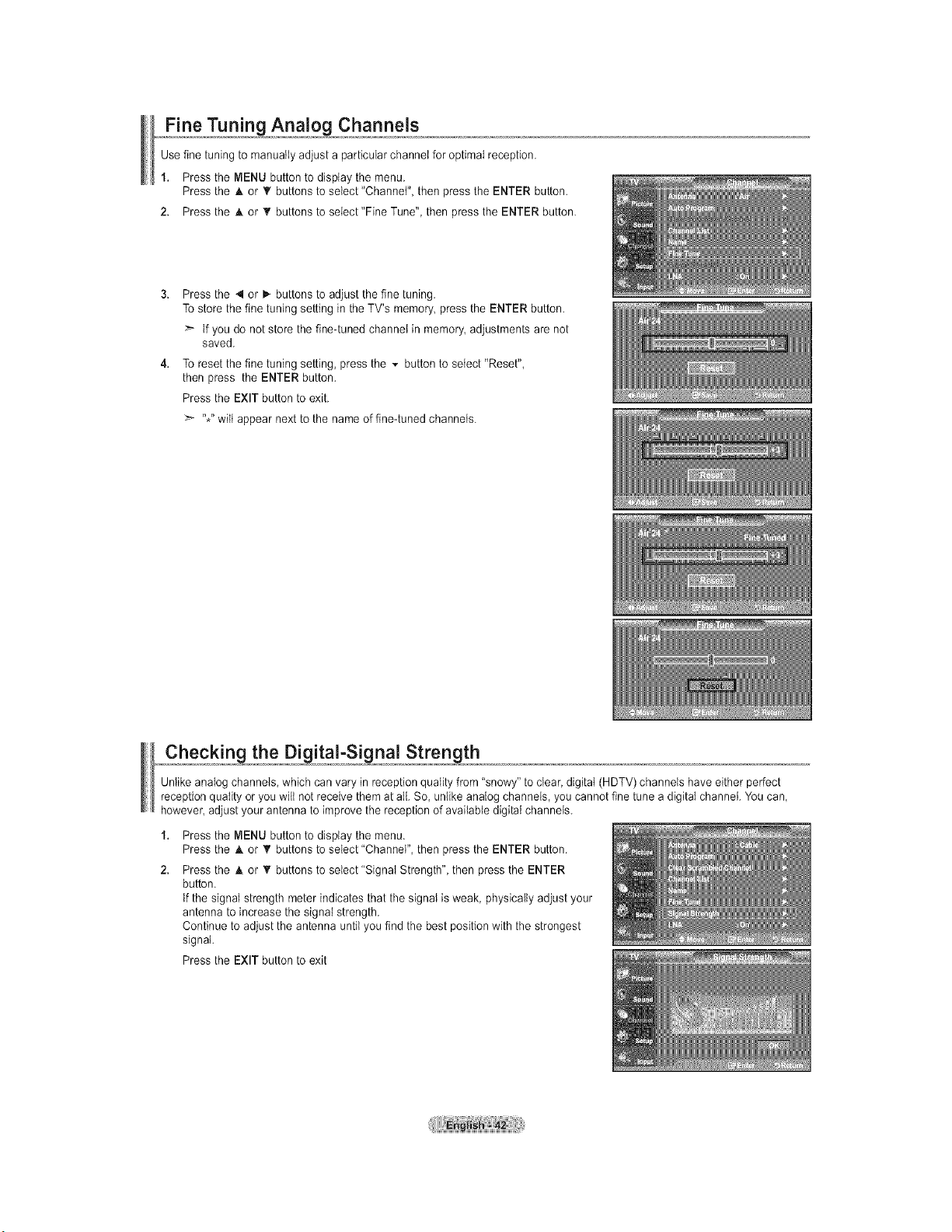
_,o A na,Jo_, Channels
Use fine tuning to manuatly adjust a particular channel for optimal reception.
1. Press the MENU button to display the menu.
Press the A or _' buttons to select "Channel", then press the ENTER button.
2. Press the A or _t'buttons to seiect"Fine Tune", then press the ENTER button.
Press the 4 or _- buttons to adjust the fine tuning.
To store the fine tuning setting in the TV's memory press the ENTER button.
tf you do not store the fine-tuned channet in memory adjustments are not
saved.
To reset the fine tuning setting, press the v button to setect "Reset",
then press the ENTER button.
Press the EXIT button to exit.
_'- %" wilt appear next to the name of fine-tuned channels.
Uniike analog channels, which can vary in reception quality from "snowy" to clear, digitat (HDTV) channels have either perfect
reception quality or you wiit not receive them at ai{. So, unlike analog channels, you cannot fine tune a digital channet. You can,
however, adjust your antenna to improve the reception of available digital channels.
1,
2.
Press the MENU button to display the menu.
Press the A or T buttons to select "Channel", then press the ENTER button.
Press the _kor T buttons to select "Signal Strength", then press the ENTER
button.
tf the signal strength meter indicates that the signal is weak, physically adjust your
antenna to increase the signai strength.
Continue to adjust the antenna until you find the best position with the strongest
signal
Press the EXIT button to exit
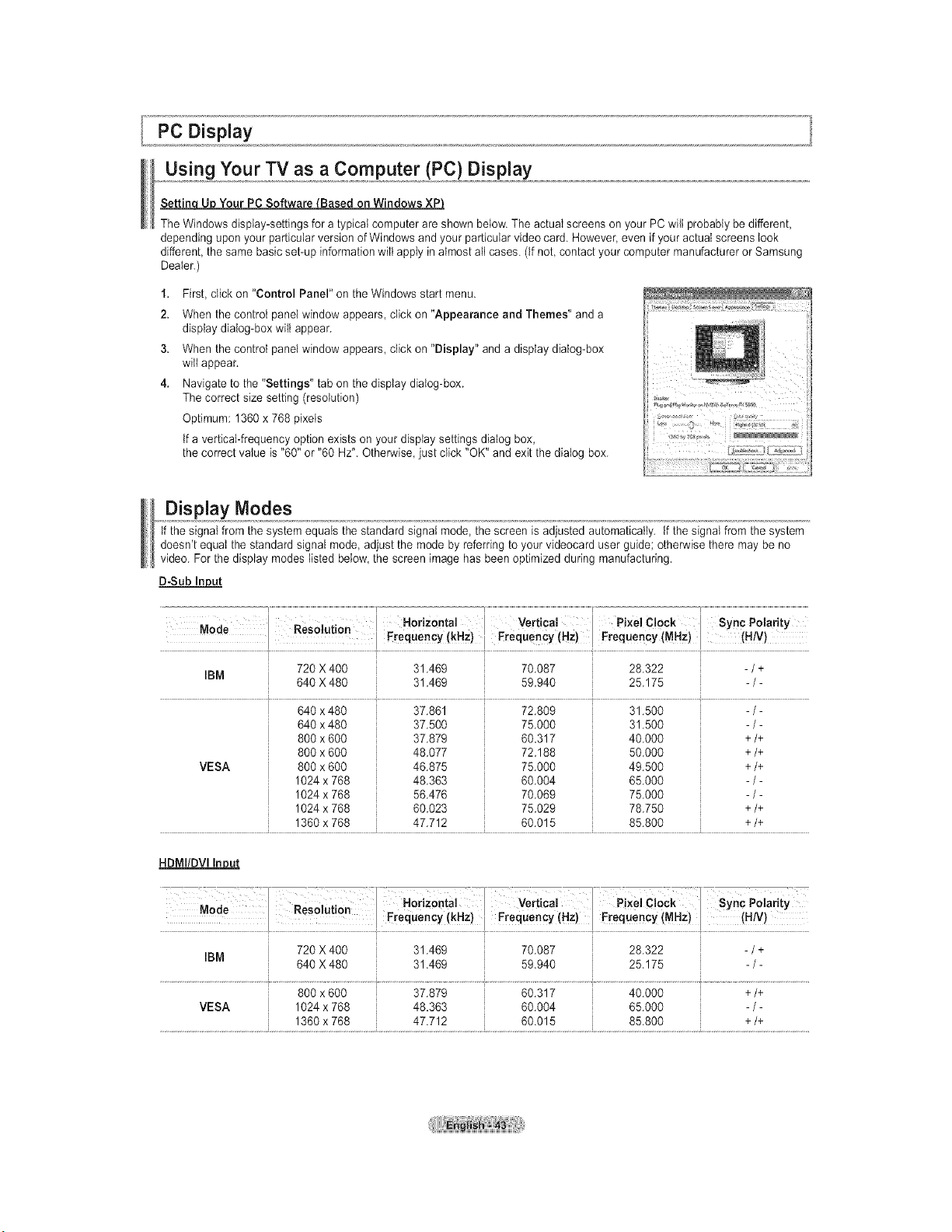
PC Display
Using Your TV as a Computer (PC) Display
Your PC Software J[Based on Windows XP}
The Windows display-settings for a typical computer are shown below. The actual screens on your PC wilt probably be different,
depending upon your particular version of Windows and your particular video card. However, even if your actual screens look
different, the same basic set-up information wilt apply in almost all cases. (if not contact your computer manufacturer or Samsung
Dealer.)
1. First, click on "Control Panel" on the Windows start menu.
2. When the control panel window appears, click on "Appearance and Themes" and a
display dialog-box wilt appear.
3. When the control panel window appears, click on "Display" and a display dialog-box
will appear.
4. Navigate to the "Settings" tab on the display dialog-box.
The correct size setting (resolution)
Optimum: 1360 x 768 pixels
tf a vertical-frequency option exists on your display settings dialog box,
the correct value is "60" or "60 Hz". Otherwise, just click "OK" and exit the dialog box.
Display Modes
if the signal from the system equals the standard signal mode, the screen is adjusted automatically, if the signaI from the system
doesn't equat the standard signal mode, adjust the mode by referring to your videocard user guide; otherwise there may be no
video. For the display modes listed below, the screen image has been optimized during manufacturing
M_-,-- _L..L, i,.... Horizontal Vertical Pixel Clock Sync Poladty
...... .... ,, u, FrequencY (kHz) Frequency (HZ) Frequency (MHZ) (H/v)
720 x 400 31.469 70.087 28.322 - /
+
IBM
640 X 480 31.469 59.940 25.175 - / -
VESA
640 x480
640 x480
800 x 600
800 x 600
800 x 600
1024 x 768
1024 x 768
1024 x 768
1360 x 768
37.861
37.500
37.879
48.077
46.875
48.363
56.476
60.023
47.712
72.809
75.000
60.317
72.188
75.000
60.004
70.069
75.029
60.015
31.500
31.500
40.000
50.000
49.500
65.000
75.000
78.750
85.800
-/-
-/-
+/+
+/+
+/+
-/-
-/-
+/+
+/+
HDMI/DVI In ut
720 X 400 31.469 70.087 28.322 - / +
IBM
640 X 480 31.469 59.940 25.175 - / -
800 x 600 37.879 60.317 40.000 +/+
VESA 1024 x 768 48.363 60.004 65.000 - / -
1360 x 768 47.712 60.015 85.800 +/+
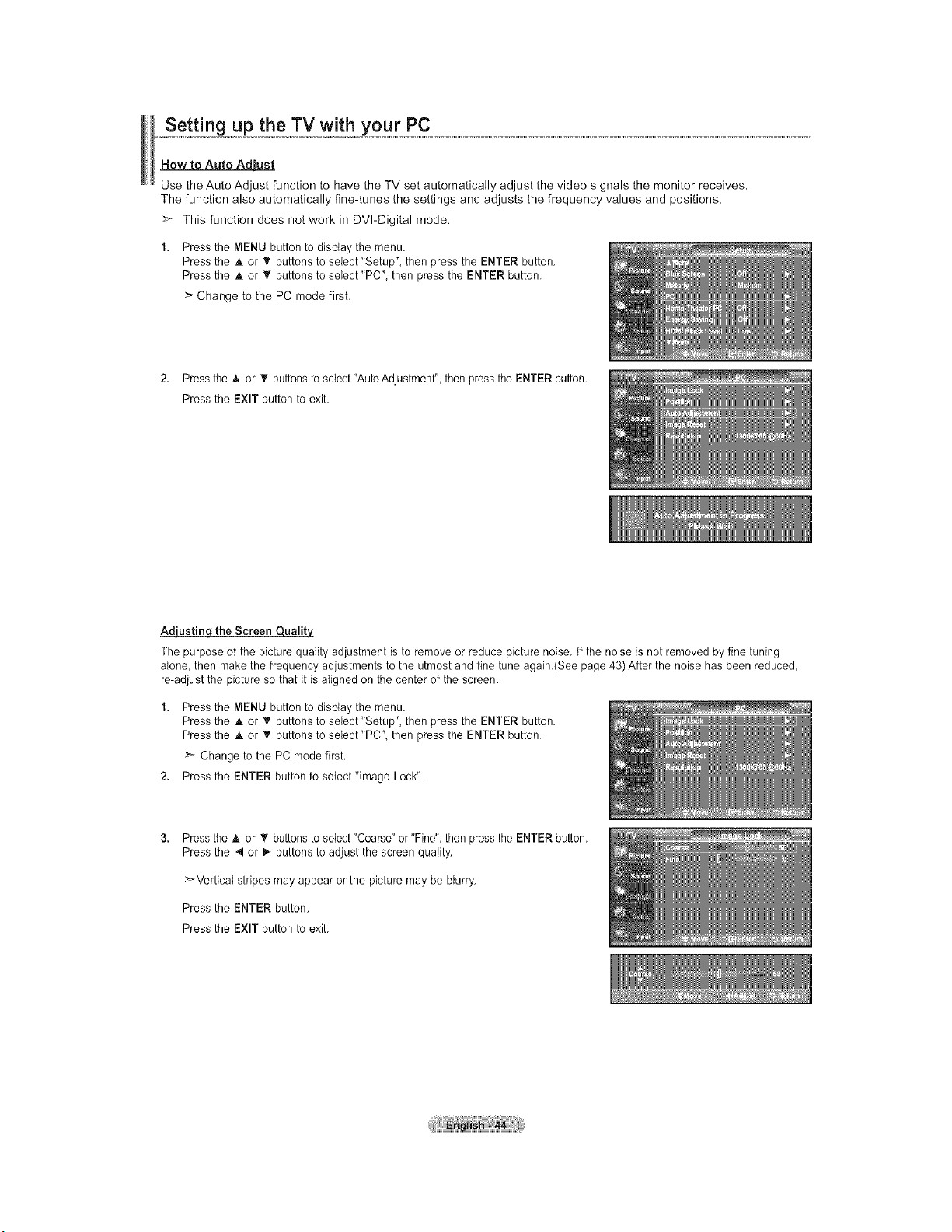
Setting up the TV with your PC
How to Auto Adiust
Use the Auto Adjust function to have the TV set automatically adjust the video signals the monitor receives.
The function also automatically fine-tunes the settings and adjusts the frequency values and positions.
>_ This function does not work in DVI-Digital mode.
Press the MENU button to display the menu.
Press the A or V buttons to select "Setup", then press the ENTER button.
Press the A or T buttons to select "PC", then press the ENTER button.
>*Change to the PC mode first.
2. Press the A or _' buttons to select "Auto Adjustment",then pressthe ENTER button.
Press the EXIT button to exit.
the Screen
The purpose of the picture quality adjustment is to remove or reduce picture noise. If the noise is not removed by fine tuning
alone, then make the frequency adjustments to the utmost and fine tune again.(See page 43) After the noise has been reduced,
re-adjust the picture so that it is aligned on the center of the screen.
1. Press the MENU button to display the menu.
Press the A. or _' buttons to select "Setup", then press the ENTER button.
Press the A or T buttons to select "PC", then press the ENTER button.
>'- Change to the PC mode first.
2. Press the ENTER button to setect "image Lock".
Press the h, or _' buttons to select "Coarse" or "Fine", then press the ENTER button.
Press the 4 or I,_buttons to adjust the screen quality.
>_Verticat stripes may appear or the picture may be blurry.
Press the ENTER button.
Press the EXIT button to exit.
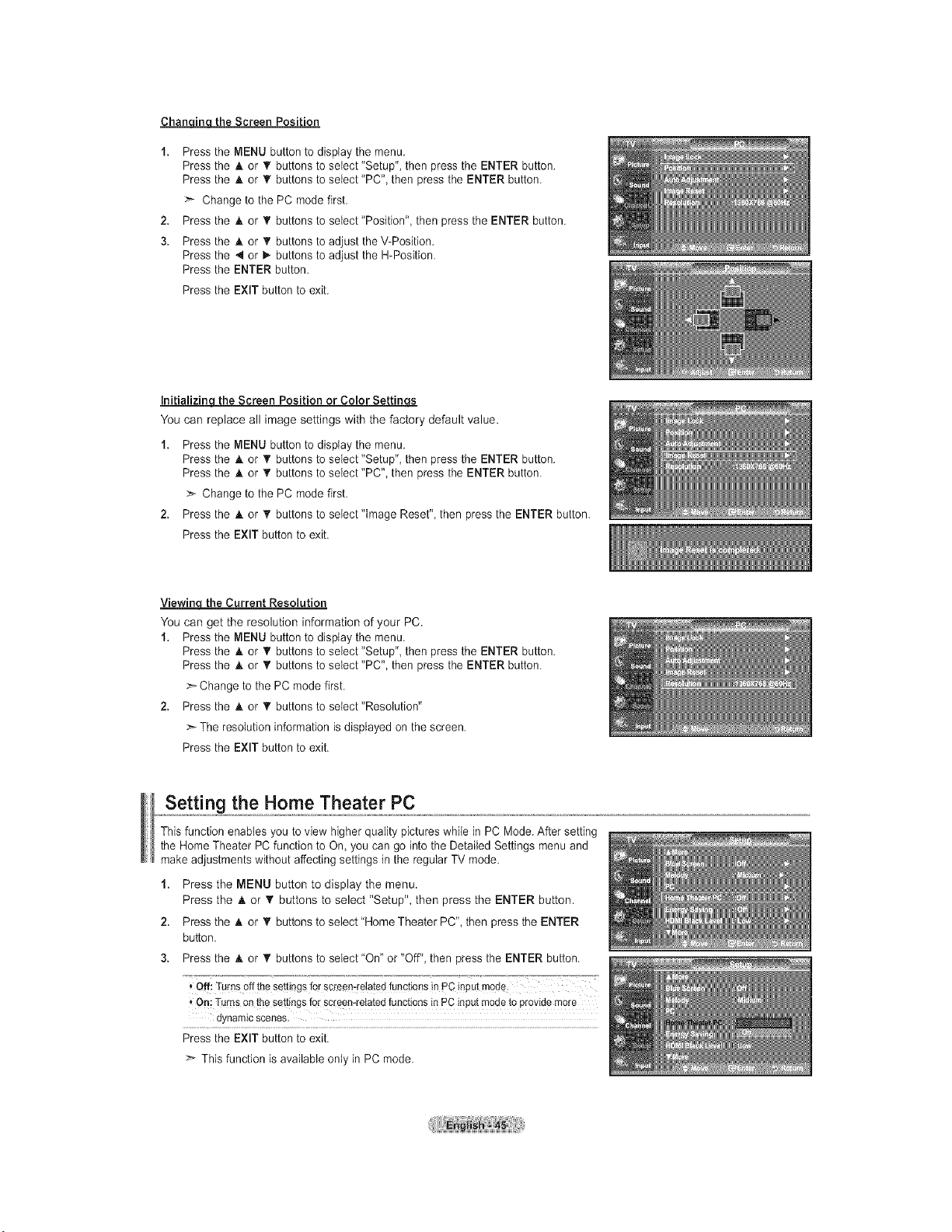
ChangLo_ the Screen Position
1. Press the MENU button to display the menu.
Press the & or V buttons to select "Setup", then press the ENTER button.
Press the & or _' buttons to select "PC", then press the ENTER button.
Change to the PC mode first.
2. Press the _kor _' buttons to select"Position", then press the ENTER button.
3. Press the & or _' buttons to adjust the V-Position.
Press the 4 or D,.buttons to adjust the H-Position.
Press the ENTER button.
Press the EXIT button to exit.
Initializinq the Screen Position or Color Settine.s
You can replace all image settings with the factory default value.
1. Press the MENU button to display the menu.
Press the A. or T buttons to select "Setup", then press the ENTER button.
Press the A or _r buttons to select "PC", then press the ENTER button.
>- Change to the PC mode first.
2. Press the A or _r buttons to setect"tmage Reset", then press the ENTER button.
Press the EXIT button to exit.
Viewing the Current Resolution
You can get the resolution information of your PC.
1. Press the MENU button to display the menu.
Press the A. or _' buttons to select "Setup", then press the ENTER button.
Press the _. or T buttons to select "PC", then press the ENTER button.
:_ Change to the PC mode first.
2. Press the A or _' buttons to select"ResoIution"
:_ The resolution information is displayed on the screen.
Press the EXIT button to exit.
Setting the Home Theater PC
This function enables you to view higher quality pictures while in PC Mode. After setting
the Home Theater PC function to On, you can go into the Detailed Settings menu and
make adjustments without affecting settings in the regular TV mode.
1. Press the MENU button to display the menu.
Press the _t. or _' buttons to select "Setup", then press the ENTER button.
2. Press the h. or T buttons to select "Home Theater PC", then press the ENTER
button.
3. Press the A or _r buttons to select"On" or "Off", then press the ENTER button.
Qffi Turnsoff thesettingsforscreemrelatedfunctionsinPC inputmode.
On:Turnsonthe settingsfor screen-relatedfunctionsinPC inputmodeto providemore
dynamic scenes.
Press the EXIT button to exit.
> This function is available only in PC mode.
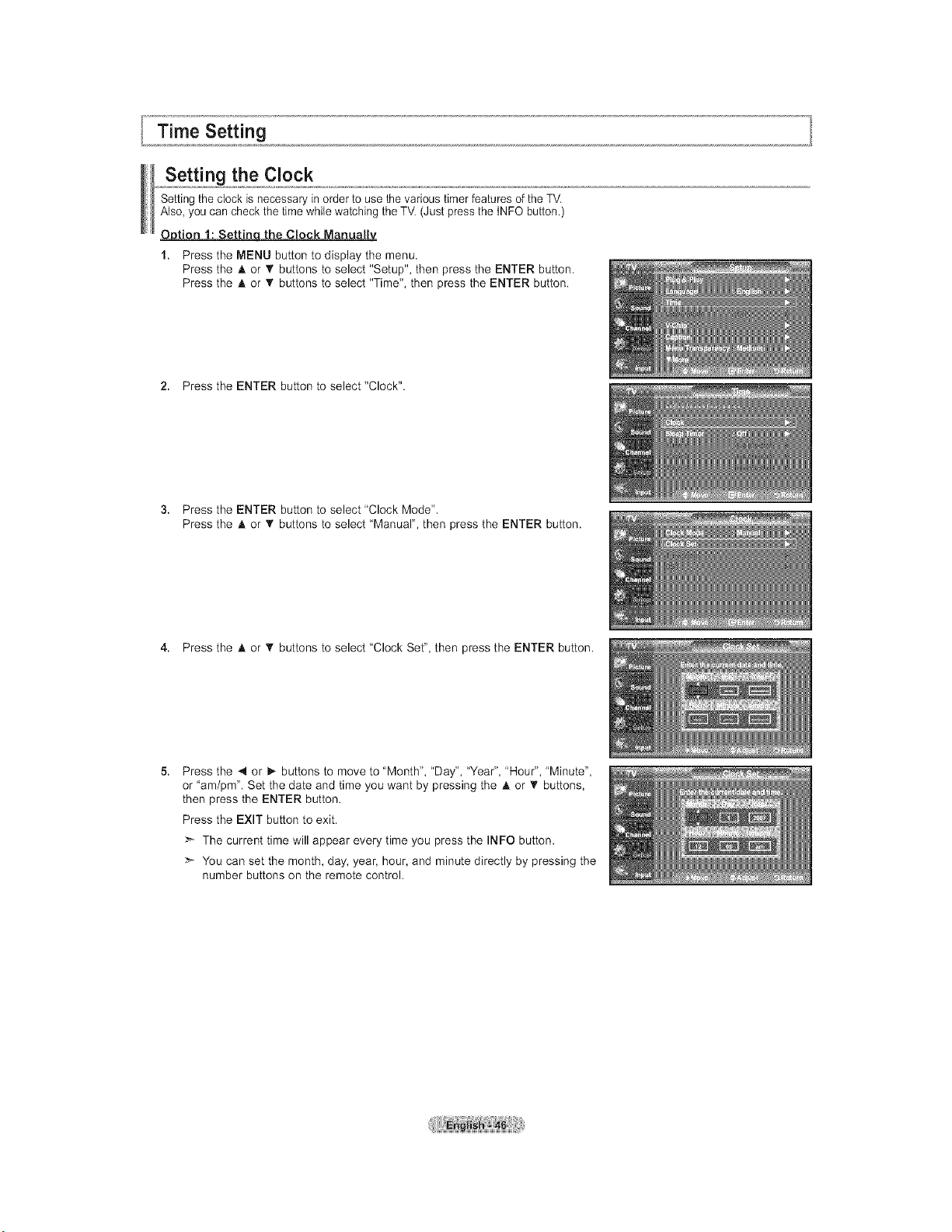
Time Setting
Setting the Clock
Setting the clock is necessary in order to use the various timer features of the TV.
Also, you can check the time while watching the TM (Just press the tNFO button.)
Option 1: Settinqthe Clock Manually
1. Press the MENU button to display the menu.
Press the _k or T buttons to select "Setup", then press the ENTER button.
Press the A or _' buttons to select "Time", then press the ENTER button.
2. Press the ENTER button to select "Clock".
3. Press the ENTER button to select "Clock Mode".
Press the A or _' buttons to select "Manual", then press the ENTER button.
4. Press the A or _' buttons to select "Clock Set", then press the ENTER button.
5.
Press the _1 or 1_ buttons to move to "Month", "Day", "Year", "Hour", "Minute",
or "am/pm". Set the date and time you want by pressing the A or _' buttons,
then press the ENTER button.
Press the EXIT button to exit.
The current time will appear every time you press the INFO button.
You can set the month, day, year, hour, and minute directly by pressing the
number buttons on the remote control.
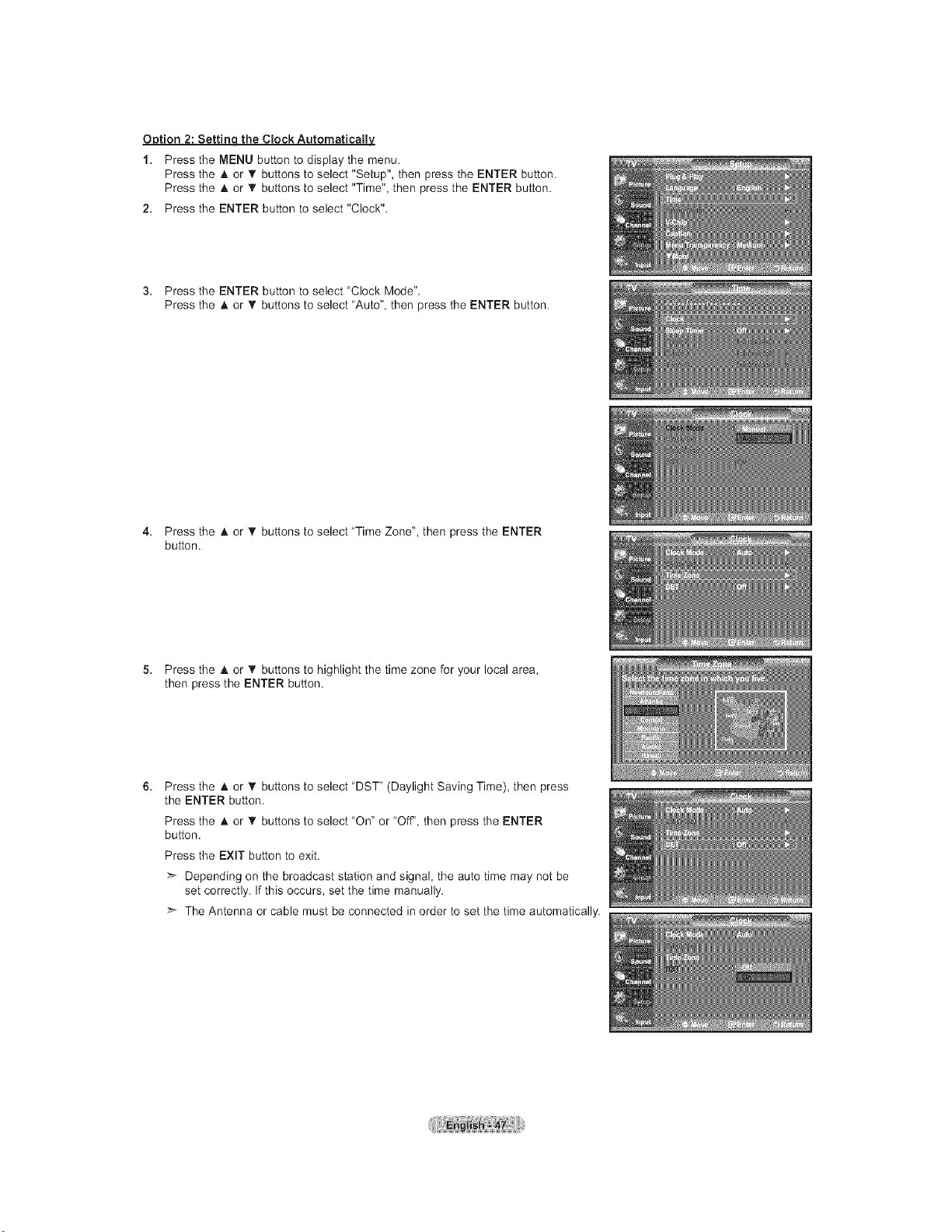
Option 2: Setting the Clock Automatically
1. Press the MENU button to display the menu.
Press the A or V buttons to select "Setup", then press the ENTER button.
Press the A or _' buttons to select "Time", then press the ENTER button.
2. Press the ENTER button to select "Clock".
3. Press the ENTER button to select "Clock Mode".
Press the A or _' buttons to select "Auto", then press the ENTER button.
4. Press the A or _' buttons to select "Time Zone", then press the ENTER
button.
5. Press the A or T buttons to highlight the time zone for your local area,
then press the ENTER button.
6.
Press the A. or '_ buttons to select "DST" (Daylight Saving Time), then press
the ENTER button.
Press the A or _' buttons to select "On" or "Off', then press the ENTER
button.
Press the EXIT button to exit.
Depending on the broadcast station and signal, the auto time may not be
set correctly. If this occurs, set the time manually.
The Antenna or cable must be connected in order to set the time automatically.
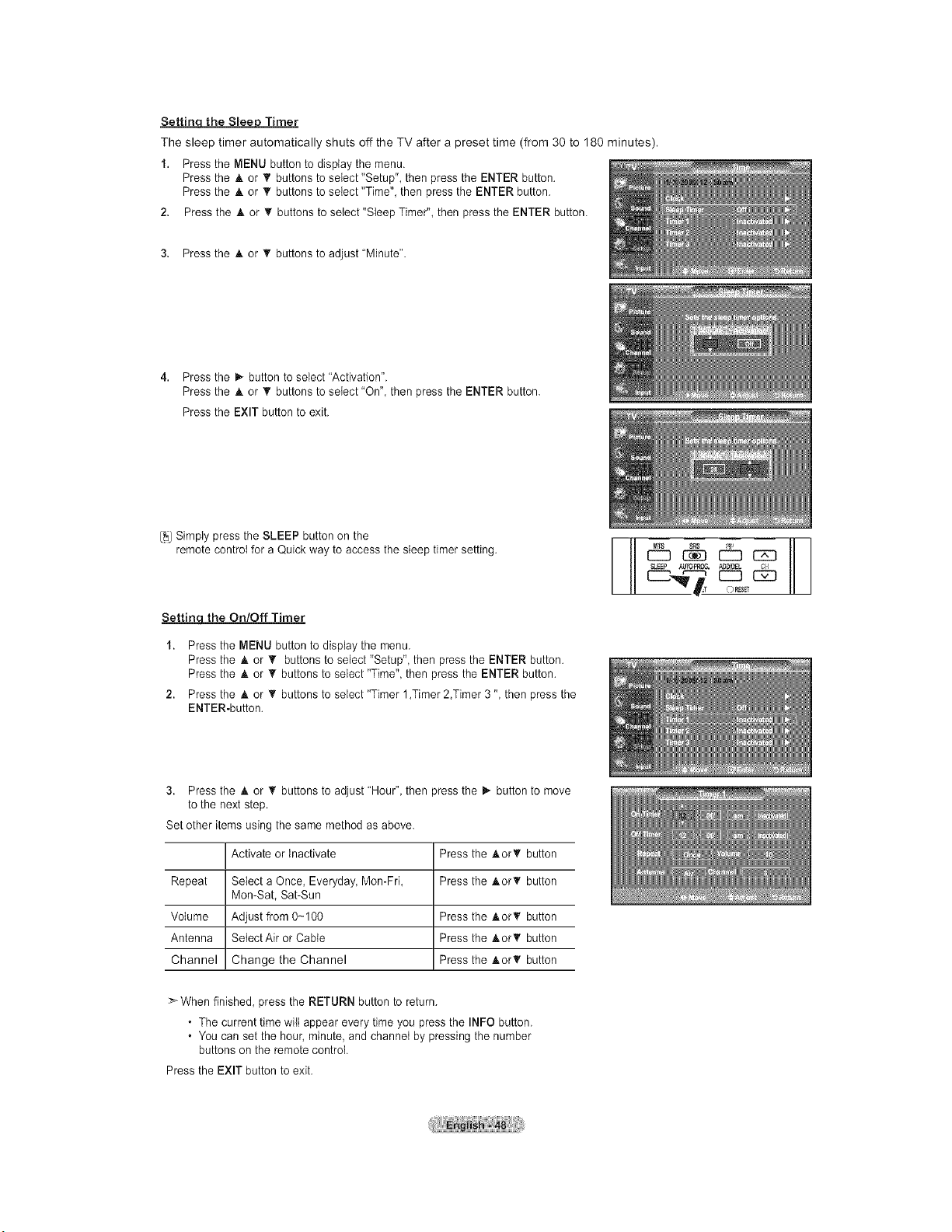
Settin the S_ee Timer
The sleep timer automatically shuts off the TV after a preset time (from 30 to 180 minutes).
1. Press the MENU button to display the menu.
Press the A or _' buttons to select "Setup", then press the ENTER button.
Press the A or _' buttons to select "Time", then press the ENTER button.
2. Press the A or • buttons to setect"Sleep Timer", then press the ENTER button.
3. Press the A or T buttons to adjust"Minute".
4. Press the i_ button to select"Activation".
Press the & or T buttons to select "On", then press the ENTER button.
Press the EXIT button to exit.
[_JSimply press the SLEEP button on the
remote control for a Quick way to access the sleep timer setting.
Settinq the On/Off Timer
1. Press the MENU button to display the menu.
Press the A. or V buttons to select "Setup", then press the ENTER button.
Press the A or _' buttons to select "Time", then press the ENTER button.
2. Press the A or _' buttons to select "Timer 1,Timer 2,Timer 3 ", then press the
ENTER-button.
3. Press the A or _' buttons to adjust "Hour", then press the il_ button to move
to the next step.
Set other items using the same method as above.
Activate or Inactivate Press the AorT button
Repeat Select a Once, Everyday Mon-Fri, Press the AorT button
Mon-Sat, Sat-Sun
Volume Adjust from 0-100 Press the AorT button
Antenna Setect Air or Cable Press the AorT button
Channel Change the Channel Press theAorT button
>_When finished, press the RETURN button to return.
• The current time wilt appear every time you press the INFO button.
• You can set the hour, minute, and channet by pressing the number
buttons on the remote control.
Press the EXIT button to exit.
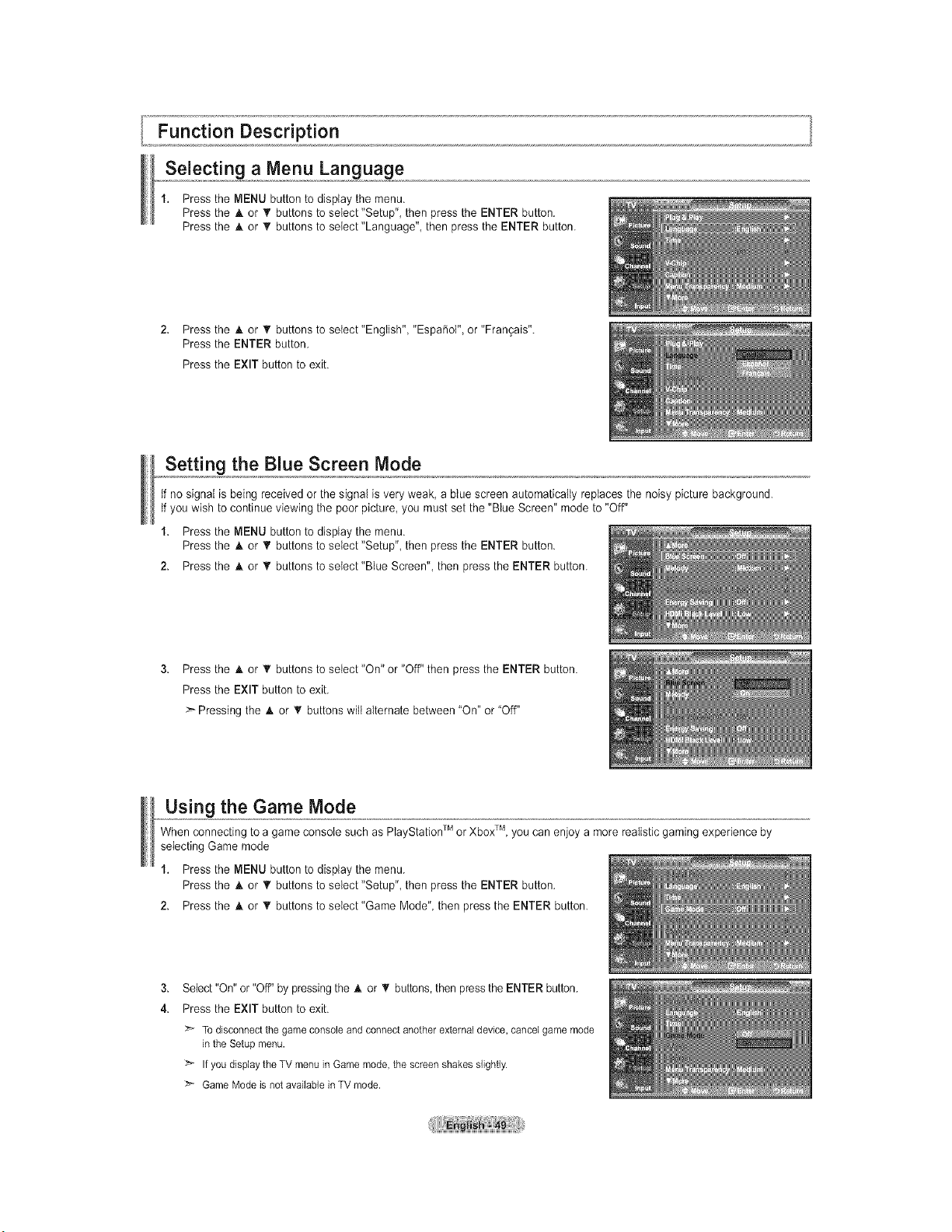
Function Description
Selecting a Menu Language
1. Press the MENU button to display the menu.
Press the A or T buttons to select "Setup", then press the ENTER button.
Press the A or _r buttons to select "Language", then press the ENTER button.
2. Press the A or _r buttons to setect"Engtish", "Espa_o{", or "Fran9ais".
Press the ENTER button.
Press the EXIT button to exit.
Setting the Blue Screen Mode
If no signal is being received or the signal is very weak, a blue screen automatically replaces the noisy picture background.
tf you wish to continue viewing the poor picture, you must set the "Blue Screen" mode to "Off"
1. Press the MENU button to display the menu.
Press the A or _' buttons to select "Setup", then press the ENTER button.
2. Press the A or _r buttons to setect"Blue Screen", then press the ENTER button.
3. Press the A or _' buttons to select "On" or "Off" then press the ENTER button.
Press the EXIT button to exit.
> Pressing the A or V buttons wilt alternate between "On" or "Off"
Using the Game Mode
When connecting to a game console such as PlayStationTM or XboxTM, you can enjoy a more realistic gaming experience by
selecting Game mode
1. Press the MENU button to display the menu.
Press the A or _' buttons to select "Setup", then press the ENTER button.
2. Press the A or _' buttons to seIect"Game Mode", then press the ENTER button.
3.
4.
Select "On" or "Off" by pressing the A or _' buttons, then press the ENTER button.
Press the EXIT button to exit.
>'- To disconnect the game console and connect another external device, cancel game mode
in the Setup menu.
:_ If you display the TV menu in Game mode, the screen shakes slightly.
Game Mode is not available in TV mode.
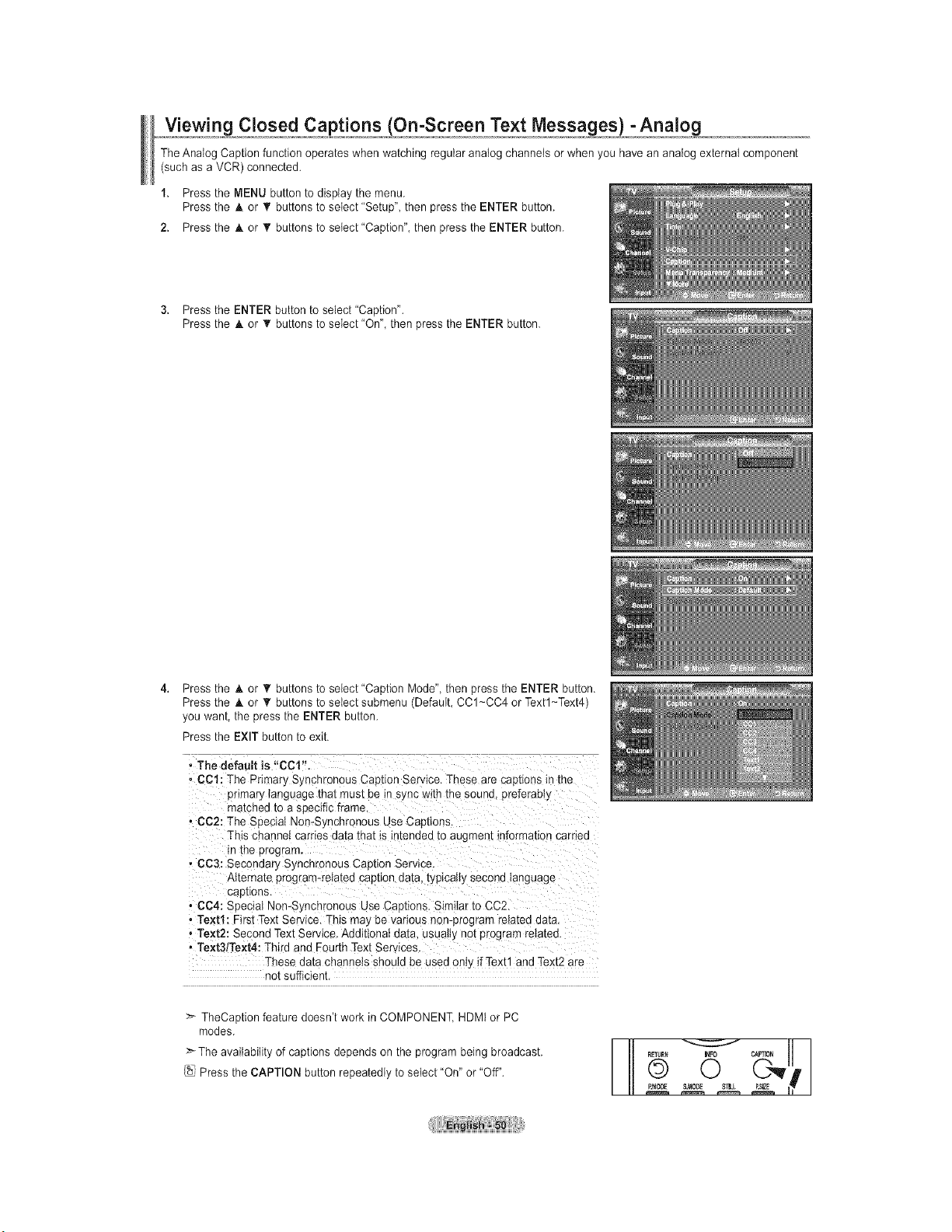
Viewing Closed Captions (O_n-Screen Te,,,,,,xtMesj.jsa,_es_,),cAna_.!£_,
The Analog Caption function operates when watching regular analog channels or when you have an analog external component
(such as a VCR) connected.
1. Press the MENU button to display the menu.
Press the A or _' buttons to select 'Setup" then press the ENTER button.
2. Press the A or _r buttons to setect"Caption", then press the ENTER button.
3. Press the ENTER button to select "Caption".
Press the A or _' buttons to select "On", then press the ENTER button.
Press the _, or _' buttons to select "Caption Mode", then press the ENTER button.
Press the A or V buttons to select submenu (Default, CC1~CC4 or Textl~Text4)
you want, the press the ENTER button.
Press the EXIT button to exit.
, The default is "CCt".
• CCl: The Primary Synchronous Caption Service. These are cao[_onsin the
primary _ang_.agethat must be in sync with the sound, preferabl_
matched to a specific frame
• CC2: The Seeciat Non-Synchronous Use Cao_lons
This channe_carries data that is _ntenaea_o augment information carriec
in me program.
, CC3: Secondary SI nchronous Caotion Service.
Alternate program-related caption ua[a. typically second language
captions
• C04: Special Non-Synchronous Use Captions. Simitar to CC2.
, Text1: First Text Service. This ma_ be various non-program rela[eu aa[a.
, Text2: Second Text Service. Additional data. usuaity not program related.
• Te×t3/Te×t4: Third and Fourth Text Services
These data channeis should De useu on if Text1 and Text2 are
not sufficient.
>- TheCaption feature doesn't work in COMPONENT, HDMt or PC
modes.
The availability of captions depends on the program being broadcast.
Press the CAPTION button repeatedly to select "On" or "Off".
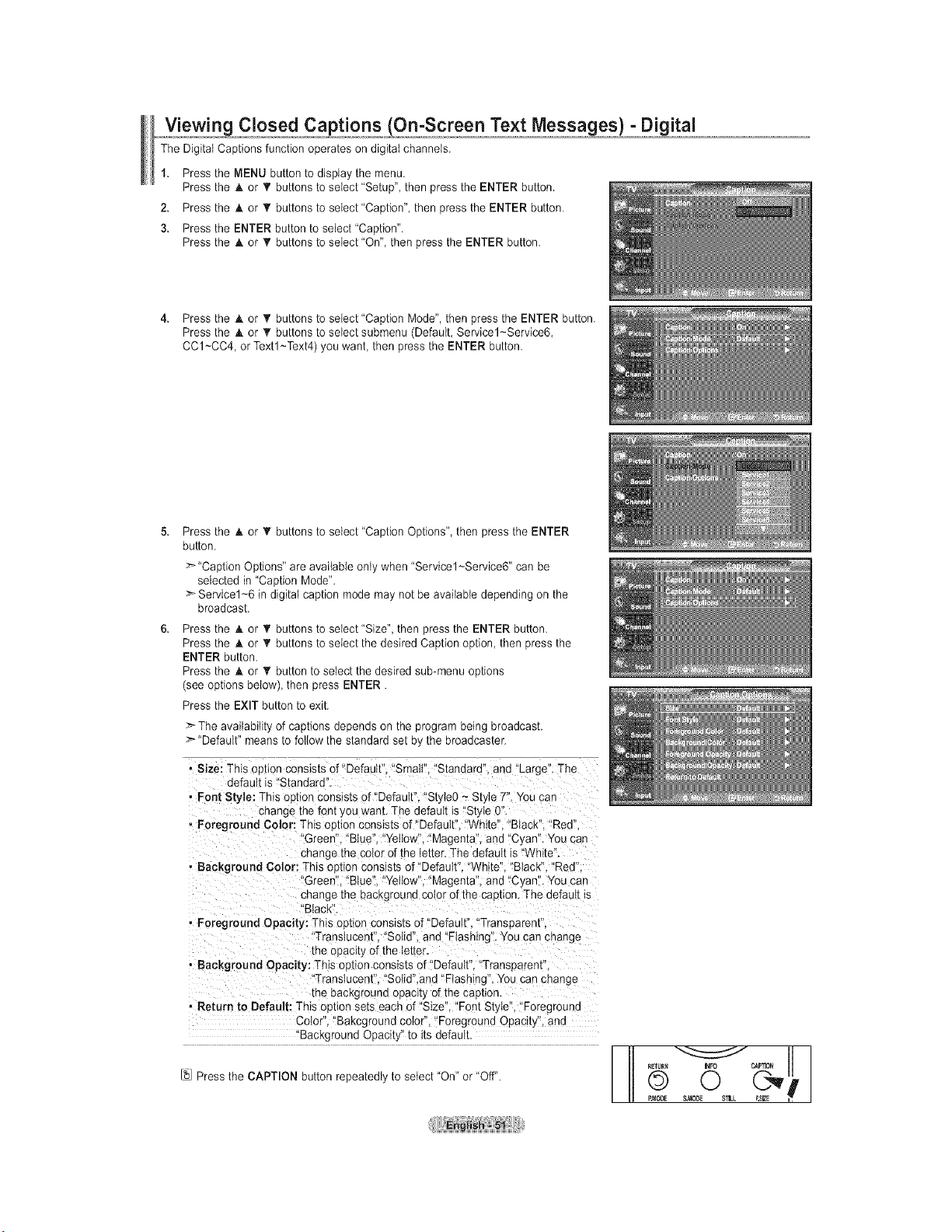
Closed Captions On enjext , ,Messa ges ) - Digital
The Digital Captions function operates on digital channels.
1. Press the MENU button to display the menu.
Press the A or _' buttons to select 'Setup", then press the ENTER button.
2. Press the A or _r buttons to select 'Caption", then press the ENTER button.
3. Press the ENTER button to select"Caption".
Press the A or V buttons to select "On", then press the ENTER button.
4. Press the A or T buttons to select"Caption Mode", then press the ENTER button.
Press the _t.or T buttons to select submenu (Default, Servicel~Service6,
CC1~CC4, or Textl~Text4) you want then press the ENTER button.
Press the h. or T buttons to select "Caption Options", then press the ENTER
button.
>-"Caption Options" are available only when "Servicel~Service6" can be
selected in "Caption Mode".
_Servicel~6 in digital caption mode may not be available depending on the
broadcast.
Press the A or _' buttons to select "Size", then press the ENTER button.
Press the A or _' buttons to select the desired Caption option, then press the
ENTER button.
Press the A or • button to select the desired sub-menu options
(see options below) then press ENTER.
Press the EXIT button to exit.
The availability of captions depends on the program being broadcast.
>'"Default" means to follow [ne s[anuaru set D} [ne Droaucas[er,
• Size: This ootion consists of "Default". "Small". "Standard". and "Large". The
default is "Standard
, Font Style: This ou[ion consists of "Default". "Style0 ~ Style 7". You can
change the font y )u wan[. The default is "St'_e (
, Foreground Color: This ootion consists of "Default". "White". "Black". "Red"
"Green". "Blue". "Yellow". "Magenta". and "C/an". You can
change the cc )r of the letter. The default is "White".
, Background Color: This option consists of"DefauIt' 'White". "Black". "Red"
Green' "Blue". "Yellow". "Magenta". and "C/an". You can
change I"-a bacKgrounrJcolor of the caption. The defauIt _s
"Black'
, Foreground Opacity: This oo[_ci consists of "Default. "Transparent.
"Translucent". "Solid" and "Flashing". You can change
me opacity of the letter.
• Background Opacity: This option consists of "Default". "Transoarent
"Translucent. "Sotid".and "Flashing. You can change
me backgro[ nd opacity of the caphon.
• Return to Default: This oution sets each of "Size. "Font Style", "Foregrouna
Color. "Bakcgrouna coior, "Foreground Opacit_ aria
BacKgrouna Opacity' to its default.
[_ Press the CAPTION button repeatedly to select "On" or "Off".
0
$_-L P,SIZE
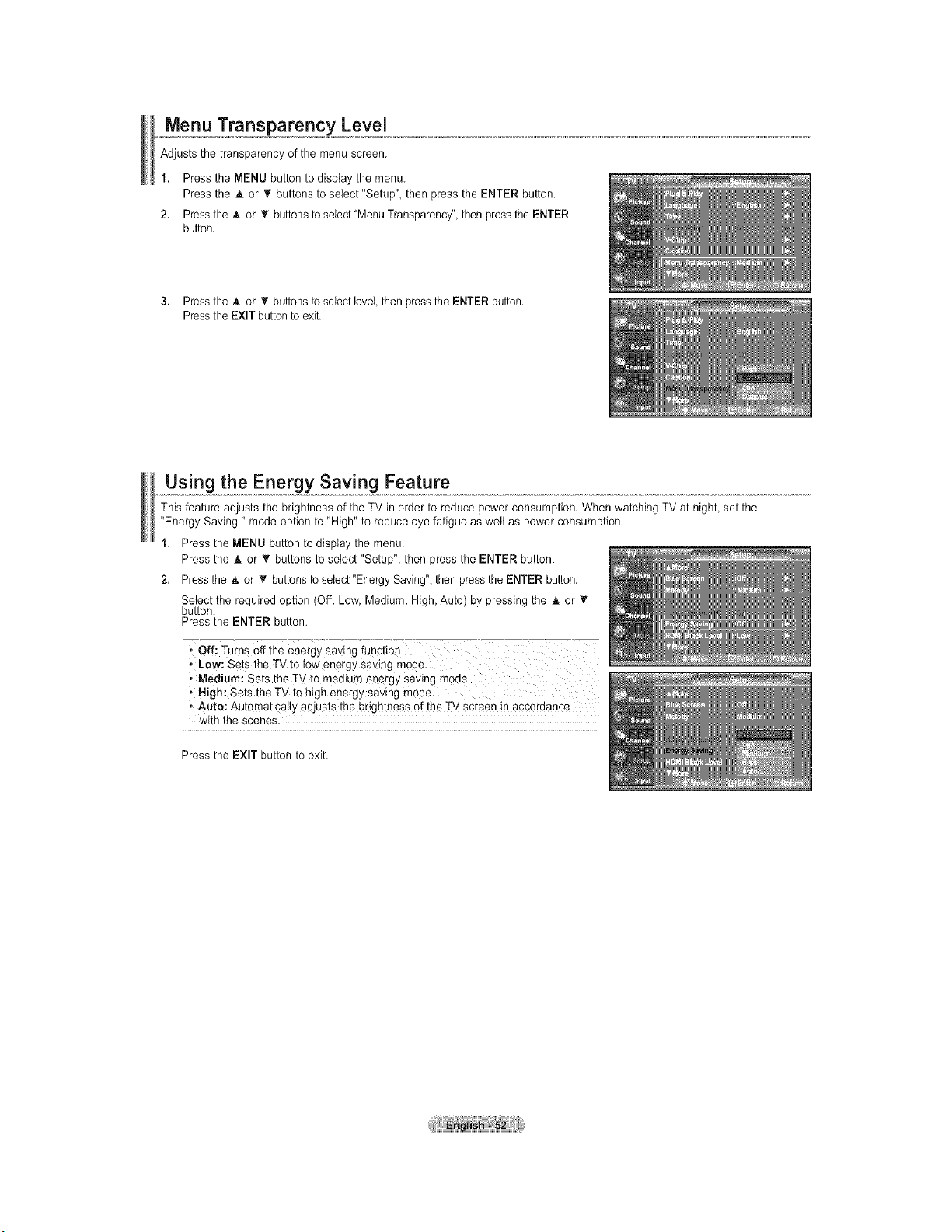
Menu Transparency Level
Adjusts the transparency of the menu screen.
1. Press the MENU button to display the menu.
Press the A or _' buttons to select "Setup", then press the ENTER button.
2. Press the A or V buttons to select "Menu Transparency",then pressthe ENTER
button.
3. Press the & or _' buttons to select level then press the ENTER button.
Press the EXIT buttonto exit.
Using the Energy Saving Feature
This feature adjusts the brightness of the TV in order to reduce power consumption. When watching TV at night, set the
"Energy Saving " mode option to "High" to reduce eye fatigue as well as power consumption.
1. Press the MENU button to display the menu.
Press the & or T buttons to select "Setup", then press the ENTER button.
2. Press the & or T buttons to seiect"Energy Saving", then pressthe ENTER button.
Select the required option (Off, Low, Medium, High, Auto) by pressing the & or _'
button.
Press the ENTER button.
• Low: Sets the TV to low energy saving mode.
• Mediura: Sets the TV to medium energy saving mede.
, Nigh: Sets the TV to high energy saving model
• Auto: Automatically adjusts the brightness of the TV screen in accordance
with the scenes.
Press the EXIT button to exit.
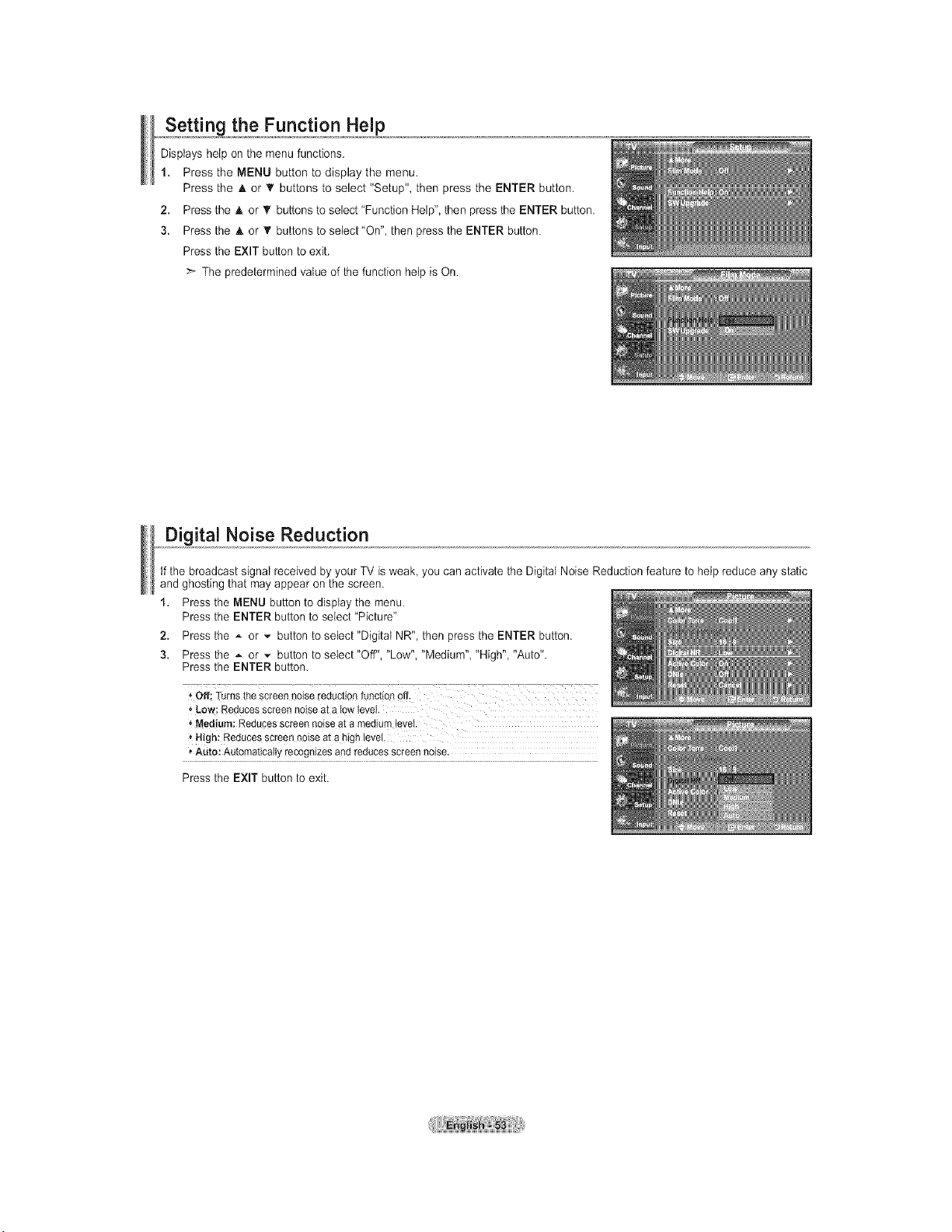
_,o,,Sett!n_the Function Help
Displays help on the menu functions.
1. Press the MENU button to display the menu.
Press the A or T buttons to select "Setup", then press the ENTER button.
2. Press the A or _' buttons to select "Function Help", then press the ENTER button.
3. Press the A or T buttons to select"On", then press the ENTER button.
Press the EXIT button to exit.
The predetermined value of the function help is On.
Digital Noise Reduction
tf the broadcast signal received by your TV is weak, you can activate the Digital Noise Reduction feature to help reduce any static
and ghosting that may appear on the screen.
1. Press the MENU button to display the menu.
Press the ENTER button to select "Picture"
2. Press the _ or _ button to select"DigitaI NR", then press the ENTER button.
3. Press the A or _ button to select "Off" "Low" "Medium" "High" "Auto".
Press the ENTER button.
_Low: Reducesscreennoiseat a low_evel.
'_Medium:Reducesscreennoiseat a mediumtevei.
Nigh: Reducesscreennoiseat a highlevel.
* Auto:Automaticallyrecognizesandreducesscreennoise.
Press the EXIT button to exit.
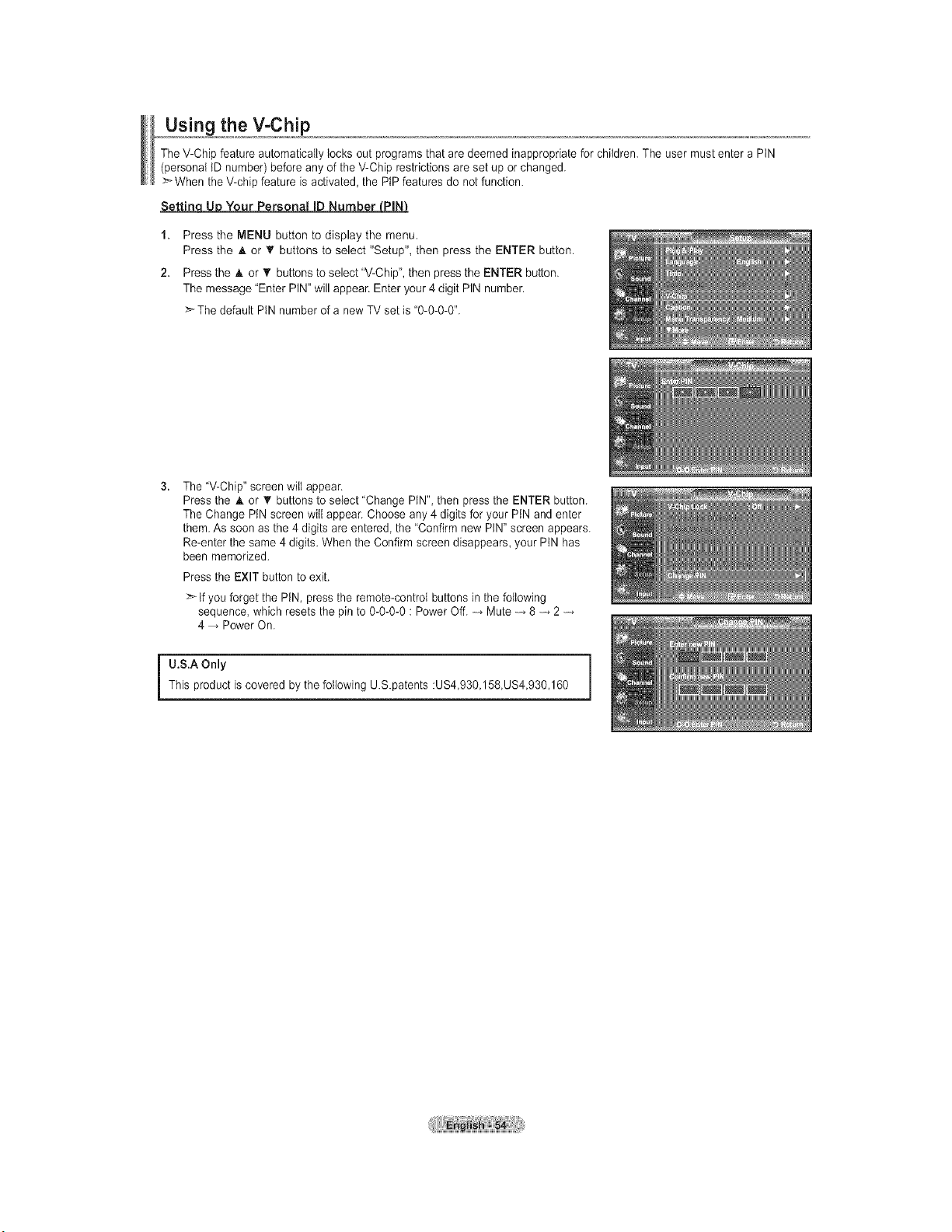
the V-Chip
The V-Chip feature automatically locks out programs that are deemed inappropriate for children. The user must enter a PtN
(personal tD number) before any of the V-Chip restrictions are set up or changed.
When the V-chip feature is activated, the PtP features do not function.
SettinqUpU Your Personal ID Number PILPLN_
1. Press the MENU button to display the menu.
Press the A or T buttons to select "Setup", then press the ENTER button.
2. Press the A or _' buttons to select "V-Chip", then press the ENTER button.
The message "Enter PIN" will appean Enter your 4 digit PIN number.
The default PtN number of a new TV set is "0-0-0-0".
3.
The "V-Chip" screen will appear.
Press the A or • buttons to select 'Change PIN", then press the ENTER button.
The Change PIN screen will appear. Choose any 4 digits for your PIN and enter
them. As soon as the 4 digits are entered, the "Confirm new PIN" screen appears.
Re-enter the same 4 digits. When the Confirm screen disappears, your PtN has
been memorized.
Press the EXIT button to exit.
>- If you forget the PiN, press the remote-controI buttons in the following
sequence, which resets the pin to 0-0-0-0 : Power Off. Mute 8 2
4 Power On.
U.S.A Only
This product is covered by the following US.patents :US4,930,158,US4,930,160
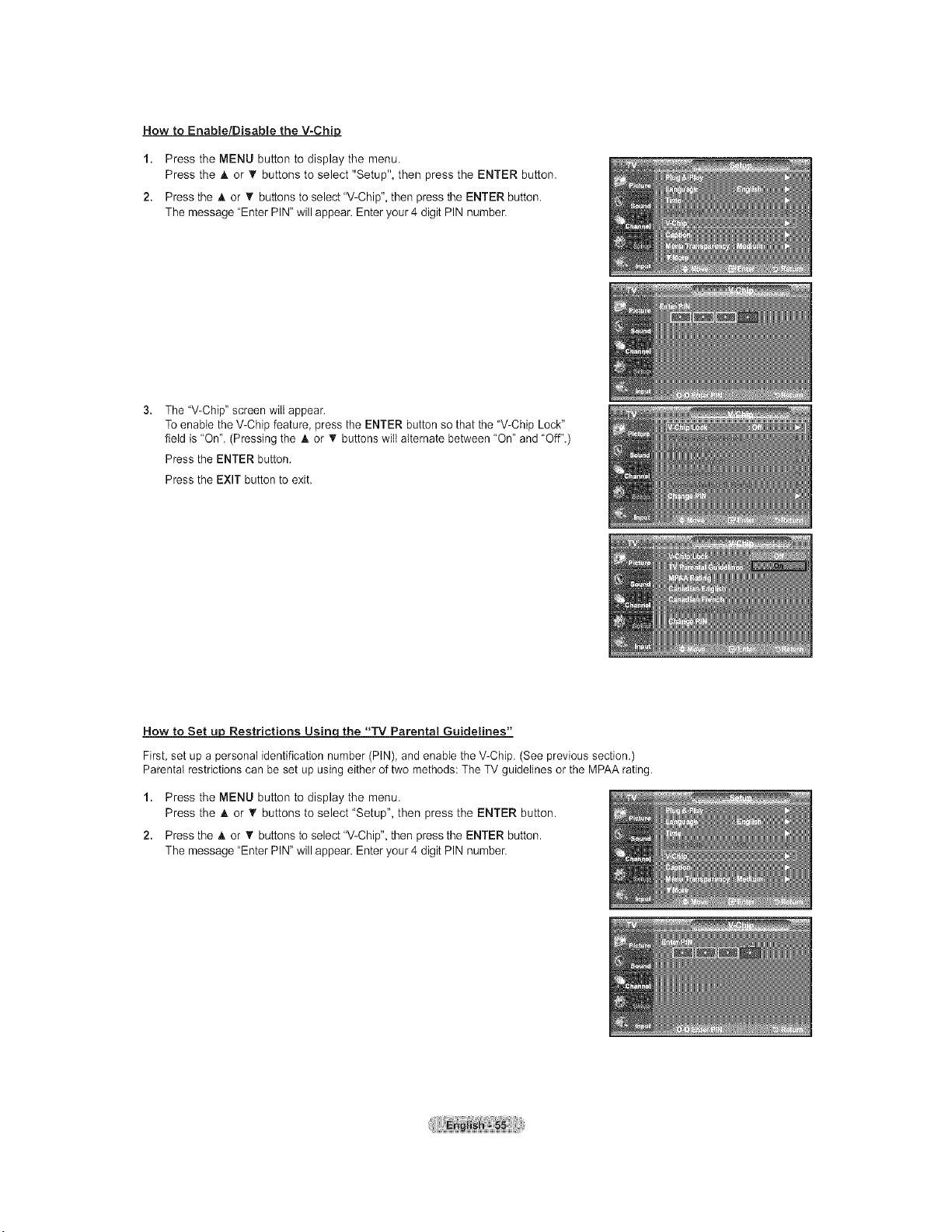
How to Enable/Disable the V-Chip
1. Press the MENU button to display the menu.
Press the & or _' buttons to select "Setup", then press the ENTER button.
2. Press the A. or _' buttons to select "V-Chip", then press the ENTER button.
The message "Enter PIN" will appear. Enter your 4 digit PIN number.
The "V-Chip" screen will appear.
To enable the V-Chip feature, press the ENTER button so that the "V-Chip Lock"
field is "On". (Pressing the A or _' buttons wilt alternate between "On" and "Off".)
Press the ENTER button.
Press the EXIT button to exit.
How to Set up Restrictions Usinc[the "TV Parental Guidelines"
First, set up a personaI identification number (PIN), and enable the V-Chip. (See previous section.)
Parental restrictions can be set up using either of two methods: The TV guidelines or the MPAA rating.
1. Press the MENU button to display the menu.
Press the & or T buttons to select "Setup", then press the ENTER button.
2. Press the & or _' buttons to select "V-Chip", then press the ENTER button.
The message "Enter PIN" will appear. Enter your 4 digit PIN number.
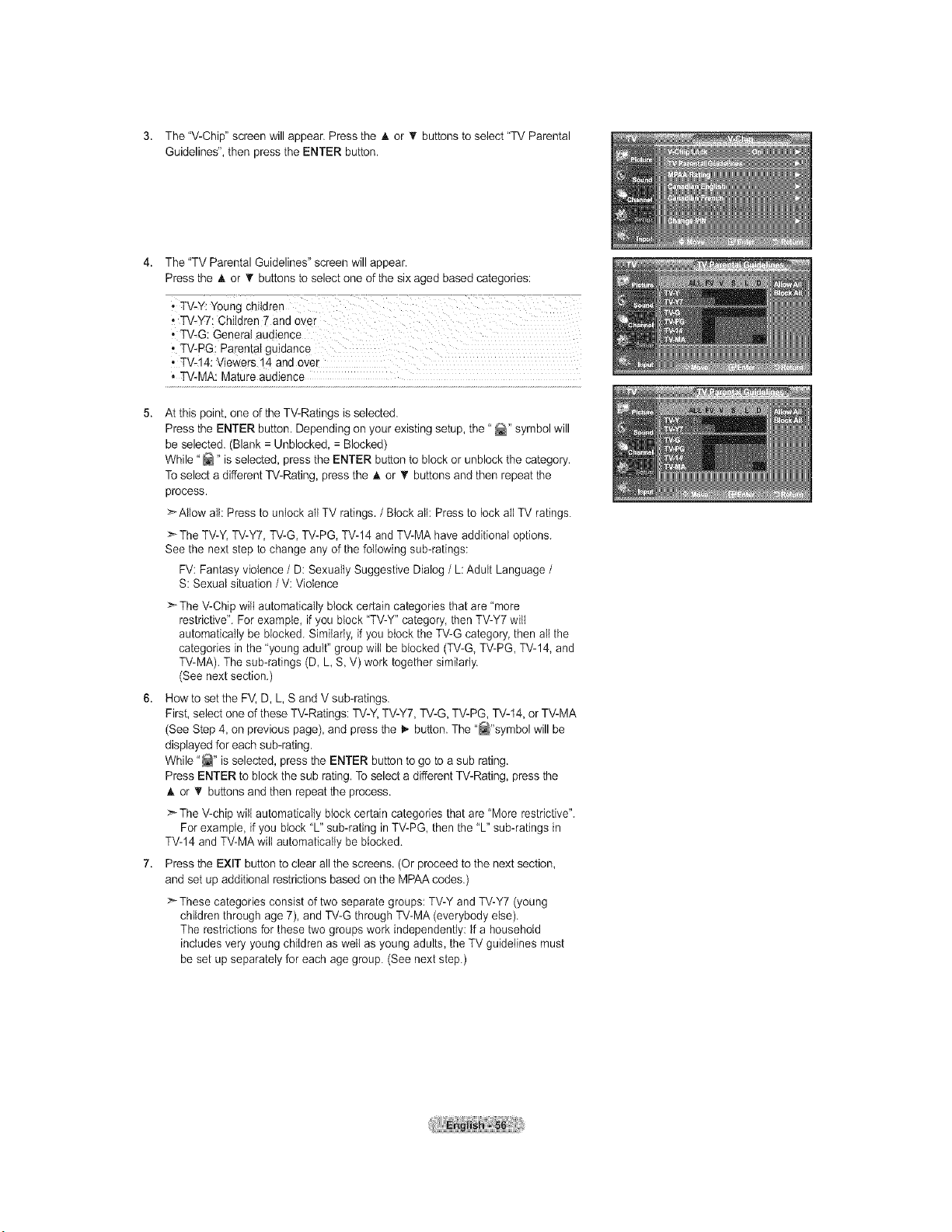
3. The"V-Chip"screenwillappear.PresstheAor_'buttonstoselect"TVParental
Guidelines",thenpresstheENTERbutton.
4. The"TVParentalGuidelines"screenwillappear.
PresstheAor_'buttonstoselectoneofthesixagedbasedcategories:
•TV-PG:Parentalguidance
•TV-14:Viewers14andove_.
,TV-MA:Matureaudience
Atthispoint,oneoftheTV-Ratingsisselected.
PresstheENTERbutton.Dependingonyourexistingsetup,the"_" symbolwill
beselected.(Blank=Unblocked,=Blocked)
While"_" isselected,presstheENTERbuttontoblockorunblockthecategory.
ToselectadifferentTV-Rating,presstheAor_'buttonsandthenrepeatthe
process.
>Allowall:PresstounlockallTVratings./ Block all: Press to lock all TV ratings.
>The TV-Y, TV-Y7, TV-G, TV-PG, TV-14 and TV-MA have additional options.
See the next step to change any of the following sub-ratings:
FV: Fantasy violence / D: Sexually Suggestive Dialog / L: Adult Language /
S: Sexual situation /V: Violence
> The V-Chip wilt automatically block certain categories that are "more
restrictive". For example, if you block "TV-Y" category, then TV-Y7 will
automatically be blocked. Similarty, if you block the TV-G category, then all the
categories in the 'young adult" group wilt be blocked (TV-G, TV-PG, TV-14, and
TV-MA). The sub-ratings (D, L S, V) work together similarly.
(See next section.)
How to set the FV, D, L, S and V sub-ratings.
First, select one of these TV-Ratings: TV-Y, TV-Y7, TV-G, TV-PG, TV-14, or TV-MA
(See Step 4, on previous page), and press the I_ button. The "_"symbol will be
displayed for each sub-rating.
While "_" is selected, press the ENTER button to go to a sub rating.
Press ENTER to block the sub rating. To select a different TV-Rating, press the
A or _' buttons and then repeat the process.
The V-chip will automatically block certain categories that are "More restrictive".
For example, if you block "L" sub-rating in TV-PG, then the "L" sub-ratings in
TV-14 and TV-MA wilt automatically be blocked.
Press the EXIT button to clear all the screens. (Or proceed to the next section,
and set up additional restrictions based on the MPAA codes.)
> These categories consist of two separate groups: TV-Y and TV-Y7 (young
children through age 7), and TV-G through TV-MA (everybody else).
The restrictions for these two groups work independently: tf a household
includes very young children as well as young adults, the TV guidelines must
be set up separately for each age group. (See next step.)
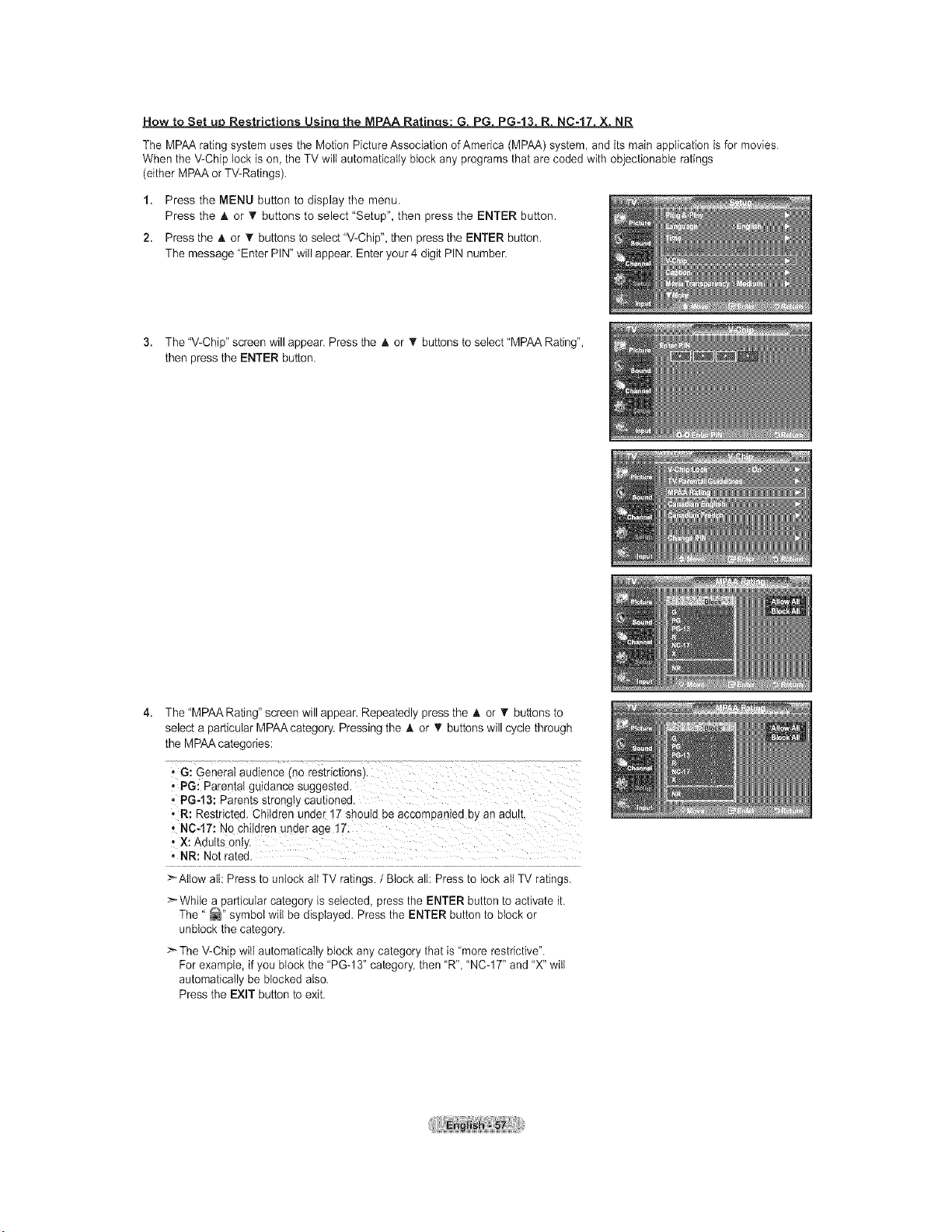
How to Set u_ Restrictions Usinqthe MPAA Ratin s: G PG PG-13 R NC-17 X NR
The MPAA rating system uses the Motion Picture Association of America (MPAA) system, and its main application is for movies.
When the V-Chip lock is on, the TV wilt automatically block any programs that are coded with objectionable ratings
(either MPAA or TV-Ratings).
1. Press the MENU button to display the menu.
Press the A or _' buttons to select "Setup", then press the ENTER button.
2. Press the A or _' buttons to select "V-Chip", then press the ENTER button.
The message "Enter PIN" will appear. Enter your 4 digit PIN number.
3. The "V-Chip" screen will appear. Press the A or _' buttons to select "MPAA Rating",
then press the ENTER button.
The "MPAA Rating" screen will appear. Repeatedly press the A or _' buttons to
select a particular MPAA category. Pressing the A or T buttons will cycle through
the MPAA categories:
• G: General aualence mo restnct{ons_.
, PG: Parenta_gulaance sugges[ea.
• PG-t3: Parents strongly cau[{onee.
• R: Restricted. Children unaer 17 should be accompanied by an adult.
• NC-17: No children unaer age 17.
• X: Adults onl,.
• NR: No[ ra[ea
>_Altow atl: Press to unlock all TV ratings. / Block all: Press to lock all TV ratings.
>-While a particular category is selected, press the ENTER button to activate it.
The ' _" symbol wilt be displayed. Press the ENTER button to block or
unNock the category.
_ The V-Chip will automatically block any category that is "more restrictive".
For example, if you block the 'PG-13" category, then "R", "NC-17" and "X" wilt
automatically be blocked also.
Press the EXIT button to exit.
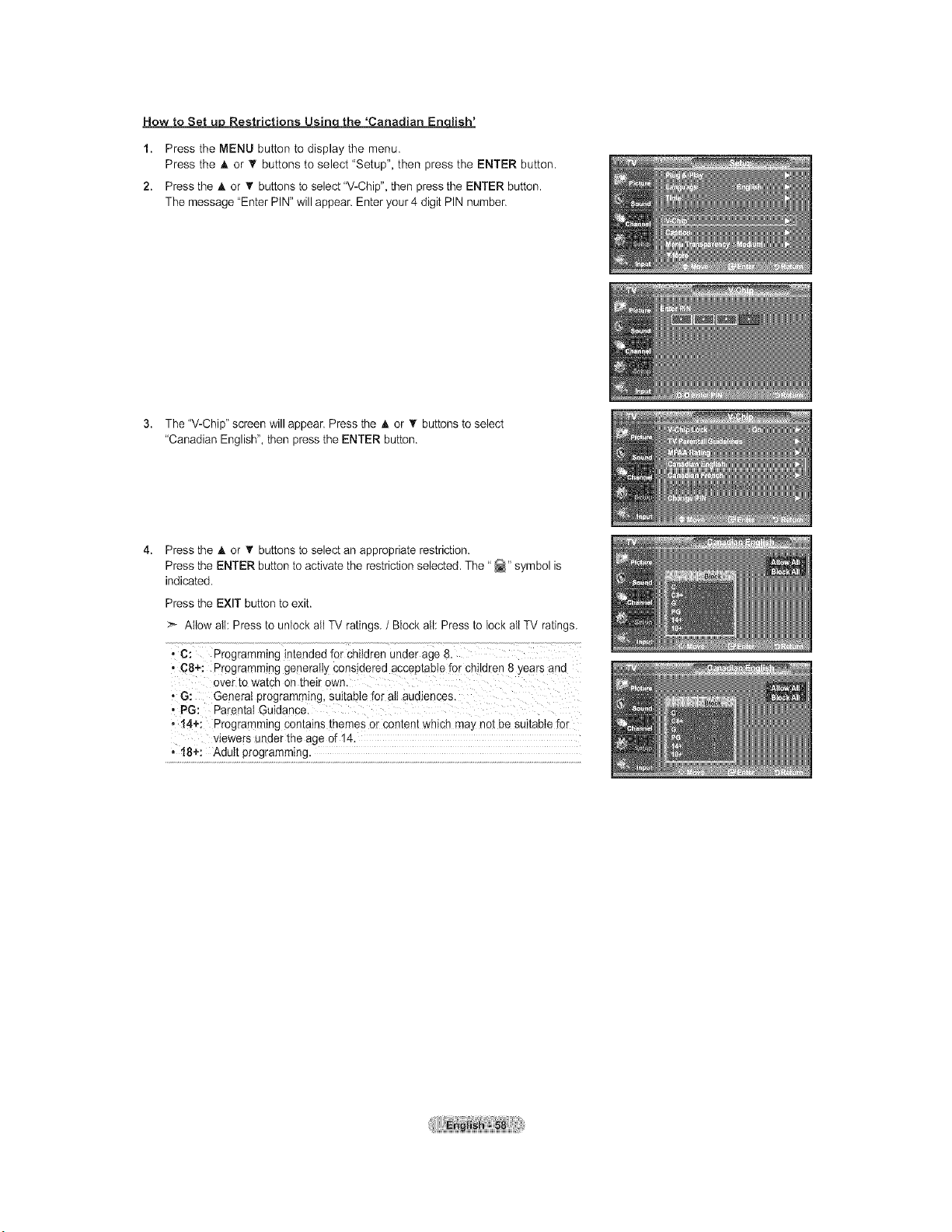
How to Set u_ Restrictions Usinqthe 'Canadian Enqlish'
1. Press the MENU button to display the menu.
Press the A or _' buttons to select "Setup", then press the ENTER button.
2. Press the A or _' buttons to select "V-Chip", then press the ENTER button.
The message "Enter PIN" will appear. Enter your 4 digit PIN number.
3. The "V-Chip" screen will appear. Press the A or T buttons to select
"Canadian English", then press the ENTER button.
Press the A or _' buttons to select an appropriate restriction.
Press the ENTER button to activate the restriction selected. The" _" symbol is
indicated.
Press the EXIT button to exit.
Altow all: Press to unlock all TV ratings. / Block all: Press to lock all TV ratings.
• C: Programming intended for Children under age 8.
• C8+: Programming generally considered acceptable for ch!ldren 8 years and
over to watch on their own.
, G: General programming, suitable for all audiences.
• PG: Parental Guidance.
,14+: Programming contains themes or content whi@ may not be suitable for
viewers under the age of 14.
18÷: Adult programming.
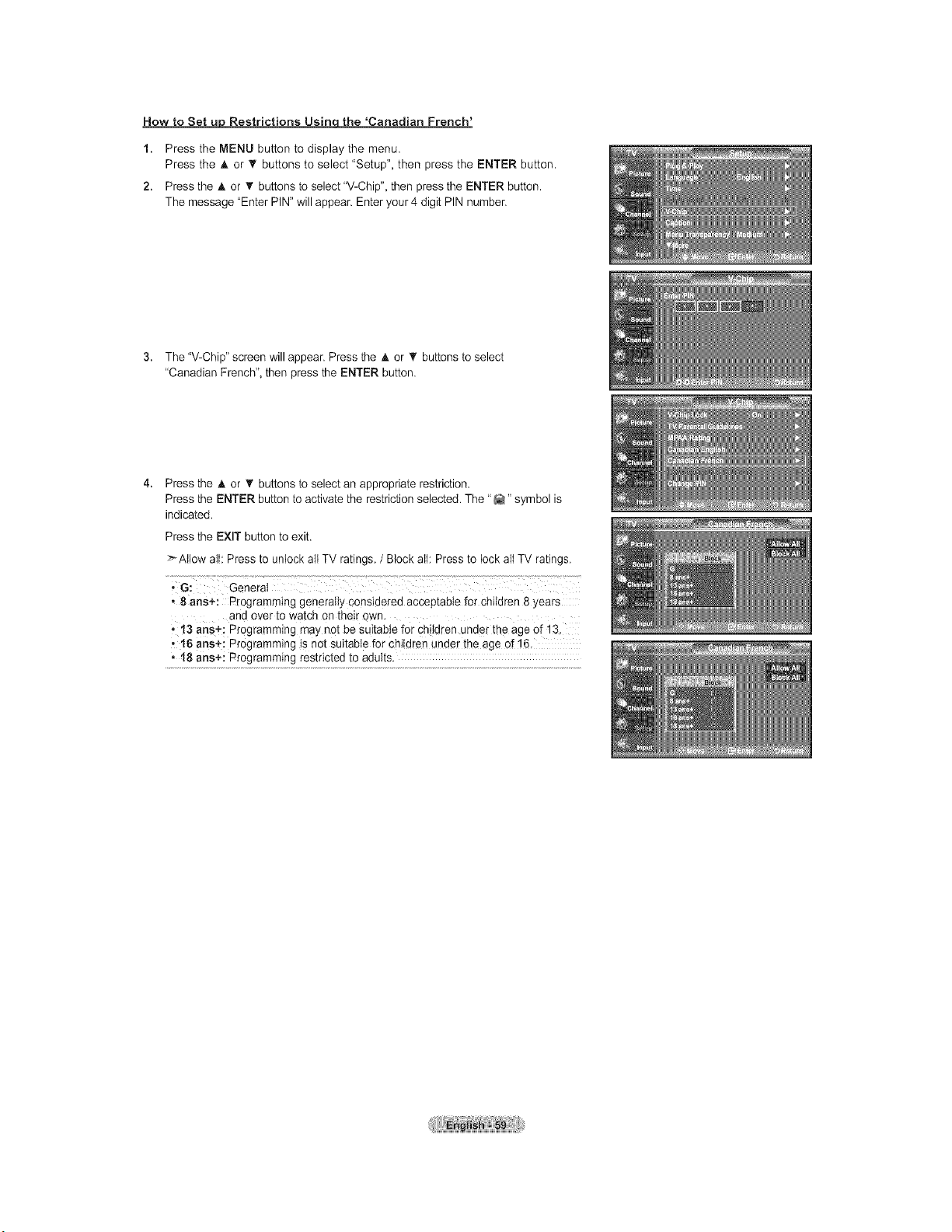
How to Set u_ Restrictions Usinqthe 'Canadian French'
1. Press the MENU button to display the menu.
Press the A or _' buttons to select "Setup", then press the ENTER button.
2. Press the A or _' buttons to select "V-Chip", then press the ENTER button.
The message "Enter PIN" will appear. Enter your 4 digit PIN number.
3. The "V-Chip" screen will appear. Press the A or _' buttons to select
"Canadian French", then press the ENTER button.
Press the A or _' buttons to select an appropriate restriction.
Press the ENTER button to activate the restriction selected. The "_" symbol is
indicated.
Press the EXIT button to exit.
>Allow all: Press to unlock all TV ratings. / Block all: Press to lock all TV ratings.
,8 arts+: Programming generally considered acceptable for children 8 years
and over to watch on their own.
• t3 ans+: Programming may not be suitable for children under the age of 13.
, 16 ans÷: Programming is not suitable for children under the age of 16.
• 18 arts+: Programming restricted to adults.
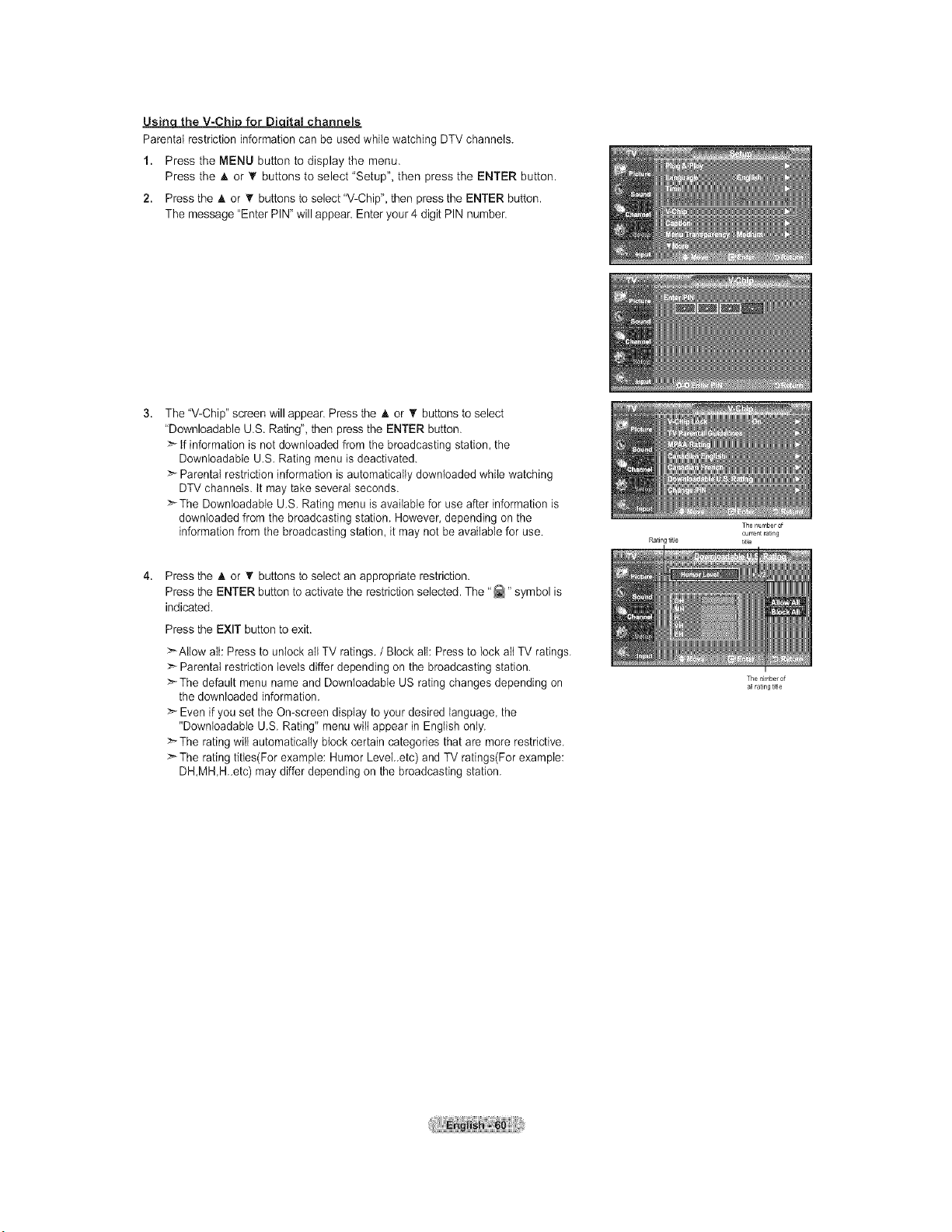
Usin the V-Chi forDi ital channels
Parental restriction information can be used while watching DTV channels.
1. Press the MENU button to display the menu.
Press the A or _' buttons to select "Setup", then press the ENTER button.
2. Press the A or 'V buttons to select "V-Chip", then press the ENTER button.
The message "Enter PIN" will appear. Enter your 4 digit PIN number.
The "V-Chip" screen will appear. Press the A or 'V buttons to select
"Downloadable U.S. Rating", then press the ENTER button.
>" tf information is not downloaded from the broadcasting station, the
Downloadabte U.S. Rating menu is deactivated.
>" Parental restriction information is automatically downloaded while watching
DTV channels, tt may take several seconds.
>-The Downioadabie U.S. Rating menu is available for use after information is
downloaded from the broadcasting station. However, depending on the
information from the broadcasting station, it may not be available for use.
Press the A or _' buttons to select an appropriate restriction.
Press the ENTER button to activate the restriction selected. The "_" symbol is
indicated.
Press the EXIT button to exit.
>'Allow aIt: Press to unlock all TV ratings. / Block all: Press to lock aIt TV ratings.
:_ Parental restriction levels differ depending on the broadcasting station.
>'The default menu name and Downloadable US rating changes depending on
the downloaded information.
>" Even if you set the On-screen display to your desired language, the
"Downloadable U.S. Rating" menu wilt appear in English only.
>" The rating will automatically block certain categories that are more restrictive.
>" The rating titles(For example: Humor LeveLetc) and TV ratings(For example:
DH,MH,H_etc) may differ depending on the broadcasting station.
Rating title
The n mber of
c rrent rating
title
The nimber of
all rating title
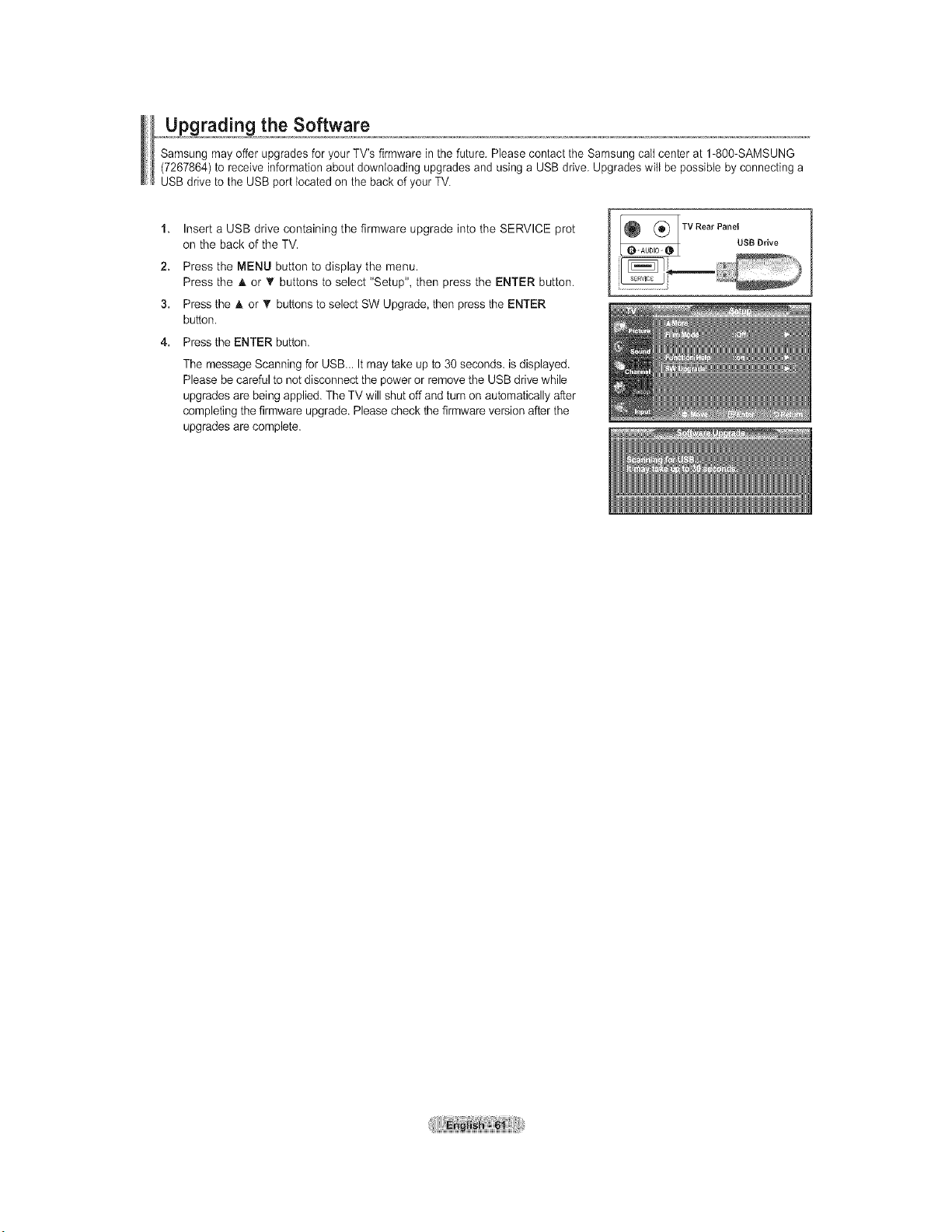
the Software
Samsung may offer upgrades for your TV's firmware in the future, Please contact the Samsung call center at 1-800-SAMSUNG
(7267864) to receive information about downloading upgrades and using a USB drive. Upgrades will be possible by connecting a
USB drive to the USB port located on the back of your TV.
1. Insert a USB drive containing the firmware upgrade into the SERVICE prot
on the back of the TV.
2. Press the MENU button to display the menu.
Press the h, or T buttons to select "Setup", then press the ENTER button.
3. Press the A or _' buttons to select SW Upgrade, then press the ENTER
button.
4. Press the ENTER button.
The message Scanning for USB... It may take up to 30 seconds, is displayed.
Please be careful to not disconnect the power or remove the USB drive while
upgrades are being applied. The TV will shut off and turn on automatically after
completing the firmware upgrade. Please check the firmware version after the
upgrades are complete.
TV Rear Panelus B Drive
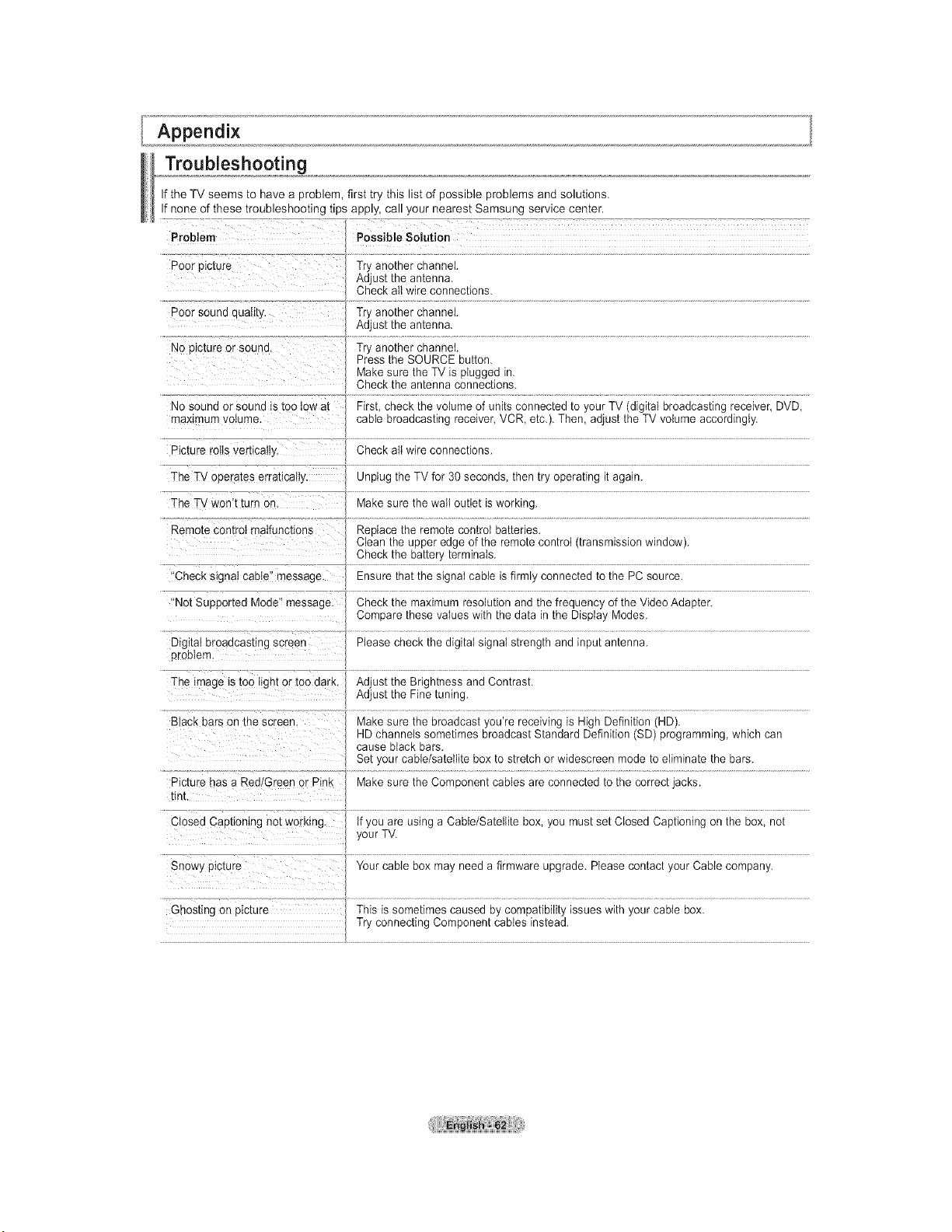
Appendix
Troubleshooting
If the TV seems to have a problem, first try this list of possible problems and solutions.
If none of these troubleshooting tips apply, call your nearest Samsung service center.
....: Poor sound quatityl .................... ....................................................................................................................................................................................................................................................................
Adjust the antenna.
Try another channel
Press the SOURCE button.
Make sure the TV is plugged in.
Check the antenna connections.
No sound or Sound is too'ioW at .........First, check the volume of units connected to your TV (digital broadcasting receiver, DVD,
maximum volume, cable broadcasting receiver, VCR, etc.). Then, adjust the TV volume accordingly.
picture re!ts Vertica!!y, Check all wire connections.
The TV operates erratically Unplug the TV for 30 seconds, then try operating it again.
The TV Won't turn on. Make sure the wail outlet is working.
....%m_e coniroi maiu;lct;ons .........................ace ihe remoie contro baiier es .........................................................................................................................................................................................................
Clean the upper edge of the remote control (transmission window).
"Check signa! cable! message. Ensure that the signal cable is firmly connected to the PC source.
!'NotSupported Mode'! message: Check the maximum resolution and the frequency of the Video Adapter.
Compare these values with the data in the Display Modes.
The imag e is too !!ght 0! too dark' AdjustAdjustthetheFineBrightneSStuning.andContrast.
Black bars on the Screen, ...................................................................................
HD channels sometimes broadcast Standard Definition (SD) programming, which can
cause black bars.
Set your cable/satellite box to stretch or widescreen mode to eliminate the bars.
Ctosed Captioning not working, ify0u are using a CabieiSaieliite box, you musi sei Ciosed Capiioning on ihe box, noi..................
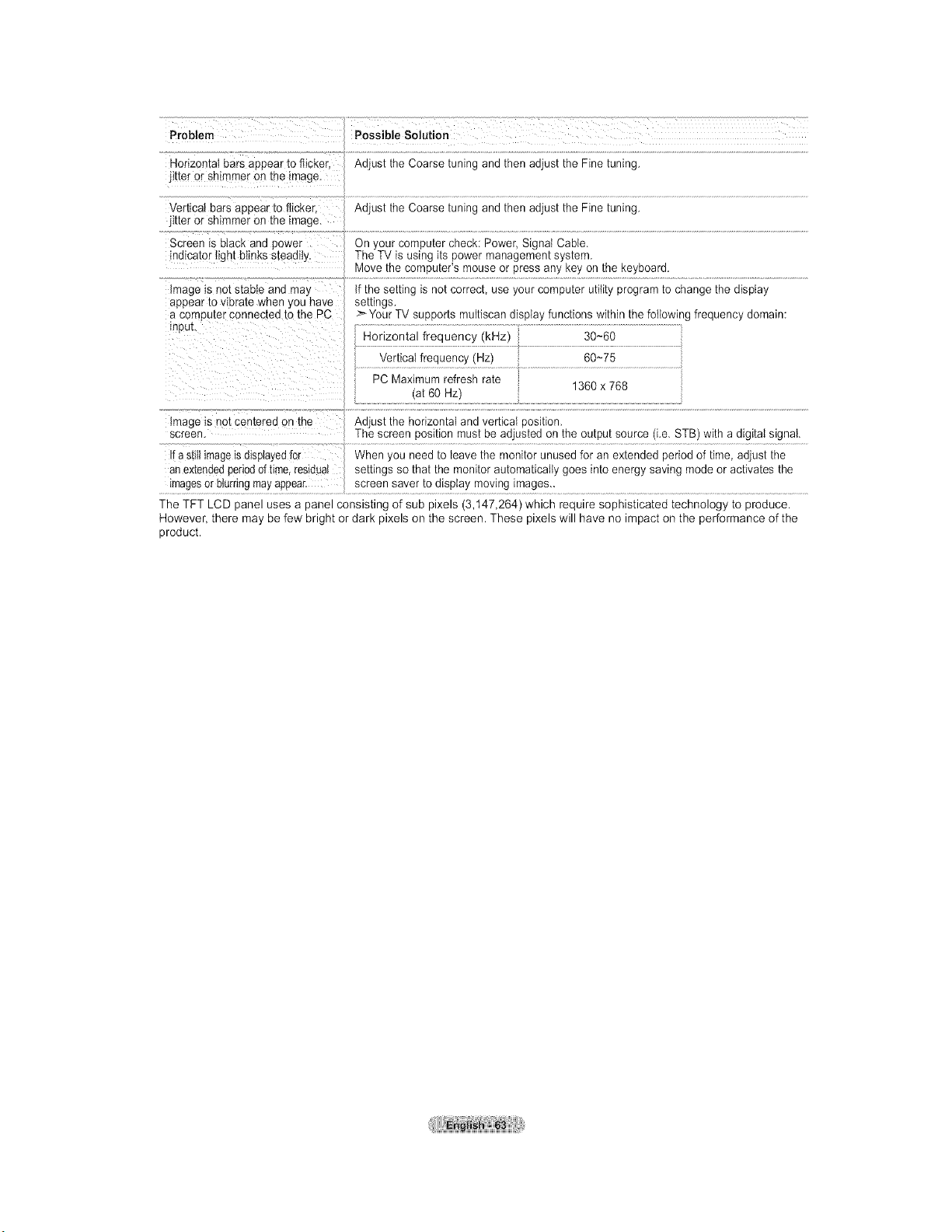
Problem Possible Solution
Horizontal bars aeoear to flicker Ad Js[ [ne Coarse [umng ana men aatus[ the Fine tuning
jitter or shimmer on ine image.
Vertical bars appear to flicker,
jitter or shimmer on the image.
Screen _sblack and Dower
indicator light blinks steadily.
image is not stable and ma/
aooear to vibrate when you have
a computer connec[ee to the PC
inpuL
Ad Js[ [ne Coarse [umng an(] men aajus[ the Fine tuning
On/our computer cnecK: Power Signal Cable.
The TV is using its Dower management sys[en-
Move the computer's mouse or Dressany Keyon me KeyDoara
tf the seeing s no[ correct use/our computer u[_ Lyprogram [o cnange the display
seeings
>Your T SUPportsmul[_scanalsp{ay functions within the following frequency domain:
Horizontal freuuency (kHz
30~60
/eruca_freauenc, rlZ 60~75
PC Maximum refresh rate
1360 x 768
at 60 rlZ
_mage_sno[ Den[ergo on the Adjust [ne horizontal and vertica cost[Jan
screen The screer c)s{uon must De aajus[ea on me cutout source .e STB) with a digital signal.
f a s_liimageisaisplayedfor When/ou nee(] to leave the monitor unused for an ex_en(]e(] 3eriod of time, adjust the
an ex[enaedoenoaof time. residual seeings so that the monitor automaticaL, goes into energy savng mode or activates the
imagesor olumngmayappear screen saver [o (]lsDlay movng mages..
The TFT LCD panel uses a panel consisting of sub pixels (3,t47,264) which require sophisticated technology to produce.
However, there may be few bright or dark pixels on the screen. These pixels will have no impact on the performance of the
product.
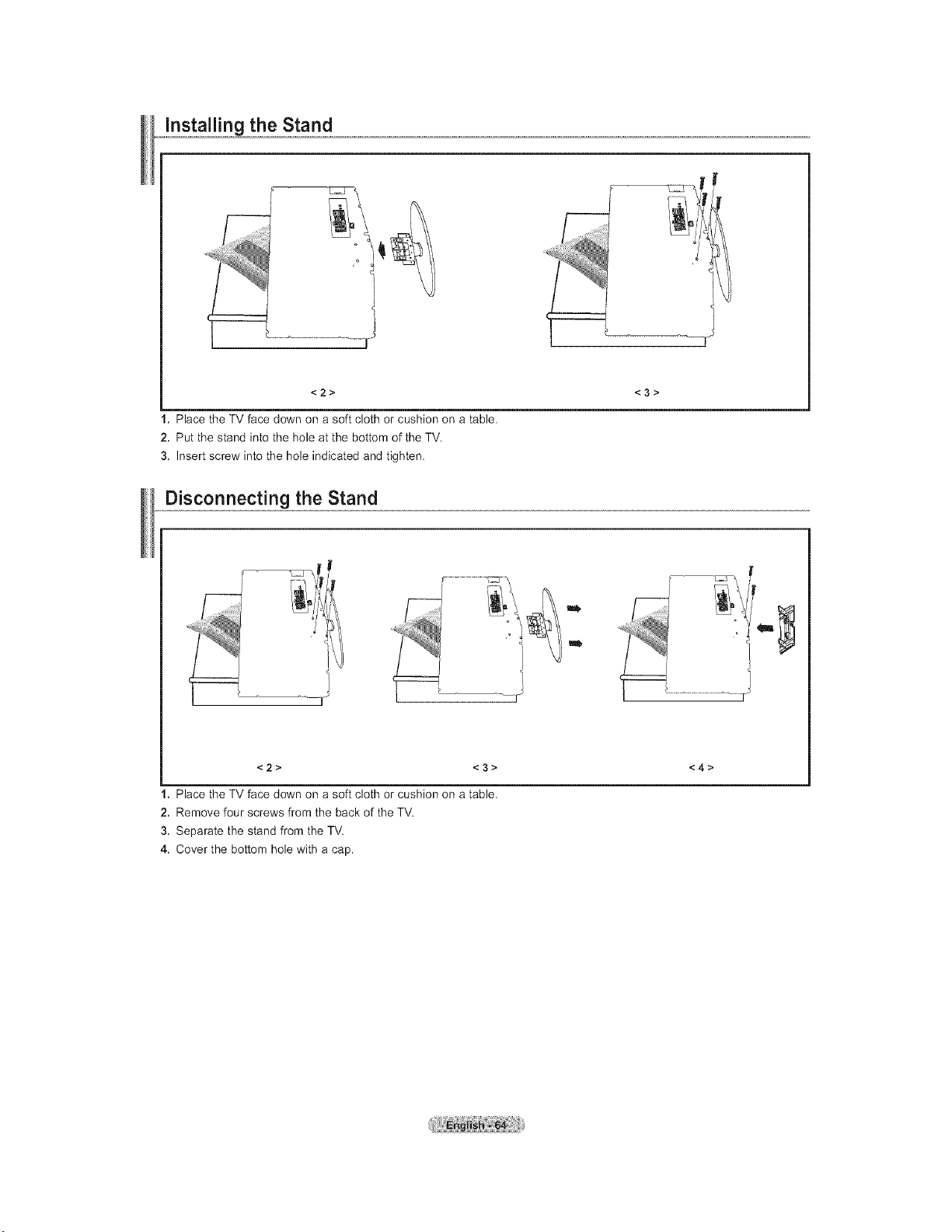
<2> <3>
I, Place the TV face down on a soft cloth or cushion on a table.
2. Put the stand into the hole at the bottom of the TV,
3, Insert screw into the hole indicated and tighten,
Disconnecting the Stand
m
<2> <3> <4>
1. Place the TV face down on a soft cloth or cushion on a table.
2. Remove four screws from the back of the TV.
3. Separate the stand from the TV.
4. Cover the bottom hole with a cap.
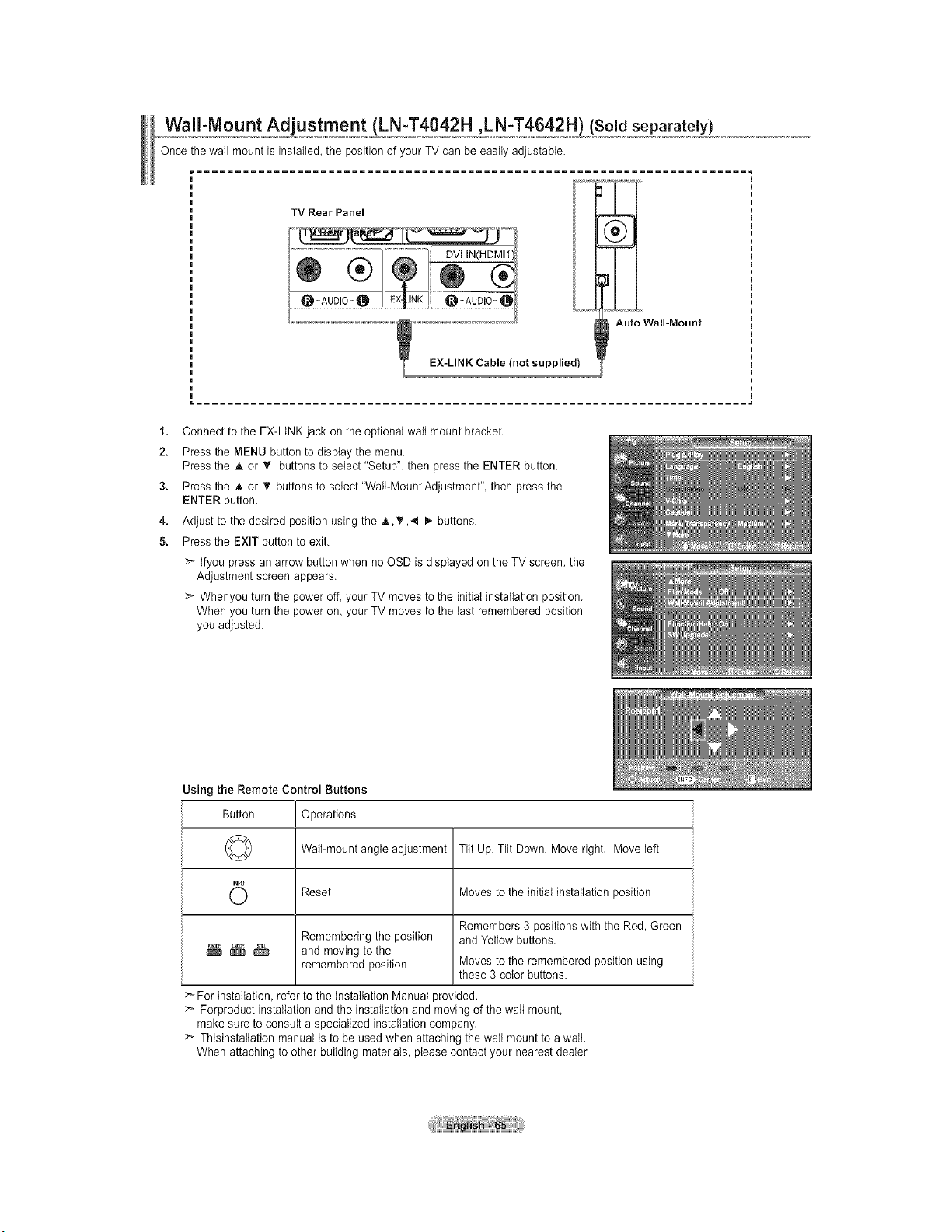
Wall-Mount Adjustment (LN-T4042H ,LN-T4642H) ' (Soldseparately}
Once the wail mount is instaIled, the position of your TV can be easily adjustable.
TV Rear Panel
EX-LINK Cable (not supplied)
Auto Wall-Mount
1.
2.
3.
4.
5.
Connect to the EX-LtNK jack on the optional wail mount bracket.
Press the MENU button to display the menu.
Press the A or _' buttons to select "Setup", then press the ENTER button.
Press the A or • buttons to setect "Wail-Mount Adjustment", then press the
ENTER button.
Adjust to the desired position using the A,T,4 I,. buttons.
Press the EXIT button to exit.
:_ tfyou press an arrow button when no OSD is displayed on the TV screen, the
Adjustment screen appears.
>_ Whenyou turn the power off, your TV moves to the initial installation position.
When you turn the power on, your TV moves to the last remembered position
you adjusted.
Using the Remote Control Buttons
Button Operations
(_:>_) Wall-mount angle adjustment Tilt Up, Tilt Down, Move right, Move left
O Reset Moves to the initial installation
position
Remembers 3 positions with the Red, Green
Remembering the position and Yellow buttons.
_ _ and moving to the
remembered position Moves to the remembered position using
these 3 color buttons.
For installation, refer to the installation Manual provided.
:_ Forproduct installation and the installation and moving of the wall mount,
make sure to consult a specialized installation company.
ThisinstaItation manual is to be used when attaching the wail mount to a wait.
When attaching to other building materials, please contact your nearest dealer
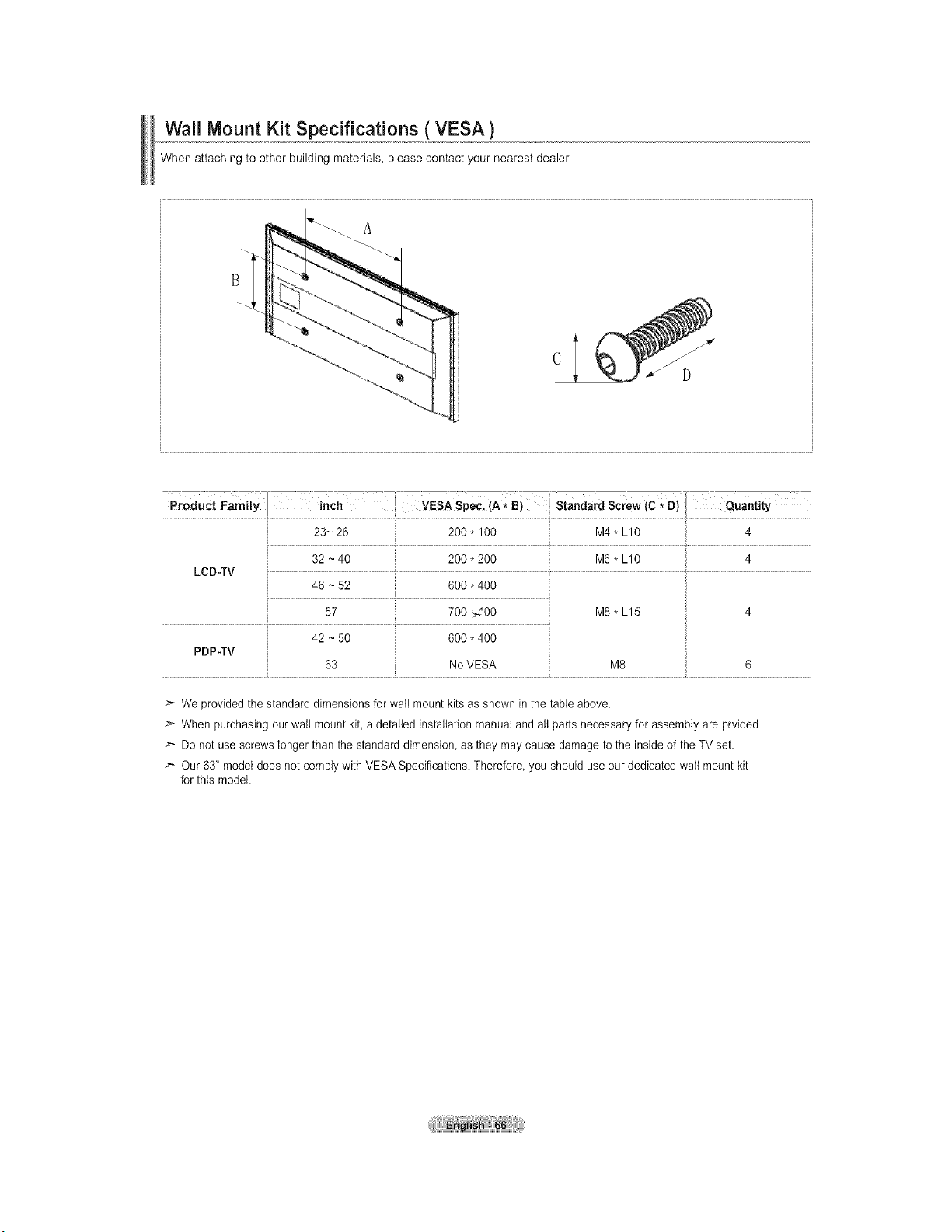
Wall Mount Kit Specifications ( VESA )
When attaching to other building materials, please contact your nearest dealer.
C
D
M6 * L10 4
LCD.TV
46 ~ 52 600 * 400
57 700 >200 M8 * L15 4
i
42 ~ 50 600 * 400
PDP-TV
63 No VESA M8 6
> We provided the standard dimensions for wait mount kits as shown in the table above.
> When purchasing our wall mount kit, a detailed installation manual and aIt parts necessary for assembly are prvided.
:_ Do not use screws longer than the standard dimension, as they may cause damage to the inside of the TV set.
:_ Our 63" model does not comply with VESA Specifications. Therefore, you should use our dedicated wail mount kit
for this model.
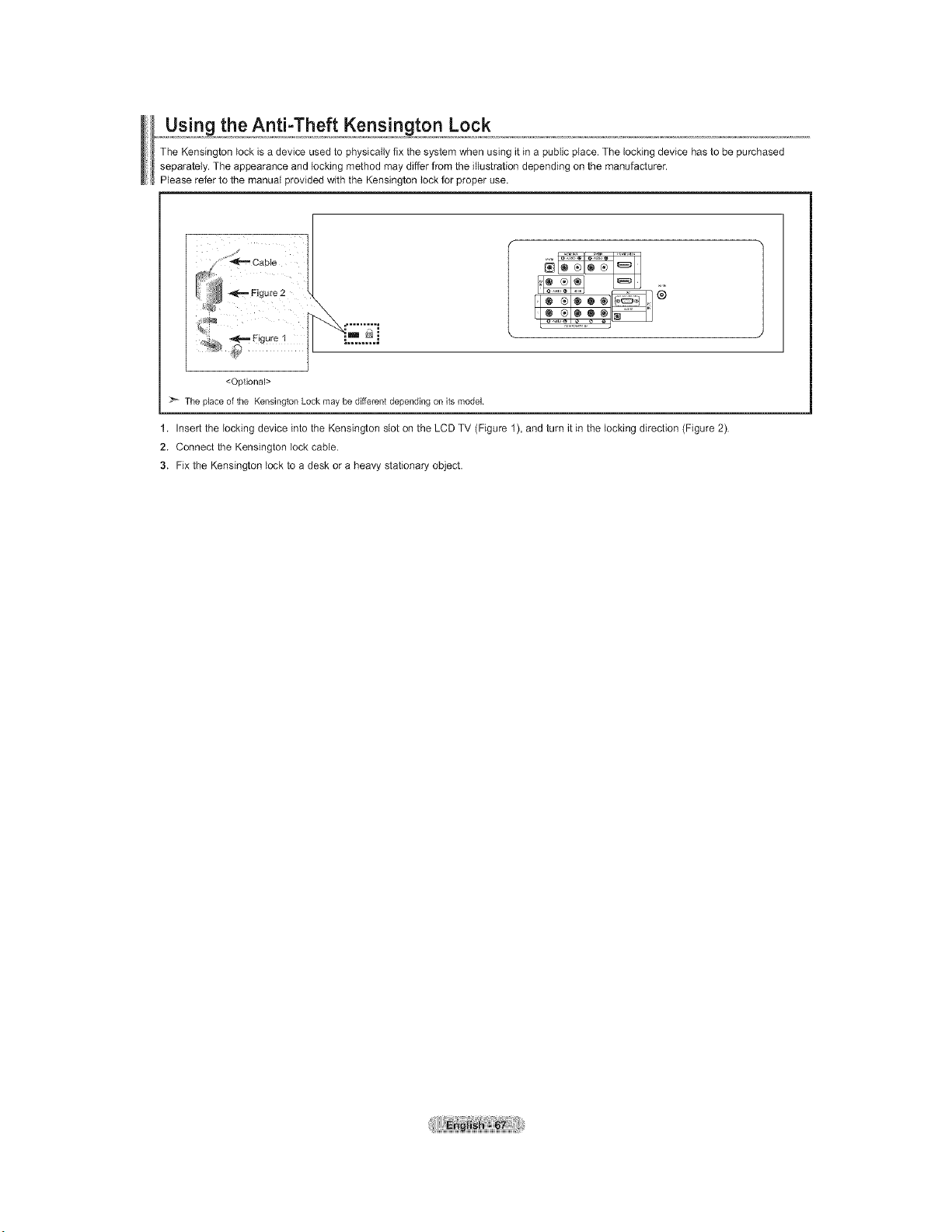
....u s!.ng,,,theA_ heftKensington Lock
The Kensington lock is a device used to physically fix the system when using it in a public place. The locking device has to be purchased
separately. The appearance and locking method may differ from the i%stration depending on the manufacturer.
Please refer to the manual provided with the Kensington lock for proper use.
<Optional>
:z_ The place of the Kensington Lock may be different depending on its model
1. Insert the locking device into the Kensington slot on the LCD TV (Figure 1), and turn it in the locking direction (Figure 2).
2. Connect the Kensington lock cable.
3. Fix the Kensington lock to a desk or a heavy stationary object.
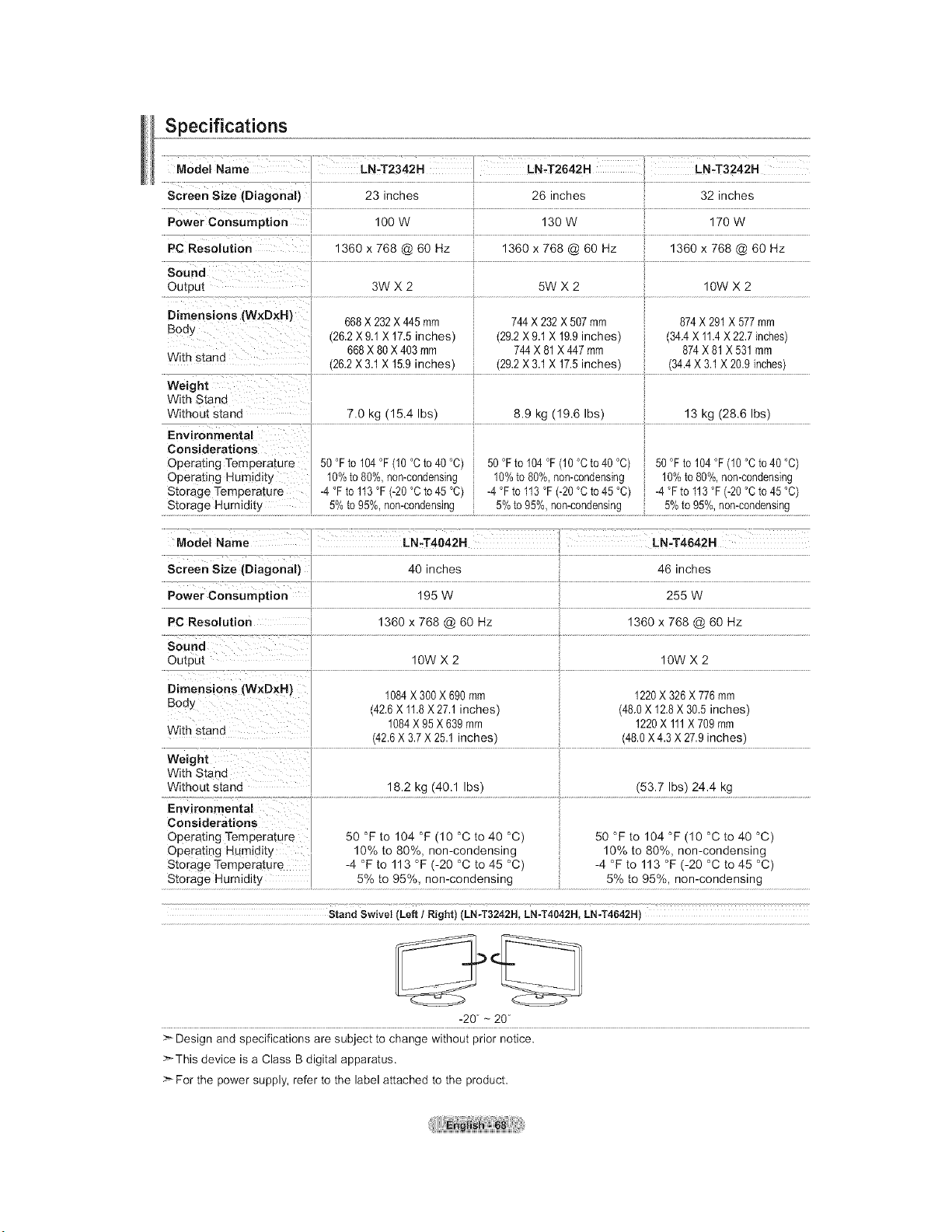
Specifications
Model Name LN_T26-42H LN.T3242H
.....Screen 23 inches _! 26 inches '; 32 inches
Powerconsumptio, lOOw i 130w ! 170w
PC ReSOlUtion 1360 x 768 @ 60 Hz 1360 x 768 @ 60 Hz 1360 x 768 @ 60 Hz
Output 3W X 2 5W X 2 10W X 2
Dimensions (WxD×H) 668 X 232X 445 mm 744 X 232 X 507 mm 874X 291 X 577 mm
Body (2&2 X 9.1X 17.5 inches) (292 X 9.1X 19.9 inches) (84A X 11.4X 22.7inches)
668X 80 X 403 mm 744 X 81 X 447 mm 874 X 81 X 531 mm
With stand
(26.2 X 8.1 X 15.9inches) (29.2X 8.1X 17.5 inches) (34.4 X 8.1 X 20.9 inches)
Weight ..............................................................................................................................................................................................................................................................................................................................................................................
WithStand
Without stand 7.0 kg (15.4 Ibs) 8.9 kg (19.6 Ibs) 13 kg (28.6 Ibs)
Considerations i
Operating Temperature 50°Ftol04°F(10°Cto40°C) i 80°Ftol04°F(10°Cto40°C) i 80°Ftol04°F(10°Cto40°C)
operating Humidity 10%to 80%,non-condensing ;i 10%to 80%,non-condensing i 10% to 80%,non-condensing
Storage Temperature -4°F to113 °F (-20°Cto 45 °C) -4 °Fto113 °F (-20°Cto 48 °C) i 4°Fto113°F(-20°Cto45°C)
storage Humidity 5% to 95%, non-condensing _ 5% to 95%, non-condensing _: 5%to 95%, non-condensing
__'- _'-_"_"_"_ .......... <--" ................ i¸¸--<7 -77 ...................................
Model Name
Screen Size (Diagonal)
Power Consumption
PC Resolution
Sound
Outpu[
Dimensions (W×D×H)
Bod:
With stand
Weight
With Stand
Without stand
Environmental
Considerations
Operating Temperature
Operating Humidity
Storage Temperature
Storage Humidity
LN-T4042H _ LN=T4642H
40inches
195W
1360 x 768@60 Hz
1OWX 2
1084X 300 X 690 mm
42.6X 11.8X 27.1inches)
1084X 95 X 639 mm
(42.6X 3.7X 28.1 inches)
18.2 kg (40.1 Ibs)
50 °F to 104 °F (10 °C to 40 °C)
10% to 80%, non-condensing
-4 °F to 113 °F (-20 °C to 45 °C)
5% to 95%, non-condensing
46 inches
255 W
1360 x 768 @ 60 Hz
10WX2
1220X 326X 776mm
(48.0X 12.8X 30.8 inches)
1220X 111X 709 rnm
(48.0X 4.3 X 27.9inches)
(53.7 Ibs) 24.4 kg
50 °F to 104 °F (10 °C to 40 °C)
10% to 80%, non-condensing
-4 °F to 113 °F (-20 °C to 45 °C)
5% to 95%, non-condensing
Stand Swivel (LEE/Right) (LN-T3242H, LN-T4042H, LN-T4642H)
-20 - 20
Design and specifications are subject to change without prior notice.
>_This device is a Class B digital apparatus.
_For the power supply, refer to the label attached to the product.
4, ThisproductusespartsofthesoftwarefromtheIndependentJPEGGroup.
• ThisproductusespartsofthesoftwareownedbytheFreetypeProject(www.freetype,org).
• ThisproductusessomesoftwareprogramswhicharedistributedundertheGPL/LGPLlicense,Accordingly,thefollowingGPLand
GPLsoftware:LinuxKernelBusybox,Binutils
LGPLsoftware:Gtibc
The GNU General Public License (GPL) (LN-T2353H,LN-T2354H,LN-T2653H)
Version 2, June 1991
Copyright (C) 1989, 1991 Free Software Foundation, Inc.
59 Temple Place, Suite 339, Boston, MA 92111-1397 USA
Everyone is permitted to copy and distribute verbatim copies
of this license document, but changing it is not allowed.
Preamble
The licenses for most software are designed to take away your freedom to share and change it. By contrast, the GNU General Public License is intended
to guarantee your freedom to share and change free software--to make sure the software is free for all its users. This General Public License applies to
most of the Free Software Foundation's software and to any other program whose authors commit to using it. (Some other Free Software Foundation
software is covered by the GNU Library General Public License instead.) You can apply it to your programs, too.
When we speak of free software, we are referring to freedom, not price. Our General Public Licenses are designed to make sure that you have the
freedom to distribute copies of free software (and charge for this service if you wish), that you receive source code or can get it if you want it, that you can
change the software or use pieces of it in new free programs; and th at you know you can do these things.
To protect your rights, we need to make restrictions that forbid anyone to deny you these rights or to ask you to surrender the rights. These restrictions
translate to certain responsibilities for you if you distribute copies of the software, or if you modify it.
For example, if you distribute copies of such a program, whether gratis orfor a fee, you must give the recipients all the rights that you have. You must
make sure that they, too, receive or can get the source code. And you must show them these terms so they know their rights.
We protect your rights with two steps: (1) copyright the software, and (2) offer you this license which gives you legal permission to copy, distribute and/or
modify the software.
Also, for each author's protection and ours, we want to make certain that everyone understands that there is no warranty for this free software. If the
software is modified by someone else and passed on, we want its recipients to know that what they have is not the original, so that any problems
introduced by others will not reflect on the original authors' reputations.
Finally, any free program is threatened constantly by software patents. We wish to avoid the danger that redistributors of a free program will individually
obtain patent licenses, in effect making the program proprietary. To prevent this, we have made it clear that any patent must be licensed for everyone's
free use or not licensed at all.
The precise terms and conditions for copying, distribution and modification follow.
TERMS AND CONDITIONS FOR COPYING, DISTRIBUTION AND MODIFICATION
0. This License applies to any program or other work which contains a notice placed by the copyright holder saying it may be distributed under the terms
of this General Public License. The "Program", below, refers to any such program or work, and a "work based on the Program" means either the Program
or any derivative work under copyright law: that is to say, a work containing the Program or a portion of it, either verbatim or with modifications and/or
translated into another language. (Hereinafter, translation is included without limitation in the term "modification".) Each licensee is addressed as "you".
Activities other than copying, distribution and modification are not covered by this License; they are outside its scope. The act of running the Program is
not restricted, and the output from the Program is covered only if its contents constitute a work based on the Program (independent of having been made
by running the Program). Whether that is true depends on what the Program does.
1. You may copy and distribute verbatim copies of the Program's source code as you receive it, in any medium, provided that you conspicuously and
appropriately publish on each copy an appropriate copyright notice and disclaimer of warranty; keep intact all the notices that refer to this License and to
the absence of any warranty; and give any other recipients of the Program a copy of this License along with the Program.
You may charge a fee for the physical act of transferring a copy, and you may at your option offer warranty protection in exchange for afee.
2. You may modify your copy or copies of the Program or any portion of it, thus forming a work based on the Program, and copy and distribute such
modifications or work under the terms of Section 1 above, provided that you also meet all of these conditions:
a) You must cause the modified files to carry prominent notices stating that you changed the files and the date of any change.
b) You must cause any work that you distribute or publish, that in whole or in part contains or is derived from the Program or any part thereof, to be
licensed as a whole at no charge to all third parties under the terms of this License.
c) Ifthe modified program normally reads commands interactively when run, you must cause it, when started running for such interactive use in the
most ordinary way, to print or display an announcement including an appropriate copyright notice and a notice that there is no warranty (or else,
saying that you provide a warranty) and that users may redistribute the program under these conditions, and telling the user how to view a copy of
this License. (Exception: if the Program itself is interactive but does not normally print such an announcement, your work based on the Program is
not required to print an announcement.)
Continued...
These requirements apply to the modified work as a whole. If identifiable sections of that work are not derived from the Program, and can be reasonably
considered independent and separate works in themselves, then this License, and its terms, do not apply to those sections when you distribute them as
separate works. Bat when you distribute the same sections as part of a whole which is a work based on the Program, the distribution of the whole must be
on the terms of this License, whose permissions for other licensees extend to the entire whole, and thus to each and every part regardless of who wrote it.
Thus, it is not the intent of this section to claim rights or contest your rights to work written entirely by you; rather, the intent is to exercise the right to
control the distribution of derivative or collective works based on the Program.
In addition, mere aggregation of another work not based on the Program with the Program (or with a work based on the Program) on a volume of a
storage or distribution medium does not bring the other work under the scope of this License.
3. You may copy and distribute the Program (or a work based on it, under Section 2) in object code or executable form under the terms of Sections 1 and
2 above provided that you also do one of the following:
a)Accompany it with the complete corresponding machine-readable source code, which must be distributed under the terms of Sections 1 and 2
above on a medium customarily used for software interchange; or,
b) Accompany it with a written offer, valid for at least three years, to give any third party, for a charge no more than your cost of physically performing
source distribution, a complete machine-readable copy of the corresponding source code, to be distributed under the terms of Sections 1 and 2
above on a medium customarily used for software interchange; or,
c) Accompany it with the information you received as to the offer to distribute corresponding source code. (This alternative is allowed only for
noncommercial distribution and only if you received the program in object code or executable form with such an offer, in accord with Subsection b
above.)
The source code for a work means the preferred form of the work for making modifications to it. For an executable work, complete source code means
all the source code for all modules it contains, plus any associated interface definition files, plus the scripts used to control compilation and installation of
the executable. However, as a special exception, the source code distributed need not include anything that is normally distributed (in either source or
binary form) with the major components (compiler, kernel, and so on) of the operating system on which the executable runs, unless that component itself
accompanies the executable.
If distribution of executable or object code is made by offering access to copy from a designated place, then offering equivalent access to copy the source
code from the same place counts as distribution of the source code, even though third parties are not compelled to copy the source along with the object
code.
4. You may not copy, modify, sublicense, or distribute the Program except as expressly provided under this License. Any attempt otherwise to copy,
modify, sublicense or distribute the Program is void, and will automatically terminate your rights under this License. However, parties who have received
copies, or rights, from you under this License will not have their licenses terminated so long as such parties remain in full compliance.
5. You are not required to accept this License, since you have not signed it. However, nothing else grants you permission to modify or distribute the
Program or its derivative works. These actions are prohibited by law if you do not accept this License. Therefore, by modifying or distributing the Program
(or any work based on the Program), you indicate your acceptance of this License to do so, and all its terms and conditions for copying, distributing or
modifying the Program or works based on it.
6. Each time you redistribute the Program (or any work based on the Program), the recipient automatically receives a license from the original licensor to
copy, distribute or modify the Program subject to these terms and conditions. You may not impose any further restrictions on the recipients' exercise of the
rights granted herein. You are not responsible for enforcing compliance by third parties to this License.
7. If, as a consequence of a court judgment or allegation of patent infringement or for any other reason (not limited to patent issues), conditions are
imposed on you (whether by court order, agreement or otherwise) that contradict the conditions of this License, they do not excuse you from the
conditions of this License. If you cannot distribute so as to satisfy simultaneously your obligations under this License and any other pertinent obligations,
then as a consequence you may not distribute the Program at all. For example, if a patent license would not pemlit royalty-free redistribution of the
Program by all those who receive copies directly or indirectly through you, then the only way you could satisfy both it and this License would be to refrain
entirely from distribution of the Program.
If any portion of this section is held invalid or unenforceable under any particular circumstance, the balance of the section is intended to apply and the
section as a whole is intended to apply in other circumstances.
It is not the purpose of this section to induce you to infringe any patents or other property right claims or to contest validity of any such claims; this section
has the sole purpose of protecting the integrity of the free software distribution system, which is implemented by public license practices. Many people
have made generous contributions to the wide range of software distributed through that system in reliance on consistent application of that system; it is
up to the author/donor to decide if he or she is willing to distribute software through any other system and a licensee cannot impose that choice.
This section is intended to make thoroughly clear what is believed to be a consequence of the rest of this License.
B. Ifthe distribution and/or use of the Program is restricted in certain countries either by patents or by copyrighted interfaces, the original copyright holder
who places the Program under this License may add an explicit geographical distribution limitation excluding those countries, so that distribution is
permitted only in or among countries not thus excluded. In such case, this License incorporates the limitation as if written in the body of this License.
9. The Free Software Foundation may publish revised and/or new versions of the General Public License from time to time. Such new versions will be
similar in spirit to the present version, but may differ in detail to address new problems or concerns.
Each version is given a distinguishing version number. Ifthe Program specifies a version number of this License which applies to it and "any later version",
you have the option of following the terms and conditions either of that version or of any later version published by the Free Software Foundation. If the
Program does not specify a version number of this License, you may choose any version ever published by the Free Software Foundation.
Continued...
10. If you wish to incorporate parts of the Program into other free programs whose distribution conditions are different, write to the author to ask for
permission. For software which is copyrighted by the Free Software Foundation, write to the Free Software Foundation; we sometimes make exceptions
for this. Our decision will be guided by the two goals of preserving the free status of aft derivatives of our free software and of promoting the sharing and
reuse of software generally.
NO WARRANTY
11, BECAUSE THE PROGRAM IS LICENSED FREE OF CHARGE, THERE IS NO WARRANTY FOR THE PROGRAM, TO THE EXTENT PERMITTED
BYAPPLICABLE LAW. EXCEPT WHEN OTHERWISE STATED IN WRITING THE COPYRIGHT HOLDERS AND/OR OTHER PARTIES PROVIDE
THE PROGRAM "AS IS" WITHOUT WARRANTY OF ANY KIND, EITHER EXPRESSED OR IMPLIED, INCLUDING, BUT NOT LIMITED TO, THE
IMPLIED WARRANTIES OF MERCHANTABILITYAND FITNESS FORA PARTICULAR PURPOSE. THE ENTIRE RISKAS TO THE QUALITY
AND PERFORMANCE OF THE PROGRAM IS WITH YOU. SHOULD THE PROGRAM PROVE DEFECTIVE, YOU ASSUME THE COST OF ALL
NECESSARY SERVICING, REPAIR OR CORRECTION.
12. IN NO EVENT UNLESS REQUIRED BY APPLICABLE LAW OR AGREED TO IN WRITING WILL ANY COPYRIGHT HOLDER, OR ANY OTHER
PARTY WHO MAY MODIFY AND/OR REDISTRIBUTE THE PROGRAM AS PERMITTED ABOVE, BE LIABLE TO YOU FOR DAMAGES, INCLUDING
ANY GENERAL, SPECIAL, INCIDENTAL OR CONSEQUENTIAL DAMAGES ARISING OUT OF THE USE OR INABILITY TO USE THE PROGRAM
(INCLUDING BUT NOT LIMITED TO LOSS OF DATA OR DATA BEING RENDERED INACCURATE OR LOSSES SUSTAINED BY YOU OR THIRD
PARTIES OR A FAILURE OF THE PROGRAM TO OPERATE WITH ANY OTHER PROGRAMS), EVEN IF SUCH HOLDER OR OTHER PARTY HAS
BEEN ADVISED OF THE POSSIBILITY OF SUCH DAMAGES.
END OF TERMS AND CONDITIONS
How to Apply These Terms to Your New Programs
If you develop a new program, and you want it to be of the greatest possible use to the public, the best way to achieve this is to make it free software
which everyone can redistribute and change under these terms.
To do so, attach the following notices to the program. It is safest to attach them to the start of each source file to most effectively convey the exclusion of
warranty; and each file should have at least the "copyright" line and a pointer to where the full notice is found.
One line to give the program's name and a brief idea of what it does.
Copyright (C) <year> <name of author>
This program is free software; you can redistribute it and/or modify it under the terms of the GNU General Public License as published by the Free
Software Foundation; either version 2 of the License, or (at your option) any later version.
This program is distributed in the hope that it will be useful, but WITHOUT ANY WARRANTY; without even the implied warranty of
MERCHANTABILITY or FITNESS FOR A PARTICULAR PURPOSE. See the GNU General Public License for more details.
You should have received a copy of the GNU General Pubflc License along with this program; if not, write to the Free Software Foundation, Inc., 59
Temple Place, Suite 330, Boston, MA 02111-1307 USA
Also add information on how to contact you by electronic and paper mail.
If the program is interactive, make it output a short notice like this when it starts in an interactive mode:
Gnomovision version 69, Copyright (C) year name of author Gnomovision comes with ABSOLUTELY NO WARRANTY; for details type 'show w'. This
is free software, and you are welcome to redistribute it under certain conditions; type 'show c'for details.
The hypothetical commands "show w' and 'show c' should show the appropriate parts of the General Public License. Of course, the commands you use
may be called something other than 'show w' and 'show c'; they could even be mouse-dicks or menu items--whatever suits your program.
You should also get your employer (if you work as a programmer) or your school, if any, to sign a "copyright disclaimer" for the program, if necessary. Here
is a sample; alter the names:
Yoyodyne, Inc., hereby disclaims all copyright interest in the program 'Gnomovision (which makes passes at compilers) written by James Hacker.
signature of Ty Coon, 1April 1989
Ty Coon, President of Vice
This General Public License does not permit incorporating your program into proprietary programs. If your program is a subroutine library, you may
consider it more useful to permit linking proprietary applications with the library. If this is what you want to do, use the GNU Library General Public License
instead of this License.
Continued...

GNU Lesser General Public License (LGPL)
Version 2.1, February 1999
Copyright (C) 1991, 1999 Free Software Foundation, Inc. 59 Temple Place, Suite 330, Boston, MA 02111-I307 USAEveryone is permitted to copy and
distribute verbatim copies of this license document, butchanging it is not allowed.
)This is thefirst released version d the Lesser GPL. It also counts as the successor d the GNU Ubrary Public License, version2, hence the version number
2.1.]
Preamble
The licenses for most softwareare designedto take away your freedom to share and change it. By contrast, the GNU GeneralPublic Licenses are intended to
guarantee your freedom to share and change free software--to make sure the software isfree for all its users.
This license, the Lesser General Public License, applies to some specially designatedsoftware packages--typically libraries--of the Free Software Foundation and
other authors who decideto use it. Youcan use ittoo, but we suggest you first think carefullyabout whetherthis license orthe ordinary General PublicLicense is
the better strategy to use in any particular case, based on the explanations below.
When we speak of free software,we are referringto freedom of use, notprice. Our General PuNic Licenses are designed to make sure that you have the freedom
to distribute copiesof free software (and chargefor this service if you wish); that you receivesource code or can get it if you want it; that you can changethe
software and use pieces of it in new flee programs; and that you are informed that you can do these things.
To protect your rights, we need to make restrictionsthat forbid distributorsto deny you these rights or to ask you tosurrender these rights. These restrictions
translate to certain responsibilitiesfor you if you distribute copies ofthe library or if you modify it.
For example, if you distributecopies d the library, whether gratis orfor a fee, you must give the recipients all the rights that we gave you. You must make sure that
they, too, receive or can get the source code. Ifyou link other code with the library,you must provide complete object files to the recipients, so that they can relink
them with the library after making changesto the library and recompiling it.And you must show them these terms so they know their rights.
We protect your rights with a two-step method: (I) we copyrightthe library, and (2) we offer you this license,which gives you legal permission to copy,distribute
and/or modify the library.
To protect each distributor, we want to make itvery clear that there is no warranty for the free library.Also, if the library is modified by someone else and passed
on, the recipients should know that what they have is not the original version, so that the original author's reputation will not be affectedby problems that might be
introduced by others.
Finally,software patents pose a constant threat to the existenceof any free program. We wish to make surethat a company cannot effectivelyrestrict the users
d a free program byobtaining a restrictive license from a patent holder. Therefore,we insist that any patent license obtained for a versionof the library must be
consistent with the full freedom d use specified in this license.
Most GNU software,including some libraries, is covered bythe ordinary GNU General Public License. This license,the GNU Lesser General Public License,
applies to certain designated libraries, and is quite differentfrom the ordinary General Public License. We use this license for certain libraries in order to permit
linking those libraries into non-free programs.
When a program is linked with alibrary, whether statically or using a shared library,the combinationof thetwo is legally speaking a combined work, a derivative of
the original library. The ordinary General Public License therefore permits such linking only if the entire combinationfits its criteria d freedom. The Lesser General
Public License permits more lax criteria for linking other code with the library.
We call this license the "Lesser" General Public License because it does Less to protect the user's freedom than the ordinary General Public License. It also
provides other free software developersLess of an advantage over competing non-free programs. These disadvantages are the reasonwe use the ordinary
General Public License for many librades. However,the Lesser license provides advantages in certain special circumstances.
For example, on rare occasions,there may be a special need to encouragethe widest possible use of a certain library, so that it becomes a de-facto standard.To
achieve this, non4ree programs must be allowed to use the library.A more frequent case is thata free library does the samejob as widely used non-free libraries.
Inthis case,there is little to gainby limitingthe free libraryto free software only, sowe use the Lesser General PublicLicense.
In other cases, permission to use a particular library in non4ree programs enables agreater number of people to use a large body of free software.For example,
permission to use the GNU C Library in non-free programs enablesmany more people to use the whole GNU operating system, aswell as its variant, the GNU/
Unux operating system.
Although the Lesser General PublicLicense is Less protective d the users' freedom, it does ensure that the user ofa programthat is linked with the Library has
the freedom and the wherewithal to run that programusing a modified versiond the Library.
The precise terms and conditions for copying, distribution and modification follow. Payclose attention to the difference between a "work based on the library" anda
"work that uses the library". Theformer contains code derivedfrom the library, whereas the latter must be combined with the library in order to run.
TERMS AND CONDITIONS FOR COPYING, DISTRIBUTION AND MODIFICATION
0. This LicenseAgreement applies to any software libraryor other programwhich containsa notice placed by the copyright holder or other authorized party saying
it may be distributed under the terms of this Lesser General Public License (also called 1his License"). Each licensee is addressed as "you".
A"library" means a collection of software functions and/or data prepared so asto be conveniently linked with application programs(which use some ofthose
functions and data) to form executables.
The "Library", below,refers to any such software library or work which has been distributed under these terms. A"work based onthe Library" means either the
Library or any derivative work under copyrightlaw: that is to say, awork containingthe Libraryor aportion of it, either verbatim or with modifications and/or
translated straightforwardly into another language. (Hereinafter,translation is included without limitation in the term "modification".)
Continued...
"Source code" for a work means the preferred form of the work for making modifications to it. For a library, complete source code means all the source
code for all modules it contains, plus any associated interface definition files, plus the scripts used to control compilation and installation of the library.
Activities other than copying, distribution and modification are not covered by this License; they are outside its scope. The act of running a program using
the Library is not restricted, and output from such a program is covered only if its contents constitute a work based on the Library (independent of the use
of the Library in a tool for writing it). Whether that is true depends on what the Library does and what the program that uses the Library does.
1. You may copy and distribute verbatim copies of the Library's complete source code as you receive it, in any medium, provided that you conspicuously
and appropriately publish on each copy an appropriate copyright notice and disclaimer of warranty; keep intact all the notices that refer to this License and
to the absence of any warranty; and distribute a copy of this License along with the Library.
You may charge a fee for the physical act of transferring a copy, and you may at your option offer warranty protection in exchange for afee.
2. You may modify your copy or copies of the Library or any portion of it, thus forming a work based on the Library, and copy and distribute such
modifications or work under the terms of Section 1 above, provided that you also meet all of these conditions:
a) The modified work must itself be a software library.
b) You must cause the files modified to carry prominent notices stating that you changed the files and the date of any change.
c) You must cause the whole of the work to be licensed at no charge to all third parties under the terms of this License.
d) If a facility in the modified Library refers to a function or a table of data to be supplied by an application program that uses the facility, other than as
an argument passed when the facility is invoked, then you must make a good faith effort to ensure that, in the event an application does not supply
such function or table, the facility still operates, and performs whatever part of its purpose remains meaningful.
(For example, a function in a library to compute square roots has a purpose that is entirely well-defined independent of the application. Therefore,
Subsection 2d requires that any application-supplied function or table used by this function must be optional: if the application does not supply it, the
square root function must still compute square roots.)
These requirements apply to the modified work as a whole. If identifiable sections of that work are not derived from the Library, and can be reasonably
considered independent and separate works in themselves, then this License, and its terms, do not apply to those sections when you distribute them as
separate works. But when you distribute the same sections as part of a whole which is a work based on the Library, the distribution of the whole must be
on the terms of this License, whose permissions for other licensees extend to the entire whole, and thus to each and every part regardless of who wrote
it.
Thus, it is not the intent of this section to claim rights or contest your rights to work written entirely by you; rather, the intent isto exercise the right to
control the distribution of derivative or collective works based on the Library.
In addition, mere aggregation of another work not based on the Library with the Library (orwith a work based on the Library) on a volume of a
storage or distribution medium does not bring the other work under the scope of this License.
3. You may opt to apply the terms of the ordinary GNU General Public License instead of this License to a given copy of the Library. To do this, you must
alter all the notices that refer to this License, so that they refer to the ordinary GNU General Public License, version 2, instead of to this License. (If a
newer version than version 2 of the ordinary GNU General Public License has appeared, then you can specify that version instead if you wish.) Do not
make any other change in these notices.
Once this change is made in a given copy, it is irreversible for that copy, so the ordinary GNU General Public License applies to all subsequent copies and
derivative works made from that copy.
This option is useful when you wish to copy part of the code of the Library into a program that is not a library.
4. You may copy and distribute the Library (or a portion or derivative of it, under Section 2) in object code or executable form under the terms of Sections 1
and 2 above provided that you accompany it with the complete corresponding machine-readable source code, which must be distributed under the terms
of Sections 1 and 2 above on a medium customarily used for software interchange.
If distribution of object code is made by offering access to copy from a designated place, then offering equivalent access to copy the source code from the
same place satisfies the requirement to distribute the source code, even though third parties are not compelled to copy the source along with the object
code.
5, A program that contains no derivative of any portion of the Library, but is designed to work with the Library by being compiled or linked with it, is called a
"work that uses the Library". Such a work, in isolation, is not a derivative work of the Library, and therefore falls outside the scope of this License.
However, linking a "work that uses the Library" with the Library creates an executable that is a derivative of the Library (because it contains portions of
the Library), rather than a "work that uses the library". The executable istherefore covered by this License. Section 6 states temls for distribution of such
executables.
When a "work that uses the Library" uses material from a header file that is part of the Library, the object code for the work may be a derivative work of the
Library even though the source code is not. Whether this is true is especially significant if the work can be linked without the Library, or if the work is itself
a library. The threshold for this to be true is not precisely defined by law.
If such an object file uses only numerical parameters, data structure layouts and accessors, and small macros and small inline functions (ten lines or less
in length), then the use of the object file is unrestricted, regardless of whether it is legally a derivative work. (Executables containing this object code plus
portions of the Library will still fall under Section 6.)
Continued...
Otherwise, if the work is a derivative of the Library, you may distribute the object code for the work under the terms of Section 6. Any executables
containing that work also fall under Section 6, whether or not they are linked directly with the Library itself.
6. As an exception to the Sections above, you may also combine or link a "work that uses the Library" with the Library to produce a work containing
portions of the Library, and distribute that work under terms of your choice, provided that the temls permit modification of the work for the customer's own
use and reverse engineering for debugging such modifications.
You must give prominent notice with each copy of the work that the Library is used in it and that the Library and its use are covered by this License. You
must supply a copy of this License. Ifthe work during execution displays copyright notices, you must include the copyright notice for the Library among
them, as well as a reference directing the user to the copy of this License. Also, you must do one of these things:
a) Accompany the work with the complete corresponding machine-readable source code for the Library including whatever changes were used
in the work (which must be distributed under Sections 1 and 2 above); and, if the work is an executable linked with the Library, with the complete
machine-readable "work that uses the Library", as object code and/or source code, so that the user can modify the Library and then relink to produce
a modified executable containing the modified Library. (It is understood that the user who changes the contents of definitions files in the Library will
not necessarily be able to recompile the application to use the modified definitions.)
b) Use a suitable shared library mechanism for linking with the Library. A suitable mechanism is one that (1) uses at run time a copy of the library
already present on the user's computer system, rather than copying library functions into the executable, and (2) will operate properly with a modified
version of the library, if the user installs one, as long as the modified version is interface-compatible with the version that the work was made with.
c) Accompany the work with a written offer, valid for at least three years, to give the same user the materials specified in Subsection 6a, above, for a
charge no more than the cost of performing this distribution.
d) If distribution of the work is made by offering access to copy from a designated place, offer equivalent access to copy the above specified
materials from the same place.
e) Verify that the user has already received a copy of these materials or that you have already sent this user a copy.
For an executable, the required form of the "work that uses the Library" must include any data and utility programs needed for reproducing the executable
from it. However, as a special exception, the materials to be distributed need not include anything that is normally distributed (in either source or binary
form) with the major components (compiler, kernel, and so on) of the operating system on which the executable runs, unless that component itself
accompanies the executable.
It may happen that this requirement contradicts the license restrictions of other proprietary libraries that do not normally accompany the operating system.
Such a contradiction means you cannot use both them and the Library together in an executable that you distribute.
7, You may place library facilities that are a work based on the Library side-by-side in a single library together with other library facilities not covered
by this License, and distribute such a combined library, provided that the separate distribution of the work based on the Library and of the other library
fadlities is otherwise permitted, and provided that you do these two things:
a)Accompany the combined library with a copy of the same work based on the Library, uncombined with any other library facilities. This must be
distributed under the terms of the Sections above.
b) Give prominent notice with the combined library of the fact that part of it is a work based on the Library, and explaining where to find the
accompanying uncombined form of the same work.
8. You may not copy, modify, sublicense, link with, or distribute the Library except as expressly provided under this License. Any attempt otherwise to
copy, modify, sublicense, link with, or distribute the Library is void, and will automatically terminate your rights under this License. However, parties who
have received copies, or rights, from you under this License will not have their licenses terminated so long as such parties remain in full compliance.
9. You are not required to accept this License, since you have not signed it. However, nothing else grants you permission to modify or distribute the
Library or its derivative works. These actions are prohibited by law if you do not accept this License. Therefore, by modifying or distributing the Library
(or any work based on the Library), you indicate your acceptance of this License to do so, and all its terms and conditions for copying, distributing or
modifying the Library or works based on it.
10. Each time you redistribute the Library (or any work based on the Library), the recipient automatically receives a license from the original licensor
to copy, distribute, link with or modify the Library subject to these terms and conditions. You may not impose any further restrictions on the recipients'
exercise of the rights granted herein. You are not responsible for enforcing compliance by third parties with this License.
11. If, as a consequence of a court judgment or allegation of patent infringement or for any other reason (not limited to patent issues), conditions
are imposed on you (whether by court order, agreement or otherwise) that contradict the conditions of this License, they do not excuse you from the
conditions of this License. If you cannot distribute so as to satisfy simultaneously your obligations under this License and any other pertinent obligations,
then as a consequence you may not distribute the Library at all. For example, if a patent license would not permit royalty-free redistribution of the Library
by all those who receive copies directly or indirectly through you, then the only way you could satisfy both it and this License would be to refrain entirely
from distribution of the Library.
If any portion of this section is held invalid or unenforceable under any particular circumstance, the balance of the section is intended to apply, and the
section as a whole is intended to apply in other circumstances.
It is not the purpose of this section to induce you to infringe any patents or other property right claims or to contest validity of any such claims; this section
has the sole purpose of protecting the integrity of the free software distribution system which is implemented by public license practices. Many people
have made generous contributions to the wide range of software distributed through that system in reliance on consistent application of that system; it is
up to the author/donor to decide if he or she is willing to distribute software through any other system and a licensee cannot impose that choice.
Continued...
This section is intended to make thoroughly clear what is believed to be a consequence of the rest of this License.
12. Ifthe distribution and/or use of the Library is restricted in certain countries either by patents or by copynghted interfaces, the obginal copyright
holder who places the Library under this License may add an explicit geographical distribufion limitation excluding those countries, so that distribution is
pemlitted only in or among countries not thus excluded. In such case, this License incorporates the limitation as if written in the body of this License.
13. The Free Software Foundation may publish revised and/or new versions of the Lesser General Public License from time to time. Such new versions
will be similar in spirit to the present version, but may differ in detail to address new problems or concerns.
Each version is given a distinguishing version number. If the Library specifies a version number of this License which applies to it and "any later version",
you have the option of following the terms and conditions either of that version or of any later version published by the Free Software Foundation. If the
Library does not specify a license version number, you may choose any version ever published by the Free Software Foundation.
14. If you wish to incorporate parts of the Library into other free programs whose distribution conditions are incompatible with these, write to the author
to ask for permission. For software which is copyrighted by the Free Software Foundation, write to the Free Software Foundation; we sometimes make
exceptions for this. Our decision will be guided by the two goals of preserving the free status of all derivatives of our free software and of promoting the
sharing and reuse of software generally.
NO WARRANTY
15. BECAUSE THE LIBRARY IS LICENSED FREE OF CHARGE, THERE IS NO WARRANTY FOR THE LIBRARY, TO THE EXTENT PERMITTED
BY APPLICABLE LAW. EXCEPT WHEN OTHERWISE STATED IN WRITING THE COPYRIGHT HOLDERS AND/OR OTHER PARTIES PROVIDE
THE LIBRARY "AS IS" WITHOUT WARRANTY OF ANY KIND, EITHER EXPRESSED OR IMPLIED, INCLUDING, BUT NOT LIMITED TO, THE
IMPLIED WARRANTIES OF MERCHANTABILITYAND FITNESS FORA PARTICULAR PURPOSE. THE ENTIRE RISKAS TO THE QUALITYAND
PERFORMANCE OF THE LIBRARY IS WITH YOU. SHOULD THE LIBRARY PROVE DEFECTIVE, YOU ASSUME THE COST OF ALL NECESSARY
SERVICING, REPAIR OR CORRECTION.
16, IN NO EVENT UNLESS REQUIRED BY APPLICABLE LAW OR AGREED TO IN WRITING WILL ANY COPYRIGHT HOLDER, OR ANY OTHER
PARTY WHO MAY MODIFYAND/OR REDISTRIBUTE THE LIBRARYAS PERMITTED ABOVE, BE LIABLE TO YOU FOR DAMAGES, INCLUDING
ANY GENERAL, SPECIAL, INCIDENTAL OR CONSEQUENTIAL DAMAGES ARISING OUT OF THE USE OR INABILITY TO USE THE LIBRARY
(INCLUDING BUT NOT LIMITED TO LOSS OF DATA OR DATA BEING RENDERED INACCURATE OR LOSSES SUSTAINED BY YOU OR THIRD
PARTIES OR A FAILURE OF THE LIBRARY TO OPERATE WITH ANY OTHER SOFTWARE), EVEN IF SUCH HOLDER OR OTHER PARTY HAS BEEN
ADVISED OF THE POSSIBILITY OF SUCH DAMAGES.
END OF TERMS AND CONDiTiONS
How to Apply These Terms to Your New Libraries
If you develop a new library, and you want itto be of the greatest possible use to the public, we recommend making it free software that everyone can
redistribute and change. You can do so by permitting redistribution under these terms (or, alternatively, under the terms of the ordinary General Public
License).
To apply these temls, attach the following notices to the library. It is safest to attach them to the start of each source file to most effectively convey the
exclusion of warranty; and each file should have at least the "copyright" line and a pointer to where the full notice is found.
<one line to give the library's name and an idea of what it does.> Copyright (C) <year> <name of author>
This library is free software; you can redistribute it and/or modify it under the terms of the GNU Lesser General Public License as published by the
Free Software Foundation; either version 2.1 of the License, or (at your option) any later version.
This library is distributed in the hope that it will be useful, but WITHOUT ANY WARRANTY; without even the implied warranty of MERCHANTABILITY
or FITNESS FOR A PARTICULAR PURPOSE. See the GNU Lesser General Public License for more details.
You should have received a copy of the GNU Lesser General Public License along with this library; if not, write to the Free Software Foundation, Inc.,
59 Temple Place, Suite 330, Boston, MA 02111-1307 USA
Also add information on how to contact you by electronic and paper mail.
You should also get your employer (if you work as a programmer) or your school, if any, to sign a "copyright disclaimer" for the library, if necessary. Here is
a sample; alter the names:
Yoyodyne, Inc., hereby disclaims all copyright interest in the library ' Frob' (a library for tweaking knobs) written by James Random Hacker.
signature of Ty Coon, 1April 1990
Ty Coon, President of Vice
That's all there is to it!
Contenido
i _istado de caracteristicas 2
[] Accesodos .................................................................. 2
[] Aspecto general del panel de control ..................... 3
[] Aspecto general del panel de conexiones
(Dependiendo del modelc- 4
[] Vlando a distancis 5
[] Instalaci6n de las pilas en el manoo a dBtancJa 6
[] Conexi6n de antenas de VHF y UHF 6
! Conexi6n de TV por cable ......................................... 7
[] Conexi6n de un reproductor de video. 8
[] Conexi6n de una videocgmara ......... 9
[] Conexi6_ de un reEroductor d_ DVD ........................ 9
[] Conexlon a un DVD/receotor de TV digital a trav6s
[] Selecci6n de la antena ............... 37
[] Supresi6n de los canales codificados digitales,..,.,37
[] Configuraci6n de las listas de canales 38
[] Para configurar los canales fa_ontos 39
[] Manejo de la Lista de Canales ......
[] Visualizacl6n de la IJsta de canales 40
[] Etlquetado de canales ....................................... 41
[] LNA Low NoiseAmplifier -Amplificador de
ruido bajo) ........................................................ 41
[] Sintonizaci6n fina de los canales anal6gicos ...42
[] Comprobaci6n de la potencia de la serial digital ...42
[] Uso del TV como pantalla de ordeoador (PC_ ...43
[] Modos de visualizaci6n ............... 43
de un HDMI ................................................................ 10 [] Ajuste de] televisor con el ordenador ........... 44
[] Conexi6n de un DVD o un Decodificador digital [] Configuraci6n del PC para Home Cinema ............ 45
medJante DVl 10
[] Conexi6n de un sJstema de audio d jita] ................... 11
[] Conexi6n ae un amplificador/DVD _ ara cme en casa. 11
[] Conexi6n a un PC...................................................... tl [] Configuraci6n del Reloj 46
[] Encendido o apagado del TV .................................... !2
[] Funci6n Plug & Pla, 12
[] Cambio de canales 13
[] Ajuste del volumen 14
[] Visualizaci6n de la pantalla. 14
[] Visualizaci6n de los _en0s 15
[] Memodzaci6n de los canales .................................... 15
[] Configuraci6n del mando a distancia
(Depena enao del rnodelo'. 17
[] C6digos del rnando a distancB 19
[] _ara seleccionar la fuente ....................................... 22
[] Edici6n del Nombre de la Fuente de entrada
laependiendo del modelo} ............................... 22
[] Selecci6n del idloma de menu .............................. 49
[] Ajuste del modo Pantalla Azul ............................... 49
[] Uso del Mode Juego ...................................... 49
[] Visi6n de subtitulos (mensaJes de texto
en pantalla -Anal6gico ................................... 50
[] Visi6n de subtitulos _mensajes ae iex_o en
pantalla) - Digital ......................................................
[] Nivel Transparencia del men0 52
[] uso de la funci6n de ahorro de energla ................ 52
[] Ajuste de la funci6n de ayuaa ................................ 53
[] Reducci6n digital del ruldo 53
[] Uso ae V-Chip 54
[] Actualizaci6n del software 61
[] Uso de los parametros de imageo automaticos..._23
[] Activaci6n de la luz de fonao ........................... 24
[] Ajuste del Color del fondo ...................................... 24
[] Activaci6n de la configuraci6n detallada ................ 25
[] Cambio del tamaro de la pantalla ......................... 28
[] Configuraci6n de Color activc 29
[] DNle t Motor de imagen natural digital) 29
[] Ajus_e ae la funci6n Modo pelicula 29
[] Congelaci6n de la imagen ...................................... 30
[] Conflguraci6n del Nivel de negro HDMI 30
[] Visualizaci6n Imagen en imagen ..................... 30
[] Personalizaci6n del sonido .................................... 32
[] Uso de los parame_ros de sonldo automaticos ...... 32
[] Confiauraci6n del TruSurround XT l SRS TS XT_._33
[] Selec_ci6n de una oista de sonido multicanal
(MTS_ - D_gital .............. 33
[] Selecci6n de una pista de sonido multicanal
(MTS) - Analogo ..................................................... 34
[] Control automatico de volumen ............................ 34
[] Se ecci6n del sileocio mterno ................................ 35
[] Ajuste de la melodia ae encendido/apagado ......... 35
[] Escuchar el sonido de la sub imagen del PIP ....... 36
[] Reajuste de valores de sonido a los valores
predefinidos de fabdca 36
[] Conexi6n de los auriculares ...36
[] Identiflcaci6n de problemas 62
[] Instalaci6n del soporte ... 64
[] Desconexi6n del sopor[e ................................. 64
[] Ajuste de montaje en la pare(]
LN-T4042H. T4642H ) tse venae por separaao) ...65
[] Instalaci6n del Kit de montaje en la pared ............. 66
[]Use del cierre antirrobo kensington ....................... 67
[] Especificaciones ..68
Es_pa_ol_ t
IAntes de usar el equJpo lea este manual /
_e para futuras referencias.J
Simboto
A 4,- >,-
Pulse mportante Nora Boronde una
[}utsaci6r
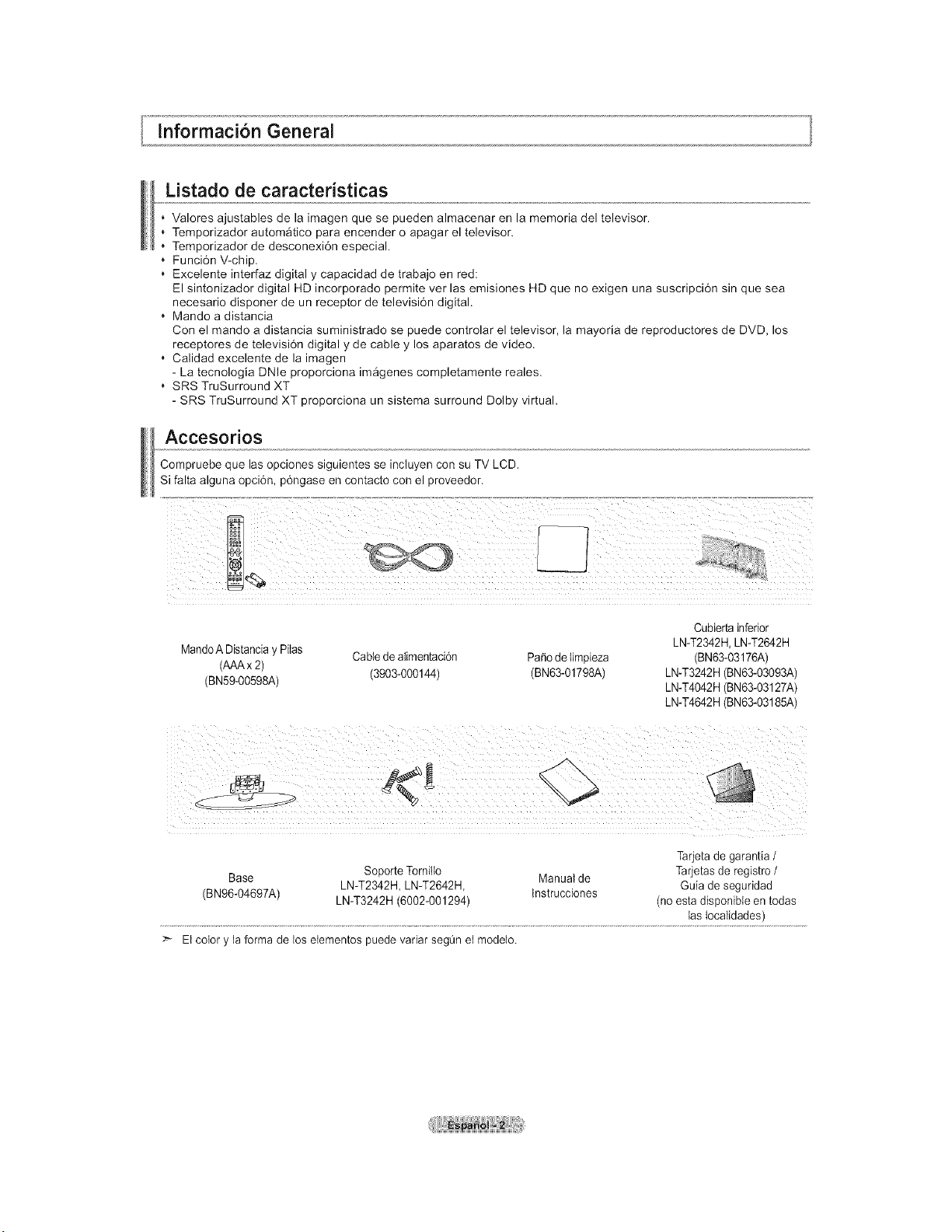
Informacion General
Listado de caracteristicas
, Valores ajustables de la imagen que se pueden almacenar en la memoria del televisor.
, Temporizador autom_tico para encender o apagar el televisor.
Temporizador de desconexi6n especial.
Funci6n V-chip.
, Excelente interfaz digital y capacidad de trabajo en red:
El sintonizador digital HD incorporado permite ver las emisiones HD que no exigen una suscripci6n sin que sea
necesario disponer de un receptor de televisi6n digital.
, Mando a distancia
Con el mando a distancia suministrado se puede controlar el televisor, la mayoria de reproductores de DVD, los
receptores de televisi6n digital y de cable y los aparatos de video.
Calidad excelente de la imagen
- La tecnologia DNle proporciona im_genes completamente reales.
SRS TruSurround XT
- SRS TruSurround XT proporciona un sistema surround Dolby virtual.
Accesorios
Compruebe que las opciones siguientes se incluyen con su TV LCD.
Si falta alguna opci6n, p6ngase en contacto con el proveedor.
MandoA Distanciay PiIas Cable deatimentaci6n PaSode timpieza
(AAAx 2)
(BN59-00598A) (3903-000144) (BN63-01798A)
Cubierta inferior
LN-T2342H, LN-T2642H
(BN63-03176A)
LN-T3242H (BN63-03093A)
LN-T4042H (BN63-03127A)
LN-T4642H (BN63-03185A)
Tarjeta de garantia /
Base Soporte Tornilto Manual de Tarjetas de registro /
LN-T2342H, LN-T2642H, Guia de seguddad
(BN96-04697A) LN-T3242H (6002-001294) tnstrucciones (no esta disponibte en todas
las Iocalidades)
El color y la forma de los etementos puede variar segQn et modelo.
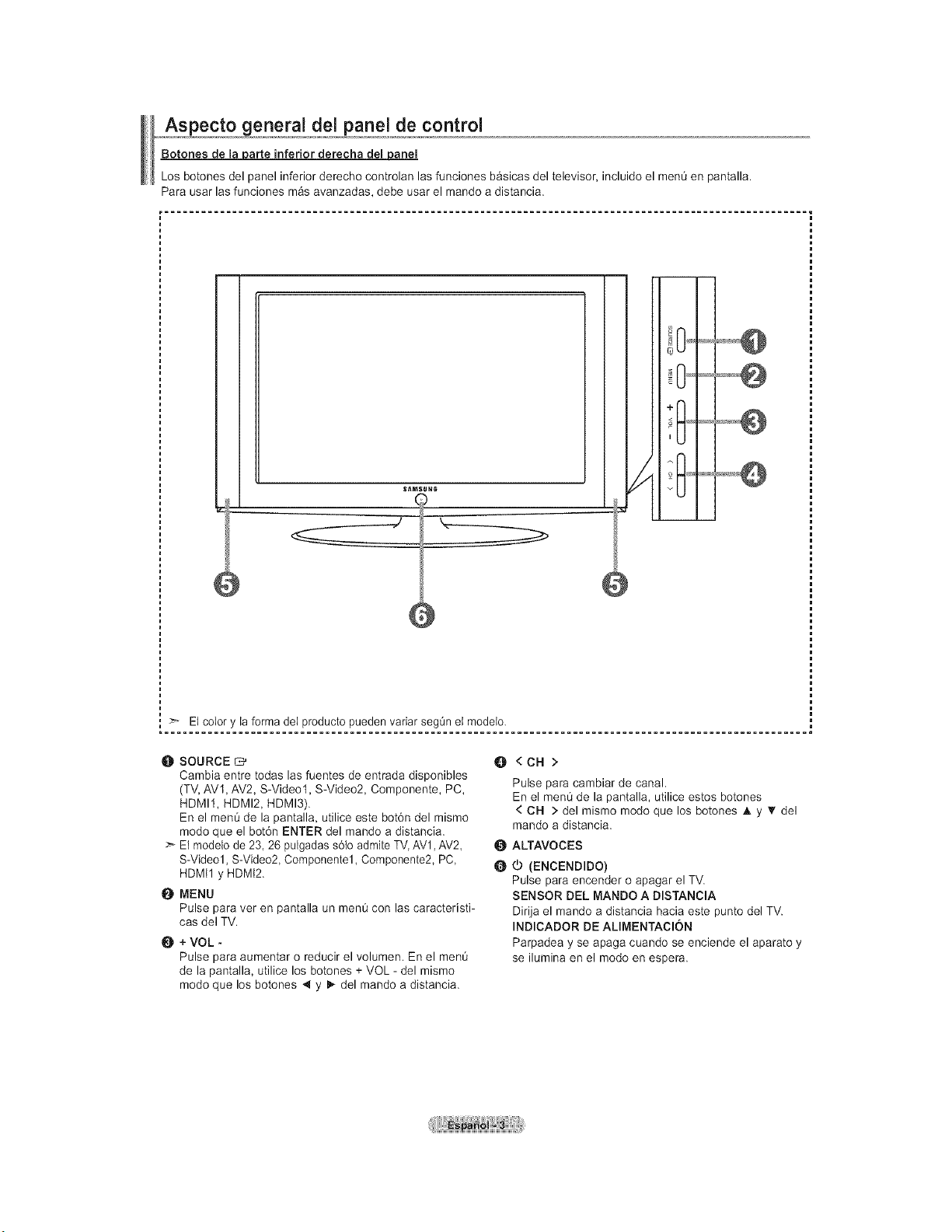
Aspecto general del panel de control
Botones de _arte inferior derecha del a_anel
Los botones del panel inferior derecho controlan las funciones basicas del televisor, incluido el menO en pantalla.
Para usar las funciones m_s avanzadas, debe usar el mando a distancia.
_ '_---_-_
m ,J
÷11
El color y la forma dei producto pueden variar segOn et modeto.
O SOURCE
Cambia entre todas las fuentes de entrada disponibles
(TV, AV1, AV2, S-Video1, S-Video2, Componente, PC,
HDMI1, HDMI2, HDMI3).
En el men0 de la pantalla, utilice este bot6n del mismo
modo que el bot6n ENTER del mando a distancia.
>- El modelo de 23, 26 pulgadas s6{o admite TV, AV1,AV2
S-Video1, S-Video2, Componentel, Componente2, PC,
HDMtl y HDMt2.
@ MENU
Pulse para ver en pantalla un ment] con las caracteristi-
cas del TV.
+VOL -
Pulse para aumentar o reducir el volumen. En el ment]
de la pantalla, utilice los botones + VOL - del mismo
modo que los botones _ y _ del mando a distancia.
O <CH>
Pulse para cambiar de canal.
En el men0 de la pantalla, utilice estos botones
< CH > del mismo modo que los botones i, y 'I' del
mando a distancia.
ALTAVOCES
(b (ENCENDIDO)
Pulse para encender o apagar el TV.
SENSOR DEL MANDO A DISTANClA
Dirija el mando a distancia hacia este punto del TV.
INDICADOR DE ALIMENTAClON
Parpadea y se apaga cuando se enciende el aparato y
se ilumina en el modo en espera.
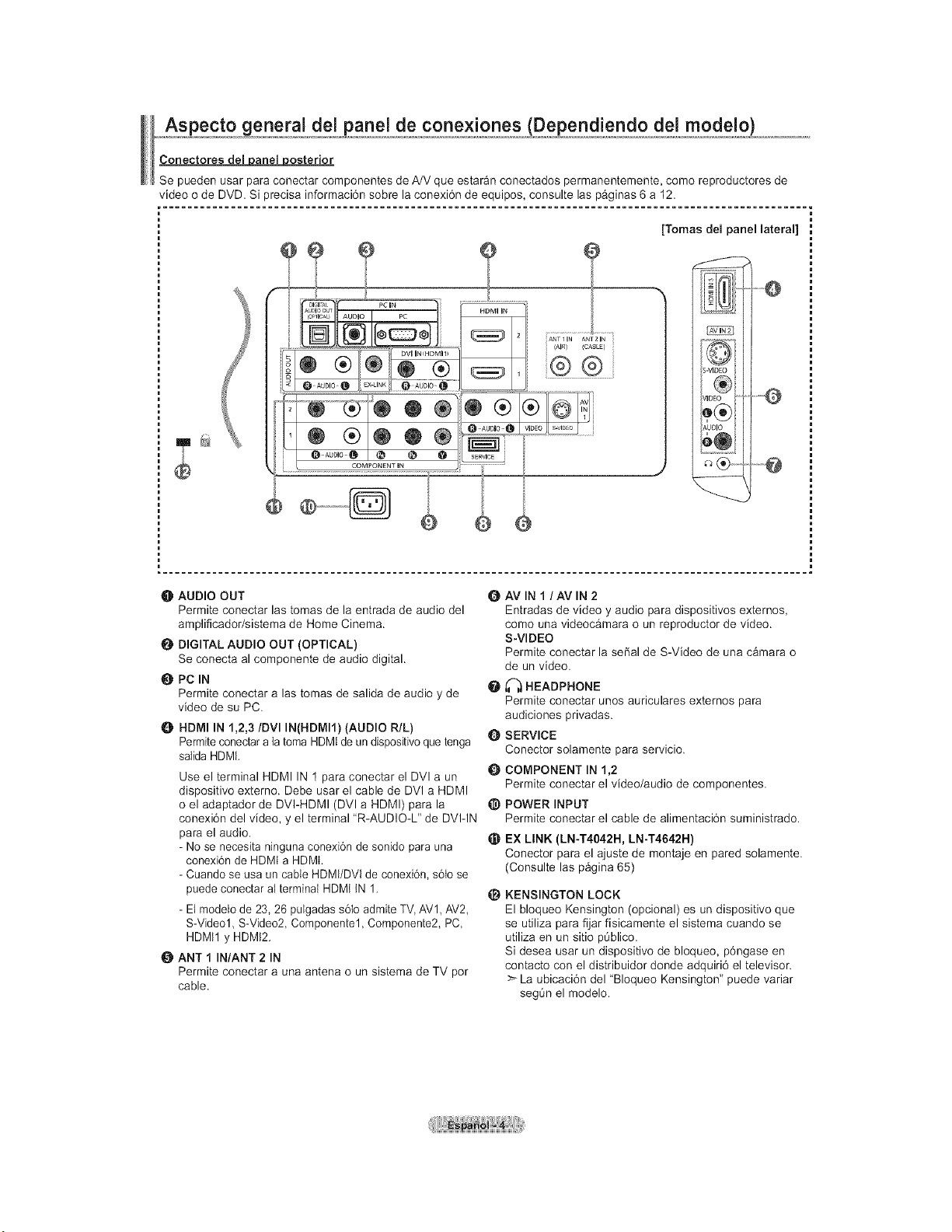
Aspecto general del panel de conexJones/Dependiendo del modeio,)_ .................................
Conectoresdel ariel osterior
Se pueden usar para conectar componentes de A/V que eatar_n conectados permanentemente, como reproductores de
video o de DVD. Si precisa informaci6n sobre la conexi6n de equipos, consulte laa p_ginaa 6 a 12.
®
COMPONENT IN
?
io PC IN PC ii
0®
®®®®
@
o t
iANTII N ANT21N
i (AIR } (CABLE}
[Tomas del panel lateral]
VID
O
AU[
Q
O AUDIO OUT
Permite conectar las tomas de la entrada de audio del
amplificador/sistema de Home Cinema.
O DIGITAL AUDIO OUT (OPTICAL)
Se conecta al componente de audio digital.
PC IN
Permite conectar alas tomas de salida de audio y de
video de su PC.
0 HDMI IN 1,2,3/DVI IN(HDMI1) (AUDIO R/L)
Permiteconectar a la toma HDMt de un dispositivo que tenga
salida HDML
Use el terminal HDMI IN 1 para conectar el DVl a un
dispositivo externo. Debe usar el cable de DVl a HDMI
o el adaptador de DVI-HDMI (DVI a HDMI) para la
conexi6n del video, y el terminal "R-AUDIO-L" de DVI-IN
para el audio.
- No se necesita ninguna conexi6n de sonido para una
conexi6n de HDMI a HDMI.
- Cuando se usa un cable HDMI/DVI de conexi6n, s6to se
puede conectar at terminai HDMI IN 1.
- El modelo de 23, 26 pulgadas s6{o admite TV, AV1, AV2,
S-Video1, S-Video2, Componentel, Componente2, PC,
HDMtl y HDMt2.
O ANT 1 IN/ANT 2 IN
Permite conectar a una antena o un sistema de TV por
cable.
O AV IN 1 /AV IN 2
Entradas de video y audio para dispositivos externos,
como una videocamara o un reproductor de video.
S-VIDEO
Permite conectar la serial de S-Video de una c_mara o
de un video.
_--,_HEADPHONE
Permite conectar unoa auriculares externos para
audiciones privadaa.
Q SERVICE
Conector solamente para servicio.
{) COMPONENT IN 1,2
Permite conectar el video/audio de componentea.
_) POWER INPUT
Permite conectar el cable de alimentaci6n suministrado.
_) EX LINK (LN-T4042H, LN-T4642H)
Conector para el ajuste de montaje en pared solamente.
(Consulte las p&gina 65)
@
KENSINGTON LOCK
El bloqueo Kensington (opcional) es un dispositivo que
se utiliza para fijar fisicamente el sistema cuando se
utiliza en un sitio peblico.
Si desea usar un dispositivo de bloqueo, p6ngase en
contacto con el distribuidor donde adquiri6 el televisor.
>_La ubicaci6n del "Bloqueo Kensington" puede variar
seg0n el modelo.
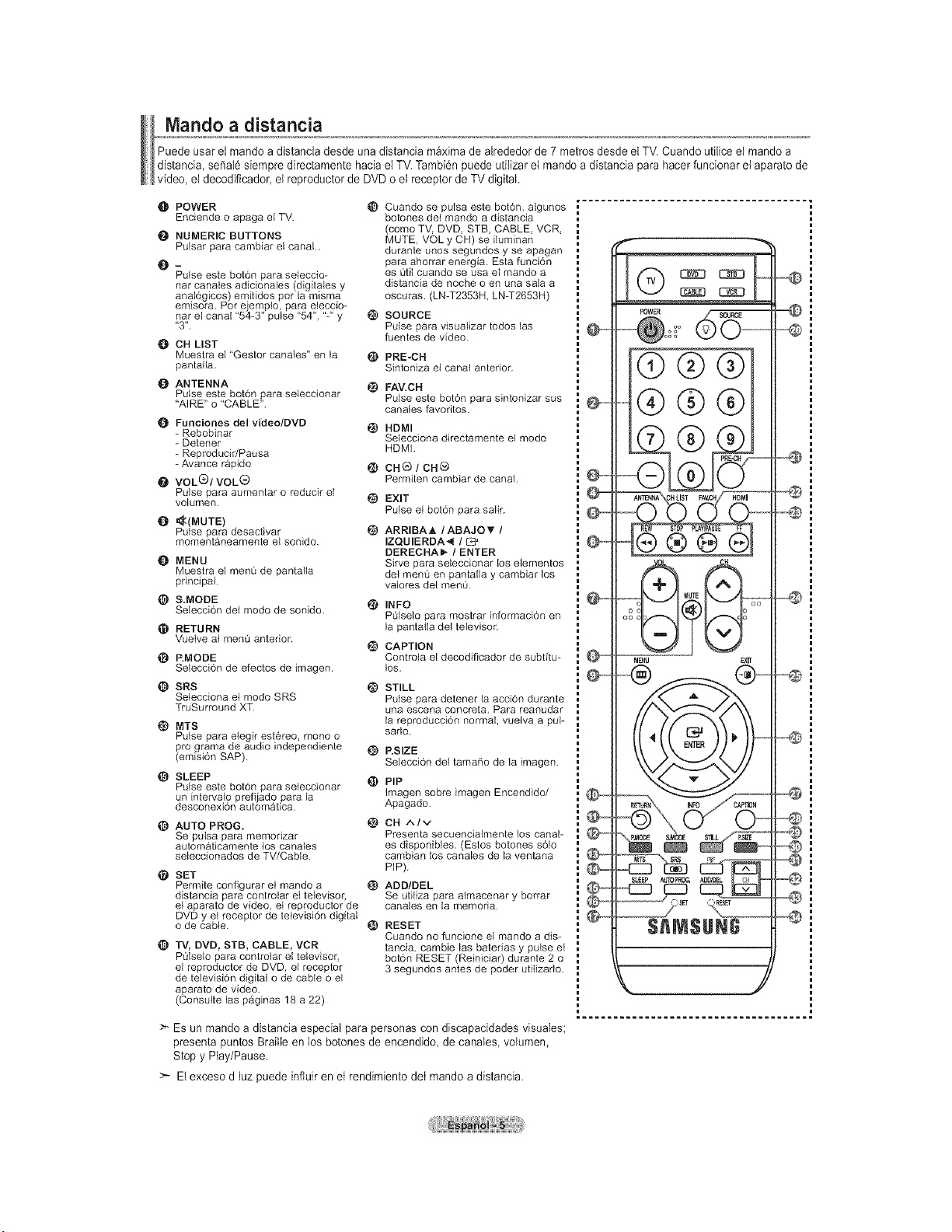
Mando a distancia
Puede usar el mando a distancia desde una distancia m_xima de alrededor de 7 metros desde el TV. Cuando utflice el mando a
distancia, serial6 siempre directamente hacia el TV. Tambi6n puede utilizar el mando a distancia para hacer funcionar et aparato de
video, el decodificador, et reproductor de DVD o et receptor de TV digital.
O POWER _)
Enciende o apaga el TV.
O NUMERIC BUTTONS
Pulsar para cambiar et canal..
@-
Pulseeste bot6n para seieccio-
nar canales adicionales (digitales y
anat6gicos) emitidos pot la misma
emisora. Pot e emplo, para eteccio-
nar et canal "54-3" pu se "54", "-" y
"3".
O CH LIST
Muestra el "Gestor canales" en la _)
pantafla,
O ANTENNA
Pulse este bot6n para seleccionar
"AIRE" o "CABLE".
Q Funciones del video/DVD
- Rebobinar
- Detener
- Reproducir/Pausa
-Avance rapido
O VOL(_/VOL_
Puise para aumentar o reducir el
votumen. _)
{) _(MUTE)
Pulse para desactivar
momentaneamente el sonido.
Q MENU
Muestra el men0 de pantalla
principal.
@ S.MODE
Seteccion det mode de sonido.
O RETURN
Vuetve at men0 anterior.
_) RMODE
Setecci6n de efectos de imagen.
© SRS
Setecciona et modo SRS
TruSurround XT.
@ MTS
Putse para etegir esteree, meno o
fro grama de audio independiente
emisi6n SAP).
SLEEP
Pulse este boron para seteccionar
un intervalo prefijado para la
descenexi6n autom&tica.
_) AUTO PROG.
Se putsa para memenzar
automaticamente tos canales
seleccionados de TV/Cabte.
SET
Permite configurar et mando a _)
distancia para controlar el televisor,
et aparato de video, et reproductor de
DVD y et receptor de televisi6n digital
o de cable.
O TV, DVD, STB, CABLE, VCR
P_tseto para controtar el televisor,
et reproductor de DVD, el receptor
de tetevisi6n digital o de cable o el
aparato de video.
(Consulte las paginas 18 a 22)
Cuando se putsa este boron, algunos
botones det mando a distancia
(come TV, DVD, STB, CABLE, VCR,
MUTE, VOL y CH) se iiuminan
durante unos segundos y se apagan
para ahorrar energia. Esta funcion
es 0tit cuando se usa el mando a
distancia de noche o en una sala a
oscuras. (LN-T2353H, LN-T2653H)
SOURCE
Pulse para visualizar todos las
fuentes de video.
PRE-CH
Sintoniza el canal anterior.
FAV.CH
Purse este boron para sintonizar sus
canates favoritos.
HDMI
Setecciona directamente et mode
HDMI.
CHO / CHG
Permiten cambiar de canal.
EXIT
Pulse et bot6n para safir.
ARRIBAA / ABAJO_' /
IZQUIERDA41 / [S_
DERECHAI_ / ENTER
Sirve para seleccienar los etementos
del menQ en pantatla y cambiar los
vateres del men0.
i_ INFO
P01selo para mostrar informaci6n en
la pantaila det televisor.
CAPTION
Controta el decodificador de subfitu-
les.
i_ STILL
Pulse para detener ta acci6n durante
una escena concreta, Para reanudar
la reproducci6n normal, vuelva a pul-
sado.
RSIZE
Setecci6n del tamafio de la imagen.
t_ PiP
Imagen sobre imagen Encendido/
Apagado.
CH ^Iv
Presenta seceencialmente los canal-
es disponibies. (Estos botones s6to
cambian los canales de la ventana
PIP).
ADD/DEL
Se uti{iza para atmacenar y borrar
canaies en la memoda.
RESET
Cuando no funcione et mando a dis-
tancia, cambie las baterias y pulse et
bot6n RESET (Reiniciar) durante 2 o
3 segundos antes de poder utilizarlo.
Es un mando a distancia especial para personas con discapacidades visuales;
presenta puntos Braille en los botones de encendido, de canales, volumen,
Stop y Play/Pause.
>- El exceso d luz puede influir en et rendimiento det mando a distancia.
@@
@@
_g
REW @TOP PLAYIPAUSE FF
@@@(9
M_
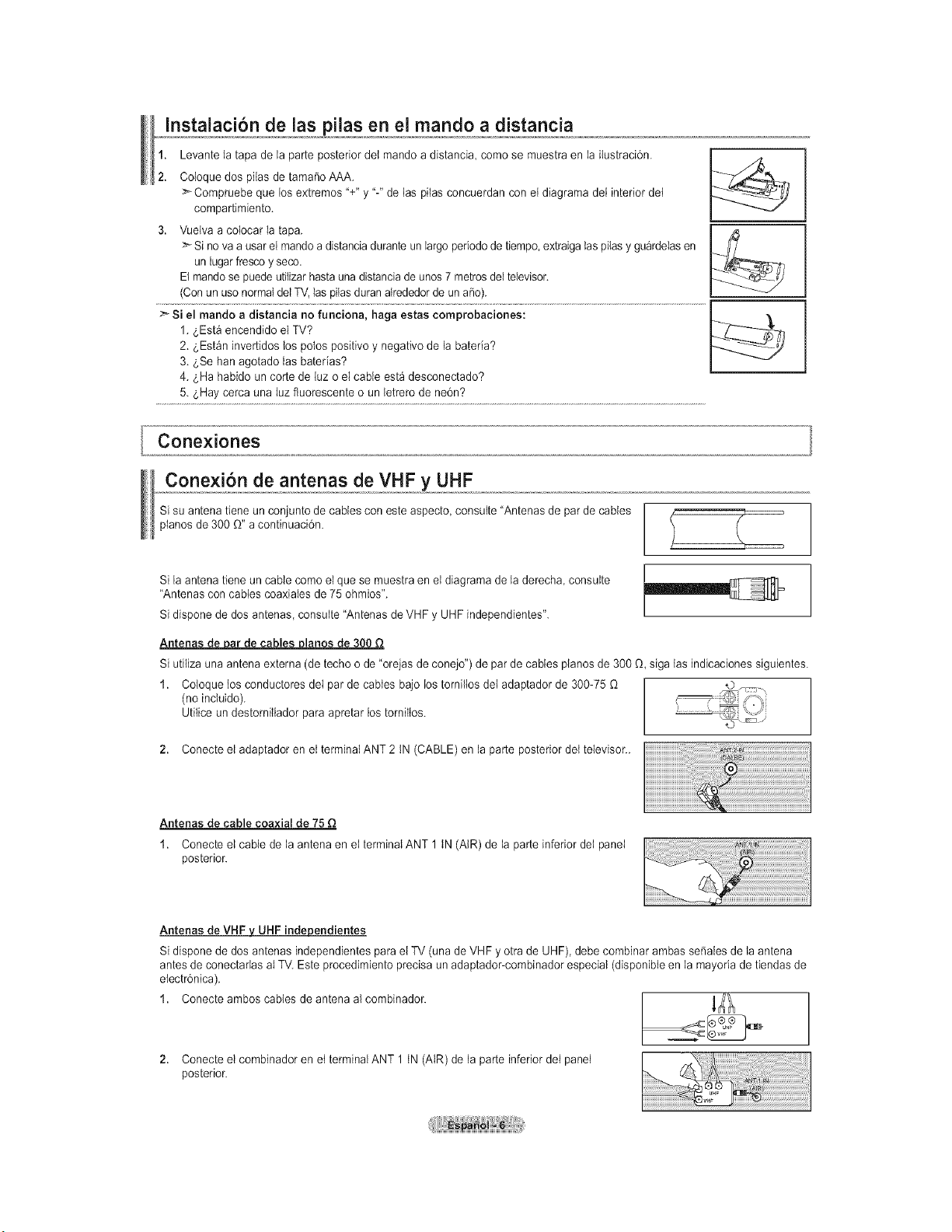
Instalaci6n de las pilas en el mando a distancia
1. Levante la tapa de la parte posterior det mando a distancia como se muestra en la ilustraci6n.
2. Cotoque dos piias de tama_o AAA.
>_Compruebe que los extremos "+" y "-" de las pilas concuerdan con et diagrama dei interior det
compartimiento.
3. Vuelva a co{ocar la tapa.
>* Si no va a usar el mando a distancia durante un largo periodo de tiempo extraiga tas pilas y gu_rdelas en
un lugar fresco y seco.
El mandose puede utitizar hastauna distancia de unos 7 metros del televisor.
(Conun uso normal del TV, las pilasduran alrededor de un aSo).
Conexiones
Cone×i6n de antenas de VHF y UHF
Si su antena tiene un conjunto de cables con este aspecto, consuite "Antenas de par de cables
pianos de 300 O" a continuaci6n.
Si la antena tiene un cable como el que se muestra en el diagrama de la derecha consulte
"Antenas con cables coaxiates de 75 ohmios".
Si dispone de dos antenas, consulte "Antenas de VHF y UHF independientes".
Antenas de par de cables pianos de 300 Q
Si utiliza una antena externa (de techo o de "orejas de conejo") de par de cables pianos de 300 O, siga las indicaciones siguientes.
1. Coloque los conductores del par de cables bajo los torniltos det adaptador de 300-75
(no incluido).
Utitice un destorniltador para apretar los torniltos.
2. Conecte el adaptador en et terminal ANT 2 tN (CABLE) en la parte posterior det televisor..
Antenas de cable coaxial de 75 Q
1. Conecte el cable de la antena en et terminal ANT 1 tN (AIR) de la parte inferior det panel
posterior.
Antenas de VHF ,/UHF independientes
Si dispone de dos antenas independientes para el TV (una de VHF y otra de UHF), debe combinar ambas seSales de la antena
antes de conectarlas aI TV. Este procedimiento precisa un adaptador-combinador especial (disponibte en la mayoria de tiendas de
etectr6nica).
1. Conecte ambos cables de antena al combinador.
2. Conecte el combinador en et terminal ANT 1 tN (AtR) de la parte inferior dei panel
posterior.
ii............!ii!i;ii!i;i!i!
:::::.....................!!!!!!!!!!!!!!!!!!!!!
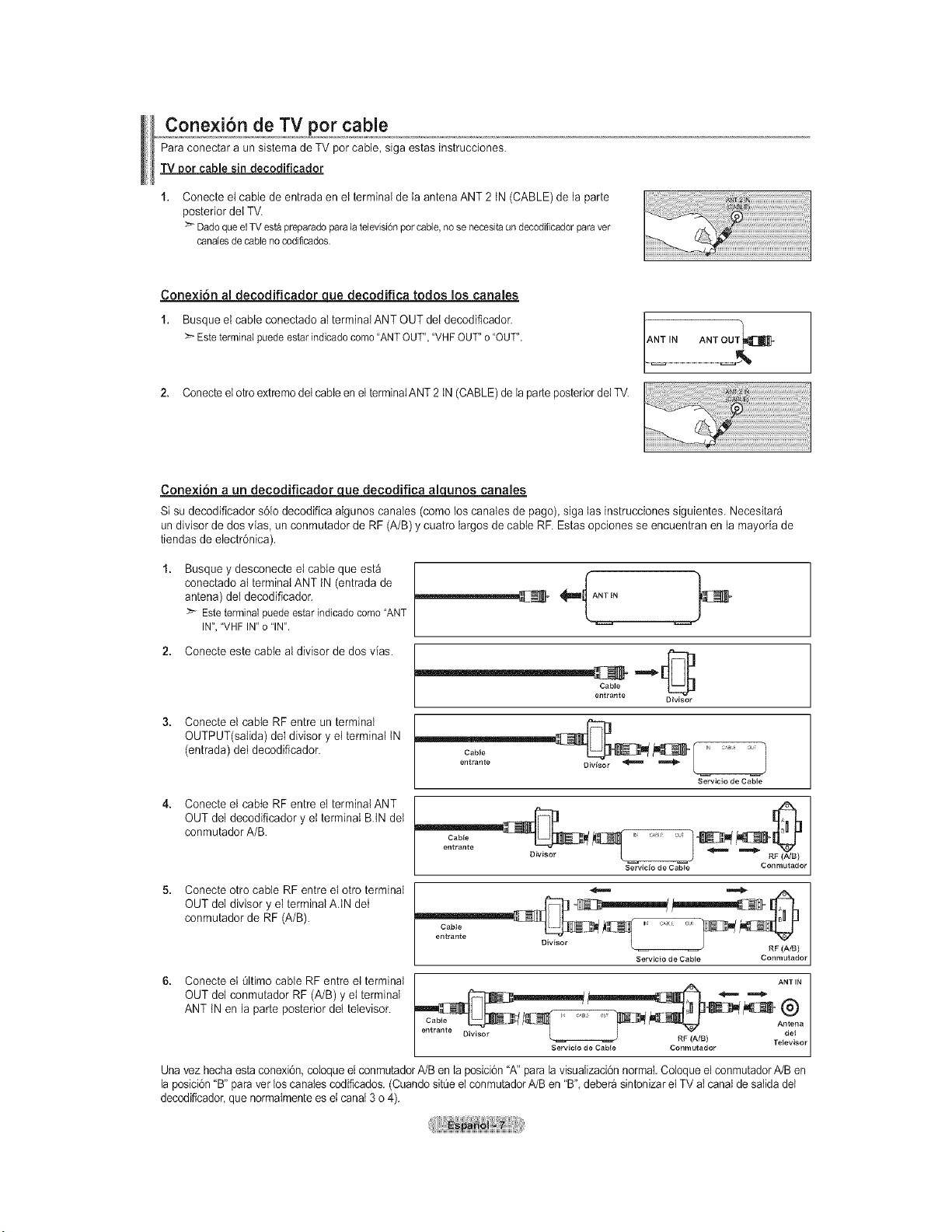
Conexi6n de TV por cable
Para conectar a un sistema de TV per cable, siga estas instrucciones.
_oor cable sin decodificador
Conecte et cable de entrada en el terminal de la antena ANT 2 tN (CABLE) de la parte
posterior del TV.
DadoqueelTVestapreparadoparalatelevisi6npercable,nosenecesitaandecodificadorparaver
canalesde cablenocodificados.
Conexi6n al decodificador uque decodifica todos los canales
1. Busque el cable conectado aI terminal ANT OUT del decodificador.
Esteterminalpaedeestariedicadocome"ANTOUT","VHFOUT"o "OUT".
2. Conecteel otro extremodet cable en et terminaIANT 2 tN (CABLE)de la parte posteriordei TV.
ANT IN ANT OUT_
Conexi6n a un decodificador _ decodifica alqunos canales
Si su decodificador s61odecodifica algunos canales (como los canates de page) siga las instrucciones siguientes. Necesitara
un divisor de dos vias, un conmutador de RF (A/B) y cuatro largos de cane RF. Estas opciones se encuentran en la mayoria de
tiendas de electr6nica).
Busque y desconecte el cable que esta
conectado at terminal ANT tN (entrada de
antena) del decodificador.
:_ Esteterminalpuedeestarindicadocomo"ANT
IN","VHFIN"o "IN".
2. Conecte este cable al divisor de dos vias.
Cable
entrante
Divisor
Conecte el cable RF entre un terminal
OUTPUT(salida) del divisor y el terminal tN
(entrada) det decodificador. Cable
entrante
J
Servicio de Cabte
Conecte el cable RF entre el terminal ANT
OUT deI decodificador yet terminal BIN det
conmutador A/B.
Cabte in _ au_
entrante
Divisor
Servicio de Cabte
Conrnutador
Conecte otro cable RF entre el otto terminal
OUT deI divisor y el terminal AJN det
conmutador de RF (A/B).
Cable J cAi o _ s
Divisor L RF (A/B)
Servicio de Cable Conmutador
6. Conecte el Oltimo cable RF entre el terminal ANTIN
OUT det oonmutador RF (A/B)y el terminal cl_bt_ _ _ ---ANT tN en la parte posterior del televisor. Cable W _ _ "_m_ _ml[-_ @
Antena
entran e * , _
Servieio de Cable Conrnutador I
Una vez hechaesta conexi6n, coloque el conmutador A/B en la posici6n "A" para la visualizaci6n normal.Coloque el conmutador IVB en
la posici6n "B" para vet los canalescodificados. (Cuando sit_e el conmutadorIVB en "B', deber_ sintonizar el TV al canal de salida del
decod_icador,que normalmente es el canal 3 o 4).
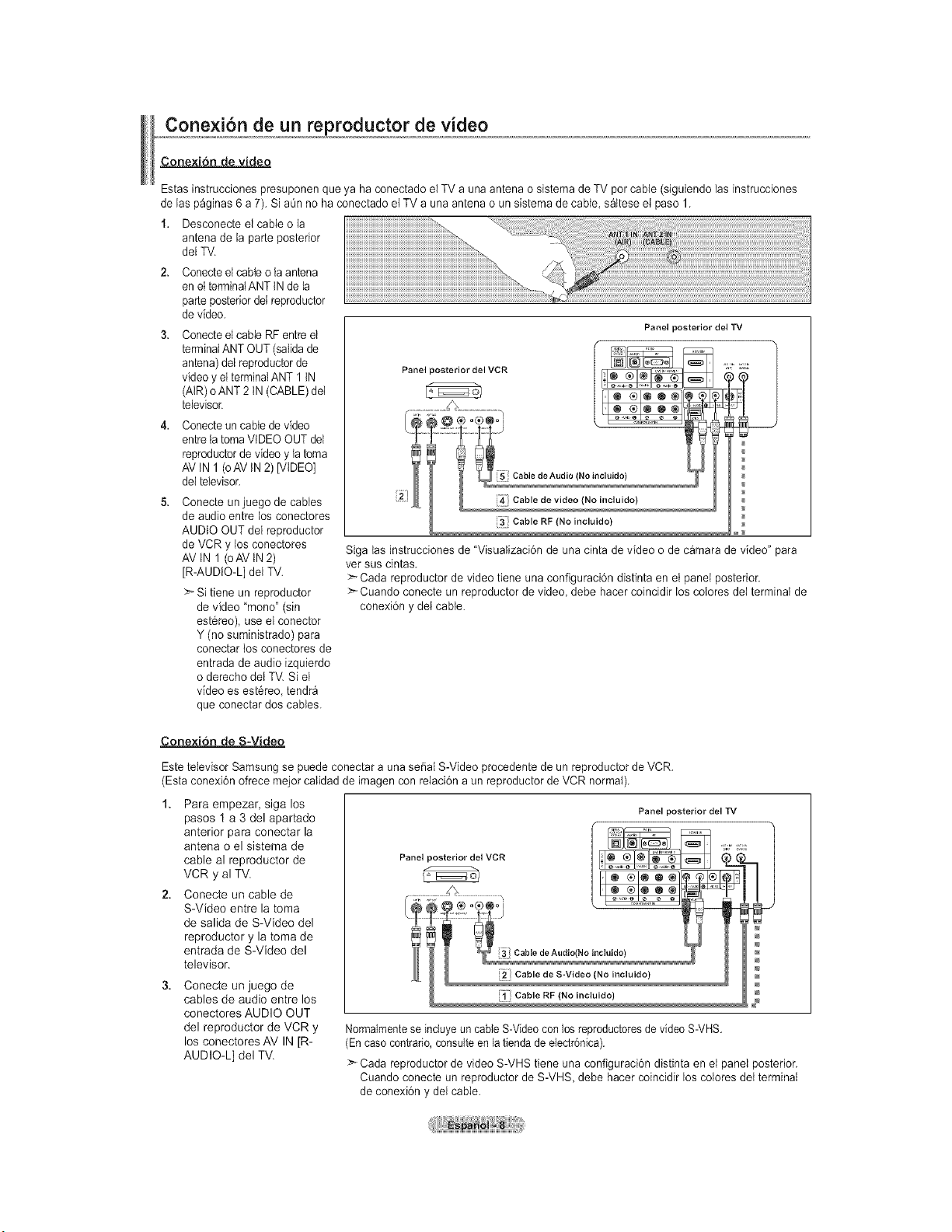
Conexi6n de un reproductor de video
Cone×i6n de video
Estas instrucciones presuponen que ya ha conectado el TV a una antena o sistema de TV por cable (siguiendo las instrucciones
de ias p_ginas 6 a 7). Si aQnno ha conectado et TV a una antena o un sistema de cable, s_ltese el paso 1.
1. Desconecte el cable o ta
antena de la parLe posterior
del TV.
Conecteel cable o la antena
en el terminalANT tN de la
parLeposteriordei reproductor
de video.
Conecteel cable RF entre el
terminalANT OUT (salida de
antena) del reproductor de
video y el terminal ANT 1 tN
(AIR) o ANT 2 tN (CABLE) det
televisor.
Conecteun cable de video
entre la toma VIDEO OUT del
reproductor de video y la toma
AV tN 1 (oAV tN2) [VIDEO]
del televisor.
Conecte an juego de cables
de audio entre los conectores
AUDIO OUT del reproductor
de VCR y los conectores
AVIN 1 (oAVIN 2)
[R-AUDIO-L] del TV.
>" Si tiene un reproductor
de video "mono" (sin
est6reo), use el conector
Y (no suministrado) para
conectar los conectores de
entrada de audio izquierdo
o derecho del TV. Si el
video es est6reo, tendr_
que conectar dos cables.
Panel posterior del TV
Panel posterior del VCR "P t',
Cable RF (No incluido)
Siga tas instrucciones de "VisuaIizaci6n de una cinta de video o de c_mara de video" para
vet sus cintas.
>-Cada reproductor de video tiene una conflguraci6n distinta en et panel posterior.
>_Cuando conecte un reproductor de video, debe hacer coincidir los colores dei terminal de
conexi6n y dei cable.
Conexion de S-Video
Este televisor Samsung se puede conectar a una sepal S-Video procedente de un reproductor de VCR.
(Esta conexi6n ofrece meier calidad de imagen con reiaci6n a un reproductor de VCR normal).
1. Para empezar, siga los
pasos 1 a 3 del apartado
anterior para conectar la
antena o el sistema de
cable al reproductor de
VCR y al TV.
2. Conecte un cable de
S-Video entre la toma
de salida de S-Video del
reproductor y la toma de
entrada de S-Video del
televisor.
3. Conecte un juego de
cables de audio entre los
conectores AUDIO OUT
del reproductor de VCR y
los conectores AV IN [R-
AUDIO-L] del TV.
Panel posterior del TV
Cable RF (No incluido)
Normalmentese incluyeun cable S-Videocon losreproductoresde video S-VHS.
(En caso contrario, consulteen la tiendade electr6nica).
Cada reproductor de video S-VHS tiene una configuraci6n distinta en el panel posterior.
Cuando conecte un reproductor de S-VHS, debe hacer coincidir los colores det terminal
de conexi6n y del cable.
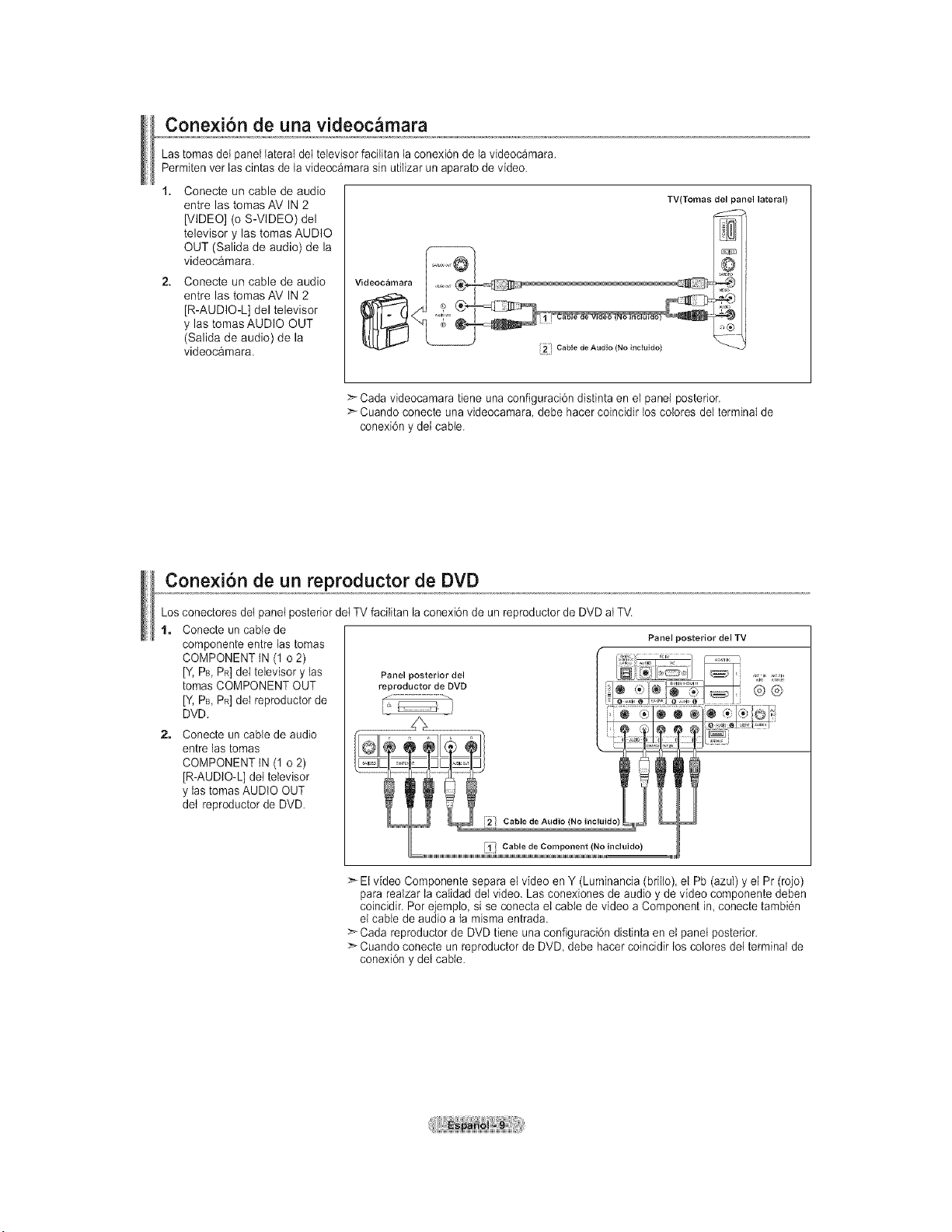
Conexi6n de una videoc_mara
Las tomas det panel lateral del televisor faciiitan la conexbn de la videoc_mara.
Permiten ver las cintas de la videoc_mara sin utilizar un aparato de video.
1. Conecte un cable de audio
entre las tomas AV IN 2
[VIDEO] (o S-VIDEO) del
televisor y las tomas AUDIO
OUT (Salida de audio) de la
videoc&mara.
2. Conecte un cable de audio
entre las tomas AM IN 2
[R-AUDIO-L] del televisor
y las tomas AUDIO OUT
(Salida de audio) de la
videoc&mara.
TVtTomas del panel lateral)
2_ Cable de Audio (No ineluido)
Cada videocamara tiene una configuracidn distinta en el panel posterior.
> Cuando conecte una videocamara debe hacer coincidir los colores del terminal de
conexi6n y dei cable.
Conexi6n de un reproductor de DVD
Los conectores det panet posterior det TV facilitan la conexi6n de un reproductor de DVD al TV.
t, Conecte un cable de
componente entre las tomas
COMPONENTtN (1 o 2)
IV, PB, PR] del televisor y las
tomas COMPONENT OUT
[Y, PB,PR]del reproductor de
DVD.
2. Conecte un cable de audio
entre las tomas
COMPONENT tN (1 o 2)
[R-AUDIO-L] del televisor
y las tomas AUDIO OUT
det reproductor de DVD.
Panel posterior del TV
i_[ Cable de Component (No incluido)
>El video Componente separa el video en Y (Luminancia (brilto) el Pb (azul) y el Pr (rojo)
para realzar ta caIidad del video. Las conexiones de audio y de video componente deben
coincidir. Par ejemplo, si se conecta et cable de video a Component in conecte tambi6n
el cable de audio a la misma entrada.
Cada reproductor de DVD tiene una configuraci6n distinta en et panel posterior.
Cuando conecte un reproductor de DVD, debe hacer coincidir los coIores dei terminal de
conexi6n y det cable.
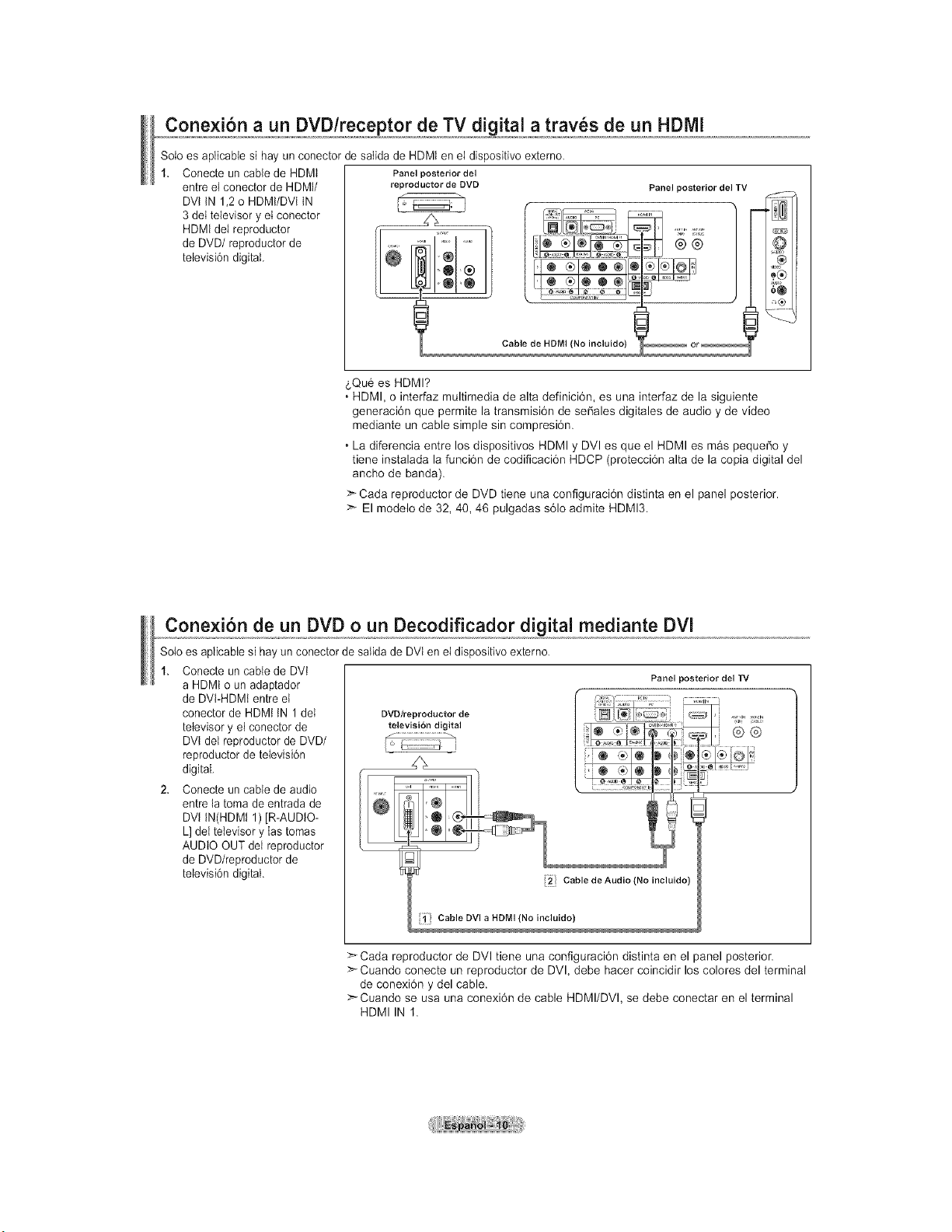
Conexion a un DVD/receptor de TV digital a trav_s de un HDMi
Solo es aplicabte si hay un conector de satida de HDMt en el dispositivo externo.
Conecte un cable de HDMt
entre el conector de HDMI/
DVt tN 1,2 o HDMt/DVl tN
3 del televisor y el conector
HDMI del reproductor
de DVD/reproductor de
televisi6ndigital.
Panel posterior del
reproductor de DVD
6Qu6 es HDMI?
Panel posterior del TV
Cable de HDMI (No incluido)
• HDMI, o interfaz multimedia de alta definici6n, es una interfaz de la siguiente
generaci6n que permite la transmisi6n de se_ales digitales de audio y de video
mediante un cable simple sin compresi6n.
• La diferencia entre los dispositivos HDMI y DVl es que el HDMI es mas peque_o y
tiene instalada la funci6n de codificaci6n HDCP (protecci6n alta de la copia digital del
ancho de banda).
Cada reproductor de DVD tiene una configuraci6n distinta en el panel posterior.
>- El modelo de 32, 40, 46 pulgadas s61o admire HDMI3.
Conexion de un DVD o un Decodificador digital mediante DVI
Solo es apiicable si hay un conector de saIida de DVt en el dispositivo externo.
1. Conecte un cable de DVt
a HDMt o un adaptador
de DVI-HDMI entre et
conector de HDMI IN 1 del DVD/reproductor de
televisory el conector de televisi6ndigital
DVt del reproductor de DVD/ I _ _:
reproductor de televisi6n
digital.
2. Conecte un cable de audio
entre la toma de entrada de
DVI tN(HDMI 1) JR-AUDIO-
L] dei televisor y las tomas
AUDIO OUT del reproductor
de DVD/reproductor de
televisi6n digital.
Panel posterior del TV
Cable de Audio (No incluido)
Cable DVI a HDrvll (No incluido)
>Cada reproductor de DVl tiene una configuraci6n distinta en el panel posterior.
>-Cuando conecte un reproductor de DVl, debe hacer coincidir los colores del terminal
de conexi6n y del cable.
> Cuando se usa una conexi6n de cable HDMI/DVl, se debe conectar en el terminal
HDMI IN 1.
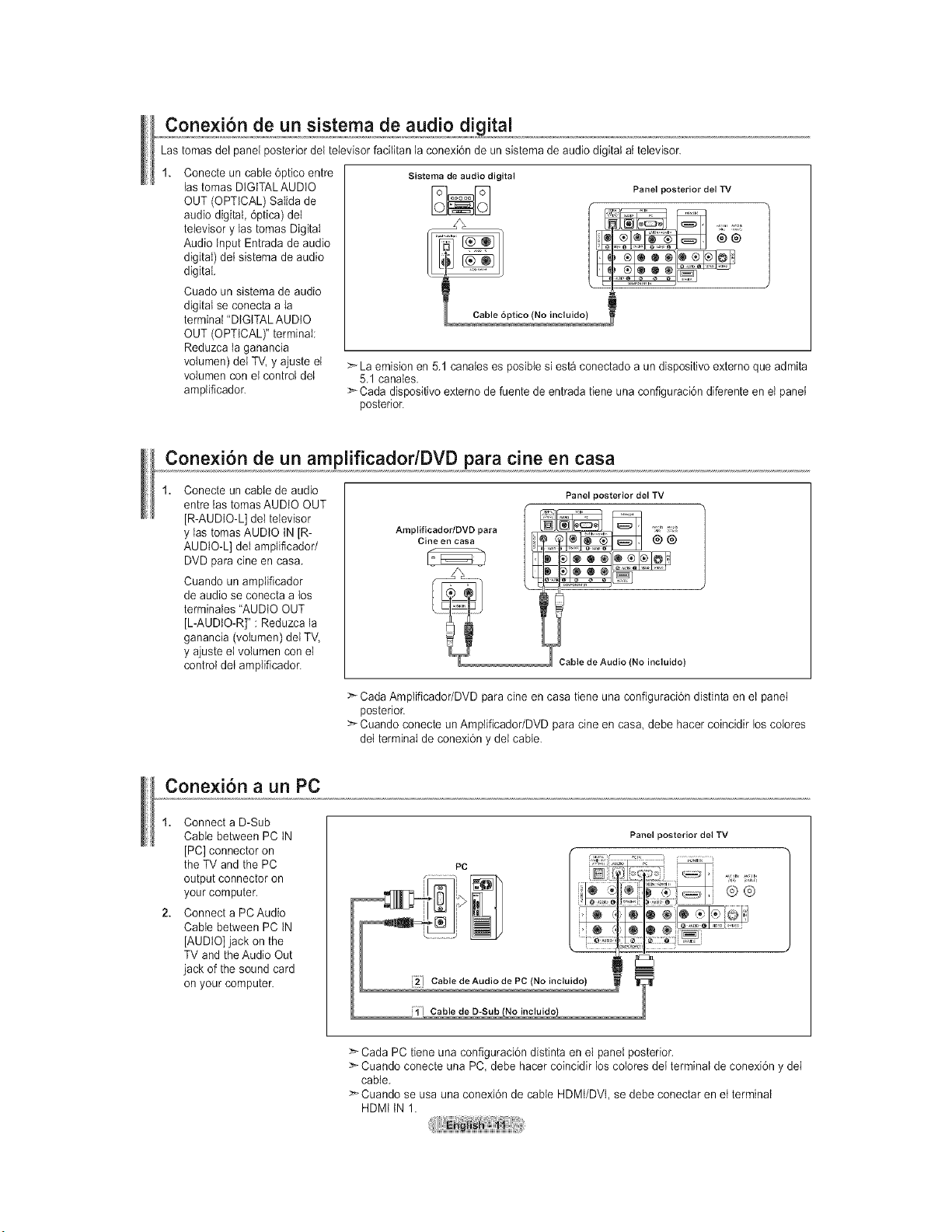
Lastomasdelpanelposteriordeltelevisorfacilitanlaconexi6ndeunsistemadeaudiodigitalattelevisor.
Conecteuncable6pticoentre
lastomasDIGITALAUDIO
OUT(OPTICAL)SaIidade
audiodigital,6ptica)del
televisorylastomasDigital
AudioInputEntradadeaudio
digital)detsistemadeaudio
digital.
Cuadounsistemadeaudio
digitalseconectaaIa
terminal"DIGITALAUDIO
OUT(OPTICAL)"terminal:
Reduzcataganancia
volumen)deiTV,yajusteet
volumenconetcontroldel
amplificador.
Sistema de audio digital
Panel posterior del TV
>-La emision en 5.1 canales es posible si esta conectado a un dispositivo externo que admita
5.1 canales.
:_ Cada dispositivo externo de fuente de entrada tiene una configuraci6n diferente en et panet
posterior.
Conexi6n de un amplificador/DVD para cine en casa
Conecte un cable de audio
entre las tomas AUDIO OUT
JR-AUDIO-L] del televisor
y las tomas AUDIO IN JR-
AUDIO-L] del amplificador/
DVD para cine en casa.
Cuando un amplificador
de audio se conecta a los
terminales "AUDIO OUT
[L-AUDIO-R]" : Reduzca la
ganancia (votumen) del TV,
y ajuste el volumen con el
control det amplificador.
Arnplificador/DVD para
Cine en casa
Panel posterior del TV
@®
Cable de Audio (No incluido)
:_ Cada Amplificador/DVD para cine en casa tiene una configuraci6n distinta en el panel
posterior.
>* Cuando conecte un Amplificador/DVD para cine en casa debe hacer coincidir los colores
det terminal de conexi6n y dei cable.
Conexi6n a un PC
1. Connect a D-Sub
Cable between PC tN
[PC] connector on
the TV and the PC
output connecter on
your computer.
2. Connect a PCAudio
Cable between PC IN
[AUDIO] jack on the
TV and the Audio Out
jack of the sound card
on your computer.
Panel posterior del TV
:>-Cada PC tiene una configuraci6n distinta en el panel posterior.
>'-Cuando conecte una PC, debe hacer coincidir los colores det terminal de conexi6n y dei
cable.
>_Cuando se usa una conexi6n de cable HDMt/DVt, se debe conectar en et terminal
HDMt tN 1.
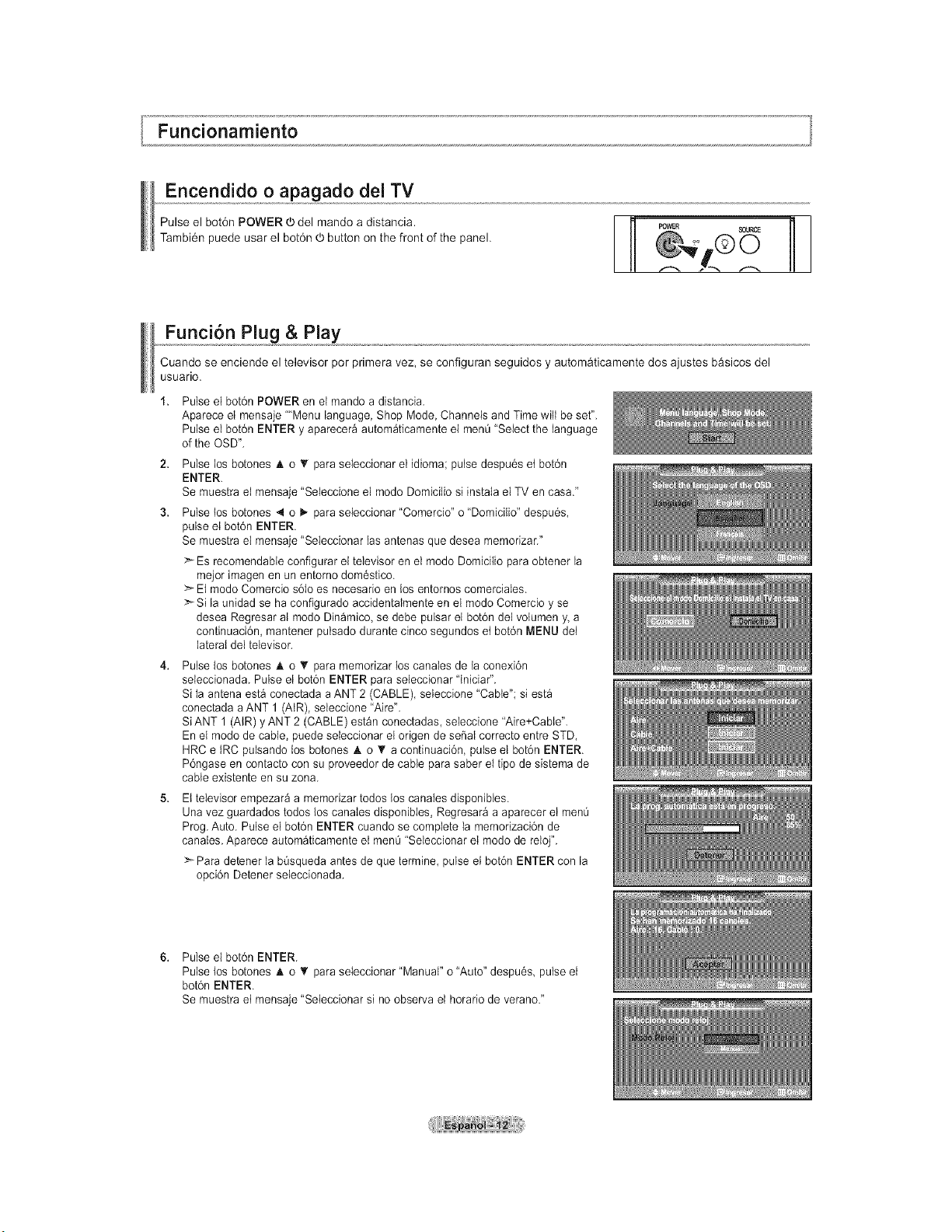
Encendido o apagado del TV
Pulse el bot6n POWER d) del mando a distancia.
Tambi6n puede usar el bot6n _ button on the front of the panel.
Funci6n Plug & Play
Cuando se enciende el televisor por primera vez, se configuran seguidos y autom&ticamente dos ajustes b&sicos del
usuario.
Pulse el bot6n POWER en el mando a distancia.
Aparece el mensaje ""Menu language, Shop Mode, Channels and Time will be set".
Pulse el bot6n ENTER y aparecer_ autom_ticamente el menQ"Select the language
of the OSD".
Pulse los botones _k o T para seleccionar el idioma; pulse despu6s et bot6n
ENTER.
Be muestra el mensaje "Seleccione el modo Domicilio si instaIa el TV en casa."
Pulse los botones 4 o I,. para seleccionar "Comercio" o "Domicilio" despu6s,
pulse el bot6n ENTER.
Se muestra el mensaje "Seleccionar las antenas que desea memorizar."
Es recomendabie configurar el televisor en el modo Domicitio para obtener la
mejor imagen en un entorno dom_stico.
>- El modo Comercio s61oes necesario en los entornos comerciales.
:_Si la unidad se ha configurado accidentaImente en el modo Comercio y se
desea Regresar al modo Dinamico, se debe pulsar el bot6n del volumen y, a
continuaci6n, mantener pulsado durante cinco segundos et bot6n MENU dei
lateral del televisor.
Pulse los botones A o T para memorizar los canales de la conexi6n
seleccionada. Pulse el bot6n ENTER para seleccionar 'Iniciar".
Si Ia antena est_ conectada a ANT 2 (CABLE), seleccione "Cable"; si est_
conectada a ANT 1 (AtR), seleccione "Aire".
SiANT 1 (AIR) y ANT 2 (CABLE) est_n conectadas, seleccione 'Aire+Cable".
En el modo de cable, puede seleccionar el origen de serial correcto entre STD,
HRC e tRC pulsando los botones ,t. o '_ a continuaci6n, pulse el bot6n ENTER.
P6ngase en contacto con su proveedor de cable para saber el ripe de sistema de
cable existente en su zona.
El televisor empezar_ a memorizar todos los canales disponibles.
Una vez guardados todos los canates disponibles, Regresar_ a aparecer el menQ
Prog. Auto. Pulse el bot6n ENTER cuando se complete la memodzaci6n de
canaIes. Aparece autom_ticamente et menQ"Seleccionar el modo de reloj".
>Para detener la bOsqueda antes de que termine, pulse el bot6n ENTER con la
opci6n Detener seteccionada.
Pulse el bot6n ENTER.
Pulse los betones A o • para seleccionar "Manual" o "Auto" despu6s, pulse el
bot6n ENTER.
Be muestra et mensaje "Seleccionar si no observa et horario de verano."
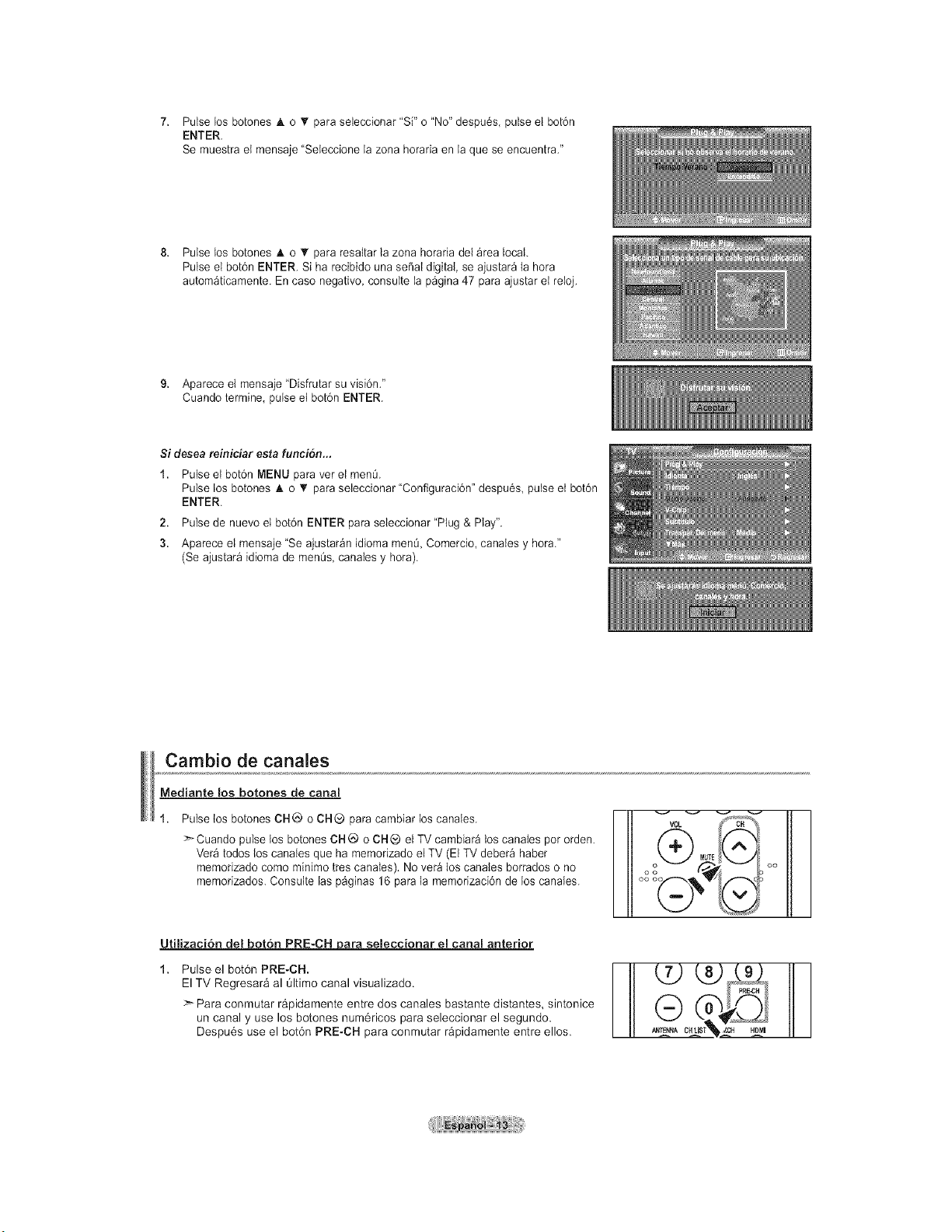
7. Pulselosbotones& o _r para seleccionar 'Si" o "No" despu6s pulse el botdn
ENTER.
Se muestra et mensaje "Seteccione la zona horaria en la que se encuentra."
8. Pulse los botones • o _' para resaltar la zona horaria del _rea local.
Pulse el bot6n ENTER. Si ha recibido una sepal digital, se ajustar_ ta hora
autom_ticamente. En caso negativo, consulte la p_gina 47 para ajustar el reioj.
9. Aparece el mensaje "Disfrutar su visidn."
Cuando termine, pulse et botdn ENTER.
Si desea reiniciar esta funcion_.
1. Pulse el bot6n MENU para vet el men0.
Pulse los botones A o V para seteccionar "Configuraci6n" despu6s, pulse et bot6n
ENTER.
2. Pulse de nuevo el bot6n ENTER para seleccionar "Plug & Play".
3. Aparece el mensaje "Se ajustar_n idioma men0, Comercio, canales y hora."
(Se ajustar_ idioma de menQs,canales y hora).
Cambio de canales
Mediante los botones de canal
Pulse los botones CH@ o CH® para cambiar los canales.
> Cuando pulse los botones CH_) o CH_ el TV cambiar_ los canales pot orden.
Ver_ todos los canales que ha memorizado el TV (El TV deber_ haber
memorizado come minimo ires canales). No ver_ los canales borrados o no
memorizados. Consulte las p_ginas 16 para la memorizaci6n de los canales.
VOL c"%"_%
It
MUTE
Utilizaci6n del boron PRE-CH para seleccionar el canal anterior
Pulse el bot6n PRE-CH.
El TV Regresara al Oltimo canal visualizado.
Para conmutar rapidamente entre dos canales bastante distantes, sintonice
un canal y use los botones num6ricos para seleccionar el segundo.
Despu6s use el bot6n PRE-CH para conmutar r&pidamente entre ellos.
PRE*CH
cH r_ _
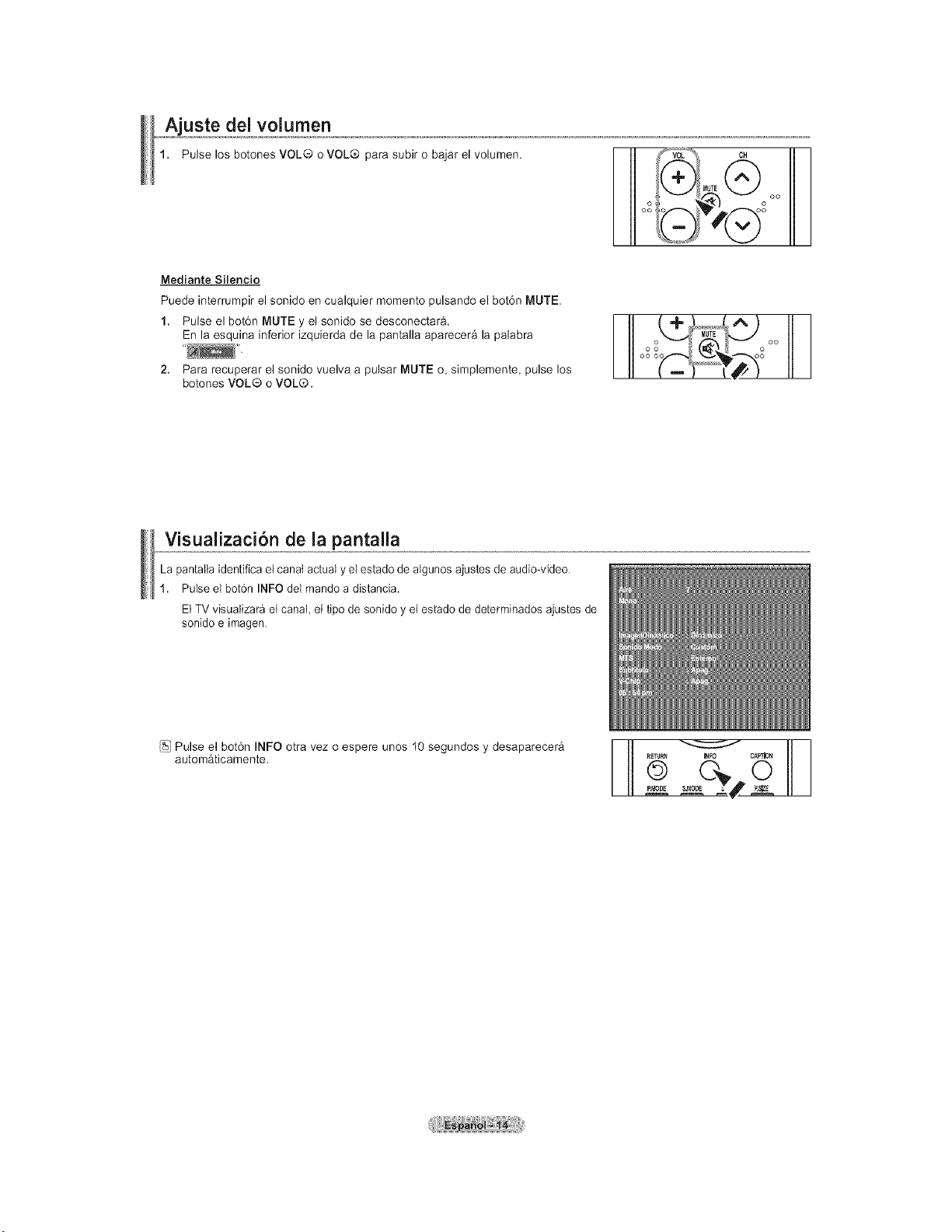
uste dei volumen
Pulse los botones VOL® o VOL® para subir o bajar el volumen.
III oo
02 _I
Mediante Silencio
Puede interrumpir el sonido en cualquier momento pulsando el bot6n MUTE.
1. Pulse el bot6n MUTE y el sonido se desconectar&.
En la esquina inferior izquierda de la pantalla aparecera la palabra
2. Para recuperar el sonido vuelva a pulsar MUTE o, simplemente, pulse los
botones VOL® o VOL®.
I ooo oo
Visualizaci6n de la pantalla
La pantatla identifica el canat actual y el estado de algunos ajustes de audio-video.
1. Pulse el bot6n INFO del mando a distancia.
El TV visualizar_ et canal, el ripe de sonido y el estado de determinados ajustes de
sonido e imagen.
Pulse el bot6n INFO otra vez o espere unos 10 segundos y desaparecer_
automaticamente.
_FO CAPTION
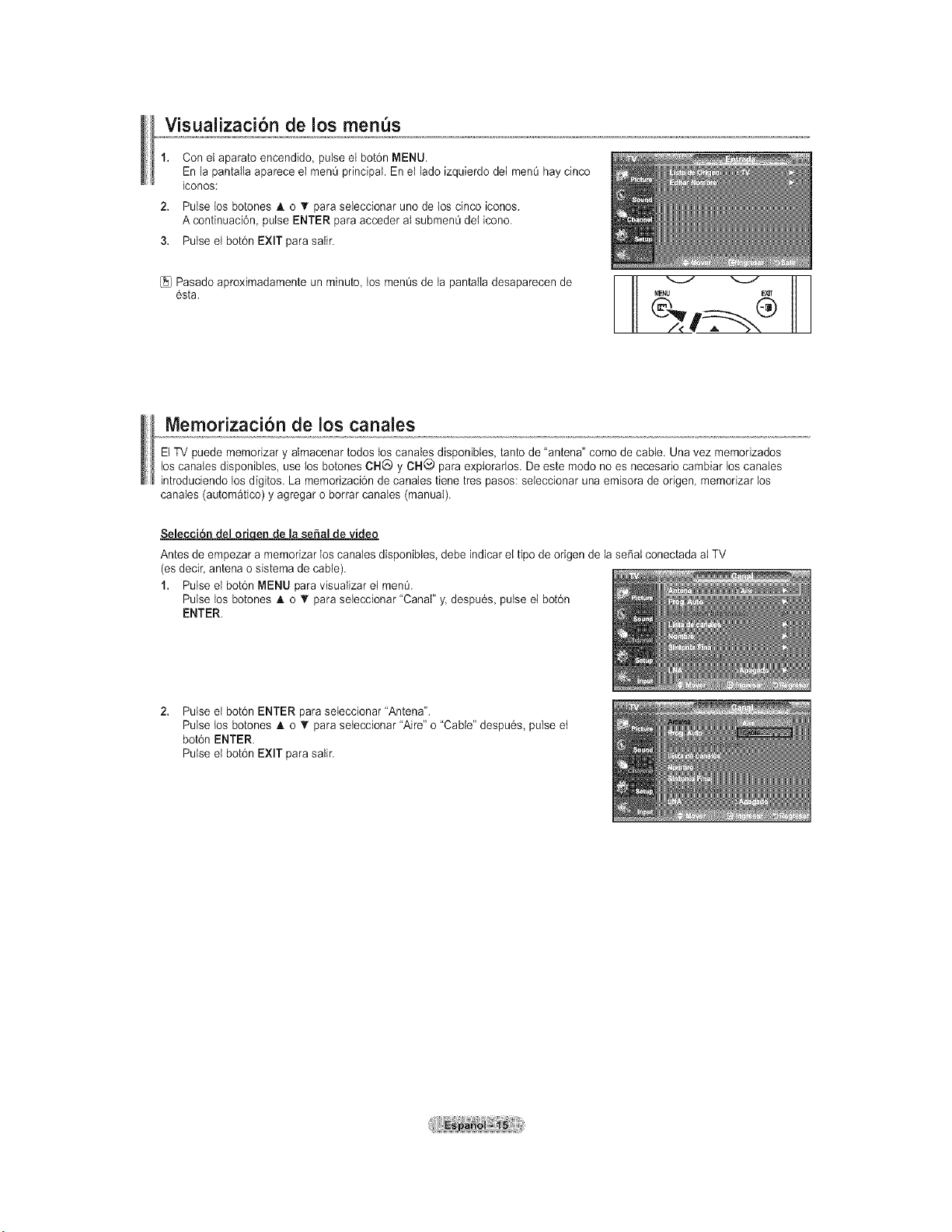
Visualizacion de los men s
2.
3.
Con el aparato encendido, pulse el bot6n MENU.
En la pantalla aparece el men0 principal. En el lado izquierdo dei men0 hay cinco
iconos:
Pulse los botones A. o V' para seleccionar uno de los cinco iconos.
A continuaci6n pulse ENTER para acceder aI submenQ det icono.
Pulse el bot6n EXIT para saIir.
[_JPasado aproximadamente un minute, los menOsde la pantalla desaparecen de
6sta.
Memorizaci6n de los canales
El TV puede memorizar y aImacenar todos los canales disponibtes, tanto de "antena" como de cable. Una vez memorizados
los canaIes disponibtes, use los botones CHC) y CH_ para explorarIos. De este modo no es necesario cambiar los canaIes
introduciendo los digitos. La memorizaci6n de canales tiene tres pasos: seieccionar una emisora de origen, memorizar los
canales (autom_tico) y agregar o borrar canates (manual).
Seleccion del orio.ende la serial de video
Antes de empezar a memorizar los canates disponibles, debe indicar et tipo de origen de la se_aI conectada aI TV
(es decir, antena o sistema de cable).
1. Pulse el bot6n MENU para visuaIizar el menO.
Pulse los botones A o '_ para seteccionar "Canal" y. despu6s, pulse et bot6n
ENTER.
Pulse el bot6n ENTER para seieccionar "Antena".
Pulse los botones A o • para seteccionar "Aire" o "Cable" despu6s, pulse et
bot6n ENTER.
Pulse et bot6n EXIT para salir.
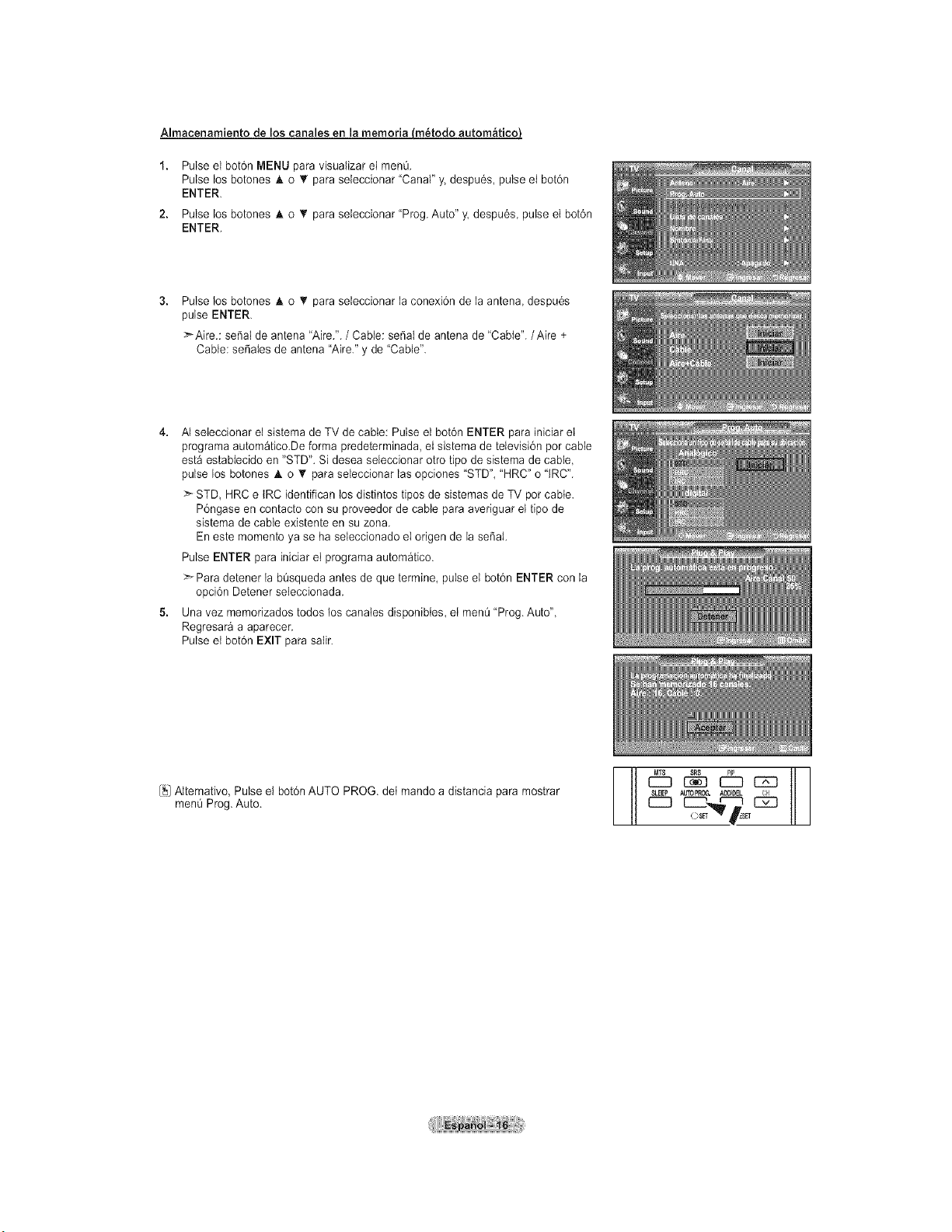
Almacenamiento de los canales en la memoria (m_todo autom_lticoJ
Pulse el bot6n MENU para visualizar el menO.
Pulse los botones A o T para seleccionar "Canal" y. despu6s, pulse el bot6n
ENTER.
Pulse los botones A o • para seleccionar "Prog. Auto" y. despu6s, pulse et bot6n
ENTER.
Pulse los botones A o T para seleccionar la conexi6n de la antena despu6s
pulse ENTER.
:_Aire.: seSal de antena "Aire.". / Cable: seSal de antena de "Cable"./Aire +
Cable: seSaIes de antena "Aire." y de "Cable".
4. AI seieccionar el sistema de TV de cable: Pulse el bot6n ENTER para iniciar el
programa autom_tico.De forma predeterminada, el sistema de televisi6n pot cable
est_ establecido en "STD". Si desea seleccionar otto ripe de sistema de cable,
pulse los botones h, o T para seleccionar las opciones "STD", "HRC" o "tRC".
:_ STD, HRC e IRC identifican los distintos tipos de sistemas de TV pot cabte.
P6ngase en contacto con su proveedor de cable para averiguar el ripe de
sistema de cable existente en su zona.
En este memento ya se ha seleccionado el origen de la seSat.
Pulse ENTER para iniciar el programa automatico.
>Para detener la b0squeda antes de que termine, pulse el bot6n ENTER con la
opci6n Detener seleccionada.
5. Una vez memorizados todos los canates disponibles, et men0 "Prog. Auto",
Regresar_ a aparecer.
Pulse et bot6n EXIT para salir.
[_1Altemativo, Pulse el bot6n AUTO PROG. del mando a distancia para mostrar
menQ Prog. Auto.
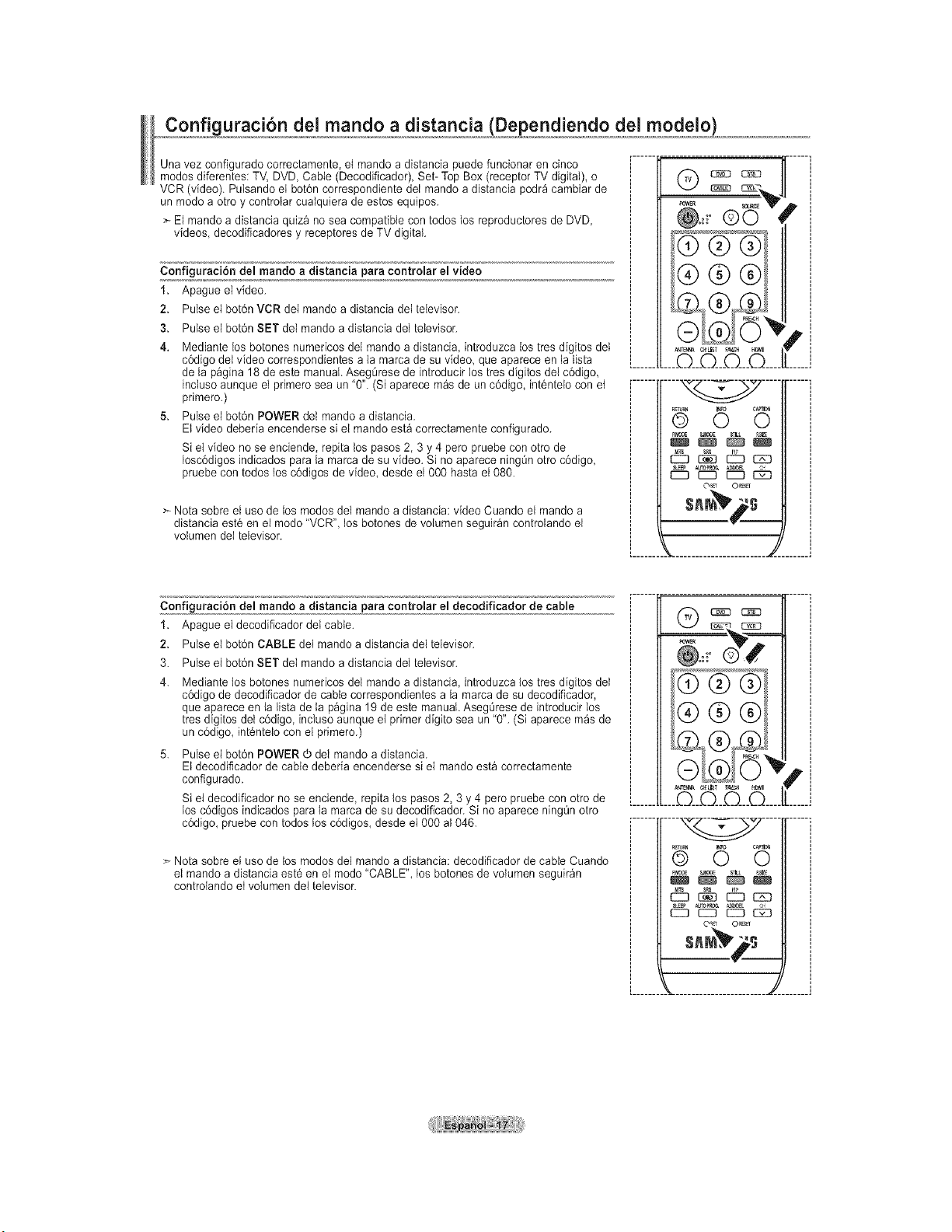
C figuraci6n deJ mando a distancia (Dependiendo del modelo)
Una vez configurado correctamente, et mando a distancia puede funcionar en dnco
modos diferentes: TV, DVD, Cable (Decodificador) Set- Top Box (receptor TV digital), o
VCR (video), Pulsando el bot6n correspondiente del mando a distancia podr_ cambiar de
un modo a otro y controtar cualquiera de estos equipos,
> El mando a distanda quiz_ no sea compatible con todos los reproductores de DVD,
videos, decodificadores y receptores de TV digital,
Configuracibn del mando a distancia para controlar el video
1. Apague el video.
2. Pulse el bot6n VCR dei mando a distancia det televisor.
3. Pulse el bot6n SET del mando a distancia deI televisor.
4. Mediante los botones numericos del mando a distanda introduzca los ires digitos del
c6digo dei video correspondientes a la marca de su video, que aparece en la tista
de la pagina 18 de este manual. Aseg0rese de introducir los ires digitos del c6digo,
inciuso aunque el primero sea un "0". (Si aparece m_s de un c6digo, int6ntelo con et
pdmero.)
5. Pulse el bot6n POWER del mando a distancia.
El video deberia encenderse si el mando est_ correctamente configurado.
Si el video no se enciende, repita los pasos 2, 3 y 4 pete pruebe con otto de
Iosc6digos indicados para {a marca de su video. Si no aparece ning0n otro c6digo,
pruebe con todos los c6digos de video, desde el 000 hasta el 080.
:_ Nota sobre el uso de los modos del mando a distancia: video Cuando el mando a
distancia est6 en el mode "VCR", los botones de volumen seguir_n controlando el
volumen dei televisor.
©0
_S/NA C_LB? _Av.C_ H_MI
.........._Q___Q___O___©....
O_ or_
..................................
p,
Configuraci6n del mando a distancia para controlar el decodificador de cable
1. Apague el decodificador del cable.
2. Pulse el bot6n CABLE det mando a distancia del televisor.
3. Pulse el bot6n SET del mando a distancia del televisor.
Mediante los botones numericos del mando a distancia, introduzca los tres digitos del
c6digo de decodificador de cable correspondientes a la marca de su decodificador,
que aparece en la lista de la pagina 19 de este manual. AsegQrese de introducir los
tres digitos deI c6digo, incluso aunque et primer digito sea un "0". (Si aparece m_s de
un c6digo, int6ntelo con el primero.)
Pulse et bot6n POWER @del mando a distancia.
El decodiflcador de cable debeda encenderse si el mando est_ correctamente
configurado.
Si el decodificador no se endende, repita los pasos 2, 3 y 4 pete pruebe con otto de
los c6digos indicados para la marca de su decodificador. Si no aparece ningOn otto
c6digo, pruebe con todos los c6digos, desde el 000 aI 046.
> Nota sobre el use de los modos del mando a distancia: decodificador de cable Cuando
el mando a distancia est6 en el modo "CABLE", los botones de volumen seguir_n
controlando et volumen dei televisor.
;®®®/
___G__Q___O___©....
.... ....
QR_I_N 6 c_EaO
db cz:
s.r s
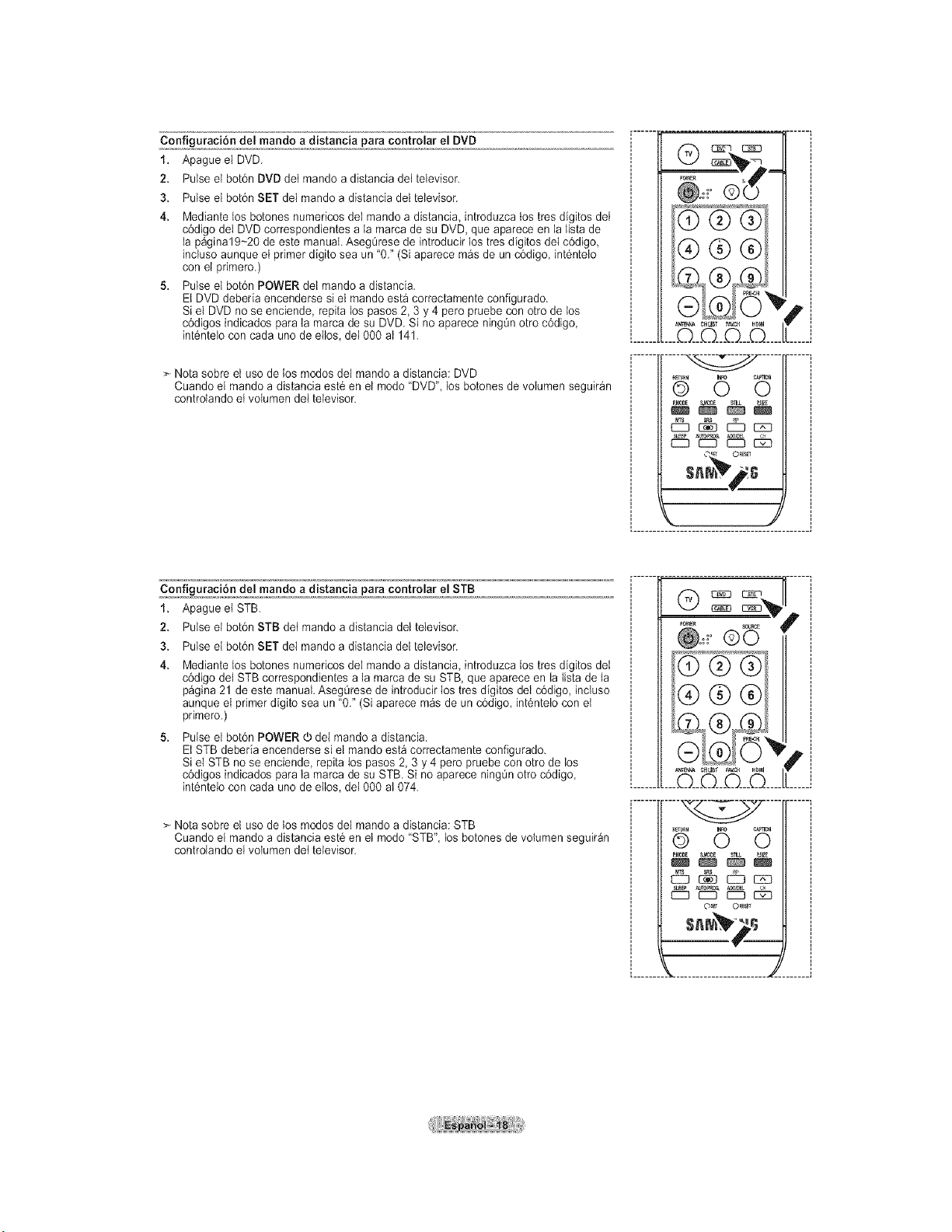
Configuracion del mando a distancia para controlar el DVD
1. Apague el DVD,
2. Pulse el bot6n DVD det mande a distancia del televisor,
3. Pulse el bot6n SET del mando a distancia del televisor.
4. Mediante los botones numericos del mando a distancia introduzca los ires digitos dei
c6digo del DVD correspondientes a la marca de su DVD, que aparece en la lista de
la p_gina19~20 de este manual. AsegQrese de introducir los tres digitos del c6digo,
incluso aunque el primer digito sea un "0." (Si aparece mas de un c6digo, int6ntelo
con el primero.)
5. Pulse el bot6n POWER del mando a distancia.
El DVD deberia encenderse si el mando esta correctamente configurado.
Si el DVD no se enciende, repita los pasos 2, 3 y 4 pero pruebe con otro de los
c6digos indicados para la marca de su DVD. Si no aparece ningQnotro c6digo,
int6ntelo con cada uno de ellos, dei 000 a1141.
> Nota sobre el uso de los modos del mando a distancia: DVD
Cuando el mando a distancia est6 en et mode "DVD", los botones de volumen seguir_n
controIando et volumen dei televisor.
0
NC't_',,A Cfl[lST F_tt_ HB_I
...._Q___Q___Q__©....
E25_ _ Ez_
SL_F A/FOF_0_ AII_
EZ3 E::3 E::3 _
F
Configuracion del mando a distancia para controlar el STB
1. Apague et STB.
2. Pulse el bot6n STB det mando a distancia del televisor.
3.
4.
Pulse el bot6n SET del mando a distanda del televisor.
Mediante los botones numedcos del mando a distancia, introduzca los ires digitos del
c6digo del STB correspondientes a la marca de su STB, que aparece en la lsta de la
pagina 21 de este manual. AsegOrese de introducir los tres digitos del c6digo, incluso
aunque el primer digito sea un "02 (Si aparece m_s de un c6digo, int6ntelo con et
primero.)
Pulse el botOnPOWER 0 del mando a distancia.
Et STB deberia encenderse si el mando esta correctamente configurado.
Si el STB no se enciende, repita los pasos 2, 3 y 4 pero pruebe con otro de los
cOdigos indicados para ta marca de su STB. Si no aparece ningOnotro cOdigo,
int6nteio con cada uno de elos, det 000 aI 074.
Nota sobre el uso de tos modos del mando a distancia: STB
Cuando el mando a distancia est6 en el modo "STB", los botones de volumen seguir_n
controlando el volumen det televisor.
©0
..........._Q___Q___Q___©....
(_TURI 6 C_NO
aMON _E
O_T 01_
.......... _ .......................
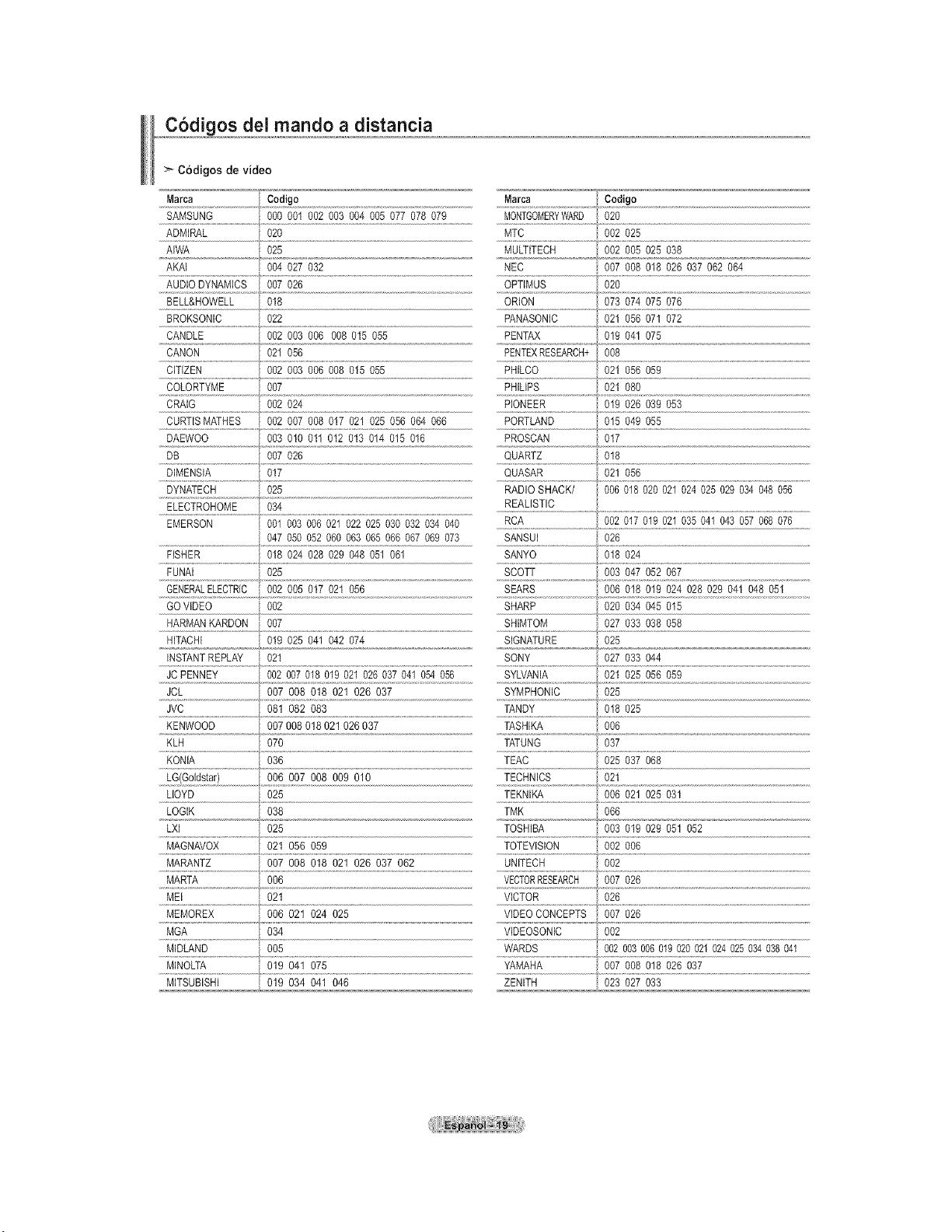
os dei mando a distancia
C6digos de video
Marca Codigo Marca Codigo
SAMSUNG 000 001 002 003 004 005 077 078 079 MONTGOMERYWARD 020
..............................................
ADMIRAL 020 MTC 002 025
AIWA _ 025 MULTITECH 002 005 025 038
ARAI 004 027 032 NEC 007 008 018 026 037 062 064
AUDIO DYNAMICS 007 026 OPTIMUS 020
BELL&HOWELL 018 ORION 073 074 075 076
BROKSONIC 022 PANASONIC 021 056 07I 072
CANDLE 002 003 006 008 015 055 PENTAX 019 04t 075
%
CANON 021 056 PENTEXRESEARCH+ 008
CITIZEN 002 003 006 008 015 055 PHILCO 021 056 059
COLORTYME 007 PHILIPS 021 080
CRAIG 002 024 PIONEER 019 026 039 053
CURTISMATHES 002 007 008 017 021 025 056 064 066 PORTLAND 015 049 055
DAEWOO 003 010 011 012 013 014 015 016 PROSCAN 017
DB 007 026 QUARTZ 018
DIMENSIA 017 QUASAR 021 056
DYNATECH 025 RADIO SHACK/ 006 018 020 021 024 025 029 034 048 056
ELECTROHOME 034 REALISTIC
EMERSON 001 003 006 021 022 025 030 032 034 040 RCA 002 017 019 021 035 041 043 057 068 076
047 050 052 060 063 065 066 067 069 073 SANSUI 026
FISHER 018 024 028 029 048 051 061 SANYO 018 024
FUNAI 025 SCOTT 003 047 052 067
GENERALELECTRIC 002 005 017 021 056 SEARS 006 018 019 024 028 029 041 048 051
GO VIDEO 002 SHARP 020 034 045 015
HARMAN RARDON 007 SHIMTOM 027 033 038 058
HITACHi 019 025 041 042 074 SIGNATURE 025
INSTANTREPLAY 02I SONY 027 033 044
JC PENNEY 002 007 018 019 021 026 037 041 054 056 SYLVANIA 021 025 056 059
JCL 007 008 018 021 026 037 SYMPHONIC 025
JVC 081 082 083 TANDY 018 025
KENWOOD 007 008 018 021 026 037 TASHIRA 006
......KLH.............................................070 TATUNG 037
KONIA 036 TEAC 025 037 068
006 007 008 009 010
Nq4
LLOYD 025 TEKNW_ 006 021 025 031
LOGIK 038 TMK 066
LXI 025 TOSHIBA 003 019 029 051 052
......M 9.Avox..........................op To!Evisiooo o%
MARTA 006 VECTORRESEARCH 007 026
MEI 021 VICTOR 026
MEMOREX 006 021 024 025 VIDEO CONCEPTS 007 026
MGA 034 VIDEOSONIC 002
MIDLAND 005 WARDS 002 003 006 019 020 021 024 025 034 038 041
YAMAHA
MINOLTA 019 041 075 007 008 018 026 037
MITSUBISHI 019 034 041 046 ZENITH 023 027 033
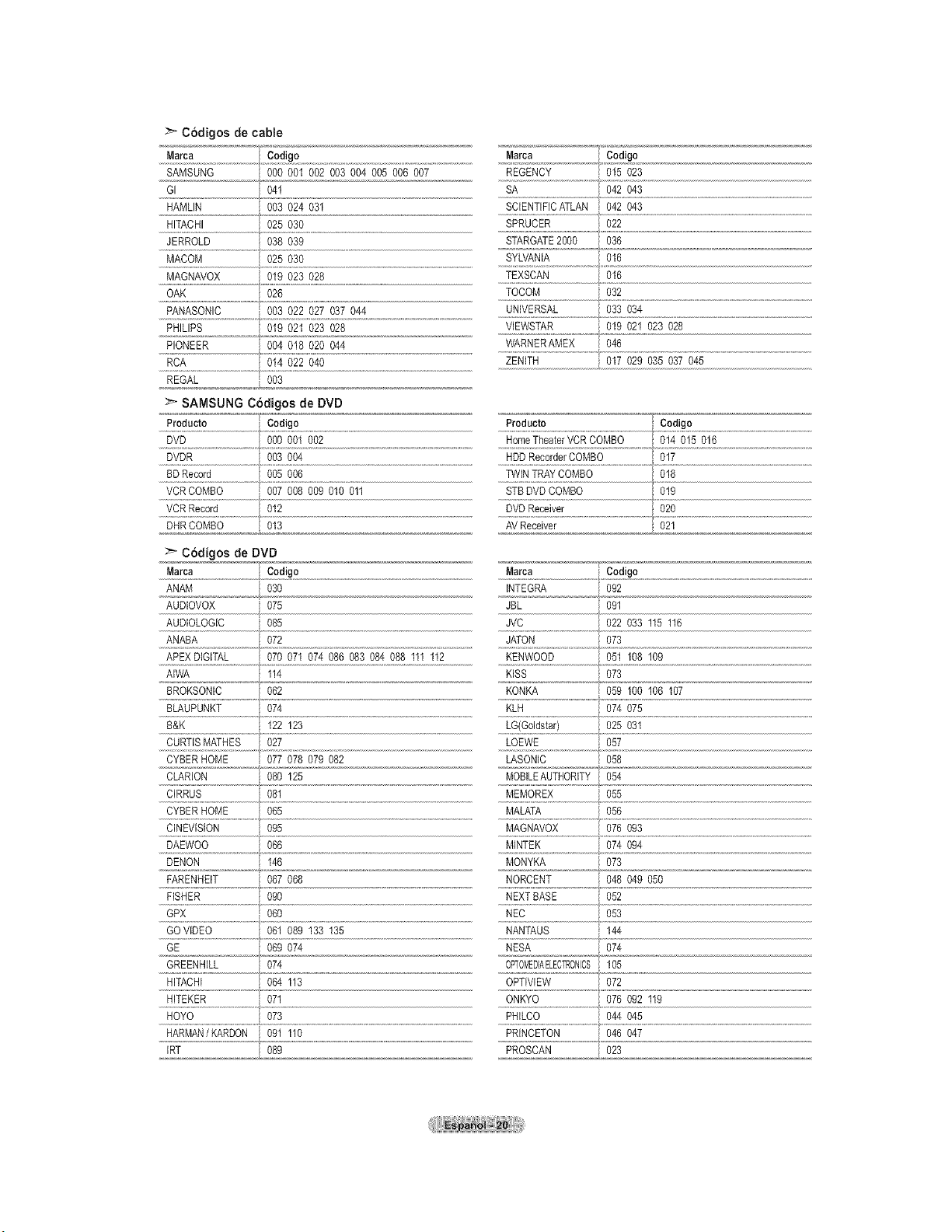
:_Codigosdecable
Marca Codigo
SAMSUNG 000 00I 002 003 004 005 006 007
GI 04I
HAMLIN 003 024 03I
HITACHI 025 030
JERROLD 038 039
MACOM 025 030
MAGNAVOX 019 023 028
OAK 026
PANASONIC 003 022 027 037 044
PHILIPS 019 021 023 028
PIONEER 004 018 020 044
RCA 014 022 040
:_ SAMSUNG Cddigos de DVD
Producto Codigo
DVDR 003 004
Marca " Codigo
REGENCY 015 023
SA O42 O43
SCIENTIFICATLAN 042 043
SPRUCER O22
STARGATE2000 036
SYLVANIA 016
TEXSCAN 016
TOCOM 032
UNIVERSAL 033 034
VIEWSTAR 019 021 023 028
WARNERAMEX 046
ZENITH 017 029 035 037 045
BDRecord 005 006 TWINTRAY COMBO 018
VCR COMBO 007 008 009 010 011 STB DVD COMBO 019
.....VCR_eoo_:d........................O!_ DVD_ece_ve,: Op
_..pHRCOMBO...........................oj2 ............ AV Receiver 02_ .....................
_" Codigos de DVD
ANAM 030 INTEG_ 092
AUDIOVOX 075 JBL 091
/
AUDIOLOGIC 085 JVC 022 033 115 116
ANABA 072 JATON 073
APEX DIGITAL 070 07I 074 086 083 084 088 III 112 KENWOOD 051 108 109
AIWA II4 KISS 073
BROKSONIC 062 KONKA 059 100 106 I07
BLAUPUNKT 074 KLH 074 075
B&K 122 123 LG(Goldstar) 025 031
CURTISMATHES 027 LOEWE 057
CYBER HOME 077 078 079 082 LASONIC 058
CLARION 080 I25 MOBILEAUTHORITY 054
CIRRUS 081 MEMOREX 055
CYBER HOME 065 MALATA 056
CINEVISION 095 MAGNAVOX 076 093
DAEWOO 066 MINTEK 074 094
DENON I46 MONYKA 073
FARENHEIT 067 068 NORCENT 048 049 050
FISHER 090 NEXT BASE 052
.....GPx o_o .Ec oss
GOVDEO 061 089 133 135 NANTAUS I44
GE 069 074 NESA 074
GREENHILL 074 OPTOMEDIAELECTRONCS 105
HITACHI 064 II3 OPTIVlEW 072
HITEKER 071 ONKYO 076 092 119
HOYO 073 PHILCO 044 045
HARMAN/KARDON 091 110 PRINCETON 046 047
IRT _ 08 PROSCAN 023
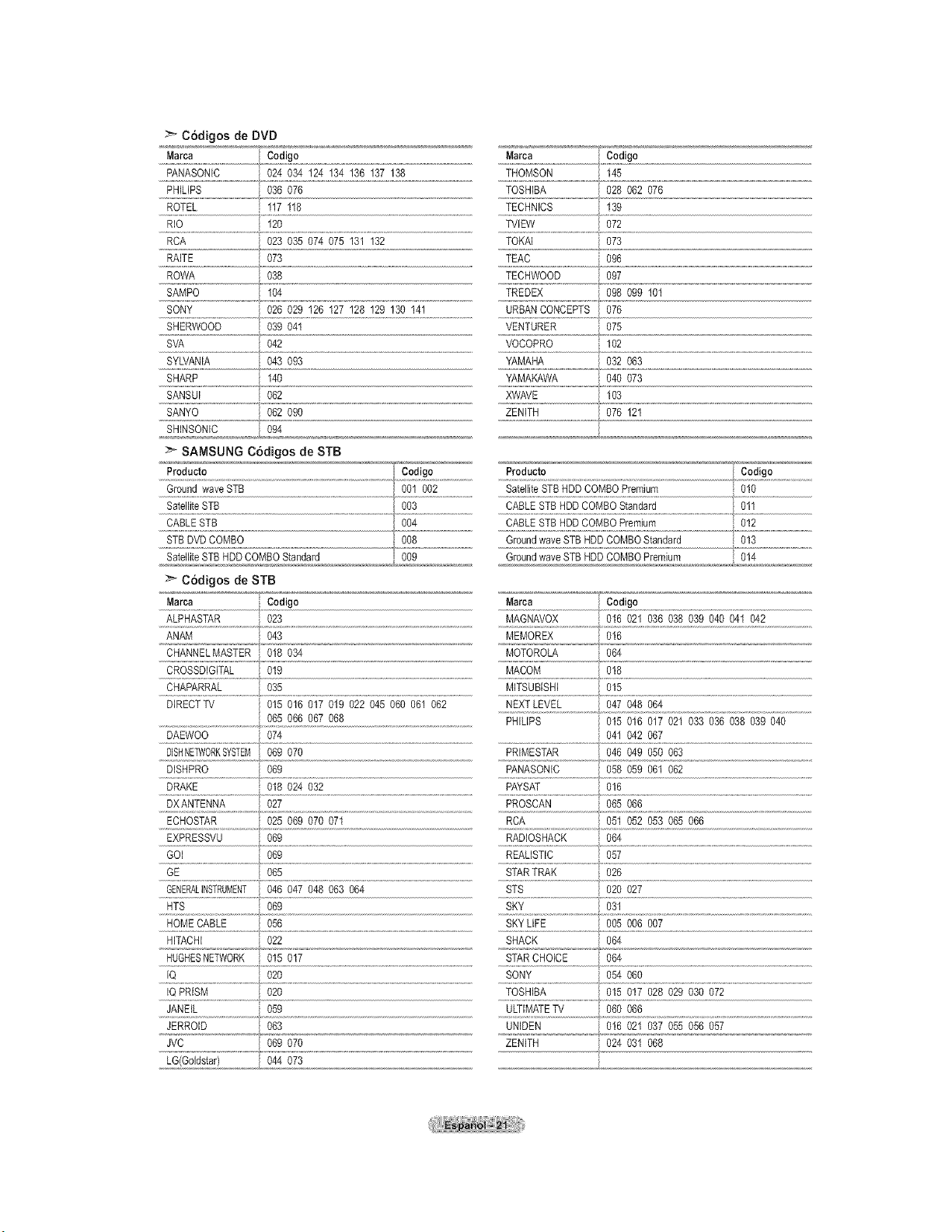
C6digosde DVD
......Marca Cod)go Marca , Codigo
PANASONIC 024 034 124 134 136 137 138 THOMSON 145
PHILIPS 036 076 TOSHIBA 028 062 076
................................................................................................................................................................................................................. ?
ROTEL 117 118 TECHNICS 139
RiO 120 TVIEW 072
RCA 023 035 074 075 131 132 TOKAi 073
RAITE 073 TEAC 096
ROWA 038 TECHWOOD 097
SAMPO 104 TREDEX 098 %9 101
SONY 026 029 I26 I27 128 129 130 I41 URBAN CONCEPTS 076
SHERWOOD 039 04t VENTURER 075
SVA 042 VOCOPRO 102
SYLVANIA 043 093 YAMAHA 032 063
SHARP 140 YAMAKAWA 040 073
...................................... _r
SANSUi 062 XWAVE 103
062 0g0SANYO ZENITH 076 121
SHINSONiC 094
SAMSUNG C6digos de STB
CABLE STB
STB DVD COMBO 008 Ground wave STB HDD COMBO Standard 013
SatelliteSTB HDD COMBO Standard ,i_%9 Ground wave STB HDDCOMBO Premium 014
:_ C6digos de STB
Marca Codigo ......Marca Codigo
ALPHASTAR 023 MAGNAVOX 016 021 036 038 039 040 041 042
ANAM 043 MEMOREX 016
CHANNELMASTER 018 034 MOTOROLA 064
CROSSDIGITAL 019 MACOM 018
CHAPARRAL 035 MiTSUBISHI 015
DIRECTTV 015 016 017 019 022 045 060 06I 062 NEXTLEVEL 047 048 064
065 066 067 068 PHILIPS 015 016 017 021 033 036 038 03g 040
DAEWOO 074 041 042 067
DISHNE]_fl0RKSYSTEM06g 070 PRIMESTAR 046 04g 050 063
DiSHPRO 069 PANASONiC 058 059 061
062
DRAKE 018 024 032 PAYSAT 016
EXPRESSVU %_ ......_A_JOSHACt!.............................0_4.......................................................................................................................................
GOI 069 REALISTIC 057
GE 065
GENERALINSTRUMENT046 047 048 063 064
HTS 069
HOME CABLE 056
HITACHi O22
IQ PRISM 020 TOSHIBA 015 017 028 029 030 072
JANEIL 059 ULTIMATETV 060 066
JERROID i %S ,,UN[DF2 ,],,0702L237O,,SS,O,S_227
JVC 069 070 ZENITH 024 031 068
LG(Goldatar) i, 044 073
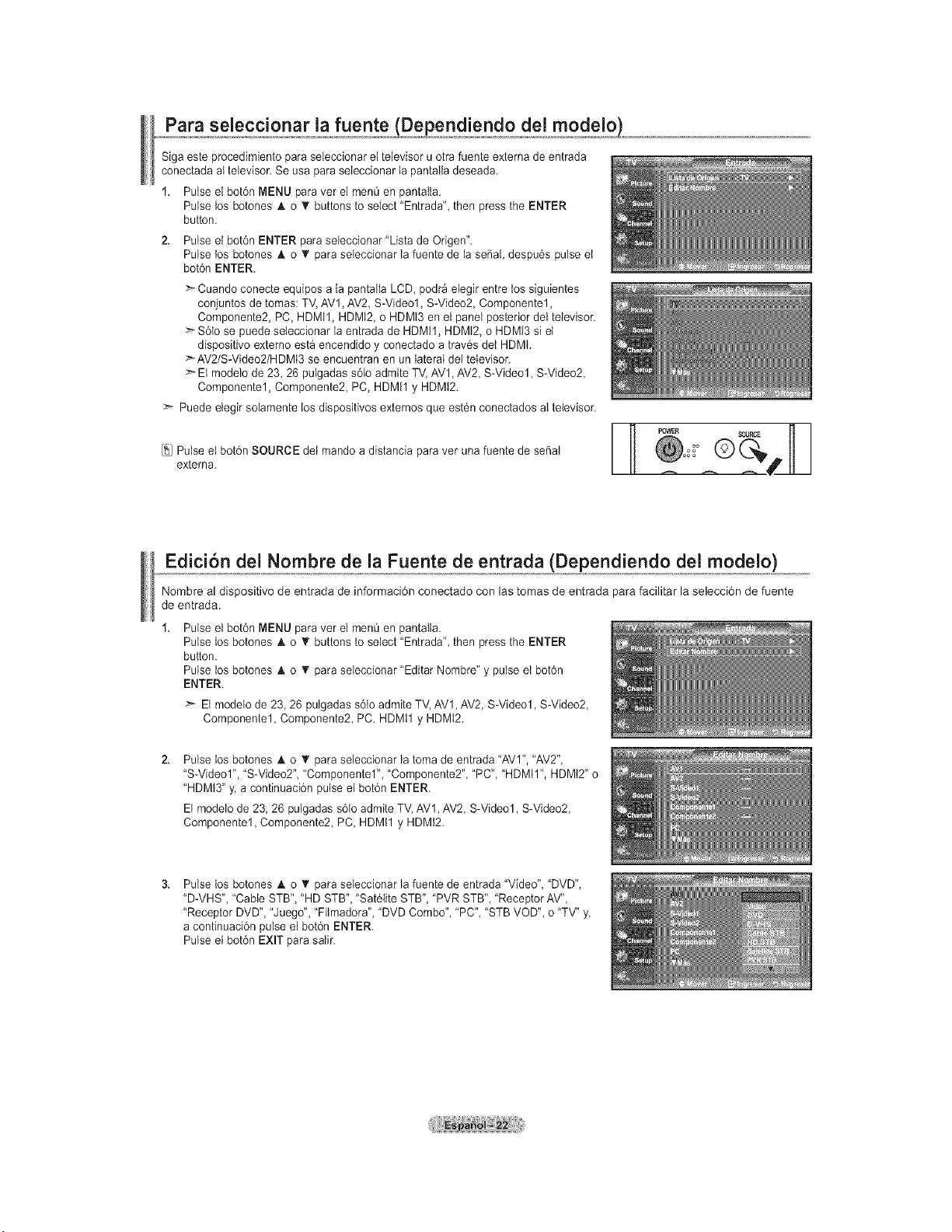
Para seleccionar la fuente _(Dependiendo del modelo}_
Siga este procedimiento para seleccionar el televisor u otra fuente externa de entrada
conectada aI televisor. Se usa para seleccionar la pantalla deseada.
1. Pulse el bot6n MENU para vet el menQ en pantatia.
Pulse los botones A o • buttons to select "Entrada", then press the ENTER
button.
2. Pulse el bot6n ENTER para seieccionar "Lista de Origen".
Pulse los botones & o T para seleccionar la fuente de ia serial, despu6s pulse et
bot6n ENTER.
>_Cuando conecte equipos a la pantalla LCD, podr_ elegir entre tos siguientes
conjuntos de tomas: TV, AVl, AV2, S-Video1, S-Video2, Componentel,
Componente2, PC, HDMI1, HDMt2, o HDMt3 en el panel posterior del televisor.
_"-S6to se puede seleccionar la entrada de HDMtl, HDMI2, o HDMI3 si et
dispositivo externo esta encendido y conectado a trav6s det HDMt.
>'AV2/S-Video2/HDMI3 se encuentran en un lateral del televisor.
>- El modelo de 23, 26 pulgadas s61oadmite TV, AV1,AV2, S-Video1, S-Video2,
Componentel, Componente2 PC, HDMI1 y HDMt2.
>- Puede etegir solamente los dispositivos externos que est6n conectados al televisor.
Pulse el botdn SOURCE dei mando a distancia para ver una fuente de sepal
extema.
_30URCE
Edicion del Nombre de la Fuente de entrada (Dependiendo del modelo)
Nombre al dispositivo de entrada de informaci6n conectado con las tomas de entrada para facilitar la selecci6n de fuente
de entrada.
Pulse el bot6n MENU para ver el menQ en pantaIta.
Pulse los botones A o '_ buttons to select "Entrada", then press the ENTER
button.
Pulse los botenes A o T para seIeccionar "Editar Nombre" y pulse et bot6n
ENTER.
>- El modelo de 23 26 pulgadas s6to admite TV, AV1, AV2, S-Video1, S-Video2,
Componentel, Componente2, PC, HDMtl y HDMt2.
Pulse los botones A. o T para seleccionar la toma de entrada "AVI", "AV2",
"S-Video1", "S-Video2", "Componentel", "Componente2", "PC", "HDMtl", HDMt2" o
"HDMt3" y, a continuaci6n pulse el bot6n ENTER.
El modelo de 23, 26 pulgadas s61oadmite TV, AVl, AV2, S-Video1, S-Video2,
Componentel, Componente2, PC, HDMtl y HDMt2.
Pulse los botones A o T para seleccionar la fuente de entrada "Video", "DVD",
"D-VHS", "Cable STB", "HD STB", "Sat61iteSTB", "PVR STB", "Receptor AV",
"Receptor DVD", "Juego", "Filmadora", "DVD Combo", "PC", "STB VOD", o "TV" y
a continuaci6n pulse el bot6n ENTER.
Pulse el bot6n EXIT para satir.
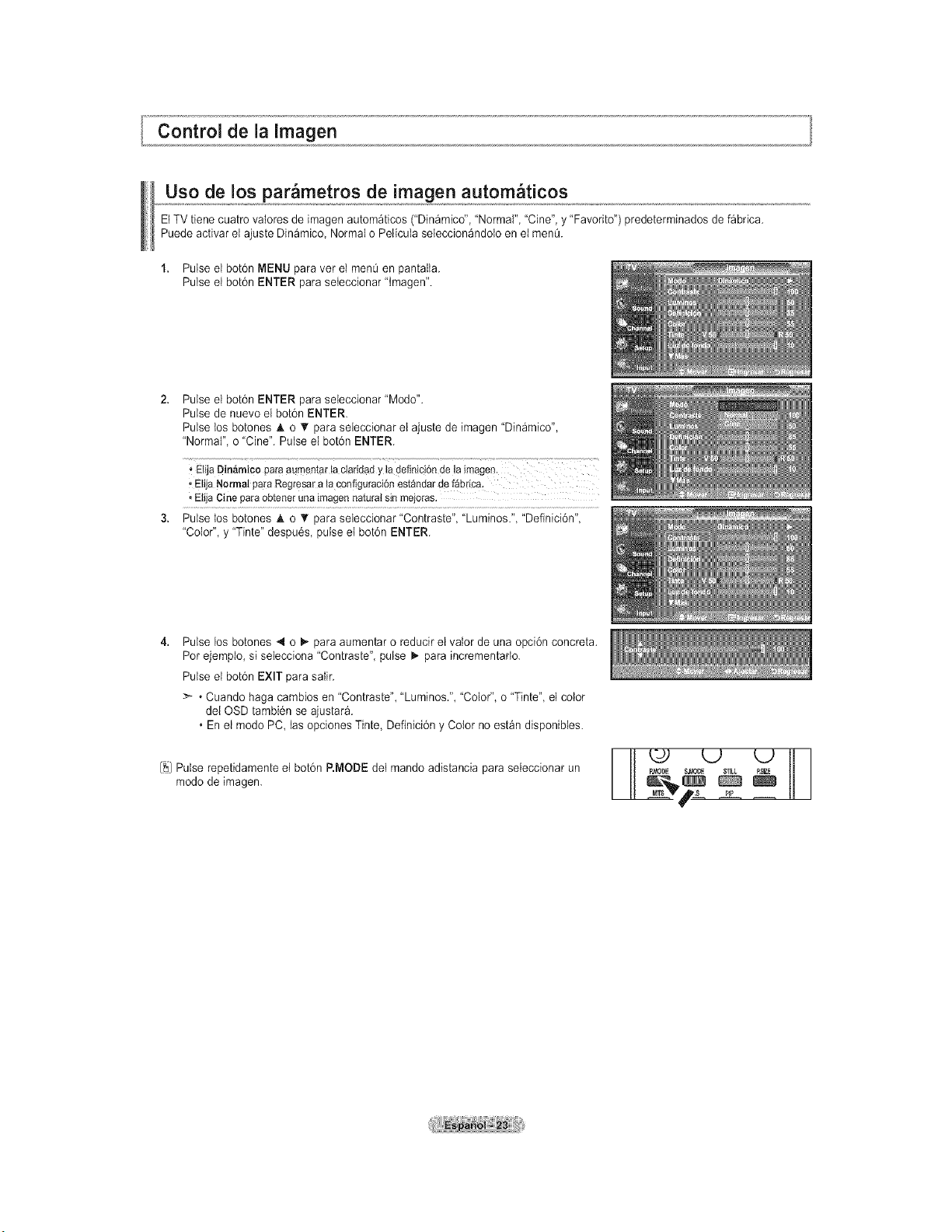
Control de la Imagen
Uso de los par metros de imagen autom ticos
El TV tiene cuatro vaIores de imagen autom_ticos ("Din_mico", 'Normal", "Cine", y "Favorito") predeterminados de fabdca.
Puede activar el ajuste Din_mico Normal o Pelicula seleccion_ndoto en el menQ.
1. Pulse el bot6n MENU para ver el men_ en pantalta.
Pulse el bot6n ENTER para seteccionar "tmagen".
Pulse el bot6n ENTER para seleccionar "Modo".
Pulse de nuevo el bot6n ENTER.
Pulse los botones _, o _r para seleccionar el ajuste de imagen "Dinamico",
"Normal", o "Cine". Pulse el bot6n ENTER.
ElijaDin_micoparaaumentarta ctaridady ta definici6nde ta irn
• EtijaNormalparaRegresara ia configuraci6nestandarde fabrica,
, ElijaCineparaobteneruna imagennaturalsinmejoras.
Pulse los botones A. o _' para seleccionar "Contraste", "Luminos.", "Definicidn",
"Color", y "Tinte" despu6s, pulse et botdn ENTER.
Pulse los botones 4 o _ para aumentar o reducir et valor de una opci6n concreta.
Pot ejempio, si selecciona "Contraste", pulse I,. para incrementarlo.
Pulse el bot6n EXIT para saIir.
• Cuando haga cambios en "Contraste", "Luminos.", "Color", o "Tinte", el color
del OSD tambi6n se ajustar_.
• En el modo PC, ias opciones Tinte, Definici6n y Color no est_n disponibtes.
[_j Pulse repetidamente el bot6n P.MODE det mando adistancia para seieccionar un
modo de imagen.
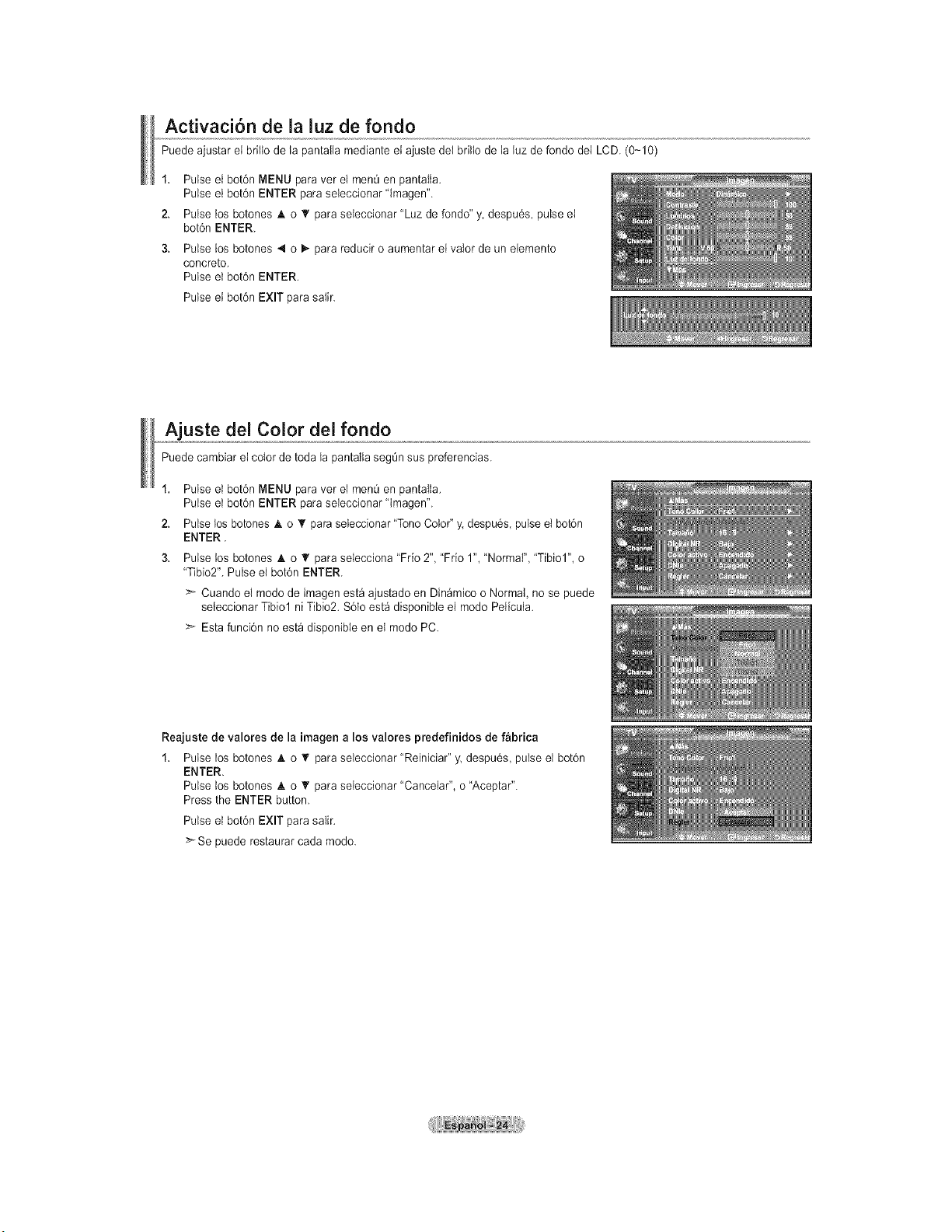
Acfivaci6n de la luz de fondo
Puede ajustar el brilto de la pantaila mediante el ajuste del brilto de la luz de fondo del LCD. (0-10)
1, Pulse el bot6n MENU para vet el men0 en pantalia.
Pulse el bot6n ENTER para seleccionar lmagen".
2, Pulse los botones _ko T para seteccionar "Luz de rondo" y, despu6s, pulse el
bot6n ENTER.
3. Pulse los botones 4 o _ para reducir o aumentar el vator de un elemento
concreto.
Pulse el bot6n ENTER.
Pulse el bot6n EXIT para saIir.
Ajuste del Color del rondo
Puede cambiar el color de toda la pantalla seg0n sus preferencias.
1. Pulse el bot6n MENU para vet el menO en pantalla.
Pulse el bot6n ENTER para seleccionar "Imagen".
2, Pulse los botones _ko T para seleccionar "TonoColor" y. despu6s, pulse et bot6n
ENTER.
3. Pulse tos botones A o T para selecciona Trio 2", Trio 1", "Normal", "Tibiol", o
"Tibio2". Pulse el bot6n ENTER.
Cuando el modo de imagen esta ajustado en Din_mico o Normal, no se puede
seteccionar Tibiol ni Tibio2. S6lo est_ disponibte el modo Peiicula.
Esta funci6n no esta disponible en el modo PC.
Reajuste de valores de la imagen a los valores predefinidos de fabrica
1. Pulse los botones A o _' para seleccionar "Reiniciar" y. despu6s, pulse el bot6n
ENTER.
Pulse tos botones A o T para seleccionar "Canceiar", o "Aceptar".
Press the ENTER button.
Pulse el bot6n EXIT para salir.
>-Se puede restaurar cada modo.
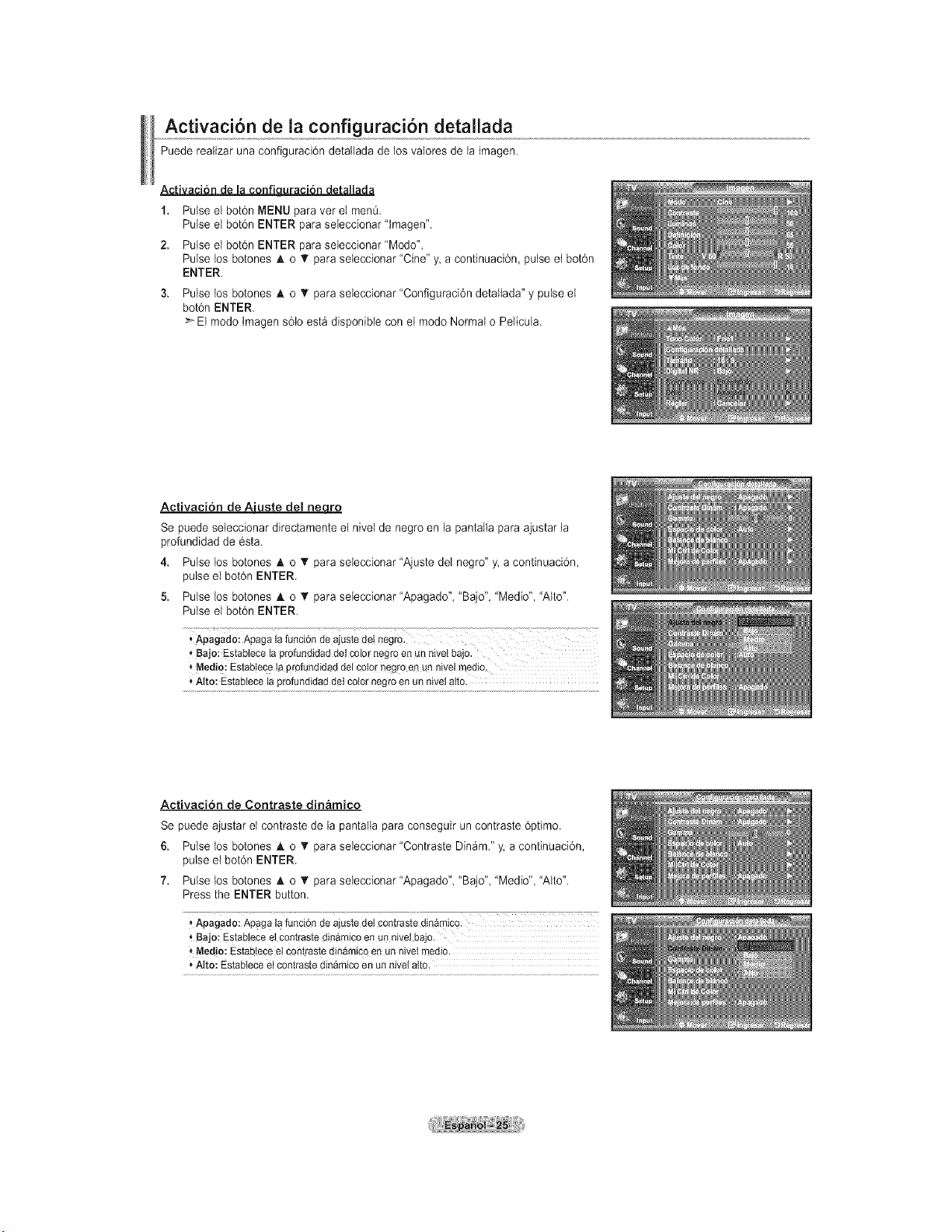
Activacion de la configuracibn detallada
Puede realizar una configuraci6n detallada de los vaIores de la imagen.
• H . ,
1. Pulse el bot6n MENU para vet el menO.
Pulse el bot6n ENTER para seleccionar "tmagen".
2. Pulse el bot6n ENTER para seieccionar"Modo".
Pulse los botones A o V para seleccionar "Cine" y a continuaci6n, pulse et bot6n
ENTER.
3. Pulse los botones A o _' para seieccionar "Configuraci6n detaIlada" y pulse el
bot6n ENTER.
_EI mode tmagen s61eest_ dispenibte con el mode Normal e Peticula.
Activacion de Aiuste del nee.to
Se puede seieccionar directamente el nivel de negro en la pantatla para ajustar la
profundidad de 6sta.
4. Pulse los botones & o T para seieccionar "Ajuste del negro" y. a continuaci6n,
pulse el bot6n ENTER.
5. Pulse los botones A o _' para seteccionar "Apagado", "Bajo", "Medio", "Alto".
Pulse el bot6n ENTER.
' Apagado:Apagala funci6nde ajustedet negro" .....................................................................................
'_Bajo:Establecelaprofundidadde!color negroen Unnivetbajo.
Medio:Establecela profundidaddel c_lQ_"negr0en un nivelmedio.
* Alto: Estabteceta profundidaddet cotornegroen un niveiatto.
Activacion de Contraste din&rnico
Se puede ajustar el contraste de la pantaila para conseguir un contraste 6primo.
6. Pulse los botones A o T para seleccionar "Contraste Din_m." y. a continuaci6n,
pulse el bot6n ENTER.
7. Pulse los botones A o _' para seleccionar "Apagado", "Bajo", "Medio", "Alto".
Press the ENTER button.
,, Bajo: Estableceetcontrastedinamicoen unniveibajo.
* Medio:Estabteceelcontrastedinamicoen un nivelmedio.
* Alto: Estabieceet contrastedinamicoen un niveiatto.
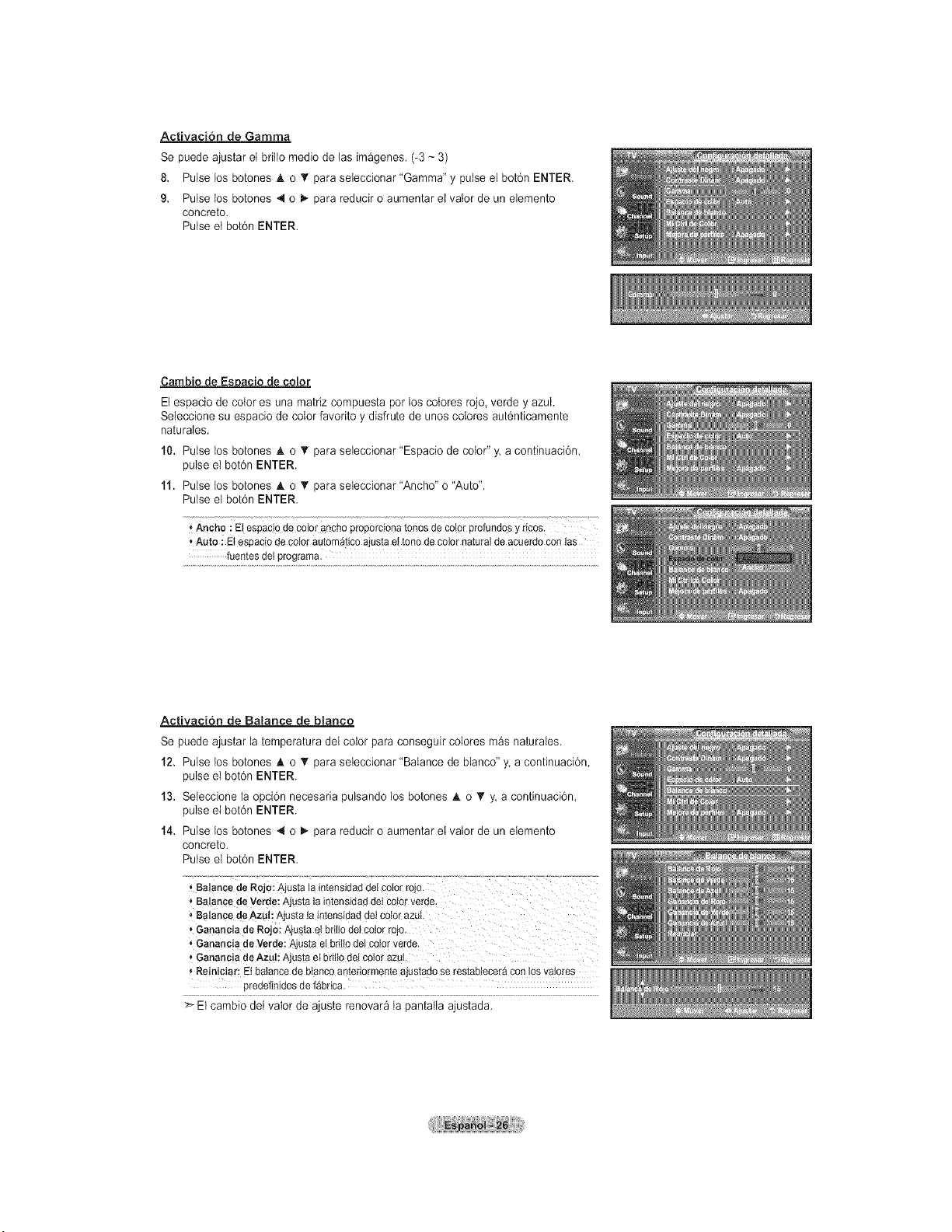
Activacion de Gamma
Se puede ajustar el britlo medio de las im_genes. (-3 ~ 3)
8. Pulse los botones & o _' para seleccionar "Gamma" y pulse el bot6n ENTER.
9. Pulse los botones 4 o _ para reducir o aumentar el valor de un elemento
concreto.
Pulse et bot6n ENTER.
Cambio de Espacio de color
El espacio de color es una matriz compuesta por los co{ores rojo, verde y azul.
Seleccione su espacio de color favorito y disfrute de unos colores aut6nticamente
naturales.
10. Pulse los botones A o _' para seleccionar "Espacio de color" y. a continuaci6n,
pulse el bot6n ENTER.
11. Pulse los botones • o _" para seleccionar "Ancho" o "Auto".
Pulse el bot6n ENTER.
* Ancho i Elespaciode coloranchoproporcionatonesdecolorprofundosy rices.
* Auto : Eiespaciode colorautom_ticoajustael tonedecolornaturalde acuerdoconlas
fuentesdotprograma.
Activaci6n de Balance de blanco
Se puede ajustar la temperatura dei color para conseguir colores m_s naturaies.
12. Pulse los botones J, o T para seleccionar "Balance de blanco" y. a continuaci6n,
pulse el bot6n ENTER.
13. Seleccione la opci6n necesaria pulsando los botones A o _' y. a continuaci6n,
pulse el bot6n ENTER.
14. Pulse los botones 4 o D,.para reducir o aumentar el valor de un elemento
concreto.
Pulse el bot6n ENTER.
_, Balance de Rojo: Ajusta la intensidad dei coior rojo. ...............................
* BalancedeVerde:Ajustataintensidaddotcolorverde.
"Balance deAZU!iAjustalaintensidaddei€olorazuL
', Gananciade Rojo:Ajustael briltodel colorrojo.
_ Ganan¢iade Verde:Ajustael briltodel cotorverde.
, GananciadeAzu!; Ajustaetbrillode! colorazut.
Reiniciar:Et balancede btancoante[iormenteajustadoserestableceraconlosvalores
predefinidosde f&brica.
>* El cambio dei valor de ajuste renovar_ la pantatia ajustada.
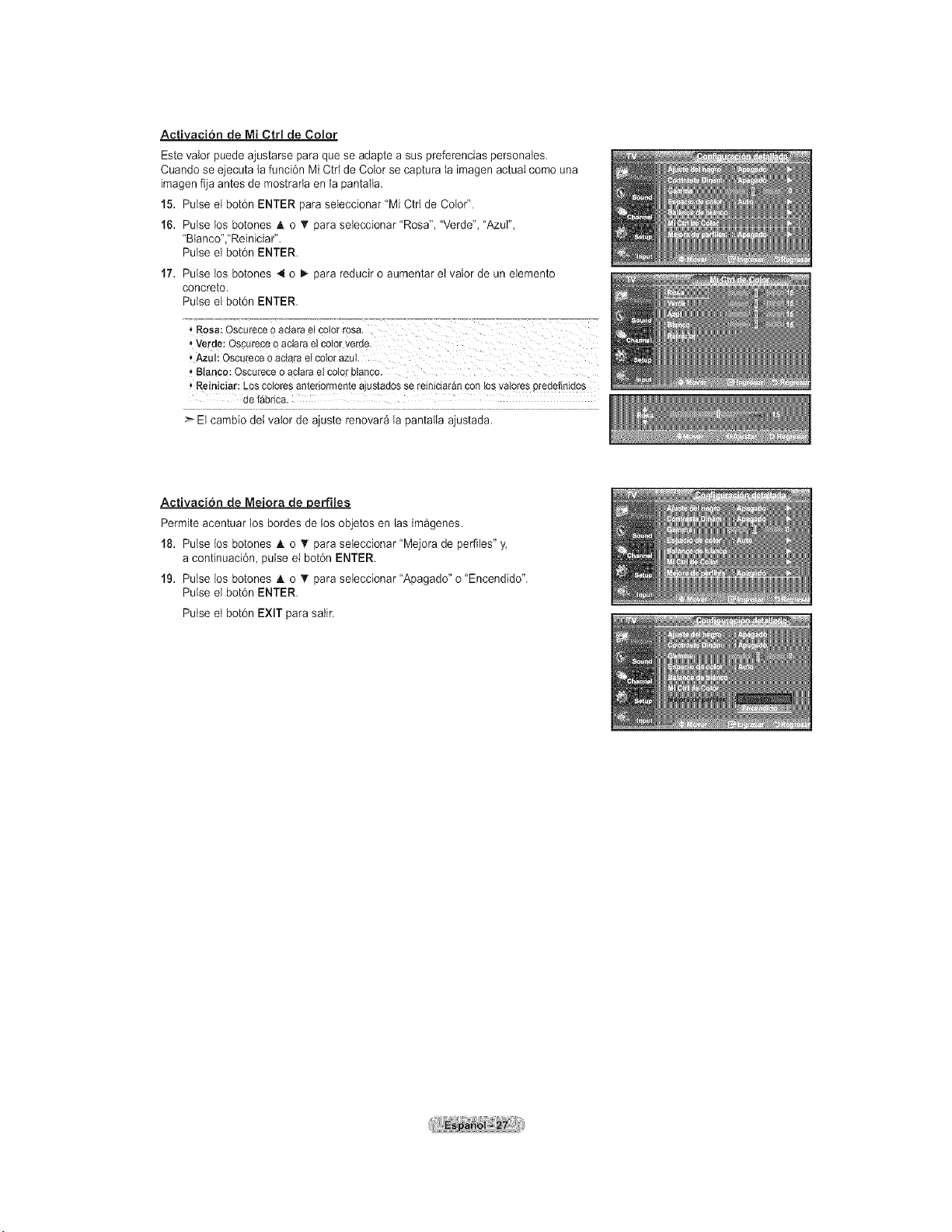
Activaci6n de Nli Ctrl de Color
Este valor puede ajustarse para que se adapte a sus preferencias personales.
Cuando se ejecuta la funci6n Mi Ctd de Color se captura la imagen actual como una
imagen fija antes de mostrarta en la pantaIta.
15. Pulse el bot6n ENTER para seleccionar "Mi Ctd de Color".
16. Pulse los botones A o _r para seteccionar "Rosa", "Verde", "Azul",
"Btanco","Reiniciar".
Pulse el bot6n ENTER.
17. Pulse los botones 4 o _ para reducir o aumentar el valor de un elemento
concreto.
Pulse el bot6n ENTER.
', Azul: Oscu(ece o actara el c
'_Blanco: Qscurece o aclara el color btanco.
* Reiniciar: Los cotores anteriarmente ajustados se reiniciar&n con los valores predefin!dos
de fabrica.
:_ El cambio dei valor de ajuste renovar_ la pantatia ajustada.
Activaci6n de Me'ora de erfiles
Permite acentuar los bordes de los objetos en las imagenes.
18. Pulse los botones A o _' para seleccionar "Mejora de perfiles" y.
a continuaci6n, pulse el bot6n ENTER.
19. Pulse los botones A o _' para seteccionar "Apagado" o "Encendido'.
Pulse et bot6n ENTER.
Pulse el bot6n EXIT para salir.
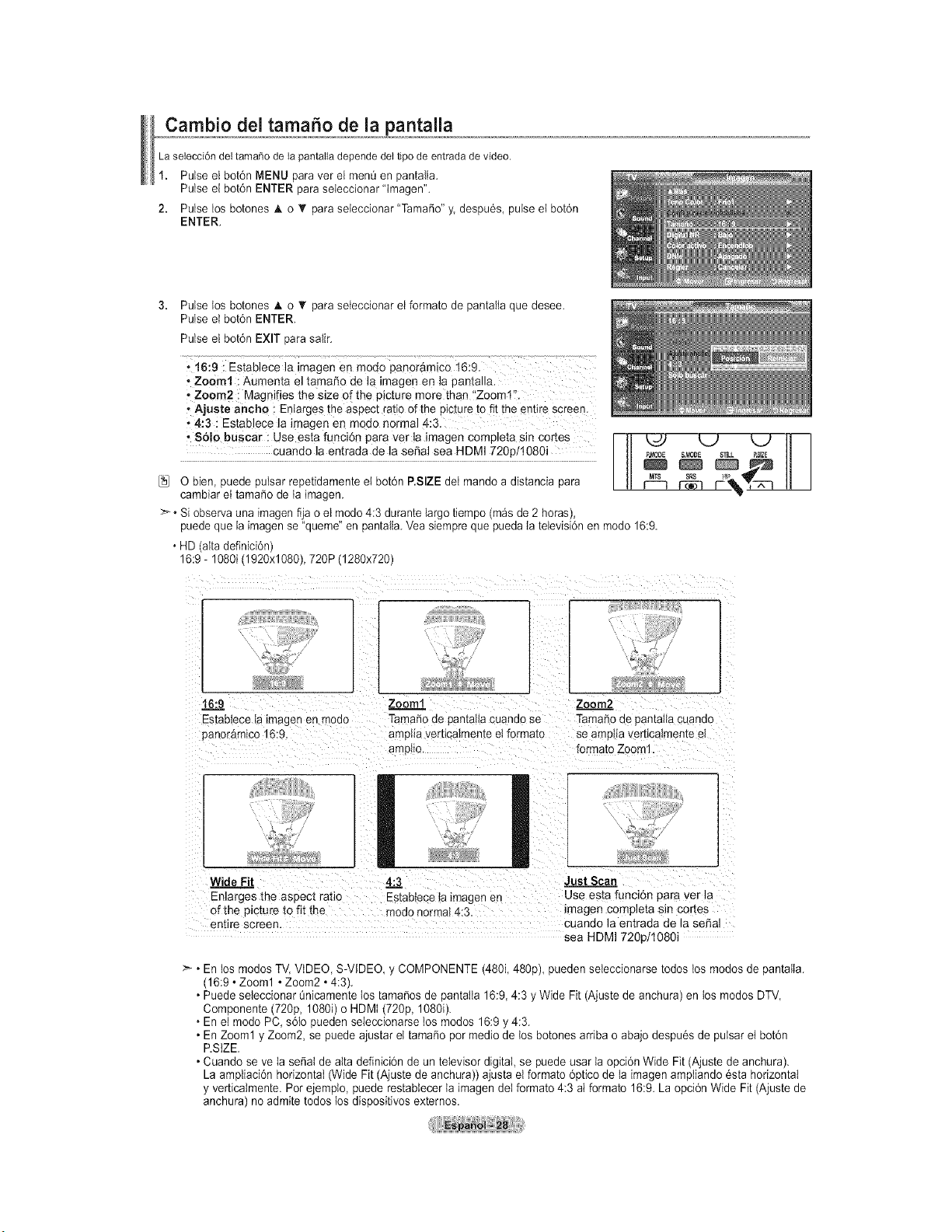
Cambio del tamafio de la pantalla
La seiecci6ndel tama_ode la pantaliadependedel tipode entradade video
1. Pulse el bot6n MENU para ver el menQ en pantalla.
Pulse el bot6n ENTER para seleccionar 'Imagen".
2. Pulse los botones A o _r para seteccionar "Tama_o" y despu6s, pulse et bot6n
ENTER.
3. Pulse tos botones A o _!' para seleccionar el formato de pantaIia que desee.
Pulse el bot6n ENTER.
Pulse el bot6n EXIT para salir.
.16:9 : Establece la imagen en modo panoramico t6:9.
• Zoom1 : Aumenta el tamar_o de la imagen en la pantalla.
, Zoom2 : Magnifies the size of the picture more than i'Zooml":
, Ajuste ancho ;Enlarges the aspect ratio of the picture to fit the _ntire screen.
.4:3 i Establece la imagen en mQdo normal 4:3.
.S6!0buscar: U seestafunci6nparaverlaimagencompletasincorte s _ _ ,_LJk_)_ "_t'-_ H I
cuando la entrada de la sepal sea HDMI 720p/t080i P_,_ SMODE S_U- _.SlZ_
O bien, puede pulsar repetidamente el bot6n P.SIZE deI mando a distancia para r_
cambiar el tamafio de ia imagen.
>_• Si observa una imagen fija o el modo 4:3 durante largo tiempo (m_s de 2 horas),
puede que la imagen se "queme" en pantaiia. Vea siempre que pueda Ia televisi6n en modo 16:9.
• HD (aita definici6n)
16:9- 1080i (1920xl 080), 720P (1280x720)
t6:9
Estabtece ta lmagen en mouo
panor&mico 16:9
Zooml Zoom2_
Tamafio de aantalla cuando se Tamaho ae pantaHacuanuo
amplia verticatmente et formato se amptia verticalmente el
amplio formato Zoom1.
Wide Fit
Enlarges me aspect ratio
af the picture to fit the
entire screen
4"3 Just Scan
Estabiece la lmagen en Use esta funci6n para vet la
_noaonormal 4:3. _magen completa sin cortes
cuando la entrada de la sepal
sea HDMI 720p/t080i
• En los modos TV, VIDEO, S-VIDEO y COMPONENTE (480i 480p) pueden seleccionarse todos los modos de pantatla.
(16:9• Zoom1 • Zoom2 • 4:3).
• Puede seleccionar Qnicamente los tamafios de pantatla 16:9, 4:3 y Wide Fit (Ajuste de anchura) en los modos DTV
Componente (720p, 1080i) o HDMI (720p, 1080i).
• En el modo PC, s61opueden seieccionarse tos modos 16:9 y 4:3.
• En Zoom1 y Zoom2, se puede ajustar el tamaSo por medio de los botones arriba o abajo despues de pulsar el bot6n
P.StZE.
• Cuando se ve la se_aI de alta definici6n de un televisor digital, se puede usar ta opci6n Wide Fit (Ajuste de anchura).
La ampliaci6n horizontal (Wide Fit (Ajuste de anchura)) ajusta el formato 6ptico de la imagen ampliando esta horizontal
y verticatmente. Por ejempto, puede restablecer la imagen del formato 4:3 aI formato 16:9. La opci6n Wide Fit (Ajuste de
anchura) no admite todos tos dispositivos externos.
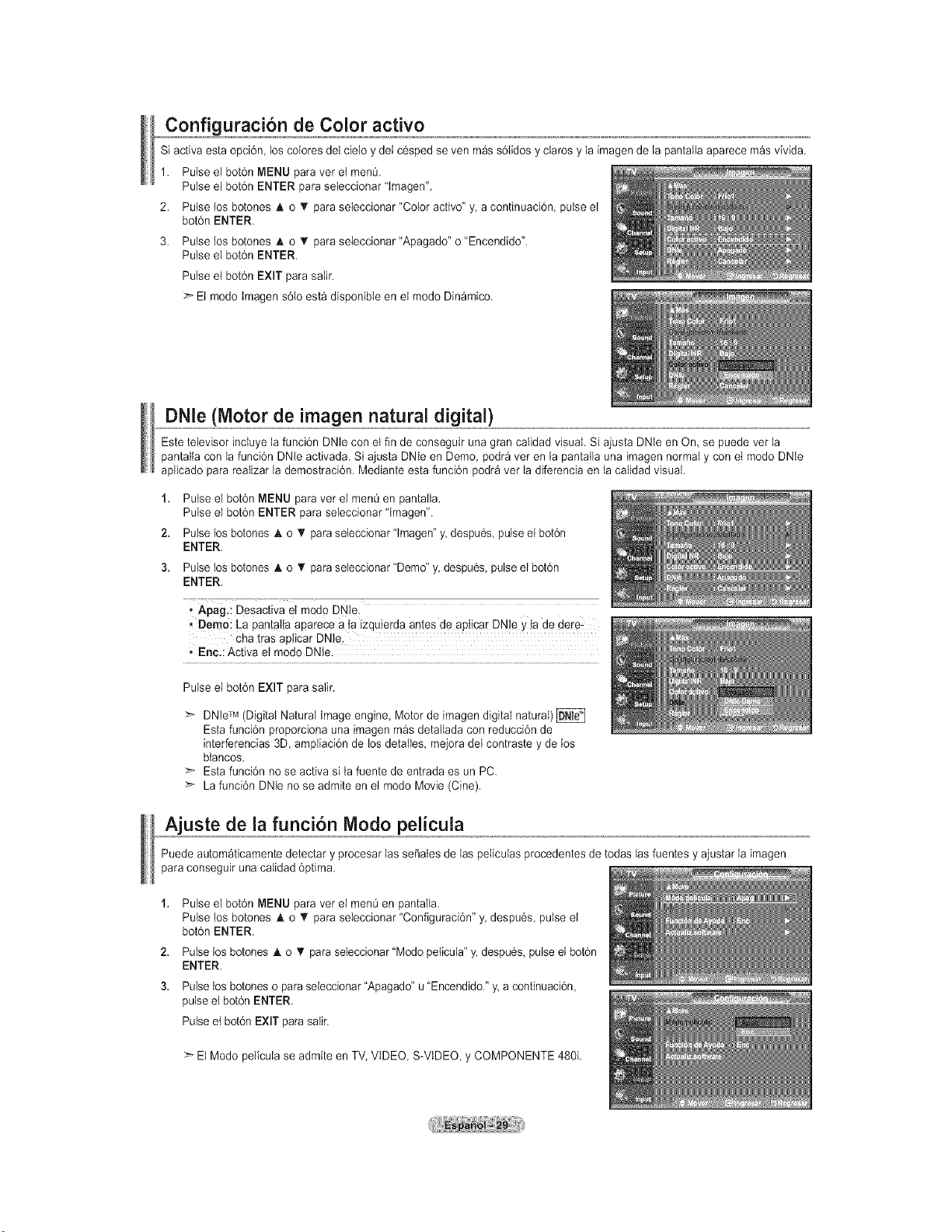
Configuraci6n de Color activo
Si activa esta opci6n los colores del cieio y dei c6sped seven m_s s6Iidos y claros y la imagen de ia pantalla aparece mas vivida.
1. Pulse el bot6n MENU para vet et menO.
Pulse el bot6n ENTER para seleccionar 'Imagen".
2. Pulse los botones A o T para seleccionar "Color active" y a continuaci6n, pulse el
bot6n ENTER.
3. Pulse los botones • o I!' para seieccionar "Apagado" o "Encendido".
Pulse el bot6n ENTER.
Pulse el bot6n EXIT para satir.
EI modo Imagen s61oesta disponible en et modo Dinamico.
DNle (Motor de imagen natural digital)
Este televisor inctuye ta funci6n DNle con et fin de conseguir una gran calidad visual. Si ajusta DNle en On, se puede vet la
pantalla con ta funci6n DNte activada. Si ajusta DNle en Demo, podra vet en la pantaIla una imagen normal y con et mode DNte
aplicado para reaIizar la demostraci6n. Mediante esta funci6n podr_ vet ia diferencia en ia cafidad visual.
1,
2.
3.
Pulse el bot6n MENU para vet el men0 en pantalla.
Pulse el bot6n ENTER para seleccionar 'Imagen".
Pulse los botones _t.o '_ para seleccionar "tmagen" y despu6s, pulse el bot6n
ENTER.
Pulse los botones A o _' para seleccionar "Demo" y despu6s pulse el bot6n
ENTER.
' Apag.: Desactiva et mode DNle.
, Demo: La pantatta aparece a ta izquierda antes de apticar DNIe y ta de dere:
cha tras apticar DNle.
.Enc.: Activa eI modo DNle.
Pulse el bot6n EXIT para satir.
_- DNteTM (Digital Natural Image engine, Motor de imagen digital natural)
Esta funci6n proporciona una imagen mas detallada con reducci6n de
interferencias 3D, ampiiaci6n de Dosdetalles mejora det contraste y de los
btancos.
Esta funci6n no se activa si la fuente de entrada es un PC.
>- La funci6n DNle no se admite en el mode Movie (Cine).
Ajuste de la funci6n Modo pelicula
Puede autom_ticamente detectar y procesar las se_ales de las peliculas procedentes de todas las fuentes y ajustar la imagen
para conseguir una calidad 6ptima.
2.
3.
Pulse el bot6n MENU para ver el menOen pantaIla.
Pulse los botones A o _' para seleccionar "Configuraci6n" y despu6s, pulse el
bot6n ENTER.
Pulse Dosbotones A o T para seleccionar "Modo peticula" y despu6s pulse el bot6n
ENTER.
Pulse los botones o para seleccionar "Apagado" u "Encendido." y a continuaci6n,
pulse el bot6n ENTER.
Pulse et bot6n EXIT para saIir.
>_ El Mode pelicula se admire en TV, VIDEO, S-ViDEO, y COMPONENTE 480L
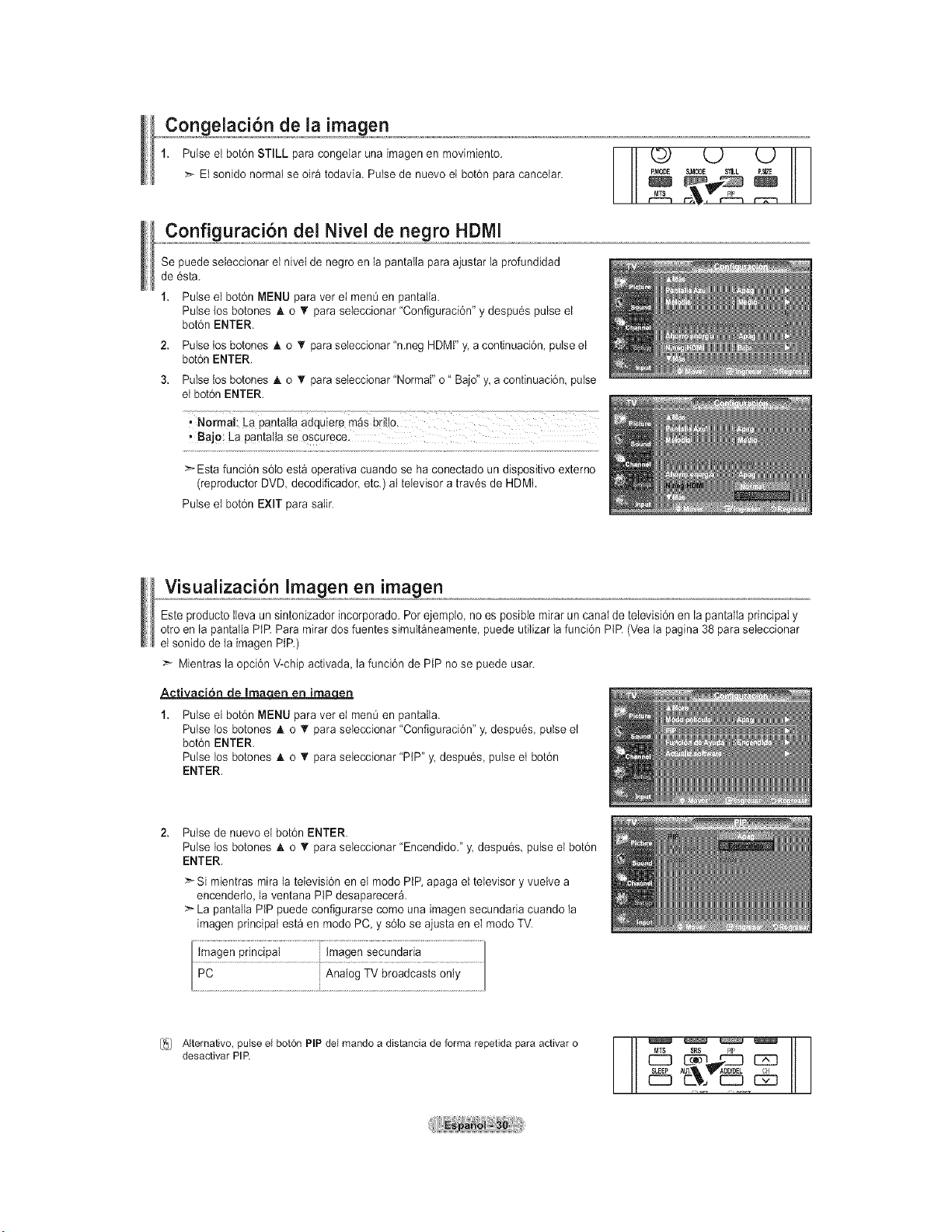
PulseelbotOnSTILLparacongelarunaimagenenmovimiento.
>-Elsonidonormalseoir_todavia.PulsedenuevoetbotOnparacancelar.
_MODE S{1LL _E
Configuracion del Nivel de negro HDMI
Se puede seleccionar el nivel de negro en la pantatla para ajustar la profundidad
de 6sta.
1. Pulse el botOnMENU para vet el men0 en pantaila.
Pulse los botones A o _r para seleccionar "ConfiguraciOn" y despuOs pulse el
botOnENTER.
2. Pulse tos botones & o T para seieccionar "n.neg HDMF y, a continuaciOn, pulse el
botOnENTER.
3. Pulse los botones A o T para seieccionar "Normal" o" Bajo" y, a continuaci6n, pulse
et botOn ENTER.
• Bajo: La pantatia se oscurece
>_ Esta funci6n s6{o esta operativa cuando se ha conectado un dispositivo externo
(reproductor DVD, decodificador, etc.) at televisor a traves de HDMI.
Pulse et botOnEXIT para saIir.
Este producto [leva un sintonizador incorporado. Por ejemplo, no es posib[e mirar un canal de television en [a pantalla principal y
otro en la pantalia PIR Para mirar dos fuentes simult_neamente, puede utilizar Ia funciOn PtR (Vea la pagina 38 para seleccionar
et sonido de ta imagen PIP.)
Mientras ta opciOnV-chip activada Ia funciOn de PtP no se puede usar.
ActivaciOn de Ima_qen
1. Pulse e[ botOnMENU para vet el men0 en pantaIia.
Pulse los botones h, o T para seleccionar "ConfiguraciOn" y. despuOs, pulse et
botOnENTER.
Pulse los botones A o _' para seleccionar "PIP" y. despuOs, pulse et botOn
ENTER.
Pulse de nuevo el botOnENTER.
Pulse los botones & o _r para seleccionar "Encendido." y despuOs pulse el botOn
ENTER.
>Si mientras mira la teievisiOn en el modo PiP, apaga el televisor y vuelve a
encenderto, la ventana PIP desaparecer_.
>- La pantalla PIP puede configurarse como una imagen secundada cuando la
imagen principal est_ en modo PC, y sOto se ajusta en el mode TV.
Imagen principal Imagen secundaria
PC Analog TV broadcasts only
I_/ AIternativo, pulse el bot6n PiP del mando a distancia de forma repetida para activar o
desactivar PIP.
_-_ r--3
_ AUI_ _ADD_DEL '
C__. CC3 12_Z3
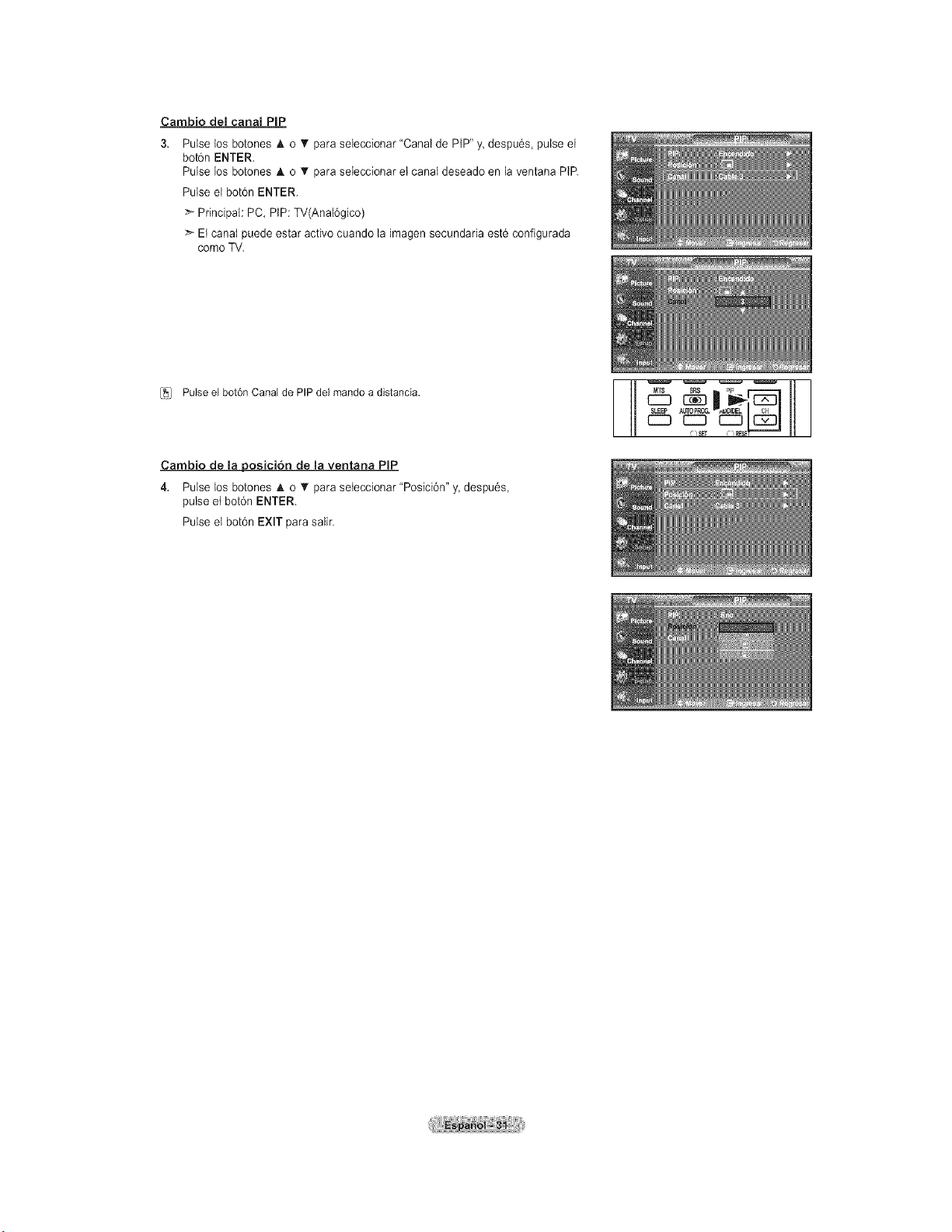
Cambio del cana_ PIP
3. Pulse los botones _. o _t'para seleccionar "Canal de PtP" y, despu6s, pulse el
boton ENTER.
Pulse los botones A o T para seIeccionar et canal deseado en la ventana PtP.
Pulse el bot6n ENTER.
:_ Principal: PC, PiP: TV(Anal6gico)
El canal puede estar active cuando la imagen secundaria est6 configurada
come TV.
[_] Pulse el bot6n Canal de PIP del mando a distancia.
Cambio de la posicion de la ventana PIP
4. Pulse los botones _k o T para seteccionar "Posici6n" y, despu6s,
pulse et bot6n ENTER.
Pulse et bot6n EXIT para salir.
t_TS S_
13_3
CSSFr _
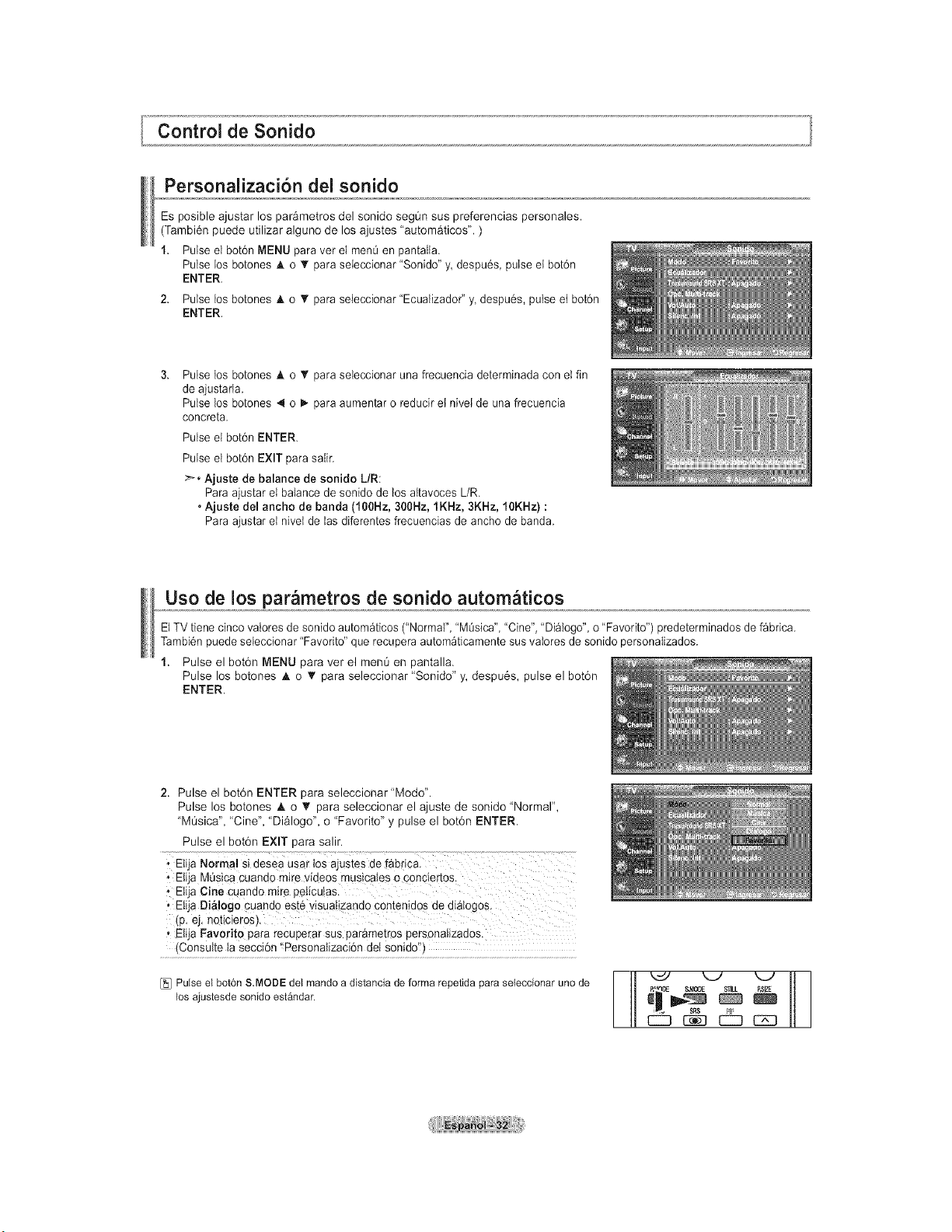
Personalizaci6n del sonido
Es posible ajustar los par&metros del sonido segOn sus preferencias personales.
(Tambi6n puede utilizar alguno de los ajustes "automaticos". )
1. Pulse el bot6n MENU para vet el men0 en pantalla.
Pulse los botones A o T para seieccionar "Sonido" y despu6s, pulse et bot6n
ENTER.
2. Pulse los botones A o _r para seieccionar "Ecualizador" y despu6s, pulse et bot6n
ENTER.
Pulse los botones & o _' para seleccionar una frecuencia determinada con el fin
de ajustarla.
Pulse los botones 4 o D,.para aumentar o reducir et nivei de una frecuencia
concreta.
Pulse el bot6n ENTER.
Pulse el bot6n EXIT para salir.
>_. Ajuste de balance de sonido L/R:
Para ajustar el balance de sonido de los aitavoces L/R.
• Ajuste del ancho de banda (100Hz, 300Hz, 1KHz, 3KHz, 10KHz) :
Para ajustar el nivet de las diferentes frecuencias de ancho de banda.
Uso de los par_metros de sonido autom_ticos
El TV tiene cinco vatores de sonido autom_ticos ("NormaI", "M0sica", "Cine", 'Dialogo", o "Favorito") predeterminados de fabrica.
Tambi6n puede seleccionar "Favorito" que recupera autom_ticamente sus valores de sonido personaIizados.
1. Pulse el bot6n MENU para ver el mem_ en pantalla.
Pulse los botones A o T para seleccionar "Sonido" y, despu6s, pulse el bot6n
ENTER.
2. Pulse el bot6n ENTER para seleccionar"Modo".
Pulse los botones A o _r para seleccionar el ajuste de sonido "Normal",
"MOsica", "Cine", "Dialogo", o "Favorito" y pulse el bot6n ENTER.
Pulse el bot6n EXIT para salir.
, Etia MQsicacuando mire videos musicaies o conciertos.
- Etija Cine Cuando mire pelicu!as
• Eli a Di_!ogo cuando este visua!izand0 Contenid0s de diatogos.
(p. ej. neticieroS).
• Elija Favodto para recuperar Sus par&metros personaiizados.
(ConsuIte ta secci6n _Personatizaci6n det sonido'!)
[_ Pulse el bot6n S.MODE del mando a distancia de forma repetida para seleccionar uno de
los ajustesde sonido estandar. BSlZE
CZ3 1:_9 EZZ] C2Z]
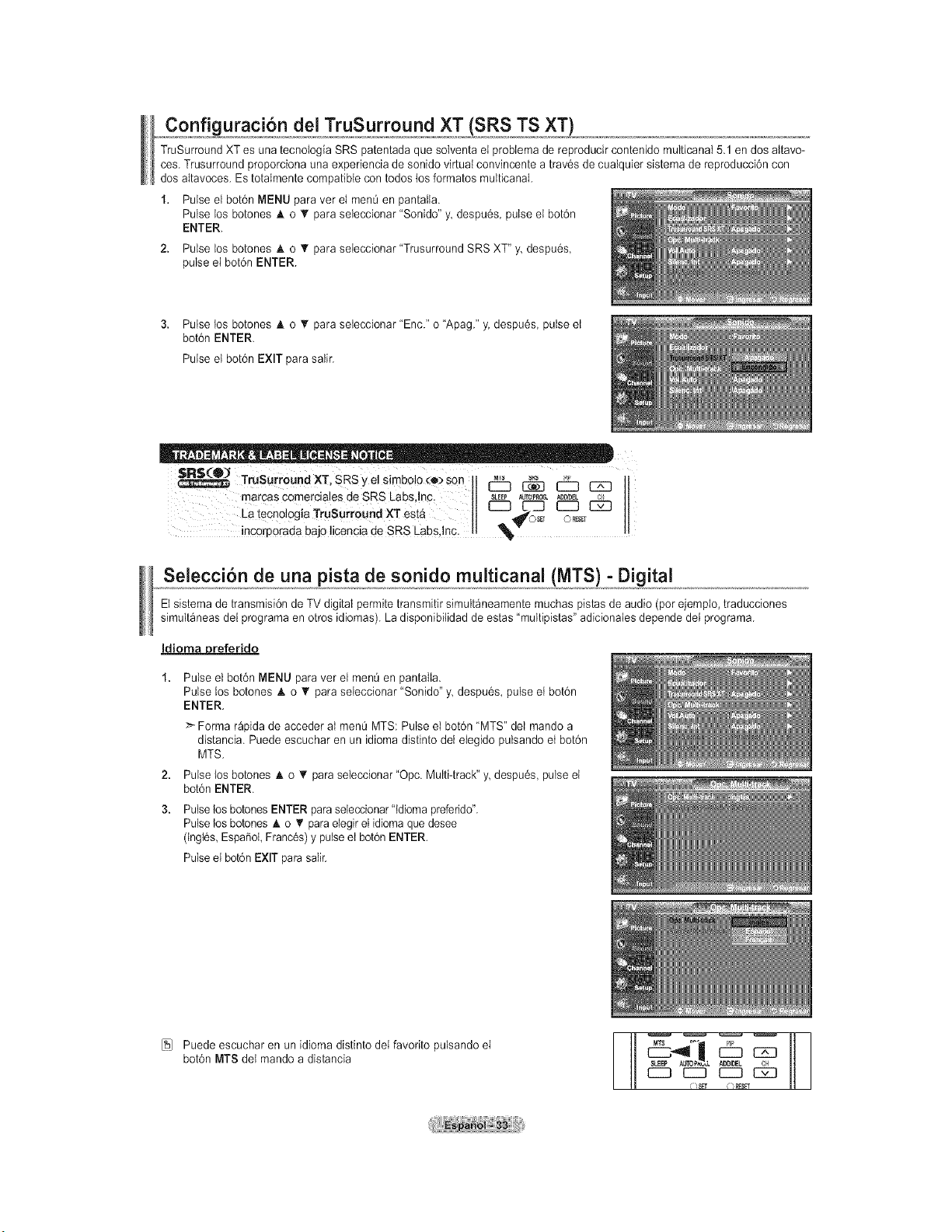
Configuraci6n del TruSurround XT (SRS.TSXT 1
TruSurround XT es una tecnoIogia SRS patentada que solventa el probIema de reproducir contenido multicanal 5.1 en dos aItavo-
ces. Trusurround proporciona una experiencia de sonido virtual convincente a trav6s de cualquier sistema de reproducci6n con
dos altavoces. Es totaImente compatible con todos los formatos multicanal.
1. Pulse el bot6n MENU para vet el men0 en pantaIia.
Pulse los botones A o _r para seleccionar "Sonido" y despu6s, pulse el bot6n
ENTER.
2, Pulse los botones _k o t!' para seleccionar "Trusurround SRS XT" y despu6s,
pulse el bot6n ENTER.
3, Pulse los botones h. o _r para seteccionar "Enc." o "Apag." y. despu6s, pulse et
bot6n ENTER.
Pulse et bot6n EXIT para salir.
SRS (®3
TruSurroundXT, SRSyelsimbolo_:e)son [:_ _ _
marcas €omerciales deSRS Labs,inc. SLEEPAu_o_o__eL _
La tecnologia Trusurround XT est& C:3d_L-i_s_T I:_, _
incorp0rada bajo licencia de SRS Labs Inc _, 'V .... o
Selecci6n de una pista de sonido multicanal (MTS) - Digital
Et sistema de transmisi6n de TV digital permite transmitir simult_neamente muchas pistas de audio (pot ejempio, traducciones
simultaneas del programa en otros idiomas). La disponibilidad de estas "multipistas" adicionaies depende dei programa.
Idioma preferido
2,
3.
Pulse el bot6n MENU para ver el menu en pantalla.
Pulse los botones A o _' para seleccionar "Sonido" y despu6s, pulse et bot6n
ENTER.
>- Forma rapida de acceder al menO MTS: Pulse el bot6n "MTS" del mando a
distancia. Puede escuchar en un idioma distinto del eiegido pulsando et bot6n
MTS.
Pulse los botones h. o _r para seleccionar "Opc. Multi-track" y despu6s, pulse et
bot6n ENTER.
Pulse los botones ENTER paraseleccionar'ldioma preferido".
Pulse los botones A. o _' para elegir el idioma que desee
(Ingt6s,EspaSol,Franc6s)y pulse et bot6n ENTER.
Pulse el bot6n EXIT parasatir.
[_] Puede escuchar en un idioma distinto dei favorito pulsando el
bot6n MTS det mando a distancia
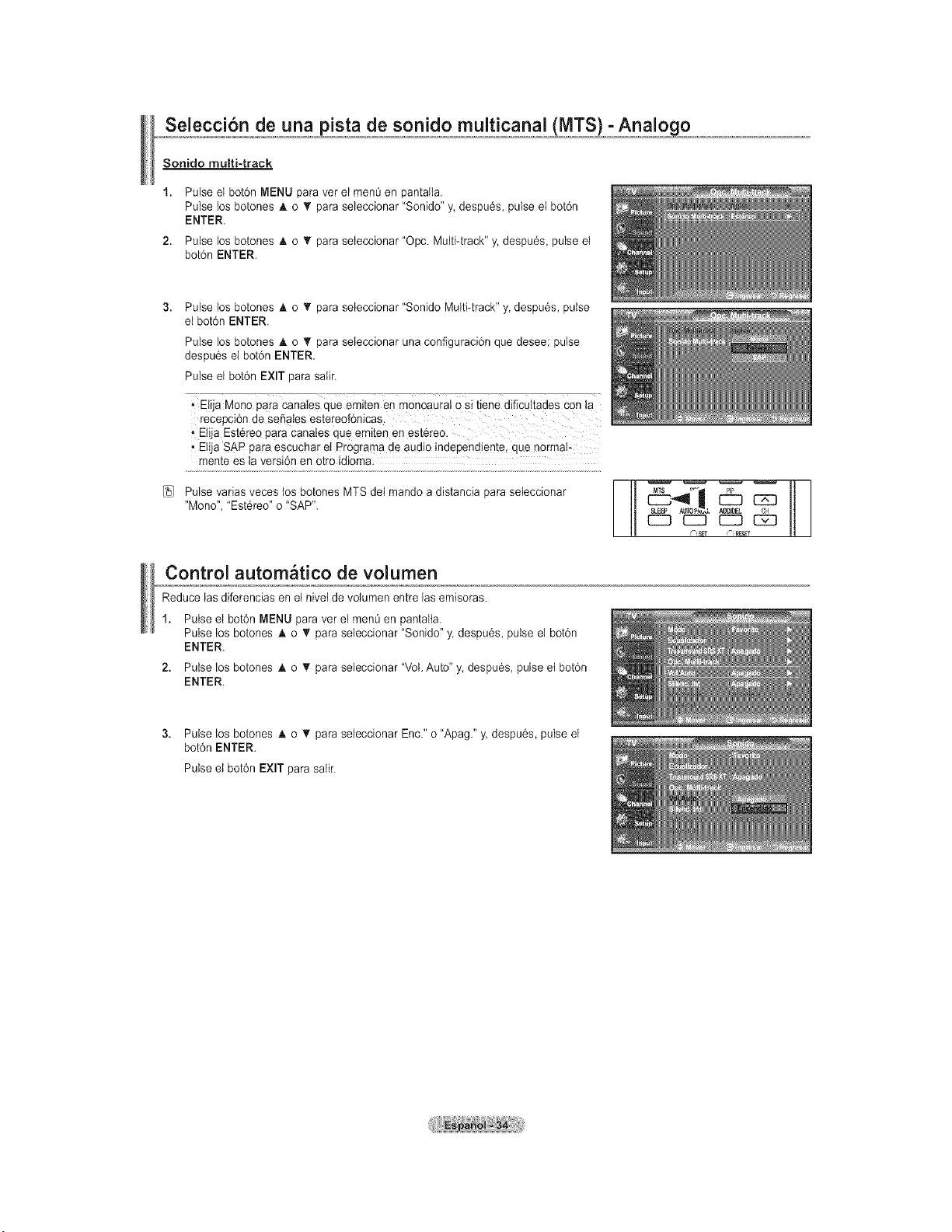
Selecci6n de una pista de sonido multicanal (NITS) - Analogo
Sonido muEti-track
1. Pulse el bot6n MENU para vet el men_ en pantaIla.
Pulse los botones & o _' para seleccionar "Sonido" y despu6s, pulse el botdn
ENTER.
2. Pulse los botones A o T para seteccionar "Opc. Multi-track" y. despu6s, pulse el
bot6n ENTER.
Pulse los botones A o T para seleccionar "Sonido Multi-track" y despu6s, pulse
el botdn ENTER.
Pulse los botones _ko T para seieccionar una configuraci6n que desee; pulse
despu6s el botdn ENTER.
Pulse el bot6n EXIT para satir.
• Elija Mona pare Canales qua emiten en monoaurat 0 Si tiene dificultades con la
recepci6n de Se_ates estereef6nicas.
, Elija EstCreapare Canates que emiten en est6reo.
• Elija SAP pare escuchar et Programa de audio independiente, qua norma!-
mente es ta versi6n en otro idioma.
[5i Pulse varias veces tos botones MTS dei mando a distancia para seteccionar
"Mono", "Est6reo" o "SAP".
Control autom tico de volumen
Reduce las diferencias en el nivet de voIumen entre las emisoras.
1. Pulse el bot6n MENU para vet el menQ en pantatta.
Pulse los botones h. o T para seleccionar "Sonido" y. despu6s, pulse el bot6n
ENTER.
2. Pulse los botones A o _' para seieccionar "VoI.Auto" y, despu6s, pulse et bot6n
ENTER.
3. Pulse los botones h. o _r para seieccionar Enc." o "Apag." y. despu6s, pulse el
bot6n ENTER.
Pulse el bot6n EXIT para saIir.
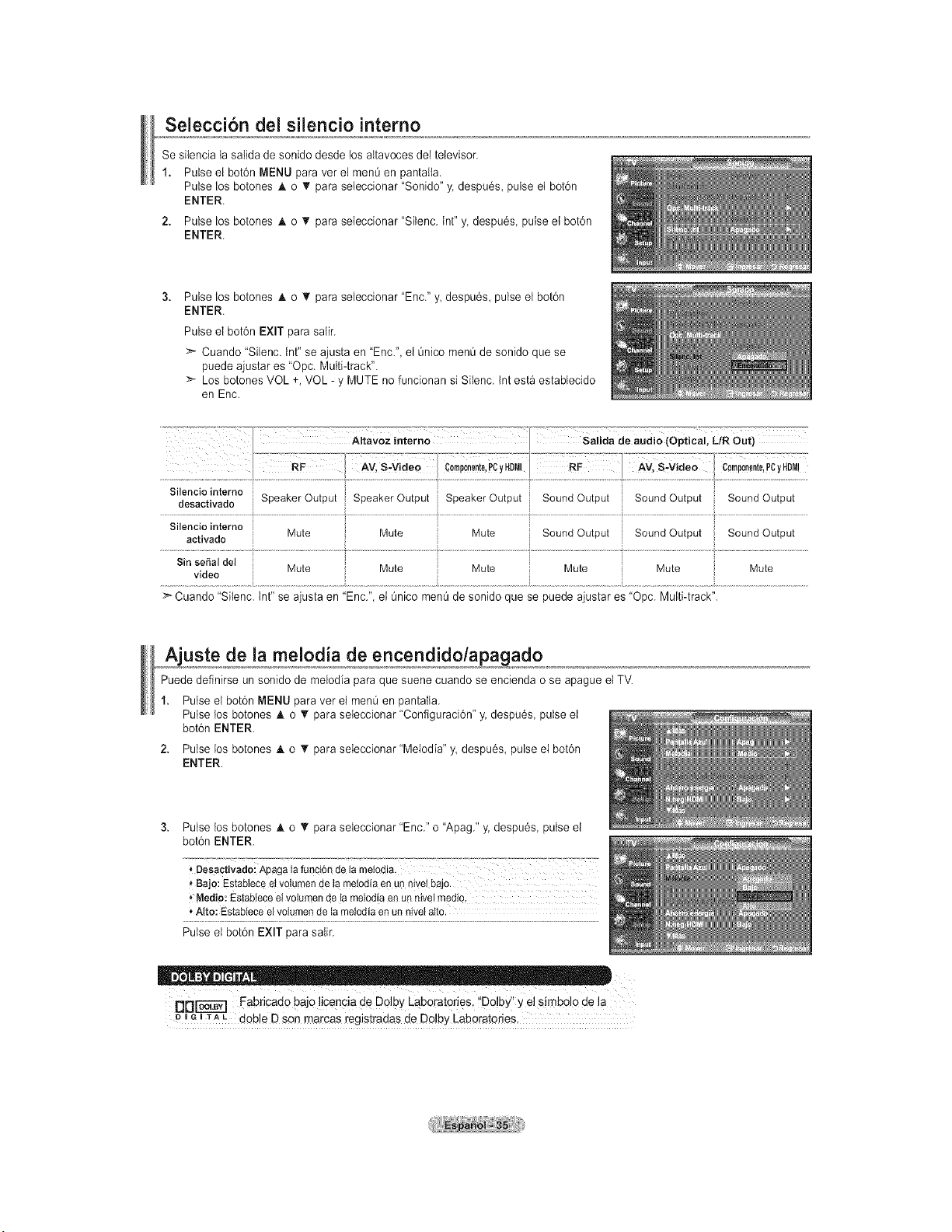
Selecci6n del siiencio interno
Se silencia ta saIida de sonido desde los altavoces del televisor.
1. Pulse el bot6n MENU para vet el men0 en pantaita.
Pulse los botones A o T para seteccionar "Sonido" y. despu6s, pulse el bot6n
ENTER.
2. Pulse los botones A o _r para seteccionar "Silenc. tnt" y despu6s, pulse et bot6n
ENTER.
Pulse los botones A o • para seleccionar "Enc." _ despu6s, pulse el bot6n
ENTER.
Pulse el bot6n EXIT para salir.
:_ Cuando 'Silenc. Int" se ajusta en "Enc.", el 0nico menO de sonido que se
puede ajustar es "Opc. Multi-track".
>- Los botones VOL +, VOL - y MUTE no funcionan si Sitenc. tnt est_ establecido
en Enc.
S,,eoclOdes ot,v.eiO.eroeSpeakerOutputSpeakerOutputi SpeakerOutputi SoundOutputi SoundOutputi SoundOutput
Silencio interne
activado Mute Mute Mute Sound Output Sound Output Sound Output
Sin se_al del
Mute Mute Mute Mute Mute Mute
video
_" Cuando "Silenc. tnt" se ajusta en "Enc.", el Onico menOde sonido que se puede ajustar es "Opc. Multi-track".
Ajuste de la melodia de encendido/apa_ado
Puede definirse un sonido de melodia para que suene cuando se encienda o se apague et TV.
1. Pulse el bot6n MENU para vet el menOen pantaIla.
Pulse los botones A o T para seleccionar "Configuraci6n" y. despu6s, pulse el
bot6n ENTER.
2. Pulse los botones A o T para seleccionar "Melodia" y despu6s, pulse el bot6n
ENTER.
3. Pulse los botones A o _r para seleccionar "Enc." o "Apag." y, despu6s pulse el
bot6n ENTER.
* Bajo: Estabiece et volumen de ta meiodia en un niveI bajo.
Medio: Estabiece el volumen de ta meiodia en un nivet medio.
* Alto: Estabtece el volumen de la metodia en un nivei atto.
Pulse el bot6n EXIT para salir.
DDF6"5-_'_ Fabricado bajo licencia de Dolby Laboratories. "Dolby" y el simbolo de la
mo m1-A L doble D son marcas registradas de Do!by Laboratories,
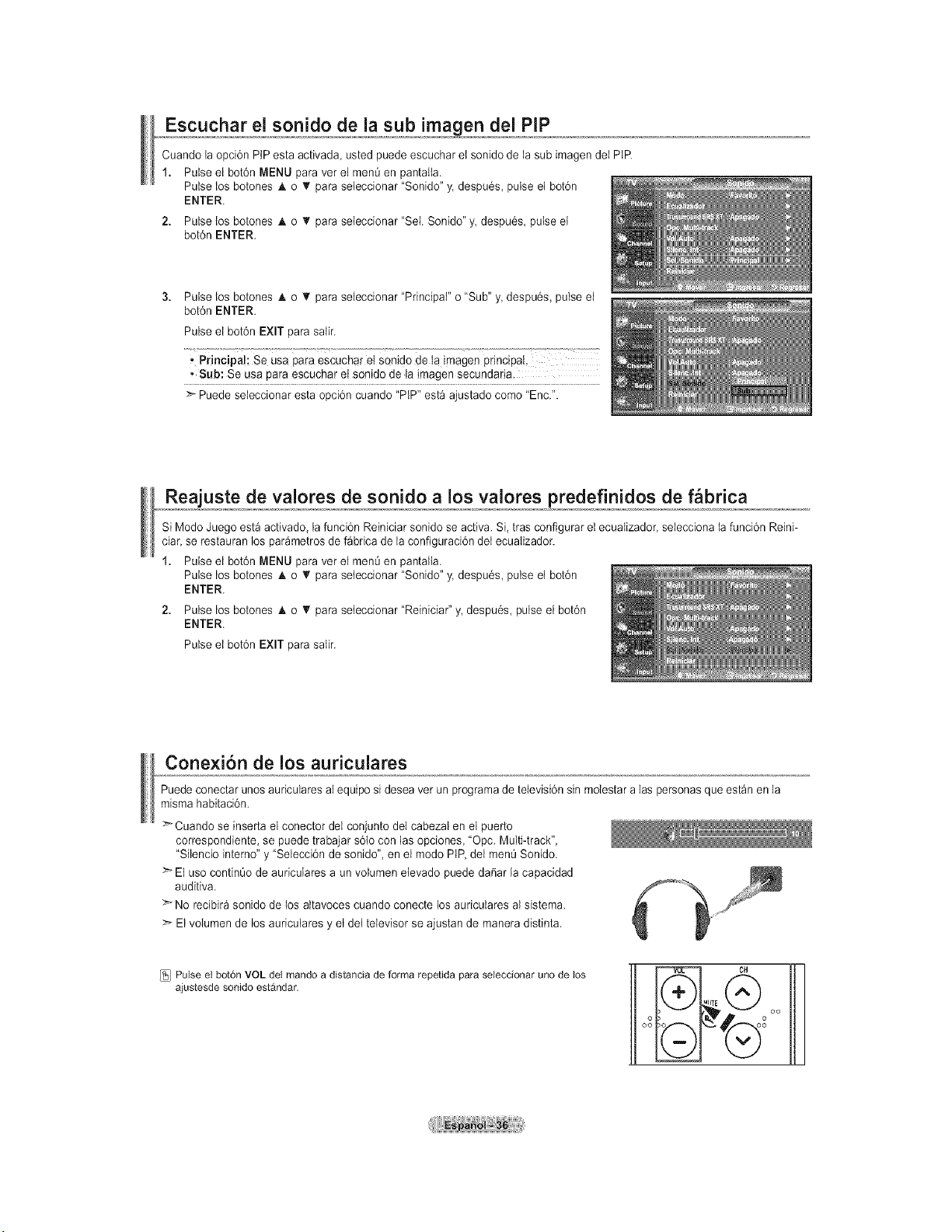
Escuchar el sonido de la sub imagen del PiP
Cuando la opci6n PtP esta activada, usted puede escuchar et sonido de la sub imagen dei PtR
1. Pulse el bot6n MENU para vet el men0 en pantaIia.
Pulse los botones & o T para seteccionar "Sonido" y. despu6s, pulse el botdn
ENTER.
2. Pulse los botones A o T para seteccionar "Sei. Sonido" y, despu6s, pulse et
bot6n ENTER.
Pulse los botones A o • para seleccionar "Principal" o "Sub" _ despu6s, pulse el
bot6n ENTER.
Pulse el bot6n EXIT para salir.
, Principal: Se usa para escuchar el senido de ta imagen pnncipal
, Sub: Se Usa para escuchar et sonido de ta imagen secundaria.
Puede seleccionar esta opci6n cuando "PtP" esta ajustado come "Enc.".
Reajuste de valores de sonido a los valores predefinidos de f_brica
Si Modo Juego esta activado, la funci6n Reiniciar sonido se activa. Si, tras configurar et ecuaIizador, seiecciona la funci6n Reini-
ciar, se restauran los par_metros de fabrica de la configuraci6n det ecuaIizador.
1. Pulse el bot6n MENU para vet el men0 en pantaIia.
Pulse los botones & o T para seteccionar "Sonido" y. despu6s, pulse el botdn
ENTER.
2. Pulse los botones A o T para seteccionar "Reiniciar" y, despu6s, pulse el botdn
ENTER.
Pulse el bot6n EXIT para salir.
Conexion de los auriculares
Puede conectar unos auriculares aI equipo si desea vet un programa de televisi6n sin molestar alas personas que estan en la
misma habitaci6n.
>Cuando se inserta el conector del conjunto del cabezal en el puerto
correspondiente, se puede trabajar s6to con las opciones, "Opc. Multi-track",
"Silencio inferno" y "Seleccidn de sonido", en el modo PIP, dei menOSonido.
El uso continQo de auriculares a un volumen etevado puede dafiar la capacidad
auditiva.
No recibir_ sonido de los attavoces cuando conecte los auriculares aI sistema.
> El volumen de los auriculares y et dei televisor se ajustan de manera distinta.
[_ Pulse el bot6n VOL del mando a distancia de forma repetida para seleccionar uno de los
ajustesde sonido estandar.
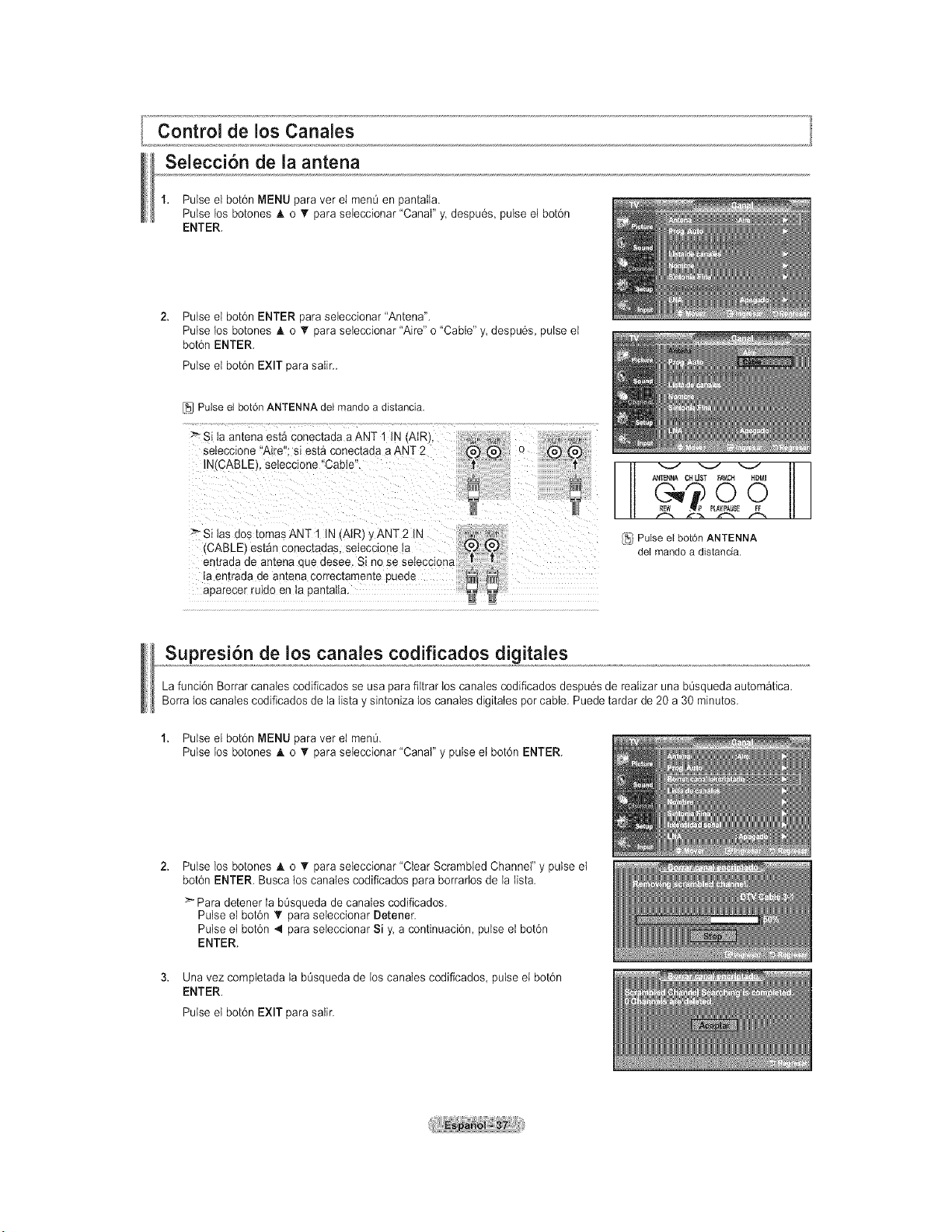
Control de los Canales
Selecci6n de la antena
1. Pulse el bot6n MENU para vet el menOen pantalla.
Pulse los botones A o _' para seleccionar "Canal" y. despu6s, pulse el bot6n
ENTER.
Pulse el bot6n ENTER para seieccionar "Antena".
Pulse los botones h. o _r para seteccionar "Aire" o "Cable" y despu6s, pulse el
bot6n ENTER.
Pulse el bot6n EXIT para salir_
[_1 Pulse el bot6n ANTENNA del mando a distancia.
Si ta antena est_ conectada a ANT 1 IN (AIR
_eteccione "Aire": si est_ conec[aaa a ANT 2
\I(CABLEI. seleccione "Cable
:_ Si las dos tomBs ANT 1 IN l AIR) y ANT 2 IN ..... _"....
(CABLE est_n conectadas, setecc_onela _
£n[raaa ae antena aue desee. Si no se setecclona =,_ j_
a emraaa ae ar:ena correc[amente pueae _
aparecer rulao en la aan[alta
AN_B_A CHLIST FAV.CH HDMI
REW , P PLAYIPAUS_
/_i Pulse el bot6n ANTENNA
del mando a distancia.
Supresi6n de los canales codificados digitales
La funci6n Borrar canales codificados se usa para filtrar los canales codificados despu6s de reaIizar una b_squeda autom_tica.
Borra los canales codificados de ia lista y sintoniza los canales digitates pot cable. Puede tardar de 20 a 30 minutes.
1. Pulse el bot6n MENU para vet el men&
Pulse los botones A o _r para seteccionar "Canal" y pulse et bot6n ENTER.
Pulse los botones A. o • para seleccionar "Clear Scrambled Channel" y pulse et
bot6n ENTER. Busca tos canales codificados para borrarlos de la fist&
>Para deteneria bOsqueda de canates codificados.
Pulse elbot6n T para seleccionar D_ener.
Pulse eibot6n 4 para seteccionarSi_ a continuacbn, pulse eibot6n
ENTER.
Una vez comptetada la bt_squeda de los canates codificados, pulse el bot6n
ENTER.
Pulse et bot6n EXIT para salir.
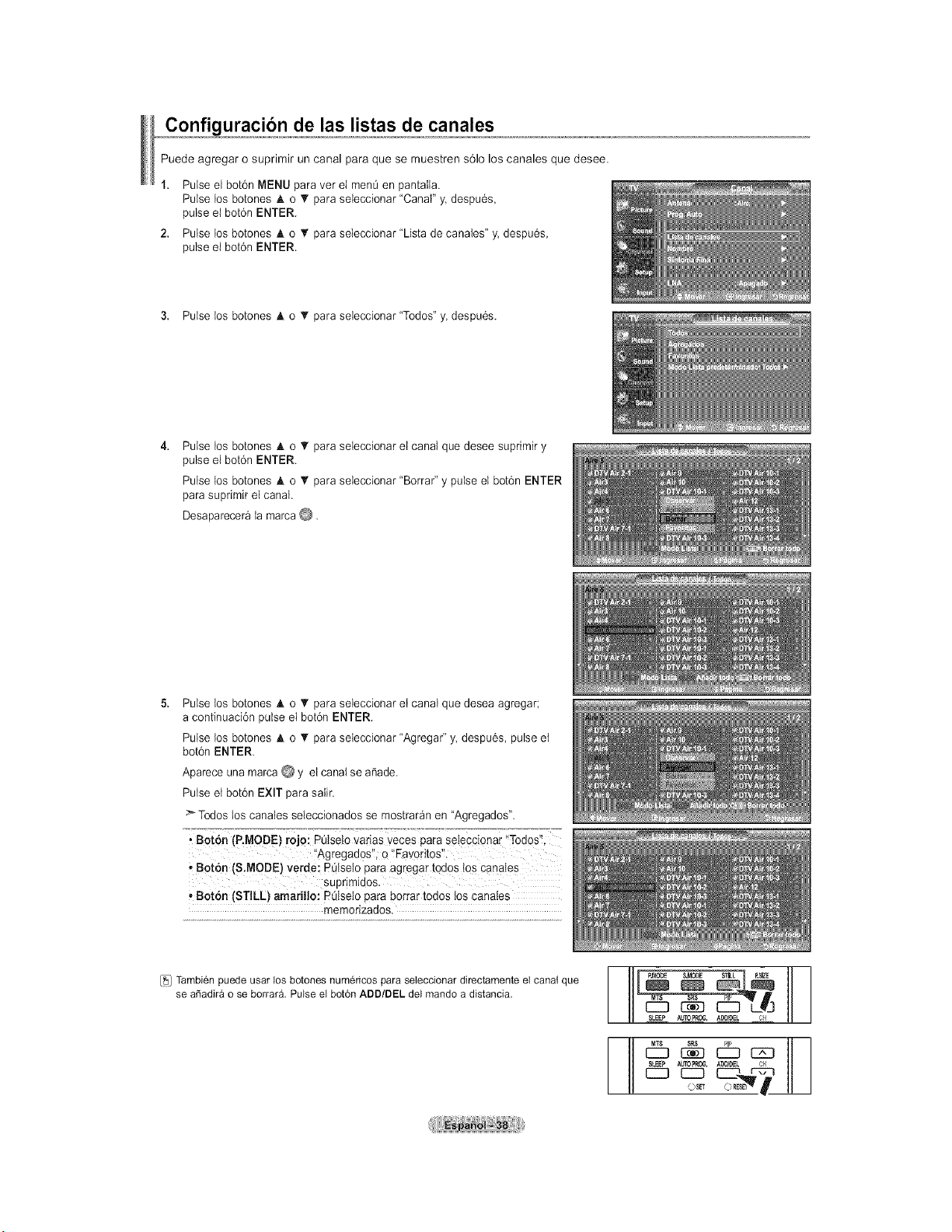
,,,€onf!guraci6n de las listas de canales
Puede agregar o suprimir un canal para que se muestren s61olos canales que desee.
1. Pulse el bot6n MENU para ver el menOen pantaIla.
Pulse los botones A o T para seleccionar "Canal" y. despu6s,
pulse el bot6n ENTER.
2. Pulse los botones A o V para seleccionar "Lista de canales" y. despu6s,
pulse el bot6n ENTER.
3. Pulse los botones A o • para seleccionar "Todos" y despu6s.
Pulse los botones A o T para seleccionar el canal que desee suprimir y
pulse el bot6n ENTER.
Pulse los botones A o V para seleccionar "Borrar" y pulse el bot6n ENTER
para suprimir el canal.
Desaparecer_ la marca @.
Pulse los botones A o _' para seleccionar et canal que desea agregar;
a continuaci6n pulse el bot6n ENTER.
Pulse los botones A o T para seleccionar "Agregar" y despu6s, pulse et
bot6n ENTER.
Aparece una marca @ y el canal se a_ade.
Pulse et bot6n EXIT para satir.
> Todos los canales seleccionados se mostrar_n en "Agregados".
i B0t6n (P.MODE} r0jo: PQiseiovarias veces para seteccionar "Tod0s'!
_'Agregados'!;o' Favoritos'!.
, Bot6n (S.MODE) verde: POlseto para agregar t0dos t0s canales
Suprimidos.
Boron (STILL) amarillo: POlselo para borrar todos los canales
memorizados.
[_j Tambien puede usar los botones numericos para seleccionar directamente el canal que
se a6adira o se borrara. Pulse el bot6n ADD/DEL del mando a distancia.
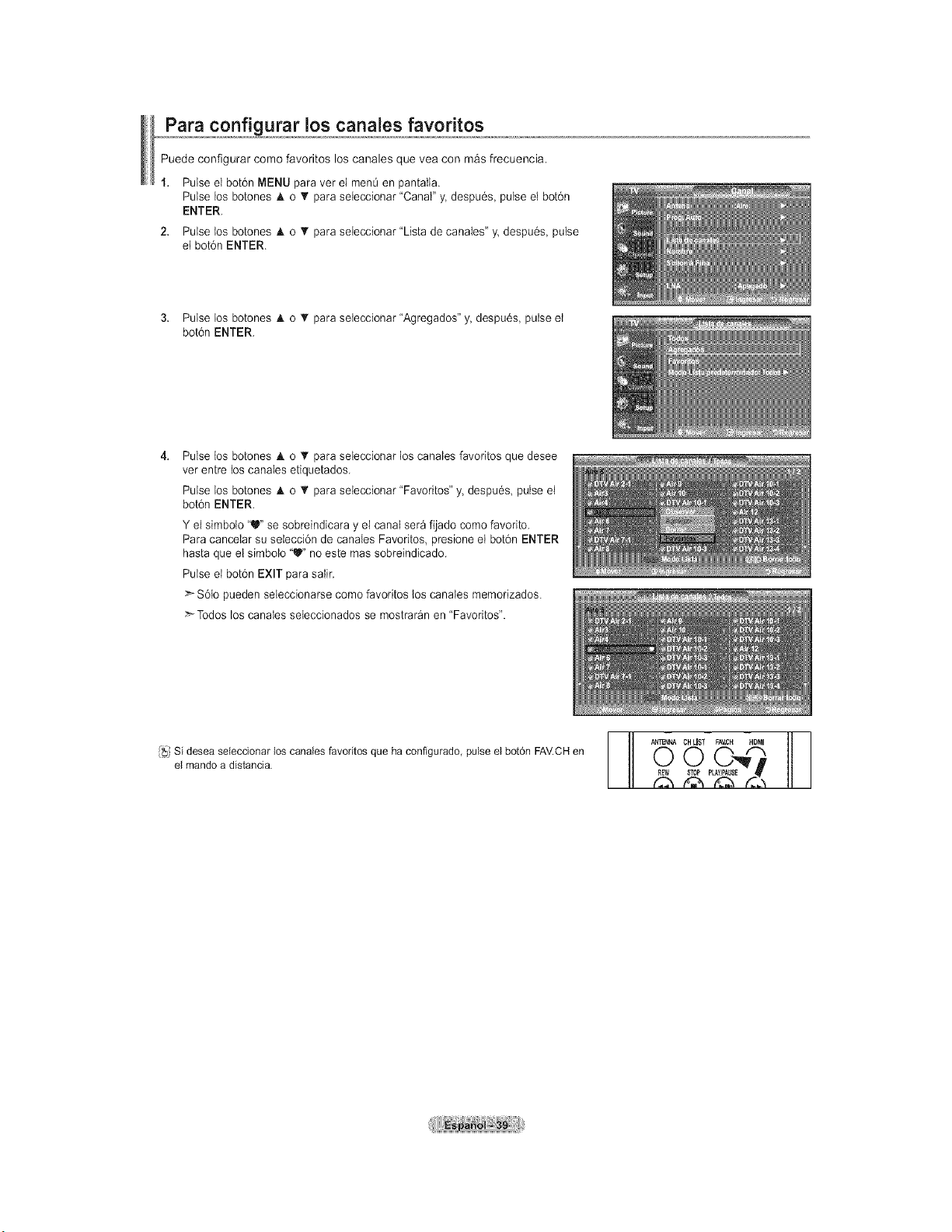
,,,,_para co_Rf!_urar los caRales favoritos
Puede eonfigurar eomo favoritoa los canalea que vea con maa ffecuencia.
1. Pulse el bot6n MENU para vet el men_ en pantall&
Pulse los botones & o _' para seieccionar "Canal" y. despu6s, pulse el botdn
ENTER.
2. Pulse tos botones A o T para seleccionar "Lista de canales" y. despu6s, pulse
et bot6n ENTER.
3. Pulse los botones A o • para seteccionar "Agregados" y despu6s, pulse et
bot6n ENTER.
Pulse los botones A o T para seleccionar los canaIes favoritos que desee
ver entre los canaIes etiquetados.
Pulse los botones A o _' para seleccionar "Favorites" y despu6s pulse el
bot6n ENTER.
Y el simbolo "U" se sobreindicara y el canal ser_ fijado como favorite.
Para cancelar su seiecci6n de canales Favorites, presione el bot6n ENTER
hasta que el simbolo "_" no este mas sobreindicado.
Pulse el bot6n EXIT para salir.
>-S6to pueden seleccionarse come favorites los canaIes memorizados.
-'_Todos los canaIes seleccionados se mostraran en "Favorites".
Si desea seieccionarlos canaiesfavodtosque ha configurado,pulse el bot6n FAV.CHen 0 CO'_m
el mandoa distancia. /_ P_E
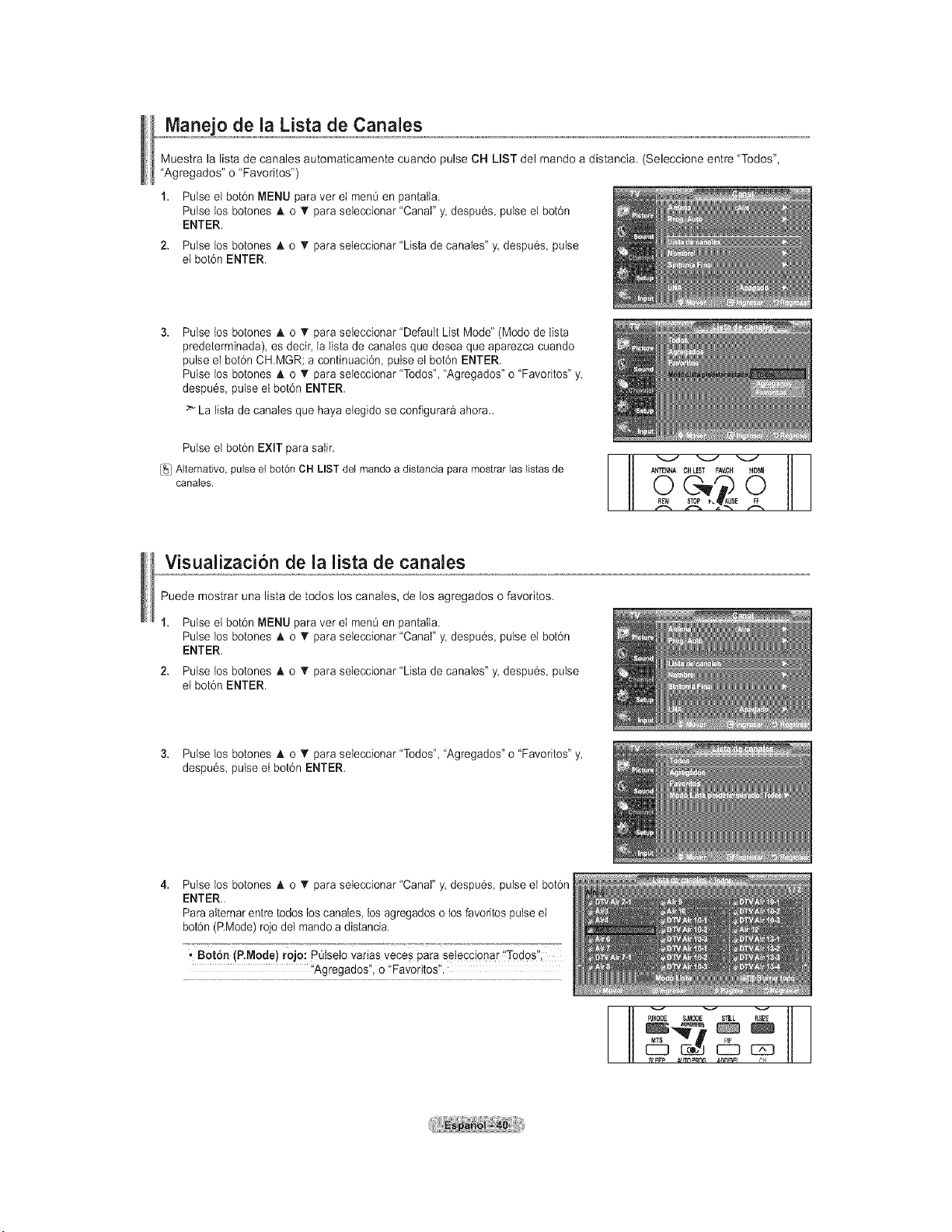
o de la Lista de Canales
Muestra la lista de canales automaticamente cuando pulse CH LIST del mando a distancia. (Seleccione entre "Todos",
"Agregados" o "Favoritos")
1. Pulse el bot6n MENU para vet el men0 en pantalla.
Pulse los botones A o T para seieccionar "Canal" y. despu6s, pulse el bot6n
ENTER.
2. Pulse los botones A o _r para seleccionar "Lista de canaIes" y. despu6s, pulse
el bot6n ENTER.
Pulse los botones A o _' para seieccionar "Default List Mode" (Modo de lista
predeterminada), es decir, la tista de canales que desea que aparezca cuando
pulse el bot6n CHMGR; a continuaci6n, pulse el bot6n ENTER.
Pulse los botones A o T para seieccionar "Todos", "Agregados" o "Favorites" y
despu6s, pulse el bot6n ENTER.
>La lista de canaIes que haya elegido se conflgurar_ ahora..
Pulse el bot6n EXIT para satir.
[_] Altemativo, pulse el bot6n OH LIST del mando a distancia para mostrar }as }istas de
cana}es.
Iq
ANTENNA CHUST FAV,CH HDMI
E
L
Visualizacion de la lista de canales
Puede mostrar una lista de todos los canales, de los agregados o favoritos.
Pulse et bot6n MENU para ver el men0 en pantaIla.
Pulse los botones A o _r para seleccionar "Canal" y. despu6s, pulse et bot6n
ENTER.
Pulse los botones A o T para seleccionar "Lista de canales" y. despu6s, pulse
el bot6n ENTER.
3. Pulse los botones A o _' para seleccionar "Todos", "Agregados" o "Favoritos" y
despu6s, pulse et bot6n ENTER.
Pulse los botones A o T para seieccionar "Canal" y. despu6s pulse et bot6n
ENTER.,
Para alternar entre todos los canales, los agregados o tosfavoritos pulse el
bot6n (RMode) rojo deI mando a distancia.
• Botdn (P.Mode) rojo: PQIsetoVarias veceS para seleccionar !'Todos",
t'Agregados'_,o '!Favorites_I.
S,MODE_ STLL P,SI'_
MTS _ PP
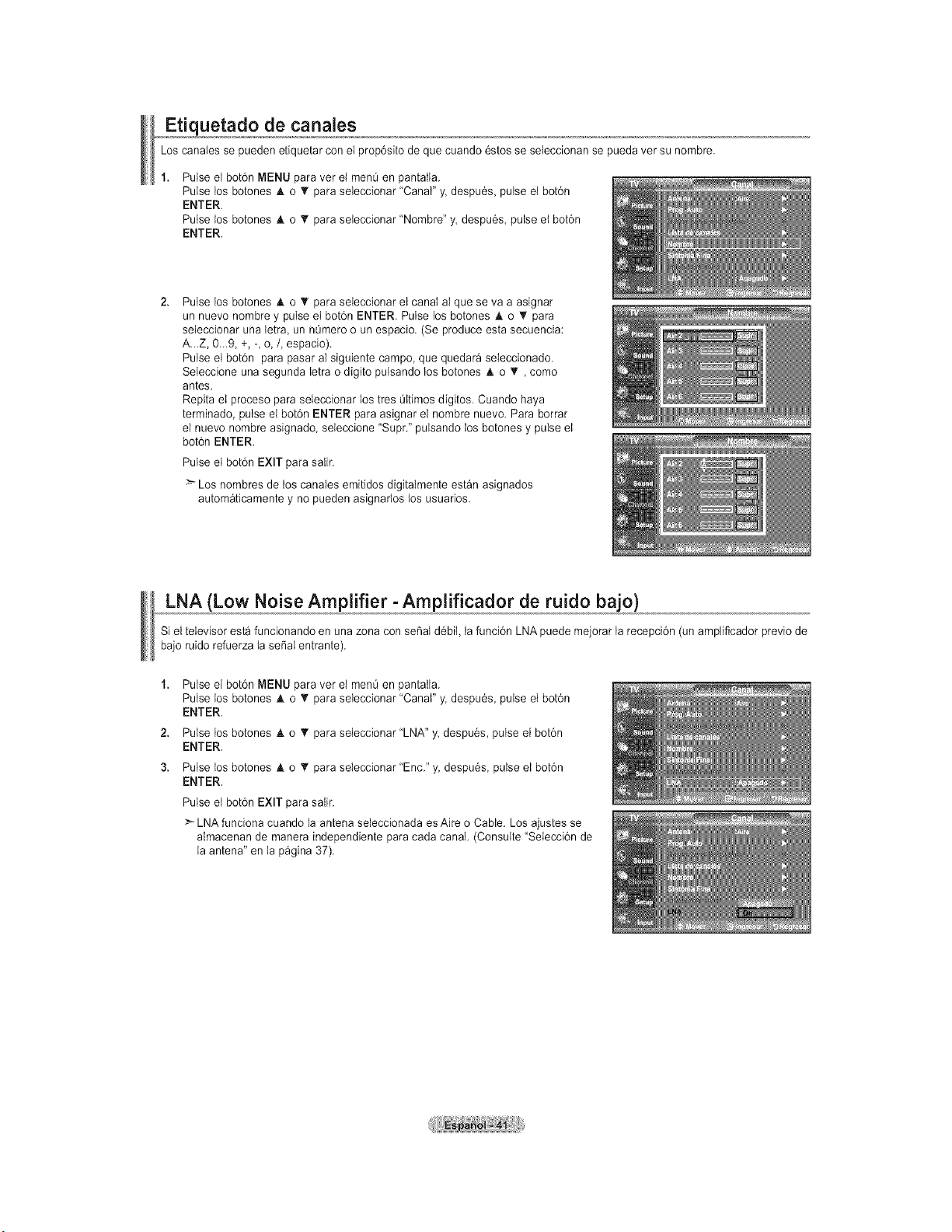
Etiquetado de canales
Los canaIes se pueden etiquetar con el prop6sito de que cuando 6stos se seteccionan se pueda ver su nombre.
Pulse el bot6n MENU para vet el men0 en pantalla.
Pulse los botones A o T para seleccionar "Canal" y. despu6s, pulse el bot6n
ENTER.
Pulse los botones A o _r para seteccionar "Nombre" y, despu6s, pulse et bot6n
ENTER.
Pulse los botones A o _' para seleccionar el canal al que se va a asignar
un nuevo nombre y pulse el bot6n ENTER. Pulse los botones A o 'V para
seleccionar una letra, un n0mero o un espacio. (Se produce esta secuencia:
A_.Z, 0._9, +, -, o,/, espacio).
Pulse el bot6n para pasar aI siguiente campo, que quedara seleccionado.
Seleccione una segunda letra o digito pulsando los botones h, o T , como
antes.
Repita el proceso para seleccionar los tres Oltimos d[gitos. Cuando haya
terminado, pulse el bot6n ENTER para asignar el nombre nuevo. Para borrar
el nuevo nombre asignado, seleccione "Supt." pulsando los botones y pulse el
bot6n ENTER.
Pulse el bot6n EXIT para saIir.
:_ Los nombres de los canales emitidos digitalmente est_n asignados
autom_ticamente y no pueden asignarlos los usuarios.
Low Noise Amplifier- Amplificador de ruido bajo)
Si el televisor esta funcionando en una zona con se_at d6bil, la funci6n LNA puede mejorar la recepci6n (un amplificador previo de
bajo ruido refuerza la seSal entrante).
2.
3.
Pulse el bot6n MENU para ver el menOen pantaIla.
Pulse los botones h, o _r para seleccionar "Canal" y. despu6s, pulse et bot6n
ENTER.
Pulse los botones A o T para seleccionar "LNA" y despu6s, pulse el bot6n
ENTER.
Pulse los botones h, o _r para seleccionar "Enc." y despu6s pulse el bot6n
ENTER.
Pulse el bot6n EXIT para salir.
> LNA funciona cuando la antena seIeccionada es Aire o Cable. Los ajustes se
aImacenan de manera independiente para cada canal. (Consulte "Seiecci6n de
la antena" en la p_gina 37).
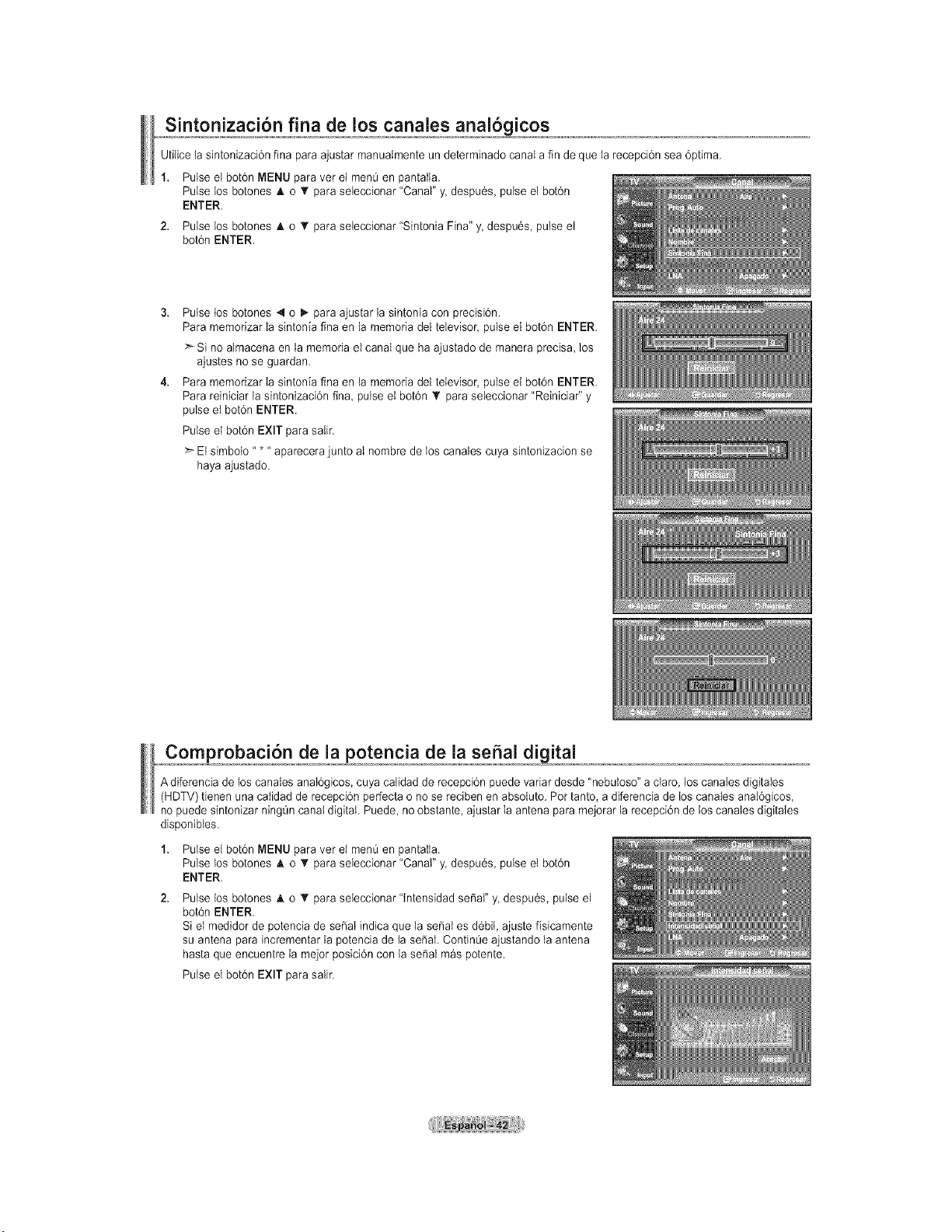
Utilicelasintonizaci6nfinaparaajustarmanualmenteundeterminadocanalafindequelarecepci6nsea6ptima.
1. Pulseelbot6nMENUparavetelmen_enpantalla.
PulseDosbotones& o T para seieccionar "Canal" y. despu6s, pulse el botdn
ENTER.
2. Pulse Dosbotones A o T para seleccionar "Sintonia Fina" y despu6s, pulse el
bot6n ENTER.
Pulse los botones 4 o _ para ajustar la sintonia con precisi6n.
Para memorizar la sintonia fina en la memoria del televisor, pulse el bot6n ENTER.
>Si no almacena en la memoria el canal que ha ajustado de manera precisa, los
ajustes no se guardan.
Para memorizar ia sintonia fina en ta memoria del televisor, pulse el bot6n ENTER.
Para reiniciar la sintonizaci6n fina pulse et bot6n _r para seteccionar "Reiniciar" y
pulse et bot6n ENTER.
Pulse el bot6n EXIT para salir.
> El simbo{o ..... aparecera junto aI nombre de los canales cuya sintonizacion se
haya ajustado.
Comprobaci6n de la potencia de la seSal digital
A diferencia de los canaIes anat6gicos, cuya calidad de recepcidn puede variar desde "nebuloso" a claro, los canaIes digitales
(HDTV) tienen una catidad de recepci6n perfecta o no se reciben en absoluto. Pot tanto, a diferencia de los canales anal6gicos,
no puede sintonizar ningQncanal digital. Puede, no obstante, ajustar la antena para mejorar la recepci6n de los canaIes digitales
disponibtes.
Pulse el bot6n MENU para ver el menOen pantaIla.
Pulse los botones A o _r para seleccionar "Canal" y. despu6s, pulse et bot6n
ENTER.
Pulse los botones A o T para seteccionar "tntensidad seSaI" y despu6s, pulse el
bot6n ENTER.
Si el medidor de potencia de seSat indica que la seSat es d_bit, ajuste fisicamente
su antena para incrementar la potencia de la seSal. ContinOe ajustando la antena
hasta que encuentre la mejor posici6n con la seSal m_s potente.
Pulse et bot6n EXIT para salir.
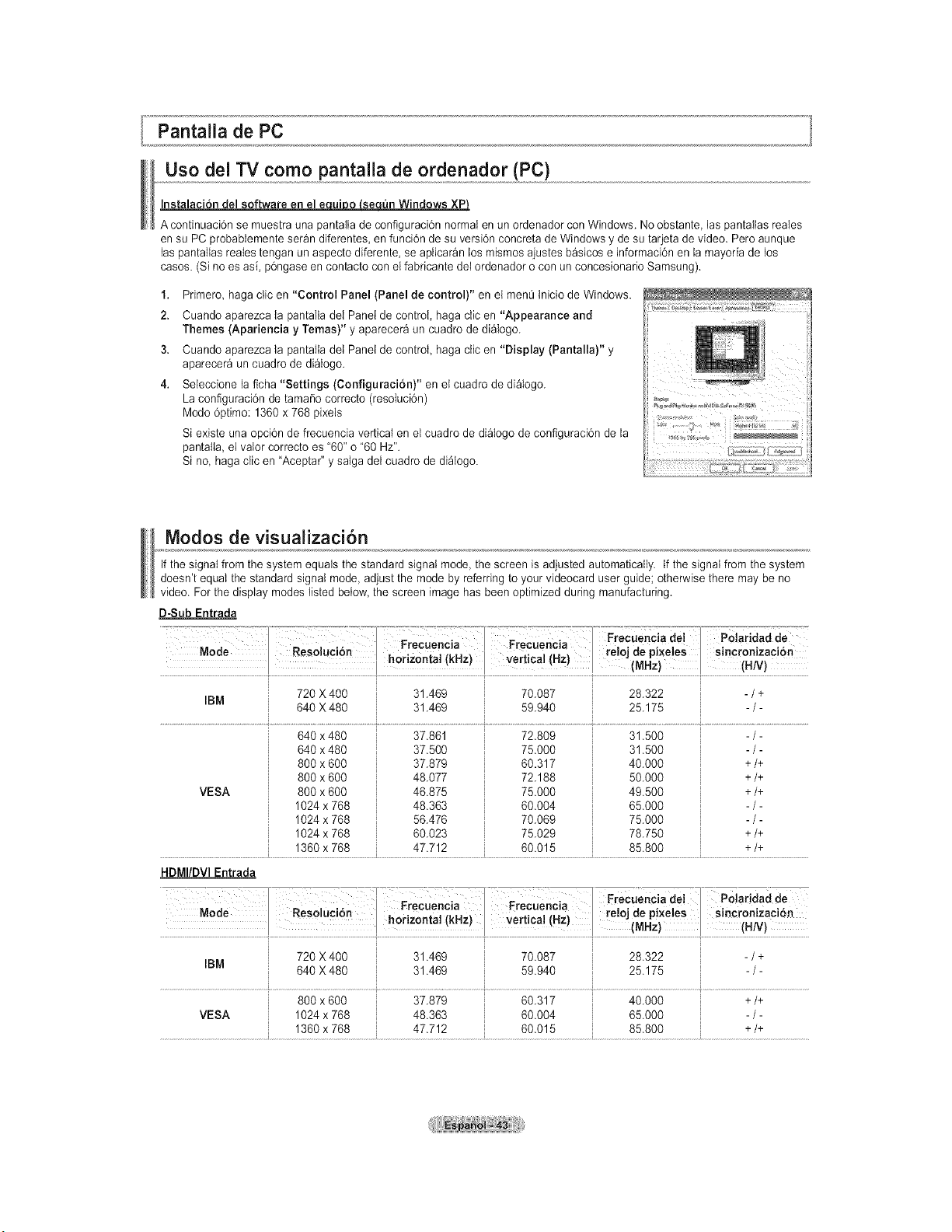
Pantalla de PC
Uso del TV como pantalla de ordenador (PC)
In--ware en el e ui o se _n Windows XP}
A continuaci6n se muestra una pantaIia de configuraci6n normal en un ordenador con Windows. No obstante las pantaIlas reales
en su PC probablemente ser_n diferentes, en funci6n de su versi6n concreta de Windows y de su tarjeta de video. Pero aunque
las pantallas reales tengan un aspecto diferente, se apiicar_n los mismos ajustes b_sicos e informaci6n en la mayoda de los
casos. (Si no es asi, p6ngase en contacto con el fabricante del ordenador o con un concesionario Samsung).
1. Primero haga clic en "Control Panel (Panel de control)" en el menQtnicio de Windows.
2. Cuando aparezca ia pantalta dei Panet de contro{, haga clic en "Appearance and
Themes (Apariencia y Temas)" y aparecer_ un cuadro de di_logo.
3. Cuando aparezca la pantalla dei Panel de control, haga clic en "Display (Pantalla)" y
aparecer_ un cuadro de dialogo.
4. Seleccione la ficha "Settings (Configuraci6n)" en et cuadro de di_logo.
La configuraci6n de tama5o correcto (resoluci6n)
Modo 6ptimo: 1360 x 768 pixels
Si existe una opci6n de frecuencia verticai en el cuadro de di_Iogo de configuraci6n de la
pantalla, el valor correcto es "60" o '60 Hz".
Si no, haga clic en "Aceptar" y satga dei cuadro de di_Iogo.
Modos de visualizaci6n
if the signal from the system equals the standard signal mode, the screen is adjusted automatically, if the signat from the system
doesn't equaI the standard signal mode, adjust the mode by referring to your videocard user guide; otherwise there may be no
video. For the display modes listed below, the screen image has been optimized during manufacturing.
D-Sub Entrada
i . Frecuencia del
. . _ . .. P,oo o°o,oP,oo,o°c,a..... Po,a,daddo
Nooe Keso uc on re oJde p xe es
.................................................................................................................... ...........,,,,,.............................
720 X 400 31.469 70.087 28.322 - / +
IBM
640 X 480 31.469 59.940 25.175 - / -
640 x 480 37.861 72.809 31.500 _)- ..................................
VESA
640 x480
800 x 600
800 x 600
800 x 600
1024 x 768
1024 x 768
1024 x 768
1360 x 768
37.500
37.879
48.077
46.875
48.363
56.476
60.023
47.712
75.000
60.317
72.188
75.000
60.004
70.069
75.029
60.015
31.500
40.000
50.000
49.500
65.000
75.000
78.750
85.800
-/-
+/+
+/+
+/+
-/-
-/-
+/+
+/+
HDMI/DVI Entrada
720 X 400 31.469 70.087 28.322 - / +
IBM
640 X 480 31.469 59.940 25.175 - / -
800 x 600 37.879 60.317 40.000 +/+
VESA 1024 x 768 48.363 60.004 65.000 - / -
1360 x 768 47.712 60.015 85.800 +/+
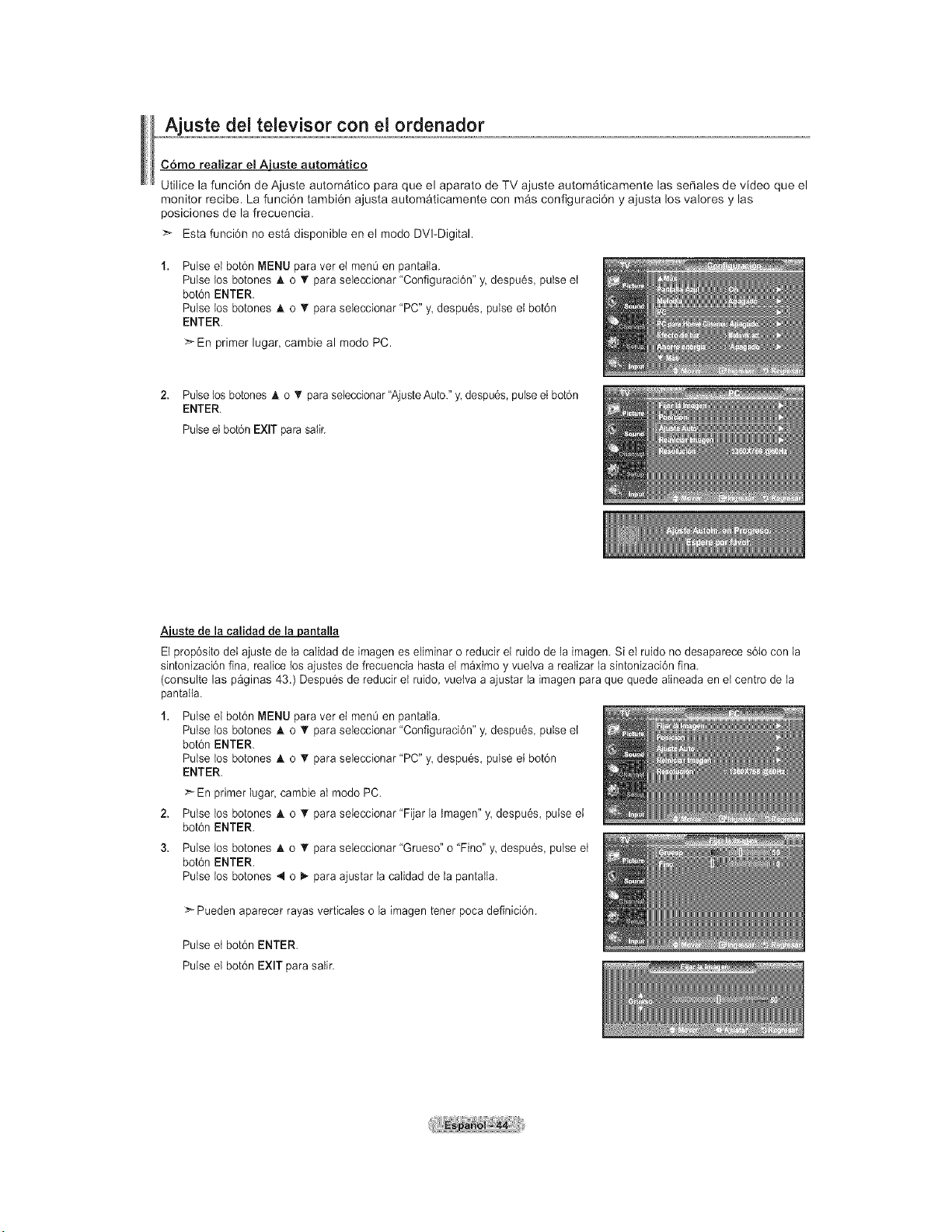
Ajuste del televisor con el ordenador
Como realizar el Aiuste automatico
Utilice la funci6n de Ajuste autom_tico para que el aparato de TV ajuste autom_ticamente las sefiales de video que el
monitor recibe. La funci6n tambi6n ajusta autom_ticamente con m_e configuraci6n y ajusta los valores y las
poeiciones de la frecuencia.
>- Esta funci6n no est_ disponible en el mode DVI-Digital.
Pulse el bot6n MENU para vet el men0 en pantatla.
Pulse los botones A o _' para seleccionar "Configuraci6n" y. despu6s pulse et
bot6n ENTER.
Pulse los botones A o • para seleccionar "PC" y, despu6s, pulse et bot6n
ENTER.
>- En primer lugar, cambie al mode PC.
2. Pulse los botones A o 'r para seleccionar"Ajuste Auto." y. despu6s, pulse et bot6n
ENTER.
Pulse el bot6n EXIT para saIir.
Aiuste de la calidad de la i0antalla
El prop6sito del ajuste de ta caIidad de imagen es eliminar o reducir el ruido de la imagem Si el ruido no desaparece s61ocon la
sintonizaci6n fina, realice los ajustes de frecuencia hasta el maximo y vuelva a reatizar la sintonizaci6n fina.
(consulte las paginas 43.) Despu6s de reducir et ruido, vueiva a ajustar la imagen para que quede aIineada en et centro de la
pantalla.
Pulse el bot6n MENU para vet el men0 en pantatla.
Pulse los botones A o T para seleccionar "Configuraci6n" y. despu6s pulse et
bot6n ENTER.
Pulse los botones A o _r para seleccionar "PC" y, despu6s, pulse et bot6n
ENTER.
_En primer lugar, cambie al modo PC.
2. Pulse los botones _k o T para seieccionar "Fijar la tmagen" y, despu6s, pulse el
bot6n ENTER.
3. Pulse los botones _t. o T para seieccionar "Grueso" o "Fino" y despu6s, pulse et
bot6n ENTER.
Pulse los botones 4 o 1_-para ajustar la calidad de la pantalla.
>- Pueden aparecer rayas verticales o la imagen tener poca definici6n.
Pulse et bot6n ENTER.
Pulse et bot6n EXIT para salir.
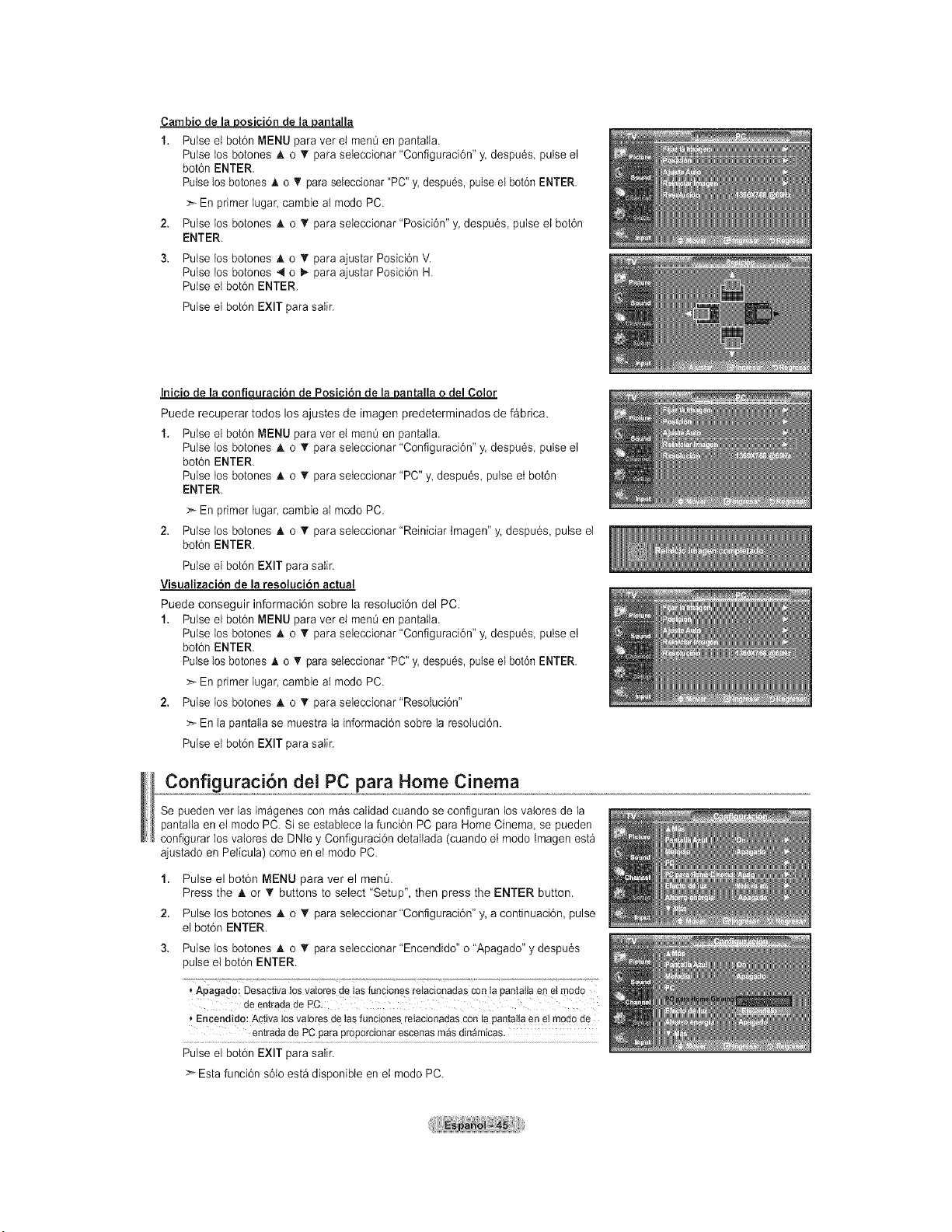
Carnbio de la posici6n de la pantalla
1. Pulse et bot6n MENU para ver el men0 en pantatla.
Pulse tos botones _t. o _' para seleccionar "Configuraci6n" y. despu6s, pulse et
bot6n ENTER.
Pulse los botones _. o V para seleccionar "PC" y, despu6s,pulse el boton ENTER.
En primer lugar cambie al modo PC.
2. Pulse los botones & o _' para seleccionar "Posici6n" y despu6s, pulse el bot6n
ENTER.
3. Pulse los botones A o _r para ajustar Posici6n V.
Pulse los botones 4 o _,.para ajustar Posici6n H
Pulse et bot6n ENTER.
Pulse et bot6n EXIT para salir.
Inicio de la confiquracion de Posicion de la#antalla o del Color
Puede recuperar todos los ajustes de imagen predeterminados de f&brica.
1. Pulse el bot6n MENU para ver el men0 en pantatla.
Pulse los botones & o T para seleccionar "Configuraci6n" y. despu6s pulse et
bot6n ENTER.
Pulse los botones h. o _r para seteccionar "PC" y despu6s, pulse et bot6n
ENTER.
:_ En primer lugar, cambie al modo PC.
2. Pulse los botones h. o T para seieccionar "Reiniciar tmagen" y. despu6s, pulse et
bot6n ENTER.
Pulse el bot6n EXIT para satir.
Visualizaci6n de la resoluci6n actual
Puede conseguir informaci6n sobre la resoluci6n del PC.
1. Pulse el bot6n MENU para vet el men0 en pantalla.
Pulse los botones A o T para seieccionar "Configuraci6n" y, despu6s, pulse et
bot6n ENTER.
Pulse los botones ,L o 'V para seleccionar "PC" y, despu6s,pulse el boton ENTER.
En primer lugar, cambie al modo PC.
2. Pulse los botones A o _' para seleccionar"Resoiuci6n"
>_ En la pantatla se muestra la informaci6n sobre la resoluci6n.
Pulse el bot6n EXIT para salir.
Configuraci6n del PC para Home Cinema
Se pueden vet las im_genes con m_s calidad cuando se configuran los valores de la
pantaita en el modo PC. Si se establece la funci6n PC para Home Cinema, se pueden
configurar los valores de DNte y Configuraci6n detallada (cuando et mode tmagen est_
ajustado en Pelicula) come en el mode PC.
1.
2.
3.
Pulse el bot6n MENU para ver el men&
Press the A or V buttons to select "Setup", then press the ENTER button.
Pulse los botones A o _' para seleccionar"Conf]gurad6n" y, a continuad6n, pulse
el bot6n ENTER.
Pulse los botones A o _' para seleccionar "Encendido" o "Apagado" y despu6s
pulse el bot6n ENTER.
Apagado: Desactivalosyaloresde tas{uncionesretacionadasconla panta!iaenet modo
de entradade PC.
Encendido:Activalosvaioresde Insfuncionesrelacionadasconla panta!iaen el modode
entradade PCpara proporcionarescenasmasdinamicas.
Pulse el bot6n EXIT para saIir.
>- Esta funci6n s61oest_ disponible en el mode PC.
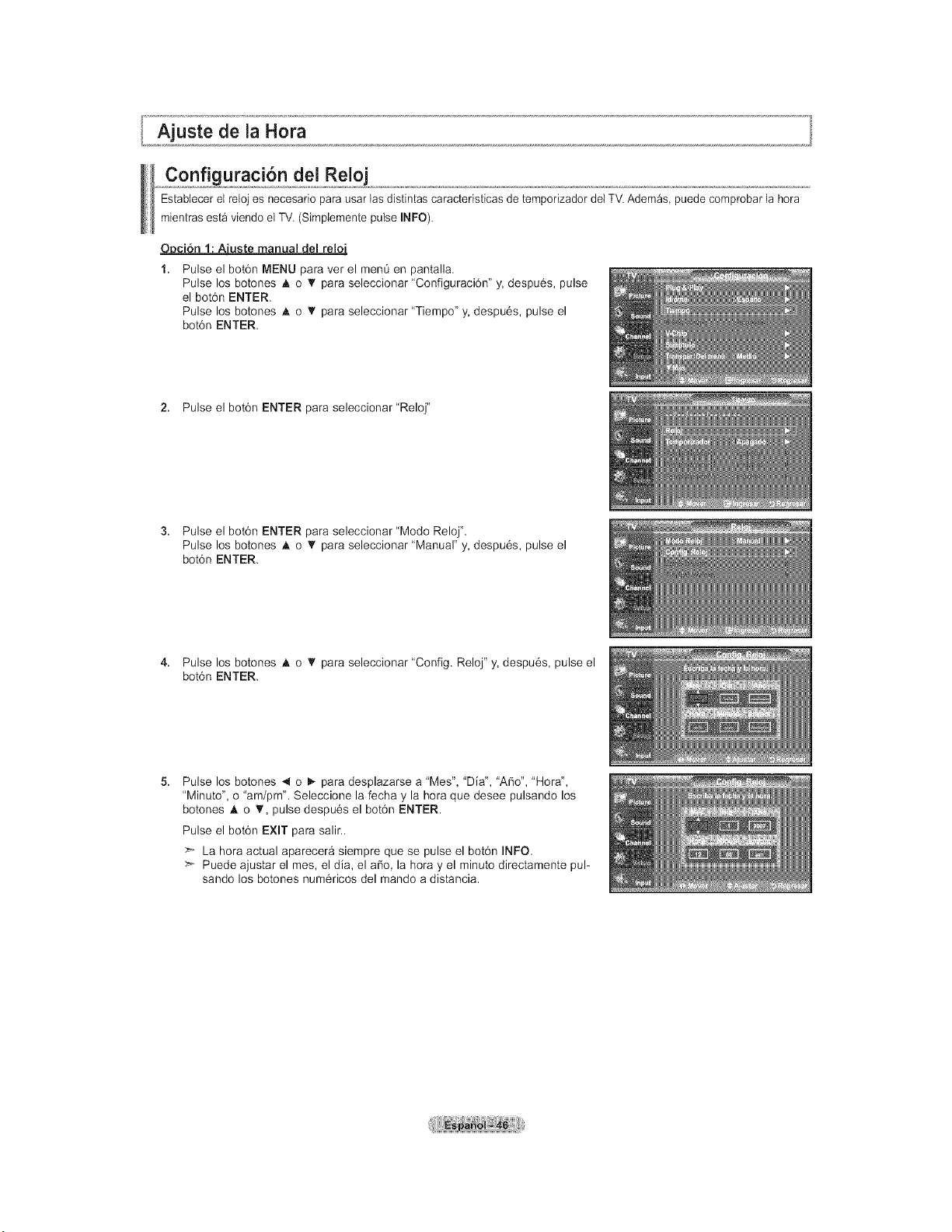
Ajuste de la Hora
Configuracion del Reloj
Estabtecer el reloj es necesario para usar las distintas caracteristicas de temporizador det TV. Ademas, puede comprobar la hora
mientras est_ viendo el TV, (Simplemente pulse INFO).
_uste manual del reloj
Pulse el bot6n MENU para ver el ment_ en pantalla.
Pulse los botones _, o T para seleccionar "Configuraci6n" y, despu6s, pulse
el bot6n ENTER.
Pulse los botones _, o 'I' para seleccionar "Tiempo" y, despu6s, pulse el
bot6n ENTER.
2. Pulse el bot6n ENTER para seleccionar"Reloj"
3. Pulse el bot6n ENTER para seleccionar"Modo Reloj".
Pulse los botones _, o 'I' para seleccionar "Manual" y, despu6s, pulse el
bot6n ENTER.
4. Pulse los botones _, o T para seleccionar "Config. Reloj" y, despu6s, pulse el
bot6n ENTER.
5.
Pulse los botones 4 o i_ para desplazarse a "Mes", 'Dia", 'Argo", "Hora",
"Minuto", o "am/pm". Seleccione la fecha y la hora que desee pulsando los
botones A o _', pulse despu6s el bot6n ENTER.
Pulse el bot6n EXIT para salir..
>" La hora actual aparecera siempre que se pulse el bot6n INFO.
Puede ajustar el rues, el dia, el afio, la hora y el minuto directamente pul-
sando los botones num6ricos del mando a distancia.
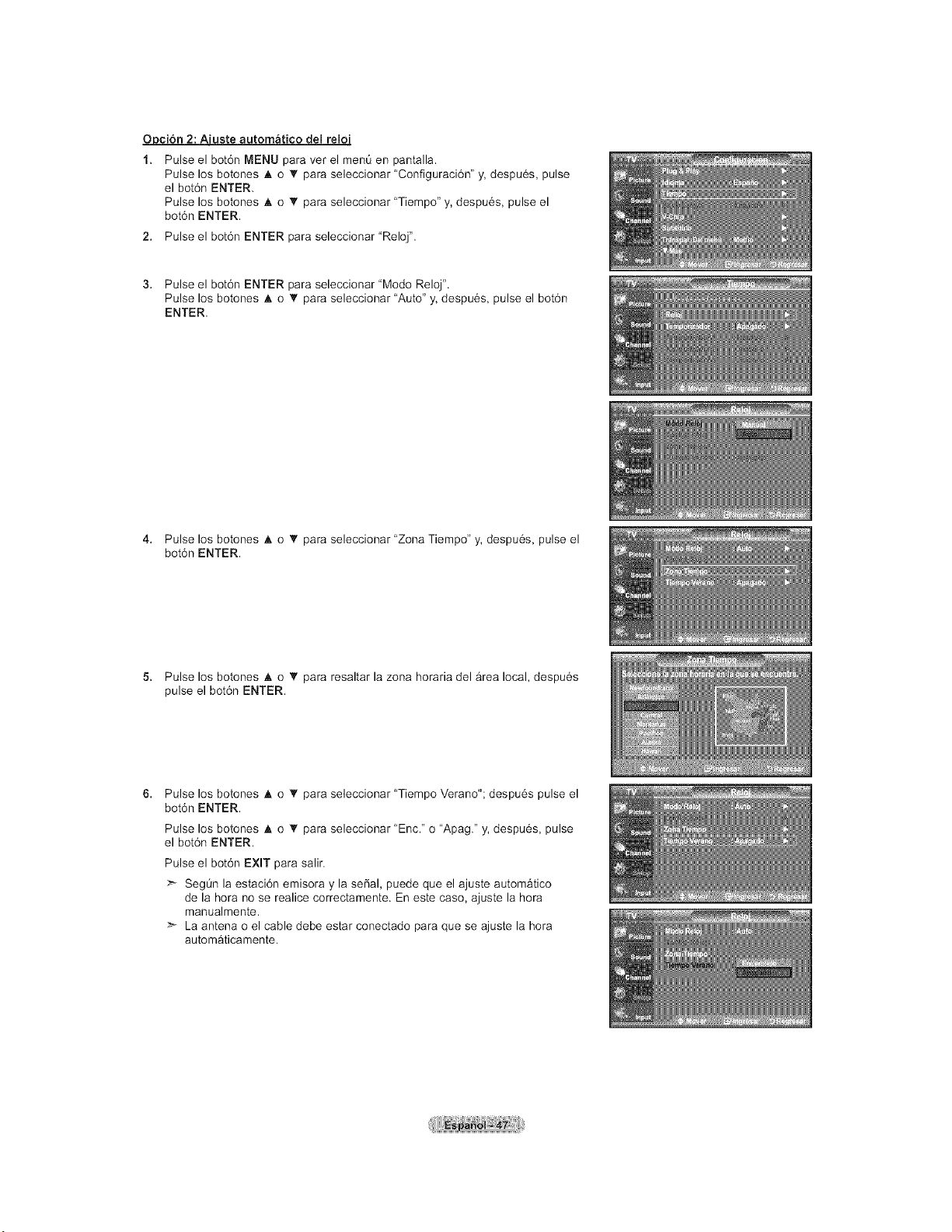
_uste automatico del reloj
1. Pulse el bot6n MENU para ver el men0 en pantalla.
Pulse los botones A o 'I' para seleccionar "Configuraci6n" y, despu6s, pulse
el bot6n ENTER.
Pulse los botones • o 'I' para seleccionar "Tiempo" y, despu6s, pulse el
bot6n ENTER.
2. Pulse el bot6n ENTER para seleccionar"Reloj".
3. Pulse el bot6n ENTER para seleccionar "Modo Reloj".
Pulse los botones A o T para seleccionar "Auto" y, despu6s, pulse el bot6n
ENTER.
4. Pulse los botones A o T para seleccionar "Zona Tiempo" y, despu6s, pulse el
bot6n ENTER.
5. Pulse los botones A o T para resaltar la zona horaria del area local, despu6s
pulse el bot6n ENTER.
6.
Pulse los botones A o 'I' para seleccionar "Tiempo Verano"; despu6s pulse el
bot6n ENTER.
Pulse los botones A o 'I' para seleccionar "Enc." o "Apag." y, despu6s, pulse
el bot6n ENTER.
Pulse el bot6n EXIT para salir.
>'- SegOn la estaci6n emisora y la seSal, puede que el ajuste automatico
de la hora no se realice correctamente. En este caso, ajuste la hora
manualmente.
>_ La antena o el cable debe estar conectado para que se ajuste la hora
autom&ticamente.
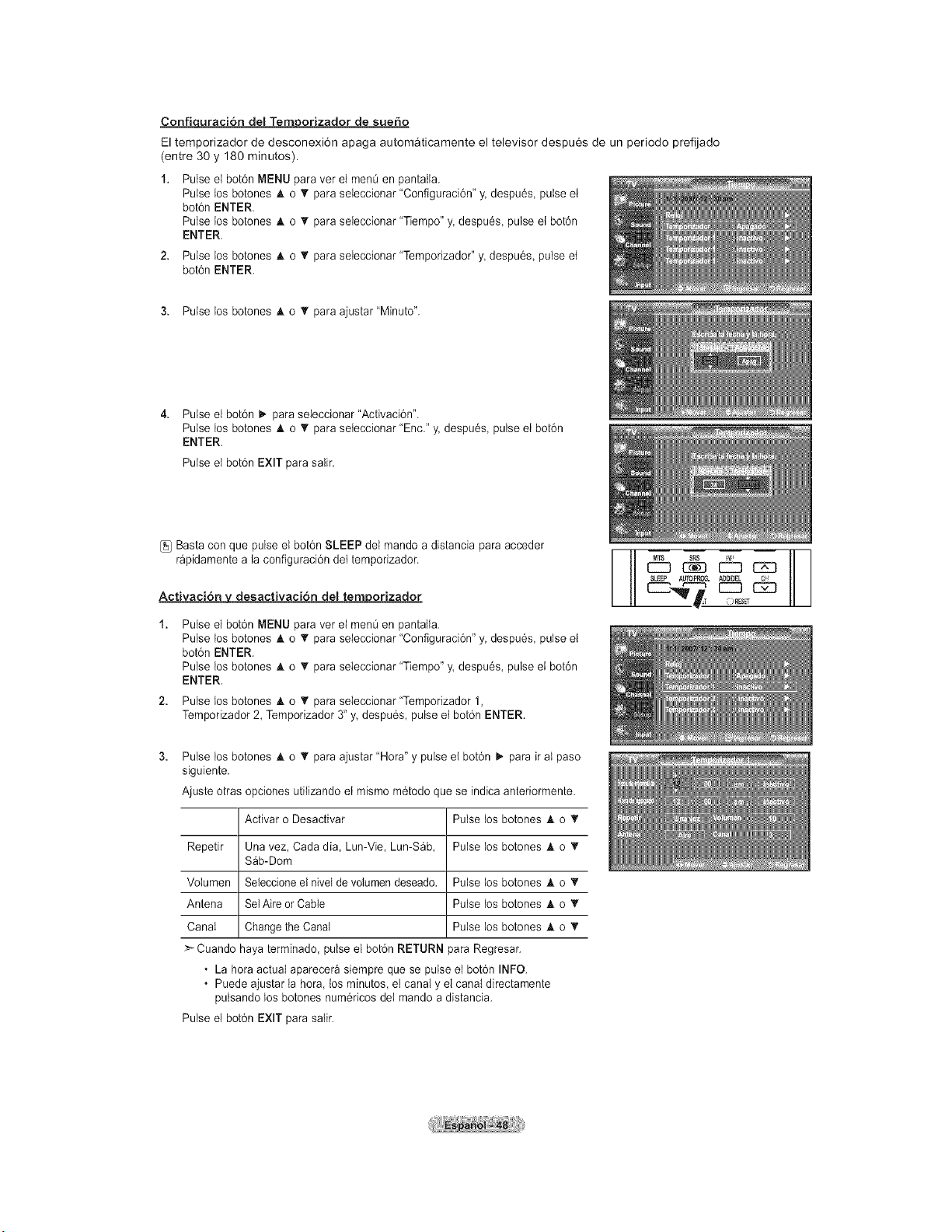
Confiquraci6n del Temporizador de sueSo
El temporizador de desconexi6n apaga autom_ticamente el televisor despu6s de un periodo prefijado
(entre 30 y 180 minutes).
Pulse el bot6n MENU para vet el men0 en pantatla.
Pulse los botones A o _r para seleccionar "Configuraci6n" y. despu6s pulse el
bot6n ENTER.
Pulse los botones h, o _r para seleccionar "Tiempo" y, despu6s, pulse et bot6n
ENTER.
2. Pulse los botones A o _' para seleccionar "Temporizador" y despu6s, pulse et
bot6n ENTER.
3. Pulse los botones A o T para ajustar"Minuto".
Pulse el bot6n _ para seieccionar "Activaci6n".
Pulse los botones & o _r para seteccionar "Enc." y. despu6s, pulse el botdn
ENTER.
Pulse et bot6n EXIT para salir.
[]_ Basta con que pulse el bot6n SLEEP del mando a distancia para acceder
r_pidamente a la configuraci6n det temporizador.
Activacion y desactivacion del ternporizador
Pulse el bot6n MENU para vet el men0 en pantalla.
Pulse los botones A o T para seieccionar "Configuraci6n" y despu6s, pulse el
bot6n ENTER.
Pulse los botones A o _r para seleccionar "Tiempo" y. despu6s, pulse el bot6n
ENTER.
Pulse los botones A o T para seleccionar "Temporizador 1,
Temporizador 2, Temporizador 3" y despu6s, pulse et bot6n ENTER.
S_EPA_PRCG._ _
IT _R_ET
Pulse los botones _k o T para ajustar "Hora" y pulse et bot6n I,. para ir aI paso
siguiente.
Ajuste otras opciones utilizando et mismo m6todo que se indica anteriormente.
Activar o Desactivar Pulse los botones A o _r
Repetir Una vez, Cada dia Lun-Vie, Lun-S_b, Pulse los botones A o T
S_b-Dom
Votumen Seleccioneel nivel de volumen deseado. Pulse los botones A o T
Antena SelAire or Cable Pulse los botones A o T
Canal Change the Canal Pulse los botones A o _r
>Cuando haya terminado, pulse el bot6n RETURN para Regresar.
• La hora actual aparecera siempre que se pulse el bot6n INFQ
• Puede ajustar la hora, los minutos, el canal y el canal directamente
pulsando los botones num6ricos det mando a distancia.
Pulse el bot6n EXIT para salir.
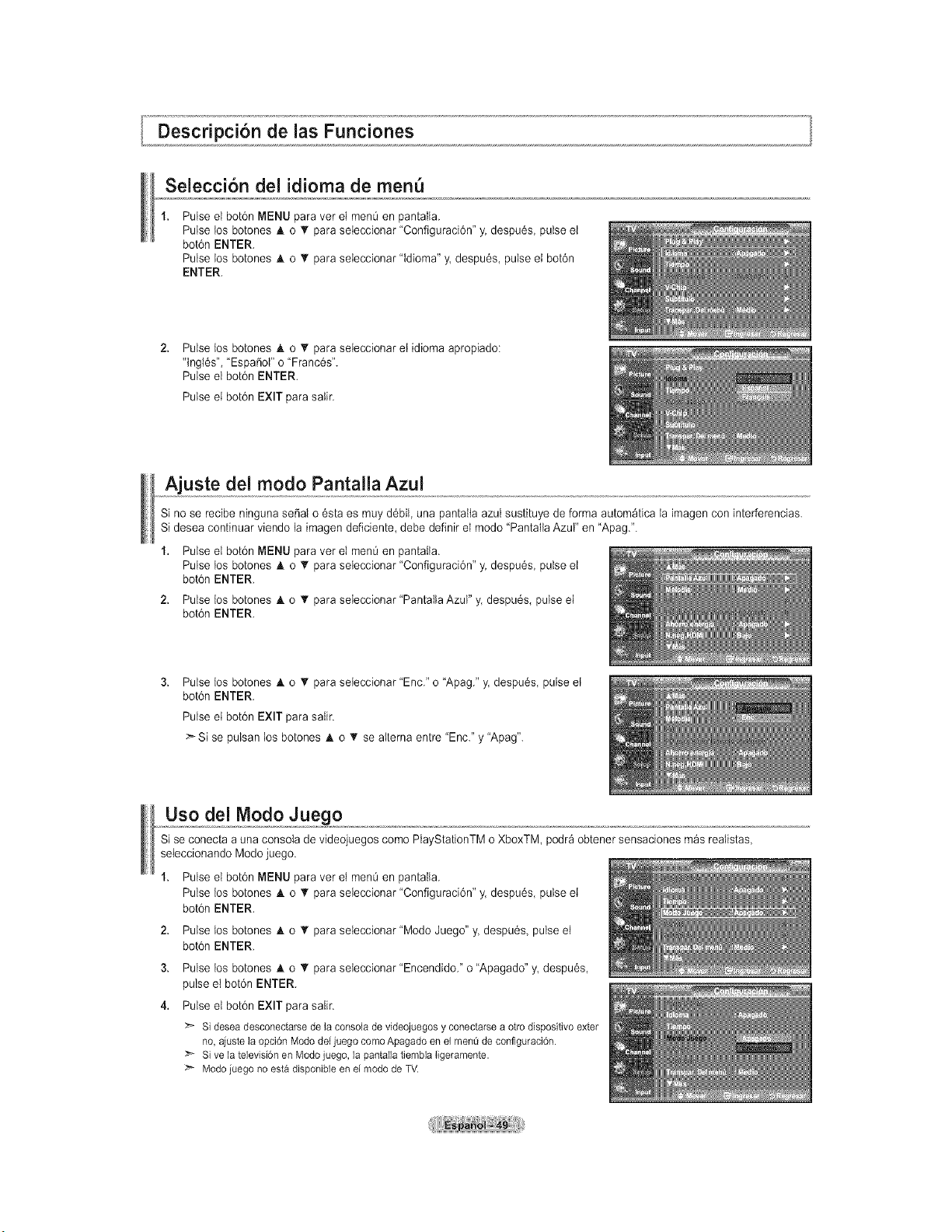
Descripci6n de las Funciones
Seiecci6n del idioma de menu
1.
Pulse el bot6n MENU para ver el men0 en pantaIla.
Pulse los botones A o _r para seleccionar "Configuraci6n" y. despu6s pulse el
bot6n ENTER.
Pulse Dosbotones _, o • para seleccionar "tdioma" y. despu6s, pulse el bot6n
ENTER.
Pulse los botones A. o T para seleccionar et idioma apropiado:
'lngi6s", "Espafiot" o "Franc6s".
Pulse el bot6n ENTER.
Pulse el bot6n EXIT para salir.
Ajuste del modo Pantalla Azul
Si no se recibe ninguna serial o 6sta es muy d6bil, una pantaIta azul sustituye de forma autom_tica la imagen con interferencias.
Si desea continuar viendo la imagen deficiente, debe definir el mode "PantaIla Azul" en "Apag.".
1. Pulse el bot6n MENU para vet el men0 en pantalla.
Pulse tos botones A o _r para seleccionar "Configuraci6n" y. despu6s, pulse el
bot6n ENTER.
2. Pulse los botones _, o T para seleccionar "Pantalla Azul" y. despu6s, pulse el
bot6n ENTER.
Pulse los botones A o _r para seteccionar "Enc." o "Apag." y. despu6s, pulse et
bot6n ENTER.
Pulse el bot6n EXIT para safir.
:_ Si se pulsan Dosbotones _, o _' se aIterna entre "Enc." y "Apag".
Uso del Modo Juego
Si se conecta a una consola de videojuegos come PlayStationTM o XboxTM, podr_ obtener sensaciones m_s realistas,
seleccionando Mode juego.
1, Pulse el bot6n MENU para vet el men0 en pantaIla.
Pulse los botones A o T para seleccionar "Configuraci6n" y. despu6s, pulse el
bot6nENTER.
2, Pulse los botones A o T para seleccionar "Mode Juego" y. despu6s pulse el
bot6nENTER.
3, Pulse los botones A o T para seteccionar "Encendido/' o "Apagado" y despu6s,
pulse el bot6n ENTER.
4. Pulse ei bot6n EXIT para salir.
Sideseadesconectarsede la consoladevideojuegosy conectarsea otto dispositivoexter
no,ajustela opci6nMododeljuego comoApagadoen el men0de configuraci6n.
_'* Sive latelevisi6nen Modojuego,la pantallatiemblaligeramente.
Modojuego no estadisponibleenelmododeTV.
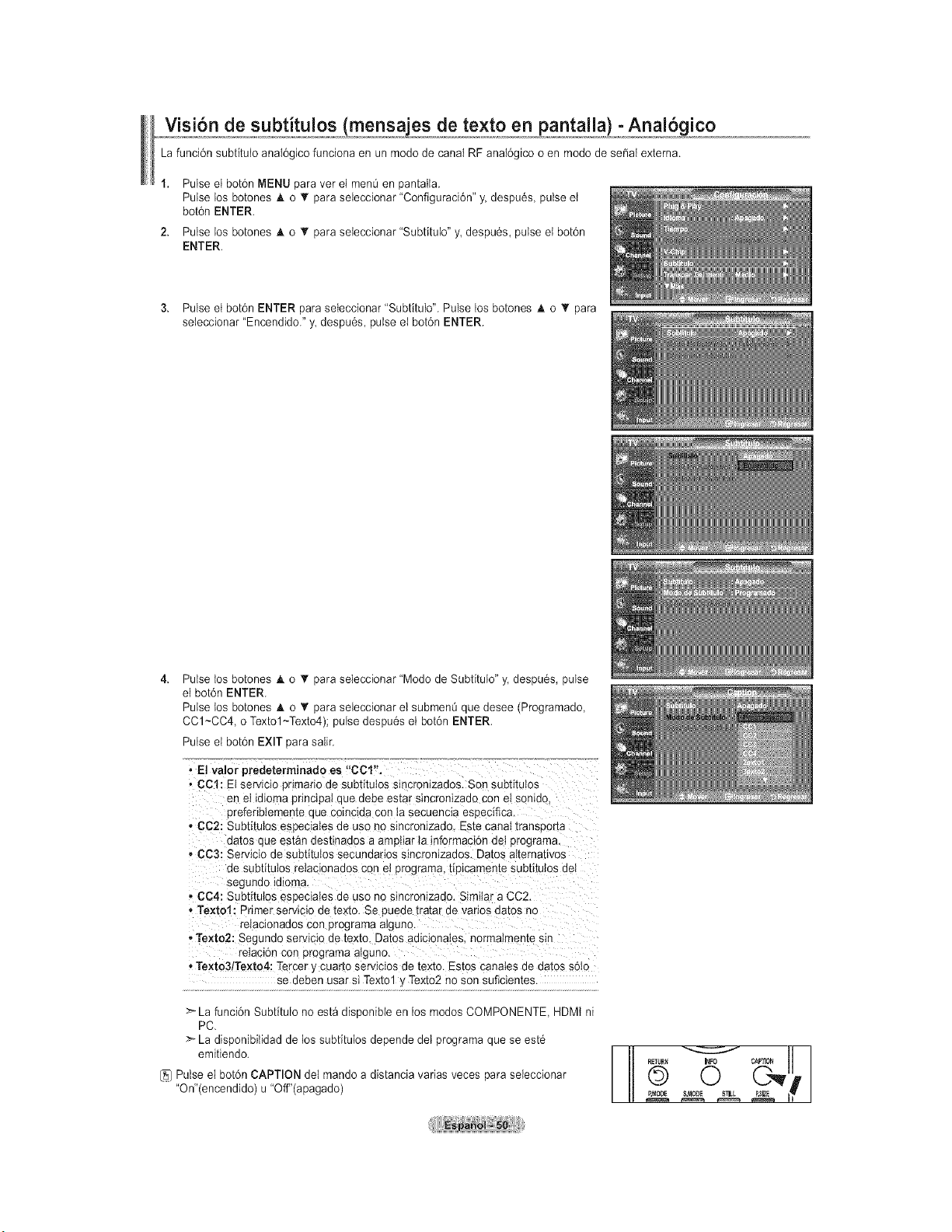
Visi6n de subtitulos (mensa es de texto en pantalla) - Anal6gico
La funci6n subfitulo anaI6gico funciona en un modo de canal RF anaI6gico o en modo de se_aI externa.
Pulse el bot6n MENU para vet el menOen pantatla.
Pulse los botones A o T para seieccionar "Configuraci6n" y. despu6s, pulse et
bot6n ENTER.
Pulse los botones A o •para seteccionar "Subfitulo" y despu6s, pulse et bot6n
ENTER.
3. Pulse et bot6n ENTER para seleccionar 'SubfituIo". Pulse los botones A o T para
seteccionar "Encendido." y despu6s, pulse el bot6n ENTER.
Pulse tos botones _k o T para seleccionar "Modo de Subtitulo" y. despu6s, pulse
el bot6n ENTER.
Pulse tos botones A o _' para seieccionar el submen_ que desee (Programado,
CC1~CC4, o Textol~Texto4); pulse despu6s el bot6n ENTER.
Pulse el bot6n EXIT para salir.
, El valor predeterminado es "CCl".
• CCl: Et servicic arimano ae subtitulos sincronizae )s. Son subtitutos
en eI idioms pnnclpaI que aeoe estar s_ncron_zaaocon et sonido
oreferiblemente oue coincida con la secuencia especifica
,, CC2: Subtitulos esDec_alesae uso no sincronizado. Este canal transpor_a
aa[os aue estAn destinaaos a amutiar ta informaci6n det programa.
- CC3: Servicio de subtitulos secundarios sincronizados. Datos atternatwos
de subtitulos retaclonados con et orograma, tiDicamente subtitulos deI
segundo tdloma.
" CC4: Subtitulos esDecJalesde uso no sincronizado. Similar a CC2.
,, Textol: Dnmer serviclo de texto. Se pueae [radarae vanos aa[os no
relacionados con programa atguno.
, Texto2: Segunao serv_ctoae [ex[o. ]atos adicionaIes, normalmente s_n
relac_cq con programa atguno.
• Texto3/Texto4: Tercer _/cuarto servicios de texto. Estos canates de datos soIo
se deben usar si Textol y Texto2 no son suficientes.
>La funci6n Subfitulo no est_ disponibte en los modos COMPONENTE, HDMt ni
PC.
:_ La disponibilidad de los subfitulos depende del programa que se est6
emitiendo.
[5] Pulse el botdn CAPTION dei mando a distancia varias veces para seieccionar
"On'(encendido) u "Off"(apagado)
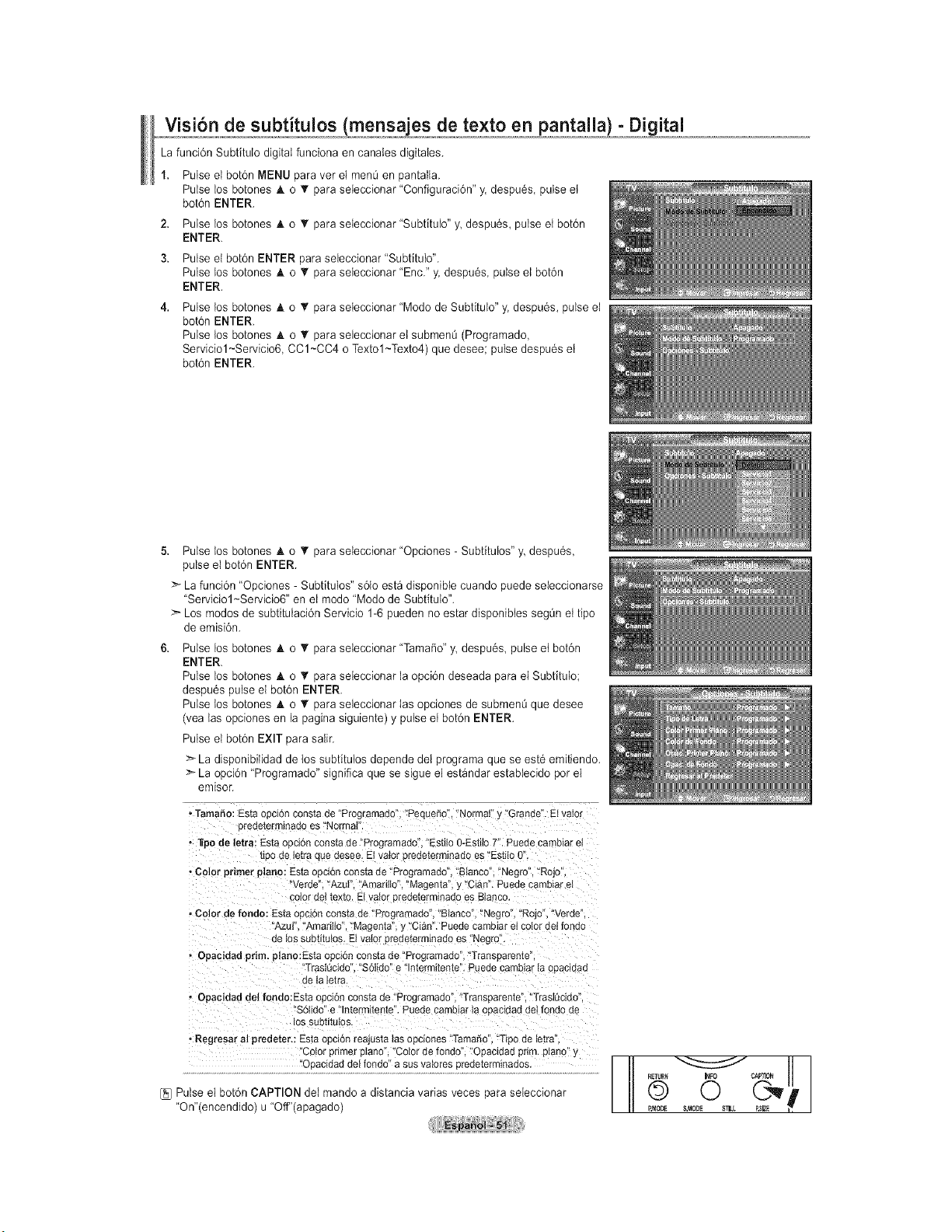
Visi6n de subtitulos (mensaies de texto en pantalla) - Digital
La funci6n Subtitulo digital funciona en canales digitales.
1. Pulse el bot6n MENU para ver eI men0 en pantaIla.
Pulse Ins botones A o T para seieccionar "Configuraci6n" y. despu6s, pulse et
bot6n ENTER.
2. Pulse los botones A o • para seleccionar "Subtftulo" y despu6s, pulse et bot6n
ENTER.
3. Pulse el bot6n ENTER para seieccionar"Subtftulo".
Pulse los botones A o T para seleccionar "Enc." y. despu6s, pulse el bot6n
ENTER.
Pulse Ins botones _k o V para seleccionar "Modo de SubfituW' y, despu6s, pulse el
bot6n ENTER.
Pulse ins botones _k o T para seieccionar et submenL_(Programado,
Serviciol~Servicio6, CC1~CC4 o Textol~Texto4) que desee; pulse despu6s et
bot6n ENTER.
5. Pulse los botones J, o T para seleccionar "Opciones - Subfitulos" y despu6s,
pulse el bot6n ENTER.
>_La funci6n "Opciones - Subtituios" s61oest_ disponible cuando puede seieccionarse
"Serviciol~Servicio6" en el rondo 'Modo de SubtituIo".
Los rondos de subtitulaci6n Servicio 1-6 pueden no estar disponibles segOn el ripe
de ernisi6n.
Pulse los botones A o T para seleccionar "TamaSo" y despu6s pulse et bot6n
ENTER.
Pulse los botones A o _' para seieccionar la opci6n deseada para el Subfitulo;
despu6s pulse el bot6n ENTER.
Pulse tos botones A o T" para seleccionar Ias opciones de submenL_que desee
(vea tas opciones en la pagina siguiente) y pulse et bot6n ENTER.
Pulse el bot6n EXIT para salir.
>-La disponibilidad de los subfitulos depende del programa que se est6 emitiendo.
:_ La opci6n "Programado" significa que se sigue el est_ndar estabiecido per el
emisor.
•TamaSo:Estaopci6nconstade "Projramaao Pequeno',"Normal"y "Grande".Elvalor
oredetermlnadoes"Normal
• _po de letra: Estae mi6nconstade"Programa]o Estiio0-Esti{oT'. Puedecambtarel
[_UOae letraauedesee.El valororedeterminadoes "Esti{oO
, Color primer piano: EstaOOClOnconstade "Programaao Blanco"."Negro","Rojo",
"verde "Azur Amarillo"."Magema,y 'Cian".Puedecambiarel
colorne_texto. Elvalororedeterminadoes Btanco
- Color derondo: Estaopcionconstade "Programado"."Bianco"."Negro","Rojo"."Verde
"Azul Amarillo","Magenta",y Cian".Puedecambiarelcotorde{rondo
de los subtitulos.Elvalororedeterminadoes"Negro
• Opacidadprim. plane:Estaof :i6n constade "Programado"."Transoareme
TrasKtcido"."S6tido'e n_erm_tente".Paedecamblarta oBacldad
ne ta le_ra.
• Opacidaddel fondo:Estaopcionconstade "Programado","Transparente"."Tras{_cido"
"S6tido"e "lnte-mitente".PuedecamotariaooaciaaddeIrondode
Ins SUDIIIUIOS
, Regresar al predeter.: Esta opcton reajusta las opciones "Tama5o "T _o de Ietra'
_.o{or oBmer otano 'Color de fondc Ooacldad Brim. piano •
'0_acida_e_0nd?"_S_'Sva!ffPsBr_?e'er'_'n_°°_........... [--
[]_ Pulse el bot6n CAPTION dei mando a distancia varias veces para seieccionar
"On"(encendido) u "Off"(apagado)
RETURN I_O CAP]ION
©
RMO[IE
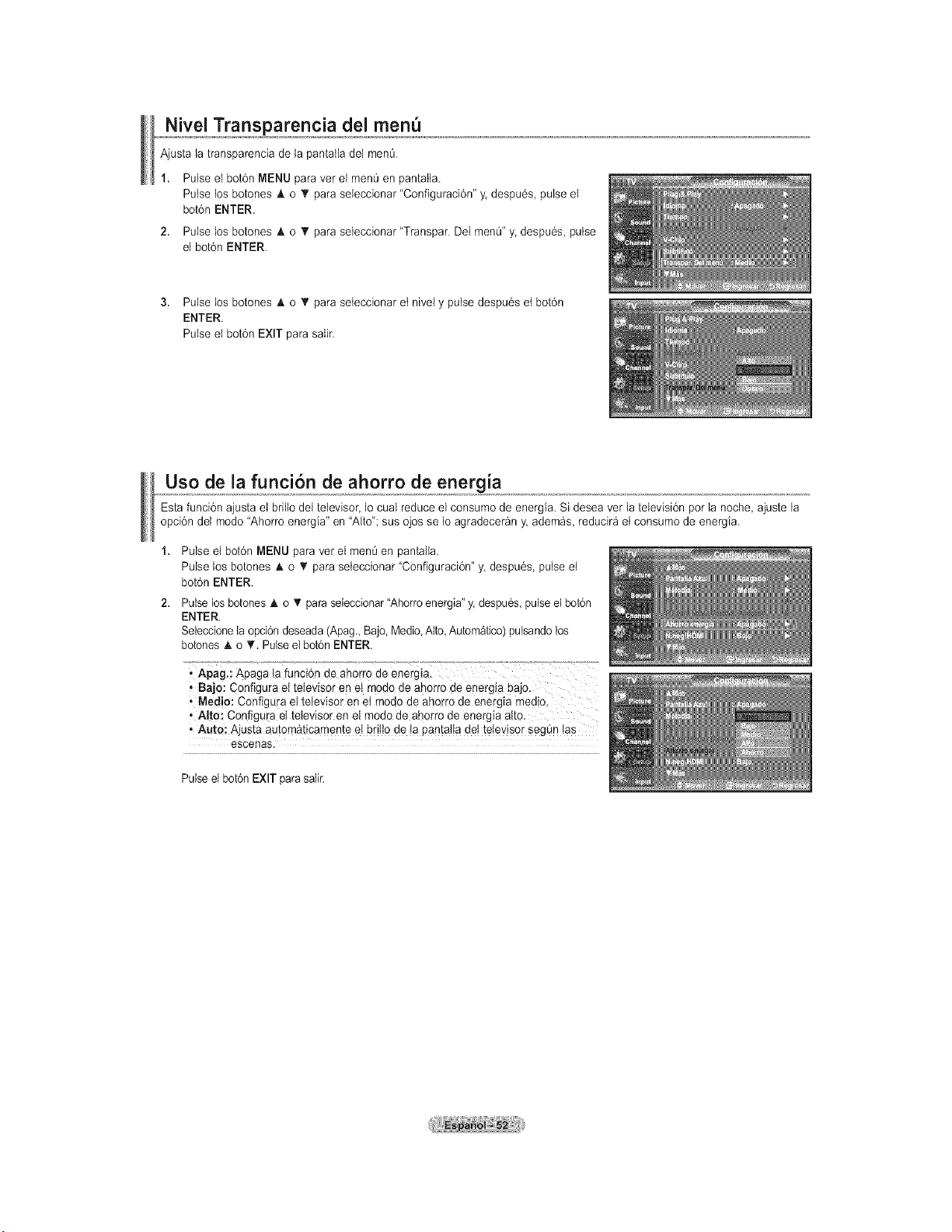
Nivel Transparencia del men
Ajusta la transparencia de la pantatla del men&
1. Pulse el bot6n MENU para vet el men_ en pantatla.
Pulse los botones & o _' para seteccbnar "Configuraci6n" y. despu6s, pulse et
bot6n ENTER.
2. Pulse los botones _, o _' para seteccbnar "Transpar. DeI menQ"y despu6s, pulse
el botdn ENTER.
3. Pulse los botones A o T para seteccbnar et nivei y pulse despu6s et bot6n
ENTER.
Pulse et bot6n EXIT para saIir.
Uso de la funci6n de ahorro de energia
Esta funci6n ajusta et brilto del televisor, Io cuaI reduce el consume de energia. Si desea vet {a [elevisi6n per la noche, ajuste la
opci6n det mode "Ahorro energia" en "Alto"; sus ojos se Deagradecer_n y adem_s, reducir_ el consume de energia.
1. Pulse el bot6n MENU para vet el men_ en pantalta.
Pulse los botones A o _r para seleccbnar "Configuraci6n" y despu6s, pulse el
bot6n ENTER.
2. Pulse Dosbotones _, o T para seIeccbnar "Ahorro energia" y. despu6s, pulse el bot6n
ENTER.
Seleccione la opci6n deseada (Apag. Bajo Medb Alto Autom_tico) pulsando los
botones _, o _'. PuDseel bot6n ENTER.
, Apag.: Apaga ta funci6n de aho
, Bajo: Configura et televisor en et mode de ahorro de energ!a bajo.
,Medio: Configur a el televisor en et mode de aherro de energia med!c
• A!t0: Configura et televisor en el mode de ahorro de energia alto.
• Auto: Ajusta autom&ticamente et britlo de la pantatta det televisor segOn tas
escenas.
PuDseet bot6n EXIT para satir.
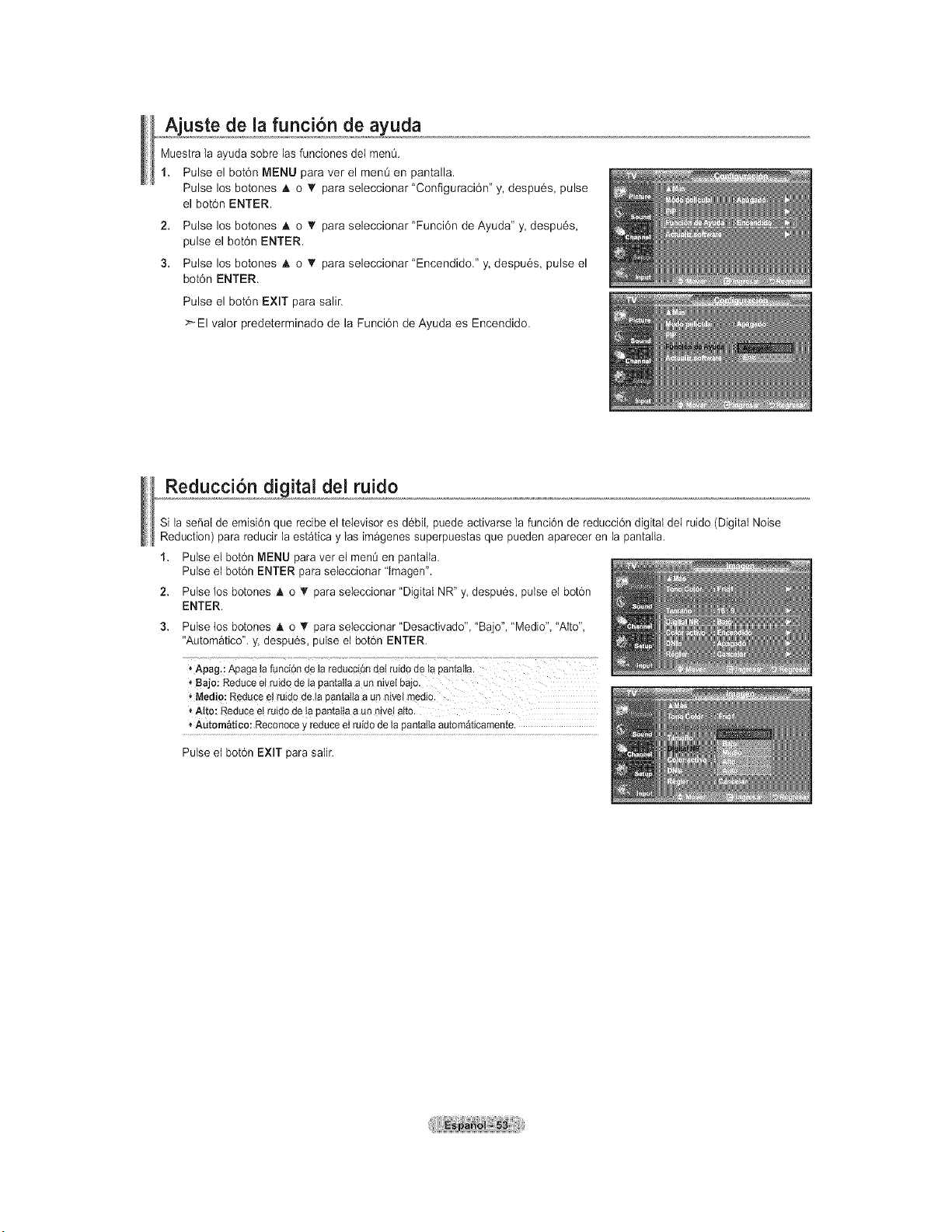
AjLIste de la funci6n de ayuda
Muestra la ayuda sobre las funciones del men_.
1. Pulse el bot6n MENU para ver el ment_ en pantalla.
Pulse los botones A o _' para seleccionar "Configuraci6n" y, despu6s, pulse
el bot6n ENTER.
2. Pulse los botones A o _' para seleccionar "Funci6n de Ayuda" y, despu6s,
pulse el bot6n ENTER.
3. Pulse los botones A o _' para seleccionar "Encendido." y, despu6s, pulse el
bot6n ENTER.
Pulse el bot6n EXIT para salir.
>El valor predeterminado de la Funci6n de Ayuda es Encendido.
....RedU_.d,.!._ital del ruido
Si la se_al de emisi6n que recibe el televisor es d6bil, puede activarse la funci6n de reducci6n digital del ruido (Digital Noise
Reduction) para reducir la est_tica y las imagenes superpuestas que pueden aparecer en la pantaIla.
1. Pulse el bot6n MENU para vet el menO en pantalla.
Pulse el bot6n ENTER para seleccionar 'Imagen".
2. Pulse los botones A o _' para seleccionar "Digital NR" y despu6s, pulse el bot6n
ENTER.
Pulse tos botones A. o _' para seleccionar "Desactivado" "Bajo", "Medio" "Alto"
"Autom_tico". y, despu6s, pulse el bot6n ENTER.
Apag.:Apagatafunci6nde Ia reducci6ndel ruidode tapantaHa.
_Bajo: Reduceel ruidode la pantallaa un nivelbao.
'_Medio:Redugee!ruidode la pantatlaa un nivelmedio.
Alto:Reducee!ruidodela pantat!aa un rfive!alto.
* Automatico:Reconocey reduceetruidode la pantallaautomaticamente.
Pulse et bot6n EXIT para saIir.
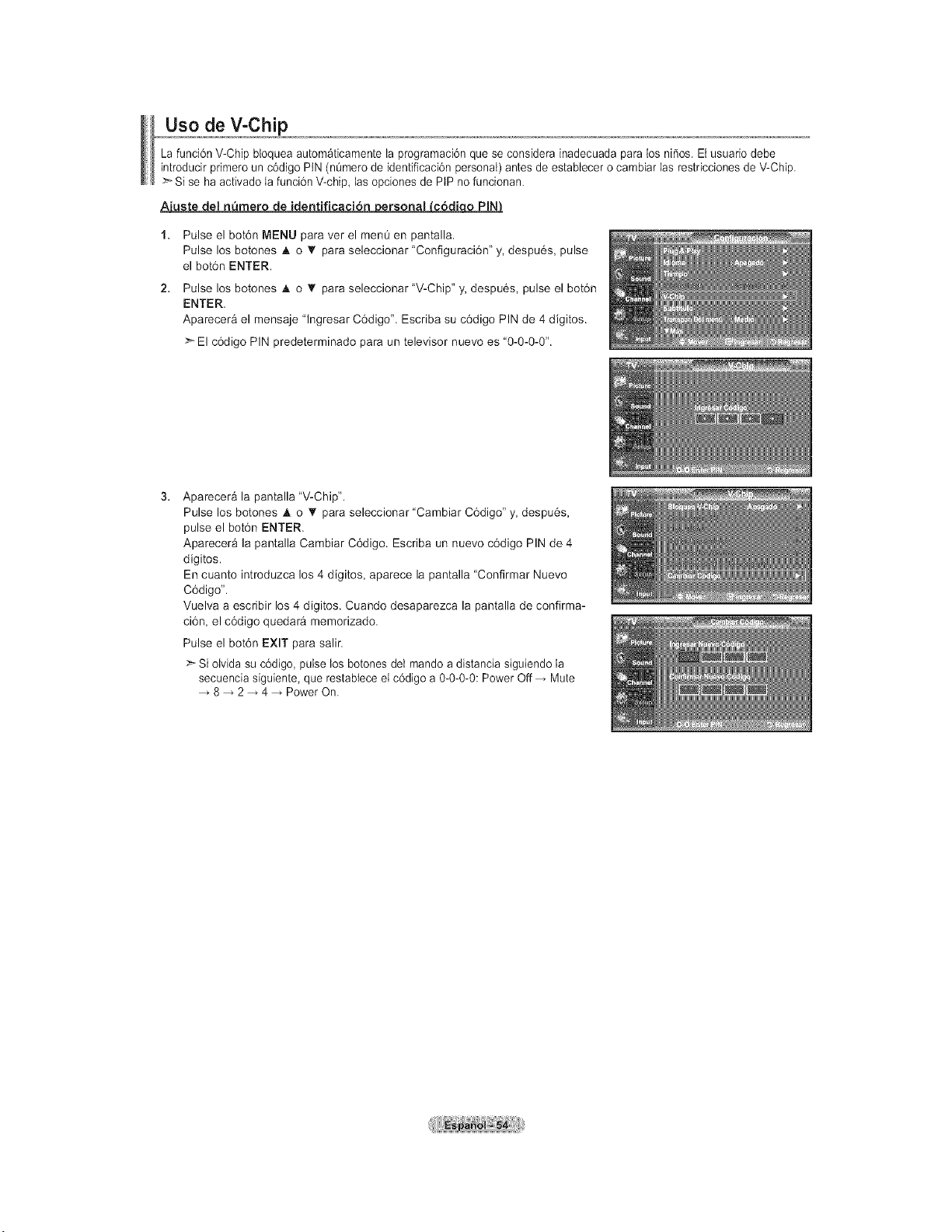
Uso de V-Chip
La funci6n V-Chip bloquea autom_ticamente la programaci6n que se considera inadecuada para los nifios, Et usuario debe
introducir primero un c6digo PIN (nOmero de identificaci6n personal) antes de estabtecer o cambiar las restricciones de V-Chip.
Si se ha activado la funci6n V-chip, las opciones de PtP no funcionan.
A'_ficaci6n ersonal c6di o PIN
1. Pulse el bot6n MENU para ver el men0 en pantalla.
Pulse los botones A o '_ para seleccionar "Configuraci6n" y, despu6s, pulse
el bot6n ENTER.
2. Pulse los botones A o _ para seleccionar "V-Chip" y, despu6s, pulse el bot6n
ENTER.
Aparecera el mensaje "lngresar C6digo". Escriba su c6digo PIN de 4 digitos.
>- El c6digo PIN predeterminado para un televisor nuevo es "0-0-0-0".
3.
Aparecera la pantalla "V-Chip".
Pulse los botones A o T para seleccionar "Cambiar C6digo" y, despu6s,
pulse el bot6n ENTER.
Aparecera la pantalla Cambiar C6digo. Escriba un nuevo c6digo PIN de 4
digitos.
En cuanto introduzca los 4 digitos, aparece la pantalla "Confirmar Nuevo
C6digo".
Vuelva a escribir los 4 digitos. Cuando desaparezca la pantalla de confirma-
ci6n, el c6digo quedar_ memorizado.
Pulse el bot6n EXIT para salir.
>Si olvida su c6digo, pulse los botones del mando a distancia siguiendo la
secuencia siguiente, que restabtece el c6digo a 0-0-0-0: Power Off Mute
8 2 4 Power On.
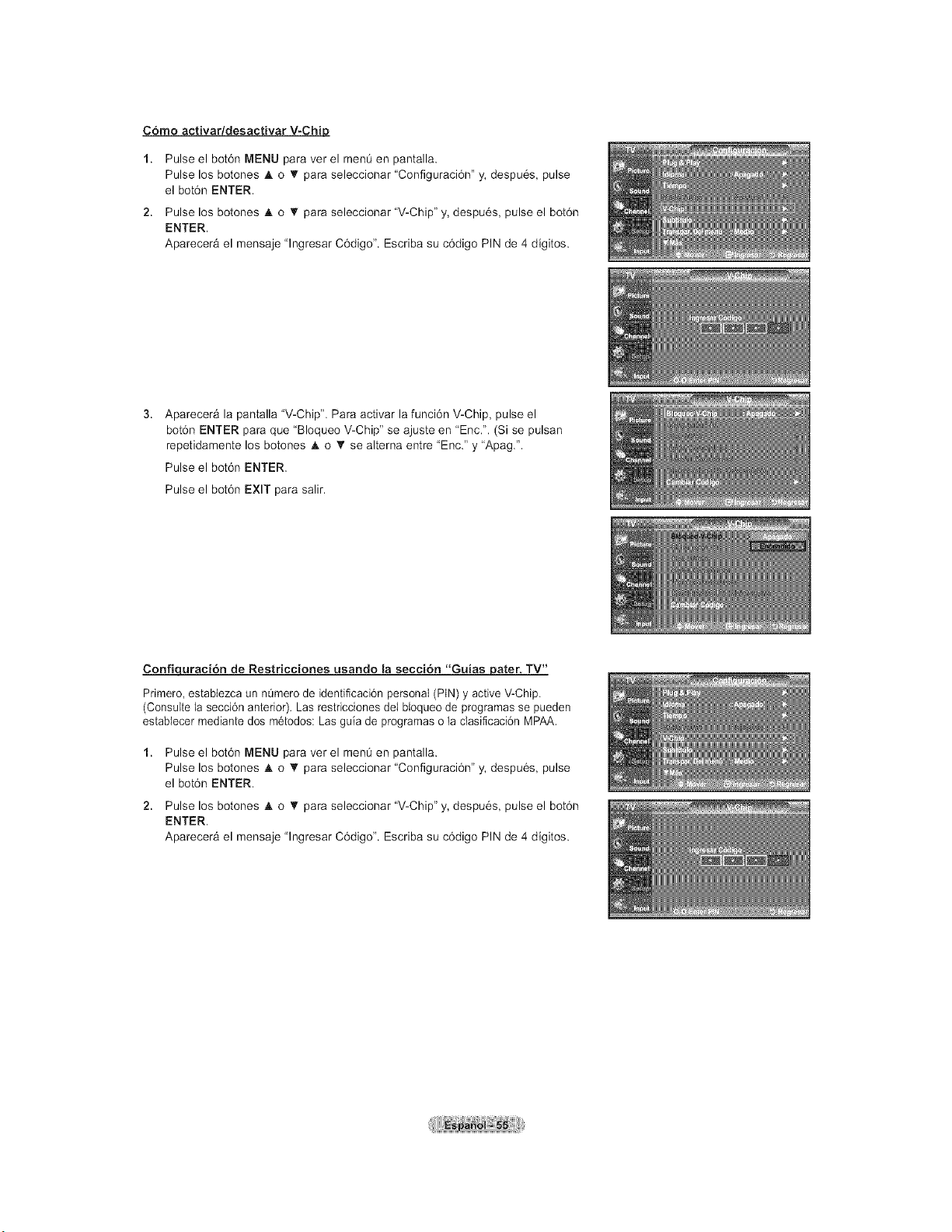
C6mo activar/desactivar V-Chip
1. Pulse el bot6n MENU para ver el menO en pantalla.
Pulse los botones A o T para seleccionar "Configuraci6n" y, despu6s, pulse
el bot6n ENTER.
2. Pulse los botones A o T para seleccionar "V-Chip" y, despu6s, pulse el bot6n
ENTER.
Aparecer& el mensaje "lngresar C6digo". Escriba su c6digo PIN de 4 digitos.
Aparecera la pantalla "V-Chip". Para activar la funci6n V-Chip, pulse el
bot6n ENTER para que "Bloqueo V-Chip" se ajuste en "Enc.". (Si se pulsan
repetidamente los botones • o '_ se alterna entre "Enc." y "Apag.".
Pulse el bot6n ENTER.
Pulse el bot6n EXIT para salir.
Confiquraci6n de Restricciones usando la seccion "Guias pater. TV"
Primero, establezca un n_mero de identificaci6n personal (PIN) y active V-Chip.
(Consulte la secci6n anterior). Las restricciones del bloqueo de programas se pueden
estabtecer mediante dos m6todos: Las guia de programas o la clasificaci6n MPAA.
1. Pulse el bot6n MENU para ver el men0 en pantalla.
Pulse los botones A o '_ para seleccionar "Configuraci6n" y, despu6s, pulse
el bot6n ENTER.
2. Pulse los botones A o T para seleccionar "V-Chip" y, despu6s, pulse el bot6n
ENTER.
Aparecera el mensaje "lngresar C6digo". Escriba su c6digo PIN de 4 digitos.
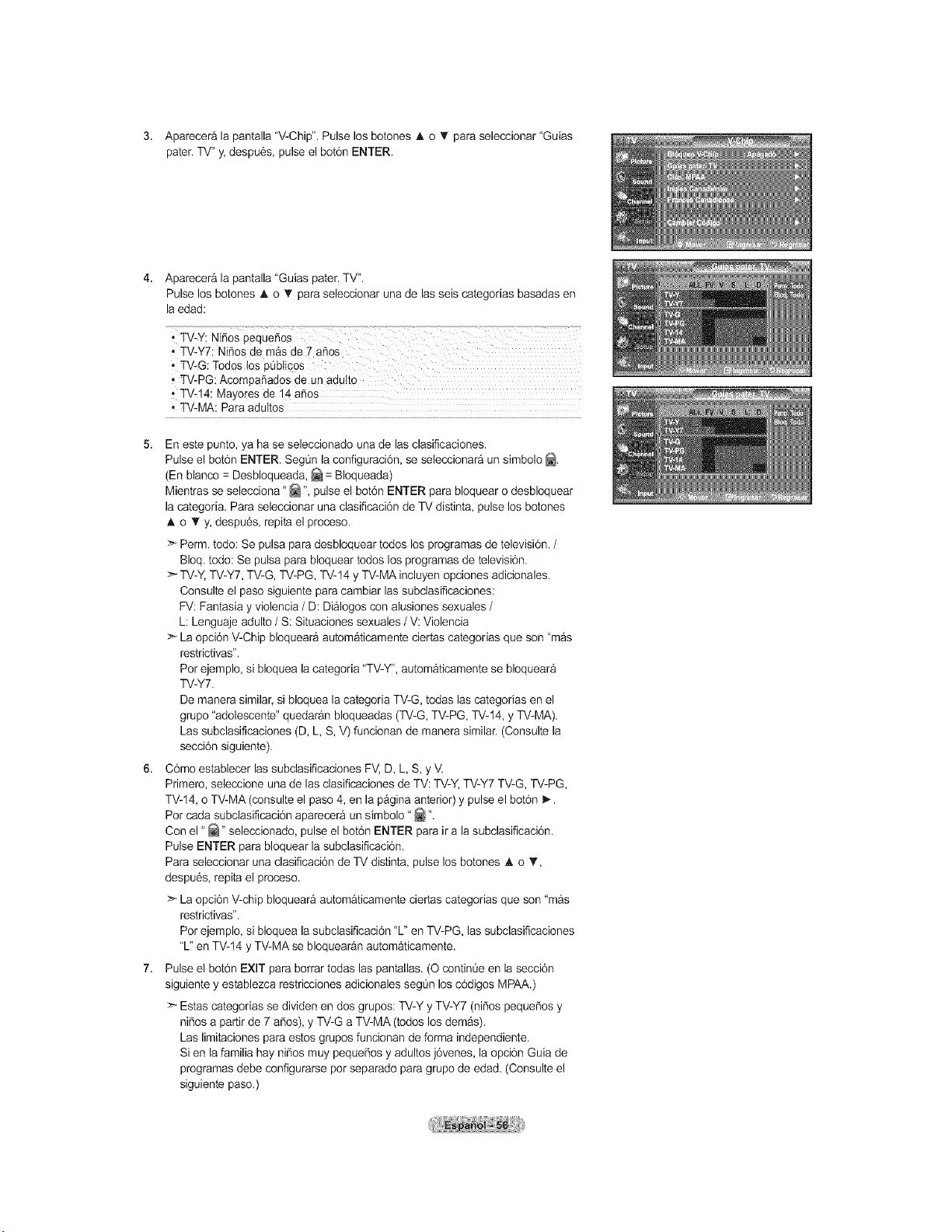
3. Apareceralapantalla"V-Chip".Pulselosbotones_,o'I'paraseleccionar"Guias
pater.TV"y,despu6s,pulseelbot6nENTER.
4. Aparecer&lapantalla"Guiaspater.TV".
PulselosbotonesAo_ paraseleccionarunadelasseiscategoriasbasadasen
laedad:
• TV-G: Todos tos pObticos
, TV-PG: AcompaSados de un adu!to
TV-14: Mayores de 14 a_os
• TV-MA: Para aduItos
5. En este punto, ya ha se selecoionado una de las clasificaciones.
Pulse el bot6n ENTER. SegOn la configuraci6n, se seleccionara un simbolo _.
(En blanco = Desbloqueada, _ = Bloqueada)
Mientras se selecciona "_ ", pulse el bot6n ENTER para bloquear o desbloquear
la categoria. Para seleccionar una clasificaci6n de TV distinta, pulse los botones
•, o T y, despu6s, repita el proceso.
Perm. todo: Se pulsa para desbloquear todos los programas de televisi6n. /
Bloq. todo: Se pulsa para bloquear todos los programas de televisi6n.
TV-Y, TV-Y7, TV-G, TV-PG, TV-14 y TV-MA incluyen opciones adicionales.
Consulte el paso siguiente para cambiar las subclasificaciones:
FV: Fantasia y violencia / D: Dialogos con alusiones sexuales /
L: Lenguaje adulto / S: Situaciones sexuales / V: Violencia
La opci6n V-Chip bloqueara automaticamente ciertas categorias que son "m_s
restrictivas".
Por ejemplo, si bloquea la categoria "TV-Y", automaticamente se bloqueara
TV-Y7.
De manera similar, si bloquea la categoria TV-G, todas lascategorias en el
grupo "adolescente" quedaran bloqueadas (TV-G, TV-PG, TV-14, y TV-MA).
Las subclasificaciones (D, L, S, V) fundonan de manera similar. (Consulte la
secd6n siguiente).
6. C6mo establecer las subdasificadones FV, D, L, S, y V.
Primero, seleccione una de las clasificaciones de TV: TV-Y, TV-Y7 TV-G, TV-PG,
TV-14, o TV-MA (consulte el paso 4, en la p&gina anterior) y pulse el bot6n i_.
Por cada subclasificaci6n aparecera un simbolo" _ ".
Con el "_" seleccionado, pulse el bot6n ENTER para ira la subdasificad6n.
Pulse ENTER para bloquear la subclasificaci6n.
Para seleccionar una clasificad6n de TV distinta, pulse los botones A o 'I',
despu6s, repita el proceso.
La opci6n V-chip bloquear& autom&ticamente ciertas categorias que son "mas
restrictivas".
Por ejemplo, si bloquea la subclasificaci6n "L" en TV-PG, las subclasificaciones
"L" en TV-14 y TV-MA se bloquear&n automaticamente.
7. Pulse el bot6n EXIT para borrar todas las pantallas. (O continOe en la secoi6n
siguiente y establezca restricciones adicionales segOn los c6digos MPAA.)
>_ Estas categorias se dividen en dos grupos: TV-Y y TV-Y7 (nitros pequer'iosy
nitros a partir de 7 a_os), y TV-G a TV-MA (todos los demas).
Las limitaciones para estos grupos funcionan de forma independiente.
Si en la familia hay nitros muy pequdios y adultos j6venes, la opci6n Guia de
programas debe configurarse por separado para grupo de edad. (Consulte el
siguiente paso.)
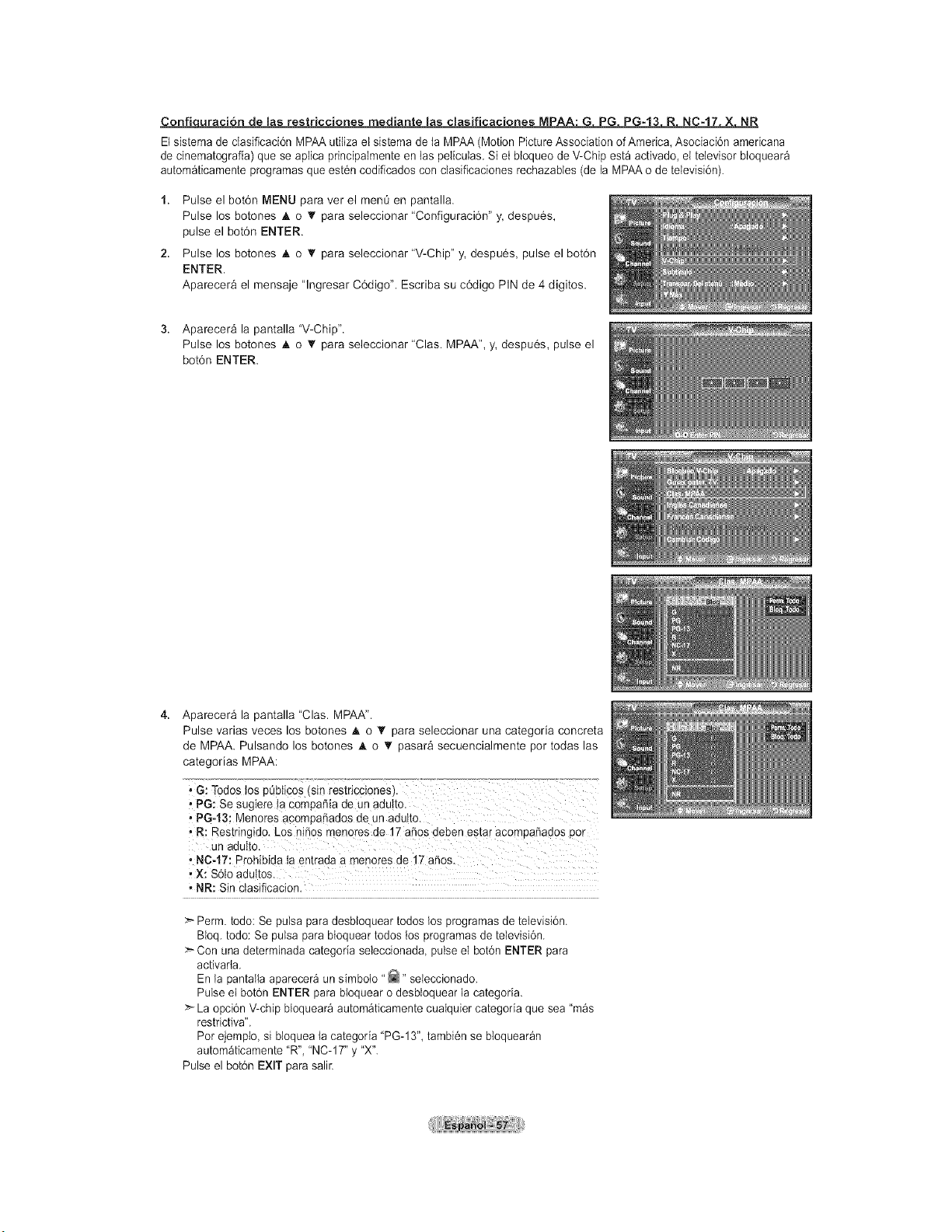
Confi _ones MPAA: G PG PG-13 R NC-17 X NR
El sistema de clasificaci6n MPAA uti{iza el sistema de ta MPAA (Motion Picture Association of America, Asociaci6n americana
de cinematografia) que se aplica principalmente en las peliculas, Si et bloqueo de V-Chip esta activado, el televisor btoquear_
autom_ticamente programas que est6n codificados con clasificaciones rechazables (de la MPAA o de televisi6n).
1. Pulse el bot6n MENU para ver el menO en pantalla.
Pulse los botones A o • para seleccionar "Configuraci6n" y, despu6s,
pulse el bot6n ENTER.
2. Pulse los botones A o T para seleccionar "V-Chip" y, despu6s, pulse el bot6n
ENTER.
Aparecer& el mensaje "lngresar C6digo". Escriba su c6digo PIN de 4 digitos.
3. Aparecera la pantalla "V-Chip".
Pulse los botones • o 'I' para seleccionar "Clas. MPAA", y, despu6s, pulse el
bot6n ENTER.
4. Aparecera la pantalla "Clas. MPAA".
Pulse varias veces los botones A o T para seleccionar una categoria concreta
de MPAA. Pulsando los botones A o T pasar& secuencialmente por todas las
categorias MPAA:
, G: Todos los pObticosisin restricciones). ...........................
, PG: Se sugiere !a cempafiia de un adu!to.
• PG-t3: Menores ac0mpafiados de un adutto.
, R: Restringido. Los nifios menores de 17 afios deben estar acompa_ados pot
Un adulto.
, NC-17: Prohibida ta entrada a menores de 17 afios.
, x: $6to aduttos.
• NR: Sin ctasificacion.
>* Perm. todo: Se pulsa para desbloquear todos los programas de televisi6n.
Bloq. todo: Se pulsa para bloquear todos los programas de televisi6n.
>-Con una determinada categoria seleccionada pulse el bot6n ENTER para
activarla.
En la pantalla aparecer_ un simbo{o ' _" seleccionado.
Pulse et bot6n ENTER para bloquear o desbloquear la categoria.
>_ La opci6n V-chip btoquear_ autom_ticamente cualquier categoda que sea "mas
restrictiva".
Por ejemplo, si bloquea la categoda "PG-13", tambi6n se bloquear_n
automaticamente "R", "NC- 17" y "X".
Pulse el bot6n EXIT para salir.
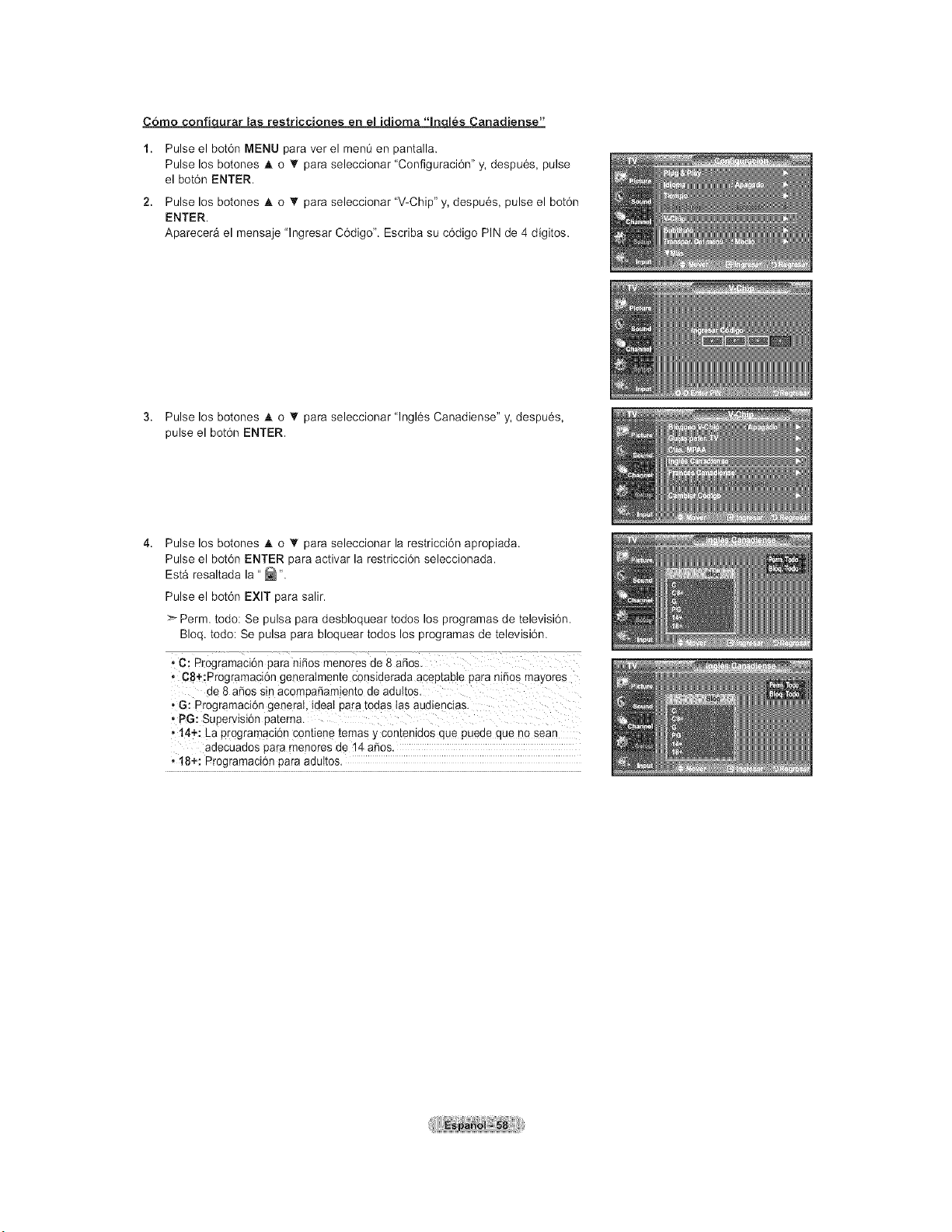
Corno confiqurar [as restricciones en el idioma "In [_s Canadiense"
1. Pulse el bot6n MENU para ver el men0 en pantalla.
Pulse los botones A o '_ para seleccionar "Configuraci6n" y, despu6s, pulse
el bot6n ENTER.
2. Pulse los botones A o '_ para seleccionar "V-Chip" y, despu6s, pulse el bot6n
ENTER.
Aparecer_ el mensaje "lngresar C6digo". Escriba su c6digo PIN de 4 digitos.
3. Pulse los botones A o '_ para seleccionar "lngl6s Canadiense" y, despu6s,
pulse el bot6n ENTER.
Pulse los botones A o Y para seleccionar la restricci6n apropiada.
Pulse el bot6n ENTER para activar la restricci6n seleccionada.
Est& resaltada la " _"
Pulse el bot6n EXIT para salir.
_'- Perm. todo: Se pulsa para desbloquear todos los programas de televisi6n.
Bloq. todo: Se pulsa para bloquear todos los programas de televisi6n.
• C: P_-ogramaci6npara niffos menores de 8 asos.
• CB+:Programaci6n generatmente considerada aceptabte para n ffos mayores
de 8 afros Sinacompaffamient0 de adultosl
, G: programaci6n general, ideal para t0das [as audiencias.
• P6: Supervisi6n patema.
,14+: La pr0gramaci6n c0ntiene temas y contenidos que puede que no sean
adecuados pa_-amenores de 14 afros.
,18÷: Programaci6n para adultos.
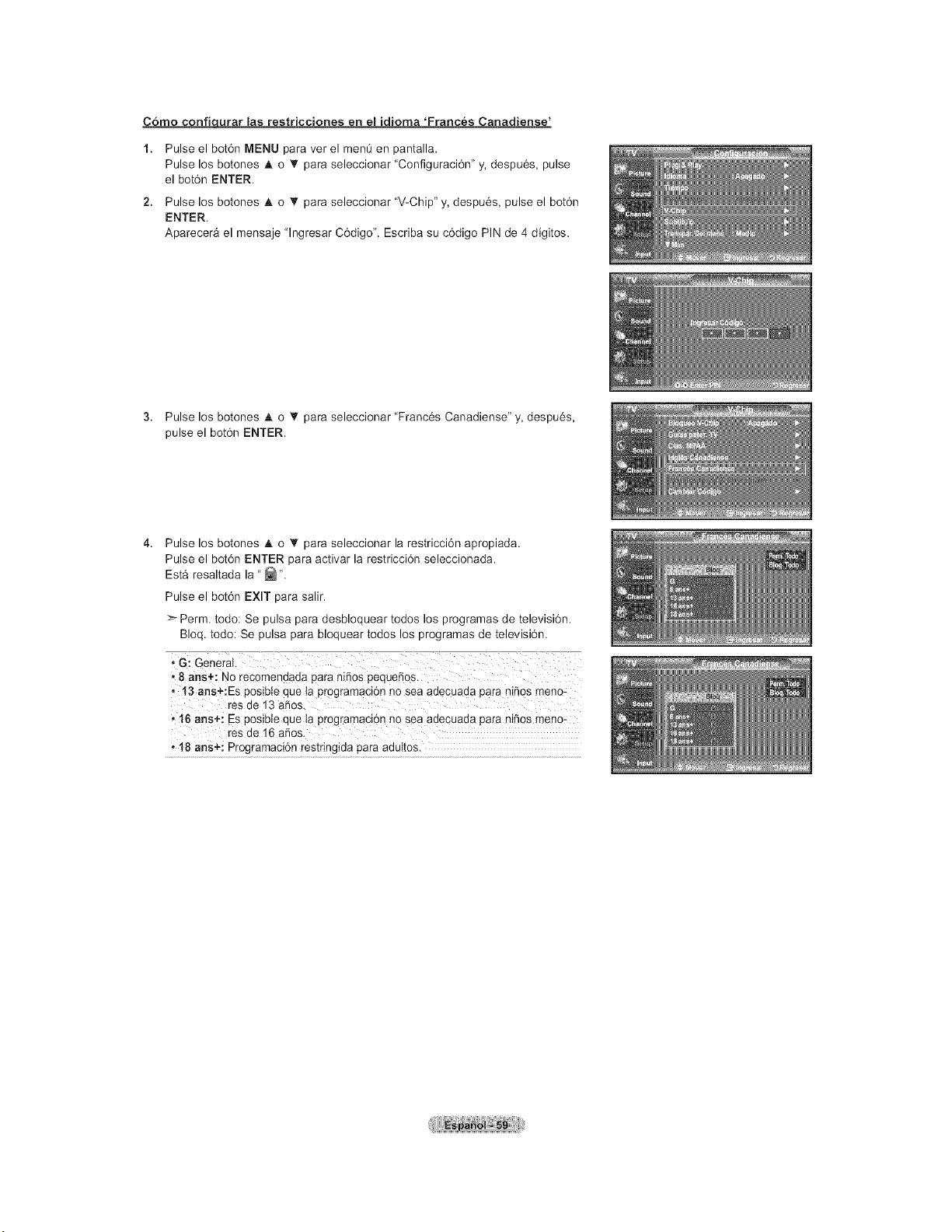
Corno confiqurar las restricciones en el idiorna 'Franc_s Canadiense'
1. Pulse el bot6n MENU para ver el men_ en pantalla.
Pulse los botones A o _' para seleccionar "Configuraci6n" y, despu6s, pulse
el bot6n ENTER.
2. Pulse los botones A o _' para seleccionar "V-Chip" y, despu6s, pulse el bot6n
ENTER.
Aparecer_ el mensaje "lngresar C6digo". Escriba su c6digo PIN de 4 digitos.
3. Pulse los botones A o _' para seleccionar "Franc6s Canadiense" y, despu6s,
pulse el botdn ENTER.
Pulse los botones A o T para seleccionar la restricci6n apropiada.
Pulse el bot6n ENTER para activar la restricci6n seleccionada.
Est& resaltada la " _ ".
Pulse el botdn EXIT para salir.
>- Perm. todo: Se pulsa para desbloquear todos los programas de televisi6n.
Bloq. todo: Se pulsa para bloquear todos los programas de televisi6n.
• 8 ans÷: No recomendada para ni_os pequefios.
, 13 ans+:Es posibie que ta programaci6n no sea adecuada para nifios meno=
res de 13 afios,
• t6 arts+; Es posibte que ia programaci6n no sea adecuada pa[a nifios meno-
res de 16 afios.
• 18 ans+: Programaci6n restringida para adultos.
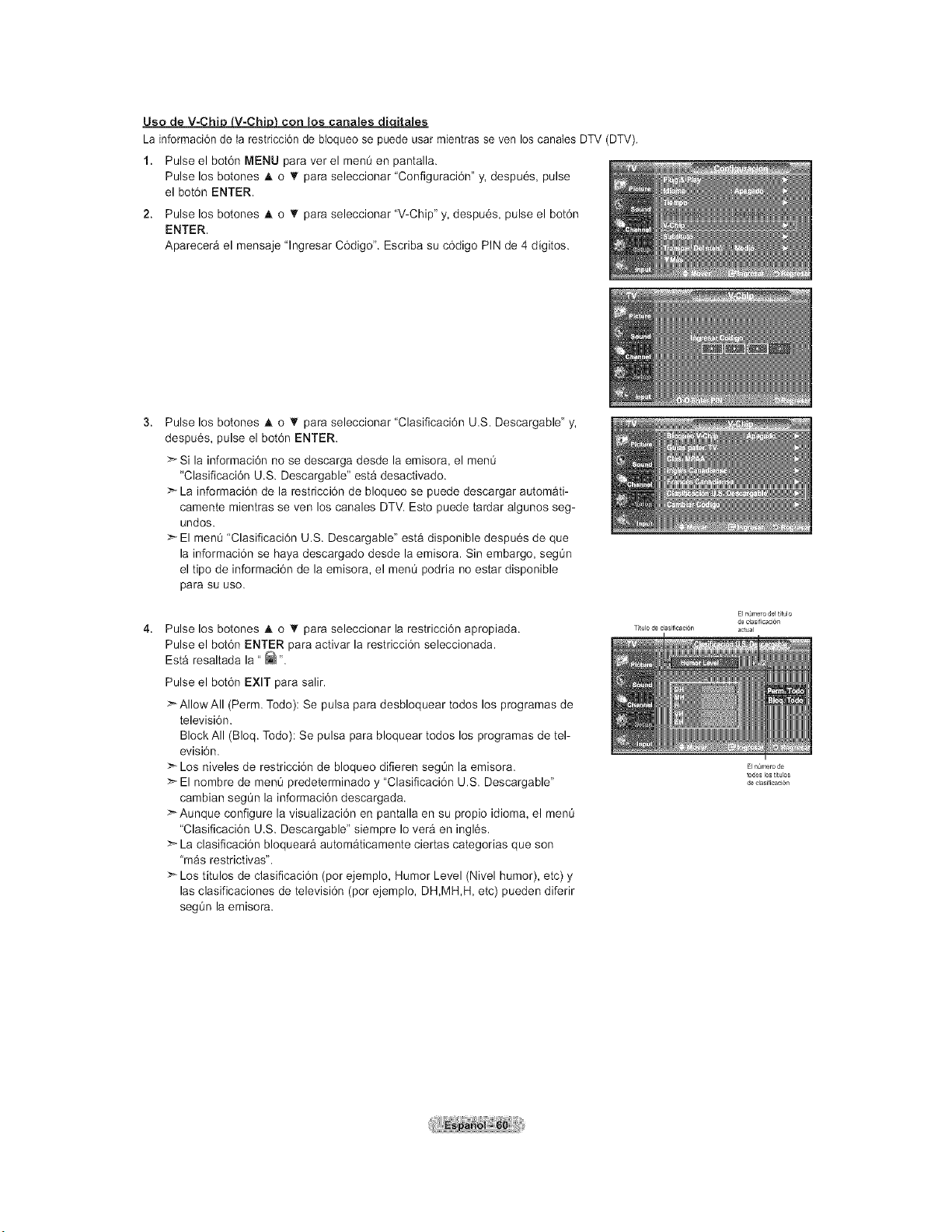
Uso de V-Chi@con los canales di_tales
La informaci6n de la restricci6n de bloqueo se puede usar mientras seven los canates DTV (DTV).
1. Pulse el bot6n MENU para ver el men0 en pantalla.
Pulse los botones A o T para seleccionar "Configuraci6n" y, despu6s, pulse
el bot6n ENTER,
2. Pulse los botones A o T para seleccionar "V-Chip" y, despu6s, pulse el bot6n
ENTER,
Aparecer& el mensaje "lngresar C6digo". Escriba su e6digo PIN de 4 digitos.
Pulse los botones A o T para seleccionar "Clasificaci6n U.S. Descargable" y,
despu6s, pulse el bot6n ENTER.
>Si la informaci6n no se descarga desde la emisora, el menÙ
"Clasificaci6n U.S. Descargable" est& desactivado.
=_ La informaci6n de la restricci6n de bloqueo se puede descargar automati-
camente mientras seven los canales DTV. Esto puede tardar algunos seg-
undos.
El menO 'Clasificaci6n U.S. Descargable" est& disponible despu6s de que
la informaci6n se haya descargado desde la emisora. Sin embargo, segOn
el tipo de informaci6n de la emisora, el menO podria no estar disponible
para su uso.
Pulse los botones A o T para seleccionar la restricci6n apropiada.
Pulse el bot6n ENTER para activar la restricci6n seleccionada.
Est& resaltada la " _ ".
Pulse el botdn EXIT para salir.
>_AIIowAII (Perm. Todo): Se pulsa para desbloquear todos los programas de
televisi6n.
Block All (Bloq. Todo): Se pulsa para bloquear todos los programas de tel-
evisi6n.
>- Los niveles de restricci6n de bloqueo difieren segOn la emisora.
El nombre de men0 predeterminado y "Clasificaci6n U.S. Descargable"
cambian segOn la informaci6n descargada.
>Aunque configure la visualizaci6n en pantalla en su propio idioma, el menO
"Clasificaci6n U.S. Descargable" siempre Io ver& en ingles.
:_ La clasificaci6n bloqueara automaticamente ciertas categorias que son
mas restrictivas".
>* Los titulos de clasificaci6n (por ejemplo, Humor Level (Nivel humor), etc) y
las clasificaciones de televisi6n (por ejemplo, DH,MH,H, etc) pueden diferir
seg0n la emisora.
[] n0mero del t_t/_lo
de dasificaci6n
Ttulo de dasificac16n actual
[] n_n_de
todos los t_t los
de clasificaci6n
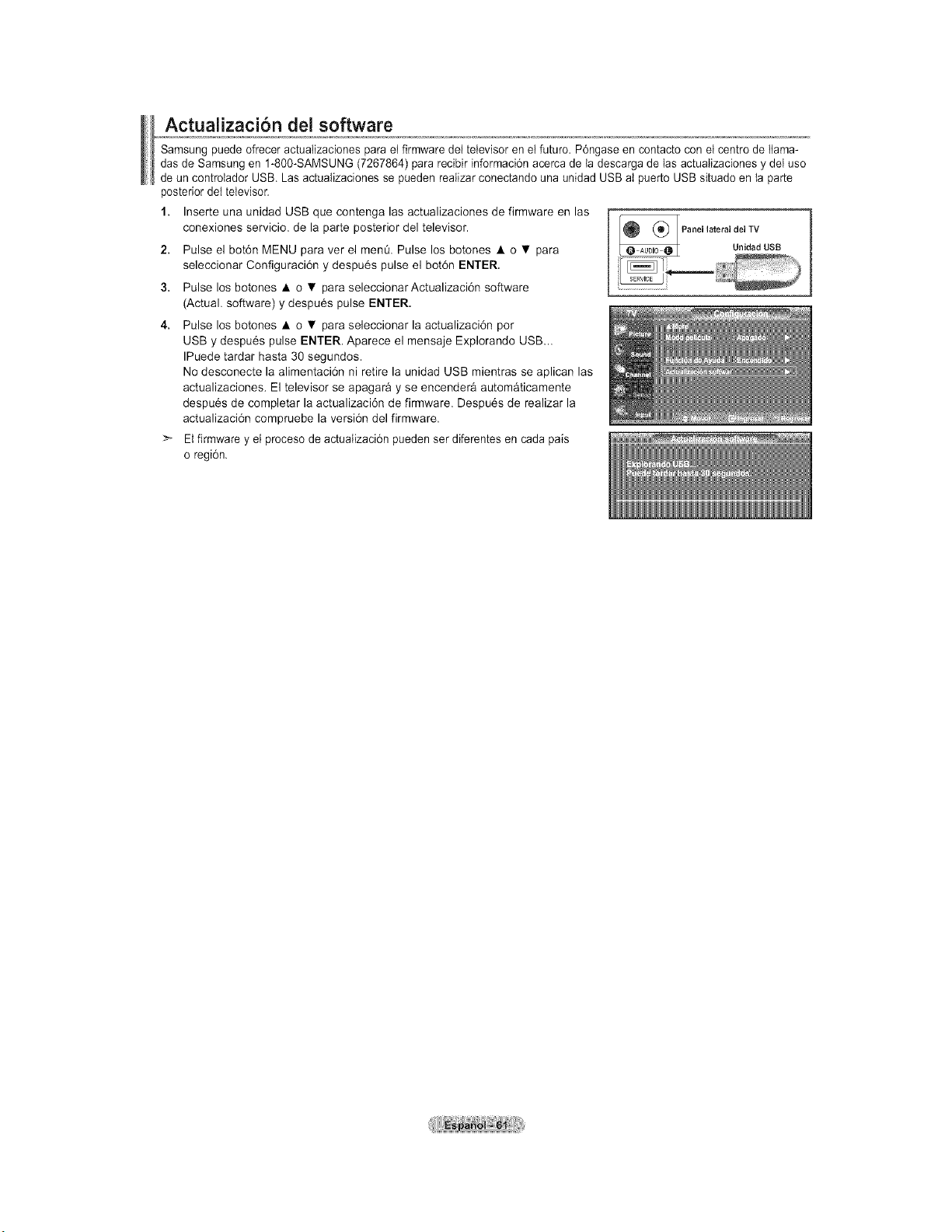
ActualizacJ6n deJ software
Samsung puede ofrecer actualizaciones para el firmware del televisor en el futuro. P6ngase en contacto con el centro de Ilama-
das de Samsung en 1-800-SAMSUNG (7267864) para recibir informaci6n acerca de la descarga de las actuaIizaciones y del use
de un controtador USB. Las actuatizaciones se pueden reatizar conectando una unidad USB at puerto USB situado en {a parte
posterior det televisor.
1. Inserte una unidad USB que contenga las actualizaciones de firmware en las
conexiones servicio, de la parte posterior del televisor. _ (_ Panel lateral del TV
2. Pulse el bot6n MENU para ver el men& Pulse los botones • o • para _ UnidadUSB
seleccionar Configuraci6n y despu6s pulse el bot6n ENTER.
3. Pulse los botones • o • para seleccionarActualizaci6n software
(Actual. software) y despu6s pulse ENTER.
4. Pulse los botones • o • para seleccionar la actualizaci6n por
USB y despu6s pulse ENTER. Aparece el mensaje Explorando USB...
IPuede tardar hasta 30 segundos.
No desconecte la alimentaci6n ni retire la unidad USB mientras se aplican las
actualizaciones. El televisor se apagar_ y se encender_ autom_ticamente
despu6s de completar la actualizaci6n de firmware. Despu6s de realizar la
actualizaci6n compruebe la versi6n del firmware.
_ Et firmware y el proceso de actuaIizaci6n pueden ser diferentes en cada pais
o regi6n.
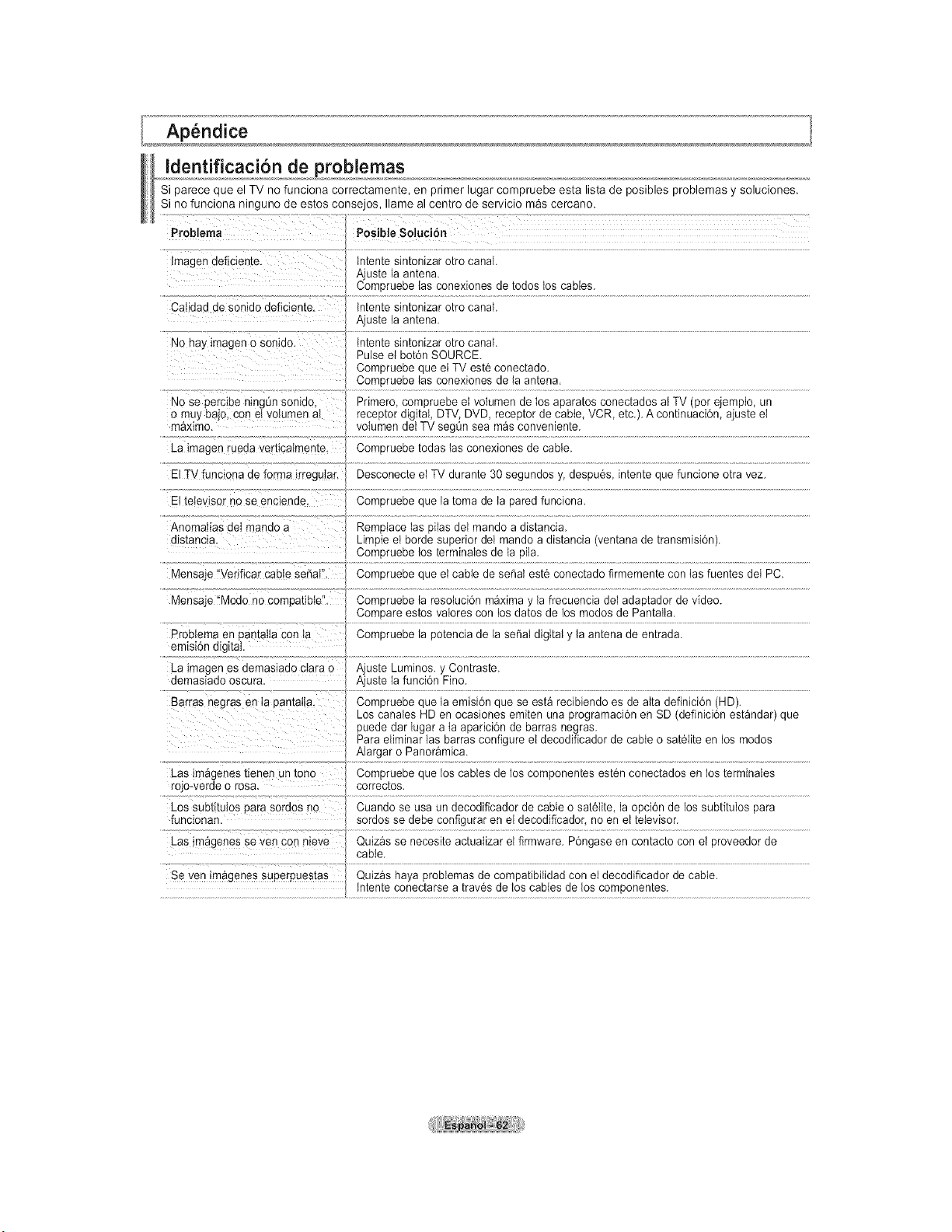
Identificaci6n de problemas
Si parece que el TV no funciona correctamente, en primer lugar compruebe esta lists de posibles problemas y soluciones.
Si no funciona ninguno de estos consejos, Ilame al centro de servicio mas cercano.
Posible Soluci6nProblems
Lmagendeficiente.
Cal aaa ae sonido deficiente.
No hay imagen o son_ao.
No se perc_benmgun son*so:
o muy bajo, con et votumen aI
_nsxlmc
La _magenrueaa vertlcatmente.
m[en[e sintonizar otro canal
Ajus[e Is amens
ComDruebe las conexiones de todos los Gables.
m[en[e sm[onlzar otro canal
Ajus[e la an[ena
tntente smtonlzar otro canaI
Pulse el bot6n SOURCE
ComDruebe aue el TV est6 conectado.
Come_ueuetas conexiones ae la antena.
Primero. compruebe el volumen de los aparatos conectados al TV (pot ejemplo, un
receptor c gital, DTV, DVD, receptor de cable, VCR, etc.). A continuaci6n, ajuste el
volumen dei TV seg0n sea mas conveniente.
ComDruebe todas las conexiones de cable.
El TV funciona de forms irregular. Desconecte el TV durante 30 segundos y, despu6s intente que funcione otra vez.
Et televisor no Se enciende.
Anomatias det mando a
distancia. Limpie el borde superior del mando a distancia (ventana de transmisi6n).
Compruebe los terminales de la pile.
Mensaje !'verificar CableSesa!'. Compruebe que el cable de sefiat eat6 conectado firmemente con tas fuentes det PC.
Mensaje '!Modo no compatible!'. Compruebe ta resolucbn maxima y la frecuencia del adaptador de video.
Compare estos vatores con los datos de los modos de Pantatla.
Pr0btema en pantatla con ta Compruebe la potencia de la se_aI digital y la antena de entrada.
emisi6n digital.
La imagen es demasiado clara 0 Ajuste Luminos. y Contraste.
demasiado oscura. Ajuste la funci6n Fino.
Barras negras en Ia pantatta. Compruebe que {aemisi6n que se est_ recibiendo es de aIta definicidn (HD).
ParsPUedeL°ScsnsIeSeliminsrdsr lugsr.DlsssanbsrrsstsOCSSioneSspsrici6nconfigureemitendebsrrSSe,decodificsdorUnSnegrss.progrsmsci6ndecabteanSD(definici6nosst61itean IoseSt_ndSr)modosqua
Las irn_genes tienen un tono Compruebe que los cables de los componentes est6n conectados en los terminales
rojo-verde o rosa. , 21[!£!!ts:
..................,1
Los subtitulos pars sordos no Cuando se usa un decodificador de cable o sat61ite,la opci6n de los subtitulos pars
funcionan, sordos se debe configurar en el decodificador, no en el televisor.
Quizgs se necesite actualizar el firmware. P6ngase en contacto con el proveedor de
cable.
Se yen imggenes superpuestas Quizgs hays problemas de compatibilidad con el decodificador de cable.
Intente conectarse a trav6s de los cables de los componentes.
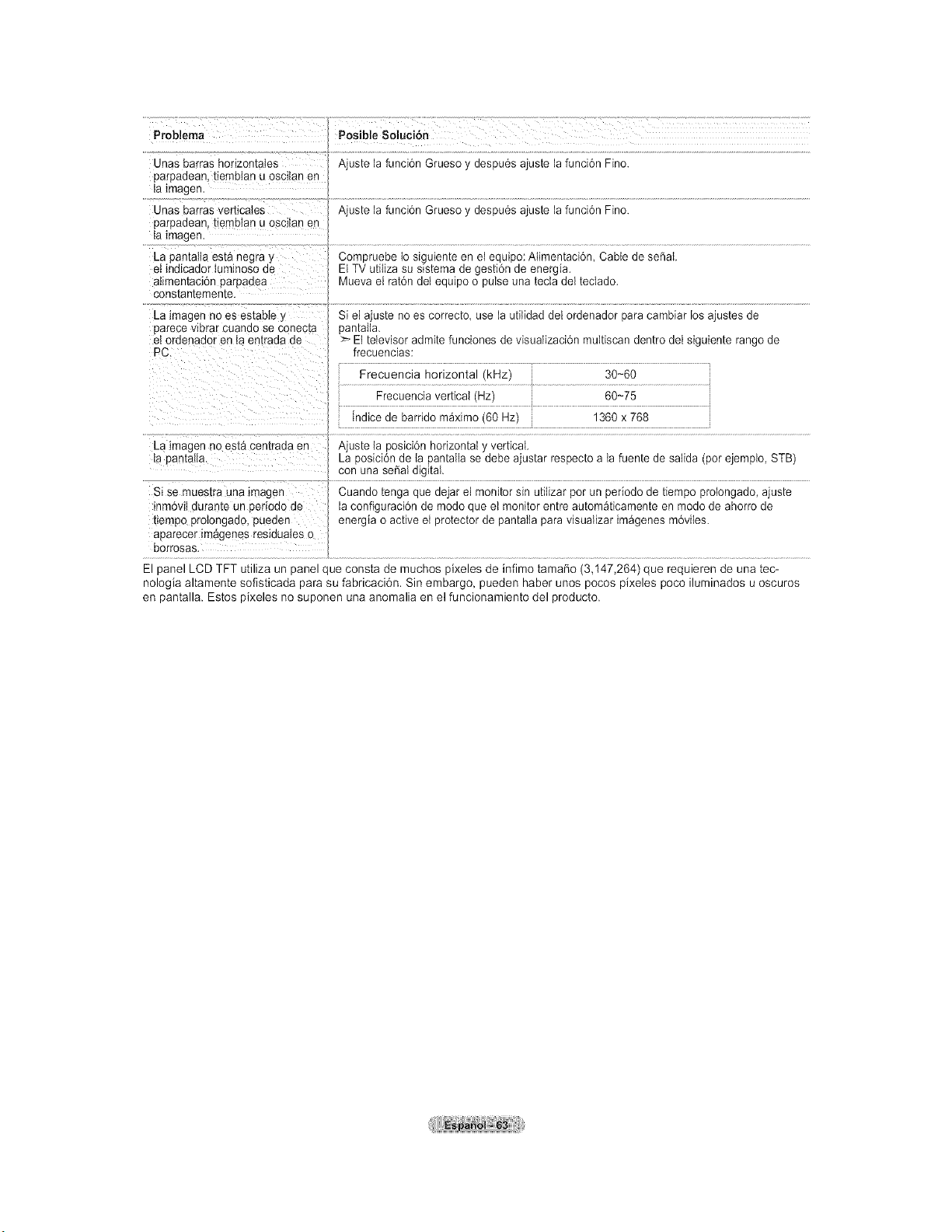
Probiema
Unas barras hodzontales
DarDaaean.tiembtan u oscitan en
la tmagen.
Unas barras verticales
paroaaean. [temblan u osc_tanen
la tmagen.
La Dan[alia es[a negra y
et mdlcador Iummoso de
atimentacion oaroaae_
cons[an[ememe.
La _magenno es estabIe y
parece viorar cuanao se conec[a
el ordenador en Ia entrada de
PC.
............ _ ....... _--
Posible Soluci6n
Ajus[e la funcidn Grueso y despu6s ajuste la funci6n Fino.
Ajus[e la funcidn Grueso y despu6s ajuste la funci6n Fino.
Comoruebe to siguiente en el equipo: Atimentaci6n, Cable de sePaL
E T utiiiza su sistema de gesti6n de energia.
Mueva el rat6n del equipo o pulse una tecta del teclado.
Si el ajuste no es correcto, use la utilidad del ordenador para cambiar los ajustes de
oantalta
:_ El televisor admite funciones de visualizacidn multiscan dentro del siguiente range de
frecuencias:
Frecuencia horizontal ',kHz)
Frecuencia vertical (Hz)
Jnalceae barrido m_ximo (60 Hz)
30-60
60-75
1360 x 768
La imagen no es[a cemraaa en
la pan[alia,
Si se mues[ra una lmagen
inmow auran[e ur periodo de
[_empoprotongado, pueaen
aparecer _m_genesres_duatesc
borrosas,
Ajus[e la posici6n horizontal y vertical.
La uosici6n ae ta pantalla se debe ajustar respecto a ta fuente de saIida (por ejemplo, STB)
son una sepal digital.
Cuando tenga que dejar el monitor sin utiiizar por un periodo de tiempo prolongado, ajuste
a configuraci6n de modo que el monitor entre automaticamente en modo de ahorro de
energia o active et protector de pantalla para visualizar im_genes m6viles.
El panel LCD TFT utiliza un panel que consta de muchos pixeles de infimo tamafio (3,147,264) que requieren de una tec-
nologia altamente sofisticada para su fabricaci6n. Sin embargo, pueden haber unos pocos pixeles poco iluminados u oscuros
en pantalla. Estos pixeles no suponen una anomalia en el funcionamiento del producto.
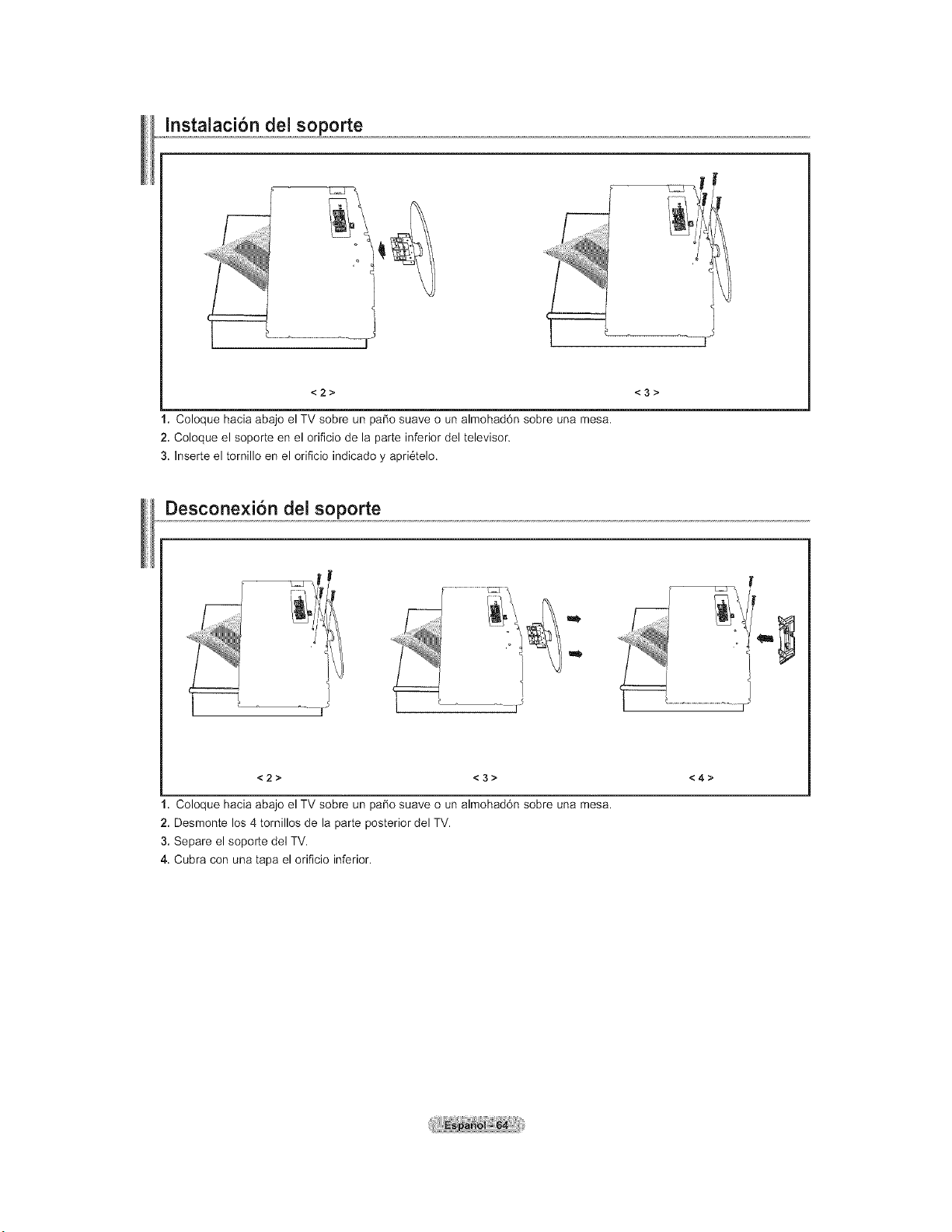
Instalaci6n del soporte
<2> <3>
1. Coloque hacia abajo el TV sobre un patio suave o un almohad6n sobre una mesa.
2. Coloque el soporte en el orificio de la parte inferior del televisor.
3. Inserte el tornillo en el orificio indicado y apri6telo.
Desconexi6n del soporte
m
m
--I
<2> <3> <4>
1. Coloque hacia abajo el TV sobre un paso suave o un almohad6n sobre una mesa.
2. Desmonte los 4 tornillos de la parte posterior del TV.
3. Separe el soporte del TV.
4. Cubra con una tapa el orificio inferior.
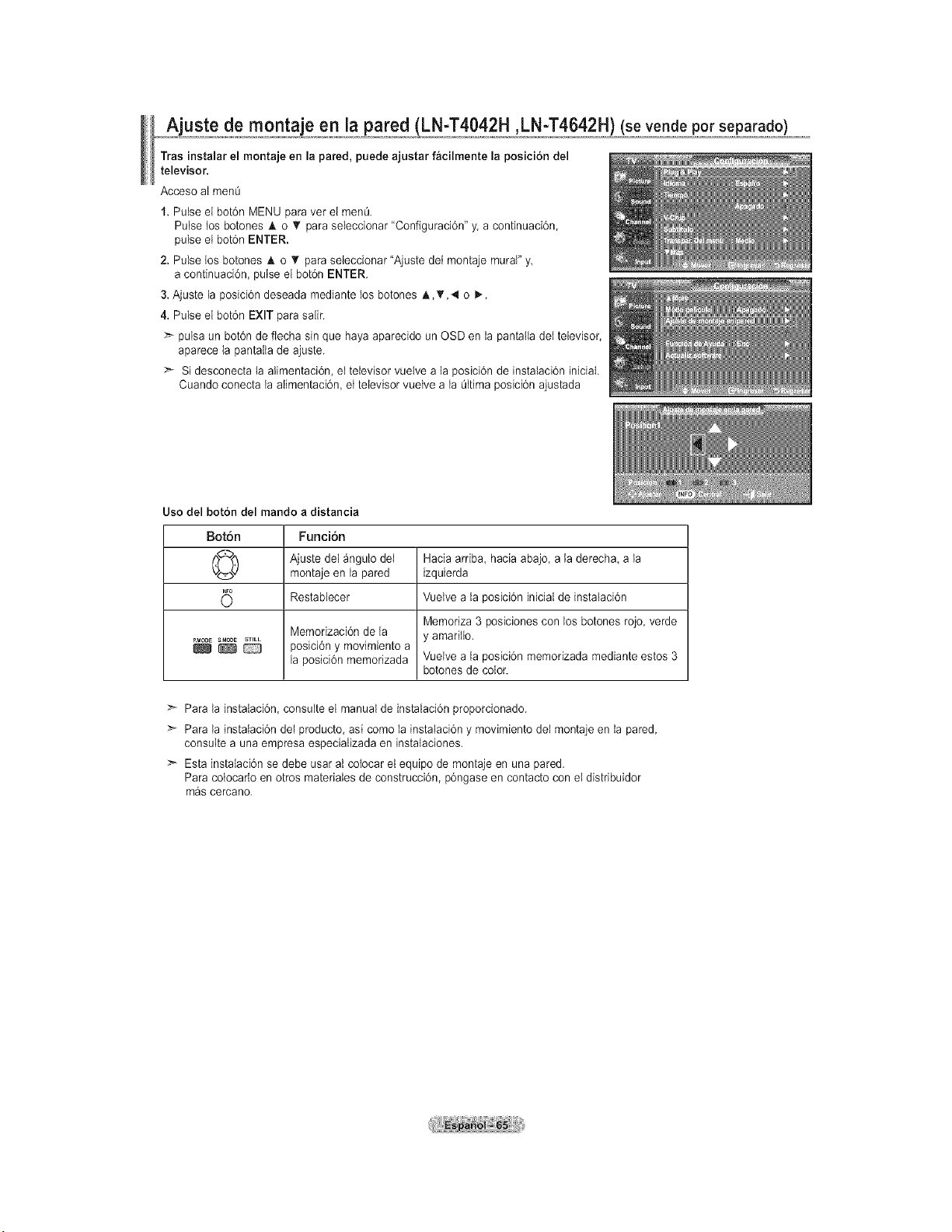
Ajuste de montaie en ia pared (LN-T4042H ,LN-T4642H) (se vende pot separado)
Tras instalar el montaje en la pared, puede ajustar facilmente la posicion del
televisor.
Acceso ai men0
1. Pulse el bot6n MENU para vet el men0.
Pulse los botones _k o _' para seleccionar "Configuraci6n" y. a continuaci6n,
pulse el bot6n ENTER.
2. Pulse los botones A o _' para seleccionar "Ajuste det montaje mural" y,
a continuaci6n, pulse el bot6n ENTER.
3. Ajuste la posici6n deseada mediante los botones h.,T,4 o I,..
4. Pulse el bot6n EXIT para salir.
pulsa un bot6n de flecha sin que haya aparecido un OSD en la pantalla det televisor,
aparece la pantalla de ajuste.
>- Si desconecta la alimentacidn, el televisor vuelve a la posici6n de instaIaci6n iniciaL
Cuando conecta la aIimentaci6n, et televisor vuetve a la Oltimaposici6n ajustada
Uso del boton del mando a distancia
Boton Funci6n
(_) Ajuste del _ngulo del Hacia ardba, hacia abajo, a la derecha, a la
montaje en la pared izquierda
Restabtecer Vuetve a la posici6n iniciaI de instalaci6n
Memoriza 3 posiciones con los botones rojo, verde
Memorizaci6n de la y amarillo.
PMo_ SMODE 5TELL
_ _ posici6n y movimiento a
la posici6n memorizada Vuelve a la posici6n memorizada mediante estos 3
botones de color.
Para la instalaci6n, consulte el manual de instalaci6n proporcionado.
Para la instalaci6n de{ producto, asi como la instalaci6n y movimiento del montaje en la pared,
consulte a una empresa especializada en instalaciones.
>_ Esta instalaci6n se debe usar at colocar et equipo de montaje en una pared.
Para co{ocado en otros materiaIes de construcci6n, p6ngase en contacto con et distribuidor
m_s cercano.
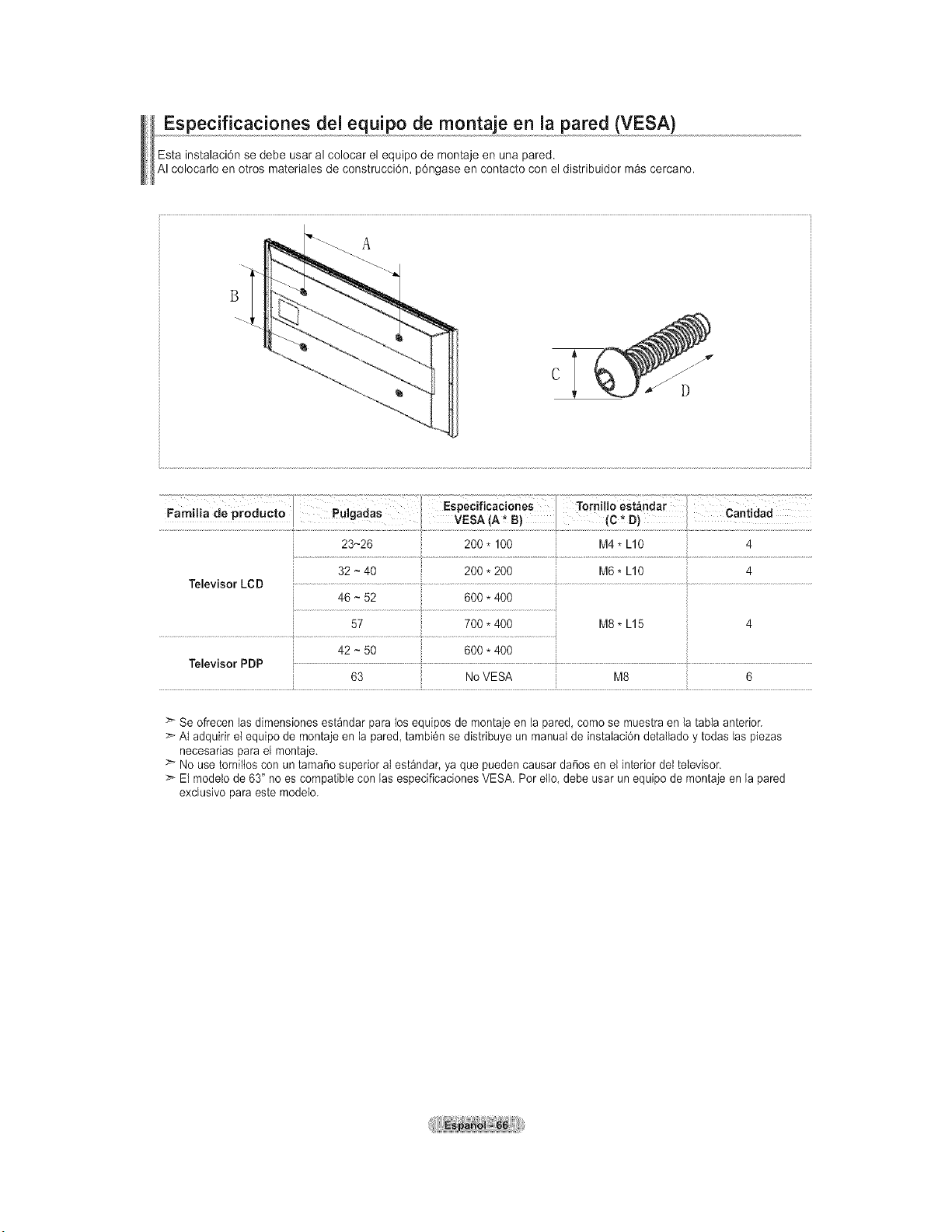
Especificaciones del equipo de montaje en la pared (VESA)
Esta instalaci6n se debe usar al colocar el equipo de montaje en una pared.
AI colocarlo en otros materiales de construcci6n, p6ngase en contacto con el distribuidor m&s cercano.
.............................................................._ EsPecfcacones ! Torn o esi_ndar ....................................
ham a ae proaucto _U gaaas VESA A* B C * D Cant dad
32 ~ 40 200 * 200 M6 * L10 4
Televisor LCD ...............................................................................................
46 ~ 52 600 * 400
57 700 * 400 M8 * L15 4
42 ~ 50
Televisor PDP
63 No VESA 6
:_ Se ofrecen las dimensiones est_ndar para los equipos de montaje en la pared, como se muestra en la tabIa anterior.
AI adquirir el equipo de montaje en ia pared, tambi6n se distribuye un manual de instaIaci6n detallado y todas las piezas
necesarias para el montaje.
:_ No use tornilios con un tamaSo superior al est_ndar, ya que pueden causar daSos en el interior del televisor.
>- El modelo de 63" no es compatible con las especiflcaciones VESA. Pot ella, debe usar un equipo de montaje en la pared
exclusivo para este modeto.
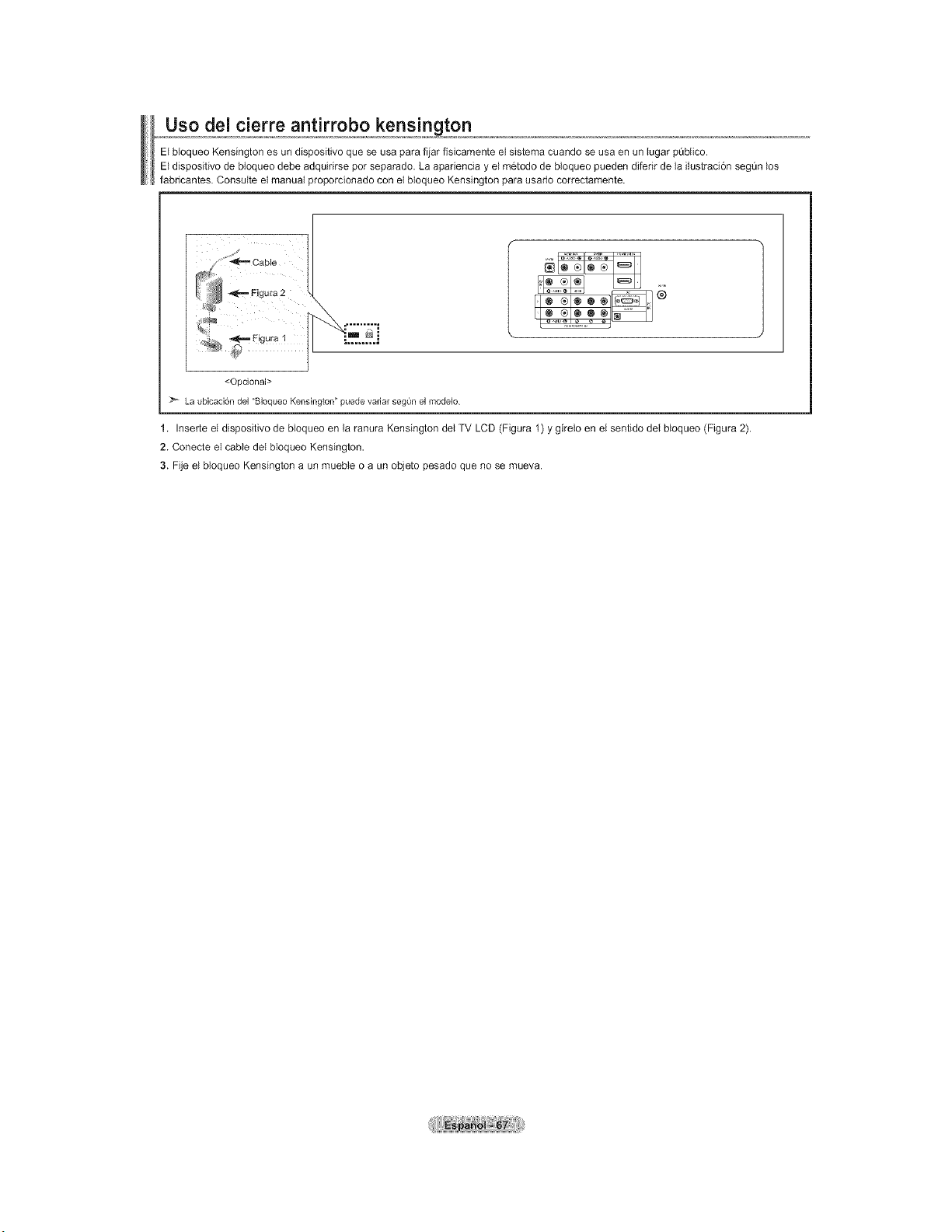
Uso del cierre antirrobo kensington
El bloqueo Kensington es un dispositivo que se usa para fijar fisicamente el sistema cuando se usa en un lugar pQblico.
El dispositivo de bloqueo debe adquidrse pot separado. La apadencia y el m6todo de bloqueo pueden diferir de la ilustraci6n segQn los
fabdcantes. Consulte el manual proporcionado con el bloqueo Kensington para usado correctamente.
<Opcional>
La ubicaci6n del "Bloqueo Kensington" puede variar seg_n el modelo
1. Inserte el dispositivo de bloqueo en la ranura Kensington del TV LCD (Figura 1) y girelo en el sentido del bloqueo (Figura 2).
2. Conecte el cable del bloqueo Kensington.
3. Fije el bloqueo Kensington a un mueble o a un objeto pesado que no se mueva.
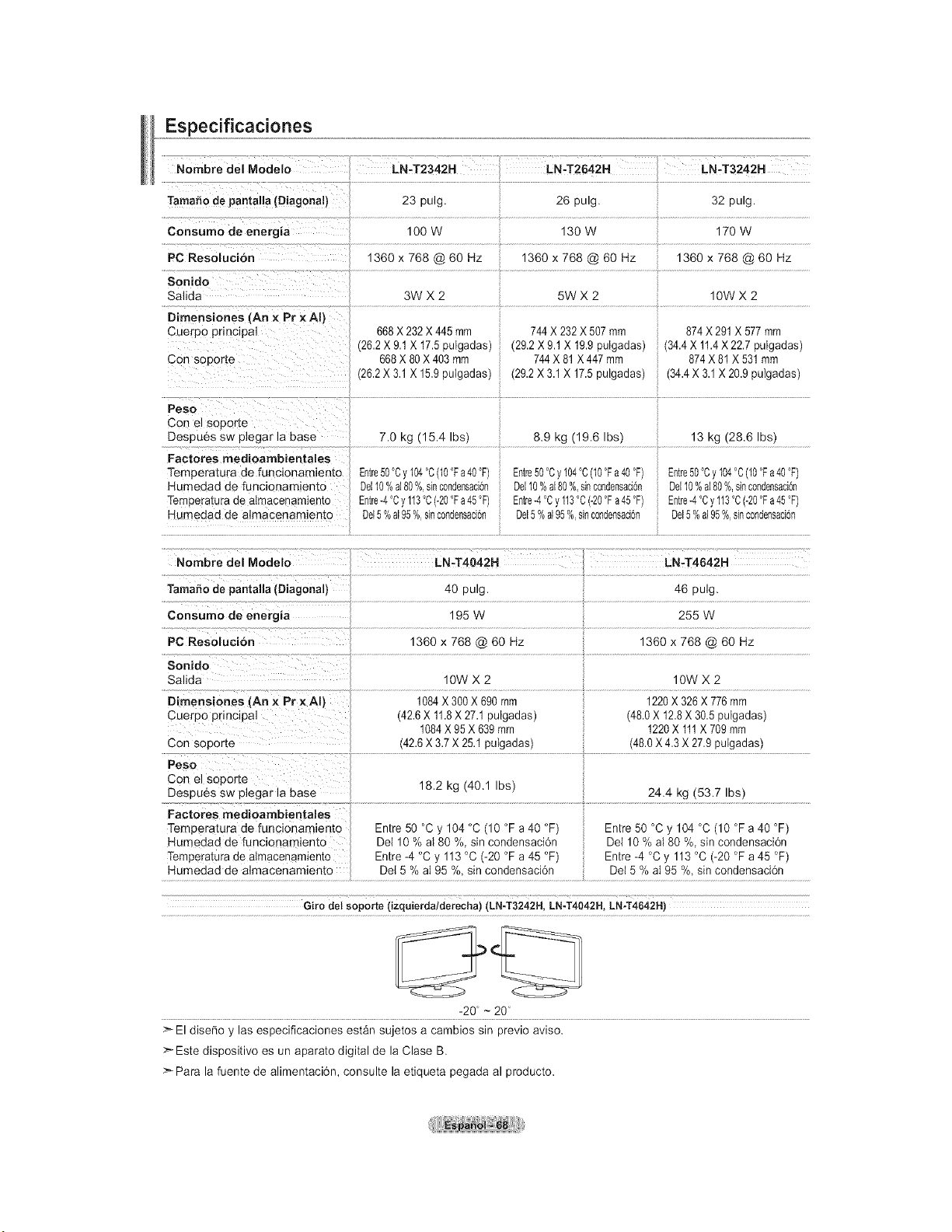
Especificaciones
Nombre del Modelo
Tamafio de pantalla (Diagonal)
Consumo de energia
PC Resoluci6n
Sonido
Salida
Dimensiones (An x Pr × AI}
Cuerpo pnnclpai
Con soporte
Peso
Con el soporte
Despues sw plegar la base
Factores medioambientales
Temperatura de funcionamiento
Hume(]ad de funcionamiento
Tempera[ura ae almacenamiemo
Humedad de almacenamiento
............ ,.,2042, L":T3242".....
23 ping 26 pulg. 32 pulg.
100 N 130 W 170 W
1360 x 768 @ 60 Hz 1360 x 768 @ 60 Hz 1360 x 768 @ 60 Hz
3WX2 5WX2 IOWX2
668X 232X 445 mm
26.2X 9.1X 17.5Du ]ac]as
668X 80X 403 mm
26.2X 3.1 X 15.9DU_aaas
7.0 kg (15.4 Ibs)
Entre50°Cy 104°C(I0 °Fa40°F)
De110%a180% s_nconaensacl0n
Entre-4°0y 113°C(-20°Fa45°F)
Del5%a195% s_ncon0ensaclon
744X 232X 507mm
29.2X 9.1 X 19.9pulgadas)
744X 81X 447 mm
29.2X 3.1 X 17.5pulgadas)
8.9 kg (19.6 Ibs)
Entre50°Cy 104°C(I0°Fa40°F)
De110X a[80%,sinc0ndensad6n
Entre-4°Cy113°C(-20°Fa45°F)
Del5%a195%=sinc0ndensad6n
874X 291 X 577 mm
34.4X 11.4X 22.7 pulgadas)
874 X 81 X 531rnm
(34.4X 3.1X 20.9 pulgadas)
13 kg (28.6 Ibs)
Entre50°Cy 104°C(10°Fa40°F)
De110%a180%,sinc0ndensacbn
i Entre-4°Cy 113°C(-20°Fa45°F)
Del5%a195%=sinc0ndensacbn
.................................................................................................................................................................................................................................................i..................................................................................................................................................................................................................................
.......['iombre del M0delo LN,T4042H :7 LN-T4642H
i ................................................................................................................................................................................................................................................................................................................................................
Consume de energia 195 W 255 W
Sonido
Salida IOWX2 IOWX2
Dimensienes (An x Pr xAI) 1084X 300X 690mm 1220X 326X 776mm
Cuerpo principal (42.6X 11.8X 27.1 pulgadas) (48.0X 12.8X 30.5 pulgadas)
1084X 95X 639mm 1220X 111X 709 mm
Con soporte (42.6x 3.7 x 25.1pulgadas) (48.0 X4.3 X 27.9 pulgadas)
Con el seporte 18.2 kg (40.1 Ibs)
Despues sw plegar la base ...............................................................................................................................................................................................................................................................................................
Factores medioambientales
Temperatura de funcionamiento Entre 50 °C y 104 °C (10 °F a 40 °F) Entre 50 °C y 104 °C (10 °F a 40 °F)
Humedad de funcionamient0 De110 % al 80 %, sin condensaci6n De110 % al 80 %, sin condensaci6n
Temperatura de a!macenamiento Entre -4 °C y 113 °C (-20 °F a 45 °F) Entre -4 °C y 113 °C (-20 °F a 45 °F)
Humedad de almacenamiento De{ 5 % aI 95 %, sin condensacidn Del 5 % aI 95 %, sin condensacidn
Giro detsoporte (izquierda/derecha)(LN-T3242H,LN-T4042H,LN-T4642H)
-20 - 20
>-El diser_o y las especificaciones est&n sujetos a cambios sin previo aviso.
>- Este dispositivo es un aparato digital de la Clase B.
>- Para la fuente de alimentaci6n, consulte la etiqueta pegada al producto.
ContactSAMSUNGWORLD-WIDE
If you have any questions o comments relating to Samsung products, please contact the SAMSUNG
customer care center.
Contacte con SAMSUNG WORLD-WIDE
Si tiene alguna pregunta o comentario referente a nuestros productos, por favor contacte con nuestro Servicio de
Atenci6n al Cliente.
r.L.,r,, ......................................
Customer Care Center"Z_ Web Site Address
Samsung Electronics Canada Inc., Customer
Service 55 Standish Court Mississauga, Ontario
L5R 4B2 Canada
CA.ADAt-800-SAMSU.G(7267864)www.samsung.com/ca ...............
_ la Client61e 55 Standish Court Mississauga,
Ontario L5R 4B2 Canada
Samsung Electronics America, Inc.
U.S.A 1-800-SAMSUNG (7267864) www.samsung.com 105 Challenger Road
Ridgefield Park, NJ 07660-0511
BN68-O1167A-O0
Contact SAMSUNG WORLD-WIDE
If you have any questions or comments relating to Samsung prortucts, please contact the SAMSUNG
customer care center.
Contacte con SAMSUNG WORLD-WIDE
Si tiene alguna pregunta o comentario referente a nuestros prortuctos, pot favor contacte con nuestro Servicio de
Atencion al Cliente.
Country Customer Care Center_ Web Site Address
Samsung Electronics Canada Inc, Customer
Service 55 Standish Court Mississauga,
Ontario L5R 4B2 Canada
CANADA 1-880-SAMSUNG (7267864) _/samsung.com/ca
Samsung Electronique Canada Inc.,
Service _ la Cfientele 55 Slandish Court
Mississauga, Ontario L5R 4B2 Canada
Samsung Electronics America, Inc.
USA 1-800-SAMSUNG (7267864) www.samsung.com 105 Challenger Road
Ridgefield Park, NJ 07660-0511
BN68-01167A-00