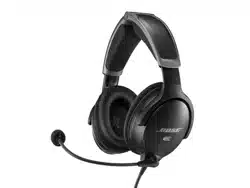
A30 AVIATION HEADSET

2
|
ENG
IMPORTANT SAFETY INSTRUCTIONS
Please read and keep all safety and use instructions.
For more information about your A30 Aviation Headset, visit: support.Bose.com/A30support.Bose.com/A30
Bose Corporation hereby declares that this product is in compliance with the essential requirements and
other relevant provisions of Directive 2014/53/EU and all other applicable EU directive requirements. The
complete declaration of conformity can be found at: www.Bose.com/compliancewww.Bose.com/compliance
This product conforms to all applicable EU directive requirements. The complete declaration of conformity
can be found at: www.Bose.com/compliancewww.Bose.com/compliance
This product conforms to all applicable Electromagnetic Compatibility Regulations 2016 and all other
applicable UK regulations. The complete declaration of conformity can be found at:
www.Bose.com/compliancewww.Bose.com/compliance
Bose Corporation hereby declares that this product is in compliance with the essential requirements per
Radio Equipment Regulations 2017 and all other applicable UK regulations. The complete declaration of
conformity can be found at: www.Bose.com/compliancewww.Bose.com/compliance
WARNINGS/CAUTIONS
• To reduce the risk of fire or electrical shock, do NOT expose this product to rain, dripping, splashing, or moisture and
do not place liquid filled objects such as vases, on or near the product.
• Do NOT make unauthorized alterations to this product.
• The battery provided with this product may present a risk of fire, explosion or chemical burn if mishandled,
incorrectly replaced or replaced with an incorrect type.
• If the battery leaks, do NOT allow the liquid to come in contact with the skin or eyes. If contact is made, seek
medical advice.
• Do not expose products containing batteries to excessive heat (e.g. from storage in direct sunlight, fire or the like).
• Keep batteries out of reach of children.
• Please dispose of used batteries properly, following any local regulations.
• Batteries may cause a fire or chemical burn if mishandled. Do not recharge, disassemble, heat, or incinerate.
Contains small parts which may be a choking hazard. Not suitable for children under age 3.
This product contains magnetic material. Consult your physician on whether this might aect your
implantable medical device.
NOTE: Damage could occur to avionics equipment by the use of these headsets if equipment was manufactured for
use with 600 Ω headsets only. If in doubt, consult the avionics equipment manufacturer.
Please read and save this guide
Please read this guide carefully. Save this guide for future reference and make it easily accessible for passengers and
third parties who use this headset.
• Switch to an alternate communications method in the event of a headset issue.
In the unlikely event of any headset issue or failure in the passive noise reducing mode, switch to an alternate
communications method and use standard cockpit resource management skills to minimize distractions.
• Use the headset at a moderate volume level.
To avoid hearing damage, use the headset at a comfortable, moderate volume level. Limit the headset volume to
safe levels that do not interfere with your ability to hear informational sounds and warning alarms, such as stall
warnings or gear up, while piloting.

IMPORTANT SAFETY INSTRUCTIONS
3
|
ENG
• Turn the headset o if it emits any loud noise.
As with any complex electronic device, it is possible for this headset to fail during operation. Symptoms of failure,
which may include loud tones, distortion, feedback squeals and loss of communications signal in the headset, can
occur in either the Acoustic Noise Cancelling mode (turned on) or in the passive mode (turned o). If the headset
emits any loud noise and the related loss of communications in the Acoustic Noise Cancelling mode, turn o the
power switch. The headset will continue to provide communications in the passive noise-reducing mode. If the
problem persists, see “Troubleshooting” on page 54.
• Be aware of sound dierences while wearing the headset.
With the headset’s active and passive noise reduction, typical aircraft sounds (such as engines, propellers, warning
alarms, and other sound sources) may not sound familiar. Make sure you can hear and recognize these sounds when
using the headset while operating any aircraft.
• Do NOT make phone calls while piloting.
Do not use the headset for telephone calls during flight operations.
• Make sure your aircraft communications system volume control is easily accessible.
This control aects the strength of the communications signal coming into the headset. Make sure you can
understand critical communications even with Acoustic Noise Cancelling mode turned o. In this case, you may
need to turn up the aircraft communications system volume. In passive mode, the volume controls on the control
module will automatically be set to maximum volume. For additional volume control, use the intercom or radio
volume control. If your headset is aircraft powered, connect the headset to the aircraft power sources only as
described in “Aircraft Connectors” on page 34.
• Make sure portable devices do not interfere with the aircraft’s navigation and communication systems.
Reference FAA AC 91.21-1D, or later revision, for installation approval.
It is the pilot’s responsibility to ensure that portable devices do not interfere with the aircraft’s navigation and
communication systems, as well as to determine if the portable device is suitable for use with the headset.
• Use AA (LR06) batteries, alkaline preferred.
Alkaline batteries are recommended for best results. Other battery chemistries may yield dierent results. Battery
life may dier and battery life indication may not be accurate. Properly dispose of used batteries.
• Do NOT repair the headset yourself.
Contact the Bose organization in your country/region for specific care, return and shipping instructions.
Visit: global.Bose.comglobal.Bose.com
• Do not use the headset with a helmet or as part of a crash protection system.
The headset is not intended for such use, and has not been certified for crash protection. Dismantling, reassembly
or modification of the headset, or any part, for use in a helmet or other crash protection system could result in
severe bodily injury and such unauthorized use will void the limited product warranty.
• Do NOT immerse the headset or any parts in water or any other liquid.
See “Clean the headset” on page 48 for cleaning instructions.
• Keep the earcup free of debris.
Proper headset operation requires that the headset acoustic and microphone openings located on the outside of
each earcup are kept free of debris to ensure clear communications. See “Clean the headset” on page 48 for
cleaning instructions.
4
|
ENG
REGULATORY AND LEGAL INFORMATION
NOTE: This equipment has been tested and found to comply with the limits for a Class B digital device, pursuant to
Part 15 of the FCC Rules. These limits are designed to provide reasonable protection against harmful interference in a
residential installation. This equipment generates, uses, and can radiate radio frequency energy and, if not installed
and used in accordance with the instructions, may cause harmful interference to radio communications. However,
there is no guarantee that interference will not occur in a particular installation. If this equipment does cause harmful
interference to radio or television reception, which can be determined by turning the equipment o and on, the user
is encouraged to try to correct the interference by one or more of the following measures:
• Reorient or relocate the receiving product or antenna.
• Increase the separation between the equipment and receiver.
• Connect the equipment into an outlet on a circuit dierent from that to which the receiver is connected.
• Consult the dealer or an experienced radio/TV technician for help.
Changes or modifications not expressly approved by Bose Corporation could void the user’s authority to
operate this equipment.
This device complies with part 15 of the FCC Rules and with ISED Canada license-exempt RSS standard(s). Operation
is subject to the following two conditions: (1) This device may not cause harmful interference, and (2)
this device must accept any interference received, including interference that may cause undesired operation.
La operación de este equipo está sujeta a las siguientes dos condiciones: (1) es posible que este equipo o dispositivo
no cause interferencia perjudicial y (2) este equipo o dispositivo debe aceptar cualquier interferencia, incluyendo la
que pueda causar su operación no deseada.
This device complies with FCC and ISED Canada radiation exposure limits set forth for general population.
This transmitter must not be co-located or operating in conjunction with any other antenna or transmitter.
FCC ID: A94429358
CAN ICES-3(B)/NMB-3(B)
For Europe:
Frequency band of operation 2400 to 2483.5 MHz.
Maximum transmit power less than 20 dBm EIRP.
Maximum transmit power is below regulatory limits such that SAR testing is not necessary and exempt per
applicable regulations.
This symbol means the product must not be discarded as household waste, and should be delivered to an
appropriate collection facility for recycling. Proper disposal and recycling helps protect natural resources,
human health and the environment. For more information on disposal and recycling of this product, contact
your local municipality, disposal service, or the shop where you bought this product.
Please dispose of used batteries properly, following local regulations. Do not incinerate.
5
|
ENG
REGULATORY AND LEGAL INFORMATION
Low-power Radio-frequency Devices Technical Regulations
Without permission granted by the NCC, any company, enterprise, or user is not allowed to change frequency,
enhance transmitting power or alter original characteristic as well as performance to a approved low power
radio-frequency devices. The low power radio-frequency devices shall not influence aircraft security and interfere
legal communications; If found, the user shall cease operating immediately until no interference is achieved. The
said legal communications means radio communications is operated in compliance with the Telecommunications
Management Act. The low power radio-frequency devices must be susceptible with the interference from legal
communications or ISM radio wave radiated devices.
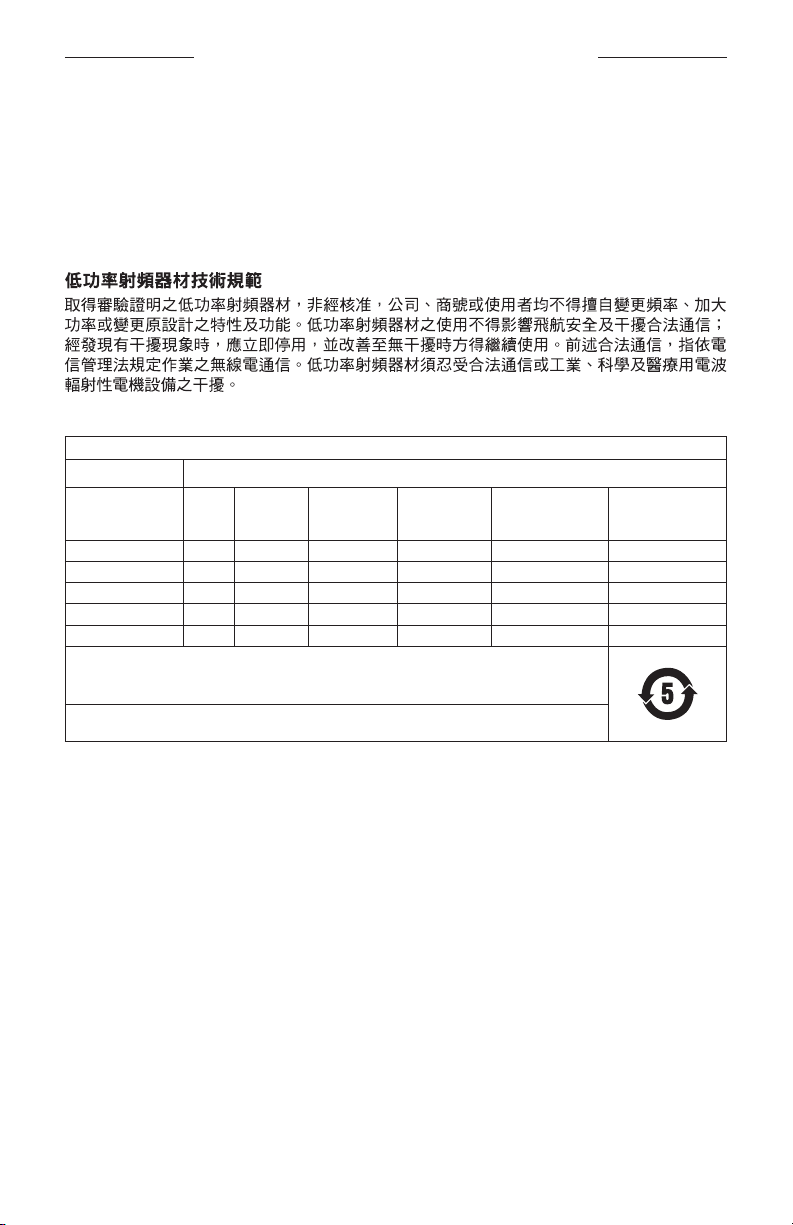
China Restriction of Hazardous Substances Table
Names and Contents of Toxic or Hazardous Substances or Elements
Toxic or Hazardous Substances and Elements
Part Name
Lead
(Pb)
Mercury
(Hg)
Cadmium
(Cd)
Hexavalent
(CR(VI))
Polybrominated
Biphenyl
(PBB)
Polybrominated
diphenylether
(PBDE)
PCBs X O O O O O
Metal Parts X O O O O O
Plastic Parts O O O O O O
Speakers X O O O O O
Cables X O O O O O
This table is prepared in accordance with the provisions of SJ/T 11364.
O: Indicates that this toxic or hazardous substance contained in all of the homogeneous materials for this
part is below the limit requirement of GB/T 26572.
X: Indicates that this toxic or hazardous substance contained in at least one of the homogeneous materials
used for this part is above the limit requirement of GB/T 26572.

6
|
ENG
REGULATORY AND LEGAL INFORMATION
Date of Manufacture: The eighth digit in the serial number indicates the year of manufacture; “3” is 2013 or 2023.
China Importer: Bose Electronics (Shanghai) Company Limited, Level 6, Tower D, No. 2337 Gudai Rd. Minhang
District, Shanghai 201100
EU Importer: Bose Products B.V., Gorslaan 60, 1441 RG Purmerend, The Netherlands
Mexico Importer: Bose de México S. de R.L. de C.V., Avenida Prado Sur #150, Piso 2, Interior 222 y 223, Colonia Lomas
de Chapultepec V Sección, Miguel Hidalgo, Ciudad de México, C.P. 11000 Phone Number: +5255 (5202) 3545
Taiwan Importer: Bose Limited Taiwan Branch (H.K.), 9F., No.10, Sec. 3, Minsheng E. Road, Zhongshan Dist. Taipei City
10480, Taiwan Phone Number: +886-2-2514 7676
UK Importer: Bose Limited, Bose House, Quayside Chatham Maritime, Chatham, Kent, ME4 4QZ, United Kingdom
Model: 429358. The CMIIT ID is located on the inside of the battery cover.
Please complete and retain for your records
The serial and model numbers are located under the headband cushion.
Serial number: ____________________________________________________________________
Model number: ____________________________________________________________________
Please keep your receipt with your owner’s guide. Now is a good time to register your Bose product.
You can easily do this by going to worldwide.Bose.com/ProductRegistrationworldwide.Bose.com/ProductRegistration
The Bose Privacy Policy is available at worldwide.Bose.com/privacypolicyworldwide.Bose.com/privacypolicy
The Bose Terms of Use are available at worldwide.Bose.com/termsofuseworldwide.Bose.com/termsofuse
Apple and the Apple logo are trademarks of Apple Inc. registered in the U.S. and other countries. App Store is a
service mark of Apple Inc.
Android, Google Play, and the Google Play logo are trademarks of Google LLC.
The Bluetooth
®
word mark and logos are registered trademarks owned by Bluetooth SIG, Inc. and any use of such
marks by Bose Corporation is under license.
Bose Corporation Headquarters: 1-877-230-5639
A20, Acoustic Noise Cancelling, Bose, and Bose A30 Aviation Headset are trademarks of Bose Corporation.
©2023 Bose Corporation. No part of this work may be reproduced, modified, distributed, or otherwise used without
prior written permission.

7
|
ENG
LICENSE DISCLOSURES
The following license disclosures apply to certain third-party software packages used as components in the product.
Package: LittlevGL Version 7.10.1
Copyright © 2020 LVGL LLC
Package: pycrc
Copyright © 2006-2015, Thomas Pircher <tehpeh-web@tty1.net>
The above is/are subject to the license terms reprinted below:
MIT License
Permission is hereby granted, free of charge, to any person obtaining a copy of this software and associated docu-
mentation files (the “Software”), to deal in the Software without restriction, including without limitation the rights to
use, copy, modify, merge, publish, distribute, sublicense, and/or sell copies of the Software, and to permit persons to
whom the Software is furnished to do so, subject to the following conditions:
The above copyright notice and this permission notice shall be included in all copies or substantial portions of the
Software.
THE SOFTWARE IS PROVIDED “AS IS”, WITHOUT WARRANTY OF ANY KIND, EXPRESS OR IMPLIED, INCLUDING
BUT NOT LIMITED TO THE WARRANTIES OF MERCHANTABILITY, FITNESS FOR A PARTICULAR PURPOSE AND
NONINFRINGEMENT. IN NO EVENT SHALL THE AUTHORS OR COPYRIGHT HOLDERS BE LIABLE FOR ANY CLAIM,
DAMAGES OR OTHER LIABILITY, WHETHER IN AN ACTION OF CONTRACT, TORT OR OTHERWISE, ARISING FROM,
OUT OF OR IN CONNECTION WITH THE SOFTWARE OR THE USE OR OTHER DEALINGS IN THE SOFTWARE.
Package: MCUXpresso Software Development Kit (SDK)
©2006-2021 NXP Semiconductors. All rights reserved.
The above is/are subject to the license terms reprinted below:
3-Clause BSD License
(Also called “BSD License 2.0” or “Modified BSD License”)
Redistribution and use in source and binary forms, with or without modification, are permitted provided that the
following conditions are met:
• Redistributions of source code must retain the above copyright notice, this list of conditions and the following
disclaimer.
• Redistributions in binary form must reproduce the above copyright notice, this list of conditions and the following
disclaimer in the documentation and/or other materials provided with the distribution.
• Neither the name of the <organization> nor the names of its contributors may be used to endorse or promote
products derived from this software without specific prior written permission.
THIS SOFTWARE IS PROVIDED BY THE COPYRIGHT HOLDERS AND CONTRIBUTORS “AS IS” AND ANY EXPRESS OR
IMPLIED WARRANTIES, INCLUDING, BUT NOT LIMITED TO, THE IMPLIED WARRANTIES OF MERCHANTABILITY AND
FITNESS FOR A PARTICULAR PURPOSE ARE DISCLAIMED. IN NO EVENT SHALL <COPYRIGHT HOLDER> BE LIABLE
FOR ANY DIRECT, INDIRECT, INCIDENTAL, SPECIAL, EXEMPLARY, OR CONSEQUENTIAL DAMAGES (INCLUDING,
BUT NOT LIMITED TO, PROCUREMENT OF SUBSTITUTE GOODS OR SERVICES; LOSS OF USE, DATA, OR PROFITS; OR
BUSINESS INTERRUPTION) HOWEVER CAUSED AND ON ANY THEORY OF LIABILITY, WHETHER IN CONTRACT, STRICT
LIABILITY, OR TORT (INCLUDING NEGLIGENCE OR OTHERWISE) ARISING IN ANY WAY OUT OF THE USE OF THIS
SOFTWARE, EVEN IF ADVISED OF THE POSSIBILITY OF SUCH DAMAGE.

8
|
ENG
LICENSE DISCLOSURES
Packages: CMSIS Version 5.6.0 & SDK CMSIS Peripheral Drivers 2.x.x
Copyright © 2010-2017 ARM Limited or its aliates. All rights reserved.
Package: Mbed TLS Version 2.26.0
Copyright © 2021 Arm Limited (or its aliates).
The above is/are subject to the license terms reprinted below:
Apache License
Version 2.0, January 2004
http://www.apache.org/licenses/
TERMS AND CONDITIONS FOR USE, REPRODUCTION, AND DISTRIBUTION
1. Definitions.
“License” shall mean the terms and conditions for use, reproduction, and distribution as defined by Sections 1
through 9 of this document.
“Licensor” shall mean the copyright owner or entity authorized by the copyright owner that is granting
the License.
“Legal Entity” shall mean the union of the acting entity and all other entities that control, are controlled by, or
are under common control with that entity. For the purposes of this definition, “control” means (i) the power,
direct or indirect, to cause the direction or management of such entity, whether by contract or otherwise, or (ii)
ownership of fifty percent (50%) or more of the outstanding shares, or (iii) beneficial ownership of such entity.
“You” (or “Your”) shall mean an individual or Legal Entity exercising permissions granted by this License.
“Source” form shall mean the preferred form for making modifications, including but not limited to software
source code, documentation source, and configuration files.
“Object” form shall mean any form resulting from mechanical transformation or translation of a Source form,
including but not limited to compiled object code, generated documentation, and conversions to other
media types.
“Work” shall mean the work of authorship, whether in Source or Object form, made available under the License,
as indicated by a copyright notice that is included in or attached to the work (an example is provided in the
Appendix below).
“Derivative Works” shall mean any work, whether in Source or Object form, that is based on (or derived from)
the Work and for which the editorial revisions, annotations, elaborations, or other modifications represent, as a
whole, an original work of authorship. For the purposes of this License, Derivative Works shall not include works
that remain separable from, or merely link (or bind by name) to the interfaces of, the Work and Derivative
Works thereof.
“Contribution” shall mean any work of authorship, including the original version of the Work and any
modifications or additions to that Work or Derivative Works thereof, that is intentionally submitted to Licensor
for inclusion in the Work by the copyright owner or by an individual or Legal Entity authorized to submit on
behalf of the copyright owner. For the purposes of this definition, “submitted” means any form of electronic,
verbal, or written communication sent to the Licensor or its representatives, including but not limited to
communication on electronic mailing lists, source code control systems, and issue tracking systems that are
managed by, or on behalf of, the Licensor for the purpose of discussing and improving the Work, but excluding
communication that is conspicuously marked or otherwise designated in writing by the copyright owner as “Not
a Contribution.”
“Contributor” shall mean Licensor and any individual or Legal Entity on behalf of whom a Contribution has been
received by Licensor and subsequently incorporated within the Work.

9
|
ENG
LICENSE DISCLOSURES
2. Grant of Copyright License. Subject to the terms and conditions of this License, each Contributor hereby grants
to You a perpetual, worldwide, non-exclusive, no-charge, royalty-free, irrevocable copyright license to reproduce,
prepare Derivative Works of, publicly display, publicly perform, sublicense, and distribute the Work and such
Derivative Works in Source or Object form.
3. Grant of Patent License. Subject to the terms and conditions of this License, each Contributor hereby grants to
You a perpetual, worldwide, non-exclusive, no-charge, royalty-free, irrevocable (except as stated in this section)
patent license to make, have made, use, oer to sell, sell, import, and otherwise transfer the Work, where such
license applies only to those patent claims licensable by such Contributor that are necessarily infringed by their
Contribution(s) alone or by combination of their Contribution(s) with the Work to which such Contribution(s)
was submitted. If You institute patent litigation against any entity (including a cross-claim or counterclaim in a
lawsuit) alleging that the Work or a Contribution incorporated within the Work constitutes direct or contributory
patent infringement, then any patent licenses granted to You under this License for that Work shall terminate as
of the date such litigation is filed.
4. Redistribution. You may reproduce and distribute copies of the Work or Derivative Works thereof in any medium,
with or without modifications, and in Source or Object form, provided that You meet the following conditions:
a. You must give any other recipients of the Work or Derivative Works a copy of this License; and
b. You must cause any modified files to carry prominent notices stating that You changed the files; and
c. You must retain, in the Source form of any Derivative Works that You distribute, all copyright, patent,
trademark, and attribution notices from the Source form of the Work, excluding those notices that do not
pertain to any part of the Derivative Works; and
d. If the Work includes a “NOTICE” text file as part of its distribution, then any Derivative Works that You
distribute must include a readable copy of the attribution notices contained within such NOTICE file, excluding
those notices that do not pertain to any part of the Derivative Works, in at least one of the following places:
within a NOTICE text file distributed as part of the Derivative Works; within the Source form or documentation,
if provided along with the Derivative Works; or, within a display generated by the Derivative Works, if and
wherever such third-party notices normally appear. The contents of the NOTICE file are for informational
purposes only and do not modify the License. You may add Your own attribution notices within Derivative
Works that You distribute, alongside or as an addendum to the NOTICE text from the Work, provided that such
additional attribution notices cannot be construed as modifying the License.
You may add Your own copyright statement to Your modifications and may provide additional or dierent
license terms and conditions for use, reproduction, or distribution of Your modifications, or for any such
Derivative Works as a whole, provided Your use, reproduction, and distribution of the Work otherwise
complies with the conditions stated in this License.
5. Submission of Contributions. Unless You explicitly state otherwise, any Contribution intentionally submitted for
inclusion in the Work by You to the Licensor shall be under the terms and conditions of this License, without any
additional terms or conditions. Notwithstanding the above, nothing herein shall supersede or modify the terms
of any separate license agreement you may have executed with Licensor regarding such Contributions.
6. Trademarks. This License does not grant permission to use the trade names, trademarks, service marks, or
product names of the Licensor, except as required for reasonable and customary use in describing the origin of
the Work and reproducing the content of the NOTICE file.
7. Disclaimer of Warranty. Unless required by applicable law or agreed to in writing, Licensor provides the Work
(and each Contributor provides its Contributions) on an “AS IS” BASIS, WITHOUT WARRANTIES OR CONDITIONS
OF ANY KIND, either express or implied, including, without limitation, any warranties or conditions of TITLE,
NON-INFRINGEMENT, MERCHANTABILITY, or FITNESS FOR A PARTICULAR PURPOSE. You are solely responsible
for determining the appropriateness of using or redistributing the Work and assume any risks associated with
Your exercise of permissions under this License.
8. Limitation of Liability. In no event and under no legal theory, whether in tort (including negligence), contract,
or otherwise, unless required by applicable law (such as deliberate and grossly negligent acts) or agreed to in
writing, shall any Contributor be liable to You for damages, including any direct, indirect, special, incidental,
or consequential damages of any character arising as a result of this License or out of the use or inability to
use the Work (including but not limited to damages for loss of goodwill, work stoppage, computer failure or
malfunction, or any and all other commercial damages or losses), even if such Contributor has been advised of
the possibility of such damages.

10
|
ENG
LICENSE DISCLOSURES
9. Accepting Warranty or Additional Liability. While redistributing the Work or Derivative Works thereof, You may
choose to oer, and charge a fee for, acceptance of support, warranty, indemnity, or other liability obligations
and/or rights consistent with this License. However, in accepting such obligations, You may act only on Your own
behalf and on Your sole responsibility, not on behalf of any other Contributor, and only if You agree to indemnify,
defend, and hold each Contributor harmless for any liability incurred by, or claims asserted against, such
Contributor by reason of your accepting any such warranty or additional liability.
END OF TERMS AND CONDITIONS
©2023 Bose Corporation
Licensed under the Apache License, Version 2.0 (the “License”); you may not use this file except in compliance with
the License.
You may obtain a copy of the License at: http://www.apache.org/licenses/LICENSE-2.0http://www.apache.org/licenses/LICENSE-2.0
Unless required by applicable law or agreed to in writing, software distributed under the License is distributed on an
“AS IS” BASIS, WITHOUT WARRANTIES OR CONDITIONS OF ANY KIND, either express or implied.
See the License for the specific language governing permissions and limitations under the License.

11
|
ENG
CONTENTS
WHAT’S IN THE BOX
Contents ............................................................................................................................. 15
Headset components .................................................................................................... 16
Control module options ............................................................................................... 17
IMPORTANCE OF PROPER FIT
Fit the headband ............................................................................................................. 18
Adjust the microphone ................................................................................................. 19
Conditions related to fit ............................................................................................... 21
Secure the cable and control module ..................................................................... 21
Cable clips ................................................................................................................. 21
Control module holder ......................................................................................... 21
HEADSET CONTROLS
Power on ............................................................................................................................ 22
Power o ............................................................................................................................ 22
ACOUSTIC NOISE CANCELLING
Acoustic Noise Cancelling (ANC) switch .............................................................. 23
Tap Control for talk-through communication ...................................................... 24
Switch earcups ........................................................................................................ 25
Reset Tap Control ................................................................................................... 25
OPERATION SWITCHES
Operation switch functions ......................................................................................... 26
Change the operation switches................................................................................. 28
MICROPHONE PLACEMENT
Move the microphone ................................................................................................... 30

CONTENTS
12
|
ENG
CONTENTS
BATTERIES
Replace the batteries .................................................................................................... 32
AIRCRAFT CONNECTORS
Dual plug (general aviation) ....................................................................................... 34
Connect to the aircraft ......................................................................................... 34
Disconnect from the aircraft .............................................................................. 34
U174, 5-pin XLR, and 6-pin Lemo ............................................................................. 35
Connect to the aircraft ......................................................................................... 35
Disconnect from the aircraft (U174 and 5-pin XLR) .................................. 35
Disconnect from the aircraft (6-pin Lemo) .................................................. 35
STATUS LIGHTS
Power light ........................................................................................................................ 36
Bluetooth® light ................................................................................................................ 37
Dim the status lights ...................................................................................................... 37
Turn o the status lights .............................................................................................. 37
SECONDARY AUDIO SOURCES
AUX connections ............................................................................................................ 38
Bluetooth connections .................................................................................................. 39
Connect using the Bluetooth menu on your mobile device .................. 39
Disconnect a mobile device ............................................................................... 40
Reconnect a mobile device ................................................................................ 40
Recover a lost connection ................................................................................... 40
Connect an additional mobile device ............................................................. 40
Switch between connected devices ................................................................ 41
Clear the headset pairing list ............................................................................. 41
Bluetooth functions........................................................................................................ 42
Bluetooth volume functions ............................................................................... 42
Call functions ............................................................................................................ 43

13
|
ENG
CONTENTS
SECONDARY AUDIO PRIORITY
Secondary Audio Mode switch .................................................................................. 45
PRIORITY operation switch ........................................................................................ 46
Secondary audio priority chart ................................................................................. 46
CARE AND MAINTENANCE
Store the headset ........................................................................................................... 47
Clean the headset ........................................................................................................... 48
Limited warranty ............................................................................................................. 49
Serial number location .................................................................................................. 49
Replacement parts and accessories ........................................................................ 50
Ear cushions .............................................................................................................. 50
Headband cushions ............................................................................................... 52
Microphone windscreen ....................................................................................... 53
Batteries ..................................................................................................................... 53
Microphone or terminator cover ....................................................................... 53
TROUBLESHOOTING
Try these solutions first ................................................................................................ 54
Other solutions ................................................................................................................ 54
Acoustic Noise Cancelling ................................................................................... 54
Intercom communications................................................................................... 55
Audio ........................................................................................................................... 56
Microphone ............................................................................................................... 57
Bluetooth audio source ........................................................................................ 58
Auto on/o ................................................................................................................ 59
Reversionary mode ................................................................................................ 59

CONTENTS
14
|
ENG
CONTENTS
INSTALLATION
Mount the aircraft panel connector ......................................................................... 60
Mono connection diagram .................................................................................. 61
Stereo connection diagram ................................................................................ 62
Details on making the connections ................................................................. 63
TECHNICAL INFORMATION
Headset specifications .................................................................................................. 64
FAA Technical Standard Order .................................................................................. 66
15
|
ENG
WHAT’S IN THE BOX
CONTENTS
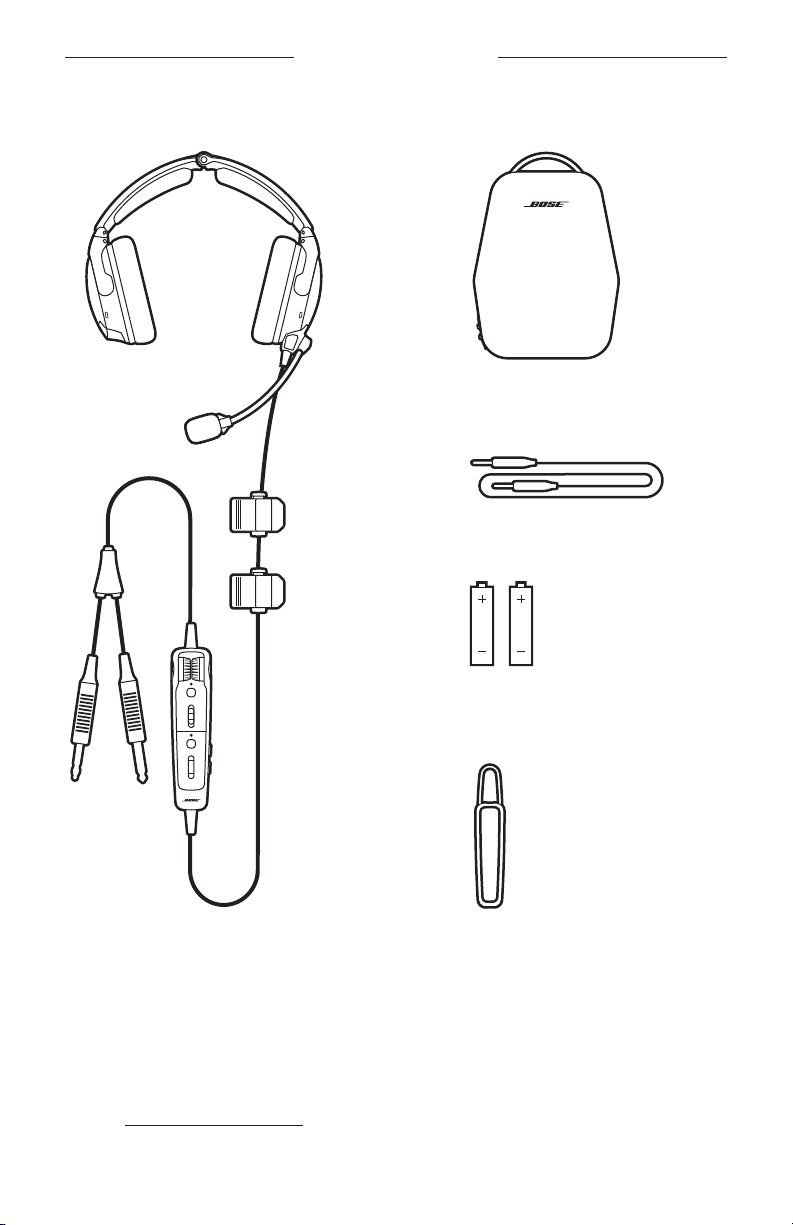
Carry case
3.5 mm AUX audio cable
AA batteries (2)
Bose A30 Aviation Headset Control module holder
NOTES:
• For control module options, see page 17.
• For aircraft connector types, see page 34.
• If any part of the product is damaged, don’t use it. Contact your authorized
Bose dealer or Bose customer service.
Visit: support.Bose.com/A30support.Bose.com/A30
WHAT’S IN THE BOX
17
|
ENG
CONTROL MODULE OPTIONS
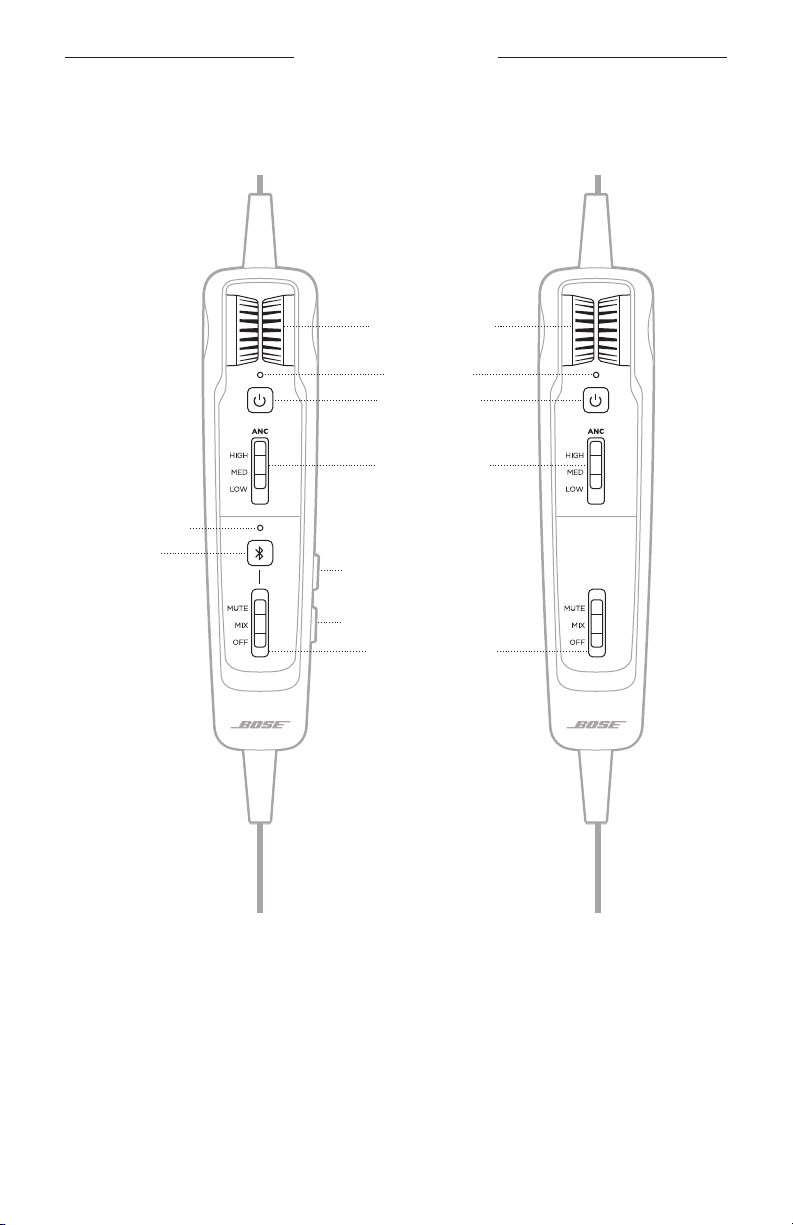
Intercom volume
controls (left/right)
Power light
Power button
Acoustic Noise
Cancelling switch
(see page 23)
Bluetooth light
Bluetooth/
Multi-function
button
Secondary Audio
Mode switch
(see page 40)
Bluetooth volume up H
Bluetooth volume down z
Conventional control moduleControl module with Bluetooth capability
18
|
ENG
IMPORTANCE OF PROPER FIT
FIT THE HEADBAND
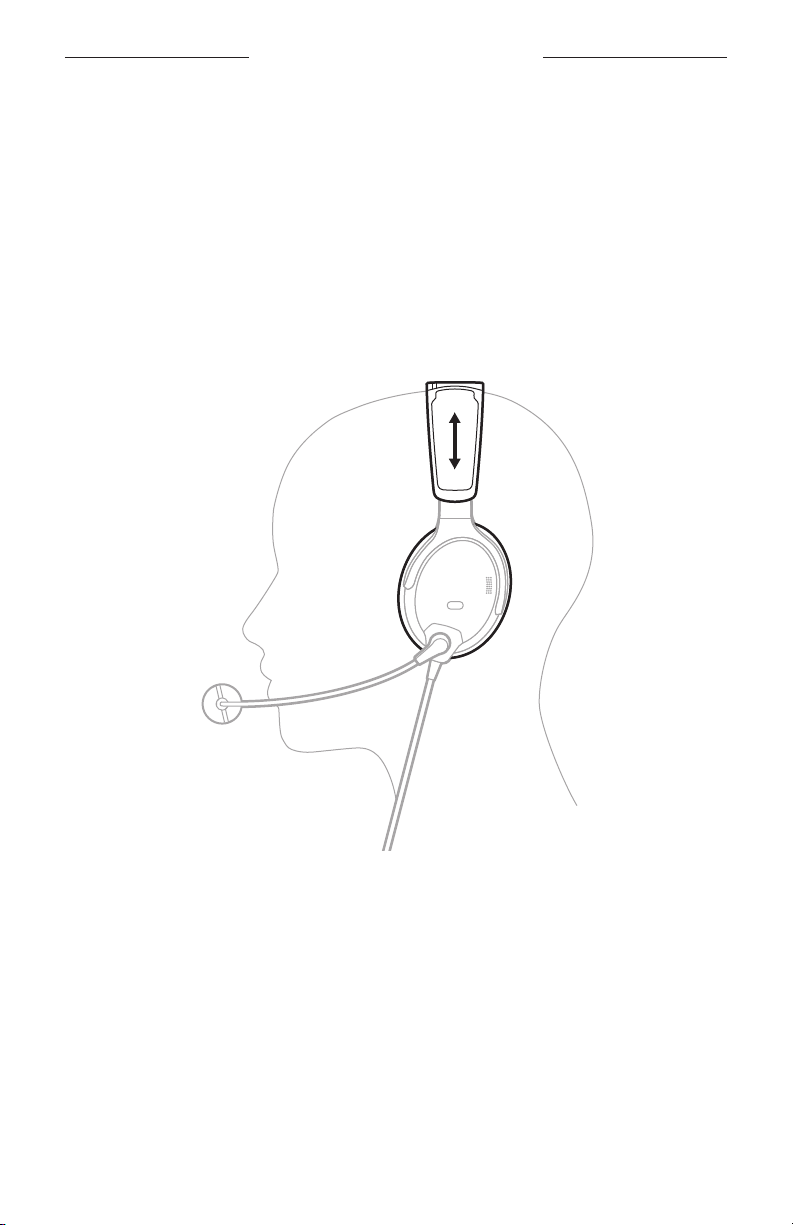
Proper fit is important both for comfort and optimal noise cancellation performance.
1. Locate the left T and right U icons inside the earcups to orient the
headset properly.
2. Place the headset on your head.
3. Adjust the headband so the ear cushions completely cover your ears.
NOTE: For best performance, make sure the ear cushions fit securely around your
ears so they create a seal.
IMPORTANCE OF PROPER FIT
19
|
ENG
ADJUST THE MICROPHONE
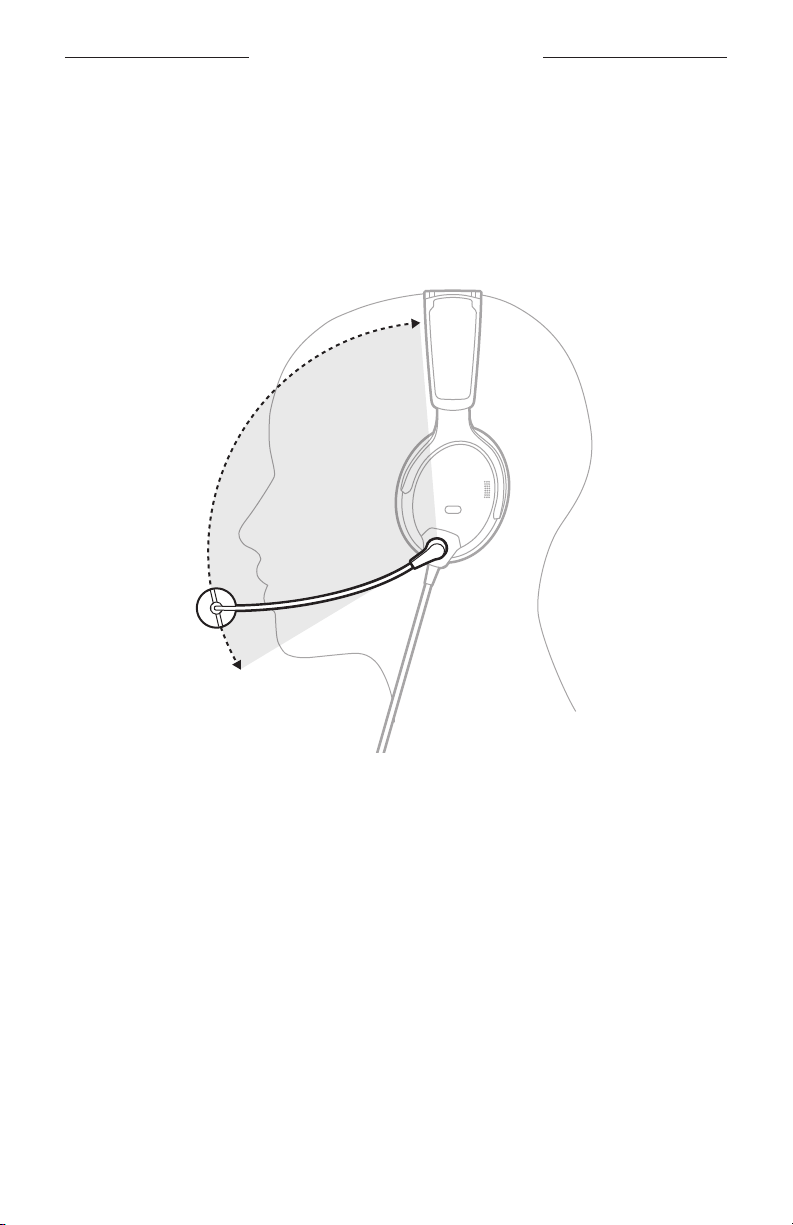
1. Grasp the microphone base and adjust the boom so the microphone is level
with your mouth.
CAUTION: Microphone placement is important for clear communication.
The microphone boom can rotate 160°. Do NOT force it beyond
the intended rotation or damage could occur.
IMPORTANCE OF PROPER FIT
20
|
ENG
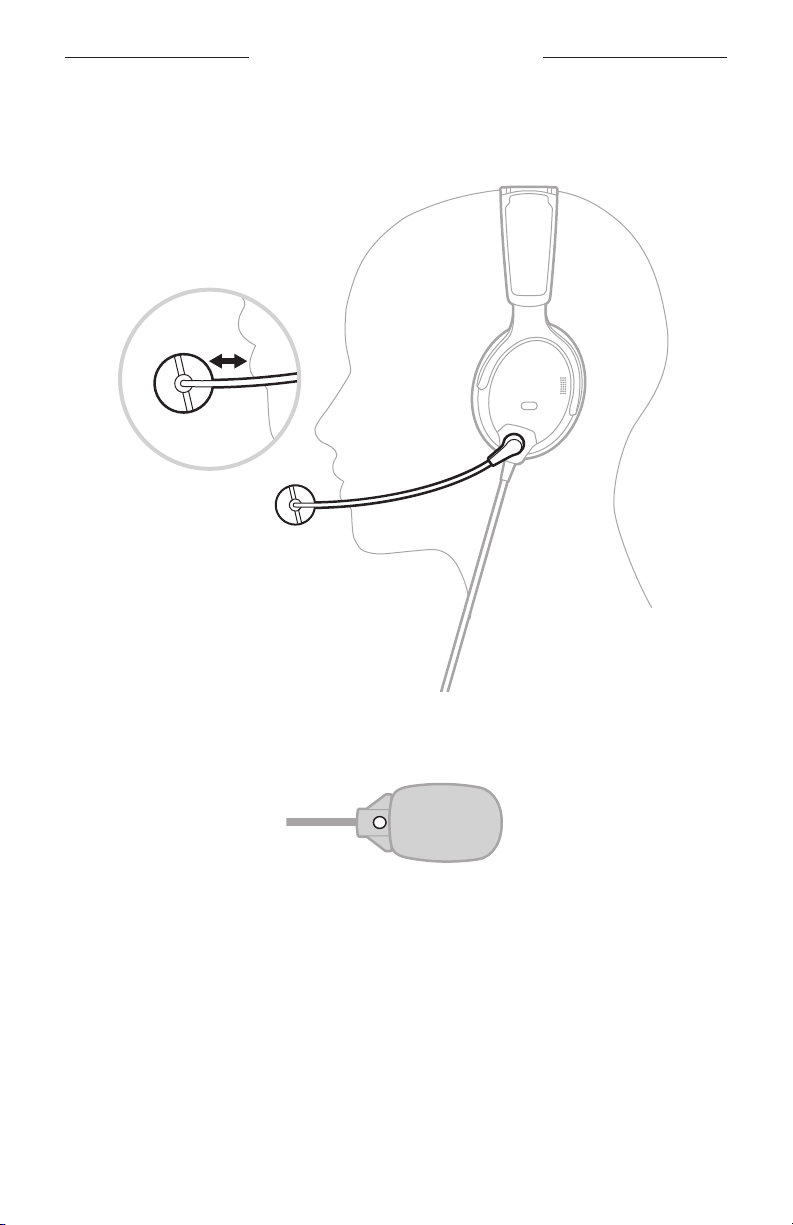
2. Make sure the microphone is 0.5" (12.7 mm) from your lips.
NOTE: The microphone should not be touching your lips.
0.5"
12.7 mm
3. Make sure the white dot on the microphone base faces your mouth.
NOTE: If needed, twist the microphone base.
4. Test the headset before flight.
IMPORTANCE OF PROPER FIT
21
|
ENG
IMPORTANCE OF PROPER FIT
CONDITIONS RELATED TO FIT
In very loud conditions, such as during takeo, you may experience a brief reduction
in noise cancellation as the headset compensates for a momentary pressure
change. If this continues when the sound level returns to normal, see “Acoustic Noise
Cancelling” on page 23. If it persists, see “Troubleshooting” on page 54.
A low rumbling sound or frequent, brief losses of noise cancellation may indicate
an improper fit or blocked earcup openings. See “Clean the headset” on page 48
for instructions on removing blockages.
During a long flight, you may feel a slight pressure point, which can be relieved by
adjusting the headband position.
SECURE THE CABLE AND CONTROL MODULE
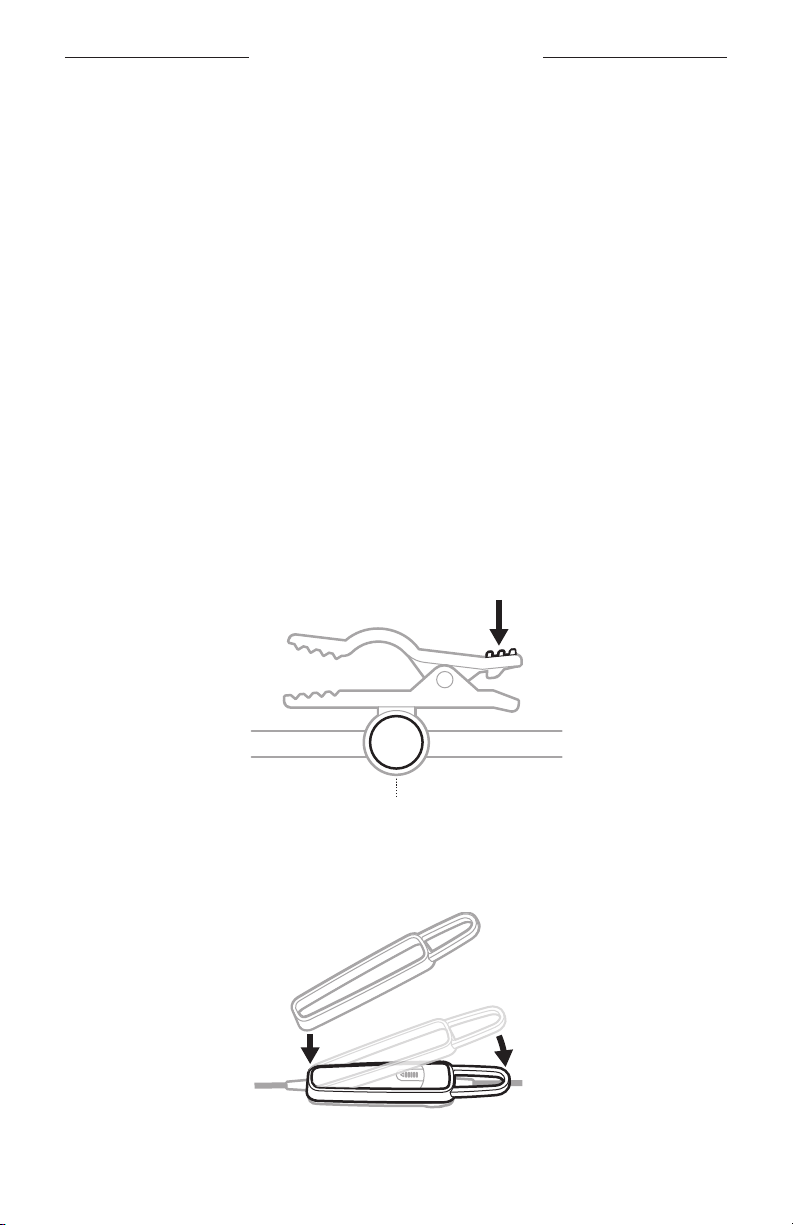
The cable clips and control module holder secure the cable and control module to
your clothing, a safety harness, sun visor rail, or aircraft headset hook for quick and
easy access.
Cable clips
Squeeze the narrow end of the clip to open. Press the side button to release and
reposition the clip along the cable.
Side button
Control module holder
Stretch the holder over the back of the control module to secure it in place.

22
|
ENG
HEADSET CONTROLS
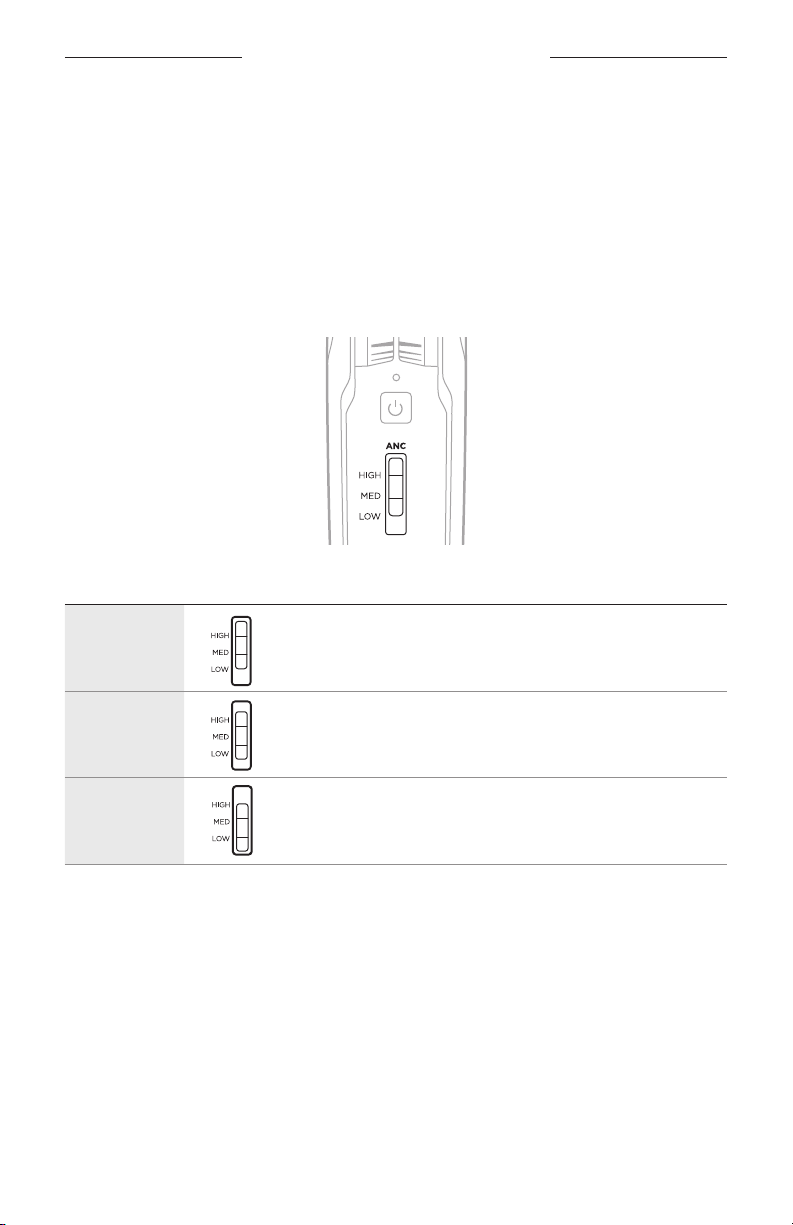
POWER ON
Press the Power button I.
The Power light glows amber then blinks according to the battery level.
See “Power light” on page 36.
NOTE: The first time you power on your headset, noise cancellation is fully enabled.
See “Acoustic Noise Cancelling” on page 23.
POWER OFF
Press and hold I until the Power light glows amber, then release.
NOTE: When powered o, the headset provides passive audio communications.
23
|
ENG
ACOUSTIC NOISE CANCELLING
Acoustic Noise Cancelling reduces unwanted noise, providing a clearer, more
lifelike audio performance. You can choose your noise cancellation level based on
your listening preferences and environment.
NOTE: When you receive a call, the headset remains at the current noise
cancellation level.
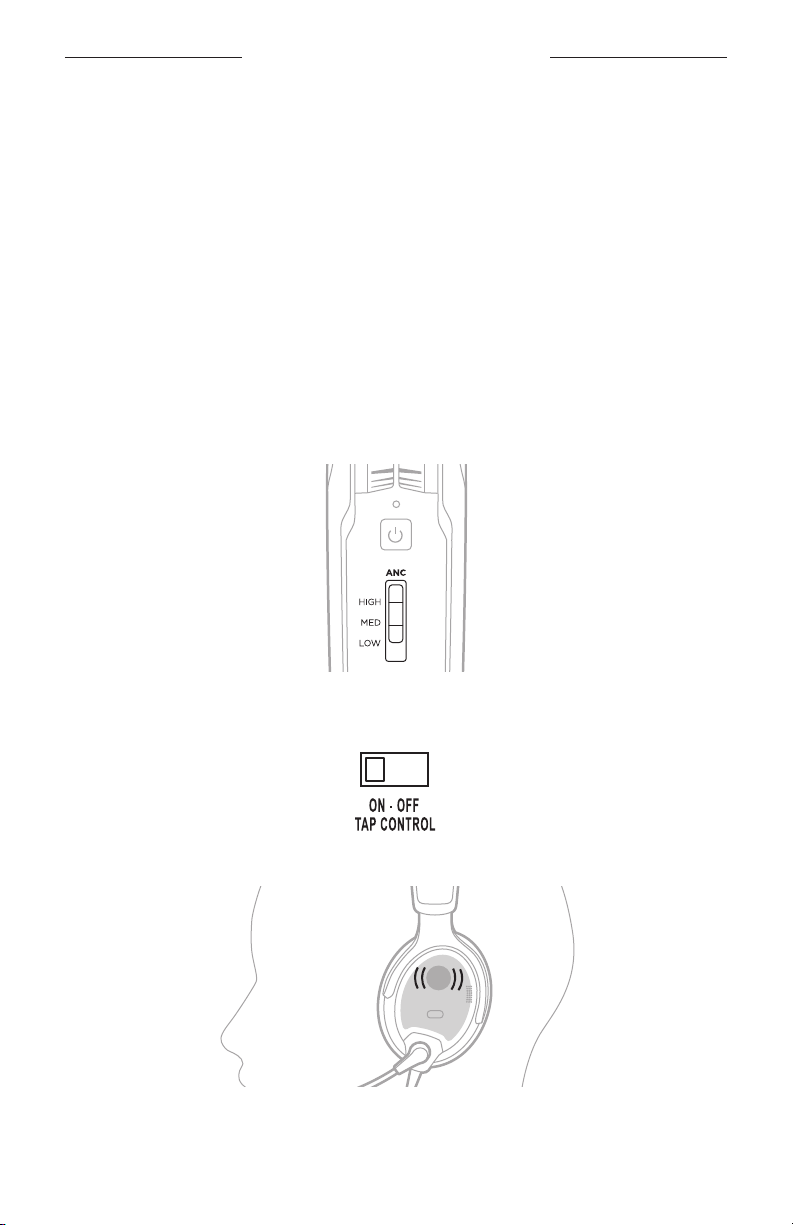
ACOUSTIC NOISE CANCELLING (ANC) SWITCH
Sets the noise cancellation level.
FUNCTION POSITION DESCRIPTION
HIGH
Maximum quiet and noise cancellation across the entire
spectrum. Best signal-to-noise ratio for radio and intercom
communications in loud aircraft.
MED
Consistent noise reduction across a wide range of
frequencies. Best for clear and comfortable noise
cancellation in typical jet aircraft.
LOW
Best for improved interpersonal communication outside
of the intercom in quieter environments.
ACOUSTIC NOISE CANCELLING
24
|
ENG
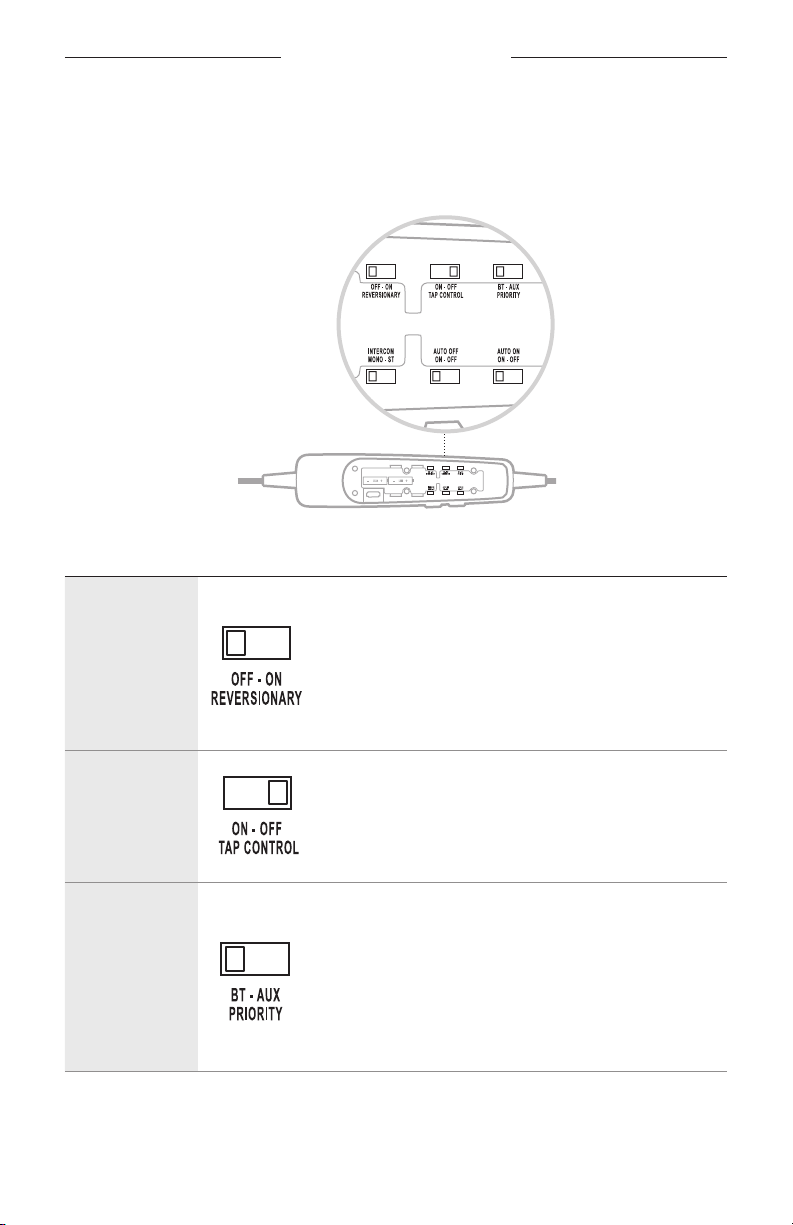
TAP CONTROL FOR TALK-THROUGH COMMUNICATION
When you need to focus on interpersonal communication coming from a specific
direction, you can automatically set noise cancellation to LOW in one earcup.
NOTES:
• By default, the TAP CONTROL operation switch is set to OFF.
• Tap Control is available only when the Acoustic Noise Cancelling (ANC) switch is in
the HIGH or MED position.
• Tap Control is disabled during extreme levels of ambient noise to ensure proper
noise reduction performance and intercom communication quality. However, you
can still set the noise cancellation level to LOW in both earcups using the Acoustic
Noise Cancelling (ANC) switch (see page 23).
1. Make sure the Acoustic Noise Cancelling (ANC) switch is in the HIGH or
MED position.
2. Inside the control module battery compartment, set the TAP CONTROL switch to
ON. See “Change the operation switches” on page 28.
3. Firmly double-tap the outside of the earcup.
2x

ACOUSTIC NOISE CANCELLING
25
|
ENG
Switch earcups
To switch Tap Control to the other earcup, firmly double tap the other earcup.
Reset Tap Control
To resume noise cancellation in both earcups, double-tap the earcup where Tap
Control is currently active, or move the Acoustic Noise Cancelling (ANC) switch to
another position.
26
|
ENG
OPERATION SWITCHES
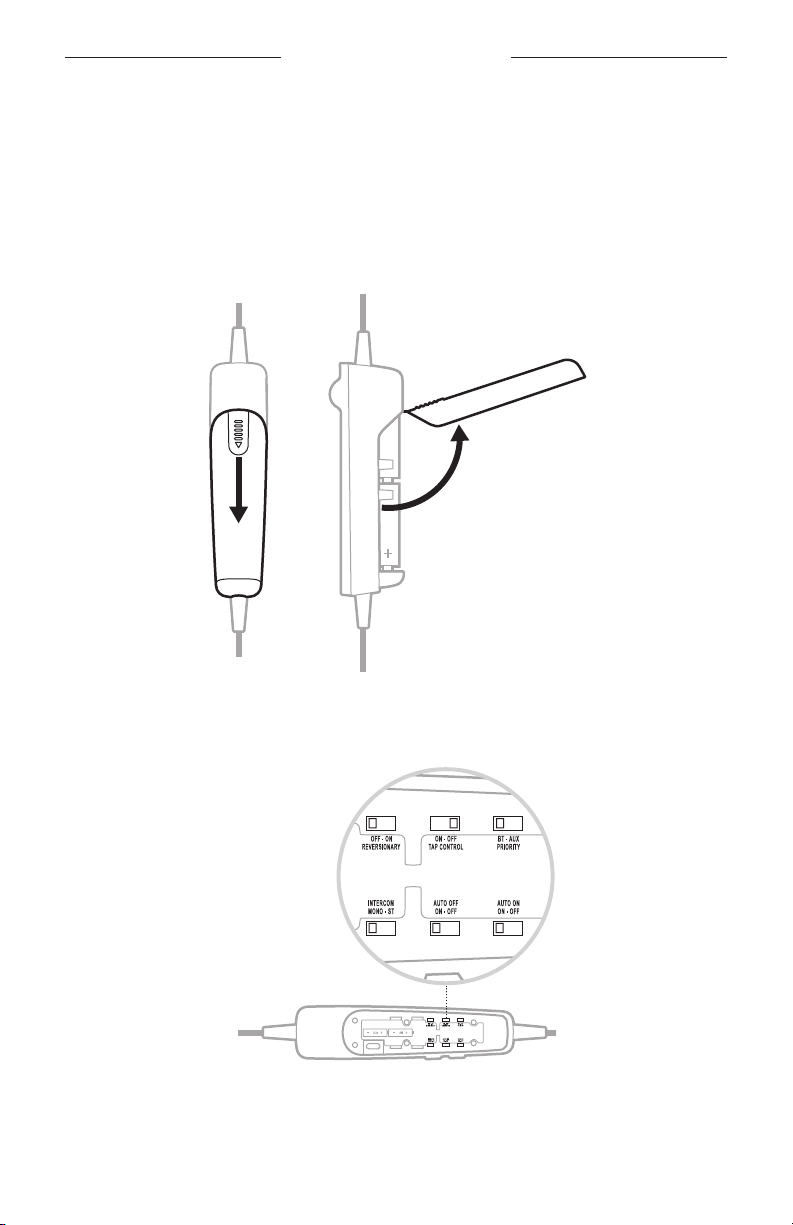
OPERATION SWITCH FUNCTIONS
The operation switches are located in the control module battery compartment.
NOTE: Some operation switches are not available on all models.
FUNCTION POSITION DEFAULT DESCRIPTION
REVERSIONARY OFF
Disables all non-critical functions, including
Bluetooth audio, AUX audio, and Tap Control.
Only intercom communications and Acoustic
Noise Cancelling are enabled.
In case of emergency hardware or software
failure, set the switch to ON.
For more information, see page 59.
TAP CONTROL OFF
Enables/Disables Tap Control feature
(see page 24).
PRIORITY BT
Establishes priority between two secondary
audio sources connected at the same time.
Select BT to give the Bluetooth (wireless)
connection higher priority.
Select AUX to give the wired connection
higher priority.
For more information, see page 46.

OPERATION SWITCHES
27
|
ENG
FUNCTION POSITION DEFAULT DESCRIPTION
INTERCOM MONO
Processes intercom audio as mono or stereo.
Available for configurations that support
two-channel or stereo intercom systems only.
NOTE: 5-pin XLR and U174 models are
mono-only configurations.
AUTO OFF ON
Power o automatically after 3 to 45
minutes of inactivity.
NOTES:
• When running on battery power and
unplugged from the intercom, the headset
powers o unless there is audio from an
active mobile device present.
• If you are on a call and unplugged from
the intercom, the headset powers o
approximately 3 minutes after the call
is ended.
AUTO ON ON
Power on automatically when connected to
aircraft power.
NOTES:
• Available in Flex Power models only
(see page 34).
• Bluetooth models return to the previous
Bluetooth state when powered on.
OPERATION SWITCHES
28
|
ENG
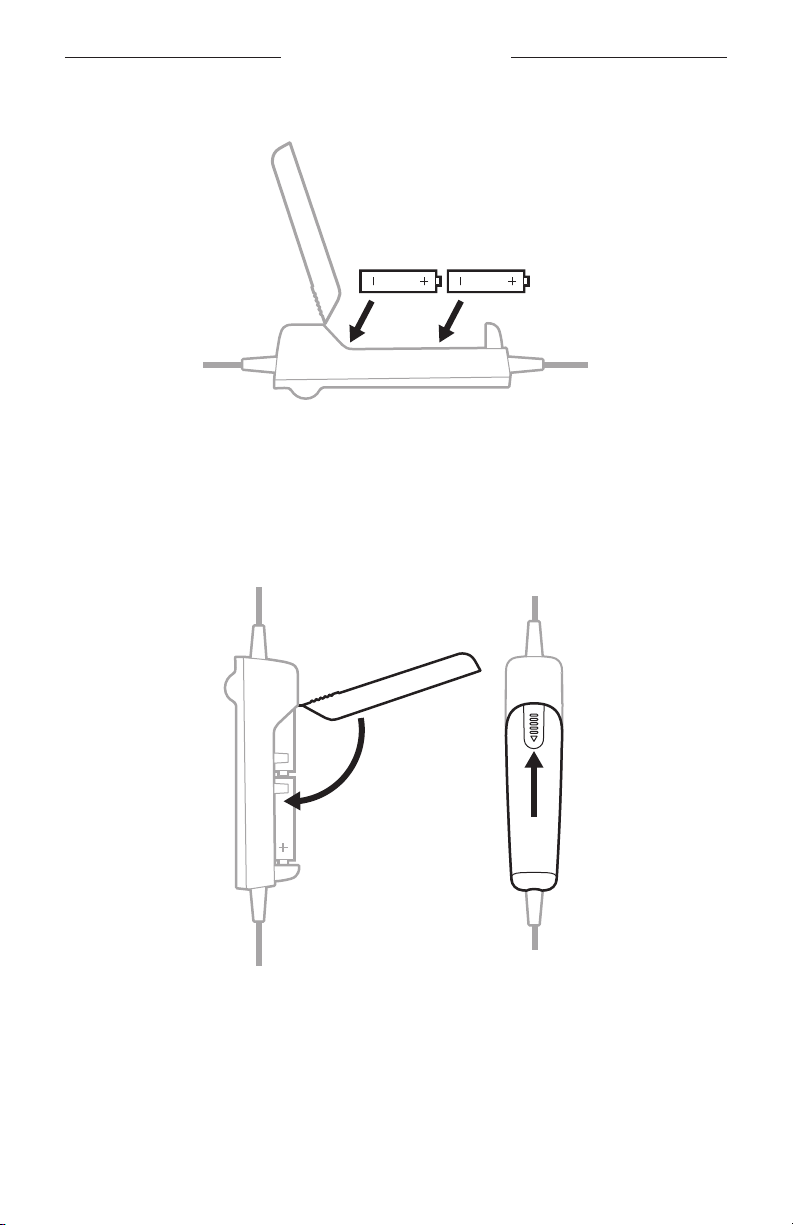
CHANGE THE OPERATION SWITCHES
1. Power o the headset (see page 22).
2. On the back of the control module, press down firmly on the finger indent and
slide the cover down.
CAUTION: The battery cover is tethered to the control module. Do NOT attempt
to detach it.
3. Remove the batteries.
4. Using a pen or a small, flat-tipped screwdriver, gently move the switch(es).
OPERATION SWITCHES
29
|
ENG
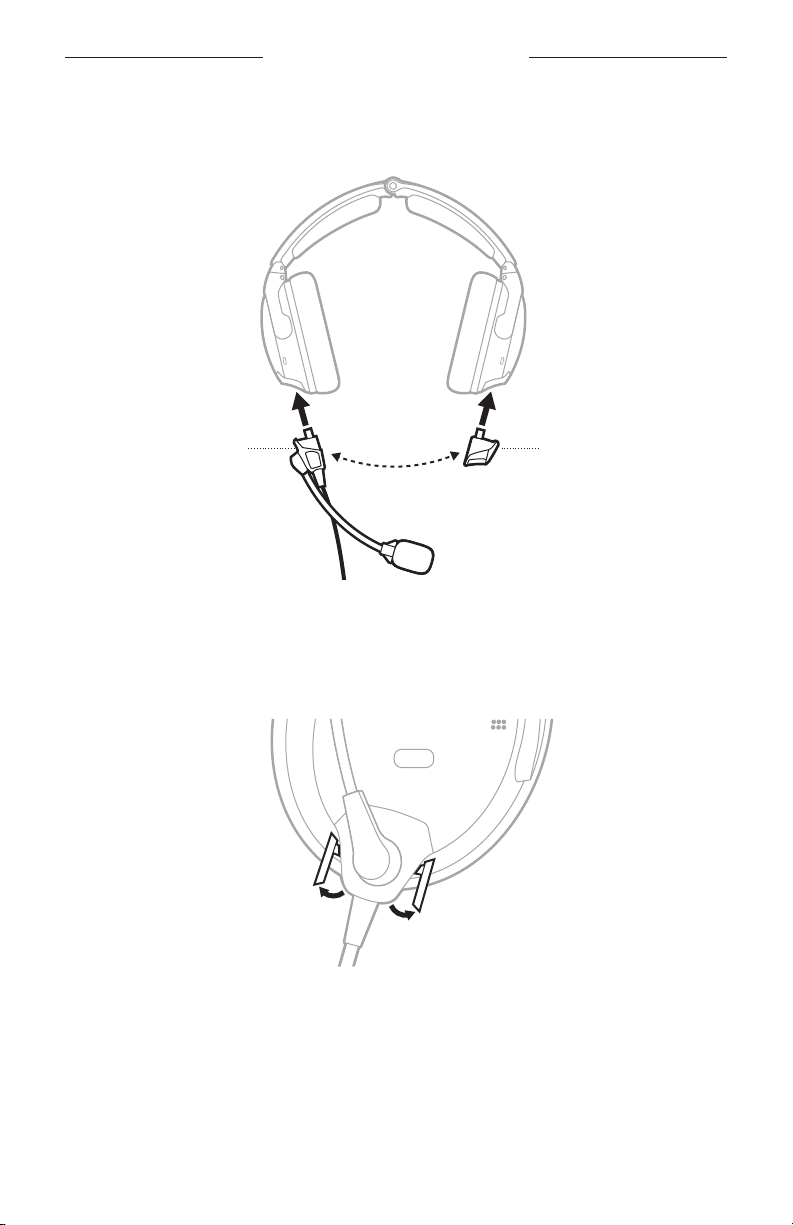
5. Insert two AA batteries (alkaline preferred), observing proper polarity.
CAUTION: If the batteries don’t fit correctly, do NOT force them in. Forcing
an improper connection will cause permanent damage to the
control module.
6. Close the battery cover, press firmly down on the finger indent, and slide the
cover into place.
30
|
ENG
MICROPHONE PLACEMENT
By default, the microphone assembly ships from the factory attached to the left
earcup (although in some configurations it may ship unattached). It can be easily
moved from one earcup to the other.
Terminator
cover
Microphone
assembly
MOVE THE MICROPHONE
Remove the microphone assembly and terminator cover
1. At the base of the microphone assembly, open the two latches.
2. Gently pull the microphone assembly from the socket.
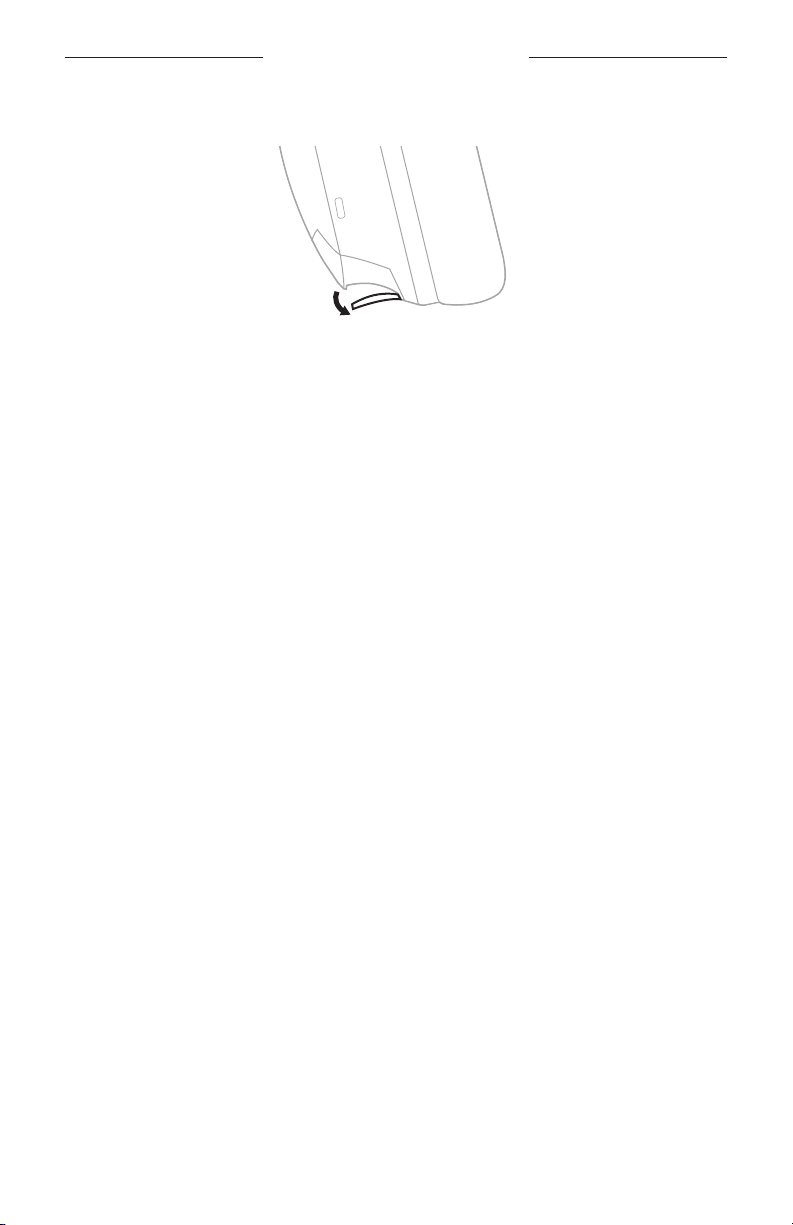
MICROPHONE PLACEMENT
31
|
ENG
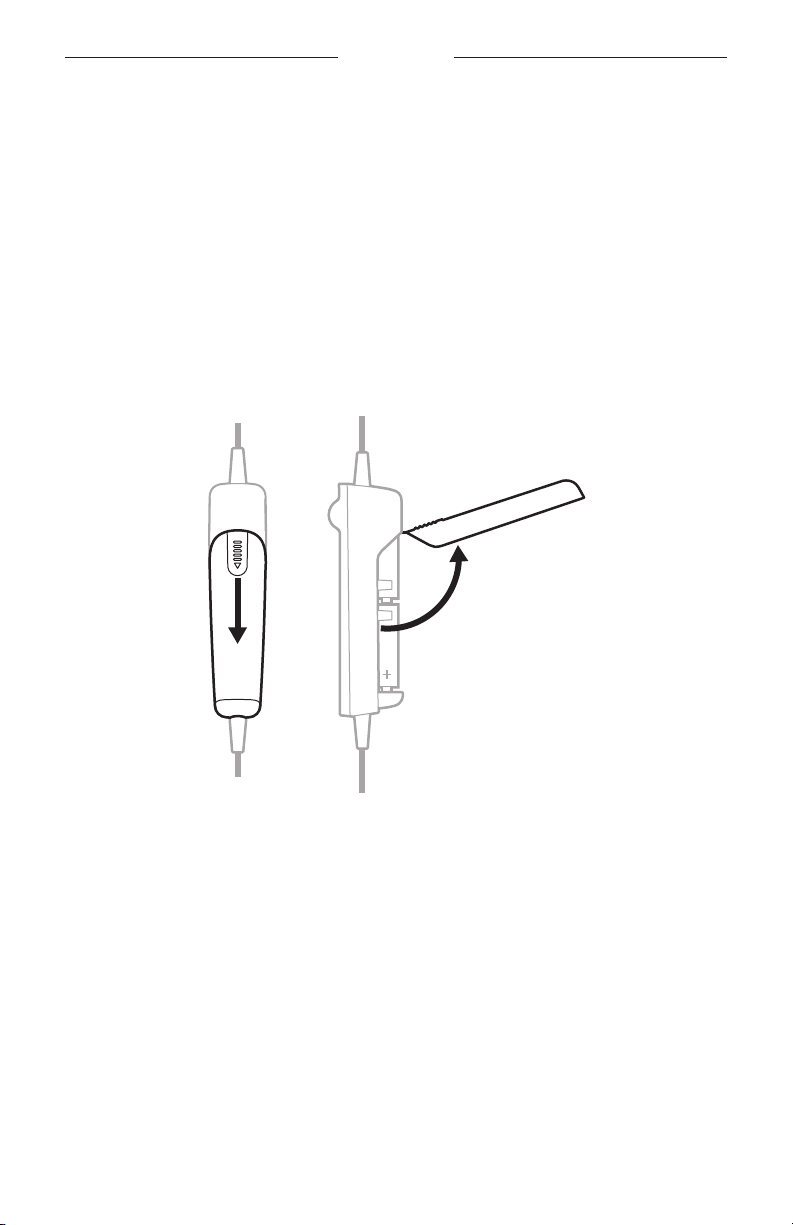
3. On the terminator cover, open the latch.
4. Gently pull the terminator cover from the socket.
Replace the microphone assembly and terminator cover
1. Align the base of the microphone assembly with the socket on the earcup and
slide in until secure.
2. At the base of the microphone assembly, close the two latches.
3. Align the terminator cover with the socket on the other earcup and slide in
until secure.
CAUTION: Do NOT force the terminator cover into the socket.
NOTE: If the terminator cover is not securely installed, there will be no
audio in the earcup.
4. On the terminator cover, close the latch.
5. Test the headset before flight.
32
|
ENG
BATTERIES
REPLACE THE BATTERIES
When the battery light blinks red, the batteries must be replaced.
NOTE: For aircraft-powered headsets, batteries are not required for operation
if aircraft power is available. However, you can still install batteries when
connected to aircraft power as a backup in case of power interruptions or
disconnections. See “Aircraft Connectors” on page 34.
1. Power o the headset (see page 22).
2. On the back of the control module, press down firmly on the finger indent and
slide the cover down.
CAUTION: The battery cover is tethered to the control module. Do NOT attempt
to detach it.
3. Remove the batteries.
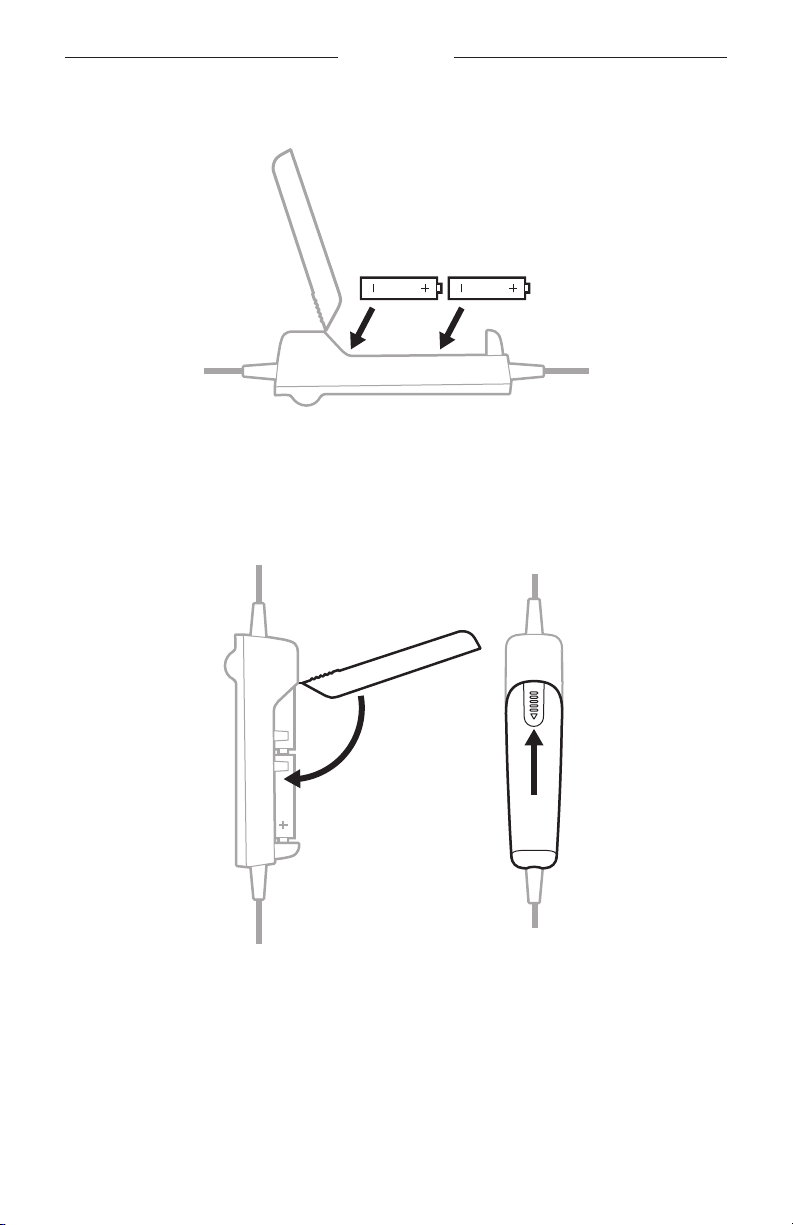
BATTERIES
33
|
ENG
4. Insert two AA batteries (alkaline preferred), observing proper polarity.
CAUTION: If the batteries don’t fit correctly, do NOT force them in. Forcing
an improper connection will cause permanent damage to the
control module.
5. Close the battery cover, press firmly down on the finger indent, and slide the
cover into place.
NOTES:
• New AA alkaline batteries supply up to 45 hours of power for the headset.
Battery life varies with the ambient noise level of the aircraft, temperature,
ear cushion condition, Bluetooth feature use, and age of the batteries.
• Other battery chemistries may yield dierent results. Battery life may dier and
battery life indication may not be accurate.

34
|
ENG
AIRCRAFT CONNECTORS
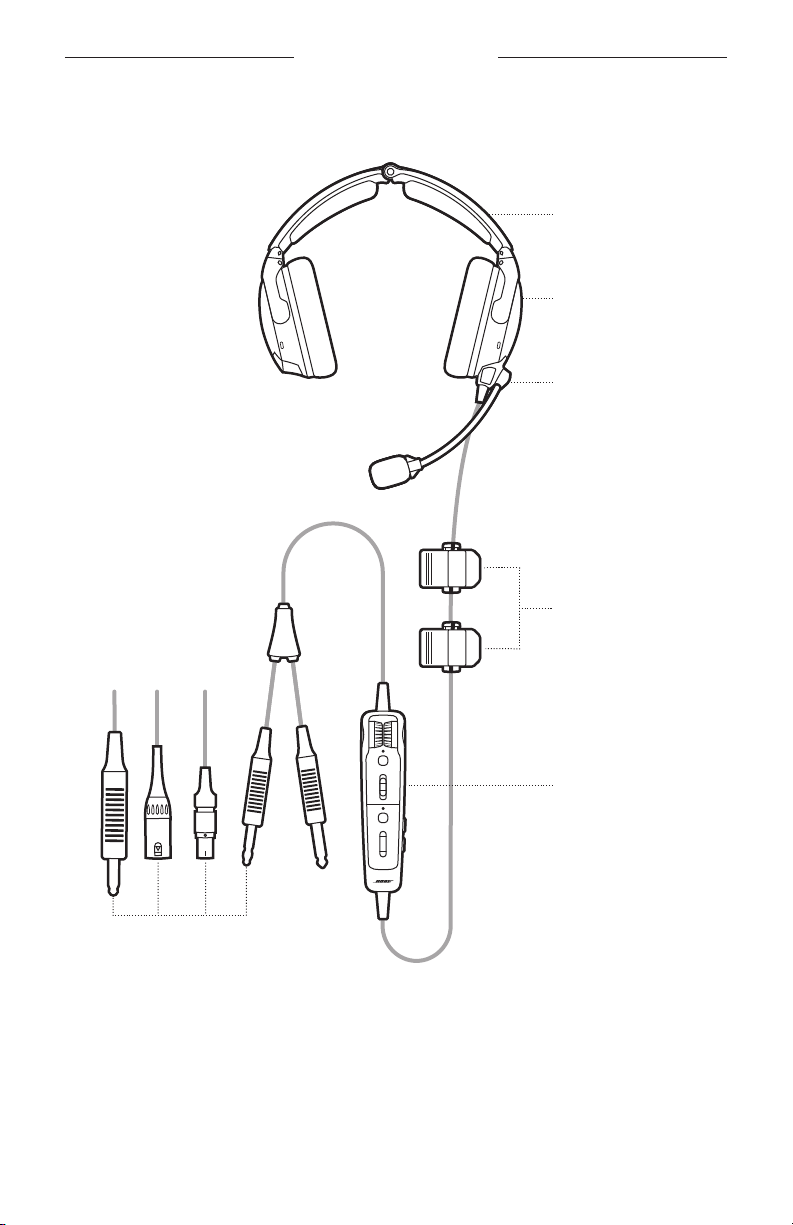
Your headset comes with one of several standard aircraft connector options.
POWER TYPE CONNECTOR OPTIONS
Battery power only
Dual plug (general aviation)
U174
Flex Power:
Aircraft power or battery power
NOTES:
• Batteries aren’t needed when
connected to aircraft power.
• This model comes with an Auto
On function (see page 27).
5-pin XLR
6-pin Lemo
NOTES:
• Adapters are available to convert a 6-pin Lemo
connector to a Dual plug or U174 connector for
additional connection flexibility.
• Not all aircraft provide power to multi-pin
connectors. Check the power status to confirm
power is suppled to the headset (see page 37).
NOTE: Contact Bose customer service for more information about these connectors.
DUAL PLUG (GENERAL AVIATION)
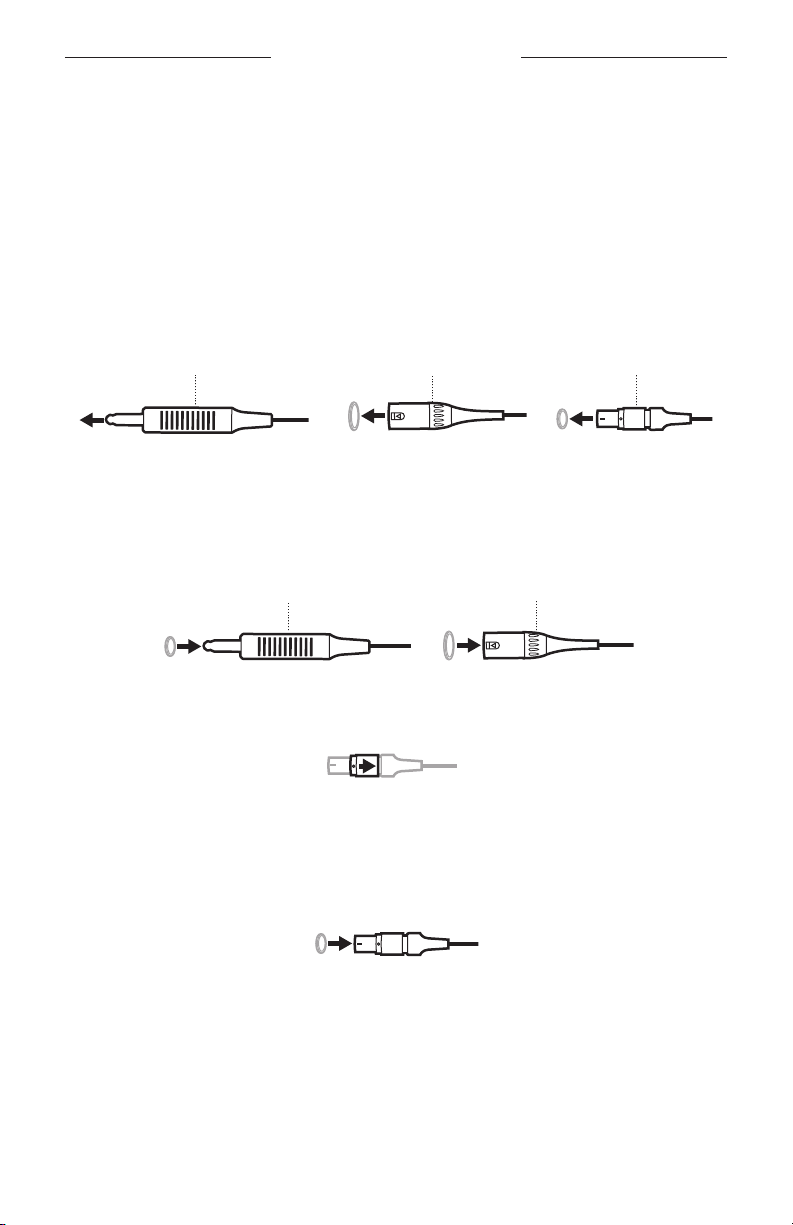
Dual plug models have two general aviation aircraft connectors that insert into
specific jacks on the aircraft control panel.
NOTE: The microphone connector is shorter, thinner, and has a slightly dierent shape
than the intercom connector.
Connect to the aircraft
1. Insert the intercom connector into the intercom jack on the aircraft
control panel.
2. Insert the microphone connector into the microphone jack on the
aircraft control panel.
Microphone connector
Intercom connector
Disconnect from the aircraft
Gently pull back on each connector to remove the connector from the
aircraft control panel.
AIRCRAFT CONNECTORS
35
|
ENG
U174, 5-PIN XLR, AND 6-PIN LEMO
5-pin XLR and 6-pin Lemo aircraft connectors provide the headset with both
aircraft power and intercom audio. U174 connectors provide the headset with only
intercom audio.
Connect to the aircraft
1. Align the connector with the socket on the aircraft control panel, matching the
narrow bar on the connector with the slot in the socket.
2. Firmly insert the connector into the aircraft control panel.
6-pin Lemo5-pin XLR
U174
Disconnect from the aircraft (U174 and 5-pin XLR)
1. Press the button/latch on the aircraft control panel to release the connector,
if necessary.
2. Gently pull back to remove the connector from the aircraft control panel.
5-pin XLR
U174
Disconnect from the aircraft (6-pin Lemo)
1. Pull back on the sleeve near the end of the connector.
CAUTION: You must pull back on the sleeve before you pull out the connector.
Forcing the connector out will damage the cable and/or the aircraft
control panel.
2. Continue gently pulling back to remove the connector from the aircraft
control panel.
36
|
ENG
STATUS LIGHTS
The Power and Bluetooth lights are located on the front of the control module.
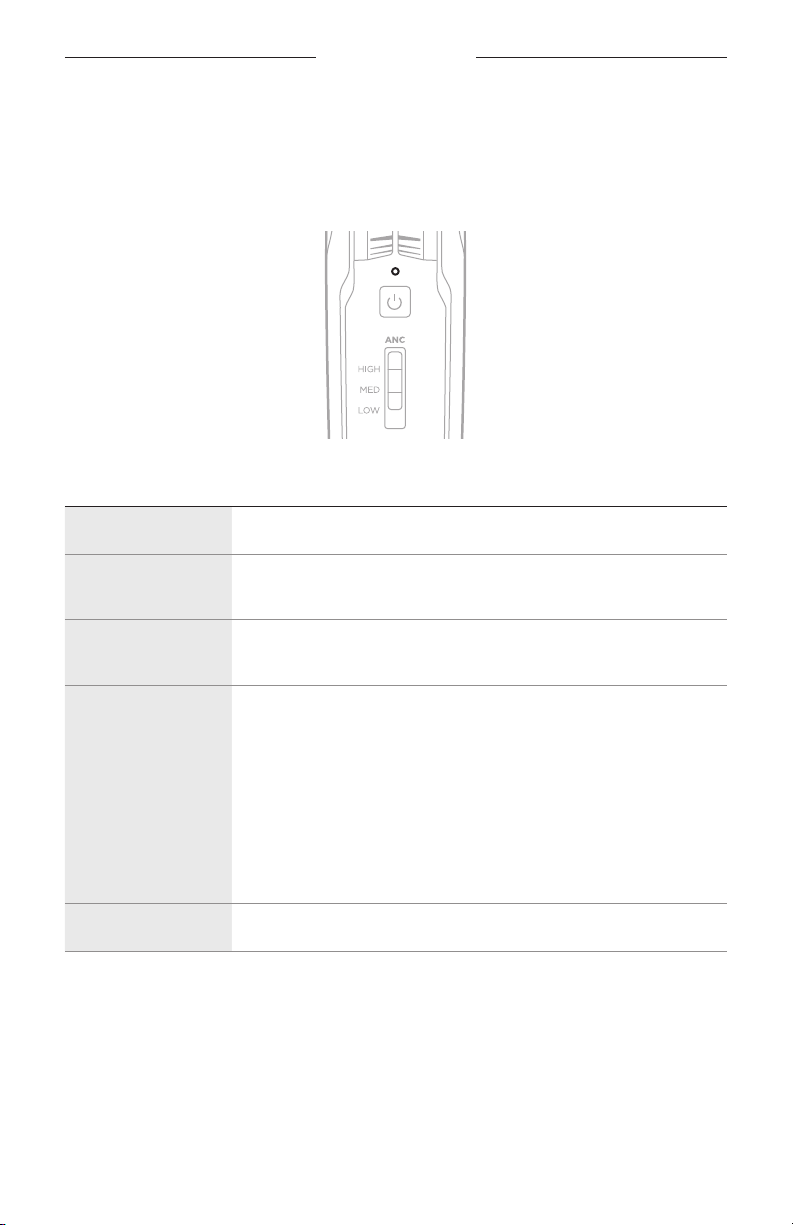
POWER LIGHT
Shows the power source and level.
POWER SOURCE LIGHT ACTIVITY SYSTEM STATE
Aircraft Slow blinking green Power On
Battery Blinking green
Power On—batteries high
(about 8 hours or more remaining)
Battery Blinking amber
Power On—batteries low
(about 2 to 8 hours remaining)
Battery Blinking red
Power On—batteries low
(about 2 hours or less remaining)
NOTE: In Bluetooth models, when the
batteries reach this level, the
Bluetooth feature is disabled to
conserve remaining power. You
hear a tone, indicating that your
Bluetooth device is disconnecting
and the Bluetooth feature is
turning o.
Aircraft or battery None Power O or batteries depleted
NOTES:
• New AA alkaline batteries supply up to 45 hours of power for the headset.
Battery life varies with the ambient noise level of the aircraft, temperature,
ear cushion condition, Bluetooth feature use, and age of the batteries.
• Other battery chemistries may yield dierent results. Battery life may dier and
battery life indication may not be accurate.
STATUS LIGHTS
37
|
ENG
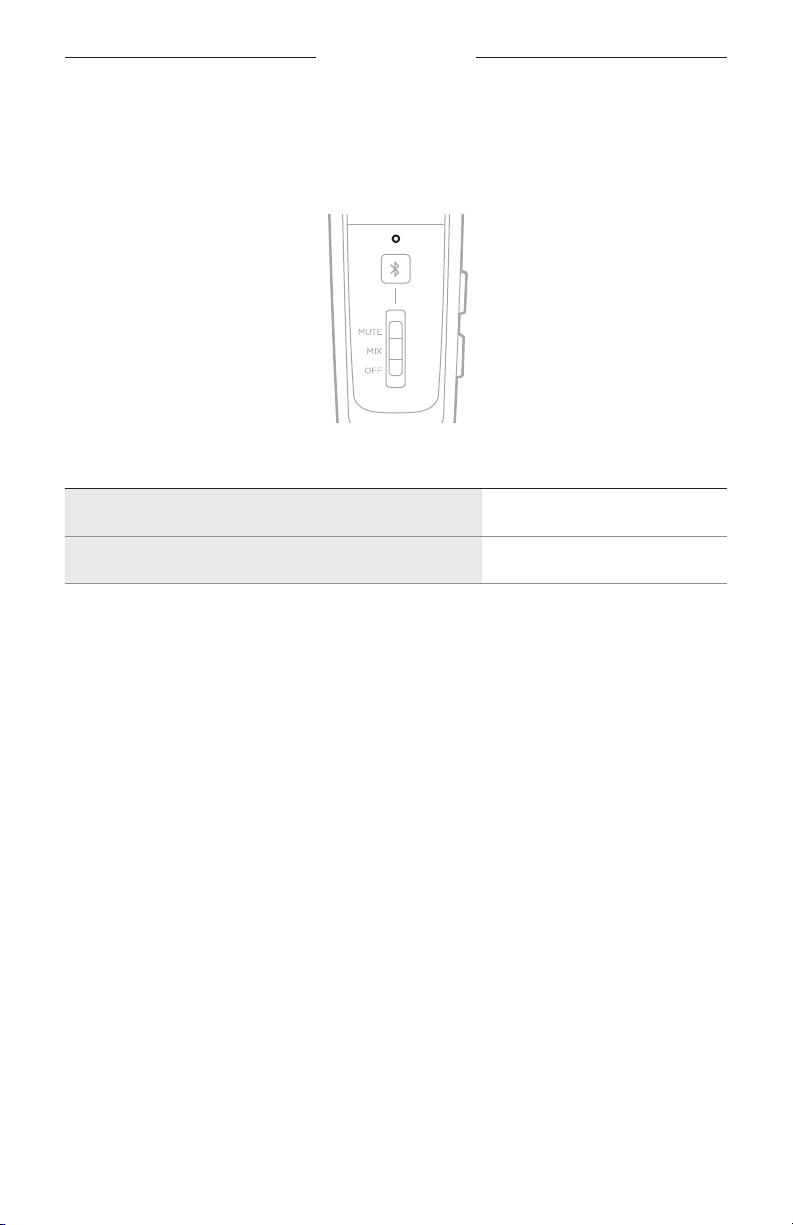
BLUETOOTH LIGHT
NOTE: This section applies to Bluetooth models only.
Shows the connection status of a mobile device.
LIGHT ACTIVITY SYSTEM STATE
Blinking purple (in sync with Power light) Ready to connect
Blinking blue (in sync with Power light) Connecting/Connected
DIM THE STATUS LIGHTS
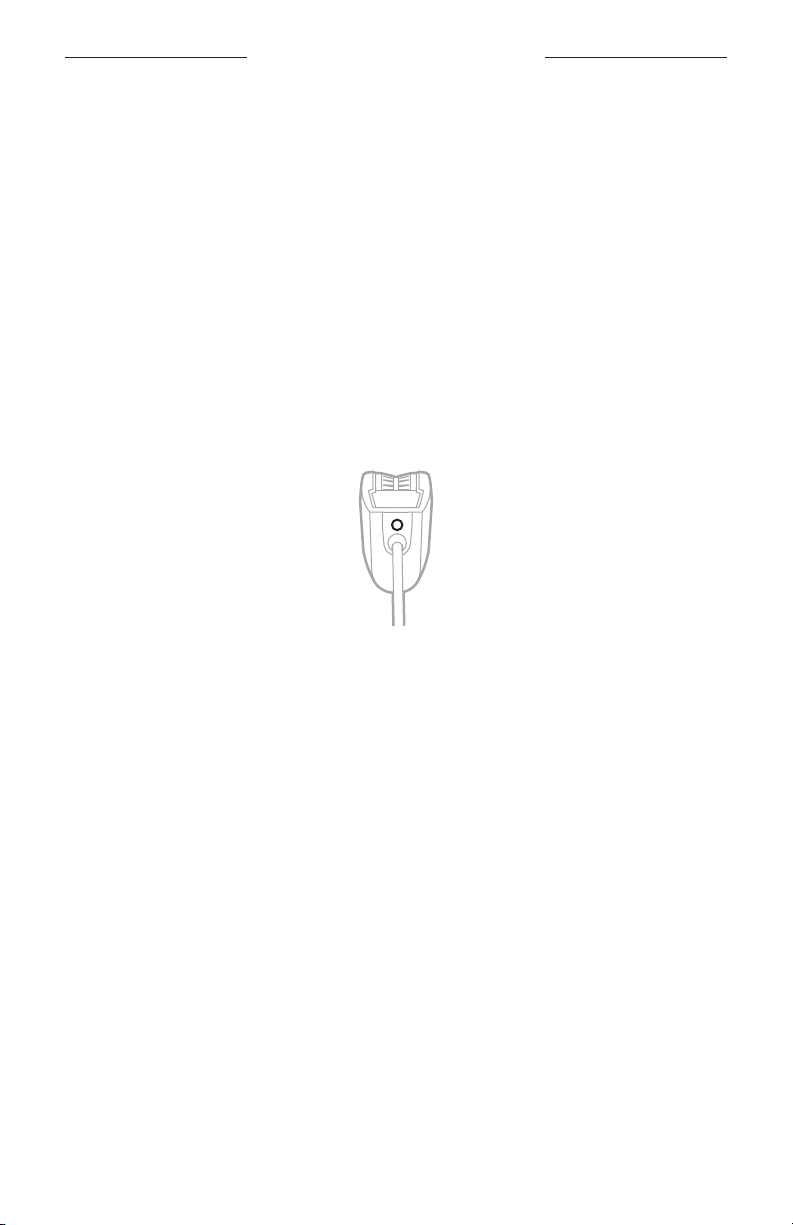
To dim the Bluetooth and Power lights, double-press the Power button I.
To restore brightness, press I again, or turn the headset o and then on.
TURN OFF THE STATUS LIGHTS
To turn o the Bluetooth and Power lights, triple-press I.
To turn the lights back on, press I again, or turn the headset o and then on.
NOTE: The status lights will return to default brightness each time the headset is
powered on.
38
|
ENG
SECONDARY AUDIO SOURCES
You can connect your headset to a secondary audio source in two ways:
• AUX (wired) connection
• Bluetooth (wireless) connection (applies to Bluetooth models only)
AUX CONNECTIONS
Use the 3.5 mm AUX audio cable to connect a non-wireless device.
1. Make sure the Secondary Audio Mode switch is in the MUTE or MIX position
(see page 45) and the REVERSIONARY operation switch is set to OFF
(see page 28).
NOTE: If the Secondary Audio Mode switch is set to OFF or the REVERSIONARY
operation switch is set to ON, AUX audio functionality is disabled.
2. Connect the cable to the 3.5 mm AUX port on the back of the control module.
3. Connect the other end of the cable to the 3.5 mm port on your audio source.
NOTE: The functions of a connected AUX audio source are not controlled by
the control module.
SECONDARY AUDIO SOURCES
39
|
ENG
BLUETOOTH CONNECTIONS
NOTE: This section applies to Bluetooth models only.
Connect using the Bluetooth menu on your mobile device
1. Make sure the Secondary Audio Mode switch is in the MUTE or MIX position
(see page 45) and the REVERSIONARY operation switch is set to OFF
(see page 28).
NOTE: If the Secondary Audio Mode switch is set to OFF or the REVERSIONARY
operation switch is set to ON, Bluetooth functionality is disabled.
2. Press and hold the Bluetooth/Multi-function button l for 1 second.
The Bluetooth light blinks purple.
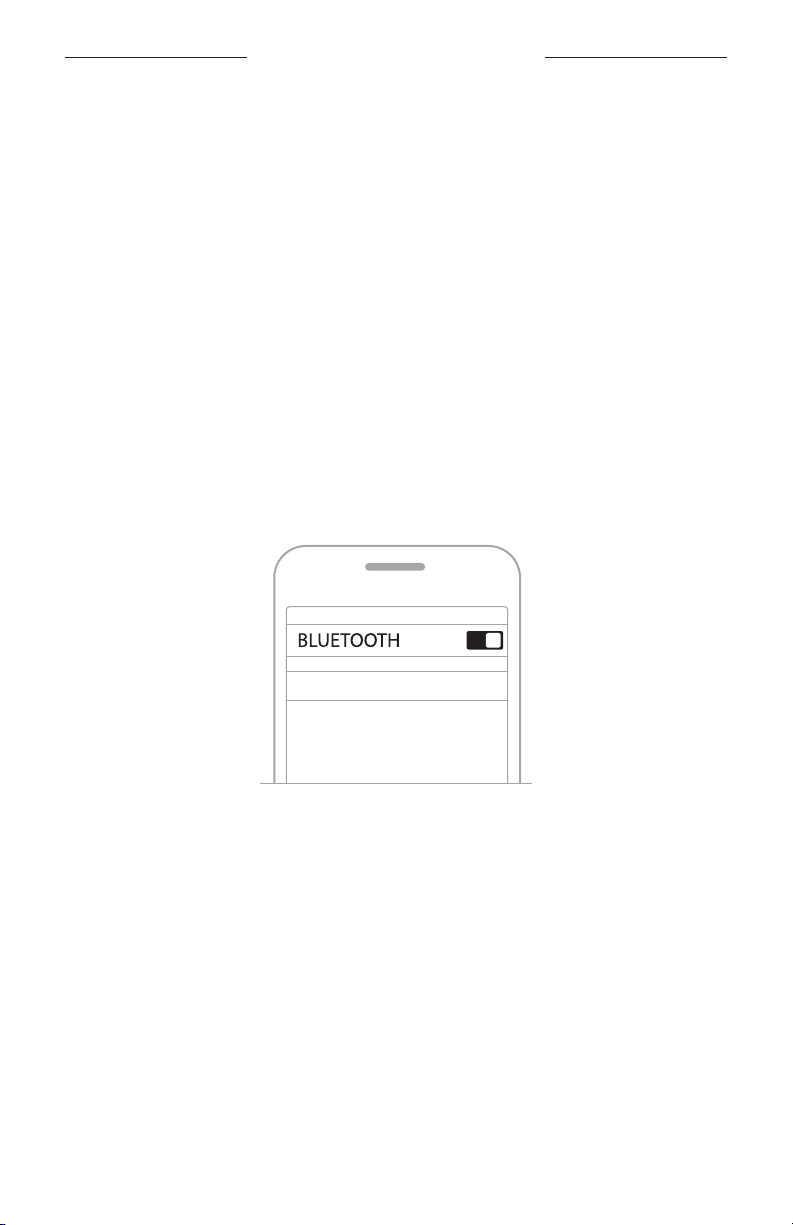
3. On your mobile device, enable the Bluetooth feature.
NOTE: The Bluetooth feature is usually found in the Settings menu.
4. Select the headset from the device list.
Bose A30
Once connected, you hear a tone, and the Bluetooth light blinks blue.
NOTES:
• After 5 minutes of inactivity, the headset automatically exits pairing mode, and the
Bluetooth light turns o. To turn the Bluetooth feature back on, press l.
• Each time you turn on the Bluetooth feature, the headset attempts to reconnect
with the two most recently connected Bluetooth devices. If the device(s) are turned
o or out of range, the headset attempts to reconnect to any other devices in the
pairing list, then returns to pairing mode. See “Reconnect a mobile device” on
page 40.

SECONDARY AUDIO SOURCES
40
|
ENG
Disconnect a mobile device
1. Press and hold the Bluetooth/Multi-function button l for 5 seconds to turn the
Bluetooth feature o.
2. Move the Secondary Audio Mode switch to the OFF position (see page 45).
NOTE: You can also use Bluetooth settings to disconnect your device. Disabling the
Bluetooth feature disconnects all other devices.
Reconnect a mobile device
When powered on, the headset tries to reconnect with the two most
recently-connected devices.
NOTE: The devices must be within range (30 ft or 9 m) and powered on.
Recover a lost connection
When your connected mobile device moves out of range, the connection is lost. The
headset automatically attempts to reconnect for 5 minutes. If the headset is unable
to reconnect, it returns to pairing mode. After 5 minutes of inactivity, the Bluetooth
feature turns o.
1. Move the device back into range.
2. Press l to reconnect.
Connect an additional mobile device
You can store up to eight paired devices in the headset pairing list, and your headset
can be actively connected to two devices at a time.
To connect an additional device, use the Bluetooth menu on your device
(see page 39).
NOTES:
• Only one secondary audio source can be heard at a time.
• Secondary audio will never override the intercom.

SECONDARY AUDIO SOURCES
41
|
ENG
Switch between connected devices
1. Pause audio on your first device.
2. Play audio on your second device.
Clear the headset pairing list
1. Press and hold the Bluetooth/Multi-function button l and z (the Bluetooth
volume down button, located on the side of the control module) simultaneously
for 7 seconds, or until the Bluetooth light blinks purple in sync with the Power light.
2. Delete the headset from the Bluetooth list on your device.
All devices are cleared, and the headset is ready to connect.
See “Bluetooth connections” on page 39.

SECONDARY AUDIO SOURCES
42
|
ENG
BLUETOOTH FUNCTIONS
NOTE: This section applies to Bluetooth models only.
Bluetooth volume functions
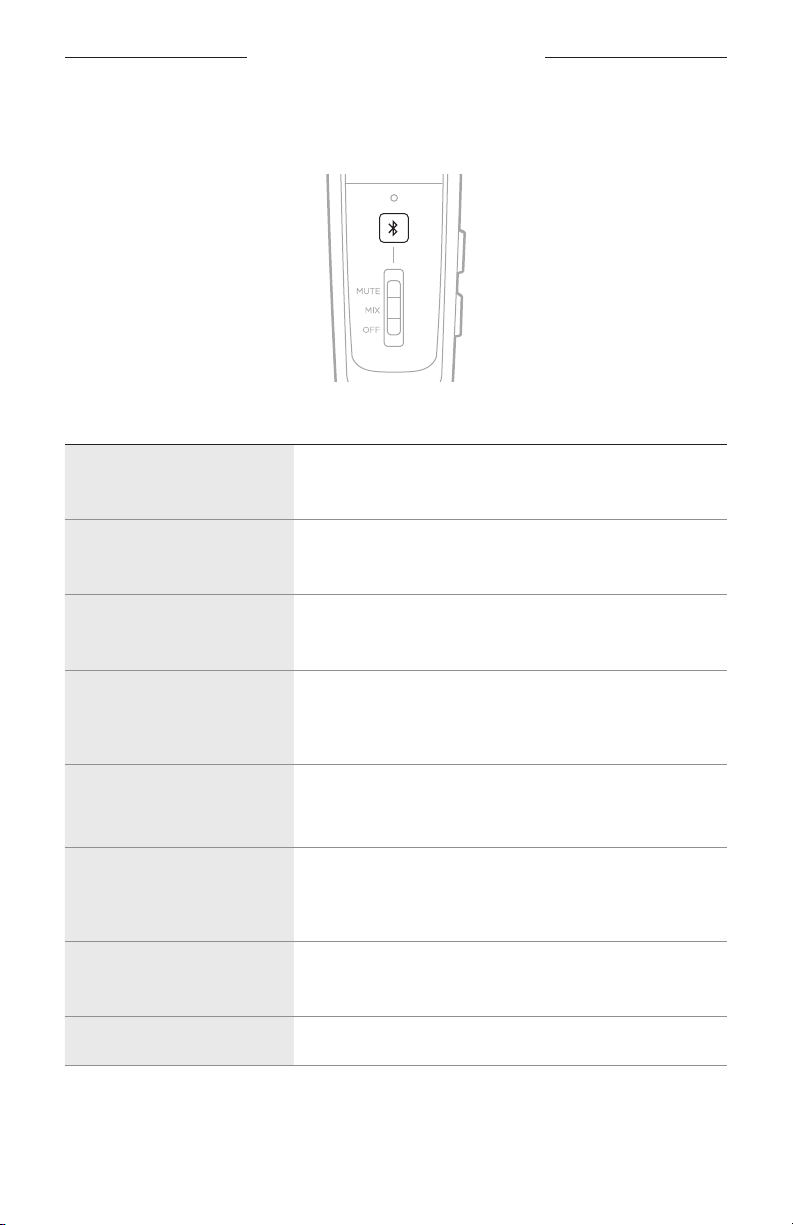
The Bluetooth volume controls are located on the side of the control module.
FUNCTION WHAT TO DO
Bluetooth volume up
Press H.
Bluetooth volume down
Press z.
SECONDARY AUDIO SOURCES
43
|
ENG
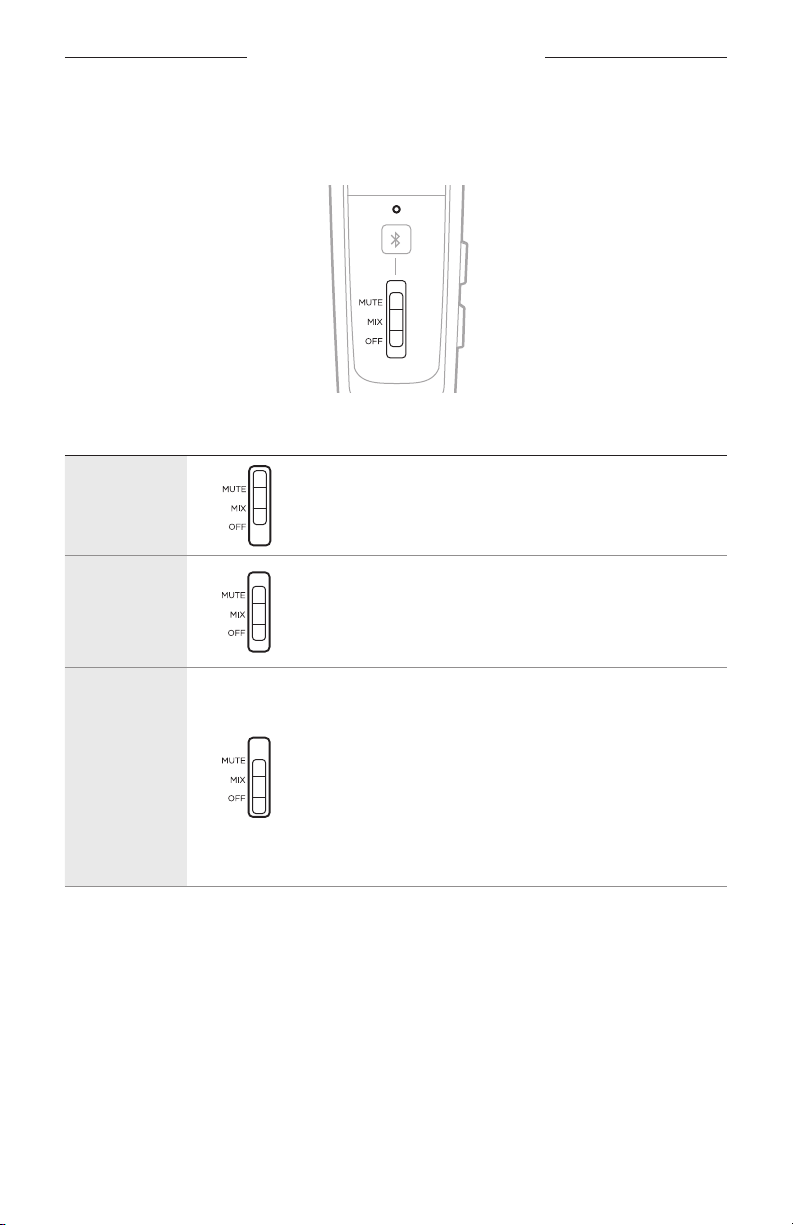
Call functions
The Bluetooth/Multi-function button l is located on the front of the control module.
FUNCTION WHAT TO DO
Make a call
Dial from your connected phone.
The call automatically transfers to the headset.
Answer a call
Press l.
You hear a short beep before you hear the incoming call.
End a call
Press l.
You hear two short beeps indicating the call has ended.
Decline an incoming call
Press and hold l for 1 second.
You hear two short beeps indicating the call has
been declined.
Answer a second incoming
call and put the current call
on hold
While on a call, press l.
You hear a short beep before you hear the second call.
Decline a second incoming
call and stay on current call
While on a call, press and hold l for 1 second.
You hear two short beeps indicating the call has
been declined.
Switch between two calls
With two active calls, double-press l.
You hear a short beep before you hear the incoming call.
Redial the last number
When there are no active or incoming calls, double-press l.

SECONDARY AUDIO SOURCES
44
|
ENG
FUNCTION WHAT TO DO
Transfer audio to the
mobile device
While on a call, press and hold the Bluetooth/Multi-function
button l for 3 to 4 seconds.
The audio is transfered to the mobile phone while the
Bluetooth connection remains active.
Activate voice control
When there are no active or incoming calls, press l.
Mute/unmute a call
While on a call, press H and z simultaneously.
You hear two short beeps indicating the call has been
muted/unmuted.
NOTES:
• If you are on a call and unplugged from the intercom, the headset powers o
approximately 3 minutes after the call is ended.
• To use the headset when unplugged from the intercom (to listen to audio or
to make or receive calls), Bose recommends to disable the Auto o feature for
uninterrupted functionality. See “Operation Switches” on page 26.
• Some functions may not be available for some mobile devices. Refer to your device
owner’s guide for more information.
45
|
ENG
SECONDARY AUDIO PRIORITY
SECONDARY AUDIO MODE SWITCH
Controls how secondary audio sources are heard in relation to the intercom.
FUNCTION POSITION DESCRIPTION
MUTE
When an intercom signal is detected, secondary audio is
temporarily muted until intercom audio ceases.
MIX
When an intercom signal is detected, secondary audio is
mixed with intercom audio.
You hear a maximum of two audio sources: the intercom
plus one secondary device.
OFF
Only intercom audio is active. All secondary audio sources,
(AUX and Bluetooth) are muted.
NOTES:
• All Bluetooth connections are disabled and antennae
power is removed.
• If you switch to OFF while connected to a Bluetooth
device, you may need to re-establish your Bluetooth
connection the next time you turn on the headset or the
next time you move the switch from the OFF position.
NOTES:
• Only one secondary audio source can be heard at a time.
• Audio from a secondary source will never override intercom communications.
• When MUTE or MIX are selected, incoming and outgoing phone calls automatically
mute all other secondary audio sources.
• During a phone call, intercom and phone call audio are mixed.
SECONDARY AUDIO PRIORITY
46
|
ENG
PRIORITY OPERATION SWITCH
Establishes priority between two secondary audio sources connected at the
same time.
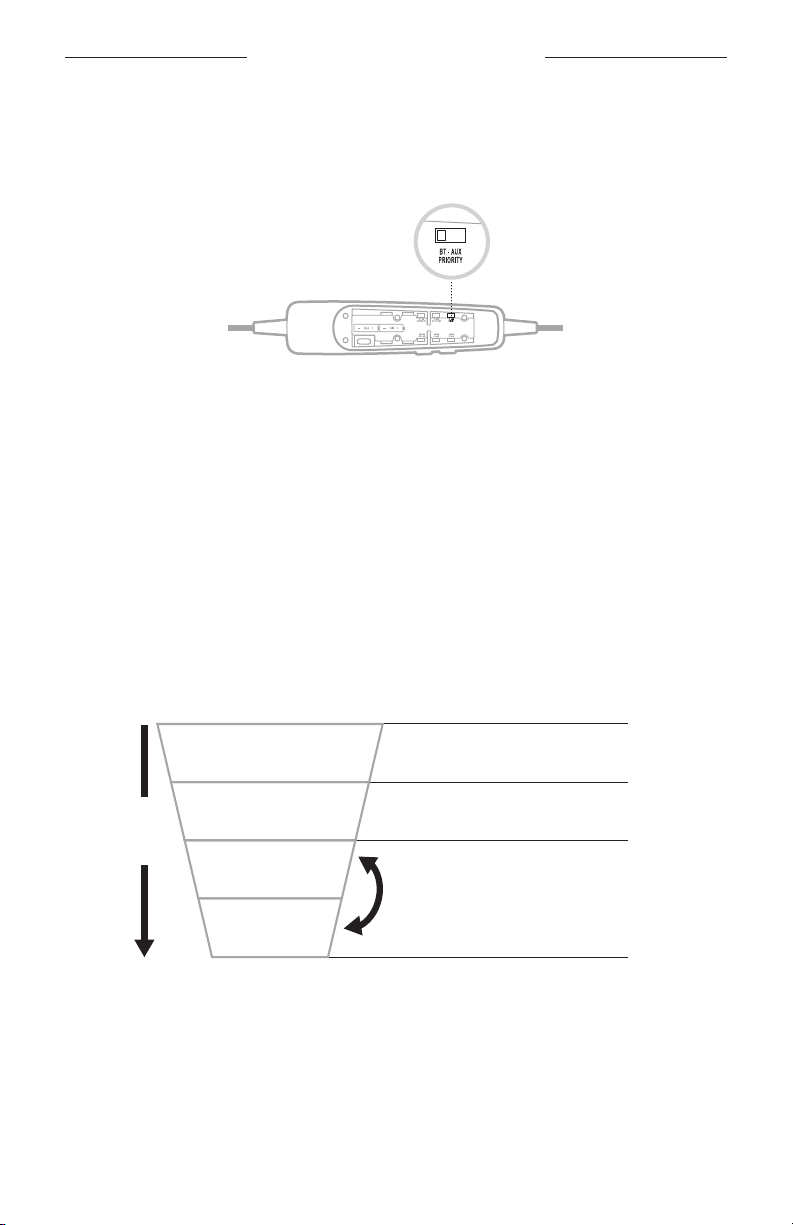
1. Locate the PRIORITY operation switch inside the battery compartment.
2. Set the switch to the correct source (BT or AUX). See “Change the operation
switches” on page 28.
• When the switch is in the BT position, the Bluetooth source will override the
AUX source if a signal is detected.
• When the switch is in the AUX position, the AUX source will override the
Bluetooth source if a signal is detected.
NOTE: Incoming and outgoing phone calls will always override any other
secondary source.
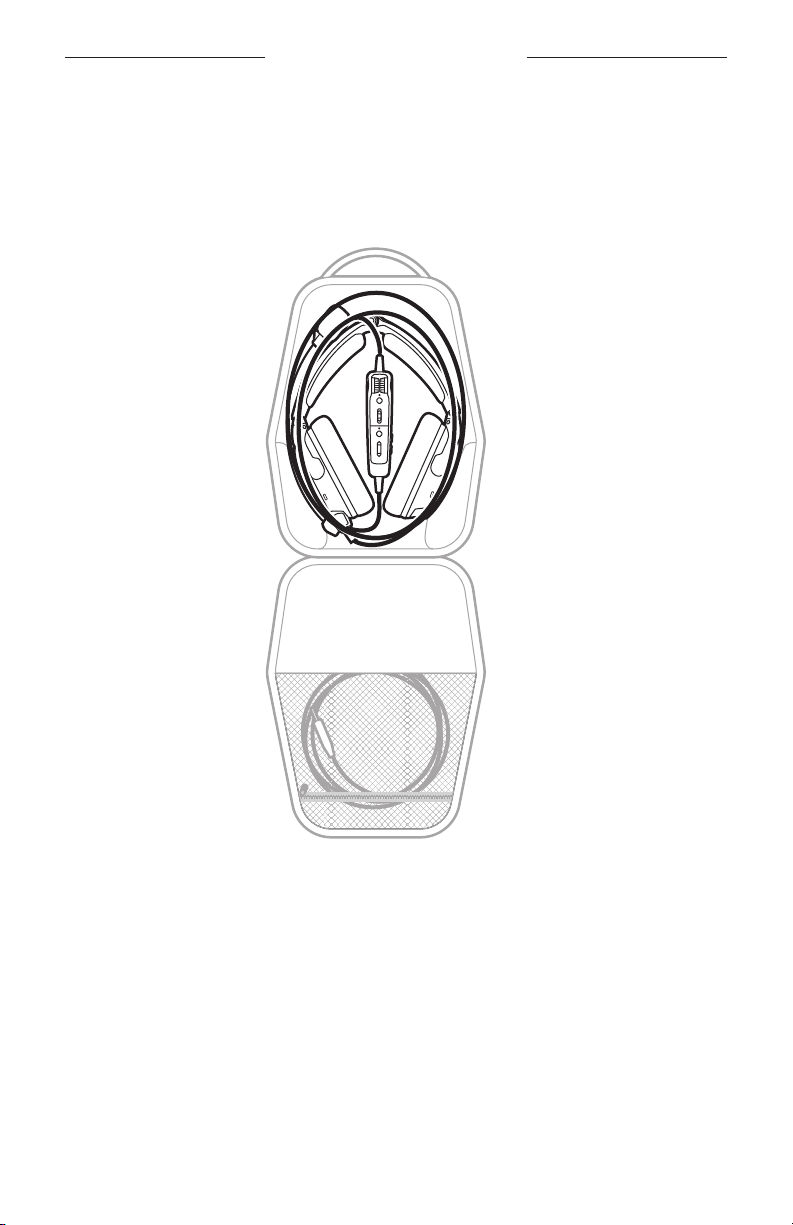
SECONDARY AUDIO PRIORITY CHART
Audio sources are heard according to priority:
Active calls will override all
other secondary audio sources
Radio/Intercom
Bluetooth
Phone calls
Streaming
Bluetooth (A2DP)
AUX audio
Priority
Can be changed by setting the
PRIORITY switch
Always overrides all other audio
47
|
ENG
CARE AND MAINTENANCE
STORE THE HEADSET
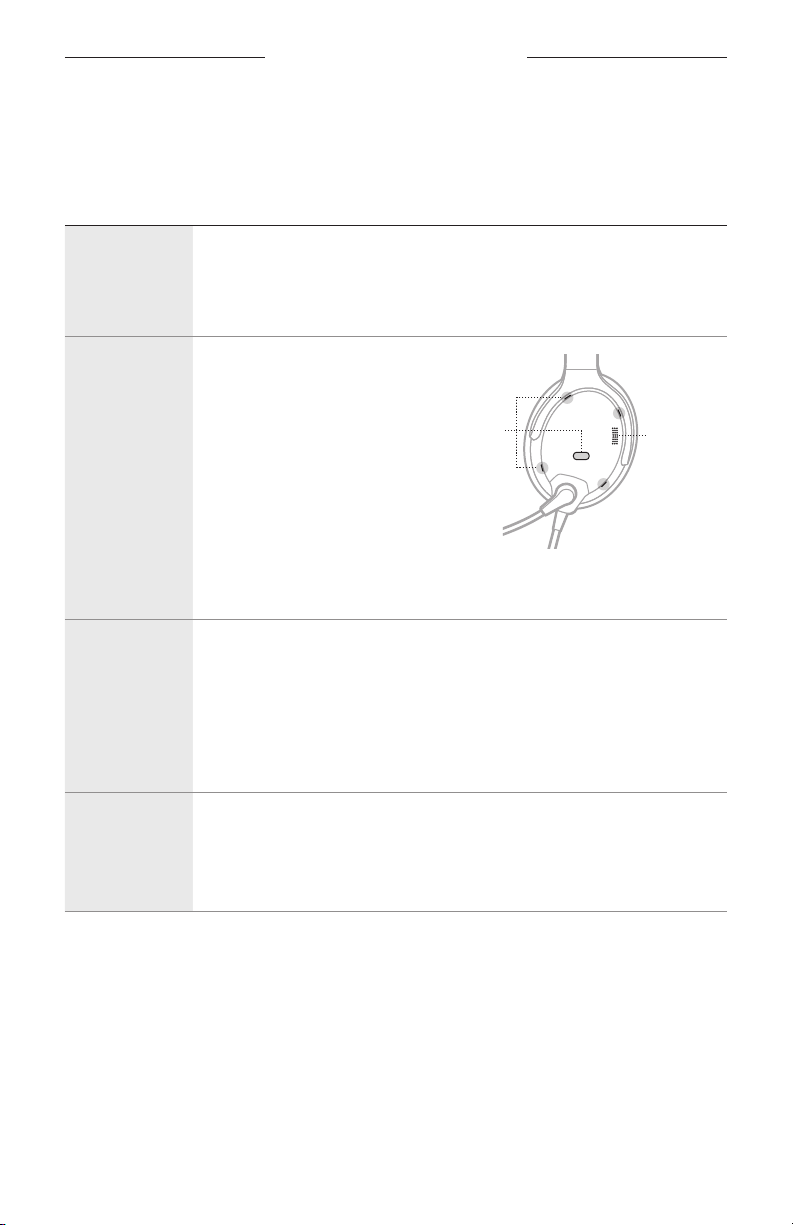
• Place the headset in the carry case for easy, convenient storage.
• Store the headset in a ventilated area away from direct sunlight.
• Remove the batteries before storing the headset for extended periods.
CARE AND MAINTENANCE
48
|
ENG
CLEAN THE HEADSET
Your headset may require periodic cleaning.
COMPONENT CLEANING PROCEDURE
Headset
Wipe the outside surfaces of the headband, headband cushion, earcup
cushions, connectors, and plastic parts using a soft, damp cloth (water
only) and mild soap.
CAUTION: Do NOT immerse the headset in water or any liquid.
Earcup
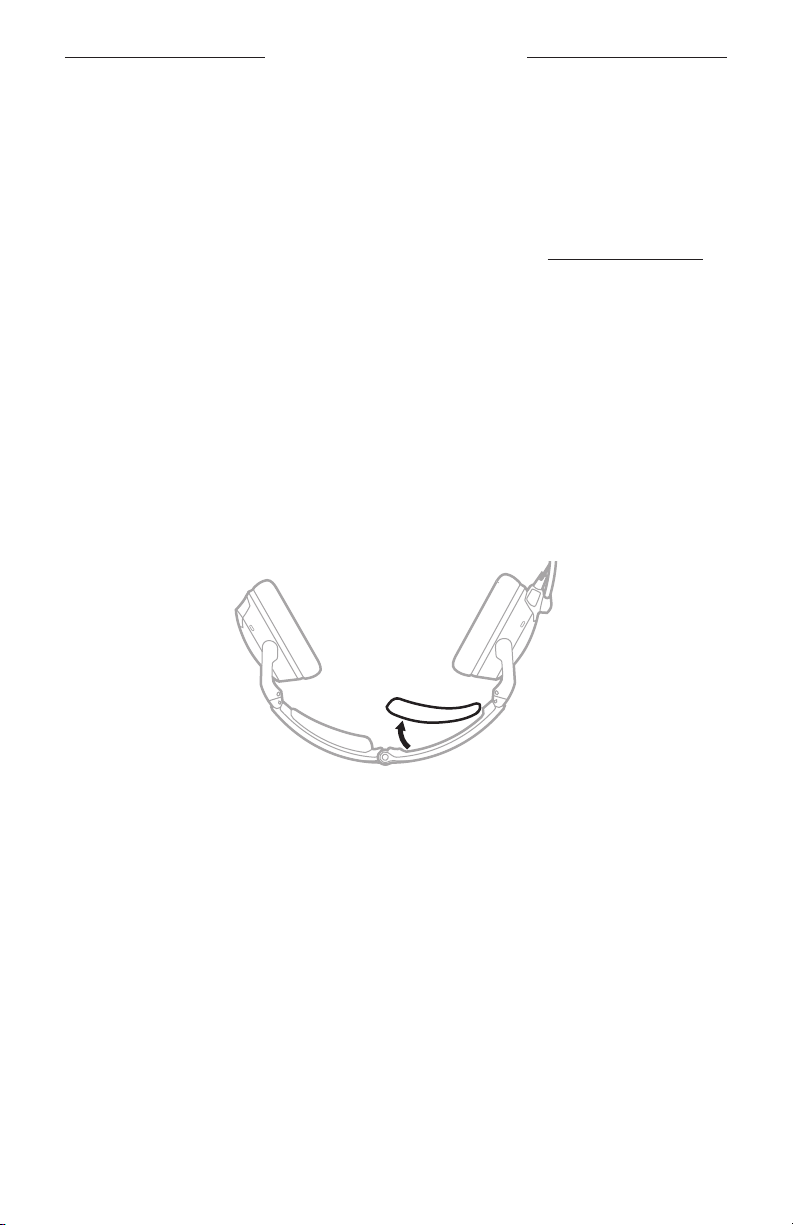
openings
Check to make sure that the
openings on the outside of each
earcup are clean and free of
debris before each flight.
When wiping down the earcups,
be sure not to force any dirt
or debris into the openings.
Carefully use tweezers, if
necessary, to remove foreign
matter that may be lodged in
the openings.
CAUTION: Do NOT blow air into or vacuum the openings, as this may
damage the headset.
Earcup inner
screen
Do not attempt to remove, replace, repair, or clean the inner screen inside
the earcup. If the screen appears to be damaged or worn out, contact Bose
customer service.
If the inner screen becomes damp from environmental moisture such as
light rain, dew, perspiration, or condensation, allow it to air dry only.
CAUTION: Do NOT use electric heaters, blowers, or hair dryers to dry the
inner screen.
Microphone
windscreen
1. Gently slide or roll the windscreen o the microphone.
2. Rinse and dry the windscreen.
3. Once the windscreen is completely dry, slide the windscreen back on
the microphone. Make sure it fits completely over the microphone.
Microphone
opening
Acoustic
openings
CARE AND MAINTENANCE
49
|
ENG
LIMITED WARRANTY
The headset is covered by a limited warranty. Details of the limited warranty are
provided on the product registration card that is in the carton. Please refer to the
card for instructions on how to register. Failure to do so will not aect your limited
warranty rights.
1. Contact the Bose organization in your country/region (visit wordwide.Bose.comwordwide.Bose.com
for Bose contact information in your country/region) for specific return and
shipping instructions.
2. Label and ship the product, freight prepaid, to the address provided by the Bose
organization in your country.
3. Place any necessary return authorization number prominently on the outside of
the carton. Cartons not bearing a return authorization number, where required,
will be refused.
SERIAL NUMBER LOCATION
The serial number is located under the headband cushion. To view the serial number,
gently grab and peel the cushion from away from the headband.
Refer to this serial number when you register your product or contact Bose for
technical support.

CARE AND MAINTENANCE
50
|
ENG
REPLACEMENT PARTS AND ACCESSORIES
Through normal use, parts like windscreens and ear cushions may require periodic
replacement. Replacement parts and accessories can be ordered through
Bose customer service.
Visit: support.Bose.com/A30support.Bose.com/A30
Available accessories
• Ear cushions (pair)
• Headband cushions (pair)
• Electret microphone windscreen
• Dynamic microphone windscreen
• Service kit (ear cushions, electret microphone windscreen, headband cushions)
• Carry case
• Terminator cover
• Control module with cable and microphone assembly
• 6-pin to Dual plug cable adapter
• 6-pin to U174 cable adapter
• 3.5 mm AUX audio cable
• Installation kit
• Cable clip
Ear cushions
Ear cushions should be replaced every six months or every 350 hours of use.
You may need to replace them more often if you:
• Have a full beard or heavy whiskers.
• Subject the headset to severe temperature extremes such as parking your airplane
outside in severe cold or heat.
• Put excess strain on the cushions because of improper storage.
Indications that the ear cushions need replacing include:
• Flaking of the outer covering
• Cuts or tears
• Flattening of the cushion, reducing the eectiveness of the seal
NOTE: To extend the life of the ear cushions, perform regular cleaning
(see page 48).
CARE AND MAINTENANCE
51
|
ENG
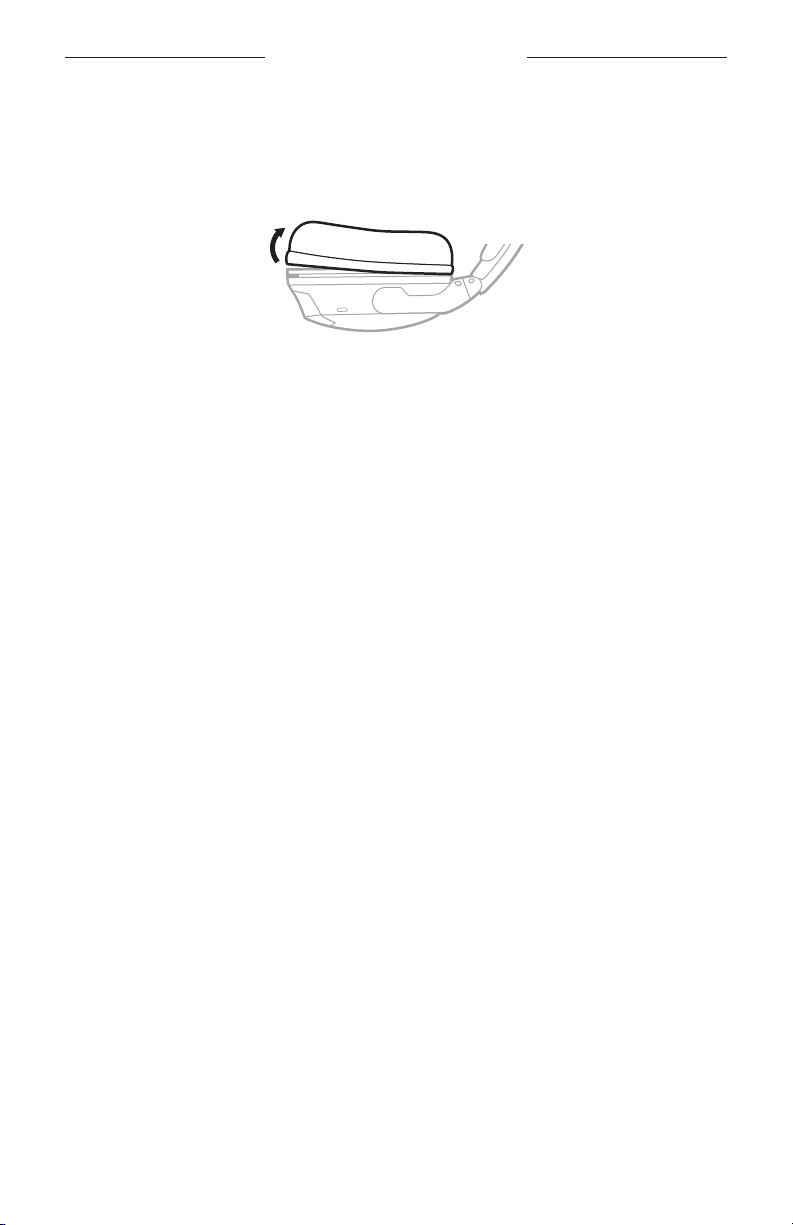
Remove the old ear cushion
1. Grasp the ear cushion skirt where it folds into the slot on the earcup.
2. Gently pull the ear cushion skirt up and away from the earcup.
Install the new ear cushion
1. Properly align the new ear cushion with the earcup.
2. Tuck an edge of the ear cushion skirt into the slot behind the ear cushion flange.
Be careful not to fold the skirt over.
3. Gently stretch the cushion around the earcup, working the skirt into the slot
as you go.
4. Grasp the ear cushion and adjust its position to remove any folds in the skirt and
wrinkles in the cushion.
CARE AND MAINTENANCE
52
|
ENG
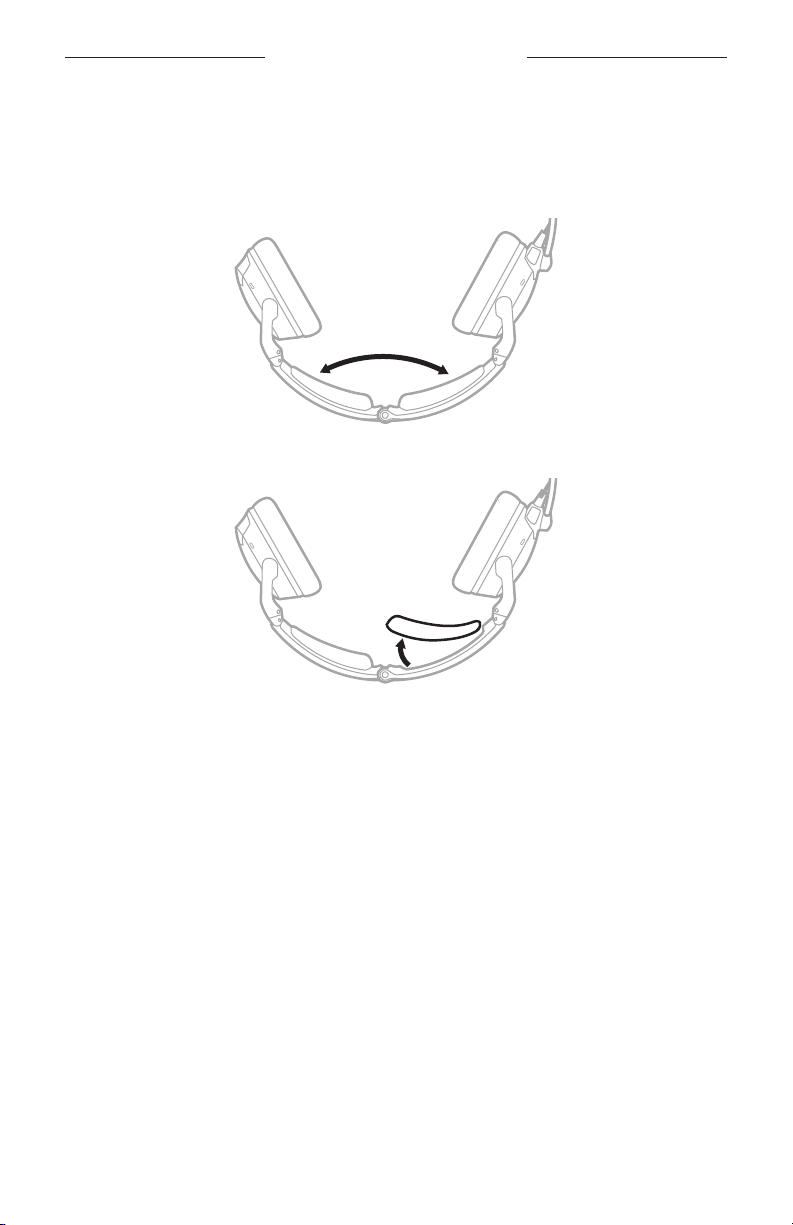
Headband cushions
Replace the cushion once regular care and maintenance fails to restore the cushion to
its original size and shape.
1. On a protected surface, turn the headset upside down.
2. Remove the old cushion from the headband.
3. While still holding the headband open, align the center of the new cushion with
the center of the headband and press firmly from the center toward the outside.
CARE AND MAINTENANCE
53
|
ENG
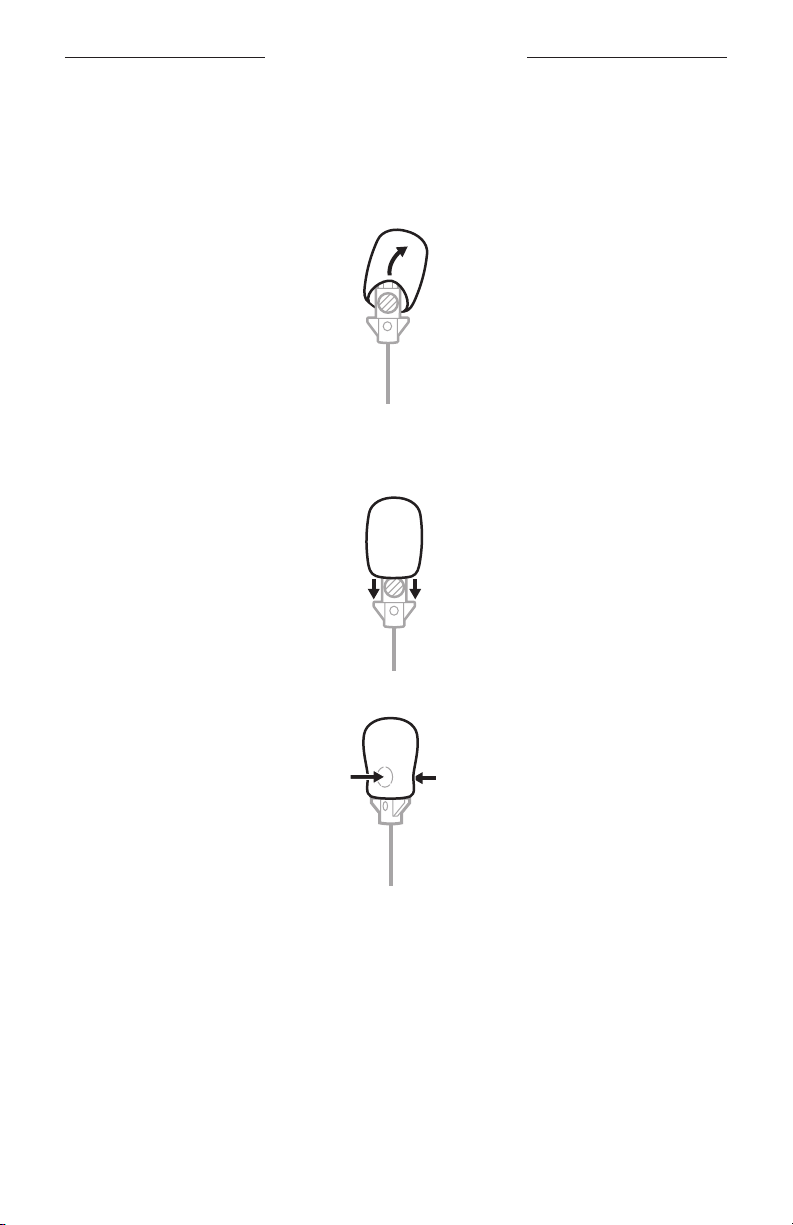
Microphone windscreen
You can remove the windscreen to wash it or to replace it as needed.
1. Gently grasp the microphone base and peel the windscreen away from
the microphone.
2. Slide the windscreen o the microphone.
3. Slide the new windscreen on the microphone. Make sure it fits completely
over the microphone.
4. Press the sides of the windscreen to secure into place.
Batteries
See “Batteries” on page 32.
Microphone or terminator cover
See “Microphone Placement” on page 30.

54
|
ENG
TROUBLESHOOTING
TRY THESE SOLUTIONS FIRST
If you experience problems with your headset, try these solutions first:
• Power on the headset (see page 22).
• Check the state of the status lights (see page 36).
• Make sure the REVERSIONARY operation switch is set to OFF
(see “Change the operation switches” on page 28).
• For Bluetooth models:
– Make sure your mobile device supports Bluetooth 4.2 and greater.
– Increase the volume on your Bluetooth device or music app.
– Try connecting another Bluetooth device (see page 40).
OTHER SOLUTIONS
If you could not resolve your issue, see the table below to identify symptoms and
solutions to common problems. If you are unable to resolve your issue, contact
Bose customer service.
Visit: worldwide.Bose.com/Contactworldwide.Bose.com/Contact
Acoustic Noise Cancelling
PROBLEM WHAT TO DO
Communication, but no
noise cancellation in
either ear
If using battery power, make sure the batteries are fresh and
correctly installed (see page 32).
If using aircraft power, check the aircraft fuse or circuit breaker.
If using aircraft power, make sure the connector is firmly
seated in the control panel and the control panel has power
(see page 34).
Power o, then power on the headset (see page 22).
NOTE: Don’t press the Power button I repeatedly.
No active noise
cancellation and no
communication
If using battery power, make sure the batteries are fresh and
correctly installed (see page 32).
If using aircraft power, make sure the connector is firmly
seated in the control panel and the control panel has power
(see page 34).
Power o, then power on the headset (see page 22).
NOTE: Don’t press the Power button I repeatedly.
Use the headset in a dierent seat location.
Remove microphone assembly from the headset, and check for
damage to the connector or pins (see page 30).

TROUBLESHOOTING
55
|
ENG
PROBLEM WHAT TO DO
Tap Control doesn’t
function during
extreme ambient
noise conditions
Tap Control is disabled during extreme levels of ambient noise
to ensure proper noise reduction performance and intercom
communication quality. However, you can still set the noise
cancellation level to LOW in both earcups using the Acoustic Noise
Cancelling (ANC) switch (see page 23).
Intercom communications
PROBLEM WHAT TO DO
Noise cancellation
active, but no
incoming audio
Make sure the volume controls are not set too low on the control
module or the intercom.
Make sure the aircraft connectors are securely inserted into the
aircraft control panel (see page 34).
Use a dierent seat location in the aircraft.
Low volume
of incoming
communications
Make sure the volume controls are not set too low on the control
module or the intercom.
Make sure the INTERCOM operation switch is correctly set for your
intercom system (see page 26).
Make sure all headsets sharing the intercom have the INTERCOM
operation switch in the correct position (see page 26).
Unplug all other headsets and see if the volume can be adjusted to
an acceptable level.
Intermittent
communication
Make sure the aircraft connectors are securely inserted into the
aircraft control panel (see page 34).
Use a dierent seat location in the aircraft.
Reduced volume
in one ear only
Make sure the volume controls are not set too low on the control
module or the intercom.
Make sure the INTERCOM operation switch is correctly set for your
intercom system (see page 26).
No stereo separation
or communications
in one ear only
Make sure the INTERCOM operation switch is correctly set for
your intercom system (see page 26).
Make sure the terminator cover is securely installed (see
page 30).
Depending on how your audio jacks are wired, there may be
only one channel of audio supplied to the headphone jack. If
the INTERCOM operation switch is set to ST and you only hear
communications on one side, set the operation switch to MON to
play audio on both sides. 5-pin XLR models are mono audio only.

TROUBLESHOOTING
56
|
ENG
Audio
PROBLEM WHAT TO DO
Reduced noise
cancellation,
intermittent
clicking sounds,
or communication
distortion in a loud
environment
Make sure the earcups are clean and free of debris
(see page 48).
Remove the microphone, then attach again (see page 30).
If the headset emits any loud noise and related loss of
communications while in Acoustic Noise Cancelling mode, turn the
power o. The headset will continue to provide communications in
the passive noise reducing mode.
Squealing or whistling
sound when the
headset powers on
Make sure the headset orientation is correct. Use the Left T and
Right U markings on the headset to orient the headset correctly.
Make sure the ear cushions fully cover your ears (see page 18).
Make sure the earcups are clean and free of debris
(see page 48).
Crackling sound audible
with headset turned on
in a loud environment,
or noise cancelling is
intermittent
Make sure the headset orientation is correct. Use the Left T and
Right U markings on the earcups to orient the headset correctly.
Make sure the earcups are clean and free of debris
(see page 48).
Remove the microphone, then attach again (see page 30).
If using battery power, check if the battery is low (see page 36).
If using aircraft power, make sure the voltage powering the
headset is no less than 10 VDC.
WARNING: If the headset emits any loud noise and related loss of communications
while in Acoustic Noise Cancelling mode, turn the power o. The headset
will continue to provide communications in the passive noise
reducing mode.

TROUBLESHOOTING
57
|
ENG
Microphone
PROBLEM WHAT TO DO
Microphone doesn’t
pick up sound
Make sure the white dot on the microphone is facing your mouth
(see page 19).
Make sure the microphone is fully connected to the headband
(see page 30).
Check the Squelch level on the intercom and adjust if needed.
Try another intercom position in the aircraft.
For Bluetooth phone calls, make sure the batteries are fresh and
correctly installed (see page 32).
NOTE: For Bluetooth models only.

TROUBLESHOOTING
58
|
ENG
Bluetooth audio source
NOTE: This section applies to Bluetooth models only.
PROBLEM WHAT TO DO
No audio from the
Bluetooth source to the
headset while on a call
Make sure the Secondary Audio Mode switch is in the MUTE or MIX
position (see page 45).
Turn on and o Bluetooth on the mobile device.
Make sure the Bluetooth feature is on, and the Bluetooth light is
flashing (see page 37).
Make sure the headset and device are in range (30 ft or 9 m).
Make sure the mobile device is connected properly and the
headset is ready to pair (see page 39).
Make sure the Bluetooth volume is not set too low on the control
module (see page 42).
Headset does not pair
with a device
Turn on and o Bluetooth on the mobile device.
Make sure the Bluetooth feature is on, and the Bluetooth light is
flashing (see page 37).
If operating on battery power, check the Power light
(see page 36). If it’s flashing red, the Bluetooth feature is
disabled to conserve power. Replace the batteries.
Make sure the Secondary Audio Mode switch is in the MUTE or MIX
position (see page 45).
Clear the headset pairing list (see page 41) and connect again.
Delete the headset from your device’s Bluetooth device list and
pair again.
Cannot answer/end
a call
Make sure your mobile device is connected to the headset.
Turn your device o and on. Connect again.
Headset does not
reconnect to
a previously
connected device
Make sure the headset and device are in range (30 ft or 9 m).
Make sure the Secondary Audio Mode switch is in the MUTE or MIX
position (see page 45).
Make sure the Bluetooth feature is on, and the Bluetooth light is
flashing (see page 37).
If operating on battery power, check the Power light
(see page 36). If it’s flashing red, the Bluetooth feature is
disabled to conserve power. Replace the batteries.
On your mobile device, make sure the Bluetooth feature is on.
Delete the headset from your device’s Bluetooth device list and
pair again.

TROUBLESHOOTING
59
|
ENG
Auto on/o
NOTE: This function is not available for Dual plug and U174 models.
PROBLEM WHAT TO DO
Headset does not
power on automatically
Make sure the AUTO ON operation switch is set to ON
(see page 26).
Check the aircraft specifications to see if the jack is getting at least
10V of DC power from the aircraft’s electrical system.
Headset does not
power o automatically
Make sure the AUTO OFF operation switch is set to ON
(see page 26).
Disconnect the headset from the aircraft. Then power on the
headset and wait 15 minutes.
It may take up to 9 minutes for the headset to power o when not
in use immediately after initial power up. If the headset has not
powered o after 15 minutes, contact Bose customer service.
Reversionary mode
PROBLEM WHAT TO DO
Headset is in an
unresponsive or
unusable state
Set the REVERSIONARY operation switch to ON (see page 28).
This disables all non-critical functions, including Bluetooth audio,
AUX audio, and Tap Control. Only intercom communications and
Acoustic Noise Cancelling are enabled.
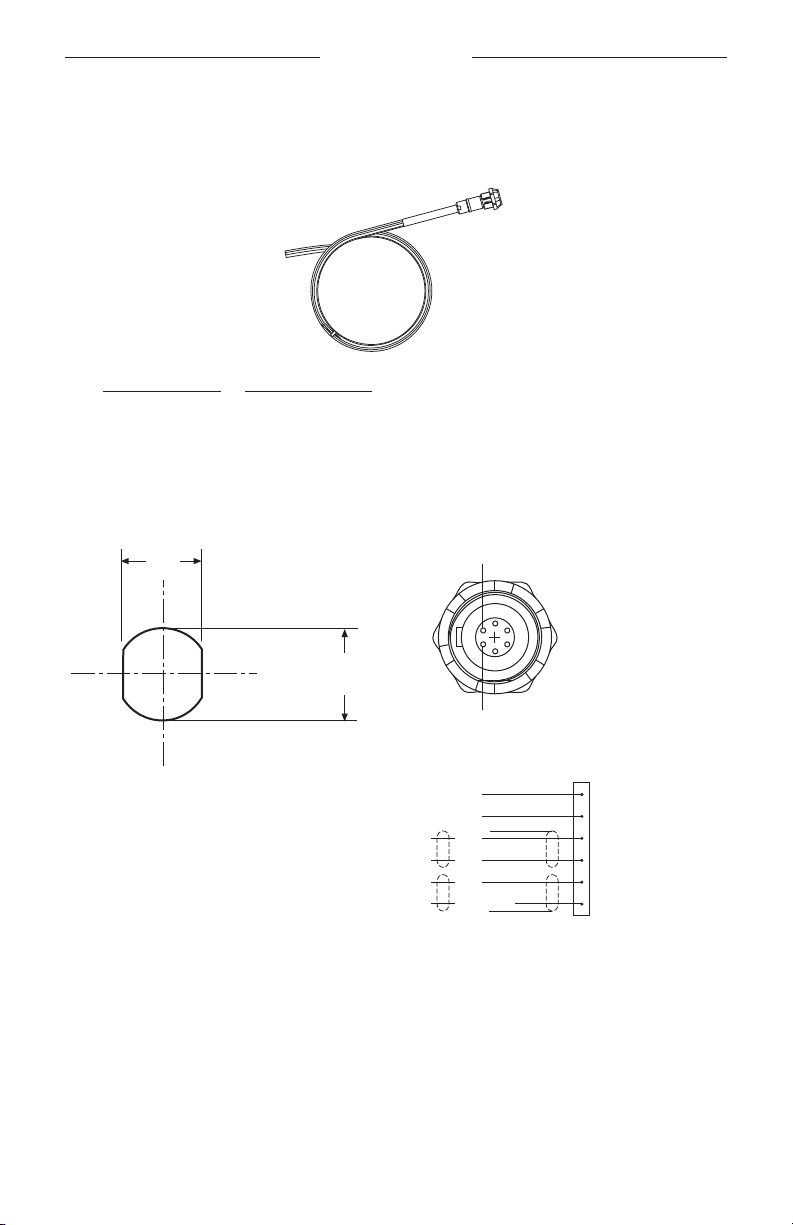
60
|
ENG
INSTALLATION
MOUNT THE AIRCRAFT PANEL CONNECTOR
The aircraft panel connector is part of the optional 6-pin wiring harness assembly.
Visit www.Bose.comwww.Bose.com or global.Bose.comglobal.Bose.com for information or to purchase.
WARNING: The aircraft panel connector must be mounted by a technician who is
qualified to perform this type of avionics installation for the aircraft you
are using.
Mount the connector into a cutout, using the diagrams below as a guide.
12.5mm
.49"
.55"
14.0mm
1 V+IN
2 GND
3 COMM L
4 COMM R
5 MIC HI
6 MIC LO
BLK/WH
BLK/WH
RED
WHT
BLU
WHT
WHT/BLU
BLK
Pin 6
Pin 1
Aircraft Interface Schematic
Receptacle - Pinout (front view)
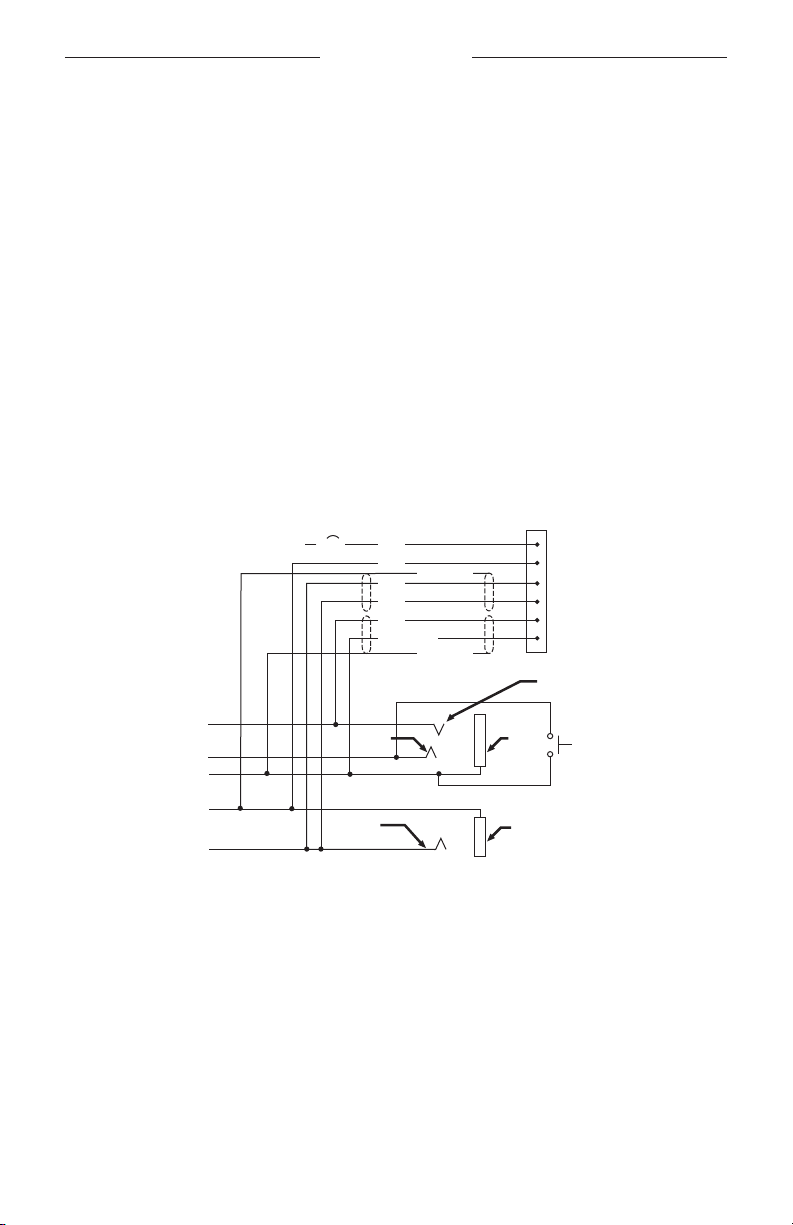
INSTALLATION
61
|
ENG
Connect the eight wires as follows:
• Two for the microphone
• Two for audio
• One for power
• One for ground
• Two for audio shields
Audio and microphone wires should be connected to the back of the existing
microphone and headphone jacks, leaving existing jacks intact for use with
conventional headsets. This is usually the fastest installation method.
CAUTION: Do NOT use excessive force or bend the installed connector. This may
damage or break internal solder joints.
NOTE: The aircraft panel connector cannot be installed in an audio system using
transformer-coupled audio outputs. Contact Bose customer service.
Mono connection diagram
10-32
V DC
1/2A
1 V+IN
2 GND
3 COMM L
4 COMM R
5 MIC HI
6 MIC LO
RED
WHT
BLU
WHT
WHT/BLU
BLK/WH
BLK/WH
BLK
Ring
(audio)
Existing PTT
switch
and wiring
(no connection to
Bose headset)
Microphone - Jack
Tip
(PTT)
Barrel
(gnd)
Headphone - Jack
Barrel
(audio gnd)
Tip
(phone audio)
Existing wiring to
aircraft intercom/
audio panel
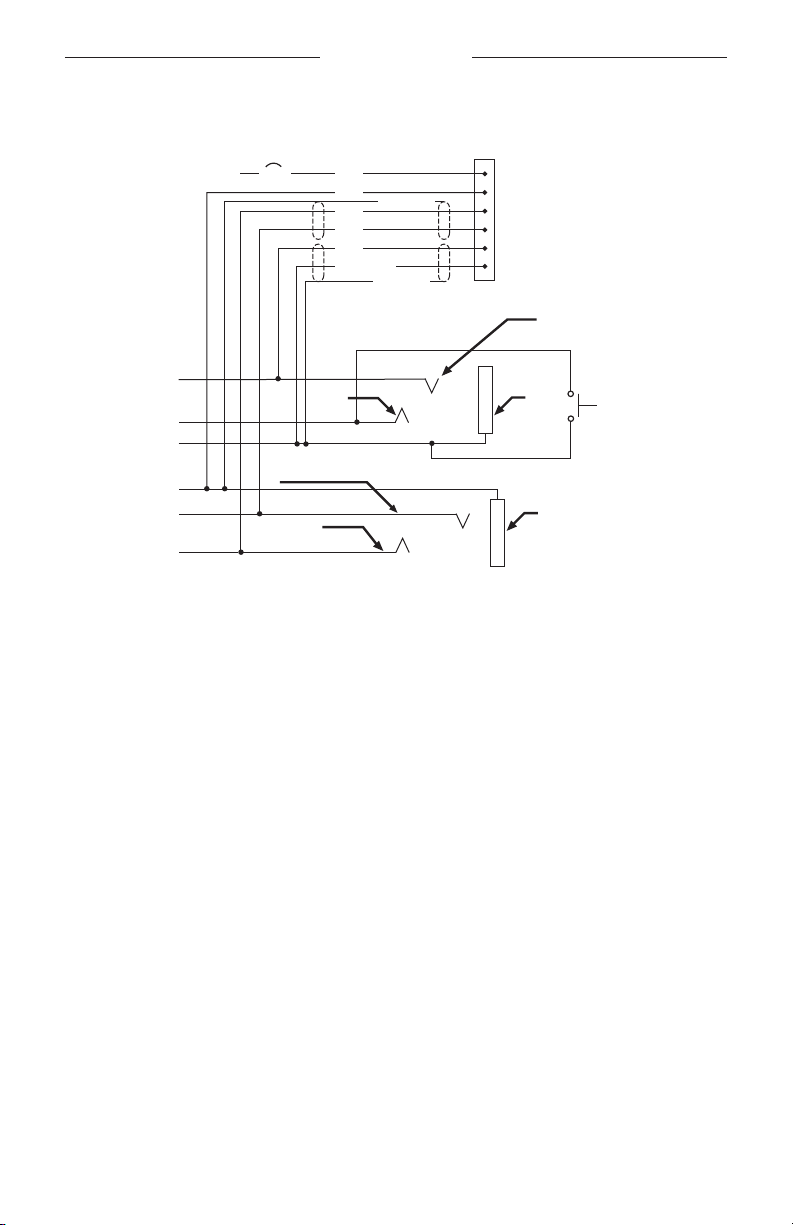
INSTALLATION
62
|
ENG
Stereo connection diagram
Existing wiring to
aircraft stereo
intercom/audio
panel
10-32
V DC
1/2A
1 V+IN
2 GND
3 COMM L
4 COMM R
5 MIC HI
6 MIC LO
Audio
Existing
PTT switch
and wiring
(no connection
to Bose
headset)
Microphone - Jack
Tip
(PTT)
Barrel
(gnd)
Stereo Headphone - Jack
Barrel
(audio gnd)
Tip
(phone audio left)
Phone
audio (right)
BLK/WH
BLK/WH
RED
WHT
BLU
WHT
WHT/BLU
BLK

INSTALLATION
63
|
ENG
Details on making the connections
The pinouts for the optional installed connector are detailed in the table below.
PIN NUMBER COLOR PURPOSE
1 Red
V+IN: Headset power (10-32 VDC). Use a 1/4 amp
fuse or a 1/2 amp circuit breaker.
2 Black
GND: System ground. Connect to the existing
audio ground.
3 White COMM L: Phone communication, Left.
4 Blue COMM R: Phone communication, Right.
NOTE: For stereo operation, connect the left and right channels to their respective positions.
For monaural operation, connect pins 3 and 4 together, and to the tip of the existing
phone jack.
5 White
MIC HI: Microphone/Hi-audio. Connect to the
portion of the existing microphone jack that
corresponds to the ring position of a headset
microphone plug. Don’t connect to the tip
(PTT) segment.
6 White/Blue
MIC LO: Microphone/Lo-ground. Connect to the
portion of the microphone jack that corresponds to
the barrel position of a headset microphone plug.
NOTE: If the microphone works on radio transmit but not through the intercom, check pin 6.
It may be incorrectly wired to the PTT segment of the microphone jack.
Comm Shield Black Shield from Comm L and Comm R wire pair.
Mic Shield Black Shield from Mic Hi and Mic Lo wire pair.
NOTE: The wires connecting pins 3 and 4 and pins 5 and 6 are shielded, twisted pairs with a
black wire shield termination exiting each pair. If the existing wiring is not shielded,
connect the shields to the existing audio wiring shields, or connect the shield from
Comm L and Comm R wire pair to audio ground.

64
|
ENG
TECHNICAL INFORMATION
HEADSET SPECIFICATIONS
SPECIFICATION DESCRIPTION
Headphone sensitivity
96.5 +/- 3.5 dBA SPL*
*Measured per RTCA DO-214A Subparagraph 2.7.2.1(a)
Headphone impedance
Mono mode: 150 Ohm*
Stereo mode: 300 Ohm*
*Measured per RTCA DO-214A Subparagraph 2.3.4.1
Headphone frequency
response
Total span (max - min) +/- 7.5 dB*
*Measured per RTCA DO-214A Subparagraph 2.7.2.1(b)
Boom microphone
sensitivity
400 mV RMS +/- 3 dB for 114 dB SPL at 1000 Hz*
*Measured per RTCA DO-214A Subparagraphs 2.2.3.1 and
2.6.2.1
Boom microphone bias
Operating range: 8.0 - 16 VDC*
*Measured per RTCA DO-214A Subparagraph 2.6.2.1
Maximum ambient
noise level
Full active noise reduction operating range: 115 dB SPL
Reduced active noise reduction operating range: 134 dB SPL
Battery power source Two (2) AA alkaline batteries
Battery life
Up to 45 hours. Duration varies with battery quality, ambient
noise levels, and use of the Bluetooth feature.
Aircraft power source Aircraft power voltage range: 10 to 32 VDC
Average power consumption 300 mW
Fuse/breaker
1/4 amp, fast-blow fuse (AGC 1/4 amp fuse) or 1/2 amp
circuit breaker
Headset weight 12 ounces (headset only)

TECHNICAL INFORMATION
65
|
ENG
SPECIFICATION DESCRIPTION
Headset size range
Slider not extended:
8.425" (214 mm) H x 6.34" (161 mm) W x 3.15" (80 mm) D
Slider extended:
10.2" (259 mm) H x 6.6" (168 mm) W x 3.15" (80 mm) D
Control module dimensions 1.5" (38.1 mm) H x 1.5" (38.1 mm) W x 4.92" (125 mm) D
Temperature and Altitude
(Category A2)
Operating: 5°F - 158°F (-15°C - 70°C)
Storage: -67°F - 158°F (-55°C - 70°C)
Altitude: 15,000 feet maximum pressure altitude for full
cancellation
Bluetooth wireless
technology
4.2
Headset cable length 6.56 ft or 2 m
NOTE: Damage could occur to avionics equipment by the use of these headsets if
equipment was manufactured for use with 600 Ω headsets only. If in doubt,
consult the avionics equipment manufacturer.

TECHNICAL INFORMATION
66
|
ENG
FAA TECHNICAL STANDARD ORDER
The Bose A30 Aviation Headsets that are approved to TSO and ETSO C139a are
appropriately marked. The product interface, cables, and microphones have been
designed to function in or withstand exposure to the environmental conditions below.
This article meets the minimum performance and quality control standards
required by a technical standard order (TSO). Installation of this article requires
separate approval.
CONDITION CATEGORY
Altitude and temperature A2
Salt fog S
AF conducted susceptibility B
Humidity B
Magnetic eect A
Power input B
RF Susceptibility TR
Vibration S, R and U
Voltage spike A
Shock drop 12 times, 1 m onto concrete (per DO-214a)
Explosive atmosphere Passed

TECHNICAL INFORMATION
67
|
ENG
Environmental categories cited refer to RTCA DO-160G and RTCA DO-214a
(December 18, 2013).
The conditions and tests required for TSO approval of this article are minimum
performance standards. Those installing this article either on or within a specific
type or class of aircraft must determine that the aircraft installation conditions are
within the TSO standards which include any accepted integrated non-TSO functions.
TSO articles and any accepted integrated non-TSO function(s) must have separate
approval for installation in an aircraft. The article may be installed only according to
14 CFR part 43 or the applicable airworthiness requirements.
This device complies with FCC and ISED Canada RF radiation exposure limits for
general population. It must not be collocated or operating in conjunction with any
other antenna or transmitter.

©2023 Bose Corporation, 100 The Mountain Road, Framingham, MA 01701-9168 USA
AM876056-0010 Rev. 00