E-MANUAL
Thank you for purchasing this Samsung product.
To receive more complete service, please register
your product at
www.samsung.com/register
Model Serial No..
e-Manual Guide
Viewing the e-Manual
1 Scrolling a Page
1 Using the Top Icons
1 Ret_rning to the Home Page
2 Searching the Index
2 Searching Pages
2 Closi _g the e-Manual
2 Jumping to a Menu item
2 Updating the e-Manual
Getting Started
Antenna Connection
Video Device Connections
4 HDMI Connection
5 Component Connection
5 AV Connection
Audio Device Connections
6 Digital Audio (Optical) Connection
7 Audio Output Connection
7 ARC (Audio Return Channel)
Computer Connection
8 HDMI Connection
9 HDMI-to-DVI Connection
Switching Between Video Sources
Programming
11 Auto Program
11 Remove Scrambled Channels
15
Restore Removed Channels
Channel Management
12 Remove Channels
13
13 Program Rating Lock
13 B ock ng Programs Usng the TV Rating
14 B ock ng based on Movie Rat J_g(MPAA)
14 Bockqg Based oJ_CanadiaJ_ Er_g sh Rating
15 B ock ng Based on Canadian French Rating
15 B ock ng Based on Downloadab e U,S, Ratir_g
15 Watching Bocked /Restr cted Programs
Rename Analog Channels
Favorite Channels
17 Add Favorite Channels
17 Remove Favorite Channels
18 Rearrange the Favorite Channels List
18 Rename a Favorite Channel List
18 Copy a Favorite Channels List
Network Configuration
19 Wired Network
20 Wireless Network
20 PDP 5500, LED 5500 series aJ_dabove
20 LED 4300 Series modes
21 Wire ess Network Precautions
21 Network Secur ty Protocols
Wired Network Setup
22 Automatic Wired Network Setup
22 Manual Wired Network Setup
24 Failed Wired Connection
Wireless Network Setup
25 Automatic Wireless Network Setup
26 Manual Wireless Network Setup
28 Using the WPS Button
28 Failed Wireless Connection
29 Dynam}c versus Static P Addresses
Checking the Network Status
Mobile Device Connection
31 Wi-Fi Direct
31 AIIShare Settings
31 Rename the TV
Controlling the TV
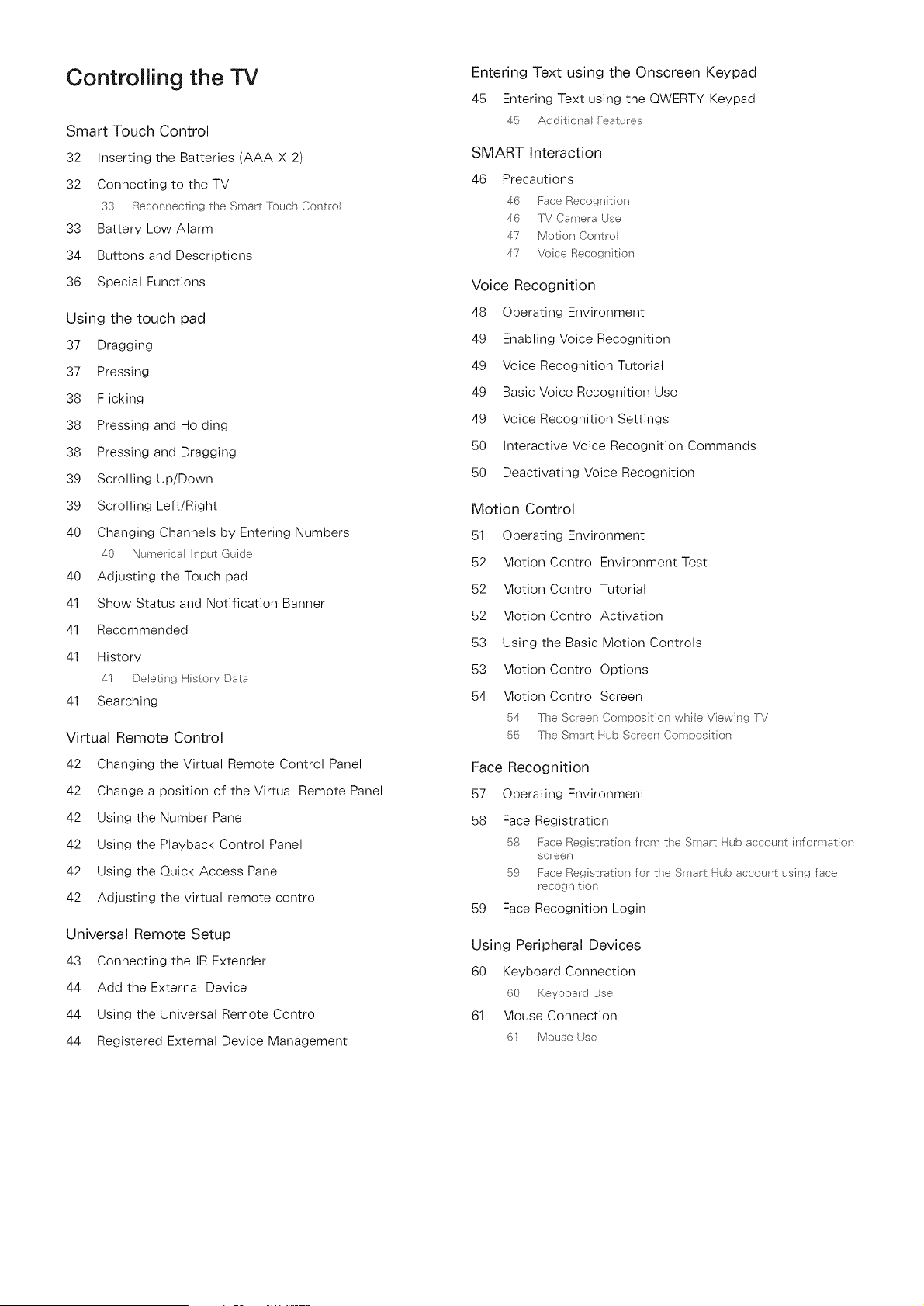
Smart Touch Control
32 Inserting the Batteries (AAA X 2)
32 Connecting to the TV
33 Reconnecting the Smart Teuch Contro
33 Battery Low Alarm
34 Buttons and Descriptions
36 Special Functions
Using the touch pad
37 Dragging
37 Pressing
38 Flicking
38 Pressing and Holding
38 Pressing and Dragging
39 Scrolling Up/Down
39 Scrolling Left/Right
40 Changing Channels by Entering Numbers
40 Numerca nputGuide
40 Adjusting the Touch pad
41 Show Status and Notification Banner
41 Recommended
41 History
41 Delet ng History Data
41 Searching
Virtual Remote Control
42 Changing the Virtual Remote Control Panel
42 Change a position of the Virtual Remote Panel
42 Using the Number Panel
42 Using the Playback Control Panel
42 Using the Quick Access Panel
42 Adjusting the virtual remote control
Universal Remote Setup
43 Connecting the IR Extender
44 Add the External Device
44 Using the Universal Remote Control
44 Registered External Device Management
Entering Text using the Onscreen Keypad
45 Entering Text using the QWERTY Keypad
45 Addit ona Features
SMART Interaction
46 Precautions
46 Face Recognition
46 TV Camera Use
47 Mot}on Control
47 Voice Recoonit on
Voice Recognition
48 Operating Environment
49 Enabling Voice Recognition
49 Voice Recognition Tutorial
49 Basic Voice Recognition Use
49 Voice Recognition Settings
50 Interactive Voice Recognition Commands
50 Deactivating Voice Recognition
Motion Control
51 Operating Environment
52 Motion Control Environment Test
52 Motion Control Tutorial
52 Motion Control Activation
53 Using the Basic Motion Controls
53 Motion Control Options
54 Motion Control Screen
54 [he Screen Compos tion while V[ewir_9 TV
55 The Smart Hub Screen Composition
Face Recognition
57 Operating Environment
58 Face Registration
58 Face Registration from the Smart Hub accouter nformat on
screen
59 Face Registrar on for the Smart Hub account usis9 face
recognition
59 Face Recognition Login
Using Peripheral Devices
60 Keyboard Connection
60 Keyboard Use
61 Mouse Connection
61 Mouse Use
TV Viewing TV Settings
65
Change the Broadcast Signal
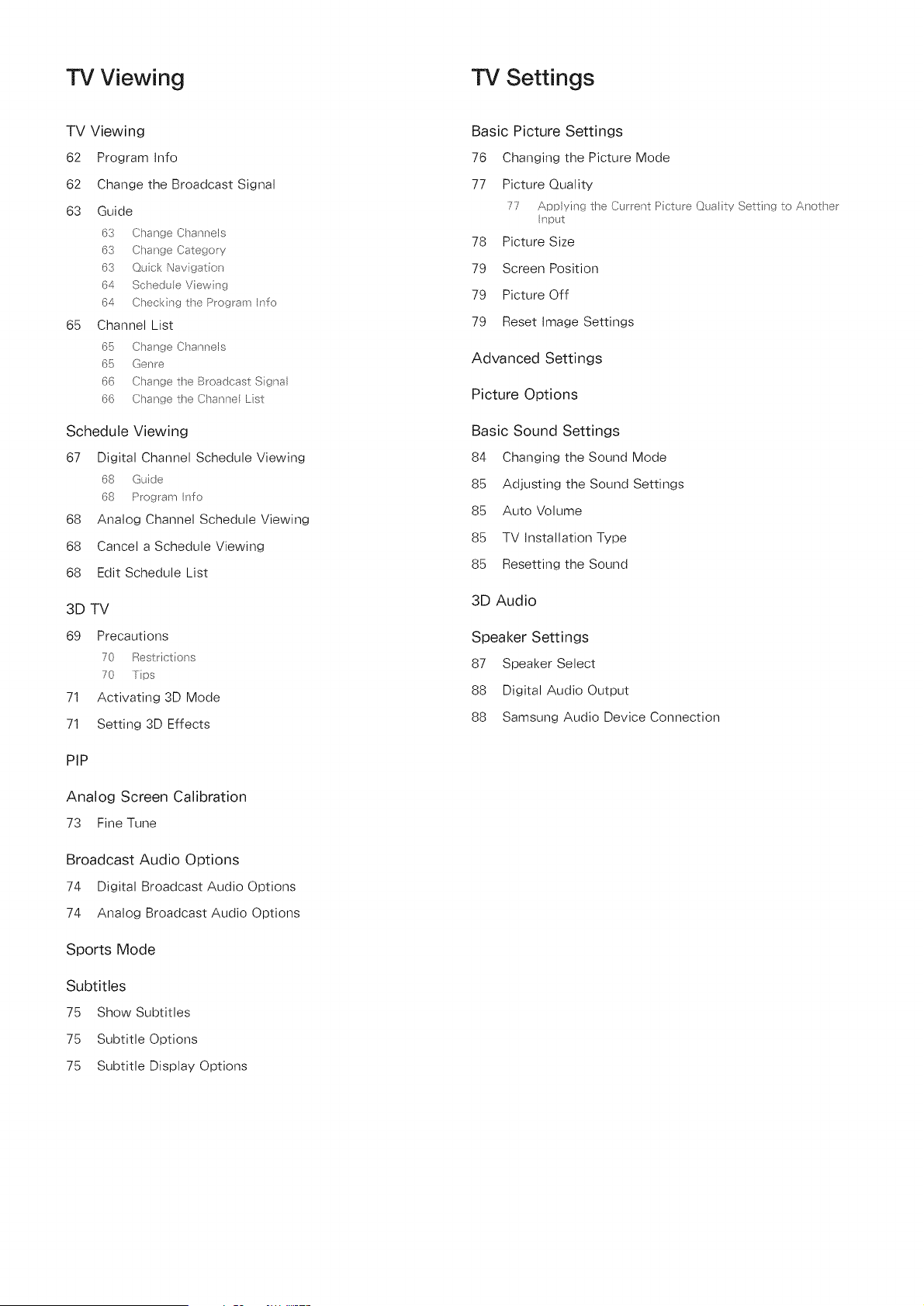
TV Viewing
62 Program Info
62
63 Guide
63 Cha _ge Channels
63 Change Category
63 Quick Nay gatior
64 Schedu e Viewing
64 Check ng the Program nfo
Channel List
65 Change Channels
65 Genre
66 Change the Broadcast Signal
66 Change the Channe Lst
Schedule Viewing
67 Digital Channel Schedule Viewing
68 Gide
68 Program nfo
68 Analog Channel Schedule Viewing
68 Cancel a Schedule Viewing
68 Edit Schedule List
3D TV
69 Precautions
70 Restrict oJ_s
70 Tips
71 Activating 3D Mode
71 Setting 3D Effects
PiP
Analog Screen Calibration
73 Fine Tune
Broadcast Audio Options
74 Digital Broadcast Audio Options
74 Analog Broadcast Audio Options
Sports Mode
Subtitles
75 Show Subtitles
75 Subtitle Options
75 Subtitle Display Options
Basic Picture Settings
76 Changing the Picture Mode
77 Picture Quality
77 Applyi _g the Current Picture Quality Setti _g to/t_,J_ot_er
nput
78 Picture Size
79 Screen Position
79 Picture Off
79 Reset Image Settings
Advanced Settings
Picture Options
Basic Sound Settings
84 Changing the Sound Mode
85 Adjusting the Sound Settings
85 Auto Volume
85 TV Installation Type
85 Resetting the Sound
3D Audio
Speaker Settings
87 Speaker Select
88 Digital Audio Output
88 Samsung Audio Device Connection
Clock and Timer
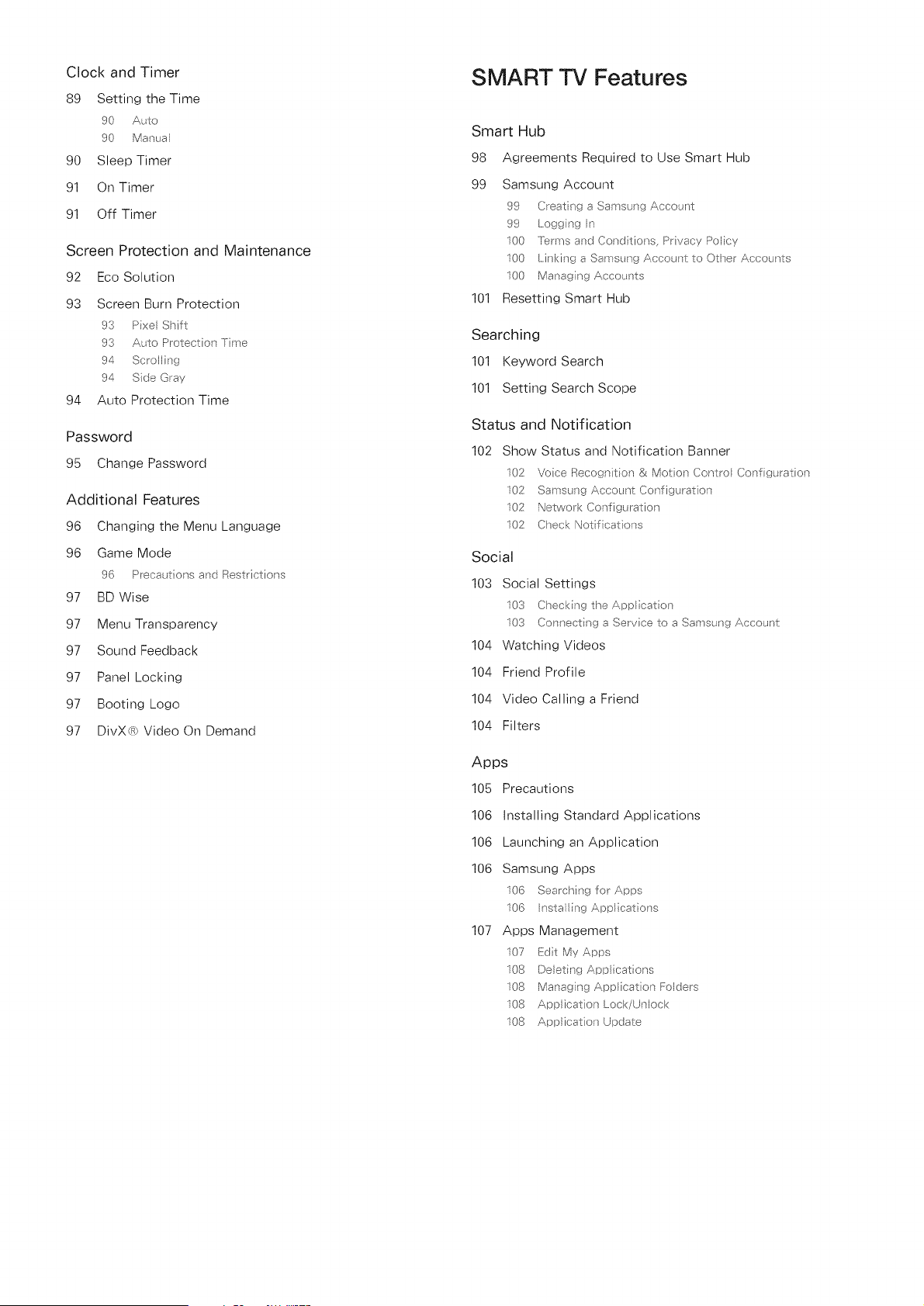
89 Setting the Time
90 A£o
90 Manual
90 Sleep Timer
91 On Timer
91 Off Timer
Screen Protection and Maintenance
92 Eco Solution
93 Screen Burn Protection
93 Pixel Shift
93 A to Protection Trne
94 Scrolling
94 Side (}ray
94 Auto Protection Time
Password
95 Change Password
Additional Features
96 Changing the Menu Language
96 Game Mode
96 Precaut ons and Restrictions
97 BD Wise
97 Menu Transparency
97 Sound Feedback
97 Panel Locking
97 Booting Logo
97 DivX@ Video On Demand
SMART TV Features
Smart Hub
98 Agreements Required to Use Smart Hub
99 Samsung Account
99 Creatirg a Sams ng AccoLnt
99 Logging In
100 terms and Conditions Privacy Policy
100 Linking a Samsung Account to Ot-_er Accounts
100 Managing AccoLnts
101 Resetting Smart Hub
Searching
101 Keyword Search
101 Setting Search Scope
Status and Notification
102 Show Status and Notification Banner
102 Voice Recognit}on & Motion Contro Config_Jation
102 Samsung Account Configbration
102 Network Configuration
102 Check Not f cations
Social
103 Social Settings
103 Checking the App caton
103 Connect J_9 a Service to a Samsun9 Account
104 Watching Videos
104 Friend Profile
104 Video Calling a Friend
104 Filters
Apps
105 Precautions
106 Installing Standard Applications
106 Launching an Application
106 Samsung Apps
107
106
106
Apps
107
108
108
108
108
Searching for Apps
Insta ingApplcatons
Management
Ed}t My Apps
Delet ng App icat ons
Manag ng App ication Folders
Application Lock/Unlock
Application Update
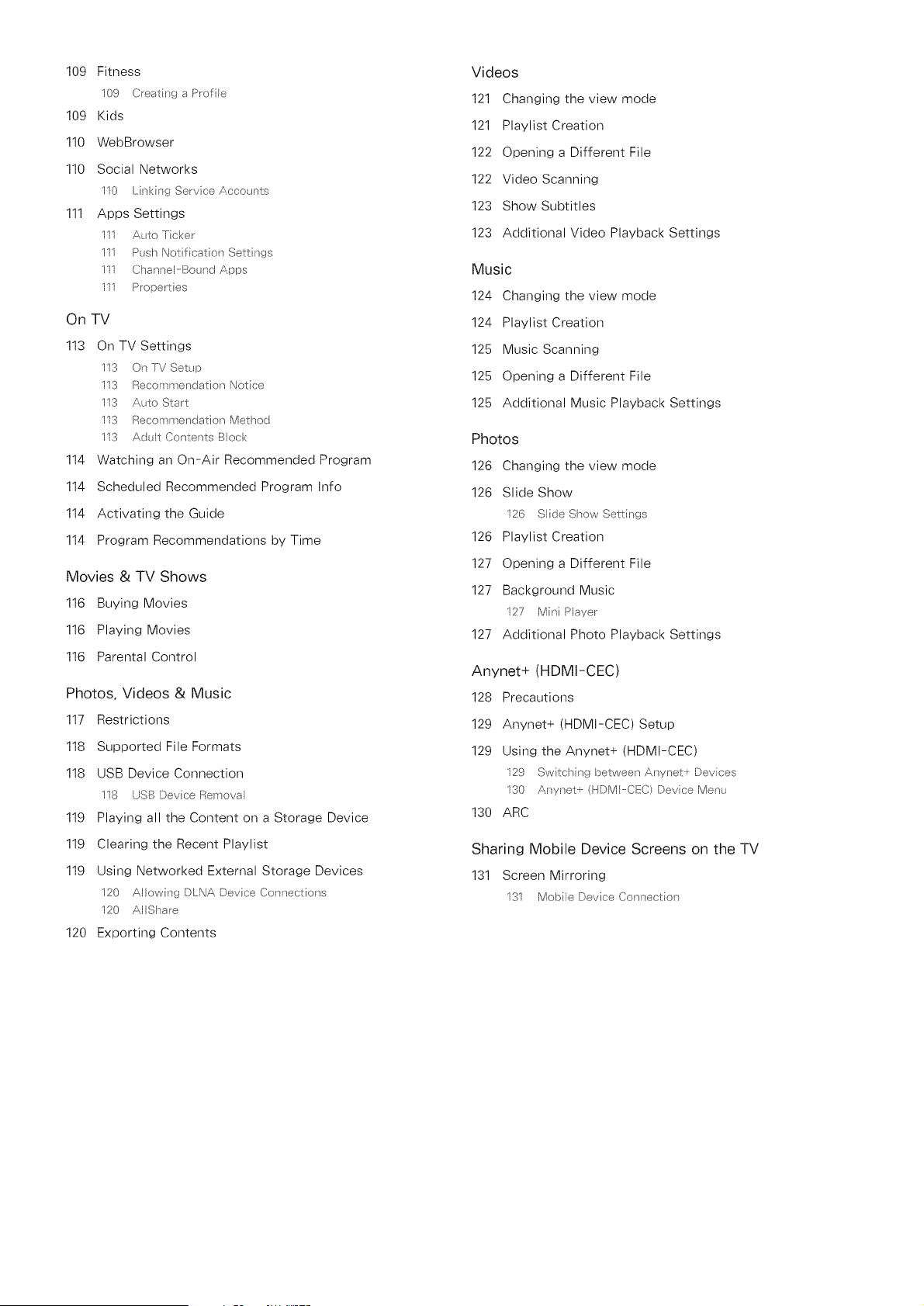
109 Fitness
109 Creating a Prof e
109 Kids
110 WebBrowser
110 Social Networks
110 Linkisg Servce Accounts
111 Apps Settings
111 Auto Ticker
111 Push Not f cation Settings
111 Channel---Bound Apps
111 Properties
On TV
113 On TV Settings
113 On T-V Setup
113 Recommendation Notce
113 Auto Start
113 Recommendation Method
113 Adut Contents Bock
114 Watching an On-Air Recommended Program
114 Scheduled Recommended Program Info
114 Activating the Guide
114 Program Recommendations by Time
Movies & TV Shows
116 Buying Movies
116 Playing Movies
116 Parental Control
Photos, Videos & Music
117 Restrictions
118 Supported File Formats
118 USB Device Connection
118 USB Device Removal
119 Playing all the Content on a Storage Device
119 Clearing the Recent Playlist
119 Using Networked External Storage Devices
120 Allowing DLNA Device Connections
120 AIIShare
120 Exporting Contents
Videos
121 Changing the view mode
121 Playlist Creation
122 Opening a Different File
122 Video Scanning
123 Show Subtitles
123 Additional Video Playback Settings
Music
124 Changing the view mode
124 Playlist Creation
125 Music Scanning
125 Opening a Different File
125 Additional Music Playback Settings
Photos
126 Changing the view mode
126 Slide Show
126 Slide Show Settings
126 Playlist Creation
127 Opening a Different File
127 Background Music
127 Mini Player
127 Additional Photo Playback Settings
Anynet+ (HDMI-CEC)
128 Precautions
129 Anynet+ (HDMI-CEC) Setup
129 Using the Anynet+ (HDMI-CEC)
129 Switching between AJ_ynet_ Devces
130 AJ_ynet+ (HDM-CEC) Device Menu
130 ARC
Sharing Mobile Device Screens on the TV
131 Screen Mirroring
131 Moble Device Connecton
Other Information
Support
132 Remote Management
133 What }s Remote S_pport?
133 How Does it Work7
134 e-Manual
134 Self Diagnosis
134 Pct_e Test
135 Sound Test
135 Motion Control Envronment Check
135 Signa Erfformaton
135 Reset
136 Updating the Software
136 Update now
136 Auto Update
137 Usage Mode
137 Support Info
Kensington Security Lock
Display Resolution
138 PDP 5500, LED 5500 series and above
138 BM
138 MAC
139 VESADMT
140 LED 4300 series models
140 BM
140 MAC
141 VESA DMT
Picture Size and Input Signal
Supported 3D Resolutions
143 HDMI
143 3D Format L/R, T/B
143 3D Format Frame Packing
144 Component
144 Digital Channel
144 Videos/Photos
144 HDMI PC Mode
Subtitle and Media Contents file formats, and Codec
145 Subtitle
145 Externa
145 Er_terr_al
146 Supported image resolutions
146 Supported music file formats
147 Video Codec
147 Other Restrctions
148 Video Decoders
148 Audio Decoders
3D Precautions
149 Viewing guidelines
150 CAUTION!
151 SAFETY PRECAUTIONS
Licenses
Troubleshooting
Screen
Sound
3D TV
Antenna (Air/Cable) Connection
PC Connection
Networking
Miscellaneous
Anynet+ (HDMI-CEC)
Apps
Photos, Videos & Music
Reset the Personal Info and TV settings
Web Browser
Viewing the e-Manua
The embedded e-Manual contains information about your TV's key features.
Navigate to the screen menu and select e-Manual (Support > e-Manual (Troubleshooting)).
Select a category from the left side of the screen.
2. Select an item. The e-Manual will open on the page containing the selected information.
Words in blue refer to screen menu options and words in light blue refer to remote contro buttons,
Arrows are used to indicate the menu path_ (ExampIe: Screen Menu :> Support :> e-Manua_
Scrolling a Page
To scroll a page, use of one of the following methods:
PDP 5500, LED 6400 series and above
o Press the _ or _ button on the scroll bar at the right edge of the screen.
o Drag or flick up or down from the line on either the left or right edge of the touch pad. This
method is not available with LED 4300 - 6300 series.
o Place the focus on the _ or _ button at the right edge of the screen, drag or flick up or down
on the touch pad.
LED 4300 - 6300 series
o Press the _ or button on the scroll bar at the right edge of the screen.
o Place the focus on the _ or _ button at the right edge of the screen, press the up or down
arrow button on the remote.
Using the Top cons
Use the Back, Forward, and Opened pages icons on the top left of the screen to navigate through
pages. These icons are available when two or more pages are passed.
Returning to the Home Page
PDP 5500, LED 6400 series and above
To return to the home page, select the 191button on the virtual remote panel or select _ on the top
right of the screen.
To seect a Ietter button (i_1 D, @_,D), press the MORE button on the Smart Touch Control to display
a panel of the virtuat remote. Fick the Touch Pad until the P ayback Contro Pane appears, seect the a
button, and then press the Touch Pad.
LED 4300 - 6300 series
To return to the home page, press the 191button or select _ on the top right of the screen.
Searching the _ndex
PDP 5500, LED 6400 series and above
Select the D button on the virtual remote panel or select on the top right of the screen to display
the index. Select a term to display the page containing the term.
LED 4300 - 6300 series
Press the D button or select ,_ on the top right of the screen to display the index. Select a term to
display the page containing the term.
Searching Pages
PDP 5500, LED 6400 series and above
Select the 5_ button on the virtual remote panel or select Q on the top right of the screen, and enter
search criteria. Select a page from the list of search results to display it.
LED 4300 - 6300 series
Press the button or select Q on the top right of the screen, and enter search criteria. Select a page
from the list of search results to display it.
C_osing the e-Manua_
PDP 5500, LED 6400, 6800 and 7050/7100 series
To close the e-Manual, press and hold the RIETURIN button or select X at the upper-right corner of the
screen.
LED 4300 - 6300 series
To close the e-Manual, press the IEXIT button or select X at the upper-right corner of the screen.
Jumping to a Menu totem
Todirectlyjumptothemenuitemthatisdescribedinthecurrentsection,select it ispossible
to jump from a menu item directly to the related section in the e-Manual.
PDP 5500, LED 6400 series and above
On the screen menu, press the MORIE button on the Smart Touch Control and then select e-Manual on
the virtual remote panel that appears on the screen.
LED 4300 - 6300 series
On the screen menu, press the IEHMAIN(JAL button that appears on the screen.
This feature may not be avai able, depending on the menu.
Updating the e-Manual
Press the _ button and select Apps, and then select More Apps. The e-Manual can be updated in the
same way with an application update.
On the More Apps screen, select Update Apps, and then select e-Manual from the list. The e-Manual
starts updating to the latest version. However, Update Apps appears on the screen only when the
update is required.
Antenna Connection
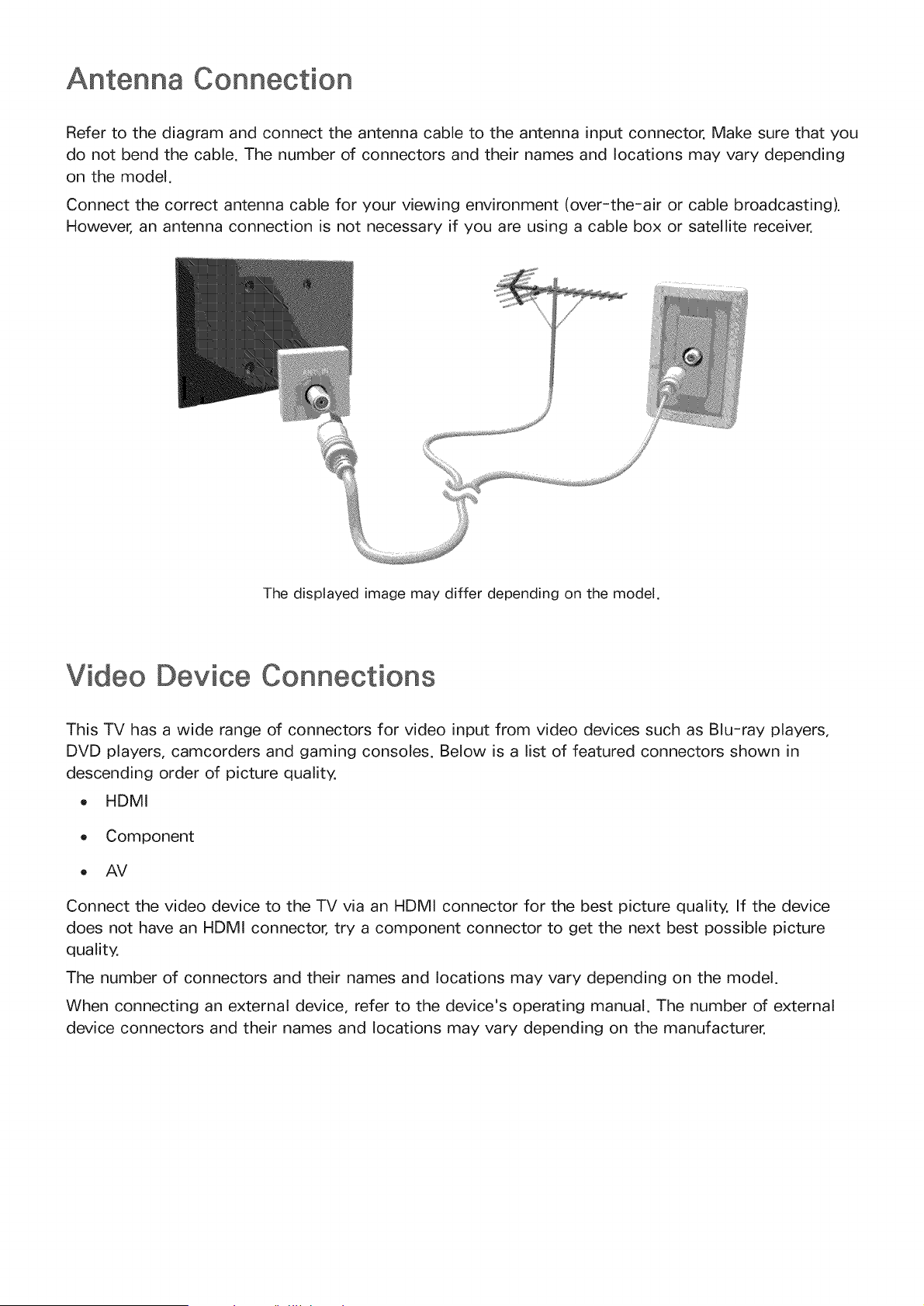
Refer to the diagram and connect the antenna cable to the antenna input connector. Make sure that you
do not bend the cable. The number of connectors and their names and locations may vary depending
on the model.
Connect the correct antenna cable for your viewing environment (over-the-air or cable broadcasting).
However, an antenna connection is not necessary if you are using a cable box or satellite receiver.
The displayed image may differ depending on the model.
Video Device Connections
This TV has a wide range of connectors for video input from video devices such as Blu-ray players,
DVD players, camcorders and gaming consoles. Below is a list of featured connectors shown in
descending order of picture quality.
,HDMI
o Component
,AV
Connect the video device to the TV via an HDMI connector for the best picture quality. If the device
does not have an HDMI connector, try a component connector to get the next best possible picture
quality.
The number of connectors and their names and locations may vary depending on the model.
When connecting an external device, refer to the device's operating manual. The number of external
device connectors and their names and locations may vary depending on the manufacturer.
HDMI Connection
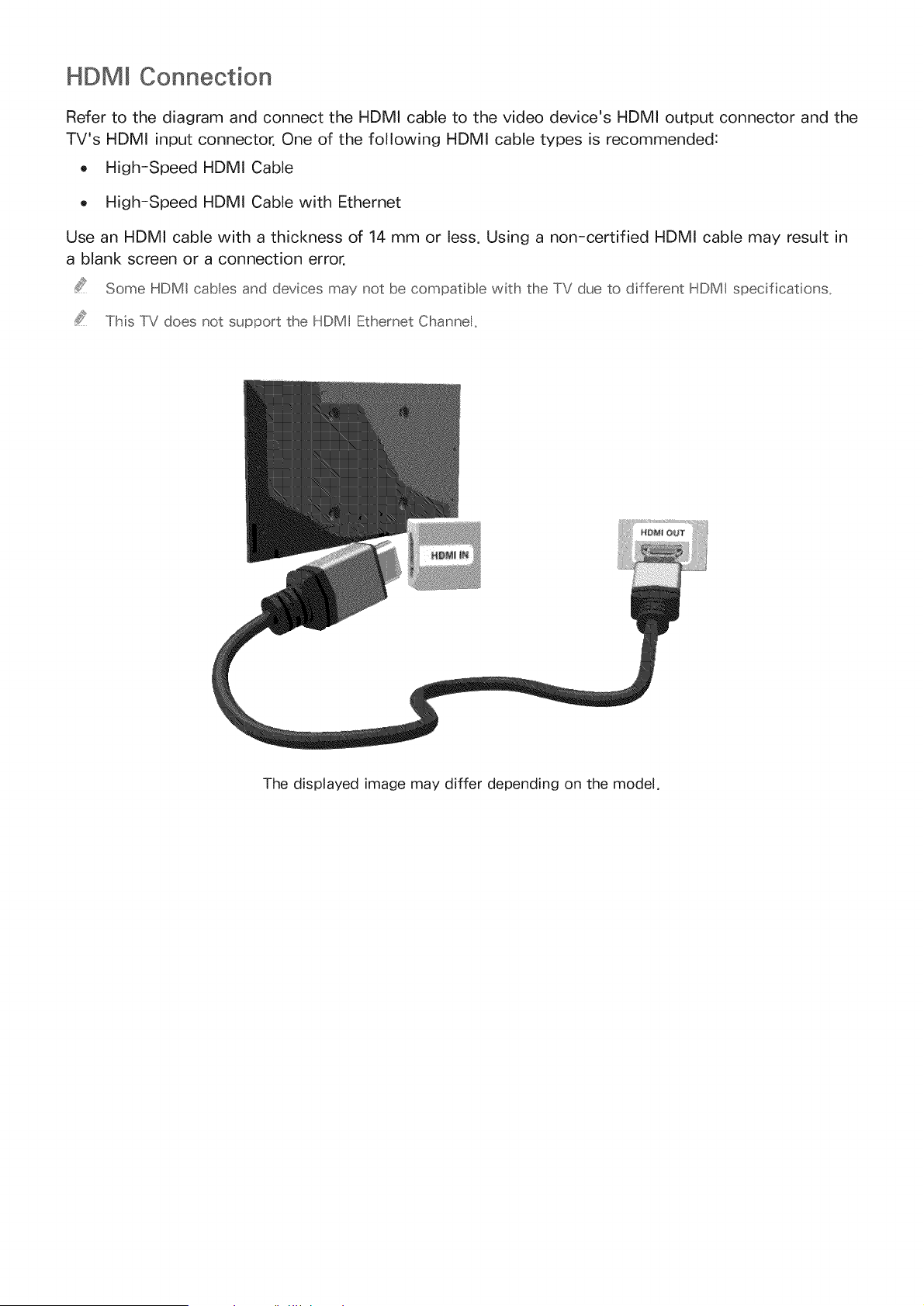
Refer to the diagram and connect the HDMI cable to the video device's HDMI output connector and the
TV's HDMI input connector. One of the following HDMI cable types is recommended:
o High-Speed HDMI Cable
o High-Speed HDMI Cable with Ethernet
Use an HDMI cable with a thickness of 14 mm or less. Using a non-certified HDMI cable may result in
a blank screen or a connection error.
Some HDMI cables and devices may not be compatible with the TV due to different HDMI specifications,
This TV does not support the HDMI Ethernet Channe,
The displayed image may differ depending on the model.
Component Connection
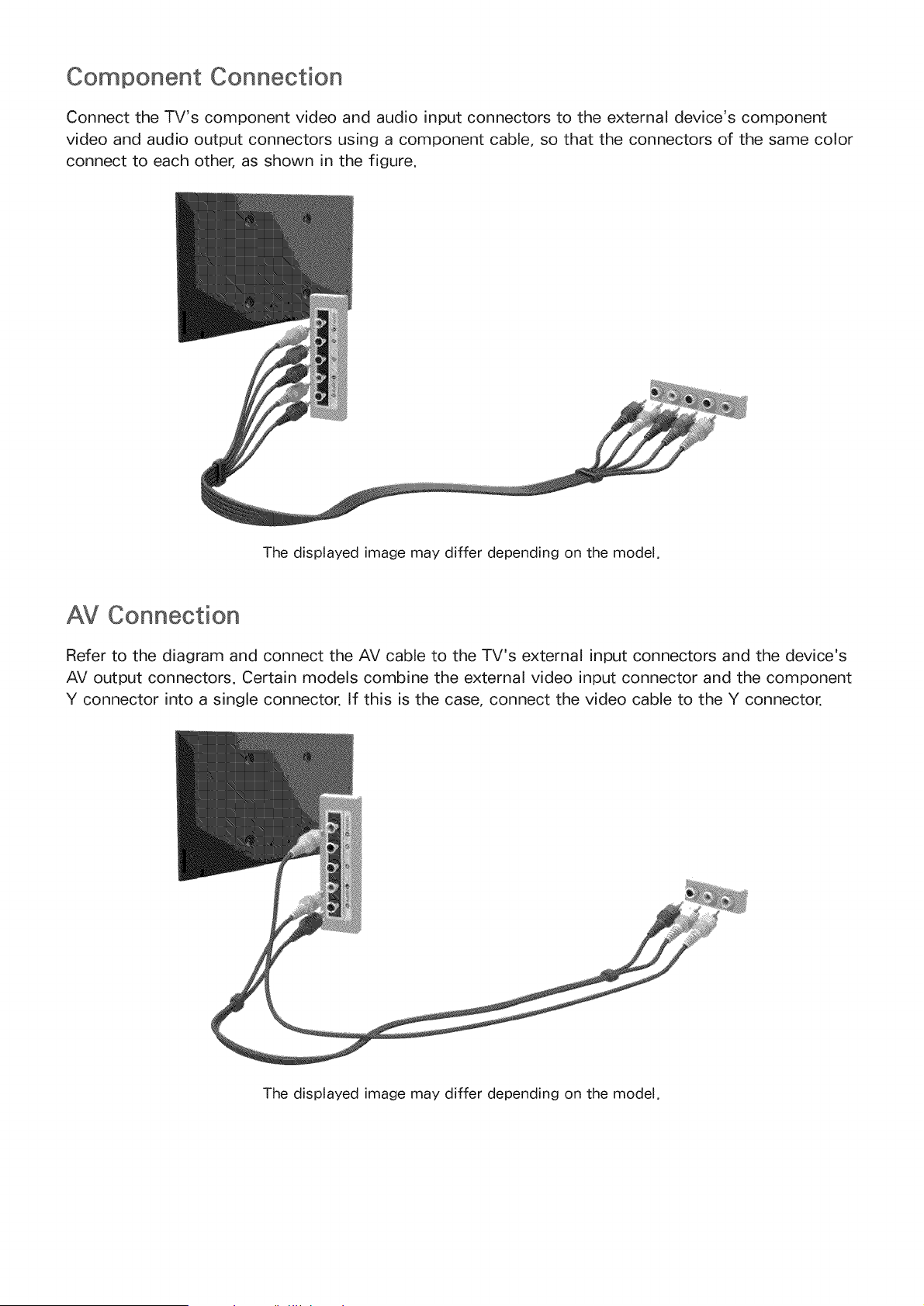
Connect the TV's component video and audio input connectors to the external device's component
video and audio output connectors using a component cable, so that the connectors of the same color
connect to each other, as shown in the figure.
The displayed image may differ depending on the model.
AV Connection
Refer to the diagram and connect the AV cable to the TV's external input connectors and the device's
AV output connectors. Certain models combine the external video input connector and the component
Y connector into a single connector. If this is the case, connect the video cable to the Y connector.
The displayed image may differ depending on the model.
Audio Device Connections
This TV has a wide range of connectors for audio input from devices such as amplifiers, Blu-ray
players and DVD players. For better audio quality, it is a good idea to use an AV receiver.
o Digital Audio (Optical)
Audio
ARC (Audio Return Channel)
The number of connectors and their names and locations may vary depending on the model.
When connecting an external device, refer to the device's operating manual. The number of external
device connectors and their names and locations may vary depending on the manufacturer.
Digital Audio (Optical} Connection
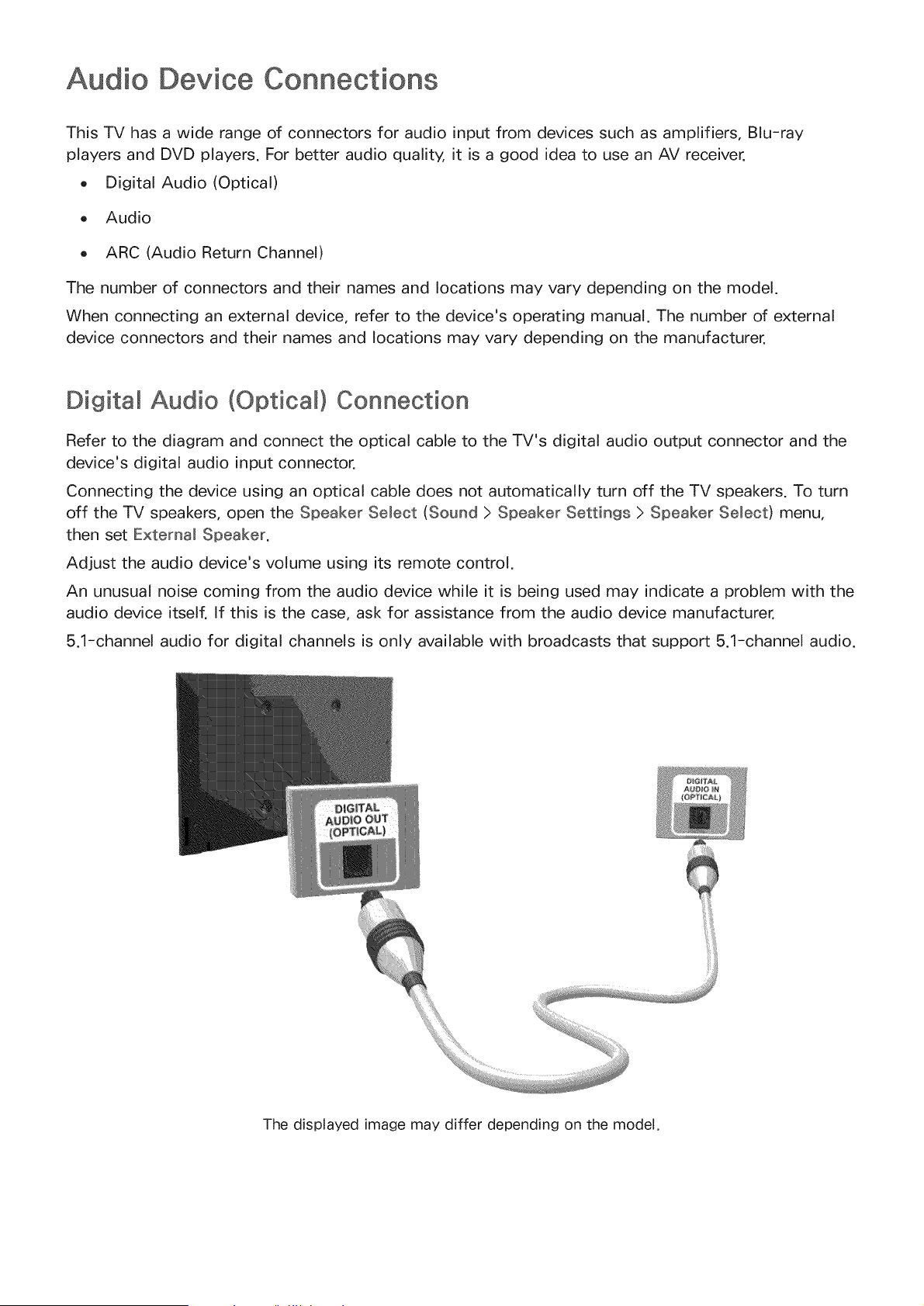
Refer to the diagram and connect the optical cable to the TV's digital audio output connector and the
device's digital audio input connector.
Connecting the device using an optical cable does not automatically turn off the TV speakers. To turn
off the TV speakers, open the Speaker Select (Sound > Speaker Settings > Speaker Select) menu,
then set External Speaker.
Adjust the audio device's volume using its remote control.
An unusual noise coming from the audio device while it is being used may indicate a problem with the
audio device itself. If this is the case, ask for assistance from the audio device manufacturer.
5.1-channel audio for digital channels is only available with broadcasts that support 5.1-channel audio.
The displayed image may differ depending on the model.
Audio Output Connection
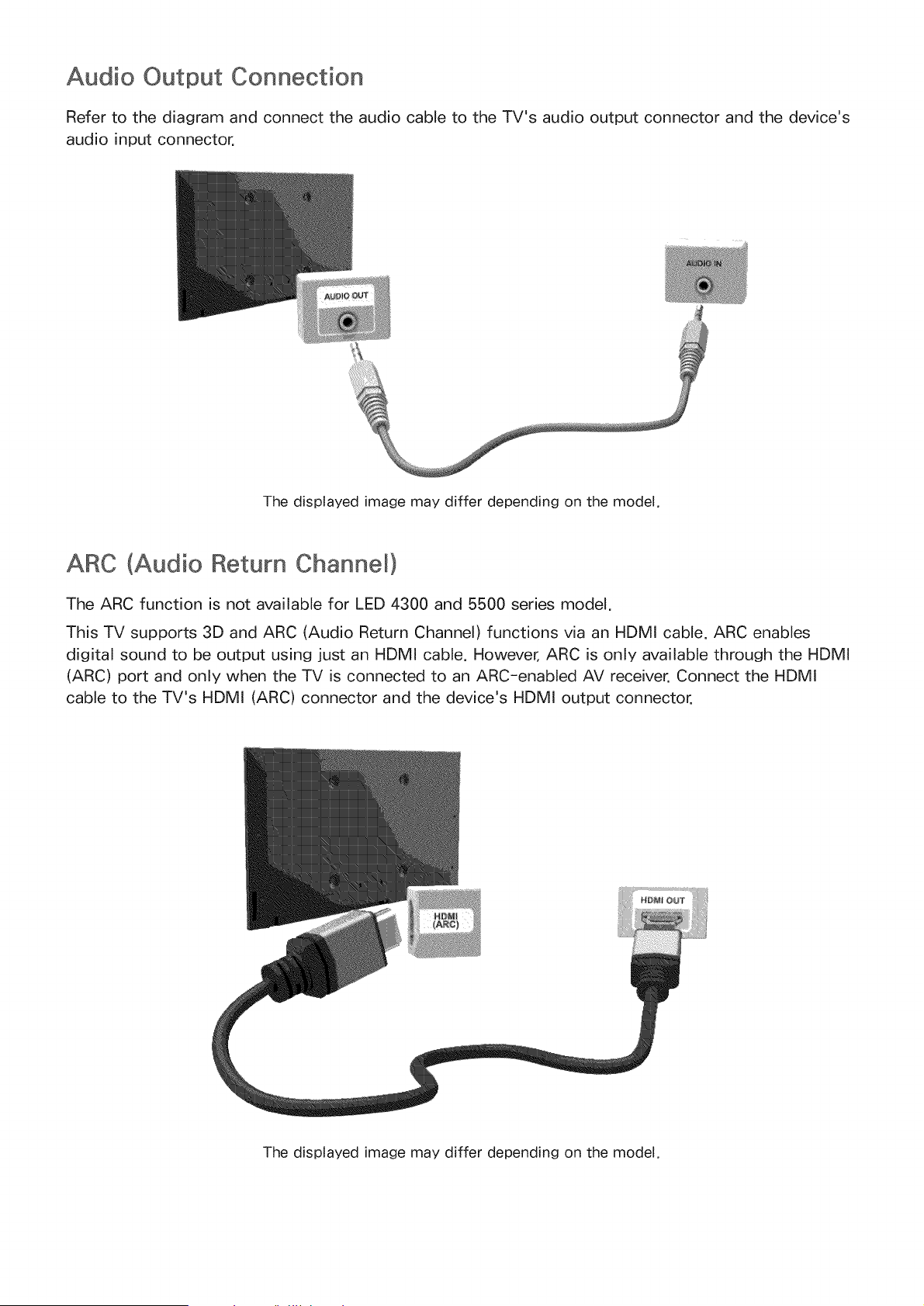
Refer to the diagram and connect the audio cable to the TV's audio output connector and the device's
audio input connector.
The displayed image may differ depending on the model.
ARC (Audio Return Channel}
The ARC function is not available for LED 4300 and 5500 series model.
This TV supports 3D and ARC (Audio Return Channel) functions via an HDMI cable. ARC enables
digital sound to be output using just an HDMI cable. However, ARC is only available through the HDMI
(ARC) port and only when the TV is connected to an ARC-enabled AV receiver. Connect the HDMI
cable to the TV's HDMI (ARC) connector and the device's HDMI output connector.
The displayed image may differ depending on the model.
Computer Connection
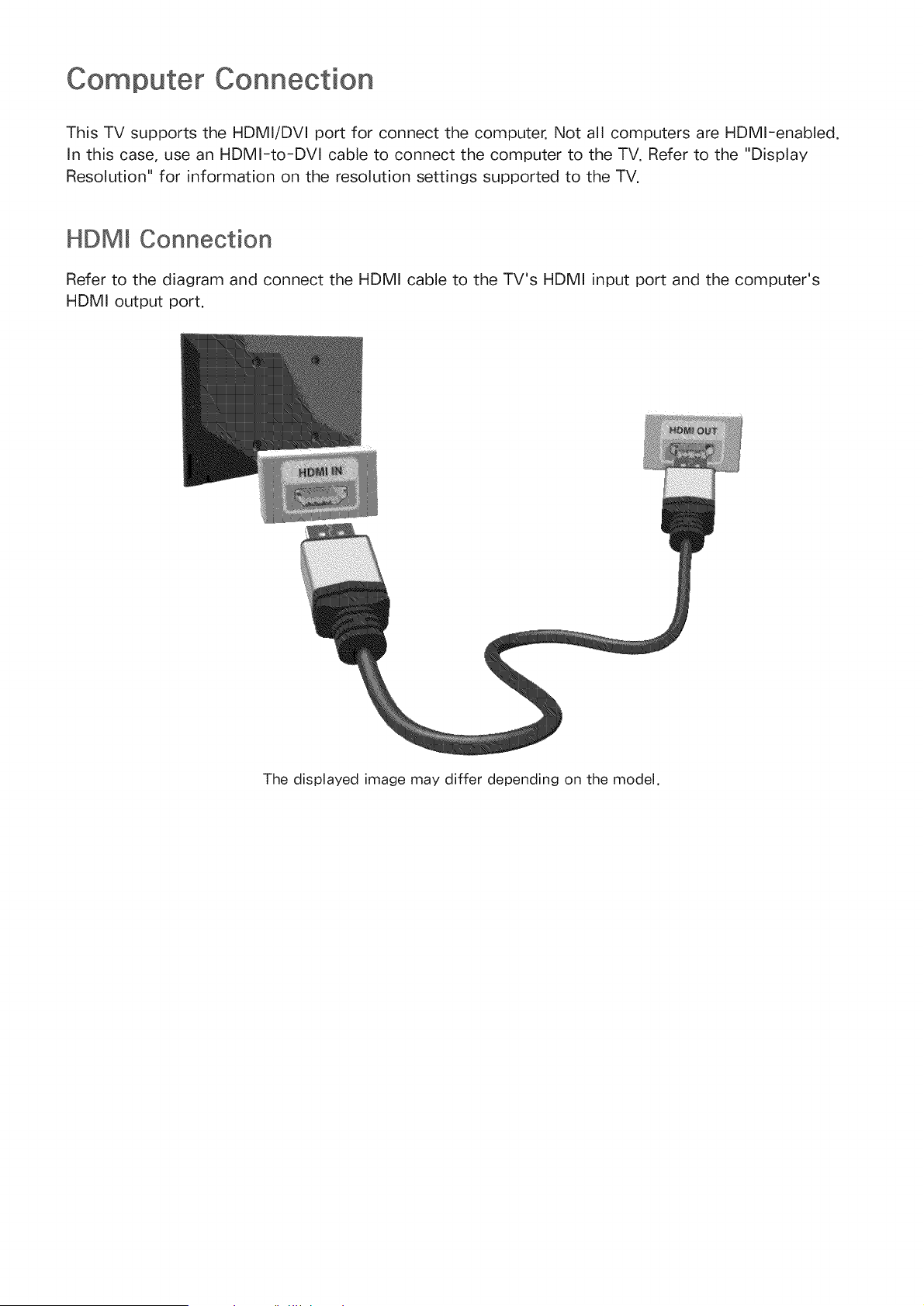
This TV supports the HDMI/DVI port for connect the computer. Not all computers are HDMI-enabled.
In this case, use an HDMI-to-DVl cable to connect the computer to the TV. Refer to the "Display
Resolution" for information on the resolution settings supported to the TV.
HDMm Connection
Refer to the diagram and connect the HDMI cable to the TV's HDMI input port and the computer's
HDMI output port.
The displayed image may differ depending on the model.
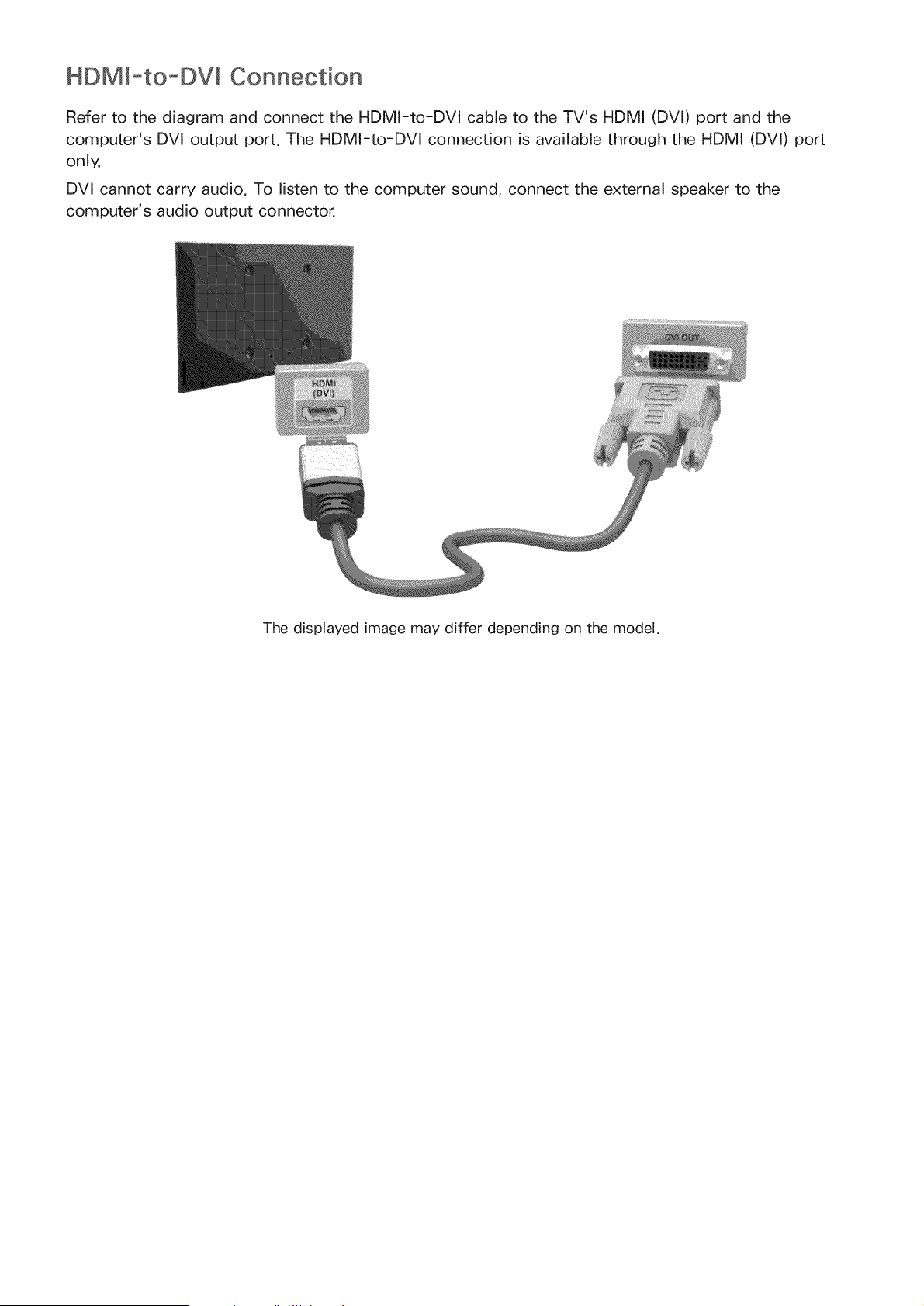
HDM -to-DVm Connection
Refer to the diagram and connect the HDMI-to-DVI cable to the TV's HDMI (DVI) port and the
computer's DVl output port. The HDMI-to-DVl connection is available through the HDMI (DVl) port
only.
DVl cannot carry audio. To listen to the computer sound, connect the external speaker to the
computer's audio output connector.
The displayed image may differ depending on the model.
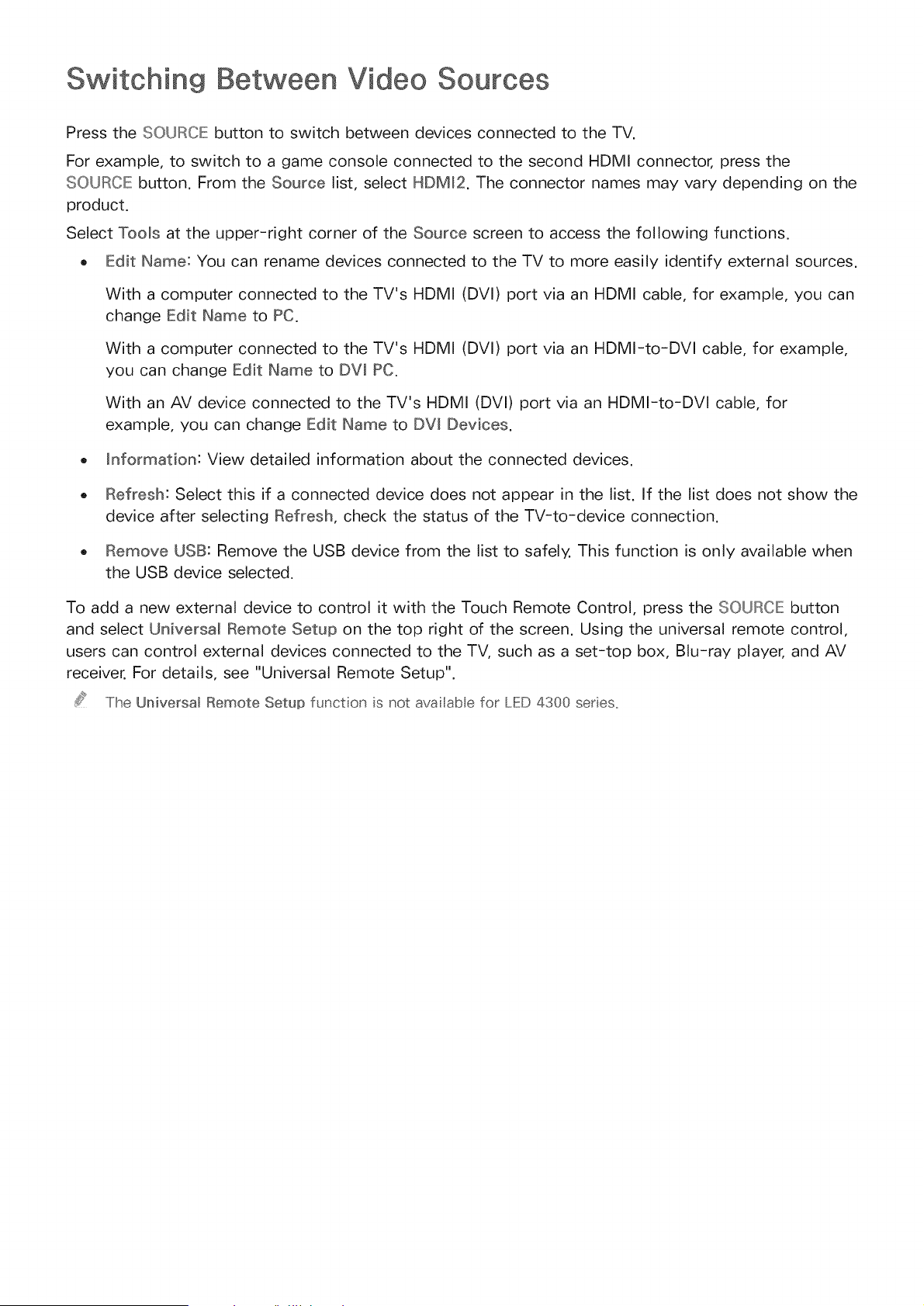
Switching Between Video
Press the SOURCE button to switch between devices connected to the TV.
For example, to switch to a game console connected to the second HDMI connector, press the
SOURCE button. From the Source list, select HDM_2. The connector names may vary depending on the
product.
Select Tools at the upper-right corner of the Source screen to access the following functions.
. Edit Narae: You can rename devices connected to the TV to more easily identify external sources.
With a computer connected to the TV's HDMI (DVI) port via an HDMI cable, for example, you can
change Edit Name to PC.
With a computer connected to the TV's HDMI (DVI) port via an HDMI-to-DVI cable, for example,
you can change Edit Name to DW PC.
With an AV device connected to the TV's HDMI (DVl) port via an HDMI-to-DVI cable, for
example, you can change Edit Name to DW Devices.
. information: View detailed information about the connected devices.
. Refresh: Select this if a connected device does not appear in the list. If the list does not show the
device after selecting Refresh, check the status of the TV-to-device connection.
. Remove USB: Remove the USB device from the list to safely. This function is only available when
the USB device selected.
To add a new external device to control it with the Touch Remote Control, press the SOURCE button
and select Universal Remote Setup on the top right of the screen. Using the universal remote control,
users can control external devices connected to the TV, such as a set-top box, Blu-ray player, and AV
receiver. For details, see "Universal Remote Setup".
The UniversaJ Remote Setup funct on s not ava abe for LED 4300 series,

Programming
Scan and index available channels.
The dispIayed image may differ depending on the modet,
You can also remove channels from the index, restore removed channels and designate favorite
channels for a more convenient TV viewing experience. Programming is not necessary if you are
connected to a cable or satellite receiver.
Auto Program
Screen Menu > Broadcasting > Auto Program
Automatically scans and indexes all channels received through the TV's antenna input connector.
To start, navigate to Broadcasting and select Auto Program.
2. Select Start when prompted with a message. This initiates the Auto Program function. The
process can take up to 30 minutes to complete. If starting the Auto Program function when there
is an existing index of channels overwrites the previous index.
Remove Scrambled Channels
Screen Menu > Broadcasting > Channel Settings > Clear Scrambled Channel
Remove scrambled channels (ex: pay-per-view channels) from channel list. To remove scrambled
channels, run this function. This function is enabled only for cable TVs when at least one digital
channel is available.
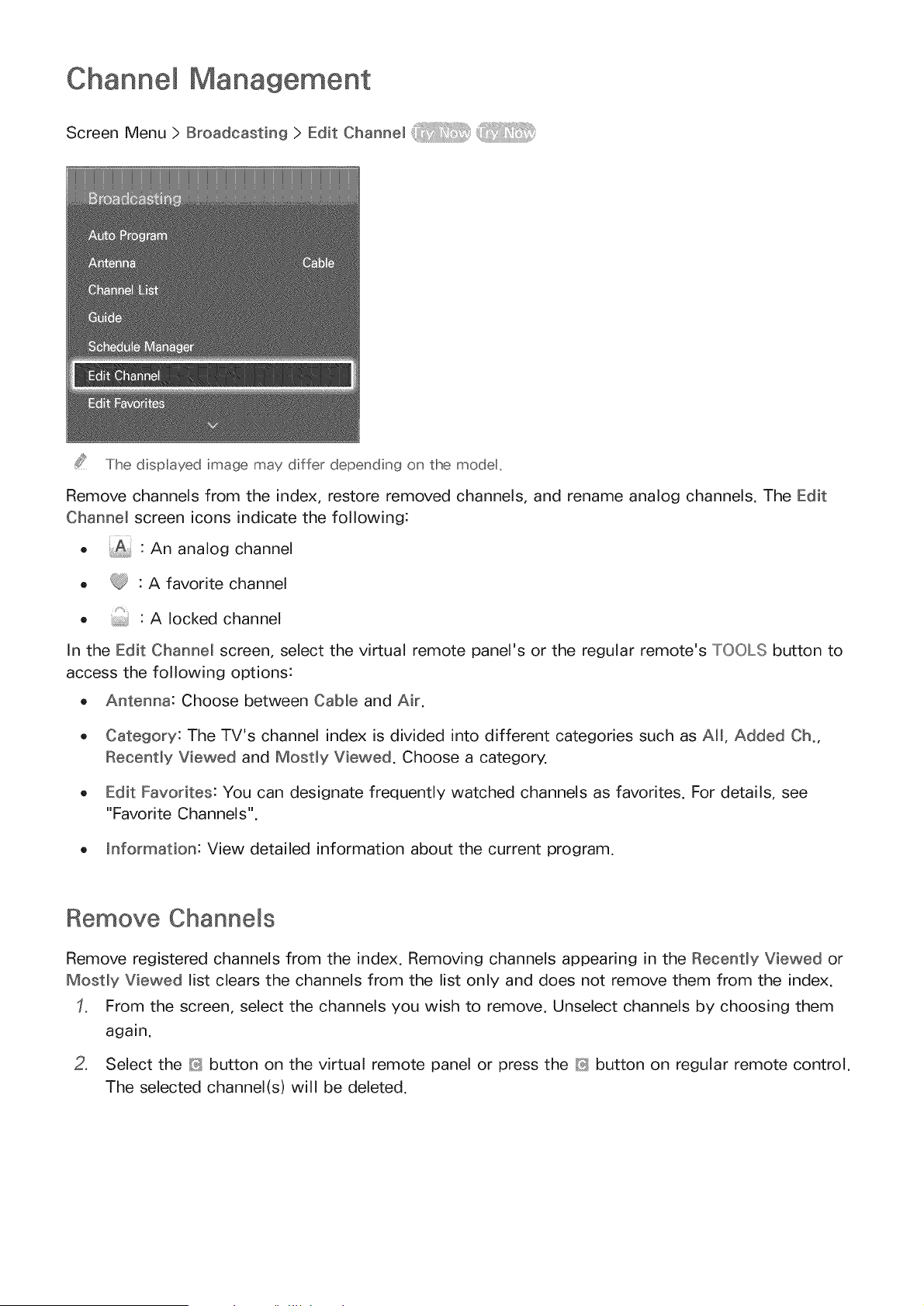
Channel
Screen Menu > Broadcasting > Edit: Channel
The dispIayed image may differ depending on the modet,
Remove channels from the index, restore removed channels, and rename analog channels. The Edit
Channel screen icons indicate the following:
o"An analog channel
@"A favorite channel
e"A locked channel
In the Edit Channel screen, select the virtual remote panel's or the regular remote's TOOLS button to
access the following options:
Antenna: Choose between Cable and Air.
o Category: The TV's channel index is divided into different categories such as All, Added Cho,
Recently Viewed and Mostly Viewed. Choose a category.
o Edit Favorites: You can designate frequently watched channels as favorites. For details, see
"Favorite Channels".
o information: View detailed information about the current program.
Remove Channels
Remove registered channels from the index. Removing channels appearing in the Recently Viewed or
Mostly Viewed list clears the channels from the list only and does not remove them from the index.
From the screen, select the channels you wish to remove. Unselect channels by choosing them
again.
2, Select the _} button on the virtual remote panel or press the _ button on regular remote control.
The selected channel(s) will be deleted.
Restore Removed Channels
Restore removed channels. Removed channels are displayed in gray on the ANI list. In addition, the Add
option is only available for removed channels.
From the screen, press TOOLS button. Select Category and then select ANI.
2_
3_
From the All list, select the channels you wish to restore. Unselect channels by choosing them
again.
Select the _ button on the virtual remote panel or press the #3 button on standard remote
control. The selected channel(s) will be added.
Program Rating Lock
Screen Menu > Broadcasting > Program Rating Lock
The Program Rating Lock blocks programs with ratings higher than those desired. This is useful for
controlling what children watch on TV. This will not function for programs originating from external
sources, such as DVD players or USB files.
This PIN is required to watch a blocked program.
The Program Rating Lock is available only in TV mode.
Blockin9 Programs Usin9 the IV Ratin9
To block content, select a rating entry to lock. All programs at that level and higher are blocked and
require the PIN to watch. To unblock a category, select the lock icon. To unblock all the categories in a
row, select the lock under ALL.
Categories on the left:
o TWY: Young children
TWY7: Children 7 and over
TWG: General audience
TWPG: Parental guidance
TW14: Viewers 14 and over
TWMA: Mature audience
Categories on the top:
ALL: Lock all TV ratings.
FV: Fantasy violence
V: Violence
S: Sexual situations
L: Adult Language
D: Sexually Suggestive Dialog

Blocking based on Movie Bating (MPAA)
Block movies based on their MPAA rating. This applies to all material with supplied ratings in the USA.
From the MPAA:
"The Motion Picture Association of America (MPAA) has implemented a rating system that provides
parents or guardians with advanced information on which films are appropriate for children."
Select a lock beside one of the rating categories to block that category and all higher categories. To
unblock a category, select the lock icon.
o G: General audience (no restrictions).
PG: Parental guidance suggested.
PGm13: Parents strongly cautioned.
R: Restricted. Children under 17 should be accompanied by an adult.
NC-17: No children under age 17.
X: Adults only.
NR: Not rated.
Blocking Based on Canadian English Bating
Block material based on its English Canadian rating. This applies to all rated material viewed on
English-Canadian TV channels.
Select a lock beside one of the rating categories to block that category and all higher categories. To
unblock a category, select the lock icon.
6: Programming intended for children under age 8
68+: Programming generally considered acceptable for children 8 years and over to watch on
their own
G: General programming, suitable for all audiences.
PG: Parental Guidance
14+: Programming containing themes or content which may not be suitable for viewers under the
age of 14
18+: Adult programming
Blocking Based on Canadian French Ratin9
Block material based on its French Canadian rating. This applies to all rated material viewed on
French-Canadian TV channels.
Select a lock beside one of the rating categories to block that category and all higher categories. To
unblock a category, select the lock icon.
G: General
8 ans+: Programming acceptable for children 8 years and over to watch on their own
13 ans+: Programming that may not be suitable for children under the age of 13
16 ans+: Programming not suitable for children under the age of 16
18 ans+: Programming restricted to adults
Blocking Based on Downloadablle US Rating
Block material based on its Downloadable U,S, Rating. This rating system only applies to material
originating from US DTV channels.
Parental restriction information is automatically downloaded while watching DTV channels. This
download may take several seconds. If the information is unavailable from the broadcasting station,
the Downloadable U°S° Rating menu is deactivated.
Parental restriction levels differ depending on the broadcasting station, and the default menu name
and the Downloadable U.S. Rating name changes depending on the downloaded information.
Even when the on-screen display is set to another language, the Downloadable U.S. Rating menu
appears only in English.
Select a lock beside one of the rating categories to block that category and all higher categories. To
unblock a category, select the lock icon.
Watching Blocked /Restricted Programs
To watch a blocked program, enter the PIN when requested.
When initially showing a restricted program or movie, the screen is blank because the Program Rating
Lock blocks it. Enter the PIN to unblock the program when a message appears requesting the code.
Rename Analog Channels
Select a channel you wish to rename from the Edit Channe_ screen, press TOOLS button, and then
select Rename Channel from the list.
You can now rename the selected channel. The new name can be up to 5 characters long.
Favorite Channels
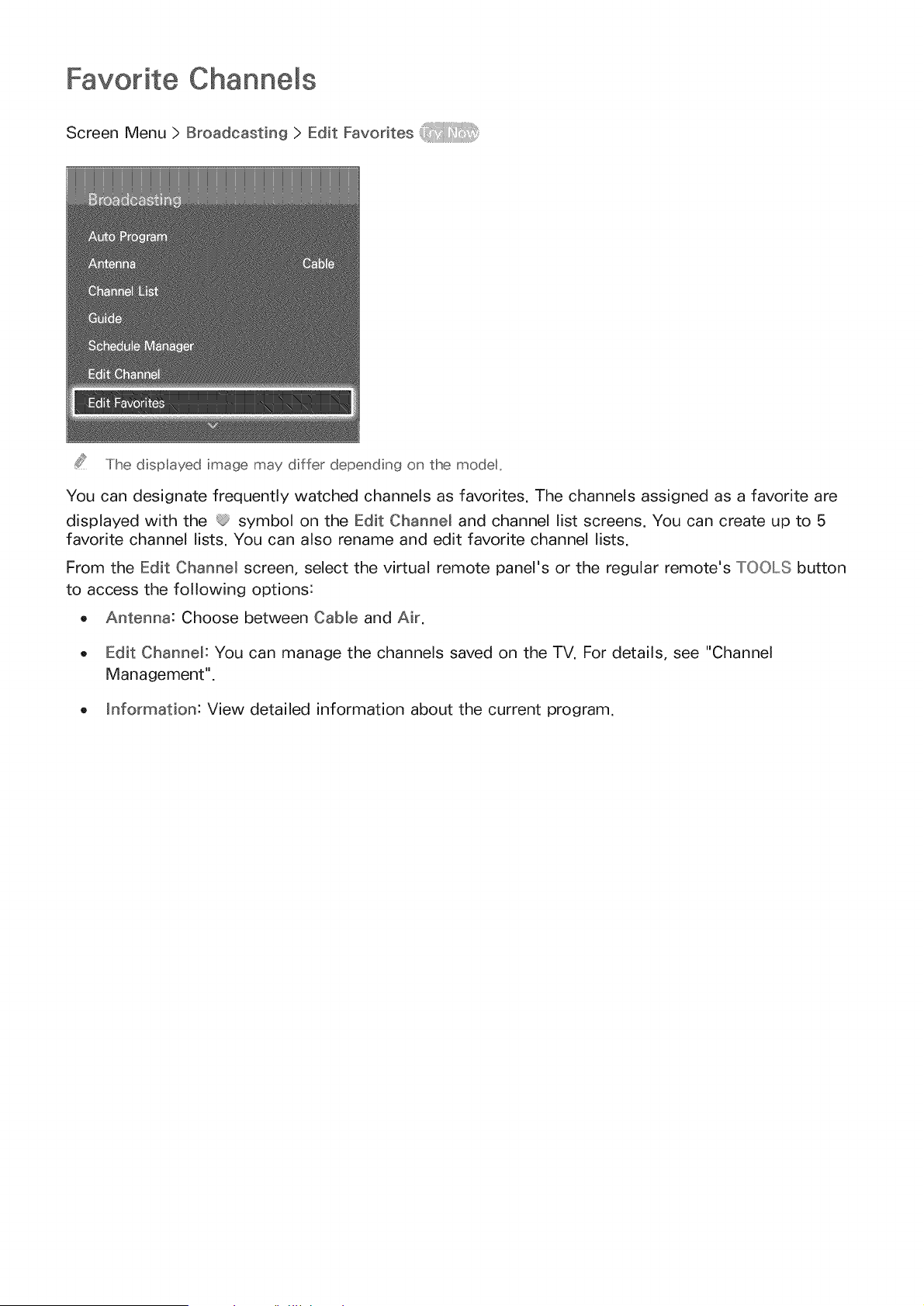
Screen Menu > Broadcasting > Edit Favorites
The displayed image may differ depending on the model,
You can designate frequently watched channels as favorites. The channels assigned as a favorite are
displayed with the 4@symbol on the Edit Channel and channel list screens. You can create up to 5
favorite channel lists. You can also rename and edit favorite channel lists.
From the Edit Channel screen, select the virtual remote panel's or the regular remote's TOOLS button
to access the following options:
o Antenna: Choose between Cable and Air.
o Edit Channel" You can manage the channels saved on the TV. For details, see "Channel
Management".
o information: View detailed information about the current program.
Add Favorite Channels
Add
PDP
2_
a channel to a favorite channels list.
5500, LED 6400 series and above
Select the [] button on the virtual remote panel to bring up the channel list containing the
channels you wish to add and then select the channels. However, the [] button is available only
when the Recently Viewed or MostNy Viewed channel list has one or more channel entries.
Select the _ button to bring up a favorite channels list and then select the #3 button to add the
selected channels.
LED
2_
4300 - 6300 series
Press the [] button to bring up the channel list containing the channels you wish to add and then
select the channels. However, the [] button is available only when the RecentNy Viewed or MostNy
Viewed channel list has one or more channel entries.
Press the [_ button to bring up a favorite channels list and then press the #3 button to add the
selected channels.
Remove Favorite Channels
Remove channels from a favorite channels list.
PDP 5500, LED 6400 series and above
Select the _i_ button on the virtual remote panel to bring up a favorite channels list and then
select the channels you wish to remove.
2, Select the #3 button on the virtual remote panel to remove the channels from the list.
LED 4300 - 6300 series
Press the [_ button to bring up a favorite channels list and then select the channels you wish to
remove.
2, Press the #3 button to remove the channels from the list.
Rearrange the Favorite Channels List
Rearrange the order of the channels in a Favorite Channels List.
PDP 5500, LED 6400 series and above
Select the [_ button on the virtual remote panel to bring up the favorite channels list and select
the channel you wish to move.
Z Select the [] button on the virtual remote panel to rearrange the order of the selected channel.
Press the touch pad to finish.
LED
2_
4300 - 6300 series
Press the [_ button to bring up the favorite channels list and select the channel you wish to move.
Press the [] button to rearrange the order of the selected channel. Press {ii_ button to finish.
Rename a Favorite Channel List
Rename an existing favorite channels list.
Select the virtual remote panel's or the regular remote's TOOLS button to display the list. Select
Rename Favorites from the list.
2_ Rename the list in the popup window. The new name can be up to 20 characters long.
Copy a Favorite Channels List
Copy channels from one favorite channels list to another.
Select the _} button on the virtual remote panel or press _} button on regular remote control to
bring up a Favorite Channels List and select the channels you wish to copy.
2_ Select the virtual remote panel's or the regular remote's TOOLS button to display the list. Select
Copy to Favorites from the list, and then select the Favorite Channels List(s) you wish to copy to.
This copies over the channels to the selected Favorite Channels List(s).
Network Configuration
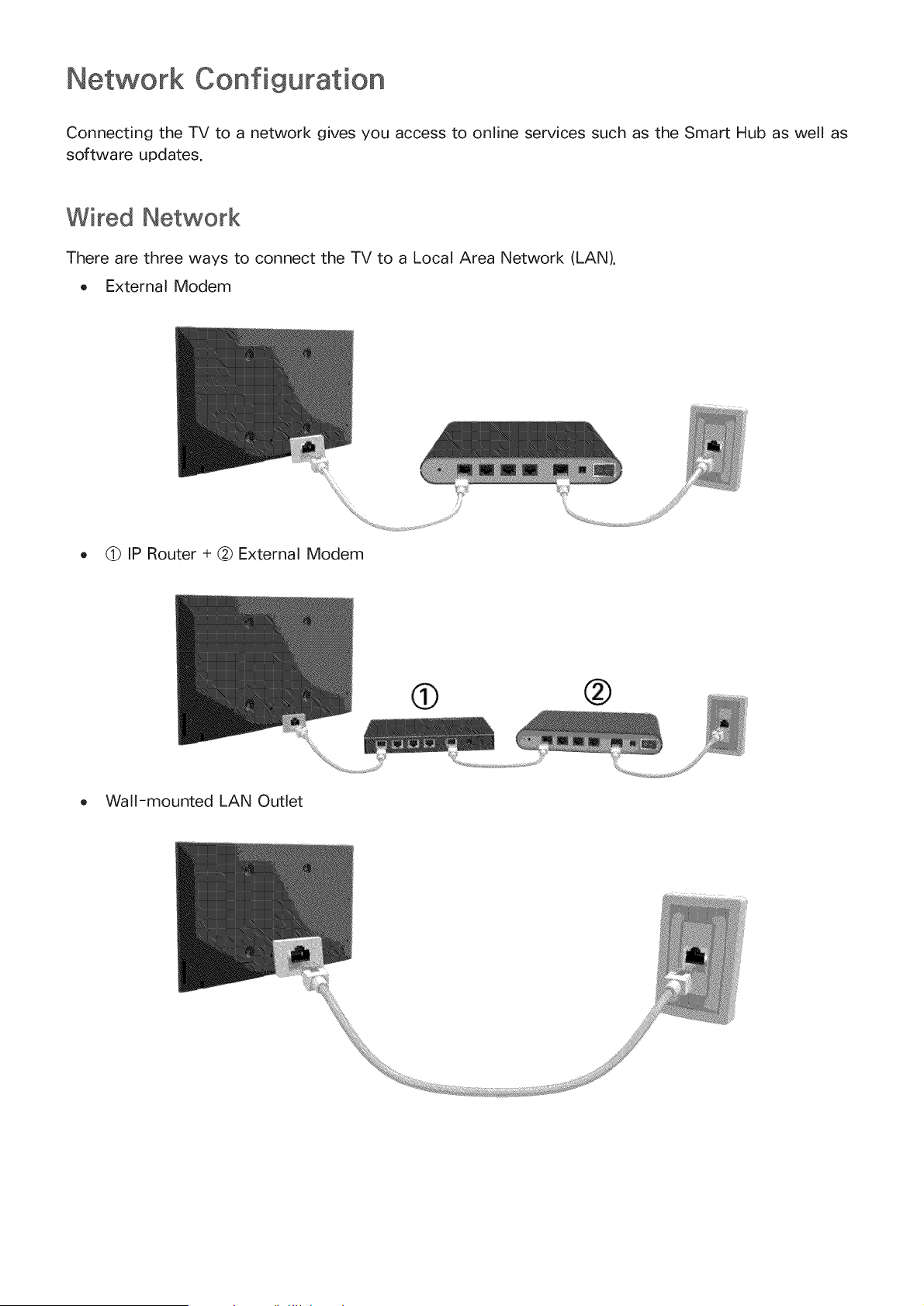
Connecting the TV to a network gives you access to online services such as the Smart Hub as well as
software updates.
Wired Network
There are three ways to connect the TV to a Local Area Network (LAN).
o External Modem
o @ IP Router + @ External Modem
o Wall-mounted LAN Outlet
Wireless Network
PDP 5500_ LED 5500 series and above
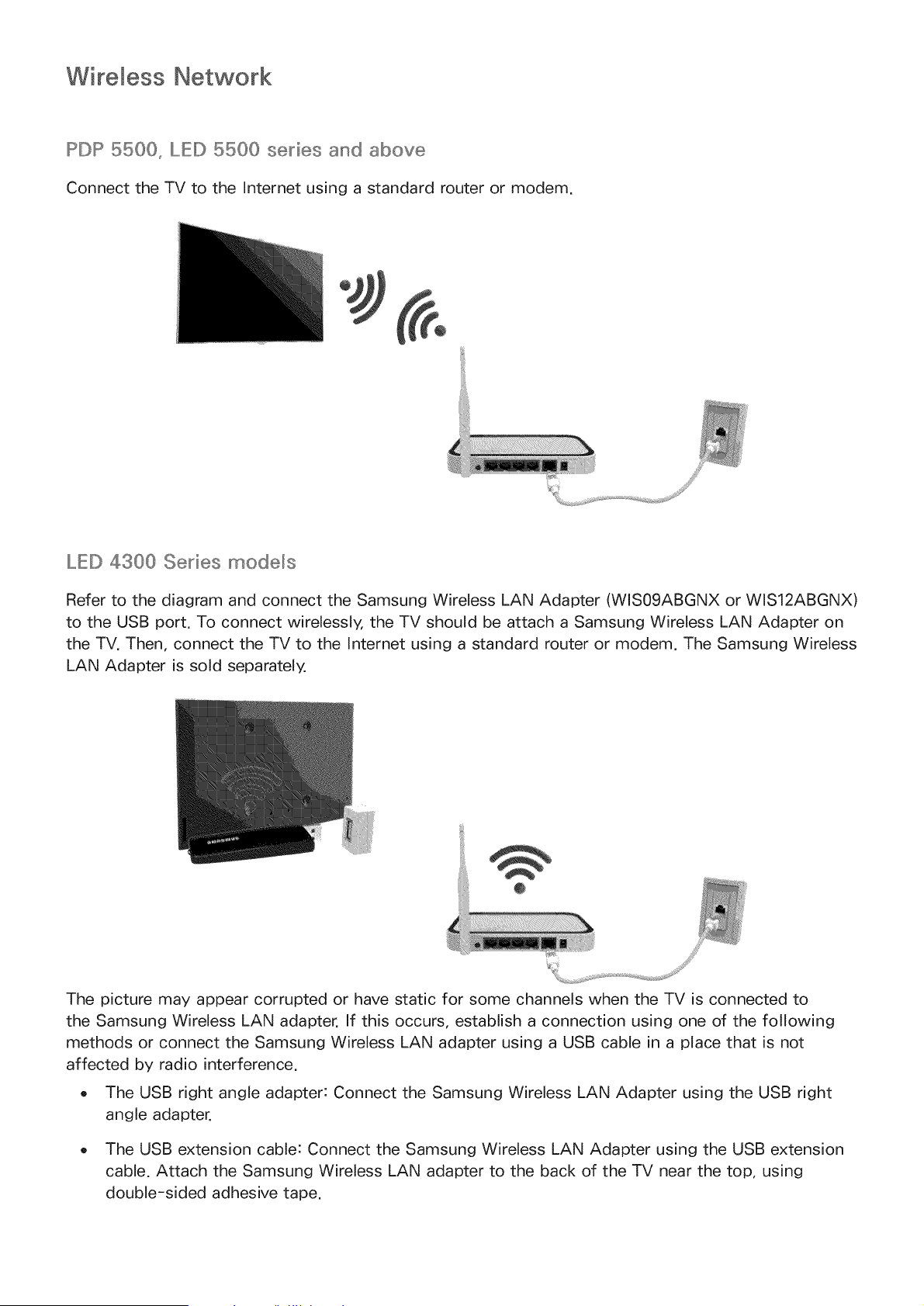
Connect the TV to the Internet using a standard router or modem.
LED 4300 Series models
Refer to the diagram and connect the Samsung Wireless LAN Adapter (WIS09ABGNX or WIS12ABGNX)
to the USB port. To connect wirelessly, the TV should be attach a Samsung Wireless LAN Adapter on
the TV. Then, connect the TV to the Internet using a standard router or modem. The Samsung Wireless
LAN Adapter is sold separately.
The picture may appear corrupted or have static for some channels when the TV is connected to
the Samsung Wireless LAN adapter. If this occurs, establish a connection using one of the following
methods or connect the Samsung Wireless LAN adapter using a USB cable in a place that is not
affected by radio interference.
,The USB right angle adapter: Connect the Samsung Wireless LAN Adapter using the USB right
angle adapter.
,The USB extension cable: Connect the Samsung Wireless LAN Adapter using the USB extension
cable. Attach the Samsung Wireless LAN adapter to the back of the TV near the top, using
double-sided adhesive tape.
Wi_eless Network P_"_ecautions
PDP 5500, LED 5500 series and above
o This TV supports the IEEE 802.11a/b/g/n communication protocols. Samsung recommends using
IEEE 802.11n. Otherwise when you play video over a network connection, the video may not play
smoothly.
To use a wireless network, the TV must be connected to a wireless router or modem. If the
wireless router supports DHCP, the TV can use a DHCP or static IP address to connect to the
wireless network.
Select a channel that is not currently in use for the wireless router. If the channel set for the
wireless router is currently being used by another device, the result is usually interference and/or
a communications failure.
Most wireless networks have an optional security system. To enable a wireless network's security
system, you need to create a security key using characters and numbers. This security key is then
needed to connect to the wireless network.
LED 4300 Series models
Samsung Wireless LAN Adapter supports the IEEE 802.11 a/b/g/n communication protocols.
Samsung recommends using IEEE 802.11n. Otherwise when you play video over a network
connection, the video may not play smoothly.
To use a wireless network, the TV must be connected to a wireless router or modem. If the
wireless router supports DHCP, the TV can use a DHCP or static IP address to connect to the
wireless network.
Select a channel that is not currently in use for the wireless router. If the channel set for the
wireless router is currently being used by another device, the result is usually interference and/or
a communications failure.
Most wireless networks have an optional security system. To enable a wireless network's security
system, you need to create a security key using characters and numbers. This security key is then
needed to connect to the wireless network.
Network Security P_'otoco_s
The TV only supports the following wireless network security protocols and is unable to connect to
non-certified wireless routers:
Authentication Modes: WEP, WPAPSK, WPA2PSK
Encryption Types: WEP, TKIP, AES
If the wireless router has been set to Pure High-throughput (Greenfield) 802.11n mode and the
Encryption Type to WEP or TKIP, Samsung TVs will not support the connection in compliance with the
new Wi-Fi certification specifications.
If the wireless router supports WPS (Wi-Fi Protected Setup), it is possible to connect to the network
using PBC (Push Button Configuration) or a PIN (Personal Identification Number). WPS automatically
configures the SSID and WPA key settings.
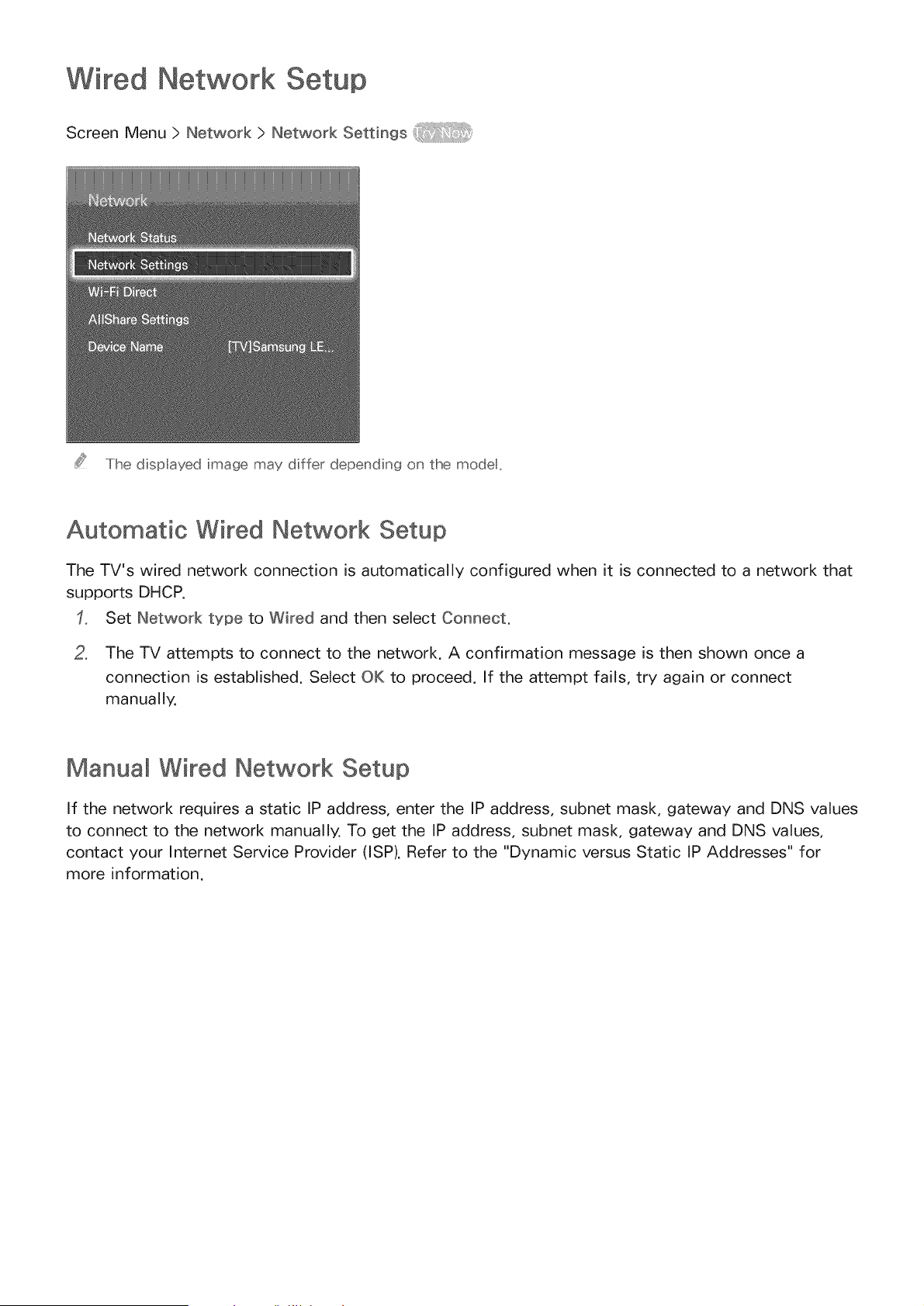
Network Setup
Screen Menu > Network > Network Settings
The dispIayed image may differ depending on the modet,
Automatic Wired Network Setup
The TV's wired network connection is automatically configured when it is connected to a network that
supports DHCP.
Set Network type to Wired and then select Connect.
oThe TV attempts to connect to the network. A confirmation message is then shown once a
connection is established. Select OK to proceed. If the attempt fails, try again or connect
manually.
Manual Wired Network Setup
If the network requires a static IP address, enter the IP address, subnet mask, gateway and DNS values
to connect to the network manually. To get the IP address, subnet mask, gateway and DNS values,
contact your Internet Service Provider (ISP). Refer to the "Dynamic versus Static IP Addresses" for
more information.
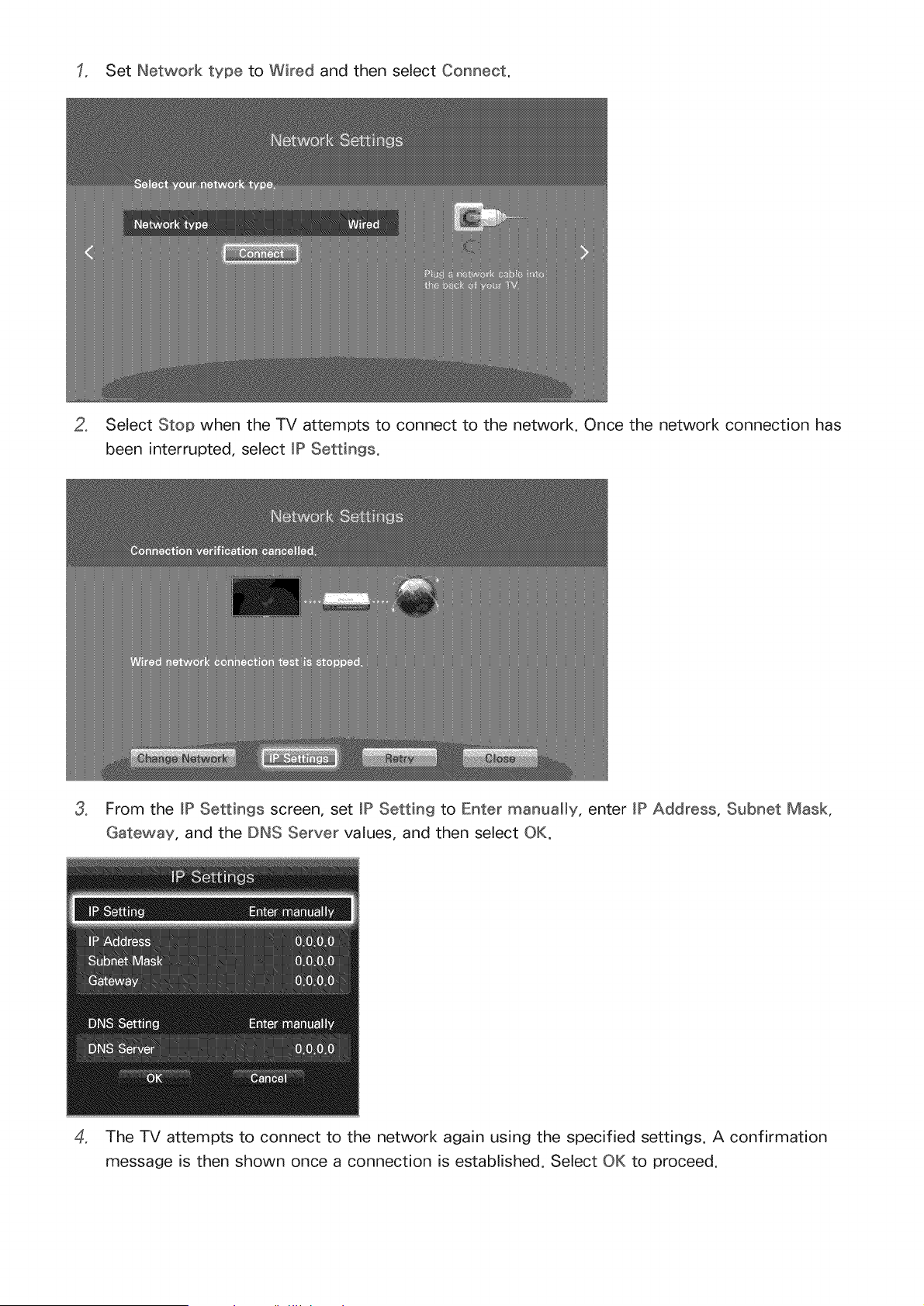
1, Set Network type to Wired and then select Connect.
2, Select Stop when the TV attempts to connect to the network. Once the network connection has
been interrupted, select JP Settings.
3, From the JP Settings screen, set JP Setting to Enter manually, enter JP Address, Subnet Mask,
Gateway, and the DNS Server values, and then select OK.
,The TV attempts to connect to the network again using the specified settings. A confirmation
message is then shown once a connection is established. Select OK to proceed.
Fai ed Wired Connection
H o n etwo r k ca hie fo u nd
Make sure the network cable is plugged in. If it is connected, make sure the router is turned on. If it is
on, try turning it off and on again.
_P auto settin g fai_ed
Perform the following or set the IP address manually from JP Settings.
Ensure that the DHCP server is enabled on the router and reset the router.
2, If this does not work, contact your Internet Service Provider for more information.
U n a b_e to co n n e ct t o t he netwo r k
Check the following:
Check the JP Settings settings.
2, Ensure that the DHCP server is enabled on the router and unplug and then plug the router back in.
3, if this does not work, contact your Internet Service Provider for more information.
Connected to a Ioca_ network_ but not to the _nternet
Make sure that the Internet LAN cable is connected to the router's external LAN port.
2, Check the DNS settings under JP Settings.
3, If the problem persists, contact your Internet Service Provider.
Hetwork setup comp_ete_ but unable to connect to the _nternet
if the problem persists, contact your Internet Service Provider.
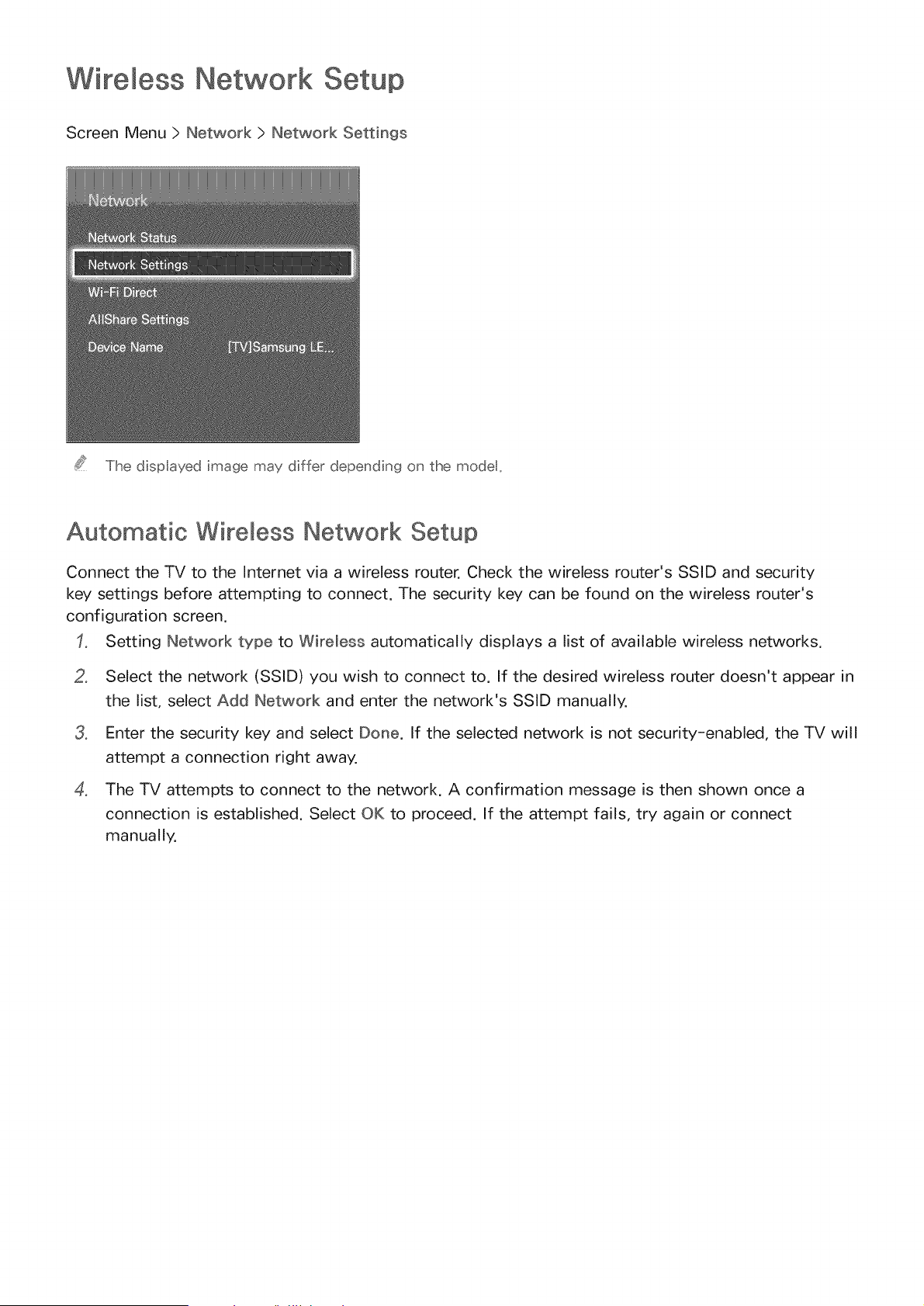
Wireless Network
Screen Menu > Network > Network Settings
The dispIayed image may differ depending on the modet,
Automatic Wireless Network Setup
Connect the TV to the Internet via a wireless router. Check the wireless router's SSID and security
key settings before attempting to connect. The security key can be found on the wireless router's
configuration screen.
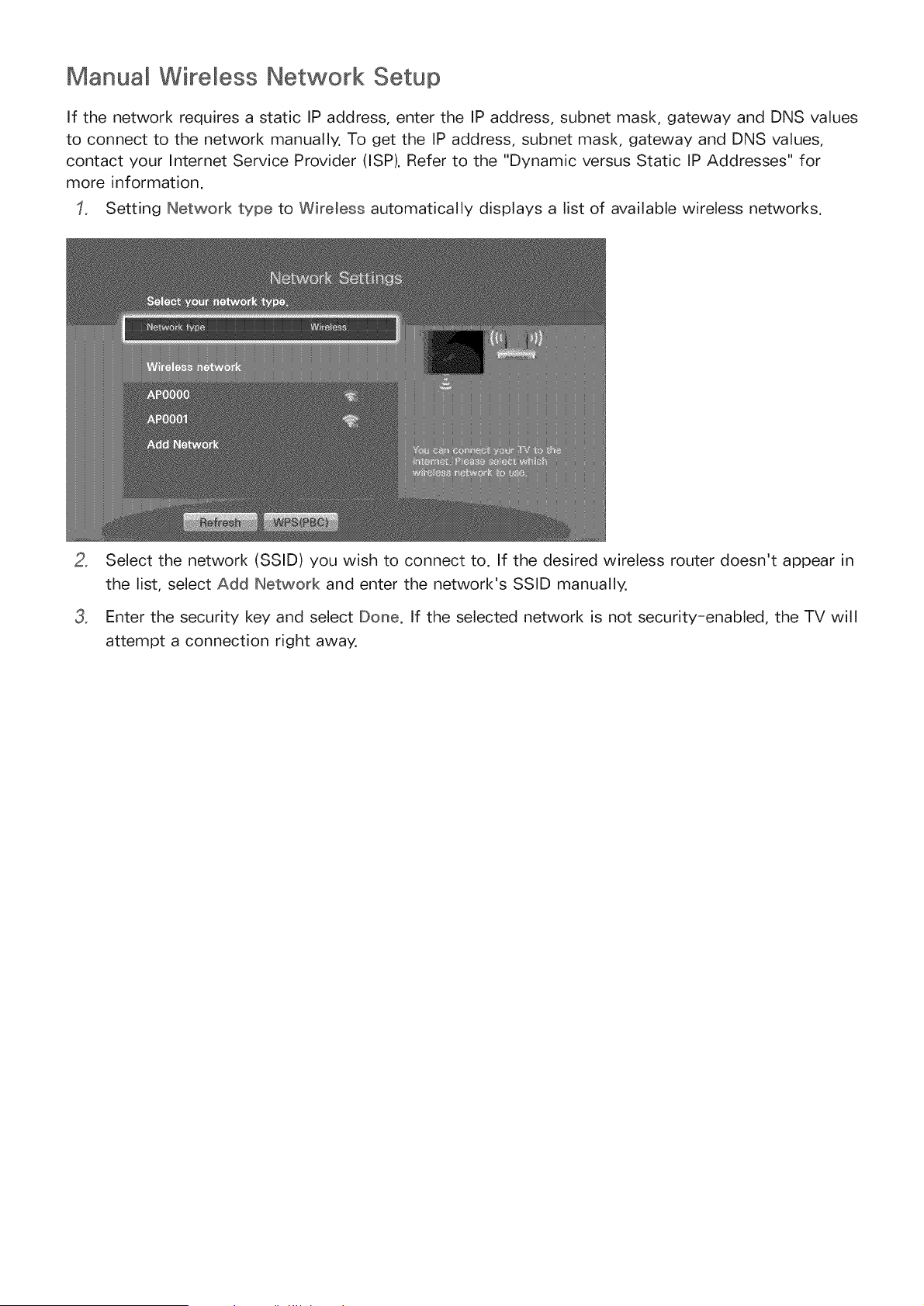
Setting Network type to Wireless automatically displays a list of available wireless networks.
o
o
o
Select the network (SSID) you wish to connect to. If the desired wireless router doesn't appear in
the list, select Add Network and enter the network's SSID manually.
Enter the security key and select Done. If the selected network is not security-enabled, the TV will
attempt a connection right away.
The TV attempts to connect to the network. A confirmation message is then shown once a
connection is established. Select OK to proceed. If the attempt fails, try again or connect
manually.
Manua Wireless Network Setup
If the network requires a static IP address, enter the IP address, subnet mask, gateway and DNS values
to connect to the network manually. To get the IP address, subnet mask, gateway and DNS values,
contact your Internet Service Provider (ISP). Refer to the "Dynamic versus Static IP Addresses" for
more information.
Setting Network type to Wireless automatically displays a list of available wireless networks.
2_
3_
Select the network (SSID) you wish to connect to. If the desired wireless router doesn't appear in
the list, select Add Network and enter the network's SSID manually.
Enter the security key and select Done. If the selected network is not security-enabled, the TV will
attempt a connection right away.
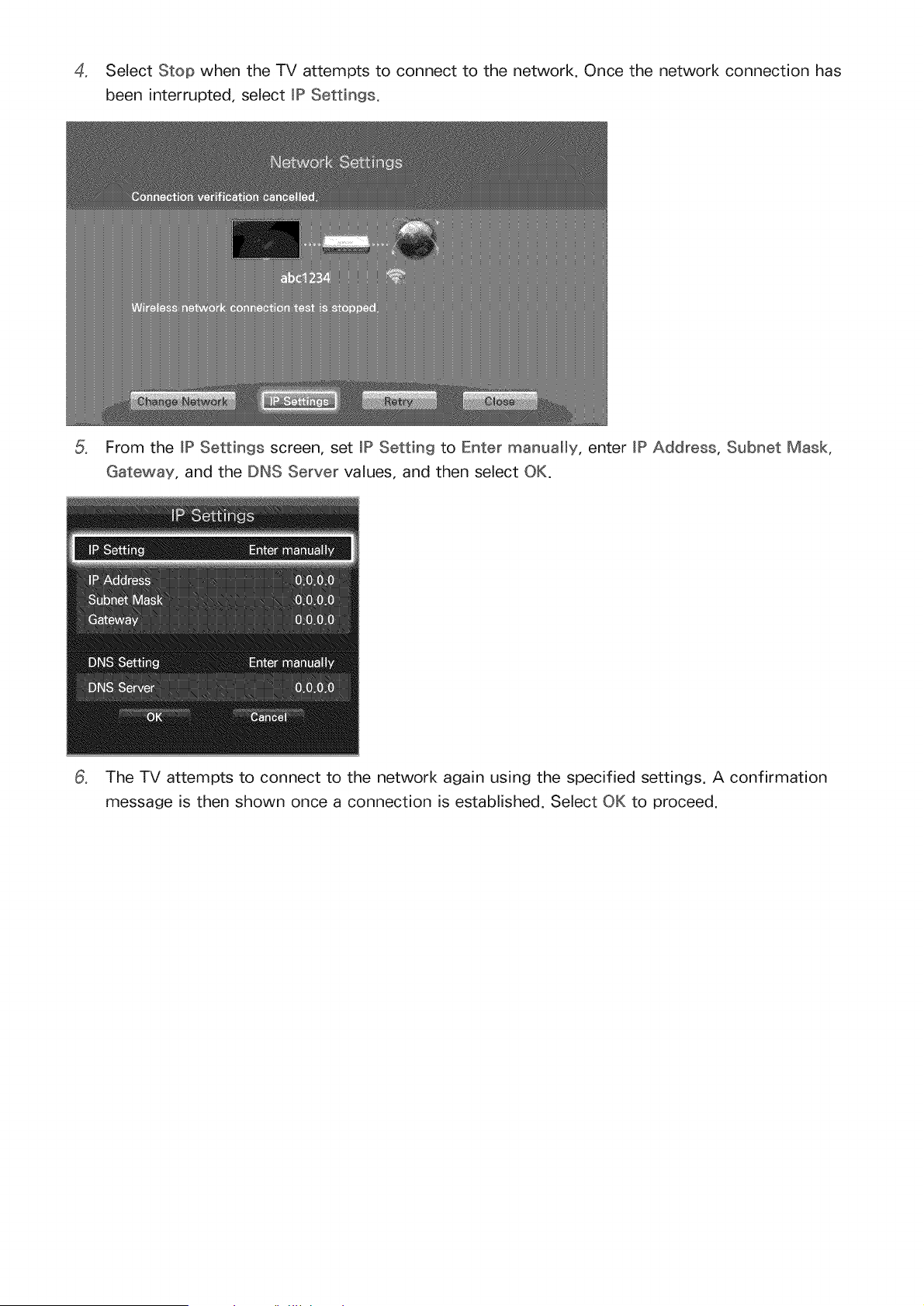
4. Select Stop when the TV attempts to connect to the network. Once the network connection has
been interrupted, select JP Settings.
From the JP Settings screen, set JP Setting to Enter manually, enter JP Address, Subnet Mask,
Gateway, and the DNS Server values, and then select OK.
The TV attempts to connect to the network again using the specified settings. A confirmation
message is then shown once a connection is established. Select OK to proceed.
Using the WPS Button
If the router has a WPS push button, you can use it to connect the TV to the router automatically. WPS
automatically configures the SSID and WPA key settings.
Setting Network type to Wirebss automatically displays a list of available wireless networks.
2, Select WPS(PBC) and then press the router's WPS button within two minutes.
3, The TV automatically acquires the SSID and security key settings and connects to the network. A
confirmation message is then shown once a connection is established. Select OK to proceed.
Failed Wireless Connection
Wkeb ss n etwo rk co n n ectio n fai_ ed_ o_" n o wkeb ss rout e r sebct ed,
Go to Network Settings and select the correct router.
U na bb to co nnect to a wkeb ss router
Check the following:
Check that the router is turned on, and if it is, turn it off and on again.
2, Enter the correct security key if required.
_P auto settin9 faibd :_
Perform the following or set the IP address manually from mPSettings.
Make sure that the DHCP server is enabled on the router and unplug and plug the router back in.
2, Enter the correct security key if required.
3, if this does not work, contact your Internet Service Provider for more information.
U n a U e to co n n e ct t o t he netwo r k
Check the following:
Check the JP Settings settings.
2, Enter the correct security key if required.
3, if this does not work, contact your Internet Service Provider for more information.
Connected to a Ioca_ network_ but not to the _nternet
Make sure that the Internet LAN cable is connected to the router's external LAN port.
2, Check the DNS settings under JP Settings.
3, If the problem persists, contact your Internet Service Provider.
Hetwork setup comp_ete_ but unable to connect to the _nternet
if the problem persists, contact your Internet Service Provider.
Dynamic versus Static _P Addresses
If the network requires a dynamic IP address, use an ADSL modem or router that supports the
Dynamic Host Configuration Protocol (DHCP). Modems and touters that support DHCP automatically
provide the IP address, subnet mask, gateway and DNS values the TV needs to access the Internet, so
they do not have to be entered manually. Most home networks use a dynamic IP address.
If the network requires a static IP address, enter the IP address, subnet mask, gateway, and DNS values
manually when setting up the network connection. To get the IP address, subnet mask, gateway and
DNS values, contact your Internet Service Provider (ISP).
If the network requires a static IP address, use an ADSL modem that supports DHCP. ADSL modems
that support DHCP also allow static IP addresses.
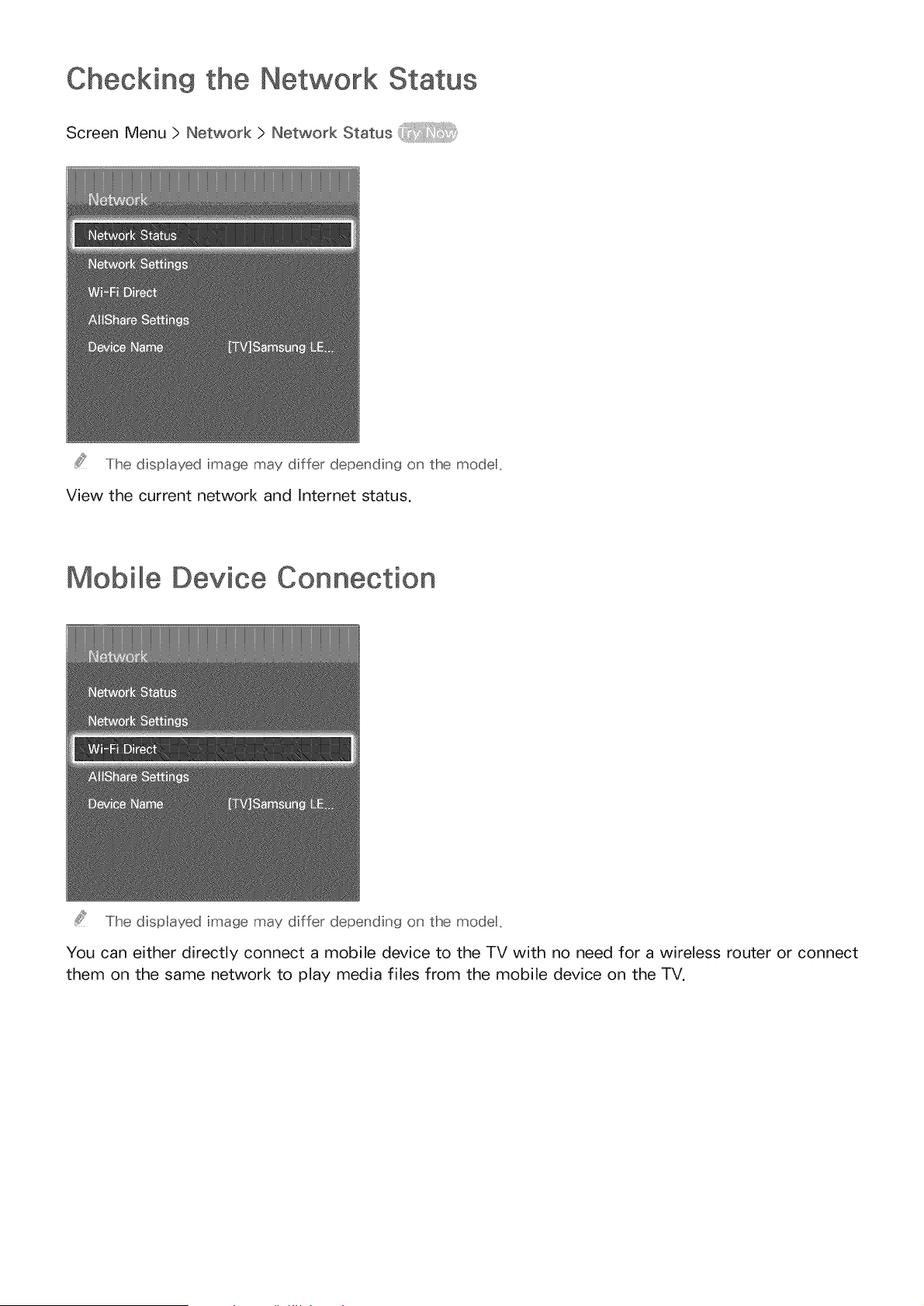
Checking the Network Status
Screen Menu > Network > Network Status
The dispIayed image may differ depending on the modet,
View the current network and Internet status,
Mobile Device Connection
The dispIayed image may differ depending on the modet_
You can either directly connect a mobile device to the TV with no need for a wireless router or connect
them on the same network to play media files from the mobile device on the TV,
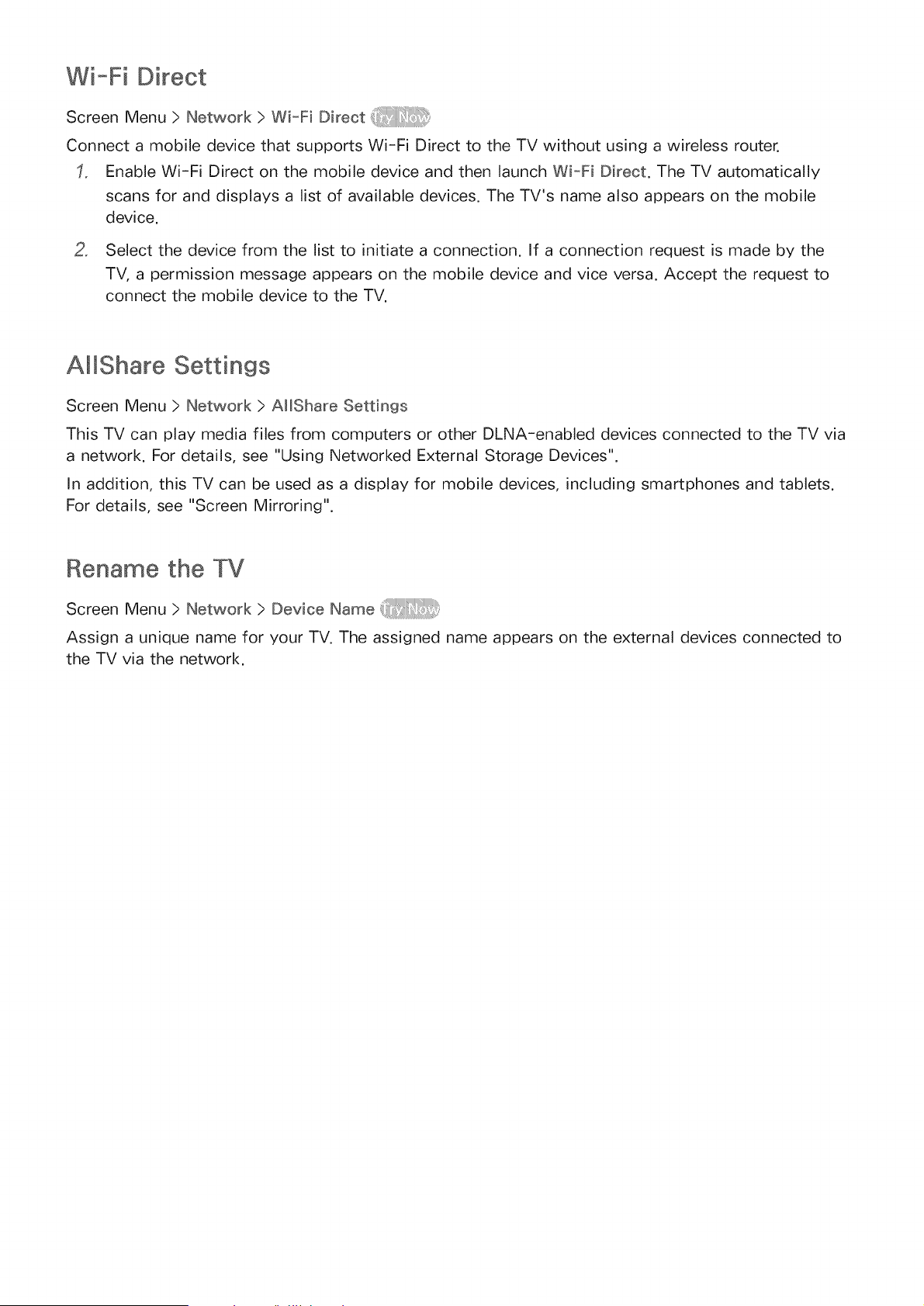
Wi-Fi Direct
Screen Menu > Network > Wi-Fi Direct
Connect a mobile device that supports Wi-Fi Direct to the TV without using a wireless router.
Enable Wi-Fi Direct on the mobile device and then launch Wi-Fi Direct. The TV automatically
scans for and displays a list of available devices. The TV's name also appears on the mobile
device.
2, Select the device from the list to initiate a connection. If a connection request is made by the
TV, a permission message appears on the mobile device and vice versa. Accept the request to
connect the mobile device to the TV.
AlIShare Settings
Screen Menu > Network > AIIShare Settings
This TV can play media files from computers or other DLNA-enabled devices connected to the TV via
a network. For details, see "Using Networked External Storage Devices".
In addition, this TV can be used as a display for mobile devices, including smartphones and tablets.
For details, see "Screen Mirroring".
Rename the
Screen Menu > Network > Device Name
Assign a unique name for your TV. The assigned name appears on the external devices connected to
the TV via the network.
Smart Touch Control
Smart Touch Control is available only with PDP 5500 series and LED 6400 series or higher.
The Smart Touch Control makes it easier and more convenient to use the TV. For example, you can
use the remote control's built-in touch pad to move the focus and make selections as you would on a
computer using a mouse. In addition, you can use the virtual remote panel displayed on the screen to
change channels, play media files, and access favorites.
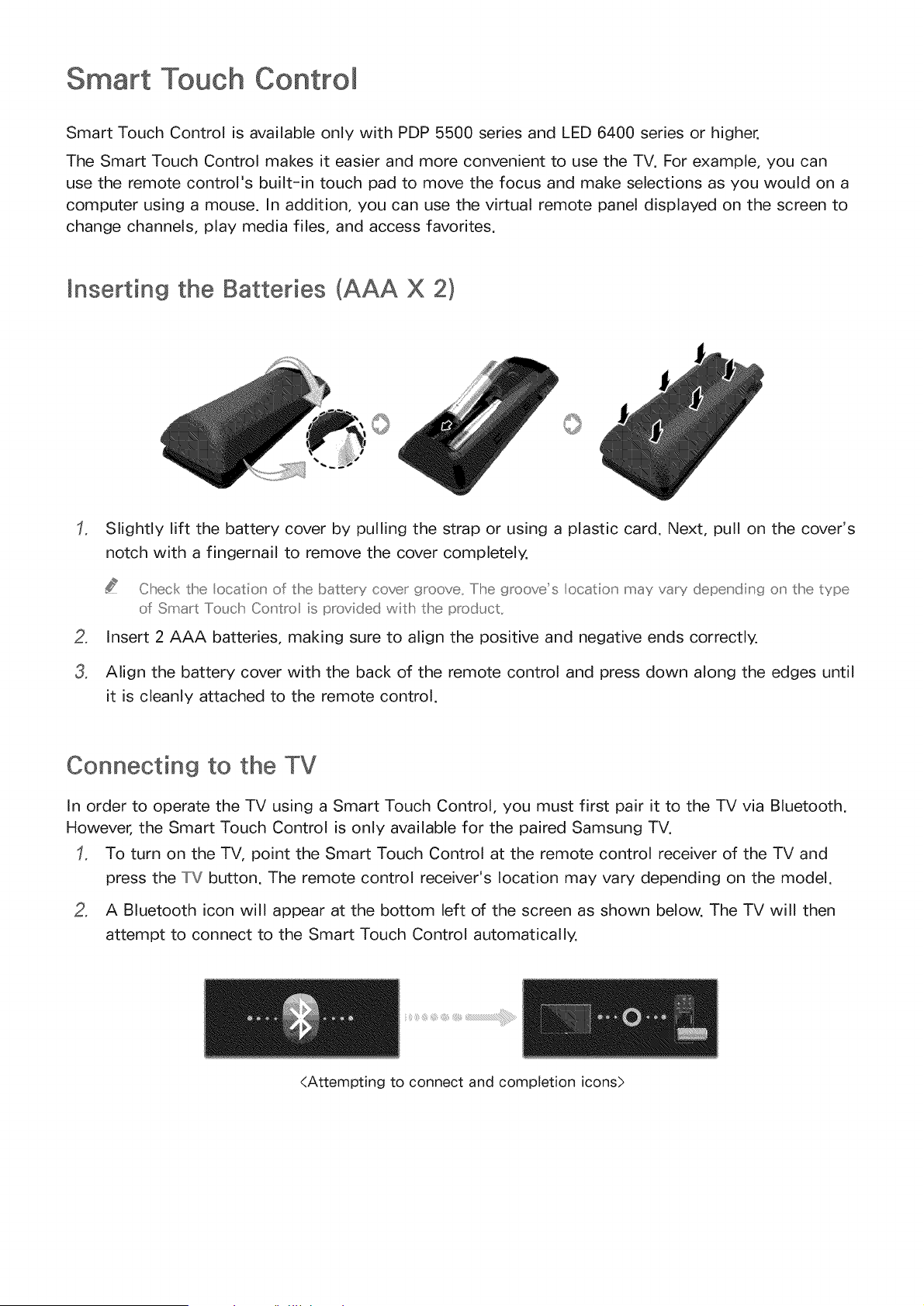
mnserdng the Batteries (AAA X 2}
o
Slightly lift the battery cover by pulling the strap or using a plastic card. Next, pull on the cover's
notch with a fingernail to remove the cover completely.
Check the ocation of the battery cover groove, The grooves ocatio_' may vary depeu'diu'g o_' the type
of Smart To_Jch Co_'tro is provided witlh the product..
Insert 2 AAA batteries, making sure to align the positive and negative ends correctly.
Align the battery cover with the back of the remote control and press down along the edges until
it is cleanly attached to the remote control.
Connecting to the TV
In order to operate the TV using a Smart Touch Control, you must first pair it to the TV via Bluetooth.
However, the Smart Touch Control is only available for the paired Samsung TV.
To turn on the TV, point the Smart Touch Control at the remote control receiver of the TV and
press the TV button. The remote control receiver's location may vary depending on the model.
2, A Bluetooth icon will appear at the bottom left of the screen as shown below. The TV will then
attempt to connect to the Smart Touch Control automatically.
<Attempting to connect and completion icons>
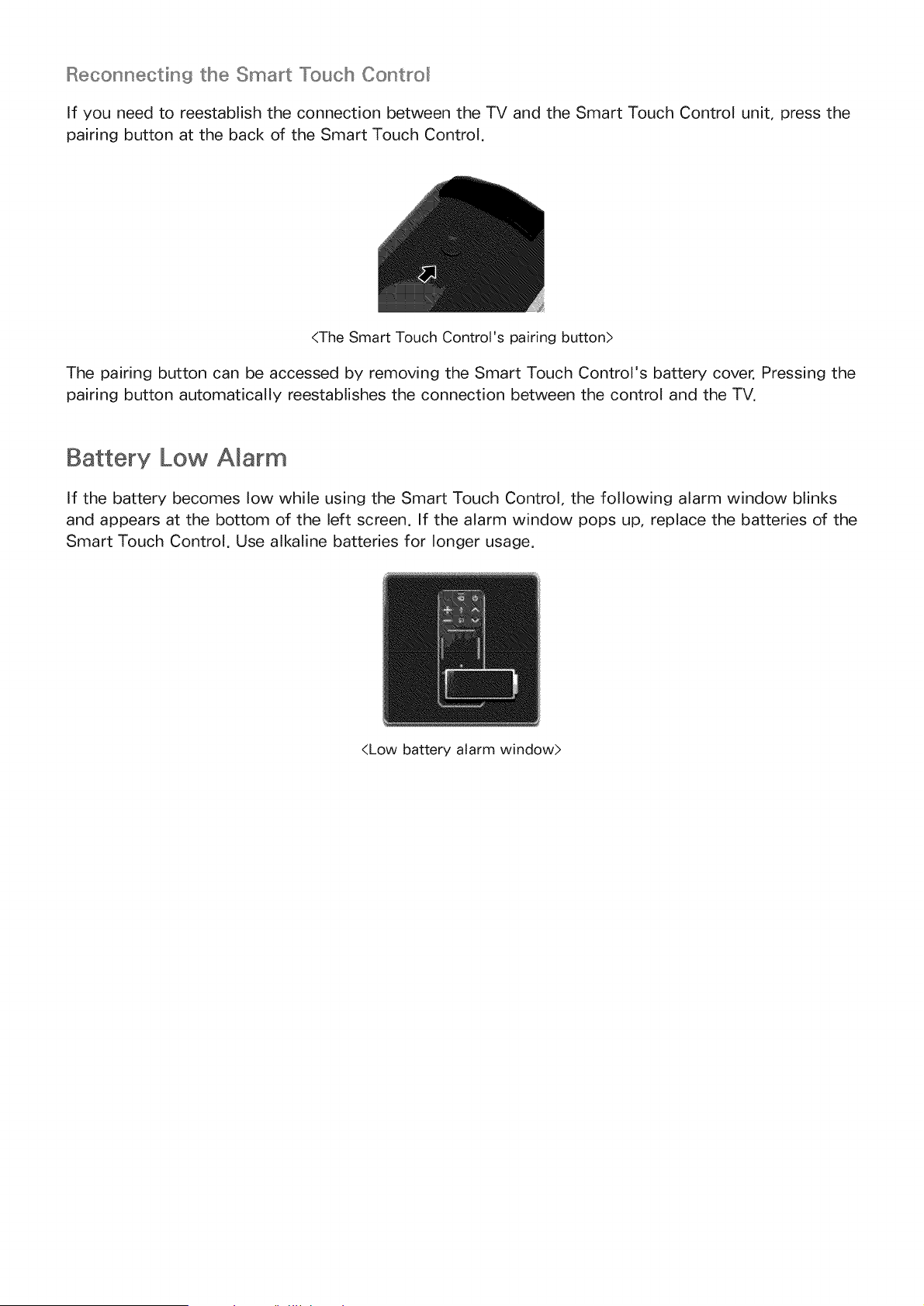
Reconnectin9 the Smart Touch Contro_
If you need to reestablish the connection between the TV and the Smart Touch Control unit, press the
pairing button at the back of the Smart Touch Control.
<The Smart Touch Control's pairing button>
The pairing button can be accessed by removing the Smart Touch Control's battery cover. Pressing the
pairing button automatically reestablishes the connection between the control and the TV.
Battery Low Amarm
If the battery becomes low while using the Smart Touch Control, the following alarm window blinks
and appears at the bottom of the left screen. If the alarm window pops up, replace the batteries of the
Smart Touch Control. Use alkaline batteries for longer usage.
<Low battery alarm window>
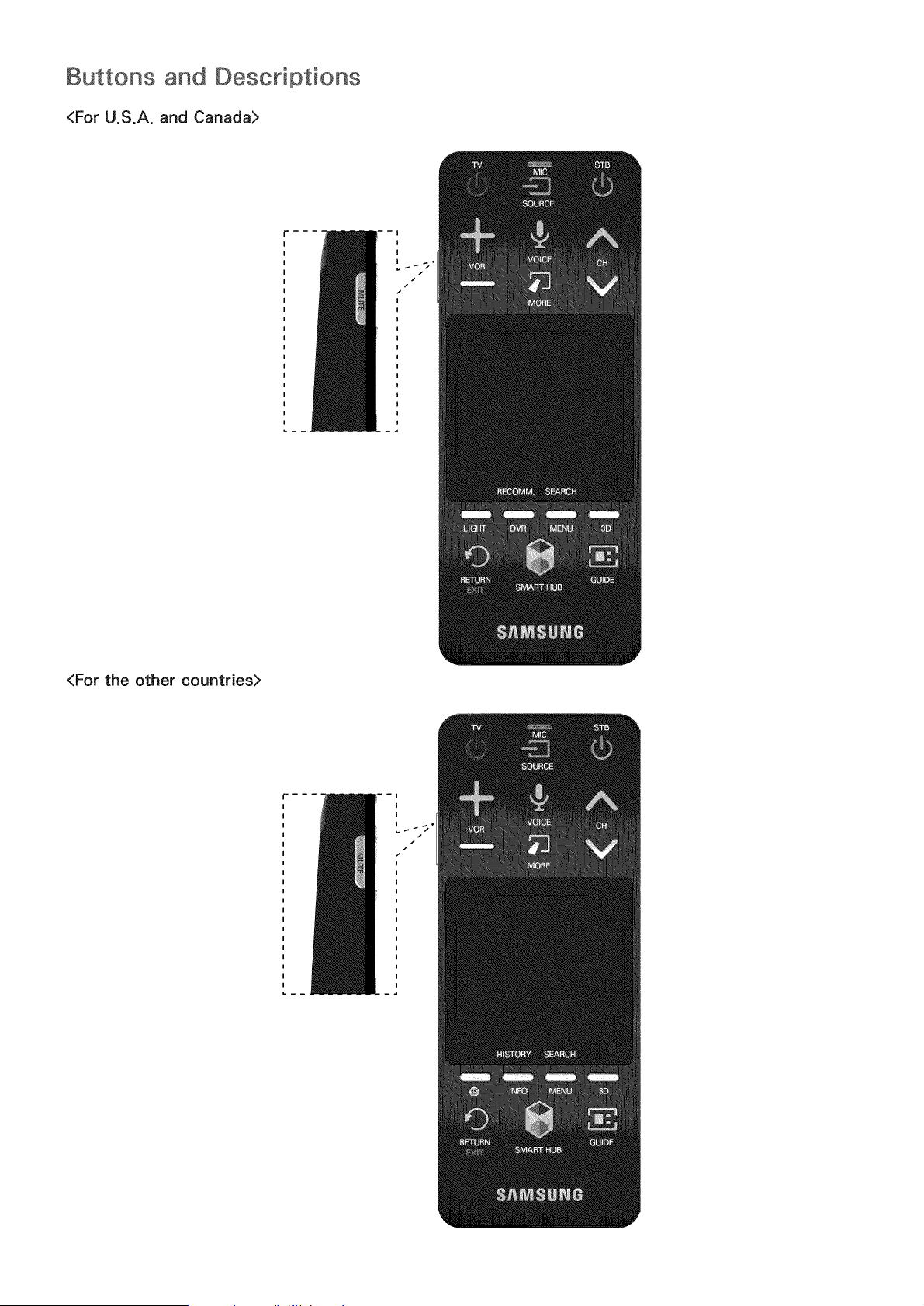
Buttons and Descriptions
<For U.S.A. and Canada>
<For the other countries>
f--
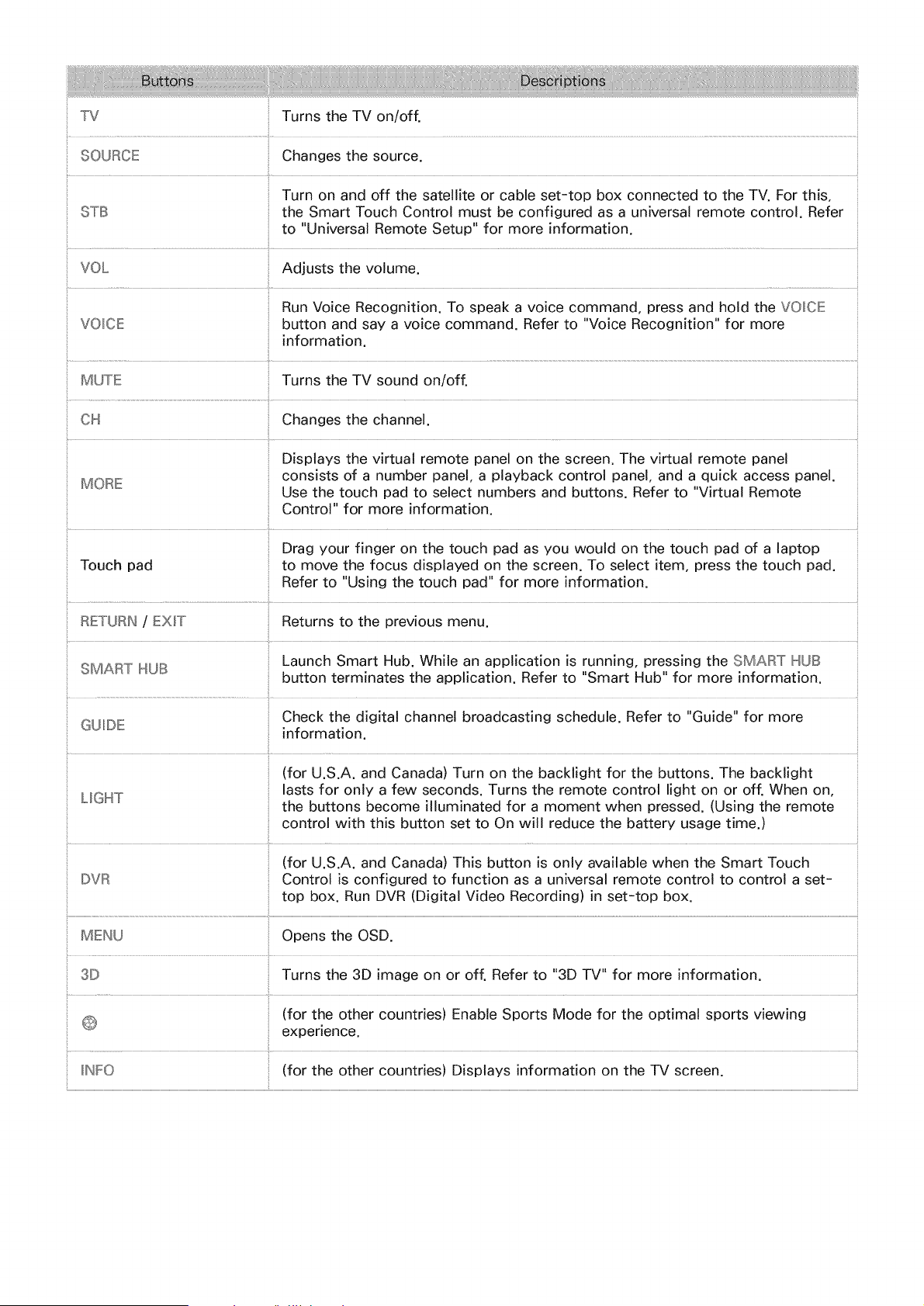
_ TV Turns the TV on/off.
SOURCE Changes the source.
Turn on and off the satellite or cable set-top box connected to the TV. For this,
STIB the Smart Touch Control must be configured as a universal remote control. Refer
to "Universal Remote Setup" for more information.
VOL Adjusts the volume.
Run Voice Recognition. To speak a voice command, press and hold the VOICE
VOICE button and say a voice command. Refer to "Voice Recognition" for more
information.
MUTE
CH
Turns the TV sound on/of{
GUDE
Changes the channel.
Displays the virtual remote panel on the screen. The virtual remote panel
consists of a number panel, a playback control panel, and a quick access panel.
MORE Use the touch pad to select numbers and buttons. Refer to "Virtual Remote
Control" for more information.
Drag your finger on the touch pad as you would on the touch pad of a laptop
Touch pad to move the focus displayed on the screen. To select item, press the touch pad.
Refer to "Using the touch pad" for more information.
RETURN /EXIT Returns to the previous menu.
Launch Smart Hub. While an application is running, pressing the SMART HUB
SMART IHUB button terminates the application. Refer to "Smart Hub" for more information.
Check the digital channel broadcasting schedule. Refer to "Guide" for more
information.
(for U.S.A. and Canada) Turn on the backlight for the buttons. The backlight
lasts for only a few seconds. Turns the remote control light on or off. When on,
L_GHT the buttons become illuminated for a moment when pressed. (Using the remote
control with this button set to On will reduce the battery usage time,)
(for U.S.A. and Canada) This button is only available when the Smart Touch
DVR Control is configured to function as a universal remote control to control a set-
top box. Run DVR (Digital Video Recording) in set-top box.
MEINU Opens the OSD.
3D Turns the 3D image on or off. Refer to "3D TV" for more information.
(for the other countries) Enable Sports Mode for the optimal sports viewing
experience.
IIINFO (for the other countries) Displays information on the TV screen.
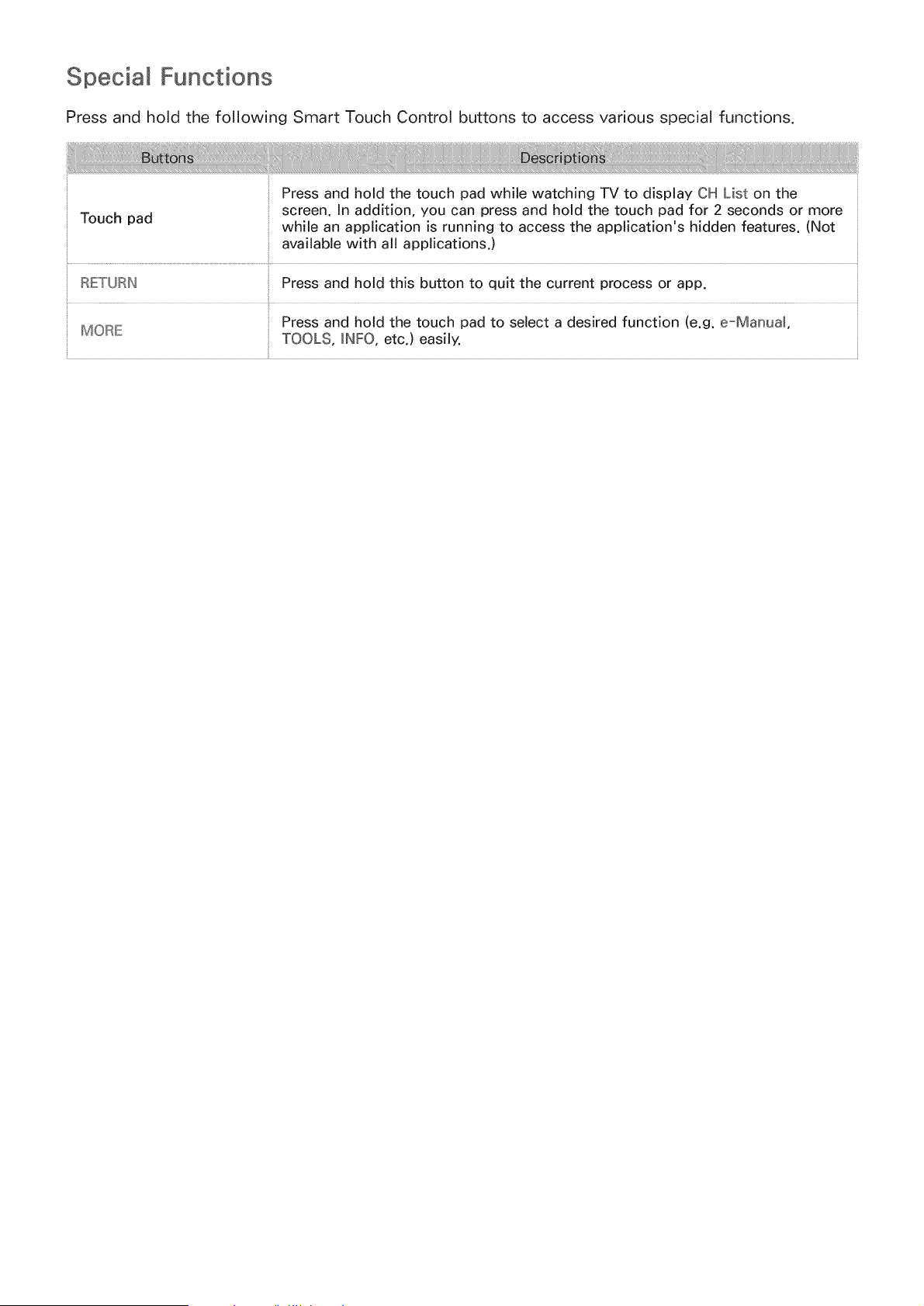
Special Functions
Press and hold the following Smart Touch Control buttons to access various special functions.
Press and hold the touch pad while watching TV to display OH List on the
screen. In addition, you can press and hold the touch pad for 2 seconds or more
Touch pad while an application is running to access the application's hidden features. (Not
available with al! applications.)
RETURN Press and hold this button to quit the current process or app.
Press and hold the touch pad to select a desired function (e.g. e-ManuaL
MORE TOOLS, INFO, etc.) easily.
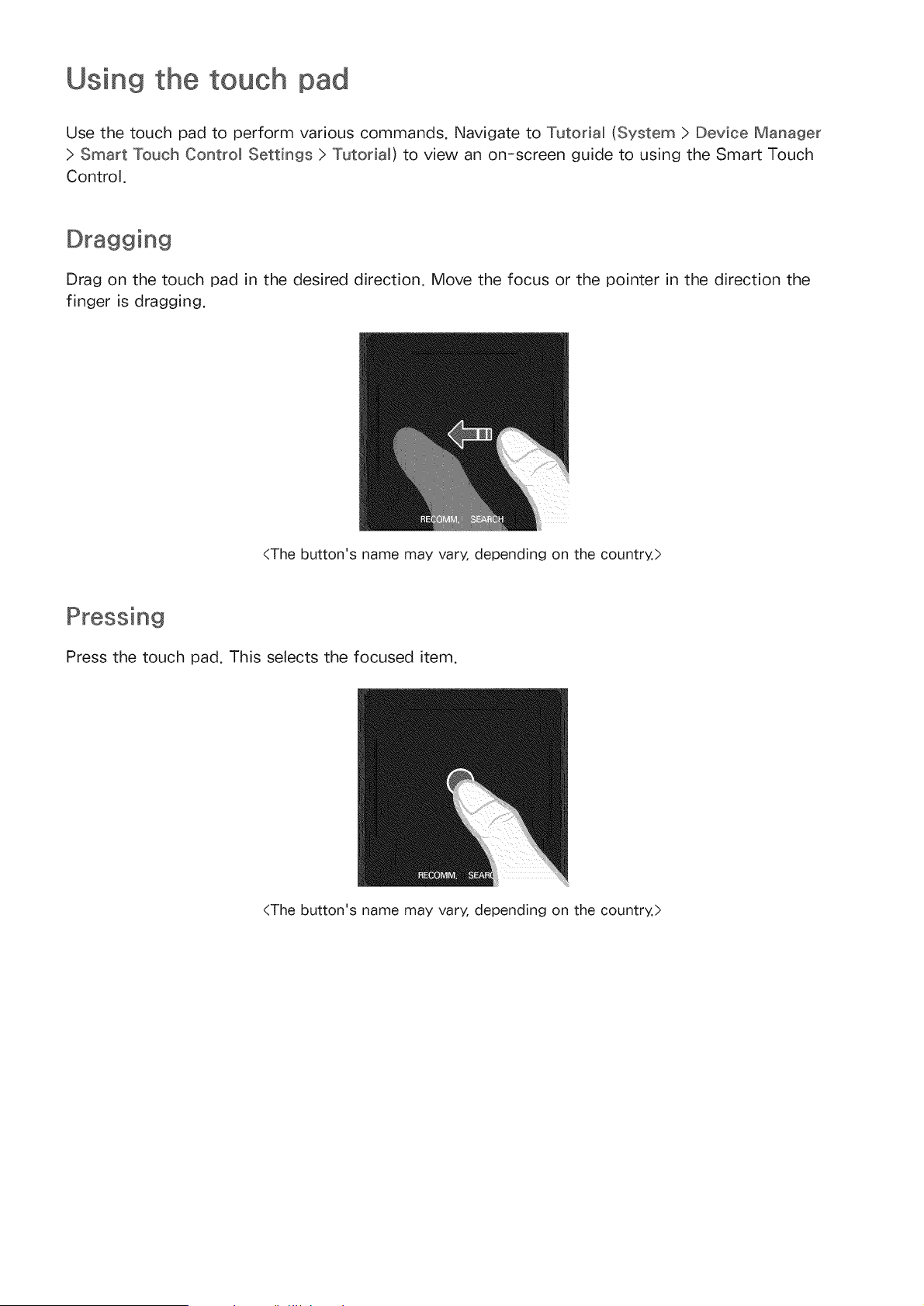
Using the touch
Use the touch pad to perform various commands. Navigate to Tutorial (System > Device Manager
> Smart Touch Control Settings > Tutorial) to view an on-screen guide to using the Smart Touch
Control.
Drag on the touch pad in the desired direction. Move the focus or the pointer in the direction the
finger is dragging,
<The button's name may vary, depending on the country.>
Pressing
Press the touch pad. This selects the focused item.
<The button's name may vary, depending on the country.>
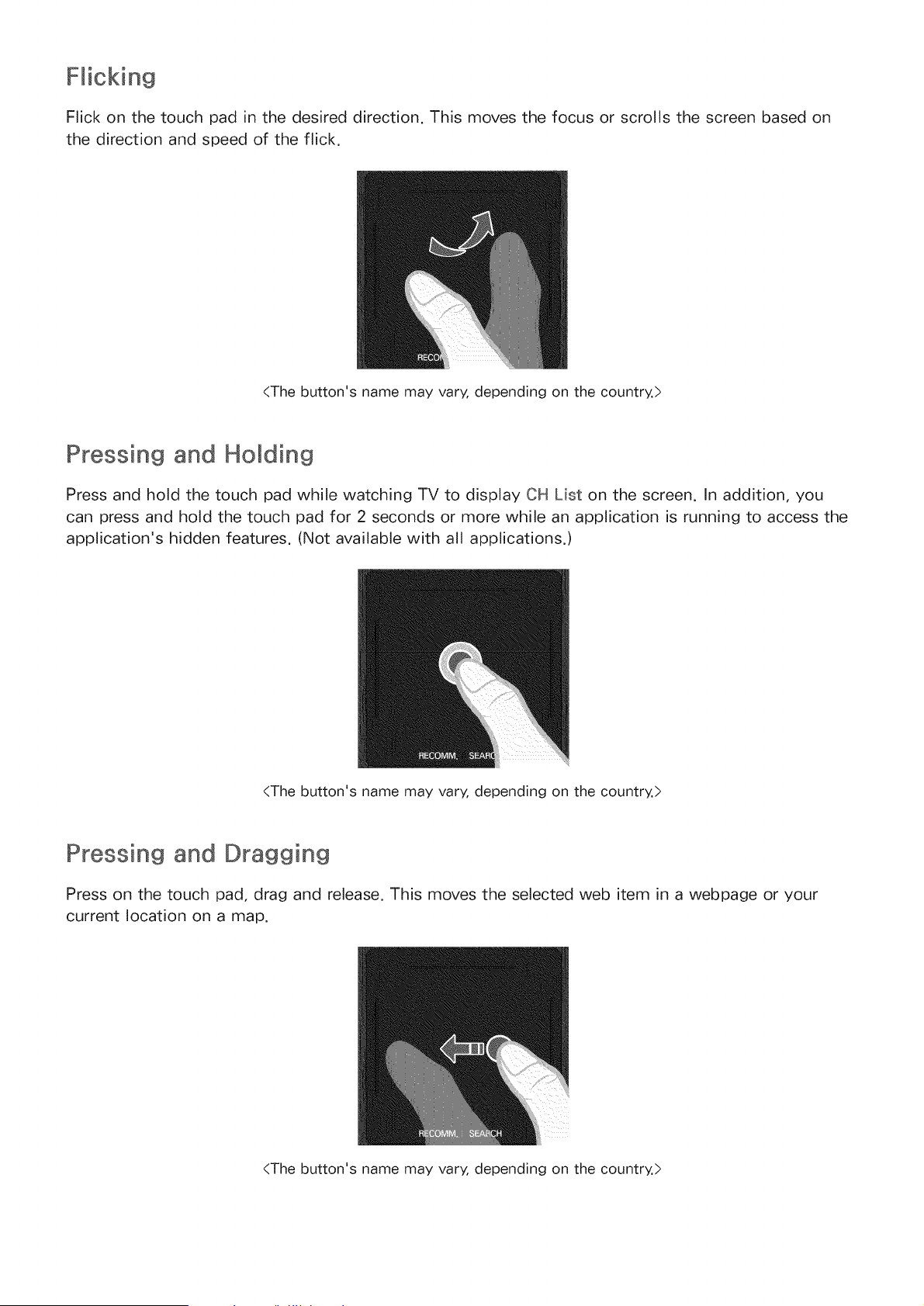
Flicking
Flick on the touch pad in the desired direction. This moves the focus or scrolls the screen based on
the direction and speed of the flick.
(The button's name may vary, depending on the country.>
Pressing and Holding
Press and hold the touch pad while watching TV to display CH List on the screen. In addition, you
can press and hold the touch pad for 2 seconds or more while an application is running to access the
application's hidden features. (Not available with all applications.)
<The button's name may vary, depending on the country.>
Pressing and Dragging
Press on the touch pad, drag and release. This moves the selected web item in a webpage or your
current location on a map.
<The button's name may vary, depending on the country.>
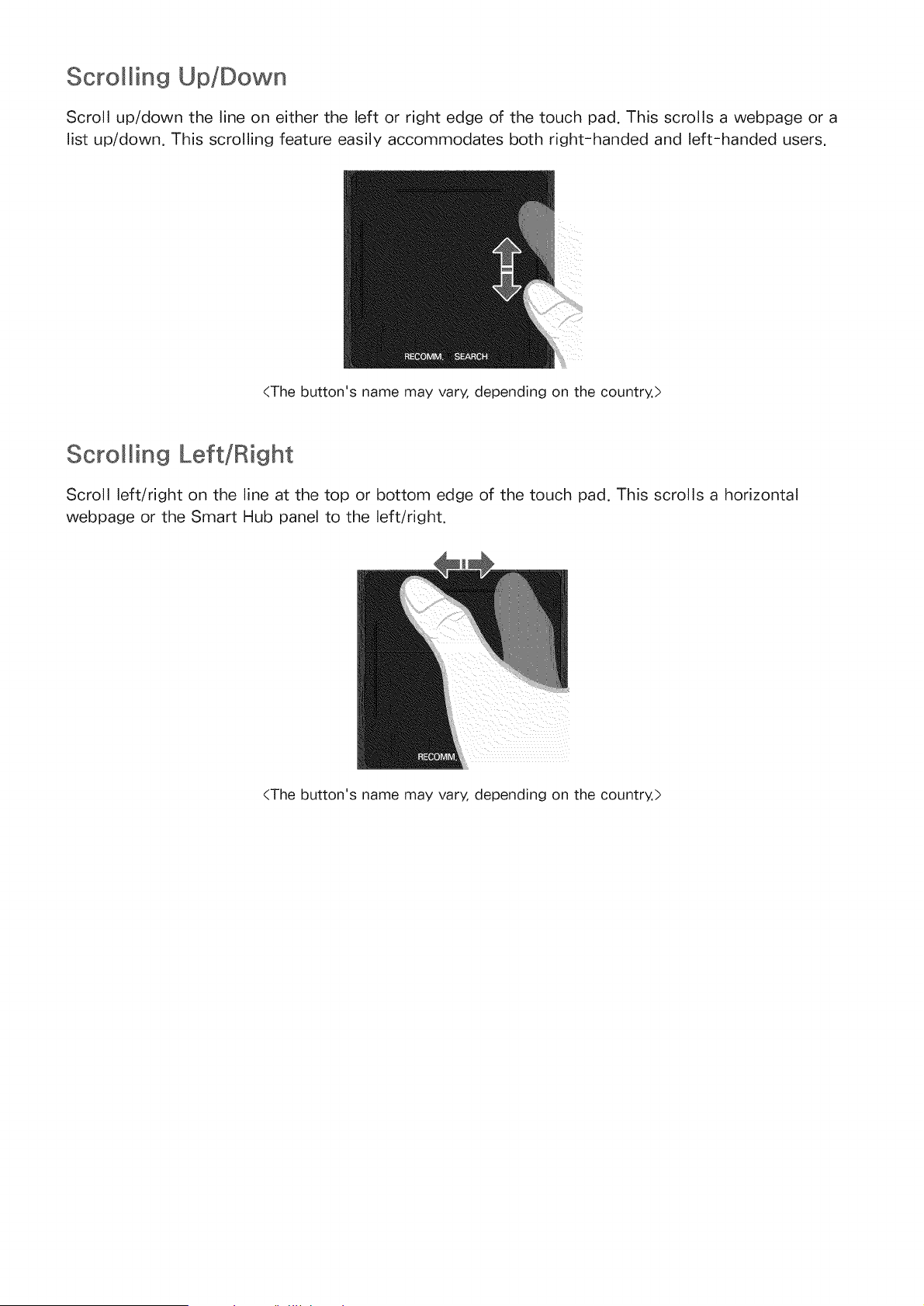
ScroIMing Up/Down
Scroll up/down the line on either the left or right edge of the touch pad, This scrolls a webpage or a
list up/down. This scrolling feature easily accommodates both right-handed and left-handed users.
<The button's name may vary, depending on the country.>
ScroIMing Left/Right
Scroll left/right on the line at the top or bottom edge of the touch pad. This scrolls a horizontal
webpage or the Smart Hub panel to the left/right.
<The button's name may vary, depending on the country.>
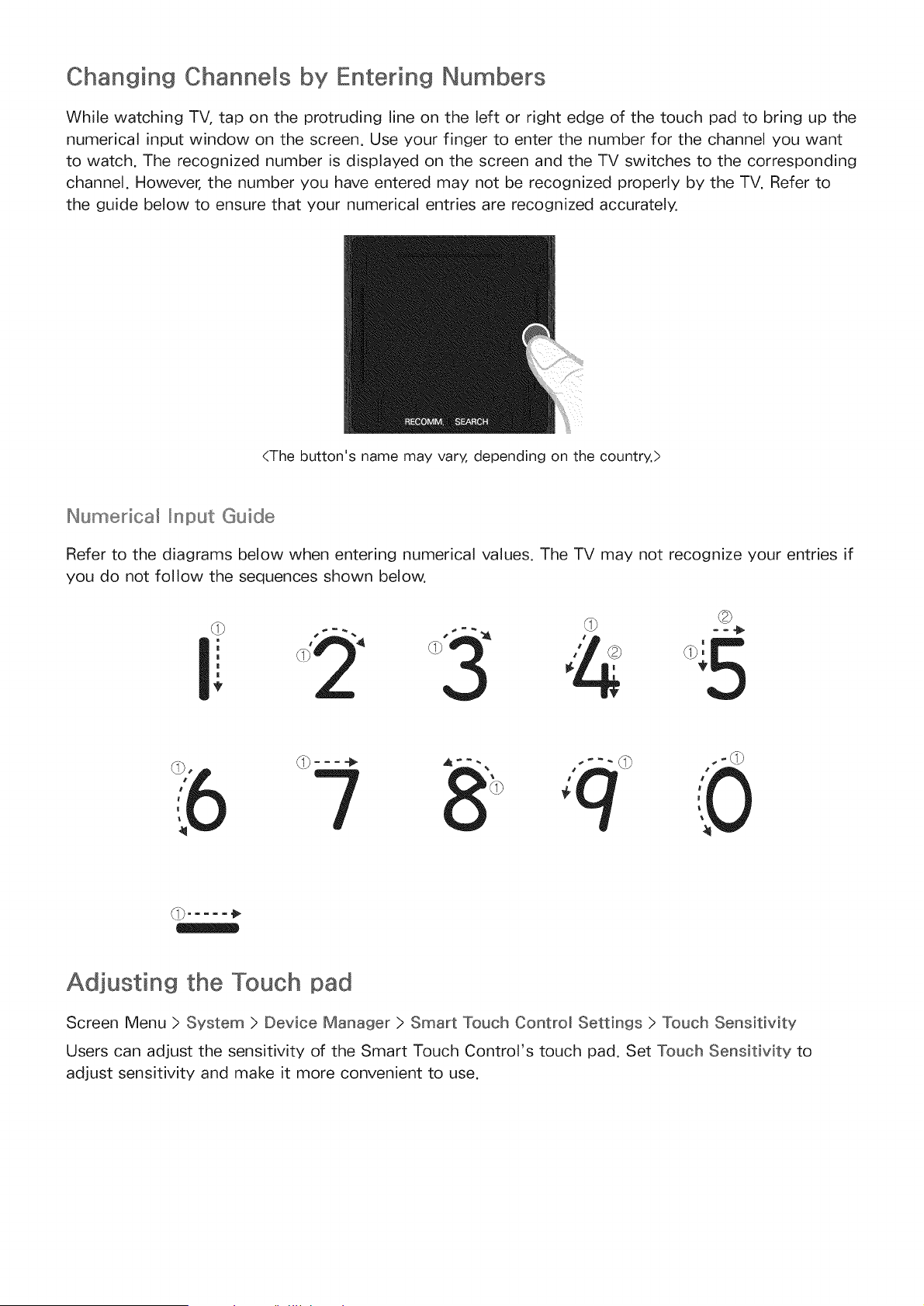
Changing Channels by Entering Numbers
While watching TV, tap on the protruding line on the left or right edge of the touch pad to bring up the
numerical input window on the screen. Use your finger to enter the number for the channel you want
to watch. The recognized number is displayed on the screen and the TV switches to the corresponding
channel. However, the number you have entered may not be recognized properly by the TV. Refer to
the guide below to ensure that your numerical entries are recognized accurately.
<The button's name may vary, depending on the country.>
Numedca_ _nput Guide
Refer to the diagrams below when entering numerical values. The TV may not recognize your entries if
you do not follow the sequences shown below.
Adjusting the Touch pad
Screen Menu > System > Device Manager > Smart Touch Control Settings > Touch Sensitivity
Users can adjust the sensitivity of the Smart Touch Control's touch pad. Set Touch Sensitivity to
adjust sensitivity and make it more convenient to use.
Show Status and Notification Banner
Press the MORE button on the Smart Touch Control and then select STATUS on the virtual remote
panel to display the status and notification banner at the top of the screen. Refer to the "Status and
Notification" for more information.
This function is only available on U.S.A. and Canada.
Press the IRECOMMo /SEARCH and then select Recommended from the list displayed at the bottom of
the screen. This shows the current/scheduled program and application recommendations.
Select a program that is currently airing to jump to the corresponding channel or a program that is
scheduled to air to set up a Schedule Viewing setting. Refer to the "Scheduled Recommended Program
Info" for more information.
Select an application to launch. Samsung Apps will launch if the selected application is not installed
on the TV. Refer to the "Samsung Apps" for more information.
For U.S.A. and Canada
Press the RECOMM, /SEAIRCH and then select History from the list displayed at the bottom of the
screen. This displays an interactive list of recently accessed channels, media content and applications.
For the other countries
Press the HISTORY /SEARCH and then select History from the list displayed at the bottom of the
screen. This displays an interactive list of recently accessed channels, media content and applications.
Deletin9 History Data
Screen Menu > Smart Features > Remove viewin9 history > History
You can delete the history information about recently viewed channels, content and applications.
For U.S.A. and Canada
Press the RECOMMo /SEARCH button on the Smart Touch Control. The list appears at the bottom of
the screen. Press the RECOMM_ /SEARCH button again. The keypad will appear on the screen. Enter
search criteria to search not only many apps and their contents on the TV but also the Web. For more
information, refer to "Searching".
For the other countries
Press the H_STORY /SEARCH button. The list appears at the bottom of the screen. Press the HISTORY
/SEAIRCH button again. The keypad will appear on the screen. Enter search criteria to search not only
many apps and their contents on the TV but also the Web. For more information, refer to "Searching".
Virtua Remote Controm
Press the MORE button to display the virtual remote panel on the screen. The virtual remote panel
consists of a number panel, a playback control panel, and a quick access panel. Use the touch pad to
select numbers and buttons. Press and hold this button. A quick access panel of virtual remote panel
appears. You can select screen buttons easily.
Changing the Virtua_ Remote Control Panel
Choose the number panel, playback control panel, or quick access panel as the panel to be shown on
the screen.
Use the touch pad to keep moving the focus left or right. The panel changes when the focus is moved
beyond the leftmost or rightmost edge.
Use left/right scroll function on the touch pad to change the panel easily.
Change a position of the Virtua_ Remote Panel
Press the MORE button on the Smart Touch Control. The virtual remote panel appears on the screen.
Press and hold the touch pad for one second. Users can change a position of the virtual remote panel
of the screen.
Using the Number Panel
Use the number panel to enter numbers on a keypad screen or webpage or to change the channel
while watching TV. Changing the channel using the number pad leaves a record, allowing you to easily
return to previous channels.
Using the Playback Control Pane_
Use the playback control panel to pause, rewind, fast forward, skip to the next file, and much more
while enjoying media content.
Using the Quick Access Panel
Quickly access the JNFO, TOOLS and e-Manual buttons. However, the availability of buttons may vary
depending on the operating mode of the Smart Touch Control (with the TV only, as a universal remote,
etc.).
Adjusting the virtuam remote controm
Screen Menu > System > Device Manager > Smart Touch Control Settings > Onscreen Remote Size
You can resize the virtual remote control. If the virtual remote control buttons are too small, enlarge
the remote control window before using the virtual remote control.
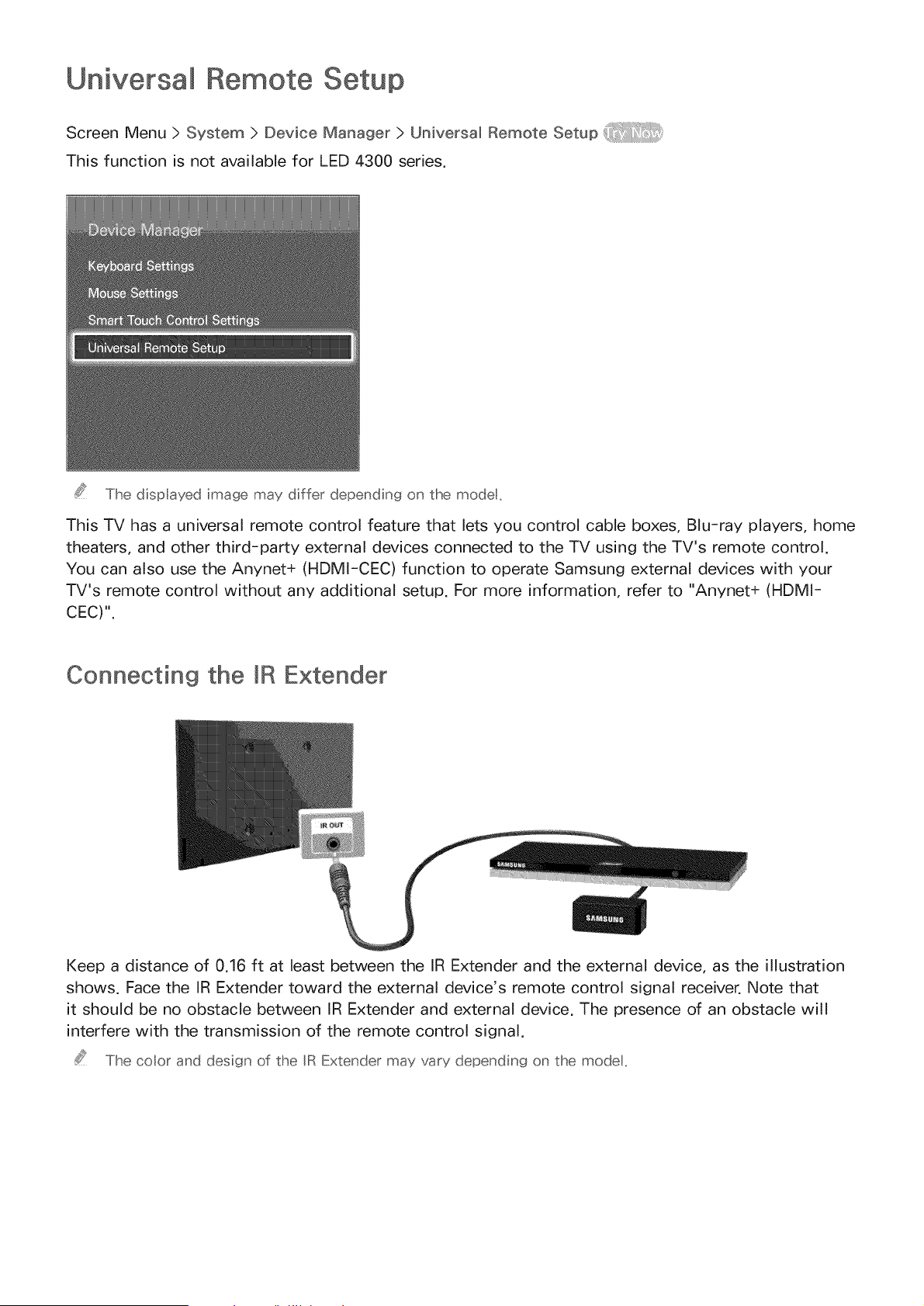
Remote Setup
Screen Menu > System > Device Manager > Universal Remote Setup
This function is not available for LED 4300 series.
The dispIayed image may differ depending on the modet,
This TV has a universal remote control feature that lets you control cable boxes, Blu-ray players, home
theaters, and other third-party external devices connected to the TV using the TV's remote control.
You can also use the Anynet+ (HDMI-CEC) function to operate Samsung external devices with your
TV's remote control without any additional setup. For more information, refer to "Anynet+ (HDMI-
CEC)".
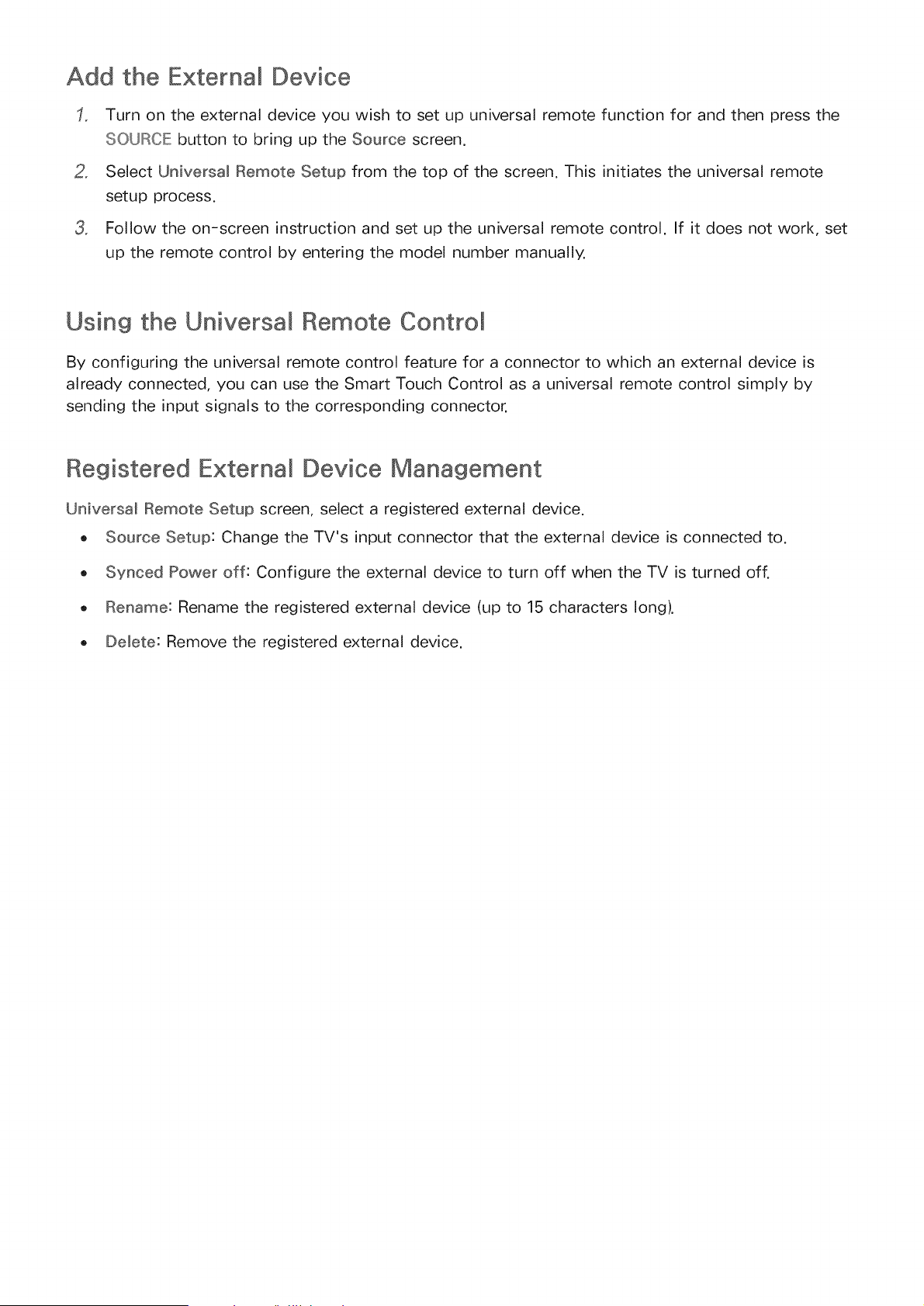
Connecting the mRExtender
Keep a distance of 0.16 ft at least between the IR Extender and the external device, as the illustration
shows. Face the IR Extender toward the external device's remote control signal receiver. Note that
it should be no obstacle between IR Extender and external device. The presence of an obstacle will
interfere with the transmission of the remote control signal.
The coot and design of the IR Extender may vary depending on the modet,
Add the External Device
2_
3_
Turn on the external device you wish to set up universal remote function for and then press the
SOURCE button to bring up the Source screen.
Select Universal Remote Setup from the top of the screen. This initiates the universal remote
setup process.
Follow the on-screen instruction and set up the universal remote control. If it does not work, set
up the remote control by entering the model number manually.
Using the Universal Remote Control
By configuring the universal remote control feature for a connector to which an external device is
already connected, you can use the Smart Touch Control as a universal remote control simply by
sending the input signals to the corresponding connector.
Registered Externa_ Device Management
Universa_ Remote Setup screen, select a registered external device.
o Source Setup: Change the TV's input connector that the external device is connected to.
Synced Power off: Configure the external device to turn off when the TV is turned off.
Rename: Rename the registered external device (up to 15 characters long).
Delete: Remove the registered external device.
Entering Text using the Onscreen
An onscreen keypad appears when you need to enter text (entering the network password, logging
into your Samsung account, etc.), allowing you to enter text using your remote control.
Entering Text using the QWERTY Keypad
Use the QWERTY keypad as you would a normal keyboard. Simply select the letters you want to enter
them.
Ad{_itiona_ Features
Select the _ icon from the keypad to access the following features:
o Language: Select a language from the list.
Recommended text: Enable/disable the Recommended Text feature. Enabling the Recommended
Text feature displays word recommendations based on the entered characters. To enter the word
"lnternet", for example, all you have to do is enter "In" and select the word "lnternet" from the list
of recommended words.
Predict Next Letter: Enable/disable the Text Prediction feature. Enabling the Text Prediction
feature eliminates the need to find and select individual character keys. However, this feature is
limited to words that have previously been added to the dictionary. To enter the word "lnternet",
for example, select "1". A predicted word will then appear next to the I key. Simply select the
predicted word to enter "lnternet".
SMART Interaction
This TV features SMART Interaction, which recognizes a user's voice, actions, and face to enable TV
operations without the use of a remote control. The motion control and facial recognition features
require a separately-sold camera installed on the TV. Make sure that the TV is connected to the
Internet when installing the camera so that it can download the software required for motion control.
SMART Interaction makes it possible to configure settings and access features with ease. It takes
approximately 15 seconds for voice and motion recognition to come online after turning on the TV.
/iX When connecting the TV camera to 2013 Samsung TV models, make sure to connect it to the
specified USB port of the TV. Other USB ports are not supported for this purpose.
Face Recognition
This product saves thumbnail images of users' faces for use during the Face Login. Logging into the
Smart Hub via face recognition may be less secure than logging in using an ID and password.
TV Camera Use
Under some circumstances and under certain legal conditions, the use/misuse of the TV camera may
result in legal liability. There may be obligations under local privacy laws regarding the protection of
individuals concerning personal data and on the free movement of such data, and possibly other laws
including criminal laws, regulating camera surveillance both in the workplace and elsewhere.
By using the TV camera, users agree that it will not be used (i) in locations where cameras are
generally prohibited (such as bathrooms, locker rooms or changing rooms), (ii) in any manner that will
result in an invasion of a person's privacy or (iii) in violation of any applicable laws, regulations or
statutes.
If you are using a camera, first check the back for a sticker.
Remove the sticker cover before adjusting the TV camera angle.
When you are no longer using the camera, rotate the lens downward and secure it in place. This
prevents any inadvertent or unintentional camera operation.
Motion Cont_o_
Motion Control works by using the camera, so the user must be within the camera's recognition range.
The camera's recognition range varies depending on the ambient light level and other factors. Run
Motion ControN Environment Test before using Motion Control to determine the camera's recognition
range. User may experience physical fatigue when using Motion Control for extended periods.
Voice Recognition
Voice Recognition is not available in all languages, dialects or regions. The performance varies
depending on the language chosen, voice volume and ambient noise levels in the surrounding area.
Voice Text Input requires the user's agreement with any third-party app's voice privacy policy and to
provide Samsung with the user's MAC address and other private information.
Voice Text Input lets users enter text using voice commands instead of a mouse, keyboard or remote
control. This feature is particularly useful for searching, browsing the web, and using applications that
require text input.
You must agree to the Supplementa_ Privacy Notices before using Interactive Voice Recognition.
Voice Recognition
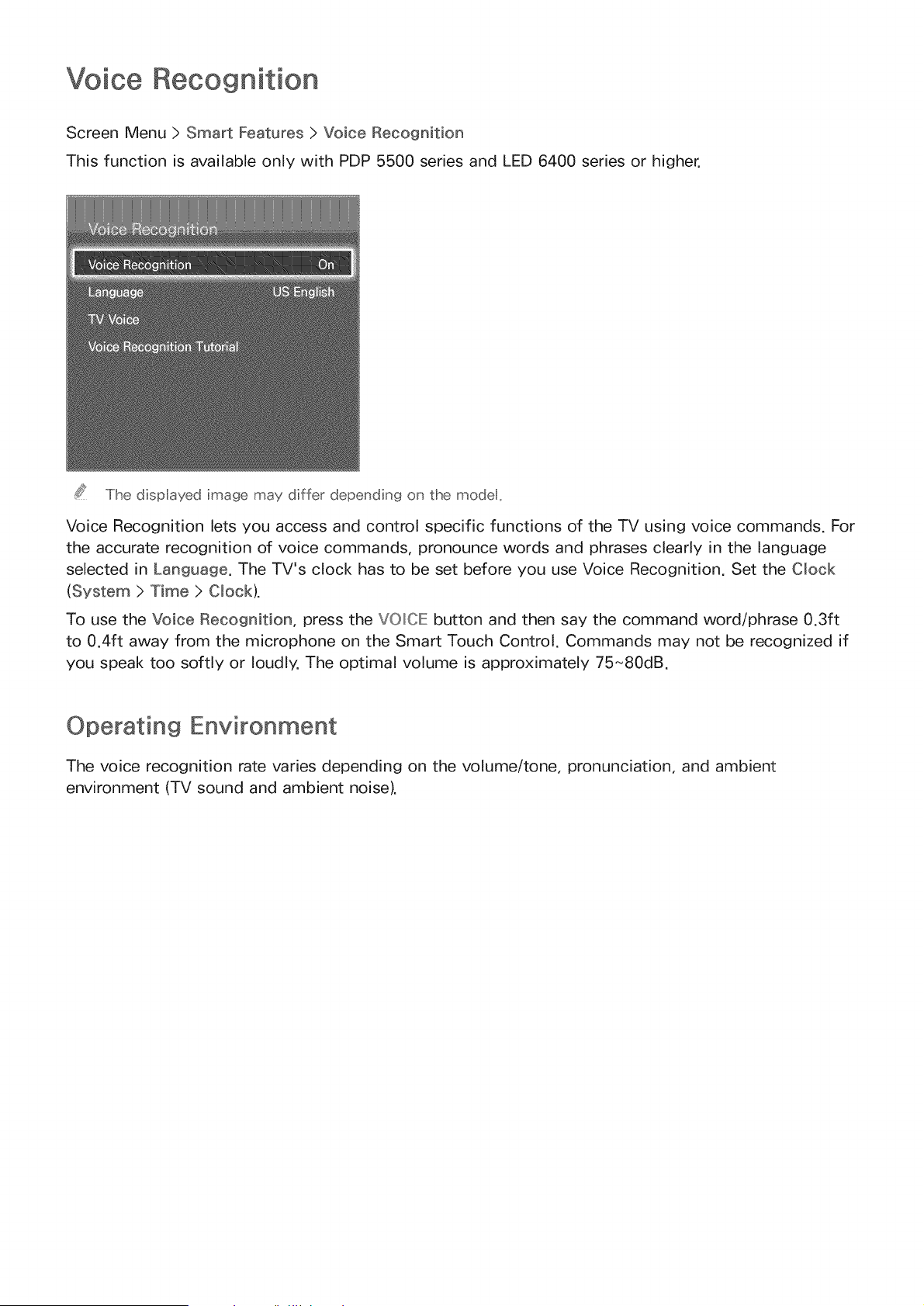
Screen Menu > Smart Features > Voice Recognition
This function is available only with PDP 5500 series and LED 6400 series or higher.
The dispIayed image may diffeF depending on the mode_
Voice Recognition lets you access and control specific functions of the TV using voice commands. For
the accurate recognition of voice commands, pronounce words and phrases clearly in the language
selected in Language. The TV's clock has to be set before you use Voice Recognition. Set the Clock
(System > Time > Clock).
To use the Voice Recognition, press the VOICE button and then say the command word/phrase 0.3ft
to 0.4ft away from the microphone on the Smart Touch Control. Commands may not be recognized if
you speak too softly or loudly. The optimal volume is approximately 75~80dB.
Operating Environment
The voice recognition rate varies depending on the volume/tone, pronunciation, and ambient
environment (TV sound and ambient noise),
Enabling Voice Recognition
Press the VOICE button to run Voice Recognition. Say a command. You can use Voice Recognition to
operate the TV.
If Voice Recognition is not working, check to see if Voice Recognition (Smart Features > Voice
Recognition) has been enabled. To use Voice Recognition, Voice Recognition must be set to On.
When the Voice Recognition is running, the Motion Control is not available.
Voice Recognition Tutoriam
Screen Menu > Smart Features > Voice Recognition > Voice Recognition Tutorial
This lets you familiarize yourself with the basics of using Voice Recognition. Run Voice Recognition
Tutorial or activate Voice Recognition and then say "Guide me".
Basic Voice Recognition Use
You can use the following commands anytime while Voice Recognition is active:
o Moving the Focus: Say "Focus Left", "Focus Right", "Focus Up", or "Focus Down" to move the
focus. However, these commands can only be used in situations when the focus can be moved.
Select item: Say "Select".
Available Voice Commands: Say "Guide me". A list of basic voice commands available in the
current state is shown.
•All Voice Commands: Say "Guide me" and then "Show All" to display a complete list of voice
commands by category, Say the name of a category.
Only preset voice commands are recognized. Available voice commands may vary, depending on the
software version.
Voice Recognition Settings
Screen Menu > Smart Features > Voice Recognition
Language: Select a language for Voice Recognition.
TV Voice: Enable/disable the TV's voice responses to your Voice Recognition commands and
choose between a male and female voice. This function is not supported depending on the
region.
mnteractive Voice Recognition Commands
Interactive Voice Recognition allows you to set up a Schedule Viewing access VODs, search and
launch applications, and execute various other commands without having to remember specific
commands or keywords. Saying "Turn off the TV in 30 minutes," for example, instructs the TV to turn
off after 30 minutes (Sleep Timer).
Activate Interactive Voice Recognition and say a command. See the examples below:
o When you don't know which channel a specific program is on:
"Play <program title>."
When you need information about a specific genre:
"Which _(genre name) shows are on today?"
When you want to watch a program featuring a specific actor or directed by a specific director:
"Please look up programs featuring _(cast member). /Find me works directed by _(director
name)."
When you want to find out more information about the program you are watching:
"Who are the cast members in this program?" /"What's the title of this program?"
When you want program recommendations:
"Please recommend something to watch this evening." /"Are there any shows worth watching
today?"
When you want to operate the TV:
"Adjust the volume to ten." /"Change to channel _-_-"
Deactivating Voice Recognition
To deactivate Voice Recognition, say "Close Voice Recognition".
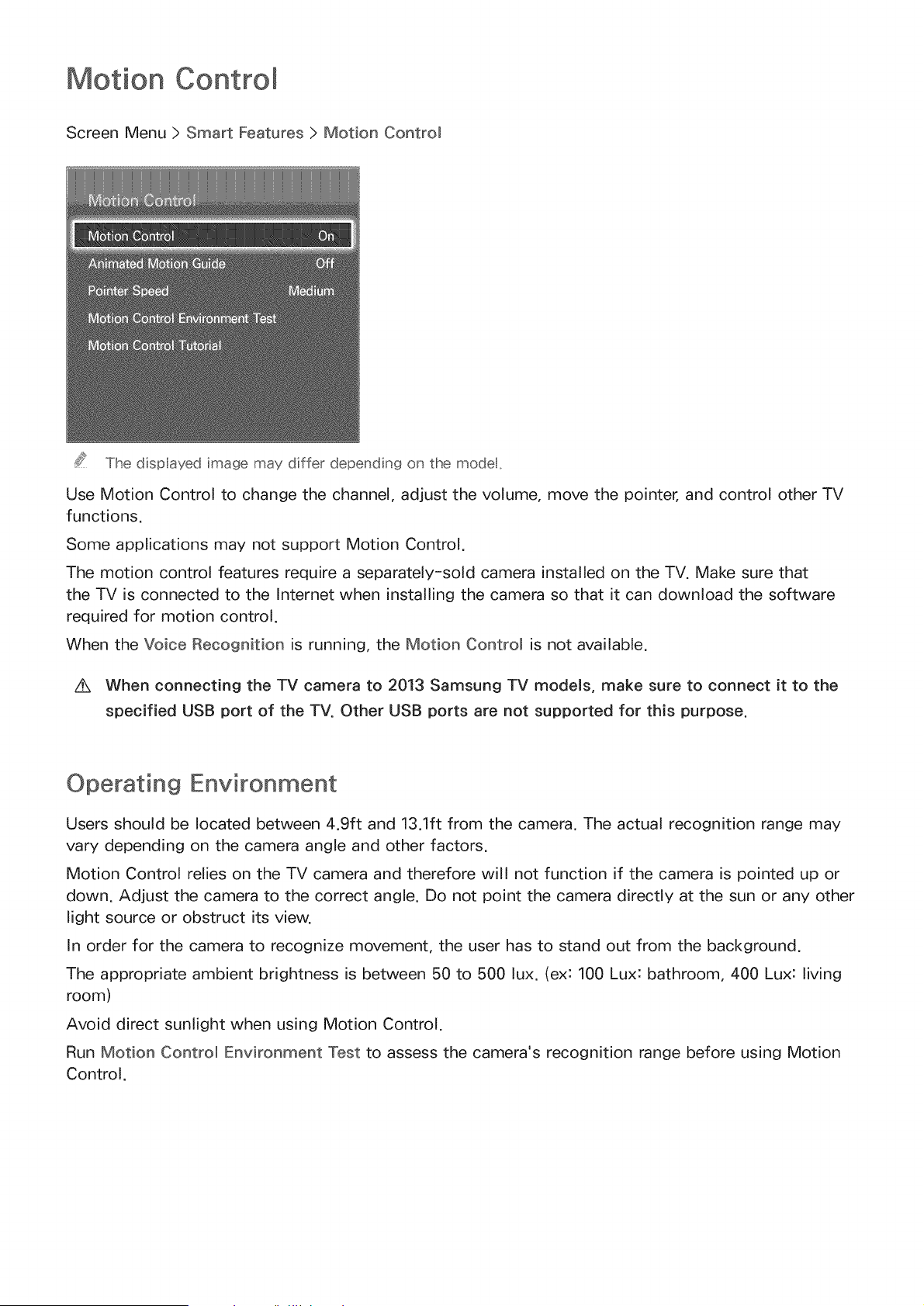
Motion
Screen Menu > Smart Features > Motion Control
The dispIayed image may differ depending on the modet,
Use Motion Control to change the channel, adjust the volume, move the pointer, and control other TV
functions.
Some applications may not support Motion Control.
The motion control features require a separately-sold camera installed on the TV. Make sure that
the TV is connected to the Internet when installing the camera so that it can download the software
required for motion control.
When the Voice Recognition is running, the Motion Control is not available.
Z_ When connecting the TV camera to 2013 Samsung TV models, make sure to connect it to the
specified USB port of the TV. Other USB ports are not supported for this purpose.
Operating Environment
Users should be located between 4.9ft and 13.1ft from the camera. The actual recognition range may
vary depending on the camera angle and other factors.
Motion Control relies on the TV camera and therefore will not function if the camera is pointed up or
down. Adjust the camera to the correct angle. Do not point the camera directly at the sun or any other
light source or obstruct its view.
In order for the camera to recognize movement, the user has to stand out from the background.
The appropriate ambient brightness is between 50 to 500 lux. (ex: 100 Lux: bathroom, 400 Lux: living
room)
Avoid direct sunlight when using Motion Control.
Run Motion Control Environment Test to assess the camera's recognition range before using Motion
Control.
Motion Control Environment Test
Screen Menu > Smart Features > Motion Control > Motion Control Environment Test
Run this test before using Motion Control to ensure proper functionality.
Run Motion Control Environment Test and select Start within 4.9ft and 13.1ft of the TV. If light
reflects on the TV screen, user can be difficult to use Motion Control.
2, Adjust the camera angle so that you appear inside the square displayed on the screen. Once
you have finished adjusting the camera angle, wave one hand slowly from left to right. Spread
your hand out with the palm facing the TV. An arrow cursor appears on the screen when the TV
recognizes the action. If recognition fails, try again.
Motion Control Tutoda
Screen Menu > Smart Features > Motion Control > Motion Control Tutorial
Run Motion Control and follow the instructions. This lets you familiarize yourself with the basics of
using Motion Control.
Motion Controm Activation
Screen Menu > Smart Features > Motion Control > Motion Control
Raise your hand with the palm facing the TV. Hold it for a moment and slowly wave your hand from
side to side three or four times. When your hand is successfully recognized, the Motion Control is
activated and a pointer is displayed on the screen.
Dropping your hand out of the range of the TV camera deact vates Moton Contro _ Rase your hand withn 3
seconds to reactvate t_
Using the Basic Motion ControMs
Available motion commands may vary, depending on what the TV is currently doing.
The following basic motion control commands are available:
o Pointing Navigation: This action moves the cursor to the desired position.
Run /Select: Make a fist to select an option or execute a command. Keeping your fist clenched is
like holding down a remote control button.
Return: Make a circle with your hand in the counterclockwise direction to return to the previous
menu.
Turning over screens: Hold one palm vertical, and swing to the left or right to change the Smart
Hub screens.
Scrolling a web page: While viewing a web page, make a fist on the scroll bar, and then move it
up/down to scroll the page up/down.
Motion Control Options
Screen Menu > Smart Features > Motion Control
Animated Motion Guide: Displays an animated guide when user motion is detected.
Pointer Speed: Set the speed of the pointer used in Motion Control.
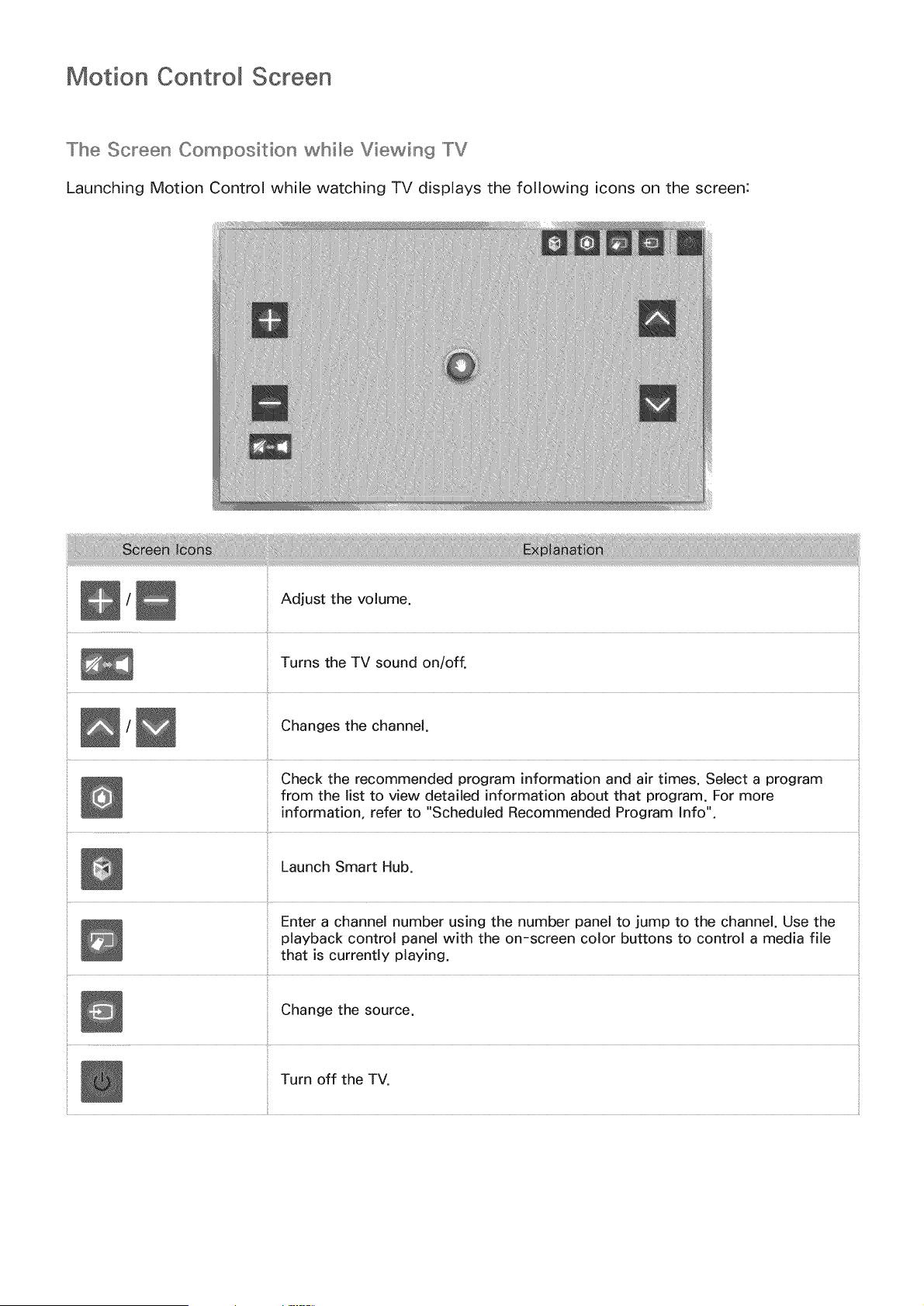
Motion Control Screen
The Screen Composition while Viewing "[V
Launching Motion Control while watching TV displays the following icons on the screen:
/Changes the channel.
Check the recommended program information and air times. Select a program :
from the list to view detailed information about that program ,,For more
information, refer to Scheduled Recommended Program Info .
Launch Smart Hub.
....
Enter a channel number using the number panel to jump to the channel. Use the
playback control pane[ with the on-screen color buttons to control a media file
that is currently playing.
Change the source.
Turn off the TV.
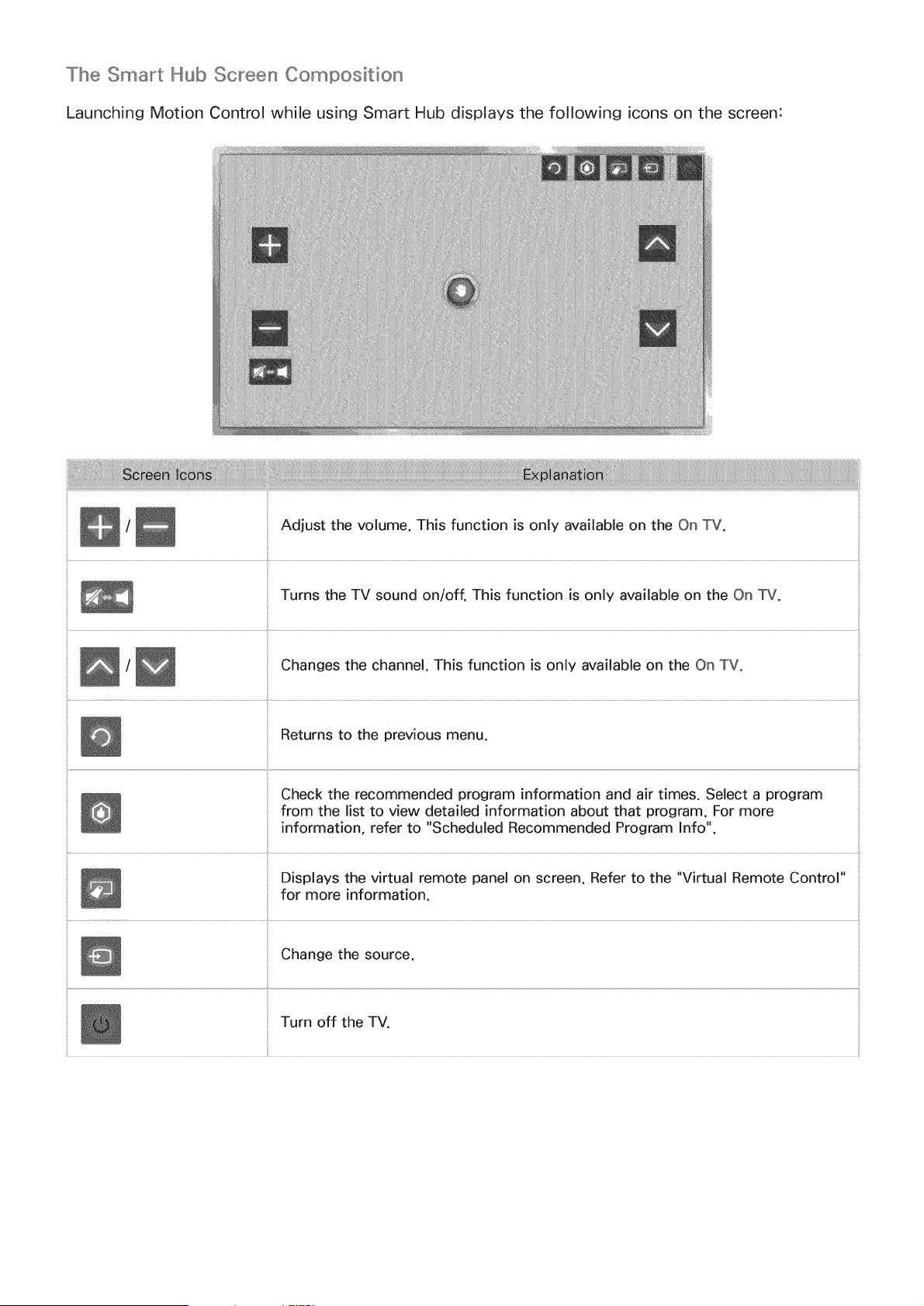
The Smart Hub Screen Composition
Launching Motion Control while using Smart Hub displays the following icons on the screen:
/Adjust the volume. This function is only available on the On TV.
Turns the TV sound on/off. This function is only available on the On _#.
/Changes the channel. This function is only available on the On TV.
Returns to the previous menu.
H
Check the recommended program information and air times. Select a program
from the list to view detailed information about that program. For more
information, refer to "Scheduled Recommended Program Info".
Displays the virtual remote panel on screen. Refer to the "Virtual Remote Control"
for more information.
Change the source.
Turn off the TV.
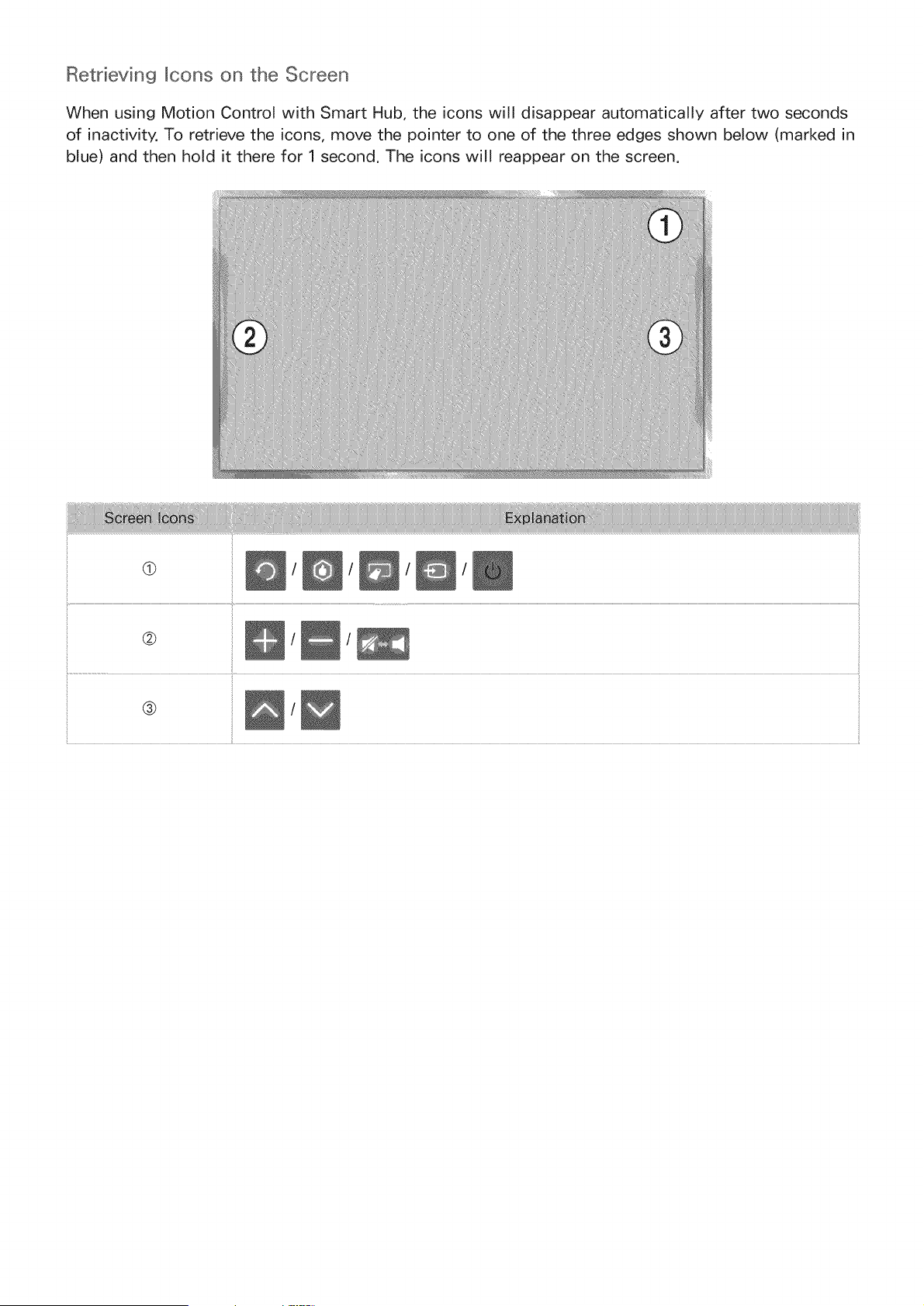
RetHevin9 Icons on the Screen
When using Motion Control with Smart Hub, the icons will disappear automatically after two seconds
of inactivity. To retrieve the icons, move the pointer to one of the three edges shown below (marked in
blue) and then hold it there for 1 second. The icons will reappear on the screen.
@/ / / /
@/ /
@/
Face Recognition
Users can register their faces and log into their Smart Hub accounts through Face Recognition. One
face may be registered per account. Depending on the ambient brightness level and the user's skin
tone, the TV may have difficulty recognizing the user's face.
The Face Recognition features require a separately-sold camera installed on the TV. Make sure that
the TV is connected to the Internet when installing the camera so that it can download the software
required for Face Recognition.
/iX When connecting the TV camera to 2013 Samsung TV models, make sure to connect it to the
specified USB port of the TV. Other USB ports are not supported for this purpose.
Operating Environment
Users should be located between 4.9ft and 13.1ft from the camera. The actual recognition range may
vary depending on the camera angle and other factors.
The appropriate ambient brightness is between 50 to 500 lux. (ex: 100 Lux: bathroom, 400 Lux: living
room)
Face Recognition can recognize up to 5 different users at a time.
The TV may have difficulty recognizing twins and people with similar faces as two different
individuals.
Note the following when using Face Recognition:
o Do not cover your face with a hat, a pair of sunglasses, or your hair.
The user's entire face must be visible to the camera. Avoid shadows over your face. Shadows
prevent the camera from recognizing your face accurately.
Keep your expression as neutral as aossible. In addition, keep your mouth closed but at the same
time as neutral as possible.
User's facial expression when logging into your Samsung account must be the same as the facial
expression during the registration process.
Face Registration
Users can register their faces to the Smart Hub accounts. Create a new account if you do not already
have one. Refer to the "Creating a Samsung Account" section for details.
Face Registration from the Smart Hub account information screen
2.
3.
Log nto Smart Hub first.
Open the (Smart Features > Samsung Account > Edit Profile) menu, and select Register Face.
Read the instruction, select OK, and then enter the password for the Samsung account.
Select Take Picture, and the user's face appears on the screen. Keep the face to be completely in
the red dotted frame. The face is successfully registered when the frame turns green.
.....Iihe _ser s entire face must be vsbe to the camera,, Avod shadows over yo_r face,, Shadows prevent
the camera from recogniz ng yo_J face acc_ rate _
Keep yotr express o _ as _e_tra as possib e,, Iin addition, keep your nsoutli_ closed but at the same time
as _e_;tra as possibe,,
lit s better to seect the checkbox besde I want to enter password as well for increased security for
higher securit_ Wth the checkbox seected, the _ser m_st enter the password when ofi_gin_t_ n _sin_t_
face recogr_ rich,,
4. Select Save to finish.
Face Registration for the Sma_t Hub account using face r_ecognition
From the Smart Hub Iogin window, select Face recognition, and then select Start. The TV
automatically recognizes the user's face.
2_ Select a face to register from the list, and then select Register Face in the popup window.
3_ Read the instruction from the popup window, select OK, and then select the account from the list.
However, a user account appears in the list if the TV has a record of the user's account and the
user is logged in.
4_ Enter the password for the Samsung account. To make face recognition more accurate, scan the
user's face again.
Select Take Picture. The user's face appears on the screen. Keep the face completely within the
red round. The face is successfully registered when the round turns green. Select OK to proceed.
The user's entire face must be vsble to the camera. Avoid shadows over your face. Shadows prevent the
camera from recogn z ng your face accurately_
Keep your expression as neutral as possib e. In addition, keep your mouth closed but at the same tree as
neutra as possible.
It is better to select the checkbox beside _want to enter password as welJ for increased security for
hgher security_ With the checkbox seected, the user must enter the password when logg ng n usng face
recognit on_
Face Recognition Login
Select Face recognition, and then select Start from the Iogin window. The TV automatically recognizes
a user's face. If recognition fails, try again.
The user's entire face must be vsibb to the camera. Avod shadows over your face. Shadows prevent the
camera from recogn z ng your face accurately_
Keep your expression as neutral as possib e. In add t on, keep your mouth cosed but at the same tme as
neutraI as poss ble_
Once recognition succeeds, the TV logs into the Smart Hub automat caIly, If the TV recognizes two or more
registered faces, a list of corresponding accounts appears_ Seect the appropriate account_ Recogn t on of an
unreg stered face prompts a warn ng_
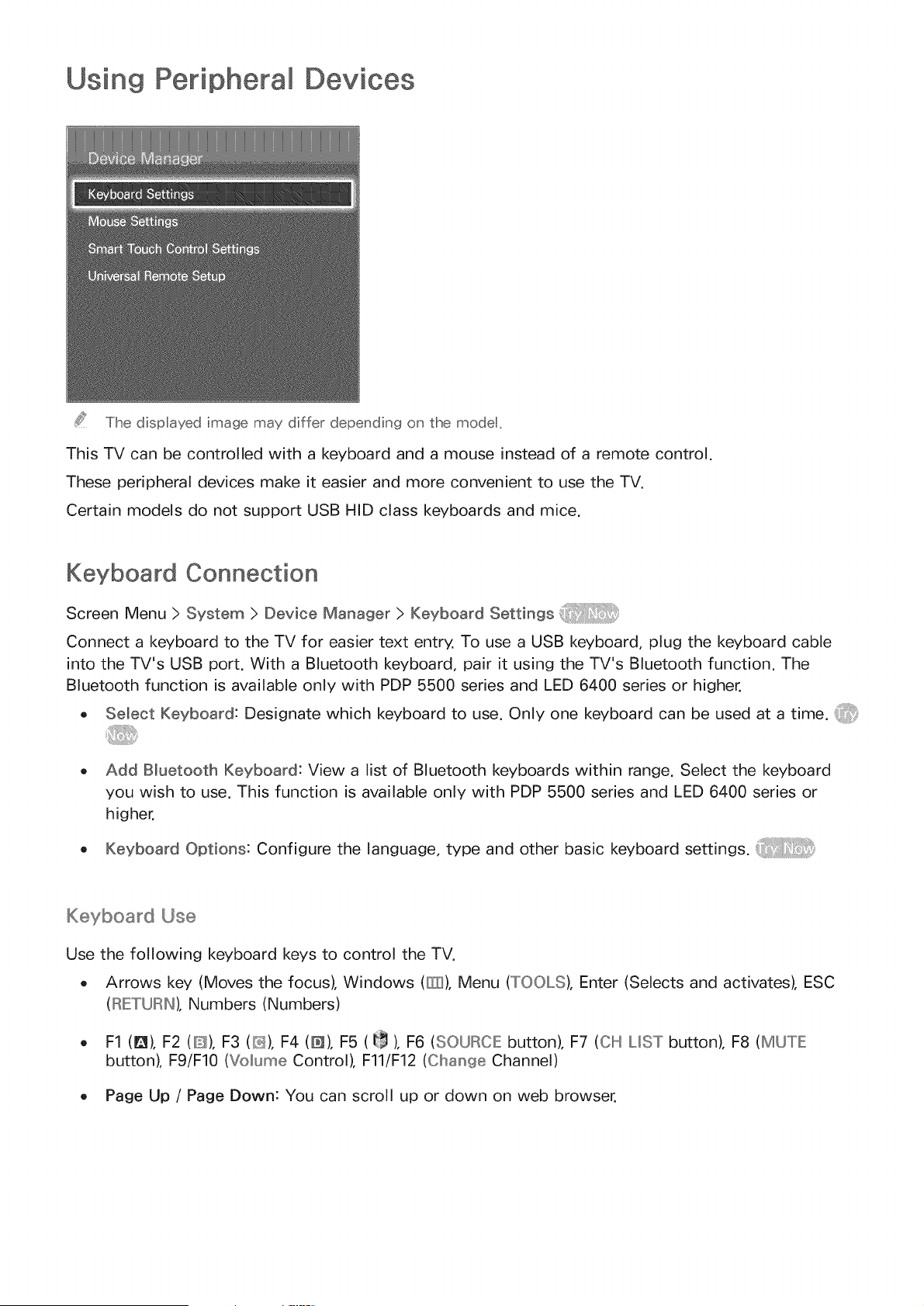
Using Peripheral
The dispIayed image may differ depending on the modet.
This TV can be controlled with a keyboard and a mouse instead of a remote control.
These peripheral devices make it easier and more convenient to use the TV.
Certain models do not support USB HID class keyboards and mice.
Keyboard Connection
Screen Menu > System > Device Manager > Keyboard Settings
Connect a keyboard to the TV for easier text entry. To use a USB keyboard, plug the keyboard cable
into the TV's USB port. With a Bluetooth keyboard, pair it using the TV's Bluetooth function. The
Bluetooth function is available only with PDP 5500 series and LED 6400 series or higher.
, Select Keyboard: Designate which keyboard to use. Only one keyboard can be used at a time.
Add Bluetooth Keyboard: View a list of Bluetooth keyboards within range. Select the keyboard
you wish to use. This function is available only with PDP 5500 series and LED 6400 series or
higher.
Keyboard Options: Configure the language, type and other basic keyboard settings.
Keyboard Use
Use the following keyboard keys to control the iV.
o Arrows key (Moves the focus), Windows (@), Menu (TOOLS), Enter (Selects and activates), ESC
(RETURN), Numbers (Numbers)
F1 (l_), F2 (D), F3 (8_S),F4 (D), F5 ( t_ ), F6 (SOURCIE button), F7 (ClH LIST button), F8 (MUTE
button), F9/F10 (Vollume Control), F11/F12 (Clhange Channel)
o Page Up /Page Down: You can scroll up or down on web browser.
Mouse Connection
Screen Menu > System > Device Manager > Mouse Settings
Connect a mouse to the TV and right-click on the mouse to bring up the Go To screen. You can
then use the screen menu, Smart Hub, and other TV functions using the mouse as you would on a
computer.
To use a USB mouse, plug the mouse cord into the TV's USB port. To use a Bluetooth mouse, pair it
using the TV's Bluetooth function. The Bluetooth function is available only with PDP 5500 series and
LED 6400 series or higher.
Select Mouse: Designate which mouse to use. Only one mouse may be used at a time.
o
oAdd Bluetooth Mouse: View a list of Bluetooth mice within range. This function is available only
with PDP 5500 series and LED 6400 series or higher.
Mouse Options: Configure button assignments, pointer speed and other basic mouse settings.
Mouse Use
o Left Button: Selects
Right Button: Brings up the Go To screen, which includes options such as Power Off, Screen
Menu, Smart Hub, and Tools.
Page Up /Page Down on screen: Move the mouse wheel up and down. You can scroll up or
down on web browser or screen.
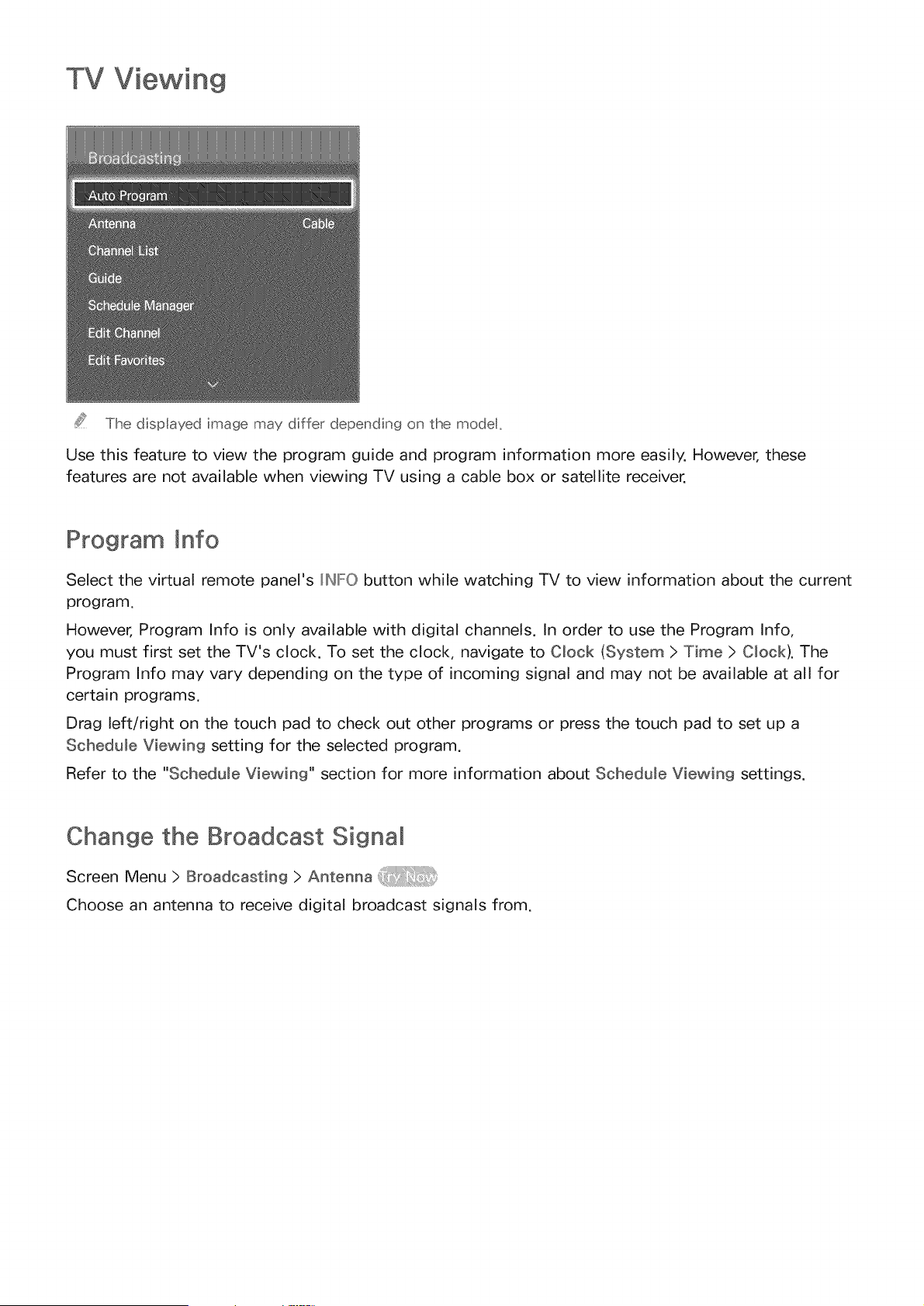
TV Viewing
The displayed image may differ depending on the modet,
Use this feature to view the program guide and program information more easily. However, these
features are not available when viewing TV using a cable box or satellite receiver.
Program mnfo
Select the virtual remote panel's IINIFO button while watching TV to view information about the current
program.
However, Program Info is only available with digital channels. In order to use the Program Info,
you must first set the TV's clock. To set the clock, navigate to Clock (System > Time > Clock). The
Program Info may vary depending on the type of incoming signal and may not be available at all for
certain programs.
Drag left/right on the touch pad to check out other programs or press the touch pad to set up a
Schedule Viewing setting for the selected program.
Refer to the "Schedule Viewing" section for more information about Schedule Viewing settings.
Change the Broadcast Signal
Screen Menu > Broadcasting > Antenna
Choose an antenna to receive digital broadcast signals from.
ScreenMenu> Broadcasting> Guide
View eachdigital channel'sprogrammingschedule.Checkthe programmingschedulesand evensetup
a ScheduleViewing. Pressthe GUIDEbutton to launchthe guide.
Change Channels
Select a channel from Guide to jump to that channel right away,
Change Category
PDP 5500, LED 6400 series and above
Select the [_ button on the virtual remote panel to change the desired category,
LED 4300 - 6300 series
Press the [_ button to change the desired category,
Quick Navigation
PDP 5500, LED 6400 series and above
Select the [] button on the virtual remote panel. A popup window will open. Dragging left or right
on the touch pad moves the focus two hours back or forward, enabling faster browsing of the
programming schedule. However, the focus cannot be on a time prior to the current time.
LED 4300 - 6300 series
Press the [] button. A popup window will open. Each press of the left or right arrow button moves the
focus 2 hours back or forward, enabling faster browsing of the programming schedule. However, the
focus cannot be on a time prior to the current time.
Schedule Viewing
Select a program that you wish to view, and then the virtual remote panel's or the regular remote's
INIFO button to display the detailed information screen. Select Schedule Viewing from the detailed
information screen to set up a ScheduNe Viewing. Schedule Viewing is only available for programs
that haven't aired yet.
PDP 5500, LED 6400 series and above
Select the #_ button on the virtual remote panel and navigate to the Schedule Manager screen to view
a list of reserved programs.
LED 4300 - 6300 series
Press the D button and navigate to the ScheduNe Manager screen to view a list of reserved programs.
Checking the Program _nfo
Highlight a program and select the _NFO button on the virtual remote panel or press the INFO button
on regular remote control. This displays detailed information about the highlighted program. The
Program Info may vary depending on the type of incoming signal and may not be available at all for
certain programs.
Channel List
Screen Menu ) Broadcasting > Channel List
Launch OH List while watching TV to change channels or to check what's on other channels. Press and
hold the touch pad. This launches OH List. Alternatively, press the regular remote's CIH LIST button to
launch the Channel List.
The Channel List screen icons indicate the following:
o An analog channel
, v_. A favorite channel
, '@: A Schedule Viewing reserved channel
, _ : A locked channel
Change Channels
Select a channel to jump to it right away. To quickly scroll through the list, use the channel up/down
buttons. The focus moves up and down the list in one page.
PDP 5500, LED 6400 series and above
Drag left on the touch pad or press the left arrow button on the remote control and then select Genre.
Select a desired TV channel genre.
On the Added Oh, list, it is possible to filter channels by genre, if the channels contain proper genre
information.
LED 4300 - 6300 series
Press the left arrow button on the remote and select Genre. Select a desired TV channel genre.
On the Added Oh, list, it is possible to filter channels by genre, if the channels contain proper genre
information.
Change the Broadcast Signa_
PDP 5500, LED 6400 series and above
Drag right on the touch pad and then select Air or Cable. This will change the signal source
immediately.
LED 4300 - 6300 series
Press the right arrow button on the remote and select Air or Cable. This will change the signal source
immediately.
Change the Channel List
PDP 5500, LED 6400 series and above
Drag right on the touch pad and then switch to the Added Oh. or Favorites list. However, the Favorites
list can only be selected if it contains at least one favorite channel. If no favorite channel was
previously added, select Edit Favorites and add channels from the Edit Favorites screen.
LED 4300 - 6300 series
Press the right arrow button on the remote and switch to the Added Cho or Favorites list. However, the
Favorites list can only be selected if it contains at least one favorite channel. If no favorite channel was
previously added, select Edit Favorites and add channels from the Edit Favorites screen.
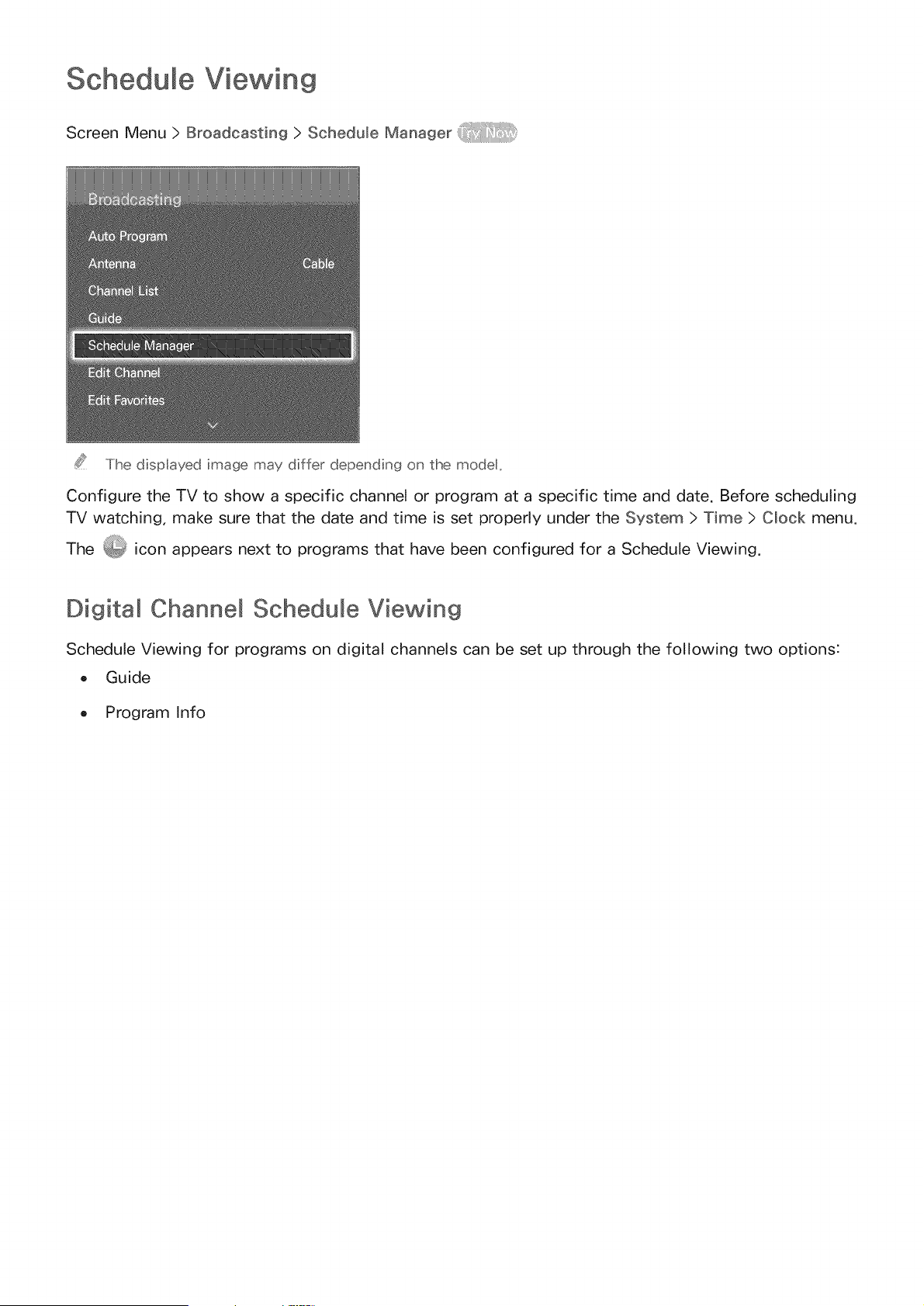
Schedule Viewing
Screen Menu > Broadcasting > Schedule Manager
The displayed image may differ depending on the model,
Configure the TV to show a specific channel or program at a specific time and date. Before scheduling
TV watching, make sure that the date and time is set properly under the System > Time > Clock menu.
The _ icon appears next to programs that have been configured for a Schedule Viewing.
Digital Channel Schedule Viewing
Schedule Viewing for programs on digital channels can be set up through the following two options:
o Guide
o Program Info
FromGuide,selecta programyou wish to view.
P_'ogram _nfo
Select the virtual remote panel's or the regular remote's INFO button to display information about the
current program. From the program information screen, drag left/right on the touch pad or press left/
right button on the remote control to select a program that has not yet aired and set up a Schedule
Viewing for it.
Analog Channe_ Schedume Viewing
The Schedule Viewing function for programs on analog channels can be set up by specifying the time
and date.
Run Schedule Manager and then select Schedule.
2. Specify that program's Antenna, Channel Repeat, and Start Time and then select, OK to finish.
Cancel a Schedume Viewing
To cancel a Schedule Viewing for a specific program, select the program from the ScheduNe Manager
screen. A popup menu wi[[ appear. Select Demete to cancel.
Edit Schedule List
Select an entry from the ScheduNe Manager screen and then select Edit from the popup menu. Edit the
settings of the selected entry.
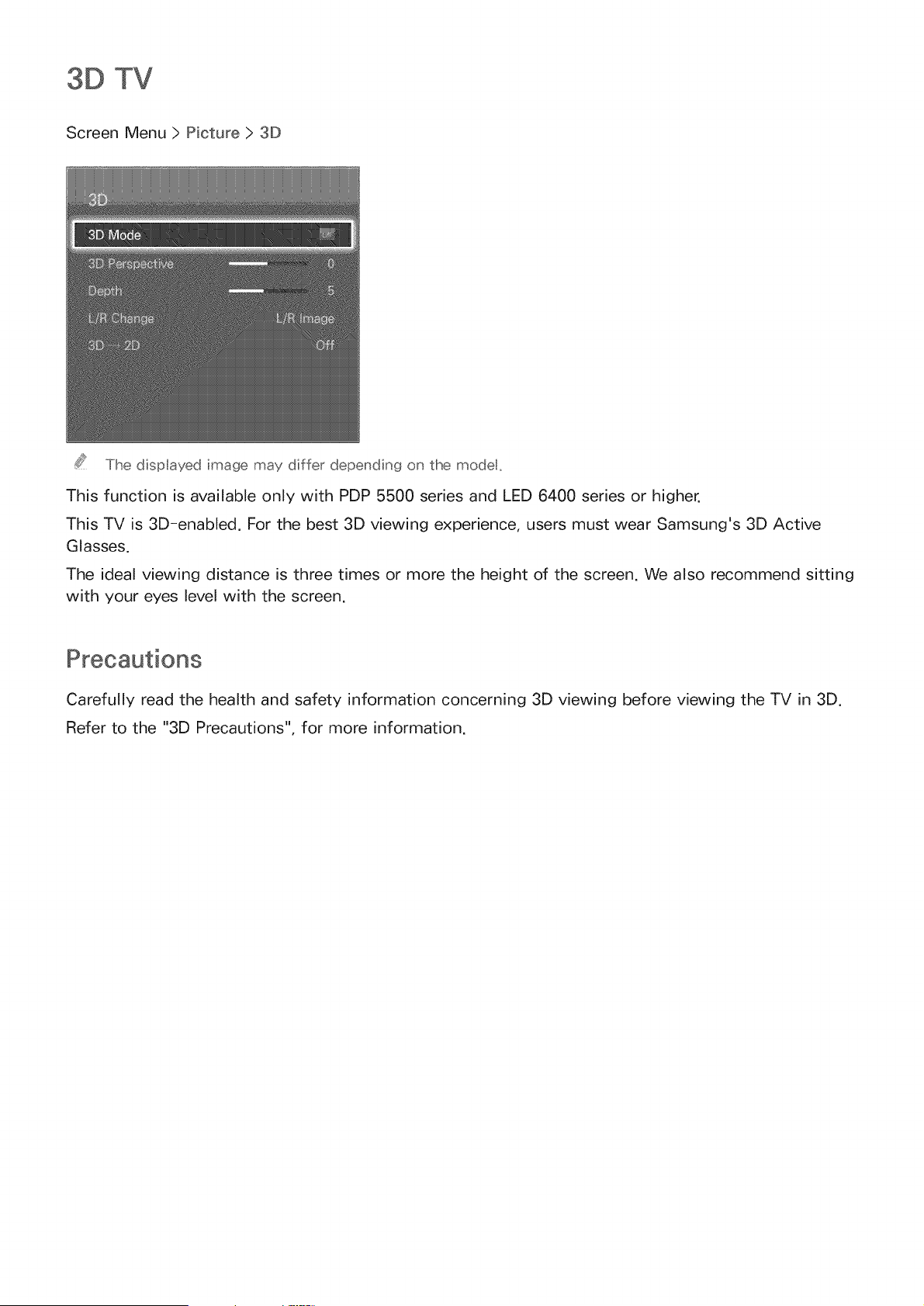
3D TV
Screen Menu > Picture > 3D
The displayed image may differ depending on the modet,
This function is available only with PDP 5500 series and LED 6400 series or higher,
This TV is 3D-enabled, For the best 3D viewing experience, users must wear Samsung's 3D Active
Glasses,
The ideal viewing distance is three times or more the height of the screen, We also recommend sitting
with your eyes level with the screen,
Carefully read the health and safety information concerning 3D viewing before viewing the TV in 3D.
Refer to the "3D Precautions", for more information.
There are several restrictions when using 3D TV:
o Running the Smart Hub automatically deactivates 3D viewing.
P_P cannot be used.
Certain Picture options are disabled.
IR Type Samsung 3D Active Glasses and third-party 3D glasses are not supported.
The left and right 3D images may initially overlap when the TV is turned on. It takes a moment
for the display to optimize and the overlapping to go away.
The 3D Active Glasses may not work properly if there is another 3D product or electronic device
turned on near the glasses or TV. If there is a problem, keep other electronic devices as far away
as possible from the 3D Active Glasses.
Whether or not 3D video is displayed in true HD is usually determined by the quality of the
content.
Activating 3D Mode
Screen Menu > Picture > 3D > 3D Mode
Choose a 3D mode according to the input signal. Available 3D modes may vary depending on the
input signal. Some 3D contents may differ preferred 3D mode. In this case, change the desired 3D
mode for watching. Select a 3D mode from the available 3D modes depending on the input signal.
Available 3D modes may vary depending on the input signal.
o _ Off: Deactivates 3D viewing.
o _ Normal: Converts normal images to 3D images. Some formats do not support this mode.
o _ L/R: Splits a single image into left and right overlapping images to create the 3D effect.
_ T/B: Splits a single image into top and bottom overlapping images to create the 3D effect.
Resolutions supported by the TV may vary, depending on the 3D mode. For details, see "Supported 3D
Resolutions".
Setting 3D Effects
There are several adjustments that can be made to make 3D content more enjoyable,
o 3D Perspective: Adjusts the 3D perspective,
o Depth: Adjusts the 3D depth, This option cannot be used if 3D mode is set to _ (L/R) or
(T/B).
o L/R Change: Swaps the left and right pictures,
o 3D _2D: Converts 3D images to normal images, This function is not available if 3D mode is set
to _ (Normal) or _ (Off).
o 3D Light control: Adjust the brightness of 3D images. If the screen is too dark, select High. This
function is only available on the LED 7050/7100 series, except 75-inch TVs.
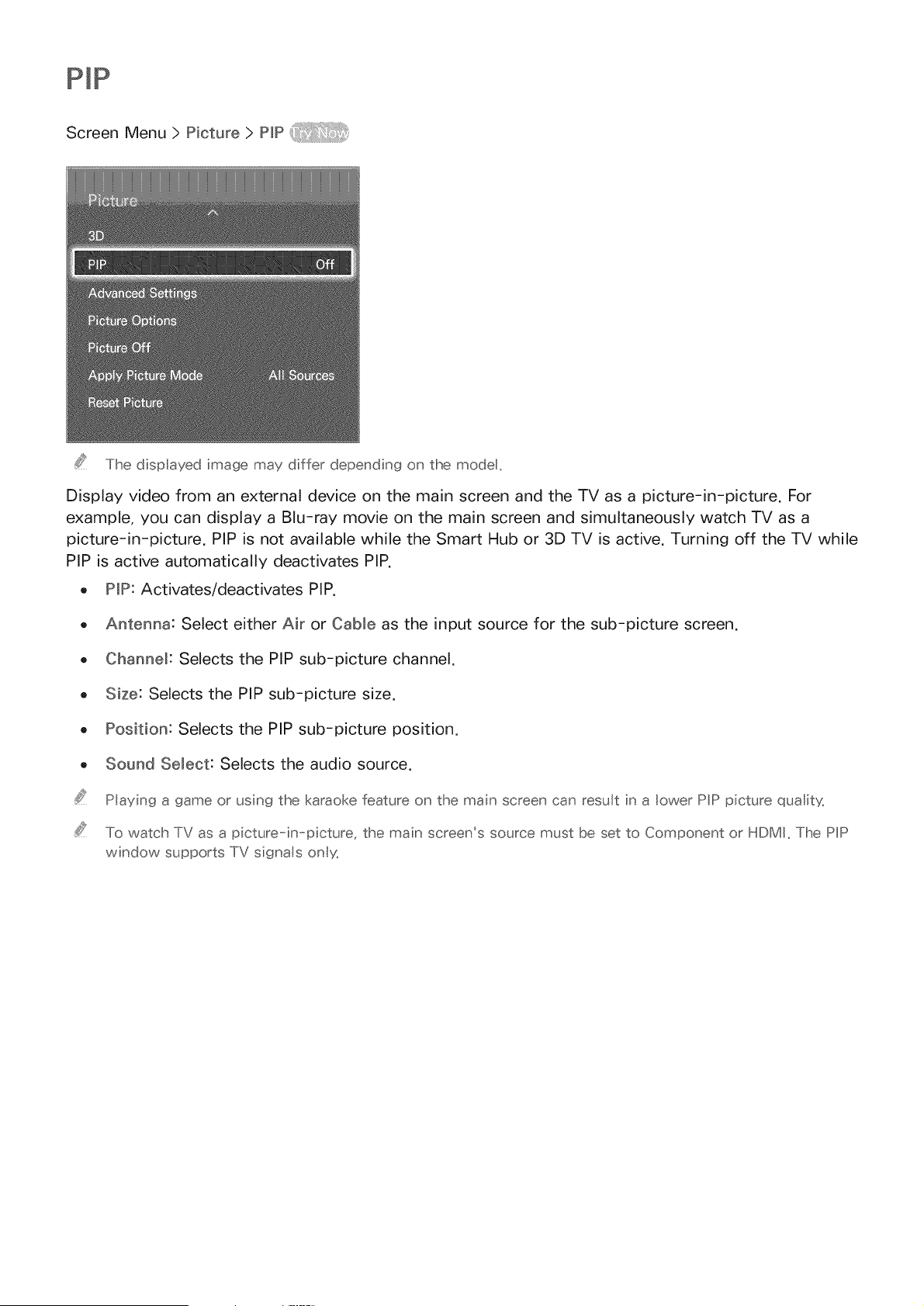
ScreenMenu> Picture> P_P
ThedispIayedimagemaydifferdependingonthe modet,
Displayvideofrom an externaldeviceon the mainscreenand the TV as a picture-in-picture. For
example,you can display a Blu-ray movieon the main screenand simultaneouslywatchTV as a
picture-in-picture.PIPis not availablewhile the SmartHubor 3DTV is active.Turningoff the TV while
PIPis active automaticallydeactivatesPIP.
o PP: Activates/deactivatesPIP.
o Antenna:SelecteitherAir or Cableasthe inputsourcefor the sub-picturescreen.
o Channel:Selectsthe PIPsub-picture channel.
o Size:Selectsthe PIPsub-picturesize.
o Position:Selectsthe PIPsub-pictureposition.
o SoundSelect: Selectsthe audio source.
Playingagameorusingthekaraokefeatureonthemainscreencanresultin a lowerPiPpicturequait'¢_
TowatchTVasa picture-in-picture,themainscreen'ssourcemustbesetto Componentor HDMI,ThePiP
windowsupportsTVsignas only_
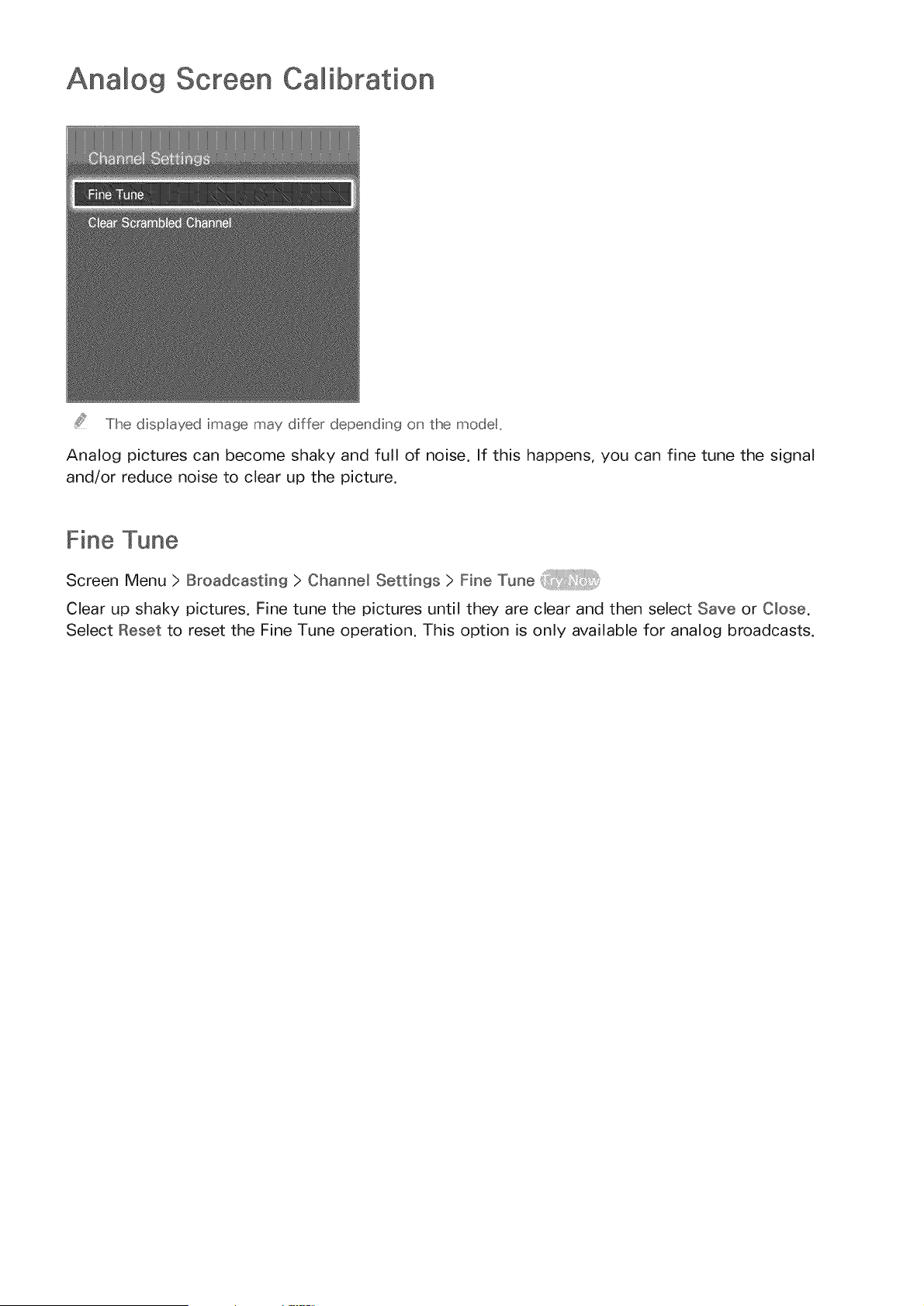
Analog Screen Calibration
The dispIayed image may differ depending on the modet,
Analog pictures can become shaky and full of noise, If this happens, you can fine tune the signal
and/or reduce noise to clear up the picture,
Fine Tune
Screen Menu ) Broadcasting ) Channel Settings ) Fine Tune
Clear up shaky pictures. Fine tune the pictures until they are clear and then select Save or Close.
Select Reset to reset the Fine Tune operation. This option is only available for analog broadcasts.
Broadcast Audio
Screen Menu > Broadcasting > Audio Options
Configure the program's audio language. Using this option is different for analog and digital channels.
Digital Broadcast Audio Options
Preferred Language: Digital broadcasts are embedded with audio signals in multiple languages
which users can choose from. You do not need to manually configure digital broadcasts that
support the designated language. If the designated language is not supported, the default audio
language chosen by the TV station will be heard.
o VisuaN _mpaired: Activate the audio guide for the visually impaired. This is only available with
broadcasts that provide this service.
Analog Broadcast Audio Options
MuNti-Track Sound: Configure the audio for the current broadcast. You can select a sound you
want to listen from among the ones being broadcasted, Multi-Track Sound may differ depending
on the program being broadcast or broadcast signal. Although user set this option to stereo,
if the broadcast signal or program is not supported a stereo, this option will be set to mono
automatically.
Press IIINFO button to view the current broadcast's audo sgnaI nformat on.
Press TOOLS button whie watching TV to access and configure the Multi-Track Sound sett ng,
Screen Menu > Smart Features > Sports Mode
This function is not available on U.S.A. and Canada.
Enable Sports Mode for the optimal sports viewing experience. However, enabling Sports Mode
disables the Picture, Sound and Broadcasting menu options. Disabling Sports Mode restores the
previous Picture and Sound settings.
Subtitmes
Screen Menu > Broadcasting > Caption
View subtitles along with subtitle-enabled digital and analog broadcasts.
Show Subtitles
Screen Menu > Broadcasting > Caption > Caption
Show subtitles. Subtitles will be displayed when you choose a broadcast that supports subtitles.
DVD Subt tes are only ava abe when connected to an externa nput connector,
SubtitMe Options
Screen Menu > Broadcasting > Caption > Caption Mode _:_
Select a subtitle mode. The list of modes may vary depending on the broadcast.
o Default /001 ~ C04 /Text1 ~ Text4: (analog channels only) The analog caption function
operates in either analog TV channel mode or when a signal is supplied from an external device
to the TV. (Depending on the broadcasting signal, the analog caption function may or may not
work with digital channels.)
Default /CCl ~ CC4 /Text1 ~ Text4 /Service1 ~ Service6: (Digital channels only) The digital
caption function works with digital channels. Service1 - Service6 may not be available in digital
caption mode depending on the broadcast.
SubtitMe DispMay Options
Screen Menu > Broadcasting > Caption > Digital Caption Options
Specify the foreground and background settings. This option is available for digital channels.
Size: Choose the subtitle size from the list.
Font Styme: Choose the foreground style from the list.
Font Color: Choose a foreground color from the list.
Background Color: Choose a background color from the list.
Font Opacity: Choose a foreground opacity level from the list.
Background Opacity: Choose a background opacity level from the list.
Return to Default: Restores all subtitle display options to the DefauNt settings. Default applies
settings chosen by the TV station.
The foreground and background color and opac ty sett ngs cannot be the same_
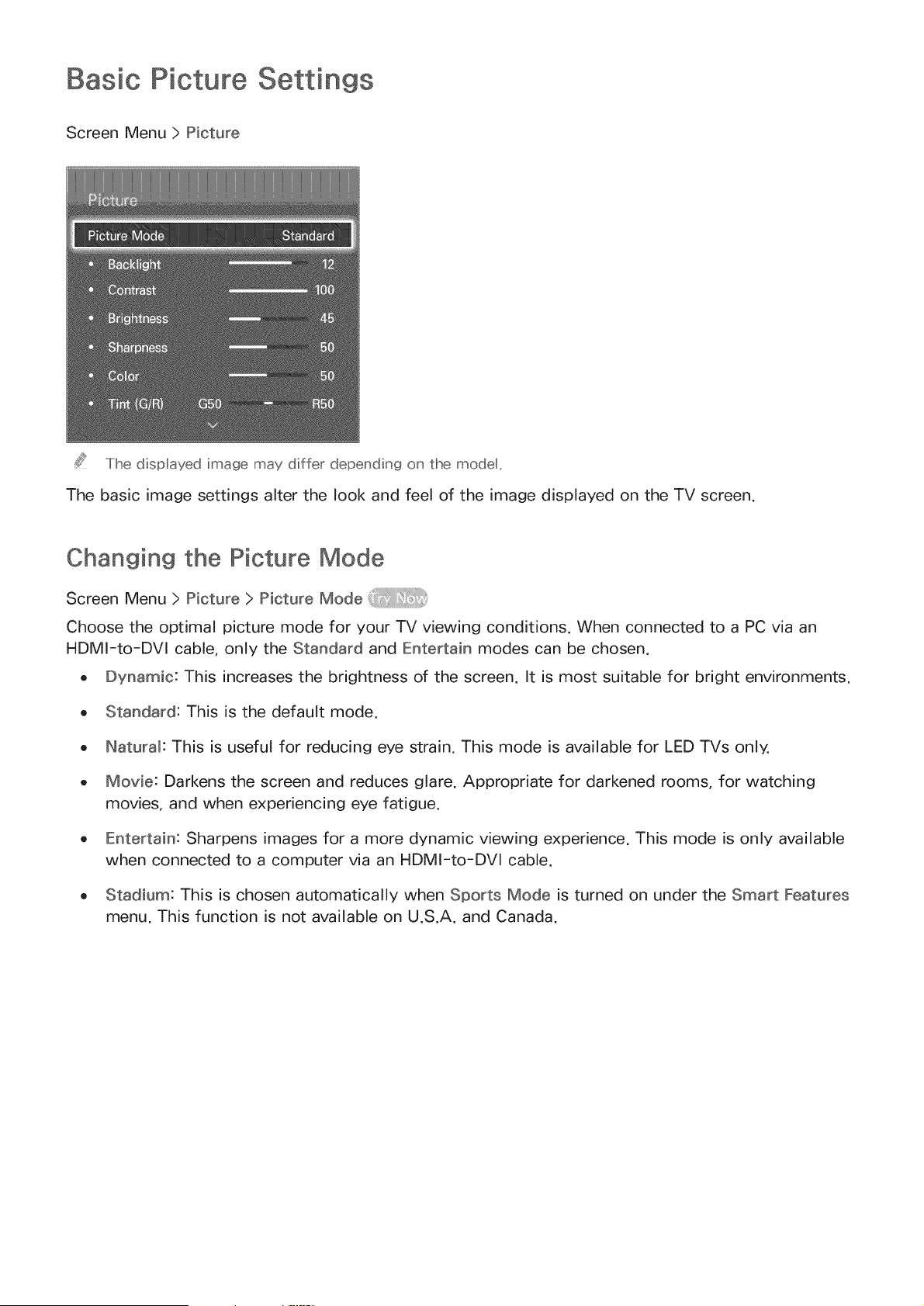
Basic Picture Settings
Screen Menu > Picture
The dispIayed image may differ depending on the modet,
The basic image settings alter the look and feel of the image displayed on the TV screen.
Changing the Picture Mode
Screen Menu > Picture > Picture Mode
Choose the optimal picture mode for your TV viewing conditions. When connected to a PC via an
HDMI-to-DVl cable, only the Standard and Entertain modes can be chosen.
o Dynamic: This increases the brightness of the screen. It is most suitable for bright environments.
o Standard: This is the default mode.
o Natural: This is useful for reducing eye strain. This mode is available for LED TVs only.
o Movie: Darkens the screen and reduces glare. Appropriate for darkened rooms, for watching
movies, and when experiencing eye fatigue.
o Entertain: Sharpens images for a more dynamic viewing experience. This mode is only available
when connected to a computer via an HDMI-to-DVl cable.
o Stadium: This is chosen automatically when Sports Mode is turned on under the Smart Features
menu. This function is not available on U.S.A. and Canada.
Picture Quality
Screen Menu > Picture
PDP 5500, LED 6400 series and above
Choose a Picture Mode and then select the following options to display a slide bar that allows the
corresponding setting to be adjusted. Adjust the value by dragging left/right on the touch pad and
change the setting by dragging up/down on the touch pad. Adjusted values are applied to the current
source and will remain in effect the next time the source is selected. When connected to a computer
via an HDMI-to-DVl cable, only the Color and Tint (G/R) adjustment options can be chosen.
LED 4300 - 6300 series
Choose a Picture Mode and then select the following options to display a slide bar that allows the
corresponding setting to be adjusted. Adjust the value by pressing the left/right arrow button on the
remote and change the setting by pressing up/down arrow button on the remote. Adjusted values
are applied to the current source and will remain in effect the next time the source is selected. When
connected to a computer via an HDMI-to-DVI cable, only the Color and Tint (G/R) adjustment options
can be chosen.
Adjusts the brightness of individual pixels. Decreasing the brightness reduces power
consumption. This option is only available for LED TVs.
Cell Light
Adjusts the brightness of the panel. Decreasing the brightness reduces power consumption. This
option is only available for PDP TVs.
Contrast
Adjusts the screen contrast. _iii! _111:i_:!
o
Adjusts the overall brightness.
Sharpens or dulls the edges of objects.
Color
Adjusts the overa II co Ior saturati on.
Tint (G/R)
Adjusts the ratio of green to red. Increase the green value to saturate the greens and the red
value to saturate the reds. _}_i/ i!
Applying the Cup'rent Pictu_e Quality Setting to Another _nput
Screen Menu> Picture > AppNy Picture Mode
You can apply the picture quality setting that you configured for the TV to all external devices
connected to the TV.
To apply the setting to all external devices connected to the TV, select ANI Sources. To only apply the
setting to the current input, select Current Source.
Picture Size
Screen Menu > Picture > Picture Size > Picture Size
Most TV programs and videos are displayed in full screen, but some programs and videos don't fit the
screen. Users can change the picture size for such programs and videos. However, the available size
options may differ, depending on the video source. For details, see "Picture Size and Input Signal".
o 16:9: Set the picture to the 16:9 wide-screen format.
Zoom1: Magnifies the 16:9 screen size to up and down. A magnified picture can be moved up
and down.
Zoom2: Magnifies the Zoom1 screen size to up and down. A magnified picture can be moved up
and down.
Wide Fit: Enlarge the aspect ratio of the picture so it fits the entire screen. Enjoy 4:3 images as
undistorted 16:9 images.
4:3: Sets the picture to basic 4:3 mode.
/k
o
o
Do not leave the TV in 4:3 mode for an extended period. The dark borders displayed on the left
and right/top and bottom of the screen may cause image retention (screen burn). This is not
covered by the warranty. This mode is available for PDP TVs only.
Screen Fit: Displays the full image without any cutoff,
Smart View 1: Reduces a 16:9 picture by 50%. This mode is only available for LED TVs and in
HDMI mode.
Smart View 2: Reduces a 16:9 picture by 25%. This mode is only available for LED TVs and in
HDMI or DTV mode.