Quick Start Guide
Help Hisense improve the environment by reducing paper waste.
For detailed instructions and feature descriptions, access the full User Manual online .
Before using the TV, please read this guide thoroughly and retain it for future reference.
H3 Series TV
32H3D1
32H3E
32DU3000
32DU3020
32DU3030
32DU3040
32DU3050
32H3308
32H3E999999999999
9
32H3D999999999999
5

© 2019 Hisense Company Ltd. All Rights Reserved.
All material in this Quick Start Guide is the property of Hisense Company Ltd. and its subsidiaries, and is protected under US,
CANADA, MEXICO and International copyright and/or other intellectual property laws. Reproduction or transmission of the materials,
in whole or in part, in any manner, electronic, print, or otherwise, without the prior written consent of the Hisense Company Ltd. is a
violation of Hisense Company Ltd. rights under the aforementioned laws.
No part of this publication may be stored, reproduced, transmitted or distributed, in whole or in part, in any manner, electronic or
otherwise, whether or not for a charge or other or no consideration, without the prior written permission of Hisense Company Ltd.
Requests for permission to store, reproduce, transmit or distribute materials may be made to one of the following addresses:
USA:
Hisense USA Corporation
7310 McGinnis Ferry Road
Suwanee, GA 30024
CANADA: Hisense Canada Co., Ltd,
2283 Argentia Road, Unit 16
Mississauga, ON, Canada L5N 5Z2
MEXICO: Hisense Mexico S. de R.L. de C.V.
Blvd. Miguel de Cervantes Saavedra No 301
Torre Norte Piso 2, Col. Ampliación Granada
Miguel Hidalgo, Ciudad de México, C.P. 11520
Hisense, and any and all other Hisense product names, logo’s, slogans or marks are registered trademarks of Hisense Company
Ltd. and its subsidiaries. All other trademarks are the property of their respective holders.
1
7
9
10
11
12
13
14
16
2
WELCOME TO THE HISENSE FAMILY!
Congratulations on the purchase of your new Hisense TV! This Quick Start Guide will walk you through a few
easy steps to set up your TV. For more details about all of the features and instructions to use them, download
a PDF of the Hisense H3 Series TV User Manual from the Hisense support website below.
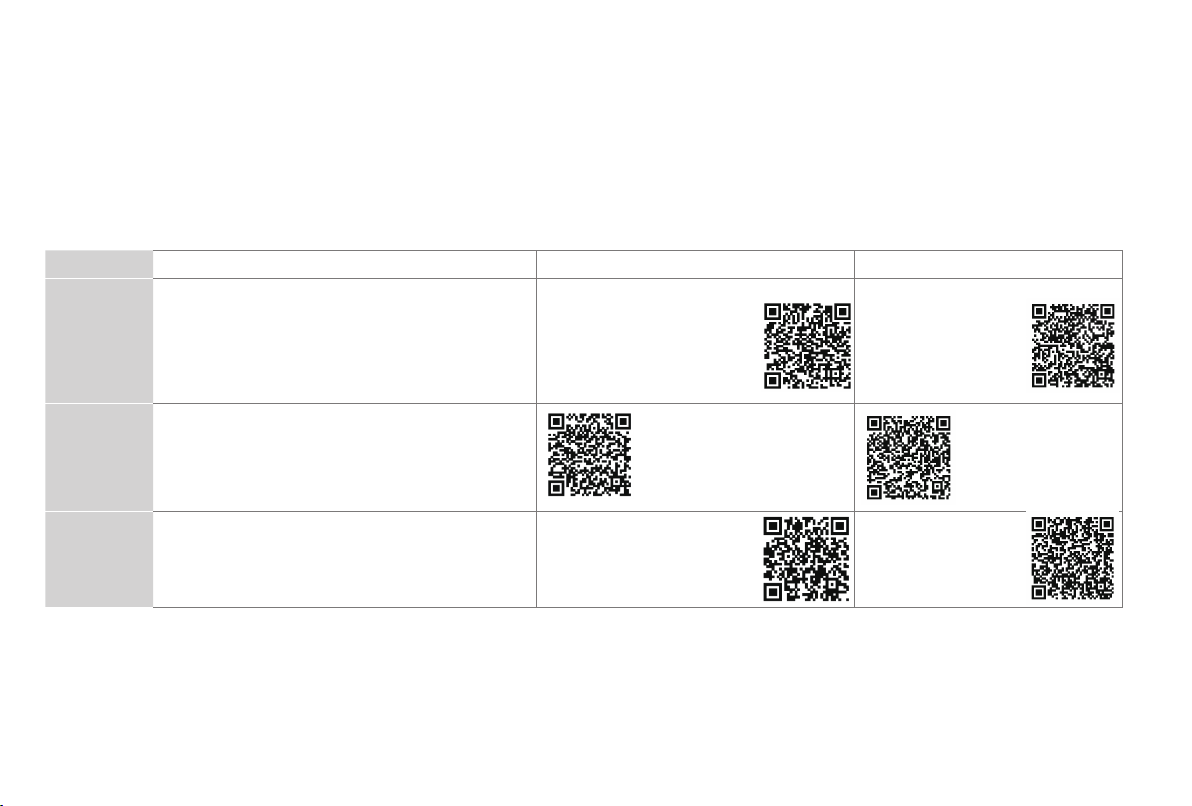
Because we value your business, we want to keep you in the know of 'all things Hisense'. Using your mobile phone, scan the Registration page QR code
to register your TV. Depending on the make and model of your phone, you may need to download a QR code scanning app.
Country
Customer Care Center Hisense Support Page REGISTER YOUR TV
U.S.A
• Phone: 1-888-935-8880
• Hours of Operation:
Monday - Friday: 9 AM to 9 PM EST
Saturday - Sunday: 9 AM to 6 PM EST
http://www.hisense-usa.com/
support/
http://www.hisense-
usa.com/support/
productReg.asp
CANADA
• Phone: 1-855-344-7367
• Hours of Operation:
Monday - Friday: 8 AM to 8 PM EST
http://www.hisense-canada.
com/support/
http://www.hisense-
canada.com/
support/productReg.
asp
MEXICO
• Phone: 01-800-008 8880
• Hours of Operation: Monday - Friday 9:00-18:00
http://www.hisense.com.mx/
support/
http://www.hisense.
com.mx/support/
productReg.asp
To view and open the user manual, you will need to install Adobe
®
Reader
®
(which is FREE) to your computer. Once you arrive on the Support page of the
Hisense website, enter the model number located on the back of the TV or on the outside of the box.
Disclaimer: This Quick Start Guide is intended as a general guideline to help you set up your Hisense TV.
Images throughout this document are for illustrative purposes only and may differ from the actual product.
*Scan to download user manual

3
PACKAGED CONTENTS
Your package in which you purchased your new TV contains the following items:
● TV x 1 ● base stands x 2
● screws x 4 ● Remote Control x 1
● AAA batteries x 2 ● Quick Start Guide (this document) x 1
● Important Safety Information and Warranty Card x 1
IMPORTANT:
To prevent accidentally discarding items that came with your TV, be sure to check ALL of the foam in the carton box.
·
Please check foam for accessories before discarding.
·
Veuillez vérifier la mousse pour qu'il n'y ait pas d'accessoires avant de la jeter.
·
Antes de desechar la espuma, asegúrese de retirar todos los accesorios.
Required tools and devices
●
Phillips screwdriver (not included) to secure the TV stand
● HDMI and other types of cables (not included) to connect external devices to the TV
● Wall mount bracket (not included) if you prefer to mount the TV to the wall
4
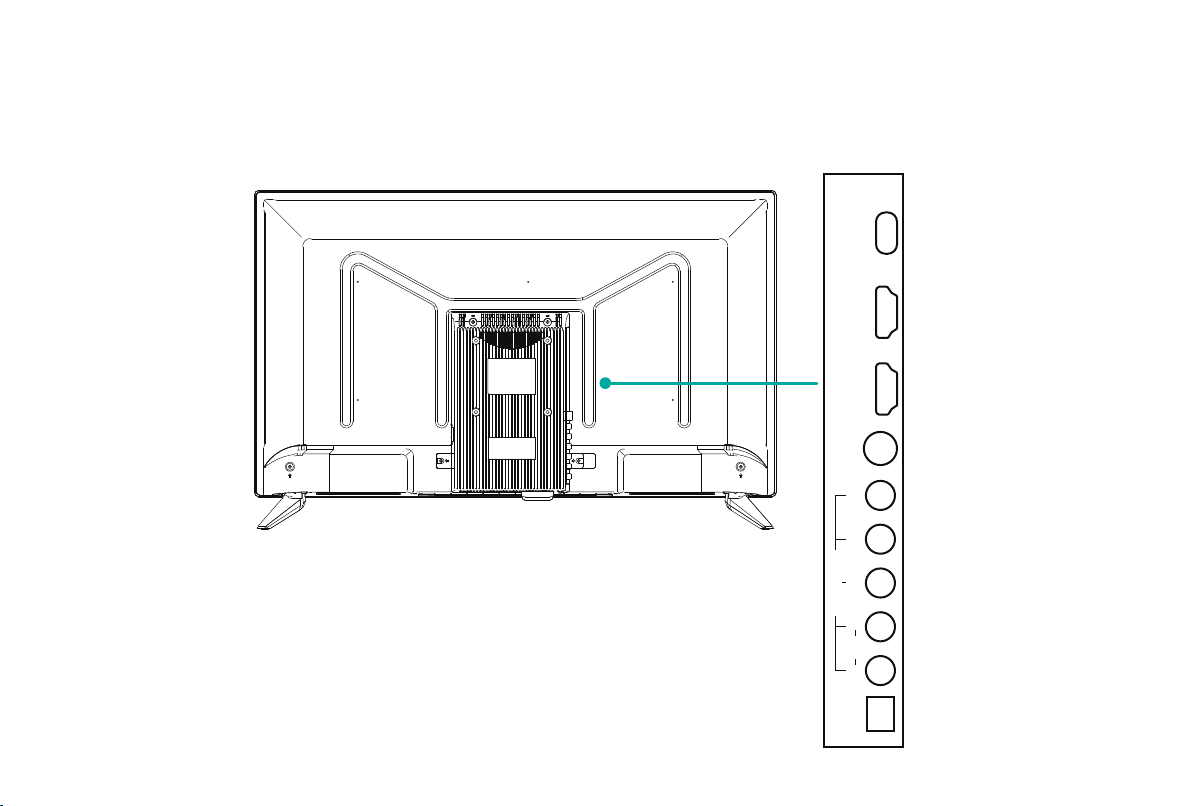
BUTTONS AND PORTS ON THE TV
Back View of the TV
TV Side View
RF
HDMI 1 HDMI 2 USB
Audio
Digital Audio Out
(OPTICAL)
L R Video / Y
AV IN/Component
P
b Pr
STEP 1. Attach the TV Stand or Wall Mount Bracket
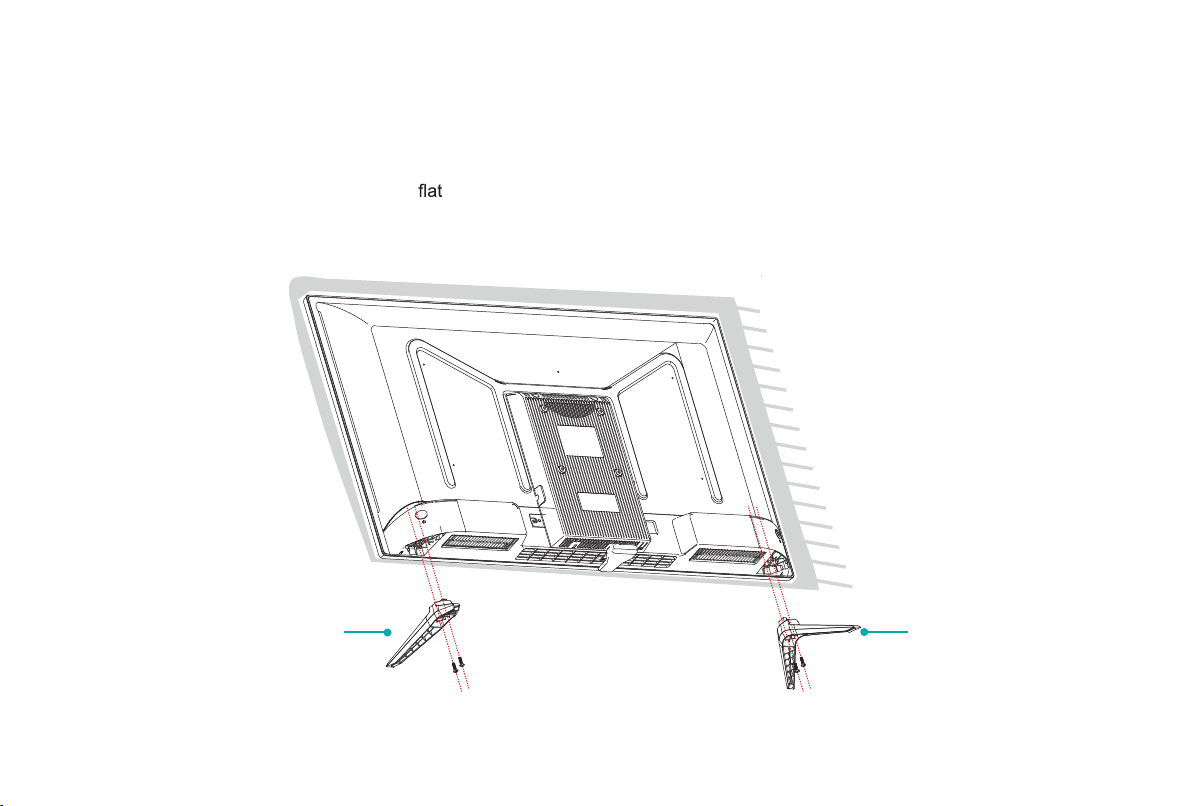
Attach the TV Stand
Follow the illustrations and instructions below to complete the installation steps:
1. Carefully place your TV facedown on a soft,
surface to prevent damage to the TV or scratching to the screen.
2. Remove the 2 stands from the foam and then insert the stands into the bottom slots of the TV.
3. Use the 4 screws in the accessory bag to secure the BASE STAND to the TV.
BASE STAND BASE STAND
Screws: ST4×12F
(32")
Screws: ST4×12F
(32")
5
6
Attach the Wall Mount Bracket (not included)
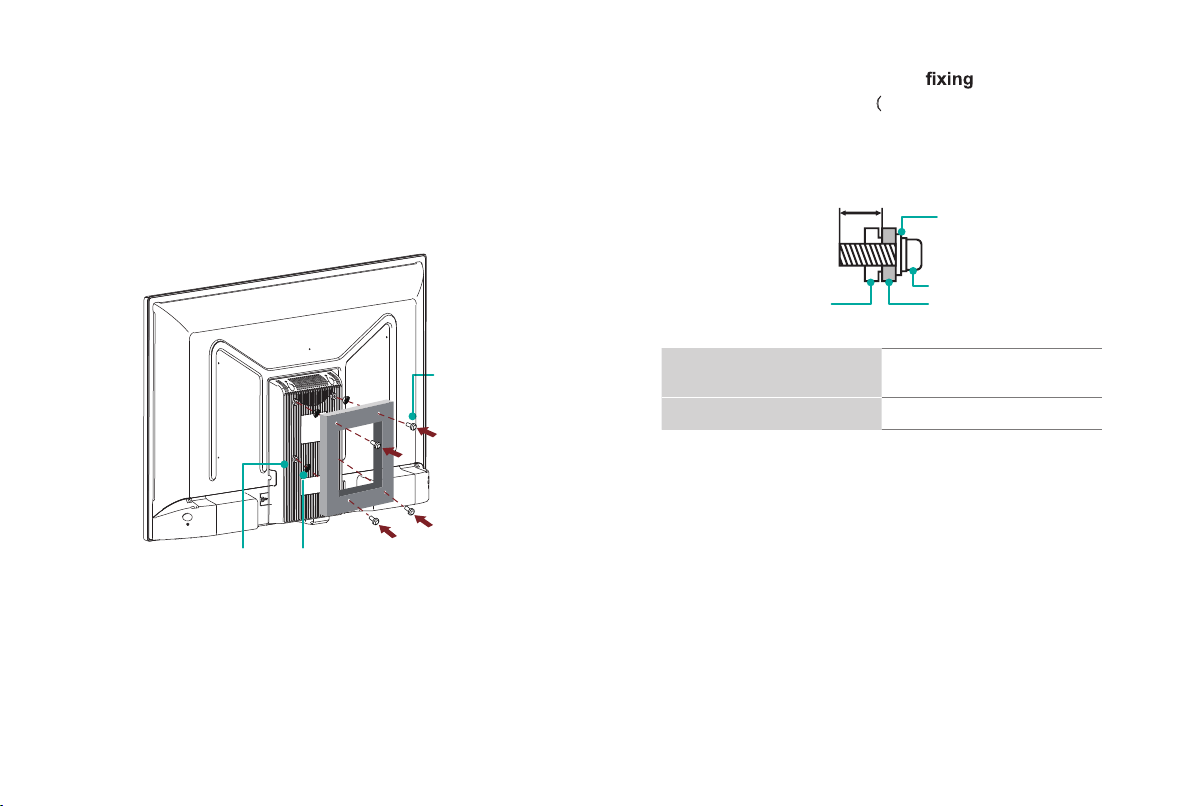
Before you begin the third-party manufacturer instructions, be
sure to do the following things:
1.Place the TV f ace down on a clean, safe and cushioned surface.
2.Remove the TV stand if you already attached it.
3.Place the spacers (not included) in the corresponding bracket
holes.
CAUTION:
• When you attach the mount, be sure to use the spacers
(provided by the third-party manufacturer) between the TV
and the
bracket.
•
To prevent internal damage to the TV and ensure it is
mounted securely, be sure to use screws (not
provided) that are
8 - 10 mm(
32") in length when
Follow instructions provided with the Wall mount bracket.
● To complete the installation, please contact the wall-mount
manufacturer or the retailer from which you purchased the TV.
●
The selected screws are 8-10 mm(32") in length when
measured from the attaching surface of the rear cover.
NOTE: The diameter and length of the screws differ
depending on the wall mount bracket model.
Rear cover of the TV Spacer
Screw
Wall mount bracket
W
all mount hole pattern
VESA (mm)
100 × 100
Wall mount screw size M4
8.0~10.0mm(32")
Screw
(not provided)
Bracket
(not provided)
Spacer
(not provided)
measured from the attaching surface of the mounting
hook.
7
STEP2.ConnectdevicestoyourTV
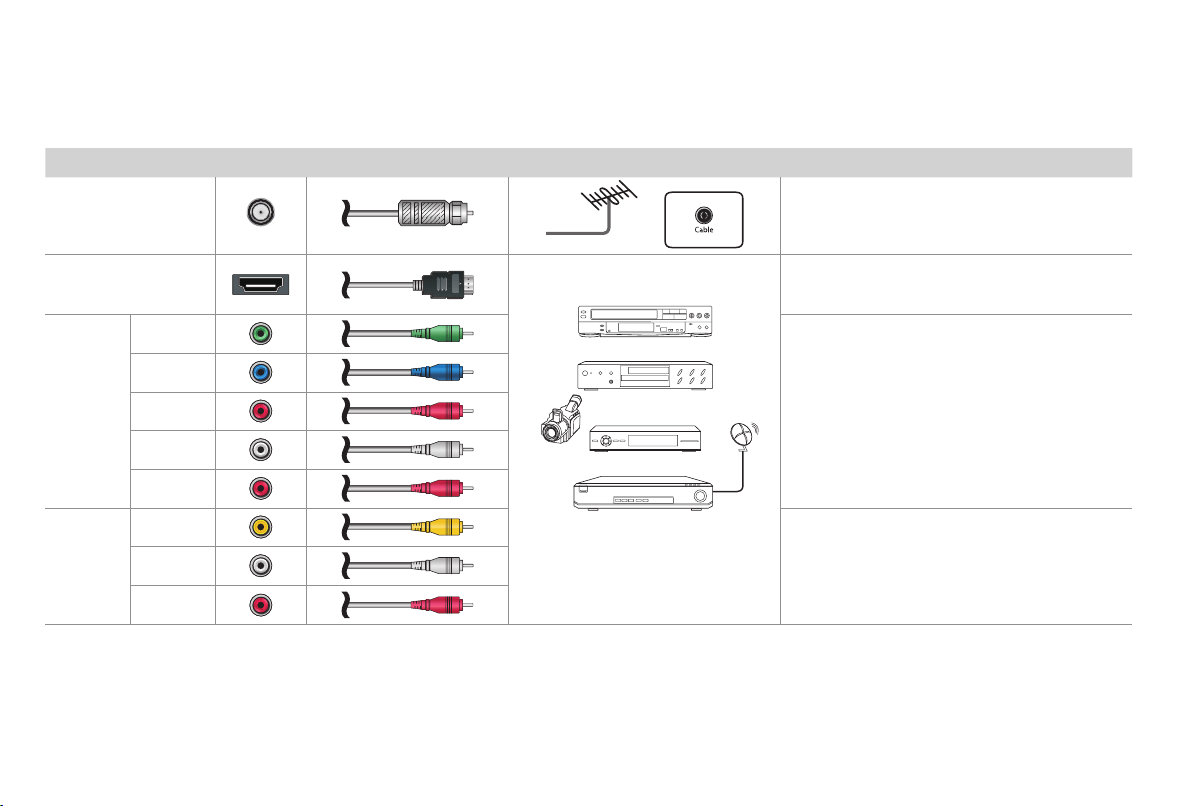
Check to ensure that you have selected the right cables for the ports and that they are connected securely. Loose connections can affect
the quality of the picture image and color.
TV label Port Cable External Equipment Brief Description
RF
Antenna
VHF/UHF Antenna
ANT OUT
Connect an outdoor VHF/UHF antenna.
HDMI
DVD Player/Recorder
Set-top Box
Satellite Receiver
Satellite
antenna
cable
VCR
Video
Camera
COMPO-
NENT IN
Y
Green
Connect a component video cable and left-right
audio cables from an external AV device.
P
B
Blue
P
R
Red
L
White
R
Red
AV IN
VIDEO
Yellow
Connect a composite video cable and left-right
audio cables from an external AV device.
L
White
R
Red
Connect a High Definition Multimedia Interface
(HDMI) cable from an external device.
8
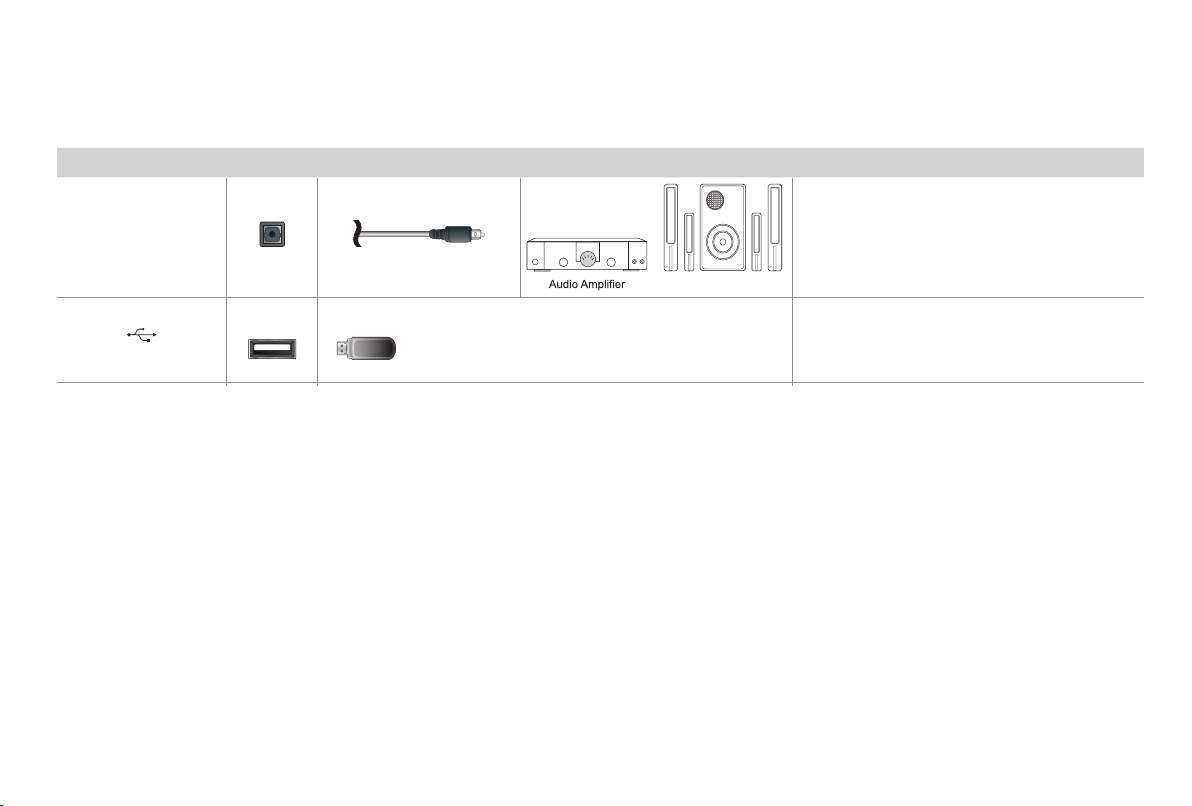
TV label Port Cable External Equipment Brief Description
DIGITAL AUDIO OUT
Speaker
Connect an optical cable from an external
digital audio system.
USB
Connect a USB device for browsing photos,
movies and music .
The unit only recognizes a USB Memory Stick.
(OPTICAL)
9
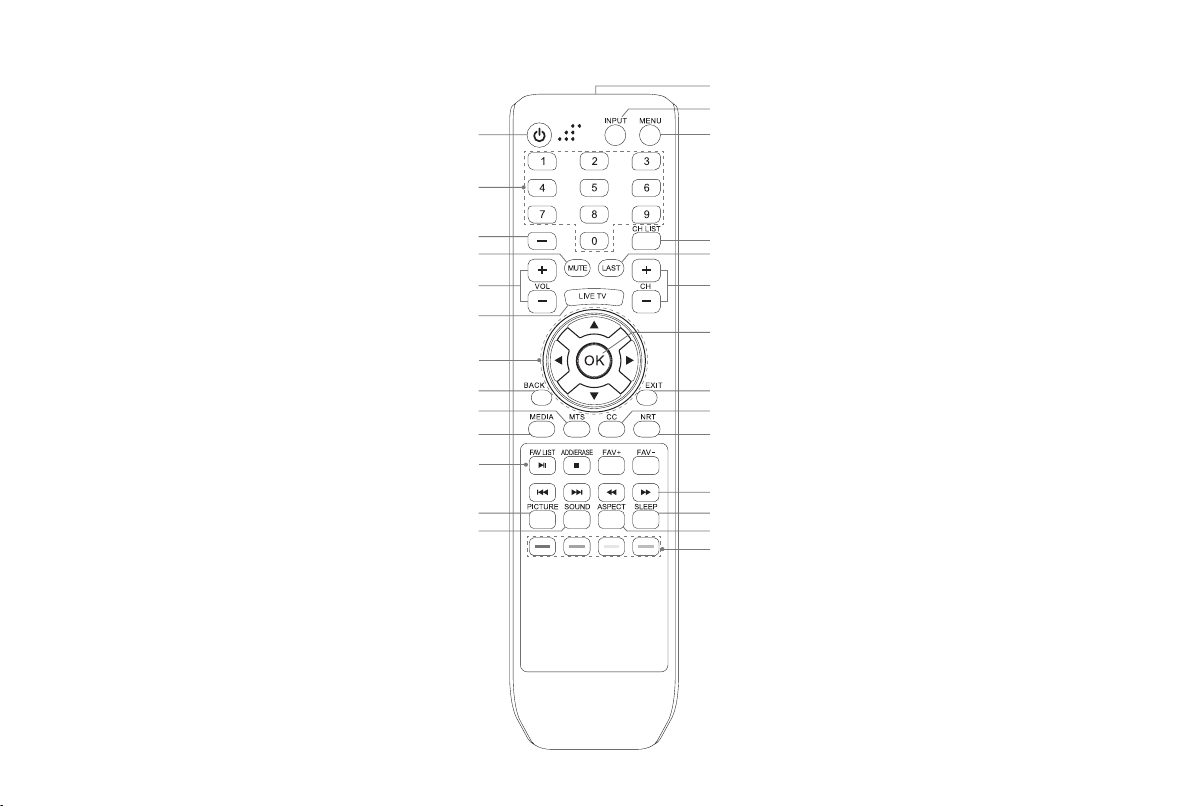
ButtonsonyourTVremote
Infrared transmitter
Power on / off
Enter Channels / input numbers
Media content control function buttons
Favorite program controlling button
& Media player button
Dash button / Select a digital
sub-channel
D-pad (up/down/left/right navigation
buttons)/Press Up display the Info menu
Volume (up/down)
Choose to leave the Video description
feature On or Off
Enter the Live TV
Return to the previous place in the menu
Change TV input source
The button for the Quick setup menu
Confirmation button/
Display the channel list
Channel (up/down)
Set the audio language(MTS)
Select picture mode
Select sound mode
Mute and restore sound
Exit the application
Turn Closed Caption On/Off
Special function buttons
(No available)
Media player button
Sleep timer button
Zoom button
Display the channel list
Go to the previous channel
10
STEP4.Beginusingyourremote
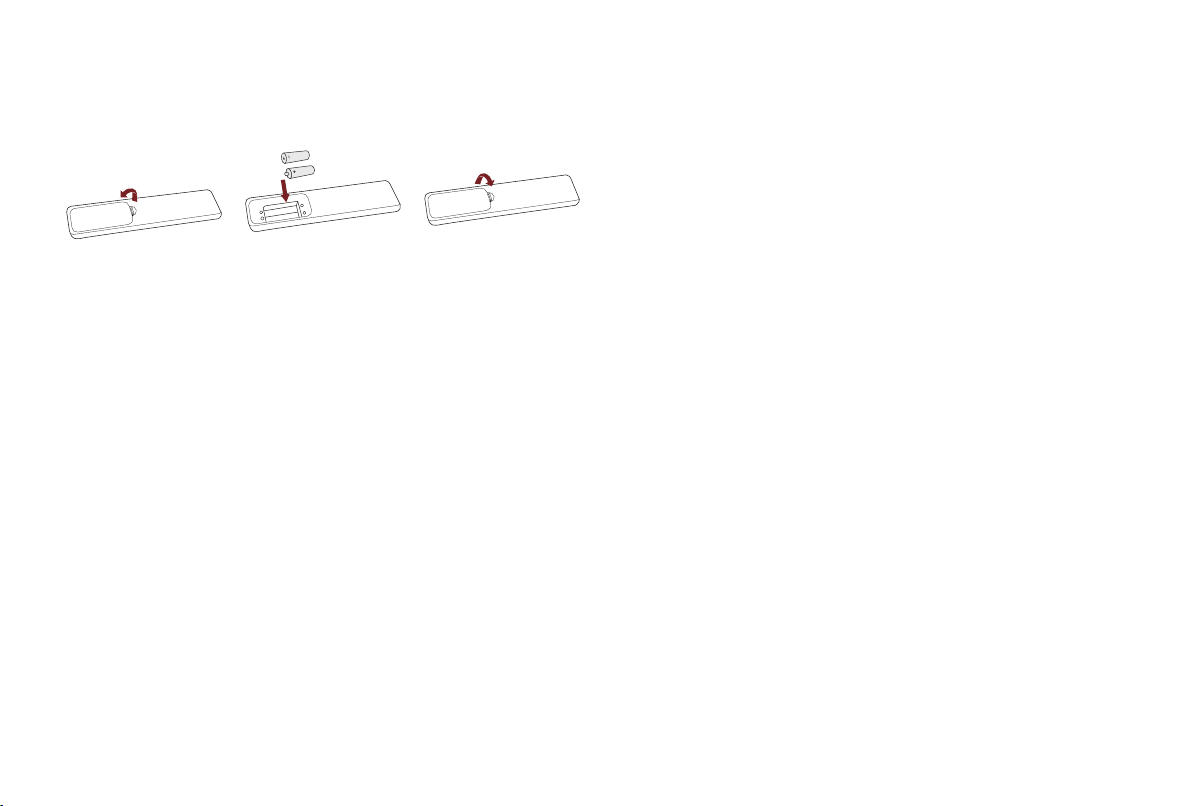
1. Press the battery case cover, when the cover is unlocked, pull it
backward to open the battery compartment of the remote control.
2. Insert two AAA size batteries. Make sure to match the (+) and
(-) ends of the batteries with the (+) and (-) ends indicated in the
battery compartment.
3. Replace the battery compartment cover.
ImportantInformationabouttheremoteandbatteries
• Discardbatteriesinadesignateddisposalarea.Donotthrow
themintoare.
• Removeoldbatteriesimmediatelytopreventthemfromleaking
intothebatterycompartment.
• Ifyoudonotintendtousetheremotecontrolforalongtime,
thenremovethebatteries.
• Batterychemicalscancausearash.Ifthebatteriesleak,clean
thebatterycompartmentwithacloth.Ifchemicalstouchyour
skinthenwashitimmediately.
• Donotmixoldandnewbatteries.
• Donotmixalkaline,standard(carbon-zinc)orrechargeable
(NiCd,NiMH,etc.)batteries.
Insert the batteriesPress and pull it Press the cover
• Donotcontinueusingtheremoteifitgetswarmorhot.
CallourSupportCenterimmediatelyonthesupport
website.
Remote Control Range Information
● Theremotecontrolcanworkatadistanceofupto26feetin
front of the TV set.
● Itcanworkata30degreehorizontalorverticalangle.
ProgramYourUniversalCableorSatellite
RemoteControltoOperateYourNewTelevision
(onlyforUSA)
If you would like to program your other household remote
controls to your new television, please refer to the User Manual
supplied by your Cable or Satellite provider. It should include
instructions on how to program their remote to your television.
A list of codes for the most common Cable and Satellite
providers are listed below. Use the code that is associated with
your Cable or Satellite provider (if applicable).
DIRECTV......0178, 10178, 10019, 10748, 11314, 11660, 11710,
11780, 12049, 10171, 11204, 11326, 11517, 11564, 11641,
11963, 12002, 12183
TimeWarnerCable......386, 0178, 10178, 400, 450, 461, 456,
0748, 1463, 0463, 10463
11
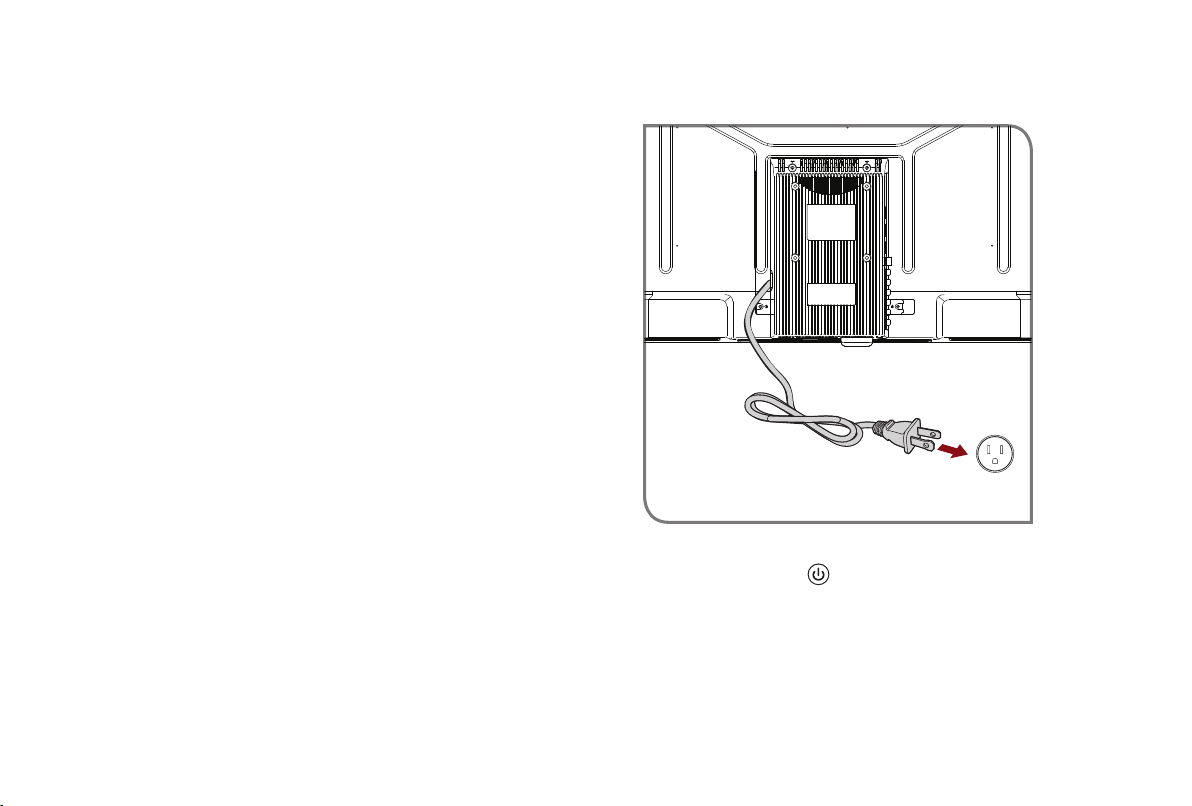
STEP 5. Power on the TV
Plug the power cord into a wall outlet.
Press the Power button
on the remote to turn on the TV. A
splash screen that shows the logo appears. Next, the First-Time
Setup Menu begins by prompting you to choose your Language,
Country, Use Mode and Live TV Source.
Comcast......0178, 10178, 10463, 11463, 10748, 11314, 11660,
10171, 11204, 11326, 11517, 11641, 11780, 11785, 11892, 11963,
12002
Cox Communications......0178, 10178, 1326, 1463
Dish Network......505, 627, 538, 720, 659
If the code associated with your Cable or Satellite provider is
not listed, does not work or you cannot locate the instructions to
program your remote, call your local Cable or Satellite provider's
customer service center.
If your Cable or Satellite provider does not have a code available,
please contact us at one of the phone numbers on Page 2.
Using Your Cable Set-top Box or Satellite Receiver
Remote as a ‘Universal’ Remote
If you prefer to use your Cable Set-top Box or Satellite Receiver
Remote as a ‘Universal Remote’, then visit the Support page to view
a list of the codes.
Power Cord
Wall Outlet
12
STEP 6. Complete the setup menu
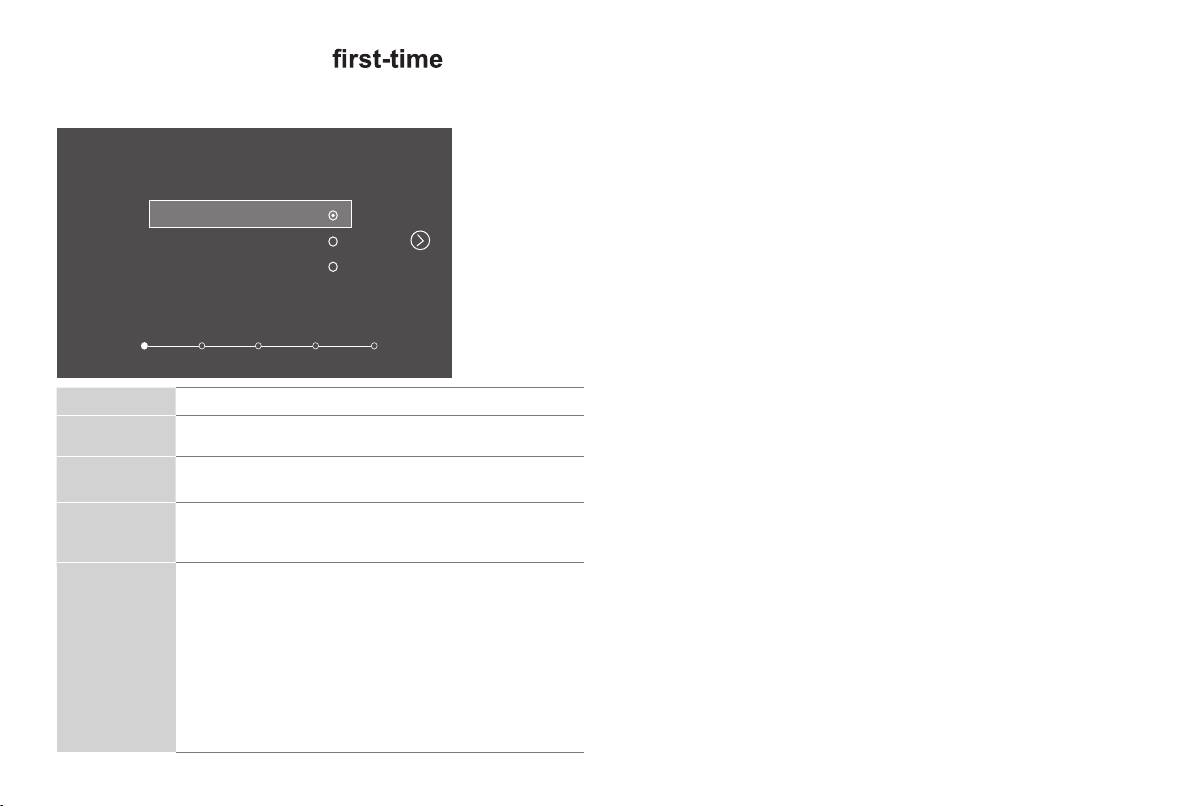
After the splash screen that shows the logo appears, begin the first
time setup menu.
Language
Language
Country Use Mode Input Complete
English
Français
Español
Screen
Task
Language
• Using the D-pad arrows of your remote, choose your
language: English , Français or Español .
Country • Using the D-pad arrows of your remote, choose your
country: USA, Canada or Mexico .
Use Mode
• Select your Mode Setting: Home Mode or Store Mode.
• NOTE: ‘Store mode’ should only be selected by
Retailers who plan to demonstrate the TV.
CONGRATULATIONS! You are done with setup
.
Press the OK confirmation button on your remote if you are finished
with the selections that appear on the screen. Otherwise, navigate
to the back arrow on the screen to change your selection.
Live TV Source
• TV
• AV
• COMPONENT
• HDMI1
• HDMI2
TIP: You only need to scan for channels if your TV is
connected to an Antenna.
Select how you receive your TV channels. If you have a
Satellite/Cable box, choose Yes , then choose from one of
the
following sources below and then move to the next screen.
• MEDIA
13
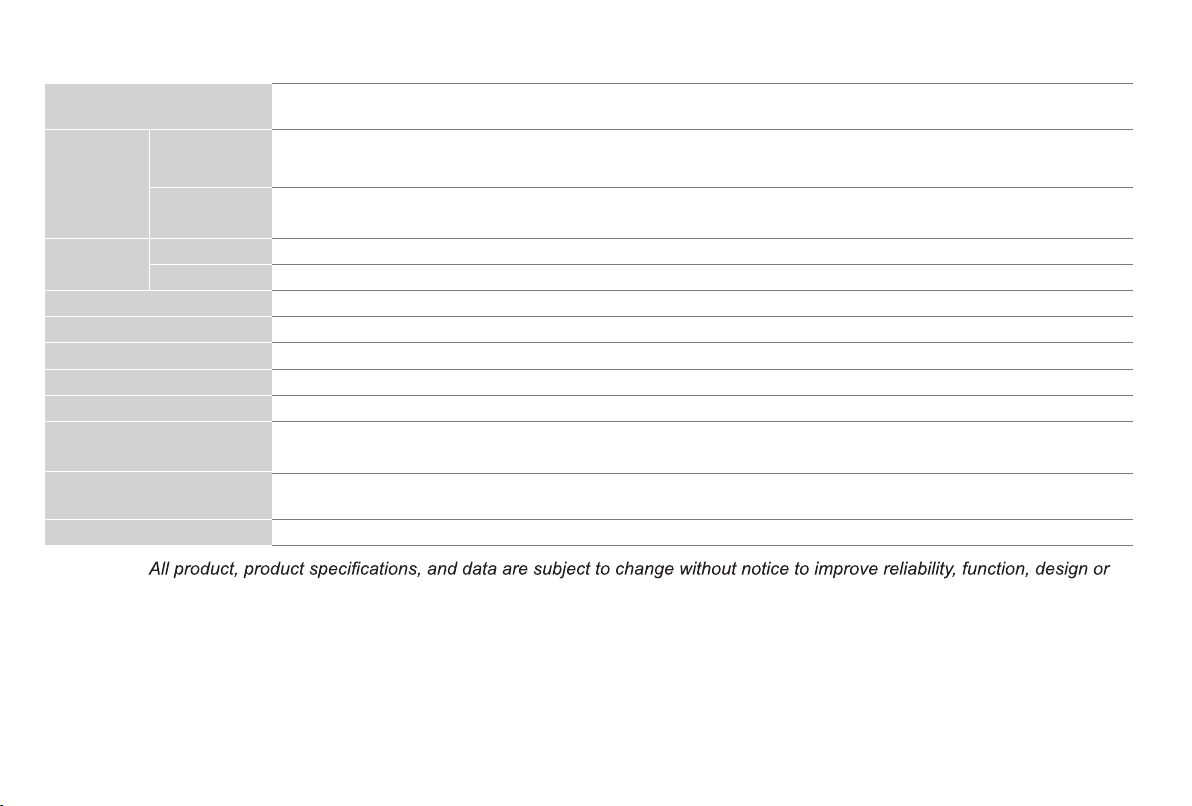
PRODUCT SPECIFICATIONS
Model Name
Dimension
(W × H × D)
Without Stand
With Stand
Weight Without Stand
With Stand
Active Screen Size (Diagonal)
Screen Resolution
28.7 x 16.9 x 3.1 inches
28.7 x 18.6 x 7.1 inches
(729 x 474 x 180 mm)
8.6 lbs (3.9kg)
8.8 lbs (4.0kg)
(729 x 428 x 80 mm)
Audio Power
Power consumption 50W
Power Supply 120 V ~ 60 Hz
Performance and Compliance
Certification
FCC
Ports
Other features Dynamic contrast Picture, VESA standard wall mount support, Parental Control and Closed Caption
Disclaimer:
otherwise.
31.5 inches
1366 x 768
6W + 6 W
32H3D1/ 32H3E/ 32H3E 999 / 32H3D5/ 32DU3000/ 32DU3020/ 32DU3030/ 32DU3040/ 32DU3050/ 32H3308
2 HDMI ports, 1 USB port, 1 Digital Audio Output, 1 RF Input,
1 left/right Audio Input for Composite, 1 RCA Component Video Input.
9
14
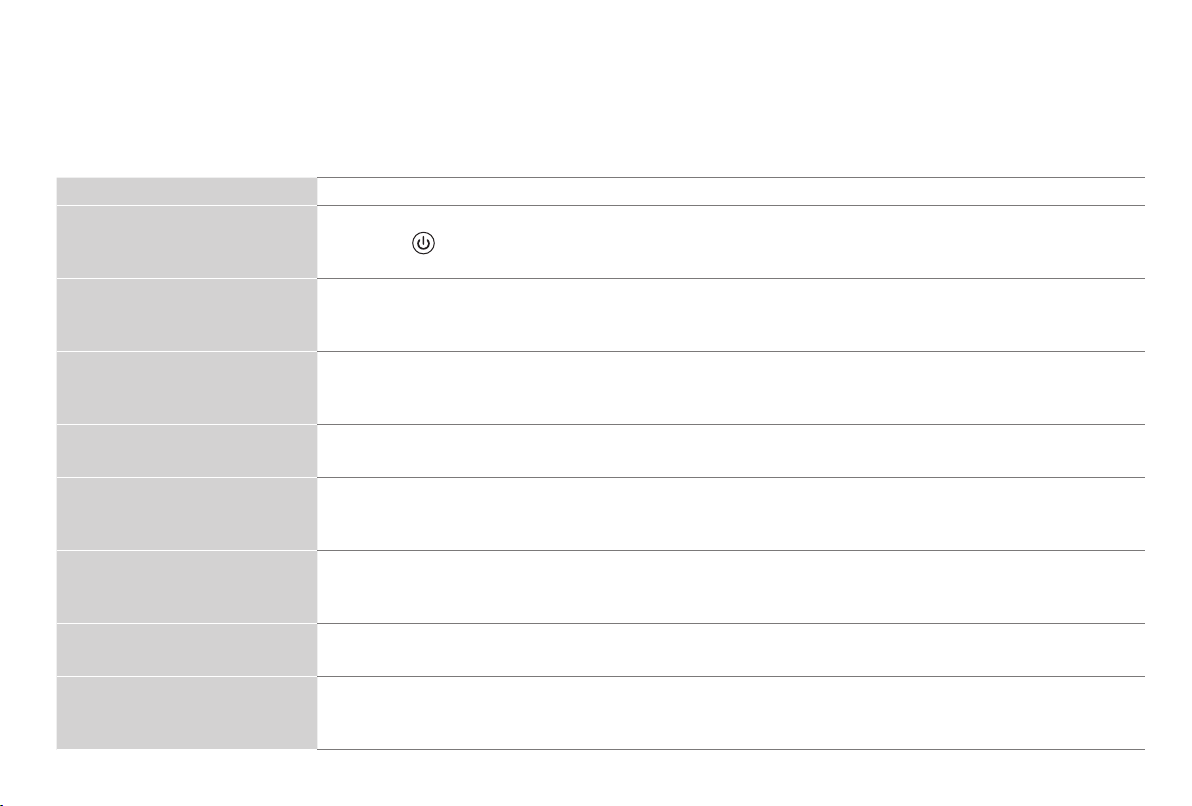
QUICK PROBLEM-SOLVING TIPS
WhenyouexperienceanissuewithyourTV,turnitoffandonagain.Ifthisdoesnotresolvetheproblem,thenrefertothetipsbelow.If
the problem is still not resolved, then contact us at one of the phone numbers on Page 2.
ISSUES POSSIBLE SOLUTIONS
No sound or picture
• CheckifthepowercordispluggedintoapoweredACoutlet.
• Pressthe
Powerbutton on the remote control to activate the unit from 'Standby' mode.
• ChecktoseeiftheLEDlightisonornot.Ifitis,thentheTVisreceivingpower.
I have connected an external
source to my TV and I get no
picture and/or sound.
• CheckforthecorrectoutputconnectionontheexternalsourceandforthecorrectinputconnectionontheTV.
• Makesureyouhavemadethecorrectselectionfortheinputmodefortheincomingsignal.
WhenIturnonmyTV,thereisa
delay for a few seconds before the
picture appears. Is this normal?
• Yes,thisisnormal.TheTVisinitializingandsearchingforprevioussettinginformation.
The picture is normal but there is
no sound
• Checkthevolumesettings.
• Checkif'Mute'modeissettoOn.
Sound but no picture or black and
white picture
• Ifthepictureisblackandwhite,unplugtheTVfromtheACoutletandreplugitafter60seconds.
• CheckthattheColorissetto50orhigher.
• TrydifferentTVchannels.
The sound and/or picture is
distorted or appears wavy
• AnelectricappliancemaybeaffectingtheTV.Turnoffanyappliancesthatarenearbyandmoveitfartheraway
from the TV.
• InsertthepowerplugoftheTVsetintoanotherpoweroutlet.
The sound and picture is blurry or
cuts out
• Ifusinganexternalantenna,checkthedirection,positionandconnectionoftheantenna.
• Adjustthedirectionofyourantennaorresetorfin tunethechannel.
A horizontal or vertical stripe
appears on the picture and/or the
picture is shaking
• Checkifthereisanapplianceorelectrictoolnearbythatiscausinginterference.
15
The plastic cabinet makes a
"clicking" type of sound
• The'click'soundcanoccurwhenthetemperatureofthetelevisionchanges.Thischangecausesthetelevision
cabinet to expand or contract, which makes the sound. This is normal and the TV is OK.
The remote control does not work
• Confir thatTVstillhaspowerandisoperational.
• Changethebatteriesintheremotecontrol.
• Checkifthebatteriesarecorrectlyinstalled.
Needmorehelp?
AdditionalhelpisavailableonlineatsupportlinksonPage2.Youwillndanswerstofrequentlyaskedquestions,
downloadablermwareandmore.
16
Certification and Compliance
FCC Notice
This device has been tested and found to comply with the limits
for a Class B digital device pursuant to Part 15 of the FCC Rules.
These limits are des igned to provide reasonable protection
against harmful interference in a residential installation. This
device generates, uses, and can radiate radio frequency energy
and, if not installed and used in accordance with the instructions,
may cause harmful interference to radio communications.
However, there is no guarantee that interference will not
occur in a particular installation. If this device does cause
harmful interference to radio or television reception, which can
be determined by turning the device off and on, the user is
encouraged to try to correct the interference
by one or more of the
following measures:
Reorient or relocate the receiving antenna.
Increase the separation between the device and receiver.
Connect the device into an outlet on a circuit different from that
to which the receiver is connected.
Consult the dealer or an experienced radio/TV technician for
help.
NOTE: The manufacturer is not responsible for any radio or
TV interference caused by unauthorized modifications to
this equipment. Such modifications could void the user’s
authority to operate the equipment.
Declaration of Conformity
Trade Name: Hisense
Model: 32H3D1/32H3E/32H3E9/32H3D5/32DU3000/32DU3020/32DU3030/
32DU3040/32DU3050/32H3308
Responsible Party: Hisense USA Corporation
Address: 7310 McGinnis Ferry Road, Suwanee, GA 30024
Telephone Number: 678-318-9060
This device complies with Part 15 of the FCC Rules. Operation is subject to the
following two conditions: (1) this device may not cause harmful interference, and
(2) this device must accept any interference received, including interference that
may cause undesired operation.
The terms HDMI and HDMI High-Definition Multimedia
Interface, and the HDMI Logo are trademarks or
registered trademarks of HDMI Licensing LLC in the United States and other
countries.
©2019. All rights reserved. Hisense and the Hisense logo are tr ademarks of
Hisense. Other brand and product names are trademarks of their respective
owners.