User’s Manual
DLP Cinema
®
Projector Head
NP-02HD
Light Module
NP-24LU01/NP-20LU01/NP-18LU01
NP-24LU03/NP-20LU03/NP-18LU03
DLP Cinema
®
Projector
NP-NC2402ML/NP-NC2002ML/
NP-NC1802ML
NP-NC2403ML/NP-NC2003ML/
NP-NC1803ML
DLP Cinema
®
Projector
Model No. (Some models are not available for sales in certainregions.)
NP-02HD/NP-NC2402ML/NP-NC2002ML/NP-NC1802ML/NP-NC2403ML/NP-NC2003ML/NP-NC1803ML
NP-24LU01/NP-20LU01/NP-18LU01/NP-24LU03/NP-20LU03/NP-18LU03
2
Important Information
Precautions: Please read this manual carefully before
using your NP-02HD/NP-NC2402ML/NP-NC2002ML/
NP-NC1802ML/NP-NC2403ML/NP-NC2003ML/
NP-NC1803ML and keep the manual handy for future ref-
erence. The NP-02HD (projector head) is called the “projec-
tor” in this manual.
• DLP (Digital Light Processing), DLP Cinema and DLP
Cinema logo are trademarks of Texas Instruments.
• Microsoft, Windows and Internet Explorer are either reg-
istered trademarks or trademarks of Microsoft Corporation
in the United States and/or other countries.
• Mozilla and Firefox are either registered trademarks or
trademarks of the Mozilla Foundation in the United States
and/or other countries.
• Oracle and Java are registered trademarks of Oracle
and/or its affiliates.
• Linux is a registered trademark of Linus Torvalds in the
United States and/or other countries.
• Other product names and logos mentioned in the user’s
manual may be the trademarks or registered trademarks
of their respective holders.
• The display screens and illustrations shown in this man-
ual may differ slightly from the actual ones.
• GPL/LGPL Software Licenses
•
The product includes software licensed under GNU
• General Public License (GPL), GNU Lesser General
Public License (LGPL), and others.
•
For more information on each software, see “readme.pdf”
inside the “about GPL&LGPL” folder on the supplied
CD-ROM.
WARNING
TO REDUCE THE RISK OF FIRE OR ELECTRIC SHOCK,
DO NOT EXPOSE THIS APPLIANCE TO RAIN OR
MOISTURE.
CAUTION
TO PREVENT ELECTRIC SHOCK, DO NOT OPEN TOP
COVER. NO USER SERVICEABLE PARTS INSIDE.
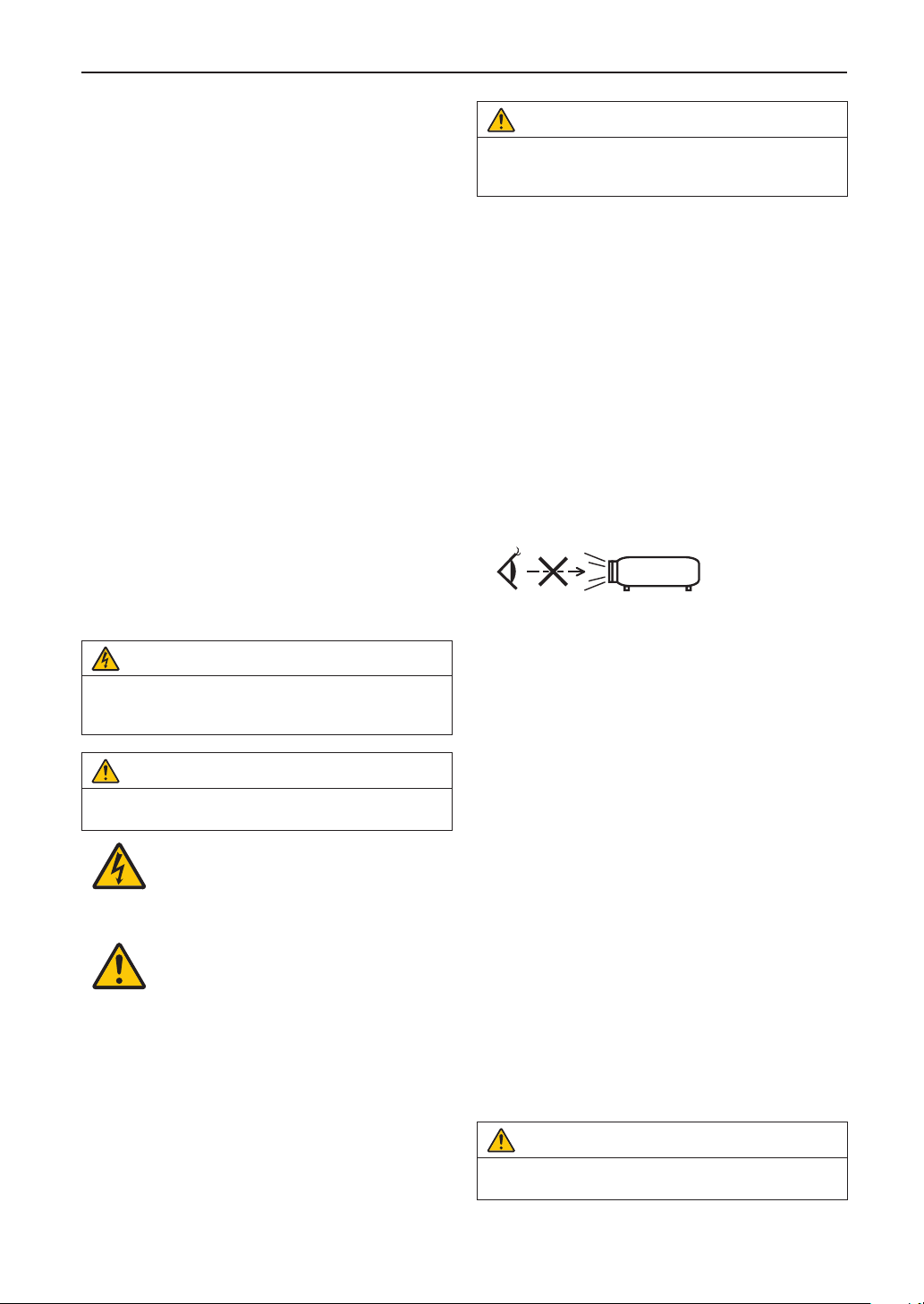
This symbol warns the user that uninsulated
voltage within the unit may have sufficient
magnitude to cause electric shock. Therefore,
it is dangerous to make any kind of contact
with any part inside of this unit.
This symbol alerts the user that important lit-
erature concerning the operation and mainte-
nance of this unit has been included. Therefore,
it should be read carefully in order to avoid any
problems.
Laser Safety Caution
This product is classied as Class 1 of IEC 60825-1 Third
edition 2014. This product is classied as RG3 of IEC/EN
62471-5 First edition 2015.
This product is classied as RG3 of IEC 62471:2006.(for
USA). Obey the laws and regulations of your country in rela-
tion to the installation and management of the device.
CAUTION
Use of controls or adjustments of procedures other than
those specied herein may lead to hazardous laser radi-
ation exposure.
• Hazardous optical radiation is emitted from this product,
RG3 IEC 62471:2006. (for USA).
• No direct exposure to the beam shall be permitted, RG3
IEC/EN 62471-5:2015.
•
Operators shall control access to the beam within the
hazard distance or install the product at the height that
will prevent spectators’ eyes from being in the hazard
distance.
• Do not look at operating light source. Eye injury may
result, RG3 IEC 62471:2006. (for USA)
• No direct exposure to beam shall be permitted, RG3 IEC
62471:2006. (for USA).
• Not for household use, RG3 IEC 62471:2006. (for USA)
• This projector must be installed high enough to provide
clearance for people who may walk beneath the beam
path or hazard distance, RG3 IEC 62471:2006. (for USA)
• Direct exposure of human eyes to beam is prohibited.
• The following graphic symbol indicating that looking into
the projector is prohibited is displayed on the projector
cabinet.
• Do not look at the projected light using optical devices
(magnifying glasses, reectors, etc.). Doing so could
result in vision impairment.
• When performing the lens shift adjustment, make sure
that you are behind or beside the projector. Doing so from
the front of the projector may cause intense light to enter
into your eyes, resulting in damage to them.
• This projector, which is an RG3 product, is for business
use and must be installed in location where safety is
assured. For this reason, installation of the projector and
mounting and removal of the lens unit must be performed
by professional service personnel. To do the works, be
sure to consult your dealer. NEVER install the projector
by end users. Doing so may cause visual impairment and
other injuries.
• Keep any items such as magnifying glass out of the light
path of the projector. The light being projected from the
lens is extensive, therefore any kind of abnormal objects
that can redirect light coming out of the lens, can cause
unpredictable outcome such as re or injury to the eyes.
• When turning on the projector, ensure that nobody is fac-
ing towards the lens in the path of the light emitted from
the laser.
• This product can only be operated in theaters by specied
personnel. Customers should not operate this product.
Machine Noise Information Regulation - 3. GPSGV,
The highest sound pressure level is less than 70 dB (A) in
accordance with EN ISO 7779.
WARNING
Operation of this equipment in a residential environment
could cause radio interference.
3
Important Information
FCC Information (for USA only)
WARNING
• The Federal Communications Commission does not
allow any modications or changes to the unit
EXCEPT those specied by Sharp NEC Display
Solutions of America, Inc. in this manual. Failure to
comply with this government regulation could void
your right to operate this equipment.
• This equipment has been tested and found to comply
with the limits for a class A digital device, pursuant to
Part 15 of the FCC Rules. These limits are designed
to provide reasonable protection against harmful
interference when the equipment is operated in a
commercial environment. This equipment generates,
uses, and can radiate radio frequency energy and, if
not installed and used in accordance with the instruc-
tion manual, may cause harmful interference to radio
communications. Operation of this equipment in a
residential area is likely to cause harmful interference
in which case the user will be required to correct the
interference at his own expense.
Supplier’s declaration of conformity (for USA only)
This device complies with Part 15 of the FCC Rules.
Operation is subject to the following two conditions.
(1) This device may not cause harmful inter-
ference, and (2) this device must accept any
interference received, including interference
that may cause undesired operation.
U.S. Responsible
Party:
Sharp NEC Display Solutions of
America, Inc.
Address: 3250 Lacey Rd, Ste 500
Downers Grove, IL 60515
Telephone Number: 630-467-3000
Type of Product: Projector
Equipment
Classication:
Class A Peripheral
Model Number: NP-02HD/NP-NC2402ML/
NP-NC2002ML/NP-NC1802ML/
NP-NC2403ML/NP-NC2003ML/
NP-NC1803ML
WARNING
THE END USER IS NOT ALLOWED TO OPEN OR
MODIFY THE PRODUCT.
NO USER SERVICEABLE PARTS.
MAINTAIN AND SERVICE OF THE PRODUCT IS ONLY
TO BE HANDLED BY NEC AUTHORIZED TECHNICIANS.
Important Safeguards
These safety instructions are to ensure the long life of your
projector and to prevent re and shock. Please read them
carefully and heed all warnings.
Installation
1. Do not point the projection beam toward other people or
reective objects.
2. Consult your dealer for information about transporting
and installing the projector. Do not attempt to transport
and install the projector yourself.
The projector must be installed by qualied technicians
in order to ensure proper operation and reduce the risk
of bodily injury.
3. Place the projector on a at, level surface in a dry area
away from dust and moisture. Tilting the front of the pro-
jector up or down from level could reduce laser life.
Do not put the projector on its side when the laser is on.
Doing so may cause damage to the projector.
4. Do not place the projector in direct sunlight, near heaters
or heat radiating appliances.
5. Exposure to direct sunlight, smoke or steam could harm
internal components.
6. Handle your projector carefully. Dropping or jarring your
projector could damage internal components.
7. When moving the projector, be sure to remove the lens
from the projector before moving it.
8. To carry the projector, a minimum of six persons are
required.
9. Do not hold the lens part with your hand. Otherwise the
projector may tumble or drop, causing personal injury.
10. Do not place heavy objects on top of the projector.
11. Turn off the projector, and disconnect the power cable
before moving the projector.
For C2 connection, turn off the projector, shut down the
AC power to the projector and the light using a
circuitbreaker.
Disconnect the cables between devices and the light
before moving the projector.
12. The cooling fan settings need to be congured when
using the projector in a location at an altitude of approxi-
mately 5500 feet/1600 meters or higher. Consult your
dealer in advance.
13. Turn off the projector when removing and installing
lenses. Failure to do so can cause loss of vision.
For mounting or replacing the lens, please contact your
dealer.
14. Do not install and store the projector in the below
circumstances.
Failure to do so may cause of malfunction.
• Inpowerfulmagneticelds
• Incorrosivegasenvironment
• Outdoors
15. If you wish to have the projector installed on the ceiling;
• Donotattempttoinstalltheprojectoryourself.
• Theprojectormustbeinstalledbyqualiedtechni-
cians in order to ensure proper operation and reduce
the risk of bodily injury.
• Inaddition,theceilingmustbestrongenoughtosup-
port the projector and the installation must be in
accordance with any local building codes.
• Pleaseconsultyourdealerformoreinformation.
16. When moving the projector, check the following:
• Thattheprojectoristurnedoff,thepowerplugisdis-
connected from the outlet
• Thattheconnectorcablethatconnectsthedeviceto
the projector is unplugged
4
Important Information
WARNING
1. Do not cover the lens with the supplied lens cap or
equivalent while the projector is on. Doing so can
lead to distorting or melting of the cap and burning
your hands due to the heat emitted from the light
output.
2. Do not place any objects, which are easily affected by
heat, in front of the projector lens. Doing so could
lead to the object melting from the heat that is emitted
from the light output.
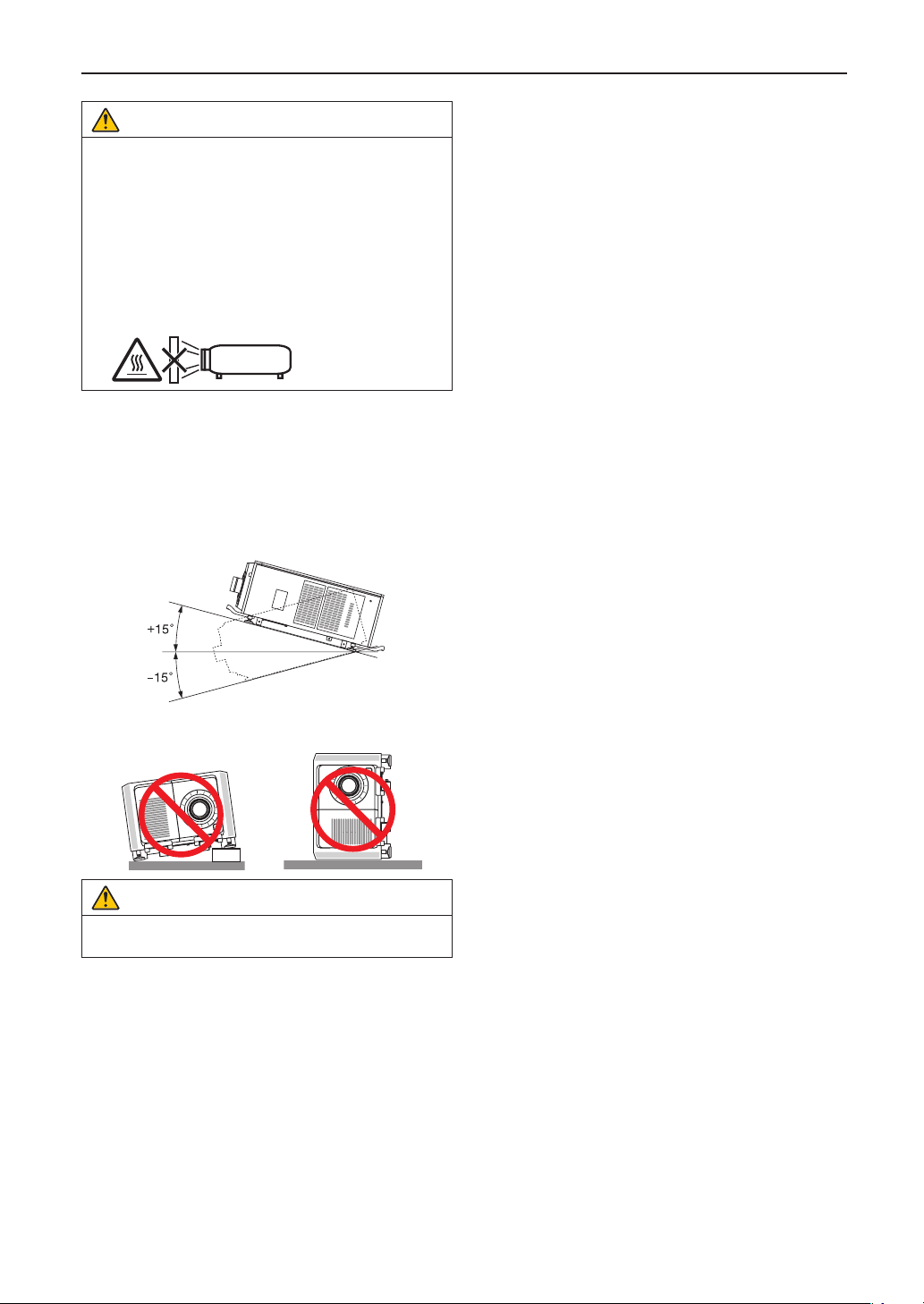
The following graphic symbol is shown on the projec-
tor cabinet.
When using the projector tilted in the forward or backward
direction, use it in the range of (+15° to -15°) from horizontal.
If you tilt it outside of this range or tilt it to the left or right, it
may become damaged.
If the projector is tilted outside of this range when used tilted
in the forward or backward direction, “TiltDegreeOver” is
displayed on the LCD screen. If this message appears,
change the installation of the projector so that the angle is
within the given range from horizontal.
When installed on a oor or a desktop
CAUTION
This equipment is not suitable for use in locations where
children are likely to be present
Power Supply
1. Consult your dealer for installing the power cable to the
projector. DO NOT install the power cable by yourself.
Doing so may cause a re or electric shock.
The projector is so designed that it operates with the
power supply voltage described below.
For C1 connection
(When the AC power to the projector power supply and
the light power supply is provided by a single cable)
• AC200V-240Vsinglephase50/60Hz
For C2 connection
(When the AC power to the projector power supply
and the light power supply is provided by separate
cables)
• AC100V-240Vsinglephase50/60Hz(projector
power supply)
• AC200V-240Vsinglephase50/60Hz(lightpower
supply)
Ensure that your power supply ts this requirement
before attempting to use your projector.
2. The power cable is not included with the projector. Ask
your dealer for the power cable to select and purchase.
Use a power cable that meets the standards and power
supply voltage of the country where you are using the
projector.
Refer to “2-2. Connecting the Power Cable” (page 27) for
details on connecting the power cable.
3. Handle the power cable carefully. A damaged or frayed
power cable can cause electric shock or re.
• Donotbendortugthepowercableexcessively.
• Donotplacethepowercableundertheprojector,or
any heavy object.
• Donotcoverthepowercablewithothersoftmateri-
als such as rugs.
• Donotheatthepowercable.
• Do not change the arrangement of the installed
power cable.
4. If the projector will not be used for an extended period of
time, turn off the projector, and disconnect the power
plug from the outlet.
5. Placing the power cable and the signal cable closely to
each other can cause beat noise. If this happens, keep
the two separated so that beat noise is not generated.
Beat noise is corruption of the picture often seen as a
rolling band moving through the image.
6. Do not touch the projector during a thunder storm. Doing
so can cause electrical shock or re.
7. When installed on the ceiling, install the breaker in a
location that is easy to reach by hand.
Fire and Shock Precautions
1. Ensure that there is sufficient ventilation and that vents
are unobstructed to prevent potentially dangerous con-
centrations of ozone and the build-up of heat inside your
projector. Allow at least 24 inches (60 cm) of space
between your projector and a wall. In particular, clear a
space of 26.7 inches (70 cm) or more in front of the air
outlet on the rear surface and 12 inches (30 cm) or more
on the upper part of the projecter body.
2. Prevent foreign objects such as paper clips and bits of
paper from falling into your projector. Do not attempt to
retrieve any objects that might fall into your projector. Do
not insert any metal objects such as a wire or screw-
driver into your projector. If something should fall into
your projector, shut down the AC power to the projector
immediately and have the object removed by a qualied
service person.
For C2 connection, turn off the projector, shut down the
AC power to the projector and the light using a circuit
breaker, and contact your dealer/distributor.
3. Turn off the projector, shut down AC power by using a
circuit breaker and contact qualied service personnel
under the following conditions. For C2 connection, turn
off the projector, shut down the AC power to the projector
and the light using a circuit breaker, and contact your
dealer/distributor for a repair.
• Whenthepowercableorplugisdamagedorfrayed.
• Ifliquidhasbeenspilledintotheprojector,orifithas
been exposed to rain or water.

5
• Iftheprojectordoesnotoperatenormallywhenyou
follow the instructions described in this user’s
manual.
• Iftheprojectorhasbeendroppedorthecabinethas
been damaged.
• If the projector exhibitsadistinctchangeinperfor-
mance, indicating a need for service.
4. Keep any items such as magnifying glass out of the light
path of the projector. The light being projected from the
lens is extensive, therefore any kind of abnormal objects
that can redirect light coming out of the lens, can cause
unpredictable outcome such as re or injury to the eyes.
5. Never remove or open the projector cabinet and never
modify the projector. Otherwise, re, electric shock, or
leakage of laser light may cause visual impairment or
burn injuries.
6. When using a LAN cable:
For safety, do not connect to the connector for peripheral
device wiring that might have excessive Voltage.
7. Do not try to touch the air outlets on the projector during
normal projector operation as it is hot.
Cleaning
1. Shut down AC power by using a circuit breaker before
cleaning.
For C2 connection, turn off the projector, shut down the
AC power to the projector and the light using a circuit
breaker.
2. Clean the cabinet periodically with a cloth. If heavily
soiled, use a mild detergent. Never use strong deter-
gents or solvents such as alcohol or thinner.
3. Use a blower or lens paper to clean the lens, and be
careful not to scratch or mar the lens.
4. Do not handle the projector and the power cable with wet
hands. Doing so can cause electrical shock or re.
CAUTION
1. Do not shut down AC power to the projector under
the following conditions. Doing so can damage the
projector.
• Whileprojectingimages
• Whilecoolingafterthepoweristurnedoff.
(The STATUS indicator LED blinks in orange while
the fan is rotating, and “cooling...” is displayed on
the LCD screen. )
- When using the IMB: 90 seconds
• During IMB Operation (if the projector is not in
standby state)
2. Do not turn of the AC power for 90 seconds after the
Laser is turned on and while the POWER indicator is
blinking green. Doing so could cause premature
Laser failure.
3. Keep hands away from the lens mounting portion
while the lens shift is in operation. Failure to do so
could result in ngers being pinched between the
cabinet and lens cover.
4. When main body is damaged, cooling uids may
come out of internal part.
Should this happen, immediately turn off the AC sup-
ply to the projector and contact your dealer.
DO NOT touch and drink the cooling uid.
When the cooling uids are swallowed or contacted
with your eyes, please consult with doctors
immediately.
Important Information
Caution on Carrying the Projector/Handling the
Optional Lens
The projector should always be carried by at least 6 people,
holding the handles on the front and back of the main body
and the grips on the bottom. Remove the lens unit from the
projector body when moving the projector.
When installing / removing a lens, shut down the AC power
to the projector.
When shipping the projector with the lens, remove the lens
before shipping the projector. Always attach the dust cap to
the lens whenever it is not mounted on the projector. The
lens and the lens shift mechanism may encounter damage
caused by improper handling during transportation.
Light Module
1. A light module containing multiple laser diodes is
included in the product as the light source.
2. These laser diodes are sealed in the light module. No
maintenance or service is required for the performance
of the light module.
3. End user is not allowed to replace the light module.
4. Contact qualied distributor for light module replace-
ment and further information.
Cable information
Use shielded cables or cables attached ferrite cores so as
not to interfere with radio and television reception.
For details, please refer to “2. Installation and Connection”
in this user’s manual.
Installing the Projector
This projector is an RG3 product. The projector is for profes-
sional use and must be installed in location where safety is
assured. For this reason, be sure to consult your dealer as
installation and attachment/detachment of the lens unit
must be performed by a professional service personnel.
Never try to install the projector by yourself. This may result
in visual impairment etc.
Connecting the power cord to earth
This equipment is designed to be used in the condition of
the power cord connected to earth. If the power cord is not
connected to the earth, it may cause electric shock. Please
make sure the power cord is earthed properly.
Do not use a 2-core plug converter adapter.
Handling the power cord
• Whenconnectingthepowercordtotheprojector’sACIN
terminal, make sure the connector is fully and rmly
inserted. Be sure to x the power cord using the power
cord stopper. Loose connection of the power cord could
lead to re or electric shock.
• Donotconnectordisconnectthepowercordwithwet
hands. Doing so could result in electric shock.
Lens shift, focus and zoom operations
• Whenshiftingthelensoradjustingthefocusorzoom,do
so from either behind or to the side of the projector. If
adjustments are performed from the front, your eyes
could be exposed to strong light and get injured.
• Keepyourhandsawayfromthelensareawhenperform-
ing the lens shift operation. If not, your ngers could get
caught in the gap between the cabinet and the lens.

6
Disposing of your used product
EU-wide legislation as implemented in each
Member State requires that used electrical
and electronic products carrying the mark (left)
must be disposed of separately from normal
household waste.
This includes projectors and their electrical
accessories. When you dispose of such prod-
ucts, please follow the guidance of your local
authority and/or ask the shop where you pur-
chased the product.
After collecting the used products, they are
reused and recycled in a proper way. This
effort will help us reduce the wastes as well as
the negative impact to the human health and
the environment at the minimum level.
The mark on the electrical and electronic prod-
ucts only applies to the current European
Union Member States.
Outside the European Union
If you wish to dispose of used electrical and
electronic products outside the European
union, please contact your local authority and
ask for the correct method of disposal.
For EU: The crossed-out wheeled bin implies
that used batteries should not be put to the
general household waste! There is a separate
collection system for used batteries, to allow
proper treatment and recycling in accordance
with legislation.
According the EU directive 2006/66/EC, the
battery can’t be disposed improperly. The
battery shall be separated to collect by
local service.
For questions relating to unclear points or repairs
Contact your dealer or the following support branch for
questions relating to unclear points, malfunctions and
repairs of the product.
In Europe
Company Name: Sharp NEC Display Solutions Europe GmbH
Address: Landshuter Allee 12-14, D-80637 Munich, Germany
Telephone: +49 89 99699 0
Fax Line: +49 89 99699 500
Email Address: infomail@nec-displays.com
WEB Address: https://www.sharpnecdisplays.eu
In North America
Company Name: Sharp NEC Display Solutions of America, Inc.
Address: 3250 Lacey Rd, Ste 500
Downers Grove, IL 60515 U.S.A.
Telephone: +1 866-632-6431
Email: cinema.support@sharpnec-displays.com
WEB Address: https://www.sharpnecdisplays.us
Important Information
In China
Company Name: NEC (China) Co., Ltd.
Address: 6F, Landmark diplomatic office building D2,
No. 19 East Road, Chaoyang District,
Beijing 100600, R.P.C.
Telephone: 010-59342706
Email Address: nec-suppor[email protected]
In Hong Kong and Taiwan
Company Name: Strong Westrex, Inc.
Address: Room 4108 China Resources Building, No. 26
Harbour Road, Wanchai, Hong Kong
Telephone: +852 2827 8289
Fax Line: +852 2827 5993
Email Address: [email protected]
In South Korea
Company Name: Hyosung ITX Co., Ltd.
Address: 1F, Ire Building, 2, Yangpyeong-dong 4-ga,
Yeongdeungpo-gu, Seoul, Korea 150-967
Telephone: +82-2-2102-8591
Fax Line: +82-2-2102-8600
Email Address: moneybear@hyosung.com
WEB Address: http://www.hyosungitx.com
In Australia and New Zealand
Company Name: NEC Australia Pty Ltd
Address: 26 Rodborough Road Frenchs Forest NSW 2086
Telephone: 131 632 (from anywhere in Australia)
Email Address: display[email protected]
WEB Address: http://www.nec.com.au
In Thailand, Singapore, Malaysia, Indonesia and
Philippines
Company Name: Goldenduck International Co., Ltd.
Address: 65 Soi Phutthamothon Sai 1, 21 Bangramad,
Talingchan, Bangkok, Thailand 10170
Telephone: +66-2887-8807
Fax Line: +66-2887-8808
Email Address: contact@goldenduckgroup.com
7
Important Information
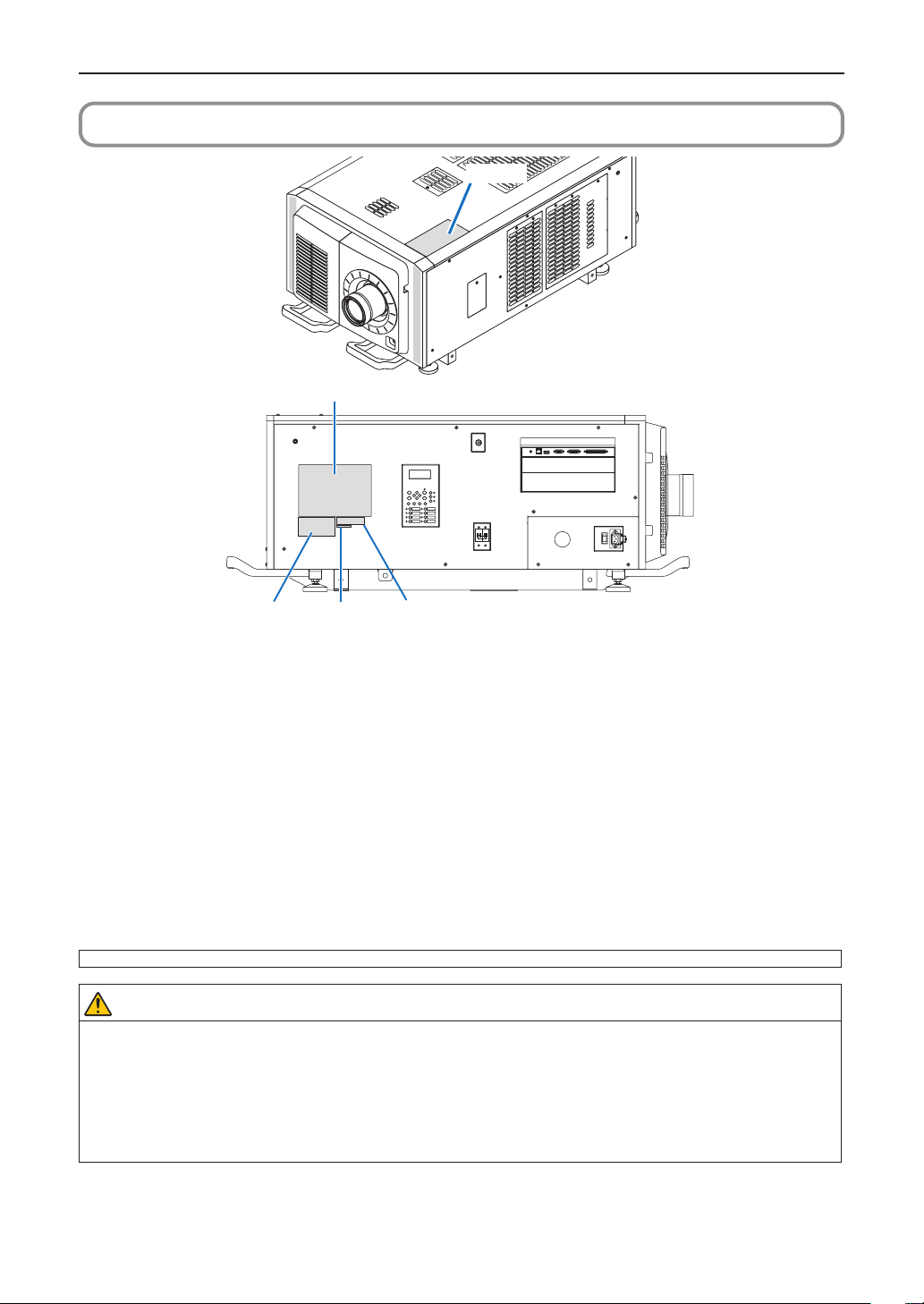
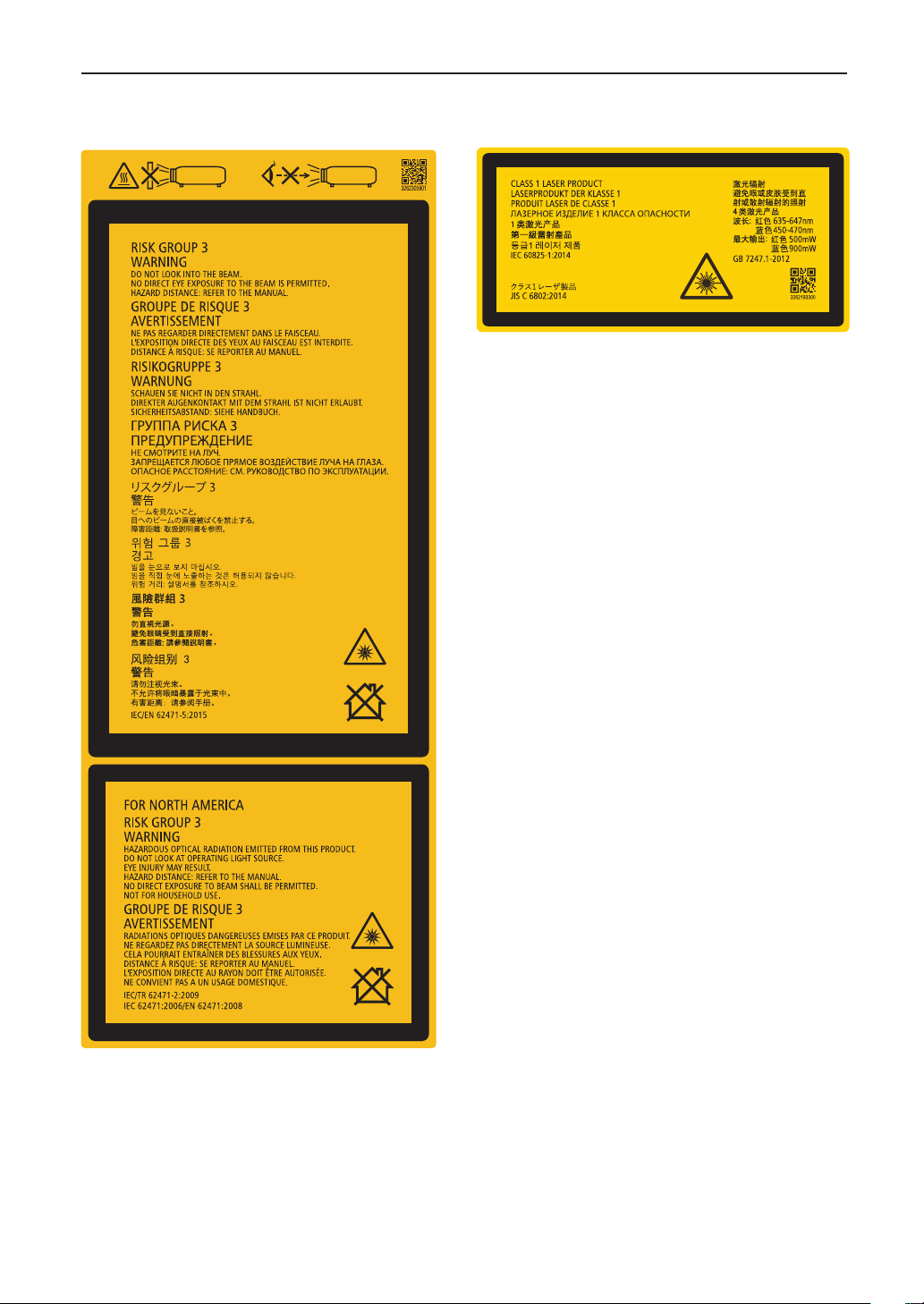
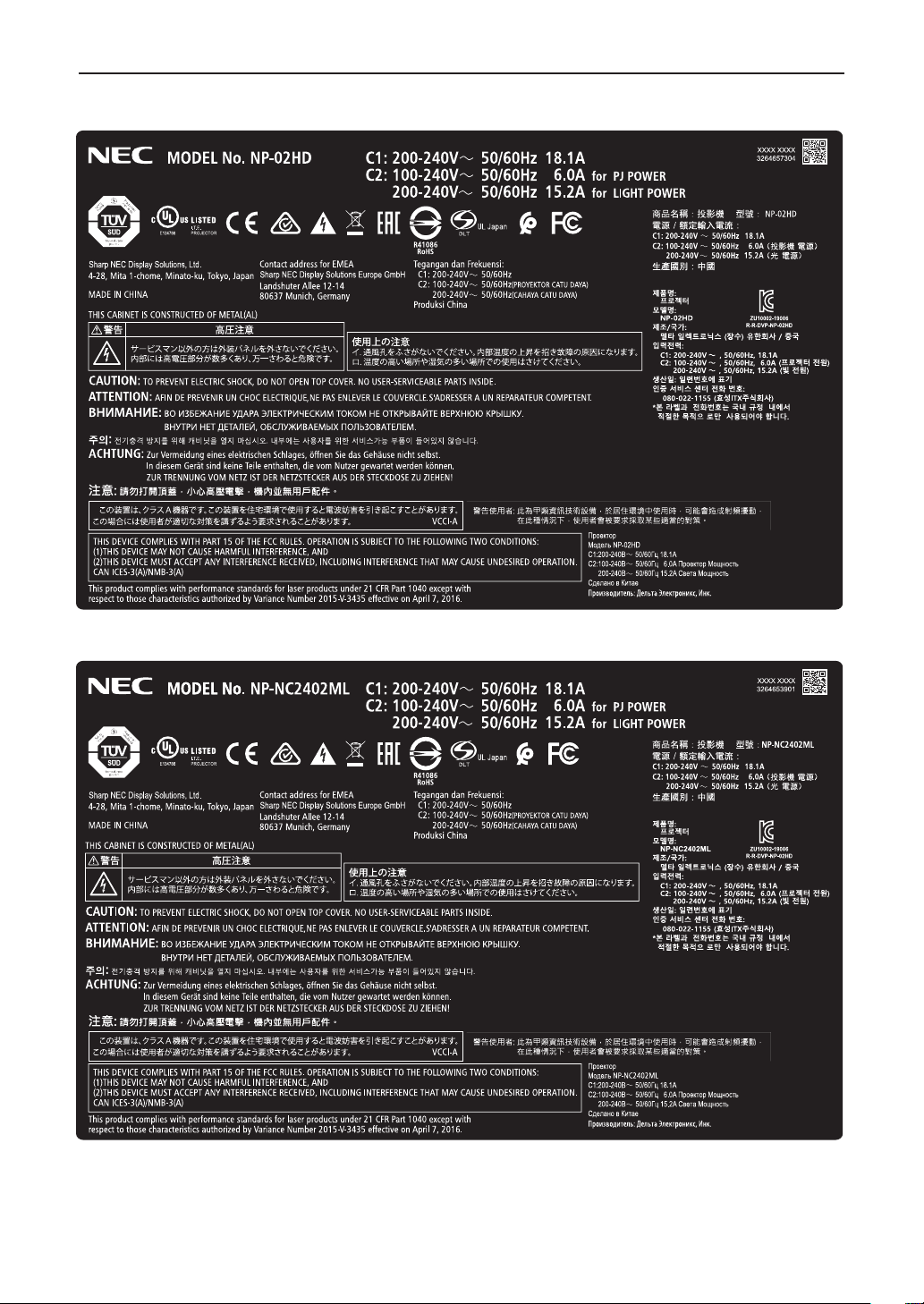
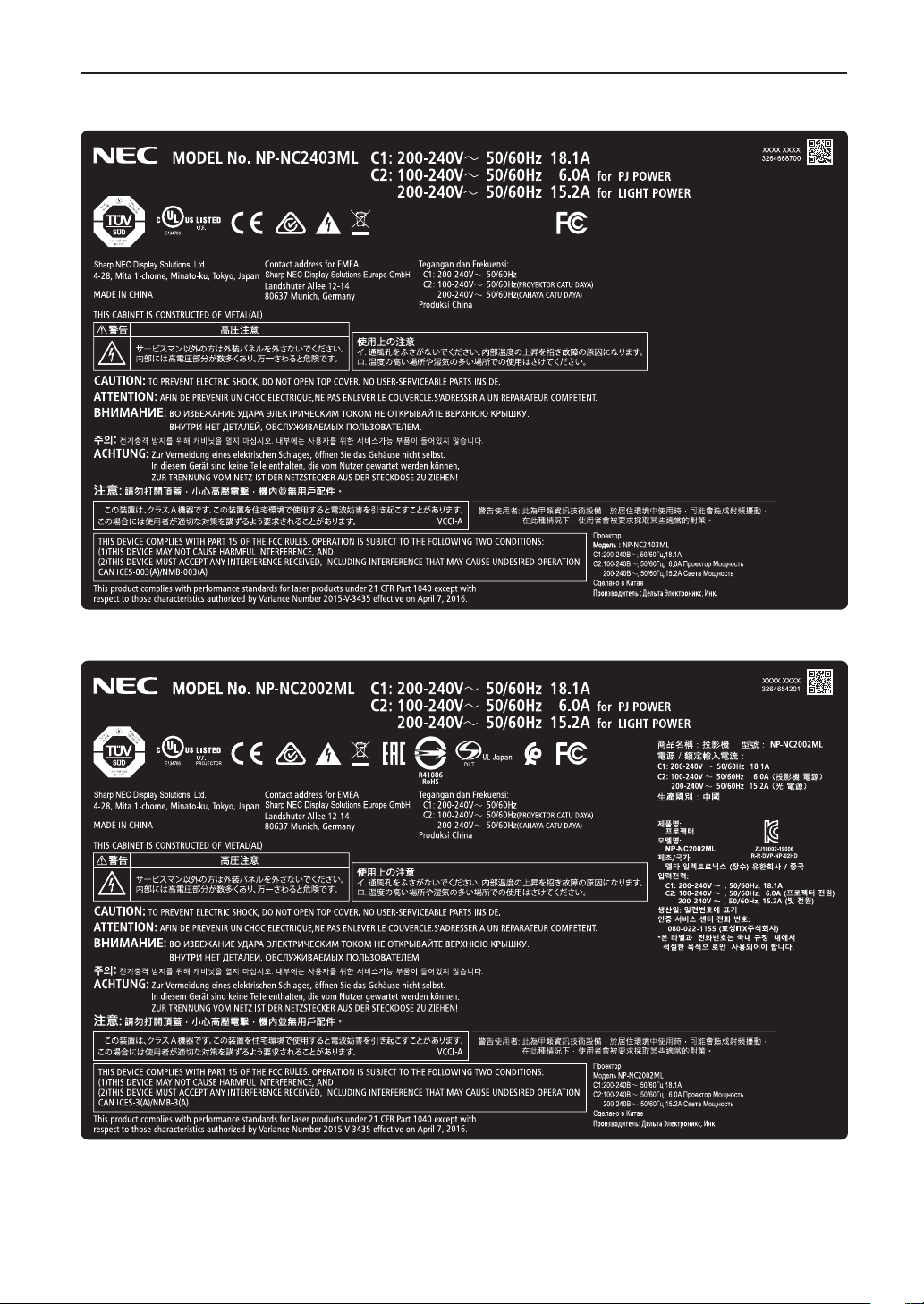
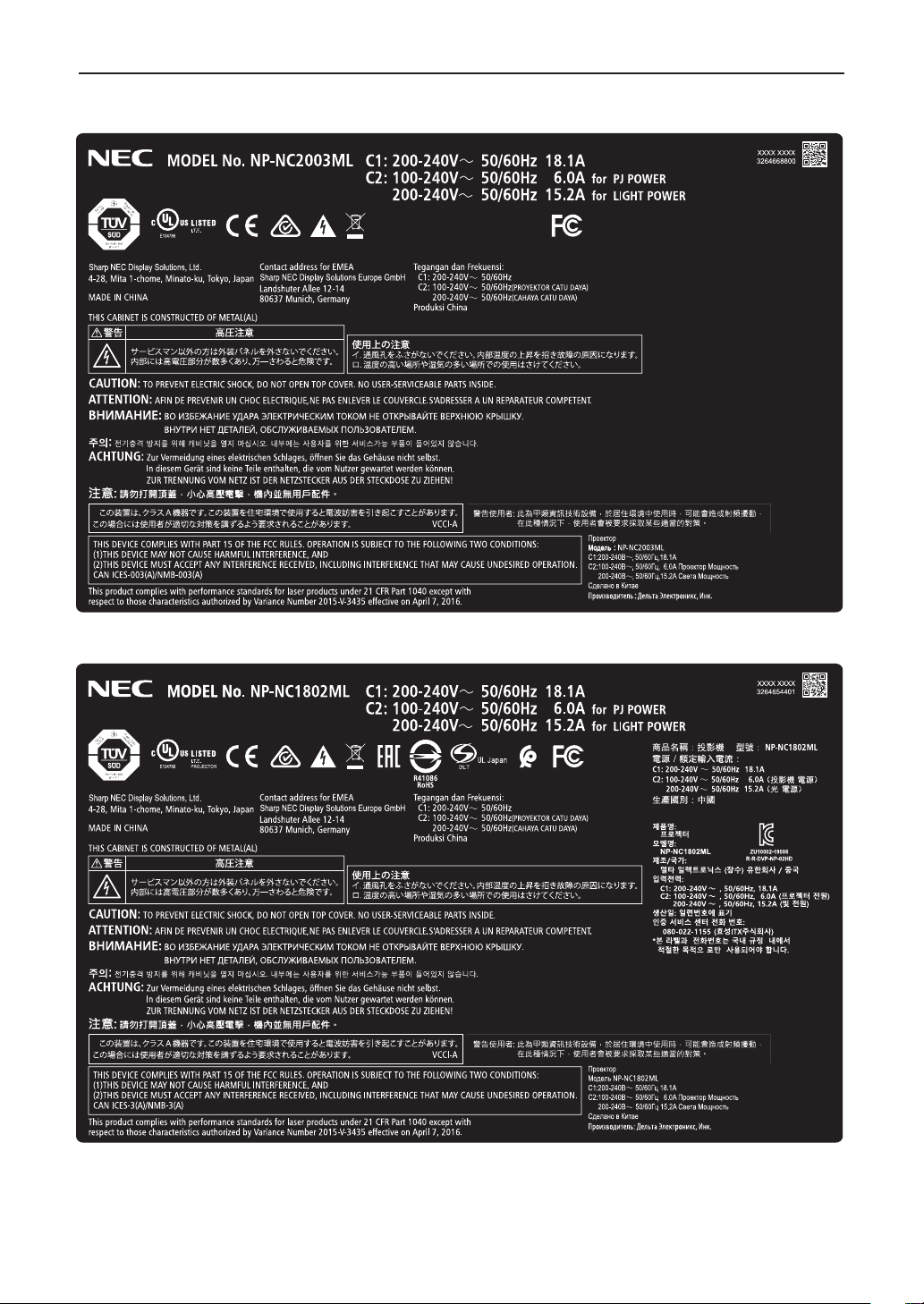
Label Information
Label A
Label C
Label D
Label E
Label B
About the laser module used in the light source
• This product has a built-in laser module. Control and adjustment procedures other than those described in this document
may result in exposure to hazardous laser radiation.
• This product is classied as a Class 1 of Laser Product Safety Standard JIS C 6802: 2014, IEC 60825-1 3rd Edition: 2014.
This product is classied as Risk Group 3 of IEC/EN 62471-5 1st Edition: 2015.
• This product is classied as RG3 of IEC 62471:2006. (for USA).
• This product complies with performance standards for laser products under 21 CFR Part 1040 except with respect to
those characteristics authorized by Variance Number 2015-V-3435 effective on April 7, 2016.
Outline of laser emitted from the built-in light module:
Wave length: Red 635–647 nm, Blue 450–470 nm
Maximum power: Red 91 W, Blue 978 W
Radiation pattern from the lens (the protective housing):
Wave length: Red 635–647 nm, Blue 450–470 nm
Maximum laser radiation output: Red 500 mW, Blue 900 mW
The explanatory label of the laser product is put on the top of the projector.
CLASS 1 LASER PRODUCT
WARNING RG3 PRODUCT
• No direct exposure to the beam shall be permitted.
• Do not look into the projector’s lens. Serious damage to your eyes could result.
• Hazardous optical radiation is emitted from this product.
• Not for household use.
• Operators shall control access to the beam within the hazard distance and install the product at the height that will
prevent exposures of spectators’ eyes within the hazard distance.
• This projector must be installed high enough to provide clearance for people who may walk beneath the beam path or
hazard distance. (FDA)
8
Important Information
Label A
Lamp Warning Label
Label B
Laser Explanatory Label
9
Important Information
Label C (NP-02HD)
Label C (NP-NC2402ML)
10
Important Information
Label C (NP-NC2403ML)
Label C (NP-NC2002ML)
11
Important Information
Label C (NP-NC2003ML)
Label C (NP-NC1802ML)

12
Label C (NP-NC1803ML)
Label D
Label E
Important Information
13
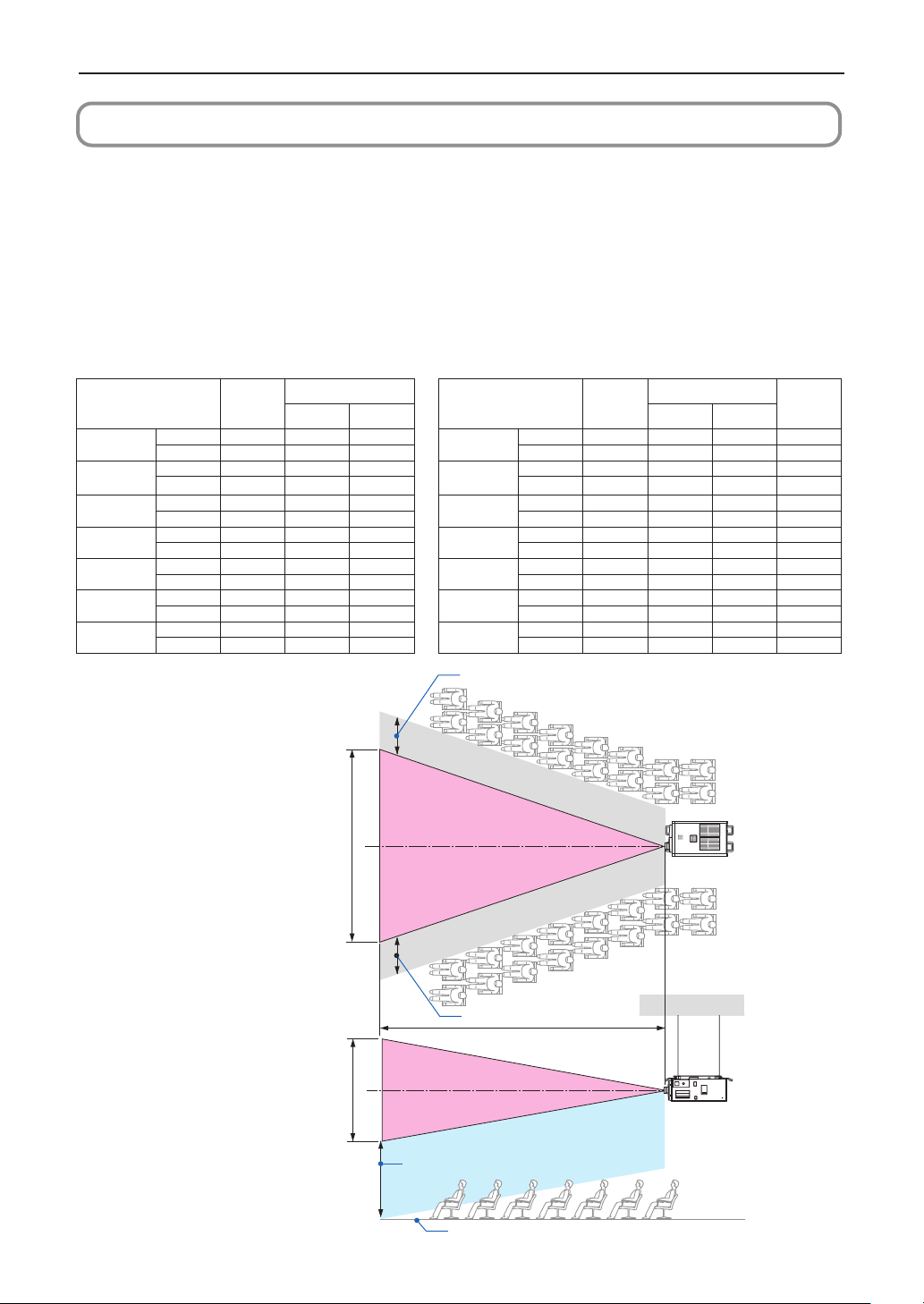
Laser radiation range/No entry range (HD: Hazard distance)
• The below table describes the radiation range of emitted light by the projector that is classified as Risk Group 3 (RG3) in the IEC
62471-5 First edition 2015.
• The below table describes the radiation range of emitted light by the projector that is classified as Risk Group 3 (RG3) in the IEC
62471:2006.(for USA).
• Please keep within bounds for installing the projector.
Install a barrier for preventing human eyes from entering the RG3 area.For the barrier installation position, keep horizontal safety
zone over 1m from the RG3 area.In case to install the projector over head, keep over 2m (2.5m for USA) distance at least between
the floor surface and the RG3 area.
Operators shall control access to the beam within the hazard distance or install the product at the height that will prevent expo-
sures of spectators’ eyes within the hazard distance.
NP-02HD/NP-NC2402ML/NP-NC2002ML/NP-NC1802ML/NP-NC2403ML/NP-NC2003ML/NP-NC1803ML
(IEC 62471-5 First edition 2015) (IEC 62471:2006 (for USA))
Lens
RG3
HD(m)
Screen size(m)
Lens
RG3
HD(m)
Screen size(m)
EHv
H V H V
NC-60LS12ZW
Wide 1.7 1.49 0.79
NC-60LS12ZW
Wide 2.3 1.97 1.04 8.7
Tele 2.7 1.50 0.79 Tele 3.5 1.98 1.04 12.9
NC-60LS12Z
Wide 1.5 1.28 0.67
NC-60LS12Z
Wide 1.9 1.69 0.89 6.9
Tele
2.6 1.48 0.78
Tele
3.5 1.95 1.03 11.9
NC-60LS14Z
Wide 2.0 1.49 0.78
NC-60LS14Z
Wide 2.7 1.96 1.04 9.9
Tele 3.0 1.51 0.80 Tele 4.0 1.99 1.05 14.3
NC-60LS16Z
Wide 2.2 1.42 0.75
NC-60LS16Z
Wide 2.9 1.87 0.99 10.1
Tele 3.9 1.59 0.84 Tele 5.2 2.10 1.11 17.4
NC-60LS19Z
Wide 2.8 1.40 0.74
NC-60LS19Z
Wide 3.7 1.89 1.00 11.3
Tele 4.8 1.44 0.76 Tele 6.4 1.93 1.02 16.0
NC-60LS24Z
Wide 3.6 1.43 0.76
NC-60LS24Z
Wide 4.7 1.93 1.02 14.7
Tele 5.8 1.46 0.77 Tele 7.7 1.95 1.03
19.6
NC-60LS39Z
Wide 5.9 1.47 0.77
NC-60LS39Z
Wide 7.8 1.97 1.04 21.6
Tele 9.9 1.50 0.79 Tele 13.1 2.00 1.06 29.9
When installed on a oor or a desktop
HD
H
V
Horizontal safety zone: over 1m
RG3 range
RG3 range
Vertical safety zone: over 2m (2.5m for USA)
floor
Horizontal safety zone: over 1m
[Plan view]
[Side view]
When installed on a ceiling
* If lens shift is utilized, please consider the shift of projected image according to the volume of lens shift.
Important Information
14
Important Information
CAUTION
Please heed all precaution for safety.
To install the projector
• For planning the layout of the projector, make sure to take safety measures instructed on the installation manual.
• In order to refuse danger, install either a wall outlet within easy reach for pulling out the power plug in emergency or a device
as a breaker to shut down the power supply to the projector.
• Take safety measures preventing human eyes from entering the RG3 area.
• Considering the installation place, select an appropriate lens and secure safety zone that is determined for each lens. For
operation on the powered projector as light adjustment, make sure appropriate safety measures have been taken.
• Check the validity of taken security measures if appropriate safety zone based on the installed lens is secured. Periodically
check the validity and keep these results.
• Educate the administrator of the projector (operators) about safety before starting to operate the projector.
• This projector is an RG3 product. The projector is for professional use and must be installed in location where safety is
assured. For this reason, be sure to consult your dealer as installation and attachment/detachment of the lens unit must be
performed by a professional service personnel. Never try to install the projector by yourself. This may result in visual impair-
ment etc.
To use the projector
• Instruct the administrator of the projector (operators) to perform inspections before powering on the projector. (Including the
safety check against emitted light by the projector)
• Instruct the administrator of the projector (operators) to be in circumstances able to control the projector whenever the projec-
tor is powered on for an emergency.
• Instruct the administrator of the projector (operators) to keep the installation manual, user’s manual and inspection records to
a place where they can take these documents out easily.
• Instruct them to clarify if the projector is conformed to standards of each country and region.

15
Table of Contents
Important Information ..................................................................... 2
1. What’s in the Box? and the Names of the Projector Parts
.......... 17
1-1. Features ..............................................................................................................................17
1-2. What’s in the Box? .............................................................................................................19
1-3. Names of the Projector Parts ............................................................................................20
2. Installation and Connection ....................................................... 26
2-1. Steps for setting up and connecting .................................................................................26
2-2. Connecting the Power Cable ............................................................................................27
2-3. Connecting the image input terminals ..............................................................................32
2-4. Connecting the various control terminal ..........................................................................32
3. Projection of Images (Basic Operation) ...................................... 33
3-1. Steps of projecting images ................................................................................................33
3-2. Turning your projector on ..................................................................................................34
3-3. Selecting the title of input signal .......................................................................................36
3-4.
Adjusting the position and the size of projected screen ..................................................................37
3-5. Preventing misoperations ..................................................................................................41
3-6.
Turning on/off the light with the projector turned on ............................................................. 42
3-7. Turning your projector off ..................................................................................................43
4. Using Menus ............................................................................. 45
4-1. Basic operation with adjustment menus ..........................................................................45
4-2. Table of adjustment menus ...............................................................................................50
4-3. Title Select ..........................................................................................................................52
4-4. Configuration ......................................................................................................................53
4-5. Title Setup ..........................................................................................................................55
4-6. Information .........................................................................................................................55
5. Maintenance of Your Projector .................................................. 59
5-1. Cleaning the Cabinet .........................................................................................................59
5-2. Cleaning the Lens ..............................................................................................................60
5-3. Cleaning the Air Filters.......................................................................................................60

16
6. Appendix ................................................................................... 63
6-1. Troubleshooting .................................................................................................................63
6-2. Indicator display list ...........................................................................................................64
6-3. Operation using an HTTP browser ....................................................................................67
6-4. Writing of the log file (Save Information) ...........................................................................69
6-5. Outline Drawing ..................................................................................................................72
6-6. Specifications .....................................................................................................................73
6-7. Pin Assignment and Functions of Terminal ......................................................................74
6-8. Related products list ..........................................................................................................81
17
1.
What’s in the Box? and
the Names of the
Projector Parts
1-1. Features
• DLPCinema
®
projector
Complies with the strict projection standards defined by the Digital Cinema Initiatives (DCI) industry group in the United States using
leading imaging technology of NEC. It also supports 3D projection and high frame rates (HFR).
• Employsalonglifelaserlightsource
The projector employs a newly developed laser light source offering excellent reliability and redundancy. Since the laser light source
has a long life (approx. 30,000 hours), this delivers low cost operation by removing the need for maintenance such as replacing and
adjusting the light module over extended periods of time. Furthermore, it reduces the risk of the light source suddenly shutting off
and leaving a black screen.
• Deliversreducedinstallationspaceandincreasedfreedomthroughamorecompactandlightweight
body
The use of a 0.98" DLP cinema chip together with integration of the light module into the projector main unit both delivers a reduced
installation area as well as improving the degree of freedom of installation, such as removing the need to connect to external ventila-
tion ducting and supporting both pedestal-mounted and ceiling-suspended installation. A wide variety of optional lenses (sold sepa-
rately) are also available for the projector in order to support a wide variety of installation methods (a lens is not mounted when the
projector is shipped from the factory).
• Equippedwitheasytousefunctions
(1) Lens memory function and light memory function that can be operated with one touch.
The projector is equipped with a lens memory function that can save the zoom position and shift position of the lens and a light
memory function that can save the brightness setting separately for each input signal. This makes it possible to project using
preconfigured settings simply by selecting the signal when projecting multiple different input signals each with different screen
size and brightness settings (Refer to “6-8. Related products list” (page 81) for details on the lenses that support the lens
memory function).
(2) Built-in automatic adjustment function that makes the brightness and color of the light source uniform
Degradation of brightness and variations in color that occur as the light source is used for longer periods of time are kept to a
minimum (the period over which variations in brightness can be limited varies depending on the brightness setting).

18
1. What’s in the Box? and the Names of the Projector Parts
(3) Frequently used titles can be registered in preset buttons
The projector has been equipped with 8 preset buttons that make it easy to select registered title (input signal). To this projector,
100 titles at most can be registered (input signal registration). Among the registered titles, any 16 titles can be assigned to the
preset buttons.
(4) You can operate and configure the projector via a network from a PC
You can operate and configure the projector via a network from a PC by using the separately supplied software Digital Cinema
Communicator (DCC) v2.
• Excellentdust-proofperformance
A circulating cooling system is used to cool the optical components. The system converts warm air into cold air and circulates it
inside a sealed structure, so external air does not come into contact with the optical components. This prevents dust and dirt from
getting on the optical components, maintaining brightness.
* Note that dust and dirt cannot be completely shut out.
• Reducedrunningcostthankstotheuseofmetallters
The filters are made of metal, so they can be used repeatedly and do not have to be replaced when performing periodic cleaning.
This not only reduces running costs, but also contributes to preserving the environment since no spent filters are discarded.
19
1. What’s in the Box? and the Names of the Projector Parts
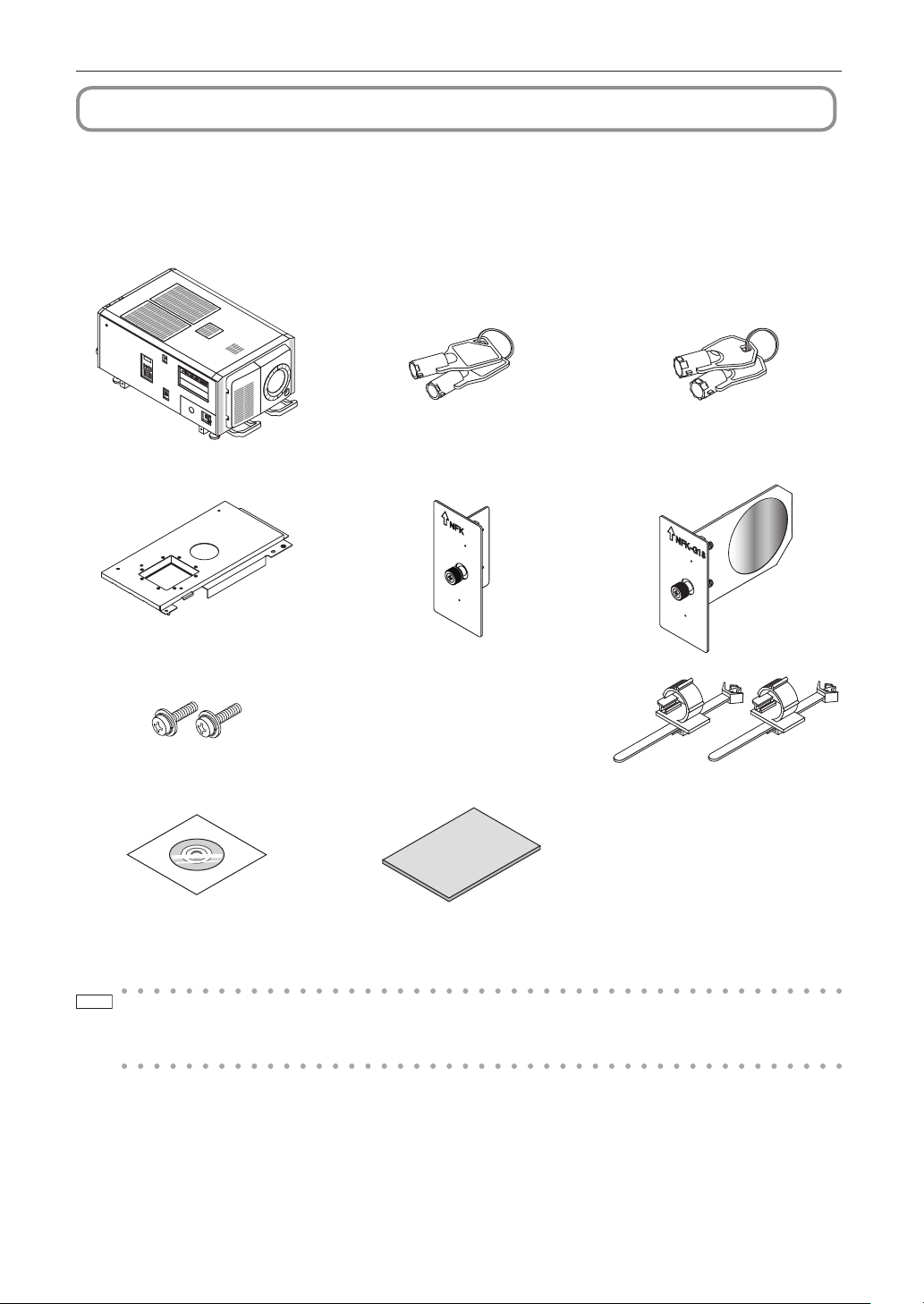
1-2. What’s in the Box?
Check the content of the accessories.
1-2-1. Projector
Projector Service door key x 2 Keys for administrator x 2
Plate Inlet φ35 NFK NFK-G18*
1
M5 × L20 light module fixing screws × 2 *
2
Power cable stopper
CD-ROM (User’s Manual) Important Information
*
1
NFK-G24 is packaged with NP-NC1802ML/NP-NC1803ML.
*
2
NP-02HD only.
TIP
In the event that you did not receive all of the accessories outlined above, or some are damaged, contact your dealer/
distributor.
Differs slightly from the drawings in this manual, but there is no problem in actual use.
20
1. What’s in the Box? and the Names of the Projector Parts
1-3. Names of the Projector Parts
1-3-1. Front of the projector
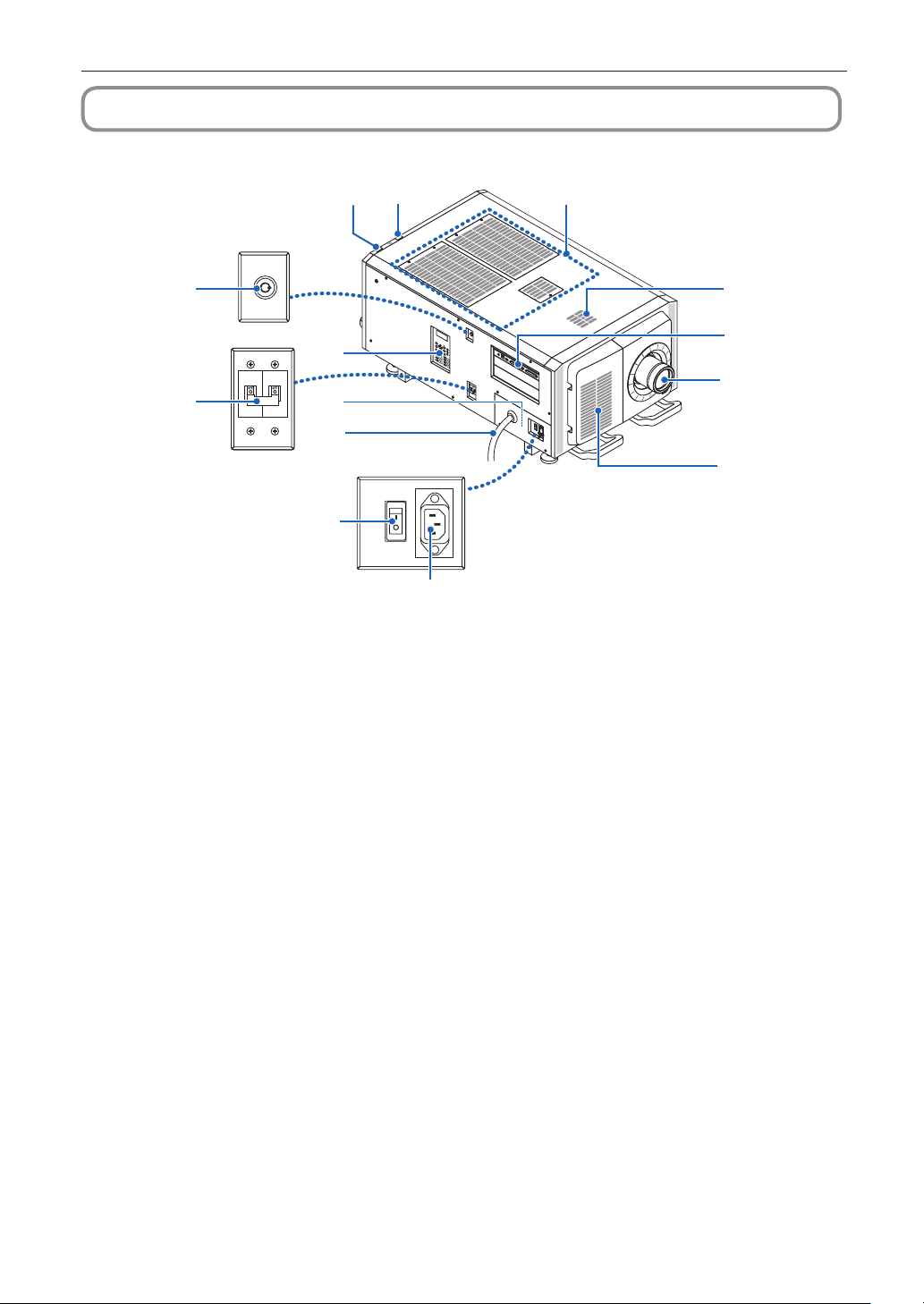
14
5
12
3
6
12
7
13
11
4
8
10
9
1. LIGHT status indicator
Displays the status of the light source. The indicators turn on when the light source is on and turn off when the light source is off
(See page 66).
2. SYSTEMstatusindicator
These indicate the status of the projector. When the projector is operating normally, these light/blink in green or orange. When
an error occurs, they light/blink in red. When an error occurs, check the contents of the display on the LCD screen. (See page
66)
3. Light power switch
While AC power is being supplied, set the projector power switch and light power switch to ON position, then your projector will
enter a standby state.
4. AC input
Connects to the AC power cable. The AC power cable is not an accessory. Consult with your dealer/distributor about the AC
power cable.
5. Switch for administrator
The projector can be operated normally by inserting the administrator key horizontally and turning it clockwise to the vertical
position.
At this time, the administrator key cannot be removed. The projector will not function unless the administrator key is inserted.
6. Control panel
On the control panel, power to your projector is turned on or off, titles are selected, and various adjustments are made of pro-
jected screen. (See page 24)
7. Connection terminals
Various image signal cable are to be connected here. (See page 23)
You can expand signal input terminals by installing the optional board.
Contact your dealer/distributor for more information on separately sold optional products.
8. Air inlet
The air inlet for cooling inside the projector. Do not cover.
Air filters are provided on the air intakes to prevent dust from entering the projector.
21
1. What’s in the Box? and the Names of the Projector Parts
9. Remoteinterlockconnector(insidethemainunit'ssidepanel)
This port is for safely using the laser in this device. It is used to externally control the laser illumination in the projector. Consult
with your dealer/distributor about using this.
10
. Lens (optional)
Images are projected from the lens. Request your dealer/distributor to install or replace the lens.
11.
AC power cord
This cord supplies AC power to the projector. Please contact your dealer/distributor for connection of the AC power cord.
12
. Projector power switch
When the light power switch and projector power switch are turned on with AC power supplied, the projector is set to the
standby mode.
13
.Airintake
These are air intake ports for introducing external air to reduce the temperature inside the projector. Do not block the port.
Air filters are provided on the air intakes to prevent dust from entering the projector.
14
.Exhaustport
The heat inside the projector is expelled from here. Do not block the port.
NOTE
Do not cover the air inlets and outlet while the projector is in operation. Insufficient ventilation leads to a rise of the
internal temperature and may cause a fire or malfunction.
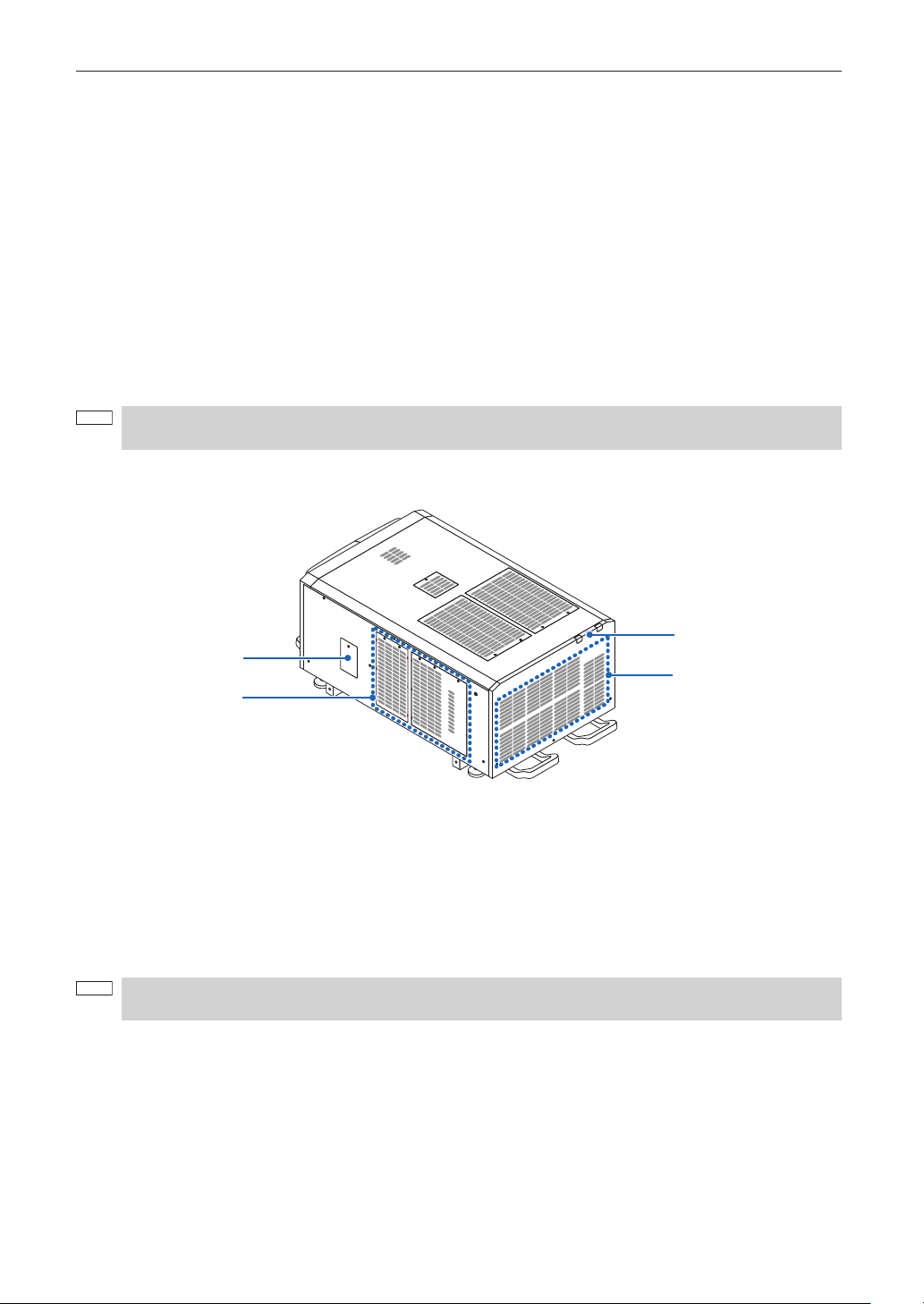
1-3-2. Rear of the projector
1
3
2
4
1. Air inlet
The air inlet for cooling inside the projector. Do not cover.
2. Buzzer (inside rear of projector)
The buzzer rings when the power is turned on or an error has occurred.
3. Air outlet
The air outlet to exhaust heat inside the projector. Do not cover.
4. Notch filter cover
Remove the cover when installing the notch filter. Contact your dealer/distributor for details on replacement notch filters.
NOTE
Do not cover the air inlets and outlet while the projector is in operation. Insufficient ventilation leads to a rise of the
internal temperature and may cause a fire or malfunction.
22
1. What’s in the Box? and the Names of the Projector Parts
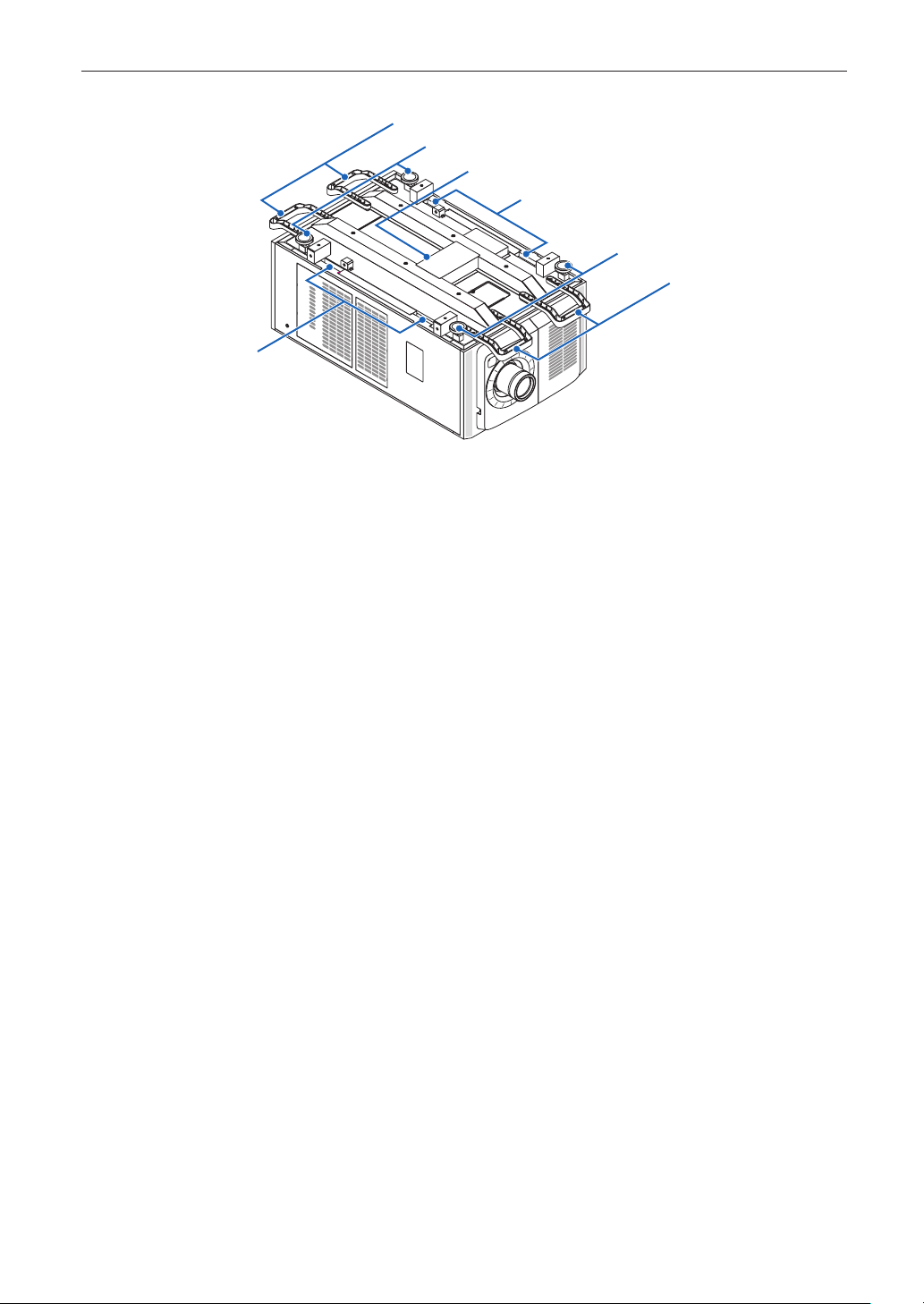
1-3-3. Bottom of the projector
1
1
2
2
3
3
4
1. Handle (4 locations)
Handles for moving the projector.
2. Level adjusters (in 4 positions)
In the ordinary installation, you can adjust the projector inclination at 4 positions.
3. Grips
These grips are used when moving the projector.
4. Exhaustport
The heat inside the projector is expelled from here. Do not block the port.
23
1. What’s in the Box? and the Names of the Projector Parts
1-3-4. Connection terminals
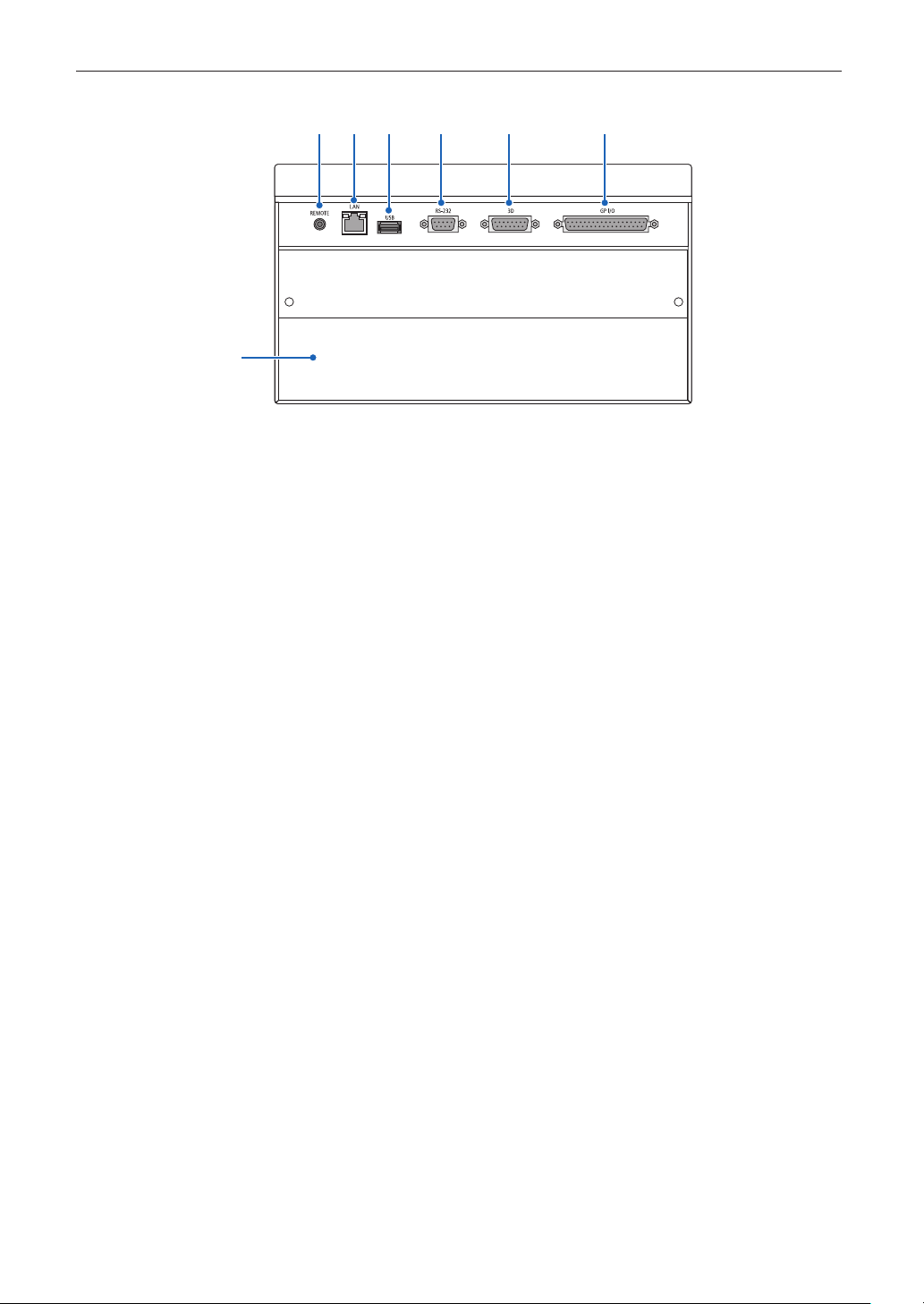
1
7
2 3 4 5 6
1. Serviceterminal(REMOTE)(Stereomini)
This terminal is used for service purpose only.
2. Ethernetport(LAN)(RJ-45)
The port for interfacing with an image signal server or controlling the projector from a PC via a network. Connect the projector
and the PC with a commercially available Ethernet cable (10/100/1000Base-T).
3. USB port (USB) (type A)
The port for the projector maintenance.
4. PC control terminal (RS-232) (D-sub 9P)
The terminal for operating the projector from a PC via an RS-232C or for service personnel to set data for the projector. Connect
the projector and the PC with a commercially available RS-232C straight cable.
5. 3D terminal (3D) (D-sub 15P)
The terminal for connecting a 3D image system to the projector. (See page 80)
6. Externalcontrolterminal(GPI/O)(D-sub37P)
The terminal for externally controlling the projector or connecting a 3D image system to the projector. (See page 75)
7. Slot
The slot is used for an image media block (IMB). Contact your dealer/distributor for an installation of IMB.
Refer to the IMB instruction manual for details on IMB.
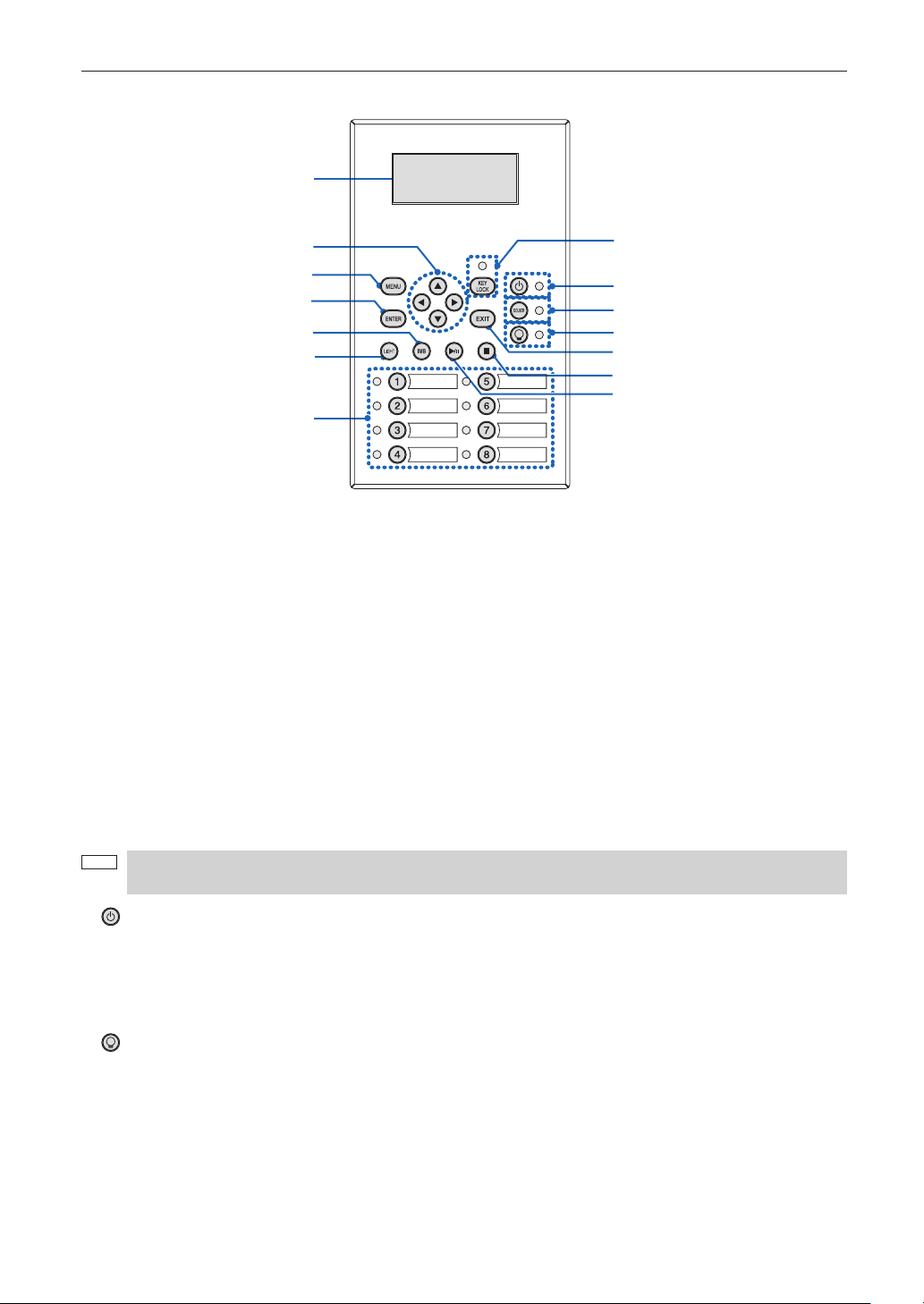
24
1. What’s in the Box? and the Names of the Projector Parts
1-3-5. Control panel
1
6
7
8
9
5
13
12
2
3
4
11
10
14
1. LCD screen
The LCD screen displays menus and setting values for the projector operations.
2. ///(UP/DOWN/LEFT/RIGHT)buttons
Press these buttons to select a menu item while a menu is displayed.
3. MENUbutton
Press this button to display the menu for various settings and adjustments. (See page 50)
4. ENTERbutton
Press this button to select the menu item.
5. EXITbutton
Press this button to return to the previous menu item.
6. KEYLOCKbutton
Press this button to lock (KEY LOCK) the buttons on the control panel. Buttons on the control panel do not function while KEY
LOCK is on.
Pressing the KEY LOCK button for one second or longer while KEY LOCK is off locks the buttons.
Pressing the KEY LOCK button for one second or longer while KEY LOCK is on unlocks the buttons. (See page 41)
NOTE
KEY LOCK becomes automatically on if no control panel operation takes place in the standby state for 30 seconds
by default. (See page 41)
7. button(POWERbutton)
Press this button for more than three seconds to turn on or off (standby) the projector. (See page 65)
In order to start up the projector, turn on the main power switch for the projector to set the projector in the standby state. (See
page 34)
8. DOUSERbutton
Press this button to open and close the douser. (See page 65)
9. button (LIGHT ON/OFF button)
Press this button for five seconds or longer to turn on or off the light source while the projector is on. (See page 42)
10
. LIGHT button
Press this button to display the light source adjustment menu. (See page 40)
11
.IMBbutton(plannedtobesupportedinafutureupdate)
This button is operable when the media block is installed in the projector.
Press this button to display the operation menu of the media block.

25
1. What’s in the Box? and the Names of the Projector Parts
12
. Play/pause button (planned to be supported in a future update)
This button is operable when the media block is installed in the projector.
Press this button to play or pause the image contents.
13
. Stop button (planned to be supported in a future update)
This button is operable when the media block is installed in the projector.
Press this button to stop playing the image contents.
14
. Preset buttons
Press the preset button to select a title (input signal) assigned to each button. Up to 100 titles (input signals) can be registered
to this projector, and any 16 titles from them can be assigned to the preset button. Please request your dealer to register and
change the titles of the buttons as required.
The preset button indicators show their assigned title or selection status. (See page 64)
TIP
To select a title allocated to one of the preset buttons, use the following procedure.
• Toselectatitleallocatedtooneof“PresetButton1”to“PresetButton8”
Press the button which corresponds to the number of the preset button (button <1> to <8>).
- Press the <1> button to select the “Preset Button1”.
- Press the <8> button to select the “Preset Button8”.
• Toselectatitleallocatedtooneof“PresetButton9”to“PresetButton16”
Press the preset button (button <1> to <8>) while holding down the UP button.
- Press the <1> button while holding down the UP button to select the “Preset Button9”.
- Press the <8> button while holding down the UP button to select the “Preset Button16”.
26
2-1. Steps for setting up and connecting
Use the following steps for setting up your projector:
• Step1
Setup the screen and projector. (Contact your dealer to carry out the setup.)
• Step2
Connect the power cable to the projector. (See page 27)
• Step3
Connect cables to the image input terminals. (See page 32)
Connect cables to the various control terminals. (See page 32)
2.
Installation and
Connection
27
2. Installation and Connection
2-2. Connecting the Power Cable
Consult your dealer for installing the power cable to the projector.
If AC power is supplied to the projector and light with one power cable (C1 connection), it is not necessary to connect the cable to
the projector power supply.
The power cable is not included with the projector. Use a power cable that meets the standards and power supply voltage of the
country where you are using the projector. Ask your dealer for the power cable to select and purchase.
WARNING
Carefully read the contents described in this section before connection and connect the cables according to the proper proce-
dure. Inappropriate handling may cause fatal, serious or other bodily injuries due to fire or electric shock.
WARNING
• Consult your dealer for installing the power cable to the projector.
DO NOT install the power cable by yourself. Doing so may cause a fire or electric shock.
• Before connecting the power cables, check that the projector power switch and light power switch of the projector is turned
off. Implement the connection with AC power shut off.
• Be sure to ground the equipment to ensure safety. Use a power cable that meets the standards and power supply voltage of
the country where you are using the projector, and always connect the equipment to the ground. If the ground is not con-
nected, it may cause electrical shocks.
• When connecting the power cable plugs to the AC IN and the electrical outlet, securely insert the plugs all the way in.
• For C2 connection, be sure to install the power cord stopper. If the connection between the power cable plug and the electri-
cal outlet is loose, the plug area may generate heat, causing burns and accidents.
CAUTION
• This equipment is designed to be used in the condition of the power cord connected to earth. If the power cord is not con-
nected to the earth, it may cause electric shock. Please make sure the power cord is earthed properly.
28
2. Installation and Connection
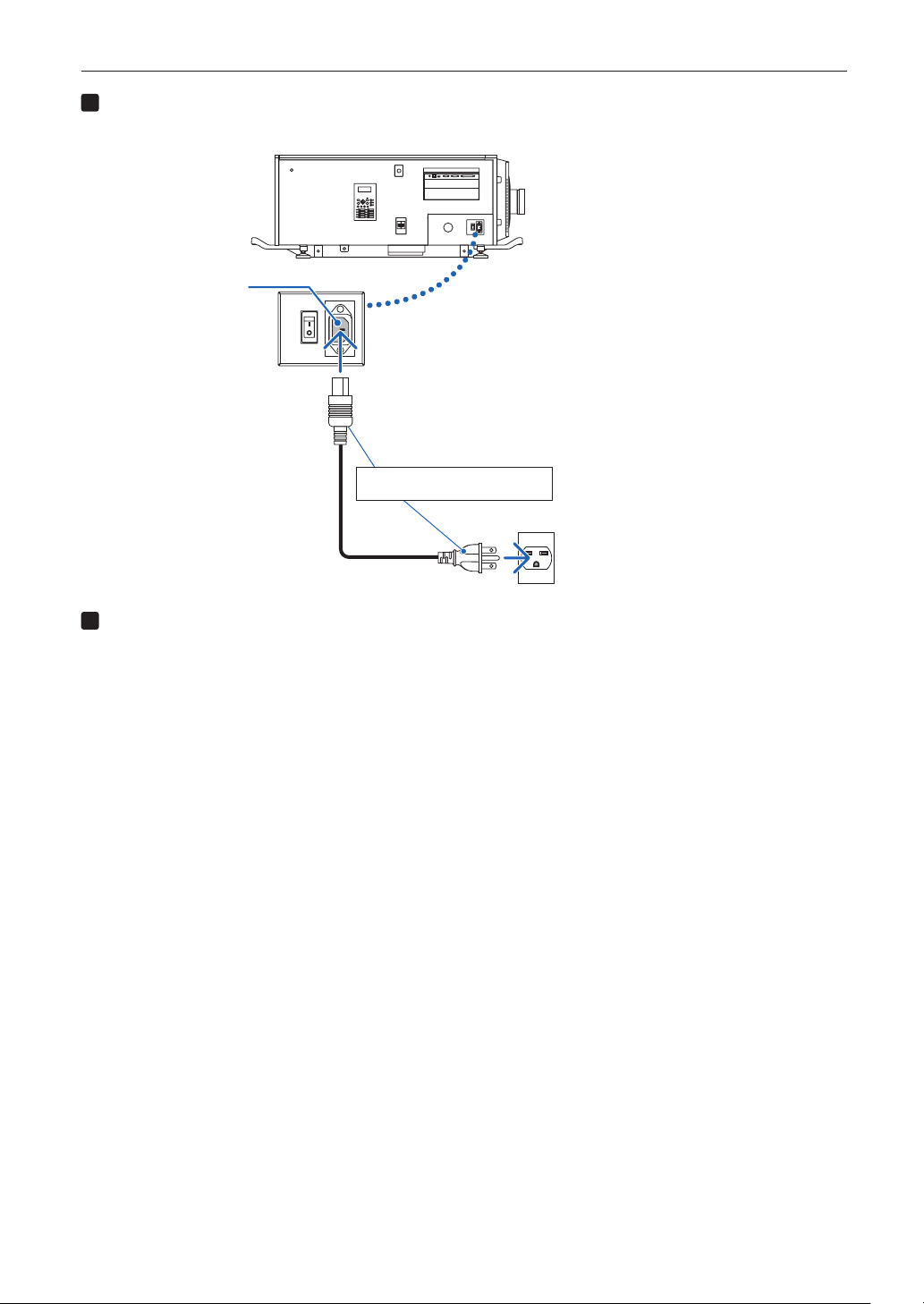
1
Connect the AC power supply cable.
Connect the AC power supply cable to the projector.
AC input
Connect the AC power supply
cable to the projector
2
Connect the power plug to the electrical outlet.
This completes the connection of the AC power supply cable.
29
2. Installation and Connection
Attaching the power cable stopper
To prevent the power cable from accidently removing from the AC IN of the projector, attach the supplied power cable stopper to
clamp the power cable.
CAUTION
• To prevent the power cable from coming loose, make sure that all the prongs of the power cable are fully inserted into the AC
IN terminal of the projector before using the power cable stopper to fix the power cable. A loose contact of the power cable
may cause a fire or electric shock.
• Do not bundle the power cable. Doing this could cause heat or a fire.
NOTE
• Do not clamp the power cable with other cables. Doing so can generate noise, which can affect adversely the signal
cable.
• Be careful not to insert the band inversely. Once the band is attached, it cannot be removed from the slot.
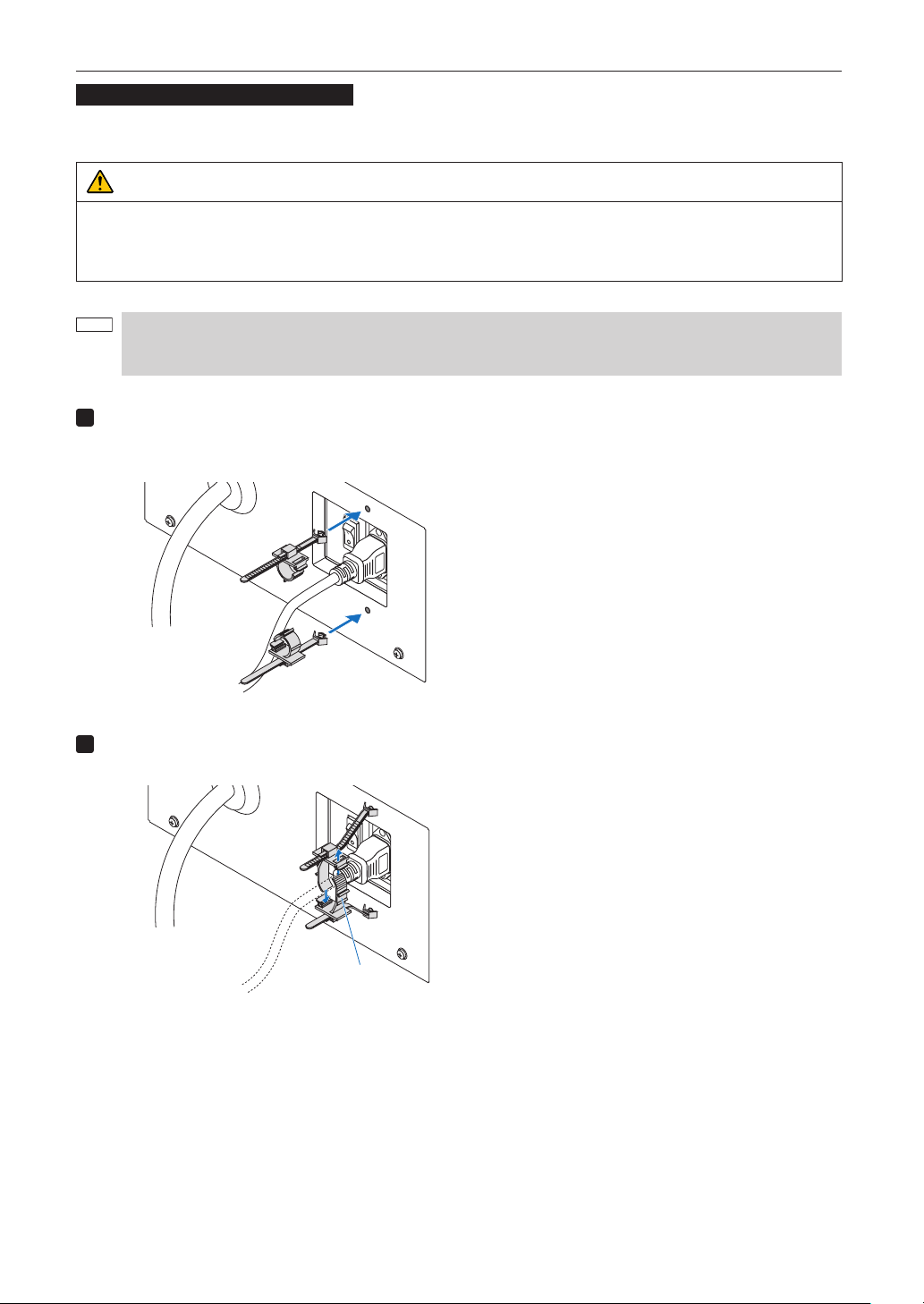
1
With the band of the clamper unit facing the power supply cord, line up the tip of the power
supply cord stopper with the mounting hole in the projector body and press in.
Attach the power cord stopper on the opposite side in the same way.
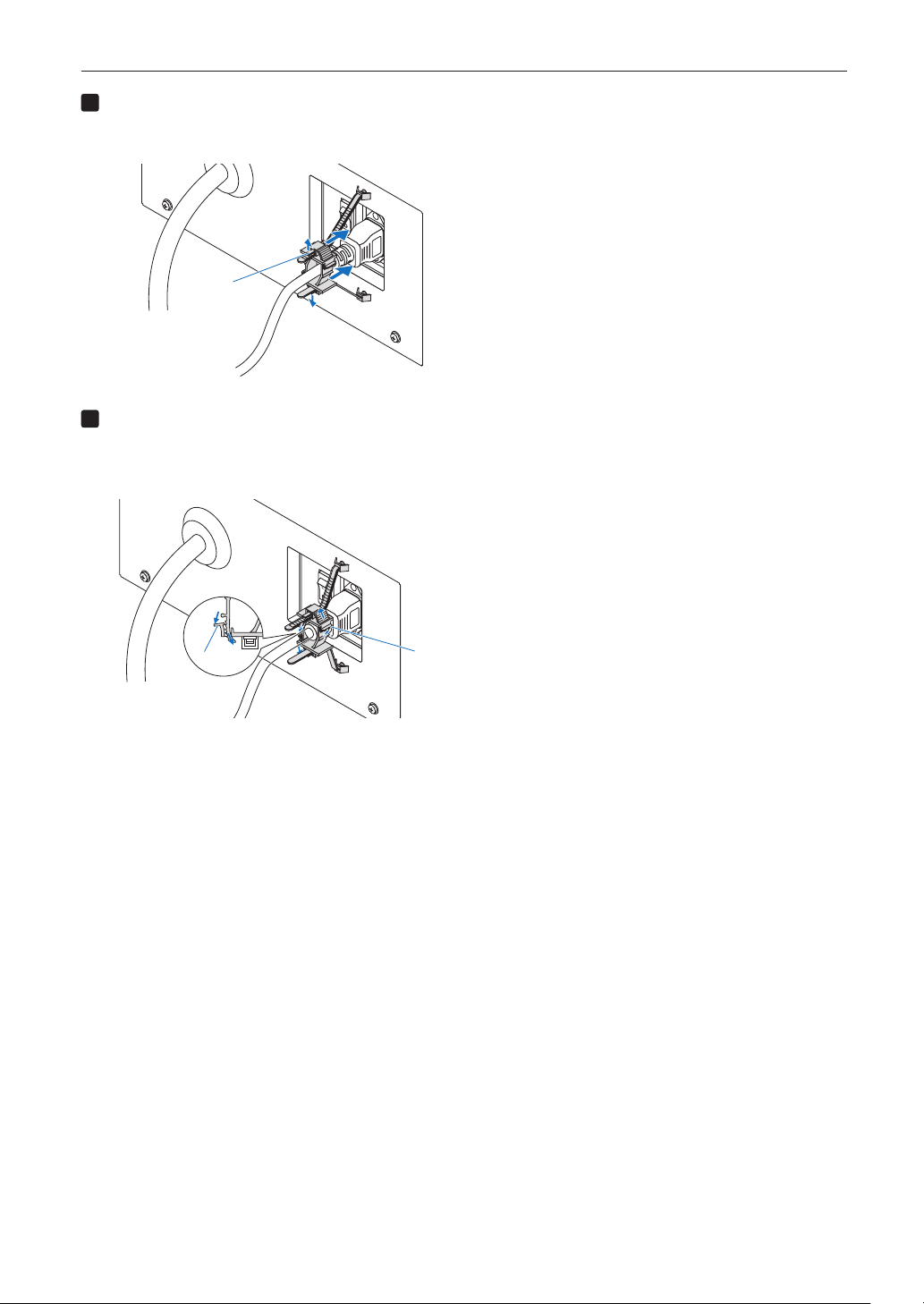
2
Pass the band through the slits in the power cord stoppers.
Use the two bands to wrap the power cord from the left and right sides.
band
30
2. Installation and Connection
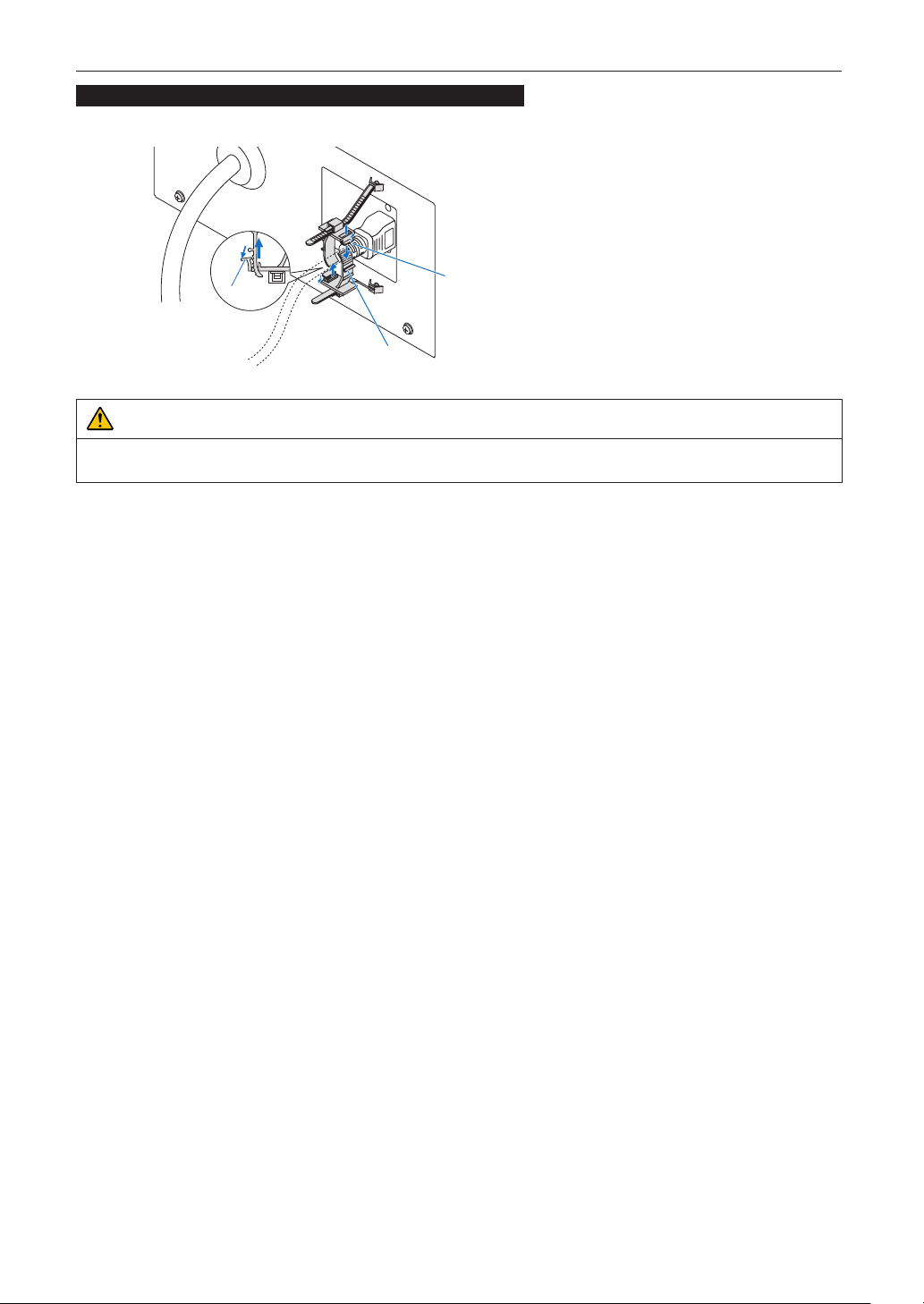
3
Slide the clamper unit to the base of the power cord.
The position of the clamper unit can be adjusted by pulling the tab in the direction of the arrow.
After adjusting the position of the clamper unit, release the tab to fix the clamper unit in place.
knob
4
Pull the band to fasten the power cord.
The position of the band can be adjusted by pulling the tab in the direction of the arrow.
Pull the upper and lower sections of the band in a well-balanced manner.
After adjusting the position of the band, release the tab to fix the band in place.
knob
knob
This completes the attachment of the power cable stopper.
31
2. Installation and Connection
Removing the power cable from the power cable stopper
Pull the knob of each clamper to remove the two bands.
knob
knob
band
CAUTION
The projector may become hot temporarily when the power is turned off or if the AC power is disconnected while the projector
is projecting. Take care when handling the projector.
32
2. Installation and Connection
2-3. Connecting the image input terminals
The video input ports that can be used with the IMB are as follows. Refer to the instruction manual of the IMB for details on con-
necting the video input ports with external equipment.
IMB HDMI input port x 1
3G SDI input port x 2
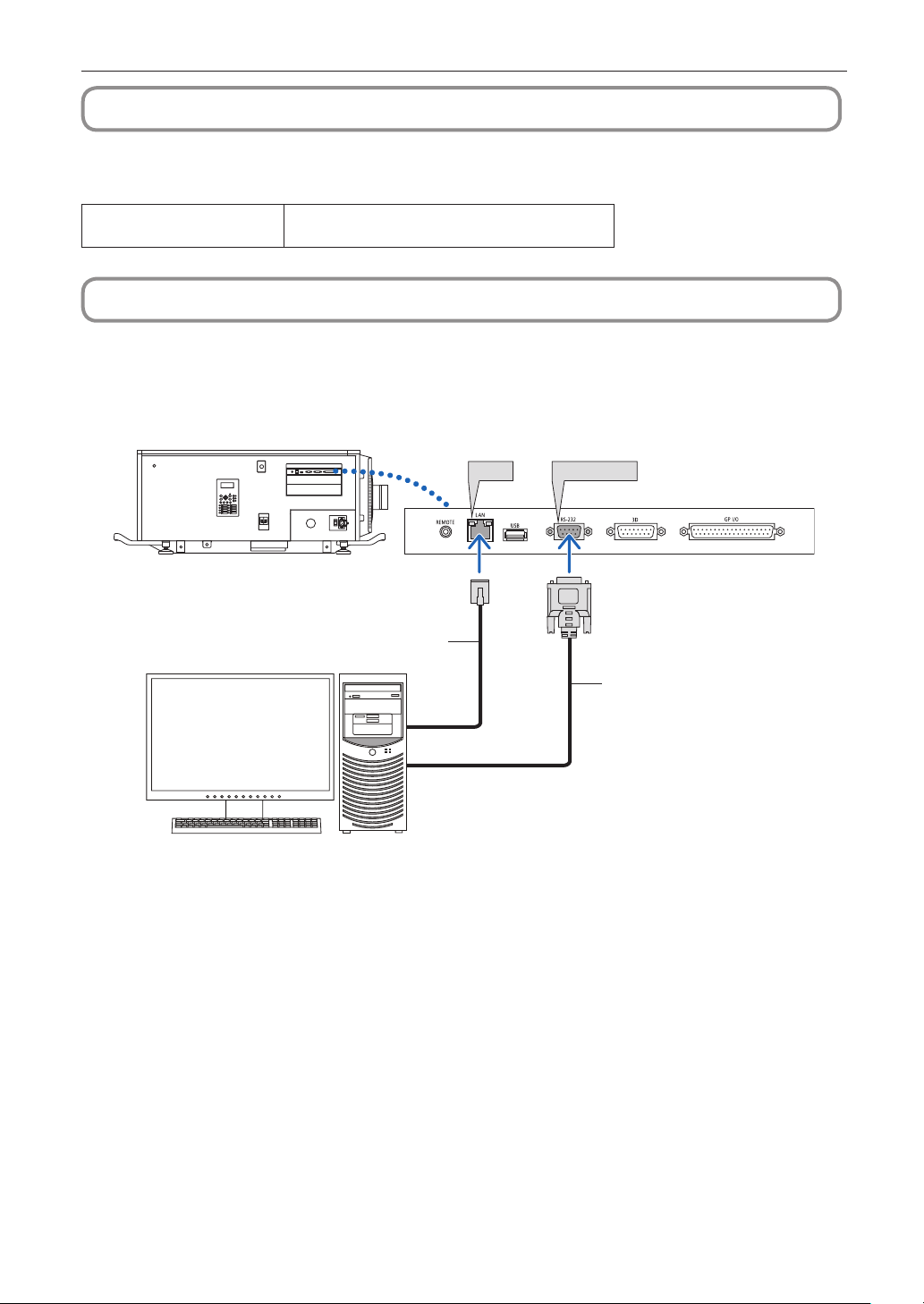
2-4. Connecting the various control terminal
For control, your projector comes with such ports as the PC control terminal and the Ethernet port (RJ-45).
• PCcontrolterminal(RS-232) --------- Use this terminal when controlling the projector in serial connection from a PC.
• LANport(LAN) ------------------------- Use this port when controlling the projector in LAN connection from a PC.
LAN
RS-232C
LAN cable
RS-232C
PC
33
3.
Projection of Images
(Basic Operation)
3-1. Steps of projecting images
• Step1
Turn on the power to the projector. (See page 34)
• Step2
Select the title of input signal. (See page 36)
• Step3
Adjust the position and size of the projected screen. (See page 37)
• Step4
Turn off the power to the projector. (See page 43)
34
3. Projection of Images (Basic Operation)
3-2. Turning your projector on
WARNING
• The projector produces a strong light. When turning on the power, operate from the side or rear of the projector (outside the
Restriction Zone (HD)). Also, when turning on the power, make sure no one within the projection range is looking at the lens.
Preparation:
• Connectthepowercabletotheprojector(seepage27).
• SupplyACpowertotheprojector.
NOTE
• Turn off the main power switch to the projector when supplying or cutting AC power to the projector.
Supplying or shutting down the AC power while the main power switch is on will damage the projector.
• Turning on and off the projector involves a two-step operation; the “main power switch” and the “POWER
button”.
• Turning power on. (See this page)
[1] Turn on the “main power switch” of the projector.
Your projector is set in a standby state.
[2] If KEY LOCK is on, press the KEY LOCK button for one second or longer.
KEY LOCK is off and buttons on the control panel become operable.
[3] Press the POWER button three seconds or longer.
Your projector is turn on.
• Turning power off. (See page 43)
[1] Press the POWER button three seconds or longer.
Your projector is set in a standby state.
[2] Turn off the “main power switch” of the projector.
Your projector is turned off.
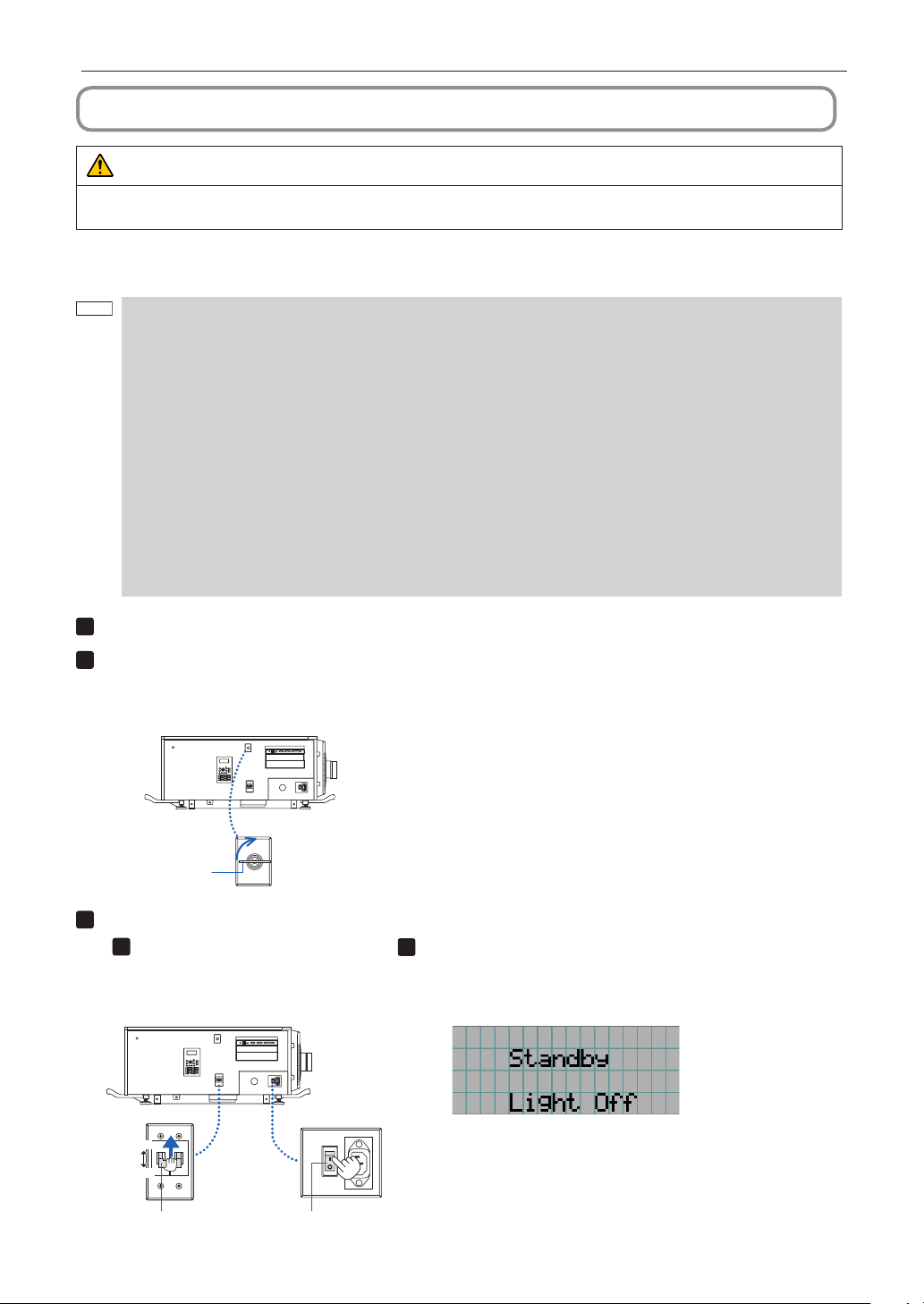
1
Remove the lens cap.
2
Insert the administrator key horizontally into the administrator switch and turn it clockwise to
the vertical position.
The administrator key can no longer be removed. The projector will not function unless the administrator key is inserted.
Administrator key
Administrator switch
3
Turn on the power switches on the side of the projector in this order: rst the light power switch
(
1
) then the projector power switch (
2
).
A buzzer will ring on the projector. The POWER button indicator will blink green and the SYSTEM status indicator will light
orange (standby state). KEY LOCK becomes automatically on if no control panel operation takes place in the standby
state for 30 seconds by default. Buttons on the control panel do not function while KEY LOCK is on. (See page 41)
ON
OFF
ON
OFF
① Light power switch ② Projector power switch
35
3. Projection of Images (Basic Operation)
4
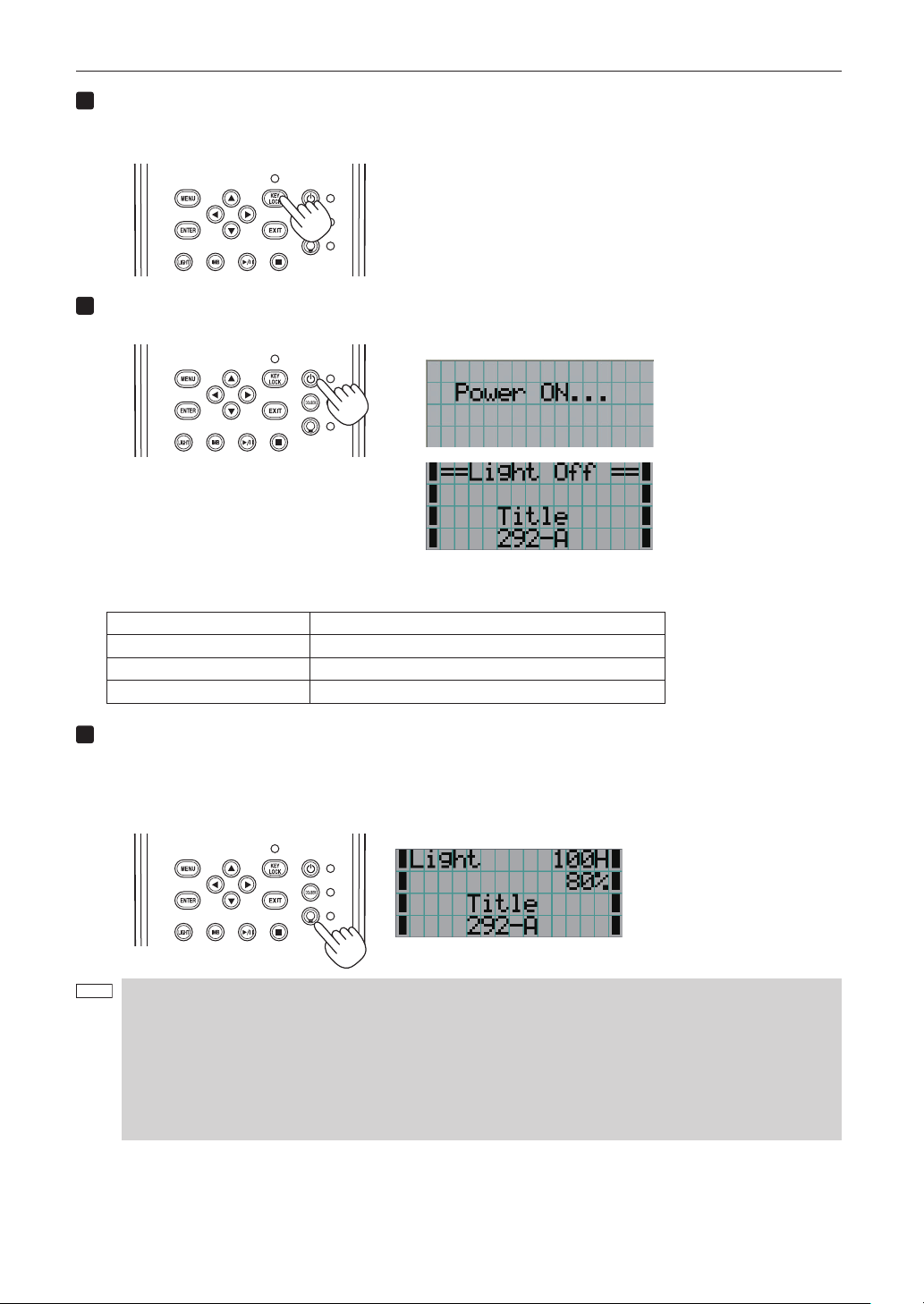
If KEY LOCK is on, press the KEY LOCK button for one second or longer.
KEY LOCK becomes off. The KEY LOCK button indicator turns off and buttons on the control panel become operable.
(See page 41)
5
Press the POWER button on the control panel of your projector three seconds or longer.
Your projector is turn on.
When the startup of the projector completes, the status of the POWER button, DOUSER button, LIGHT ON/OFF button,
and preset button (button <1> to <8>) changes as follows.
POWER button Lit green
DOUSER button Initial settings: Off (douser is off)
LIGHT ON/OFF button Initial settings: Blinking green (light source is off)
Button <1> to <8> The preset button which was last selected is lit green
6
Press the LIGHT ON/OFF button on the control panel for three seconds or longer.
The light source is turned on and the screen glows light about 15 seconds later.
The LIGHT ON/OFF button indicator blinks in cycles of 2 (and changes to steady green light 90 seconds later).
The douser is closed until the screen glows light (the DOUSER button indicator lights green). When the douser is open,
the DOUSER button indicator turns off.
NOTE
• While your projector is on, be sure to have the lens cap and glass protector cap removed from the lens.
Otherwise, the lens cap or glass protector cap may get deformed due to a heat buildup.
• In the following instances, the power to your projector cannot be turned on even if you press the POWER button.
- When the inside temperature is abnormally high. The protective function prevents power from turning on. Wait
some time (until the projector inside cools down) and then turn on the power.
- When the SYSTEM status indicator is blinking in red without the light source lighting up after power-on. Your
projector may be in trouble. Check the error display on the LCD screen and contact your dealer/distributor for
instructions.
36
3. Projection of Images (Basic Operation)
3-3. Selecting the title of input signal
This projector allows you to select pre-registered title (input signal) using the preset buttons on the control panel (up to 16 titles).
Request your dealer/distributor for details on registering and changing titles. This section explains the steps for selecting registered
titles.
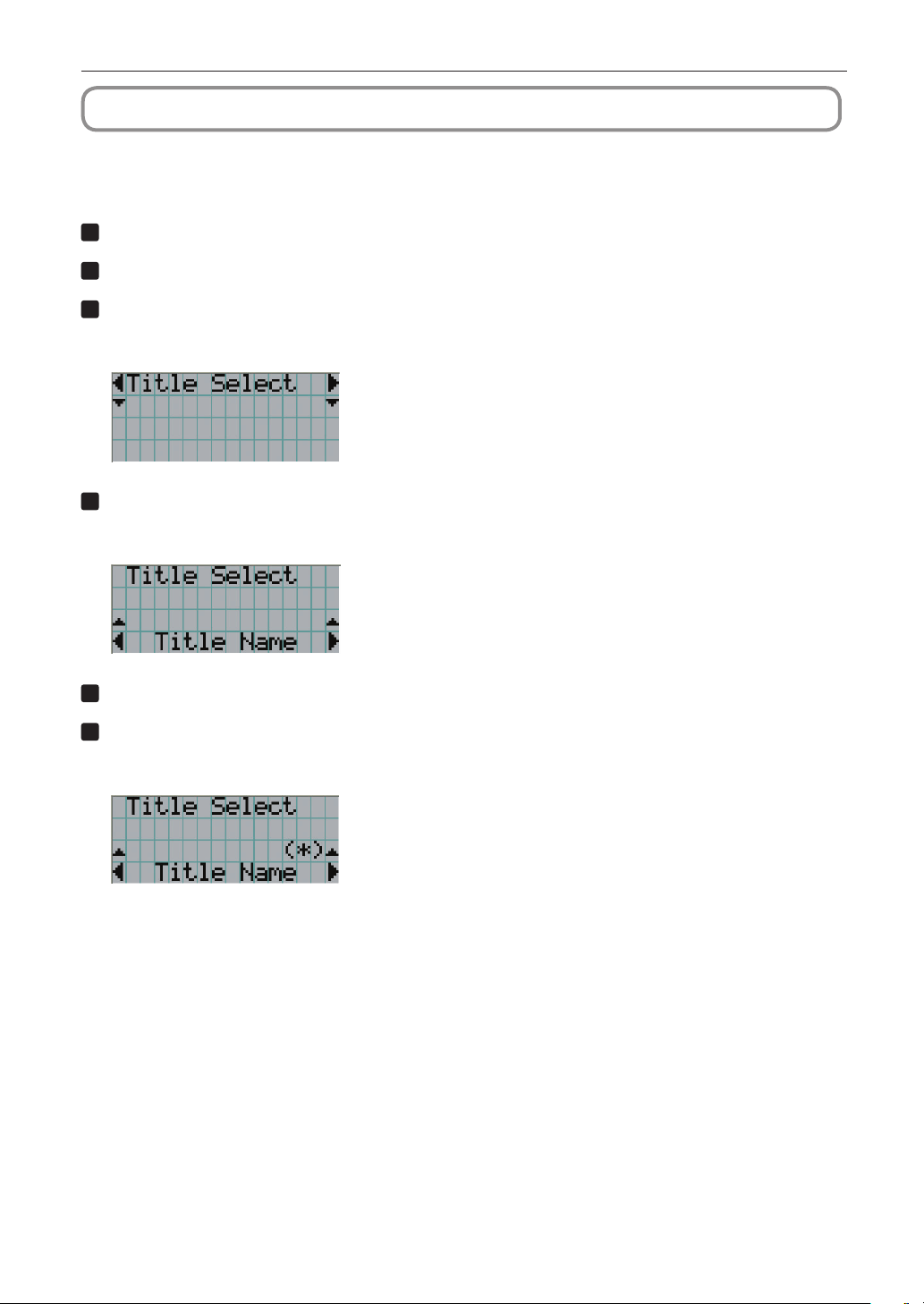
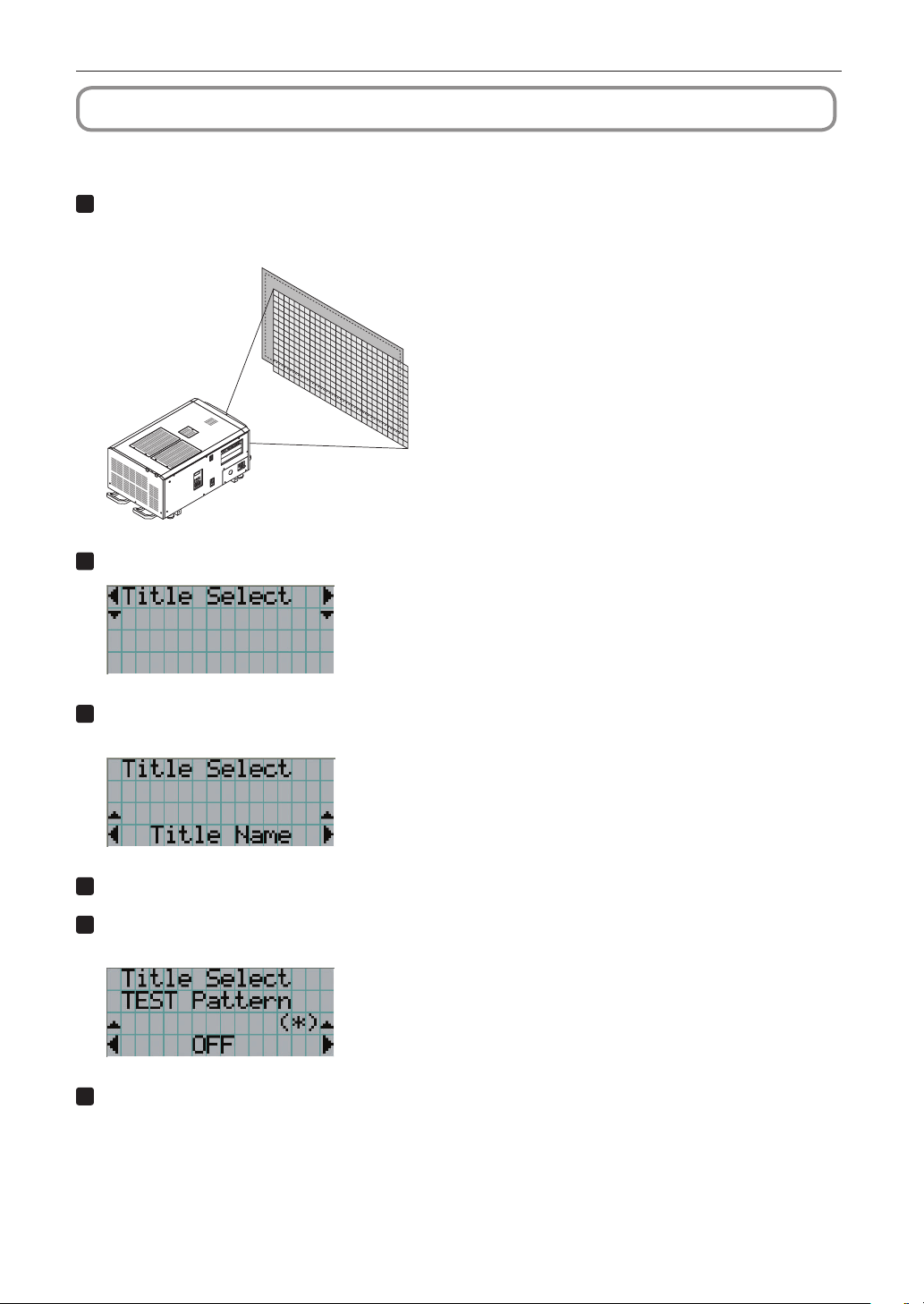
1
Turn on the power to the image devices connected to the projector.
2
Press the MENU button.
3
Press the LEFT/RIGHT button to display “Title Select” on the LCD screen.
At each press of the LEFT/RIGHT buttons, the display will cycle as “Title Select” ←→ “Configuration” ←→ “(Title Setup)”
←→ “Information.”
4
Press the DOWN button.
The title of the input signal is displayed.
• Whenyouhavemadeawrongselection,presstheUPbutton.Areturnwillbemadetothepreviousmenu.
5
Press the LEFT/RIGHT buttons to display “Title of Signal to be Projected” on the LCD screen.
6
Press the ENTER button.
The title of the signal to be projected is selected.
• The(*)markontheLCDindicatesthatthisisthecurrentlyselecteditem.
37
3. Projection of Images (Basic Operation)
3-4.
Adjusting the position and the size of projected screen
3-4-1. Displaying the test pattern
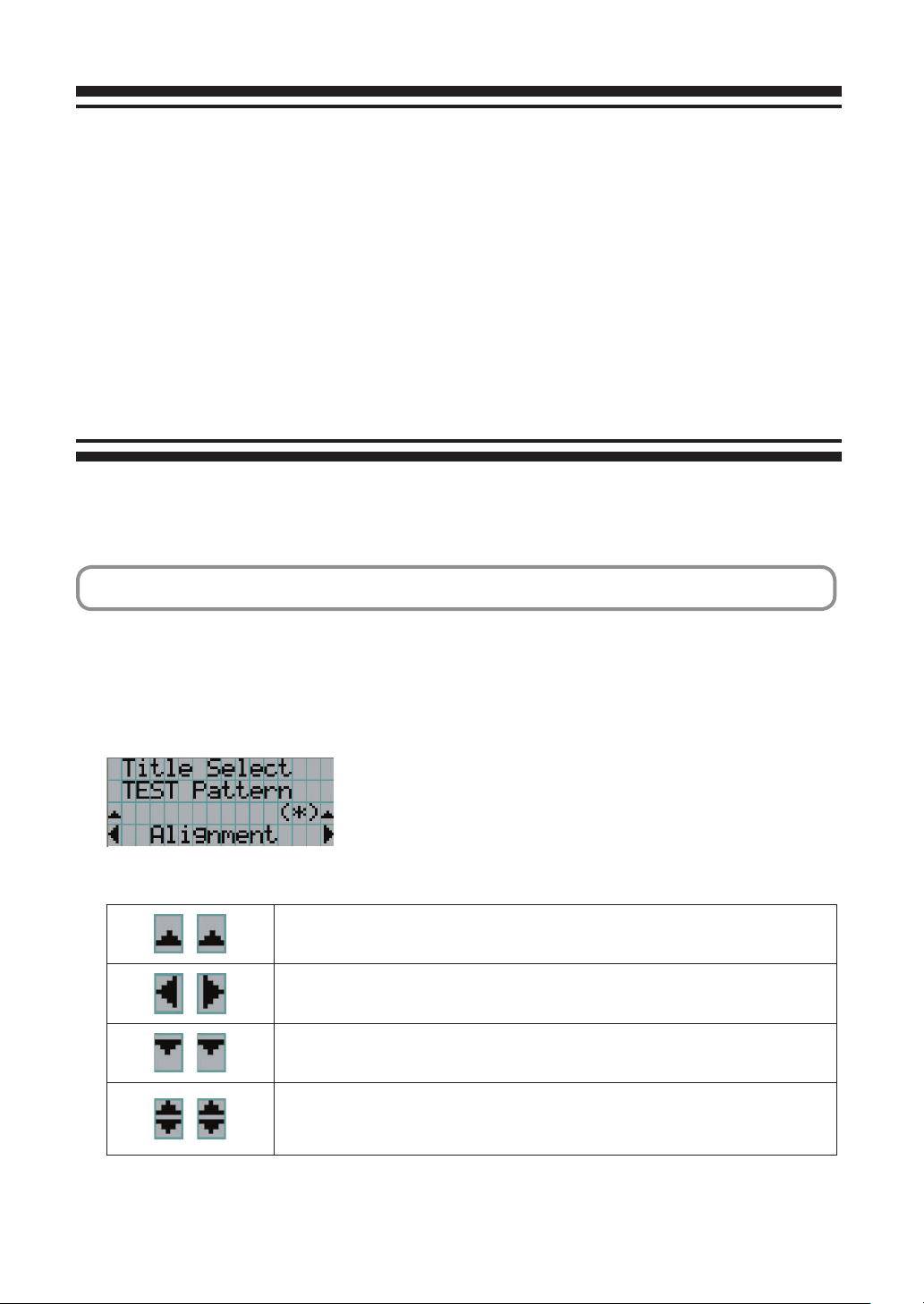
1
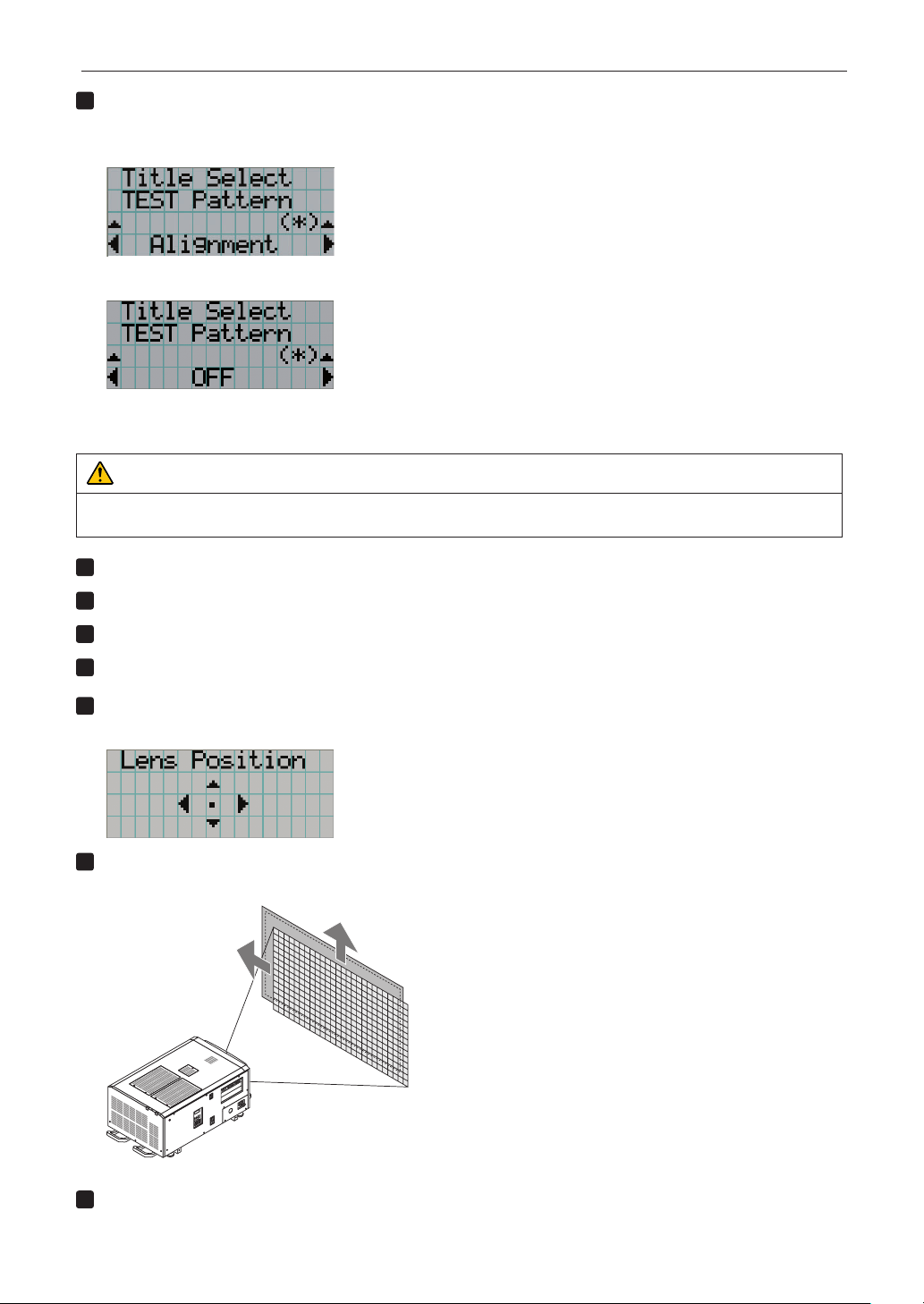
Press the MENU button, or select a test pattern from preset buttons (button <1> to <8>).
If you register the test patterns to the preset buttons (<1> to <8> buttons), select the test pattern according to “3-3.
Selecting the title of input signal (See page 36)”.
2
Press the LEFT/RIGHT button to display “Title Select” on the LCD screen.
3
Press the DOWN button.
The title of the input signal is displayed.
4
Press the LEFT/RIGHT button to display “TEST Pattern” on the LCD screen.
5
Press the DOWN button.
The LCD screen enters the mode where you can select a test pattern.
6
Press the LEFT/RIGHT button.
This switches the test pattern name displayed on the LCD screen.
38
3. Projection of Images (Basic Operation)
7
Display on the LCD the name of the test pattern to be projected, then press the ENTER
button.
The test pattern is displayed.
To cancel the test pattern display, select the title of the signal to project or select the “OFF” test pattern.
3-4-2. Adjusting the position of the projected screen (Lens shift)
CAUTION
• Perform the adjustment from behind or from the side of the projector. If adjustments are performed from the front, your eyes
could be exposed to strong light and get injured.
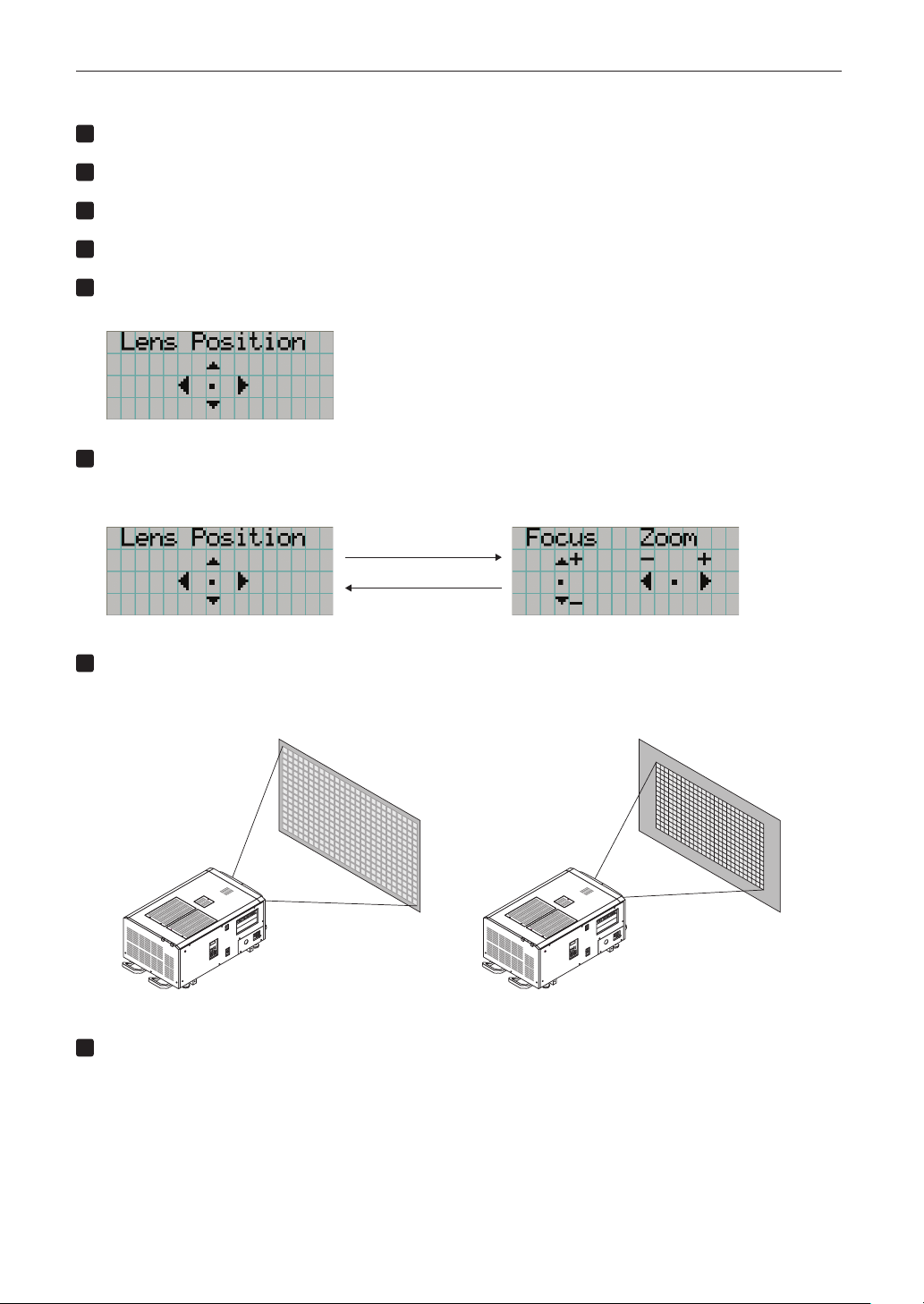
1
Press the MENU button.
2
Press the LEFT/RIGHT button to display “Conguration” on the LCD screen.
3
Press the DOWN button.
4
Press the LEFT/RIGHT button to display “Lens Control” on the LCD screen.
5
Press the DOWN button.
The screen (“Lens Position”) to adjust the position of the projected screen is displayed.
6
Press the UP/DOWN/LEFT/RIGHT button.
The position of the projected screen moves in the selected direction.
7
Press the EXIT button when adjustment is complete.
The display will return to a menu one level above (where “Lens Control” is displayed).
39
3. Projection of Images (Basic Operation)
3-4-3. Adjustment of the size (zoom) and focus of the projected screen
1
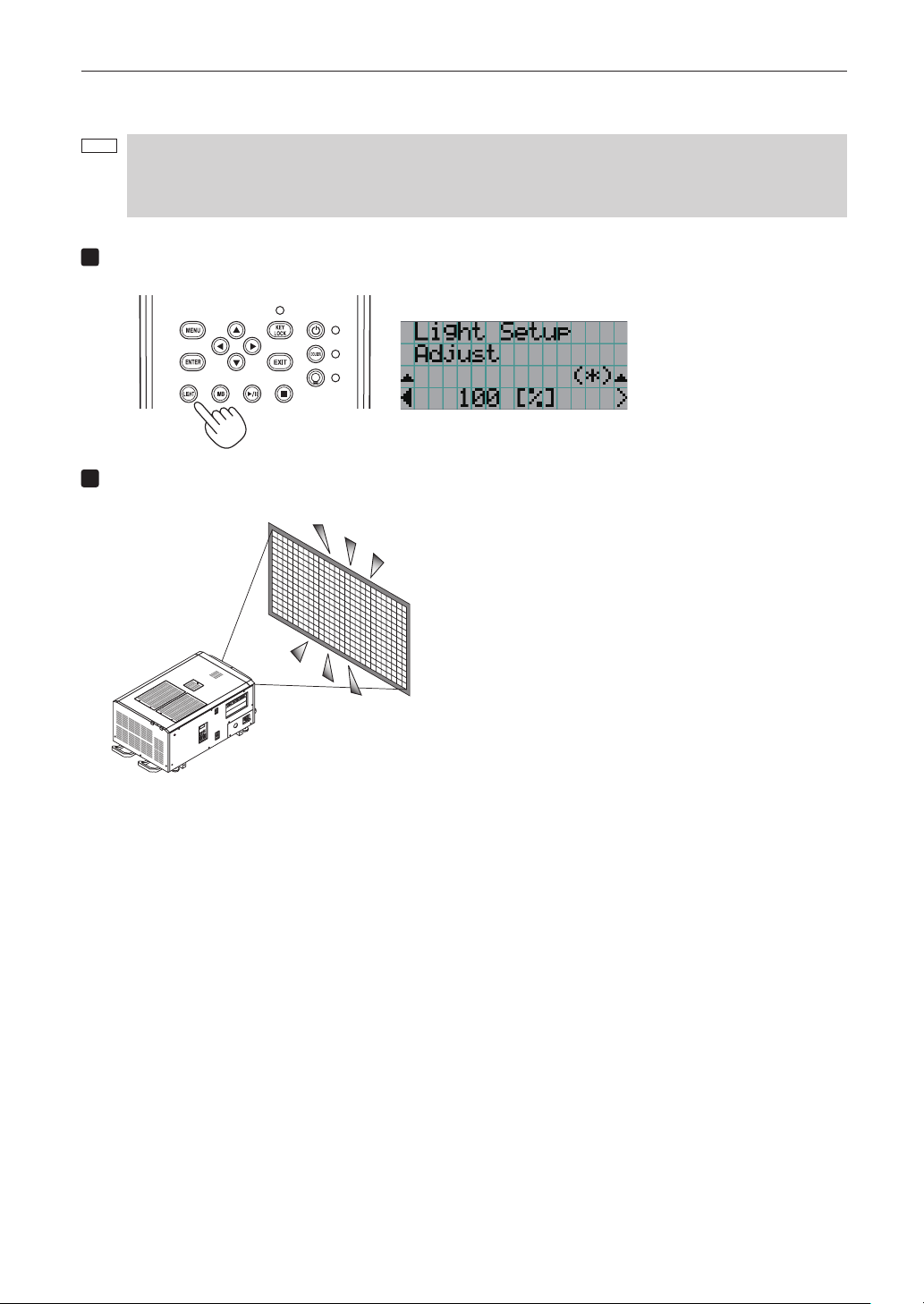
Press the MENU button.
2
Press the LEFT/RIGHT button to display “Conguration” on the LCD screen.
3
Press the DOWN button.
4
Press the LEFT/RIGHT button to display “Lens Control” on the LCD screen.
5
Press the DOWN button.
The screen (“Lens Position”) to adjust the position of the projected screen is displayed.
6
Press the ENTER button.
The screen to adjust the size and focus of the projected screen is displayed.
Press the ENTER button to switch the display between “Lens Position” and “Focus Zoom” adjustments.
ENTER button
7
Adjust the size and focus of the projected screen.
Press the UP/DOWN button to adjust the focus.
Press the LEFT/RIGHT button to adjust the size.
Focus
(UP/DOWN button)
Zoom
(LEFT/RIGHT button)
8
Press the EXIT button when adjustment is complete.
The display will return to a menu one level above (where “Lens Control” is displayed).
40
3. Projection of Images (Basic Operation)
3-4-4. Adjusting the brightness of the projected screen (Light output)
NOTE
If the internal temperature within the projector rises due to the temperature in the room being high, the light output
may be automatically reduced. This is called “Thermal Protection Mode (Down Light Power)”. When the projector is
in the Thermal Protection Mode, the picture brightness decreases slightly. To clear Thermal Protection Mode, adjust
the light output. Consult with your dealer/distributor for details.
1
Press the LIGHT button.
The screen to adjust the light output is displayed.
2
Press the LEFT/RIGHT button to adjust the light output.
The specified adjustment value is applied.

41
3. Projection of Images (Basic Operation)
3-5. Preventing misoperations
Buttons on the control panel can be locked (KEY LOCK) to prevent misoperations. Buttons on the control panel do not function
while KEY LOCK is on. KEY LOCK must be off to operate these buttons.
NOTE
• KEY LOCK is automatically turned on in the following cases.
- When the projector has entered the standby state by turning on the main power switch of the projector while the
AC power is supplied.
- When the projector has entered the standby state after turning off the power using the POWER button.
• The timing where KEY LOCK is turned on while the projector is in standby state depends on the “Auto Key Lock”
setting in the adjustment menu.
- When Auto Key Lock is enabled, KEY LOCK becomes automatically on if no control panel operation takes place
in the standby state for 30 seconds. KEY LOCK becomes automatically on again even after KEY LOCK is turned
off if no control panel operation takes place for 30 seconds.
- When Auto Key Lock is disabled, KEY LOCK becomes automatically on when the projector enters the standby
state; however, it stays off after KEY LOCK is turned off.
3-5-1. KEY LOCK setting
• PresstheKEYLOCKbuttononthecontrolpanelforonesecondorlonger.
KEY LOCK becomes on. The KEY LOCK button indicator lights orange. When you press a button on the control panel of
the projector while KEY LOCK is on, “Panel is Locked. (KEY LOCK)” is displayed, and the button will not function. (See
page 46)
3-5-2. Turning KEY LOCK off
• PresstheKEYLOCKbuttonforonesecondorlongerwhileKEYLOCKison.
KEY LOCK becomes off. The KEY LOCK button indicator turns off.

42
3. Projection of Images (Basic Operation)
3-6.
Turning on/off the light with the projector turned on
3-6-1. Turning off the light
• PresstheLIGHTON/OFFbuttononthecontrolpanelforthreesecondsorlonger.
3-6-2. Turning on the light
• PresstheLIGHTON/OFFbuttononthecontrolpanelforthreesecondsorlonger.
43
3. Projection of Images (Basic Operation)
3-7. Turning your projector off
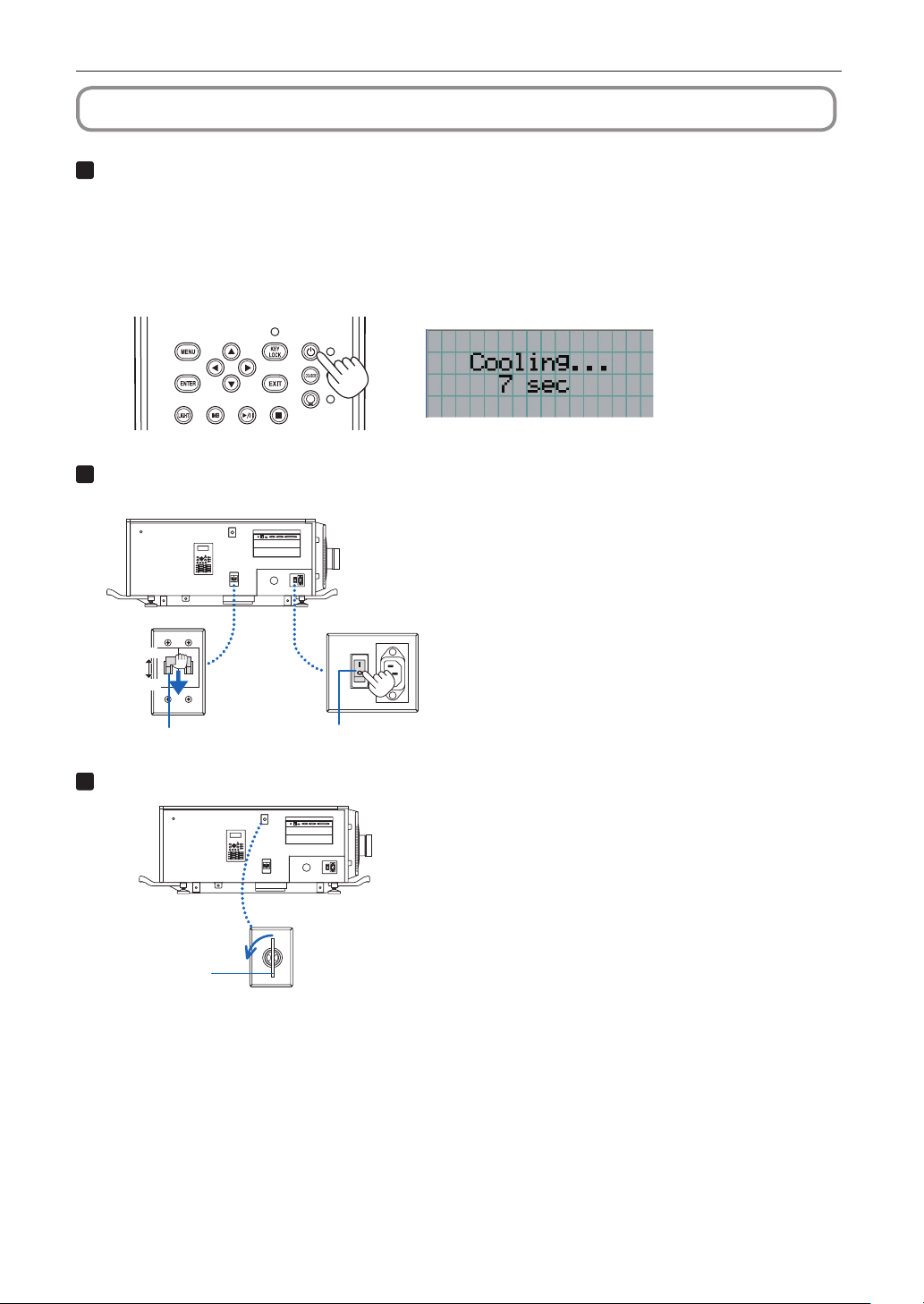
1
Press the POWER button on the projector control panel for three seconds or longer.
The light is turned off, the POWER button indicator blinks green, and the STATUS indicator blinks orange (cooling state).
The fan will continue to rotate while cooling, and the amount of time remaining for cooling is displayed on the LCD screen.
The cooling-off time is 90 seconds.
When the cooling is finished, the POWER button indicator turns off and the status indicator lights orange (standby state).
KEY LOCK becomes automatically on if no control panel operation takes place in the standby state for 30 seconds by
default. Buttons on the control panel do not function while KEY LOCK is on. (See page 41)
2
After the standby mode is set, turn off the projector's power switches in this order: rst the pro-
jector power switch, then the light power switch.
ON
OFF
ON
OFF
Light power switch Projector power switch
3
Turn the administrator key counterclockwise to the horizontal position, then remove it.
Administrator key
Administrator switch

44
3. Projection of Images (Basic Operation)
4
Shut off the AC power supply to the main unit from the circuit breaker, etc.
NOTE
In the following instances, do not turn off the main power switch or disconnect the AC power. Doing so can damage
the projector.
• While projecting images
• While the fan is running after the power is turned off
- While the projector is cooling down after the power was turned off.
- When using the IMB: 90 seconds
- During IMB operation (when the projector is not in the standby mode)
45
4.
Using Menus
4-1. Basic operation with adjustment menus
To adjust the projector, display the menu on the LCD screen of the projector control panel.
4-1-1. Screen display
The menu display screen is composed of a menu display field (the upper two lines) and a setting item display field (the bottom two
lines).
← Displays the main menu or submenus.
← Displays submenus or selection items.
← Displays settings and selection status.
← Displays settings, selected items and information on selected menus.
The meanings of symbols in the menu display screen are outlined below.
Indicates that there is a menu of a higher level.
Press the UP button to return to a menu one level above.
Indicates that there is a selected item or menu at the same level.
Press the LEFT/RIGHT button to display other selected items or menus.
Indicates that there is a menu of a lower level.
Press the DOWN button to display the menu one level below.
Indicates that there are setting items of a higher or lower level.
Press the UP button to return to a menu one level above.
Press the DOWN button to display the setting item one level below.
46
4. Using Menus
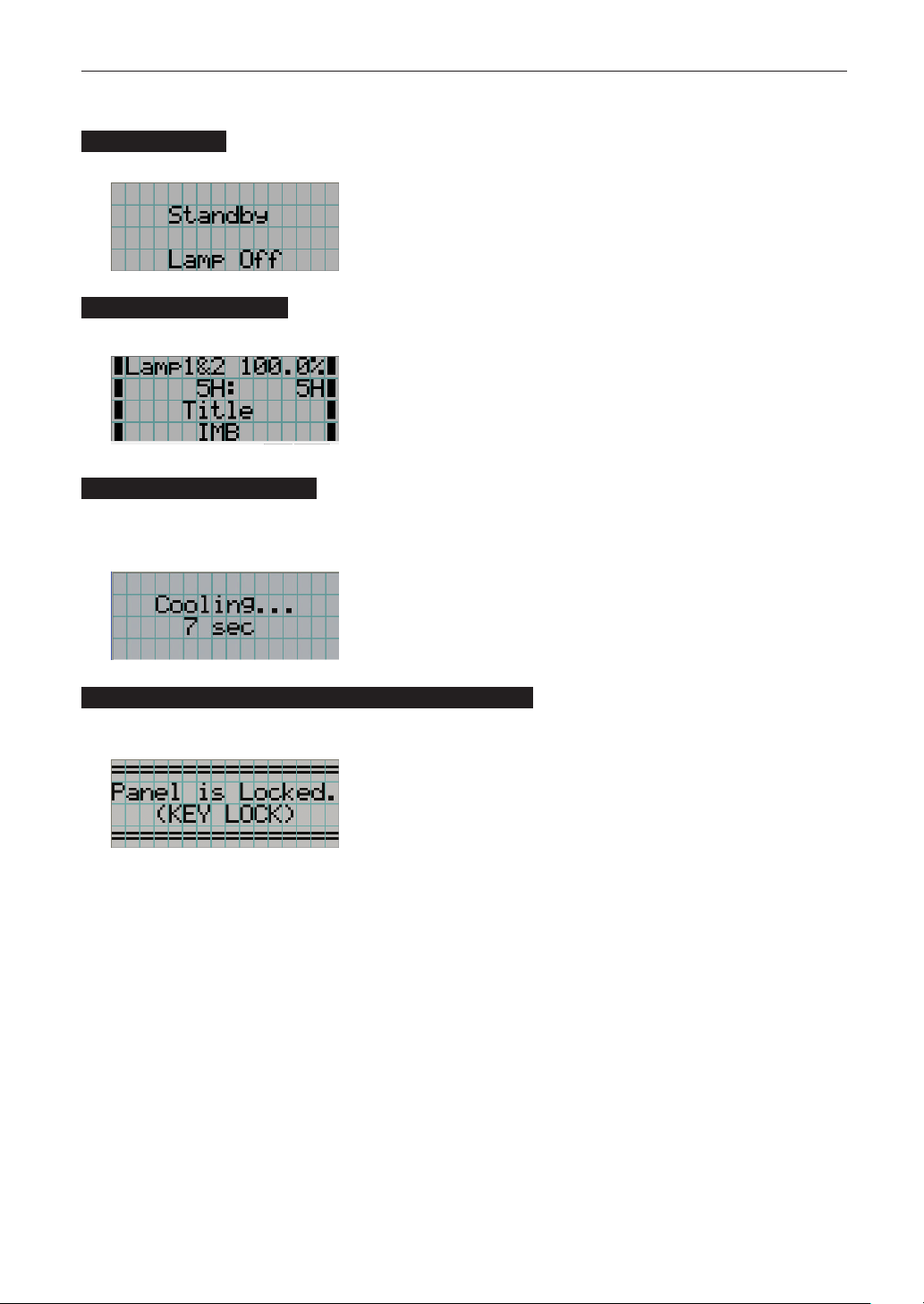
When not displaying menus, the following screen is normally displayed.
When in standby
When the projector is in a standby state (the main power switch in on), the following is displayed.
When power is turned on
When the power is turned on, the following is displayed.
← Displays the light mode and light output (%).
← Displays the light usage time.
← Displays the selected title.
← Displays the selected video input port.
When the power is turned off
When you press the POWER button on the control panel of the projector for 3 or more seconds, the projector starts cooling. When
cooling finishes, the projector enters the standby mode. The amount of time remaining for cooling is displayed as shown below
during cooling.
Whenabuttonispressedwhilethekeylockfunctionison
If a button on the control panel is pressed while the key lock function is on, the following is displayed and the button will not
function.
47
4. Using Menus
4-1-2. Operating menus
Preparation: Turn your projector on. (See page 34)
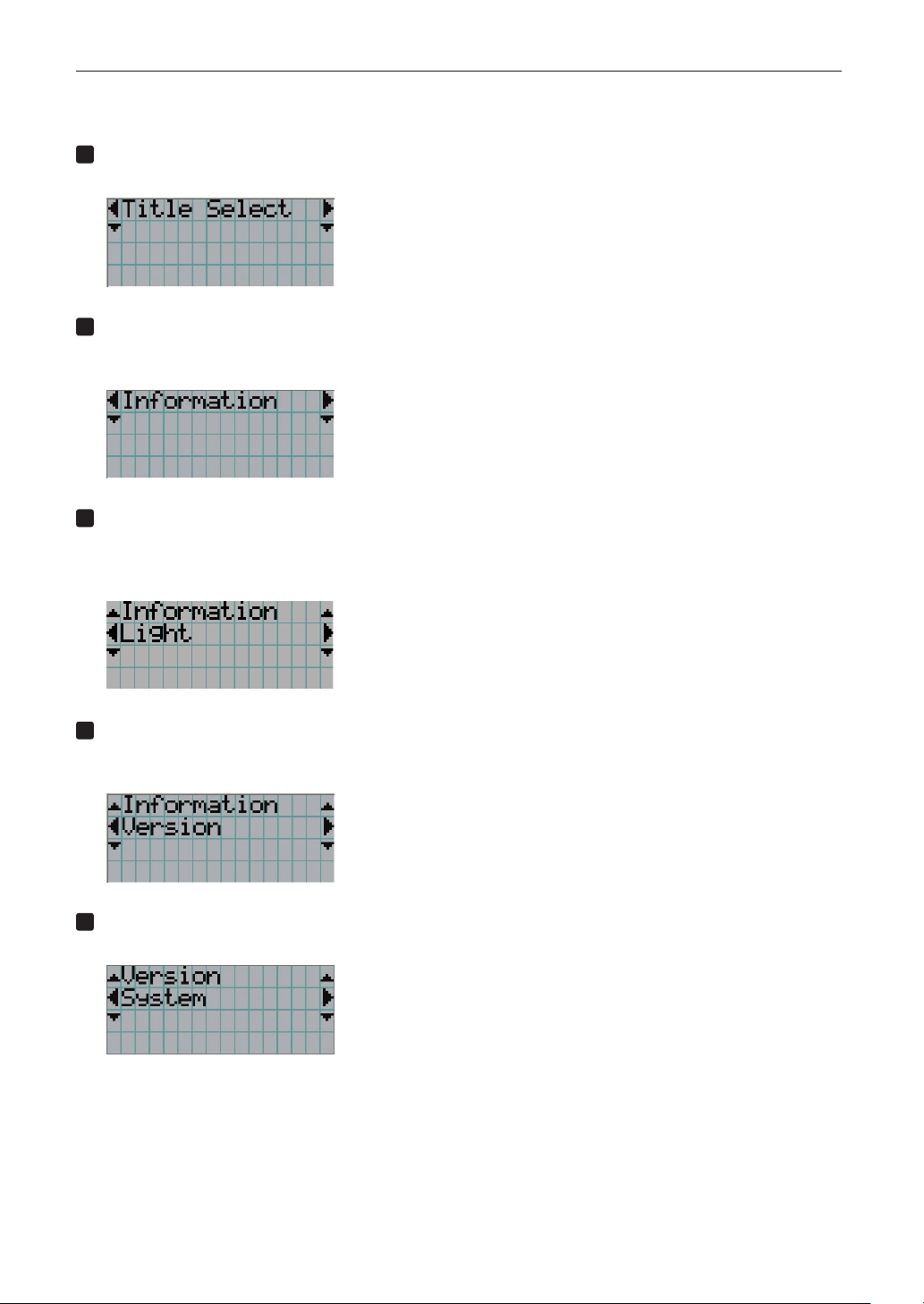
1
Press the MENU button on the control panel of your projector.
The menu is displayed in the LCD screen.
2
Press the LEFT/RIGHT buttons to display “Information.”
At each press of the LEFT/RIGHT buttons, the display will cycle as “Title Select” ←→ “Configuration” ←→ “(Title Setup)”
←→ “Information.”
3
Press the DOWN button.
The submenu “Light” of “Information” is displayed.
The menu item can be selected by pressing the ENTER button instead of the DOWN button.
To return to the previous state, press the UP button, or the EXIT button.
4
Press the LEFT/RIGHT button to select the submenu “Version.”
At each press of the LEFT/RIGHT button, the display will cycle as “Light” ←→ “Lens Type” ←→ “Preset Button” ←→
“Usage” ←→ “Error Code” ←→ “Version” ←→ “IP Address” ←→ “Setup Date” ←→ “Option Status.”
5
Press the DOWN button.
The submenu “System” another rank lower than “Version” is displayed.
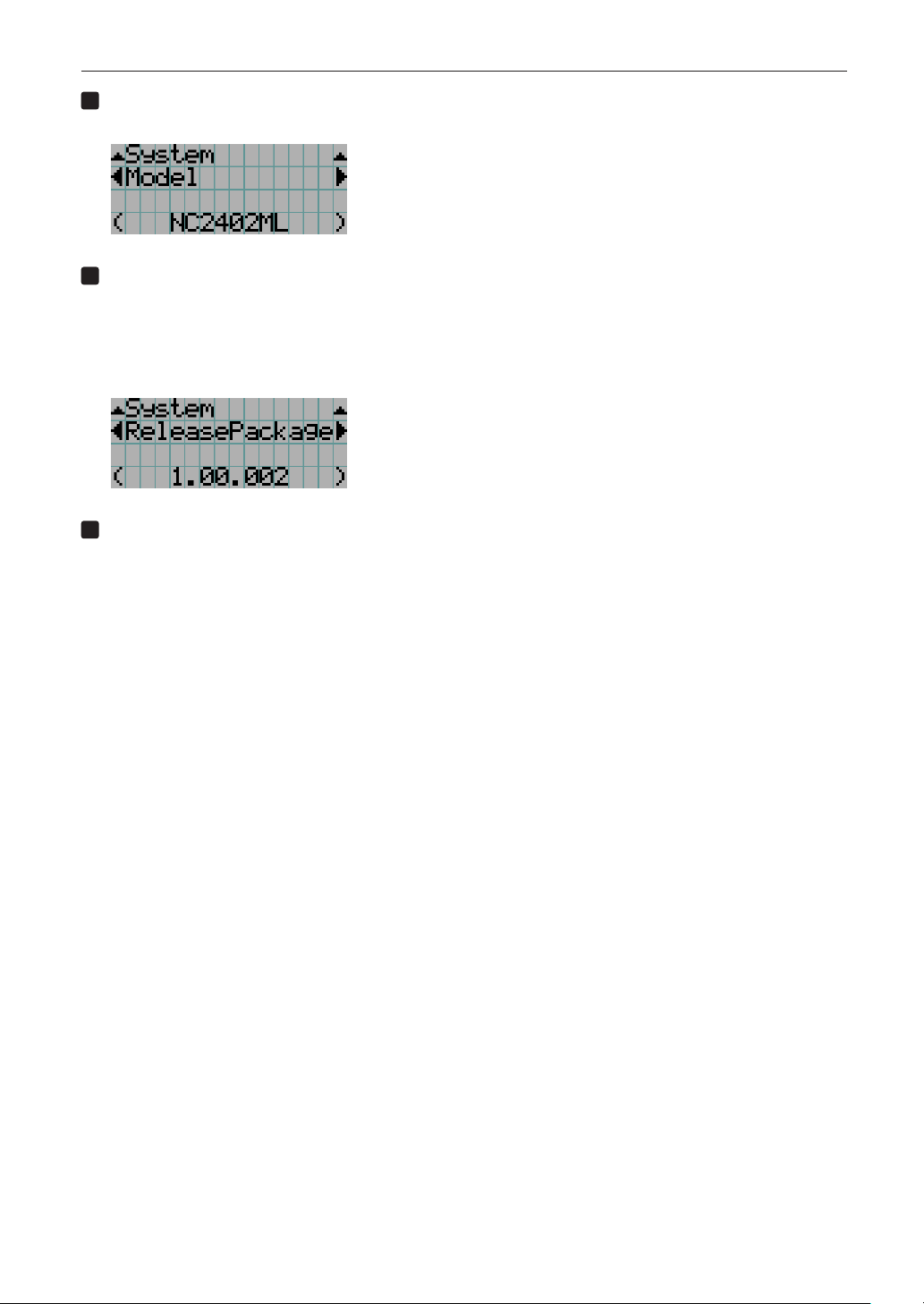
48
4. Using Menus
6
Press the DOWN button.
The submenu “BIOS” another rank lower than “Model” is displayed.
7
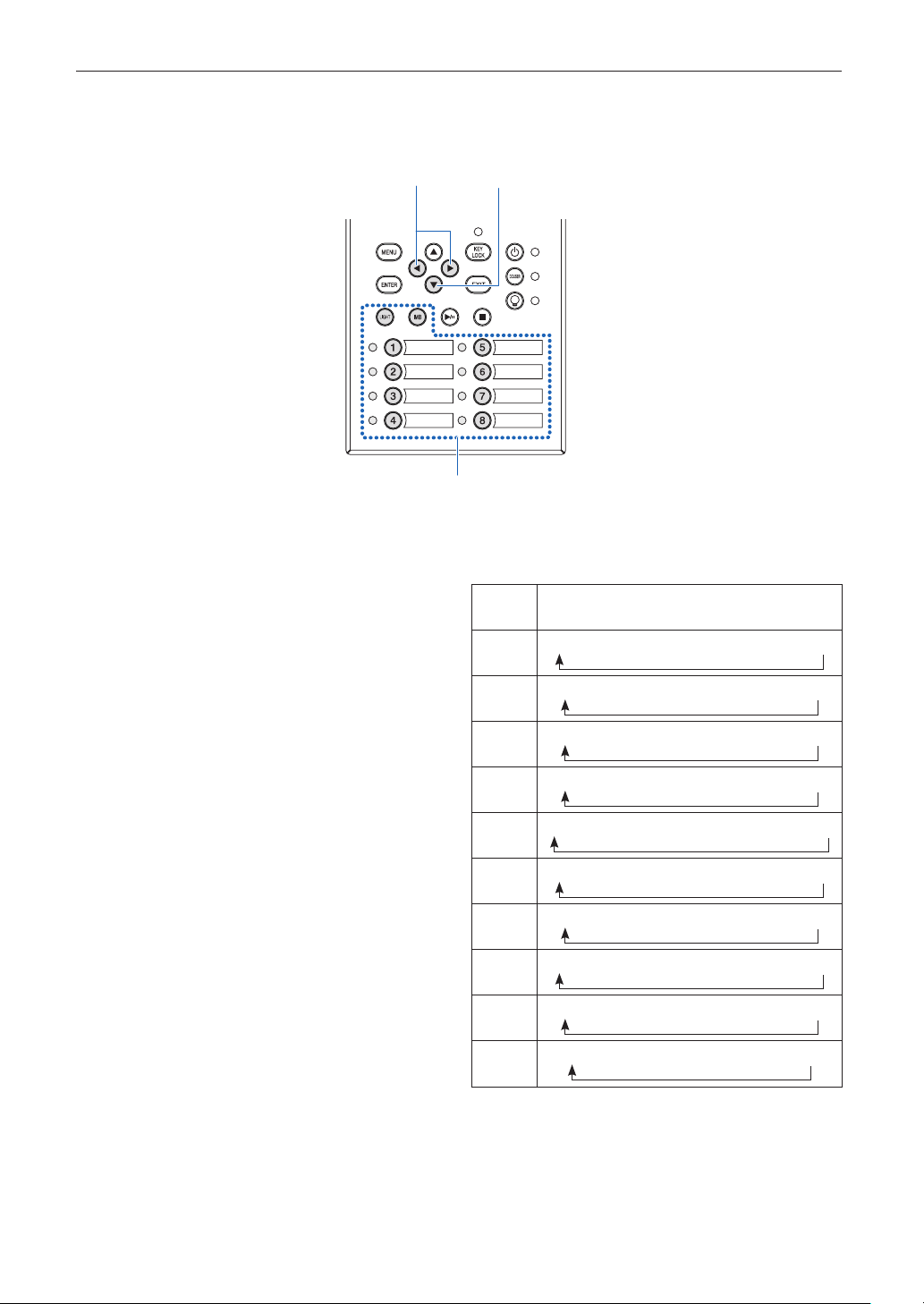
Press the LEFT/RIGHT button to select the submenu “Release Package.”
At each press of the LEFT/RIGHT button, the display will cycle as “Model” ←→ “Serial No.” ←→ “Release Package” ←→
“Kernel” ←→ “U-Boot” ←→ “System Files” ←→ “CinemaFirmware” ←→ “Cinema Data” ←→ “ICP Firmware” ←→ “ICP
ConfigFile” ←→ “FMT FPGA” ← → “Secure Processor” ← → “Slave BIOS” ←→ “Slave Firmware” ←→ “Opt MCUFirmware”
←→ “LD Interface” ←→ “LD Driver1” ←→ “LD Driver2” ←→ “LD Driver3” ←→ “LD Driver4” ←→ “LD Driver5” ←→ “LD
Driver6” ←→ “LD Driver7” ←→ “LD Driver8” ←→ “Lens Firmware” and each version information is displayed.
8
Press the UP button several times.
At each press of the UP button, the display will return to a menu one level above.
49
4. Using Menus
4-1-3. How to enter alphanumeric characters
Alphanumeric characters are entered for items, such as the log file of the specified period is written to USB memory. (See page 66)
Characters can be entered by pressing numeric buttons on the control panel on this projector.
Move right and left
Enter characters
Delete entered characters
Characters can be entered by pressing each button as shown in the following table.
• Todeleteacharacterduringentry,presstheDOWNbutton.
[ExampleofEntry]
To enter “XGA” for example, use the following procedure:
(1) Press the “8” button three times.
V → W → X
(2) Press the RIGHT button.
(3) Press the “3” button.
XG
(4) Press the RIGHT button.
(5) Press the “1” button.
XGA
Button Entered character
1
A → B → C → 1 → a → b → c → ! →
2
D → E → F → 2 → d → e → f → “ →
3
G → H → I → 3 → g → h → i → # →
4
J → K → L → 4 → j → k → l → $ →
5
M → N → O → 5 → m → n → o → % →
6
P → Q → R → 6 → p → q → r → & →
7
S → T → U → 7 → s → t → u → ’ →
8
V → W → X → 8 → v → w → x → ( →
LIGHT
Y → Z → / → 9 → y → z → ? → ) →
IMB
* → , → . → 0 → ; → : → + → - →
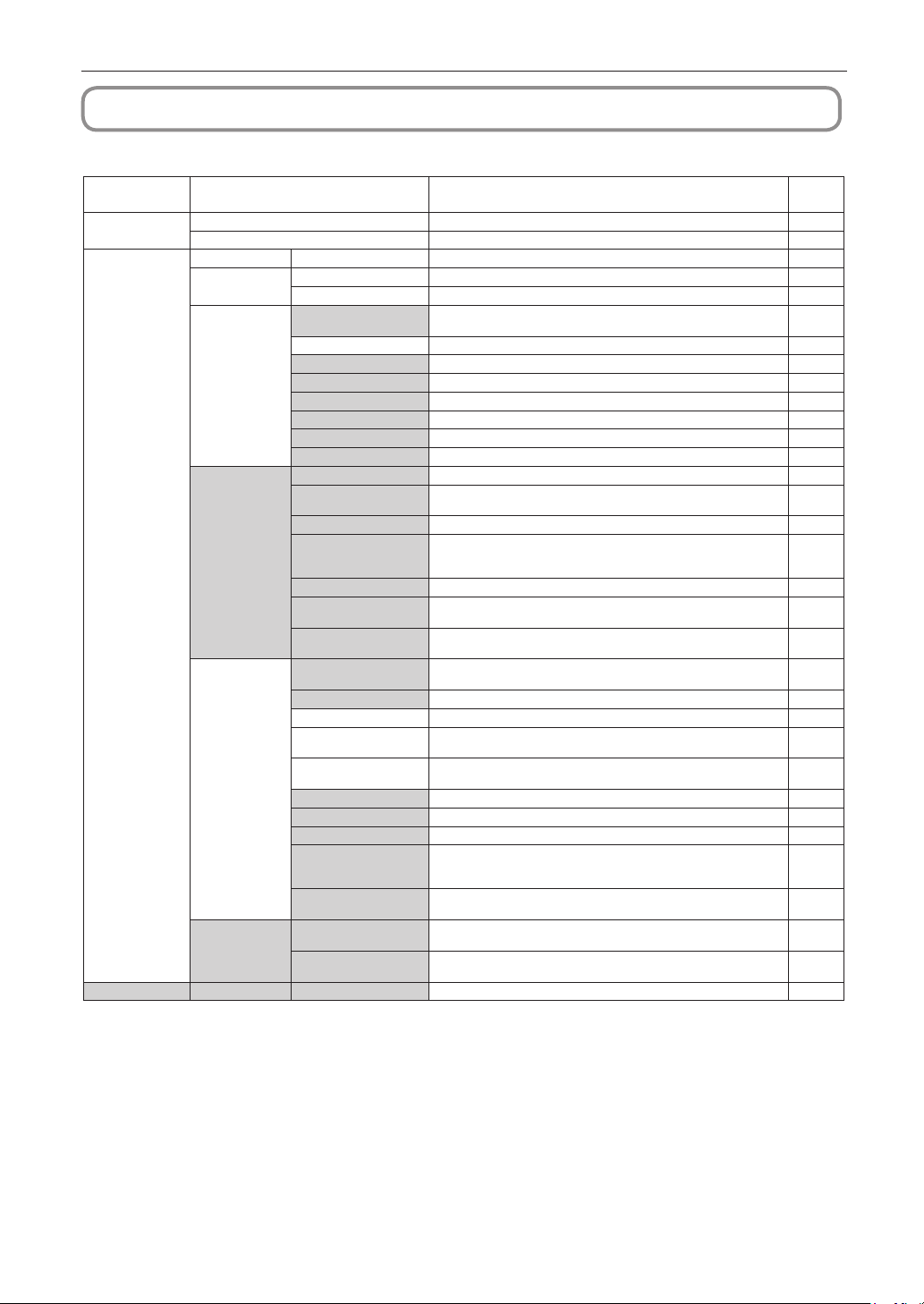
50
4. Using Menus
4-2. Table of adjustment menus
Menus in parentheses are menus for our service personnel. Normally, these menus cannot be used.
Main menu Submenu Description
Reference
page
Title Select “Title Memory Name” Selects the title of the signal to be projected. 52
TEST Pattern Selects the test pattern to be projected. 52
Configuration Light Setup Adjust Adjusts light brightness. 53
Lens Control Lens Position Adjusts the position of the projected screen. 53
Focus Zoom Adjusts the size and focus of the projected screen. 53
Reset (FactoryDefault) Returns the settings to their default values. Selects between preset buttons
and titles only, LAN settings only and all settings.
-
Filter Cleaning Initializes the air filter usage time (for confirming the filter cleaning time). 53
(Fan Usage) Initializes the usage time of the fan. -
(Light Usage) Initializes the usage time of the light source. -
(Phosphor) Initializes the usage time of the phosphor. -
(Diffuser) Initializes the usage time of the diffuser. -
(Pump) Reset the pump usage time. 56
(Douser Count) Resets the number of times the douser has been used. -
(Setup) Douser Setup Sets the douser open/close state. -
Panel Key Lock Locks the buttons on the projector’s control panel so that they cannot be
operated.
-
Auto Key Lock Enables or disables Auto Key Lock. -
3D Reference Sets the signal input terminal for a 3D image system (3D terminal or GPI/O
terminal).
Sets the video input port for 3D video systems.
-
Off Timer Sets the time until the projector power is turned off automatically. -
Message Sets the time to display the message indicating the light replacement cycle,
air filter replacement cycle, and air filter cleaning cycle.
-
Silent Mode Selects whether to use the status indicator, buzzer, indicators on the control
panel and backlight.
-
Installation (Note) (Option Slot) Configures the device installed in slot (only when the projector is in
standby mode).
-
(Orientation) Sets the projection method and cooling fan operating mode. -
Lens Type (Note) This function cannot be used. 54
Lens Calibrate (Note) Performs calibration on lens that support the lens memory function (only
when the projector power is turned on).
54
Lens Center (Note) Moves the lens shift position to the center (only when the projector power is
turned on).
54
(Baudrate) Sets the PC control connector (RS-232) data transmission speed (bps). -
(Date/Time) Sets the date and time on the projector. -
(Fan Speed Mode) Sets the cooling fan operating mode. -
(Service) (Only when the projector is in standby mode)
This is used during shadow adjustment and lens mount adjustment (focus
balance adjustment).
-
(LD Calibrate) Performs calibration of the light module when the light module has been
replaced (only when the projector power is turned on).
-
(Memory) Light The content of the selected light memory (light output power value) can be
overwritten with the current settings.
-
Lens The content of the selected lens memory can be overwritten with the current
settings.
-
(Title Setup) Preset Button Preset Button 1–16 Sets the title to be assigned to the preset buttons (<1> to <8> buttons). 55
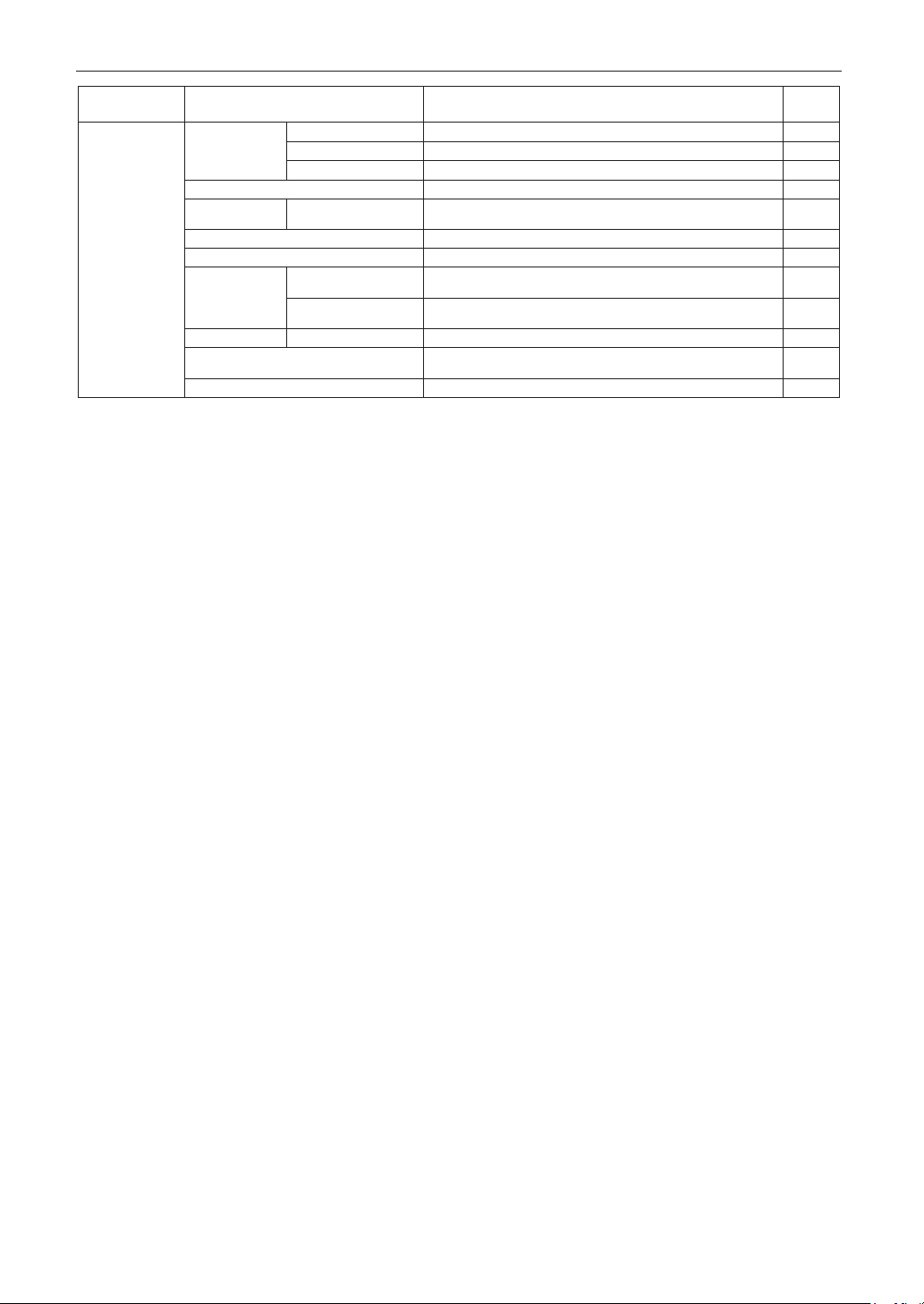
51
4. Using Menus
Main menu Submenu Description
Reference
page
Information
Light Light Output Displays the light module's brightness (output) setting value.
55
Model Displays the light module's model name.
55
S/N Displays the serial number of the light module.
55
Lens Type This function cannot be used. -
Preset Button Preset Button 1–16 Displays the titles which are assigned to the preset buttons (<1> to <8>
buttons).
56
Usage Displays information related to projector usage. 56
Error Code Displays the currently occurring error. 56
Version System Displays the model name and various version information about the
projector.
57
IMB Displays the vendor name and version information about the media block
(IMB).
57
IP Address System Displays the IP address of the projector. 57
Setup Date Displays the date when the projector was set up (starting date of the
warranty period).
58
Option Status Displays the link status of the device mounted in slot and projector. 58
(Note) Requires logging into the projector with Advanced User or higher privileges.
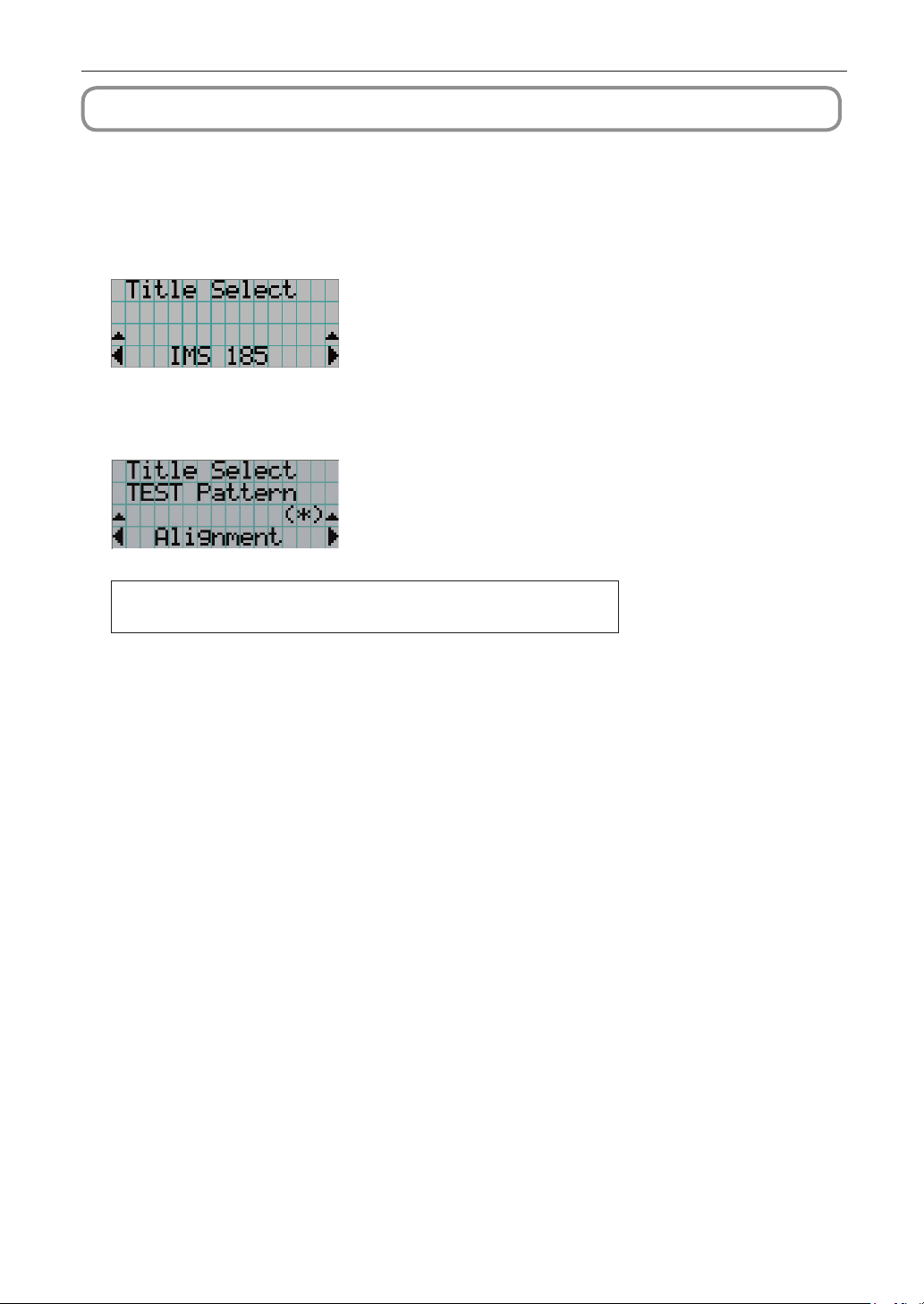
52
4. Using Menus
4-3. Title Select
4-3-1. Title select (Title Memory)
Selects the title of the signal to be projected.
You can register up to 100 titles. You can also assign registered titles to the preset buttons (<1> to <8> buttons) on the projector’s
control panel and call them up directly using those buttons.
Request your dealer/distributor for details on registering and changing titles.
← Displays the currently selected item with asterisk (*).
← Selects the title to be projected.
4-3-2. Test Pattern
Selects the test pattern to be projected.
← Displays the currently selected item with asterisk (*).
← Selects the test pattern to be projected.
OFF, Alignment, Cross Hatch, Convergence, Red, Green, Blue, White, Black,
White 50% [IRE], H-Ramp, Logo, MCG CG-TEST
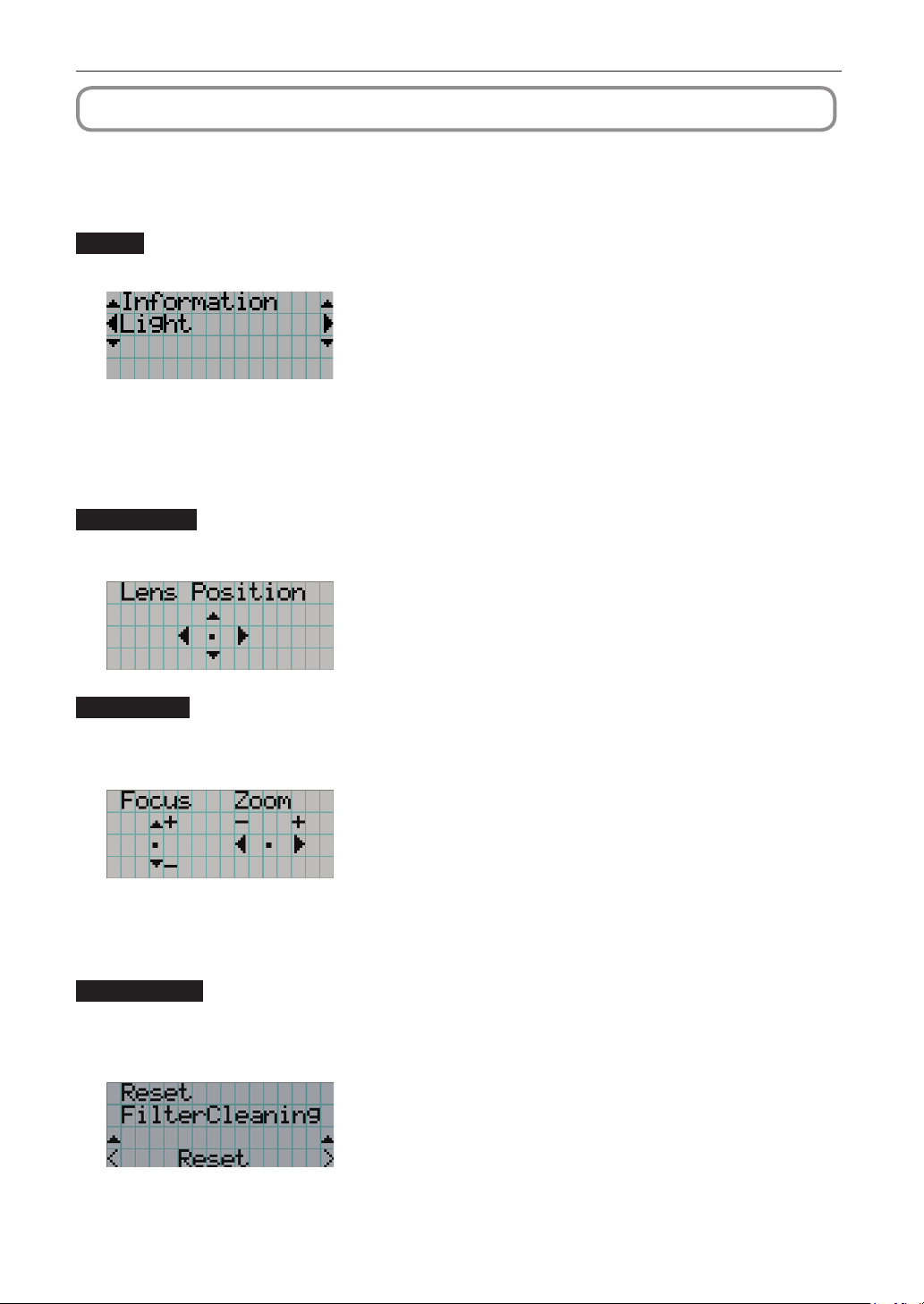
53
4. Using Menus
4-4. Conguration
Please request your dealer/distributor to perform the settings.
4-4-1. Light Setup
Adjust
Adjusts the light output (brightness).
← Displays the current output power value (%) when the light rated output is 100%.
4-4-2. Lens Control
Adjust the position, size, and focus of the projected screen.
Press the ENTER button to switch the display between “Lens Position” and “Focus Zoom” adjustments. Press the EXIT button to
return to a menu one level above.
Lens Position
Adjusts the position of the projected screen.
The projected screen moves in the selected direction as you press the UP/DOWN/LEFT/RIGHT button.
Focus Zoom
Adjusts the size (Zoom) and focus (Focus) of the projected screen.
Press the UP/DOWN button to adjust the focus.
Press the LEFT/RIGHT button to adjust the size of the projected screen.
4-4-3. Reset
This is used to reset the light and air filter usage times.
Filter Cleaning
Resets the air filter usage time (for confirming the filter cleaning time).
[1] Press the ENTER button, the confirmation screen will appear.
[2] Select “Yes” in the confirmation screen, and then press the ENTER button to reset the filter usage time.
← Press the ENTER button to display the confirmation screen.
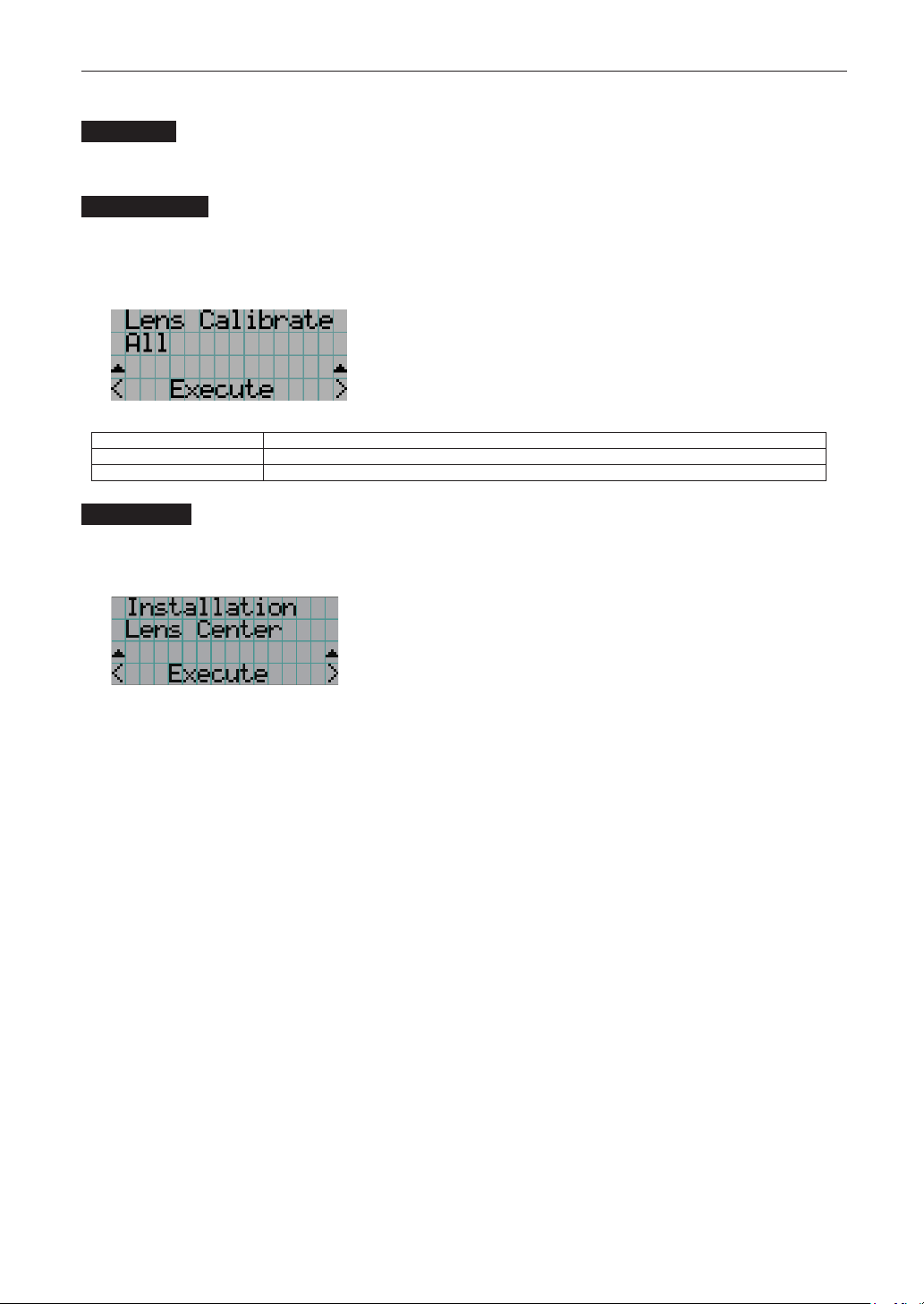
54
4. Using Menus
4-4-4. Installation
Lens Type
This function cannot be used.
Lens Calibrate
Performs calibration on lenses that support the lens memory function. Once you have attached a lens that supports the lens memory
function, always execute calibration. This menu item is available only when the projector power is turned on and you are logged into
the projector with Advanced User or higher privileges.
← Press the ENTER button to execute calibration.
All Calibrates the zoom, focus and lens shift position.
Zoom&Focus Calibrates the zoom and focus.
Shift(H&V) Calibrates the lens shift position.
Lens Center
To move the lens shift to the center position. The center position may slightly shift depending upon mounting conditions of the lens.
This menu item is available only when the projector power is turned on and you are logged into the projector with Advanced User
or higher privileges.
← Press the ENTER button to execute moving.
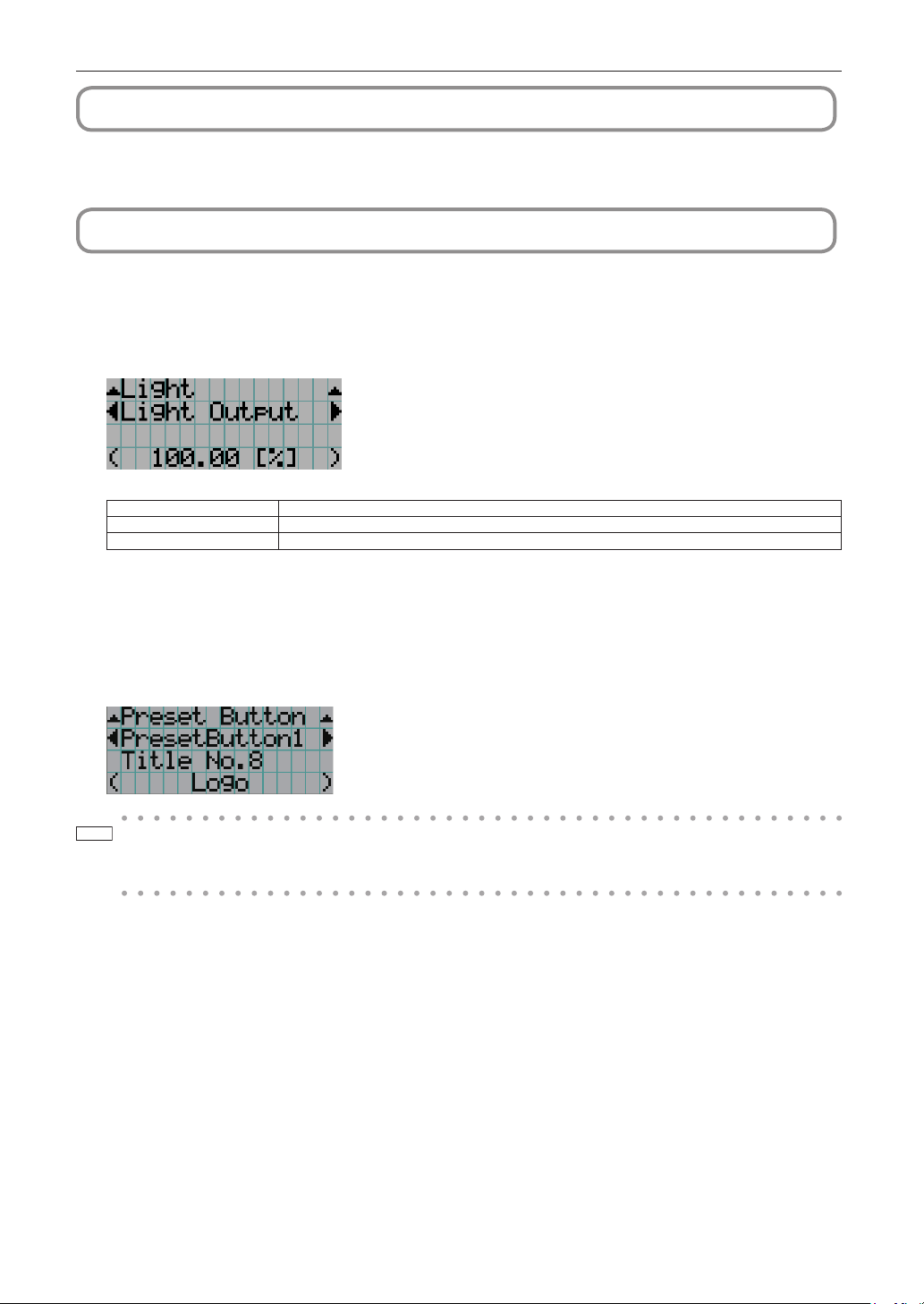
55
4. Using Menus
4-5. Title Setup
Sets the title to be assigned to the preset buttons (<1> to <8> buttons) (up to 16 titles).
Request your dealer/distributor to perform the settings.
4-6. Information
Displays the hours of light use, the version information and error codes.
4-6-1. Light
Displays the information of Light module.
← Displays the current setting (%).
Light Output Displays the light module's brightness (output) setting value.
Model Displays the light module's model name.
S/N Displays the serial number of the light module.
4-6-2. Lens Type
This function cannot be used.
4-6-3. Preset Button
Sets the title to be assigned to the preset buttons (<1> to <8> buttons) on the projector’s control panel.
← Selects the preset button number whose contents you want to display.
← Displays the assigned title numbers.
← Displays the registered names of the assigned titles.
TIP
To select a title allocated to one of “Preset Button9” to “Preset Button16”, press the preset button while holding down
the UP button. For example, to select the title allocated to “Preset Button9”, press the <1> button while holding down
the UP button.
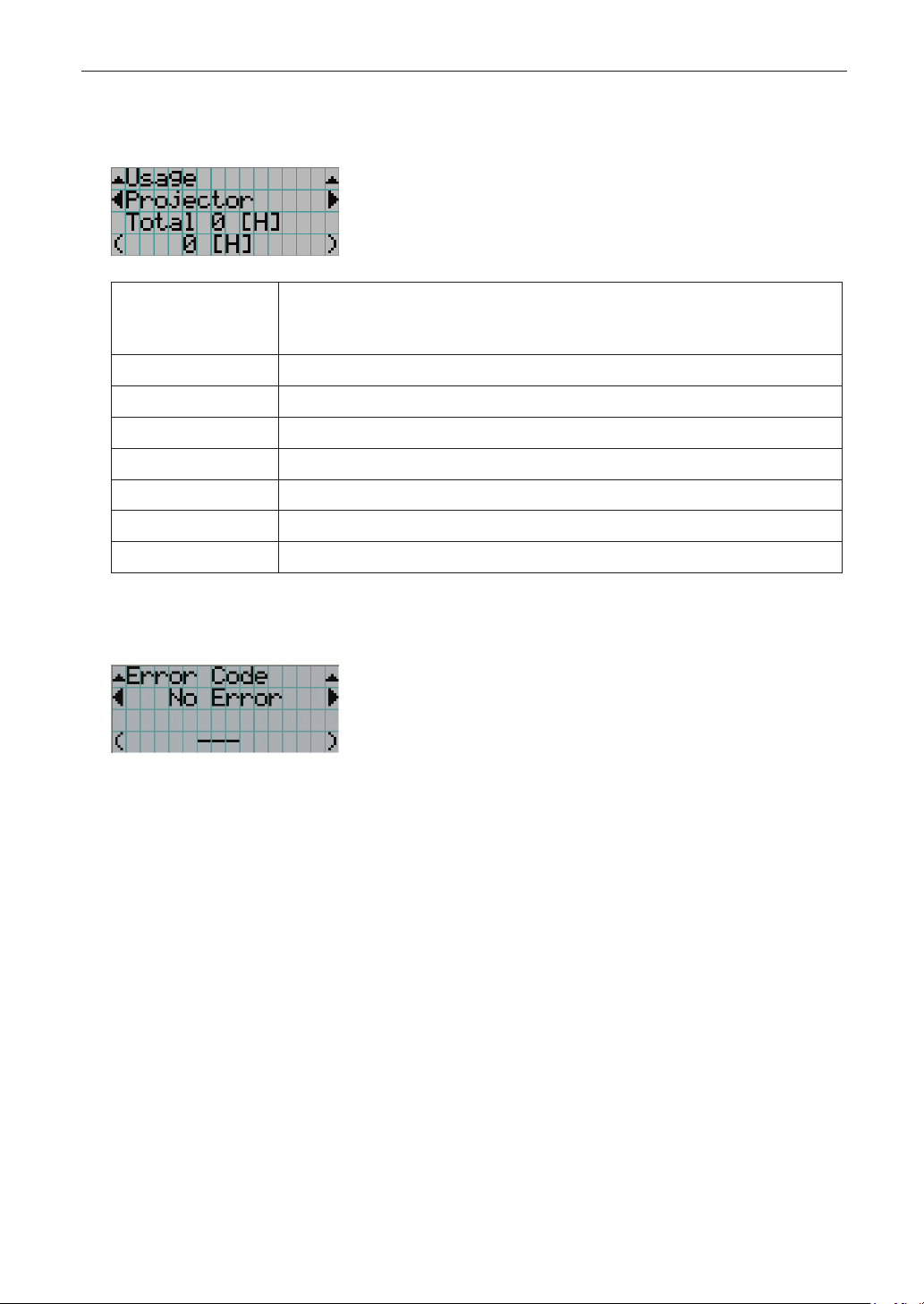
56
4. Using Menus
4-6-4. Usage
Displays information related to the projector usage, such as the usage time of the projector, light, air filters, and fan, and information
about the light replacement cycle.
← Selects the item to display.
← Displays information about the selected item.
Projector
Displays the usage time of the projector.
The upper row shows the usage time including standby mode while the lower row shows
the usage time not including standby mode.
Filter Cleaning Displays the air filter usage time.
Fan Usage Displays the fan usage time.
Light Usage Displays the usage time of the light source.
Phosphor Displays the usage time of the phosphor.
Diffuser Displays the diffuser usage time.
Pump Displays the pump usage time.
Douser Count Displays the number of times the douser has been used.
4-6-5. Error Code
Displays the error code when an error occurs.
← Displays the code of the error currently occurring.
← Displays the name of the error currently occurring.
When multiple errors occur, you can display them by pressing the LEFT/RIGHT buttons.
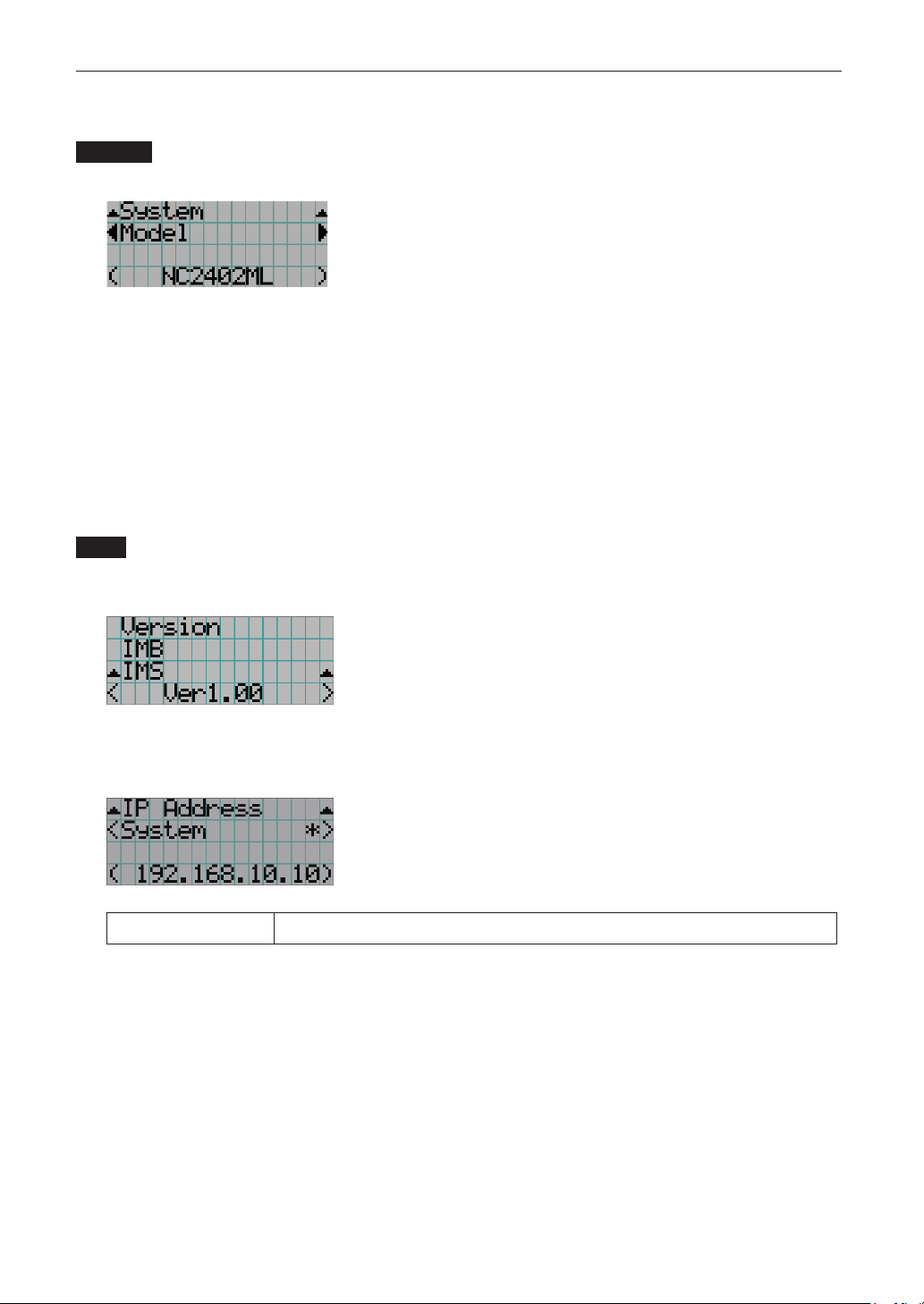
57
4. Using Menus
4-6-6. Version
Displays version information about the projector, optional boards, and IMB.
System
Displays the version information of the projector.
← Selects the item to display.
← Displays the version information.
・ Model ・ Slave Firmware
・ Serial No. ・ Opt MCUFirmware
・ Release Package ・ LD Interface
・ Kernel ・ LD Driver1
・ U-Boot ・ LD Driver2
・ System Files ・ LD Driver3
・ CinemaFirmware ・ LD Driver4
・ Cinema Data ・ LD Driver5
・ ICP Firmware ・ LD Driver6
・ ICP ConfigFile ・ LD Driver7
・ FMT FPGA ・ LD Driver8
・ Secure Processor ・ Lens Firmware
・ Slave BIOS
IMB
Displays the vendor name and version information about the media block (IMB). When the projector is in standby mode, the vendor
name is blank and the version information displays “---”.
← Displays the vendor name.
← Displays the version information.
4-6-7. IP Address
Displays the IP address set in the projector.
← Displays the IP address.
System Displays the IP address set for the projector (System).
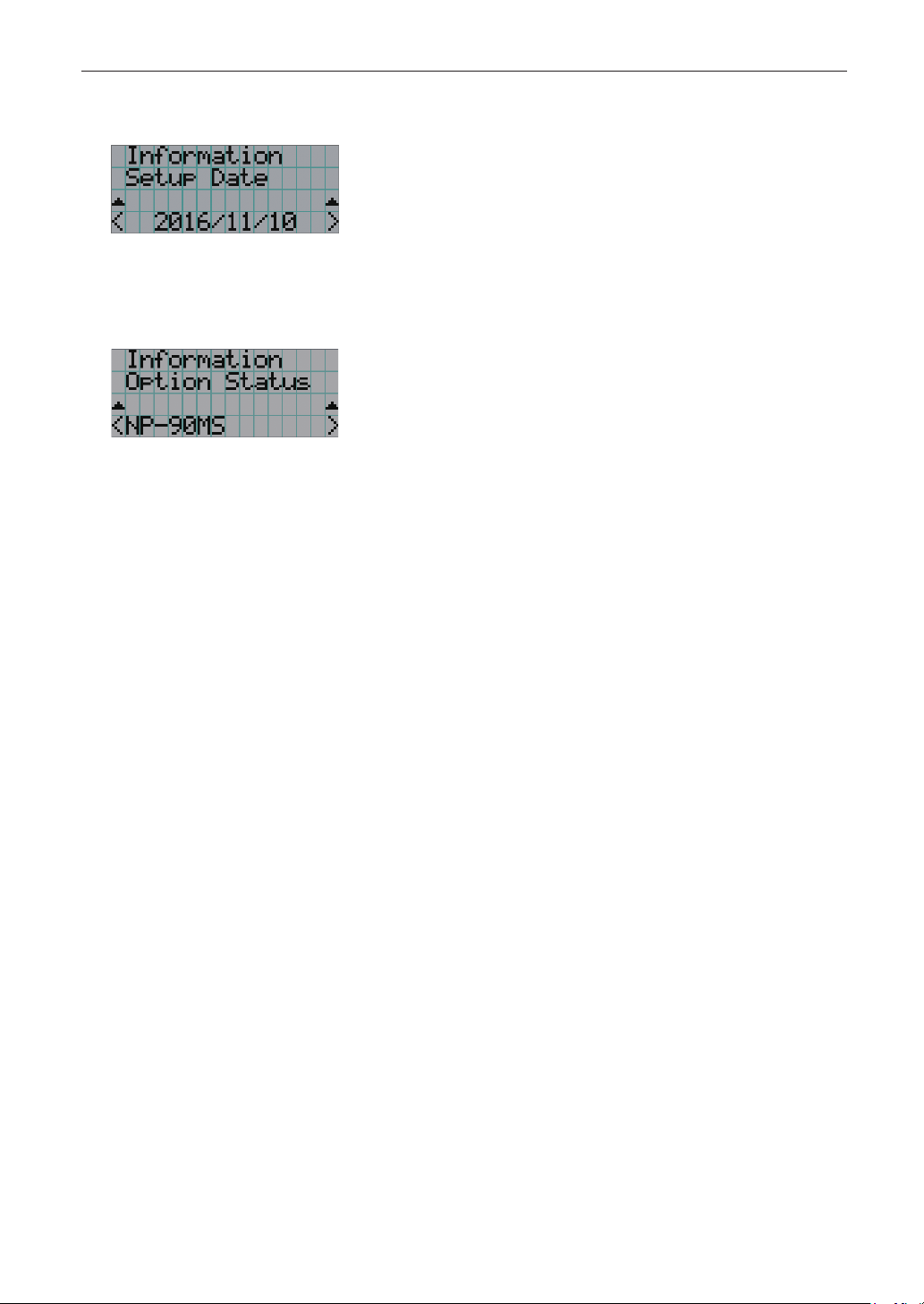
58
4. Using Menus
4-6-8. Setup Date
Displays the date when the projector was set up (starting date of the warranty period).
← Displays the date when the projector was set up (starting date of the warranty period).
4-6-9. Option Status
Displays the link status of the device mounted in slot on the projector. The device name is displayed in ( ) when the projector is in
standby or when connection to the device cannot be confirmed.
← Displays the link status of the device in slot.
•NP-90MS:NP-90MS02
•<VendorName>IMB:Mediablock
•NoBoard:Nodevicemounted
59
5.
Maintenance of Your
Projector
NOTE
Please request your dealer to perform cleaning of the projector inside.
5-1. Cleaning the Cabinet
WARNING
Pull out the power plug from the power outlet before cleaning the cabinet.
WARNING
Please do not use a spray containing flammable gas to remove dust attached to the cabinet, etc. Doing so may result in fires.
• Wipe with a dry, soft cloth without nap.
When the cabinet is excessively dirty, wipe with cloth well wrung after being dampened with a neutral detergent diluted with water
and then finish up with a dry cloth.
When you use a chemical dust cloth, follow the instructions in the manual attached to it.
• Do not use a solvent, such as thinner or benzene. The coating may deteriorate or peel off.
• When removing dust on the ventilation opening, suck it off using an adapter with a brush on a vacuum cleaner. Never allow the
cleaner without an adapter to come into direct contact or use a nozzles adapter in cleaning.
• Clean the ventilation opening at regular intervals. Dust, if allowed to accumulate there, may cause heating inside, which leads to
functional trouble. The interval, which can vary with the location of your projector, is about 100 hours.
• Do not damage the cabinet by scratching it or allowing hard objects to hit it. This can scratch the projector.
• Consult your dealer/distributor about cleaning the inside of the projector.
NOTE
Do not allow insecticide or other volatile liquid to splash on the cabinet, lens or screen. Also, do not allow any rubber or
plastic object to remain in contact with the cabinet for a long time. The coating may deteriorate or peel off.
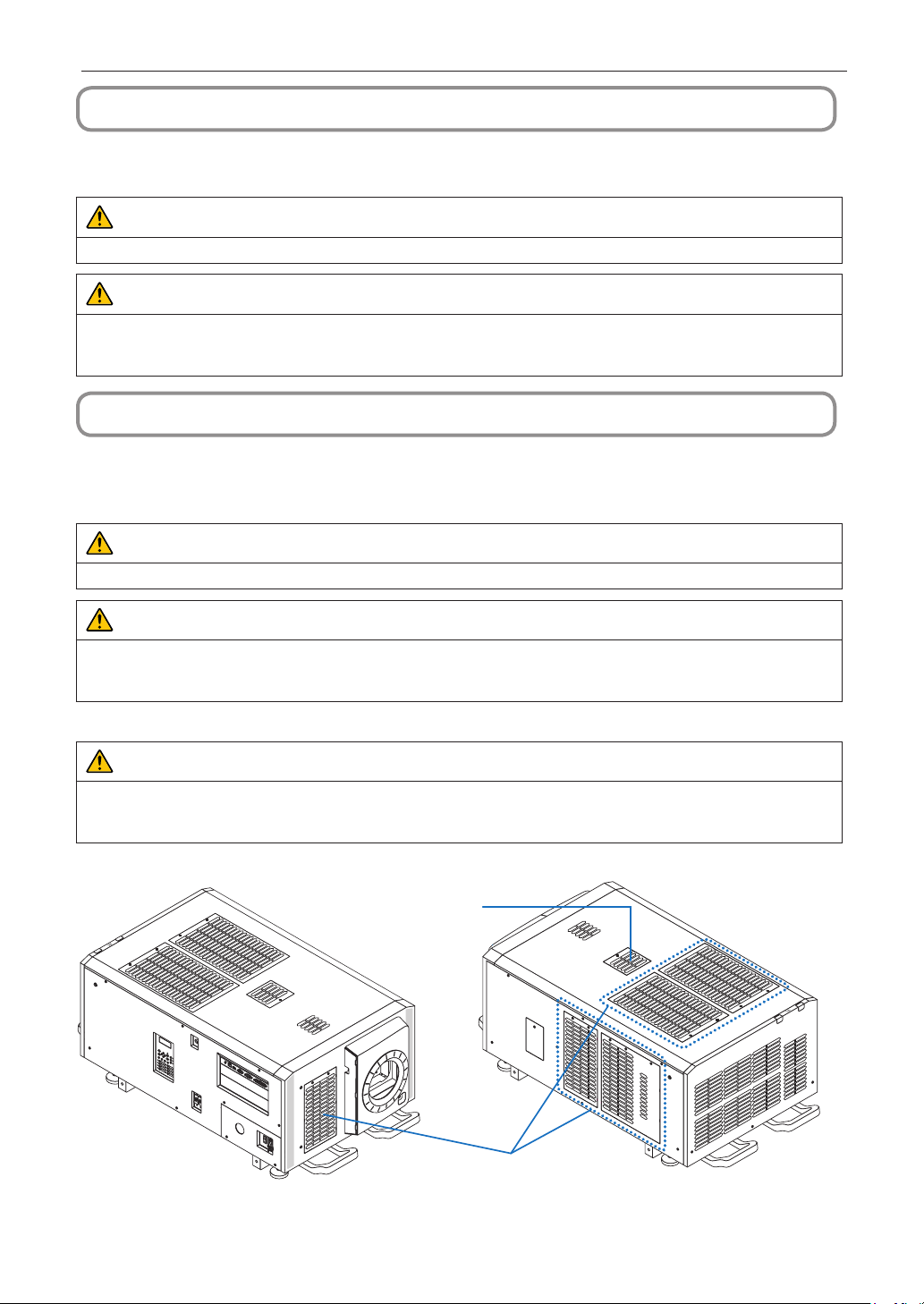
60
5. Maintenance of Your Projector
5-2. Cleaning the Lens
Clean the lens the same way as with camera lens (using a commercially available camera blower or cleaning paper for glasses).
Take care not to damage the lens when cleaning.
WARNING
Pull out the power plug from the power outlet before cleaning the lens.
WARNING
• Do not look into the light module while the projector is ON. Strong light is emitted from the projector and visual impairment
could result.
• Please do not use a spray containing flammable gas to remove dust attached to the lens, etc. Doing so may result in fires.
5-3. Cleaning the Air Filters
Air filters are provided on the projector's air intakes to prevent dust from entering the projector. Clean the air filters regularly to
maintain the performance of the projector.
•Theusagetimeoftheairlterscanbecheckedat“Information”-“Usage”(page55) on the adjustments menu.
WARNING
Pull out the power plug from the power outlet before cleaning the air filters.
WARNING
• If dust accumulates on the air filters, air intake to the projector will be insufficient and the internal temperature will rise, leading
to fire or malfunction.
• Do not use a flammable gas spray to remove dust from the filters. Doing so may lead to fire.
CAUTION
• Before cleaning the air filters, turn off the power, wait for the cooling fan to come to a complete stop, turn off the projector
power switch and the light power switch, interrupt the AC power supply, and make sure that the projector has cooled suffi-
ciently. Removing the filter units during operation may cause burns or electric shock if the inside is touched.
Air filter
Air filter (small type)
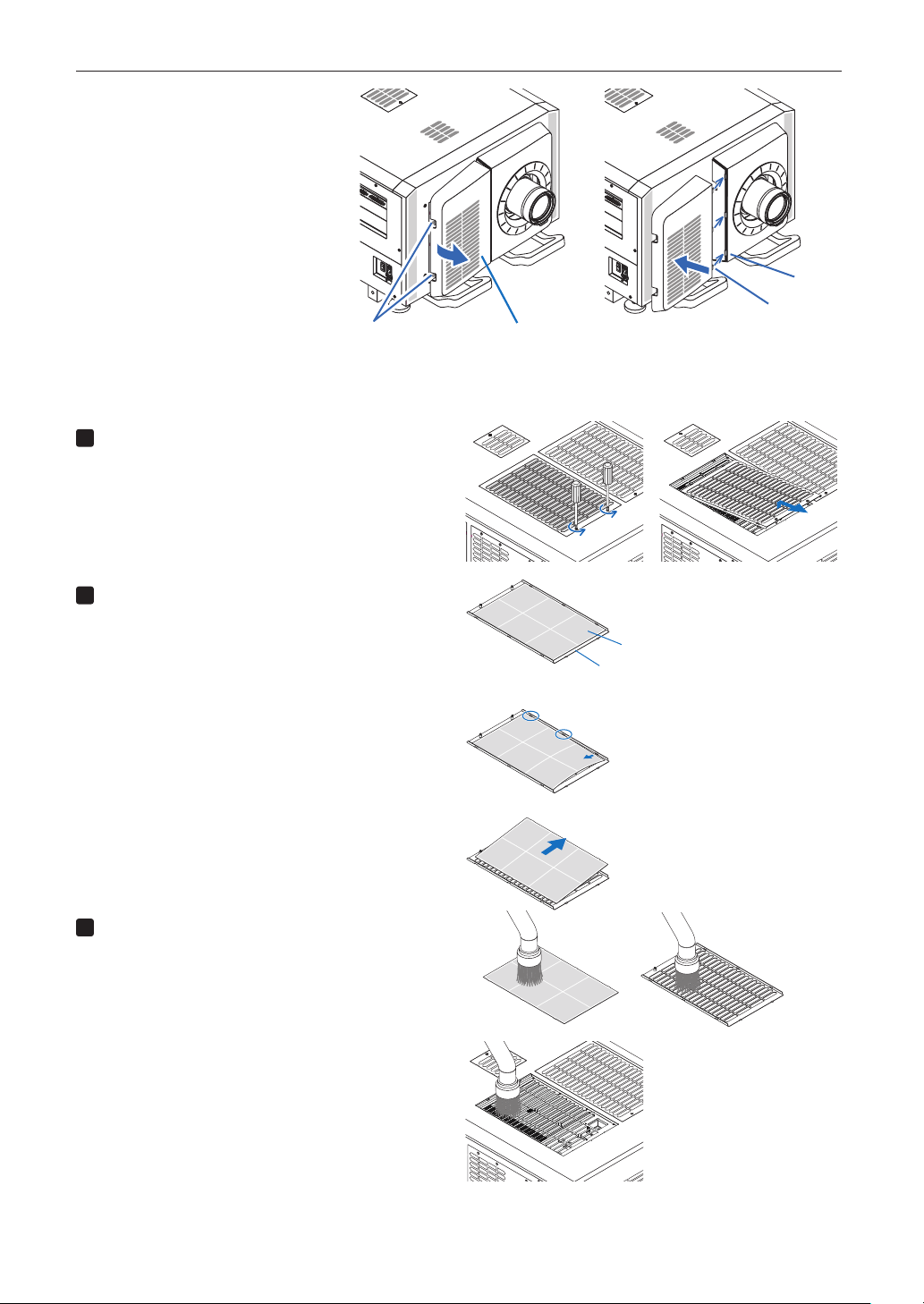
61
5. Maintenance of Your Projector
To remove the front air filter, pull the filter
cover in the direction of the arrow. To
install, insert the catches in the filter
cover into the grooves in the lens cover,
close the cover, then push it in.
Grips
Filter cover
Catches
Groove
The illustration in this explanation shows how to clean the air filters on the top panel.
Clean the other filters in the same way as these air filters (small type).
1
Remove the air lter.
Turn the 2 screws counterclockwise until they are disen-
gaged, then lift the air filter a little to remove it.
- The screws do not come off.
- The number of screws differs depending on the air
filter.
2
Remove the metal lter.
Note: The metal filter does not come off the small type
air filters.
See “For small type air filters” on the next page.
(1) Turn the air filter upside down.
[Air filter] Panel
Metal filter
(2) Slowly bend the metal filter a little to unlatch the three
catches from the grooves in the panel one by one.
Note: Bending the metal filter too much could dam-
age it beyond repair. Be very careful to only bend the
metal filters a little when removing them.
(3) Remove the metal filter from the panel.
3
Use a vacuum cleaner to remove the dust.
Use a vacuum cleaner to remove the dust from both
sides of the metal filter, the projector and the panel.
Note: Do not wash the metal filter in water. Doing so will
cause the dust to clog the holes, reducing intake
performance.
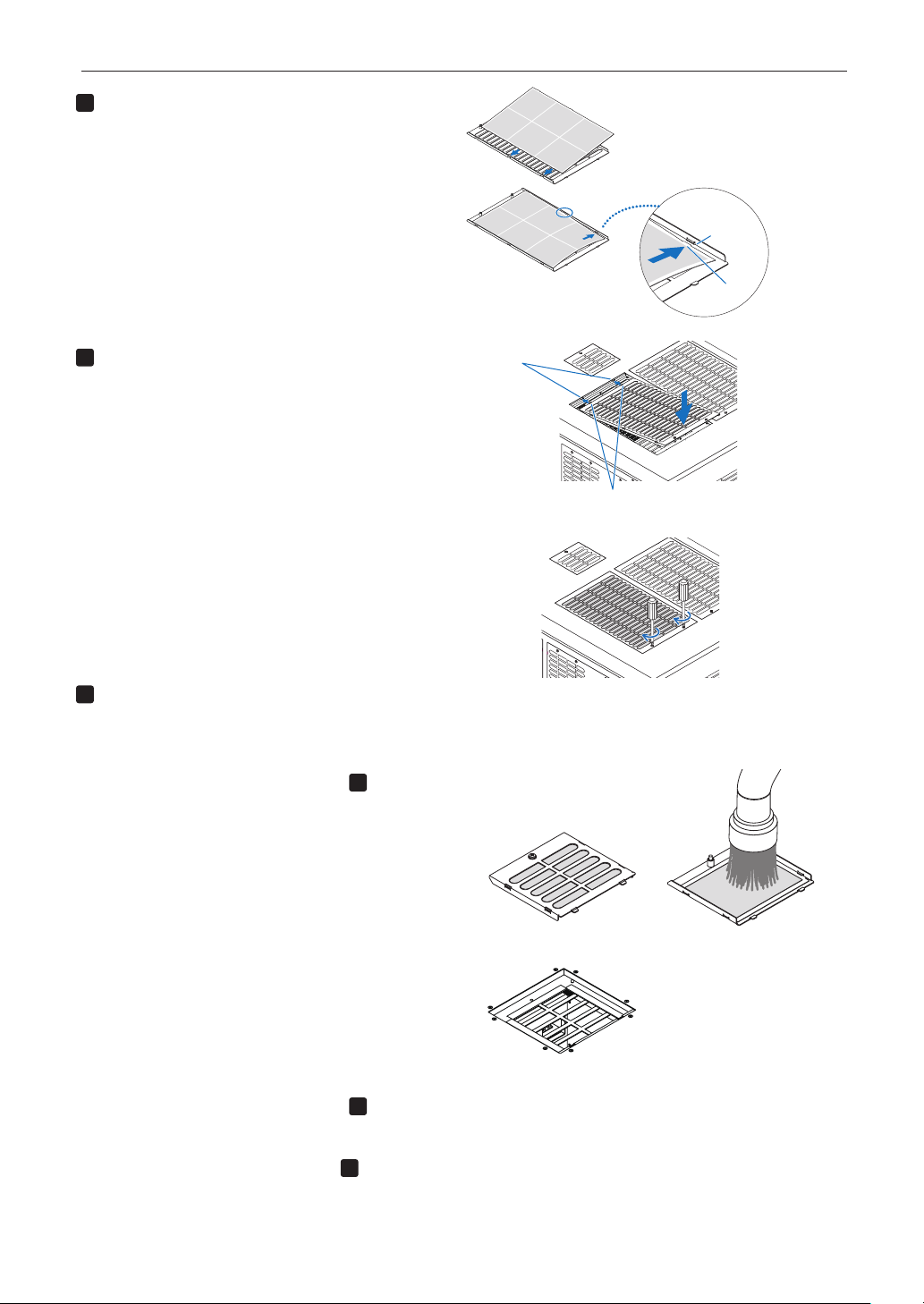
62
5. Maintenance of Your Projector
4
Attach the metal lter.
(1) Insert the three catches on the metal filter into the
grooves in the panel.
(2) Bend the metal filter a little and insert the three pro-
jecting parts on the opposite side into the grooves in
the panel, one by one.
Note: Bending the metal filter too strongly could damage
it, rendering it unusable. Be very careful to only bend the
metal filters a little when attaching them.
Groove
Catches
5
Attach the air lter to the projector.
(1) Insert the catches in the air filter into the grooves in
the projector.
Groove
Catches
(2) Turn the two screws clockwise to tighten them.
The number of screws differs depending on the air
filter.
This completes cleaning of one of the air filters.
Clean the other air filters in the same way.
6
Reset the air lter usage time.
See “Filter Cleaning” under “Reset” on Page 53.
For small type air lters
1. Using the procedure in step
1
, turn one
screw counterclockwise until it is disen-
gaged, then lift the air lter (small type) a
little to remove it.
The screws do not come off.
2. Use a vacuum cleaner to remove the dust.
Use a vacuum cleaner to remove the dust from both the
front and back sides of the filter and from the projector.
Note:
・ Do not remove the metal filter. Doing so may bend it,
rendering it unusable.
・ Do not wash the air filter in water. Doing so will cause
the dust to clog the holes, reducing intake
performance.
3. Using the procedure in step
5
, turn one
screw clockwise to tighten it.
4. Perform the operation in step
6
.
Air filter (small type)
Projector
Front side Back side
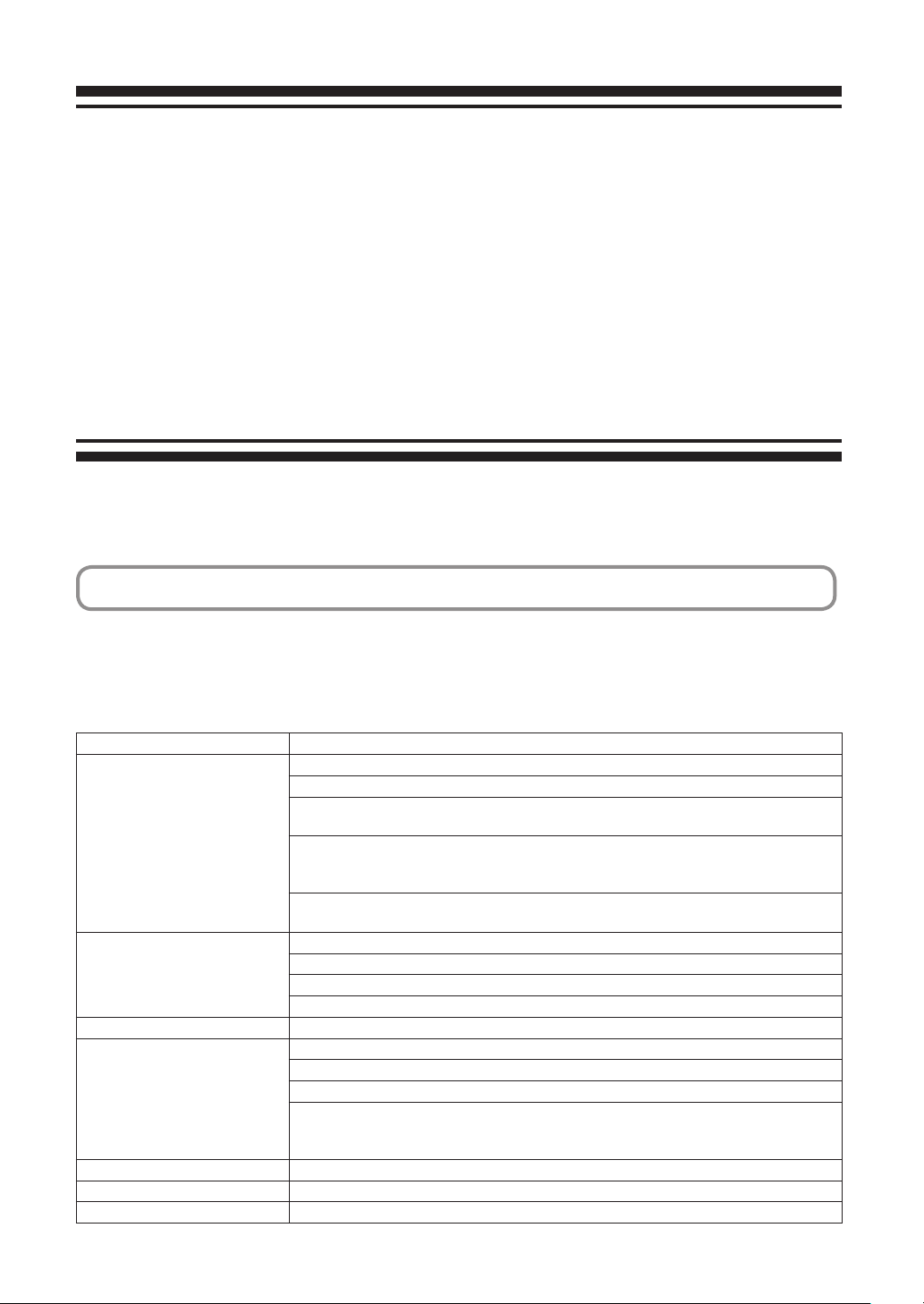
63
6.
Appendix
6-1. Troubleshooting
Before asking for repair, please check your connection, settings and operation once again. If the trouble cannot be corrected, please
contact your dealer/distributor for instructions or repair.
6-1-1. Problems and where to check
Problem Check these items
The projector cannot be turned on. Check to see if AC power is supplied to the projector.
Are the projector power switch and the light power switch turned on?
Check to see whether the panel key lock function is activated. If so, the main unit’s control buttons
are locked and do not work.
Is the temperature inside the projector too high? When the inside temperature is too high, the
protective function does not allow your projector to be turned on. Wait some time and then turn it
on.
Is the administrator key inserted? The projector will not function unless the administrator key is
inserted.
The image cannot be projected. Check to see if the connected input has been selected.
Check to see if a cable is properly connected to the input terminal.
Check to see whether the douser is closed.
Check to see if the settings are all adjusted properly.
The image is distorted. Check to see if the protractor is properly set up.
The image is blurred. Make certain that the lens is properly focused.
Check to see if the screen and a projector are installed at correct angles.
The projection distance may be larger than the focusing range.
See if the lens and other parts have condensation on them. If the projector is turned on in a
warm place after storage in a cold place, the lens and other optical components inside may develop
condensation. In such a case, please wait several minutes until the condensation disappears.
Video image is disturbed. Check whether the signal cable connected to the projector is disconnected.
The STATUS indicator blinks in red. Your projector may have trouble. Please contact your dealer/distributor for instructions.
An error code is displayed. Please contact your dealer/distributor for instructions.
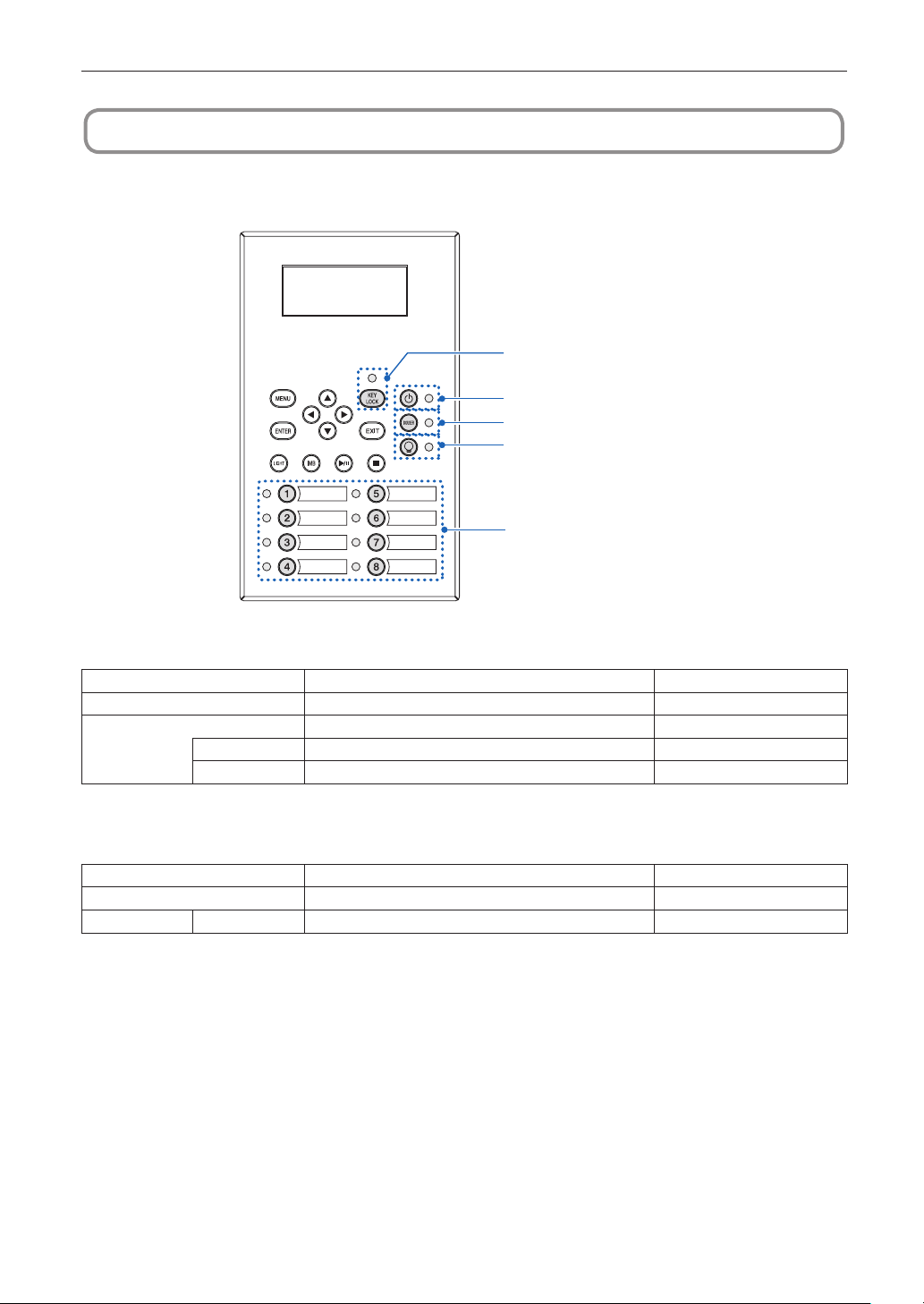
64
6. Appendix
6-2. Indicator display list
See the descriptions below when the buttons on the control panel or the STATUS indicator on the rear of the projector is lit or blink-
ing. The projector also has a warning function that uses a buzzer.
KEY LOCK button
POWER button
DOUSER button
LIGHT ON/OFF button
Preset buttons
6-2-1. Preset buttons
Indicator condition Projector condition Note
Off No title is assigned to the button. -
Steady light A title is assigned to the button. -
Green The title is being selected. -
White The title is not selected. -
6-2-2. KEY LOCK button
Indicator condition Projector condition Note
Off The key lock is off. -
Steady light Orange The key lock is on. -
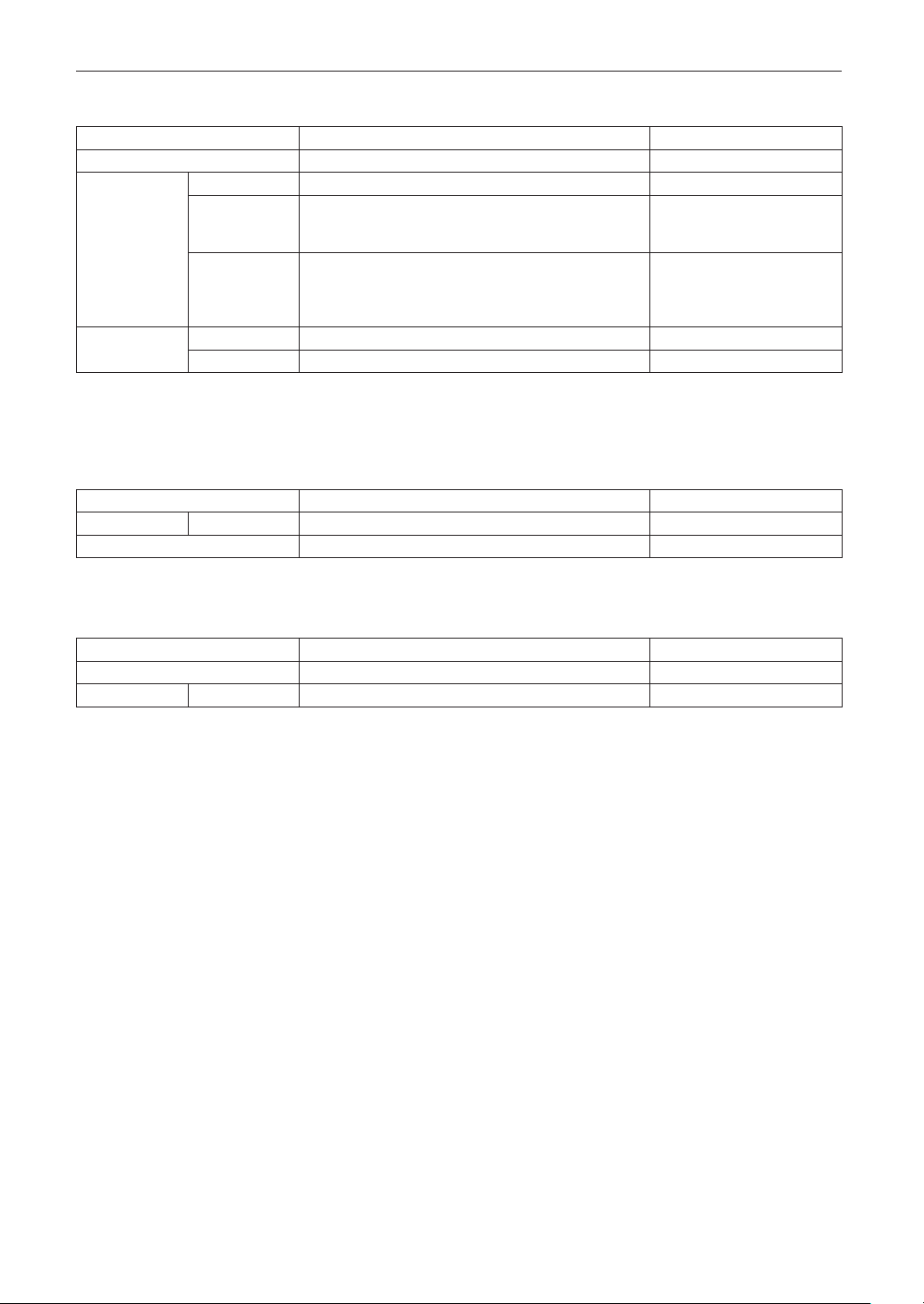
65
6. Appendix
6-2-3. POWER button
Indicator condition Projector condition Note
Off The projector power supply is off. -
Blinking light Orange While the projector software is starting Wait for a moment.
Green
(cycles of 1) (Note
1)
Preparing to turn power on/cooling fan rotating
(State from turning the power off to entering standby mode).
Wait for a moment.
Green
(cycle of 3
seconds)
(Note 2)
When the sleep timer is activated -
Steady light Green The projector is turned on. -
Orange The projector is in standby. -
(Note 1) Repeats 0.5 seconds on → 0.5 seconds off.
(Note 2) Repeats 2.5 seconds on → 0.5 seconds off.
6-2-4. DOUSER button
Indicator condition Projector condition Note
Steady light Green The douser is closed. -
Off The douser is opened. -
6-2-5. LIGHT ON/OFF button
Indicator condition Projector condition Note
Off The light is off. -
Steady light Green The light is on. -
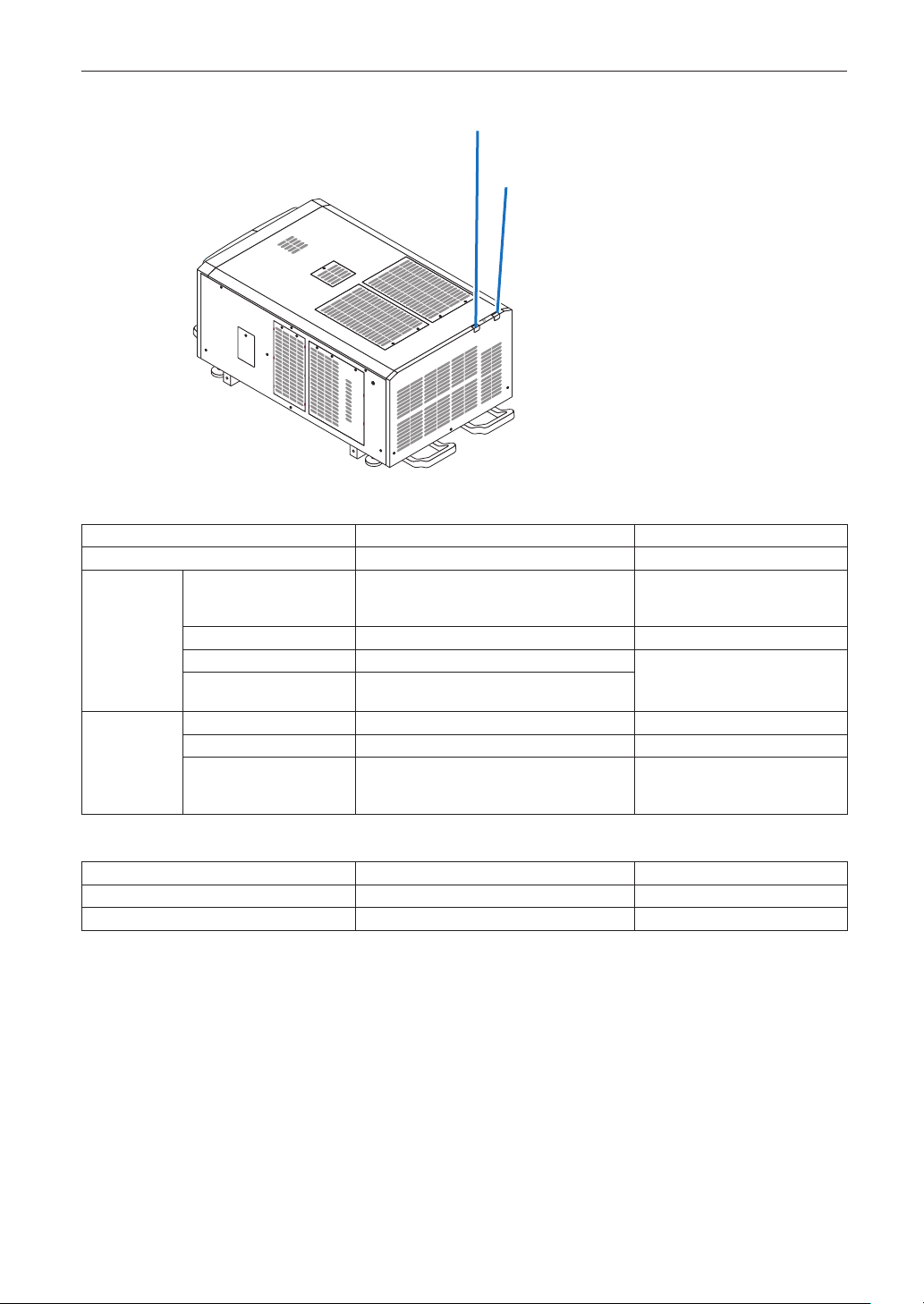
66
6. Appendix
6-2-6. STATUS indicator
SYSTEM status indicator
LIGHT status indicator
SYSTEMstatusindicator
Indicator condition Projector condition Note
Off Main power is off. -
Blinking light Green The projector is getting ready to turn on.
The douser is closed.
The light is off.
Wait for a moment.
Orange The projector is cooling down. Wait for a moment.
Red (With buzzer) Safety problem, error. An error message is displayed in the
LCD screen.
Check the content of the error.
Red (Without buzzer) Error with possible image project under certain
conditions.
Steady light Green The projector is turned on. -
Orange The projector is in standby. -
Red Error at a level with not affect on projection. An error message is displayed in the
LCD screen.
Check the content of the error.
LIGHT status indicator
Indicator condition Projector condition Note
Off The light source is off. -
Steady light The light source is on. -

67
6. Appendix
6-3. Operation using an HTTP browser
6-3-1. Overview
The use of HTTP server functions will allow control of the projector from a web browser. Please be sure to use “Microsoft Internet
Explorer 4.x” or a higher version for the web browser.
This device uses “JavaScript” and “Cookies” and the browser should be set to accept these functions. The setting method will vary
depending on the version of the browser. Please refer to the help files and the other information provided in your software.
NOTE
The display’s or button’s response can be slowed down or operation may not be accepted depending on the settings
of your network.
Should this happen, consult your network administrator.
The projector may not respond if its buttons are repeatedly pressed in rapid intervals. Should this happen, wait a
moment and repeat.
Access is gained to the HTTP server functions by and specifying
http://<the projector’s IP address>/index.html
in the entry column of the URL.
6-3-2. Preparation before use
Make network connections and set up the projector and confirm that it is complete before engaging in browser operations.
Operations with a browser that uses a proxy server may not be possible depending on the type of proxy server and the setting
method. Although the type of proxy server will be a factor, it is possible that items that have actually been set will not be displayed
depending on the effectiveness of the cache, and the contents set from a browser not be reflected in operation. It is recommended
that a proxy server not be used unless it is unavoidable.
6-3-3. URL for connecting to the HTTP server
Normally, the URL of the HTTP server is “http://<this projector's IP address>/index.html”, but if the conditions below are met, con-
nection is possible with the URL using the projector's host name.
- the projector's host name is registered on the domain name server
- the projector's IP address and host name have been added to the “HOSTS” file on the computer
(Example1)Whentheprojector'shostnameissetto“pj.nec.co.jp”
To access the HTTP server function, enter
“http://pj.nec.co.jp/index.html”intheaddressorURLinputeld.
(Example2)Whentheprojector'sIPaddressis“192.168.10.10”
To access the HTTP server function, enter
“http://192.168.10.10/index.html”intheaddressorURLinputeld.
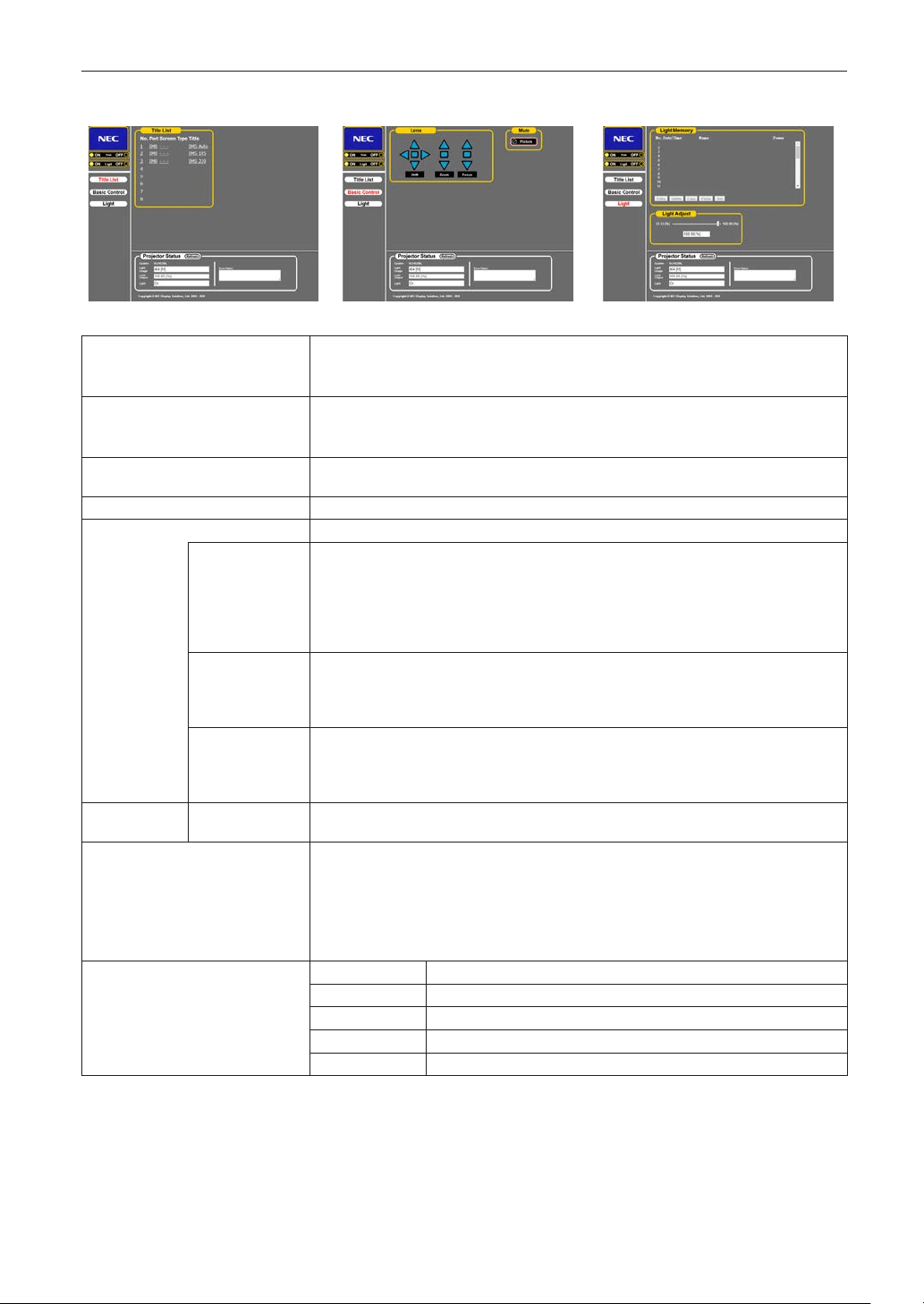
68
6. Appendix
6-3-4. Structure of the HTTP server
Power Controls the power to your projector.
•On: Turns the power on.
•Off: Turns the power off.
Light Turn the light on/off.
•On: Turns the light on.
•Off: Turns the light off.
Title List Displays titles set in the projector (such as input port, screen type, and title).
Check, and the title will be changed.
Basic Control Displays the basic control items.
Lens Controls the lens operation.
Shift
: Shifts the projected screen upward.
: Shifts the projected screen downward.
: Shifts the projected screen leftward.
: Shifts the projected screen rightward.
: Stops the shifting.
Shifting can also be stopped by clicking the same button one more time.
Zoom
: Zooms up the lens.
: Zooms down the lens.
: Stops the zooming.
Zooming the can also be stopped by clicking the same button one more time.
Focus
: Focuses up the lens.
: Focuses down the lens.
: Stops the focusing.
Focusing can also be stopped by clicking the same button one more time.
Mute Picture Click and the douser closes and the projected picture disappears. Click once again and the
picture will be projected again.
Projector Status Displays the condition of the projector.
•Light Usage: Displays the hours of light use.
•Light Power: Displays light output (%).
•Light Status: Displays the status of the light (On: Lights / Off: Off).
•Error Status: Displays the status of errors occurring within the projector.
•Refresh: Updates the display of the following conditions.
Light Memory Entry Saves the current light output value in the memory.
Delete Deletes the memory selected in the list from the Light Memory.
Copy Copies the memory selected in the list.
Paste Saves/overwrites the copied memory to the selected memory in the list.
Test Tests the adjustment value of the memory selected in the list.
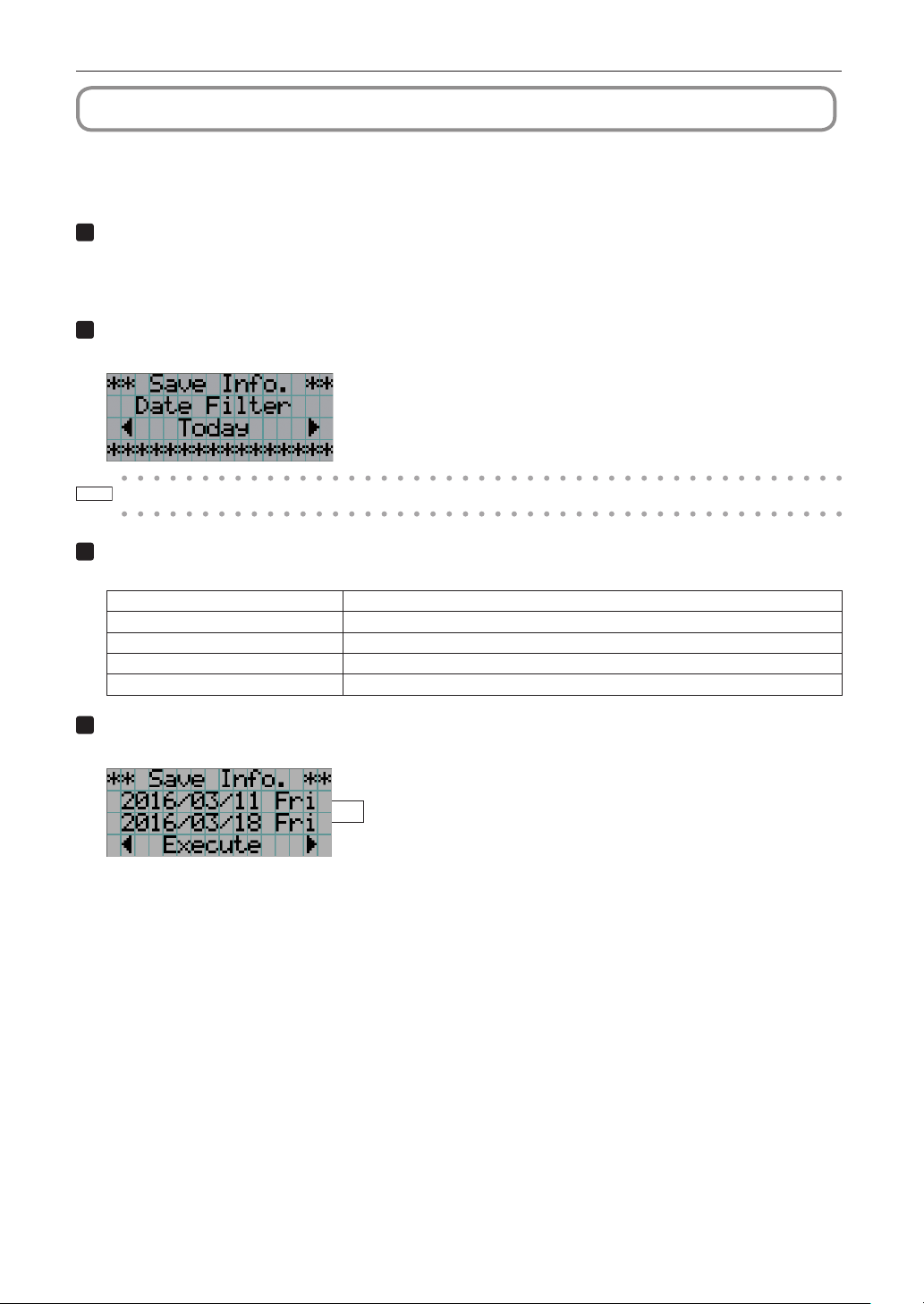
69
6. Appendix
6-4. Writing of the log le (Save Information)
Log files saved on the main unit can be written to USB memory connected to the USB port of the main unit. To perform the writing
of the log file, use the following procedure.
1
Connect the USB memory to the USB port of the main unit.
Wait until the USB memory is recognized, and it enters the condition in which it can be used (5 or more seconds). For
details, refer to the instruction guide of the USB memory.
2
Simultaneously press the UP button and ENTER button.
The “Save Info.” screen is displayed.
TIP
If you press the EXIT button during operation, operation is stopped and the display returns to the normal screen.
3
Press the LEFT/RIGHT button, and select the log le writing period.
The items that can be selected are as follows.
Today
Writes today’s log files.
7days Writes 7 days’ log files from today.
30days
Writes 30 days’ log files from today.
2years
Writes 2 years’ log files from today.
Manual Writes the specified period’s log files.
4
Press the ENTER button.
When “Today”, “7days”, “30days” or “2years” is selected, the log file writing period is displayed.
← The log file writing period is displayed.
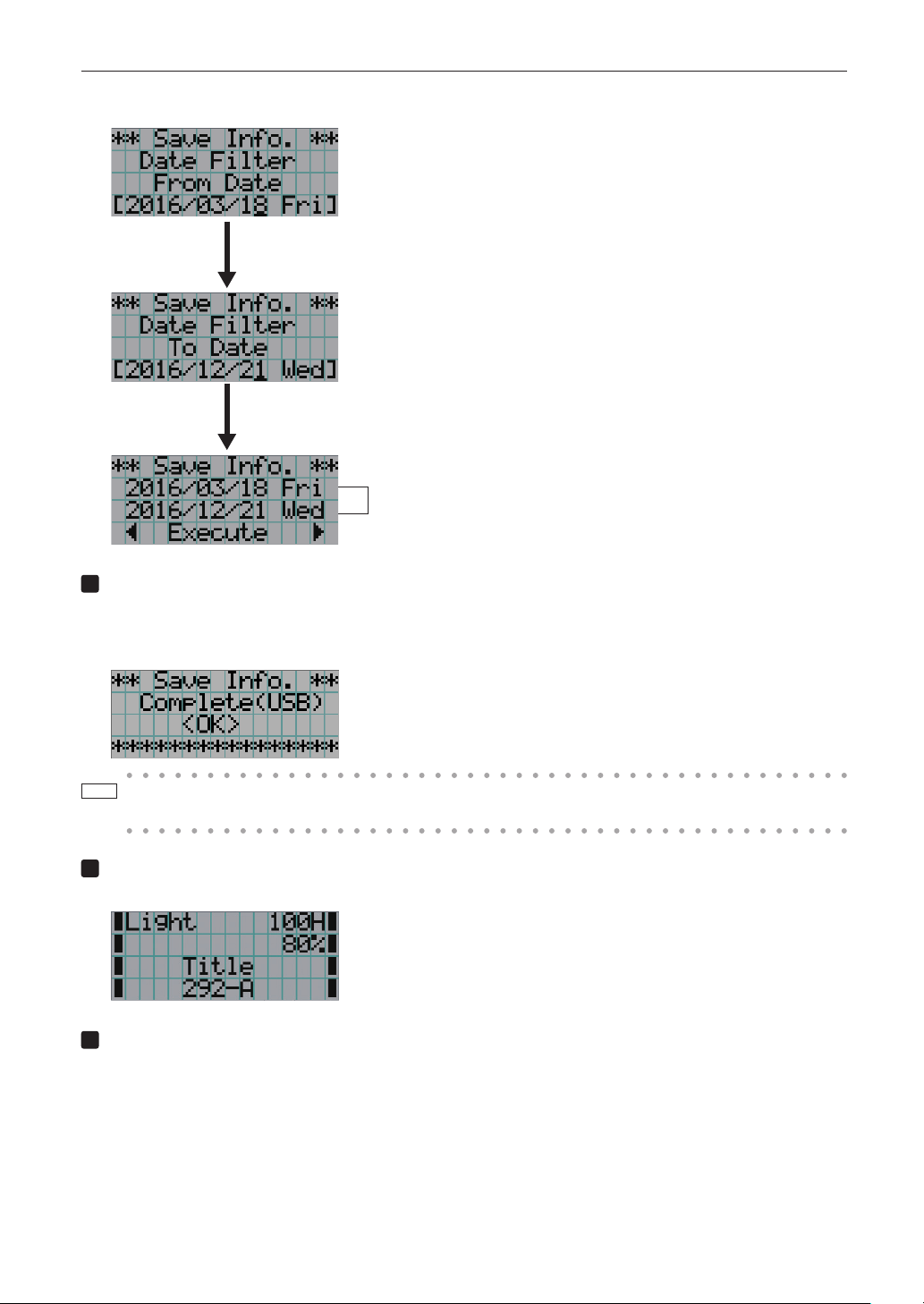
70
6. Appendix
When “Manual” is selected, specify the log file writing period. For how to enter numerals, refer to “4-1-3. How to enter
alphanumeric characters” (See page 49). If you press the ENTER button, the display advances to the following screen.
← Enter the date/time to start writing.
← Enter the date/time to stop writing.
← The log file writing period is displayed.
Press the ENTER button.
Press the ENTER button.
5
Conrm the log le writing period, press the LEFT/RIGHT button to select “Execute”, and press
the ENTER button.
The log files of the specified period are written to the USB device. When writing completes, the following screen is
displayed.
TIP
If you select “Cancel” and press the ENTER button, the writing of log files is stopped, and the display returns to the
normal screen.
6
Press the ENTER button.
The display returns to the normal screen.
7
Remove USB memory from the USB port of the main unit.

71
6. Appendix
6-4-1. Names of log les
Written log files are saved with the following file names.
(Model name)_(Serial Number)_YYMMDDHHmm.txt
(Model name)
This shows the model of projector.
(Serial Number)
This shows the serial number of projector.
YYMMDDHHmm Shows the date/time when written.
YY: Year (lower 2 digits)
MM: Month (2 digits)
DD: Date (2 digits)
HH: Hour (2 digits)
mm: Minute (2 digits)
For example, when the NC2402ML log file is written at 14:05 on January 28, 2019 (2019/01/28), it will be saved with the filename
“NC2402ML_abcd1234_ 1901281405.txt”.
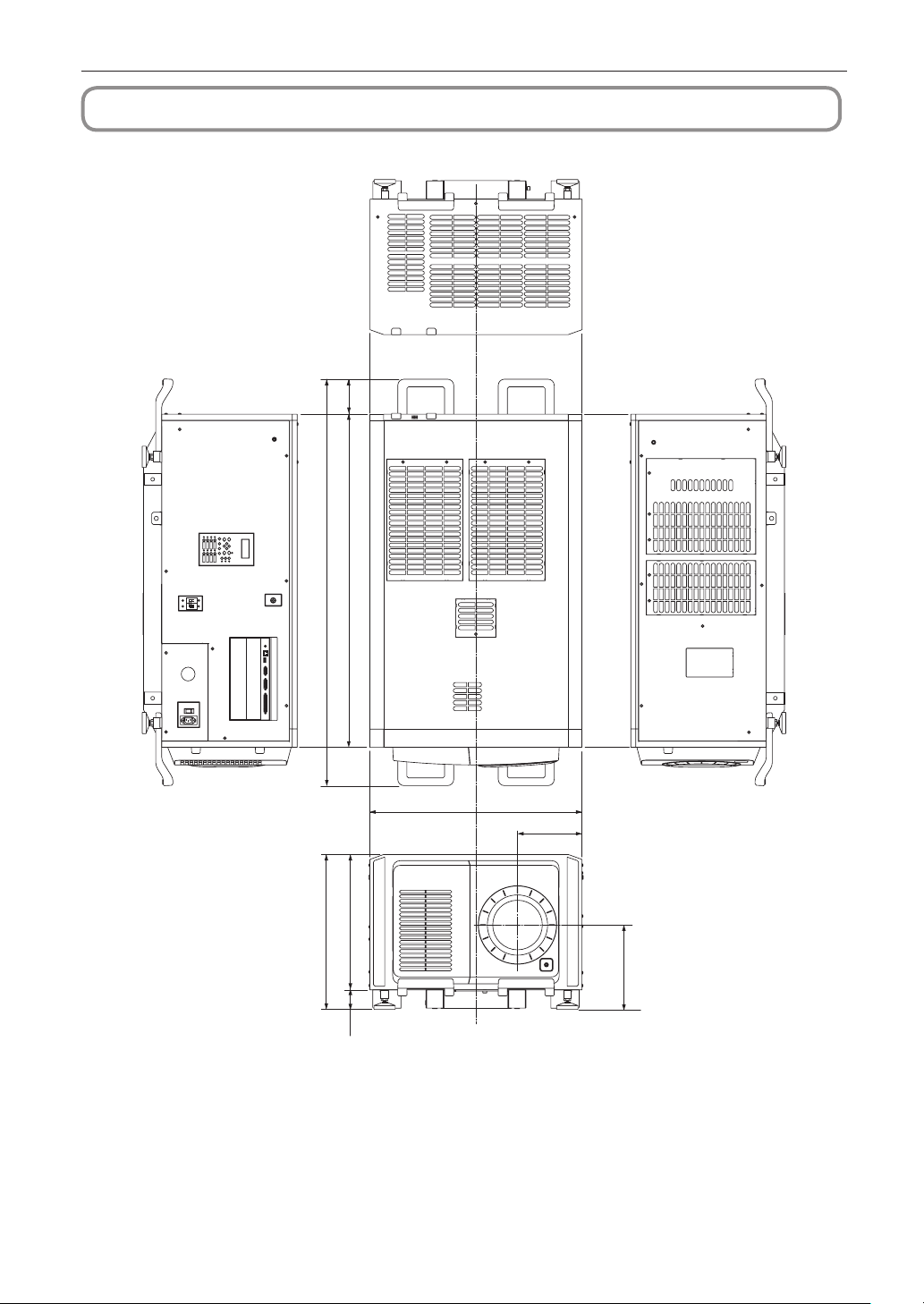
72
6. Appendix
6-5. Outline Drawing
6-5-1. Projector
697
212
1095
1337
445
509.5
277.4
116
64.5
Lens center
Lens center
Units: mm
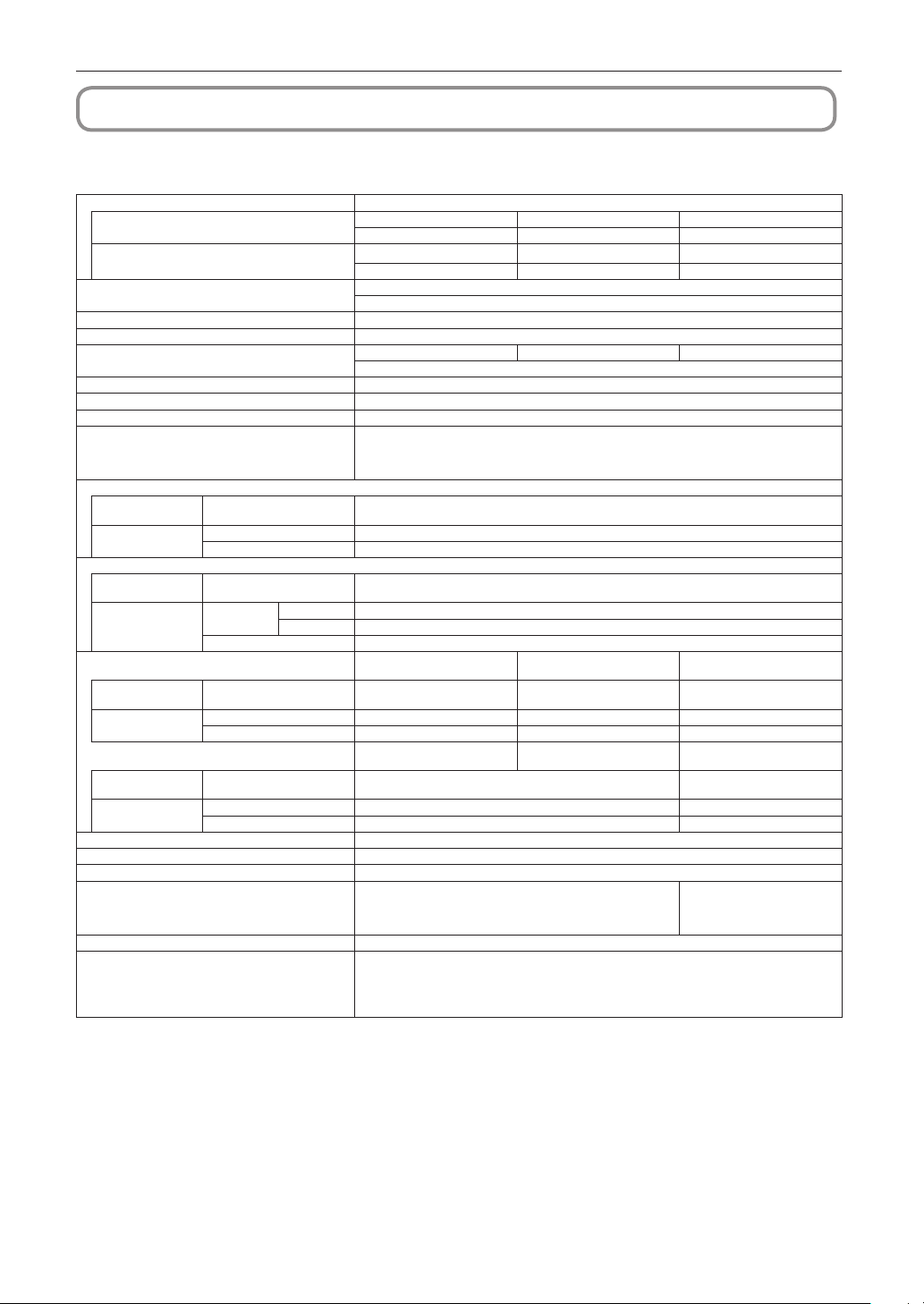
73
6. Appendix
6-6. Specications
6-6-1. Projector
Model name DLP Cinema
®
Projector Head : NP-02HD
Light Module NP-24LU01 NP-20LU01 NP-18LU01
NP-24LU03 NP-20LU03 NP-18LU03
DLP Cinema
®
Projector NP-NC2402ML NP-NC2002ML NP-NC1802ML
NP-NC2403ML NP-NC2003ML NP-NC1803ML
Projection method 3 chip DLP Cinema
®
method
0.98-inch DC2K chip
Panel resolution 2048×1080
Light type Laser Diode
Screen sizes
Max. 22 m Max. 20 m Max. 19 m
@14ft-L / Screen Gain 1.8 (Depends on setup conditions)
Contrast ratio 2000:1 with DCI specified color representation
Lens adjustment function Motorized lens shift (vertical/horizontal), motorized zoom, motorized focus, douser
Signal input ports When shipped from factory: Empty (for mounting optional components) (Note 1)
External Control RS-232C (D-sub 9pin) x 1
GPIO port (D-sub 37 pin) x 1
Service terminal (stereo mini jack) x 1
3D CTL (D-sub 15 pin) x 1
USB (Type A) x 1
Interlock port x 1
Ethernet port (G-bit RJ-45) x 1
Power supply voltage
With C1 connection
(Note 3)
Projector power supply +
Light power supply
Single-phase AC 200V-240V 50/60 Hz
With C2 connection
(Note 3)
Projector power supply
Single-phase AC 100V-240V 50/60 Hz
Light power supply Single-phase AC 200V-240V 50/60 Hz
Input current
With C1 connection
(Note 3)
Projector power supply +
Light power supply
18.1 A
With C2 connection
(Note 3)
Projector power
supply
for AC 100 V 6.0 A
for AC 200 V 2.9 A
Light power supply 15.2 A
Power consumption NP-24LU01
NP-NC2402ML
NP-20LU01
NP-NC2002ML
NP-18LU01
NP-NC1802ML
With C1 connection
(Note 3)
Projector power supply +
Light power supply
3,070 W 2,792 W 2,988 W
With C2 connection
(Note 3)
Projector power supply
368 W 336 W 305 W
Light power supply 2,702 W 2,456 W 2,683 W
NP-24LU03
NP-NC2403ML
NP-20LU03
NP-NC2003ML
NP-18LU03
NP-NC1803ML
With C1 connection
(Note 3)
Projector power supply +
Light power supply
2,699 W 2,934 W
With C2 connection
(Note 3)
Projector power supply
322 W 312 W
Light power supply 2,377 W 2,622 W
Cooling method Air cooling system and liquid cooling system
Noise level 50 dB or less
Installation Orientation: Desk/ front, desk/ rear, ceiling/ front, ceiling/ rear
Net weight 150 kg (total weight of projector and NP-24LU01/NP-24LU03 or
NP-20LU01/NP-20LU03 light module. Not including the lens.)
141 kg (total weight of projector
and NP-18LU01/NP-18LU03
light module. Not including the
lens. )
Dimensions 697 mm (width) × 1,095 mm (depth) × 509.5 mm (height)
Environment Operating temperature: 10 to 35°C
Operating humidity: 10 to 85% (non-condensing)
Storage temperature: -10 to 50°C
Storage humidity: 10 to 85% (non-condensing)
Operating altitude: 0 to 3000 m/9800 feet
(Note 1) The video input slots are empty when the device is shipped. Input ports can be added by mounting option boards, which
are sold separately. (See page 79)
(Note 2) The value is typical.
(Note 3) A “C1 connection” is when the AC power is supplied to the projector power supply and the light power supply with a single
power cable.
A “C2 connection” is when the AC power is supplied to the projector power supply and the light power supply by separate
power cables.
* For the standards related to laser products to which this projector conforms, see the section “To ensure safe use of this unit, be
sure to read this before using the unit” (page 2).
* Note that these specifications and design can change without prior notice.
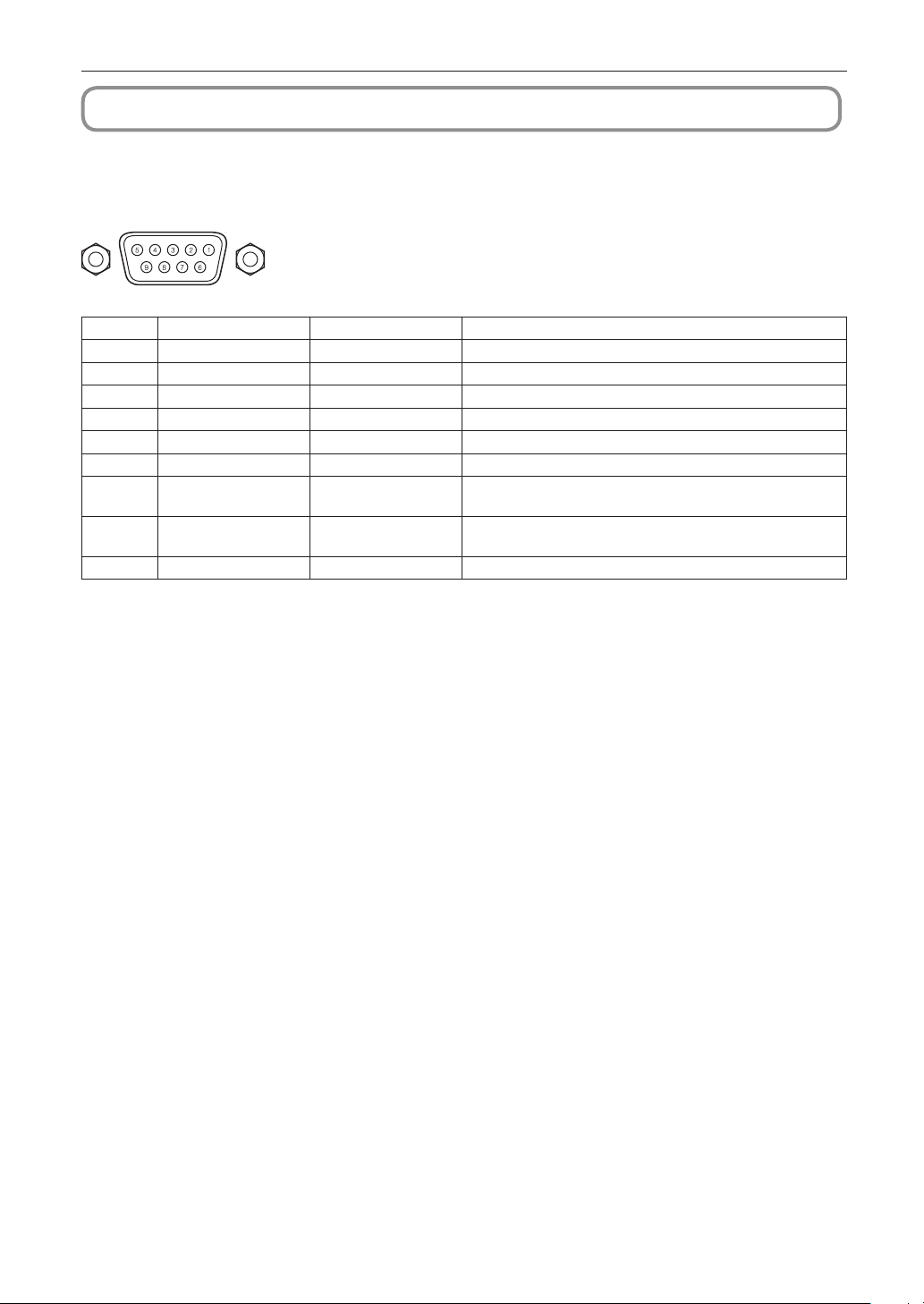
74
6. Appendix
6-7. Pin Assignment and Functions of Terminal
6-7-1. PC CONTROL connector (RS-232) (D-sub 9 pin)
This is an RS-232C interface for controlling the projector from a PC. The projector operates as a DCE (Data Communication
Equipment), so use a straight cable when connecting to a PC.
Pin No. RS-232C Signal Name Functions as RS-232C Projector Connector Operation
1 CD Carrier detection Not used (N.C.)
2 RXD Reception data Data transmission to an external device
3 TXD Transmission data Data reception from an external device
4 DTR
Data Terminal ready (Note)
Connection to 6 pins
5 GND Signal GND Signal GND
6 DSR Data set ready (Note) Connection to 4 pins
7 RTS Transmission request SYSTEM: Hi-Z (Not used)
CINEMA: Hi-Z (Used)
8 CTS Transmission available SYSTEM: Fixed at -6.5 V (Not used)
CINEMA: ±10.5 V (Used: Depends on communication status)
9 RI Ring indicator Not used (N.C.)
(Note) Do not use DTR and DSR signals when communicating.
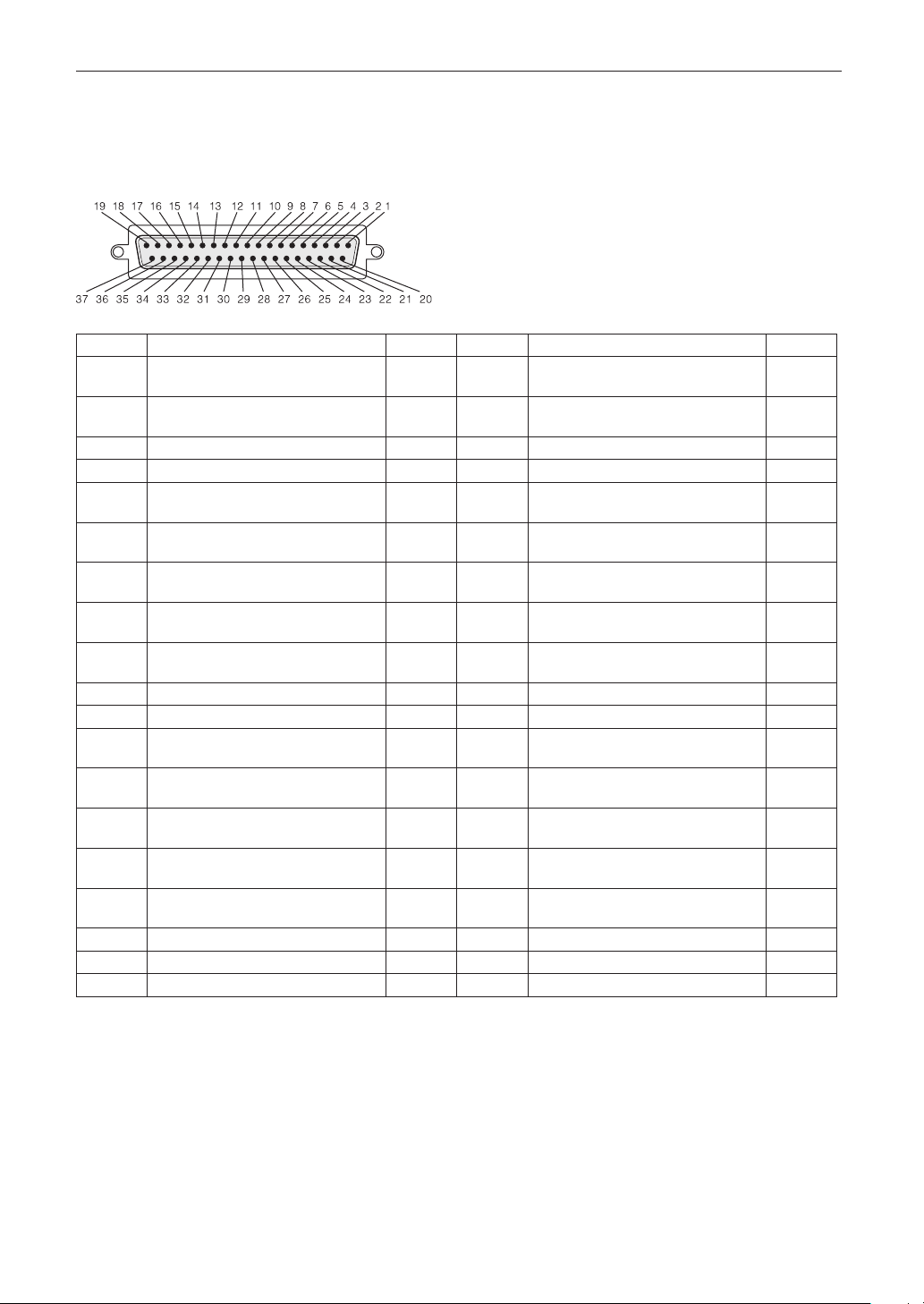
75
6. Appendix
6-7-2. External control connector (GP I/O) (D-sub 37 pin)
It is possible to control the projector with an external device and to control the external device from the projector using an external
control connector (GPIO: General Purpose I/O Ports). Each pin is electrically separated from the projector internal circuits by a
photo-coupler. 8 port input and 8 port output are available.
Please contact your dealer/distributor regarding how to use and to operate them.
Pin view of female connector
Pin No. Signal Name I/O Pin No. Signal Name I/O
1 GPIN1+
(3D L/R Input Reference +)
IN 20 GPIN1-
(3D L/R Input Reference -)
IN
2 GPIN2+
(3D L/R Display Reference +)
IN 21 GPIN2-
(3D L/R Display Reference -)
IN
3 GPIN3+ (system reserved) IN 22 GPIN3- (system reserved) IN
4 GPIN4+ (system reserved) IN 23 GPIN4- (system reserved) IN
5 EXT_GPIN1+
(Control and Title Selection +)
IN 24 EXT_GPIN1-
(Control and Title Selection -)
IN
6 EXT_GPIN2+
(Control and Title Selection +)
IN 25 EXT_GPIN2-
(Control and Title Selection -)
IN
7 EXT_GPIN3+
(Control and Title Selection +)
IN 26 EXT_GPIN3-
(Control and Title Selection -)
IN
8 EXT_GPIN4+
(Control and Title Selection +)
IN 27 EXT_GPIN4-
(Control and Title Selection -)
IN
9 GPOUT1+
(External 3D L/R Output Reference +)
OUT 28 GPOUT1-
(External 3D L/R Output Reference -)
OUT
10 GPOUT2+ (system reserved) OUT 29 GPOUT2- (system reserved) OUT
11 GPOUT3+ (system reserved) OUT 30 GPOUT3- (system reserved) OUT
12 GPOUT4+
(Internal 3D L/R Output Reference +)
OUT 31 GPOUT4-
(Internal 3D L/R Output Reference -)
OUT
13 EXT_GPOUT1+
(Projector Ready/Busy +)
OUT 32 EXT_GPOUT1-
(Projector Ready/Busy -)
OUT
14 EXT_GPOUT2+
(Projector Error Status +)
OUT 33 EXT_GPOUT2-
(Projector Error Status -)
OUT
15 EXT_GPOUT3+
(IMB Play/End Status +)
OUT 34 EXT_GPOUT3-
(IMB Play/End Status -)
OUT
16 EXT_GPOUT4+
(Projector Heartbeat +)
OUT 35 EXT_GPOUT4-
(Projector Heartbeat -)
OUT
17 NC (not connected) - 36 NC (not connected) -
18 GND PWR 37 GND PWR
19 GND PWR - - -
EXT_GPIN1 - EXT_GPIN4: You can control the projector externally by combinations of input signals (high/low). (Projector
power supply/turning the light source on or off/image mute/title selection)
EXT_GPOUT1 - EXT_GPOUT4: Functions in the above table are default settings. You can change the assigned functions.
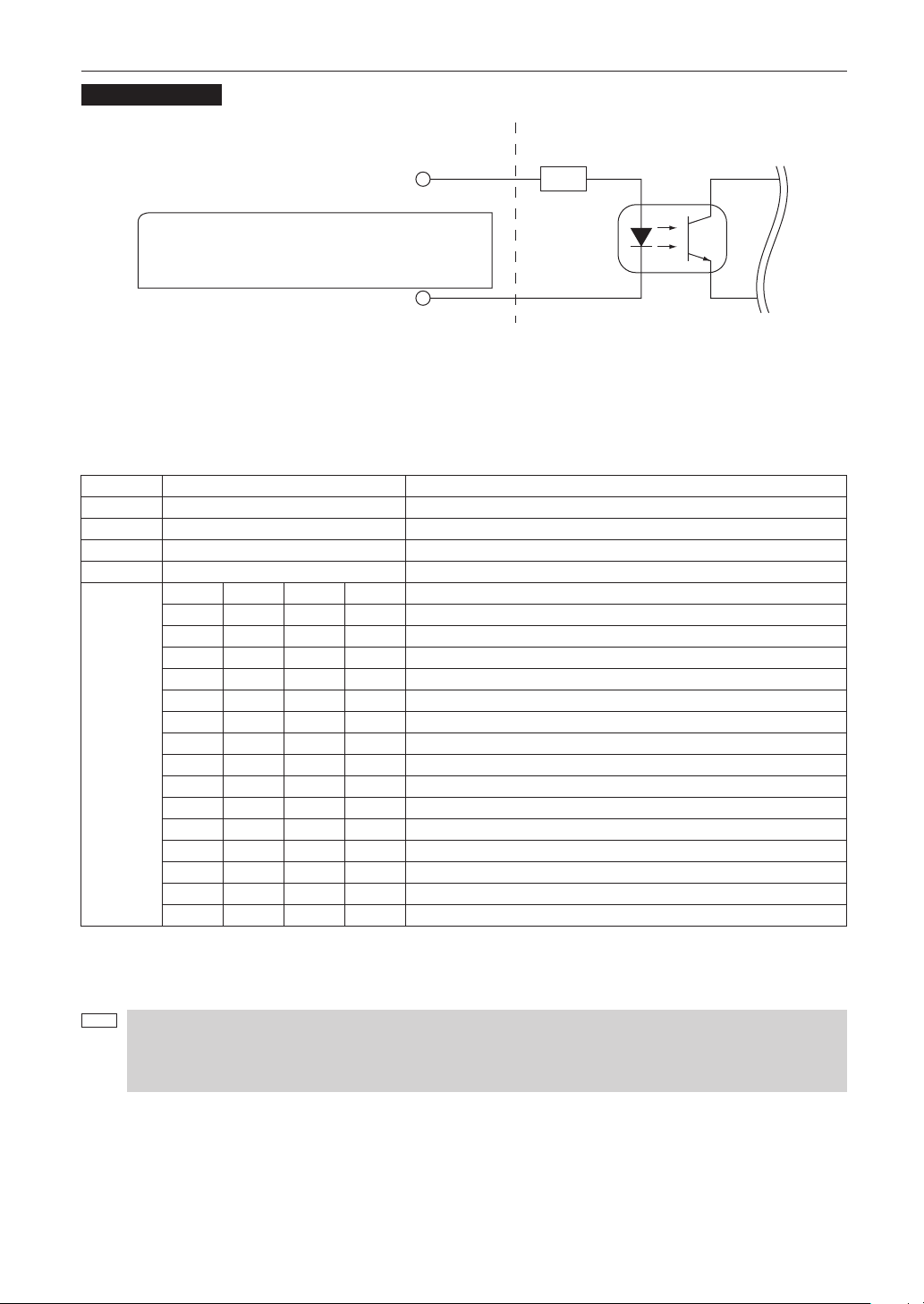
76
6. Appendix
Input Connector
GP I/O Connector Inside Projector
Resist = 390 Ω
Photo-coupler
Forward direction voltage: 1.1V (@5mA)
Ext_GPIN_P
Pin No.: 1 2 3 4 5 6 7 8
Ext_GPIN_N
Pin No.: 20 21 23 23 24 25 26 27
Voltage applied across the pins of Ext_GPIN_P and
Ext_GPIN_N should be in the range from 3.3 Vdc to 10 Vdc.
Recommended Operating Current: 5mA
Absolute Maximum Rating: 23mA
•UsingGPIOControl
Momentary “ON” pulse enables you to control projector. To enable “ON” pulse, hold it for at least 500 ms. Hold “OFF” for at least
500 ms before “ON”. (See page 77)
Here is function list to control projector by using GPIO port.
Pin No. Photo-coupler ON/OFF Function
1-20 ON/OFF 3D L/R timing signal input ON/OFF
2-21 ON/OFF 3D L/R display timing signal input ON/OFF
3-22 - System reserved (used internally)
4-23 - System reserved (used internally)
5-24
6-25
7-26
8-27
8-27 7-26 6-25 5-24 The following functions apply depending on the combination of input terminals.
OFF OFF OFF ON Power ON
OFF OFF ON OFF Power OFF
OFF OFF ON ON Light source ON
OFF ON OFF OFF Light source OFF
OFF ON OFF ON Image douser ON
OFF ON ON OFF Image douser OFF
OFF ON ON ON System reserved (used internally)
ON OFF OFF OFF Selects the title registered to the preset button 1
ON OFF OFF ON Selects the title registered to the preset button 2
ON OFF ON OFF Selects the title registered to the preset button 3
ON OFF ON ON Selects the title registered to the preset button 4
ON ON OFF OFF Selects the title registered to the preset button 5
ON ON OFF ON Selects the title registered to the preset button 6
ON ON ON OFF Selects the title registered to the preset button 7
ON ON ON ON Selects the title registered to the preset button 8
Example for dousing image: Input ON to 5-24 and 7-26 while 6-25 and 8-27 are OFF.
Example for selecting the preset button 2: Input ON to 5-24 and 8-27 while 6-25 and 7-26 are OFF.
NOTE
• The operation command coming from GPI/O port will be canceled when the projector is processing other tasks,
such as light source cooling and switching title.
• Set all other pins than those in use to “OFF”.
• The operation command is executed upon continuous input of the “ON” pulse for approximately 200 ms.
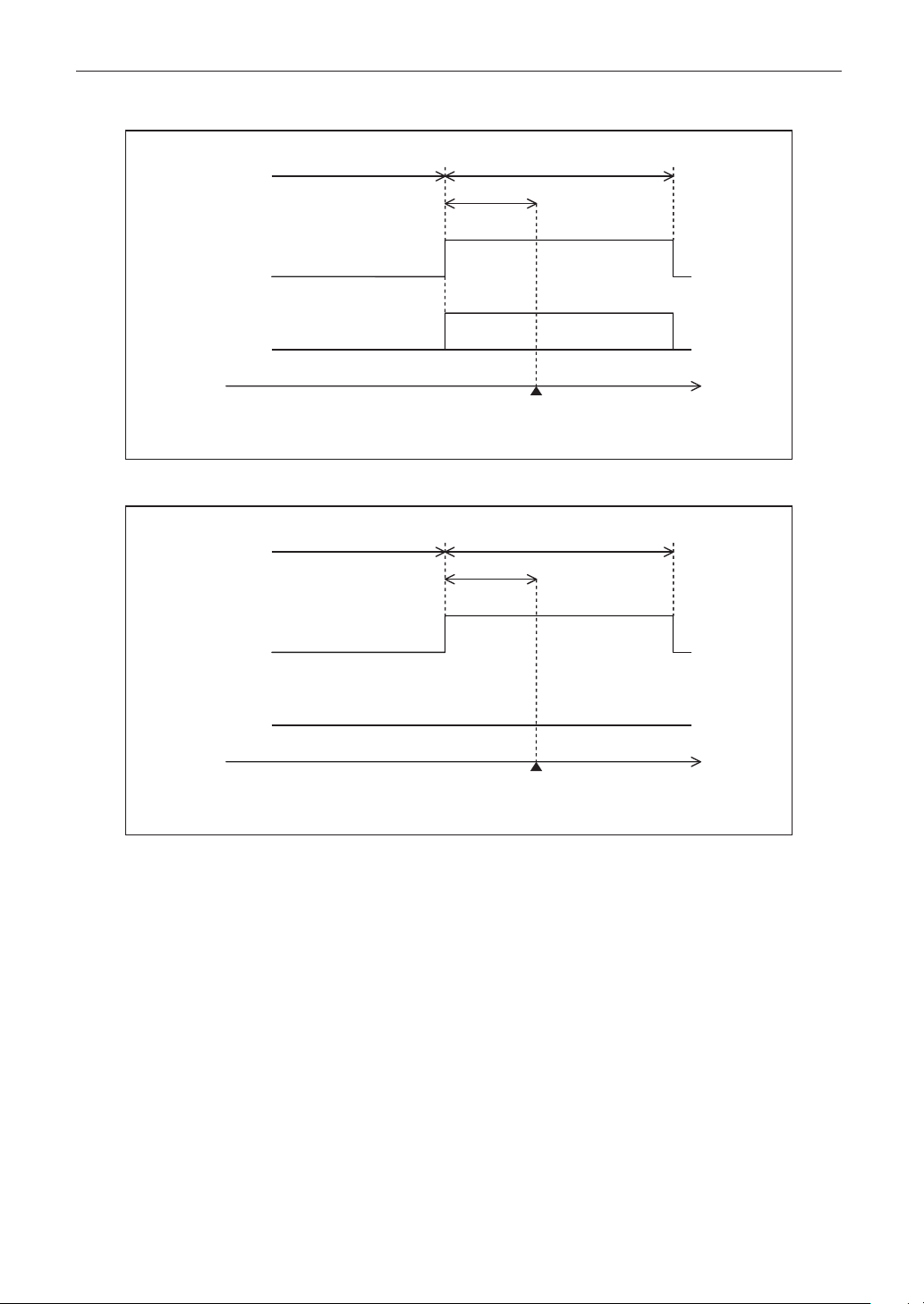
77
6. Appendix
•TimingchartofGPIOcontrol
Example of Select Preset Button
Off at least 500 ms at least 500 ms
approx. 200 ms
on
off
on
off
8-27
5-24/6-25/7-26
Execute
Select Preset Button
time
Example for turning the image douser (Douser) on
Off at least 500 ms at least 500 ms
approx. 200 ms
on
off
on
off
5-24/7-26
6-25/8-27
Execute
Image douser (Douser) ON
time
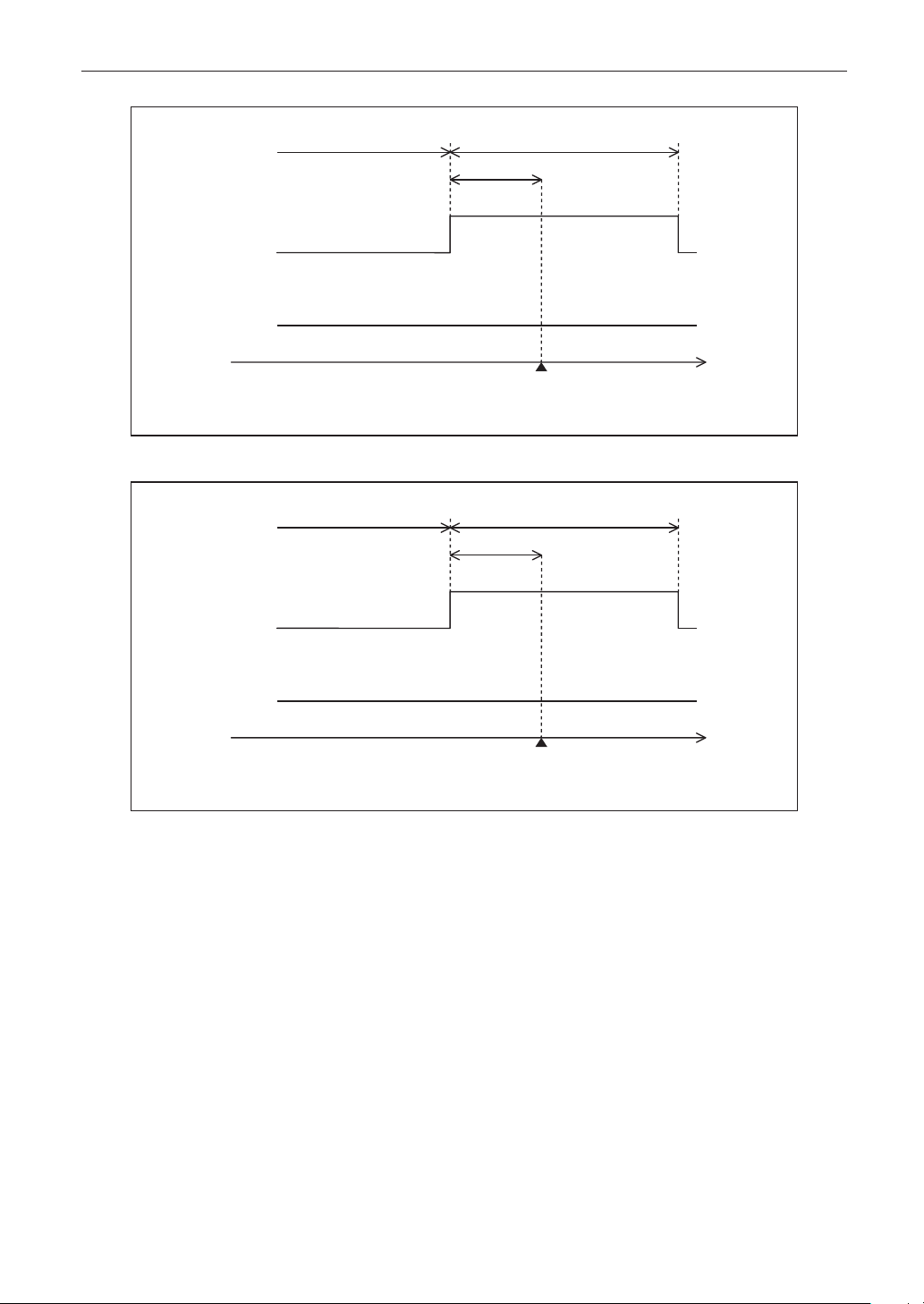
78
6. Appendix
Example of Light source On
Off at least 500 ms at least 500 ms
approx. 200 ms
on
off
on
off
5-24/6-25
7-26/8-27
Execute
Light source On
time
Example for turning the power off
Off at least 500 ms at least 500 ms
approx. 200 ms
on
off
on
off
6-25
5-24/7-26/8-27
Execute
Power OFF
time
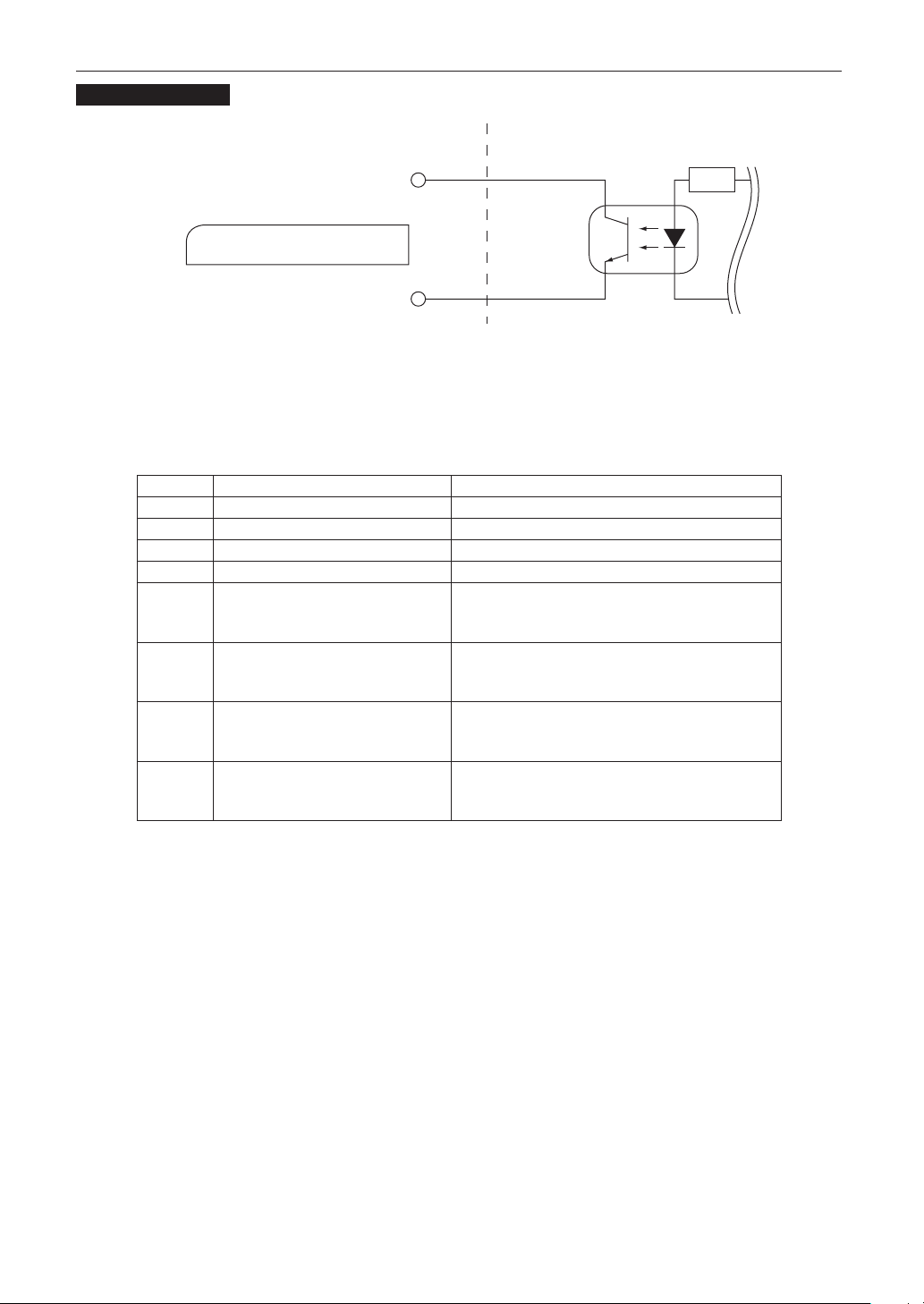
79
6. Appendix
Output Connector
GP I/O Connector Inside Projector
Photo-coupler
Ext_GPOUT_P
Ext_PROJ_GOOD_P
Pin No.: 9 10 11 12 13 14 15 16
Pin No.: 28 29 30 31 32 33 34 35
Absolute Maximum Rating: 50 mA
Ext_GPOUT_N
Ext_PROJ_GOOD_N
•UsingGPIOControl
You can use GPIO control for the projector’s health check and error check. Also, you can use the output as the trigger to control
external devices.
The following functions are assigned to the pin number 13-32, 14-33, 15-34, and 16-35 (EXT_GPOUT1 - EXT_GPOUT4) as the
default. You can change the assigned functions.
Pin No. Photo-coupler ON/OFF Function
9-28 ON/OFF External 3D L/R timing signal output ON/OFF
10-29 – System reserved (used internally)
11-30 – System reserved (used internally)
12-31 ON/OFF Internal 3D L/R timing signal output ON/OFF
13-32 ON/OFF GPIO control status check
ON: GPIO control (input) is unavailable.
OFF: GPIO control (input) is available.
14-33 ON/OFF Error check
ON: Error
OFF: No error
15-34 ON/OFF IMB status check
ON: The content is being played.
OFF: The content is stopped/paused.
16-35 ON/OFF Health check (heart beat)
ON and OFF are alternately output when operations are
normal.
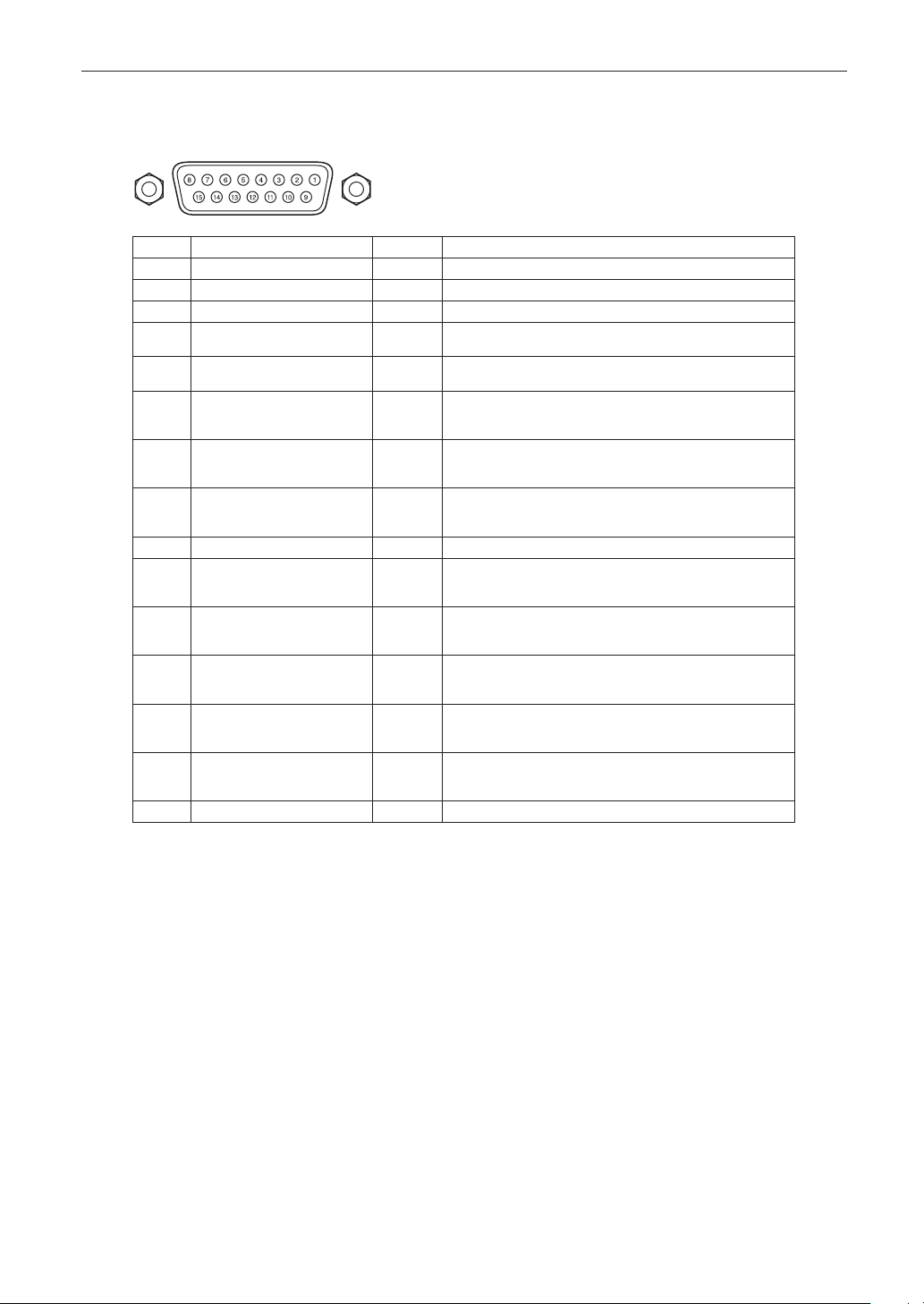
80
6. Appendix
6-7-3. 3D connector (D-sub 15 pin)
This is used to connect a 3D image system to the projector.
Pin view of a female connector
Pin No. Signal Name I/O Function
1 +12V PWR Supplies power (+12V) to the 3D image system
2 GNDC GND Ground
3 GNDC GND Ground
4 RS232_RX IN Data transmission from the 3D image system
(1200 Baud, 8 bits, No Parity)
5 RS232_TX OUT Data transmission to the 3D image system
(1200 Baud, 8 bits, No Parity)
6 CONN_3D_MODE+ OUT 3D mode status (+)
(Connects to the collector of the output transistor of the photo
coupler inside the projector)
7 CONN_SYNC+ OUT 3D L/R switching timing signal (+)
(Connects to the collector of the output transistor of the photo
coupler inside the projector)
8 3D_INPUT_REFERENCE+ IN 3D L/R timing signal (+)
(Connects to the anode of the input diode of the photo
coupler inside the projector)
9 +12V PWR Supplies power (+12V) to the 3D image system
10 3D_INPUT_REFERENCE− IN 3D L/R timing signal (–)
(Connects to the cathode of the input diode of the photo
coupler inside the projector)
11 3D_DISPLAY_REFERENCE+ IN 3D L/R display timing signal (+)
(Connects to the anode of the input diode of the photo
coupler inside the projector)
12 3D_DISPLAY_REFERENCE− IN 3D L/R display timing signal (–)
(Connects to the cathode of the input diode of the photo
coupler inside the projector)
13 CONN_3D_MODE− OUT 3D mode status (–)
(Connects to the emitter of the output transistor of the photo
coupler inside the projector)
14 CONN_SYNC− OUT 3D L/R switching timing signal (–)
(Connects to the emitter of the output transistor of the photo
coupler inside the projector)
15 N/C − Unused
81
6. Appendix
6-8. Related products list
Product name Model name
Lens
Zoom lens 1.20〜1.80
NC-60LS12ZW
Zoom lens 1.20〜1.81
NC-60LS12Z
Zoom lens 1.40〜2.05
NC-60LS14Z
Zoom lens 1.59〜2.53
NC-60LS16Z
Zoom lens 1.90〜3.25
NC-60LS19Z
Zoom lens 2.40〜3.90
NC-60LS24Z
Zoom lens 3.90〜6.52
NC-60LS39Z
Projector Head NP-02HD
Light Module Max. 22 m screen width NP-24LU01
Max. 22 m screen width NP-24LU03
Max. 20 m screen width NP-20LU01
Max. 20 m screen width NP-20LU03
Max. 19 m screen width NP-18LU01
Max. 19 m screen width NP-18LU03

© NEC Display Solutions, Ltd. 2019
Ver.3 04/21