
User Guide
Tell the world
Version 1
Focusrite.com

focusrite.com 2Tell the world
CONTENTS
Contents
Overview ................................................ 3
Introduction ............................................ 3
Hardware features ....................................... 4
In the Box ............................................. 4
System requirements ..................................... 4
Getting Started ........................................... 5
Easy Start Tool .......................................... 5
Mac Users: ...................................... 6
Windows Users: .................................. 7
iPad Users: ...................................... 8
All users: ....................................... 9
Manual Registration............................... 9
Audio Setup in your DAW ................................. 9
Audio Setup in Hindenburg ....................... 10
Examples of use .......................................... 11
Recording with a microphone ............................. 11
Using Auto Gain ................................ 13
Manual gain adjustment .......................... 14
Microphone Mute ............................... 15
Using Enhance .................................. 15
Listening with headphones ............................... 16
Listening with speakers .................................. 16
Recording a phone ..................................... 17
Recording to a video camera ............................. 18
Vocaster Hub software ..................................... 19
Controlling the microphone .............................. 20
Controlling your mix .................................... 21
Recording sounds from your computer...................... 22
Example of Loopback usage ....................... 23
Recording Tracks into Software............................ 23
Hardware Features ........................................ 24
Top Panel ............................................. 24
Rear Panel ............................................ 25
Specications ............................................ 26
Performance Specications ............................... 26
Troubleshooting........................................ 28
Copyright and Legal Notices.............................. 28
Credits ............................................... 28

focusrite.com Tell the world 3
OVERVIEW
Overview
Introduction
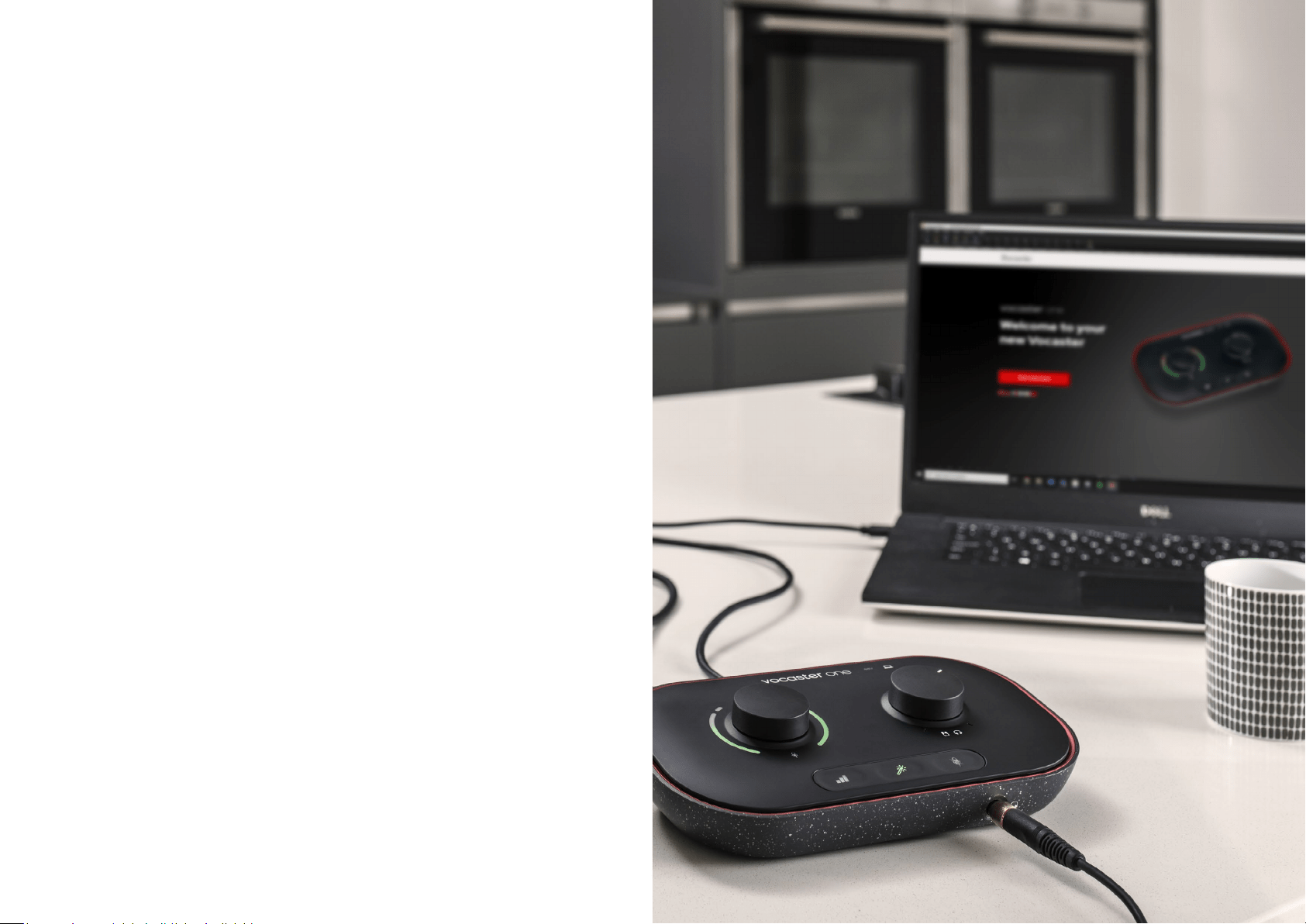
Welcome to your new Vocaster One audio
interface. Vocaster One is designed for
podcasters, vloggers, voiceover artists,
streamers, audiobook creators, and more.
With Vocaster One and the included Vocaster
Hub software you can record studio quality
audio to your computer and camera.
We’ve designed Vocaster One for users of all
experience levels. With features such as Auto
Gain and Enhance you can achieve clear and
consistent recordings quickly.
The Vocaster Hub software is designed with
simplicity in mind. It provides easy access for
controlling Vocaster’s settings, and gives you
full control of your show’s mix as you send
it to your choice of recording and streaming
software.
Connect Vocaster One to a computer via its
USB-C port and the cable provided. You can
either live-stream audio in real time, or record
sound for later edit and upload.
Vocaster One also allows two-way connection
to a phone, letting you record interviews or
other audio from your phone to your camera
or computer. You can also record to the
audio track of a camera in perfect sync with
your video. You can monitor your stream or
recording process on either headphones or
loudspeakers.
The Vocaster One interface and the included
Vocaster Hub control software support both
Mac and Windows.
Vocaster One is also compatible with Apple
iPads with a USB-C port, so you can take
advantage of the additional portability and
convenience the tablet format provides.
If you can’t nd what you need in this User
Guide, please visit support.focusrite.com,
which has a Getting Started section, setup
guides, and technical support.
A video series explaining how to set up and
use Vocaster One is available from our Get
Started pages.

focusrite.com Tell the world 4
Hardware features
Vocaster One allows you to connect a high
quality microphone to a computer running
macOS or Windows: this lets you achieve a
much better audio recording than you would
get by using the microphone built into most
laptops or tablets.
The microphone input accepts a range of
microphone models, including both dynamic
and condenser types. If you are using a
condenser microphone, Vocaster One can
provide the phantom power (48V) it needs
to operate.
The microphone signal routes to your
computer’s audio recording software via the
USB-C connection at up to 24-bit resolution,
and 48 kHz sample rate. (24-bit/48 kHz is the
standard for most podcasts.)
If you don’t already have recording software,
we recommend Hindenburg. This is included
in the software package available to you free
of charge as a Vocaster owner.
A 3.5 mm jack socket allows you to connect
a phone to Vocaster One: a second, similar
socket allows connection to a video camera.
The phone connector is a TRRS: TRRS means
you get audio both in and out of the phone,
so you can record audio from the phone,
and the phone can also hear the other audio
sources you are recording to your show.
Vocaster One has outputs for both
headphones and speakers: a front panel ¼’
TRS socket for headphones and two rear
panel ¼’ TRS sockets for connection
to speakers.
The top panel has knobs for microphone gain
and listening level. The microphone control
is surrounded by ‘halo’ meters, showing both
the microphone signal level and the gain
setting. Three illuminated buttons start the
Auto Gain function, activate the Enhance
feature and mute the microphone. There are
also LEDs to show when phantom power and
the USB connection are active.
In the Box
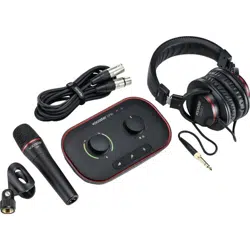
Along with your Vocaster One you will nd:
• USB cable, Type ‘A’ to Type ‘C’
• Getting Started Information (printed
inside the box)
• Important Safety Information
As a Vocaster One owner, you are also
entitled to a selection of third-party software,
including the Hindenburg DAW (Digital Audio
Workstation) recording application. Go to
focusrite.com/Vocaster to see
what’s available.
System requirements
The easiest way to check your computer’s
operating system (OS) is compatible with
the Vocaster One is to use our Help Centre’s
compatibility articles.
As new OS versions become available over
time, you can continue to check for further
compatibility information by searching our
Help Centre at support.focusrite.com.
OVERVIEW
focusrite.com Tell the world 5
GETTING STARTED
Getting Started
When you connect Vocaster One for the rst time, your computer
recognises it in the same way as if it were a USB memory stick.
Easy Start Tool
Getting up and running with your Vocaster One is made easy by our
Easy Start Tool. To use this, connect Vocaster One to your computer
with the USB cable supplied, and power it on by pressing the power
button next to the rear panel USB port.
The following steps show you what will appear on screen: these help
you get set up whether or not you’re new to audio interfaces.
focusrite.com Tell the world 6
Mac Users:
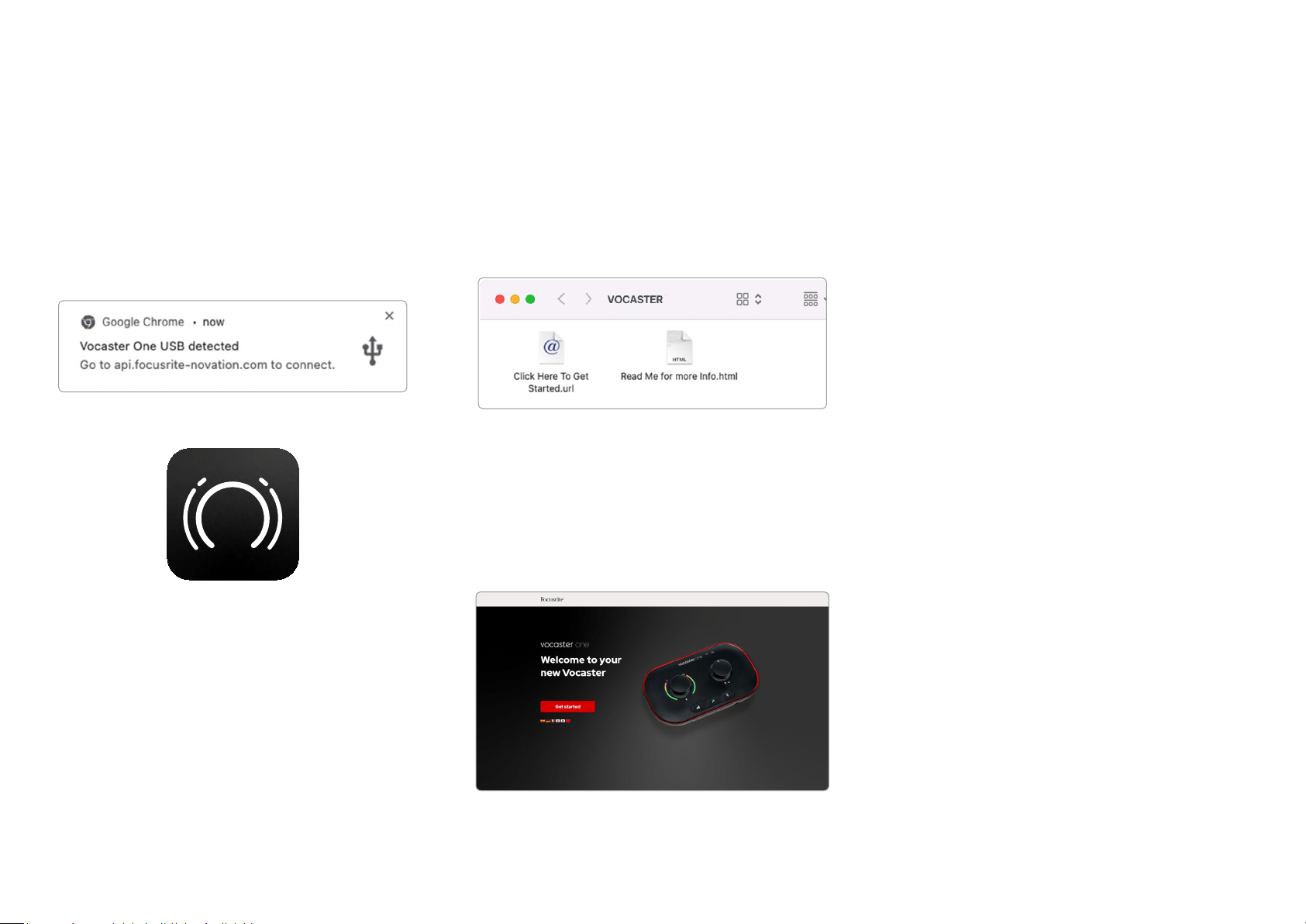
On connecting your Vocaster to your Mac you
will see a pop-up and/or a Vocaster icon will
appear on the desktop::
Google Chrome pop up
Vocaster Easy Start icon
Double-click on the icon or pop-up to open
the Finder window shown below:
Double-click the Click Here to Get Started.
url icon. This redirects you to the Focusrite
website, where we recommend you register
your Vocaster to access to your included
software package:
After you submit the form you can either
follow our step-by-step setup guide, which
is tailored to how you want to use Vocaster
One, or go straight to your account and
download Vocaster Hub control software.
When you connect Vocaster One, your
computer should set it as your default audio
device. If this doesn’t happen, go to System
Preferences > Sound, and ensure the input
and output are set to Vocaster One USB.
GETTING STARTED
focusrite.com Tell the world 7
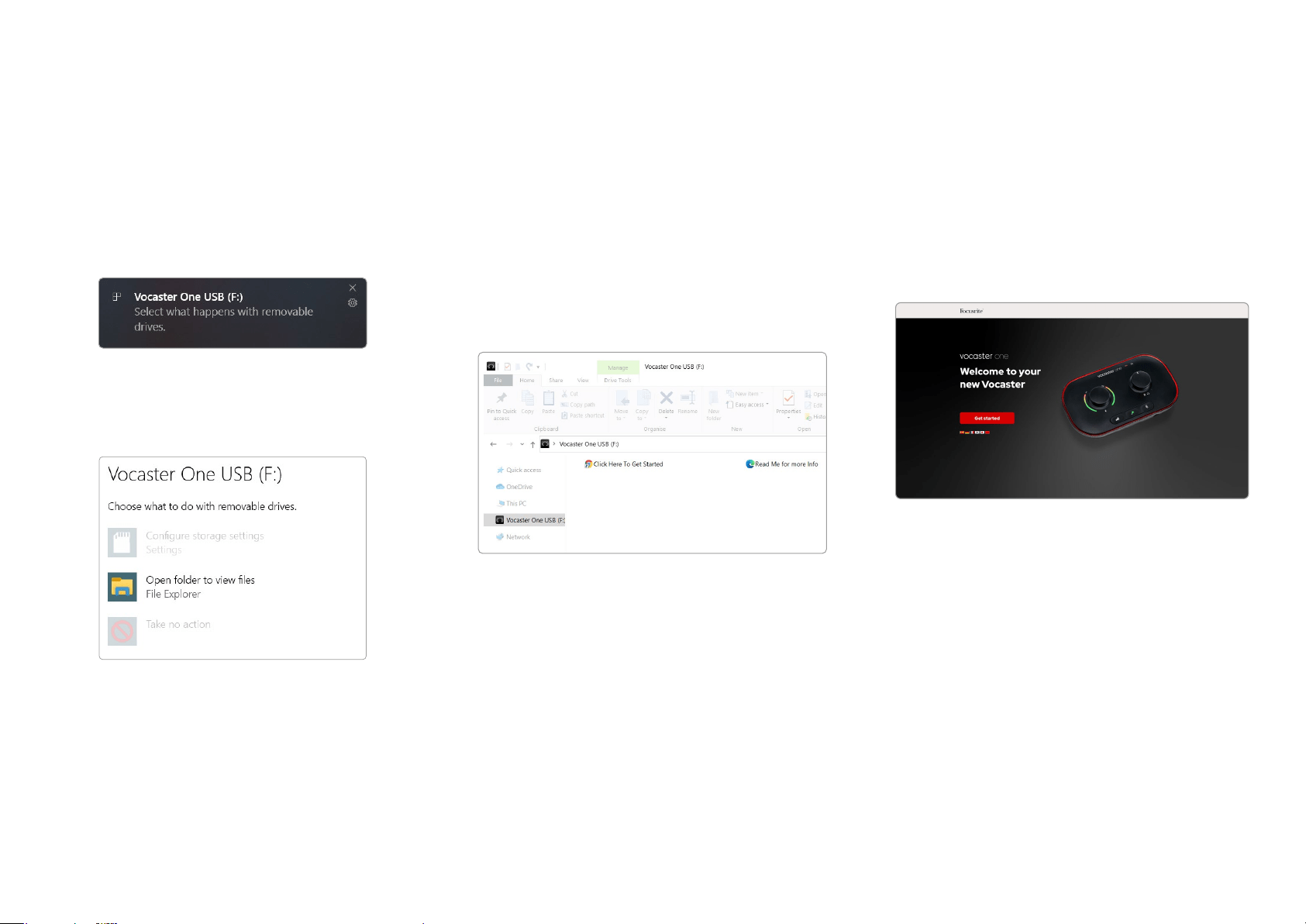
Windows Users:
On connecting your Vocaster One to your PC,
this notication will appear:
Click on the notication to open the dialogue
box shown below:
Double-click:
Open folder to view les
this opens an Explorer window:
Double-click:
Click Here to Get Started
This redirects you to the Focusrite website,
where we recommend you register
your device:
After you submit the form you can either
follow our step-by-step setup guide, which
is tailored to how you want to use Vocaster
One, or go straight to your account and
download Vocaster Hub control software.
When you connect Vocaster One, your
computer should set it as your default audio
device. If this doesn’t happen, go to Settings
> System > Sound, and set Vocaster One as
the Input and Output Device.
GETTING STARTED
focusrite.com Tell the world 8
iPad Users:
NOTE: Before connecting Vocaster One to
your iPad, we recommend you follow the
‘Getting Started’ section above to ensure
your hardware is up to date through
Vocaster Hub.
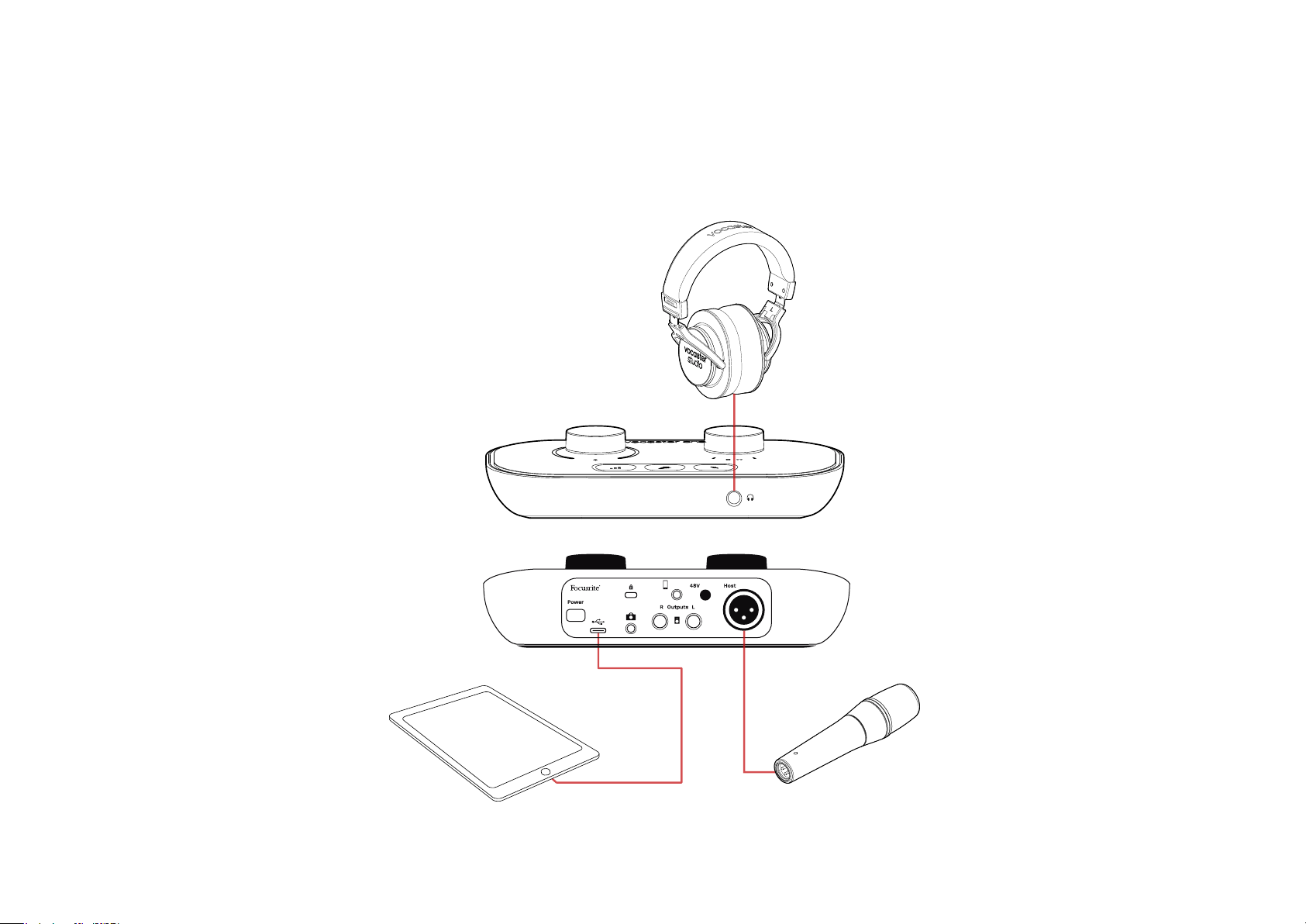
To connect your Vocaster One to an
iPadOS device you need:
• iPad with USB-C port
• USB-C to USB-C cable
(or the included cable and
an Apple USB-A to C adaptor*)
*This method may require a separate USB hub to
provide enough power to your Vocaster.
To make the connections:
1. Connect one end of the
USB Type-C to C cable (or adaptor) to
your iPad.
2. Connect the other end of the
USB type-C to your Vocaster One’s USB
port.
3. Connect your headphones or monitor
speakers to the Vocaster One.
Sound from the iPad routes to Vocaster
One’s outputs. You can route the
microphone and other sources connected
to the inputs of Vocaster One to iOS apps
that support audio recording.
GETTING STARTED

focusrite.com Tell the world 9
GETTING STARTED
All users:
If you have any issues using the Easy Start
tool, open the le More Info & FAQs, where
you should be able to nd answers to
your questions.
NOTE: When you install Vocaster Hub on a
Windows computer, the driver needed by
Vocaster One installs automatically. Vocaster
Hub and the Vocaster Windows driver are
always available to download at any time,
even without registering: see ‘Manual
Registration’ below.
Manual Registration
If you decide to register your Vocaster One
later you can do so at register. You need to
enter the Unique Product Number (UPN)
manually: this number is on the base of the
interface itself, and can also be found on the
barcode label on the side of the box.
We recommend you download and install our
Vocaster Hub software application, as this
unlocks the full potential of the interface. You
can download Vocaster Hub at any time from
downloads.focusrite.com.
Audio Setup in your DAW
Vocaster One is compatible with any
Windows-based Digital Audio Workstation
(this is the software you use to record and is
referred to as a ‘DAW’) that supports ASIO
or WDM, or any Mac-based DAW that uses
Core Audio. After following the Easy Start
procedure (see page 5), you can start
using Vocaster One with the DAW of
your choice.
Vocaster One lets you record all the sources
separately via the USB connection, for mixing
later, but also has a Show Mix input which is a
stereo mix from Vocaster Hub software.
To allow you to get started if you do not
already have a DAW application installed on
your computer, Hindenburg is included; this is
available to you once you’ve registered your
Vocaster One. If you need help installing this,
please visit our Getting Started pages here,
where a video tutorial is available.
Operating instructions for Hindenburg can
be found in the application’s Help les, or at
hindenburg.com/academy.
Please note - your DAW may not
automatically select Vocaster One as its
default Input/Output (I/O) device. In this
case, you must manually select Vocaster One/
Focusrite USB ASIO as the driver on your
DAW’s Audio Setup* page. Please refer to
your DAW’s documentation (or Help les) if
you are unsure where to select the ASIO or
Core Audio driver.
* Typical names. Terminology may differ slightly
between DAWs
focusrite.com Tell the world 10
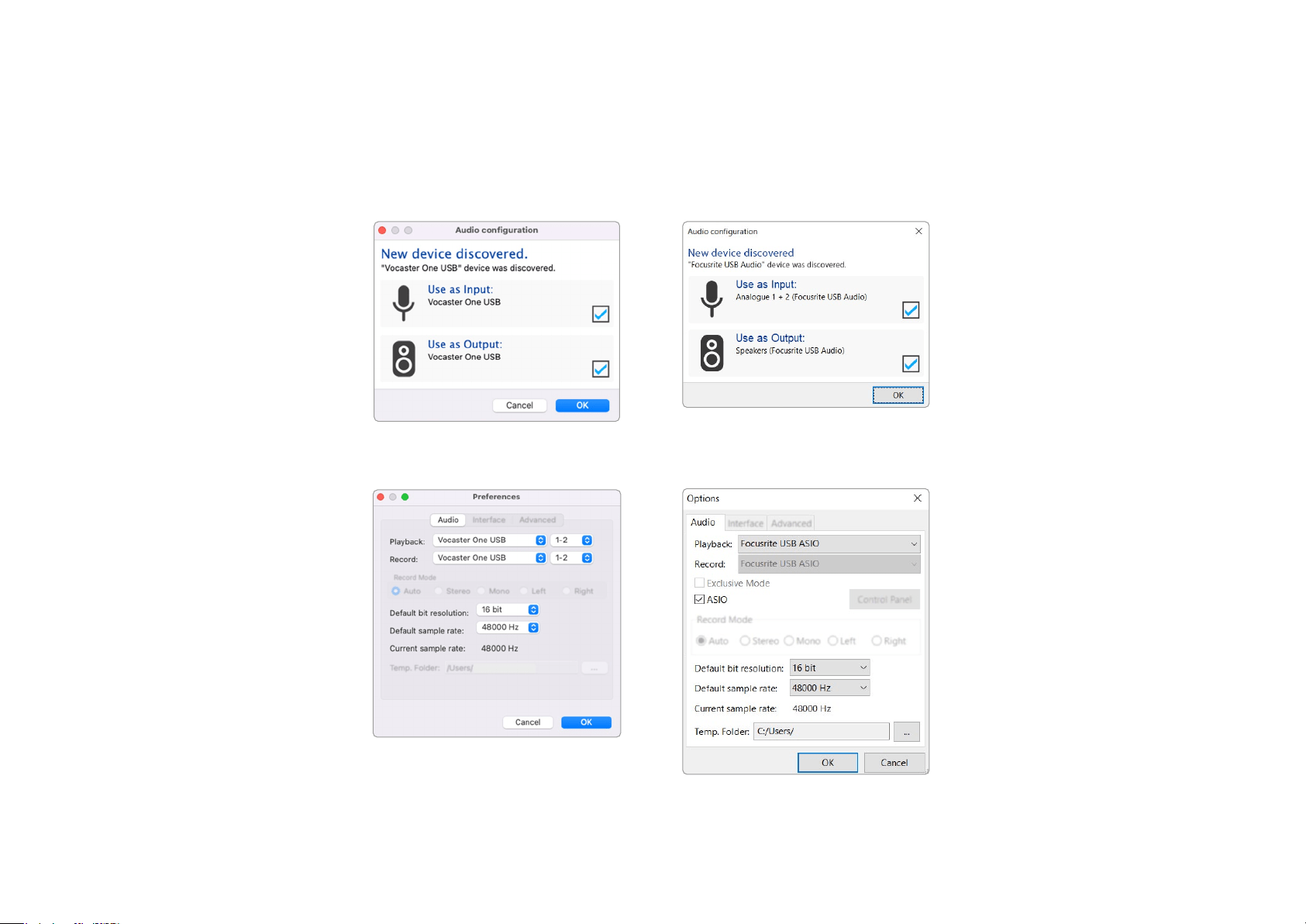
Audio Setup in Hindenburg
The examples opposite show
the correct conguration on the
Hindenburg audio preferences on
Windows and Mac. There are two
set ups, automatic and manual:
Preferences page (Mac version),
and at the
Tools > Options > Audio tab
(Windows version).
Mac automatic setup
Windows automatic setup
Mac manual setup
Windows manual setup
Tutorial videos explaining how to
set up and use Vocaster One with
various DAWs can be found at our
Getting Started pages.
GETTING STARTED
focusrite.com Tell the world 11
Examples of use
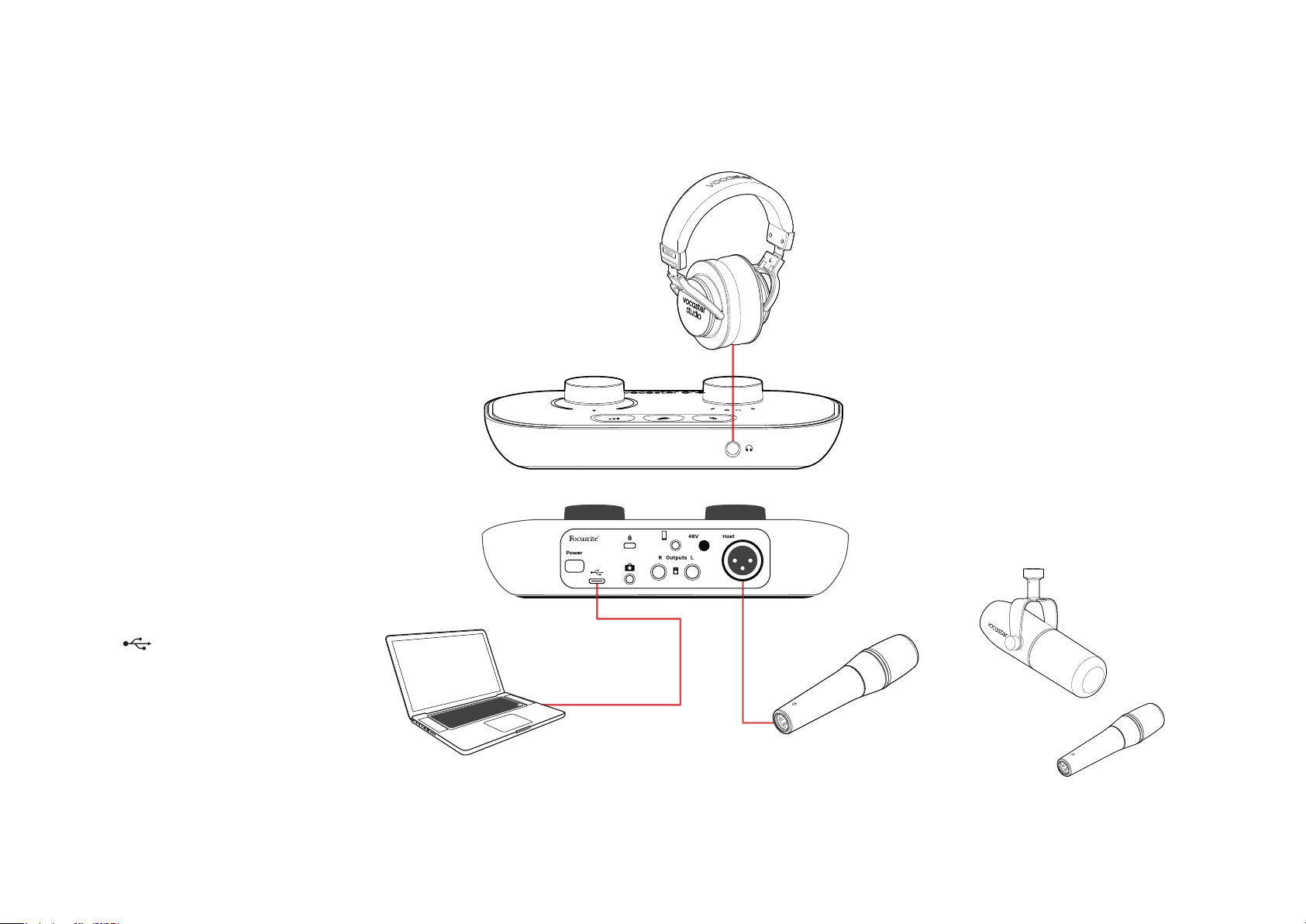
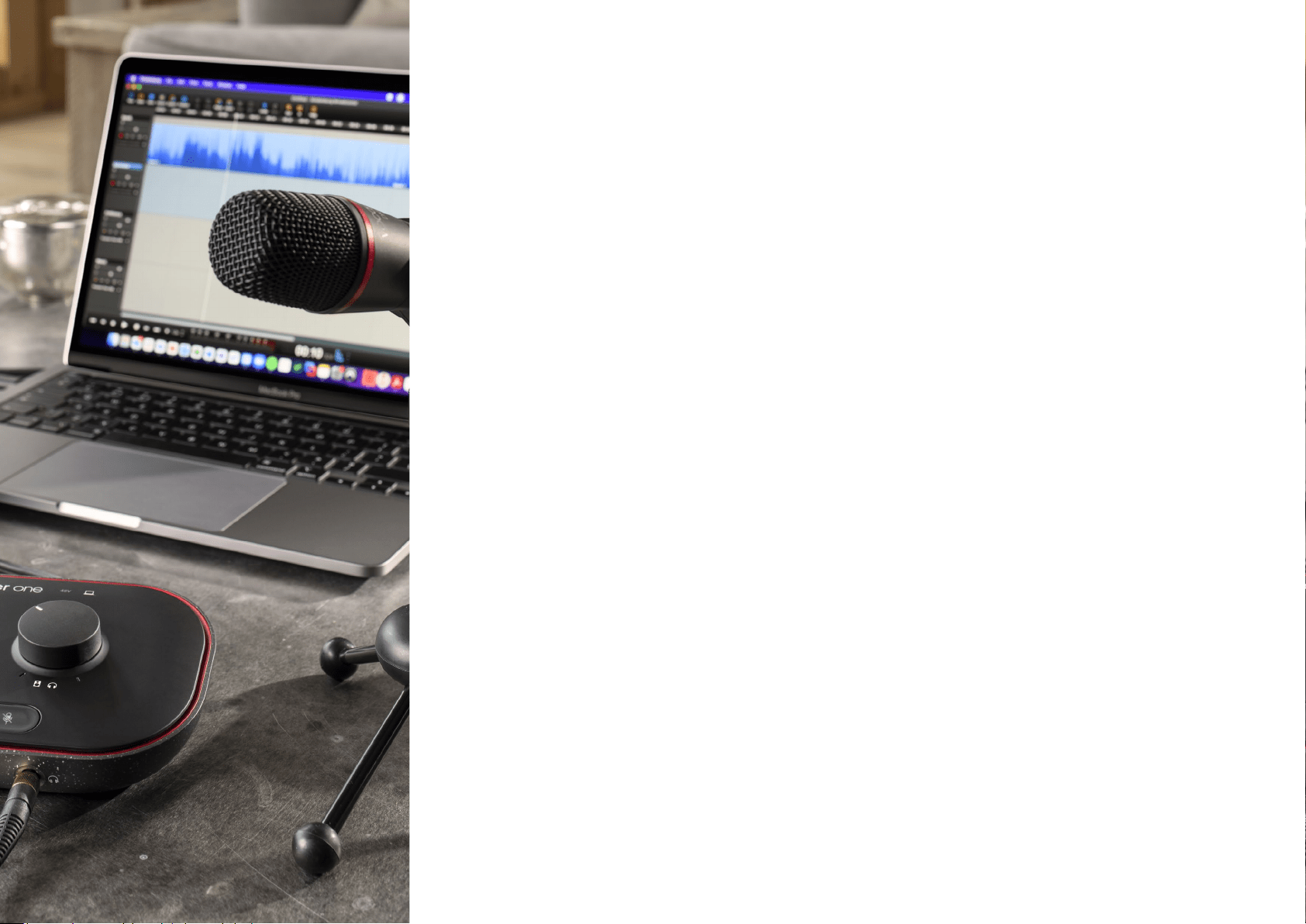
Vocaster One is the ideal audio interface for
live podcasting or voice recording, using a
Mac, PC, or iPad. A typical set of connection
possibilities is shown below.
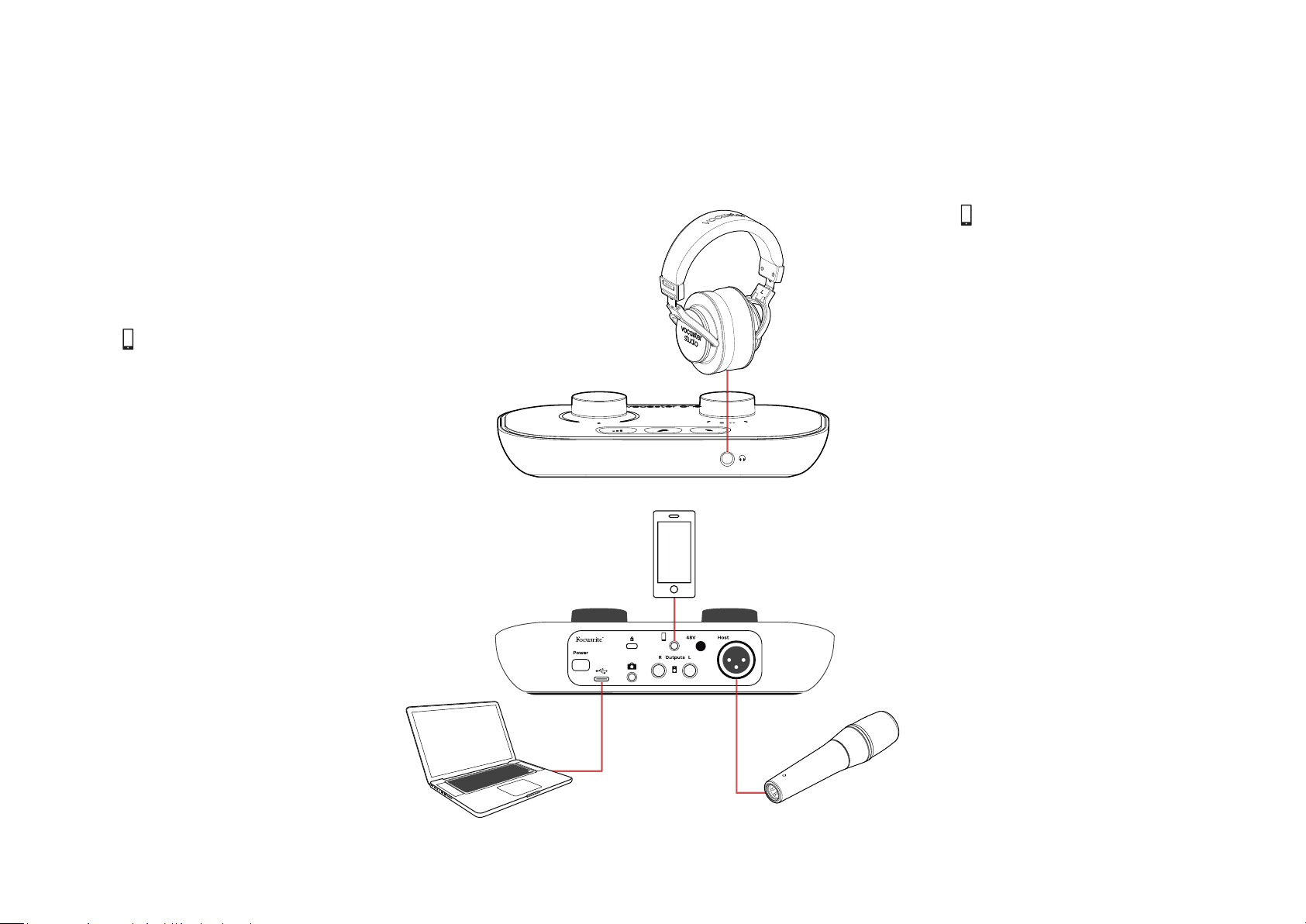
Recording with a microphone
This setup shows a typical conguration for
recording from a microphone using software
on your Mac, PC, or iPad. You can record your
voice while listening to yourself and any other
audio via headphones.
Apart from the headphone socket, all
Vocaster One’s connections are
on the rear panel. Connect your
computer or laptop to the USB port
(marked ) using the USB cable
supplied. Turn the unit on with the
Power button.
The microphone input is an XLR socket
and work with microphones with an XLR
connector. You can use Vocaster One
can with most models of microphone,
including dynamic and condenser types.
We recommend dynamic microphones
for speech recording, as they deliver
good quality in the frequency range of
the spoken word, and can help reduce
unwanted noises in your surroundings
from being picked up.
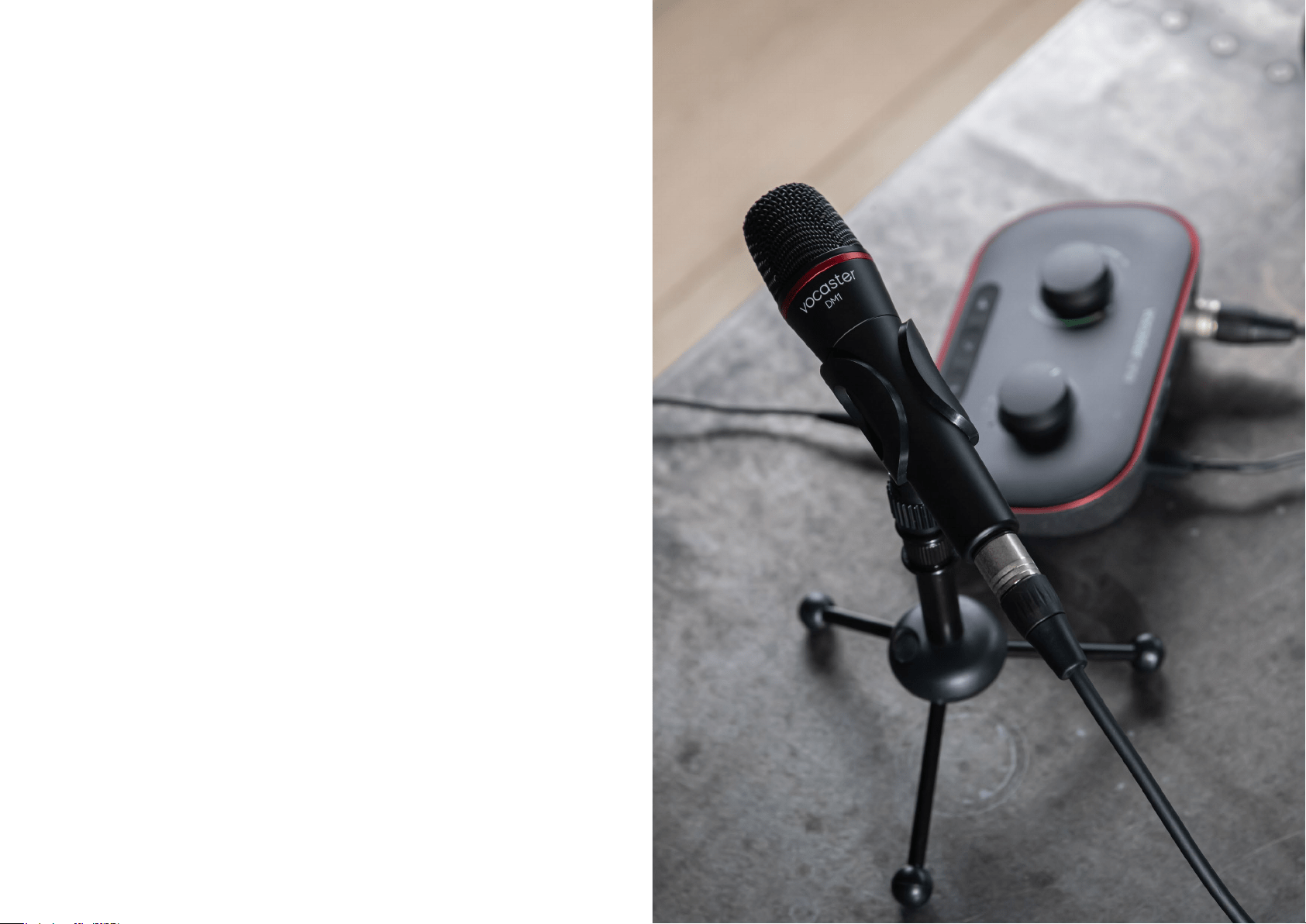
Two types of dynamic microphone
EXAMPLES OF USE
focusrite.com Tell the world 12
Recording with a microphone (cont.)
Vocaster One can provide phantom power (48 volts) at the XLR input
if you’re using a condenser microphone. To enable phantom power,
push the 48V button on the rear panel: the 48V LED lights red to
conrm it’s active.
Dynamic microphones do not require phantom power. It’s rare, but
you can damage some microphones using phantom power. We
recommend turning off phantom power when you use a dynamic
microphone. If you are unsure whether your microphone needs
phantom power, please check its documentation.
Microphone setup
Vocaster One has two ways of setting the correct microphone level.
‘Gain’ is the term we use to describe how much you are boosting
your microphone signal.
You can either set the level automatically with Vocaster One’s
Auto Gain feature, or manually. Both methods are described in the
next sections.
EXAMPLES OF USE
focusrite.com Tell the world 13
Using Auto Gain
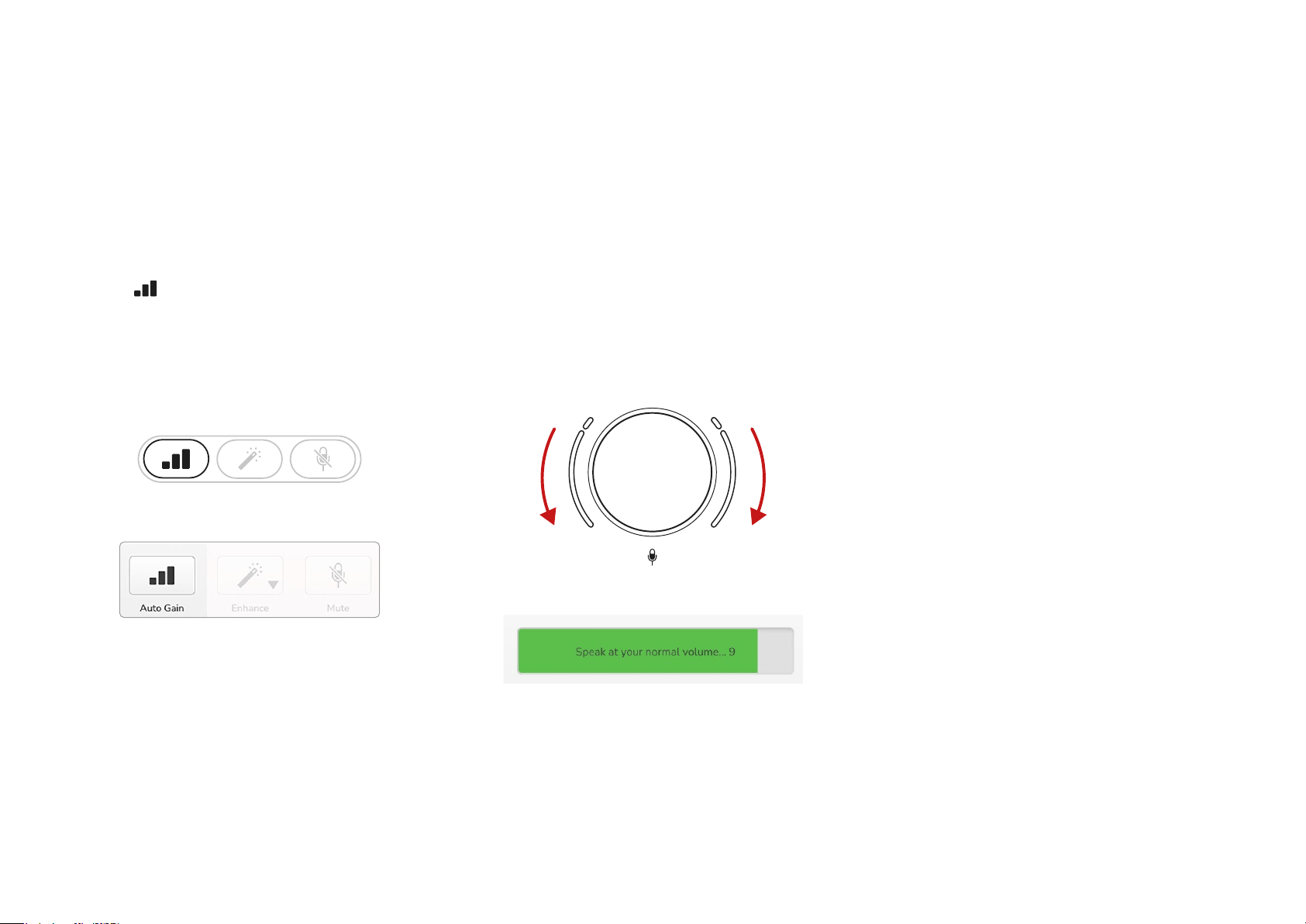
Vocaster One’s Auto Gain feature allows you to
get a good recording level without guesswork.
Press the button to activate Auto Gain, if you
have Vocaster Hub open on your computer, by
clicking on the on-screen Auto Gain icon.
The Auto Gain button will pulse amber.
Vocaster One
Vocaster Hub
Speak into the microphone for ten seconds,
using a normal speaking voice you will use for the
recording itself.
The halos acts as a count down timer, starting fully
white, then moving towards the bottom. Vocaster
Hub also shows a progress bar.
Halo countdown on Vocaster
Vocaster Hub countdown
After ten seconds, Auto Gain sets the input level
for the microphone and you’re ready to record.
Auto Gain didn’t set my input level
If the halos ash amber the signal is too loud
or too quiet so Auto Gain couldn’t set the correct
level and sets it to the minimum or
maximum level.
If the halos ash red Auto Gain couldn’t set a
usable level. This could be due to a Mic Level that
was too low:
• Test a different microphone or cable.
• Make sure 48V is on, if you’re using a
condenser microphone.
• Make sure you switch on your microphone
(if it has an on/off switch).
EXAMPLES OF USE
focusrite.com Tell the world 14
Manual gain adjustment
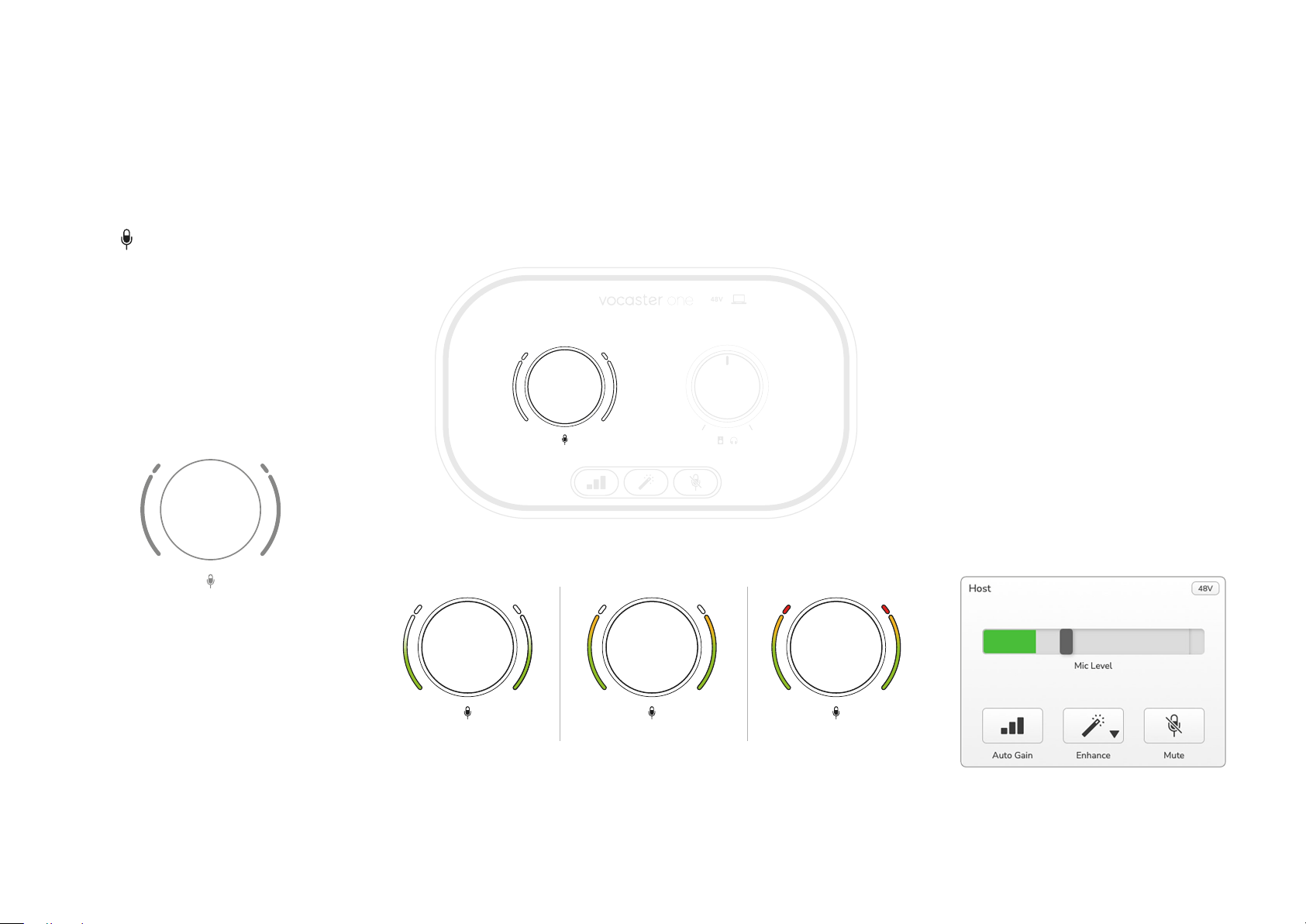
On Vocaster One, the large knob
marked sets the microphone
gain, and the level to your recording
software.
The gain knob is surrounded by two
LED ‘halo’ indicators, shaped as arcs.
These light in various colours to show
the microphone signal level.
When you’re adjusting the gain by
turning the knob, the left halo changes
to white to show the gain setting.
48V
Good Level A bit too high
Your recording
will distort
To set your gain, speak into your
microphone as if you were recording,
adjust the gain knob until the halo(s)
just start to turn amber when you speak
at your loudest. At this point, turn the
knob down a bit until you don’t see
any amber. If the halos ever turn red,
you will denitely need to turn the gain
knob down: red means your recording is
likely to distort. (See diagrams below.)
You can also adjust the gain from
Vocaster Hub by moving the on-screen
Mic Level slider: drag it to the right to
increase the gain.
EXAMPLES OF USE

focusrite.com Tell the world 15
Microphone Mute
Vocaster One’s microphone channel has a
mute button, marked .
Vocaster One
Vocaster Hub
You can press this at any time to turn the
microphone ‘off’: the button lights red and
the gain halos pulse red while the microphone
is muted.
Press the button again to unmute. You can
also click the button with the same icon on
Vocaster Hub. (Broadcasters often refer to
this feature as a ‘cough switch’.)
Using Enhance
Vocaster One’s Enhance feature optimises the
microphone’s audio processing to achieve the
best possible recording.
It uses compression to control the level of the
microphone signal, equalisation to help voice
recordings sound clearer and a high pass lter
to remove unwanted low frequencies such as
rumbling and microphone handling noise.
Enhance has four presets for you to tailor the
sound to your voice or your intended. You can
select one of the four presets using the drop-
down arrow in Vocaster Hub:
• Clean
• Warm
• Bright
• Radio
To use Enhance, either press the button or,
if you have Vocaster Hub open, click the on-
screen Enhance icon.
Vocaster One
Vocaster Hub
The button lights green when Enhance is on.
Press it again to turn Enhance off.
EXAMPLES OF USE
focusrite.com Tell the world 16
Listening with headphones
You can connect headphones to the front
panel headphone socket marked to hear
what you are recording.
This is a ‘default’ mix of your microphone and
any other audio sources, such as audio from a
phone or computer playback (the Loopback
channels).
You can adjust the volume of individual audio
sources using the mixer in Vocaster Hub.
You can adjust the volume in the headphones
with the control on Vocaster One marked
: this control does not affect your
recording level.
The Host level controls both the
headphones and speaker outputs. When
you’re using headphones we suggest muting
your monitors in Vocaster Hub.
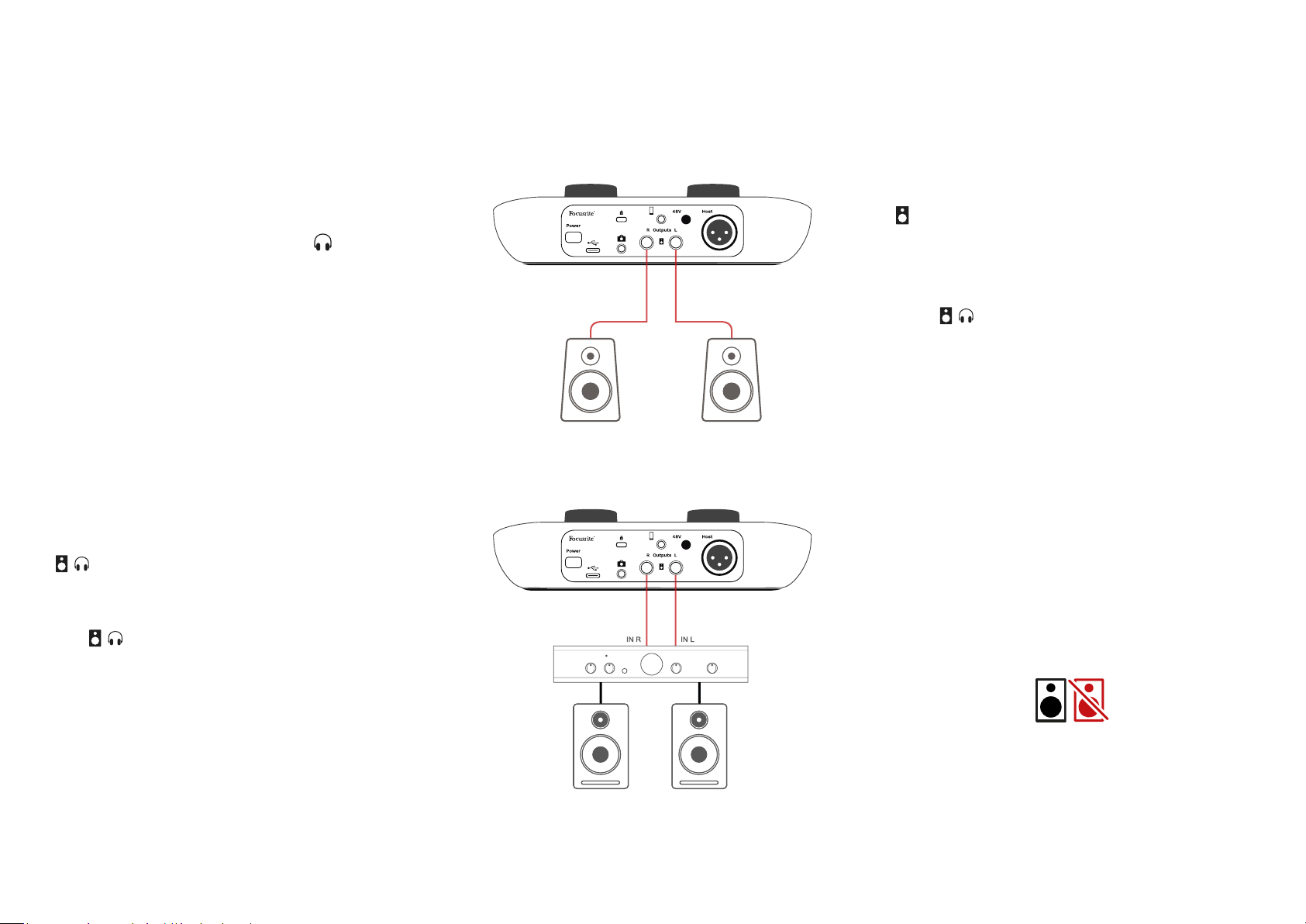
Connecting to active speakers
Connecting to passive speakers
via an amplier
Listening with speakers
Use the ¼’ jacks marked Outputs R and L
to connect speakers. You can connect
powered monitors or an amplier to these
outputs. Speaker volume is controlled by the
same knob used for headphones volume.
The outputs are balanced ¼’ TRS jack
sockets and provide line level. Small powered
monitors have unbalanced inputs, typically
a 3.5 mm jack plug intended for direct
connection to a computer. Separate power
ampliers are likely to have phono (RCA)
sockets.
You can also mute the speakers using
Vocaster Hub software. Click the speaker icon
in the top right of Vocaster Hub software to
toggle mute on (red) or off (black)
NOTE: You can create an audio feedback loop
if your speakers are active at the same time
as a microphone! We recommend you turn off
your speakers while recording podcasts, and
use headphones for monitoring.
EXAMPLES OF USE
focusrite.com Tell the world 17
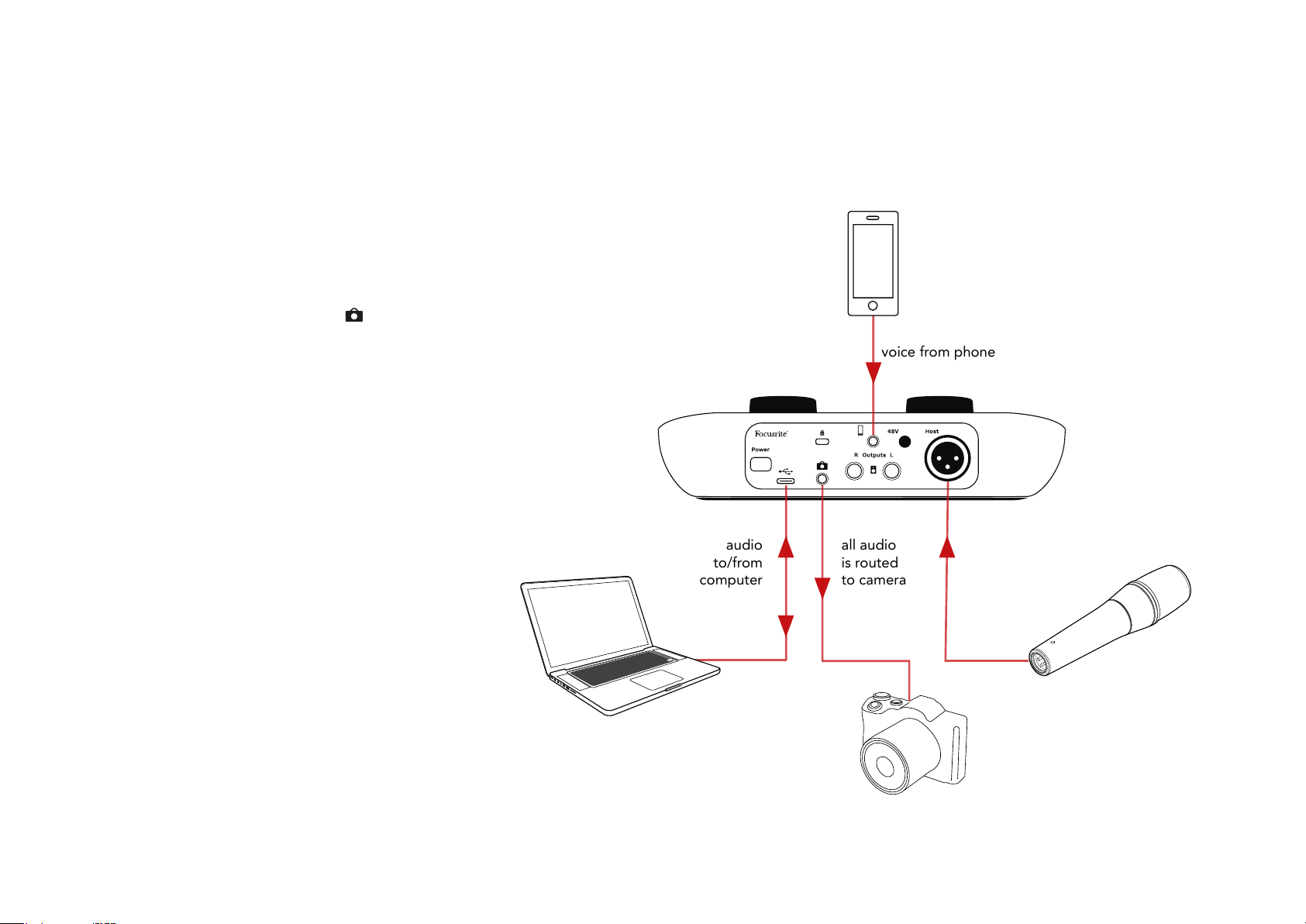
Recording a phone
You can connect a phone to Vocaster One
to record a conversation, or to record
music from the phone.
The rear panel has a phone connector,
marked . This is a 3.5 mm TRRS jack
socket, use a 3.5mm TRRS jack cable
to connect to the phone’s headphone
socket, which is normally a 3.5 mm TRRS
socket.
A 3.5mm TRS cable will work, but you
may not get two-way communication with
your phone guest.
If the phone does not have a 3.5 mm
headphone port, you can use a 3.5 mm
TRRS headphone adaptor.
Vocaster One records audio from a phone
in mono.
The connector also feeds Vocaster
One’s output back to the phone so the
person on the phone call can hear the
whole podcast mix, but without their own
voice. This type of mix is known as ‘mix-
minus’: it ensures the caller will not hear
their voice delayed or with echoes.
The signal level to the phone depends on
the setting of the input channel sliders in
Vocaster Hub’s mixer, but is unaffected by
the master output slider. The signal fed to
the phone is a mono version of the stereo
mix, because the phone’s input is a mono
microphone.
EXAMPLES OF USE
focusrite.com Tell the world 18
Recording to a video camera
If you are working with video, you may want
to record your audio into a video camera.
Vocaster One has a dedicated output
connector for this purpose, the 3.5 mm TRS
jack socket on the rear panel marked .
You can connect this output to the audio/
mic input on your camera using a 3.5mm
jack-to-jack cable.
If your camera input uses a different
connector, use a suitable adaptor cable.
Ensure you select your camera’s external
audio source rather than its internal
microphone.
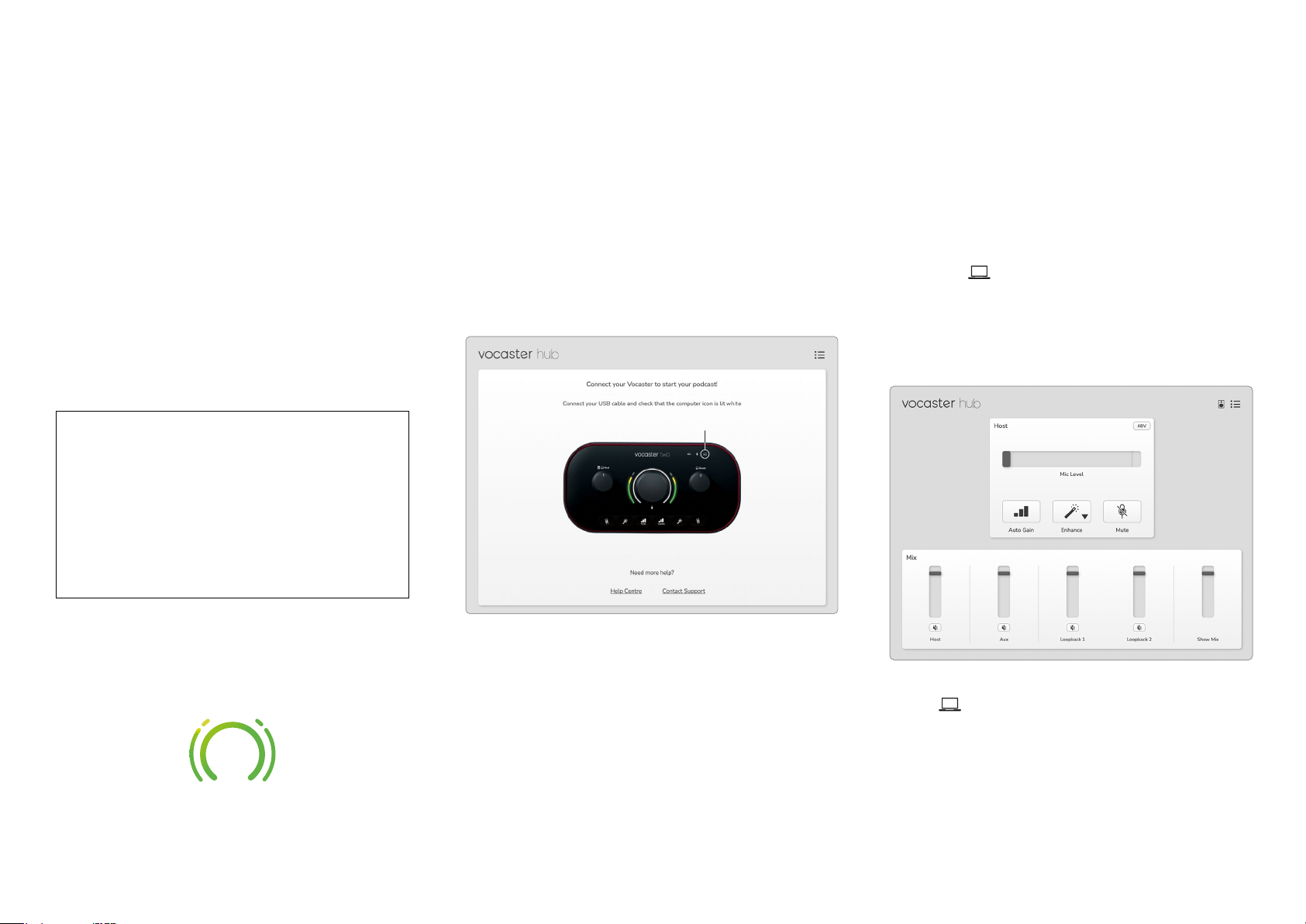
The camera output carries the same mix as
the USB recording output, and what you
hear in your speakers and headphone. You
can set the mix and levels going to the
camera using the sliders in Vocaster Hub’s
mixer.
voice from phone
all audio
is routed
to camera
audio
to/from
computer
EXAMPLES OF USE
focusrite.com Tell the world 19
Vocaster Hub software
As part of the Easy Start registration process,
you’ll install Vocaster Hub software on your
computer. Vocaster Hub gives you access
to additional Vocaster One features - most
importantly, it lets you balance your voice
against any other audio in your mix.
IMPORTANT: A separate Vocaster Hub
User Guide can be downloaded from the
downloads area of the Focusrite website.
This describes the use of Vocaster Hub
in full detail. The following section of this
User Guide is limited to an overview of the
software’s primary features.
To open Vocaster Hub: After you install
Vocaster Hub on your computer this icon
appears in your applications:
Click it to open Vocaster Hub.
If your Vocaster One interface is not
connected to your computer and powered
on, you will see a Welcome Page.
Note the Help Centre or Contact Support
links. You can always return to this page by
turning the interface off. More guidance on
using Vocaster One, including tutorial videos,
are available at these links.
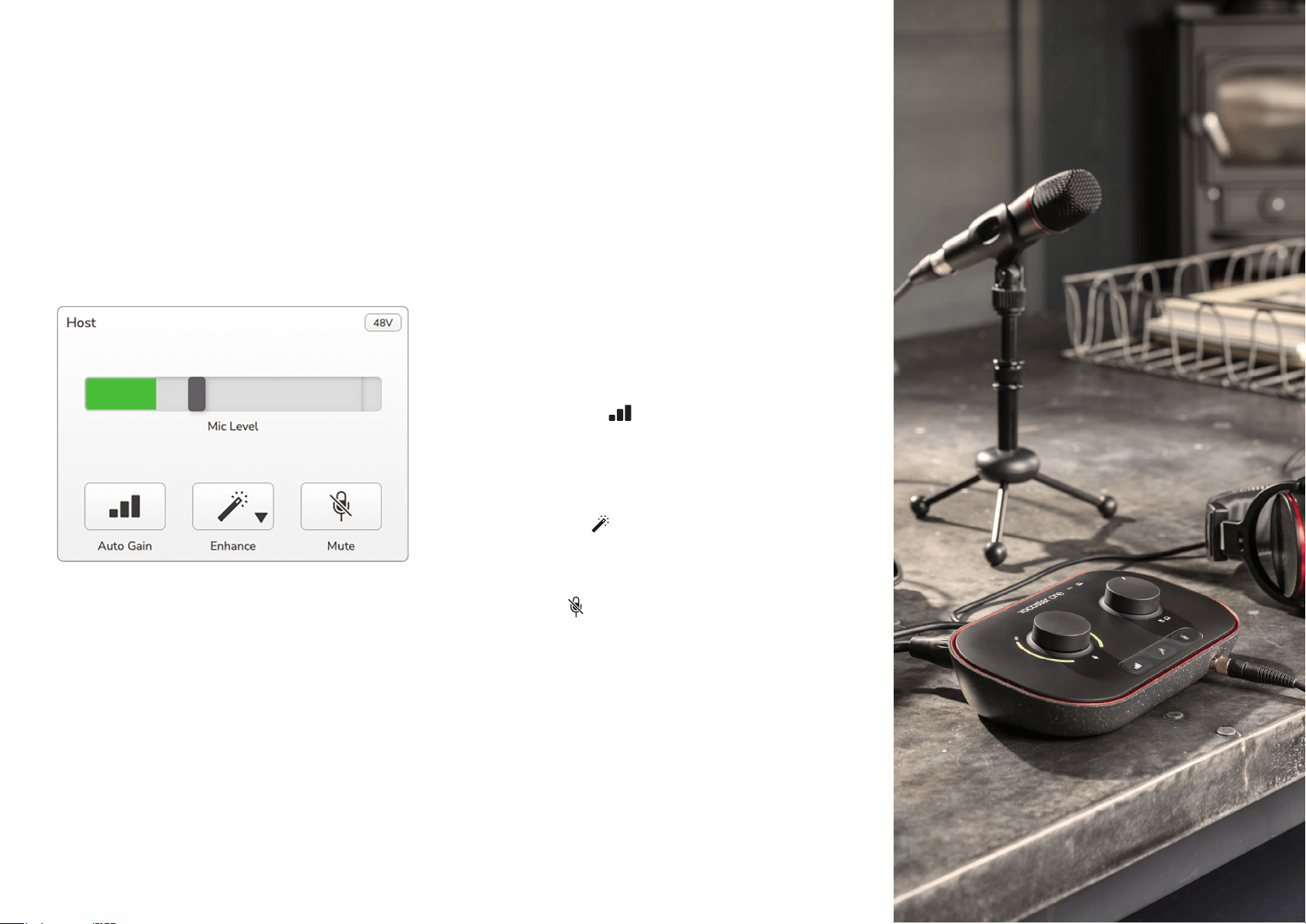
When you connect the interface and power
it on, the icon lights white to conrm
the interface is communicating with your
computer, and you’ll see Vocaster Hub’s
Control Page:
If the icon lights red, it shows Vocaster
One has not been able to communicate with
your computer, and you should check the
cable is plugged in correctly.
VOCASTER HUB SOFTWARE
focusrite.com Tell the world 20
Controlling the microphone
The Host Input panel is where you adjust
Vocaster One’s microphone channel:
The Mic Level display is both a level meter
and a level control. Click and drag the grey
bar to adjust the gain. This control duplicates
the rotary gain knob on the interface, and you
can adjust the gain with either control. The
colour bar shows the microphone signal level,
and again, this duplicates the signal level halo
display on the interface.
The bar should remain green most of the
time, with amber showing only on the loudest
‘peaks’. If it goes red, the gain is set too high.
Below the meter/level display are three
buttons which duplicate those on the
interface top panel:
• Auto Gain – click this to start the
Auto Gain function; speak normally
into the microphone for 10 seconds to
calibrate the gain setting.
• Enhance – click on this to activate
the Enhance feature; the button shows
green. Click again to deactivate.
• Mute – click on this to mute the
microphone; the button and the level
display show red when mute is active.
Click again to unmute.
VOCASTER HUB SOFTWARE
focusrite.com Tell the world 21
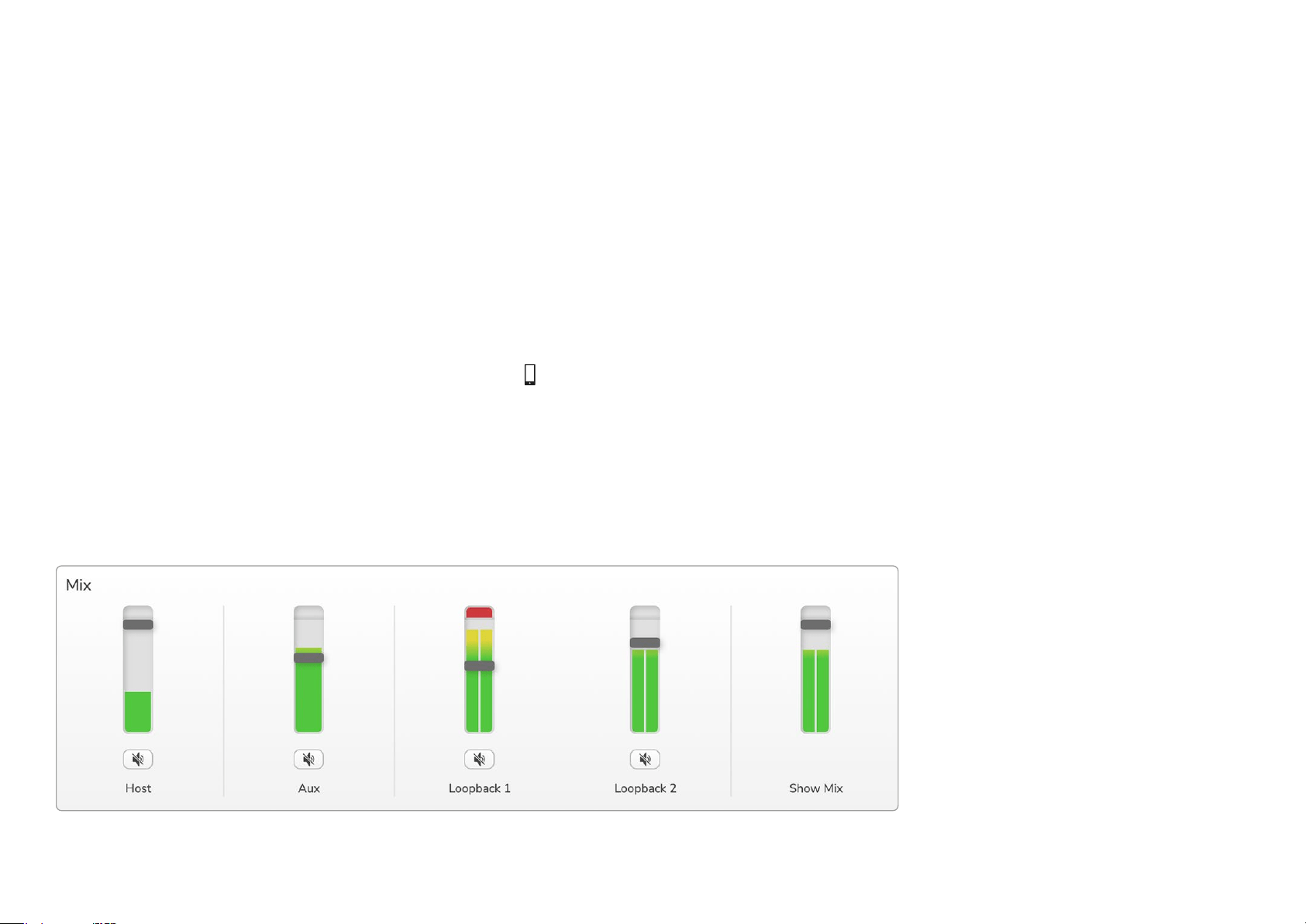
Controlling your mix
The Mix section of Vocaster Hub allows you to
balance the audio inputs and computer outputs
making up your Show Mix.
Like the Mic Level control, the ‘sliders’ are
both meters and level control. The sliders
affect the headphone/speaker mixes and
Show Mix recording but don’t affect the
level of each channel into your software. The
channels of the mixer are (left to right):
• Host (mono) – this is Vocaster One’s
Host microphone.
• Aux (mono) – use this when you have
connected a phone to the rear panel
connector. It adjusts the audio level
being received from the phone.
• Loopback 1 and Loopback 2 (stereo)–
these control the level of two audio
sources within your computer: these
could be feeds from the internet, pre-
recorded les, or other sources. In the
image below Loopback 1 is ‘clipping’ so
the source level needs turning down to
stop the red clip bar appearing.
• Show Mix (stereo) – this shows and
controls the overall output level of the
mixer.
On the Loopback 1 channel the red part of
the meter is the ‘Clip Indicator’. This shows
you the source is too loud and may distort
in your recording. Bluetooth and Loopback
are an exception and may show as clipped
more often.
Turn down the track’s source, not the
slider in the mixer. If the Show Mix clips,
turn down the tracks in the mixer.
VOCASTER HUB SOFTWARE
Tell the worldfocusrite.com 22
Recording sounds from your computer
Vocaster’s Loopback feature lets you record
audio sources from within your computer
(e.g., the audio output from a web browser).
There are two stereo Loopback sliders
on the mixer; these use Vocaster One’s
‘virtual’ inputs. The virtual inputs don’t have
connectors on the interface, but you can
record them in your DAW in the same way as
any other input.
You can feed each Loopback input from
a different software application. Which
application you use with each Loopback
input is congured in the application’s output
settings. If you’re a Mac User and wish to use
both Loopback inputs, we recommend you
read this support article.
• Loopback 1 – this input gets its signal
from software with its output set to
Playback 1-2, or software that doesn’t
support output routing. The software
you can use with Loopback 1 includes:
- Internet browsers
- Music playback software such as
Spotify or Apple Music.
- Video call and conference software.
• Loopback 2 – this input gets its signal
from audio software with its output
routing set to Playback 3-4. You can
congure this in the software’s audio
settings, but not all software allows
output routing selection, so please
check your software’s user guide for this
feature. Software with the ability to feed
audio to Loopback 2 includes:
- Other recording or playback software
you’re using.
- VOIP and video conferencing
applications.
VOCASTER HUB SOFTWARE

focusrite.com Tell the world 23
Example of Loopback usage
You might want to use both Loopback inputs
when you’re recording a show but need
independent recordings of other software
sounds to mix later. For example, in your
show, you want to record your conversation
with a guest in a video call in addition to
including a sound or jingle playback from
another audio playback software.
Your video call software (e.g., Zoom), routes
its output to Playback 1-2 by default. This
appears as Loopback 1 in the mixer. You
can then route the output of your playback
software to Playback 3-4, which becomes
available as Loopback 2.
In your recording software you can now have
separate tracks for recording:
• Loopback 1 appears on your DAW
channels 7 and 8
• Loopback 2 appears on your DAW
channels 9 and 10
For all further details, please refer to
the Vocaster Hub User Guide.
Recording Tracks into Software
Depending on which recording software you
use, you can pick from up to ten channels to
record from, to separate tracks.
The ten channels you’ll see are:
DAW Input Number Vocaster Input Use
1
Video Call L
Video Call R
A mix of all inputs excluding Loopback, this is a mix-minus so a video call
guest can hear your whole show without hearing (minus) themselves.
2
3
Show Mix L
Show Mix R
A stereo mix of all the inputs to record your whole show.
4
5 Host Microphone The Host microphone input.
6 Aux A mono feed from a device connected to the phone input on Vocaster.
7
Loopback 1 L
Loopback 1 R
Signal from software fed from software playback 1-2.
8
9
Loopback 2 L
Loopback 2 R
Signal from software fed from software playback 3-4.
10
VOCASTER HUB SOFTWARE
focusrite.com Tell the world 24
48V
Hardware Features
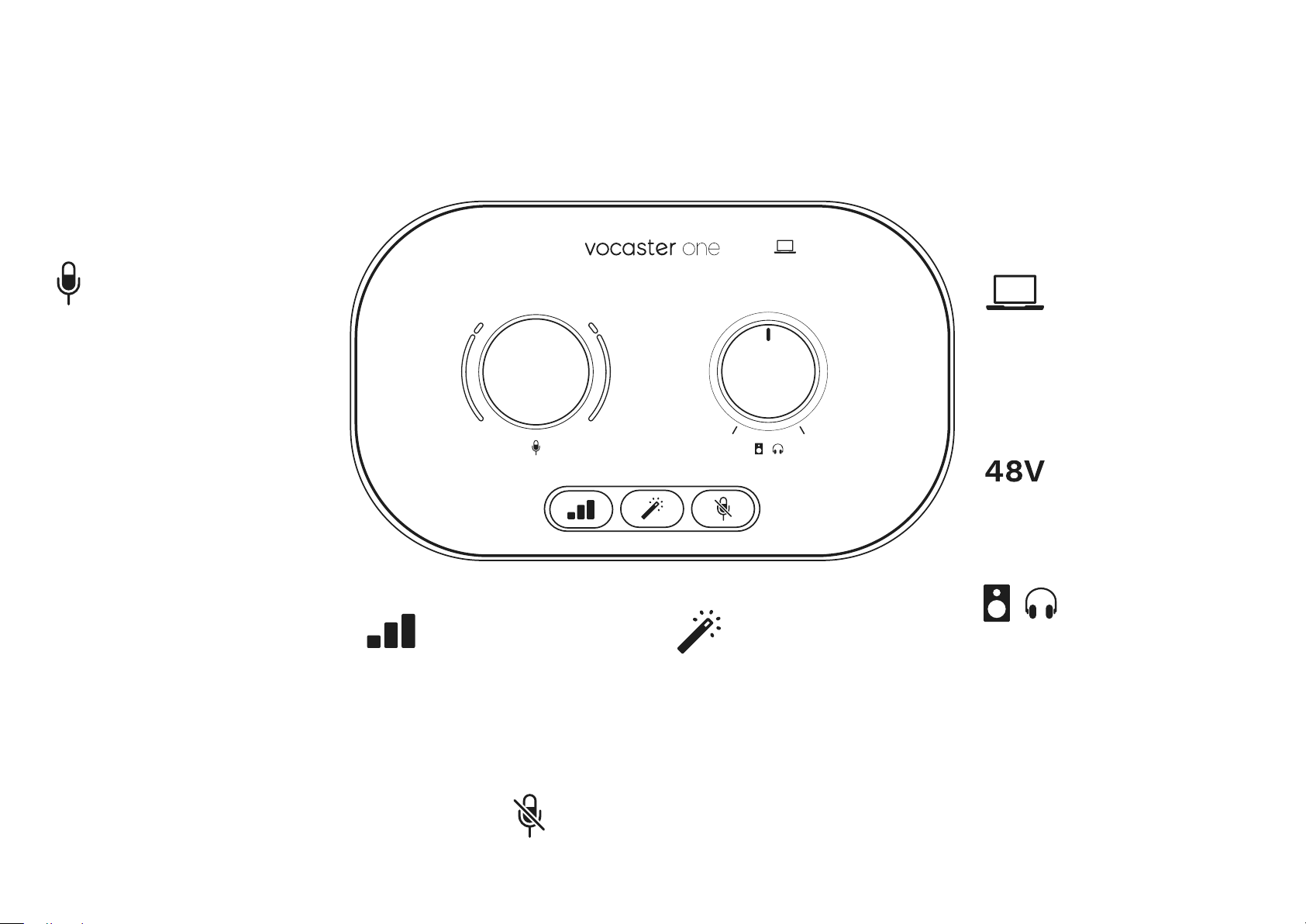
Top Panel
The large rotary control adjusts the gain
for the microphone input.
The gain control has two ‘halo’ LED arcs.
These have several functions.
• In normal operation they conrm
microphone level: green means
normal operation, amber shows the
signal is close to clipping, and red
shows digital clipping, which should
always be avoided.
• Following an Auto Gain calibration,
the arcs illuminate either green or red
to show a successful or unsuccessful
operation (respectively).
• The left-hand arc illuminates white
while microphone gain is being
adjusted, to show the current gain
setting
• Both arcs pulse red when the
microphone is muted
Buttons
Press to start the Auto Gain function:
speak normally into your microphone for
10 seconds to set the microphone gain.
The LED pulses amber during the process.
Enhance button. Press to activate/
deactivate the Enhance function. LED
illuminates green when Enhance is active.
Indicators
An LED which illuminates white when the
interface has established communication
with the computer it is connected to, and
red if communication fails.
Illuminates red when 48V phantom power
is active.
Monitor output level control - sets the
output level at both the front panel
headphone output and the rear panel
speaker outputs.
HARDWARE FEATURES
Microphone mute button. Press to mute
or unmute the microphone channel. LED
illuminates red when muting is active.
focusrite.com Tell the world 25
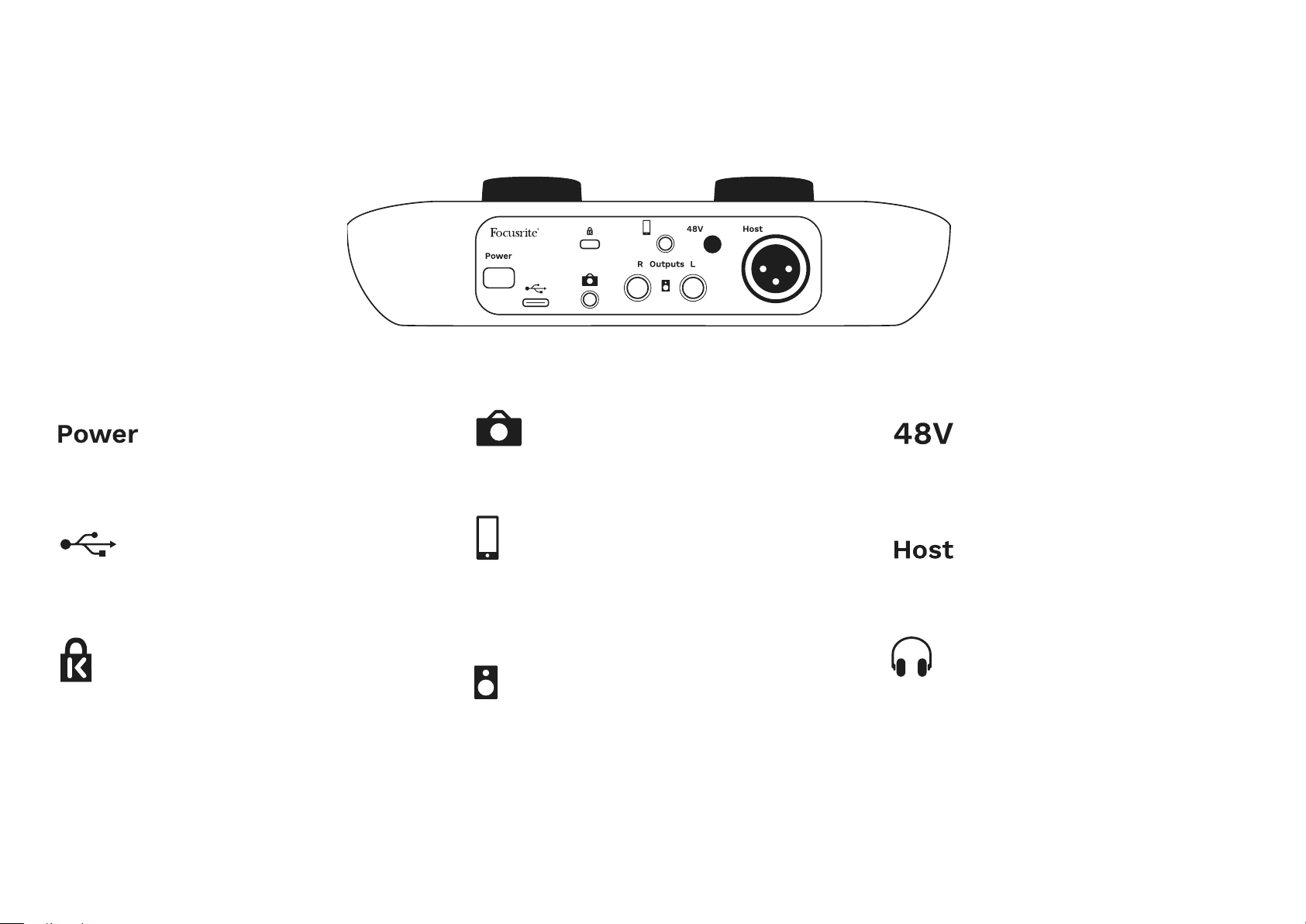
Press to turn Vocaster One on and off.
USB 3.0 port – Type C connector; connect to your
laptop or computer with the USB cable supplied.
Kensington security slot – make your Vocaster One
secure using a Kensington lock.
3.5 mm TRS jack socket for connecting Vocaster One to
the external audio input of a video camera.
3.5 mm TRRS jack socket for a wired connection to a
compatible phone.
Outputs L and R – for connecting to monitor
loudspeakers. Two ¼’ TRS jack sockets; electronically
balanced. Either ¼’ TRS (balanced connection) or TS
(unbalanced connection) jack plugs can be used.
Phantom power switch for microphone input – press to
enable 48V phantom power at the XLR socket.
XLR socket for connecting a microphone
On the front:
Headphones output socket. Connect your headphones
here. If your headphones use a 3.5mm jack then you
need to use a 3.5mm to ¼’ jack adaptor.
HARDWARE FEATURES
Rear Panel

focusrite.com Tell the world 26
Specications
Performance Specications
These specications allow you to compare your Vocaster with other devices and make
sure they’ll work together. If you’re not familiar with these specications, don’t worry you
don’t need to know this information to use your Vocaster with most devices.
SPECIFICATIONS
Sample Rate
48 kHz
USB
Version USB 3.0
Maximum Current 0.8A
Maximum Voltage 5V
Maximum Power 4W
Microphone Input
Impedance 3KΩ
Maximum Input Level +12.5dBu @ minimum gain
Gain Range 70dB
THD+N (@ -1dBFS)
≤-94dB
Frequency Response
(20Hz @ mininum gain)
20Hz - 20KHz +0, -0.5 dB
Headphone Output
Impedance 5Ω
Maximum Output Level
@ 0dBFS
+6.5dBu
Maximum Power (mW)
8.5mW into 270Ω
28mW into 33Ω
THD+N
-96dB unloaded
Frequency Response 20Hz - 20KHz, ±0.5dB
Camera Output
Impedance 220Ω
Maximum Output Level -24.5dBu
THD+N
(Max Output, -1dBFS,
22Hz - 22kHz)
-73dB
Frequency Response 20Hz - 20KHz ±0.2dB
Phone Input
Impedance 18KΩ
THD+N (@ -1dBFS) ≤-94dB
Maximum Input Level +1dBu
Frequency Response 20Hz - 20KHz +0, -0.5
Phone Output
Impedance 220Ω
Maximum Output
Level
-26dBu
THD+N -73dB
Frequency Response 20Hz - 20KHz +0dB, -0.5dB
Line Outputs
Impedance 440Ω
Maximum Output
Level
+14dBu
THD+N ≤-96dB
Frequency Response 20Hz - 2kHz ±0.15dB
focusrite.com Tell the world 27
Physical And Electrical Characteristics
SPECIFICATIONS
Other Audio I/O
Camera output 3.5 mm TRS jack on rear panel
Phone input and output 3.5 mm TRRS jack on rear panel
Loopback inputs Two (stereo) via Vocaster Hub
Microphone Input
Connector Balanced, via female XLR on rear panel
Phantom power 48V, rear panel switch
Weight and Dimensions
Weight 348g
Height 50mm
Width 195mm
Depth 113mm
Analogue Outputs
Main outputs Balanced, 2 x ¼’ TRS jacks
Stereo headphone output ¼’ TRS jack on front panel
Output level control
(main and headphone)
On top panel
Tell the world 28focusrite.com
Troubleshooting
For all troubleshooting queries, please visit
the Focusrite Help Centre at
support.focusrite.com
Copyright and Legal Notices
Focusrite is a registered trademark and
Vocaster is a trademark of Focusrite Audio
Engineering Limited.
All other trademarks and trade names are the
property of their respective owners.
2022 © Focusrite Audio Engineering Limited.
All rights reserved.
Credits
Focusrite would like to thank the following
members of the Vocaster team for their hard
work to bring you this product.
Adrien Fauconnet, Alex Middleton-Dalby,
Alex Wood, Andre Cerqueira,
Anthony Nicholls, Ben Bates, Ben Cook,
Ben Dandy, Bran Searle, Ben Cochrane,
Chris Graves, Dan Weston, Daniel Clarke,
Daniel Hughley, David Marston, Derek Orr,
Ed Fry, Eddie Judd, Emma Davies,
Harry Morley, Ian Hadaway, Jack Cole,
Jake Wignall, James Johnson, James Otter,
James Surgenor, Jason Cheung, Jed Fulwell,
Jessica Chambers, Joe Deller,
Kai Van Dongen, Linus Reitmayr,
Luke Matthews, Martin Dewhirst,
Mary Browning, Michail Fragkiadakis,
Mike Richardson, Mukesh Lavingia, Orla Haigh,
Rob Stevenson, Ryan Gray, Seraphin Gnehm,
Steve Bush, Stefan Archer, Stratis Soanos,
Tom Cartwright , Vidur Dahiya,
Vincenzo Di Cosmo and Wade Dawson
TROUBLESHOOTING