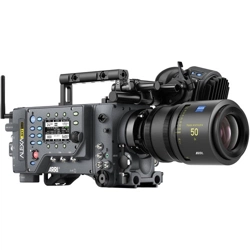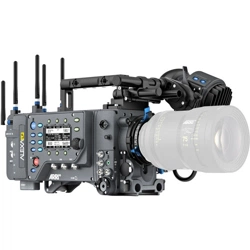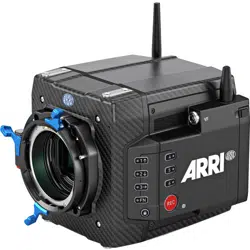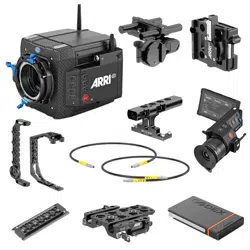

ALEXA SXT Family of Cameras
Software Update Packet 2.0
U S E R M A N U A L
12 September 2017
ALEXA SXT Family of Cameras
Software Update Packet 2.0
U S E R M A N U A L
12 September 2017

2 Copyright
Copyright
All rights reserved.
This document is provided under a license agreement containing restrictions on use
and disclosure and is also protected by copyright law.
Due to continued product development this information may change without notice.
The information and intellectual property contained herein is confidential between
ARRI and the client and remains the exclusive property of ARRI. If you find any
problems in the documentation, please report them to us in writing. ARRI does not
warrant that this document is error-free.
Arnold & Richter Cine Technik
Tuerkenstr. 89
D-80799 Munich
Germany
mailto: [email protected]
http://www.arri.com

Contents 3
Contents
1 Disclaimer...............................................................................................7
2 About This Manual................................................................................ 9
3 Scope.................................................................................................... 10
4 Introduction to the ALEXA SXT Camera System............................. 11
5 Layout of the ALEXA.......................................................................... 19
6 Safety Guidelines.................................................................................21
6.1 Explanation of Warning Signs and Indications....................................21
6.2 General Safety Guidelines.................................................................. 21
6.3 Specific Safety Instructions................................................................. 21
7 General Precautions............................................................................23
7.1 Storage and Transport........................................................................ 23
7.2 Condensation.......................................................................................23
8 Power Supply.......................................................................................24
8.1 Power Management............................................................................ 24
8.2 BAT Connector.................................................................................... 24
8.3 Mains Unit NG 12/26 R.......................................................................25
8.4 Cine-Style Batteries.............................................................................25
8.5 Onboard Batteries............................................................................... 26
8.5.1 V-Lock Batteries................................................................................ 26
8.5.2 Gold Mount Batteries.........................................................................27
8.6 Power Outputs.....................................................................................28
8.6.1 Powering 12 V Accessories.............................................................. 28
8.6.2 Powering 24 V Accessories.............................................................. 29
9 Camera Support...................................................................................30
9.1 Minimum Equipment Recommended For Operation........................... 30
9.2 Tripod and Remote Heads.................................................................. 30
9.3 Electronic Viewfinder EVF-1................................................................30
9.3.1 Viewfinder Cables..............................................................................31
9.3.2 Viewfinder Mounting Bracket.............................................................32
9.4 Center Camera Handle CCH-1........................................................... 34
9.5 Side Camera Handle SCH-1...............................................................35
9.6 Bridge Plates BP-12/BP-13................................................................. 35
9.7 Bridge Plate adapter BPA-1................................................................ 36
9.8 Wedge Adapter WA-1 and Quick-Release Plate QR-HD-1.................36
9.9 Levelling Block LB-1............................................................................36

4 Contents
9.10 Shoulder Pad SP-3..............................................................................37
10 Connectors........................................................................................... 38
10.1 BAT...................................................................................................... 39
10.2 RET SYNC IN..................................................................................... 39
10.3 MON OUT 1/2/3.................................................................................. 40
10.4 EXT...................................................................................................... 40
10.5 ETHERNET..........................................................................................40
10.6 EVF...................................................................................................... 40
10.7 AUDIO IN.............................................................................................40
10.8 RS........................................................................................................ 41
10.9 12 V..................................................................................................... 41
10.10 TC........................................................................................................ 41
10.11 AUDIO OUT.........................................................................................41
10.12 SD Card...............................................................................................41
10.13 Recording Module............................................................................... 43
11 Lens Mounting..................................................................................... 47
11.1 Lens Adapter PL-Mount LA-PL-2........................................................ 47
11.2 Lens Support....................................................................................... 48
12 In-Camera Filter Module IFM-1...........................................................50
12.1 Safety instructions for in-camera filtration........................................... 51
12.1.1 Maximum lens mounting depth......................................................... 51
12.1.2 Basic precautions.............................................................................. 52
12.1.3 Required shimming and maximum lens mounting depth.................. 52
12.2 Available FSND Filter Sets..................................................................52
12.2.1 FSND Filter Set (Basic).....................................................................53
12.2.2 FSND Filter Set (Completion)........................................................... 53
12.2.3 FSND Filter Set (Full)........................................................................54
12.3 Shimming the lens mount................................................................... 55
12.4 Mounting in-camera filters................................................................... 61
12.5 Filter cleaning...................................................................................... 64
13 Camera Controls..................................................................................66
13.1 Main Controls...................................................................................... 66
13.1.1 Display............................................................................................... 66
13.1.2 Screen Buttons..................................................................................67
13.1.3 HOME screen....................................................................................67
13.1.3.1 Lists and User Lists.................................................................................... 70
13.1.3.2 FPS..............................................................................................................71
13.1.3.3 AUDIO......................................................................................................... 72
13.1.3.4 SHUTTER....................................................................................................75
13.1.3.5 EI................................................................................................................. 75

Contents 5
13.1.3.6 COLOR........................................................................................................ 77
13.1.3.7 WB............................................................................................................... 80
13.1.4 Function Buttons................................................................................81
13.1.4.1 TC................................................................................................................ 83
13.1.4.2 INFO............................................................................................................ 85
13.1.4.3 USER...........................................................................................................88
13.1.4.4 PLAY............................................................................................................91
13.1.5 Menu.................................................................................................. 94
13.1.5.1 Recording.................................................................................................... 94
13.1.5.2 Monitoring.................................................................................................... 97
13.1.5.3 Project........................................................................................................105
13.1.5.4 System.......................................................................................................107
13.1.5.5 Frame Grabs............................................................................................. 116
13.1.5.6 User Setups...............................................................................................117
13.2 Operator controls...............................................................................119
13.3 EVF-1 Controls.................................................................................. 120
13.3.1 Viewfinder EVF menu......................................................................120
13.3.2 Viewfinder CAM menu.....................................................................122
13.4 Web Remote......................................................................................122
14 Operation of the Camera.................................................................. 123
14.1 Internal recording...............................................................................123
14.1.1 Recording Module........................................................................... 123
14.1.2 Internal Recording Formats.............................................................123
14.2 Monitoring.......................................................................................... 131
14.2.1 Frame Lines.....................................................................................131
14.2.2 Status Info Overlays........................................................................132
14.3 Using Timecode.................................................................................134
14.4 Syncing the Sensors of Two Cameras..............................................135
14.5 Syncing the Settings of Two Cameras.............................................. 137
15 ALEXA SXT Plus................................................................................139
15.1 Radio System.................................................................................... 140
15.2 Wireless Remote System.................................................................. 141
15.2.1 Setting the region of the wireless function...................................... 141
15.2.2 Lens Motors.....................................................................................142
15.2.3 Hand Units.......................................................................................143
15.3 Lens Data Display LDD-FP...............................................................144
15.4 Plus Camera Controls....................................................................... 144
16 ALEXA SXT W....................................................................................150
16.1 WiFi....................................................................................................150
16.2 Wireless Video...................................................................................151
16.2.1 Preparation...................................................................................... 152
16.2.2 Status LEDs.....................................................................................153

6 Contents
16.2.3 Pairing camera and receivers......................................................... 153
16.2.4 Supported resolutions......................................................................154
16.2.5 Supported frequencies.................................................................... 155
16.2.6 Sample setups.................................................................................155
16.2.7 Software update.............................................................................. 156
17 ALEXA SXT Studio............................................................................ 157
17.1 ALEXA Studio Images.......................................................................157
17.2 Optics.................................................................................................159
17.2.1 Electronic Mirror Shutter..................................................................159
17.2.2 Lens Adapter PL Mount LA-PL-2.................................................... 159
17.2.3 Optical Viewfinder............................................................................161
17.2.4 ND Filter.......................................................................................... 167
17.3 Studio Camera Controls.................................................................... 168
18 Remote Control Unit RCU-4............................................................. 172
19 Index....................................................................................................173
20 Appendix.............................................................................................175
20.1 Technical data....................................................................................175
20.2 Connector Pin Outs...........................................................................177
20.3 False Color Display........................................................................... 182
20.4 Warning and Error Messages............................................................183
20.5 Dimensions and Weights...................................................................188
20.6 Declarations of Conformity................................................................ 189

Disclaimer 7
1 Disclaimer
Before using the products described in this manual be sure to read and understand all
respective instruction.
The ARRI ALEXA is only available to commercial customers. The customer grants by
utilization that the ARRI ALEXA or other components of the system are deployed for
commercial use. Otherwise the customer has the obligation to contact ARRI preceding
the utilization.
While ARRI endeavors to enhance the quality, reliability and safety of their products,
customers agree and acknowledge that the possibility of defects thereof cannot be
eliminated entirely. To minimize risk of damage to property or injury (including death)
to persons arising from defects in the products, customers must incorporate sufficient
safety measures in their work with the system and have to heed the stated canonic
use.
ARRI or its subsidiaries do not assume any responsibility for incurred losses due to
improper handling or configuration of the camera or other system components, due
to sensor contamination, occurrence of dead or defective pixels, defective signal
connections or incompatibilities with third party recording devices.
ARRI assumes no responsibility for any errors that may appear in this document. The
information is subject to change without notice.
For product specification changes since this manual was published, refer to the
latest publications of ARRI data sheets or data books, etc., for the most up-to-date
specifications. Not all products and/or types are available in every country. Please
check with an ARRI sales representative for availability and additional information.
Neither ARRI nor its subsidiaries assume any liability for infringement of patents,
copyrights or other intellectual property rights of third parties by or arising from the
use of ARRI products or any other liability arising from the use of such products. No
license, express, implied or otherwise, is granted under any patents, copyrights or
other intellectual property right of ARRI or others.
ARRI or its subsidiaries expressly exclude any liability, warranty, demand or other
obligation for any claim, representation, or cause, or action, or whatsoever, express
or implied, whether in contract or tort, including negligence, or incorporated in terms
and conditions, whether by statue, law or otherwise. In no event shall ARRI or its
subsidiaries be liable for or have a remedy for recovery of any special, direct, indirect,
incidental, or consequential damages, including, but not limited to lost profits, lost
savings, lost revenues or economic loss of any kind or for any claim by third party,
downtime, good-will, damage to or replacement of equipment or property, any cost
or recovering of any material or goods associated with the assembly or use of our
products, or any other damages or injury of the persons and so on or under any other
legal theory.
In the case one or all of the foregoing clauses are not allowed by applicable law, the
fullest extent permissible clauses by applicable law are validated.
ARRI is a registered trademark of Arnold & Richter Cine Technik GmbH & Co Betriebs
KG.
The ALEXA viewfinder EVF-1 contains proprietary technology owned by Fourth
Dimension Displays Limited and licensed by ARRI.
This product contains licensed technology from Linotype.
Quicktime and Quicktime logo are trademarks or registered trademarks of Apple
Computer, Inc., used under license therefrom.
Apple ProRes 422 Proxy, Apple ProRes 422 LT, Apple ProRes 422, Apple ProRes 422
HQ, Apple ProRes 4444, Apple ProRes 444 XQ, and the ProRes logo are trademarks
or registered trademarks of Apple Computer, Inc., used under license therefrom.
SxS and
are trademarks of SONY corporation.

8 Disclaimer
mkdosfs
Portions ©1998, Robert Nordier. All Rights Reserved.
© 1998, Robert Nordier. All rights reserved.
Redistribution and use in source and binary forms, with or without modification, are
permitted provided that the following conditions are met:
Redistributions of source code must retain the above copyright notice, this list of
conditions and the following disclaimer.
Redistributions in binary form must reproduce the above copyright notice, this list of
conditions and the following disclaimer in the documentation and/or other materials
provided with the distribution.
THIS SOFTWARE IS PROVIDED BY THE AUTHOR(S) “AS IS” AND ANY EXPRESS
OR IMPLIED WARRANTIES, INCLUDING, BUT NOT LIMITED TO, THE IMPLIED
WARRANTIES OF MERCHANTABILITY AND FITNESS FOR A PARTICULAR
PURPOSE ARE DISCLAIMED. IN NO EVENT SHALL THE AUTHOR(S) BE
LIABLE FOR ANY DIRECT, INDIRECT, INCIDENTAL, SPECIAL, EXEMPLARY,
OR CONSEQUENTIAL DAMAGES (INCLUDING, BUT NOT LIMITED TO,
PROCUREMENT OF SUBSTITUTE GOODS OR SERVICES; LOSS OF USE, DATA,
OR PROFITS; OR BUSINESS INTERRUPTION) HOWEVER CAUSED AND ON ANY
THEORY OF LIABILITY, WHETHER IN CONTRACT, STRICT LIABILITY, OR TORT
(INCLUDING NEGLIGENCE OR OTHERWISE) ARISING IN ANY WAY OUT OF THE
USE OF THIS SOFTWARE, EVEN IF ADVISED OF THE POSSIBILITY OF SUCH
DAMAGE.

About This Manual 9
2 About This Manual
ARRI recommends that all users of the ALEXA read the manual in its entirety prior
to use. For experienced users, the manual's structure also provides quick access for
reference.
How to Use This Manual
All directions are given from a camera operator's point of view. For example, camera-
right side refers to the right side of the camera when standing behind the camera and
operating it in a normal fashion.
Connectors are written in all capital letters, for example, MON OUT. Menus and
screens on the Main Camera Controls are written in all capital letters, for example,
RECORDING menu and HOME screen. Buttons are written in italic typeface capital
letters, for example, PLAY button.
The appendix at the back of the manual contains useful reference material including
ALEXA specifications, connector pin-out diagrams, a false color display explanation,
error and warning message explanations, ALEXA dimensional drawings and a menu
structure tree.

10 Scope
3 Scope
This instruction manual applies to the following hardware, software and firmware
versions:
ALEXA SXT EV, ALEXA SXT Plus, ALEXA SXT W: with Electronic Viewfinder EVF-1;
ALEXA SXT Studio: with optical viewfinder or with Electronic Viewfinder EVF-1;
Camera Software Update Packet (SUP) for ALEXA SXT cameras: 2.0
Document revision history
Document ID: 10001880
Version Release Date
1.0 K09044 23 November 2016
2.0 K09398 12 September 2017

Introduction to the ALEXA SXT Camera System 11
4 Introduction to the ALEXA SXT Camera
System
ALEXA SXT (Super Xtended Technology) is an extraordinary 35mm format digital
camera system designed for motion pictures and television, consisting of four cameras
and an extensive range of primes, zooms, accessories and recording solutions.
Combining innovative digital technology with a century of ARRI history and experience
has created a camera system that makes it easy to create great looking images.
ALEXA's stellar overall image quality makes ALEXA images future-proof, no matter
what the intended delivery format. Whether in High Dynamic Range (HDR), with
delivery resolutions anywhere from HD to 4K or when being used with spherical or
anamorphic lenses, ALEXA images look spectacular. ALEXA's reliability, simplicity
of operation, as well as unequalled workflow efficiency and versatility ensures lowest
overall production costs.
What's New in ALEXA SXT Cameras?
ALEXA SXT cameras share the same high-performance electronics and image
processing with the ALEXA 65, and the same look management and noise reduction
as can be found in ALEXA Mini and AMIRA. A new media bay allows the use of new
high speed and high capacity SXR Capture Drives, as well as XR Capture Drives, SxS
PRO, SxS PRO+ and CFast 2.0 cards.
New recording formats
•
Carefully fine-tuned recording options for any production
•
All sensor modes now available in ARRIRAW and ProRes
•
ProRes 4K UHD
•
ProRes 4K Cine
•
ProRes 2K anamorphic
•
ProRes 4K Cine anamorphic
•
Open Gate ProRes 3.4K
•
ARRIRAW 3.2K
New ARRI Look Management
•
comprehensive look management from pre-production to post-production
•
ARRI Look File ALF-2 with 3D LUT, CDL values and name of target color space
•
looks are always stored in metadata
•
live grading on-set
•
automated dailies
•
editing with looks
Super flexible on-set monitoring
•
High Dynamic Range (HDR) monitoring
•
four independent monitoring outputs
•
Rec 709 or Rec 2020 output
Integrated HD video transmitter and WiFi radio (SXT W only)
•
wireless HD monitoring
•
wireless color management on-set
•
wireless camera remote control

12 Introduction to the ALEXA SXT Camera System
Improved image quality
•
optional mild ARRI Noise Reduction (ANR)
•
advanced defect pixel correction
•
3D LUTs provide more flexibility for baked-in looks
Single speed mode
New media bay and drives
•
supports SxS PRO, SxS PRO+ and CFast 2.0 cards
•
supports XR Capture Drives and SXR Capture Drives
•
new SXR Capture Drives are modern high capacity and high speed drives
•
new SXR Capture Drive Dock (Thunderbolt)
ALEXA SXT Camera Models
The ALEXA SXT EV (Entry Version) provides the most affordable entry with full
ALEXA image quality, a Super 35 Open Gate sensor, ARRI Lens Data System, as well
as in-camera ARRIRAW and ProRes recording in a variety of recording formats.
The ALEXA SXT Plus is a true allrounder. On top of the ALEXA SXT EV features, the
ALEXA SXT Plus provides an integrated wireless radio for camera and lens remote
control (with the ARRI Electronic Control System (ECS) or cmotion cvolution system),
Lens Data System, built-in tilt and roll sensors, as well as additional connectors for
remote control, video outputs (HD-SDI) and accessory power (RS).
The ALEXA SXT W (Wireless) is the most versatile and flexible of the ALEXA SXT
cameras. The SXT W is based on the ALEXA SXT Plus and extends its features with
an integrated HD video transmitter and an integrated WiFi radio.
The flagship of the range, the ALEXA SXT Studio, is the only digital motion picture
camera with an optical viewfinder and a rotating mirror shutter.
ALEXA SXT Main Features
Best Overall Image Quality
•
Film-like, organic look
•
High Dynamic Range
°
14+ stops dynamic range over the entire EI range as measured with the ARRI
Dynamic Range Test Chart
°
gentle highlight roll-off
°
low noise floor
°
holds up extremely well when over or underexposed
°
future proof for High Dynamic Range (HDR) displays
•
Sharp, natural images for HD, 2K, 4K UHD and 4K Cine deliverables
•
Unique tall sensor is ideal for anamorphic lenses
•
High Frame Rate (HFR)
°
up to 120 fps in full image quality
•
High sensitivity
°
true base sensitivity of EI 800
°
adjustable from EI 160 to EI 3200
•
ARRI color science
°
natural color reproduction, especially for skin tones
°
excellent color separation

Introduction to the ALEXA SXT Camera System 13
°
great at resolving mixed color temperature sources
°
optional mild ARRI Noise Reduction (ANR)
All ALEXA cameras provide the best looking digital image with the least amount of
fuss. This is made possible by a unique imaging chain consisting of a high-end optical
low pass filter, a custom made CMOS sensor, as well as custom electronics and
processing software. Carefully crafted by ARRI engineers, these components work
together to produce images with the organic look and feel of film.
The ALEXA has the highest dynamic range of any digital production camera, with
special consideration given to a gentle highlight treatment. Creating a good looking
roll-off in the highlights is probably one of the most difficult tasks for any camera
designer. We have spent enormous resources to ensure ALEXA's outstanding
performance in the critical area between almost overexposed and fully overexposed.
ALEXA footage is (and has been since its introduction in June, 2010) the best starting
point for creating stunning images for the emerging High Dynamic Range (HDR)
display technologies.
By striking a perfect balance between photosite size and number, ALEXA's 3.4K
sensor is able to produce beautiful, natural looking images for HD, 2K, 4K UHD and
4K Cine deliverables.
ALEXA is the only camera on the market with a sensor that is tall enough for
anamorphic lenses to be used just as they were on film cameras. In addition, the
ability to record at up to 120 fps in full image quality means that High Frame Rate
(HFR) shooting can also be accommodated.
ALEXA's high sensitivity and its ability to hold up very well, even when extremely
under or overexposed, work on any real-world set. ALEXA's color processing
was developed by our own color scientists (who have been also working on the
ARRILASER and ARRISCAN, so are intimately familiar with both film and digital color
science), and creates clean and natural colors, especially noticeable in ALEXA's great
looking skin tones. The low noise floor and great color separation helps greatly in color
correction and compositing, aided, when needed, by the mild ARRI Noise Reduction
(ANR).
Our goal is creating the best looking images. When assessing imaging technologies,
we ask if they improve image quality, disregarding the marketing hype.
Efficient and Versatile Workflows
Multiple recording and monitoring options
•
record/play back ARRIRAW or ProRes
•
multiple recording media
•
14 recording formats
•
ARRI Look Management
•
super flexible on-set monitoring
•
embedded rich metadata in ARRIRAW, ProRes and HD-SDI out
In-camera ARRIRAW
•
uncompressed, unencrypted raw sensor data
•
maximum image quality from ALEXA
•
greatest flexibility in post
•
best option for future-proof archiving
•
published in SMPTE RDD 30:2014 and 31:2014
In-camera Apple ProRes
TM
•
compressed color image data
•
native Final Cut Pro X support

14 Introduction to the ALEXA SXT Camera System
•
ProRes 422, 422 HQ, 4444 and 4444 XQ
•
pre-recording
Multiple recording media
•
supports SxS PRO, SxS PRO+ and CFast 2.0 cards
•
supports XR capture Drives and SXR Capture Drives
14 recording formats
•
Carefully fine-tuned recording options for any production
•
All sensor modes in ARRIRAW and ProRes
•
Multiple resolutions: HD, 2K, 3.2K, 3.4K, 4K UHD and 4K Cine
•
In-camera de-squeezed ProRes for most economical anamorphic shooting
ARRI Look Management
•
Comprehensive look management from pre-production to post-production
•
ARRI Look File ALF-2 with 3D LUT, CDL values and name of target color space
•
looks are always stored in metadata
•
live grading on-set
•
wireless color management on-set with the WiFi module (SXT W only)
•
automated dailies
•
editing with looks
Super flexible on-set monitoring
•
four independent monitoring outputs
•
High Dynamic Range (HDR) monitoring
•
Rec 709 or Rec 2020 output
•
streaming metadata in HD-SDI for immediate use
•
wireless HD monitoring with the HD video transmitter (SXT W only)
Online tools and free Mac applications
•
Online Lens Illumination Guide
•
Online Frameline Composer
•
ARRI Formats & Datarate Calculator
•
Online Camera Simulator
•
Online LUT Generator
•
ARRIRAW Converter (ARC)
•
ARRI Color Tool (ACT)
•
ARRI Meta Extract (AME)
All productions benefit from using an ALEXA SXT, because of the efficiency and
versatility of the ALEXA workflows. ALEXA SXT cameras can record and play back
ARRIRAW or Apple ProRes in one of 14 recording formats. Whatever the budget,
intended market, resolution requirements, aspect ratio, lens choices or postproduction
intentions, there is an ideal ALEXA SXT recording format to ensure easy operation on-
set and a seamless image pipeline. ALEXA SXT cameras work with SxS PRO cards,
SxS PRO+ cards, CFast 2.0 cards, XR Capture Drives and SXR Capture Drives.
ARRIRAW is an unencrypted, uncompressed raw image format that contains the full
raw data from the sensor for the absolute best image quality. For greatest flexibility
in post, nothing is "baked" into an ARRIRAW image. Therefore image-processing
steps like debayer, white balance, sensitivity or resampling can be optimized in post,
based on image content and intent. Since we openly publish the ARRIRAW specs,
ARRIRAW is also an excellent future-proof archiving format.

Introduction to the ALEXA SXT Camera System 15
ProRes is the native file format used by Apple's Final Cut Pro software. ProRes
provides a high image quality while using compression to reduce file size and thus
costs. Different ProRes flavors are available with different compression ratios (422,
422 HQ, 4444 and 4444 XQ) for a trade-off between image fidelity and file size/
costs. Productions appreciate the immediacy of ProRes, as it can be viewed on any
Mac without special tools and there is an extensive infrastructure readily available to
process ProRes files. ALEXA is capable of pre-recording with all ProRes recording
formats.
The new ARRI Look Management provides comprehensive look management
from pre-production through post-production, protecting the intended look of the
cinematographer in an easy and transparent manner. The new ARRI Color Tool (ACT)
is used to create the new ARRI Look File (ALF-2), which contains a 3D LUT, CDL
values and the name of the target color space. The ALF-2 look file is always stored in
metadata. A software library enables third parties to incorporate this look management
system into their products, leading to exciting new applications, including live on-set
grading, automated dailies and editing with looks.
Special attention has been paid to provide the most flexible on-set monitoring
experience for the crew. Four independent monitoring outputs (the electronic
viewfinder and three HD-SDI outputs) allow each crewmember to customize the
image they need to see. The HD-SDI outputs support Rec 709 and Rec 2020, as well
as Standard Dynamic Range (SDR) and High Dynamic Range (HDR) monitors. In
addition, the ALEXA SXT W camera can be monitored wirelessly with the integrated
HD video transmitter.
All files recorded with ALEXA SXT contain rich metadata that speeds up post-
production. Metadata is also streamed as part of the HD-SDI outputs for immediate
use.
A number of useful online tools and free Mac programs complete the workflow.
So, disregarding if you want to shoot a low budget TV series or Martin Scorsese's next
big Hollywood feature film, ALEXA SXT cameras can be easily configured for the task
at hand.
Simple and Safe Operation
•
ARRI Product Quality
•
Rugged and reliable
°
sealed electronics compartment
°
unique cooling system
°
stable lens mount/sensor holder
°
continuous file closing protects footage
°
ARRIRAW checksum for safe and fast downloading
°
self-healing metadata
°
two auto-switching power inputs
•
Intuitive, easy to use controls
°
on-camera and EVF-1 controls
°
remote control through WCU-4, RCU-4 and Web Remote
•
High quality internal Full Spectrum Neutral Density (FSND) filters
°
neutral color balance at all densities from ND 0.3 to ND 2.4
•
High quality electronic viewfinder
•
Powerful assistive displays, including
°
surround view
°
anamorphic de-squeeze

16 Introduction to the ALEXA SXT Camera System
°
false color exposure check
°
smooth mode for better motion portrayal
°
peaking focus check
°
electronic horizon
°
compare stored image with live image
°
RETURN IN video
•
Well balanced, ergonomic body design
•
Global ARRI service network
ALEXA SXT cameras are part of a long heritage of cameras from ARRI, and we are
quite familiar with the sometimes extreme and nightmarish things our cameras have
to endure in the field. We just have to go into our own service department to see the
carnage. Keeping that in mind, ALEXA SXTs are built to be rugged and reliable with
a sealed electronics compartment, a unique cooling system and the most stable lens/
sensor mount German engineering could devise. A special method of continuously
closing and re-opening container files ensures that very little image data is lost during
a power interruption, and the camera will heal any metadata damage automatically. A
checksum for ARRIRAW ensures safe and fast downloading.
We know what it is like to try to change fps and shutter angle at 4:00 am in the
morning in the rain after a long night's shoot. Professional cameras need to be simple
to operate, and they need to make sure that a good looking image is recorded, no
matter what. For ALEXA we have developed an intuitive user interface that is easy
to learn and quick to operate. The same interface is used on all models of ALEXA,
all with the same on-camera menu, buttons, etc., so there is no learning curve when
using another ALEXA model. Remote control of an ALEXA is possible through the
wireless WCU-4, the cabled and extremely sturdy RCU-4 or through any computer
with the ALEXA Web Remote.
Using internal ND filters allows a rating at the base sensitivity of EI 800 without the
need for external ND filters, even in bright sunlight. ALEXA's Full Spectrum Neutral
Density (FSND) filters offer light attenuation that maintains a neutral color balance at
all densities.
Critically important to camera operators is the viewfinder. Based on our experience
with optical viewfinders, ALEXA's electronic viewfinder provides an exceptionally clear
image with natural skin tones and smooth motion portrayal that is easy on the eye. For
those who prefer optical viewfinders, the ALEXA SXT Studio can be operated with an
optical or electronic viewfinder. The electronic viewfinder includes powerful assistive
displays like surround view, anamorphic de-squeeze, false color exposure check,
smooth mode, peaking and an electronic horizon. In order to check previz footage or
the image from a second camera, ALEXA has a::SPACE SPACE::IN video input, and
when it is critical to perfectly line up a product shot, it is possible to compare a stored
still image with the live camera image.
The hardware of the camera is designed for the best and most ergonomic use on the
set, including a built-in shoulder cut-out, many attachment points on the camera's
precision machined housing and a large variety of accessories. With meticulous
attention to detail we have added many small but helpful design refinements, including
built-in supports for 15 mm lightweight. Additionally, the camera has various extrusions
(eyebrows) above some buttons so the operator can feel the button's position even
from the other side of the camera or when shooting in low light. The same care has
been taken to ensure compatibility with the extensive range of existing accessories.
ALEXAs are well balanced and can be quickly switched from shoulder use to tripod,
crane or Steadicam. They accept a wide range of power input from 10.5 to 34 V DC.
Multiple power sources can be simultaneously connected (with hot-plug capability)
and a smart circuit will automatically switch to the one with the highest voltage.
All ALEXA SXTs are backed by ARRI's global service network, providing a friendly
ARRI service technician accessible 24/5.

Introduction to the ALEXA SXT Camera System 17
Open, Future-proof Architecture
•
Compatibility with industry standards
°
Super 35 PL mount lenses
°
Apple ProRes, HD-SDI
°
SxS PRO, SxS PRO+ and CFast 2.0 cards
°
Gold mount or V-lock on-board batteries
°
12 or 24 V power inputs and outputs
°
support for ARRI ECS and cmotion cvolution wireless lens control systems
•
ARRI Partner Program
°
ARRI Look Management library
°
ARRIRAW Software Developers Kit (SDK)
°
ARRI Metadata Bridge (AMB) library
°
White papers and information about ARRI color science
•
Flexible upgrade options
°
upgradable in-camera recording module
°
upgradable electronics interface module (Plus side panel)
°
upgradable HD video transmitter and WiFi radio (SXT W upgrade)
°
Exchangeable Lens Mount (ELM)
°
free Software Update Packets (SUPs)
•
Long and reliable product cycles
We are open to equipment and standards from other manufacturers, as can be seen
in ALEXA's compatibility with Super 35 PL mount lenses, SxS PRO, SxS PRO+ and
CFast 2.0 cards, Apple ProRes, HD-SDI, Gold or V-mount on-board batteries, the
cmotion lens control system and both 12 and 24V accessories. We want to make sure
that you can put together the right ALEXA package with the accessories you want.
To ensure a smooth workflow, we share our know-how with third parties through
the ARRI Partner Program. The ARRI Look Management library allows third parties
access to all look management functions found in the ARRI Color Tool, including
the ability to change looks live in-camera. The ARRIRAW Software Development
Kit (SDK) allows them to integrate the ARRI debayering algorithm and various other
image processing steps into their own products. The ARRI Metadata Bridge (AMB)
tackles the tricky problem of getting metadata from the ARRIRAW or ProRes recording
files into the file formats (DPX and OpenEXR) of those who can actually benefit from
the metadata. We have published our color science in various white papers and the
ARRIRAW debayering method in two SMPTE Recommended Disclosure Documents
(RDD 30:2014 and RDD 31:2014).
In addition, ALEXAs can be upgraded, as we have shown with numerous hardware
upgrades in the past. The Software Upgrade Packets (SUPs) are continuously
improving ALEXA cameras with new and exciting features. All this, combined with
our long product cycles, creates a sustainable business model for all owners of ARRI
cameras.
Older Generation ALEXA Cameras
ALEXA Classic Cameras
First generation ALEXAs are called ALEXA Classic cameras. They were released
between 2010 and 2012. They have exceptional image performance and are simple
to operate, reliable in the most extreme environments and versatile enough to cover a

18 Introduction to the ALEXA SXT Camera System
wide range of workflows and budgets. ALEXA Classic camera models are the ALEXA,
ALEXA Plus, ALEXA Plus 4:3, ALEXA M, ALEXA Studio, ALEXA HD and ALEXA HD
Plus. The ALEXA HD and HD Plus are the basis for the ALEXA Fiber Remote Option
(FRO) and Fiber Remote Option Plus camera sets. All ALEXA Classic cameras are
equipped with an SxS Module located on the left side of the camera with two slots for
SxS PRO or SxS PRO+ cards.
ALEXA XT Cameras
Second generation ALEXAs are called ALEXA XT cameras (Xtended Technology),
sold from 2013 until 2016. In addition to all the features of the ALEXA Classic
cameras, they are equipped with a Super 35 sensor with Open Gate and 4:3 sensor
modes, in-camera ARRIRAW up to 120 fps, ProRes 4444 XQ, ProRes 3.2K, internal
FSND filters, Lens Data System, integrated CDL capture and ARRIRAW checksum.
In addition, they use a new viewfinder mounting bracket (VMB-3), include anamorphic
de-squeeze and high speed licenses, as well as a super silent fan. ALEXA XT
cameras are the ALEXA XT, ALEXA XT Plus, ALEXA XT M and ALEXA XT Studio.
The XR Module is on the left side of the camera. It has one slot for either an XR
Capture Drive, the SxS Adapter for use with one SxS PRO or SxS PRO+ card or the
CFast 2.0 Adapter for use with one CFast 2.0 card.
With the exception of the Open Gate sensor mode, ALEXA Classic cameras can be
upgraded with the XR Module and other parts for most of the features of ALEXA XT.
Layout of the ALEXA 19
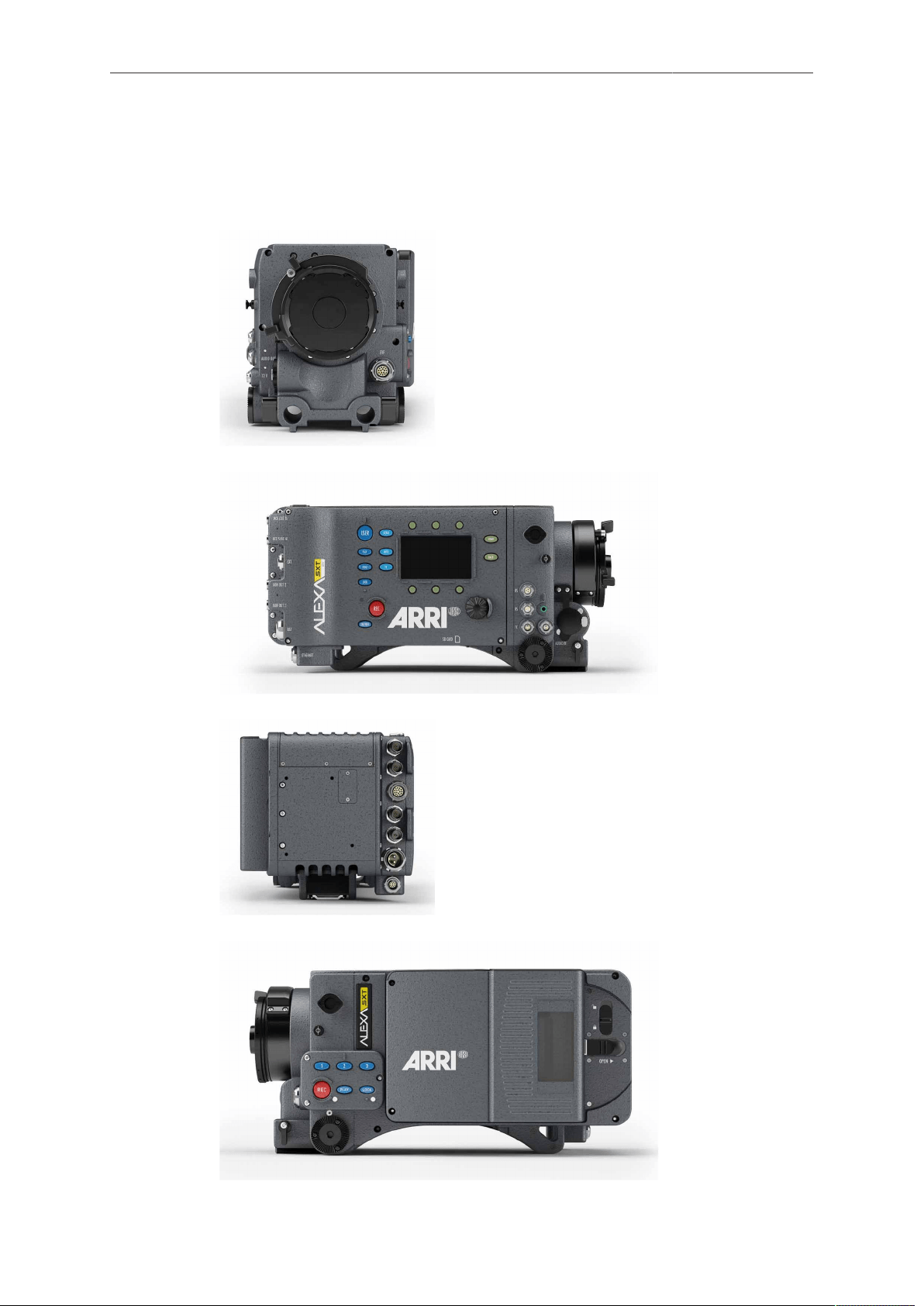
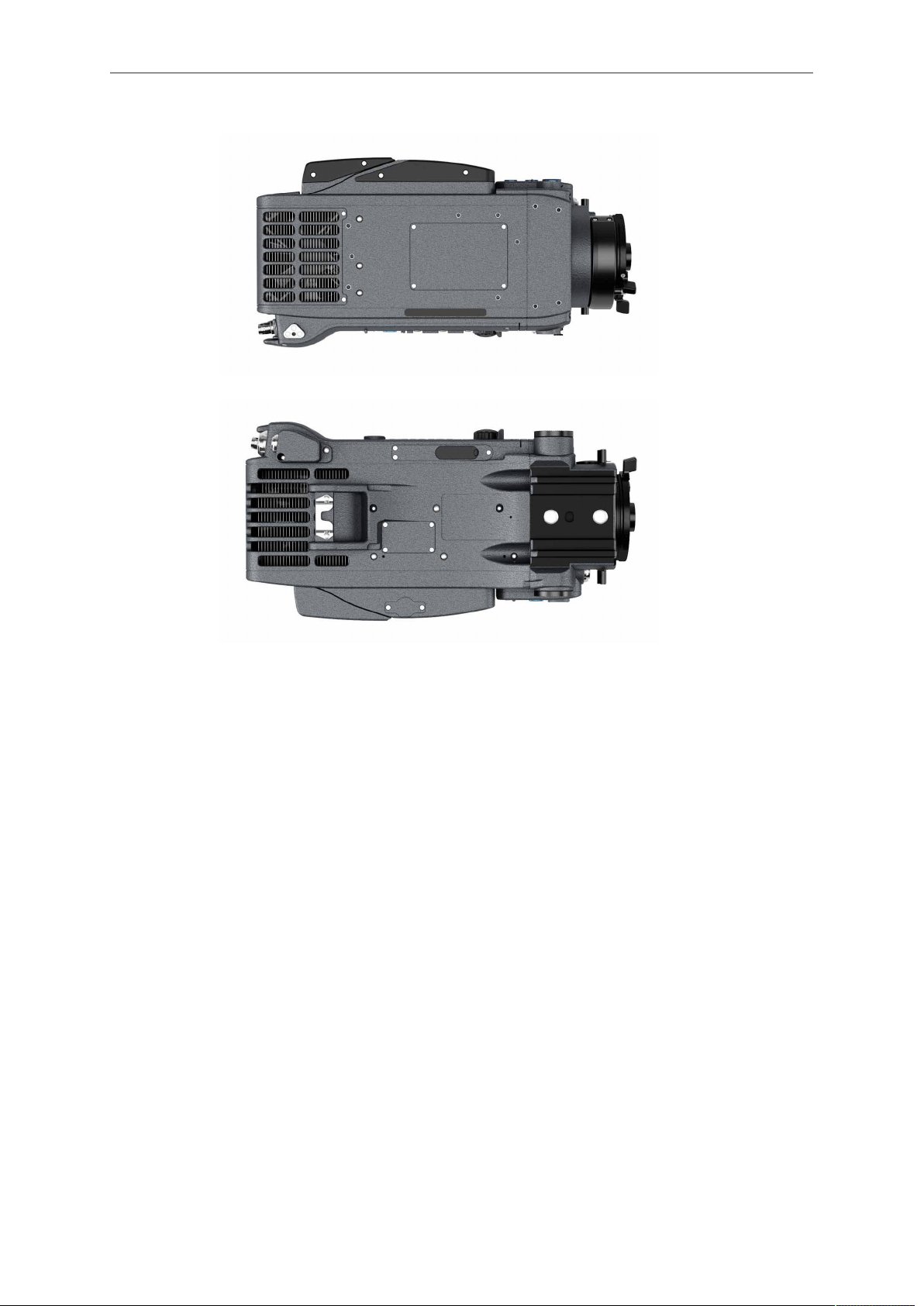
5 Layout of the ALEXA
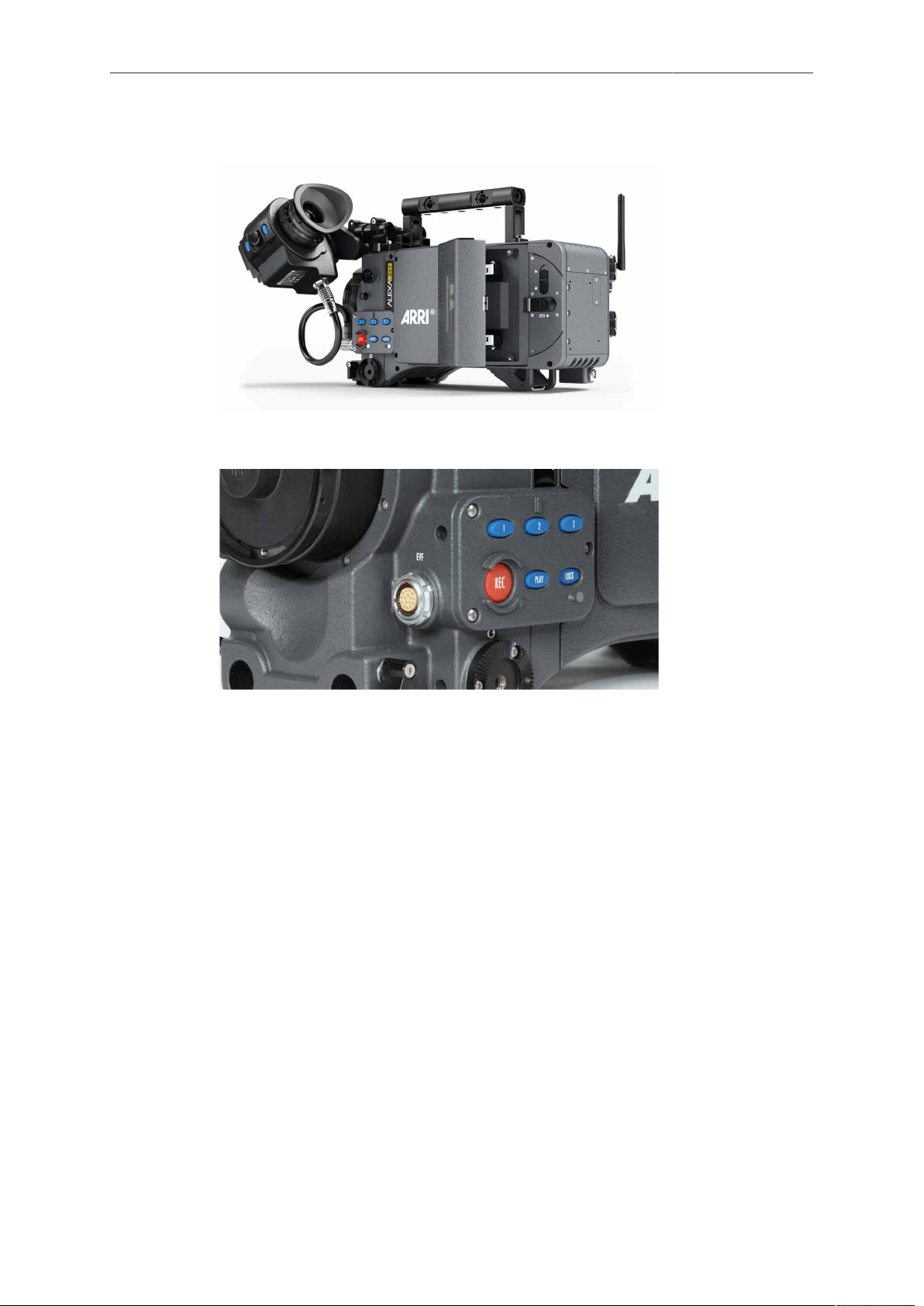
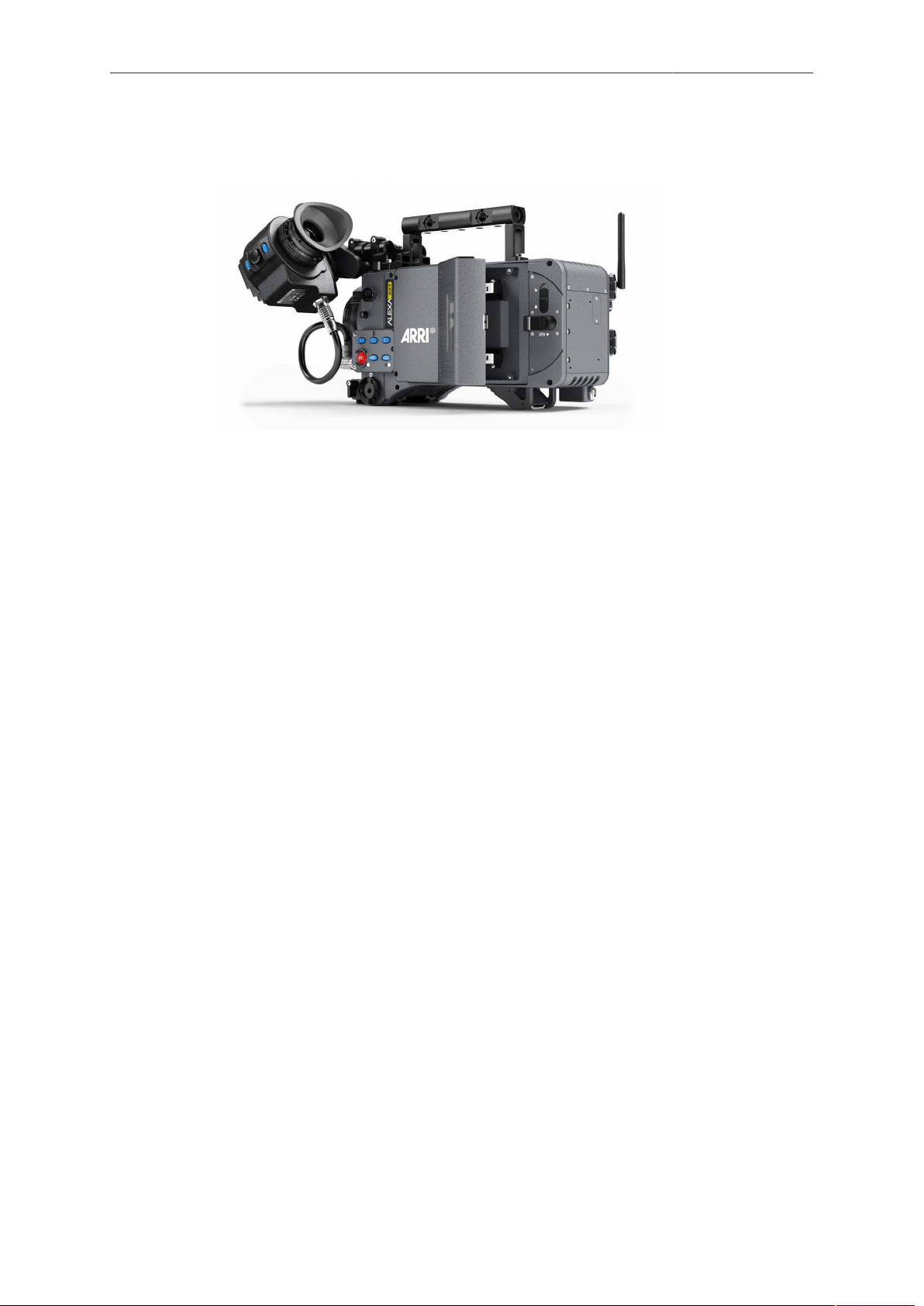
The following images show the ALEXA SXT EV:
20 Layout of the ALEXA
Safety Guidelines 21
6 Safety Guidelines
Any violation of these safety instructions or non-observance of personal care could
cause serious injuries (including death) to users and affiliates and damage to the
equipment or other objects.
6.1 Explanation of Warning Signs and Indications
Indicates a possible risk of injury or damage to the equipment
Indicates the risk of electric shock or fire danger that could result in injury or
damage to the equipment.
NOTICE
Indicates further information or information from other instruction manuals
6.2 General Safety Guidelines
•
Always follow these guidelines to ensure against injury to yourself or others and
damage to the system or other objects.
•
This safety information is in addition to the product specific operating instructions
in general and must be strictly observed for safety reasons.
•
Read and understand all safety and operating instructions before you operate or
install the system!
•
Retain all safety and operating instructions for future reference.
•
Heed all warnings on the system and in the safety and operating instructions
before you operate or install the system. Follow all installation and operating
instructions.
•
Do not use accessories or attachments that are not recommended by ARRI, as
they may cause hazards and invalidate the warranty!
•
Do not attempt to repair any part of the system! Repairs must only be carried out
by authorized ARRI Service Centers.
6.3 Specific Safety Instructions
•
Do not remove any safety measures from the system!
•
Do not operate the system in areas with humidity above operating levels or expose
it to water or moisture!
•
Do not cover the fan openings at the camera back top and bottom!

22 Safety Guidelines
•
Do not subject the system to severe shocks!
•
Do not place the system on an unstable trolley/hand truck, stand, tripod, bracket,
table or any other unstable support device! The system may fall, causing serious
personal injury and damage to the system or other objects.
•
Operate the system using only the type of power source indicated in the manual!
Unplug the power cable by gripping the power plug, not the cable!
•
Never insert objects of any kind into any part of the system if not clearly qualified
for the task in the manual, as objects may touch dangerous voltage points or short
out parts! This could cause fire or electrical shock.
•
Unplug the system from the power outlet before opening any part of the system or
before making any changes to the system, especially the attaching or removing of
cables!
•
Do not use solvents to clean!
•
Do not remove any stickers or paint marked screws!
•
Always place a lens or a protective cap in the lens mount receptacle!
•
Never run a camera with a mirror shutter without a lens or a protective cap in the
lens mount receptable!
•
Changing camera lenses should be done in a dry and dust-free environment. If
this is not possible, take extra care that no dust enters the camera while the lens is
off!
•
When no lens is attached to the camera, immediately place the protective on the
lens mount to avoid contamination of the sensor cover glass!
•
After changing lenses, always perform a dust check to make sure no dust has
settled on the sensor cover glass!
•
Clean optical lens surfaces only with a lens brush or a clean lens cloth. In cases of
solid dirt or grease, moisten a lens cloth with pure alcohol. Discard contaminated
lens cloth after use! Never attempt to clean a lens brush with your fingers!
•
NEVER USE CANS WITH COMPRESSED AIR OR GAS TO BLOW OFF THE
DUST! This can severely damage optical elements.
•
If the sensor cover glass has been contaminated by solid dirt or grease, special
optical cleaning kits should be used for dirt removal under very high care! If the
contamination cannot be removed, the camera should be taken to an ARRI service
center for cleaning.
•
THE USE OF METHANOL TO CLEAN OPTICAL SURFACES IS NOT
RECOMMENDED!
•
NEVER USE ACETONE TO CLEAN OPTICAL SURFACES!
•
NEVER TRY TO REMOVE THE SENSOR COVER GLASS!
•
DO NOT POINT THE CAMERA INTO DIRECT SUNLIGHT, VERY BRIGHT LIGHT
SOURCES, OR HIGH-ENERGY LIGHT SOURCES (e.g. laser beams)! This may
cause permanent damage to the camera image sensor.
•
DO NOT POINT THE VIEWFINDER INTO DIRECT SUNLIGHT, VERY BRIGHT
LIGHT SOURCES, OR HIGH-ENERGY LIGHT SOURCES (e.g. laser beams)!
This may cause permanent damage to the viewfinder display and optical
elements.
•
During extended operation, high data rates and/or operation at high ambient
temperatures, the camera's surfaces and especially the area around the
ventilation grille on top of the camera at the camera rear can get hot. Use caution
and never cover, obstruct or block the fan inlets or outlets while the camera is
powered.
General Precautions 23
7 General Precautions
7.1 Storage and Transport
•
Use a lens port cap to prevent damage to the sensor cover glass and sensor
whenever there is no lens attached.
•
Unplug all cables when transporting the ALEXA in a camera case.
•
Do not store the camera in places where it may be subject to temperature
extremes, direct sunlight, high humidity, severe vibration, or strong magnetic fields.
7.2 Condensation
When moving the camera from a cool to a warm location or when the camera is
used in a damp environment, condensation may form inside the lens port, on the
sensor cover glass, between the sensor and the sensor cover glass, and on internal or
external electrical connections.
Operating the camera while condensation is present may result in personal injury or
damage to the equipment.
Condensation on the optical components may have a visible effect on the output
images. To reduce the risk of condensation:
•
Find a warmer storage location.
•
Attach the ARRI air-drying cartridge (silica bottle) to the PL-Mount of the camera
during storage
•
Note: Do NOT leave the air-drying cartridge attached to the PL-Mount during
transportation of the camera!
•
If the camera needs to be stored in a place that is considerably cooler than the
location where it will be used, consider keeping the camera powered from a mains
unit in addition to using the air-drying cartridge.
•
In ambient temperatures above 30°C/86°F and/or humidity above 60%, always
attach the air-drying cartridge to the PL-Mount of the camera when not in use. This
not only applies to storage, but also to shooting breaks and situations when the
camera remains without an attached lens for an extended time.
•
MAKE SURE THE SILICA BOTTLE IS SECURELY FASTENED. UNDER NO
CIRCUMSTANCES SPILL SILICA INTO THE LENS PORT!
24 Power Supply
8 Power Supply
•
Use only ARRI-recommended power supply solutions.
•
Manipulation of power supplies could result in serious injury or death, or damage
to the ALEXA.
The ALEXA accepts an input voltage range from 10.5 to 34 V DC. Do not supply
power outside the specified voltage range. The camera can be powered through the
BAT connector or battery adapters accepting V-Lock or Gold Mount batteries.
The power supply should deliver an output of more than 90 W to power the camera
sufficiently. The power draw of the camera in basic configuration is about 85 W.
A 12 to 15 V battery should have at least 6 A maximum output current.
NOTICE
•
When powering accessories through the camera, the total power draw of the
camera is increased by the amount of power drawn by the accessories.
•
Always keep the BAT connector or attached battery accessible so that they can
be unplugged quickly in case of emergency.
8.1 Power Management
When using the BAT connector and one or more onboard battery adapters
simultaneously, the camera’s power management system ensures that the power
source with the highest voltage level is used. When the voltage level of one power
source drops below the level of the other, or a power source is disconnected from the
camera, the power management system automatically switches to the other power
source, avoiding shutdown of the camera.
For example, a 12 V onboard battery can be used as backup for the main 24 V battery.
Using a 12 V onboard battery in addition to the main 24 V battery also allows for quick
switchover to handheld mode—the power cable can simply be disconnected from the
BAT connector.
When using two onboard battery adapters (with batteries in parallel—one on top and
one on the back), the camera will treat them as a single source. When used this way,
the load is spread across two batteries, creating a strong power source.
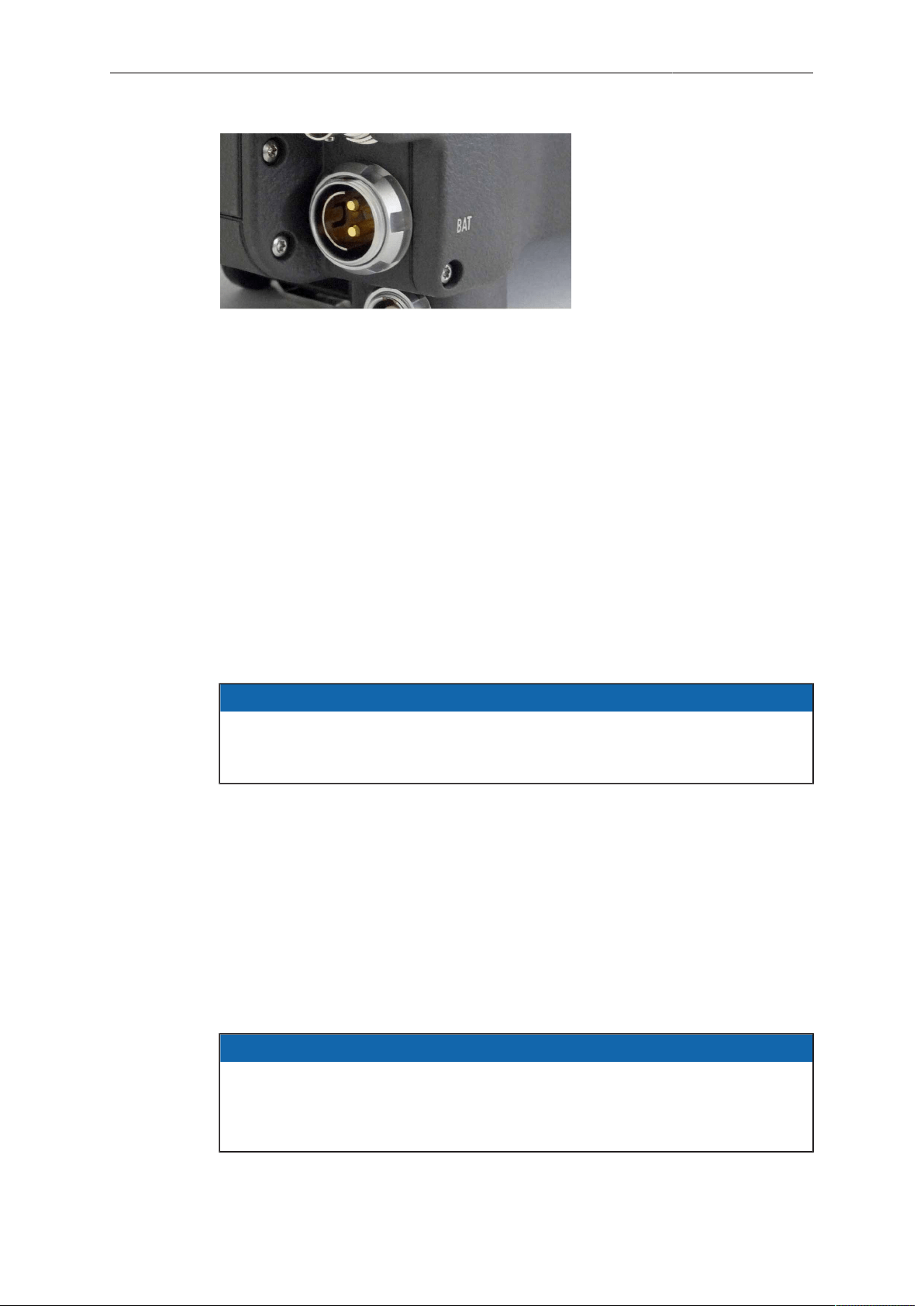
8.2 BAT Connector
The BAT connector is the primary power input on the ALEXA. It is a Fischer 2-pin
socket located at the back of the camera on the camera-right side.
The socket accepts power cables KC-20S and KC-29S. The cables can either be
connected to the mains unit NG 12/26R or to 24 V cine-style batteries with three-pin
XLR outputs. Do not use cables longer than 4m.
Power Supply 25
Fig. 1: BAT connector
8.3 Mains Unit NG 12/26 R
Use of the mains unit is recommended for shooting in the studio and when using
electronic accessories with high power consumption.
To power the ALEXA using the Mains Unit NG 12/26 R:
1. Set the correct mains voltage on the mains unit using the fuse on the back of the
unit. For example, set it to 220 V if the AC mains power source is 220 V.
2. Connect the mains unit to AC mains power.
3. Ensure that the camera power is turned off.
4. Set the voltage switch on the mains unit to 26 V.
5. Connect the battery cable KC-20S or KC-29S (spiral cable) to the power supply
socket on the camera and the 26 V socket on the mains unit.
NOTICE
The NG 12/24 R was the original design that provided 12 & 24 volts output – it was
superseded by the NG 12/26 R, which outputs 12 & 26 volts. The NG 12/24 R can
easily be upgraded to NG 12/26 R specification at an ARRI service center.
8.4 Cine-Style Batteries
Any 24 V cine-style battery with a three-pin XLR output can be used to power the
camera through a KC-20S or a KC-29S battery cable.
To connect the battery to the camera:
1. Ensure that the main switch on the camera is off.
2. Connect the battery cable KC-20S or KC-29S (spiral cable) to the power supply
socket on the camera and the 28V output on the battery.
NOTICE
When the battery voltage drops below the warning level, the BAT1 level in the
camera display will start flashing. A white i will appear, signaling more information
is available on the INFO screen. For more information on setting the low battery
warning level, see Menu>System>Power (on page 110).
26 Power Supply
8.5 Onboard Batteries
The camera can be equipped with adapters for either V-Lock or Gold Mount
video-style batteries. When a battery equipped with the TI-protocol for battery
communication is used, the ALEXA will display remaining capacity as a percentage
on the HOME screen. For these batteries, the user does not need to set the battery
warning level.
Four different adapters are available:
•
BAB-G: Battery Adapter Back for Gold Mount batteries
•
BAB-V: Battery Adapter Back for V-Lock batteries
•
BAT-G: Battery Adapter Top for Gold Mount batteries
•
BAT-V: Battery Adapter Top for V-Lock batteries
NOTICE
Adapters must be installed by a trained technician!
8.5.1 V-Lock Batteries
V-Lock batteries from different manufacturers may be used on the ALEXA. When
batteries from manufacturers such as ID-X and bebob are used, their remaining
capacity will be displayed as a percentage on the HOME screen.
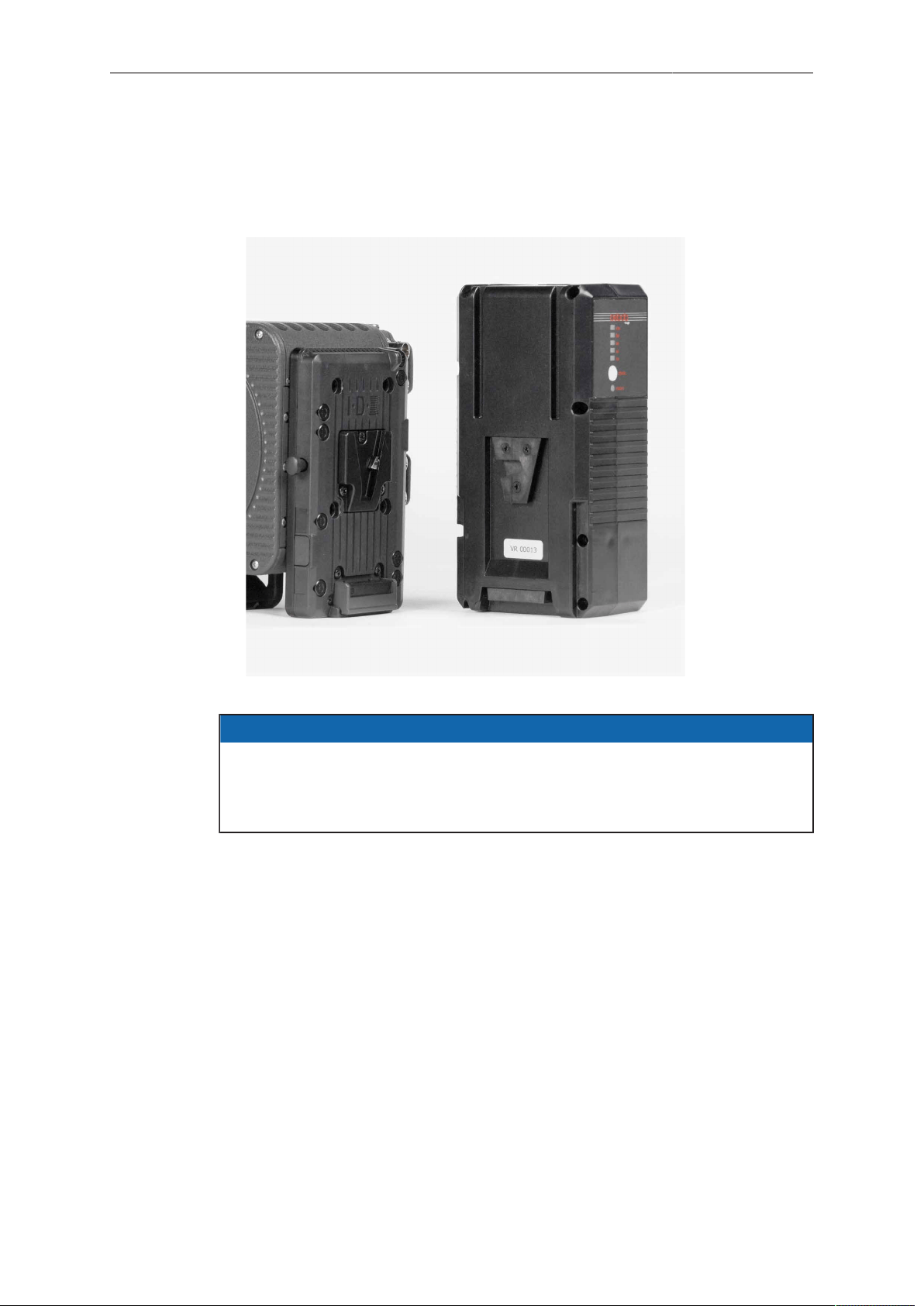
To attach a V-Lock battery:
1. Align the v-shaped wedge on the battery with the v-shaped notch on the battery
plate.
2. Press the battery downwards until you hear a click.
3. Check that the battery is securely mounted on the battery plate.
Power Supply 27
To release a V-Lock battery:
1. Press the release button on the camera-left side or top of the battery
(manufacturer dependent).
2. While pressing the release button, slide the battery upwards.
Fig. 2: ALEXA with BAB-V and V-Mount battery
NOTICE
Not all V-Lock batteries deliver enough power to supply the camera. Use only
batteries with a capacity of 90 Wh or more to prevent damage to the battery and
unpredictable camera behavior. Any camera-battery combination should be tested
prior to use, especially when accessories are powered through the camera.
8.5.2 Gold Mount Batteries
If the ALEXA is equipped with a Gold Mount, Anton/Bauer batteries can be used. Their
remaining capacity will be displayed as a percentage on the HOME screen.
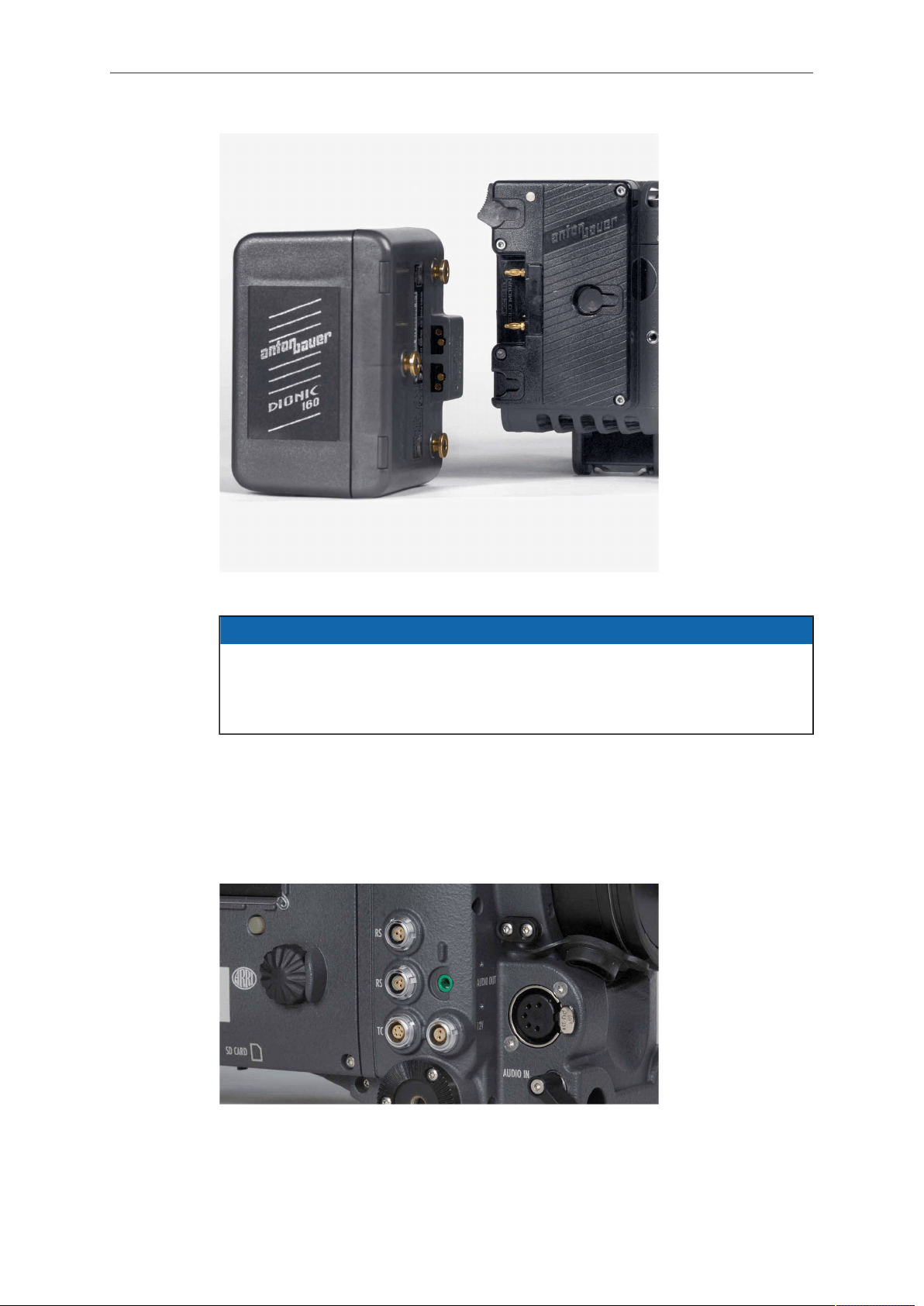
To attach a Gold Mount battery:
1. Align the three pins on the back of the battery to the three corresponding holes on
the battery plate.
2. Press the battery to camera-right until you hear a click.
3. Check that the battery is securely mounted on the battery plate.
To release a Gold Mount battery:
1. Press the release button on the camera-left side of the battery plate.
2. While pressing the release button, slide the battery camera-left, and pull it straight
out.
28 Power Supply
Fig. 3: ALEXA with BAB-G and a Gold Mount battery
NOTICE
Not all Gold Mount batteries deliver enough power to supply the camera. Use only
batteries with a capacity of 90 Wh or more to prevent damage to the battery and
unpredictable camera behavior. Any camera-battery combination should be tested
prior to use, especially when accessories are powered through the camera.
8.6 Power Outputs
The ALEXA SXT EV has two 24 V power outputs and one 12 V power output for
accessories. ALEXA SXT Plus, ALEXA SXT Studio and ALEXA SXT W models have
three 24 V power outputs and one 12V power output.
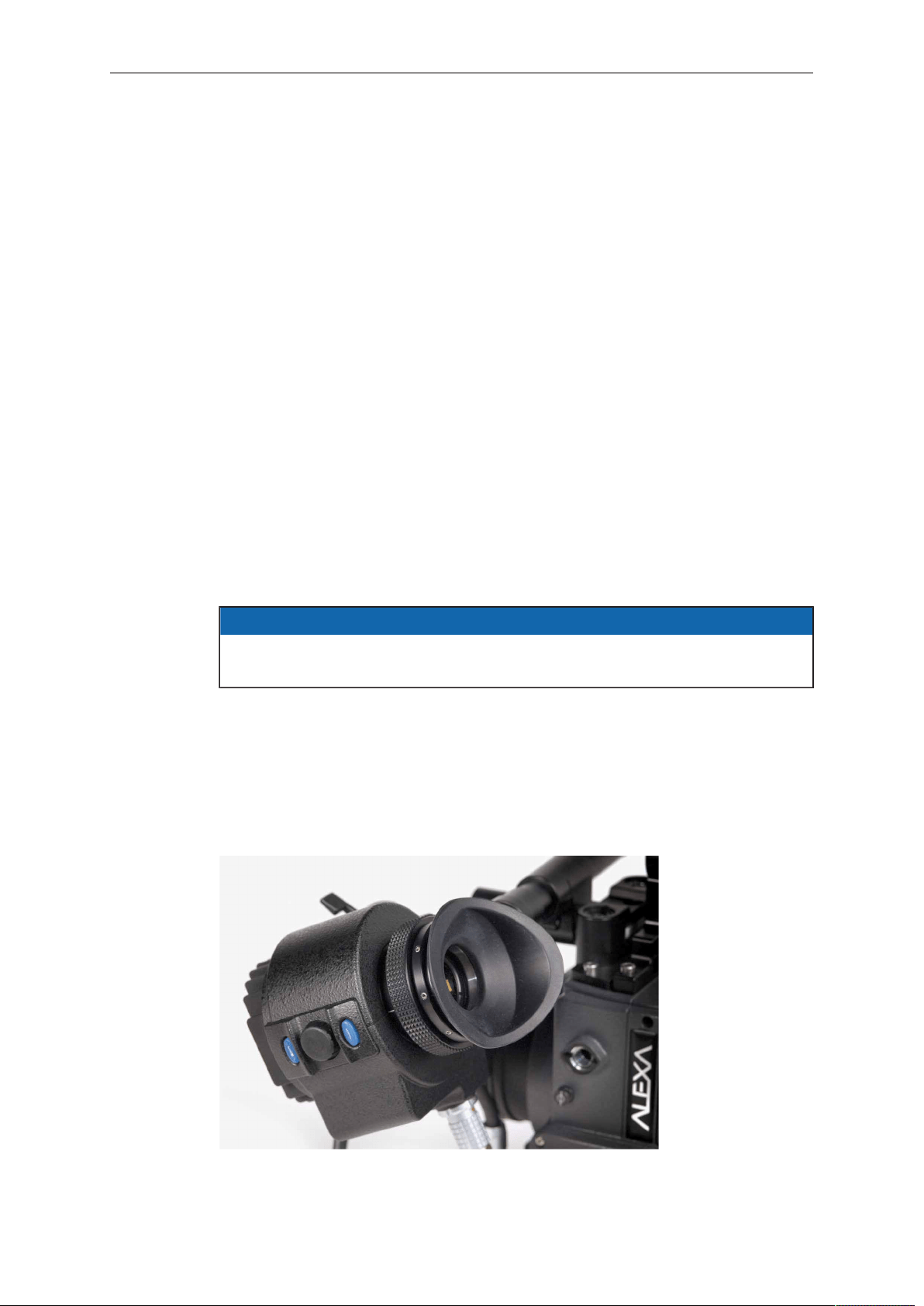
Fig. 4: 24 V outputs (RS) and 12 V output
8.6.1 Powering 12 V Accessories
One 12 V output with a 2-pin LEMO connector is located on the right side of the
camera. It is limited to 12 V and can supply a device with a current of up to 2.2 A,
depending on the camera power supply.

Power Supply 29
8.6.2 Powering 24 V Accessories
Two 24 V remote start/stop (RS) outputs with 3-pin Fischer connectors are located on
the right side of the camera. They can supply two devices with a combined load of up
to 2.2 A (shared with the EXT connector power out), depending on the camera power
supply. When the camera is powered from a source with a voltage below 24 V, they
output 24 V. If the camera's power source supplies more than 24 V, this voltage level
is also present on the RS outputs.
Besides powering accessories, the RS outputs can also be used to send a remote
start/stop signal to the camera.
30 Camera Support
9 Camera Support
9.1 Minimum Equipment Recommended For
Operation
•
ALEXA SXT EV camera body and Lens Adapter PL mount
•
Electronic Viewfinder EVF-1
•
Viewfinder Mounting Bracket
•
KC 150-S Viewfinder Cable short 0.35m/1.2ft
•
CCH-1 Center Camera Handle
•
BP-12 Bridge Plate with base plate, or BPA-1 with BP-5/BP-8 Bridge Plate and
base plate, or WA-1 Wedge Adapter and Quick Release HD Baseplate
•
SD card
•
Compatible power supply
•
Suitable media for recording
9.2 Tripod and Remote Heads
Tripod and remote heads must have adequate load ratings to support the ALEXA and
attached accessories. See the dimensional drawings and weights for your camera
model in the Appendix of the manual.
NOTICE
Always check the payload limits of a remote head and crane before mounting a
camera.
In applications where the camera mount is subject to high forces (e.g. car or helicopter
mounts) the camera must be additionally secured with appropriate safety restraints. All
mount screws must be tightened firmly with an appropriate screwdriver (not with the
commonly used coin!).
9.3 Electronic Viewfinder EVF-1
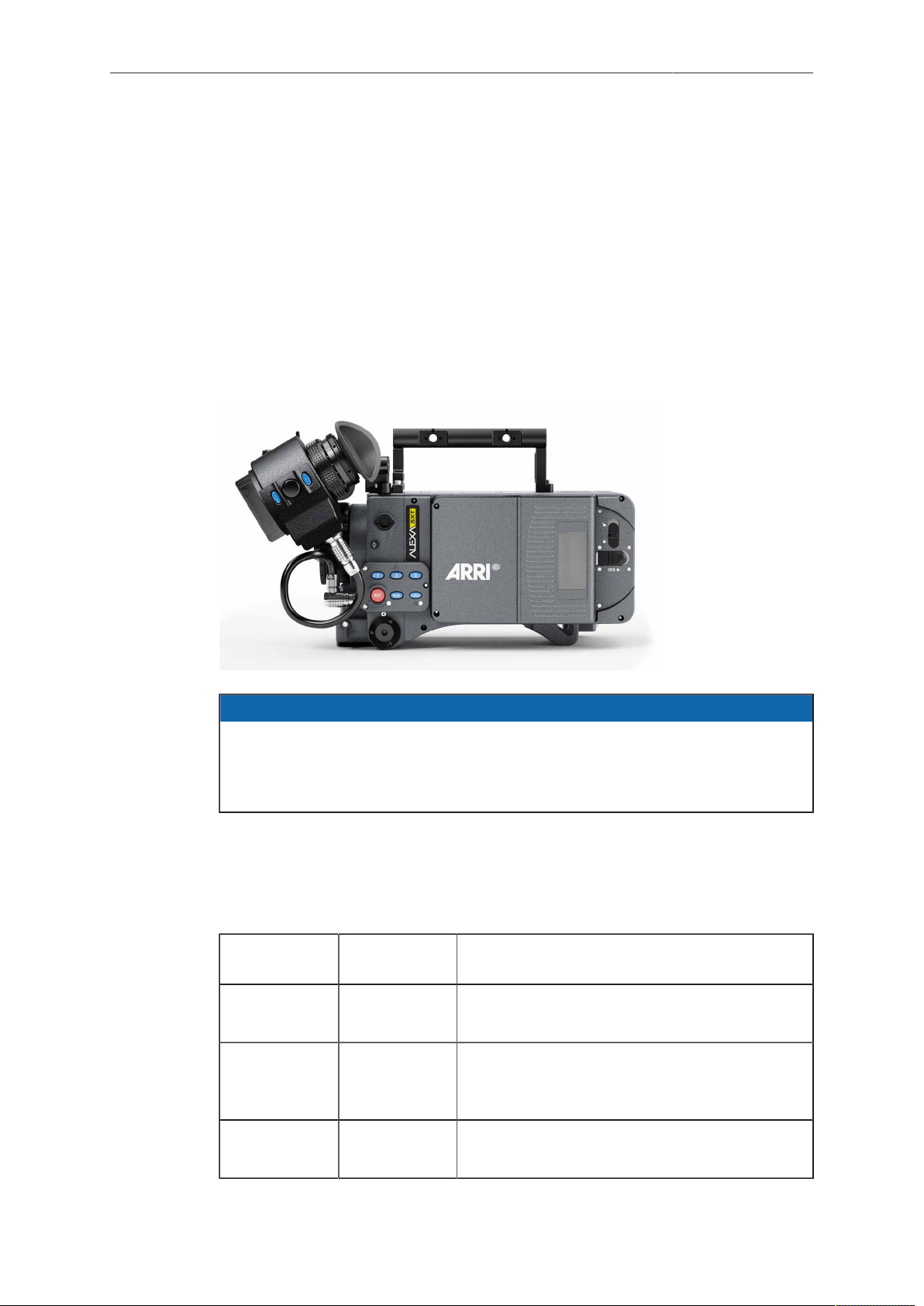
Camera Support 31
The electronic viewfinder EVF-1 employs a liquid crystal on silicon (LCOS) imaging
device with a temperature-stabilized LED light source to provide a bright, accurate
view of the sensor image in all operating conditions. Each EVF-1 is calibrated to
precisely match the image on the ALEXA's HD outputs.
The EVF-1 has a resolution of 1280x720 pixels, with 32 additional lines of resolution
above and 32 below the image to display camera status information. The EVF-1
can also display a 10% surround view area of the sensor to help the operator track
unwanted elements before they enter the recorded image area. Focus can be checked
by temporarily zooming into the image with a magnification factor of 2.25x. The low-
latency interface of the EVF-1 has a delay of less than 1 frame.
The EVF-1 has button controls for false color check and zoom, as well as buttons and
a jogwheel to control EVF and camera settings.
Connect the viewfinder to the camera using the viewfinder mounting bracket.
NOTICE
Do not point the viewfinder into direct sunlight, very bright light sources, or high-
energy light sources (e. g. laser beams)! This may cause permanent damage to the
viewfinder display and optical elements. If possible, cover the eyepiece when not in
use to prevent any damage.
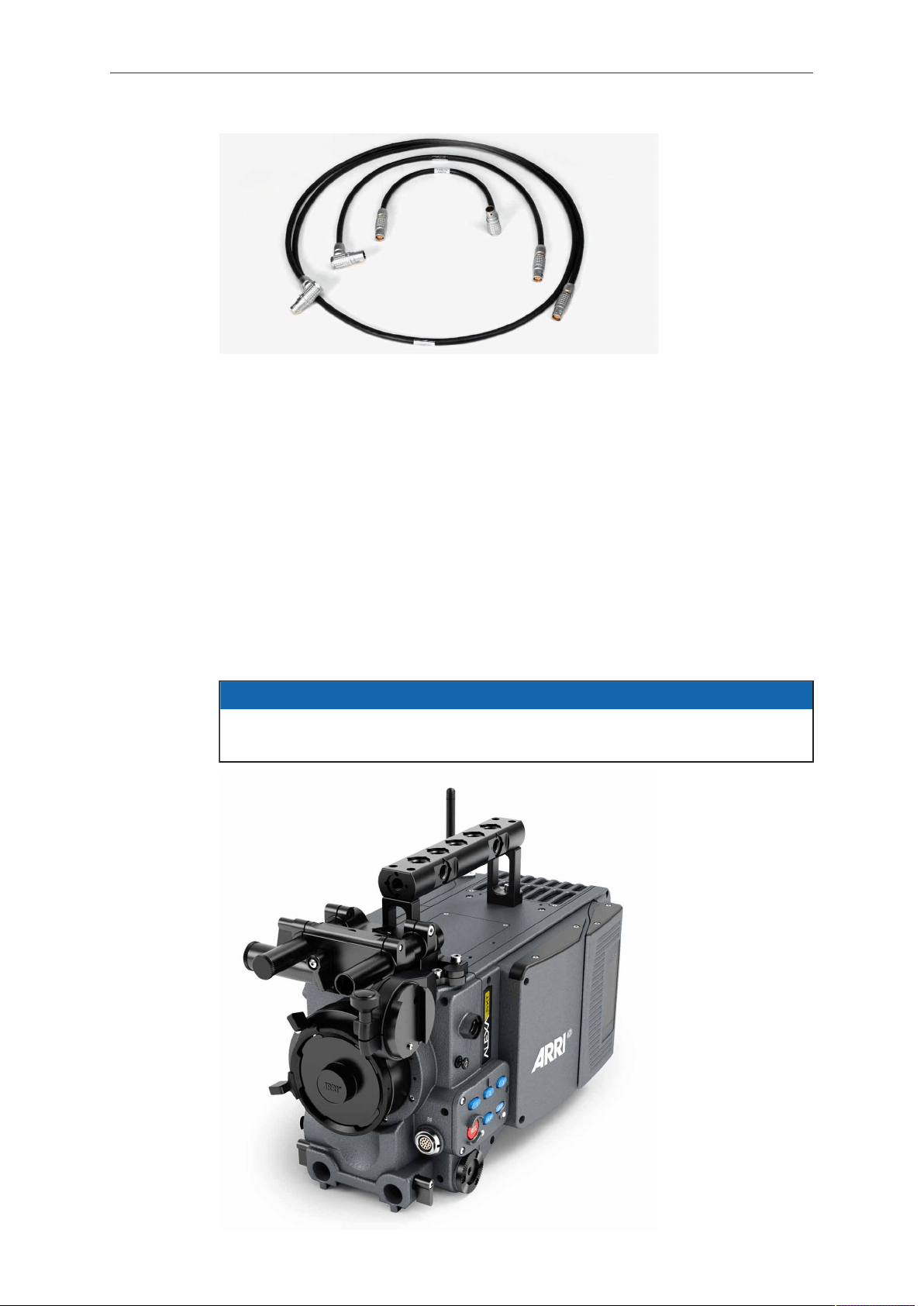
9.3.1 Viewfinder Cables
The viewfinder cables are unidirectional with a male plug to connect to the camera
and a female plug to connect to the viewfinder.
Cables are available in the following lengths:
Model Length
(m / ft)
Suggested use
KC-150-S 0.35 / 1.2 For use of EVF-1 on camera left side in hand-
held mode
KC-151-S 0.65 / 2.1 For use of EVF-1 on camera right side or when
using Viewfinder Extension Bracket VEB-1 or
VEB-3
KC-152-S 2.00 / 6.6 Longest possible length for use with specialty
rigs
32 Camera Support
Fig. 5: EVF cables: KC-150S (center), KC-151S (middle), KC-152S (outer)
9.3.2 Viewfinder Mounting Bracket
The Viewfinder Mounting Bracket VMB-3 is attached to the camera using two captive
3mm hex socket head screws on top of the camera at the front. The VMB-3 features a
leveling bubble and two internally threaded 15mm rods with standard 60mm distance.
These can be exchanged for or extended with standard 15mm rods for mounting
matte boxes, lens motors and the like above the lens if need be.
Attach the EVF-1 to the Viewfinder Mounting Bracket by sliding the dove tail into the
receptacle and closing the lever on the EVF-1.
The position of the EVF-1 can be adjusted by loosening the levers on the Viewfinder
Mounting Bracket, adjusting the position as desired and closing the levers to retighten.
The EVF-1 can be mounted on the camera-right side by unscrewing the threaded end
cap on the side-to-side adjustment rod, removing the rod itself and inserting it from the
other side. Remember to reattach the threaded end cap.
NOTICE
Camera-right operation is not possible with the standard EVF cable KC-150-S.
Instead, the longer cable KC-151-S is needed.
Camera Support 33
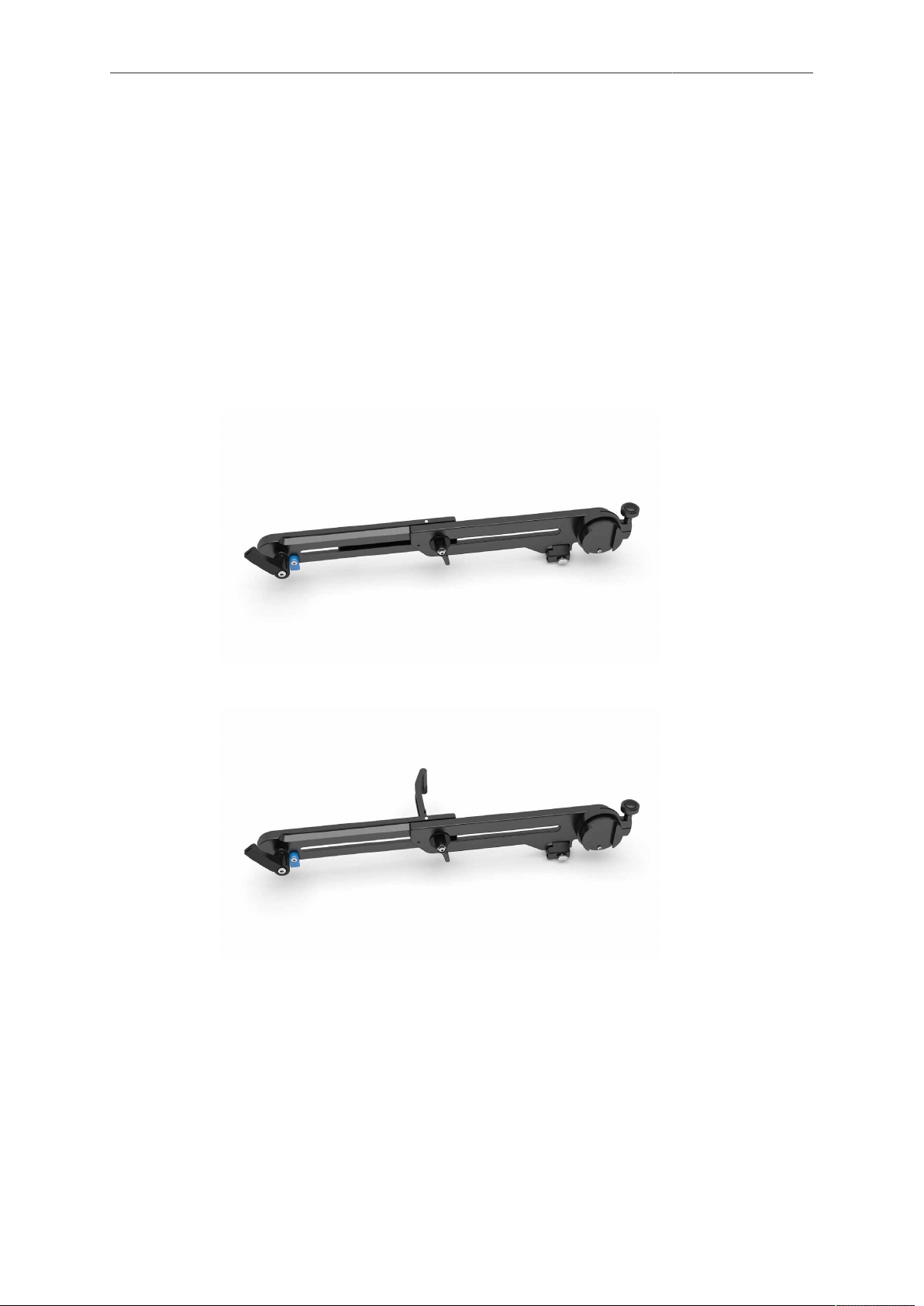
The Viewfinder Extension Bracket VEB-3 extends the mounting point of the EVF-1
further back. It can be attached to a tripod head for use with geared heads or greater
comfort when using fluid heads using its standard attachment point for the ARRI
Eyepiece Leveler EL-3. The VEB-3 has been improved over the VEB-1 in the following
aspects:
•
The redesigned shape provides greater sturdiness at a lighter weight.
•
The blue security pin at the VMB-3 connecting end prevents the VEB-3 from
accidently dropping out when it is released.
•
The connection part to the Eyepiece Leveler EL-3 is spring loaded so that it
automatically moves away from the camera body when it is not in use.
•
The VEB-3 features a fold-out arm that can be used to rest the VEB-3 on the
camera body when moving the camera.
To avoid damage to the VMB-3 when using the VEB-3 with an eyepiece leveler,
loosen the friction on VMB-3’s rotating assembly.
Fig. 6: VEB-3 with closed fold-out arm
Fig. 7: VEB-3 with opened fold-out arm
34 Camera Support
9.4 Center Camera Handle CCH-1
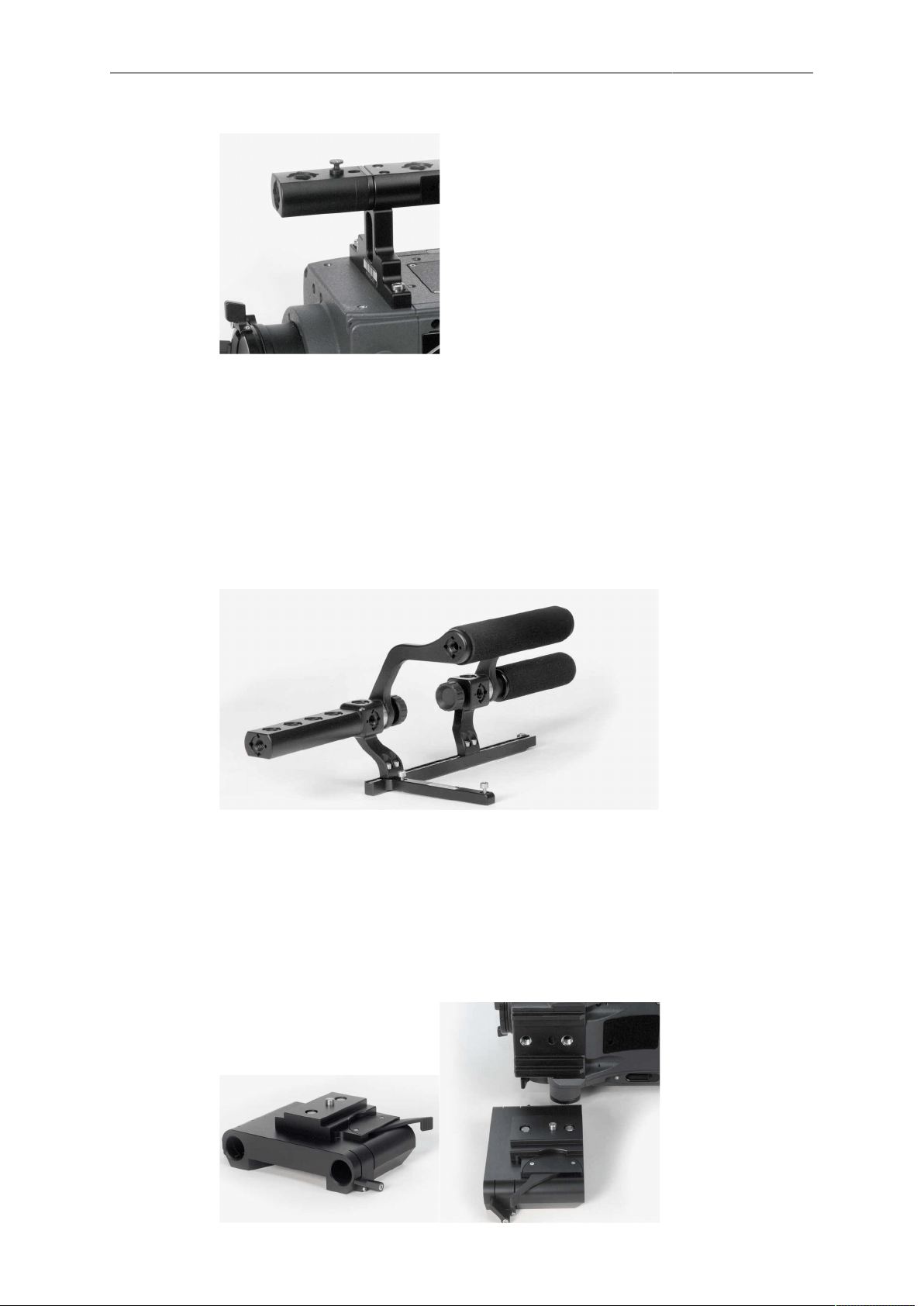
The Center Camera Handle CCH-1 is attached to the camera top with three captive
3mm hex socket head screws (two at the front and one at the back). Ensure that the
CCH-1 is securely fastened before attempting to lift the camera.
The Handle Extension Block HEB-2 mounts to the front end of the CCH-1 and adds
one more focus hook to the camera in a high position, allowing the tape measure to
clear the matte box.
Camera Support 35
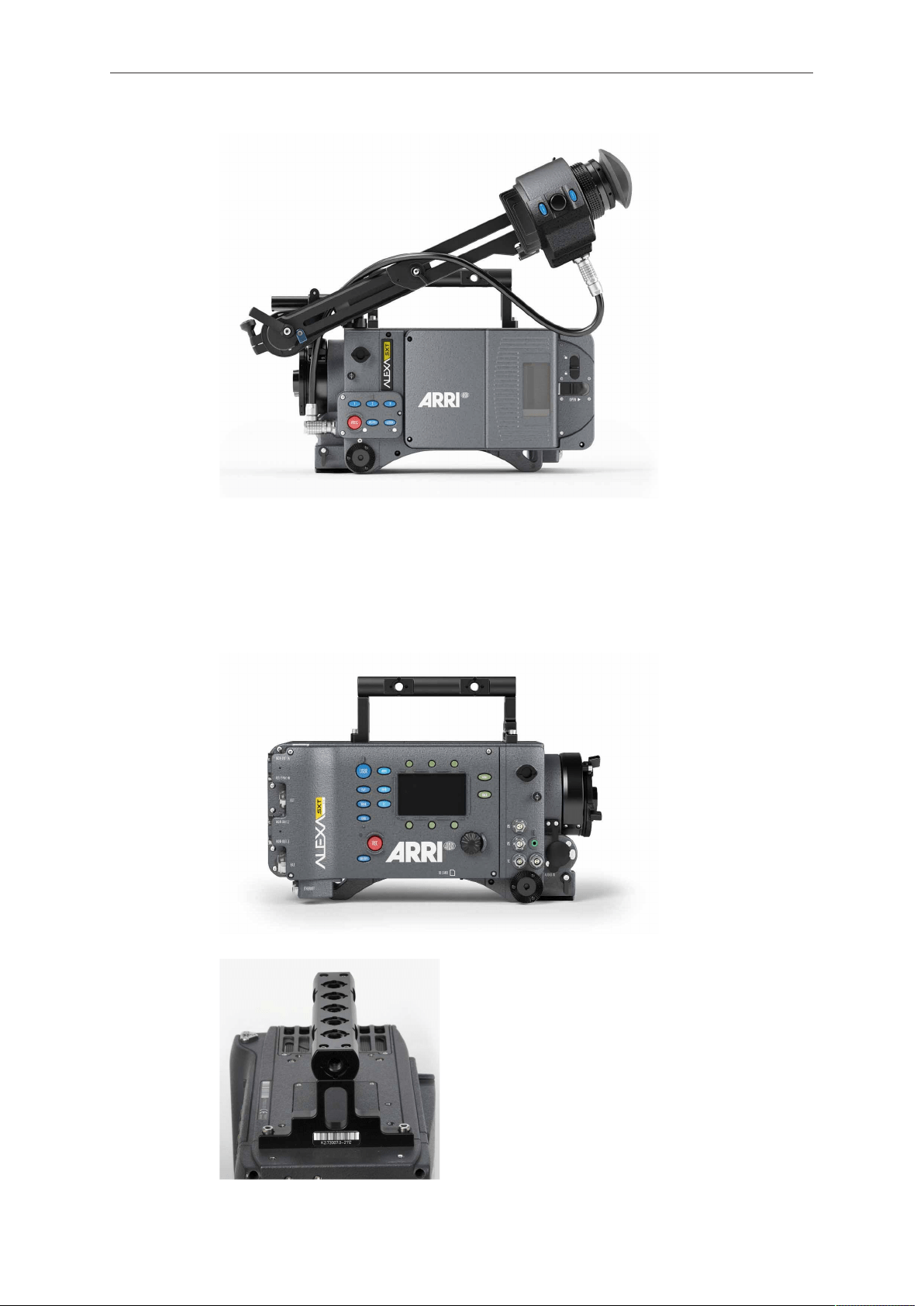
9.5 Side Camera Handle SCH-1
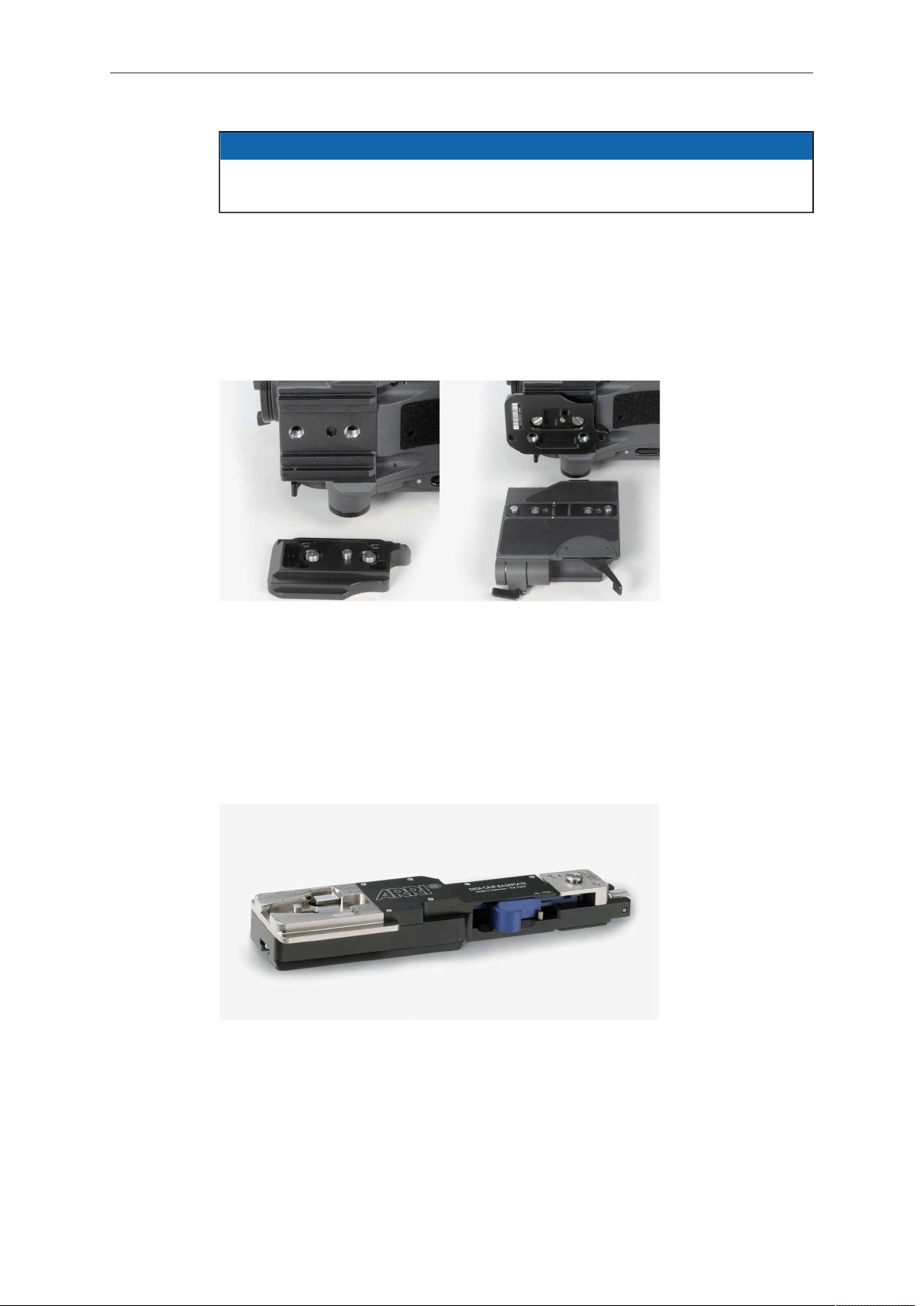
The Side Camera Handle SCH-1 is used in conjunction with a BAT-V or BAT-G top-
mounting battery adapter, or with third-party onboard recorders. It is attached to the
camera using three captive 3mm hex socket head screws (two at the front and one
at the back). Ensure that the SCH-1 is securely fastened before attempting to lift the
camera.
If a tall battery or a tall third-party onboard recorder is used, the adjustable center grip
of the SCH-1 can be replaced by the taller Adjustable Center Grip Tall (ACG-2).
Fig. 8: SCH-1
9.6 Bridge Plates BP-12/BP-13
The bridge plate BP-12 for 19 mm studio rods has been specifically developed for
ALEXA. It mounts directly to the camera body using two 3/8"/16 screws and ensures
that support rods, matte boxes and follow focus units are positioned properly in
regards to the optical center of the camera, just like all other ARRI cameras.
The bridge plate BP-13 is equivalent to the BP-12, but for 15 mm studio rods.
36 Camera Support
NOTICE
Make sure bridge plates are tightened firmly with a wide bladed screwdriver, not the
commonly used coin!
9.7 Bridge Plate adapter BPA-1
The bridge plate adapter BPA-1 can be used to attach a BP-3/BP-5/BP-8/BP-9 to
ALEXA. First attach the BPA-1 to the camera with the two screws. Then attach the
bridge plate to the adaptor with its two screws. Make sure the screws are tightened
firmly with a screwdriver.
9.8 Wedge Adapter WA-1 and Quick-Release Plate
QR-HD-1
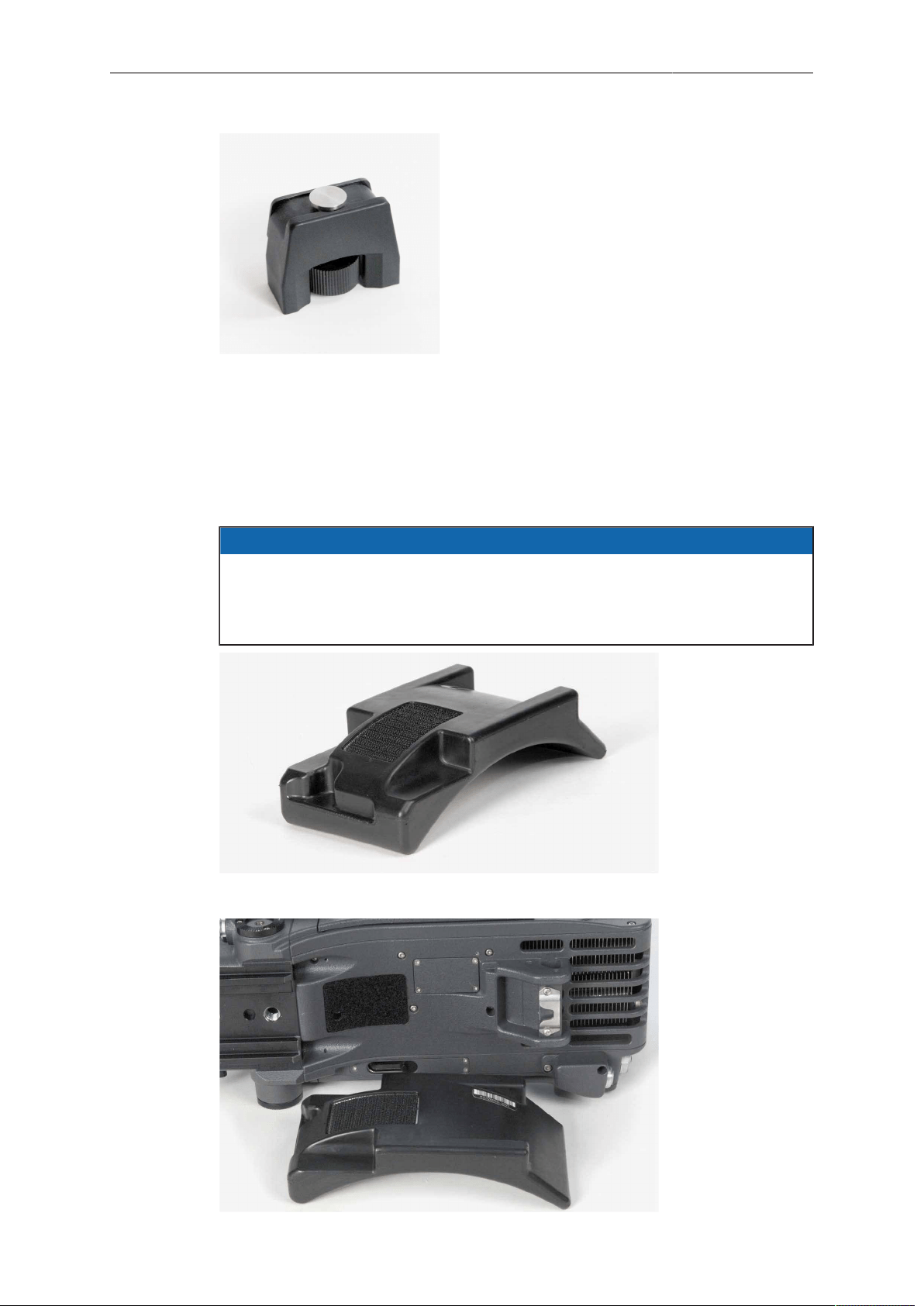
The WA-1 can be mounted at the same position as a bridge plate. It has a dove tail
that slides into the counter part of a quick-release plate, like the ARRI QR-HD-1. The
quick-release plate has a pin at its back, which fits into the pin receptacle at the back
of the camera base.
Fig. 9: ARRI QR-HD-1
9.9 Levelling Block LB-1
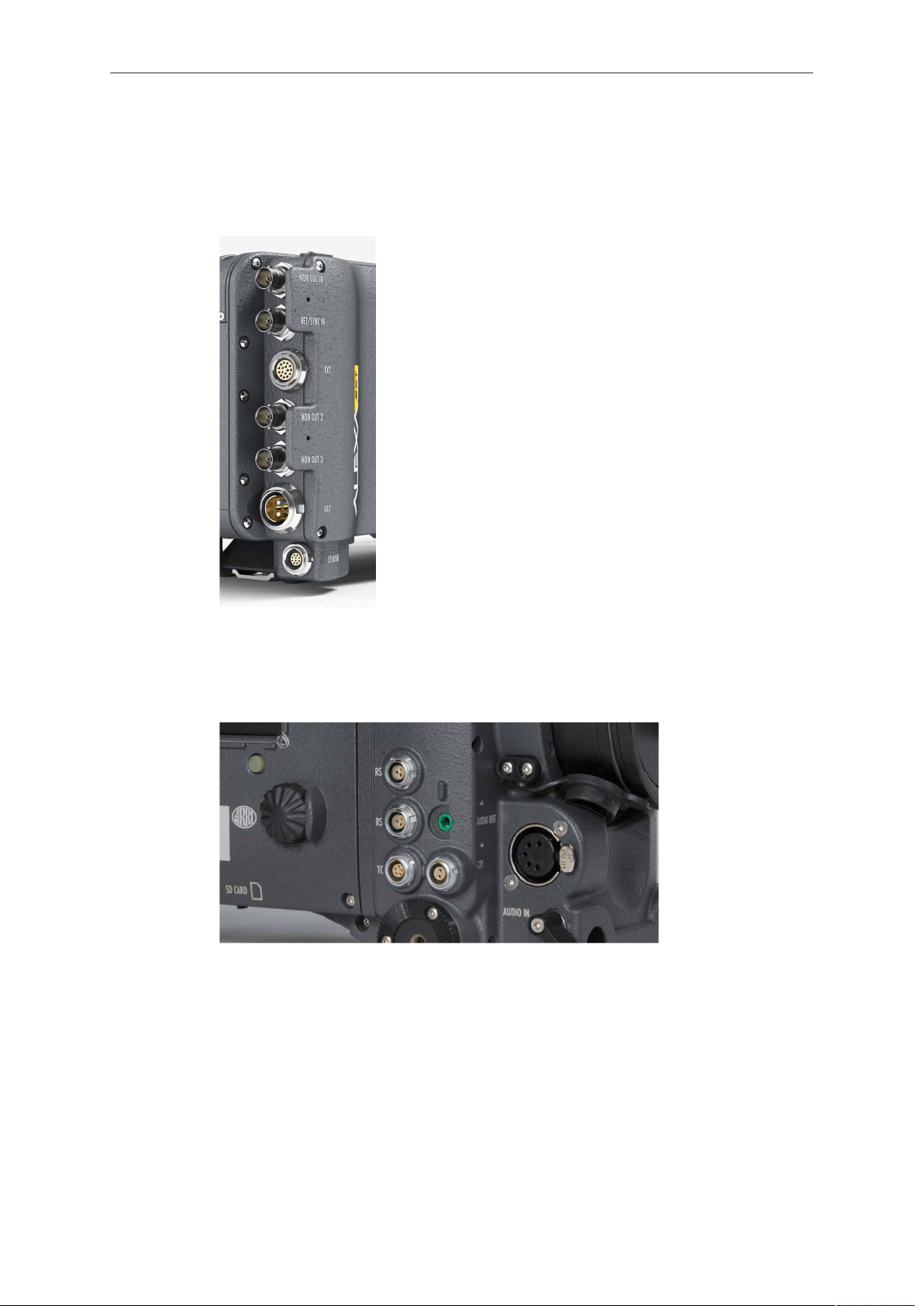
The Leveling Block LB-1 attaches to the bottom of the ALEXA in the pin receptacle on
the back foot. It prevents the camera from resting on a rear-mounted battery when a
bridge plate is attached and the camera is placed on a flat surface.
Attach the LB-1 by inserting its pin into the pin receptacle at the end of the shoulder
arc in the camera base. Twist the knob clockwise to tighten.
Camera Support 37
Fig. 10: Leveling Block LB-1
9.10 Shoulder Pad SP-3
The camera base has an integrated arch to fit to the operator's shoulder. For extended
handheld shots, the shoulder pad SP-3 can be attached to the base of the camera
with velcro.
NOTICE
The SP-3 can only be used with a BP-12 and 19 mm rods or with 15 mm rods and
a Wedge Adapter WA-1 and a Quick-Release Plate QR-HD-1. When using the
BPA-1 with a BP-5/BP-8, the bridge plate has to be removed prior to attaching the
SP-3.
Fig. 11: SP-3 shoulder pad
Fig. 12: SP-3 below camera
38 Connectors
10 Connectors
Camera back
From top to bottom: MON OUT 1A, RET/SYNC IN, EXT, MON OUT 2, MON OUT 3,
BAT, ETHERNET
Camera right
Fig. 13: Connectors on right side
From left to right, top to bottom: 2x RS (24 V) out, AUDIO OUT, TC, 12V out, AUDIO
IN, SD CARD (camera bottom)
Connectors 39
Camera left
Camera front
Fig. 14: Camera front
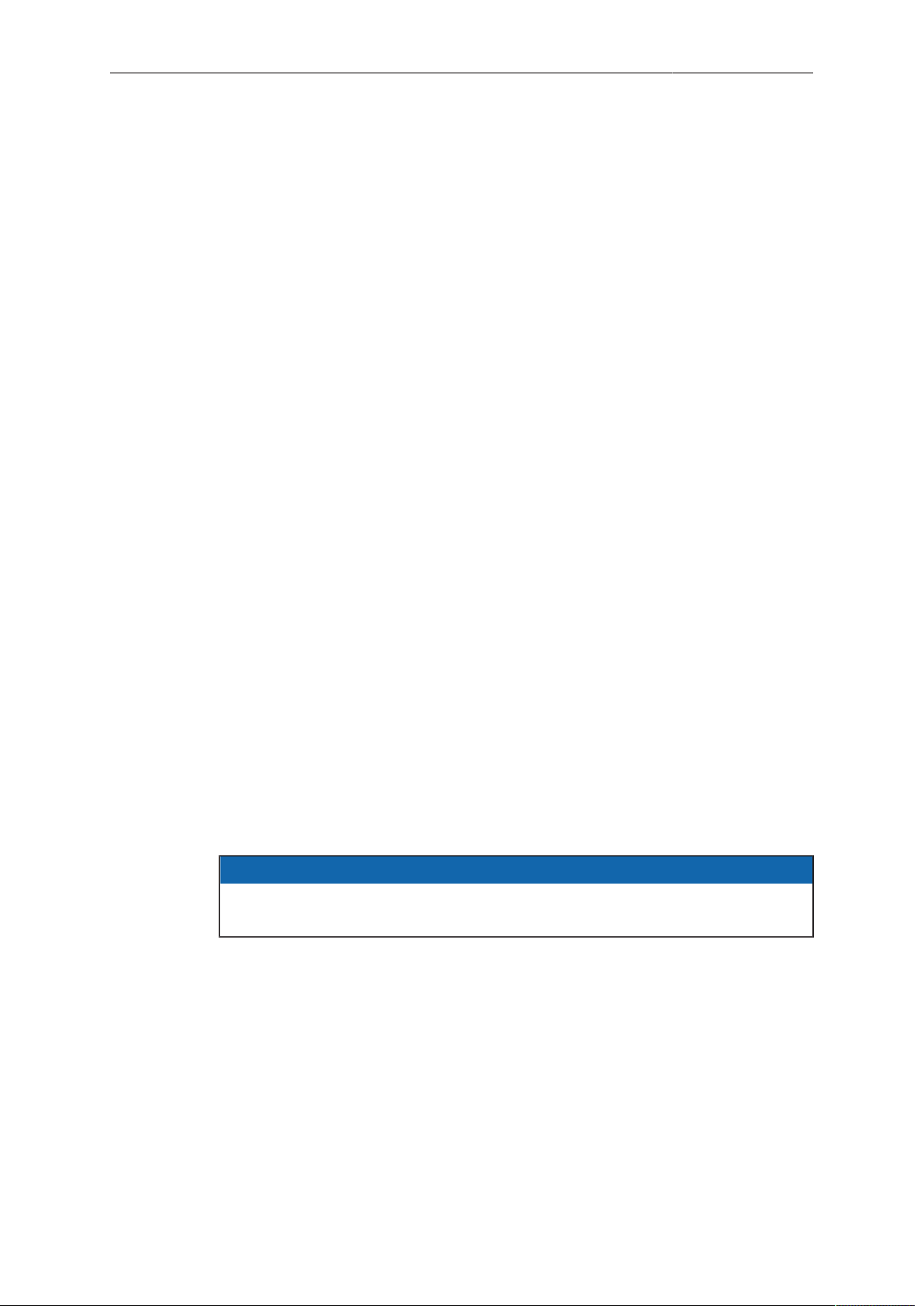
EVF connector
10.1 BAT
The BAT connector can be used to power the camera from an external power source
with cables KC-20S and KC-29S.
It is located at the back of the camera on the camera-right side.
10.2 RET SYNC IN
A return signal from another image source can be fed into the ALEXA’s RET connector
for displaying on EVF and/or MON OUT. The signal must be a 1920x1080 422 1.5G
single link according to SMPTE 274M and 292M. The output routing of the RET
in signal can be set in the Monitoring menu. The SYNC IN function has not been
implemented.
The connector is located at the back of the camera on the camera-right side.

40 Connectors
10.3 MON OUT 1/2/3
The MON OUT connectors are BNC connectors capable of carrying a 1920x1080
422 YCbCr 1.5G HD-SDI signal with frame rates of 23.976, 24, 25, 29.97 or 30 fps
according to SMPTE standards 274M and 292M. The signal format can be changed in
the Monitoring menu.
The connectors are located at the back of the camera on the camera-right side.
10.4 EXT
The EXT connector is a multi-pin accessory connector that carries signals for
communication with various accessories and 24V power. The maximum power output
is 2.2A, shared with the RS outputs.
Cables are currently available for:
•
Connecting a UMC-3 remote motor controller (model UMC Connection Cable
(0.80m/2.6ft) K-UMC3-ALEXA)
•
Connecting two ALEXA cameras for synchronized operation (model EXT to EXT
Cable (2.00m/6.6ft) KC 155-S)
The connector is located at the back of the camera on the camera-right side.
10.5 ETHERNET
Standard Ethernet connectors cannot deliver the durability and reliability required
by ARRI, so the ALEXA uses a specially designed 10-pin LEMO connector. The
ARRI KC-153-S cable is required to connect the Ethernet socket to a standard RJ-45
Ethernet port.
The Ethernet port can be used to operate two ALEXA cameras with synced settings
by connecting the cameras with a KC 156-S cable, or to connect the Remote Control
Unit RCU-4 to the camera.
The Ethernet connector can output 24 V with 1.2 A power.
The connector is located at the back of the camera on the camera-right side.
10.6 EVF
The EVF connector connects the camera to an EVF-1 electronic viewfinder. The
signals on this connector are proprietary and can only be used to drive an EVF-1. This
proprietary signal assures low latency for the viewfinder image.
The connector is located at the front of the camera on the camera-left side.
10.7 AUDIO IN
2-channel analog line-level audio can be fed to the camera via the 5-pin XLR
connector located at the front of the camera on the camera-right side.
The ALEXA converts the audio signal from analog to 24 bit 48 kHz PCM.
Connectors 41
10.8 RS
The two RS connectors supply external accessories with at least 24 V power and a
combined load of up to 2.2 A (shared with the EXT connector power out). The sockets
also accept an ARRI remote start/stop trigger.
The connectors are located at the front of the camera on the camera-right side.
10.9 12 V
The 12 V connector supplies an external accessory with 12 V power and up to 2.2 A
current.
The connector is located at front of the camera on the camera-right side.
10.10 TC
The TC connector is a 5pin LEMO socket. It accepts and distributes a Longitudinal
Time Code (LTC) signal.
It can be used to
•
jam-sync the ALEXA's time code to a Clockit, TC Slate or another camera
•
transmit the ALEXA's time code to a Clockit, TC Slate or another camera
•
tune the frequency of the ALEXA’s crystal oscillator with an Ambient ACC Clockit
Controller
The connector is located at the front of the camera on the camera-right side.
Note that during playback, the timecode that is output via the TC connector does not
match the timecode of the played clip.
10.11 AUDIO OUT
The AUDIO OUT is a 3.5mm TRS connector (headphone jack), which outputs audio
fed to the 5-pin XLR AUDIO IN connector with a maximum power of 2.5 dBm.
The connector is located at the front of the camera on the camera-right side.
NOTICE
Connecting headphones to the camera while recording can cause a short audio
signal interruption due to static electricity.
10.12 SD Card
The ALEXA saves data such as user setups, frame grabs and system logs to an SD
card. Firmware, additional frame lines and ARRI Look File 2 files are loaded onto the
camera from the SD card. The SD card slot is located on the bottom of the camera on
the camera-right side. To access the SD card slot, slide the door towards the front of
the camera.
SD Card Requirements
•
SD or SDHC card (most brands are compatible)
•
maximum capacity of 4GB
•
FAT or FAT32 format
42 Connectors
NOTICE
•
Keep the SD card slot door closed to prevent dirt and moisture from entering
the camera.
•
After booting the camera or inserting an SD card, it might take some seconds
until the SD card is recognized and usable.
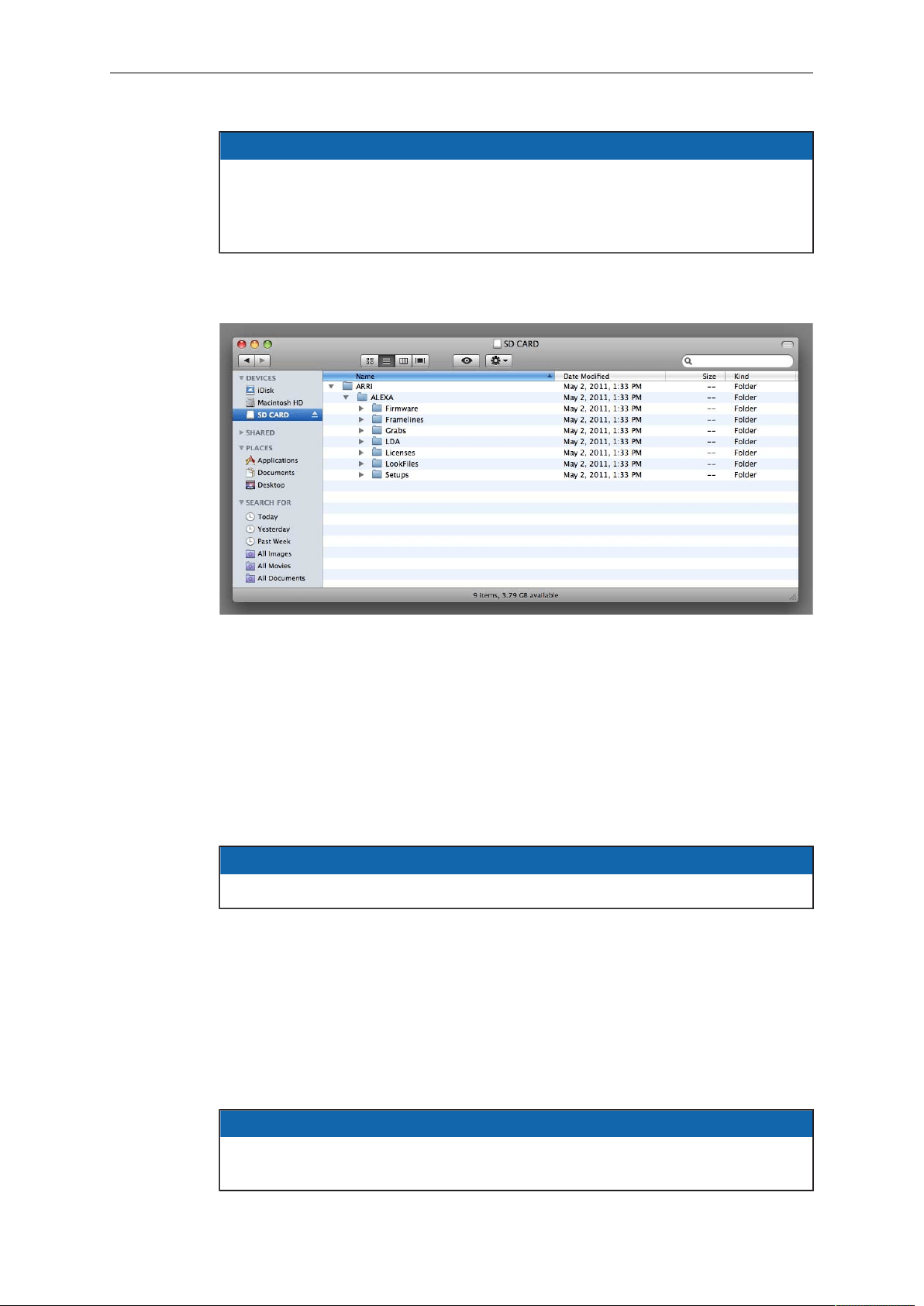
The SD card can be formatted on the ALEXA or the following folder structure can be
created manually on a computer. The SD card must be properly formatted prior to its
first use.
Fig. 15: Folder structure required for SD card
To format an SD card on the ALEXA:
1. Press the MENU button.
2. Using the jogwheel, select System.
3. Select SD Card.
4. Select Format + prepare SD card.
5. Press both FORMAT buttons simultaneously. The ALEXA will create the required
folder structure on the SD card after formatting.
NOTICE
Formatting the SD card will irreversibly remove all data on the SD card.
To create the required folder structure on the SD card in the ALEXA
without formatting:
1. Press the MENU button.
2. Using the jogwheel, select System.
3. Select SD Card.
4. Select Prepare SD card. The ALEXA will create the required folder structure on
the SD card without formatting or deleting any data.
NOTICE
Firmware update files are recognized by the camera anywhere within the structure,
but it is recommended to copy them into the Firmware folder.
Connectors 43
10.13 Recording Module
The ALEXA records clips using the recording module on the camera-left side. For
every recording medium type, the respective adapter needs to be inserted before a
medium can be inserted. The media slot can take SXR Capture Drives with the SXR
Capture Drive Adapter, XR Capture Drives with the XR Capture Drive Adapter, SxS
PRO and SxS PRO+ cards with the SxS Adapter 2, or CFast 2.0 cards with the CFast
2.0 Adapter 2.
When the ALEXA is in ProRes mode, it can record onto SXR/XR Capture Drives, SxS
PRO cards, SxS PRO+ cards, or CFast 2.0 cards. They do not need to be loaded
or unloaded, but can be used directly after insertion and can be safely removed
whenever they are in standby.
When the ALEXA is in ARRIRAW mode, it can only record onto SXR/XR Capture
Drives, which need to be loaded after insertion and unloaded prior to removal. Refer to
the respective sections below for more information.
The ALEXA supports recording to the following media:
•
SxS PRO+ cards 256 GB (SBP-256D, SBP-256E)
•
SxS PRO+ cards 128 GB (SBP-128B, SBP-128C, SBP-128D, SBP-128E)
•
SxS PRO+ cards 64 GB (SBP-64B, SBP-64C)
•
SxS PRO cards 64 GB (SBP-64A)
•
LEXAR 3600x CFast 2.0 cards 256 GB
•
SXR Capture Drives in 1 TB or 2 TB
•
XR Capture Drives 512 GB
To access the media slot, slide the OPEN slider towards camera back so that the
spring-loaded door jumps open.
Putting the lock slider in the (lower) lock position prevents accidental opening of the
door. Ensure that the lock slider is in the (upper) unlocked position before attempting
to open the door.
44 Connectors
NOTICE
•
Keep the door closed to prevent dirt and moisture from entering the camera.
•
Only Sony SxS PRO and SxS PRO+ cards can be used with ALEXA. Sony
SxS-1 cards are not supported.
•
For the remainder of this manual, whenever SxS PRO is mentioned, this
applies to SxS PRO+ likewise.
•
SXR Capture Drives are specified for a temperature range from 0° Celsius to
70° Celsius (32° Fahrenheit to 158° Fahrenheit). When working in environments
with ambient temperatures below 0° Celsius, ensure that SXR Capture Drives
have a temperature of at least 0° Celsius when starting a recording to ensure
proper operation.
•
While we do everything we can to assure reliable functioning of different
recording medias such as SXR Capture Drives, and while the mean time
before failure (mtbf) for drives is excellent, a failure that results in loss of data
may occur at any time. Therefore, you are obliged to implement and maintain
at any time adequate and necessary data security measures and back up
drive content as soon as possible. ARRI assumes or accepts no liability or
responsibility for data loss or data corruption, or any other damages, loss or
harm due to malfunction of recording drives.
Inserting media:
To insert an adapter:
1. Insert the adapter into the media slot with the contacts facing the front of the
camera and the metal housing facing out (away from the camera body).
2. Push the adapter towards camera front until the two securing plastic lids lock the
adapter.
To load an SXR/XR Capture Drive:
1. Insert the SXR/XR Capture Drive into the media slot with the contacts facing the
front of the camera and the ribbed side facing out (away from the camera body).
2. Push the SXR/XR Capture Drive towards camera front until the lock engages.
3. Close the door.
When the camera is in ARRIRAW mode, it automatically loads the SXR/XR Capture
Drive when the door has been closed, see "Explanation of LED States" below. If
closing the door is not possible, e. g. because it has been damaged, loading an SXR/
XR Capture Drive can also be triggered by pressing and holding the eject button for
about five seconds.
Loading an SXR/XR Capture Drive in ARRIRAW mode normally only takes a few
seconds. In certain situations, however, it may take up to 30 seconds, especially when
an SXR/XR Capture Drive has been removed previously without unloading it properly.
NOTICE
Do not put any labels or adhesive tape on the back of an SXR/XR Capture Drive
(the side facing the camera body). The SXR/XR Capture Drive must have full
contact to the camera body to ensure proper heat conduction.
To load an SxS PRO card or CFast 2.0 card:
1. Insert the card into the adapter with the contacts facing the front of the camera and
the label facing out (away from the camera body).
2. Push the card in against the spring until the lock engages.
3. Close the door.
Connectors 45
NOTICE
•
Do not force any media into the slot or into the adapter in wrong orientation—
the contacts could be damaged.
•
Do not force the door closed if the media is not fully inserted.
Removing media:
When the camera is in ProRes recording mode, SxS PRO cards, CFast 2.0 cards
and SXR/XR Capture Drives do not have to be mounted or unmounted—they can
be inserted or removed whenever the camera is in STBY mode. If media is removed
during recording, only the last second of the current clip will be lost. All clips on the
media will remain accessible.
When the camera is in ARRIRAW recording mode, SXR/XR Capture Drives need to
be unloaded before they can be safely removed. Unloading is triggered automatically
when the door is opened and the SXR/XR Capture Drive is in standby. When the door
is already open, but the SXR/XR Capture Drive is still loaded, press the eject button
on the SXR/XR Capture Drive to trigger unloading. See "Explanation of LED States"
below for information about how the camera signals loading state. If media is removed
during recording, only the last five seconds of the current clip will be lost. All clips on
the media will remain accessible.
NOTICE
•
If the recording process is interrupted by power loss or media removal, transfer
all the data from the media and format it before using it again.
•
If the door is opened while an ARRIRAW recording is running, the recording is
stopped and the medium is unloaded.
Before removing any media, open the door by sliding the OPEN slider towards camera
back. Ensure the lock slider is in the (upper) unlocked position, otherwise the OPEN
slider will be blocked.
To remove an SXR/XR Capture Drive:
► Carefully pull the SXR/XR Capture Drive towards camera back, taking care not to
drop it accidentally.
To remove an SxS PRO card or CFast 2.0 card:
► Push the card inwards (towards camera front) until the lock disengages, then pull
the card out backwards, taking care to prevent the card from dropping out of the
adapter.
To remove an adapter:
► Carefully lift the two securing plastic lids that secure the adapter and pull it towards
camera back, taking care not to drop it accidentally.
CAUTION!
It is possible that SXR/XR Capture Drives will get hot to the touch during extended
operation and can cause pain or even burns if held for too long. It is advisable
to handle the drive for no more than three seconds, and to remove the drive
quickly and carefully. Allow it to cool before further handling and consider wearing
protective gloves.
46 Connectors
Explanation of LED States
SXR/XR Capture Drives, SxS Adapter 2 and CFast 2.0 Adapter 2 have an LED that
signals the media's state to the user.
LED state Card state
Off
•
No media present
•
Media is unreadable (e.g. wrong file system)
•
Media is inactive
Solid green Media is in standby and ready
Solid red Media is being accessed (read/write)
DO NOT REMOVE MEDIA!
Red flashing Media error, see camera for details
Blue flashing
(SXR/XR Capture Drive only)
SXR/XR Capture Drive is being loaded or un-
loaded
Solid blue
(SXR/XR Capture Drive only)
SXR/XR Capture Drive is unloaded and can be
ejected safely
Lens Mounting 47
11 Lens Mounting
The ALEXA is equipped with an interchangeable lens mount.
NOTICE
Lenses must cover an image circle of at least 27.3 mm for 16:9 sensor mode, 29.7
mm for 4:3 sensor mode and 33.5 mm for Open Gate sensor mode to prevent
vignetting.
11.1 Lens Adapter PL-Mount LA-PL-2
The ALEXA lens mount supports the ARRI Lens Data System. An LDS lens must
be mounted in the 12 o'clock or 3 o'clock position to enable the LDS functions. Take
care not to damage the LDS contacts on the lens and the camera when mounting or
unmounting a lens or lens port cover.
The LA-PL-2 also offers basic Cooke /i support for direct lens metadata capture
through the LDS contacts. The cameras can store a subset of lens data (focus
distance and lens iris settings) as dynamic camera metadata. Running the camera
outside the standard speeds of 23.976 to 30 fps may produce an offset of several
frames. Certain lens settings will produce an offset lens data readout (e. g. iris open).
This can be corrected manually, after the metadata had been extracted (ARRI Meta
Extract).
The basic /i compatibility has been tested and approved by Cooke Optics Limited. For
support and questions about /i Technology, please contact Cooke Optics directly.
To mount a PL-mount lens:
1. Turn the bayonet ring anti-clockwise until it stops.
2. Remove the lens port cap.
3. Carefully insert the lens into the lens port. Align the notch in the lens flange with
the index pin on the mount, keeping the lens rotated into a position where the lens
markings are visible from either side of the camera.
4. Press the lens flange flat onto the lens mount.
5. Turn the bayonet ring clockwise until the lens is locked securely.
6. Ensure that the lens is properly mounted.
NOTICE
•
When no lens is attached to the camera, use the lens port cap to prevent dust
from entering the lens cavity.
•
The sophisticated design principle of the camera’s optical module delivers
outstanding images with a cinematic look and feel, but also makes the imager
sensitive to contamination. Dust particles that have settled on the sensor cover
glass during a lens change may become visible as dark spots in the output
image, similar to lint leaving marks on exposed film. The degree of this effect
depends on the aperture of the lens.
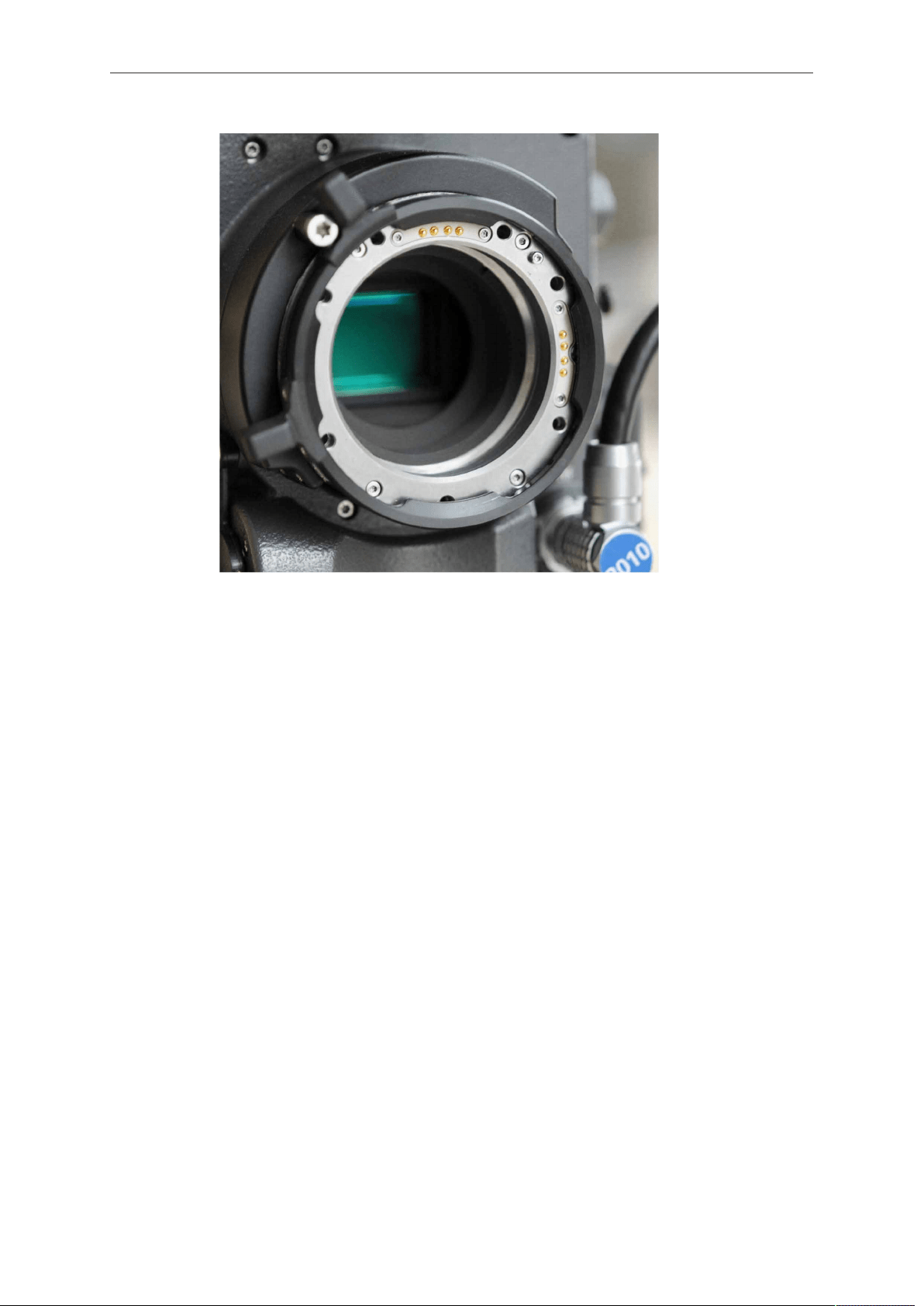
48 Lens Mounting
Fig. 16: Lens adapter PL-Mount LA-PL-2 (with LDS)
11.2 Lens Support
Heavy lenses may require additional lens support. Using a lens support guarantees
that the weight of the lens will not influence the flange focal depth and reduces stress
on the lens mount.
To support a lens use 15mm studio or 19mm studio rods and an appropriate lens
bridge. 15mm studio rods require a bridge-plate with 15mm studio rod support, such
as a BP-3/BP-9 + BPA-1, while 19mm studio rods require a bridge-plate with 19mm
studio rod support, such as a BP-12 or BP-5/BP-8 + BPA-1.
Mount the lens bridge LS-10 for 15 mm studio rods by pushing it onto the rods from
the front. Mount the lens bridge LS-9 for 19 mm studio rods by clipping it on the rods
from the top.
Slide the bridge into position on the rods directly under the lens support ring on the
lens, and fix it in place by tightening the lever on its side. Align and tighten the center
screw in the lens support ring, adjusting the height of the center screw with the lever
on the back of the lens bridge.
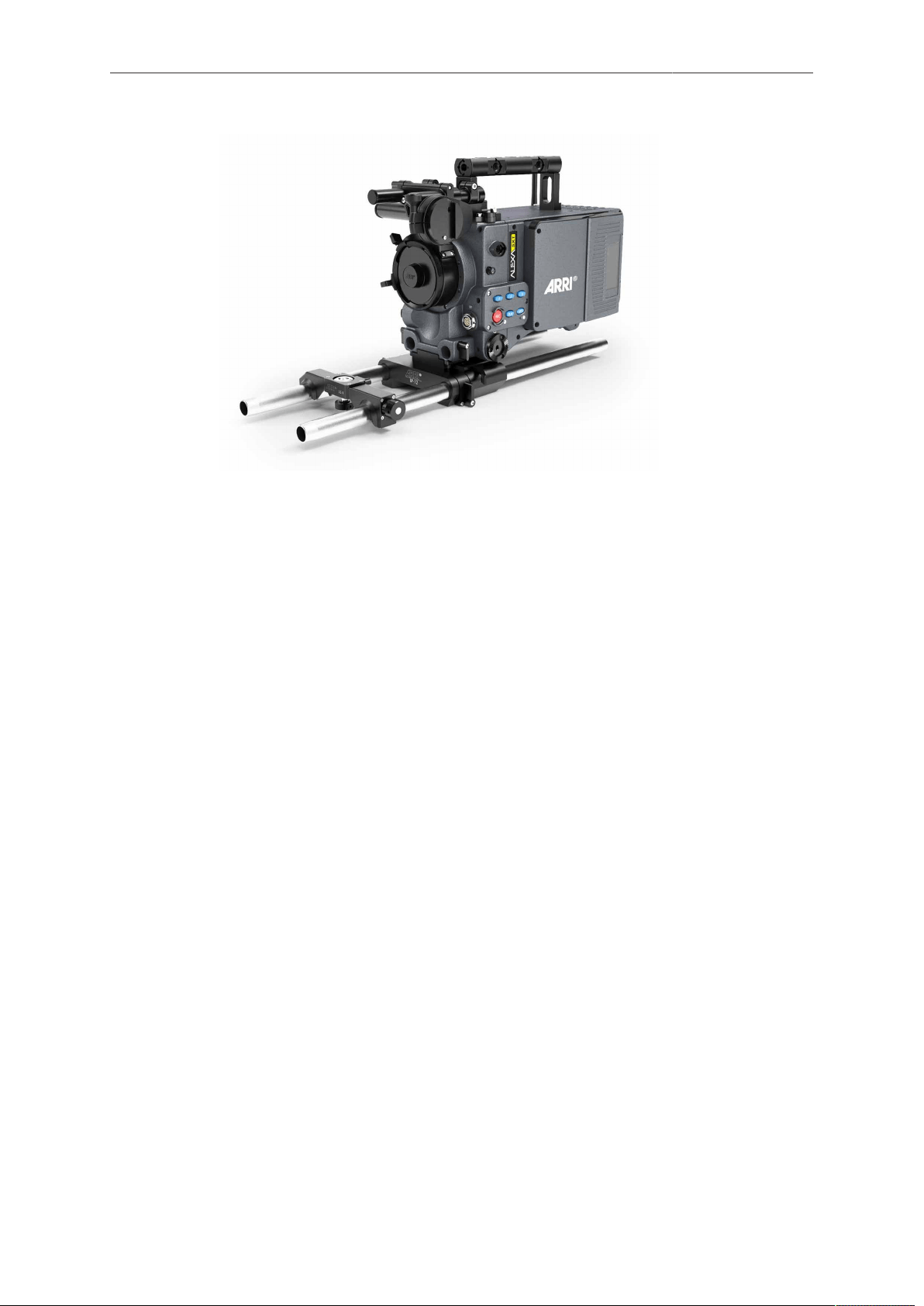
Lens Mounting 49
50 In-Camera Filter Module IFM-1
12 In-Camera Filter Module IFM-1
The In-Camera Filter Module IFM-1 is standard to all ALEXA SXT models (except
ALEXA SXT Studio), which replaces the conventional reflex tube that is located inside
the PL lens mount tube with the IFM filter holder and allows the use of ARRI Full
Spectrum Neutral Density (FSND) filters (available separately).
By using internal filters you can rate the camera at the base sensitivity of EI 800
without the need for external filters, even in bright light conditions. In-camera filters for
IFM-1 can be used with a large variety of lens sizes and are much lighter than external
ND filters.
CAUTION!
DO NOT POINT THE CAMERA INTO DIRECT SUNLIGHT, VERY BRIGHT LIGHT
SOURCES, OR HIGH-ENERGY LIGHT SOURCES (e.g. laser beams)! This may
cause permanent damage to the internal filter or the camera.
NOTICE
Internal filtration requires additional shimming and does not work with ALEXA SXT
Studio. For PL mount lenses, the IFM-1 filters work only with a lens mounting depth
of 31.50 mm maximum.
Benefits of in-camera filtration
Filtering behind the lens rather than in front reduces weight, reflections and
operational complexity. The filters’ in-camera position significantly reduces the
camera’s total and front weight (because internal filters are smaller and lighter than
external ones).
Also, internal filters are far less exposed to damage than external ones and, since
lenses are changed more frequently than ND filters, the FSND filters provide extra
protection for the sensor.
The Full Spectrum Neutral Density (FSND) filters for IFM-1 are based on new
technologies that assure highest image quality. An absorptive full spectrum ND coating
attenuates the light while maintaining a perfectly neutral color balance at all densities.
A base of water-white optical glass, precision-polished to create perfectly parallel
surfaces, guarantees a clear and sharp image.
Additional broadband anti-reflective multi-coating reduces internal reflections and
ensures a high image contrast. FSND filters for IFM-1 are available in eight densities
from ND 0.3 to ND 2.4 and can be purchased separately or in sets.
All benefits at a glance:
•
Internal filtration reduces reflections, weight, hassle – and filter damage
•
New high-tech filters based on white-water optical glass
•
Internal filtration protects sensor
•
Available in 8 densities from ND 0.3 to ND 2.4
•
Neutral color balance at all densities through absorptive full spectrum ND coating
•
High image sharpness through precision polishing
•
High contrast through anti-reflective multi-coating
•
IFM-1 filter holder is standard to all ALEXA SXT models (except ALEXA SXT
Studio)
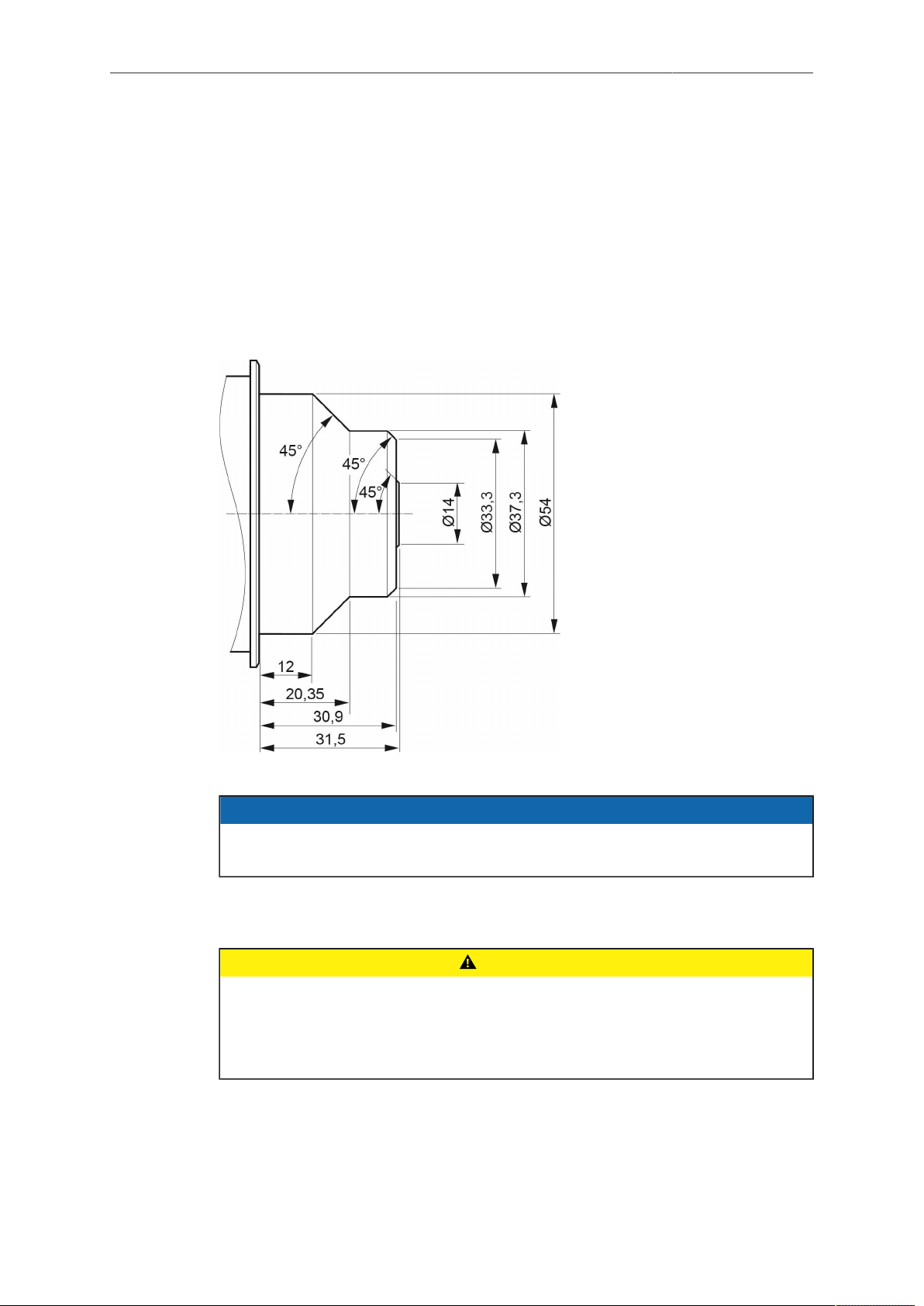
In-Camera Filter Module IFM-1 51
12.1 Safety instructions for in-camera filtration
Proper shimming is crucial for the safe use of in-camera filters. Only correct shimming
ensures the proper flange focal depth.
12.1.1 Maximum lens mounting depth
Only cameras with the original IFM-1 Shim allow for 31.50 mm maximum lens
mounting depth of PL mount lenses, when using in-camera filters.
To avoid damage or injury when using PL mount lenses, use only lenses that do not
exceed the following dimensions:
Fig. 17: Allowed lens dimensions with in-camera filters
NOTICE
The original ARRI IFM/Extenders Depth Gauge (K2.72144.0) will help you stay
within allowed lens dimensions. Please ask your local ARRI Service Partner.
For a safe and correct use of internal filters, always shim your camera properly.
•
Observe all precautions and use only proper tools, lenses and materials
•
For PL mount lenses, use only lenses with 31.50 mm maximum mounting depth
CAUTION!
Risk of damage and injury from improper lenses!
PL mount lenses with more than 31.50 mm mounting depth, might damage internal
filters and the camera. Shards from broken filter glass might cause injury.
Always check the lens mounting depth before mounting or changing a lens.
52 In-Camera Filter Module IFM-1
CAUTION!
Risk of damage and injury from insufficient shimming!
All internal filters require a properly shimmed lens mount. Otherwise, even PL
mount lenses with a nominal mounting depth of less than 31.50 mm might damage
internal filters and the camera. Shards from broken filter glass might cause injury.
To ensure maximum allowable lens mounting depth, and to avoid damage or injury,
always shim your camera correctly (see page 55).
The proper IFM-1 Shim comes with all three FSND Filter Sets (Basic, Full or
Completion) and is also available individually. Use only this original shim when
filtering with IFM-1.
CAUTION!
Risk of damage from improper tools, materials or negligence!
In-camera filters are very delicate. Always handle them very carefully and with
proper tools (e.g. the original Ground Glass/Frameglow tool). Never touch the filter
glass with bare fingers (sweat and physical contact might damage the sensitive
coating).
Check and clean each filter before and after use. Store it properly. Use only original
ARRI cleansing utensils and materials (others might damage the filter).
12.1.2 Basic precautions
When using IFM-1 and internal filters:
1. Ensure a clean, dust-and-moisture-free environment.
2. Wear fresh rubber gloves to avoid fingerprints and smear.
3. Place the camera on a flat, level and safe surface.
4. Never touch the sensor.
5. Work very carefully due to the delicate nature of tools/components.
6. Safely store all tools/components afterwards.
7. Shim you camera exactly to required flange focal depth.
8. Check each lens mounting depth and flange shape.
9. Use only lenses within allowed dimensions.
12.1.3 Required shimming and maximum lens mounting depth
Only proper shimming will ensure the maximum allowable lens mounting depth (see
page 51):
•
For safe use of in-camera filters, always prepare your camera with the original
IFM-1 Shim.
•
See "Shimming the lens mount", page 55.
12.2 Available FSND Filter Sets
Three different FSND sets are available:
•
FSND Filter Set (Basic): Basic set of filters and tools
•
FSND Filter Set (Completion): Complementary set of filters
•
FSND Filter Set (Full): Complete set of filters and tools
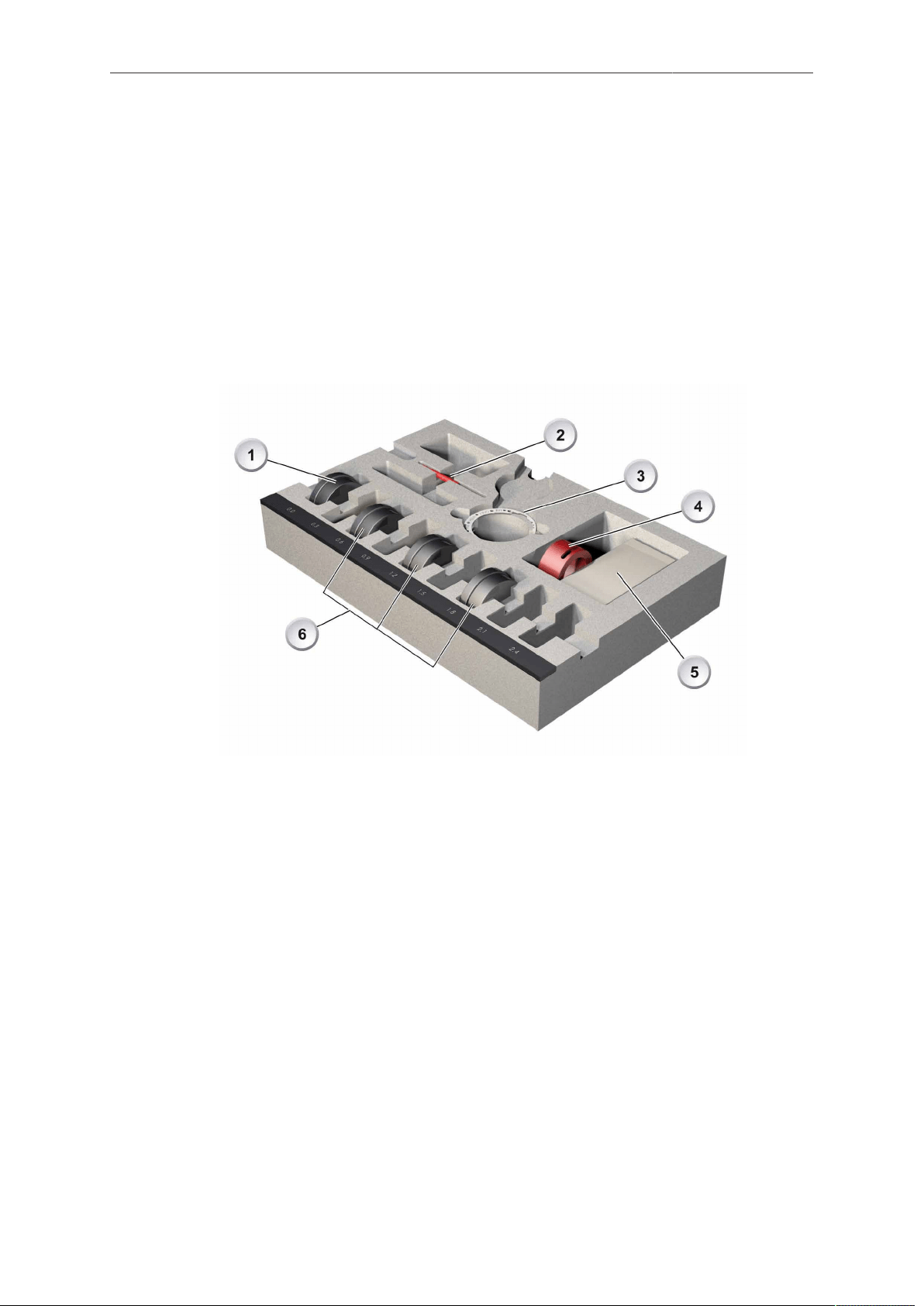
In-Camera Filter Module IFM-1 53
12.2.1 FSND Filter Set (Basic)
The FSND Filter Set (Basic) contains all components and filters essential for in-
camera ND filtering:
•
Storage Case
•
IFM Optical Clear (1) ND 0.0
•
Ground Glass/Frameglow tool (2)
•
IFM Shim (3)
•
IFM/Extenders Depth Gauge (4)
•
Microfiber Cloth (5)
•
Eight 0.1 mm washers (also available separately as K4.0000762)
•
Three Internal Filters (6) FSND 0.6, 1.2, 1.8
•
Cleaning Instructions
Fig. 18: The FSND Filter Set (Basic)
12.2.2 FSND Filter Set (Completion)
The FSND Filter Set (Completion) is a useful completion. It offers:
•
5 Internal Filters FSND 0.3, 0.9, 1.5, 2.1, 2.4
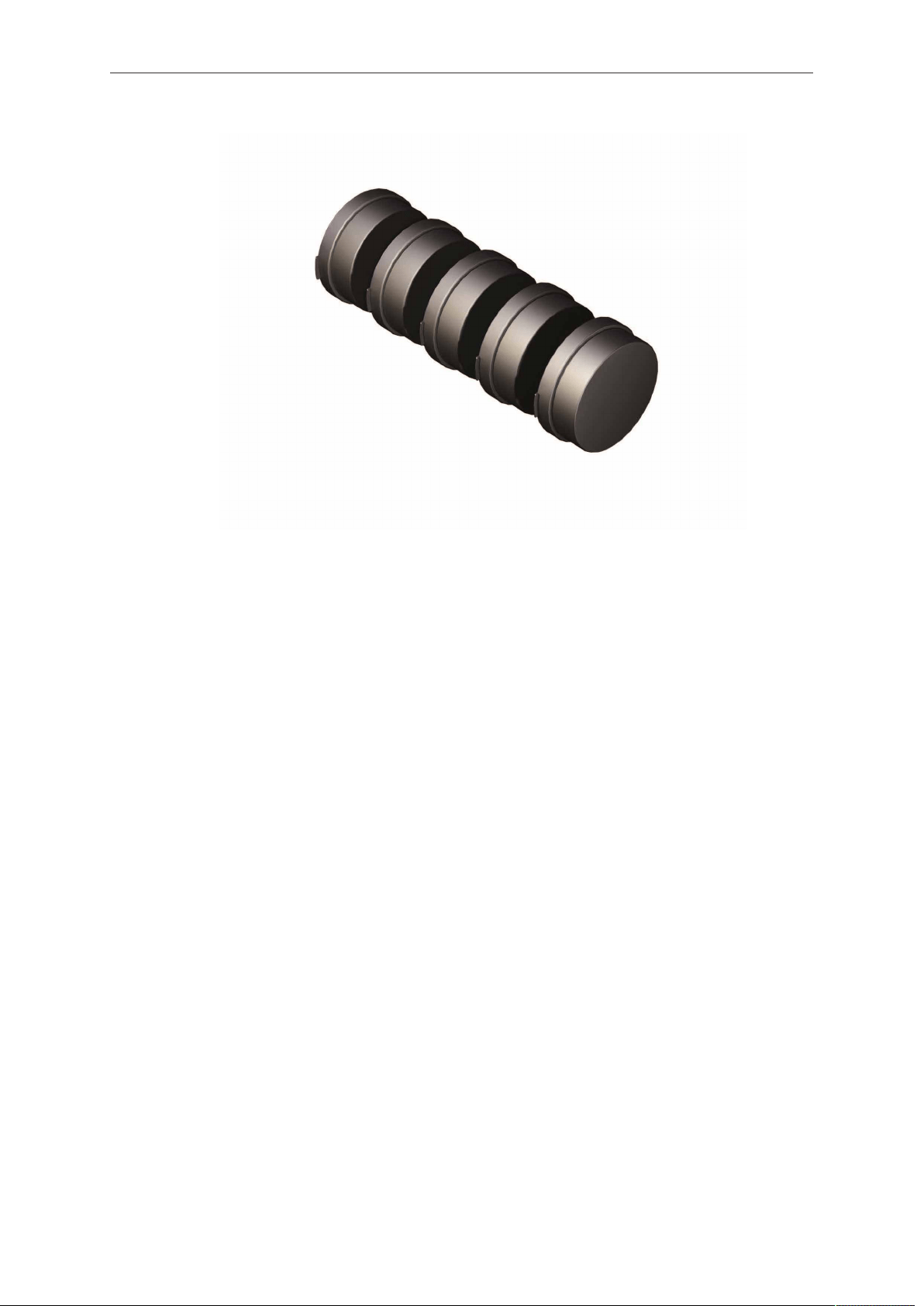
54 In-Camera Filter Module IFM-1
Fig. 19: Each filter of the FSND Filter Set (Completion) comes in a practical individual box
and is also available separately
To insert or change a filter:
See "Mounting in-camera filters", page 61. Each filter is also available
separately or in bundles.
12.2.3 FSND Filter Set (Full)
The FSND Filter Set (Full) is a set with all FSND filters and required tools. It consists
of:
•
Storage Case
•
IFM Optical Clear (1) ND 0.0
•
Ground Glass/Frameglow tool (2)
•
IFM Shim (3)
•
IFM/Extenders Depth Gauge (4)
•
Microfiber Cloth (5)
•
Eight 0.1 mm washers (also available separately as K4.0000762)
•
Eight Internal Filters (6) FSND 0.3, 0.6, 0.9 1.2, 1.5, 1.8, 2.1, 2.4
•
Cleaning Instructions
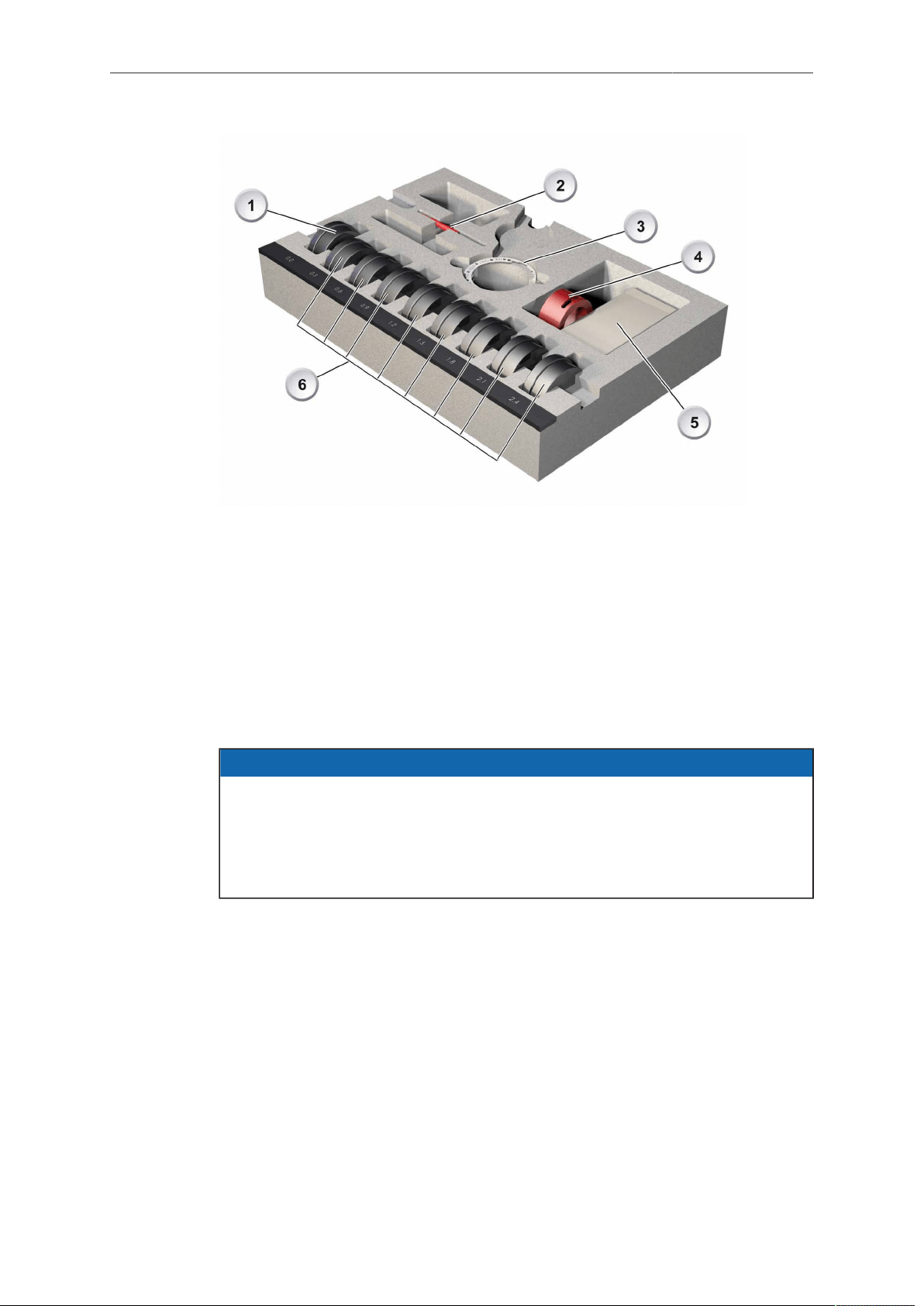
In-Camera Filter Module IFM-1 55
Fig. 20: The FSND Filter Set (Full) for ALEXA XT
To insert or change a filter:
See "Mounting in-camera filters", page 61. Each filter is also available separately or
in bundles.
12.3 Shimming the lens mount
In-camera filtration will change your flange focal depth. Therefore, all internal filters
require a properly shimmed lens mount (see page 51).
NOTICE
Use only the original shim IFM Shim when filtering with IFM-1.
To compensate for the change in flange focal depth due to the shim, always insert
the IFM Optical Clear filter when no filtering is needed.
When the camera is no longer shimmed for IFM-1, the glassless IFM Empty Filter
Frame must be placed back into the filter position.
General shimming precautions:
•
Fix the IFM Shim properly between lens lock and lens mount.
•
The shim's inscription must face camera-outwards.
•
Mount all proper shims correctly without omitting, adding or losing any. Otherwise,
the flange focal depth will not be correct.
•
Mark your cameras shimmed for IFM-1 to avoid confusion.
Once the camera is shimmed for IFM-1: Immediately replace the IFM Empty Filter
Frame with an FSND filter or the IFM Optical Clear filter.
Store the IFM Empty Filter Frame in a safe place: When the camera is no longer
shimmed for IFM-1 in the future, the IFM Empty Filter Frame must be placed back into
the filter position.
If you de-shim the camera: Immediately replace the IFM Optical Clear filter or any
other FSND filter with the IFM Empty Filter Frame.
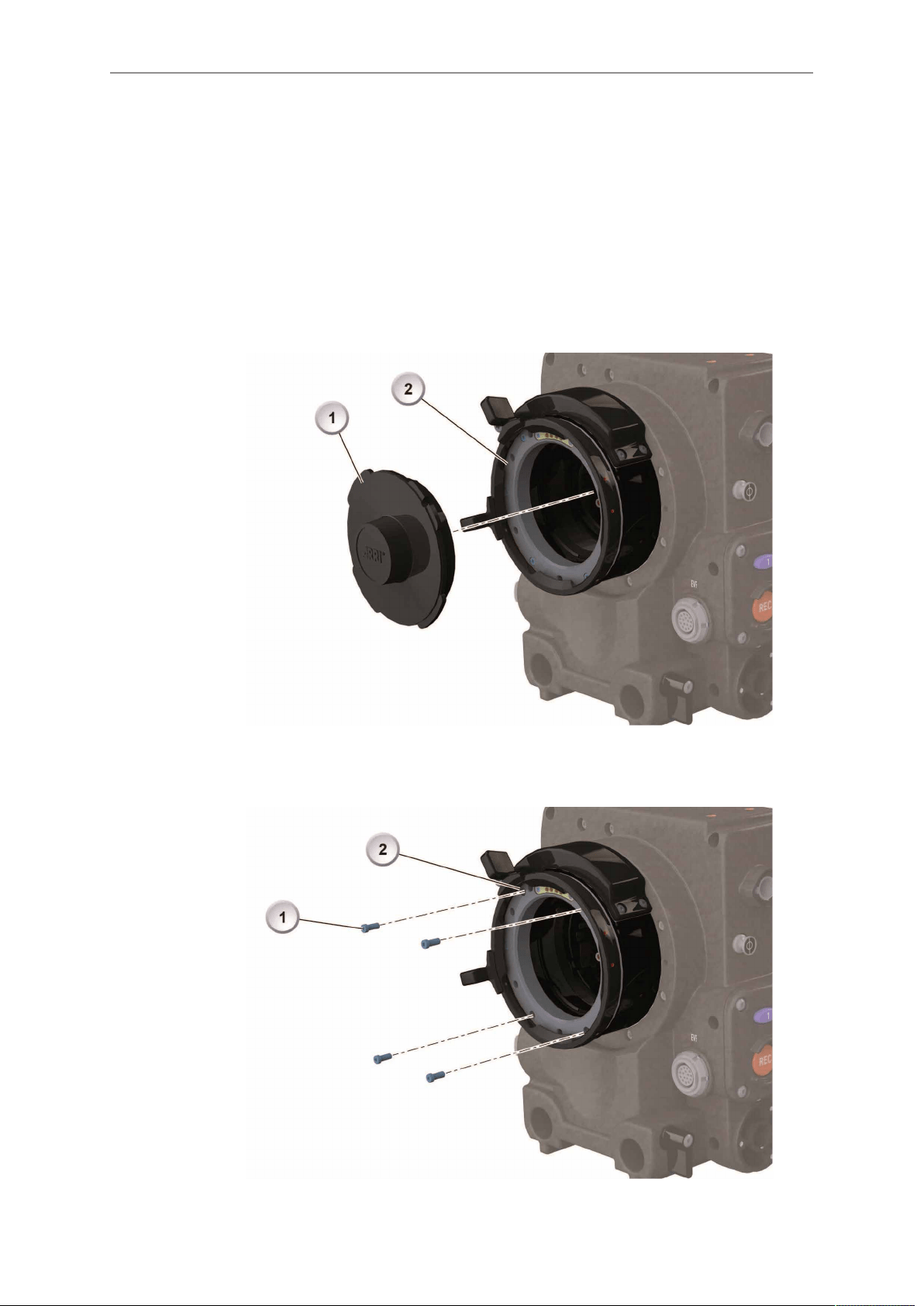
56 In-Camera Filter Module IFM-1
To compensate for the change in flange focal depth due to the shim:
► Always use the IFM Optical Clear filter when no filtering is needed.
Tools needed:
TX6 torx screwdriver
To shim the mount:
1. Remove lens or lid (1) from the PL lens mount and turn the lens lock into position
CLOSED (2).
2. Unscrew (only with a TX6 torx screwdriver!) the four accessible torx screws (1)
that hold the lens lock (the other two torx screws are still hidden by lock position
CLOSED).
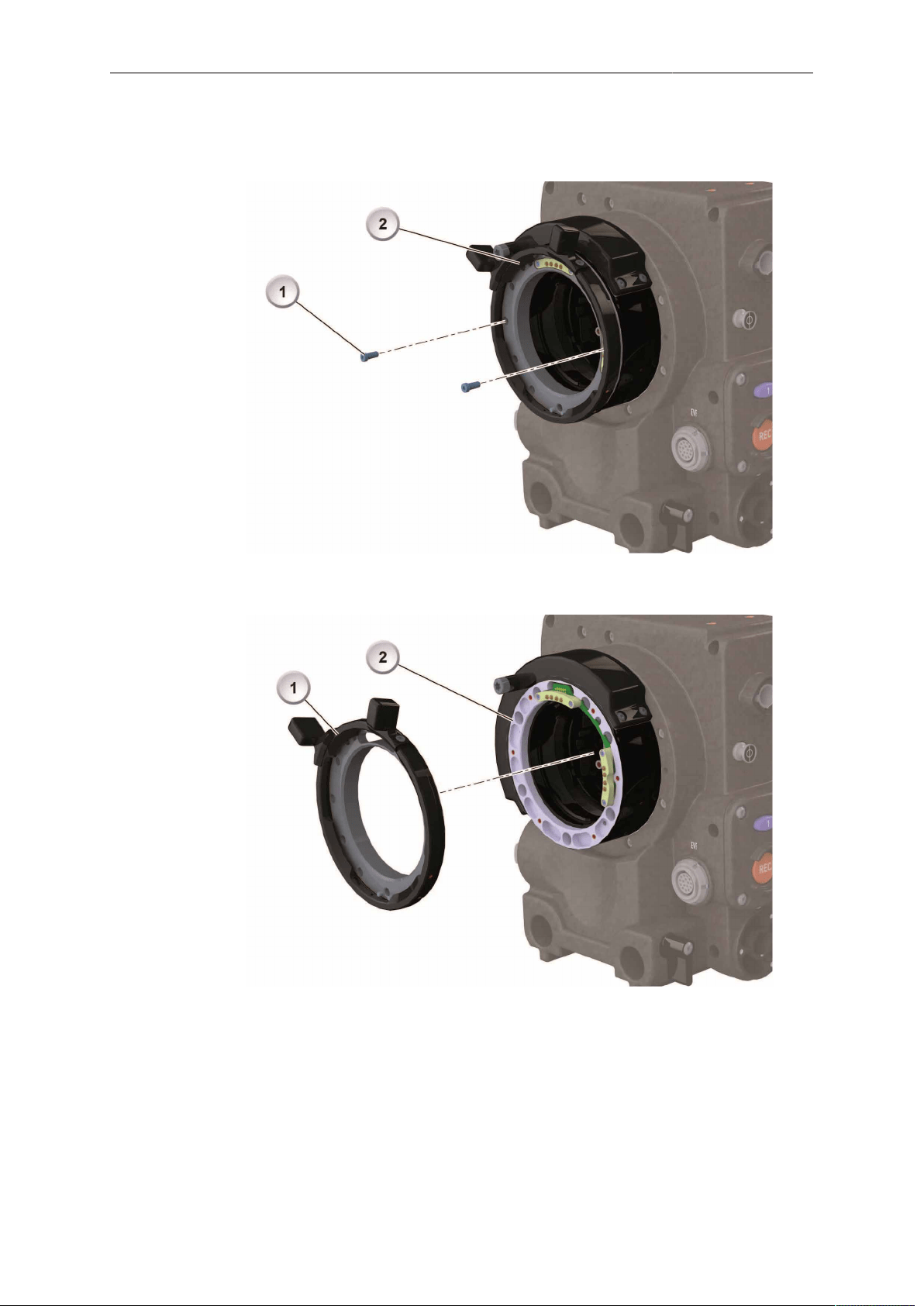
In-Camera Filter Module IFM-1 57
3. Turn the lens lock into position OPEN (2) to unhide and unscrew the other two torx
screws (1).
4. Remove the lens lock (1) from the PL mount. Keep all installed shims (if any)
carefully in place (2):
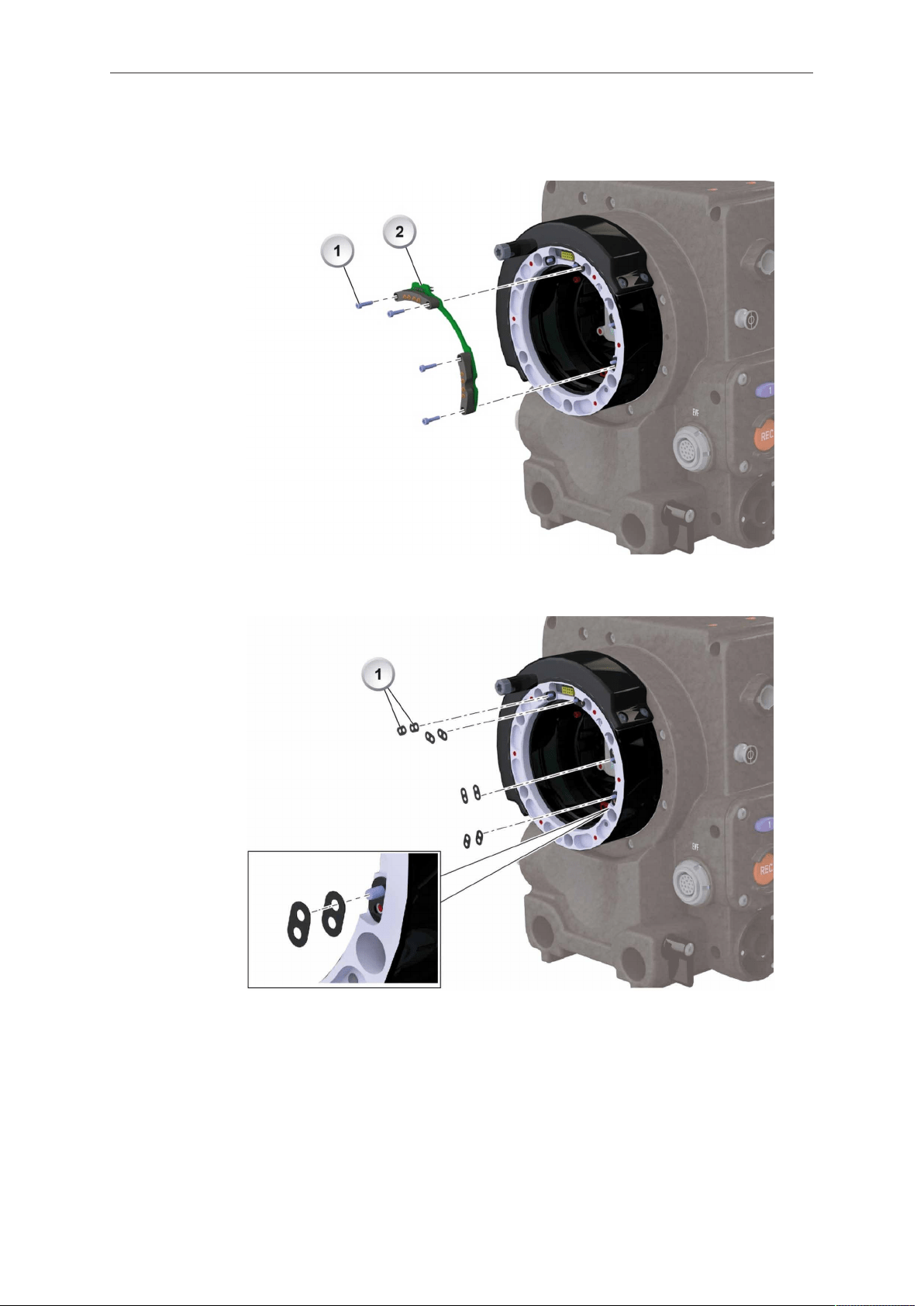
58 In-Camera Filter Module IFM-1
5. Remove the LDS pin support and MCA print (2) by unscrewing the four TX6 torx
screws (1).
6. Add two 0.1 mm washers (1) on each of the four positioning pins (see detailed
section).
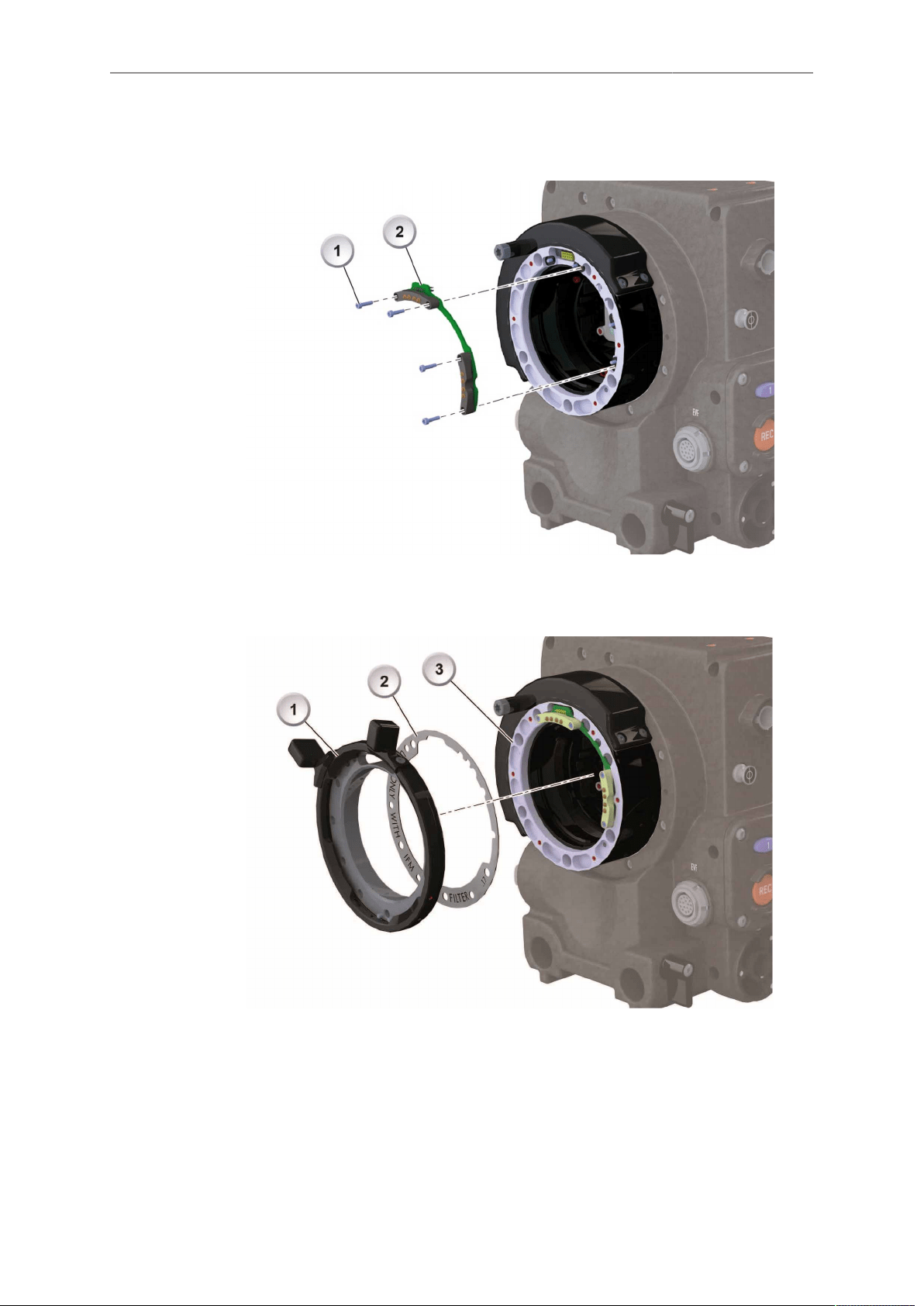
In-Camera Filter Module IFM-1 59
7. Reattach the LDS pin support and MCA print (2) by fastening the four TX6 torx
screws (1) hand-tight.
8. Accurately place the IFM Shim, with its inscription always facing camera-outwards
(2), onto the PL mount. The shim's screw holes must line up exactly with the
mount's thread holes and the index pin (3):
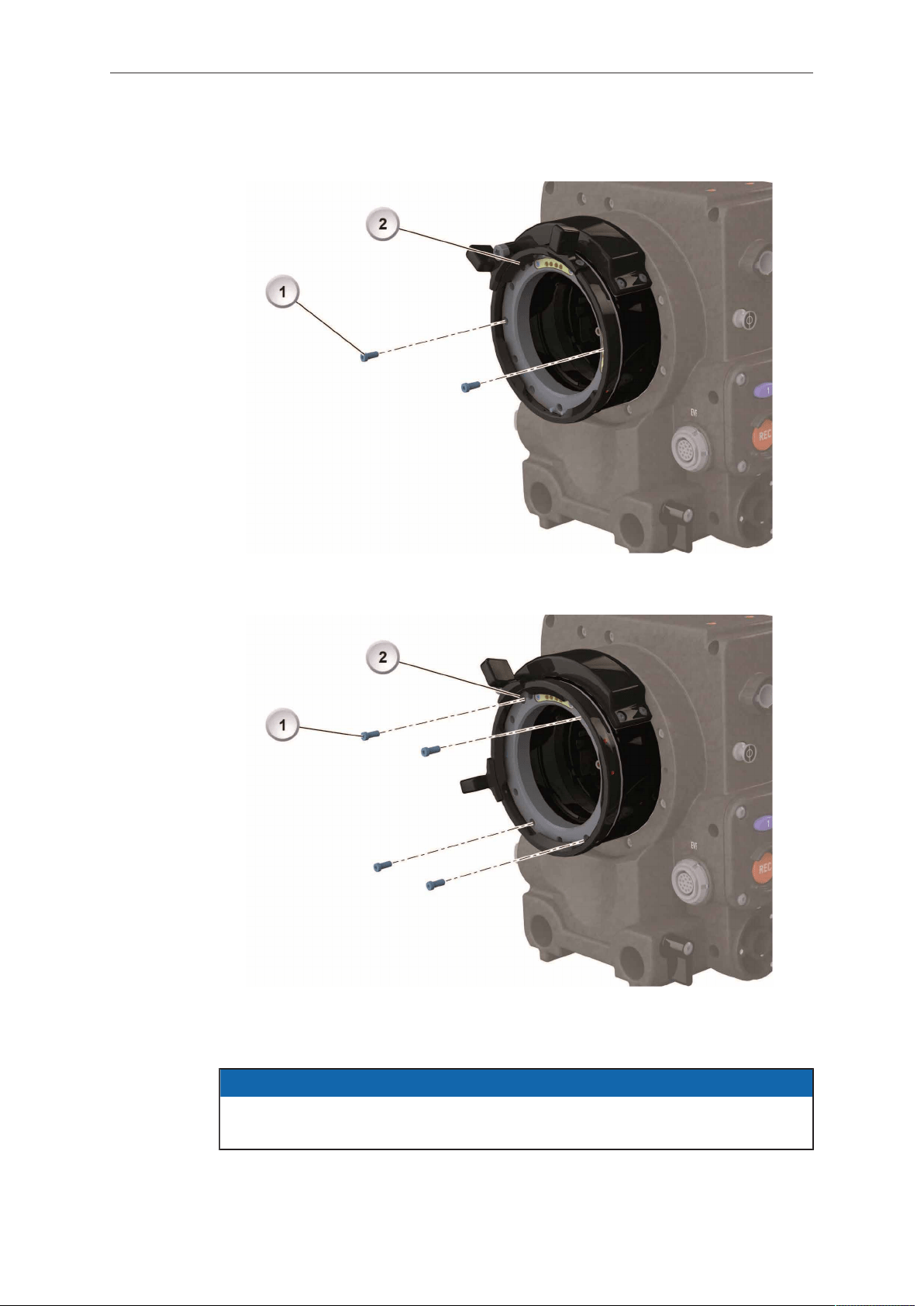
60 In-Camera Filter Module IFM-1
9. Fasten the lens lock, still in position OPEN (2), back to the PL mount; use two of
the six torx screws (1) hand-tight:
10. Turn the lens lock into Position CLOSED (2) and fasten the other four torx screws
hand-tight (1). Check if all screws and the shim fit correctly:
11. Before mounting a lens, always check its mounting depth (see "Safety instructions
for in-camera filtration", page 51 and "Maximum lens mounting depth",
page 51)
NOTICE
Make sure the LDS connection between lens and camera’s PL mount works
properly. If not, add more washers (see step 6).
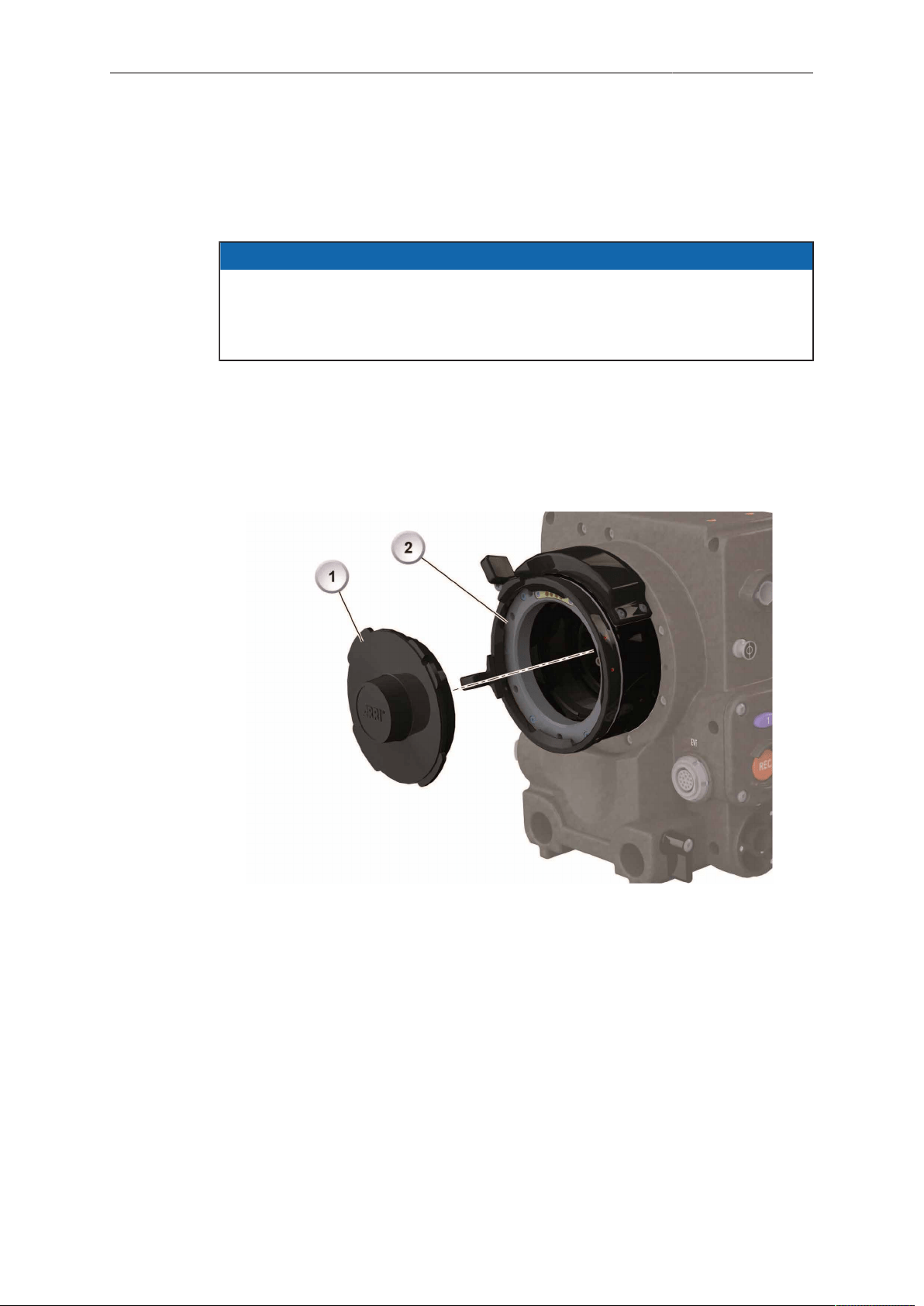
In-Camera Filter Module IFM-1 61
12.4 Mounting in-camera filters
Internal filters are very delicate. Before you mount or change a filter, check the lens
mounting depth (see "Safety instructions for in-camera filtration", page 51 and
"Maximum lens mounting depth", page 51).
NOTICE
By default, the filter position in the lens mount of the ALEXA SXT (except ALEXA
SXT Studio) is occupied by the IFM Empty Filter Frame. This glassless filter ring
must be replaced by a real filter or IFM Optical Clear filter, once the camera is
shimmed for IFM-1 use (see page 55)
Tools needed:
Ground Glass/Frameglow tool
To insert or change an in-camera filter:
1. Remove the lens or lid (1) from the PL lens mount (2).
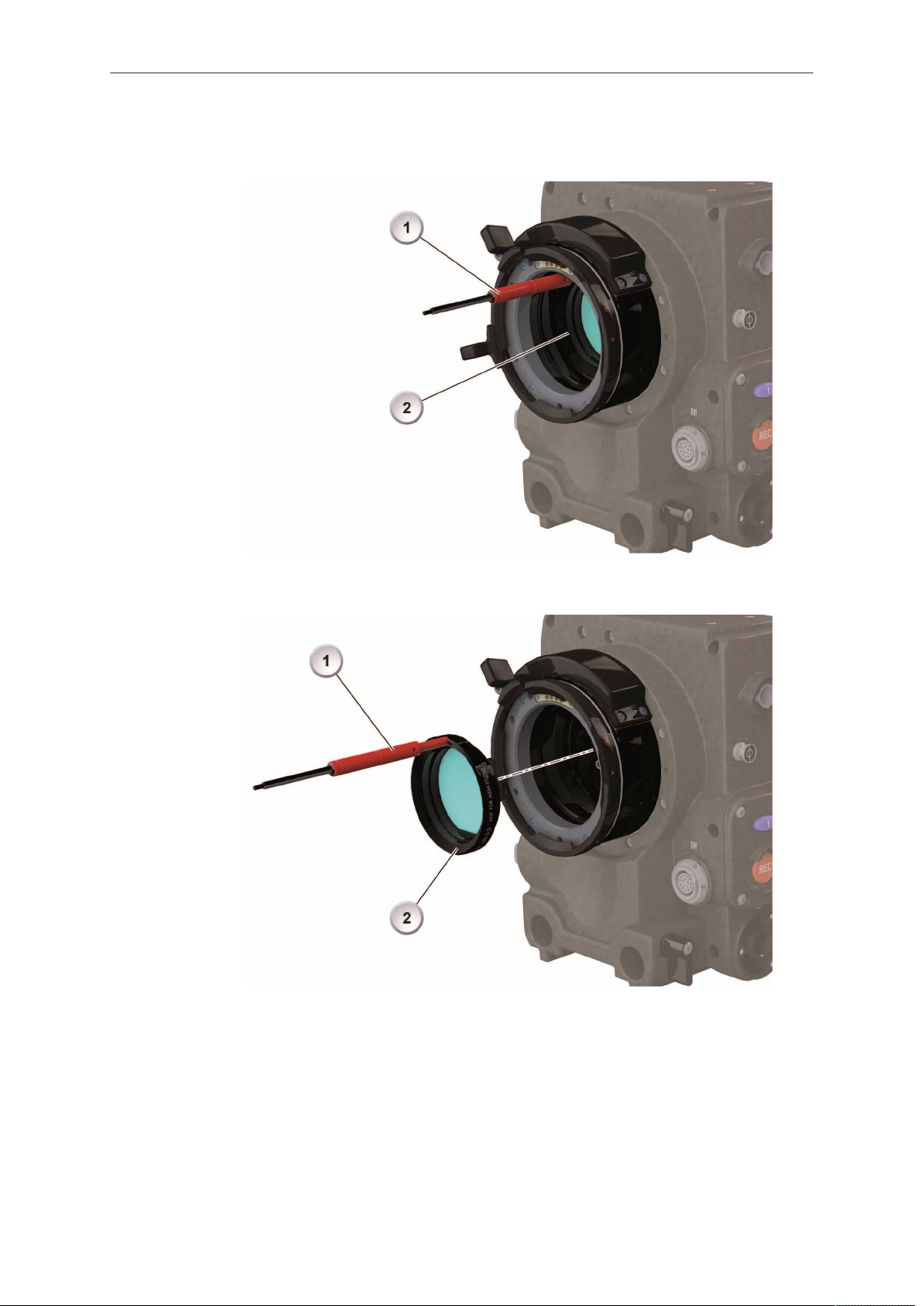
62 In-Camera Filter Module IFM-1
2. Carefully screw the Ground Glass/Frameglow tool (1) into the filter ring’s (2) thread
hole in the 12 o'clock position (1).
3. Pull the filter (2) from the bottom ring in the camera's PL mount. If the filter position
is held by an IFM Empty Filter Frame, remove it likewise.
4. Clean the removed filter and stow it properly in its individual box and the storage
case. If the filter position was held by an IFM Empty Filter Frame, store it likewise
(in case the camera is no longer shimmed for IFM-1 in the future).
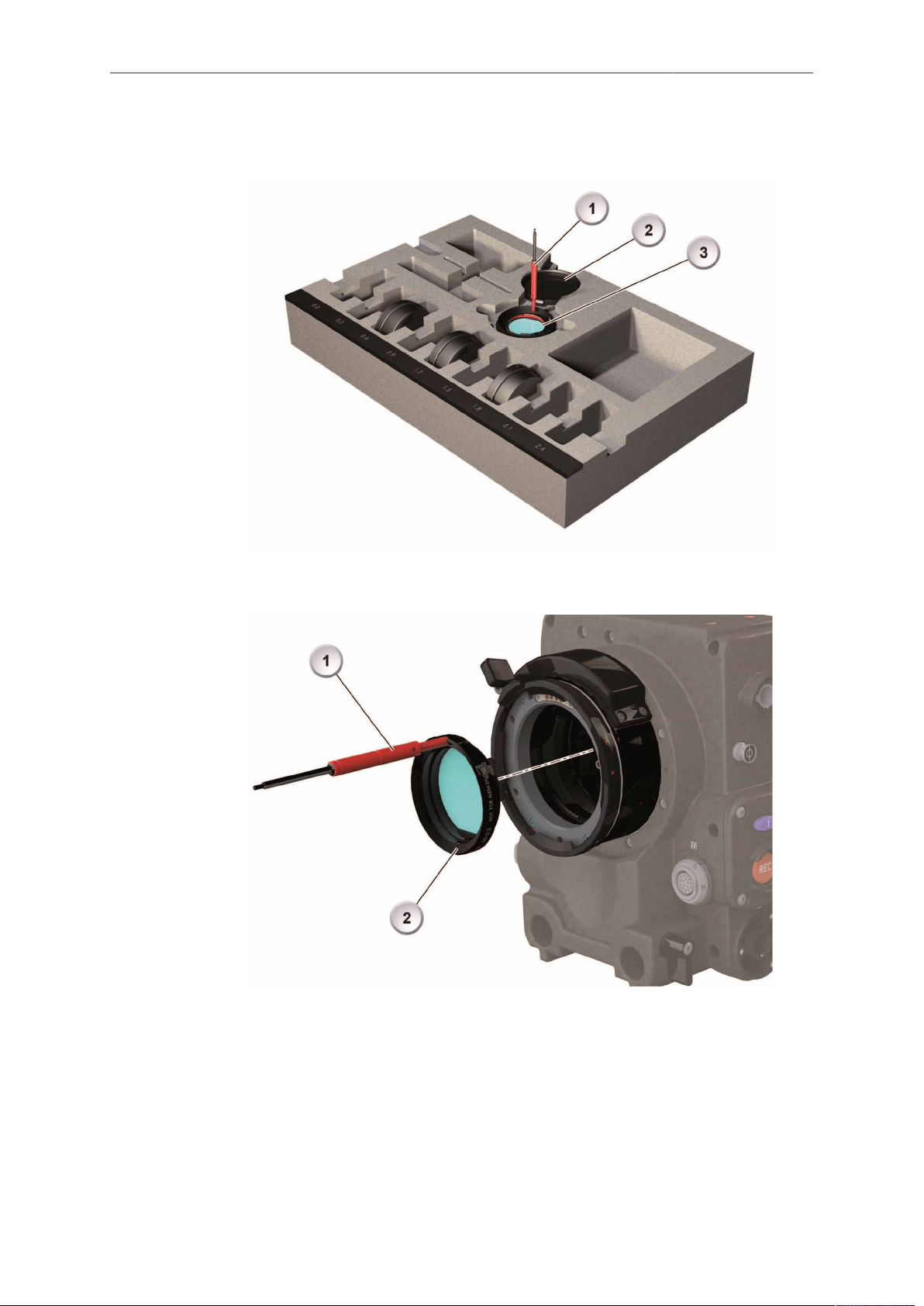
In-Camera Filter Module IFM-1 63
5. Place the removed filter into its padded filter box (2) in the storage case (3).
Remove the Ground Glass/Frameglow tool (1) to pick up the next filter.
6. Make sure the next filter is clean (2) and the Ground Glass/Frameglow tool is in
the 12 o’clock position (1).
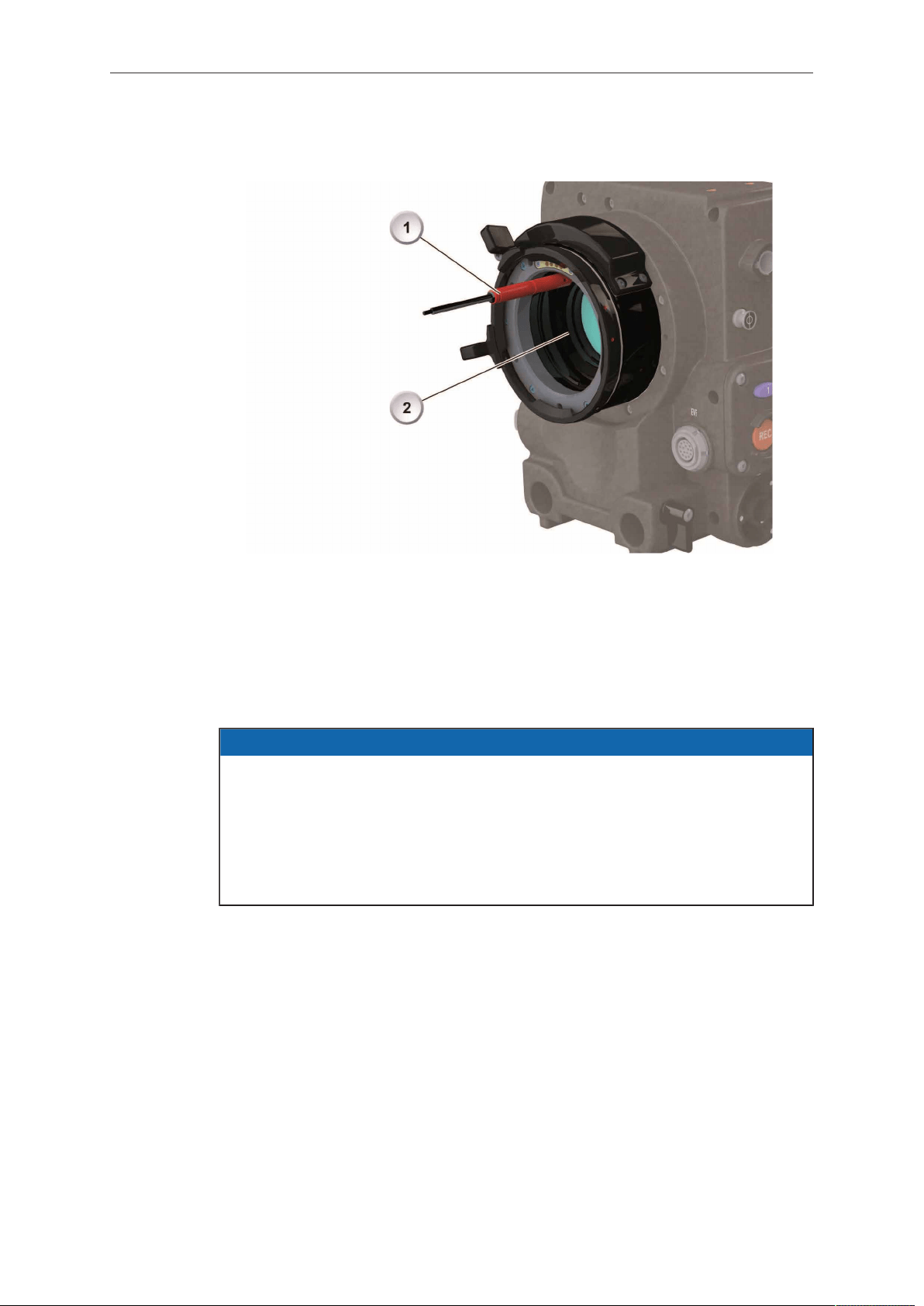
64 In-Camera Filter Module IFM-1
7. Place the next filter onto the bottom ring in the camera’s PL mount. The Ground
Glass/Frameglow tool has to be in the 12 o’clock position (1).
8. Align the filter ring’s main notch with the bottom ring’s red nut in the 6 o’clock
position. To ensure an accurate fit, align the filter ring’s other notches with the two
red noses in the bottom ring’s 10:30 and 1:30 positions.
9. After the magnetic filter ring has audibly snapped into position, carefully unscrew
the Ground Glass/Frameglow tool. The filter has to sit precisely on the bottom ring.
10. Mount a lens (observe maximum lens dimensions!), or cover the PL lens mount
properly with its lid (1).
NOTICE
•
All internal filters require a properly shimmed lens mount (see page 55).
To compensate for the change in flange focal depth due to the shim, always
insert the IFM Optical Clear filter when no filtering is needed.
When the camera is no longer shimmed for IFM-1, the glassless IFM Empty
Filter Frame must be placed back into the filter position.
•
Internal filtration does not work with ALEXA SXT Studio. For PL mount lenses,
IFM-1 works only with a lens mounting depth of 31.50 mm maximum.
12.5 Filter cleaning
Tools needed:
•
Cleaning Instructions
•
Fresh rubber gloves
•
Micro bellows
•
Cotton swab
•
Purified alcohol
•
Microfiber Cloth from FSND Filter Set

In-Camera Filter Module IFM-1 65
To clean the filters:
NOTICE
To avoid in-camera damage, always clean all filters outside of camera.
1. Ensure a clean, dust-and-moisture-free environment
2. Wear fresh rubber gloves to avoid fingerprints and smear
3. Never touch the sensor
4. Check the coating for dirt, smear and scratches
5. Remove sand, dust or solid particles with micro bellows
6. Clean off oil, grease or smear with a cotton swab (or the microfiber cloth) slightly
wetted in purified alcohol only
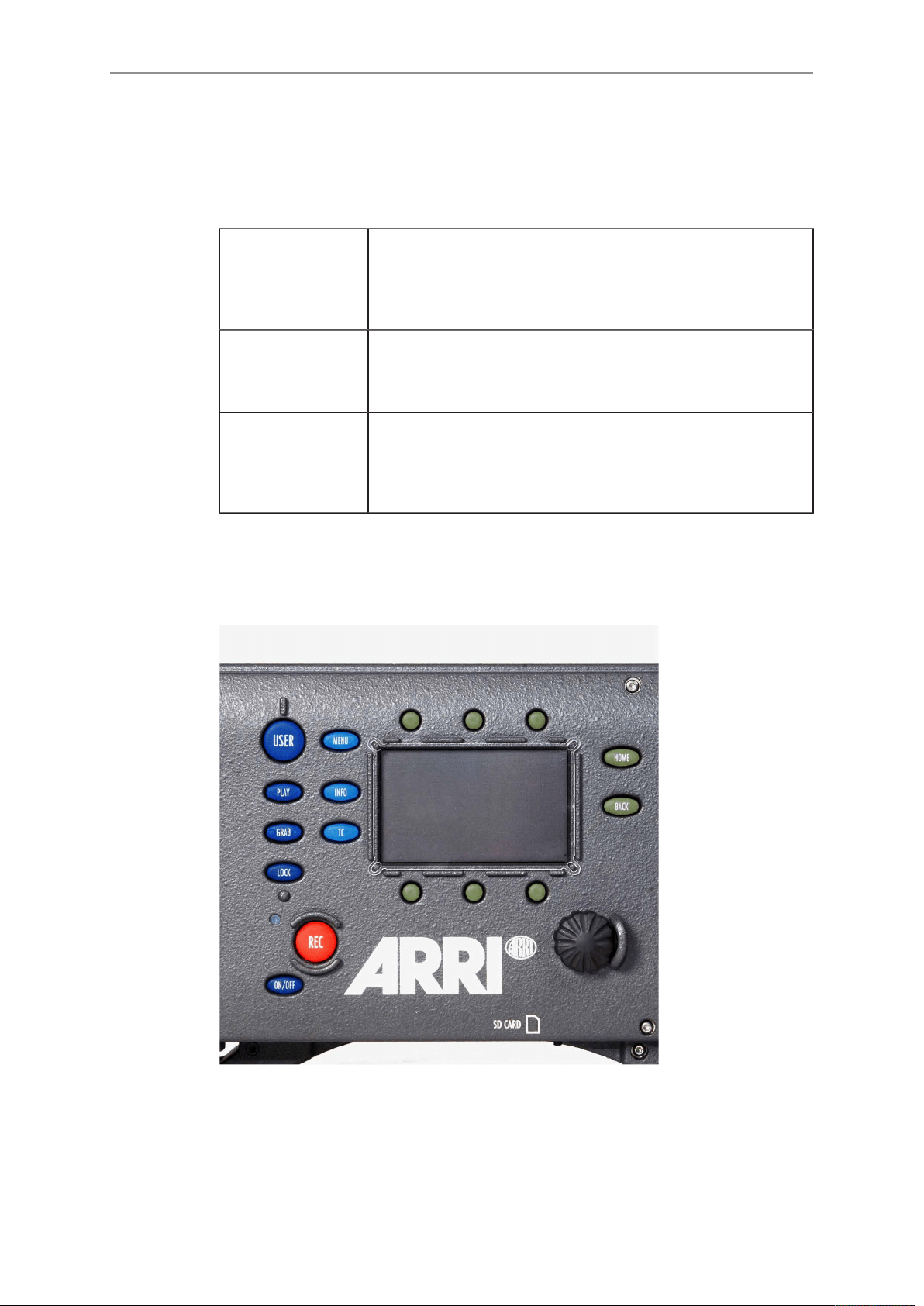
66 Camera Controls
13 Camera Controls
The ALEXA can be controlled through three user interfaces:
Main controls Location: camera-right side
Interface: 3-inch LCD-screen with floating-function buttons, a
jogwheel to navigate through menus and adjust parameters,
and a range of fixed-function buttons.
Operator controls Location: camera-left side
Interface: three assignable function buttons plus three fixed-
function buttons for easy operator access.
EVF controls Location: Electronic Viewfinder EVF-1
Interface: fixed function buttons and a jogwheel for adjust-
ment of viewfinder parameters and primary shooting para-
meters.
13.1 Main Controls
The main controls can be used to set all camera parameters.
Fig. 21: Main controls
13.1.1 Display
The 3-inch LCD has a resolution of 400x240 pixels. The back-lit, transflective display
has exceptional contrast even in bright sunlight.
To adjust the LCD brightness:
► On the HOME screen, rotate the jogwheel while pressing the BACK button.
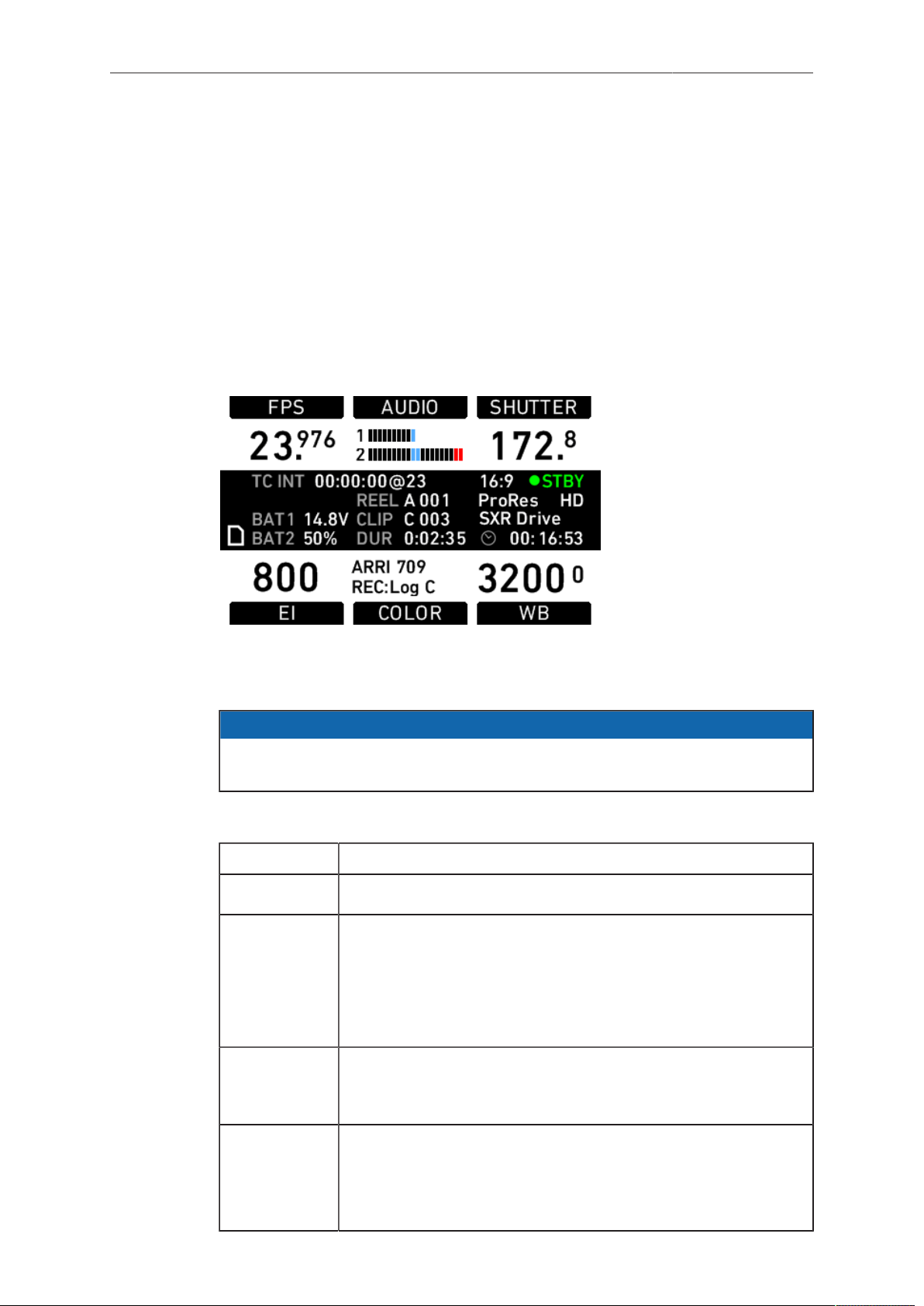
Camera Controls 67
A plastic shield protects the display from scratches. It can be removed by pulling it off
the four pins.
13.1.2 Screen Buttons
Six screen buttons are located above and below the LCD display. Their function varies
depending on the screen content and is shown directly above or below each button.
If no function is shown above or below a button on the LCD, it has no function for that
screen.
As a failsafe, operations that cannot be reversed and can result in the loss of data
require pressing two buttons simultaneously to confirm the operation.
13.1.3 HOME screen
The HOME screen is the ALEXA’s default screen. It shows the most important camera
parameters and gives quick access to changing them through the screen buttons. To
return to the HOME screen from any menu in the camera, press the HOME button.
NOTICE
To adjust the LCD brightness from the HOME screen, rotate the jogwheel while
pressing the BACK button.
Screen buttons
Button Function
FPS Sets the frame rate of the sensor.
AUDIO Shows the current audio level. If AUDIO is set to Off, the audio
input is switched off: no audio is embedded in the HD-SDI out-
puts, and no audio tracks are recorded onto internal media. The
same applies if AUDIO is disabled, which is the case if the sen-
sor frame rate is different from the project fps setting (for exam-
ple, while over- or undercranking).
SHUTTER Sets the shutter angle of the sensor. Shutter angle and sensor
fps determine exposure time of the sensor in seconds by the fol-
lowing equation: angle / (360 * fps).
EI Sets the exposure index rated in ASA. The ALEXA has a base
sensitivity of 800 ASA.
Note: ASA rating is identical to ISO rating.
Note: Exposure Index is not applied to ARRIRAW signals.
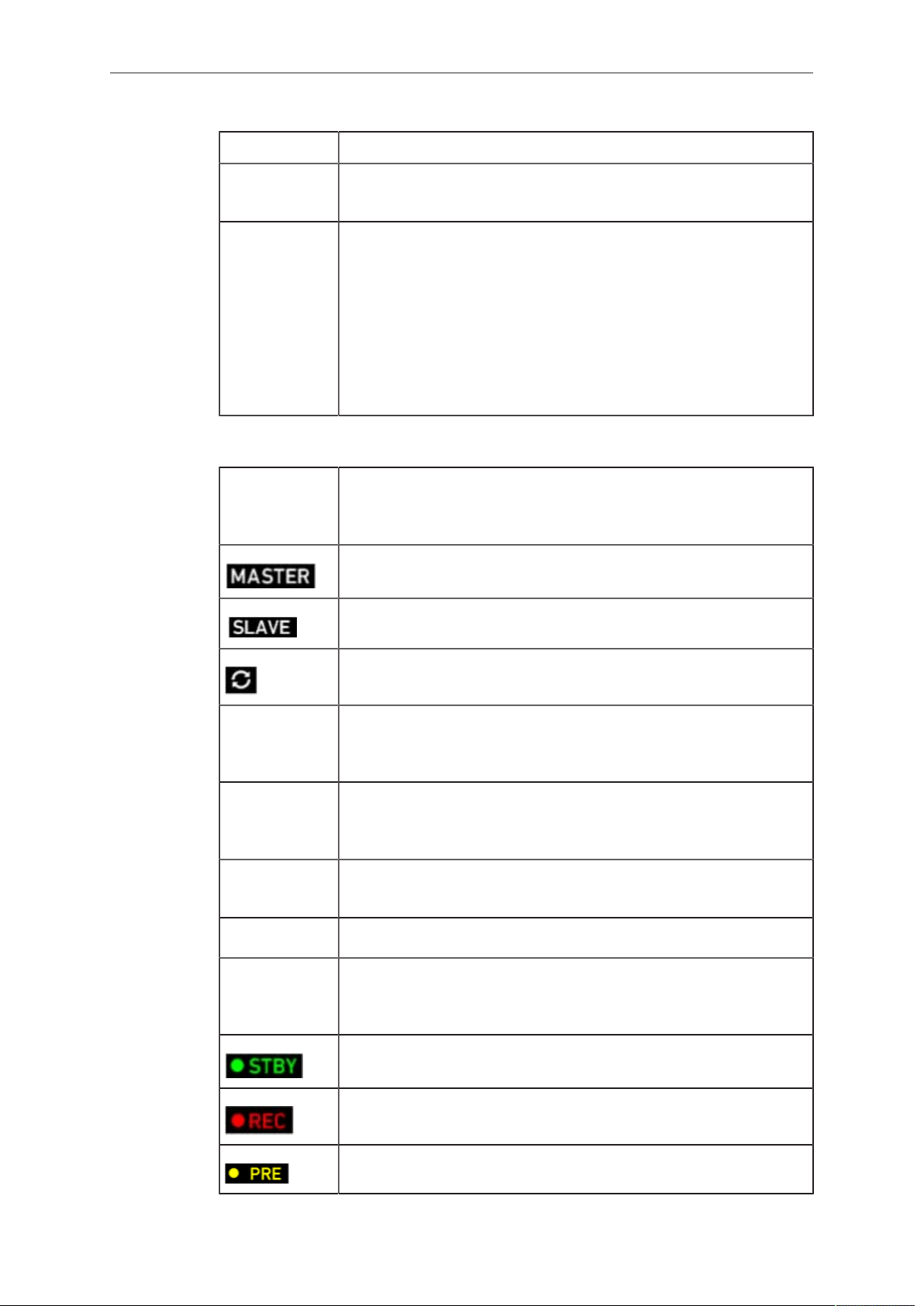
68 Camera Controls
Button Function
COLOR Opens the color screen, where gamma and look settings for in-
ternal recording, MON OUT 1/2/3 and EVF can be changed.
WB Sets the camera’s white balance. This is the color temperature
of the light source that the ALEXA is currently adjusted for. In ad-
dition to the red/blue correction of the white balance, the ALEXA
can also compensate for a green/magenta tint. This value, called
CC (color compensation), is shown as an exponent of the WB
value. Positive values are marked with a "+" and negative values
with a "-".
The user can execute an automatic white balance by pressing
the AUTO WB button in the WB screen.
Camera Status Section
TC Displays the current time code including the source (INT: inter-
nal, EXT: external source). Frames are not displayed. The time-
base of the time code is shown after the @ sign.
Camera is set to Ext sync: MASTER
Camera is set to Ext sync: SLAVE
Settings sync is active
BAT 1 The voltage level of the power source present at the BAT con-
nector, or the remaining capacity of an attached battery in per-
centage if it transmits this information.
BAT 2 The voltage level of a battery attached to the onboard battery
adapter, or the remaining capacity of an attached battery in per-
centage if it transmits this information.
REEL Identifies the current reel with the camera index letter, such as A
or B and the reel number.
CLIP Identifies the current clip with the clip index and clip number.
DUR Displays the duration (i.e. screen time in relation to project rate)
of the current clip while recording or of the last recorded clip
while in standby, in the format h:mm:ss.
The camera is in standby and ready to record.
The camera is recording.
The camera is prerecording.
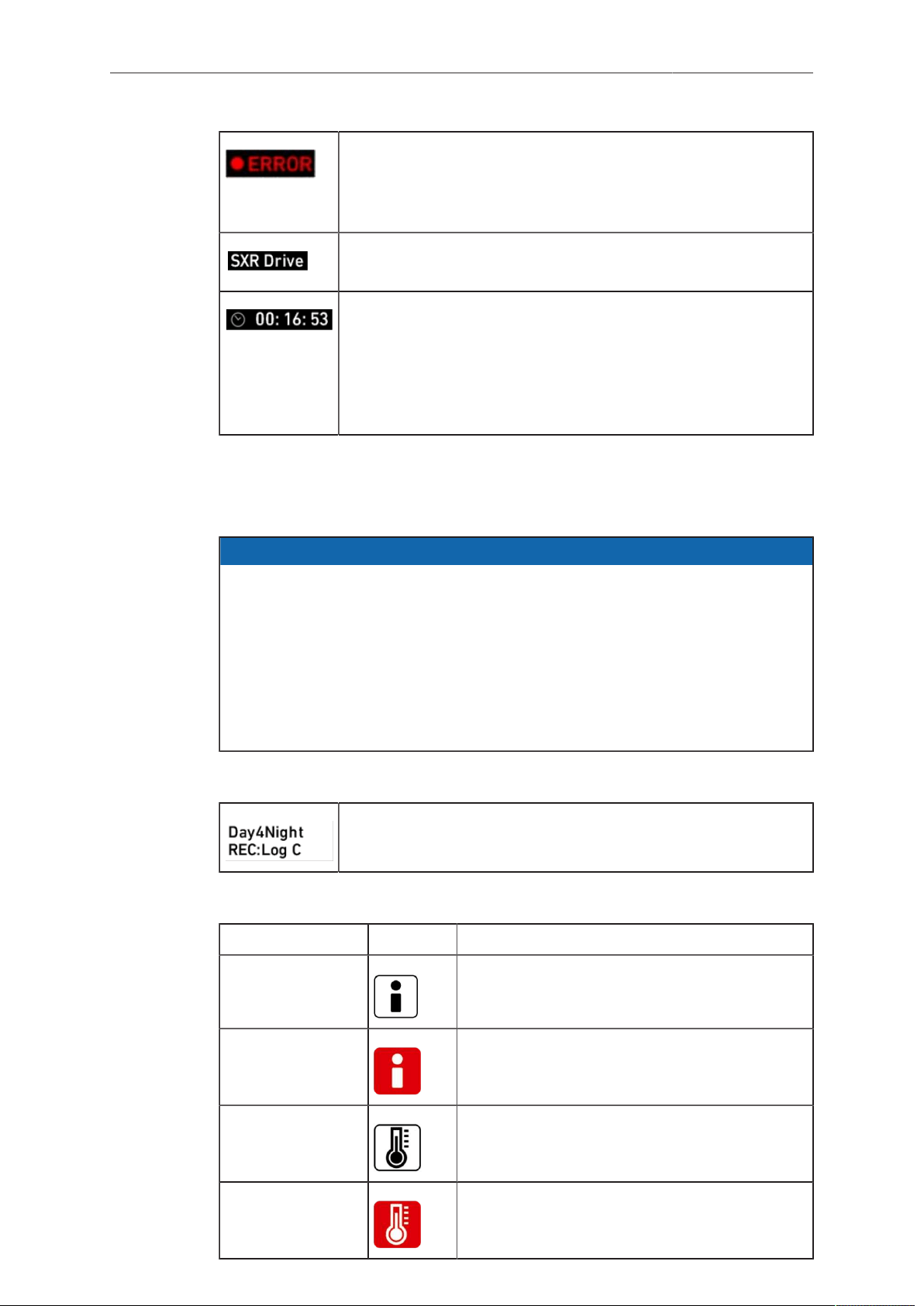
Camera Controls 69
An error occurred and recording is not possible. Press the INFO
button for more information.
If nothing is shown, the camera has detected no errors, but no
media is present for recording.
Type of inserted media (SXR/XR Capture Drive, SxS PRO,
CFast 2.0)
During standby, shows remaining capacity of the inserted media
in hours, minutes, and seconds. It is calculated for the current
framerate and codec.
*
During recording, shows remaining length for current clip in
hours, minutes, and seconds, prefixed with 'C'.
Shows media status when media is not ready for recording.
*
When recording is set to ProRes, the value shown is the minimum available recording time for the
current sensor frame rate and codec combination. Apple ProRes
TM
is a variable bit rate codec, so the
actual remaining recording time depends on the image content. The remaining time is updated during
recording. After stopping recording, the remaining time may skip a few seconds because some media
space is needed for file management.
NOTICE
•
Media that has been formatted with a newer or older SUP version may not be
recognized correctly and be shown as invalid, or may trigger the warning "files
not consistent". In this case, backup any data from the media and format it in-
camera.
•
In SUP 1.0, the maximum size of a single clip is limited to about 229 GB.
Therefore, the camera shows a little 'C' (for clip) next to the clock icon as soon
as recording starts, and it counts down the remaining time for the current
recording. During standby, the camera shows the remaining capacity for the
whole medium.
COLOR Section
Name of the selected ARRI Look File 2 file
Selected gamma for recording path
Icons
Name Icon Description
General Warning Important information is waiting on the INFO
screen.
General Error An error has occurred. Check the INFO screen
for more information.
Temperature
Warning
There is a minor sensor-temperature offset.
Image quality may be slightly affected.
Temperature Er-
ror
There is a substantial sensor-temperature off-
set. Image quality may be seriously affected.
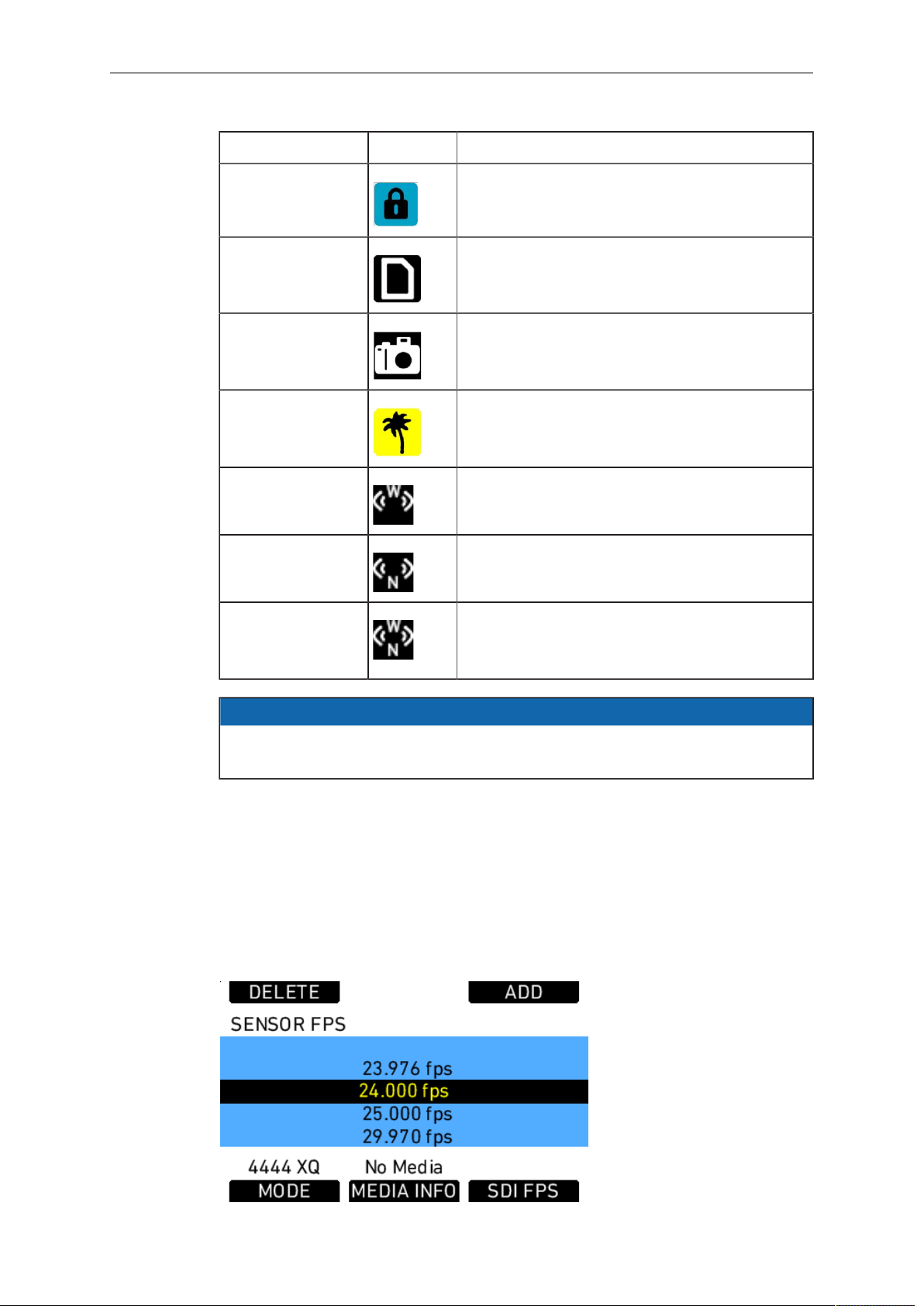
70 Camera Controls
Name Icon Description
Lock The Main Controls are locked.
SD Card An SD card is present. The icon turns orange
when the card is accessed.
Grab The GRAB icon flashes while a still frame is be-
ing taken and written to the SD card.
High Humidity
Mode
The sensor is in High Humidity mode (i.e. the
sensor is kept at 40° C sensor temperature to
avoid condensation).
Radio The ARRI Wireless Remote System (WRS) ra-
dio is active.
The wireless network/WiFi radio is active.
The ARRI Wireless Remote System (WRS) ra-
dio and the wireless network/WiFi radio are ac-
tive.
NOTICE
A sensor temperature warning or error after boot-up is normal, as it takes a few
seconds for the sensor to reach its preset temperature.
13.1.3.1 Lists and User Lists
On the HOME screen, press the FPS, SHUTTER, WB (white balance) and EI
(exposure index) buttons to open lists of preconfigured values for each setting.
User-defined values can be added to the FPS, SHUTTER and WB lists. The EI list is
fixed and user-defined values cannot be added. It contains values from 160-3200 ASA
in steps of 1/3 stops.
Setting a list value
Fig. 22: SENSOR FPS screen
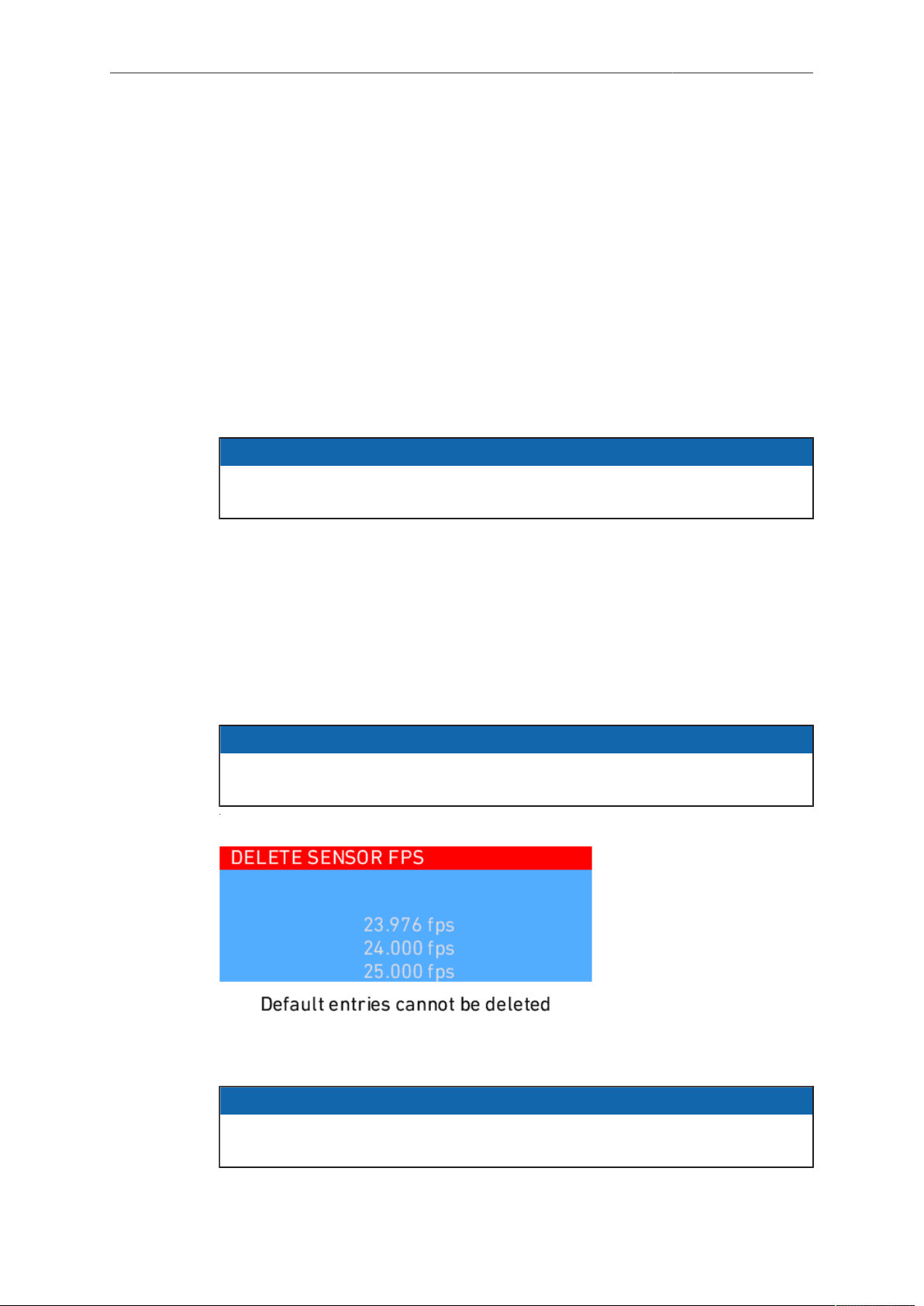
Camera Controls 71
Any value in a list may be set. Invalid values will appear grayed out.
To set a list value:
1. Rotate the jogwheel to select the desired list value.
2. Press the jogwheel to set the list value.
Adding a list value
If the desired list value does not appear in the list, a user-defined value can be added.
To add a list value:
1. Press the ADD button.
2. On the ADD screen, use the jogwheel and + or – buttons to enter a new list value.
3. When you are finished entering the new list value, press the jogwheel to add it to
the list.
NOTICE
Each list supports a maximum of 16 entries. To add new user-defined list values to
a full list, you must delete previously added user-defined list values.
Deleting a list value
User-defined list values that are no longer required can be deleted.
To delete a list value:
1. Press the DELETE button.
2. On the DELETE screen, use the jogwheel to select the user-defined value you
wish to delete.
3. Press both DELETE buttons simultaneously.
NOTICE
Preconfigured values cannot be deleted and will appear grayed out on the DELETE
screen.
Figure 23: DELETE SENSOR FPS screen
NOTICE
The EI list is static and cannot be changed by the user. It contains ASA values from
160-3200 ASA in steps of 1/3 stop.
13.1.3.2 FPS
Press the FPS (frames per second) button on the HOME screen to open the SENSOR
FPS list screen, which lists the default frame rates as well as user-defined frame rates.
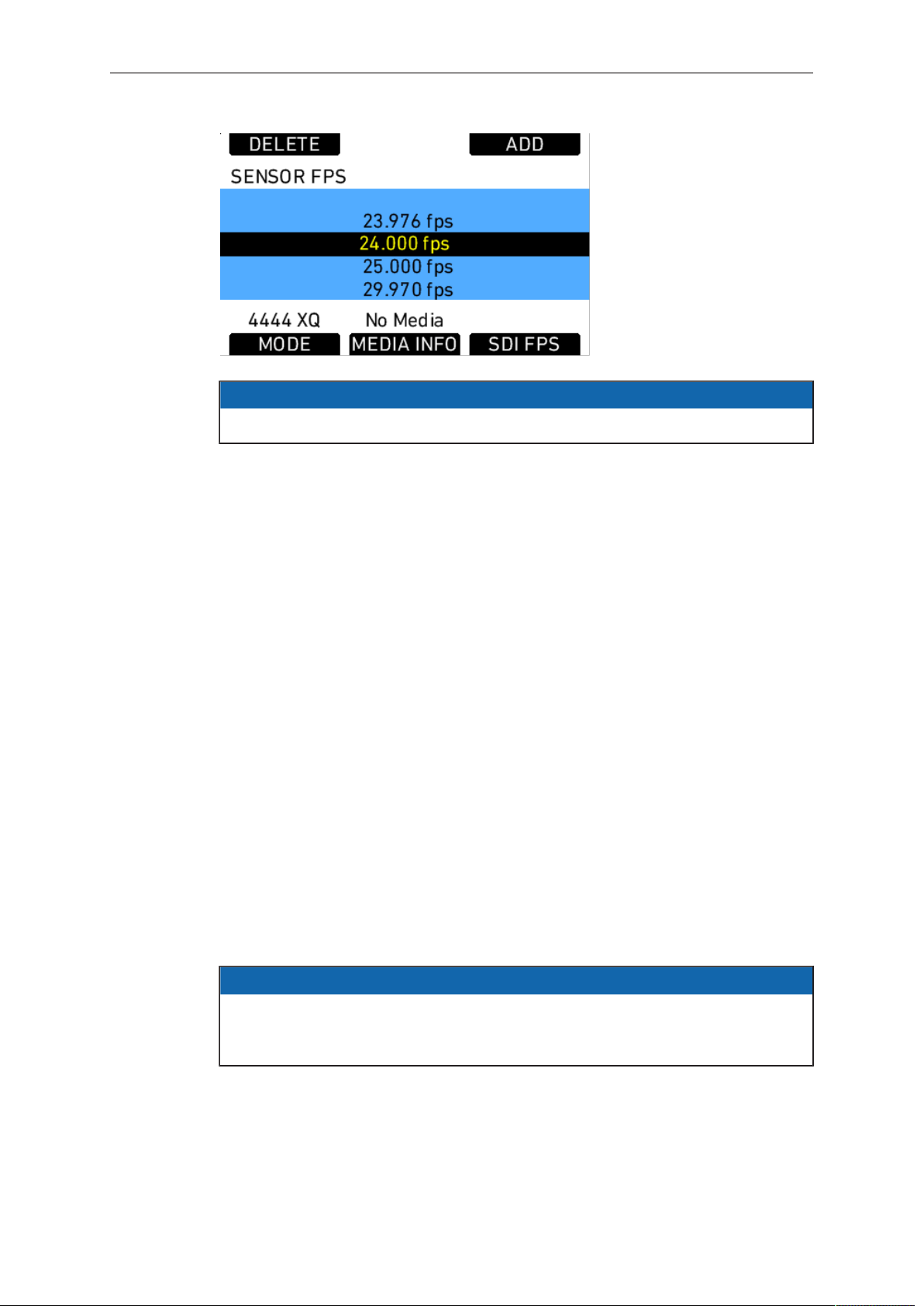
72 Camera Controls
NOTICE
Access to this screen is disabled during record.
The maximum frame rate that can be set is dependent on the type of media and the
codec.
If the desired frame rate cannot be set because it is grayed out, change the codec to
one with a lower data rate.
There are shortcut buttons on the FPS screen for CODEC, INFO and SDI FPS. In the
SDI FPS screen, MON OUT 1/2/3 frame rates can be adjusted within the limits of their
current format.
The MON OUT should match the sensor frame rate. If the sensor frame rate exceeds
the available MON OUT frame rates, set the MON OUT to half the sensor frame rate if
possible to maximize the smoothness of the image when panning and tilting.
To correctly set frame rates for the MON OUT:
1. Press the MENU button.
2. Using the jogwheel, select the Monitoring menu.
3. Select MON OUT.
4. Set Frame rate to the same frame rate as the sensor frame rate. If the sensor
frame rate exceeds the range of the available MON OUT frame rates, set the MON
OUT frame rate to half the value of the sensor frame rate.
5. Press the HOME button to exit.
13.1.3.3 AUDIO
Press the AUDIO button on the HOME screen to open the AUDIO screen. This screen
shows the ALEXA’s two audio channel levels. The audio levels are displayed from -45
dBFS to 0 dBFS.
NOTICE
No audio meters are displayed on the HOME screen or AUDIO screen when audio
is set to Off or audio is disabled. Audio is disabled when the sensor frame rate does
not match the project frame rate. In this case, no audio is transmitted via HD-SDI.
Light blue markers show reference levels of -20, -18 and -9 dB FS.
Red markers at levels -1 and 0 dBFS warn of clipping. With proper audio signal levels,
the red markers should almost never be visible.
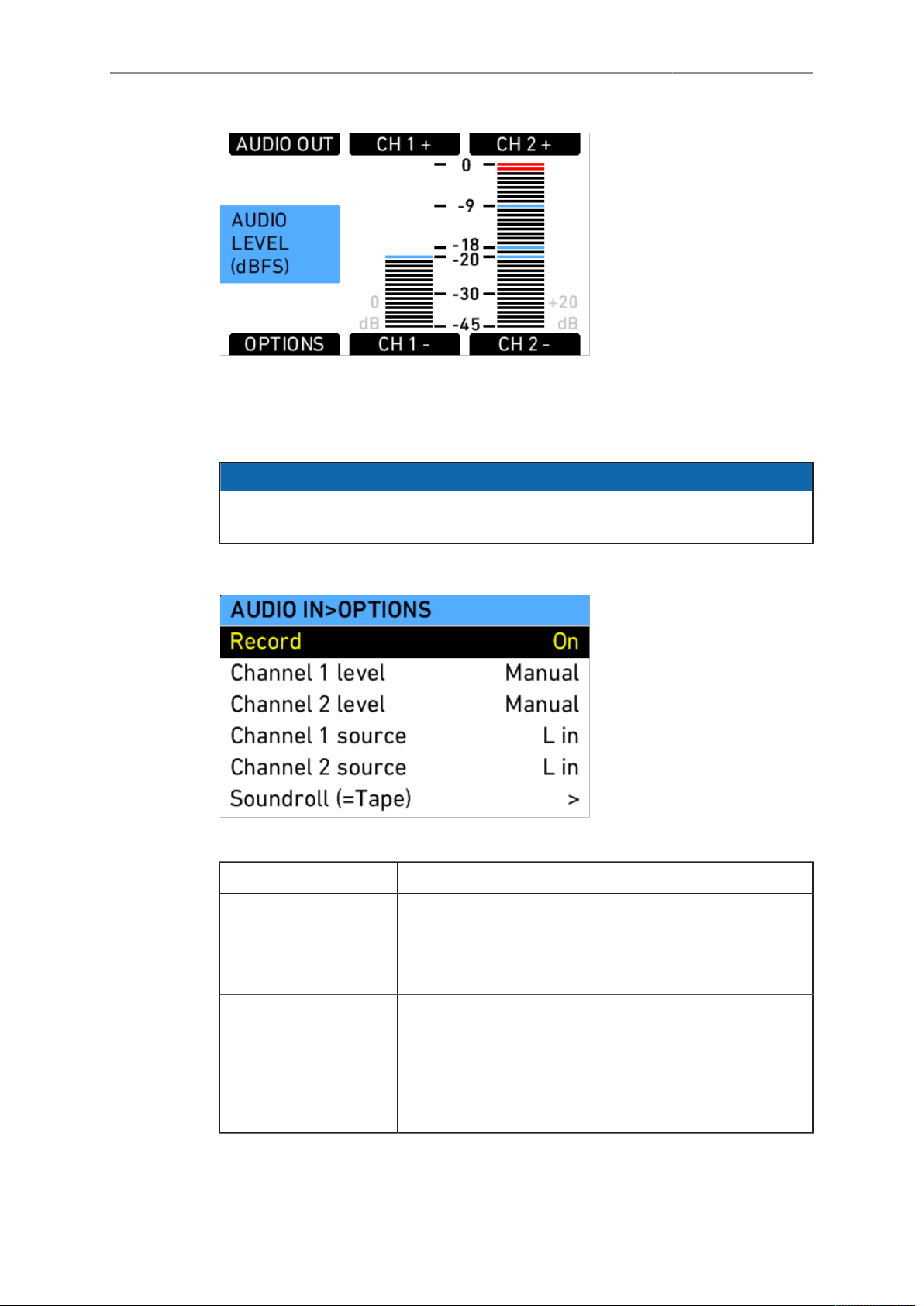
Camera Controls 73
Fig. 23: Audio screen
Gain can be applied to the audio channels by turning the jogwheel to set both
channels, or by pressing the CH 1+, CH 1-, CH 2+ and CH 2- buttons. The amount of
gain applied by the camera is indicated next to the levels as light gray numbers.
NOTICE
When adjusting audio input levels, a "clicking" noise can be heard on audio outputs.
Adjustment of audio levels therefore is disabled during recording.
Press the OPTIONS button to open the AUDIO IN>OPTIONS screen and set audio
parameters.
Fig. 24: AUDIO IN>OPTIONS screen
Option Description
Record Turns audio recording On or Off.
If audio recording is switched off, no audio is recorded
internally, HD-SDI contains no audio and Audio out is
muted.
Channel 1 level Manual allows the user to manually apply gain to the in-
put signal on channel 1 to reach a correct level.
Unity matches a 4 dBu input signal to -20 dBFS. This
setting leaves enough headroom for recording and
avoids audio clipping. When Unity is selected, audio lev-
els cannot be adjusted by the user.
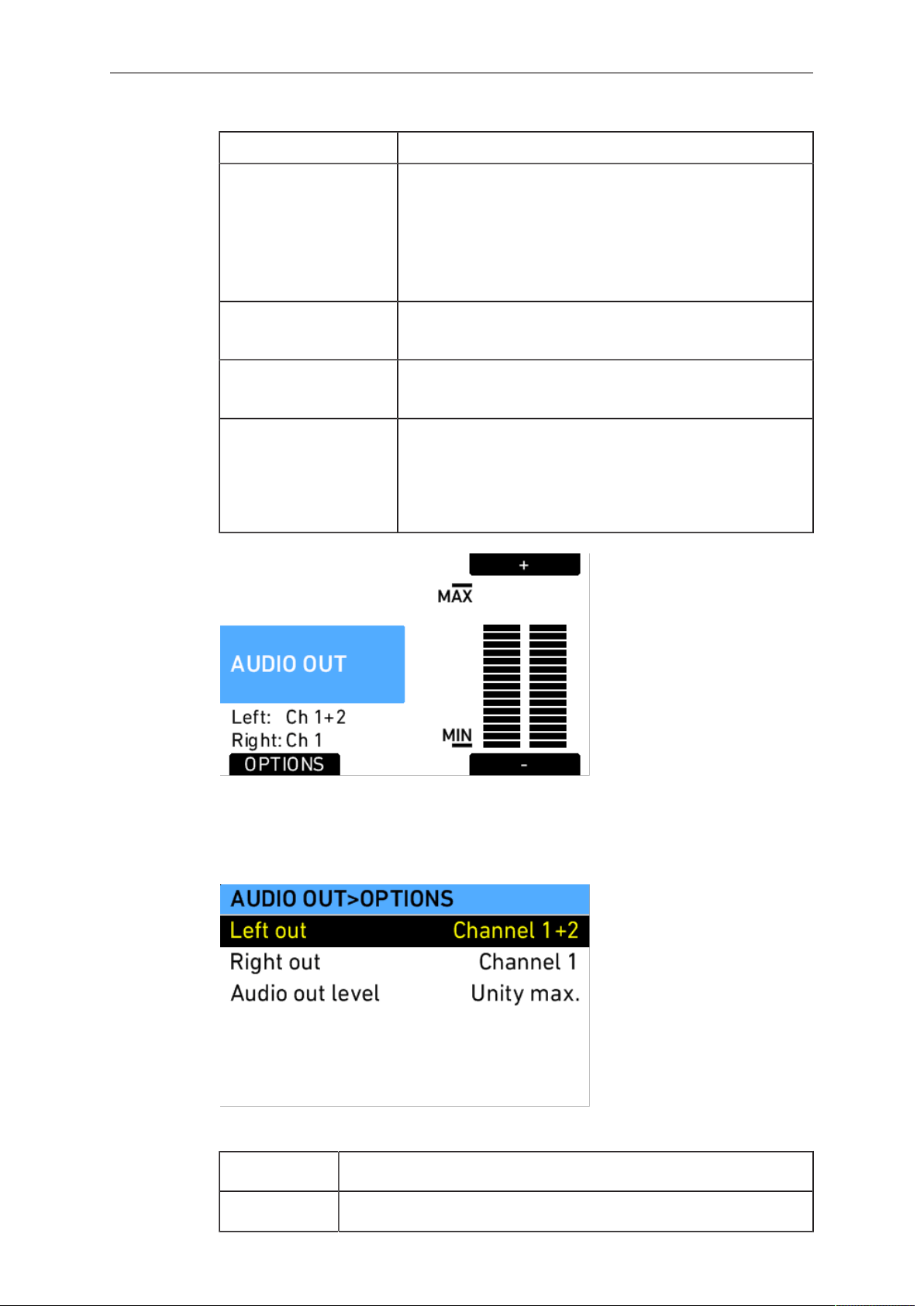
74 Camera Controls
Option Description
Channel 2 level Manual allows the user to manually apply gain to the in-
put signal on channel 2 to reach a correct level.
Unity matches a 4 dBu input signal to -20 dBFS. This
setting leaves enough headroom for recording and
avoids audio clipping. When Unity is selected, audio lev-
els cannot be adjusted by the user.
Channel 1 source Select the left or right input signal as the source for
Channel 1.
Channel 2 source Select the left or right input signal as the source for
Channel 2.
Soundroll (=Tape) Enter a name for the sound roll (also known as Tape
in the menus of some recorders) of an external audio
recorder, for easier sound synching in post-production.
The name will be written to the FCP XML file and the
Avid Log Exchange (ALE) file on the recording media.
Fig. 25: Audio out screen
Press the AUDIO OUT button to open the AUDIO OUT>OPTIONS screen where the
global volume for both Audio out channels can be adjusted. The OPTIONS button
opens a list of AUDIO OUT options.
Fig. 26: AUDIO OUT>OPTIONS
Left out Sets which channel is routed to the left output.
Right out Sets which channel is routed to the right output.
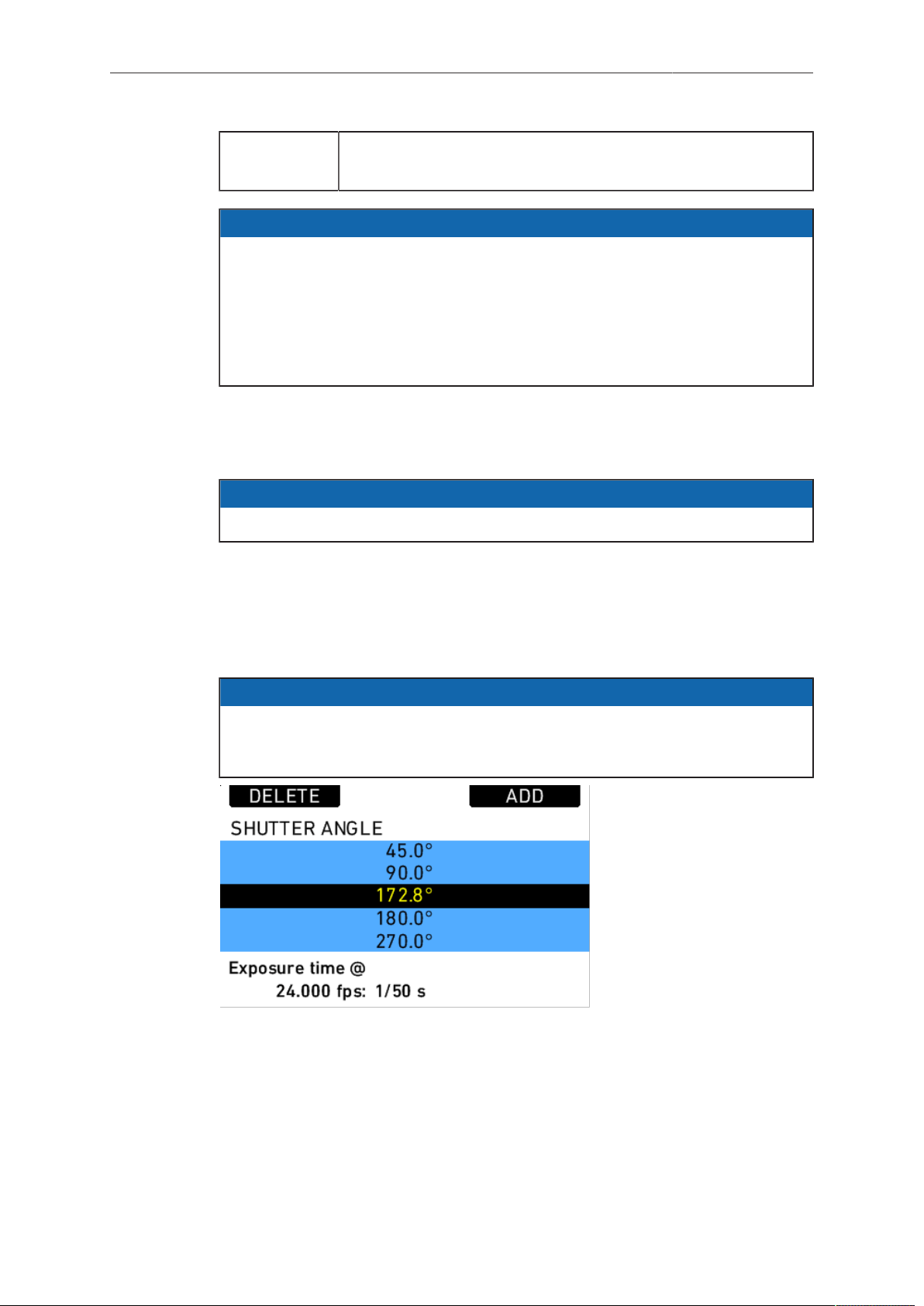
Camera Controls 75
Audio out
level
Set the level of the audio out channels manually, or set it to fix
the maximum output.
NOTICE
•
These settings do not influence the audio signal embedded in the HD-SDI
connectors or recorded in QuickTime clips. They only affect the AUDIO OUT
connector.
•
ALEXA automatically determines the internal signal run time and matches audio
and images so they are always in sync. When changing sensor fps or project
fps, it may take up to 2 seconds for the camera to resync image and audio
signals.
13.1.3.4 SHUTTER
Press the SHUTTER button in the HOME screen to open the SHUTTER ANGLE
screen.
NOTICE
Access to this screen is disabled during record.
The list of default shutter angles includes 11.2°, 22.5°, 45.0°, 90.0°, 172.8°, 180.0°,
270.0° and 358.0°. User-defined shutter angles can be set by pressing the ADD
button. The exposure time for the current frame rate and shutter angle is indicated in
seconds at the bottom of the SHUTTER ANGLE screen.
The shutter angle range is 5.0° to 358.0° up to 60 fps and 5.0° to 356.0° above 60 fps.
Below the list, the actual exposure time at the currently set frame rate is shown.
NOTICE
Be aware that the combination of long exposure times (a low sensor frame rate and
large shutter angle) and high exposure indexes can lead to image artifacts! Try to
avoid exposure times longer than 1/25th of a second for maximum image quality.
Fig. 27: Shutter list
13.1.3.5 EI
The Exposure Index (EI) is the applied sensitivity of the camera.
The ALEXA has a base sensitivity of 800 ASA. This means that the dynamic range is
almost evenly distributed above and below neutral gray with low noise in the shadows
and clean, smooth clipping behavior in the highlights.
Due to its high dynamic range, the ALEXA’s sensitivity can be set from 160 to 3200
ASA in steps of 1/3 stops while maintaining high image quality.
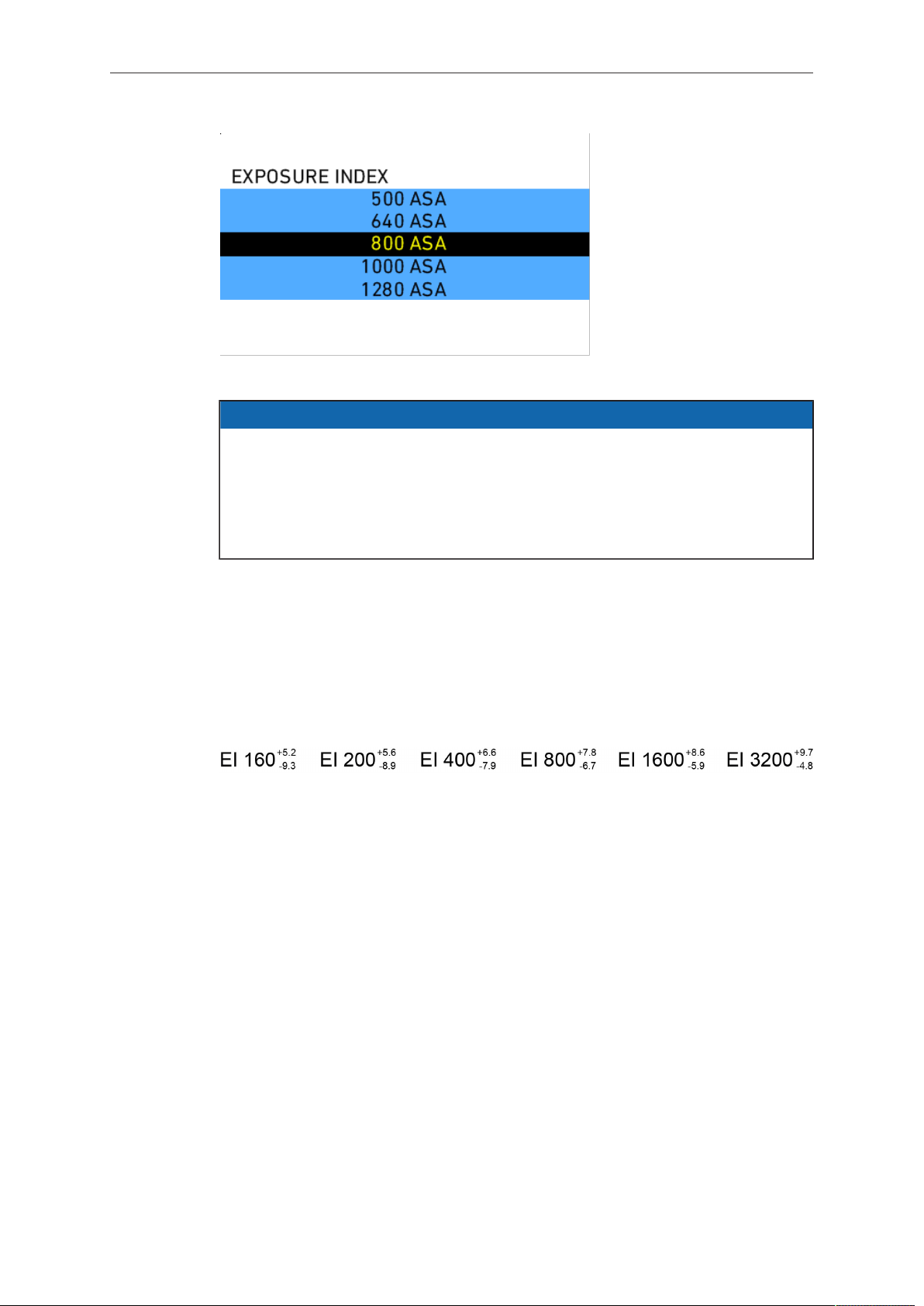
76 Camera Controls
Fig. 28: Exposure Index screen
NOTICE
•
The Exposure Index list has fixed content, meaning that it cannot be changed
by the user.
•
When changing the EI setting during recording, one or more frames on the
recorded material may show artifacts resulting from the change.
•
An area that is overexposed more than eight stops above clipping can appear
darker than its surroundings.
Applying the exposure indexes at the extremes of the range will nonetheless have
an influence on the images. At low exposure indexes, such as 160 ASA, the dynamic
range below neutral gray increases, reducing noise even further. At the same time,
the dynamic range above neutral gray is slightly reduced. Highlight clipping itself is
not influenced by this, but the shoulder of the gamma curve will get slightly steeper,
reducing the smoothness of the change from almost overexposed to overexposed.
At high exposure indexes, such as 1600 ASA, the images behave in the opposite way.
Noise is increased, which makes it important to judge shadow detail, while there will
be even more headroom in the highlights.
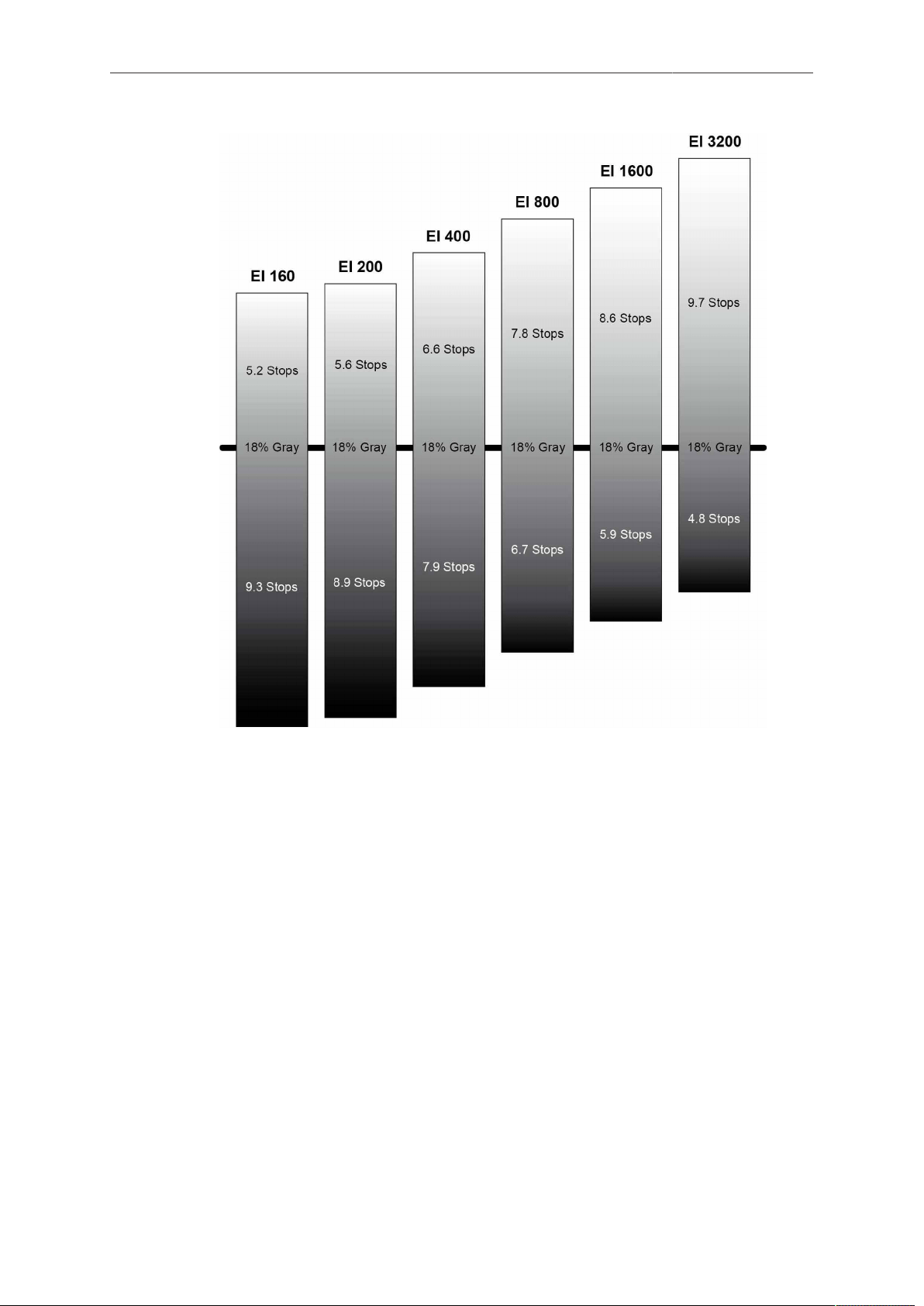
Camera Controls 77
13.1.3.6 COLOR
The ALEXA SXT comes with very powerful color processing capabilities that can be
configured on the COLOR screen. As the possible combinations of color processing
parameters may become quite complex, ARRI provides a white paper titled "ARRI
Look Management in ALEXA SXT", available for download on the ARRI ALEXA
webpage.
Press the COLOR button to open the COLOR screen. The COLOR screen displays
an overview of the color management settings applied to the camera’s output paths,
including:
•
the current processing setting of internal recording
•
a link to the processing settings of EVF and MON OUT 1/2/3
•
the currently set ARRI Look File 2
•
a link to the MON OUT color space configuration
If the ARRI Look File 2 file has been modified via an external Camera Access Protocol
(CAP) enabled software, but is not yet saved, the look file name is appended by an
asterisk.
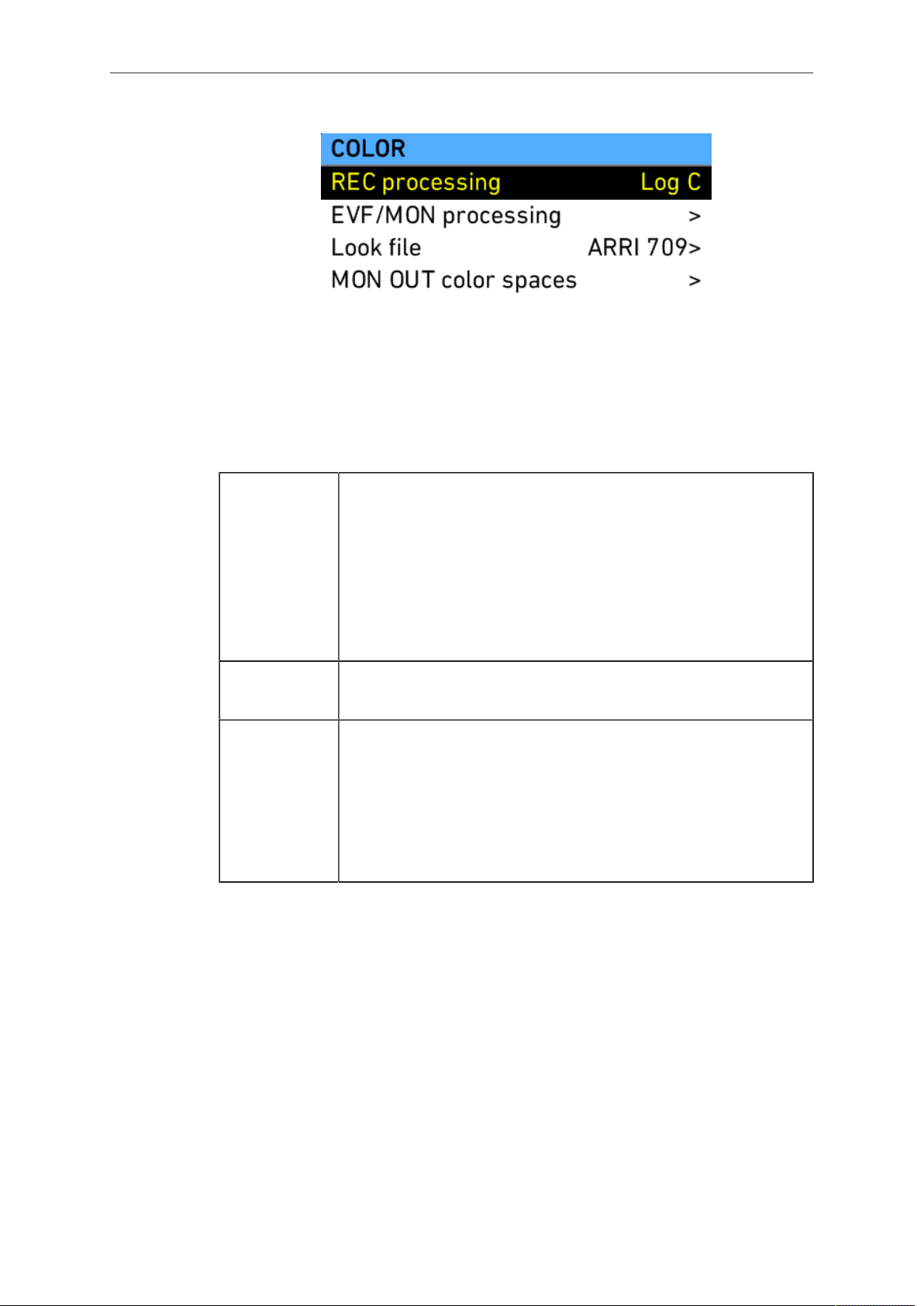
78 Camera Controls
Processing defines the type of processing that is applied to the image path. The
following list describes which image processing settings are available. Note that in
case of ARRIRAW recording, REC processing is always set to ARRIRAW and cannot
be changed.
Log C Log C is a logarithmic gamma based on the Cineon format for
output to film print or digital intermediate. Color-grading is a re-
quired post-production step in the Log C workflow. Standard
broadcast monitors cannot properly display Log C images so a
conversion look up table (LUT) is necessary for display, dailies
and editing proxies. Log C images will appear flat and desaturat-
ed when displayed on standard broadcast monitors. ALEXA pre-
view LUTs can easily be generated using the ARRI LUT Genera-
tor, a web application available on www.arri.com.
Look file The ARRI Look File 2 file that has been selected is applied on
the respective image path.
ALEXA Clas-
sic 709
The ALEXA performs an image processing that is similar to the
behavior of an ALEXA XT or ALEXA Classic with SUP 11.
This setting is mainly useful if a standard REC 709 conform im-
age should be output on the respective image path, but a more
creative ARRI Look File 2 file has been loaded, e.g. for record-
ing.
This setting is not available for internal recording.
MON OUT color spaces
The MON OUT color spaces screen allows to configure the color space for MON
OUT 1/2/3. This setting must match the color rendering capabilities of the connected
monitors, otherwise color clipping may occur.
ARRI Look File 2 files
ARRI Look File 2 files are a way for the user to alter the parameters the ALEXA uses
when converting the sensor image data to a video color space. This can be described
as applying a custom "look" to the different image output paths. The ARRI Look File 2
file can be applied directly to the recorded image (destructive workflow), or just to the
monitoring paths and included in the clip as metadata only (non-destructive workflow).
The ALEXA comes with several pre-installed ARRI Look File 2 files, including LCC
709, where LCC stands for Low Contrast Curve and 709 denotes the target color
space. This ARRI Look File 2 file contains a custom tone map curve that creates a
video image with lower contrast compared to the standard REC 709 output. As a
Camera Controls 79
result, the image holds as much dynamic range information as possible, without using
Log C encoding. Highlight and shadow detail that would be lost in the typical REC 709
tone mapping can still be accessed.
ARRI Look Creator, a free application from ARRI, and some third-party applications
can be used to create ARRI Look File 2 files, which can be based on frame grabs
taken with the ALEXA.
To apply an ARRI Look File 2 file:
1. On the HOME screen, press the COLOR button.
2. Select Look file from the menu.
3. Using the jogwheel, select an ARRI Look File 2 file from the list on the LOOK
FILES screen. The default preloaded ARRI Look File 2 is ARRI 709.
4. Press the jogwheel to set the ARRI Look File 2.
5. On the COLOR screen, set the processing to Look file.
NOTICE
If REC gamma is set to Look file, the recorded image on the internal media will be
permanently altered by that ARRI Look File 2 file.
Additional ARRI Look File 2 files can be added to the ALEXA from the SD card. The
ARRI Look File 2 files must be copied into the lookfiles folder on the SD card. The
required folder structure on the SD card can be created via MENU>System>SD
card>Prepare SD card.
To add an ARRI Look File 2 files to the camera:
1. On the HOME screen, press the COLOR button.
2. Select Look file from the menu.
3. Press the ADD button.
4. Using the jogwheel, select an ARRI Look File 2 file from the list on the LOOK
FILES (SD CARD) screen.
5. Press the jogwheel to add the ARRI Look File 2 file. The ARRI Look File 2 file will
be added to the list on the LOOK FILES screen.
To delete an ARRI Look File 2 file from the camera:
1. On the LOOK FILES screen, select an ARRI Look File 2 from the list.
2. Press the DELETE button.
3. Press both new DELETE buttons simultaneously. The ARRI Look File 2 file will be
deleted from the camera but will remain on the SD card.
Playback and ARRI Look File 2 files
During playback, the camera makes a distinction between clips recorded in
ARRIRAW, Log C, or Look processing.
When a clip recorded in ARRIRAW or Log C is played back and an output is
configured for Look processing, the look will be applied to this output. Please note
that this is the currently enabled ARRI Look File 2, as the camera does not take into
account which ARRI Look File 2 was active when the clip was recorded. It is the
responsibility of the user to make sure the correct ARRI Look File 2 is applied during
playback.
When a clip recorded with Look processing is played back, no ARRI Look File 2 will be
applied by the camera during playback. For the duration of that clip, ARRI Look File 2
files will be disabled.
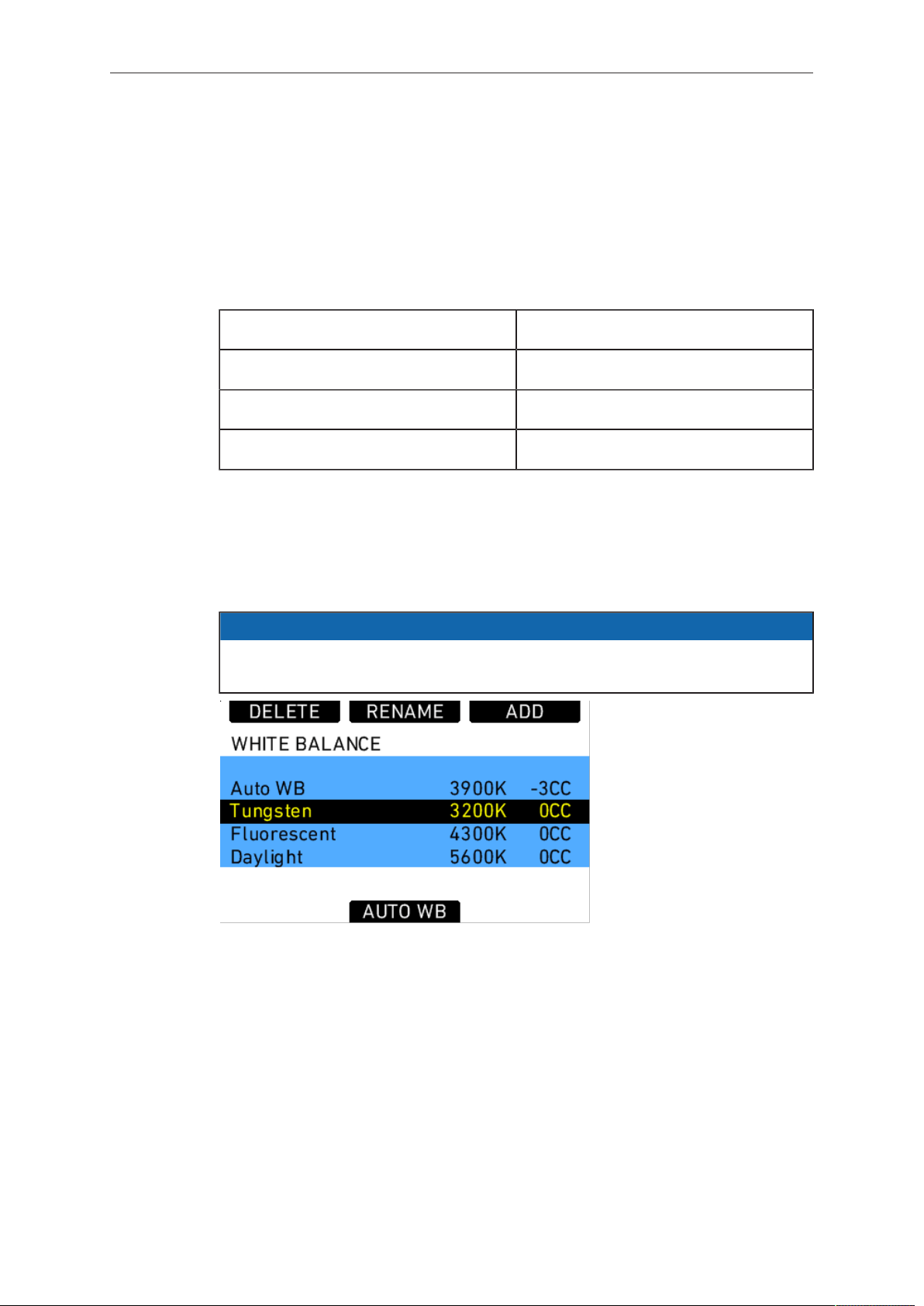
80 Camera Controls
13.1.3.7 WB
White Balance (WB) is the color balance of the camera that should be set to the value
appropriate for the light in use. There are three methods for setting the white balance:
•
white balance presets
•
user-defined white balance
•
automatic white balance
On the HOME screen, press the WB button to open the WHITE BALANCE screen.
The ALEXA has the following white balance presets:
Tungsten 3200K 0CC
Fluorescent 4300K 0CC
Daylight 5600K 0CC
Daylight Cool 7000K 0CC
White balance is a red-blue adjustment of the image. To adjust the green-magenta
balance, use the color compensating (CC) adjustment.
For example, a fluorescent source will have peaks in its spectrum that cannot be
corrected with the traditional white balance. The CC shift can correct these peaks up
to a full green or full magenta gel. One step of CC SHIFT is equal to 035 Kodak CC
values or 1/8 Rosco values.
NOTICE
When changing the WB setting during recording, one or more frames on the
recorded material may show artifacts resulting from the change.
Fig. 29: WHITE BALANCE screen
ARRI recommends adjusting white balance and color compensation using appropriate
measuring equipment such as a vectorscope with calibrated grey card or a color
meter.
If the desired white balance setting does not appear in the WHITE BALANCE list, a
user-defined white balance can be added.
To add a white balance:
1. On the HOME screen, press the WB button.
2. Press the ADD button.
3. Rotate the jogwheel to adjust the white balance value in steps of 100K or press
the + 1000K and – 1000K buttons.
4. Press the jogwheel or <> button to select the CC adjustment.
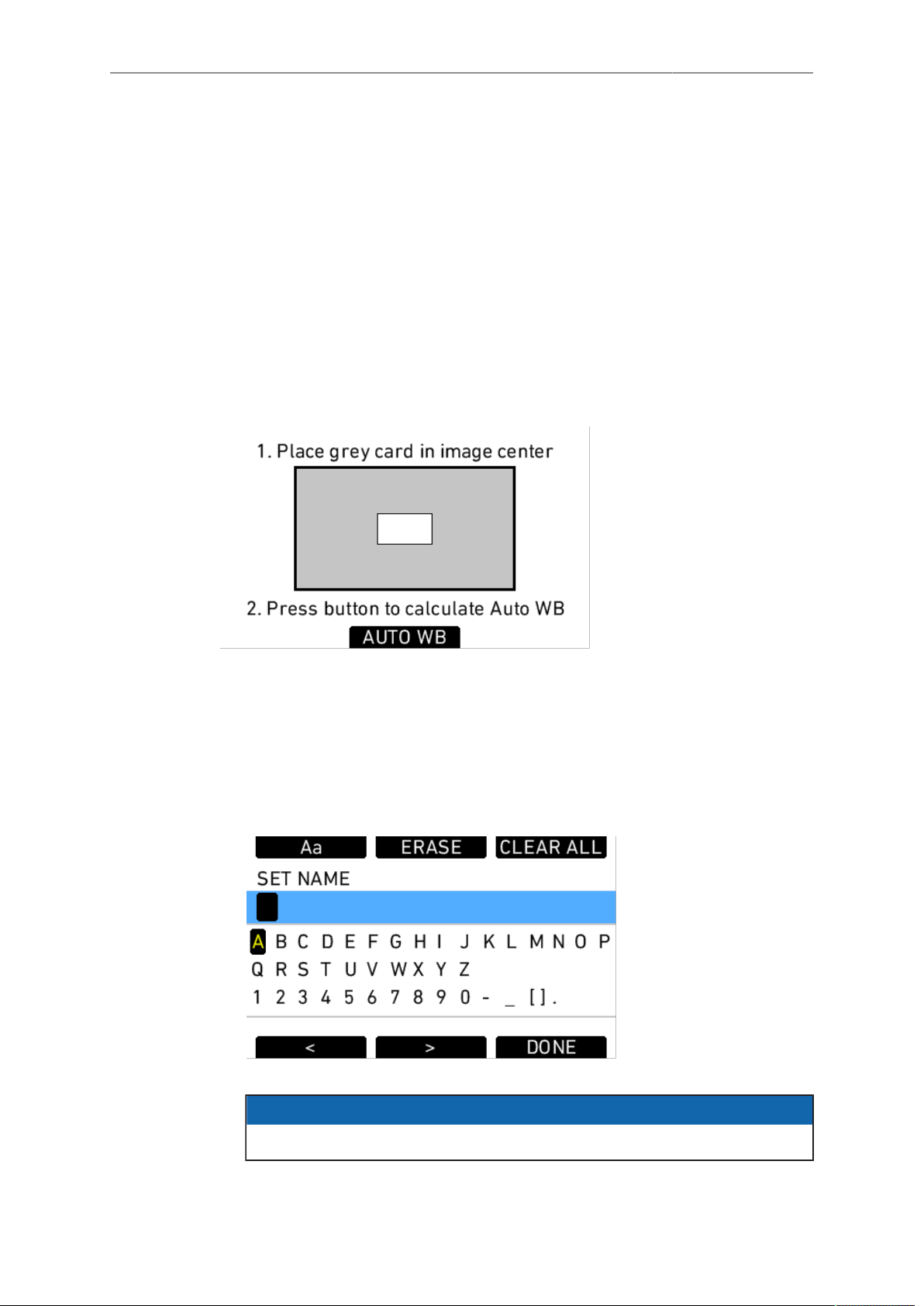
Camera Controls 81
5. Rotate the jogwheel to adjust the CC value.
6. Press the jogwheel to add the new white balance to the WHITE BALANCE list.
To perform an automatic white balance:
1. On the HOME screen, press the WB button.
2. Press the AUTO WB button.
3. Place a well-lit grey card in the center of the image and press the AUTO WB
button. The ALEXA will calculate the white balance and color compensation values
and set these values for the "Auto WB" entry in the list.
Note: The automatic white balance will be overwritten each time a new one is
calculated.
Note: If the grey card is significantly over- or underexposed, the ALEXA may not be
able to calculate a white balance value and will display an error message.
To rename a white balance:
1. On the HOME screen, press the WB button.
2. Using the jogwheel, select the name of the white balance you wish to rename.
3. Press the RENAME button.
4. Use the jogwheel to enter a new name.
5. Press the DONE button to save the new name.
Fig. 30: WB SET NAME screen
NOTICE
Default white balance values cannot be renamed.
13.1.4 Function Buttons
The main controls feature the following function buttons:

82 Camera Controls
ON/OFF Press once to switch the camera on. Press and hold for 5 sec-
onds to switch off the camera. A countdown will be displayed on
the HOME screen. If the button is released before the countdown
has elapsed, the camera does not switch off.
REC Press to start and stop internal recording. See section Prerecord-
ing for behavior in prerecording mode.
LOCK Press and hold for 3 seconds to lock or unlock the main cam-
era controls and function buttons. The recessed function buttons
USER, REC and ON/OFF cannot be locked and remain avail-
able. A lock symbol on the HOME screen indicates that the lock
is engaged.
GRAB Press to take a still frame and write it to the SD card. The write
process is indicated by a flashing camera icon, followed by a
flashing SD card icon on the HOME screen. When writing is fin-
ished, a new still frame can be taken.
TC Press to open the TIMECODE screen.
WRS Press to open the Wireless Remote System screen. Available on
ALEXA SXT Plus, ALEXA SXT Studio, and ALEXA SXT W.
PLAY Press to open the playback screen and activate playback on
MON OUT and EVF. When the playback screen is opened, the
last clip on the internal media that is on active standby will be
loaded automatically.
INFO Press to open the LIVE INFO screen. The LIVE INFO screen dis-
plays the camera’s current system state and any current error
messages. On the LIVE INFO screen, there are buttons to ac-
cess the following additional information screens:
•
VERSION
•
MEDIA
•
SYSTEM
•
SAVE TO SD (press to save a log file)
•
FPS INFO
USER Press to open the USER BUTTONS screen. There are six user
buttons that can be assigned by the user. Buttons 1, 2 and 3 are
shared with User Buttons 1, 2, and 3 in the operator controls.
Press the jogwheel to see a complete list of user button options.
MENU Press to open the MENU screen, where most camera settings
can be adjusted.
BACK Press to go back to the previous menu or screen when navigat-
ing. Press to cancel settings adjustments and revert to the previ-
ous setting.
HOME Press to return to the HOME screen from any menu or screen.
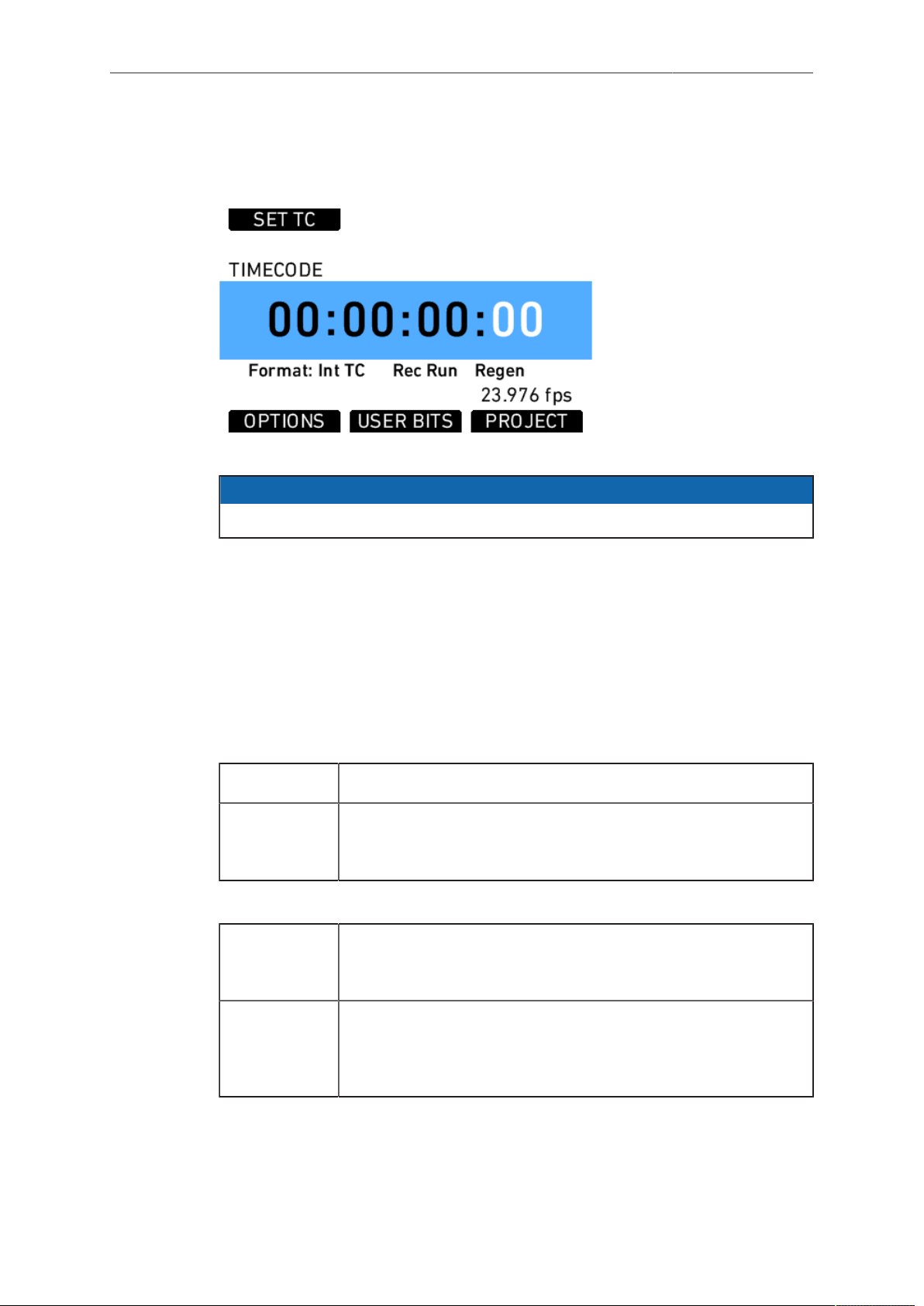
Camera Controls 83
13.1.4.1 TC
Press the TC button to open the TIMECODE screen. The TIMECODE screen displays
the current timecode and timecode format settings.
Fig. 31: Timecode screen
NOTICE
Individual frame values are not shown but are still counted.
Press the SET TC button to set the TC counter (only when the timecode source is set
to Int TC). On the SET TIMECODE screen, press the SET 2 TIME button to match
the counter to the camera’s system clock. Press the RESET button to reset counter to
zero.
The PROJECT button is a quick link into the PROJECT menu screen, where project
fps can be adjusted. Project fps sets the time base of the time code.
TIMECODE OPTIONS
Press the OPTIONS button to open the TIME CODE OPTIONS screen.
Select Source to choose the timecode source. Available sources are:
Int TC Internal TC counter
Ext LTC TC is read from the LTC input. Only possible with Mode set to
Free Run, and the project frame rate must match the sensor
frame rate.
Select Mode to define how the timecode is counted. Available modes are:
Rec Run TC will only run while recording. The TC value increases with
every frame generated by the sensor while recording in the
project time base.
Free Run TC runs free. If the source is set to Int TC, and the sensor frame
rate does not match the time base of the TC, the value counts up
with every new frame generated by the sensor in the project time
base.
Select Generator to set the camera’s timecode generator. Available generators are:
84 Camera Controls
Regen Rec Run TC is regenerated from the last valid TC value. When
set to Ext LTC, the camera continuously reads the TC signal
at the LTC connector as long as it is present. Upon disconnec-
tion or loss of signal, the camera continues counting on its own.
When the external signal is reconnected, the camera uses the
values of the external signal again.
When set to Int TC, the value increases with each new frame
generated by the sensor.
Jam sync Only Ext LTC can be jam sync'd. To perform a jam sync, connect
the external TC source to the camera. The camera then reads
the external TC count and continues counting on its own; the ex-
ternal TC source can be removed again. The precise crystal os-
cillator in the ALEXA will count accurately for up to eight hours.
After eight hours, perform another jam sync to prevent timecode
offset.
The camera can be sync'd to TC signals whose time base dif-
fers from the camera's project time base, as long as both are in-
teger (24, 25 and 30 fps) or non-integer (23.976 and 29.97 fps)
signals. It is not possible to mix integer and non-integer signals.
NOTICE
•
It is recommended to jam-sync after every shooting break to avoid the risk of
losing timecode sync during a shot.
•
The camera will keep its TC and TC tuning values for about 10 minutes after
disconnection from the power source. If a power source is connected, the
camera will remember its TC for as long as the power source is connected,
even if it is switched off.
Select User bit source to set the source of the user bits. Available user bit sources are:
Internal User bits are set manually in the User Bit screen.
UB in Ext TC When the timecode source is set to Ext LTC, the user bits are
sampled from the external signal.
NOTICE
•
The camera will force timecode to Int TC and Regen if the sensor frame rate
does not match the project frame rate.
•
Non-integer TC time base settings 23.976 and 29.97 are always counted as
non-dropframe time code.
USER BITS
Press the USER BITS screen button to access the USER BITS screen. For each user
bit, values from 0 to 9 and A to F can be set.
Press the SET UB button to start editing the user bits values.
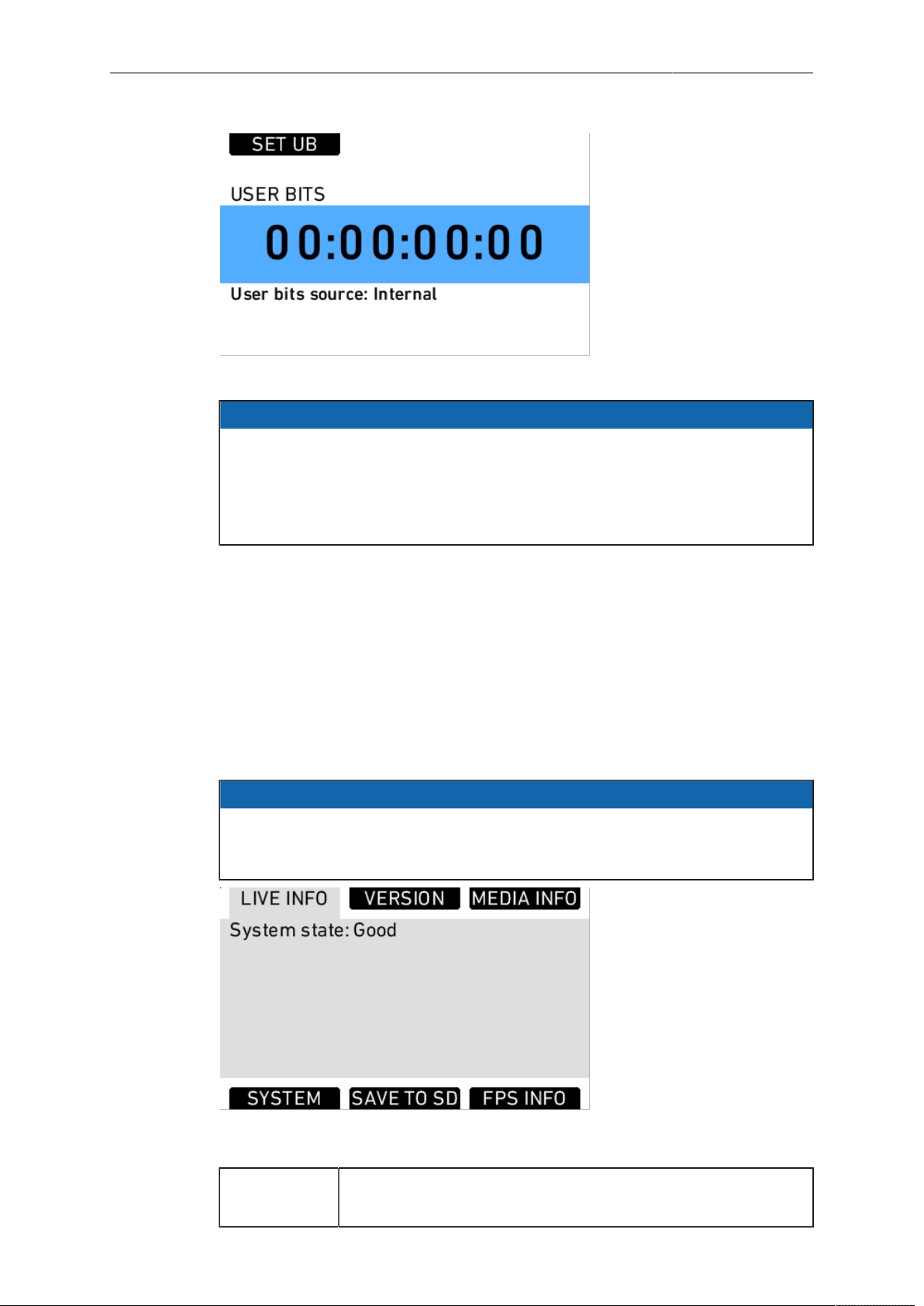
Camera Controls 85
Fig. 32: USER BITS screen
NOTICE
•
On HD-SDI out, the last two digits of the user bits contain the Variflag, therefore
the last two user bits cannot be set by the user.
•
User bits are not stored in user setup files. When loading a user setup file, they
are reset to 00:00:00:00.
•
Check user bits after changing the sensor mode.
13.1.4.2 INFO
STATUS Info
The STATUS INFO screen displays information about the current state of the camera
system. System state: Good means that all components in the ALEXA are functioning
normally. Other messages can contain error messages prefixed with E:, or warnings
prefixed with W:. For more information about error messages and warnings, see
"Warning and Error Messages" in the Appendix.
Press the SAVE TO SD button to save a system log to the SD card. This may take up
to one minute.
NOTICE
It is only necessary to save a system log if the camera experiences multiple error
messages or other abnormal behavior. The system log is not a human-readable file
and should be sent to an ARRI Camera Service center for analysis.
VERSION Info
Cam serial
no.
The serial number of the camera.
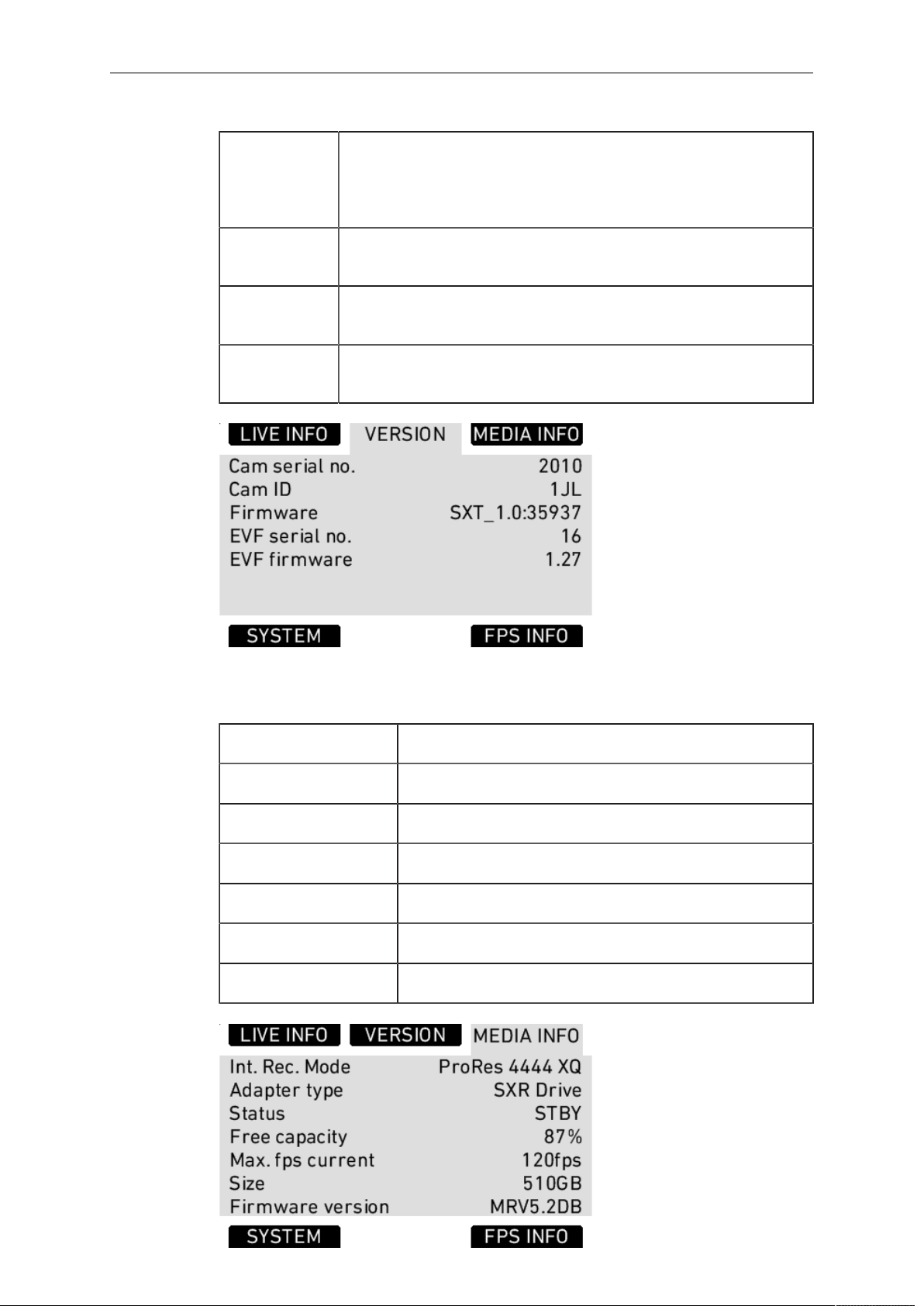
86 Camera Controls
Cam ID Translation of the camera serial number to Base36, with an addi-
tional prefix for 3D applications. This encoding of the serial num-
ber has been chosen so it can be part of each filename while us-
ing the fewest number of characters.
Firmware Version number of the currently installed camera Software Up-
date Packet (SUP).
EVF serial
no.
The serial number of the Electronic Viewfinder EVF-1 attached to
the camera.
EVF
firmware
Version number of the Electronic Viewfinder EVF-1 firmware.
Fig. 33: VERSION info screen
MEDIA Info
Int. Rec. Mode Current mode for internal recording.
Adapter type Type of the inserted storage adapter
Status Current status of internal media.
Free capacity Free storage space displayed as a percentage.
Max. fps current Maximum frame rate with current codec.
Size Total available storage space on media
Firmware version Firmware version of the media
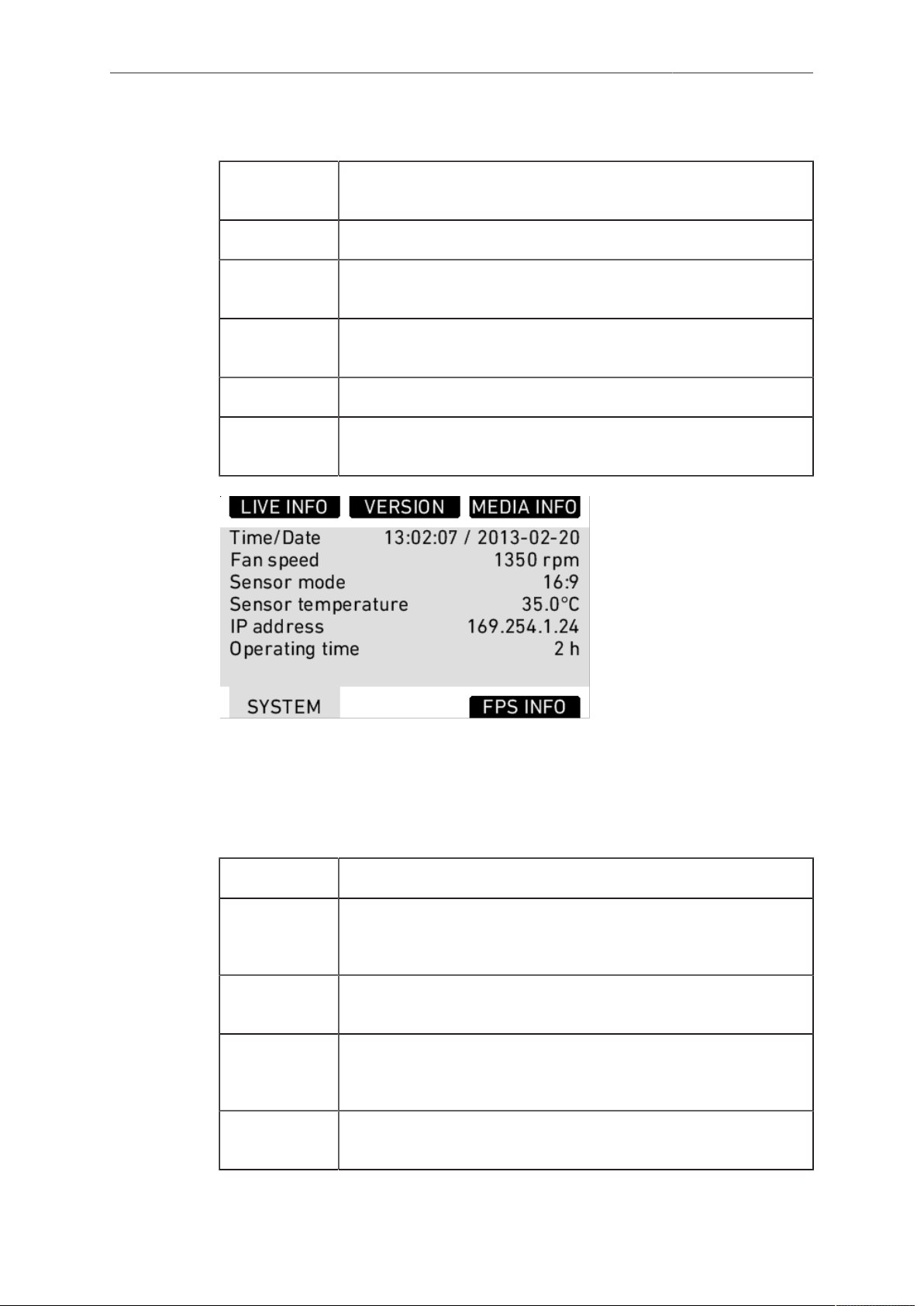
Camera Controls 87
SYSTEM Info
Time/Date Current date and time. To set the date and time, press the MENU
button, select SYSTEM and select DATE/TIME.
Fan speed Speed of the camera’s cooling fan in rotations per minute.
Sensor
mode
Shows the active sensor mode: 16:9, 4:3, 6:5, or Open Gate.
Sensor tem-
perature
Current temperature of image sensor. Target is 35°C in standard
mode, 40°C in high humidity mode.
IP address IP address of the camera's Ethernet port.
Operating
time
Shows the total operating time of the camera in hours (since first
installation of SUP 4.0 or higher)
Fig. 34: SYSTEM info screen
FPS Info
The FPS Info screen displays an overview of the current frame rates set in the camera
and the maximum frame rate possible on the media loaded in the camera at the
current settings.
Sensor fps Frames per second generated by the sensor
Project fps Time base the camera will use for counting timecode and the
frame rate used for on-camera playback of internally recorded
clips
MON OUT 1
frame rate
Frame rate output over the MON OUT 1 HD-SDI
MON OUT
2/3 frame
rate
Frame rate output over the MON OUT 2/3 HD-SDI
Media max.
fps current
Maximum frame rate the loaded media can record at the current
codec.
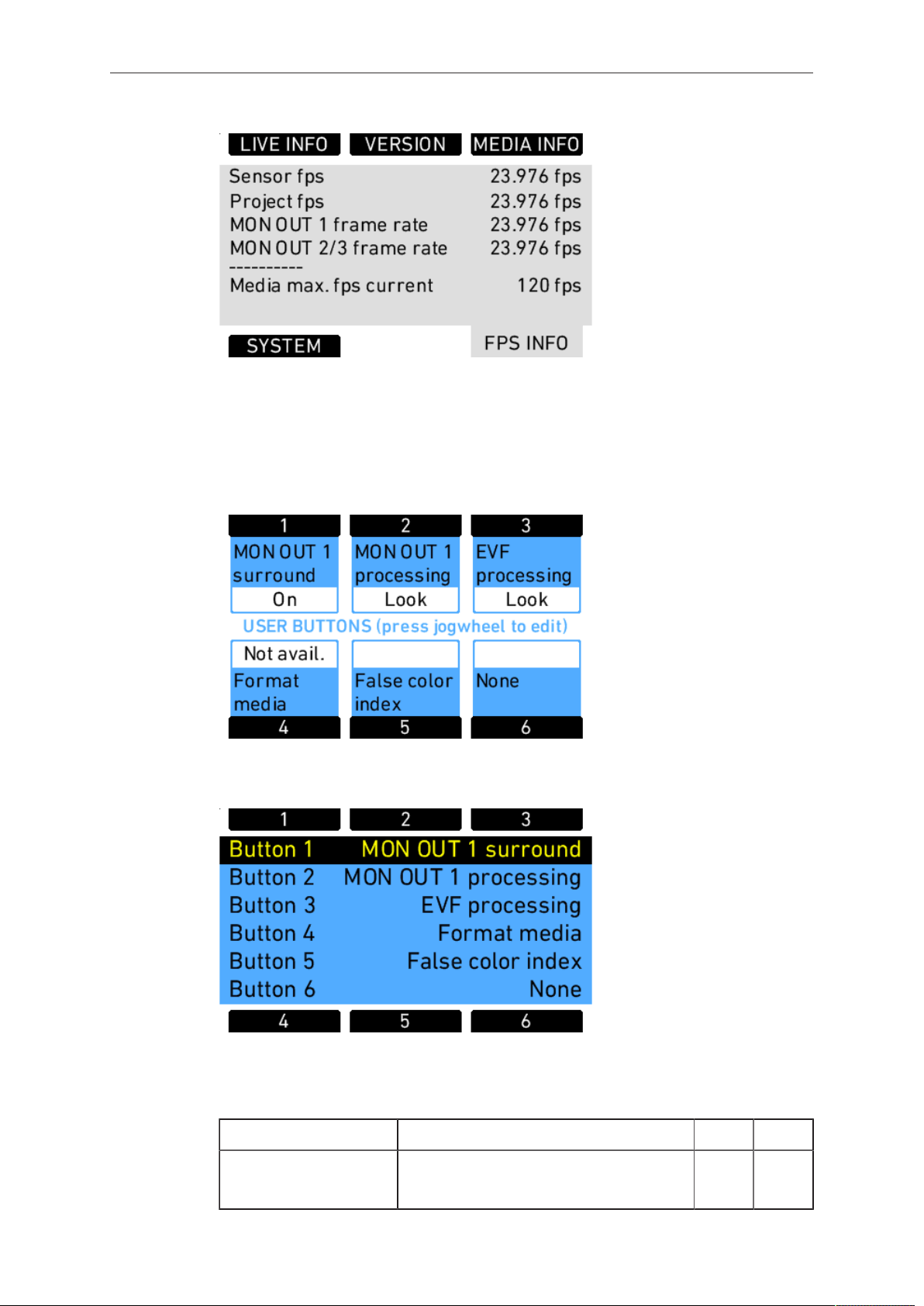
88 Camera Controls
Fig. 35: FPS INFO screen
13.1.4.3 USER
Press the USER button to open the USER BUTTONS screen. There are six
assignable user buttons. Buttons 1, 2 and 3 are shared with User Buttons 1, 2, and
3 in the operator controls. Press the jogwheel to see a complete list of user button
options.
Fig. 36: USER BUTTONS screen
Assign functions to the buttons by using the jogwheel.
Fig. 37: Edit User Button assignment
The following table lists all available functions and if they can be assigned to user
buttons 1-3 (identical for on-screen and buttons on camera-left side), 4-6, or both:
None button has no function X X
MON OUT 1 sur-
round
toggles surround view of the MON
OUT 1 on or off
X X

Camera Controls 89
None button has no function X X
MON OUT 1 process-
ing
toggles processing of MON OUT 1 be-
tween Log C, Look, and ALEXA Clas-
sic 709
X X
MON OUT 1 frame
lines
toggles frame lines on the MON OUT 1
on or off
X X
MON OUT 1 status
info
toggles status info on the MON OUT 1
on or off
X X
MON OUT 1 false
color
toggles false color display on MON
OUT 1 on or off
X X
MON OUT 1 peaking toggles peaking on MON OUT 1 on or
off
X X
MON 1 desqueeze toggles anamorphic desqueeze op-
tions on MON OUT 1
X X
MON OUT 2 sur-
round
toggles surround view of the MON
OUT 2 on or off
X X
MON OUT 2 process-
ing
toggles processing of MON OUT 2 be-
tween Log C, Look, and ALEXA Clas-
sic 709
X X
MON OUT 2 frame
lines
toggles frame lines on the MON OUT 2
on or off
X X
MON OUT 2 status
info
toggles status info on the MON OUT 2
on or off
X X
MON OUT 2 false
color
toggles false color display on MON
OUT 2 on or off
X X
MON OUT 2 peaking toggles peaking on MON OUT 2 on or
off
X X
MON 2 desqueeze toggles anamorphic desqueeze op-
tions on MON OUT 2
X X
MON OUT 3 sur-
round
toggles surround view of the MON
OUT 3 on or off
X X
MON OUT 3 process-
ing
toggles processing of MON OUT 3 be-
tween Log C, Look, and ALEXA Clas-
sic 709
X X
MON OUT 3 frame
lines
toggles frame lines on the MON OUT 3
on or off
X X
MON OUT 3 status
info
toggles status info on the MON OUT 3
on or off
X X

90 Camera Controls
None button has no function X X
MON OUT 3 false
color
toggles false color display on MON
OUT 3 on or off
X X
MON OUT 3 peaking toggles peaking on MON OUT 3 on or
off
X X
MON 3 desqueeze toggles anamorphic desqueeze op-
tions on MON OUT 3
X X
EVF surround
1
toggles surround view on the EVF im-
age on or off
X
EVF processing
1
toggles processing of the EVF be-
tween Log C, Look, and ALEXA Clas-
sic 709
X
EVF frame lines
1
toggles frame lines on the EVF image
on or off
X
EVF status info
1
toggles status info on the EVF image
on or off
X
EVF zoom
1
toggles the zoom function on the EVF X
EVF false color
1
toggles false color display on the EVF
on or off
X
EVF peaking
1
toggles peaking on the EVF on or off X
EVF desqueeze
1
toggles anamorphic desqueeze op-
tions on EVF
X
Frame lines color toggles the color of frame lines be-
tween White, Red, Green, Blue, Yellow
and Black
X X
Return in active toggles the RET IN signal on or off on
the EVF and MON OUT as set
Scaling of RET IN signal may differ
slightly depending on sensor mode
and sensor frame rate
X X
Phase sensor temporarily shifts the sensor frame rate
for 0.2 fps as long as the user button
is pressed in order to adjust the phase
of the ALEXA frame rate to an exter-
nal device, i.e. a CRT monitor or a rear
screen projector.
Only available in standby and with
timecode in rec run
X X
Color bars activates color bars on MON OUT
1/2/3
X X
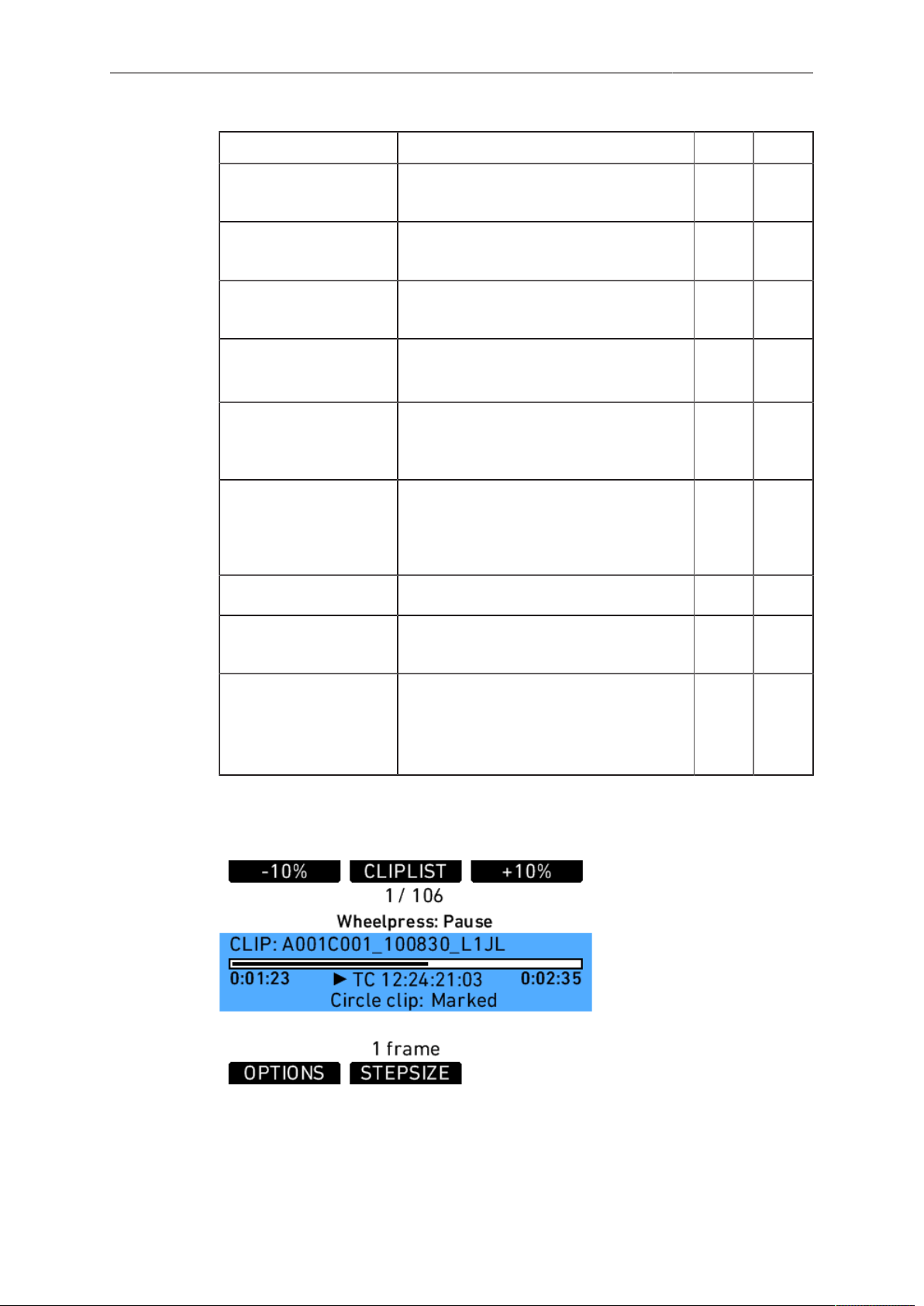
Camera Controls 91
None button has no function X X
Grab still frame takes a still frame and saves it to the
SD card
X
Check last clip start plays the first 5 seconds of the last
clip, then returns to a live image
X
Check last clip end plays the last 5 seconds of the last clip,
then returns to a live image
X
Circle clip marks the clip as a good take
Only available during recording
X
Auto WB Press once to open the AUTO WB
sceen. Press again to perform an auto-
matic white balance.
X
Grab GUI takes a still image of the current main
camera control screen on the LCD and
saves it to the SD card as a .png file in
the ScreenCaptures folder
X
Format media quick link to the Format media screen X
False color index displays the FALSE COLOR INDEX
screen
X
Mirror shutter toggles the mirror shutter between
View position, Gate position, and run-
ning
Only on ALEXA SXT Studio
X
1
only available with EVF attached
13.1.4.4 PLAY
Fig. 38: PLAY screen
Clips that have been recorded internally can be played back by the camera on the
EVF and all MON OUTs.
92 Camera Controls
To play clips that have been recorded internally:
1. Press the PLAY button.
2. On the PLAY screen, the last recorded clip loads. Press the jogwheel to play the
clip.
3. Press the jogwheel to pause the clip.
4. Rotate the jogwheel to advance the clip frame by frame, or in one second steps.
Press the STEPSIZE button to toggle between seconds and frames.
5. Press the +10% and –10% buttons to advance or rewind the clip by ten percent of
its duration.
6. Press the HOME button or BACK button to exit and output a live image over the
output paths.
NOTICE
•
Do not eject media during playback.
•
Using frame grab during playback with no SD card or write-protected SD card
inserted will exit playback.
•
Recorded clips do not contain the surround view portion of the EVF-1 or MON
OUT 1/2/3 image. When playing back clips, the surround view portion will not
be visible.
•
Playback of ARRIRAW footage may show a thin black border around the image
that is not part of the recorded material.
PLAY screen buttons
STEPSIZE Toggle the scrub step size between one frame and one second.
+10% Advance the current clip by ten percent of the clip duration.
Does not work when close to the end of a clip.
-10% Rewind the current clip by ten percent of the clip duration.
Does not work when close to the beginning of a clip.
The jogwheel can be used to scrub through the paused clip. The scrub stepsize is
shown in the lower middle section of the screen.
Additional PLAY screen information:
•
clip name
•
playback progress bar with current playback position in time and total clip duration
•
playback timecode
•
information whether the clip was marked as circle clip during recording
OPTIONS
The OPTIONS screen button opens a list of general playback options.
Clip end action Determines what happens when the end of a clip is
reached. Options are Pause and Loop.
Show frame lines Sets frame lines to On or Off during playback. Center
mark is always switched off during playback.
Status info on MON
OUT 1/2/3
Sets status info overlays on MON OUT during playback
to On or Off.
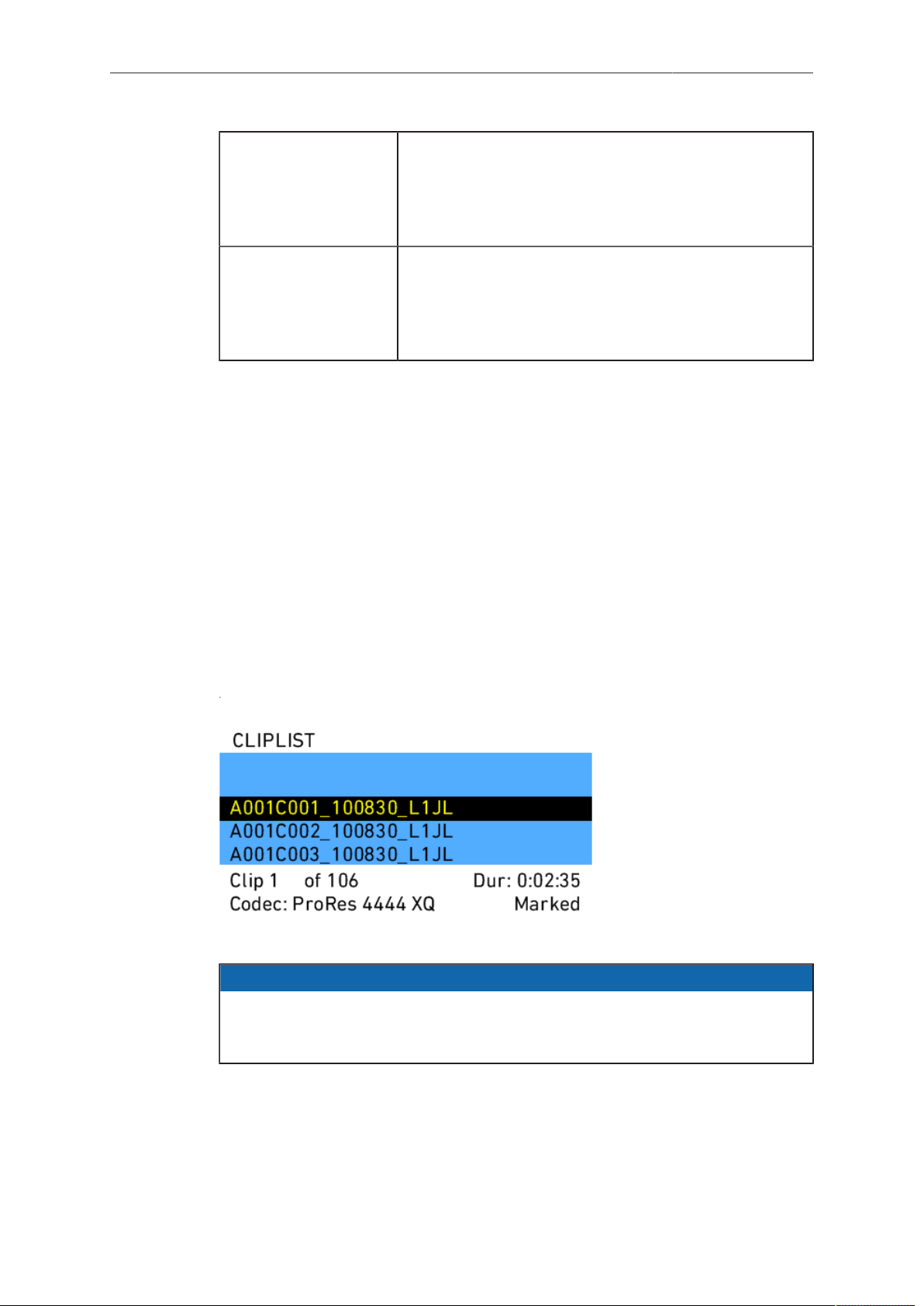
Camera Controls 93
Peaking on MON
OUT 1/2/3
Determines whether peaking is applied to played back
clips on MON OUT. Unless needed to check focus, we
recommend to leave this option off as it can confuse
others into thinking the peaking indication is a recorded
image artifact.
Peaking on EVF Determines whether peaking is applied to played back
clips on EVF. Unless needed to check focus, we recom-
mend to leave this option off as it can confuse others in-
to thinking the peaking indication is a recorded image
artifact.
CLIPLIST
Press the CLIPLIST button to open the CLIPLIST screen and access all the clips
recorded internally.
To play a clip from the cliplist:
1. Press the CLIPLIST button.
2. Use the jogwheel to select a clip.
3. Press the jogwheel to load the selected clip.
4. Press the jogwheel to play the selected clip.
Additional CLIPLIST screen information:
•
number of selected and total number of clips on the media
•
codec of selected clip
•
duration of selected clip
•
circled or not
Fig. 39: CLIPLIST screen
NOTICE
Not all clip formats can be played back in all camera modes. If a clip cannot be
played back in the current camera mode, it appears grayed out. Switch the camera
to the mode that was used for shooting to play back those clips.
When a clip with audio tracks is selected for playback, the audio tracks will be played
back as well. In-camera playback may render a short audio distortion at the beginning
or end of the clip, which is not part of the recorded audio tracks.
Playback and ARRI Look File 2 files
During playback, the camera makes a distinction between clips recorded in
ARRIRAW, Log C, or Look processing.
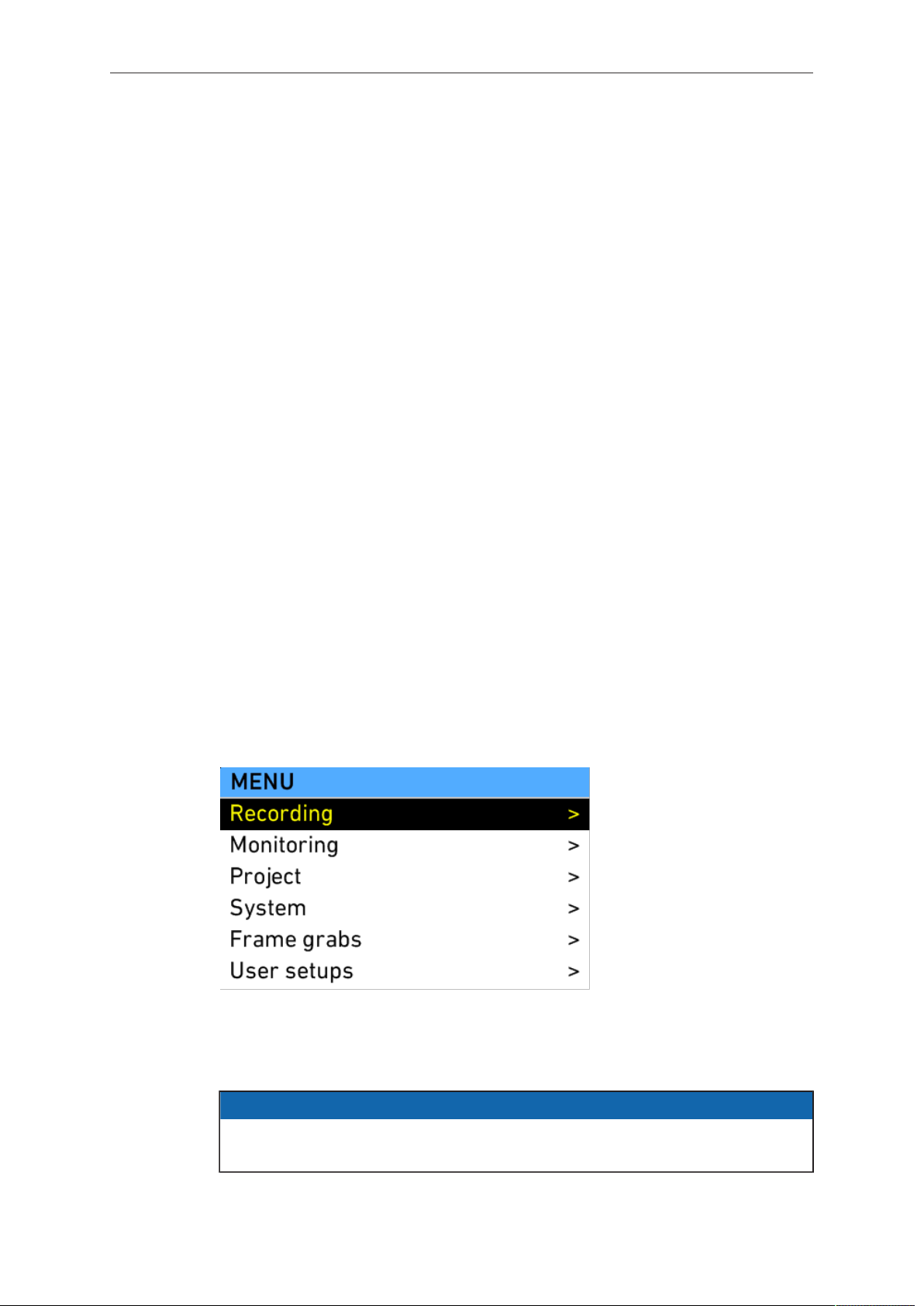
94 Camera Controls
When a clip recorded in ARRIRAW or Log C is played back and an output is
configured for Look processing, the look will be applied to this output. Please note
that this is the currently enabled ARRI Look File 2, as the camera does not take into
account which ARRI Look File 2 was active when the clip was recorded. It is the
responsibility of the user to make sure the correct ARRI Look File 2 is applied during
playback.
When a clip recorded with Look processing is played back, no ARRI Look File 2 will be
applied by the camera during playback. For the duration of that clip, ARRI Look File 2
files will be disabled.
13.1.5 Menu
The menu contains parameters for basic camera setup. It has a tree structure and the
current path in the menu is displayed across the top of every screen.
Press the MENU button to open the MENU screen. There are six submenus in the
main menu for setting up the ALEXA:
•
Recording
•
Monitoring
•
Project
•
System
•
Frame grabs
•
User setups
Links to submenus can be identified by an arrow bracket character on the right side.
To access a submenu, select the submenu link and press the jogwheel to open the
submenu. Press the BACK button to step back one menu.
Menus also contain parameters with a user choice of values. The parameter name is
displayed on the left side of the menu, and the current value is displayed on the right
side of the menu. To choose a different parameter value, select it with the jogwheel
and press the jogwheel to choose a different value. Press the BACK button to cancel
a choice. When a parameter is displayed in gray, it cannot be chosen with current
camera settings.
Press the HOME button from any menu or submenu to return to the HOME screen.
Fig. 40: MENU screen
13.1.5.1 Recording
Select the RECORDING submenu to adjust parameters for internal recording.
NOTICE
Whenever SxS PRO is mentioned, this applies to SxS PRO+ likewise, unless SxS
PRO+ is mentioned explicitely.
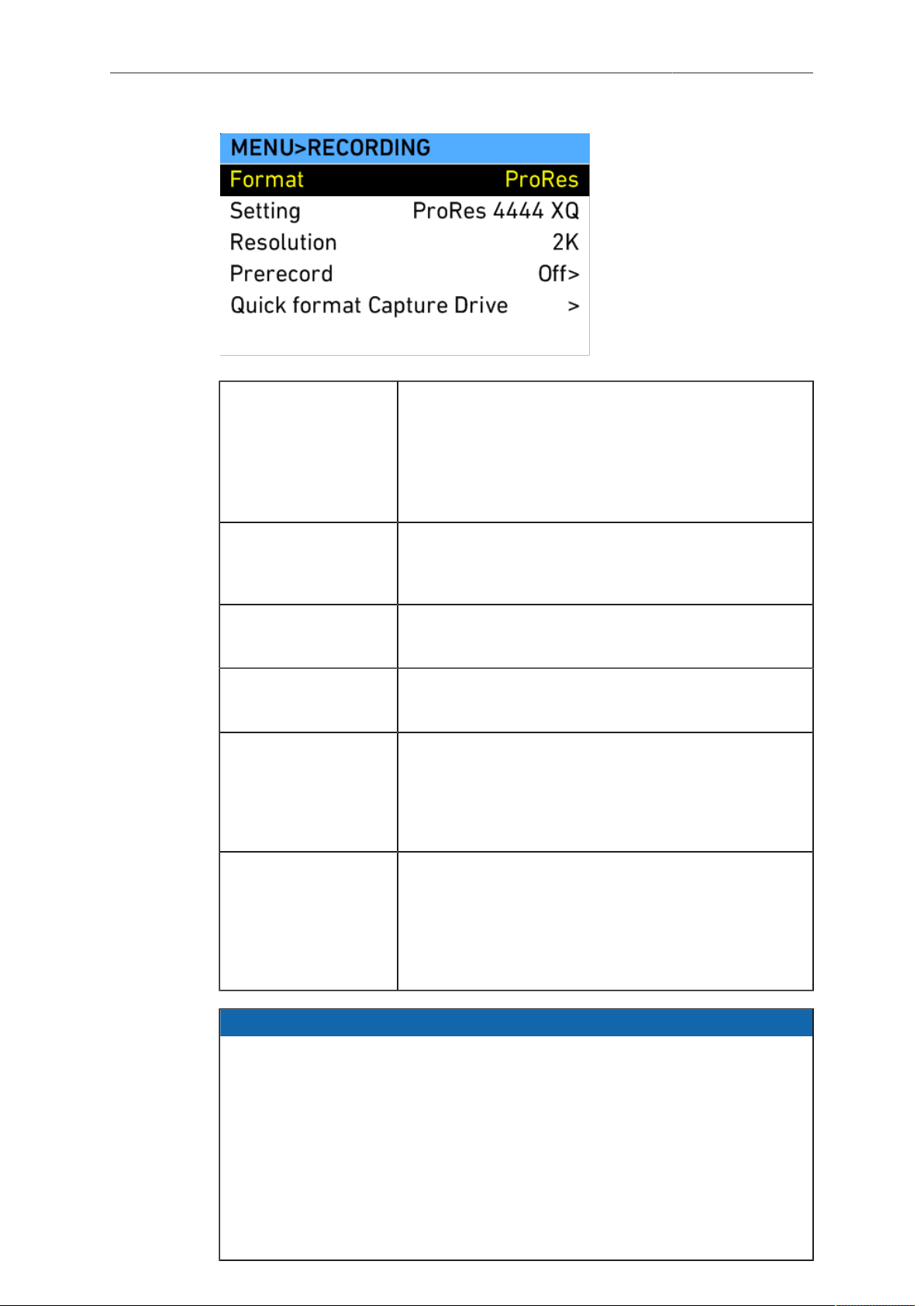
Camera Controls 95
Format Select for recording options:
•
ProRes
TM
•
ARRIRAW
Switching between recording modes takes approximate-
ly 20 seconds.
Setting Select to set the codec:
ProRes 422, ProRes 422 HQ, ProRes 4444, ProRes
4444 XQ
Resolution Select to set the resolution.
See the tables below for available resolutions.
Prerecord Select to set prerecording options.
Note: Only available in ProRes mode.
Quick format Capture
Drive/SxS CARD
For Capture Drives
only available in AR-
RIRAW recording
Select to format a SXR/XR Capture Drive or SxS PRO
card. To complete the action, press both FORMAT but-
tons on the confirmation prompt. A quick format erases
only the file allocation table.
Erase Capture Dri-
ve/SxS CARD/CFast
2.0 CARD
For Capture Dri-
ves only available in
ProRes recording
Select to erase a SXR/XR Capture Drive, CFast 2.0
card, or SxS PRO card. To complete the action, press
both ERASE buttons on the confirmation prompt. This
action takes longer than the quick format, but ensures
that all data on the card is erased. Erasing an SxS PRO
card can increase its write speed.
NOTICE
•
Power loss during formatting of media, especially CFast 2.0 cards, may lead to
irreversible damage to the media! Please ensure steady power supply before
starting formatting.
•
Before formatting or erasing an SxS PRO card, make sure the write-protect
tab on the back edge of the SxS PRO card is disengaged. Do not engage or
disengage the write-protect tab while the card is loaded in the SxS slot.
•
Formatting or erasing media removes all data irreversibly. Follow data
management best practices to prevent loss of data.
•
In a production with ALEXA XT and SXT cameras, to ensure that all data is
removed securely, always format or erase XR Capture Drives with an ALEXA
SXT.
96 Camera Controls
If media without a valid file system is loaded in the camera, you will be prompted to
format the media. ARRI recommends immediate formatting of media that trigger this
warning.
Apple ProRes
TM
codecs and resolutions
Apple ProRes
TM
codecs supported by the ALEXA:
•
ProRes 422
•
ProRes 422 HQ
•
ProRes 4444
1
•
ProRes 4444 XQ
1
1 Without alpha channel (444 only)
ProRes 422 and ProRes 422 HQ have a bit depth of 10, ProRes 4444 and ProRes
4444 XQ have a bit depth of 12.
The following recording resolutions are supported with Apple ProRes
TM
recording:
Sensor Mode Resolution
HD (1920 x 1080)
2K (2048 x 1152)
3.2K (3200 x 1800)
16:9
4K UHD (3840 x 2160)
2K Anamorphic (2048 x 858)6:5
4K Cine Anamorphic (4096 x 1716)
4:3 2.8K (2880 x 2160)
3.4K (3424 x 2202)Open Gate
4K Cine (4096 x 2636)
ARRIRAW
ARRIRAW recording is possible with SXR Capture Drives and XR Capture Drives.
Note that Codex Transfer Drives cannot be used for recording.
The following recording resolutions are supported with ARRIRAW recording:
Sensor Mode Resolution
2.8K (2880 x 1620)16:9
3.2K (3168 x 1782)
6:5 2.6K (2578 x 2160)
4:3 2.8K (2880 x 2160)
Open Gate 3.4K (3424 x 2202)
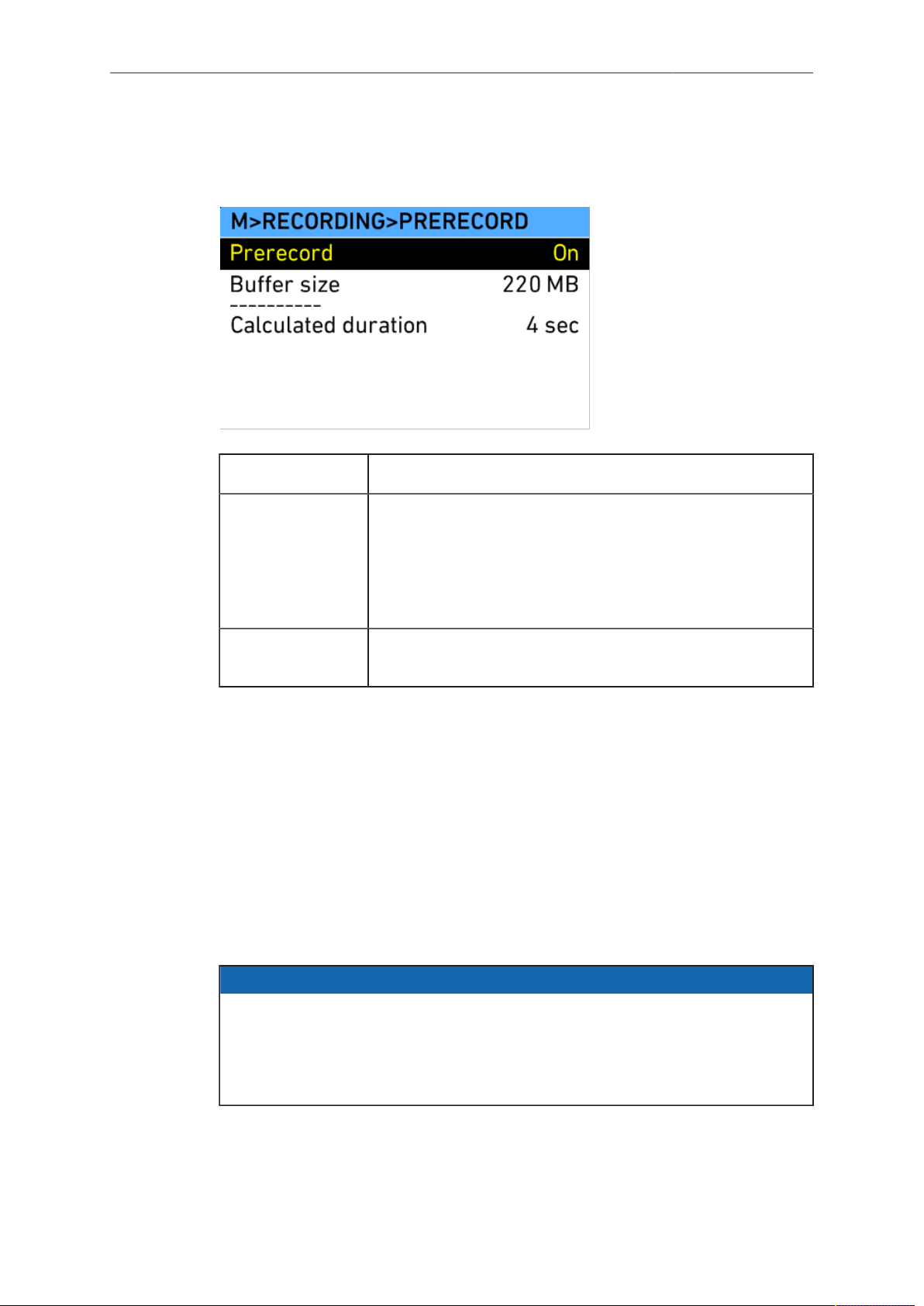
Camera Controls 97
Prerecording
Prerecording is available when the camera is configured for ProRes
TM
recording.
Select PRERECORDING to adjust prerecording parameters.
Prerecord Select to toggle prerecording mode On or Off
Buffer size Select to set the buffer size. Following buffer sizes are avail-
able:
•
220 MB
•
660 MB
•
1100 MB
Calculated dura-
tion
Shows the prerecording duration that is derived from buffer
size, codec and current fps.
When prerecording is enabled, press the record button once to start prerecording.
Active prerecording is indicated by a yellow PRE in the status overlays on EVF and
MON OUT (if enabled) and on the HOME screen. As long as prerecording is running,
the ALEXA writes images, audio and metadata into a ring buffer of the duration shown
under Calculated duration. During this time, the clip duration increments. When the
buffer has filled up, the clip duration stops incrementing and the oldest data in the
buffer gets overwritten. This process continues as long as prerecording is running.
Note that the remaining time will continue to decrease for some seconds after the clip
duration has stopped incrementing (i.e. the buffer has filled up). This additional space
on the media is reused once recording is started.
Press the record button a second time to start regular recording. All data that has
been gathered during prerecording is prepended to the clip.
Press the record button again to bring the ALEXA back into standby.
NOTICE
•
The calculated duration depends on buffer size, codec and currently set
framerate. Changing either of them will change the prerecording duration.
•
If the beeper mode has been set to Start or Start+Stop, the ALEXA beeps
only on prerecording start, but not when going from prerecording to recording,
otherwise the beep would be recorded when audio is enabled.
13.1.5.2 Monitoring
Select the Monitoring submenu to adjust parameters for monitoring on the EVF-1
and the MON OUT 1/2/3 output. These outputs are meant for monitoring and not
recording.
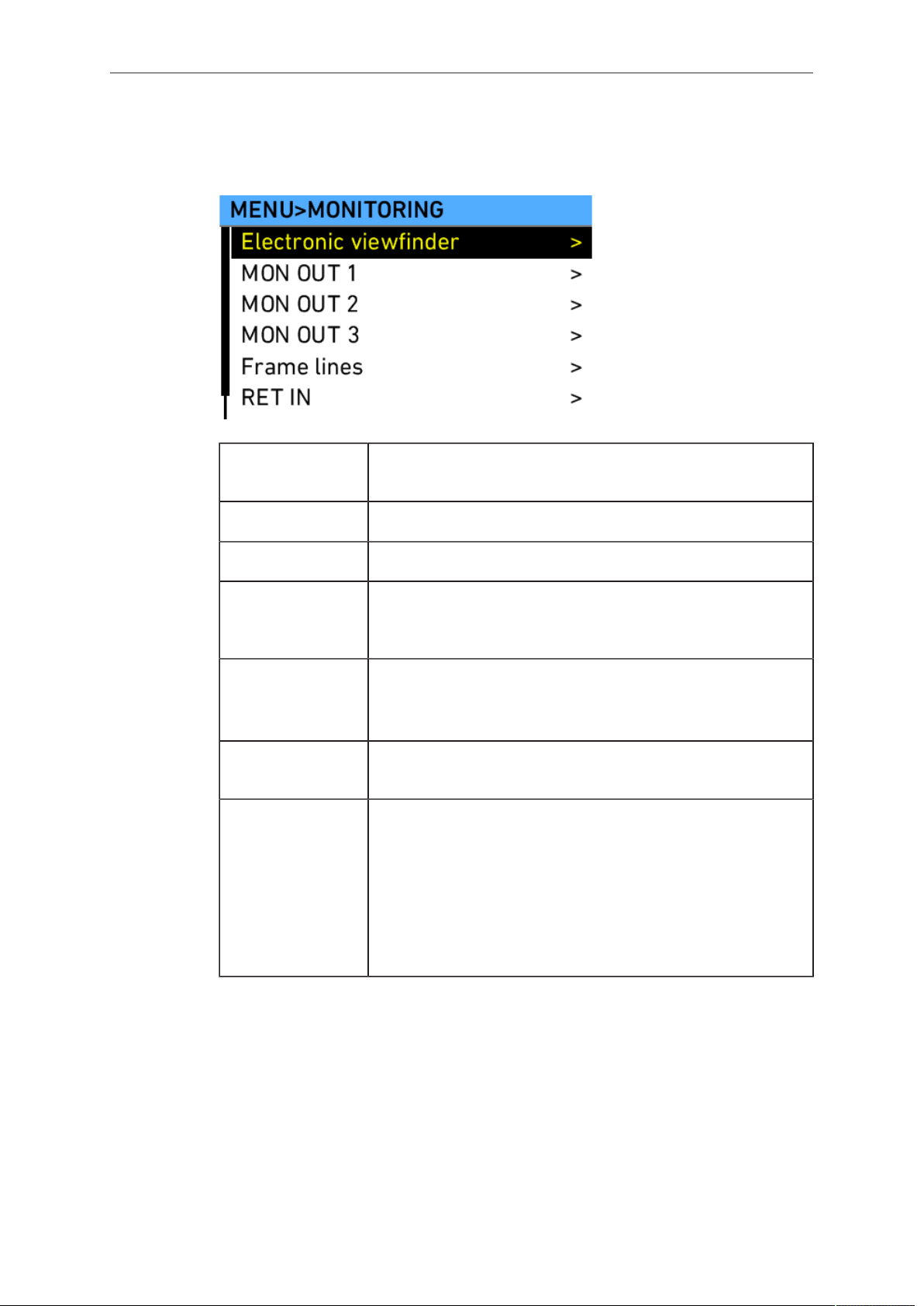
98 Camera Controls
Frame lines set in the Frame lines submenu apply to both MON OUT 1/2/3 and EVF-1.
Select the Electronic viewfinder and MON OUT 1/2/3 submenus to switch the set
frame lines on or off individually.
Electronic
viewfinder
Select to adjust EVF-1 settings.
MON OUT 1/2/3 Select to adjust MON OUT 1/2/3 settings.
Frame lines Select to set up frame lines.
RET IN path Select to set which of the monitoring output paths carries the
signal at the RET IN connector as Return in active is toggled
via a USER button.
Electronic hori-
zon sensitivity
Select to adjust the sensitivity of the electronic horizon.
Note: Available on ALEXA SXT Plus, ALEXA SXT W, and
ALEXA SXT Studio only
False color index Select to open the FALSE COLOR INDEX screen which has
a reference chart explaining the false color coding.
False color mode Select to set the false color mode to monitoring-based or
Log C-based.
•
Monitoring-based: When false color is activated, it is ap-
plied to the video signal as it is configured for the respec-
tive monitoring output (behavior as of pre-SUP 2.0)
•
Log C-based: When false color is activated, the respective
monitoring output is switched to Log C and false color is
applied to the Log C signal.
Note: When activating RET IN with status info on, status info will stay active and
partially overlay the RET IN image. Left, right, top and bottom edges of the RET IN
image are cropped on MON OUT 1/2/3. On EVF, only left and right edges are cropped.
Set status info off to view the full RET IN image.
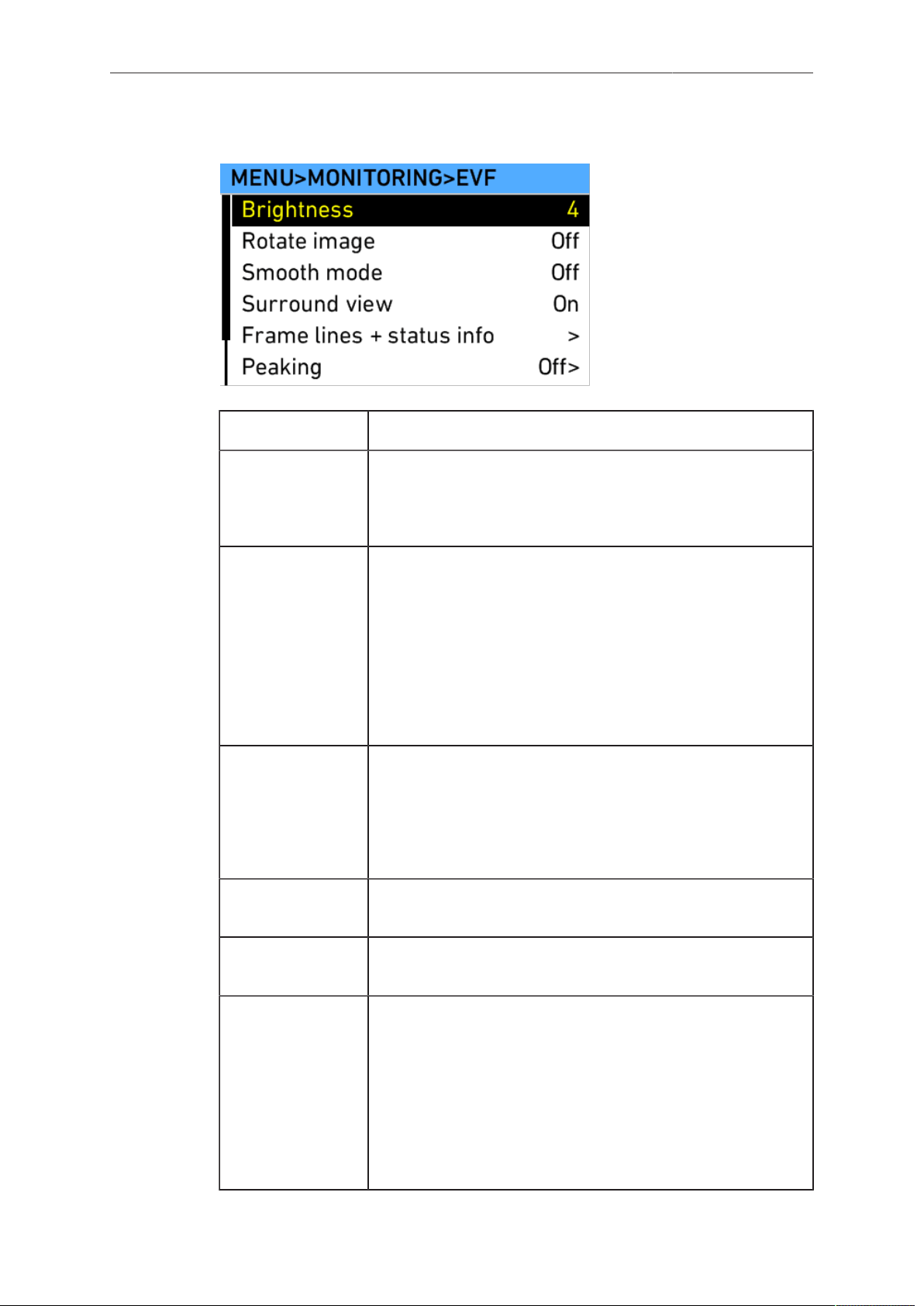
Camera Controls 99
Electronic Viewfinder
Brightness Select to adjust the brightness of the EVF.
Rotate image When mounting the EVF to the right side of the camera,
the image can be flipped to orient the image correctly in the
viewfinder. Affects only the EVF image, MON OUT 1/2/3 and
recording images are not rotated.
Smooth mode Select to set Smooth mode On or Off. With smooth mode
on, the EVF image shutters less when panning. The effect is
only noticeable with sensor frame rates of 15 fps or above.
Slightly reduces the image brightness in the EVF.
Note: Smooth mode is only possible with frame rates up to
30 fps and shutter angles of 180.0 or less. If smooth mode is
switched on but not available, the camera issues a warning.
Note: Has no effect on ALEXA SXT Studio with optical
viewfinder attached.
Surround view Select to set Surround view on the EVF-1 On or Off. When
set to on, the additional pixels outside the recorded image
area on the ALEXA’s ALEV III sensor are displayed, allowing
the operator to see outside the recorded image and keep un-
wanted objects, such as microphone booms, out of the shot.
To view only the recorded image, set Surround view to off.
Frame lines +
status info
Select to set frame lines, surround mask, center mark and
status info overlays to On or Off in the EVF.
Peaking Select to set peaking in the EVF to On or Off, and the
strength of peaking to low, medium or high.
Anamorphic
desqueeze
Select to set Anamorphic desqueeze to 1.3x, 2.0x and
2.0xmag. The desqueeze corrects the image for 1.3x and
2.0x anamorphic lenses. With 2.0x lenses, the user can
choose between viewing the full sensor image (2.0x), or on-
ly the relevant image area (2.0xmag) where left and right
sides of the EVF-1 image outside the 2.39 aspect area are
cropped.
Not available in 6:5 2K Cine De-squeeze and 6:5 4K Cine
De-squeeze
100 Camera Controls
View squeezed
image
Select to view the squeezed image as it is captured by the
sensor, bypassing the desqueeze performed for recording.
Only available in 6:5 2K Cine De-squeezed and 6:5 4K Cine
De-squeezed
Zoom position Select to set the Zoom position to Centered or Eye level.
Press the ZOOM button on the EVF-1 to magnify:
•
Centered – the center of the image is magnified for focus
check
•
Eye level – the image is magnified for focus check along a
line approximately one third from the top, where an actor’s
eyes are commonly located in image composition.
Frame lines + status info screen
Frame lines Select to set frame lines to On or Off. Frame lines are a ref-
erence for framing that typically consist of an image frame, a
center mark and an aspect ratio reference. See the appendix
for more information on the ALEXA frame line format.
Surround mask Select to adjust the Surround mask settings. If surround view
is set to "On", it must be separated from the recorded image
area to allow proper framing. Users can choose:
•
Black line
•
Color line
•
Mask 25%
•
Mask 50%
•
Mask 100%
Center mark Select to set the Center mark to Off, Small Dot, Medium Dot
or Cross to aid in image framing.
Status info
brightness
Select to adjust the brightness of the status info overlays.
Status info Select to set Status info to On or Off. When set to On, cam-
era shooting parameters are displayed across the top of
the EVF-1’s image, outside the active image area and cam-
era status information is displayed across the bottom of the
EVF-1’s image, outside the active image area.
Electronic hori-
zon
Select to set the electronic horizon level to On or Off.
Only available on ALEXA SXT Plus, ALEXA SXT W, and
ALEXA SXT Studio.
Brightness is controlled via frame line intensity.
LDS info Overlay showing LDS lens info.
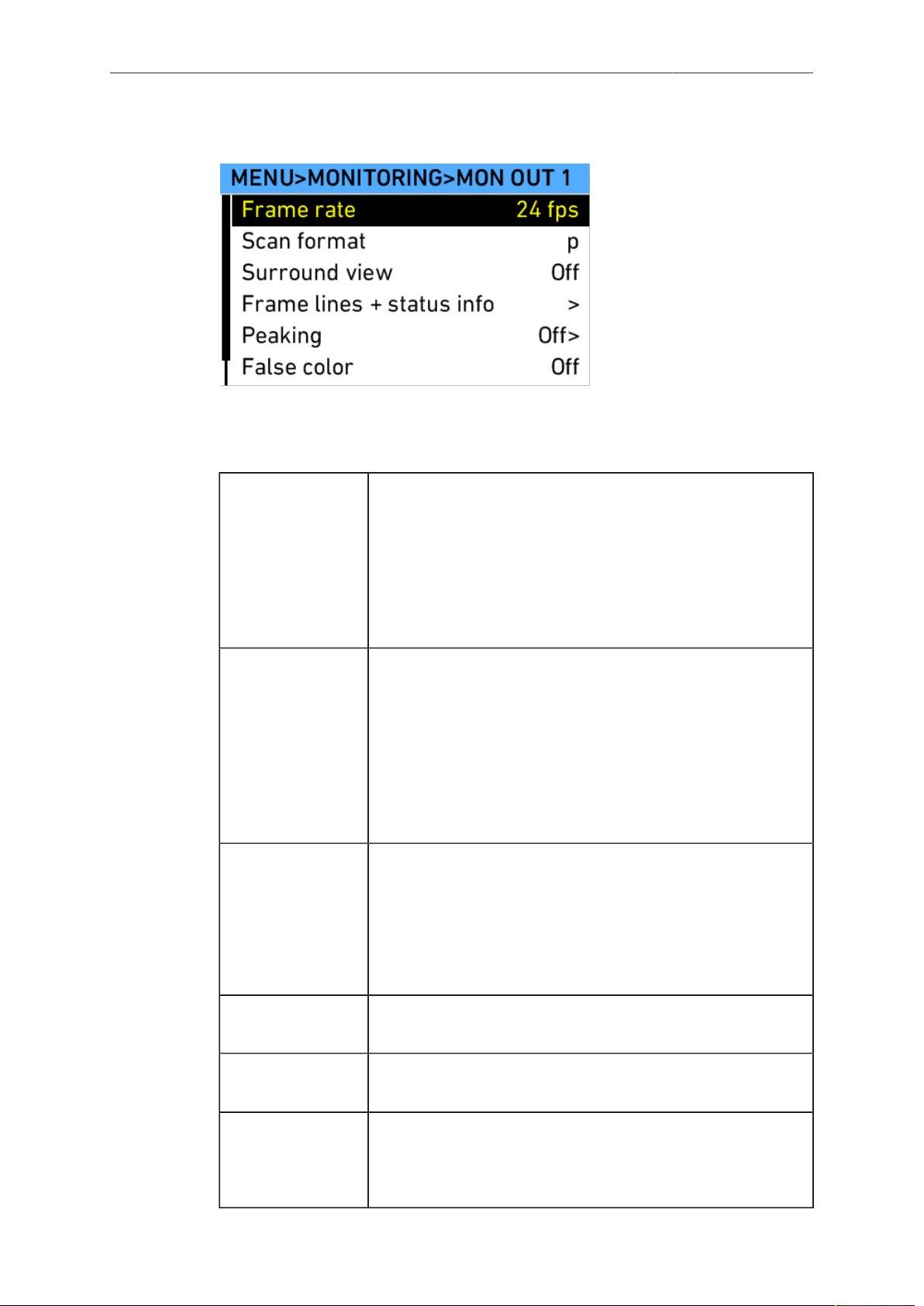
Camera Controls 101
MON OUT 1/2/3
MON OUT 1, 2 and 3 are 422 1.5G single link HD-SDI outputs. The output range is
fixed at legal range. MON OUT 1, 2 and 3 offer the same set of parameters, hence
only MON OUT 1 is described in detail.
Frame rate Select to set the MON OUT frame rate to 23.976, 24, 25,
29.97 or 30 fps. The frame rate should, if possible, match
the sensor frame rate to avoid dropped frames or duplicate
frames on the output, which would result in jittery images
during camera movement or when image subjects are mov-
ing.
MON OUT 3 frame rate cannot be set individually, but inher-
its MON OUT 2 frame rate.
Scan format Select to set the type of scan. Which type you use depends
on the downstream equipment the MON OUT is connected
to. Some monitors, video transmitters or switchers are hap-
pier with the p, others with the psf setting.
•
p: Progessive. Images are transmitted line by line from left
to right, starting at the top-left pixel.
•
psf: Progressive segmented frame. Images are first split in-
to fields, which are then transmitted line by line from left to
right.
Surround view Select to set Surround view on the MON OUT On or Off.
When set to on, the additional pixels outside the recorded
image area on the ALEXA’s ALEV III sensor are displayed,
allowing the operator to see outside the recorded image and
keep unwanted objects, such as microphone booms, out
of the shot. To view only the recorded image, set Surround
view to off.
Frame lines +
status info
Select to set frame lines, surround mask, center mark and
status info overlays to On or Off on the MON OUT.
Peaking Select to set peaking on the MON OUT to On or Off, and the
strength of peaking to low, medium or high.
False color Select to activate the false color display on the MON OUT.
The false color display is an exposure tool that overlays the
image with color coding to highlight areas with significant lu-
minance values.
102 Camera Controls
Anamorphic
desqueeze
Select to set Anamorphic desqueeze to 1.3x, 2.0x and
2.0xmag. Desqueeze corrects the image for 1.3x and 2.0x
anamorphic lenses. With 2.0x lenses, the user can choose
between viewing the full sensor image (2.0x), or only the rel-
evant image area (2.0xmag) where left and right sides of the
MON OUT image outside the 2.39 aspect area are cropped.
Not available in 6:5 2K Cine De-squeezed and 6:5 4K Cine
De-squeezed
View squeezed
image
Select to view the squeezed image as it is captured by the
sensor, bypassing the desqueeze performed for recording.
Only available in 6:5 2K Cine De-squeezed and 6:5 4K Cine
De-squeezed
NOTICE
Only use double shielded HD-SDI cables for monitoring to ensure error free data
transmission!
Frame lines + status info screen
Frame lines Select to set frame lines to On or Off. Frame lines are a ref-
erence for framing that typically consist of an image frame, a
center mark and an aspect ratio reference. See the appendix
for more information on the ALEXA frame line format.
Surround mask Select to adjust the Surround mask settings. If surround view
is set to "On", it must be separated from the recorded image
area to allow proper framing. Users can choose:
•
Black line
•
Color line
•
Mask 25%
•
Mask 50%
•
Mask 100%
Center mark Select to set the Center mark to Off, Small Dot, Medium Dot
or Cross to aid in image framing.
Status info
brightness
Select to adjust the brightness of the status info overlays.
Status info Select to set Status info to On or Off. When set to On, cam-
era shooting parameters are displayed across the top of the
MON OUT image, outside the active image area and cam-
era status information is displayed across the bottom of the
MON OUT image, outside the active image area.
Electronic hori-
zon
Select to set the electronic horizon level to On or Off.
Only available on ALEXA SXT Plus, ALEXA SXT W, and
ALEXA SXT Studio.
Brightness is controlled via frame line intensity.
LDS info Select to set the LDS lens information overlay to On or Off.
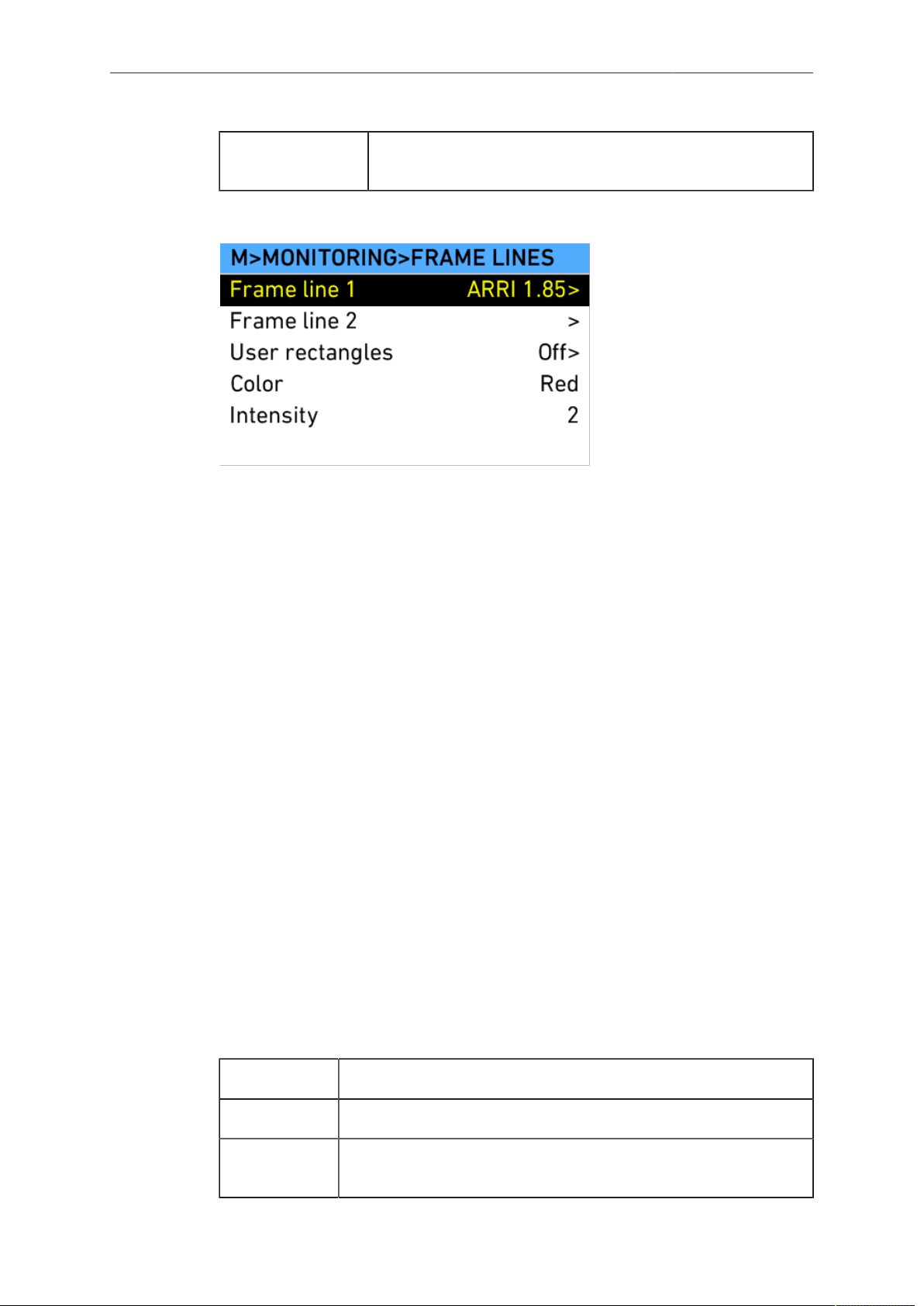
Camera Controls 103
Camera index
letter
Select to display the camera index letter in the top right cor-
ner of the MON OUT image.
Frame Lines
Frame lines are an image overlay that can be applied to either the EVF image, the
MON OUT image, or both.
ALEXA frame lines are stored as XML files that define the frame lines’ aspect ratio,
marker style, line width, center marker and more. The color of the frame lines is set on
the camera or can be defined within the file.
A standard set of frame lines for different aspect ratios is provided in the camera,
including:
•
1.33:1 (ARRI 1.33)
•
1.66:1 (ARRI 1.66)
•
1.78:1 (ARRI 1.78)
•
1.85:1 (ARRI 1.85)
•
2.39:1 (ARRI 2.39 Flat)
•
2.39:1 1.3x anamorphic (ARRI 2.39 Scope 1.3x)
•
2.39:1 2.0x anamorphic (ARRI 2.39 Scope 2x)
To create custom frame lines, use the Frame Line Composer on the ARRI website.
Save the new frame lines as XML files to an SD card formatted on the ALEXA, in the
Frame lines folder. The ALEXA supports up to 16 frame line templates.
To load additional frame lines:
1. In the FRAME LINES menu, select Frame line 1 (or Frame line 2).
2. Press the ADD button.
3. On the FRAME LINES (SD CARD) screen, use the jogwheel to select the frame
line you wish to add.
4. Press the jogwheel to add it to the FRAME LINES list.
5. Using the jogwheel, select the new frame line in the FRAME LINES list.
6. Press the jogwheel to set the new frame line.
Frame line 1 Select to set the primary frame line template.
Frame line 2 Select to set a secondary frame line, if desired.
User rectan-
gles
Select to open the User rectangles menu, where two custom
user rectangle overlays can be adjusted.
104 Camera Controls
Color Select to set the color of the frame lines. In the frame lines defin-
ition file, lines can either be given a fixed color, or they can have
the color specified as "User". If "User" is chosen for a line, the
setting chosen in this menu section is applied to the line.
Intensity Select to set the intensity of the frame lines. The higher the num-
ber, the brighter the frame lines appear.
User rectangles screen
User rectan-
gles
Select to set user rectangles to Off, Rect 1, Rect 2 or Rect 1&2.
The ALEXA can display up to two additional rectangles that can
be adjusted manually.
Set rect 1 Select to set the shape of rectangle 1. Activate it through User
rectangles.
Set rect 2 Select to set the shape of rectangle 2. Activate it through User
rectangles.
The currently active border is highlighted in red on all outputs that have frame lines
enabled while editing user rectangles. Note that it may take some moments for the
highlighting to update when switching between borders.
NOTICE
Default frame lines have "User" specified as color for all content.
Frame Lines Saved in Metadata
The ALEXA records up to six rectangular frame lines from the active frame line files
into metadata. This metadata is present in all recording formats and on all HD-SDI
outputs. The frame line metadata can be used either for automatic dailies creation or
for displaying the frame lines in post.
Automated Dailies Creation
It is possible to load two frame line files simultaneously into the camera for a total of
six frame lines displayed in the viewfinder or on MON OUT. In metadata, the frame
lines of the first file will be called frame line 1A, frame line 1B and frame line 1C,
while the frame lines of the second file will be called frame line 2A, frame line 2B and
frame line 2C. Frame line 1A is automatically the master frame line. The master frame
line can be used by dailies creation software to automatically frame the dailies. This
feature is expected first on the Codex Vault, but other dailies creation software is
expected to follow suite.
Frame Lines in Post
The frame line metadata makes the original camera frame lines available during post
production for editing, color grading or compositing tools and can be displayed as an
overlay in the respective image viewer.
False Color Index
Select False color index to display a reference chart showing the relationship between
the color overlays, signal level in percent and descriptions. False color is available on
the EVF-1 and over the MON OUT outputs.
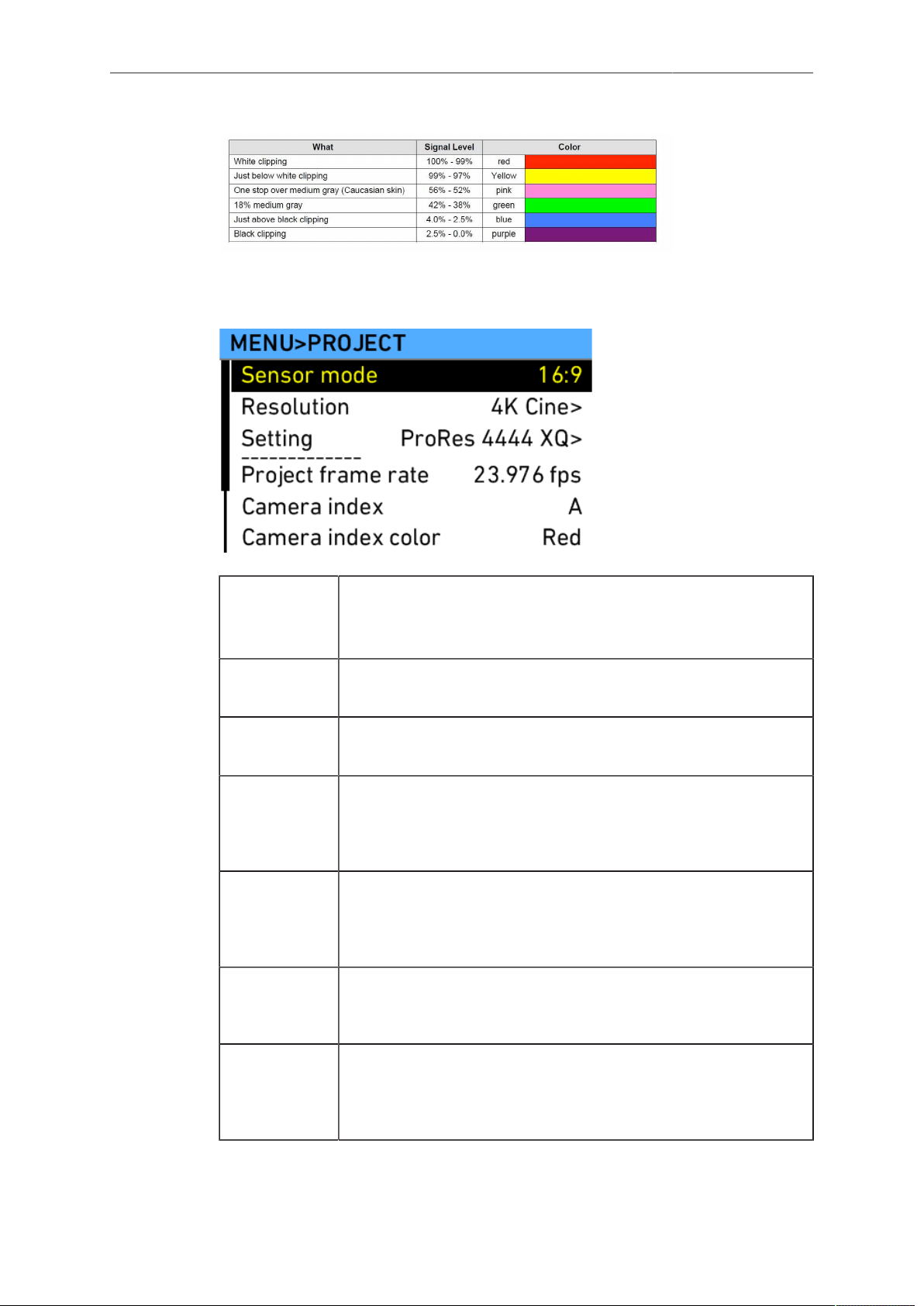
Camera Controls 105
Fig. 41: False Color Encoding
13.1.5.3 Project
Sensor
mode
Select to set which sensor mode is active: 16:9, 4:3, 6:5, or
Open Gate.
Note: Changing the sensor mode includes a factory reset.
Resolution Select to set the current recording resolution. Links to
MENU>Recording.
Setting Select to set the current recording codec. Links to
MENU>Recording.
Project
frame rate
Select to set the time code timebase and the playback frame
rate. The time code timebase determines how many frames the
time code counts per second. The playback frame rate deter-
mines the frame rate that clips will be played back at.
Camera in-
dex
Select to set the camera indentifier. Identifies the individual cam-
era unit in clips and is reflected in clip names recorded internally.
This is usually "A" for A-camera unit, "B" for B-camera unit, and
so on.
Camera in-
dex color
Select to set the color of the camera index letter to match the
color coding of your cameras. This color is used when the cam-
era index letter is switched on for MON OUT.
Next reel
count
Select to set the reel number assigned to the next new media
used for internal recording. The ALEXA automatically advances
the reel number every time new media is formatted on the cam-
era. The reel number is reflected in clip names on media.
106 Camera Controls
Lens
squeeze fac-
tor
Select to set the squeeze factor of the lens that is in use. This
value is written into the metadata of the clip and allows video
players and editing software to automatically unsqueeze clips
that have been shot with anamorphic lenses.
Note: Fixed to 1.0 for recording resolutions that record de-
squeezed images to prevent double de-squeezing.
Production
info
Select to open the PRODUCTION INFO screen where the user
can enter metadata information specific to the production.
NOTICE
•
ARRI recommends to set the value of Next reel count to 001 at the beginning of
a shoot.
•
When the current reel count is 999, the reel count reverts to 001 for the next
media that is formatted.
•
When changing the camera index on a card that already contains clips, the
clip counter is not reset to 1 but is incremented from the last clip of the last
recording.
Production Info
The PRODUCTION INFO screen has fields to enter metadata information specific
to the production. The user can enter the names of the director, cinematographer,
location, production, scene and take. Two additional fields allow to enter other data.
Production Enter the name of the production
Prod. Company Enter the name of the production company
Director Enter the name of the director
Cinematographer Enter the name of the cinematographer
Camera Operator Enter the name of the camera operator
Location Enter the name of the location
Scene Enter the name/number of the scene
Take Enter the name/number of the take
User Info 1 Enter other info
User Info 2 Enter other info
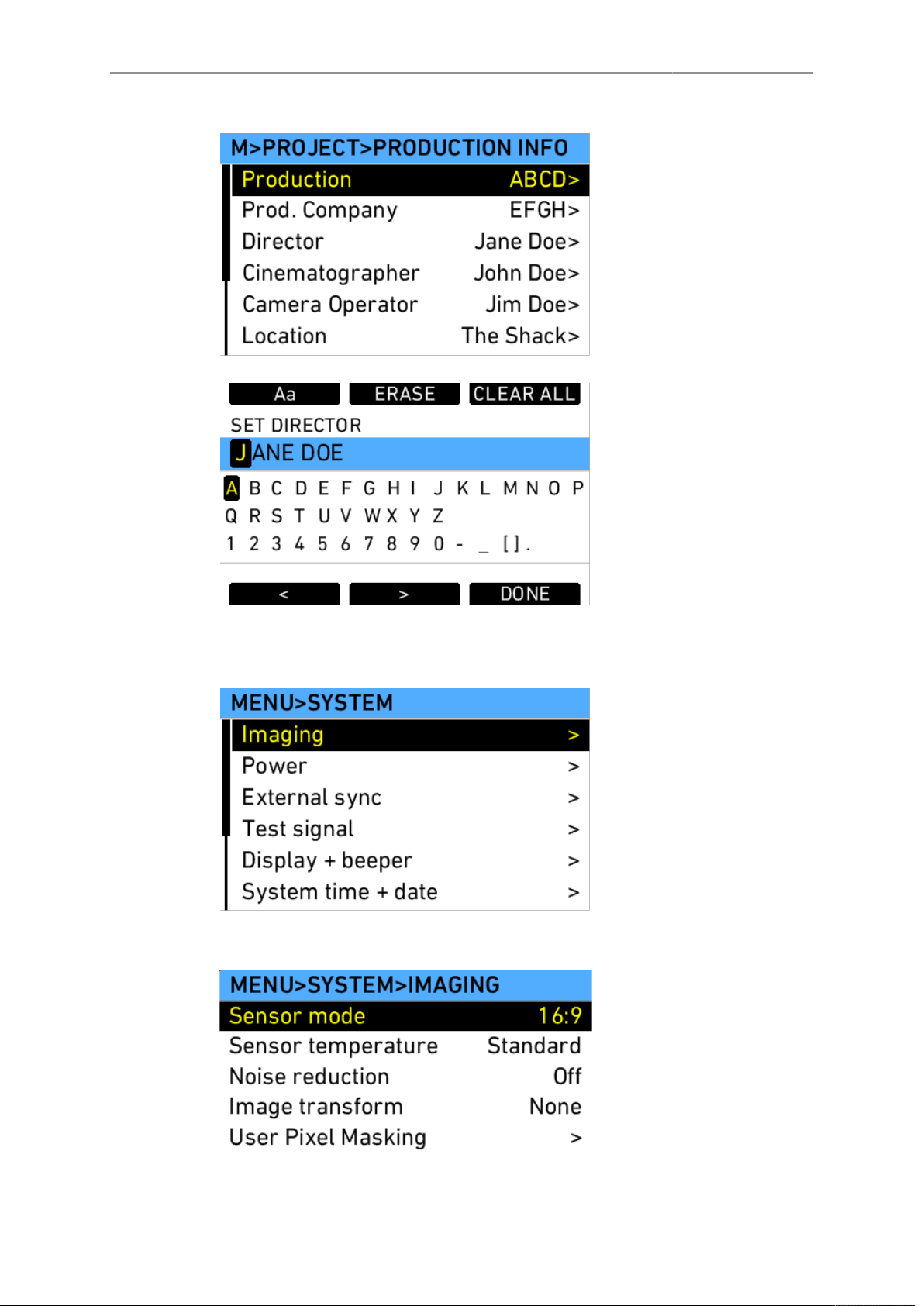
Camera Controls 107
13.1.5.4 System
The System menu contains submenus of system settings.
Imaging
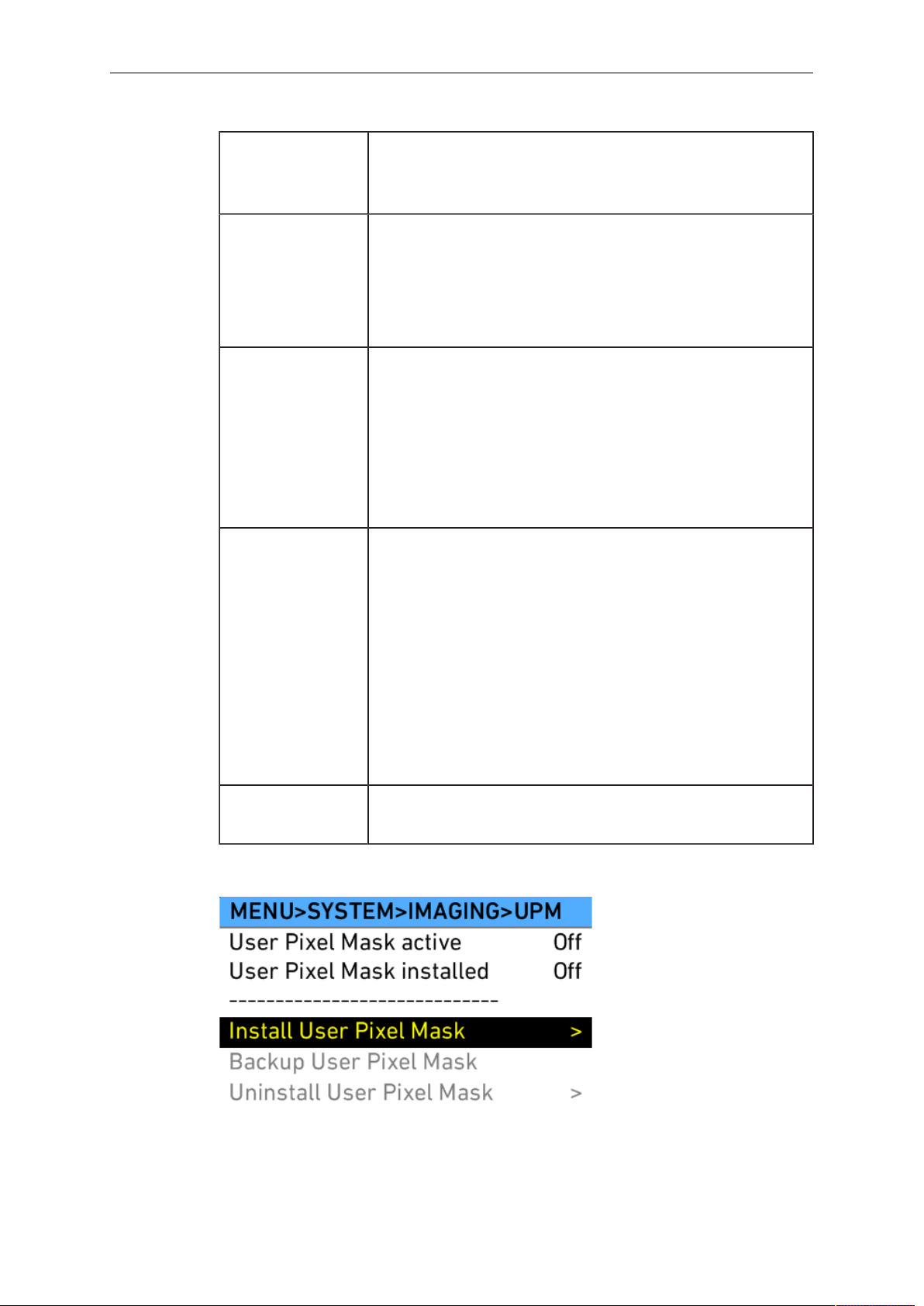
108 Camera Controls
Sensor mode Select to set which sensor mode is active: 16:9, 4:3, 6:5, or
Open Gate.
Note: Changing the sensor mode includes a factory reset.
Sensor tempera-
ture
Select to set the sensor temperature to Standard (default)
humidity or High humidity. When shooting in tropical condi-
tions with high temperature and high humidity, the sensor
temperature can be changed from Standard to High humid-
ity to prevent condensation from forming on the sensor cov-
erglass.
Noise reduction Select to set noise reduction On or Off.
Note:When recording ARRIRAW, noise reduction is only ap-
plied to the previewing paths and not to the recorded im-
ages. Information about noise reduction is stored in metada-
ta.
Note: Using noise reduction may result in slight image ar-
tifacts when capturing fast moving objects. As always, use
tests to verify applicability.
Image transform Select to set the desired image transformation. Available val-
ues are:
•
None
•
Mirror horiz.
•
Rotate 180°
Note: Horizontal mirroring is applied on all output paths and
internally recorded material. Image rotation is only applied to
output paths; internally recorded material is not rotated, but
rotation information is written into metadata. Frame grabs of
rotated images will be displayed upside down on a comput-
er.
User Pixel Mask-
ing
Select to open the User Pixel Masking screen.
User Pixel Masking
All sensors exhibit a certain number of defect pixels, and ALEXAs have two
mechanisms to catch and correct them: one is a static pixel correction based on a
pixel mask created during manufacturing, and the other is a dynamic pixel correction
that continuously evaluates each frame and masks defect pixels that are not caught
by the static pixel mask. In very few cases we have observed some pixels that are not
corrected by either method; for those cases we have developed User Pixel Masking.
Camera Controls 109
User Pixel Masking works in combination with the ARRIRAW Converter (ARC) from
ARC version 3.0 on.
To use User Pixel Masking for all Output and Recording Formats:
1. Record a short ARRIRAW sequence at 24 fps OR capture an ARRIRAW frame
grab.
2. Import the ARRIRAW sequence or frame grab into the ARC.
3. Use the ARC software to mark defect pixels. The marked pixel coordinates are
stored in an XML file called the User Pixel Mask. Please note that it is advisable
to mark the least number of pixels necessary, as too many marked pixels can be
counter productive.
4. Save the User Pixel Mask into the folder /ARRI/ALEXA/Sensor/ on the SD card
and load it into the camera via the SD card.
5. After a restart of the camera, the marked pixels will be masked using information
from surrounding pixels. This masking happens right after the sensor, and thus
applies to all outputs: the electronic viewfinder, MON OUT, and frame grab outputs
as well as ARRIRAW and ProRes recordings.
6. Carefully check the end result by visually inspecting the areas where you have
marked pixels; if too many pixels are marked too close to each other, or if pixels
are marked close to other pixels that are already marked in the static pixel mask,
the result could be uncorrectable clusters, which are more visible than the original
defect pixels.
As an added service, it is possible to send the User Pixel Mask to ARRI Service at
[email protected] for verification. We strongly recommend to take advantage of this free
service, as sometimes, depending on the background, clusters are difficult to spot.
Please note, however, that in the end it is the responsibility of the person creating the
User Pixel Mask to verify that no clusters are formed.
NOTICE
•
When shooting ARRIRAW, it is not necessary to load the User Pixel Mask into
the camera. Instead, it can be applied to the ARRIRAW files in post using the
ARRIRAW converter software or any third party software that has implemented
the User Pixel Mask feature through the ARRIRAW SDK.
•
The User Pixel Mask will remain intact during a factory reset and during a
software update. It can be manually removed or overwritten with a new one at
any time.
User Pixel Mask active Shows whether a User Pixel Mask is currently
active in the camera.
User Pixel Mask installed Shows whether a User Pixel Mask is currently
installed in the camera.
Install User Pixel Mask Select to install a User Pixel Mask from the SD
card.
Backup User Pixel Mask Select to backup the currently installed User
Pixel Mask onto SD card. It will be automatical-
ly named UserPixelMask_CAMSERIAL_Back-
up_ YEARMONTHDAY_HOURMINUTESE-
COND
Uninstall User Pixel Mask Select to uninstall a User Pixel Mask.
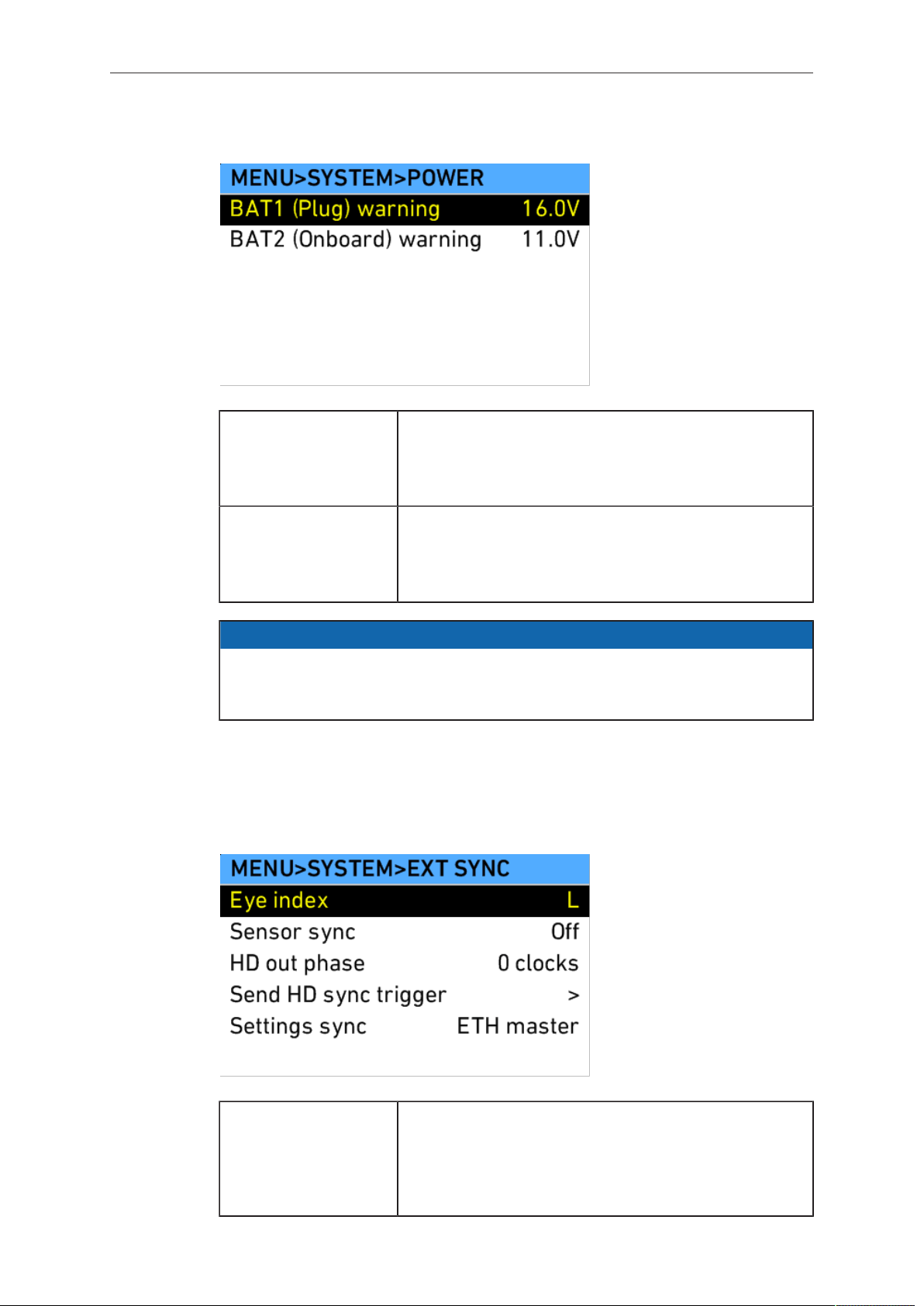
110 Camera Controls
Power
BAT1 (Plug) warning Select to adjust the voltage level at which a power warn-
ing is displayed for the power source connected to the
BAT plug. The level can be adjusted to match the bat-
tery type used. The default value is 21.0V.
BAT2 (Onboard)
warning
Select to adjust the voltage level at which a power warn-
ing is displayed for the onboard battery. The level can
be adjusted to match the battery type used. The default
value is 12.0V.
NOTICE
When the voltage level reaches a point 10% below the warning level set in the
POWER menu, the ALEXA displays a battery error message and recording is
unavailable. The camera will read the voltage level as insufficient.
Smart batteries that transmit their remaining load to the camera emit a warning at
10% remaining capacity and an error at 5% remaining capacity. Currently, batteries
made by ID-X, Bebop, Anton Bauer and any battery using the TI-protocol support this
feature.
External Sync
Eye index Select to set the Eye index to left (L) or right (R). The
first letter of the Camera ID will be changed to L or R
for stereoscopic productions to identify left and right
eye cameras. The eye index is reflected in clip names
recorded internally.
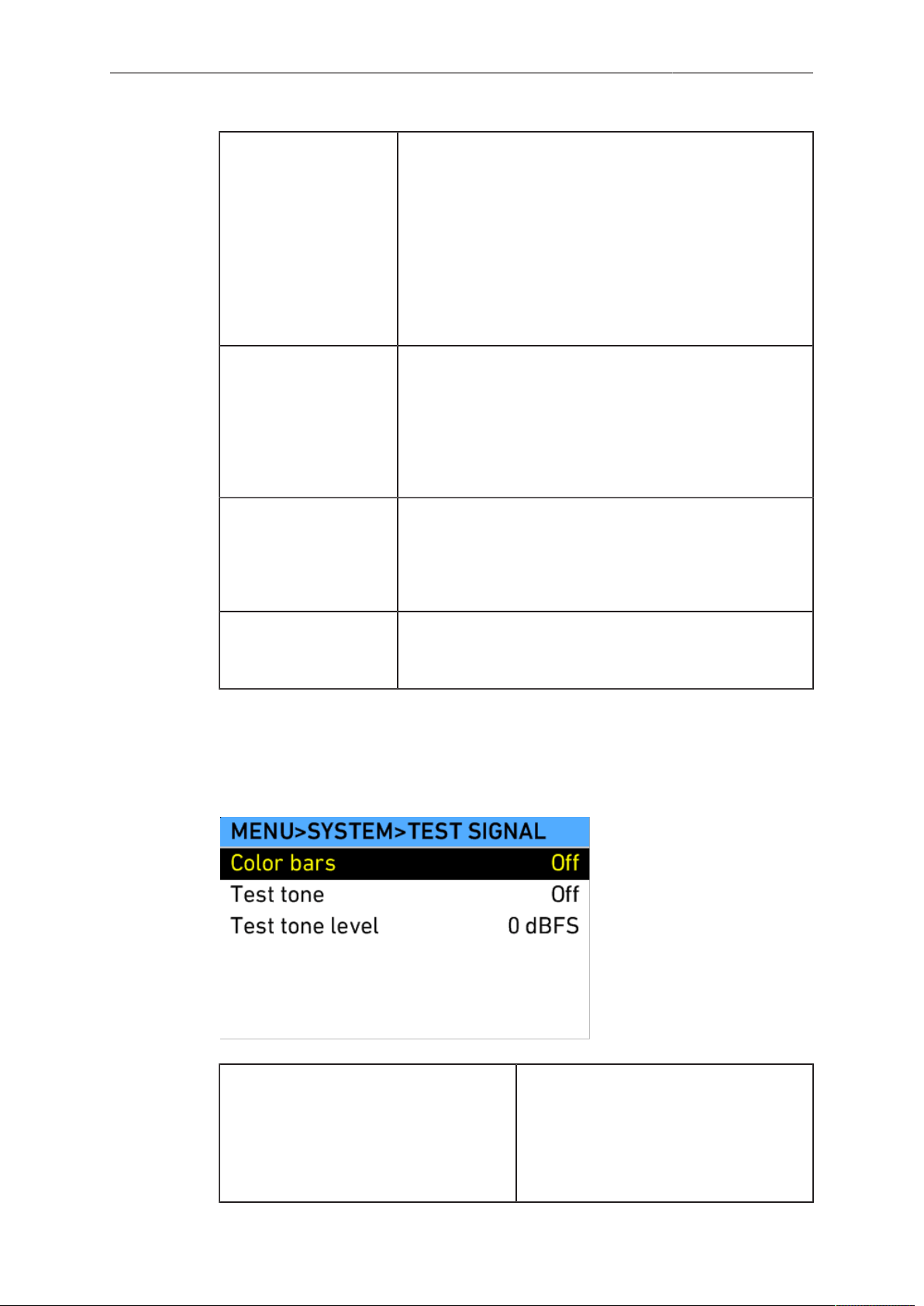
Camera Controls 111
Sensor sync Select to sync the sensors of two ALEXAs. See
page 135 for more information.
•
Off: The camera is in non-synced mode for regular
use.
•
EXT master: The camera sends signals to an EXT
SLAVE camera via the EXT connector containing sync
clock and TC signals.
•
EXT slave: The camera receives signals from an EXT
MASTER camera containing sync clock and TC sig-
nals through the EXT connector.
HD out phase Select to adjust the phase of all MON OUTs in the range
of -30 to +30 HD clocks (1 HD clock = 13.4 ns). This can
be necessary for 3D applications with external recorders
that require the slave signal to arrive after the master
signal. Shift the phase backwards (+) on a slave camera
or forwards (-) on a master camera to achieve the cor-
rect signal order.
Send HD sync trigger When using two cameras in sensor sync mode without
settings sync, the EXT MASTER camera must send a
trigger to the EXT SLAVE camera to ensure the HD out-
puts of the cameras are synced. Press the jogwheel to
send the trigger.
Settings sync ALEXA cameras can be operated in synced-settings
mode, where the settings of two cameras can be synced
via Ethernet. See page 137 for more information.
Unless a phase offset is required by certain monitoring equipment, generally there will
be no need to adjust the HD out phase. Use "Send HD sync trigger" to bring the HD
output of connected cameras back into sync.
Test Signal
Color bars Select to activate SMPTE color bars
on all MON OUTs. The color bars are a
10-bit signal according to SMPTE RP
219-2002.
Note: Color bar is switched off when
recording is started.
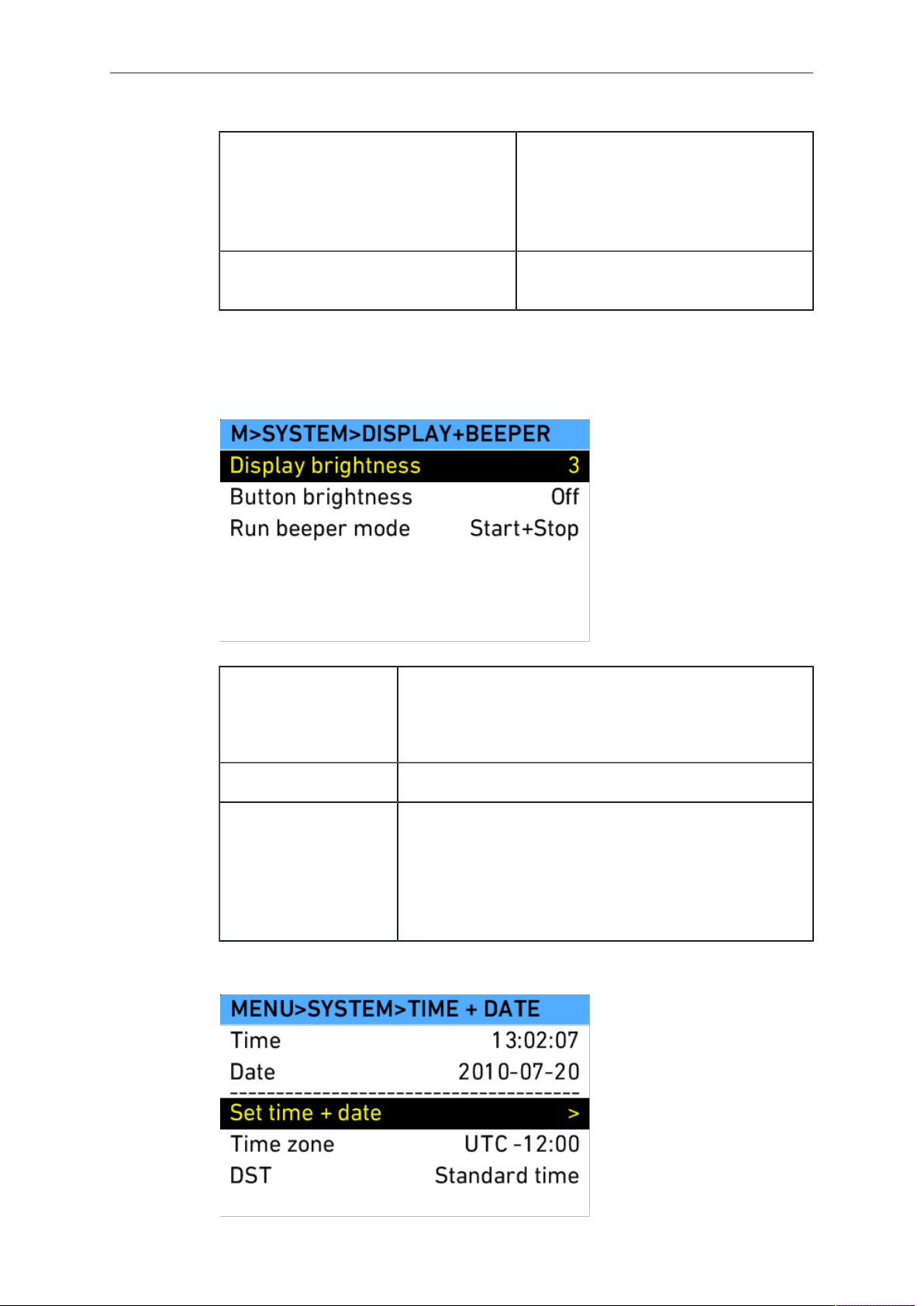
112 Camera Controls
Test tone Select to activate a 1 kHz audio test
tone on all channels when color bar is
active.
Note: Test tone is only active when au-
dio recording is on and possible.
Test tone level Select to set the level of the audio test
tone to 0 dbFS, -9 dBFS or -18 dBFS.
Note: Switching on the color bars the first time after camera bootup may take a few
seconds.
Display + Beeper
Display brightness Select to adjust the brightness of the LCD display on
the camera-right side. To adjust the display brightness
when the HOME screen is displayed, press and hold the
BACK button while rotating the jogwheel.
Button brightness Select to adjust the brightness of the button illumination.
Run beeper mode Select to set the Run beeper mode to:
•
Off
•
Start
•
Stop
•
Start+Stop
System Time + Date
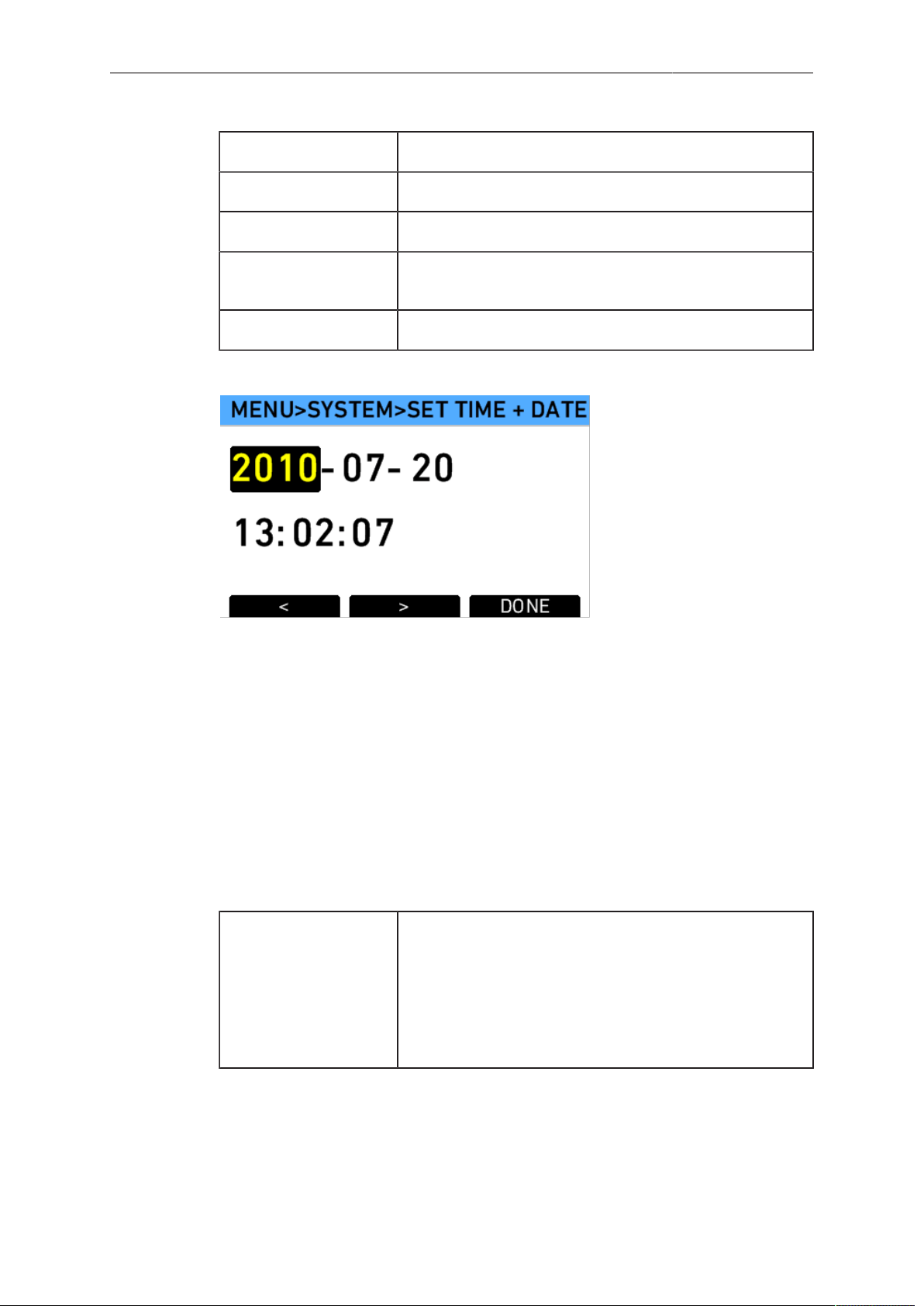
Camera Controls 113
Time Displays the current time (read-only).
Date Displays the current date (read-only).
Set time + date Select to set time and date.
Time zone Select to set the time zone to match your current loca-
tion.
DST Select to set daylight savings time.
Set time + date
Use the lower screen buttons to navigate between the elements in the screen and to
finish your setting.
To set the time and date:
1. In the System menu, select System time + date.
2. Select Set time + date.
3. Use the jogwheel to adjust the date value, starting with the year.
4. Press the > button to jump to the month, day, hour, minute and second.
Press the < button to jump back one step.
5. Press the DONE button when finished.
Fan mode
Fan mode Select to set the fan mode to Regular for locations with
ambient temperatures up to 30°C (86°F). For locations
with ambient temperatures higher than 30°C (86°F), set
to Rec low.
When the fan is set to Rec Low, it will run at a high rate
when the camera is in Standby, and run at a low rate
when the camera is recording.
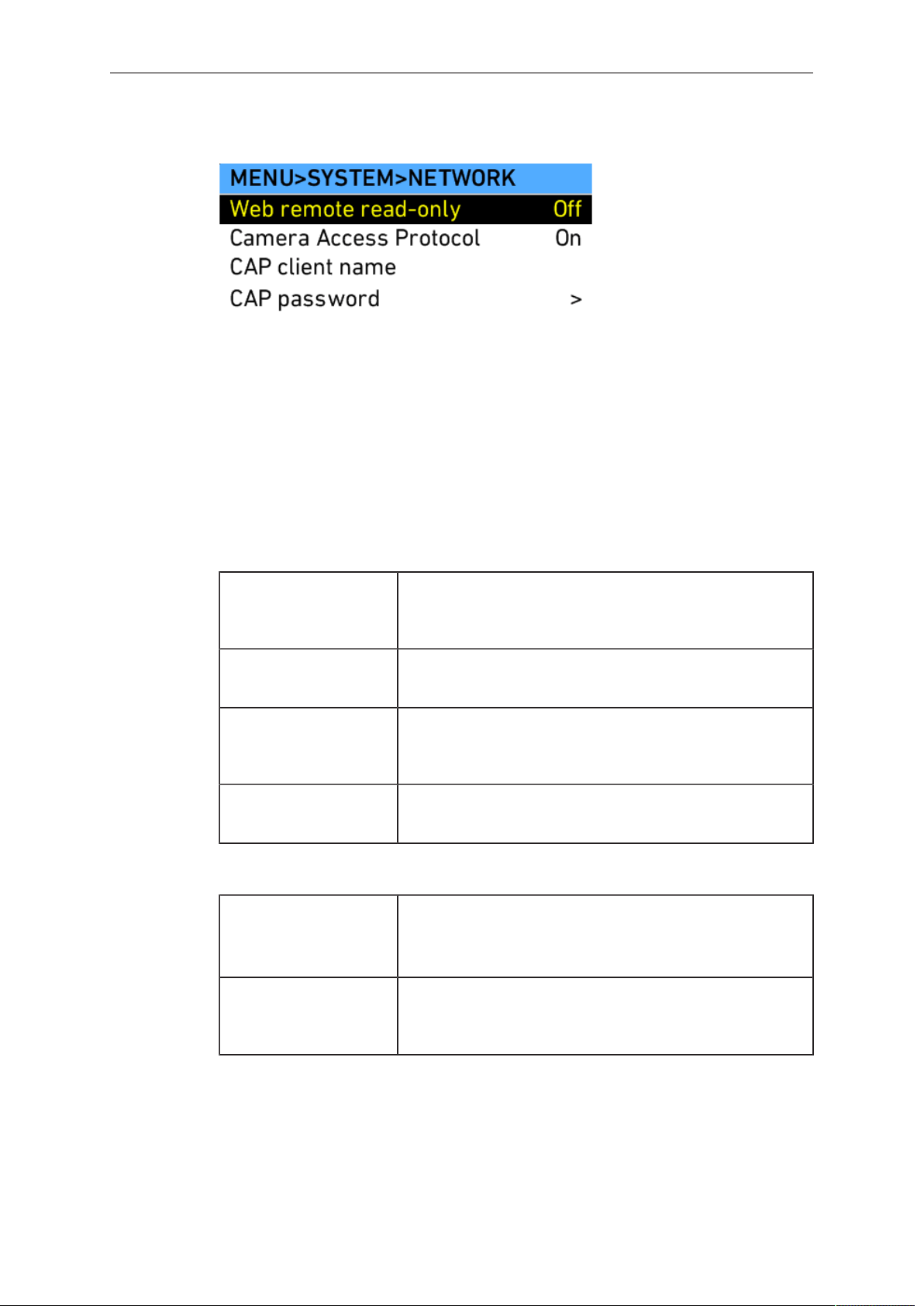
114 Camera Controls
Network
The ALEXA provides two ways for accessing the camera via network: with a web
browser using the web remote, or with a third party software supporting the Camera
Access Protocol (CAP).
The Camera Access Protocol allows third party software to remotely manipulate the
currently active ARRI Look File 2 file. Changes to an ARRI Look File 2 file become
immediately effective on all image paths with processing configured to Look file. Third
party software can connect to the camera via Ethernet. A list of supported third party
software can be found on the ARRI ALEXA SXT web page.
Web remote read-on-
ly
Select to restrict network access to read-only mode.
When set to Off, the Web Remote will not function prop-
erly.
Camera Access Pro-
tocol
Select to switch remote access to the camera via the
Camera Access Protocol on or off.
CAP client name Shows the name of the currently connected client.
Shows 'NONE' if no client is connected, and 'NO NAME'
if the connected client has not transmitted its name.
CAP password Select to set the password for Camera Access Protocol
connections.
SD card
Format + prepare SD
card
Select to format the SD card and create the required
folder structure after confirmation.
Note: This erases all data present on the SD card.
Prepare SD card Select to create or complete the required folder struc-
ture on the SD card without erasing any data present on
the SD card.
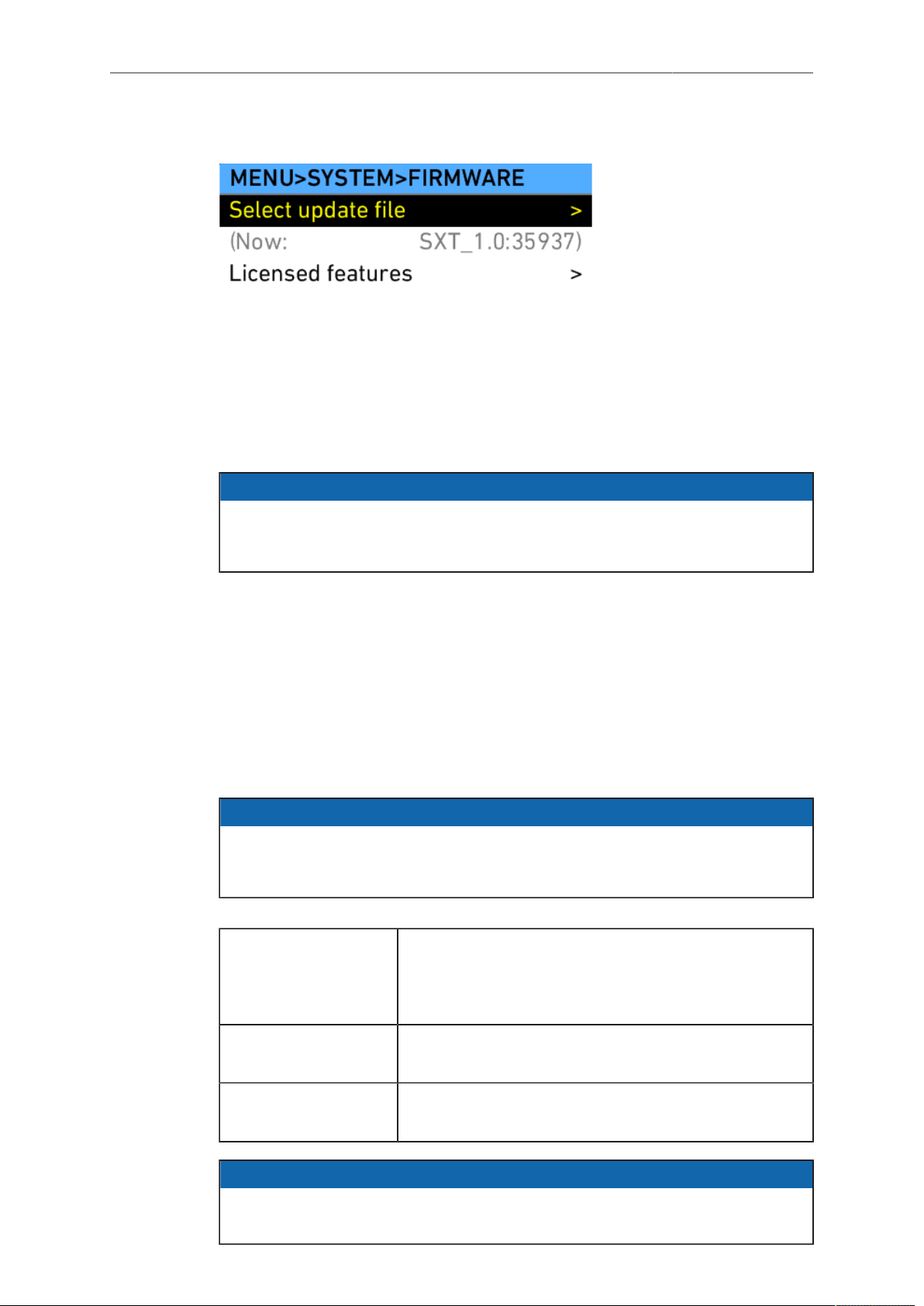
Camera Controls 115
Firmware - Software Update Packets (SUPs)
To keep the ALEXA up to date with new features, the camera firmware can be
updated by the user. Download the latest Software Update Packet (SUP) from http://
www.arri.com/camera/digital_cameras and be sure to read the included instructions.
NOTICE
ARRI discourages downgrading cameras to lower SUP versions. Be sure to
carefully read the release notes of the currently installed SUP to find out if
downgrading is possible, and ask your ARRI service center if in doubt.
To update the camera to a new SUP:
1. Copy the new SUP into the Firmware folder on an SD card formatted in the
ALEXA.
2. Load the SD card into the camera.
3. In the System menu, select Firmware.
4. Select Select update file.
5. Select the new SUP from the list on the FIRMWARE (SD CARD) screen.
6. Press both UPDATE buttons simultaneously to update the camera's firmware.
NOTICE
Update duration may differ between camera models. Do not interrupt the update
once it has started. Make sure the camera power supply will remain sufficient for
the duration of the update (approx. 15 minutes).
Select update file Select to update the camera’s firmware. If an SD card
containing update files is loaded in the camera, you can
select an update file from the list and perform an up-
date.
Current version Select to display the release code of current installed
firmware.
Licensed features Select to manage licensed features on the INSTALLED
LICENSES screen.
NOTICE
•
On rare occasions, the update process can fail. If the update procedure fails, try
it again until you succeed.
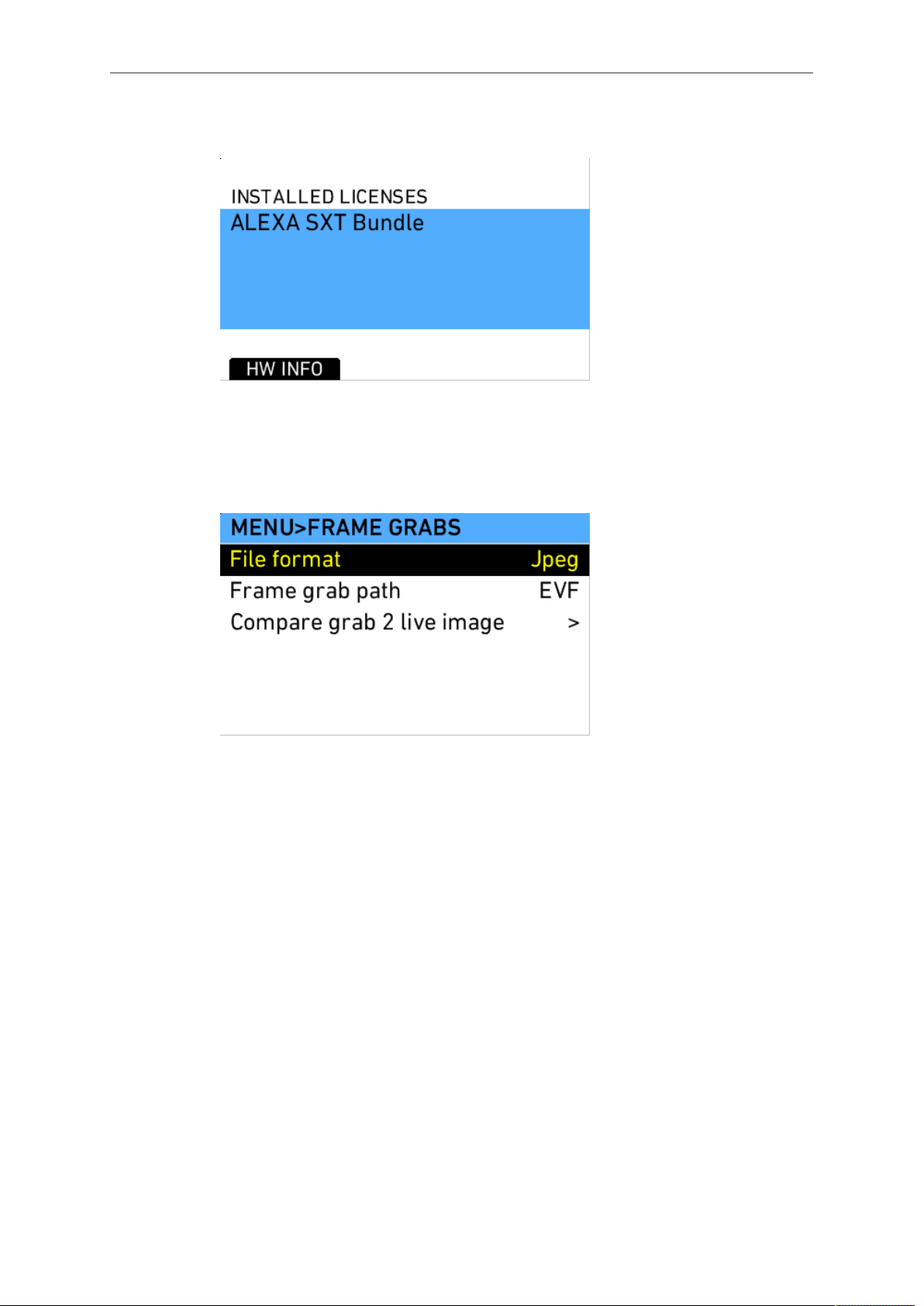
116 Camera Controls
Licensed Features
The Licensed Features screen shows all installed licenses, and allows to export a
HW INFO file. This file contains information about the hardware configuration of the
ALEXA and might be requested by ARRI Service for troubleshooting.
13.1.5.5 Frame Grabs
It is possible to take still frames from the camera's sensor. The image path from which
still frames are grabbed can be selected. Available still image formats include .jpg, .tif
and .dpx when the frame grab path is not RAW, or .ari when the frame grab path
is RAW. Note that .tif, .dpx, and .ari still frames have large file sizes and take some
time to be copied to the SD card. Use fast SD cards when taking still frames in these
formats.
To set the still frame format:
1. In the Frame grabs menu, select File format.
2. Use the jogwheel to select the desired format and press the jogwheel to set it.
Unavailable formats are grayed out.
To take a still frame and save it to the SD card:
► Press the GRAB button. The write process is indicated by a flashing camera icon,
followed by a flashing SD card icon on the HOME screen. When writing is finished,
a new still frame can be taken. The time needed for saving the image to the SD
card will vary, depending on the file format. Additional still frames may not be
taken while saving.
To take a still frame during playback of ProRes, ensure that the frame grab path is not
set to RAW.
Still frames can also be taken by assigning User buttons 1, 2 or 3 to Grab still frame.
This allows still frames to be taken from the operator's side of the camera (camera-left
side).
Still frames will be saved in the Grabs folder on the SD card.
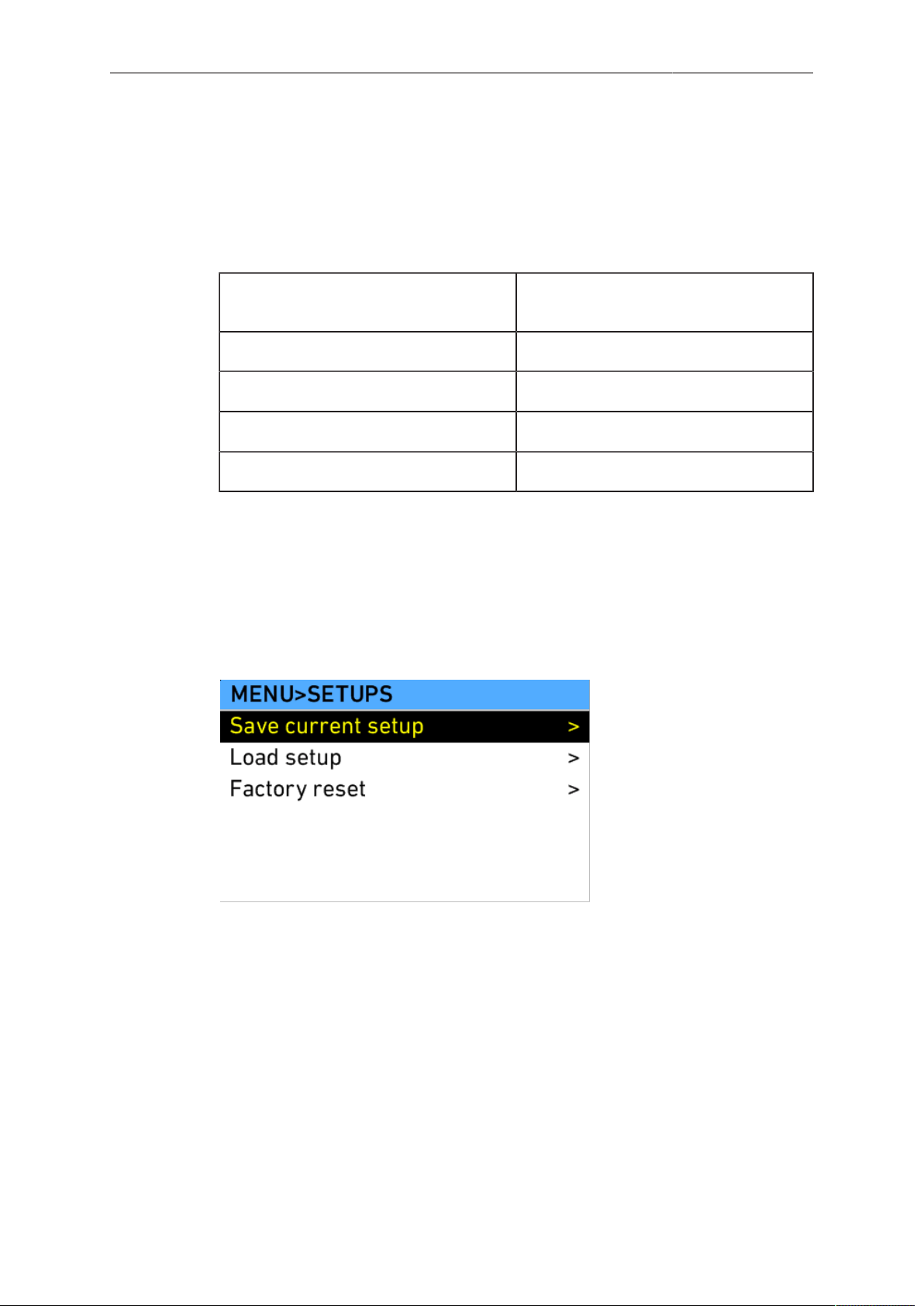
Camera Controls 117
Frame compare
It is possible to load a previously made frame grab and compare it with the current live
image. Select Compare grab 2 live image to go to the COMPARE FILE screen.
Press LOAD GRAB to select a frame grab from the SD card for comparison.
Press OPTIONS to access the options for frame compare. The following options are
available:
Compare mode Interleave
Toggle
Active on EVF On/Off
Active on MON OUT 1 On/Off
Active on MON OUT 2 On/Off
Active on MON OUT 3 On/Off
Press COMPARE on the COMPARE FILE screen to activate or deactivate frame
compare.
When compare mode is set to Interleave, every other line is replaced by content from
the loaded file. This is useful for lining up shots, as the frame will flicker until the stored
and the live image are perfectly lined up. Otherwise, pressing COMPARE completely
overlays the loaded image over the live image.
13.1.5.6 User Setups
A user setup is a profile of the current settings on the ALEXA that can be saved to the
SD card. User setups can be given custom names, saved to the SD card and loaded
onto multiple ALEXAs.
Rather than resetting the camera to its factory default settings, a user setup can be
used to reset the camera to a user's default settings.
A user setup contains all parameters set in the camera except files that have been
transferred via SD card, specifically frame lines and ARRI Look File 2 files. These
are not affected by loading a user setup and are only cleared by performing a factory
reset.
Requirements:
•
formatted SD card loaded in the SD card slot on the ALEXA
To create a user setup:
► Set all the desired parameters on the ALEXA.
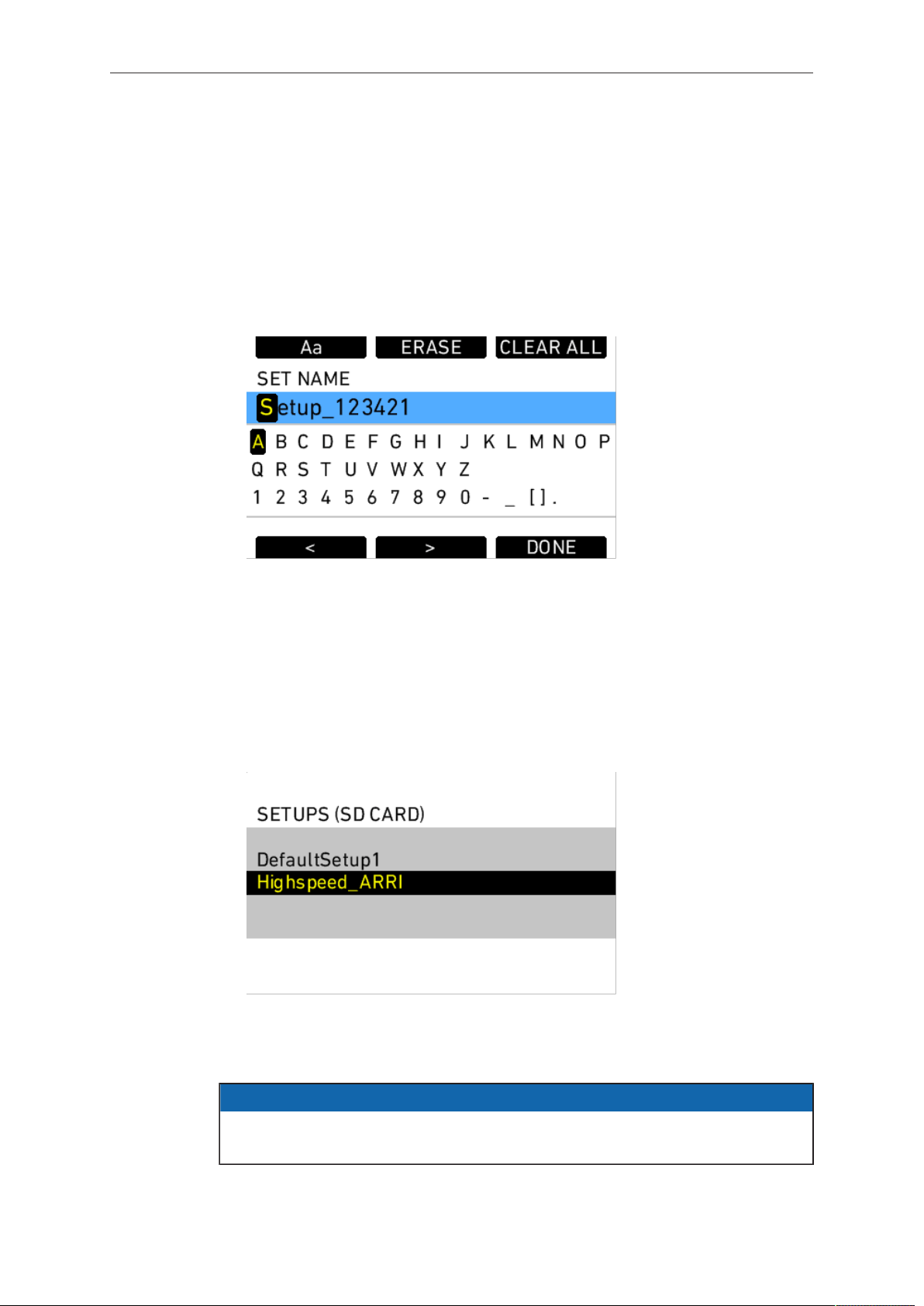
118 Camera Controls
To save a user setup:
1. Press the MENU button.
2. Use the jogwheel to select User Setups.
3. Select Save current setup.
4. To apply a custom name to your user setup, press the RENAME button. Erase the
default user-setup name by pressing the CLEAR ALL button.
5. Use the jogwheel to enter a new name by scrolling to the desired character and
pressing to select it.
6. When you have finished entering the new user setup name, press the DONE
button.
7. Press the jogwheel to save the new user setup to the SD card.
To load a user setup:
1. Press the MENU button.
2. Use the jogwheel to select User Setups.
3. Select Load setup.
4. Use the jogwheel to select the desired setup in the list and press the jogwheel to
load the setup.
5. Press the PROJECT button to validate your project settings.
NOTICE
User setups work only in the SUP version they are created in. After a SUP update,
a new user setup must be created and saved.
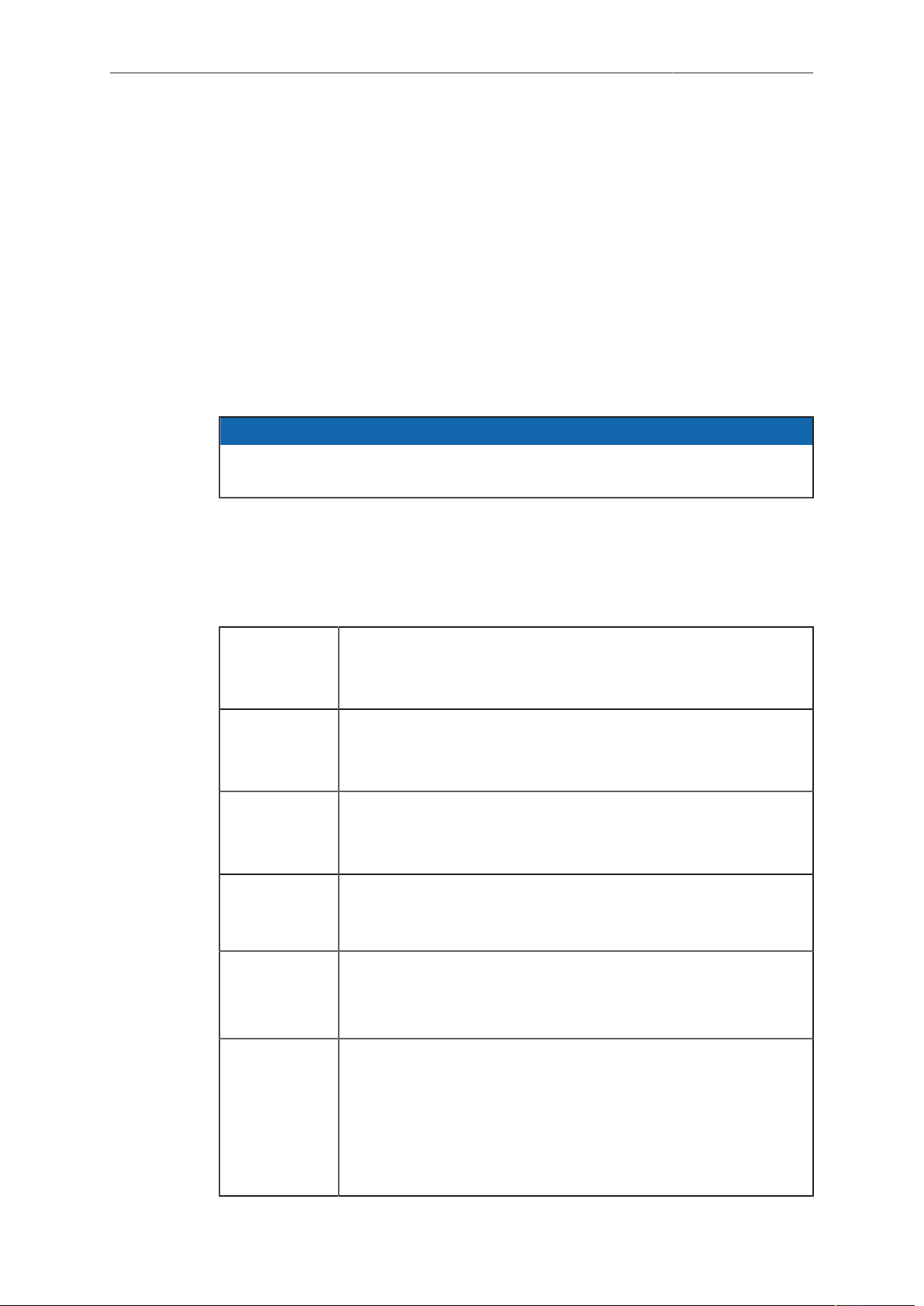
Camera Controls 119
A recommended procedure for working with user setups is as follows:
1. Before shooting, perform a factory reset to restore factory default settings.
2. Save a user setup named "Reset" or similar. This will be used instead of
performing the ALEXA’s factory reset.
3. Adjust the camera's shooting parameters and settings, and load the desired frame
lines and ARRI Look File 2 files.
4. Save another user setup with a descriptive name, such as "Show Title A-Cam".
5. To reset the camera to the default settings without losing the frame lines or ARRI
Look File 2 files, load the "Reset" user setup.
User setups can be used to ensure that cameras on multi-camera shoots have
matching settings, or to transfer a show’s setup onto daily cameras, to ensure they
carry the same shooting specifications.
NOTICE
You cannot switch between sensor modes by loading a user setup. To switch
sensor modes, go to the SYSTEM>IMAGING menu or PROJECT menu.
13.2 Operator controls
The operator controls are located on the camera left side and consist of three function
buttons plus three assignable buttons.
1 User button 1.
Can be assigned functions with the USER button on the Main
controls
2 User button 2.
Can be assigned functions with the USER button on the Main
controls.
3 User button 3.
Can be assigned functions with the USER button on the Main
controls.
REC Press the REC button to start and stop internal recording. A red
LED tally indicates recording. See section Prerecording for differ-
ent behavior with prerecording switched on.
PLAY Press the PLAY button once to load the last clip.
Press the PLAY button again to toggle between play and pause.
Press and hold the PLAY button for 2 seconds to stop playback.
LOCK Press and hold the LOCK button for 3 seconds (counted down
on the main controls LCD) to lock the main and operator con-
trols. A blue LED beside the LOCK button on the camera-left
side indicates the lock is active. A lock icon on the LCD display
on the camera-right side indicates the lock is active.
Press and hold the LOCK button for 3 seconds to unlock the
main and operator controls.
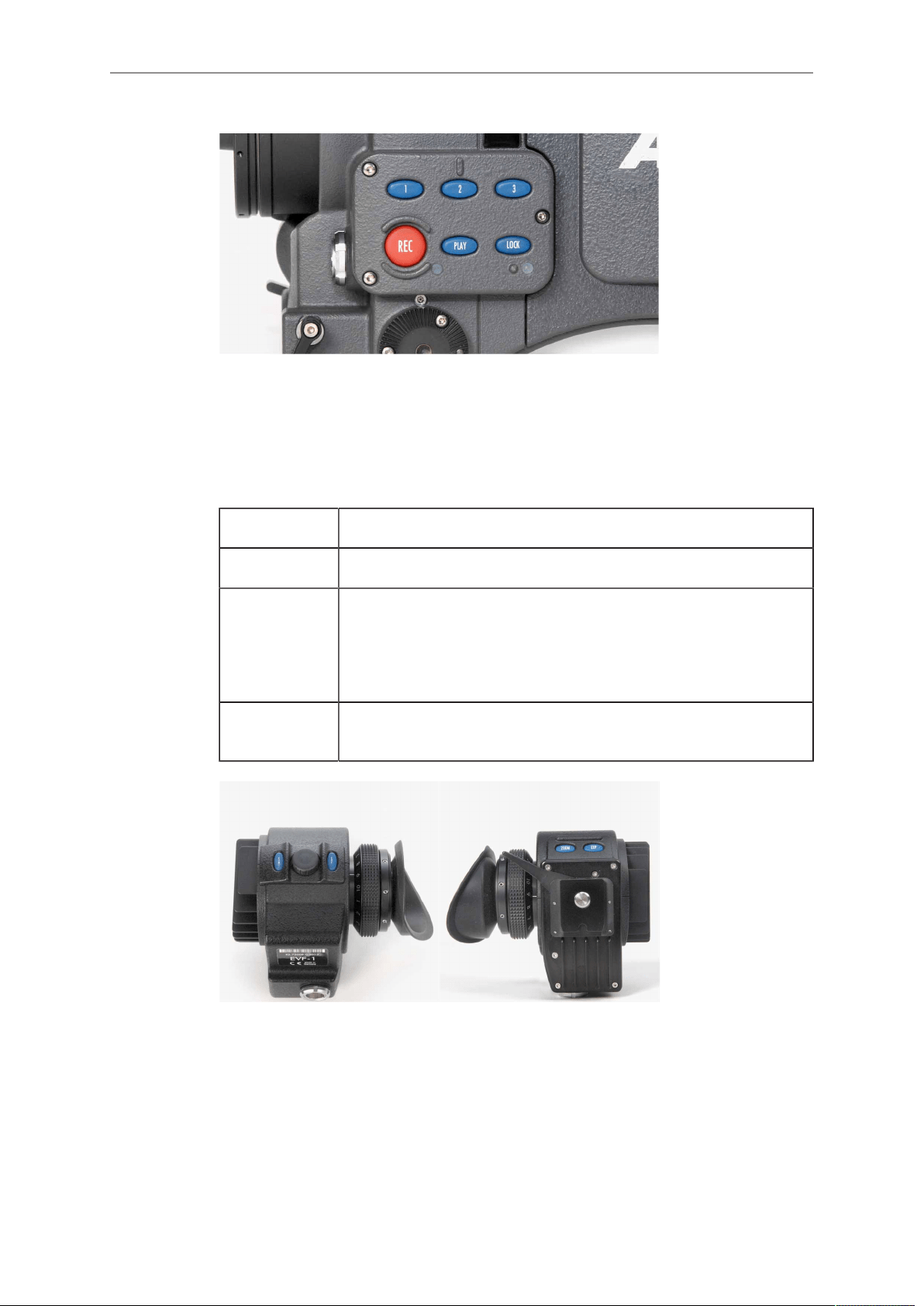
120 Camera Controls
Fig. 42: Operator UI
13.3 EVF-1 Controls
The EVF-1 controls are located on the electronic viewfinder. They consist of a number
of function buttons and a jogwheel.
CAM Press the CAM button to open the EVF-1's CAM menu.
EVF Press the EVF button to open the EVF-1's EVF menu.
ZOOM Press the ZOOM button to magnify the EVF-1 image 2.25x for
focus check. The magnification ratio is 1:1, or one sensor pixel
to one EVF-1 display pixel. Active magnification is indicated by
an orange frame around the image. Frame lines are deactivated
while zoom is active.
EXP Press the EXP button (EXP = EXPOSURE) to toggle false color
display on and off.
When the LOCK button on the main controls is engaged, the CAM and EVF buttons
are locked with the main controls and operator controls. The ZOOM and EXP buttons
are not affected by the lock.
The message "Button is locked!" is displayed in the EVF-1 when the CAM or EVF
button is pressed while the main controls are locked.
13.3.1 Viewfinder EVF menu
Press the EVF button to open the Viewfinder EVF menu in the EVF-1 display and set
the viewfinder parameters. Use the jogwheel on the EVF-1 to select and set menu
options. Press the EVF button to exit the Viewfinder EVF menu.

Camera Controls 121
Brightness Select to set the brightness of the EVF from 1 (least
bright) to 5 (brightest). A brightness level of 4 is recom-
mended for normal shooting scenarios.
Rotate image When mounting the EVF to the right side of the camera,
the image can be flipped to orient the image correctly in
the viewfinder. Affects only the EVF image, MON OUT
and recording images are not rotated.
Smooth mode Select to set Smooth mode On or Off. With smooth
mode on, the EVF image shutters less when panning.
Note: Smooth mode is only possible with frame rates up
to 30 fps and shutter angles of 180.0 or less. If smooth
mode is switched on but not available, the camera is-
sues a warning.
Note: Has no effect on ALEXA Studio with optical
viewfinder attached.
Surround view Select to set Surround view on the EVF-1 On or Off.
When set to on, the additional pixels outside the record-
ed image area on the ALEXA’s ALEV III sensor are dis-
played, allowing the operator to see outside the record-
ed image and keep unwanted objects, such as micro-
phone booms, out of the shot. To view only the recorded
image, set Surround view to off.
Surround mask Select to adjust the Surround mask settings. If surround
view is set to On, the boundary between the recorded
area and surround view will always be indicated to allow
proper framing. Users can choose between:
•
Black line
•
Color line
•
Mask 25%
•
Mask 50%
•
Mask 100%
Status info Select to set Status info to On or Off. When set to On,
camera shooting parameters are displayed across the
top of the EVF-1's image, outside the active image area
and camera status information is displayed across the
bottom of the EVF-1's image, outside the active image
area.
Frame lines Select to set frame lines to On or Off. Frame lines are a
reference for framing that typically consist of an image
frame, a center mark and an aspect ratio reference. See
the appendix for more information on the ALEXA frame
line format.
Select framelines 1 Select to set the main frame lines template from those
stored in the camera.
Select framelines 2 Select to set the secondary frame lines template from
those stored in the camera.
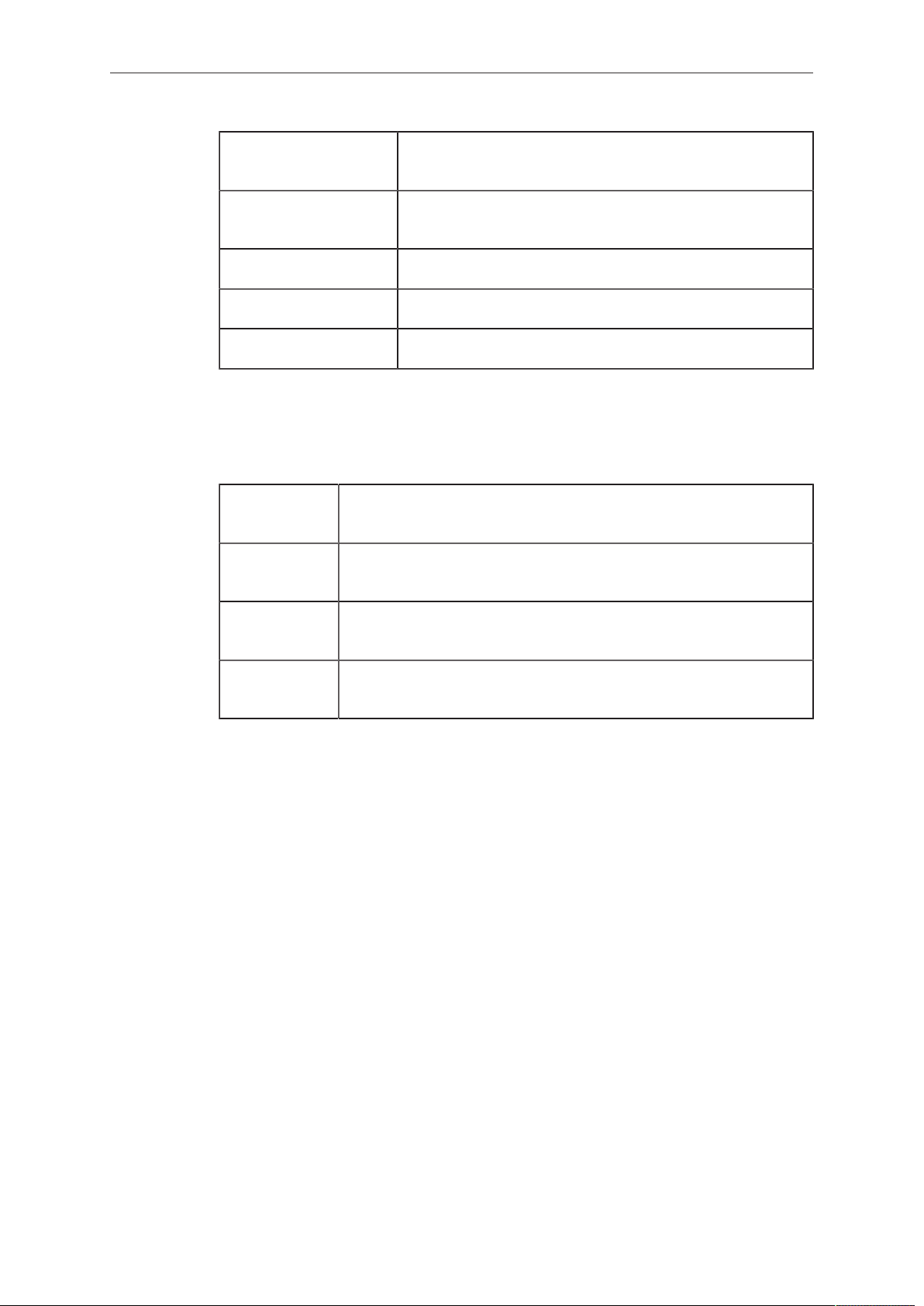
122 Camera Controls
Center mark Select to set the Center mark to Off, Small Dot, Medium
Dot or Cross to aid in image framing.
User rectangles Select to display up to two additional user-editable rec-
tangles in the EVF-1 image.
Edit user rectangles Select to adjust the user rectangles.
Framelines color Select to set the color of the frame lines.
Framelines intensity Select to set the brightness of the frame lines.
13.3.2 Viewfinder CAM menu
Press the CAM button to open the Viewfinder CAM menu in the EVF-1 display and set
camera parameters. Use the jogwheel on the EVF-1 to select and set menu options.
Press the CAM button to exit the Viewfinder CAM menu.
FPS Select to set the sensor frame rate. Preconfigured and previously
added user-defined values can be selected in the FPS list.
SHUTTER Select to set the shutter angle. Preconfigured and previously
added user-defined values can be selected in the Shutter list.
EI Select to set the exposure index. Settings from EI 160 to EI 3200
can be selected, in steps of 1/3 stop.
WB Select to set the white balance. Preconfigured and previously
added user-defined values can be selected in the WB list.
13.4 Web Remote
All ALEXA cameras contain a web server that can provide a user interface for
remotely controlling the ALEXA.
Connecting to the Camera
The Web Remote can be accessed through an Ethernet connection from the
camera's ETH port to a computer's Ethernet port, using the Bonjour protocol or
by directly entering the camera's IP address. First, make sure on the camera that
MENU>SYSTEM>NETWORK>Web remote ready-only is set to Off. If you want to
prevent access to the Web Remote, set MENU>SYSTEM>NETWORK>Web remote
ready-only to On. Then connect the cable. To use the Bonjour protocol, open the web
browser on the computer and enter the address alexa####.local in the browser's
address bar, with #### being the serial number of the camera. Alternatively, you can
look up the camera's IP address (INFO > SYSTEM) and enter that in the browser's
address bar.
Operation of the Camera 123
14 Operation of the Camera
This chapter covers tasks the user will encounter while using the ALEXA. While
previous chapters contained specific procedures for basic use, this chapter will outline
broader tasks and offer recommendations and best practices, including camera
configuration.
14.1 Internal recording
This chapter contains information and recommendations for internal recording. The
user is encouraged to adapt the recommendations and workflow to individual and
production needs.
NOTICE
•
ARRI cannot be held responsible for the loss of any data in conjunction with
internal recording.
•
While we do everything we can to assure reliable functioning of different
recording medias such as SXR Capture Drives, and while the mean time
before failure (mtbf) for drives is excellent, a failure that results in loss of data
may occur at any time. Therefore, you are obliged to implement and maintain
at any time adequate and necessary data security measures and back up
drive content as soon as possible. ARRI assumes or accepts no liability or
responsibility for data loss or data corruption, or any other damages, loss or
harm due to malfunction of recording drives.
14.1.1 Recording Module
ALEXA SXT cameras can use SXR Capture Drives, XR Capture Drives, Sony SxS
PRO cards, Sony SxS PRO+ cards, or CFast 2.0 cards for internal recording. All
media require an adapter specific to their type: SXR Capture Drives require the SXR
Adapter, XR Capture Drives require the XR Adapter, SxS PRO and SxS PRO+ cards
require the SxS Adapter 2, CFast 2.0 cards require the CFast 2.0 Adapter 2. SxS Pro
cards, SxS Pro+ cards and CFast 2.0 cards do not allow recording ARRIRAW data.
File System
Depending on the recording format, SXR/XR Capture Drives are initialized with
different file systems. SXR/XR Capture Drives can be formatted in-camera or using
Codex Software (Mac only) in a Codex Single Dock, Dual Dock (XR Capture Drives
only), or the standalone Codex Vault.
When the camera is set to ARRIRAW recording, SXR/XR Capture Drives are
initialized as Codex volume. When the camera is set to ProRes recording, SXR/XR
Capture Drives are initialized with the UDF file system. In both cases, the file system is
read-only for computers.
SxS PRO cards, SxS PRO Plus cards and CFast 2.0 cards can only be used for
ProRes recording. These cards are always initialized with the UDF file system and
have to be formatted in the SXR Module with the SxS Adapter 2 or the CFast 2.0
Adapter 2, respectively.
14.1.2 Internal Recording Formats
ALEXA footage can be captured as QuickTime movies using an Apple ProRes
TM
codec or as unencrypted and uncompressed ARRIRAW file sequences.
124 Operation of the Camera
NOTICE
Recording ARRIRAW internally works only with SXR/XR Capture Drives.
ProRes
Recording in ProRes 2K is a cost-efficient alternative to shooting ARRIRAW, as it
requires less storage space and no processing, but at the same time delivers an
image quality that is superior to that of up-scaled HD material.
With the option to capture ProRes 2K in the 4:3 aspect ratio, the format offers true
anamorphic capture with regular 2x anamorphic lenses and offers extra room for
repositioning when using standard spherical lenses.
ALEXA ProRes 3.2K allows the same easy up-sampling in post to 4K UHD
deliverables as Open Gate ARRIRAW does to 4K Cine. These formats, combined with
ALEXA's unsurpassed overall image quality, make ALEXA SXT cameras suitable for
any type of production with any distribution requirements.
The following resolutions are available with ProRes recording:
Sensor Mode Resolution
HD (1920 x 1080)
2K (2048 x 1152)
3.2K (3200 x 1800)
16:9
4K UHD (3840 x 2160)
2K Anamorphic (2048 x 858)6:5
4K Cine Anamorphic (4096 x 1716)
4:3 2.8K (2880 x 2160)
3.4K (3424 x 2202)Open Gate
4K Cine (4096 x 2636)
ProRes RAID - Redundant Recording on XR and SXR Capture Drives
In ALEXA SXT cameras, ProRes is always recorded with a method (RAID) that
provides redundancy for greater data security for both XR and SXR Capture Drives.
As with ALEXA XT cameras, half the Capture Drive's capacity can be used to record
ProRes, but with the SXT, the other half can be used to increase the safety of the
recorded data.
ProRes RAID for XR Capture Drives
When XR Capture Drives are being formatted for ProRes in the ALEXA SXT, they
are being formatted as a RAID 1 (mirrored) volume. XR Capture Drives contain two
internal SSD drives, and with RAID 1 the same ProRes data is written to each of those
two drives.
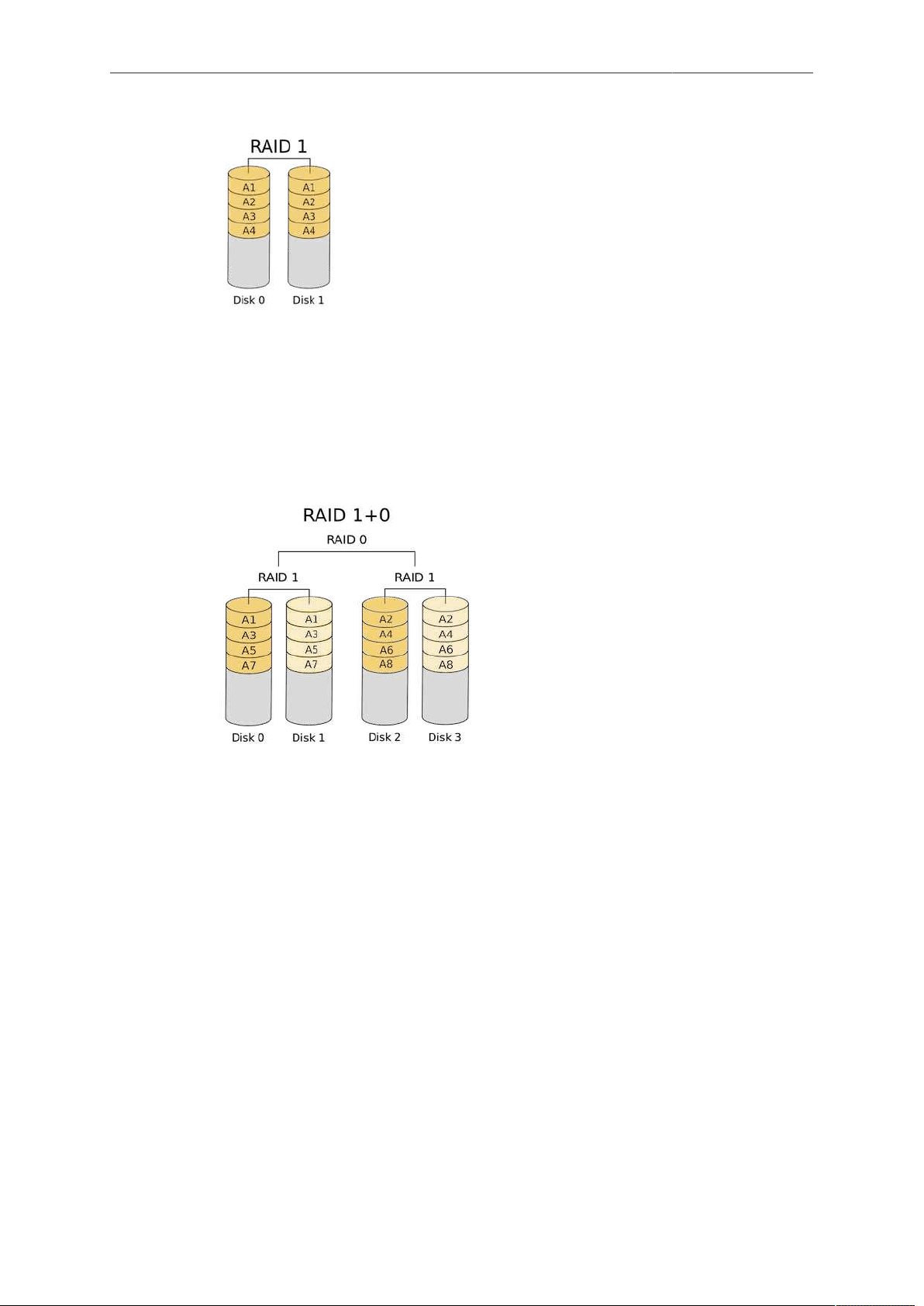
Operation of the Camera 125
ProRes RAID for SXR Capture Drives
When SXR Capture Drives are being formatted for ProRes in the ALEXA SXT,
essentially the same happens, but since SXR Capture Drives contain four internal
SSDs, a combination of RAID 1 (mirroring) and RAID 0 (striping) is used, commonly
referred to as RAID 10. Drives zero and one will be combined into one RAID 1 volume
and drives two and three into another. This provides redundancy. The resulting two
RAID 1 volumes are combined into one RAID 0 volume so it can be accessed as one
volume.
Downloading ProRes RAID Data
XR and SXR Capture Drives recorded in ALEXA SXT require Codex Production Suite
4.1 or later for downloading. Codex Production Suite 4.1 or later is included in new
SXR Capture Drive Docks, or available free of charge for owners of older docks.
To download ProRes from XR and SXR Capture Drives recorded in ALEXA SXT, the
ARRI RAID driver must be installed in the downloading Mac. The ARRI RAID driver is
included in Codex Production Suite 4.1, but will not be installed by default. To install,
check the "Capture Drive RAID support" box when installing the Codex Production
Suite.
The ARRI RAID driver has been tested with Mac OS 10.10 und 10.11.

126 Operation of the Camera
NOTICE
CAUTION! RAID redundancy is very helpful if data from one of the two internal
drives is corrupted or one of the internal drives is damaged. But the XR or SXR
Capture Drive still appears as one volume, and if it gets erased accidentally by the
user, the data is gone.
CAUTION! While this redundancy is a great new feature, it creates some
incompatibilities you should be aware of:
•
If an XR or SXR Capture Drive that has been formatted on an ALEXA SXT
should be downloaded on a Mac that does not have the ARRI RAID driver
installed, the Mac cannot recognize the RAID formatted drive and will ask if
this drive should be formatted. Don't format the drive, but install the ARRI RAID
driver and try again.
•
If an XR Capture Drive that has been formatted for ProRes on an ALEXA XT
is then placed into an ALEXA SXT, the ALEXA SXT will not be able to read the
drive and will ask if the drive should be formatted.
•
If an XR Capture Drive that has been formatted for ProRes on an ALEXA SXT
is then placed into an ALEXA XT, the ALEXA XT will only be able to see one of
the two internal drives, and will therefore also only be able to format one of the
two drives. Data may be left over on the other internal drive from the use in the
ALEXA SXT. In order to avoid this, make sure to erase XR Capture Drives by
formatting them in the ALEXA SXT or with a Mac at the end of your production.
•
Please note that due to the camera’s write pattern, there may be gaps in the
clips which do not contain valid QuickTime data. These gaps may not be bit-
identical on the individual SSDs unless the drives have previously been secure
erased using the Codex Vault. This is normal and only relevant in cases where
the date has to be restored manually.
Note: When working with ProRes clips without audio, Final Cut Pro 7 may fail during a
Consolidate action as it does not recognize the file type correctly. To fix this problem,
use the SetFile command line tool on all affected clips as follows: "SetFile -t MooV
<clipname>", where <clipname> needs to be replaced with the name of the affected
clip. Then relaunch Final Cut and redo the Consolidate action.
ARRIRAW
ARRIRAW data delivers unencrypted, uncompressed and uncompromised image
quality from an ALEXA camera. It offers the highest achievable resolution, the
camera's natural color response and great exposure latitude as uncompressed
and unprocessed sensor data. ARRIRAW images have only one channel. A color
reconstruction algorithm calculates the missing components of each pixel based on
the type and position of the array of colored filters (Bayer pattern) on the camera
sensor.
ARRIRAW de-bayering is available through the ARRIRAW SDK or custom processing,
which is implemented in most of the major post production tools for dailies processing
and mastering.
The ALEXA sensor provides a horizontal resolution of 2.8K photo cells in 16:9 and
4:3 sensor modes, and 3.4K photo cells in Open Gate sensor mode, from which down
or up-sampling routines can produce HD, 2K, 4K UHD or 4K Cine resolution images.
For VFX, the images often are processed using the native sensor pixel count and
then are up or down-sampled. Using this approach takes advantage of the luminance
resolution, which correlates to the sensor pixel count. Up-sampling ALEXA images to
4K UHD or 4K Cine works very well due to ALEXA's excellent image quality.
The following resolutions are available with ARRIRAW recording:
Sensor Mode Resolution
16:9 2.8K (2880 x 1620)

Operation of the Camera 127
Sensor Mode Resolution
3.2K (3168 x 1782)
6:5 2.6K (2578 x 2160)
4:3 2.8K (2880 x 2160)
Open Gate 3.4K (3424 x 2202)
The camera will automatically calculate a CRC32C checksum for the image data
inside each ARRIRAW frame. This checksum is recorded onto the SXR Capture Drive
or XR Capture Drive where Codex software uses it to verify the image content during
all copying and processing steps. In addition to providing extra security, this also
speeds up the copying process.
The checksum is also stored in the ARRIRAW header as metadata (fields
'ImageDataChecksumType' and 'ImageDataChecksum'), making it thus available to
third parties. Note that this checksum does not validate the entire .ari file, only the
image data itself.
Choosing a Recording Format
The selection of the recording format is a crucial decision which needs to be
discussed with the production company and post production. While lower bit rate
codecs offer longer recording times, they introduce compression artifacts that greatly
limit the creative choices.
ProRes 422 Use for basic television production. Limited options in
color correction.
ProRes 422 HQ Use for high quality TV production. Suitable for creative
color correction.
ProRes 4444 Use for high quality TV and cinema production. Very
suitable for creative color correction and visual effects
work such as pulling mattes.
ProRes 4444 XQ The ideal choice for productions that are shooting for
premium image quality, are looking for extreme color
grading and want to preserve the superior tonal range of
ALEXA's Log C signal.
ARRIRAW Use for cinema production, visual effects and high qual-
ity TV. Best format for creative color correction and visu-
al effects work. Unencrypted and uncompressed format.
Raw data needs to be processed into color images.
Always test the full workflow pipeline with the preferred recording format before
shooting.
Media preparation
The typical usage cycle of recording media is:
1 Format
2 Record
3 Copy
4 Back up
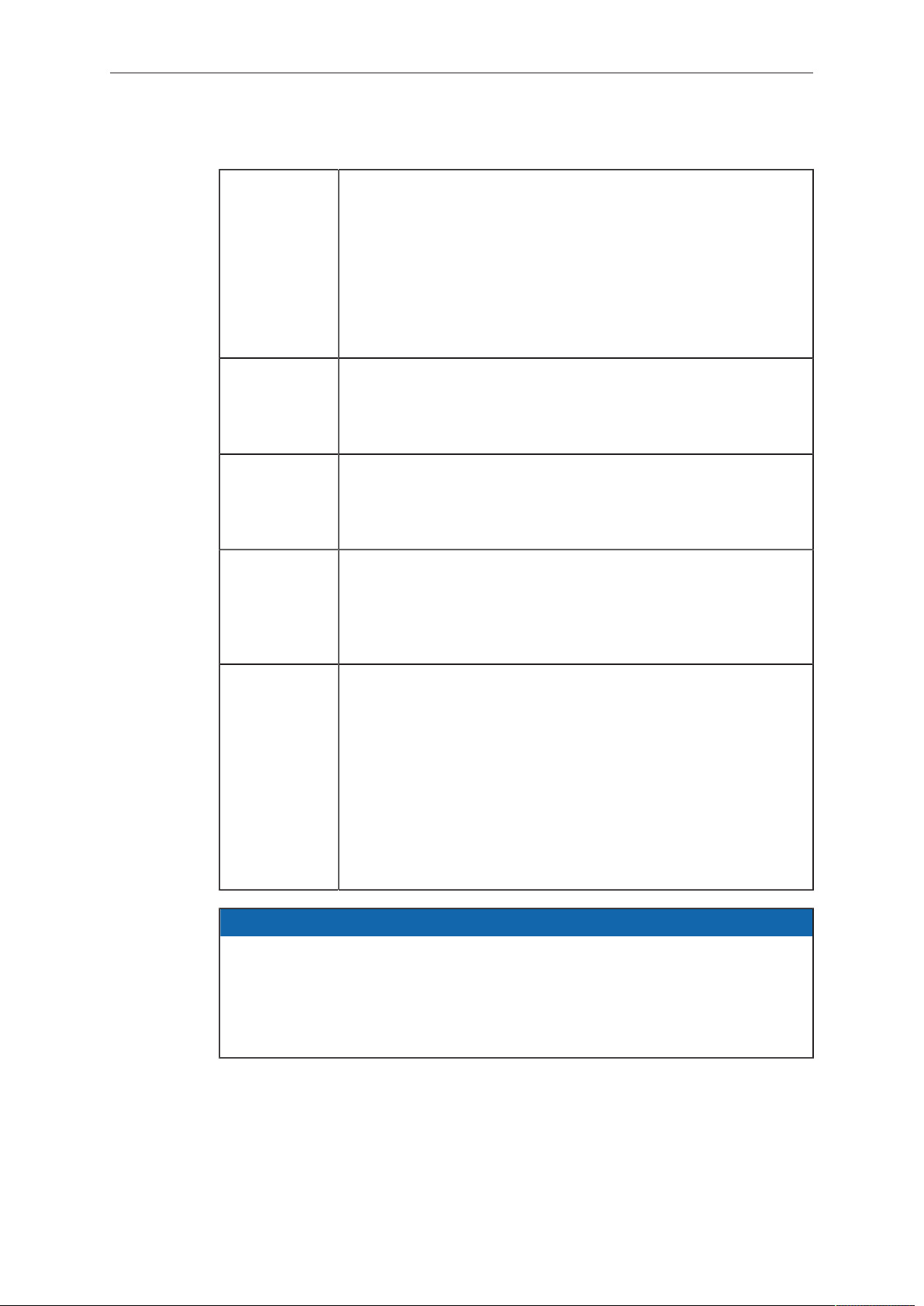
128 Operation of the Camera
5 Verify data
6 Format
Format Before recording, the drives/cards must be formatted. The cam-
era always performs a blank format, which means that the me-
dia contain no metadata and are not assigned a reel number pri-
or to recording the first clip. The camera auto-detects media with
an invalid file system and asks the user to format the media. The
ALEXA uses the UDF file system for ProRes recording and the
Codex file system for ARRIRAW recording. Both file systems are
read-only for computer systems, which minimizes the risk of data
corruption.
Record When the REC button is pressed, the camera starts to write a
clip to the media. With the first clip, the camera also assigns a
reel number. There is more information on file naming later in
this chapter.
Copy After recording is finished, the footage needs to be copied to an-
other device in order to free up the media. The copy process
should be verified using checksum calculation to ensure that no
errors have occurred.
Backup The footage should ideally be copied to two physically separate
destinations. The first copy should be the "working copy", and
the second copy should be the "backup copy". These tasks can
be done in parallel, as long as the end result is verified data on
two independent devices.
Format Only when the data has been copied to two independent devices
and verified, should the drive/card be formatted to clear all da-
ta. We recommend that the person who verifies the primary and
back-up copies should also format the media. The camera crew
then always receives an empty card and does not need to worry
if the footage has already been copied from the drive/card. SxS
cards and CFast 2.0 cards can be formatted with any file sys-
tem, as they have to be reformatted by the camera anyway. SXR
Capture Drives and XR Capture Drives can be formatted with the
Codex software and do not require to be reformatted in the cam-
era.
NOTICE
SxS PRO cards and CFast 2.0 cards currently cannot be formatted on Mac OS X
10.11 (El Capitan) using the Disk Utility. To format these media, open the Terminal
and enter the following command:
diskutil eraseVolume HFS+ empty /Volumes/A001R1FM/,
where A001R1FM needs to be replaced with the name of your card.
File Structure for ProRes Recording
After an SxS card, CFast 2.0 card, XR Capture Drive, or SXR Capture Drive is
formatted for ProRes recording in the camera, it is named ARRI_UDF until the first clip
is recorded. Once a clip has been recorded, the name changes to the camera index
letter and current reel number, which can be preset in the PROJECT menu. Clips are
stored in a folder with the same name as the media.
In addition to the clips, recording writes an XML file and an ALE file.
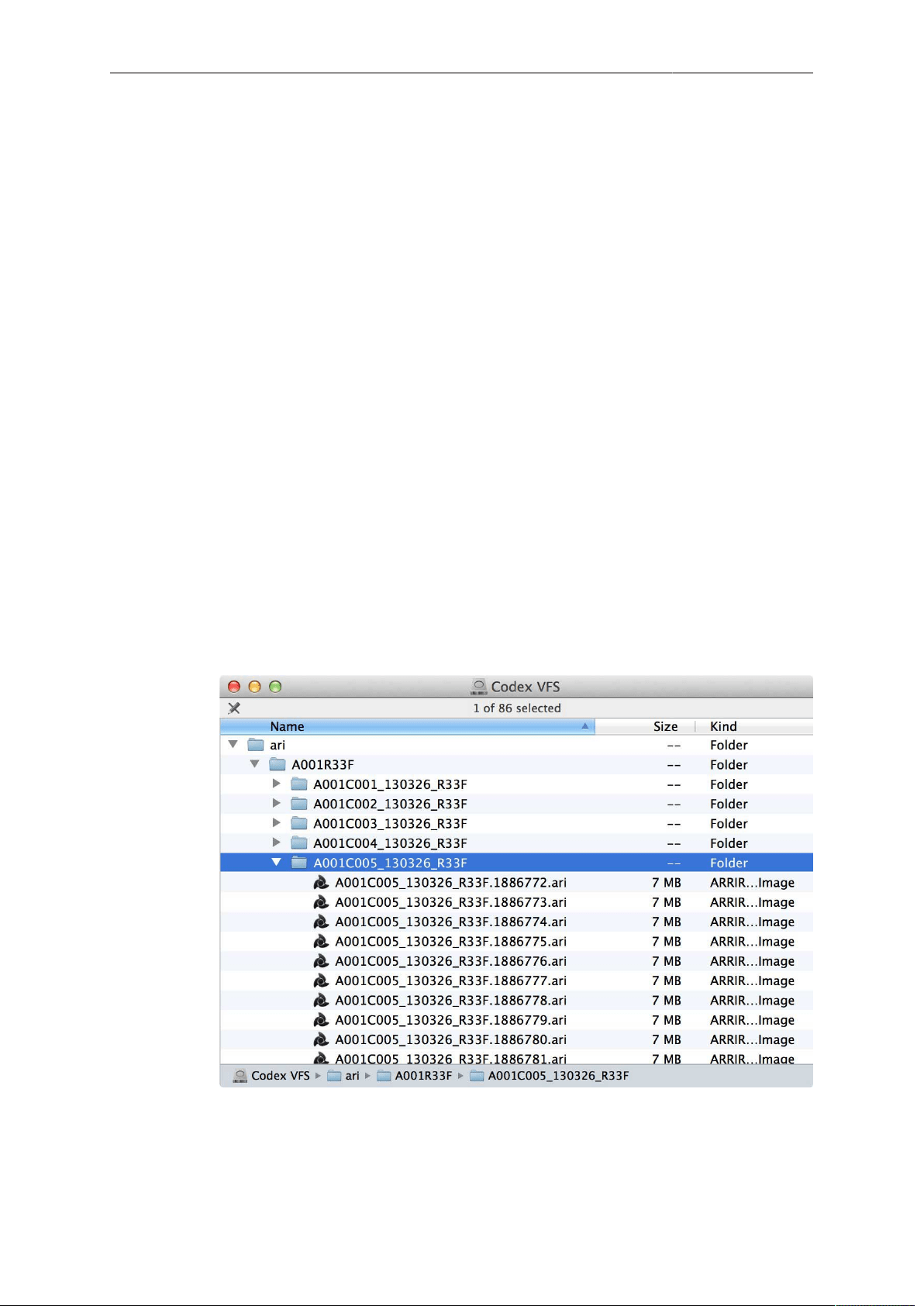
Operation of the Camera 129
The XML file is a Final Cut Pro 7 (FCP) XML file. When opened in Final Cut Pro
7, all clips are imported as one bin. If the clips are copied from the card to another
destination, the file paths in the XML file have to be adjusted to match the new file
location. The XML file is not compatible with FCP X.
The ALE file is an Avid Log Exchange file for Media Composer. It contains all static
clip metadata, which is also embedded in each recorded clip.
For more information about ALEXA metadata, please refer to the ALEXA Metadata
white paper, available at http://www.arri.com/camera/digital_cameras/downloads.
File Structure for ARRIRAW Recording (Codex VFS)
When an SXR/XR Capture Drive with ARRIRAW footage is loaded on a computer, it
shows up like a regular external drive. Operating underneath, however, is the Codex
Virtual File System (VFS). The VFS can present, for example, readily processed DPX
files, MXF/DNxHD and/or QuickTime/ProRes proxies next to the original ARI files on
the Codex volume. Except for the recorded data on the drive, none of these additional
files actually exist. It's only when these files are requested, that they are generated,
on-demand, and on the fly. Hence the term "virtual".
The file formats, file naming and directory structure that will be presented by the VFS
are fully configurable through the Codex Platform software. This makes the VFS a
highly flexible tool for providing exactly the material you require, when you want it,
without redundant processing and storage overhead on your drives.
The default VFS configuration for the output of only ARRIRAW files uses the following
file path:
<Extension>/<Roll>/<Shot>/<Shot>.<TC Frames>.<Extension>
For detailed instructions on the Virtual File System configuration, please visit http://
www.codexdigital.com/support/media-stations and download the Codex VFS Guide.
Fig. 43: Example of an XR Capture Drive using the VFS default file structure in Mac OS X
File naming scheme
ALEXA automatically names files as they are created on the recording media. While
it is possible to change the file names later on a computer, it is not recommended, as
the ALEXA naming scheme has been developed to minimize the risk of duplicate file
names.

130 Operation of the Camera
The file name consists of 6 parts:
•
Camera Index: One character, A-Z. User assignable, should match the camera
unit. For example, the camera index A can be assigned to the A camera, and B to
the B camera.
•
Reel Counter: 3 characters, 001-999. Auto-assigned to each drive/card,
automatically advanced by one for each new drive/card. The user can change the
counter for the next reel. This should only be done under special circumstances,
such as after changing the camera body in the middle of a shoot.
•
Clip Index: One character, fixed to C. Main use is to separate the reel counter
from the clip counter. If more than 999 clips are recorded to one card (not likely to
happen), it changes to D.
•
Date: Current date, in order YYYYMMDD, as set in Menu>System/Time/Date,
separated from the other naming components by underscores.
•
Camera ID: Consists of a one letter prefix, user-adjustable between R and L, and
the camera serial number encoded in 3 letters Base36 (0-9, A-Z).
The file name for ARRIRAW files on SXR/XR Capture Drives is controlled by the
VFS configuration. We highly recommend to use the standard file naming convention
"<shot>.<TC frames since midnight>.<extension>", whereas "shot" automatically uses
the ALEXA naming scheme described above.
The reel counter should be set to 001 at the beginning of a shoot. The camera will
then automatically advance the reel number each time a new drive/card is loaded into
the camera, formatted and recorded on. If a previously recorded drive/card is reloaded
in the camera (comparable to a short end of a film roll), it will keep its reel number
and the camera will continue the reel count. If the drive/card is loaded in another
camera, the card keeps its name, but a new folder with the according camera ID and
reel number is created in the root folder of the drive/card. It is possible, but usually not
necessary, to manually change the next reel number in the Project menu.
Examples
A typical ProRes/Quicktime file name would look like this:
•
A004C010_20130110_R1JL.mov
A typical ARRIRAW file name would look like this:
•
A004C010_20130110_R1JL.1886777.ari
The translation of this name is as follows:
•
This clip was the tenth clip recorded on the fourth reel.
•
This clip was recorded on January 10, 2013.
•
The camera assigned the Base 36 serial number 1JL, which translates into the
decimal serial number 2001
•
Frame number 1886777 on a 24 fps project translates to a time of day time code
of 9:50:15pm and 17 frames.
Additional recommendations
To minimize the risk of lost data, ARRI suggests the following guidelines for data
management:
•
Pre-format your media. Format all the drives/cards in the camera before shooting
begins. This will save production time at least until all cards have been used once.
The media do not receive a reel number until the first clip is recorded, so there is
no need to use the cards in the same order they were pre-formatted.
•
Limit the recording time, especially on the drives. Compressed recording offers
very long recording times. Please consider limiting the recording time to 30
minutes of footage per card/drive to reduce risk of loosing data.
•
Download and back up data immediately after reloading the camera to minimize
the time that data exists in just one place.

Operation of the Camera 131
•
On SxS cards, use the write protect tab before sending it to the data wrangler.
•
After an SxS card has been downloaded and backed up, disengage its write
protect before formatting.
Metadata
Metadata is stored in a Final Cut XML file, an Avid ALE file, in the recorded frames/
clips and embedded in the HD-SDI signals. The most important metadata for post
production workflow is the tape name, as it will be one of the primary identifiers used
in the EDL. The term tape name is an existing post-production naming convention that
is also used for nonlinear media. The terms tape name and reel name may be used
interchangeably.
The tape name of ALEXA files is limited to 8 letters to match the CMX 3600 EDL
standard. It consists of the Camera Index, reel counter and the Camera ID. Based on
the previous example, the tape name of the clip would be A004R1JL.
Even if the user forgets to assign different camera indices to two cameras on the same
project, the Camera ID metadata guarantees unique tape names.
The Quicktime file carries a single timecode track.
For more information, please refer to the Metadata white paper available for download
on the ARRI website.
14.2 Monitoring
The ALEXA's monitoring options are the electronic viewfinder EVF-1 and the MON
OUT. Surround View is available on both. With Surround View set to On, 10%
additional pixels outside the recorded image area on the ALEXA's ALEV III sensor
are displayed, allowing the operator to see outside the recorded image and keep
unwanted objects, such as microphone booms or dolly tracks, out of the shot. To view
only the recorded image, set Surround View to off.
To aid in framing, both the EVF-1 and MON OUT can display frame lines overlaid
on the image. Frame lines can be considered electronic versions of ground glass
markings in film cameras.
14.2.1 Frame Lines
A standard set of frame lines for different aspect ratios is provided in the camera,
including:
•
1.33:1 (ARRI 1.33)
•
1.66:1 (ARRI 1.66)
•
1.78:1 (ARRI 1.78)
•
1.85:1 (ARRI 1.85)
•
2.39:1 (ARRI 2.39 Flat)
•
2.39:1 1.3x anamorphic (ARRI 2.39 Scope 1.3x)
•
2.39:1 2.0x anamorphic (ARRI 2.39 Scope 2x)
To create custom frame lines, use the Frame Line Composer on the ARRI website.
NOTICE
When shooting ProRes 2K (2048x1152) for a DCI 2K release in a 1.85:1 aspect
ratio, the preloaded frame line ARRI 1.85 2K DCI can be used to mark the
corresponding 1998x1080 area for a DCI 2K 1.85 without requiring any scaling in
post production. This frame line is not available in HD mode (1920x1080).
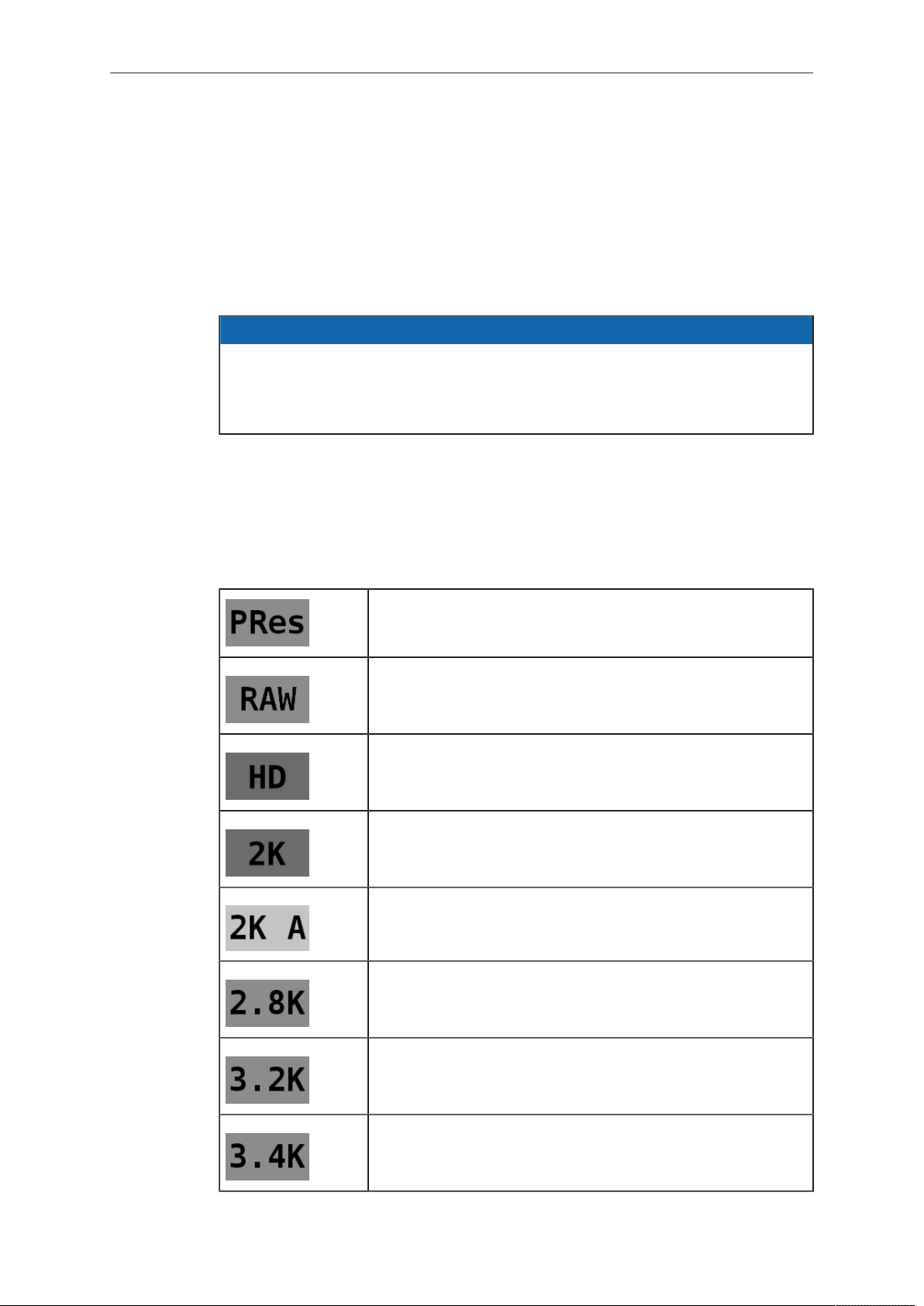
132 Operation of the Camera
14.2.2 Status Info Overlays
The ALEXA can display camera status information on EVF-1 and MON OUT.
At the top and bottom of the screen, the ALEXA displays textual status information.
The top status bar consists of sensor FPS, shutter angle, exposure index and white
balance. In the EVF-1, the status bar also works as a menu, allowing the user to
change the values when the CAM button is pressed.
The bottom status bar displays information about the battery levels, recording/standby
flag and remaining capacity of internal storage.
NOTICE
In SUP 1.0, the maximum size of a single clip is limited to about 229 GB. Therefore,
the camera shows the remaining time for both the whole media as well as the
current clip as soon as recording starts. During standby, the camera shows only the
remaining time for the whole media.
On the left and right of the screen, icons provide information about the current status
of the camera. The icons are organized into groups.
The left icon group is labeled SYS and contains information about the general system
state of the ALEXA. On the right side, there are three groups labeled MON, EVF
and LOOK. They provide specific information about MON OUT 1/2/3, EVF-1 and the
application of ARRI Look File 2 files.
The following table explains the icons in the SYS group:
Indicates that the current recording mode is set to
ProRes.
Indicates that the current recording mode is set to AR-
RIRAW.
Indicates that the current recording resolution is set to HD.
Indicates that the current recording resolution is set to 2K
Cine.
Indicates that the current recording resolution is set to 2K
Anamorphic.
Indicates that the current recording resolution is set to 2.8K.
Indicates that the current recording resolution is set to 3.2K.
Indicates that the current recording resolution is set to 3.4K.
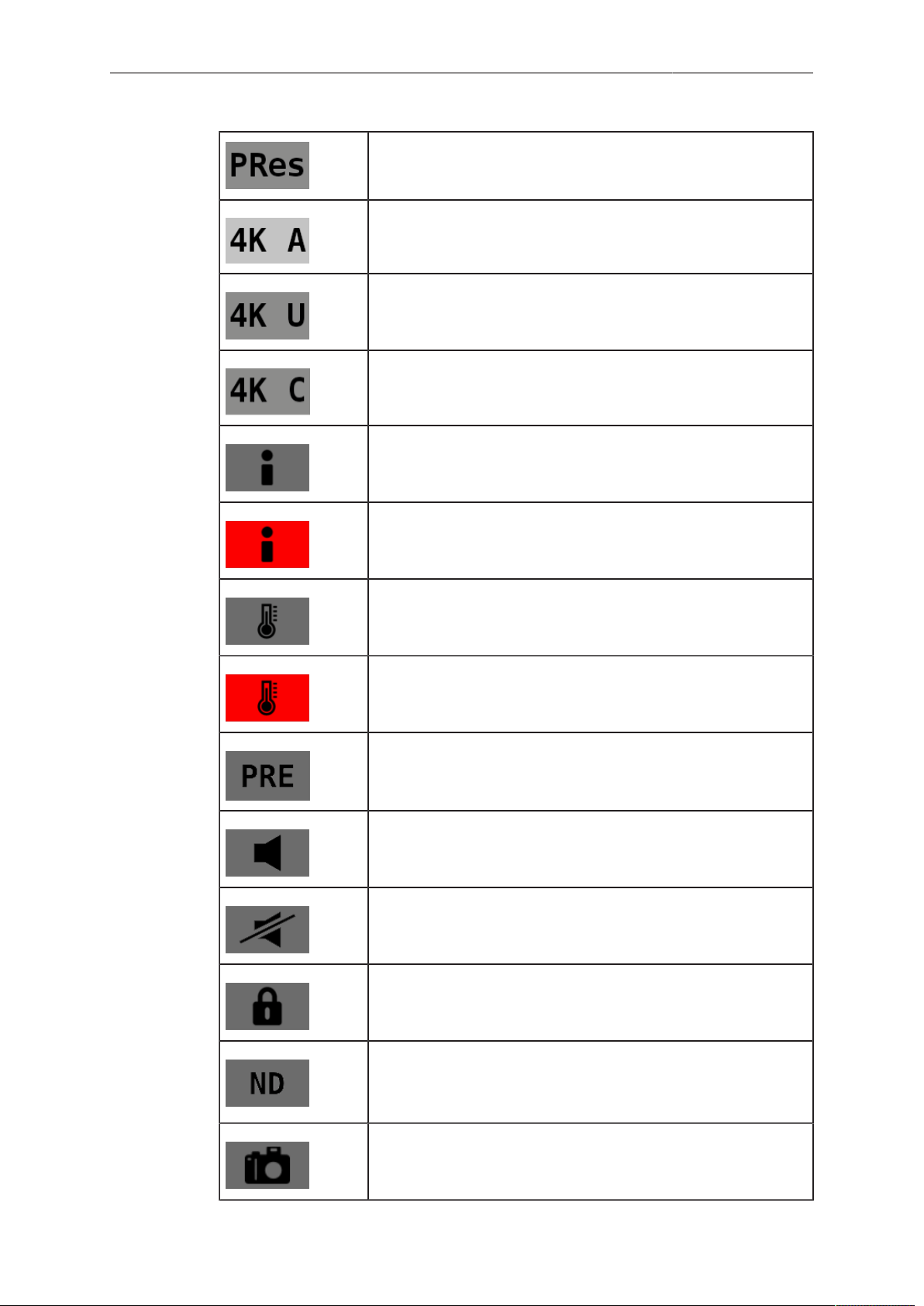
Operation of the Camera 133
Indicates that the current recording mode is set to
ProRes.
Indicates that the current recording resolution is set to 4K
Cine Anamorphic.
Indicates that the current recording resolution is set to 4K
UHD.
Indicates that the current recording resolution is set to 4K
Cine.
Indicates that there is a warning condition in the camera.
Warns that the camera has detected an error.
Indicates that the camera temperature is outside of its opti-
mal range.
Warns that the camera temperature has reached a critical
point where it can no longer be operated and must be pow-
ered down.
Indicates that prerecording is activated.
Indicates that audio recording has been switched on.
Warns that audio recording has been switched on, but is cur-
rently disabled, e.g. because of an off-speed framerate.
Indicates that the camera controls are locked.
Only shown in EVF-1
Indicates that the motorized sliding ND filter is in the optical
path
Only for ALEXA SXT Studio
Indicates that a frame grab is currently in progress.
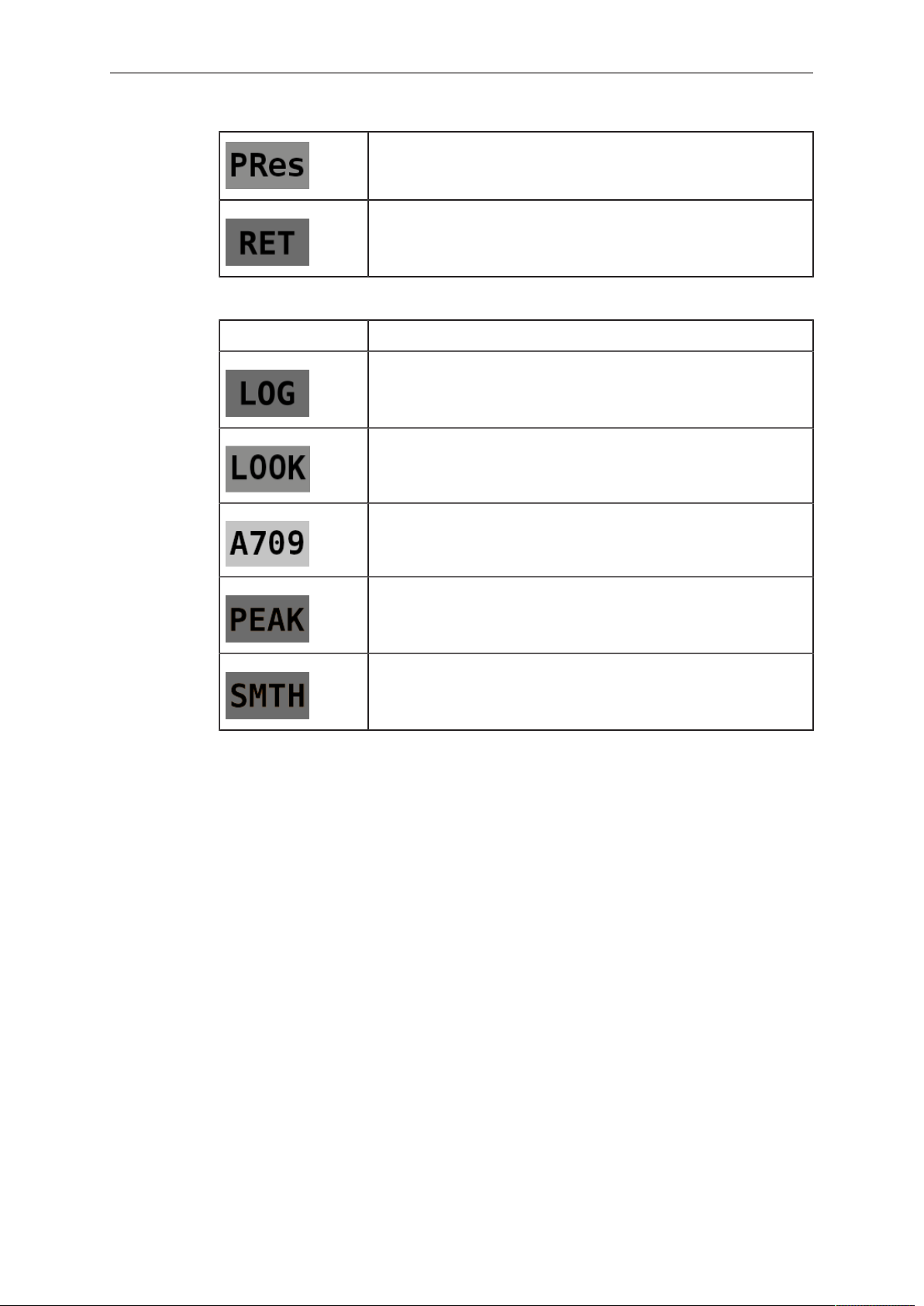
134 Operation of the Camera
Indicates that the current recording mode is set to
ProRes.
Indicates that the signal from the RET IN connector is cur-
rently being displayed.
The following table explains the icons in the MON and EVF group on the right:
Icon Description
Indicates that the processing of the respective output is set
to Log C.
Indicates that the processing of the respective output is set
to ARRI Look File 2 file.
Indicates that the processing of the respective output is set
to ALEXA Classic 709.
Warns that peaking is active on the respective output.
Warns that smooth mode is active in the EVF-1.
14.3 Using Timecode
Timecode ensures that every image of recorded media can be identified with a unique
value and synced with corresponding media, such as sound or the second camera in
a 3D application. When used with other metadata, such as reel names, all recorded
media maintains its unique identity.
Following are two ways timecode can be used on a production:

Operation of the Camera 135
External TC, Time of day
•
Use: This format is often used on multi-camera productions with sync-sound.
When all cameras are running at sync-sound speed, which is also the project
frame rate, sound and image time code match and allow for easy syncing in post.
•
Setup: The sound department acts as the timecode master, and generates
timecode which uses the time of day as a value, and a time base matching the
project frame rate. Twenty-four hours of time will translate into twenty-four hours of
time code.
Timecode is fed to the camera via the TC connector. The timecode source must
be set in the camera to Ext LTC and the mode to Free Run. The project fps setting
must match both the sensor frame rate and the time base of the external timecode
signal. The camera can be set to use Jam sync generator, in which it samples the
timecode value once and then continues counting based on its own high-precision
crystal clock. The timecode source can be disconnected from the camera after
jamming in Jam sync generator mode. This mode ensures stable timecode with an
offset of less than one frame for each eight hours, after which the camera has to
be re-jammed.
Alternatively, the camera can be set to regenerate mode, or Regen on the
TIMECODE OPTIONS screen. In Regen mode, the camera uses the timecode
value of the external timecode source. This ensures correct timecode for an infinite
duration, but the timecode source must remain connected to the camera. Note that
the camera ignores external timecode during record and counts using its internal
clock to avoid timecode jumps should connection problems arise, e. g. due to a
faulty timecode cable.
•
Variations: If shooting starts close to midnight, the timecode might be started with
an offset time of day to prevent a rollover at midnight.
•
Restrictions: External timecode is only possible if the camera is running at sync-
sound speed. If the camera is over- or under-cranking, the timecode frame rate
will no longer match the sensor framerate, and timecode values would either be
duplicate or dropped. To prevent this, the ALEXA will automatically switch to Int TC
source and Regen mode when the sensor frame rate is changed.
Internal TC, Rec Run
•
Use: Record run timecode is often used on single camera productions that are
either MOS or use a dumb slate to sync picture and sound. Record run timecode
guarantees continuous timecode on all recorded data. Record runtime code also
works with over- and under-cranking.
•
Setup: The timecode source must be set to Int TC, the mode to Rec Run and the
generator to Regen. Timecode counts up only during recording, by one frame for
each image generated by the sensor. The timecode counts at the project frame
rate set on the camera. Normally, the timecode hour value advances by one hour
for each new reel, using only hours 01-20 for reel 1-20, and then restarting at hour
01 for reel 21.
•
Variations: Record run timecode might be used for off-speed work on productions
that use external timecode sources for all sync sound.
•
Restrictions: None.
14.4 Syncing the Sensors of Two Cameras
Two ALEXAs can be synced for 3D applications or any application requiring sensor
sync using the EXT connectors and corresponding cable. When synced, images are
captured from each camera's sensor at precisely the same time.
NOTICE
•
Syncing two sensors is possible at frame rates of at least 1.000 fps.
•
Use both sensor sync and settings sync (see next chapter) in 3D setups.

136 Operation of the Camera
To sync the sensors of two ALEXAs:
1. Connect an EXT cable KC 155-S to the EXT ports on each ALEXA.
2. In the System menu on the master camera, select External Sync.
3. On the EXT SYNC screen, set Sensor sync to EXT master.
4. In the System menu on the slave camera, select External Sync.
5. On the EXT SYNC screen, set Sensor sync to EXT slave. It takes approximately
five seconds for the two ALEXAs to sync.
The master camera triggers the slave camera so that images are created at the same
moment of time with an accuracy of 10 μs. Whenever an error occurs, the camera will
issue a warning.
Image integration between master and slave camera has a locked offset of less
than 10 μs. This means that in the worst case, exposure differs by 4.3% (@ 60 fps
frame rate and 5.0° shutter angle). With a regular exposure time (24 fps, 172.8°), the
maximum difference is 0.05%.
Synchronizing Image Output
The MON OUTs of two ALEXAs can also be synchronized. To achieve this, the user
must send a trigger from the master camera to the slave camera after sensor sync is
established.
To sync the MON OUTs of two ALEXAs:
1. Ensure that the sensors of the two ALEXAs are synced.
2. Ensure that MON OUT fps equals sensor fps.
3. In the System menu on the master camera, select External Sync.
4. On the EXT SYNC screen, select Send HD sync trigger.
5. Press the jogwheel to send the trigger to the slave camera.
The camera will display the message HD sync trigger sent to slave camera!. If
the sensors are not synced, the camera will display the error message Trigger not
sent. Camera must be set to Ext sync: Master!.
After the sync trigger has been sent, the slave camera will no longer display the
warning HD outs not synced. Trigger now!.
If the two cameras' settings are synced over Ethernet, the trigger is automatically sent.
When the outputs are synced, jitter between the two cameras' HD outputs is less than
500 ns. The HD output of each camera can be advanced or delayed by up to 30 HD
clocks (1 HD clock= 13.46 ns), allowing for a total shift of 60 HD clocks (808 ns total)
between cameras.
Timecode
Timecode is also transmitted from the master to the slave over the EXT cable. When
a camera has been set to slave, it automatically uses the timecode values transmitted
over the EXT cable. The TC screen will display EXT TC from master camera as TC
source, and all options are disabled. Only the master camera outputs LTC timecode
on its TC connector.
NOTICE
•
In a setup with sensor sync, but without settings sync, recording needs to be
started first on the slave camera, and then on the master camera.
•
When the mirror shutter is switched on, an ALEXA Studio can only be synced to
another ALEXA Studio.
•
Recording on the slave camera may stop a few frames later than on the master
camera. Sync up the clips by timecode to ensure matching master/slave
footage.

Operation of the Camera 137
14.5 Syncing the Settings of Two Cameras
Two ALEXAs can be operated with synchronized settings. ARRI recommends to sync
the settings of the same ALEXA models only, for example, two ALEXA Plus models.
Camera connection
The settings of two ALEXAs can be synchronized over ethernet using the ALEXA
Ethernet/Ethernet Cable KC 156-S, or over an ethernet hub using the ALEXA
Ethernet/RJ-45 Cable KC 153-S.
Camera setup
To sync the settings of two ALEXAs over Ethernet:
1. Connect an ALEXA Ethernet/Ethernet Cable KC 156-S to the EXT ports on both
ALEXAs, or an ALEXA Ethernet/RJ-45 Cable KC 153-S to the ethernet hub and
the EXT port of each ALEXA.
2. In the System menu on the master camera, select External Sync.
3. On the EXT SYNC screen, set Settings sync to ETH master.
4. In the System menu on the slave camera, select External Sync.
5. On the EXT SYNC screen, set Settings sync to ETH slave. The two ALEXAs
will automatically negotiate IP addresses. It takes approximately five seconds to
establish a connection.
The master camera will initially distribute its settings to the slave camera. Once this
is done, settings can also be changed on the slave camera, and the change will
take effect on both cameras. This is useful if the master camera's controls are not
accessible.
If a camera is set to ETH master or ETH slave, but is not connected to another
camera, a warning is displayed on the STATUS Info screen.
Synced settings
The following settings are synced when syncing two ALEXAs:
WB>White Balance + CC Tint
EI>Exposure Index
FPS>Sensor FPS
SHUTTER>Shutter Angle
COLOR>REC Processing
COLOR>MON OUT 1 Processing
COLOR>MON OUT 2 Processing
COLOR>MON OUT 3 Processing
COLOR>EVF Processing
MENU>Recording>Mode
MENU>Recording>Codec
MENU>Recording>Resolution
MENU>Monitoring>EVF>Surround view

138 Operation of the Camera
MENU>Monitoring>EVF>Anamorphic desqueeze
MENU>Monitoring>MON OUT 1>Frame rate
MENU>Monitoring>MON OUT 1>Scan format
MENU>Monitoring>MON OUT 1>Status info
MENU>Monitoring>MON OUT 1>Surround view
MENU>Monitoring>MON OUT 1>Surround mask
MENU>Monitoring>MON OUT 1>Framelines
MENU>Monitoring>MON OUT 1>Anamorphic desqueeze
MENU>Monitoring>MON OUT 2>Frame rate
MENU>Monitoring>MON OUT 2>Scan format
MENU>Monitoring>MON OUT 2>Status info
MENU>Monitoring>MON OUT 2>Surround view
MENU>Monitoring>MON OUT 2>Surround mask
MENU>Monitoring>MON OUT 2>Framelines
MENU>Monitoring>MON OUT 2>Anamorphic desqueeze
MENU>Monitoring>MON OUT 3>Frame rate
MENU>Monitoring>MON OUT 3>Scan format
MENU>Monitoring>MON OUT 3>Status info
MENU>Monitoring>MON OUT 3>Surround view
MENU>Monitoring>MON OUT 3>Surround mask
MENU>Monitoring>MON OUT 3>Framelines
MENU>Monitoring>MON OUT 3>Anamorphic desqueeze
MENU>Project>Project fps
The slave camera also takes over the Camera ID of the master camera, so file names
are identical except for the Camera ID prefix. It is important to give the master and the
slave camera different Camera ID prefixes to prevent duplicate file names.
When formatting media in settings synchronized cameras, the next reel count of the
master camera takes effect.
NOTICE
•
An error will be triggered on pressing record when at least one of the synced
cameras is not ready for recording (e.g. because of missing medium).
•
Automatic white balance for synced cameras can only be initiated on the master
camera.
•
Sensor mode needs to be switched manually on all synced cameras. Do not
start recording until all cameras have loaded the same sensor mode.
•
Prerecord does not work in combination with settings sync.
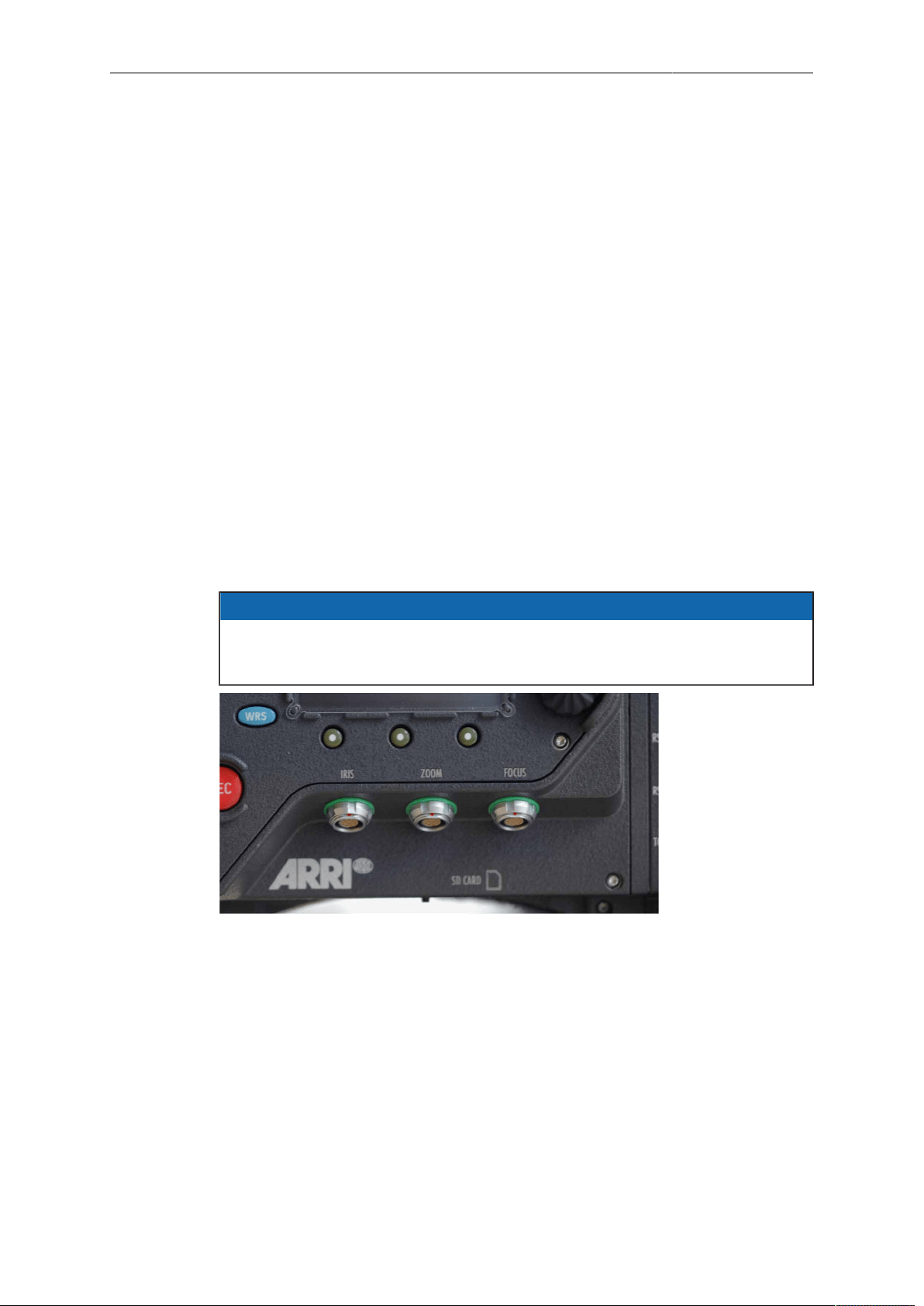
ALEXA SXT Plus 139
15 ALEXA SXT Plus
The ALEXA SXT Plus has a special side cover that contains extended electronics and
offers the following additional functions over the standard ALEXA SXT EV:
•
Built-in radio system for wireless remote control of lens and camera
•
A level sensor to determine the camera's tilt and roll in degrees
•
Three CLM (Controlled Lens Motors) ports for driving CLM-2, CLM-3, CLM-4,
CLM-4 Plus, and CLM-5 motors or LDE-1 data encoders
•
Two LCS (Lens Control System) bus interfaces for connecting WCU-3, WCU-4,
WHA-3 and ZMU-3 hand units
•
LDS Lens Data System for reading lens data from LDS lenses
•
Depth of field calculation for LDS lenses and LDA (Lens Data Archive) lenses in
combination with calibrated lens motors
•
LDD (Lens Data Display) interface
•
Control of LDS, radio, and lens motors through the camera user interface
•
A third RS socket
•
A forth MON OUT output
•
An additional function button labeled WRS (Wireless Remote System). It gives
access to the WRS screen, from where all camera settings related to the Plus
camera features can be adjusted.
Any ALEXA SXT EV can be upgraded to an ALEXA SXT Plus by installing the Plus
module.
NOTICE
•
The Plus module must be installed by an authorized ARRI service center only.
•
All features described in this Chapter are also available on ALEXA SXT Studio.
Fig. 44: CLM sockets
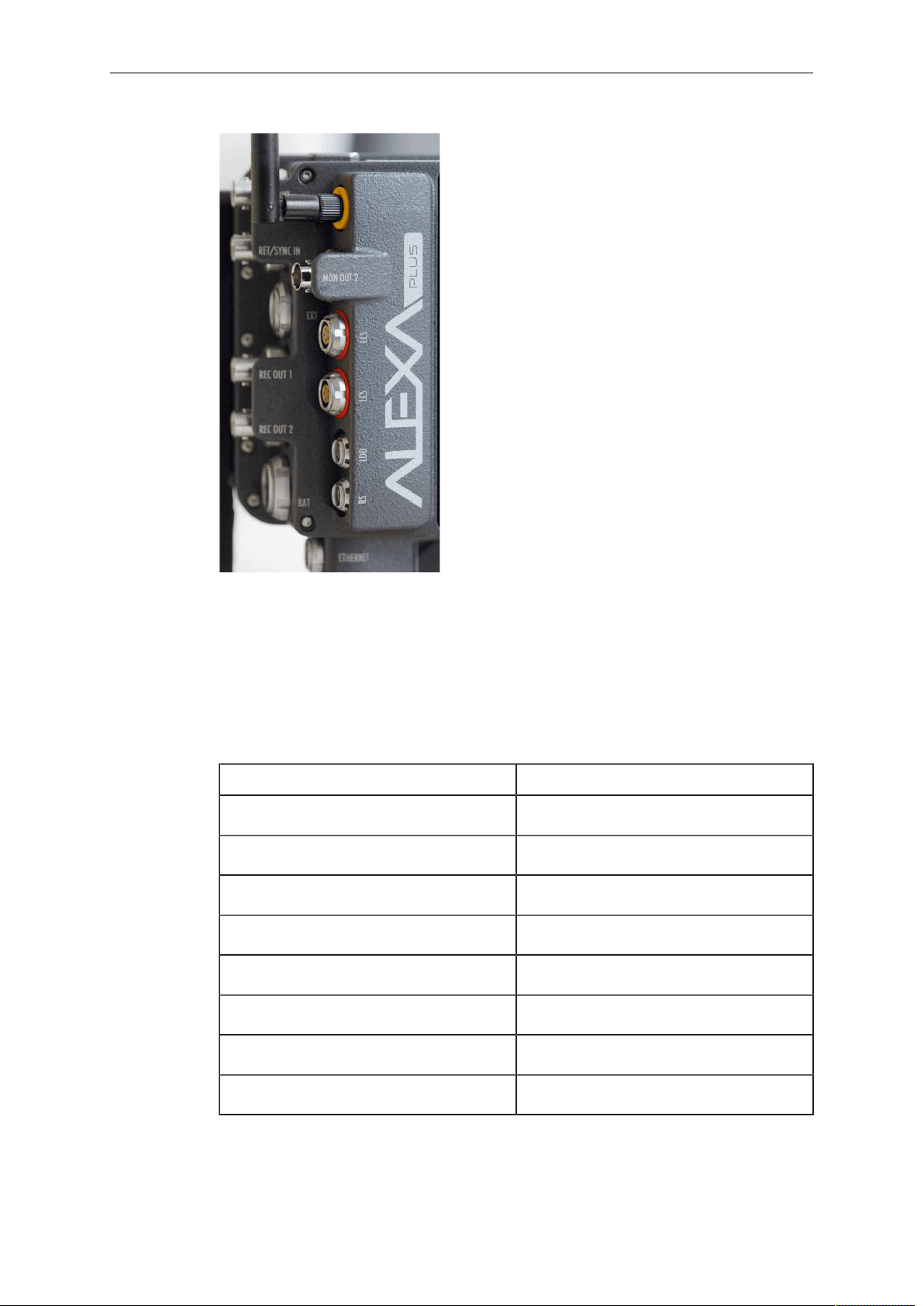
140 ALEXA SXT Plus
Fig. 45: ALEXA SXT Plus connectors
15.1 Radio System
The ALEXA SXT Plus module contains a radio unit that enables wireless lens control,
lens data communication and remote control of basic camera functions. The radio
system is called white radio and it can be identified by a white ring at the base of the
antenna mount point. It offers 8 channels to choose from:
Channel Frequency
0 2.410 GHZ
1 2.415 GHZ
2 2.430 GHZ
3 2.435 GHZ
4 2.450 GHZ
5 2.455 GHZ
6 2.470 GHZ
7 2.475 GHZ
White radio and legacy yellow radio cannot be mixed in the same radio network of
camera and hand units. It is possible to use both systems in parallel within different
radio networks.
Up to three hand units can be connected to one camera in parallel to form a radio
network.
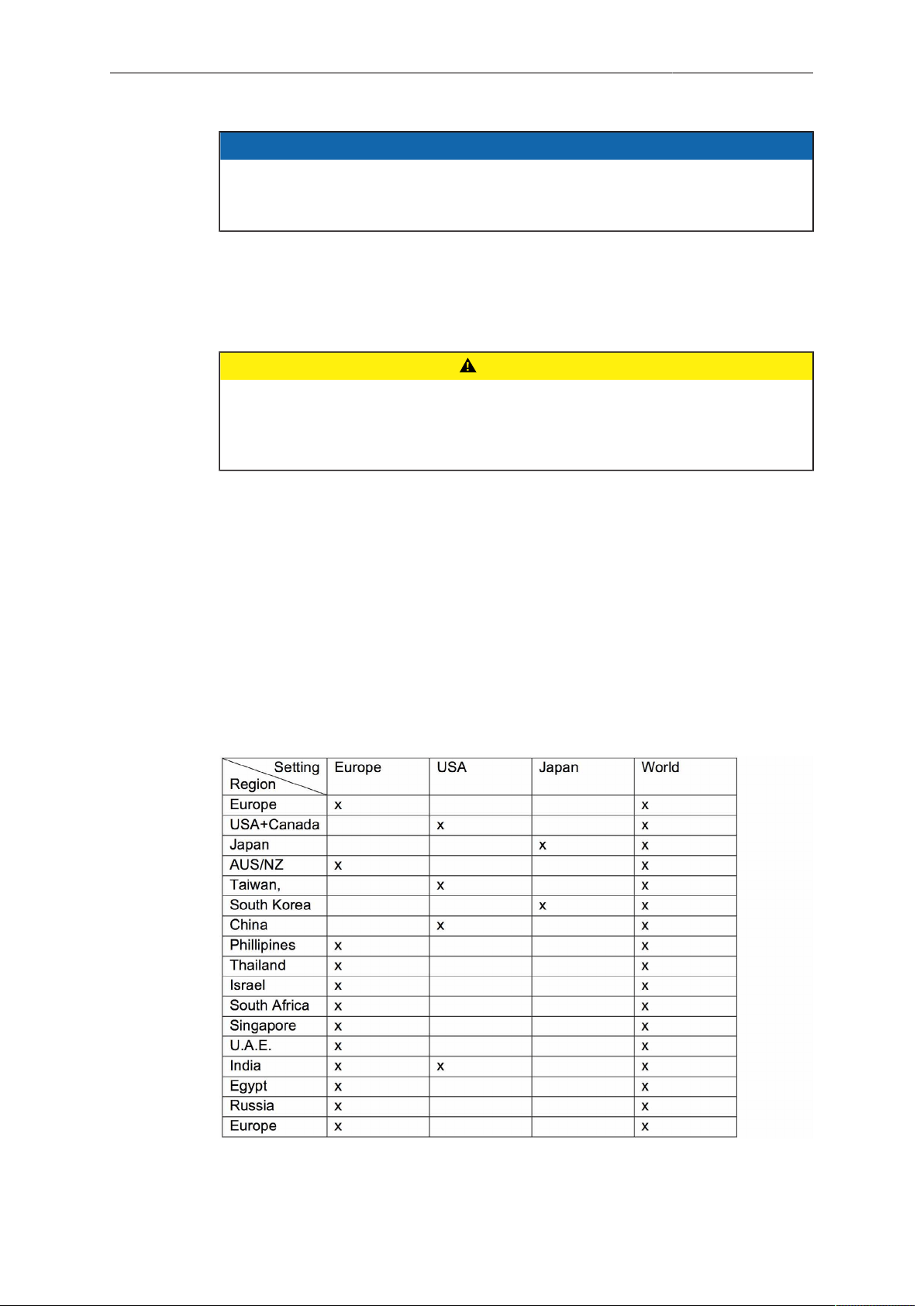
ALEXA SXT Plus 141
NOTICE
When a camera is set to "Sensor sync: EXT slave", its radio module automatically
switches itself off, and the camera receives CLM control commands from the
Master camera via the EXT cable.
15.2 Wireless Remote System
15.2.1 Setting the region of the wireless function
CAUTION!
Wireless region settings specify where the wireless function can be used in
compliance with local regulations. It may be illegal to use the wireless function
in a region other than specified in the setting. Please ensure that the region is
configured correctly, e.g. when traveling.
► Press the WRS button. Choose RADIO > WRS REGION and select the region.
You have the following options:
°
Japan
°
Europe
°
USA
°
South Korea
°
World
For further information see image bellow. Find your country/ region in the left column
and the respective setting in the upper row. In case of doubt please contact ARRI
Service to ensure that the region is configured correctly (e. g. when traveling). Note all
settings fulfill FCC requirements.
Fig. 46: Region setting for ARRI WRS
142 ALEXA SXT Plus
15.2.2 Lens Motors
The ALEXA SXT Plus supports ARRI CLM-2, CLM-3, CLM-4, CLM-4 Plus, and CLM-5
motors and the LDE-1. CLM-1 motors are not supported. CLM-2, CLM-3, CLM-4,
CLM-4 Plus and CLM-5 motors can be used in a mixed setup.
NOTICE
Use only one lens motor per lens axis.
Lens motors should be connected, according to their position on the lens, to the IRIS,
FOCUS and ZOOM sockets on the camera-right side.
Motor calibration
After connecting a lens motor to the camera and the lens, it must be calibrated. The
lens motor must be recalibrated under the following conditions:
•
when the lens motor is detached from the lens
•
after a camera reboot
•
after changing lenses
•
after a change in motor position while powered down
NOTICE
Omitting motor calibration might lead to damage of the lens due to the high level of
motor torque.
To calibrate a motor:
1. Press the WRS button.
2. Select a motor by pressing the IRIS CLM, ZOOM CLM or FOCUS CLM button.
3. Press CALIBRATE to start calibration of this motor only, or CAL. ALL to start
calibration of all motors.
Motor direction
The direction of the motors can be set in the ALEXA's menus.
To set the direction of a motor:
1. Press the WRS button.
2. Select the motor by pressing the IRIS CLM, ZOOM CLM or FOCUS CLM button.
3. Press the LEFT or RIGHT button to set the direction of the lens motor.
Motor torque
For all supported motors except for CLM-2 motors, the motor torque can be set in the
ALEXA's menus.
To set the torque on a lens motor:
1. Press the WRS button.
2. Select the lens by pressing the IRIS CLM, ZOOM CLM or FOCUS CLM button.
3. Press the +1 or -1 buttons to increase or decrease the motor's torque. Available
torque settings are 1 to 4, with 1 being the lowest torque level.
NOTICE
Ensure that the motor torque level matches the lens to avoid lens damage.
ALEXA SXT Plus 143
3D lens sync
When two ALEXA SXT Plus cameras are set to Sensor sync EXT master and EXT
slave, the slave camera will switch off its radio module and receive motor control
commands from the master camera over the EXT connection.
NOTICE
•
Matching of the master and slave cameras' lenses in terms of focus, iris and
zoom ring positions depends on the mechanical accuracy of the lenses. Make
sure the lenses in use are matched as closely as possible. Use only lenses
of the same focus classification to minimize positional errors. Deviating focus
positions of non-matching lenses cannot be compensated.
•
At higher focus distances, even a very small position error of the lens ring
results in a great difference of indicated focus values. Therefore, even a pair of
matching lenses in a 3D lens sync setup may show different focus values.
Lens Data Encoder LDE-1
The LDE-1 generates lens data in situations when an ALEXA Plus or ALEXA Studio
model (or an UMC-4) is being used without an LDS lens or an ARRI lens motor.
Thus the LDE-1 extends the abilities of the ARRI Lens Data System to all lenses
and cameras setups. The LDE-1 is compatible with ALEXA SXT Plus and ALEXA
SXT Studio models or with the ALEXA SXT EV models when used with the Universal
Motor Controller UMC-4. The LDE-1 contains an encoder that delivers lens data to
the camera and can be used in parallel with a manual follow focus unit or a third-party
wireless lens control system.
15.2.3 Hand Units
For detailed information of the hand units, please refer to the device's own manuals.
Wireless Compact Unit WCU-4
The WCU-4 is an all-inclusive and yet affordable hand unit offering up to 3-axis lens
control. It includes a newly designed, super-smooth focus knob with adjustable friction
and backlit, optionally pre-marked focus rings that are well readable in the dark
without distracting performers. The whole unit is completely splash proof for ARRI-
typical reliability. The slider has its scale on the 3” display, providing clearly readable
T-stop numbers and optional on-screen markings. If preferred, the slider can be also
set to show zoom scales. With the additional ALEXA Remote license, the WCU-4
shows extended camera status information and allows to change camera parameters
from the remote unit.
Wireless Compact Unit WCU-3
The WCU-3 is a compact hand unit featuring a radio system to connect to the camera
wirelessly. It has two LCS ports for connecting the device to the camera via cable and
to attach a ZMU-3. A wheel and a slider can be used to control focus and iris axes.
Zoom axis can be controlled by attaching a ZMU-3 at an LCS port.
The WCU-3 also has a display where it shows current fps, shutter angle, exposure
index and white balance of the camera.
Wireless Main Unit WMU-3
The WMU-3 is a radio system for wireless connection to the camera. Both WFU-3 and
WZU-3 can be attached to the WMU-3.
Wireless Focus Unit WFU-3
The WFU-3 has a knob and a slider that can be used to control focus and iris axes. It
connects to the camera through a WMU-3 or a WHA-3.

144 ALEXA SXT Plus
Wireless Zoom Unit WZU-3
The WZU-3 controls the zoom axis. It connects to the camera through a WMU-3 or a
WHA-3.
Wired Hand Adapter WHA-3
The WHA-3 allows both WFU-3 and WZU-3 to connect to the camera via cable.
Zoom Main Unit ZMU-3
The ZMU-3 controls the zoom axis. It can be connected to the camera via cable to
an LCS port, or via cable through an LCS port of an WCU-3, or wirelessly by using a
WZE-3.
Wireless Zoom Extension WZE-3
The WZE-3 is a radio system that enables direct wireless connection of a ZMU-3 and
a camera.
Hand Unit Priorization
Different priority levels are assigned to the hand unit devices to ensure only one
device has control over a motor at a time.
A device's knob that is assigned to an axis has a higher priority than a device's slider
assigned to the same axis. When steering items of the same type are assigned to the
same axis, the one connected via WRS has highest priority, second highest priority
has a device cable on the upper LCS port, the lower LCS port has the lowest priority.
Of two radio devices with the same steering items assigned to the same axis, the one
that connects to the camera first gains control.
Cabled devices can gain control of an axis at the time of connection. Wireless devices
must be rebooted if an axis has become idle before they can gain control.
An exception to the rule are devices on the zoom axis. Here the cabled devices have
the highest priority, with LCS port 1 having priority over LCS port 2.
15.3 Lens Data Display LDD-FP
The Lens Data Display for Focus Pullers LDD-FP can be used to display lens
information. Connect it to the LDD port of the Plus module.
15.4 Plus Camera Controls
The ALEXA SXT Plus has an additional function button labeled WRS (Wireless
Remote System). It gives access to the WRS screen, from where all camera settings
related to the Plus camera features can be handled.
The WRS screen gives an overview of radio status, camera level, LDS status, and
CLM status. The screen buttons lead to screens containing more detailed info on
these topics and where settings can be changed.
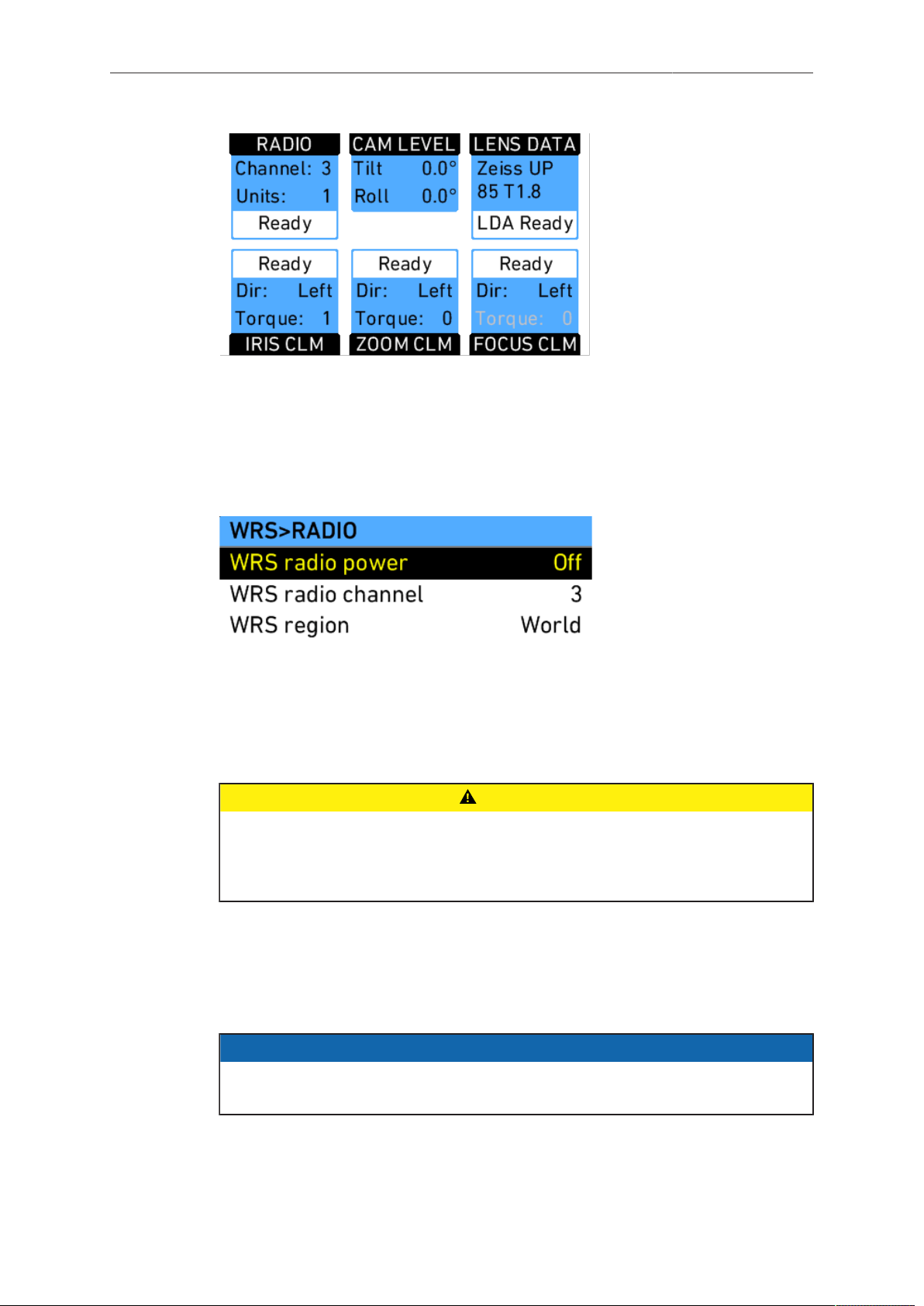
ALEXA SXT Plus 145
Fig. 47: WRS screen
RADIO
Shows the currently set radio channel, the number of connected hand units and the
staus of the radio system. Pressing the RADIO button opens a screen where radio
can be set on or off, the channel number can be set, and the WRS region can be set.
When radio is switched on, a small icon appears in the camera HOME screen.
Fig. 48: WRS radio screen
CAUTION!
WRS region settings specify where the wireless function can be used in compliance
with local regulations. It may be illegal to use the wireless function in a region other
than specified in the setting. Please ensure that the region is configured correctly
(e. g. when traveling).
CAM LEVEL
Shows the tilt and roll of the camera in degrees as measured by the camera's position
sensor. This sensor can be reset if it appears to have an offset. Press the CAM LEVEL
screen button to access the reset screen. By pressing the two lower outer screen
buttons simultaneously, the sensor is reset.
NOTICE
The sensor can only be reset while both axis are within a threshold of +/-10
degrees around 0.
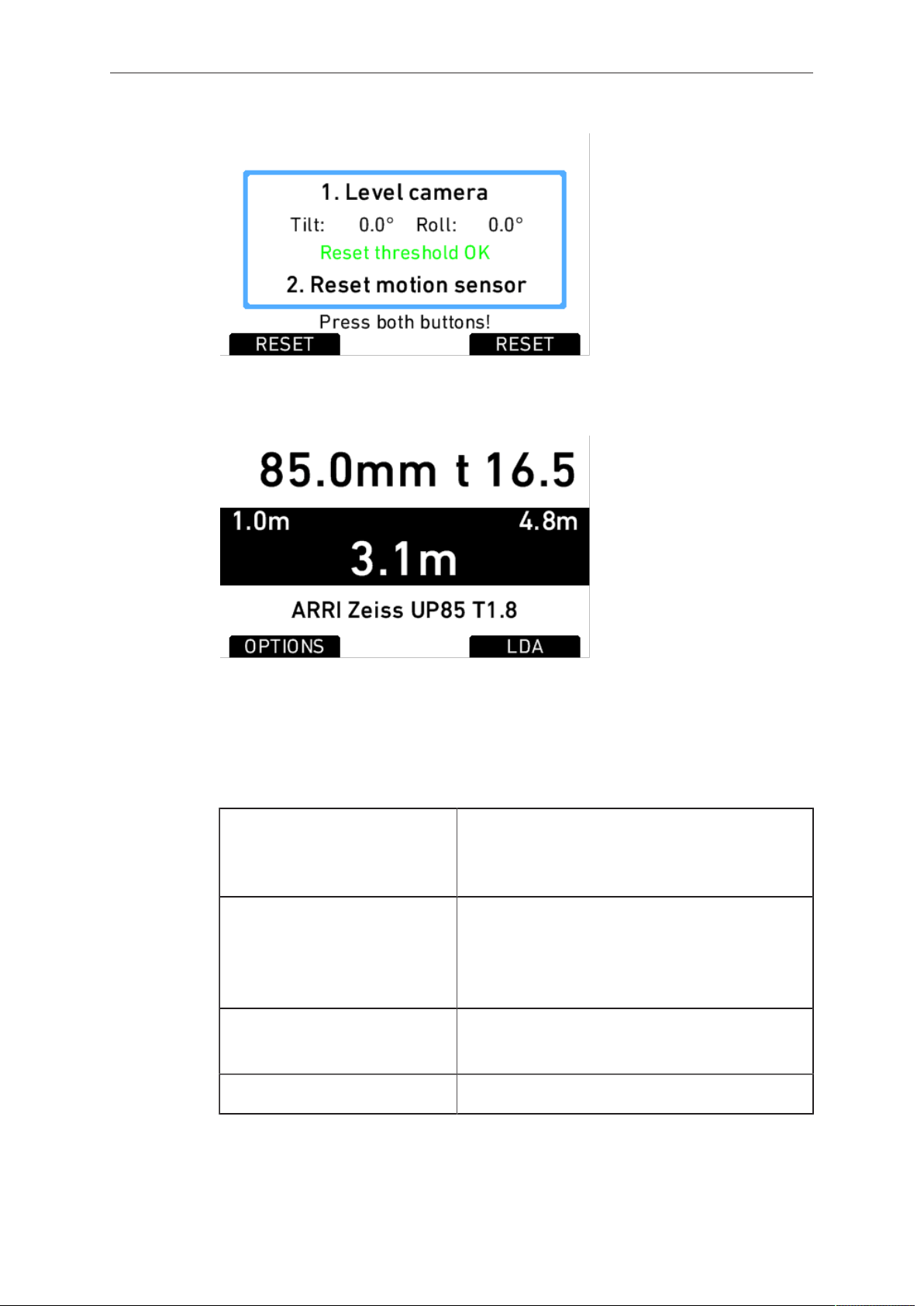
146 ALEXA SXT Plus
Fig. 49: Motion sensor reset screen
LENS DATA
Fig. 50: LDS info screen
Shows the type of LDS lens connected and the LDS status. The LENS DATA screen
button leads to the LDS screen, where lens type, current focal length, iris, focus
distance and close and far point of depth of field are shown.
The OPTIONS screen button opens the LDS options screen, where the following
parameters can be set:
Lens distance unit
•
Metric
•
Imperial
•
Default unit (as provided by the lens)
Circle of confusion
•
0.013 mm
•
0.025 mm
•
0.035 mm
•
0.050 mm
LDS mount
•
On
•
Off
Lens squeeze factor Link to the Project menu
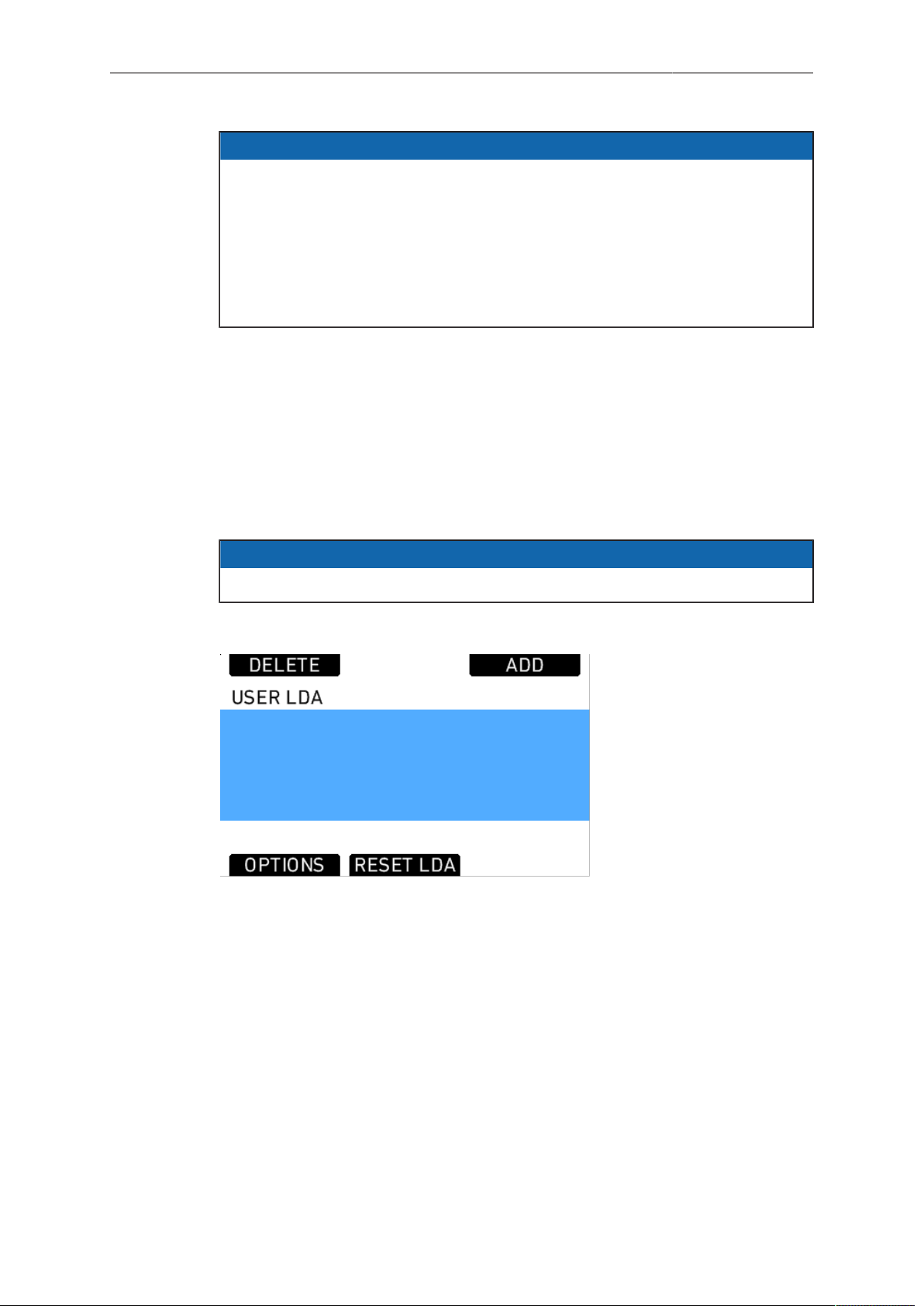
ALEXA SXT Plus 147
NOTICE
•
When setting LDS mount to Off, it is possible to use a lens table from the Lens
Data Archive (see below) with an LDS lens, and ignore data coming from the
lens itself. To re-enable the LDS mount, set the parameter to On, detach the
lens and re-attach it.
•
After connecting a new LDS lens, turn all lens rings slowly until all lens axes
have transmitted their current positions.
•
Cooke /i lenses need to have a firmware version of 0.39 or higher to work
properly with the camera.
LDA
When a non-LDS lens is connected, the user can achieve LDS functionality by using
the Lens Data Archive. In the LDS screen, a button labeled LDA appears when a non-
LDS lens is connected.
The LDA screen consists of a user list and a main archive list. The user list should
only contain the lenses currently used to achieve quick access to the desired lens
tables. The main archive contains a set of lens tables for ARRI/Zeiss High Speeds
(also known as Super Speeds), Master Primes and Ultra Primes and can be extended
with additional lens tables for any PL-Mount lens.
NOTICE
Custom lens tables may have to be created manually beforehand.
Pressing the LDA button opens the User LDA screen. Select a lens table and press
the wheel. After calibrating the lens motors, the LDS functionality can be used.
Fig. 51: USER LDA screen
To add a lens table from the main archive, access the User LDA screen and press the
ADD button. This opens the MAIN LDA screen. From the main archive, first select a
lens type, then a lens model and then a lens class. The lens class can be found on the
lens barrell below the infinity symbol of the focus scale. Select to add the lens table to
the user list (Press ADD), use it without adding (USE), or both (ADD+USE).
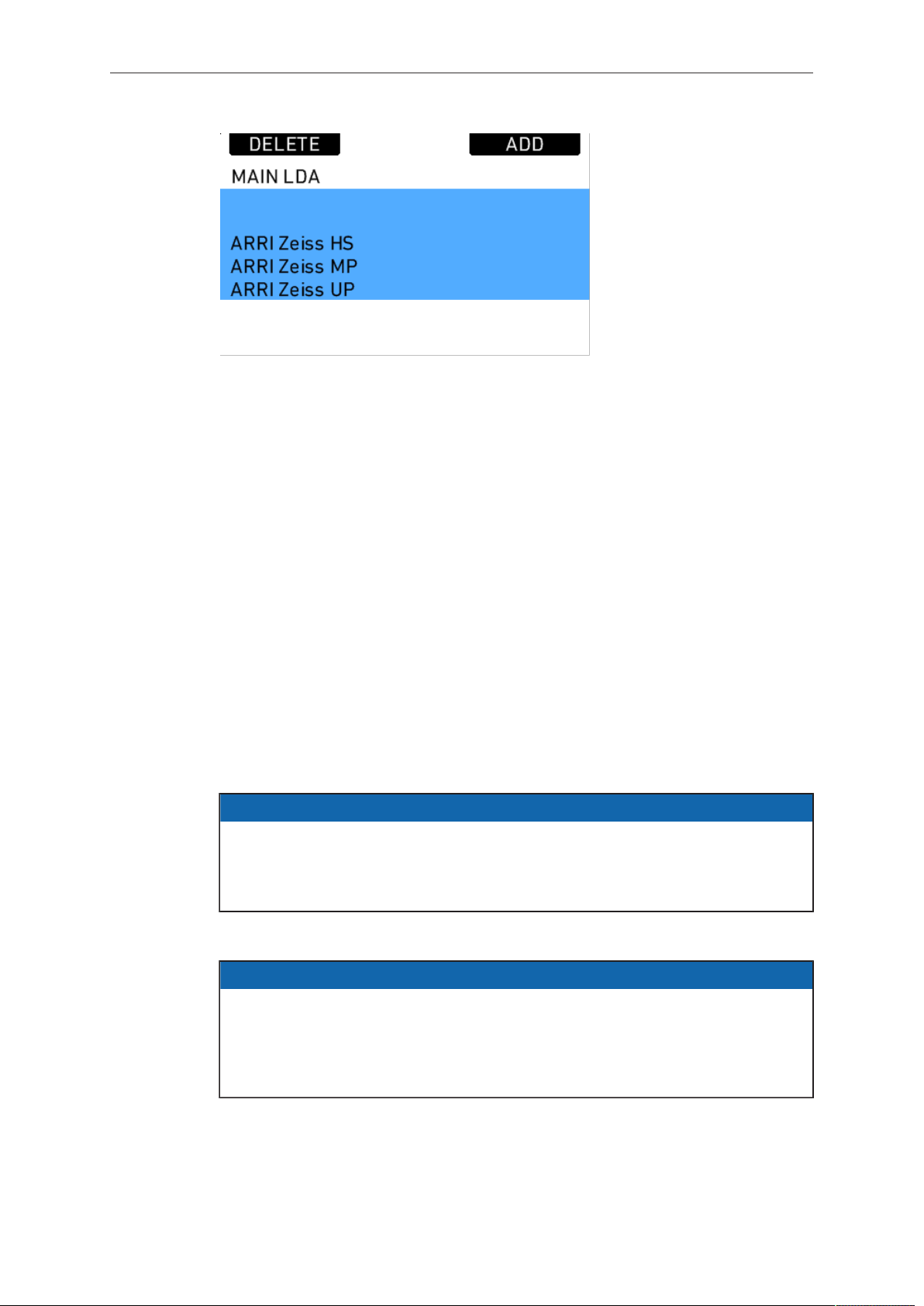
148 ALEXA SXT Plus
Fig. 52: Main LDA screen
To delete a lens table from the user archive, access the user list and press the
DELETE button. Select the lens table to delete and press the two buttons labelled
DELETE simultaneously.
Custom lens tables can be added to the main archive via the SD card. Place the lens
table on the SD card in a folder named "LDA". Insert the SD card into the camera. Go
to the main archive list and press ADD. Select the desired lens table and press the
wheel. The lens table will be located in the main archive as lens type "Custom".
It is possible to inverse the iris, zoom and focus scales for lens tables if necessary.
Press OPTIONS on the USER LDA screen to access the LDA OPTIONS screen,
where these adjustments can be made.
Lenses can also be equipped with the lens data mount LDM. The mount contains a
chip with the lens table stored inside, so the lens transmits its data to the camera as
soon as it is connected. For information on current ring positions, these lenses must
be used in combination with controlled lens motors.
CLM screens
The screens for IRIS, FOCUS and ZOOM controlled lens motors all have the same
layout. They show the motor type, motor direction, motor torque, and motor teeth
count mode.
NOTICE
For CLM-2 motors the torque value is greyed out as torque is only active for CLM-3,
CLM-4, CLM-4 Plus, or CLM-5 motors. It can nonetheless be changed in case a
CLM-3, CLM-4, CLM-4 Plus, or CLM-5 motor might be used but is currently not at
hand.
In addition, a lens motor calibration can be triggered, either for all lens motors, or only
for the one featured in the particular screen.
NOTICE
When starting a motor calibration, make sure each motor's gear wheel is connected
properly to the lens. Pay extra attention that no one is close to the motors or
holding them. Catching a finger, cloth or anything else on the motor's gear wheel
can cause severe body harm as well as damage to the system (and not to mention
hurt like hell).
The image below shows the FOCUS CLM screen:
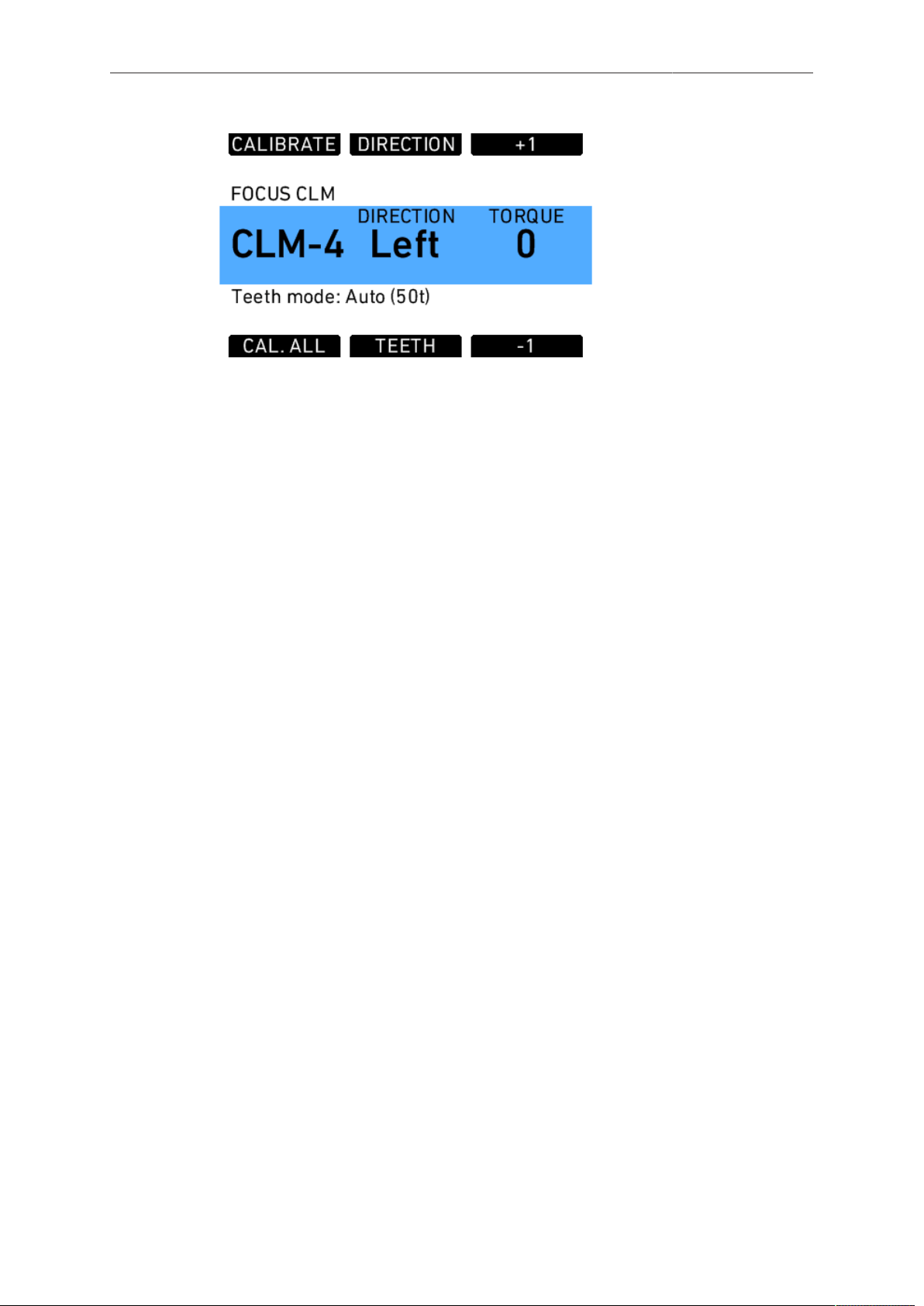
ALEXA SXT Plus 149
► Press CALIBRATE to start calibration of the selected motor.
► Press CAL. ALL to start calibration of all motors simultaneously.
► Press DIRECTION to toggle motor direction between Left and Right.
► Press TEETH to toggle motor teeth count between:
°
Auto (detected teeth count in brackets)
°
40t
°
50t
°
60t
► Press +1 or -1 to adjust motor torque.
3D Lens Sync
When two cameras are connected and their sensors are synced with via the EXT
connectors, the slave camera will receive its motor commands from the master
camera. Its radio module switches automatically off. Calibration of lens motors must
happen individually for each camera.
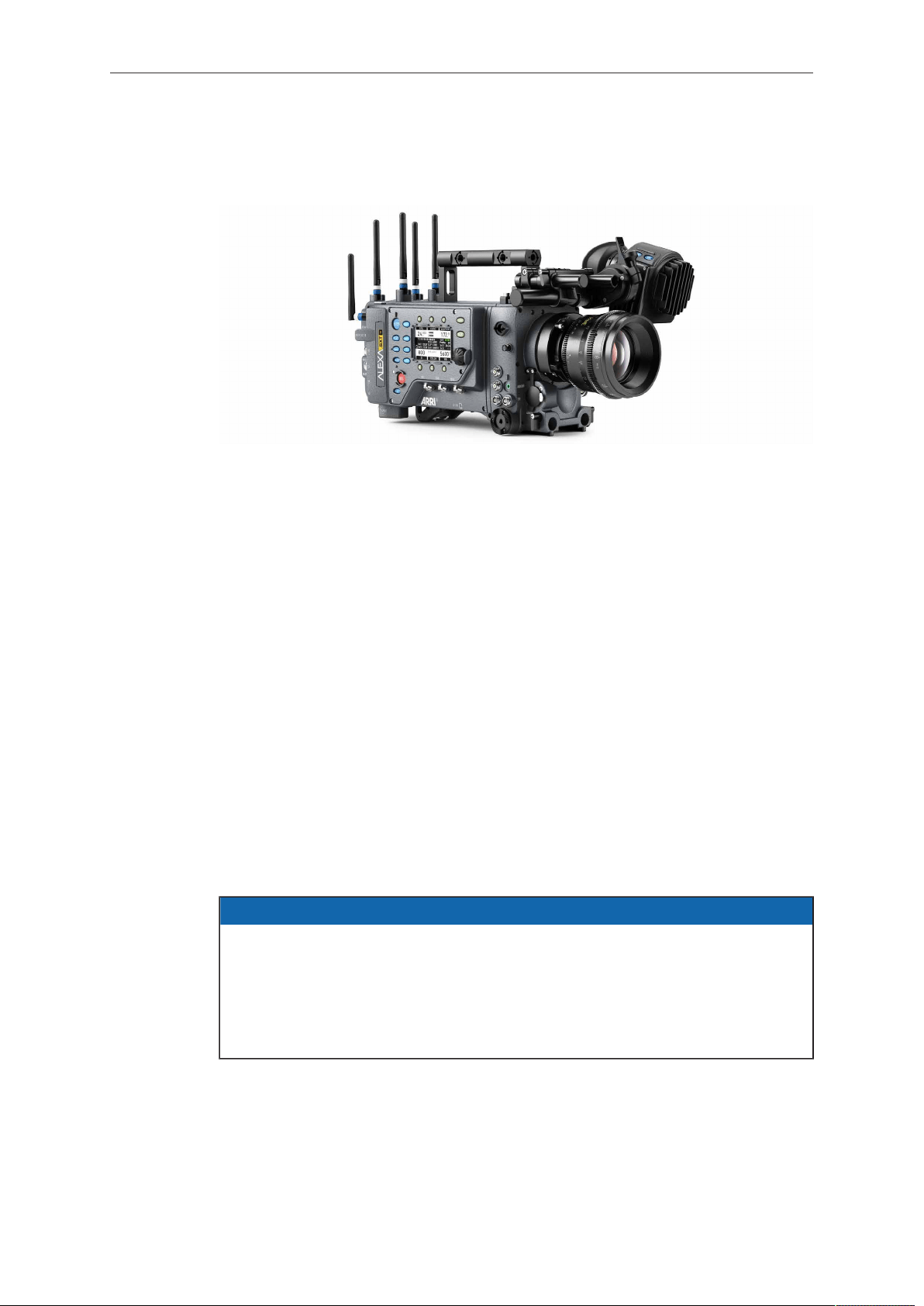
150 ALEXA SXT W
16 ALEXA SXT W
The ALEXA SXT W extends the features of an ALEXA SXT Plus by:
•
a WiFi module that allows clients to connect to the camera, e. g. for remote live
grading.
•
a high quality, low latency HD video transmitter.
16.1 WiFi
The WiFi module in the ALEXA SXT W acts as an access point and opens up a
wireless network in the 2.4 GHz band. The name of the network is "Alexa-SERIAL#",
where SERIAL# is the serial number of the camera, and it uses WPA-2 encryption.
The default password for the network is set to "arriarri".
The camera selects the WiFi channel automatically to minimize interferences. It is not
possible to change the channel manually.
The WiFi configuration can be found at MENU > SYSTEM > NETWORK/WIFI.
It offers the following options:
WiFi power Select to turn WiFi power on or off
WiFi host password Select to enter the password for the WiFi network
NOTICE
When activating or deactivating the ARRI Wireless Remote System (WRS, also
known as Electronic Control System (ECS) or "white radio"), the WiFi module
changes its channel to minimize interferences. Devices connected via WiFi will lose
their connection temporarily, but most devices reconnect automatically.
If the camera is connected via WiFi and Ethernet, ensure that no other device on
the network uses the IP address 169.254.0.11.
Connecting to the web remote
The steps to connect to the web remote differ depending on the device that is used
for accessing. The camera does not have an integrated DNS or DHCP server. Instead
it uses zeroconf to setup the network, which is natively supported by Apple devices
and which can be installed on other operating systems. Certain parameters need to be
configured manually on devices that do not support zeroconf.
ALEXA SXT W 151
Devices supporting zeroconf
1. Connect to the camera's wifi.
2. Open a browser on the device
3. Enter http://alexaSERIAL#.local, where SERIAL# is the serial number of the
camera.
Devices not supporting zeroconf
1. Look up the camera's IP address at INFO>SYSTEM.
2. Connect to the camera's wifi.
3. Set the IP settings of the device to static IP (not DHCP).
4. Assign an IP address where the first three numbers are identical to the camera's
IP and the last number is different and in the range of 1 - 254.
Example: If the camera has the IP address 169.254.68.152, a valid IP for the
device would be 169.254.68.150.
5. Open a browser on the device
6. Enter http://IPADDRESS to open the web remote, where IPADDRESS is the IP
address of the camera.
Example: If the camera has the IP address 169.254.68.152, enter
http://169.254.68.152
NOTICE
Devices may continuously show a symbol suggesting that it is still trying to connect
to the camera, although the connection is already established. The connection is
functional nevertheless.
16.2 Wireless Video
The HD video transmitter transmits the video signal of MON OUT 3 to a Wireless
Video Receiver (WVR-1) or Transvideo Starlite ARRI-WVS monitor.
It can wirelessly transmit at 5 GHz up to a distance of 600m with less than 1 ms delay.
The transmission is always secured by 128bit AES encryption and is uncompressed.
The camera can transmit to up to four receivers simultaneously.
NOTICE
The WVS is not compatible with any other wireless video transmission system.
Only devices with the same region setting are compatible with each other.
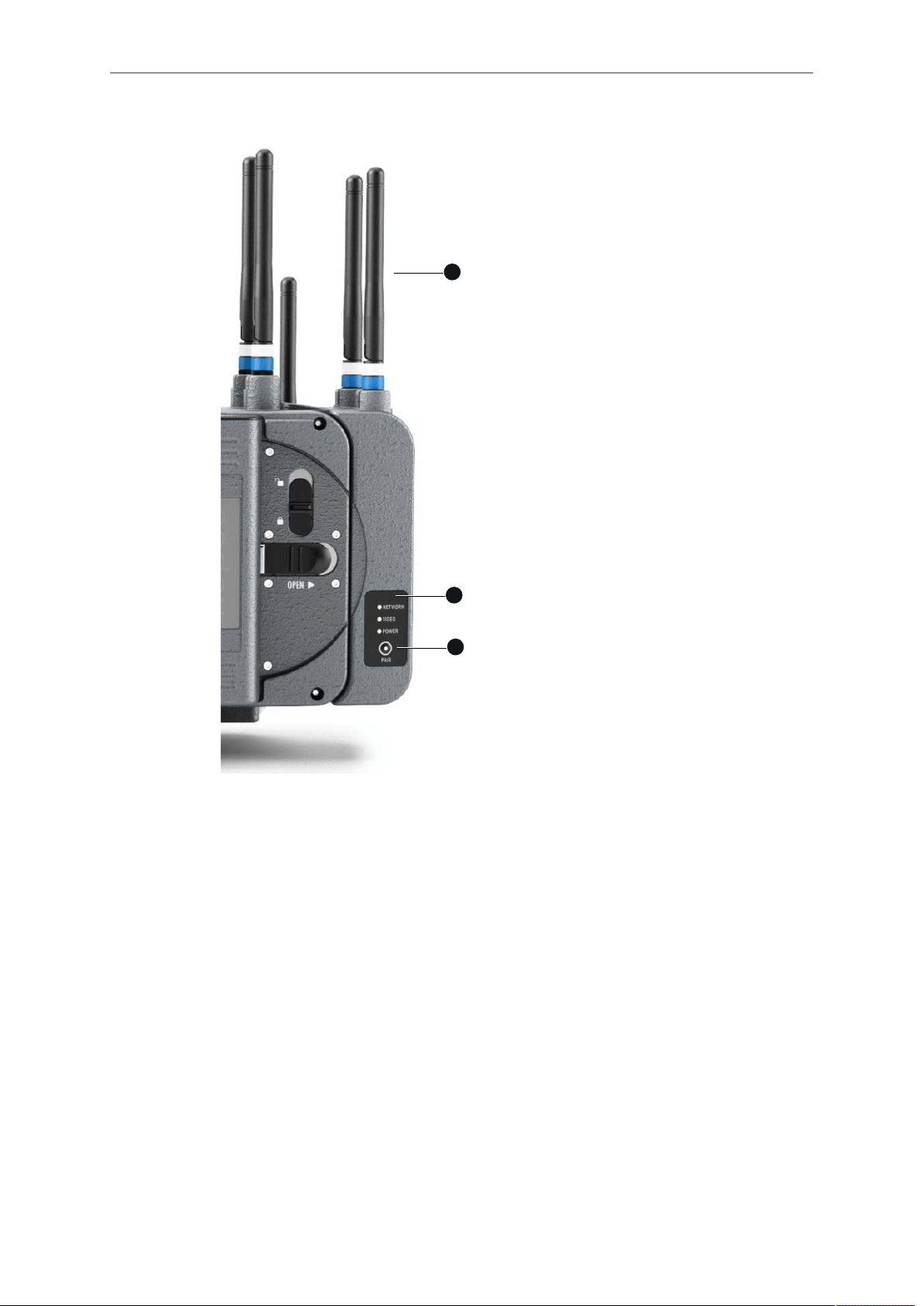
152 ALEXA SXT W
1
2
3
1 Wireless video antennas
2 Status LEDs: Network, Video, Power
3 PAIR button
16.2.1 Preparation
1 Screw on two antennas on top of the HD video transmitter to the antenna
connectors.
2 Attach a battery to the battery adapter on the back of the camera or use a power
supply to power the camera.
3 Turn on the HD video transmitter in the camera menu and pair it to one or more
receivers.
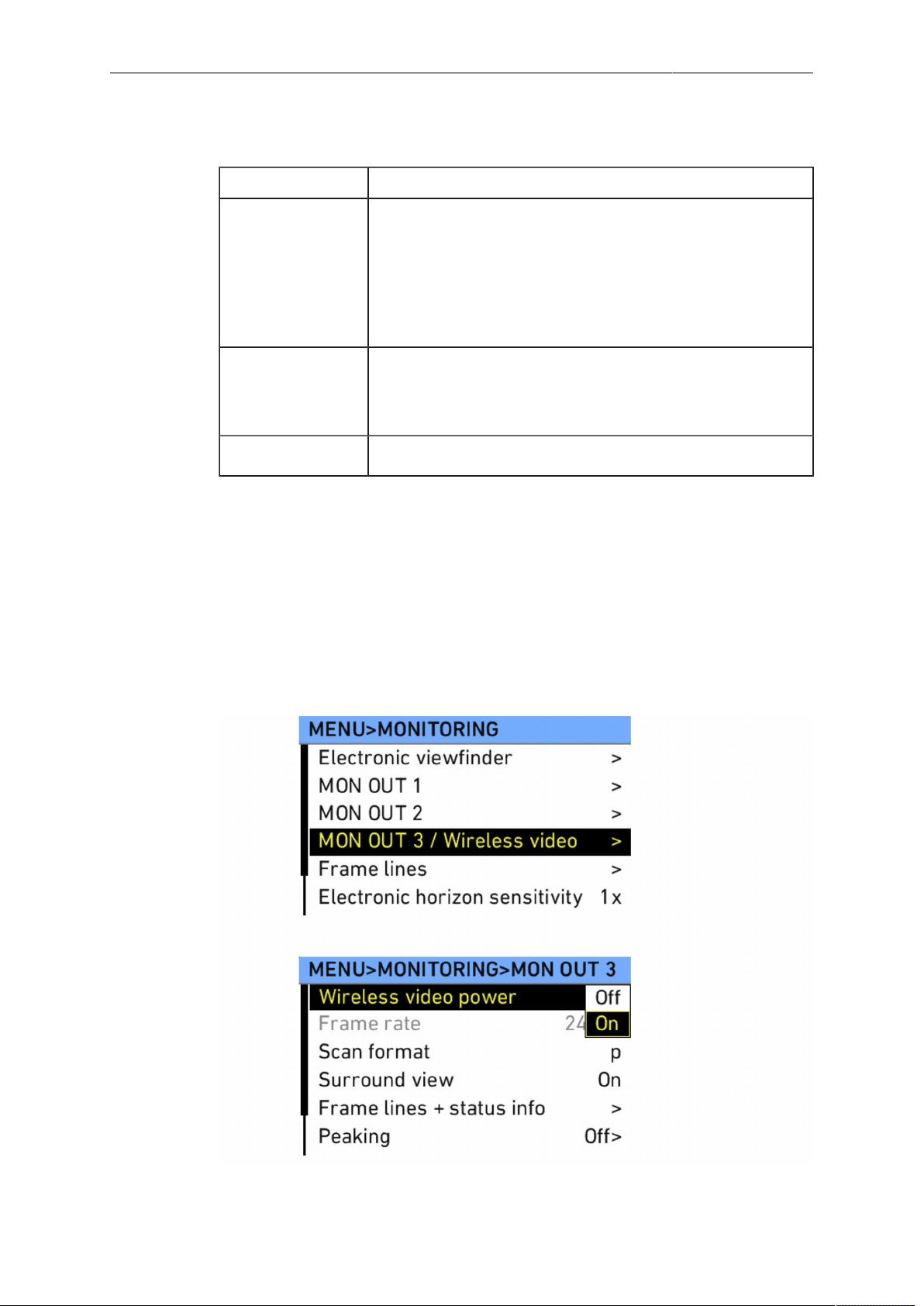
ALEXA SXT W 153
16.2.2 Status LEDs
LED Status
Network
•
Solid: Connection is established
•
Normal blinking: Device is in listen mode
•
Fast blinking: During link setup mode (very short period)
•
Fast blinking: During registration (pairing button was
pressed)
•
Very fast blinking: System error
Video
•
Solid: Video signal is established and locked in
•
Normal blinking: Video source is not supported
•
Very fast blinking: System error
Power Shows if wireless video device is powered
16.2.3 Pairing camera and receivers
To transmit video content from the camera to a WVR-1 or Transvideo Starlite
ARRI-WVS, it is necessary to pair the devices. Pairing describes the function of
connecting a transmitter to one or more receivers. The pairing needs to be confirmed
at both devices with the push of the PAIR button. The pairing process is accompanied
by a specific pattern of indicators through LEDs blinking on the devices.
Precondition:
► Select MENU > MONITORING > MON OUT 3 / WIRELESS VIDEO and ensure
that Wireless video power is set to On.
154 ALEXA SXT W
Pairing:
1. Make sure the transmitter and receivers you want to pair are at least 1 m apart.
2. Turn on WVR-1. Make sure no other transmitters and receivers are powered up.
3. Press PAIR on WVR-1 until NETWORK LED blinks fast.
4. Press PAIR on the camera until NETWORK LED blinks fast.
5. Pairing is complete when NETWORK LEDs turn to solid.
6. Repeat the procedure for each additional WVR-1.
During the pairing process, the external monitor to which the WVR-1 is connected
should show the following information:
1 "Registration in Progress"
2 "Searching for Camera Unit ..."
For instructions on pairing the camera with a Transvideo Starlite ARRI-WVS, please
see the manual of the Transvideo Starlite ARRI-WVS.
NOTICE
If four receivers are paired to a transmitter, and another receiver is paired, the first
of the already paired receivers will be unpaired and the new one will be added. The
adding of new receivers works in a cyclic first-in first-out order.
An inactive receiver stays paired to the transmitter. If a fifth receiver is added to
a setup with one inactive and three active receivers, the new receiver does NOT
replace the inactive one. In this case, there is no differentiation between active and
inactive devices. The rule mentioned above still applies.
NOTICE
Before pairing two devices, make sure that there is at least 1 meter / 3.3 feet
distance between the devices.
16.2.4 Supported resolutions
1080p 23.976, 24, 25, 29.97, 30, 50, 59.94, 60
1080i 48, 50, 60
1080psf
•
23.967 (displayed as 1080i48)
•
24 (displayed as 1080i48)
•
25 (displayed as 1080i50)
•
29.97 (displayed as 1080i60)
•
30 (displayed as 1080i60)
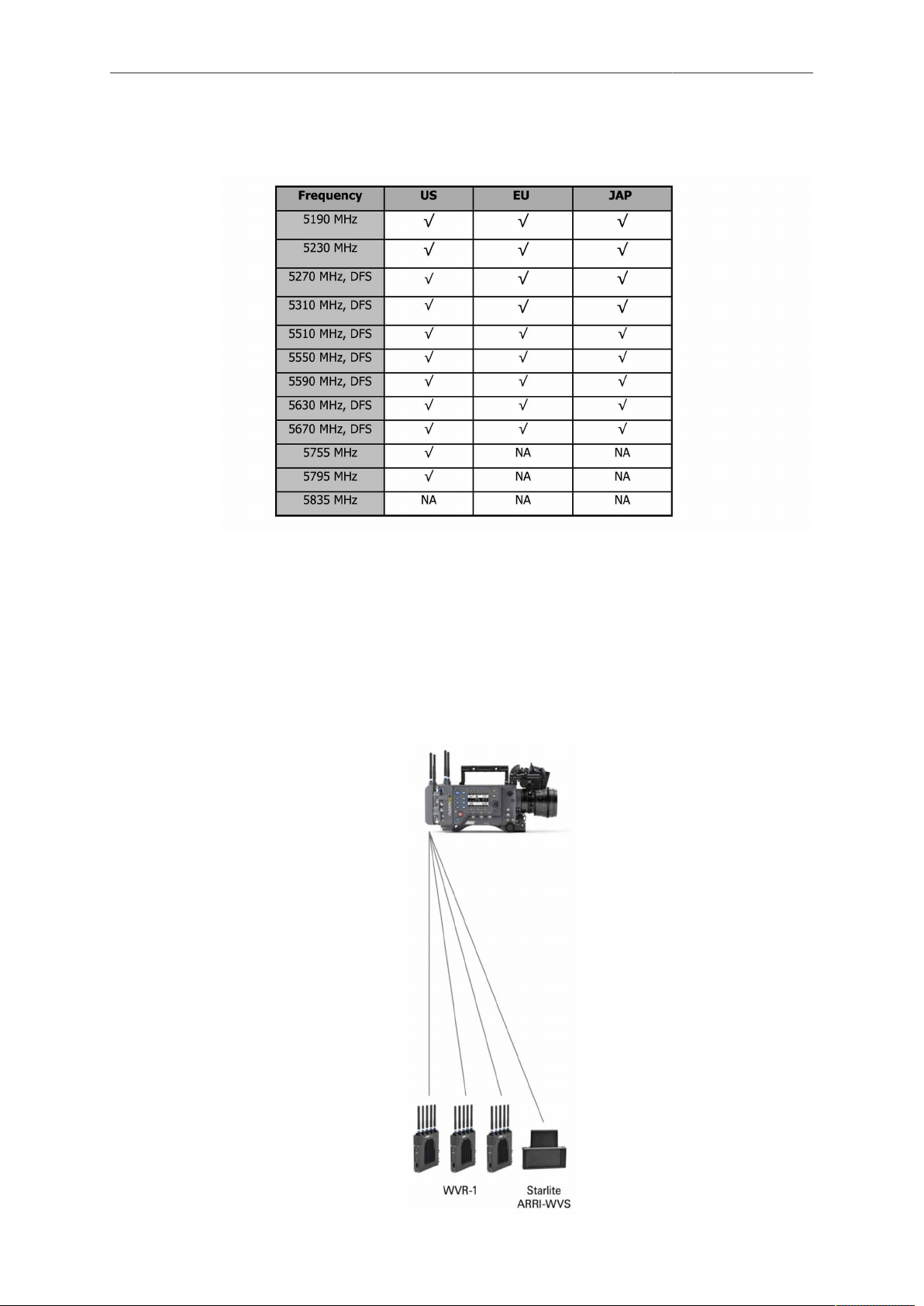
ALEXA SXT W 155
16.2.5 Supported frequencies
16.2.6 Sample setups
The number of WVS systems that can be used in parallel depends on the num-
ber of channels available, which is different for each region, and the radio noise
present. In general, four to six systems can work in parallel.
It is possible to pair one ALEXA SXT W with up to four receivers (either the
WVR-1 or the Transvideo Starlite ARRI-WVS). See an example setup below.
156 ALEXA SXT W
NOTICE
It is not possible to pair one WVR-1 with more than one ALEXA SXT W.
16.2.7 Software update
To up- or downgrade the HD wireless video module, it is necessary to connect it via
USB to a Windows computer that runs the ARRI Wireless Video software, which is
available for download on the ARRI web page. You need to have the current firmware
installation file available to perfom the upgrade. The user software guides you through
the process of up- or downgrading.
NOTICE
The firmware up-/downgrade process of the wireless video module is separate from
the regular ALEXA Software Update Packet (SUP) updates.
CAUTION!
Do not switch off power and do not remove the USB cable during the update, as
this may damage the wireless video module.
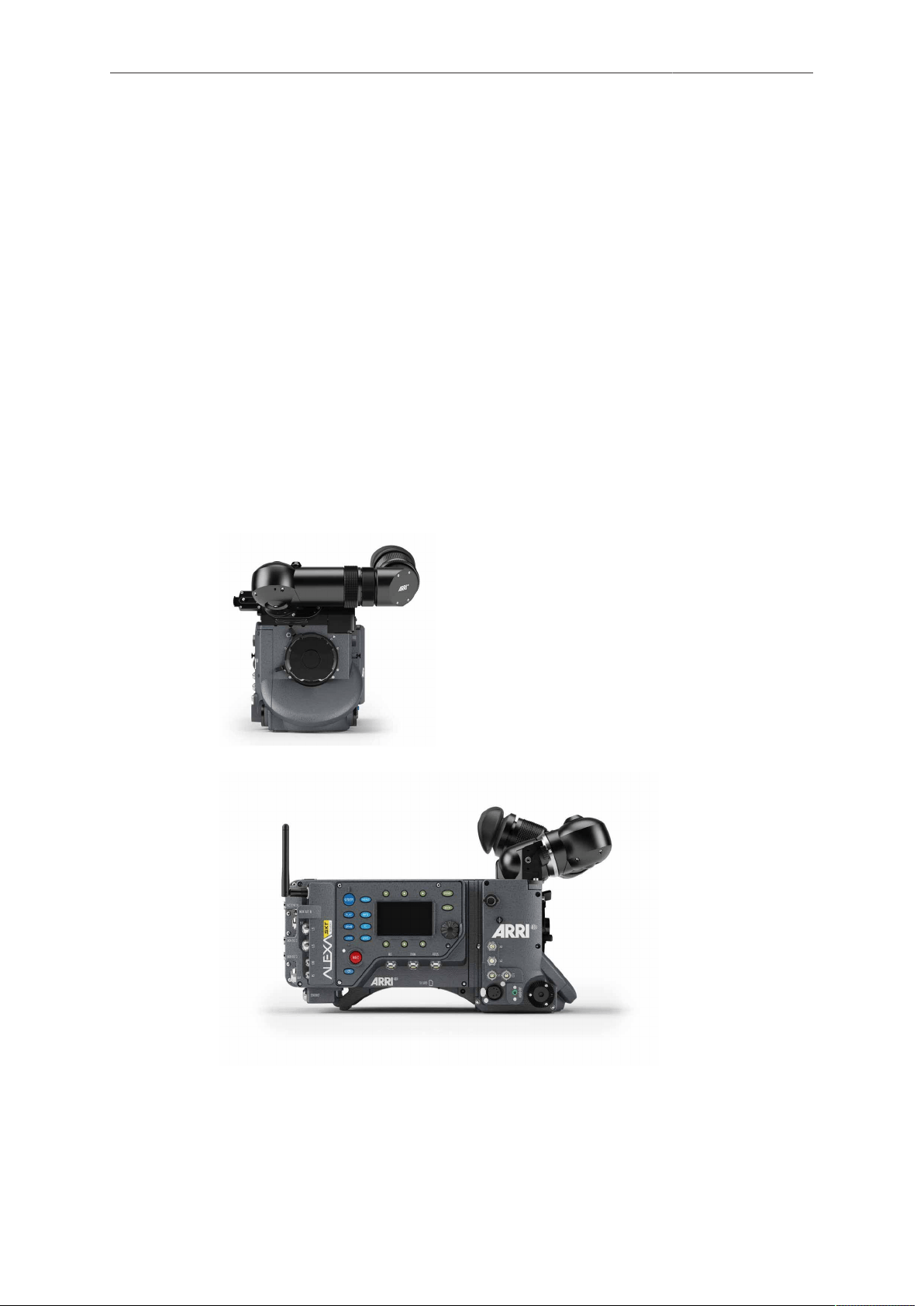
ALEXA SXT Studio 157
17 ALEXA SXT Studio
The ALEXA SXT Studio extends the features of an ALEXA SXT Plus by:
•
Optical viewfinder:
Unique construction from ARRI, featuring optical anamorphic desqueeze, diopter
correction, image flip, camera left/right positioning and horizontal distance
adjustment
•
Electronic mirror shutter:
The electronic mirror shutter can be adjusted in a range of 11.2° to 180.0°
degrees. When in use, it completely removes rolling shutter effects of the sensor.
•
Built-in motorized ND filter:
The ND filter has a density of 1.3 (= 4.3 stops) and can be moved in and out of the
optical path with the push of a button. It is located between the mirror shutter and
the image sensor, so the optical viewfinder image is not affected by the filter and
stays bright.
17.1 ALEXA Studio Images
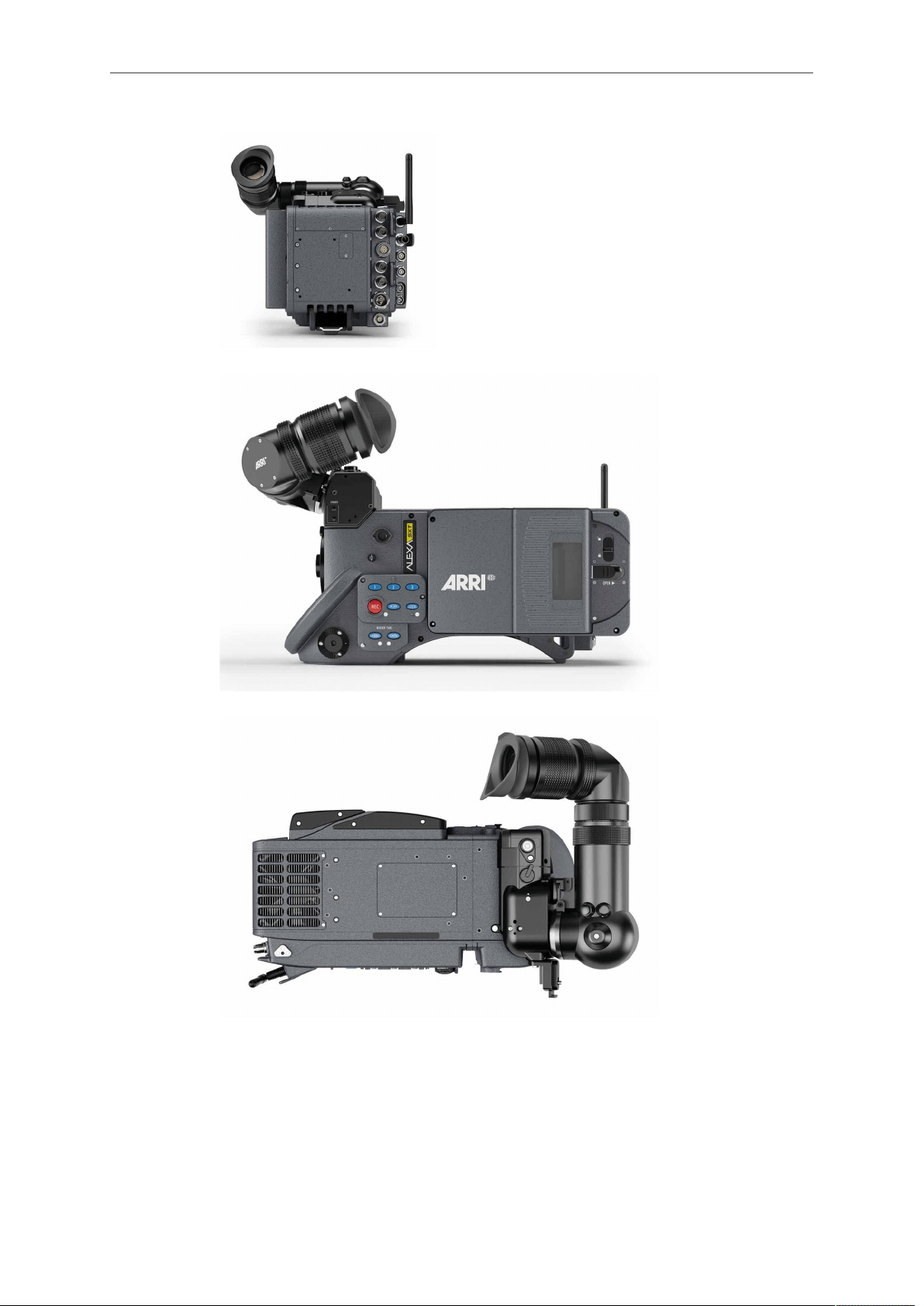
158 ALEXA SXT Studio
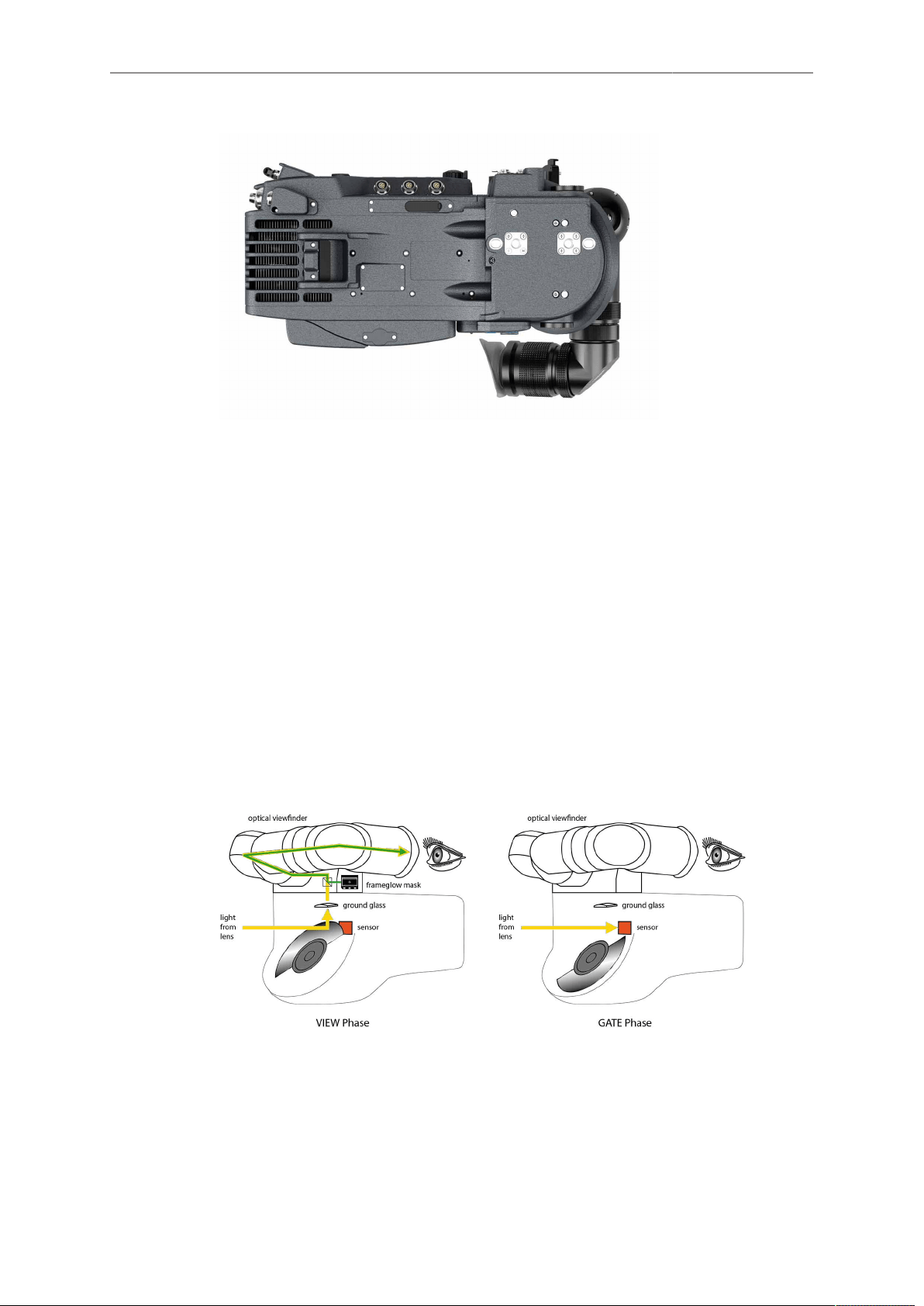
ALEXA SXT Studio 159
17.2 Optics
17.2.1 Electronic Mirror Shutter
The electronic mirror shutter is located between the PL-mount and the image sensor
at an angle of about 45°. It is part of the optical reflex viewfinder system that reflects
the lens image into the optical viewfinder.
It is synchronized with the electronic shutter of the camera sensor so that the sensor is
only read out in the dark phase. This completely removes rolling shutter effects of the
sensor readout.
Its 180° mirrored surface reflects the lens image into the optical viewfinder. The
open sector of the mirror shutter can be reduced through an electronically controlled
sector gate. The mirror shutter rotates 360° for every captured frame, controlling the
exposure of the sensor through its open sector. The readout of the sensor happens
while the mirror reflects the light of the optical path into the optical viewfinder.
The angle of the open sector is electronically controlled via the regular camera
controls.
17.2.2 Lens Adapter PL Mount LA-PL-2
For a general description, please refer to page 47.
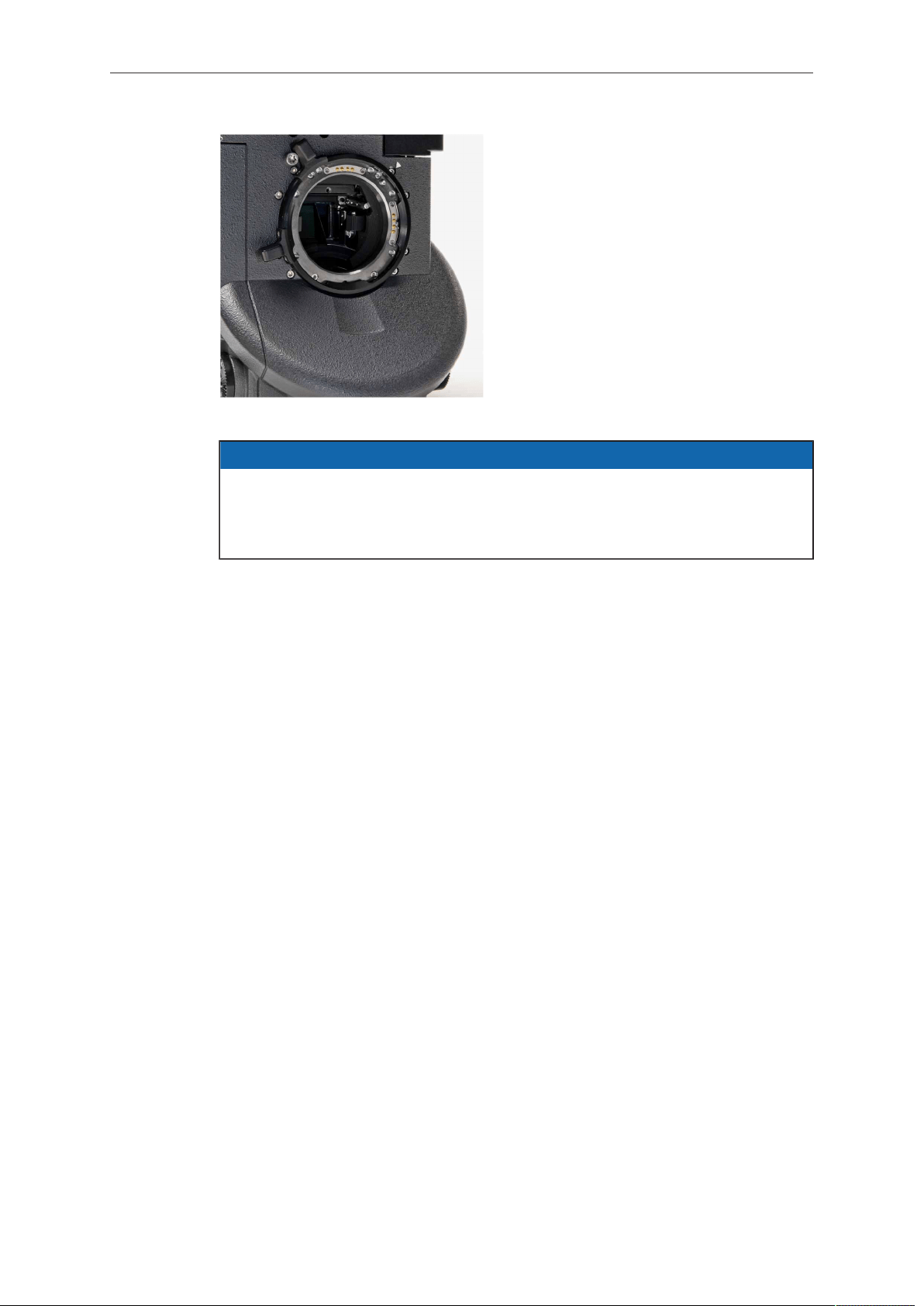
160 ALEXA SXT Studio
Fig. 53: ALEXA Studio PL-Mount
NOTICE
Due to the optical mirror shutter, Angenieux Optimo DP zoom lenses, any Super
16 lenses, or lenses with dimensions not matching the dimensions in the figure
"Allowed lens dimensions with mirror shutter" drawing cannot be used with the
ALEXA Studio, as they would destroy the rotating mirror shutter!
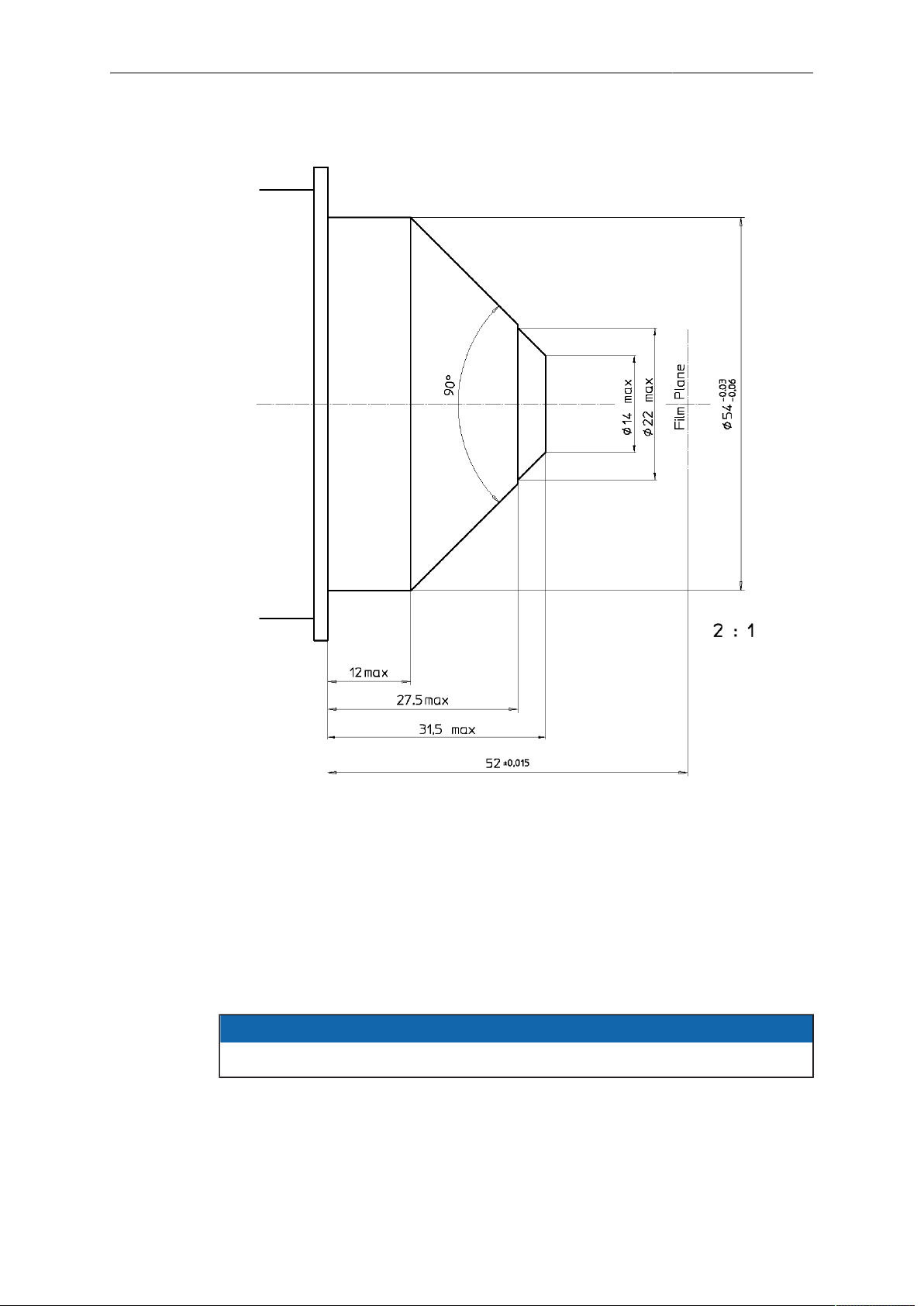
ALEXA SXT Studio 161
Fig. 54: Allowed lens dimensions with mirror shutter
17.2.3 Optical Viewfinder
The ALEXA SXT Studio has an optical reflex viewfinder system with interchangeable
ground glasses.
It offers an exceptional viewing quality favored by a large optical design. Special care
has been taken to avoid the unpleasant vignette effect that could occur by moving the
eye.
NOTICE
To use the optical viewfinder, the mirror shutter must be set to On.
The viewfinder is adjustable in two axes, laterally extendable for left eye operation and
shows illuminated frame lines (ARRIGLOW).
The viewfinder image stays upright and correct left-to-right when the viewfinder is
swiveled within the main axis.
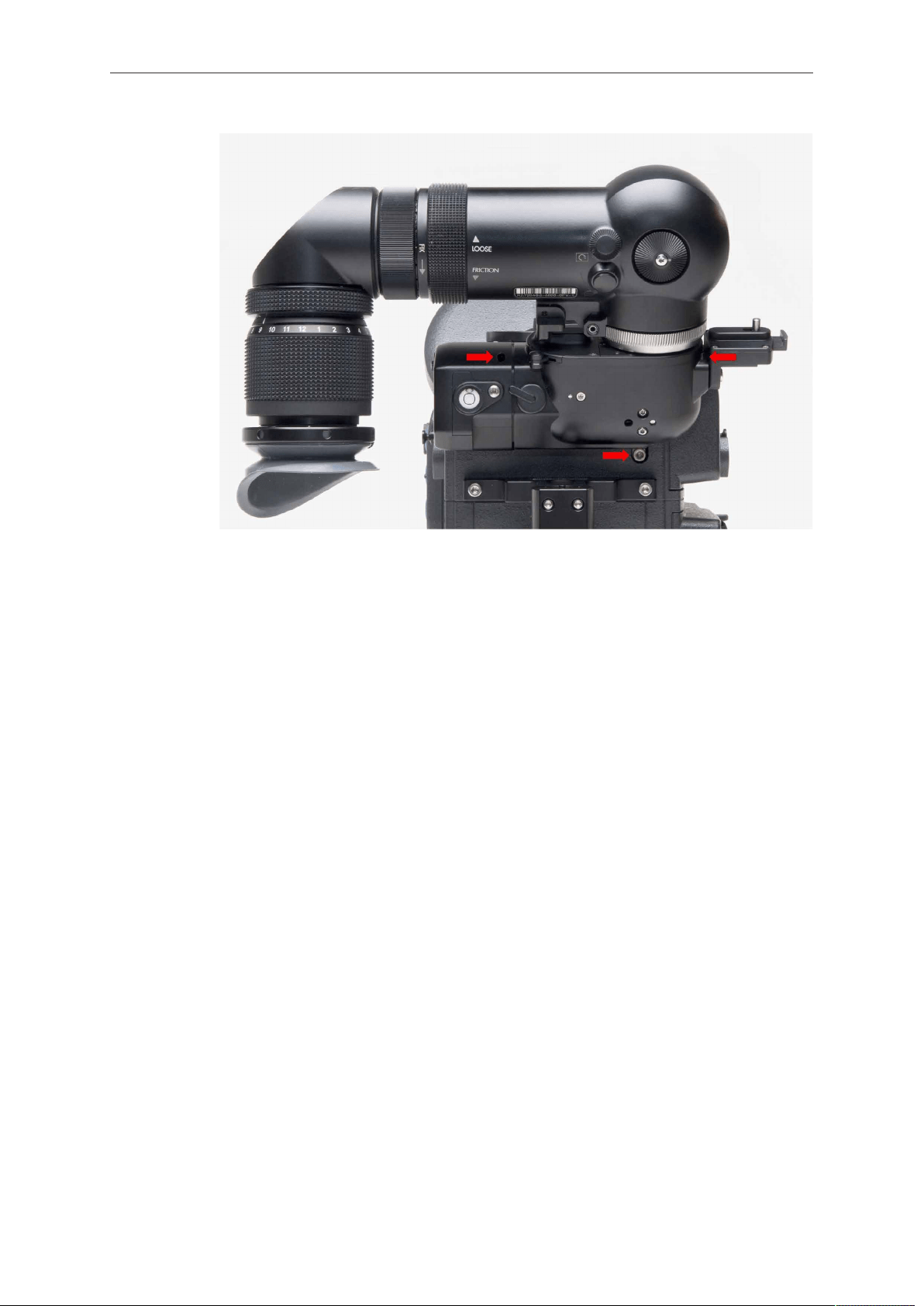
162 ALEXA SXT Studio
Fig. 55: OVF top view, with mounting points marked
To extend the viewfinder arm:
1. Loosen the straight-structured ring next to the FIX engraving counter-clockwise
(contrary to the arrow).
2. Adjust the horizontal position.
3. Tighten the ring clockwise (with the arrow direction).
To adjust barrel friction:
► Move the dot-structured ring according to the engravings LOOSE and FRICTION
to loosen or tighten the friction of the OVF barrel.
Contrast Filter
To achieve a temporary subjective reduction of viewfinder contrast range, a contrast
filter (density 0.6) can be pivoted into the optical beam path.
1. Use the lever next to the level bubble to pivot the contrast filter into the optical
path.
2. Releasing the lever pivots the contrast filter back out of the optical path.
Ground glasses
The image created by the lens is projected to the ground glass, from where it is picked
up by the optical viewfinder.
Ground glasses contain frame and format markings to show the recorded image area
and the area of interest. The sensor aperture of the ALEXA SXT Studio is different
from the camera aperture of ANSI and DIN Super35 formats. Therefore, Super35
ground glasses of the ARRICAM system do not provide exact frame markings in the
ALEXA SXT Studio viewfinder image. For exact framing, use only ground glasses
made specifically for the ALEXA SXT Studio.
To exchange a ground glass:
1. Press the VIEW button so that the sensor is protected by the mirror shutter.
2. Turn off the camera and disconnect it from power supply.
3. Remove the lens or protective cap.
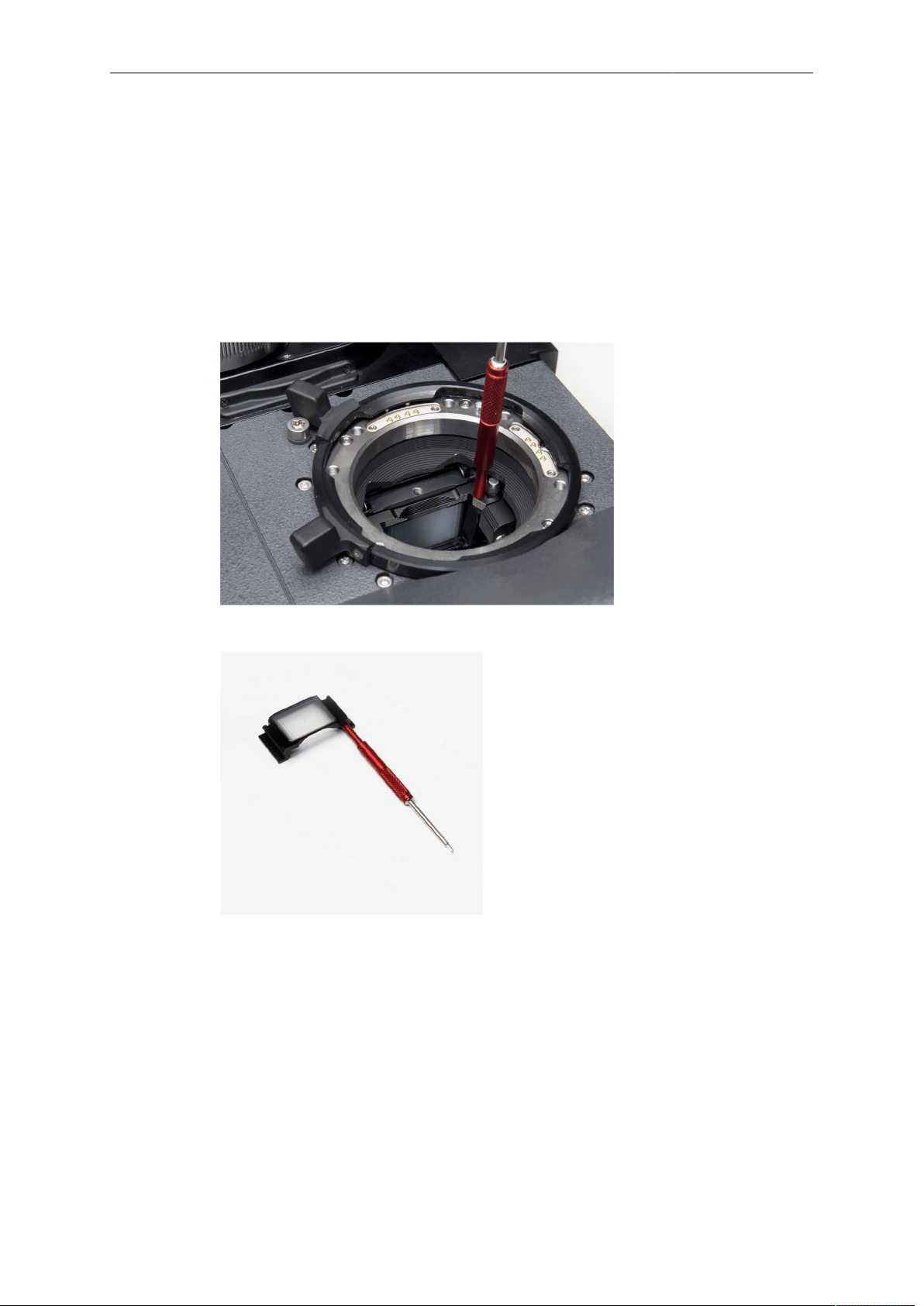
ALEXA SXT Studio 163
4. Screw the ARRI Ground Glass Puller into the ground glass.
5. Carefully pull out the ground glass.
6. Check that the new ground glass and the ground glass holder are clean.
7. Screw the ARRI Ground Glass Puller into the new ground glass and push it into
the holder.
8. Make sure the ground glass is inserted completely and correctly locked in place.
9. Unscrew the ground glass puller from the ground glass.
10. Attach a lens or a protective cap to the lens mount.
Fig. 56: Ground glass in camera with Ground Glass Puller attached
Fig. 57: Ground glass with attached Ground Glass Puller
To remove the field lens, which is located above the ground glass:
1. Remove the ground glass first
2. Screw the ARRI Ground Glass Puller into the field lens
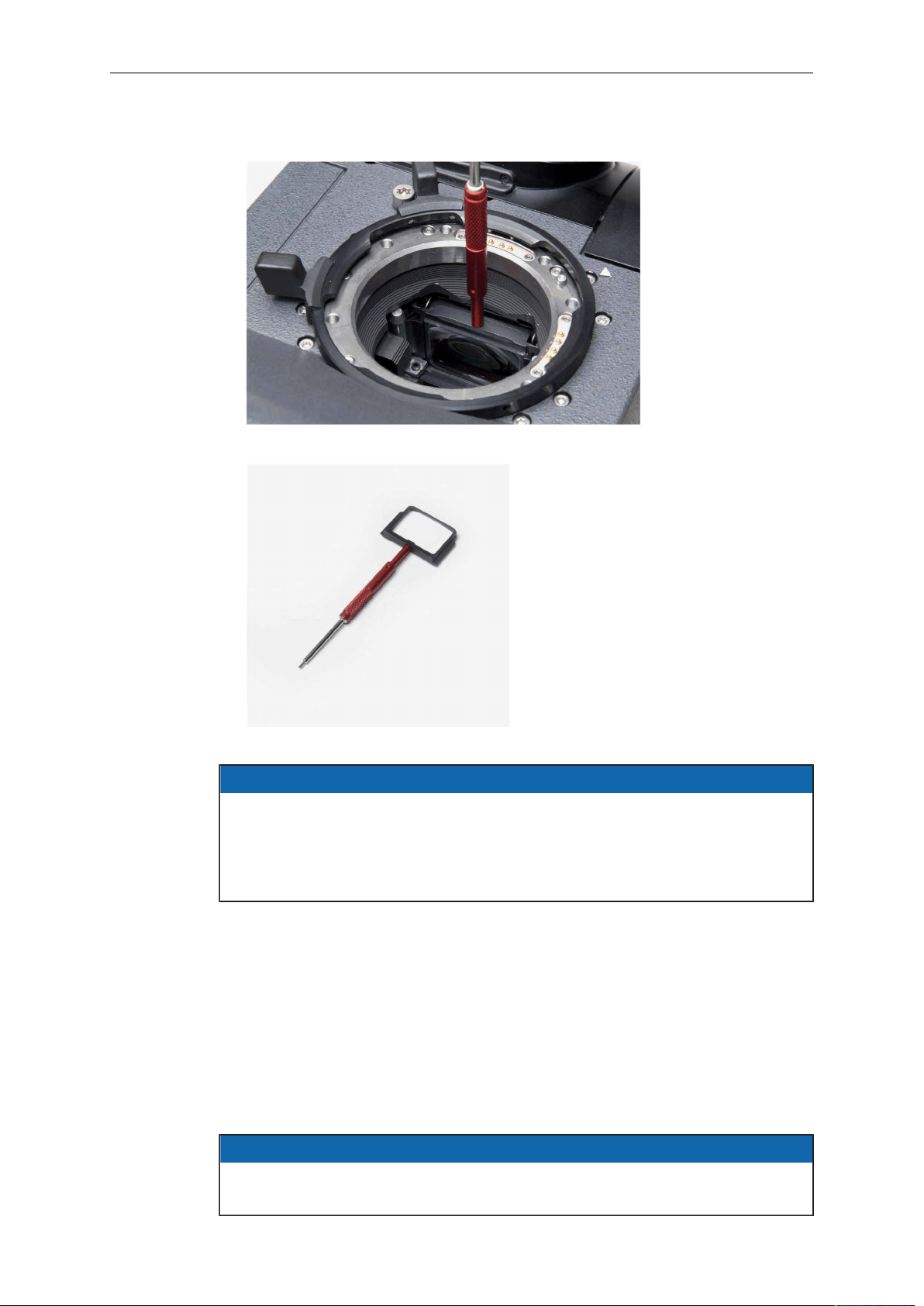
164 ALEXA SXT Studio
3. Carefully pull out the field lens
Fig. 58: Field lens in camera with attached Ground Glass Puller
Fig. 59: Field lens with attached Ground Glass Puller
NOTICE
Due to the risk of displacement caused by shock force, ARRI recommends to
remove both ground glass and field lens before transportation and shipping of the
camera. Whenever removing the camera from its case, check that both ground
glass and field lens are properly seated before switching on the camera to prevent
any damage to the mirror shutter.
FRAMEGLOW
The FRAMEGLOW module is integrated in the optical viewfinder system of the
ALEXA SXT Studio. It allows illuminated format markings to be superimposed onto the
viewfinder image with adjustable brightness.
► Press the buttons on the left side of the OVF below the DIMMER engravement to
adjust the brightness of the FRAMEGLOW. At its lowest brightness setting, the
FRAMEGLOW is switched off.
► The FRAMEGLOW color is set in the camera menu under
MENU>Monitoring>Frame lines> Frame lines color
NOTICE
When mirror shutter is switched Off, FRAMEGLOW is also deactivated to prevent
stray light from hitting the sensor.
The ground glass used for the optical viewfinder should be combined with a matching
frameglow mask.
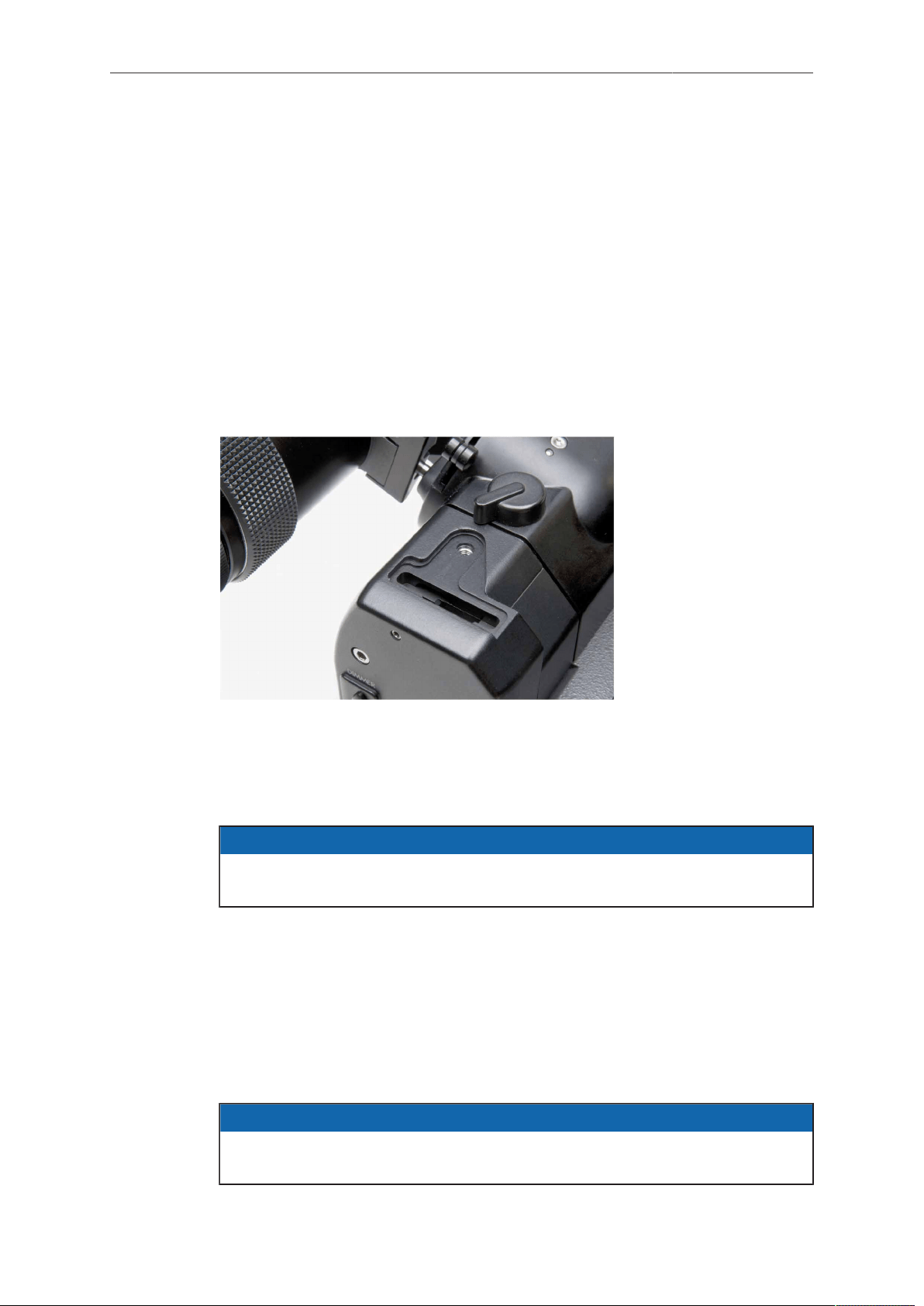
ALEXA SXT Studio 165
To change the frameglow mask:
1. Loosen the 3mm hex socket head screw next to the level bubble.
2. Remove the level bubble element.
3. Grab the glow mask with a Hirschmann clamp at the forceps hole and pull it out of
the glow mask frame.
4. Check that both the new glow mask and the glow mask frame are clean.
5. Carefully push the new glow mask into the glow mask frame.
6. Make sure the glow mask is inserted completely.
7. Place the bubble element on top of the FRAMEGLOW module and tighten the
3mm hex socket head screw.
8. Turn on the FRAMEGLOW and check that ground glass and glow mask are
correctly aligned.
Fig. 60: Glow mask slot
Anamorphic Desqueeze
► Turn the wheel on top of the OVF ball element to swing the anamorphic
desqueeze element into the optical path.
NOTICE
By default, the anamorphic element is for 2x anamorphic lenses. It can be changed
to an element for 1.3x anamorphic lenses.
Image Flip
1. Press the button next to the image flip symbol.
2. Turn the knob next to the image flip symbol until the image is fully flipped.
3. To undo the flip, rotate the knob until the button jumps out and the knob is locked
again.
Diopter Adjustment
NOTICE
Depends on the eyepiece in use. Description for default eyepiece of ALEXA SXT
Studio.
1. Turn the eyepiece barrel until the ground glass is in focus.
A neutral, unstructured, bright out-of-focus image content (which can be achieved by
removing the lens and pointing the camera at a bright area) helps with this.
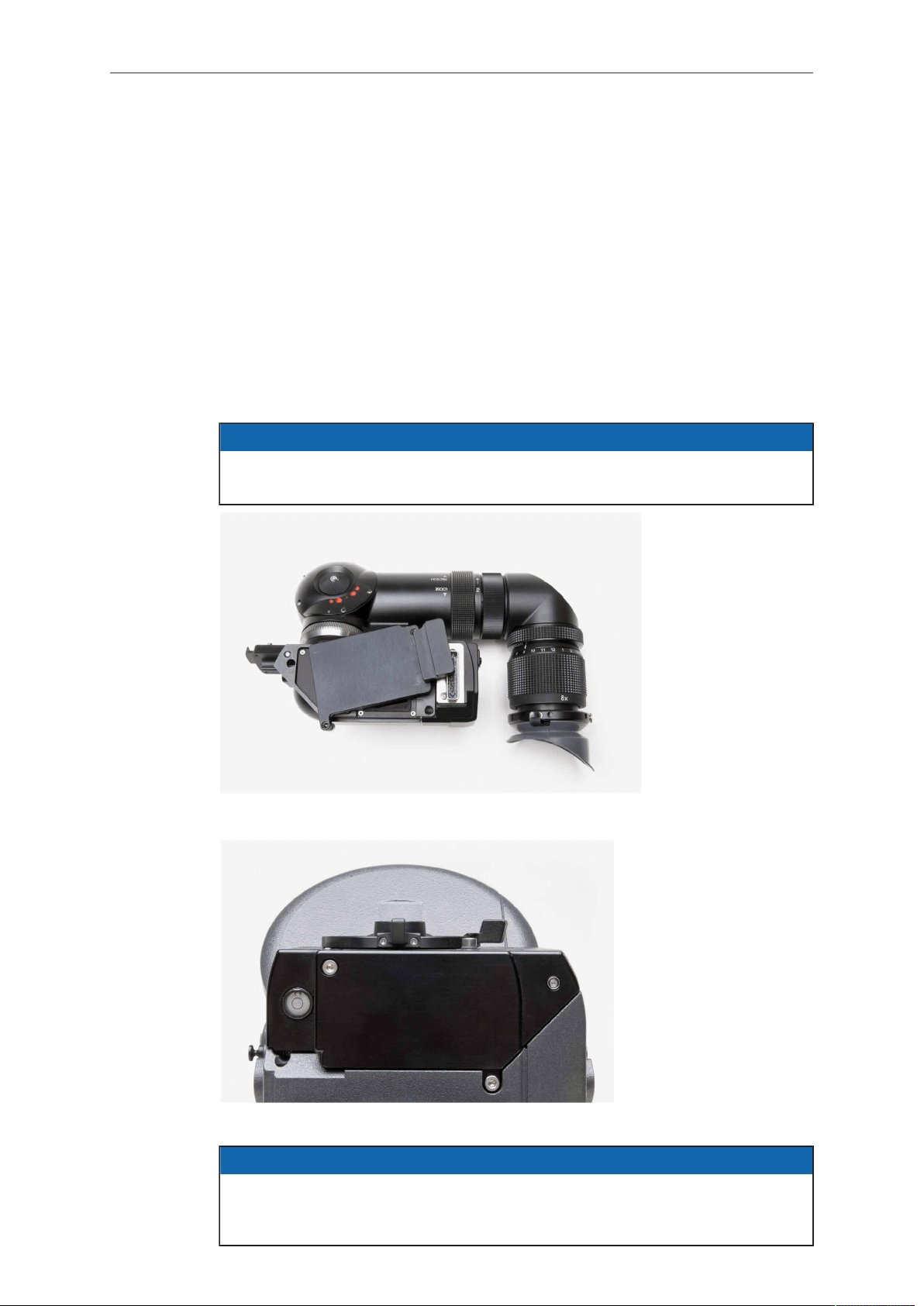
166 ALEXA SXT Studio
Attaching the optical viewfinder
Upon delivery, the OVF is not connected to the camera and must be installed by the
user.
1. Remove the protective cover from the OVF by loosening its 2x 3mm hex socket
head screws.
2. Remove the cover plate from the camera by loosening its 2x 3mm hex socket
head screws.
3. Place the OVF on the camera.
4. Take special care that the electronic connectors of camera and viewfinder are
connected before pushing the OVF in place.
5. Tighten the 3x 3mm hex socket head screws of the OVF (See OVF top view image
for locations of screws).
NOTICE
The torx screws on the camera that are painted red must not be tightened or
loosened, as this would corrupt the alignment of the OVF.
Fig. 61: OVF with cover plate
Fig. 62: Alexa Studio with cover plate
NOTICE
When recording in Open Gate mode, the image shown by the optical viewfinder is
smaller than the image that is actually recorded. For exact framing, use the EVF-1
or a monitor connected to MON OUT.
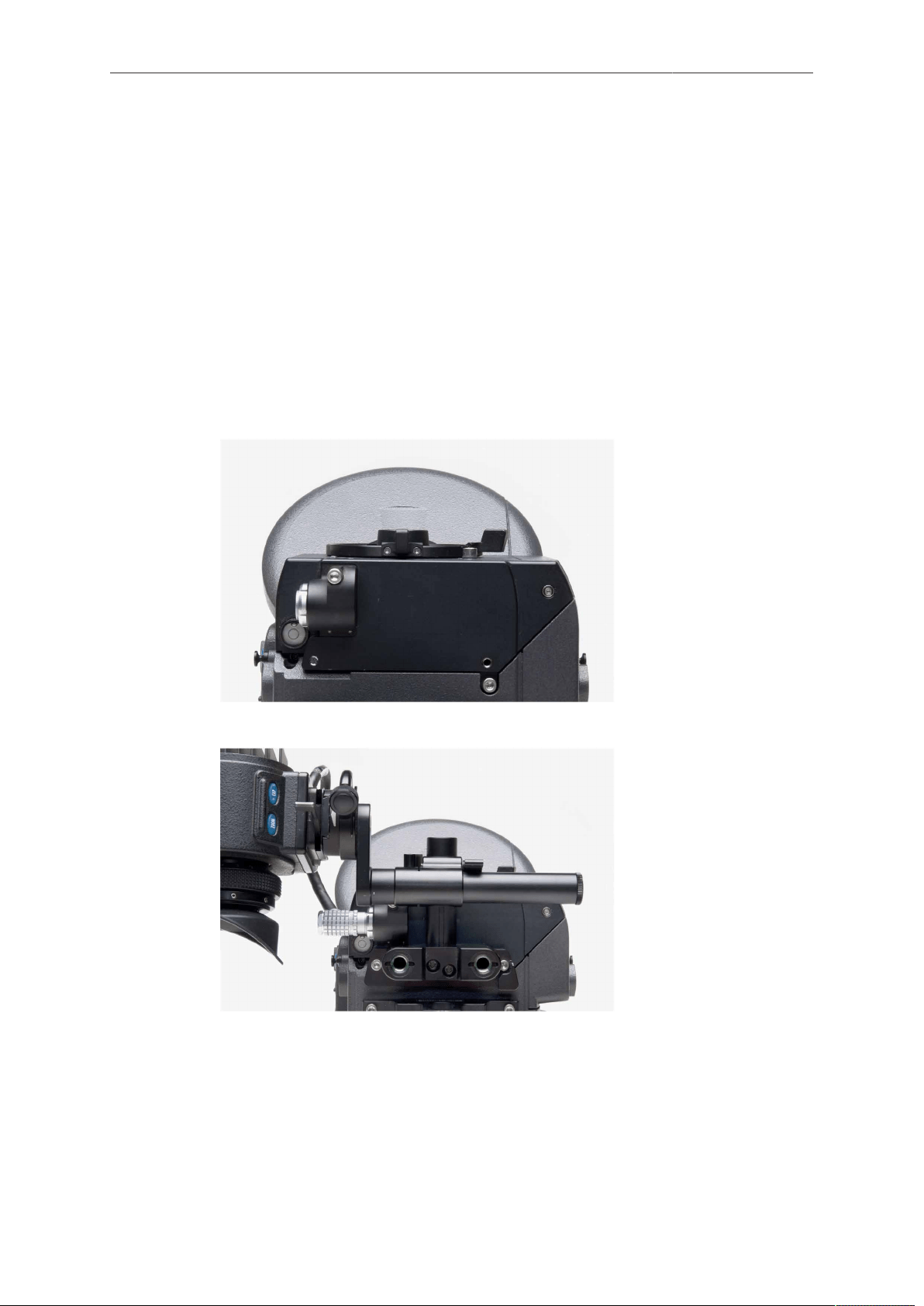
ALEXA SXT Studio 167
Swapping the optical viewfinder for an electronic viewfinder EVF-1
1. Make sure the camera is powered down.
2. Loosen the 3x 3mm hex socket head screws of the OVF completely (See OVF top
view image for locations of screws).
3. Remove the optical viewfinder.
4. Place the EVA-1 electronic viewfinder adapter plate where the optical viewfinder
was.
5. Tighten the 2x 3mm hex socket head screws.
6. Attach the EVF mounting bracket with the EVF-1 to the camera housing with its 2x
3mm hex socket head screws.
7. Connect the EVF cable to the camera.
8. Power the camera.
Fig. 63: Electronic viewfinder adapter EVA-1
Fig. 64: ALEXA Studio with mounted EVF-1
17.2.4 ND Filter
The ALEXA SXT Studio has an ND filter in front of the sensor, which can be moved
in and out of the optical path. The motorized filter slider contains a ND filter with a
density of 1.3 (= 4.3 stops), and a cover glass without additional density. The filter
slider is sealed, so that no dirt or dust can enter the area between the slider and the
sensor.
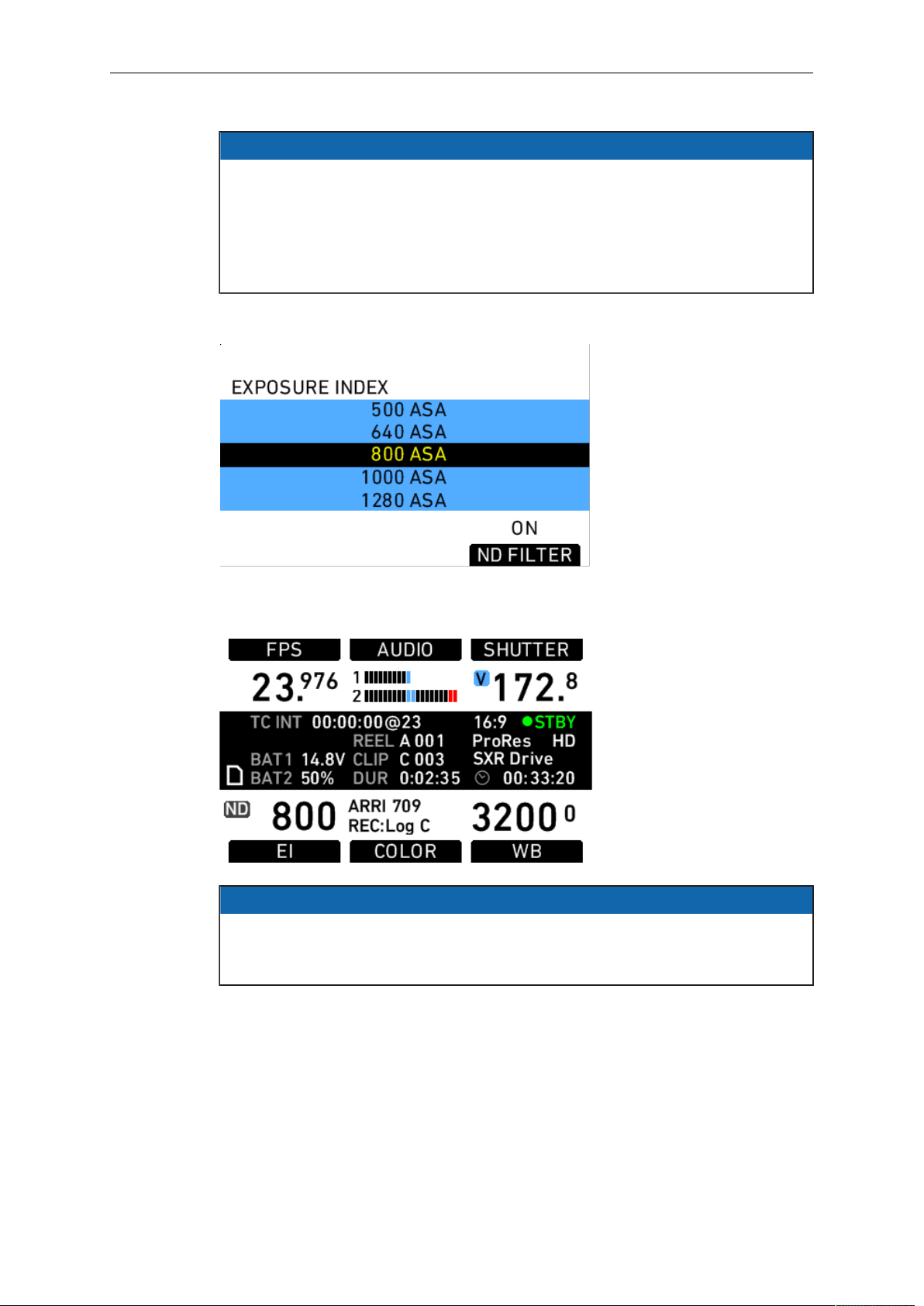
168 ALEXA SXT Studio
NOTICE
Perform regular dust checks on the outside of the ND filter slider, as dust might
collect on top of it. As the slider is very close to the sensor, dust or dirt collecting on
it might be visible as artifacts in images.
When performing a dust check, make sure the camera is switched off and
disconnected from any power source to prevent the mirror shutter from activation
during the cleaning process.
The ND filter can be activated in the EI screen by pushing the lower right screen
button.
Fig. 65: EI screen
If activated, the ASA rating in the HOME screen will have an ND index next to it.
NOTICE
The use of the internal ND filter has no influence on the EI rating of the camera.
When measuring exposure with a light meter, take into account the light loss of 4.3
stops generated by the ND filter.
17.3 Studio Camera Controls
A few additional controls are available on the ALEXA SXT Studio. These are used to
control the mirror shutter and the ND filter.
The HOME screen has icons for the active ND filter and the mirror shutter position and
state.
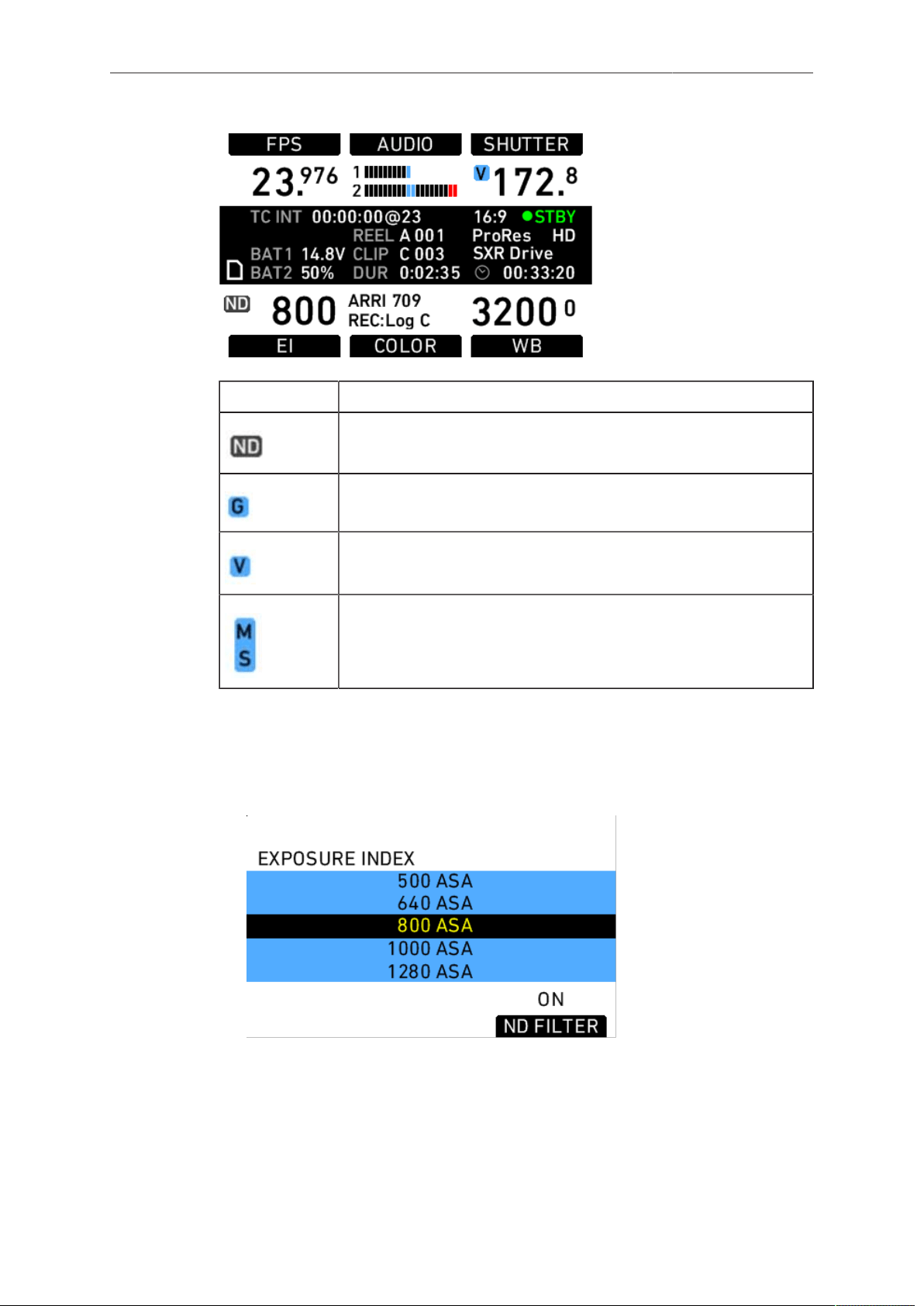
ALEXA SXT Studio 169
Icon Meaning
ND filter is active
Mirror is on and parked in gate position (Grey icon if mirror shut-
ter is switched off)
Mirror is on and parked in view position (Grey icon if mirror shut-
ter is switched off)
Mirror shutter is running
ND filter activation
1. On the HOME screen, press EI.
2. On the EI screen, press ND FILTER to move the ND filter in and out of the optical
path.
Fig. 66: EI screen
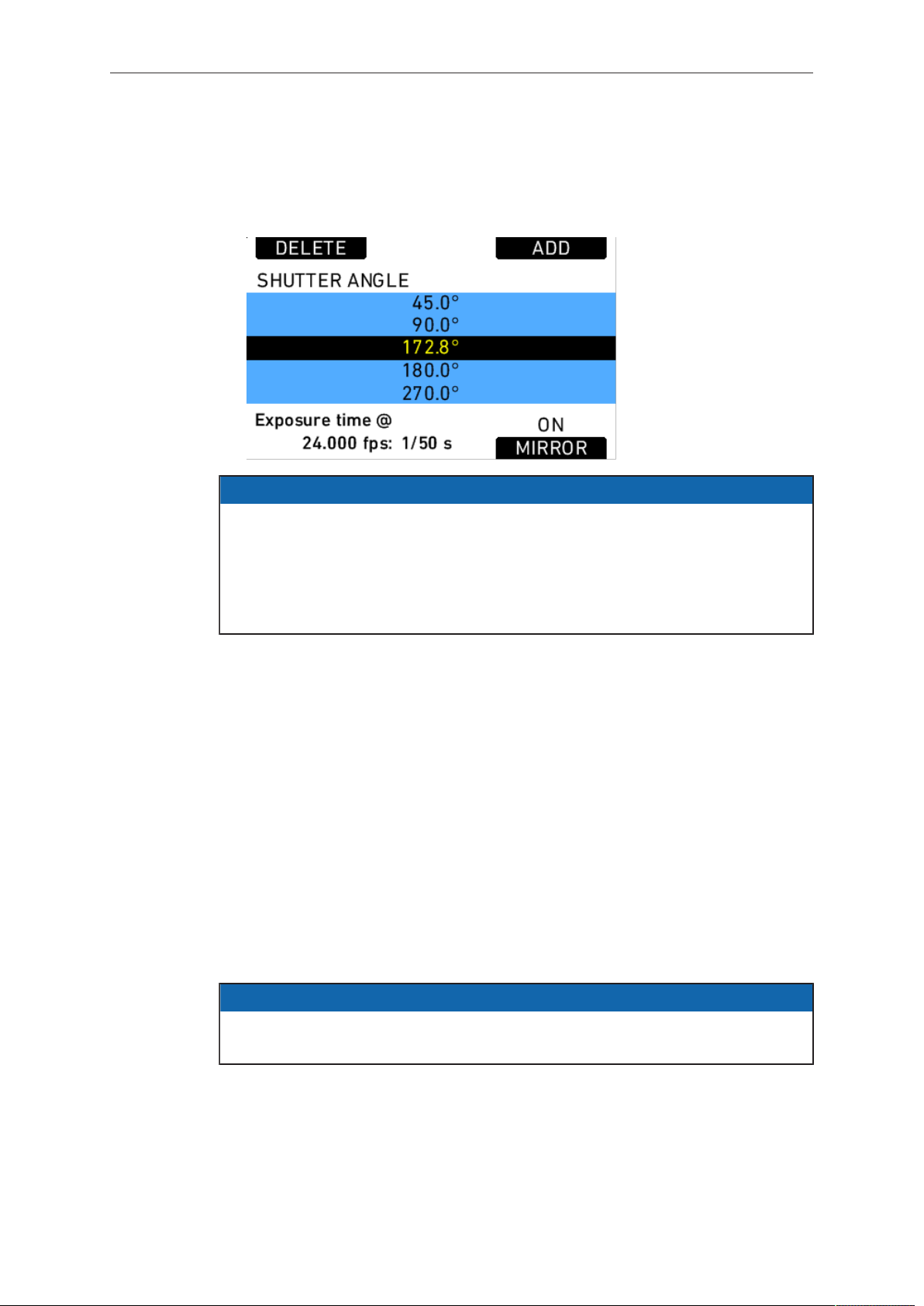
170 ALEXA SXT Studio
Mirror shutter activation
1. On the HOME screen, press SHUTTER.
2. On the SHUTTER ANGLE screen, press MIRROR to activate or deactivate the
mirror shutter.
NOTICE
•
When mirror shutter is active, the shutter angle is limited to 180.0 degrees.
Frame rates higher than 37 fps for 4:3, 6:5, and Open Gate, and higher than 48
fps for 16:9 reduce the shutter angle range further.
•
For frame rates higher than 30 fps, it is recommended to use a power source
with a voltage level of 18-35 V to ensure the mirror shutter is powered
sufficiently.
MIRROR PARK buttons VIEW and GATE
The camera left side Operator Controls have two additional function buttons labeled
VIEW and GATE. These buttons control the parking position of the mirror shutter.
A spinning mirror shutter can be stopped by pressing either of the two buttons.
Pressing the VIEW button will park the mirror in the optical path, enabling a live
preview in the optical viewfinder.
Pressing the GATE button will stop the mirror shutter out of the optical path, enabling
a live preview on the MON OUT and the EVF in case it is mounted to the camera.
Each button is accompanied by a blue LED that lights when the mirror is parked in the
respective position. When the mirror shutter is running, both of the LEDs will be active.
Pressing the GATE button while the mirror is parked in the VIEW position will move
the mirror shutter by 180.0° degrees into the GATE position.
Pressing the VIEW button while the mirror is parked in the GATE position will move
the mirror shutter by 180.0° degrees into the VIEW position.
To restart the mirror shutter, press both VIEW and GATE simultaneously.
NOTICE
After booting the camera, the mirror shutter is parked in the GATE position for
safety reasons.
When stopping, the mirror shutter always opens up the electronic sector gate to
180.0°, and closes down when it is restarted.
A live image on EVF and MON OUT is available when the mirror shutter is spinning or
parked in the GATE position. A parked mirror shutter will automatically start spinning
when recording is started.
When the mirror shutter is switched off, it is parked in the GATE position.

ALEXA SXT Studio 171
NOTICE
For safety reasons, it is required to power down the camera before performing a
"gate check". Do not check or clean the sensor cover glass while the camera is
powered up and the mirror is parked in the GATE position!
Frame rate and shutter angle with mirror shutter on
When the mirror shutter is switched on, the sensor frame rate is limited to 60 fps in
16:9 and 48 fps in 4:3.
Frame rates higher than 37 fps in 4:3 or 48 fps in 16:9 reduce the maximum possible
mirror shutter angle. When the frame rate change reduces the allowed mirror shutter
angle below the currently active shutter angle, the camera automatically sets the
shutter angle to 135.0°. The technically possible maximum shutter angle depends on
the frame rate.
To set the maximum available shutter angle:
1. Press the SHUTTER button on the HOME screen to get to the SHUTTER ANGLE
screen.
2. Press the ADD button on the SHUTTER ANGLE screen to get to the SHUTTER
ANGLE ADD screen.
3. Press the MAX button on the SHUTTER ANGLE ADD screen and confirm by
pressing the jogwheel twice.
The maximum available shutter angle is now a part of the shutter list and can be set
by pressing the jogwheel.
When the mirror shutter is on, the camera redirects the user to the SHUTTER ANGLE
screen after setting the sensor frame rate, where the shutter angle can be adjusted as
desired. To cancel this action, press the HOME button.
3D setup
When using two ALEXA SXT Studio cameras in a 3D setup, ensure to activate both
sensor sync and settings sync. Otherwise, the shutter angle on the slave camera will
not match the shutter angle of the master camera.
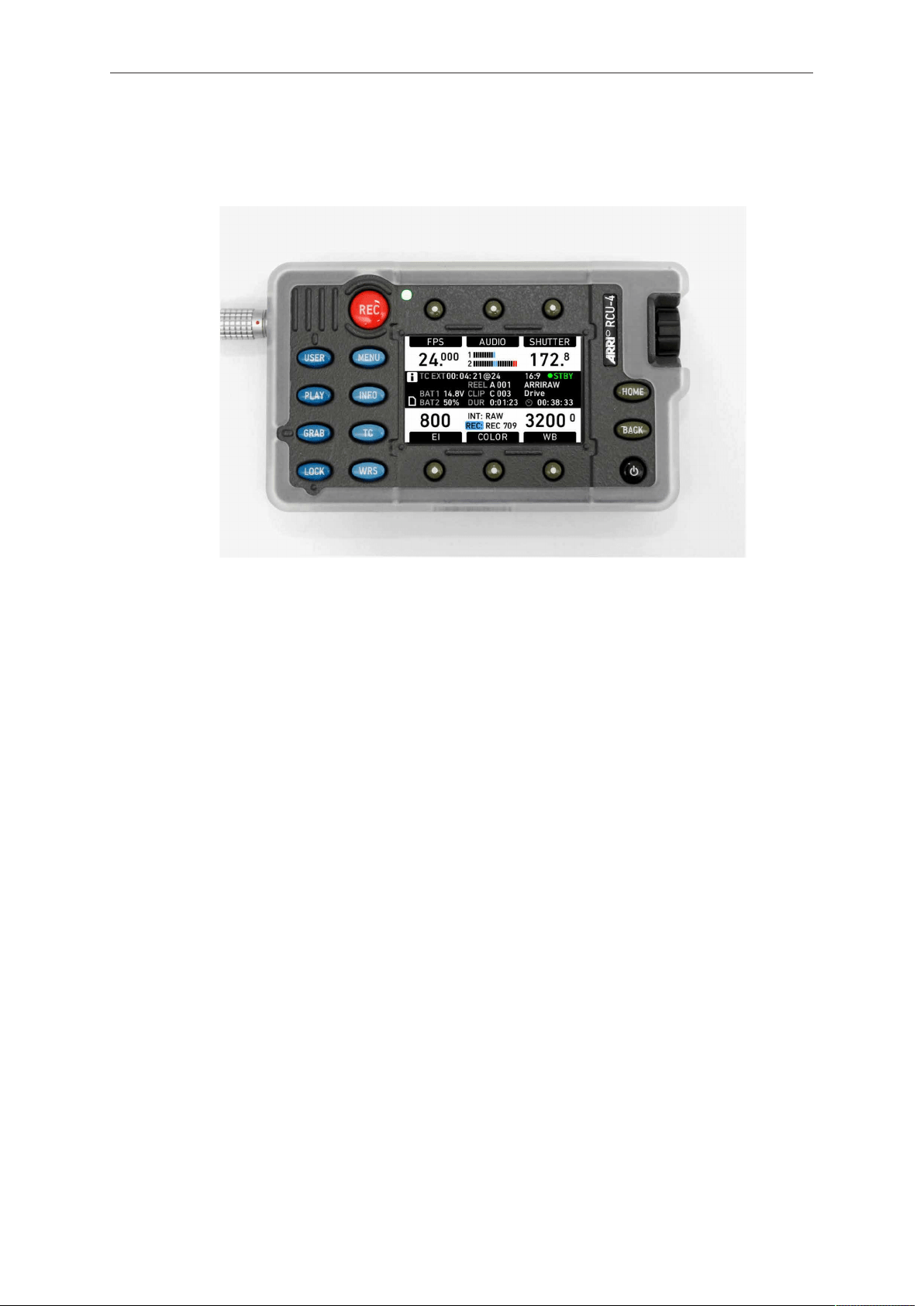
172 Remote Control Unit RCU-4
18 Remote Control Unit RCU-4
The camera can be remotely controlled with an RCU-4. This device mirrors the
controls on the camera's right side. It is connected to the camera's Ethernet port.
Power is supplied via the Ethernet cable.
To power the RCU-4, connect it to a camera, make sure the camera is powered up,
and press the power button.
During boot-up, the RCU-4 compares its firmware version with the camera firmware
version. If it detects a difference, it will update itself to match the camera's firmware
version. When the update is completed, the RCU-4 will shut down automatically.
The power button of the RCU-4 only affects the RCU-4. It is not possible to power or
to shut down the camera with the RCU-4. When the camera is powered down, the
RCU-4 shuts down automatically as it loses its power supply.
The LOCK button of the RCU-4 locks only the RCU-4. It does not affect the camera
lock.
For more information, please refer to the RCU-4 user manual.

Index 173
19 Index
1
12 V.................................................................... 41
A
About This Manual............................................... 9
ALEXA Studio Images...................................... 157
ALEXA SXT Plus.............................................. 139
ALEXA SXT Studio........................................... 157
Appendix........................................................... 175
ARRI Look File 2 files........................................ 78
AUDIO................................................................ 72
AUDIO IN........................................................... 40
AUDIO OUT....................................................... 41
Available FSND Filter Sets................................. 52
B
Basic precautions............................................... 52
BAT..................................................................... 39
BAT Connector................................................... 24
Bridge Plate adapter BPA-1............................... 36
Bridge Plates BP-12/BP-13................................ 35
C
Camera Controls................................................ 66
Camera Support................................................. 30
Center Camera Handle CCH-1.......................... 34
Cine-Style Batteries............................................ 25
COLOR............................................................... 77
Condensation...................................................... 23
Connector Pin Outs.......................................... 177
Connectors......................................................... 38
D
Dimensions and Weights.................................. 188
Disclaimer............................................................. 7
Display................................................................ 66
Display + Beeper.............................................. 112
E
EI........................................................................ 75
Electronic Mirror Shutter................................... 159
Electronic Viewfinder.......................................... 99
Electronic Viewfinder EVF-1............................... 30
ETHERNET........................................................ 40
EVF..................................................................... 40
EVF-1 Controls................................................. 120
Explanation of Warning Signs and Indications.... 21
EXT..................................................................... 40
External Sync................................................... 110
F
False Color Display.......................................... 182
False Color Index............................................. 104
Fan mode......................................................... 113
Filter cleaning..................................................... 64
Firmware - Software Update Packets (SUPs)... 115
FPS..................................................................... 71
Frame Lines............................................. 103, 131
FSND Filter Set (Basic)...................................... 53
FSND Filter Set (Completion)............................. 53
FSND Filter Set (Full)......................................... 54
Function Buttons................................................ 81
G
General Precautions........................................... 23
General Safety Guidelines................................. 21
Gold Mount Batteries.......................................... 27
H
Hand Units........................................................ 143
HOME screen..................................................... 67
I
Imaging............................................................. 107
In-Camera Filter Module IFM-1.......................... 50
INFO................................................................... 85
Internal recording.............................................. 123
Internal Recording Formats.............................. 123
Introduction to the ALEXA SXT Camera System 11
L
Layout of the ALEXA.......................................... 19
Lens Adapter PL Mount LA-PL-2..................... 159
Lens Adapter PL-Mount LA-PL-2....................... 47
Lens Data Display LDD-FP.............................. 144
Lens Motors...................................................... 142
Lens Mounting.................................................... 47
Lens Support...................................................... 48
Levelling Block LB-1........................................... 36
Lists and User Lists............................................ 70
M
Main Controls..................................................... 66
Mains Unit NG 12/26 R...................................... 25
Maximum lens mounting depth.......................... 51
Menu................................................................... 94
Minimum Equipment Recommended For
Operation............................................................ 30
Monitoring................................................... 97, 131
MON OUT 1/2/3......................................... 40, 101
Mounting in-camera filters.................................. 61
N
ND Filter........................................................... 167
Network............................................................. 114
O
Onboard Batteries.............................................. 26
Operation of the Camera.................................. 123
Operator controls.............................................. 119
Optical Viewfinder............................................. 161
Optics................................................................ 159
P
PLAY................................................................... 91
Plus Camera Controls...................................... 144
Power................................................................ 110
Powering 12 V Accessories................................ 28
Powering 24 V Accessories................................ 29
Power Management........................................... 24
Power Outputs.................................................... 28
Power Supply..................................................... 24
Production Info................................................. 106
Project............................................................... 105
R
Radio System................................................... 140
Recording........................................................... 94
Recording Module...................................... 43, 123
Remote Control Unit RCU-4............................. 172
Required shimming and maximum lens mounting
depth................................................................... 52
RET SYNC IN.................................................... 39
RS....................................................................... 41

174 Index
S
Safety Guidelines............................................... 21
Safety instructions for in-camera filtration........... 51
Scope................................................................. 10
Screen Buttons................................................... 67
SD Card..................................................... 41, 114
Shimming the lens mount................................... 55
Shoulder Pad SP-3............................................ 37
SHUTTER........................................................... 75
Side Camera Handle SCH-1.............................. 35
Specific Safety Instructions................................ 21
Status Info Overlays......................................... 132
Storage and Transport....................................... 23
Studio Camera Controls................................... 168
Syncing the Sensors of Two Cameras............. 135
Syncing the Settings of Two Cameras.............. 137
System.............................................................. 107
System Time + Date......................................... 112
T
TC................................................................. 41, 83
Technical data.................................................. 175
Test Signal........................................................ 111
TIMECODE OPTIONS....................................... 83
Tripod and Remote Heads................................. 30
U
USER.................................................................. 88
USER BITS........................................................ 84
User Pixel Masking.......................................... 108
User Setups...................................................... 117
Using Timecode................................................ 134
V
Viewfinder Cables............................................... 31
Viewfinder CAM menu...................................... 122
Viewfinder EVF menu....................................... 120
Viewfinder Mounting Bracket.............................. 32
V-Lock Batteries................................................. 26
W
Warning and Error Messages........................... 183
WB...................................................................... 80
Web Remote..................................................... 122
Wedge Adapter WA-1 and Quick-Release Plate
QR-HD-1............................................................. 36
Wireless Remote System................................. 141

Appendix 175
20 Appendix
20.1 Technical data
Image Sensor
Type ALEV III CMOS sensor
Sensor frame rates 0.750 - 120.000 fps
Shutter angle 5.0° - 358.0°
Total active photo sites (incl. surround
view)
3168 x 1782 (16:9)
3168 x 2198 (6:5)
3168 x 2198 (4:3)
3424 x 2202 (Open Gate)
Photo sites of recorded image 2880 x 1620 (16:9)
2578 x 2160 (6:5)
2880 x 2160 (4:3)
3424 x 2202 (Open Gate)
Image aperture (incl. surround view) 26.14 x 14.70 mm (16:9)
26.14 x 17.82 mm (6:5)
26.14 x 17.82 mm (4:3)
28.17 x 18.13 mm (Open Gate)
Aperture of recorded image 23.76 x 13.37 mm (16:9)
21.27 x 17.82 mm (6:5)
23.76 x 17.82 mm (4:3)
28.17 x 18.13 mm (Open Gate)
Photo site pitch 8.25 μm
Aspect ratios 1.78:1 (16:9)
1.2:1 (6:5)
1.33:1 (4:3)
1.55:1 (Open Gate)
Filters optical low pass, UV, IR
Color filters RGB primary colors
Lens
Lens mount Exchangeable lens mount, with PL
mount LA-PL-2 installed
Flange focal depth 52.00 mm nominal
Image processing
White balance 2000 - 11000 Kelvin
CC Shift -12 to +12

176 Appendix
EI rating 160 - 3200 ASA
Recorded image resolutions (pixels) 1920 x 1080 (16:9 HD)
2048 x 1152 (16:9 2K)
3200 x 1800 (16:9 3.2K)
3840 x 2160 (16:9 4K UHD)
2880 x 1620 (16:9 ARRIRAW)
3168 x 1782 (16:9 ARRIRAW)
2048 x 858 (6:5 2K Anamorphic)
4096 x 1716 (6:5 4K Cine Anamorphic)
2578 x 2160 (6:5 ARRIRAW)
2880 x 2160 (4:3 2.8K)
3424 x 2202 (Open Gate 3.4K ProRes)
4096 x 2636 (Open Gate 4K Cine)
3424 x 2202 (Open Gate ARRIRAW)
Viewfinder
Type ARRI EVF-1
Technology LCOS imaging device
Resolution 1280 x 784 pixels
Power
Power supply DC 10.5 - 34V
Power management Active ORing between BAT connector
and onboard battery adapters
Power consumption ca. 85W w/o accessories
Power outputs 2 x RS (24V), 1x 12V
Recording
Recording media SXR Capture Drives
XR Capture Drives
Sony SxS PRO and SxS PRO+ cards
CFast 2.0 cards
Recording formats Apple ProRes 422/4444 codec family
ARRIRAW
Image Outputs
Monitoring outputs EVF out: proprietary signal for EVF-1
with delay <1 frame
3x MON OUT:
422 1.5G @ frame rates:
23.976, 24, 25, 29.97 and 30 fps
Timecode
Type Tunable TC clock generator with crys-
tal oscillator

Appendix 177
TC input LTC in
TC outputs LTC out
HD-SDI LTC/VITC out
Others
SD card most SD cards with FAT/FAT32 up to 4
GB
Sound level under 20 dB(A) @ 24 fps and ambient
temperature < 25° C / 77° F
Environmental -20° C to +45° C @ 95% relative hu-
midity max, non condensing
HD video transmitter (ALEXA SXT W only)
Power consumption 7W
Output resolution 1920 x 1080
Frame rates p: 23.98, 24, 25, 29.97, 30
psF: 23.98, 24, 25, 29.97, 30
Audio 2 channels, 48KHz PCM
embedded in HD-SDI signal
Transmission range 600m (2,000 ft) line of sight
Latency < 1ms
Encryption 128bit AES
Modulation process and other specifics OFDM (Orthogonal Frequency-Division
Multiplexing)
Bandwidth 40MHz
WiFi module (ALEXA SXT W only)
IEEE 802.11b: 1/2/5.5/11 Mbit/s Modulation DSSS, Bandwidth: 22 MHz
IEEE 802.11g: 6/9/12/18/24/36/48/54
Mbit/s
Modulation OFDM, Bandwidth: 20 MHz
Dimensions and weight
For dimensions and weight, please refer to the dimensional drawings.
20.2 Connector Pin Outs
NOTICE
The drawings of the connectors are not to scale.
All pin-outs for camera interfaces appear as seen by the user.
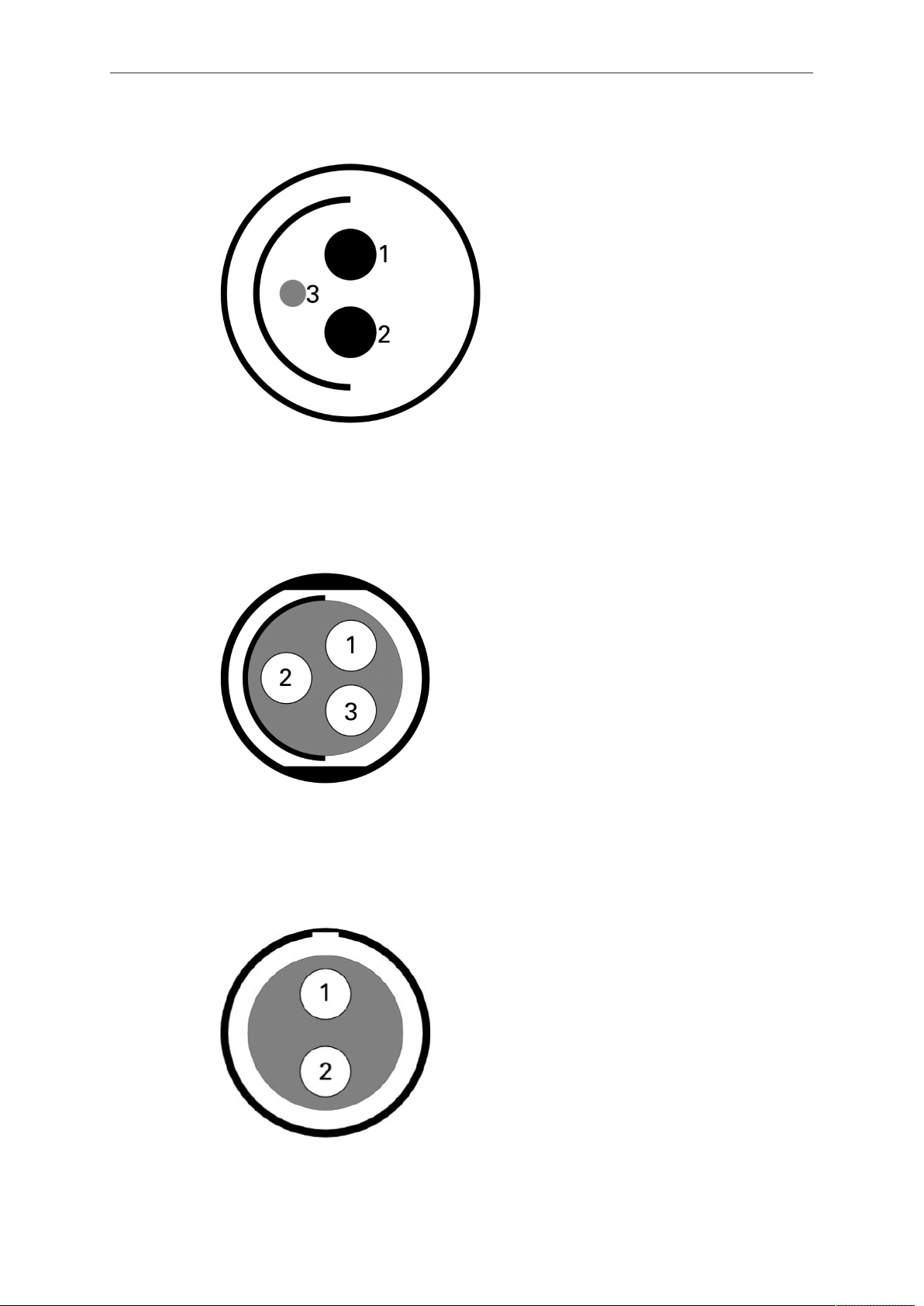
178 Appendix
BAT
1 GND
2 +24V
3 BAT-COM
RS
1 GND
2 24V-AUX
3 R/S
12V
1 GND
2 12V-AUX
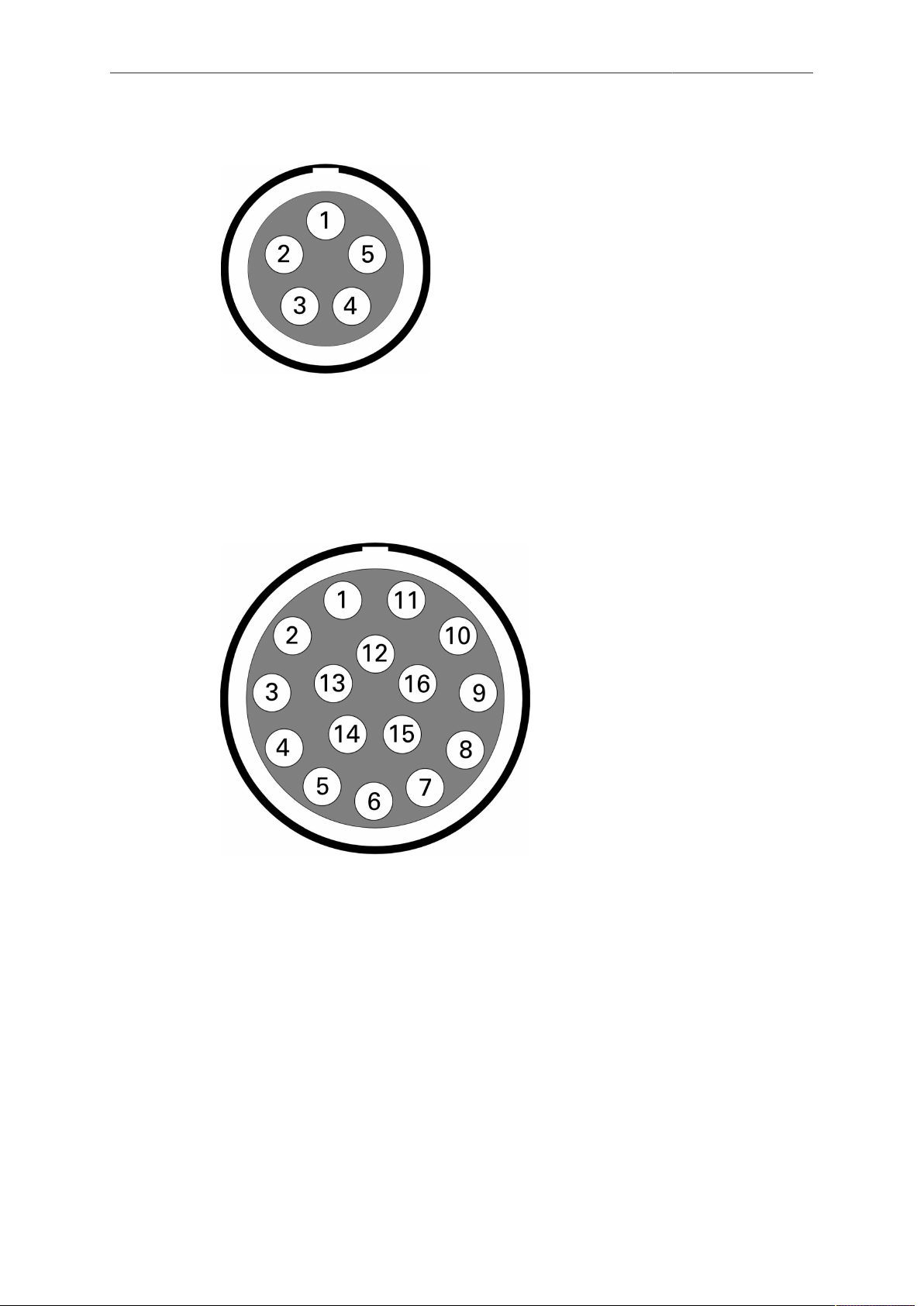
Appendix 179
TC
1 GND
2 LTC IN
3 ASCII
4 TUNE OUT
5 LTC OUT
EXT
1 RS422-TXD(+)
2 RS232-TXD
3 CAN1-L
4 CAN1-H
5 CAN2-L
6 CAN2-H
7 24V-AUX
8 RS232-RXD
9 RS422-RXD(-)
10 RS422-RXD(+)
11 RS422-TXD(-)
12 GND
13 TTL-IN1
14 TTL-IN2
15 24V-AUX
16 GND
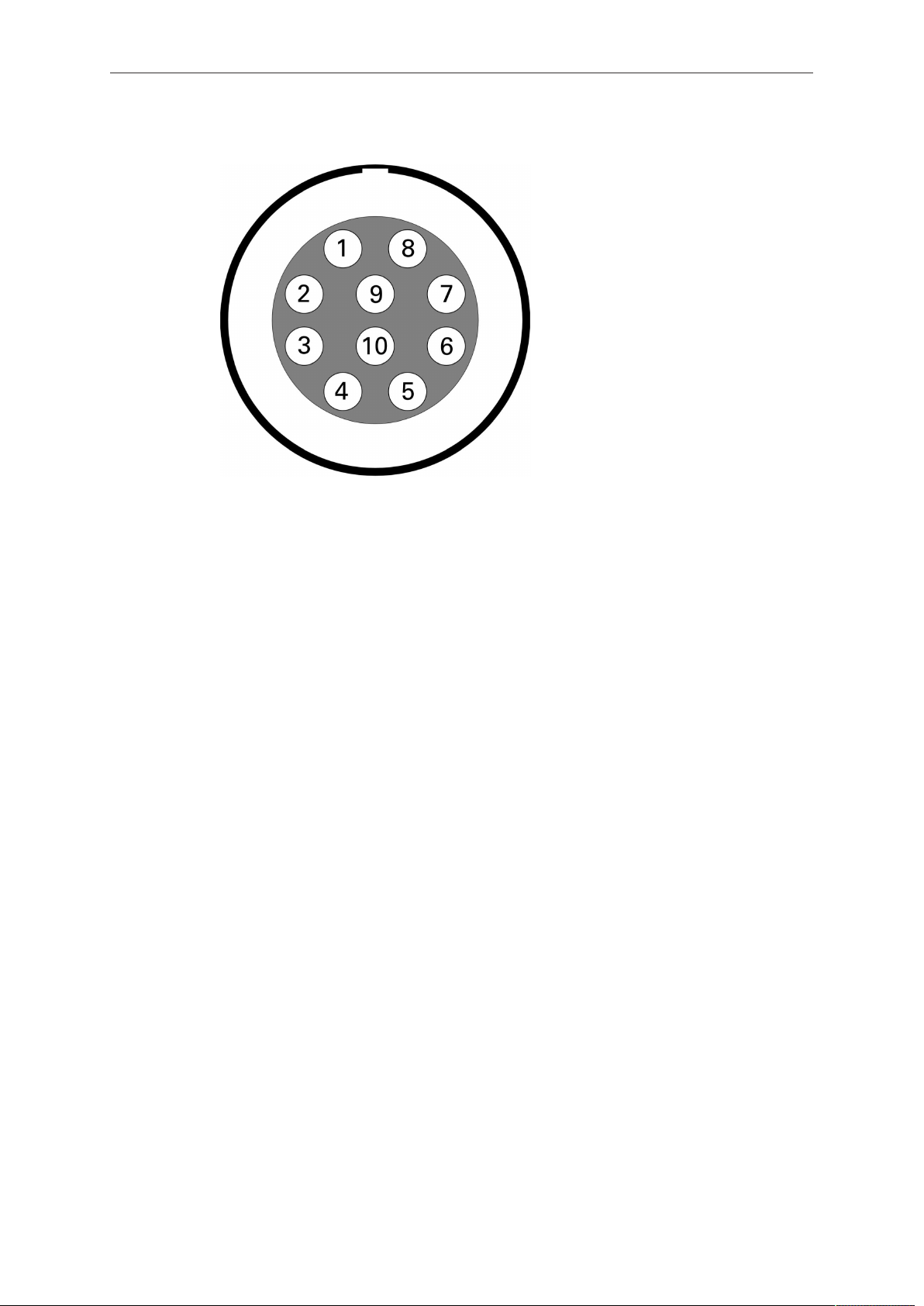
180 Appendix
ETHERNET Camera Side
1 MX-1P CTS (white-orange)
2 MX-1N DTR (orange)
3 MX-2P GND (white-green)
4 MX-2N DCD (green)
5 MX-3P TXD (blue)
6 MX-3N RXD (white-blue)
7 MX-4P DSR (white-brown)
8 MX-4N RTS (brown)
9 GND
10 24V-ETH
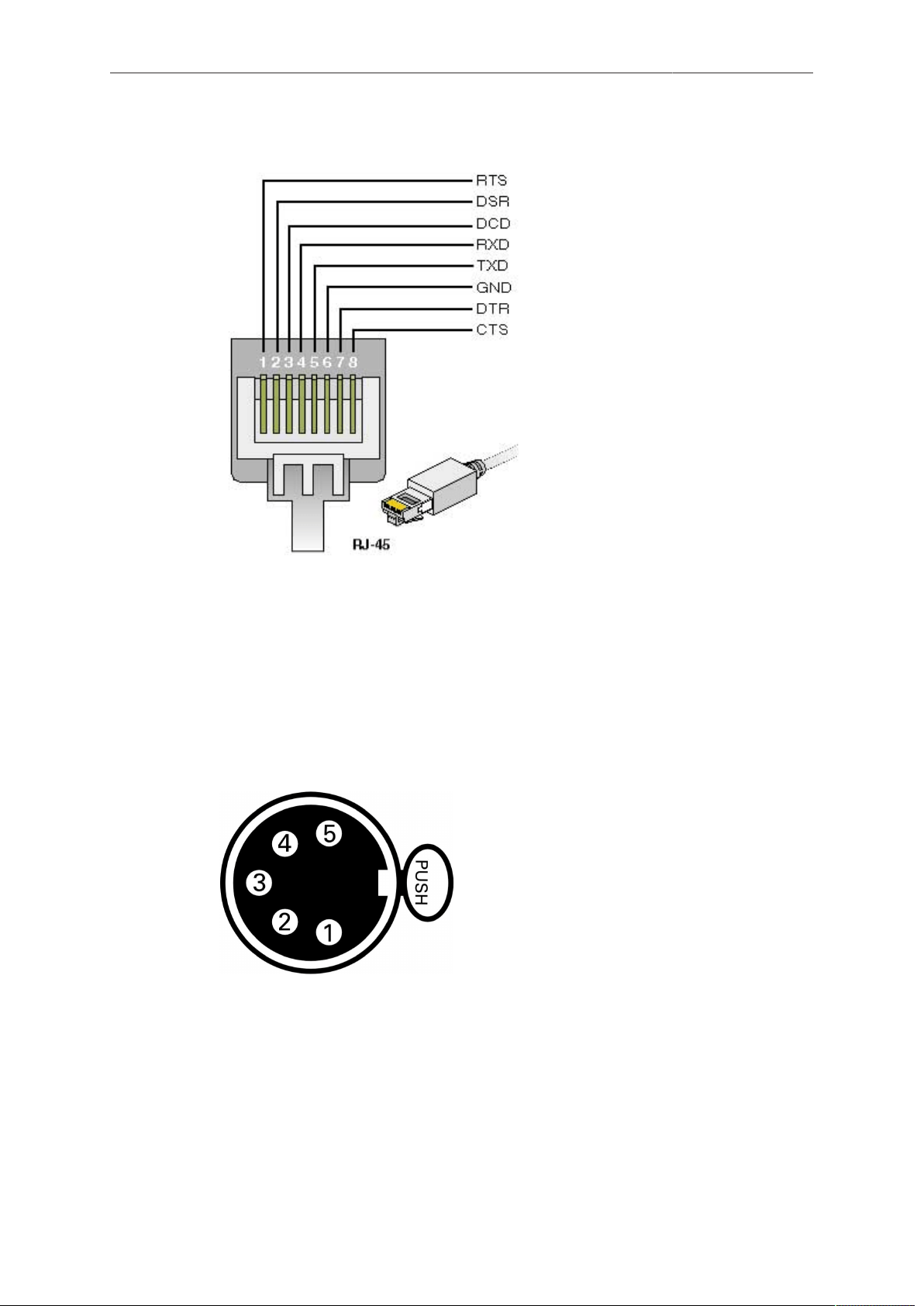
Appendix 181
ETHERNET PC Side
RTS brown
DSR white-brown
DCD green
RXD white-blue
TXD blue
GND white-green
DTR orange
CTS white-orange
AUDIO IN
1 AGND
2 L-IN(+)
3 L-IN(-)
4 R-IN(+)
5 R-IN(-)
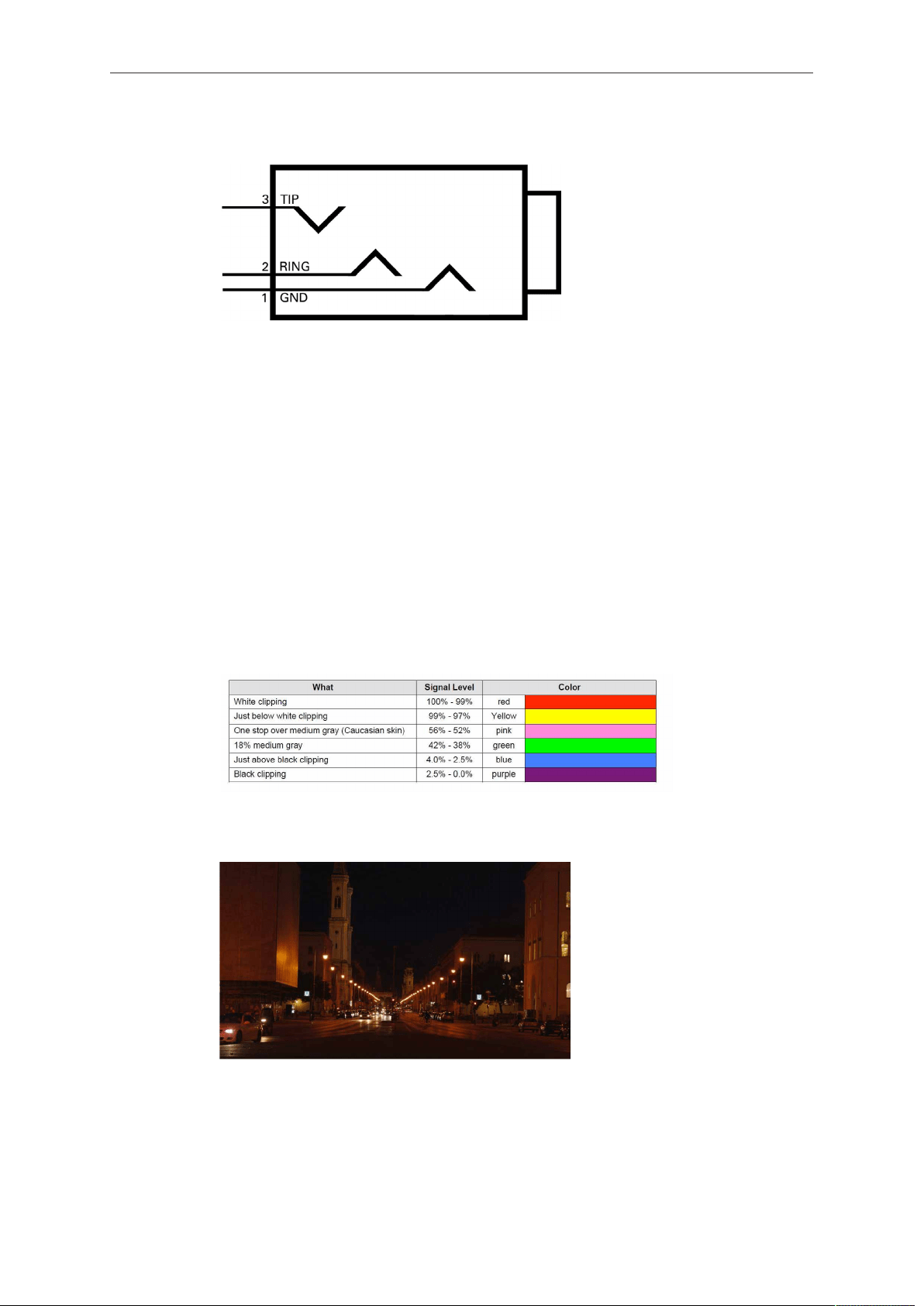
182 Appendix
AUDIO OUT
1 GND
2 R-OUT
3 L-OUT
20.3 False Color Display
The false color display is a tool to check correct exposure. It can be activated on EVF
and MON OUT, and takes the respective gamma setting as a basis for calculation.
When active, the image is turned into a greyscale image with important luminance
ranges shown in signal colors. Note that the false color tool is only suitable for
checking exposure and is not an appropriate tool for checking other image parameters
or sensor quality.
Color Encoding
Six different colors are used to show the important luminance ranges.
Fig. 67: False Color Encoding
The following example illustrates the behavior of the false color display.
Fig. 68: Night scene captured with ALEXA

Appendix 183
Fig. 69: Night scene with false color active
20.4 Warning and Error Messages
If anything unwanted occurs in the camera, it will give a message to the user.
These states, which require attention from the user, are indicated by icons in the main
display, the viewfinder and the MON OUT.
Warnings inform the user that a state has changed or that an error is likely to occur,
but recording is still possible.
When the camera goes into error state, recording is no longer possible, as it cannot be
guaranteed that images are acquired as the user intended, or it is not possible for the
camera to record.
The messages give a compact description of what has happened. If more information
is required, please refer to the following tables.
Special warnings and errors: Sensor temperature
ALEXA has a Peltier element that keeps the image sensor at a stable temperature.
This is important to achieve constant image quality. In certain situations, the camera
might not be able to keep the optimal temperature, or it might take some time to reach
the optimal temperature. This may be the case directly after booting, or in very hot or
cold environments.
A red temperature icon indicates that the sensor temperature is too far off to
guarantee a high image quality. A white temperature icon indicates that the sensor
temperature is not optimal, but image quality is still within the (very high) quality limits
required by ARRI.
The related messages in the INFO screen are shown in the following tables.
Status message
System state: Good Camera works properly.
Warning messages and meanings
Main Bat: Power warning The battery attached to the BAT connector
has reached its warning level. Battery power is
about to end, and a replacement battery should
be prepared.
Onboard Bat: Power warning The battery attached to the onboard battery
adapter has reached its warning level. Battery
power is about to end, and a replacement bat-
tery should be prepared.

184 Appendix
Media: Low capacity The recording medium has less than 3 min-
utes recording time left. Prepare a new card for
recording.
Media: Prerec space low The prerecording duration nearly fills the re-
maining recording time on the recording medi-
um. Prepare a new card for recording.
Media: Rec. inhibited The recording medium is protected. Remove
the card from the camera, slide the switch lo-
cated on the camera back end to the Rec en-
able position and re-insert the card.
Media full The recording medium is full.
Media: Wrong file system The recording medium is not formatted in the
file system required by the camera. Format the
medium.
Media too slow The write speed of recording medium is insuffi-
cient for the sensor fps set on the camera. Use
a medium with a higher write speed.
Media: files not consistent The metadata of one or more files on the
recording media are not consistent. Backup any
data on the medium and format the medium.
Media type not supported The media type of the current medium is not
supported.
Media write problem The camera has problems writing to the record-
ing medium. Continue with a fresh medium.
Media: wrong recording mode.
May contain clips
XR Capture Drive is formatted for ARRIRAW,
but ALEXA is in ProRes recording mode, or
vice-versa. Format the media to record on it.
Camera overheating The camera system's temperature is reach-
ing a critical level. This can either be due to a
blocked camera fan or ambient temperature
exceeding the system's limits. Apply addition-
al cooling or switch off the camera to prevent
hardware damage.
Low sensor temperature The sensor temperature is lower than it should
be. High image quality is still guaranteed.
High sensor temperature The sensor temperature is higher than it should
be. High image quality is still guaranteed.
Ext TC: Different frame rate The external TC signal's time base differs from
the project fps of the camera. Syncing is still
possible.
Re-jam timecode soon. Accuracy of jammed Timecode can soon ex-
pire. Re-jam camera with external Timecode
soon.

Appendix 185
Re-jam timecode now. Accuracy of jammed Timecode has expired.
Re-jam camera with external Timecode.
TC source forced to internal Sensor fps does not match Project fps. Exter-
nal Free Run TC cannot be used, camera has
switched to Int Rec Run TC.
TC mode forced to Rec Run Sensor fps does not match Project fps. Exter-
nal Free Run TC cannot be used, camera has
switched to Int Rec Run TC.
Interface bit error. Check im-
age.
Reboot camera. If error continues to occur,
contact ARRI service.
Internal processing problem Reboot camera. If error continues to occur,
contact ARRI service.
Internal battery error The internal battery which powers the real-time
clock must be replaced. Contact an ARRI ser-
vice center near you.
System problem Reboot the camera. If error continues to occur,
contact ARRI service.
System problem (I2C bus er-
ror)
Problem on camera data bus. Reboot the cam-
era. If error continues to occur, contact ARRI
service.
External TC: Incompatible
frame rate
The external TC signal's time base is not ac-
cepted by the camera.
HD outs not synced. Trigger
now.
Appears on slave cam with Ext sync activated,
but not using settings sync. Send trigger from
Ext sync master camera to ensure the MON
OUTs of both cameras are in sync.
Connect with Ethernet slave. Camera is set to Settings sync: ETH master,
but is not connected with slave camera via Eth-
ernet
Connect with Ethernet master. Camera is set to Settings sync: ETH slave, but
is not connected with master camera via Ether-
net
External TC: Jamming. Please
wait.
Camera jams to external TC signal. Do not dis-
connect TC source from camera until warning
disappears.
External TC: Signal missing Camera is set to Ext LTC regen, but external
TC signal is missing.
External TC: Incompatible
frame rate
The external TC signal has a time base that
does not match the project fps of the camera.
Framegrab: Grabbing image
failed
A problem occurred in the camera. The frame
grab failed.

186 Appendix
Framegrab: Storing image
failed
A problem occurred with the SD card. The
frame grab failed.
Playback failed The camera could not play back the internally
recorded clips.
EVF smooth mode not possi-
ble
Smooth mode is set to "On", but either sensor
fps is higher than 30.000, or shutter angle is
higher than 180.0
Ext LTC: Forced to JAM sync Ext LTC had to be switched to Jam sync by
camera system.
Card/Media removed, play-
back failed
Camera had to abort playback, as media was
removed.
Calibrate lens motors. New lens motors are attached to the camera.
Prior to use they must be calibrated.
Temperature at limit. Fan
RPM raised
Although camera fan is in "Rec low" mode, fan
noise might exceed silent level because cam-
era is becoming too hot.
Master/slave: Focus unit mis-
match
With ALEXA SXT Plus and 3D lens sync, both
cameras must have same focus unit activated,
which is not the case here.
Slave: No lens table active. With ALEXA SXT Plus and 3D lens sync, select
lens table on slave when using LDA.
Sensor in High Humidity mode Reminder for active High Humidity mode
ND filter stuck ALEXA SXT Studio only.
ND filter slider has mechanical problems.
Mirror sector problem ALEXA SXT Studio only.
Mirror sector has mechanical problems.
Mirror cannot reach sync
speed
ALEXA SXT Studio only.
Mirror cannot reach speed due to technical
problems.
Voltage too low for mirror ALEXA SXT Studio only.
Power supply voltage level insufficient to drive
mirror shutter.
Mirror out of phase ALEXA SXT Studio only.
Mirror shutter and sensor are out of phase, may
result in exposure artifacts.
Mirror failure. Press GATE or
VIEW.
ALEXA SXT Studio only.
Mirror shutter initialization failed, press GATE or
VIEW to reset mirror shutter manually.

Appendix 187
Some buttons are defect Camera button signals are failing. Reboot cam-
era. If reappearing after reboot, contact service
for button replacement. Mostly hardware prob-
lem.
Media: Data rate low. Check
last clip.
Data rate of last recorded clip is very low.
Check for artifacts in replay. Can also occur
when forgetting to remove lens cap during
recording.
LDS failure. Reboot. The lens data system has failed. Restart the
camera if LDS is used.
Error messages and meanings
Main Bat: Low power The battery attached to the BAT connector has
reached its low level (10% below warning lev-
el). Battery must be replaced.
Onboard Bat: Low power The onboard battery has reached its low level
(10% below warning level). Battery must be re-
placed.
All Bats: Low power Batteries on both BAT connector and onboard
battery(s) have to be replaced.
Media end of lifetime The recording medium has reached the end of
its life cycle and has become read-only. Use a
new medium.
Media: Write speed error The current write speed could not be handled
by the recording medium.
Camera overheating The camera is getting too warm. Apply addi-
tional cooling or shut down to prevent hardware
damage.
Low sensor temperature Sensor temperature is out of range. Wait until
error message disappears before continuing to
shoot.
High sensor temperature Sensor temperature is out of range. Wait until
error message disappears before continuing to
shoot.
System error Reboot the camera.
Codec error. Reboot. An error in the compression module has oc-
curred, and recording was aborted. Reboot the
camera.
Sensor error. Reboot. The image sensor has a problem. Reboot the
camera.
Sensor boot error The sensor has not booted. Reboot the cam-
era.

188 Appendix
Interface error. Reboot. An internal data interface has a problem. If re-
booting does not solve the problem, contact the
ARRI service.
Fan error. Contact service. The fan module is not working properly. Either
install an SFM-1, or contact the ARRI service.
Fatal system error. Shut down
camera.
Camera has to be rebooted. If this error contin-
ues to occur, a hardware problem might be the
reason. Contact the ARRI service.
Sync clock out of range. The sync signal clock does not match the cam-
era setting. Make sure the settings match.
Syncing sensor Slave camera syncs to master camera. Wait
until message disappears before starting to
record.
Synced camera is not ready One of the slave cameras is not ready for
recording.
Software error. Reboot. A part of the camera software has stopped
functioning properly and requires a camera re-
boot.
Internal audio recording failed Audio recording on internal medium failed.
REC error. Reboot. Error in the recording module. Reboot camera.
Mirror shutter not calibrated ALEXA SXT Studio only.
Mirror shutter must be calibrated by ARRI ser-
vice.
Mirror shutter phase error ALEXA SXT Studio only.
Mirror shutter continuously not in phase with
sensor. If rebooting does not solve the problem,
contact ARRI service.
Mirror shutter: Cannot reach
sync speed
ALEXA SXT Studio only.
Mirror shutter continuously not reaching sync
speed. If rebooting does not solve the problem,
contact ARRI service.
If any error that requires rebooting occurs repeatedly, contact the ARRI service.
20.5 Dimensions and Weights
Dimensional drawings including weights information are attached to the end of
this document. A version with higher resolution can be downloaded from the ARRI
website: http://www.arri.com/camera/alexa/downloads/.

Appendix 189
20.6 Declarations of Conformity
Note: Changes or modifications not expressly approved by the party responsible for
compliance could void the user's authority to operate the equipment.
EU Declaration of Conformity
The product ALEXA SXT EV conforms to the specifications of the following European
directives:
•
DIRECTIVE 2011/65/EU OF THE EUROPEAN PARLIAMENT AND OF THE
COUNCIL of 8 June 2011 on the restriction of the use of certain hazardous
substances in electrical and electronic equipment (recast)
•
DIRECTIVE 2014/30/EU OF THE EUROPEAN PARLIAMENT AND OF THE
COUNCIL of 26 February 2014 on the harmonisation of the laws of the Member
States relating to electromagnetic compatibility
The products ALEXA SXT Plus, ALEXA SXT Studio, and ALEXA SXT W conform to
the specifications of the following European directives:
•
DIRECTIVE 2011/65/EU OF THE EUROPEAN PARLIAMENT AND OF THE
COUNCIL of 8 June 2011 on the restriction of the use of certain hazardous
substances in electrical and electronic equipment (recast)
•
DIRECTIVE 2014/53/EU OF THE EUROPEAN PARLIAMENT AND OF THE
COUNCIL of 16 April 2014 on the harmonization of the laws of the Member States
relating to the making available on the market of radio equipment
The compliance with the requirements of the European Directives was proved by the
application of the following harmonized standards:
•
EN 62368-1:2014/AC2015;
•
EN 301 489-1 V2.1.1; EN 301 489-17 V3.1.1; EN 55032:2015, EN 55103-2:2009
•
EN 301 893 V1.8.1
•
EN 50581:2012
To evaluate the respective information we used:
http://ec.europa.eu/growth/single-market/european-standards/harmonised-standards/
index_en.htm
Munich, 01 August 2017
sign Walter Trauninger
Managing Director
sign Dr. Sebastian Lange
Head of Quality Management
FCC Compliance Statement
Class A Statement: This equipment has been tested and found to comply with the
limits for a Class A digital device, pursuant to Part 15 of the FCC Rules. These limits
are designed to provide reasonable protection against harmful interference when the
equipment is operated in a commercial environment.
Note: This equipment generates, uses, and can radiate radio frequency energy and, if
not installed and used in accordance with the instruction manual, may cause harmful
interference to radio communications. Operation of this equipment in a residential area
is likely to cause harmful interference in which case the user will be required to correct
the interference at his own expense.
•
ECS transceiver module*: FCC ID: Y7N-EMIP300
•
Wireless video module**: FCC ID: Y7N-AVTS35253
•
WiFi module**: FCC ID: PVH0965
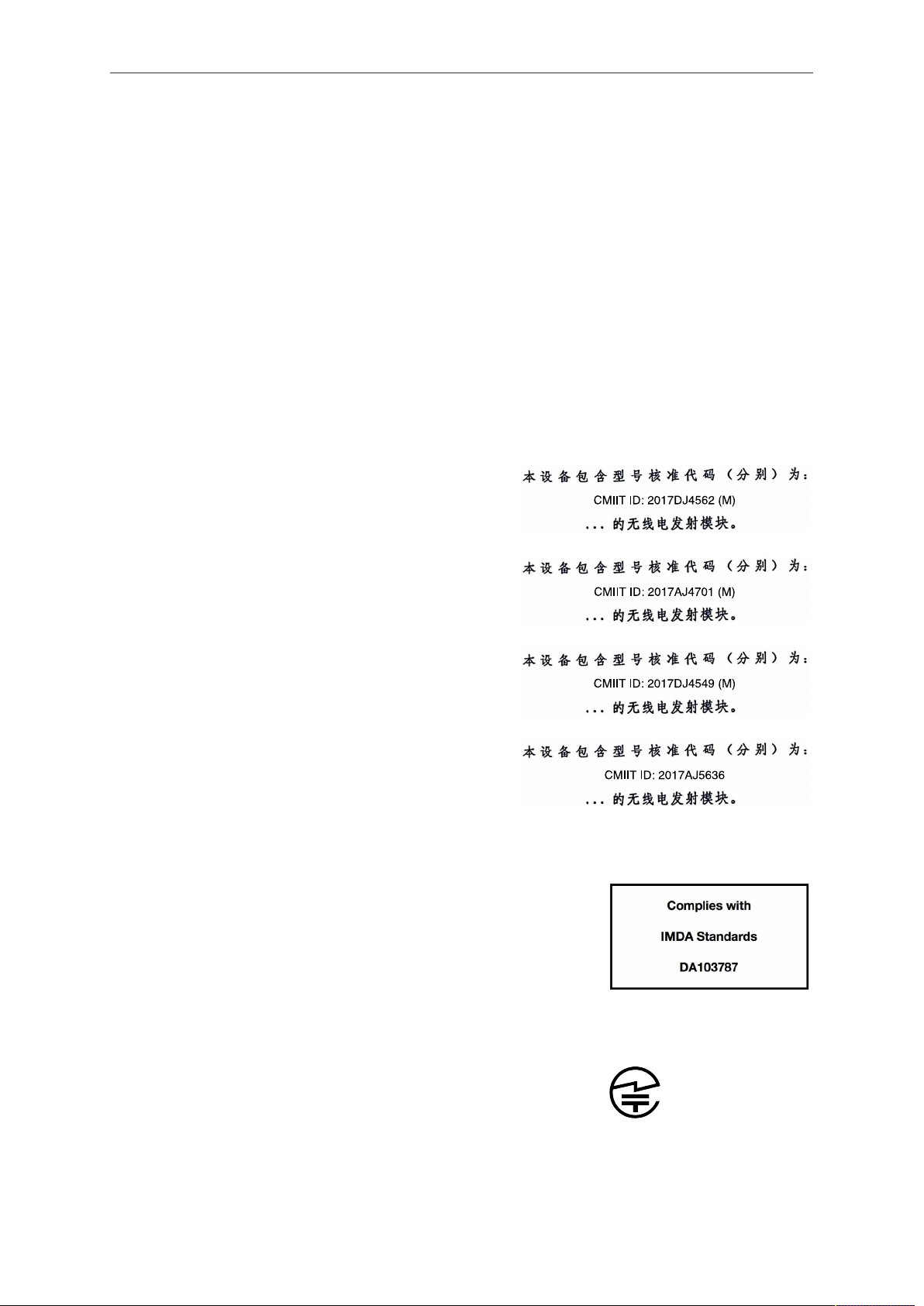
190 Appendix
Industry Canada Compliance Statement
Complies with the Canadian ICES-003 Class A specifications.
Cet appareil numérique de la Classe A est conforme à la norme NMB-003 du Canada.
This device complies with RSS-210 of Industry Canada.
Cet appareil est conforme à CNR-210 d' Industrie Canada.
This Class A device meets all the requirements of the Canadian interference-causing
equipment regulations
Cet appareil numérique de la Classe A respecte toutes les exigences du Réglement
sur le matériel brouilleur du Canada.
•
ECS transceiver module*: IC ID: 9482A-EMIP300
•
Wireless video module**: IC: 7680A-AMNKHIN1
•
WiFi module**: IC: 5325A-0965
China
•
ECS transceiver module*:
•
Wireless video module**:
•
WiFi module**:
•
ALEXA SXT W:
Singapore
•
ALEXA SXT W: Dealer's License No: DA103787
Japan
•
ECS transceiver module*: MIC-ID: 011-150023
•
WiFi module**: MIC-ID: 204-510009
•
Wireless video module**: MIC-ID: 001-A03519

Appendix 191
South Korea
•
ECS transceiver module*: Certification No: MSIP-CRM-Arg-EMIP300
•
WiFi module**: Certification No: MSIP-CRM-ULX-ODIN-W260
•
Wireless video module**: Certification No: MSIP-CRM-ARg-
AVTS35253
•
ALEXA SXT W: Certification No: MSIP-REM-ARg-ALEXA-SXT-W
United Arab Emirates
•
ALEXA SXT W: Dealer No: DA68290/17 (valid until: 28th Aug. 2022)
•
ALEXA SXT W: Registered No: ER57659/17 (valid until: 29th Aug. 2020)
Taiwan
低功率電波輻射性電機管理辦法
警語一
經型式認證合格之低功率射頻電機,非
經許可,公司、商號或使用者均不得擅
自變更頻率、加大功率或變更原設計之
特性及功能。
(即低功率電波輻射性電機管理辦法第十
二條)
The low-power radio-frequency de-
vices must not be altered by chang-
ing the frequency, enhancing emission
power, adding external antenna, and
modification of original design charac-
teristic as well as function.
警語二
低功率射頻電機之使用不得影響飛航安
全及干擾合法通信;經發現有干擾現象
時,應立即停用,並改善至無干擾時方
得繼續使用。
前項合法通信,指依電信法規定作業之
無線電通信。低功率射頻電機須忍受合
法通信或工業、科學及醫療用電波輻射
性電機設備之干擾。
(即低功率電波輻射性電機管理辦法第十
四條)
The operation of the low-power ra-
dio-frequency devices is subject to the
conditions that no harmful interference
is caused. The user must stop oper-
ating the device immediately should
harmful interference is caused and
shall not resume until the condition
causing the harmful interference has
been corrected.
Moreover, the interference must be ac-
cepted that may be caused by the op-
eration of an authorized communica-
tions, or ISM equipment.
警語三
在
5.25G~5.35G
頻帶內操作之無線資訊
傳輸設備僅適於室內使用
5250MHz-5350MHz is allowed to use
for indoor only.

192 Appendix
South Africa
TA-2017/1397
APPROVED
* ALEXA SXT Plus, ALEXA SXT W, and ALEXA SXT Studio only
** ALEXA SXT W only
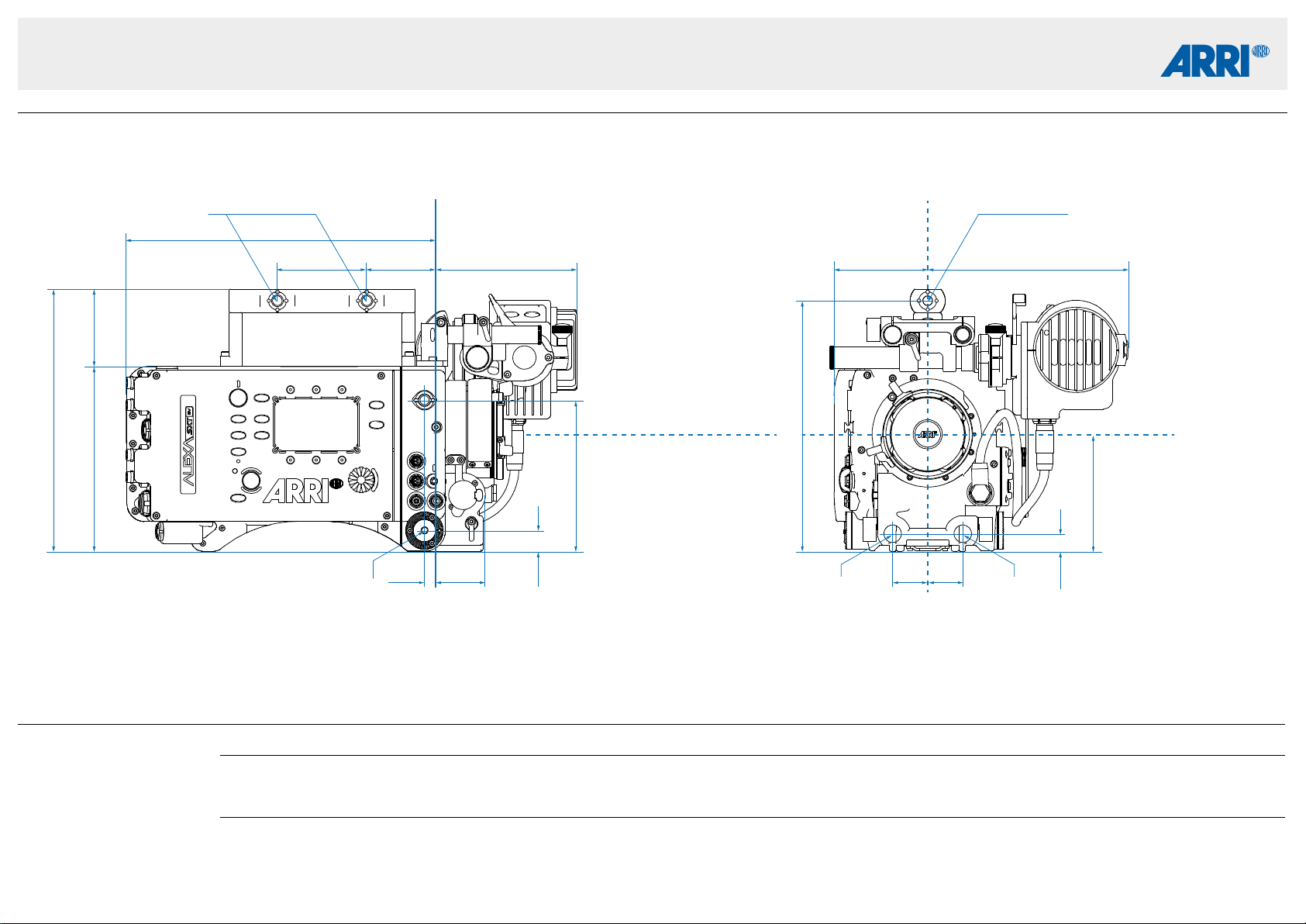
Technical Data are subject to change without notice.CAMERA DIMENSIONS – Version 2015-11
ALEXA SXT EV
ALEXA SXT EV Length Width Height Weight
Body 321 mm - 12.64” 166 mm - 6.54” 157.8 mm - 6.21” 6.5 kg - 14.3 lb
Body, Camera Center Handle (CCH-1),
Electronic Viewfinder EVF-1, EVF-1 cable KC-150-S,
Viewfinder Mounting Bracket (VMB-3)
384 mm - 15.12” 251 mm - 9.88” 224 mm - 8.82” 8.0 kg - 17.6 lb
Camera Right
Image Plane
Camera Front
Optical Center
M6 (3.5mm deep)
Optical Center
ø 15 mm ø 15 mm
99.8 mm
3.93”
128.8 mm
5.07”
17.6 mm
0.7”
14.8 mm
0.58”
224 mm
8.82”
66.2 mm
2,61”
157.8 mm
6.21”
80 mm
3.15”
171 mm
6.73”
120 mm
4.72”
59.4 mm
2.34”
10 mm
0.39”
42 mm
1.65”
30 mm
1.18”
30 mm
1.18”
76.2 mm
3”
264 mm
10.39”
213.8 mm
8.42”
UNC 3/8“–16 (10 mm deep) UNC 3/8“–16 (10 mm deep)
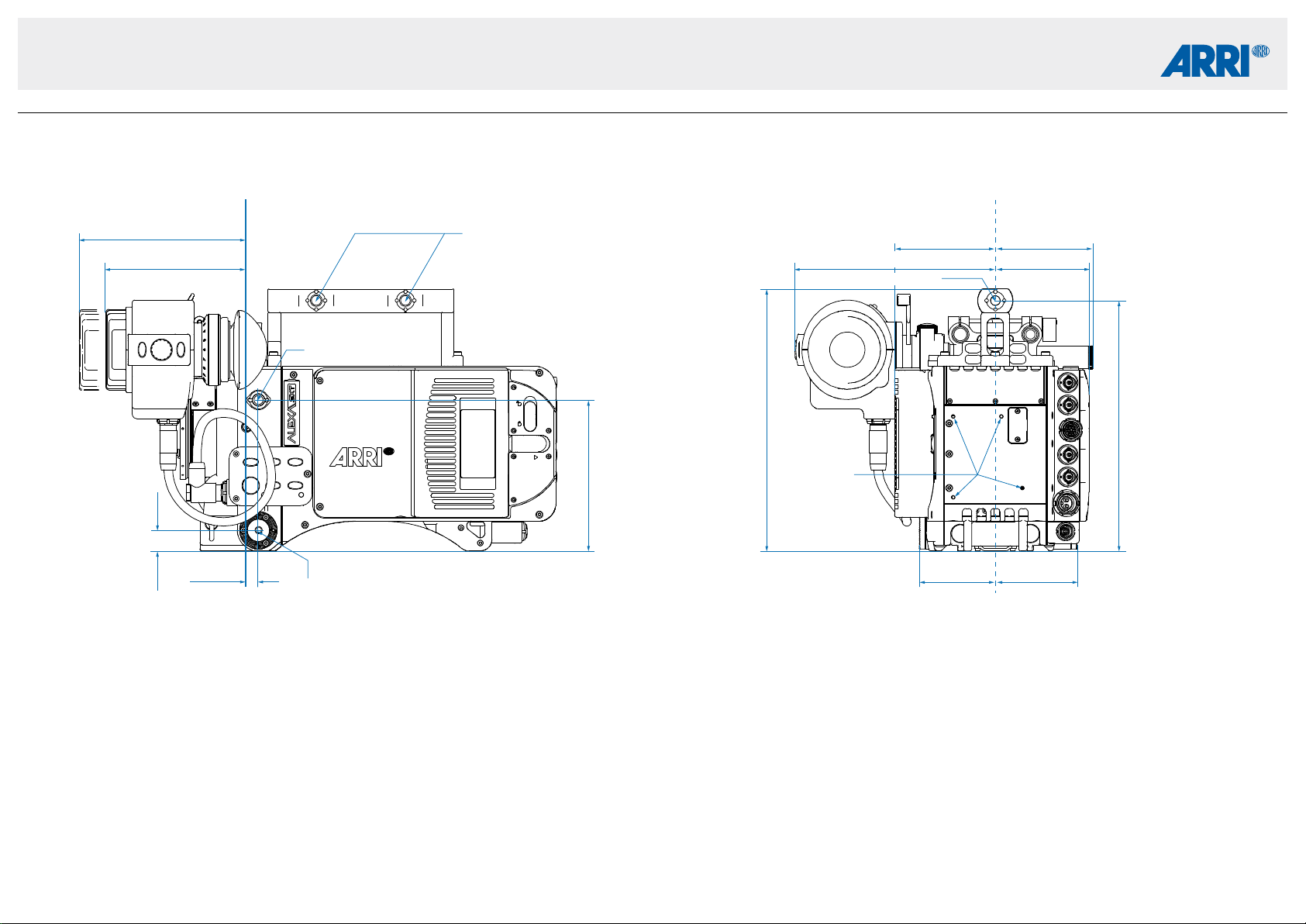
Technical Data are subject to change without notice.CAMERA DIMENSIONS – Version 2015-11
ALEXA SXT EV
Camera Left
Image Plane
Camera Back
Optical Center
224 mm
8.81”
128.8 mm
5.07”
17.6 mm
0.7”
10 mm
0.39”
213.8 mm
8.42”
80 mm
3.15”
83.5 mm
3.29”
86 mm
3.39”
142 mm max.
5.59”
120 mm
4.72”
64.9 mm
2.56”
69.9 mm
2.75”
171 mm
6.73”
M6 (3.5 mm deep)
M3 (6 mm deep)
UNC 3/8“–16 (10 mm deep)
UNC 3/8“–16 (10 mm deep)
UNC 3/8“–16 (10 mm deep)
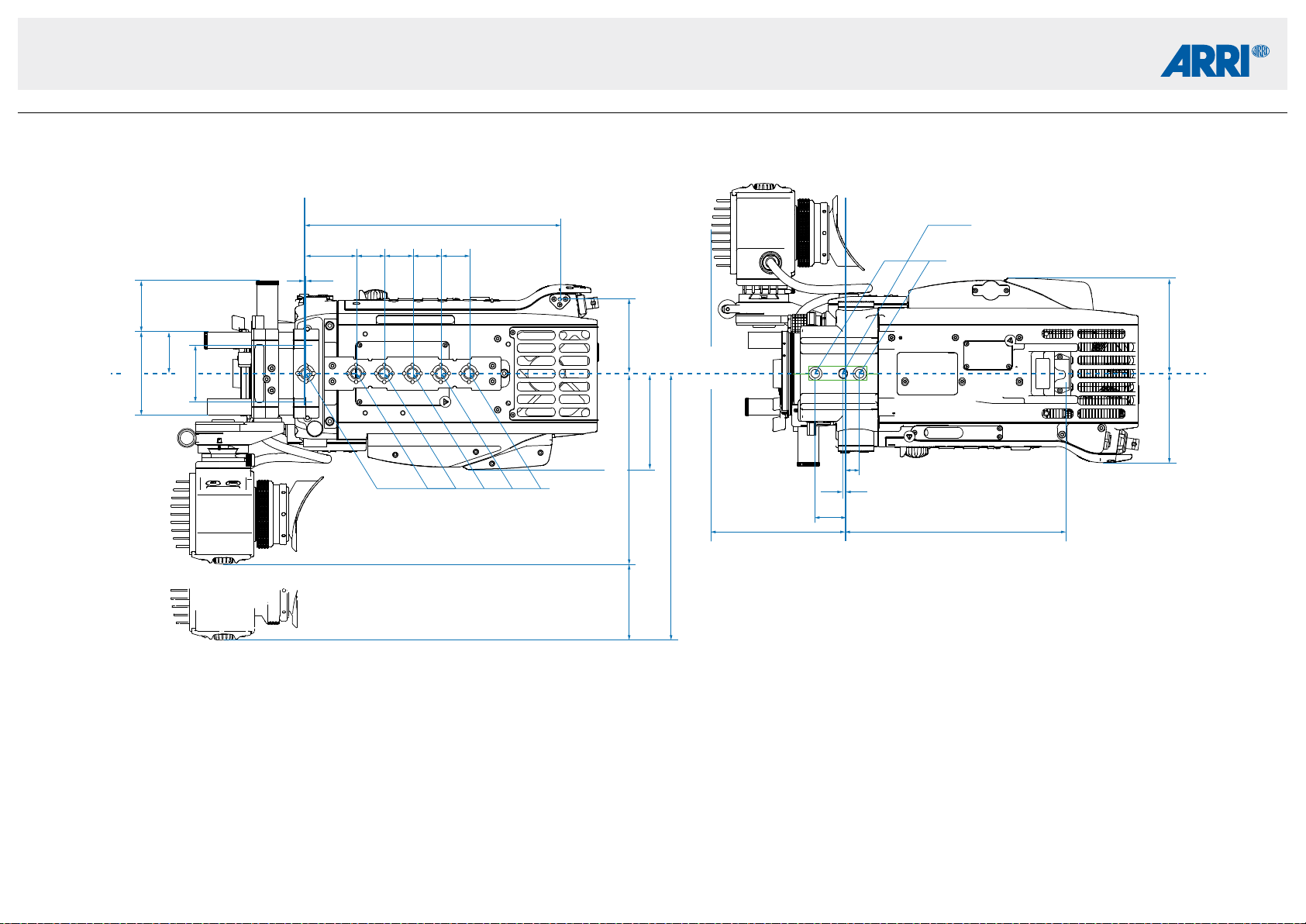
Technical Data are subject to change without notice.CAMERA DIMENSIONS – Version 2015-11
ALEXA SXT EV
Camera Top
Image Plane
Camera Bottom
Image Plane
Optical Center
50.8 mm
2”
75 mm
2.95”
83.5 mm
3.29”
37.5 mm
1.48”
230 mm
9.05”
120 mm
4.72”
198 mm
7.79”
27.5 mm
1.08”
2.5 mm
0.1”
12.5 mm
0.49”
67 mm
2.64”
86 mm
3.39”
86 mm
3.39”
80 mm
3.15”
68 mm
2.68”
239 mm max.
9.41” max.
46.7 mm
1.84”
1.5 mm
0.06”
25.4 mm
1”
25.4 mm
1”
25.4 mm
1”
25.4 mm
1”
171.22 mm
6.74”
UNC 3/8“–16 (10 mm deep)
oval hole 7 mm (+0.022) wide and 8 mm long (4.5 mm deep)
UNC 3/8“–16
(10 mm deep)
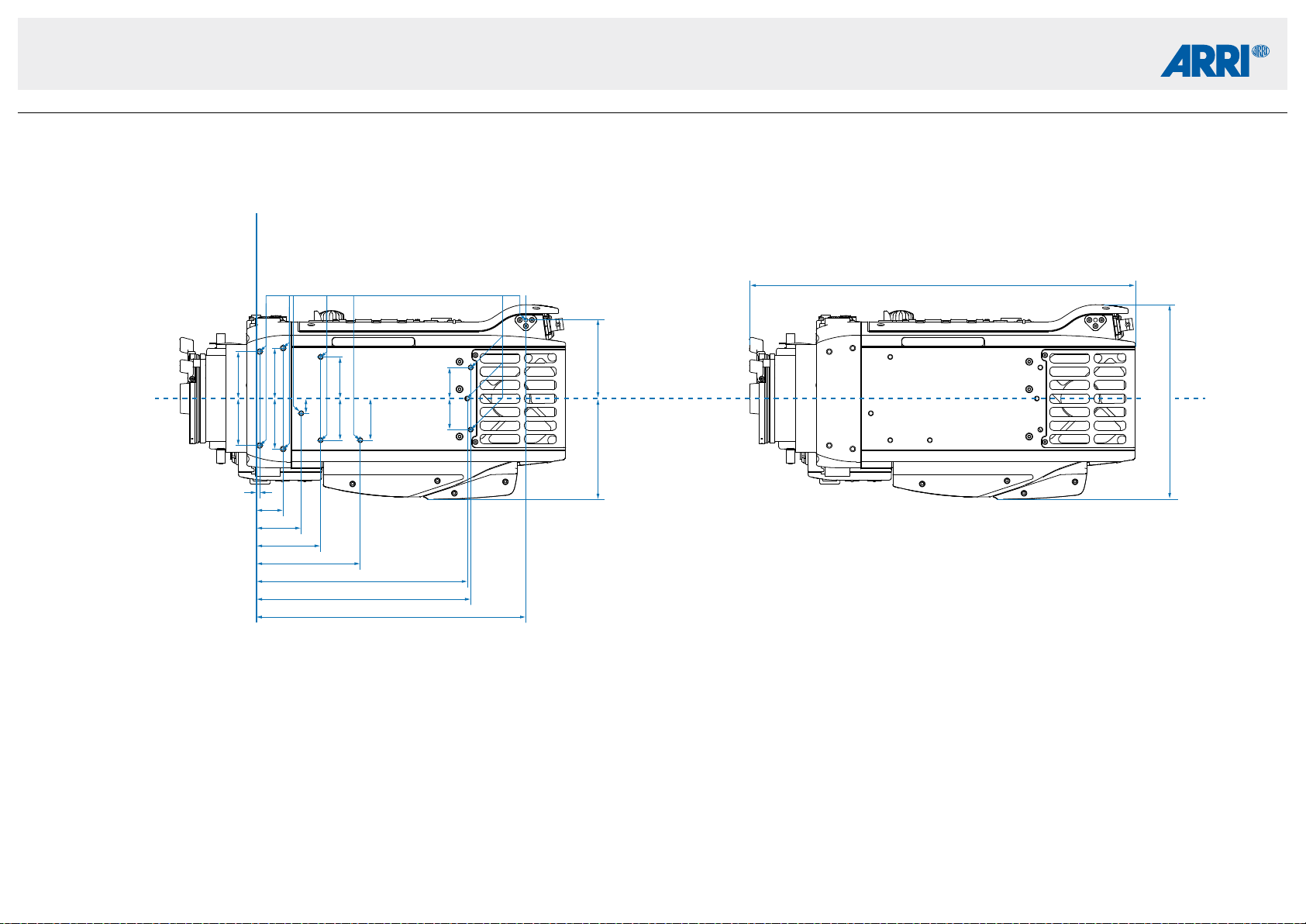
Technical Data are subject to change without notice.CAMERA DIMENSIONS – Version 2015-11
ALEXA SXT EV
331 mm
12.64”
Camera Top
Camera Top
Image Plane
Optical Center
67 mm
2.64”
86 mm
3.39”
230 mm
9.06”
183 mm
7.21”
180 mm
7.09”
88.8 mm
3.5”
55 mm
2.17”
38.5mm
1.52”
40 mm
1.58”
43 mm
1.69”
43 mm
1.69”
35.5 mm
1.4”
35.5 mm
1.4”
12.6 mm
0.5”
35.5 mm
1.4”
26.5 mm
1.04”
26.5 mm
1.04”
40 mm
1.58”
23 mm
0.91”
3 mm
0.12”
M4 (4 mm deep)
166 mm
6.54”
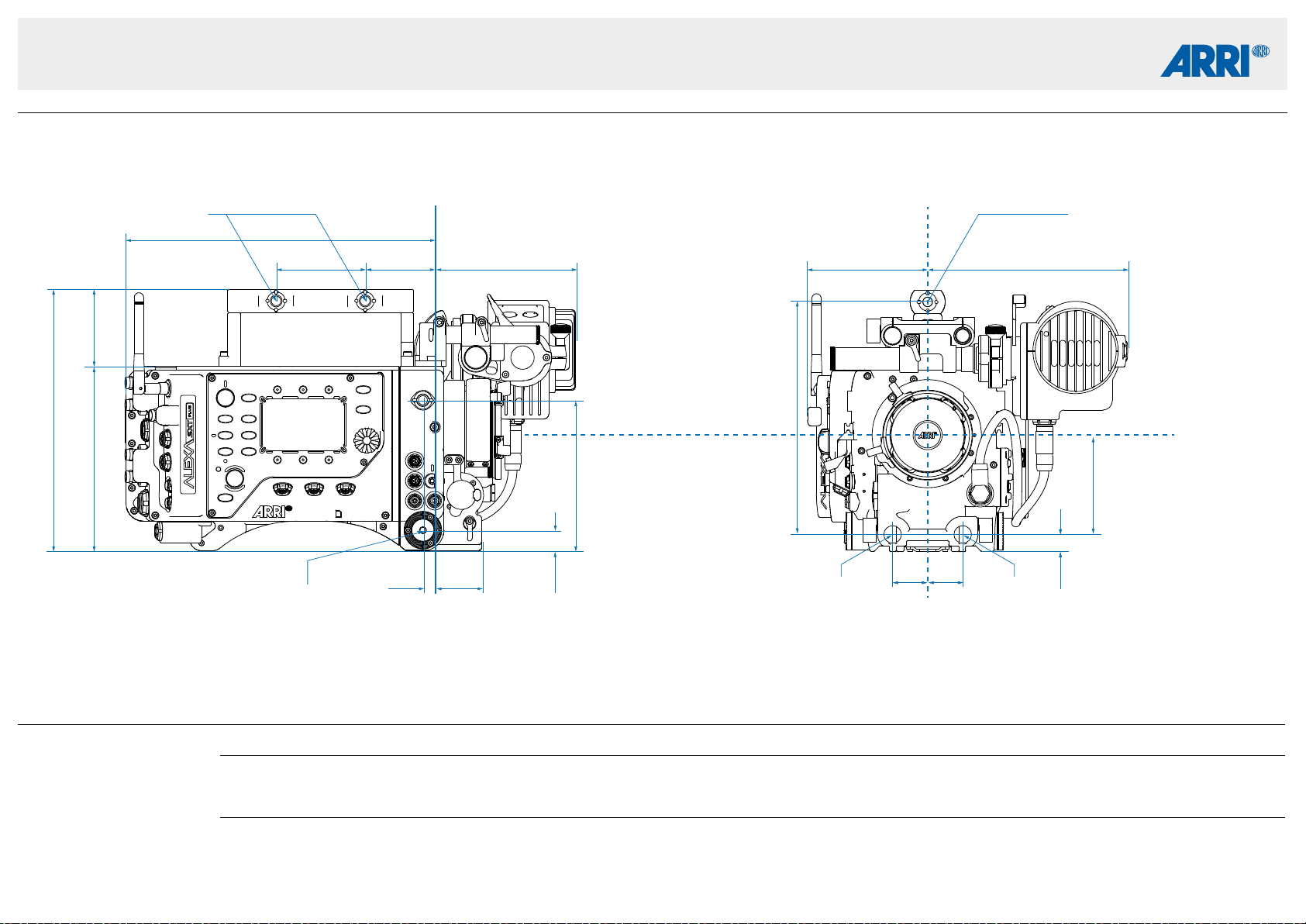
Technical Data are subject to change without notice.CAMERA DIMENSIONS – Version 2016-08
ALEXA SXT Plus
ALEXA SXT Plus Length Width Height Weight
Body 321 mm - 12.64” 189 mm - 7.44” 157.8 mm - 6.21” 6.9 kg - 14.3 lb
Body, Camera Center Handle (CCH-1),
Electronic Viewfinder EVF-1, EVF-1 cable KC-150-S,
Viewfinder Mounting Bracket (VMB-3)
384 mm - 15.12” 251 mm - 9.88” 224 mm - 8.82” 8.4 kg - 18.6 lb
Camera Right
Image Plane
Camera Front
Optical Center
Optical Center
M6 (3.5mm deep)
85 mm
3.35”
128.8 mm
5.07”
17.6 mm
0.7”
223.8 mm
8.81”
66 mm
2.6”
157.8 mm
6.21”
102.8 mm
4.05”
171.2 mm
6.74”
120,3 mm
4.74”
59.4 mm
2.34”
10 mm
0.39”
40 mm
1.58”
76.2 mm
3”
264 mm
10.4”
UNC 3/8“–16 (10 mm deep)
UNC 3/8“–16 (10 mm deep)
199 mm
7.84”
ø 15 mm ø 15 mm
30 mm
1.18”
30 mm
1.18”
14.8 mm
0.58”
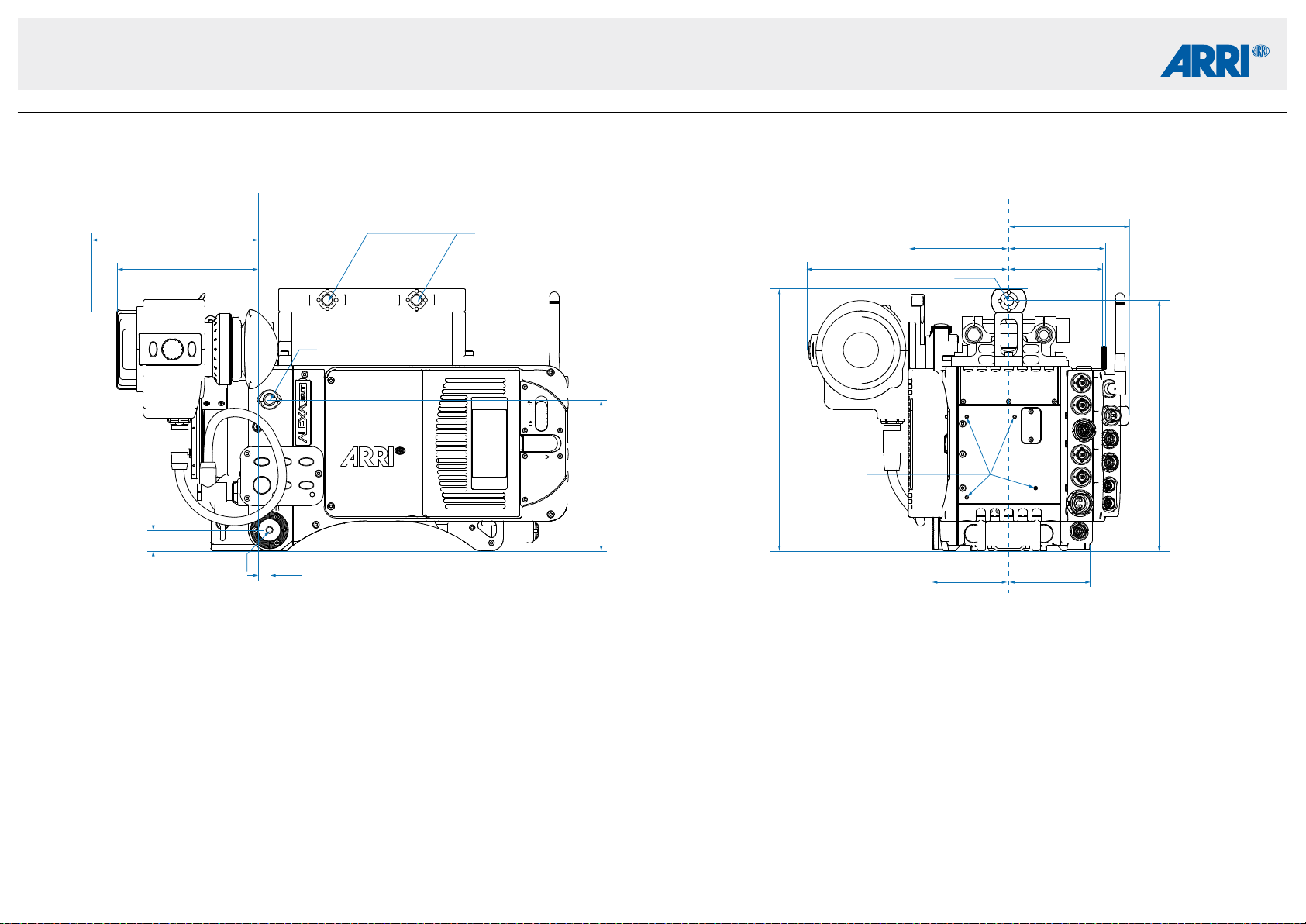
Technical Data are subject to change without notice.CAMERA DIMENSIONS – Version 2016-08
ALEXA SXT Plus
80 mm
3.15”
83.5 mm
3.29”
86 mm
3.39”
UNC 3/8“–16 (10 mm deep)
142 mm max.
5.59”
120 mm
4.72”
64.9 mm
2.56”
69.9 mm
2.75”
Camera Left
Image Plane
Camera Back
Optical Center
223. 8 mm
8.81”
128.8 mm
5.07”
17.6 mm
0.7”
10 mm
0.39”
213.8 mm
8.42”
102.8 mm
4.05”
M6 (3.5 mm deep)
M3 (6 mm deep)
UNC 3/8“–16 (10 mm deep)
UNC 3/8“–16 (10 mm deep)
171 mm
6.73”
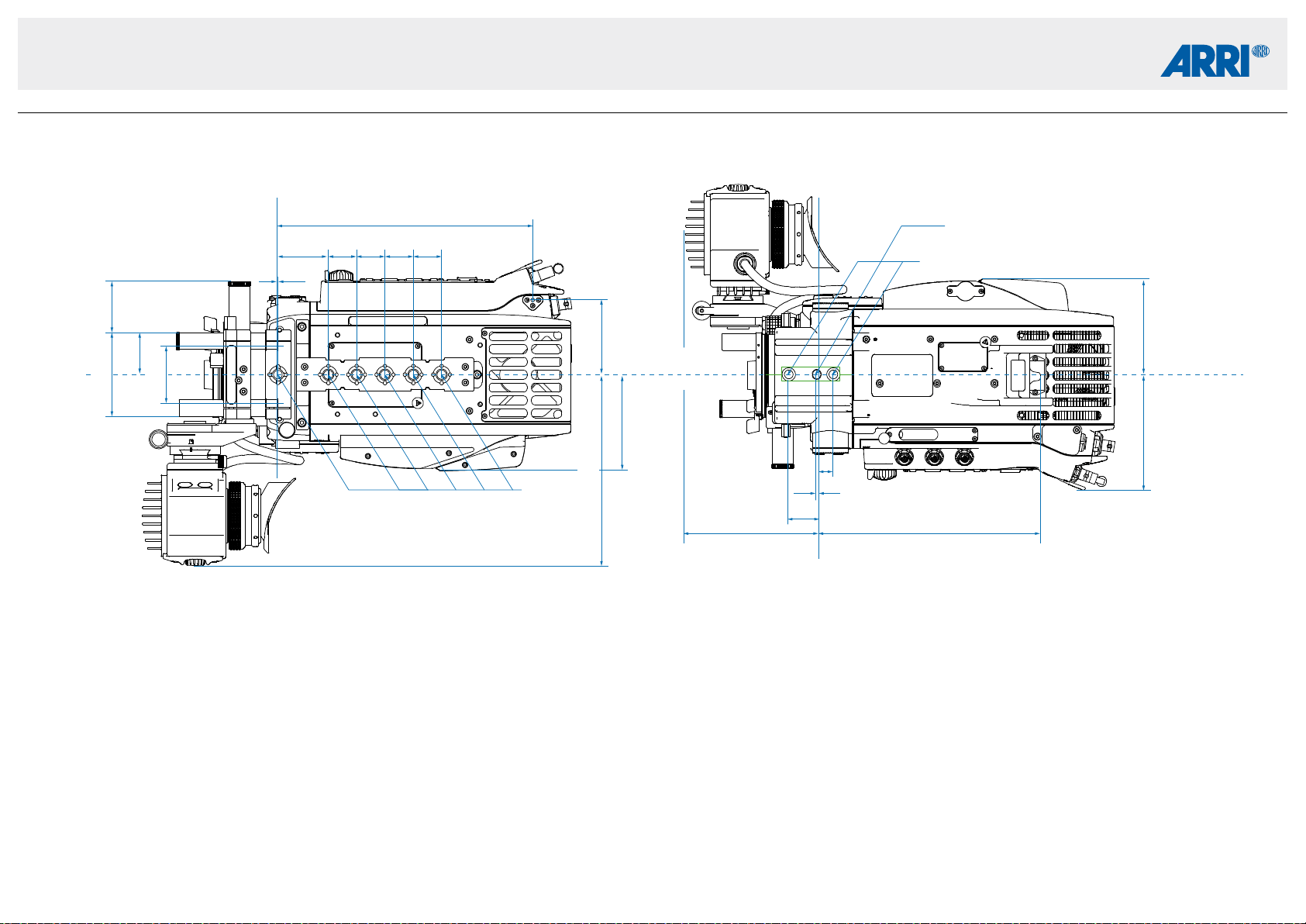
Technical Data are subject to change without notice.CAMERA DIMENSIONS – Version 2016-08
ALEXA SXT Plus
86 mm
3.39”
1.5 mm
0.06”
83.5 mm
3.29”
37.5 mm
1.48”
86 mm
3.39”
Camera Top
Image Plane
Camera Bottom
Image Plane
230 mm
9.05”
67 mm
2.64”
46.7 mm
1.84”
46.7 mm
1.84”
25.4 mm
1”
25.4 mm
1”
25.4 mm
1”
25.4 mm
1”
UNC 3/8“–16
(10 mm deep)
103 mm
4.06”
UNC 3/8“–16 (10 mm deep)
oval hole 7 mm (+0.022) wide and 8 mm long (4.5 mm deep)
Optical Center
120 mm
4.72”
198 mm
7.79”
27.5 mm
1.08”
2.5 mm
0.1”
12.5 mm
0.49”
75 mm
2.95”
50.8 mm
2”
171.22 mm
6.74”
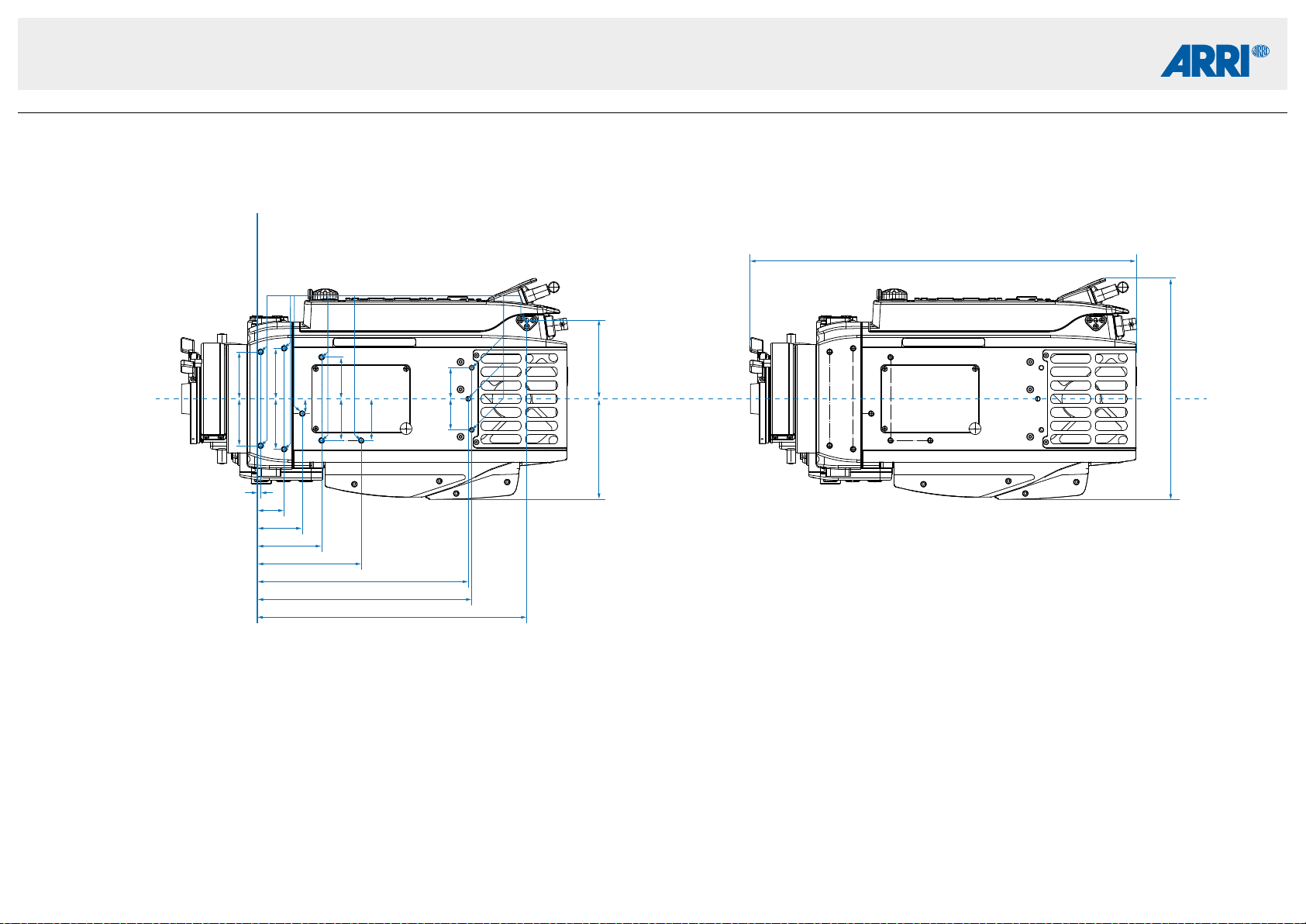
Technical Data are subject to change without notice.CAMERA DIMENSIONS – Version 2016-08
ALEXA SXT Plus
86 mm
3.39”
Camera Top
Image Plane
Optical Center
67 mm
2.64”
230 mm
9.06”
332 mm
12.95”
183 mm
7.21”
180 mm
7.09”
88.8 mm
3.5”
55 mm
2.17”
38.5mm
1.52”
40 mm
1.58”
43 mm
1.69”
43 mm
1.69”
35.5 mm
1.4”
35.5 mm
1.4”
12.6 mm
0.5”
35.5 mm
1.4”
26.5 mm
1.04”
26.5 mm
1.04”
40 mm
1.58”
23 mm
0.91”
3 mm
0.12”
M4 (4 mm deep)
Camera Top
189 mm
7.44”
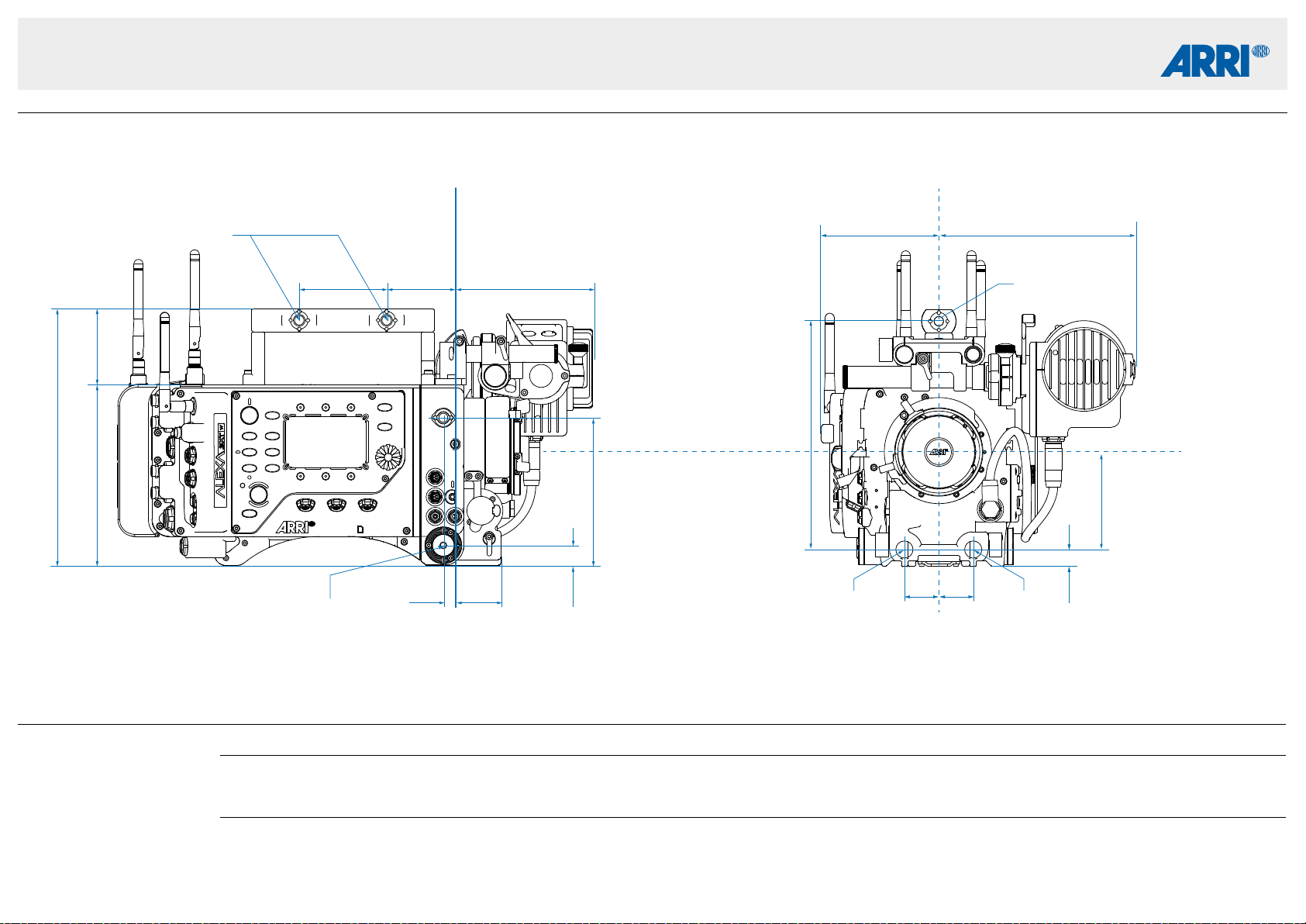
Technical Data are subject to change without notice.CAMERA DIMENSIONS – Version 2017-09
ALEXA SXT W
ALEXA SXT W Length Width Height Weight
Body 351 mm - 13.82” 189 mm - 7.44” 157.8 mm - 6.21” 7.4 kg - 16.3 lb
Body, Camera Center Handle (CCH-1),
Electronic Viewfinder EVF-1, EVF-1 cable KC-150-S,
Viewfinder Mounting Bracket (VMB-3)
414 mm - 16.3” 251 mm - 9.88” 224 mm - 8.82” 8.9 kg - 19.6 lb
Camera Right Image Plane Camera Front Optical Center
Optical Center
M6 (3.5mm deep)
85 mm
3.35”
128.8 mm
5.07”
17.6 mm
0.7”
223.8 mm
8.81”
66 mm
2.6”
157.8 mm
6.21”
102.8 mm
4.05”
171.2 mm
6.74”
120,3 mm
4.74”
59.4 mm
2.34”
10 mm
0.39”
40 mm
1.58”
76.2 mm
3”
264 mm
10.4”
UNC 3/8“–16 (10 mm deep)
UNC 3/8“–16 (10 mm deep)
199 mm
7.84”
ø 15 mm ø 15 mm
30 mm
1.18”
30 mm
1.18”
14.8 mm
0.58”
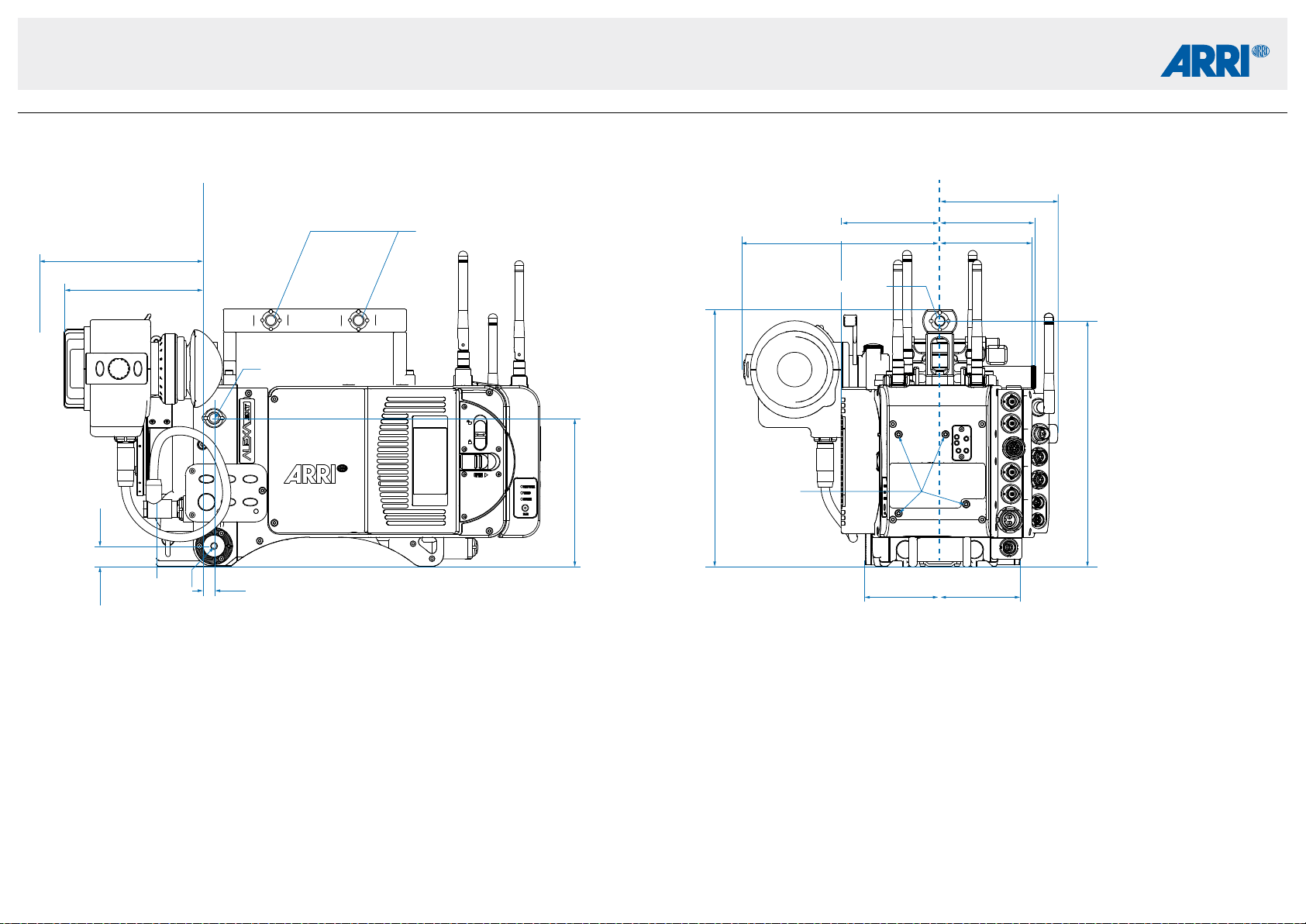
Technical Data are subject to change without notice.CAMERA DIMENSIONS – Version 2017-09
ALEXA SXT W
80 mm
3.15”
83.5 mm
3.29”
86 mm
3.39”
UNC 3/8“–16 (10 mm deep)
142 mm max.
5.59”
120 mm
4.72”
64.9 mm
2.56”
69.9 mm
2.75”
Camera Left Image Plane Camera Back Optical Center
223. 8 mm
8.81”
128.8 mm
5.07”
17.6 mm
0.7”
10 mm
0.39”
213.8 mm
8.42”
102.8 mm
4.05”
M6 (3.5 mm deep)
M3 (6 mm deep)
UNC 3/8“–16 (10 mm deep)
UNC 3/8“–16 (10 mm deep)
171 mm
6.73”
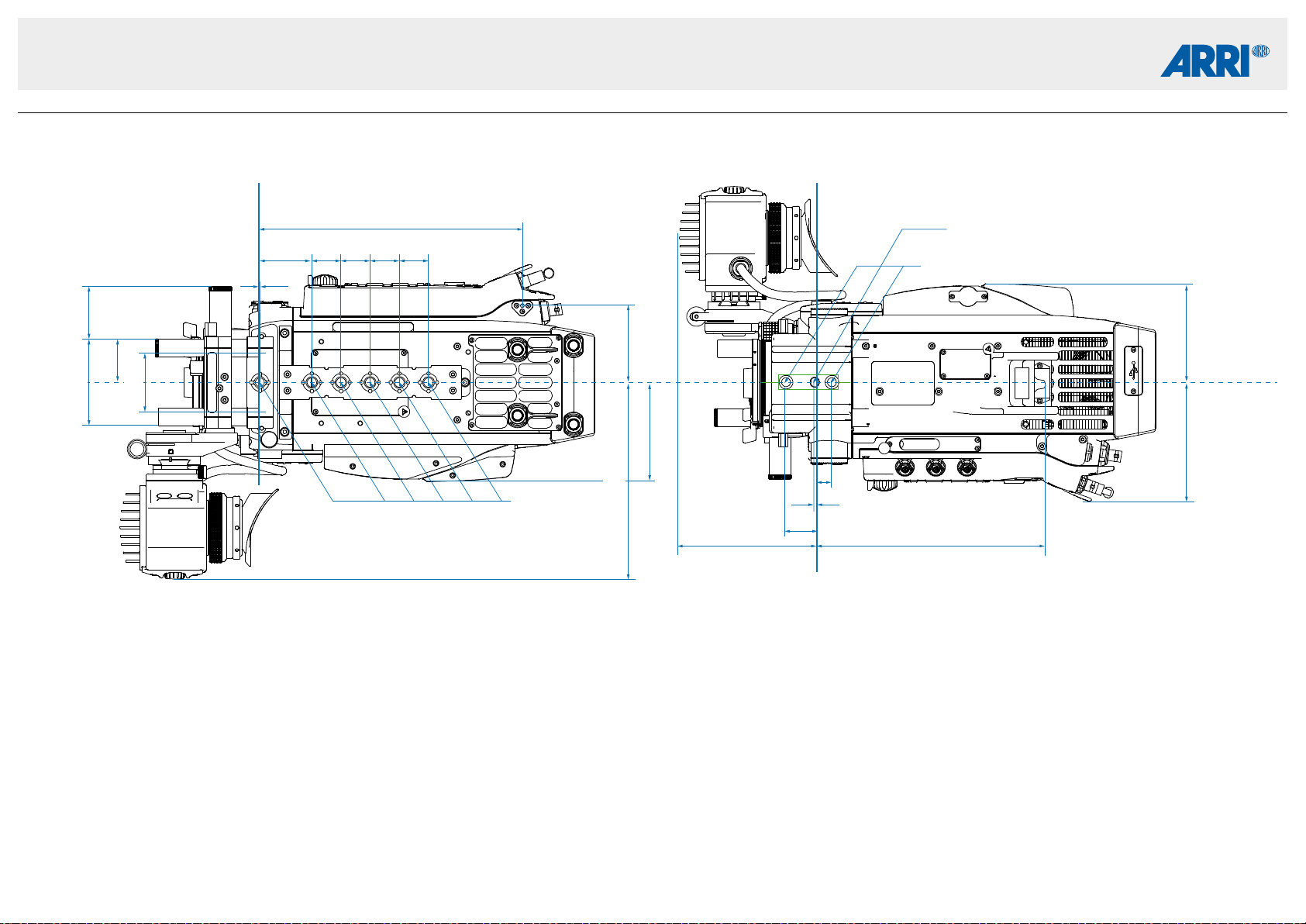
Technical Data are subject to change without notice.CAMERA DIMENSIONS – Version 2017-09
ALEXA SXT W
86 mm
3.39”
1.5 mm
0.06”
83.5 mm
3.29”
37.5 mm
1.48”
86 mm
3.39”
Camera Top Image Plane Image Plane Camera Bottom
230 mm
9.05”
67 mm
2.64”
46.7 mm
1.84”
46.7 mm
1.84”
25.4 mm
1”
25.4 mm
1”
25.4 mm
1”
25.4 mm
1”
UNC 3/8“–16
(10 mm deep)
103 mm
4.06”
UNC 3/8“–16 (10 mm deep)
oval hole 7 mm (+0.022) wide and 8 mm long (4.5 mm deep)
120 mm
4.72”
198 mm
7.79”
27.5 mm
1.08”
2.5 mm
0.1”
12.5 mm
0.49”
75 mm
2.95”
50.8 mm
2”
171.22 mm
6.74”
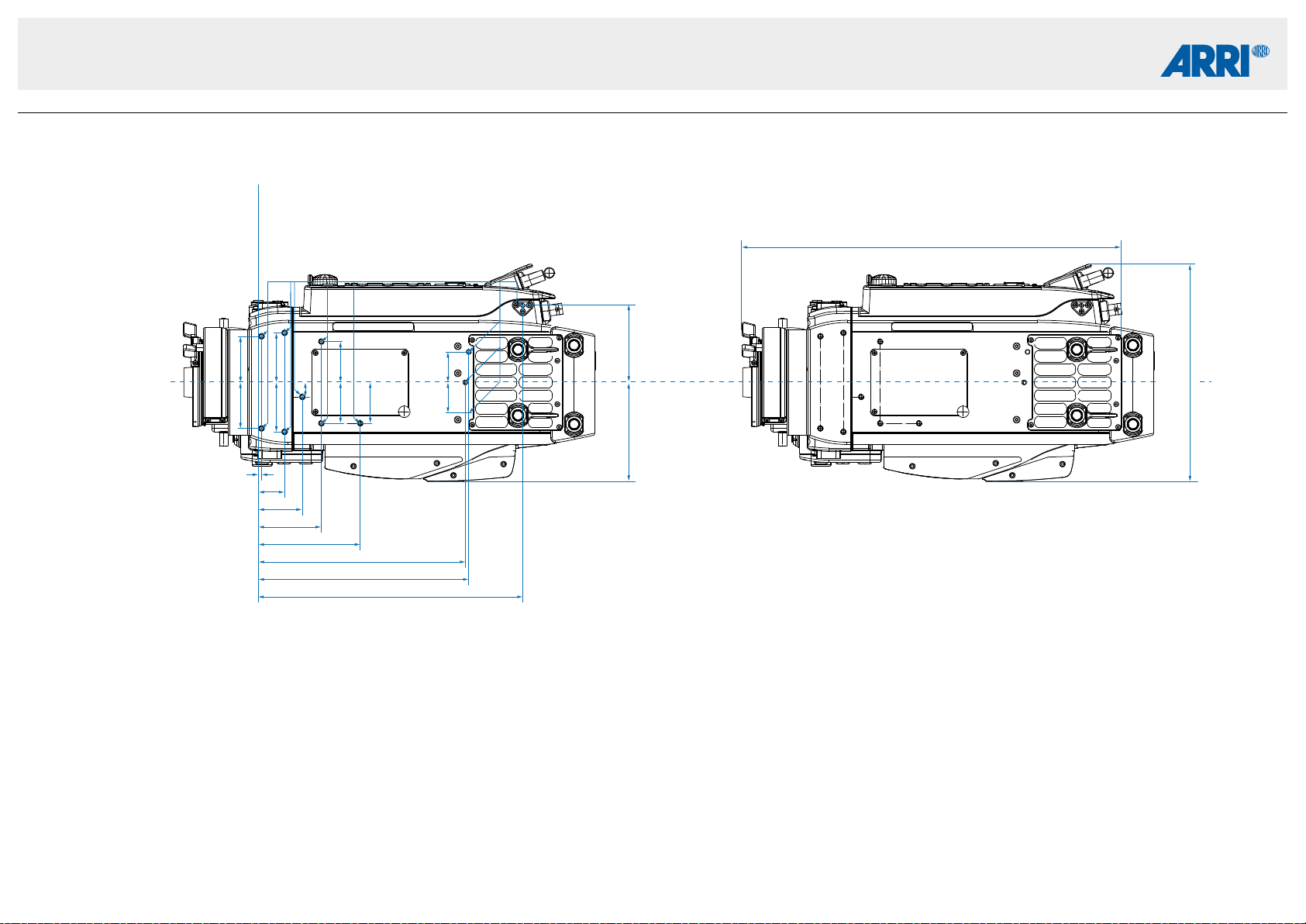
Technical Data are subject to change without notice.CAMERA DIMENSIONS – Version 2017-09
ALEXA SXT W
86 mm
3.39”
Optical Center
67 mm
2.64”
230 mm
9.06”
332 mm
12.95”
183 mm
7.21”
180 mm
7.09”
88.8 mm
3.5”
55 mm
2.17”
38.5mm
1.52”
40 mm
1.58”
43 mm
1.69”
43 mm
1.69”
35.5 mm
1.4”
35.5 mm
1.4”
12.6 mm
0.5”
35.5 mm
1.4”
26.5 mm
1.04”
26.5 mm
1.04”
40 mm
1.58”
23 mm
0.91”
3 mm
0.12”
M4 (4 mm deep)
189 mm
7.44”
Camera Top Image Plane Camera Top
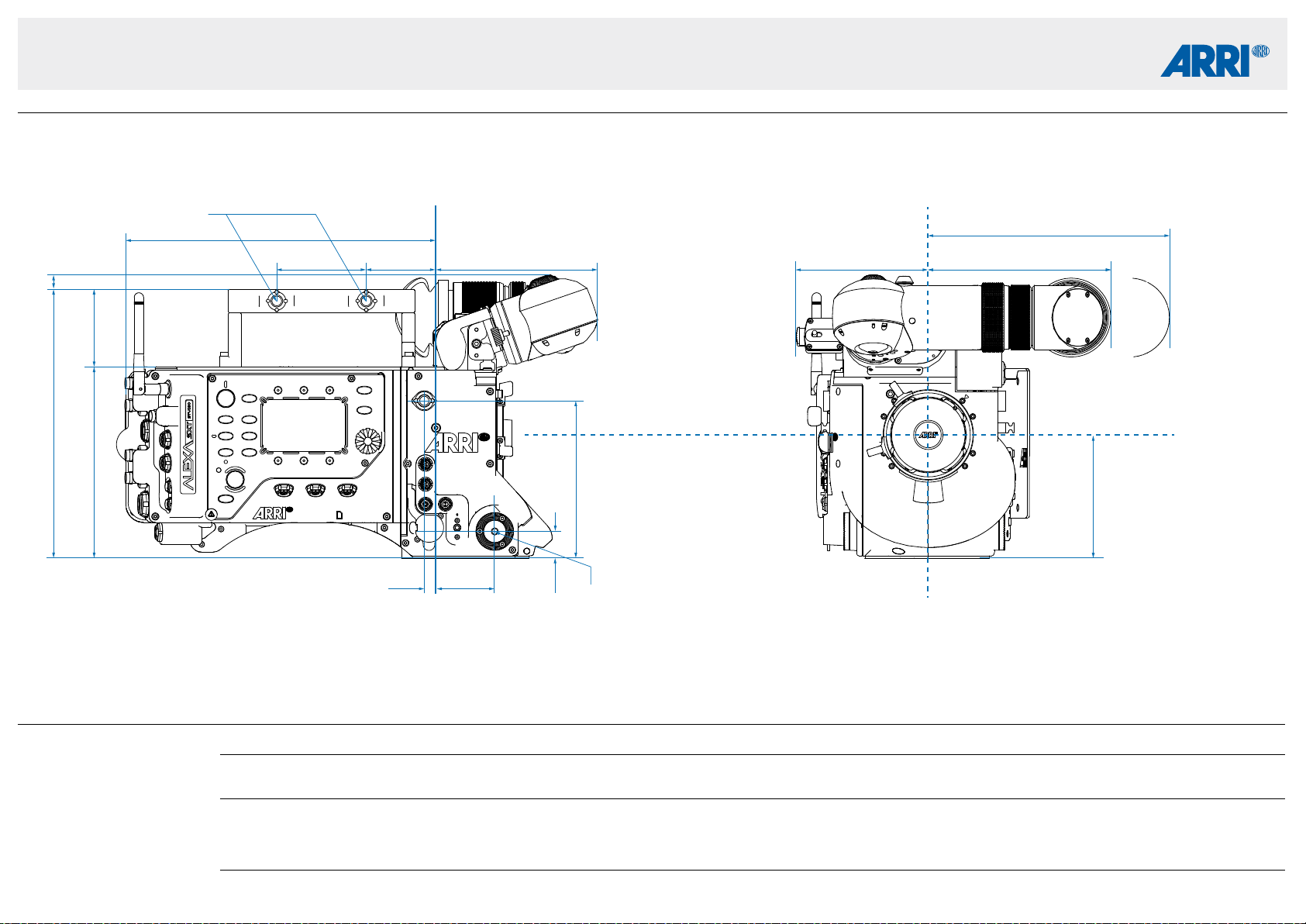
Technical Data are subject to change without notice.CAMERA DIMENSIONS – Version 2015-11
ALEXA SXT Studio
ALEXA SXT Studio Length Width Height Weight
Body 364 mm - 14.33” 189 mm - 7.44” 163 mm - 6.42” 8.2 kg - 18.1 lb
Body, Camera Center Handle (CCH-1), Optical Viewfinder OVF-1 402 mm - 15.9” 268 mm - 10.55” 241 mm - 9.49” 10.3 kg - 22.8 lb
Body, Camera Center Handle (CCH-1),
Electronic Viewfinder EVF-1, EVF-1 cable KC-150-S,
Viewfinder Mounting Bracket (VMB-3)
402 mm - 15.9” 268 mm - 10.55” 241 mm - 9.49” 9.8 kg - 21.7 lb
Camera Right
Image Plane
Camera Front
Optical Center
Optical Center
M6 (3.5mm deep)
105 mm
4.13”
134 mm
5.28”
22.8 mm
0.9”
229 mm
9.02”
12 mm
0.47”
66 mm
2.6”
163 mm
6.42”
112 mm
4.41”
156 mm
6.14”
206 mm
8.11”
138 mm
5.43”
59.4 mm
2.34”
10 mm
0.39”
50 mm
1.97”
76.2 mm
3”
265 mm
10.43”
UNC 3/8“–16 (10 mm deep)
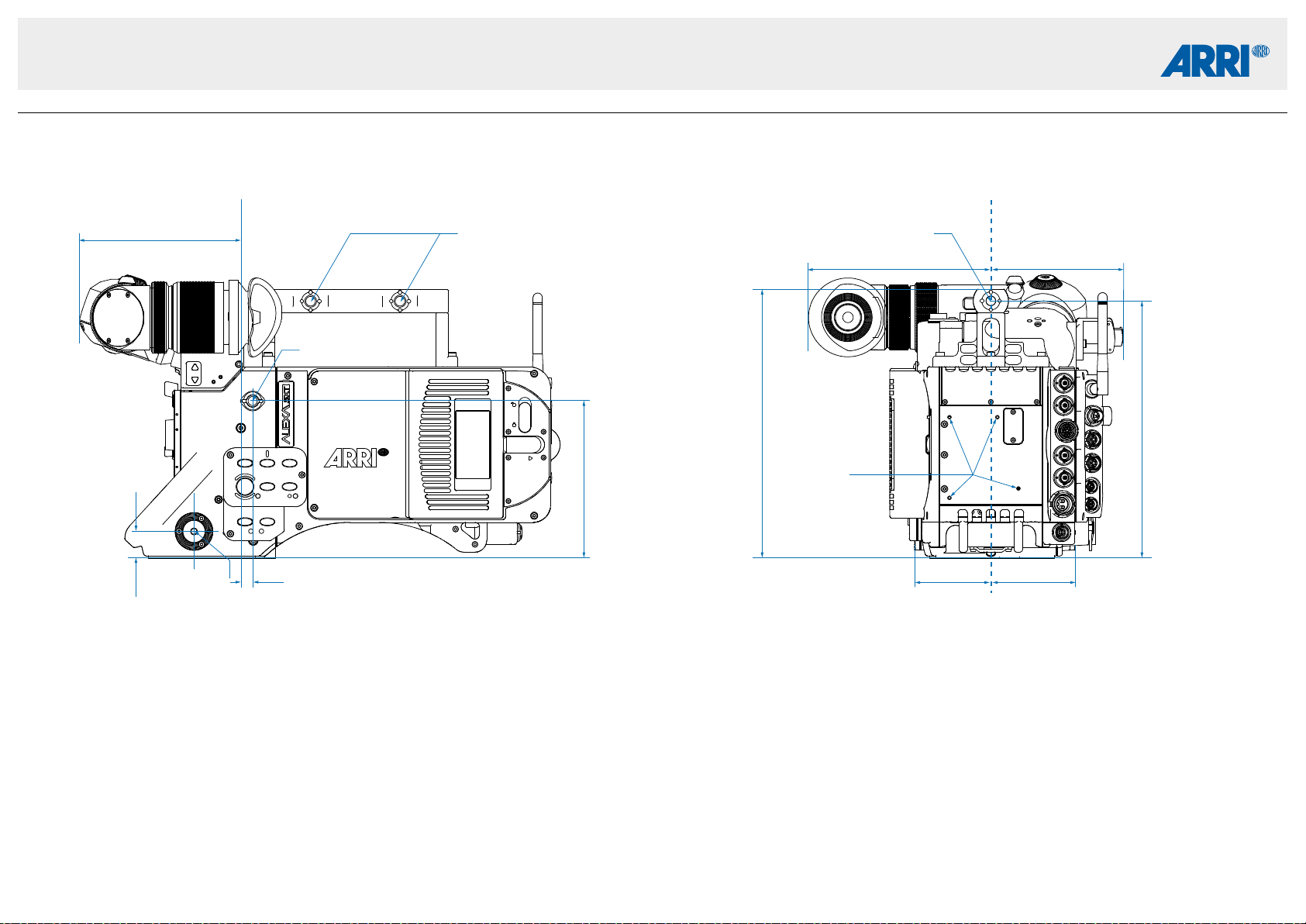
Technical Data are subject to change without notice.CAMERA DIMENSIONS – Version 2015-11
ALEXA SXT Studio
Camera Left
Image Plane
Camera Back
Optical Center
229 mm
9.02”
134 mm
5.28”
22.8 mm
0.9”
10 mm
0.39”
219 mm
8.62”
112 mm
4.41”
156 mm
6.14”
138 mm
5.43”
M6 (3.5 mm deep)
M3 (6 mm deep)
UNC 3/8“–16 (10 mm deep)
UNC 3/8“–16 (10 mm deep)UNC 3/8“–16 (10 mm deep)
64.9 mm
2.56”
71.9 mm
2.83”
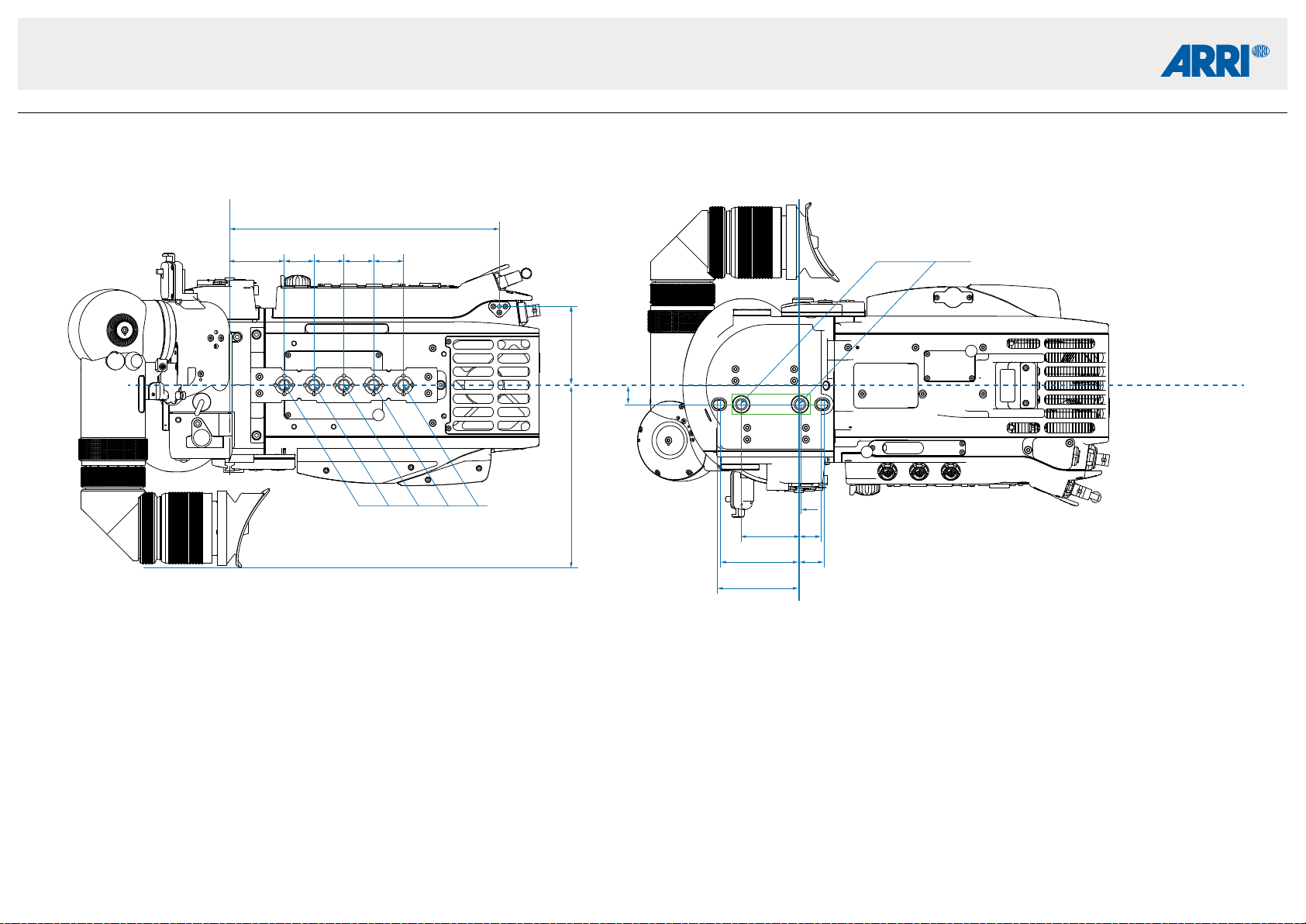
Technical Data are subject to change without notice.CAMERA DIMENSIONS – Version 2015-11
ALEXA SXT Studio
Camera Top
Image Plane
Camera Bottom
Image Plane
Optical Center
230 mm
9.05”
67 mm
2.64”
16 mm
0.63”
46.7 mm
1.84”
25.4 mm
1”
25.4 mm
1”
25.4 mm
1”
25.4 mm
1”
UNC 3/8“–16
(10 mm deep)
UNC 3/8“–16 (10 mm deep)
49 mm
1.93”
19 mm
0.75”
21 mm
0.83”
67 mm
2.64”
69 mm
2.72”
1 mm
0.04”
156 mm
6.14”
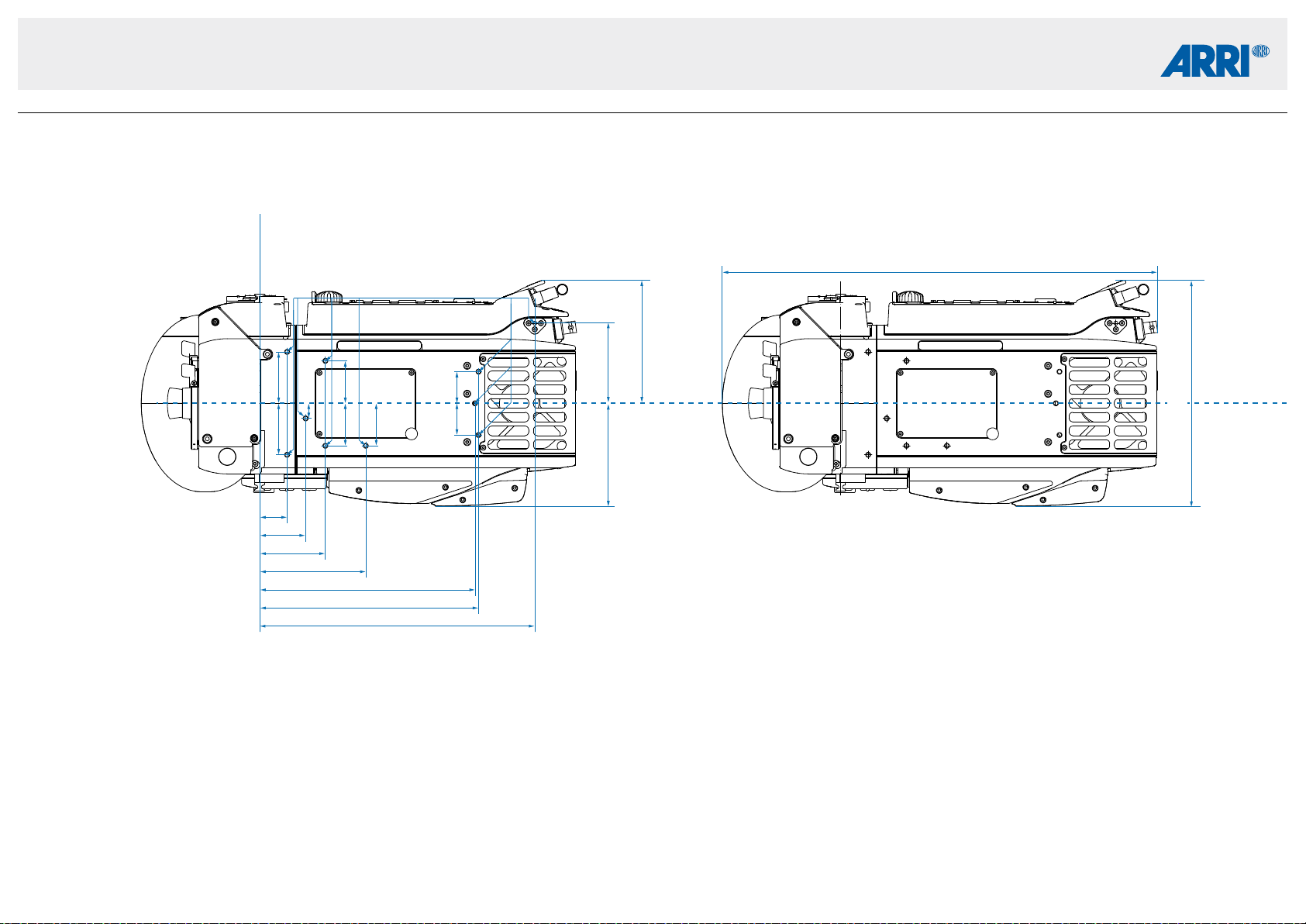
Technical Data are subject to change without notice.CAMERA DIMENSIONS – Version 2015-11
ALEXA SXT Studio
86 mm
3.39”
364 mm
14.33”
Camera Top
Image Plane
Camera Top
67 mm
2.64”
103 mm
4.06”
230 mm
9.06”
183 mm
7.21”
180 mm
7.09”
88.8 mm
3.5”
55 mm
2.17”
38.5mm
1.52”
43 mm
1.69”
43 mm
1.69”
35.5 mm
1.4”
35.5 mm
1.4”
12.6 mm
0.5”
35.5 mm
1.4”
26.5 mm
1.04”
26.5 mm
1.04”
23 mm
0.91”
M4 (4 mm deep)
189 mm
7.44”