
V1.0
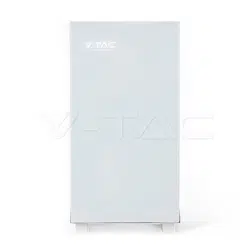
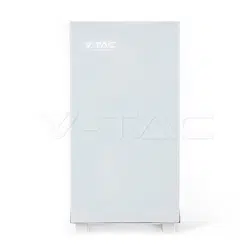
V-T48160
VTAC Volts
Instruction Manual


4.4.1 Single batter y connection . . . . . . . . . . . . . . . . . . . . . . . . . . . . . . . . . . . . . . . . . . . . . . . . . . . . . . . . . . . . . . 13
6 Battery Monitoring . . . . . . . . . . . . . . . . . . . . . . . . . . . . . . . . . . . . . . . . 23
1.3 Electrical safety . . . . . . . . . . . . . . . . . . . . . . . . . . . . . . . . . . . . . . . . . . . . . . . . . . . . . . . . . . . . . . . . . . . . 4
4.2.2 CAN communication point definition . . . . . . . . . . . . . . . . . . . . . . . . . . . . . . . . . . . . . . . . . . . . . . . . . . 12
Catalog
1.1 General security . . . . . . . . . . . . . . . . . . . . . . . . . . . . . . . . . . . . . . . . . . . . . . . . . . . . . . . . . . . . . . . . . . . . 1
2.2 Appearance description . . . . . . . . . . . . . . . . . . . . . . . . . . . . . . . . . . . . . . . . . . . . . . . . . . . . . . . . . . . 6
3.3 Ladder use safety . . . . . . . . . . . . . . . . . . . . . . . . . . . . . . . . . . . . . . . . . . . . . . . . . . . . . . . . . . . . . . . . . 10
4.4.2 Multiple batteries in parallel . . . . . . . . . . . . . . . . . . . . . . . . . . . . . . . . . . . . . . . . . . . . . . . . . . . . . . . . . . . . 14
5.2 Battery function description . . . . . . . . . . . . . . . . . . . . . . . . . . . . . . . . . . . . . . . . . . . . . . . . . . . . . 15
5.2.3 RST key description . . . . . . . . . . . . . . . . . . . . . . . . . . . . . . . . . . . . . . . . . . . . . . . . . . . . . . . . . . . . . . . . . . . . . 18
5.2.4 Sleep and wake up . . . . . . . . . . . . . . . . . . . . . . . . . . . . . . . . . . . . . . . . . . . . . . . . . . . . . . . . . . . . . . . . . . . . . . 18
9 Warranty products . . . . . . . . . . . . . . . . . . . . . . . . . . . . . . . . . . . . . . . . 31
4.2.1 RS485 communication point definition . . . . . . . . . . . . . . . . . . . . . . . . . . . . . . . . . . . . . . . . . . . . . . . . 12
6.1 Software running environment . . . . . . . . . . . . . . . . . . . . . . . . . . . . . . . . . . . . . . . . . . . . . . . . . . . 23
3.2 Basic installation requirements . . . . . . . . . . . . . . . . . . . . . . . . . . . . . . . . . . . . . . . . . . . . . . . . . . . . 8
5.1 Check before power on . . . . . . . . . . . . . . . . . . . . . . . . . . . . . . . . . . . . . . . . . . . . . . . . . . . . . . . . . . . 15
4.4 Battery connection . . . . . . . . . . . . . . . . . . . . . . . . . . . . . . . . . . . . . . . . . . . . . . . . . . . . . . . . . . . . . . . 13
5.3 Wireless kit (optional) . . . . . . . . . . . . . . . . . . . . . . . . . . . . . . . . . . . . . . . . . . . . . . . . . . . . . . . . . . . . 20
3.6 Installation guidelines . . . . . . . . . . . . . . . . . . . . . . . . . . . . . . . . . . . . . . . . . . . . . . . . . . . . . . . . . . . . 10
4.2 communication line connection . . . . . . . . . . . . . . . . . . . . . . . . . . . . . . . . . . . . . . . . . . . . . . . . . . 12
2.3 System diagram . . . . . . . . . . . . . . . . . . . . . . . . . . . . . . . . . . . . . . . . . . . . . . . . . . . . . . . . . . . . . . . . . . . . 7
3.1 Unpacking inspection . . . . . . . . . . . . . . . . . . . . . . . . . . . . . . . . . . . . . . . . . . . . . . . . . . . . . . . . . . . . . . 8
4 Electrical connection . . . . . . . . . . . . . . . . . . . . . . . . . . . . . . . . . . . . . . 11
3.4 Drilling safety . . . . . . . . . . . . . . . . . . . . . . . . . . . . . . . . . . . . . . . . . . . . . . . . . . . . . . . . . . . . . . . . . . . . . 10
4.2.3 RS232 communication point definition . . . . . . . . . . . . . . . . . . . . . . . . . . . . . . . . . . . . . . . . . . . . . . . . 12
5.2.2 Screen . . . . . . . . . . . . . . . . . . . . . . . . . . . . . . . . . . . . . . . . . . . . . . . . . . . . . . . . . . . . . . . . . . . . . . . . . . . . . . . . . . . 16
4.3 System connection diagram . . . . . . . . . . . . . . . . . . . . . . . . . . . . . . . . . . . . . . . . . . . . . . . . . . . . . . 13
2.1 Product introduction . . . . . . . . . . . . . . . . . . . . . . . . . . . . . . . . . . . . . . . . . . . . . . . . . . . . . . . . . . . . . . 5
5 System tuning . . . . . . . . . . . . . . . . . . . . . . . . . . . . . . . . . . . . . . . . . . . . . 15
4.1 Cable connection . . . . . . . . . . . . . . . . . . . . . . . . . . . . . . . . . . . . . . . . . . . . . . . . . . . . . . . . . . . . . . . . . 11
1.2 Personnel requirements . . . . . . . . . . . . . . . . . . . . . . . . . . . . . . . . . . . . . . . . . . . . . . . . . . . . . . . . . . . 4
5.2.1 Buzzer action description . . . . . . . . . . . . . . . . . . . . . . . . . . . . . . . . . . . . . . . . . . . . . . . . . . . . . . . . . . . . . . . 15
1.Safety precautions . . . . . . . . . . . . . . . . . . . . . . . . . . . . . . . . . . . . . . . . . 1
2 Product introduction . . . . . . . . . . . . . . . . . . . . . . . . . . . . . . . . . . . . . . . 5
3 Product installation . . . . . . . . . . . . . . . . . . . . . . . . . . . . . . . . . . . . . . . . 8
3.5 Safety of handling heavy objects . . . . . . . . . . . . . . . . . . . . . . . . . . . . . . . . . . . . . . . . . . . . . . . . . 10
5.2.5 Indication description . . . . . . . . . . . . . . . . . . . . . . . . . . . . . . . . . . . . . . . . . . . . . . . . . . . . . . . . . . . . . . . . . . 19
6.3 Interface function . . . . . . . . . . . . . . . . . . . . . . . . . . . . . . . . . . . . . . . . . . . . . . . . . . . . . . . . . . . . . . . . 24
6.3.1 Real time monitoring . . . . . . . . . . . . . . . . . . . . . . . . . . . . . . . . . . . . . . . . . . . . . . . . . . . . . . . . . . . . . . . . . . . . 24
6.2 Connect the upper computer . . . . . . . . . . . . . . . . . . . . . . . . . . . . . . . . . . . . . . . . . . . . . . . . . . . . . 23
6.3.2 Parallel monitoring . . . . . . . . . . . . . . . . . . . . . . . . . . . . . . . . . . . . . . . . . . . . . . . . . . . . . . . . . . . . . . . . . . . . . . 26
6.3.3 Store information . . . . . . . . . . . . . . . . . . . . . . . . . . . . . . . . . . . . . . . . . . . . . . . . . . . . . . . . . . . . . . . . . . . . . . . . 26
6.3.4 Parameter setting . . . . . . . . . . . . . . . . . . . . . . . . . . . . . . . . . . . . . . . . . . . . . . . . . . . . . . . . . . . . . . . . . . . . . . . . 27
6.3.5 System setting . . . . . . . . . . . . . . . . . . . . . . . . . . . . . . . . . . . . . . . . . . . . . . . . . . . . . . . . . . . . . . . . . . . . . . . . . . . 28
6.3.6 Export data . . . . . . . . . . . . . . . . . . . . . . . . . . . . . . . . . . . . . . . . . . . . . . . . . . . . . . . . . . . . . . . . . . . . . . . . . . . . . . 28
6.4 Replacing inverter protocol(optional) . . . . . . . . . . . . . . . . . . . . . . . . . . . . . . . . . . . . . . . . . . . 29
7 Maintenance and requirements . . . . . . . . . . . . . . . . . . . . . . . . . . . . 30
8 Battery storage requirements . . . . . . . . . . . . . . . . . . . . . . . . . . . . . . 30
10 Exemption from liability . . . . . . . . . . . . . . . . . . . . . . . . . . . . . . . . . . 31

1.Safety precautions
1.1 General security
Statement
When installing, operating and maintaining the equipment, please read this manual
first and follow the signs on the equipment and all safety precautions .
The “notice", "attention", "warning" and "danger" in the manual do not represent all
safety precautions to be observed, but only supplement all safety precautions. The
company shall not be liable for any violation of general safety operation requirements
or safety standards for design, production and use of equipment.
The equipment shall be used in an environment that meets the requirements of design
specifications, otherwise it may cause equipment failure, and the resulting equipment
function abnormalities or component damage, personal safety accidents, property
losses, etc. are not within the scope of equipment quality assurance. The installation,
operation and maintenance of the equipment shall comply with local laws, regulations
and specifications. The safety precautions in the manual are only a supplement to local
laws, regulations and specifications.
The company shall not be liable for any of the following circumstances.
◆ Do not operate under the ser vice conditions described in this manual.
◆ The installation and use environment exceeds the provisions of relevant
international or national standards.
◆ Disassemble, change the product or modify the software code
without authorization.
◆ Failure to follow the operation instructions and safety warnings in the product
and documents.
◆ Transportation damage caused by customer's own transportation.
◆ Damage caused by storage conditions not meeting the requirements
of product documents.
General requirements
Live operation is strictly prohibited during installation.
◆ It is strictly prohibited to install, use and operate outdoor equipment and cables
(including but not limited to handling equipment, operating equipment and
cables, plug and unplug signal interfaces connected to outdoor, high-altitude
operation, outdoor installation, etc.) in severe weather such as lightning, rain,
snow and force gale.
◆ After installing the equipment, the empty packaging materials such as cartons, foam,
plastic, tie line should be removed.
◆ In case of fire, evacuate the building or equipment area and press the fire alarm bell
or dial the fire alarm telephone. Under no circumstances shall re-enter the burning
building.
◆ It is strictly prohibited to artificially alter, damage or block the identification and
nameplate on the equipment.
DANGER
1

◆ When installing the equipment, use tools to tighten the screws.
◆ Paint scratches during equipment transportation and installation must be repaired
in time. It is strictly prohibited to expose the scratched parts to the outdoor
environment for a long time.
◆ Do not open the main panel of the device without the permission of the
manufacturer.
◆ In any case, do not change the structure and installation sequence of the equipment
without the permission of the manufacturer.
◆ It is forbidden to affect the battery terminal components during handling, and it is
not allowed to lift and handle through the battery terminal bolts.
◆ It is not allowed to reverse engineer, decompile, disassemble, adapt, implant or other
derivative operations on the equipment software, and it is not allowed to study the
internal implementation of the equipment in any way.
Personal safety
◆ Wear appropriate personal protective equipment during equipment operation. In
case of any fault that may cause personal injury or equipment damage, the
operation shall be terminated immediately, the person in charge shall be reported,
and effective protective measures shall be taken.
◆ Before using the tool, please master the correct use method of the tool to avoid
personal injury and equipment damage.
◆ When the equipment is running, the shell temperature is high and there is a risk of
burns. Do not touch it.
◆ In case of battery failure, the temperature may exceed the burn threshold of the
touchable surface, and contact should be avoided.
◆ Do not open or damage the battery. The released electrolyte is harmful to the skin
and eyes. Avoid contact.
◆ Do not place irrelevant items on the top of the equipment or insert them anywhere in
the equipment.
◆ Do not place inflammables around the equipment.
◆ The battery shall not be placed in the fire to avoid explosion and endanger personal
safety.
◆ Do not place the battery module in water or other liquids.
◆ Do not short-circuit the battery terminal, which may cause combustion.
◆ The battery may cause the danger of electric shock and large
short-circuit current. When using the battery, pay attention to the following
precautions :
a) Remove watches, rings or other metal objects.
b) Tools using insulated handles .
c) Wear rubber gloves and boots .
d) Do not place tools or metal parts on the top of the battery .
e) Disconnect the charging power supply before connecting or disconnecting the
battery terminal.
◆ Do not use water or detergent to clean the electrical parts inside and outside the
cabinet.
2

◆ Do not stand or lean on or sit on the equipment.
◆ Do not damage each module of the equipment.
◆ When installing the battery module, if the battery module falls or is strongly
impacted, the equipment will be damaged. It is strictly prohibited to continue to
use, otherwise there will be safety risks (cell leakage, electric shock injury, etc.).
Treatment measures for battery leakage
In case of electrolyte leakage, avoid contact with leaked liquid or gas.
Electrolyte is corrosive and contact may cause skin irritation and chemical burns.
In case of contact with battery electrolyte, the following measures shall be taken.
Inhalation: evacuate the contaminated area, enter fresh air immediately, and seek
medical help immediately.
Eye contact: immediately flush eyes with plenty of water for at least 15 minutes, do
not rub, and seek medical help immediately.
Skin contact: immediately wash the contact area with plenty of water and soap and
seek medical help immediately.
Ingestion: seek medical help immediately.
Fire treatment measures
◆ In case of fire, the system should be powered off under the condition of ensuring
safety.
◆ Use carbon dioxide, FM-200 or ABC dry powder fire extinguisher to extinguish the
fire.
When the battery temperature is too high, it will cause battery deformation, damage,
electrolyte overflow and toxic gas leakage. Please keep away from it to avoid skin
irritation and chemical burns.
DANGER
◆ Power down the system to ensure personal safety.
◆ If any part of the battery is flooded, do not touch the batter y to avoid electric shock.
◆ Do not use the flooded battery. Contact the battery recycling company for
scrapping.
Flood emergency measures
Battery recycling
◆ Please dispose of waste batteries according to local laws and
regulations. Do not treat batteries as domestic waste.
◆ If the battery leaks or bulges, please contact technical support or
battery recycling company for scrapping.
◆ When the battery is unavailable beyond its service life, please contact
the batter y recycling company for scrapping.
◆ Avoid exposing the battery to high temperature or direct sunlight.
◆ Avoid exposing the battery to high humidity or corrosive environment.
3
1.2 Personnel requirements
◆ The personnel responsible for the installation and maintenance of this equipment
must understand various safety precautions and master the correct operation
methods.
◆ Only qualified professionals or trained personnel are allowed to install, operate and
maintain the equipment.
◆ Only qualified professionals are allowed to dismantle safety facilities and overhaul
equipment.
◆ Personnel operating the equipment, including operators, trained personnel and
professionals, shall have the special operation qualification required by the local
state.
◆ The replacement of equipment or components (including software) must be
completed by professionals or authorized personnel.
◆ Professionals: those who have training or experience in operating equipment and
can understand the potential sources and magnitude of hazards in the process of
equipment installation, operation and maintenance.
◆ Trained personnel: personnel who have received corresponding technical training
and have necessary experience, can be aware of the risks that may be brought to
him during a certain operation, and can take measures to minimize the risks to
himself or other personnel.
◆ Operators: operators who may come into contact with the equipment other than
trained personnel and professionals.
Explanation
Before making electrical connection, please ensure that the equipment is not damaged,
otherwise electric shock or fire may be caused.
General requirements
1.3 Electrical safety
◆ All electrical connections must meet the national electrical standards.
◆ The cable provided by the user shall meet the requirements of local laws and
regulations.
◆ Use special insulating tools for high voltage operation.
DC operation
It is forbidden to install or remove the power line with electricity. When the power cord
contacts the conductor, it will produce arc or electric spark, which can lead to fire or
personal injury.
◆ Before the electrical connection of the equipment, if the live parts may be touched, the
corresponding breaking device at the front level of the equipment must be
disconnected.
◆ Before connecting the power cord, confirm that the label identification of the power
cord is correct before connecting.
DANGER
DANGER
4
◆ If the equipment has multiple inputs, all inputs of the equipment shall be
disconnected, and the equipment can be operated only after the equipment is
completely powered off.
Wiring requirements
◆ The use of the cable in high temperature environment may cause aging and damage
of the insulating layer. The distance between the cable and the periphery of the
heating device or heat source area shall be at least 30mm.
◆ Similar cables shall be bound together, and different types of cables shall be laid at
least 30mm apart. Mutual winding or cross laying is prohibited.
◆ The cables used must be firmly connected, well insulated and of appropriate
specifications.
2.Product introduction
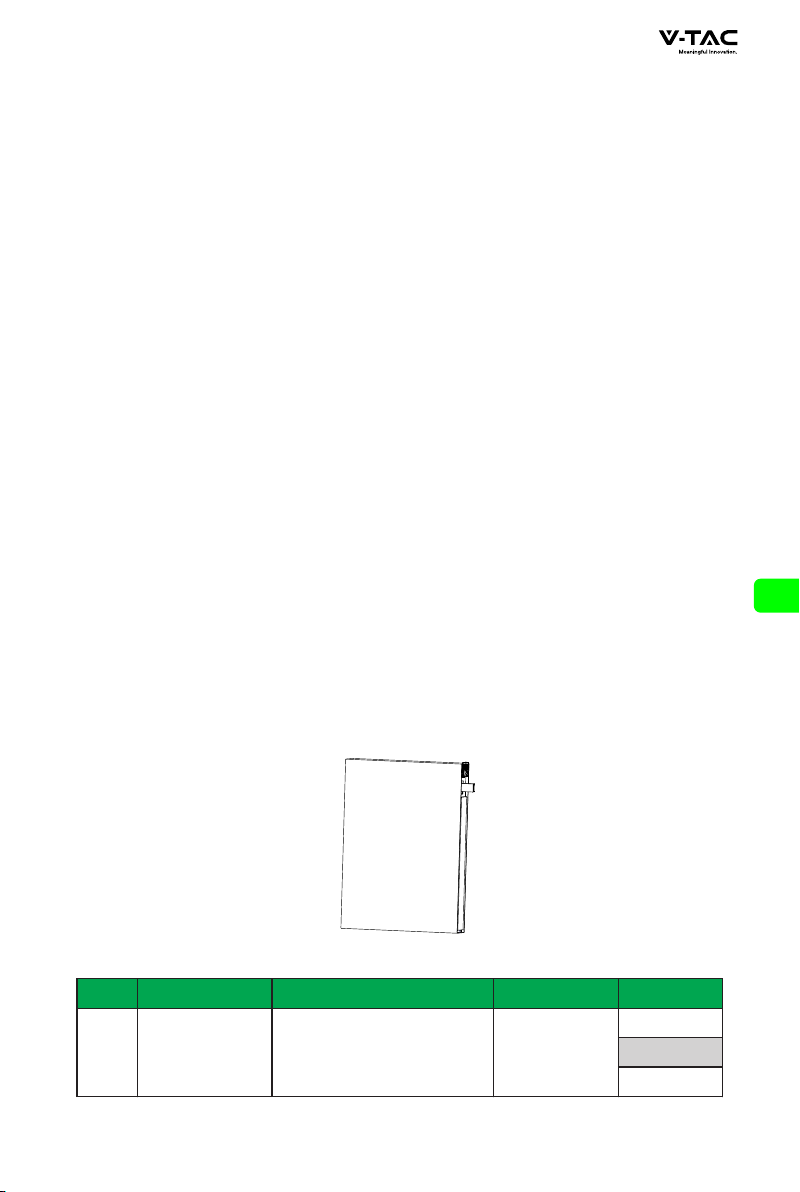
2.1 Product introduction
Function
Li-ion battery includes only battery modules, which can store
and release electric energy according to the requirements of inverter management
system. The input and output ports of battery are 48 / 51.2V DC.
◆ Battery charging: the power control module is connected with the energy storage
terminals (BAT +, bat -) of the inverter to charge the battery and store the excess
photovoltaic energy in the battery under the control of the inverter.
◆ Battery discharge: when the photovoltaic energy is insufficient to supply power to the
load, the system needs to control the battery to supply power to the load and output
the stored battery energy to the load through the inverter.
Model
NO.
Voltage
ESI
Capacity
IP Level
1
48V
IP20
Bluetooth
WIFI
GSM
160/220Ah
5
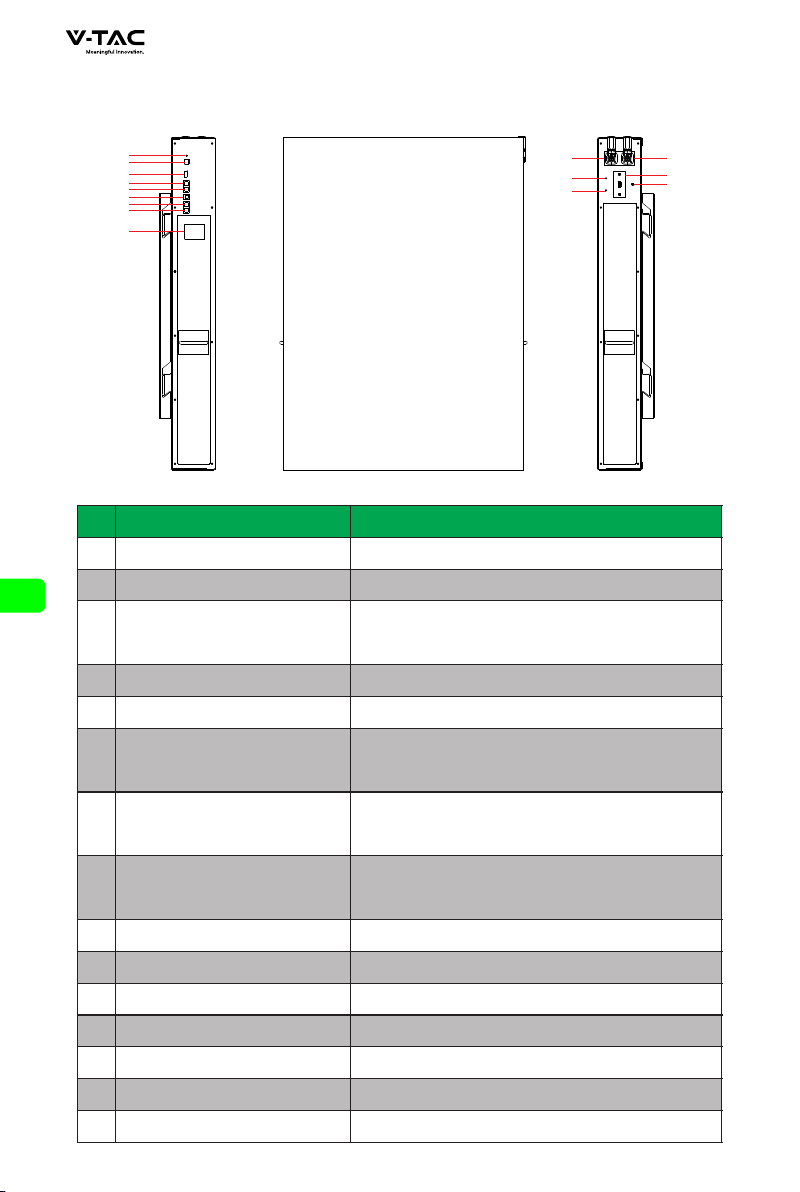
2.2 Appearance description
6
1
2
3
4
5
6
7
8
9 10
11
12
13
14
15
NO.
Description
Functional Description
1
3
4
5
6
2
Battery-
Negetive terminal
Battery+
Positive terminal
Reset key
On/OFF button
ADS Dialer
Display connection address
RS485
RS485 communication interface
CAN
CAN communication interface
DO
1/2 Normally open, closed during fault
protection 3/4 Normally open, closed when a
low batter y alarm signal has occurred
RS232
RS232 communication interface
(for batter y condition monitoring)
RS485 communication interface (Used in
communication parallel,and for batter y condition
monitoring or manufacturer to debug or ser vice)
RS485 communication interface (Used in
communication parallel,and for batter y condition
monitoring or manufacturer to debug or ser vice)
ESI
Expand Bluetooth / WiFi / GSM functions
Ground wire
Battery ground wire
RS485
RS485
7
8
9
10
11
12
ALM
Alarm and protection
14
RUN
Work
13
HMI
Display batter y status information
15
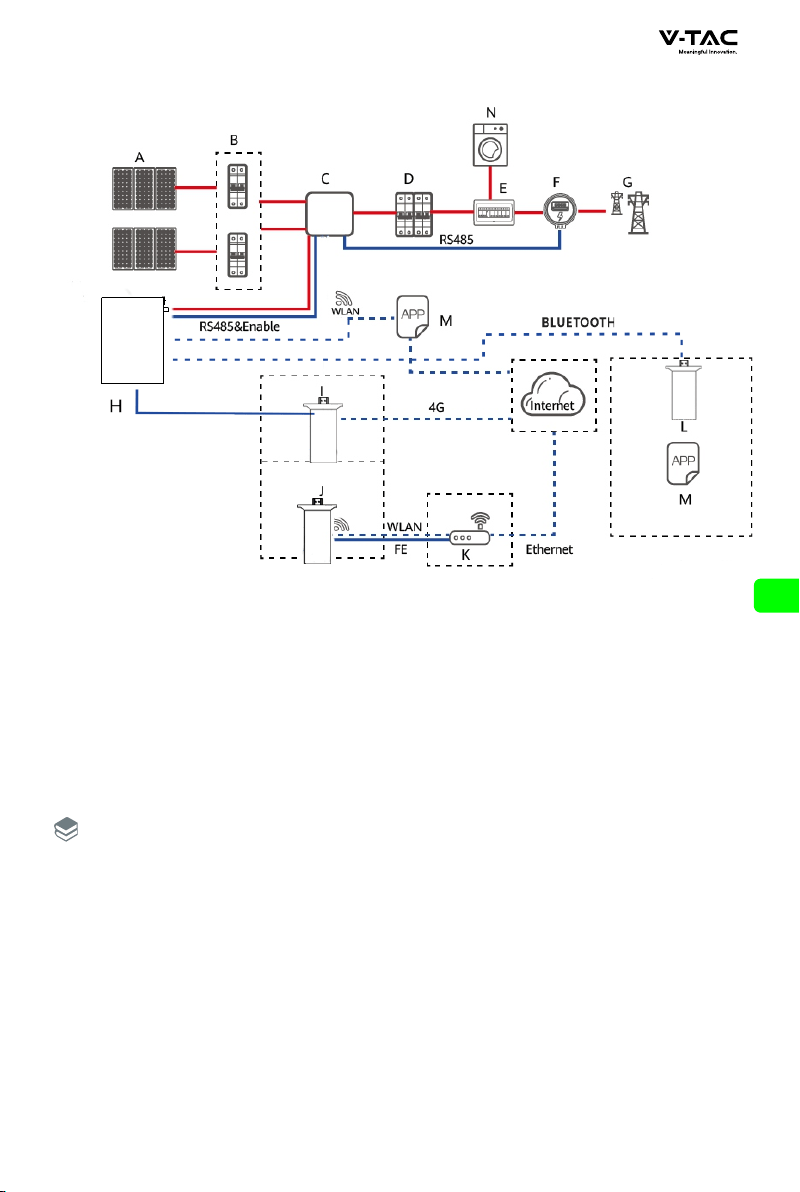
2.3 System diagram
(A) PV module
(D) AC switch
(F) Intelligent power collector
(I) GSM
(L) Bluetooth
(B) DC switch
(E) Power Distribution Box
(G) Power grid
(J) WIFI
(M) APP
( C) Inverter
(H) Battery(WALL)
(K) Router
(N) Load
◆ The input and output of the battery energy storage system are connected to the energy
storage port of the inverter.
◆ Following are the modes to communicate with the battery energy storage system:
• The Inverter can be connected through CAN interface to realize the communication
and control between the inverter and battery.
• The batter y can be accessed directly through the mobile phone Bluetooth app to
view, manage and maintain the performance.
• The batter y can be accessed from the public network through WiFi interface to
view, manage and maintain the performance.
• The batter y can be accessed from the public network through GSM interface to view,
manage and maintain the performance.
Explanation
7
3.Product installation
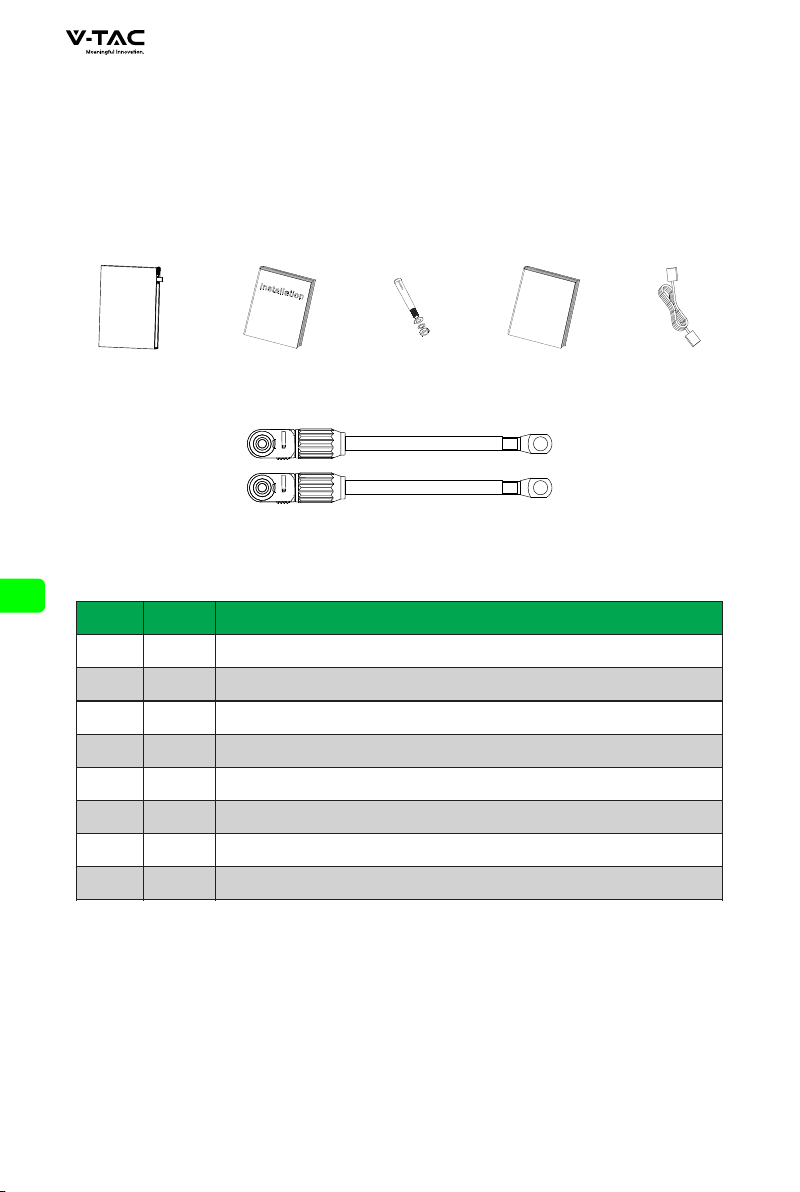
3.1 Unpacking inspection
Please confirm whether the outer package of the product is damaged before unpacking.
After unpacking, please carefully check the product for damage or missing accessories.
In case of damage or missing accessories, please contact the supplier directly for
assistance.
NO.
QTY
Description
A
B
C
D
E
F
G
H
1
1
6
1
1
1
n
n
Battery PACK
Instructions
Expansion screws M10
MSDS Transportation certificate
RS232 communication line
Power line 1m
Parallel line:Customized according to customers
RS485 communication line: Customized according to customers
3.2 Basic installation requirements
◆ Shall be installed in a dry and well-ventilated area to ensure good heat dissipation.
◆ Recommended to choose a sheltered installation site or under a sunshed, indoor is
more preferable option.
◆ Avoid direct sunlight or rain. The surrounding environment should be clean and free
from large infrared radiation, organic solvents and corrosive gases.
F
B
C
MS
DS
D EA
8
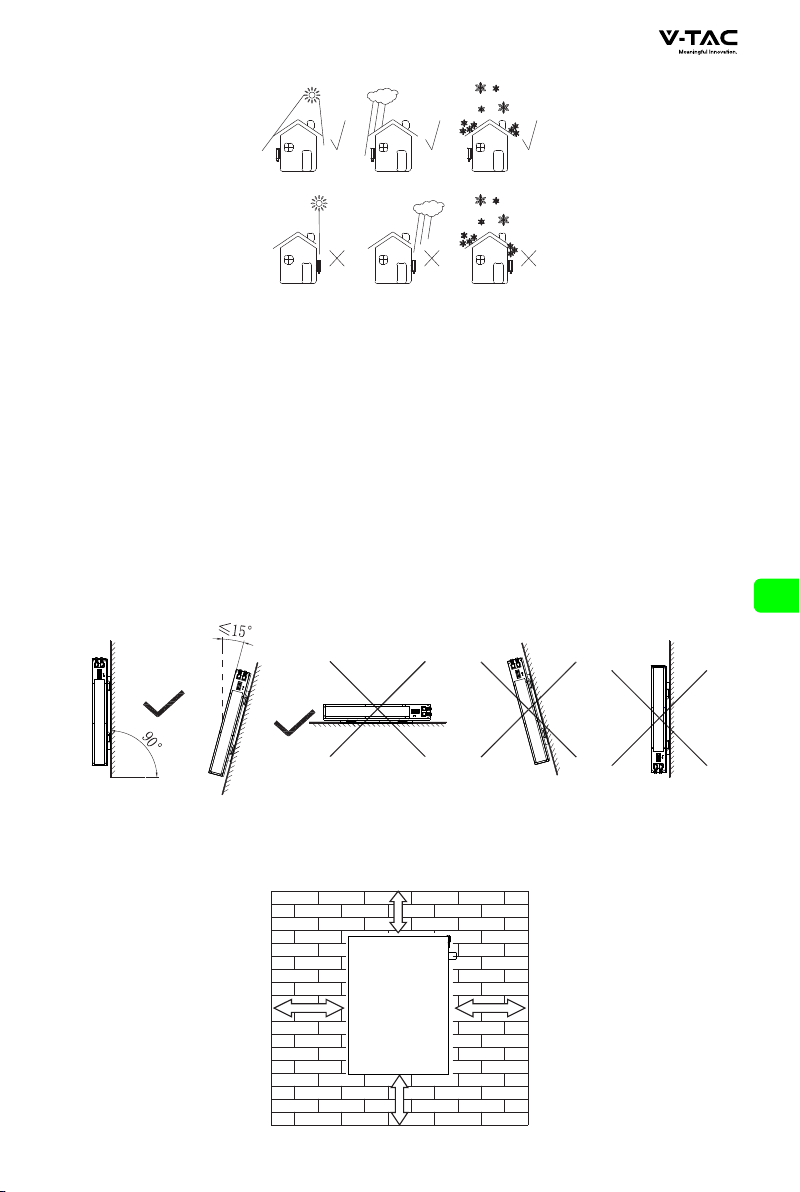
◆ The installation location shall be reasonably away from the fire source.
◆ The installation location shall not be accessible by the children.
◆ The installation location shall be sufficiently away from water sources, such as water
tap, sewer pipe, sprinkler etc., to avoid water infiltration.
◆ The installation wall shall be strong enough to carry the weight of the battery for a
long time, please follow local standard or best practice guidelines.
◆ Do not place inflammables and explosives around the battery.
◆ When the battery is running, do not block the vent or cooling system. Maintain the
battery operating temperature for charging 0-55°C and discharging - 20 ~ 60°C.
◆ Do not store or install the batter y in an environment of flammable or explosive gas or
smoke. Any operation of the battery in such environment is strictly prohibited.
◆ The battery can be installed on a vertical or backward inclined plane. Please refer to the
following figure:
◆ In order to ensure good heat dissipation and convenience in operation and
maintenance, sufficient clearance shall be reserved while installing the battery. An example
of such clearances are shown in the figure below. Please strictly follow the local battery
installation guidelines, where applicable.
ESI
+
-
ESI
+
-
ESI
+
-
ESI
+
-
ESI
+
-
30cm 30cm
30cm
30c m
9
3.3 Ladder use safety
◆ Wooden ladder or FRP ladder shall be used when power climbing operation may be
involved.
◆ When using the herringbone ladder, the pulling rope must be firm, and someone
must hold the ladder during operation.
◆ Before using the ladder, please confirm that the ladder is intact, the bearing weight of
the ladder meets the requirements, and overweight is strictly prohibited.
◆ When using the ladder, the wide foot of the ladder shall face down or protective
measures shall be taken at the bottom of the ladder to prevent slipping.
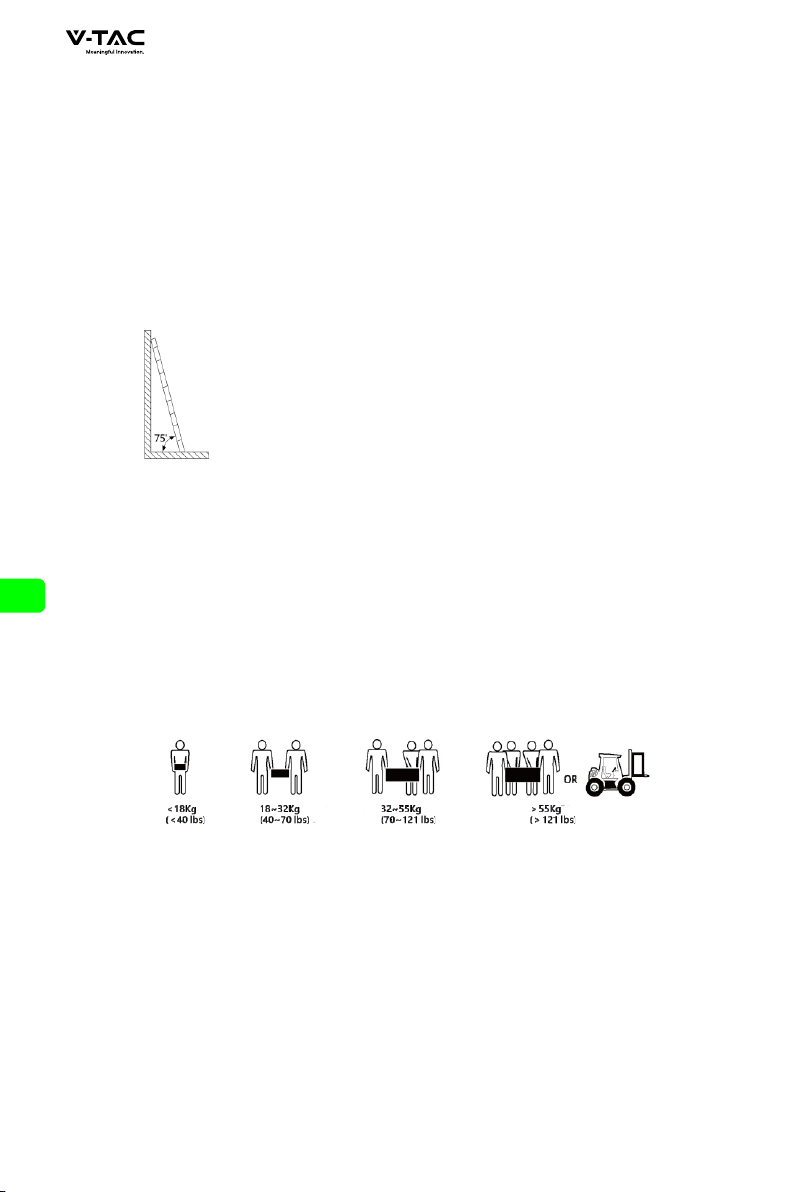
◆ The ladder should be placed in a stable place. The gradient of the ladder should be
75 °, which can be measured with an angle ruler, as shown in the figure below.
◆ When climbing the ladder, please pay attention to the
following actions to reduce danger and ensure safety:
◆ Keep your body steady.
◆ The maximum height of operators standing on
their feet shall not exceed the fourth step of the
ladder from top to bottom.
◆ Ensure that the center of gravity of the body does
not deviate from the edge of the ladder.
3.4 Drilling safety
The following safety precautions shall be considered when drilling on the wall and
ground:
◆ Wear goggles and protective gloves when drilling.
◆ During drilling, the equipment shall be covered to prevent debris from falling into the
equipment. After drilling, the debris shall be cleaned.
3.5 Safety of handling heavy objects
◆ When carrying heavy objects, be prepared to bear the load to avoid being crushed or
sprained by the heavy objects.
◆ When handling the equipment by hand, wear protective gloves to avoid injury.
3.6 Installation guidelines
◆ Determine the exact location of battery installation; If it is wall mounted, the wall
thickness shall be greater than or equal to 100mm;
◆ Use the mounting bracket or cardboard to determine the specific location of the hole;
Keep the top edge of the cardboard horizontal.
◆ Drill 6 holes at the marked position with the hole diameter of φ 8;The hole depth shall
not be less than 55mm.
◆ Knock 6 expansion screws into the drilled holes.
◆ Hang the battery mounting bracket on the screw.
10
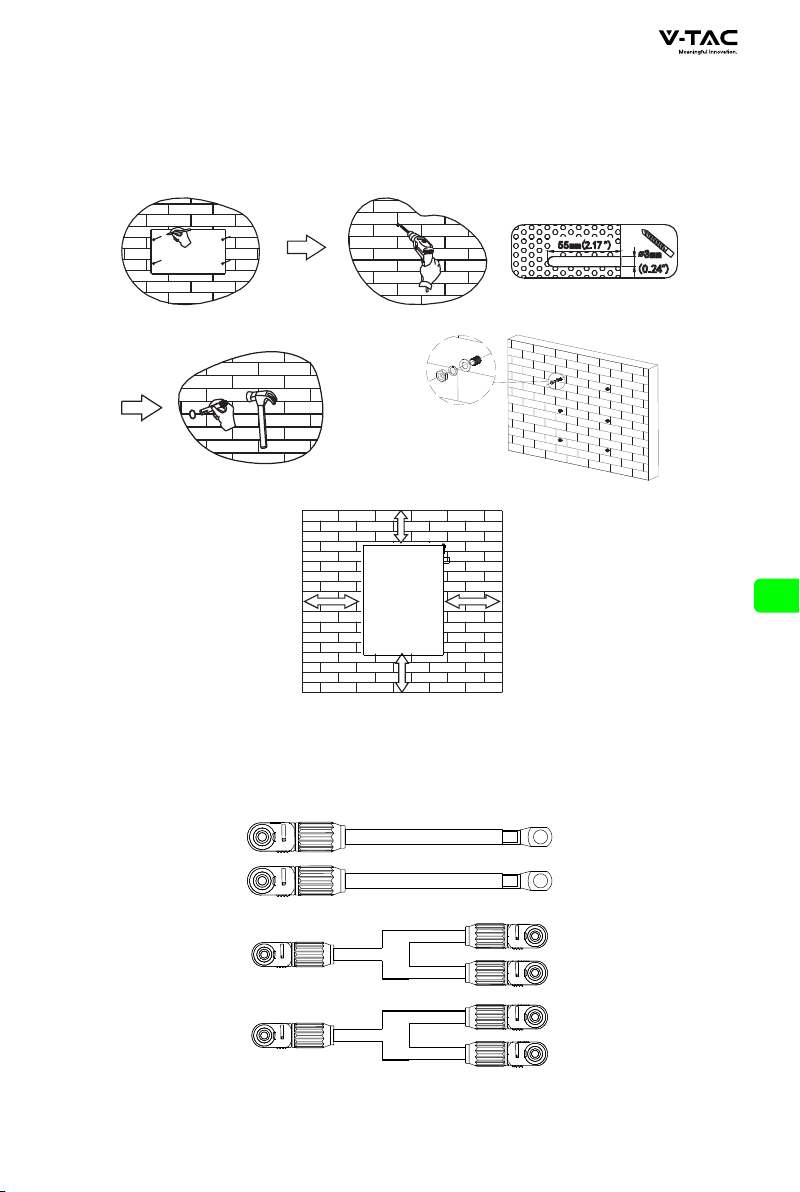
◆ Lock the nut and fix the battery mounting bracket. Then hang the batter y on the
mounting bracket.
◆ After adjusting the position of the battery, lock the M6 * 40 screw at the top of the
support, fix the battery, and place the battery to slide.
◆ installation is complete.
4.1 Cable connection
4.Electrical connection
Anderson connector is used on the DC input side of the battery energy storage system.
The specific connections are as follows:
B
A
30c m 30c m
30c m
30c m
11
NO.
A
B
Description
Terminal
Cable
diameter
Length
Anderson/SC25-8
Anderson
25mm²
25mm²
1-3m
1-3m
Used for connection between
battery and inverter
For battery parallel connection
◆ RS232 communication: BMS can communicate with the computer through RS232
interface to check batter y health related information including
batter y voltage, current, temperature, and manufacturer ’s
default data.
◆ RS485 / can communication: CAN communication connects the battery with the inverter
to function as duo for operations.
◆ RS485 communication: The additional two RS485 interfaces can be used for parallel
connections with other batteries, or, to monitor battery health
conditions including debugging and routine ser vicing.
Addresses PIN: 1-15
Explanation
4.2 Communication line connection
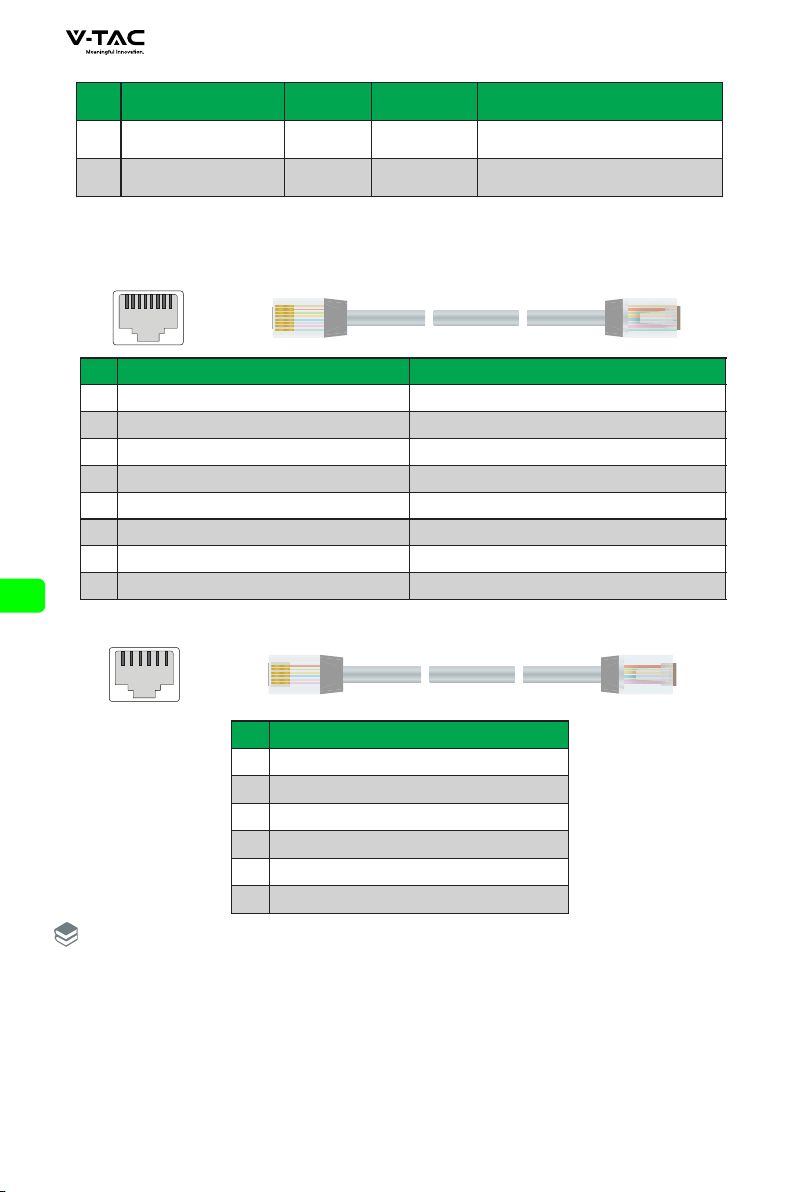
4.2.1 RJ45 Communication point definition(8P8C)
1
2
3 4
5
6 7
8
4.2.2 RJ11 Communication point definition(6P6C)
1
2
3 4
5
6
PIN
1
2
3
4
5
6
Rs232
NC
TX
RX
GND
NC
NC
PIN
1
2
3
4
5
6
7
8
RS485
CAN
RS485_A
NC
GND NC
NC CANL
NC CANH
GND NC
RS485_A
GND
RS485_B
NC
RS485_B
NC
12
◆ Different inverter communication protocols have different pin definitions. Please pay
attention to the compatibility between the battery and inverter CAN/RS485
communication line.
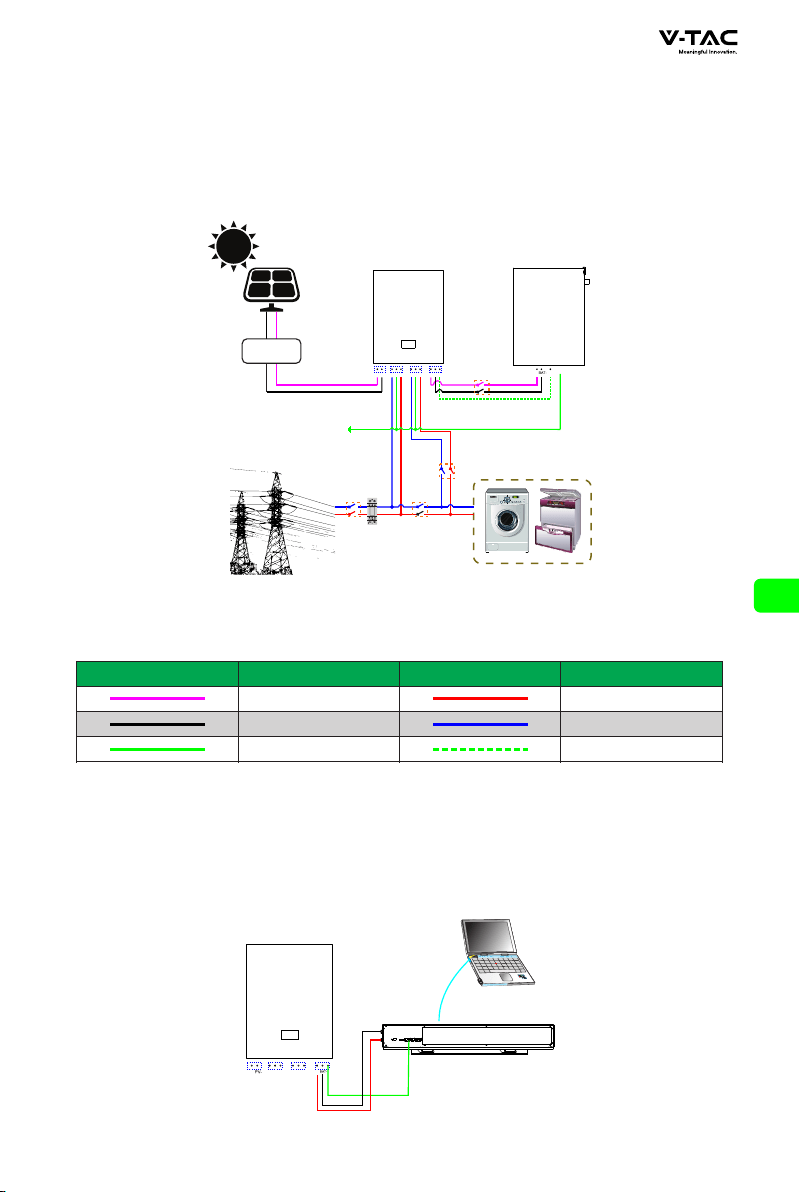
4.3 System connection diagram
Cable color
Description
Cable color
Description
DC positive wire
DC negative wire
Ground wire
Live Wire
Naught wire
Communication line
4.4 battery connection
4.4.1 Single battery connection
PV
PV+ N
GND
L
BAT+
RS4 85 OR
CAN
AC_O UT A C_ IN
BAT
N
GND
L
INVERTER
Batter y
PC
RST
ADS
DO
RS485
CAN
RS232
RS485
13
PV
PV+ P V- N
GND
L
BAT+
BAT-
RS48 5 OR
CAN
AC_ OUT AC_ IN
BAT
BAT+ RS4 85 OR CAN
N
GND
L
PV combiner box
PV
INVERTER
LOAD
POWER GRID
GND
DC Breaker
AC Breaker
AC Breaker
AC Breaker
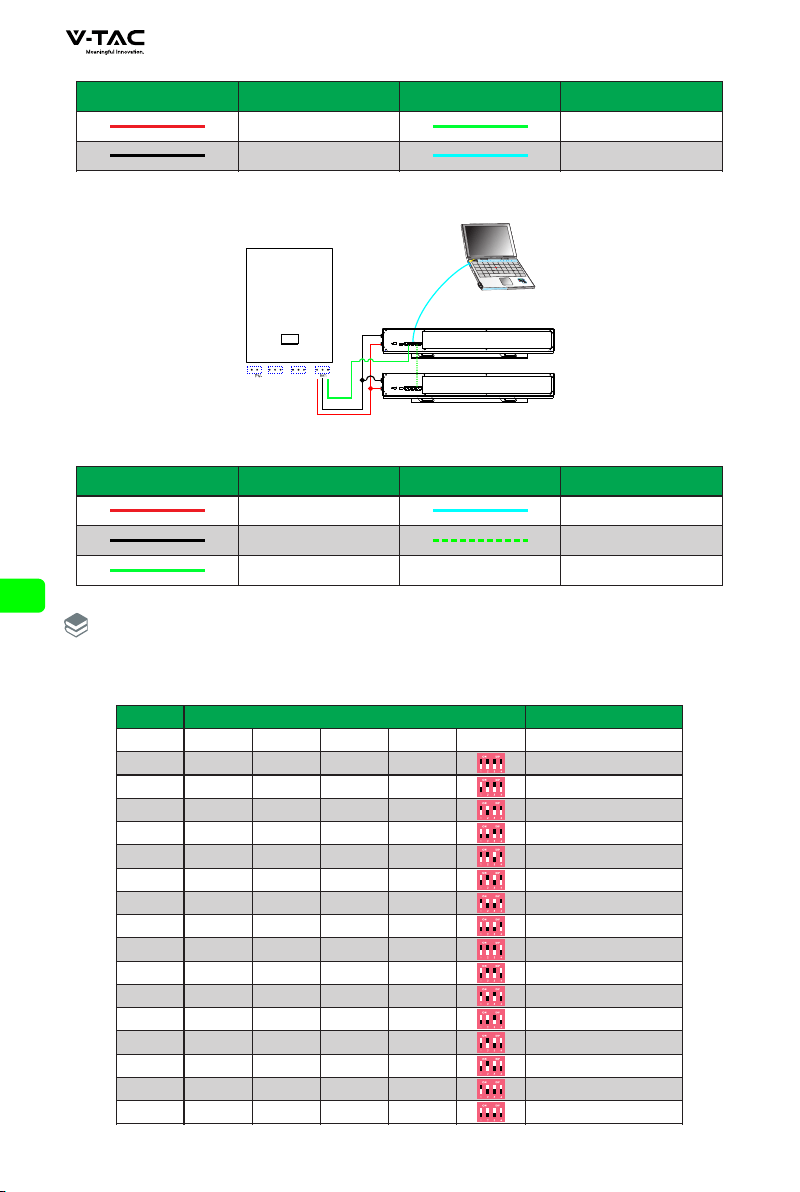
4.4.2 Multiple batteries in parallel
Cable color
Description
Cable color
Description
DC positive wire
DC negative wire
RJ11 Communication Line
RJ45 Communication Line
RS485/CAN communication
Cable color
Description
Cable color
Description
DC positive wire
DC negative wire
RJ45 Communication Line
RS485/CAN communication
Parallel Communication line
RJ11 Communication Line
The power lines between each battery are the same length
◆ The maximum number of batteries can only be connected in parallel is 15pcs.
After parallel connection, the address of ads needs to be assigned,
as shown below:
Address
2
3
4
5
6
7
8
9
10
11
12
13
1
0
14
15
Dial switch Remark
#1
#2
#3 #4
OFF OFF OFF OFF
ON OFF OFF OFF
OFF ON OFF OFF
ON ON OFF OFF
OFF OFF ON OFF
ON OFF ON OFF
OFF ON ON OFF
ON ON ON OFF
OFF OFF OFF ON
ON OFF OFF ON
OFF ON OFF ON
ON ON OFF ON
OFF OFF ON ON
ON OFF ON ON
OFF ON ON ON
ON ON ON ON
Batter y PACK1(Main PACK)
Batter y PACK2
Batter y PACK3
Batter y PACK4
Batter y PACK5
Batter y PACK6
Batter y PACK7
Batter y PACK8
Batter y PACK9
Batter y PACK10
Batter y PACK11
Batter y PACK12
Batter y PACK13
Batter y PACK14
Batter y PACK15
Explanation
PV
PV+ N
GND
L
BAT+
RS4 85 OR
CAN
AC_O UT A C_ IN
BAT
N
GND
L
INVERTER
Batter y-1
PC
RST
ADS
DO
RS485
CAN
RS232
RS485
RST
ADS
DO
RS485
CAN
RS232
RS485
Batter y-2
14
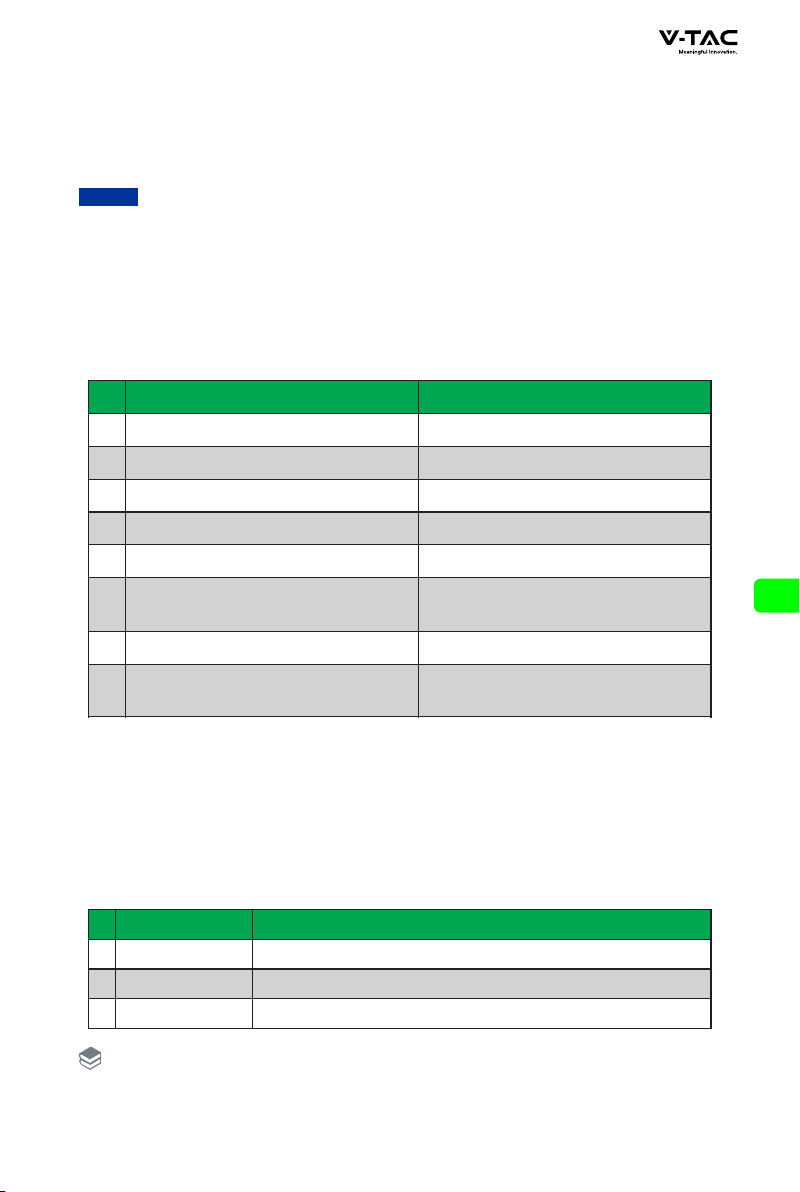
◆ The inverter only needs to communicate with the host (Pack1).
◆ When multiple batteries are connected with multiple inverters, it is best to connect
through the combiner box. If it is not connected through the combiner box, the
wiring mode shall be confirmed with the manufacturer's agent. And the cable from
each battery to the inverter remains the same length.
◆ Batteries are not allowed to be connected in series.
◆ Different batteries with different chemistries, different batches of batteries from the
same chemistry and technical design parameters can not be bundled and used
together.
Notice
5.System tuning
5.1 Check before power on
NO.
1
2
3
4
5
6
7
8
Inspection items Acceptance criteria
The energy storage batter y is
installed in place
Reasonable cable layout
Beautiful binding of cable ties
Reliable grounding
Disconnect switch
The cable is connected in place
Insulate unused terminals and interfaces
The installation environment meets
the requirements
The installation is correct, firm
and reliable.
The cable layout is reasonable to meet
the user's requirements.
The cable ties shall be uniform and no
sharp corners shall be left at the cut.
The ground wire is connected correctly,
firmly and reliably.
"DC switch" and all switches connected
to energy storage are in "off" state.
The DC input line, energy storage line
and signal line are connected correctly,
firmly and reliably.
Install insulating tape on unused
terminals and interfaces.
The installation space is reasonable, the
environment is clean and tidy, and there
is no construction residue.
After the inspection, press and hold the RST key (3 ~ 6S) and release it, the protection
board is activated.
5.2 Battery function description
5.2.1 Buzzer action description
NO.
Mode
Description
1
2
Fault
Protection
Beep 0.25S ever y 1S
Beep 0.25S ever y 2S (except over voltage protection)
Beep 0.25S ever y 3S (except over voltage alarm)
3
Alarm
The buzzer function can be enabled or disabled by the upper computer.
It is disabled by default.
Explanation
15
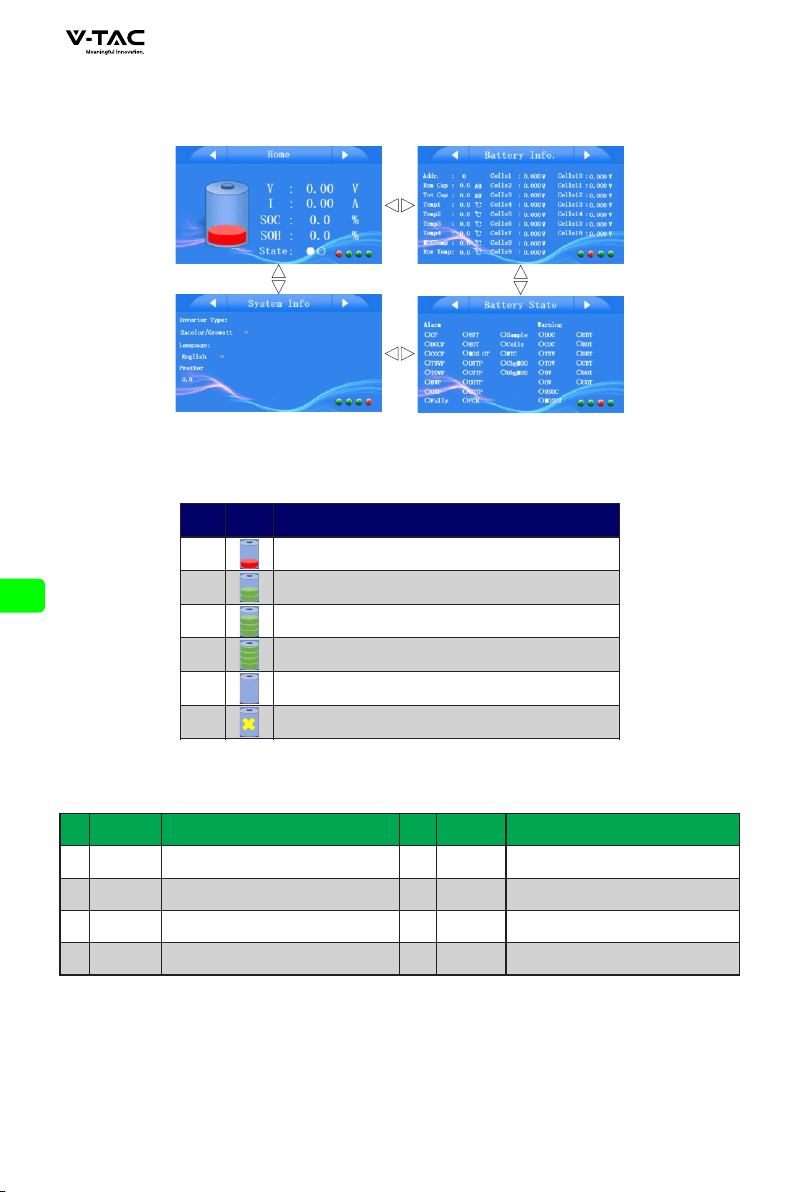
5.2.2 Screen
HMI screen composition
Home:
Battery Information:
NO. NO.
Items
Description
Items
Description
1
2
3
4
5
6
7
Addr.
Rem Cap
Tol Cap
Temp1~4
Environment temperature
MOS Temperature
Battery Cell Voltage
Battery Pack Address
Remnant capacity
Total capacity
Battery Temperature
Env Temp
MOS Temp
Cells1~16
2
3
4
5
6
1
NO. ICON
Description
0%<SOC<25%
25%=SOC<50%
50%=SOC<75%
75%=SOC=100%
SOC=0%
Battery Alarm Status
16
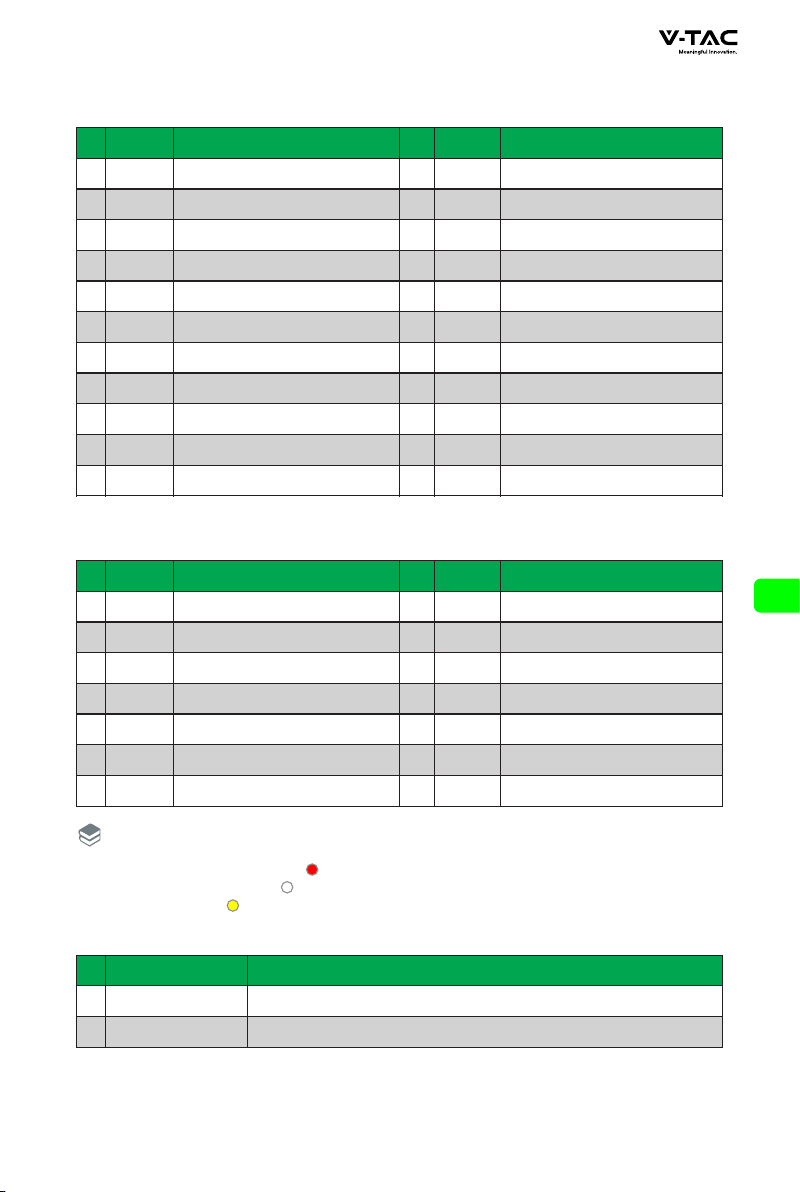
Battery Information: Protection Status
NO. NO.
Items
Description
Items
Description
1
2
3
5
8
9
10
CP
DOCP
COCP
TOVP
Fully protection
Low environment temperature
protection
High environment temperature
protection
Short Circuit Protection
Discharge over current protection
Charge over current protection
Fully
EUT
EOT
6
UVP
7 OVP
4
TUVP
11
12
13
14
Total over voltage protection
Cell over discharge protection
Cell over voltage protection
Total under voltage protection
MOS High temperature
protection
MOS OT
Discharge low temperature
protection
DUTP
Charge low temperature
protection
CUTP
Discharge high temperature
protection
DOTP
15
16
17
19
20
21
COTP
PCB
Sample
NTC Protection
Charge MOS protection
Discharge MOS protection
Charge high temperature
protection
PCB Protection
Sample Protection
NTC
chg MOS
dhg MOS
18
Cells
Battery Cells Protection
Battery Information: Alarm Status
NO. NO.
Items
Description
Items
Description
1
2
3
5
8
9
10
DOC
COC
TUV
UV
MOS High temperature alarm
Low environment temperature
alarm
High environment temperature
alarm
Discharge over current alarm
Charge over current alarm
Total over discharge alarm
MOS OT
EUT
EOT
6 OV
7
USOC
4
TOV
11
12
13
14
Cell over discharge alarm
Cell over discharge alarm
Low SOC alarm
Total over charge alarm
Discharge low temperature
alarm
DUT
Charge low temperature alarm
CUT
Discharge high temperature
alarm
DOT
Charge high temperature
alarm
COT
System Information Interface
NO.
Items
Description
1
2
Inverter
Language Setting
Support 10 kind of inverters , we will still upgrade.
3 Languages for setting
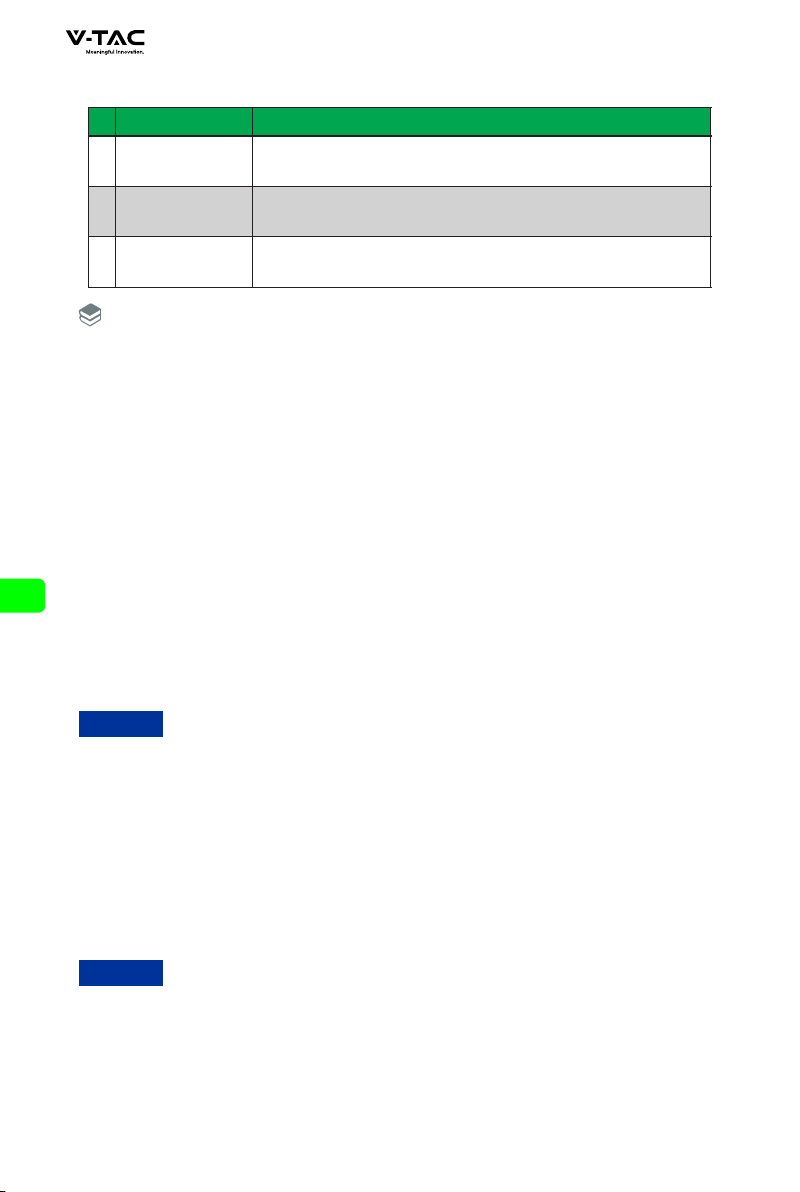
◆ Battery is in protection state:
◆ Battery is in normal state:
◆ Battery is in alarm:
Explanation
17
5.2.3 RST key description
NO.
Mode
Description
1
2
Fault
Dormancy
BMS is in sleep state, press the key (3 ~ 6S) and release it, the protection
board is activated, and the LED indicator lights up successively from "run"
for 0.5 seconds.
BMS is in the active state. Press the key (3 ~ 6S) and release it, the protection
board is dormant, and the LED indicator lights up successively from the lowest
power light for 0.5 seconds.
BMS is active. Press the key (6 ~ 10s) and release it, the protection
board is reset, and all LED lights are on for 1.5 seconds at the same time.
3
Reset
After the BMS is reset, it still retains the parameters and functions set by the upper
computer. If it needs to be restored to the initial parameters, it can be realized
through the "restore default value" of the upper computer, but the relevant
operation records and stored data remain unchanged (such as power, cycle times,
protection records, etc.).
Explanation
5.2.4 Sleep and wake up
When any of the following conditions occurs, the system enters into the low
power consumption mode:
◆ Single or overall over discharge protection is not released within 30 seconds.
◆ Press the key (3 ~ 6S) and release the key.
◆ The minimum monomer voltage is lower than the sleep voltage, and the duration
reaches the sleep delay time (no communication, no protection, no balance and
no current).
◆ The standby time exceeds 24 hours (no communication, no charge and discharge,
no mains power).
◆ Forced shutdown by upper computer software.
Sleep:
To enable forced sleep mode, ensure that the input terminal is not connected to the external
voltage, otherwise it will not be able to enter the low power consumption mode.
Notice
Wake up:
When the system is in the low power consumption mode and meets any of the following
conditions, the system will exit the low power consumption mode and enter into the
normal operation mode:
◆ Connect the charger, and the output voltage of the charger shall be greater
than 48V.
(the battery voltage of 16 strings needs to be greater than 51.2V)
◆ Press the key (3 ~ 6S) and release the key.
◆ Activation of RS232 interface.
After single or overall over discharge protection, enter the low power consumption mode,
wake up regularly every 4 hours, and turn on the charge discharge MOS. If it can be charged,
it will exit the sleep state and enter normal charging; If the Automatic wake-up fails to
charge for 10 consecutive times, it will no longer wake up automatically.
When the system is defined as that the recovery voltage is not reached after 2 days of
standby (standby time setting value) after the end of charging, it is forced to resume
charging until the end of recharging.
Notice
18
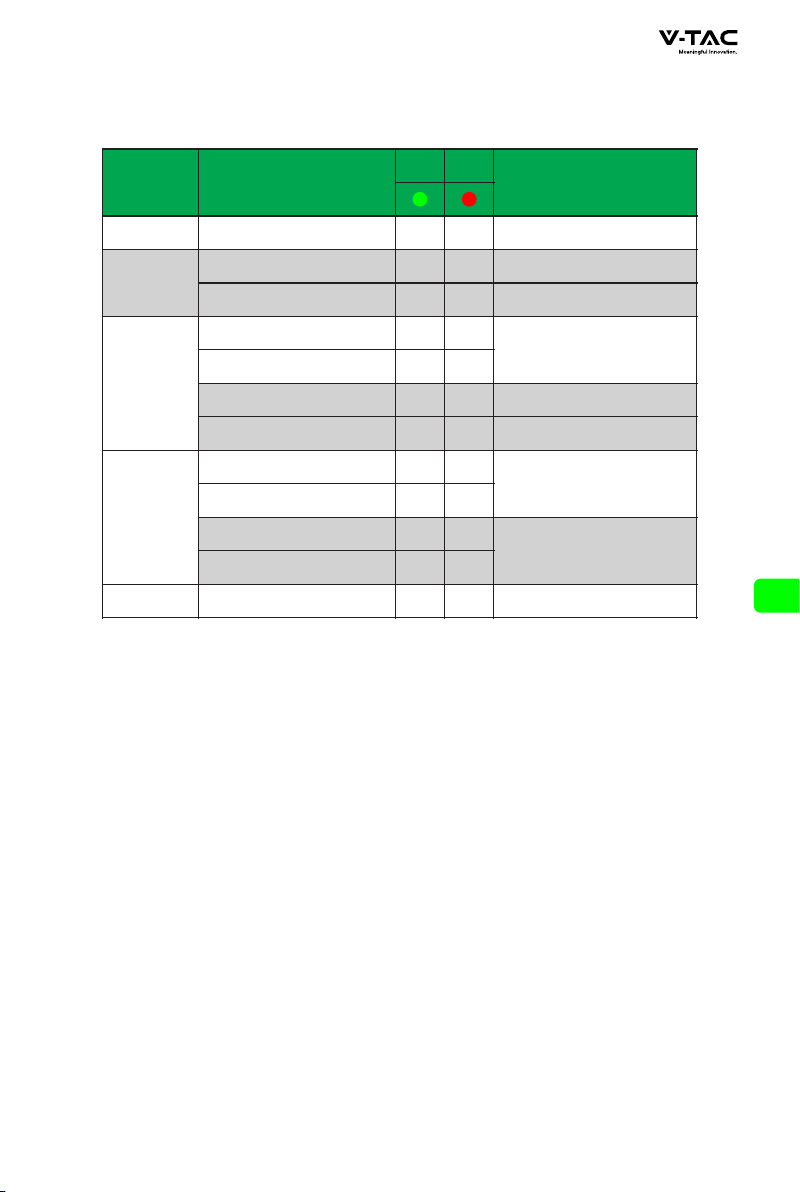
5.2.5 Indicator Description
HMI Screen: There are 2LEDS on front panel to show the batter y working status.
PACK Status
Normal/Alarm/Protection
RUN
ALM
Remark
Sleep
Power Off
OFF OFF
All off
Standby
Normal
Alarm
Flash 1
Flash 1
OFF
Flash 3
Standby state
Cell low voltage
Charge
Normal
Alarm
Over Charge protection
Temperature/Over current
Fault/Protection
The maximum power LED
flashes (flashes 2), and the
overcharge alarm ALM
does not flash
ON
ON
ON
OFF
Flash 3
OFF
OFF
ON
If there is no mains power,
LED as standby
Close charge
Discharge
Normal
Alarm
Under Discharge
Protection
Temperature/Over current
Short circuit/Fault/Protection
OFF
Flash 3
Flash 3 Flash 3
ON
OFF OFF
OFF ON
Close discharge
Close charge/discharge
Fault
OFF
19
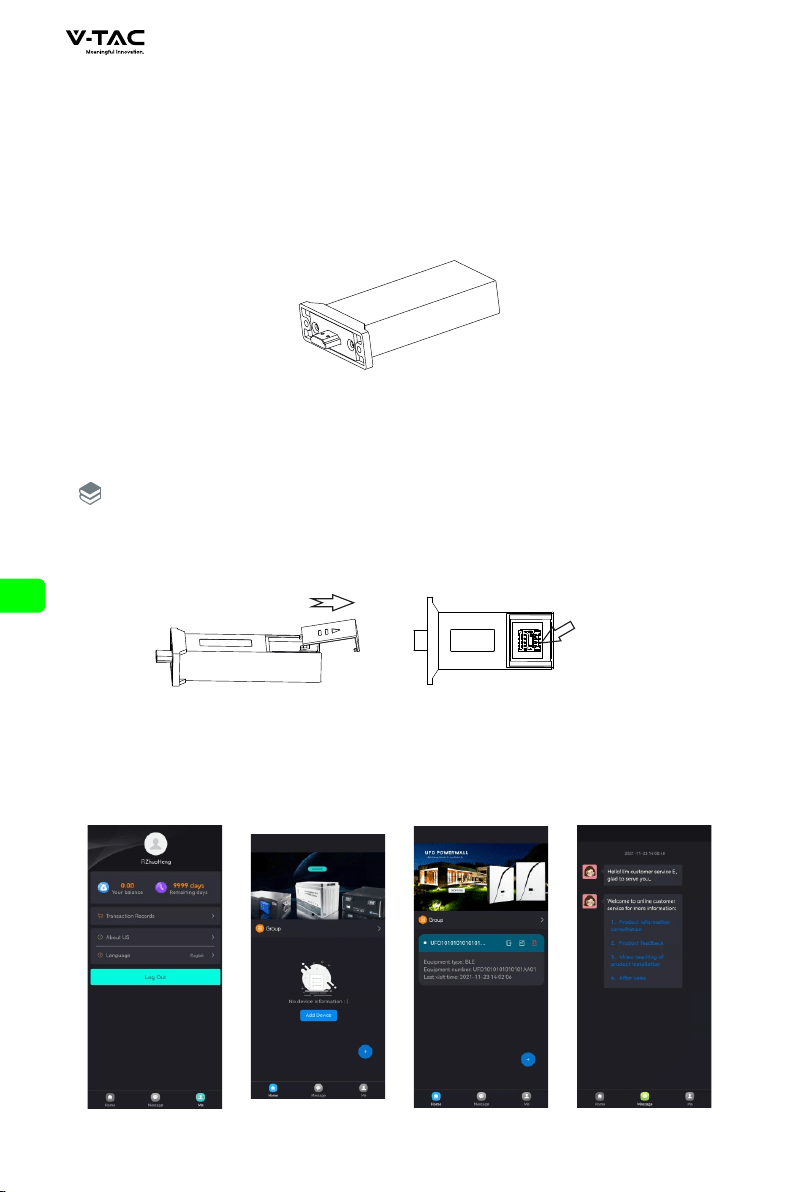
5.3 wireless kit(Optional)
The wireless kit is divided into three modules:
◆ Bluetooth
◆ WIFI
◆ GSM
Each module is an independent module, which module can be confirmed by label.
Outline drawing of wireless Kit
Connecting wireless kit:
◆ Insert the module into the battery wireless kit port, download the wireless kit app,
and register the account after installation.
◆ After turning on Bluetooth / WiFi / GSM, click Add device.
◆ The maximum connection range of Bluetooth is only 12 meters.
◆ GSM needs to be plugged in the corresponding SIM card and use network services.
The installation method of SIM card is shown in the figure below:
SIM Card
Explanation
App interface description and operation steps
20
User registration
Switch to ”ME“ in the lower right corner of APP.
◆ Click the avatar position to register.
◆ “Language”for language switching, supporting 3 languages.
Add device
Click "home" in the lower left corner of the app to switch to the add product module.
◆ Click "Add Device"or ”+” to add products.
The “Message” is after-sales service.
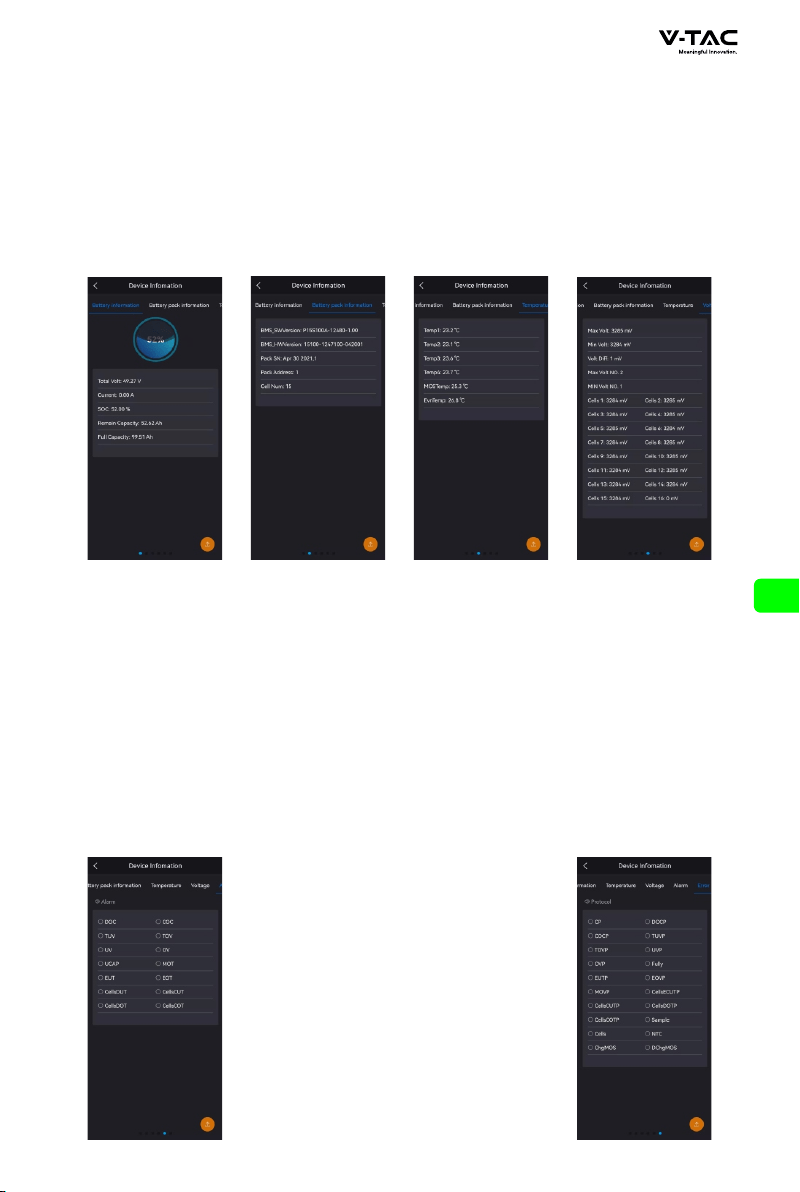
Click the connected battery to view the following information:
Battery information
◆ You can view the relevant information of battery voltage, working current and
capacity.
Battery pack information
◆ You can view the number information of battery accessories.
Temperature
◆ You can view the temperature information of each part of the battery.
Voltage
◆ You can view the information about the cell voltage.
21
Alarm
◆ You can view battery alarm related information.
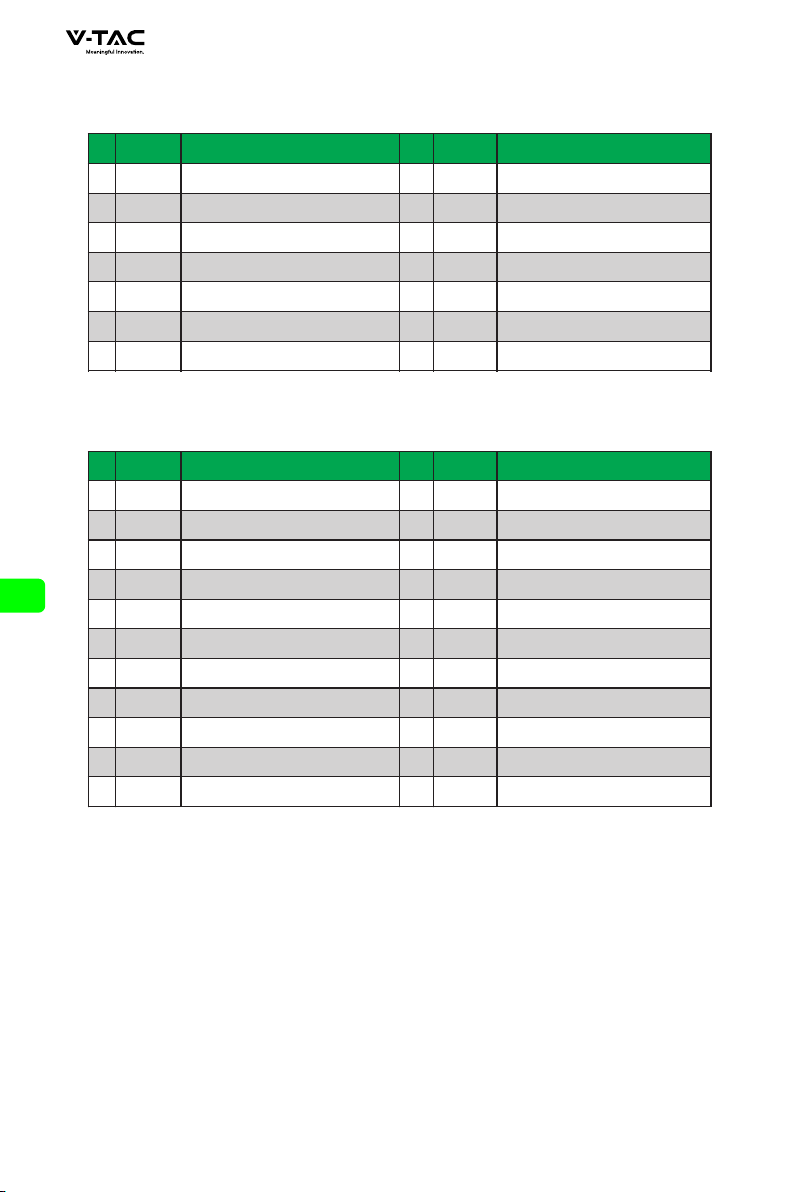
NO. NO.
Items
Description
Items
Description
1
2
3
5
CP
DOCP
COCP
TOVP
Short Circuit Protection
Discharge over current protection
Charge over current protection
6
UVP
4
TUVP
12
13
14
Total over voltage protection
Cell over discharge protection
7 OVP
Cell over voltage protection
Total under voltage protection
MOS High temperature
protection
8
9
10
Fully protection
Low environment temperature
protection
High environment temperature
protection
Fully
EUT
EOT
11
MOS OT
Discharge low temperature
protection
DUTP
Charge low temperature protection
CUTP
Discharge high temperature
protection
DOTP
15
16
17
19
20
21
COTP
PCB
Sample
NTC Protection
Charge MOS protection
Discharge MOS protection
Charge high temperature
protection
PCB Protection
Sample Protection
NTC
chg MOS
dhg MOS
18
Cells
Battery Cells Protection
NO. NO.
Items
Description
Items
Description
1
2
3
5
8
9
10
DOC
COC
TUV
UV
MOS High temperature alarm
Low environment temperature
alarm
High environment temperature
alarm
Discharge over current alarm
Charge over current alarm
Total over discharge alarm
MOS OT
EUT
EOT
6 OV
7 USOC
4
TOV
11
12
13
14
Cell over discharge alarm
Cell over discharge alarm
Low SOC alarm
Total over charge alarm
Discharge low temperature
alarm
DUT
Charge low temperature alarm
CUT
Discharge high temperature
alarm
DOT
Charge high temperature
alarm
COT
Protection
◆ You can view information about battery protection.
22
6.Battery Monitoring
6.1 Software running environment
The software runs on PC and it is compatible to use Windows operating system.
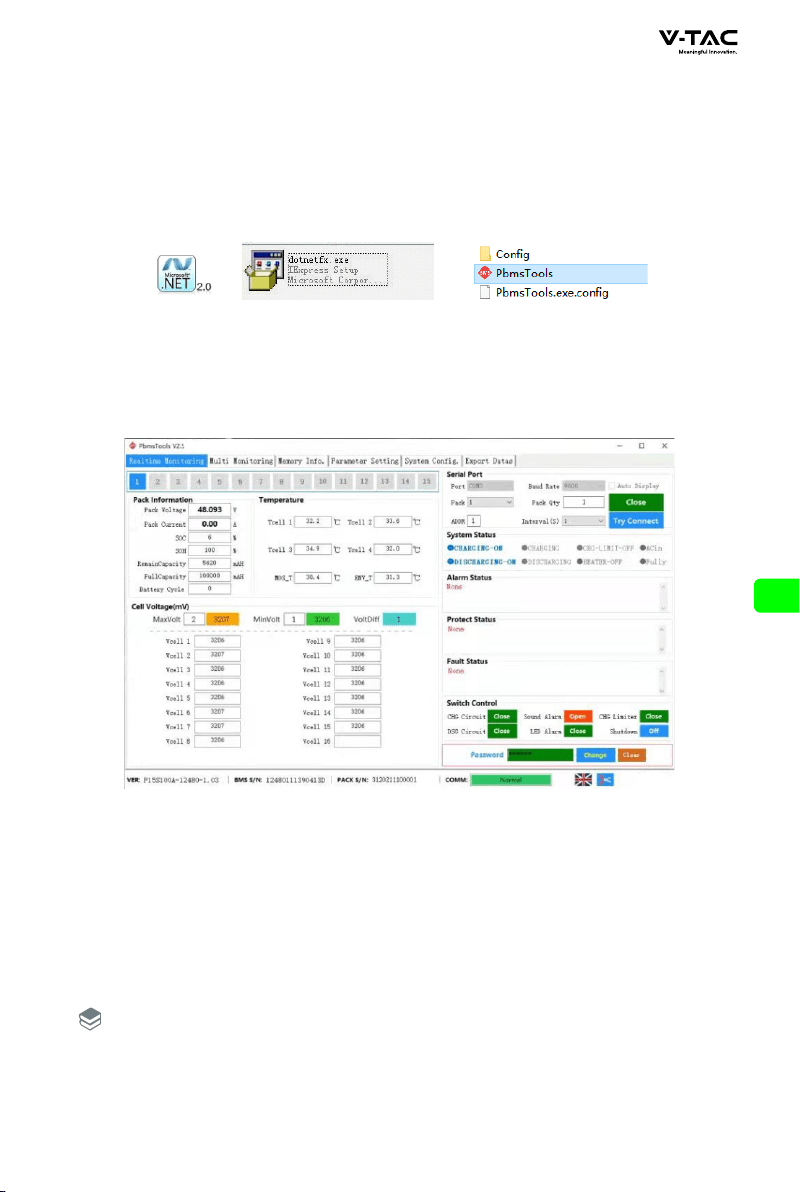
The system environment requires the support of Microsoft .Net Framework version
2.0 or above. Please confirm that it has been installed before use. The installation is
as follows:
◆ Download Microsoft .Net framework
◆ Double click the downloaded program to install it
◆ This software does not need to be installed independently, but only needs to meet
the environment. Double click the main program icon to run it.
6.2 Connect the upper computer
◆ Ensure that the BMS board is normally powered on and not in sleep state, the crystal
head of the communication line is inserted into the communication port of the protection
board, and the USB end is inserted into the computer.
◆ Double click to start the upper computer.
◆ Click the "tr y to connect" button to search the serial port to try to connect. Or
manually select the serial port and click the "open serial port" button link.
If connection fails for the following reasons, the resolutions are:
◆ Using the wrong host computer:
Method: replace the correct version of the upper computer.
Explanation
23
◆ Poor communication line or wrong wiring:
Method: replace the communication line or correct the wrong wiring.
◆ The computer USB interface is not recognized:
Method: change a USB interface
◆ Drive not installed:
Method: install the driver corresponding to the communication line.
Method for judging whether the communication line driver has been installed:
◆ Check whether there is a relevant COM port in the "serial port" drop-down of the upper
computer. If it is not found, it may not be installed.
◆ Press the win key and R key at the same time to open the [run] window, enter the
devmgmt.msc command, and open the [device manager].
6.3 Interface function
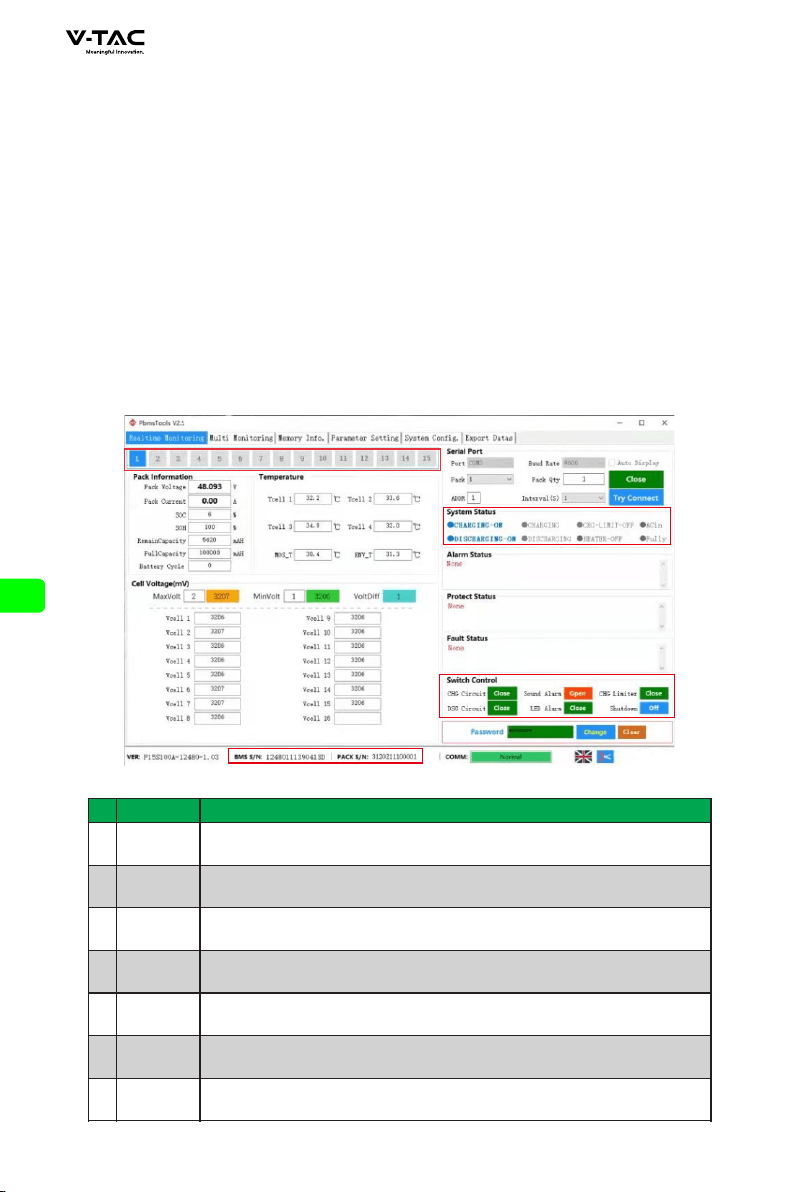
6.3.1 Real time monitoring
NO.
Item
Description
1
2
3
4
5
6
7
Serial port
Baud rate
PACK
PACK QTY
ADDR
Inter vals
Close
Serial port: you can select the drop-down item to select the serial port to communicate.
(Note: available when the serial port is not opened)
Baud rate: you can select the drop-down item to select the baud rate of communication.
(Note: available when the serial port is not opened)
Pack: the drop-down item can be selected. When FF is selected, access the RS232
interface of the host to obtain all pack data. (Note: available when the serial port is not
opened)
Number of packs: the total number of packs read by the upper computer from the BMS
board (when applied to multiple computers in parallel, the pack data is obtained from
the main pack).
Address: the currently read BMS address value.
Inter val (seconds): optional. The interval between the upper computer reading data
from the BMS board.
Turn on the serial port: turn on or off the serial port by alternating the function buttons.
1
10
11
17
3
2
4
6
5
7
8
9
12
13
14
16
15
24
NO.
Item
Description
8
9
11
12
13
14
Try connect
Pack serial
number
group
Administrator
password
column
Version
S/N
Monitor
communication
status
Try to connect: search for available serial ports and open them.
The data key, which is the package serial number, displays the package being read and
presented on the current interface with white words on a blue background;
“Auto" key, alternate function buttons. Available when FF is selected for pack in 3 and
monitoring is started, i.e. each pack data is displayed automatically in cycle (when
applied to multiple machines in parallel).
Some setting functions can only be used after entering the administrator password.
When the password is entered correctly, the input box will turn green. At this time,
you have obtained the authority of the administrator.
software version number of BMS.
Barcode and pack s / N of BMS board.
Communication status between upper computer and BMS board.
15
16
17
Screenshot
function
Flag Icon
Switch control
Click to enter the screenshot status, and the toolbar will appear after marking out the
screenshot area with the mouse.
Displays the flag icon of the current language country. Click to switch languages.
When the button is red, it indicates that the function processing is off, and when it is
green, it indicates that it is on.
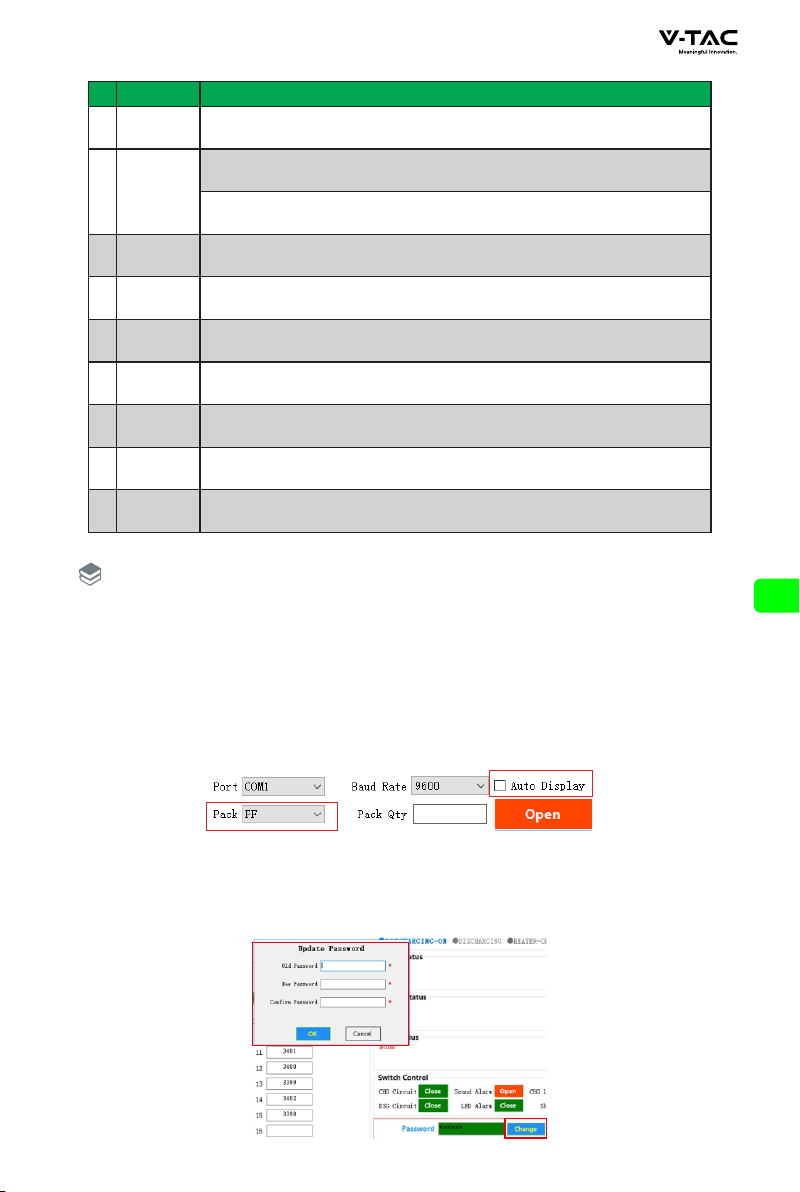
◆ Try to connect:
First set the baud rate and pack on the upper computer, connect the BMS board with the
RS232 communication line, then insert the USB interface of the RS232 communication
line into the USB port of the computer, and then click the "try to connect" button to
automatically search and open the effective serial port.
Automatic rotation pack:◆
When FF is selected in the "pack" drop-down item, the "rotation" check box in the
interface becomes available. Check it to use the rotation function. Uncheck it to cancel
the rotation function.
◆ Change Password:
Click the “Change” button at the bottom right of the interface to pop up the
password modification window. Enter the old password and the new password and then
confirm. Note: there is no function to retrieve the password. Please remember the
modified new password.
Explanation
25
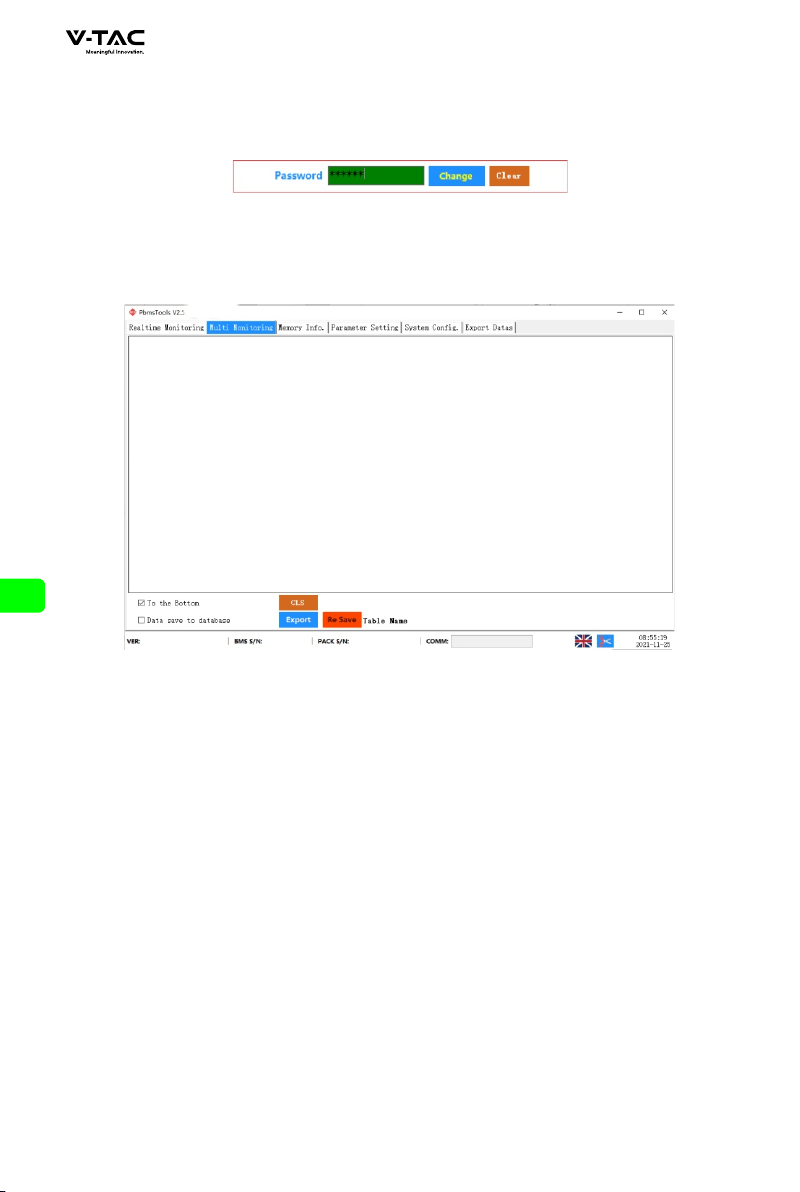
◆ Get administrator privileges:
Enter the administrator password in the "administrator password" input box at the
bottom right of the interface. After correctly entering the password, the input box
turns green. At this time, you have obtained administrator permission.
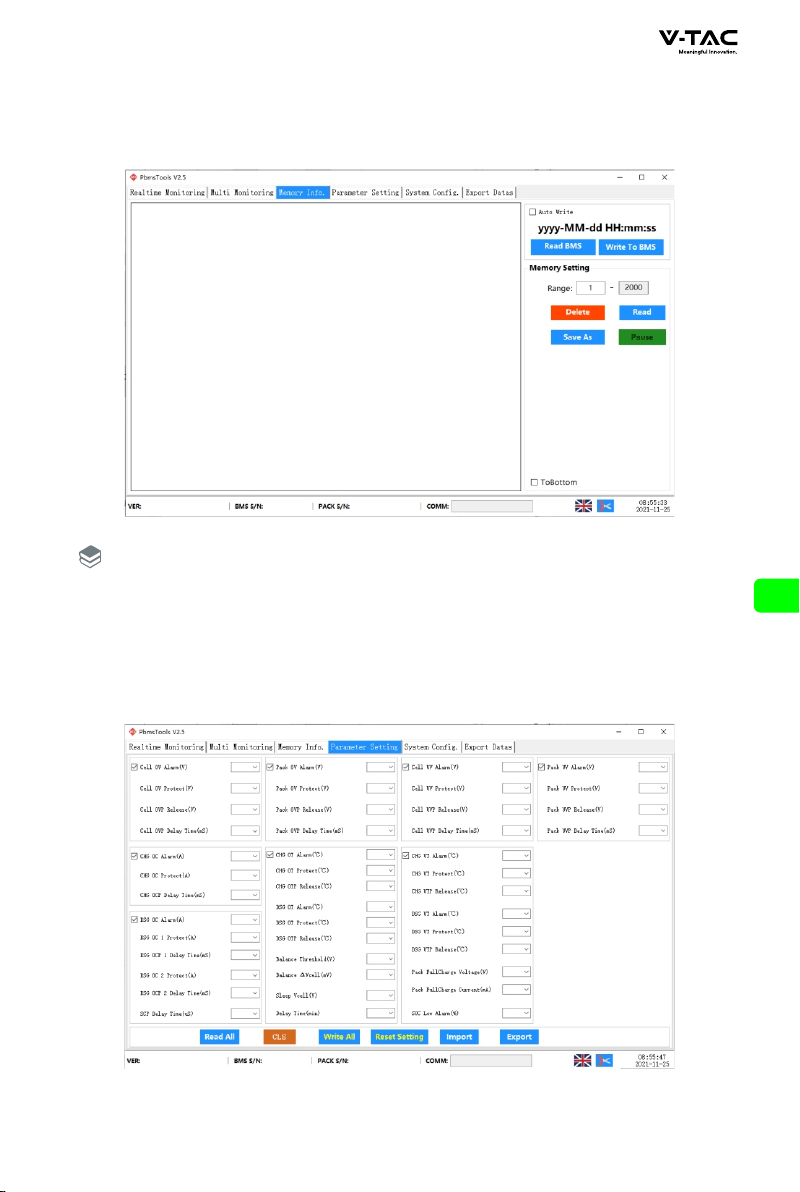
6.3.2 Parallel monitoring
◆ Interface:
Click the main interface tab [Multi Monitoring] to enter the interface.
◆ To the Bottom:
Check "To the Bottom" at the bottom left to display the monitored real-time data in
the data area. Note: this function only displays the data on the interface, and the data
has not been saved.
◆ Clear interface data:
Click the button "CLS" to clear the real-time data on the interface.
◆ Record data
Check "Data save to database" to start recording data. When there is data recording,
the number of saved data will appear on the right.
◆ Export data
Click the "Export " button to export the recorded real-time data. You can also export
on the export data page.
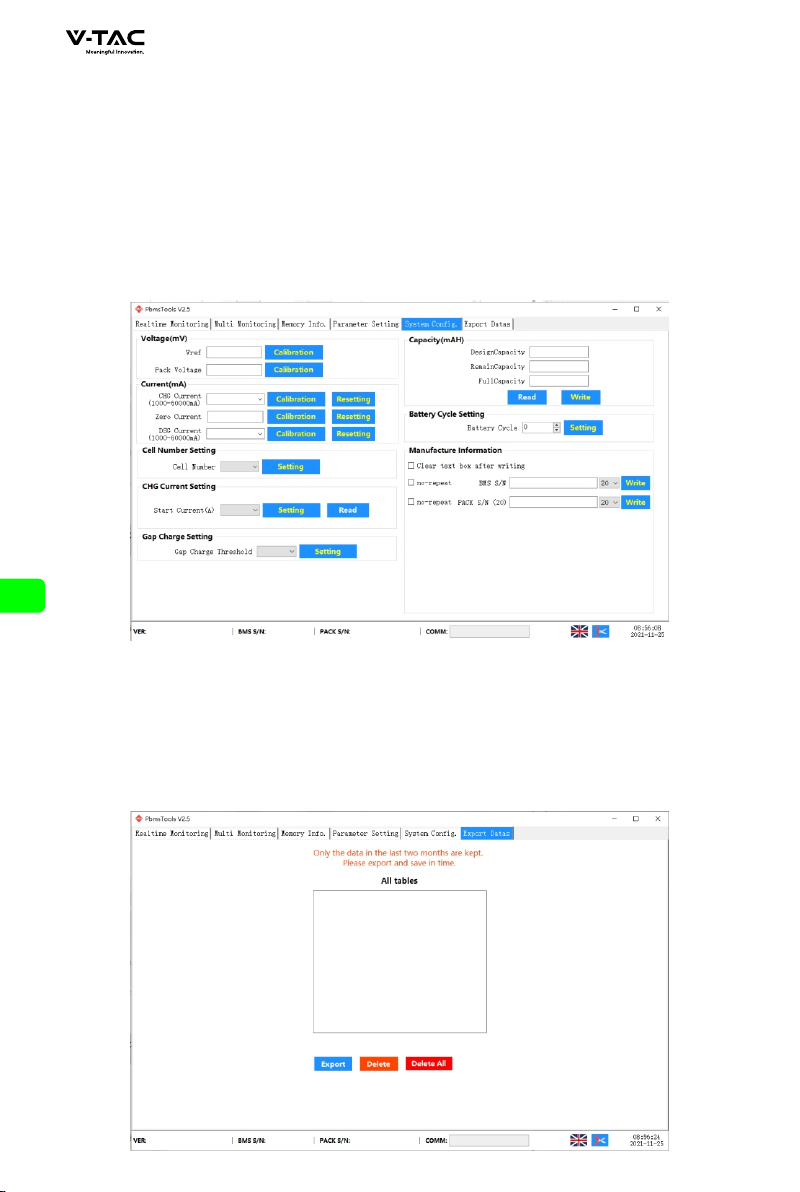
6.3.3 Store information.
◆ Interface:
Click the main interface tab [Memory Info.] to enter the interface.
◆ Read / write BMS time:
Click the "Read BMS" button on the upper right to read the BMS time.
Click the "Write To BMS" button on the upper right to write the BMS time.
◆ Storage settings:
Range: start sequence number and maximum sequence number.
Read records: read stored records.
26
Pause / continue: when reading, click "pause" to read, and then click again to continue
reading.
Save record: save the record on the interface to local.
Delete record: delete the storage record of BMS board.
when reading, the prompt "no more data" indicates that the reading has been
completed.
6.3.4 Parameter setting
◆ Interface:
Click the main interface tab [Parameter Setting] to enter the interface.
◆ Function:
Read parameters: read all parameters in the interface.
Explanation
27
Write parameters: overwrite BMS parameters. This operation requires administrator
privileges.
Restore default parameters: restore all parameters to the default parameters. The
default parameters are from the preset parameters in BMS. This operation requires
administrator privileges.
Import parameters: read the data in the local file into this interface. Note: the data is
only read on the interface and has not been written into the BMS. If you need to write,
please execute the write operation.
6.3.5 System settings
◆ Interface:
Click the main interface tab [System Config.] to enter the interface.
◆ function:
Just follow the interface prompts. Some function operations require administrator
privileges.
6.3.6 Export data
After checking "record data" on the [parallel monitoring] page, the recorded data can
be exported on this page. The table is named after the starting time point of the record.
The data can be saved for up to two months, and the expired data will be automatically
cleared. You can double-click the table name to export data.
28
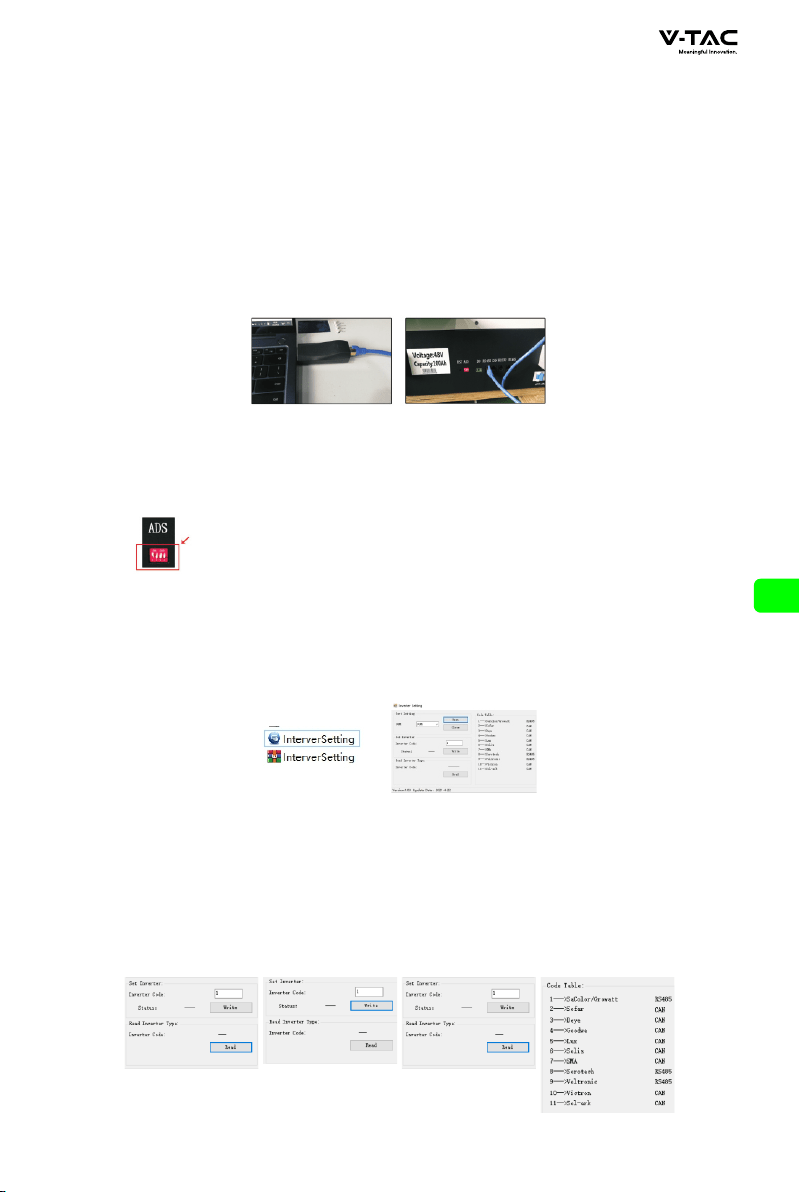
6.4 Replacing inverter protocol on battery monitoring(Optional)
Software running environment
This function can only be realized by installing the protocol conversion board.
Before using this function, please confirm whether the protocol conversion board
is installed on this battery.
This software does not need to be installed independently, but only needs to meet
the environment. Double click the main program icon to run it.
◆ Connect the computer to the batter y via the USB-RS485 communication cable.
◆ Setting for DID.
◆ Click to open the Inverter software on the PC.
◆ Select the right serial port.
◆ Click the “Read”button to read the current inverter code.
◆ Click the”Write” button the inverter code that you need.
◆ Click the”Read” button to read the inverter code again, and confirm whether the
operation was successful or not.
◆ Reference table of different inverter code.
29

7.Maintenance and replacement
◆ Please maintain the equipment when you are familiar with and understand the
contents of this manual and have appropriate tools and test devices.
◆ Before carrying out maintenance work, please power down the equipment first,
then follow the instructions of the delayed discharge label and wait for the
corresponding time to ensure that the equipment has been powered down before
operating the equipment.
◆ During maintenance, please try to avoid irrelevant personnel entering the
maintenance site, and temporary warning signs or fences must be erected for
isolation.
◆ If the equipment fails, please contact your dealer in time.
◆ The equipment can be powered on again only after the fault is handled, otherwise it
may cause fault expansion or equipment damage.
◆ Do not open the cover plate without authorization, otherwise there will be a risk of
electric shock, and the resulting failure does not belong to the scope of warranty.
◆ Operation and maintenance personnel and professional technicians shall be fully
trained in safe use and equipment maintenance, and shall operate with sufficient
preventive measures and personal protective equipment.
◆ Battery maintenance shall be performed or supervised by personnel familiar with the
battery and its required precautions.
◆ After the maintenance operation, check immediately to ensure that no tools or other
parts are missing in the equipment.
8.Battery storage requirements
◆ When the battery is stored, it shall be placed correctly according to the identification
of the packing box, and shall not be placed upside down or on the side.
◆ When the battery packing box is stacked, it shall meet the stacking requirements on
the outer package.
◆ The battery shall be handled with care, and it is strictly prohibited to damage the
battery.
◆ Storage environment requirements:
a. Ambient temperature: - 10 °C ~ 55°C, recommended storage temperature:
20 ? ~ 30 ?.
b. Relative humidity: 35% RH ~ 85% RH.
c. Dry, ventilated and clean.
d. Avoid contact with corrosive organic solvents, gases and other substances.
e. Avoid direct sunlight.
f. The distance from the heat source shall not be less than two meters.
◆ When the battery is stored, it must be disconnected from the outside. If there is an
indicator on the batter y panel, the indicator should be off.
◆ The warehouse keeper shall count the battery storage every month and regularly
report the battery inventor y to the planning link. For batteries with storage time close
to - 20 ~ 25°C = 6 months and - 20 ~ 45°C = 1 month, replenishment shall be arranged
in time. The battery shall be charged once every three months (under the normal storage
environment, long-term storage will lead to capacity attenuation and cycle life decline.
If it exceeds the storage environment requirements, it will further aggravate the capacity
attenuation and cycle life decline.)
◆ When the stored batteries are shipped, the principle of first in first out shall be followed.
30

◆ Battery maintenance shall be performed or supervised by personnel familiar with the
battery and its required precautions.
◆ After the battery production test is completed, it needs to be supplemented to 30-50%
SOC at least before storage.
9.Warranty products
Requirement:
During the warranty period, the company requires customers to provide invoices and
dates for purchasing products. At the same time, the trademark on the product shall be
clearly visible, otherwise it has the right not to provide quality assurance. The replaced
products shall be handled by the company, and the customer shall leave a certain time
for the company to deal with the faults.
10.Exemption from liability
The company has the right not to conduct quality assurance under the following
circumstances:
◆ Beyond the free warranty period.
◆ Incorrect installation, modification or use.
◆ Operate in very harsh environments beyond those described in this manual.
◆ Failure due to damage caused by unauthorized installation, repair, change or
disassembly.
◆ Failure due to damage caused by the use of non-standard components or software.
◆ Any installation and use beyond the scope specified in relevant international standards.
◆ Damage caused by abnormal natural environment.
31