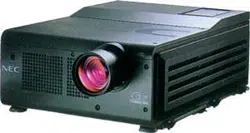

MultiSync Hivid 6500 Projector
Large Screen MultiSync Projection System
User’s Manual
Model number: XL-6500/XL-6500G
2
CAUTION: To turn off main power, be sure to remove the
plug from power outlet. The power outlet socket should be
installed as near to the equipment as possible, and should
be easily accessible.
3. GSGV Acoustic Noise Information Ordinance:
The sound pressure level is less than 70 dB(A) according to
ISO 3744 or ISO 7779.
WARNING
TO PREVENT FIRE OR SHOCK HAZARDS, DO NOT EXPOSE
THIS UNIT TO RAIN OR MOISTURE. ALSO DO NOT USE THIS
UNIT’S POLARIZED PLUG WITH AN EXTENSION CORD
RECEPTACLE OR OTHER OUTLETS, UNLESS THE PRONGS
CAN BE FULLY INSERTED. REFRAIN FROM OPENING THE
CABINET AS THERE ARE HIGH-VOLTAGE COMPONENTS
INSIDE. REFER SERVICING TO QUALIFIED SERVICE PER-
SONNEL.
AVERTISSEMENT
POUR EVITER UN FEU OU UN RISQUE D’ELECTROCUTION NE
PAS EXPOSER CET ENSEMBLE A LA PLUIE OU A L’HUMIDITE; DE
MEME, NE PAS BRANCHER LA PRISE POLAIRE AVEC UNE
RALLONGE A MOINS QUE LES DENTS DE LA PREMIERE NE S’Y
INSERENT PLEINEMENT.
EVITER D’OUVRIR LE COFFRET CAR IL Y A, A L’INTERIEUR, DES
COMPOSANTS SOUMIS A UNE HAUTE-TENSION; POUR LES
REPARATIONS, S’ADRESSER A UN PERSONNEL QUALIFIE.
WARNING
This equipment has been tested and found to comply with the limits for a Class A digital device, pursuant to Part 15 of the FCC
Rules. These limits are designed to provide reasonable protection against harmful interference when the equipment is operated in
a commercial environment. This equipment generates, uses, and can radiate radio frequency energy and, if not installed and used
in accordance with the installation manual, may cause harmful interference to radio communications. Operation of this equipment
in a residential area is likely to cause harmful interference in which case the user will be required to correct the interference at his
own expense.
CAUTION
RISK OF ELECTRIC SHOCK
DO NOT OPEN
RISQUE D’ELECTROCUTION
NE PAS OUVRIR
ATTENTION
CAUTION: TO REDUCE THE RISK OF ELECTRIC SHOCK, DO NOT
OPEN COVER. NO USER-SERVICEABLE PARTS INSIDE.
REFER SERVICING TO QUALIFIED SERVICE PERSON-
NEL.
This symbol warns the user that uninsulated voltage
within the unit may have sufficient magnitude to cause
electric shock. Therefore, it is dangerous to make any
kind of contact with any part inside of this unit.
This symbol alerts the user that important literature
concerning the operation and maintenance of this unit
has been included. Therefore, it should be read carefully
in order to avoid any problems.
DOC compliance Notice
This Class A digital apparatus meets all requirements of the
Canadian Interference-Causing Equipment Regulations.
ATTENTION: POUR EVITER LES RISQUES D’ELECTROCUTION, NE
PAS OUVRIR LE COUVERCLE. AUCUN DES ELEMENTS
INTERNES NE DOIT ETRE REPARE PAR L’UTILISATEUR.
NE CONFIER L’ENTRETIEN QU’A UN PERSONNEL
QUALIFIE.
L’éclair fléché dans un triangle équilatéral est destiné à
avertir l’utilisateur de la présence, dans l’appareil, d’une
zone non-isolée soumise à une haute-tension dont
l’intensité est suffisante pour constituer un risque
d’electrocution.
Le point d’exclamation dans un triangle équilatéral est
destiné à attirer l’attention de l’utilisateur sur la présence
d’informations de fonctionnement et d’entretien
importantes dans la brochure dccompagnant l’appareil.
DOC avis de conformation
Cet appareil numérique de la classe A respecte toutes les exigences
du Réglement sur le Matériel D’interférence du Canada.
Precautions
Please read this manual carefully before using your NEC
MultiSync Hivid 6500 Projector and keep the manual handy
for future reference.

3
INTRODUCTION
Important Safeguards
These safety instructions are to ensure the long life of your projector and to prevent fire and shock. Please read them carefully and heed
all warnings.
Installation
1. Place the projector on a flat, level surface and in a dry area free from dust and moisture.
2. Do not place the projector in direct sunlight, near heaters or heat radiating appliances.
3. Exposure to direct sunlight, smoke or steam could harm internal components.
4. Handle your projector carefully. Dropping or jarring your projector could damage internal components.
5. Do not place heavy objects on top of the projector.
6. If installing the projector on the ceiling:
a. The ceiling must be strong enough to support the projector and the installation must be performed in accordance with any local
building codes.
b. Qualified NEC authorized dealer personnel must install the projector.
Power Supply
1. The projector is designed to operate on a power supply of 2.4KW(MAX) AC200-240V 50/60Hz. Ensure that your power supply fits
this requirement before attempting to use your projector.
2. Handle the power cable carefully and avoid excessive bending. A damaged cord can cause electric shock or fire.
3. If the projector will not be used for an extended period of time, disconnect the plug from the power outlet.
4. Placing the power cord and the RGB cable closely to each other can cause beat noise. If this happens, keep the two separated so that
beat noise is not generated.
Cleaning
1. Unplug the projector before cleaning.
2. Clean the cabinet periodically with a damp cloth. If heavily soiled, use a mild detergent. Never use strong detergents or solvents such
as alcohol or thinner.
3. Use a blower or lens paper to clean the lens, and be careful not to scratch or mar the lens.
Fire and Shock Precautions
1. Ensure that there is sufficient ventilation and that vents are unobstructed to prevent potentially dangerous concentrations of ozone
and the build-up of heat inside your projector. Allow at least 3 inches (10cm) of space between your projector and a wall.
2. Prevent foreign objects such as paper clips and bits of paper from falling into your projector. Do not attempt to retrieve any objects
that might fall into your projector. Do not insert any metal objects such as a wire or screwdriver into your projector. If something
should fall into your projector, disconnect it immediately and have the object removed by a qualified NEC service person.
3. Do not place any liquids on top of your projector.
CAUTION: High Pressure Lamp May Explode if Improperly Handled. Refer Servicing to Qualified Service Personnel.
Lamp Caution: Please read before operation
Due to the lamp being sealed in a pressurized environment, there is a small risk of explosion, if not operated correctly. There is
minimal risk involved, if the unit is proper working order, but if damaged or operated beyond the recommended 1500 hours, the
risk of explosion increases.
Please note that there is a warning system built in, that displays the following message when you reach 1500 hours of operation”
Lamp Running Time is Over 1500 Hours!!” When you see this message please contact your NEC Dealer for a replacement.
If the lamp does explode, smoke will be discharged from the vents located on the side of the unit. This smoke is comprised of
glass in particulate form and Xenon gas, and will not cause harm if kept out of your eyes. If your eyes have been exposed to this
gas, please flush your eyes out with water immediately and seek immediate medical attention. Do not rub your eyes! This could
cause serious injury.
WARNING:Do not look into the lens while the projector is on. Serious damage to your eyes could result.

4
INTRODUCTION
Recommandations importantes
Ces instructions de sécurité ont pour but d'assurer une longue vie à votre projecteur et d'éviter un incendie ou une décharge
électrique. Prière de les lire avec attention et de tenir compte de tous les avertissements.
Installation
1. Placer le projecteur sur une surface plate et de niveau, et dans un endroit sec et à l'abri des poussières et de l'humidité.
2. Ne pas exposer le projecteur aux rayons directs du soleil, ni le placer près d'un chauffage ou de dispositifs de radiation de
chaleur.
3. L'exposition aux rayons directs du soleil, à la fumée ou à la vapeur pourrait endommager des composants internes.
4. Manipuler le projecteur avec précautions. Laisser tomber le projecteur ou lui donner des chocs pourrait endommager des
composants internes.
5. Ne pas poser d'objets lourds sur le dessus du projecteur.
6. En cas d'installation du projecteur au plafond :
a.Le plafond doit être assez résistant pour supporter le projecteur et l'installation doit être faite en conformité avec toute norme
de construction locale.
b.Le projecteur doit être installé par du personnel qualifié d'un revendeur agréé NEC.
Alimentation
1. Le projecteur est conçu pour fonctionner sous une tension d'alimentation de 2,4 KW (MAX) CA 200-240 V 50/60 Hz. S'assurer
que la tension du secteur soit conforme à ces caractéristiques avant d'utiliser le projecteur.
2. Manipuler le cordon d'alimentation avec précautions et éviter des flexions excessives. Un cordon endommagé peut occasionner
une décharge électrique ou un incendie.
3. Si le projecteur ne doit pas être utilisé pendant une longue période, débrancher la fiche de la prise de courant.
4. Placer le cordon d'alimentation et le câble RGB tout près l'un de l'autre peut occasionner un bruit de battement. Si cela se
produit, les maintenir séparés jusqu'à ce que le bruit de battement disparaisse.
Nettoyage
1. Débrancher le projecteur avant de le nettoyer.
2. Nettoyer régulièrement le boîtier extérieur avec un chiffon humide. S'il est très sale, utiliser un détergent doux. Ne jamais
utiliser de détergent forts ou de solvants tels que de l'alcool ou du diluant.
3. Utiliser un souffleur ou du papier pour objectif pour nettoyer l'objectif, et faire attention de ne pas griffer ou endommager
l'objectif.
Précautions contre l'incendie ou la décharge
1. S'assurer qu'il y ait une ventilation suffisante et que les ouvertures ne soient pas obstruées afin d'éviter des concentrations
potentiellement dangereuses d'ozone et l'accumulation de chaleur à l'intérieur du projecteur. Laisser au moins 10 cm d'espace
entre le projecteur et un mur.
2. Empêcher tous objets étrangers tels que des attaches trombones ou des morceaux de papier de tomber à l'intérieur du projecteur.
Ne pas essayer de récupérer des objets qui seraient tombés dans le projecteur. Ne pas introduire d'objets métalliques tels qu'un fil
ou un tournevis dans le projecteur. Si quelque-chose doit tomber dans le projecteur, le débrancher immédiatement et faire
enlever l'objet par un technicien agréé NEC.
3. Ne pas poser de liquides sur le dessus du projecteur.
ATTENTION : La lampe à haute pression peut exploser si elle est manipulée incorrectement. Confier l'entretien à du personnel
d'entretien qualifié.
Précautions avec la lampe : lire avant l'utilisation
La lampe a été scellée dans un environnement sous pression, et il y a donc un petit risque d'explosion, si elle n'est pas utilisée
correctement. Le risque est minime si l'appareil est en bon ordre de marche, mais s'il est endommagé ou utilisé au-delà des 1500
heures recommandées, le risque d'explosion augmente alors.
Il est à noter l'existence d'un système d'avertissement intégré, lequel affiche le message "Lamp Running Time is Over 1500
Hours!! (Le temps de fonctionnement de la lampe a dépassé 1500 heures !! ") " lorsque les 1500 heures de fonctionnement sont
atteintes. Lorsque ce message appara"t, prière de contacter son revendeur NEC pour un remplacement.
Si la lampe explose, de la fumée peut être produite par les fentes d'aération situées sur le côté de l'appareil. Cette fumée est
composée de verre sous forme de particules et de gaz de Xenon, et n'est pas nuisible si elle est maintenue à distance des yeux. Si
les yeux sont exposés à ce gaz, les rincer immédiatement à l'eau courante et consulter tout de suite un médecin. Ne pas frotter les
yeux ! Cela pourrait provoquer une grave blessure.
AVERTISSEMENT :
Ne pas regarder dans l'objectif lorsque le projecteur est allumé. De sérieux dommages aux yeux pourraient en résulter.

5
VISUAL SYSTEMS DIVISION
NEC Technologies, Inc.(hereafter NECTECH)warrants this prod-
uct to be free from defects in material and workmanship under the
following terms.
HOW LONG IS THE WARRANTY
Parts and labor are warranted for (1) One Year from the date of
the first customer purchase. The lamp is warranted for 1000
hours of operating time or 90 days, whichever comes first.
WHO IS PROTECTED
This warranty may be enforced only by the first purchaser.
WHAT IS COVERED AND WHAT IS NOT COVERED
Except as specified below, this warranty covers all defects in
material or workmanship in this product. The following are not
covered by the warranty:
1.
Any product which is not distributed in the U.S.A. or Canada by
NECTECH or which is not purchased in the U.S.A. or Canada, from
an authorized NECTECH dealer.
If you are uncertain as to whether a dealer is authorized, please
contact NECTECH at 800-836-0655.
2. Any product on which the serial number has been defaced,
modified or removed.
3. Damage, deterioration or malfunction resulting from:
a. Accident, misuse, abuse, neglect, fire, water, lightning or
other acts of nature, unauthorized product modification,
or failure to follow instructions supplied with the product.
b. Repair or attempted repair by anyone not authorized by
NECTECH.
c. Any shipment of the product (claims must be presented to
the carrier).
d. Removal or installation of the product.
e. Any other cause which does not relate to a product defect.
4. Cartons, batteries, external cabinets, magnetic tapes, or any
accessories used in connection with the product.
WHAT NEC WILL COVER
We will pay labor and material expenses for covered items, but we
will not pay for the following:
1. Removal or installation charges.
2.
Costs of initial technical adjustments(set-up), including ad-
justment of user controls. These costs are the responsibility of
the NECTECH dealer from whom the product was purchased.
3. Payment of shipping charges.
HOW YOU CAN GET WARRANTY SERVICE
1. To obtain service on your product, consult the dealer from
whom you purchased the product, or ship it prepaid to any
authorized NECTECH service center.
2. Whenever warranty service is required, the original dated in
voice (or a copy) must be presented as proof of warranty
coverage, and should be included in any shipment of the
product. Please also include in any mailing, your name,
address and a description of the problem (s).
3. For the name of the nearest NECTECH authorized service
center, call NECTECH at 800-836-0655.
LIMITATION OF IMPLIED WARRANTIES
All implied warranties, including warranties of merchantability
and fitness for a particular purpose, are limited in duration to the
length of this warranty.
EXCLUSION OF DAMAGES
NECTECH’s liability for any defective product is limited to the
repair or replacement of the product at our option. NECTECH shall
not be liable for:
1. Damage to other property caused by any defects in this
product, damages based upon inconvenience, loss of use of
the product, loss of time, commercial loss; or
2. Any other damages whether incidental, consequential or
otherwise. Some states do not allow limitation on how long an
implied warranty lasts and/or do not allow the exclusion or
limitation of incidental or consequential damages, so the
above limitations and exclusions may not apply to you.
HOW STATE LAW RELATES TO THE WARRANTY
This warranty gives you specific legal rights, and you may also
have other rights which vary from state to state.
FOR MORE INFORMATION, TELEPHONE 800-836-0655
NEC TECHNOLOGIES, INC.
1250 N. Arlington Heights Road, Suite 500
Itasca. Illinois 60143-1248
NOTE: All products returned to NECTECH for service MUST
have prior approval. To get approval, call NEC Technologies at
800-836-0655.
1234567
1
23456
7
1
23456
7
1
23456
7
1
23456
7
1
23456
7
1234567
LIMITED WARRANTY .

6
123456
1
2345
6
1
2345
6
1
2345
6
1
2345
6
123456
TABLE OF CONTENTS.
INTRODUCTION
Introduction To The MultiSync Hivid 6500 Projector.............. 7
How Do You Get Started?....................................................... 7
What’s In The Box? ................................................................ 7
1.PART NAMES AND FUNCTIONS
Input Panel Features............................................................... 8
Remote Control Features ...................................................... 12
Remote Control Battery Installation...................................... 14
2.INSTALLATION
Setting Up Your MultiSync Hivid 6500 Projector.................. 16
Moving the Projector ............................................................ 16
Selecting A Location............................................................. 16
Screen Size and Projection Distance .................................... 16
Examples of Connections ..................................................... 20
Cautions on Connections...................................................... 20
When Used in Stand Alone Operation................................... 20
When Used with One Switcher (ISS-6020/ISS-6020G) ........ 21
When Used with Two or More Switchers (100 Inputs)......... 22
REMOTE 1 Connector........................................................... 24
3. OPERATION
General Controls................................................................... 26
Using The On-screen Menus ................................................ 27
On Adjustment Mode............................................................ 27
Menu Descriptions & Functions ........................................... 28
Task Bar ............................................................................... 28
Storing Projector Settings (Automatic Save Feature) ........... 29
Basic Operation (Operate Menu)........................................... 30
Source Select ....................................................................... 30
Source Information............................................................... 32
Picture Control ..................................................................... 37
Display Control ..................................................................... 38
Image Control....................................................................... 39
Sound Control ...................................................................... 40
Closed Caption ..................................................................... 40
Timer Setting........................................................................ 41
Ajusting and Setting (Adjust Menu) ...................................... 43
Source Registry ............................................. 43
Amplitude ......................................................48
White Balance ................................................ 48
Signal Level ................................................... 48
Uniformity ......................................................49
Display Function ............................................50
Lamp Mode ....................................................51
Set Option ...................................................... 52
Passcode .......................................................52
Setting Mode .................................................59
Menu Mode ....................................................67
Execute Mode ................................................71
Help Menu .....................................................74
Help ...............................................................74
Topics ............................................................74
Set Information .............................................. 74
Others...................................................................................75
Test Pattern ................................................... 75
Normalize/Load/Cancel .................................. 76
4. SPECIFICATIONS 78
5. APPENDIX
Message List ............................................................ 80
...............................................

7
123456
1
2345
6
1
2345
6
1
2345
6
1
2345
6
123456
INTRODUCTION.
This section introduces you to your new MultiSync Hivid 6500 Projector, provides a list of materials that
comes with your projector and describes the features and controls.
Congratulations On Your Purchase Of The MultiSync Hivid 6500 Projector
The MultiSync Hivid 6500 is one of the very best projectors available today. Digital Light Processing
TM
(DLP
TM
) by Texas Instruments enables you to project high bright precise images up to 500 inches across
(measured diagonally) from your PC or Macintosh computer (desktop or notebook), VCR, document camera,
laser disc player, DVD player and even an HD VCR or HD laser disc player.
You can use the projector on a tabletop or cart, you can permanently mount it on a ceiling*, or you can use
MultiSync Hivid 6500 Projector to project images from behind the screen. The wired remote control can be
used with a cable, and you can even use the wireless remote control.
Features you’ll enjoy :
• A high-performance 1.6 KW Xenon lamp that delivers 6500 lumens (ANSI) and lamp life is 1500 hours.
• DLP offers true color reproduction.
• Display size can be altered to accommodate any picture size from 80 to 500 inches (measured diagonally).
• White Uniformity circuit keeps color of a large image evenly
• DLP projects images with uniform brightness onto screens while colors remain true to their original source.
• Magnifying, Reducing and Panorama mode allows you to make an image large or smaller and wider.
• Edge-blending feature provides a clean unbroken image of multiple screens.
• The new bulb type Xenon short arc lamp offers bright images and yet its long life.
• An image can be projected from in front or behind a screen, and the projector can even be installed on the
ceiling*.
• Supports HDTV and DVD signals as well as most IBM VGA, S-VGA, XGA, SXGA(scaling), Macintosh or
any other RGB signals within a horizontal frequency range or 15 to 80 kHz and a vertical frequency range of
30 to 120 Hz. This includes NTSC, PAL, SECAM, and NTSC4.43 standard video signals.
• On-screen monitor out terminal allows you to view on-screen message on your PC when setting up your
system.
• The remote control can be used with or without a cable.
* Installing the MultiSync Hivid 6500 Projector on the ceiling must be done by authorized NEC technicians.
Consult your NEC dealer for more information.
How Do You Get Started?
The fastest way to get started is to take your time and do everything right the first time. Taking a few minutes
now to review the manual may save you hours later on. At the beginning of each section of the manual you’ll
find an overview. If the section doesn’t apply, you can skip it.
What’s In The Box?
Make sure your box contains everything listed. If any pieces are missing, contact your dealer. Please save the
original box and packing materials if you ever need to ship your MultiSync Hivid 6500 Projector.
• NEC MultiSync Hivid 6500 Projector
• Remote Control with Remote Cable (wireless/wired).
• Power Cable
• Ferrite Core
• Two AA Batteries
• User Manual
8
1234567
1
23456
7
1
23456
7
1
23456
7
1
23456
7
1234567
1.PART NAMES AND FUNCTIONS.
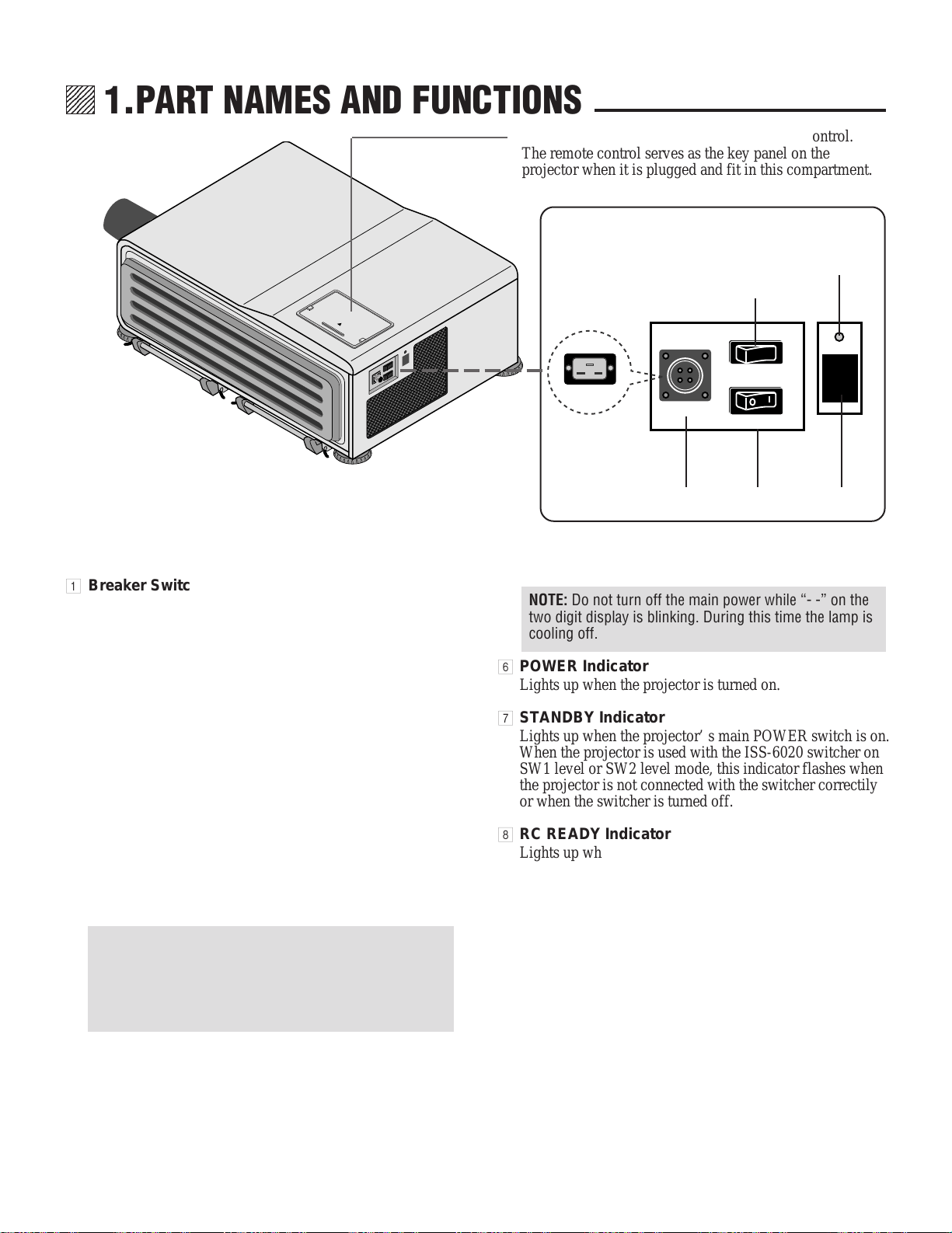
1 Breaker Switch
Press the switch to the ON position to turn on the breaker
and press to the OFF position to turn off the breaker.
When abnormal conditions are encountered, the breaker
will trip and turn the projector off.
If the projector will not be used for an extended period of
time, turn off the breaker by pressing the switch to the
OFF position.
2 Remote Sensor
Receives the signal from the supplied remote control
when used in the wireless mode.
3 Power Switch (Main power)
To turn on the main power to the projector press the
switch to the ON position (I). The STANDBY and the RC
READY indicator will light.
In this condition you can start up the projector by pressing
the POWER ON button on the remote control or the
POWER button on the side panel.
Press to the OFF position (0) to turn the main power off.
NOTE: When turning off the main power, first return the
projector to the standby condition by pressing the
POWER OFF button on the remote control or the POWER
button on the side panel and then turn off the main
POWER switch. These procedures are necessary to
protect your projector and the connected equipment.
4 AC INPUT
Connect the supplied power cord here (AC 200-240V).
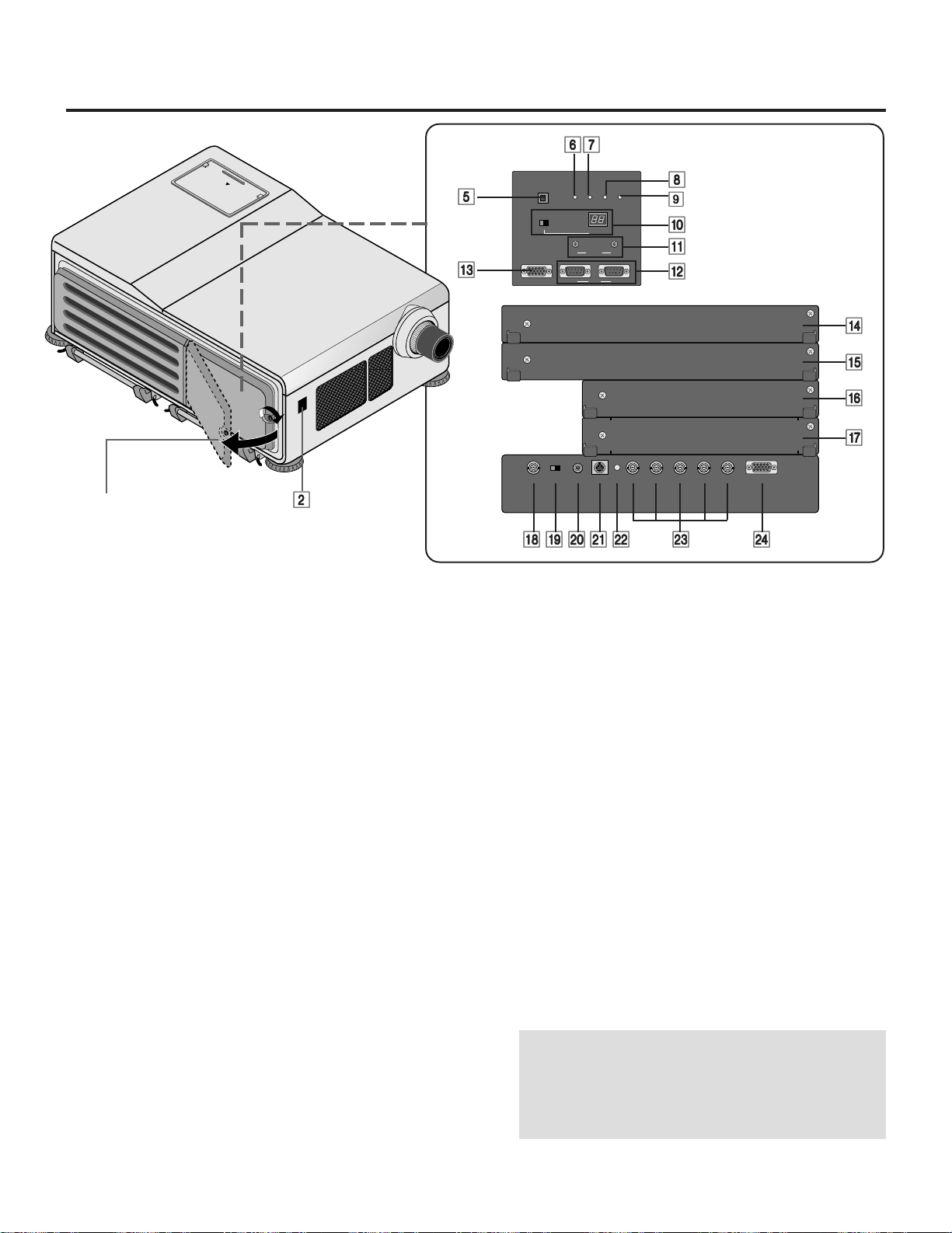
5 POWER Button
Turns the projector on when the projector is in the
standby condition (Main Power switch must be on and
the STANDBY indicator lit). Turns the projector off after
“- -” on the two digit display is blinking for three min-
utes.
,,
,,
@@
@@
ÀÀ
ÀÀ
,,
,,
@@
@@
ÀÀ
ÀÀ
,,
,,
@@
@@
ÀÀ
ÀÀ
,,
,,
@@
@@
ÀÀ
ÀÀ
,,
,,
@@
@@
ÀÀ
ÀÀ
,,
,,
@@
@@
ÀÀ
ÀÀ
,,
,,
@@
@@
ÀÀ
ÀÀ
,,
,,
@@
@@
ÀÀ
ÀÀ
,,
,,
@@
@@
ÀÀ
ÀÀ
,,
,,
@@
@@
ÀÀ
ÀÀ
,,
,,
@@
@@
ÀÀ
ÀÀ
,,
,,
@@
@@
ÀÀ
ÀÀ
,,
,,
@@
@@
ÀÀ
ÀÀ
,,
,,
@@
@@
ÀÀ
ÀÀ
,,
,,
@@
@@
ÀÀ
ÀÀ
,,
,,
@@
@@
ÀÀ
ÀÀ
,,
,,
@@
@@
ÀÀ
ÀÀ
,,
,,
@@
@@
ÀÀ
ÀÀ
,,
,,
@@
@@
ÀÀ
ÀÀ
,,
,,
@@
@@
ÀÀ
ÀÀ
,,
,,
@@
@@
ÀÀ
ÀÀ
,,
,,
@@
@@
ÀÀ
ÀÀ
,,
,,
@@
@@
ÀÀ
ÀÀ
,,
,,
@@
@@
ÀÀ
ÀÀ
,,
,,
@@
@@
ÀÀ
ÀÀ
,,
,,
@@
@@
ÀÀ
ÀÀ
,,
,,
@@
@@
ÀÀ
ÀÀ
,,
,,
@@
@@
ÀÀ
ÀÀ
,,
,,
@@
@@
ÀÀ
ÀÀ
,,
,,
@@
@@
ÀÀ
ÀÀ
,,
,,
@@
@@
ÀÀ
ÀÀ
,,
,,
@@
@@
ÀÀ
ÀÀ
,,
,,
@@
@@
ÀÀ
ÀÀ
,,
,,
@@
@@
ÀÀ
ÀÀ
,,
,,
@@
@@
ÀÀ
ÀÀ
,,
,,
@@
@@
ÀÀ
ÀÀ
,,
,,
@@
@@
ÀÀ
ÀÀ
,,
,,
@@
@@
ÀÀ
ÀÀ
This compartment accommodates the remote control.
The remote control serves as the key panel on the
projector when it is plugged and fit in this compartment.
NOTE: Do not turn off the main power while “- -” on the
two digit display is blinking. During this time the lamp is
cooling off.
6 POWER Indicator
Lights up when the projector is turned on.
7 STANDBY Indicator
Lights up when the projector’ s main POWER switch is on.
When the projector is used with the ISS-6020 switcher on
SW1 level or SW2 level mode, this indicator flashes when
the projector is not connected with the switcher correctily
or when the switcher is turned off.
8 RC READY Indicator
Lights up when the projector’s main POWER switch is on.
Flashes when the projector receives a signal from the
remote control.
9 LAMP Indicator
Displays the lamp on or off.
Indicator illuminates—Lamp is turned on
Indicator goes out-Lamp is turned off
0 Two Digit Display
INDICATOR: Displays projector error codes.(“00” in
normal operation)
ON/OFF Switch: Turns the INDICATOR on or off.
A REMOTE 2 Jacks
IN: for the wired remote control.
OUT: for daisy-chaining multiple projectors and operating
them with the same remote control. To do so, connect to a
second projector’ s IN terminal to relay the input at the IN
terminal of the first projector until all the projectors are
connected.
OFF BREAKER ON
XL-6500G
OFF POWER ON
AC INPUT
POWER
ON/STANDBY Indicator
AC INPUT
POWER ON/STANDBY Indicator
lights in green when the projector is turned on and
lights in red when the projector is in standby.
11
11
1
44
44
4
33
33
3
22
22
2
9
POWER ON/OFF
OFF ON
IN OUT
POWER STANDBY RCREADY
INDICATOR
REMOTE2
IN OUT
OPTIONREMOTE1
VIDEO BNC RCA VIDEO S-VIDEO R/Cr G/Y B/Cb H/HV V OSD OUT
LAMP
1.PART NAMES AND FUNCTIONS
B OPTION Connectors (D-Sub 9-pin)
For system expansion such as PC-control.
IN: connect to the external equipment such as PC.
OUT: for daisy-chaining multiple projectors and operating
them with the same external equipment. To do so, connect
to a second projector’ s IN terminal to relay the input at
the IN terminal of the first projector until all the projectors
are connected.
C REMOTE 1 Connector (Mini D-Sub 15-pin)
This terminal allows external control of the projector from
either the Switcher or from an external control. When the
Switcher is used, connect to the REMOTE 1 terminal on
the back of the Switcher.
NOTE: The ISS-6020/ISS-6020G Switcher is compatible
with this projector.
D INPUT E
Not used.
E INPUT D
Used for the factory-installed video processor only.
F INPUT C
Slot for adding optional RGB or video input cards.
G INPUT B
Slot for adding optional RGB or video input cards.
H VIDEO Input BNC Terminal (INPUT A)
Connect to the BNC video output of the external equip-
ment such as a VCR or laser disk player.
I VIDEO Input Select Switch
Selects VIDEO input between BNC and RCA type.
Loosen the screw by turning
and open to access the terminal
panel.
J VIDEO Input RCA Terminal (INPUT A)
Connect to the RCA video output of the external equip-
ment such as a VCR or laser disk player.
K S-VIDEO Input Terminal (INPUT A)
Connect to the S-video output of the external equipment
such as a VCR with an S-video output.This terminal
allows switching between S2 and S1 VIDEO input modes.
See the “S-Video Mode” section for more information.
L Active Indicator (green LED)
Lights up when the INPUT A slot is selected.
M R/Cr, G/Y, B/Cb, H H/V and V Input Terminals
(INPUT A)
Connect R,G,B,H (Horizontal sync) and V (Vertical sync)
outputs of the external equipment such as the Switcher). If
using a component with a combined sync (SYNC)output,
connect it to the H/V terminal.
Connect component video outputs of the external equip-
ment such as DVD player.
N OSD OUT Connector (Mini D-Sub 15-pin)
Outputs on-screen information. You can use this connec-
tor to loop your on-screen information to an external
monitor.
NOTE:
1)A picture may be distorted or no picture may appear
when any one of the following procedures is performed:
* An SXGA signal is input to the projector.
* A High-refresh signal is input to the projector.
2)Some types of monitor may display no image on the screen.
,,
,,
@@
@@
ÀÀ
ÀÀ
,,
,,
@@
@@
ÀÀ
ÀÀ
,,
,,
@@
@@
ÀÀ
ÀÀ
,,
,,
@@
@@
ÀÀ
ÀÀ
,,
,,
@@
@@
ÀÀ
ÀÀ
,,
,,
@@
@@
ÀÀ
ÀÀ
,,
,,
@@
@@
ÀÀ
ÀÀ
,,
,,
@@
@@
ÀÀ
ÀÀ
,,
,,
@@
@@
ÀÀ
ÀÀ
,,
,,
@@
@@
ÀÀ
ÀÀ
,,
,,
@@
@@
ÀÀ
ÀÀ
,,
,,
@@
@@
ÀÀ
ÀÀ
,,
,,
@@
@@
ÀÀ
ÀÀ
,,
,,
@@
@@
ÀÀ
ÀÀ
,,
,,
@@
@@
ÀÀ
ÀÀ
,,
,,
@@
@@
ÀÀ
ÀÀ
,,
,,
@@
@@
ÀÀ
ÀÀ
,,
,,
@@
@@
ÀÀ
ÀÀ
,,
,,
@@
@@
ÀÀ
ÀÀ
,,
,,
@@
@@
ÀÀ
ÀÀ
,,
,,
@@
@@
ÀÀ
ÀÀ
,,
,,
@@
@@
ÀÀ
ÀÀ
,,
,,
@@
@@
ÀÀ
ÀÀ
,,
,,
@@
@@
ÀÀ
ÀÀ
,,
,,
@@
@@
ÀÀ
ÀÀ
,,
,,
@@
@@
ÀÀ
ÀÀ
,,
,,
@@
@@
ÀÀ
ÀÀ
,,
,,
@@
@@
ÀÀ
ÀÀ
,,
,,
@@
@@
ÀÀ
ÀÀ
,,
,,
@@
@@
ÀÀ
ÀÀ
,,
,,
@@
@@
ÀÀ
ÀÀ
,,
,,
@@
@@
ÀÀ
ÀÀ
,,
,,
@@
@@
ÀÀ
ÀÀ
,,
,,
@@
@@
ÀÀ
ÀÀ
,,
,,
@@
@@
ÀÀ
ÀÀ
,,
,,
@@
@@
ÀÀ
ÀÀ
,,
,,
@@
@@
ÀÀ
ÀÀ
,,
,,
@@
@@
ÀÀ
ÀÀ
,
,
@
@
À
À
,
,
@
@
À
À
,
,
@
@
À
À
,
,
@
@
À
À
,
,
@
@
À
À
,
,
@
@
À
À
,
,
@
@
À
À
,
,
@
@
À
À
,
,
@
@
À
À
,
,
@
@
À
À
,
,
@
@
À
À
,
,
@
@
À
À
,
,
@
@
À
À
,
,
@
@
À
À
,
,
@
@
À
À
,
,
@
@
À
À
,
,
@
@
À
À
,
,
@
@
À
À
,
,
@
@
À
À
,
,
@
@
À
À
,
,
@
@
À
À
,
,
@
@
À
À
,
,
@
@
À
À
,
,
@
@
À
À
,
,
@
@
À
À
,
,
@
@
À
À
,
,
@
@
À
À
,
,
@
@
À
À
,
,
@
@
À
À
,
,
@
@
À
À
,
,
@
@
À
À
,
,
@
@
À
À
,
,
@
@
À
À
,
,
@
@
À
À
,
,
@
@
À
À
,
,
@
@
À
À
,
,
@
@
À
À
,
,
@
@
À
À
55
55
5
66
66
6
AA
AA
A
BB
BB
B
CC
CC
C
00
00
0
99
99
9
88
88
8
77
77
7
DD
DD
D
EE
EE
E
FF
FF
F
GG
GG
G
HH
HH
H
II
II
I
JJ
JJ
J
KK
KK
K
LL
LL
L
MM
MM
M
NN
NN
N
22
22
2
10
1.PART NAMES AND FUNCTIONS
OPTIONAL Boards
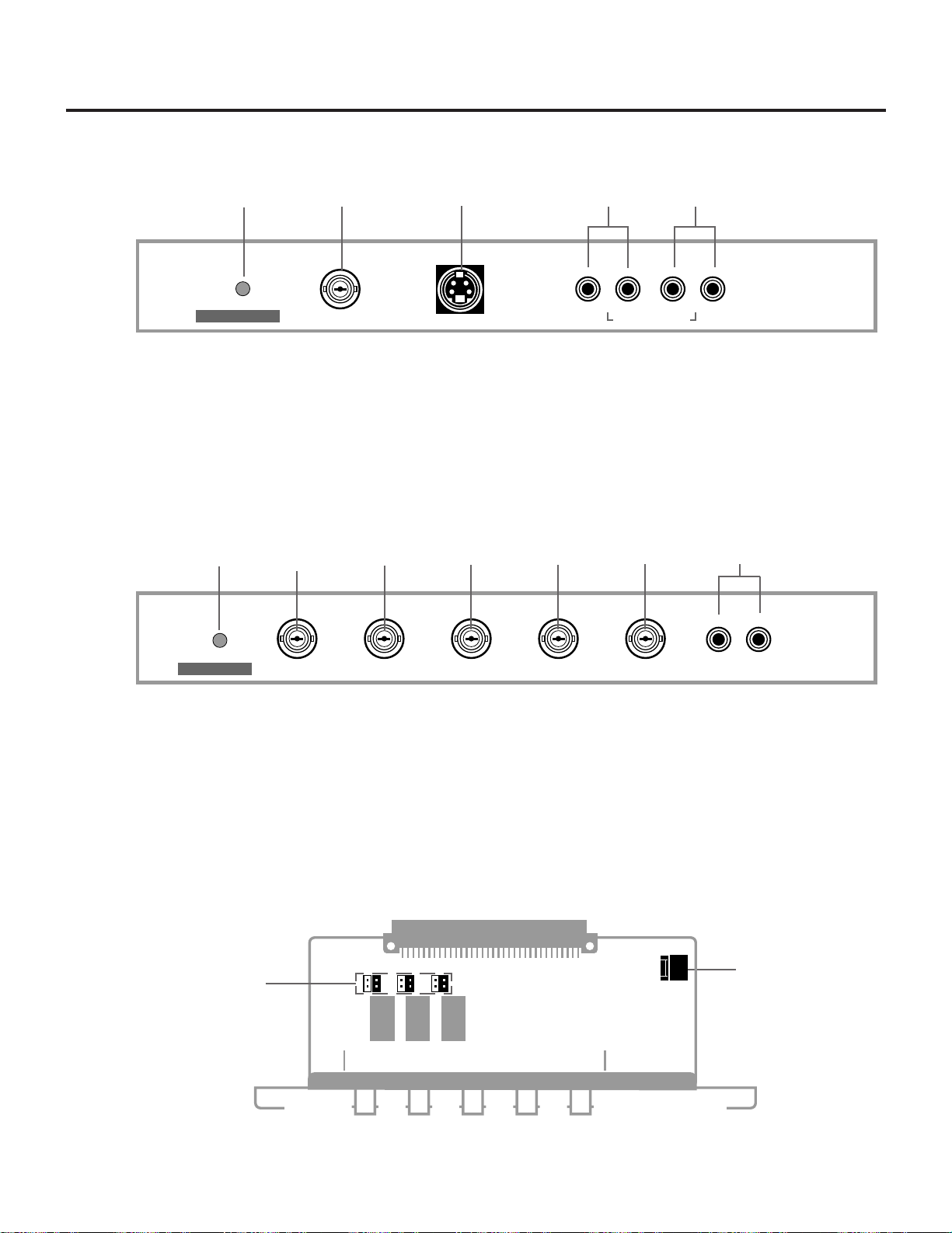
VIDEO INPUT Board [XG VIDIN (A)]
Front view
1 Active Indicator (green LED)...... Lights up when this board is selected.
2 VIDEO INPUT Terminal ............... Connects composite video output signals.
3 S-VIDEO INPUT Terminal ........... Connects S-video output signals.
4 VIDEO INPUT Terminal ............... Connect to the audio outputs of the external equipment such as a VCR.
(Not available on this model.)
5 S-VIDEO INPUT Terminal ........... Connect to the S-video audio outputs of the external equipment such as a VCR
with S-video outputs. (Not available on this model.)
RGB INPUT Board [XG RGBIN (A)]
Front view
1 Active Indicator (green LED)...... Lights up when this board is selected.
2 R Input Terminal.......................... Connects an Red output signal.
3 G Input Terminal ......................... Connects a Green output signal.
4 B Input Terminal.......................... Connects a Blue output signal.
5 H/HV Input Terminal.................... Connects horizontal sync or horizontal/vertical sync output signals.
6 V Input Terminal.......................... Connects a vertical sync output signal.
7 AUDIO Input Terminals............... Connect to the audio outputs of the external equipment such as ISS-6020/6020G.
(Not available on this model.)
RGB INPUT Board
Top view
8 Rotary Switch (S1001)
9 Jumper(S1002, S1003, S1004)
8
RGB INPUT
R G B H/HV V
LR
AUDIO INPUT
1 23
4 5
6 7
9
S-VIDEO
VIDEO INPUT
VIDEO
LRLR
S-VIDEOVIDEO
AUDIO INPUT
312
5
4
11
1.PART NAMES AND FUNCTIONS
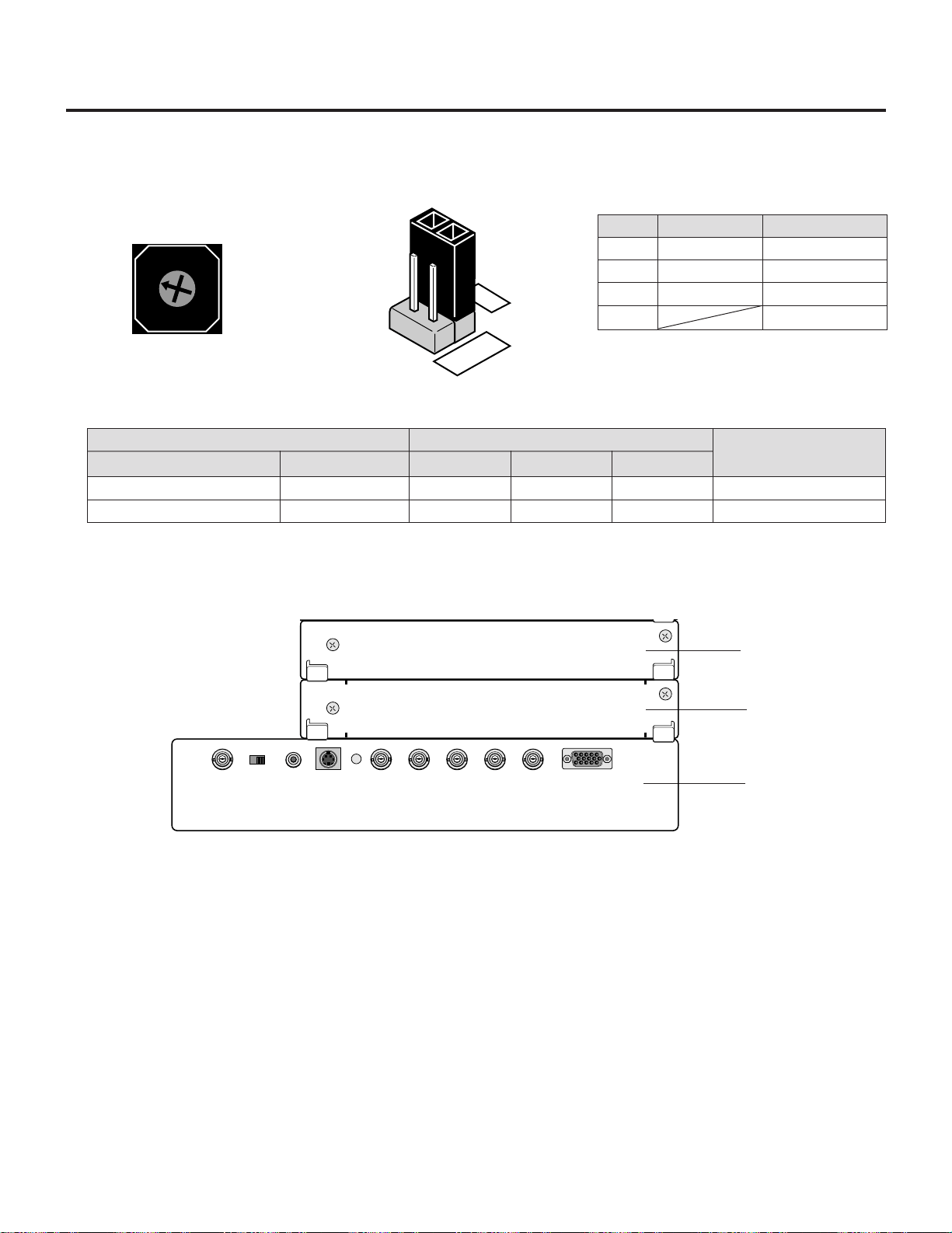
The combination of the rotary switch and the jumper pins allows the projector to accept VIDEO signals. Note that this board cannot
accept RGB signals when board is set to VIDEO input.
Rotary switch (S1001)
5
4
3
2
1
0
9
8
7
6
SLOT FOR OPTIONAL MODULE
Corresponding slot number
You can also select the input signal directly by pressing the INPUT “1” through “10” button. In this case INPUT buttons function as
follows:
1) When the slot A(Mother board) is selected:
INPUT 1...... RGB input
INPUT 2...... VIDEO input
INPUT 3...... S-VIDEO input
2) When the slot B (optional board) is selected:
When VIDEO board installed When RGB board installed
INPUT 4...... VIDEO input INPUT 4 ...... RGB input
INPUT 5...... S-VIDEO input
3) When the slot C (optional board) is selected:
When VIDEO board installed When RGB board installed
INPUT 7...... VIDEO input INPUT 7 ...... RGB input
INPUT 8...... S-VIDEO input
Input
VIDEO input
Option
RGB input
Not used
Mark
VIDEO
OPTION
RGB
No.
0
1
3
2, 4-9
Jumper (S1002, S1003, S1004)
VIDEO
4
3
2
RGB
Rotary Switch(S1001)
0
3
Jumpers
(2, 3) Short
(1, 2) Short
R terminal
VIDEO
R
G terminal
Y
G
B terminal
C
B
Board Identification
VIDEO
RGB
Input Signal
Setting of Rotary switch and Jumpers
Table for Setting Rotary Switch and Jumpers.
Setting of Rotary switch
*1 ) No 1 is for future system expansion.
*2) No 3 is factory preset.
*1
*2
*
* indicates factory preset.
INPUT B slot
INPUT C slot
INPUT A slot
VIDEO BNC RCA VIDEO S-VIDEO R/Cr G/Y B/Cb H/HV V
OSD OUT
12
1.PART NAMES AND FUNCTIONS
Remote control unit
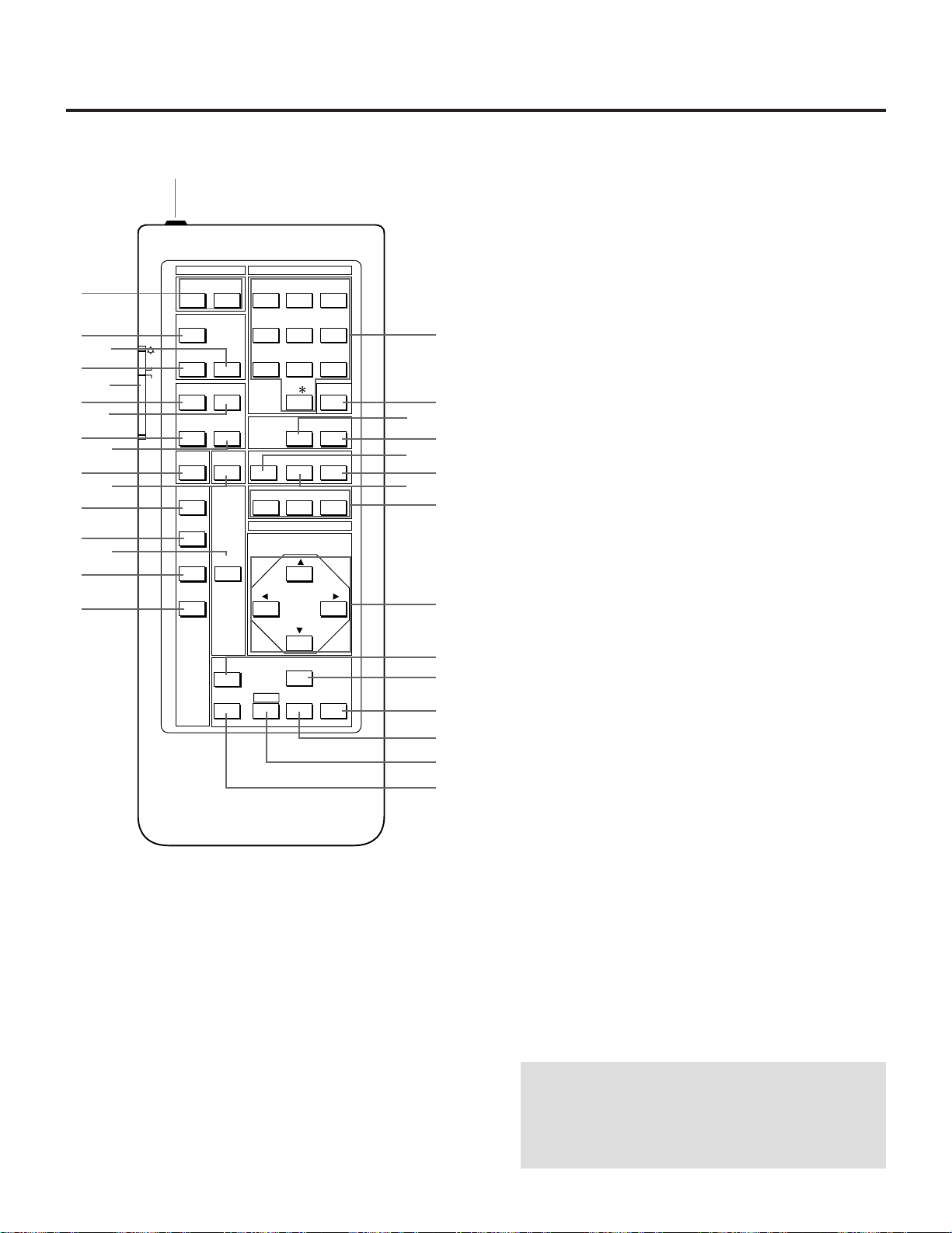
1 Remote Jack
Insert the supplied remote cable here.
2 POWER Buttons (ON/OFF)
Press the ON button to turn the projector on when the
projector is in the standby condition (STANDBY and RC
READY indicators lit). Press the OFF button to return the
projector to the standby condition.
3 TEST Button
Press to display the TEST PATTERN menu from which
you can select a test pattern.
4 ADJUST Button
Press to display the ADJUST menu.
5 OPERATE Button
Press to display the OPERATE menu.Hold down the CTL
button and then press the OPERATE button to directly
display the Lens Control adjustment screen.
6 Backlight Switch
Turns the backlight on and off.
If no button operation is made within 30 seconds with the
Backlight ON, the Backlight will turn off to conserve
battery life. The light stays on in standby and power-on
when the remote control is used as a wired remote.
7 PIC CTL Button
Press to display the picture adjustment screen.
NOTE: Some function items will not be available depend-
ing on the type of video signal.
8 SOUND CTL Button
Press to display the VOLUME adjustment screen. You
can adjust the volume of the ISS-6020/ISS-6020G
Switcher. (when used with the ISS-6020 switcher on SW1
level or SW2 level mode)
9 PICTURE (PIC) MUTE Button
Press to mute the picture. Press again to display the
picture.
0 SOUND MUTE Button
Press to mute the sound. Press again to return the sound.
(when used with the ISS-6020 switcher on SW1 level or
SW2 level mode)
A DISPLAY Button
Press to turn on or off the on-screen display. Pressing with
CTL eliminates the on-screen display; pressing with CTL
will restore display.
NOTE: Even if the on-screen display may be turned off
with pressing CTL and DISPLAY, any adjustment will
still change the projector’ s memory settings. This mode
is available even when an input is switched to another or
the power is turned off using the POWER OFF button on
the remote control.
You can use your remote control with the cable or wirelessly
to operate your MultiSync Hivid 6500 Projector.
If you want to use your remote control with the cable, connect
one end of the cable to the jack on the remote control and the
other end to the REMOTE 2 IN jack of the projector.
1 ABC 2 DEF 3 GHIOFFON
4 JKL 5 MNO 6 PQRTEST
7 STU 8 VWX 9 YZ/
ADJUST
OPERATE
10 ,.
SOUND CTL
PIC CTL
INFO
INPUT LIST
SOUND MUTE
PIC MUTE
POSITION
KELVINHELP
DISPLAY
RG B
ADDRESS
SIG LEVEL
GAMMA
PIXEL CLK
PIXEL PHASE
STORE
DELETE
CTL ENTER END
NORMAL
ZOOM/PAN
POWER INPUT
CURSOR
ON
OFF
CAPTION
2
H
I
J
L
N
K
M
O
P
Q
S
T
U
V
R
1
7
9
A
C
D
F
G
3
5
4
6
8
0
B
E

13
1.PART NAMES AND FUNCTIONS
B HELP Button
Press to display the explanation of the current selected
function and available functions.
C SIG LEVEL Button
Press to display the SIGNAL LEVEL menu. You can set
the level for an RGB or component signal.
D GAMMA Button
Press to display the GAMMA CORRECTON menu. You
can select two options.
E ADDRESS Button
Press to display the ADDRESS menu. Pressing with CTL
allows you to specify the address for the remote control.
F PIXEL CLK Button
Press to display the PIXEL CLOCK adjustment screen.
You can adjust a picture width to the screen by adjusting
the clock frequencies to eliminate the vertical banding in
the image.
G PIXEL PHASE
Press to display the PIXEL PHASE adjustment screen.
You can adjust the clock phase to reduce video noise, dot
interference or cross talk. (This is evident when part of
your image appears to be shimmering.)
H INPUT Button
Selects menus and switches input signals.
I CAPTION Button
Press to display the CLOSED CAPTION menu.
J INFO Button
Press to display the various parameters and settings of the
currently displayed image. Pressing with the CTL button
displays some of items available.
K INPUT LIST Button
Press to display the memory list of the recorded input
signals.
L ZOOM/PAN Button
Press to display the ZOOM adjustment screen. The zoom
function enlarge or reduce the projected image. Pressing
with CTL displays the PAN adjustment screen. The pan
function enlarge or reduce the selected part of an image.
M KELVIN Button
Press to enter the KELVIN mode. You can adjust the
color temperature.
N POSITION Button
Press to enter the position mode. You can adjust the
horizontal, vertical position and horizontal, vertical
blanking and image size.
O R, G, and B Buttons
The R and B buttons are used for Uniformity only.
P CURSOR Buttons
Used for increasing and decreasing control levels, cursor
movement and convergence adjustments.
Q DELETE Button
Used to delete characters or numbers you typed.
R NORMAL Button
Returns the standard level for each signal. When pressed
once, the confirmation message will be displayed. When
“YES” is selected and ENTER is pressed, the data will be
returned to the standard level. While holding down the
CTL button, press the NORMAL button to display the
LOAD menu to select the LOAD (last stored level).
S STORE Button
Memorizes the adjustments setting of each signal sepa-
rately.
When pressed once, the confirmation message “STORE?”
will be displayed. When selecting “YES” and ENTER, the
data will be stored in memory.
T END Button
Ends the adjustment mode.
U ENTER Button
Executes menu selection and switches to selected input.
V CTL Button
Used in conjunction with other buttons, similar to a shift
key on a computer.
14
1.PART NAMES AND FUNCTIONS
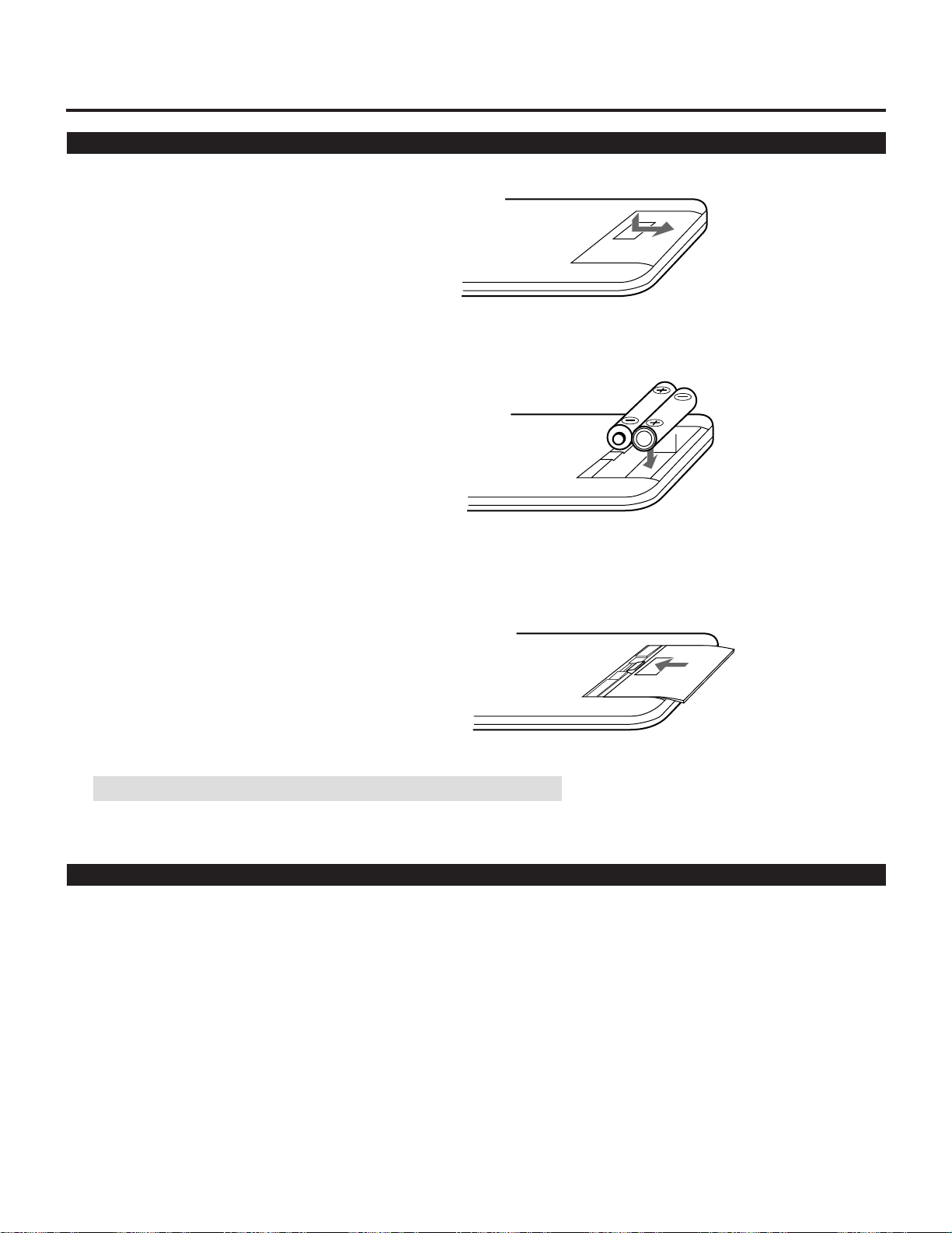
Remote Control Battery Installation
3. Slip the cover back over the batteries until it snaps into place.
1. Press firmly and slide the battery cover off.
2. Remove both old batteries and install new ones (AA).
Ensure that you have the batteries’ polarity (+/-) aligned correctly.
NOTE: The remote control is powered by two alkaline 1.5V AA batteries.
Remote Control Precautions
• When using the remote wirelessly, you should be within 23 ft.(7 m) of the projector and at an angle of no more than 30 degrees.
• When the cable is connected to the remote control, it will not work wirelessly.
• Handle the remote control carefully.
• If the remote control gets wet, wipe it dry immediately.
• Avoid excessive heat and humidity.
• If you will not be using the remote control for a long time, remove the batteries.
• Do not mix new and old or different types of batteries.
• Avoid using the remote control as wireless with the backlight switch ON for an extended period of time. This can cause short
battery life.
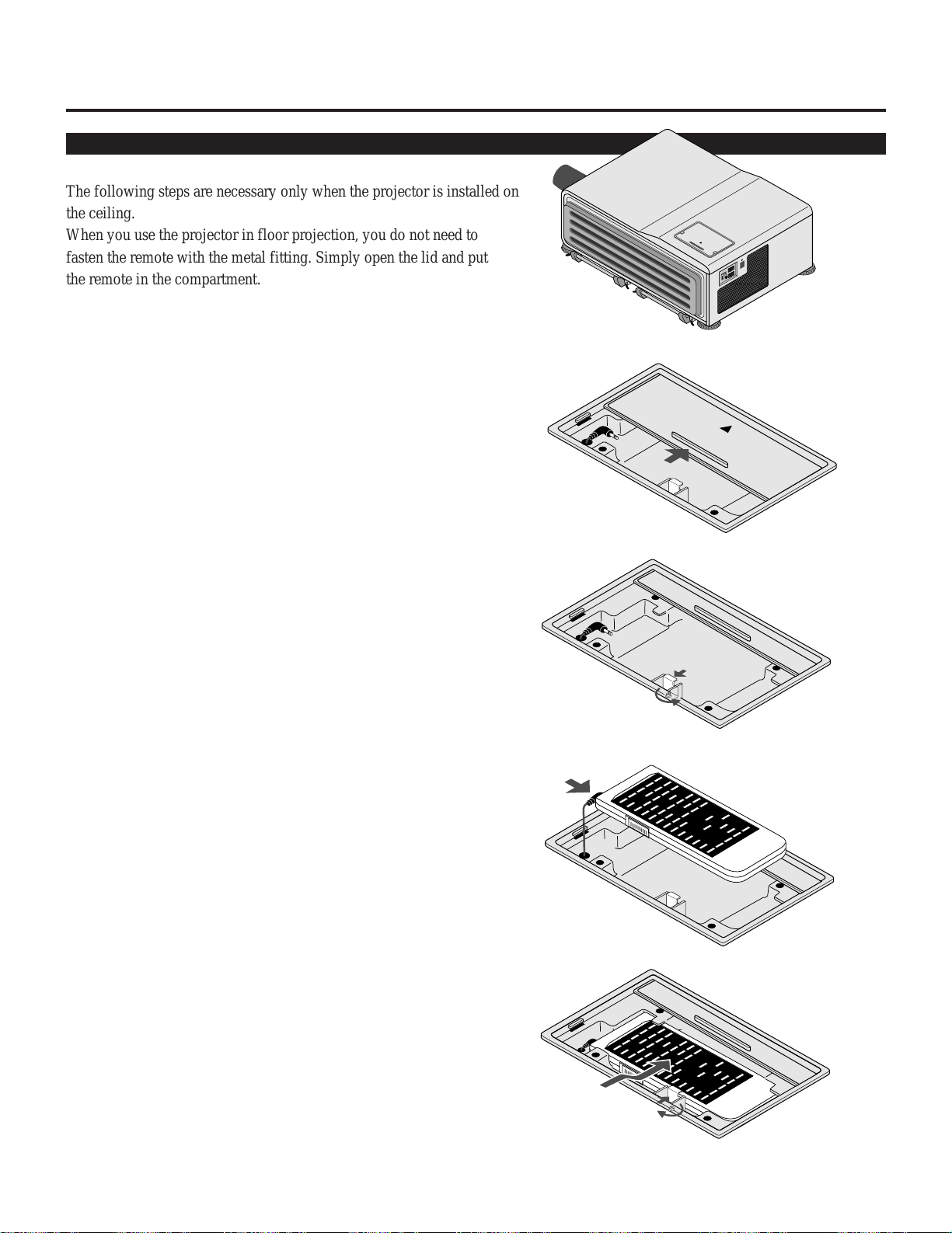
• Be sure to secure the remote control with the metal fitting when installing the projector on the ceiling and using the remote
control as the key panel of the projector.
15
1.PART NAMES AND FUNCTIONS
When using the remote control as the key panel on the projector:
1. Slide and open the lid.
2. Loosen the screw on the metal fitting.
4. Place the remote control in the compartment.
5. Tighten the screw and secure the remote control with the
metal fitting.
3. Plug the mini plug into the remote jack of the remote control.
Rem
ote Control Unit
OPEN
,,
,,
@@
@@
ÀÀ
ÀÀ
,,
,,
@@
@@
ÀÀ
ÀÀ
,,
,,
@@
@@
ÀÀ
ÀÀ
,,
,,
@@
@@
ÀÀ
ÀÀ
,,
,,
@@
@@
ÀÀ
ÀÀ
,,
,,
@@
@@
ÀÀ
ÀÀ
,,
,,
@@
@@
ÀÀ
ÀÀ
,,
,,
@@
@@
ÀÀ
ÀÀ
,,
,,
@@
@@
ÀÀ
ÀÀ
,,
,,
@@
@@
ÀÀ
ÀÀ
,,
,,
@@
@@
ÀÀ
ÀÀ
,,
,,
@@
@@
ÀÀ
ÀÀ
,,
,,
@@
@@
ÀÀ
ÀÀ
,,
,,
@@
@@
ÀÀ
ÀÀ
,,
,,
@@
@@
ÀÀ
ÀÀ
,,
,,
@@
@@
ÀÀ
ÀÀ
,,
,,
@@
@@
ÀÀ
ÀÀ
,,
,,
@@
@@
ÀÀ
ÀÀ
,,
,,
@@
@@
ÀÀ
ÀÀ
,,
,,
@@
@@
ÀÀ
ÀÀ
,,
,,
@@
@@
ÀÀ
ÀÀ
,,
,,
@@
@@
ÀÀ
ÀÀ
,,
,,
@@
@@
ÀÀ
ÀÀ
,,
,,
@@
@@
ÀÀ
ÀÀ
,,
,,
@@
@@
ÀÀ
ÀÀ
,,
,,
@@
@@
ÀÀ
ÀÀ
,,
,,
@@
@@
ÀÀ
ÀÀ
,,
,,
@@
@@
ÀÀ
ÀÀ
,,
,,
@@
@@
ÀÀ
ÀÀ
,,
,,
@@
@@
ÀÀ
ÀÀ
,,
,,
@@
@@
ÀÀ
ÀÀ
,,
,,
@@
@@
ÀÀ
ÀÀ
,,
,,
@@
@@
ÀÀ
ÀÀ
,,
,,
@@
@@
ÀÀ
ÀÀ
,,
,,
@@
@@
ÀÀ
ÀÀ
,,
,,
@@
@@
ÀÀ
ÀÀ
,,
,,
@@
@@
ÀÀ
ÀÀ
,,
,,
@@
@@
ÀÀ
ÀÀ
The following steps are necessary only when the projector is installed on
the ceiling.
When you use the projector in floor projection, you do not need to
fasten the remote with the metal fitting. Simply open the lid and put
the remote in the compartment.
16
1234567
1
23456
7
1
23456
7
1
23456
7
1
23456
7
1234567
2. INSTALLATION
Selecting A Location
The further your projector is from the screen or wall, the larger the
image. The minimum size the image can be projected is 80" (2 m)
measured diagonally. The largest the image can be is 500" (12.7 m).
WARNING
• Only use your projector on a solid, level surface. If the projector falls to
the ground, you can be injured and the projector severely damaged.
• Do not use the projector where temperatures vary greatly. The projector
must be used at temperatures between 50 degrees F (10 degree C) and
104 degrees F (40 degree C).
• Do not expose the projector to moisture, dust, or smoke. This will harm
the screen image.
• Ensure that you have adequate ventilation around your projector so heat
can dissipate. Do not cover the vents on the bottom or back of the
projector.
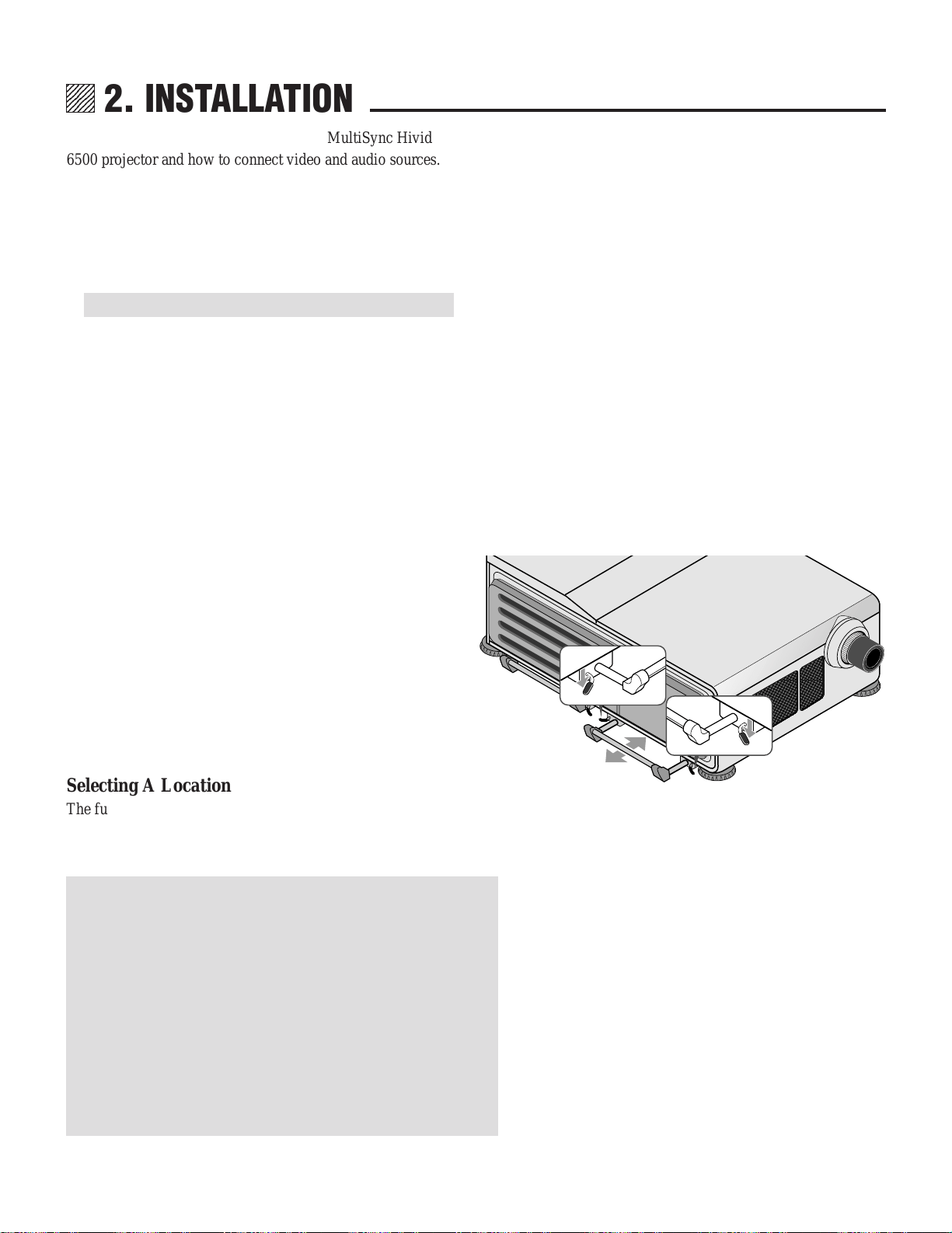
Pulling Out the Handles
Pull out the handle from the bottom side.
Retracting the Handles
Press down the two levers at the same time to retract the
handle.
Setting Up Your MultiSync Hivid 6500 Projector
To set up and use your MultiSync Hivid 6500 Projector, you
must first do:
1. Determine the screen size and the optional lens to be used.
NOTE: Consult your dealer for lens order and installation.
2. Set up a screen or select a non-glossy white wall onto
which you can project your image.
Moving The Projector
Always carry your projector by the handle. Ensure that the
power cord and any other cables connecting to video sources
are disconnected before moving the projector. When moving
the projector or when it is not in use, cover the lens with the
lens cap.
,,
,,
@@
@@
ÀÀ
ÀÀ
,,
,,
@@
@@
ÀÀ
ÀÀ
,,
,,
@@
@@
ÀÀ
ÀÀ
,,
,,
@@
@@
ÀÀ
ÀÀ
,,
,,
@@
@@
ÀÀ
ÀÀ
,,
,,
@@
@@
ÀÀ
ÀÀ
,,
,,
@@
@@
ÀÀ
ÀÀ
,,
,,
@@
@@
ÀÀ
ÀÀ
,,
,,
@@
@@
ÀÀ
ÀÀ
,,
,,
@@
@@
ÀÀ
ÀÀ
,,
,,
@@
@@
ÀÀ
ÀÀ
,,
,,
@@
@@
ÀÀ
ÀÀ
,,
,,
@@
@@
ÀÀ
ÀÀ
,,
,,
@@
@@
ÀÀ
ÀÀ
,,
,,
@@
@@
ÀÀ
ÀÀ
,,
,,
@@
@@
ÀÀ
ÀÀ
,,
,,
@@
@@
ÀÀ
ÀÀ
,,
,,
@@
@@
ÀÀ
ÀÀ
,,
,,
@@
@@
ÀÀ
ÀÀ
,,
,,
@@
@@
ÀÀ
ÀÀ
,,
,,
@@
@@
ÀÀ
ÀÀ
,,
,,
@@
@@
ÀÀ
ÀÀ
,,
,,
@@
@@
ÀÀ
ÀÀ
,,
,,
@@
@@
ÀÀ
ÀÀ
,,
,,
@@
@@
ÀÀ
ÀÀ
,,
,,
@@
@@
ÀÀ
ÀÀ
,,
,,
@@
@@
ÀÀ
ÀÀ
,,
,,
@@
@@
ÀÀ
ÀÀ
,,
,,
@@
@@
ÀÀ
ÀÀ
,,
,,
@@
@@
ÀÀ
ÀÀ
,,
,,
@@
@@
ÀÀ
ÀÀ
,,
,,
@@
@@
ÀÀ
ÀÀ
,,
,,
@@
@@
ÀÀ
ÀÀ
,,
,,
@@
@@
ÀÀ
ÀÀ
,,
,,
@@
@@
ÀÀ
ÀÀ
,,
,,
@@
@@
ÀÀ
ÀÀ
,,
,,
@@
@@
ÀÀ
ÀÀ
,,
,,
@@
@@
ÀÀ
ÀÀ
,
,
@
@
À
À
,
,
@
@
À
À
,
,
@
@
À
À
,
,
@
@
À
À
,
,
@
@
À
À
,
,
@
@
À
À
,
,
@
@
À
À
,
,
@
@
À
À
,
,
@
@
À
À
,
,
@
@
À
À
,
,
@
@
À
À
,
,
@
@
À
À
,
,
@
@
À
À
,
,
@
@
À
À
,
,
@
@
À
À
,
,
@
@
À
À
,
,
@
@
À
À
,
,
@
@
À
À
,
,
@
@
À
À
,
,
@
@
À
À
,
,
@
@
À
À
,
,
@
@
À
À
,
,
@
@
À
À
,
,
@
@
À
À
,
,
@
@
À
À
,
,
@
@
À
À
,
,
@
@
À
À
,
,
@
@
À
À
,
,
@
@
À
À
,
,
@
@
À
À
,
,
@
@
À
À
,
,
@
@
À
À
,
,
@
@
À
À
,
,
@
@
À
À
,
,
@
@
À
À
,
,
@
@
À
À
,
,
@
@
À
À
,
,
@
@
À
À
This section describes how to set up your MultiSync Hivid
6500 projector and how to connect video and audio sources.
17
Screen Size and Projection Distance
1. Place your projector on a flat level surface at the
optimal distance from the screen or wall so you
realize the size image you want. (Avoid having
bright room lighting or sun light directly on the
screen or wall where you’ll be projecting the
image.)
2. Connect the power cable, remove the lens cap and
turn the projector on. (If no input signal is avail-
able, the projector will display a black screen.)
3. Ensure that the projector is square to the screen.
4. Move the projector left or right to center the image
horizontally on the screen.
5. To move the projected image up or down, select the
Lens Control from the Operate menu.
6. Adjust the focus using the Lens Control on the
Operate menu.
7. Increase or reduce the size of the projected image
by using the ZOOM/PAN button on the remote
control.
2.INSTALLATION
Projector
Screen
Lens center
Screen center
Projector
Screen
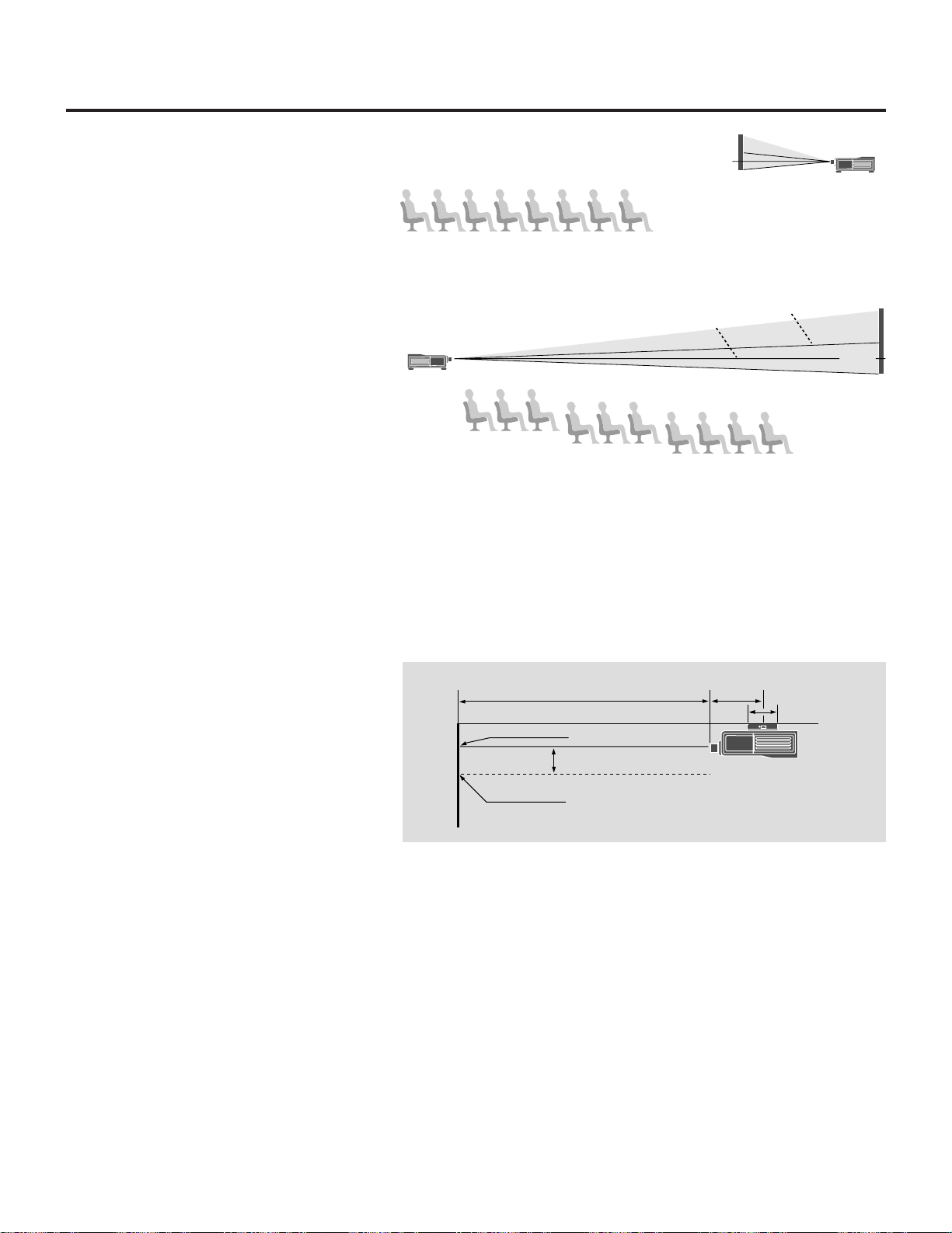
Ceiling Installation
Installing your MultiSync Hivid 6500 Projector
on the ceiling must be done by a qualified
technician. Contact your NEC dealer for more
information.
Do not attempt to install the projector yourself.
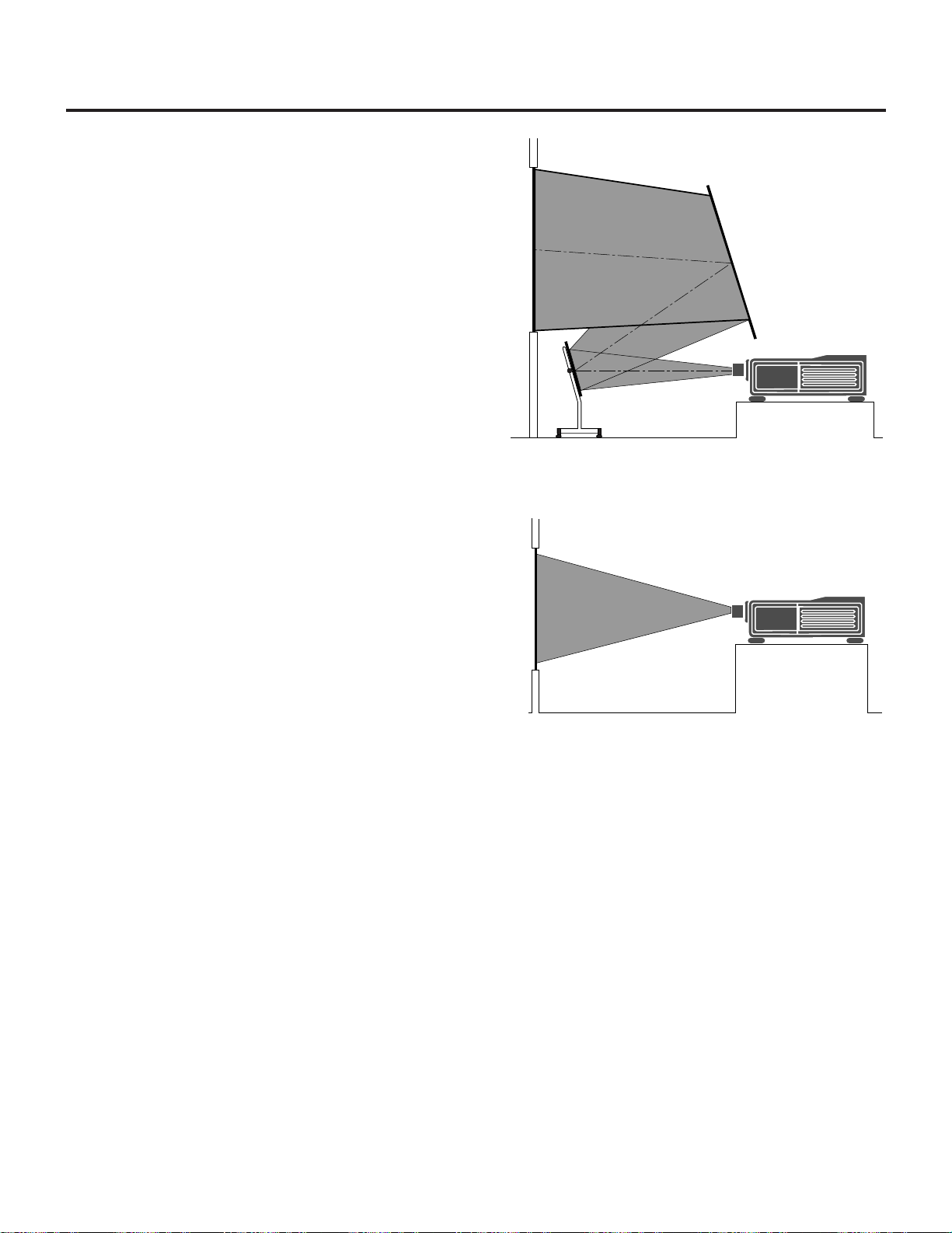
The following shows the proper relative posi-
tions of the projector and screen. Refer to the
table to determine the position of installation.
Install in such a way that the projector and
screen are positioned in the proper direction and
at the proper angle. If not, the projector’ s
performance will be affected and its reliability
will decrease. Be sure to position the projector
properly.
The manufacturer will not be held responsible
for any problems occurring when the projector is
not installed in the proper position.
If your projector is mounted on the ceiling and
your image is upside down, use PJ ORIENTA-
TION on the ADJUST-SETTING Menu to
correct the orientation. (See page 59.)
Projection distance
Screen center
Vertical offset
Lens center
26.93''
(684mm)
11.61''
(295mm)
18
2.INSTALLATION
Model No.
Fixed focal length lens
Zoom lens
1.27:1
3.0:1 5.0:1 7.0:1
Zoom1.5-3.0
Zoom3.0-7.0
XL-L1.27 XL-L3 XL-L5 XL-L7
XL-L1.5Z
XL-L3Z
2.58m
102in
6.10m
240in
10.16m
400in
14.22m
560in
3.05-6.10m
120-240in
6.10-14.22m
240-600in
5.16m
203in
12.19m
480in
20.32m
800in
28.45m
1120in
6.10-12.19m
240-480in
12.19-28.45m
480-1120in
7.74m
305in
18.29m
720in
30.48m
1200in
42.67m
1680in
9.14-18.29m
360-720in
18.29-42.67m
720-1680in
10.32m
406in
24.38m
960in
40.64m
1600in
56.90m
2240in
12.19-24.38m
480-960in
24.38-56.90m
960-2240in
12.90m
508in
30.48m
1200in
50.80m
2000in
71.12m
2800in
15.24-30.48m
600-1200in
30.48-71.12m
1200-2800in
1/2V 1/2V 1/2V 1/2V 1/4V 1/4V
V=Screen Height (inch)
100"
200"
300"
400"
500"
Vertical offset
■ Projection model : XL-3500/3500G
Magnification
Lens
Screen size
(Diagonal)
Projection distance
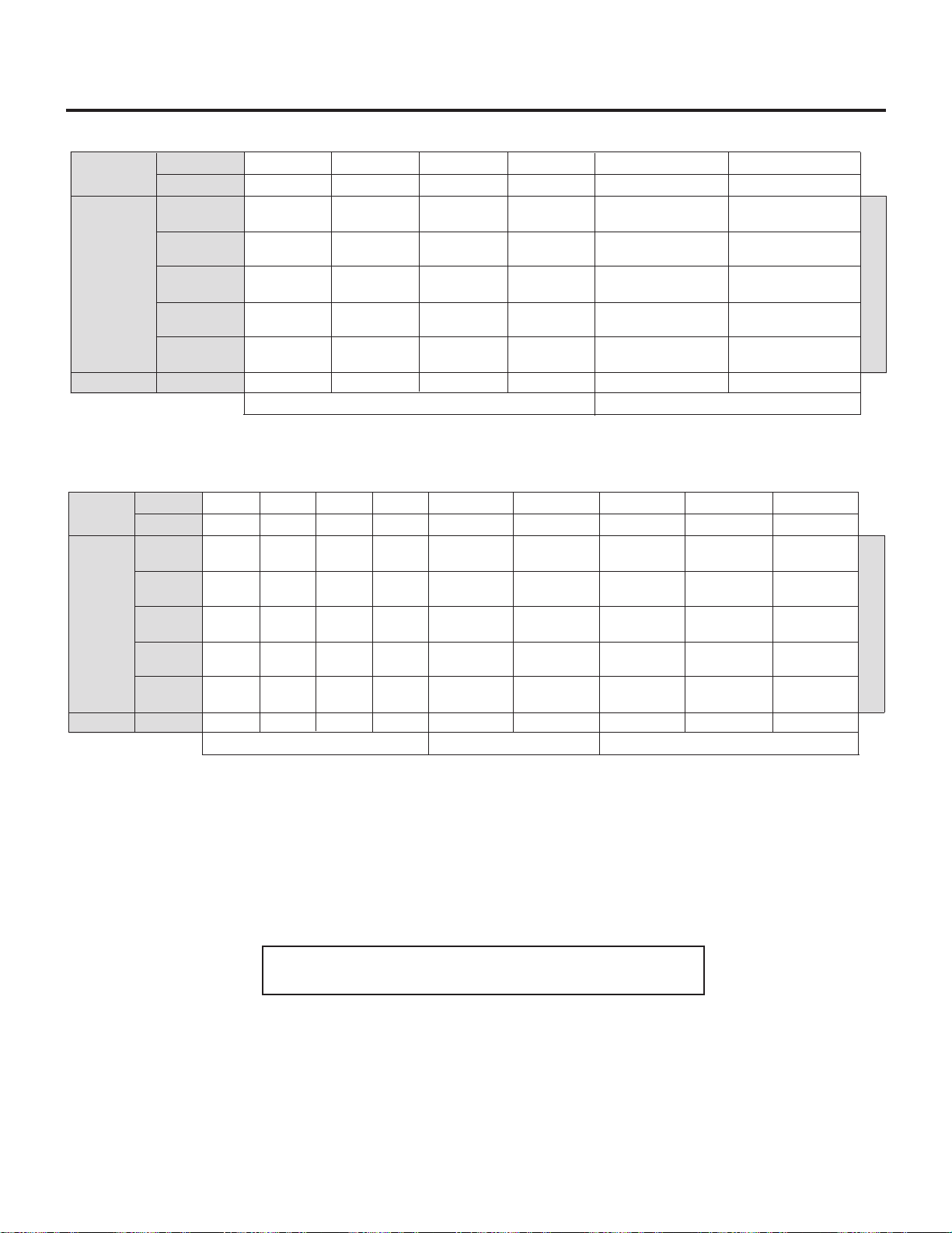
NOTE: “Vertical Offset” refers to as movable range between lens center and screen center. Vertical offset is decided by ratio of screen
height (V).
Example: When using a 100" screen (4:3) and XL-6500 with the lens (HVL-X1Z), you can get 29 inches(0.73m) of your vertical offset
by using the formula (100 x 3/5 x 1/2.1) and you can make your screen height larger by 29 inches(0.73m).
*For screen sizes between 80" and 500" not indicated on the above table, use the following proportional formula:
Diagonal screen size (4:3) x 4/5 = Screen width
W(Screen width) x magnification = Projection distance
Unit=inches
NOTE: The margin of error for projection distance is +/- 3% in fixed-focal-length lens and +/- 5% in zoom lens.
Nine lenses are available. The four are fixed-focal-length lenses; the two are zoom lenses.
Order lens from your NEC dealer using lens’ s model number. Consult your NEC dealer for lens installation and replacement.
Model No.
Fixed focal length lens Zoom lens
1.0:1 2.3:1 3.9:1
5.5:1
Zoom1.2-2.3
XL-L1.27 XL-L3 XL-L5 XL-L7
XL-L1.5Z
2.0m
80in
4.7m
184in
7.9m
312in
11.2m
440in
2.4-4.7m
96-184in
4.1m
160in
9.3m
368in
15.8m
624in
22.4m
880in
4.9-9.3m
192-368in
6.1m
240in
14.0m
552in
23.8m
936in
33.5m
1320in
7.3-14.0m
288-552in
8.1m
320in
18.7m
736in
31.7m
1248in
44.7m
1760in
9.8-18.7m
384-736in
10.2m
400in
23.4m
920in
39.6m
1560in
55.9m
2200in
12.2-23.4m
480-920in
±1/5.1V ±1/1.5V ±1/5.1V ±1/5.1V 0
V=Screen Height (inch)
100"
200"
300"
400"
500"
Vertical offset
■ Projection model : XL-6500/6500G
Magnification
Lens
Screen size
(Diagonal)
Projection distance
Zoom2.3-5.5
XL-L3Z
4.7-11.2m
184-440in
9.3-22.4m
368-880in
14.0-33.5m
552-1320in
18.7-44.7m
736-1760in
23.4-55.9m
920-2200in
0
Zoom1.5-2.5
HVL-X1Z
3.0-5.1m
120-200in
6.1-10.2m
240-400in
9.1-15.2m
360-600in
12.2-20.3m
480-800in
15.2-25.4m
600-1000in
±1/2.1V
Zoom2.5-4
HVL-X2Z
5.1-8.1m
200-320in
10.2-16.3m
400-640in
15.2-24.4m
600-960in
20.3-32.5m
800-1280in
25.4-40.6m
1000-1600in
±1/2.1V
Zoom4-7
HVL-X3Z
8.1-14.2m
320-560in
16.3-28.4m
640-1120in
24.4-42.7m
960-1680in
32.5-56.9m
1280-2240in
40.6-71.1m
1600-2800in
±1/3.8V
Zoom lens
19
Reflecting The Image
Using a mirror to reflect your projector’s image enables you
to enjoy a much larger image. Contact your NEC dealer if you
need a mirror.
If you’re using a mirror and your image is inverted, use the
ADJUST-SETTING Menu to access to correct the orientation.
(See page 59.)
Rear Screen Projection
You can use your MultiSync Hivid 6500 to project an image
from the rear onto a transparent screen. The distance the
projector must be from the screen is the same as if you were
projecting the image from the front. Contact your NEC dealer
if you need a transparent screen.
If you’re projecting the image from the rear and your image is
inverted, use the ADJUST-SETTING Menu to access to
correct the orientation. (See page 59.)
2.INSTALLATION
20
EXAMPLES OF CONNECTIONS.
CAUTIONS ON CONNECTIONS:
• Unplug the projector and other equipment from the AC
supply before making connections.
• Make sure that the plug of the power cord is properly
connected to the power outlet. A loose connection may cause
hum or noise.
•Confirm your connection layout with the user’s manual
accompanying the equipment to be connected with the ISS-
6020/ISS-6020G Switcher.
• Make sure that the STANDALONE mode is selected from the CONNECT CONDITION menu. See page 71 for connecting the
Switcher.
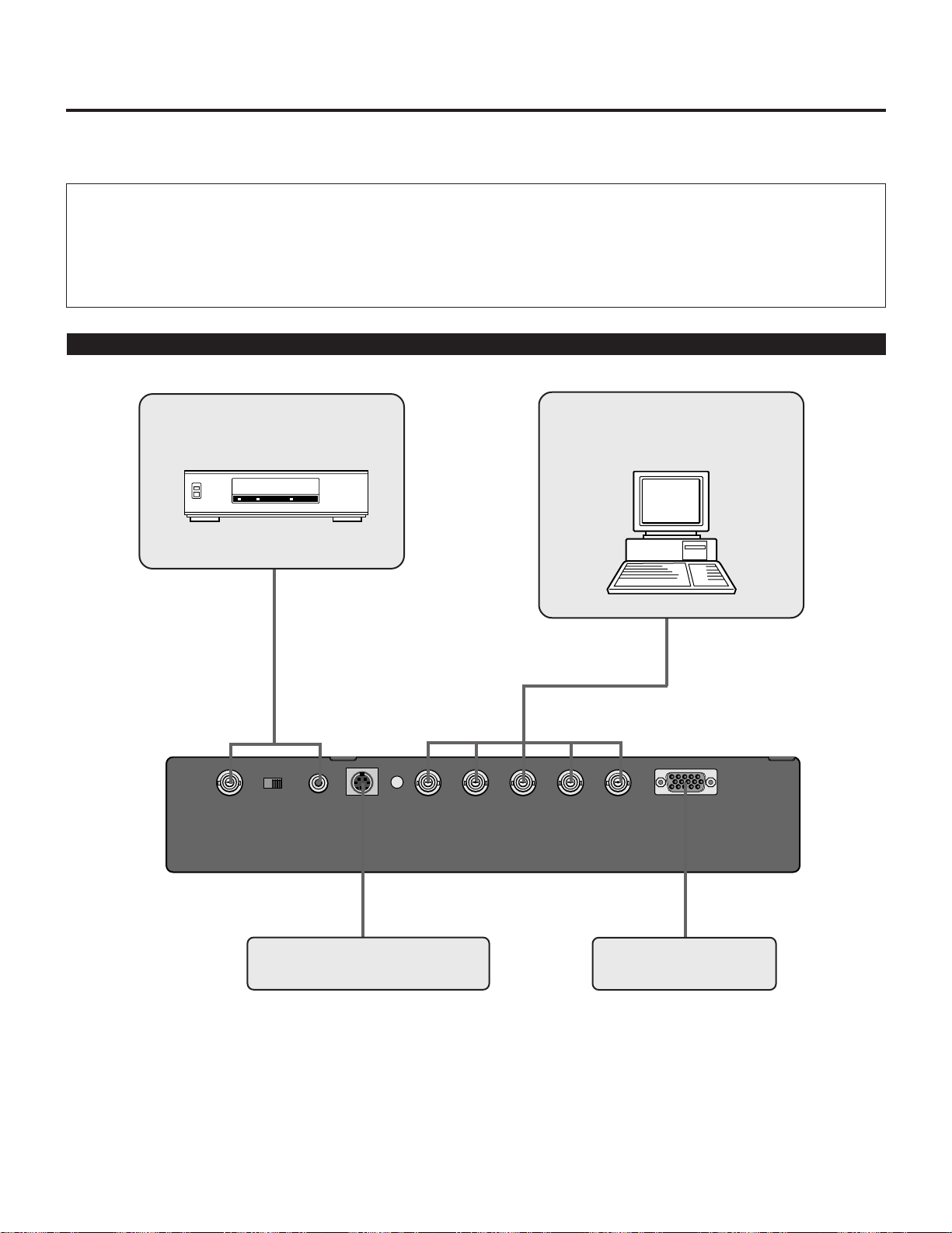
When Used in Stand Alone Operation
Components with RGB and H/V
SYNC outputs such as a personal
computer.
VIDEO BNC RCA VIDEO S-VIDEO R/Cr G/Y B/Cb H/HV V OSD OUT
PC MonitorVCR with S-Video outputs
VCR with S-video outputs.
2.INSTALLATION
21
2.INSTALLATION
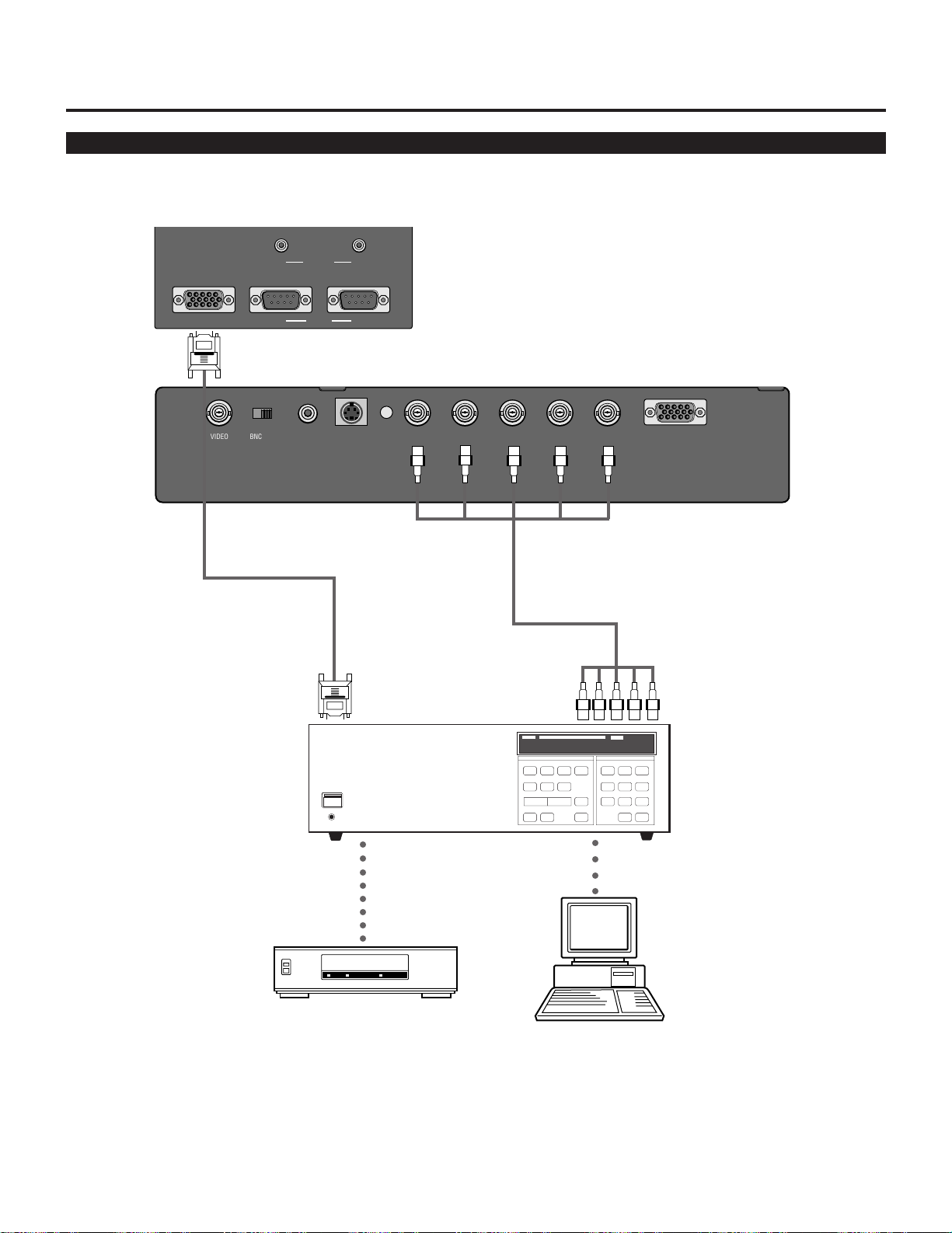
When Used with One Switcher (ISS-6020/ISS-6020G)
Up to 10 input signals can be accepted when the projector is connected to one Switcher. Using the projector with the Switcher
allows easy adjustment and signal selection.
• Make sure that the SW1 LEVEL mode is selected from the CONNECT CONDITION menu. See page 71 for the information in
detail.
• For more information on the Switcher, refer to the user’s manual accompanying the ISS-6020/ISS-6020G Switcher.
• All cables mentioned above are optional.
The Switcher ISS-6020/ISS-6020G
Personal computer
VCR
From R, G, B, H/V on separate H and
V. on the RGB OUTPUT module
To REMOTE1
To SYSTEM CONTROL
REMOTE 1
Optional control cable 15p-15p
(CTL-6010)
5BNC-5BNC coaxial cable
(separate sync)
(recommended)
To INPUT A (RGB,H/V,V inputs)
3BNC-3BNC cable(sync on green)
4BNC-4BNC cable(composite)
○○○○○○○○
VIDEO BNC RCA VIDEO S-VIDEO R/Cr G/Y B/Cb H/HV V OSD OUT
IN OUT
REMOTE2
IN OUT
OPTIONREMOTE1
○○○○
22
2.INSTALLATION
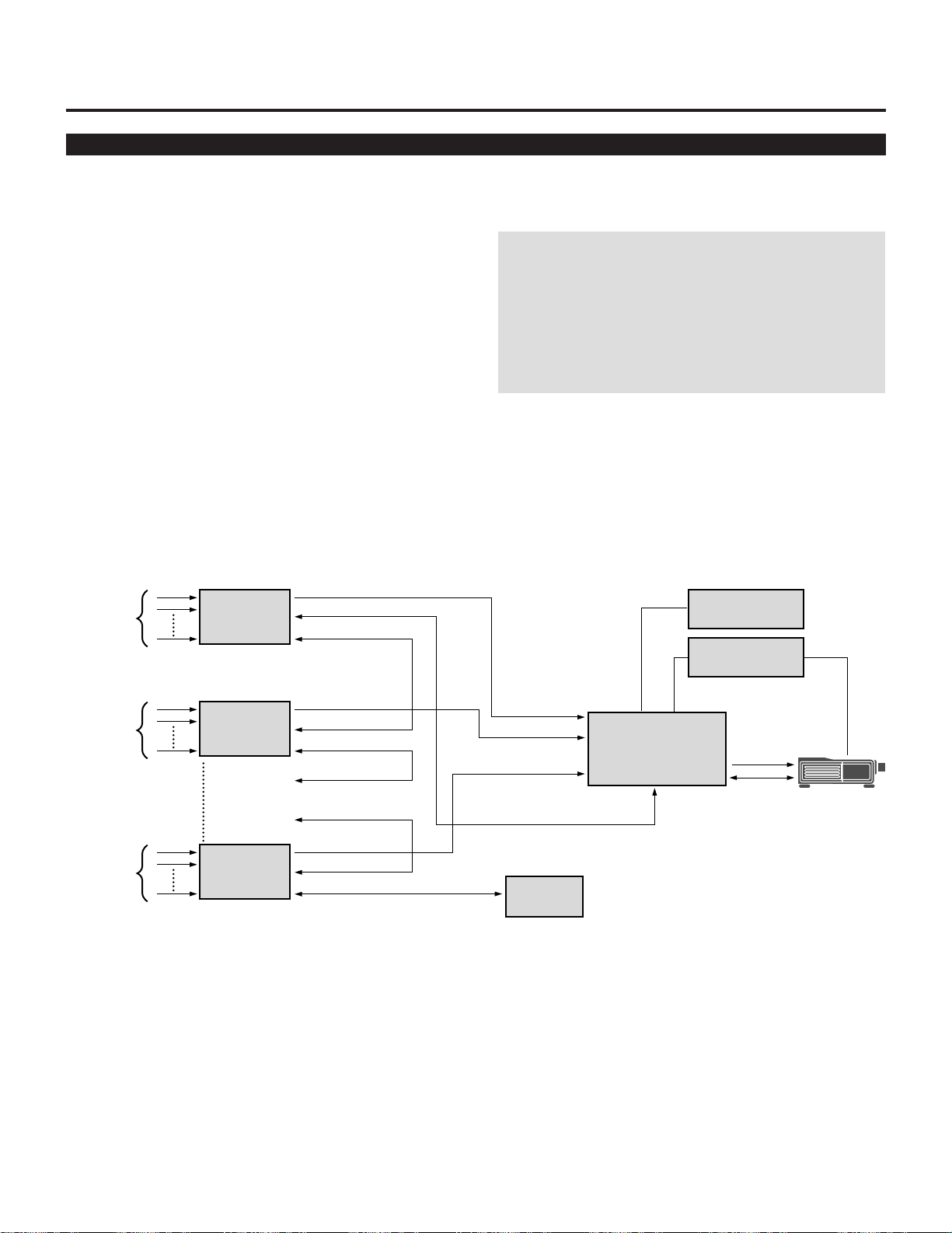
When Used with Two or More Switchers (100 Inputs)
Up to 100 inputs can be accepted using the Switcher.
How to make connections:
1 Connect the REMOTE 1 terminal of the master Switcher
to the REMOTE 1 of the projector using the optional
control cable (15p-15p/CTL-6010).
2 Next connect the REMOTE 2 terminal of the master
Switcher to the REMOTE 1 terminal of the first slave
Switcher using the same optional control cable as men-
tioned above. Third, connect the REMOTE 2 terminal of
the first slave to the REMOTE 1 of the second slave, and
the REMOTE 2 terminal of the second slave to the
REMOTE 1 terminal of the third slave (— and the
REMOTE 2 of the ninth slave to the REMOTE 1 of the
tenth slave). Connect all the Switchers with optional
control cables.
• Make sure that the SW2 LEVEL mode is selected from the CONNECT CONDITION menu. See page 71 for the information in
detail.
• Refer to the user’s manual accompanying the Switcher.
• Cables mentioned are not included with the projector.
NOTE:
• Be sure to set all the slide switches (S8603) of the
Switcher to RS-422 positions. Set the one on the last slave
Switcher to the appropriate position to match the con-
nected equipment such as a personal computer. (RS-422/
RS-232C for PC control of projector)
• Set the DIP switch S8601 of the Switcher.
OPTION (PC)
MASTER
SWITCHER
REMOTE
CONTROL
OPTION
(PC)
SLAVE 1
SLAVE 2
SLAVE 10
10 inputs
10 inputs
10 inputs
Signal Switcher
Signal
REMOTE 1
REMOTE 2
Signal
REMOTE 1
REMOTE 2
REMOTE 1SLAVE 3
SLAVE 9
Signal
REMOTE 1
REMOTE 2
REMOTE 2
To SLOT 1
To SLOT 2
To SLOT 10
To REMOTE 2
REMOTE 1
Signal
REMOTE
Projector
23
2.INSTALLATION
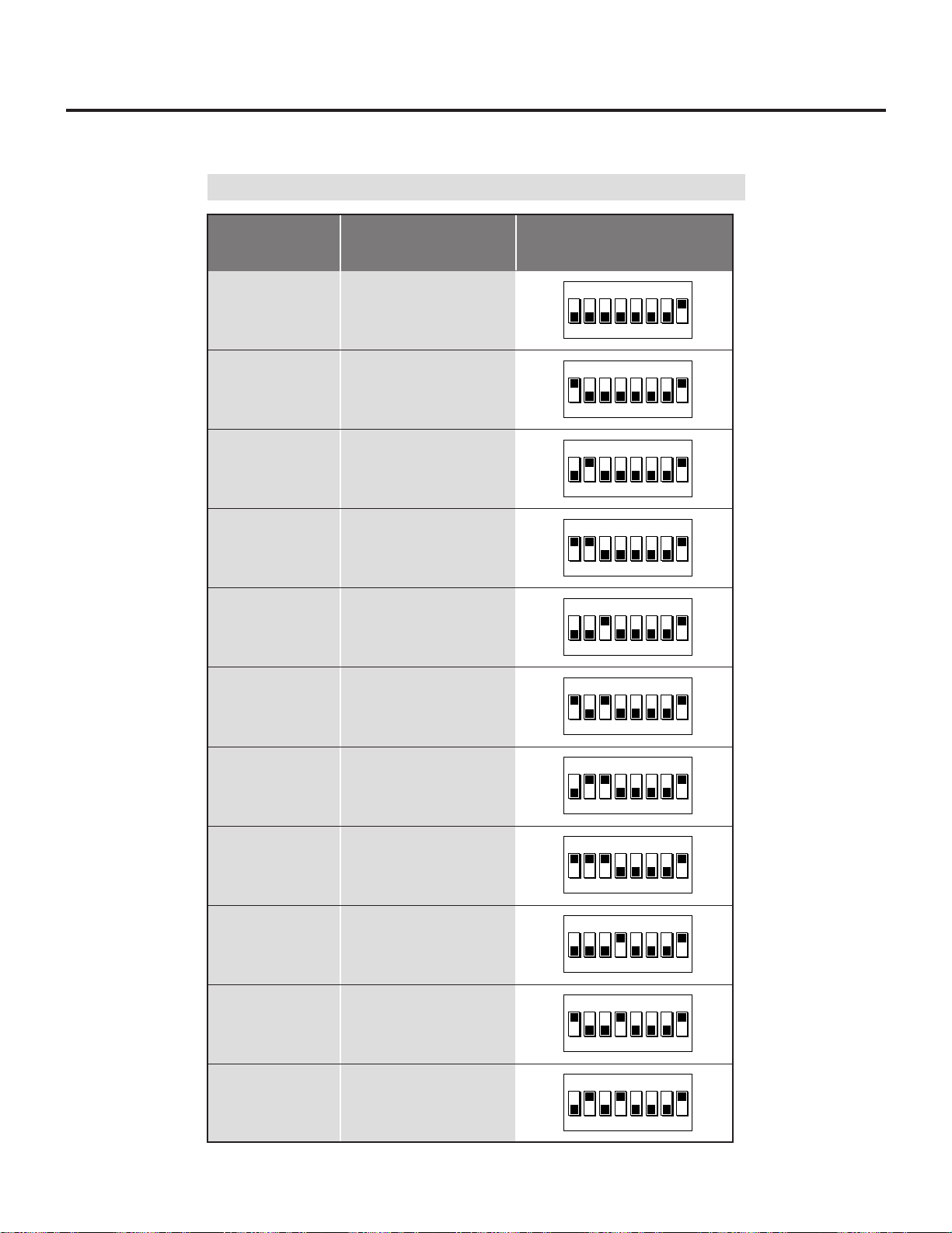
Set the DIP switch (S8601) of the Switcher as follows:
The Projector
Slot 1 of the Master
Slot 2 of the Master
Slot 3 of the Master
Slot 4 of the Master
Slot 5 of the Master
Slot 6 of the Master
Slot 7 of the Master
Slot 8 of the Master
Slot 9 of the Master
Slot 10 of the Master
Master
Slave 1
Slave 2
Slave 3
Slave 4
Slave 5
Slave 6
Slave 7
Slave 8
Slave 9
Slave 10
1 2 3 4 5 6 7 8
OPEN
1 2 3 4 5 6 7 8
OPEN
1 2 3 4 5 6 7 8
OPEN
1 2 3 4 5 6 7 8
OPEN
1 2 3 4 5 6 7 8
OPEN
1 2 3 4 5 6 7 8
OPEN
1 2 3 4 5 6 7 8
OPEN
1 2 3 4 5 6 7 8
OPEN
1 2 3 4 5 6 7 8
OPEN
1 2 3 4 5 6 7 8
OPEN
1 2 3 4 5 6 7 8
OPEN
ISS-6020
ISS-6020G
Output to Setting of S8601
NOTE: Slave numbers 1 to 10 must correspond to the master’s slot numbers 1 to 10.
24
2.INSTALLATION
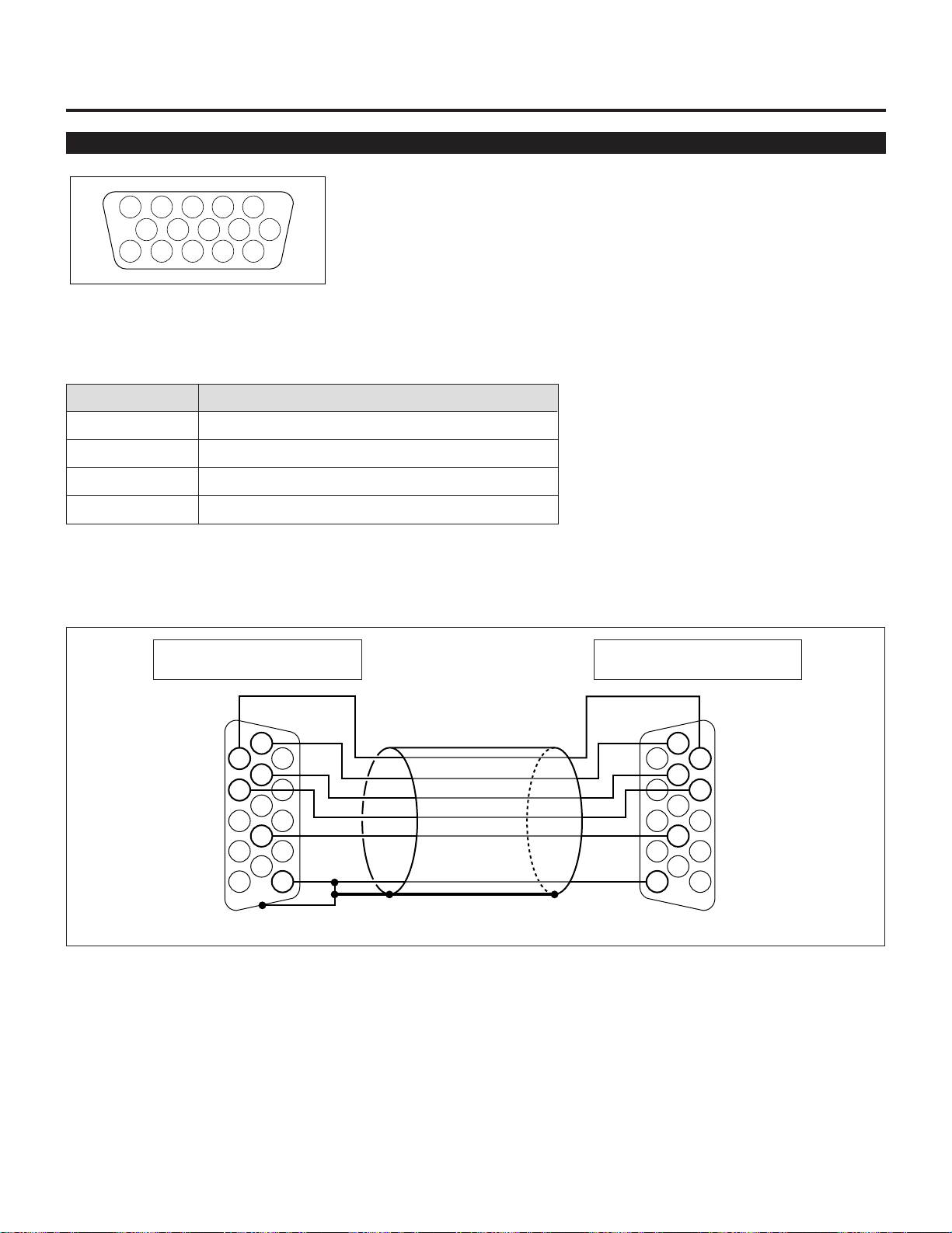
REMOTE 1 Terminal
This terminal is used for either connecting the ISS-6020/ISS-6020G Switcher or a third party external control device. When the
Switcher is used, connect it with the optional control cable (15-15 pin; 50 ft./16m; CTL-6010) to this terminal.
When used with the Switcher.
Pin No. FUNCTION
1, 2, 6 and 7 Sending and receiving data when the Switcher is used.
9 Identifying the Projector
15 Ground
Others Used inside the Projector. Normally set to OPEN.
When using with the Switcher ISS-6020/ISS-6020G, connect no. 1,2,6,7,9 and15 pins of the projector to the same no. pins of the
switcher as shown below.
REMOTE 1 terminal of the Switcher
mini D-sub 15 pin (male)
REMOTE 1 terminal of the Projector
mini D-sub 15 pin (male)
Shield (frame ground)
Pins without a number are open.
54321
109876
15 14 13 12 11
1
6
7
2
9
15
6
7
9
1
2
15
Pin Configuration of Optional CTL-6010 Cable
25
2.INSTALLATION
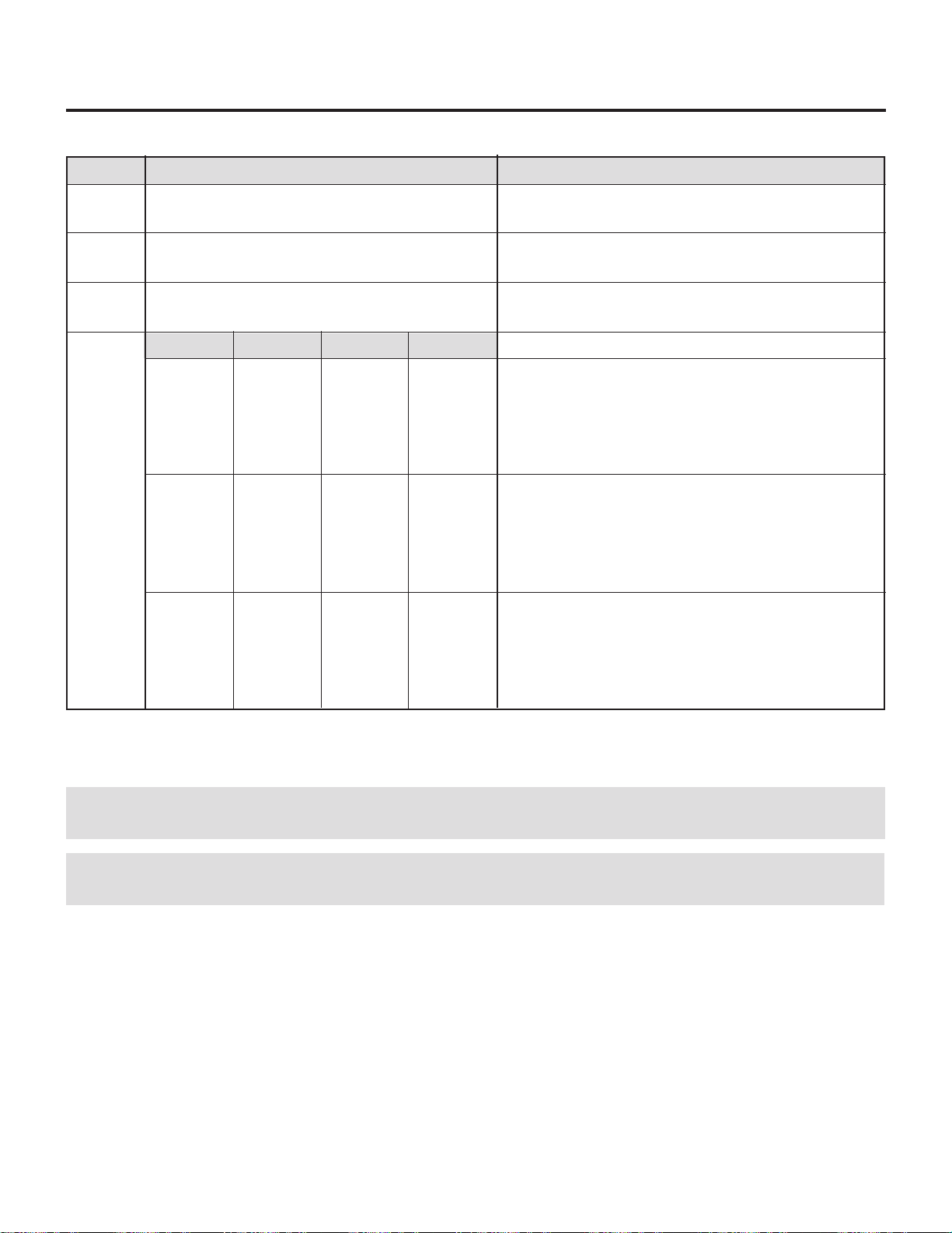
When used in stand alone operation.
Pin No.
14
5
10
4,8,12,11
SHORT/OPEN
SHORT
OPEN
SHORT
OPEN
SHORT
OPEN
FUNCTION
External control mode ON
External control mode OFF
POWER ON
POWER OFF
PICTURE MUTE ON
PICTURE MUTE OFF
The term “SHORT” means to connect with pin 15
• When in the external control mode, the POWER, INPUT and PICTURE MUTE buttons on the remote control will not function.
NOTE: Pin 13 is the external remote signal terminal. The projector can be controlled by the same format signal as the supplied
remote control from the external controller regardless of setting Pin 14.
NOTE: When turning off the power to the projector using the external control, do not disconnect the plug from the power outlet.
These procedures are to protect your projector and the connected equipment.
11
OPEN
OPEN
OPEN
OPEN
OPEN
OPEN
OPEN
OPEN
SHORT
SHORT
SHORT
SHORT
SHORT
SHORT
SHORT
12
OPEN
OPEN
OPEN
OPEN
SHORT
SHORT
SHORT
SHORT
OPEN
OPEN
OPEN
OPEN
SHORT
SHORT
SHORT
8
OPEN
OPEN
SHORT
SHORT
OPEN
OPEN
SHORT
SHORT
OPEN
OPEN
SHORT
SHORT
OPEN
OPEN
SHORT
4
OPEN
SHORT
OPEN
SHORT
OPEN
SHORT
OPEN
SHORT
OPEN
SHORT
OPEN
SHORT
OPEN
SHORT
OPEN
INPUT-A RGB
VIDEO
S-VIDEO
COMPONENT
COMPONENT(HDTV)
INPUT-B RGB
VIDEO
S-VIDEO
COMPONENT
COMPONENT(HDTV)
INPUT-C RGB
VIDEO
S-VIDEO
COMPONENT
COMPONENT(HDTV)
26
123456
1
2345
6
1
2345
6
1
2345
6
1
2345
6
123456
3.OPERATION
This section describes how to select a computer or video source and how to adjust the picture and sound,
register a new signal and other settings and adjustments for set-up
General Controls
Before you turn on your MultiSync Hivid 6500 Projector ensure that the computer or video source is turned
on and that your lens cap is removed.
1. Turn On The Projector
The breaker switch and the main power switch are on the back panel of the MultiSync Hivid 6500
Projector. By turning these switch on, the projector will go into its standby mode and the POWER ON/
STANDBY indicator will glow red. Only after you press the 'On' button on the remote control or projector
cabinet will the POWER ON/STANDBY light turn to green and the projector become ready to use.
2. Select The Computer Or Video Source
Press the INPUT button on the remote control to display the image. Or press the Operate button on the
remote control and use the Source Selection to select your video source: Video, S-Video, RGB or Y/Cr/
Cb.
NOTE: When the message "New Signal" is displayed, register the signal in the Source Registry menu.
3. Adjust The Image and The Sound
Press the PIC CTL button on the remote control or use the Operate-Picture Control menu to adjust the
picture. Press the SOUND CTL button on the remote control or use the Operate-Sound Control menu to
increase or decrease the volume.
4. Turn Off The Projector
First press the POWER button on the remote control or the projector cabinet. The STANDBY light will
glow. Allow the fan to cool the projector for three minutes. This will extend the life of the lamp. Then turn
off the main power switch on the back panel. The power light will go out. Last turn off the breaker switch
on the back panel.
IMPORTANT:
• The projector should be unplugged if it will not be used for an extended period.
• If you want to turn off the image briefly (five minutes or less), press the PIC MUTE button instead
of turning the projector off and on.
• The projector will display a message "No Signal !!" if no input signal is present.
• Do not turn the projector off and then immediately back on. The Projector needs to cool down for
three minutes before it is powered on again.
CAUTION: Do not unplug the projector or turn off the main power while the cooling fan is on and the
"--" on Two Digit display is blinking for three minutes.
27
3.OPERATION
Using The On-Screen Menus
1. Press the OPERATE or ADJUST button on the remote control to display the Operate or Adjust menu.
2. Use the or button on the remote control to highlight the "1. Ope.", "2. Adj." or "3. Help" in yellow and the selected menu will
drop down.
3. Press the or button to highlight the item you want to adjust or set in the selected menu.
4. Press the ENTER button on the remote control to select the item.
5. Adjust the level or turn the selected item on or off by using the or buttons on the remote control. The on-screen gauge
will show you the amount of increase or decrease.
6. Press the STORE button on the remote control to store the change.
NOTE: The change is stored automatically when the Automatic Save ("Auto Data Store") Feature mode is set to "ENABLE". See
page 64.
7. Repeat steps 2-5 to adjust an additional item, or press the END button on your remote control to quit.
Passcode?
∗∗∗∗
Adjustment Mode
The Adjustment mode contains various adjustment items for set-up.
Open the Adjustment menu and select the item you wish to adjust.
To display the Adjustment menu, proceed as follows:
1 Press the ADJUST button.
• The projector may ask for your passcode.
2 Enter your registered passcode.
When a passcode has not been registered:
• Since no passcode is programmed at the factory, pressing the
ADJUST button will open the Adjustment menu.
• See “Entering Passcode”, “Registering Passcode”, “Changing
Your Passcode” and “Canceling Your Passcode” on pages 52
through 58.
When your passcode has already been registered:
• When finishing the Adjustment mode, the “RETURN USER
MODE?” menu will be displayed. If you select “YES” and
press ENTER to end the Adjustment mode, you will have to
enter your passcode to re-enter the Adjustment mode.
• When finishing the Adjustment mode by either selecting
“NO” or pressing END, you do not need to enter your
passcode to re-enter the Adjustment mode. To exit the
Adjustment mode temporarily during adjusting, select “NO”.
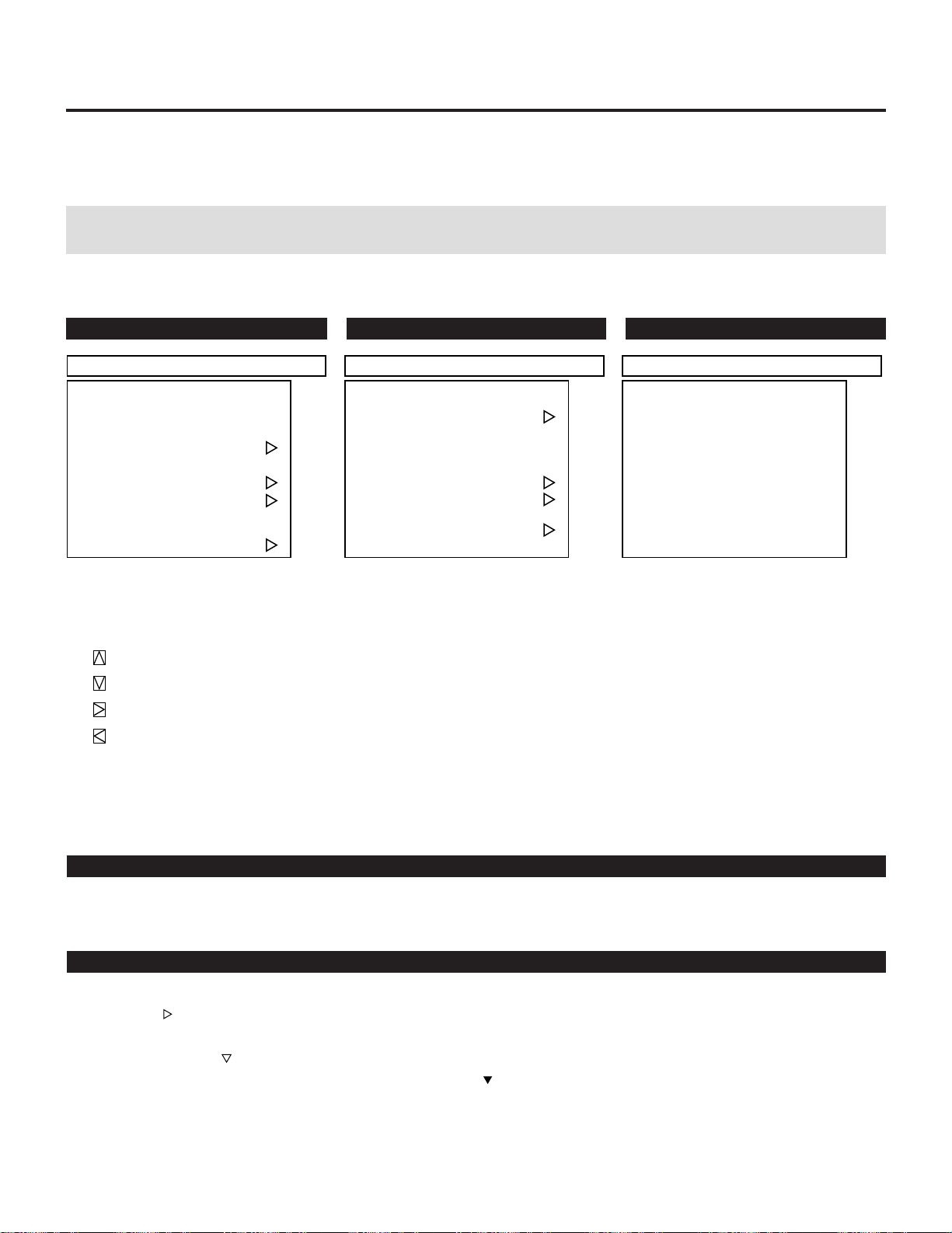
28
3.OPERATION
Menu Descriptions & Functions
Access of all set-up functions is done through the menu system. Depending upon button selection, your desired screen will be dis-
played as shown below:
NOTE: Some function items will not be available on the input video signal or connected peripheral equipment. Functions not
available are indicated in gray.
Operate Menu Adjust Menu Help Menu
About Task bar
The mens (Operate, Adjust or Help) has the common bar across the top of the menu. This is called the Task bar. A press of either of the
OPERATE or ADJUST button on the remote control displays the task bar with the menu.
On-Screen Menu Elements:
Highlight: Indicates the selected menu in yellow; indicates the selected control in white back.
Delta symbol ( ) in the menu or sub menu: Indicates further choices are available. Use the ENTER button to open the pull-down
menu.
Inverted delta symbol ( ) in the adjustment or setting screen: Indicates further choices are available. Use the ENTER button to
open the pull-down menu. Note that a solid inverted delta symbol ( ) indicates the item is currently selected.
Typical keys on the remote control work as follows:
OPERATE : Accesses the Operate menu.
ADJUST : Accesses the Adjust menu.
: Selects the next upper item in the menu. Or increases the adjustments.
: Selects the next lower item in the menu. Or decreases the adjustments.
: Selects the next right side item in the menu or task bar. Or increase the adjustments.
: Selects the next left side item in the menu or task bar. Or decrease the adjustments.
ENTER : Proceeds to the selected menu choice or to the selected adjustment.
END : Returns to the previous menu or exits the selected function.
INPUT(1-10) : Directly switches to the corresponding input or opens the corresponding sub menu or item.
-Adjustment-
1. Source Registry
2. Amplitude
3. White Balance
4. Signal Level
5. Uniformity
6. Display Function
7. Lamp Mode
8. Set Option
1. Ope. 2. Adj 3. Help
-Help-
1. Help
2. Topics
3. Set Information
1. Ope. 2. Adj 3. Help
-Operate-
1. Source Select
2. Source Information
3. Picture Control
4. Lens Control
5. Display Control
6. Image Control
7. Sound Control
8. Closed Caption
9. Timer Setting
1. Ope. 2. Adj 3. Help
29
3.OPERATION
You have two options to store projector settings in the memory: auto-
matically and manually.
* The Automatic Save Feature mode has been set to "DISABLE" by
factory. For information on setting, see "Automatic Auto Data Store"
on page 64.
■ When the Automatic Save Feature mode is set to "ENABLE", pro-
jector settings will be stored in the projector' s memory automati-
cally.
Settings are stored automatically when any one of the following
procedures is performed:
• One input is switched to another.
• The projector is turned off.
• After every 10 minutes of elapsed time.
■ When the Automatic Save Feature mode is set to "DISABLE", pro-
jector settings can be stored in the projector' s memory manually.
When you try to return the source screen by pressing END several
times, the "STORE?" menu is displayed.
To manually save settings, proceed as follows:
1. Use the END button to display the "STORE" menu from the cur-
rent adjustment screen or menu.
2. Use the CURSOR or button to highlight "Yes" or "No" and
press ENTER.
Items to select
•␣ Yes ---- Overwrites the currently projected signal and saves
the settings. Note that "Yes" is available only for
registered signals.
• No ----- Does not save settings.
Storing Projector Settings (Automatic Save Feature)
Store ?
No
Yes
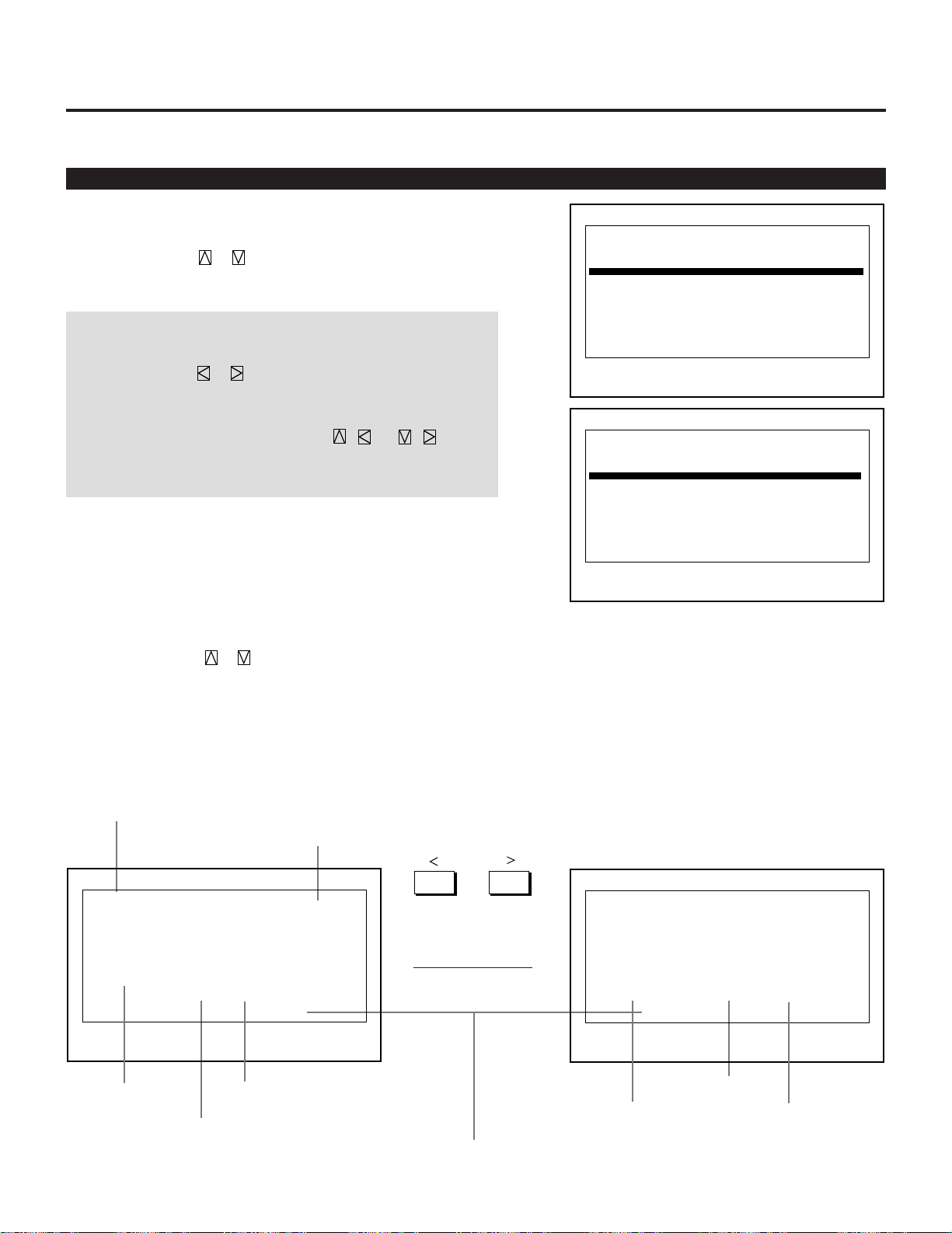
30
3.OPERATION
Basic Operation (Operate Menu)
Source Select
Enables you to select a source such as a VCR, laser disk player,
DVD player, or computer.
• Use the CURSOR or button to highlight the source to be
switched to and press the ENTER to the selected source.
NOTE:
• The Source Select menu has 10 pages. Each page consists of two
sheets. Press the or button to go on to the next sheet or
the previous sheet.
• To advance to the next page or to the previous page, hold down
the CTL button then press the CURSOR / or / . To
directly access the page, hold down the CTL button then any one
of the INPUT buttons.
PO1/10-1
No Name
01
02 NTSC
03 78K
04
05 NTSC
06 No40
07 No39
08 31.45K
09 A
10
Source Select
Output Data:List No.xxx
StandAlone
Source
VIDEO
RGB
VIDEO
RGB
RGB
RGB
VIDEO
VIDEO
Input
A
A
C
A
A
A
C
B
Option
PO1/10-2
No Date
01
02
03
04
05
06
07
08 Jan/01/1998
09 Jan/01/2000
10 Jan/01/2040
Source Select
StandAlone
fh fv Key
15.74
78.36
15.74
37.93
37.55
31.48
15.35
15.37
60.07
72.28
60.07
60.52
75.10
59.96
51.85
51.92
CTL
+
10
CTL
+5
Output Data:List No.xxx
To select a source using the INPUT buttons on the remote
control when no menus are displayed:
1) Press the INPUT "0" button.
• The Select Terminal menu is displayed.
2) Use the CURSOR or button to select an input terminal you
wish to input.
3) Press the ENTER button to execute selection and to switch to the
selected input. To cancel, press any one of the INPUT buttons.
䊴 䊳
Signal name
Input terminal
Entry date
Rgistered input module
Connect condition of the Switcher
Vertical Frequency
Horizontal Frequency
Page / total pages – sheet No.
INPUT SELECT List Format
Output data for the signal currently projected.
PO1/10-1
No Name
01
02 NTSC
03 78K
04
05 NTSC
06 No40
07 No39
08 31.45K
09 A
10
Source Select
Output Data:List No.xxx
StandAlone
Source
VIDEO
RGB
VIDEO
RGB
RGB
RGB
VIDEO
VIDEO
Input
A
A
C
A
A
A
C
B
Option
PO1/10-2
No Date
01
02
03
04
05
06
07
08 Jan/01/1998
09 Jan/01/2000
10 Jan/01/2040
Source Select
StandAlone
fh fv Key
15.74
78.36
15.74
37.93
37.55
31.48
15.35
15.37
60.07
72.28
60.07
60.52
75.10
59.96
51.85
51.92
CTL
+
10
CTL
+5
Output Data:List No.xxx
31
3.OPERATION
NOTE:
• While you are viewing a source screen, you can also select the input signal directly by pressing the INPUT “1” through “10”
button. In this case INPUT buttons function as follows:
When using the projector in stand alone operation:
Numbers designate INPUT buttons on the remote control.
When using the projector with the ISS-6020/ISS-6020G:
INPUT 1 through 10 → Selects the corresponding number slot of the ISS-6020/ISS-6020G
When using the projector with two ISS-6020/ISS-6020G or more:
To switch to another input signal, enter the master slot number, then the slave slot number by using INPUT buttons and press
ENTER.
Example:If you want to select a signal from the no.3 slot of the slave Switcher which is connected to the no.2 slot of the master Switcher, first
press the INPUT “2” button, then the INPUT “3” button and then press ENTER.
• You can switch to any input signal of NO 01 through10 on the Source Select list by holding down the CTL button and pressing
one of the INPUT buttons corresponding to the input number. To activate this function you must first select ENABLE in the Direct
Key. For further details, contact your dealer.
• If there are two or more memory locations that contain the same signal information the projector will reference the signal nearest
the beginning of the list. To select the next signal use the CURSOR or button and press ENTER.
Input Module
RGB
VIDEO
S–VIDEO
12
A
3
Input Mode
COMPONENT
COMPONENT
(HDTV)
Slot Selection
45 10
32
3.OPERATION
Source Information
Provides and changes information for the parameters of your current
projected source.
NOTE: For other registered signals, change their parameters on the
Source Registry menu.
The menu items you can display, change or specify are as follows:
Source Name--------------- Changes a user name that has previously
been entered.
Direct Key ------------------ Assigns settings of source to each INPUT
button (1-10) with CTL.
Input Slot ------------------- Selects an input terminal for the registered
signal when you need to do due to adding
optional equipment.
Display Mode -------------- Selects the screen display mode.
Signal System-------------- Displays the signal system of the current
source such as RGB, Video, S-Video, or
Component signal.
Video System -------------- Displays the current video standard.
Sync Frequency (H/V)----- Displays the current sync frequency.
Sync Polarity (H/V) -------- Displays the current sync polarity.
Sync System --------------- Selects the detection method of the sync
signal.
Sync Termination---------- Selects the impedance of the sync signal.
Scale Mode ----------------- Enables or disables to enlarge or reduce the
image. To take effect, press and hold CTL
then press ZOOM/PAN; to cancel it, do the
same again.
Input Sig.Size -------------- Specifies the picture size of input signal.
Output Sig.Size ------------ Specifies the picture size of output signal.
Color Matrix ---------------- Selects the mode to match the output format
of an HDTV or DVD signal.
CTI Control ----------------- Turns this feature on so you can make the
color sharper.
Noise Reduction ----------- Turns this feature on so video noise can be
reduced.
Source Select Counter ---- Resets the number of times a signal is
selected for display.
Source Display Timer ----- Resets the time of signal display.
Use the CURSOR or button to select the item you want to view or
set.
(Color Transient Improvement)
Source Information Page1/3
Source Name
Direct Key
Input Slot
Display Mode
Signal System
Video System
Sync Frequency
Sync Polarity
[ ]
[Not Used ]
[INPUT A ]
[GRAPHICS ]
RGB
fH= 15.74KHz
fV= 61.23Hz
HD(+) VD(+)
Source Information Page2/3
Sync System
Sync Termination
Scale Mode
Input Sig. Size
Output Sig. Size
[Auto ]
Mix Sync
[75Ω ]
[None Scale ]
H:1024 V:768
H:1024 V:768
Source Information Page3/3
Color Matrix
CTI Control
Noise Reduction
Select Counter
Display Timer
[Defaul ]
[OFF ]
[OFF ]
0000
0000H 00M

33
3.OPERATION
The following items can be set:
■ Source Name
To change the source name or input a new source name by
selecting one character at a time with the INPUT buttons 1
through 10 and by moving the cursor with the CURSOR button.
Only after completely finishing the selection of the characters,
press ENTER.
• If you have made an error, use the CURSOR button and reenter
the correct letter or number.
To delete one character, move the highlight to the character to be
deleted and then press the NORMAL button.
To delete all the entered name, hold down the CTL button then
press the NORMAL button.
• The above is the same procedure of the signal entry. See To
change the source name or input a new source name by select-
ing one character at a time with the INPUT buttons 1 through
10 and by moving the cursor with the CURSOR button. Only
after completely finishing the selection of the characters, press
ENTER.
To delete one character, move the highlight to the character to be
deleted and then press the NORMAL button.
To delete all the entered name, hold down the CTL button then
press the NORMAL button.
• The above is the same procedure of the signal entry. See pages
45 and 46 for more details.
■ Direct Key
Use the CURSOR buttons to assign settings of a source to each of
the 10 INPUT buttons with CTL.
34
3.OPERATION
You can select the input terminal for the registered signal. This
feature is useful when you need to change the input terminal due
to adding optional equipment.
NOTE: This setting cannot be done to the current projected
signal.
When used in the stand alone operation:
Use the CURSOR or button to select an input slot from
three slots: INPUT A, INPUT B, and INPUT C, and press
ENTER.
Items to select
• INPUT A .............. Standard installed terminal
• INPUT B .............. Optional board terminal
• INPUT C .............. Optional board terminal
When used with a single Switcher ISS-6020/ISS-6020G:
Use the CURSOR or button to select the desired slot
number "1" through "10" of the Switcher and press ENTER.
When used with two or more Switchers ISS-6020/ISS-6020G:
Use the CURSOR or button to select the master slot
number "1" through "10" first from the master menu, then select
the slave slot number "1" through "10" from the slave menu and
press ENTER.
■ Input Slot
Select Terminal
1. INPUT
-
A
2. INPUT
-
B
3. INPUT
-
C
SLOT–01
SLOT–02
SLOT–03
SLOT–04
SLOT–05
SLOT–06
SLOT–07
SLOT–08
SLOT–09
SLOT–10
MASTER
SLOT–01
SLOT–02
SLOT–03
SLOT–04
SLOT–05
SLOT–06
SLOT–07
SLOT–08
SLOT–09
SLOT–10
MASTER
SLOT–01
SLOT–02
SLOT–03
SLOT–04
SLOT–05
SLOT–06
SLOT–07
SLOT–08
SLOT–09
SLOT–10
SLAVE
■ Display Mode
This function is used to select the screen display mode. One of
NTSC,
PAL/SECAM, GRAPHIC, INTERLACE GRAPHIC and HDTV can
be selected.
Use the CURSOR or button to select the desired mode and
press the ENTER button.
35
3.OPERATION
This function is used to select the detection method of the sync
signal for an RGB signal.
Use the CURSOR or button to select "AUTO", "G-SYNC",
or "TRI-SYNC" and press ENTER.
• When "AUTO" is selected, the sync type will be displayed.
• Select "AUTO" in normal operation.
On-screen display
• AUTO ---------Detects automatically a composite or HV
separate sync signal.
• G-SYNC ------ Selects sync on green signal.
• TRI-SYNC ----Selects a tri-sync signal (HDTV signal).
■ Sync System
■ Sync Termination
This functions is used to select the impedance of the sync signal.
Use the CURSOR or button to select " 75 Ω" or "Hi-Z",
then press ENTER.
NOTE: The default setting is "75 Ω".
This should be "75 Ω" for normal use. Select the "Hi-Z" when
inputting a TTL signal.
■ Scale Mode
This function is used to enable or disable to enlarge or reduce the
image.
Use the CURSOR or button to select the desired mode and
press the ENTER button. To take effect, press and hold CTL then
press ZOOM/PAN; to cancel it, do the same again.
■ Input Sig. Size
This function is used to specify the picture size of input signal.
Use the CURSOR or to adjust the horizontal size.
Use the CURSOR or to adjust the vertical size.
■ Output Sig. Size
This function is used to specify the picture size of output signal.
Use the CURSOR or to adjust the horizontal size.
Use the CURSOR or to adjust the vertical size.
■ Color Matrix
This function is used to select the mode to match the output
format of an HDTV or DVD signal.
Use the CURSOR or button to select the appropriate mode
and press the ENTER button.

36
3.OPERATION
■ CTI(Color Transient Improvement) Control
This functions is used to turn this feature on so you can make the
color sharper.
Use the CURSOR or button to select either On or Off and
press the ENTER button.
■ Noise Reduction
This function is used to turn this feature on so video noise can be
reduced.
Use the CURSOR or button to select either On or Off and
press the ENTER button.
■ Source Select Counter
This is used to reset the number of times a signal is selected for
display.
When "Source Select Counter" is selected, the message "Do you
want to reset the Source Select Counter ? Yes No" is displayed.
Use the CURSOR , , or button to select either Yes or
No and press the ENTER button.
■ Source Display Timer
This function is used to reset the time of signal display.
When "Source Display Time" is selected, the message "Do you
want to reset the Source Display Timer ? Yes No" is displayed.
Use the CURSOR , , or button to select either Yes or
No and press the ENTER button.
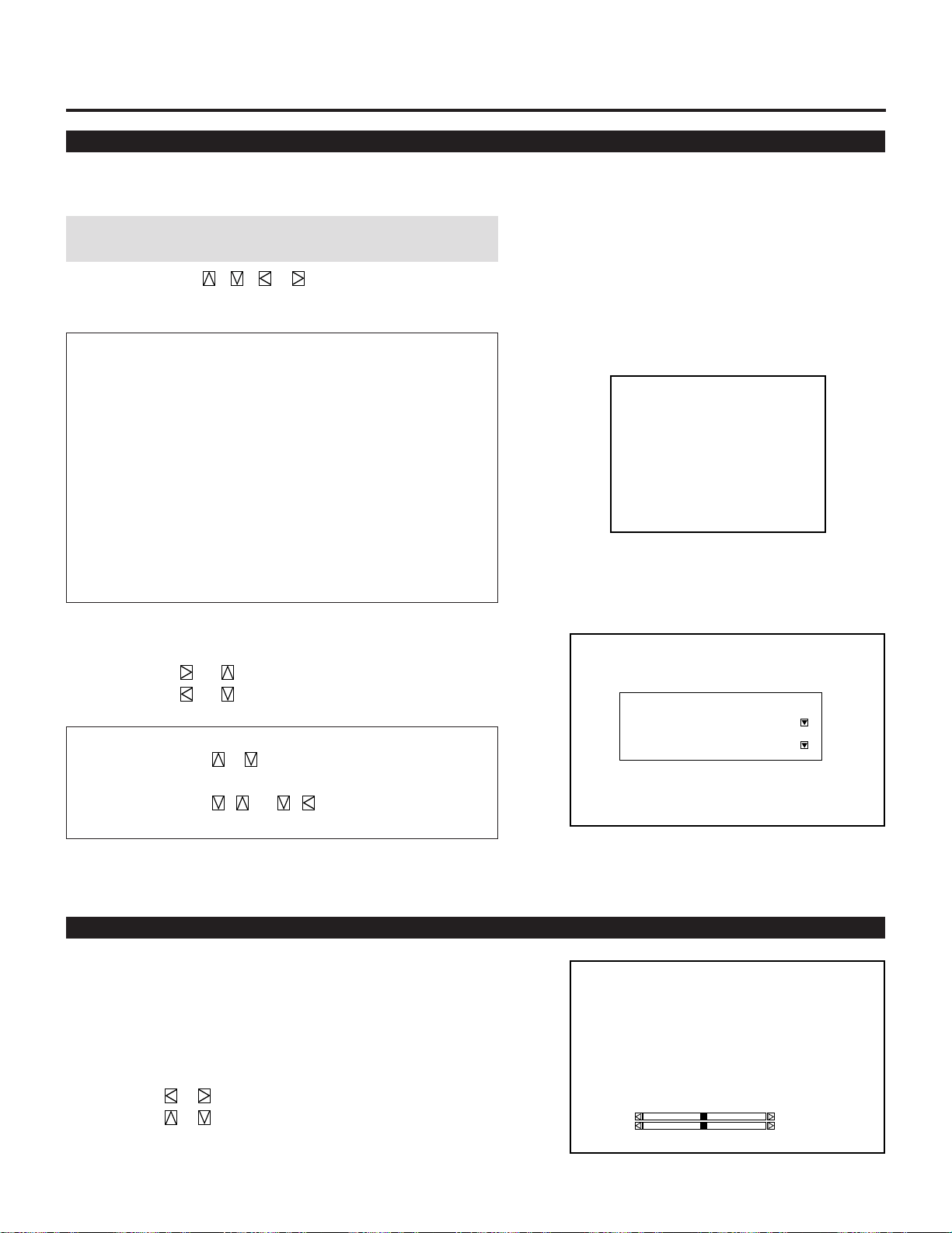
37
3.OPERATION
Provides access to controls for your image such as brightness,
contrast, color, sharpness, hue, color temperature, gamma correction.
NOTE: Color, tint, and sharpness are available for an RGB source
only.
1. Use the CURSOR , , or button to select the item you
want to adjust and press the ENTER button.
Items to select
• Brightness ------------ Adjusts the overall image and background
screen brightness.
• Contrast --------------- Adjusts the image brightness in relation to
the background.
• Color ------------------ Adjusts the color intensity of the image.
• Sharpness ------------ Adjusts the detail of the image.
• Hue -------------------- Adjusts the red and green values of the
image.
• Color Temperature --- Adjusts the color temperature.
• Gamma Correction--- Adjusts the brightness of a dark area on the
screen.
2. Use the CURSOR buttons to adjust the picture to your desired
setting.
The CURSOR or button increases the level.
The CURSOR or button decreases the level.
*For Gamma Correction, follow the instructions below.
1. Use the CURSOR or button to select either "Table" or
"User Table" and press the ENTER button.
2. Use the CURSOR / or / button to select your
desired mode and press the ENTER button.
Picture Control
-Picture Control-
1. Brightness
2. Contrast
3. Color
4. Sharpness
5. Hue
6. Color Temperature
7. Gamma Correction
Gamma Correction
Table [Default1 ]
User Table [1.0 ]
Lens Control
Allows you to adjust the focus and the vertical offset for your image.
You can also display the Lens Control adjustment screen directly by
holding down the CTL button and then pressing the OPERATE
button.
The CURSOR or button adjusts the focus.
The CURSOR or button adjusts the vertical offset.
Lens Control
- Focus/Offset -
Focus
Offset
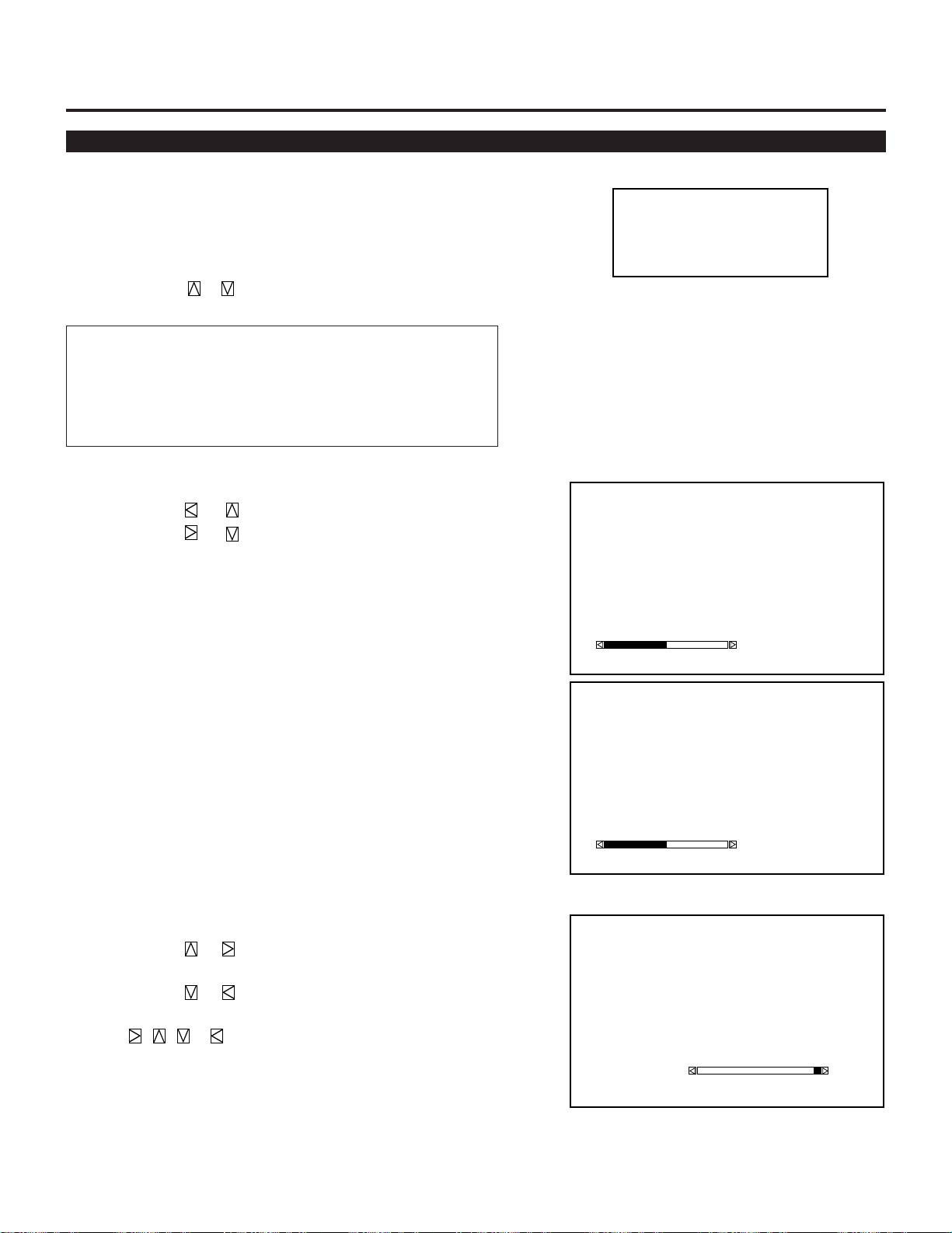
38
3.OPERATION
Display Control
Display Control
- Pixel Clock -
1024
Display Control
- Pixel Phase -
32
Display Control
- Zoom -
0
Items to select
• Pixel Clock -------- Adjusts the clock frequencies to remove moire.
• Pixel Phase ------- Adjusts the clock phase to reduce video noise.
• Zoom/Pan---------Magnifies or reduces the image. You also can
pans the display when pressin with CTL.
Enables you to fine tune the computer image or to remove any
vertical banding that might appear by adjusting the clock frequen-
cies, and to adjust the clock phase or to reduce video noise, dot
interference or cross talk. This also allows you to pan or zoom in/out
the image.
Use the CURSOR or button to select the item you want and
press the ENTER button.
-Display Control-
1. Pixel Clock
2. Pixel Phase
3. Zoom/Pan
■ Pixel Clock / Pixel Phase
The CURSOR or button increases video noise.
The CURSOR or button decreases video noise.
■ Zoom/Pan
The CURSOR or button enlarges the image or reduces the
image.
The CURSOR or button enlarges the image or reduces the
image.
CTL+ , , or button pans the image.
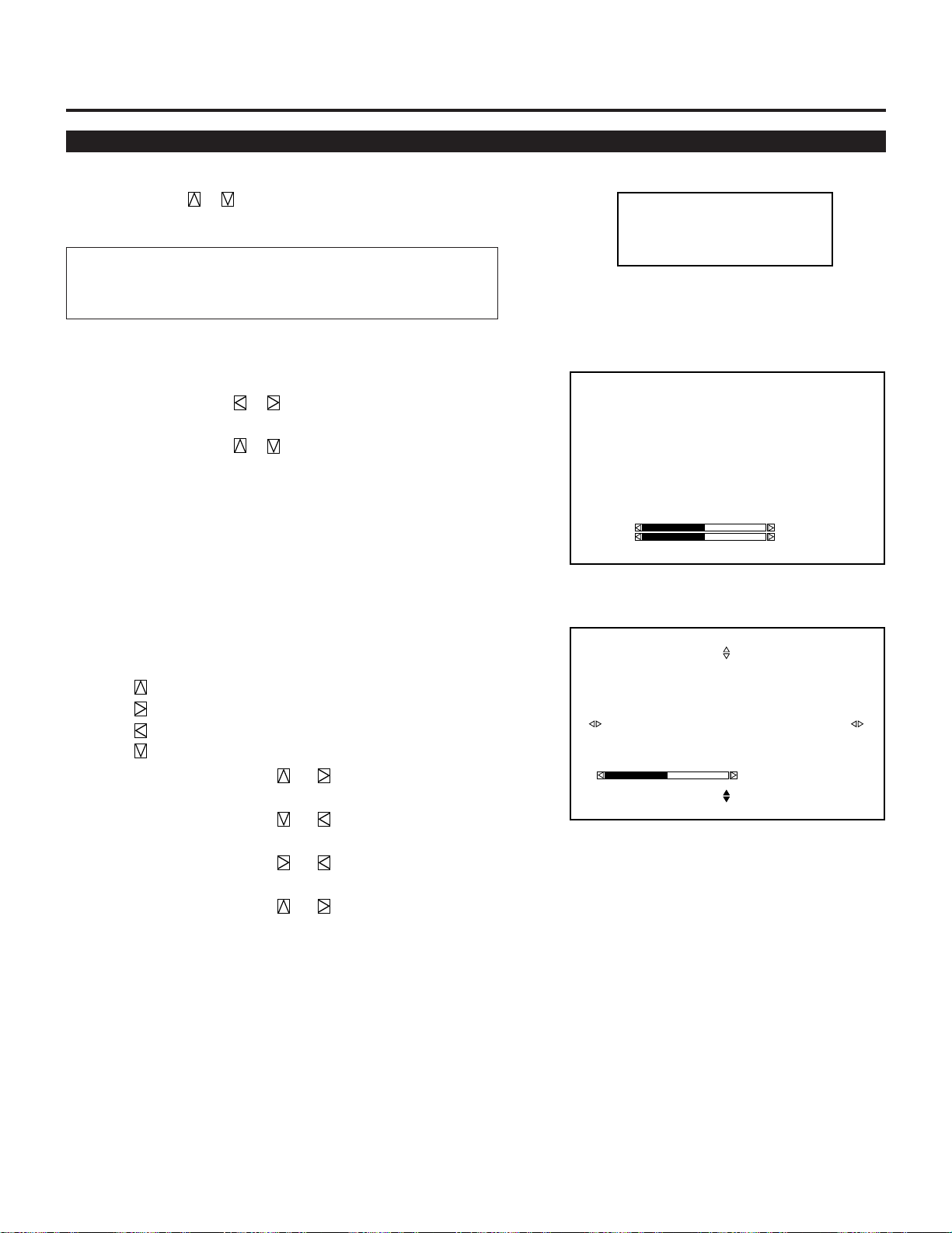
39
3.OPERATION
Image Control
■ Image Position
Pressing the CURSOR or moves the position of the picture
left or right.
Pressing the CURSOR or moves the position of the picture
up or down.
■ Blanking
Press any one of the CURSOR buttons while press and hold CTL
to select the position you want to adjust:
CTL+ ----------- Top
CTL+ ----------- Right
CTL+ ----------- Left
CTL+ ----------- Bottom
Top and right -------- Pressing or increases the adjustment
values.
Pressing or decreases the adjustment
values.
Bottom and left ----- Pressing or increases the adjustment
values.
Pressing or decreases the adjustment
values.
Enables you to adjust the image position and blanking.
Use the CURSOR or button to select the item you want to
adjust and press the ENTER button.
Items to select
• Image Position ----------- Adjusts the image position.
• Blanking------------------- Adjusts the screen area.
Image Control
- Image Position -
2048
2048
(H)
(V)
Image Control
- Blanking -
Screen - Bottom -
2048
-Image Control-
1. Image Position
2. Blanking
40
3.OPERATION
Sound Control (only when used with the ISS-6020/ISS-6020G Switcher)
Enables you to set several closed caption modes for text to be superim-
posed on the projection screen.
Use the CURSOR or button to select the desired mode and
press the ENTER button.
Items to select
• Caption 1-4 ------- Text is superimposed.
• Text 1-4 ----------- Text is displayed in full screen.
•␣ Off -----------------Exits the selected Closed Caption mode.
NOTE:
•␣ The Closed Caption feature work with an NTSC 3.58 source only.
• Pressing ENTER executes store function. Switching to source
other than NTSC3.58 source again.
Provides access to control for your sound volume.
NOTE: This function works only with the ISS-6020/ISS-6020G
Switcher.
The CURSOR or button increases the volume.
The CURSOR or button decreases the volume.
Sound Control
- Volume -
0
Closed Caption
Closed Caption
Off
Caption 1
Caption 2
Caption 3
Caption 4
Text 1
Text 2
Text 3
Text 4
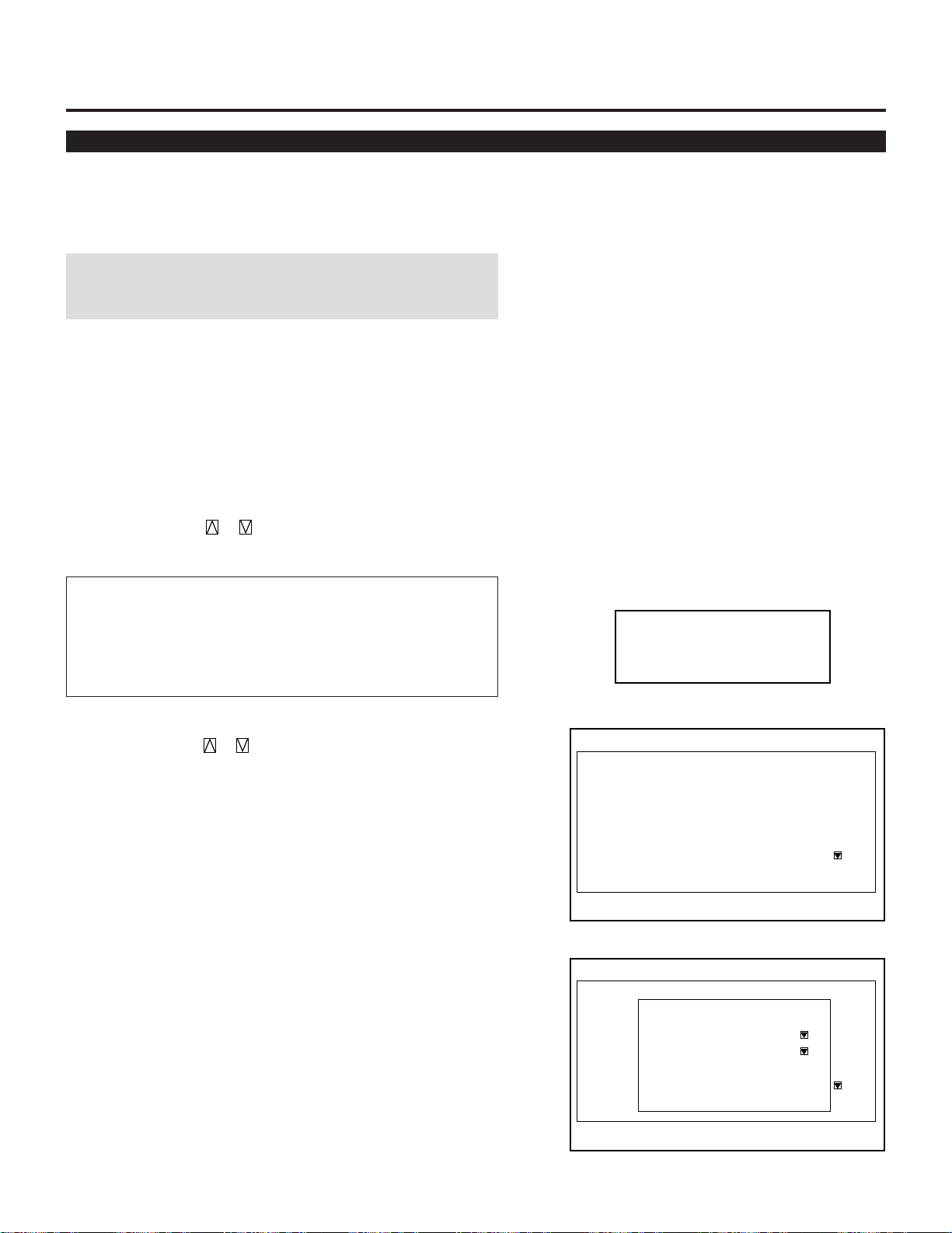
41
Enables you to program to turn on or off your projector automati-
cally at a specified time. The two timer functions are available: On/
Off Timer and Sleep Timer.
NOTE: When the On Timer is set and the projector is in standby, the
two digit indicator flashes "00" to indicate that the On Timer is
active.
Proceed as follows:
• Before setting On/Off Timer, maker sure that Date, Time Preset
feature is set.
• Even after setting On/Off Timer, turning the projector on or off
with the remote control is possible.
• There are two time display formats: 24-hour or AM/PM format.
You can set either format in the "Date, Time Preset" in [Adjust -
Set Option - Menu Mode].
User the CURSOR or button to select "On/Off Timer" or
"Sleep Timer".
Items to select
• On/Off Timer---Programs to turn on or off the power at a prede-
termined time.
• Sleep Timer---Programs to turn off the power at a predetermined
time, up to two hours later in 30-minute increments.
To set the On/Off Timer:
1)Use the CURSOR or button to select On/Off Timer and
press ENTER to display the On/Off Timer menu.
2)Select a program number and press ENTER to display the On/Off
Timer Setting menu.
3)Set the Week, Day, On-Time and Off-Time using the CURSOR
buttons and INPUT buttons (1 thru 10). To cancel the on-time or
off time, press NORMAL.
Timer Setting
-Timer Setting-
1. On/Off Timer
2. Sleep Timer
On/Off Timer
Execute Switch [Inactive ]
Prg
1
2
3
4
5
6
7
8
Week
1Week
Every
Day
Mon
Mon-Fri
On Time
09:00
18:00
Off Time
12:00
22:00
On-Off Timer
Execute SWITCH [INACTIVE ]
Prg
1
2
3
4
5
6
7
8
WeeK
1WeEK
EveRY
DAY
MON
MON-FRI
ON TIME
09:00AM
18:00
OFF Time
12:00am
22:00
On/Off Timer Setting
Entry Cancel Clear
Program 1
WeeK
Day
On Time
Off Time
[1Week ]
[Mon ]
[00:00]
[00:00]
3.OPERATION
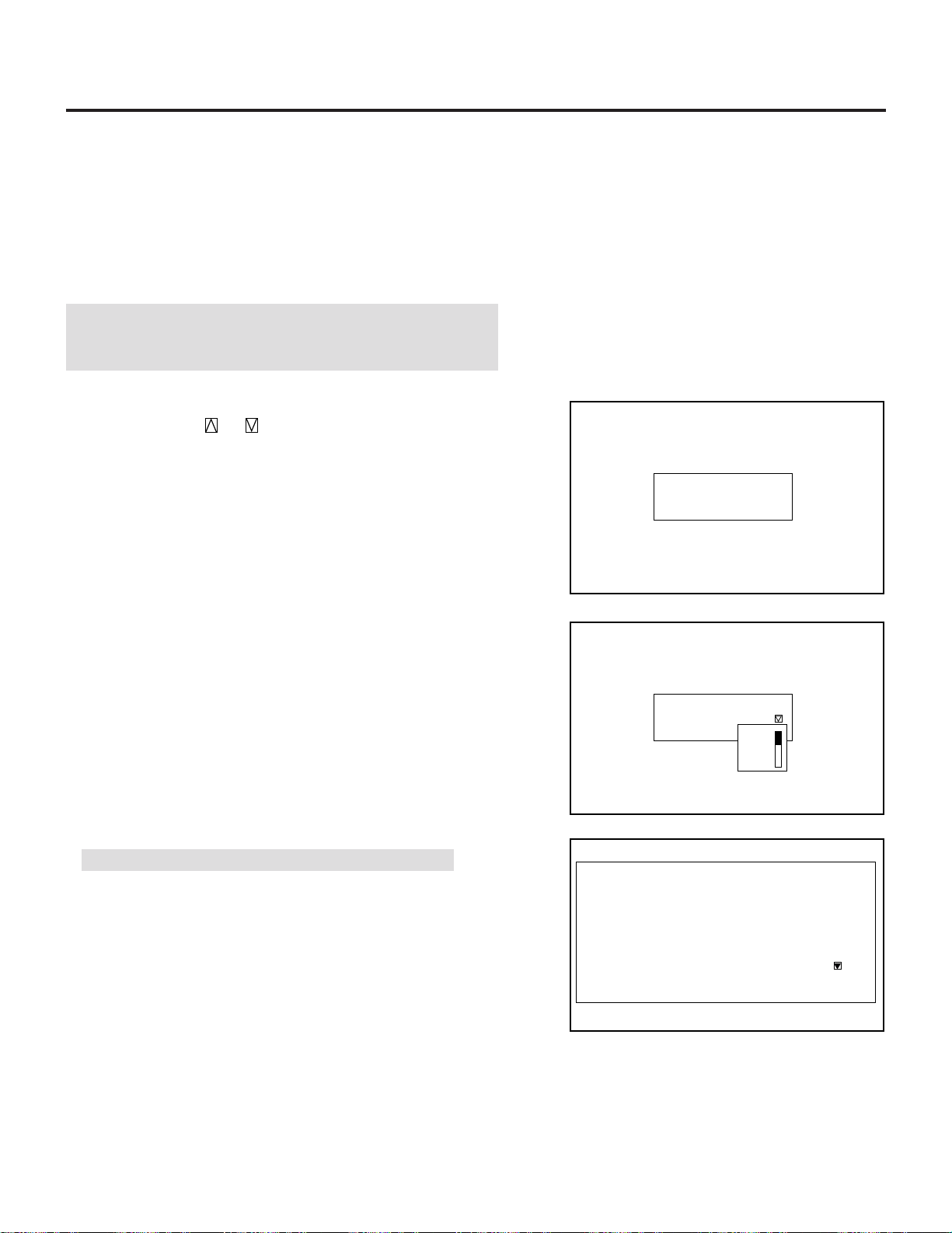
42
3.OPERATION
4) Select the Entry and press ENTER. This enables the On Timer or
Off Timer function.
To cancel your data such as week, day, on/off time, select the Cancel
and press ENTER.
To delete the setting data such as week, day and on/off time for the
program number, select the Clear and press ENTER.
NOTE:
When setting On Timer during cooling the fan, the projector will
turn on after the cooling has finished.
To set the Sleep Timer:
1) Use the CURSOR or button to select the Sleep Timer and
press ENTER to display the Sleep Timer menu.
2) Select the Set and press ENTER to drop the pull-down menu.
3) Select your desired time between 30 minutes and 2 hours in 30
minutes.
NOTE: "-- : -- -- " indicates the Sleep Timer will not be used.
To enable your settings:
Select "Active" in Execute Switch and press ENTER.
Sleep Timer
Set Time [0:30 ]
SET
-:--
0:30
1:00
1:30
2:00
Sleep Timer
Time Left 1:23
Set
On/Off Timer
Execute Switch [Inactive ]
Prg
1
2
3
4
5
6
7
8
Week
1Week
Every
Day
Mon
Mon-Fri
On Time
09:00
18:00
Off Time
12:00
22:00
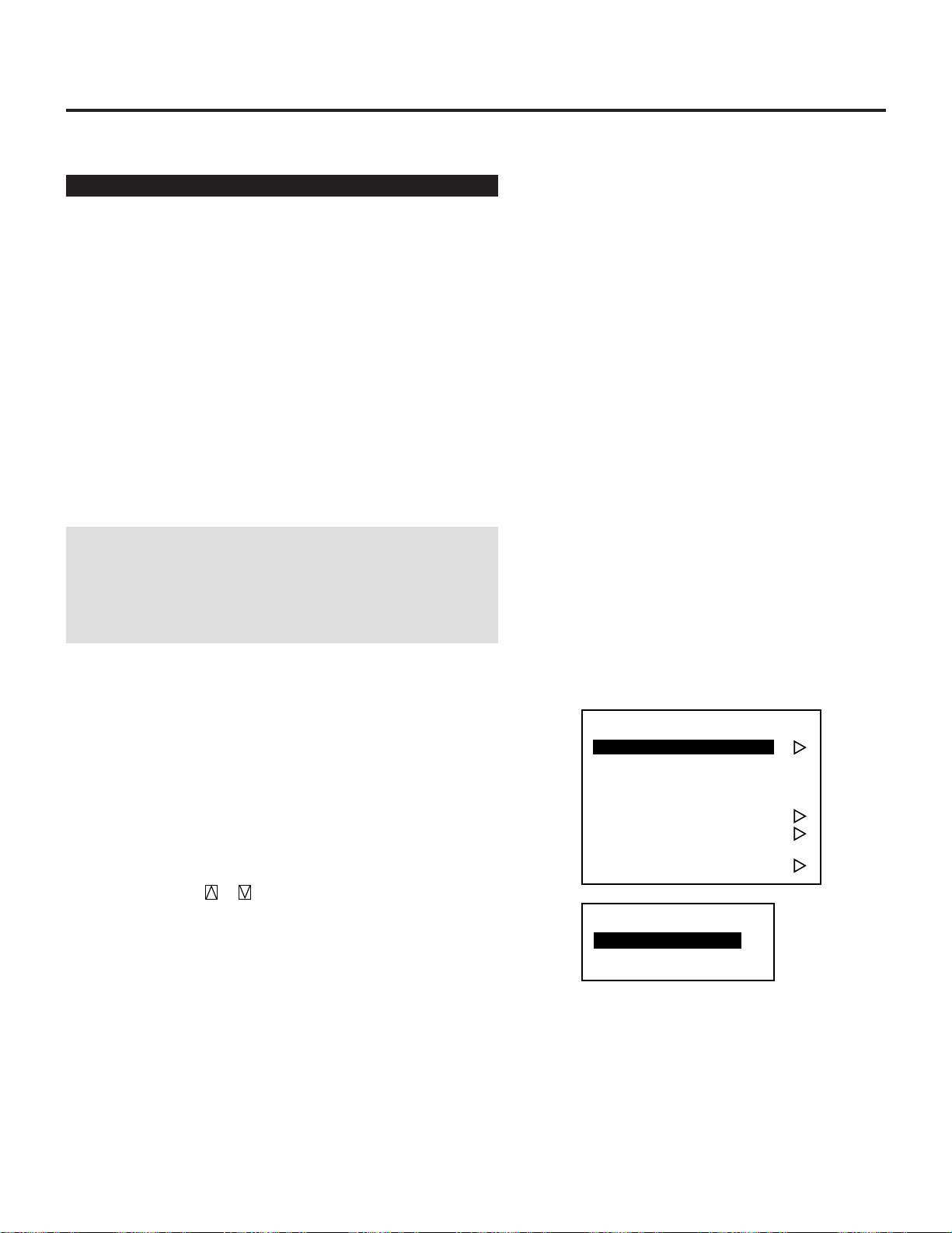
43
Adjusting and Setting (Adjustment)
Source Registry
On Source Registry
The projector uses a micro-processor to automatically read and
distinguish between all video signals input at the same time. These
signals are then used to make optimum adjustments for best image.
Various parameters must be registered into the micro-processor
beforehand to ensure the video signals are recognized and adjusted to
optimum quality.
This function registers these video signals in the Source Select list
and at the same time obtains the various parameters pertaining to
these signals. Always access this mode first whenever inputting
video signals for the first time so that you can register
the video signals before making any adjustments. If the current input
signal(s) has not been registered, the “New Signal” message is
displayed on screen.
NOTE: If you have software which changes scanning mode due to
the graphic board of your PC (such as VGA), it will be necessary to
register signal entry for each scanning mode. This can be done
using your PC by way of stopping the software in each scanning
mode and performing a signal entry operation.
■ Source Registry
When connecting a signal for the first time, you need to register it
into the projector’ s memory. You can copy the initial setting for the
new signal from any other signal that has already been registered or
use the factory preset setting.
To make the signal entry, proceed as follows:
1 Press the ADJUST button.
• The Adjust menu is displayed.
2 Use the CURSOR or button to highlight the “1.Source
Registry” line and press ENTER.
• The Source Registry menu will be displayed.
• You can also select the Source Registry menu directly by
pressing the INPUT “1” button.
-Adjustment-
1. Source Registry
2. Amplitude
3. White Balance
4. Signal Level
5. Uniformity
6. Display Function
7. Lamp Mode
8. Set Option
-Source Registry-
1. New Registry
2. Registry Edit
3.OPERATION
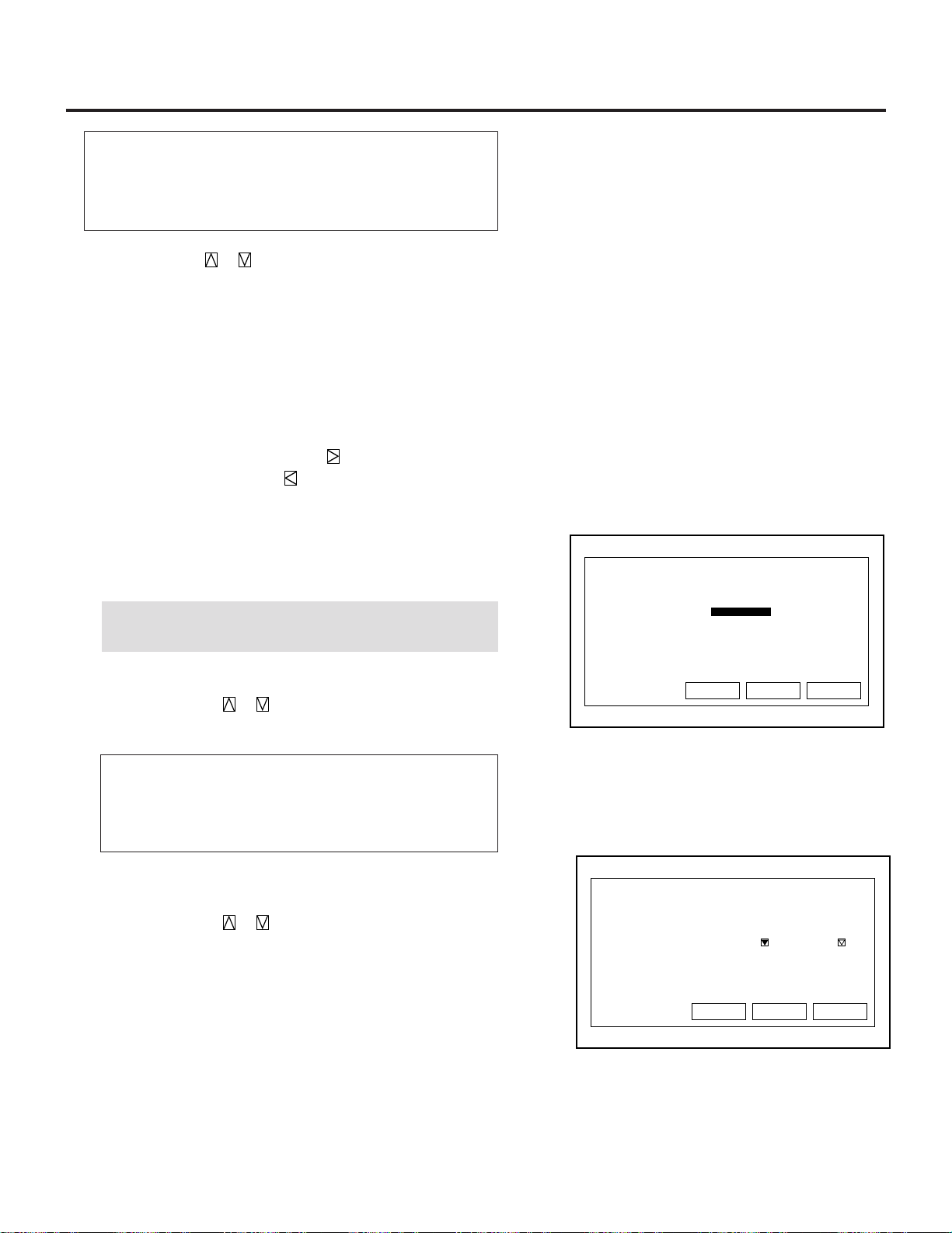
44
3.OPERATION
Items to select
• New Entry ----- Registers a new signal.
• Registry Edit. - Changes setting various parameters of the
registered signals.
3Use the CURSOR or button to highlight the “1.New
Registry” line and press ENTER.
• The “1. Slot” menu is displayed. Then proceed as follows:
1. Select slot.
2. Select signal system.
3. Set HDTV or not when selecting component signal.
4. Input a user name.
5. Select a location number for your registry.
To advance the next item, select Next and press ENTER. To
return the previous item, select Prev and press ENTER. To
cancel your registry, select Cancel.
1) To Select a Slot
You have two steps depending on whether you use your
projector on standalone or with the ISS-6020 switcher(s).
NOTE: The setting INPUT TERMINAL cannot be done to the
current projected signal.
When using the projector in stand alone application:
Use the CURSOR or button to select one of the three
slots, and press ENTER.
Items to select
• INPUT A ---- Standard
• INPUT B ---- Optional board
• INPUT C ---- Optional board
When using with a single Switcher ISS-6020/ISS-6020G:
Use the CURSOR or button to select the input slot
number of the Switcher and press ENTER.
• Input slot numbers are from 1 through 10.
• The “4. User Name” screen will be displayed when you finish
entering the slot number.
Source Registry
1. Slot
2. Signal
3. HDTV
4. User Name
5. No.
Select Slot
<Prev Next> Cancel
1. Slot
INPUT A
INPUT B
INPUT C
Source Registry
1. Slot
2. Signal
3. HDTV
4. User Name
5. No.
Select Slot
<Prev Next> Cancel
1. Slot
Master
[Slot1 ]
Slave
[Slot1 ]
45
Source Registry
1. INPUT A
2. Signal
3. HDTV
4. User Name
5. No.
Select Signal System
<Prev Next> Cancel
2. Signal System
RGB
C-Video
S-Video
COMPONENT
Source Registry
1. INPUT A
2. COMPONENT
3. HDTV
4. User Name
5. No.
Is Signal HDTV?
<Prev Next> Cancel
3. HDTV
Yes
No
Source Registry
1. INPUT A
2. COMPONENT
3. HDTV Mode
4. User Name
5. No.
Input User Name
<Prev Next> Cancel
4. User Name
[ ]
4) To Input a User Name.
Input the source name by selecting one character at a time with
the INPUT buttons 1 through 10 and by moving the cursor with
the CURSOR button. After finishing the selection of the
characters, press ENTER.
• Up to eight characters can be selected.
• Eight characters are assigned to one INPUT button.
• Whenever the INPUT button is pressed, characters will be
rotated.
When using with two or more ISS-6020/ISS-6020G switchers:
Use the CURSOR or button to select the input slot number of
the master Switcher and press ENTER. Then select the slot
number of the slave Switcher and press ENTER.
• The “MASTER” menu will be displayed when the slot
number of the master Switcher is selected.
• The “SLAVE” menu will be displayed when the slot number
of the slave Switcher is selected.
• The “4. User Name” screen will be displayed when you finish
entering the slot number.
2) To Select Signal System
Select your desired signal system.
Items to select
• RGB --------------- Selects the RGB input signal of this
projector
• C-Video ----------- Selects the VIDEO input signal of this
projector
• S-Video ----------- Selects the S-VIDEO input signal of this
projector.
• COMPONENT ---- Selects the component input signal of
this projector.
3) To Set HDTV or not When Selecting Component Signal.
When you select COMPONENT, you are asked if the compo-
nent is HDTV or not.
Select Yes or No according to your component source.
3.OPERATION
46
3.OPERATION
For example: A → B → C →1 → A .....
• When pressing the INPUT button while holding down the
CTL button, another group of characters will be rotated.
For example: a → b → c → ! → a .....
• The characters corresponding to these INPUT buttons are as
follows:
When using With CTL
INPUT 1 A, B, C, and 1 a, b, c, and !
INPUT 2 D, E, F, and 2 d, e, f, and “\par INPUT 3 G, H, I, and
3 g, h, i, and #
INPUT 4 J, K, L, and 4 j, k, l, and $
INPUT 5 M, N, O, and 5 m, n, o, and %
INPUT 6 P, Q, R, and 6 p, q, r, and &
INPUT 7 S, T, U, and 7 s, t, u, and ‘\par INPUT 8 V, W, X,
and 8 v, w, x, and (
INPUT 9 Y, Z, ?, and 9 y, z, /, and )
INPUT 10 *, ,, ., and 0 ;, :, +, and -
If you have made an error in the input of a character, use the
CURSOR button and enter the correct letter or number.
To delete one character, move the CURSOR button to the
character to be deleted and then press the NORMAL button.
To delete all the entered name, hold down the CTL button then
press NORMAL.
5) To Select a Registry Number.
Select the number location where you want to register the
signal and press ENTER.
The “Do you want to register ?” message is displayed. If yes,
press ENTER.
No Name
01
02 NTSC
03 78K
04
05 NTSC
06 No40
07 No39
08 31.45K
09 A
10
Source Registry
5. Select Registry No.
Source
VIDEO
RGB
VIDEO
RGB
RGB
RGB
VIDEO
VIDEO
Input
A
A
C
A
A
A
C
B
Option
<Prev Next> Cancel
1. INPUT A
2. COMPONENT
3. HDTV Mode
4. ABC
5. No. 1
Source Registry
Do you want to register?
Yes
No
<Prev Next> Cancel
47
■ Registry Edit
This feature allows you to change various parameters of the
source on the selected line. This can be done to the current
projected signal as well as not projected source.
To edit the registered signal, proceed as follows:
1) Press the ADJUST button.
• The Adjust menu is displayed.
2) Use the CURSOR or button to highlight the “1.Source
Registry” line and press ENTER.
• The Source Registry menu will be displayed.
• You can also select the Source Registry menu directly by
pressing the INPUT “1” button.
Items to select
• New Entry------------ Registers a new signal.
• Registry Edit--------- Changes setting various parameters
of the registered signals.
3) Use the CURSOR or button to highlight the “2. Registry
Edit” line and press ENTER.
• The “Registry Edit” screen is displayed.
4) Use the CURSOR or button to highlight the registered
signal and press ENTER.
• The “Edit Command” menu is displayed. Then proceed as
follows:
* Cut Enables you to remove a selected signal from the list
and place it on the “clipboard” in the projector.
* Copy Enables you to copy a selected signal from the list and
place it on the “clipboard” in the projector.
* Paste Enables you to paste the signal placed on the “clip-
board” to any other line of the list. To do this, select “Paste”
and then select the line number you want to paste to. Last
press ENTER.
* Information Enables you to set a various parameters. When
“Information is selected, the Source Information screen is
displayed. Select an item and press ENTER.
5) When setting is completed, press END.
NOE: The contents will leave the “clipboard” when you press
END.
Edit Command
Cut
Copy
Paste
Information
3.OPERATION
48
3.OPERATION
Amplitude
Enables you to adjust the horizontal and vertical amplitude of the
image.
NOTE: Normally use the normal value.
Use the CURSOR or to adjust the horizontal amplitude.
Use the CURSOR or to adjust the vertical amplitude.
When the amplitude adjusting is completed, press the END button.
White Balance
White Balance
- White /Black Level -
255
0
White
Red
64
128
Blue
Black
Enables you to adjust the white balance of the image.
Items to select
•White/Red-Blue ----------Adjust the white level for the red or blue.
•Black/Red-Blue ----------Adjust the black level for the red or blue.
Use the CURSOR or to adjust the level of each item.
Use the CURSOR or to select an item.
When the white balance adjusting is completed, press the END
button.
Signal Level
Signal Level
- RGB -
64Red
64Green
64Blue
64White
Signal Level
- COMPONENT -
64Y Gain
64Cb Gain
64Cr Gain
Enables you to adjust the signal level.
NOTE: You can directly access the Signal Level by pressing the
SIGNAL LEVEL button on the remote control.
Use the CURSOR or to adjust the level of each item.
Use the CURSOR or to select an item.
When the signal level adjusting is completed, press the END button.
Amplitude
-Amplitude-
0
0
(H)
(V)
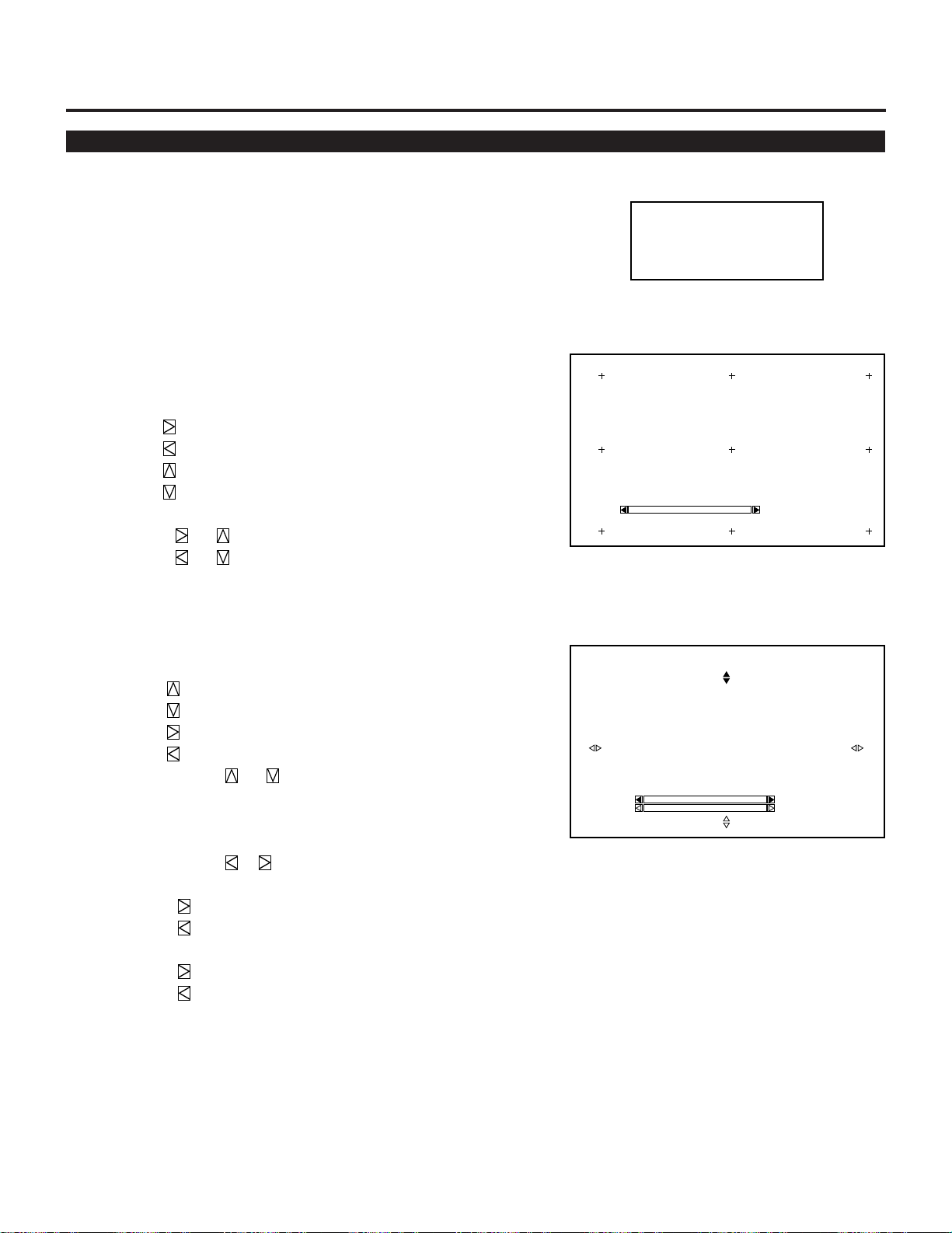
49
Uniformity
-Uniformity-
1. White Uniformity
2. Edge Blending
Enables you to adjust the white uniformity and edge blending.
The white uniformity feature allows you to adjust color balance on
the left and right side of the screen; the edge-blending feature allows
you to adjust the brightness on the area which two images projected
from the two projectors are overlapped.
To Adjust White Uniformity
1) Press R or B button while pressing and holding CTL to select
the color you want to adjust. Note that Green is not available.
2) Move the cursor to the area you want to adjust using CURSOR
button while pressing and holding CTL.
• CTL + moves the cursor to the right.
• CTL + moves the cursor to the left.
• CTL + moves the cursor up.
• CTL + moves the cursor down.
3) Use the CURSOR buttons to adjust the white uniformity.
• Pressing or increases the level.
• Pressing or decreases the level.
4) Repeat from the step 1 for the other color.
To Adjust the Edge Blending
1) Press the CURSOR buttons while pressing and holding CTL to
select the area you want to adjust.
• CTL + selects the top
• CTL + selects the bottom
• CTL + selects the right
• CTL + selects the left
2) Use the CURSOR or button to select “DATA” or
“POS.”.
• “DATA” ------- Adjusts the level
• “POS.” --------- Adjusts the position
3) Use the CURSOR or button to adjust the edge blending.
• When “DATA” is selected:
Pressing increases the level.
Pressing decreases the level.
• When “POS.” is selected:
Pressing moves the position to the top or the right.
Pressing moves the position to the bottom or the left.
To exit the Uniformity, press END.
White Uniformity
- Red -
Screen - Left, Top -
0
Uniformity
- Edge Blending -
Screen - Top -
0Data
0Pos.
3.OPERATION
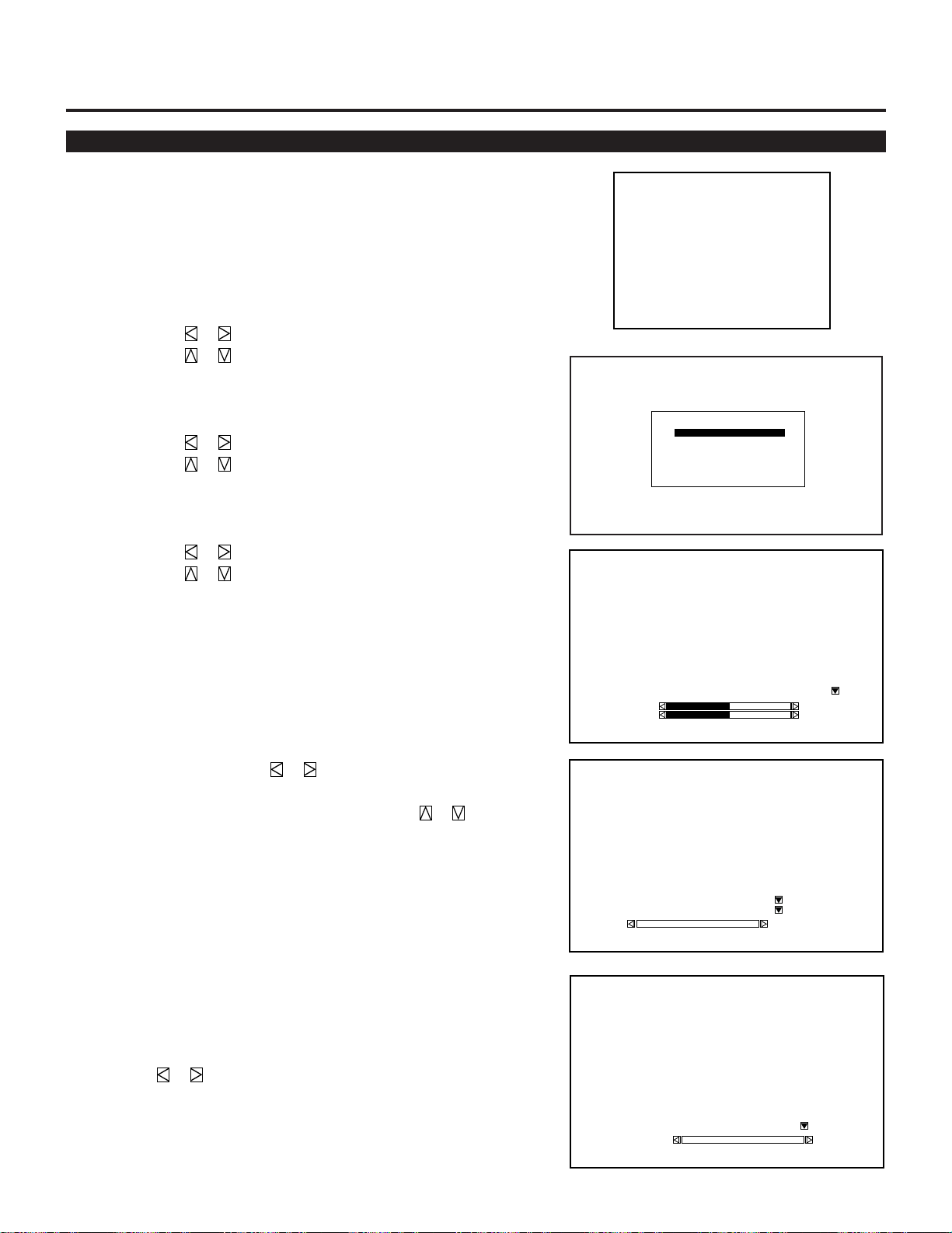
50
3.OPERATION
Display Function
Enables you to adjust various items such as the input signal size,
output signal size, output position, interlace mode and sync protect if
the image is not displayed correctly. Normally you do not need to set
these items.
1) Input Signal Size
Adjusts the size of input signal.
The CURSOR or button adjusts the horizontal size.
The CURSOR or button adjusts the vertical size.
2) Output Signal Size
Adjusts the size of output picture.
The CURSOR or button adjusts the horizontal size.
The CURSOR or button adjusts the vertical size.
3) Output Position
Adjusts the display position of output picture.
The CURSOR or button adjusts the horizontal position.
The CURSOR or button adjusts the vertical position.
4) Interlace Mode
Select the appropriate mode for an interlace signal viewing the
image. Normally select the mode preset at the factory.
5) Sync Protect
After selecting ON, adjust the bending of the top of the screen.
Normally select OFF.
To adjust, use the CURSOR or to adjust the level viewing
the screen.
To switch the top or the bottom, press the CURSOR or
button.
6) PLL Gain
Adjust so that the clock signal is stabilized.
Normally use at the factory setting value.
7) Video Filter
Normally use at the factory setting value.
Input of a high resolution signal such as an XGA or SXGA can
cause white characters to be tinted with color. If this happens, set
the filter switch to ON and then adjust the frequency by using the
CURSOR or button.
Interlace Mode
Non Std: Odd
Non Std: Odd-1
Non Std: Odd+1
Std : Odd
Std : Odd-1
Std : Odd+1
Display Function
- Sync Protect -
Sync Protect Switch [Off ]
1024(U)
1024(D)
-Display Function-
1. Input Signal Size
2. Output Signal Size
3. Output Position
4. Interlance Mode
5. Sync Protect
6. PLL Gain
7. Video Filter
Display Function
- PLL Gain -
Control Mode [Auto ]
PDA.PDB [DIV1 ]
0VCO
Display Function
- Video Filter -
Filter Switch [Off ]
8Freq.(MHz)
51
Enables you to adjust the brightness of the lamp.
Items to select
• Normal ---------------- Normally select this mode.
• High Bright ----------- Select this mode to increase the brightness
of the lamp.
NOTE: The High Bright mode shortens the lamp life. Be sure to use
this mode at temperature 95° F (35° C) or less.
Lamp Mode
Lamp Power
Normal
High-Bright
3.OPERATION
52
3.OPERATION
Set Option
Passcode
■ Entering Passcode
To prevent any unauthorized operation or mis-adjustment, the
projector is equipped with a passcode option. If your passcode has
not been entered correctly, the “Adjustment” menu will not be
displayed. When the ADJUST button is pressed, and no passcode has
been entered, the “Passcode?” screen is displayed. Enter your
passcode.
To do this, proceed as follows:
1 Press the ADJUST button.
• The “Passcode?” screen is displayed.
2 Enter the four digit passcode you have already registered by
using the “1” through “10” buttons.
1) Each time you press the INPUT button, an asterisk appears
under the “Passcode?” message.
2) After you have finished entering the four digit passcode, press
ENTER.
NOTE: If you have made an error, press the NORMAL button to
delete the asterisk “*”. Then re-enter the correct passcode. To
delete all the entered digits, hold down the CTL button then
press the NORMAL button.
3) If the entered passcode is correct, the “ADJUST” menu is
displayed.
NOTE: If the passcode is not correct, the “Warning Different
Passcode!!” message is displayed and you are required to enter
the correct passcode.
3 Proceed to each adjustment and setting.
Passcode?
∗∗∗∗
53
■ Registering Passcode
When the projector is shipped from the factory, no passcode is
registered. If you want to use the passcode option, you must register
a passcode.
To register a new passcode, proceed as follows:
1 Press the ADJUST button.
• The “Adjustment” menu will be displayed.
2 Use the CURSOR or button to highlight the “8.Set Option”
menu. Press ENTER to display the Set Option menu.
3 Use the CURSOR or button to highlight the “1.Passcode”
line. Press ENTER to display the “Passcode Setting” menu.
4 Use the CURSOR or button to select “Entry”. Press
ENTER to display the “New Passcode?” menu.
5 Enter a four digit passcode using the “1” through “10” buttons.
1) Each time you press the INPUT button, an asterisk will appear
next to the “New Passcode?” message.
NOTE: “0000” and “9999” cannot be used as a passcode.
2) Once you have finished entering your four digit passcode,
press ENTER to store the code.
NOTE: If you have made an error, press the NORMAL button
to delete the asterisk “✻”. Then re-enter the correct passcode.
To delete all the entered digits, hold down the CTL button
then press the NORMAL button.
3) If the passcode has been entered correctly, the “Confirm New
Passcode?” menu will be displayed.
NOTE: If the passcode is not entered correctly, the “Warning
Passcode!!” message will be displayed. You will be required
to enter the passcode correctly.
-Adjustment-
1. Source Registry
2. Amplitude
3. White Balance
4. Signal Level
5. Uniformity
6. Display Function
7. Lamp Mode
8. Set Option
-Set Option-
1. Passcode
2. Setting Mode
3. Menu Mode
4. Execute Mode
Passcode
Passcode Setting
Entry Disable
Passcode
PASSCODE SETTING
ENABLE DISABLE
Passcode Setting
New Passcode [ ]
✳✳✳✳
3.OPERATION
54
3.OPERATION
6 Enter the new passcode again.
1) Each time you press the INPUT button, an asterisk will appear
next to the “Confirm New Passcode?” message.
2) Once you have finished entering the new four digit passcode,
press ENTER.
NOTE: If you have made an error, press the NORMAL button
to delete the asterisk “*”. Then re-enter the correct passcode.
To delete all the entered digits, hold down the CTL button
then press the NORMAL button.
3) If the entered passcode is correct, the “Change Passcode
Complete!!” message will be displayed.
NOTE: If the passcode is not correct, the “Warning Different
Passcode!!”message will be displayed. You are required to
enter the new passcode correctly.
The new passcode has been registered.
Passcode
PASSCODE SETTING
ENABLE DISABLE
Passcode Setting
Confirm Passcode [ ]
✳✳✳✳
55
■ Changing Your Passcode
To change your passcode, proceed as follows:
1 Press the ADJUST button.
• The “Passcode?” screen will be displayed.
2 Enter the four digit current passcode using the “1” through “10”
buttons. Press ENTER.
• The “Adjustment” menu will be displayed.
3 Use the CURSOR or button to highlight the “8. Set
Option” menu. Press ENTER to display the “Set Option” menu.
4 Use the CURSOR or button to select “1. Passcode”. Press
ENTER to display the “Passcode Setting” menu.
5 Use the CURSOR or button to select “Entry”.
PressENTER to display the “Current Passcode?” menu.
6 Enter the four digit passcode (the current passcode) using the “1”
through “10” buttons.
1) Each time you press the INPUT button, an asterisk will
appear next to the “Current Passcode?” message.
2) Once you have finished entering the four digit passcode, press
ENTER.
NOTE: If you have made an error, press the NORMAL button
todelete the asterisk “*”. Then re-enter the correct passcode.
To delete all the entered digits, hold down the CTL button
then press the NORMAL button.
3) If the entered passcode is correct, the “New Passcode?”
screen will be displayed.
NOTE: If the passcode is not correct, the “Warning
Different Passcode!!” message is displayed. You will be
required to enter the correct current passcode.
-Adjustment-
1. Source Registry
2. Amplitude
3. White Balance
4. Signal Level
5. Uniformity
6. Display Function
7. Lamp Mode
8. Set Option
-Set Option-
1. Passcode
2. Setting Mode
3. Menu Mode
4. Execute Mode
Passcode
Passcode Setting
Entry Disable
Passcode
Passcode Setting
Current Passcode [ ]
✳✳✳✳
Passcode
PASSCODE SETTING
ENABLE DISABLE
Passcode Setting
New Passcode [ ]
✳✳✳✳
3.OPERATION
56
3.OPERATION
7 Enter a new passcode using the “1” through “10” buttons.
1) Each time you press the INPUT button, an asterisk will appear
next to the “New Passcode?” message.
2) Once you have finished entering the four digit new passcode,
press ENTER.
NOTE: If you have made an error, press the NORMAL button
to delete the asterisk “*”. Then re-enter the correct passcode.
To delete all the entered digits, hold down the CTL button
thenpress the NORMAL button.
3) If the passcode has been entered correctly, the “Confirm New
Passcode?” menu will be displayed.
NOTE: If the passcode is not entered correctly, the “Warning
Different Passcode!!” message will be displayed. You are
required to enter the new passcode correctly.
8 Enter the new passcode again using the “1” through “10” buttons.
1) Each time you press the INPUT button, an asterisk will appear
under the “Confirm New Passcode?” message.
2) Once you have finished entering the four digit new passcode,
press ENTER.
NOTE: If you have made an error, press the NORMAL button
to delete the asterisk “*”. Then re-enter the correct passcode.
To delete all the entered digits, hold down the CTL button
then press the NORMAL button.
3) If the entered passcode is correct, the “Change Passcode
Complete!!” message is displayed.
NOTE: If the passcode is not entered correctly, the “Warning
Different Passcode!!” message is displayed. You will be
required to enter the new passcode correctly.
The passcode has been changed to another.
Passcode
PASSCODE SETTING
ENABLE DISABLE
Passcode Setting
Confirm Passcode [ ]
✳✳✳✳
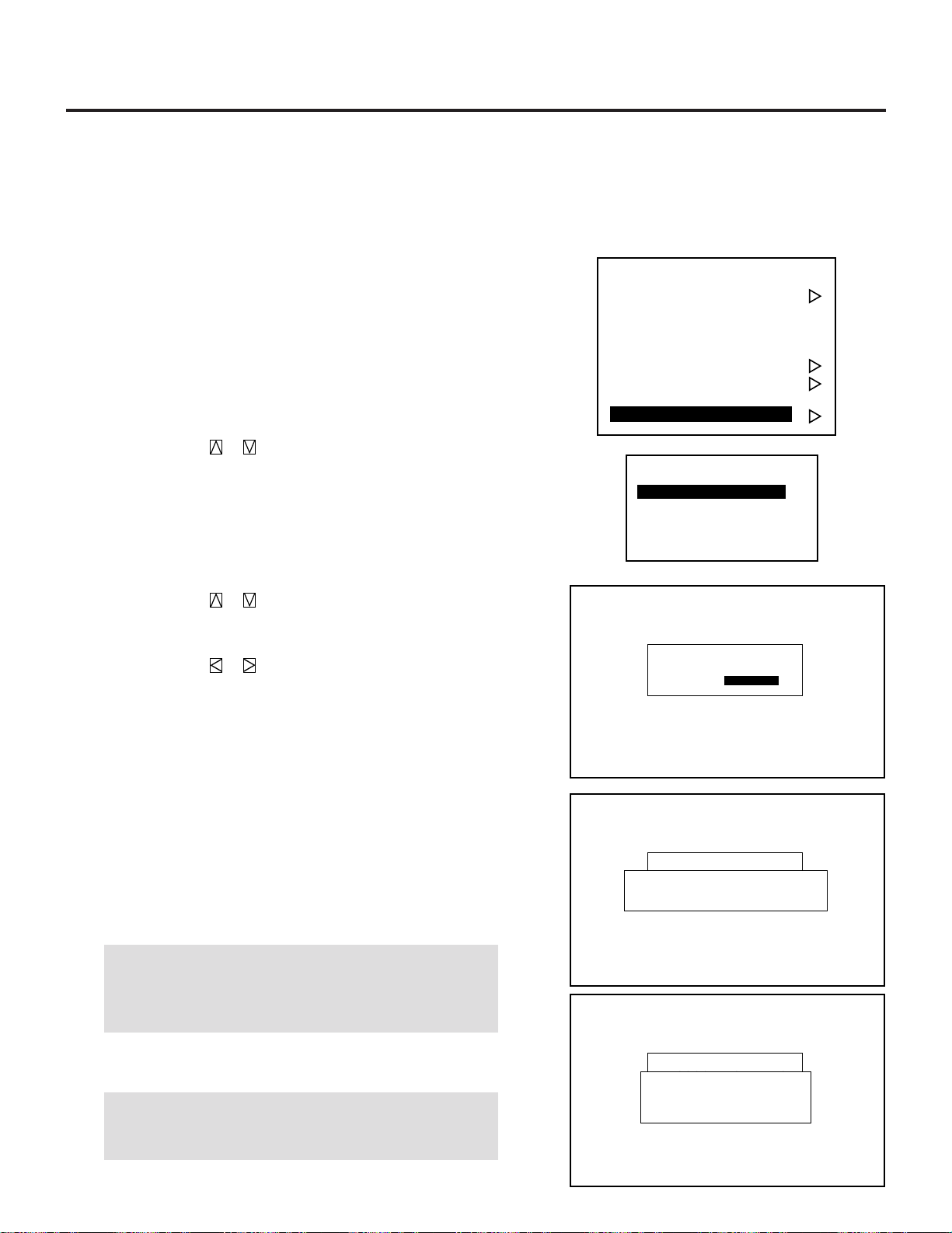
57
-Adjustment-
1. Source Registry
2. Amplitude
3. White Balance
4. Signal Level
5. Uniformity
6. Display Function
7. Lamp Mode
8. Set Option
-Set Option-
1. Passcode
2. Setting Mode
3. Menu Mode
4. Execute Mode
Passcode
Passcode Setting
Current Passcode [ ]
✳✳✳✳
■ Canceling Your Passcode
To cancel the passcode, proceed as follows:
1 Press the ADJUST button and then enter your passcode.
• The “Passcode?” screen will be displayed.
2 Enter the four digit current passcode using the “1” through “10”
buttons and then press ENTER.
• The “Adjustment” menu will be displayed.
3 Use the CURSOR or button to highlight “8. Set Option”.
Press the ENTER button to display the “Set Option” menu.
4 Use the CURSOR or button to highlight “1. Passcode”
line. Press ENTER to display the “Passcode Setting” menu.
5 Use the CURSOR or button to select “Disable”. Press
ENTER to display the “Passcode Disable?” menu. Select “Yes”
and press ENTER.
• The “Current Passcode” screen will be displayed.
6 Enter the four digit passcode (the current passcode) using the “1”
through “10” buttons.
1) Each time you press the INPUT button, an asterisk will appear
next to the “Current Passcode?” message.
2) Once you have finished entering the four digit passcode, press
ENTER.
NOTE: If you have made an error, press the NORMAL button
to delete the asterisk “*”. Then re-enter the correct passcode.
To delete all the entered digits, hold down the CTL button
then press the NORMAL button.
3) If the entered passcode is correct, the “Passcode Disable?”
menu will be displayed.
NOTE: If the passcode is not correct, the “Warning Different
Passcode!!” message will be displayed. You will be required
to enter your correct passcode.
Passcode
PASSCODE SETTING
ENABLE DISABLE
Passcode Setting
Passcode Disable ?
Yes No
Passcode
Passcode Setting
Entry Disable
3.OPERATION

58
3.OPERATION
7 Use the CURSOR or button to select Yes and then press
ENTER.
Items to select
• Yes ---------------- When selecting “Yes”, the current passcode
will be canceled. You will not be required to
re-enter your passcode when you press the
ADJUST button to re-enter the ADJUST
mode.
• No ----------------- When selecting “No”, the current passcode
will remain in effect.
Your passcode has been cancelled.
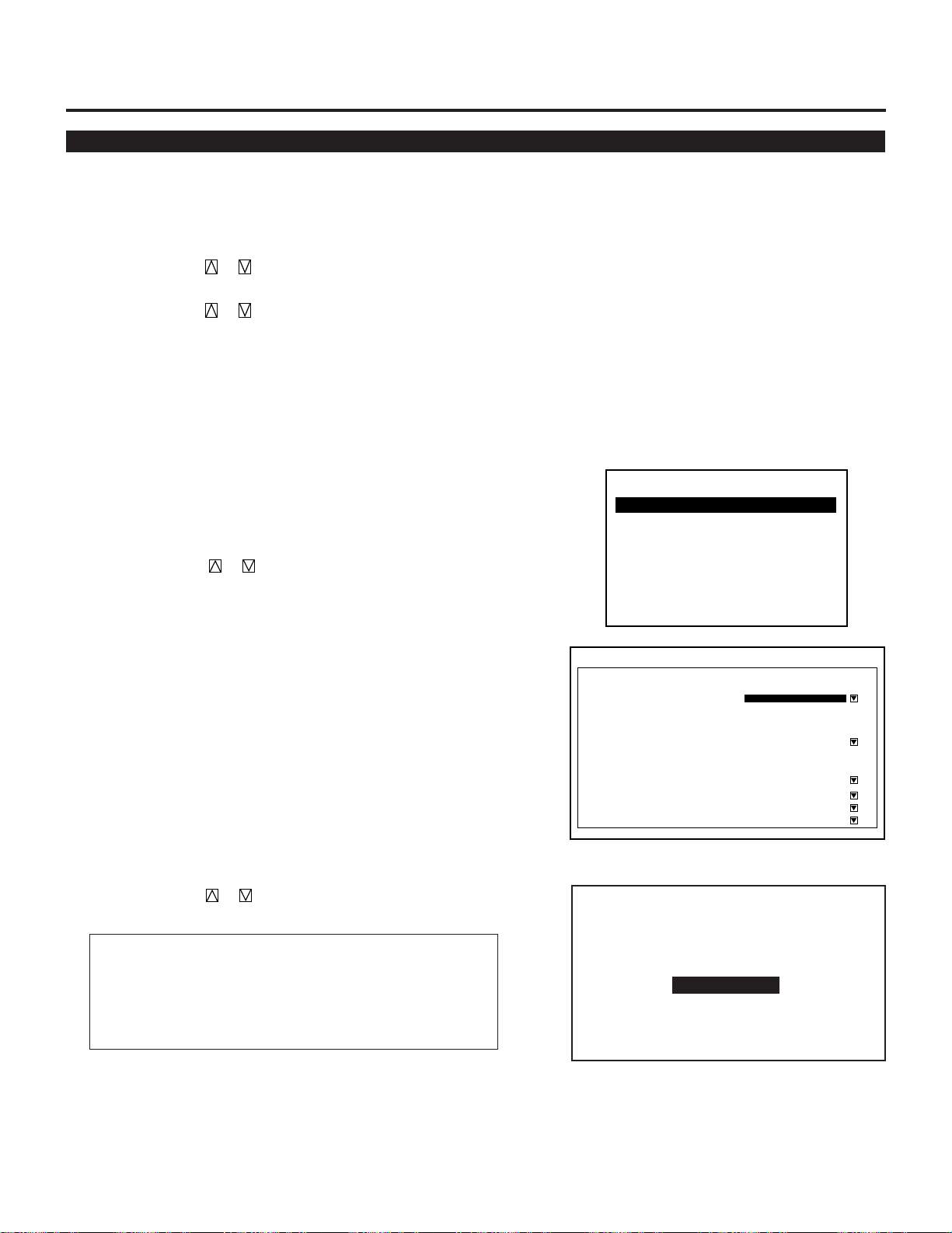
59
Setting Mode
Enables you to set various items.
To do, follow the steps below.
1. Press the ADJUST button to display the Adjustment menu.
2. Use the CURSOR or button to select “8. Set Option” menu.
Press ENTER.
3. Use the CURSOR or button to select “2. Setting Mode”
menu. Press ENTER.
Proceed to the following steps.
■ PJ Orientation
This feature allows you to set the installation type according to the
projection configuration.
1 Use the CURSOR or button to select the “PJ ORIENTA-
TION” item, then press ENTER to display the “PJ ORIENTA-
TION” menu.
-Setting Mode-
1. PJ Orientation
2. Default Source Select
3. S-Video Mode Select
4. Video System Select
5. Auto Data Store
6. Option Terminal Speed
7. Uniformity Switching
Setting Mode
PJ Orientation
Default Mode Select
S-Video Mode Select
Video System Select
Auto Data Store
Option Terminal Speed
[ Ceiling/Front ]
[S2 ]
[Disable ]
[38400 BPS ]
[Disable ]
[Disable ]
Manual
NTSC3.58
Default
INPUT-A
S-Video
Uniformity White
Edge Blend.
2 Use the CURSOR or button to select one of the four
projector installation types and press ENTER.
Items to select
• CEILING/REAR .... Ceiling mounting type and rear projection
• FLOOR/REAR....... Desk top type and rear projection
• CEILING/FRONT .. Ceiling mounting type and front projection
• FLOOR/FRONT..... Desk top type and front projection
Floor / Rear
Ceiling / Front
Floor / Front
Ceiling / Rear
3.OPERATION
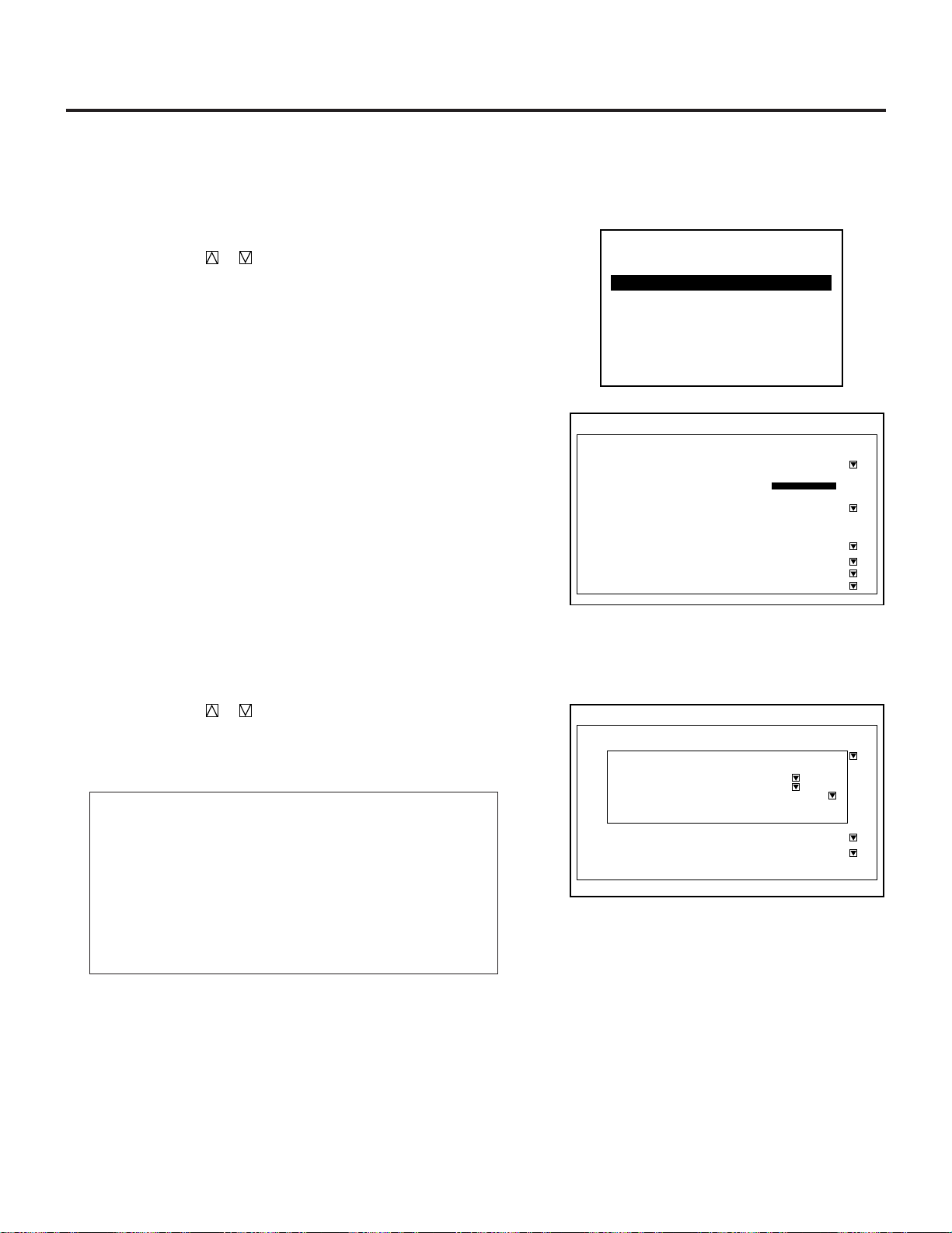
60
3.OPERATION
■ Default Source Select
-Setting Mode-
1. PJ Orientation
2. Default Source Select
3. S-Video Mode Select
4. Video System Select
5. Auto Data Store
6. Option Terminal Speed
7. Uniformity Switching
Setting Mode
PJ Orientation
Default Mode Select
S-Video Mode Select
Video System Select
Auto Data Store
Option Terminal Speed
[Ceiling/Front ]
[S2 ]
[Disable ]
[38400 BPS ]
[Disable ]
[Disable ]
Manual
NTSC3.58
Default
INPUT-A
S-Video
Uniformity White
Edge Blend.
Setting Mode
PjORIENTATION
DefaultULT MODE SELECT
S-VIDEO MODE SELECT
VidEO SYSTEM SELECT
Auto Data Store
Option Terminal Speed
[CEILING/FRONT ]
[?????????CD)
[Default ]
[38400 Bps ]
MANUAL
NTSC3.58
DEFAULT
INPUT-A
S-VIDEO
Default Source Select
Default Source
Slot
Signal
OK
[Default ]
[Input-A ]
[COMPO. HDTV) ]
Cancel
You can set the projector to default to any one of its inputs each time
the projector is turned on.
Proceed as follows:
1 Use the CURSOR or button to select the “Default Source
Select” item, then press ENTER to display the “Default Source
Select” menu.
2 Use the CURSOR or button to select either “Default” or
“Last” and press ENTER.
• Selecting “LAST” completes setting.
• Selecting “DEFAULT” displays the “Default input” screen.
Items to select
• DEFAULT . Displays the same source input every time the
projector is started up.
• LAST ....... Sets the projector to default to the previous last
active input each time the projector is turned on.
Note: An input must be active for a minimum of 10
minutes before it is recognized as the last active
signal.
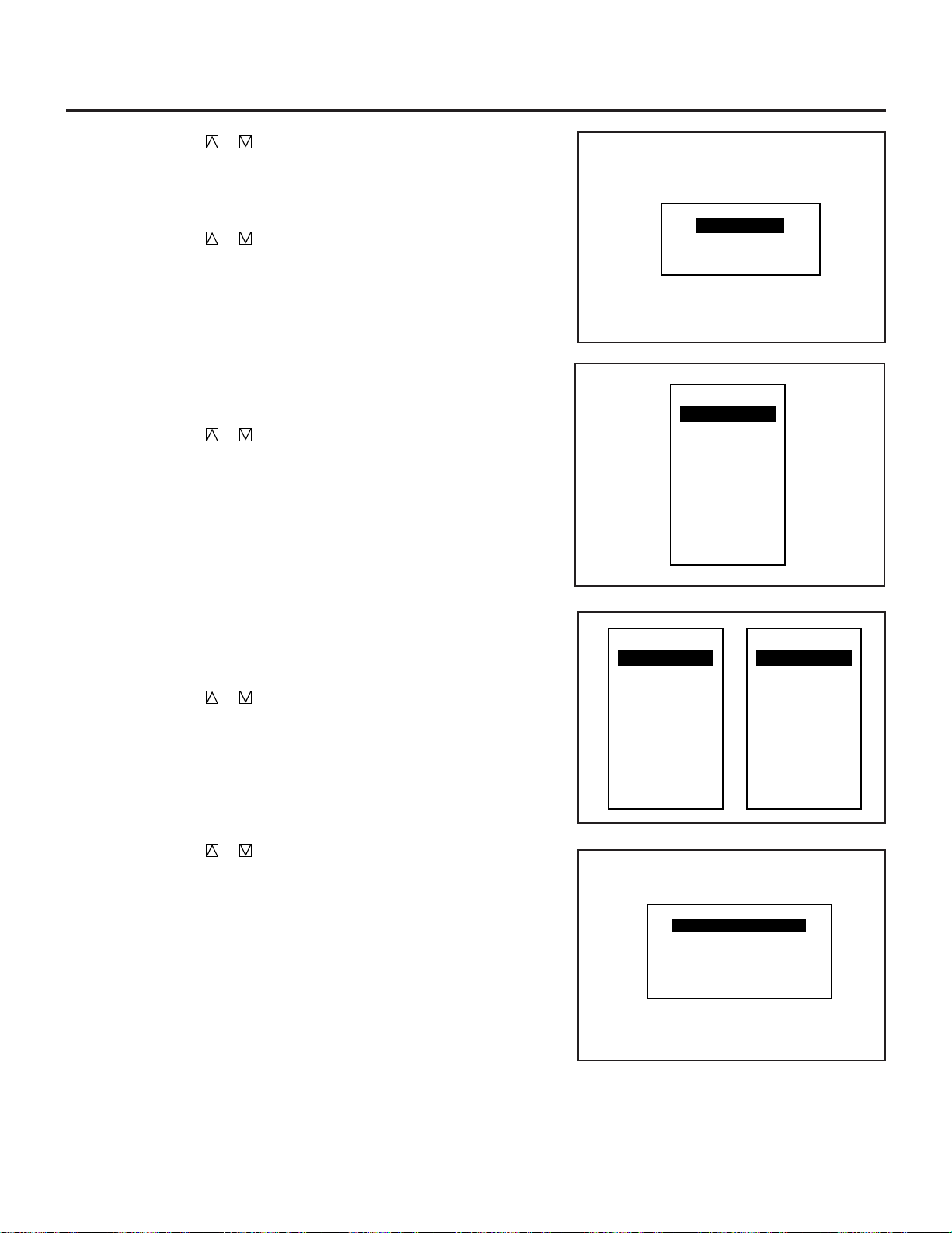
61
SLOT–01
SLOT–02
SLOT–03
SLOT–04
SLOT–05
SLOT–06
SLOT–07
SLOT–08
SLOT–09
SLOT–10
MASTER
3 Use the CURSOR or button to select an input and then
press the ENTER button.
When used in stand alone operation:
The default input screen will be displayed.
Use the CURSOR or button to select an input and press
ENTER.
When used with a single Switcher:
The “MASTER” slot menu will be displayed.
Use the CURSOR or button to select the desired slot
number “1” through “10(0)” and then press ENTER.
When used with two or more Switchers:
The “MASTER” and “SLAVE” slot number menu will be
displayed.
Use the CURSOR or button to select the master slot
number first and then select the slave slot number “1” through
“10(0)”. Press ENTER.
SLOT–01
SLOT–02
SLOT–03
SLOT–04
SLOT–05
SLOT–06
SLOT–07
SLOT–08
SLOT–09
SLOT–10
MASTER
SLOT–01
SLOT–02
SLOT–03
SLOT–04
SLOT–05
SLOT–06
SLOT–07
SLOT–08
SLOT–09
SLOT–10
SLAVE
4 Use the CURSOR or button to select a signal and
press ENTER button.
5 Press OK to complete the setting.
INPUT A
INPUT B
INPUT C
RGB
VIDEO
S-VIDEO
COMPONENT
COMPO.(HDTV)
3.OPERATION
62
3.OPERATION
]
This function is used to select the S-video signal detection mode.
This allows identifying of the S-video signals with different aspect
ratio: squeeze or full mode(16 : 9) and letter box (4 : 3) signals.
To set, proceed as follows:
1 Use the CURSOR or button to select the “S-Video Mode
Select” item, then press ENTER to display the “S-Video Mode
Select” menu.
■ S-Video Mode Select
-Setting Mode-
1. PJ Orientation
2. Default Source Select
3. S-Video Mode Select
4. Video System Select
5. Auto Data Store
6. Option Terminal Speed
7. Uniformity Switching
Setting Mode
PJ Orientation
Default Mode Select
S-Video Mode Select
Video System Select
Auto Data Store
Option Terminal Speed
[Ceiling/Front ]
[ S2 ]
[Disable ]
[38400 BPS ]
[Disable ]
[Disable ]
Manual
NTSC3.58
Default
INPUT-A
S-Video
Uniformity White
Edge Blend.
2 Use the CURSOR or button to select one of the three items:
S2, S1, and OFF, and then press ENTER.
Items to select
S2 .............. Identifies squeeze and letter box signals.
S1 .............. Identifies a squeeze signal only.
OFF ............ Does not identify any S-video signal.
NOTE :
• The input signal must be compatible with the S2/S1 MODE
standard.
Refer to the user manual included with the connected equip-
ment for more information.
• The identification function may not work correctly with a non-
compatible signal. If this happens, select “OFF” from the “S-
VIDEO MODE SELECT” menu.
S2
S1
OFF
S-Video Mode Select
63
This function is used to select the NTSC 3.58, NTSC 4.43, PAL or
SECAM video standard.
To select any one of the video standards, proceed as follows:
1 Use the CURSOR or button to select the “Video System
Select ” item, then press ENTER to display the “Video System
Select ” menu.
■ Video System Select
-Setting Mode-
1. PJ Orientation
2. Default Source Select
3. S-Video Mode Select
4. Video System Select
5. Auto Data Store
6. Option Terminal Speed
7. Uniformity Switching
Setting Mode
PJ Orientation
Default Mode Select
S-Video Mode Select
Video System Select
Auto Data Store
Option Terminal Speed
[Ceiling/Front ]
[S2 ]
[Disable ]
[38400 BPS ]
[Disable ]
[Disable ]
Manual
NTSC3.58
Default
INPUT-A
S-Video
Uniformity White
Edge Blend.
2 Use the CURSOR or button to select either “Auto” or a
video standard manually and then press ENTER.
When selecting “AUTO”
Video Modes
• NTSC3.58 ............Indicates the NTSC3.58 video standard
• NTSC4.43 ............Indicates the NTSC4.43 video standard
• PAL ..................... Indicates the PAL video standard
• SECAM ................Indicates the SECAM video standard
• Select “Auto” in normal operation.
• Select a video standard manually when connecting to poor
quality signal or non-standard signals such as video games.
NOTE: The projector may not function correctly with a mono-
chrome signals in the Auto mode.
NTSC 3.58
NTSC 4.43
PAL
SECAM
VIDEO MODE SELECT
Setting Mode
Pj Orientation
Default Mode Select
S-Video Mode Select
Video System Select
Auto Data Store
Option Terminal Speed
[Ceiling/Front ]
[?????????? ]
[Disable ]
[38400 Bps ]
Manual
NTSC3.58
Default
Input-A
S-Video
Video System Select
AUTO
NTSC3.58
NTSC4.43
PAL
SECAM
3.OPERATION
64
3.OPERATION
This feature allows you to select two ways to store settings; auto-
matically and manually.
After “Enable” is selected in the Auto Data Store menu, all projector
settings are stored in the projector's memory automatically. To set
this feature, proceed as follows:
1 Use the CURSOR or button to select the “Auto Data Store”
item on Page 2, then press ENTER to display the “Auto Data
Store” menu.
■ Auto Data Store
-Setting Mode-
1. PJ Orientation
2. Default Source Select
3. S-Video Mode Select
4. Video System Select
5. Auto Data Store
6. Option Terminal Speed
7. Uniformity Switching
Setting Mode
PJ Orientation
Default Mode Select
S-Video Mode Select
Video System Select
Auto Data Store
Option Terminal Speed
[Ceiling/Front ]
[S2 ]
[ Disable ]
[38400 BPS ]
[Disable ]
[Disable ]
Manual
NTSC3.58
Default
INPUT-A
S-Video
Uniformity White
Edge Blend.
2 Use the CURSOR or button to select either “Disable” or
“Enable” and then press ENTER.
Items to select
• Disable .... Projector does not store the settings automatically.
• Enable ..... Projector stores the settings automatically.
Automatic storing data is done when any one of the following
procedures is performed:
• Pressing the END button several times returns the adjustment
screen to the source screen.
• One input is switched to another.
• The projector is turned off.
• Every 10 minutes.
NOTE: After “Disable” is selected in the Auto Data Store menu,
the settings will not be stored in the memory unless you select
“Yes” in the “Store ?” menu.
Disable
Enable
Auto Data Store
65
■ Option Terminal Speed
This feature allows you to set baud rate of the OPTION terminal
from 4800 to 38400 bps.
NOTE:
• The baud rate of the OPTION terminal defaults to 38400 bps at the
factory.
• Make sure that the baud rate of the OPTION terminal matches that
of operating of the connected equipment.
To change the baud rate of the OPTION terminal, proceed as follows:
1 Use the CURSOR or button to select the “Option
Terminal Speed” item, then press ENTER to display the “Option
Term Boad Rate” menu.
2 Use the CURSOR or button to select the baud rate from
4800 to 38400 bps and press ENTER.
4800 BPS
9600 BPS
19200 BPS
38400 BPS
-Setting Mode-
1. PJ Orientation
2. Default Source Select
3. S-Video Mode Select
4. Video System Select
5. Auto Data Store
6. Option Terminal Speed
7. Uniformity Switching
Setting Mode
PJ Orientation
Default Mode Select
S-Video Mode Select
Video System Select
Auto Data Store
Option Terminal Speed
[Ceiling/Front ]
[S2 ]
[Disable ]
Manual
NTSC3.58
Default
INPUT-A
S-Video
Uniformity White
Edge Blend.
[ 38400 BPS ]
[Disable ]
[Disable ]
3.OPERATION
66
3.OPERATION
■ Uniformity Switching
Enables you to enable or dasable the uniformity white and edge
blending features.
1 Use the CURSOR or button to select the “Uniformity
Switching” item, then press ENTER.
2 Use the CURSOR or button to select the “White Unifor-
mity or Edge Blend.” item, and select Disable or Enable, then
ENTER.
-Setting Mode-
1. PJ Orientation
2. Default Source Select
3. S-Video Mode Select
4. Video System Select
5. Auto Data Store
6. Option Terminal Speed
7. Uniformity Switching
Setting Mode
PJ Orientation
Default Mode Select
S-Video Mode Select
Video System Select
Auto Data Store
Option Terminal Speed
[Ceiling/Front ]
[S2 ]
[Disable ]
[38400 BPS ]
[Disable ]
[ Disable ]
Manual
NTSC3.58
Default
INPUT-A
S-Video
Uniformity White
Edge Blend.
Disable
Enable
67
There are two modes of operations for the on-screen display. With
AUTO mode, the on-screen display will automatically switch off
after three through ten seconds. In the MANUAL mode, the display
must be manually turned off with the DISPLAY button on the full
function remote control each time it appears.
NOTE: Pressing DISPLAY with CTL will select the non on-screen
mode; pressing DISPLAY with CTL again will cancel this mode.
Even if the on-screen display may be turned off with CTL and
DISPLAY, any adjustment will still change the projector’s memory
settings.
Proceed as follows:
1 Use the CURSOR or button to highlight the “Message
Time” item.
Press ENTER to display the “Message Time” menu.
Menu Mode
Enables you to set various items for on-screen display.
To do, follow the steps below.
1. Press the ADJUST button to display the Adjustment menu.
2. Use the CURSOR or button to select “8. Set Option” menu.
Press ENTER.
3. Use the CURSOR or button to select “3. Menu Mode”
menu. Press ENTER.
Proceed to the following steps.
This feature allows you to display the items on the top of the
screen: date, time, input signal, source name, address, and new
signal.
■ Message Time
-Menu Mode-
1. Message Time
2. Date, Time Preset
3. Display Item Set
Menu Mode
Message Time
Date, Time Preset
Display Item Set
Date [Off ]
[Off ]
[Off ]
[Off ]
[Off ]
[Off ]
New Signal
Time
Input Signal
Soutce Name
Address
[ Auto 10 Sec ]
Jan/DD/YYYY
HH:MM:SS
3.OPERATION
68
3.OPERATION
2 Use the CURSOR or button to select either “Auto” or
“Manual“ and press ENTER.
Items to select
• Auto......... The on-screen menu display appears when the
buttons on the remote control, or the controls on
the rear panel are pressed. The on-screen display
will turn off at a preselected time.
The OFF TIME is specified in seconds up to a
maximum of 30 seconds.
Select your desired time (3-30 seconds) from the
OFF TIME menu.
• Manual .... The on-screen menu display appears when the
buttons on the remote control, or the controls on
the rear panel are pressed. The display will be
turned on and off whenever the DISPLAY button is
pressed. If no button operation is made for 20
minutes or more, the on-screen message will
automatically turn off.
Manual
Auto 3 sec
Auto 10 sec
Auto 30 sec
69
The current year, month, date and time are displayed on the top of
the screen.
Proceed as follows:
1 Use the CURSOR or button to highlight the “Date, Time,
Preset” item. Press ENTER to display the “Date, Time Preset”
menu.
2 Use the CURSOR or button to select any one of the two
items: Date, and Time.
3 Type the date and time. Then press OK.
■ Date, Time Preset
-Menu Mode-
1. Message Time
2. Date, Time Preset
3. Display Item Set
Menu Mode
Message Time
Date, Time Preset
Display Item Set
Date [Off ]
[Off ]
[Off ]
[Off ]
[Off ]
[Off ]
New Signal
Time
Input Signal
Soutce Name
Address
[Auto 10 Sec ]
Jan/DD/YYYY
HH:MM:SS
Menu Mode
Message Time
Date, Time Preset
Display Item Set
[Auto 10 Sec ]
Jan/DD/YYYY
HH:MM:SS
Date [Off ]
[Off ]
[Off ]
[Off ]
[Off ]
[Off ]
New Signal
Time
Input Signal
Soutce Name
Address
OK Cancel
Date, Time Preset
Date MM/DD/YYYY
[12/15/1997] (Mon)
Time HH/MM/SS
[20:30:00]
3.OPERATION
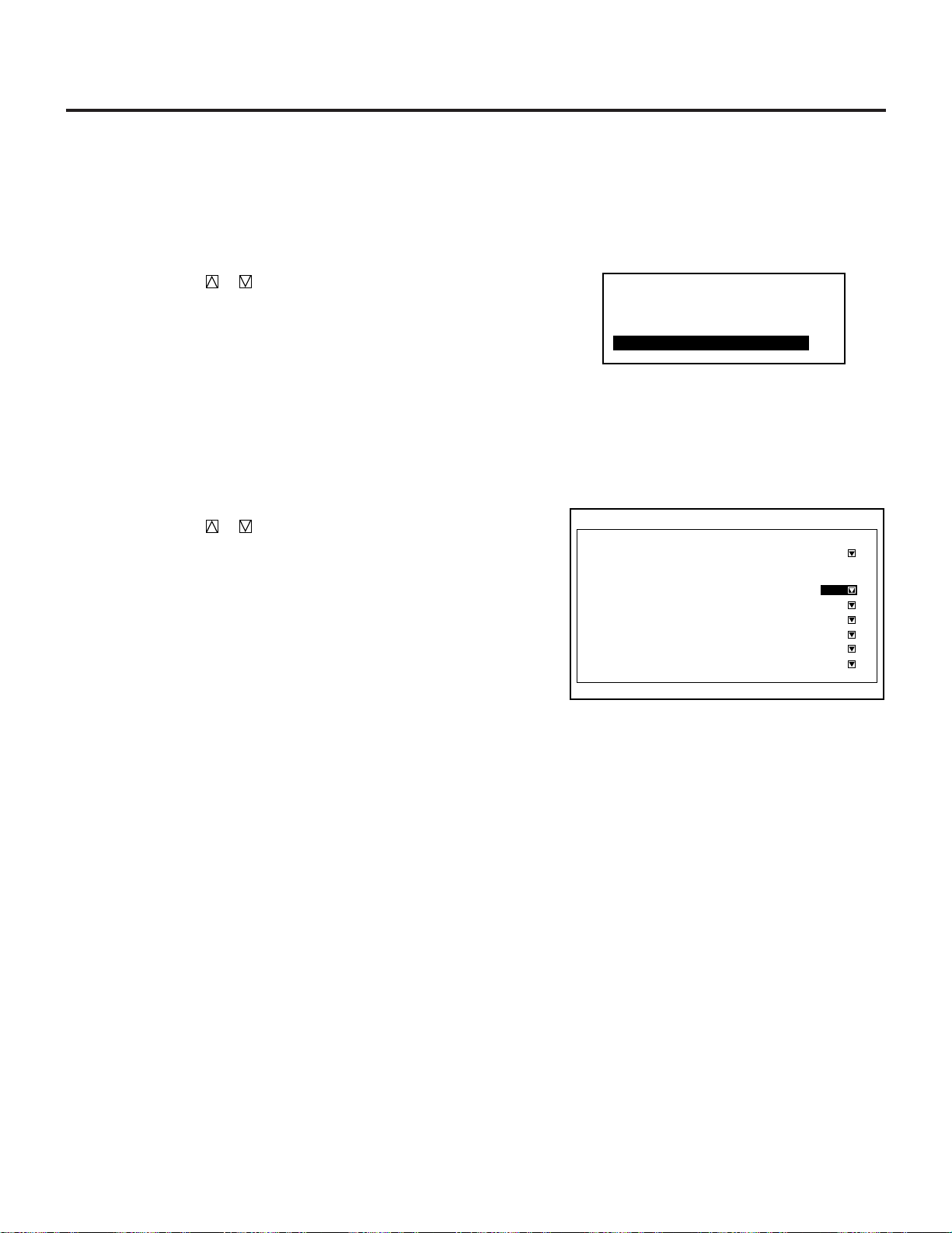
70
3.OPERATION
This feature allows you to display the items : date, time, input signal,
source name, address, and new signal on the top of the screen.
1 Use the CURSOR or button to highlight the “Display Item
Set” menu. Press ENTER.
■ Display Item Set
Menu Mode
Message Time
Date, Time Preset
Display Item Set
Date [Off ]
[Off ]
[Off ]
[Off ]
[Off ]
[Off ]
New Signal
Time
Input Signal
Soutce Name
Address
[Auto 10 Sec ]
Jan/DD/YYYY
HH:MM:SS
-Menu Mode-
1. Message Time
2. Date, Time Preset
3. Display Item Set
2 Use the CURSOR or buttons to select on or off and press
ENTER.
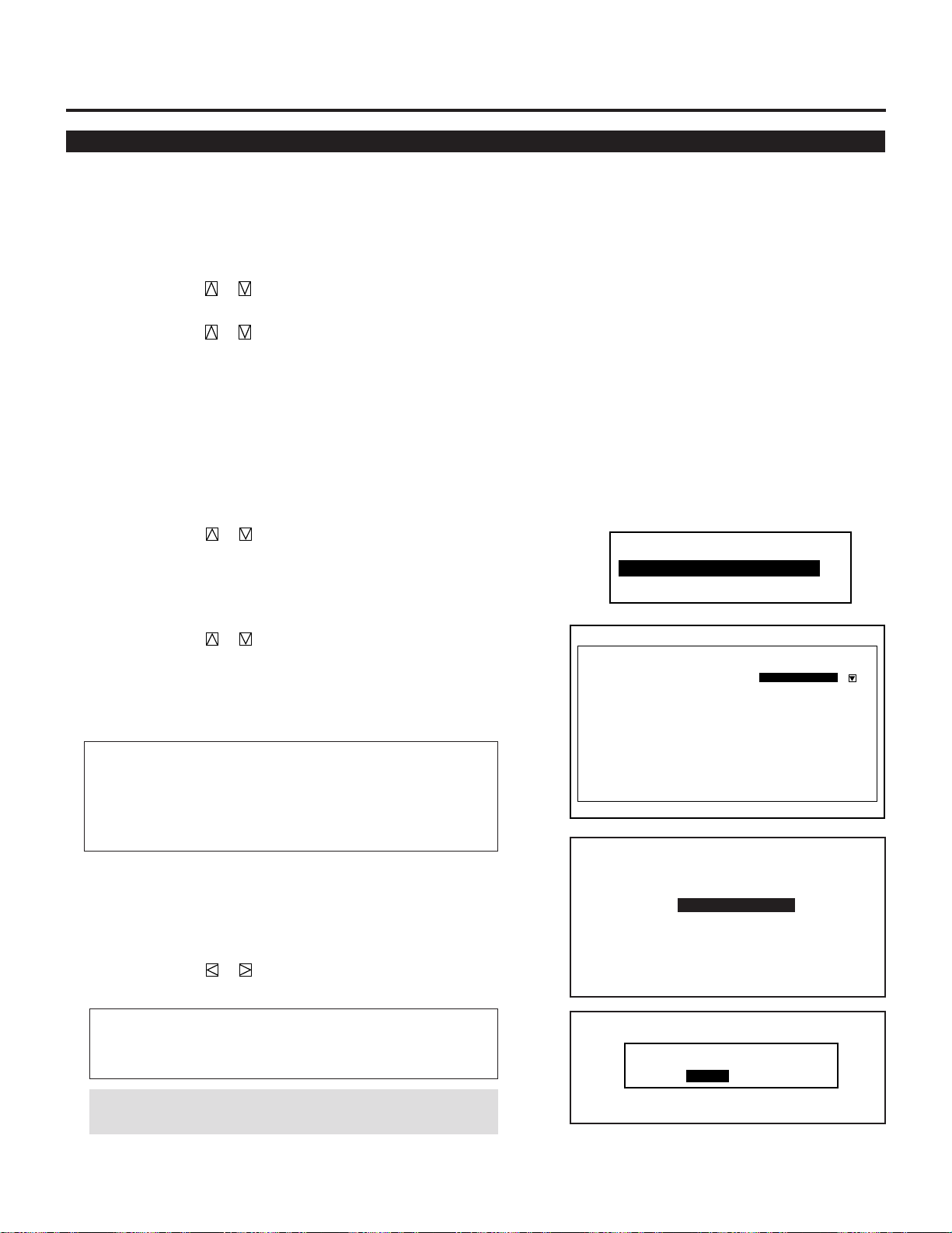
71
Execute Mode
Enables you to select connecting with the switcher ISS-6020 and
view the projector address on the screen.
To do, follow the steps below.
1. Press the ADJUST button to display the Adjustment menu.
2. Use the CURSOR or button to select “8. Set Option” menu.
Press ENTER.
3. Use the CURSOR or button to select “4. Execute Mode”
menu. Press ENTER.
Proceed to the following steps.
This setting explains how the projector is used with the ISS-6020/
ISS-6020G Switcher.
1 Use the CURSOR or button to select the “1. Connect
Condition” item, then press ENTER to display the ““1. Connect
Condition” menu.
2 Use the CURSOR or button to select your desired connec-
tion condition of Switcher and press ENTER.
• The “Re-Start ?” prompt is displayed after setting of the connec-
tion condition is modified from the current status to your desired
condition.
Items to select
• Stand Alone ......... The projector used in stand alone operation.
• SW 1 Level .......... The projector used with one Switcher.
• SW 2 Level .......... The projector used with two or more
Switchers.
■ Connect Condition
-Execute Mode-
1. Connect Condition
2. PJ Address
Execute Mode
Connect Condition
PJ Address
[01] (01-64)
[ StandAlone ]
3 Use the CURSOR or button to select either “Yes” or “No”
and press ENTER.
Items to select
• Yes .......... Restart the projector.
• No ........... Does not restart the projector.
NOTE: The selected connection condition becomes effective
only after the projector is restarted.
Re-Start?
Yes No
Connect Condition
Stand Alone
SW1 Level
SW2 Level
3.OPERATION
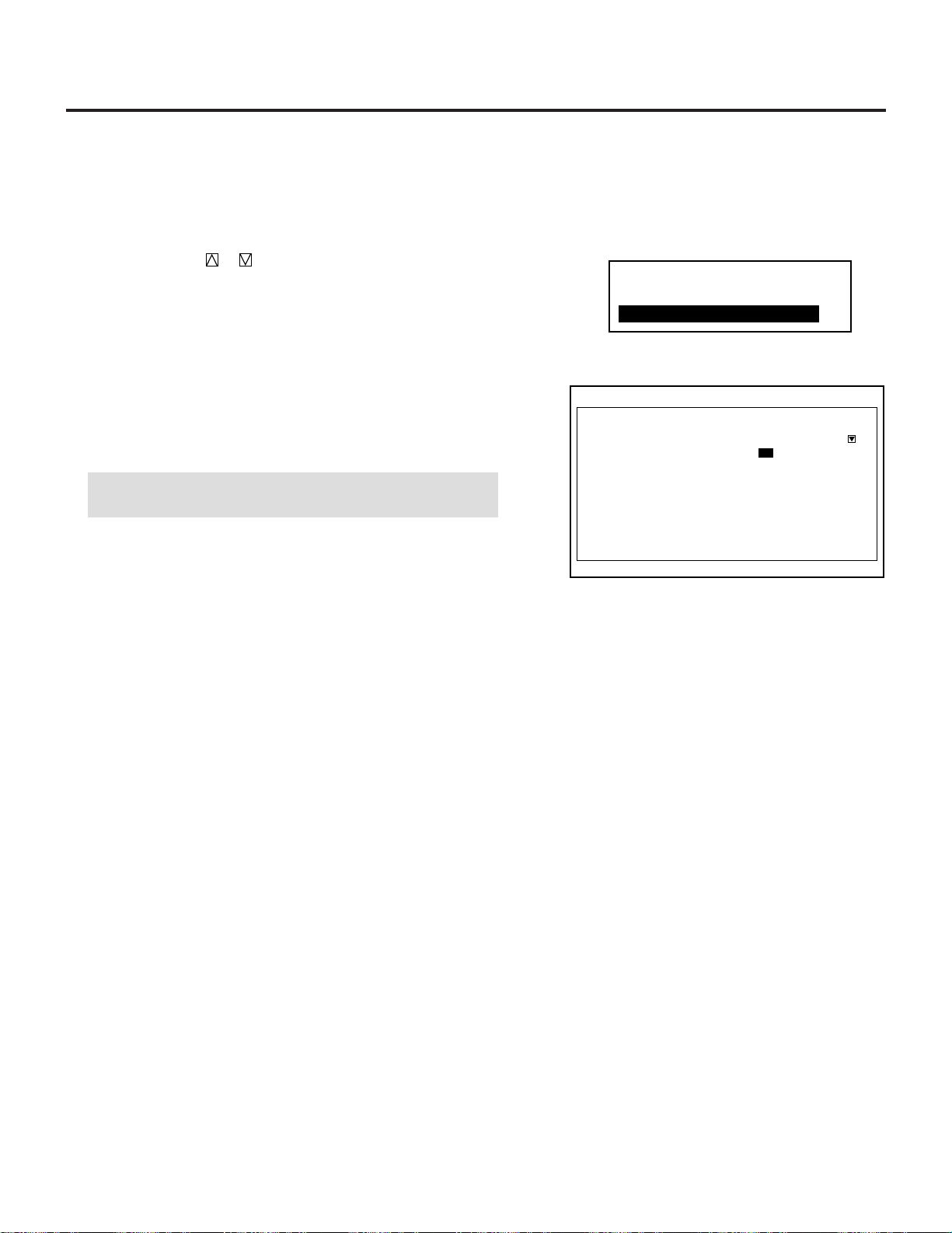
72
3.OPERATION
Each projector needs its own unique address in the case of a serial
connection of projectors. Up to 64 addresses can be set.
Proceed as follows:
1 Use the CURSOR or button to highlight the “2/PJ Address”
line. Press ENTER to display the “Address” menu.
2 Enter the address number using the INPUT button and press
ENTER.
• If you have made a mistake, press END to return to the “OP-
TION” menu, then start again.
NOTE: Enter the address number “01” when only one projector
is used.
■ PJ Address
-Execute Mode-
1. Connect Condition
2. PJ Address
Execute Mode
Connect Condition
PJ Address
[StandAlone ]
[ 01] (01-64)

73
䡵 Addressing the Remote Control Unit
When changing the projector address, ensure that the projector
address respond to the remote control address, otherwise you cannot
operate the projector using the remote control.
To specify the remote control address, proceed as follows:
1) Press and hold the CTL button then press the ADDRESS button
to access the RC UNIT address mode.
• The current remote control address is displayed on the remote
control address screen. (When the current remote control
address is configured at "00", the remote control address screen
will not be displayed.
• This screen will disappear in 30 seconds.
NOTE: When the remote control is used with the Switcher in
wired application, a window shown on the right will not be
displayed. However, the remote control address can be
changed.
2) Use INPUT buttons to enter a new two-digit number and press
ENTER.
• The new remote control address is displayed on the screen.
When the new remote control address is configured at "00", the
display will not be changed. However, its address has been
changed by pressing ENTER.
• The number you can specify ranges from 00 to 64.
To stop the address changing, press END.
See the projector address number on the screen.
NOTE:
• The buttons other than the above mentioned button and the
OFF button are not available during specifying the remote
control address.
• If no key input is made within 30 seconds, the remote control
automatically exits the RC UNIT address mode.
Address common to all the projectors
When specifying the remote control address as “00”, you can
operate the projector using the remote control, regardless of the
projector addresses.
If the remote control loses power, the remote control address
becomes “00”. In this case the on-screen shown on the right
above is not displayed on the screen.
3) To complete, press END.
ADDRESS
∗∗
RC UNIT
When the remote control address is configured at
"00", the above screen will not be displayed.
3.OPERATION
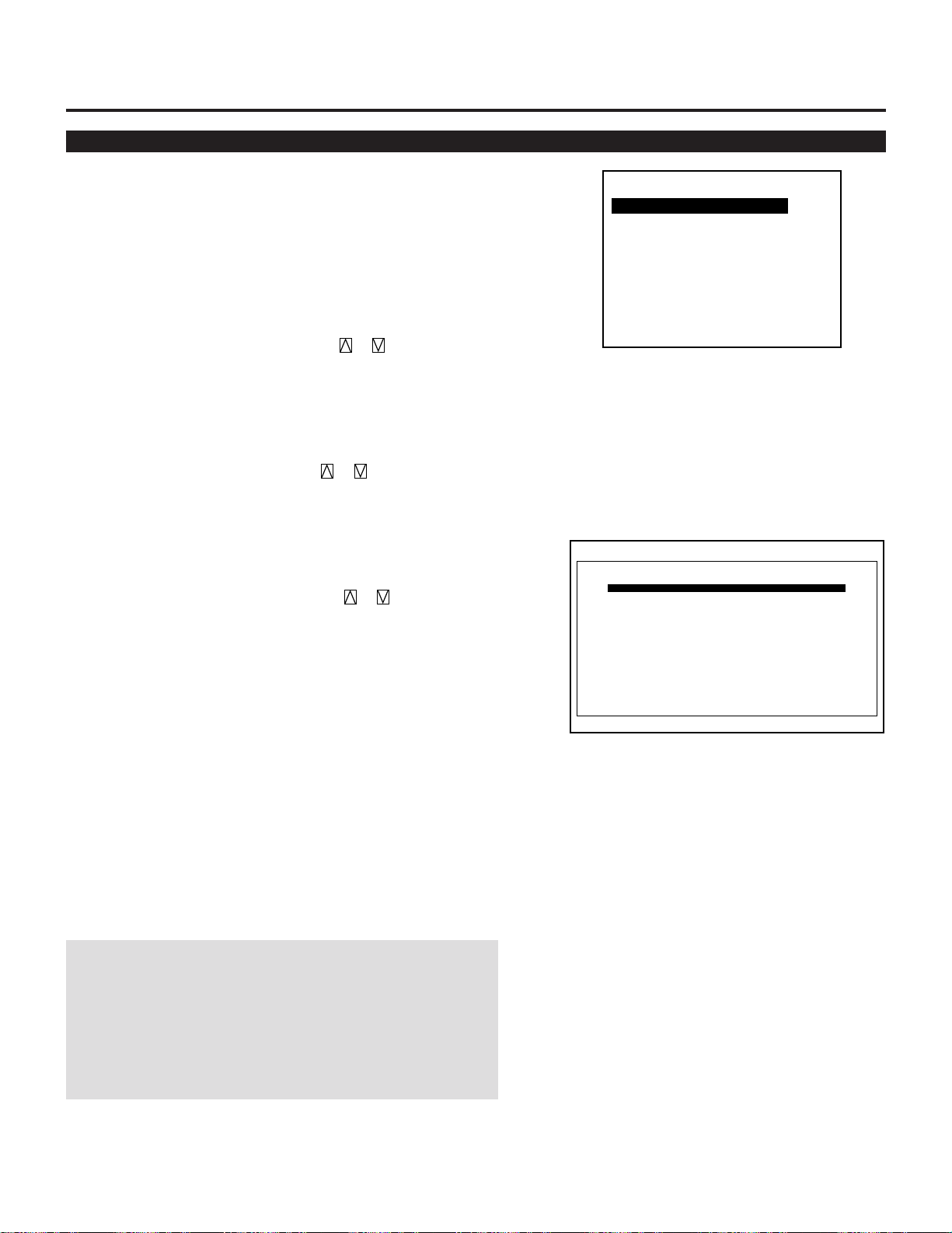
74
3.OPERATION
Help Menu
Provides information about operation and adjustment procedures or
the set information.
To view the information:
Press OPERATE or ADJUST button then select “Help” from the
Task bar and press ENTER. The Help menu will be displayed.
-Help-
1. Help
2. Topics
3. Set Information
■ Help
Provides information how to use the Help.
To view the Help menu, use the CURSOR or button to select
“1. Help” menu and press ENTER.
■ Topics
Provides you information of a various items explaining function and
operation.
To view information, use the CURSOR or button to select “2.
Topics” menu and press ENTER.
■ Set Information
Lets you know the version for the running time, the lamp usage time,
the version for your hardware and software.
To view the information, use the CURSOR or button to select
“3. Set Information” menu and press ENTER.
The information you can view are:
User Name------------------- Indicates the user name
Set Serial No. --------------- Indicates serial number for your projec-
tor
Set hour Meter -------------- Indicates the amount of operating time
of your projector
Lamp Hour Mete ----------- Indicates the amount of operating time
of the lamp
Software version ------------ Indicates the version for the software
Hardware version ----------- Indicates the version for the hardware
*The Switcher item is displayed only when the Connect Condition is
set to the SW 1 or 2 Level.
Set Information
0300H 40M
0100H 20M
User Name
Set Serial No.
Set Hour Meter
Lamp Hour Meter
Software Version
Hardware Version
[ ]
Bios
Application
Data
Sub CPU
Switcher
1.00
1.00
1.00
1.00
1.00
1.00
[ ]
NOTE:
There is a warning system built-in that displays the following
message when you reach 1500 hours of operation “Lamp Running
Time is Over 1500 Hours!!” When you see this message please
contact your NEC dealer or service personnel for a replacement.
The projector will not turn on at the next powering-on after the lamp
has been operating for 2000 hours or longer.
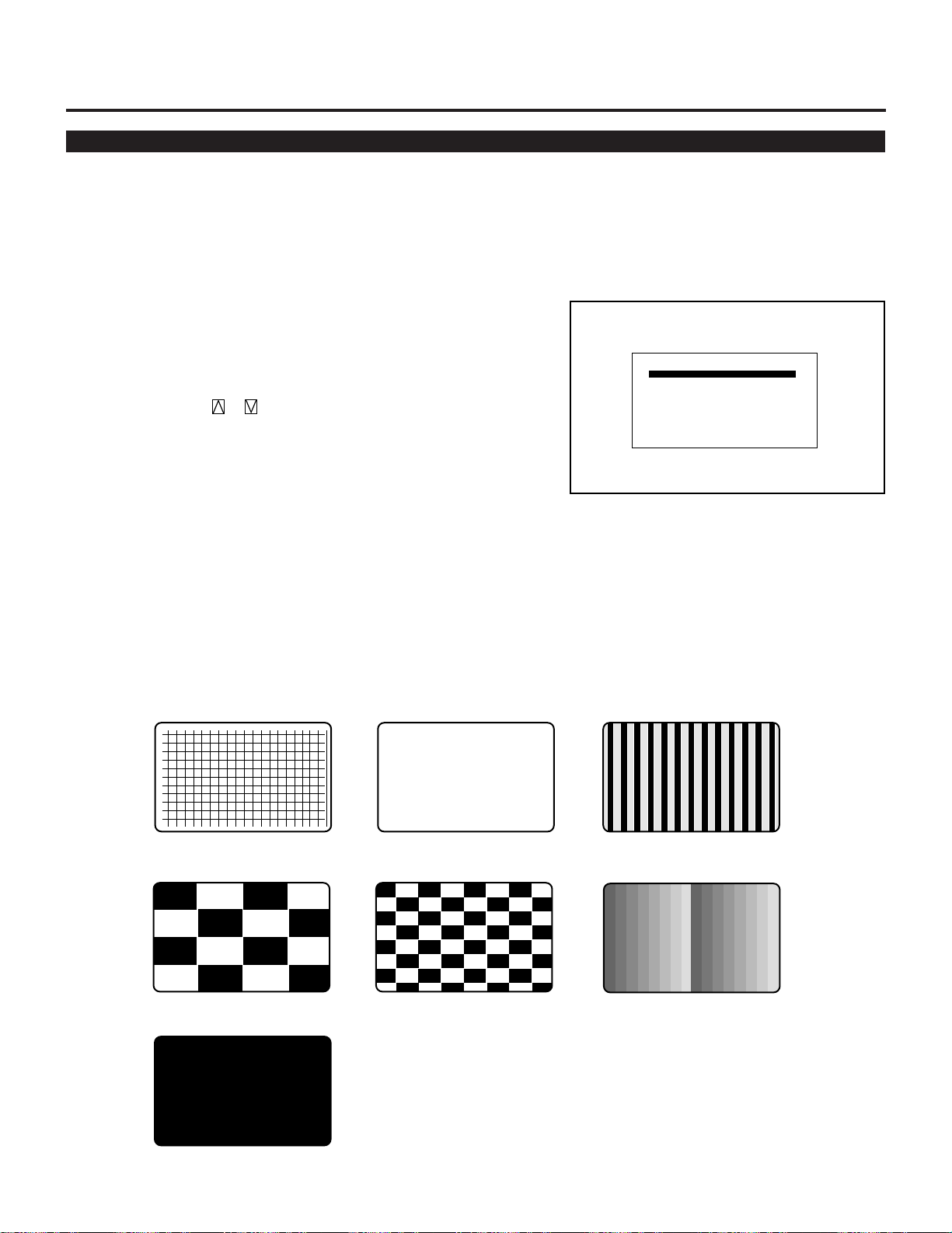
75
Others
■ Test Patterns
Test Pattern
Off
Flat Field
Ramp
Contrast Checkerboard
Cross Hatch
Gray Bars
Small Checkerboard
Black Flat Field
This projector will generate a selection of test signals.
Seven kinds of internal test patterns can be selected from the Test
Pattern menu.
To display the Test Pattern menu, proceed as follows:
1. Press the TEST button on the remote control.
• The Test Pattern menu will be displayed.
• When END is pressed, the Test Pattern menu will disappear.
2 User the CURSOR or button to highlight the test pattern
you wish to use and press ENTER.
• The selected test pattern will be displayed.
3 To return to the original screen, press TEST and then press END.
• When the TEST button is pressed, the Test Pattern menu will
be displayed and when END is pressed, the screen will be
changed to the source screen.
• The projector will return to the original source screen by
pressing END only when no menu or no adjustment screen is
displayed.
TEST PATTERN
CROSS HATCH FLAT FIELD
GRAY BARS
CONTRAST CHECKER BOARD
SMALL CHECKER BOARD RAMP
3.OPERATION
BLACK FLAT FIELD
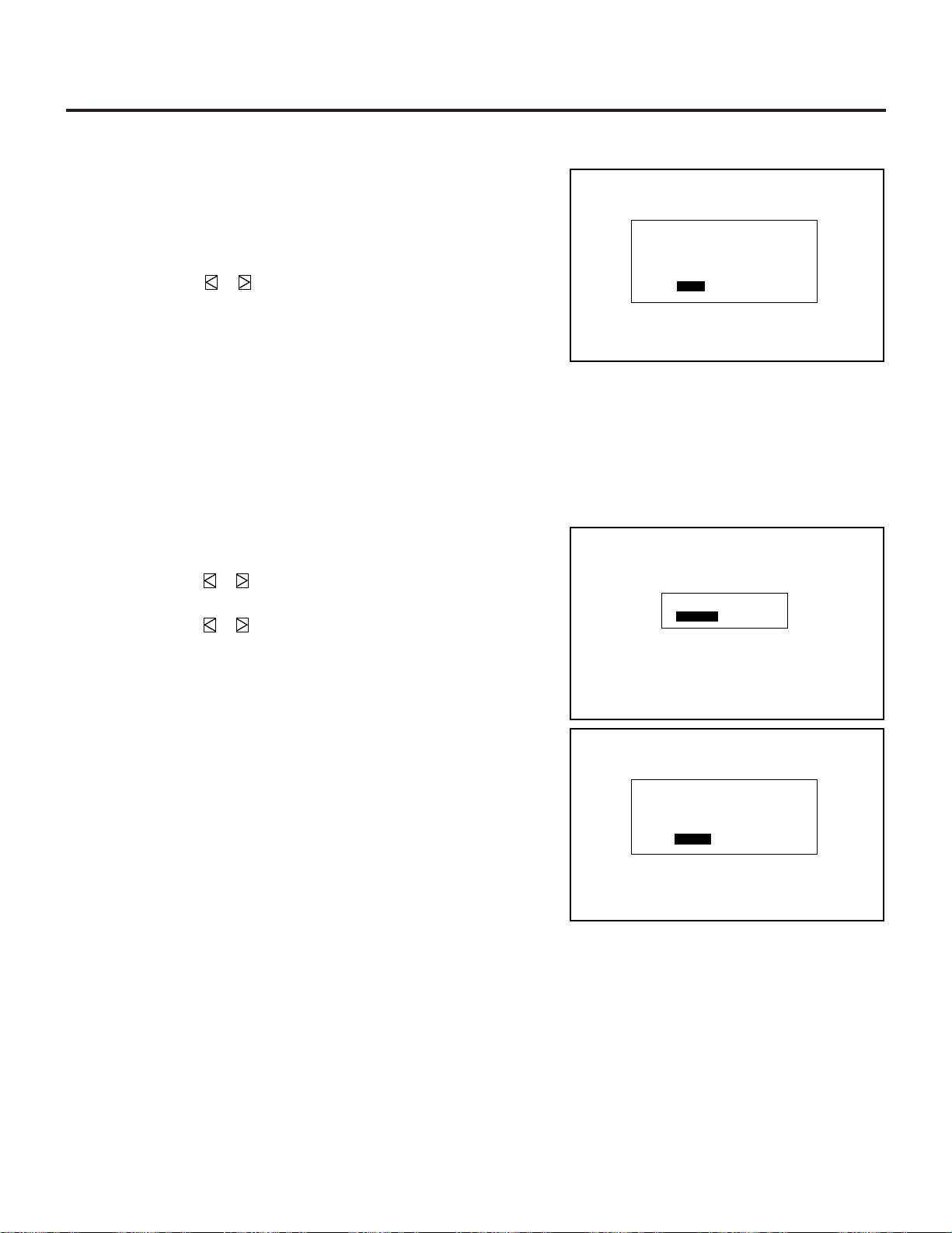
76
3.OPERATION
■ Normal, Load, and Cancel Function
Adjustment settings can be returned to the factory preset level,
previously stored level, or can be canceled.
To return to the standard level (Normal):
1. Press the NORMAL button.
The confirmation message is displayed.
2. Use the CURSOR or button to select Yes.
A confirmation message is displayed.
3. Press ENTER.
The Normal function is performed.
If you select “No”, you will exit this mode suspending current
status.
Test Pattern
Yes No
White Balance
-WhiteE/Black Level-
White
Data Noramalize?
■ To return to the last stored level (Load):
Memory
Load Cancel
Load
Yes No
White Balance
-Color Temperature-
Data Load?
1. Press and hold the CTL button then press the NORMAL button.
• The Memory menu is displayed.
2. Use the CURSOR or button to select Load.
A confirmation message is displayed.
3. Use the CURSOR or button to select Yes.
• If you select No, you will exit this mode suspending current
status.
4. Press ENTER.
• The LOAD function is performed.
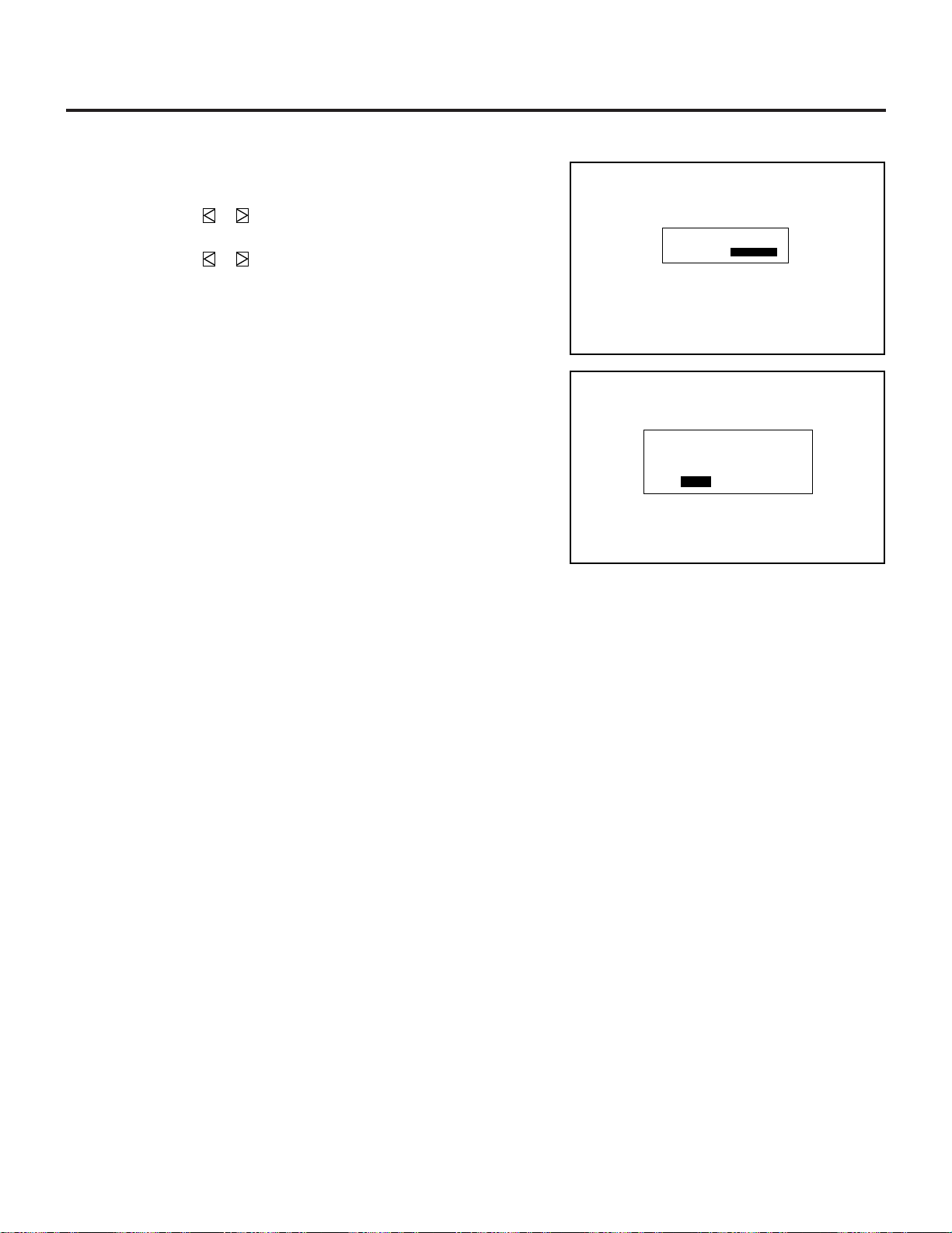
77
■ To cancel the adjustment data (Cancel):
Memory
Load Cancel
Cancel
Yes No
White Balance
- Color Temperature -
Data Cancel?
1. Press and hold the CTL button then press the NORMAL button.
• The Memory menu is displayed.
2. Use the CURSOR or button to select Cancel.
• A confirmation message is displayed.
3. Use the CURSOR or button to select Yes.
• If you select No, you will exit this mode suspending current
status.
4. Press ENTER.
• The CANCEL function is performed.
3.OPERATION

78
1234567
1
23456
7
1
23456
7
1
23456
7
1
23456
7
1
23456
7
1234567
4.SPECIFICATIONS
Projection Type : 3Chip DMD
TM
High light output projector.
Projection System : 3chip DMD
TM
, 1 Lens
Display Orientation : Front Floor , Rear Floor ,
Front Ceiling , Rear Ceiling
Lamp Type : Bulb type 1.6 KW Xenon Lamp
Shooting offset : Common lens for both XL-3500 and XL-6500
Fixed lens........................................... 0±150 pixels
Zoom lens .......................................... 0
Lens for XL-6500 only
HVL-X1Z/HVL-X2Z ............................ 0±360 pixels
HVL-X3Z ............................................ 0±200 pixels
Scanning line rat : H 15-80KHz
/ Flame rate V 30-120Hz
Resolution : DMD
TM
1024⫻768 pixel
Max : 1280 ⫻ 1024 by Scaling
Pixel clock : Max 80 MHz
Lens (optional) : Fixed lens (common lens for both XL-3500 and XL-6500)
XL-L1.27 : 1.27:1 (for XL-3500) / 1.0:1 (for XL-6500)
XL-L3 : 3.0:1 (for XL-3500) / 2.3:1 (for XL-6500)
XL-L5 : 5.0:1 (for XL-3500) / 3.9:1 (for XL-6500)
XL-L7 : 7.0:1 (for XL-3500) / 5.5:1 (for XL-6500)
Zoom Lens (common lens for both XL-3500 and XL-6500)
XL-L1.5Z : 1.5-3.0 (for XL-3500) / 1.2-2.3 (for XL-6500)
XL-L3Z : 3.0-7.0 (for XL-3500) / 2.3-5.5 (for XL-6500)
Zoom Lens (for XL-6500 only)
HVL-X1Z : 1.5-2.5
HVL-X2Z : 2.5-4.0
HVL-X3Z : 4.0-7.0
Picture Size : 80-500 inch diagonal
Light Output : 6500 ANSI lumen
Contrast Ratio : 350:1 ( Full On / Off )
Input terminal :
Fixed terminal :
Composite Video ( BNC or RCA switchable )
RGB , H, V / Y,Cr,Cb ( BNC )
S Video ( S- terminal )
Optional terminal :
2 slot prepared
Input signal (Level) : RGB signal : 0.7Vp-p 75ohm Positive(BNC)
HV sync : 0.7-4.0Vp-p(75ohm/1Kohm)
Negative or Positive(BNC)
Duty 3-30% (H-Sync Positive)
70-97% (H-Sync Negative)
0.1-10%(V-sync Positive)
90-99.9%(V-Sync Negative)
Mix sync : 0.7-4.0Vp-p(75ohm/1Kohm)
Negative or Positive(BNC)

79
Convergence limits : Within one pixel
Set-up signal : Gray bars signal , Cross hatch signal , Flat field ,
Black flat field, Contrast checker board, Small checker board, and Ramp
Power supply : AC 200V - 240V
Power consumption : 2.4KW ( MAX)
Input current : 13.0 A(MAX)
Safety and regulation
UL : Meet UL 1950
CSA : Meet CSA 950
FCC : Meet FCC class A
DHHS : Approved
DOC : Meet
Meet EMC Directive
EN55022 : Meet(Radiation)
EN55082-2 : Meet(Immunity)
EN61000-3-2, EN61000-3-3 : Meet(Disturbance)
Meet LVP Directive
EN60950 :Meet (Safety)
Cabinet dimension : 29.5" (W) x 39.4" (D) x 15" (H) without lens
750 mm (W) x 1000 mm (D) x 380 mm (H) without lens
Weight : 238 lbs (108 kg)
Remote controller : Wired application
Wireless (operating distance 23 ft./7m)
External control : Input select ;
Power On/OFF
Mute
PC control : Supports
RS-232C / RS-422 switchable
ISS-6020 Compatibility : Full compatible
OSD Output terminal : D-sub shrink 15 Pin
RGB signal : 0.7Vp-p Analog out ( 75ohm )
H,V sync out : TTL
Accessory (Option) : Input terminal Option
Environment : Temperature 10 to 40 degrees C
: Humidity 20 to 90% non-condensing
: Storage -10 to 50 degrees C
Lamp life : 1500 Hours ( Half light output point )
Noise : 59 dB
Note: Specifications are subject to change without notice.
G sync : 0.3-0.6Vp-p 75ohm
Sync. Negative(BNC)
Video : 1.0Vp-p 75ohm Sync. Negative
S-Video : Y 1.0Vp-p 75ohm Sync. Negative
C0.28Vp-p 75ohm(burst level)
(3 mode acceptable)
Y, Cr, Cb : Y 1.0Vp-p 75ohm Sync. Negative
Cr,Cb 0.7Vp-p 75ohm ( Y,Pb,Pr )
Video System : NTSC,PAL,SECAM,4.43NTSC
80
Code Message
1234567
1
23456
7
1
23456
7
1
23456
7
1
23456
7
1234567
5.APPENDIX
Message List
A1 PS PROTECT ERROR (Overload or failure in the mains power supply)
A2 POWERGOOD ERROR (Insufficient voltage of +5V(D) or DLP5V in the mains power supply)
C0~CF COMUNICATION ERROR (Communication setting errors in conjunction with switcher and PC control)
D0 SIGNAL UNLOOK (Instability or failure in synchronization)
E0 FAN STOP ERROR (Fan stoppage)
EC FLASH MEMORY ERASE ERROR (Error in system PWB)
ED FLASH MEMORY WRITE ERROR (Error in system PWB)
EE ALL STORE DATA INITIAIZING (Store ROM formatting)
EF PARTLY STORE DATA IS BREAKING (Error in stored data)
F0 H-FREQUENCY LIMIT OVER (Entry of signal input at 120kHz or above)
F1 ENGINE TEMPERATURE ERROR (Engine temperature deviating the specified range)
F2 12CBUS ERROR
(VIDEO PRO PWB or CORE PACK)
(Control error in video PRO PWB/core PACK)
F3 12CBUS ERROR (DLP ENGINE) (Engine control error)
F4 LAMP PROTECT ERROR (Lamp source error/lamp error or lamp’s fan stop)
F5 LAMP STATE ERROR (Lamp error)
F6 LAMP TEMPERATURE ERROR (Lamp’s temperature error)
F7 MUSEBUS ERROR (Error in graphic PWB)
P0 FPGA (OSD) WRITING (Writing in FPGA)
P1 FPGA (R) WRITING (Writing in FPGA)
P2 FPGA (G) WRITING (Writing in FPGA)
P3 FPGA (B) WRITING (Writing in FPGA)
PP BIOS PROGRAM STATING (Program writing being processed)
o0~oF Internal processing
LP LAMP 2000 HOURS OVER

81

NEC Corporation
Printed in Japan
78409611
