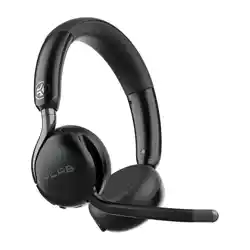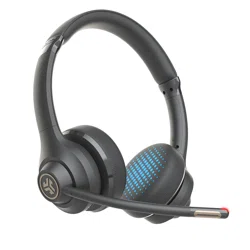
GO WORK 2
HEADSET
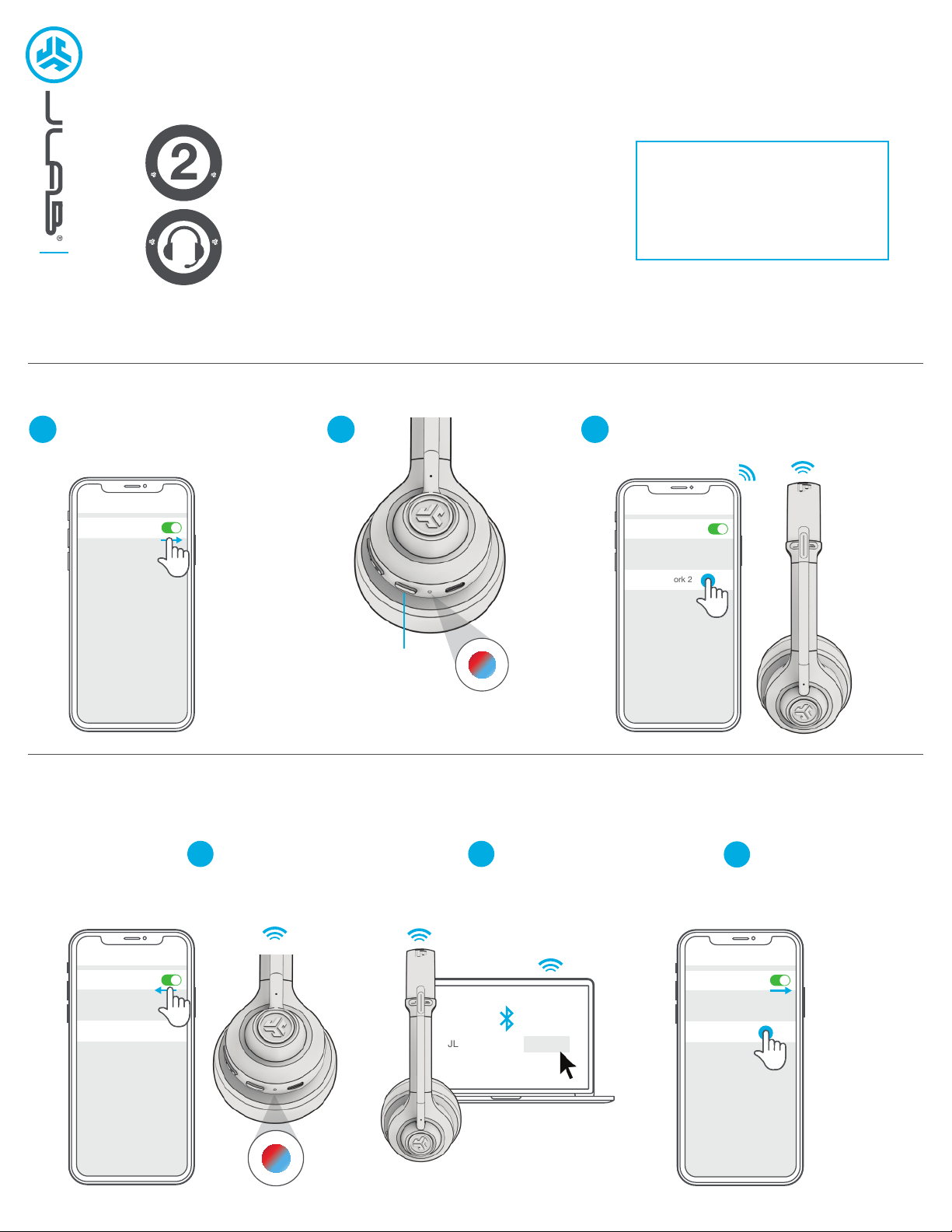
Turn on Bluetooth in
your device settings.
Press and hold button
for 5+ seconds. Release.
Lights will flash blue/red.
BLUETOOTH CONNECTION
1
MULTIPOINT (CONNECT 2 DEVICES SIMULTANEOUSLY)
Select “JLab GO Work 2” in your
device settings to connect.
32
We love that you are rocking JLab!
We take pride in our products and fully stand behind them.
YOUR WARRANTY
All warranty claims are subject to JLab authorization
and at our sole discretion. Retain your proof of
purchase to ensure warranty coverage.
CONTACT US
Reach out to us at [email protected]
or visit jlab.com/contact
REGISTER TODAY
jlab.com/register
Product updates | How-to tips
FAQs & more
Bluetooth
Settings
Bluetooth
Settings
JLab GO Work 2
L
I
M
I
T
E
D
T
W
O
Y
E
A
R
W
A
R
R
A
N
T
Y
S
U
P
P
O
R
T
T
E
A
M
#
T
E
A
M
J
L
A
B
Once
Multipoint is supported when connecting to two devices via Bluetooth. The USB-C Dongle and Wired connection methods create
dedicated connection channels and do not support Multipoint.
FIRST device is connected,
turn off Bluetooth in device settings.
GO Work 2 will auto enter Bluetooth Pairing.
Enter your SECOND device Bluetooth
settings and connect to GO Work 2.
1 2
Bluetooth
Settings
JLab GO Work 2 Connected
Bluetooth
Settings
JLab GO Work 2
Enter your FIRST device settings.
Turn on Bluetooth and
reconnect to GO Work 2.
3
JLab GO Work 2 Connect
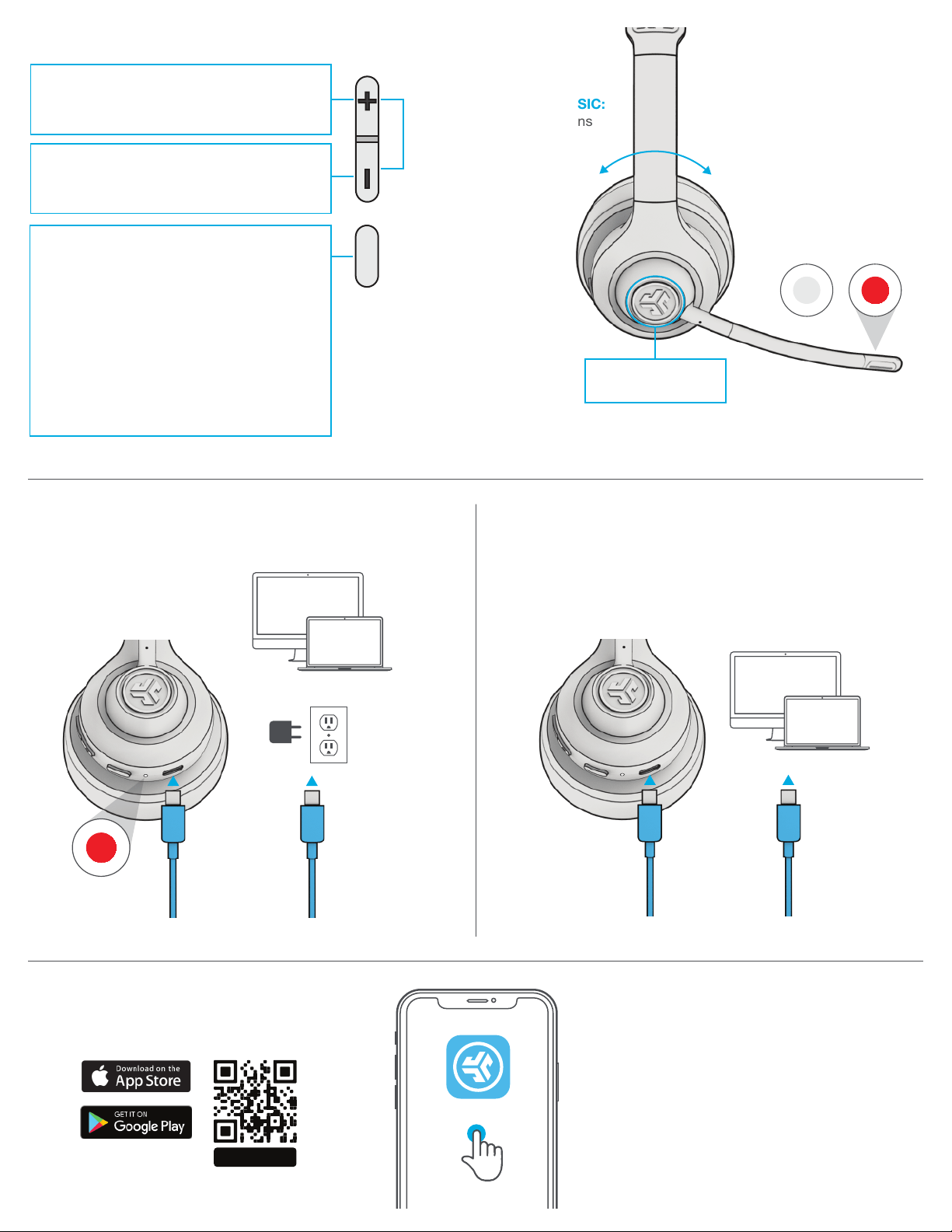
VOLUME UP: 1x press
TRACK FORWARD:
Press and hold 2+ seconds
SWITCH EQ VOICE / MUSIC:
Press and hold both buttons
simultaneously
VOLUME DOWN: 1x press
TRACK BACKWARD:
Press and hold 2+ seconds
POWER ON/OFF:
Press and hold 2+ seconds
PLAY/PAUSE/ANSWER/HANG UP CALLS:
1x press
REJECT INCOMING CALL:
Press and hold 1+ second
ACTIVATE SIRI (iOS) OR “OK GOOGLE”
(ANDROID): 2x press
HEAR YOURSELF ON/OFF:
3x press (when on call)
BUTTON FUNCTIONS
CHARGING
Connect to computer or USB 5v 1A (or less) output device.
WIRED CONNECTION
Connect the GO Work 2 cable to computer.
Check your PC/Mac Input and Output settings.
MICROPHONE
MUTE ON / OFF
MUTE ONMUTE OFF
BOOM MICROPHONE
can rotate to left or right side
CHARGING
OR
DOWNLOAD THE APP
Customize GO Work 2 features and update the latest software.
JLab
SCAN ME
JLAB.COM
Shop products | Product alerts | Burn-in your headphones
JLab Store + Burn-in Tool
1 2
SETUP DONGLE WITH PC (WINDOWS 7/8/10/11)
1. From the Start menu, select the Control Panel.
2. From the Control Panel, select the Sound icon.
3. Select the Recording tab and select “JLab GO Work 2”.
4. Select the Playback tab and select “JLab GO Work 2”.
SETUP DONGLE WITH MAC (macOS 10.10 or HIGHER)
1. Open System Preferences and select the Sound icon.
2. Select the Input tab and select “JLab GO Work 2”.
3. Select Outout tab and select “JLab GO Work 2”.
4. From this screen, set the Output volume to desired level.
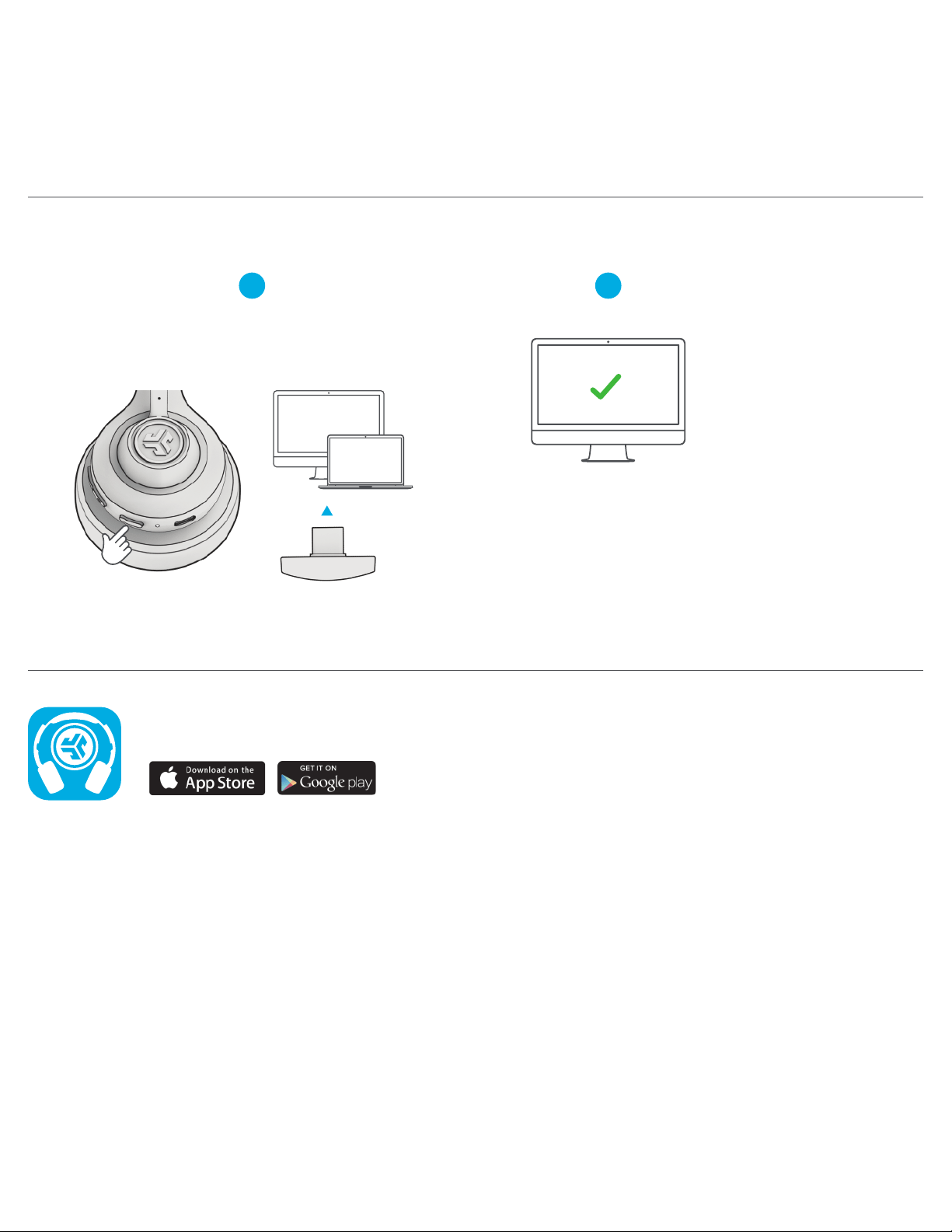
USB-C DONGLE CONNECTION
Power on GO Work 2 and plug in USB-C dongle
into PC/Mac/Android. (avoid hubs/adapters)
This connection will override any
current Bluetooth connections.
Check your device settings.
WINDOWS 7/8/10/11: NO MICROPHONE AUDIO
Depending on your PC, the Bluetooth might not detect the proper Bluetooth protocol. This is a known issue with certain Windows OS.
1. Open the Bluetooth & Device settings and enter the View more devices tab.
2. Remove all Bluetooth devices that are already connected.
3. Reconnect your GO Work 2 FIRST to your PC, followed by other Bluetooth devices. The GO Work 2 should display “Connected voice, music”.
TROUBLESHOOTING