SSL UF1
www.solidstatelogic.com
SSL UF1
User Guide

Visit SSL at:
www.solidstatelogic.com
© Solid State Logic
All rights reserved under International and Pan-American Copyright Conventions.
SSL
®
and Solid State Logic
®
are registered trademarks of Solid State Logic.
SSL UF1™ is a trademark of Solid State Logic.
All other product names and trademarks are the property of their respective owners and are hereby acknowledged.
Pro Tools
®
is a registered trademark of Avid
®
.
Live™ is a trademark of Ableton
®
AG.
Logic Pro
®
and Logic
®
are registered trademarks of Apple
®
Inc.
Studio One
®
is a registered trademark of Presonus
®
Audio Electronics Inc.
Cubase™ and Nuendo™ are trademarks of Steinberg
®
Media Technologies GmbH.
LUNA™ is a trademark of Universal Audio
®
Inc.
Pyramix™ is a trademark of Merging Technologies
®
SA.
Mackie
®
is a registered trademark of LOUD Technologies
®
Inc.
BOSS
®
is a registered trademark of Roland
®
Corporation.
No part of this publication may be reproduced in any form or by any means, whether mechanical or electronic, without the
written permission of Solid State Logic, Begbroke, OX5 1RU, England.
As research and development is a continual process, Solid State Logic reserves the right to change the features and
specifications described herein without notice or obligation.
Solid State Logic cannot be held responsible for any loss or damage arising directly or indirectly from any error or omission in
this manual.
PLEASE READ ALL INSTRUCTIONS, PAY SPECIAL HEED TO SAFETY WARNINGS.
E&OE
Revision 1.0 - May 2023
Initial Release

Contents
SSL UF1 User Guide
Table of Contents
Overview 5
What is SSL UF1? 5
Features 5
Safety Notices 5
Get-Started 6
Unpacking 6
UF1 Physical Specification 6
Fitting The Stands (Optional) 7
Connecting Your UF1 Hardware 8
Downloading SSL 360° Software and the SSL Meter Plug-in 9
Installing SSL 360° Software 9
System Requirements 9
Registering Your UF1 - Redeeming and Authorising Your Meter Plug-in License 10
UF1 YouTube Tutorials 12
Keyboard Identify (Mac Only) 13
UF1 Hardware Layout 14
Front Panel 14
Connector Panel 17
SSL 360° Software Overview 18
Overview & Home Page 18
UF1 Page 22
Control Setup Page 20
Switching the control layer from UF1 (Layer Set Up) 21
DAW Communication 25
SSL V-MIDI Ports 25
DAW Protocols 25
Pro Tools with UF1 - Tutorial 26
SSL 360° Setup 26
Pro Tools Setup 26
Small LCD Layout 27
Large LCD Layout 28
Tutorial 29
Logic with UF1 - Tutorial 42
SSL 360° Setup 42
Logic Setup 42
Small LCD Layout 44
Large LCD Layout 45
Tutorial 46
Cubase/Nuendo with UF1 - Tutorial 56
SSL 360° Setup 56
Cubase Setup 56
Small LCD Layout 57
Large LCD Layout 58
Tutorial 59
Ableton Live with UF1 - Tutorial 70

Contents
SSL UF1 User Guide
SSL 360° Setup 70
Live Setup 70
Small LCD Layout 71
Large LCD Layout 72
Tutorial 73
Studio One with UF1 - Tutorial 81
SSL 360° Setup 81
Studio One Setup 81
Small LCD Layout 82
Large LCD Layout 83
Tutorial 84
LUNA with UF1 - Tutorial 96
SSL 360° Setup 96
LUNA Setup 96
Small LCD Layout 97
Large LCD Layout 98
Tutorial 99
Pyramix with UF1 - Tutorial 107
SSL 360° Setup 107
Pyramix Setup 107
Small LCD Layout 108
Large LCD Layout 109
Tutorial 110
UF1 & 360°-Enabled Plug-ins 119
SSL Meter 119
Channel Strip 2 119
4K B 119
Plug-in Mixer Overview 120
Plug-in Mixer - Tutorial 121
SSL 360° Setup 121
Plug-in Mixer Setup 121
Plug-in Mixer Transport Setup 122
Tutorial 122
Small LCD Layout 122
Large LCD Layout - Channel Strip Mode 126
SSL Chanel Strip Soft Key & V-Pot Assignments 127
Large LCD Layout - Meter Mode 128
Overview 128
Analogue 129
31- Band Real-Time Analyser (RTA) 130
UF1 LCD Messages 131
SSL 360° Software Messages 134
SSL Support - FAQs, Ask a Question and Compatibility 135
Safety Notices 136

Overview
5
SSL UF1 User Guide
Overview
What is SSL UF1?
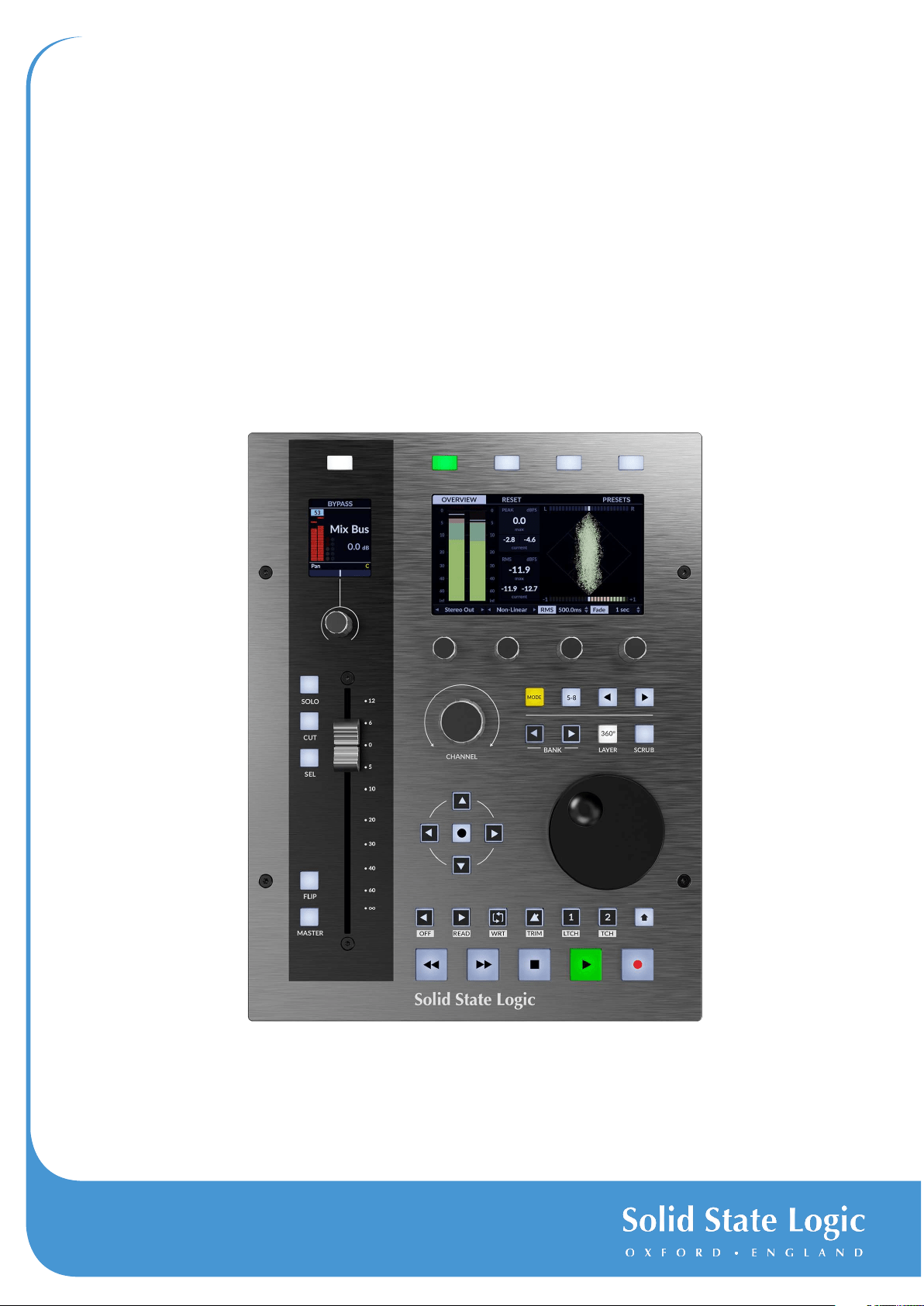
UF1 is an incredibly powerful one-fader control surface that goes above and beyond the competition. It boasts not one but two
high quality displays, a 100 mm fully motorised 100 mm fader, premium soft-feel durable rubber keys and a weighted jog wheel,
all encased in a durable metal chassis. UF1 gives you comprehensive command of your DAW (pans, sends, plug-in control and
more) plus the ability to customise 46 soft keys specifically to your workflow. Furthermore, UF1 and SSL 360° integrates directly
with the SSL Meter plug-in, viewable in all its glory on the impressive 4.3” IPS TFT LCD and controllable from the surface itself.
UF1 can be used on its own or it can be partnered with the SSL UF8(s), to give you the ultimate SSL DAW controller system. UF1 is
also the perfect expansion for the SSL UC1 plug-in controller, giving you direct access to 360°-enabled channel strip parameters
on the Plug-in Mixer Layer.
Features
• 100 mm high quality motorised fader.
• 2 x high quality LCD TFT displays, including a large 4.3” TFT LCD for effortless visual feedback of DAW track names,
parameters, time display, the SSL Meter plug-in and 360°-enabled channel strips in the SSL Plug-in Mixer.
• Dedicated Transport controls and weighted jog/scrub wheel for total session control.
• Dedicated HUI and MCU DAW Profiles for: Pro Tools, Logic, Cubase, Studio One, Ableton Live, LUNA, Pyramix.
• UF1 can switch to control the MASTER fader in MCU protocol DAWs.
• Proprietary control of the SSL 360° Plug-in Mixer Layer: seamless integration with the SSL Meter plug-in (perpetual license
included), with the metering plug-in visualised on the large 4.3” IPS display and hardware control from the UF1 surface.
• SSL Meter offers essential meter tools including Peak & RMS levels, K-System, stereo balance, phase correlation bar, Lissajous
vector scope, 31-band RTA, VU and PPM metering.
• Extend the functionality of UC1: control 360°-enabled channel strips such as Channel Strip 2 and 4K B directly from the UF1
surface and view the EQ curve on the UF1 large display.
• Master mode for the Plug-in Mixer allows UF1 to control a different channel strip to the one that is selected on UC1.
• Fully-featured DAW Controller in a compact footprint. Control DAW Pans, Sends, Plug-ins and Virtual Instruments with ease.
• 46 customisable user keys ready to assign your favourite DAW commands or keyboard shortcuts.
• Secondary Transport row of keys can be customised to essential workflow shortcuts such as Loop on/off and click track on/
off. Or press the Shift button for fast access to DAW automation modes.
• Fader Mode allows you to use the 4 V-Pots underneath the large screen to control 4 track volumes at the same time.
• A large multi-purpose notched encoder allows for single channel banking, mouse wheel emulation (Focus mode and control
over computer system volume.
• Use UF1 on its own, or partner with UF8 and/or UC1 to enhance the functionality of both products.
• 2 x assignable foot-switch inputs.
• Up to 3 different DAWs can be connected simultaneously and switched between using the Layer keys.
• Powered by the SSL 360° Software application.
Safety Notices
Please read the Important Safety Notices at the end of this User Guide before use.
Get-Started
6
SSL UF1 User Guide
Get-Started
Unpacking
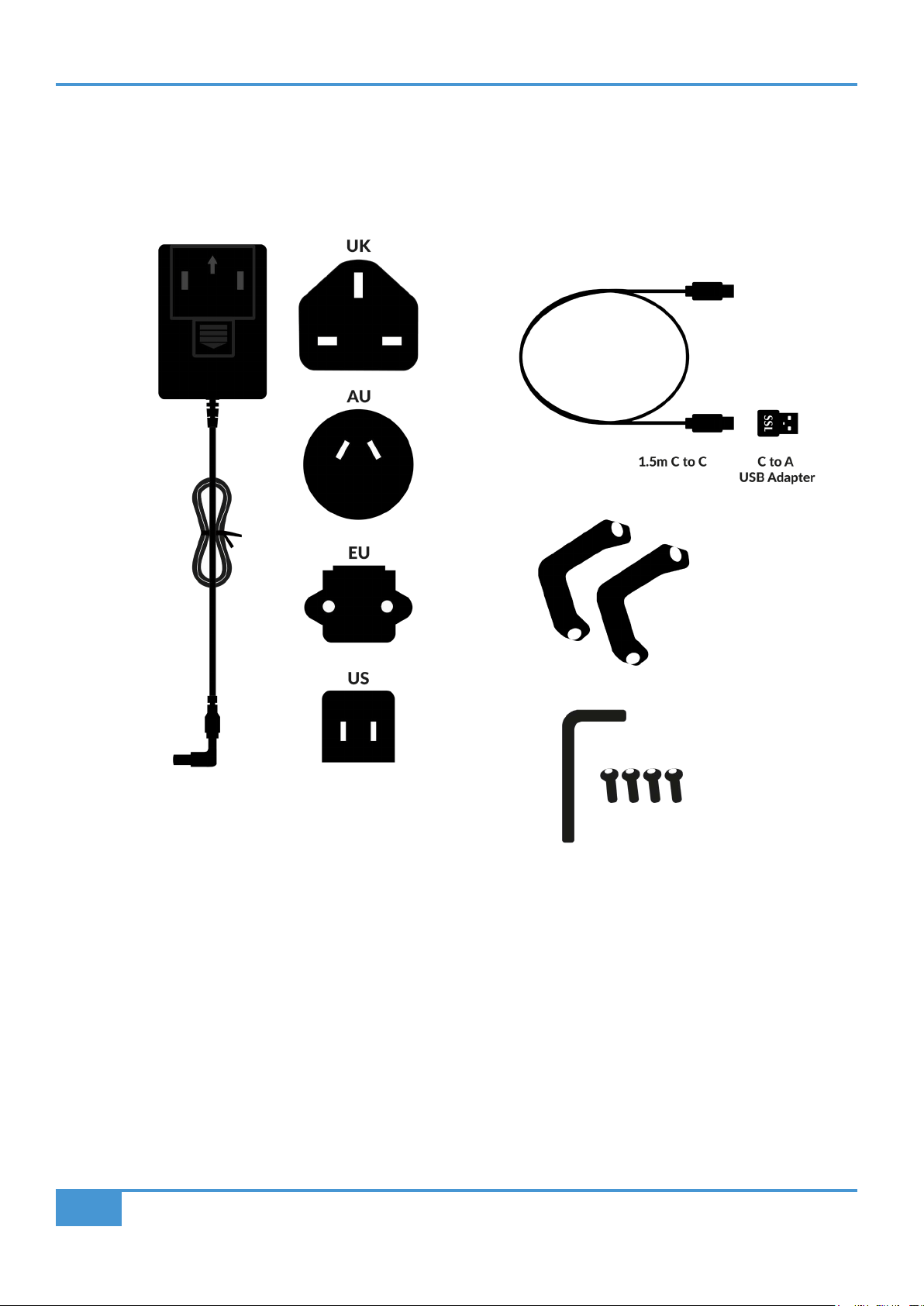
The unit has been carefully packed and inside the box you will find the following items in addition to your UF1 control surface:
UF1 Physical Specication
Dimensions
Width 205 mm x Height 265.9 mm x Depth 62.5 mm
Weight
Unboxed (unit only) - 1.8 kg
Boxed - 2.88 kg
12V, 2A AC/DC Power Adapter with swappable plugs for various
regions
2 x Stands
1 x Hex Key
4 x Screws
Get-Started
7
SSL UF1 User Guide
Fitting The Stands (Optional)
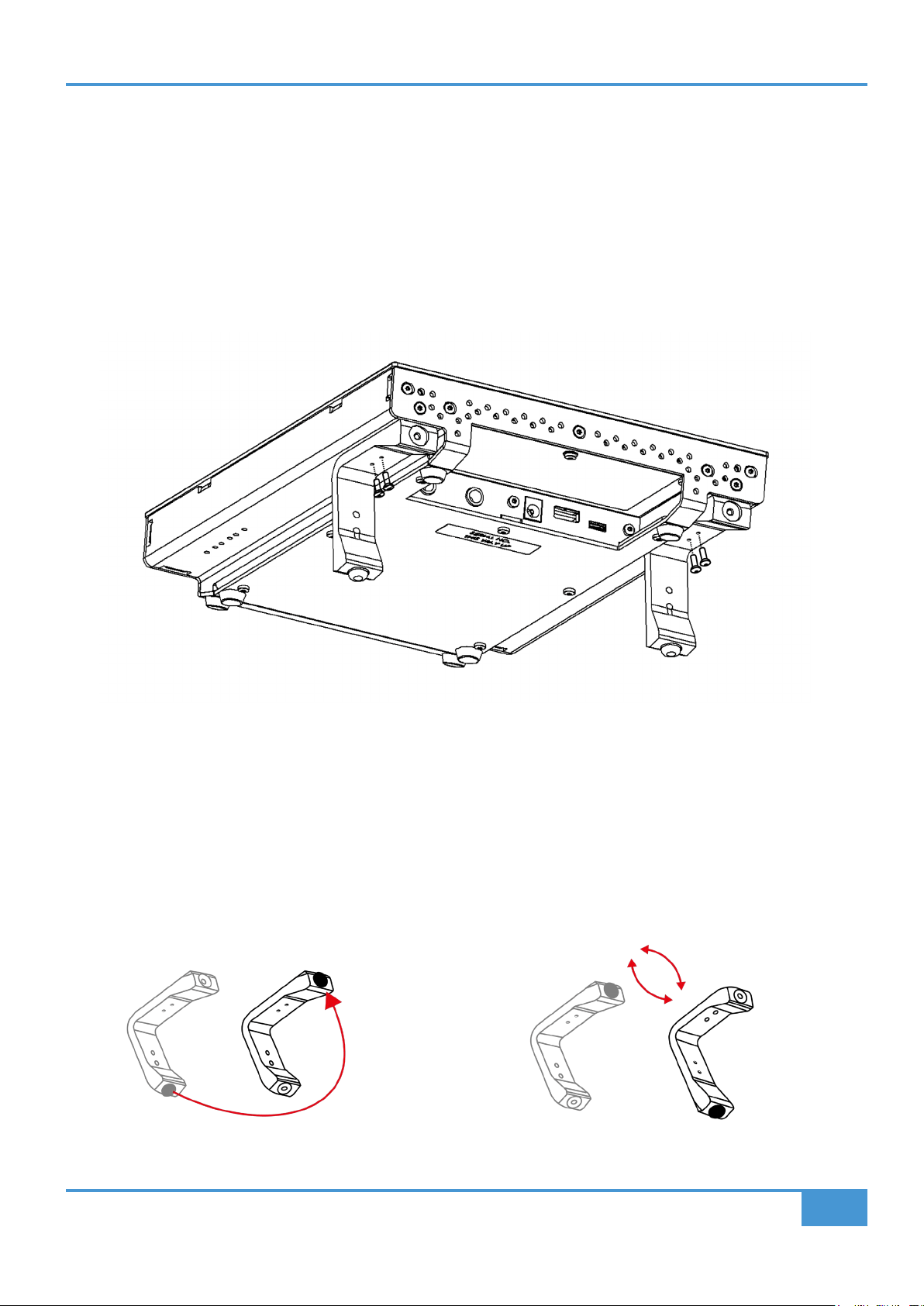
UF1 has been designed to be used with or without the included screw-in stands, depending on your preference. Attaching the
included screw-in stands has the added benefit of angling the unit towards you. Three different fixing positions (the holes are
arranged in pairs) allow you to choose an angle that is best for your setup. Use 2 screws per stand. Please be careful not to over-
tighten to avoid stripping the screw threads. For those with a torque measuring device, tighten to 0.5 Nm.
Additional Elevation Angles
If you need a steeper angle of elevation, you can rotate the stands and fix them to the chassis using the shorter side. This gives
you three additional angle options to choose from.
1. Unscrew the rubber feet and move to the other end 2. Rotate the stands so that the short side fixes to the chassis
Get-Started
8
SSL UF1 User Guide
C to C cable
or C to A cable
Power Supply
UF1 Connector Panel
UF1 UF8
A to C USB Cable
Connecting Your UF1 Hardware
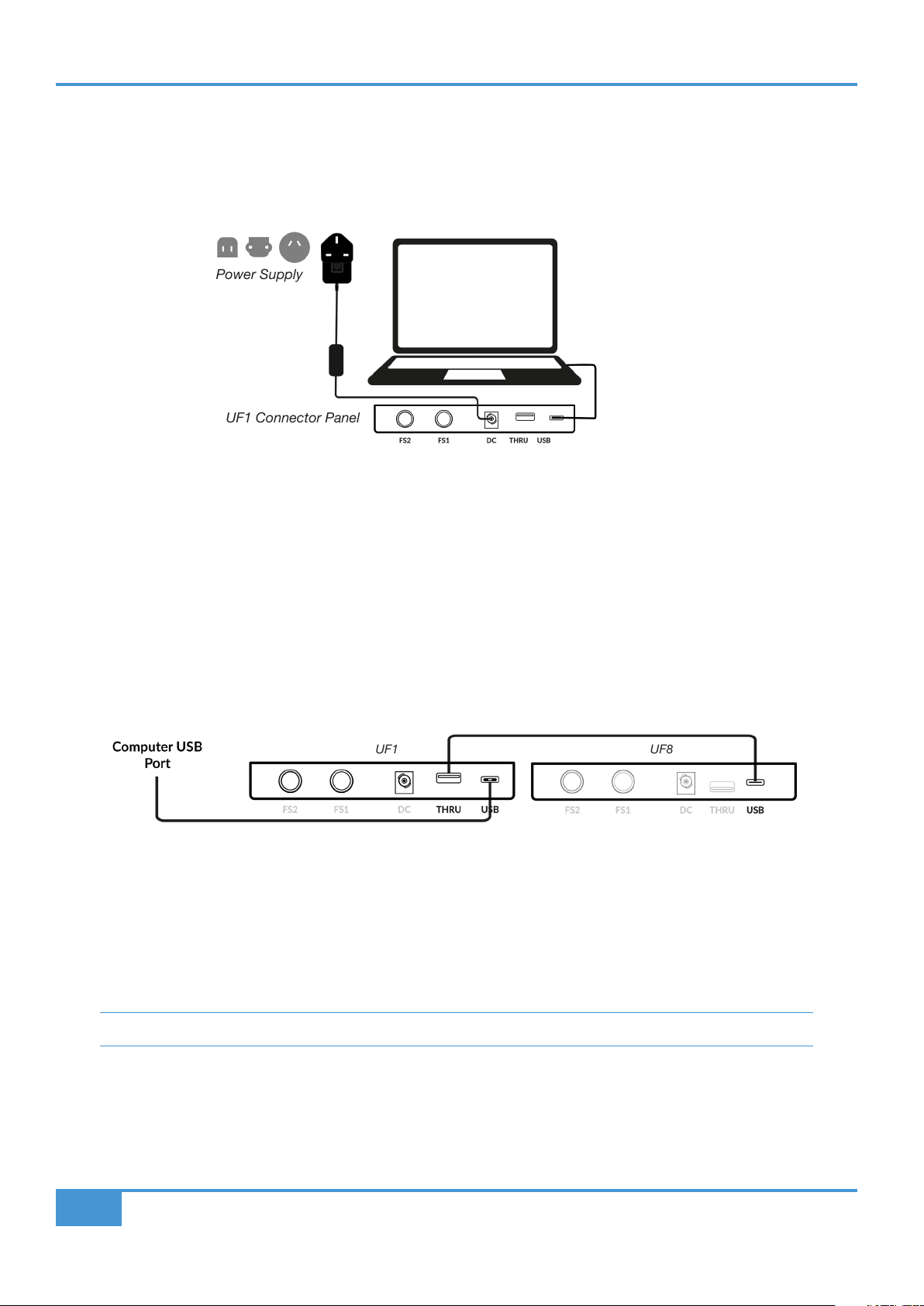
1. Connect the included power supply to the DC socket on the connector panel.
2. Connect one of the included USB cables from your computer to the USB socket.
USB Cables
Please use one of the provided USB cables ('C' to 'C' or 'C' to 'A' with the provided adapter) to connect UF1 to your computer. The
type of USB port you have available on your computer will determine if the adapter is required for connecting the cable to your
computer. Newer computers may have 'C' ports, whereas older computers may have 'A'. Please ensure that you are connecting
to the port labelled USB on UF1 which is a 'C' type connection.
Connecting the UF1 to UF8
If you are using a UF1 and a UF8, you can use the THRU port (USB 'A' type) to link the two devices - this means that only one USB
port is required at your computer.
Theoretically, you can chain 4 x UF8, a UC1 and a UF1 together in the way described above. However, by doing so you may exceed
the number of hub tiers permitted by your PC/Mac computer. As such, you may need to connect your UF1 unit directly to another
USB port on your computer. The same applies regarding the use of USB hubs; the UF1 may need to be plugged directly into a
different USB port on your computer.
Tip: The THRU port can also be used to plug in USB dongles for DAW software or plug-in licenses.
Get-Started
9
SSL UF1 User Guide
Downloading SSL 360° Software and the SSL Meter Plug-in
UF1 requires the SSL 360° software to be installed on your computer in order to function. SSL 360° is the brains behind your
UF1 control surface. Once you have connected your UF1 hardware to your computer as described on the previous page, please
download SSL 360° from the SSL website.
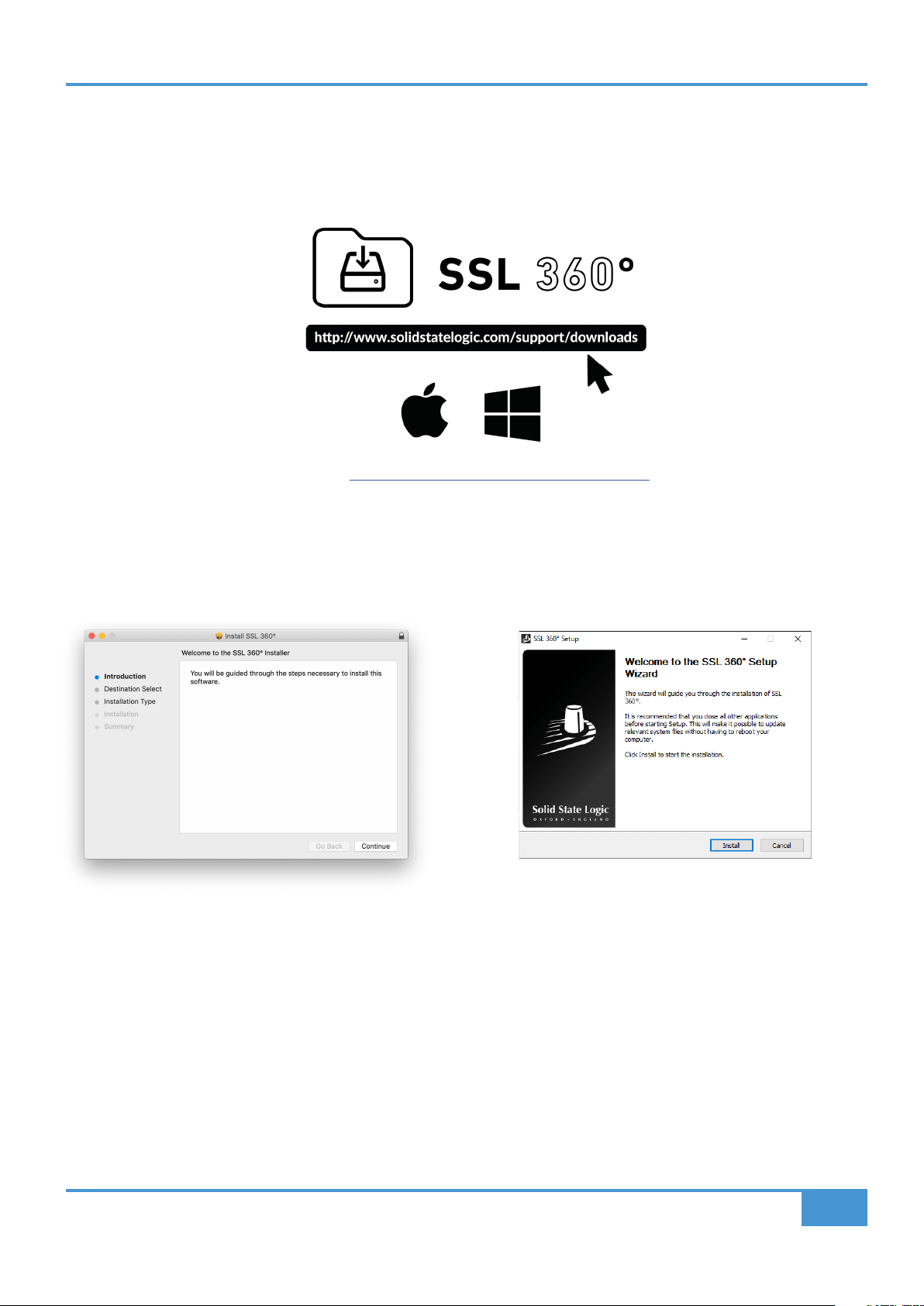
1. Go to solidstatelogic.com/support-page/downloads
2. Select UF1 from Products drop-down list.
3. Download the SSL 360° software for your Mac or Windows system.
4. Download the SSL 360° Meter Plug-in for your Mac or Windows system
Installing SSL 360° Software
System Requirements
Computer operating systems and hardware are constantly changing. Please search for 'UF1 Compatibility' in our online FAQs to
check if your system is currently supported.
Mac
1. Locate the downloaded SSL 360°.dmg on your
computer.
2. Double-click to open the .dmg.
3. Double-click to run the SSL 360°.pkg.
4. Proceed with the installation, following the on-
screen instructions.
Windows
1. Locate the downloaded SSL 360°.exe on your
computer.
2. Double-click to run the SSL 360°.exe.
3. Proceed with the installation, following the on-
screen instructions.
Get-Started
10
SSL UF1 User Guide
Registering Your UF1 - Redeeming and Authorising Your Meter Plug-in License
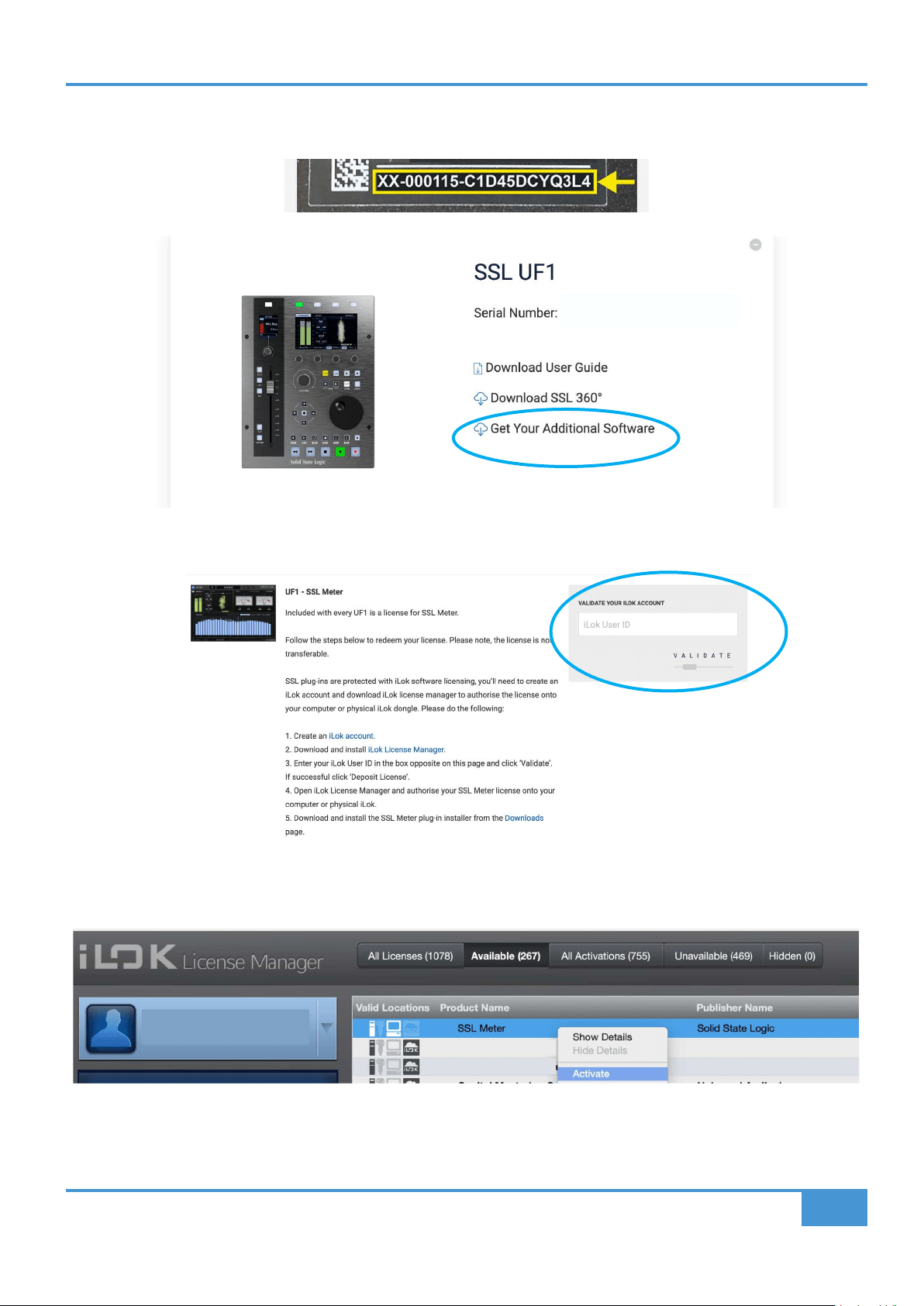
You'll need to register your UF1 hardware in the SSL user portal to claim your Meter plug-in license
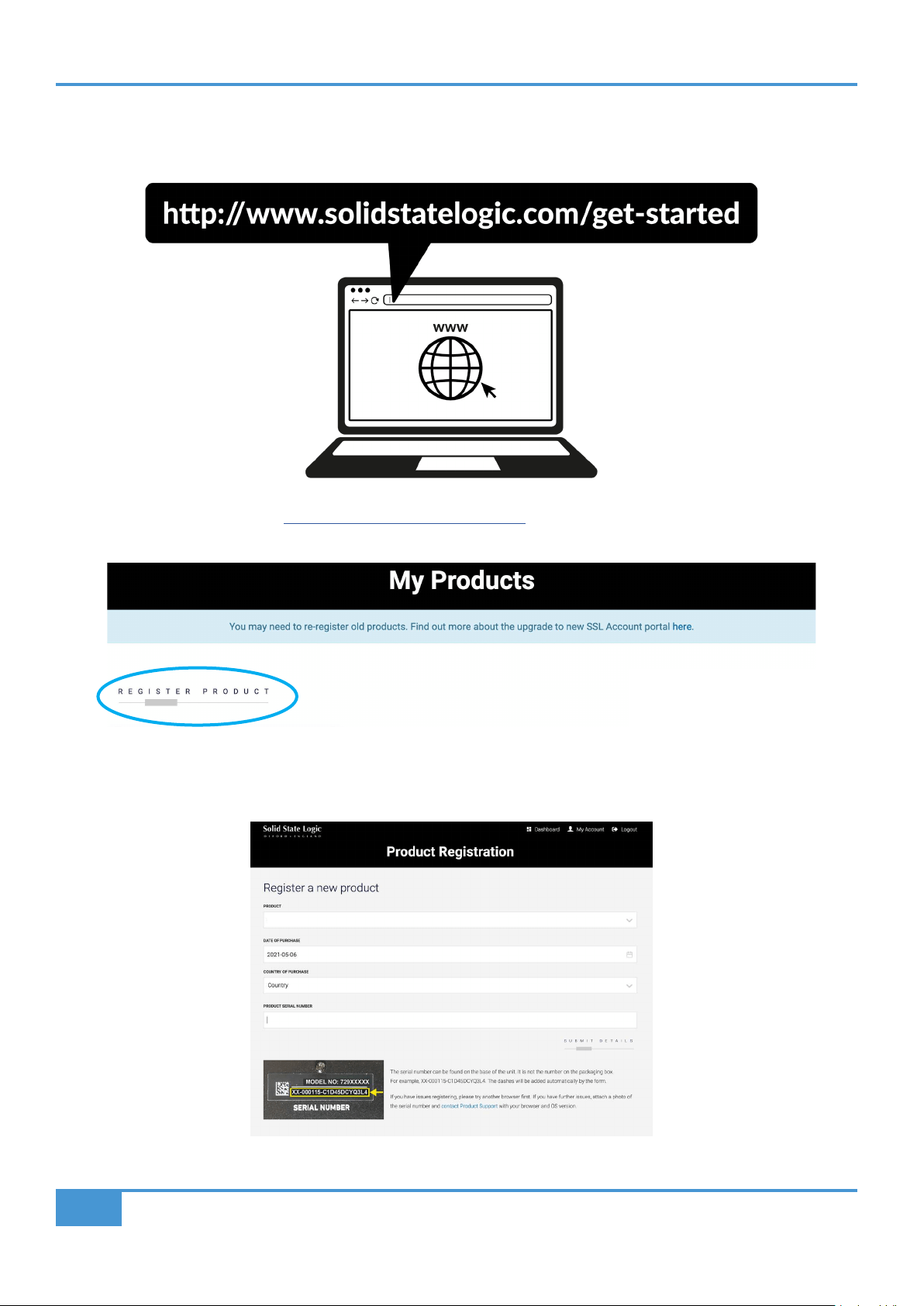
To register your product, head to www.solidstatelogic.com/get-started and follow the on-screen instructions to create an
account or log into your existing one.
Once logged into your account, click on REGISTER PRODUCT on the Dashboard page and on the following page choose
REGISTER HARDWARE PRODUCT.
Choose SSL UF1 and complete the form.
SSL UF1
Get-Started
11
SSL UF1 User Guide
You will need to input the serial number of your UF1. This can be found on the label on the base of your UF1 unit (it is not the
number on the packaging box).
Once you have successfully registered your UF1, it will appear in your Dashboard. Click Get Your Additional Software.
On this page, enter your iLok User ID into the box, wait for your iLok account to be validated and then click DEPOSIT LICENSE.
Finally, open iLok License Manager, locate the SSL Meter plug-in license and right-click Activate onto your computer or physical
iLok.
Product Overview & Features
12
SSL UF1 User Guide
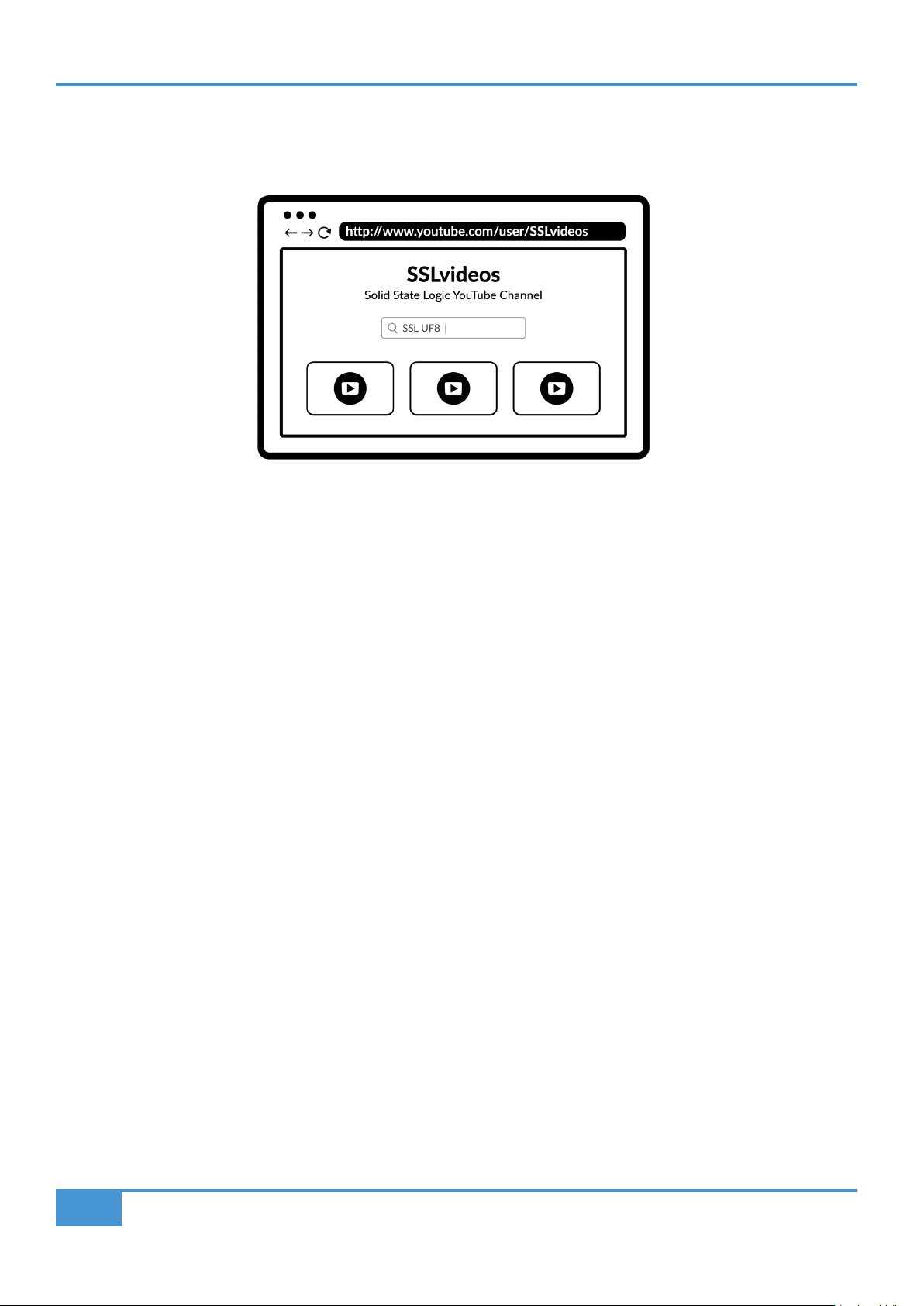
UF1 YouTube Tutorials
The SSL YouTube channel hosts in-depth tutorials on how to setup and use UF1 with your DAW.

Get-Started
13
SSL UF1 User Guide
Keyboard Identify (Mac Only)
One of the special features of UF1 is its ability to trigger keyboard command sequences of your favourite DAW shortcuts. These
are assigned using the SSL 360° software and this is covered later in this User Guide.
When you first plug in your UF1, Mac OS will present the above 'Keyboard
Setup Assistant' window because Mac OS wants you to identfy which region
(Europe, America or Japan) this, as yet unidentified, keyboard is from. If
you connected your UF1 to your computer before installing SSL 360°
software, you need to close this setup assistant because SSL 360°
needs to be installed on your computer in order to continue through this
setup process. To make the Keyboard Setup Assistant appear again once
SSL 360° is installed, do the following: Open up Mac's 'System Preferences'
> Go to 'Keyboard' > Click 'Change Keyboard Type' (please note, your UF1
must be connected to your computer via a USB cable) and click 'Continue'.
• When presented with 'Identifying Your Keyboard' and you are being asked to 'Press the key immediately to the right of the
Shift Key', at this point, press and hold the 360° key on UF1 and press the MacKeyID button on the top-right soft key of UF1.
• This will move you through to the final step of the process, where you can choose the appropriate option (Europe, America or
Japan) for your region and then click 'Done'.
STEP 1: Go to System Preferences and
click 'Keyboard'.
STEP 4: When presented with the message 'Press the key immediately to the right of
the Shift Key', press and hold the 360° key on UF1 and then press MacKeyID.
STEP 5: Select your region and click
'Done'.
STEP 2: Click 'Change Keyboard Type' STEP 3: Click 'Continue'.
Product Overview & Features
14
SSL UF1 User Guide
UF1 Hardware Layout
Front Panel
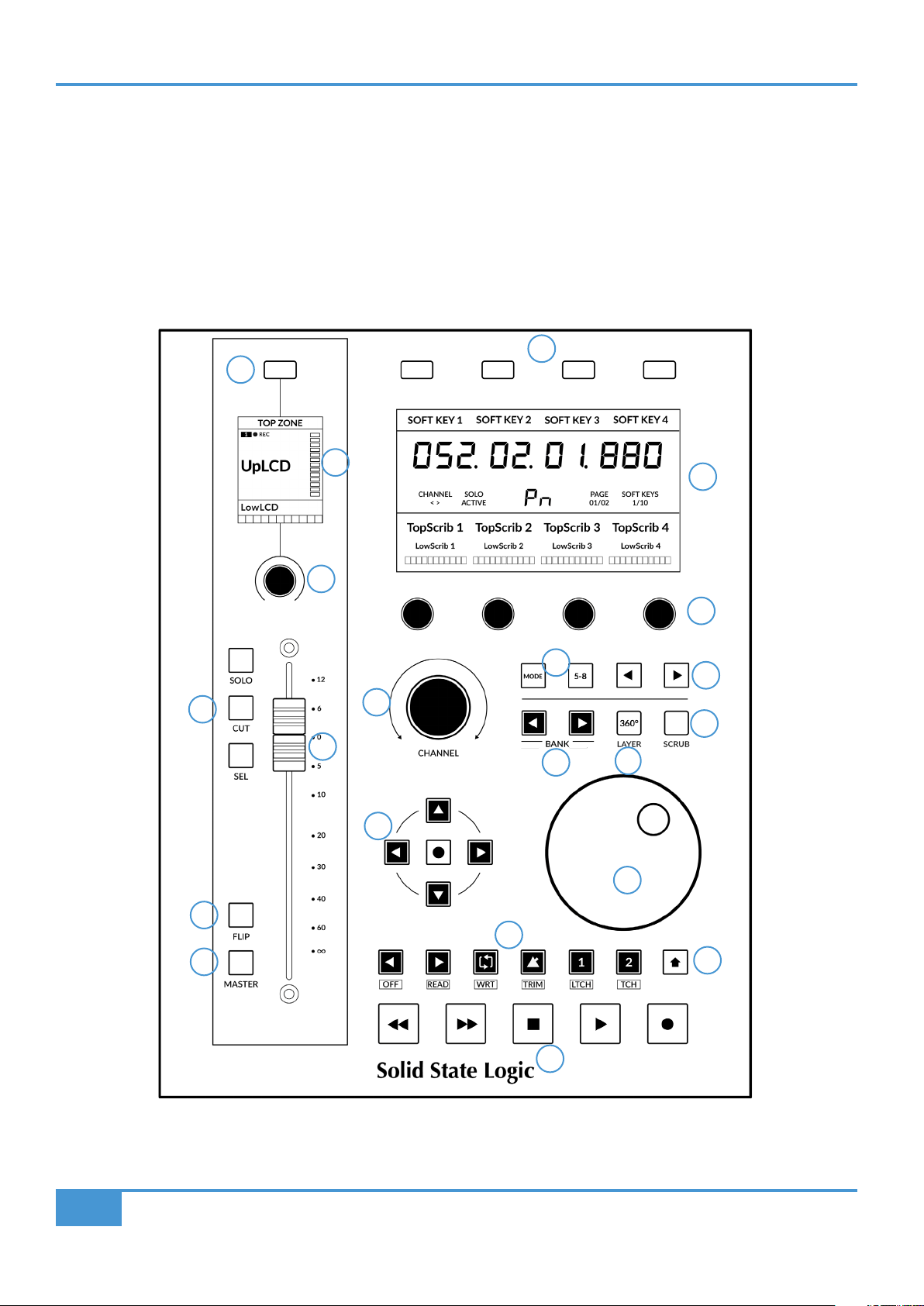
This section will help familiarise yourself with the front panel controls of the UF1 surface. It is intended to be an overview, rather
than a comprehensive explanation of each function or mode. For more detail on the integration of features with each DAW, please
refer to the DAW Tutorials sections of this User Guide.
10
11
1
2
3
4
5
7
6
8
9
13
12
14
15
19
20
21
17
18
16

Product Overview & Features
15
SSL UF1 User Guide
1 - Small Screen Soft Key
This allows control over certain V-Pot parameters. The behaviour of this key varies for each DAW. Please see the relevant DAW
Tutorial section for more information.
2 - Small Screen
Colour LCD TFT provides visual feedback of track metering, track names, V-POT readouts, track record-arm states and more.
3 - Small Screen V-Pot
"V-Pot" is short for "virtual pot" and this is used to control various DAW parameters including Pan position, Send levels and Plug-in
parameters. The small screen V-Pot controls the selected parameter of the currently selected channel shown on the fader.
4 - 100 mm Motorised Fader
High quality motorised fader with touch sense.
5 - SOLO, CUT, SEL
The most common controls found in all DAWs.
6 - FLIP Key
FLIP is used to assign the current V-Pot parameter to the fader and can be used for tasks such as riding send levels.
7- Master Key
Changes the fader to control the DAW's master fader. Please note this varies per DAW and is not available in all DAWs. Please see
the relevant DAW Tutorial section for more information.
8 - 4 x Large Screen Soft Keys
A line of 4 soft keys allow access to various V-Pot parameters or, up to 40 user-assignable keys (across 10 pages). The label for
the function of each key is displayed in the top section of the large screen.
9 - Large Screen
A large colour LCD TFT provides visual feedback of the DAW's time display, track names, V-Pot parameter readouts and more.
This is also where the SSL Meter plug-in is visualised.
10 - 4 x Large Screen V-Pots
"V-Pot" is short for "virtual pot" and these are used to control various DAW parameters including Pan position, Send levels and
Plug-in parameters.
11 - 360°/Layer Key
A short press opens/minimises the SSL 360° software on your computer screen. A long press will open the DAW layer selection
indicated at the top of the large Screen and selectable via one of the 4 large screen soft keys.
12 - BANK < > Keys
These keys allow you to bank through the tracks in your DAW, bringing them onto your UF1 control surface.
13 - MODE & 5-8 Keys
The MODE key toggles between various control states dependant on your DAW, as well as providing direct access to the SSL
Meter Plug-In control. The 5-8 key expands the V-pot controls beyond the 1st 4 channels of the selection to the 5 to 8 Channels
of the bank of 8.

Product Overview & Features
16
SSL UF1 User Guide
14 - < > Keys
These keys page through the 10 soft key pages.
15 - Large Notched CHANNEL Encoder
The large encoder can function in several different modes:
• < > - The encoder will bank DAW tracks one at a time.
• NUDGE Mode (Pro Tools only) Allows you to use the encoder to move selected audio regions by the currently set Nudge value.
• FOCUS Mode - This mode turns the operation of the large encoder into a mouse wheel scroll emulation and is great for
controlling plug-ins. Simply hover your computer mouse over the desired control and turn the encoder. The sensitivity of this
mode will be determined by your computer's mouse scroll sensitivity settings
• VOLUME Mode - This mode allows the Channel Encoder to act as a volume control when the currently active audio interface
allows control of system audio level.
16 - Cursor Keys and Mode (Circle) Key
In standard operation, these keys perform various functions including DAW timeline zooming and important tasks such as selection
of plug-in slots (Logic only). Refer to the DAW Tutorials section for more information on this.
17 - Jog Wheel
Large Jog wheel to move through the DAW timeline.
18 - Scrub key
Puts the Jog wheel into Scrub mode.
19 -Transport Keys
Control the DAW's Rewind, Forward, Stop, Play, and Record command.
20 - Secondary Transport Keys
These keys expand on the most common DAW transport controls and for most DWA profiles come preassigned to common
functions such as, Loop on/off, Metronome on/off. These 6 keys are customisable via SSL 360° . Refer to the DAW Tutorials section
for more information on this.
21 - SHIFT Key
Engaging the SHIFT key re-purposes the secondary transport keys to access various DAW automation modes such as Off, Read,
Write, Trim, Touch and Latch (DAW dependant). Use in conjunction with the SEL key to select a DAW track and then put it into the
desired automation mode.
Product Overview & Features
17
SSL UF1 User Guide
Connector Panel
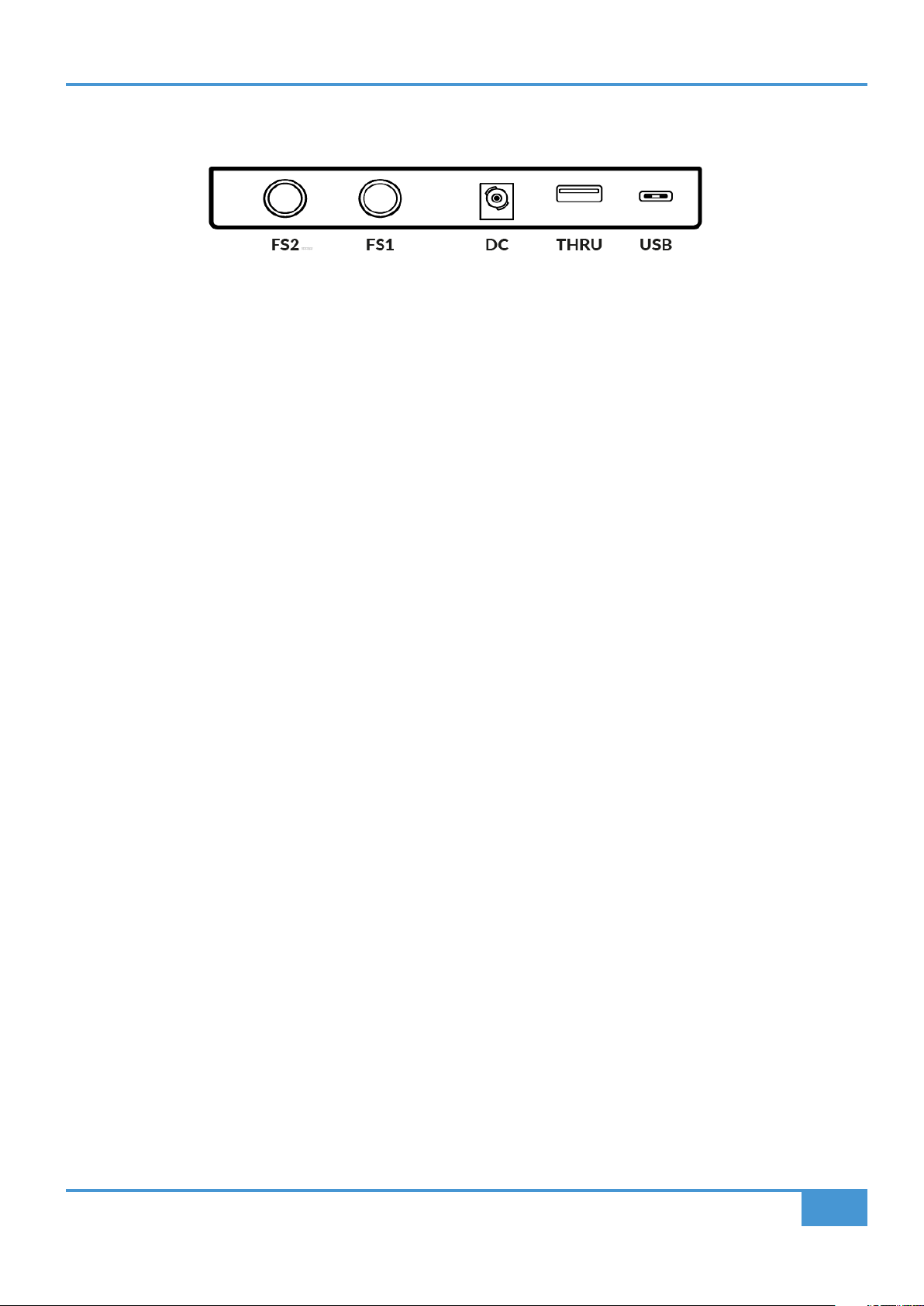
The recessed section hosts UF1's connectors.
USB - 'C' Type Connector
Connect the included USB cable from your computer to the USB port on UF1. This handles all of the communication between your
DAW and UF1, via the SSL 360° software application.
THRU - 'A' Type Connector
The THRU connector is an in-built USB hub and it can be used to chain a UF1 and UF8/UC1 unit together, without needing to plug
each unit into your computer individually. It can also be used to plug in USB dongles.
DC Connector
Use the included AC/DC Power Supply to provide power for your UF1.
FS1 & FS2 - 1/4" Jack Connectors
These allow for the connection of foot-switches, which can be used to trigger DAW commands or user-assigned keyboard shortcut
sequences.
UF1 has been tested with popular foot-switches such as the BOSS FS-6 (other brands are available), whose foot-switch behaviour
(or polarity as it is often referred to), is a 'normally closed' switch. In some cases, these foot-switches offer the ability to change
the polarity.
Please use a foot-switch designed for 'normally closed' operation and also, to ensure full compatibility use a momentary action
foot-switch, or choose a foot-switch that can be set to momentary. This will ensure correct operation with assigned DAW commands.
Product Overview & Features
18
SSL UF1 User Guide
SSL 360° Software Overview
Overview & Home Page
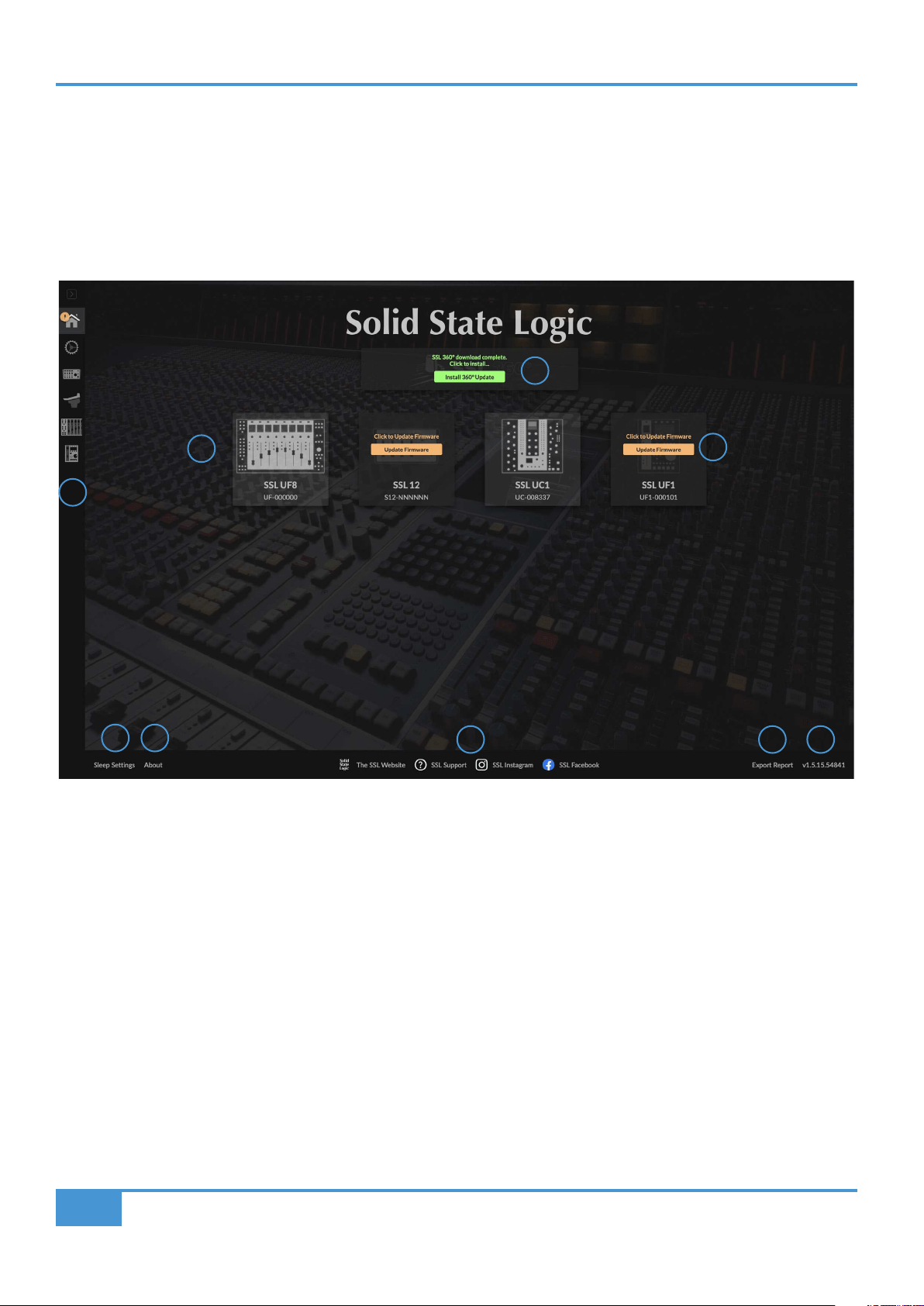
SSL 360° software is not only the 'brains' behind the UF1 control surface, it is also the command centre from which new versions
of software and firmware can be downloaded for your 360° compatible device.
The HOME screen:
1 - Menu Toolbar
This toolbar allows you to navigate through the various pages of SSL 360°.
2 - Update Software Button
When software updates become available, the Update Software button (pictured above) will appear. Click this to download and
update your software.
3 - Connected Units
This area shows any 360°-enabled devices (including UF1) connected to your computer, along with their respective serial numbers.
Please allow 10-15 seconds for units to be discovered once they are plugged in.
1
2
3
4
5
987
6
Product Overview & Features
19
SSL UF1 User Guide
4 - Firmware Updates
If a firmware update becomes available for your UF1, then an Update Firmware button will appear below each unit. Click on the
button to start the firmware update process, being sure to not disconnect the power or USB cable(s) whilst it is in progress.
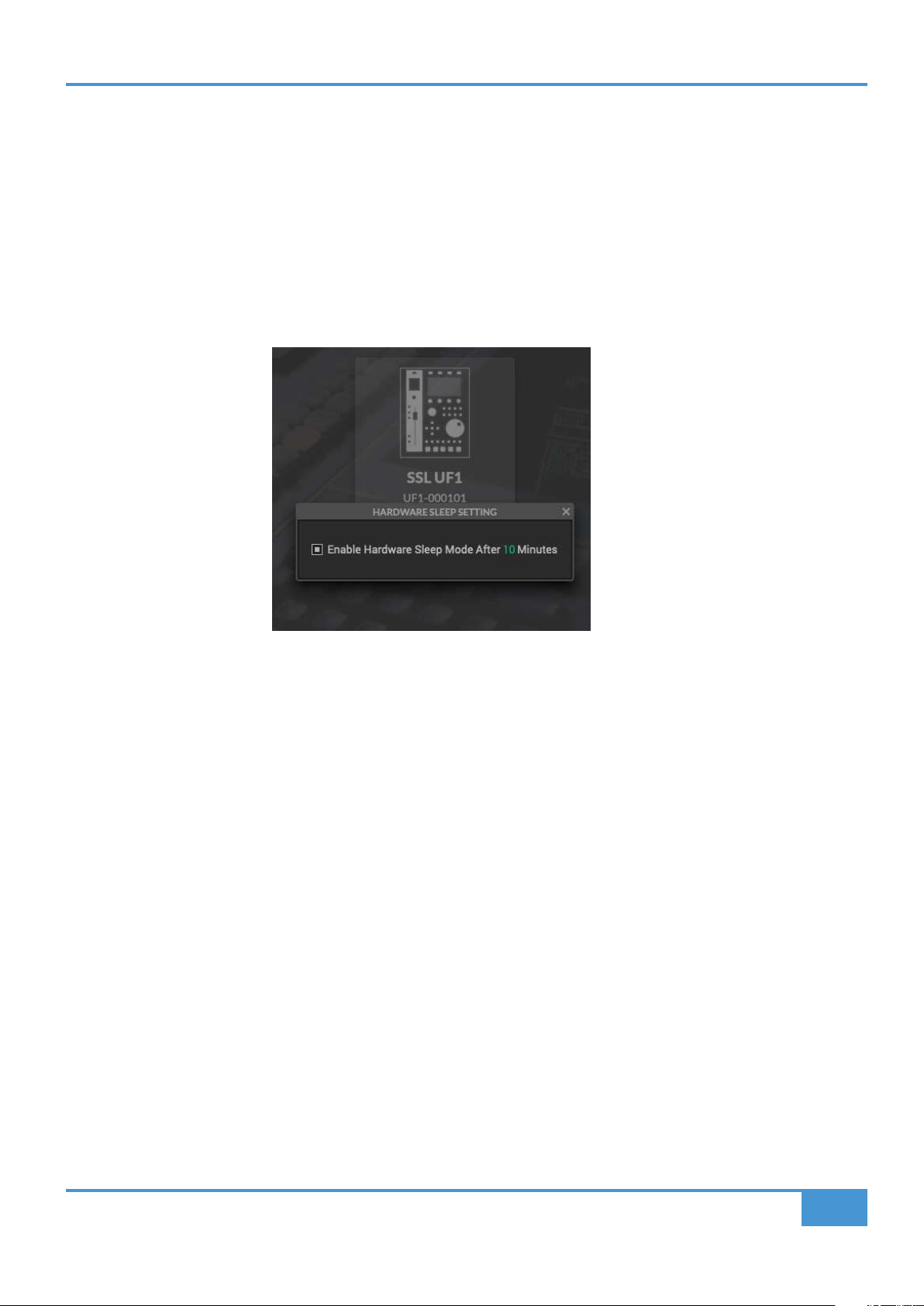
5 - Sleep Settings
Clicking this will open a pop-up window that allows you to determine the length of time before your connected 360° control surfaces
go into Sleep mode. Simply click your mouse in the green digit area and type a number between 1 and 99. To force a control
surface out of sleep mode, press any button or move any control on the surface itself. You can untick the box to disable Sleep
mode.
6 - About
Clicking this will open a pop-up window detailing software licensing relating to SSL 360°.
7 - SSL Socials
The bar at the bottom has quick links to the SSL website, Support section and SSL Socials.
8 - Export Report
Should you encounter any issues with your UF1 or SSL 360° software, you may be asked by a support agent to use the EXPORT
REPORT feature. This feature generates a text file containing the essential information about your computer system and UF1,
alongside technical log files relating to SSL 360° activity, which may help to diagnose any issues. When you click EXPORT
REPORT, you'll be asked to choose a destination on your computer to export the generated .zip file to, which you can then forward
onto the support agent.
9 - SSL 360° Software Version Number
This area displays the version number of SSL 360° that is running on your computer. Clicking on the version text will take you to
the Release Notes information on the SSL website.
Product Overview & Features
20
SSL UF1 User Guide
Control Setup Page
DAW Conguration
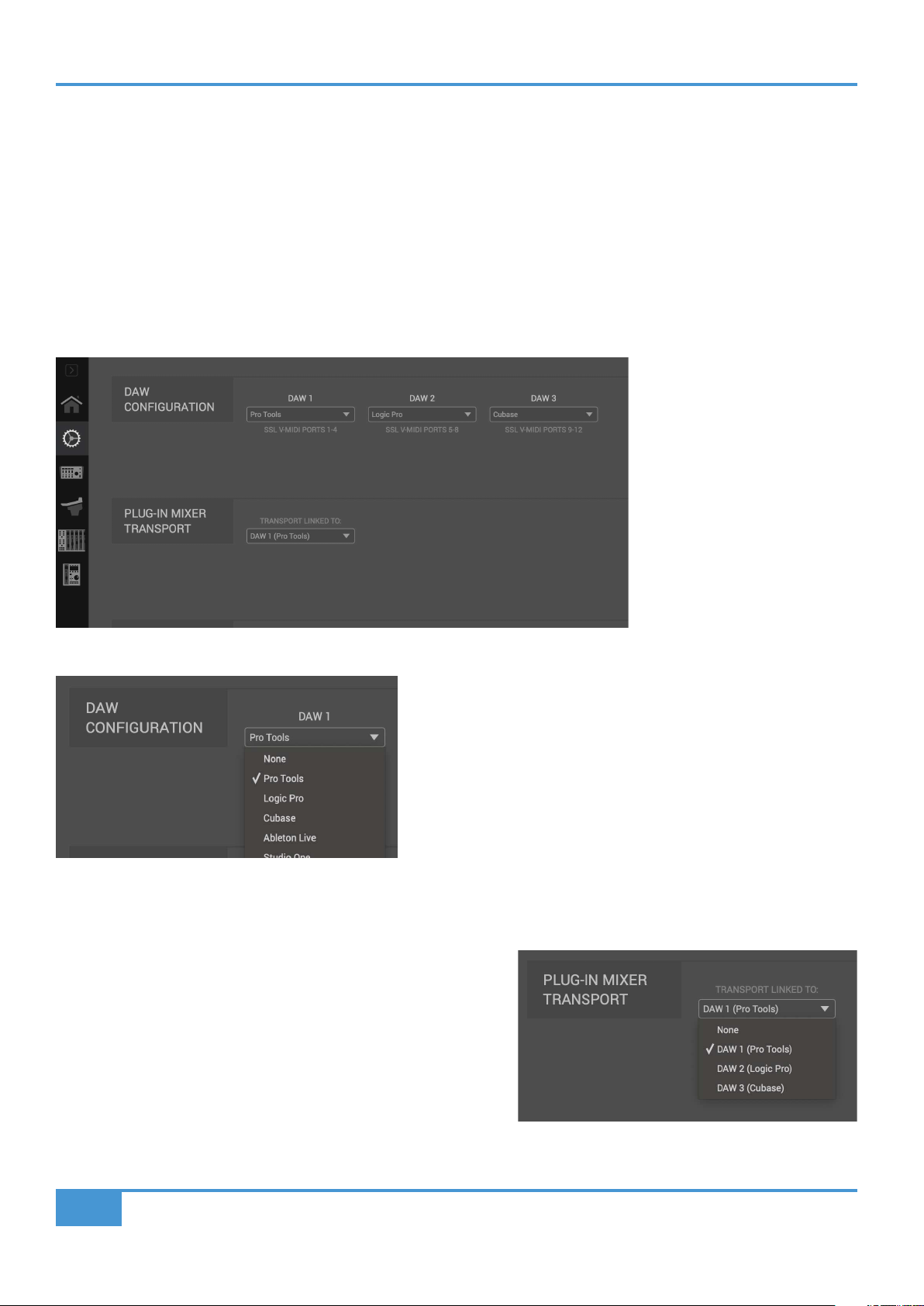
The CONTROL SETUP page in SSL 360° allows you to nominate up to 3 different DAWs for use with UF1. In the DAW
CONFIGURATION section, select up to 3 DAWs using the drop-down lists. In the example pictured below, DAW 1 is set to Pro
Tools, DAW 2 is set to Logic Pro and DAW 3 is set to Cubase. Once you have nominated the DAW(s) on this page, they will become
available for you to assign to each UF1 Layer on the UF1 Page (covered in more detail on the following pages).
DAW 1 (LAYER 1): SSL V-MIDI Ports 1-4
DAW 2 (LAYER 2): SSL V-MIDI Ports 5-8
DAW 3 (LAYER 3): SSL V-MIDI Ports 9-12
Plug-in Mixer Transport
When a UF1 layer is set to control the SSL 360° Plug-in Mixer, the
transport keys on the bottom of UF1 and the jog wheel will operate the
DAW's Transport commands. The DAW that drives (the one that is
linked to) these buttons on UF1 must be selected from the drop-down
list here. You'll be able to choose from any of the 3 DAWs you have
nominated in the DAW CONFIGURATION section.
Select your DAW from the drop-down list, starting with DAW 1. If you only use 1 DAW then leave DAW 2 and DAW 3 set to 'None'.
DAW drop-down list

Product Overview & Features
21
SSL UF1 User Guide
Switching the control layer from UF1 (Layer Set Up)
On UF1, you can switch between up to 3 different DAWs Layers that you have configured (or between DAWs and the SSL 360°
Plug-in Mixer). To do this, hold down the 360° Button. Whilst keeping it held, select the desired DAW (or Plug-in Mixer) using the
soft keys at the top of the UF1.
STEP 1: Enter UF1 Layer
Mode by pressing & holding
the 360° key.
STEP 2: Select the
desired DAW layer via the
associated Soft Key.
Product Overview & Features
22
SSL UF1 User Guide
UF1 Page
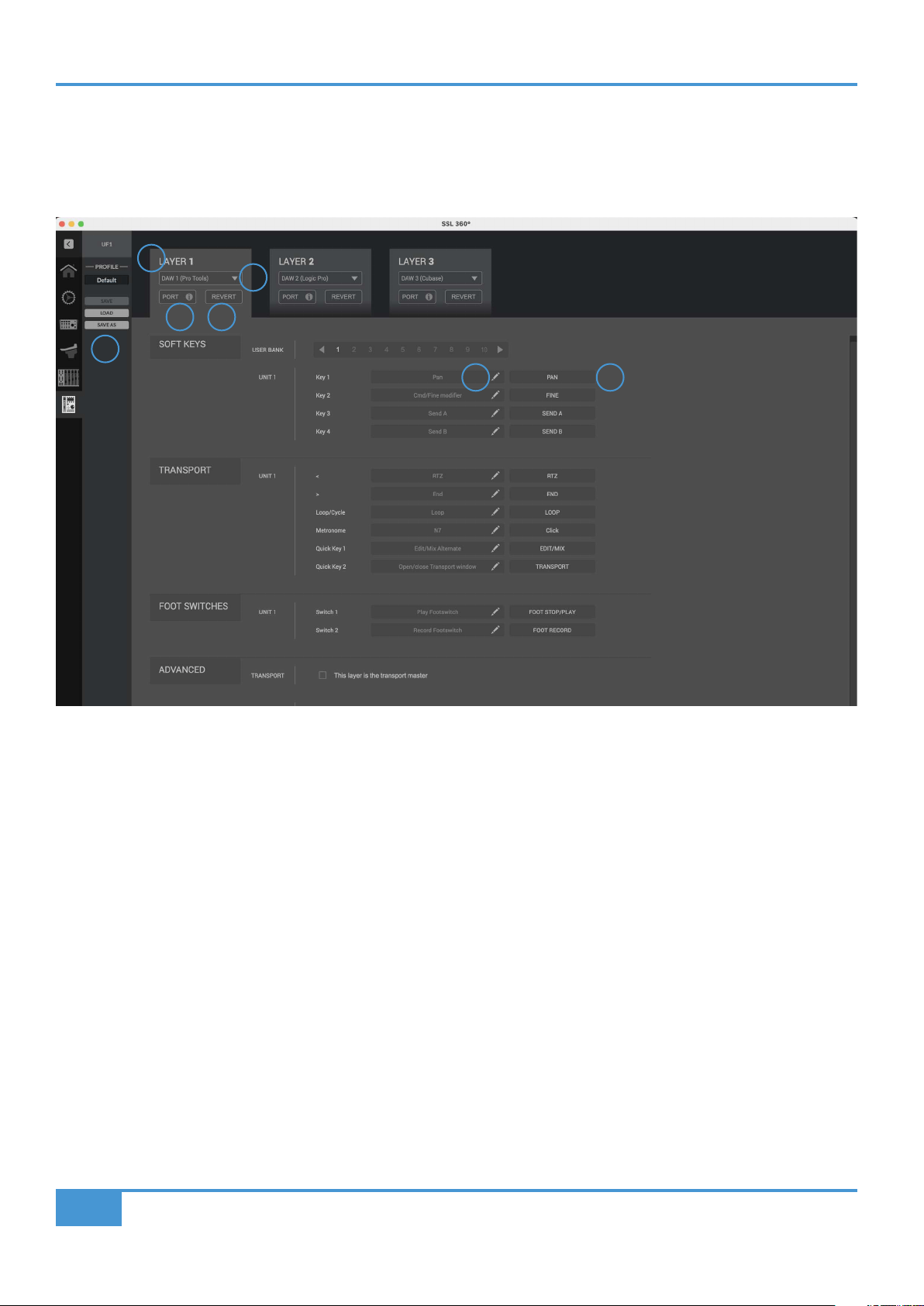
The UF1 page can be selected from the menu toolbar on the left-hand side and is where you configure UF1 to work with your
DAW(s). It is also the place where you can customise any of the user-assignable keys. Customised DAW profiles can then be saved
and loaded as .xml files should you need to work on another computer with SSL 360° installed.
1 - LAYER Tabs
UF1 can be configured for 3 different DAWs simultaneously, with each DAW occupying what is called a 'Layer'. If you only use one
DAW, then it is likely you'll only need one layer. If using multiple DAWs (or a DAW and the SSL 360° Plug-in Mixer), simply click in
the LAYER 2 or LAYER 3 tabs to configure as appropriate.
2 - DAW / Plug-in Mixer Profile Selection
Use the drop-down list to select your DAW for the chosen layer, or to set a layer to control the Plug-in Mixer. The DAW you can
select is determined by the choice you made on the CONTROL SETUP page. See the previous page of this User Guide for more
information.
3 - PORT INFO
Clicking on PORT INFO provides some basic instructions on how to configure your SSL V-MIDI ports correctly (useful as a
reminder). If you are configuring UF1 for the first time, please refer to the more detailed explanations found at the start of each
DAW Tutorial section as the PORT INFO does not cover every detail.
4- REVERT
Allows you to revert this Layer to the factory-shipped DAW profile.
5 - DAW Command/Keyboard Shortcut Assignments
Clicking on the pen symbol will allow you to change the assignment of any of the user-assignable keys. See the next page for
more information.
1
2
3 4
5 6
7
Product Overview & Features
23
SSL UF1 User Guide
6 - Short Label
Using your computer keyboard, you can type the label that you wish to appear on the UF1 LCD just below the User Key.
7 - Profile Name and SAVE/LOAD/SAVE AS Buttons
Allows you to save your customised DAW profiles as an .xml file to your computer or any connected hard-drives. The name of the
currently active profile is shown above these buttons. If you have made any changes to the saved profile, then 'unsaved changes'
will appear beneath the profile name
Built-in Auto-Saving Feature
Changes you make to the software are automatically stored in the background, so you don't need to worry about remembering to
save each time you change something in SSL 360° software.
User-Assignable Keys
A number of keys on UF1 are user-assignable and can be changed from their factory shipped assignments. Each UF1 unit has
the following user-assignable keys:
• 10 pages of 4 x Top-Row Soft Keys (40 keys total)
• 6 x Secondary Transport Keys
• 2 x Foot-switches
All of these keys can have either DAW commands or keyboard shortcut sequences assigned to them.
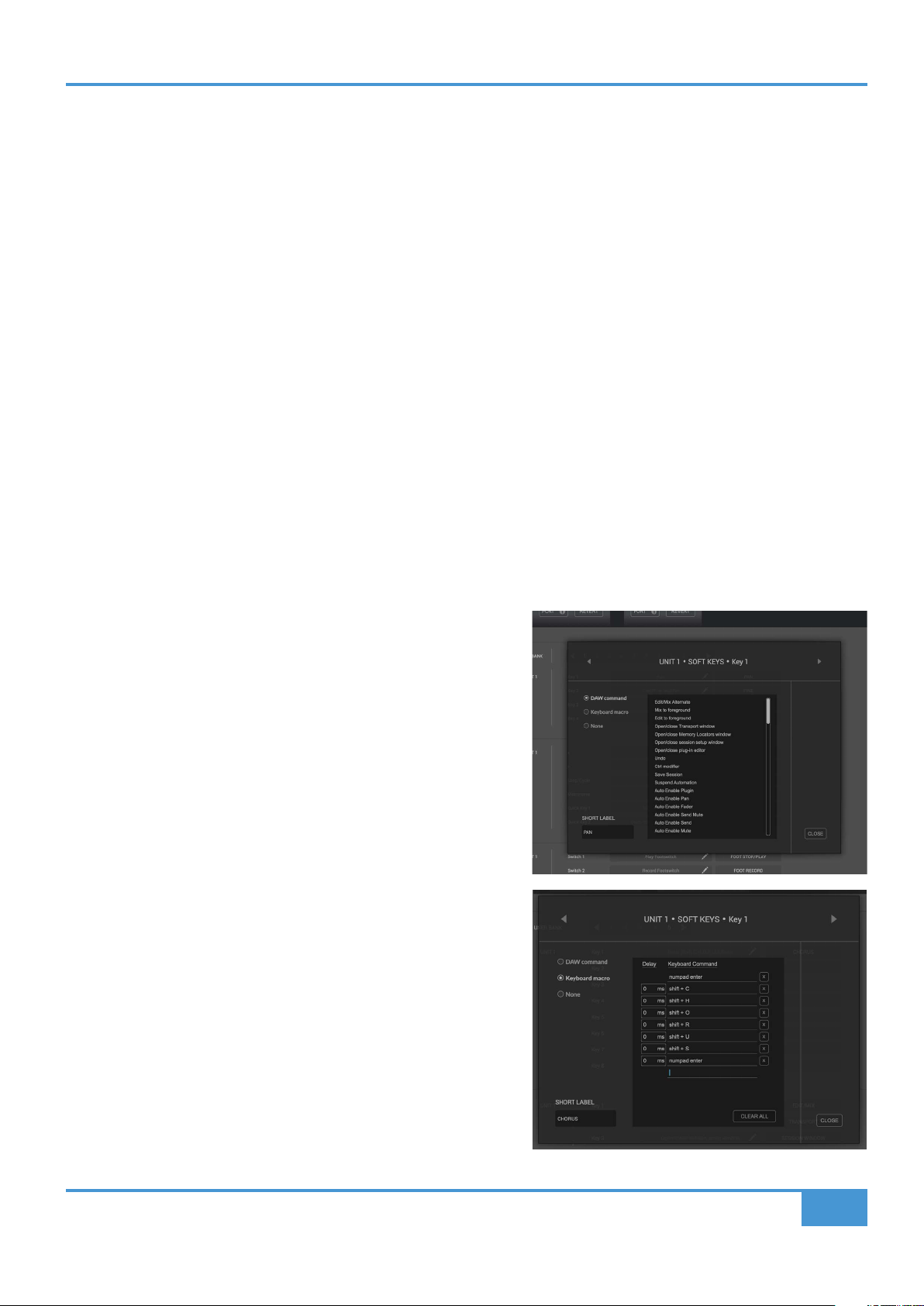
Assigning DAW Commands
Clicking on the pen symbol for any user-assignable key will bring
up a pop-up window, from which DAW command can be selected
using the radio buttons on the left-hand side. To assign a different
DAW command to the button in question, simply select one from
the list of available HUI/MCU commands. The SHORT LABEL text
field allows you to enter the label you want to appear on the LCD to
accompany this command. The list of available commands depends
on the selected DAW.
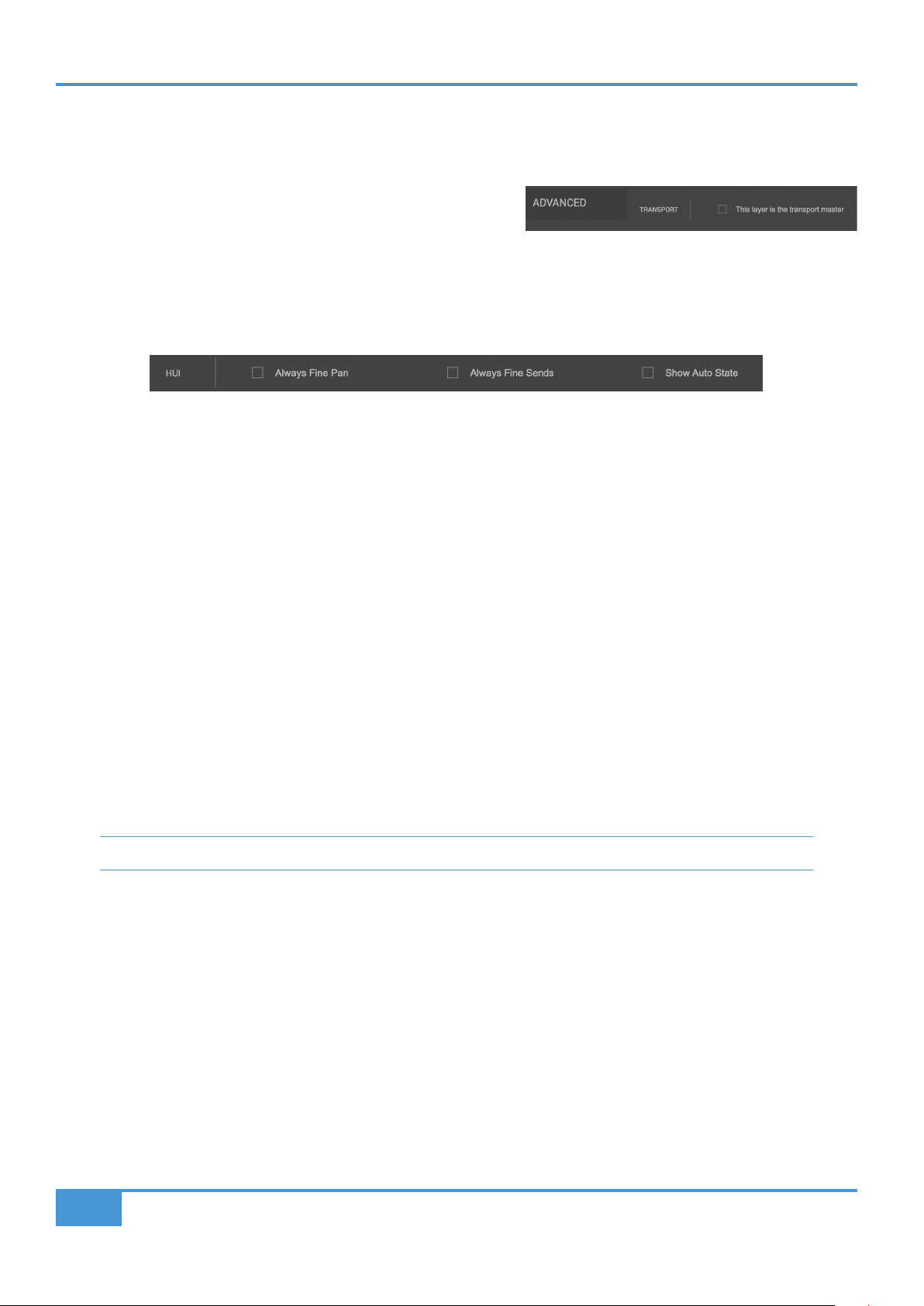
Assigning Keyboard Shortcut Sequences
If you would like to assign a keyboard shortcut or shortcut sequence,
select the Keyboard macro option. Once selected, simply click your
mouse cursor into the area that says 'Type your commands here...'
and use your keyboard to enter the desired key press or sequence.
When adding a sequence of multiple commands, you can enter a
delay at the start of each line. This can be useful for certain DAW
operations where DAW windows or menus are sometimes slow to
open - it means you can add delays where necessary to ensure the
sequence is properly executed (not executed too quickly).
Should you make a mistake and need to start again, you can use
the CLEAR ALL button. Alternatively, you can use the individual
X buttons to delete particular lines. The SHORT LABEL text field
allows you to enter the label you want to appear on the LCD to
accompany this keyboard shortcut sequence.
Product Overview & Features
24
SSL UF1 User Guide
ADVANCED Setup Options
Transport Master
If you are running multiple DAWs that are linked using MIDI timecode,
then you can designate 1 of the 3 DAW profile layers to be transport
master. This means that the transport keys will always trigger from the
DAW assigned as Transport Master, even if your UF1 is controlling a
different DAW Layer.
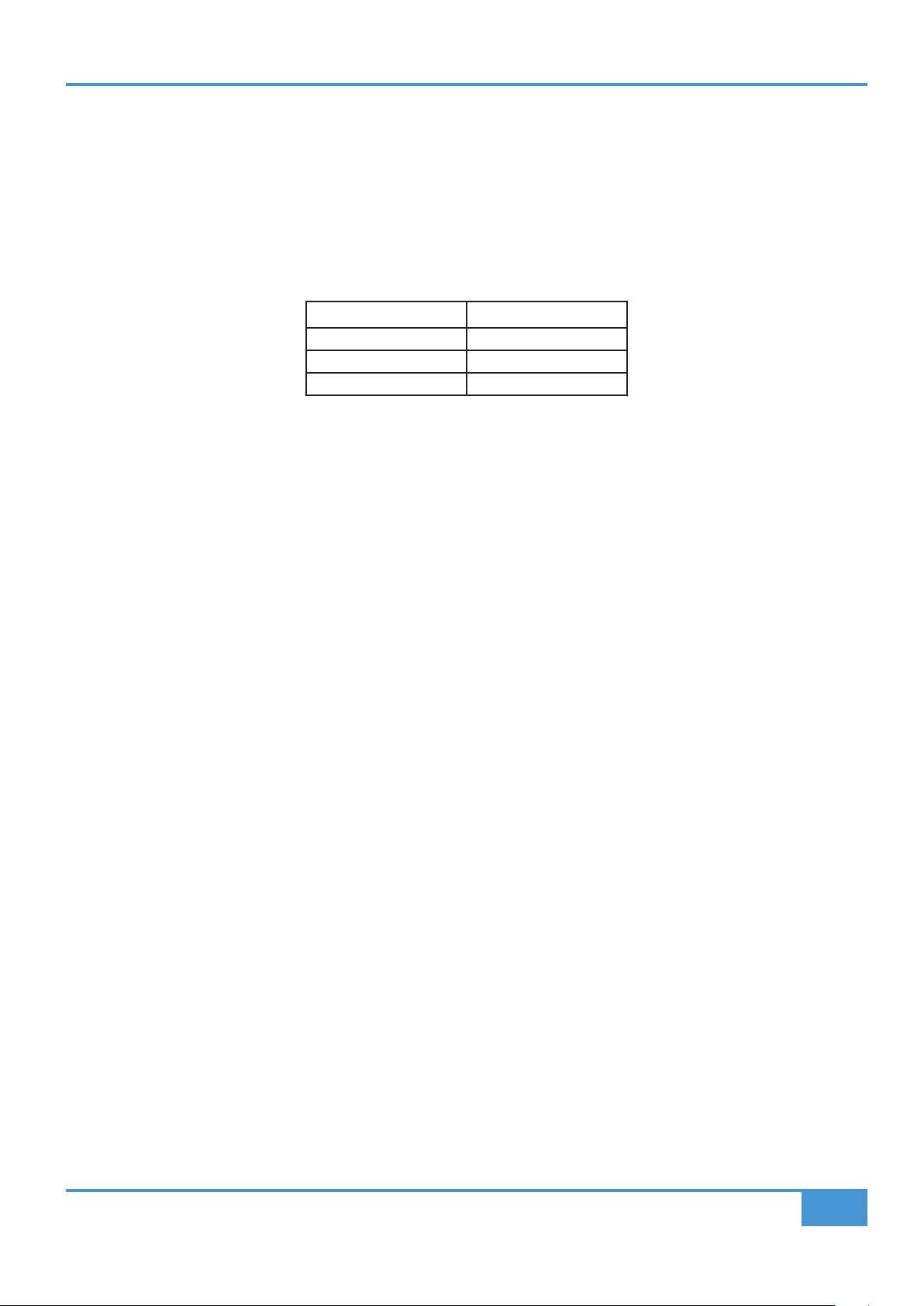
ADVANCED Setup Options - HUI
The following tick-box options are presented for Pro Tools profile selections only:
Always Fine Pan - Enabling this option will automatically change the operation of the V-Pots to FINE mode when controlling pans.
This will also cause the Pan position to be displayed on the LCD whilst being turned.
Always Fine Sends - Enabling this option will automatically change the operation of the V-Pots to FINE mode when controlling
Sends. This will also cause the Send level to be displayed on the LCD whilst being turned.
Show Auto State - Enabling this option will display an indication of the Pro Tools automation state (READ/WRITE/TRIM) per channel,
just above the DAW metering on the LCD at all times. If TRIM is engaged, the indication will flash between TRIM and READ or
TRIM and WRITE.
"I wish I was blank, I wish I was blank, I wish I could thank, I wish I was blank" - Blank, The Smashing Pumpkins.
Product Overview & Features
25
SSL UF1 User Guide
DAW Communication
SSL V-MIDI Ports
UF1 communicates with your DAW using hi-speed USB MIDI communication via a specialised MIDI driver, installed as part of the
SSL 360° software. The driver is presented on your computer system as 'virtual' midi ports called SSL V-MIDI.
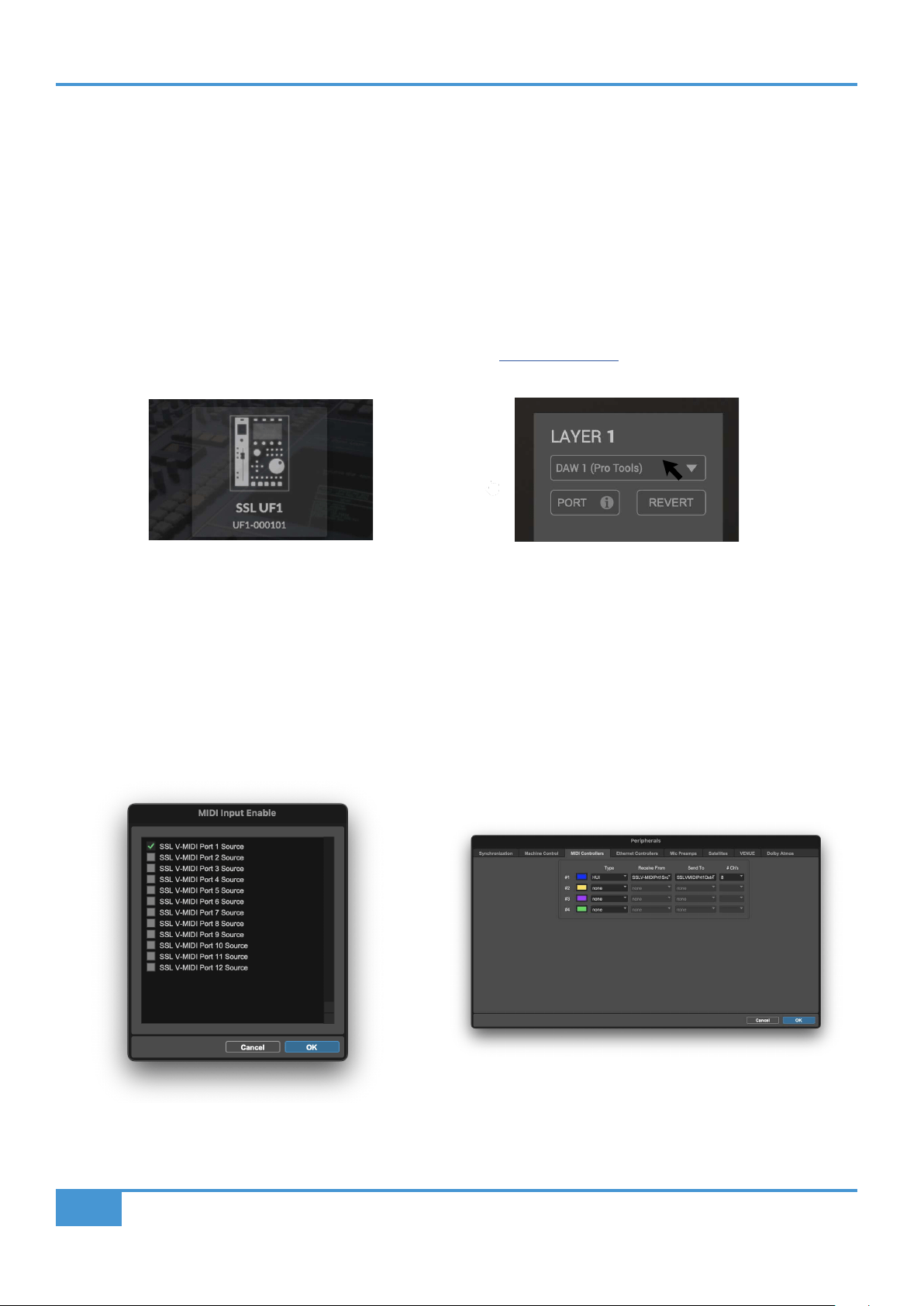
The table below illustrates how the SSL 360° software maps the virtual midi ports to UF1.
DAW LAYER UF1 Unit
1 SSL V-MIDI Port 1
2 SSL V-MIDI Port 5
3 SSL V-MIDI Port 9
Each DAW varies slightly in the way in which it requires MIDI controller(s) to be setup and these steps are covered in detail in each
of the DAW Tutorials.
DAW Protocols
SSL V-MIDI provides the means of communication between UF1 and the DAW but the protocol (or in other words 'language') that is
being spoken depends on the DAW's preferred method of communication with external control surfaces. Furthermore, even DAWs
that use the same protocol vary in their application of that protocol (you could draw an analogy to varying dialects found within
different geographical regions of the same country). Each DAW Tutorial will aim to guide you through each DAW's implementation
of the protocol that they have chosen to implement and how it applies to UF1.
HUI
The HUI (Human User Interface) protocol is the way in which Pro Tools communicates with UF1. In certain areas, we have added
SSL software 'magic' on top of the HUI implementation in order to provide an enhanced workflow for those using UF1 with Pro Tools.
MCP/MCU
The MCP (Mackie Control Protocol), also commonly referred to as MCU, is the way in which many DAWs such as Logic, Cubase/
Nuendo, Live, Studio One, LUNA and Pyramix communicate with UF1. The implementation of MCU differs between DAWs and
traditionally, if you had an MCU control surface and were not using Logic, you would have to place a special overlay onto the
surface so that the buttons were labelled with the correct functions. With UF1 we have designed the surface in such a way to
eliminate the need for any special overlays, in part by using the top-zone of the LCDs to provide labels for the functions hosted
on the buttons that reside just above. The functions and labelling of the buttons dynamically change, as appropriate, depending
on the currently loaded DAW profile.
NATIVE INTEGRATION (SSL 360° Plug-in Mixer)
Control of the SSL 360° Plug-in Mixer is done natively via our own proprietary protocol and therefore uses neither HUI or MCU.
Pro Tools Tutorial
26
SSL UF1 User Guide
Pro Tools with UF1 - Tutorial
The following tutorial guides you through configuring and using the default Pro Tools profile on LAYER 1 of UF1. If you wish to
configure Pro Tools on a different layer, please refer to the DAW Communication section of this User Guide to ensure your DAW is
configured for the correct SSL V-MIDI ports.
SSL 360° Setup
1. Open the SSL 360° application on your Mac or Windows computer. Go to the HOME page and check that your UF1 has been
detected by SSL 360°.
2. Then, go to the UF1 page and set LAYER 1 to Pro Tools using the drop-down list. If Pro Tools is not available from the drop-
down list it is because you have not configured it as DAW 1 on the CONTROL SETUP page - ensure you do this first.
Pro Tools Setup
3. Open Pro Tools. Go to the Setup Menu > MIDI > MIDI Input Devices... . In this list, ensure that any SSL V-MIDI Ports you need
are ticked. e.g. if configuring UF1 on Layer 1, tick SSL V-MIDI Port 1 Source.
4. Go to the Setup Menu > Peripherals > MIDI Controllers tab. Configure the UF1 unit as a HUI Type. Set Receive From as
SSL V-MIDI Port 1 Source and then Send To as SSL V-MIDI Port 1 Destination.
STEP 1 : Open SSL 360° application.
Check your UF1 has been detected.
STEP 2 : Select the default Pro Tools
DAW prole from the UF1 page.
STEP 3 : Enable SSL V-MIDI Port(s) in Pro Tools.
STEP 5 : Congure the UF1 unit as a HUI type. Set Receive
From as SSL V-MIDI Port 1 and Send To as SSL V-MIDI Port 1.
Pro Tools Tutorial
27
SSL UF1 User Guide
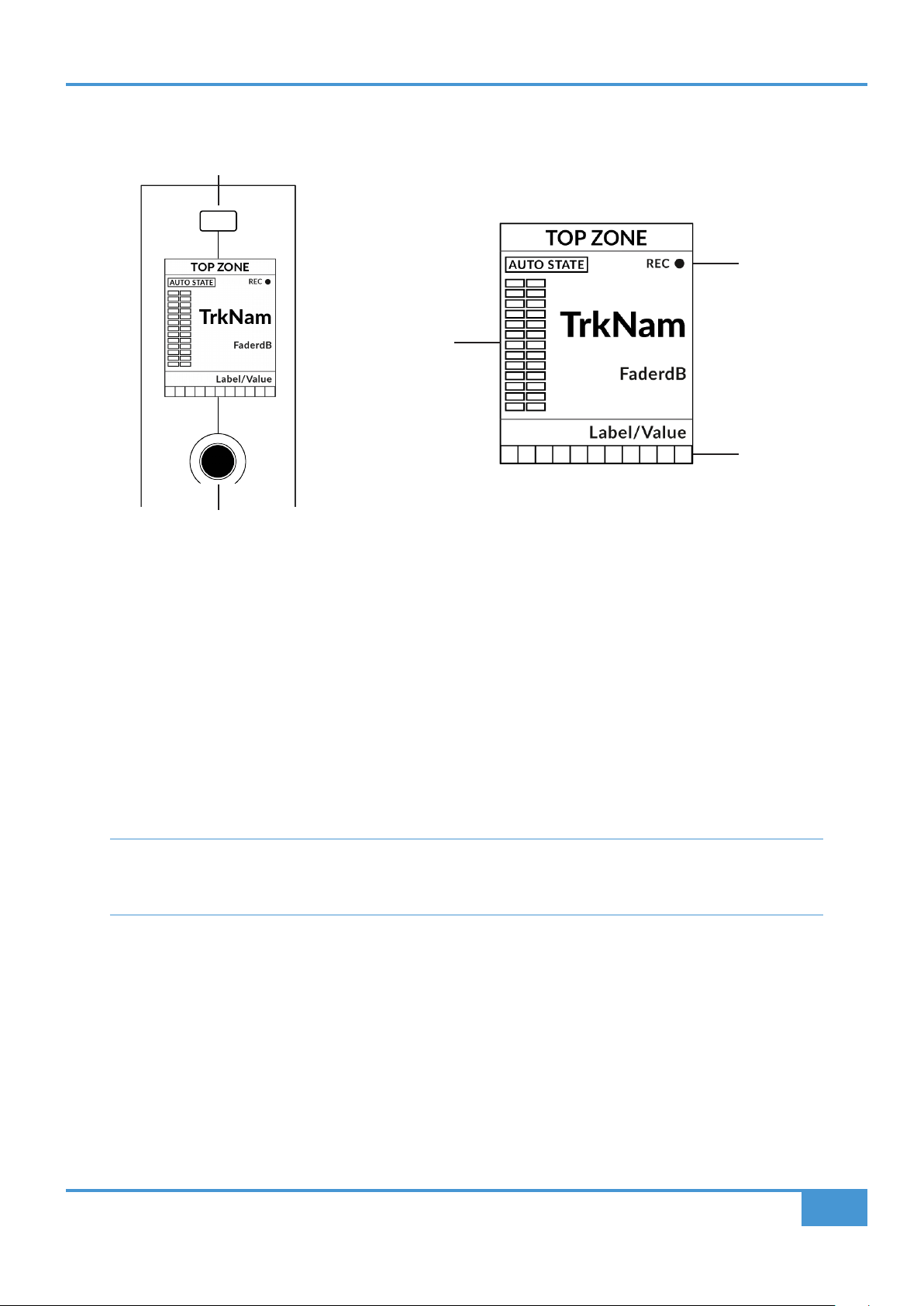
Small LCD Layout
Top Zone - Provides a label for the function assigned to the soft key directly above.
Auto State - Shows the current automation state of the track (when Show Auto is enabled in SSL 360°).
Track Record Enabled (REC) - Indicates that the track has been record-enabled.
TrkNam - Displays the 4-character track name.
FaderdB - Provides a readout of the current fader position.
Label/Value - Displays a label or value readout for the parameter currently assigned to the V-Pot.
DAW Track Metering - 12-segment track metering + clip
V-Pot Readout Bar - Displays the position of the currently assigned V-Pot function.
Track Metering Power Tip: The F1 command, available in the DAW commands list SSL 360° will clear clips on the
track metering. You can assign this command to any of the configurable soft keys on UF1. Alternatively, you'll find
this command preassigned to the 2nd soft key in Soft Key Page 7.
Enlarged view of LCD screen
DAW Track
Metering
V-Pot
Readout Bar
Track
Record-Enabled
V-Pot Encoder
Soft Key

Pro Tools Tutorial
28
SSL UF1 User Guide
Large LCD Layout
Soft Key Labels - Labels for the functions assigned to the soft keys directly above.
Timecode - Shows the current timecode in Bars/Beats/Mins:Sec/Timecode/Feet+Frames/Samples.
Channel Mode - Indicates the current CHANNEL encoder Mode.
Solo Active Indication - Indicates if there are any active solo'd tracks.
V-Pot Assignment Mode - Displays the current V-Pot Assignment Mode. e.g. Pan, Send A, Send B etc.
Soft Key Page - Displays the current Soft Keys page number
Top Scribble - Displays the 4-character track name for tracks 1-4 or 5-8 of the current controller bank.
Low Scribble - Displays a label or value readout for the parameter currently assigned to the V-Pot.
V-Pot Readout Bar - Displays the position of the currently assigned V-Pot function.
V-Pots - 4 x V-Pots that control the assigned parameters.
Soft Key Labels
Soft Key Page
Top Scribble Strip
Low
Scribble Strip
CHANNEL
Encoder Mode
Timecode
V-Pot Readout
Bar
V-Pot
Assignment
Mode
Solo Active
Indication
V-Pots
Pro Tools Tutorial
29
SSL UF1 User Guide
Tutorial
This section guides you through using UF1 with Pro Tools.
V-Pot
At the top of the strip is the V-Pot (virtual pot). The function of the V-Pot varies, depending
on which V-Pot assignment mode is currently active (Pan, Send etc). These modes are
explained on the pages that follow.
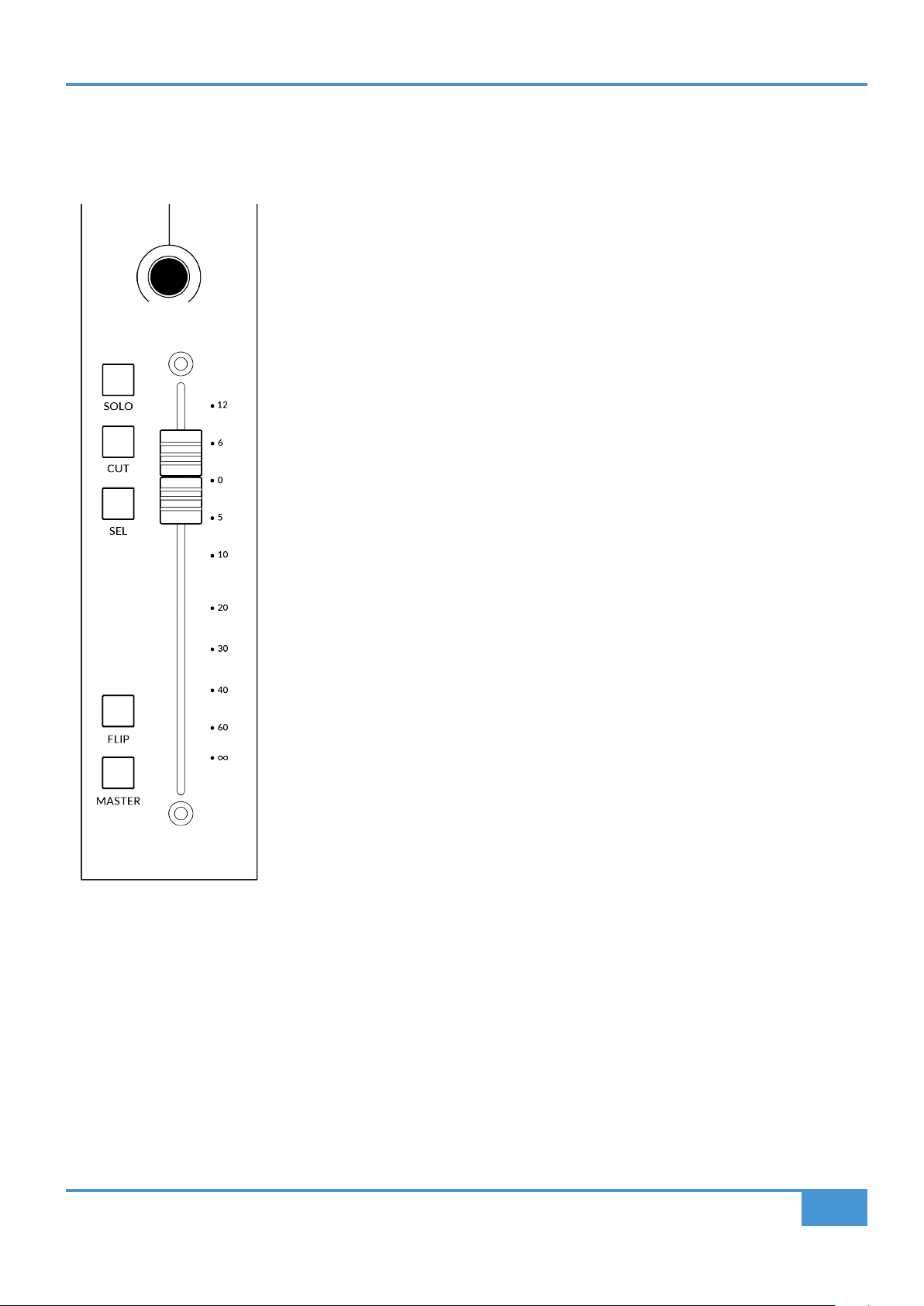
100 mm Motorised Fader
A motorised, touch-sensitive fader provide physical control of your Pro Tools tracks and is
great for balancing mix levels and riding volume automation.
Solo, Cut & Sel (Select)
The UF1 fader strip features SOLO, CUT and SEL keys corresponding to the solo, mute
and select features of the Pro Tools track.
Double-pressing a SEL key will open up the Pro Tools re-name track window on your
computer screen.
Flip
Sends can be flipped to the fader using the FLIP key. This is useful for riding Send levels
or creating headphone mixes. In FLIP mode, the V-Pot will control the Pan of the currently
selected Send.
Master
Master is disabled in Pro Tools and has no function.

Pro Tools Tutorial
30
SSL UF1 User Guide
Channel Encoder
Pressing down on the CHANNEL encoder, the large LCD will change to display the available CHANNEL encoder modes. Turn
the encoder to highlight the desired mode and press down again to select the mode.
< >
By default, the CHANNEL encoder is used to move your DAW tracks across the UF1 surface, in increments of one channel at a
time.
Focus
Emulates the scroll function of a mouse. This can be a really nice way of controlling plug-ins or anything else on screen that
responds to a mouse scroll operation. Simply open a plug-in GUI, hover your computer mouse over a control and turn the encoder
for hands-on control.
Nudge
Nudge mode will allow you to move the selected audio region(s) backwards and forwards by the Nudge value you have set within
Pro Tools.
Volume
The CHANNEL encoder controls the system volume level, if the audio device you are using can be controlled by the operating
system's volume up/down. For example, if you're on the road with your headphones plugged into the computer's built-in audio
output.
Scroll Into View
The 'Scroll Into View' feature offered by Pro Tools is a handy way to select a track within
Pro Tools and make UF1 follow the selection.
In Pro Tools, simply right-click with your mouse in the selected track area (white area) and
choose 'Scroll Into View'.
There is a super-handy keyboard shortcut for Scroll Into View, that is: Shift+Ctrl+Mouse
click in the selected track area (white area) of the Pro Tools GUI.
Pro Tools Tutorial
31
SSL UF1 User Guide
CENTRE KEYS
MODE (Button 1)
The MODE key determines the operation of the large screen
and its 4 associated V-Pots. Pressing the MODE key toggle you
through the different options. Holding down the MODE button
allows direct access to each mode via the soft keys at the top
of the large LCD. Each mode is colour coded:
General DAW (white)
The 4 x V-Pots beneath the large display control pans or sends
across 4 tracks in the current controller bank.
DAW Faders (green) - "FAdr"
The V-Pots control the fader levels across 4 tracks in the current
controller bank. The level is represented by both a dB text
readout and the V-Pot readout bar.
Plug-in Control (cyan) - "PLUG"
The V-Pots and soft keys control Plug-in parameters of any
plug-in. More detail on plug-in control is provided later in this
Tutorial.
Meter Plug-in (yellow)
The V-Pots and soft keys directly control the SSL Meter plug-in,
via SSL 360°. Because this mode is the same across all DAWs,
please refer to the SSL Meter control section at the end of this
user guide for more information.
5-8 Key (Button 2)
Assigns the V-Pots to control tracks 5-8 of the current controller bank.
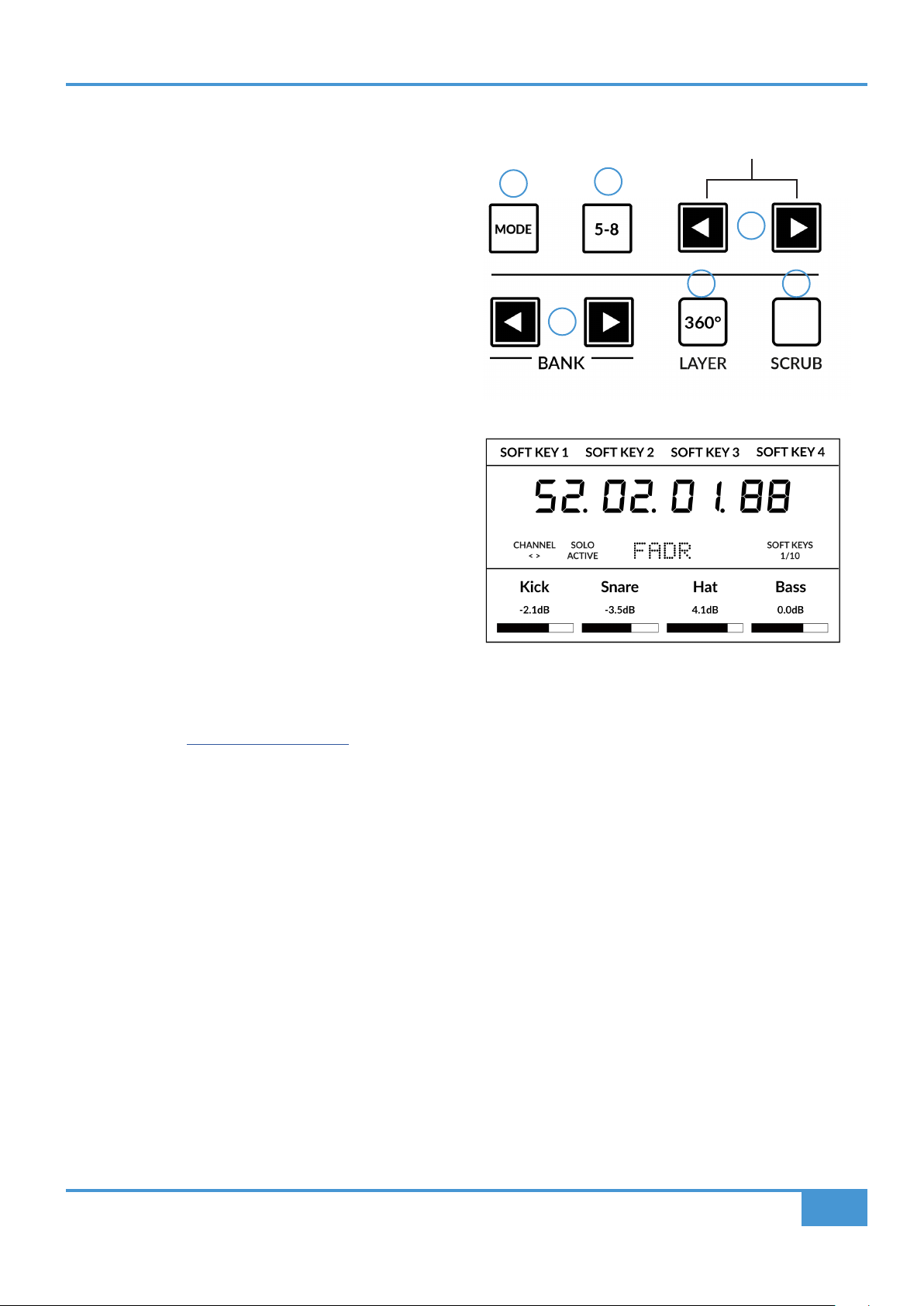
Soft Key Page Banks (3)
Allows you to move through various pages of parameters that are assigned to the soft keys. Also allows you to page through the
pages of plug-in parameters in Plug-in Control mode.
Bank Keys (Button 4)
The bank keys move the fader selection in multiples of 8, with the 1st channel of the 8 appearing on both the Main Fader and the
1st of the channels to appear across the 4 V-Pots unless 5-8 is selected.
1
2
3
4
5 6
Above shows the DAW Faders "FAdr" mode has been
selected. The V-Pots beneath the large screen control
DAW fader levels.
Pro Tools Tutorial
32
SSL UF1 User Guide
360° / LAYER selection Key (Button 5)
A short press of the 360° button opens and closes the SSL 360°
application, allowing access to edit settings & assignable keys on
the UF1 & all other SSL 360° powered devices. A long press and
hold of the 360° button, in conjunction with a press of the relevant
top-row soft key allows you to switch to a different DAW or Plug-in
Mixer Layer.
SCRUB Key (Button 6)
The SCRUB key puts the jog wheel into scrub mode. Scrolling through the DAW timeline with the playhead playing back audio at
the speed of the Jog Wheel rotation.
Jog Wheel (7)
The jog wheel is used to scroll through the session timeline. By
simply moving the Jog Wheel, the playhead will move through the
timeline forward by moving the Jog wheel clockwise & backwards
in an anticlockwise movement.
It's also possible to move the Jog wheel into SHUTTLE mode,
which is preassigned to Soft Key 3 in Soft Key Page Bank 10.
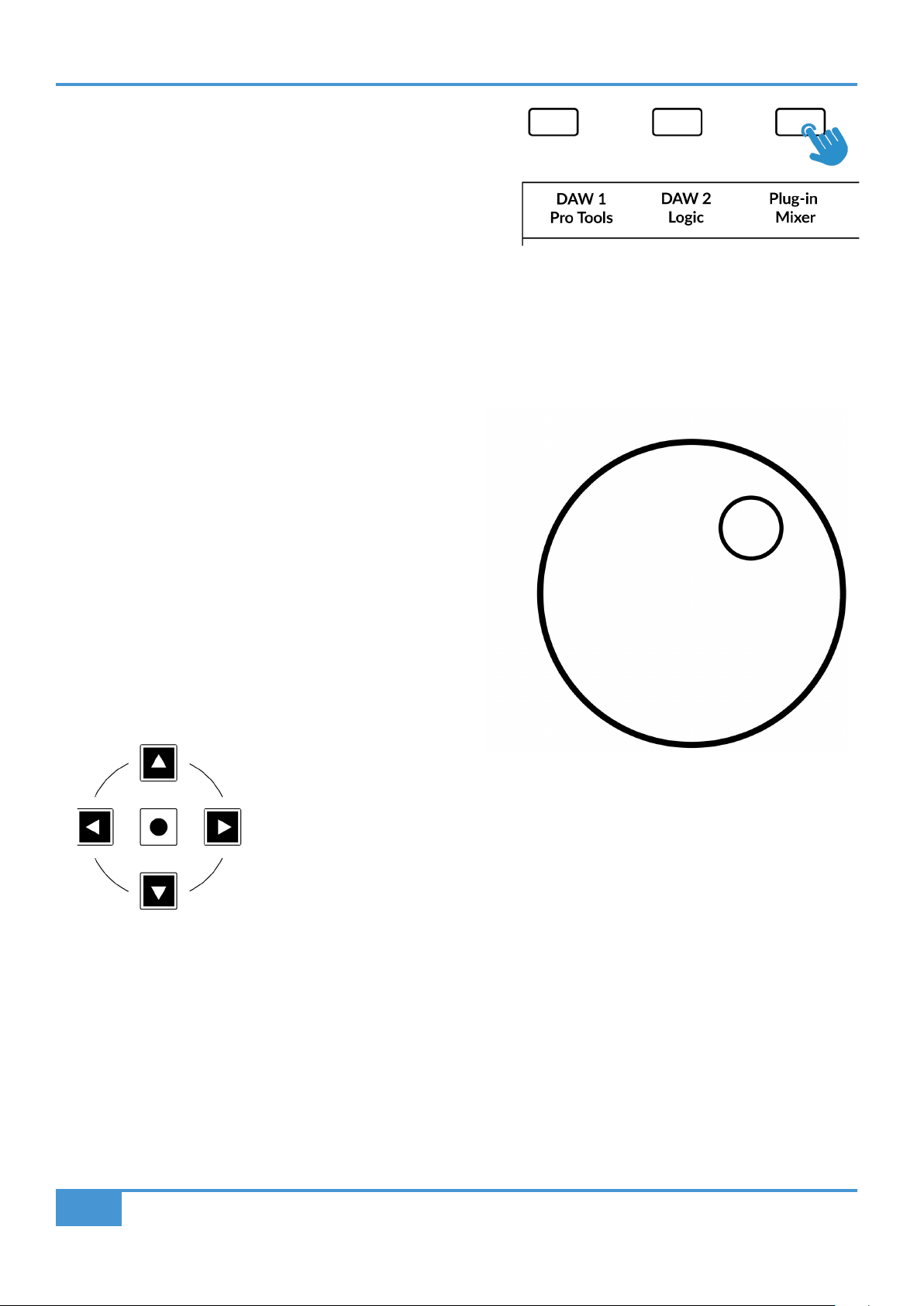
Cursor Keys and Mode Key
To the left of the jog wheel you will find the Cursor keys, with the Mode key in the centre.
When the Mode key is lit the cursor keys perform horizontal and vertical zooming.
Pressing the Mode key again, the left and right cursors move between audio clip edit points, or, tab between transients if Tab To
Transient is active in Pro Tools. Up and down will move the edit cursor between tracks.
Press and hold the 360° button and whilst keeping
it held down, you can switch to a different Layer by
pressing the relevant top-row soft key.
Pro Tools Tutorial
33
SSL UF1 User Guide
Transport Controls
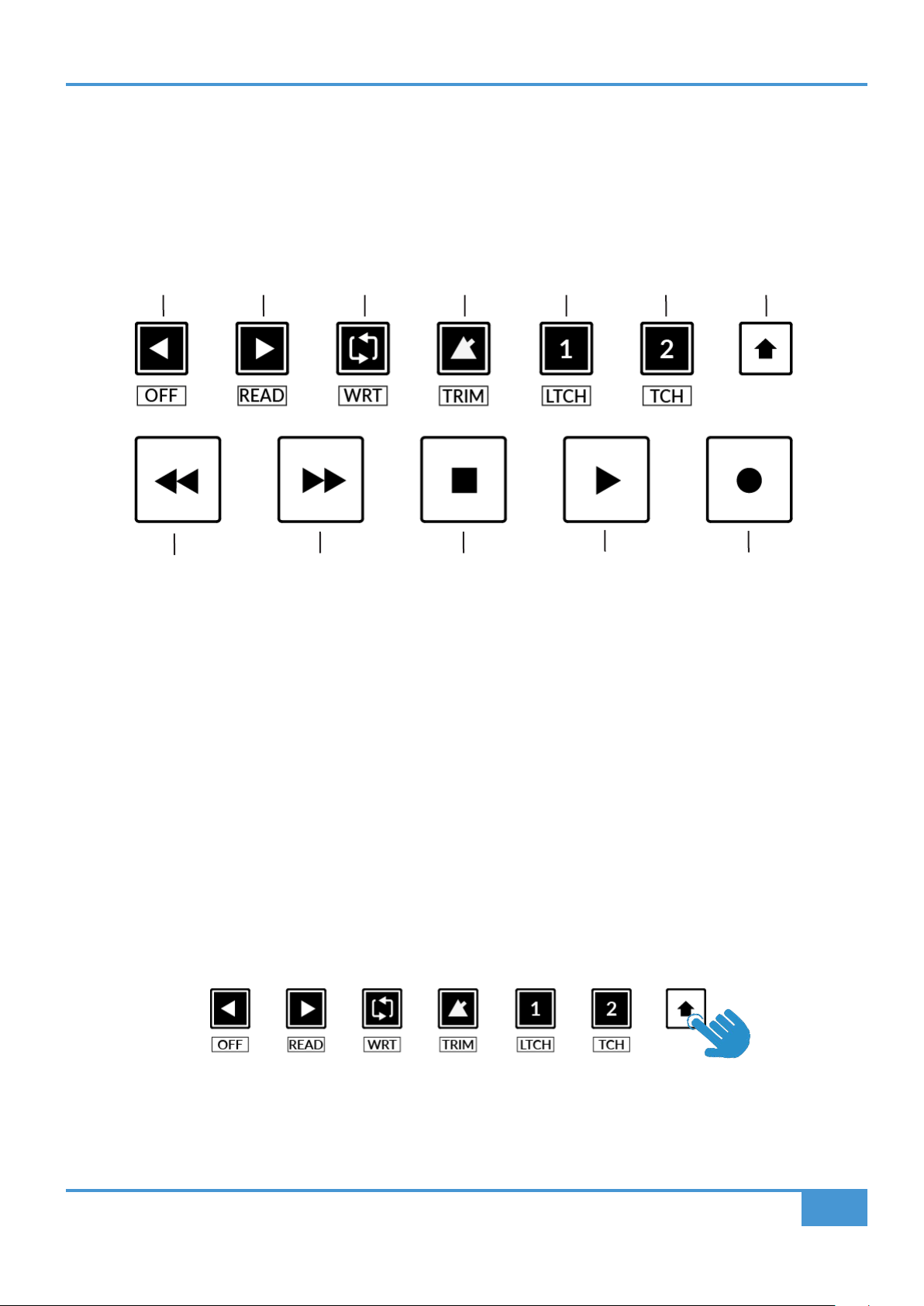
UF1 features dedicated transport keys section across the bottom, with the secondary transport keys laid out above. The secondary
transport keys come preassigned to commonly used DAW functions like loop on/off and click on/off. The secondary transport keys
are re-assignable via the 360° software application. There is also a shift key, which re-purposes the secondary transport keys with
DAW automation modes.
Transport Keys
The primary transport keys allow convenient access to the main transport commands within the DAW. From left to right: Rewind
Forward, Stop, Play & Record.
Secondary Transport Keys
The secondary transport controls allow quick access to some other frequently used features within the DAW. These keys can be
reassigned via SSL 360°. The default mapping is as follows: Return to Zero, Go to End, Loop on/off, metronome/click on/off and
two quick keys. In Pro Tools, Quick Key 1 is preset to switch between Mix & Edit windows and Quick Key 2 opens & closes the
transport window.
Shifted Functions of the Secondary Transport Keys - Automation Modes
You will notice that there are additional labels beneath the Secondary Transport keys. These functions are accessed by pressing
the SHIFT button and provide access to the automation modes within Pro Tools.
RecordPlayStopForwardRewind
LoopEndReturn To Zero
Click Edit/Mix Transport
Quick Key 1 Quick Key 2
Shift Key
Pro Tools Tutorial
34
SSL UF1 User Guide
Automation
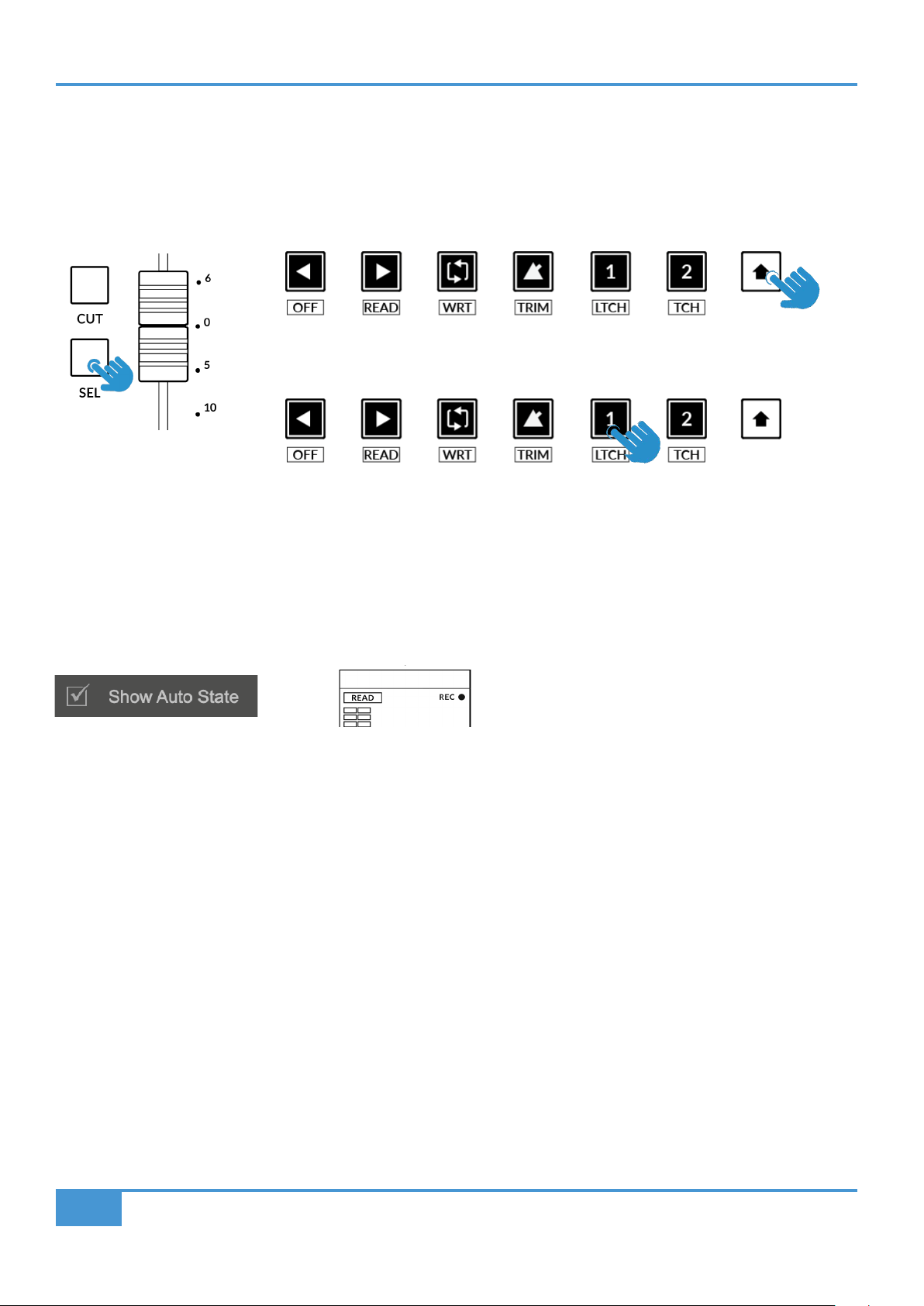
To select the automation mode for the DAW track shown on the UF1 fader, you will first need to press the SEL key. Next, engage
the SHIFT key to change the secondary transport keys to be automation keys. Finally, press the secondary transport key that
matches your desired automation mode.
Show Auto State
Within SSL 360°, on the UF1 page under ADVANCED there is the tick-box option for Show Auto State. Enabling this will provide
a constant indication of the current automation state of each track in the top-left of the LCD - READ, WRITE or TRIM.
STEP 1: Use the SEL key to
select the track.
STEP 3: press to select the automation mode you wish to set the track to.
STEP 2: Engage the SHIFT KEY to re-purpose the secondary transport keys to be
automation keys.
Pro Tools Tutorial
35
SSL UF1 User Guide
V-Pot Assignments
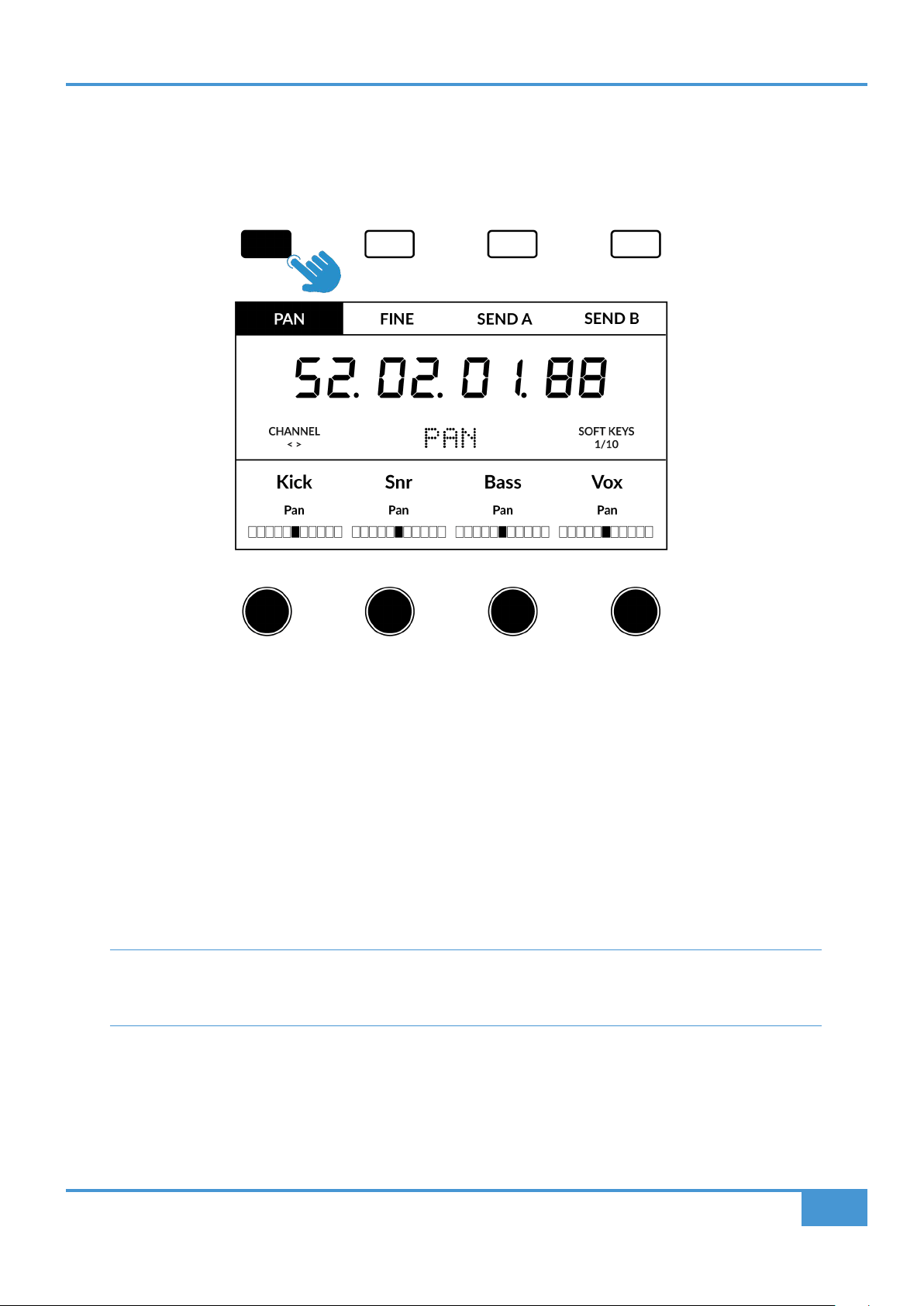
When working in the General DAW and DAW Faders modes, the Soft Keys along the top of UF1 allow you to access various V-Pot
assignment modes such as Pan and Sends.
Pan
Set the V-Pots to control the PAN position of the channel. Clicking the V-Pot will return Pan to the centre position. For Stereo
channels, the PAN position affects the Left channel but this can be changed to control the right channel being selected by pressing
the PAN key again to control the right. The PAN soft key will flash to indicate it is operating on the right-hand side and the V-Pot
Assignment text in the centre of the screen will show PANR . Simply press the PAN key again to return to controlling the left-hand
side.
Fine
Press and hold the FINE key whilst turning a V-Pot that is controlling Pans or Sends, to operate in a fine resolution. Whilst operating
in fine mode, a numeric value readout is also shown on-screen.
If you prefer the FINE behaviour and would like FINE mode to be engaged automatically every time you turn a V-Pot
in Pan or Send modes, you can enable the 'Always Fine Pan' and/or 'Always Fine Sends' in SSL 360°, on the UF1
page under ADVANCED settings.
Pro Tools Tutorial
36
SSL UF1 User Guide
Sends - Level
The soft keys labelled SEND A-E (found within Soft Key
Pages 1 and 2) will allow you to control send levels
A-E on the V-Pots. The V-Pot readout bar will display
the Send position on the LCD. Pushing on the V-Pot
will default a send to 0 dB (providing the SEND DLFT
function is active). Sends F-J are unavailable to assign
as they are not made available for control by Pro Tools. To assign Sends to the V-Pots, select the Send slot (A-E) you wish to control
using the appropriate Soft Key. Pressing the Send Slot Soft Key again will toggle the Bus Assignment name to show on-screen
briefly. If the channels in the current channel bank have any Sends assigned to that Send slot, the level will be shown on the V-Pot
readout bar. If no send has been assigned to the channel, then the lower Scribble strip will remain blank. Don't forget you can
press and hold the FINE key to get a finer resolution and numeric readout whilst adjusting send levels.
Flip
Sends can be flipped to the faders using the FLIP key. This is useful for riding Send levels or creating headphone
mixes using faders instead of V-Pots. In FLIP mode, the V-Pots control the Pan of the Send.
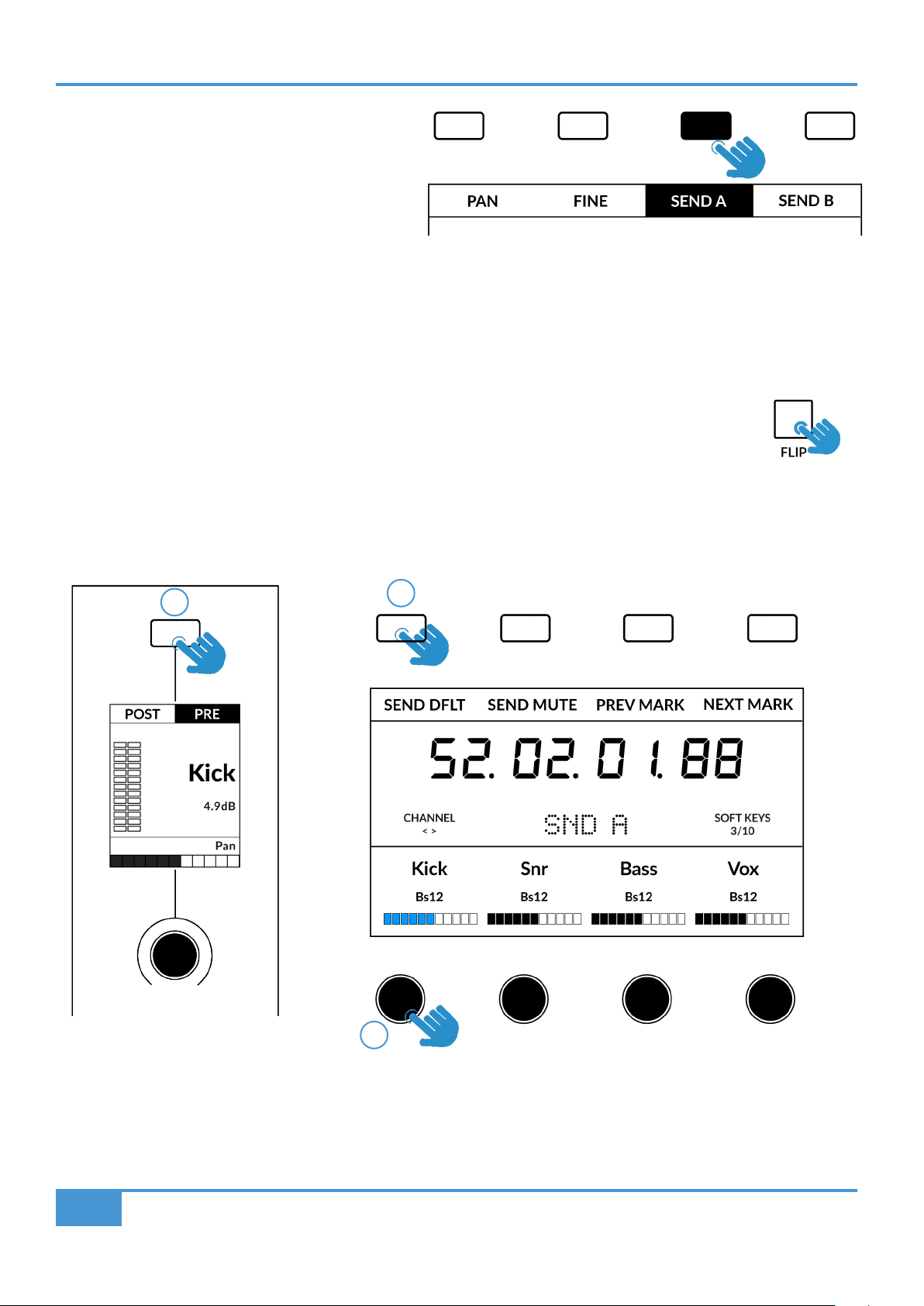
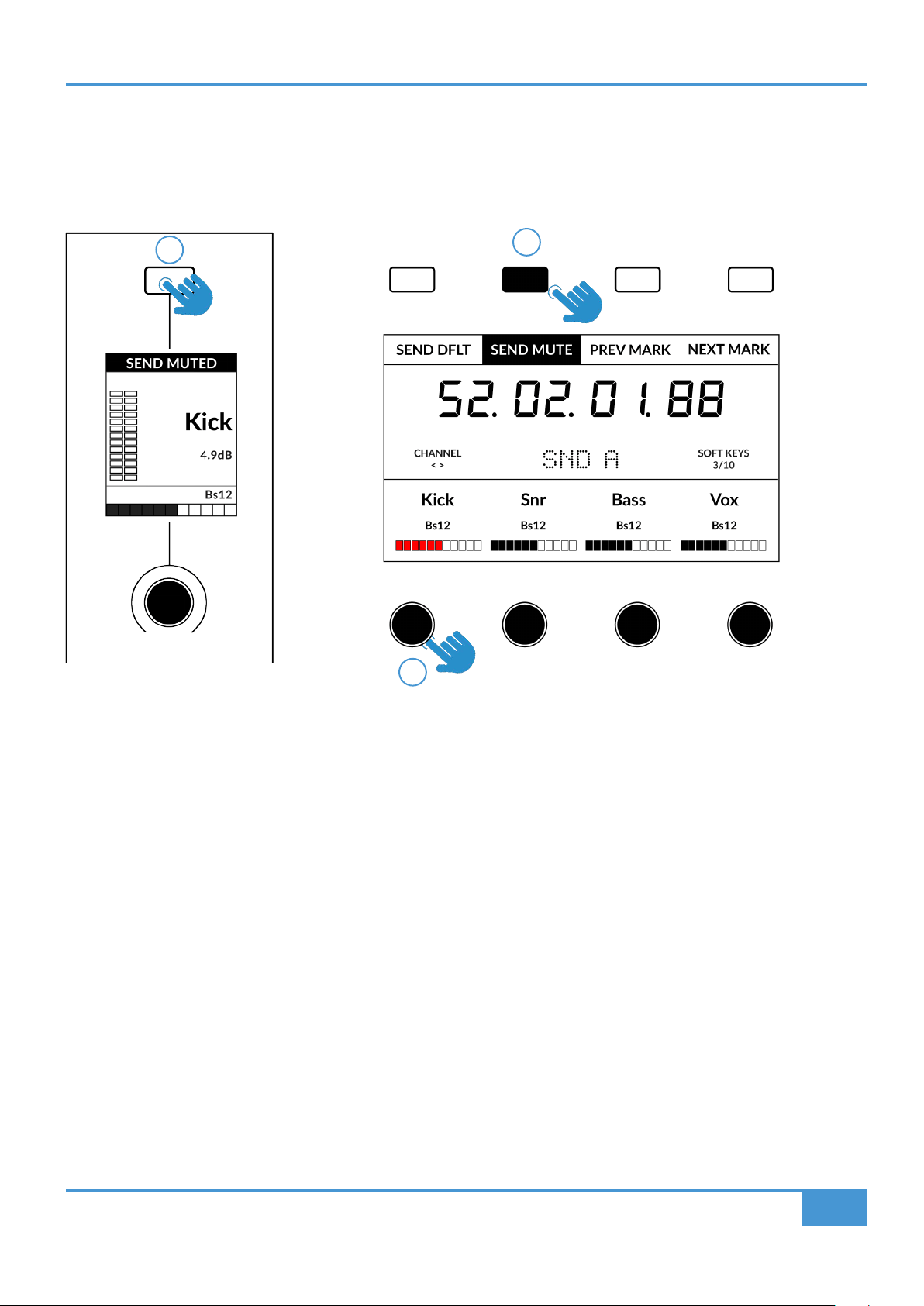
Sends - Pre/Post
Disengaging the SEND DFLT key (Soft Key Page 3, 1st Key) will allow you to control send pre/post states. On the channel shown
on the fader strip, you can use the soft key above the small display to do this. On the channels shown across the large display, the
V-Pot push function will control pre/post states.
1 - Disengaging the SEND DFLT key allows send pre/post to be controlled.
2 - Small LCD Soft Key - press to toggle pre/post state for the channel on the fader strip.
3 - Large LCD V-Pots - push the V-Pots beneath the large screen to control pre/post states on these channels.
1
3
2
Pro Tools Tutorial
37
SSL UF1 User Guide
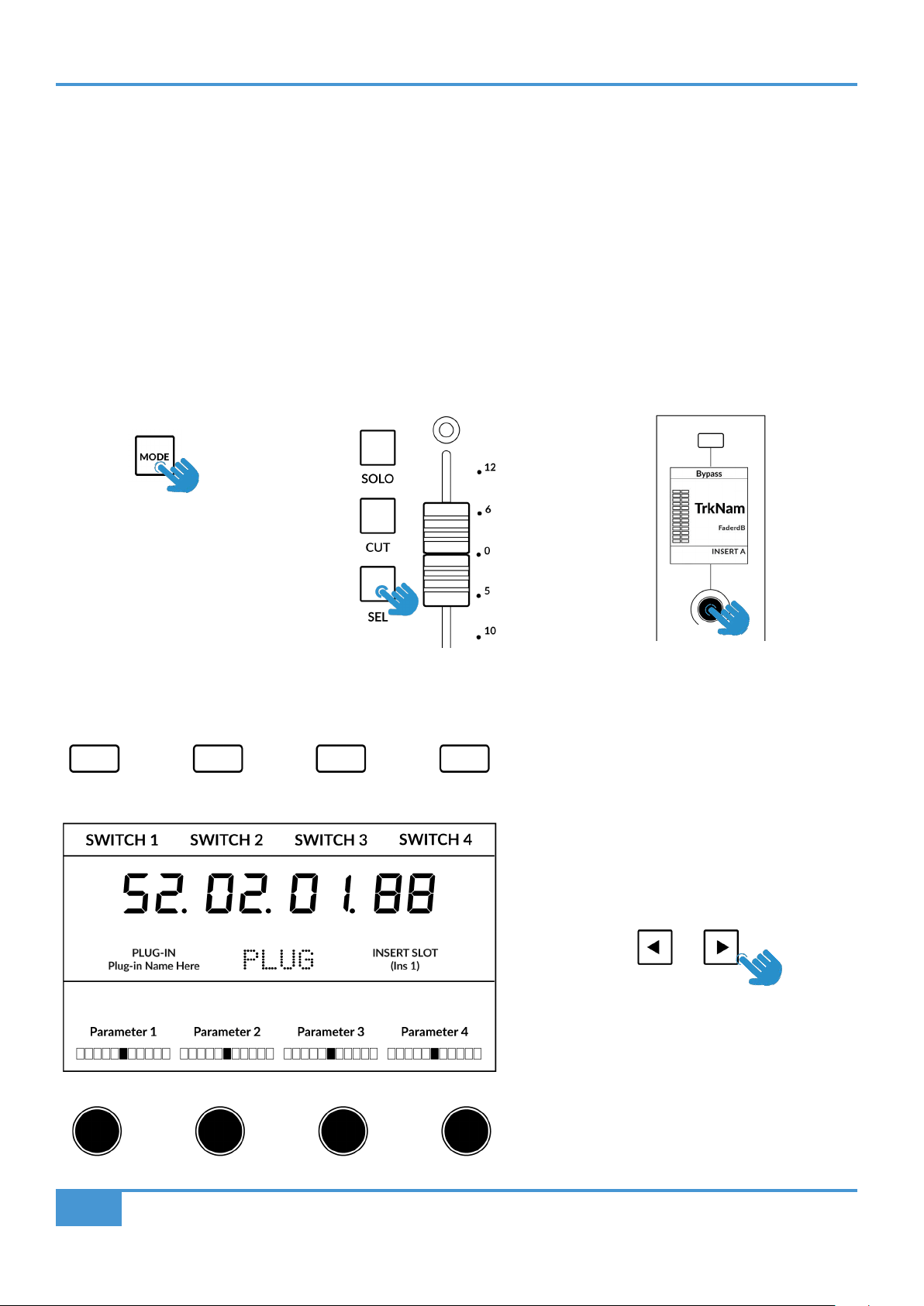
Sends - Mute
Engaging the MUTE key (Soft Key Page 3, 2nd Key) will allow you to control send mutes. On the channel shown on the fader
strip, you can use the soft key above the small display to do this. On the channels shown across the large display, the V-Pot push
function will control send mutes.
1 - Engaging the SEND MUTE key allows send mutes to be controlled.
2 - Small LCD Soft Key - press to toggle send mute on/off for the channel on the fader strip.
3 - Large LCD V-Pots - push the V-Pots beneath the large screen to control send mutes on these channels.
1
2
3
Pro Tools Tutorial
38
SSL UF1 User Guide
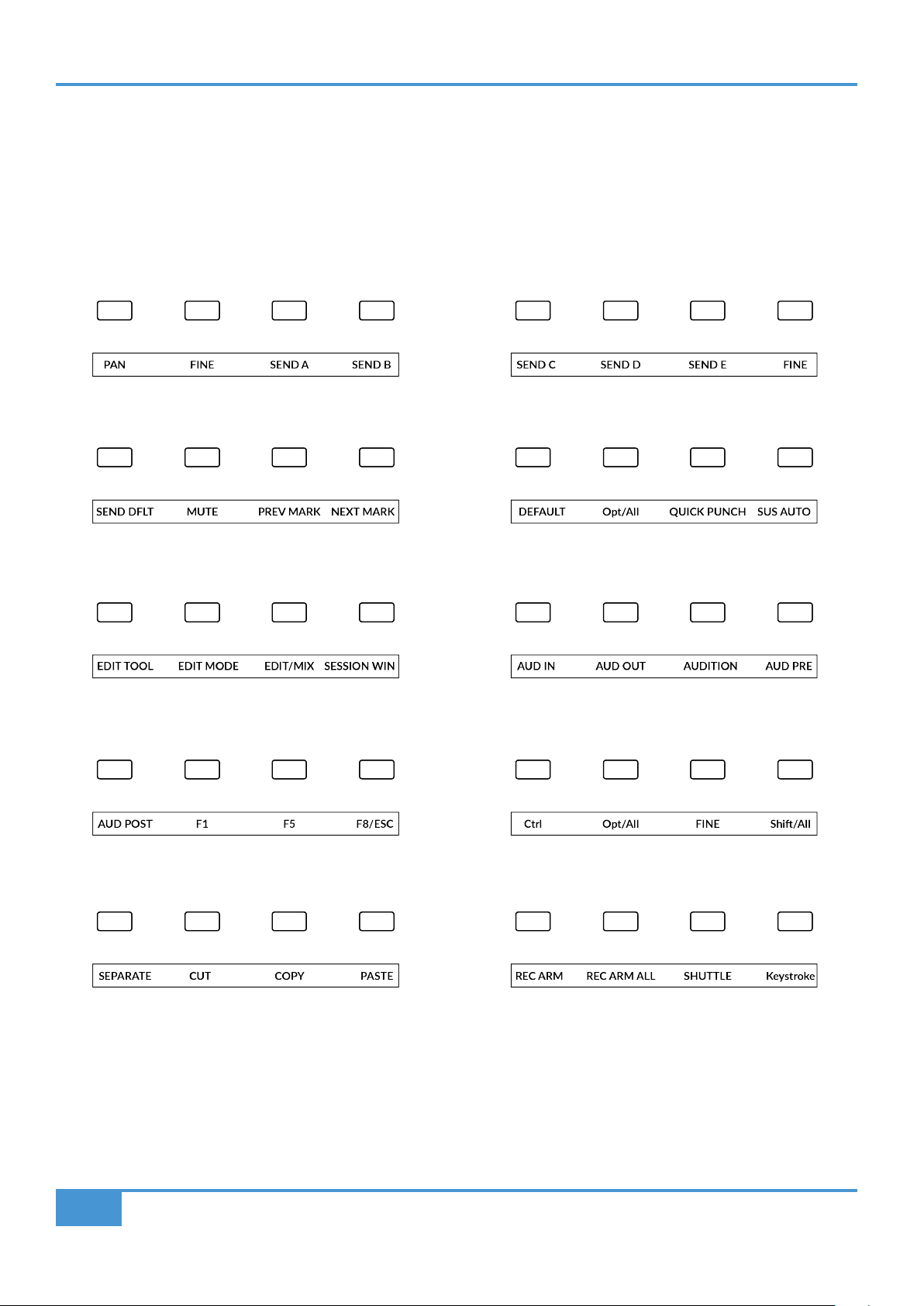
Plug-in Mode
Plug-in Mode provides a smart way of controlling plug-in parameters for Inserts A-E of the selected track, whilst automatically
opening the plug-in GUI at the same time. Please note that the plug-in must already be inserted in Pro Tools.
1. To enter Plug-in Mode, press MODE key and cycle until it lights cyan and PLUG is shown in the centre of the display.
Alternatively, long press the MODE Button & select the PLUGIN option from the top-row of soft keys.
2. Use the SEL key on the fader channel to select the track.
3. Rotate the V-Pot underneath the small display to choose an insert slot (A-E) press the V-Pot to select. The available parameters
are displayed on the large display and controllable from the 4 x V-Pots beneath it. Switch functions might also be available
(plug-in dependent) across the 4 soft keys at the top.
4. Use the Page < > keys to navigate through the different pages of parameters the plug-in presents.
STEP 1: Enter Plug-in Mode
by pressing the PLUGIN
key - MODE button lights
cyan.
STEP 2: Use a SEL key to
select the track.
STEP 3: Select an insert
slot using the V-Pot to scroll
through the insert slots A-E
and push to load.
STEP 4: Use the Page keys to move through
the plug-in parameter pages.

Pro Tools Tutorial
39
SSL UF1 User Guide
Working in Plug-in Mode
• The F5 command, available in the DAW commands list (preassigned to the Soft Key Page 7, 2nd key) allows you to toggle the
V-Pots between Fixed and Velocity-Sensitive modes, which apply to controlling plug-ins specifically. Some plug-ins respond
better to Fixed Sensitivity and some are better with Velocity-Sensitive mode.
• In the Pro Tools session, you will see the currently selected insert slot on screen have a thin blue outline around it - please note
when working in Plug-in Mode, you will not see the Pro Tools track selection itself change.
• The parameters of each plug-in will be laid out on V-Pots 1-4 and Soft Keys 1-4.
• Plug-In Bypass is available to toggle by selecting the Soft Key above the Small LCD screen on the Fader Channel. If you wish
to use the COMPARE function, then press the FLIP key and the Soft Key will instead toggle this.
• Although you cannot select Insert Slots F-J directly from UF1 (Pro Tools does not make them available), once you have selected
a track and opened a plug-in in Slots A-E, you can click with your mouse on-screen in Pro Tools on any Insert Slot in F-J and
the UF1 surface will be able to control the parameters.
• When automating plug-in parameters in Plug-in Mode, any plug-in parameters in a write-ready automation state will show the
current V-Pot bar segment flashing, before changing to become solid when writing automation.
________________________________________________
Meter Plug-In Mode (yellow)
Meter plug-in mode allows direct control of the SSL Meter plug-in via SSL 360° (not via HUI plug-in control). Because this mode is
generic across all DAWs, please refer to the SSL Meter control section at the end of this user guide for more information.
Pro Tools Tutorial
40
SSL UF1 User Guide
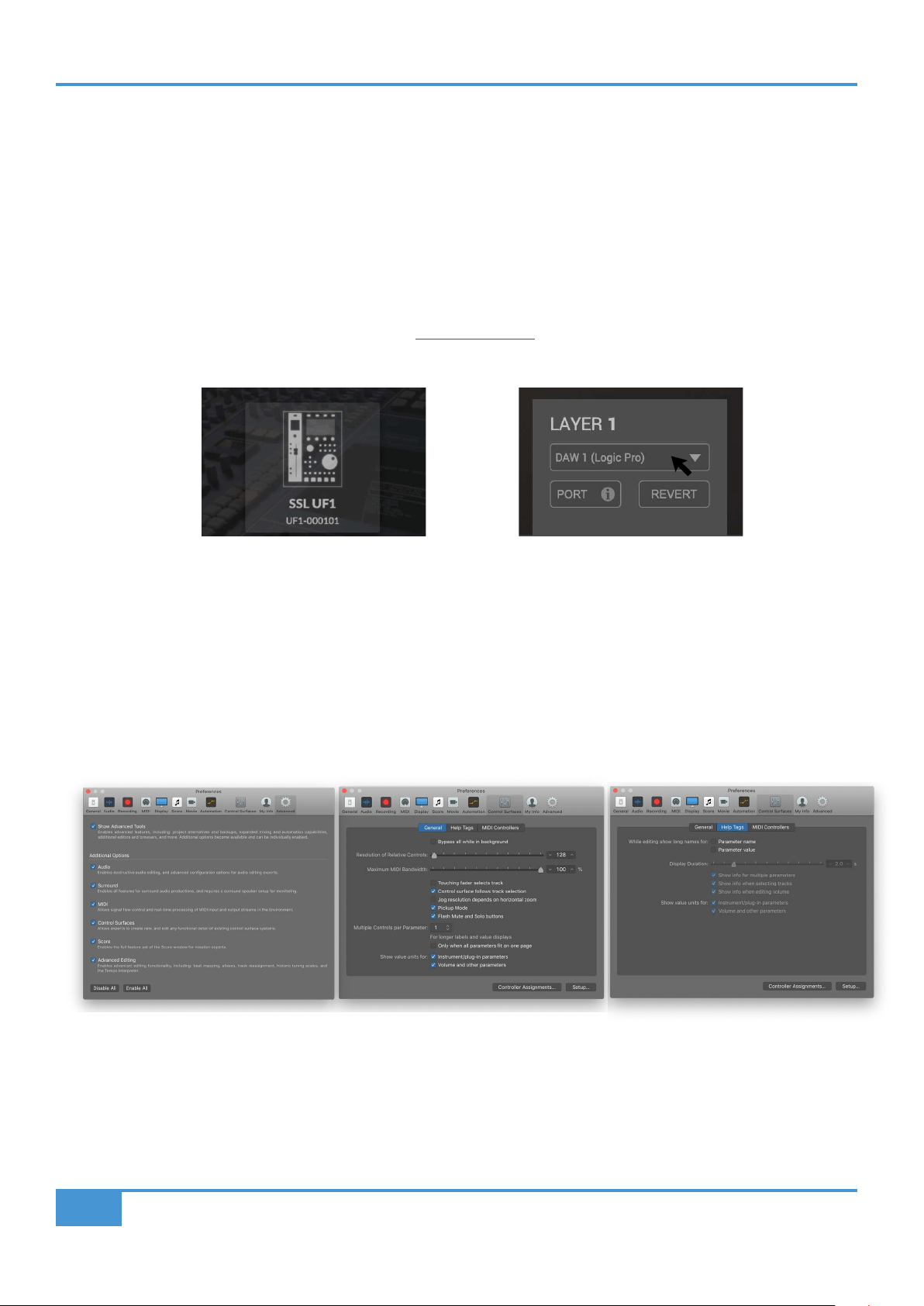
Soft Key Pre-Assignments
Soft Key pages 1-10 allow you access to various DAW commands or keyboard shortcuts on the 4 soft keys along the top of UF1.
These can of course be changed to any of the available DAW commands or your own keyboard shortcut sequences in the UF1
page of SSL 360°. Use the Page < and > soft keys to move through the various pages The large screen on UF1 tells you which
page you are on.
SOFT KEYS PAGE 1 SOFT KEYS PAGE 2
SOFT KEYS PAGE 3 SOFT KEYS PAGE 4
SOFT KEYS PAGE 5 SOFT KEYS PAGE 6
SOFT KEYS PAGE 7 SOFT KEYS PAGE 8
SOFT KEYS PAGE 9 SOFT KEYS PAGE 10

Pro Tools Tutorial
41
SSL UF1 User Guide
Assignable DAW Commands List - Pro Tools
The following DAW commands are available in SSL 360° to assign to any of the user-assignable keys.
Edit/Mix Alternate
Mix to foreground
Edit to foreground
Open/close Transport window
Open/close Memory Locators window
Open/close Session Setup window
Open/close plug-in editor
Undo
Ctrl Modifier
Save Session
Suspend Automation
Auto Enable Plug-in
Auto Enable Pan
Auto Enable Fader
Auto Enable Send Mute
Auto Enable Send
Auto Enable Mute
Option/Alt modifier
Cmd/Fine modifier
Shift/All modifier
Edit Tool
Edit Mode
Fkey 1
Fkey 5
Fkey 8/Esc
Audition
Audition Pre
Audition In
Audition Out
Audition Post
RTZ
End
Online
Loop
Quick Punch
Forward
Rewind
Stop
Play
Record
Next Marker
Previous Marker
Last Marker
Reset Marker
Edit Capture
Edit Separate
Edit Cut
Edit Copy
Edit Paste
Edit Delete
Status Auto
Status Monitor
Status Group
Group Suspend
Group Create
Play Foot-switch
Record Foot-switch
Scrub
Shuttle
Default
Kpad Clr
Kpad =
Kpad *
Kpad -
Kpad +
Kpad .
Kpad Enter
Kpad 0
Kpad 1
Kpad 2
Kpad 3
Kpad 4
Kpad 5
Kpad 6
Kpad 7
Kpad 8
Kpad 9
Send A
Send B
Send B
Send C
Send D
Send E
Pan
Mute
Red/Rdy
Rec/Rdy ALL
Loop
Click
UF1 Send Default
Logic Tutorial
42
SSL UF1 User Guide
Logic with UF1 - Tutorial
The following tutorial guides you through configuring and using the default Logic Pro profile on LAYER 1 of UF1. If you wish to
configure Logic on a different layer, please refer to the DAW Communication section of this User Guide to ensure your DAW is
configured for the correct SSL V-MIDI ports.
SSL 360° Setup
1. Open the SSL 360° application on your Mac or Windows computer. Go to the HOME page and check that your UF1 has been
detected by SSL 360°.
2. Go to the UF1 page and set Layer 1 to Logic using the drop-down list. If Logic is not available from the drop-down list it is
because you have not configured it as DAW 1 on the CONTROL SETUP page - ensure you do this first.
Logic Setup
3. Open Logic. Go to Control Surfaces > Preferences... and then go to the Advanced tab. Make sure Enable Complete
Features is ticked under Additional Options.
4. Within the same Preferences menu, go to the Control Surfaces > General tab and ensure that 'Multiple Controls Per
Parameter' is set to '1' and 'Only when all parameters fit one page' is unticked. Also, increase 'Maximum MIDI Bandwidth' to
100%.
5. Go to the Help Tags tab and ensure that 'Parameter name' and 'Parameter value' are both unticked.
STEP 1 : Open SSL 360° application.
Check your UF1 has been detected
STEP 2 : Select the default Logic Pro
DAW prole from the UF1 page.
STEP 3 : On the 'Advanced Tab', tick
'Control Surfaces' in the 'Additional
Options' section.
STEP 4 : On the 'Control Surfaces' >
'General' tab ensure that 'Multiple Controls
per Parameter' is set to '1' and 'Only when
all parameters t on one page' is unticked.
Set 'Maximum MIDI Bandwidth' to 100%.
STEP 5 : On the 'Control Surfaces' >
Help Tags' tab, ensure that 'Parameter
name' and 'Parameter value' are both
unticked.
Logic Tutorial
43
SSL UF1 User Guide
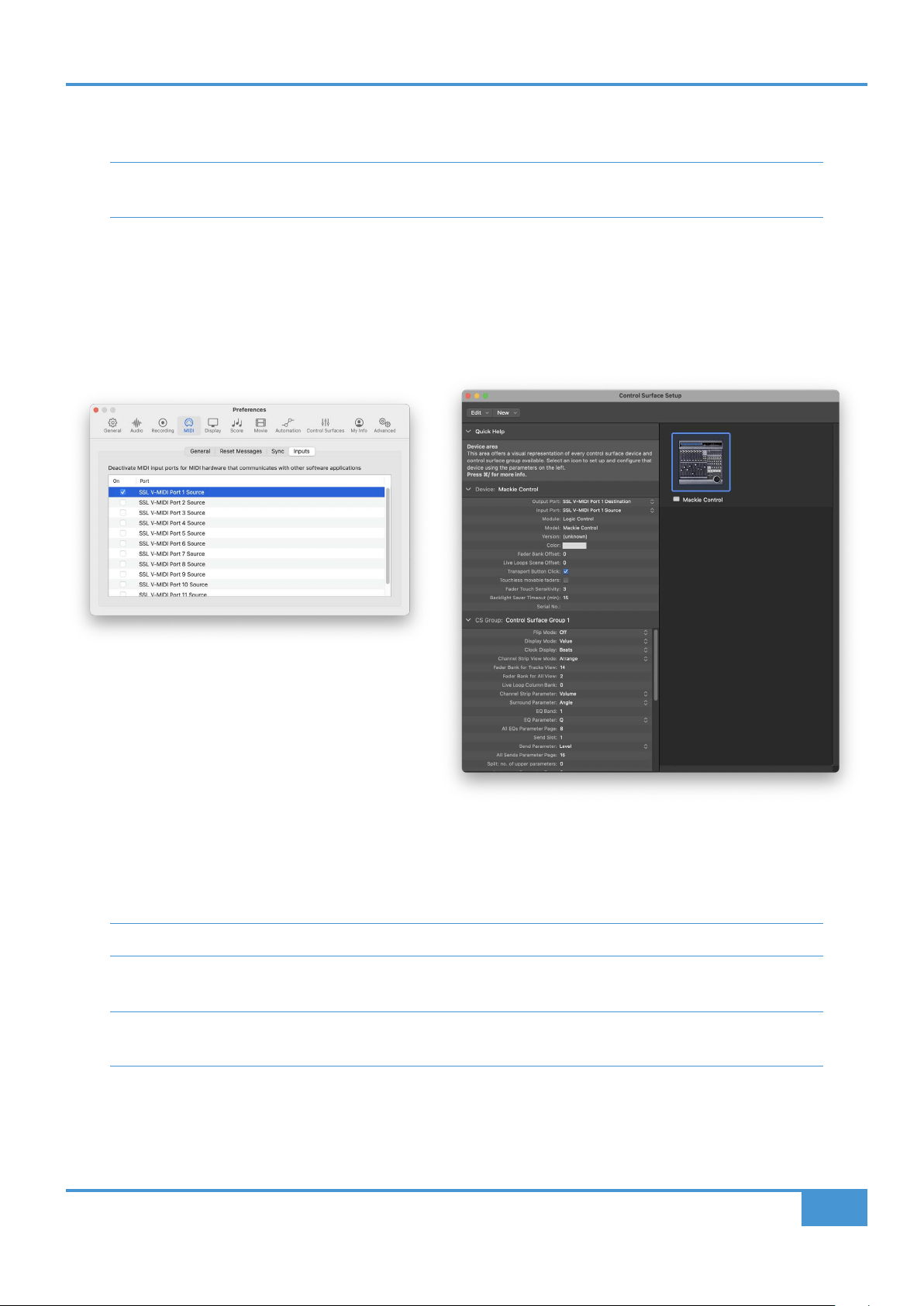
6. Go to Preferences > MIDI and select the Inputs tab. In this list, ensure that any SSL V-MIDI Ports you need are ticked. e.g. If
you have UF1 working on layer 1, just tick SSL V-MIDI Port 1 Source.
Versions of Logic preceding 10.5 may not have the 'Inputs' tab available. If so, you can skip this step, as all MIDI
ports default to be turned on.
7. Go to the Control Surfaces > Setup. Click New > Install... from the drop-down list in the top-left of the window. From the list,
choose Mackie Designs | Mackie Control | Logic Control and click the Add button. Click on the image of the Mackie Control that
has been added to the window and in the device setup options list on the left-hand side, configure the Output Port to SSL V-MIDI
Port 1 Destination and set the Input Port to SSL V-MIDI Port 1 Source.
If you do not see the device setup options list on the left-hand side, press 'i' on your computer keyboard to show it.
Ensure that 'Channel Strip View Mode' is set to 'Arrange' in the device setup options list, to ensure that UF1 follows
the order of tracks in your Logic arrangement.
STEP 6 : Enable SSL V-MIDI Port(s) in Logic.
If you're working with a version of Logic that
precedes 10.5, then skip this step.
STEP 7 : Set up the UF1 as a Mackie Control Unit, then assign the
relevant V-MIDI Port Destination & Source for the Input & Output
device.
Logic Tutorial
44
SSL UF1 User Guide
Small LCD Layout
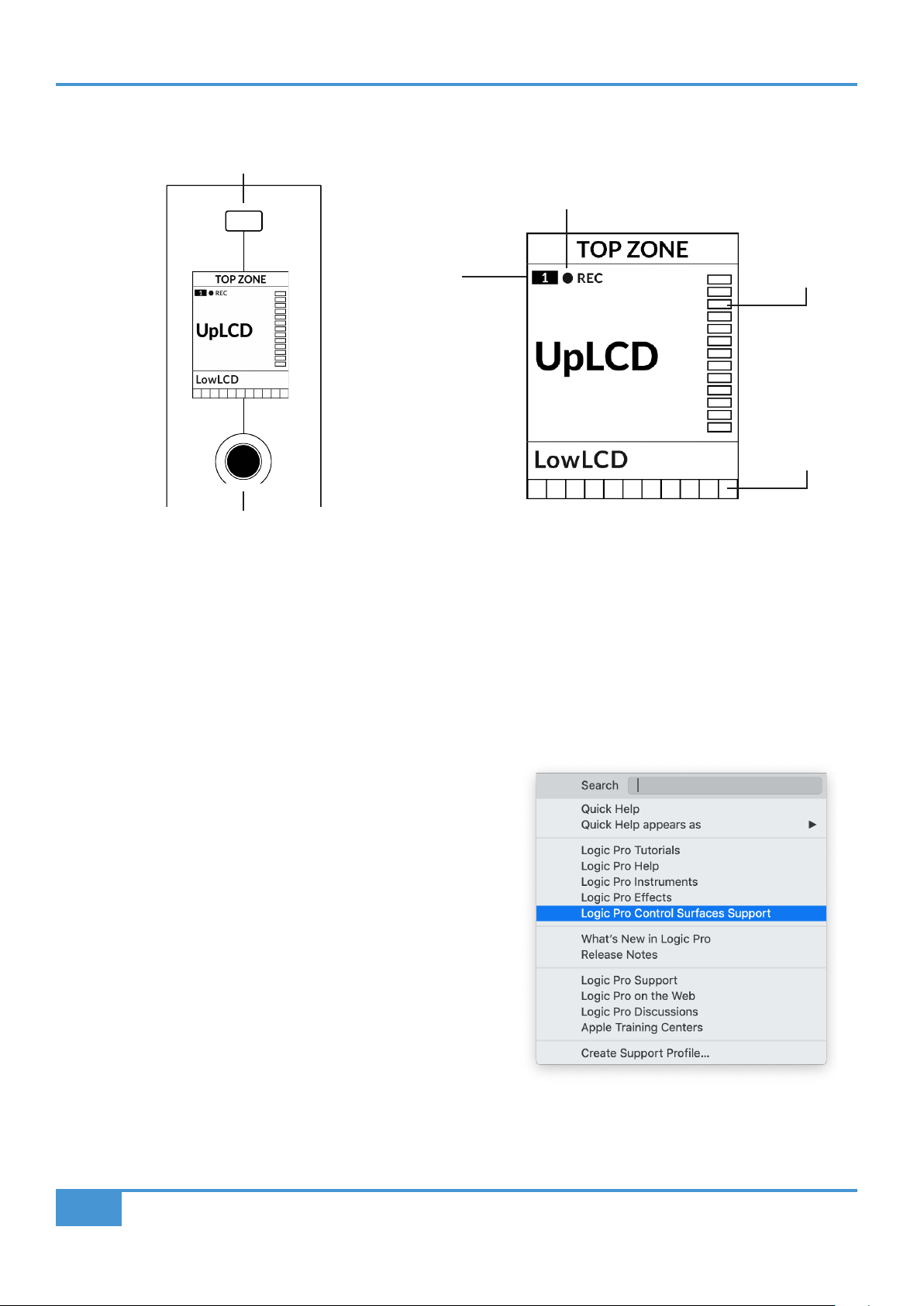
Top Zone - Provides a label for the function assigned to the soft key directly above.
Selected Track / Track Record-Enabled (REC) - In Logic, the REC text follows the currently selected track. If the track is record-
enabled, the REC text pulses.
Fader Sel Indication - Displays the fader number within the current controller bank UF1 is focused on.
UpLCD - Displays the 6-character track name.
LowLCD - Displays a label or value readout for the parameter currently assigned to the V-Pot.
DAW Track Metering - 12-segment track metering + clip
V-Pot Readout Bar - Displays the position of the currently assigned V-Pot (encoder) function.
Before You Start...
The information in this Logic Tutorial sets out the key features of using UF1
with Logic.
For complete, in-depth coverage of all the functions and features you can
control in Logic using UF1, please refer to the Logic Help Menu > Logic
Pro Control Surface Support document. Open the document and go to
the Mackie Control section.
V-Pot
Readout Bar
DAW Track
Metering
Fader Sel
Indication
Selected Track/
Track Record-Enabled
Soft Key
V-Pot Encoders
The Mackie Control section of the Logic Pro
Control Surfaces Support contains a full Mackie
Control Protocol guide.
Enlarged view of LCD screen
Logic Tutorial
45
SSL UF1 User Guide
Large LCD Layout
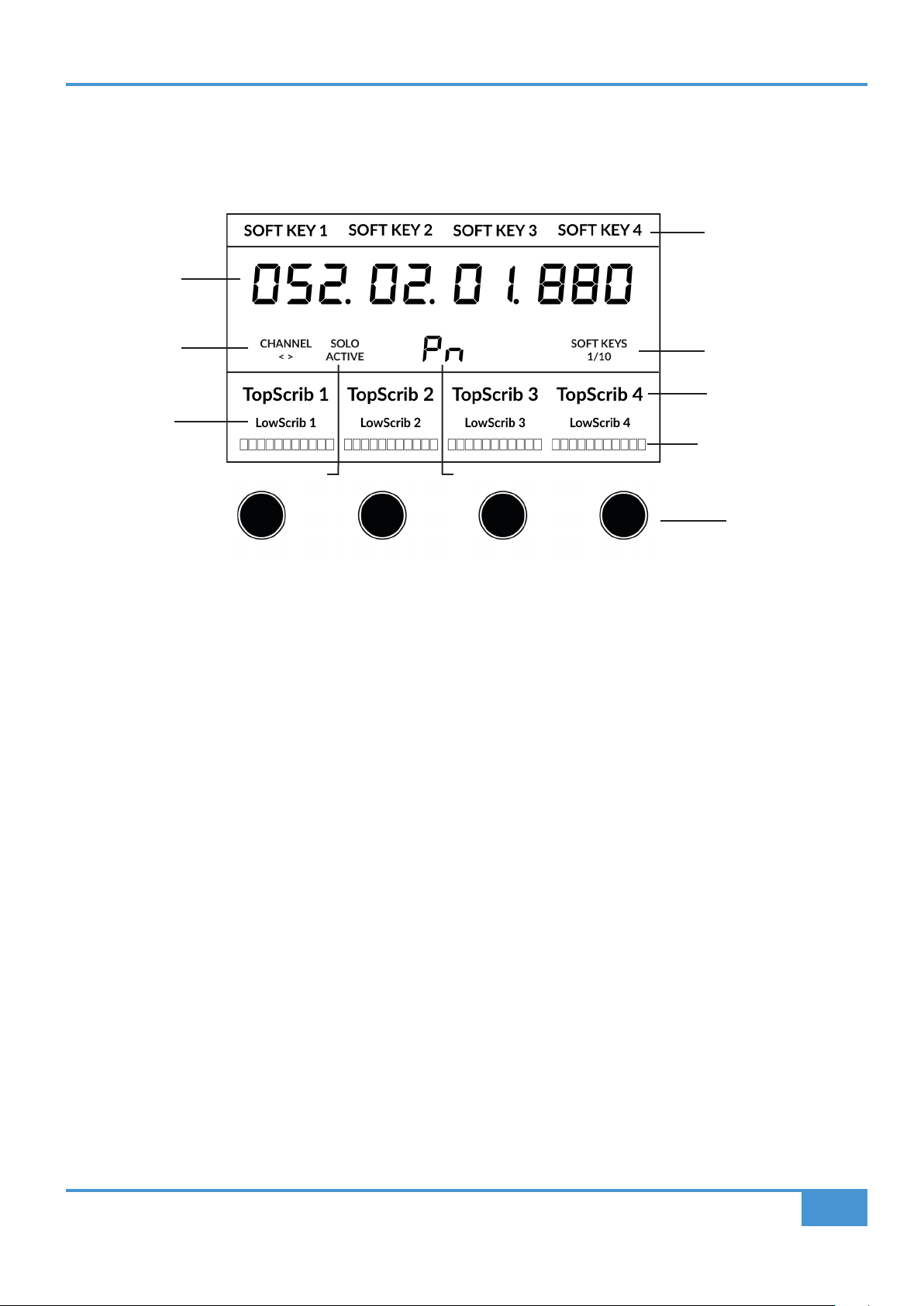
Soft Key Labels - Labels for the functions assigned to the soft keys directly above.
Timecode - Shows the current timecode in Bars/Beats or SMPTE.
Channel Mode - Indicates the current CHANNEL encoder Mode.
Solo Active Indication - Indicates if there are any active solo'd tracks..
V-Pot Assignment Mode - Displays the current V-Pot Assignment Mode.
Soft Key Page - Displays the current Soft Keys page number
Top Scribble - Displays the 6-character track name for tracks 1-4 or 5-8 of the current controller bank.
Low Scribble - Displays a label or value readout for the parameter currently assigned to the V-Pot.
V-Pot Readout Bar - Displays the position of the currently assigned V-Pot function.
V-Pots - 4 x V-Pots that control the assigned parameters.
Soft Key Labels
Soft Key Page
Top Scribble Strip
Channel Encoder
Mode
Timecode
V-Pot Assignment ModeSolo Active Indication
V-Pots
Low
Scribble Strip
V-Pot Readout
Bar
Logic Tutorial
46
SSL UF1 User Guide
Tutorial
This section guides you through using UF1 with Logic.
V-Pot
At the top of the strip is the V-Pot (virtual pot). The function of the V-Pot varies, depending
on which V-Pot assignment mode is currently active but it is typically used for tasks such
as controlling Pan position, Send levels, Plug-in parameters or scrolling through parameter
options/lists.
The V-Pot has a push function, which is typically used for either defaulting the position of a
parameter being controlled or confirming the selection of a parameter being chosen.
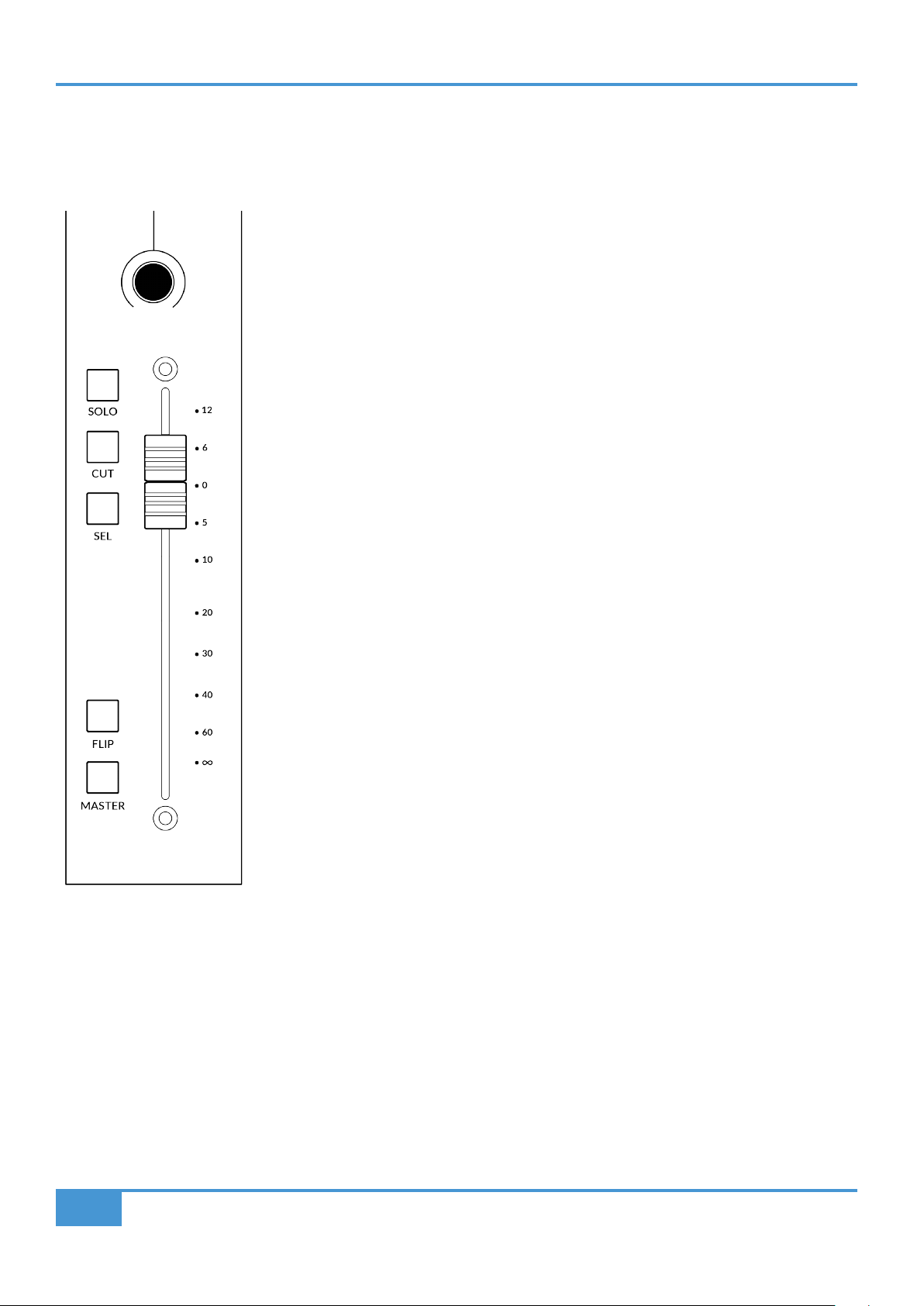
100 mm Motorised Fader
A motorised, touch-sensitive fader provide physical control of your Logic tracks and is great
for balancing mix levels and riding volume automation.
Solo, Cut & Sel (Select)
The UF1 fader strip features SOLO, CUT and SEL keys corresponding to the solo, mute and
select features of the Logic track.
In Use:
Expect the CUT key of UF1 to flash in response to other tracks being solo'd, if the Logic
Control Surface preference 'Flash Mute and Solo Buttons' is ticked.
In Logic MCP (Mackie Control Protocol), only one track can be selected using the SEL key
at a time.
Flip
Pressing the FLIP key will engage or disengage one of Logic's three possible Flip modes -
'Flip', 'Swap' or 'Zero'. These are useful for various reasons, the most obvious 'Flip' feature
allowing you to control V-Pot parameters such as Send levels or Plug-in parameters on the
fader instead of the V-Pots. The Flip mode used is configured in the Mackie Control Surface
Setup.
Master
The Master Key enables the UF1 fader to control Logic's Master Fader,.
Logic Tutorial
47
SSL UF1 User Guide
Channel Encoder
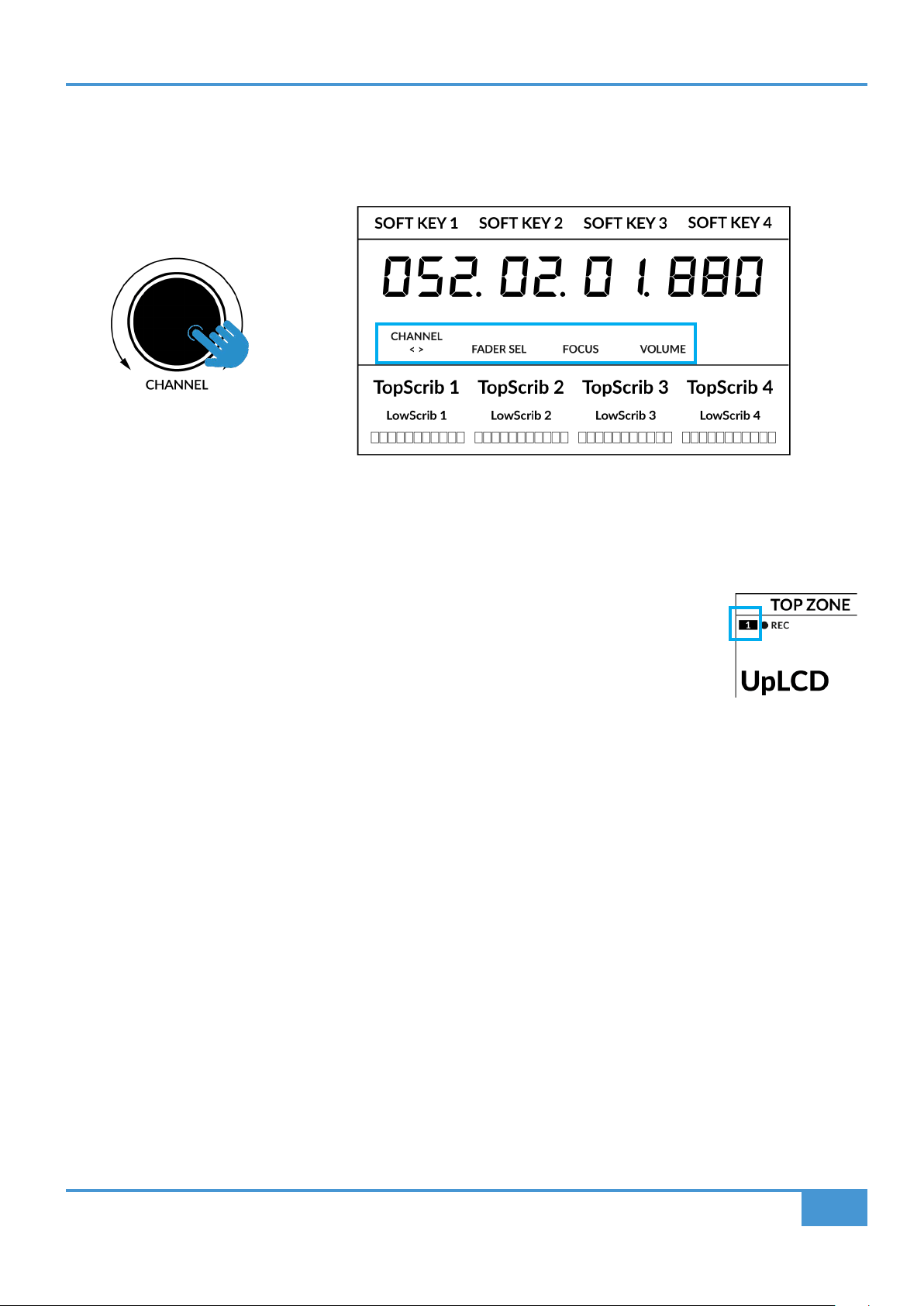
Pressing down on the CHANNEL encoder, the large LCD will change to display the available CHANNEL encoder modes. Turn
the encoder to highlight the desired mode and press down again to select the mode.
< >
By default, the CHANNEL encoder is used to move your DAW tracks across the UF1 surface, in increments of one channel at a
time.
Fader Sel
Allows you to change the number of the track within the current controller bank that UF1 is focused
on. UF1 defaults to the first channel (i.e. fader '1') within the bank and this is shown in the top corner
of the UF1 small display. You may need to change this to access tracks at the end of the mixer, when
the bank of 8 faders UF1 is controlling butts up against the end of the session.
Focus
Emulates the scroll function of a mouse. This can be a really nice way of controlling plug-ins or
anything else on screen that responds to a mouse scroll operation. Simply open a plug-in GUI, hover
your computer mouse over a control and turn the encoder for hands-on control.
Volume
The CHANNEL encoder controls the system volume level, if the audio device you are using can be controlled by the operating
system's volume up/down. For example, if you're on the road with your headphones plugged into the computer's built-in audio
output.
Logic Tutorial
48
SSL UF1 User Guide
CENTRE KEYS
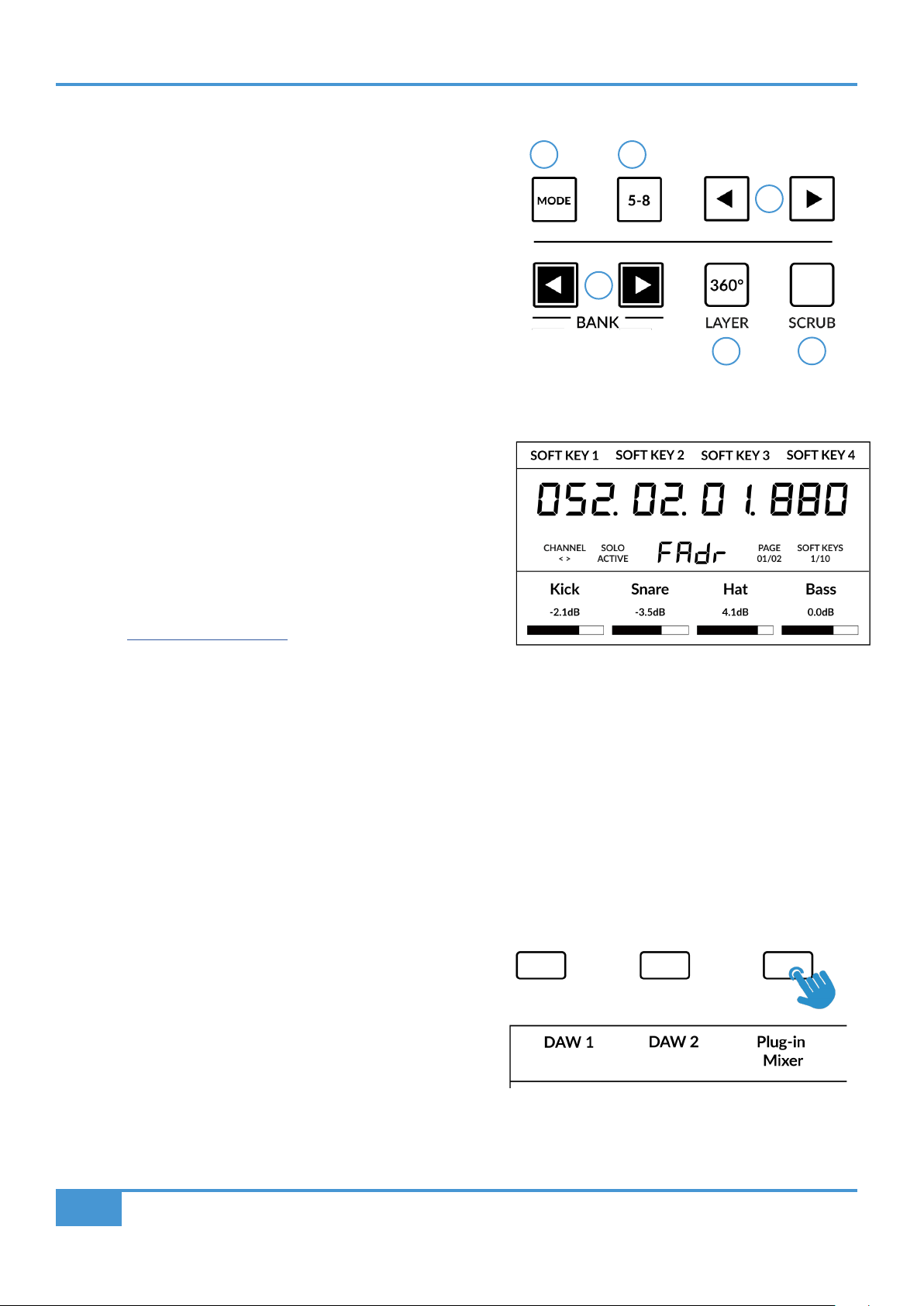
MODE (Button 1)
The MODE key determines the operation of the large screen and its
4 associated V-Pots. Pressing the MODE key toggle you through the
different options. Holding down the MODE button allows direct access
to each mode via the soft keys at the top of the large LCD. Each mode
is colour coded:
General DAW (white)
The 4 x V-Pots beneath the large display control various parameters such
as pans, sends, plug-ins etc depending on the current V-Pot assignment
mode.
DAW Faders (green) - "FAdr"
The V-Pots control the fader levels across 4 tracks in the current
controller bank. The level is represented by both a dB text readout
and the V-Pot readout bar.
Meter Plug-in (yellow)
The V-Pots and soft keys directly control the SSL Meter plug-in, via
SSL 360°. Because this mode is the same across all DAWs, please
refer to the SSL Meter control section at the end of this user guide
for more information.
5-8 Key (Button 2)
Assigns the V-Pots to control tracks 5-8 of the current controller
bank.
Soft Key Page Banks (3)
Allows you to move through various pages of parameters that are assigned to the soft keys.
Bank Keys (Button 4)
The bank keys move the fader selection in multiples of 8, with
the 1st channel of the 8 appearing on both the Main Fader and
the 1st of the channels to appear across the 4 V-Pots unless 5-8
is selected.
360° / LAYER selection Key (Button 5)
A short press of the 360° button opens and closes the SSL 360°
application, allowing access to edit settings & assignable keys
on the UF1 & all other SSL 360° powered devices. A long press
and hold of the 360° button, in conjunction with a press of the
relevant top-row soft key allows you to switch to a different DAW
or Plug-in Mixer Layer.
Above shows the DAW Faders "FAdr" mode has been
selected. The V-Pots beneath the large screen control
DAW fader levels.
Press and hold the 360° button and whilst keeping
it held down, you can switch to a different Layer by
pressing the relevant top-row soft key.
1 2
3
4
6
5
Logic Tutorial
49
SSL UF1 User Guide
SCRUB Key (Button 6)
The SCRUB key puts the jog wheel into scrub mode. Scrolling through the DAW timeline with the playhead playing back audio at
the speed of the Jog Wheel rotation.
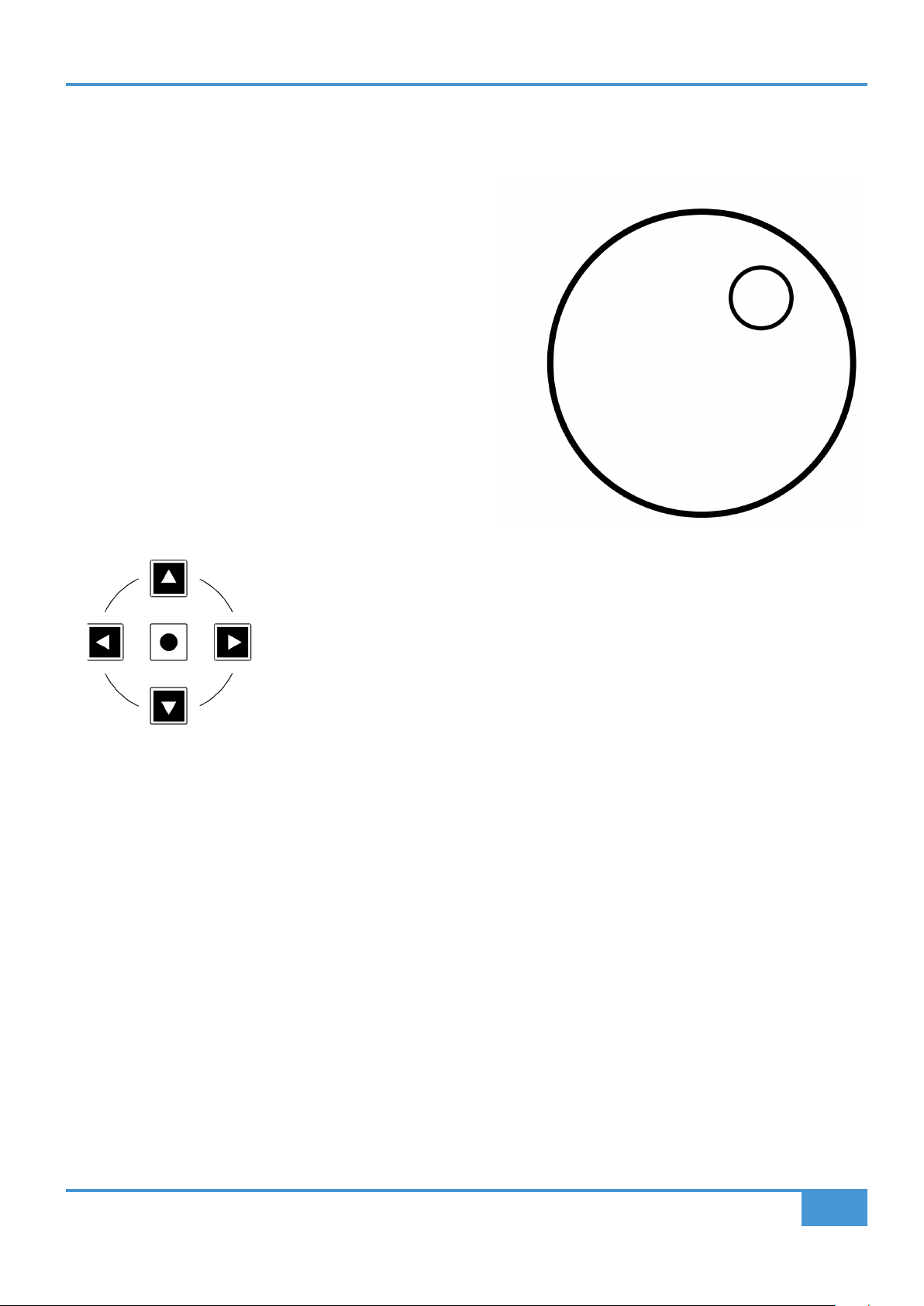
Jog Wheel (7)
The jog wheel is used to scroll through the session timeline. By
simply moving the Jog Wheel, the playhead will move through the
timeline forward by moving the Jog wheel clockwise & backwards
in an anticlockwise movement.
Cursor Keys and Mode Key
To the left of the jog wheel you will find the Cursor keys, with the Mode key in the centre.
When the Mode key is lit the cursor keys perform horizontal and vertical zooming.
Pressing the Mode key again, the up and down and left and right cursor keys are used to navigate through parameter functions
and pages in V-Pot assignment modes (Sends, Plug-ins etc).
The next page of this User Guide provides more information on using the cursor keys in conjunction with 'Channel View' and 'Mixer
View' in Logic's Mackie Control implementation.
Logic Tutorial
50
SSL UF1 User Guide
Transport Controls
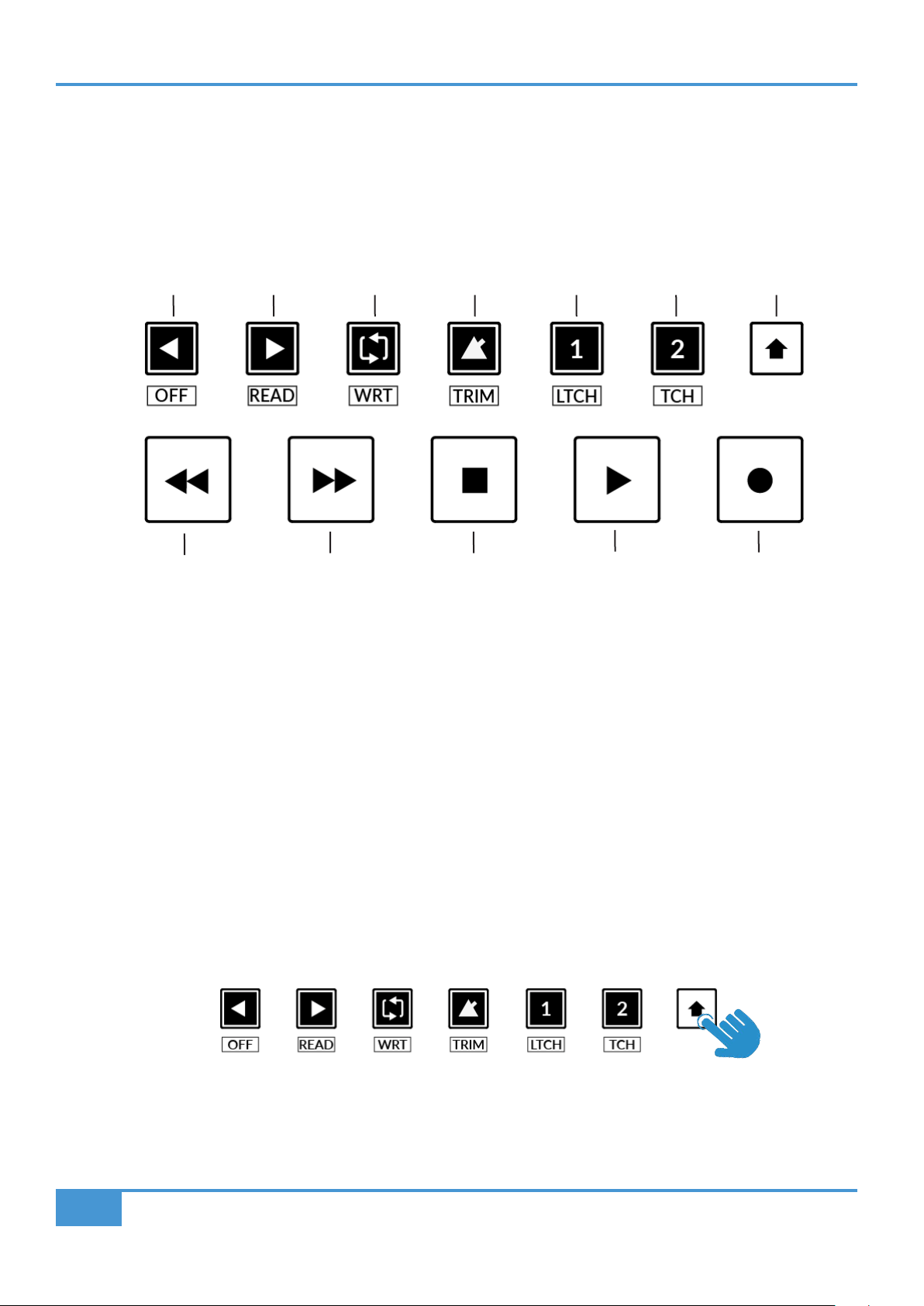
UF1 features dedicated transport keys section across the bottom, with the secondary transport keys laid out above. The secondary
transport keys come preassigned to commonly used DAW functions like loop on/off and click on/off. The secondary transport keys
are re-assignable via the 360° software application. There is also a shift key, which re-purposes the secondary transport keys with
DAW automation modes.
Transport Keys
The primary transport keys allow convenient access to the main transport commands within the DAW. From left to right: Rewind
Forward, Stop, Play & Record.
Secondary Transport Keys
The secondary transport controls allow quick access to some other frequently used features within the DAW. These keys can be
reassigned via SSL 360°. The default mapping is as follows: Previous Marker, Next Marker, Loop on/off, metronome/click on/off and
two quick keys. In Logic, Quick Key 1 is preset to toggle the mixer window and Quick Key 2 toggles the scribble strip information
for the V-Pots between showing the name or the value of the parameters (NAME/VALUE MCU command).
Shifted Functions of the Secondary Transport Keys - Automation Modes
You will notice that there are additional labels beneath the Secondary Transport keys. These functions are accessed by pressing
the SHIFT button and provide access to the automation modes within Logic Pro.
RecordPlayStopForwardRewind
LoopNext MarkerPrevious Marker
Quick Key 2
Click Mixer Name/Value
Quick Key 1
Shift Key
Logic Tutorial
51
SSL UF1 User Guide
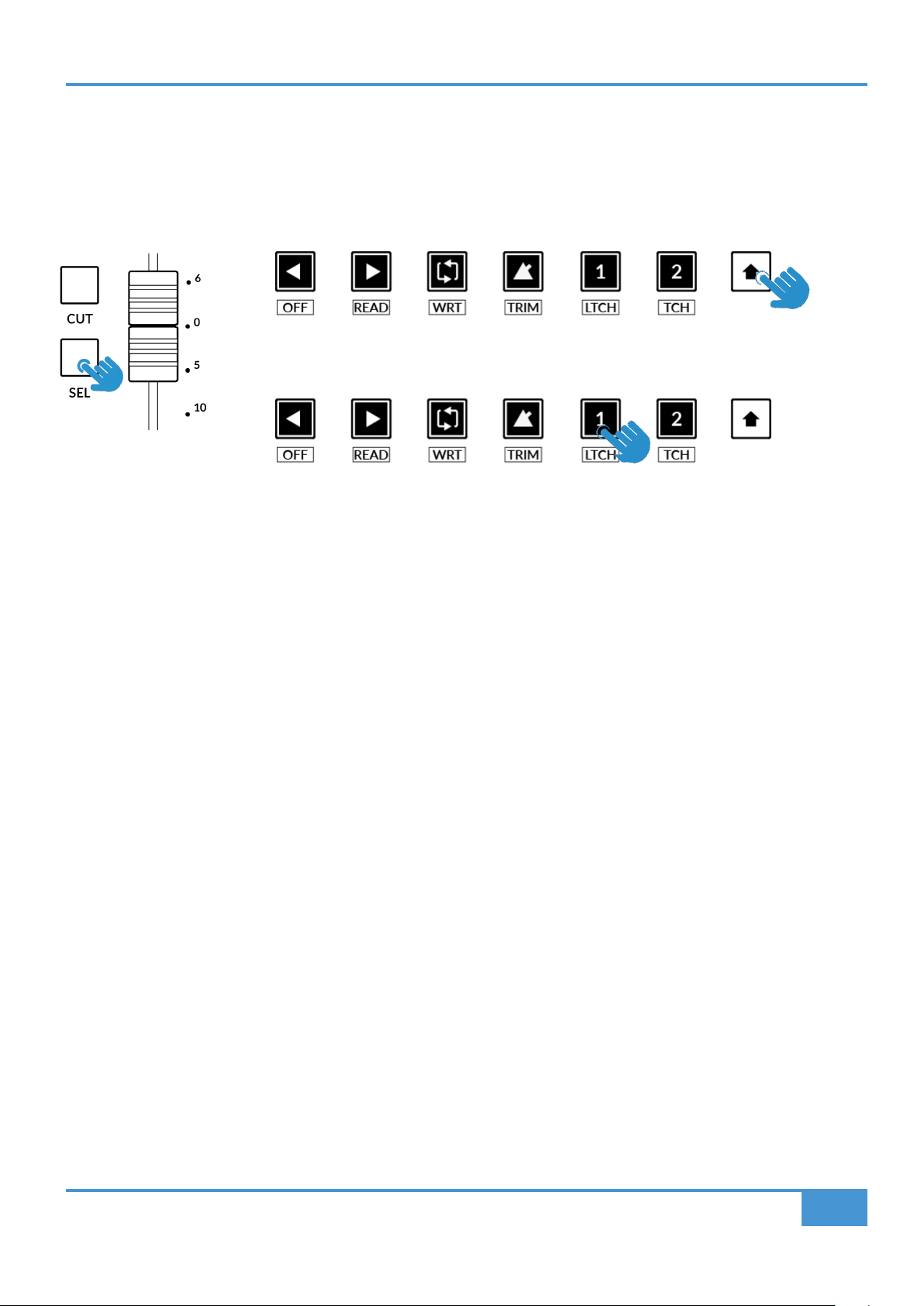
Automation
To select the automation mode for the DAW track shown on the UF1 fader, you will first need to press the SEL key. Next, engage
the SHIFT key to change the secondary transport keys to be automation keys. Finally, press the secondary transport key
that matches your desired automation mode.
STEP 1: Use the SEL key to
select the track.
STEP 3: press to select the automation mode you wish to set the track to.
STEP 2: Engage the SHIFT KEY to re-purpose the secondary transport keys to be
automation keys.
Logic Tutorial
52
SSL UF1 User Guide
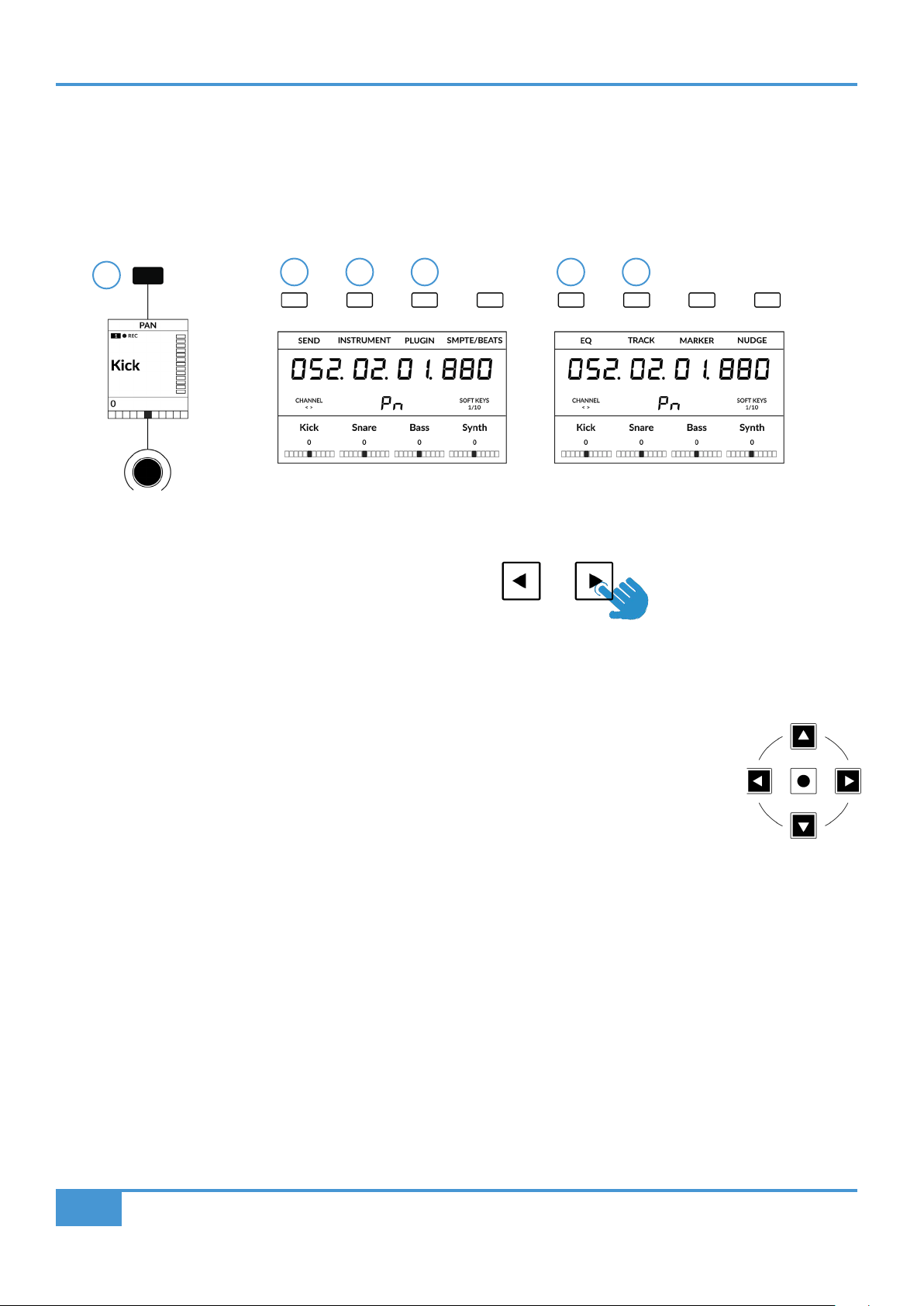
V-Pot Assignment Modes
UF1 offers direct access to the six main Mackie Control V-Pot assignment modes. These V-Pot assignment modes are accessed
via the keys labelled below: 1. PAN, 2. SEND, 3. INSTRUMENT, 4. PLUGIN, 5. EQ and 6. TRACK. To access the Assignment
Modes, use the Page keys to move between the Soft Key pages. For an in-depth explanation of each V-Pot assignment mode,
please refer to the Mackie Control section Logic Pro Control Surface Support document.
Channel View & Mixer View
Each V-Pot assignment mode can operate in two different ways - 'Channel View' or 'Mixer View'. Pressing
the currently active V-Pot assignment key will toggle between the two view modes.
Let's take SEND mode as an example. The first time you press the SEND key, you will be put into 'Mixer
View'. In this view, you can control one Send parameter (Destination/Level/Pan/Mute) for all tracks using
the V-Pots. In 'Mixer View' the Left and Right cursor keys move between the next and previous parameter
and the Up and Down cursor keys change the Send Slot selection e.g. Send 1, Send 2, Send 3 etc. Ensure
the Zoom key is not active.
Pressing the SEND key again will toggle you into 'Channel View' which, by contrast, presents multiple
Send parameters (Destination/Level/Pan/Mute) for the currently selected track across V-Pots. In 'Channel
View', the Left and Right cursor keys will move between parameter pages and the Up and Down cursor
keys will change the selected track (again, as long as the central Zoom key is not lit).
Pressing and holding a V-Pot Assignment Key
Many of the V-Pot assignment keys have a press and hold feature. For example, press and hold the SEND
key to display a sub-menu of options on the LCDs. In this particular example, 'Level' is presented above
V-Pot 2, so pushing V-Pot 2 (whilst keeping SEND held down), assigns the V-Pots to control Send levels.
This offers an alternative method of achieving the same task as using the cursor keys in 'Mixer View'.
1
2 3 4 5 6
The Pan Key is located on
the Soft Key above the Small
LCD
Send, Instrument & Plug-In are
available on Soft Key Bank 1
EQ & Track are available on Soft
Key Bank 2.
The cursor keys
are integral to
operating in
Channel View and
Mixer View.
Use the < > Keys to
move between soft key
pages
Logic Tutorial
53
SSL UF1 User Guide
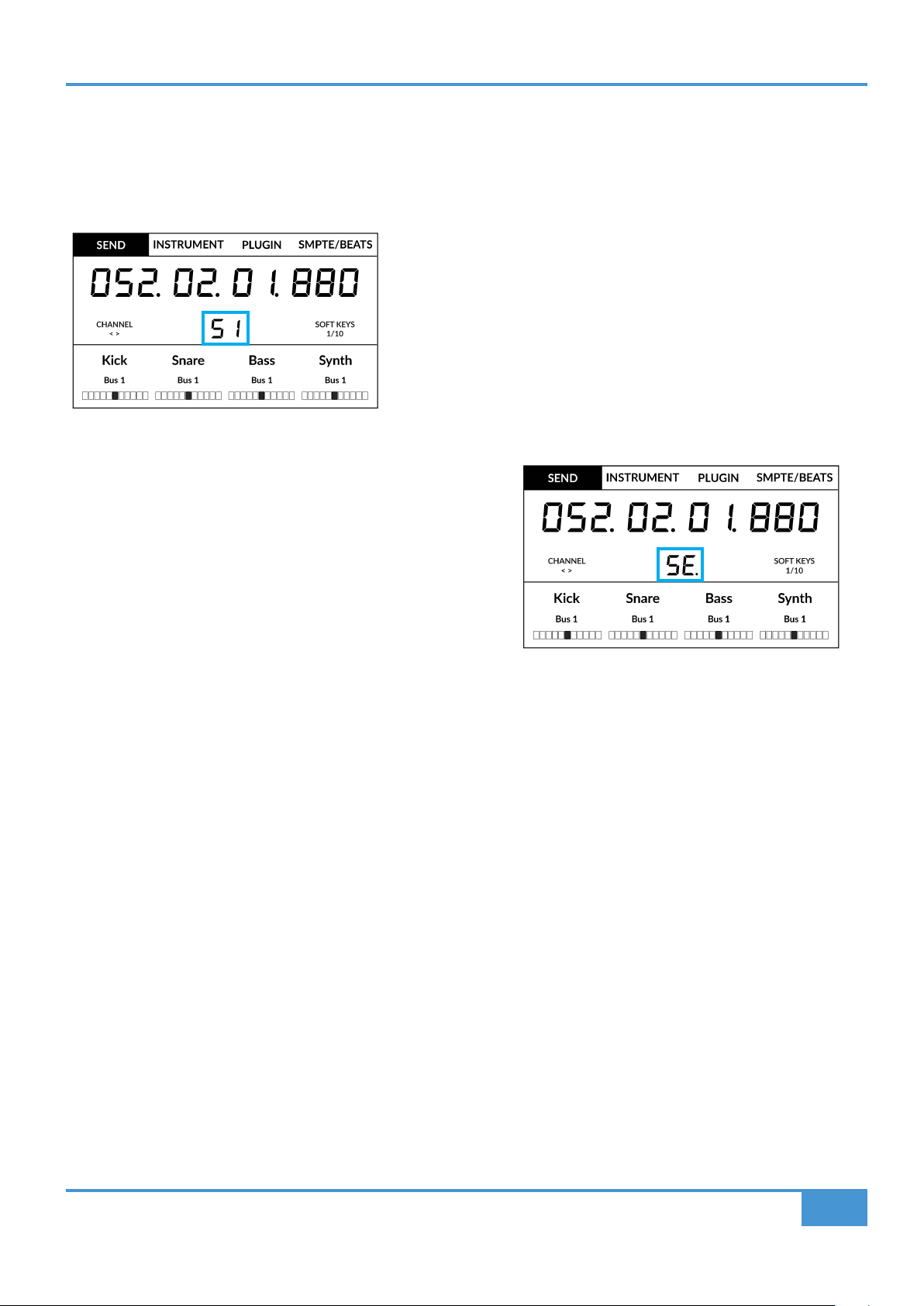
Send / Plugin and Channel Key - How To Tell If You're In Channel View or Mixer View
The blue 2-digit text in the centre of the large display informs you of the V-Pot Assignment Mode and whether you are in 'Mixer
View' or 'Channel View'. Pressing the soft key in question e.g. SEND will alternate you between each view.
Mixer View
In this Example SEND is in 'Mixer View', as indicated by 'S1'
Channel View
In this Example SEND is in 'Channel View', as indicated by 'SE.'
Mixer View
Channel View
The Importance of the 5-8 Key
Don't forget that the 5-8 key has an important role to play when working with the V-Pots.
In Mixer View, the first 4 channels of the controller bank are visible - e.g. sends across the first 4 tracks of the bank. Pressing the
5-8 key allows you to view and control sends on tracks 5-8 of the controller bank.
In Channel View, the 5-8 key will allow you access to the selected track's parameters (Destination, Level, Pan Position and Pan
Mute) on the even numbered send slots e.g. Send 2, 4, 6, 8 etc. Use the 5-8 key in conjunction with the left and right cursor keys
to access all available sends.
The Name/Value function (preassigned to Quick Key 2 key) is also useful to alternate the displays between showing the names
or values of the send functions.
Logic Tutorial
54
SSL UF1 User Guide
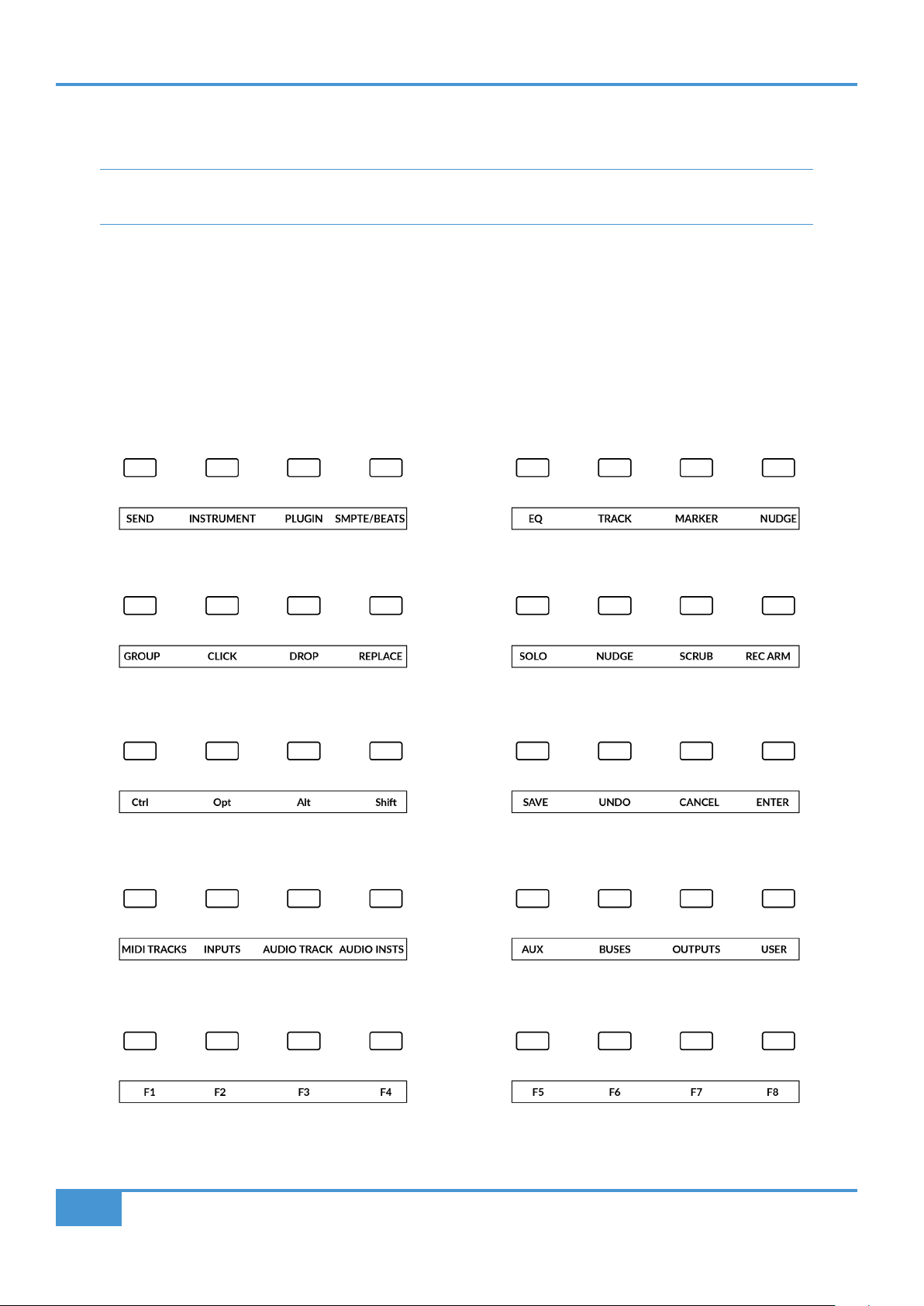
Group, Marker and Nudge
Soft Key banks 2 and 3 allow access to Mackie Control 'Marker' 'Nudge' and 'Group' functions.
For a detailed breakdown of exactly how GROUP, MARKER, NUDGE or any of the other Mackie Control commands
operate, please refer to the Mackie Control section of the Logic Pro Control Surface Support document.
User Bank Pre-Assignments
Soft Key pages 1-10 allow you access to various DAW commands or keyboard shortcuts on the 4 soft keys along the top of UF1.
These can of course be changed to any of the available DAW commands or your own keyboard shortcut sequences in the UF1
page of SSL 360°. Use the Page < and > soft keys to move through the various pages The large screen on UF1 tells you which
page you are on.
Soft Keys Page 1 Soft Keys Page 2
Soft Keys Page 3 Soft Keys Page 4
Soft Keys Page 5 Soft Keys Page 6
Soft Keys Page 7 Soft Keys Page 8
Soft Keys Page 9 Soft Keys Page 10

Logic Tutorial
55
SSL UF1 User Guide
Assignable DAW Commands List - Logic
The following DAW commands are available in SSL 360° to assign to any of the user-assignable keys.
Track
Pan/Surround
EQ
Send
Plugin
Instrument
Flip
Global
Name/Value
SMPTE/Beats
F1
F2
F3
F4
F5
F6
F7
F8
MIDI Tracks
Inputs
Audio Tracks
Audio Instruments
Aux
Busses
Outputs
User
Shift
Option
Control
Alt
Read
Write
Touch
Latch
Trim
Save
Undo
Group
Cancel
Enter
Marker
Nudge
Cycle
Drop
Replace
Click
Solo
Forward
Rewind
Stop
Play
Record
Scrub
Play Foot-switch
Record Foot-switch
Rec/Rdy
Previous Marker
Next Marker
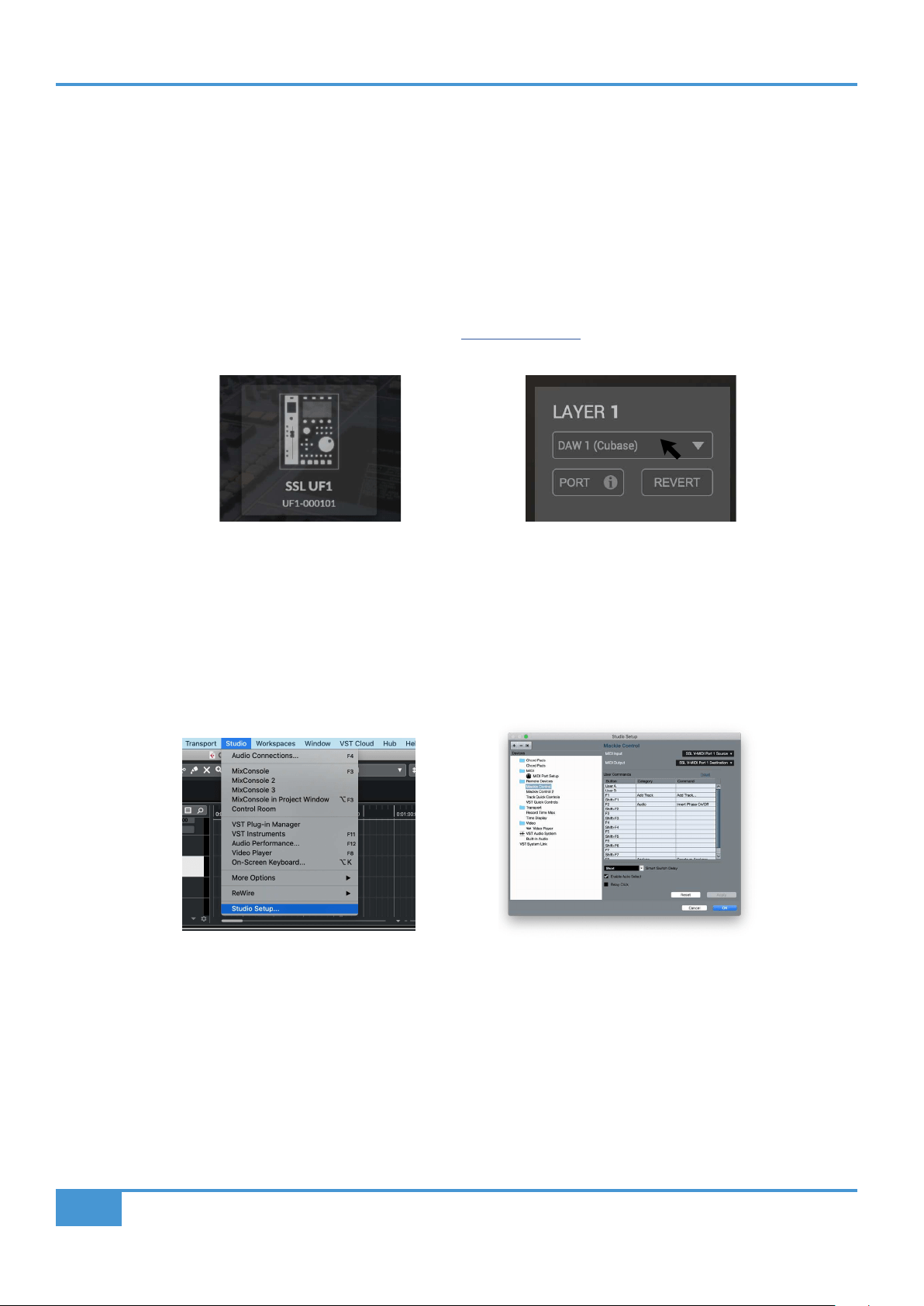
Cubase/Nuendo Tutorial
56
SSL UF1 User Guide
Cubase/Nuendo with UF1 - Tutorial
The following tutorial guides you through configuring and using the default Cubase profile on LAYER 1 of UF1. If you wish to
configure Cubase on a different layer, please refer to the DAW Communication section of this User Guide to ensure your DAW is
configured for the correct SSL V-MIDI ports.
SSL 360° Setup
1. Open the SSL 360° application on your Mac or Windows computer. Go to the HOME page and check that your UF1 has been
detected by SSL 360°.
2. Then, go to the UF1 page and set LAYER 1 to Cubase using the drop-down list. If Cubase is not available from the drop-down
list it is because you have not configured it as DAW 1 on the CONTROL SETUP page - ensure you do this first.
Cubase Setup
3. Open Cubase. Go to Studio > Studio Setup...
4. Click the + symbol in the top-left of the window and select Mackie Control from the drop-down list. Set the MIDI Input to SSL
V-MIDI Port 1 Source and set MIDI Output to SSL V-MIDI Port 1 Destination. Click Apply.
STEP 4 : Open the Studio > Studio
Setup... menu in Cubase.
STEP 5 : Add a Mackie Control
and congure MIDI Input and MIDI
Output to SSL V-MIDI Port 1. Click
Apply.
STEP 1 : Open SSL 360° application.
Check your UF1 has been detected.
STEP 2 : Select the default Cubase
DAW prole from the UF1 page.
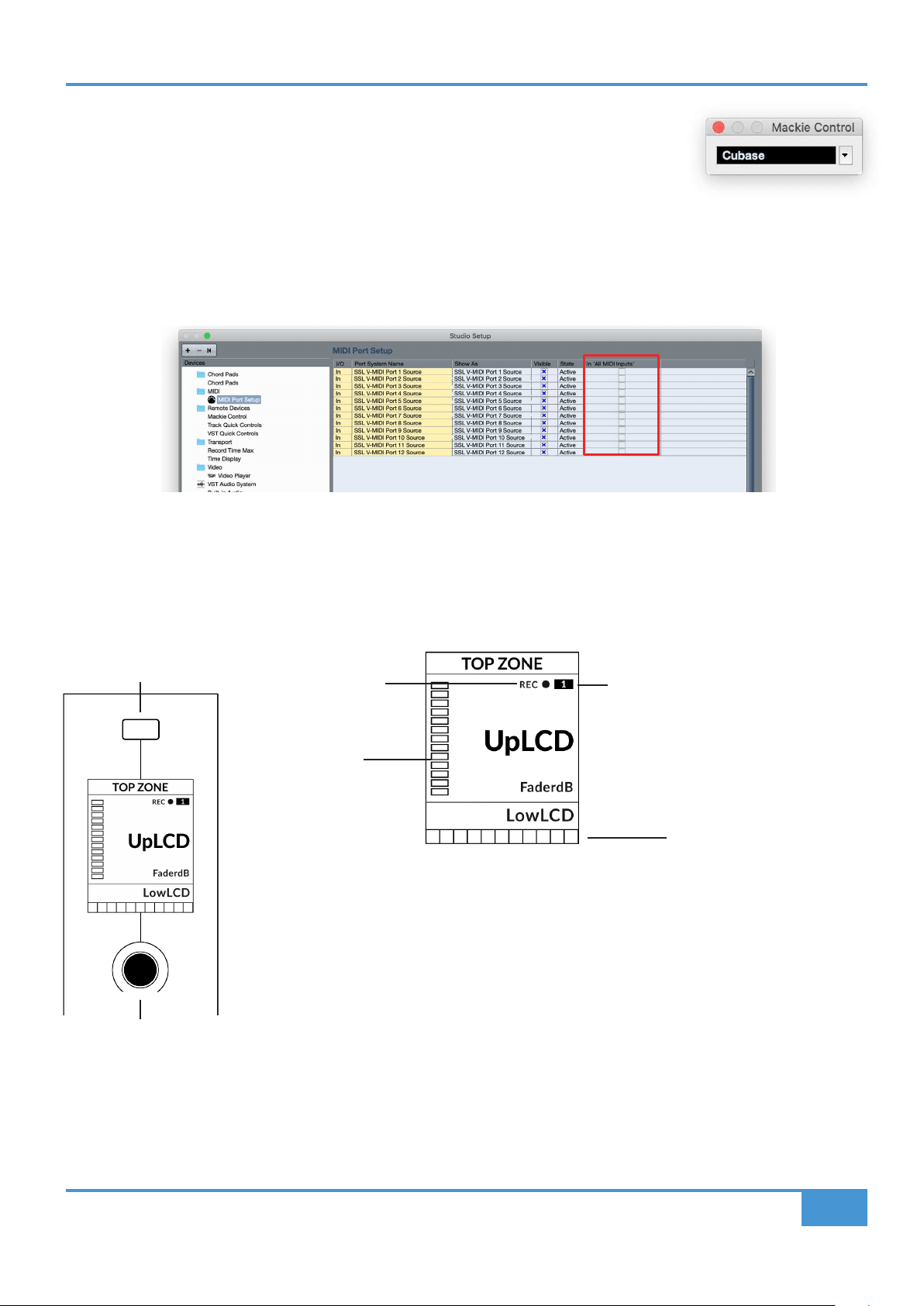
Cubase/Nuendo Tutorial
57
SSL UF1 User Guide
6. Next, go to Studio > More Options and click on Mackie Control and Mackie Control
2, ensuring both small pop-up windows that appear have Cubase selected, instead of
Compatibility. This is important as UF1 has been designed to work with Steinberg's latest
implementation of the Mackie Control Protocol and must be in Cubase mode to ensure all
features work as expected.
7. As a final step, go to Studio Setup > MIDI Port Setup and deactivate the In 'ALL MIDI Inputs' option for your SSL V-MIDI Ports
and click OK. This will ensure that MIDI Instrument Tracks set to receive from ALL MIDI Inputs do not pickup MIDI data from UF1.
STEP 11 : Disable In 'ALL MIDI Inputs' for SSL V-MIDI Ports
Small LCD Layout
Top Zone - Provides a label for the function assigned to the soft key button directly above.
Selected Track / Track Record-Enabled (REC) - In Cubase, the REC text follows the currently selected
track. If the track is record-enabled, the REC text pulses.
Fader Sel Indication - Displays the fader number within the current controller bank UF1 is focused on.
UpLCD - Displays the 6-character track name or information regarding the current V-Pot assignment.
DAW Track Metering - 12-segment track metering + clip
FaderdB - Provides a readout of the current fader position.
LowLCD - Displays name or value information for the V-Pots, depending on which mode or page is
selected.
V-Pot Readout Bar - Displays the position of the currently assigned V-Pot (encoder) function.
Soft Key
V-Pot Encoder
V-Pot
Readout Bar
DAW Track
Metering
Fader Sel
Indication
Selected Track/
Track Record-Enabled
Enlarged view of LCD screen
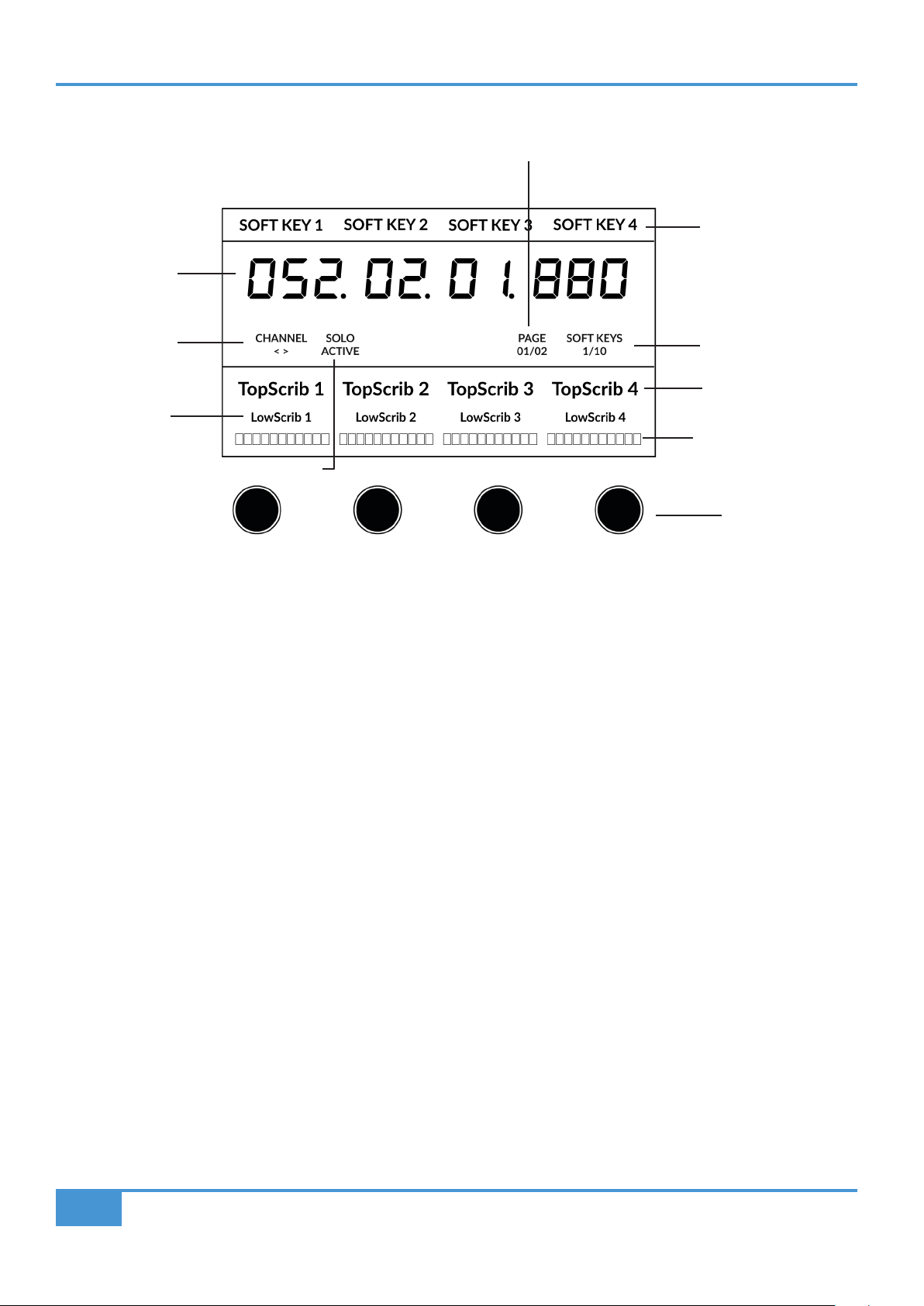
Cubase/Nuendo Tutorial
58
SSL UF1 User Guide
Large LCD Layout
Soft Key - Provides a label for the function assigned to the soft key directly above.
Timecode - Shows the current timecode in Bars/Beats or SMPTE.
Channel Mode - Indicates the current CHANNEL encoder mode.
Solo Active Indication - Indicates if there are any active solo'd tracks.
Cubase MCU Page Number - Cubase's page information for the current V-Pot Assignment mode.
Soft Key Page - Displays the current Soft Keys page number.
UpLCD - Displays the 6-character track name or information regarding the current V-Pot assignment.
LowLCD - Displays name or value information for the V-Pots, depending on which mode or page is selected.
DAW Track Metering - 12-segment track metering + clip.
V-Pot Readout Bar - Displays the position of the currently assigned V-Pot (encoder) function.
V-Pots - 4 x V-Pots that control the assigned parameters.
Soft Key Labels
Soft Key Page
Cubase MCU Page number
Top Scribble Strip
Channel Encoder
Mode
Timecode
Solo Active Indication
V-Pots
Low
Scribble Strip
V-Pot Readout
Bar
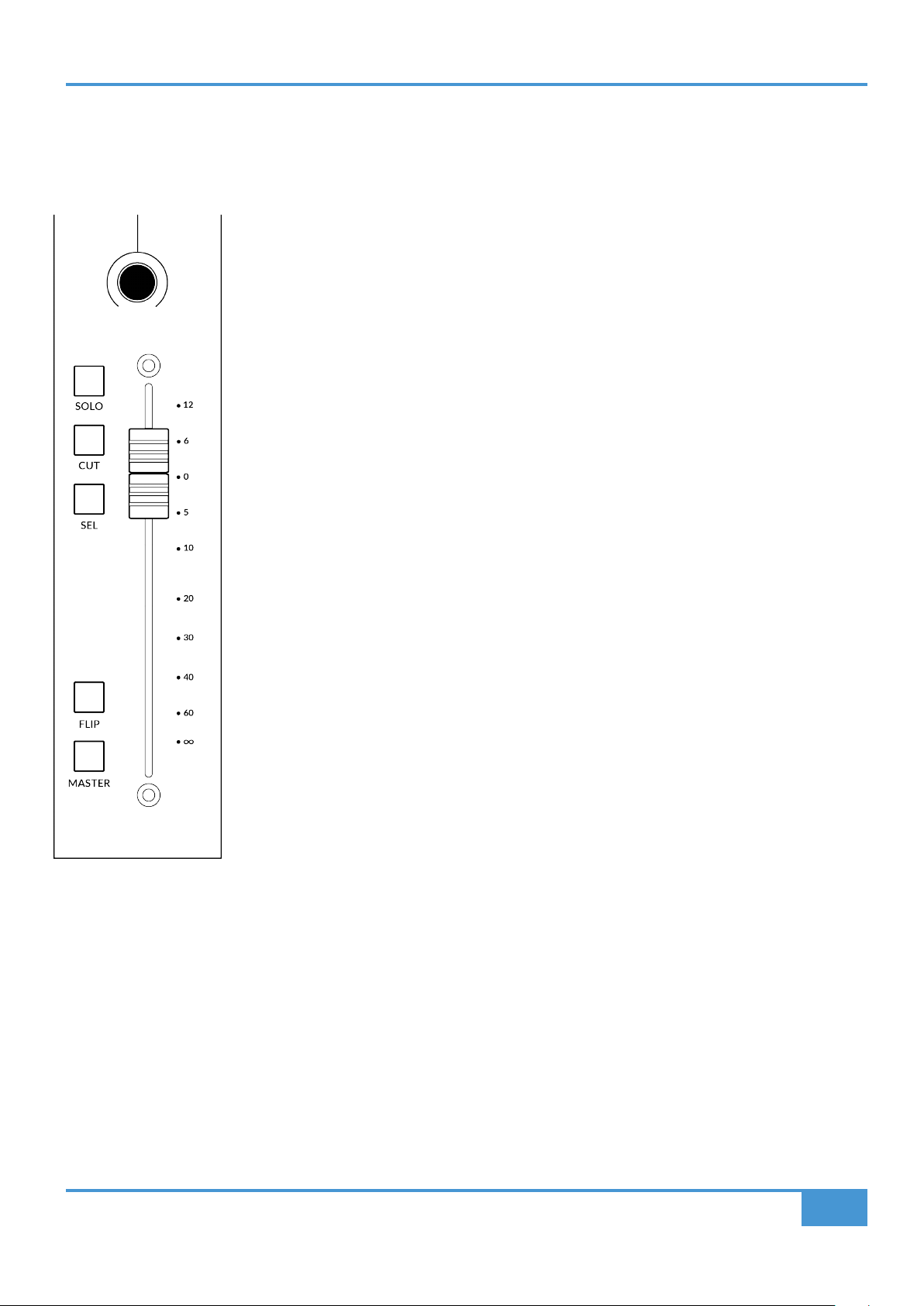
Cubase/Nuendo Tutorial
59
SSL UF1 User Guide
Tutorial
This section guides you through using UF1 with Cubase.
Before You Start...
For complete, in-depth coverage of all the functions and features you can control in Cubase using
UF1, please refer to the Mackie MCU Pro section of Steinberg's Remote Control Devices PDF
document, available via the Cubase/Nuendo Help menu.
V-Pot
At the top of each strip is the V-Pot (virtual pot). The function of the V-Pot varies, depending on which
V-Pot assignment mode is currently active (Pan, FX Send etc) but is typically used for tasks such as
controlling pan position, send levels, plug-in parameters or scrolling through parameter options/lists.
The V-Pot has a push function, which by default operates the Track Monitor function when the V-Pot
assignment mode is Pan.
100 mm Motorised Fader
A motorised, touch-sensitive fader provide physical control of your Cubase tracks and is great for
balancing mix levels and riding volume automation.
Solo, Cut & Sel (Select)
The UF1 fader strip features SOLO, CUT and SEL keys corresponding to the solo, mute and select
features of the Cubase track.
Flip
Pressing the FLIP key switches the functions of the V-Pots and faders. This is useful for various
reasons, including tasks such as controlling Send levels or Plugin parameters on the fader instead
of the V-Pots
Master
The Master Key enables the UF1 fader to control Cubase's Master Fader,.
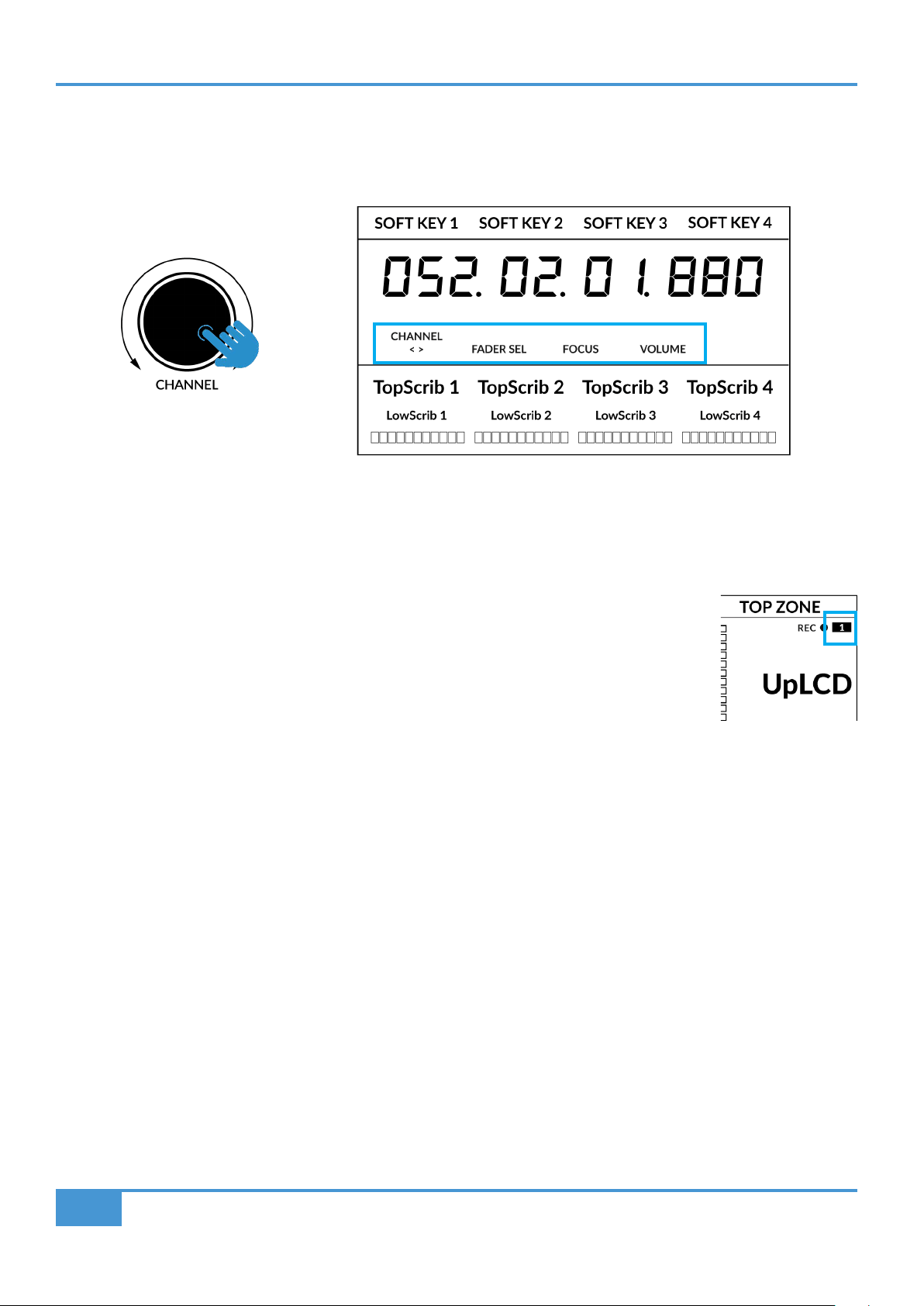
Cubase/Nuendo Tutorial
60
SSL UF1 User Guide
Channel Encoder
Pressing down on the CHANNEL encoder, the large LCD will change to display the available CHANNEL encoder modes. Turn
the encoder to highlight the desired mode and press down again to select the mode.
< >
By default, the CHANNEL encoder is used to move your DAW tracks across the UF1 surface, in increments of one channel at a
time.
Fader Sel
Allows you to change the number of the track within the current controller bank that UF1 is
focused on. UF1 defaults to the first channel (i.e. fader '1') within the bank and this is shown in
the top corner of the UF1 small display. You may need to change this to access tracks at the end
of the mixer, when the bank of 8 faders UF1 is controlling butts up against the end of the session.
Focus
Emulates the scroll function of a mouse. This can be a really nice way of controlling plug-ins or
anything else on screen that responds to a mouse scroll operation. Simply open a plug-in GUI,
hover your computer mouse over a control and turn the encoder for hands-on control.
Volume
The CHANNEL encoder controls the system volume level, if the audio device you are using can be controlled by the operating
system's volume up/down. For example, if you're on the road with your headphones plugged into the computer's built-in audio
output.
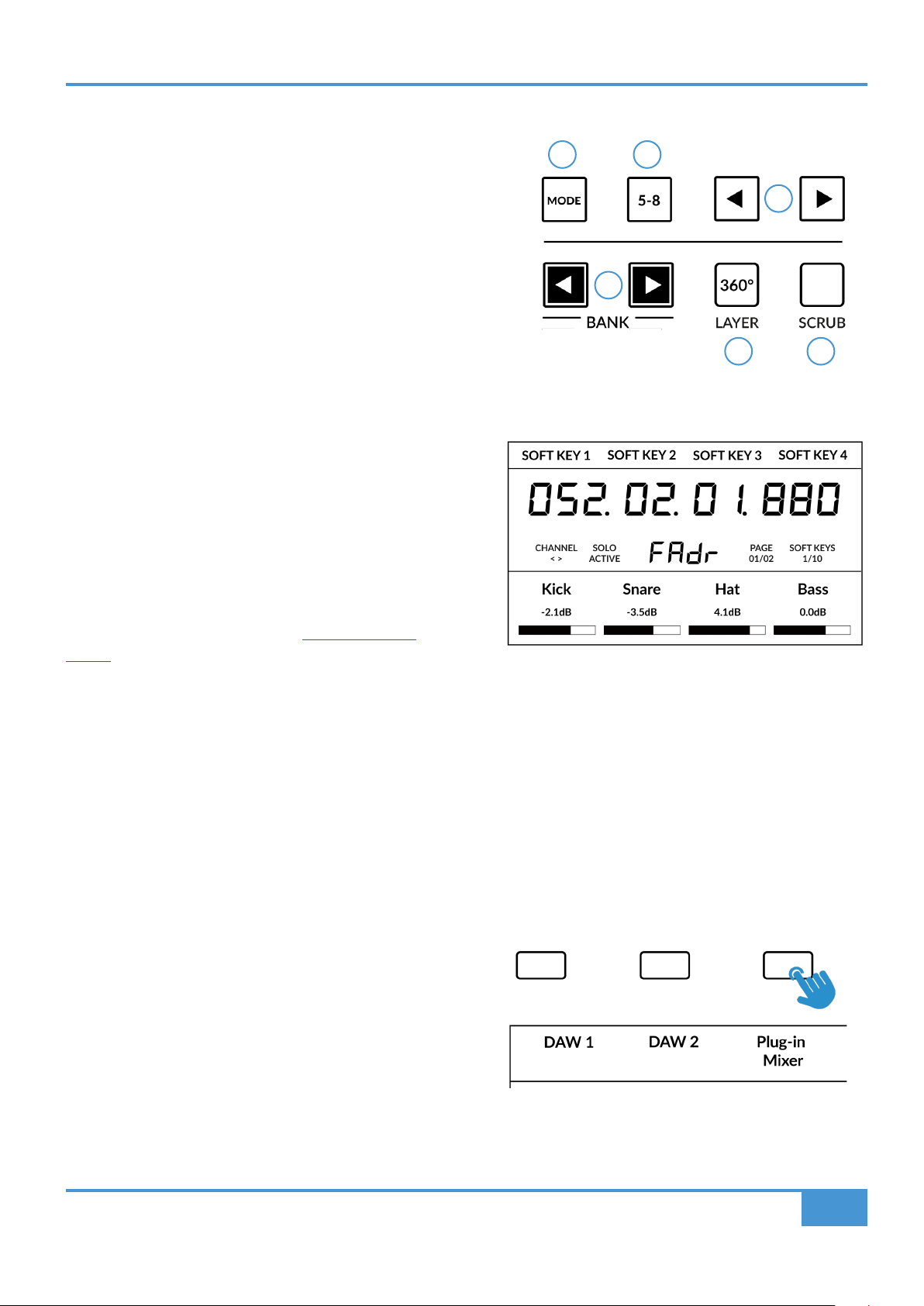
Cubase/Nuendo Tutorial
61
SSL UF1 User Guide
CENTRE KEYS
MODE (Button 1)
The MODE key determines the operation of the large screen and its
4 associated V-Pots. Pressing the MODE key toggle you through the
different options. Holding down the MODE button allows direct access
to each mode via the soft keys at the top of the large LCD. Each mode
is colour coded:
General DAW (white)
The 4 x V-Pots beneath the large display control various parameters such
as pans, sends, plug-ins etc depending on the current V-Pot assignment
mode.
DAW Faders (green) - "FAdr"
The V-Pots control the fader levels across 4 tracks in the
current controller bank. The level is represented by both
a dB text readout and the V-Pot readout bar.
Meter Plug-in (yellow)
The V-Pots and soft keys directly control the SSL Meter
plug-in, via SSL 360°. Because this mode is the same
across all DAWs, please refer to the SSL Meter control
section at the end of this user guide for more information.
5-8 Key (Button 2)
Assigns the V-Pots to control tracks 5-8 of the current
controller bank.
Soft Key Page Banks (3)
Allows you to move through various pages of parameters that are assigned to the soft keys.
Bank Keys (Button 4)
The bank keys move the fader selection in multiples of 8, with
the 1st channel of the 8 appearing on both the Main Fader and
the 1st of the channels to appear across the 4 V-Pots unless
5-8 is selected.
360° / LAYER selection Key (Button 5)
A short press of the 360° button opens and closes the SSL
360° application, allowing access to edit settings & assignable
keys on the UF1 & all other SSL 360° powered devices. A
long press and hold of the 360° button, in conjunction with a
press of the relevant top-row soft key allows you to switch to a
different DAW or Plug-in Mixer Layer.
Above shows the DAW Faders "FAdr" mode has been
selected. The V-Pots beneath the large screen control
DAW fader levels.
Press and hold the 360° button and whilst keeping
it held down, you can switch to a different Layer by
pressing the relevant top-row soft key.
1 2
3
4
65
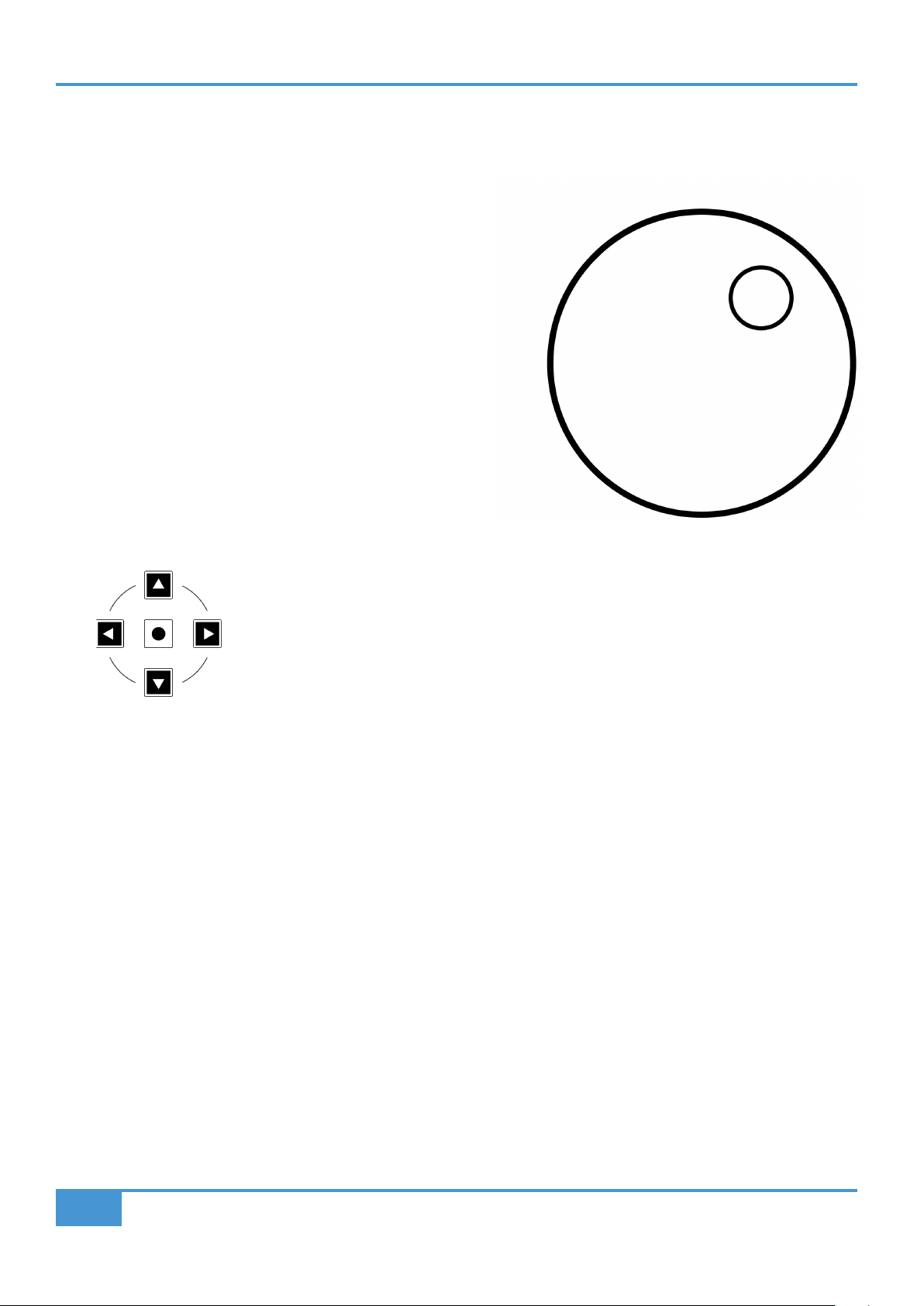
Cubase/Nuendo Tutorial
62
SSL UF1 User Guide
SCRUB Key (Button 6)
The SCRUB key puts the jog wheel into scrub mode. Scrolling through the DAW timeline with the playhead playing back audio at
the speed of the Jog Wheel rotation.
Jog Wheel (7)
The jog wheel is used to scroll through the session timeline. By
simply moving the Jog Wheel, the playhead will move through the
timeline forward by moving the Jog wheel clockwise & backwards
in an anticlockwise movement.
Cursor Keys and Mode Key
To the left of the jog wheel you will find the Cursor keys, with the Mode key in the centre.
When the Mode key is lit the cursor keys perform horizontal and vertical zooming.
Pressing the Mode key again, the up and down and left and right cursor keys are used to navigate through channels in the Edit
Window, and the Left & Right keys moving to the start and end point of the currently selected track's current region.
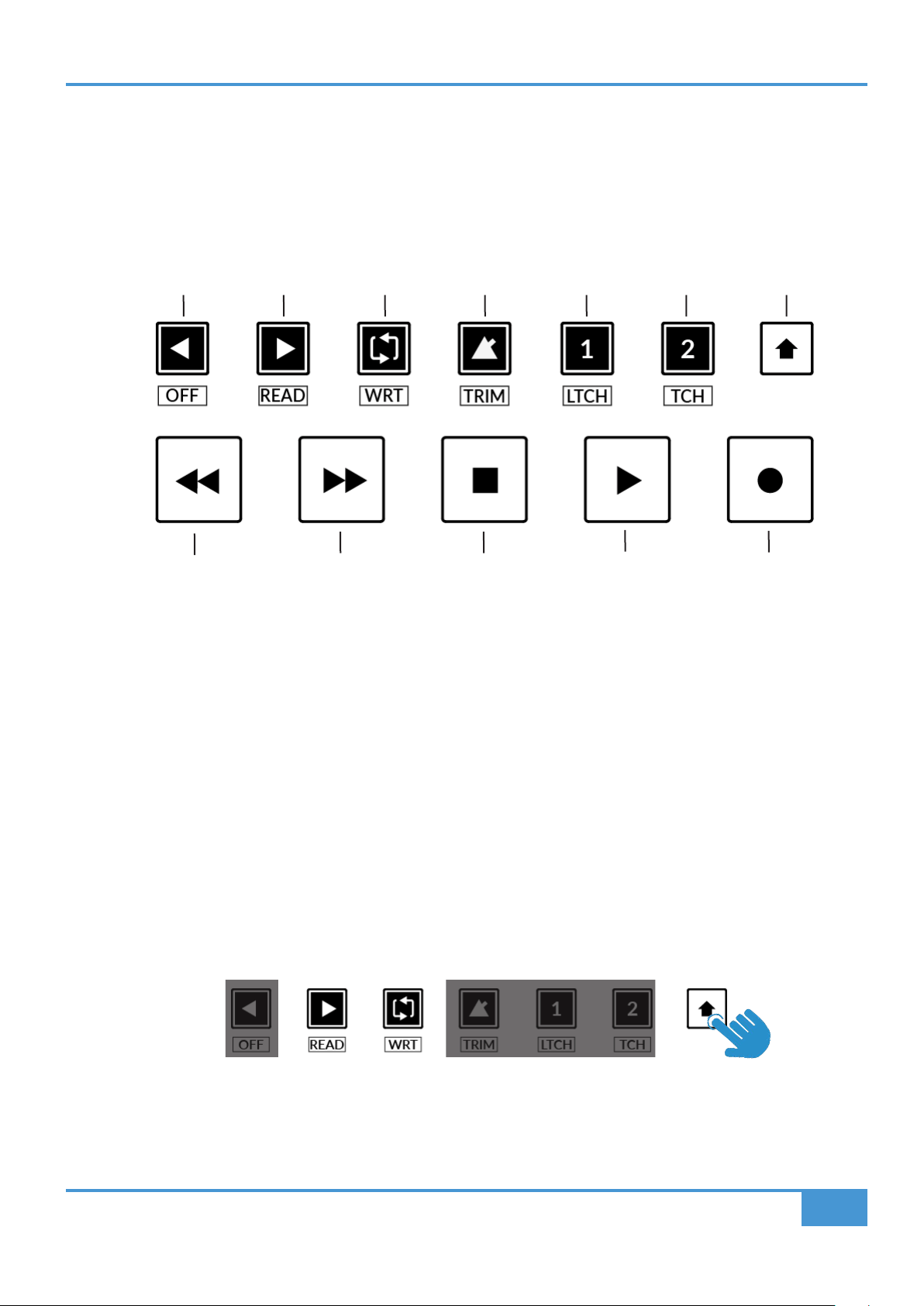
Cubase/Nuendo Tutorial
63
SSL UF1 User Guide
Transport Controls
UF1 features dedicated transport keys section across the bottom, with the secondary transport keys laid out above. The secondary
transport keys come preassigned to commonly used DAW functions like loop on/off and click on/off. The secondary transport keys
are re-assignable via the 360° software application. There is also a shift key, which re-purposes the secondary transport keys with
DAW automation modes.
Transport Keys
The primary transport keys allow convenient access to the main transport commands within the DAW. From left to right: Rewind
Forward, Stop, Play & Record.
Secondary Transport Keys
The secondary transport controls allow quick access to some other frequently used features within the DAW. These keys can be
reassigned via SSL 360°. The default mapping is as follows: Page Left, Page Right, Loop on/off, metronome/click on/off and two
quick keys. In Cubase, Quick Key 1 is preset to toggle the Name/Value command and Quick Key 2 is assigned to the MCU Shift
function.
Shifted Functions of the Secondary Transport Keys - Automation Modes
You will notice that there are additional labels beneath the Secondary Transport keys. These functions are accessed by pressing
SHIFT button and provide access to the automation modes within Cubase. Note that READ and WRITE are the only automation
keys that apply to Cubase, so all other keys in this section are disabled.
RecordPlayStopForwardRewind
LoopPage RightPage Left
MCU Shift
Quick Key 2
Click
Name/Value
Quick Key 1
Shift Key
Modes unavailable in Cubase MCU
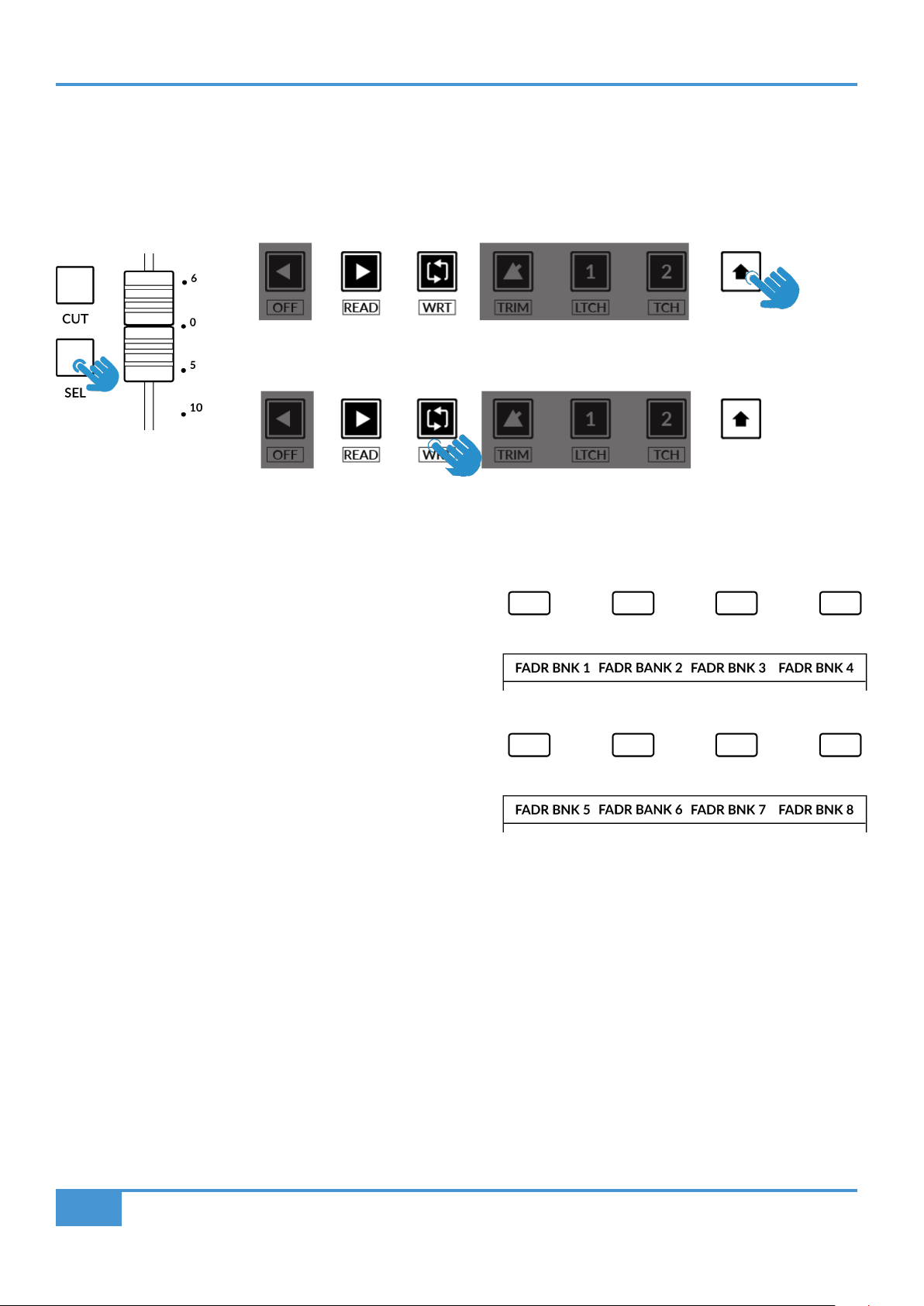
Cubase/Nuendo Tutorial
64
SSL UF1 User Guide
Automation
To select the automation mode for the DAW track shown on the UF1 fader, you will first need to press the SEL key. Next, engage
the SHIFT key to change the secondary transport keys to be automation keys. Finally, press the secondary transport key
that matches your desired automation mode.
Channel Visibility Presets
Fader Bank 1-8 commands are used to call up your Channel
Visibility presets. These commands are preassigned to Soft Key
Pages 9 and 10.
With the MCU Shift key held (preassigned to Quick Key 2) the
Fader Bank keys apply specific channel types (Audio, Groups, FX
Channels,MIDI etc) to the UF1 surface.
Please reference Cubase Remote Control Devices documentation
for more information.
STEP 1: Use the SEL key to
select the track.
STEP 3: press to select the automation mode you wish to set the track to.
STEP 2: Engage the SHIFT KEY to re-purpose the secondary transport keys to be
automation keys.
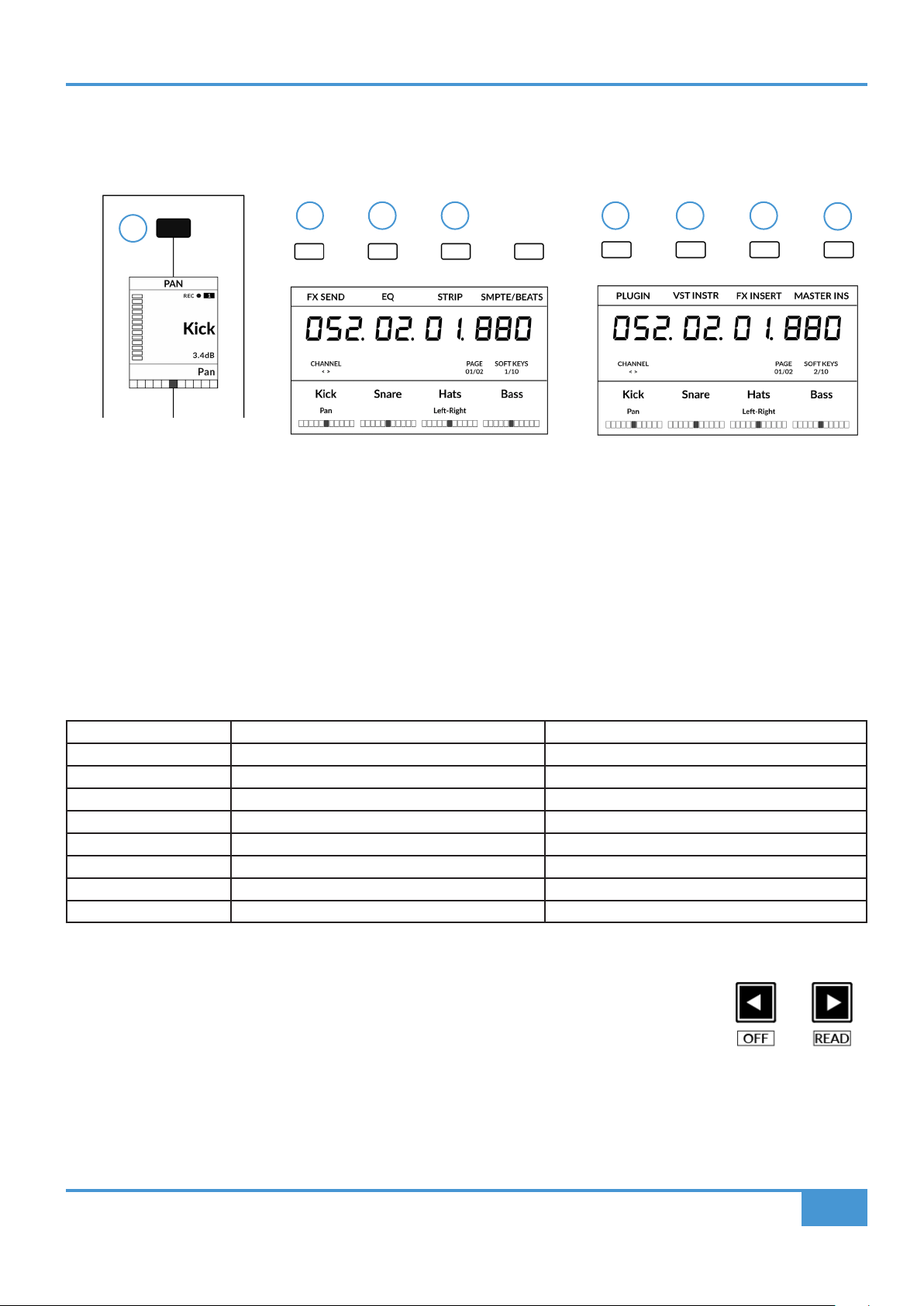
Cubase/Nuendo Tutorial
65
SSL UF1 User Guide
V-Pot Assignment Modes
UF1 offers direct access to the main modes of Cubase's Mackie Control implementation. For an in-depth explanation of how to use
each V-Pot assignment mode, please refer to the Mackie MCU Pro section of Steinberg's Remote Control Devices document.
Nomenclature Table
The column 'Cubase/Nuendo MCU Function', contains the MCU function names as referred to in Steinberg's Remote Control
Devices documentation. These names are taken from the Cubase/Nuendo overlays that are placed onto a Mackie Controller
(replacing the default Logic labels). The Cubase MCU implementation has evolved over the years and as such, some of the labels
don't quite match the functionality, so we have presented the most intuitive labels possible on UF1 to make operation easier. For
example the 'FIRST' key on a Mackie Control with a Cubase overlay accesses controls for routing so we have labelled our key
ROUTING instead.
Mode Cubase/Nuendo MCU Function UF1 Label
1 PAN PAN
2 LAST FX SEND
3 EQ EQ
4 DYN/FX/AUX STRIP
5 PLUGINS PLUGIN
6 INSTRUMENT VST INSTRUMENTS
7 SENDS FX INSERT
8 MASTER MASTER INSERT
Page Keys
The PAGE < > keys allow you to move through the various parameter pages that are available within each
V-Pot assignment mode (or 'Parameter Group' as Cubase refers to them). The current page selection is
displayed on the UF1 large display.
Name/Value
Strictly speaking, the NAME/VALUE (preassigned to Quick Key 1) function is not a V-Pot assignment mode by itself but it does
have the useful function of displaying parameter values on the LCDs. Without engaging this, parameter values are only shown
when a V-Pot is turned.
The Pan Key is located on
the Soft Key abvove the
Small LCD Screen
Send, Instrument & Plug-In is
available on Soft Key Page 1
EQ & Track are available on Soft
Key Page 2.
1
52 63 74
8
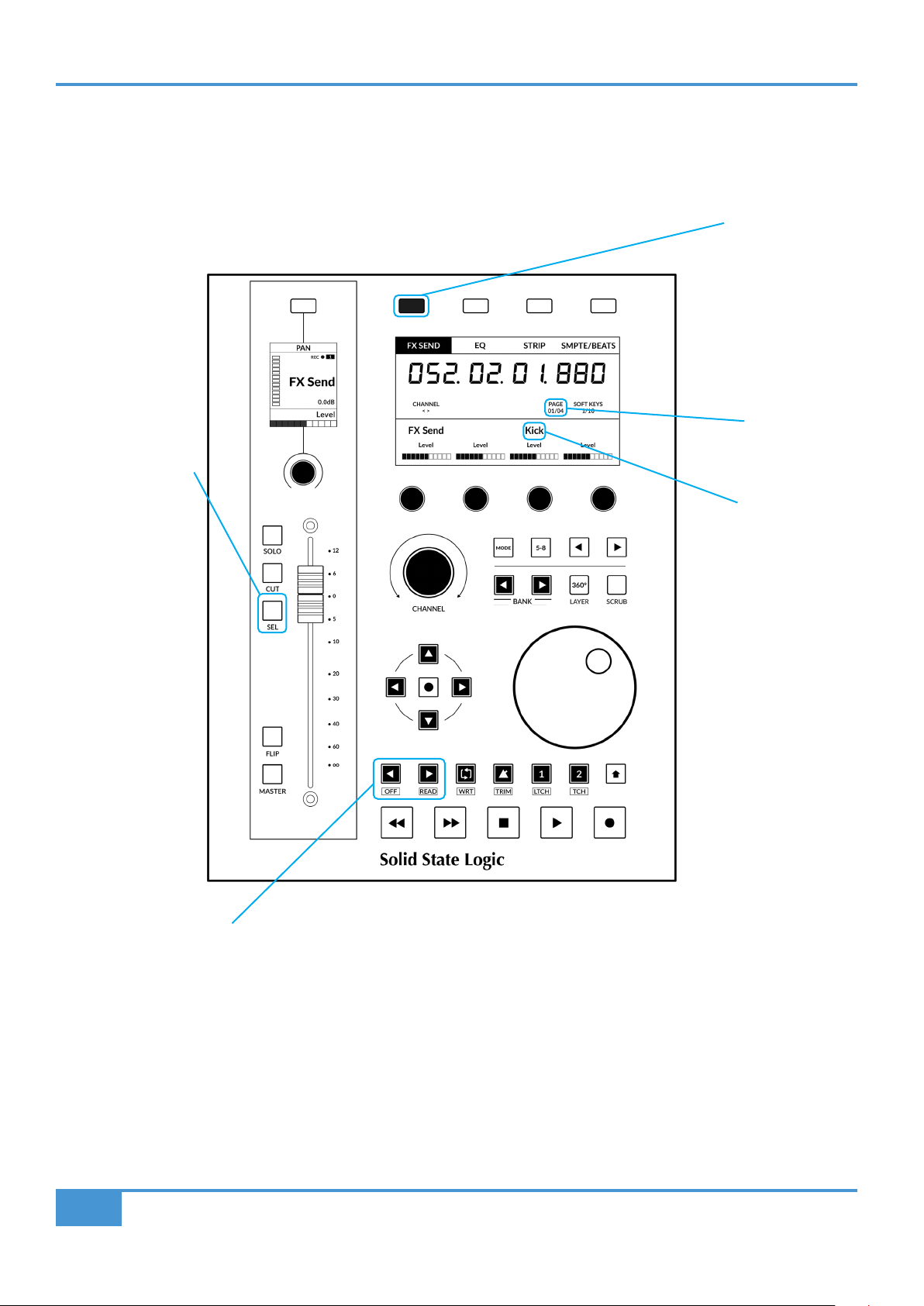
Cubase/Nuendo Tutorial
66
SSL UF1 User Guide
Example - Controlling Sends
It is beyond the scope of this User Guide to cover all of the different V-Pot assignment modes within the Cubase MCU implementation,
however an example of controlling Sends is presented below.
Send Settings - Selected Channel
• Select the channel you wish to control by pressing the SEL key on the track assigned to the UF1 fader..
• Press the FX SEND key. This mode allows you to control all the Send parameters for the currently selected track using the
V-Pots - e.g. all the Send levels on the selected track.
• Use the PAGE < > keys to move between parameter pages.
1. Select the track
you wish to control
by banking it onto the
fader and pressing
the SEL key
Cubase MCU
Page Number
is shown here
Selected Track
name is shown
here
2. Select the V-Pot
mode from one
of the Soft Keys
above the options
in the Large LCD
Screen.
3. Use the PAGE < > Keys to bank though pages of parameters available for the V-Pot Assignment mode.
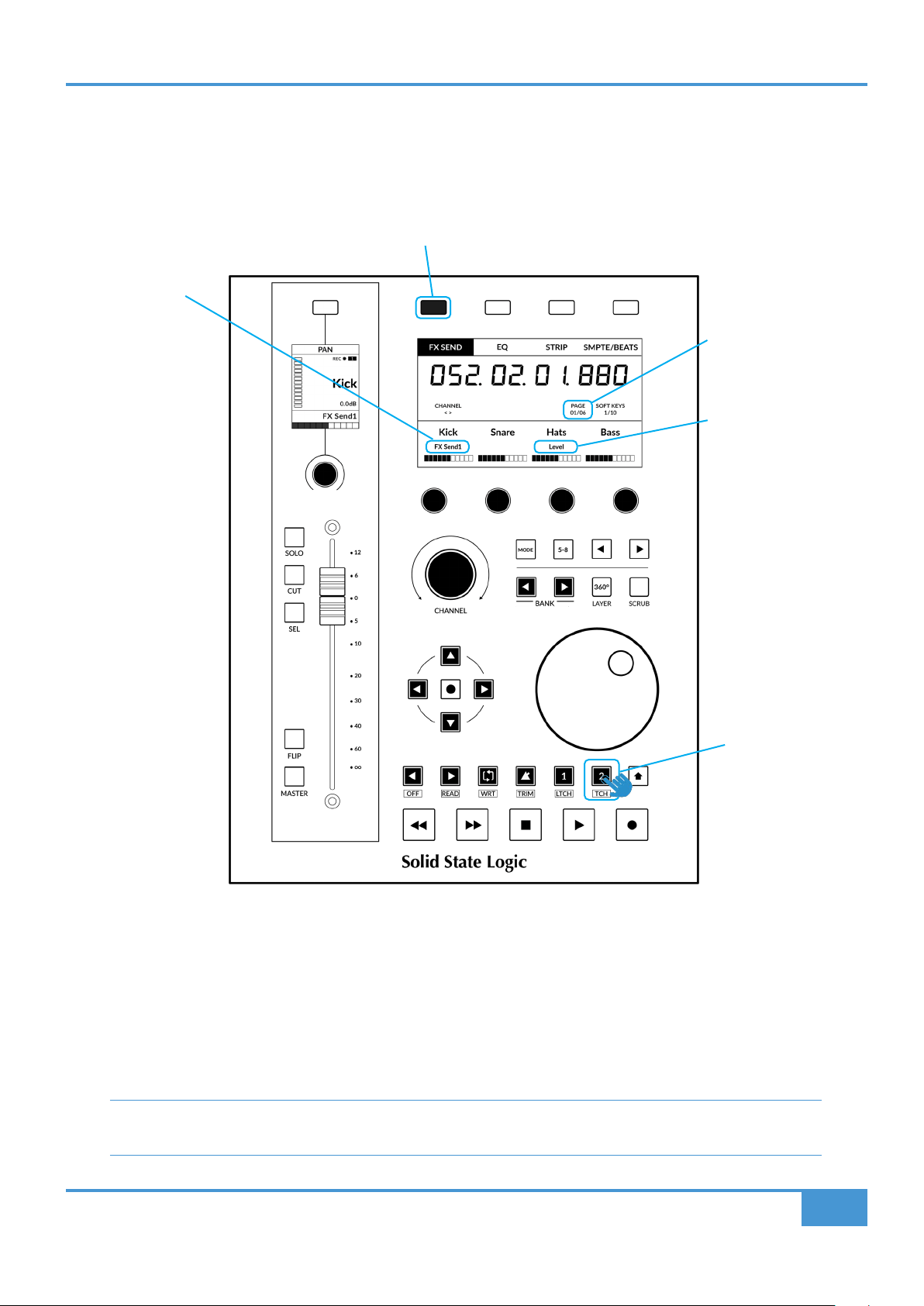
Cubase/Nuendo Tutorial
67
SSL UF1 User Guide
Send Settings - Global
Alternatively, Global mode provides you with access to the advanced send settings for the tracks currently on the UF1 surface.
For example, you can control a send parameter (e.g. level), of FX Send 1 across multiple tracks at once using the V-Pots.
• This is an example of a V-Pot assignment mode that is accessed by pressing and holding the MCU Shift command (Quick
Key 2).
• Press and hold the MCU Shift (Quick Key 2) key and then press the FX SEND key. This will select FX Send 1 but you can
move through the rest of the FX Sends by continuing to keep MCU Shift (Quck Key 2) held and repeatedly pressing the FX
SEND key
• Use the PAGE < > keys to move between parameter pages.
Each V-Pot assignment mode may vary slightly in terms of how it operates so it's important to refer to the Mackie
MCU Pro section of Steinberg's Remote Control Devices PDF for more information.
Selected V-Pot Assignment Mode
Selected FX
SEND
Send Parameter
MCU Shift Key
(Quick Key 2)
Cubase MCU
Page Number
is shown here

Cubase/Nuendo Tutorial
68
SSL UF1 User Guide
User Bank Pre-Assignments
User Banks 1-10 allow you access to various DAW commands or keyboard shortcuts on the 4 soft keys along the top of UF1.
These can of course be changed to any of the available DAW commands or your own keyboard shortcut sequences in the UF1
page of SSL 360°.
Select User Banks using the <> Keys and the current bank will be indicated by the SOFT KEYS 1/10 display in the Large Screen
Display.
Function Select Keys 1-8 (F1 - F8)
In the Studio Setup... menu within Cubase, where the Mackie Control ports are configured during setup, you can program the F1 -
F8 keys found in Soft Key Pages 7 and 8 to any of the extensive list of Cubase commands made available in the User Commands
table - choose a category and then a command from that category. Each F key can be shifted using the MCU Shift key, giving you
a total of 16 user commands plus the optional 'User A' and 'User B' foot pedals.
Soft Key Page 1 Soft Key Page 2
Soft Key Page 3 Soft Key Page 4
Soft Key Page 5 Soft Key Page 6
Soft Key Page 7 Soft Key Page 8
Soft Key Page 9 Soft Key Page 10

Cubase/Nuendo Tutorial
69
SSL UF1 User Guide
Assignable DAW Commands List - Cubase/Nuendo
The following DAW commands are available in SSL 360° to assign to any of the user-assignable keys. Labels in brackets are added
to clarity what the function does.
First (Routing)
Pan
EQ
Last (FX Sends)
Plugins (IFX Inserts)
Dyn/FX/Aux (Strip)
Flip
Edit (Window)
Name/Value
SMPTE/Beats
F1
F2
F3
F4
F5
F6
F7
F8
Fader Bank 1
Fader Bank 2
Fader Bank 3
Fader Bank 4
Fader Bank 5
Fader Bank 6
Fader Bank 7
Fader Bank 8
Undo
Redo
Save
Revert
Read
Write
Project
Mixer
Sends (FX IFX 1st Insert)
Instruments (VSTs)
Master (Insert)
Motors
Solo Defeat
Shift
Left
Right
Cycle
Punch
Previous
Add
Next
Forward
Rewind
Stop
Play
Record
Scrub
User A
User B
Rec/Rdy
Channel < (Page Left)
Channel > (Page Right)
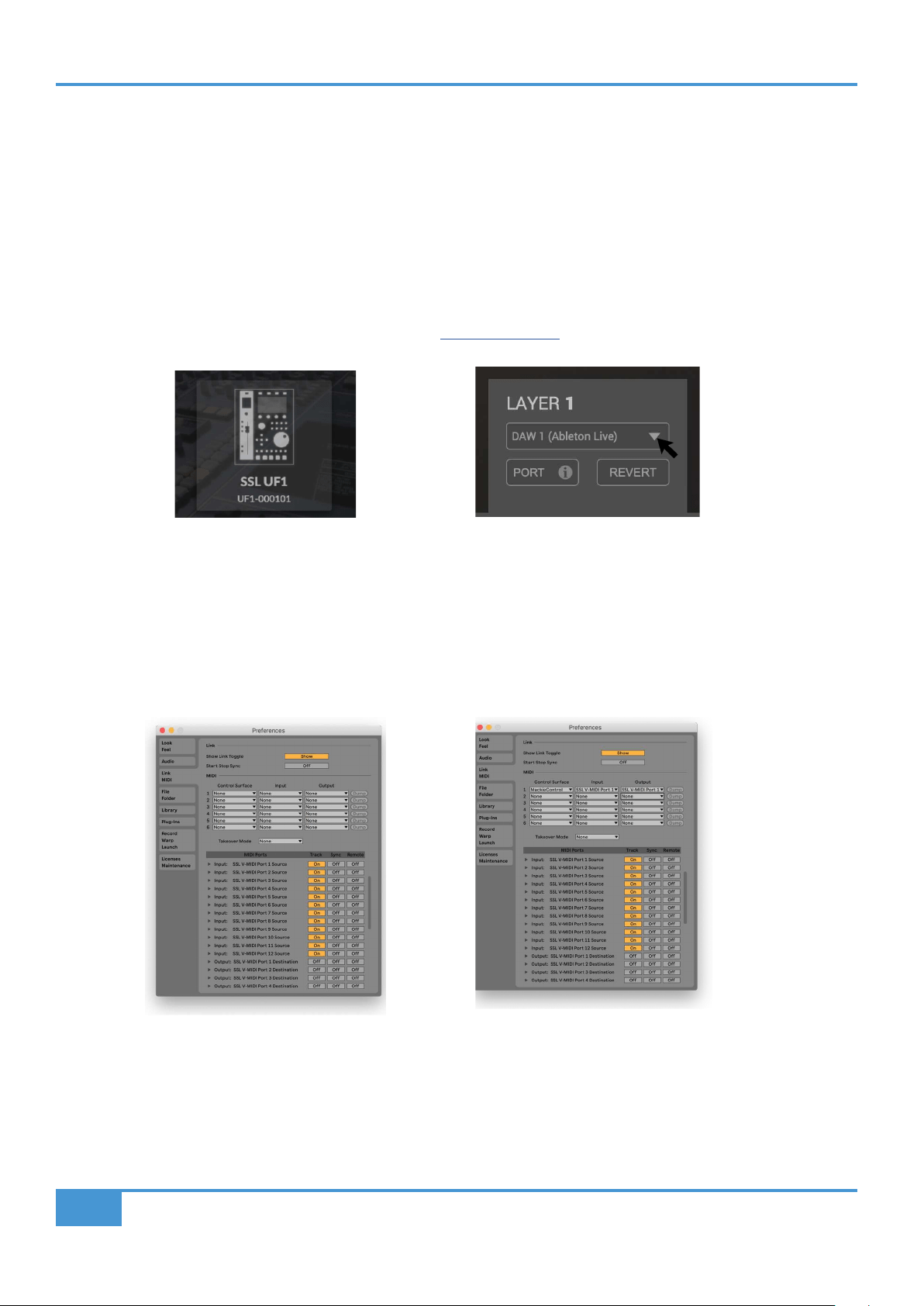
Live Tutorial
70
SSL UF1 User Guide
Ableton Live with UF1 - Tutorial
The following tutorial guides you through configuring and using the default Ableton Live profile on LAYER 1 of UF1. If you wish
to configure Live on a different layer, please refer to the DAW Communication section of this User Guide to ensure your DAW is
configured for the correct SSL V-MIDI ports..
SSL 360° Setup
1. Open the SSL 360° application on your Mac or Windows computer. Go to the HOME page and check that your UF1 has been
detected by SSL 360°.
2. Go to the UF1 page and set Layer 1 to Ableton Live using the drop-down list. If Live is not available from the drop-down list
it is because you have not configured it as DAW 1 on the CONTROL SETUP page - ensure you do this first.
Live Setup
3. Open Live. Go to Preferences > Link MIDI...
4. From the Control Surface drop-down list select MackieControl. Set the Input to SSL V-MIDI Port 1 Source and set Output
to SSL V-MIDI Port 1 Destination.
STEP 2 : Select the default Ableton
Live DAW prole from the UF1 page.
STEP 3 : Go the Preferences menu
and click on the Link MIDI tab.
STEP 4 : Add a MackieControl and
congure for SSL V-MIDI Port 1 on
Input and Output
STEP 1 : Open SSL 360° application.
Check your UF1 has been detected
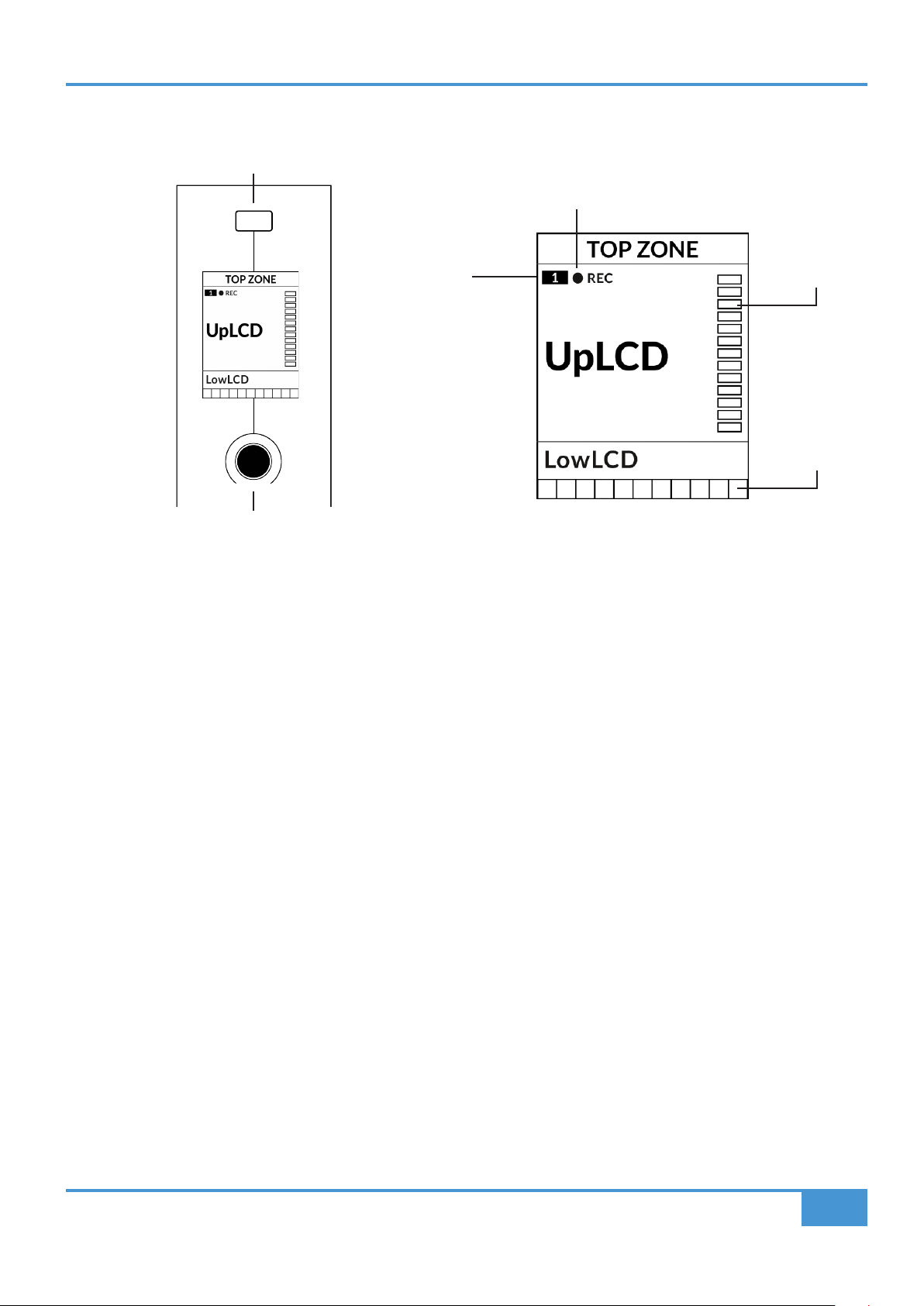
Live Tutorial
71
SSL UF1 User Guide
Small LCD Layout
Top Zone - Provides a label for the function assigned to the Soft Key button directly above.
Track Record-Enabled (REC) - In Live, the REC text appears when a track is record-enabled.
Fader Sel Indication - Displays the fader number within the current controller bank UF1 is focused on.
UpLCD - Normally displays the 6-character track name or parameter being controlled by the V-Pot, depending on the
current mode.
LowLCD - Displays a label or value readout for the parameter currently assigned to the V-Pot, unless a fader is moved,
in which case the fader dB value is shown.
DAW Track Metering - 12-segment track metering + clip
V-Pot readout bar - Displays the position of the currently assigned V-Pot (encoder) function.
V-Pot
Readout Bar
DAW Track
Metering
Fader Sel
Indication
Track Record-Enabled
Soft Key
V-Pot Encoder
Enlarged view of LCD screen
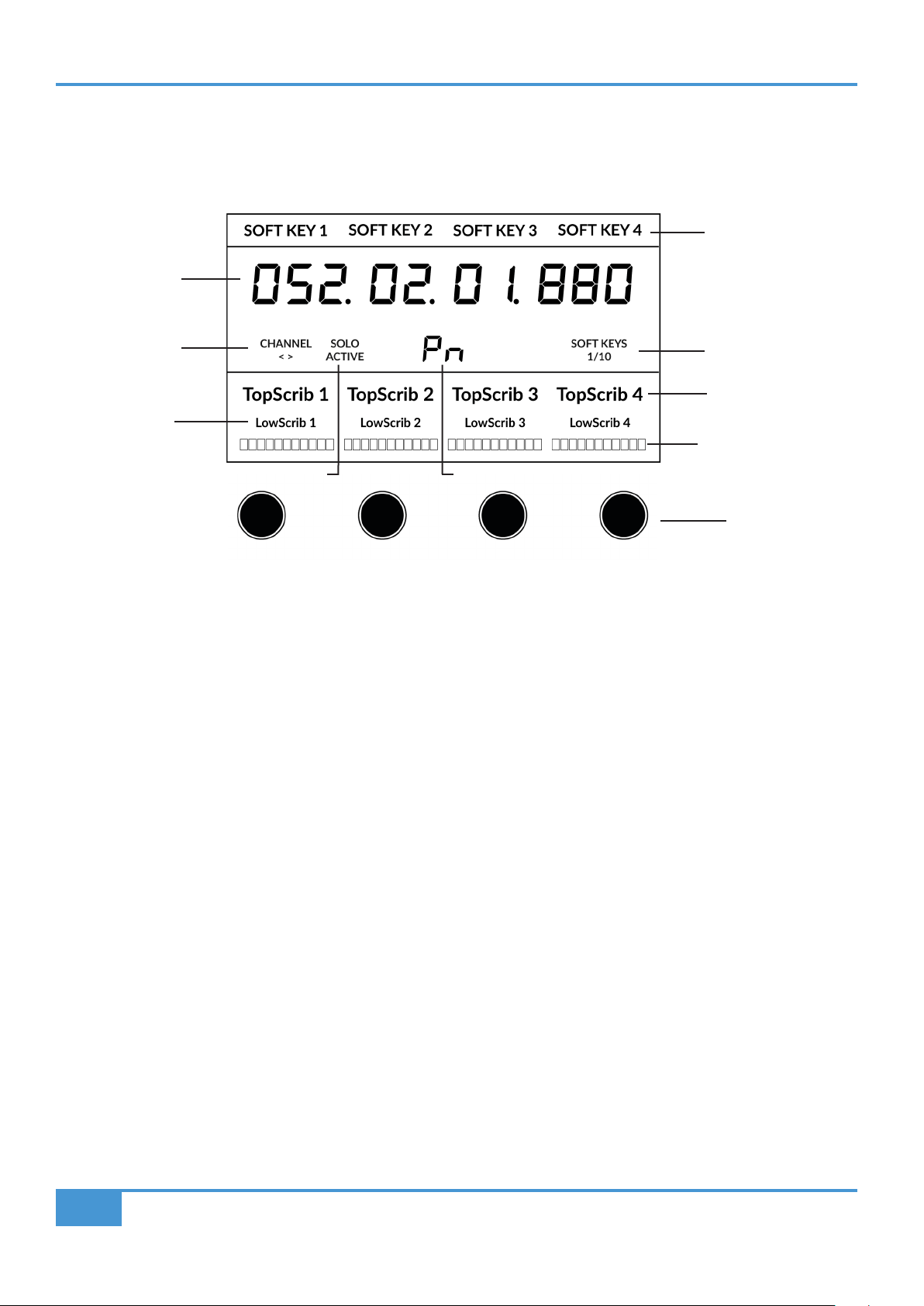
Live Tutorial
72
SSL UF1 User Guide
Large LCD Layout
Soft Key Labels - Labels for the functions assigned to the soft keys directly above.
Timecode - Shows the current timecode in Bars/Beats or SMPTE.
Channel Mode - Indicates the current CHANNEL encoder mode.
Solo Active Indication - Indicates if there are any active solo'd tracks.
V-Pot Assignment Mode/Live Track No. - Displays the current V-Pot Assignment Mode or the Live track number.
Soft Key Page - Displays the current Soft Keys page number
Top Scribble - Displays the track name for tracks 1-4 or 5-8 of the current controller bank.
Low Scribble - Displays a label or value readout for the parameter currently assigned to the V-Pot, unless a fader is
moved, in which case the fader dB value is shown.
V-Pot Readout Bar - Displays the position of the currently assigned V-Pot function.
V-Pots - 4 x V-Pots that control the assigned parameters.
Soft Key Labels
Soft Key Page
Top Scribble Strip
Channel Encoder
Mode
Timecode
V-Pot Assignment Mode/Live Track No.Solo Active Indication
V-Pots
Low
Scribble Strip
V-Pot Readout
Bar

Live Tutorial
73
SSL UF1 User Guide
Tutorial
This section guides you through using UF1 with Live.
V-Pot
At the top of the strip is the V-Pot (virtual pot). The function of the V-Pot varies, depending
on which V-Pot assignment mode is currently active but it is typically used for tasks such
as controlling Pan position, Send levels, Plug-in parameters or scrolling through parameter
options/lists.
The V-Pot has a push function, which is typically used for defaulting the position of the
parameter being controlled.
100 mm Motorised Fader
A motorised, touch-sensitive fader provide physical control of your Live tracks and is great for
balancing mix levels and riding volume automation.
Touching a single fader will cause the LowLCD area to display a fader dB
readout, instead of the V-Pot parameter readout.
Solo, Cut & Sel (Select)
The UF1 fader strip features SOLO, CUT and SEL keys corresponding to the solo, mute and
select features of the Live track.
Flip
Pressing the FLIP key switches the functions of the V-Pots and faders. This is useful for
various reasons, including tasks such as controlling Send levels on the fader instead of the
V-Pots.
Master
The Master Key enables the UF1 fader to control Live's Master Fader.
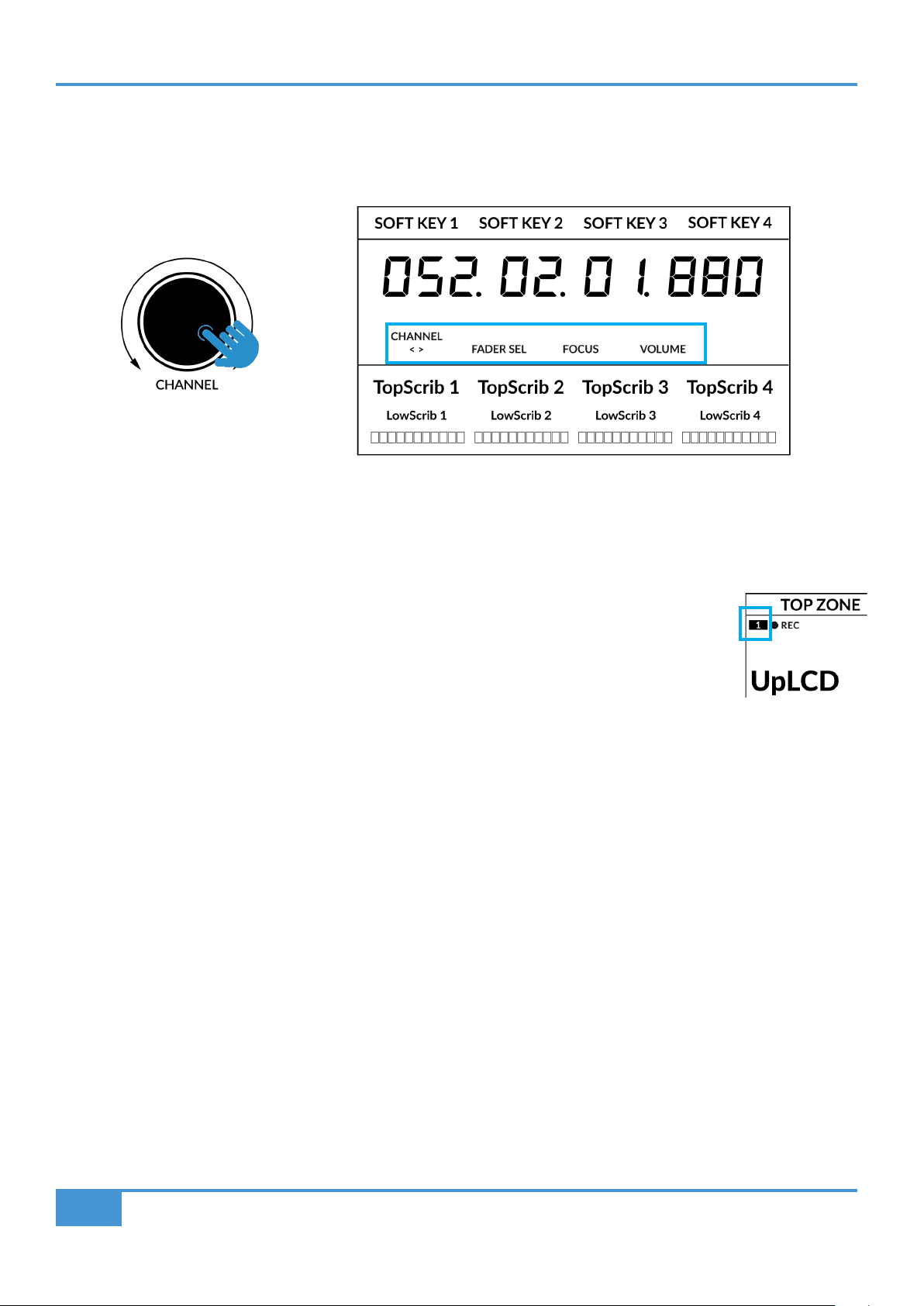
Live Tutorial
74
SSL UF1 User Guide
Channel Encoder
Pressing down on the CHANNEL encoder, the large LCD will change to display the available CHANNEL encoder modes. Turn
the encoder to highlight the desired mode and press down again to select the mode.
< >
By default, the CHANNEL encoder is used to move your DAW tracks across the UF1 surface, in increments of one channel at a
time.
Fader Sel
Allows you to change the number of the track within the current controller bank that UF1 is focused on.
UF1 defaults to the first channel (i.e. fader '1') within the bank and this is shown in the top corner of the
UF1 small display. You may need to change this to access tracks at the end of the mixer, when the bank
of 8 faders UF1 is controlling butts up against the end of the session. It is also useful for accessing all
your Return Tracks in live. Return Tracks are accessed by pressing the Returns Tracks command that
is preassigned to Quick Key 2.
Focus
Emulates the scroll function of a mouse. This can be a really nice way of controlling plug-ins or anything
else on screen that responds to a mouse scroll operation. Simply open a plug-in GUI, hover your
computer mouse over a control and turn the encoder for hands-on control.
Volume
The CHANNEL encoder controls the system volume level, if the audio device you are using can be controlled by the operating
system's volume up/down. For example, if you're on the road with your headphones plugged into the computer's built-in audio
output.
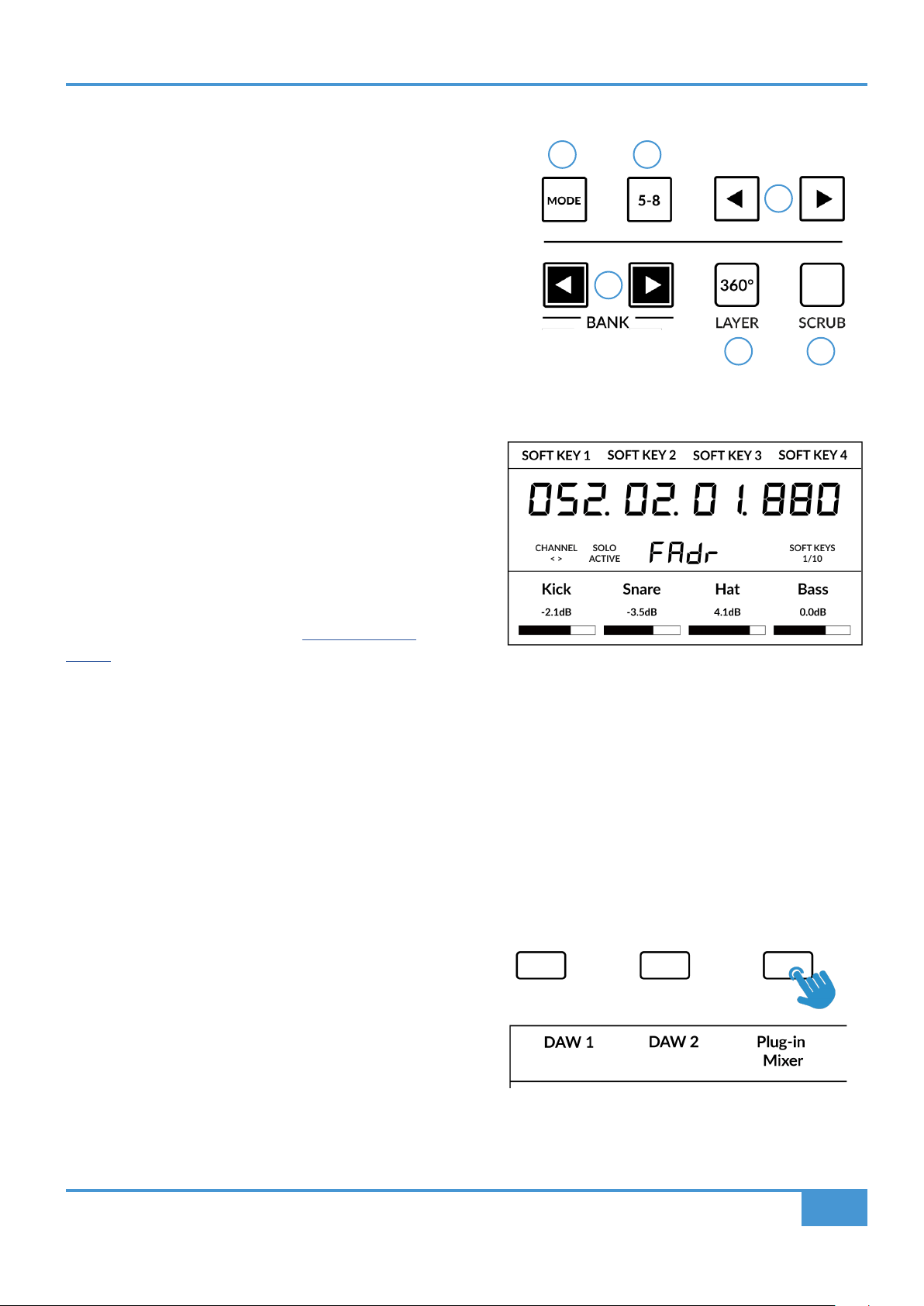
Live Tutorial
75
SSL UF1 User Guide
CENTRE KEYS
MODE (Button 1)
The MODE key determines the operation of the large screen and its
4 associated V-Pots. Pressing the MODE key toggle you through the
different options. Holding down the MODE button allows direct access
to each mode via the soft keys at the top of the large LCD. Each mode
is colour coded:
General DAW (white)
The 4 x V-Pots beneath the large display control various parameters such
as pans, sends, plug-ins etc depending on the current V-Pot assignment
mode.
DAW Faders (green) - "FAdr"
The V-Pots control the fader levels across 4 tracks in the
current controller bank. The level is represented by both
a dB text readout and the V-Pot readout bar.
Meter Plug-in (yellow)
The V-Pots and soft keys directly control the SSL Meter
plug-in, via SSL 360°. Because this mode is the same
across all DAWs, please refer to the SSL Meter control
section at the end of this user guide for more information.
5-8 Key (Button 2)
Assigns the V-Pots to control tracks 5-8 of the current
controller bank.
Soft Key Page Banks (3)
Allows you to move through various pages of parameters that are assigned to the soft keys.
Bank Keys (Button 4)
The bank keys move the fader selection in multiples of 8, with
the 1st channel of the 8 appearing on both the Main Fader and
the 1st of the channels to appear across the 4 V-Pots unless
5-8 is selected.
360° / LAYER selection Key (Button 5)
A short press of the 360° button opens and closes the SSL
360° application, allowing access to edit settings & assignable
keys on the UF1 & all other SSL 360° powered devices. A
long press and hold of the 360° button, in conjunction with a
press of the relevant top-row soft key allows you to switch to a
different DAW or Plug-in Mixer Layer.
Above shows the DAW Faders "FAdr" mode has been
selected. The V-Pots beneath the large screen control
DAW fader levels.
Press and hold the 360° button and whilst keeping
it held down, you can switch to a different Layer by
pressing the relevant top-row soft key.
1 2
3
4
65
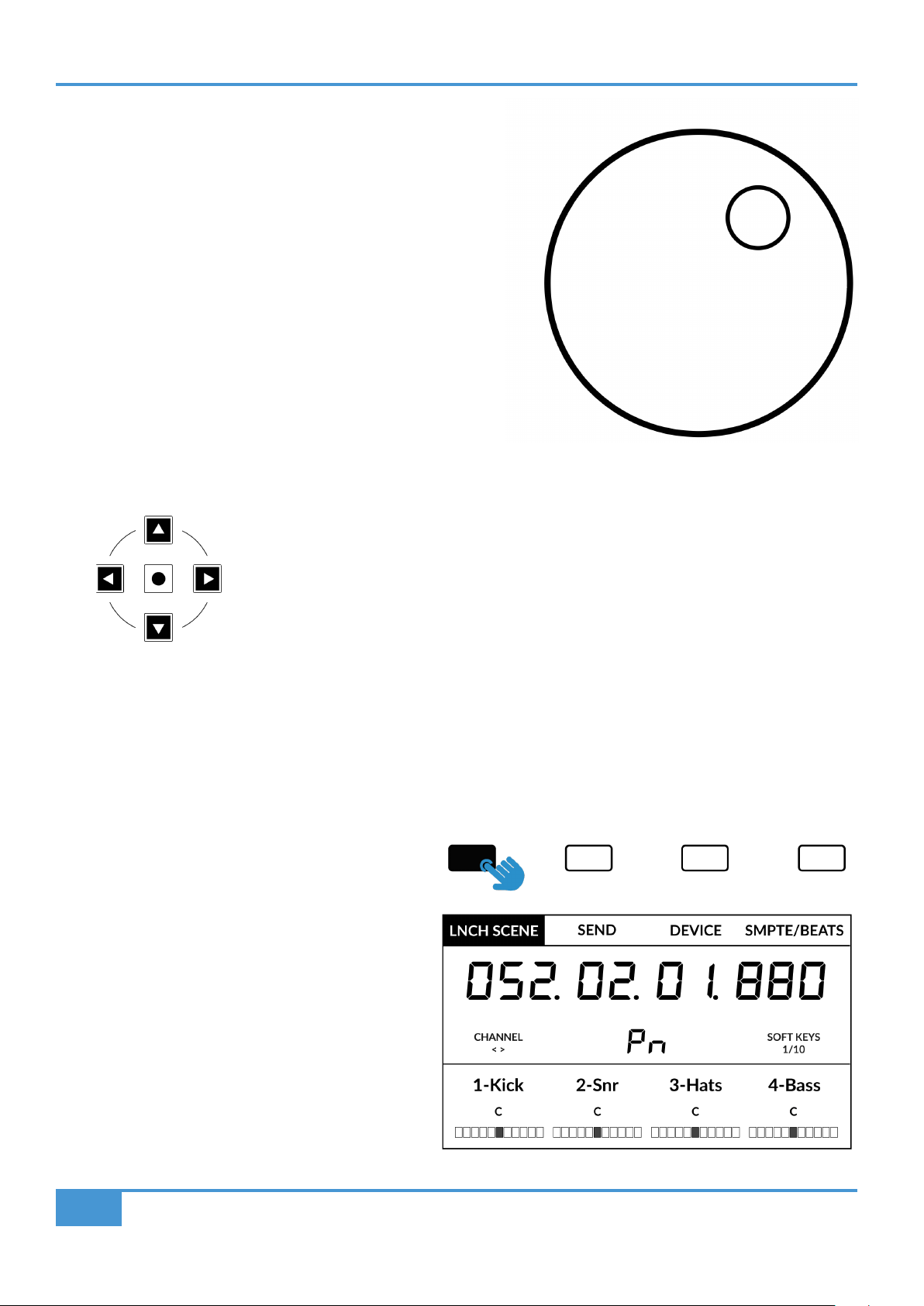
Live Tutorial
76
SSL UF1 User Guide
SCRUB Key (Button 6)
The SCRUB key has no function in Live and is therefore disabled.
Jog Wheel (7)
The jog wheel is used to scroll through the session timeline when in
Arrangement View. By simply moving the Jog Wheel, the playhead will
move through the timeline forward by moving the Jog wheel clockwise &
backwards in an anticlockwise movement. In session view the jog wheel
moves the highlighted scene
Cursor Keys and Mode Key (Launching Clips and Zooming)
To the left of the jog wheel you will find the Cursor keys, with the Mode key in the centre. The
function of these keys depends on the current view in Live.
Session View
When working in Session View, the cursor keys allow you to navigate up, down, left and right to
highlight the clip you want to launch and the Mode key in the middle allows you to launch clips.
Arrangement View
When the Mode key is lit the left and right cursor keys perform horizontal zooming in/out and the up and down cursor keys increase/
decrease the track height of the currently selected track. Pressing the Mode key again, the up and down cursor keys change the
selected track and the left and right cursor keys move the cursor left/right.
Launch Scenes
The Soft key labelled LNCH SCENE (Soft Key Page 1) is
programmed to execute the Launch Scene function in Live.
Simply use the cursor keys to navigate to the scene you
want and press the LNCH SCENE key to launch the scene.

Live Tutorial
77
SSL UF1 User Guide
Transport Controls
UF1 features dedicated transport keys section across the bottom, with the secondary transport keys laid out above. The secondary
transport keys come preassigned to commonly used DAW functions like loop on/off and click on/off. The secondary transport keys
are re-assignable via the 360° software application. There is also a shift key, which normally re-purposes the secondary transport
keys with DAW automation modes but this does not apply for Live.
Transport Keys
The primary transport keys allow convenient access to the main transport commands within the DAW. From left to right: Rewind
Forward, Stop, Play & Record.
Secondary Transport Keys
The secondary transport controls allow quick access to some other frequently used features within the DAW. These keys can be
reassigned via SSL 360°. The default mapping is as follows: Previous Page (Previous Parameter Page when controlling Devices/
Plug-ins), Next Page (Next Parameter Page when controlling Devices/Plug-ins), Loop on/off, an Unassigned key and two quick
keys. In Live, Quick Key 1 is the Back To Arrangement key and Quick Key 2 switches UF1 to control Live's Return Tracks.
Why not use Live's shortcut key mapping tool to assign a keyboard command to Live's metronome and then map
this keyboard shortcut to the unassigned metronome key on UF1.
Shifted Functions of the Secondary Transport Keys - Automation Modes
You will notice that there are additional labels beneath the Secondary Transport keys. These functions normally relate to a DAW's
automation modes but this is not applicable for Live.
RecordPlayStopForwardRewind
LoopNext PagePrevious Page
Quick Key 2
Unassigned BTA Return Tracks
Quick Key 1
Shift Key
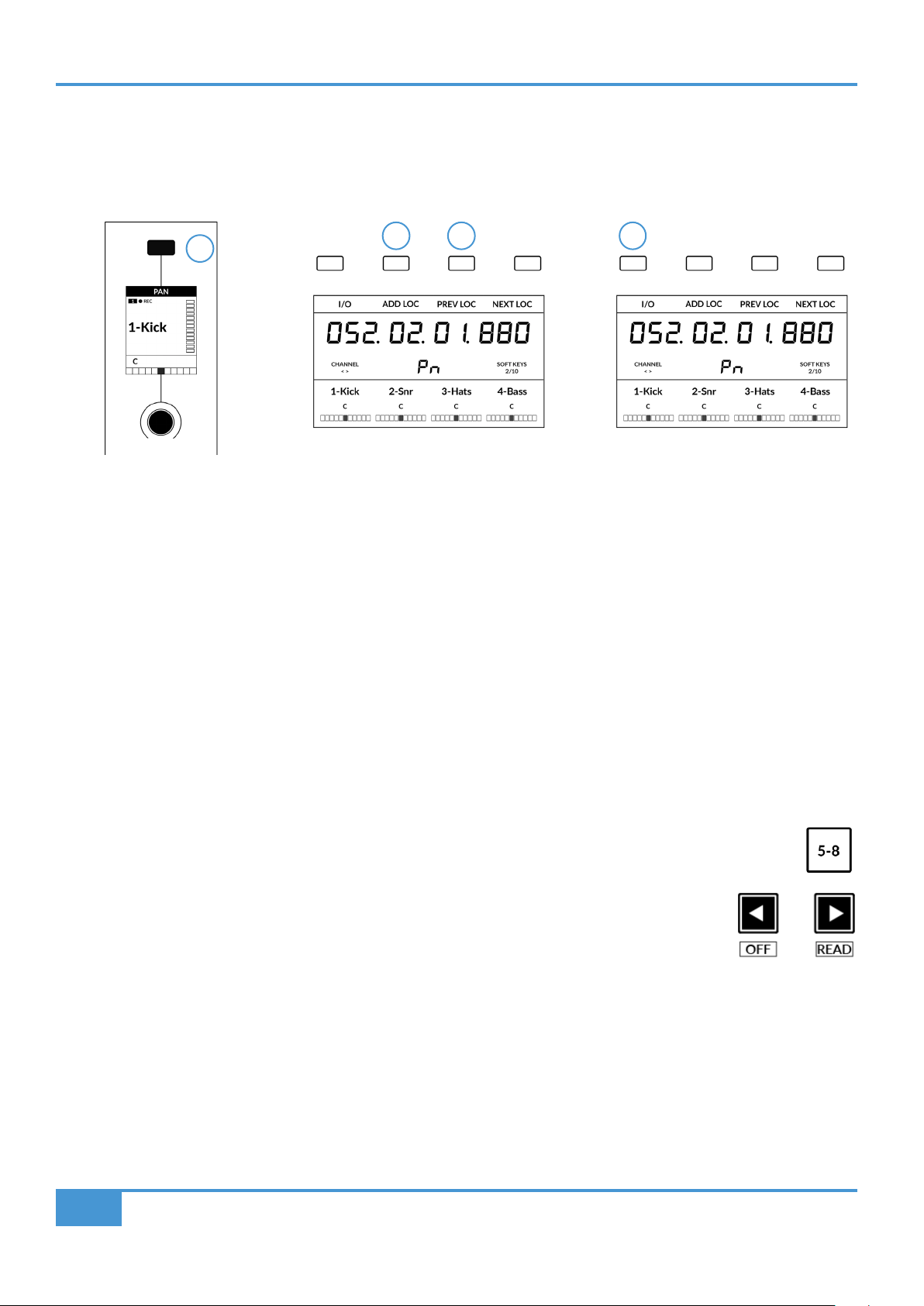
Live Tutorial
78
SSL UF1 User Guide
V-Pot Assignment Modes
UF1 offers direct access to Live's main Mackie Control V-Pot assignment modes. These V-Pot assignment modes are accessed
via the keys labelled below: 1. PAN, 2. SEND, 3. DEVICE (PLUG-IN), 4. I/O.
1 - PAN
Assigns the Pan controls to the V-Pots on UF1. Pushing a V-Pot will default it to the centre position.
2 - SEND
Assigns the Send controls for the currently selected track to the V-Pots on UF1. The 2 blue digits in the centre of the LCD inform
you the number of the selected track. Pushing a V-Pot will default the Send to off. Use the 5-8 key to access sends E to H on the
selected track.
3 - DEVICE (Plug-ins)
Live's own instruments and also third party audio plug-ins can be controlled directly from UF1. Once you have pressed the DEVICE
key to enter this mode, do the following:
• Select the track on which you want to control the plug-in.
• The name(s) of the plug-ins will appear in the LowLCD section of UF1.
• Push the V-Pot of the plug-in you wish to control.
• The parameters of the plug-in will be assigned across the V-Pots. Use a combination
of the 5-8 key and PAGE LEFT and PAGE RIGHT keys in the Secondary Transport
section to access all the parameters the device has.
• Once you have finished, press the DEVICE key again to return to viewing the names
of the plug-ins you have on the currently selected track.
4 - I/O
Allows you to set the I/O settings for each track on the V-Pots. Pressing the I/O key repeatedly will cycle through the following
options: Input Type, Input Source, Output Type and Output Destination.
2 43
The Pan Key is located on
the Soft Key above the Small
LCD
Send & Device (Plug-in) is available
on Soft Key Page 1
I/O is available on Soft Key Page 2.
Use the 5-8 key, in combination with
the PAGE LEFT and PAGE RIGHT
keys to access all the parameters.
1
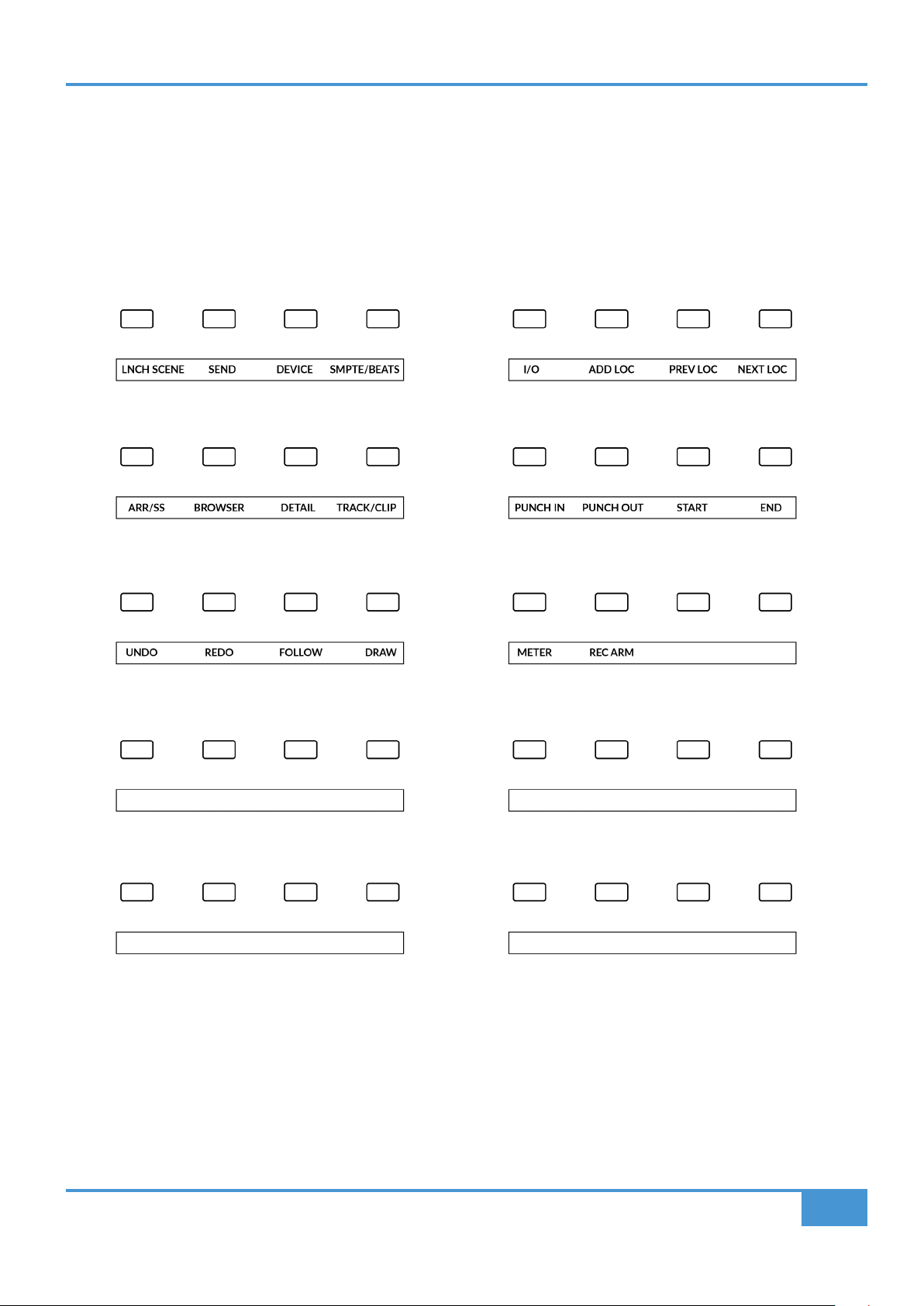
Live Tutorial
79
SSL UF1 User Guide
User Bank Pre-Assignments
Soft Key pages 1-10 allow you access to various DAW commands or keyboard shortcuts on the 4 soft keys along the top of UF1.
These can of course be changed to any of the available DAW commands or your own keyboard shortcut sequences in the UF1
page of SSL 360°. Use the Page < and > soft keys to move through the various pages The large screen on UF1 tells you which
page you are on.
Soft Key Page 1 Soft Key Page 2
Soft Key Page 3 Soft Key Page 4
Soft Key Page 5 Soft Key Page 6
Soft Key Page 7 (Unassigned) Soft Key Page 8 (Unassigned)
Soft Key Page 9 (Unassigned) Soft Key Page 10 (Unassigned)

Live Tutorial
80
SSL UF1 User Guide
Assignable DAW Commands List - Live
The following DAW commands are available in SSL 360° to assign to any of the user-assignable keys.
I/O
Pan
Page Left
Send
Device
Page Right
Flip
Return Tracks
Shift
Option
Control
Alt
Arr/SS (Arrangement/Session View Toggle)
Track/Clip
Browser
Detail
Undo
BTA (Back To Arrangement)
Draw
Redo
Add Locator
Follow
Previous Loc (Locator)
Next Loc (Locator)
Cycle
Punch In
Punch Out
Start
End
Rewind
Forward
Stop
Play
Record
Launch Clip
Launch Scene
Rec/Rdy
Meter Readout
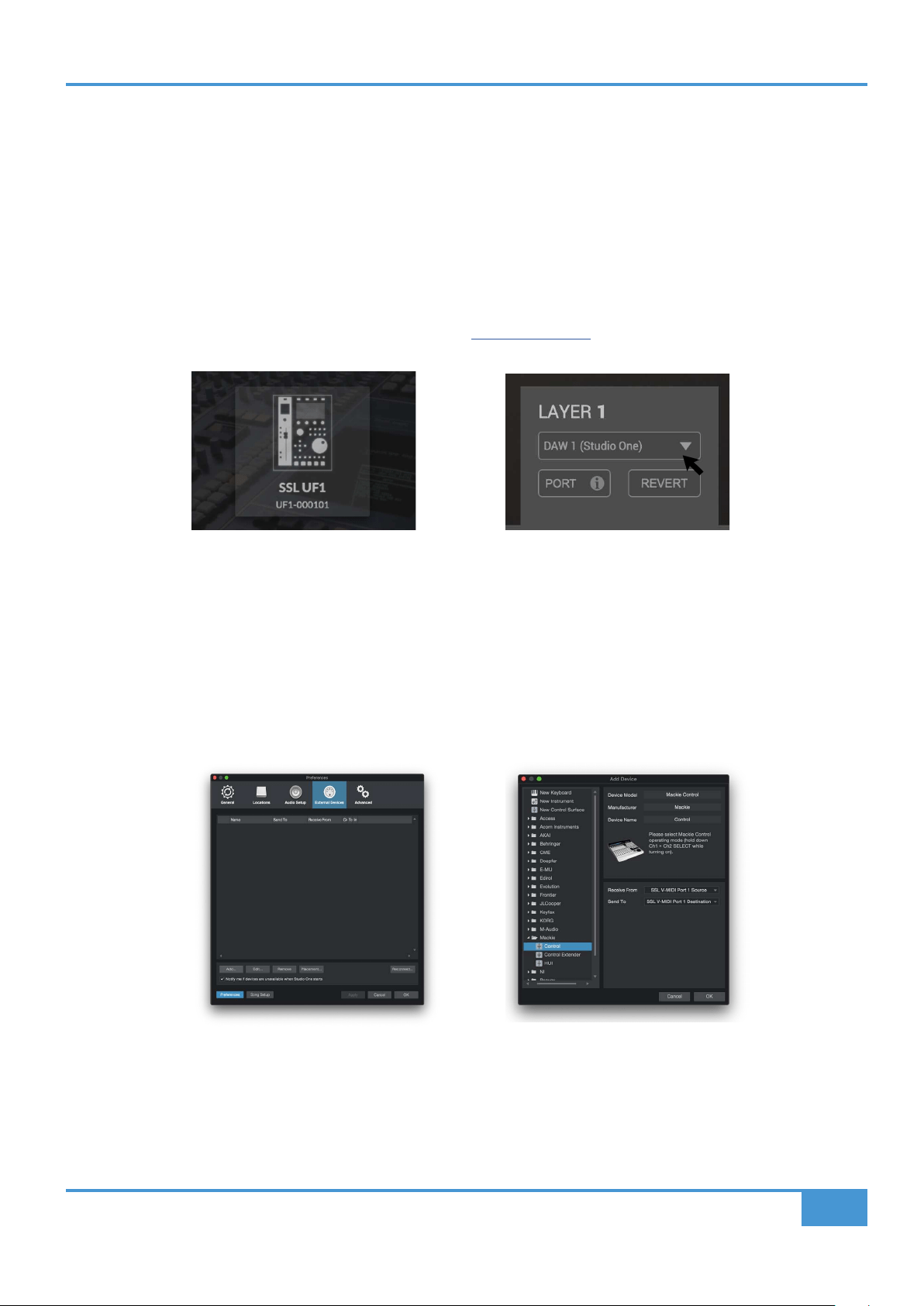
Studio One Tutorial
81
SSL UF1 User Guide
Studio One with UF1 - Tutorial
The following tutorial guides you through configuring and using the default Studio One profile on LAYER 1 of UF1. If you wish
to configure Live on a different layer, please refer to the DAW Communication section of this User Guide to ensure your DAW is
configured for the correct SSL V-MIDI ports.
SSL 360° Setup
1. Open the SSL 360° application on your Mac or Windows computer. Go to the HOME page and check that your UF1 has been
detected by SSL 360°.
2. Go to the UF1 page and set Layer 1 to Studio One using the drop-down list. If Studio One is not available from the drop-down
list it is because you have not configured it as DAW 1 on the CONTROL SETUP page - ensure you do this first.
Studio One Setup
3. Open Studio One. Go to Preferences > External Devices and click on the Add... button.
4. In the Add Device window, select Mackie Control and set Receive From to SSL V-MIDI Port 1 Source and set Send To to
SSL V-MIDI Port 1 Destination. Click OK.
STEP 3 : Go the Preferences menu
and click on the External Devices
tab.
STEP 4 : Add a Mackie Control and
congure for SSL V-MIDI Port 1 on
Receive From and Send To.
STEP 2 : Select the default Studio
One DAW prole from the UF1 page.
STEP 1 : Open SSL 360° application.
Check your UF1 has been detected
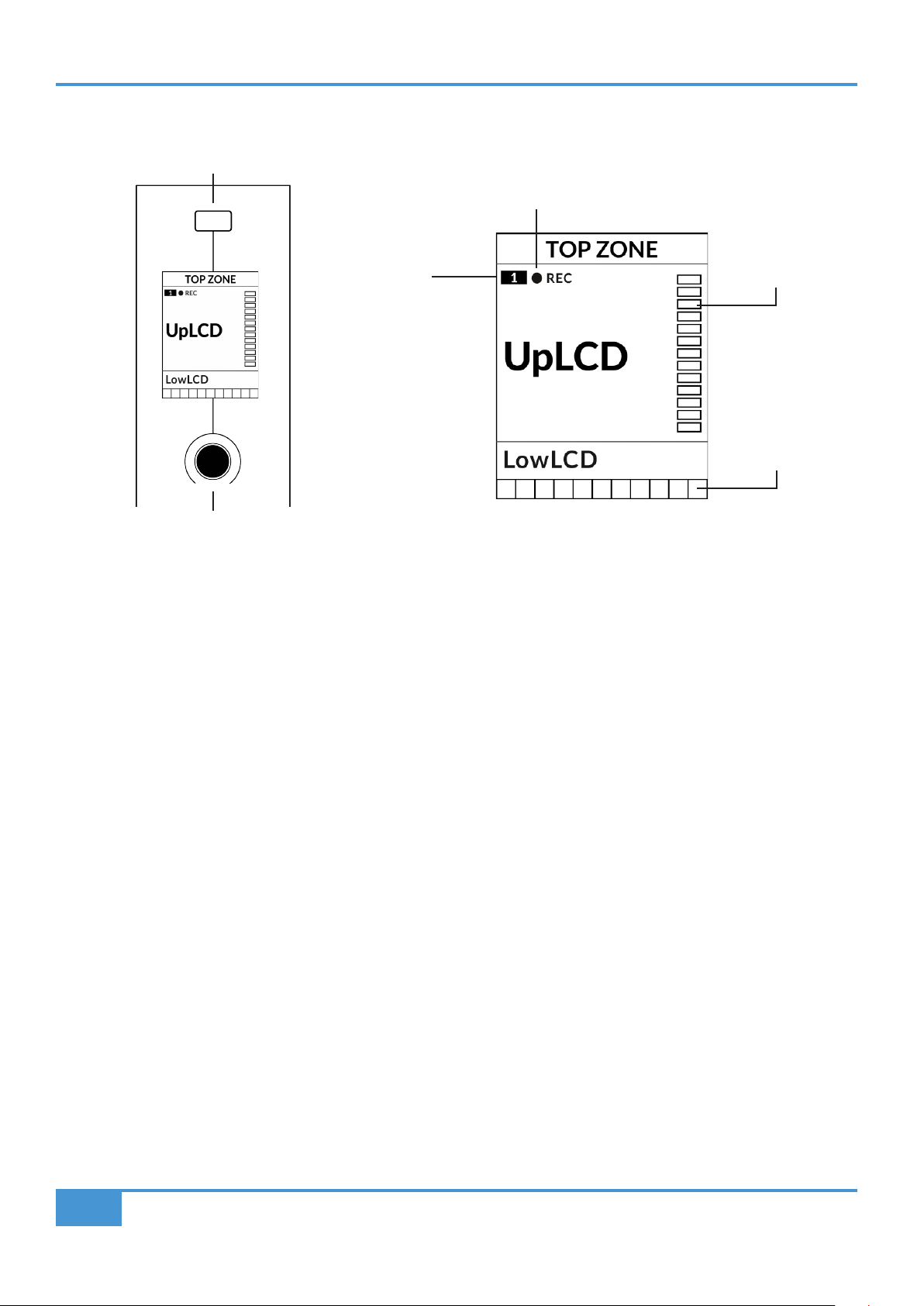
Studio One Tutorial
82
SSL UF1 User Guide
Small LCD Layout
Top Zone - Provides a label for the function assigned to the Soft Key button directly above.
Track Record-Enabled (REC) - In Studio One, the REC text appears when a track is record-enabled.
Fader Sel Indication - Displays the fader number within the current controller bank UF1 is focused on.
UpLCD - Displays the 6-character track name or parameter being controlled by the V-Pot, depending on the current mode.
LowLCD - Displays a fader value or value readout for the parameter currently assigned to the V-Pot, depending on the
current mode.
DAW Track Metering - 12-segment track metering + clip
V-Pot readout bar - Displays the position of the currently assigned V-Pot (encoder) function.
V-Pot
Readout Bar
DAW Track
Metering
Fader Sel
Indication
Track Record-Enabled
Soft Key
V-Pot Encoder
Enlarged view of LCD screen
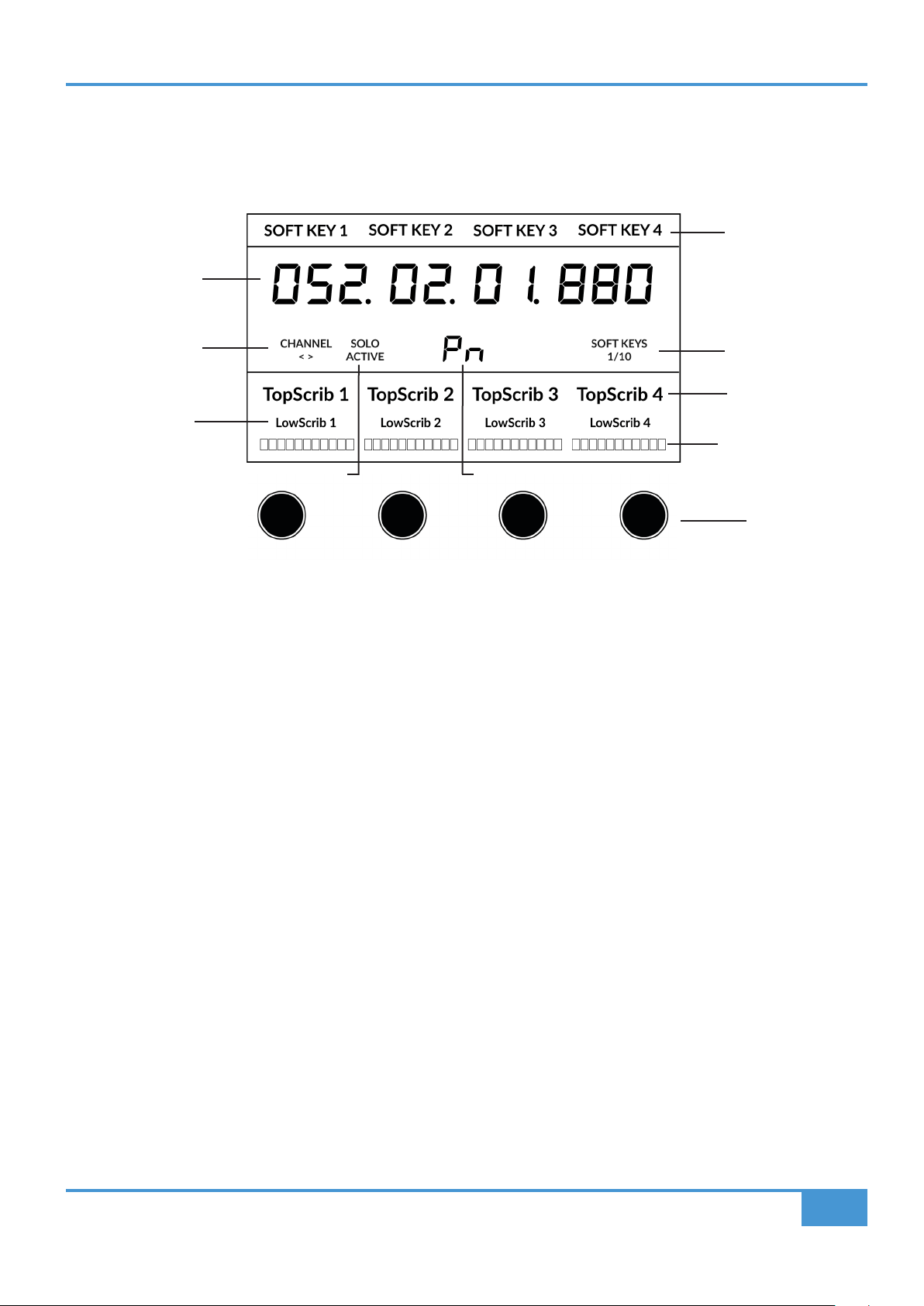
Studio One Tutorial
83
SSL UF1 User Guide
Large LCD Layout
Soft Key Labels - Labels for the functions assigned to the soft keys directly above.
Timecode - Shows the current timecode in Bars/Beats or SMPTE.
Channel Mode - Indicates the current CHANNEL encoder Mode.
Solo Active Indication - Indicates if there are any active solo'd tracks..
V-Pot Assignment Mode - Displays the current V-Pot Assignment Mode.
Soft Key Page - Displays the current Soft Keys page number
Top Scribble - Displays the 6-character track name for tracks 1-4 or 5-8 of the current controller bank.
Low Scribble - Displays a label or value readout for the parameter currently assigned to the V-Pot, or the fader dB
value if the V-Pot assignment mode is Pan.
V-Pot Readout Bar - Displays the position of the currently assigned V-Pot function.
V-Pots - 4 x V-Pots that control the assigned parameters.
Soft Key Labels
Soft Key Page
Top Scribble Strip
Channel Encoder
Mode
Timecode
V-Pot Assignment ModeSolo Active Indication
V-Pots
Low
Scribble Strip
V-Pot Readout
Bar
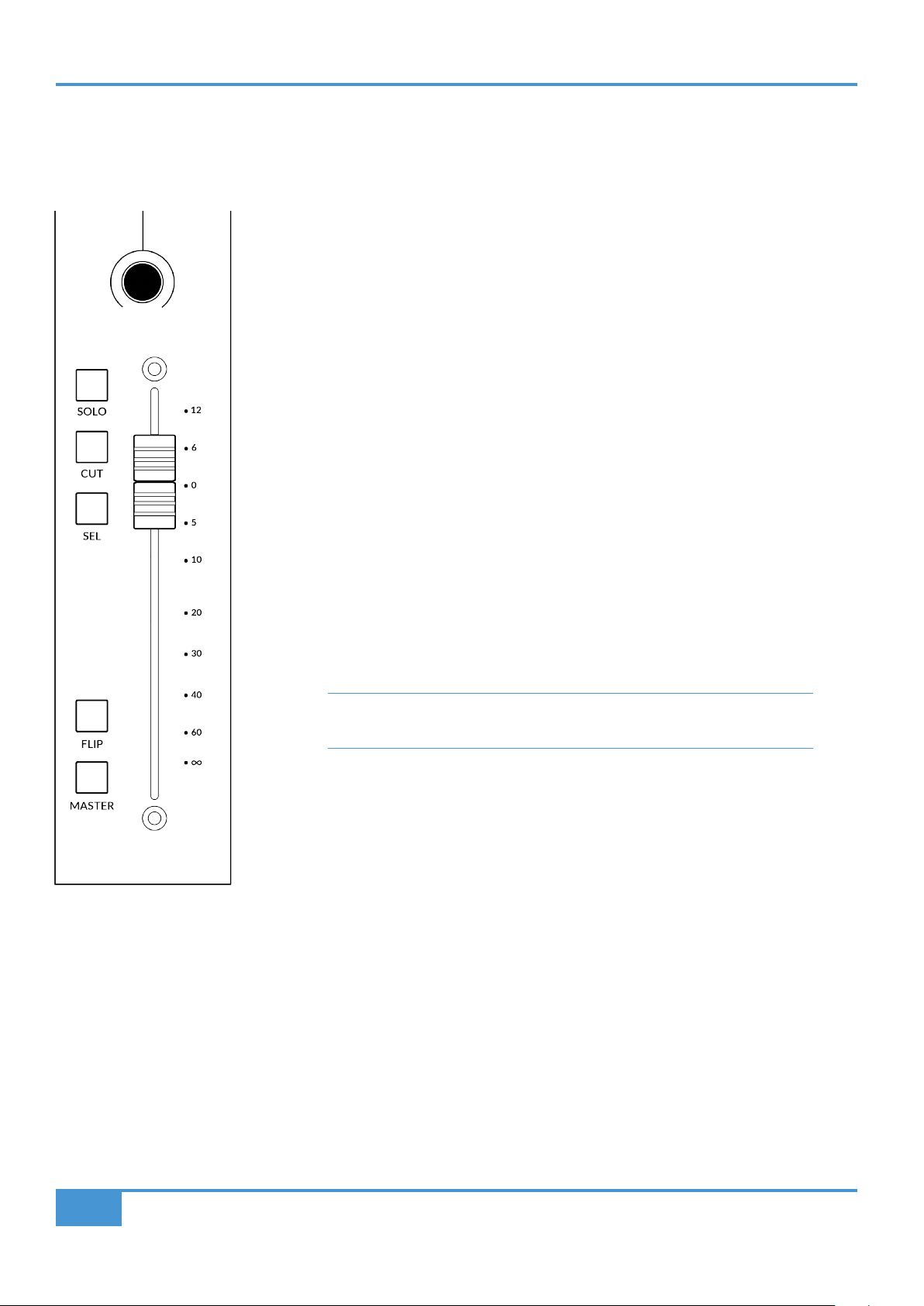
Studio One Tutorial
84
SSL UF1 User Guide
Tutorial
This section guides you through using UF1 with Studio One.
Before You Start...
The information in this Studio One Tutorial sets out the key features of using UF1 with Studio
One.
Any aspect not covered in this guide can be found in the "Studio One - Mackie Control
Support" document, available from the Presonus website.
V-Pot
At the top of the strip is the V-Pot (virtual pot). The function of the V-Pot varies, depending
on which V-Pot assignment mode is currently active but it is typically used for tasks such
as controlling Pan position, Send levels, Plug-in parameters or scrolling through parameter
options/lists.
The V-Pot has a push function, which is typically used for defaulting the position of the
parameter being controlled.
100 mm Motorised Fader
A motorised, touch-sensitive fader provide physical control of your Studio One tracks and is
great for balancing mix levels and riding volume automation.
When the V-Pots are controlling Pans, the LowLCD section displays a fader
dB readout.
Solo, Cut & Sel (Select)
The UF1 fader strip features SOLO, CUT and SEL keys corresponding to the solo, mute and
select features of the Studio One track.
Flip
Pressing the FLIP key switches the functions of the V-Pots and faders. This is useful for various
reasons, including tasks such as controlling Send levels on the fader instead of the V-Pots.
Master
The Master Key enables the UF1 fader to control Studio One's Master Fader.
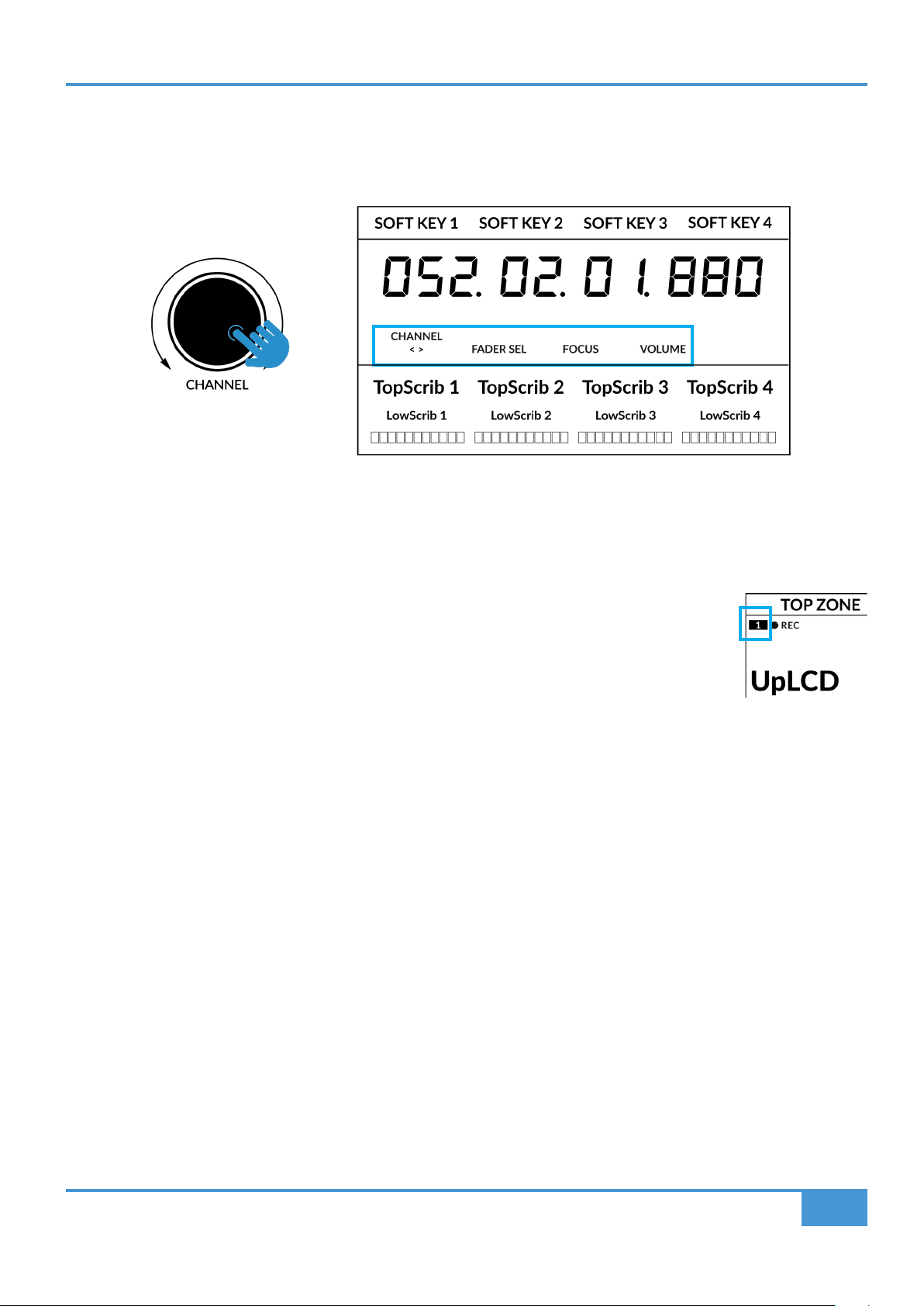
Studio One Tutorial
85
SSL UF1 User Guide
Channel Encoder
Pressing down on the CHANNEL encoder, the large LCD will change to display the available CHANNEL encoder modes. Turn
the encoder to highlight the desired mode and press down again to select the mode.
< >
By default, the CHANNEL encoder is used to move your DAW tracks across the UF1 surface, in increments of one channel at a
time.
Fader Sel
Allows you to change the number of the track within the current controller bank that UF1 is focused
on. UF1 defaults to the first channel (i.e. fader '1') within the bank and this is shown in the top corner
of the UF1 small display. You may need to change this to access tracks at the end of the mixer, when
the bank of 8 faders UF1 is controlling butts up against the end of the session.
Focus
Emulates the scroll function of a mouse. This can be a really nice way of controlling plug-ins or anything
else on screen that responds to a mouse scroll operation. Simply open a plug-in GUI, hover your
computer mouse over a control and turn the encoder for hands-on control.
Volume
The CHANNEL encoder controls the system volume level, if the audio device you are using can be controlled by the operating
system's volume up/down. For example, if you're on the road with your headphones plugged into the computer's built-in audio
output.
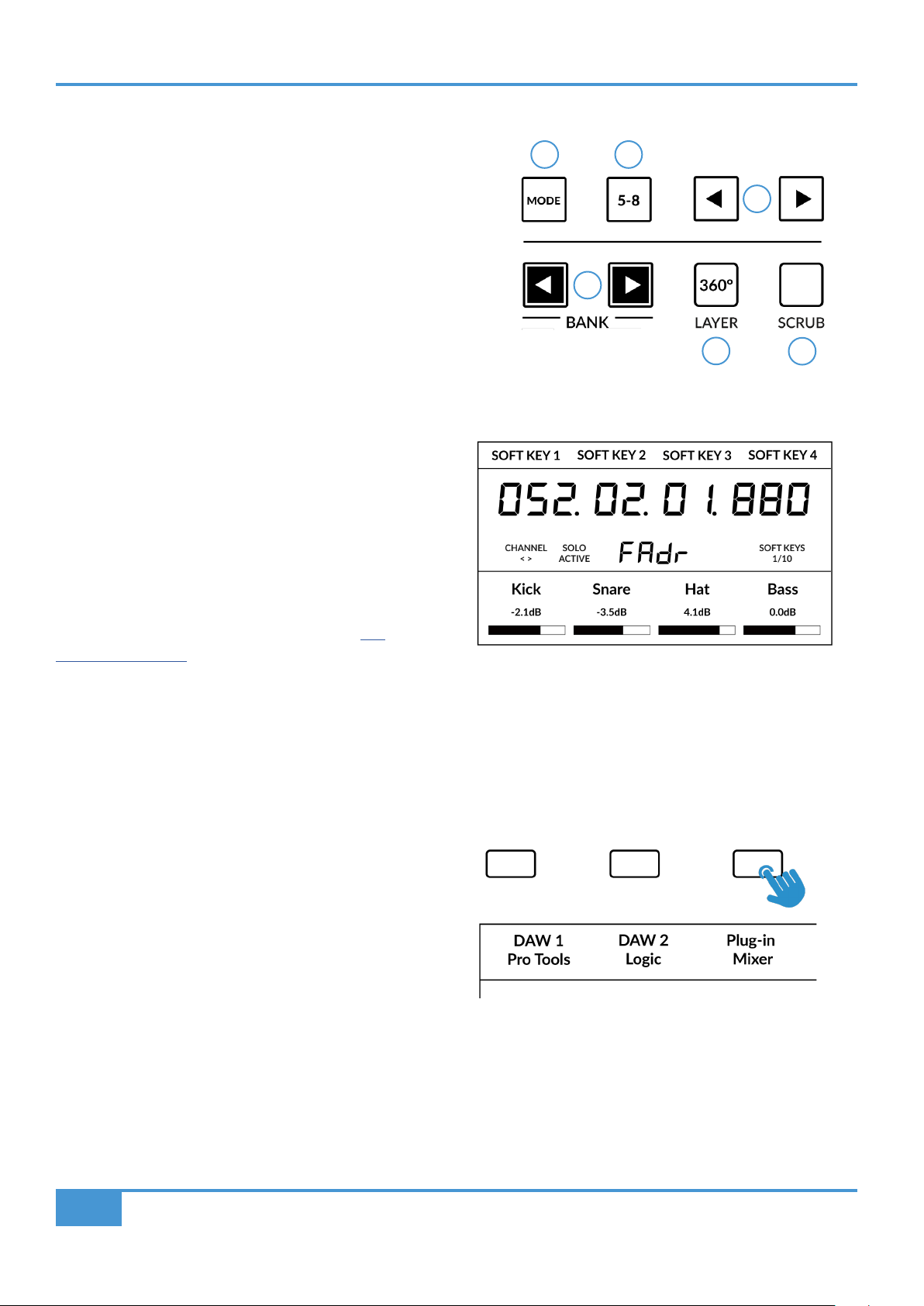
Studio One Tutorial
86
SSL UF1 User Guide
CENTRE KEYS
MODE (Button 1)
The MODE key determines the operation of the large screen and its
4 associated V-Pots. Pressing the MODE key toggle you through the
different options. Holding down the MODE button allows direct access
to each mode via the soft keys at the top of the large LCD. Each mode
is colour coded:
General DAW (white)
The 4 x V-Pots beneath the large display control various parameters
such as pans, sends, plug-ins etc depending on the current V-Pot
assignment mode.
DAW Faders (green) - "FAdr"
The V-Pots control the fader levels across 4 tracks in
the current controller bank. The level is represented
by both a dB text readout and the V-Pot readout bar.
Meter Plug-in (yellow)
The V-Pots and soft keys directly control the SSL
Meter plug-in, via SSL 360°. Because this mode is
the same across all DAWs, please refer to the SSL
Meter control section at the end of this user guide for
more information.
5-8 Key (Button 2)
Assigns the V-Pots to control tracks 5-8 of the current
controller bank.
Soft Key Page Banks (3)
Allows you to move through various pages of parameters
that are assigned to the soft keys.
Bank Keys (Button 4)
The bank keys move the fader selection in multiples of 8,
with the 1st channel of the 8 appearing on both the Main
Fader and the 1st of the channels to appear across the 4
V-Pots unless 5-8 is selected.
360° / LAYER selection Key (Button 5)
A short press of the 360° button opens and closes the SSL 360° application, allowing access to edit settings & assignable keys on
the UF1 & all other SSL 360° powered devices. A long press and hold of the 360° button, in conjunction with a press of the relevant
top-row soft key allows you to switch to a different DAW or Plug-in Mixer Layer.
Above shows the DAW Faders "FAdr" mode has been
selected. The V-Pots beneath the large screen control
DAW fader levels.
1 2
3
4
6
5
Press and hold the 360° button and whilst keeping
it held down, you can switch to a different Layer by
pressing the relevant top-row soft key.

Studio One Tutorial
87
SSL UF1 User Guide
SCRUB Key (Button 6)
The SCRUB key has no function in Studio One and is therefore disabled.
Jog Wheel (7)
The jog wheel is used to scroll through the session timeline. By simply moving
the Jog Wheel, the playhead will move through the timeline forward by moving
the Jog wheel clockwise & backwards in an anticlockwise movement.
Cursor Keys and Mode Key
To the left of the jog wheel you will find the Cursor keys, with the Mode key in the centre.
When the Zoom key is lit the left and right cursor keys perform horizontal and vertical track
zooming.
Pressing the Zoom key again, the up and down cursor keys change the selected track and the
left and right cursor keys change the selected audio clip in the Arrangement View.
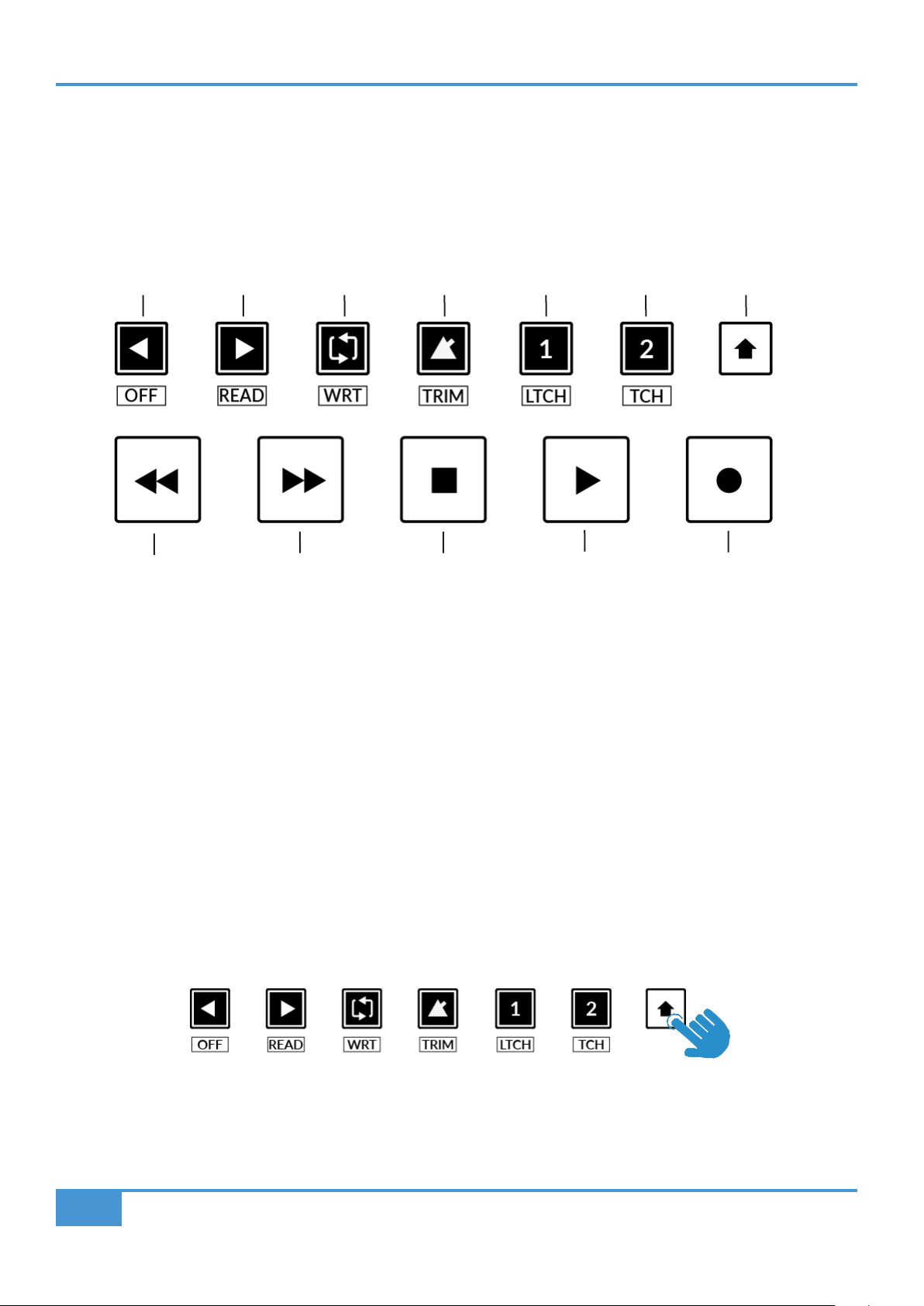
Studio One Tutorial
88
SSL UF1 User Guide
Transport Controls
UF1 features dedicated transport keys section across the bottom, with the secondary transport keys laid out above. The secondary
transport keys come preassigned to commonly used DAW functions like loop on/off and click on/off. The secondary transport keys
are re-assignable via the 360° software application. There is also a shift key, which re-purposes the secondary transport keys with
DAW automation modes.
Transport Keys
The primary transport keys allow convenient access to the main transport commands within the DAW. From left to right: Rewind
Forward, Stop, Play & Record.
Secondary Transport Keys
The secondary transport controls allow quick access to some other frequently used features within the DAW. These keys can be
reassigned via SSL 360°. The default mapping is as follows: Previous Device in the plug-in editor, Next Device in the plug-in editor,
Loop on/off, metronome/click on/off and two quick keys. In Studio One, Quick Key 1 is preset to Solo Clear and Quick Key 2 opens
the Channel Editor window.
Shifted Functions of the Secondary Transport Keys - Automation Modes
You will notice that there are additional labels beneath the Secondary Transport keys. These functions are accessed by pressing
the SHIFT button and provide access to the automation modes within Studio One.
RecordPlayStopForwardRewind
LoopNext DevicePrevious Device
Quick Key 2
Click Solo Clear Channel Editor
Quick Key 1
Shift Key
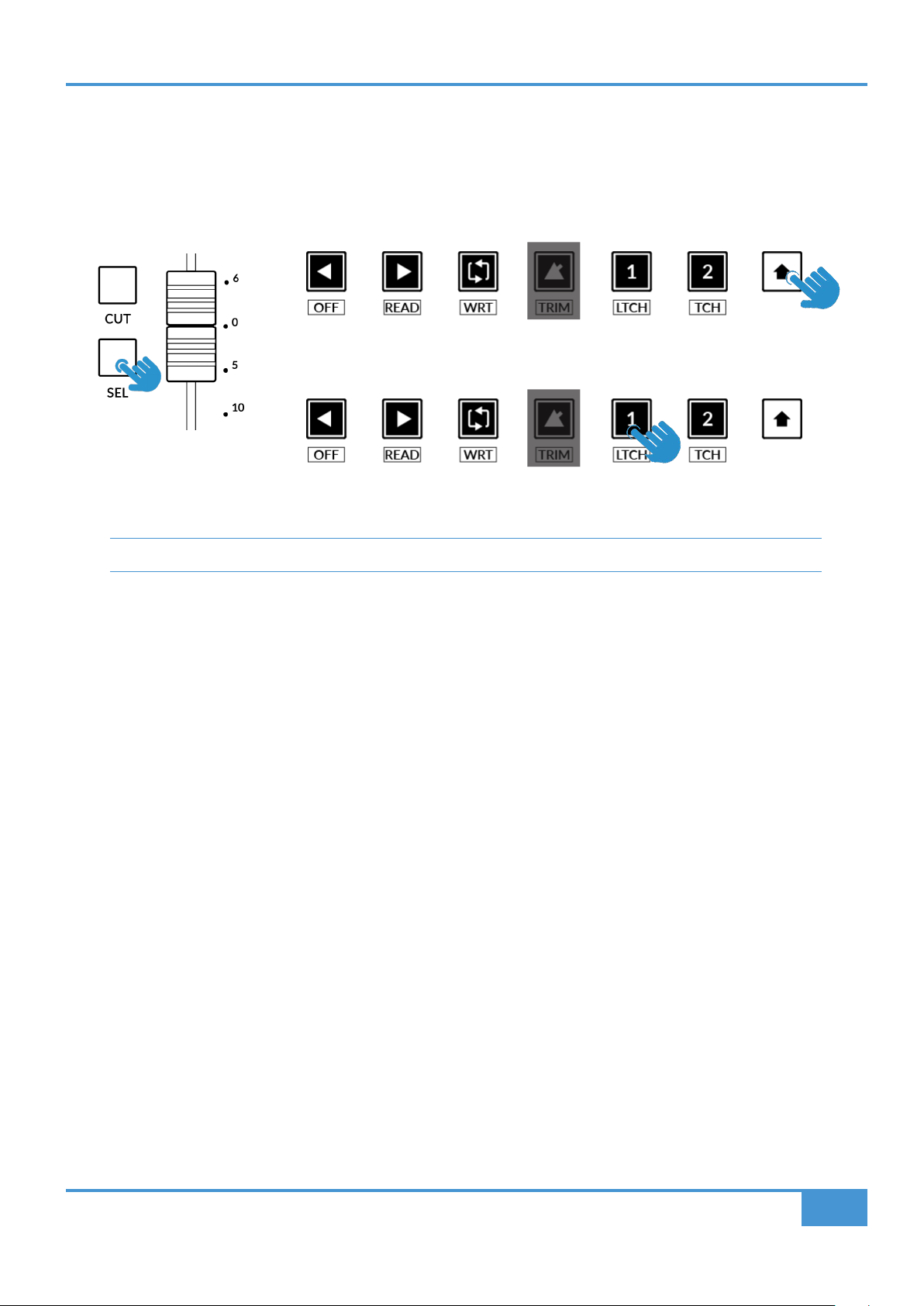
Studio One Tutorial
89
SSL UF1 User Guide
Automation
To select the automation mode for the DAW track shown on the UF1 fader, you will first need to press the SEL key. Next, engage
the SHIFT key to change the secondary transport keys to be automation keys. Finally, press the secondary transport key that
matches your desired automation mode.
TRIM automation mode is not applicable to Studio One and as such, the key is disabled.
STEP 1: Use the SEL key to
select the track.
STEP 3: press to select the automation mode you wish to set the track to.
STEP 2: Engage the SHIFT KEY to re-purpose the secondary transport keys to be
automation keys.
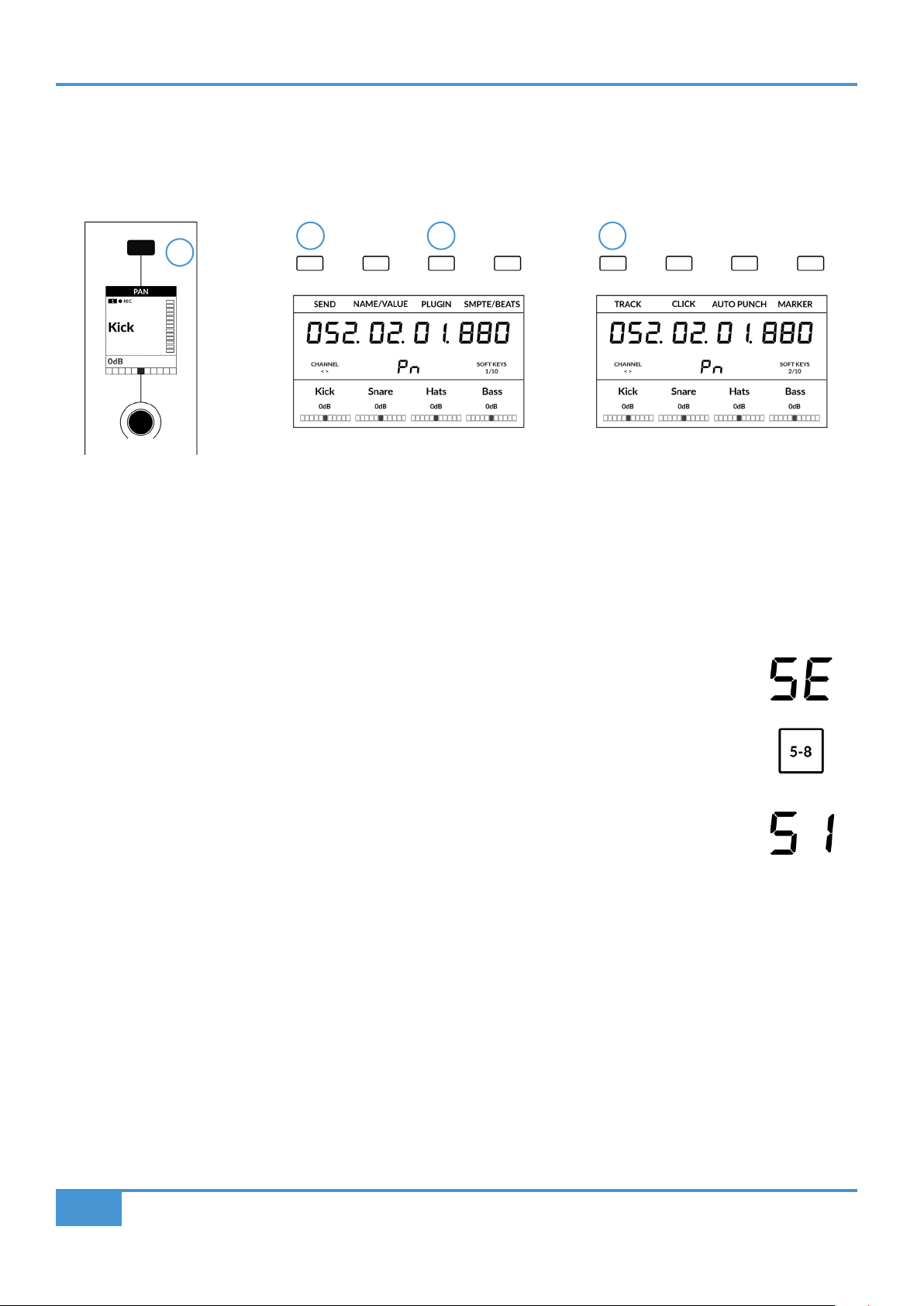
Studio One Tutorial
90
SSL UF1 User Guide
V-Pot Assignment Modes
UF1 offers direct access to Studio One's four main Mackie Control V-Pot assignment modes. These V-Pot assignment modes are
accessed via the keys labelled below: 1. PAN, 2. SEND, 3. PLUGIN and 5. TRACK.
1 - PAN
Assigns the Pan controls to the V-Pots on UF1. Pushing a V-Pot will default it to the centre position.
2 - SEND
Assigns the Send controls to the V-Pots. Pushing the V-Pot defaults the Send to 0 dB.
The first press of the SEND key will place the Sends of the selected track across the V-Pots and their values will
be displayed in the LowLCD zone. This send mode is indicated by SE in the 2-digit V-Pot assignment mode display
area. Use the 5-8 key to access sends 5-8 on the selected track.
Repeatedly pressing the SEND key will cycle the V-Pots through controlling a specific Send 'slot' across all tracks
at once. This send mode is indicated by S1, S2, S3, S4 etc in the 2-digit V-Pot assignment mode display area.
3 - PLUGIN
Set the V-Pots to 'Control Link' mode to control plug-ins but you must map your desired plug-in parameters first. See the next page.
4 - TRACK
The V-Pots allow you to control a number of functions of the selected track:
• V-Pot 1 - Bypass All FX Insert Slots
• V-Pot 2 - Monitor on/off
• V-Pot 3 - Input Source
• V-Pot 4 - Output Source
• V-Pot 5 - Send Slot 1 Bypass (5-8 key engaged to access)
• V-Pot 6 - Send Slot 2 Bypass (5-8 key engaged to access)
• V-Pot 7 - Send Slot 3 Bypass (5-8 key engaged to access)
• V-Pot 8 - Send Slot 4 Bypass (5-8 key engaged to access)
2 43
The Pan Key is located on
the Soft Key above the Small
LCD
Send & Plug-in is available on Soft
Key Page 1
Track is available on Soft Key Page 2
1
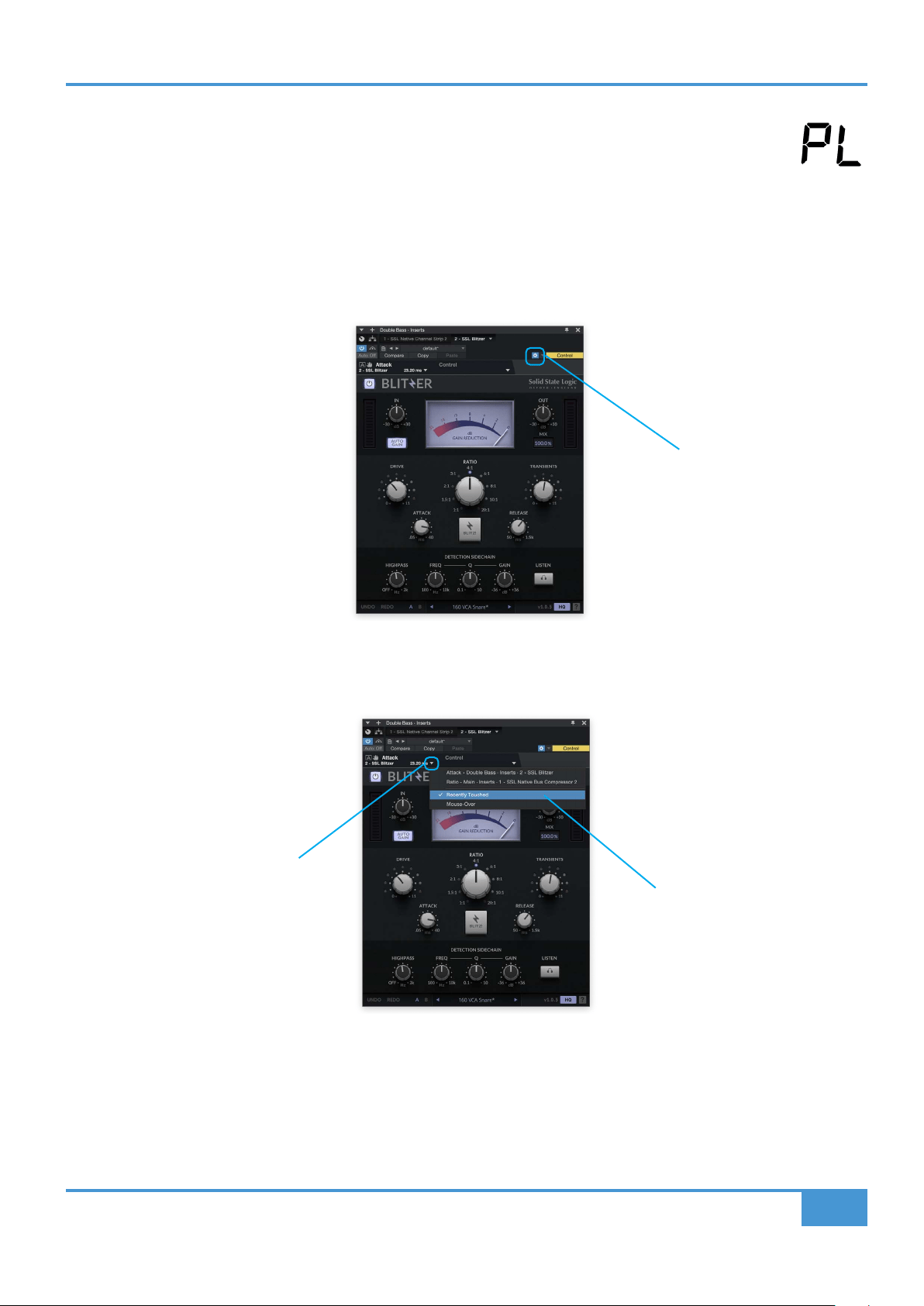
Studio One Tutorial
91
SSL UF1 User Guide
PLUG-IN mapping and control explained
Press the PLUGIN key to go into 'Control Link' Mode. The 2-digit V-Pot assignment mode reads PL.
In Studio One, you customise which plug-in parameters are controlled on the V-Pots of UF1 for each and every
plug-in you want to control. When you press the PLUGIN key for the first time, no plug-in parameters will be
available because you need to configure whilst in 'Control Link' Mode. We'll walk through the process in the
Setting Up Plug-In Control section.
1. Open up a plug-in you want to configure to be controlled by UF1's V-Pots and click the cog near the top-right.
2. Click the small down arrow near the top-left and make sure 'Recently Touched' is ticked from the drop-down list.
Click the cog
Click the down arrow
Tick 'Recently Touched'
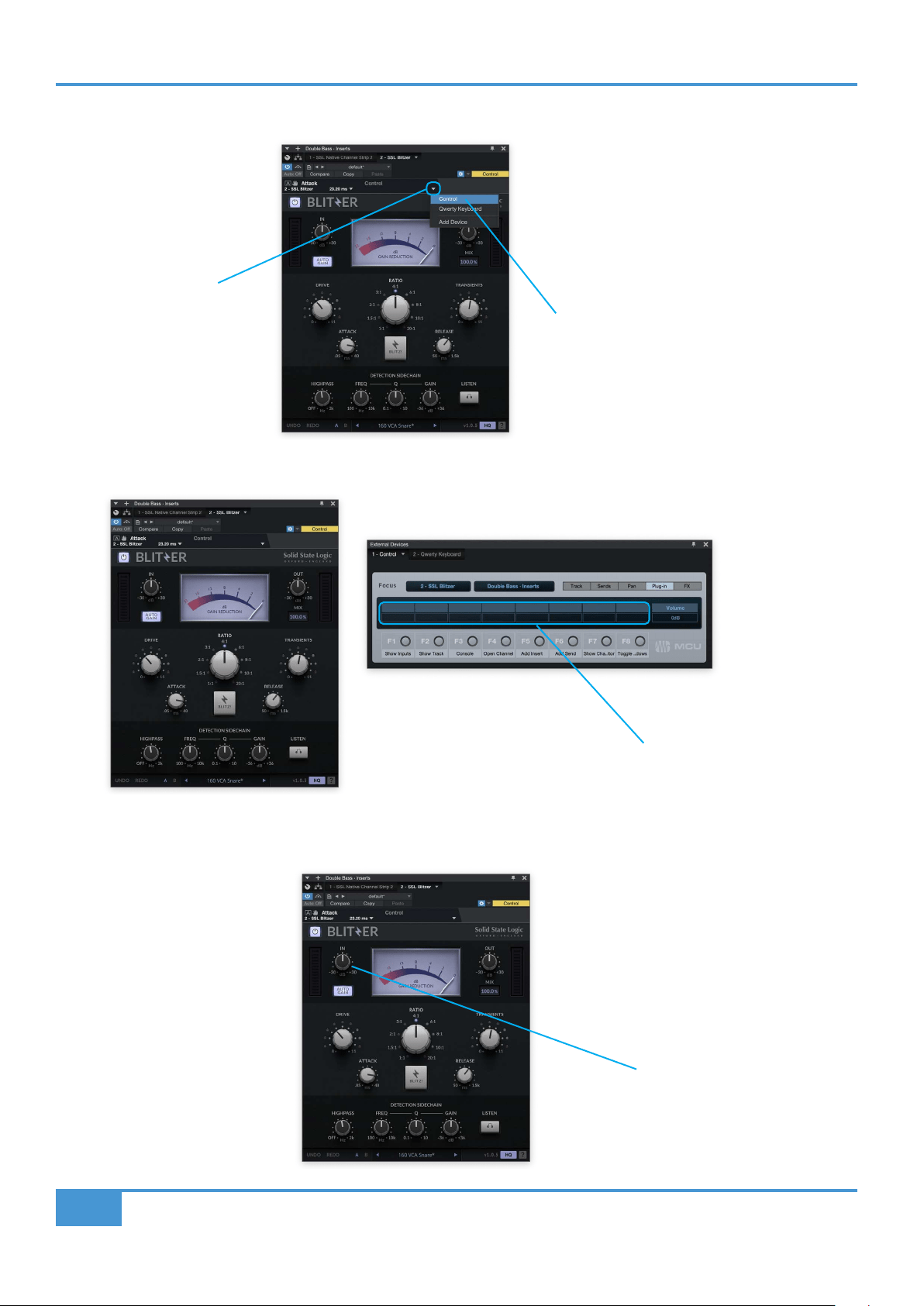
Studio One Tutorial
92
SSL UF1 User Guide
3. Click the small down arrow across to the right and select 'Control' from the drop-down list.
4. The External Devices Window will appear. Each blue block within the window represents a V-Pot.
5. With your mouse, adjust a plug-in parameter that you want to assign to one of the V-Pots.
Select 'Control'
Each block represents a V-Pot
Adjust a parameter - in this
example, we're moving the Input
Gain
Click the down arrow
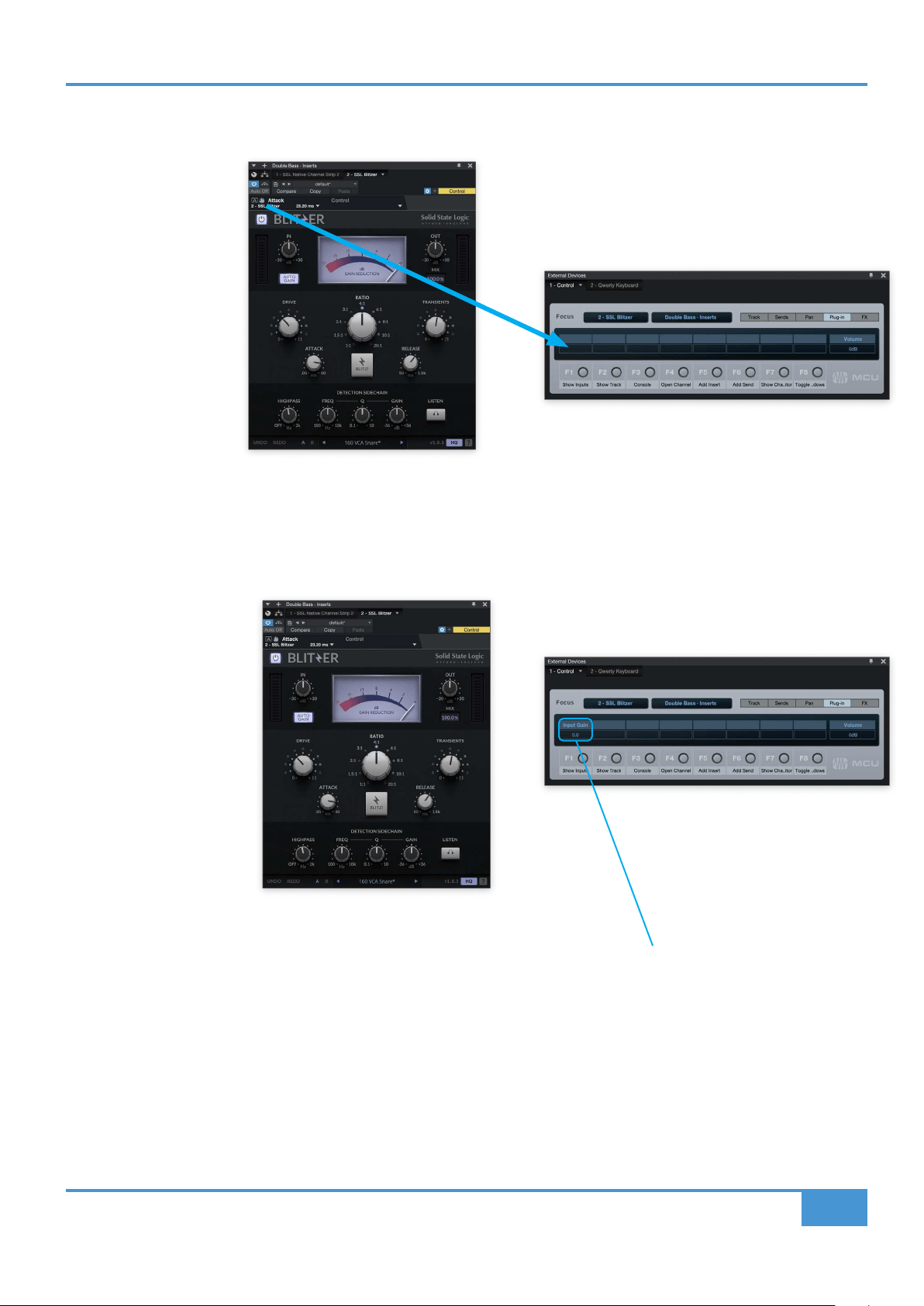
Studio One Tutorial
93
SSL UF1 User Guide
6. Click down on the small hand symbol and drag it across to one of the blocks in the External Devices window.
7. The control has been successfully assigned to the first V-Pot. Repeat the process with other parameters and other plug-ins as
you desire. Use the 5-8 key to access V-Pots 5-8.
Click and drag
from the small
hand symbol
into the External
Devices window
Successfully assigned control to V-Pot 1
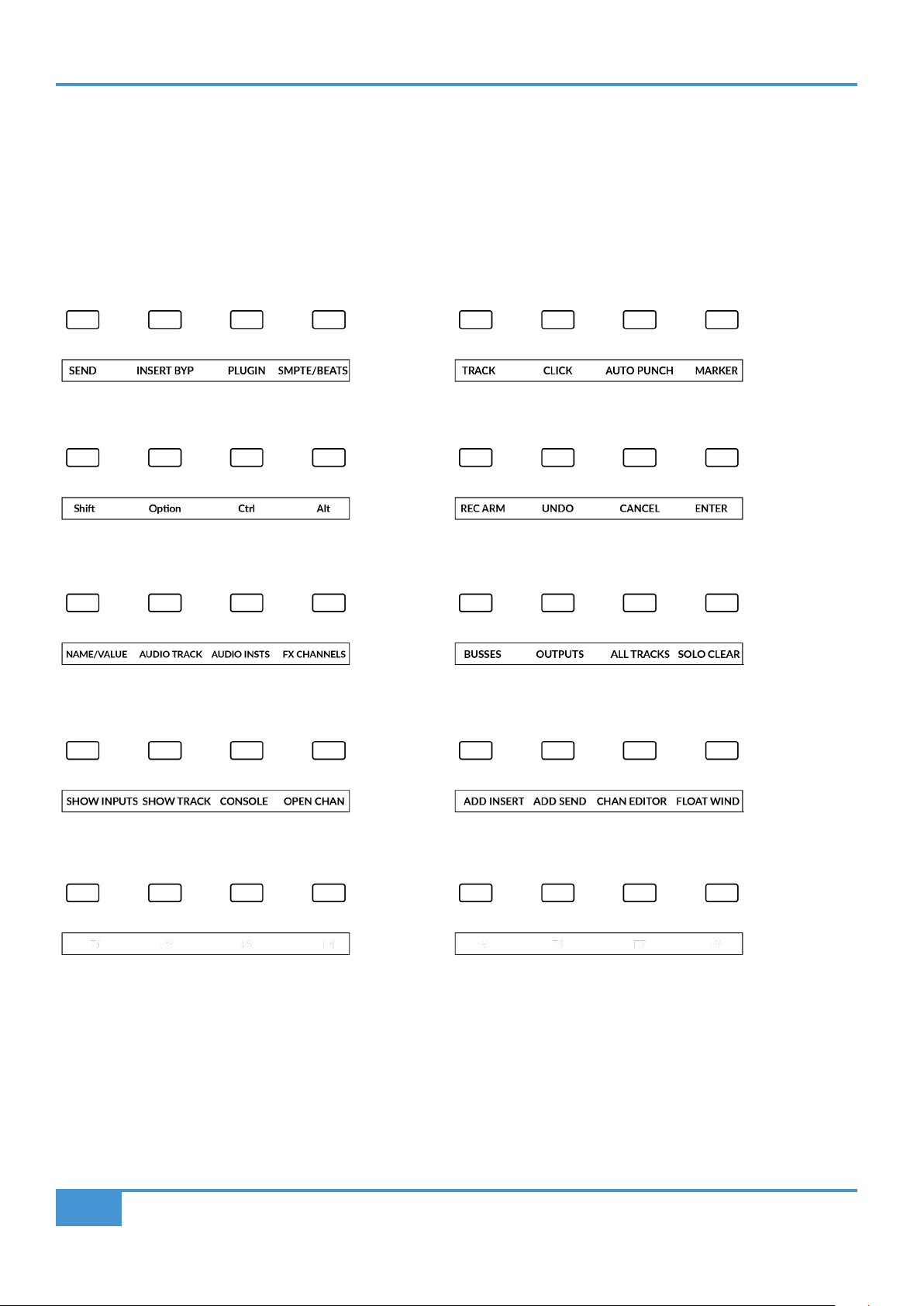
Studio One Tutorial
94
SSL UF1 User Guide
User Bank Pre-Assignments
Soft Key pages 1-10 allow you access to various DAW commands or keyboard shortcuts on the 4 soft keys along the top of UF1.
These can of course be changed to any of the available DAW commands or your own keyboard shortcut sequences in the UF1
page of SSL 360°. Use the Page < and > soft keys to move through the various pages The large screen on UF1 tells you which
page you are on.
Soft Key Page 1 Soft Key Page 2
Soft Key Page 3 Soft Key Page 4
Soft Key Page 5 Soft Key Page 6
Soft Key Page 7 Soft Key Page 8
Soft Key Page 9 (Unassigned) Soft Key Page 10 (Unassigned)
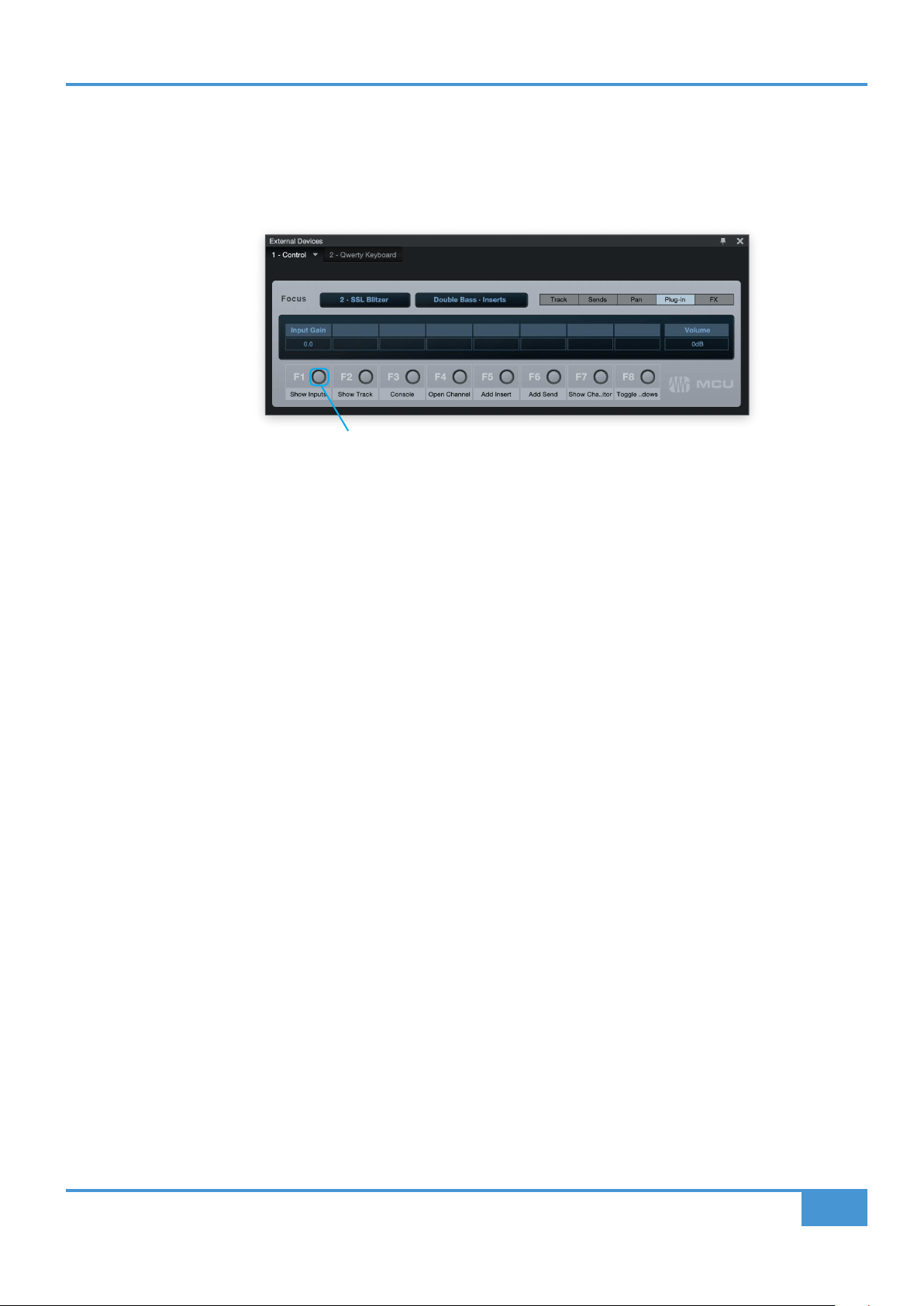
Studio One Tutorial
95
SSL UF1 User Guide
Function Select Keys 1-8 (F1 - F8)
User Bank 7 & 8 are preassigned to F keys 1-8. The functions of the F keys can be changed in Studio One in the External Devices
window (the same window used to assign plug-in parameters to V-Pots). If you have changed an F key away from its default
assignment, you can of course re-label the key in SSL 360° using the Short Label text entry box, so the correct function names
show on UF1's LCD.
Assignable DAW Commands List - Studio One
The following DAW commands are available in SSL 360° to assign to any of the user-assignable keys. Labels in brackets are added
to clarify what a command does when it may not be obvious according to the original Mackie Control label.
Right-click on the button and click 'Assign Command...' to change the function of any of the F keys.
Track
Pan Sur
EQ (Insert Bypass)
Send
Plugin
Flip
Global View
Name/Value
SMPTE/Beats
F1 (Show Inputs)
F2 (Show Track)
F3 (Console)
F4 (Open Channel)
F5 (Add Insert)
F6 (Add Send)
F7 (Show Channel Editor)
F8 (Toggle Floating Window)
Audio Tracks
Audio Instruments
Aux (FX Channels)
Busses
Outputs
User (Remote Banks)
Shift
Option
Control
Alt
Read/Off
Write
Touch
Latch
Save
Undo
Cancel
Enter
Marker
Cycle
Drop (Auto Punch)
Click
Solo (Clear)
Forward
Rewind
Stop
Play
Record
Play Foot-switch
Record Foot-switch
Rec/Rdy
Previous Device in Plug-In Editor
Next Device in Plug-In Editor
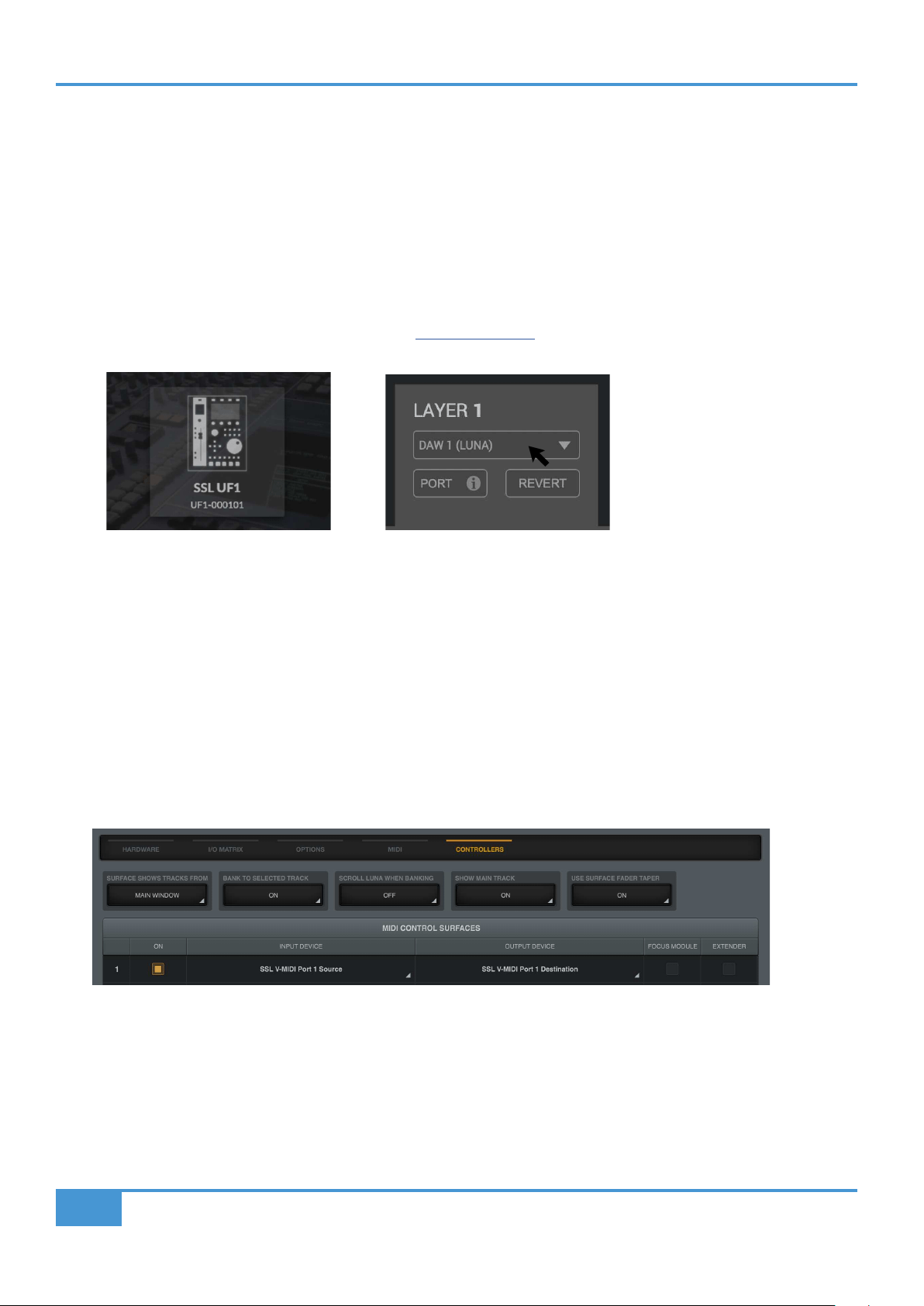
LUNA Tutorial
96
SSL UF1 User Guide
LUNA with UF1 - Tutorial
The following tutorial guides you through configuring and using the default LUNA profile on LAYER 1 of UF1. If you wish to configure
LUNA on a different layer, please refer to the DAW Communication section of this User Guide to ensure your DAW is configured
for the correct SSL V-MIDI ports..
SSL 360° Setup
1. Open the SSL 360° application on your computer. Go to the HOME page and check that your UF1 has been detected by SSL
360°.
2. Go to the UF1 page and set Layer 1 to LUNA using the drop-down list. If LUNA is not available from the drop-down list it is
because you have not configured it as DAW 1 on the CONTROL SETUP page - ensure you do this first.
LUNA Setup
3. Open the LUNA sidebar by clicking the UA diamond logo on the left of the screen, and clicking Settings, or choose LUNA >
Preferences from the app menu. Click Controllers.
4. In one of the MIDI Control Surface rows, click under Input Device and select SSL V-MIDI Port 1 Source and under Output
Device select SSL V-MIDI Port 1 Destination.
5. Select the box in the ON column to enable the control surface.
6. Configure LUNA's MCU options as you desire, such as SURFACE SHOWS TRACKS FROM, BANK TO SELECTED TRACK,
SCROLL LUNA WHEN BANKING etc.
STEP 1 : Open SSL 360° application.
Check your UF1 has been detected.
STEP 2 : Select the default LUNA
DAW prole from the UF1 page.
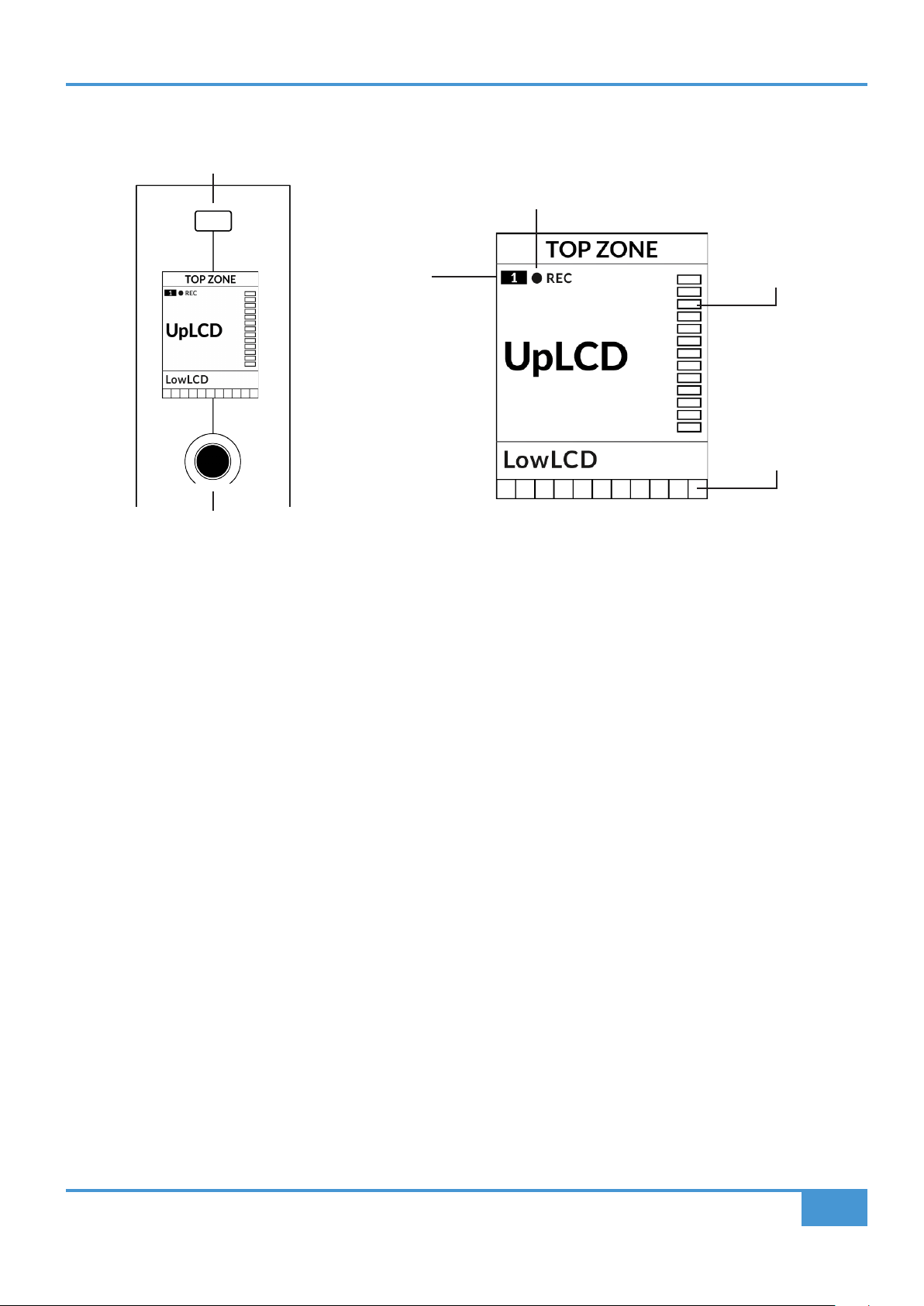
LUNA Tutorial
97
SSL UF1 User Guide
Small LCD Layout
Top Zone - Provides a label for the function assigned to the Soft Key button directly above.
Track Record-Enabled (REC) - In LUNA, the REC text appears when a track is record-enabled.
Fader Sel Indication - Displays the fader number within the current controller bank UF1 is focused on.
UpLCD - Displays the 7-character track name or parameter being controlled by the V-Pot, depending on the current mode.
LowLCD - Displays a value readout for the parameter currently assigned to the V-Pot, or, the fader gain if the fader is
moved.
DAW Track Metering - 12-segment track metering + clip
V-Pot readout bar - Displays the position of the currently assigned V-Pot (encoder) function.
V-Pot
Readout Bar
DAW Track
Metering
Fader Sel
Indication
Track Record-Enabled
Soft Key
V-Pot Encoder
Enlarged view of LCD screen
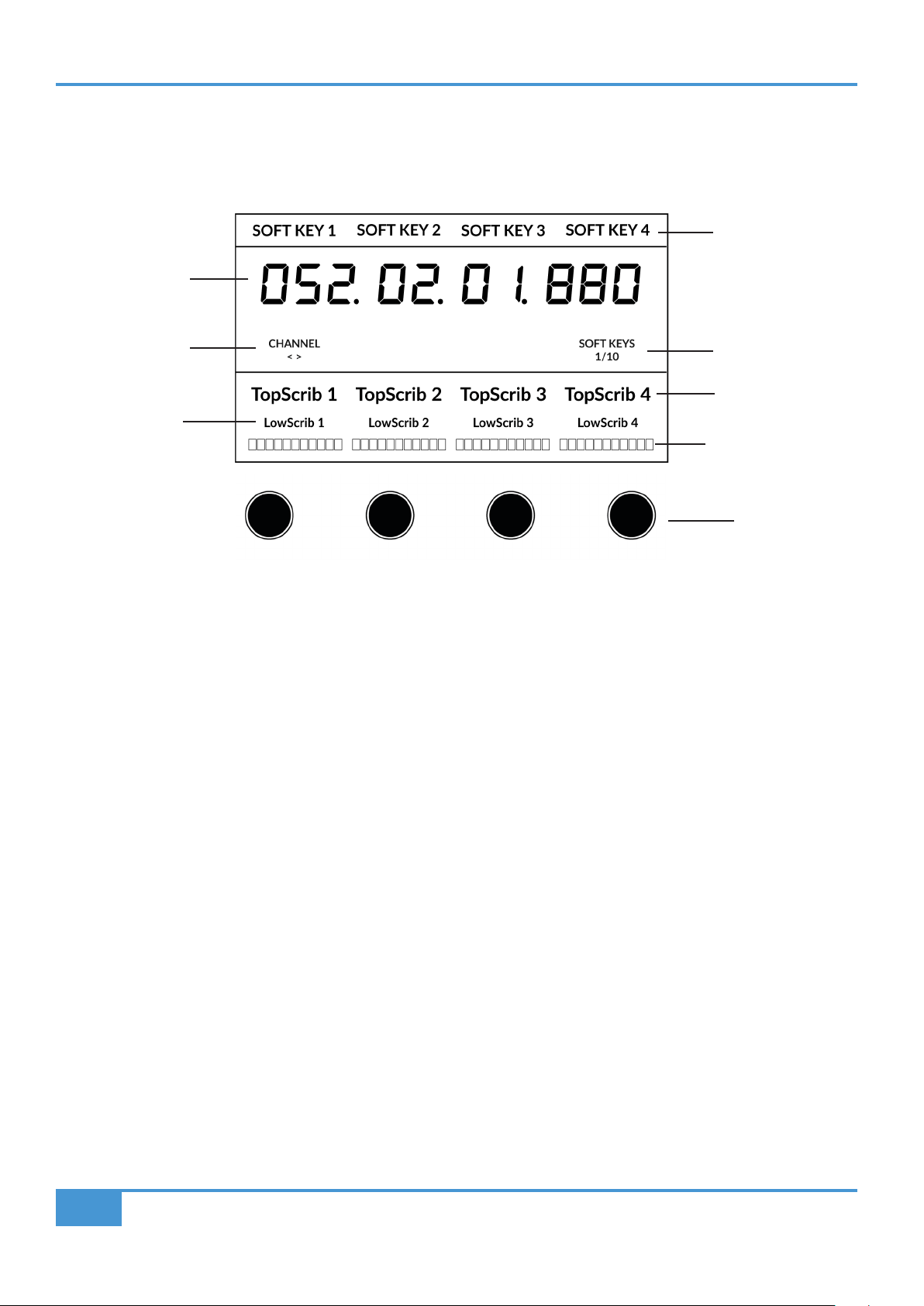
LUNA Tutorial
98
SSL UF1 User Guide
Large LCD Layout
Soft Key Labels - Labels for the functions assigned to the soft keys directly above.
Timecode - Shows the current timecode in Bars/Beats or SMPTE.
Channel Mode - Indicates the current CHANNEL encoder Mode.
Soft Key Page - Displays the current Soft Keys page number
Top Scribble - Displays the 7-character track name for tracks 1-4 or 5-8 of the current controller bank.
Low Scribble - Displays a value readout for the parameter currently assigned to the V-Pot.
V-Pot Readout Bar - Displays the position of the currently assigned V-Pot function.
V-Pots - 4 x V-Pots that control the assigned parameters.
Soft Key Labels
Soft Key Page
Top Scribble Strip
Channel Encoder
Mode
Timecode
V-Pots
Low
Scribble Strip
V-Pot Readout
Bar
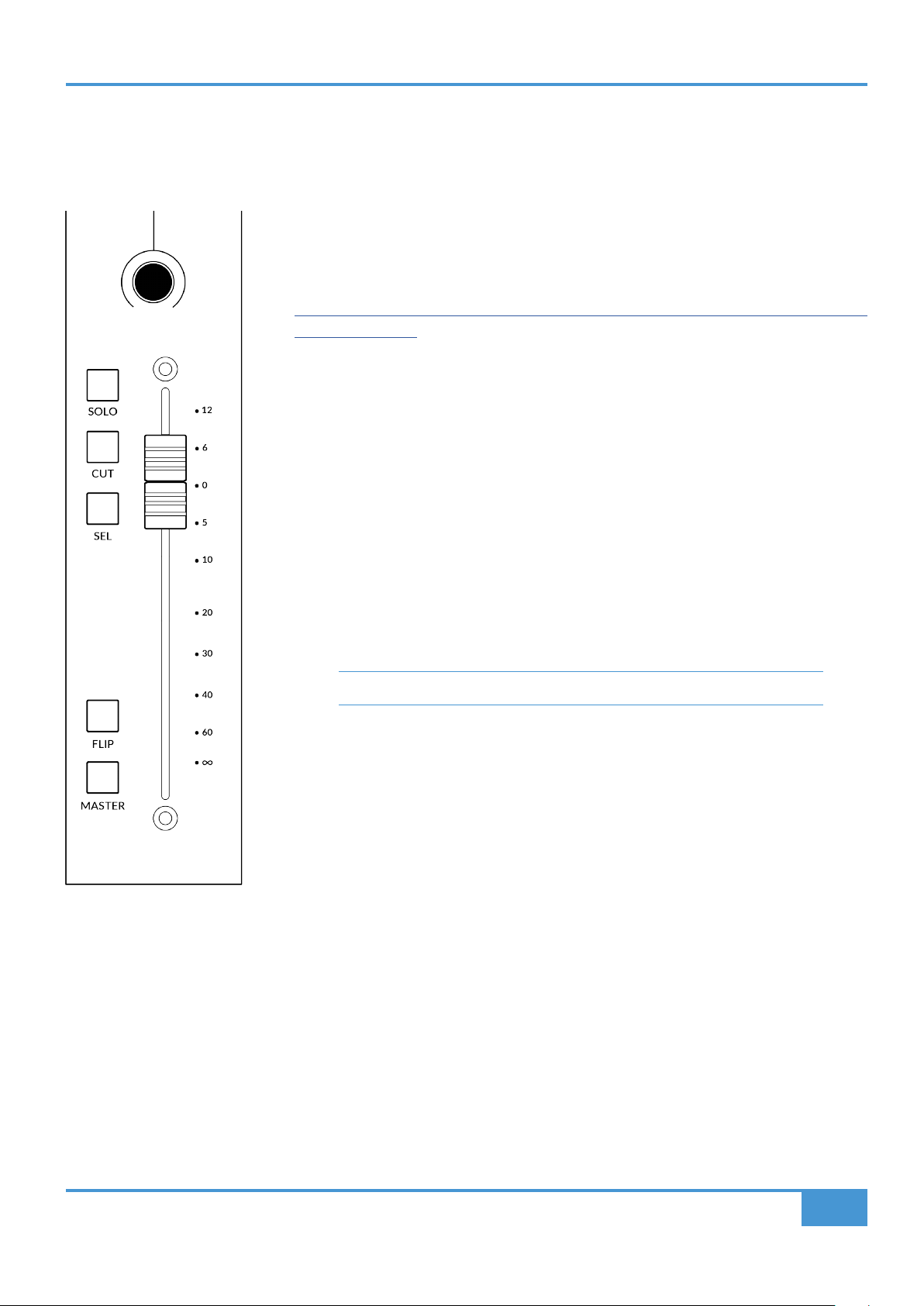
LUNA Tutorial
99
SSL UF1 User Guide
Tutorial
This section guides you through using UF1 with LUNA.
Before You Start...
The information in this LUNA Tutorial sets out the key features of using UF1 with LUNA.
Any aspect not covered in this guide can be found on Universal Audio's website
https://help.uaudio.com/hc/en-us/articles/4406777753236-LUNA-Control-Surface-
Compatibility-Setup
V-Pot
At the top of the strip is the V-Pot (virtual pot). The function of the V-Pot varies, depending
on which V-Pot assignment mode is currently active but it is typically used for tasks such as
controlling Pan position, Send levels etc.
The V-Pot has a push function, which is typically used for defaulting the position of the
parameter being controlled.
100 mm Motorised Fader
A motorised, touch-sensitive fader provide physical control of your LUNA tracks and is great
for balancing mix levels and riding volume automation.
When a fader is moved, the LowLCD section displays a fader dB readout.
Solo, Cut & Sel (Select)
The UF1 fader strip features SOLO, CUT and SEL keys corresponding to the solo, mute and
select features of the LUNA track.
Flip
Pressing the FLIP key switches the functions of the V-Pots and faders. This is useful for
various reasons, including tasks such as controlling Send levels on the fader instead of the
V-Pots.
Master
The Master Key enables the UF1 fader to control LUNA's Master Fader.
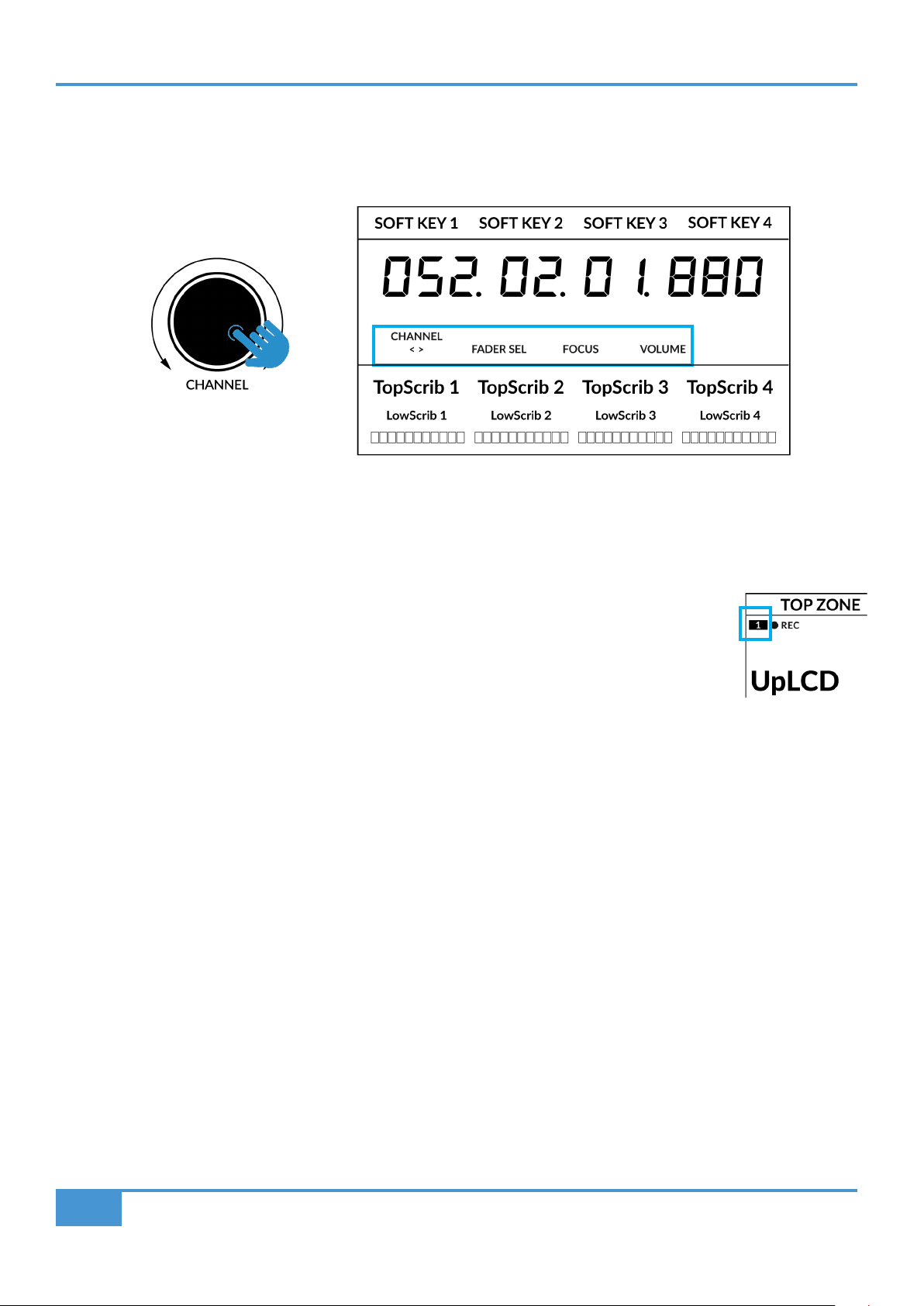
LUNA Tutorial
100
SSL UF1 User Guide
Channel Encoder
Pressing down on the CHANNEL encoder, the large LCD will change to display the available CHANNEL encoder modes. Turn
the encoder to highlight the desired mode and press down again to select the mode.
< >
By default, the CHANNEL encoder is used to move your DAW tracks across the UF1 surface, in increments of one channel at a
time.
Fader Sel
Allows you to change the number of the track within the current controller bank that UF1 is focused on.
UF1 defaults to the first channel (i.e. fader '1') within the bank and this is shown in the top corner of the
UF1 small display. You may need to change this to access tracks at the end of the mixer, when the bank
of 8 faders UF1 is controlling butts up against the end of the session.
Focus
Emulates the scroll function of a mouse. This can be a really nice way of controlling plug-ins or anything
else on screen that responds to a mouse scroll operation. Simply open a plug-in GUI, hover your
computer mouse over a control and turn the encoder for hands-on control.
Volume
The CHANNEL encoder controls the system volume level, if the audio device you are using can be controlled by the operating
system's volume up/down. For example, if you're on the road with your headphones plugged into the computer's built-in audio
output.
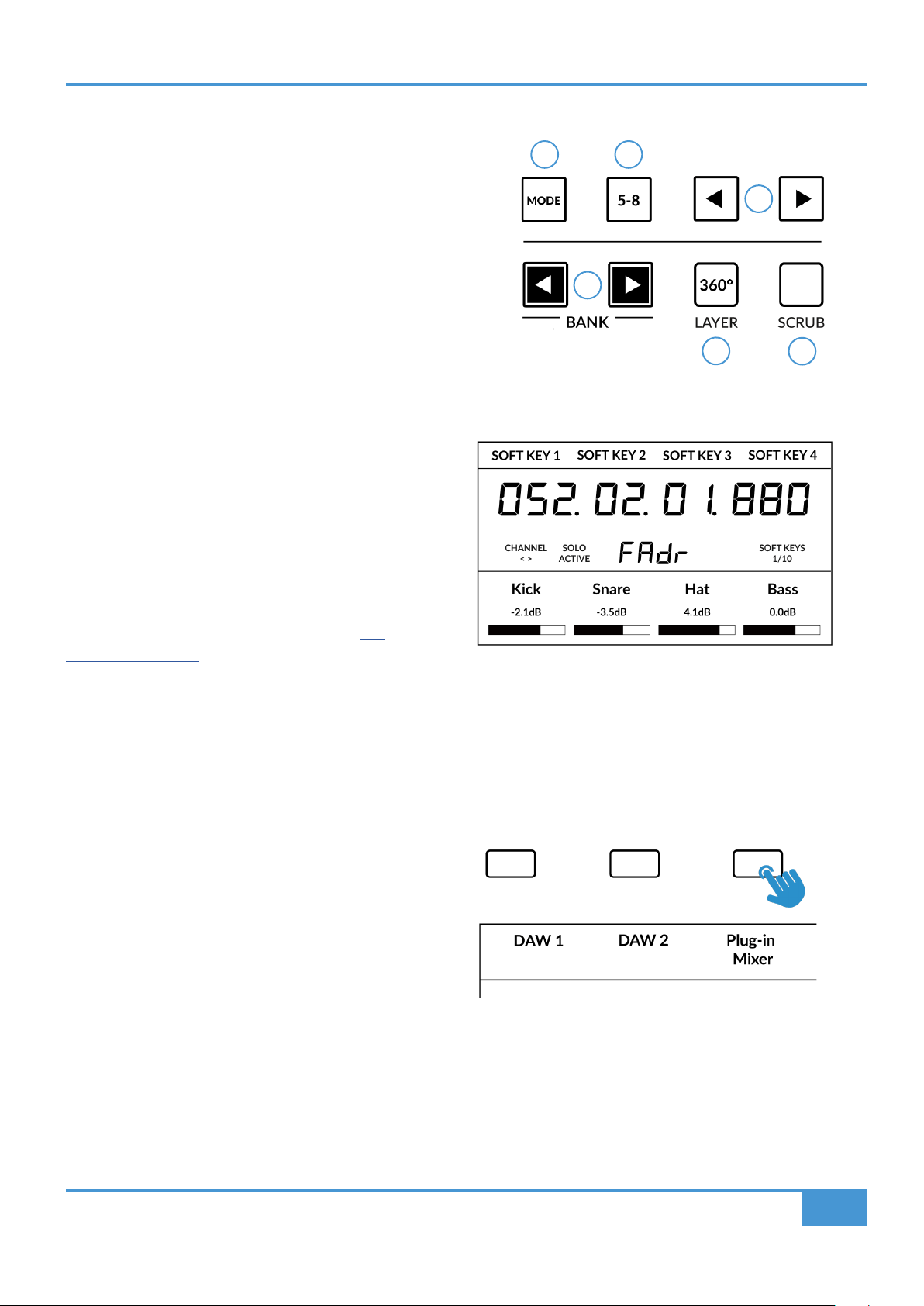
LUNA Tutorial
101
SSL UF1 User Guide
CENTRE KEYS
MODE (Button 1)
The MODE key determines the operation of the large screen and
its 4 associated V-Pots. Pressing the MODE key toggle you through
the different options. Holding down the MODE button allows direct
access to each mode via the soft keys at the top of the large LCD.
Each mode is colour coded:
General DAW (white)
The 4 x V-Pots beneath the large display control various parameters
such as pans, sends etc depending on the current V-Pot assignment
mode.
DAW Faders (green) - "FAdr"
The V-Pots control the fader levels across 4 tracks in
the current controller bank. The level is represented
by both a dB text readout and the V-Pot readout bar.
Meter Plug-in (yellow)
The V-Pots and soft keys directly control the SSL
Meter plug-in, via SSL 360°. Because this mode is
the same across all DAWs, please refer to the SSL
Meter control section at the end of this user guide
for more information.
5-8 Key (Button 2)
Assigns the V-Pots to control tracks 5-8 of the
current controller bank.
Soft Key Page Banks (3)
Allows you to move through various pages of parameters
that are assigned to the soft keys.
Bank Keys (Button 4)
The bank keys move the fader selection in multiples of 8,
with the 1st channel of the 8 appearing on both the Main
Fader and the 1st of the channels to appear across the 4
V-Pots unless 5-8 is selected.
360° / LAYER selection Key (Button 5)
A short press of the 360° button opens and closes the SSL 360° application, allowing access to edit settings & assignable keys on
the UF1 & all other SSL 360° powered devices. A long press and hold of the 360° button, in conjunction with a press of the relevant
top-row soft key allows you to switch to a different DAW or Plug-in Mixer Layer.
Above shows the DAW Faders "FAdr" mode has been
selected. The V-Pots beneath the large screen control
DAW fader levels.
1 2
3
4
6
5
Press and hold the 360° button and whilst keeping
it held down, you can switch to a different Layer by
pressing the relevant top-row soft key.
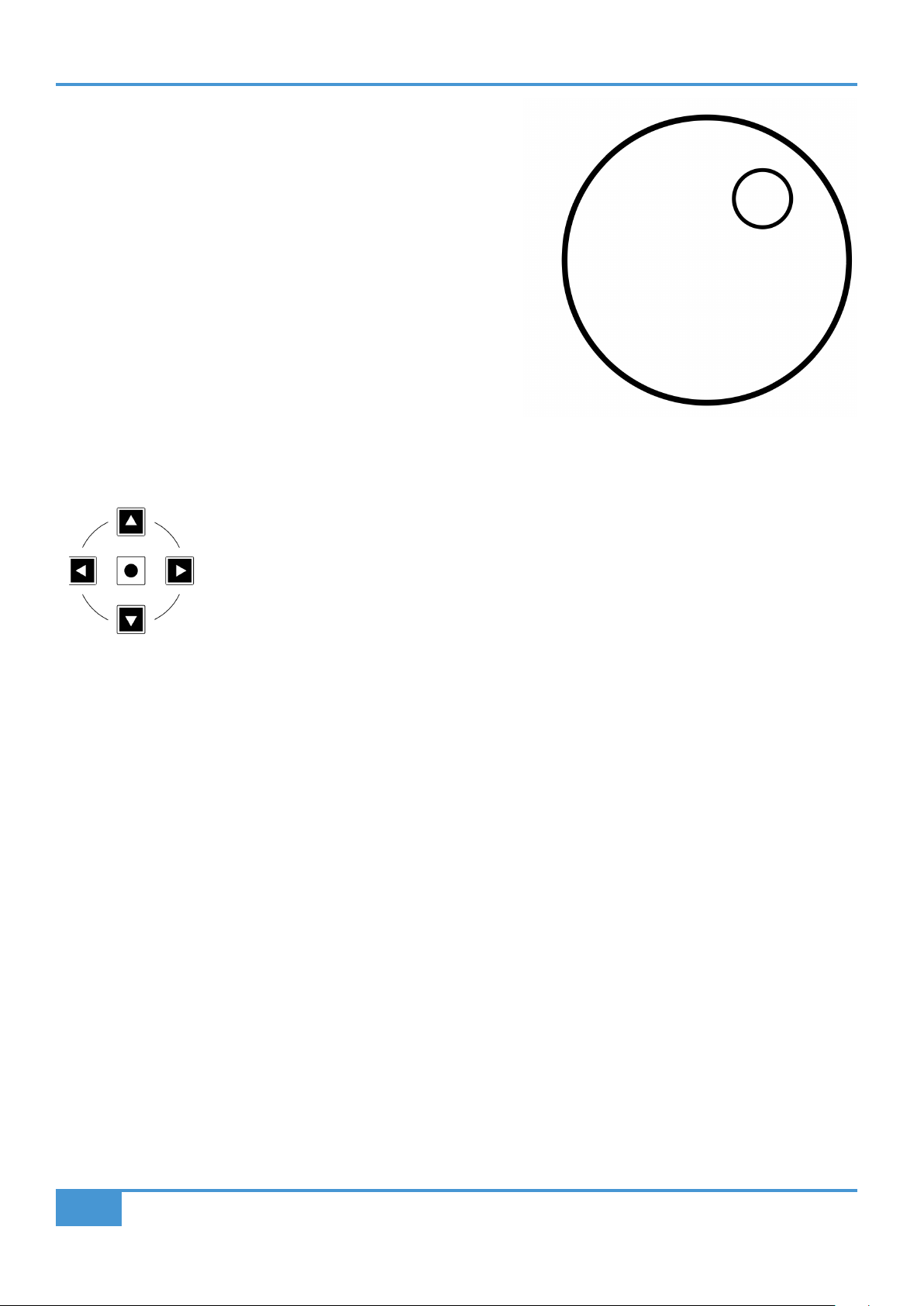
LUNA Tutorial
102
SSL UF1 User Guide
SCRUB Key (Button 6)
The SCRUB key has no function in LUNA and is therefore disabled.
Jog Wheel (7)
The jog wheel is used to scroll through the session timeline. By simply
moving the Jog Wheel, the playhead will move through the timeline forward
by moving the Jog wheel clockwise & backwards in an anticlockwise
movement.
Cursor Keys and Mode Key
To the left of the jog wheel you will find the Cursor keys, with the Mode key in the centre.
When the Zoom key is lit the left and right cursor keys perform horizontal and vertical track
zooming.
Pressing the Zoom key again, the up and down cursor keys change the selected track and the
left and right cursor keys move you between markers.
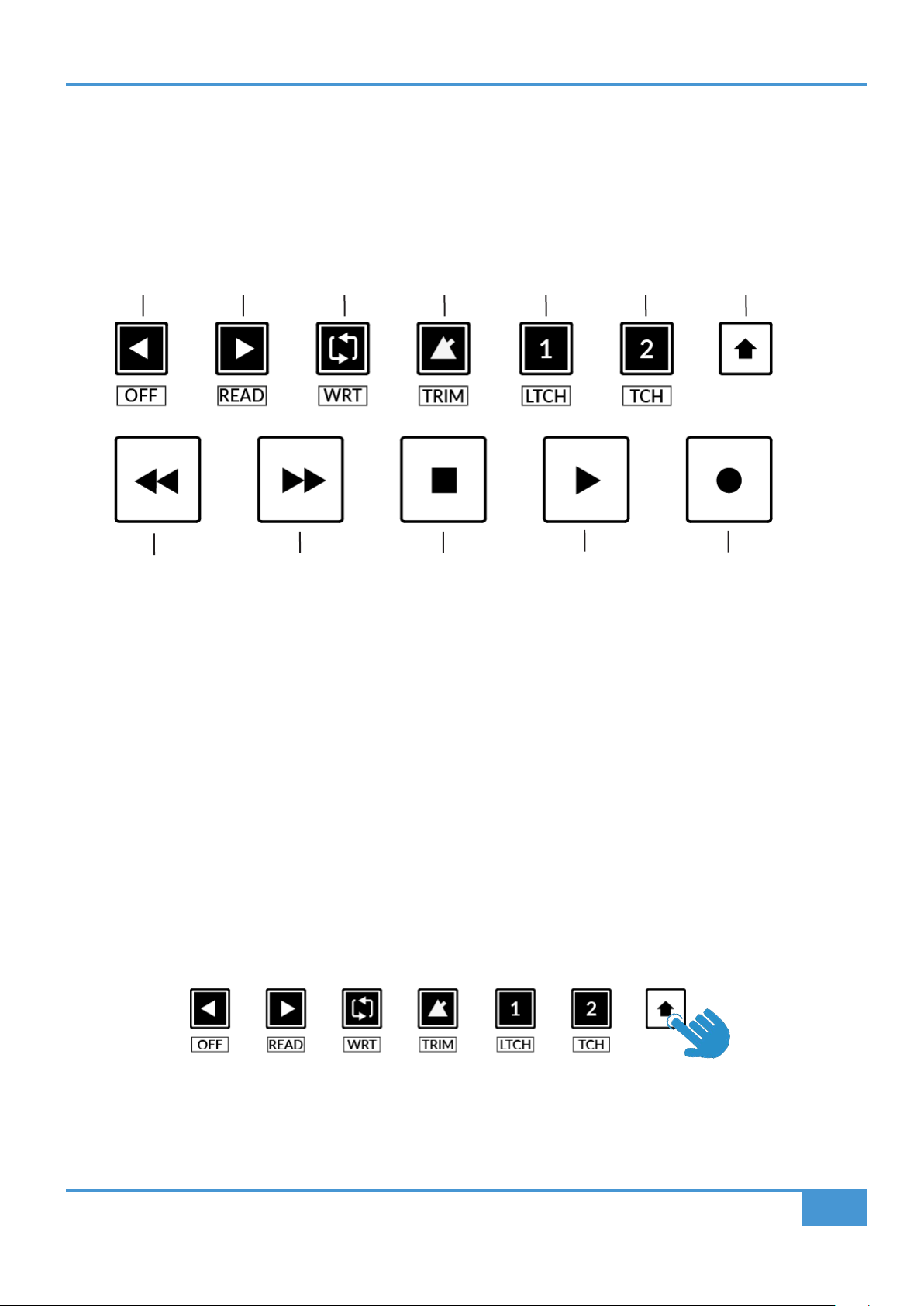
LUNA Tutorial
103
SSL UF1 User Guide
Transport Controls
UF1 features dedicated transport keys section across the bottom, with the secondary transport keys laid out above. The secondary
transport keys come preassigned to commonly used DAW functions like loop on/off and click on/off. The secondary transport keys
are re-assignable via the 360° software application. There is also a shift key, which re-purposes the secondary transport keys with
DAW automation modes.
Transport Keys
The primary transport keys allow convenient access to the main transport commands within the DAW. From left to right: Rewind
(in LUNA this goes to the start) Forward (in LUNA this goes to the end), Stop, Play & Record.
Secondary Transport Keys
The secondary transport controls allow quick access to some other frequently used features within the DAW. These keys can be
reassigned via SSL 360°. The default mapping is as follows: the first two keys are unassigned, Loop on/off, metronome/click on/
off and two quick keys. In LUNA, Quick Key 1 is preset Mixer View and Quick Key 2 spills the Main Bus.
Shifted Functions of the Secondary Transport Keys - Automation Modes
You will notice that there are additional labels beneath the Secondary Transport keys. These functions are accessed by pressing
the SHIFT button and provide access to the automation modes within LUNA.
RecordPlayStopForwardRewind
LoopUnassignedUnassigned
Quick Key 2
Click Mixer View Spill Main Bus
Quick Key 1
Shift Key

LUNA Tutorial
104
SSL UF1 User Guide
Automation
To select the automation mode for the DAW track shown on the UF1 fader, you will first need to press the SEL key. Next, engage the
SHIFT key to change the secondary transport keys to be automation keys. Finally, press the secondary transport key that matches
your desired automation mode.
WRITE automation mode is not applicable to LUNA and as such, the key is disabled.
STEP 1: Use the SEL key to
select the track.
STEP 3: press to select the automation mode you wish to set the track to.
STEP 2: Engage the SHIFT KEY to re-purpose the secondary transport keys to be
automation keys.
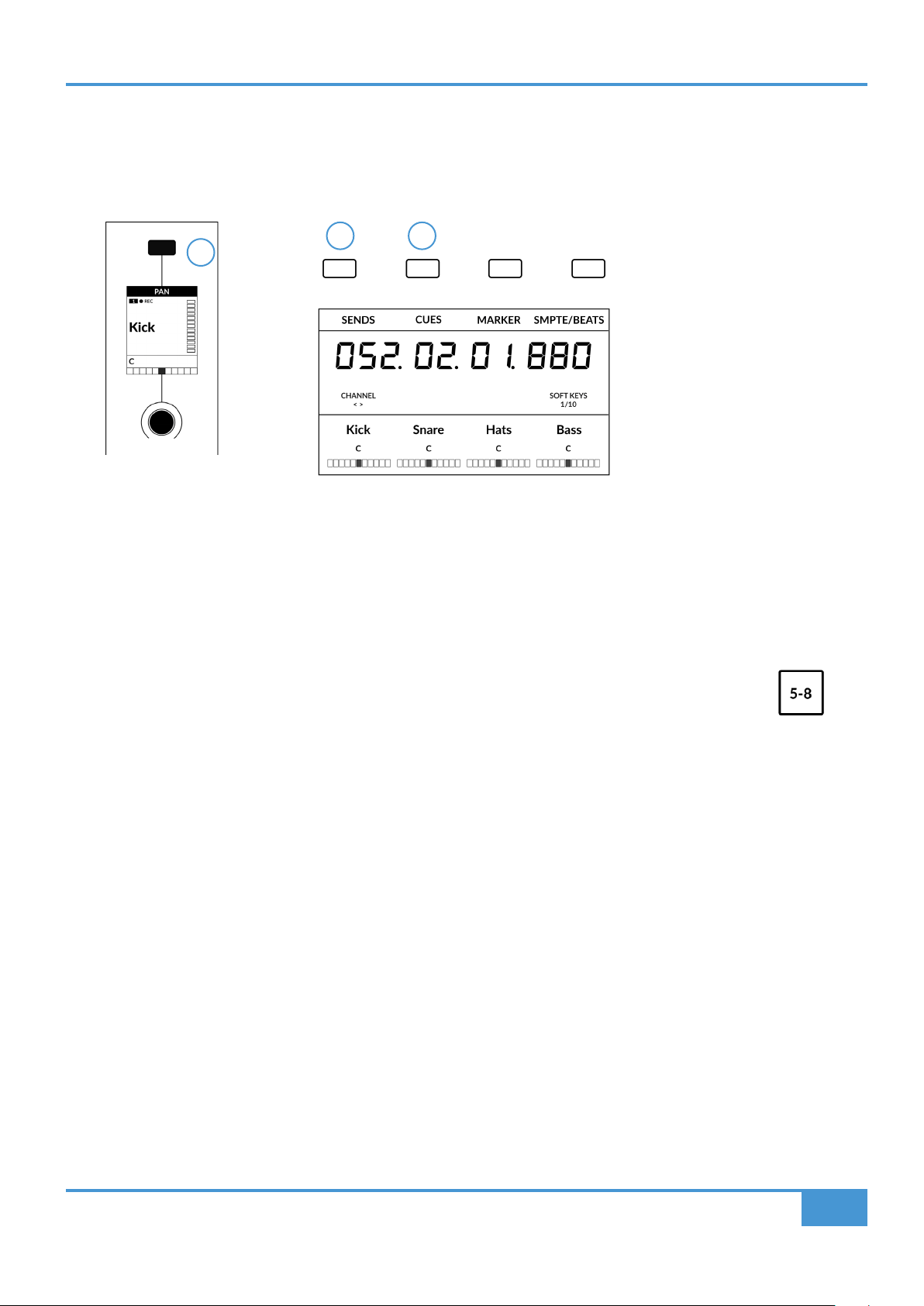
LUNA Tutorial
105
SSL UF1 User Guide
V-Pot Assignment Modes
UF1 offers direct access to LUNA's Mackie Control V-Pot assignment modes. These V-Pot assignment modes are accessed via
the keys labelled below: 1. PAN, 2. SENDS, 3. CUES.
1 - PAN
Assigns the Pan controls to the V-Pots on UF1. Pushing a V-Pot will default it to the centre position.
2 - SEND and 3 - CUES
These assign the V-Pots to LUNA's Sends and Cues. You can cycle through the various modes for controlling
sends by repeatedly pressing each button (SENDS or CUES). Or you can push and hold either key and whilst
keeping the key held, push the relevant V-Pot to control a particular send slot. Use in conjunction with the 5-8
key to access all send parameters or send slots
2 3
The Pan Key is located on
the Soft Key above the Small
LCD
Sends & Cues are available on Soft Key Page 1
1
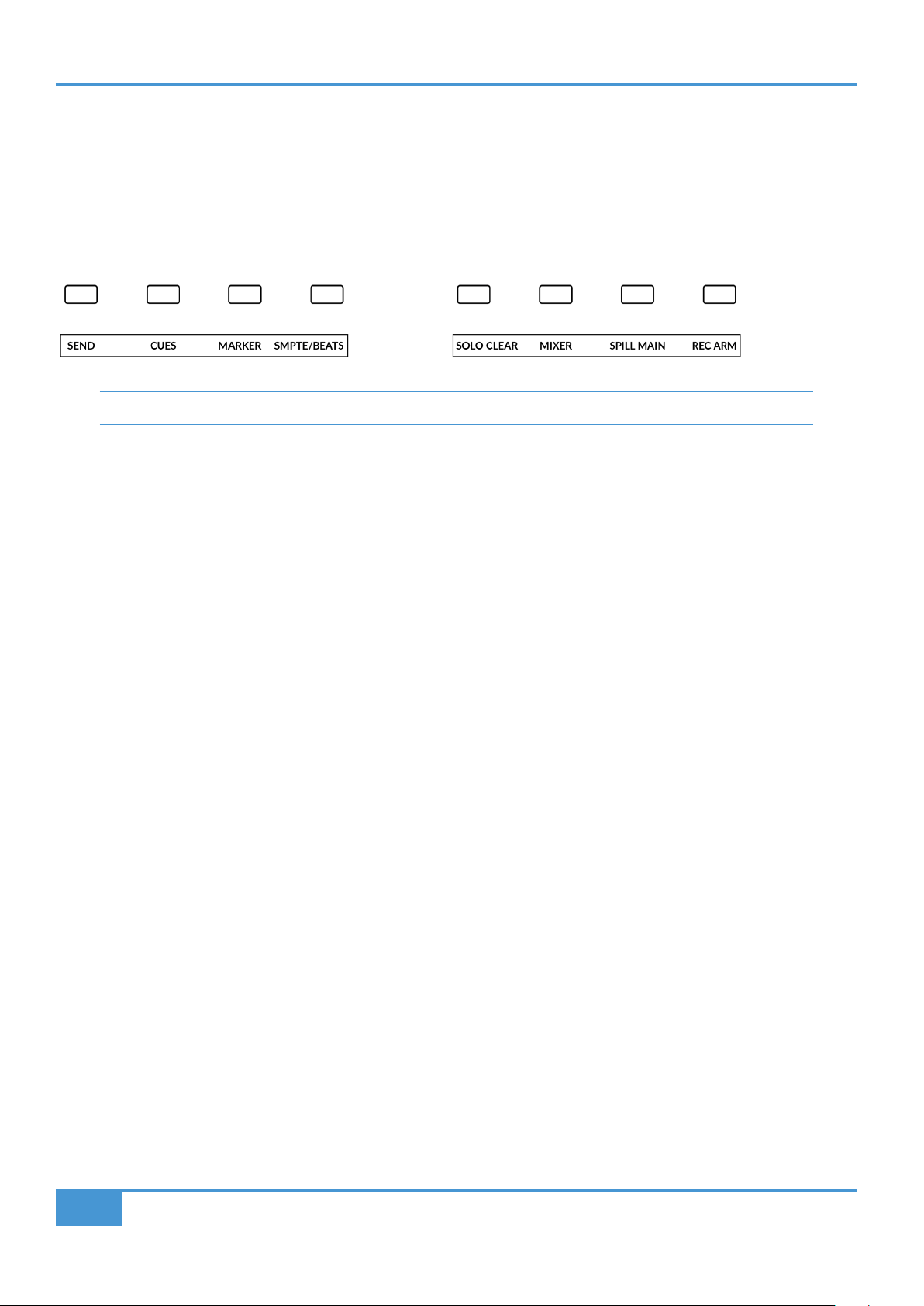
LUNA Tutorial
106
SSL UF1 User Guide
User Bank Pre-Assignments
Soft Key pages 1-10 allow you access to various DAW commands or keyboard shortcuts on the 4 soft keys along the top of UF1.
These can of course be changed to any of the available DAW commands or your own keyboard shortcut sequences in the UF1
page of SSL 360°. Use the Page < and > soft keys to move through the various pages The large screen on UF1 tells you which
page you are on.
Soft Key Page 1 Soft Key Page 2
Soft Key Pages 3-10 come unassigned.
Assignable DAW Commands List - LUNA
The following DAW commands are available in SSL 360° to assign to any of the user-assignable keys. "Has no function" has been
appended for MCU commands that are not implemented in LUNA's MCU control implementation..
Track - Has no function
Pan/Surround (Left-right Pan)
Cues
Sends
Plugin - Has no function
Flip
Global View - Has no function
Name/Value - Has no function
SMPTE/Beats
F1 (Mixer View)
F2 (Spill Main Bus)
F3- Has no function
F4 - Has no function
F5 - Has no function
F6 - Has no function
F7 - Has no function
F8 - Has no function
MIDI Tracks - Has no function
Inputs - Has no function
Audio Tracks - Has no function
Audio Instruments - Has no function
Aux - Has no function
Busses - Has no function
Outputs - Has no function
User - Has no function
Shift
Option
Control
Alt
Read
Write
Touch
Latch
Trim
Save - Has no function
Undo
Cancel - Has no function
Enter - Has no function
Marker
Cycle
Drop (Auto Punch) - Has no function
Click
Solo (Clear)
Forward
Rewind
Stop
Play
Record
Scrub
Rec/Rdy
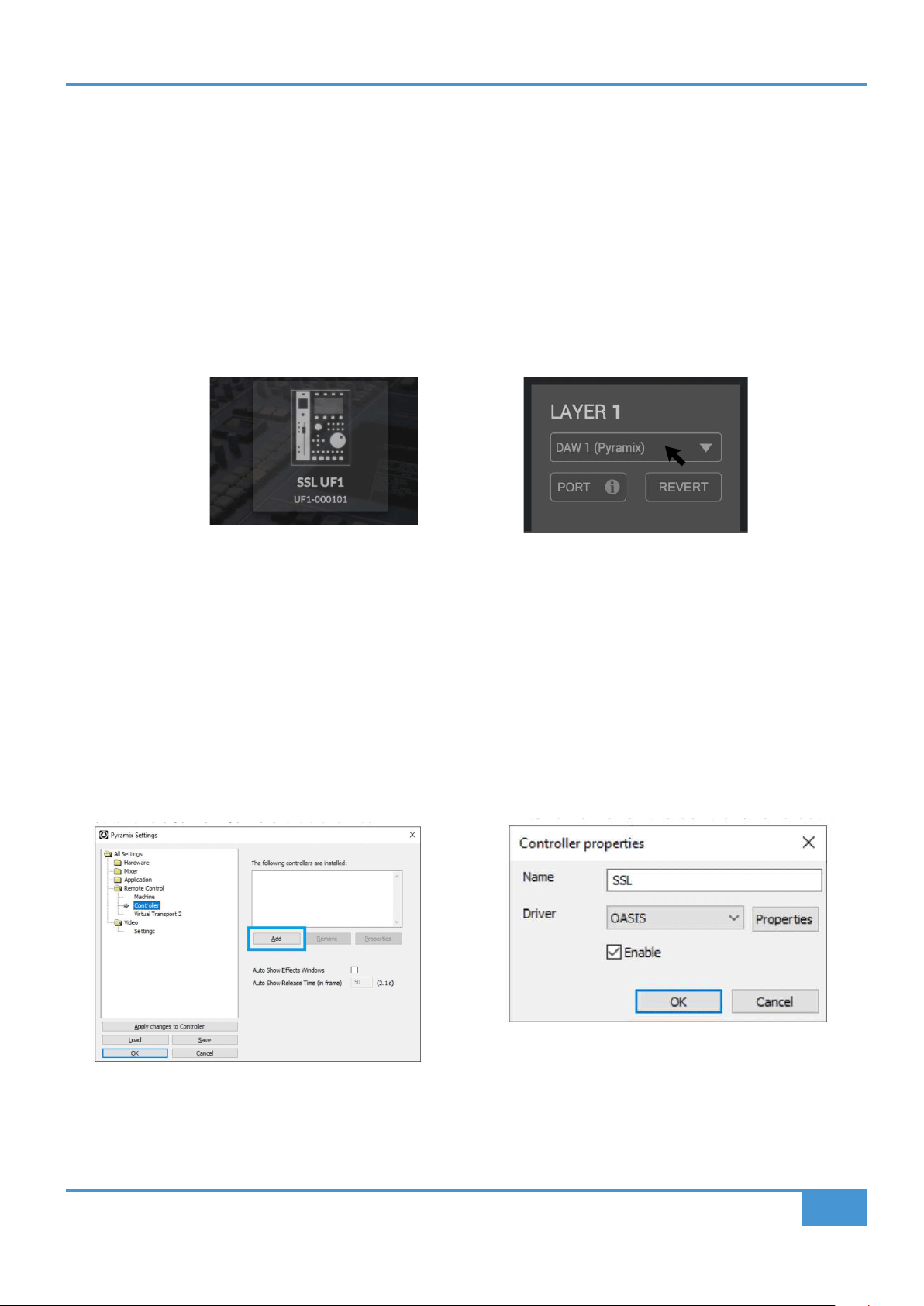
Pyramix Tutorial
107
SSL UF1 User Guide
Pyramix with UF1 - Tutorial
The following tutorial guides you through configuring and using the default Pyramix profile on LAYER 1 of UF1. If you wish to
configure Pyramix on a different layer, please refer to the DAW Communication section of this User Guide to ensure your DAW is
configured for the correct SSL V-MIDI ports..
SSL 360° Setup
1. Open the SSL 360° application on your computer. Go to the HOME page and check that your UF1 has been detected by SSL
360°.
2. Go to the UF1 page and set Layer 1 to Pyramix using the drop-down list. If Pyramix is not available from the drop-down list it
is because you have not configured it as DAW 1 on the CONTROL SETUP page - ensure you do this first.
Pyramix Setup
3. Open Pyramix and access the Settings > All Settings menu. Go to Remote Control > Controller and click on Add.
4. Enter a name for the controller and set the Driver to OASIS.
5. Click on the Properties button.
6. In the OASIS Configuration window, set the Transport to EMC.
7. Click on the Properties button.
8. Set SSL V-MIDI Port 1 for both Midi In and Midi Out ports. In this list, ensure that any SSL V-MIDI Ports you need are assigned
9. In the Controller drop-down menu, select SSL UF8 MackieCtrl. Press OK to close the different windows.
STEP 3: Access the Settings > All Settings menu. Go
to Remote Control > Controller, click on Add.
STEP 4: Enter a name for the controller and set the
Driver to OASIS.
STEP 1 : Open SSL 360° application.
Check your UF1 has been detected.
STEP 2 : Select the default Pyramix
DAW prole from the UF1 page.

Pyramix Tutorial
108
SSL UF1 User Guide
STEP 6 : Click on the Properties button.
In the OASIS Conguration window, set
the Transport to EMC.
STEPS 7, 8, 9: Click on the Properties button. Set SSL V-MIDI Port 1 for
both Midi In and Midi Out ports. I
Small LCD Layout
Top Zone - Provides a label for the function assigned to the Soft Key button directly above.
Track Record-Enabled (REC) - In Pyramix, the REC text appears when a track is record-enabled.
Fader Sel Indication - Displays the fader number within the current controller bank UF1 is focused on.
UpLCD - Displays the track name or V-Pot parameter value when the V-Pot is being turned.
LowLCD - Unused by Pyramix.
DAW Track Metering - 12-segment track metering + clip.
V-Pot Readout Bar - Displays the position of the currently assigned V-Pot (encoder) function.
V-Pot
Readout Bar
DAW Track
Metering
Fader Sel
Indication
Track Record-Enabled
Soft Key
V-Pot Encoder
Enlarged view of LCD screen
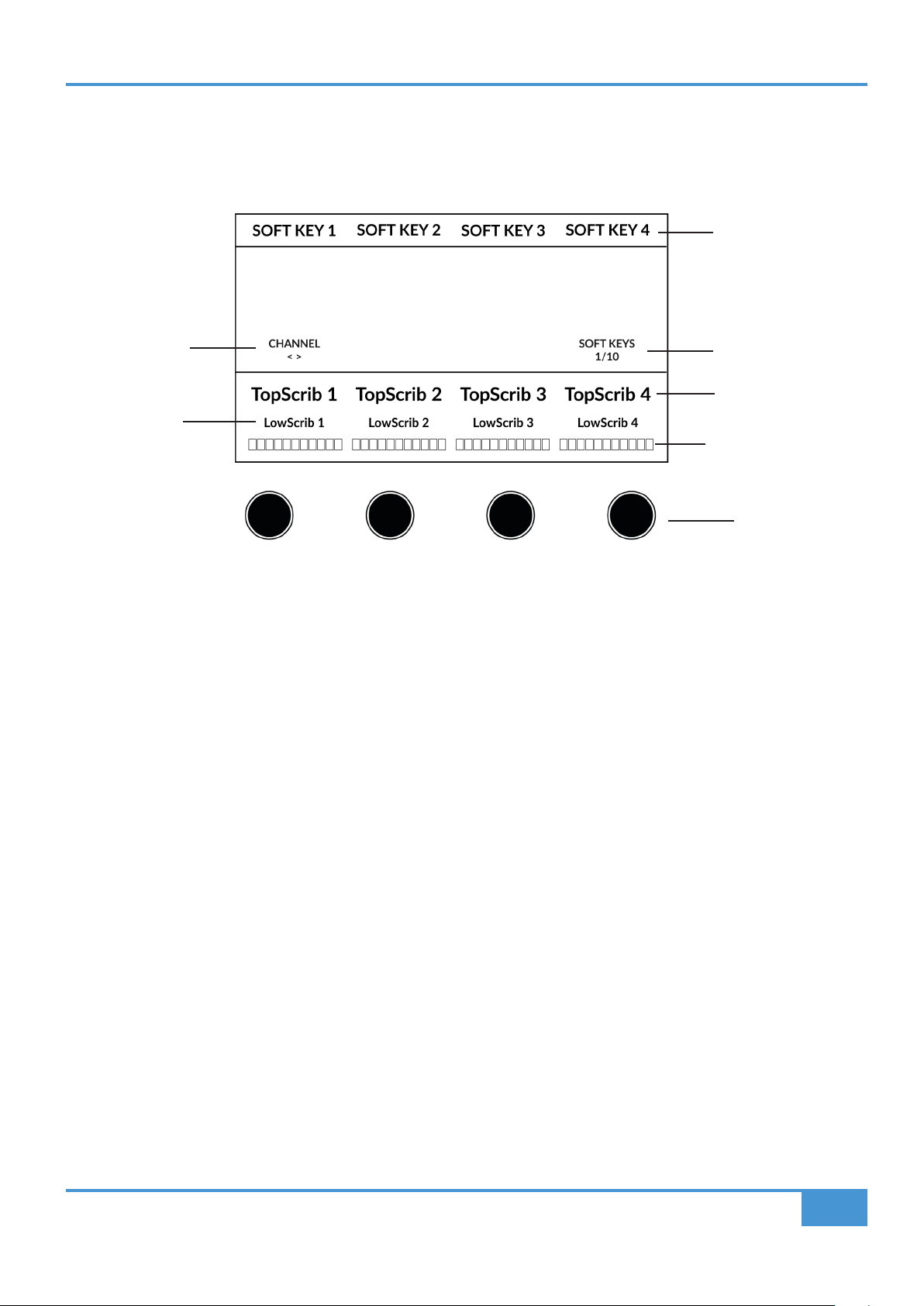
Pyramix Tutorial
109
SSL UF1 User Guide
Large LCD Layout
Soft Key Labels - Labels for the functions assigned to the soft keys directly above.
Timecode - Shows the current timecode in Bars/Beats or SMPTE.
Channel Mode - Indicates the current CHANNEL encoder Mode.
Soft Key Page - Displays the current Soft Keys page number
Top Scribble - Displays the track name or V-Pot parameter value when the V-Pot is being turned for
tracks 1-4 or 5-8 of the current controller bank.
Low Scribble - Unused by Pyramix.
V-Pot Readout Bar - Displays the position of the currently assigned V-Pot function.
V-Pots - 4 x V-Pots that control the assigned parameters.
Soft Key Labels
Soft Key Page
Top Scribble Strip
Channel Encoder
Mode
V-Pots
Low
Scribble Strip
V-Pot Readout
Bar
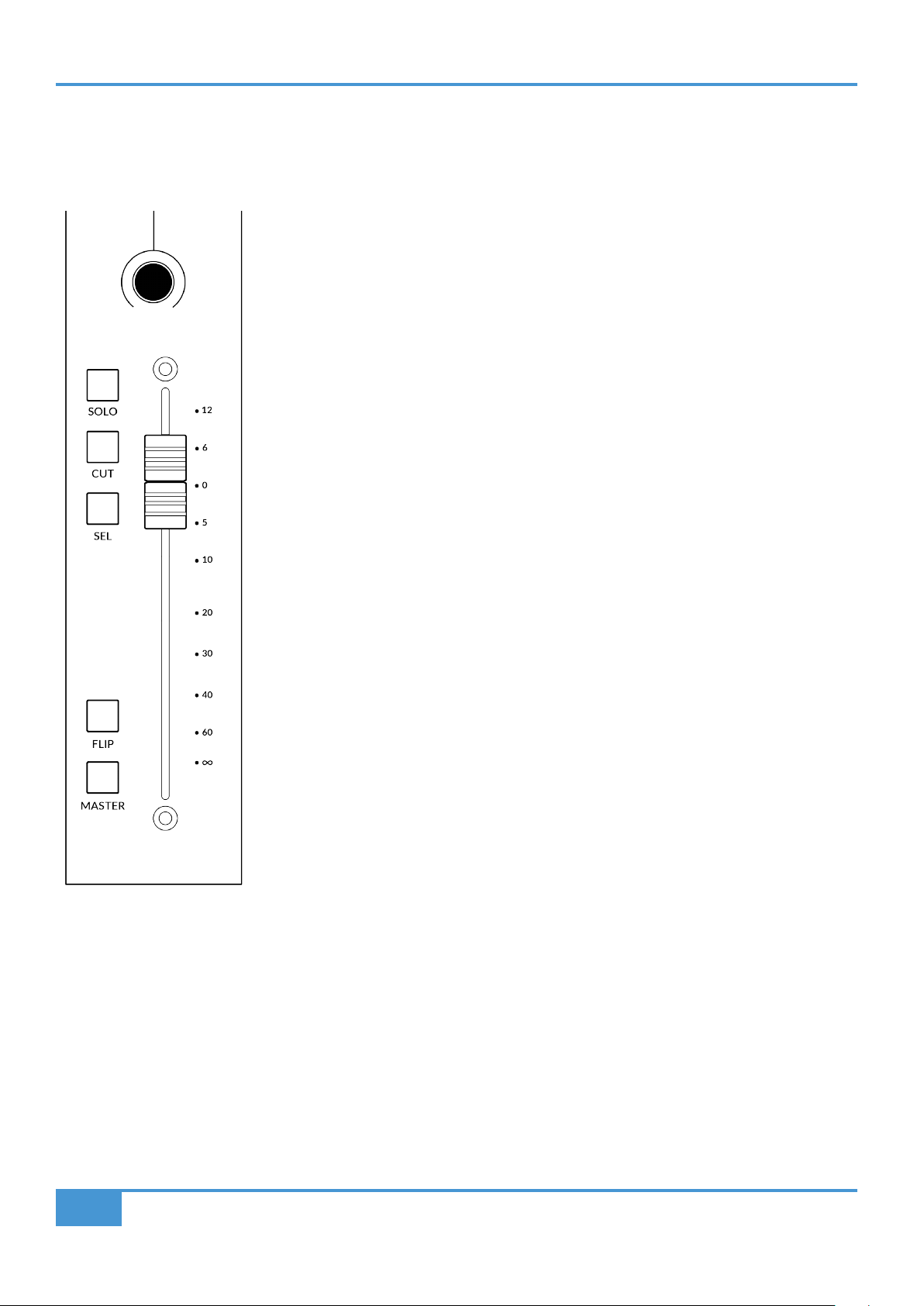
Pyramix Tutorial
110
SSL UF1 User Guide
Tutorial
This section guides you through using UF1 with Pyramix.
Before You Start...
SSL UF1 MackieCtrl implementation has been available since Pyramix 14.0.4 Hotfix but
please ensure that you are running the latest version of Pyramix, as it may have addressed
any MCU bugs present in the 14.0.4 Hotfix version.
V-Pot
At the top of each strip is the V-Pot (virtual pot). The function of the V-Pot varies, depending
on which V-Pot assignment mode is currently active and is typically used for tasks such as
controlling Pan position, Sends Levels etc.
The V-Pot has a push function, which is typically used to inform the automation tengine that
the parameter being controlled is released.
100 mm Motorised Fader
A motorised, touch-sensitive fader provide physical control of your Pyramix tracks. The
surface silkscreen matches the Pyramix fader scale.
Solo, Cut & Sel (Select)
The UF1 fader strip features SOLO, CUT and SEL keys corresponding to the solo, mute and
select features of the Pyramix track.
Flip
No function is given to this key by Pyramix.
Master
No funtion is given to this key by Pyramix.
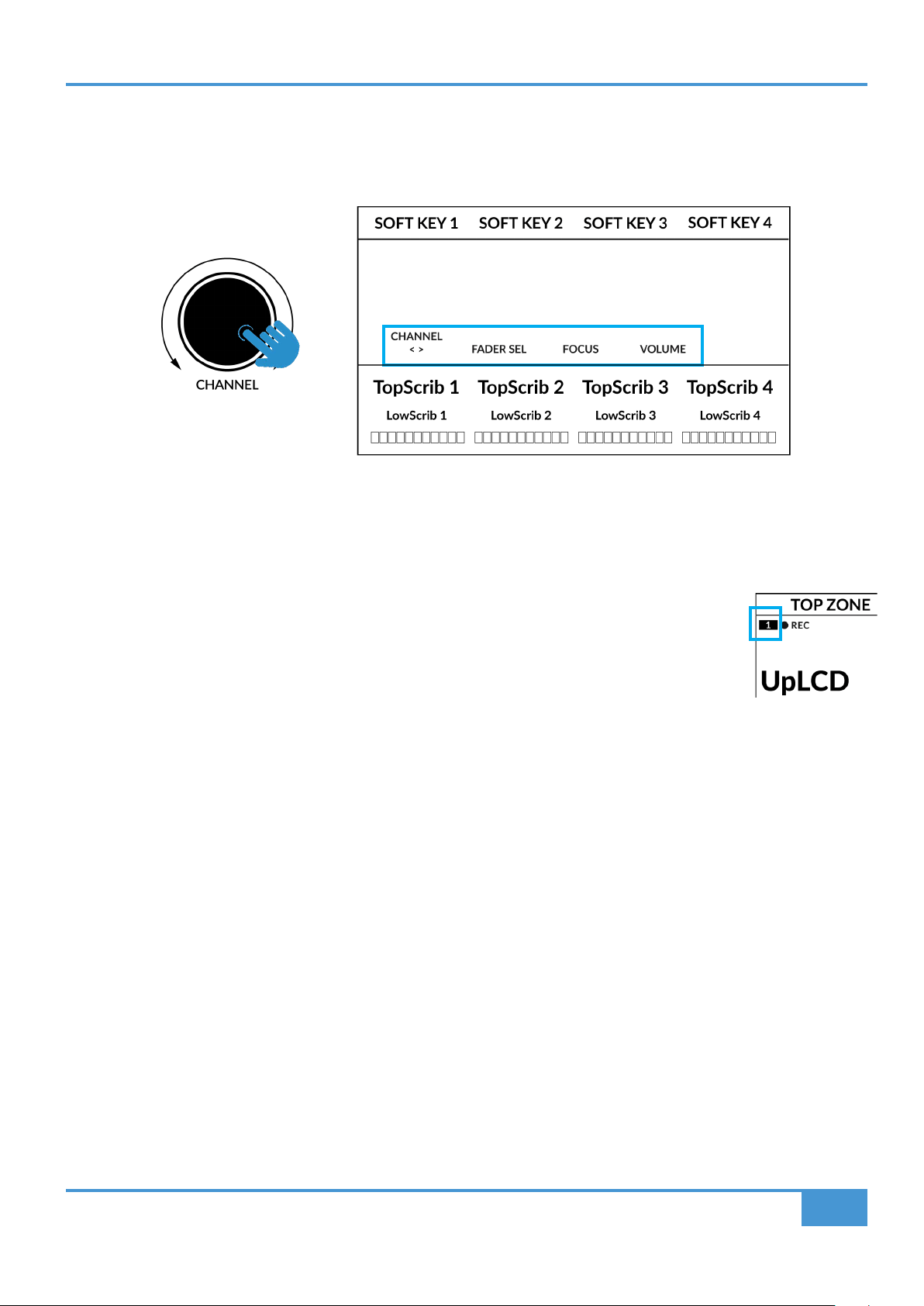
Pyramix Tutorial
111
SSL UF1 User Guide
Channel Encoder
Pressing down on the CHANNEL encoder, the large LCD will change to display the available CHANNEL encoder modes. Turn
the encoder to highlight the desired mode and press down again to select the mode.
< >
By default, the CHANNEL encoder is used to move your DAW tracks across the UF1 surface, in increments of one channel at a
time.
Fader Sel
Allows you to change the number of the track within the current controller bank that UF1 is focused on.
UF1 defaults to the first channel (i.e. fader '1') within the bank and this is shown in the top corner of the
UF1 small display. You may need to change this to access tracks at the end of the mixer, when the bank
of 8 faders UF1 is controlling butts up against the end of the session.
Focus
Emulates the scroll function of a mouse. This can be a really nice way of controlling plug-ins or anything
else on screen that responds to a mouse scroll operation. Simply open a plug-in GUI, hover your
computer mouse over a control and turn the encoder for hands-on control.
Volume
The CHANNEL encoder controls the system volume level, if the audio device you are using can be controlled by the operating
system's volume up/down. For example, if you're on the road with your headphones plugged into the computer's built-in audio
output.
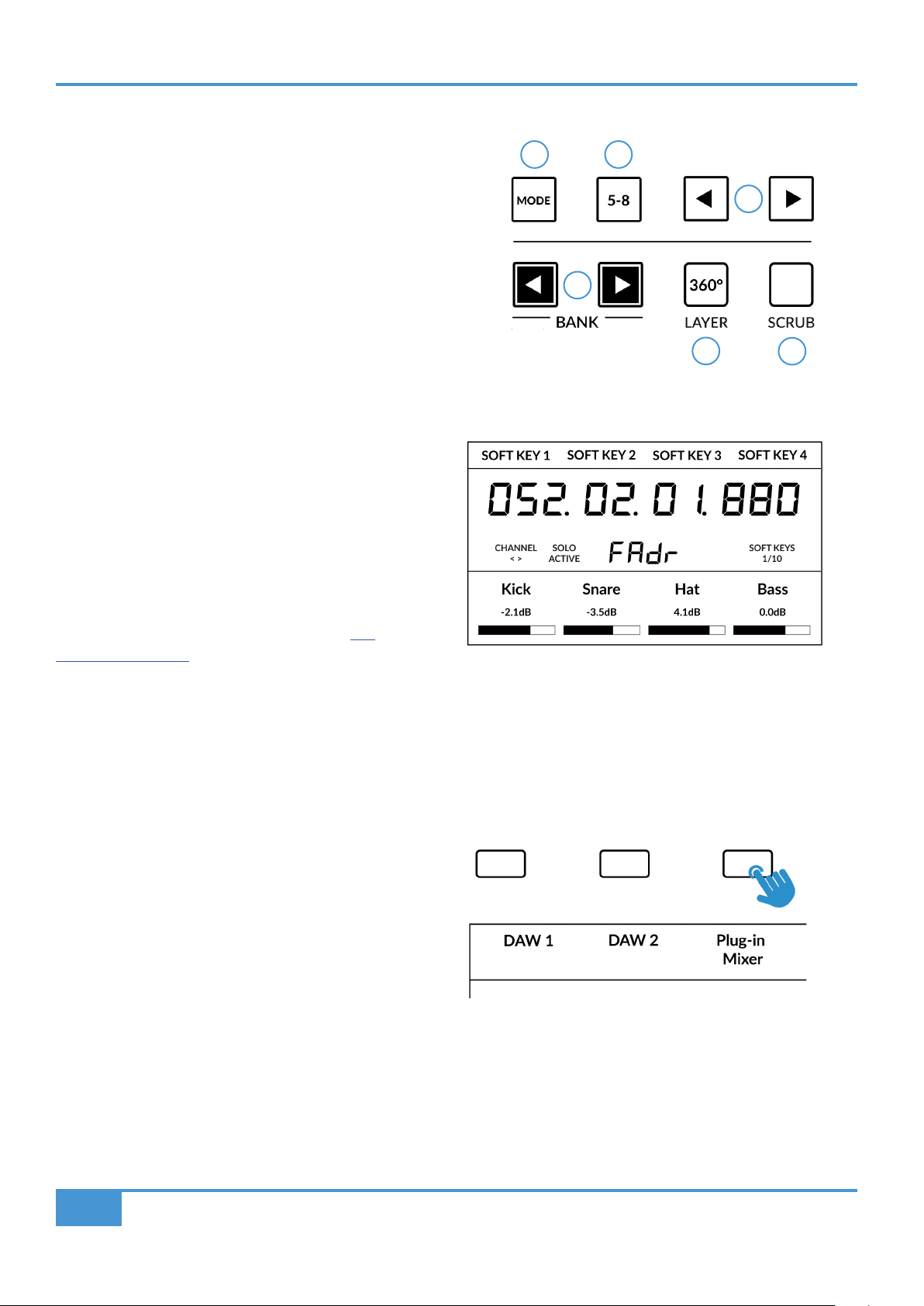
Pyramix Tutorial
112
SSL UF1 User Guide
CENTRE KEYS
MODE (Button 1)
The MODE key determines the operation of the large screen and
its 4 associated V-Pots. Pressing the MODE key toggle you through
the different options. Holding down the MODE button allows direct
access to each mode via the soft keys at the top of the large LCD.
Each mode is colour coded:
General DAW (white)
The 4 x V-Pots beneath the large display control various parameters
such as pans, sends etc depending on the current V-Pot assignment
mode.
DAW Faders (green) - "FAdr"
The V-Pots control the fader levels across 4 tracks in
the current controller bank. The level is represented
by both a dB text readout and the V-Pot readout bar.
Meter Plug-in (yellow)
The V-Pots and soft keys directly control the SSL
Meter plug-in, via SSL 360°. Because this mode is
the same across all DAWs, please refer to the SSL
Meter control section at the end of this user guide
for more information.
5-8 Key (Button 2)
Assigns the V-Pots to control tracks 5-8 of the
current controller bank.
Soft Key Page Banks (3)
Allows you to move through various pages of parameters
that are assigned to the soft keys.
Bank Keys (Button 4)
The bank keys move the fader selection in multiples of 8,
with the 1st channel of the 8 appearing on both the Main
Fader and the 1st of the channels to appear across the 4
V-Pots unless 5-8 is selected.
360° / LAYER selection Key (Button 5)
A short press of the 360° button opens and closes the SSL 360° application, allowing access to edit settings & assignable keys on
the UF1 & all other SSL 360° powered devices. A long press and hold of the 360° button, in conjunction with a press of the relevant
top-row soft key allows you to switch to a different DAW or Plug-in Mixer Layer.
Above shows the DAW Faders "FAdr" mode has been
selected. The V-Pots beneath the large screen control
DAW fader levels.
1 2
3
4
6
5
Press and hold the 360° button and whilst keeping
it held down, you can switch to a different Layer by
pressing the relevant top-row soft key.
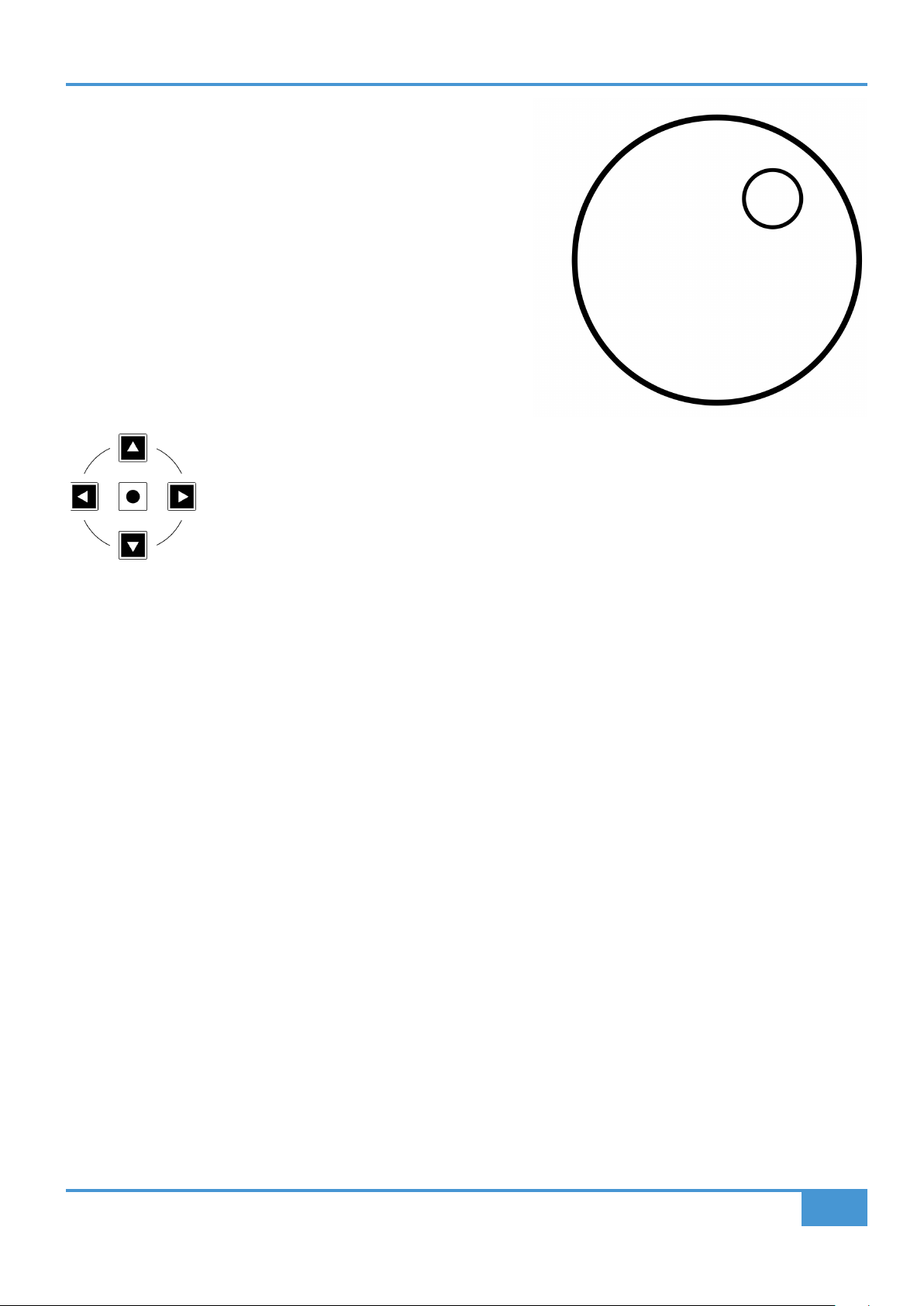
Pyramix Tutorial
113
SSL UF1 User Guide
SCRUB Key (Button 6)
The SCRUB key has no function in Pyramix and is therefore disabled.
Jog Wheel (7)
The jog wheel is used to scroll through the session timeline. By simply
moving the Jog Wheel, the playhead will move through the timeline forward
by moving the Jog wheel clockwise & backwards in an anticlockwise
movement.
Cursor Keys and Mode Key
To the left of the jog wheel you will find the Cursor keys.
Left / Right : Cursor to next/previous clip of the selected track.
Shift + Left / Right : Nudge +/- 1frame (user defines in All Settings > Application > Editing >Nudge settings)
Up / Down : Zoom In/Out
Shift + Up / Down : Fit in window / Previous zoom
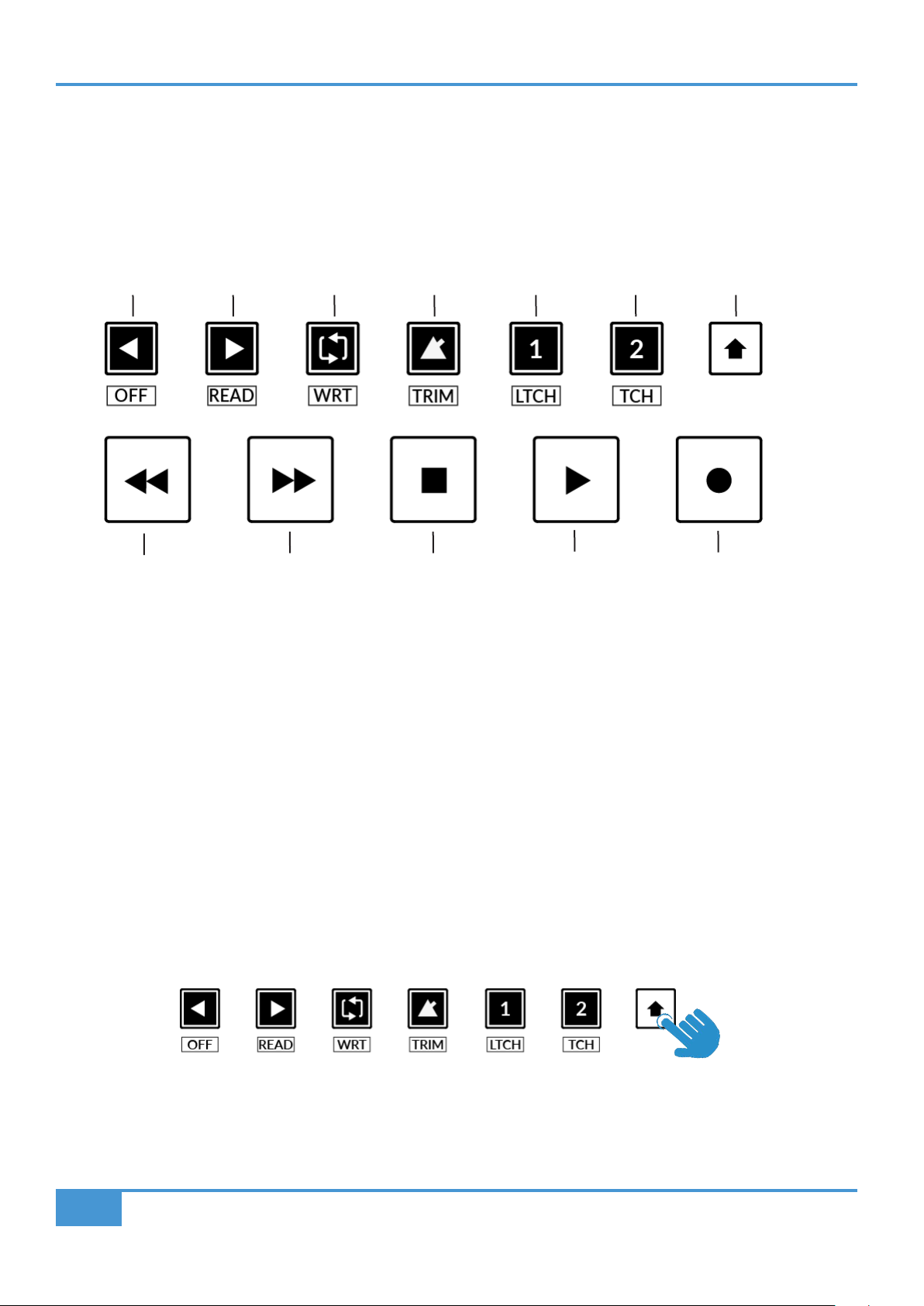
Pyramix Tutorial
114
SSL UF1 User Guide
Transport Controls
UF1 features dedicated transport keys section across the bottom, with the secondary transport keys laid out above. The secondary
transport keys come preassigned to commonly used DAW functions like loop on/off and click on/off. The secondary transport keys
are re-assignable via the 360° software application. There is also a shift key, which re-purposes the secondary transport keys with
DAW automation modes.
Transport Keys
The primary transport keys allow convenient access to the main transport commands within the DAW. From left to right: Rewind,
Forward, Stop, Play & Record.
Secondary Transport Keys
The secondary transport controls allow quick access to some other frequently used features within the DAW. These keys can be
reassigned via SSL 360°. The default mapping is as follows: Cur to Prev Marker, Cur To Next Marker, Loop on/off, unassigned and
two quick keys. In LUNA, Quick Key 1 is preset to Mixer View Toggle & 2 the Alt Modifier key.
Shifted Functions of the Secondary Transport Keys - Automation Modes
You will notice that there are additional labels beneath the Secondary Transport keys. These functions are accessed by pressing
the SHIFT button and provide access to the automation modes within Pyramix.
RecordPlayStopForwardRewind
Loop
Cur To Prev
Marker
Cur To Next
Marker
Quick Key 2
Unassigned Mixer Cmd/Alt
Quick Key 1
Shift Key

Pyramix Tutorial
115
SSL UF1 User Guide
Automation
You can select the automation mode of the whole mixer directly from UF1 by pressing the Shift Key, followed by desired automation
mode from the AUTOMATION mode from the Secondary Transport Key selection.
OFF, READ, WRITE, TRIM sets the Global Pyramix Automation modes.
V-Pot Assignment Modes
UF1 offers direct access to the Mackie Control V-Pot assignment modes implemented by Pyramix. These V-Pot assignment modes
are accessed via the keys labelled below: Mutliple presses of a V-Pot assigment mode button changes the function. E.g 1st PAN
press : L/R, 2nd PAN press : F/R, 3rd PAN press : B/T...
Note: when the label has a Slash "/", the secondary function is accessible via Quick Key 2 key (the MCU Cmd/
Alt modifier). This modifier allows you to perform 'secondary' Pyramix MCU functions - keep it held down whilst
pressing MCU commands that offer an alternative function.
.
STEP 2: Press to select the automation mode
STEP 1: Engage the SHIFT KEY to re-purpose the secondary transport keys to be automation keys.
The Pan Key is located on
the Soft Key above the Small
LCD.
Further V-Pot assignment modes are available via Soft Key Pages 1 and 2.

Pyramix Tutorial
116
SSL UF1 User Guide
User Bank Pre-Assignments
Soft Key pages 1-10 allow you access to various DAW commands or keyboard shortcuts on the 4 soft keys along the top of UF1.
These can of course be changed to any of the available DAW commands or your own keyboard shortcut sequences in the UF1
page of SSL 360°. Use the Page < and > soft keys to move through the various pages The large screen on UF1 tells you which
page you are on.
Soft Key Page 1 Soft Key Page 2
Soft Key Page 5 Soft Key Page 6
Soft Key Page 3 Soft Key Page 4
Soft Key Page 7 Soft Key Page 8
Soft Key Page 9 Soft Key Page 10
Pyramix Tutorial
117
SSL UF1 User Guide
HUI F1 to F8 can be assigned via the
keyboard shortcuts window of Pyramix.
Duplicate (not usable): Alt, Group, Marker, Nudge, Track, Send

Pyramix Tutorial
118
SSL UF1 User Guide
Assignable DAW Commands List - Pyramix
The following DAW commands are available in SSL 360° to assign to any of the user-assignable keys. When the label has a Slash
"/", the secondary function is accessible via the FINE/SHIFT key (the MCU Cmd/Alt modifier).
Aux Group
Aux Bus
Mix Group
Mix Bus
EQ
DYN
Mic/Pre
Add Marker
Solo
Media Manager
Fade Editor
Mixer
Mix Down/Render
Panner
Forward
Rewind
Stop
Play
Record
Loop
HUI F1
HUI F2
HUI F3
HUI F4
HUI F5
HUI F6
HUI F7
HUI F8
Cur to Mark in
Cur to Mark out
Mark in to Cur
Mark out to Cur
Cur to Start
Cur to End
Cur to Next Mark
Cur to Prev
Mark
Alt
Off
Read
Write
Touch
Latch
Trim
Undo / Redo
Cancel
Enter
Paste
Select Clip
Copy / Cut
Rec/Rdy
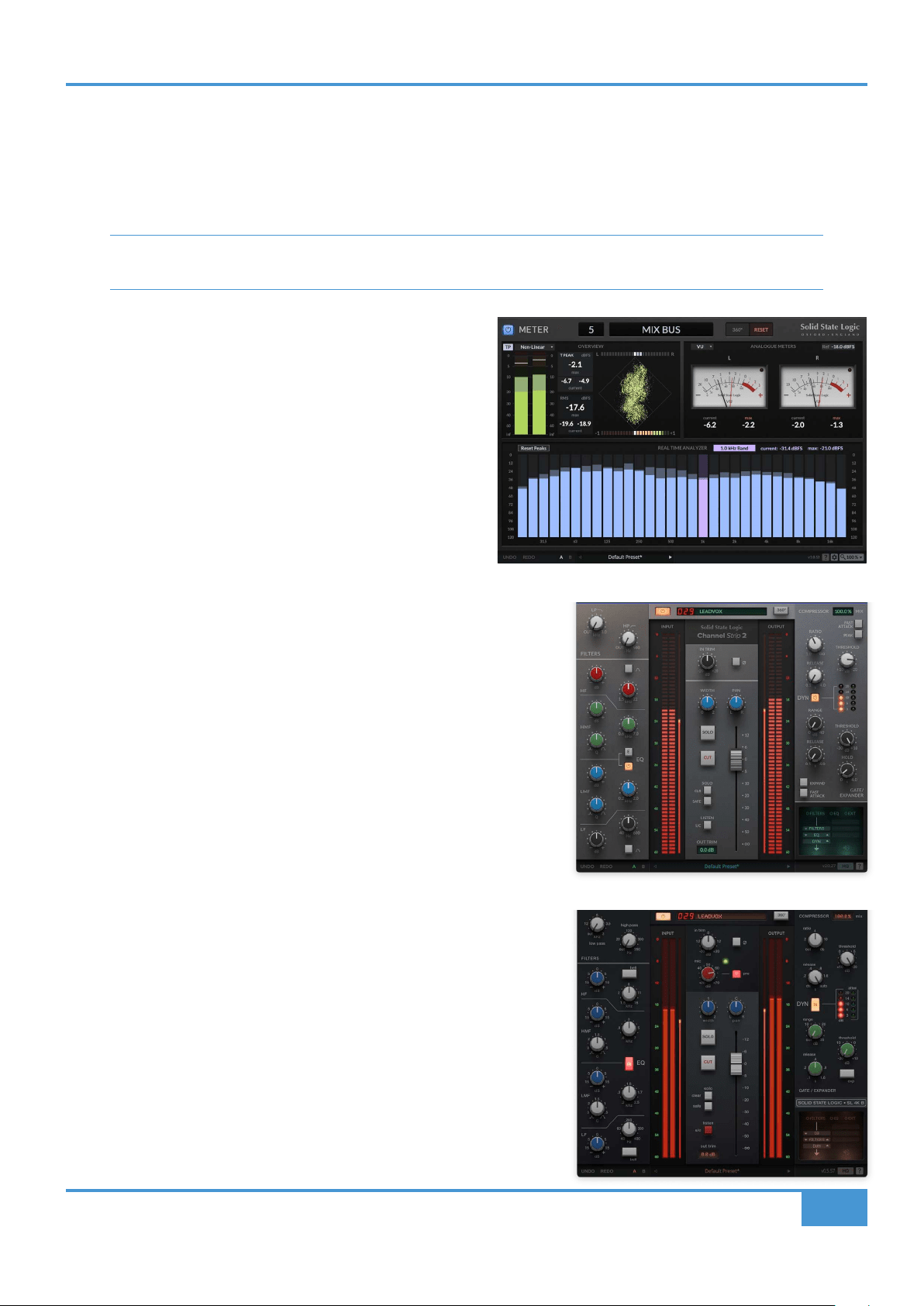
Plug-in Mixer Tutorial
119
SSL UF1 User Guide
UF1 & 360°-Enabled Plug-ins
The 360°-enabled plug-ins listed below can be controlled directly from UF1, via the 360° Plug-in Mixer. The purpose of this section
of the user guide is to detail how the control aspect works from UF1. If you want a more detailed explanation of the features of each
360°-enabled plug-in, refer to the individual plug-in user guides on the SSL Support website.
In DAWs that support the VST3 format, always use VST3s for your 360°-enabled plug-ins instead of AU. Do not mix
and match VST3s and AUs in your session - this is not supported by 360° and can cause performance issues.
SSL Meter
SSL Meter is an essential set of metering tools meticulously
designed to tackle audio challenges, ensure consistency, and
deliver impactful mixes. Featuring measurements of peak & RMS
levels, phase coherence, stereo balance, and frequency content,
SSL Meter equips you with measurements for crafting top-notch
mixes efficiently and effectively.
Connect to and switch between up to 8 SSL Meter plug-in
instances on UF1/in the 360° Plug-in Mixer.
Channel Strip 2
Channel Strip 2 is a fully-featured channel strip, based on digital modelling of
the EQ and Dynamics curves from the legendary XL 9000 K SuperAnalogue
console. Clean, linear tone shaping for maximum flexibility. Switch between
classic E and G-Series EQ curves.
Connect to as many instances of Channel Strip 2 as you like on UF1/in the 360°
Plug-in Mixer.
4K B
The 4K B is a detailed model of the legendary SL 4000 B channel strip. The SL
4000 B was the first ever commercially released SSL console and responsible
for the sound of many classic records that came out of London's famous
Townhouse Studio 2, 'The Stone Room'.
Connect to as many instances of 4K B as you like on UF1/in the 360° Plug-in
Mixer.
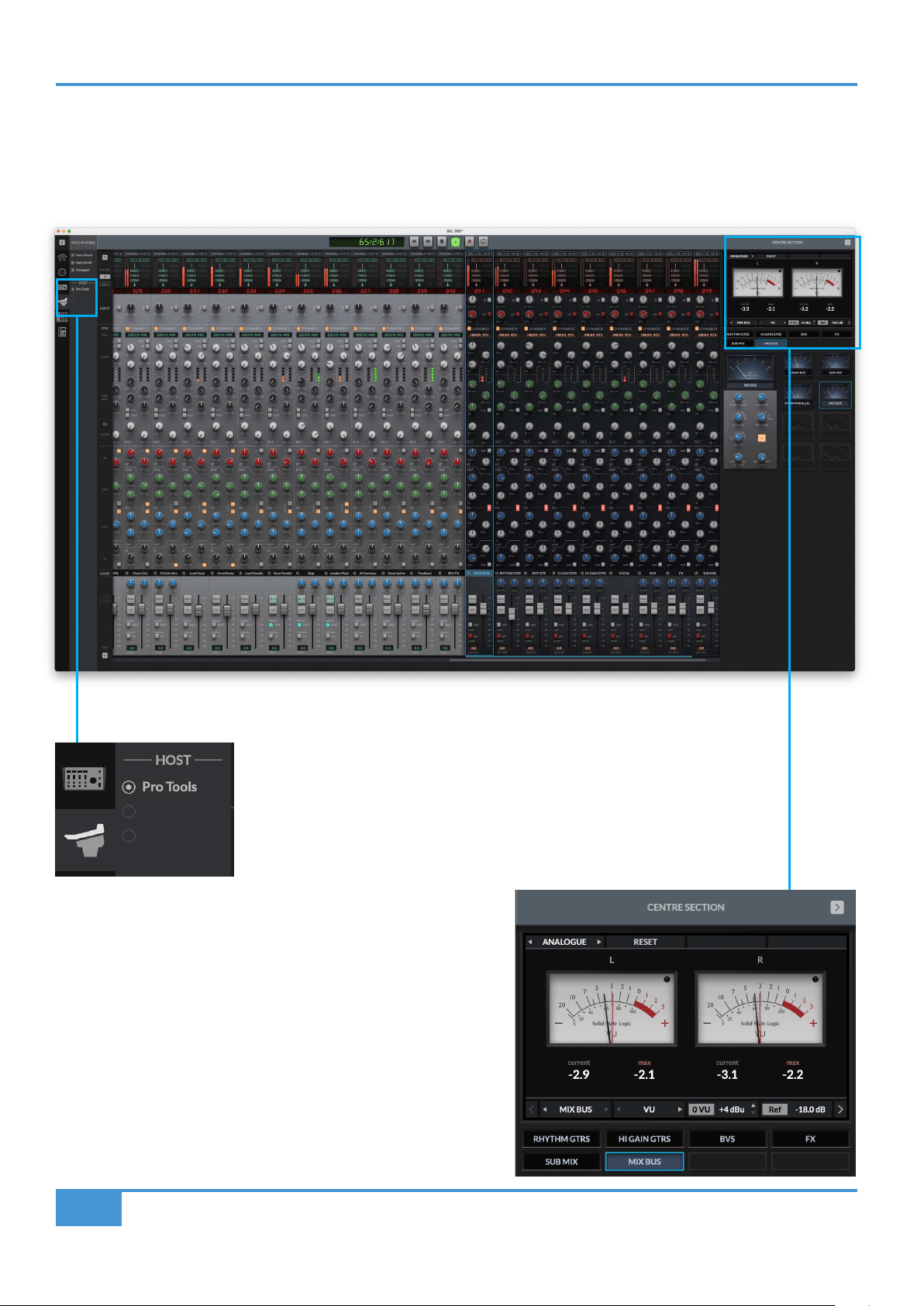
Plug-in Mixer Tutorial
120
SSL UF1 User Guide
Plug-in Mixer Overview
The SSL 360° Plug-in Mixer is a place to view and control 360°-enabled plug-ins. For a more detailed breakdown of every aspect,
please refer to the UC1 User Guide. For now, we will highlight the key aspects relating to the SSL Meter plug-in.
Host
The Plug-in Mixer can connect up to 3 different DAW Hosts. Switch between them
here, or from UF1. Hosts come online as soon as you insert a 360°-enabled plug-in
into the DAW session.
Centre Section - Meter Plug-ins
The collapsible Centre Section area of the Plug-in Mixer is where up
to 8 SSL Meter plug-ins are displayed. The interface mirrors the UF1
physical control.
Use the left and right arrows either side of ANALOGUE to switch
between Overview, Analogue and RTA views for the selected plug-in
instance.
Use the 8 buttons at the bottom to select the desired plug-in instance.

Plug-in Mixer Tutorial
121
SSL UF1 User Guide
Plug-in Mixer - Tutorial
The following tutorial guides you through configuring and using the Plug-in Mixer profile on UF1.
SSL 360° Setup
1. Open the SSL 360° application on your computer. Go to the HOME page and check that your UF1 has been detected by SSL
360°.
2. Go to the UF1 page and set a Layer to Plug-in Mixer using the drop-down list.
Plug-in Mixer Setup
UF1 follows selected Plug-in Mixer Channel Strip instance - With this setting enabled, UF1 will always follow the selected
360°-enabled channel strip instance, which effectively means UF1 and UC1's selected channels are linked together. Disabling
this setting, is the same as engaging the MASTER key on UF1 which means that UF1 can control a different 360°-enabled channel
strip to the one that UC1 is controlling.
Automatically page Soft Keys to follow last moved Channel Strip plug-in parameter - With this setting enabled, UF1 will
automatically page it's large display and V-Pots to the page of the last adjusted channel strip parameter - e.g. in response the
parameter being changed in the plug-in itself, the 360° Plug-in Mixer, or UF8/UC1. With this disabled, UF1's soft key page and
V-Pots assignment must be changed manually using the Page left and right keys beneath V-Pots 3 and 4. It is recommended to
leave this setting disabled if using UF1 and UC1 together, with the intention that you would leave UF1 set to Soft Key Page 1 of
8, as it hosts all the channel strip parameters that are in UC1's Extended Functions menu, therefore giving you easy access to all
the parameters across UF1 and UC1.
STEP 1 : Open SSL 360° application.
Check your UF1 has been detected.
STEP 2 : Select the Plug-in Mixer
prole from the UF1 page.
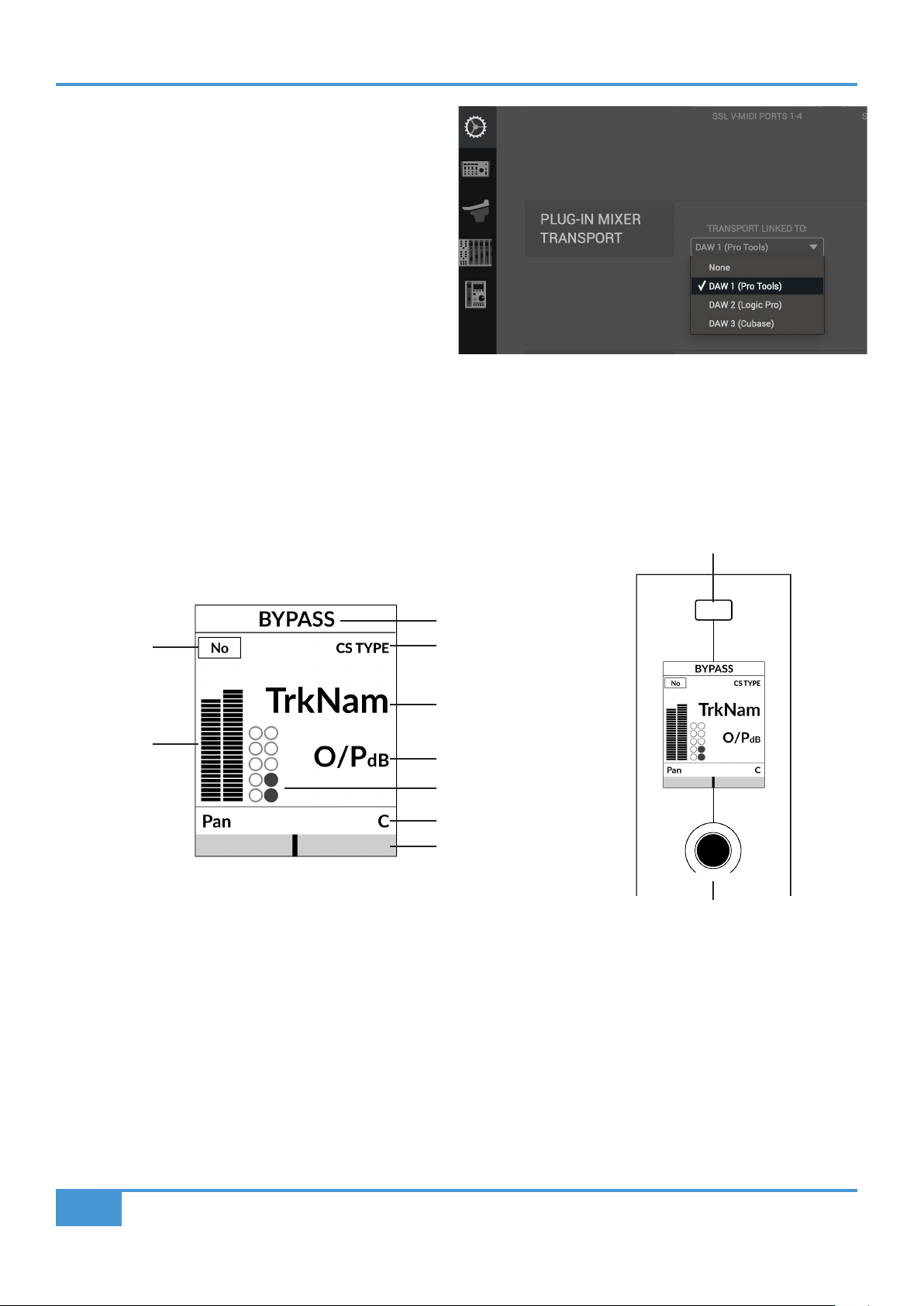
Plug-in Mixer Tutorial
122
SSL UF1 User Guide
Plug-in Mixer Transport Setup
In order for the Transport functionality and the timecode
readout to work on UF1, you must ensure that the Plug-in Mixer
Layer is correctly linked to one of your configured DAWs. Go
to the CONTROL SETUP page in SSL 360° and choose your
desired DAW from the drop-down list in the Plug-in Mixer
Transport section.
Tutorial
This section guides you through using UF1 with the SSL 360°
Plug-in Mixer.
Before You Start...
Setting a Layer of UF1 to control the Plug-in Mixer allows you to extend the power of your UC1 controller. But don't worry if you
don't have a UC1 controller - you can still use UF1 on its own to control all the parameters of your 360°-enabled channel strips and
SSL Meter plug-ins.
Small LCD Layout
Bypass - Indicates if the channel strip is bypassed. You can toggle the bypass state from the soft key directly above.
Plug-in Mixer Position - Displays the position of the channel strip plug-in in the Plug-in Mixer.
Channel Strip Type - Displays the type of 360°-enabled channel strip - e.g. CS 2, 4K B.
TrkNam - Displays the DAW track name that the plug-in is inserted on in the DAW.
O/PdB - Displays the channel strip Output Fader value.
Metering - Displays the metering of the plug-in.
Dynamics Metering - Displays the gate and compressor gain reduction activity from the plug-in.
Pan Value - Displays the value of the pan control on that instance of channel strip.
V-Pot Readout Bar - Displays the position of the Pan. You can adjust the Pan position from the V-Pot encoder directly below the
small LCD. Push the V-Pot to reset the Pan to centre.
Enlarged view of LCD screen
Track Name
Output Fader dB
Pan Value
Pan Position
Dynamics Metering
Plug-in Mixer
Position
Metering
Channel Strip Type
Channel Strip Type
Bypass
Pan
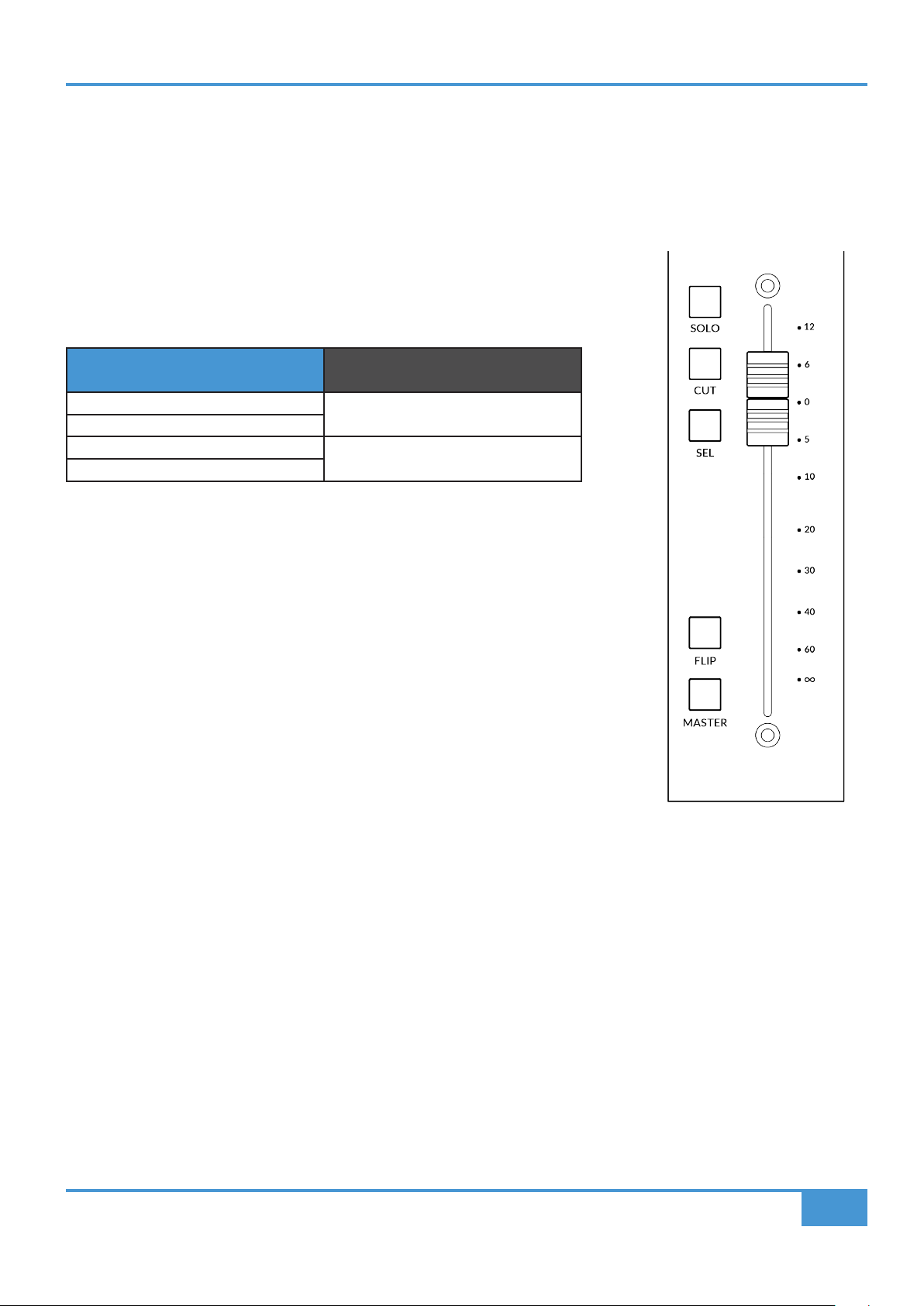
Plug-in Mixer Tutorial
123
SSL UF1 User Guide
100 mm Motorised Fader
Controls the channel strip's OUTPUT FADER.
Solo & Cut
Each strip contains SOLO, CUT and SEL keys.
SOLO and CUT keys control Solo and Cut buttons in the channel strip plug-in. In some
DAWs, the SOLO and CUT buttons directly control the DAW's Solo and Mute buttons. In
others, the soloing system is independent.
SOLO AND CUT linked to DAW
(Must use VST3 format)
SOLO AND CUT independent of DAW
Cubase/Nuendo
Pro Tools
Live
Studio One
Logic Pro
REAPER
For DAWs whereby the SOLO and CUT integration is independent (not linked to the
DAW), this is how it works:
SOLO - Cuts the output of all other channel strip plug-ins in the session.
CUT - Cuts the output of the channel strip plug-in.
SEL
If MASTER is disabled, the SEL key has no function and is always active because UF1 is
following the selected channel strip on UC1/the 360° Plug-in Mixer. If the MASTER key is
enabled and UF1 is controlling a different channel strip instance, pressing the SEL key
is a fast way of forcing UC1 to go to the UF1 selected channel.
Flip
The Flip key has no function in the Plug-In Mixer layer and is therefore disabled.
Master
The Master Key in the Plug-In Mixer decouples the fader from the UC1 selected channel,
allowing UF1 to control an entirely different channel strip, selectable with the Channel
Encoder.
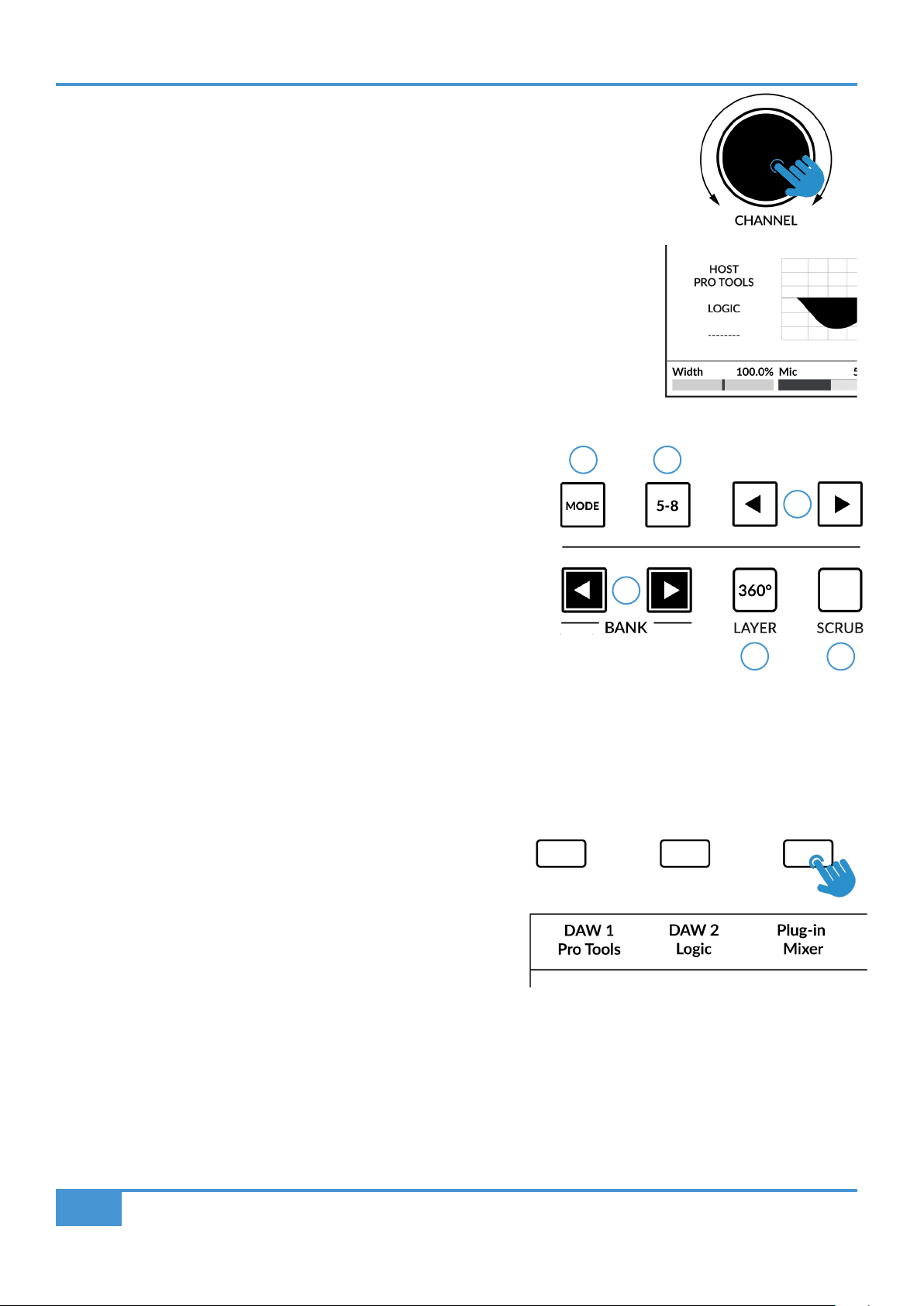
Plug-in Mixer Tutorial
124
SSL UF1 User Guide
Channel Encoder - Channel Banking
By default, the CHANNEL encoder is used to move your channel strips across the UF1
surface, banking in increments of 1 channel at a time.
Channel Encoder - DAW Host Select
The Plug-in Mixer can connect up to 3 different DAWs (Hosts). You can switch between
them by pressing on the CHANNEL encoder. A sub menu appears when in Channel Strip
Mode underneath the HOST text on-screen. You can use the CHANNEL encoder to scroll to a
different HOST and press to confirm the selection.
CENTRE KEYS
MODE (Button 1)
The MODE key determines the operation of the large screen and its 4
Soft Keys and V-Pots. Pressing the MODE key toggle you through the
different options. Each mode is colour coded:
Channel Strip Mode (backlit)
This mode allows you to control your 360°-enabled channel strips and
view each strip's EQ curve.
Meter Mode (yellow)
This mode allows you to control your SSL Meter plug-ins.
5-8 Key (Button 2)
No functionality.
Page Keys (3)
Allows you to move through various pages of 360°-enabled channel
strip or Meter plug-ins parameters.
Bank Keys (Button 4)
The bank keys allow you to move channel strips across your UF1
control surface in multiples of 8 at a time.
360° / LAYER selection Key (Button 5)
A short press of the 360° button opens and closes the SSL 360°
application, allowing access to edit settings & assignable keys on
the UF1 & all other SSL 360° powered devices. A long press and
hold of the 360° button, in conjunction with a press of the relevant top-row soft key allows you to switch to a different Layer.
1 2
3
4
6
5
Press and hold the 360° button and whilst keeping
it held down, you can switch to a different Layer by
pressing the relevant top-row soft key.
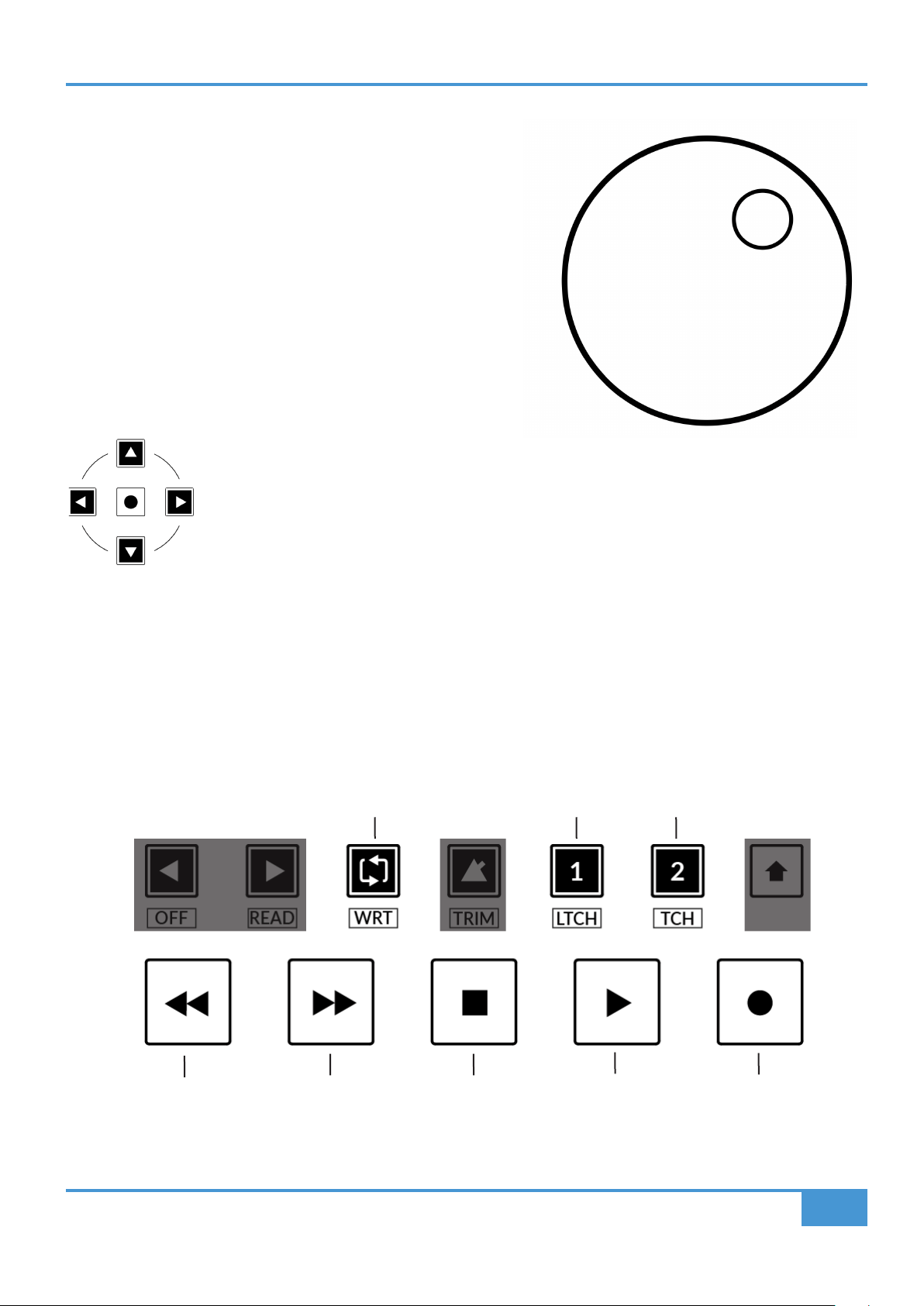
Plug-in Mixer Tutorial
125
SSL UF1 User Guide
SCRUB Key (Button 6)
The SCRUB key puts the jog wheel into scrub mode (if the DAW supports
this function). Scrolling through the DAW timeline with the playhead playing
back audio at the speed of the Jog Wheel rotation.
Jog Wheel (7)
The jog wheel is used to scroll through the session timeline. By simply
moving the Jog Wheel, the playhead will move through the timeline forward
by moving the Jog wheel clockwise & backwards in an anticlockwise
movement.
Cursor Keys
The Cursor Keys move up, down, left and right across the channel strips on-screen in the SSL 360°
Plug-in Mixer.
Transport Controls
The primary transport keys allow convenient access to the main transport commands within the DAW. From left to right: Rewind,
Forward, Stop, Play & Record. The Secondary Transport keys above include Loop on/off, Quick Key 1 clears any active solos (only
applicable when the solo and cut parameters are not linked to the DAW) and Quick Key 2 toggles the V-Pot encoders between
normal and fine resolution modes.
RecordPlayStopForwardRewind
LoopUnassigned Unassigned
Quick Key 2
Solo Clear Fine
Quick Key 1
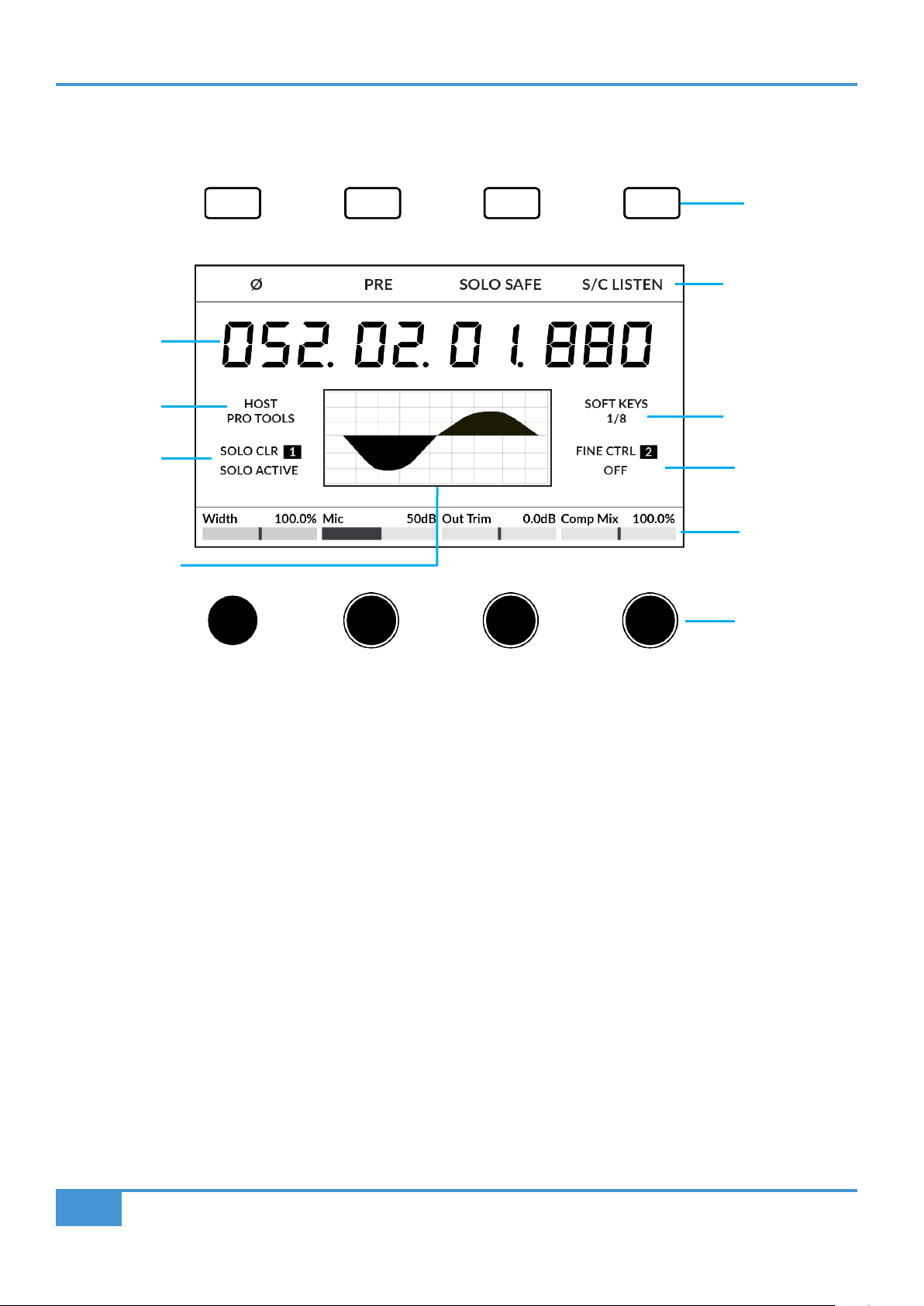
Plug-in Mixer Tutorial
126
SSL UF1 User Guide
Large LCD Layout - Channel Strip Mode
This mode is for controlling your 360°-enabled channel strips. Access this mode by toggling the MODE key to the default state.
Soft Keys - Controls the channel strip switch parameters displayed directly below.
Timecode - Displays DAW timecode via HUI/MCU, provided you have configured this.
DAW Host Layer - Indicates the current DAW the Plug-In Mixer is hosting. The Plug-in Mixer can connect up to 3
different DAWs (Hosts). You can switch between them by pressing on the CHANNEL encoder and scrolling to a
different one and pressing to confirm.
Solo Active - Indicates if there are any active solo'd channels in the session. Quick Key 1 will clear any active solos.
This is only applicable when the solo and cut parameters are not linked to the DAW.
Channel Strip EQ Display Graph - Provides a graphic illustration of the channel strip's EQ curves/shape.
Channel Strip Parameters Page - Indicates the current channel strip parameters page for the Soft Keys and V-Pots.
Use the left and right page arrow keys beneath V-Pots 3 and 4 to change page and find the parameters you want.
Fine Encoder Mode Indication - Informs you of whether the encoders are in FINE resolution mode or not. Quick Key 2
allows you to toggle this on/off.
Channel Strip V-Pot Parameters - Displays the names and values of the channel strip parameters on the current page.
Use the 4 V-Pots to adjust the parameters.
Soft Keys
Channel Strip
Parameters Page
Channel Strip V-Pot
Parameters
DAW
Host
Timecode
Fine Encoder
Mode Indication
Channel Strip EQ
Display Graph
V-Pots
Channel Strip
Switch Parameters
Solo Active
Indication
Plug-in Mixer Tutorial
127
SSL UF1 User Guide
SSL Chanel Strip Soft Key & V-Pot Assignments
The tables below describe the mapping of 360°-enabled channel strips across the UF1 soft keys and V-Pots surrounding the large
LCD.
Channel Strip 2
Page Soft Key 1 Soft Key 2 Soft Key 3 Soft Key 4 V-Pot 1 V-Pot 2 V-Pot 3 V-Pot 4
1 Ø SOLO SAFE S/C LISTEN Width Out Trim Comp Mix
2 In Trim High Pass Low Pass
3 LF BELL E EQ LF Gain LF Freq
4 E EQ LMF Gain LMF Freq Q
5 E EQ HMF Gain HMF Freq Q
6 HF BELL E EQ HF Gain HF Freq
7 FAST ATTACK PEAK S/C LISTEN DYNAMICS Ratio Threshold Release
8 EXPAND FAST ATTACK DYNAMICS Range Threshold Release Hold
4K B
Page Soft Key 1 Soft Key 2 Soft Key 3 Soft Key 4 V-Pot 1 V-Pot 2 V-Pot 3 V-Pot 4
1 Ø PRE SOLO SAFE S/C LISTEN Width Mic Out Trim Comp Mix
2 In Trim High Pass Low Pass
3 LF BELL EQ LF Gain LF Freq
4 EQ LMF Gain LMF Freq Q
5 EQ HMF Gain HMF Freq Q
6 HF BELL EQ HF Gain HF Freq
7 S/C LISTEN DYNAMICS Ratio Threshold Release
8 EXPAND DYNAMICS Range Threshold Release
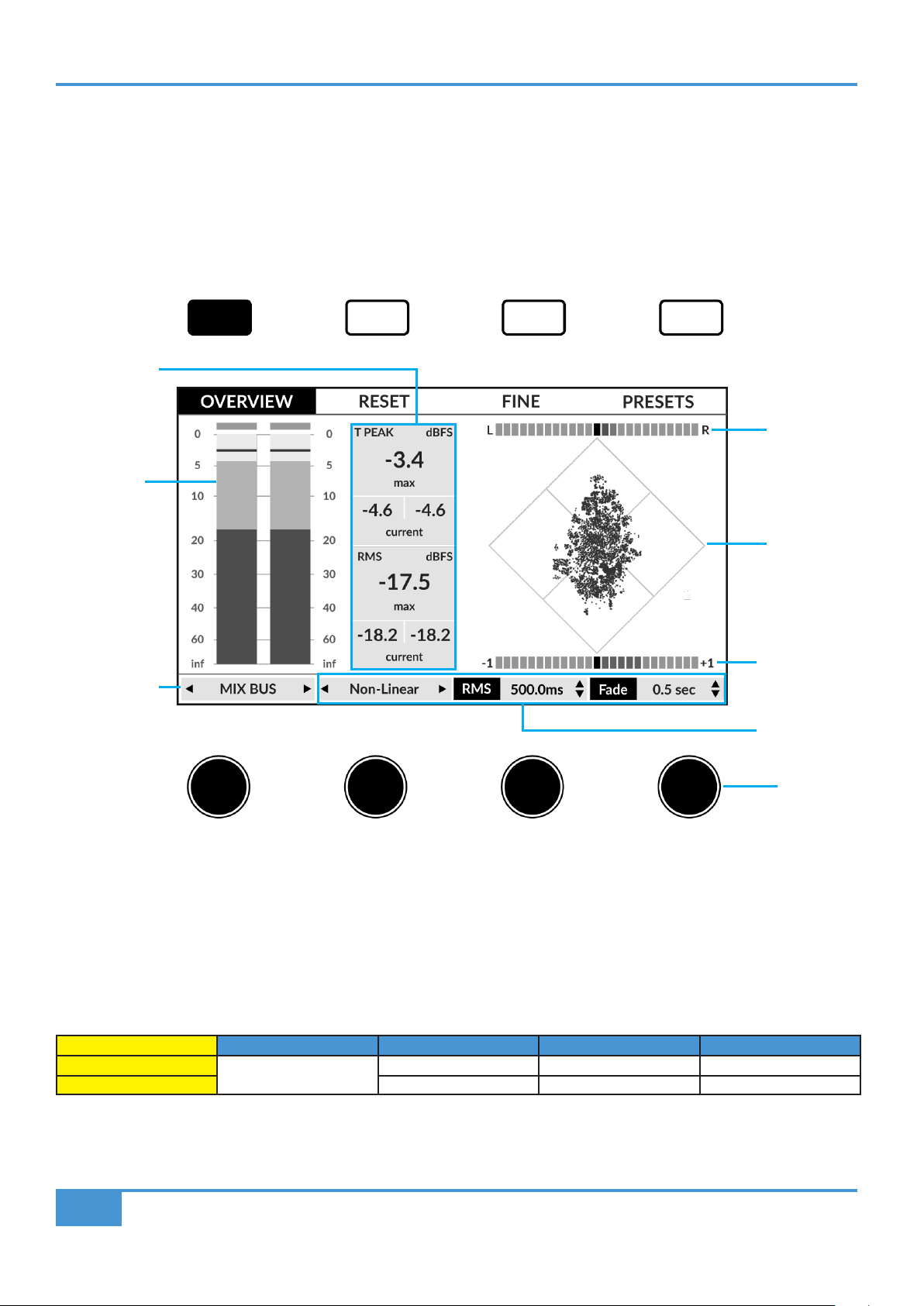
Plug-in Mixer Tutorial
128
SSL UF1 User Guide
Large LCD Layout - Meter Mode
This mode is for controlling your SSL Meter plug-ins. Access this mode by toggling the MODE key to the yellow state.
Overview
The Overview screen displays all your key Peak & RMS metering, phase and stereo balance information.
Meter Screen Selector - Press the key to toggle through the 3 different meter screens: Overview, Analogue and RTA.
Reset - Resets all metering, including clip indicators and max values.
Fine Encoder Mode - Puts the encoders into fine resolution mode for precise adjustments.
Presets Menu - Opens a menu where you can load your Meter plug-in presets from by scrolling with the 4th encoder and pushing
to confirm the load.
Page Meter Plug-in Selector Parameter Control 1 Parameter Control 2 Parameter Control 3
1
Scroll to select the Meter
plug-in instance
Digital Meter Type RMS Integration Time Lissajous Fade Time
2 Peak Hold Time True Peak Mode On/Off -
V-Pots
Phase
Correlation
Meter
Lissajous
Phase
Scope
L-R
Balance
Bar
Presets
Menu
Fine
Encoder Mode
Meter Screen
Selector
Meter Plug-in
Selector
Reset
Parameter
Control 1
Parameter
Control 2
Parameter
Control 3
Meter Plug-in
Parameters
Digital
Meter
Bargraphs
Selected
Meter Plug-in
Instance
Text
Readouts
Max and
Current Values
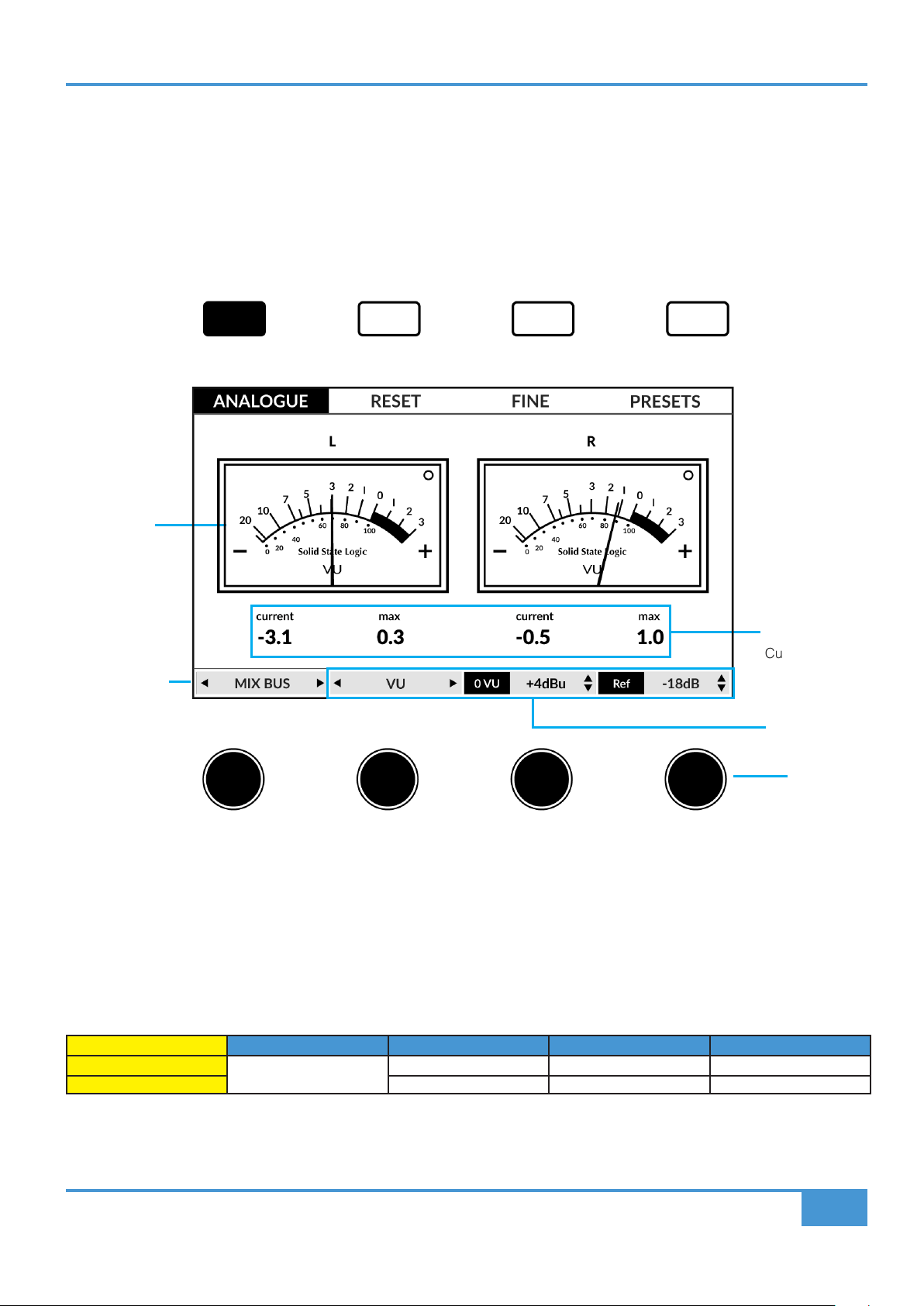
Plug-in Mixer Tutorial
129
SSL UF1 User Guide
VU
Meters
Text
Readouts
Max and
Current Values
Analogue
The Analogue screen is the place to view analogue moving-coil metering. Choose between VU or PPM Type II meters.
Meter Screen Selector - Press the key to toggle through the 3 different meter screens: Overview, Analogue and RTA.
Reset - Resets all metering, including clip indicators and max values.
Fine Encoder Mode - Puts the encoders into fine resolution mode for precise adjustments.
Presets Menu - Opens a menu where you can load your Meter plug-in presets from by scrolling with the 4th encoder and pushing
to confirm the load.
Page Meter Plug-in Selector Parameter Control 1 Parameter Control 2 Parameter Control 3
1
Scroll to select the Meter
plug-in instance
VU / PPM 0 VU Line-Up Reference Level
2 Max Needle Setting Stereo / Mid-Side Global Delay
V-Pots
Presets
Menu
Fine
Encoder Mode
Meter Screen
Selector
Meter Plug-in
Selector
Reset
Parameter
Control 1
Parameter
Control 2
Parameter
Control 3
Meter Plug-in
Parameters
Selected
Meter Plug-in
Instance
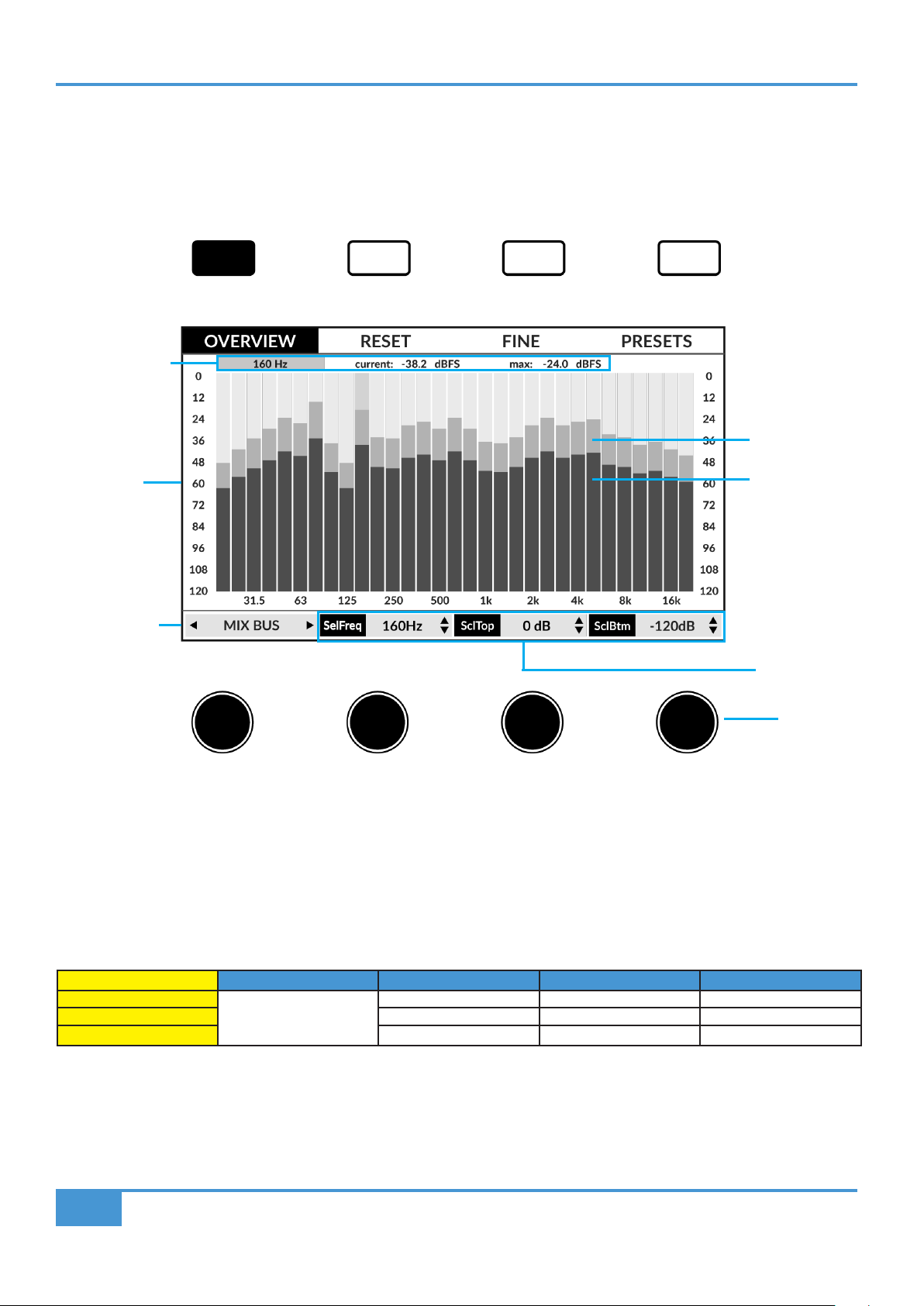
Plug-in Mixer Tutorial
130
SSL UF1 User Guide
31-Band Real-Time Analyser (RTA)
The RTA screen is the place to view the frequency content of your material.
Meter Screen Selector - Press the key to toggle through the 3 different meter screens: Overview, Analogue and RTA.
Reset - Resets all metering, including clip indicators and max values.
Fine Encoder Mode - Puts the encoders into fine resolution mode for precise adjustments.
Presets Menu - Opens a menu where you can load your Meter plug-in presets from by scrolling with the 4th encoder and pushing
to confirm the load.
Page Meter Plug-in Selector Parameter Control 1 Parameter Control 2 Parameter Control 3
1
Scroll to select the Meter
plug-in instance
Select Frequency Scale Top Scale Bottom
2 Peak Hold Time Weighting RTA Averaging
3 Analysis Source - -
V-Pots
Presets
Menu
Fine
Encoder Mode
Meter Screen
Selector
Meter Plug-in
Selector
Reset
Parameter
Control 1
Parameter
Control 2
Parameter
Control 3
Meter Plug-in
Parameters
Selected
Frequency:
Current & Max
Value Text
Readouts
Selected
Meter Plug-in
Instance
31-Band
RTA
Current
Peak
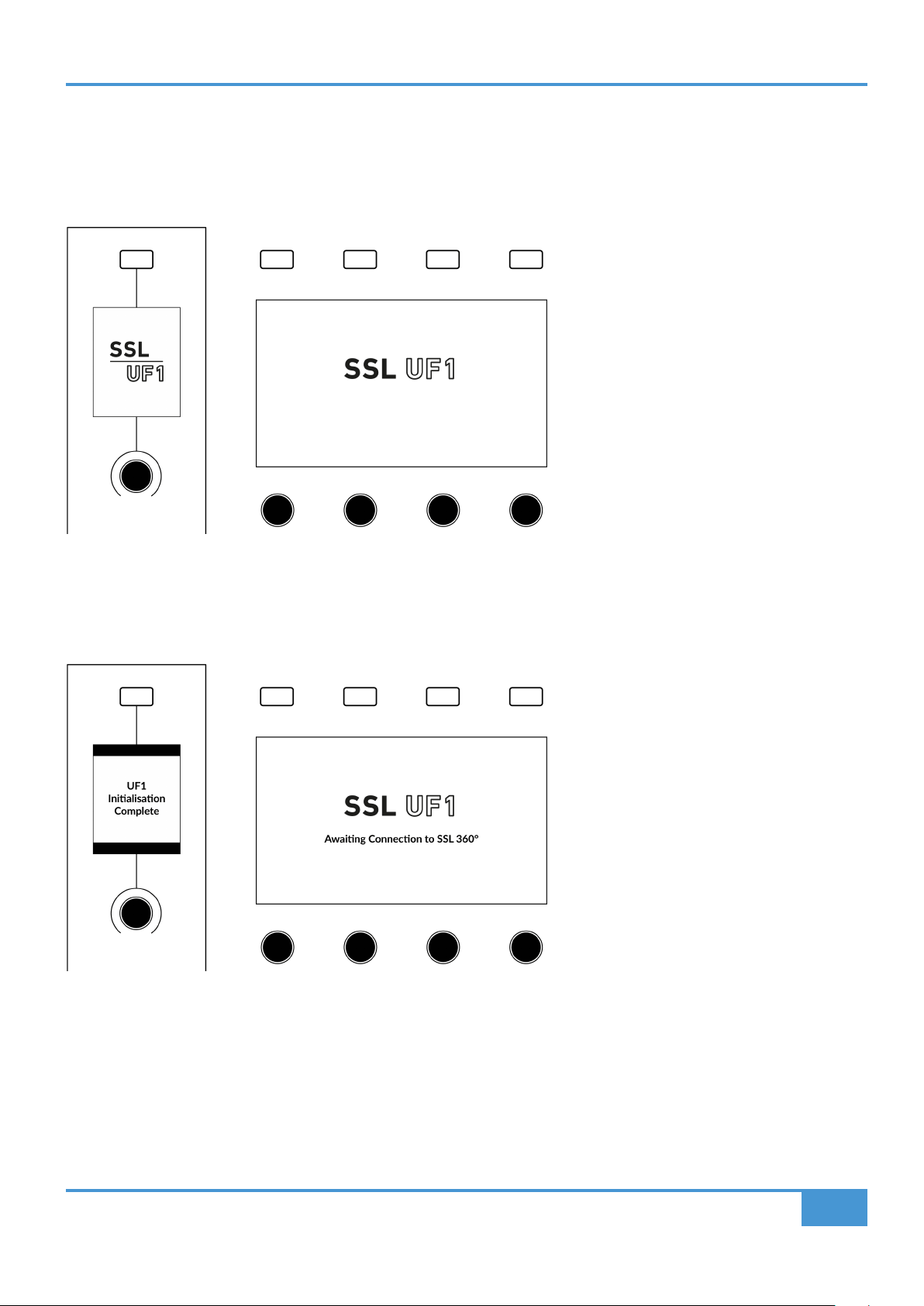
Troubleshooting & FAQs
131
SSL UF1 User Guide
UF1 LCD Messages
The LCDs of UF1 show certain information, depending on UF1's status.
Booting / UF1 Identify
This message is displayed when you power up UF1, accompanying the 'fader wave'.
'Awaiting Connection to SSL 360° Software'
'UF1 Initialisation Complete' means that the UF1 hardware boot sequence has completed. 'Awaiting Connection to SSL 360°' means
that UF1 is waiting for the SSL 360° software to start running on the computer. You may see this message appear when logging
onto your computer, before the operating system has finished loading your user-profile and start-up items. You may also see this
message if you are yet to plug a USB cable from your UF1 into your computer.
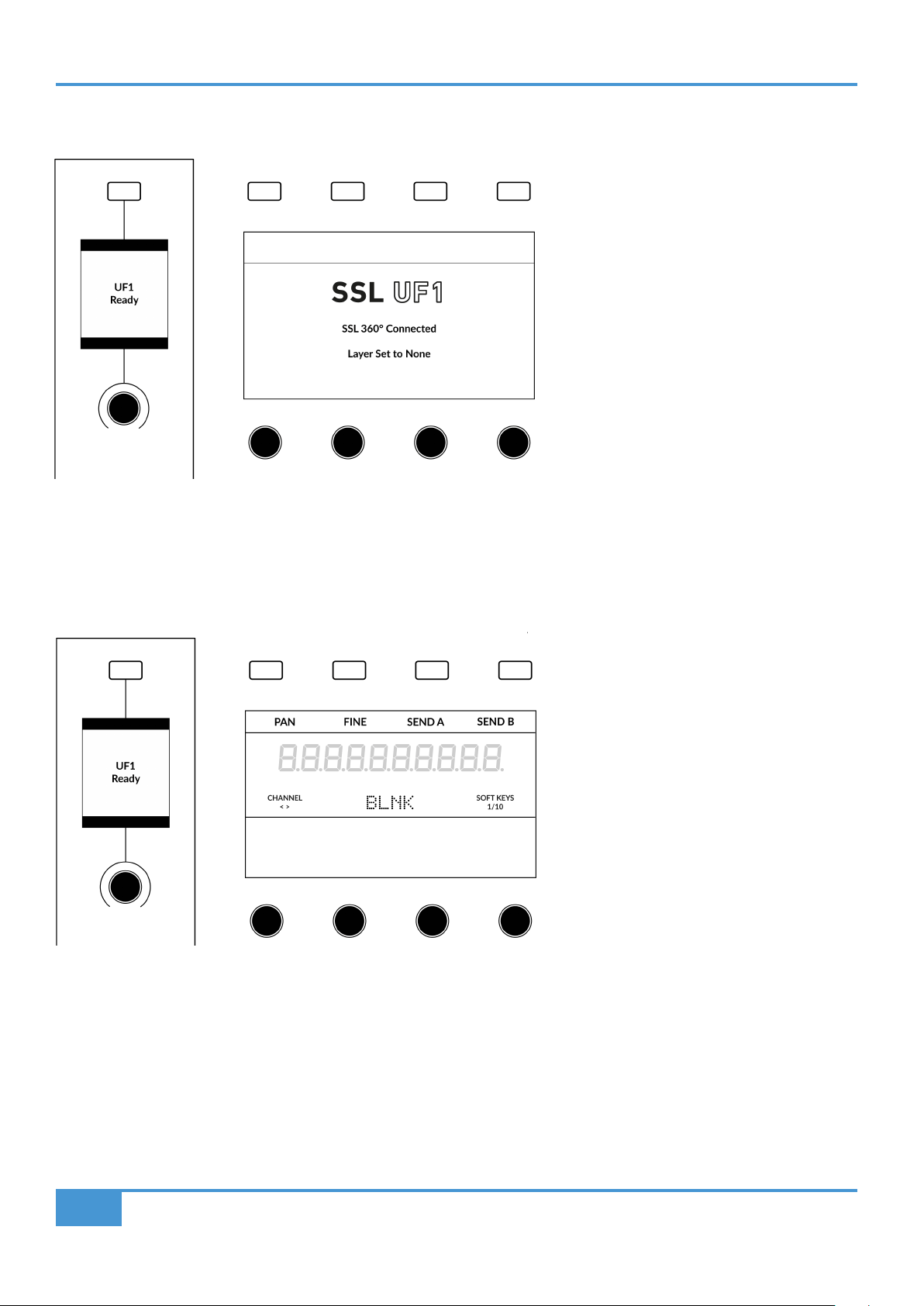
Troubleshooting & FAQs
132
SSL UF1 User Guide
'Layer Set To None'
If you see this message, you have not yet chosen a DAW profile for the UF1 Layer. Head to the CONTROL SETUP page in SSL 360°
and choose your DAW(s). Then go to the UF1 page and select the DAW you are using from the drop-down list.
'Waiting For DAW' (Pro Tools only)
If you have configured a Layer for Pro Tools but Pro Tools is closed or you have yet to configure UF1 as a MIDI controller in Pro
Tools, then you will see this message.

Troubleshooting & FAQs
133
SSL UF1 User Guide
'SSL 360° Connection Lost. Attempting to Reconnect'
The LCD message above means that communication between SSL 360° and UF1 has been lost. If you experience this, then check
that your USB cable connecting UF1 and 360° has not been removed. Re-connect if so.

Troubleshooting & FAQs
134
SSL UF1 User Guide
SSL 360° Software Messages
If the HOME page of SSL 360° is displaying the message 'NO DEVICES CONNECTED', then be sure to check that the USB cable
from your computer to the USB port on UF1 has not come loose.
If the HOME page of SSL 360° is displaying the message 'SOMETHING WENT WRONG... PLEASE EXIT AND RE-LAUNCH SSL
360°', then please quit SSL 360° and re-launch. If that does not work then restart your computer.
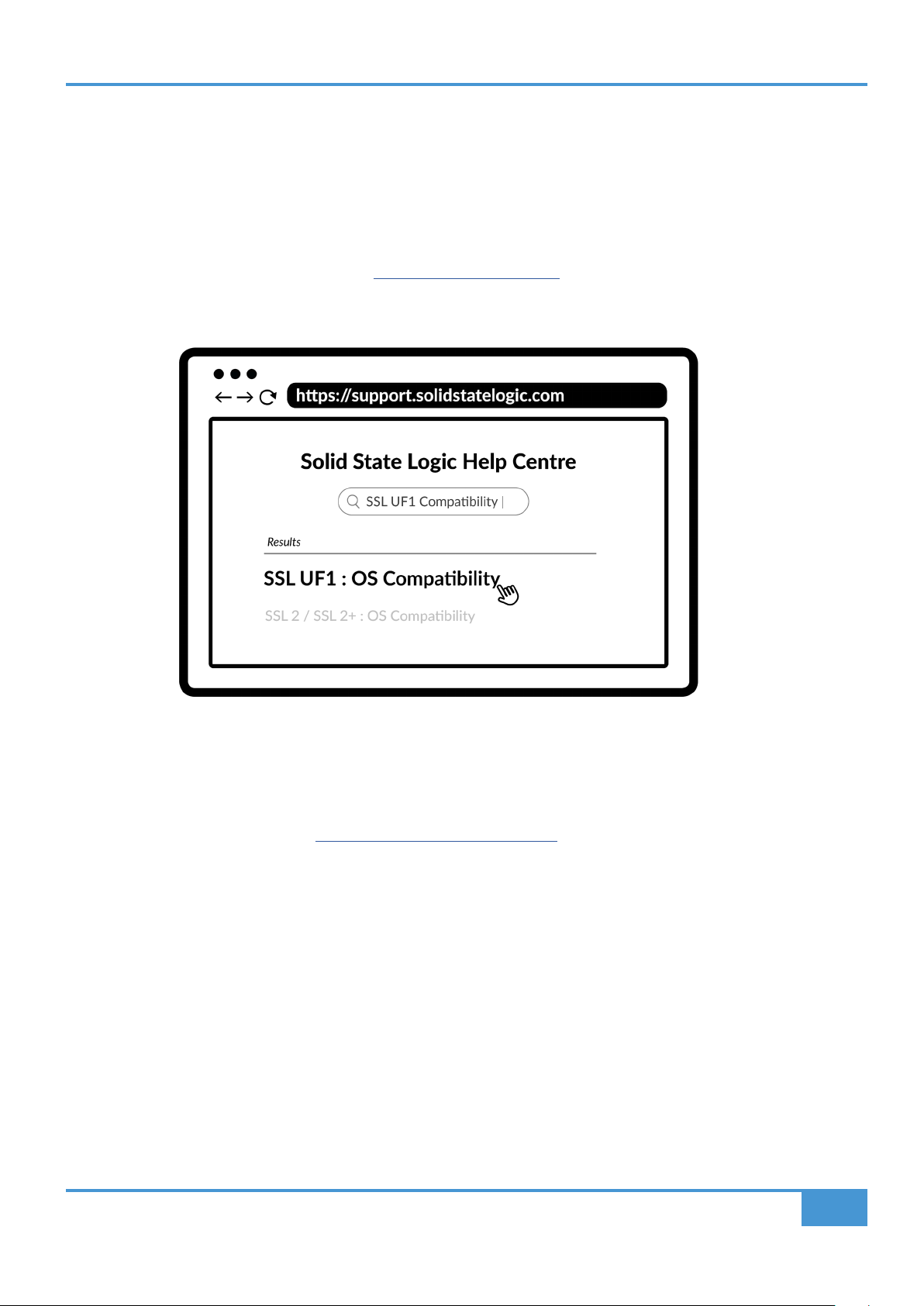
Troubleshooting & FAQs
135
SSL UF1 User Guide
SSL Support - FAQs, Ask a Question and
Compatibility
Visit the Solid State Logic Help Centre to check compatibility with your system and find answers to your questions:
support.solidstatelogic.com
Thank you
Don’t forget to register your UF1 for the best possible experience.
www.solidstatelogic.com/get-started

Safety Notices
136
SSL UF1 User Guide
Safety Notices
General Safety
• Please read and keep this document and adhere to all warnings and instructions.
• This electrical equipment should not be exposed to dust, water, or other liquids.
• Clean only with dry cloth or products compatible with electrical devices and never when the unit is powered.
• Do not operate near any heat sources, in direct sunlight or near naked flames.
• Only use attachments/accessories recommended by the manufacturer.
• When using this equipment place it on a secure level surface.
• Do not block any ventilation openings and always allow free flow of air around the unit for cooling.
• Ensure that no strain is placed on any cables connected to this apparatus. Ensure that all such cables are not placed where
they can be stepped on, pulled or tripped over.
• Unplug this apparatus during lightning storms or when unused for long periods of time.
• Do not place heavy objects on the unit.
• Do NOT modify this unit, alterations may affect performance, safety and/or international compliance standards.
• SSL does not accept liability for damage caused by maintenance, repair or modification by unauthorised personnel.
Power Safety
• This equipment is supplied with a 100-240VAC, 12 V AC/DC power adapter with a changeable plug – please select the plug
suitable for your region.
• Only use cords and power adapters recommended by the manufacturer.
• Only connect units to single phase supplies with the neutral conductor at earth potential.
• Both the mains plug and appliance coupler can be used as the disconnect device, ensure that the mains plug is connected
to an unobstructed wall outlet and is permanently operable.
• Protect the adapter and power cord from being walked on or crushed.
CAUTION! No user-serviceable parts inside. In the event of damage to the unit or power supply contact
your Solid State Logic retailer. Service or repair must be done by qualified service personnel only.
(EN only)
UKCA
This product complies with the following United Kingdom Legislation:
UK Electrical Equipment (Safety) Regulations 2016 (SI 2016/1101)
UK Electromagnetic Compatibility Regulations 2016 (SI 2016/1091).
The Eco-design requirements for Energy related products (ErP) 2009/125/EC.
The Restriction of the use of certain Hazardous Substances in Electrical and Electronic Equipment
Directive (RoHS 2) 2011/65/EU.
Safety Notices
137
SSL UF1 User Guide
EU
This product complies with the following European Union Harmonisation Legislation:
EU Low Voltage directive (LVD) 2014/35/EU,
EU Electromagnetic Compatibility directive (EMC) 2014/30/EU.
The Eco-design requirements for Energy related products (ErP) 2009/125/EC.
The Restriction of the use of certain Hazardous Substances in Electrical and Electronic Equipment Directive
(RoHS2) 2011/65/EU.
This product is CE compliant. Note that any cables supplied with SSL equipment may be fitted with ferrite rings at each end. This
is to comply with the current regulations and these ferrites should not be removed.
Electromagnetic Compatibility
EN 55032:2015, Class B. EN 55035:2017.
Electrical Safety
EN 62368-1:2014 + A11:2017.
(EN Only)
FCC Certication
This device complies with part 15 of the FCC Rules. Operation is subject to the following two conditions: (1)
This device may not cause harmful interference, and (2) this device must accept any interference received,
including interference that may cause undesired operation.
For USA – to the user
Do not modify this unit! This product, when installed as indicated in the instructions contained in the installation manual, meets
FCC requirements.
Important: This product satisfies FCC regulations when high quality shielded cables are used to connect with other equipment.
Failure to use high quality shielded cables or to follow the installation instructions may cause electromagnetic interference with
appliances such as radios and televisions and will void your FCC authorisation to use this product in the USA.
This equipment has been tested and found to comply with the limits for a Class B digital device, pursuant to part 15 of the
FCC Rules. These limits are designed to provide reasonable protection against harmful interference in a residential installation.
This equipment generates, uses and can radiate radio frequency energy and, if not installed and used in accordance with the
instructions, may cause harmful interference to radio communications. However, there is no guarantee that interference will not
occur in a particular installation. If this equipment does cause harmful interference to radio or television reception, which can be
determined by turning the equipment off and on, the user is encouraged to try to correct the interference by one or more of the
following measures:
Reorient or relocate the receiving antenna.
Increase the separation between the equipment and receiver.
Connect the equipment into an outlet on a circuit different from that to which the receiver is connected.
Consult the dealer or an experienced radio/TV technician for help.
Industry Canada Compliance
This Class B digital apparatus complies with Canadian ICES-003.
Cet appareil numérique de la classe B est conforme à la norme NMB-003 du Canada.
WARNING: Cancer and Reproductive Harm - www.P65Warnings.ca.gov. (EN, FR, ES only)

Safety Notices
138
SSL UF1 User Guide
WEEE Notice
The symbol shown here, which is on the product or on its packaging, indicates that this product must not be
disposed of with other waste. Instead, it is the user’s responsibility to dispose of their waste equipment by
handing it over to a designated collection point for recycling of waste electrical and electronic equipment. The
separate collection and recycling of your waste equipment at the time of disposal will help to conserve natural
resources and ensure that it is recycled in a manner that protects human health and the environment. For more
information about where you can drop off your waste equipment for recycling, please contact your local city
office, your household waste disposal service or where you purchased the product.
Environmental
Temperature: Operating: +1 to 40 degrees Celsius. Storage: -20 to 50 degrees Celsius.
Further information
For additional information, install and user guides, knowledge base and technical support visit www.solidstatelogic.com

SSL UF1
www.solidstatelogic.com