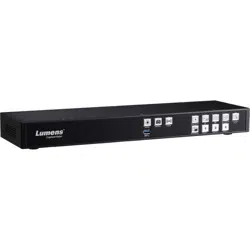
LC200
CaptureVision Station
[Important]
User Manual - English
To download the latest version of Quick Start Guide,
multilingual user manual, software, or driver, etc.,
please visit Lumens
https://www.MyLumens.com/support

1
Table of Contents
Copyright Information ................................................................................. 2
Chapter 1 Safety Instructions ................................................................... 3
Chapter 2 Package Contents .................................................................... 4
Chapter 3 Product Overview ..................................................................... 5
3.1 Front panel ................................................................................ 5
3.2 Rear panel ................................................................................. 5
3.3 RS-232/RS-485 I/O pin description .......................................... 6
Chapter 4 Instruction for installation ....................................................... 7
4.1 Product connection diagram ................................................... 7
Chapter 5 Function Description ............................................................... 8
5.1 Real-time operation menu ....................................................... 8
5.2 Parameter setting ..................................................................... 9
5.3 Director .................................................................................... 26
5.4 File management .................................................................... 30
Chapter 6 Troubleshooting ..................................................................... 34
Addendum 1 ............................................................................................... 36
Supplier's Declaration of Conformity 47 CFR § 2.1077 Compliance Information ... 37

2
Copyright Information
Copyrights © Lumens Digital Optics Inc. All rights reserved.
Lumens is a trademark that is currently being registered by Lumens Digital Optics Inc.
Copying, reproducing or transmitting this file is not allowed if a license is not provided by
Lumens Digital Optics Inc. unless copying this file is for the purpose of backup after
purchasing this product.
In order to keep improving the product, the information in this file is subject to change without
prior notice.
To fully explain or describe how this product should be used, this manual may refer to names
of other products or companies without any intention of infringement.
Disclaimer of warranties: Lumens Digital Optics Inc. is neither responsible for any possible
technological, editorial errors or omissions, nor responsible for any incidental or related
damages arising from providing this file, using, or operating this product.

3
Chapter 1 Safety Instructions
Always follow these safety instructions when using the product:
1 Operation
1.1 Please use the product in the recommended operating environment, away from water or
source of heat.
1.2 Do not place product in tilted position or unstable trolley, stand or table.
1.3 Please clean the dust on the power plug prior to usage. Do not insert the product’s power plug
into a multiplug to prevent sparks or a fire.
1.4 Do not block the slots and openings in the case of this product. They provide ventilation and
prevent the product from overheating.
1.5 Do not open or remove covers, otherwise it may expose you to dangerous voltages and other
hazards. Refer all servicing to licensed service personnel.
1.6 Unplug the product from the wall outlet and refer servicing to licensed service personnel when
the following situations happen:
If the power cords are damaged or frayed.
If liquid is spilled into the product or the product has been exposed to rain or water.
2 Storage
2.1 Do not place the product where the cord can be stepped on as this may result in fraying or
damage to the lead or the plug.
2.2 Unplug the product during thunderstorms or if it is not going to be used for an extended
period.
2.3 Do not place the product or accessories on top of vibrating equipment or heated objects.
3 Cleaning
3.1 Disconnect all the cables prior to cleaning and wipe the surface with a dry cloth. Do not use
alcohol or volatile solvents for cleaning.
4 Batteries (for products or accessories with batteries)
4.1 When replacing batteries, please only use similar or the same type of batteries
4.2 When disposing of batteries or products, please adhere to the relevant instructions in your
country or region for disposing of batteries or products
FCC Warning
This equipment has been tested and found to comply with the limits for a Class A digital device, pursuant
to part 15 of the FCC Rules. These limits are designed to provide reasonable protection against harmful
interference when the equipment is operated in a commercial environment.
Notice :
The changes or modifications not expressly approved by the party responsible for compliance could void
the user’s authority to operate the equipment.
IC Warning
This digital apparatus does not exceed the Class A limits for radio noise emissions from digital apparatus as set out
in the interference-causing equipment standard entitled “Digital Apparatus,” ICES-003 of Industry Canada.
Cet appareil numerique respecte les limites de bruits radioelectriques applicables aux appareils numeriques de
Classe A prescrites dans la norme sur le material brouilleur: “Appareils Numeriques,” NMB-003 edictee par
l’Industrie.
EN55032 CE Warning
Operation of this equipment in a residential environment could cause radio interference.
KC Warning
This equipment is Industrial (Class A) electromagnetic wave suitability equipment and seller or user
should take notice of it, and this equipment is to be used in the places except for home.
4
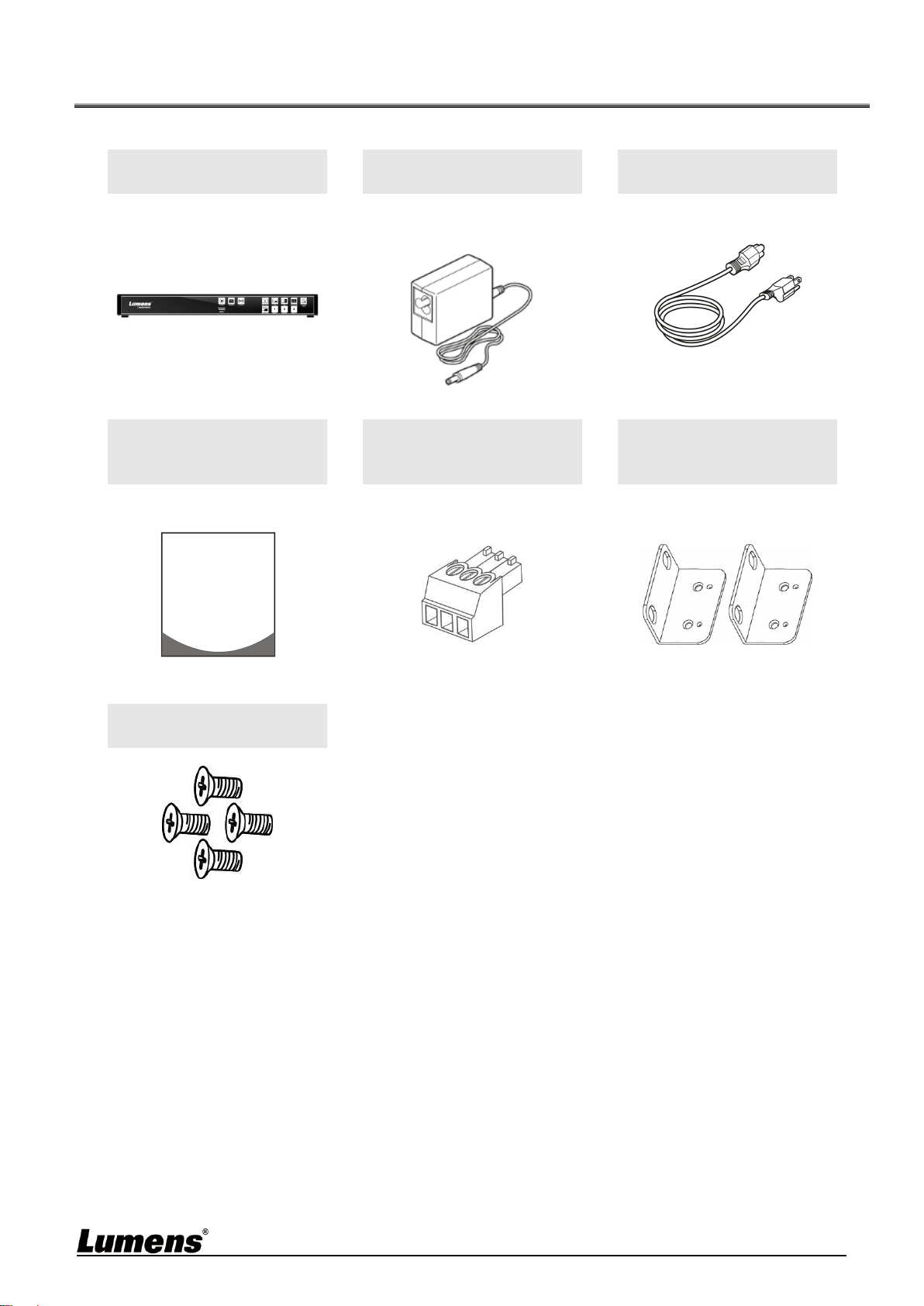
Chapter 2 Package Contents
LC200
Power Adapter
Power Cord
Appearance may vary
depending on country/region
Quick Installation Guide
RS-232/RS-485
Connector
(x2)
Mounting Metal Plate
(x2)
M3x6 Flat Head
Screw(x4)
Quick Installation Guide
5
Chapter 3 Product Overview
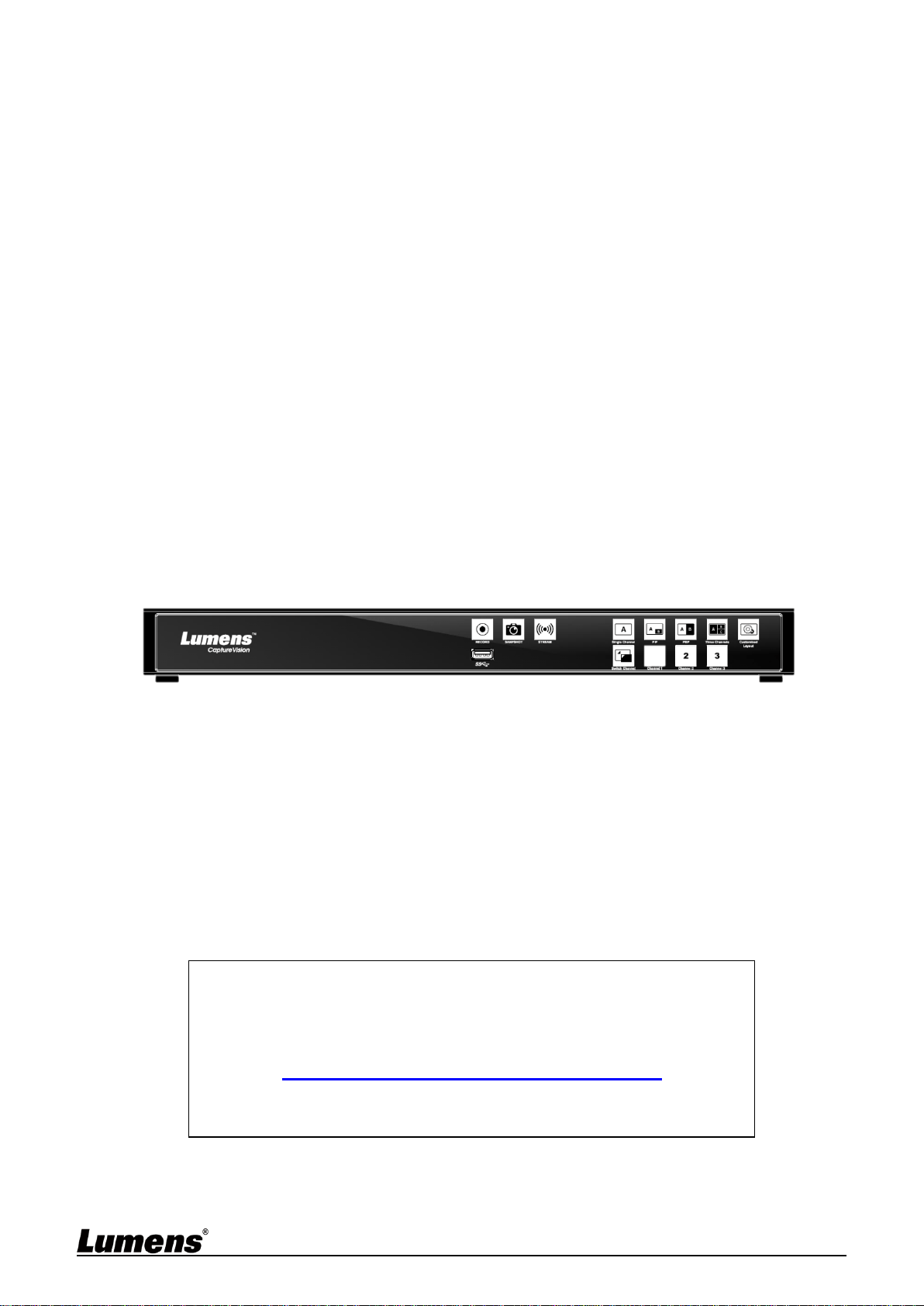
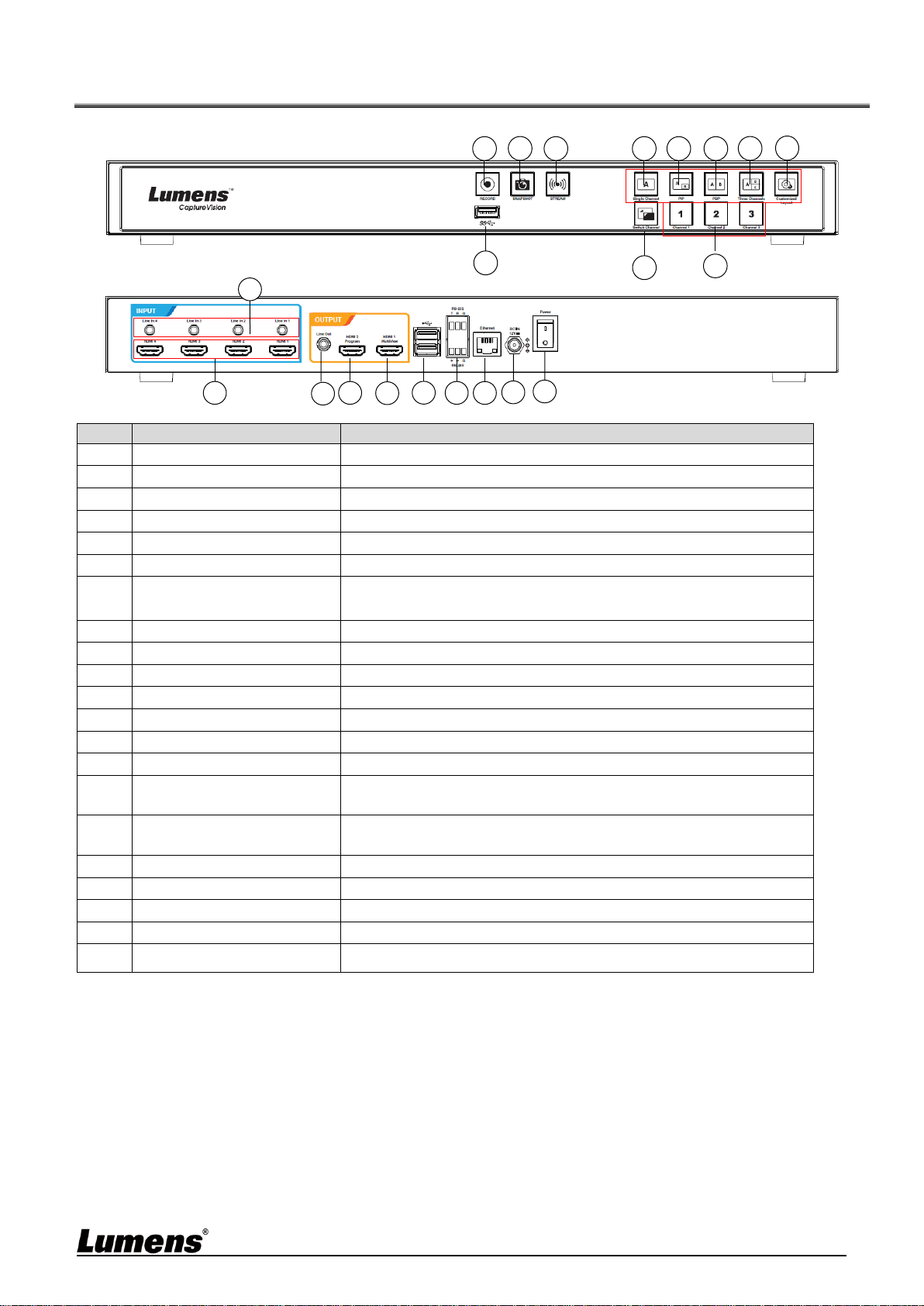
3.1 Front panel
3.2 Rear panel
No
Name
Function Descriptions
1
RECORD
Start/Stop recording
2
SNAPSHOT
Capture a single photo
3
STREAM
On/Off image streaming
4
Single Channel
Display a single channel screen
5
PIP
Switch to PIP display
6
PBP
Switch to PBP display
7
Three
Channel
Switch to three-channel display
8
Customize
Customize layout display
9
USB 3.0 Port
USB hard disk interface for storage
10
Switch Channel
Switches between signal sources
11
Channel 1 ~ 3
Quickly switch to CH1/CH2/CH3 signal sources
12
Line In (4 CH)
Line In / Mic In audio input
13
HDMI In (4 CH)
HDMI signal source input
14
Line Out
Allows line audio out to amplifier transfer
15
HDMI 2 Program
Main screen output, display the recording or streaming
screen and layout
16
HDMI 1 MultiView
Operation interface output; display the device parameter
setting menu and image management
17
USB 2.0 Port
Connect USB keyboard/mouse device operation menu
18
RS-232/RS-485 Port
Control the device through RS-232/RS-485
19
Ethernet
Connecting to LAN
20
DC IN 12 V
DC 12 V power connector
21
Power
On/Off the device power
1
2
3
4
5
10
11
6
7
8
9
14
15
13
12
16
18
19
21
20
17
6
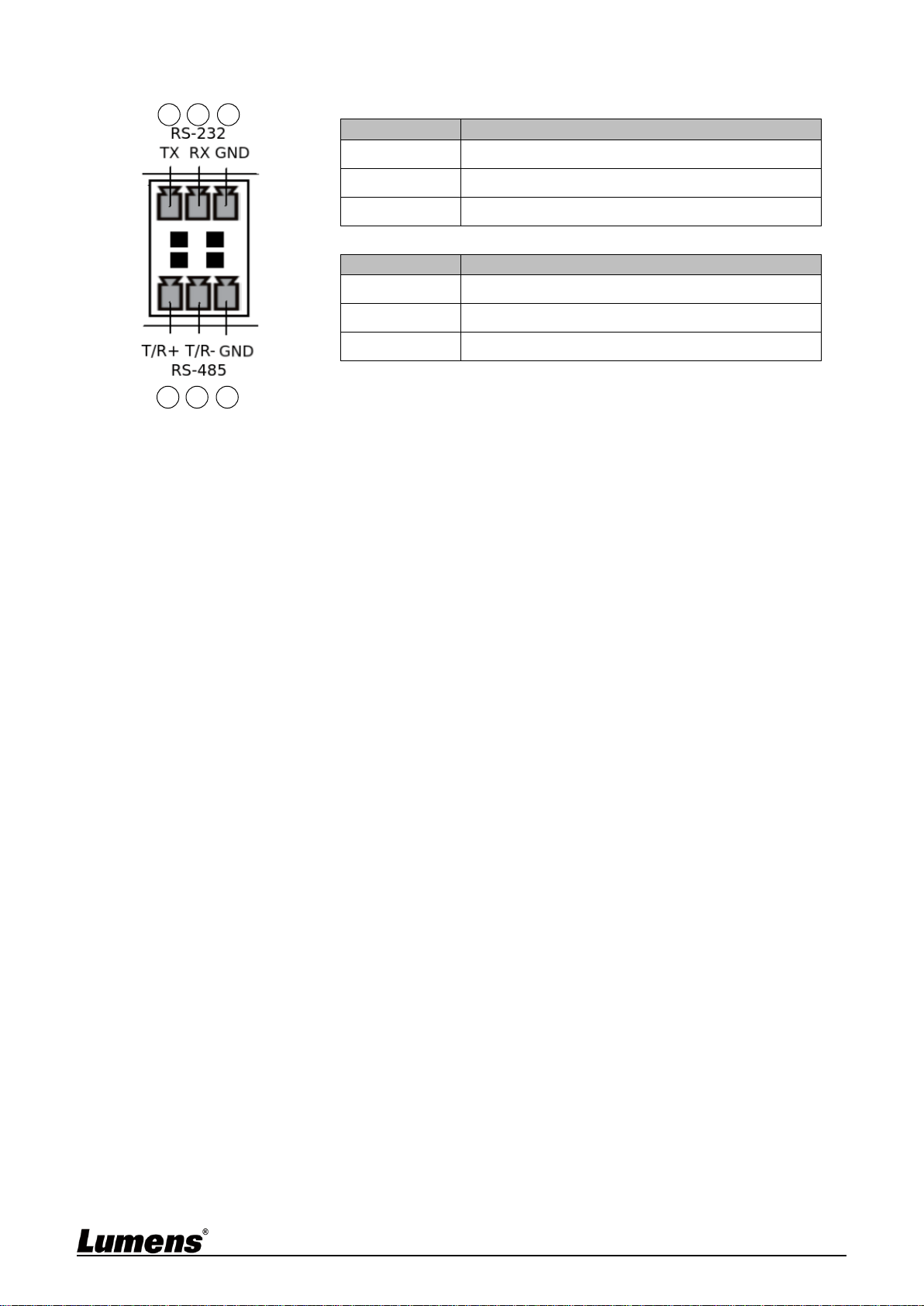
3.3 RS-232/RS-485 I/O pin description
RS-232
Pin NO.
Function
1
TX+
2
RX-
3
GND
RS-485
Pin NO.
Function
4
T/R+
5
T/R-
6
GND
6
5
4
3
2
1

7
Chapter 4 Instruction for installation
4.1 Product connection diagram
Microphone
Amplifier
Line/MIC device Audio In
Display
(Program)
Display
(MultiView)
Router
HDMI output
LAN
Power Supply
Power Cord
HDMI Source Input
Document
Camera
Computer
IP Camera
Audio Output
Speaker
External
Keyboard/
Mouse
Environment
Control
Equipment
USB Control
RS-232/RS-485 Control
Box Camera
8
Chapter 5 Function Description
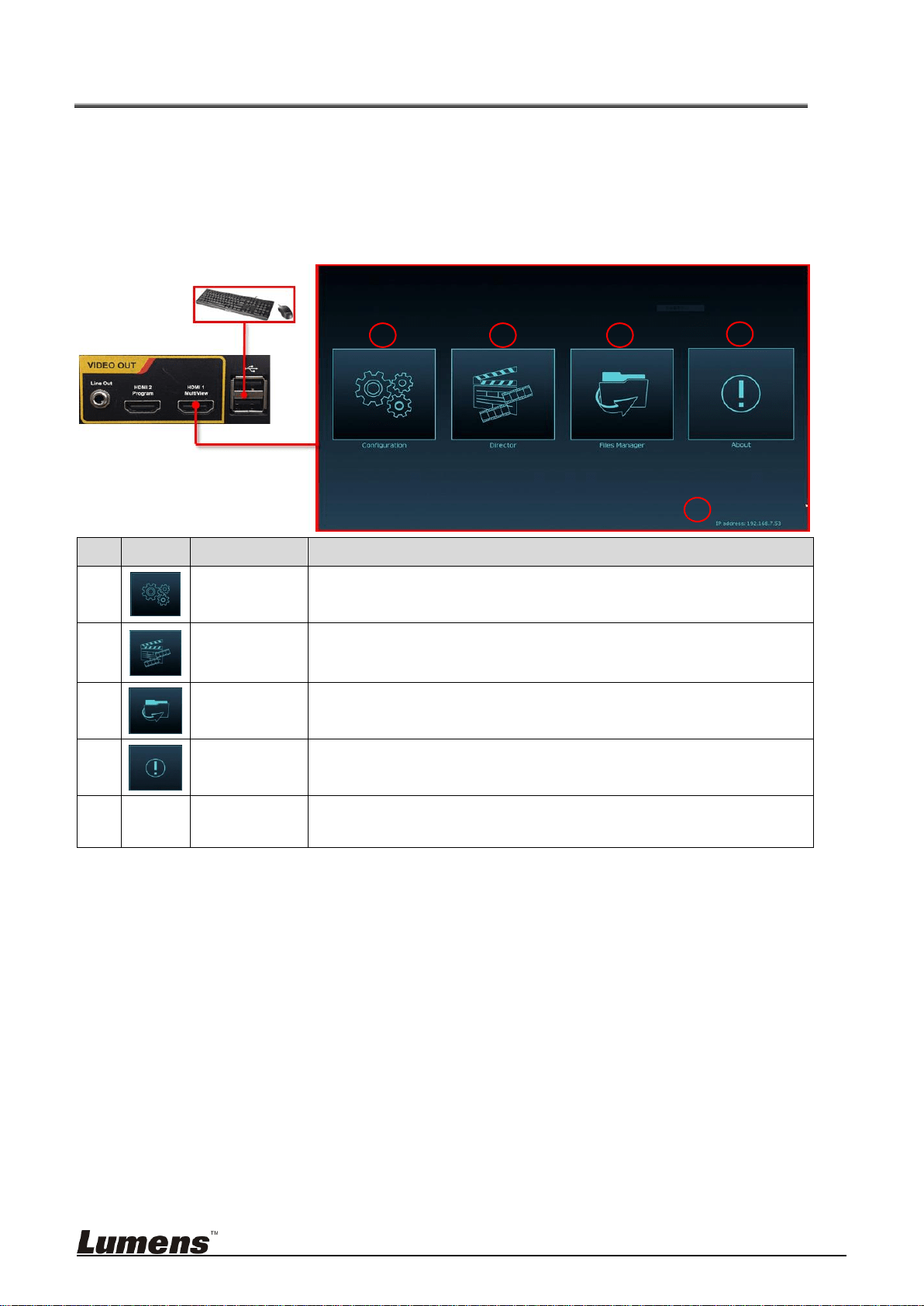
5.1 Real-time operation menu
Connect the HDMI1 MultiView output to the display panel to show the real-time
operation menu
Connect the keyboard/mouse through the USB port and use the keyboard/mouse to
select the menu settings
No
Icon
Name
Function Descriptions
1
Parameter
setting
Perform the system network setting, recording/streaming
compress setting
2
Casting
Management
Input signal source selection, audio management,
recording/streaming control, output version selection, and
network video camera control
3
File
management
Conduct the video file content management, including the
following functions: Upload, download, delete, replay video files
4
About
Display the current firmware version and relevant production
information of LC200
5
NA
Device IP
When connecting to the router, the current assigned device IP
address will be displayed
1
5
4
3
2

9
5.2 Parameter setting
This Section provides descriptions of the web-based interface to control the display
items. HDMI MultiView only provides items of [System Settings] and [Video Settings].
5.2.1 System Settings
5.2.1.1 System Settings
You may set up the device’s basic information, initial date and time, and
others here.
No
Item
Function Descriptions
1
Device
Identification
Defines the device name and device description for LC200
※Display name only accepts English characters and numbers
2
Date & Time
LC200 supports different time zone setting. It can synchronize time with NTP
service (default) and manual setup
Time Zone: Select the correct time zone according to current location
Configuration Mode:
NTP service: Synchronize time with a network server
Manual Setup: Set time manually
2
3
4
1

10
3
Frame Rate
Mode
You can configure the output frame rate at 30/60 fps
※If the frame rate setting of LC200 is 60 fps
Up to 2 network image inputs are supported
Recording can only be Movie Mode
Streaming video compression format is the same as recording
4
Welcome Image
You can customize a welcome image for LC200
1 Click [Browse] and select a file to upload. Once done, a thumbnail will be
generated
※File format:
File format: PNG
File Size (Max.): 3 MB
Resolution Size (Max.): 1920 x 1080
2 Click [Apply] to save this change. If you need to select another file, click
[Cancel] and reselect a file
[Remark] You can select different system frame rates in the frame rate mode that affects the
supported recording mode and network streaming number. Please refer to the following
restrictions on use.
System
Frame
Rate
Supported
Recording
Mode
Streaming
Video
Compression
Settings
Network Streaming (IP)
MultiView
signal source
selection limits
PGM Maximum
Split-screen
Quantity
Maximum
number of
streams
supported
Maximum
frame rate
supported
FPS30
Mixed Video /
Original Source
Full HD 30 FPS
HD 30 FPS
SD 30 FPS
3 streams
Full HD 30 FPS
IP + HDMI = 4
channels
IP ≤ 3
(only CH1~3
available for
selection)
4 channels
FPS60
Mixed Video
Full HD 60 FPS
2 streams
Full HD 60 FPS
IP + HDMI = 4
channels
IP ≤ 2
(only CH1~2
available for
selection)
2 channels
11
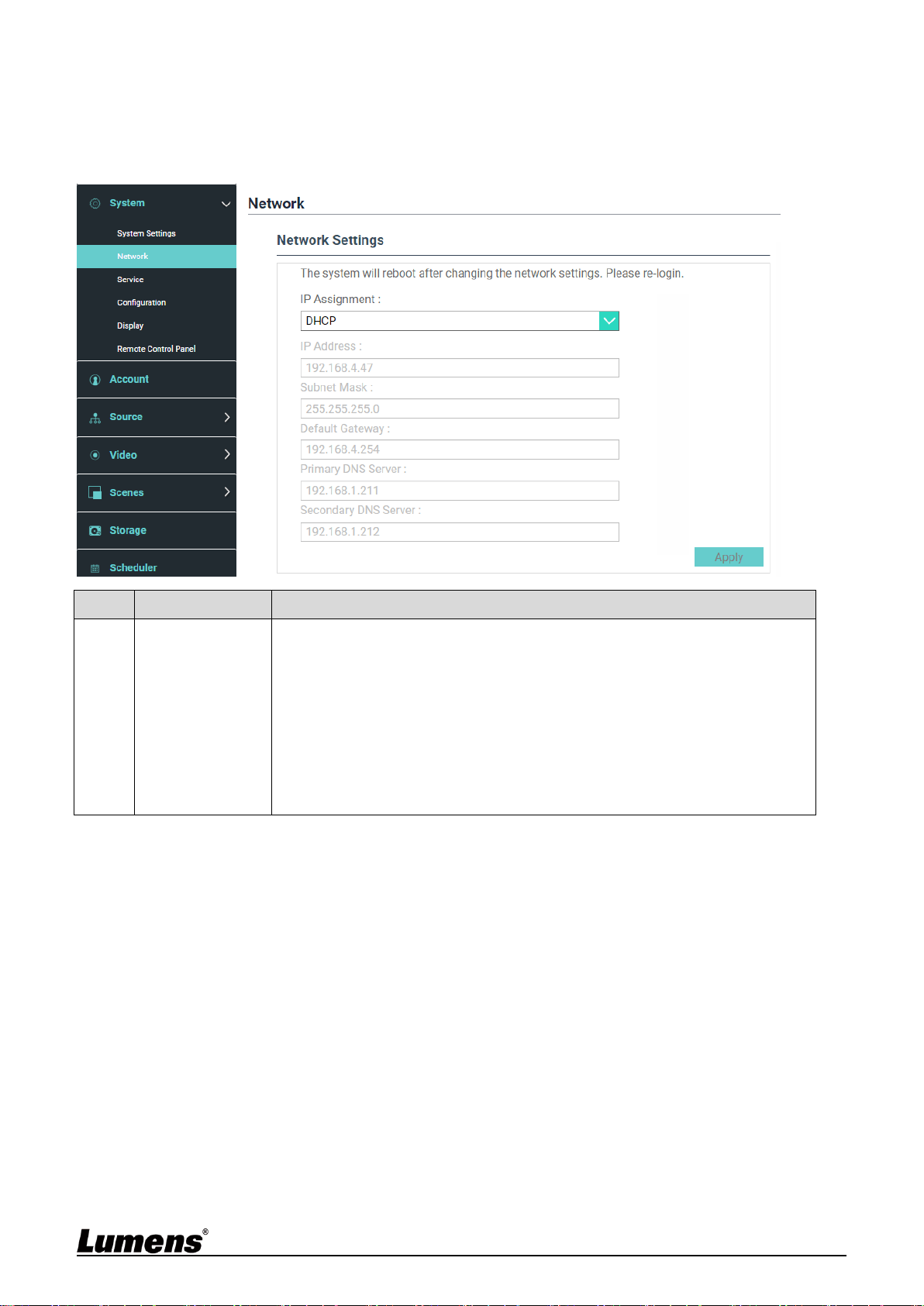
5.2.1.2 Network
The factory reset of LC200 is DHCP. The IP address is assigned by the
connecting LAN router. If you want to use a static IP address, please
configure the connection here.
No
Item
Function Descriptions
1
Ethernet Setting
DHCP: Dynamic IP address as default
Static IP: Configure static IP address according to the network and
manually enter network information
Select and fill in required network setting information and click [Apply] to save
the settings
※The system will restart after changing network setting. Please
connect and log in again

12
5.2.1.3 Services
No
Item
Function Descriptions
1
Main Firmware
Main firmware information and update
Click [Update] and select the main firmware file to update
2
Secondary
Firmware
Secondary firmware information and update
Click [Update] and select the secondary firmware file to update
3
Service History
Saves system log files to user’s computer
1 Enter file name
2 Click [Export] to export system log files
※The length of file name must be between 0 ~ 16 characters.
{}()’&@~^$%”|,`:?<>*\/#; symbols, and space are forbidden
4
Reset
Restores LC200 to factory reset
※Check [Keep Network Settings] and the network settings will be remained
5
Restart the
device
Restart the LC200
1
2
3
4
5
13
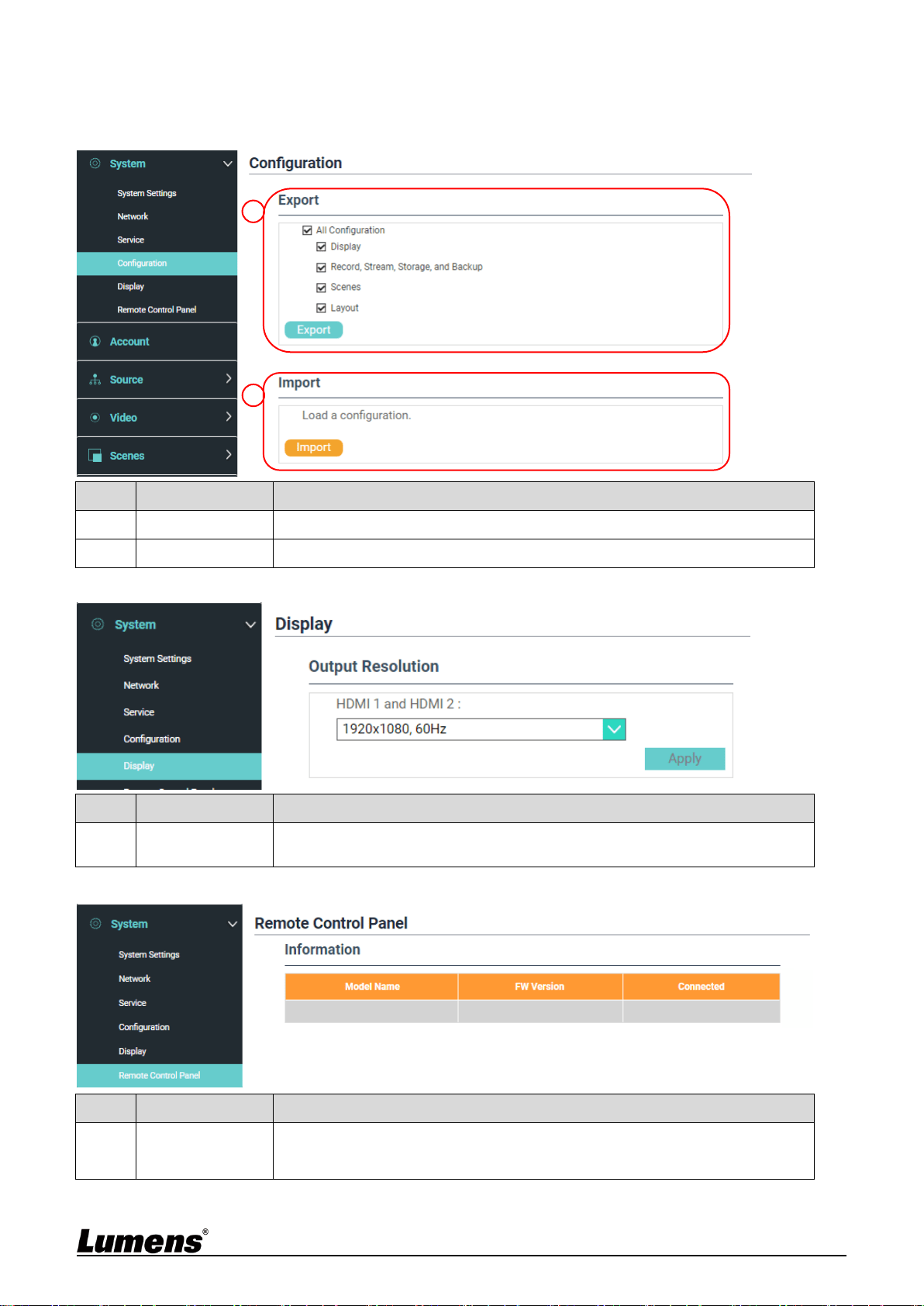
5.2.1.4 Setting File
You can export the configuration files of the device to a computer, and import
the configuration files to another device to apply the same configuration.
No
Item
Function Descriptions
1
Export
Export the current configuration of LC200 as a configuration file
2
Import
Import the exported configuration files from a LC200 to another LC200
5.2.1.5 Display Settings
No
Item
Function Descriptions
1
Output
Resolution
Select a HDMI output resolution on LC200
5.2.1.6 Remote control panel
No
Item
Function Descriptions
1
Remote control
panel
Display the connection information of LC-RC01 extension control panel
(optional). When there is no connection, a blank screen appears
1
2
14
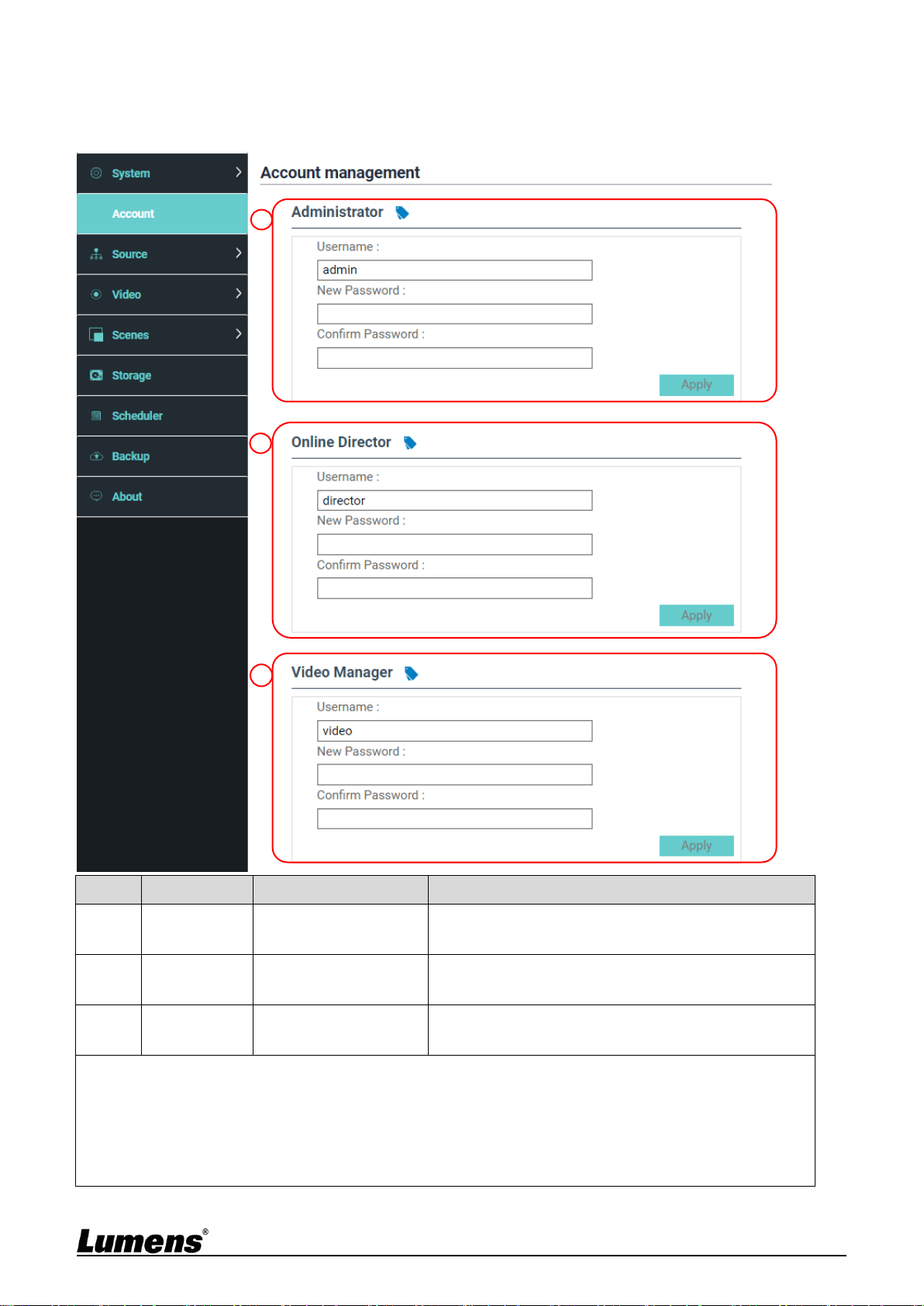
5.2.2 Account
You can manage accounts for 3 kinds of user mode here: modify the user name
and password to [System Management], [Director], and [Content Management].
No
Item
Username/Password
Function Descriptions
1
System
Management
admin / admin
Sets up the permission of main system management
2
Director
director / director
Manages playback and changes simple basic image
settings and the permission of Director
3
Content
Management
video / video
Views the permission of file storage and playback
※Note:
The length of user name must be between 4 ~ 16 characters. {}()’&@~^$%”|,`:?<>*\/#; symbols, and
space are forbidden
The length of password must be between 8 ~ 16 characters. {}()’~^”|,`:?<>*\/; symbols, and space are
forbidden
Duplicate username is forbidden
2
3
1
15
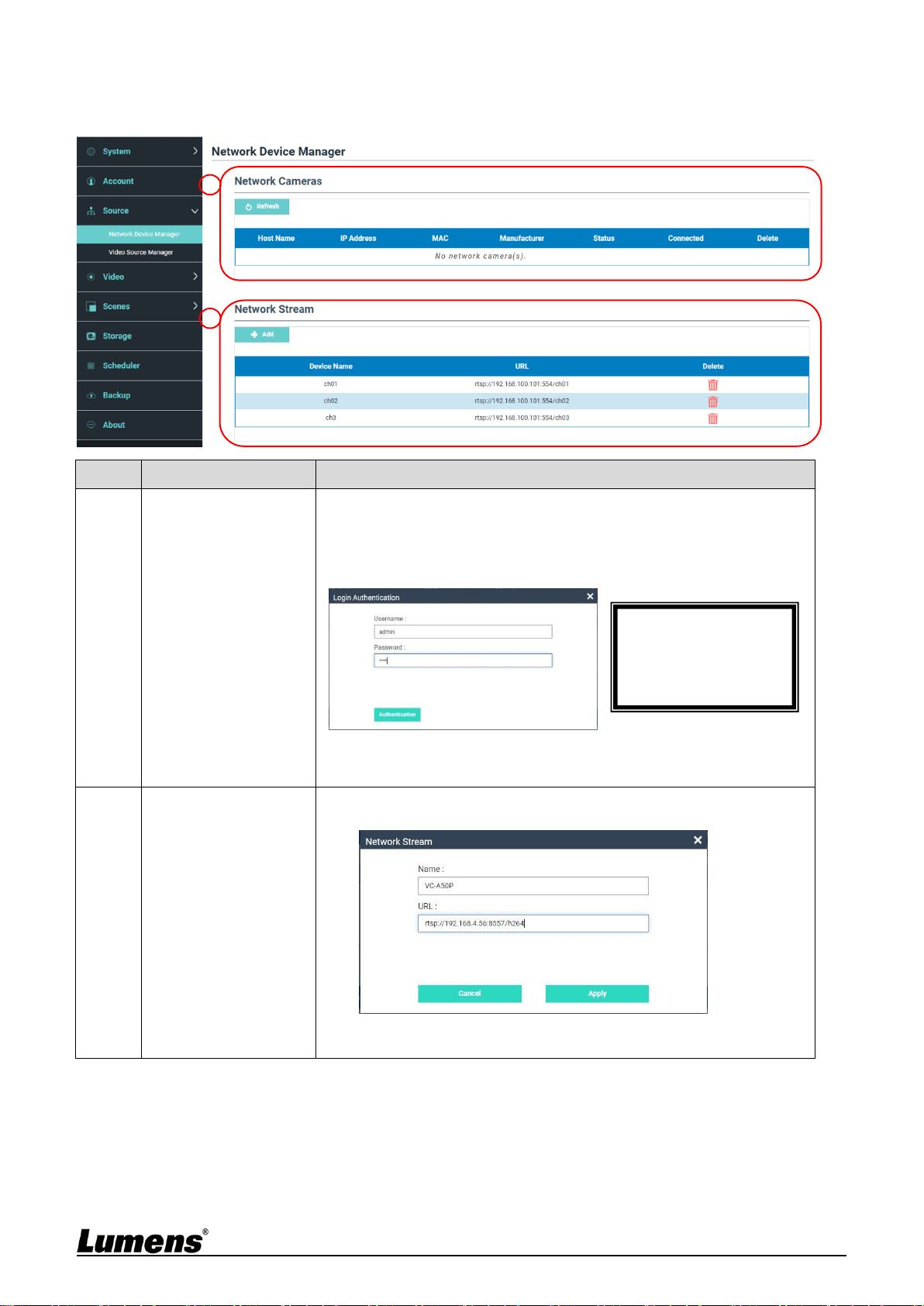
5.2.3 Video Source
5.2.3.1 Network Device Management
No
Item
Function Descriptions
1
Network Camera
1 Click [Refresh] and automatically scan the network cameras in the
same LAN
2 Click [Login Verification] and enter login information to connect the
camera
3 Once the status display “OK”, indicating that the image can be set
under the signal source input selection.
2
Network Streaming
1 Click [Add]
2 Enter the network streaming name and URL, and then click [Apply]
3 The newly added network streaming name will be displayed in the
list
Lumens Network
Camera
Account: admin
Password: 9999
1
2
16
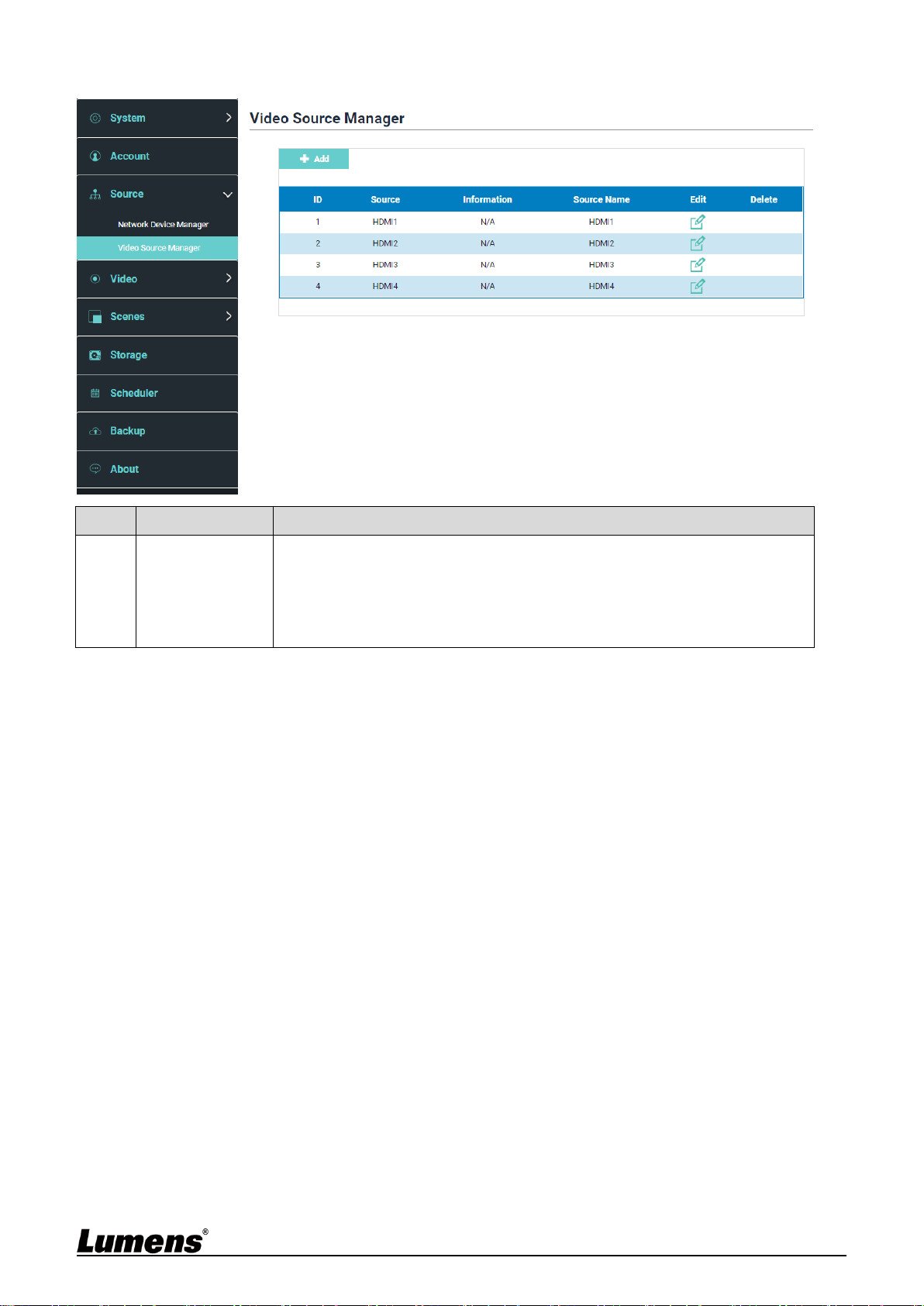
5.2.3.2 Video communication source management
No
Item
Function Descriptions
1
Video
communication
source
management
Display the video communication source information for users to edit the
source name and order
17
5.2.4 Video Settings
5.2.4.1 Record Settings
No
Item
Function Descriptions
1
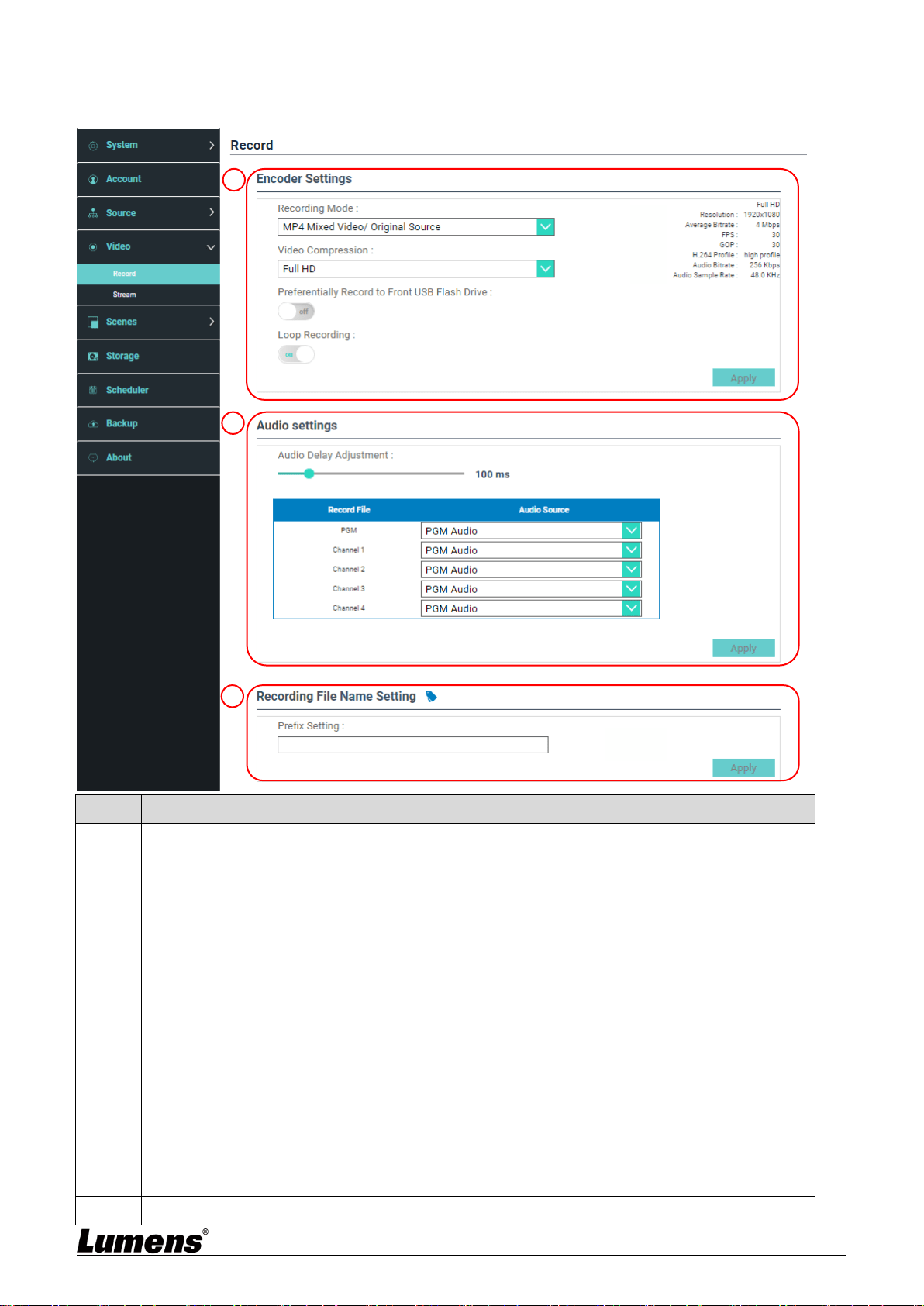
Encoder Settings
Recording Mode: You can select MP4 Mixed Video Mode and
MP4 Mixed Video/ Original Source Mode
Mixed Video Mode: Only record the single PGM 4-channel
mixed video.
Original Source Mode: Can record the single PGM 4-channel
mixed video and 4 signal original source
Encode Profile: 6 default encoding formats are available to be
selected by resolutions and average bitrate (Please refer to the
instructions of Encode Profile). You can also set user-defined
image quality.
Preferentially record to front USB hard drive: Videos or pictures
will be preferentially recorded to the USB flash drive which has
already been connected to the front USB port.
Cycling Record: Enabling the cycle record function can prevent
recording error when storage device is full
2
Audio Settings
Audio Delay Adjustment: 0 ~ 600 ms
1
2
3
18
Audio source: Set the audio source for Channel recording files
The selection of non PGM Audio may increase CPU loading.
Users may check out CPU information on the Director page of
real-time operation menu under MultiView
3
Video File Name Setting
Customizes the prefix name of video file
Instruction on Encode Profile
Name
Video Resolution/ABR
Description
Full HD
1080p / 4 Mbps
Dynamic scene; Large film site; Local drive recording
Internet Full HD
1080p / 3 Mbps
General scene, Medium film site, Local drive recording
HD
720p / 2 Mbps
Static scene, Small film site, Local drive recording
Internet HD
720p / 1.5 Mbps
LAN director
SD
480p / 800 kbps
Static scene, LAN director
Mobile network SD
480p / 500 kbps
Director via mobile device
User-Defined
Click [ ] to open Custom (as shown in the following figure). Once done, click “Save”.

19
5.2.4.2 Streaming Settings
You may change the streaming settings here. Related settings must follow the
streaming protocol and the settings recommended by server system support.
No
Item
Function Descriptions
1
Encoder Settings
Encode Profile: 6 default encoding formats are available to be selected
by resolutions and average bitrate (Please refer to 5.2.4.1 for the
instructions of Encode Profile in Record Settings). You can also set
user-defined image quality.
2
Streaming Settings
Streaming 1 / Streaming 2 / Streaming 3: You can customize 3
podcast addresses of network streaming
Supported streaming type: RTMP / RTMPS / RTP / Youtube /
Youtube_Gaming / Facebook Live / Twitch / Smashcast
Real Time Streaming Protocol (RTSP): You can customize the real
time streaming route of LC200
Default RTSP location: rtsp://LC200_IP_address:554/pgm
1
2
20
5.2.5 Scene
5.2.5.1 Scene
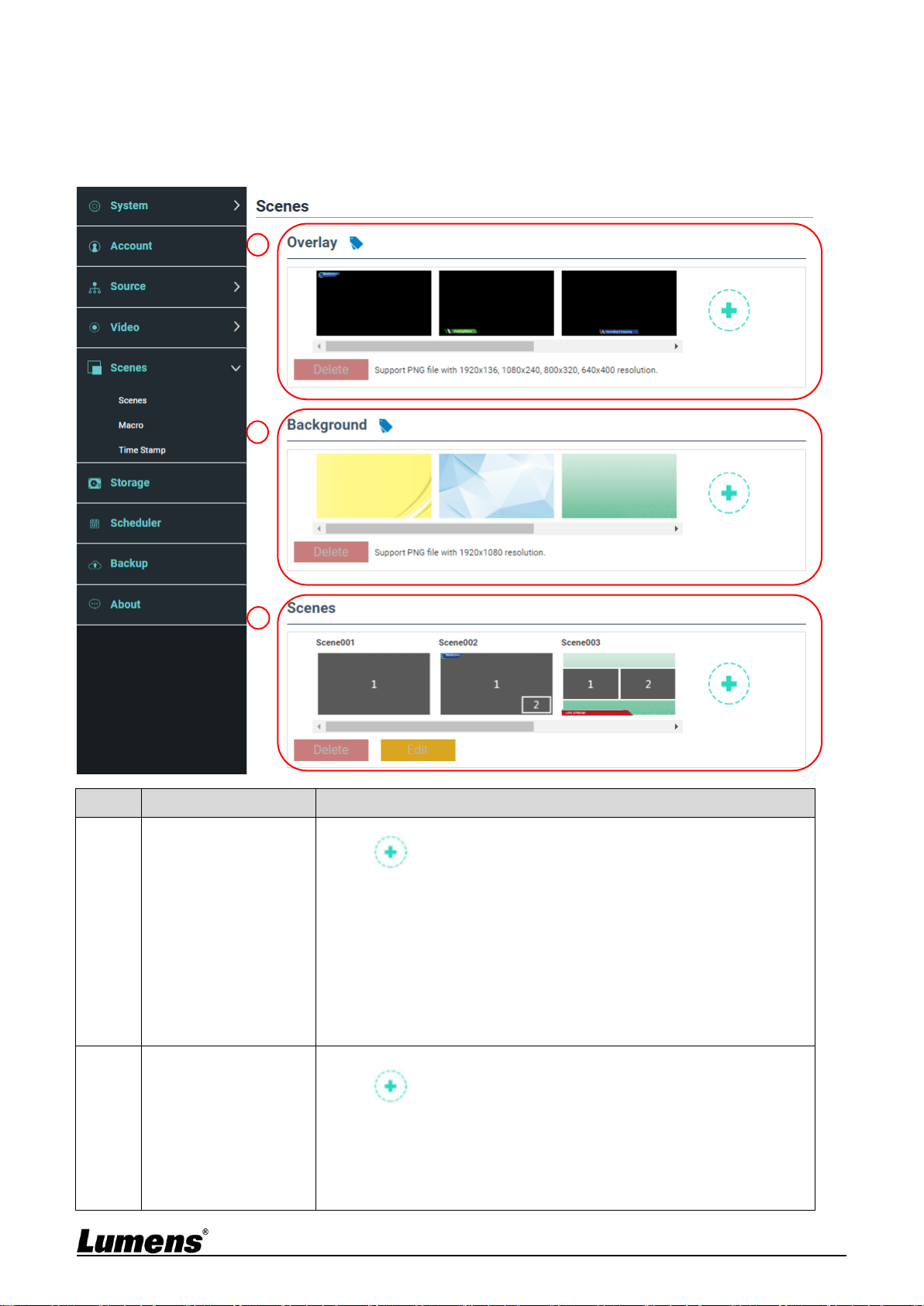
LC200 provides 5 overlay styles, 5 background images, and 5 scenes. You
can also add your own styles.
No
Item
Function Descriptions
1
Overlay
Select and delete overlay style. You can upload files to apply.
Click [ ] and select a desired file from the window. Check the
preview image and file name, and click [Apply] to start uploading and
applying this overlay style. Click [Delete] to cancel the upload.
※File format:
PNG format
Supported size: (a) 1920 x 136
(b) 1080 x 240
(c) 800 x 320
(d) 640 x 400
2
Background Image
Select and delete background image. You can upload files to apply.
Click [ ] and select a desired file from the window. Check the
preview image and file name, and click [Apply] to start uploading and
applying this background image. Click [Delete] to cancel the upload.
※File format:
PNG format
Supported size: 1920 x 1080
1
2
3

21
3
Scene
Scene is the integration of “Overlay,” “Background Image,” and
“Recording Layout,” which provides the scene made of different
background images, layout, and overlay style. You can customize the
layout content in 30 scenes.
Click [ ] to open scene settings. Enter the scene name and
select the required overlay, layout, and background image. Once
done, click “Apply”.
5.2.5.2 Macro
When used together with LC-RC01 extension control panel (optional), Macro
can set scenes and camera preset position.
Macro [1 ~ 3] settings correspond to [1 ~ 3] keys on the extension control panel
No
Item
Function Descriptions
1
Scene Selection
Select a scene to be set. Each supports up to 30 sets of scene
If the overlay style of the scene needs to be change, please refer to
2
Camera Preset
Position Setting
Set/Cancel [Camera Preset Position]. Each supports up to 9 sets of
camera preset position selection
<Remark> After checking the box, the Marco will preset the settings of
the network camera on Channel 1 ~ 4
1
2
22
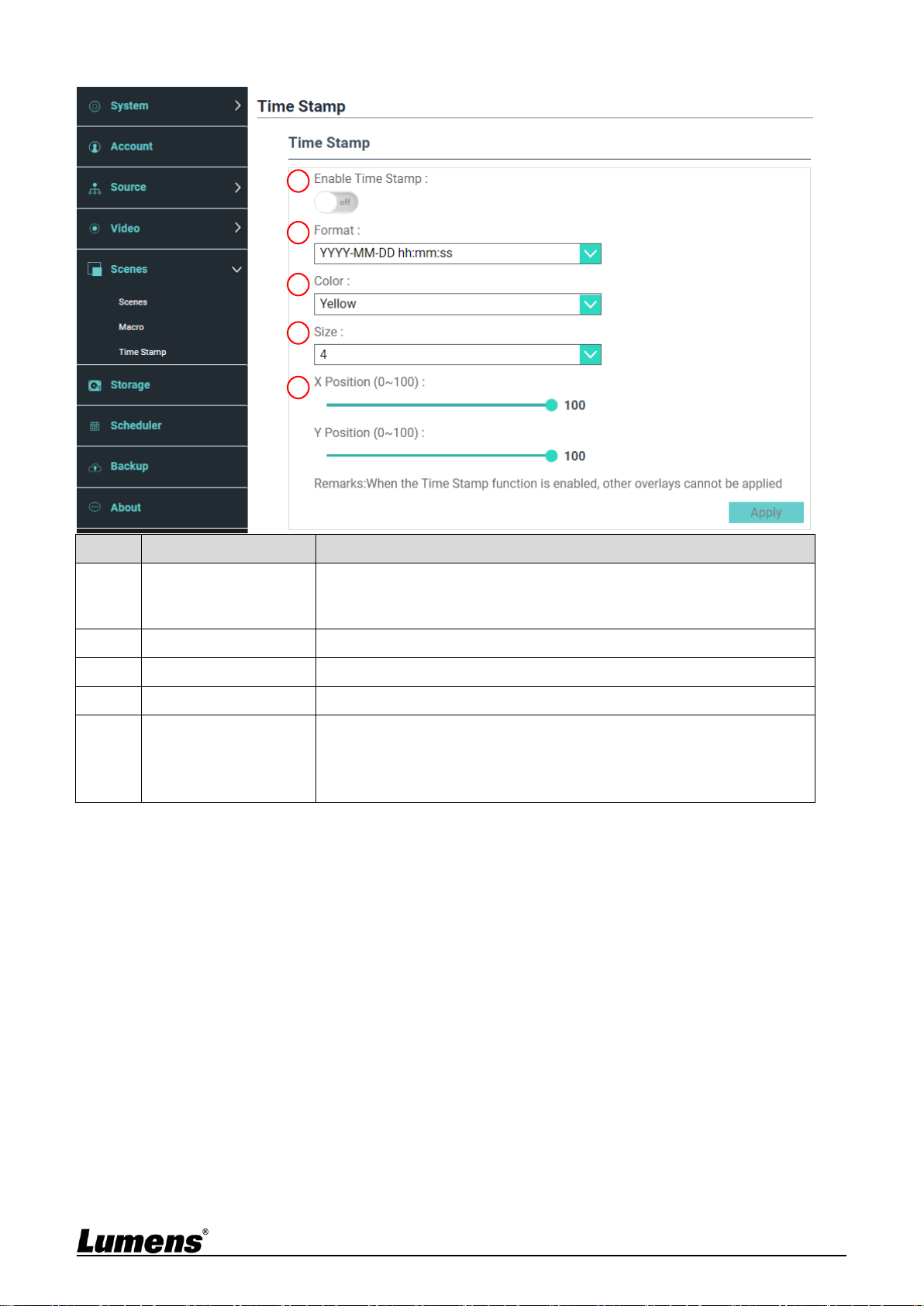
5.2.5.3 Time Stamp
No
Item
Function Descriptions
1
Enable Time Stamp
Turn on/off Time Stamp
<Remark> When the Time Stamp function is enabled, other overlays
cannot be applied
2
Format
Time display format
3
Color
Color setting
4
Size
Font size setting
5
X / Y Position (0 ~ 100)
X: Time Stamp display position (left and right) in the PGM screen
0: The leftmost / 100: The rightmost
Y: Time Stamp display position (up and down) in the PGM screen
0: Top / 100: Bottom
1
3
2
5
4

23
5.2.6 Storage Settings
You can set up recording storage, cycle recording, display hard drive information
and NAS setting here.
No
Item
Function Descriptions
1
Recording Hard Drive
Setting
Local storage: Click drop-down menu and select local storage
hard drive
Formats supported: exFAT/ FAT32/ NTFS
2
Hard Drive Information
Display hard drive information, free space, and capacity. Click
“Format” to clear the internal storage devices. Confirm if you want to
format the hard drive in the pop-up dialog and click “Confirm” to delete
all video files.
3
NAS setting
Enable NAS mounting and related settings.
<Note> It is required to go to Backup Setting> Upload Setting>
Mode to select NAS. After recording, the video can be uploaded to
NAS
1
2
3

24
5.2.7 Schedule Setting
No
Item
Function Descriptions
1
Schedule Setting
Click [On/Off] : Enables/Disables schedule function
Click [Calendar] : Check the current schedule status
※
Reset schedule source and replace the current schedule
Schedule source:
Scheduling via the Panopto server:
Enter the login information of the Panopto server to
synchronize schedules
Scheduling via the Opencast server:
Enter the login information of the Opencast server to
synchronize schedules
Importing calendar manually:
You can import iCalendar files (e.g. Outlook or Google
Calendar)
Click [Import] and select custom scheduled video file
※Only files in .ics format can be imported
Importing calendar periodically
You can synchronize schedules from network servers (e.g.
Google Calendar)
※Please refer to the videos of How-to series on Lumens™
website and YouTube channels for related application settings.
2
Cancel Recording
Click [Stop] to stop the current scheduled recording
3
Stand by and Wake up
Enable/disable the scheduled standby and wake-up functions. Set the
scheduled time after the functions are enabled.
1
2
3
25
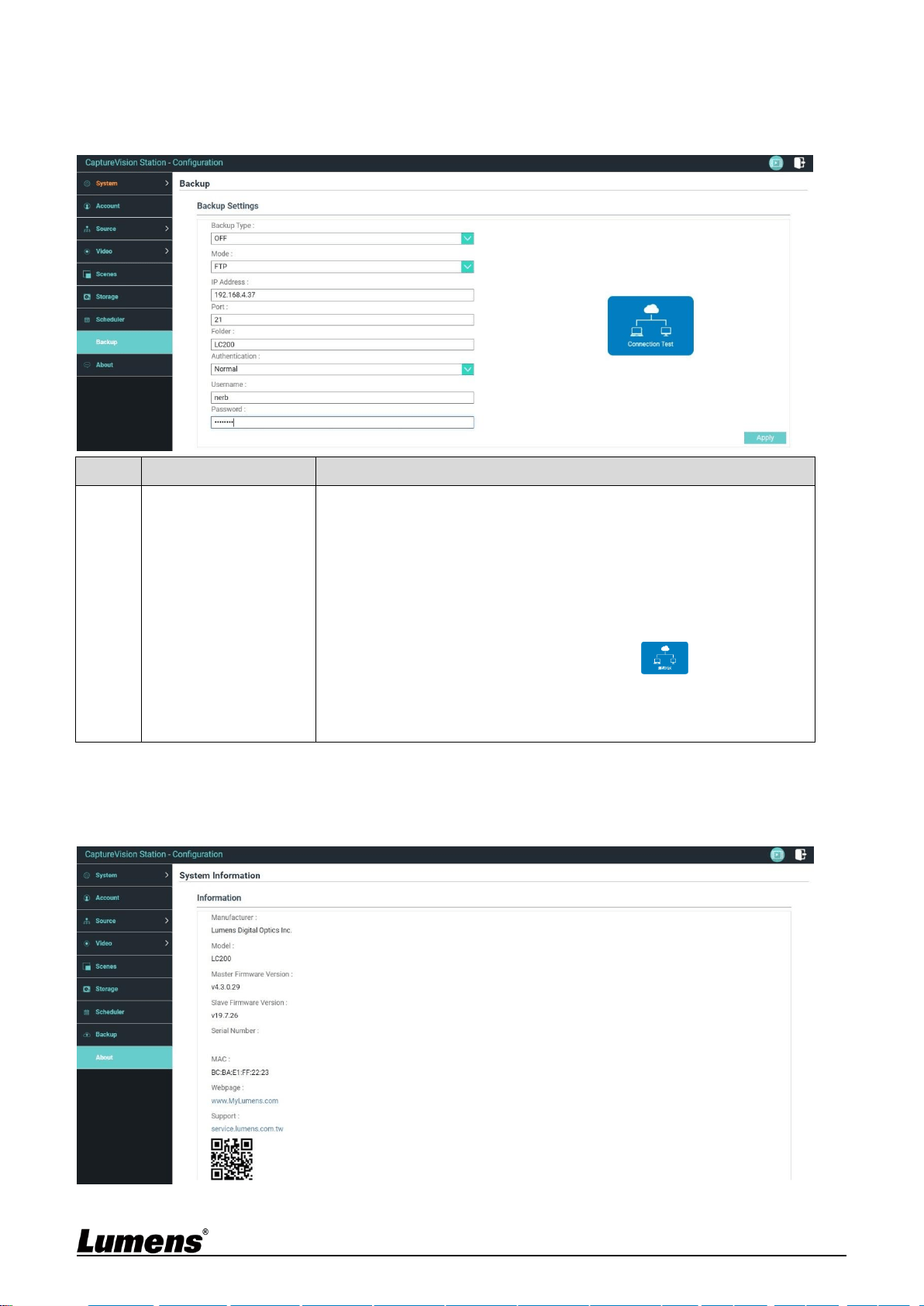
5.2.8 Backup Setting
LC200 provides auto backup service which can upload videos to a designated space
automatically. You can set up upload destination and test the connection here.
No
Item
Function Descriptions
1
Upload Setting
Auto upload: Disable / Upload right after recording completes /
Upload periodically
Mode: FTP / NAS / SFTP / Kaltura / Panopto / Opencast HTTP /
Opencast HTTPS
<Note> Select NAS. Please go to Storage Settings > NAS Setting to
enable mounting and related settings
Connection Test: Click [Connection Test] to test if a
connection can be created with the current setting
<Remark> Please refer to the videos of How-to series on Lumens™
website and YouTube channels for related application settings
5.2.9 About
LC200 Device-related Information: Firmware version, device serial number, and
technical support link
26
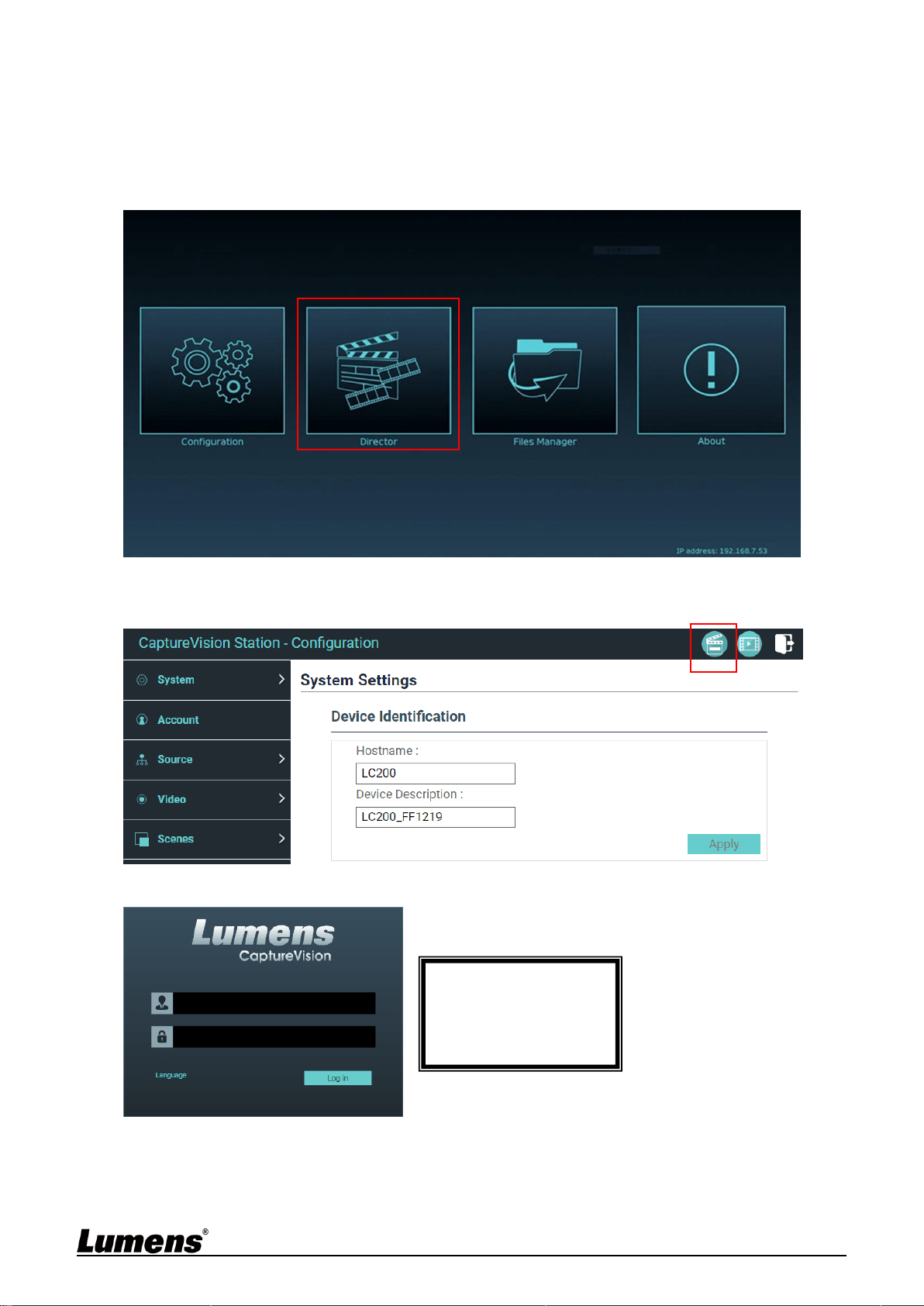
5.3 Director
LC200 is built in Director, which allows you to monitor recording and preview the
output video from streaming director.
Three login methods below are available:
Select online Director from the HDMI1 MultiView real-time operation menu
When login the web page, select the online Director icon at the upper right corner
on the configuration setting page
When login the web page, use the online Director authority account
Online Director (Default)
Account: director
Password: director
27
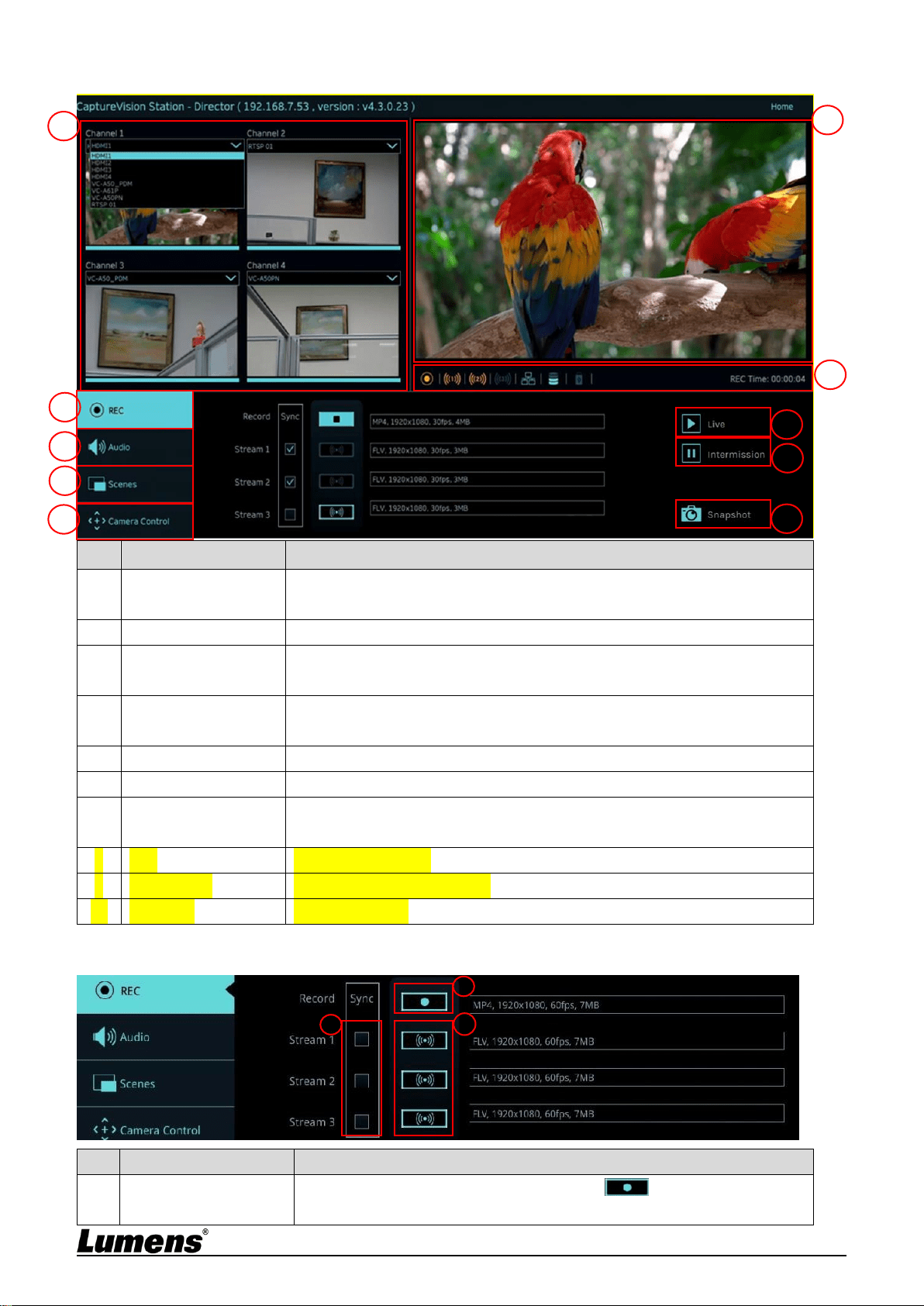
Online Director related feature description as below:
No
Item
Function Descriptions
1
Channel Signal
Selection
The drop-down menu of image sources includes 4-channel HDMI source,
IP camera, or streaming image
2
REC Record Setting
Start or stop recording; also select whether to synchronously stream or not
3
Audio Source
Management
Manage the input and output audio source; adjust the audio volume of the
recording
4
Scenes Layout
Setting
Fast select the recording layout, or customize the background and scene
style
5
Camera Control
Provide the IP video camera PTZ control or simple function settings
6
Main Screen Output
Display the layout of current output screens
7
Recording Progress
Bar
Display information of the current status of recording/streaming, such as
hard drive capacity
8
Live
Switch to live image
9
Intermission
Switch to intermission image
10
Snapshot
Take a snapshot
5.3.1 REC Record Setting
No
Item
Function Descriptions
1
Recording while
Streaming
Check stream(s) and click recording button to strart streaming
and recording function
1
2
3
4
5
6
7
1
2
3
8
9
10
28
2
Recording Button
Record the main screen image
3
Single-channel
Streaming Button
Streams right away without starting recording function
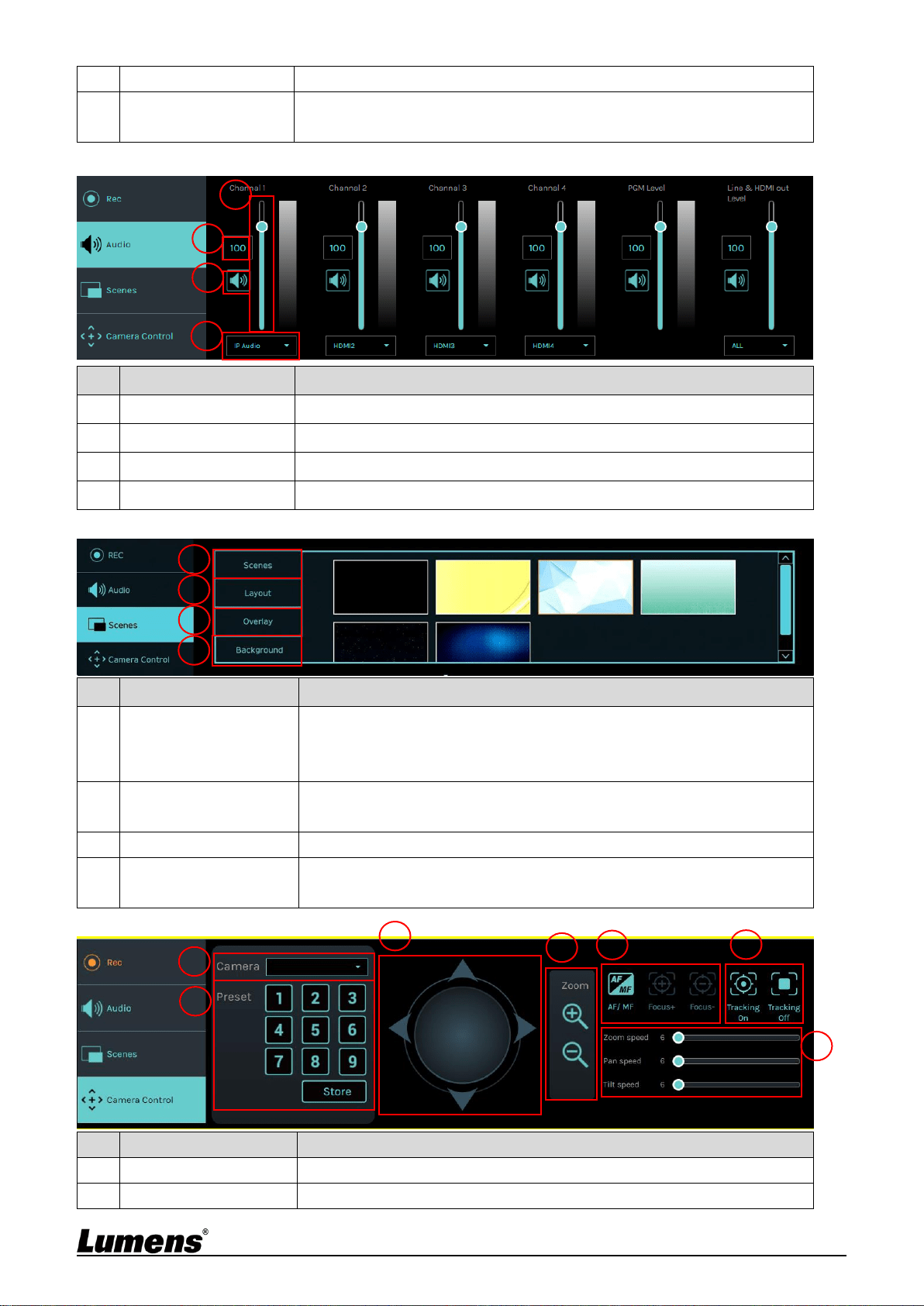
5.3.2 Audio Source Management
No
Item
Function Descriptions
1
Volume Control
Adjust the volume of audio input
2
Audio Volume scale
Display current audio volume scale
3
Mute Button
Mute audio output
4
Audio Source Setting
Select a audio source
5.3.3 Scenes Layout Setting
No
Item
Function Descriptions
1
Scenes
Scenes page is the integration of “Overlay,” “Background Image,” and
“Recording Layout,” which can perform a series of scene change
according to your needs.
2
Layout
Apply a different layout to highlight the screen focus of different
channels. Click a desired layout style to apply.
3
Overlay
Select a desired style to apply
4
Background
Display the background images supported by “Director” system. Click the
thumbnail to apply
5.3.4 Camera Setting
No
Item
Function Descriptions
1
Camera
Select a desired camera to control
2
Preset Setting and Call
Click number keys to perform preset settings and calls
1
2
3
4
1
2
3
4
1
2
7
3
4
5
6
29
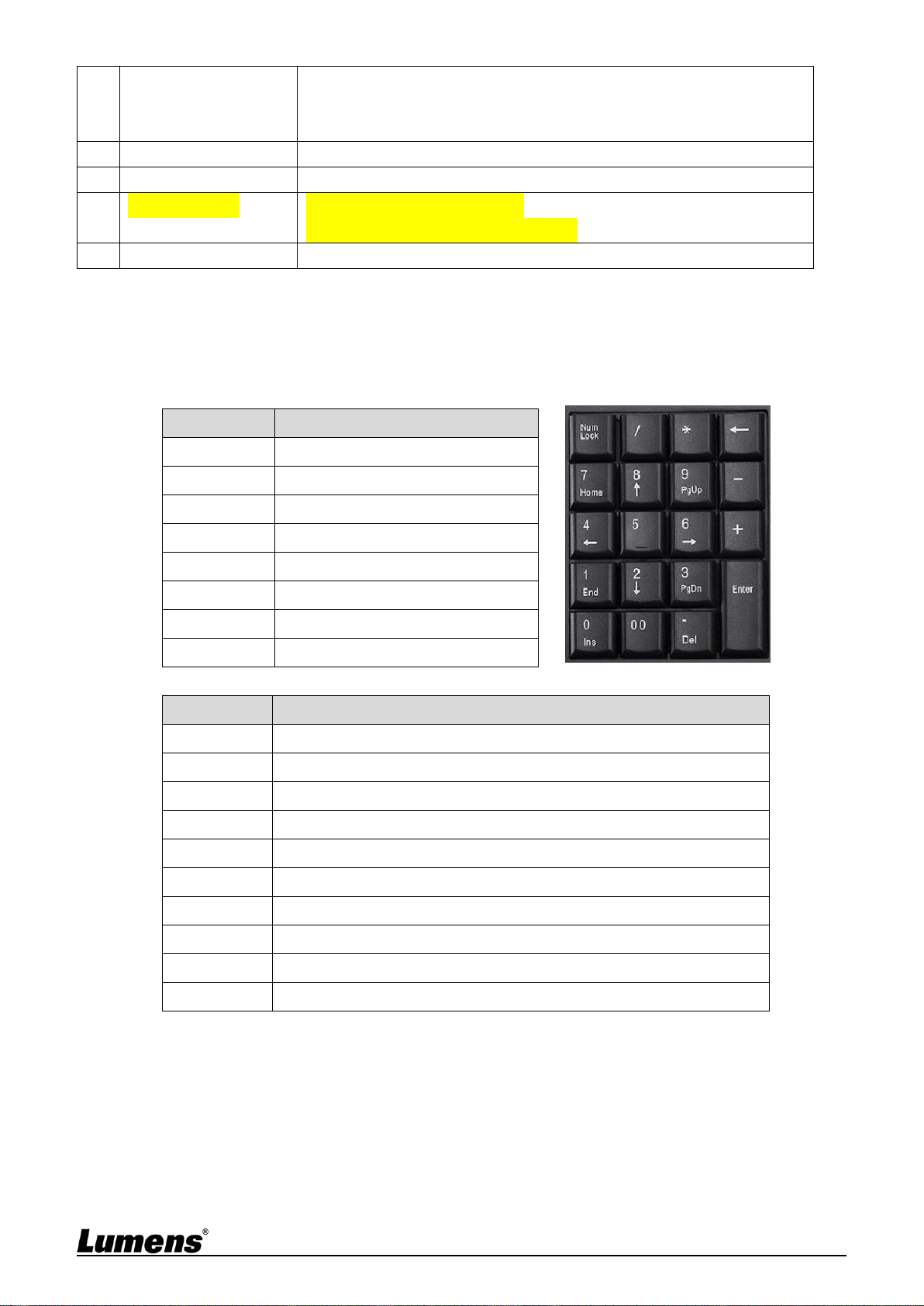
3
Direction Control Panel
Move the center point to control the shooting direction
Web pages do not support trackball controls. Please use arrow keys to
adjust the screen direction
4
Zoom In/Zoom Out
Zooms in/out the lens
5
Focus Setting
Set up auto or manual focus
6
Tracking Setting
Turn on/off the tracking function
This function can only track cameras.
7
PTZ Speed Setting
Set up the moving speed of Pan Tilt Zoom
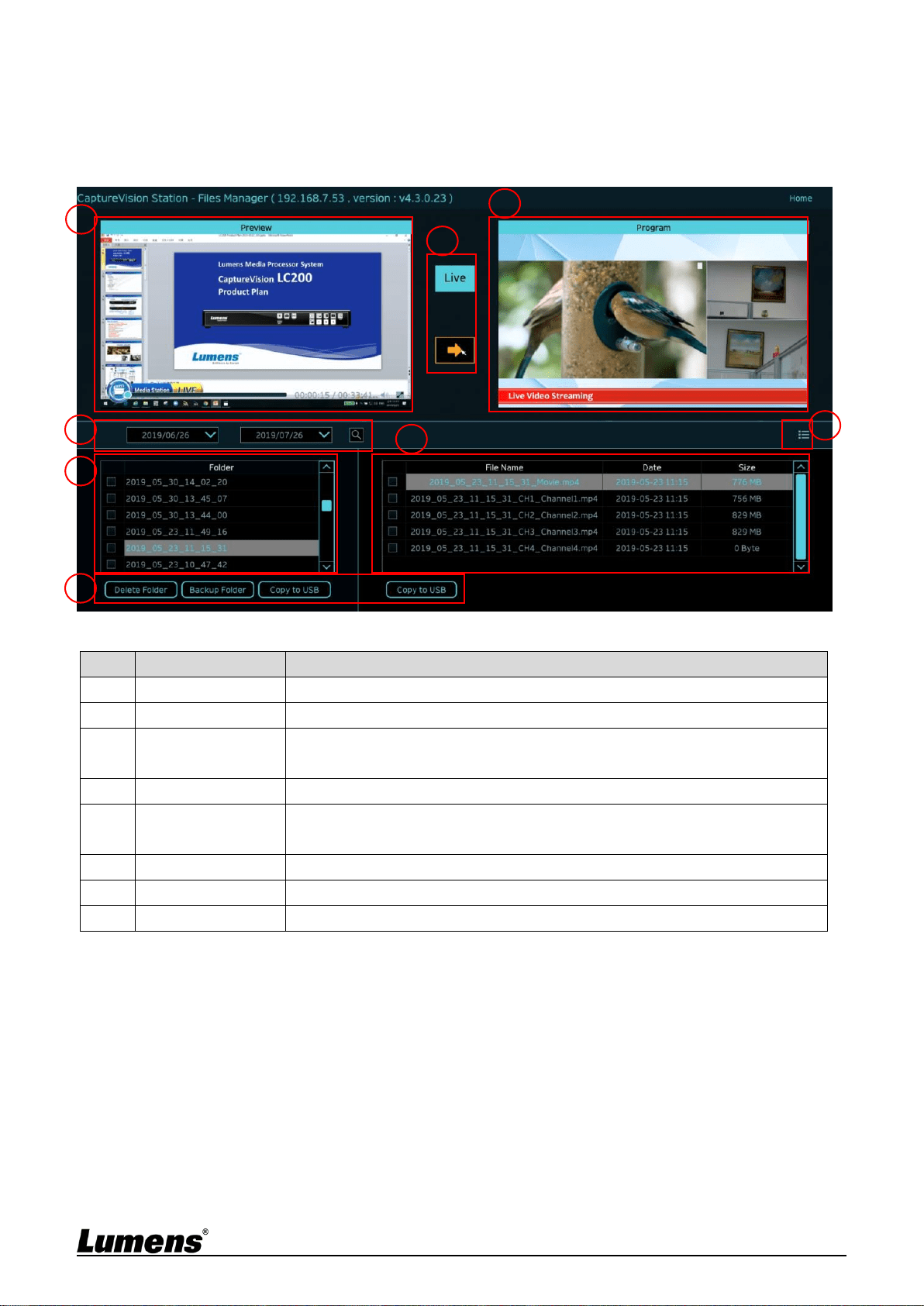
5.3.5 USB/Wireless Keyboard Function
Under the director page, some functions can support USB/ wireless keyboard to
control LC200
Numeric Keys
Key
Function Descriptions
Enter
Start Recording
0
Stop Recording
1 ~ 9
Call theme 1 ~ 9
*
Start Push
/
Stop Push
-
Reduce PGM audio input volume
+
Increase PGM audio input volume
. Del
Turn on/off PGM audio input
Other buttons
Key
Function Descriptions
F1
Macro 1
F2
Macro 2
F3
Macro 3
L
Switch to the next template
S
Switch to the next theme
O
Switch to the next overlay
B
Switch to the next background
M
Turn on/off PGM audio input
C
Capture a single photo (JPEG file)
Space
Stop Recording
30
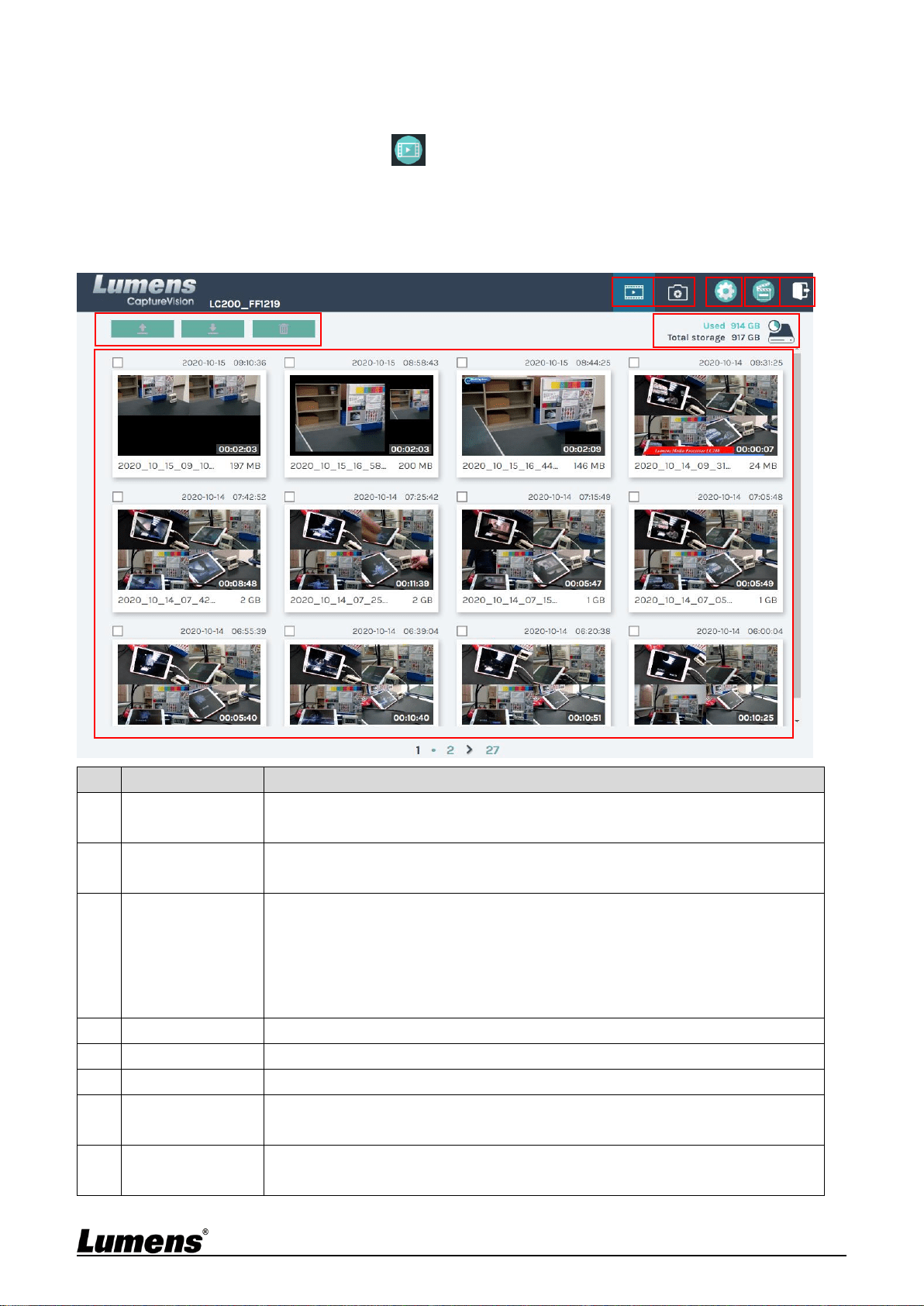
5.4 File management
LC200 provides file management feature which can perform the following functions
via the file management interface: Upload, download, delete, replay video files and
editing recording information.
No
Item
Function Descriptions
1
Preview Screen
Click desired video files to play and control on the Preview screen
2
Program Screen
Display the Director screen or switch to synchronize with the Preview screen
3
Screen Switch
Button
Switch the Program screen to the LIVE Director screen or the Preview
screen
4
Discovery
You can search recording video files by selecting date period on the calendar
5
Display Mode
Switch
Video view mode. You can switch to thumbnail mode or list mode
6
Folder Display
Display the recording video folders
7
Video File Display
Display the files in the video folder
8
File Management
Delete, backup or copy recording video to an external USB flash drive
2
1
3
4
5
6
7
8
31
5.4.1 Webpage Interface
The default page after accessing LC200 web page is system setting page. Click
the video management icon on the top-right corner to access video
management page.
Video management
No
Item
Function Descriptions
1
Video
Management
Click to access the video management page
2
Photo
Management
Click to access the the picture management page
3
System Settings
Click to access the system setting page
※ Caution:
Log in the web page with admin/admin to display system setting subpage
If you log in the web page with video/video, you will not find the system setting
subpage and you can only manage videos and photos
4
Online Director
Click to enter the Online Director page
5
Logout
Click this icon to log out the web page interface
6
File Management
Upload, download and delete the checked video files
7
Hard Drive Status
Display
Display the used space and the capacity of the current hard drive
8
Video File Display
List information, including the file names of recording videos, thumbnails,
capacity, and date
①
②
③
④
⑤
⑥
⑦
⑧
32
File Management Description
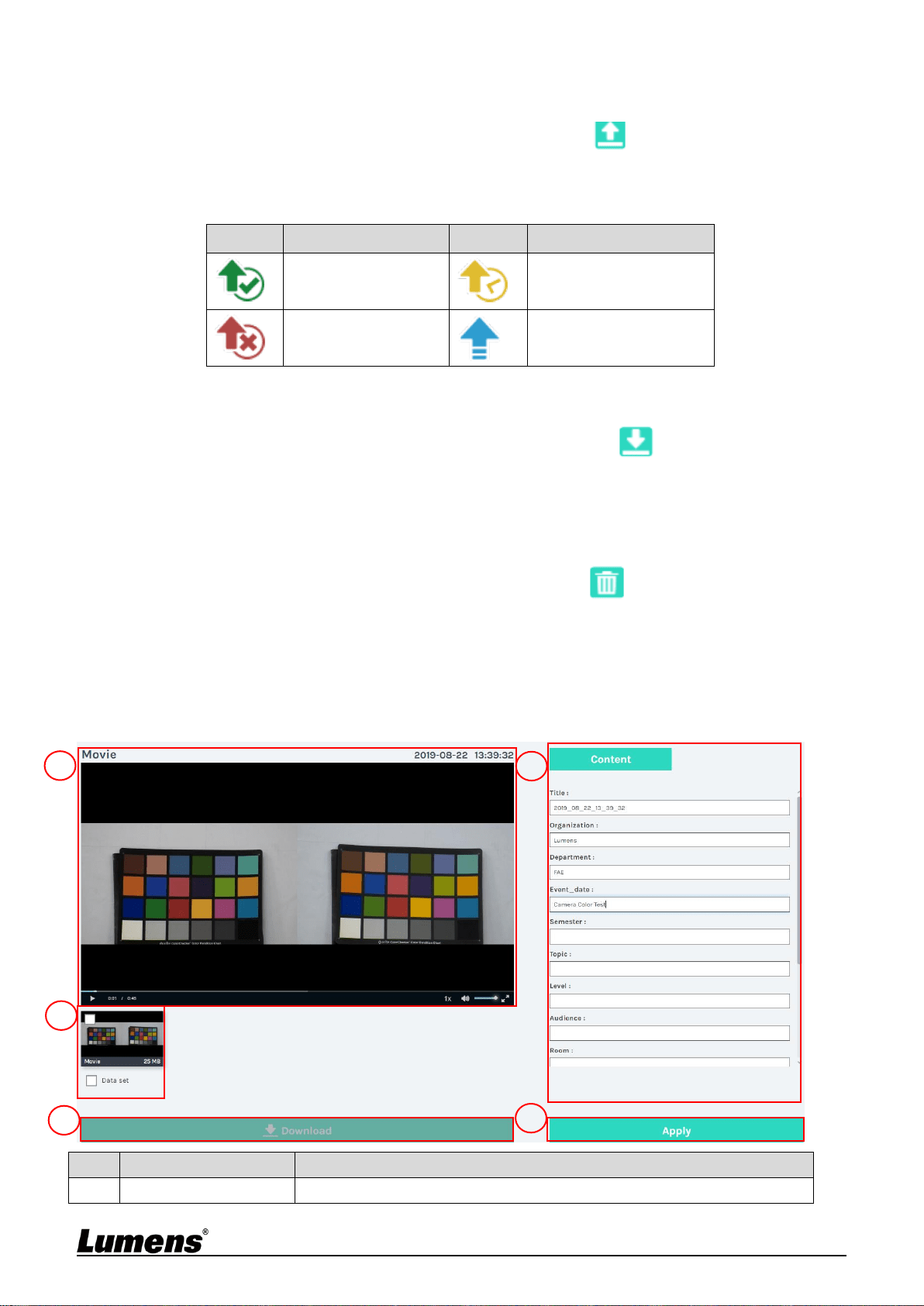
Uploading
Check the thumbnails of the videos to upload. Click [ ] and the videos will
be uploaded to the location set in Upload Settings. Please refer to [System
Management/Upload Settings] for related settings.
Upload Status Description:
Icon
Upload Status
Icon
Upload Status
Videos are uploaded
successfully
Videos are queued for
upload
Fail to upload videos
Videos are uploading
Download
Check the thumbnails of the videos to download. Click [ ] and the videos
will be saved as MP4 video files and datasets.
If only video files are needed, you can click the video thumbnails and access
video playback page to download the video files only.
Delete
Check the thumbnails of the videos to delete. Click [ ] and the video files
will be deleted for good.
Video Playback
Right-click video to preview the video, edit the related content data, and download
the video file and dataset
No
Item
Function Descriptions
1
Video Control Window
Play back and control recording videos
1
2
3
5
4
33
2
Video Content
Edit and modify video content
3
Video File and Dataset
Select the video files or datasets to download
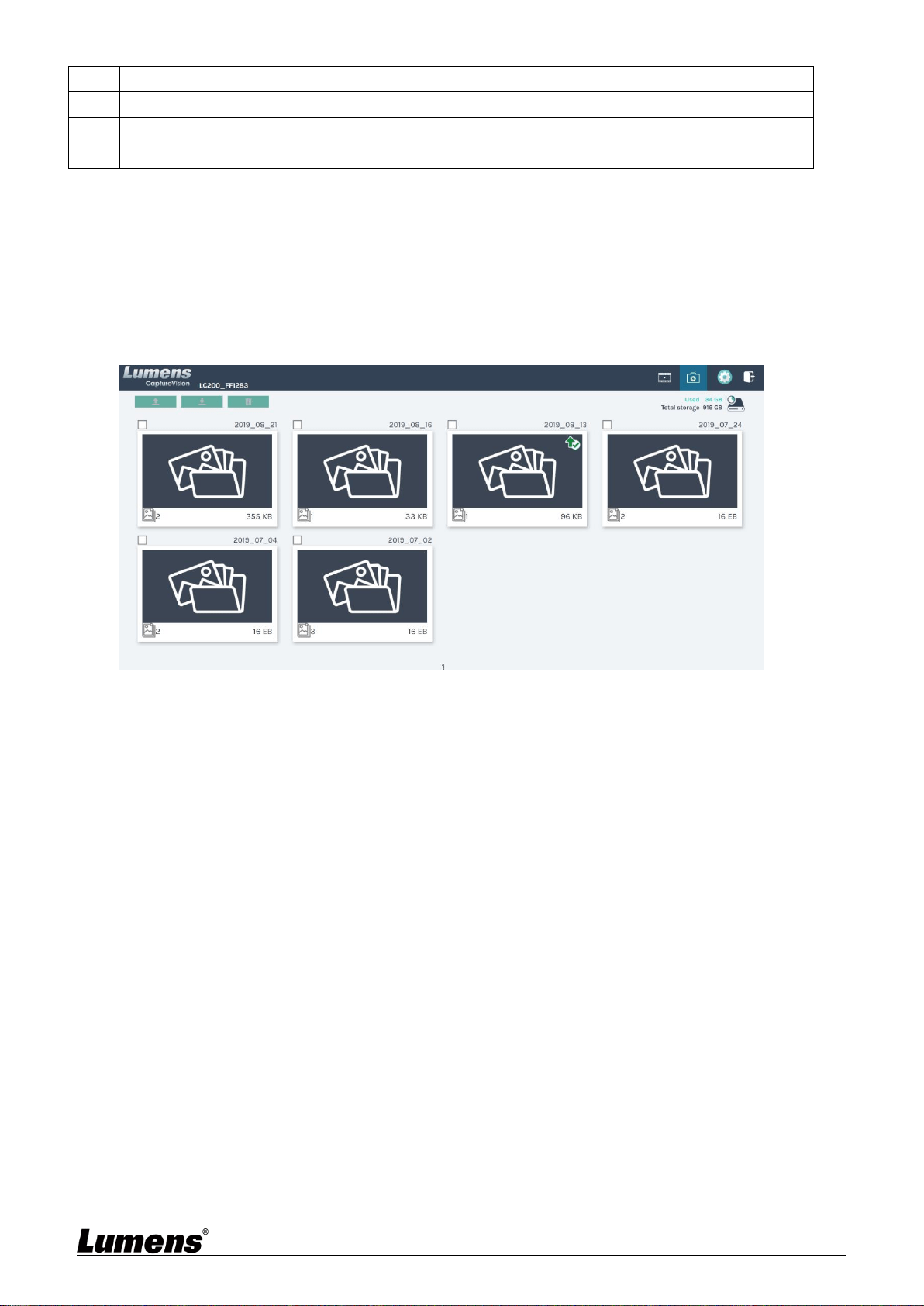
4
Download Button
Click this button to download the checked video files or datasets
5
Apply Button
After editing and modifying the video content, click this button to apply
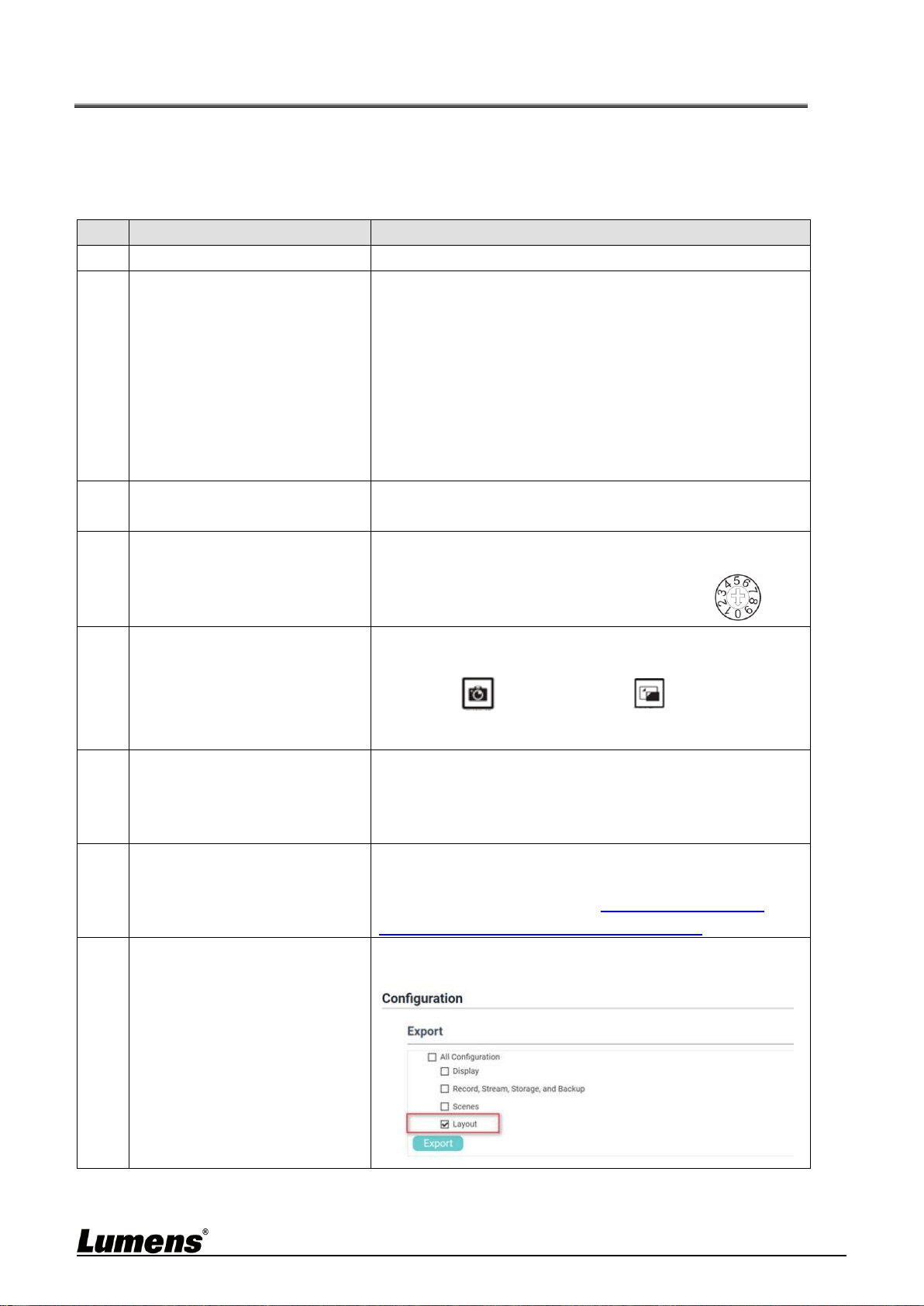
Photo Management
You can manage the photo files captured by pressing SNAPSHOT. Folders will be
named with the shooting date automatically; all photos shot in the same date will be
stored in the same folder.
Just like Video Management, you can also upload, download, and delete photos in
Photo Management subpage.
34
Chapter 6 Troubleshooting
This chapter describes problems you may encounter while using LC200. If you have questions, please
refer to related chapters and follow all the suggested solutions. If the problem still occurred, please contact
your distributor or the service center.
No.
Problems
Solutions
1.
Boot without power signal
Make sure you have plugged in the power cord
2.
No image output
1. Check the power
2. Check if the input/output device cables are loose
3. Replace the cables and make sure they are not faulty
4. Make sure if the signal source connects to the device
correctly
5. LC200 cannot record video from a video output including
HDCP format
6. Confirm whether the machine is in standby mode. Tap any
key on the LC200 panel to wake the machine
(*Note 1)
3.
The panel keys are not
responding
The panel become non-functional when logging into the
system
4.
LC200 cannot perform
camera control after
connecting to a camera
Please make sure the dial setting of Camera Address
Selector is 0. LC200 cannot identify
camera correctly if it is not 0
5.
You cannot log in the web
page administration
interface if you forget the
password
If you forget the default password, please press the
panel concurrently
Snapshot +Switch Channel buttons on the
panel at the same time for 5 seconds to restore the
factory reset
6.
Webpage login failed
1. Confirm whether the machine is in standby mode. Tap any
key on the LC200 panel to wake the machine
(*Note 1)
2. Please confirm whether the password is correct. If you
forget your password, please refer to Troubleshooting #5
7.
Selections of network
streaming can not be more
than 3 channels.
You can select different system frame rates in the frame rate
mode that affects the supported recording mode and network
streaming number. Please refer 5.2.1.1 System Settings for
the restrictions on use of the system frame rate
8.
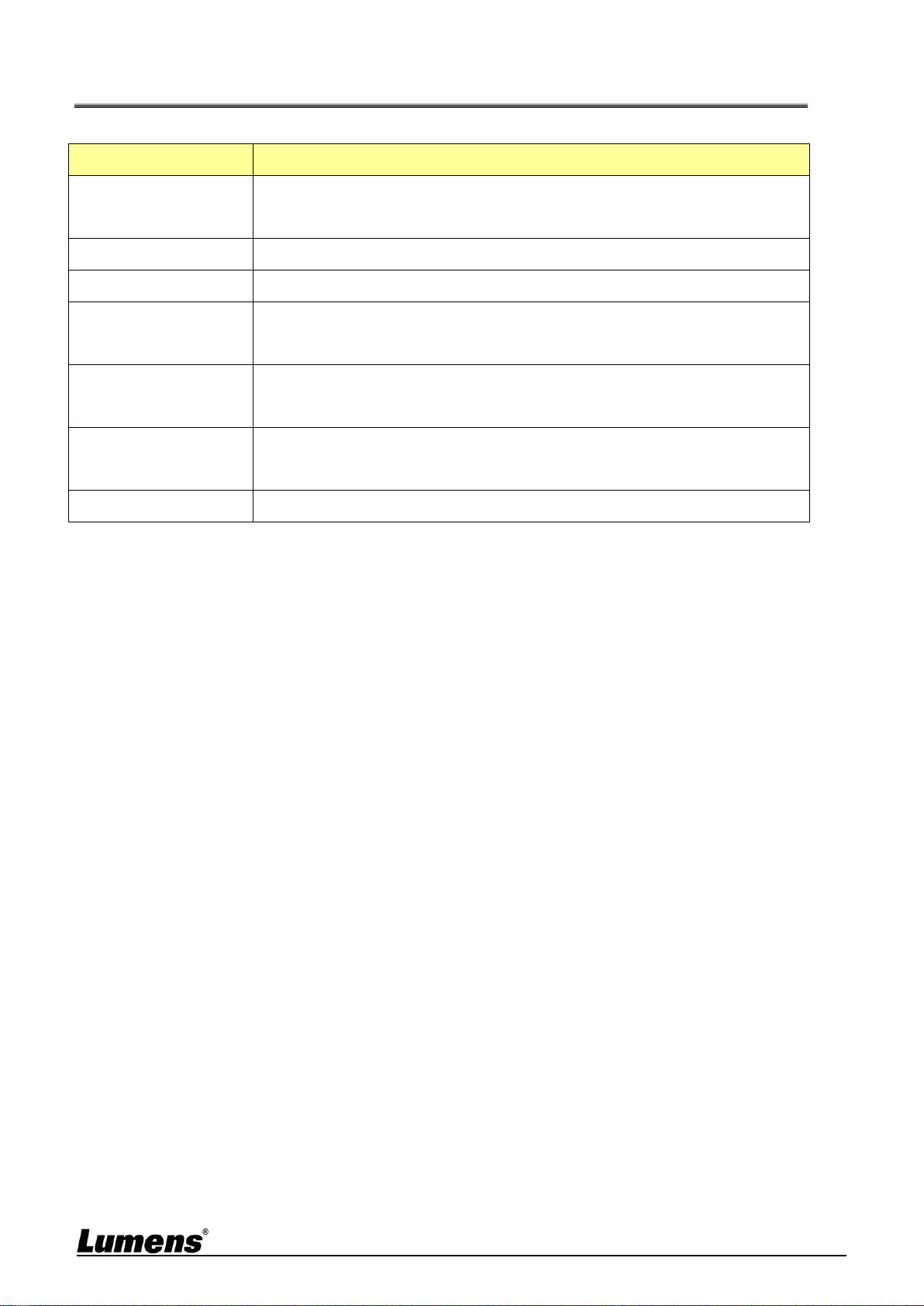
Layout Editor software
cannot edit the layout
Firmware version 4.4.0.19 or later. When exporting files from
LC200, please only click the Layout selection for export

35
*Note 1: Standby Mode: Applicable to firmware version 4.4.0.19 or later. Enable through the RS232/TCP
command.
9.
LC200 cannot find the
camera
Please link to the webpage of the camera to make sure that
[Setting] > [Video] > [Camera ID] / [Location] in the
webpage uses only English letters or numbers. LC200 cannot
find the machine if you use special characters and space.
36
Addendum 1
Frequently used port No.
Port No.
Description
1935/TCP
Applicable for RTMP podcast to most platforms, such as
YouTube, Vimeo, Twitch
80/TCP
Applicable for RTMP podcast to Periscope
443/TCP
Applicable for RTMPS podcast to Facebook
1935/TCP
1936/TCP
Applicable for RTMP podcast to LinkedIn
2935/TCP
2396/TCP
Applicable for RTMPS podcast to LinkedIn
443/TCP (HTTPS)
Applicable to built-in HTTPS platforms with safety certification,
such as YouTube, Facebook, Ustream, Livestream, Twitch
53/UDP (DNS)
Applicable to services of changing DNS IP address

37
Supplier's Declaration of Conformity
47 CFR § 2.1077 Compliance Information
Manufacturer:Lumens Digital Optics Inc.
Product Name:LC200
Model Number:CaptureVision Station
Responsible Party – U.S. Contact Information
Supplier:Lumens Integration, Inc.
4116 Clipper Court, Fremont, CA 94538, United States
FCC Compliance Statement
This device complies with Part 15 of the FCC Rules. Operation is subject to the following two conditions :
(1) This device may not cause harmful interference, and (2) this device must accept any interference
received, including interference that may cause undesired operation.