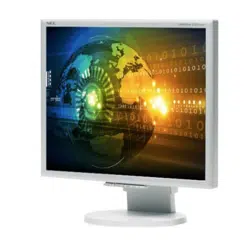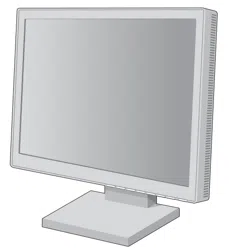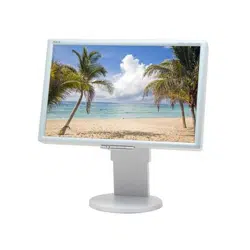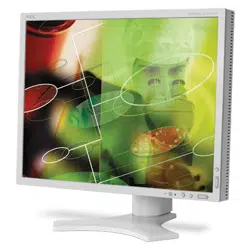

MultiSync
LCD2010X
™
MultiSync
®
LCD2010X
™
Register your
product online at
www.necmitsubishi.com/
productregistration
NEC LCD SeriesNEC LCD Series
2010X.wpc 7/13/00, 5:01 PM1

Index
Warning .................................................................................. 1
Contents ................................................................................... 2
Quick Start ............................................................................ 3-7
Controls .............................................................................. 8-11
Recommended Use............................................................. 12-13
Specifications ......................................................................... 14
Features ............................................................................ 15-16
Troubleshooting ...................................................................... 17
References .............................................................................. 18
Limited Warranty .................................................................... 19
TCO’95 ............................................................................ 20-21
TCO’99 ............................................................................ 22-23
Avertissement ......................................................................... 25
Contenu ................................................................................. 26
Mise en marche rapide ...................................................... 27-31
Commandes ...................................................................... 32-35
Usage recommandé ........................................................... 36-37
Fiche technique ....................................................................... 38
Fonctions........................................................................... 39-40
Dépannage ....................................................................... 41-42
Références .............................................................................. 43
Garantie limitée ...................................................................... 44
TCO’95 ............................................................................ 45-46
TCO’99 ............................................................................ 47-48
Warnung ............................................................................... 51
Lieferumfang .......................................................................... 52
Quick Start ........................................................................ 53-57
Bedienungselemente........................................................... 58-61
Empfehlungen für die Verwendung ...................................... 62-63
Technische Daten .................................................................... 64
Funktionen ........................................................................ 65-66
Fehlerbehebung ...................................................................... 67
Verweise ................................................................................ 68
Beschränkte Gewährleistung .................................................... 69
TCO’95 ............................................................................ 70-71
TCO’99 ............................................................................ 72-73
2010X.wpc 7/13/00, 5:01 PM2
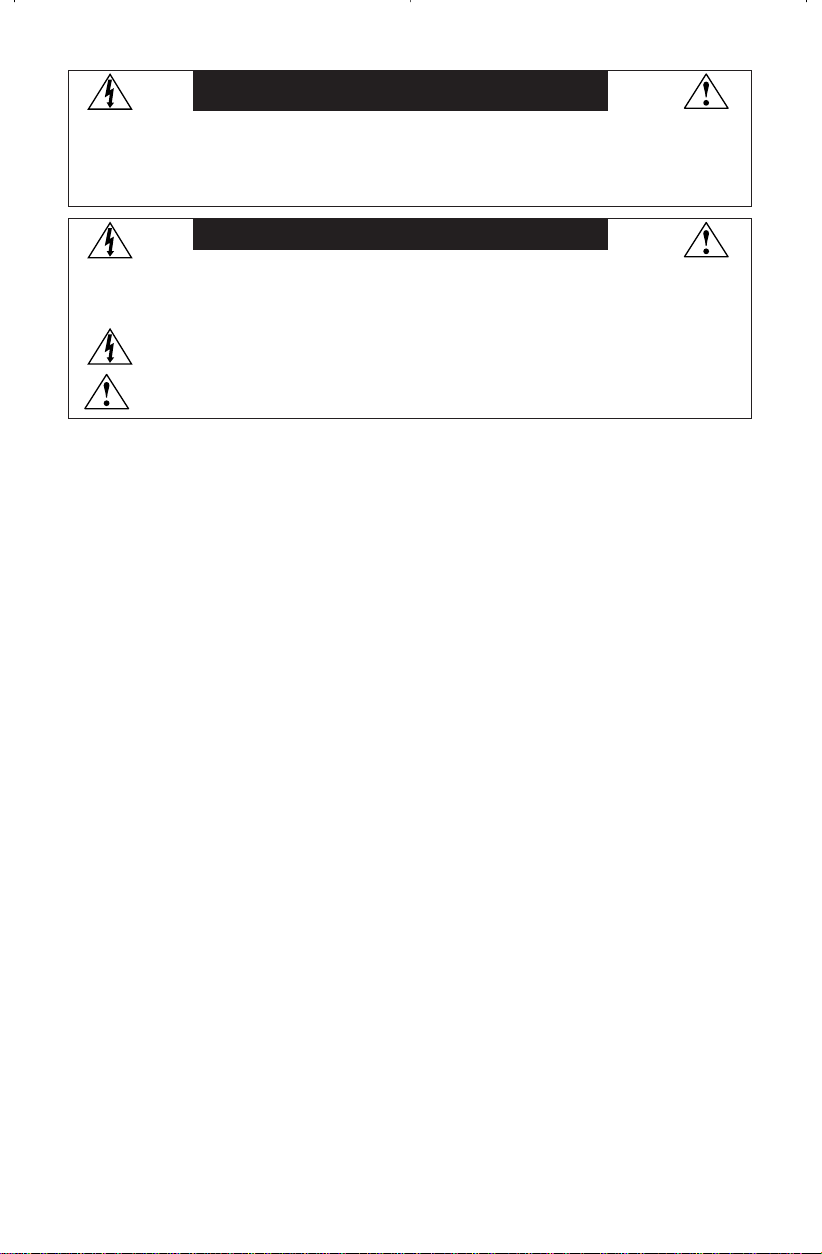
TO PREVENT FIRE OR SHOCK HAZARDS, DO NOT EXPOSE THIS UNIT TO RAIN OR MOISTURE. ALSO, DO NOT USE
THIS UNIT'S POLARIZED PLUG WITH AN EXTENSION CORD RECEPTACLE OR OTHER OUTLETS UNLESS THE PRONGS
CAN BE FULLY INSERTED.
REFRAIN FROM OPENING THE CABINET AS THERE ARE HIGH VOLTAGE COMPONENTS INSIDE. REFER SERVICING
TO QUALIFIED SERVICE PERSONNEL.
WARNING
CAUTION
CAUTION: TO REDUCE THE RISK OF ELECTRIC SHOCK, MAKE SURE POWER CORD IS UNPLUGGED FROM
WALL SOCKET. TO FULLY DISENGAGE THE POWER TO THE UNIT, PLEASE DISCONNECT THE POWER
CORD FROM THE AC OUTLET.DO NOT REMOVE COVER (OR BACK). NO USER SERVICEABLE PARTS
INSIDE. REFER SERVICING TO QUALIFIED SERVICE PERSONNEL.
This
symbol warns user that uninsulated voltage within the unit may have sufficient magnitude to cause
electric shock. Therefore, it is dangerous to make any kind of contact with any part inside this unit.
This symbol alerts the user that important literature concerning the operation and maintenance of this
unit has been included. Therefore, it should be read carefully in order to avoid any problems.
Canadian Department of Communications Compliance Statement
DOC: This Class B digital apparatus meets all requirements of the Canadian Interference-
Causing Equipment Regulations.
Cet appareil numérique de la classe B respecte toutes les exigences du Règlement
sur le matériel brouiller du Canada.
C-UL: Bears the C-UL Mark and is in compliance with Canadian Safety Regulations
according to C.S.A. C22.2 No. 950.
Ce produit porte la marque ‘C-UL’ et se conforme aux règlements de sûrele
Canadiens selon CAN/CSA C22.2 No. 950.
FCC Information
1.
Use the attached specified cables with the LH-20S01 and LH-20S01-BK color monitor so as not
to interfere with radio and television reception.
(1)
Please use the supplied power cord or equivalent to ensure FCC compliance.
(2) Please use the supplied shielded shielded video signal cable, 15-pin mini D-SUB to
DVI cable or DVI-D to DVI-D cable.
2.
This equipment has been tested and found to comply with the limits for a Class B digital
device, pursuant to part 15 of the FCC Rules. These limits are designed to provide reasonable
protection against harmful interference in a residential installation. This equipment gener-
ates, uses, and can radiate radio frequency energy, and, if not installed and used in
accordance with the instructions, may cause harmful interference to radio communications.
However, there is no guarantee that interference will not occur in a particular installation.
If this equipment does cause harmful interference to radio or television reception, which can
be determined by turning the equipment off and on, the user is encouraged to try to correct
the interference by one or more of the following measures:
• Reorient or relocate the receiving antenna.
• Increase the separation between the equipment and receiver.
• Connect the equipment into an outlet on a circuit different from that to which the receiver
is connected.
• Consult your dealer or an experienced radio/TV technician for help.
If necessary, the user should contact the dealer or an experienced radio/television technician
for additional suggestions. The user may find the following booklet, prepared by the Federal
Communications Commission, helpful: ”How to Identify and Resolve Radio-TV Interference
Problems.“ This booklet is available from the U.S. Government Printing Office, Washington,
D.C., 20402, Stock No. 004-000-00345-4.
1
2010X.wpc 7/13/00, 5:01 PM3
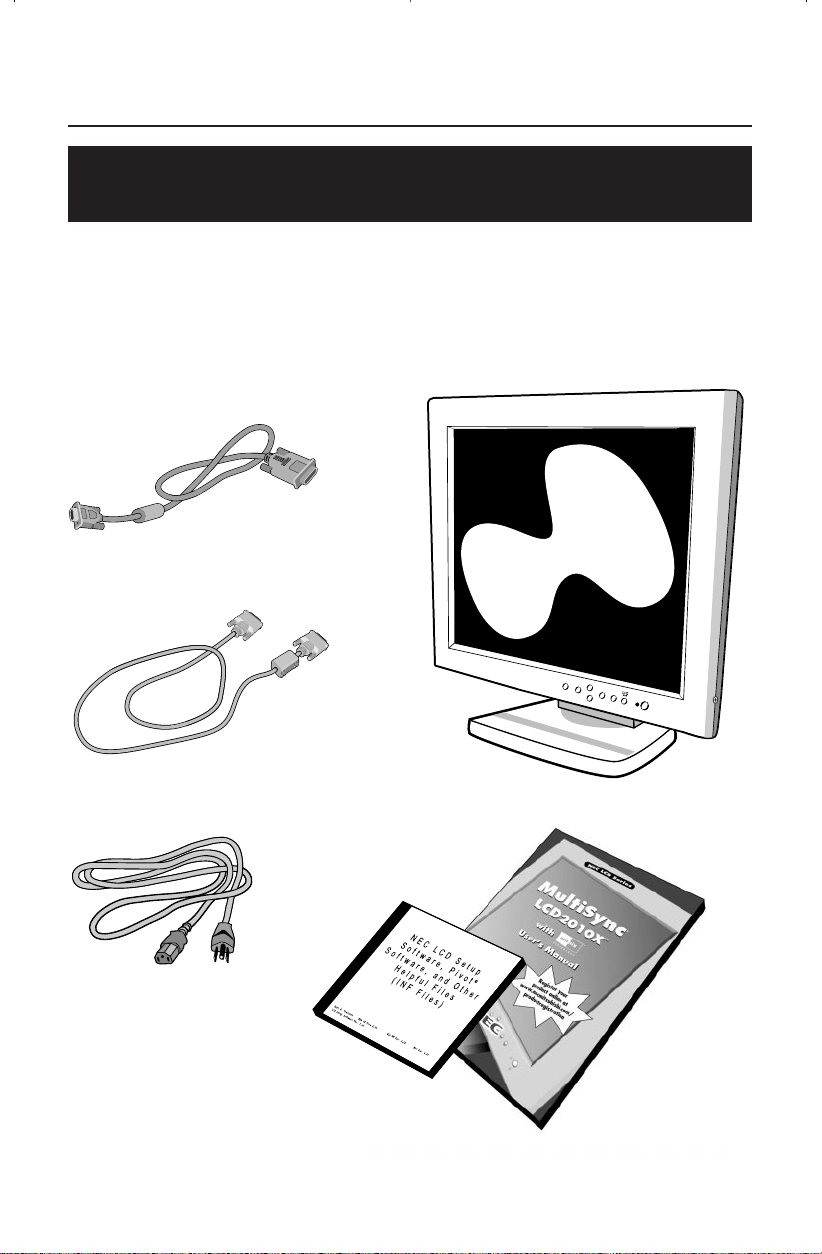
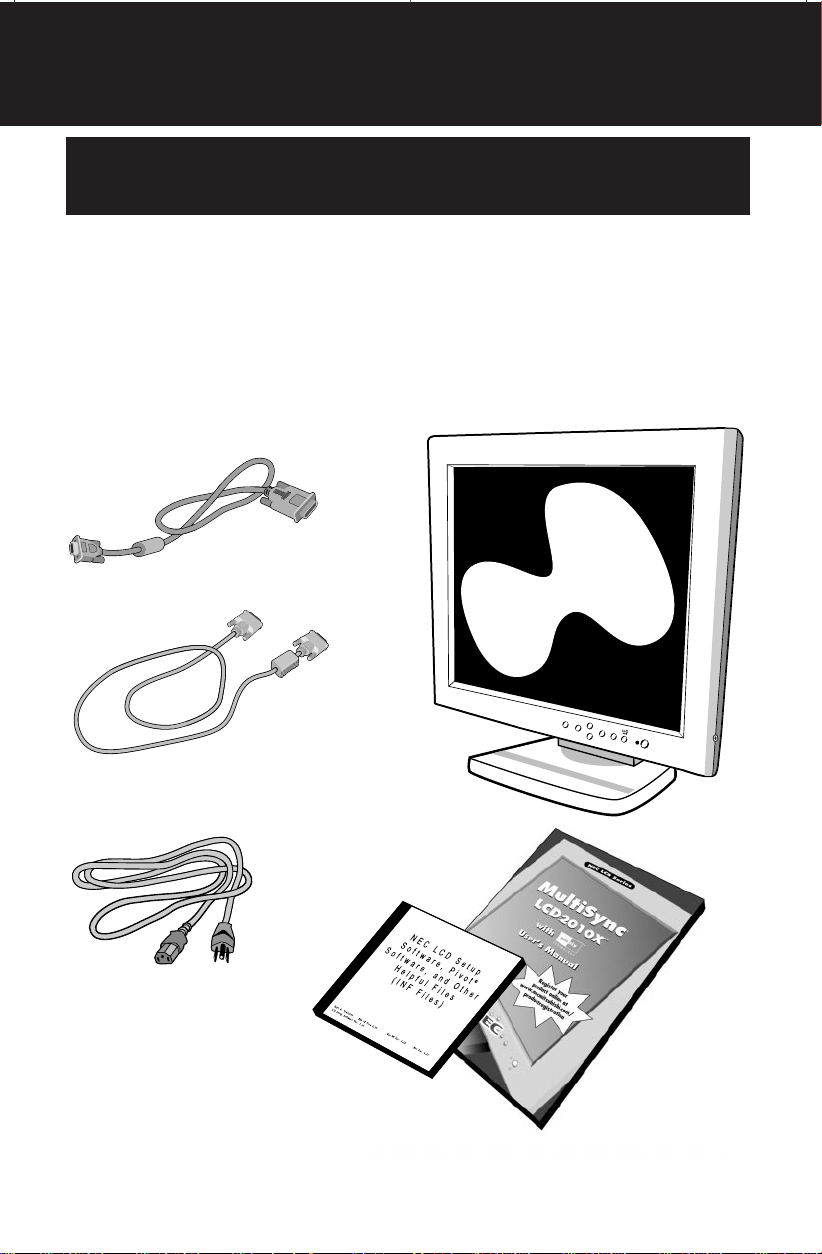
Your new NEC-Mitsubishi MultiSync
®
Monitor box* should contain
the following:
Contents
2
* Remember to save your original
box and packing material to
transport or ship the monitor.
You can register your product online at
www.necmitsubishi.com/productregistration
User’s Manual
Power Cord
CD Software
MultiSync LCD
2010X monitor
• MultiSync Monitor with tilt/
swivel/pivot stand
MultiSync LCD
2010X
™
• Power Cord
• User’s Manual
• Video Signal Cable (15-pin mini D-SUB male to DVI)
•
Video Signal Cable (DVI-D to DVI-D cable)
• NEC LCD Setup Software, Pivot Software and other
helpful files
Video signal cable
with 15-pin mini D-SUB to DVI cable
Video signal cable
with DVI-D to DVI-D cable.
2010X.wpc 7/13/00, 5:01 PM4

Quick Start
3
To attach the MultiSync
®
LCD monitor to your system, follow these
instructions:
1. Turn off the power to your computer.
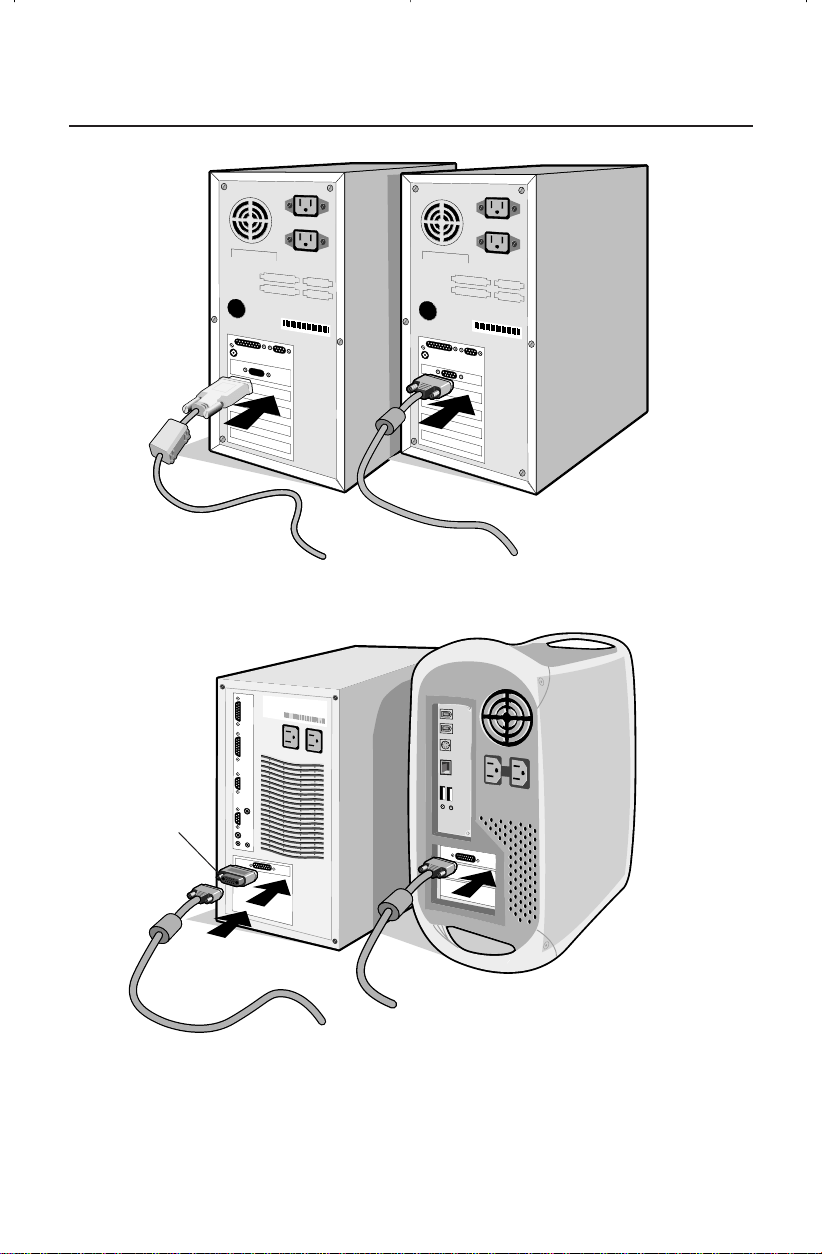
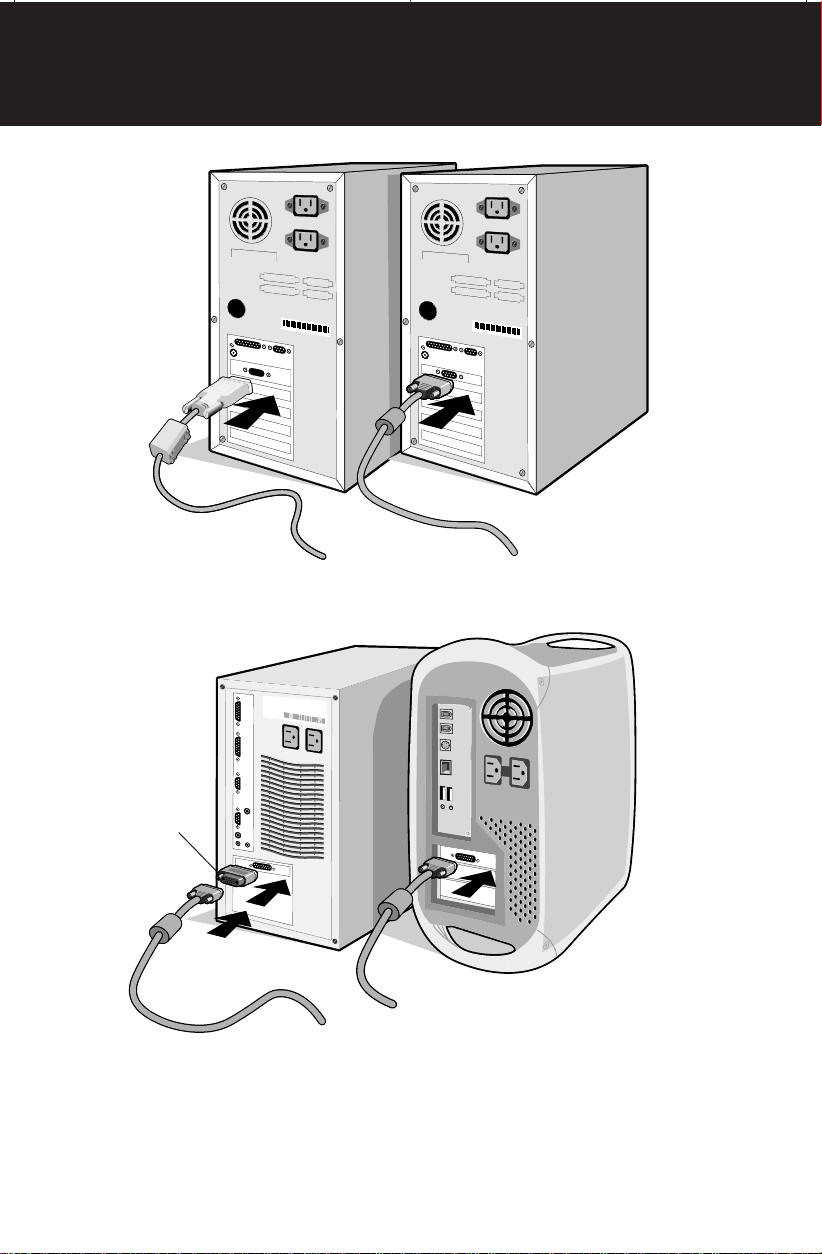
2. For the PC with DVI digital output: Connect the DVI signal cable to the connector of the
display card in your system (Figure A.1). Tighten all screws.
For the PC with Analog output: Connect the 15-pin mini D-SUB to DVI signal cable to
the connector of the display card in your system (Figure A.2).
To connect a secondary PC with analog output, connect the 15-pin mini D-SUB to 15-pin
mini D-SUB signal cable (not included) to the connector of the display card in your system.
For the MAC: Connect the MultiSync Macintosh cable adapter to the computer, then
attach the 15-pin mini D-SUB signal cable to the MultiSync Macintosh cable adapter
(Figure B.1).
NOTE: Some Macintosh systems do not require a Macintosh cable adapter.
NOTE: To obtain the MultiSync Macintosh cable adapter call NEC-Mitsubishi Electronics Display of
America, Inc. at (800) 820-1230
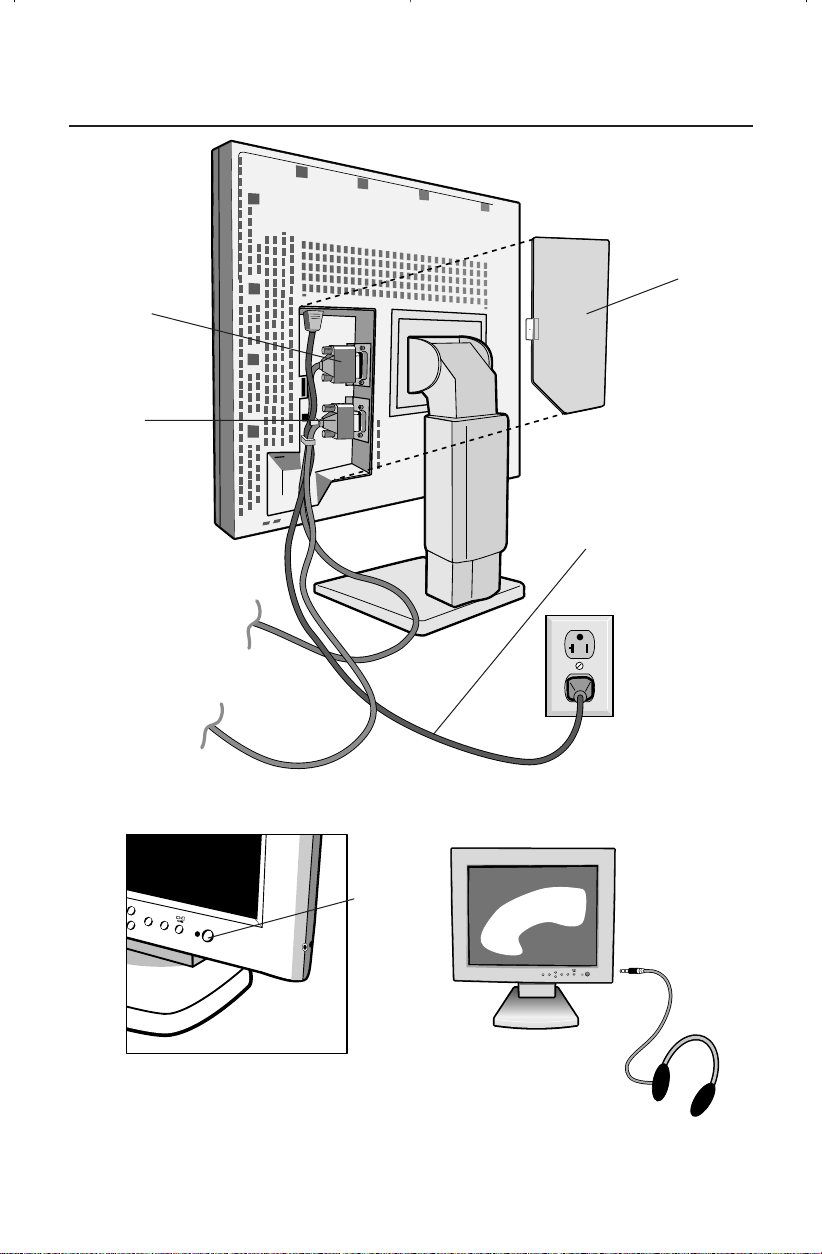
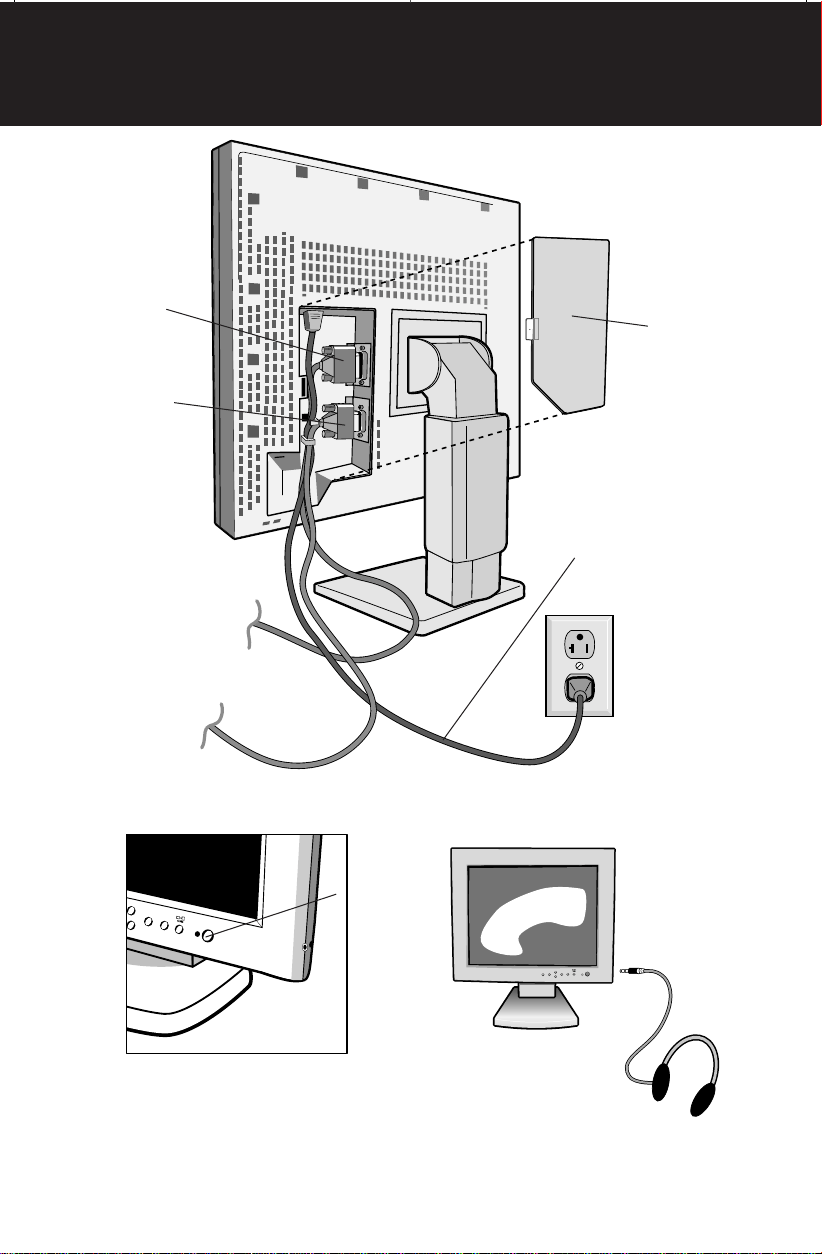
3. Remove connector cover. Connect the DVI signal cable to the connector on the back of
the monitor. Connect the 15-pin mini D-SUB signal cable (not included) to the connector
on the back of the monitor. Place the video signal cable (Figure C.1).
NOTE: Incorrect cable connections may result in irregular operation, damage display quality/
components of LCD module and/or shorten the module’s life.
4. Connect one end of the power cord to the AC inlet on the back of the monitor and the
other end to the power outlet (Figure C.1).
5. Turn on the monitor (Figure D.1) and the computer.
6. To complete the setup of your MultiSync LCD monitor, use the following OSM
™
controls:
• Auto Adjust Contrast (Analog input only)
• Auto Adjust (Analog input only)
Refer to the Controls section of this User ’s Manual for a full description of these OSM
controls.
NOTE: For download information on the Windows
®
95/98 INF file for your MultiSync LCD2010X
monitor, refer to the References section of this User’s Manual.
NOTE: If you have any problems, please refer to the Troubleshooting section of this User’s Manual.
NOTE: Refer to User ’s Manual in the NEC LCD Setup Software CD case for installation and operation
of this software.
Using headphones
1. Connect the audio cable to “Line-in” on the back of the monitor and the other end to
the “Audio out” terminal of the computer. Replace connector cover.
2. Headphones may be connected to the “Headphones” output on the right side of the
monitor (Figure E.1). Headphones can be purchased from your local electronics store.
2010X.wpc 7/13/00, 5:01 PM5
Quick Start cont.
4
Figure B.1
Note: Some Macintosh
systems do not require a
Mactintosh cable adapter
Figure A.1 Figure A.2
Macintosh Cable
Adapter
(not included)
2010X.wpc 7/13/00, 5:01 PM6
5
Figure C.1
Figure E.1
Figure D.1
Power
Button
Power
Cord
Connector
Cover
DVI
Mini
D-SUB
Quick Start cont.
5
2010X.wpc 7/13/00, 5:01 PM7
Controls
6
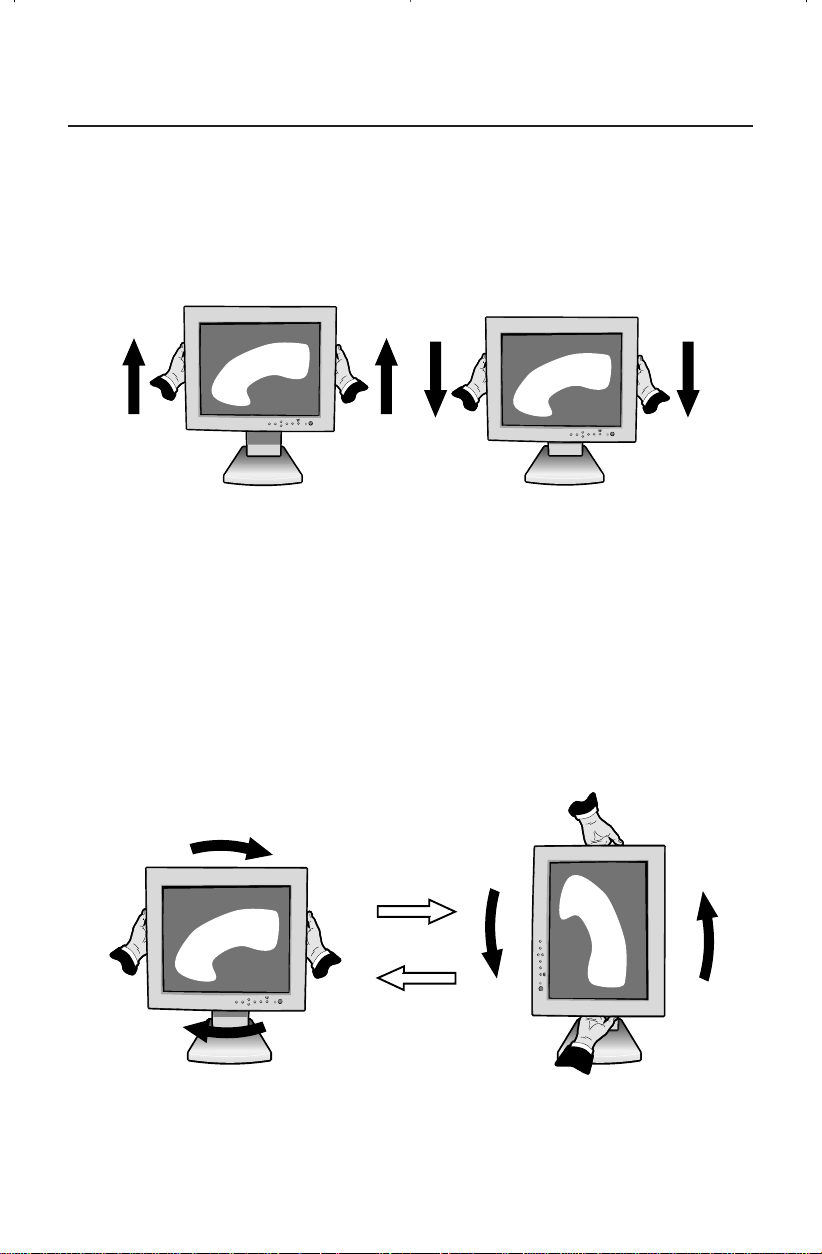
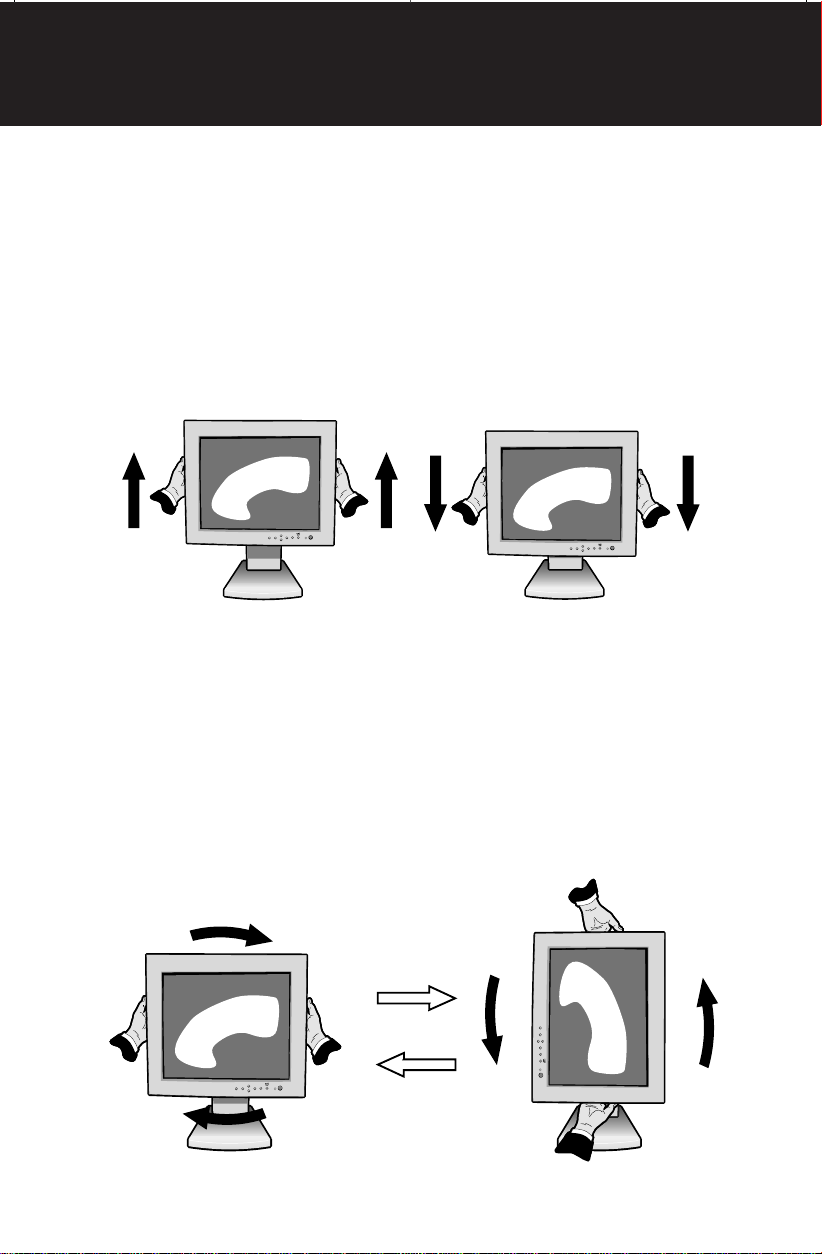
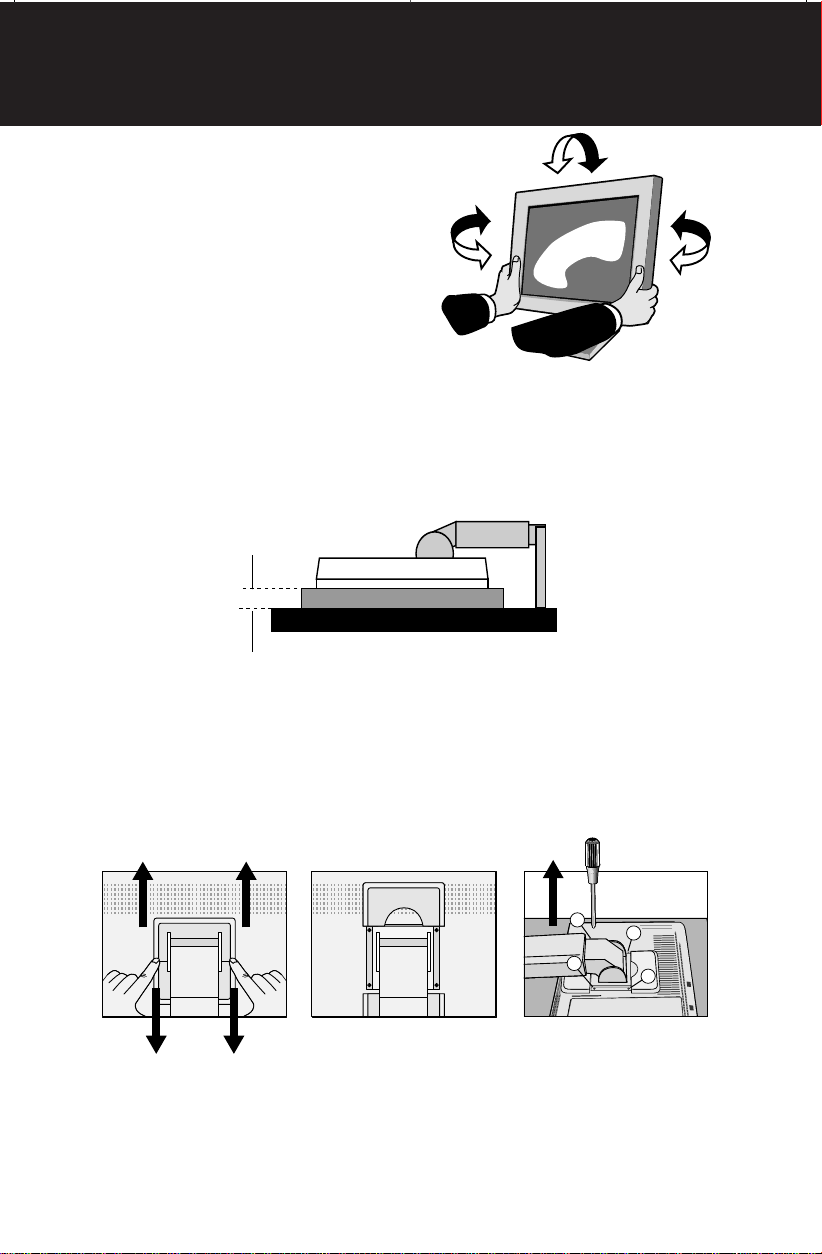
Raise and Lower
Monitor Screen
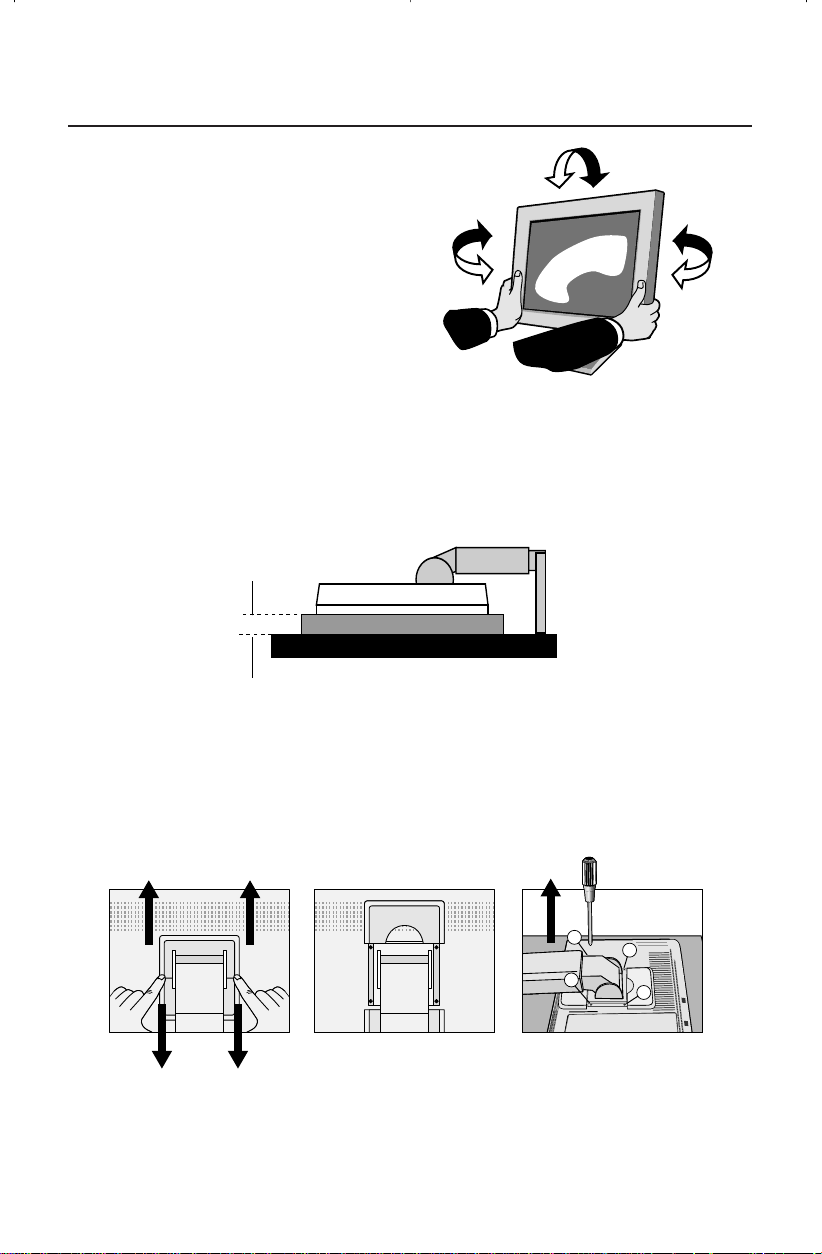
The monitor may be raised or lowered in either Portrait or Landscape mode.
To raise or lower screen, place hands on each side of the monitor and lift or
lower to the desired height (Figure RL.1).
Figure RL.1
Quick Start cont.
Screen Rotation
Before rotating, the screen must be raised to the highest level to avoid knocking
the screen on the desk or pinching your fingers. To raise the screen, place hands
on each side of the monitor and lift up to the highest position (Figure RL.1).
To rotate screen, place hands on each side of the monitor screen and turn
clockwise from Landscape to Portrait or counter-clockwise from Portrait to
Landscape (Figure R.1).
To toggle the orientation of the OSM
™
menu between Landscape and Portrait
modes, press the RESET button while OSM menu is off.
Figure R.1
2010X.wpc 7/13/00, 5:01 PM8
2-in
7
Quick Start cont.
Tilt and Swivel
Grasp both sides of the monitor screen
with your hands and adjust the tilt and
swivel as desired (Figure TS.1).
Remove Monitor Stand for
Mounting
To prepare the monitor for alternate mount-
ing purposes:
1. Disconnect all cables.
2. Place hands on each side of
the monitor and lift up to the highest position (Figure RL.1).
3. Place monitor face down on a non-abrasive surface. (Place the screen on
a 2-inch platform so that the stand is parallel with the surface.)
(Figure S.1)
4. Remove the stand cover by sliding the top/bottom pieces off the stand
(Figure S.2). Remove the 4 screws connecting the monitor to the stand
and lift off the stand assembly (Figure S.3). The monitor is now ready for
mounting in an alternate manner.
5. Reverse this process to reattach stand.
NOTE: Use only VESA-compatible alternative mounting method.
1
2
3
4
Figure S.2 and Figure S.3
Figure S.1
Figure TS.1
Caution: This LCD monitor is designed for use with a flexible arm, therefore it is delivered without stand.
To fulfil the safety requirements the monitor must be mounted to an arm which guaranties
the necessary stability under consideration of the weight of the monitor.
The LCD monitor shall only be used with an approved arm (e.g. GS mark).
2010X.wpc 7/13/00, 5:01 PM9
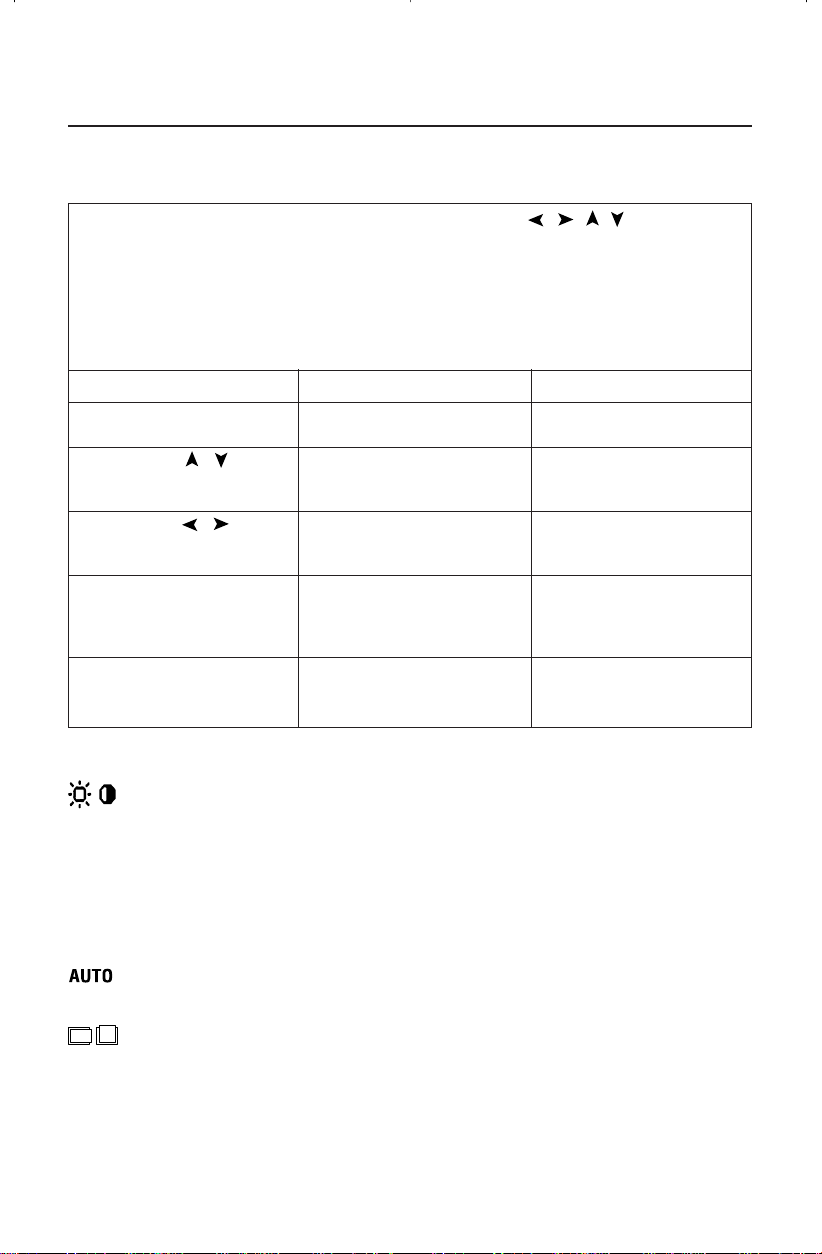
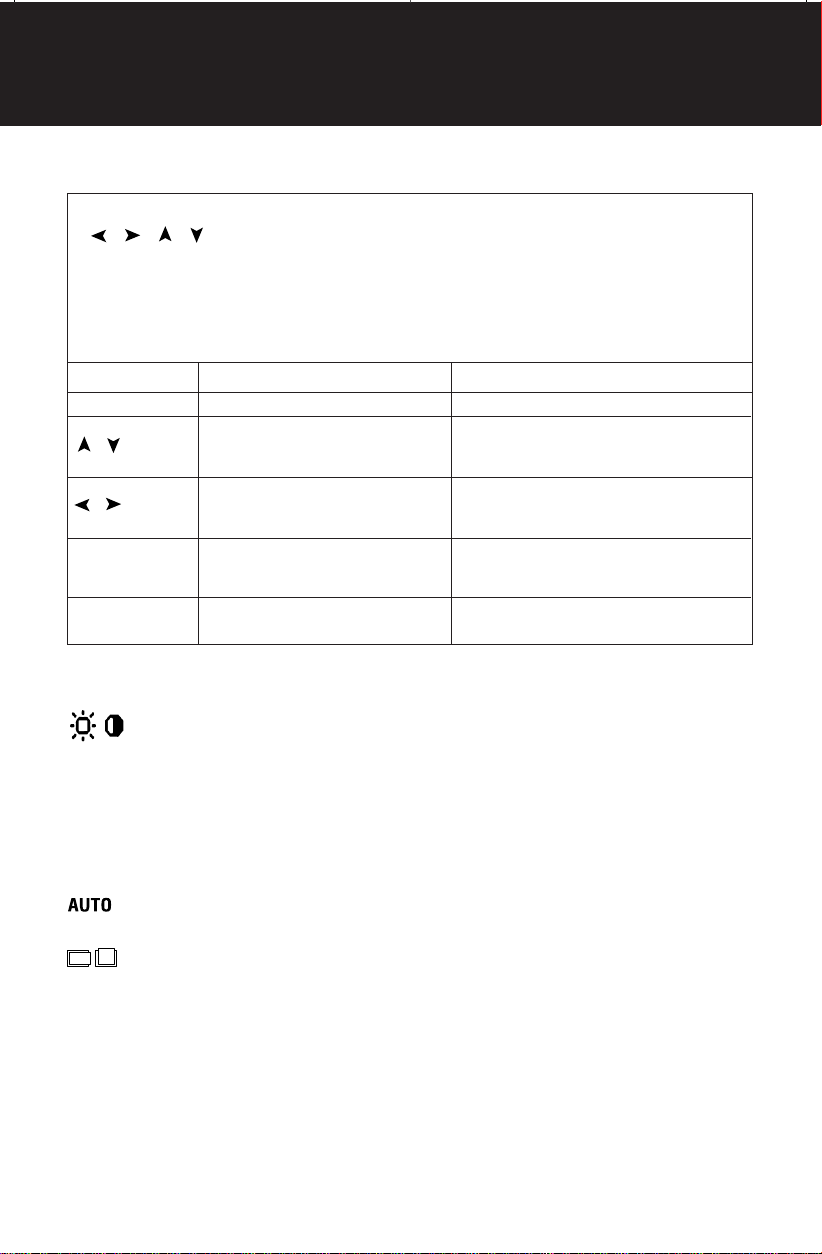
OSM™ (On-Screen Manager) control buttons on the front of the
monitor function as follows:
To access OSM menu, press any of the control buttons ( , , , ) or the
PROCEED button.
To mute sound function, press the EXIT button.
To rotate OSM between Landscape and Portrait modes, press the RESET button.
To change DVI/D-SUB signal input, press the PROCEED button.
NOTE: OSM menu must be closed in order to rotate.
Main Menu Sub-Menu
EXIT Exits the OSM controls. Exits to the OSM main
menu.
CONTROL / Moves the highlighted Moves the highlighted
area up/down to select area up/down to select
one of the controls. one of the controls.
CONTROL / Moves the highlighted area Moves the bar left/
left/right to select control right to increase or
menus. decrease the adjustment.
PROCEED Has no function Activates Auto Adjust feature.
In Tools and Information
Mode, opens additional
window.
RESET Resets the highlighted Resets the highlighted
control menu to the factory control to the factory
setting. setting.
NOTE: When RESET is pressed in the main and sub-menu, a warning window
will appear
allowing you to cancel the RESET function by pressing the EXIT button.
Brightness/Contrast Controls
BRIGHTNESS
Adjusts the overall image and background screen brightness.
CONTRAST
Adjusts the image brightness in relation to the background.
AUTO ADJUST (Analog input only)
Adjusts the image displayed for non-standard video inputs.
Auto Adjust (Analog input only)
Automatically adjusts the Image Position and H. Size settings and Fine settings.
Position Controls (Analog input only)
LEFT / RIGHT
Controls Horizontal Image Position within the display area of the LCD.
DOWN / UP
Controls Vertical Image Position within the display area of the LCD.
8
Controls
2010X.wpc 7/13/00, 5:01 PM10
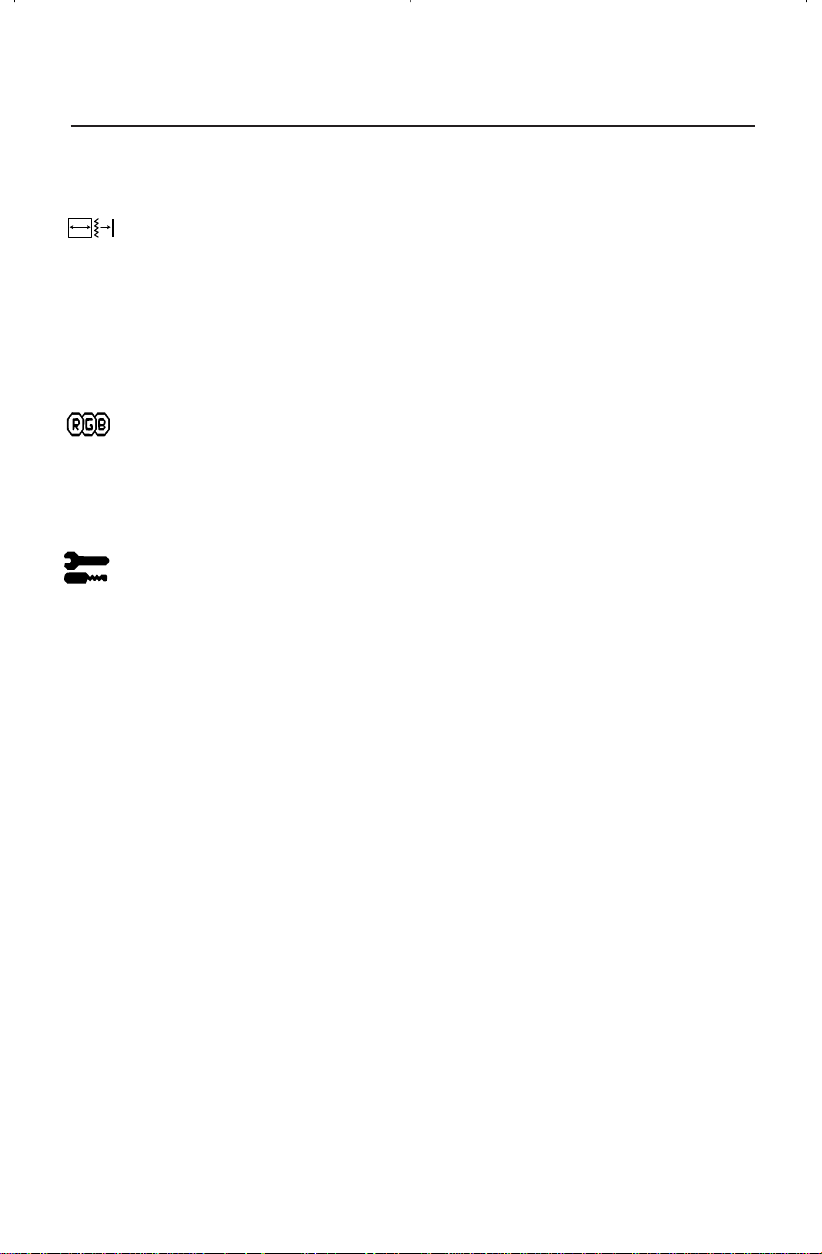
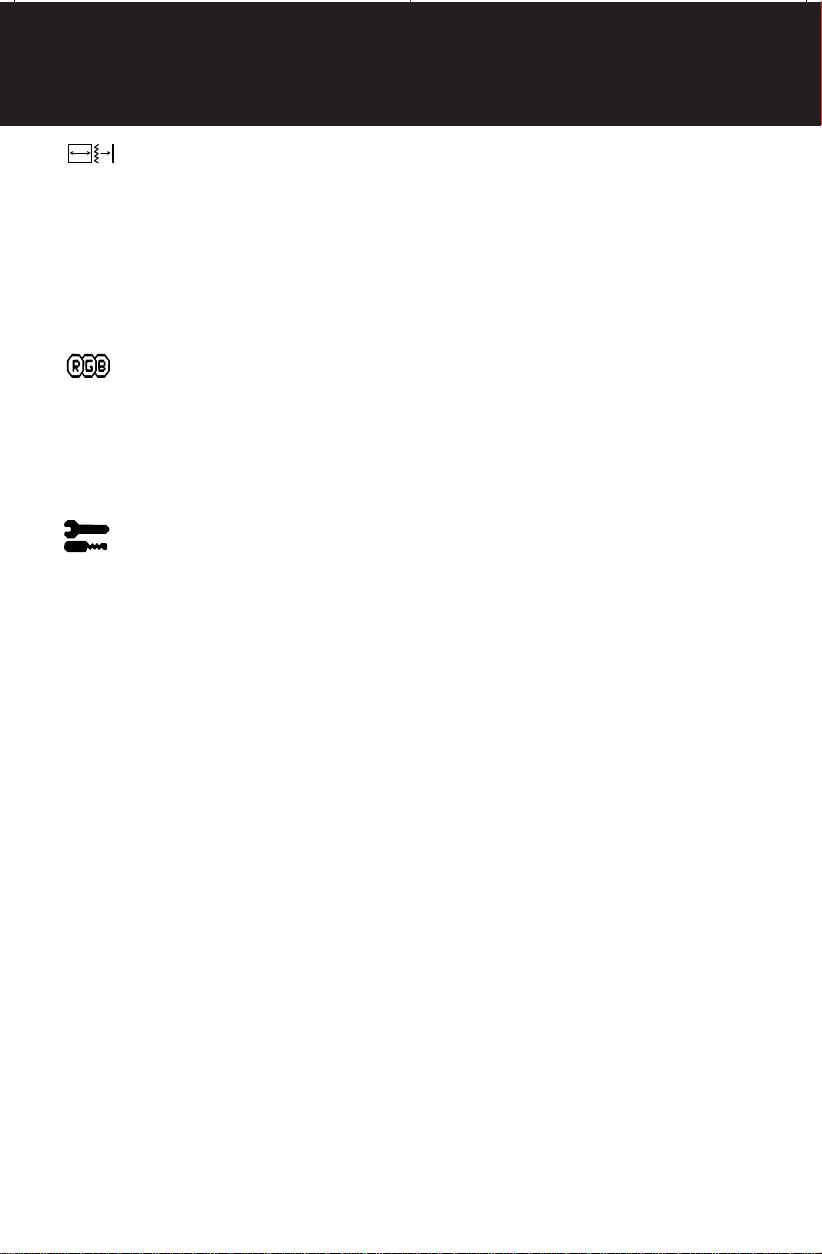
AUTO ADJUST
Automatically sets the Horizontal and Vertical Image Position within the
display area of the LCD.
Image Adjust Controls (Analog Input Only)
H.SIZE
Adjusts the horizontal size by increasing or decreasing this setting.
FINE
Improves focus, clarity and image stability by increasing or decreasing this
setting.
AUTO ADJUST
Automatically adjusts H. SIZE and FINE settings.
AccuColor
®
Control Systems
Five color presets select the desired color setting. Each color setting is adjusted
at the factory.
R,G,B: Increases or decreases Red, Green or Blue color depending upon
which is selected. The change in color will appear on screen and the direction
(increase or decrease) will be shown by the color bars.
Tools 1
SMOOTHING: Select one of three image sharpness settings. This function is
only valid when the expanded display function (expansion function)is on.
TEXT MODE: Use this to display text clearly.
NORMAL: This sharpness is between TEXT and GRAPHIC MODE.
GRAPHIC MODE: This mode is suited for images and photographs.
EXPANSION MODE: Sets the zoom method.
FULL SCREEN: The image is expanded to 1280 x 1024, regardless of the
resolution.
KEEP ASPECT: The image is expanded without changing the aspect ratio.
EXPANSION OFF: The image is not expanded.
CUSTOM (DIGITAL INPUT ONLY): Select one of four expansion rates. In
this mode the resolution may be low and there may be blank areas. This
mode is for use with special video cards.
VIDEO DETECT: Selects the method of video detection when more than one
computer is connected.
NONE: The Monitor will not search the other video input port unless the
monitor is turned on.
FIRST DETECT: The video input has to be switched to “FIRST DETECT”
mode. When current video input signal is not present, then the monitor
searches for a video signal from the other video input port. If the video
signal is present in the other port, then the monitor switches the video
source input port to the new found video source automatically. The
monitor will not look for other video signals while the current video
source is present.
Controls cont.
9
2010X.wpc 7/13/00, 5:01 PM11
LAST DETECT:
The video input has to be switched to the “LAST DETECT”
mode.
When the monitor is displaying a signal from the current source
and a new secondary source is supplied to the monitor, then the monitor
will automatically switch to the new video source. When current video
input signal is not present, then the monitor searches for a video signal
from the other video input port. If the video signal is present in the other
port, then the monitor switches the video source input port to the new
found video source automatically. The monitor will not look for other video
signals while the current video source is present.
DVI SELECTION: This function selects the DVI input mode. When the DVI
selection has been changed, you must restart your computer.
DIGITAL: DVI digital input is available.
ANALOG: DVI analog input is available.
SOUND: Adjusts the volume of the earphones jack.
Tools 2
LANGUAGE: OSM
™
control menus are available in seven languages.
OSM POSITION: You can choose where you would like the OSM control
image to appear on your screen. Selecting OSM Location allows you to
manually adjust the position of the OSM control menu left, right, up or down.
OSM TURN OFF: The OSM control menu will stay on as long as it is use. In the
OSM Turn Off submenu, you can select how long the monitor waits after the
last touch of a button to shut off the OSM control menu. The preset chocies are
10, 20, 30, 60 and 120 seconds.
OSM LOCK OUT: This control completely locks out access to all OSM control
functions. When attempting to activate OSM controls while in the Lock Out
mode, a screen will appear indicating the OSM controls are locked out. To
activate the OSM Lock Out function, press PROCEED, then
and hold down
simultaneously. To de-activate the OSM Lock Out, press PROCEED, then
and hold down simultaneously.
FACTORY PRESET: Selecting Factory Preset allows you to reset all OSM control
settings back to the factory settings. The RESET button will need to be held
down for several seconds to take effect. Individual settings can be reset by
highlighting the control to be reset and pressing the RESET button.
RESOLUTION NOTIFIER: This optimal resolution is 1280 x 1024. If ON is
selected, a message will appear on the screen after 30 seconds, notifying you
that the resolution is not at 1280 x 1024.
Controls cont.ols
10
2010X.wpc 7/13/00, 5:01 PM12

Controls cont.ols
11
Information
DISPLAY MODE: Provides information about the current resolution display and
technical data including the preset timing being used and the horizontal and
vertical frequencies.
MONITOR INFO: Indicates the model and serial numbers of your monitor.
OSM
™
Warning
NO SIGNAL: This function gives a warning when there is no signal present.
After power is turned on or when there is a change of input signal or video
is inactive, the No Signal window will appear. The PROCEED button opens
the DVI SELECTION CONTROL, as indicated in the section for DVI selection.
RESOLUTION NOTIFIER: This function gives a warning of use with opti-
mized resolution. After power is turned on or when there is a change of
input signal or the video signal doesn’t have proper resolution, the
Resolution Notifier window will open. This function can be disabled in
the TOOL menu.
OUT OF RANGE: This function gives a recommendation of the optimized
resolution and refresh rate. After the power is turned on or there is a
change of input signal or the video signal doesn’t have proper timing, the
Out Of Range menu will appear. The PROCEED button opens the DVI
SELECTION CONTROL, as indicated in the section for DVI selection.
NOTE: If “ CHANGE DVI SELECTION” is displayed,switch to DVI
SELECTION.
2010X.wpc 7/13/00, 5:01 PM13
Safety Precautions and Maintenance
FOR OPTIMUM PERFORMANCE, PLEASE NOTE THE
FOLLOWING WHEN SETTING UP AND USING
THE MULTISYNC
®
LCD COLOR MONITOR:
• DO NOT OPEN THE MONITOR. There are no user serviceable parts inside and
opening or removing covers may expose you to dangerous shock hazards or other
risks. Refer all servicing to qualified service personnel.
• Do not spill any liquids into the cabinet or use your monitor near water.
• Do not insert objects of any kind into the cabinet slots, as they may touch dangerous
voltage points, which can be harmful or fatal or may cause electric shock, fire or
equipment failure.
• Do not place any heavy objects on the power cord. Damage to the cord may cause
shock or fire.
• Do not place this product on a sloping or unstable cart, stand or table, as the monitor
may fall, causing serious damage to the monitor.
• The power cable connector is the primary means of detaching the system from the power
supply. The monitor should be installed close to a power outlet that is easily accessible.
• When operating the MultiSync LCD monitor with its AC220-240V worldwide power supply,
use a power supply cord that matches the power supply voltage of the AC power outlet
being used. The power supply cord you use must have been approved by and comply with
the safety standards of your country. (Type H05VV-F should be used except in UK)
• Do not place any objects onto the monitor and do not use the monitor outdoors.
• The inside of the fluorescent tube located within the LCD monitor contains mercury.
Please follow the bylaws or rules of your local municipality to dispose of this tube properly.
• In UK, use a BS-approved power cord with molded plug having a black (5A) fuse installed
for use with this monitor. If a power cord is not supplied with this monitor, please contact
your supplier.
Immediately unplug your monitor from the wall outlet and refer servicing to qualified service
personnel under the following conditions:
• When the power supply cord or plug is damaged.
• If liquid has been spilled or objects have fallen into the monitor.
• If the monitor has been exposed to rain or water.
• If the monitor has been dropped or the cabinet is damaged.
• If the monitor does not operate normally by following operating instructions.
• Allow adequate ventilation around the monitor so that heat can properly
dissipate. Do not block ventilated openings or place the monitor near a
radiator or other heat sources. Do not put anything on top of monitor.
• The power cable connector is the primary means of detaching the system
from the power supply. The monitor should be installed close to a power
outlet which is easily accessible.
• Use caution when carrying the monitor,as the compact stand may extend
automatically.
• Handle with care when transporting. Save packaging for transporting.
• Do not bend power cord.
• Do not use monitor in high temperatured, humid, dusty, or oily areas.
• Do not cover vent on monitor.
• If monitor is broken, do not come in contact with the liquid crystal.
Recommended Use
12
CAUTION
2010X.wpc 7/13/00, 5:01 PM14
Recommended Use cont.
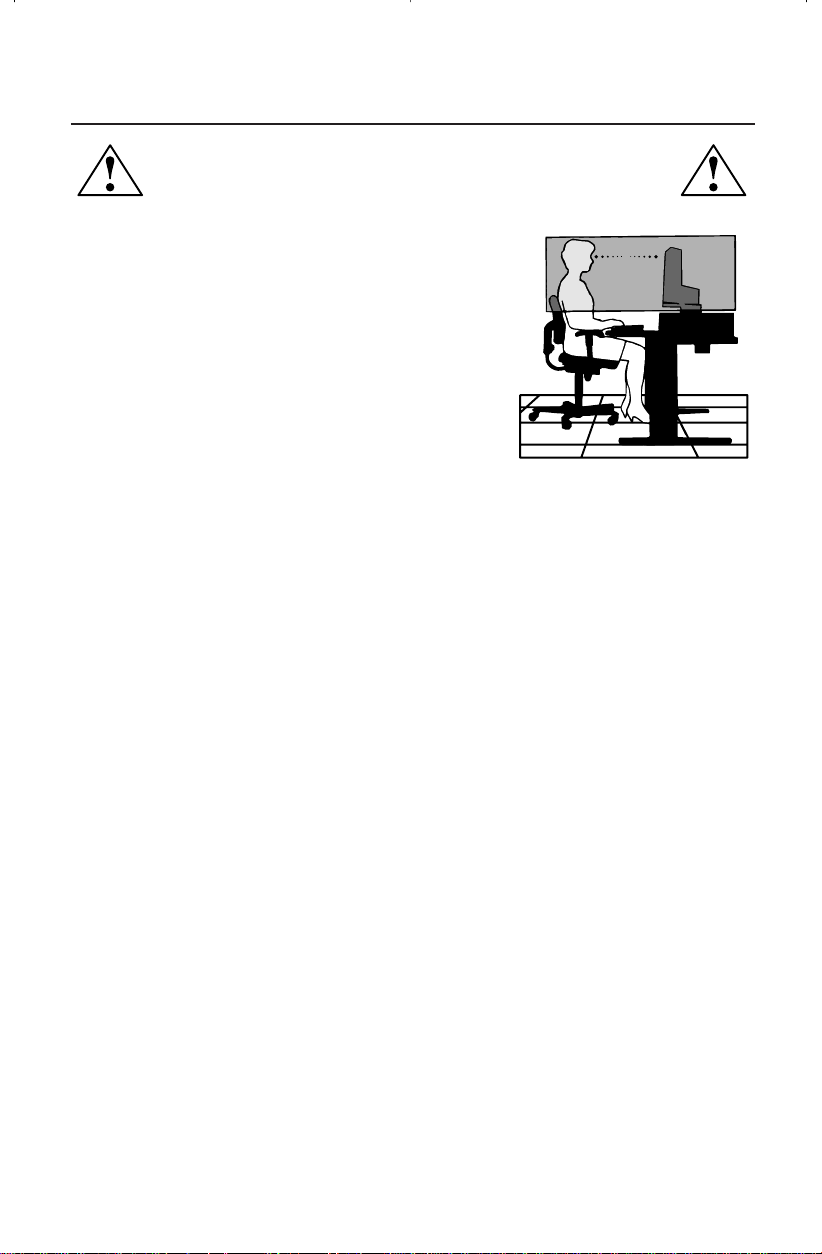
CORRECT PLACEMENT AND ADJUSTMENT OF THE MONITOR
CAN REDUCE EYE, SHOULDER AND NECK FATIGUE. CHECK THE
FOLLOWING WHEN YOU POSITION THE MONITOR:
13
• For optimum performance, allow 20 minutes for
warm-up.
• Adjust the monitor height so that the top of the
screen is at or slightly below eye level. Your eyes
should look slightly downward when viewing the
middle of the screen.
•
Position your monitor no closer than 16 inches and
no further away than 28 inches
from your eyes. The
optimal distance is 23 inches for the MultiSync
®
LCD2010X
™
.
• Rest your eyes periodically by focusing on an object
at least 20 feet away. Blink often.
• Position the monitor at a 90° angle to windows and other light sources to minimize
glare and reflections. Adjust the monitor tilt so that ceiling lights do not reflect on
your screen.
• If reflected light makes it hard for you to see your screen, use an anti-glare filter.
• Clean the LCD monitor surface with a lint-free, non-abrasive cloth. Avoid using
any cleaning solution or glass cleaner!
• Adjust the monitor’s brightness and contrast controls to enhance readability.
• Use a document holder placed close to the screen.
• Position whatever you are looking at most of the time (the screen or reference
material) directly in front of you to minimize turning your head while you are
typing.
• Avoid displaying fixed patterns on the monitor for long periods of time to avoid
image persistence (after-image effects).
• Get regular eye checkups.
Ergonomics
To realize the maximum ergonomics benefits, we recommend the following:
• Adjust the Brightness until the bachground raster disappears
• Do not position the Contrast control to its maximum setting
• Use the preset Size and Position controls with standard signals
• Use the preset Color Setting
• Use non-interlaced signals with a vertical refresh rate between 60-75Hz
• Do not use primary color blue on a dark background, as it is difficult to see and
may produce eye fatigue to insufficient contrast
For more detailed information on setting up a healthy work environment, call NEC
at (800) 820-1230, NEC FastFacts
™
information at (630) 467-4363 and request
document #900108 or write the American National Standard for Human Factors
Engineering of Visual Display Terminal Workstations – ANSI-HFS Standard
No. 100-1988 – The Human Factors Society, Inc. P.O. Box 1369, Santa Monica,
California 90406.
2010X.wpc 7/13/00, 5:01 PM15

Monitor MultiSync
®
LCD2010X
™
Notes
Specifications Monitor
LCD Module Diagonal: 20.1 inch Active matrix; thin film transistor (TFT)
Viewable Image Size: 20.1 inch liquid crystal display (LCD); 0.31 mm dot
Native Resolution (Pixel Count): Landscape: 1280 x 1024
pitch; XtraView
™
technology; 250cd/m
2
white
Portrait: 1024 x 1280 luminence; 250:1 contrast ratio, typical
Input Signal Video: ANALOG 0.7 Vp-p/75 Ohms Digital Input: TMDS
™
Sync: Separate sync. TTL Level
Horizontal sync. Positive/Negative
Vertical sync. Positive/Negative
Composite sync. (Positive/Negative) (TTL Level)
Sync on Green video (Positve) 0.7 Vp-p and sync.
Negative 0.3 Vp-p
Display Colors Analog input: 16,777,216
Depends on display card and timing used.
Synchronization Range : Horizontal: 31.0 kHz to 82 kHz Automatically
Vertical: 56.0 Hz to 85 Hz Automatically
Resolutions Supported Landscape: 720 x 400*
1
: VGA text
640 x 480*
1
@ 60Hz to 85Hz
800 x 600*
1
@ 56Hz to 85Hz
832 x 624*
1
@ 75Hz
1024 x 768*
1
@ 60Hz to 85Hz
1152 x 900*
1
*
2
@ 66Hz (SUN)
1280 x 960*
1
*
2
@ 60Hz to 75Hz
1280 x 1024 @ 60Hz to 75Hz ..................
NEC cites recommended resolution at
60Hz
Portrait: 480 x 640*
1
@ 60Hz to 85Hz
for optimal display and color performance.
600 x 800*
1
@ 56Hz to 85Hz
624 x 832*
1
@ 75Hz
768 x 1024*
1
@ 60Hz to 85Hz
960 x 1280*
1
*
2
@ 60Hz to 75Hz
1024 x 1280 @ 60Hz to 75Hz ..................
NEC cites recommended resolution at
60Hz
f
or optimal display and color performance.
Active Display Landscape: Horizontal:
399 mm/15.7 inches
Area Vertical:
319 mm/12.6 inches
Portrait: Horizontal: 319 mm/12.6 inches
Vertical: 399 mm/15.7 inches
Power Supply
AC 100 – 120 V/220 – 240 V @ 50/60 Hz
Current Rating 0.7A @ 100
–
120 V/0.3A @ 220 – 240 V
Dimensions Landscape:
498 mm (W) x 501 mm (H) x 246 mm (D)
19.6 inches (W) x 19.7 inches (H) x 9.6 inches (D)
Portrait:
418 mm (W) x 541 mm (H) x 246 mm (D)
16.5 inches (W) x 21.3 inches (H) x 9.6 inches (D)
Height Adjustment:
70 mm/2.8 inches
Weight14.2 kg
31.3 lbs
Environmental Considerations
Operating Temperature: 5°C to +35°C/41°F to 95°F
Humidity: 30% to 80%
Feet: 0 to 10,000 Feet
Storage Temperature: -10°C to +60°C/14°F to 140°F
Humidity: 10% to 85%
Feet: 0 to 45,000 Feet
*
1
Interpolated Resolutions: When resolutions are shown that are lower than the pixel count of the LCD module, text may appear
choppy or lines may appear to be bold. This is normal and necessary for all current flat panel technologies when displaying
non-native resolutions full screen. In flat panel technologies, each dot on the screen is actually one pixel, so to expand
resolutions to full screen, an interpolation of the resolution must be done. When the interpolated resolution is not an exact
multiple of the native resolution, the mathematical interpolation necessary may cause some lines to appear thicker than others.
*
2
The number of colors that can be displayed decreases.
NOTE: Technical specifications are subject to change without notice.
Specifications
14
2010X.wpc 7/13/00, 5:01 PM16

15
Features
ambix™ Technology: Dual input technology allowing both analog and digital inputs off of
one connector (DVI-I) as well as additional legacy analog support off of a traditional 15-
pin VGA connector. Provides traditional MultiSync
®
technology compatibility for analog as
well as TMDS™-based (Transition Minimized Differential Signaling) digital compatibility
for digital inputs. TMDS-based digital interfaces include DVI-D,DFP and P&D.
DVI-I: The integrated interface ratified by the Digital Display Working Group (DDWG)
that allows both digital and analog connectors off of one port. The “I” stands for integra-
tion for both digital and analog, The digital portion is TMDS-based.
DVI-D: The digital-only subset of DVI ratified by the Digital Display Working Group
(DDWG) for digital connections between computers and displays. As a digital-only
connector, analog support is not provided off a DVI-D connector. As a TMDS-based digital
only connection, only a simple adapter is necessary for compatibility between DVI-D and
other TMDS-based digital connectors such as DFP and P&D.
DFP (Digital Flat Panel): An all-digital interface for flat panel monitors which is signal
compatible with DVI. As a TMDS-based digital only connection, only a simple adapter is
necessary for compatibility between DFP and other TMDS-based digital connectors such
as DVI and P&D.
P&D (Plug and Display): The VESA standard for digital flat panel monitor interfaces. It is
more robust than DFP since it allows for other options off a signal connector (options like
USB, analog video and IEEE-1394-995). The VESA committe has recognized that DFP is a
subset of P&D. As a TMDS-based connector (for the digital input pins), only a simple
adapter is necessary for compatibility between P&D and other TMDS-based digital
connector such as DVI and DFP.
NuCycle™ Plastic: A special silicone compound for PC resin, being extremely flame-
retardant, safe and environmentally friendly.
XtraView
®
Wide Viewing Angle Technology: Allows the user to be able to see the monitor
from any angle (160 degrees) from any orientation — Portrait or Landscape. Provides full
160° viewing angles either up, down,left or right.
Reduced Footprint: Provides the ideal solution for environments requiring superior image
quality but with size and weight limitations. The monitor’s small footprint and low weight
allow it to be moved or transported easily from one location to another.
AccuColor
®
Control System: Allows you to adjust the colors on your screen and customize
the color accuracy of your monitor to a variety of standards.
OSM
™
(On-Screen Manager) Controls: Allow you to quickly and easily adjust all elements
of your screen image via simple to use on-screen menus.
ErgoDesign
®
Features: Enhance human ergonomics to improve the working environment,
protect the health of the user and save money. Examples include OSM controls for quick
and easy image adjustments, tilt/swivel pivot stand for preferred angle of viewing, small
footprint and compliance with MPRII and TCO guidelines for lower emissions.
Pivoting Stand: Allows users to adjust the monitor to the orientation that best fits their
application, either Landscape orientation for wide documents, or portrait orientation for
the ability to preview a full page on one screen at one time. The Portrait orientation is also
perfect for full screen video conferencing.
Plug and Play: The Microsoft
®
solution with the Windows
®
95/98 operating system
facilitates setup and installation by allowing
the monitor to send its capabilities (such as
screen size and resolutions supported)
directly to your computer, automatically optimizing
display performance.
2010X.wpc 7/13/00, 5:01 PM17

16
Features cont.
IPM
™
(Intelligent Power Manager) System: Provides innovative power-saving methods
that allow the monitor to shift to a lower power consumption level when on but not in use,
saving two-thirds of your monitor energy costs, reducing emissions and lowering the air
conditioning costs of the workplace.
Multiple Frequency Technology: Automatically adjusts monitor to the display card’s
scanning frequency, thus displaying the resolution required.
FullScan
™
Capability: Allows you to use the entire screen area in most resolutions,
significantly expanding image size.
VESA Standard Mounting Interface: Allows users to connect their MultiSync monitor to
any VESA standard third party mounting arm or bracket. Allows for the monitor to be
mounted on a wall or an arm using any third party compliant device.
DVI/D-SUB: Offers dual inputs, allowing you to connect the monitor to one system via a
included DVI cable and to another system via a standard D-Sub cable (nit included). You
can easily switch between computers with a touch of a button on the up-front control
panel.
OSM Display Screen Copyright 2000 by NEC-MITSUBISHI
2010X.wpc 7/13/00, 5:01 PM18

Troubleshooting
No picture
• The signal cable should be completely connected to the display card/computer.
• The display card should be completely seated in its slot.
• Power Button and computer power switch should be in the ON position.
• Check to make sure that a supported mode has been selected on the display card or
system being used. (Please consult display card or system manual to change graphics
mode.)
• Check the monitor and your display card with respect to compatibility and recom-
mended settings.
• Check the signal cable connector for bent or pushed-in pins.
•
Check that the DVI/D-SUB button is in the correct position.
Power Button does not respond
• Unplug the power cord of the monitor from the AC outlet to turn off and reset the
monitor, or simultaneously press the RESET and Power buttons.
Image persistence
• Image persistence is when a “ghost” of an image remains on the screen even after
the monitor has been turned off. Unlike CRT monitors, LCD monitors’ image persis-
tence is not permanent. To alleviate image persistence, turn the monitor off for as
long as an image was displayed. If an image was on the monitor for one hour and a
”ghost” of that image remains, the monitor should be turned off for one hour to erase
the image.
NOTE: As with all personal display devices, NEC recommends using a screen saver
at regular intervals whenever the screen is idle.
Image is unstable, unfocused or swimming is apparent
• Signal cable should be completely attached to the computer.
• Use the OSM
™
Image Adjust controls to focus and adjust display by
increasing or decreasing the Fine control. When the display mode is changed, the
OSM Image Adjust settings may need to be re-adjusted.
• Check the monitor and your display card with respect to compatibility
and recommended signal timings.
• If your text is garbled, change the video mode to non-interlace and use 60Hz refresh
rate.
LED on monitor is not lit
(no green or amber color can be seen)
• Power Button should be in the ON position and power cord should be connected.
• Make certain the computer is not in a power-saving mode (touch the keyboard or
mouse).
Display image is not sized properly
• Use the OSM Image Adjust controls to increase or decrease the H. Size.
• Check to make sure that a supported mode and signal timing has been selected on
the display card or system being used. (Please consult display card or system manual
to change graphics mode or refresh rate.)
No Video
• If no vieo is present on the screen, turn the Power button off and on again.
17
2010X.wpc 7/13/00, 5:01 PM19

18
References
• BBS (978) 742-8706
NEC-Mitsubishi Remote Bulletin Board System is an electronic service
accessible with your system and a modem. Communication parameters
are: 300/1200/2400/9600/14.4k/28.8k/33.6k bps, no parity, 8-data bits,
1 stop bit
• Customer Service/
Technical Support (800) 632-4662
Fax (978) 742-7049
• Electronic Channels:
NEC-Mitsubishi Remote Bulletin Board System
Internet e-mail: [email protected]
Internet ftp site: ftp.necmitsubishi.com
World Wide Web: http://www.necmitsubishi.com
Product Registration: http://www.necmitsubishi.com/productregistration
Windows
®
95/98 INF File: http://cssweb.necmitsubishi.com/common/
drivers.htm
then download the file NECMSINF.ZIP
• FastFacts™ Information (630) 467-4363
INFORMATION DESCRIPTION DOCUMENT #
Glossary Definition of terms related 900203
to functions, features and
installation of the
MultiSync
®
monitor
More Information Names and addresses of 900204
other groups involved in
standards and features of
the MultiSync monitor
Macintosh Connection Detailed information on 153006
connecting the MultiSync
monitor to a Macintosh
Healthy Work Environment Detailed information on 900108
setting up a healthy work
environment
• Literature & Sales Info (800) NEC-INFO [(800) 632-4636]
• MultiSync Fulfillment (800) 820-1230
[For software & accessories]
• TeleSales (800) 284-4484
2010X.wpc 7/13/00, 5:01 PM20

NEC-Mitsubishi Electronics Display of America, Inc. (hereinafter “NEC-MITSUBISHI”) warrants
this Product to be free from defects in material and workmanship and, subject to the conditions set
forth below, agrees to repair or replace (at NEC-MITSUBISHI’s sole option) any part of the en-
closed unit which proves defective for a period of three (3) years from the date of first consumer
purchase. Spare parts are warranted for ninety (90) days. Replacement parts or unit may be new
or refurbished and will meet specifications of the original parts or unit.
This warranty gives you specific legal rights and you may also have other rights, which vary from
state to state. This warranty is limited to the original purchaser of the Product and is not transfer-
able. This warranty covers only NEC-MITSUBISHI-supplied components. Service required as a
result of third party components is not covered under this warranty. In order to be covered under
this warranty, the Product must have been purchased in the U.S.A. or Canada by the original
purchaser. This warranty only covers Product distribution in the U.S.A. or Canada by NEC-
MITSUBISHI No warranty service is provided outside of the U.S.A. or Canada. Proof of Purchase
will be required by NEC-MITSUBISHI to substantiate date of purchase. Such proof of purchase
must be an original bill of sale or receipt containing name and address of seller, purchaser, and
the serial number of the product.
It shall be your obligation and expense to have the Product shipped, freight prepaid, or delivered
to the authorized reseller from whom it was purchased or other facility authorized by NEC-
MITSUBISHI to render the services provided hereunder in either the original package or a similar
package affording an equal degree of protection. All Products returned to NEC-MITSUBISHI for
service MUST have prior approval, which may be obtained by calling 1-800-632-4662. The
Product shall not have been previously altered, repaired, or serviced by anyone other than a
service facility authorized by NEC-MITSUBISHI to render such service, the serial number of the
product shall not have been altered or removed. In order to be covered by this warranty the
Product shall not have been subjected to displaying of fixed images for long periods of time
resulting in image persistence (afterimage effects), accident, misuse or abuse or operated con-
trary to the instructions contained in the User’s Manual. Any such conditions will void this war-
ranty.
NEC-MITSUBISHI SHALL NOT BE LIABLE FOR DIRECT, INDIRECT, INCIDENTAL, CONSEQUEN-
TIAL, OR OTHER TYPES OF DAMAGES RESULTING FROM THE USE OF ANY NEC-MITSUBISHI
PRODUCT OTHER THAN THE LIABILITY STATED ABOVE. THESE WARRANTIES ARE IN LIEU OF
ALL OTHER WARRANTIES EXPRESS OR IMPLIED, INCLUDING, BUT NOT LIMITED TO, THE IM-
PLIED WARRANTIES OF MERCHANTABILITY OR FITNESS FOR A PARTICULAR PURPOSE. SOME
STATES DO NOT ALLOW THE EXCLUSION OF IMPLIED WARRANTIES OR THE LIMITATION OR
EXCLUSION OF LIABILITY FOR INCIDENTAL OR CONSEQUENTIAL DAMAGES SO THE ABOVE
EXCLUSIONS OR LIMITATIONS MAY NOT APPLY TO YOU.
This Product is warranted in accordance with the terms of this limited warranty. Consumers are
cautioned that Product performance is affected by system configuration, software, the application,
customer data, and operator control of the system, among other factors. While NEC-MITSUBISHI
Products are considered to be compatible with many systems, specific functional implementation
by the customers of the Product may vary. Therefore, suitability of a Product for a specific purpose
or application must be determined by consumer and is not warranted by NEC-MITSUBISHI.
For the name of your nearest authorized NEC-MITSUBISHI service facility, contact NEC-MITSUBISHI
at 1-800-632-4662.
Limited Warranty
19
2010X.wpc 7/13/00, 5:01 PM21

20
TCO’95
LH-20S01-BK
Congratulations! You have just purchased a TCO’95 approved and
labeled product! Your choice has provided you with a product developed
for professional use. Your purchase has also contributed to reducing the
burden on the environment and also, to the further development of
environmentally adapted electronics products.
Why do we have environmentally labelled computers?
In many countries, environmental labelling has become an established method for encourag-
ing the adaptation of goods and services to the environment. The main problem, as far as
computers and other electronics equipment are concerned, is that environmentally harmful
substances are used both in the products and during the manufacturing. Since it has not been
possible for the majority of electronics equipment to be recycled in a satisfactory way, most
of these potentially damaging substances sooner or later enter Nature.
There are also other characteristics of a computer, such as energy consumption levels, that are
important from the viewpoints of both the work (Internal) and natural (external) environments.
Since all methods of conventional electricity generation have a negative effect on the
environment (acidic and climate-influencing emissions, radioactive waste, etc.), it is vital to
conserve energy. Electronics equipment in offices consume an enormous amount of energy
since they are often left running continuously.
What does labelling involve?
This product meets the requirements for the TCO’95 scheme which provides for international
and environmental labelling of personal computers. The labelling scheme was developed as
a joint effort by the TCO (The Swedish Confederation of Professional Employees),
Naturskyddsforeningen (The Swedish Society for Nature Conservation) and NUTEK (The
National Board for Industrial and Technical Development in Sweden).
The requirements cover a wide range of issues: environment, ergonomics, usability, emission
of electrical and magnetic fields, energy consumption and electrical and fire safety.
The environmental demands concern restrictions on the presence and use of heavy metals,
brominated and chlorinated flame retardants, CFCs (freons) and chlorinated solvents, among
other things. The product must be prepared for recycling and the manufacturer is obliged to
have an environmental plan which must be adhered to in each country where the company
implements its operational policy. The energy requirements include a demand that the
computer and/or display, after a certain period of inactivity, shall reduce its power
consumption to a lower level in one or more stages. The length of time to reactivate the
computer shall be reasonable for the user.
Labelled products must meet strict environmental demands, for example, in respect of the
reduction of electric and magnetic fields, physical and visual ergonomics and good usability.
TCO’95 is a co-operative project between TCO (The Swedish Confederation of Professional
Employees), Naturskyddsforeningen (The Swedish Society for Nature Conservation) and
NUTEK (The National Board for Industrial and Technical Development in Sweden).
Environmental Requirements
Brominated flame retardants
Brominated flame retardants are present in printed circuit boards, cables, wires, casings and
housings. In turn, they delay the spread of fire. Up to thirty percent of the plastic in a computer
casing can consist of flame retardant substances. These are related to another group of
environmental toxins, PCBs, which are suspected to give rise to similar harm, including
2010X.wpc 7/13/00, 5:01 PM22

21
TCO’95 cont.
reproductive damage in fisheating birds and mammals, due to the bio-accumulative*
processes. Flame retardants have been found in human blood and researchers fear that
disturbances in foetus development may occur.
TCO’95 demand requires that plastic components weighing more than 25 grams must not
contain organically bound chlorine and bromine.
Lead**
Lead can be found in picture tubes, display screens, solders and capacitors. Lead damages
the nervous system and in higher doses, causes lead poisoning.
TCO’95 requirement permits the inclusion of lead since no replacement has yet been
developed.
Cadmium**
Cadmium is present in rechargeable batteries and in the colourgenerating layers of certain
computer displays. Cadmium damages the nervous system and is toxic in high doses.
TCO’95 requirement states that batteries may not contain more than 25 ppm (parts per million)
of cadmium. The colourgenerating layers of display screens must not contain any cadmium.
Mercury**
Mercury is sometimes found in batteries, relays, switches, and back-light systems, Mercury
damages the nervous system and is toxic in high doses.
TCO’95 requirement states that batteries may not contain more than 25 ppm (parts per million)
of mercury. It also demands that no mercury is present in any of the electrical or electronics
components concerned with the display unit, except the back-light system.
CFCs (freons)
CFCs (freons) are sometimes used for washing printed circuit boards and in the manufacturing
of expanded foam for packaging. CFCs break down ozone and thereby damage the ozone
layer in the stratosphere, causing increased reception on Earth of ultraviolet light with
consequent increased risks of skin cancer (malignant melanoma).
The relevant TCO’95 requirement; Neither CFCs nor HCFCs may be used during the
manufacturing of the product or its packaging.
*Bio-accumulative is defined as substances which accumulate within living organisms.
**Lead, Cadmium and Mercury are heavy metals which are Bio-accumulative.
To obtain complete information on the environmental criteria document, order from:
TCO Development Unit
SE-114 94 Stockholm
SWEDEN
FAX Number: +46 8 782 92 07
E-mail (Internet): [email protected]
You may also obtain current information on TCO’95 approved and labelled products
by visiting their website at: http://www.tco-info.com/
2010X.wpc 7/13/00, 5:01 PM23

22
TCO’99
LH-20S01
Congratulations! You have just purchased a TCO’99 approved and
labeled product! Your choice has provided you with a product devel-
oped for professional use. Your purchase has also contributed to
reducing the burden on the environment and also to the further
development of environmentally adapted electronics products.
Why do we have environmentally labelled computers?
In many countries, environmental labelling has become an established method for encourag-
ing the adaptation of goods and services to the environment. The main problem, as far as
computers and other electronics equipment are concerned, is that environmentally harmful
substances are used both in the products and during the manufacturing. Since it has not been
possible for the majority of electronics equipment to be recycled in a satisfactory way, most
of these potentially damaging substances sooner or later enter Nature.
There are also other characteristics of a computer, such as energy consumption levels, that are
important from the viewpoints of both the work (Internal) and natural (external) environments.
Since all methods of conventional electricity generation have a negative effect on the
environment (acidic and climate-influencing emissions, radioactive waste, etc.), it is vital to
conserve energy. Electronics equipment in offices consume an enormous amount of energy
since they are often left running continuously.
What does labelling involve?
This product meets the requirements for the TCO’99 scheme which provides for international
and environmental labelling of personal computers. The labelling scheme was developed as
a joint effort by the TCO (The Swedish Confederation of Professional Employees), Svenska
Naturskyddsforeningen (The Swedish Society for Nature Conservation) and Statens
Energimyndighet (The Swedish National Energy Administration).
The requirements cover a wide range of issues: environment, ergonomics, usability, emission
of electrical and magnetic fields, energy consumption and electrical and fire safety.
The environmental demands concern restrictions on the presence and use of heavy metals,
brominated and chlorinated flame retardants, CFCs (freons) and chlorinated solvents, among
other things. The product must be prepared for recycling and the manufacturer is obliged to
have an environmental plan which must be adhered to in each country where the company
implements its operational policy. The energy requirements include a demand that the
computer and/or display, after a certain period of inactivity, shall reduce its power
consumption to a lower level in one or more stages. The length of time to reactivate the
computer shall be reasonable for the user.
Labelled products must meet strict environmental demands, for example, in respect of the
reduction of electric and magnetic fields, physical and visual ergonomics and good usability.
Environmental Requirements
Flame retardants
Flame retardants are present in printed circuit boards, cables, wires, casings and housings.
In turn, they delay the spread of fire. Up to thirty percent of the plastic in a computer casing
can consist of flame retardant substances. Most flame retardants contain bromine or chloride
and these are related to another group of environmental toxins, PCBs, which are suspected
to give rise to severe health effects, including reproductive damage in fisheating birds and
mammals, due to the bio-accumulative* processes. Flame retardants have been found in
human blood and researchers fear that disturbances in foetus development may occur.
2010X.wpc 7/13/00, 5:01 PM24

23
TCO’99 cont.
TCO’99 demand requires that plastic components weighing more than 25 grams must not
contain flame retardants with organically bound chlorine and bromine. Flame retardants are
allowed in the printed circuit boards since no substitutes are available.
Lead**
Lead can be found in picture tubes, display screens, solders and capacitors. Lead damages
the nervous system and in higher doses, causes lead poisoning.
TCO’99 requirement permits the inclusion of lead since no replacement has yet been
developed.
Cadmium**
Cadmium is present in rechargeable batteries and in the colourgenerating layers of certain
computer displays. Cadmium damages the nervous system and is toxic in high doses.
TCO’99 requirement states that batteries, the colourgenerating layers of display screens and
the electrical or electronics components must not contain any cadmium.
Mercury**
Mercury is sometimes found in batteries, relays and switches, Mercury damages the nervous
system and is toxic in high doses.
TCO’99 requirement states that batteries may not contain any Mercury. It also demands that
no mercury is present in any of the electrical or electronics components associated with the
display unit.
CFCs (freons)
CFCs (freons) are sometimes used for washing printed circuit boards. CFCs break down ozone
and thereby damage the ozone layer in the stratosphere, causing increased reception on Earth
of ultraviolet light with consequent increased risks of skin cancer (malignant melanoma).
The relevant TCO’99 requirement; Neither CFCs nor HCFCs may be used during the
manufacturing and assembly of the product or its packaging.
*Bio-accumulative is defined as substances which accumulate within living organisms.
**Lead, Cadmium and Mercury are heavy metals which are Bio-accumulative.
To obtain complete information on the environmental criteria document, order from:
TCO Development Unit
SE-114 94 Stockholm
SWEDEN
FAX Number: +46 8 782 92 07
E-mail (Internet): [email protected]
You may also obtain current information on TCO’99 approved and labelled products
by visiting their website at: http://www.tco-info.com/
2010X.wpc 7/13/00, 5:01 PM25
24
Declaration of the Manufacturer
We hereby certify that the color monitors
MultiSync
®
LCD
2010X
™
(LH-20S01)
MultiSync LCD
2010X
(LH-20S01-BK)
are in compliance with
Council Directive 73/23/EEC:
– EN 60950
Council Directive 89/336/EEC:
– EN 55022
– EN 55024
– EN 61000-3-2
– EN 61000-3-3
and marked with
NEC-Mitsubishi Electric Visual Systems, Corp.
686-1, NISHIOI OI-MACHI,
ASHIGARAKAMI-GUN
KANAGAWA 258-8533, JAPAN
2010X.wpc 7/13/00, 5:01 PM26
25
AFIN D’ÉVITER TOUT RISQUE D’INCENDIE OU D’ÉLECTROCUTION, NE PAS EXPOSER CET APPAREIL À LA PLUIE OU À
L’HUMIDITÉ. NE PAS UTILISER LA FICHE D’ALIMENTATION POLARISÉE AVEC UNE PRISE DE CORDON DE RALLONGE
OU AUTRE PRISE SAUF SI LES BROCHES PEUVENT ÊTRE ENTIÈREMENT INTRODUITES.
NE PAS OUVRIR LE BOÎTIER, LEQUEL CONTIENT DES COMPOSANTS À HAUTE TENSION. CONFIER TOUS TRAVAUX
À DU PERSONNEL TECHNIQUE QUALIFIÉ.
AVERTISSEMENT
ATTENTION
RISQUE DE DÉCHARGE ÉLECTRIQUE • NE PAS OUVRIR
ATTENTION : POUR ÉVITER TOUT RISQUE D'ÉLECTROCUTION, NE PAS OUVRIR LE COUVERCLE (L'ARRIÈRE). À L'INTÉRIEUR, AUCUNE
PIÈCE NE NÉCESSITE L'INTERVENTION DE L'UTILISATEUR. EN CAS DE PROBLÈME, S'ADRESSER À DU PERSONNEL TECHNIQUE QUALIFIÉ.
Ce symbole est une mise en garde contre les risques d'électrocution que présentent certaines parties dépourvues
d'isolation à l'intérieur de l'appareil. Il est donc dangereux d'établir le moindre contact avec ces parties
.
Ce symbole prévient l'utilisateur que des directives d'utilisation et de maintenance de cet appareil sont fournies avec
ce guide d’utilisateur. Par conséquent, celles-ci doivent être lues attentivement pour éviter tout incident.
Déclaration de conformité – Département des Communications du Canada
DOC : Cet appareil numérique de classe B respecte toutes les exigences du Règlement
sur le matériel à l'origine d'interférences du Canada.
C-UL : Ce produit porte la marque «C-UL» et est conforme aux règlements de sécurité
canadiens selon CAN/CSA 22.2 No. 950.
Informations FCC
1.
Utiliser les câbles spécifiés fournis avec les moniteur couleur LH-20S01 et LH-20S01-BK afin de ne pas
provoquer d'interférences avec la réception radio et télévision
.
(1) Prière d'utiliser le câble d'alimentation fourni ou équivalent pour assurer la conformité FCC.
(2) Veuillez utiliser le câble de signal vidéo blindé fourni, un mini D-SUB à 15 broches vers le câble DVI
ou un DVI-D vers le câble DVI-D.
2.
Cet appareil a été testé et s’avère conforme avec les spécifications d'équipements de Classe B, section 15 de
la réglementation FCC. Ces spécifications ont été établies pour garantir une protection raisonnable contre les
interférences nuisibles dans une installation résidentielle. Cet appareil génère, utilise et peut émettre des
fréquences radio et, s'il n'est pas installé et utilisé selon les directives de ce guide, il peut perturber les
communications radio. Cependant, il n'est pas garanti qu'aucune interférence ne se produira dans une
installation donnée.
Si cet appareil provoque des interférences nuisibles à la réception radio ou télévision, ce que vous pouvez
déterminer en allumant et en éteignant l'appareil, essayez de remédier au problème en prenant une ou
plusieurs des mesures suivantes :
• Réorienter ou repositionner l'antenne de réception.
• Augmenter la distance entre l'appareil et le récepteur.
• Connecter l'appareil à une prise de courant sur un circuit différent de celui sur lequel le récepteur
est connecté.
• Consulter son revendeur ou un technicien radio/TV pour obtenir de l'aide.
Si nécessaire, l'utilisateur doit contacter le revendeur ou un technicien radio/TV afin d'obtenir des informations
supplémentaires. L'utilisateur peut se procurer le livret utile suivant, préparé par la Federal Communications
Commission : «How to Identify and Resolve Radio-TV Interference Problems» (Comment cerner et résoudre les
problèmes d’interférences radio/TV). Ce livret est disponible auprès du U.S. Government Printing Office,
Washington, D.C., 20402, Stock No. 004-000-00345-4.
2010X.wpc 7/13/00, 5:01 PM27
La boîte de votre nouveau moniteur NEC-Mitsubishi Electronics
MultiSync
®
LCD contient :
• Moniteur MultiSync LCD avec socle inclinable, rotatif et pivotant
MultiSync LCD
2010X
MC
• Cordon d'alimentation
•
Câble pour le signal vidéo (mini D-SUB mâle à 15 broches vers le DVI)
•
Câble pour le signal vidéo (DVI-D vers le câble DVI-D)
• NEC LCD logiciel d’installation logiciel du Pivot et d’autres utiles fichiers
• Manuel de l’utilisateur
26
Contenu
* Ne pas oublier de conserver la boîte
et le matériel d'emballage d'origine pour
transporter ou expédier le moniteur.
Votre produit peut être enregistré sur Internet à l’adresse
http://www.necmitsubishi.com/productregistration
Manuel de l’utiliseur
Cordon d’alimentation
CD CD du logiciel
Moniteurs MultiSync LCD
2010X Monitor
Câble pour le signal vidéo avec mini
D-SUB à 15 broches vers le câble DVI
Video signal cable
with DVI-D to DVI-D cable.
2010X.wpc 7/13/00, 5:01 PM28

27
Mise en marche rapide
Pour raccorder le moniteur MultiSync
®
LCD au syst è me,suivez les
directives ciaprès :
1. Mettez l’ordinateur hors tension.
2. Pour PC avec sortie numérique DVI : Branchez le câble d’interface DVI dans le
connecteur de la carte d’affichage de votre système (Figure A.1) Serrez toutes les vis.
Pour un PC avec sortie analogique : connecter le mini D-SUB à 15 broches vers le
câble de signal DVI sur le connecteur de la carte d’affichage de votre système
(Figure A.2).
Pour un PC avec sortie analogique en plus : connecter le mini D-SUB à 15 broches vers
le câble de signal mini D-SUB à 15 broches (non fourni) sur le connecteur de la carte
d’affichage de votre système.
Pour MAC : Branchez l’adaptateur de câble Macintosh pour MultiSync, puis branchez
le câble d’interface mini D-SUB à 15 broches dans l’adaptateur de câble Macintosh
pour MultiSync (Figure B.1).
NOTA : Certains systèmes Macintosh ne nécessitent pas un adaptateur de câble Macintosh.
NOTA : Pour obtenir un adaptateur de câble Macintosh Multisync appeler NEC-Mitsubishi
Electronics Display of America, Inc. au (800) 820-1230
3. Retirez le cache-connecteur. Connectez le câble de signal DV sur le connecteur situé à
l’arrière du moniteur. Connectez le câble de signal mini D-SUB à 15 broches (non
fourni) au connecteur situé à l’arrière du moniteur. Placez le câble du signal vidéo.
(Figure C.1)
Remettez les cache-connecteurs en place.
NOTA : Une mauvaise connexion des câble peut nuire au fonctionnement, endommager l’affichage
et nuire à la qualité de l’affichage du model LCD et/ou réduire la durée de vie utile du
module.
4. Connecter une extrémité du câble d’alimentation électrique sur l’arrivée CA située à
l’arrière du moniteur et l’autre extrémité sur la prise de courant. (Figure C.1).
5. Mettez le moniteur (Figure D.1) et l ’ordinateur sous tension.
6. Pour conclure l’installation du moniteur MultiSync LCD utilisez les commandes OSM
MC
suivantes :
• Contraste automatique (Entrée analogique uniquement)
• Réglage automatique (Entrée analogique uniquement)
Pour une description complète de ces commandes OSM, consultez la section Commandes
de ce manuel.
NOTA : des informations sur le télé chargement du fichier INF Windows
®
95/98 pour le moniteur
MultiSync LCD
2010X, consultez la section Références de ce manuel.
NOTA : case de probl è me,consultez la section Dépannage de ce manuel.
NOTA : l’installation et le fonctionnement de ce programme, veuillez consulter le Manuel
d’utilisation dans la boîte de CD de programme de configuration NEC LCD.
2010X.wpc 7/13/00, 5:01 PM29
28
Mise en marche rapide (suite)
Figure B.1
Remarque : Certains systèmes
Mactintosh ne nécessitent pas un
adaptateur de câble Macintosh
Figure A.1 Figure A.3
Adaptateur
Macintosh
(non fourni)
2010X.wpc 7/13/00, 5:01 PM30
29
Mise en marche rapide (suite)
Figure C.1
Figure E.1
Figure D.1
Bouton
d’alimentation
Cordon
d’alimentation
Couvervle
des
connecteurs
DVI
Mini
D-SUB
2010X.wpc 7/13/00, 5:01 PM31
30
Rotation de l’écran
Avant de le tourner l’écran, celui-ci doit être soulevé à sa hauteur maximale afin d’éviter
qu’il ne heurte la table ou que vous ne vous coinciez les doigts. Pour lever l’écran, placez
les mains de chaque côte du moniteur et soulevez jusqu à la position la plus élevée
(Figure RL.1).
Pour faire pivoter l’écran, placez une main de chaque côté du moniteur et tournez-le dans
le sens horaire pour passer du mode Paysage au mode Portrait ou inversement du mode
Portrait au mode Paysage (Figure R.1).
Pour commuter entre le mode Paysage et le mode Portrait dans le menu OSM
MC
, appuyez
sur le bouton RESET sans afficher le menu OSM.
Utilisation d’un écouteur
1. Branchez le câble audio à l ’entrée “line in” à l’arriè re du moniteur et l’autre extrémité
à la borne de “sortie audio ” de l’ordinateur.Remettez le cache-connecteur en place.
2. Connectez l’écouteur à la sortie “écouteur” à droite du moniteur (Figure F.1) Vous
pouvez vous procurer un é couteur aupr è s de votre magasin de composants
électroniques local.
Lever et baisser
l’écran du moniteur
Il est possible de lever ou de baisser le moniteur en mode Portrait ou Paysage. Pour
lever ou baissez l’écran, placez les mains de chaque côte du moniteur et soulevez ou
abaissez à la taille désirée (Figure RL.1).
Mise en marche rapide (suite)
Figure RL.1
Figure R.1
2010X.wpc 7/13/00, 5:01 PM32
31
Incliner et pivoter
Placez les mains de chaque côté du moniteur
et réglez l’inclinaison et la position souhaitées
(Figure TS.1).
Enlever le support du moniteur
pour le montage
Pour préparer le moniteur à différents types
de montage :
1. Déconnectez tous les câbles.
2. Placez les mains de chaque côte de moniteur et soulevez jusqu à la position la
plus élevée (Figure RL.1).
3. Placez le moniteur la face vers le bas sur une surface non abrasive (placez l’écran
sur une plate-forme de 55 mm de manière à ce que le support soit parallèle à la
surface) (Figure S.1).
4. Retirez la couverture de stand en se lissant le dessus et les morceaux inférieurs du
stand (Figure S.2). Enlevez les 4 vis fixant le moniteur au support et retirer
l’ensemble support (Figure S.3). Vous pouvez à présent modifier le montage du
moniteur.
5. Inversez la marche à suivre pour réinstaller le support.
NOTA : Utilisez uniquement une méthode de montage compatible VESA.
Attention : Ce moniteur LCD est conçu pour être utilisé avec un bras flexible, par conséquent il est
livré sans support.
Afin de satisfaire les consignes de sécurité, le moniteur doit être monté sur un bras
assurant une stabilité en fonction du poids du moniteur.
Le moniteur LCD ne doit être utilisé qu’avec un bras agréé (ex. portant la marque GS).
Mise en marche rapide (suite)
55-mm
1
2
3
4
Figure S.2 and Figure S.3
Figure S.1
Figure TS.1
2010X.wpc 7/13/00, 5:01 PM33
32
Les boutons de réglage OSM
MC
situés sur l’avant du moniteur fournissent
les fonctions suivantes :
Pour accéder au menu OSM, appuyez sur une des touches de commande
( ,
,
, )
ou sur la touche PROCEED. Pour rendre la fonction de sourdine
silencieuse, appuyez sur la touche EXIT.
À transformer DVI/D ou SUB signale de l’entrée, presser le CONTINUE bouton.
Pour basculer entre les modes Landscape et Portrait, appuyez sur la touche RESET.
NOTA : Menu de OSM doit être fermé pour tourne et mute
Menu principal Sous-menu
EXIT Quitte les commandes OSM. Retour au menu principal OSM.
CONTROL Déplace la zone en surbrillance vers Déplace la zone en surbrillance vers
/ le haut/le bas pour sélectionner une le haut/le bas pour sélectionner une
des commandes. des commandes.
CONTROL Déplace la zone en surbrillance vers la Déplace la curseur vers la gauche/la droite
/ gauche/droite pour sélectionner pour augmenter la valeur du réglage.
une des commande.
PROCEED Pas de fonction.
Verrouillez réglage automatique fonction. En mode
Outils et d’Information, ouvre, supplémentaire le
window.
RESET Rappel des paramètres usines du Rappel des paramètres usines de la
menu des commandes en surbrillance. commande en surbrillance.
NOTA : En appuyant sur le bouton RESET dans un menu ou dans un sous-menu, une fenêtre s’affiche
vous permettant d’annuler la fonction RESET en appuyant sur le bouton EXIT.
Commandes de luminosité/contraste
LUMINOSITÉ
Règle la luminosité de l'image générale et de l'écran d'arrière-plan.
CONTRASTE
Règle la luminosité de l'image par rapport à l'arrière-plan.
RÉGLAGE AUTO (Entrée analoqique uniquement)
Règle l’image affichée pour les modes vidéo non standard.
Réglage automatique (Entrée analogique uniquement)
Règle automatiquement la position, le format horizontal ou la résolution fine.
Commandes de position (Entrée analogique uniquement)
GAUCHE/DROITE
Contrôle la position horizontale de l’image dans la zone d’affichage du LCD.
BAS/HAUT
Contrôle la position verticale de l’image dans la zone d’affichage du LCD.
RÉGLAGE AUTO
Corrige automatiquement la position horizontale et verticale dans la zone
Commandes
2010X.wpc 7/13/00, 5:01 PM34
33
Commandes (suite)
d’affichage du LCD.
Réglage image
SIMPLE
Règle la dimension horizontale de l’image en augmentant ou en diminuant le
format horizontal.
FIN
Améliore la mise au point, la netteté et la stabilité de l’image en augmentant
ou en diminuant la valeur Fin.
RÉGLAGE AUTO
Ajuste automatiquement les réglages SIMPLE et FIN.
Système de contrôle des couleurs AccuColor
®
Les cinq préréglages de couleurs sélectionnent la configuration de couleur
désirée. Chaque préréglage est configuré à l’usine.
R, G, B : Augmente ou diminue le niveau des couleurs rouge, vert ou bleu,
suivant celui qui a été sélectionné. Le changement de couleur apparaît à
l’écran et le sens (augmentation ou diminution) est indiqué par les barres de
couleur.
Outils
SMOOTHING : Sélectionnez une des trois réglages de netteté d’image.
Cette fonction et valide uniquement lorsque la fonction d’affichage agrandi
(fonction d’agrandissement) est activée.
TEXT MODE : Utilisez ce réglage pour afficher clairement le texte.
NORMAL : La netteté se situe entre TEXT et GRAPHIC MODE.
GRAPHIC MODE : Ce mode est destiné aux images et photos.
EXPANSION MODE : Règle la méthode de zoom.
FULL SCREEN : L’image est agrandie à 1280 x 1024 indépendamment de la
résolution.
KEEP ASPECT : L’image est agrandie sans modification du taux d’aspect.
EXPANSION OFF : L’image n’est pas agrandie.
CUSTOM (entrée numérique uniquement) : Sélectionnez une des quatre taux
de d’agrandissement.
Dans ce mode, la résolution peut être faible et il peut y avoir des zones
vierges. Ce mode sert aux cartes vidéo spéciales.
VIDEO DETECT : Sélectionne la méthode de détection vidéo lorsque plusieurs
ordinateurs sont branchés em même temps.
NONE : Le moniteur ne scrute pas l’autre port d’entrée vidéo à moins
que le moniteur ne soit sous tension.
FIRST DETECT : L’entrée vidéo doit être réglée sur le mode “FIRST DETECT ”.
En l’absence de signal de l’entrée vidéo courante, le moniteur cherche un
signal vidéo dans l’autre port d’entrée vidéo. Si le moniteur détecte un signal
vidéo dans l’autre port, il règle automatiquement le port d ’entrée de la
source vidéo sur la nouvelle source vidéo détectée. Le moniteur ne cherche
2010X.wpc 7/13/00, 5:01 PM35

34
Commandes (suite)
pas d’autres signaux vidéo tant que la source vidéo courante est active.
LAST DETECT : L’entrée vidéo doit être réglée sur le mode “LAST DETECT ”. Si
le moniteur affiche un signal de la source courante et qu ’une nouvelle source
secondaire est activée, le moniteur se branche automatiquement sur cette
nouvelle source vidéo. En l’absence de signal de l’entrée vidéo courante, le
moniteur cherche un signal vidéo dans l’autre port d’entrée vidéo. Si le
signal vidéo est présent sur l’autre port, le moniteur règle automatiquement le
port d’entrée de la source vidéo sur la nouvelle source vidéo détectée.
DVI SELECTION : Cette fonction sélectionne le mode d’entrée DVI. Si la
sélection DVI a été modifiée, vous devez redémarrer l’ordinateur.
DIGITAL : L’entrée numérique DVI est disponible.
ANALOG : L’entrée analogique DVI est disponible.
SOUND : Ajuste le volume de la prise écouteur.
Outils 2
LANGAGE : Les menus de l’OSM sont disponibles en sept langues.
POSITION DE L’OSM : Vous pouvez choisir l’empmacement ou vous
souhaitez que la fenêtre des commandes OSM apparaisse sur l’écran. En
choisissant Position OSM, vous pouvez régler manuellement la position du
menu de commande OSM : droite, haut ou bas.
EXTINCTION DE L’OSM : Le menu de l’OSM restera actif aussi longtemps
que vous l’utiliserez. Dans le menu d’extinction de l’OSM, vous pouvez
choisir le temps que mettra l’affichage pour s’effacer après la dernière
pression sur une touche. Les temps préréglés sont de 10, 20, 30, 60 et de
120 secondes.
VERROUILLAGE OSM : Cette fonction vous permet de verrouiller l’accés aux
fonctions de l’OSM sout les commandes de contraste et de luminosité. En
essayant d’accéder au menu lorsqui´il est verrouillé, une fenêtre s’ouvrira a
l’écran et vous indiquera que les r´églages ne sont pas accessibles. Pour
verrouiller, appuyer sue les touches PROCEED et simultanément. Pour
déverrouiller, appuyer sur les touches PROCEED et simultanément.
PRÉRÉGLAGE USINE : Cette fonction vous permet de remettre tous les
paramètres de l’OSM
MC
à leur état d’origine. Une fenêtre d’alerte vous
demandera de confirmer si vous désirez rappeller tous les réglages usine. Les
réglages individuels peuvent être réinitialisés en mettant en surbrillance la
commande à réinitialiser, puis en appuyant sur le bouton RESET
RESOLUTION NOTIFIER : La résolution optimale est 1280 x 1024. Lorsque
ON est sélectionné pour cette fonction, le message Notification de résolution
2010X.wpc 7/13/00, 5:01 PM36

35
Commandes (suite)
apparaît de 30 secondes après la non reconnassance du signal d’entrée en
tant que signal 1280 x 1024.
Information
MODE D’AFFICHAGE : Fournit de l’information sur la résolution d’affichage
et les données techniques courantes incluant le préréglage de la
synchronisation utilisée et les fréquences horizontale et verticales.
INFORMATION ÉCRAN : Le numéro du modèle et le numéro de série y sont
indigués.
Avertissement OSM
MC
PAS DE SIGNAL : Cette fonctionne vous avertit de l’absence de signal.
Après la mise sous tension ou si le signal d’entrée a été changé ou si la
vidéo est inactive, la fenêtre No Signal s’affiche. Le bouton PROCEED
donne accès au DVI SELECTION CONTROL, tel qu’indiqué dans la
section traitant de la sélection DVI.
RESOLUTION NOTIFIER : Cette fonction vous met en garde contre
l’utilisation de la résolution optimale. Après la mise sous tension ou si le
signal d’entrée a été changé ou si le signal vidéo ne présente pas la
résolution appropriée, la fenêtre Resolution Notifier window s’ouvre.
Cette fonction peut être désactivée dans le menu TOOL.
OUT OF RANGE : Cette fonction recommande la résolution et la
fréquence de rafraîchissement optimales. Après la mise sous tension ou
si le signal d’entrée a été changé ou si le signal vidéo ne présente pas la
synchronisation appropriée, le menu Out Of Range s’affiche. Le bouton
PROCEED donne accès au DVI SELECTION CONTROL, tel qu’indiqué
dans la section traitant de la sélection DVI.
NOTE : Si “ CHANGE DVI SELECTION ” est affiché , commutez à
DVI SELECTION.
2010X.wpc 7/13/00, 5:01 PM37
36
Consignes de sécurité et d’entretien
POUR UN FONCTIONNEMENT OPTIMAL, PRIÈRE DE NOTER
CE QUI SUIT POUR LE RÉGLAGE ET L'UTILISATION DU
MONITEUR COULEUR MULTISYNC
®
LCD
:
• NE PAS OUVRIR LE MONITEUR. Aucune pièce intérieure ne nécessite l'intervention de l'utilisateur,
et l'ouverture ou la dépose des couvercles peut entraîner des risques de décharges électriques
dangereuses ou d'autres risques. Confier tous travaux à du personnel technique qualifié.
• Ne pas renverser de liquides dans le boîtier, ni utiliser le moniteur près de l'eau.
• Ne pas introduire d'objets de quelque nature que ce soit dans les fentes du boîtier car ceux-ci
pourraient toucher des endroits sous tension dangereuse, ce qui peut provoquer des blessures,
voire être fatal, ou peut occasionner une décharge électrique, un incendie ou une panne de
l'appareil.
• Ne pas placer d'objets lourds sur le cordon d'alimentation. Un cordon endommagé peut occasion-
ner une décharge électrique ou un incendie.
• Ne pas placer cet appareil sur un chariot, un support ou une table inclinée ou instable, afin
d'éviter que le moniteur ne tombe, occasionnant de sérieux dommages au moniteur.
• La fiche du cordon d’alimentation est le moyen principal de débrancher le système de l’alimenta-
tion. Le moniteur doit être installé à proximité d’une prise de courant dont l’accés est aisé.
• Pour l'utilisation du moniteur MultiSync LCD avec l'alimentation CA mondiale de
220-240 V, utiliser un cordon d'alimentation qui correspond à la tension de l'alimentation fournie
à la prise de courant CA. Le cordon d'alimentation utilisé doit être agréé et en conformité avec les
normes de sécurité de son pays. (Type H05VV-F à utiliser sauf au Royaume-Uni.)
• Ne placer aucun objet sur le moniteur et ne pas l’utiliser en extérieur.
• L’intérieur du tube fluorescent situé dans le moniteur contient du mercure. Pour l’élimination
appropriée, observez les règlements en vigueur dans votre région.
• Au R, –U., utilisez avec ce moniteur un cordon d’alimrntation approuvé BS avec fiche moulée d’un
fusible noir (5A). Si un cordon d’alimentation n’a pas été fourni avec ce moniteur, veuillez
contacter votre fournisseur.
Débrancher immédiatement le moniteur de la prise murale et confier la réparation à du personnel
technique qualifié dans les cas suivants :
• Lorsque le cordon d'alimentation ou la fiche est endommagé(e).
• Si du liquide a été renversé ou des objets sont tombés à l'intérieur du moniteur.
• Si le moniteur a été exposé à la pluie ou à de l'eau.
• Si le moniteur est tombé ou le boîtier est endommagé.
• Si le moniteur ne fonctionne pas normalement en suivant les directives d'utilisation.
• Prévoir une aération suffisante autour du moniteur pour que la chaleur puisse se
dissiper correctement. Ne pas obstruer les ouvertures de ventilation ni placer le
moniteur près d'un radiateur ou autre source de chaleur. Ne rien poser sur le
moniteur.
• La fiche du cordon d'alimentation est le moyen principal de débrancher le système de
l'alimentation. Le moniteur doit être installé à proximité d'une prise de courant
facilement accessible.
• Utilisez avertissement lorsque porter le moniteur, afin d’éviter stand compact
peut étendre automatiquement.
• Manipuler avec soin lors du transport. Conserver l'emballage pour le transport.
• Ne courbe pas le pouvoir du cordon.
• N’utilise pas votre écran dans de hautes températures humides poussiéreuses près
d’huile ou.
• Ne couvre pas l’armoire fente ou usage rayonnai mauvaise chaleur.
• Régal toujours glass sur soin.
• Ne touche pas le liquide crystal si vos l’écran s’est rompu.
Usage recommandé
AVERTISSEMENT
2010X.wpc 7/13/00, 5:01 PM38
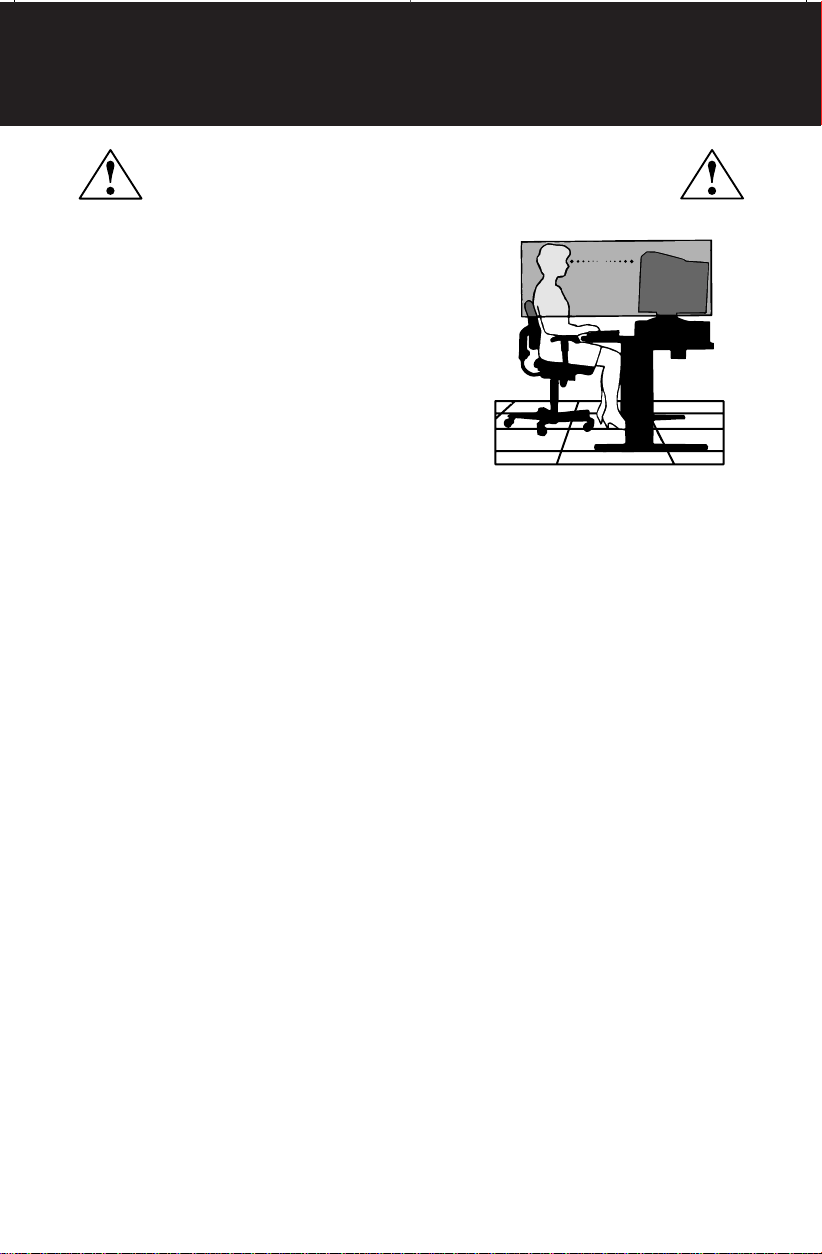
37
LA MODIFICATION DE LA POSITION ET DU RÉGLAGE DU MONITEUR
PEUT RÉDUIRE LA FATIGUE DES YEUX, DES ÉPAULES ET DE LA NUQUE.
OBSERVER LES DIRECTIVES CI-APRÈS LORS DU POSITIONNEMENT
DU MONITEUR :
Usage recommandé (suite)
• Pour une performance optimale, laissez le moniteur se
réchauffer pendant 20 minutes.
• Régler la hauteur du moniteur de sorte que le
dessus de l'écran soit au niveau ou légèrement en-
dessous du niveau des yeux. Les yeux doivent
regarder légèrement vers le bas lorsque l'on
regarde le milieu de l'écran.
• Positionner le moniteur à une distance minimale de
40 cm (16 po) et maximale de 70 cm (28 po) des
yeux. La distance optimale est de 58 cm (23 po) pour
le moniteur MultiSync
®
LCD
2010X
MC
.
• Reposer ses yeux régulièrement en regardant vers
un objet situé à au moins 6 m (20 pieds). Cligner régulièrement.
• Positionner le moniteur à un angle de 90° par rapport aux fenêtres et autres sources de
lumière, afin de réduire au maximum les reflets et l'éblouissement. Régler l'inclinaison
du moniteur de sorte que l'éclairage du plafond ne soit pas reflété sur l'écran.
• Si une lumière réfléchie rend la vision de l'écran difficile, utiliser un filtre anti-reflet.
• Nettoyer régulièrement le moniteur. Utiliser un chiffon sans peluches et non abrasif et
une solution de nettoyage sans alcool, neutre, non abrasive ou un produit nettoyant
pour vitres pour éliminer au maximum la poussière.
• Régler les commandes de luminosité et de contraste du moniteur pour améliorer la
lisibilité.
• Utiliser un support de document placé près de l'écran.
• Positionner ce que l'on regarde le plus souvent (l'écran ou les documents de référence)
directement devant soi pour réduire au maximum les mouvements de la tête lorsque
l'on dactylographie.
• Pour éviter la persistance d’images (images rémanetes), n’affichez pas des motifs fixes
sur le moniteur pendant de longues périodes.
• Consulter régulièrement un ophtalmologiste.
Ergonomie
Pour optimiser les avantages ergonomiques, observez les directives suivantes :
• Régler la luminosité jusqu’à ce que la trame de fond disparaisse.
• Ne pas placer la commande de contrate à son réglage maximum.
• Utiliser les commandes de format et position préprogrammées avec signaux standard .
• Utiliser le réglage couleur et les commandes gauche/droite préprogrammés.
• Utiliser des signaux non entrelacés avec fréquence de rafraîchissement vertical de 60 à
75 Hz.
• Ne pas utiliser la couleur bleu primaire sur fond foncé car cela rend la lecture difficile
et peut occasionner de la fatigue oculaire en raison de contraste insuffisant.
Pour des informations plus détaillées sur l'établissement d'un environnement de travail sain, appeler NEC au
(800) 820-1230, demander le service d’information par télécopieur NEC FastFacts au (630) 467-4363 et
demander le document n
o
900108 ou écrire à American National Standard for Human Factors Engineering
of Visual Display Terminal Workstations - ANSI-HFS Standard No. 100-1988 - The Human Factors Society,
Inc. P.O. Box 1369, Santa Monica, California 90406.
2010X.wpc 7/13/00, 5:01 PM39

38
Fiche technique
Caractér. techn. Moniteur Remarques
du moniteur MultiSync
®
LCD2010X
MC
Module LCD Diagonale : 51 cm (20,1 po) Matrice active; transistor à film fin (TFT);
Surface utile : 51 cm (20,1 po) affichage à cristaux liquides (LCD);
Résolution (nombre de pixels) : Paysage : 1 280 x 1 024 pas 0,31 mm; technologie XtraView
MC
;
Portrait : 1 024 x 1 280 luminance blanche 250cd/m
2
; taux de
contraste caractéristique 250:1.
Signal d'entrée Vidéo : ANALOGIQUE O,7 Vp-p/75 Ohms Entrée bumérique : TMDS
MC
Sync : Synchro séparée niveau TTL.
Positif/négatif sync. horizontale
Positif/négatif sync. verticale
Sync. composite (positif/négatif) (niveau TTL)
Synchro sur le vert (positive) 0,7
Vp-p et synchro négative 0,3 Vp-p
Couleurs d'affichage Entrée analogique : 16,777,216
Dépend de la carte vidéo et synchronisation utilisée.
Gamme de Horizontale : 31 kHz à 82 kHz Automatique
synchronisation Verticale : 56 Hz à 85 Hz Automatique
Résolutions acceptées Paysage : 720 x 400*
1
: texte VGA
640 x 480*
1
@ 60 Hz à 85 Hz
800 x 600*
1
@ 56 Hz à 85 Hz
832 x 624*
1
@ 75 Hz
1 024 x 768*
1
@ 60 Hz à 85 Hz
1 152 x 900*
1
*
2
@ 66 Hz (SUN)
1 280 x 960*
1
*
2
@ 60 Hz à 75 Hz
1 280 x 1 024 @ 60 Hz à 75 Hz .........
NEC recommande une résolution à 60 Hz
pour
des performances d'affichage optimales et couleurs.
Portrait :
480 x 640*
1
@ 60Hz à 85 Hz
600 x 800*
1
@ 56 Hz à 85 Hz
624 x 832*
1
@ 75 Hz
768 x 1 024*
1
@ 60 Hz à 85 Hz
960 x 1 280*
1
*
2
@ 60 Hz à 75 Hz
1 024 x 1 280 @ 60 Hz à 75 Hz .........
NEC recommande une résolution à 60 Hz pour
des performances d'affichage optimales et couleurs.
Zone d'affichage active Paysage : Horiz. :
399 mm/15,7 po
Vert. :
319 mm/12,6 po
Portrait : Horiz. :
319 mm/12,6 po
Vert. :
399 mm/15,7 po
Alimentation
CA 100–120 V/220–240 V, 50-60 Hz
Tension d'alimentation 0,7 A @ 100
–
120 V/0,3 A @ 220
–
240 V
Dimensions Paysage :
498 mm (L) x 501 mm (H) x 246 mm (P)
19,6 po (L) x 19,7 po (H) x 9,6 po (P)
Portrait :
418 mm (L) x 541 mm (H) x 246 mm (P)
16,5 po (L) x 21,3 po (H) x 9,6 po (P)
Réglage de la hauteur : 70 mm/2,8 po
Poids14,2 kg
31,3 livres
Considérations environnementales
Température de fonctionnement : 5 °C à +35 °C/41 °F à 95 °F
Humidité : 30 % à 80 %
Altitude : 0 à 10 000 pieds
Température de stockage : -10 °C à +60 °C/14 °F à 140 °F
Humidité : 10 % à 85 %
Altitude : 0 à 45 000 pieds
*
1
Résolutions interpolées : Quand les résolutions affichées sont inférieures au nombre de pixels du module LCD, le texte peut apparaître craquelé et les
lignes plus épaisses. Ceci est normal et nécessaire pour toutes les technologies d’affichage sur panneaux plats pour lesquels chaque point de l’écran
occupe réellement un pixel. Pour agrandir la résolution à celle du plein écran, une interpolation mathématique de celle-ci est nécessaire. Quand cette
résolution interpolée ne correspond pas exactement à un multiple entier de la résolution d’origine, la nécessaire interpolation mathématique peut faire que
certaines lignes apparaissent plus épaisses que d’autres.
*
2
Le nombre de couleurs pouvant être affichées diminue.
NOTA : Les spécifications techniques sont susceptibles d’être modifiées sans préavi.
2010X.wpc 7/13/00, 5:01 PM40

39
Fonctions
Technologie ambix
MC
: À double entrée permettant des entrées analogique et numérique à
partir du même connecteur (DVI-I) ainsi que le support de matériel analogique existant à
partir d’un connecteur VGA à 15 broches conventionnel. Assure la compatibilité avec la
technologie MultiSync
®
traditionnelle pour les entrées analogiques ainsi que la
compatibilité numérique basée sur TMDS
MC
(Transition Minimized Differential Signaling)
pour les entrées numériques. Les interfaces numériques basées TMDS incluent DVI-D, DFP
et P&D.
DVI-I : L’interface intégrée ratifiée par le Digital Display Working Group (DDWG) qui
autorise des connecteurs numérique et analogique sur le même port. Le “I” désigne
l’intégration du numérique et de l’analogique. La portion numérique est basée TMDS.
DVI-D : Le sous-composant numérique seulement du DVI ratifié par le Digital Display
Working Group (DDWG) pour les connexions numériques entre ordinateurs et moniteurs.
En tant que connecteur exclusivement numérique, le support analogique n’est pas prévu à
partir d’un connecteur DVI-D. En tant que connexion exclusivement numérique basée
TMDS, un simple adaptateur suffit pour assurer la compatibilité entre DVI-D et autres
connecteurs numériques basés TMDS comme DFP et P&D.
DFP (Digital Flat Panel) : Une interface exclusivement numérique pour moniteur à
panneau plat laquelle est compatible DVI. En tant que connexion exclusivement numérique
basée TMDS, un simple adaptateur suffit pour assurer la compatibilité entre DFP et autres
connecteurs numériques basés TMDS comme DVI et P&D.
P&D (Plug and Display) : La norme VESA régissant les interfaces pour moniteurs à
panneau plat. Elle est plus rigoureuse que la norme DFP puisqu’elle autorise d’autres
options sur le même connecteur d’interface (options comme USB, vidéo analogique et
IEEE-1394-995). Le comité VESA a reconnu que DFP est un sous-composant de P&D. En
tant que connecteur basé TMDS (pour broches d’entrées numériques), un simple
adaptateur suffit pour assurer la compatibilité entre P&D et autres connecteurs numériques
basés TMDS comme DVI et P&D.
NuCycle
MC
Plastique : Un composé spécial de la silicone pour la résine PC, qui est
extrémement résístant à flamme, aussi bien que sécuritaire et pour l’environnement.
Technologie à vision grand angle XtraView
®
: Permet à l’utilisateur d’observer le
moniteur à partir de n’importe quel angle (160 degrés), dans n’importe quel sens –
Portrait ou Paysage. Offre des angles de vision complets de 160° haut, bas, gauche ou
droit.
Encombrement réduit : Constitue la solution idéale pour les environnements qui nécessi-
tent une image de haute qualité et un encombrement et un poids limités. L’encombrement
réduit et le faible poids du moniteur permettent de le déplacer ou de le transporter
rapidement d’un point à un autre.
Système de commande AccuColor
®
: Permet de régler les couleurs à l’écran et de
personnaliser la précision des couleurs selon diverses normes.
2010X.wpc 7/13/00, 5:01 PM41

40
Fonctions (suite)
Commandes OSM
MC
Display Screen (Gestionnaire à l’écran) : Permet de régler facilement
et rapidement tous les éléments de l’image de l’écran via les menus à l’écran simples à
utiliser.
Fonctions ErgoDesign
®
: Améliore l'ergonomie humaine pour améliorer l'environnement
de travail, protéger la santé de l'utilisateur et épargner de l'argent. On peut citer comme
exemple les commandes OSM pour un réglage rapide et facile de l'image, un socle
inclinable pour un meilleur confort de visualisation et la conformité aux directives MPRII
concernant les réductions d'émissions.
Support pivotant : Permet à l’utilisateur de régler l’orientation du moniteur selon
l’application utilisée, soit Landscape pour les documents larges ou Portrait afin d’avoir la
possibilité d’observer une page entière sur l’écran à un moment précis. L’orientation
Portrait est également parfait pour les conférences vidéo à grand écran.
Plug and Play : La solution Microsoft
®
avec le système d’exploitation Windows
®
95/98
facilite la configuration et l'installation en permettant au moniteur d'envoyer ses capacités
(telles que le format et les résolutions d'écran acceptés) directement à l'ordinateur,
optimisant ainsi automatiquement les performances d'affichage.
Système IPM
MC
(Intelligent Power Manager/Gestionnaire d'énergie intelligent) : Procure
des méthodes d'économie d'énergie novatrices qui permettent au moniteur de passer à un
niveau de consommation d'énergie plus faible lorsqu'il est allumé mais non utilisé,
épargnant deux tiers des coûts énergétiques, réduisant les émissions et diminuant les coûts
de conditionnement d'air du lieu de travail.
Technologie à fréquence multiple : Règle automatiquement le moniteur à la fréquence de
la carte vidéo, affichant ainsi la résolution requise.
Capacité FullScan
MC
(balayage complet) : Permet d'utiliser la totalité de la surface d'écran
dans la plupart des résolutions, augmentant ainsi de façon significative la taille de
l'image.
Standard VESA de montage d’interface : Permet a l’utilisateur de raccorder son moniteur
MultiSync a n’importe quel autre bras au baie de montage conforme VESA. Permet de
monter le moniteur sur un mur ou un bras à l’aide de n’importe quel autre dispositif
compatible.
DVI/SUB-D : Dispose d’une double entrée vous permettant de connecter le moniteur à un
premier système avec le câble DVI fourni et à un autre à l’aide d’un câble D-Sub standard
(non inclus). Vous pouvez alors commuter d’un ordinateur à l’autre par une simple touche
sur un bouton du panneau de commande avant.
OSM Display Screen Copyright 2000 par NEC-MITSUBISHI
2010X.wpc 7/13/00, 5:01 PM42

41
Dépannage
Pas d'image
• Le câble vidéo doit être bien connecté à la carte d'affichage et à l’ordinateur.
• La carte d'affichage doit être insérée à fond dans son logement.
• Les interrupteurs d’alimentation du moniteur et de l’ordinateur doivent être sur la
position MARCHE.
• Vérifiez qu’un mode d’affichage autorisé a été sélectionné pour la carte d’affichage
ou le système utilisé (veuillez consulter le manuel de votre carte d'affichage ou de
votre système pour modifier le mode graphique).
• Vérifier la compatibilité et les paramètres recommandés de votre moniteur et de votre
carte d'affichage.
• Vérifiez que le connecteur du câble vidéo ne comporte aucune broche tordue ou
rentrée.
• Vérifiez que bouton DVI/D-SUB est réglé à la position appropriée.
L’interrupteur d’alimentation ne fonctionne pas
• Déconnectez le cordon d’alimentation de la prise secteur pour mettre le moniteur sous
puis hors tension, ou appuyez simultanément sur les boutons RESET et d’alimentation.
Persistance de l’image
• La persistance de l’image se produit lorsque «le fantôme» d’une image reste sur
l’écran même après la mise hors tension du moniteur. À la différence de la
persistance d’image sur les moniteurs TRC, celle observée sur les moniteurs LCD n’est
pas permanente. Pour remédier à la persistance de l’image, mettre le moniteur hors
tension pendant une durée égale à celle de l’affichage de l’image. Si une image est
restée affichée sur l’écran pendant une heure et qu’il y a «fantôme» de cette image, il
faut mettre le moniteur hors tension pendant une heure pour effacer l’image.
NOTA : Tout comme dans le cas des écrans personnels, NEC recommande
l’utilisation d’un économiseur d’énergie à intervalles réguliers lorsque l’écran n’est
pas utilisé.
L'image défile ou est instable
• Le câble vidéo doit être bien connecté à la carte d'affichage et à l’ordinateur.
• Utilisez les boutons de Réglage image OSM
MC
pour mettre au point et régler
l’affichage en augmentant ou en diminuant la valeur Fin. Lorsque l’affichage est
réglé, le Réglage image OSM peut nécessiter un réajustement.
• Vérifier la compatibilité et les réglages recommandés de votre moniteur et de votre
carte d'affichage.
• Si votre texte n’est pas net, conFigurez le mode vidéo en non entrelacé à 60 Hz.
La LED sur le moniteur n'est pas allumée (aucune couleur, verte, orange
ou jaune, n'est visible)
• L’interrupteur d'alimentation doit être en position MARCHE et le cordon
d'alimentation doit être connecté.
• Assurez-vous que l’ordinateur n’est pas réglé dans le mode d’économie d’énergie
(touchez le clavier ou la souris).
2010X.wpc 7/13/00, 5:01 PM43

42
Dépannage (suite)
L'image n’a pas la bonne taille
• Utilisez les boutons de Réglage image OSM pour augmenter ou diminuer le format
horizontal.
• Vérifiez qu’un mode d’affichage supporté a été sélectionné pour la carte d’affichage
ou le système utilisé (veuillez consulter le manuel de votre carte d'affichage ou de
votre système pour modifier le mode graphique).
Pas de vidéo
• Si pas be vidéo n’est présent sur l’écran, appuyez le couton d’alimentation marche et
arrêt encore.
2010X.wpc 7/13/00, 5:01 PM44

43
Références
• BBS (978) 742-8706
Le système de babillard électronique NEC-Mitsubishi Electronics Display of
America, Inc. est un service électronique accessible avec votre système et un
modem. Les paramètres de communication sont : 300/1200/2400/9600/
1,4 k/28,8 k/33,6 k bps, pas de parité, 8 bits de données, 1 bit d'arrêt
• Service à la clientèle/
Assistance technique (800) 632-4662
Télécopieur (978) 742-7049
• Canaux électroniques :
Courrier électronique
Internet (e-mail) : [email protected]
Site internet ftp : ftp.nectech.com
World Wide Web : http://www.necmitsubishi.com
Produit enregistré:
http://www.necmitsubishi.com/productregistration
Fichier INF Windows
®
95/98 : http://cssweb.necmitsubishi.com/common/
drivers.htm
Ensuite, télécharger le fichier NECMSINF.ZIP
• Informations FastFacts
MC
(630) 467-4363
INFORMATION DESCRIPTION N
° DOCUMENT
Glossaire Définition des termes en relation 900203
avec les fonctions, les caractéristiques
et l'installation du moniteur
MultiSync
®
Informations complémentaires Noms et adresses d'autres 900204
groupes impliqués dans les
normes et les fonctions
du moniteur MultiSync
Connexion Macintosh Informations détaillées sur le 153006
raccordement du moniteur MultiSync
à un Macintosh
Environnement de travail sain Informations détaillées sur 900108
l'établissement d'un environnement
de travail sain
• Info docum. & vente (800) NEC-INFO [(800) 632-4636]
•
Commande de produits MultiSync (800) 820-1230
[Pour logiciels et accessoires]
• Téléventes (800) 284-4484
2010X.wpc 7/13/00, 5:01 PM45

44
Garantie limitée
NEC-Mitsubishi Electronics Display of America, Inc. (ci-après «NEC-MITSUBISHI ») garantit que ce
produit est exempt de vice de fabrication et de main-d’oeuvre et, selon les conditions énoncées ci-
dessous, accepte de réparer ou remplacer, à sa discrétion, toute pièce de l’appareil concerné qui
s’avérerait défectueuse et ce, pendant une période de trois (3) ans à partir de la date d’achat initial.
Les pièces de rechange sont garanties pendant quatre-vingt dix (90) jours. Les pièces de rechange
ou unités peuvent être neuves ou reconditionnées et seront conformes aux spécifications des pièces
et des unités d’origine.
Cette garantie vous accorde des droits légaux spécifiques auxquels peuvent s’ajouter d’autres droits
pouvant varier d’une juridiction à l’autre. Cette garantie est limitée à l’acheteur d’origine du produit
et n’est pas transférable. Cette garantie couvre uniquement les composants fournis par NEC-
MITSUBISHI. Une réparation requise à la suite de l’utilisation des pièces provenant d’un tiers n’est pas
couverte par cette garantie. Pour être couvert par cette garantie, le produit doit avoir été acheté aux
États-Unis ou au Canada par l’acheteur d’origine. Cette garantie couvre uniquement la distribution
du produit aux États-Unis ou au Canada par NEC-MITSUBISHI. Aucune garantie n’est offerte à
l’extérieur des États-Unis et du Canada. La preuve d’achat sera exigée par NEC-MITSUBISHI pour
prouver la date d’achat. Une telle preuve d’achat doit être une facture de vente d’origine ou un reçu
reprenant le nom et l’adresse du vendeur, de l’acheteur et le numéro de série du produit.
Pour obtenir un service au titre de la garantie, vous devez expédier le produit en port prépayé ou le
déposer chez le revendeur agréé qui vous l’a vendu ou dans un autre centre autorisé par NEC-
MITSUBISHI, soit dans l’emballage d’origine, soit dans un emballage similaire procurant un niveau
équivalent de protection. Avant de retourner tout produit à NEC-MITSUBISHI, vous devez d’abord
obtenir une autorisation de retour de marchandise en composant le 1-800-632-4662. Le produit ne
pourra avoir été enlevé ou modifié, réparé ou entretenu au préalable par personne d’autre que du
personnel technique autorisé par NEC-MITSUBISHI, et le numéro de série du produit ne pourra pas
avoir été enlevé. Pour être couvert par cette garantie, le produit ne pourra pas avoir été soumis à
l’affichage d’une image fixe pendant de longues périodes de temps résultant en une persistance de
l’image, un accident, une utilisation incorrecte ou abusive ou une utilisation contraire aux directives
contenues dans le guide de l’utilisateur. Une seule de ces conditions annulera la garantie.
NEC-MITSUBISHI NE POURRA ÊTRE TENUE RESPONSABLE DE DOMMAGES DIRECTS, INDIRECTS,
ACCIDENTELS, SECONDAIRES OU D’AUTRES TYPES DE DOMMAGES RÉSULTANT DE
L’UTILISATION D’UN PRODUIT QUI N’ENTRENT PAS SOUS LA RESPONSABILITÉ DÉCRITE CI-
DESSUS. CES GARANTIES REMPLACENT TOUTE AUTRE GARANTIE EXPLICITE OU IMPLICITE, Y
COMPRIS, MAIS SANS S’Y LIMITER, TOUTE GARANTIE DE QUALITÉ MARCHANDE OU D’APTITUDE
À UNE FIN PARTICULIÈRE. CERTAINES JURIDICTIONS NE PERMETTANT PAS L’EXCLUSION DE
GARANTIES IMPLICITES OU LA LIMITATION OU L’EXCLUSION DE RESPONSABILITÉ POUR
DOMMAGES ACCIDENTELS OU SECONDAIRES, LES EXCLUSIONS OU LIMITATIONS CI-DESSUS
POURRAIENT NE PAS S’APPLIQUER DANS VOTRE CAS.
Ce produit est garanti selon les termes de cette garantie limitée. Les consommateurs doivent savoir
que les performances du produit peuvent varier selon la configuration du système, le logiciel,
l’application, les données du client et la manière dont le produit est utilisé par l’opérateur, ainsi que
d’autres facteurs. Bien que les produits NEC-MITSUBISHI soient considérés compatibles avec de
nombreux systèmes, la mise en oeuvre fonctionnelle du produit peut varier d’un client à l ‘autre. Par
conséquent, l’adéquation d’un produit à un besoin ou une application spécifique doit être déterminée
par le consommateur et n’est pas garantie par NEC-MITSUBISHI.
Pour connaître le nom du centre de service technique agréé NEC-MITSUBISHI le plus proche, appeler
NEC-MITSUBISHI au 1-800-632-4662.
2010X.wpc 7/13/00, 5:01 PM46

45
TCO’95
LH-20S01-BK
Félicitations! Vous avez acheté un produit qui répond à la directive TCO’95.
En choisissant ce produit conçu pour une utilisation professionnelle, vous
contribuez aussi à la réduction des effets nuisibles sur l’environnement et
aussi au développement continu de produits électroniques respectueux de
l’environnement.
Pourquoi des ordinateurs «éco-étiquetés»?
Dans de nombreux pays, l’éco-étiquetage est devenu une méthode reconnue pour favoriser
la mise au point de biens et de services respectueux de l’environnement. Pour ce qui est des
ordinateurs et autre équipement électronique, le problème est double : des substances
nuisibles à l’environnement sont utilisées à la fois dans le produit et u cours du processus de
fabrication. Comme il n’a pas été possible de recycler de manière appropriée la majeure
partie de l’équipement électronique, ces substances sont tôt ou tard introduites dans la nature.
L’ordinateur comporte d’autres caractéristiques comme les niveaux de consommation éner-
gétique, qui influent à la fois sur l’environnement de travail (interne) et sur l’environnement
naturel (externe). Étant donné que toutes les méthodes de génération d’électricité traditionnelle
ont un impact négatif sur l’environnement (retombées acides et émissions provoquant des
changements climatiques, déchets radioactifs, etc.), la conservation de l’énergie est cruciale.
Les appareils électroniques utilisés dans des bureaux consomment une quantité énorme
d’énergie puisqu’ils sont souvent laissés continuellement en marche.
Qu’est-ce qu’implique l’éco-étiquetage?
Ce produit répond aux exigences de la directive TCO’95 qui prévoit l’éco-étiquetage et
l’étiquetage international d’ordinateurs personnels. La directive d’étiquetage a été élaborée
par le TCO (Confédération suédoise des employés professionnels), Naturskyddsforeningen
(Société suédoise de conservation de la nature) et NUTEK (Conseil suédois de développement
industriel et technique).
La directive couvre plusieurs volets : environnement, ergonomie, facilité d’utilisation, émissions
de champs électriques et magnétiques, consommation énergétique, sécurité-électrique et
sécurité-incendie.
Les exigences environnementales concernent la restriction de la présence et de l’utilisation,
entre autres, de métaux lourds, de retardateurs de flamme contenant du brome et du chlore,
d’hydrocarbure chlorofluoré (fréon) et de solvants chlorés. Le produit doit être préparé en vue
d’être éventuellement recyclé et le fabricant est tenu d’élaborer un plan environnemental qui
doit être respecté dans chaque pays où la société met en œuvre sa politique opérationnelle.
Dans le cadre des exigences relatives à la consommation, l’ordinateur et/ou l’écran doit,
après une certaine période d’inactivité, réduire sa consommation énergétique en une ou
plusieurs phases. Le temps nécessaire à la réactivation de l’ordinateur devra être raisonnable.
Les produits étiquetés doivent répondre à des exigences environnementales rigoureuses, par
exemple, eu égard à la réduction des champs électriques et magnétiques, à l’ergonomie
physique et visuelle et à la facilité d’utilisation.
TCO’95 est un projet coopératif entre TCO (Confédération suédoise des employés
professionnels), Naturskyddsforeningen (Société suédoise de conservation de la nature) et
NUTEK (Conseil suédois de développement industriel et technique).
Exigences environnementales
Retardateurs de flamme contenant du brome
Les retardateurs de flamme contenant du brome sont présents dans les cartes à circuits
imprimés, les câbles, les fils, les châssis et les boîtiers. Leur présence permet de retarder la
propagation du feu. Le plastique d’un boîtier d’ordinateur peut contenir jusqu’à trente pour cent
2010X.wpc 7/13/00, 5:01 PM47

46
de substances ignifuges. Ces dernières s’apparentent à un autre groupe de toxines
environnementales, les PCB, qui sont suspectés de provoquer les mêmes effets néfastes, dont la
modification de la reproduction chez les oiseaux piscivores et les mammifères, attribuable aux
processus biocumulatifs*. La présence de retardateurs de flamme a été détectée dans le sang
humain et les chercheurs craignent que le développement du fœtus pourrait être perturbé.
La directive TCO’95 exige que les composants en plastique pesant plus de 25 grammes ne
contiennent pas de chlore ou de brome organiquement liés.
Plomb**
Le plomb peut être présent dans les tubes cathodiques, les écrans, les soudures et les
condensateurs. Le plomb s’attaque au système nerveux et, à doses élevées, entraîne
l’intoxication par le plomb.
La directive TCO’95 permet l’inclusion du plomb était donné qu’aucun remplacement n’ait
encore été mis au point.
Cadmium**
Le cadmium est présent dans les batteries rechargeables et dans les couches de génération des
couleurs de certains écrans d’ordinateur. Le cadmium s’attaque au système nerveux et est
toxique à doses élevées.
La directive TCO’95 stipule que les batteries ne peuvent contenir plus de 25 ppm (parties par
million) de cadmium. La présence de cadmium dans les couches de génération de couleurs
d’écrans d’ordinateur est interdite.
Mercure**
Le mercure est parfois présent dans les batteries, les relais, les interrupteurs et les systèmes
rétroéclairés. Le cadmium s’attaque au système nerveux et est toxique à doses élevées.
La directive TCO’95 stipule que les batteries ne peuvent contenir plus de 25 ppm (parties par
million) de mercure. Elle exige aussi que le mercure soit absent de tous les composants
électriques ou électroniques de l’écran, sauf pour les systèmes rétroéclairés.
Hydrocarbures chlorofluorés (fréon)
Les hydrocarbures chlorofluorés (fréon) sont parfois utilisés dans le lavage des cartes à circuits
imprimés et dans la fabrication de la mousse de polystyrène pour l’emballage. Les hydrocarbures
chlorofluorés décomposent la couche d’ozone et endommagent la couche d’ozone dans la
stratosphère, ce qui provoque l’augmentation de rayonnement ultraviolet sur la terre et
entraîne le risque accru de cancer de la peau (mélanome malin).
La directive TCO’95 : les hydrocarbures chlorofluorés et les hydrocarbures partiellement
halogénés ne peuvent pas être utilisés dans la fabrication du produit ou de son emballage.
*Biocumulatif signifie les substances qui s’accumulent au sein d’organismes vivants.
**Le plomb, le cadmium et le mercure sont des métaux lourds qui sont biocumulatifs.
Pour obtenir des informations détaillées sur le document des critères environnementaux,
adressez-vous à :
TCO Development Unit
SE-114 94 Stockholm
SUÈDE
Numéro de télécopieur : +46 8 782 92 07
Courriel (Internet) : [email protected]
Vous pouvez aussi obtenir des informations à jour sur les produits approuvés et étiquetés
TCO’95 en visitant le site Web http://www.tco-info.com
TCO’95 (suite)
2010X.wpc 7/13/00, 5:01 PM48

47
TCO’99
LH-20S01
Félicitations! Vous avez acheté un produit qui répond à la directive TCO’99.
En choisissant ce produit conçu pour une utilisation professionnelle, vous
contribuez aussi à la réduction des effets nuisibles sur l’environnement et
aussi au développement continu de produits électroniques respectueux de
l’environnement.
Pourquoi des ordinateurs «éco-étiquetés»?
Dans de nombreux pays, l’éco-étiquetage est devenu une méthode reconnue pour favoriser la
mise au point de biens et de services respectueux de l’environnement. Pour ce qui est des ordinateurs
et autre équipement électronique, le problème est double : des substances nuisibles à l’environnement
sont utilisées à la fois dans le produit et au cours du processus de fabrication. Comme il n’a pas
été possible de recycler de manière appropriée la majeure partie de l’équipement électronique,
ces substances sont tôt ou tard introduites dans la nature.
L’ordinateur comporte d’autres caracté ristiques comme les niveaux de consommation énergétique,
qui influent à la fois sur l’environnement de travail (interne) et sur l’environnement naturel (externe).
Étant donné que toutes les méthodes de génération d’électricité traditionnelle ont un impact négatif
sur l’environnement (retombées acides et émissions provoquant des changements climatiques,
déchets radioactifs, etc.), la conservation de l’énergie est cruciale. Les appareils électroniques
utilisés dans des bireaux consomment une quantité énorme d’énergie puisqu’ils sont souvent laissés
continuellement en marche.
Qu’est-ce qu’implique l’éco-étiquetage?
Ce produit répond aux exigences de la directive TCO’99 qui prévoit l’éco-étiquetage et étiquetage
international d’ordinateurs personnels. La directive d’étiquetage a été élaborée par le TCO
(Confédération suédoise des employés professionnels), Svenska Naturakyddsforeningen (Société
suédoise de conservation de la nature) et Statens Energimyndighet (Administration nationale de
l’énergie de la Suéde).
La directive couvre plusieurs volets : environnement, ergonomie, facilité d’utilisation, émissions de
champs électriques et magnétiques, consommation énergétique, sécurité-électrique et sécurité-
incendie.
Les exigences environnementales concernent la restriction de la présence et de l’utilisation, entre
autres, de métaux lourds, de retardateurs de flamme contenant du brome et du chlore,
d’hydrocarbure chlorofluoré (fréon) et de solvants chlorés. Le produit doit être préparé en vue
d’être éventuellement recyclé et le fabricant est tenu d’élaborer un plan environnemental qui doit
être respecté dans chaque pays où la société met en oeuvre sa politique opérationnelle. Dans le
cadre des exigences relatives à la consommation, l’ordinateur et/ou l’écran doit, après une certaine
période d’inactivité, réduire sa consommation énergétique en une ou plusieurs phases. Le temps
nécessaire à la réactivation de l’ordinateur devra être raisonnable. Le produits étiquetés doivent
répondre à des exigences environnementales rigoureuses, par exemple, eu égard à la réduction
des champs électriques et magnétiques, à l’ergonomie physique et visuelle et à la facilité d’utilisation.
Exigences environnementales
Retardateurs de flamme
Les retardateurs de flamme sont présents dans les cartes à circuits imprimés, les câbles, les fils, les
châssis et les boîtiers. Leur présence permet de retarder la propagation du feu. Le plastique d’un
boîtier d’ordinateur peut contenir jusqu’à trente pour cent de substances ignifuges. La plupart des
retardateurs de flamme contiennent du brome ou du chlrore et ces derniers s’apparentent à un
autre groupe de toxines environnementales, les PCB, qui sont suspectésde provoquer des effets
néfastes pour la santé, dont la modification de la reproduction chez les oiseaux piscivores et les
mammifères, attribuable aux processus biocumulatifs*. La présence de retardateurs de flamme a
été détectée dans le sang humain et les chercheurs craignent que le développement du foetus
pourrait être perturbé. La directive TCO’99 exige que les composants en plastique pesant plus de
2010X.wpc 7/13/00, 5:01 PM49

48
TCO’99 (suite)
25 grammes ne contiennent pas de retardateurs de flame contenant du chlore ou du brome
organiquement liés. Les retardateurs de flame sont autorisés dans les cartes à circuits imprimés
étant donné qu’aucun substitut n’est encore disponible.
Plomb**
Le plomb peut être présent dans les tubes cathodiques, les écrans, les soudures et les condensateurs.
Le plomb s’attaque au système nerveux et, à doses élevées, entraîne l’intoxication par le plomb.
La directive TCO’99 permet l’inclusion du plomb était donné qu’aucun remplacement n’ait encore
été mis au point.
Cadmium**
Le cadmium est présent dans les batteries rechargeables et dans les couches de génération des
couleurs de certains écrans d’ordinateur. Le cadmium s’attaque au système nerveux et est toxique
à doses élevées.
La directive TCO’99 stipule que les batteries, les couches de génération de couleurs d’écrans
d’ordinateur et les composants électriques ou électroniques ne doivent pas contenir de cadmium.
Mercure**
Le mercure est parfois présent dans les batteries, les relais, les interrupteurs et les systèmes
rétroéclairés. Le cadmium s’attaque au système nerveux et est toxique à doses élevées.
La directive TCO’99 stipule que les batteries ne peuvent de mercure. Elle exige aussi que le
mercure soit absent de tous les composants électriques ou électroniques associés à l’écran.
Hydrocarbures chlorofluorés (fréon)
Les hydrocarbures chlorofluorés (fréon) sont parfois utilisés dans le lavage des cartes à circuits
imprimés. Les hydrocarbures chlorofluorés décomposent la couche d’ozone et endommagent la
couche l’ozone dans la stratosphère, ce qui provoque l’augmentation de rayonnement ultraviolet
sur la terre et entraîne le risque accru de cancer de la peau (mélanome malin).
La directive TCO’99 : les hydrocarbures chlorofluorés et les hydrocarbures partiellement halogénés
ne peuvent pas être utilisés dans la fabrication ou l’assemblage du produit ou de son emballage.
*Biocumulatif signifie les substances qui s’accumulent au sein d’organismes vivants.
**Le plomb, le cadmium et le mercure sont des métaux lourds qui sont biocumulatifs.
Pour obtenir des informations détaillées sur le document des critères environnementaux,
adressez-vous á:
TCO Development Unit
SE 114 94 Stockholm
SUÈDE
Numéro de télécopieur : +46 8 782 92 07
Courriel (Internet) : [email protected]
Vous pouvez aussi obtenir des informations à jour sur les produits approvés et étiquetés
TCO’99 en visitant le site Web http://www.tco-info.com
2010X.wpc 7/13/00, 5:01 PM50
49
Déclaration du fabricant
Nous certifions par la présente que les moniteurs
MultiSync
®
LCD
2010X
MC
(LH-20S01)
MultiSync LCD
2010X
(LH-20S01-BK)
est conformes à
la directive 73/23/EEC du Conseil :
– EN 60950
la directive 89/336/EEC du Conseil :
– EN 55022
– EN 55024
– EN 61000-3-2
– EN 61000-3-3
et porte le sigle
NEC-Mitsubishi Electric Visual Systems Corp.
686-1, NISHIOI OI-MACHI,
ASHIGARAKAMI-GUN
KANAGAWA 258-8533, JAPAN
2010X.wpc 7/13/00, 5:01 PM51
AVIS DE PROPRIÉTÉ EXCLUSIVE ET DE DÉGAGEMENT DE RESPONSABILITÉ
Les informations contenues dans ce document, y compris tous les designs et matériel s'y rapportant, sont la propriété de
NEC-Mitsubishi et/ou ses concédants. NEC-Mitsubishi se réserve les droits de fabrication brevetée, les droits d’auteurs
et autres propriétés exclusives à ce document, y compris tous les droits de design, de fabrication, de reproduction,
d'utilisation et de vente y afférent, à condition que ces droits n'ont pas été directement délivrés à d'autres.
Les produits de NEC-Mitsubishi dont il est question dans ce document sont garantis conformément aux termes de la
déclaration de garantie limitée accompagnant chaque produit. Cependant, les performances réelles de chaque produit
dépendent de facteurs tels que la configuration du système, les données du client et la manière dont le produit est utilisé.
Étant donné que la mise en oeuvre fonctionnelle du produit peut varier d’un client à l’autre, l'adéquation et l'application
de configurations spécifiques du produit peuvent être déterminées par le client et ne sont pas garanties par NEC-
Mitsubishi.
Afin de permettre l'amélioration du design et des caractéristiques techniques, les informations contenues dans ce
document sont sujettes à modifications sans préavis. La reproduction totale ou partielle de ce document sans l'accord
préalable de NEC-Mitsubishi est interdite.
DÉCLARATION DE CONFORMITÉ
Cet appareil est conforme à l'article 15 du règlement de la FCC. L'utilisation est soumise à deux conditions. 1) Cet appareil
ne peut pas occasionner d'interférences nuisibles, et 2) cet appareil doit accepter toutes interférences reçues, y compris
les interférences qui peuvent occasionner un mauvais fonctionnement.
Partie responsable américaine : NEC-Mitsubishi Electronics Display of America Inc.
Adresse : 1250 N. Arlington Heights Road
Itasca, Illinois 60143
N
o
tél. : (630) 467-5000
Type de produit : Moniteur d'ordinateur
Classification de l'appareil : Périphérique classe B
Modèle : LH-20S01
LH-20S01-BK
Nous déclarons par la présente que les appareils mentionnés ci-dessus sont
conformes aux normes techniques spécifiées dans le règlement de la FCC.
Des fenêtres est une marque recommandée de Société de Microsoft. NEC est une marque recommandée de Société de NEC.
ÉNERGIE ÉTOILE est Vous. à S. Inscrivis marque.
Nomme marques tout d’autre et produit sont marques ou marques recommandées de leurs propriétaires respectifs.
En tant que partenaire
ENERGY STAR
®
, NEC-Mitsubishi a veillé à ce que ce produit respecte les normes ENERGY STAR en matière de
rendement énergétique. Le logo
ENERGY STAR ne représente aucun aval par l’EPA de quelque produit ou service que ce soit.
Série LCD NEC
N
o
de pièce
Imprimé au Japon
2010X.wpc 7/13/00, 5:01 PM52
51
UM BRÄNDE BZW. ELEKTRISCHE SCHLÄGE ZU VERMEIDEN, SETZEN SIE DIESES GERÄT WEDER REGEN NOCH
SONSTIGER FEUCHTIGKEIT AUS. VERWENDEN SIE DEN GEPOLTEN STECKER DIESES GERÄTS NICHT MIT EINER
VERLÄNGERUNGSSTECKDOSE ODER ANDEREN STECKDOSEN, WENN DIE POLE NICHT ZUR GÄNZE IN DIESE
EINGEFÜHRT WERDEN KÖNNEN. ÖFFNEN SIE DAS GERÄT NICHT SELBST, DA ES UNTER HOHER SPANNUNG
STEHENDE KOMPONENTEN ENTHÄLT. ÜBERLASSEN SIE WARTUNGSARBEITEN QUALIFIZIERTEN SERVICETECHNIKERN.
WARNUNG
VORSICHT
GEFAHR VON ELEKTRISCHEN SCHLÄGEN • NICHT ÖFFNEN
VORSICHT: UM DIE GEFAHR EINES ELEKTRISCHEN SCHLAGS ZU VERRINGERN, ENTFERNEN SIE DIE ABDECKUNG (BZW. DIE RÜCKWAND) NICHT. IM INNEREN
DES GERÄTS BEFINDEN SICH KEINE TEILE, DIE VOM BENUTZER SELBST GEWARTET WERDEN KÖNNEN. ÜBERLASSEN SIE WARTUNGSARBEITEN QUALIFIZIERTEN
SERVICETECHNIKERN
.
Dieses Symbol macht den Benutzer darauf aufmerksam, daß nicht isolierte Spannungen im Inneren des Geräts stark
genug sein können, um einen elektrischen Schlag hervorzurufen. Aus diesem Grund ist das Berühren jeglicher
Komponente im Inneren dieses Geräts gefährlich
.
Dieses Symbol macht den Benutzer darauf aufmerksam, daß wichtige Literatur zur Bedienung und Wartung dieses
Geräts mitgeliefert wurde. Diese Unterlagen sollten sorgfältig gelesen werden, um jegliche Probleme zu vermeiden.
Konformitätsbestätigung des kanadischen Department of Communications
DOC : Dieses digitale Gerät der Klasse B entspricht allen Anforderungen der kanadischen
Bestimmungen in bezug auf Interferenzen verursachende Geräte.
C-UL : Trägt das C-UL-Zeichen und entspricht den kanadischen Sicherheitsbestimmungen
gemäß C.S.A. 22.2 # 950.
Informationen der FCC (Federal Communications Commission)
1.
Verwenden Sie mit dem LH-20S01 und LH-20S01-BK Farbmonitors die angeschlossenen und genannten Kabel,
um keinerlei Interferenzen mit Radio- und Fernsehempfang zu verursachen
.
(1) Verwenden Sie bitte das mitgelieferte Netzkabel bzw. ein äquivalentes Kabel, um die FCC-
Konformität sicherzustellen.
(2) Verwenden Sie bitte das mitgelieferte abgeschirmte Videosignalkabel, das 15-polige Mini D-SUB
zum DVI-Kabel oder das DVI-D zum DVI-D-Kabel.
2.
Dieses Gerät wurde geprüft und gemäß Teil 15 der Regeln der FCC für mit den Grenzwerten für ein digitales
Gerät der Klasse B konform befunden. Diese Grenzwerte sollen angemessen vor Interferenzen schützen, die
von im Wohnbereich installierten Geräten ausgehen. Dieses Gerät erzeugt und verwendet Radiofrequenzenergie
und kann diese auch ausstrahlen. Wenn es nicht in Übereinstimmung mit der Gebrauchsanweisung installiert
und betrieben wird, kann es Interferenzen hervorrufen, die Funkverbindungen beeinträchtigen. Allerdings
besteht keine Garantie dafür, daß Interferenzen bei einer bestimmten Anlage nicht auftreten werden.
Wenn dieses Gerät den Radio- oder Fernsehempfang beeinträchtigende Interferenzen verursacht (dies kann
durch An- und Abschalten des Geräts festgestellt werden), sollte der Benutzer versuchen, die Interferenzen
durch eine oder mehrere der folgenden Maßnahmen zu beseitigen:
• Richten Sie die Empfangsantenne neu aus bzw. stellen Sie sie an einem anderen Ort auf.
• Vergrößern Sie den Abstand zwischen dem Gerät und dem Empfänger.
• Stecken Sie das Gerät an eine Steckdose an, die sich in einem anderen Stromkreis befindet als die
Steckdose, an die der Empfänger angeschlossen ist.
• Wenden Sie sich an Ihren Händler oder an einen erfahrenen Radio- / TV-Techniker.
Falls erforderlich sollte der Benutzer sich an den Händler oder an einen erfahrenen Radio- / TV-Techniker
wenden, um zusätzliche Empfehlungen zu erhalten. Auch die von der Federal Communications Commission
herausgegebene Broschüre „How to Identify and Resolve Radio-TV Interference Problems“ kann sich für den
Benutzer unter Umständen als nützlich erweisen. Diese Broschüre ist beim U.S. Government Printing Office,
Washington, D.C., 20402, unter Bestellnummer 004-000-00345-4 erhältlich.
2010X.wpc 7/13/00, 5:01 PM53
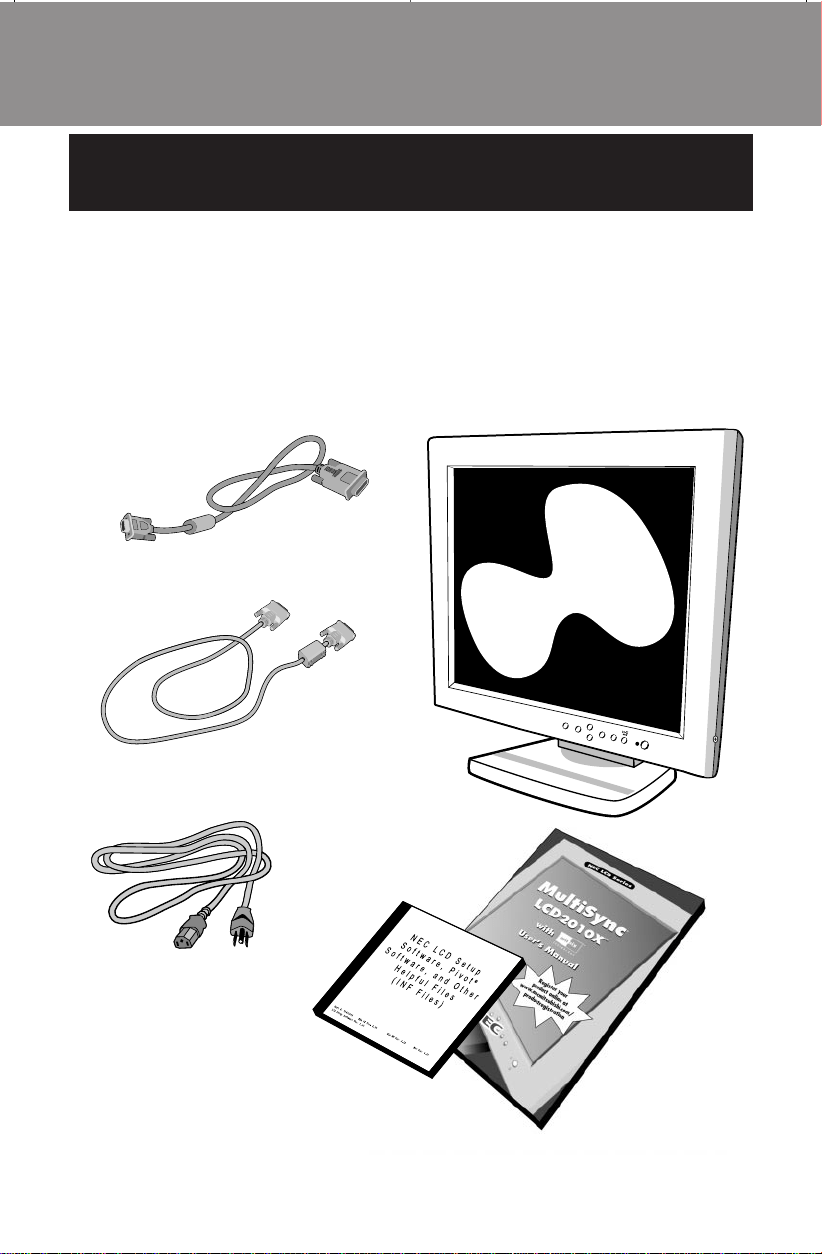
52
Ihr neues MultiSync
®
LCD Monitor-Paket* von NEC-Mitsubishi
Electronics Display of America, Inc. sollte den nachfolgenden Inhalt
umfassen:
• MultiSync LCD Monitor mit Schwenk-/Kipp-/Drehfuß
MultiSync
®
LCD2010X
™
• Netzkabel
• Videosignalkabel (15-Shift-D-SUB-Ministecker an DVI)
• Videosignalkabel (DVI-D zum DVI-D-Kabel)
• NEC LCD Software, Pivot Software und andere nütz liche Dateien
• Benutzerhandbuch
Lieferumfang
Sie können lhr Gerät auch im Internet unter der
Adresse http://www.necmitsubishi.com/productregistration
Software-CD
Netzkabel
Videosignalkabel
mit 15-Shift Mini D-Sub an DVI-Kabel
Videosignalkabel
mit DVI-D zum DVI-D-Kabel
Benutzerhandbuch
* Denken Sie daran, die Originalverpackung und
das Verpackungsmaterial für einen späteren
Transport bzw. eine Versendung Ihres Monitors
aufzubewahren.
MultiSync LCD
2010X Monitor
2010X.wpc 7/13/00, 5:01 PM54

53
Quick Start
Um den MultiSync
®
LCD Monitor an Ihr System anzuschließen,
führen Sie bitte folgende Instruktionen aus:
1. Den Computer ausschalten.
2. Für PC mit DVI-Digitalausgang: Den DVI des geeigneten Signalkabels an die Buchse
der Displaykarte Ihres Systems anschließen (Abbildung A.1) Alle Schrauben festziehen.
Für PC mit Analogausgang: Den 15-Stift Mini-D-SUB zum DVI-Signalkabel an die
Buchse der Displaykarte in Ihrem System anschließen (Abbildung A.2).
Zum Anschluß eines zweiten PC mit Analogausgang, schließen Sie das 15-Stift Mini
D-SUB-Signalkabel (nicht mitgeliefert) an die Buchse der Displaykarte Ihres Systems an.
Für Mac: Den MultiSync Macintosh Kabeladapter an den Computer anschließen. Das
15-Stift-Mini-D-Sub-Ende des geeigneten Signalkabels an den MultiSync LCD
2010X
Macintosh Kabeladapter anschließen (Abbildung B.1).
HINWEIS: Macintosh Modelle G3 oder G4 benötigen keinen Macintosh-Kabeladapter.
HINWEIS: Den MultiSync Macintosh-Kabel-adapter können Sie bei NEC-Mitsubishi
Electronics Display of America, Inc. unter der Telefonnummer (800) 820-1230
bestellen.
3. Entfernen Sie die Abdeckung vom Anschluss. Schließen Sie das DVI-Signalkabel an
den Anschluss auf der Rückseite des Monitors an. Schließen Sie das 15-Stift Mini
D-SUB-Signalkabel (nicht mitgeliefert) an den Anschluss auf der Rückseite des
Monitors an. Stecken Sie das Videosignalkabel ein. (Abbildung C.1). Setzen Sie die
Abdeckung vom Anschluss wieder ein.
HINWEIS: Falsch angeschlossene Kabel können Betriebsstörungen verursachen, die
Wiedergabequalität beeinträchtigen sowie Bauelemente des LCD-Moduls
beschädigen bzw. deren Betriebslebensdauer verkürzen.
4. Schließen Sie das eine Ende des Netzkabels an den AC-Anschlußauf der Rückseite des
Monitors und das andere Ende an die Netzsteckdose an (Abbildung C.1).
5. Schalten Sie den Monitor (Abbildung D.1) und den Computer ein.
6. Um die Installierung Ihres Multi-Sync-LCD-Monitors abzuschließen, benutzen Sie die
folgende OSM
™
-Regler:
•AUTO ADJUST CONTRAST (nur Analogeingang)
•AUTO ADJUST (nur Analogeingang)
Schauen Sie im Abschnitt dieser Bedienungsanleitung nach,wo diese OSM-Regler
detailliert beschrieben sind.
HINWEIS: Download-Informationen über die Windows 95/98
®
INF-Datei für lhren
MultiSync Monitor finden Sie in diesem Benutzerhandbuch unter dem Abschnitt
Verweise.
HINWEIS: Beim Auftreten von Problemen lesen Sie bitte im Abschnitt Fehlerbehebung
dieses Benutzerhandbuchs nach.
HINWEIS: Zur Installation und Bedienung dieser Software lesen Sie bitte die
Bedienungsanleitung, die der CD-Verpackung der NEC LCD Setup-Software
beigefügt ist.
2010X.wpc 7/13/00, 5:01 PM55
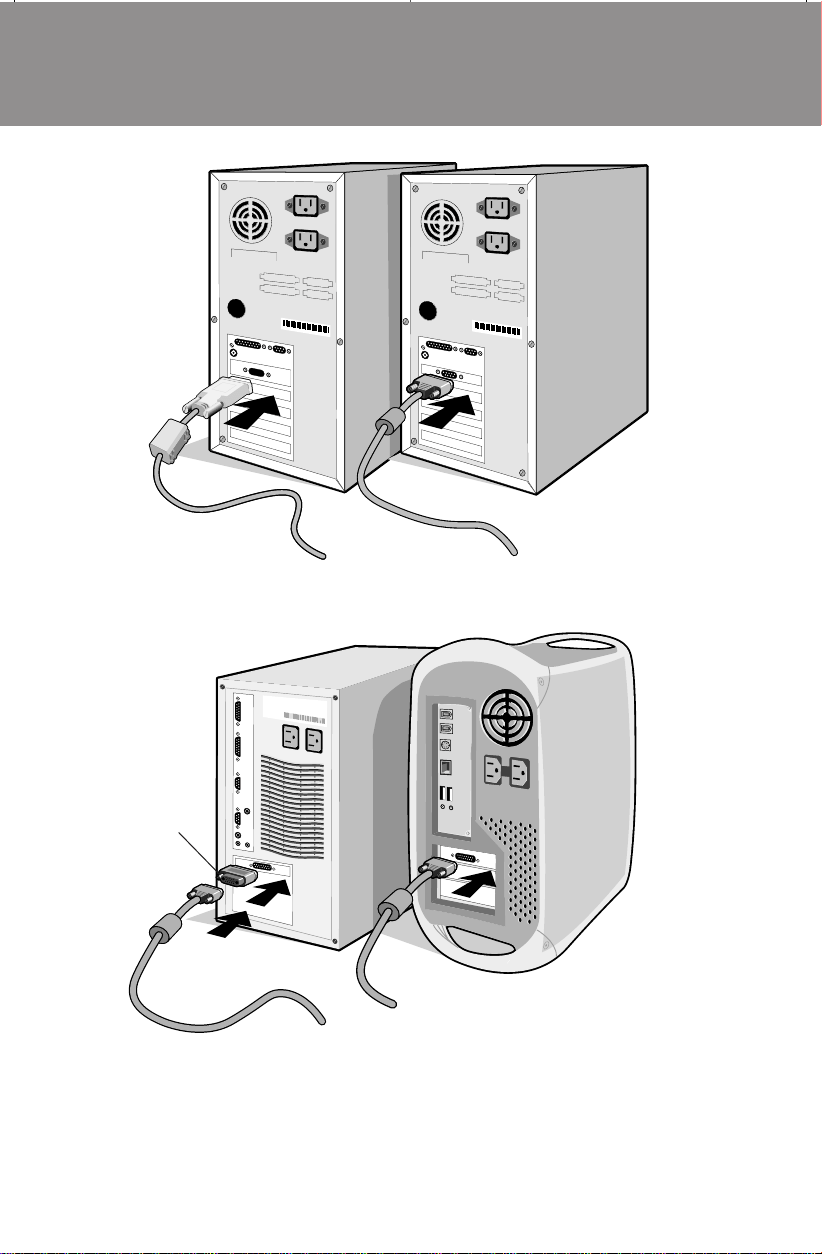
54
Quick Start / Fortsetzung
Abbildung B.1
Macintosh Modelle G3
oder G4 benötigen keinen
Macintosh-Kabeladapter
Abbildung A.1 Abbildung A.3
Macintosh
Kabeladapter
(nicht im
Lieferumfang)
2010X.wpc 7/13/00, 5:01 PM56
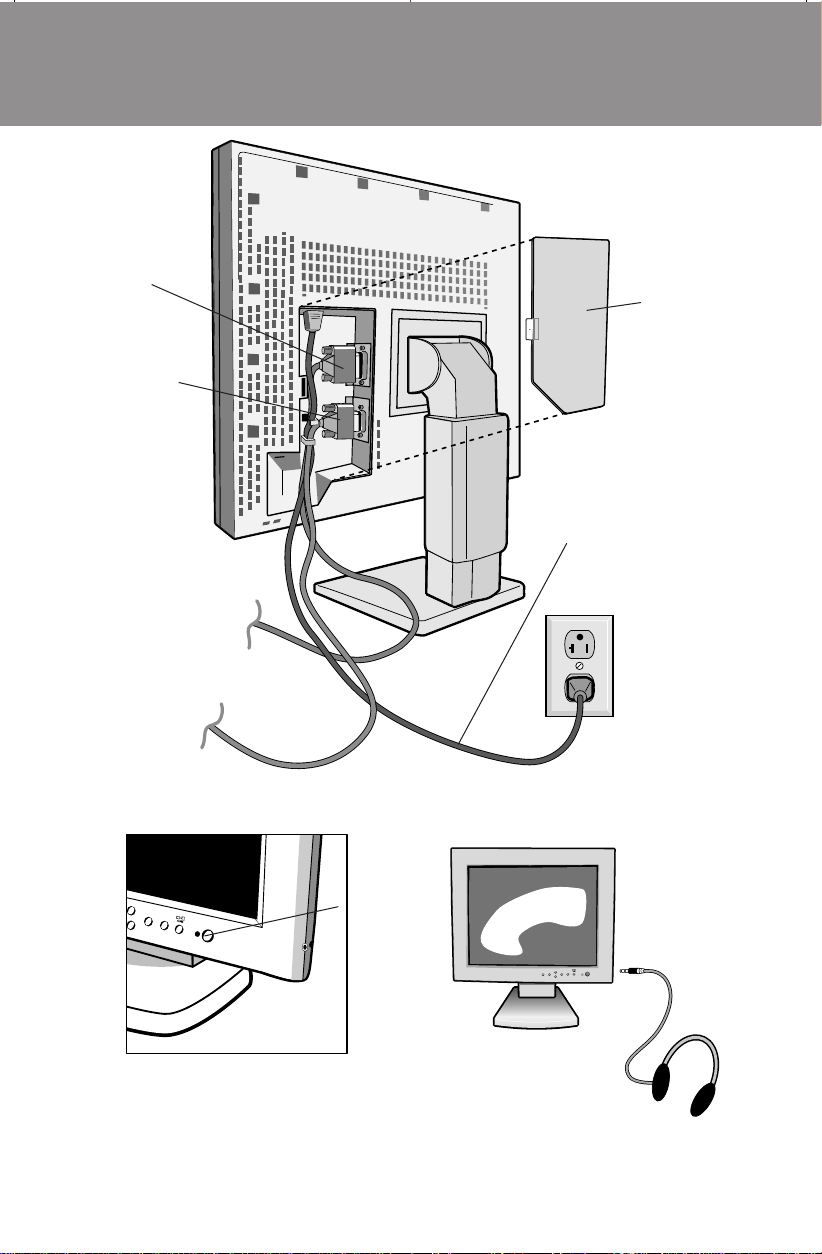
Quick Start / Fortsetzung
55
Abbildung C.1
Abbildung F.1
Abbildung E.1
Netzschalter
Netzkabel
Anschlußdeckel
DVI
Mini
D-SUB
2010X.wpc 7/13/00, 5:01 PM57
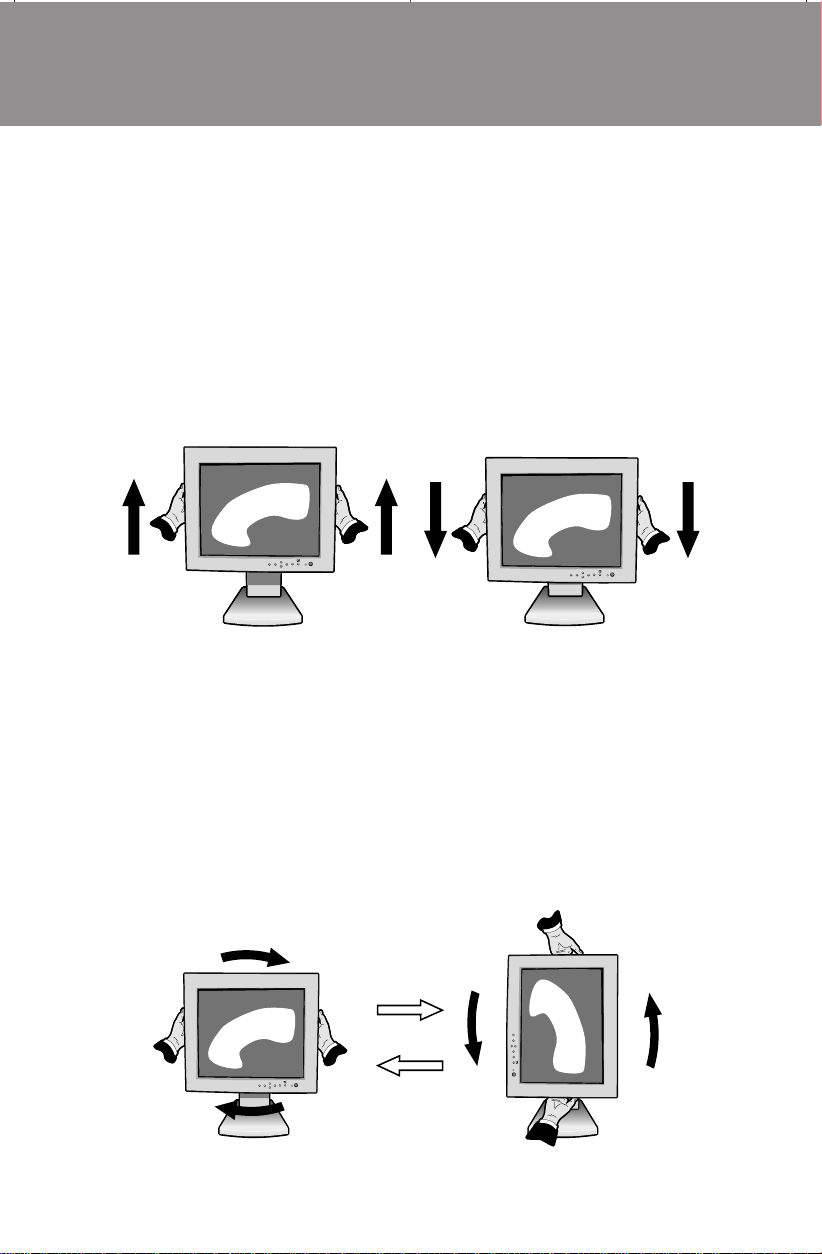
56
Abbildung RL.1
Abbildung R.1
Drehen des Bildschirms
Bevor Sie den Bildschirm drehen, muß er auf seine höchste Position gestellt werden, damit
der Bildschirm beim Drehen nicht gegen die Unterlage stoßen oder Ihre Finger
einklemmen kann. Um den Bildschirm anzuheben, legen sie Hände auf jede seite des
Monitors und heben Sie bis zur höchsten Position an (Abbildung RL..1).
Um den Bildschirm zu drehen, fassen Sie ihn wiederum an beiden Seiten und drehen Sie
ihn im Uhrzeigersinn, wenn Sie vom Querformat ins Längsformat wechseln wollen, und
gegen den Uhrzeigersinn, wenn Sie vom Längs- ins Querformat wechseln möchten
(Abbildung R.1).
Um das OSM
™
-Menü ebenfalls auf die Längs- bzw. Querposition umzustellen, drücken Sie
den RESET-Knopf, während das OSM-Menü deaktiviert ist.
Kopfhörer verwenden
1. Das Audiokabel an “Line-in“ auf der Rückseite des Monitors und das andere Ende an
die “Audio out“-Klemme des Computers anschließen. Danach die Abdeckung für den
Anschluss wieder anbringen.
2. Kopfhörer können an den “Headphones“-Ausgang auf der rechten Monitorseite
angeschlossen werden (Abbildung E.1). Kopfhörer sind in Elektrofachgeschäften am
Ort erhältlich.
Höher- und Tieferstellen
des Monitorbildschirms
Der Monitor kann sowohl in Längs- als auch in Querstellung höher- bzw. tiefergestellt
werden. Um den Bildschirm höher-oder tieferzustellen, legen Sie Hände auf jede seite des
Monitors und heben Sie an oder senken Sie zur gewünschten Höhe (Abbildung RL..1).
Quick Start / Fortsetzung
2010X.wpc 7/13/00, 5:01 PM58
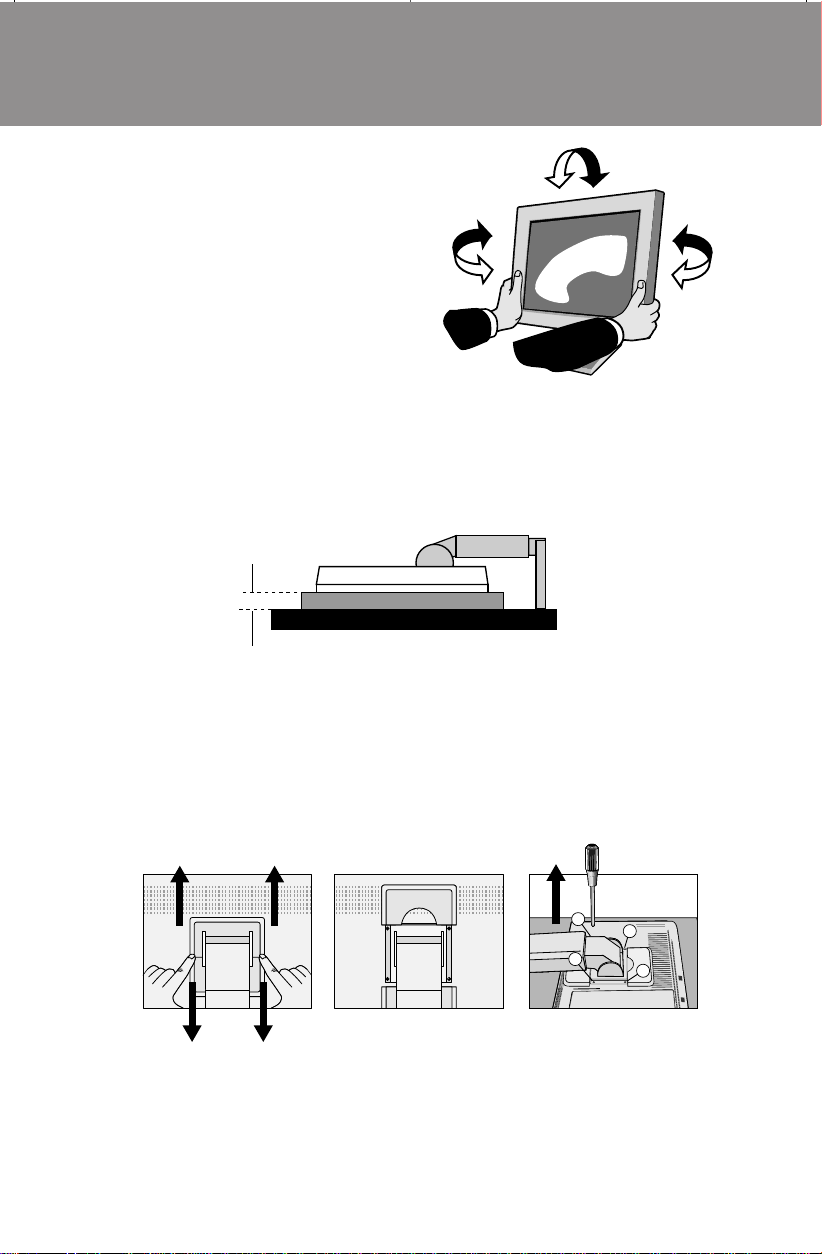
2-zoll
1
2
3
4
57
Kippen und Schwenken
Fassen Sie beide Seiten des Monitorbildschirms
und kippen bzw. schwenken Sie den Bildschirm
in die gewünschte Position (Abbildung TS.1).
Abnehmen des Monitorfußes zu
Montagezwecken
Um den Monitor für alternative
Montagemethoden vorzubereiten, gehen Sie vor
wie folgt :
1. Schließen Sie sämtliche Kabel ab.
2. Legen sie eine Hände auf jede seite des Monitors und heben Sie bis zur höchsten
Position an (Abbildung RL.1).
3. Legen Sie den Monitor mit der Vorderseite nach unten auf eine nicht scheuernde
Oberfläche. (Legen Sie den Bildschirm auf eine um ca. 2 zoll erhöhte Unterlage, damit
der Fuß parallel zur Oberfläche steht.) (Abbildung S.1)
4. Entfernen Sie die Standplatzabdeckung, indem Sie die Oberseite und die untere
Stücke weg vom Standplatz schieben (Abbildung S.2). Entfernen Sie die 4
Schrauben, die den Monitor mit dem Fuß verbinden, und heben Sie die
Fußeinheit ab (Abbildung S.3). Der Monitor kann nun auf jede gewünschte
alternative Art und Weise montiert werden.
5. Um den Fuß wieder am Monitor zu befestigen, werden die obigen Arbeitsschritte
sinngemäß umgekehrt.
HINWEIS: Nur für VEGA-kompatible alternative Montagemethoden.
Quick Start / Fortsetzung
Abbildung S.2 und Abbildung S.3
Abbildung S.1
Abbildung TS.1
Hinweis: Dieser LCD Monitor ist für die Benutzung mit einem Schwenkarm gedacht und wird daher
ohne Standfuss ausgeliefert.
Für die Einhaltung der Sicherheits-Anforderungen muss der Monitor an einen
Schwenkarm montiert werden, der die notwendige Stabilität unter Berücksichtigung des
Monitorgewichts garantiert.
Der LCD-Monitor darf nur mit einem zertifizierten Arm(z.B. GS-Zeichen) verwendet
werden.
2010X.wpc 7/13/00, 5:01 PM59
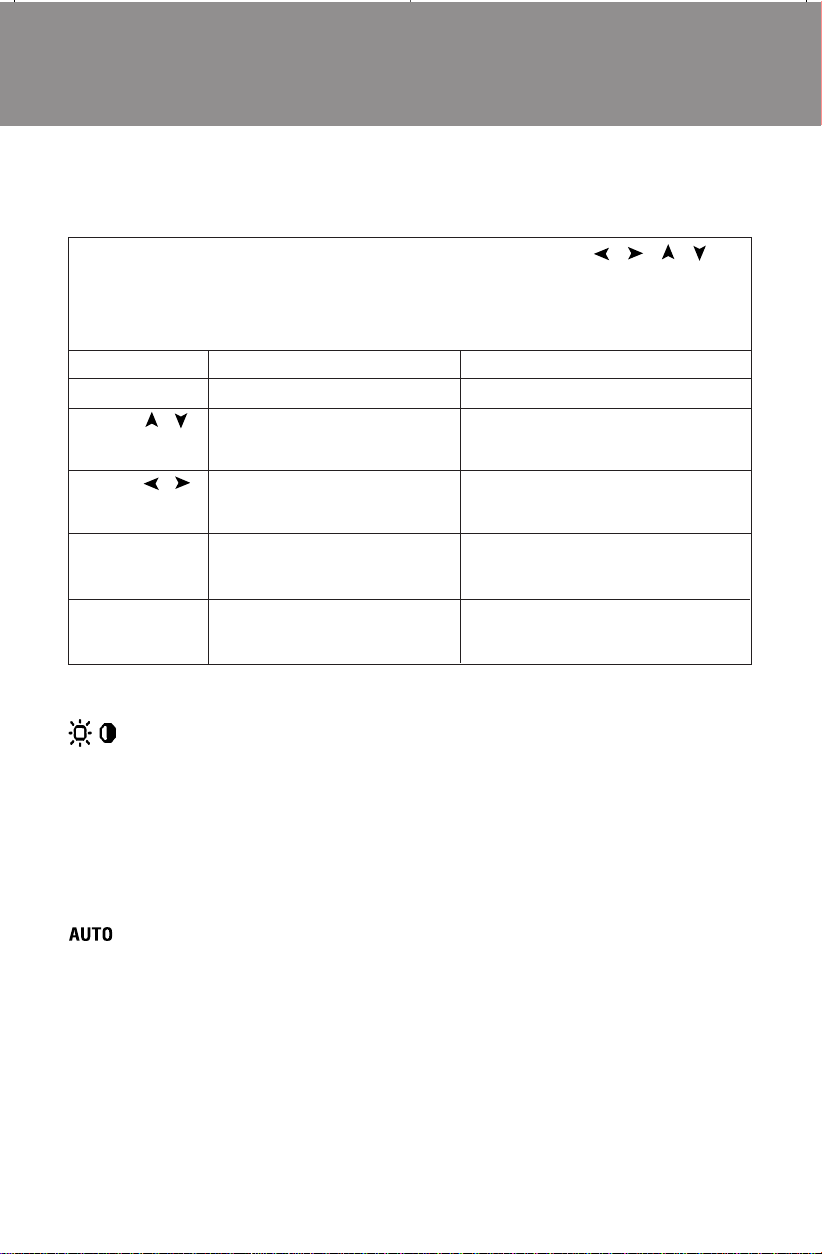
58
DVI/D-SUB: Erlaubt ein Wechseln zwischen den DVI-Analog-, DVI-Digital- und D-SUB-
Signaleingängen.
Mit den vorne am Monitor befindlichen OSM
™
- (On-Screen Manager)-Tasten werden die
folgenden Funktionen ausgeführt :
Um auf das OSM-Menü zuzugreifen, drücken Sie eine beliebige Steuertaste ( ,
,
, )
bzw. die PROCEED-Taste.
Zu verändern DVI/D- oder SUB zeige Versorgung, bedrängen die VERAUFE Schaltfläche an.
Um das OSM-Menü zwischen Längs- und Querformat umzustellen, drücken Sie die Taste RESET.
HINWEIS:
OSM Speisezettel muß abgeschlossen, werden um zu drehe, und mute
Hauptmenü Untermenü
EXIT
Beendet das OSM-Menü. Führt zum OSM-Hauptmenü zurück.
CONTROL /
Verschiebt den hervorgehobenen Verschiebt den hervorgehobenen
Bereich nach oben oder unten, um Bereich nach oben oder unten, um
einen Menüpunkt auszuwählen. einen Menüpunkt auszuwählen.
CONTROL /
Verschiebt den hervorgehobenen Verschiebt den Balken nach rechts
Bereich nach rechts oder links, um ein oder links, um die Einstellung zu erhöhen
Steuermenü auszuwählen. oder zu verringern.
PROCEED
Diese Taste hat keine Funktion. Aktiviert die Funktionen Auto Adjust
Im Werzeug- und Informations-Modus
öpffnet ein zusätzliches Fenster.
RESET
Setzt alle Einstellungen des Setzt die hervorgehobene Einstellung
hervorgehobenen Steuermenüs auf auf die Werkseinstellung zurück.
die Werkseinstellung zurück
HINWEIS: Wird die RESET-Taste im Haupt- oder Untermenü gedrückt, so erscheint ein Warnfenster,
das Ihnen ein Abbrechen der RESET-Funktion durch Betätigung der Taste EXIT ermöglicht.
Helligkeits-/Kontrastregler
BRIGHTNESS
Zur Einstellung der Helligkeit des Gesamtbildes und des Bildschirmhintergrundes.
CONTRAST
Zur Einstellung der Bildhelligkeit in Vergleich zum Hintergrund.
AUTO ADJUST CONTRAST (nur Analogeingang)
Paßt das angezeigte Bild an, falls nicht standardmäßige Videoeingangssignale
vorliegen.
Auto Adjust (nur Analogeingang)
Paßt die Einstellungen für Image Position, H. Size und Fine automatisch an.
Bedienungselemente
2010X.wpc 7/13/00, 5:01 PM60
59
Bedienungselemente
/ Fortsetzung
Positionsregler (nur Analogeingang)
LINKS / RECHTS
Steuert die horizontale Bildposition innerhalb des LCD-Anzeigebereichs.
UNTEN / OBEN
Steuert die vertikale Bildposition innerhalb des LCD-Anzeigebereichs.
AUTOM. EINST
Stellt die horizontale und die vertikale Bildposition innerhalb des LCD-
Anzeigebereichs automatisch ein.
Bildanpassungsregler (nur Analogeingang)
BILDPUNKTE
Paßt die horizontale Bildgröß e durch Erhöhen oder Verringern der Einstellung an.
STABILITÄT
Verbessert Schärfe, Klarheit und Stabilität des Bildes durch Erhöhen oder
Verringern der Einstellung.
AUTOM. EINST
Die BILDPUNKTE und STABILITÄT-Einstellungen werden automatisch ausgeführt.
AccuColor
®
Control System
Fünf Farbvoreinstellungen dienen zur Auswahl der gewünschten
Farbeinstellung. Jede Farbeinstellung ist werkseitig eingestellt.
Rot, Grün, Blau: Erhöht oder verringert - in Abhängigkeit von der getroffenen
Auswahl - entweder den roten, den grünen oder den blauen Farbanteil. Die
Farbänderung erscheint auf dem Bildschirm, und die Richtung (Erhöhung oder
Verringerung) wird durch die Balken angezeigt.
Werkzeuge 1
SMOOTHING: Wählen Sie eine der drei Bildschärfeeinstellungen aus. Diese
Funktion kann nur aktiviert werden, wenn die Funktion zur Vergrößerung der
Anzeige (EXPANSION) aktiviert ist.
TEXT MODE: Damit wird der Displaytext deutlich angezeigt.
NORMAL MODE: Diese Schärfe liegt zwischen TEXT und GRAPHIC MODE.
GRAPHIC MODE: Dieser Modus ist für Bilder und Fotos geeignet.
EXPANSION MODE: Stellt das Zoom-Verfahren ein.
FULL SCREEN: Das Bild wird ungeachtet der Auflösung auf 1280 x 1024
vergrößert.
KEEP ASPECT: Das Bild wird ohne Änderung des Bildformats vergrößert.
EXPANSION OFF: Das Bild wird nicht vergrößert.
CUSTOM (NUR DIGITALEINGANG): Wählen Sie eine der vier
Vergrößerungswerte aus.
In diesem Modus ist die Auflösung u. U. niedrig und es sind möglicherweise
leere Bereiche vorhanden.
Dieser Modus ist für die Anwendung spezieller Videokarten bestimmt.
2010X.wpc 7/13/00, 5:01 PM61
60
VIDEO DETECT: Zur Wahl des Verfahrens zur Erkennung des Videosignals,
wenn zwei Rechner an den Monitor angeschlossen sind.
NONE: Der Monitor sucht nur im eingeschalteten Zustand den anderen
Videoeingang.
FIRST DETECT: In dieser Stellung schaltet der Monitor automatisch nur dann
auf den anderen Eingang um, wenn am ersten kein Signal mehr anliegt.
LAST DETECT: In dieser Stellung schaltet der Monitor stets auf den anderen
Eingang um, wenn am ersten kein Signal mehr anliegt oder sobald am
zweiten ein Signal anliegt.
DVI SELECTION: Diese Funktion wird als DVI-Eingangsmodus gewählt.
Nach dem Ändern der DVI-Einstellung muß der Computer neu gestartet
werden.
DIGITAL: DVI-Digitaleingang steht zur Verfügung.
ANALOG: DVI-Analogeingang steht zur Verfügung.
SOUND: Stellt die Lautstärke für die Kopfhörer ein.
Werkzeuge 2
SPRACHAUSWAHL: OSM
™
-Systemsteuerungsmenüs stehen in sieben Sprachen
zur Verfügung.
OSM POSITION: Sie können wählen, wo das OSM-Menü/Fenster auf dem
Bildschirm erscheinen soll. Die Wahl des OSM-Platzes ermöglicht Ihnen die
manuelle Einstellung der Position, d.h.links, rechts, obenoderunten, des OSM-
Systemsteuerungsmenüs.
OSM ANZEIGEDAUER: Das OSM-Systemsteuerungsmenü bleibt eingeschaltet
solange es benutzt wird. Im OSM-Ausschaltzeit-Untermenü können Sie wählen,
wie lange der Bildschirm nach der letzten Betätigung einer Schaltfläche wartet,
bis das OSM-Systemsteuerungsmenü ausgeschaltet wird. Die voreingestellten
Wahlmöglichkeiten sind 10,20,30,60 und 120 Sekunden.
OSM ABSCHALTUNG: Diese Funktion blockiert den Zugang zu allen OSM-
Steuerfunktionen. Wenn Sie in der gesperrten Betriebsart versuchen, eine
OSM-Steuerung zu aktivieren, dann erscheint ein Bildschirmfenster, auf dem
die gesperrten OSM-Steuerungen angezeigt sind. Um den LOCK OUT-Modus
zu aktivieren, halten Sie gleichzeitig die PROCEED und Taste gedrückt. Um
den LOCK OUT-Modus zu deaktivieren, drücken Sie wieder gleichzeitig die
PROCEED und Taste.
WERKSEINSTELLUNG: Indem Sie die im Werk vorgenommenen
Voreinstellungen wählen, können Sie alle OSM-Steuereinstellung auf die
werksseitigen Einstellungen zurückstellen. Dabei muß die RESET-Taste ein paar
Sekunden lang gedrückt gehalten werden, um diese Rückstellung zu bewirken.
Individuelle Einstellungen können zurückgestellt werden, indem die jeweilige
Steuerung markiert und dann durch Betätigung der RESET-Taste zurückgestellt
wird.
RESOLUTION NOTIFIER: Die optimale Auflösung ist 1280 x 1024. Wenn ON
gewählt wurde, erscheint 30 Sekunden später eine Mitteilung auf dem
Bildschirm, wenn die Auflösung nicht 1280x1024 beträgt.
Bedienungselemente
/ Fortsetzung
2010X.wpc 7/13/00, 5:01 PM62

61
Bedienungselemente
/ Fortsetzung
Information
GRAFIK MODUS: Liefert Information über die derzeitige Auflösung auf dem
Bildschirm sowie technische Daten einschließlich der benutzten Voreinstellzeit
sowie der horizontalen und vertikalen Frequenzen.
MONITORINFORMATION: Zeigt Modell-und Seriennummern des Monitors.
OSM
™
Warnung
KEIN SIGNAL: Warnung,wenn kein Signal anliegt. Dieses Fenster
erscheint, wenn nach dem Einschalten des Monitors oder dem
Wechseln des Eingangssignals kein Videosignal anliegt. Mit der
PROCEED-Taste läßt sich DVI SELECTION CONTROL öffnen, wie im
Abschnitt zur DVI-Auswahl beschrieben.
RESOLUTION NOTIFIER: Warnt vor nicht optimierter Auflösung. Dieses
Fenster erscheint, wenn nach dem Einschalten des Monitors oder dem
Wechseln des Eingangssignals das Videosignal nicht die optimale
Auflösung hat. Diese Funktion kann mit dem TOOL-Menüdeaktiviert
werden.
OUT OF RANGE: Empfiehlt die optimale Auflösung und Bildfrequenz.
Dieses Fenster erscheint, wenn nach dem Einschalten des Monitors oder
dem Wechseln des Eingangssignals das Videosignal nicht das
geeignete Timing hat. Mit der PROCEED-Taste läßt sich DVI SELECTION
CONTROL öffnen, wie im Abschnitt zur DVI-Auswahl beschrieben.
HINWEIS: Wenn ” CHANGE DVI SELECTION “ angezeigt wird,
schalten Sie auf DVI SELECTION um.
2010X.wpc 7/13/00, 5:01 PM63
62
Vorsichtsmaßnahmen und Wartung
UM DIE OPTIMALE LEISTUNGSFÄHIGKEIT IHRES MULTISYNC LCD
FARBMONITORS ZU GEWÄHRLEISTEN, SOLLTEN SIE BEI DER
AUFSTELLUNG UND VERWENDUNG IHRES GERÄTES
DIE FOLGENDEN PUNKTE BEACHTEN
• ÖFFNEN SIE DEN MONITOR NICHT. Im Inneren des Gerätes befinden sich keine Teile, die vom Benutzer
selbst gewartet werden können. Das Öffnen oder Entfernen der Abdeckungen könnte einen elektrischen
Schock verursachen oder zu anderen gefährlichen Situationen führen. Wartungs- und Reparaturarbeiten
dürfen nur von qualifizierten Service-Technikern ausgeführt werden.
• Vermeiden Sie das Eindringen von Flüssigkeiten in das Gerät und benutzen Sie den Monitor niemals in
der Nähe von Wasser.
• Stecken Sie keinerlei Gegenstände durch die Gehäuseschlitze in das Gerät. Diese könnten gefährliche
Spannungspunkte im Geräteinneren berühren und einen elektrischen Schlag, einen Brand oder ein
Versagen des Gerätes verursachen.
• Stellen Sie keine schweren Geräte auf das Netzkabel. Eine Beschädigung des Netzkabels kann einen
elektrischen Schlag oder Brand verursachen.
• Stellen Sie das Gerät niemals auf unebenen oder instabilen Gestellen, Unterlagen oder Tischen auf. Der
Monitor könnte herunterfallen und schwer beschädigt werden.
• Der Netzstecker ist das wichtigste Teil zum Trennen des Monitors vom. Der Monitor sollte in der Nöhe
einer leicht zugänglichen Netzsteckdose installiert werden.
• Wenn Sie den MultiSync
®
LCD mit seiner weltweiten AC 220-240 V Stromversorgung betreiben,
verwenden Sie ein Netzkabel, das der Speisungsspannung der verwendeten Wechselstromsteckdose
entspricht. Das verwendete Netzkabel muß den Sicherheitsnormen Ihres Landes entsprechen und gemäß
dieser zugelassen sein. (Außer in Großbritannien sollte die Type H05VV-F verwendet werden).
• Stellen Sie keine Gegenstände auf den Monitor, und benutzen Sie den Monitor necht draußen.
• Die Leuchtstoffröhre im Inneren des LCD-Monitors enthält Quecksilber. Halten Sie sich bei der Entsorgung
dieser Leuchtstoffröhre bitte an die anwendbaren lokalen Gesetze und Vorschriften.
• In Großbritannien ein für den Betrieb des Monitors vom BS zugelassenes Netzkabel mit einem
integrierten Stecker mit schwarzer Sicherung (5A). Wenn zusammen mit diesem Monitor kein Netzkabel
geliefert wird, wenden Sie sich bitte an Ihren Lieferanten.
Bei Eintreten der im nachfolgenden angeführten Umstände muß der Monitor sofort vom Netz getrennt und
ein Service-Techniker konsultiert werden:
• Wenn das Netzkabel oder der Netzstecker beschädigt ist.
• Wenn Flüssigkeit oder Gegenstände in das Monitorgehäuse geraten sind.
• Wenn der Monitor Regen ausgesetzt war oder mit Wasser in Berührung gekommen ist.
• Wenn der Monitor fallen gelassen bzw. das Gehäuse beschädigt wurde.
• Wenn der Monitor trotz Befolgung der Bedienungsanleitung nicht ordnungsgemäß funktioniert.
• Achten Sie auf eine ausreichende Rundum-Belüftung des Monitors, damit die Wärme
richtig entweichen kann. Die Lüftungsschlitze dürfen nicht blockiert werden, und der
Monitor darf nicht in der Nähe einer Heizung oder einer sonstigen Wärmequelle
aufgestellt werden. Stellen Sie keine Gegenstände auf den Monitor.
• Der Netzstecker ist das wichtigste Teil zum Trennen des Monitors vom Netz. Der Monitor
sollte in der Nähe einer leicht zugänglichen Netzsteckdose installiert werden.
• Vorsich, wenn das Tragen des Monitors, als der Kompatite Standplatz automatisch sich
aus dehen kann.
• Transportieren Sie den Monitor mit äußerster Vorsicht. Bewahren Sie das
Verpackungsmaterial für einen späteren Transport auf.
• Beuge die Power Anschlußschnur.
• Gebrauche Ihr Sichtgerät in feuchten, staubigen, hohen Temperaturen oder near Öl.
• Bedecke den Schrank Schlitz oder Verwendung habt den üblen Vorlauf ausgeströmt.
• Leckerbissen glass immer mit Versorgung.
• Berühre die Flüssigkeit crystal wenn Ihr Sichtgerät brechenden hat.
Empfehlungen für die
Verwendung
VORSICHT
2010X.wpc 7/13/00, 5:01 PM64
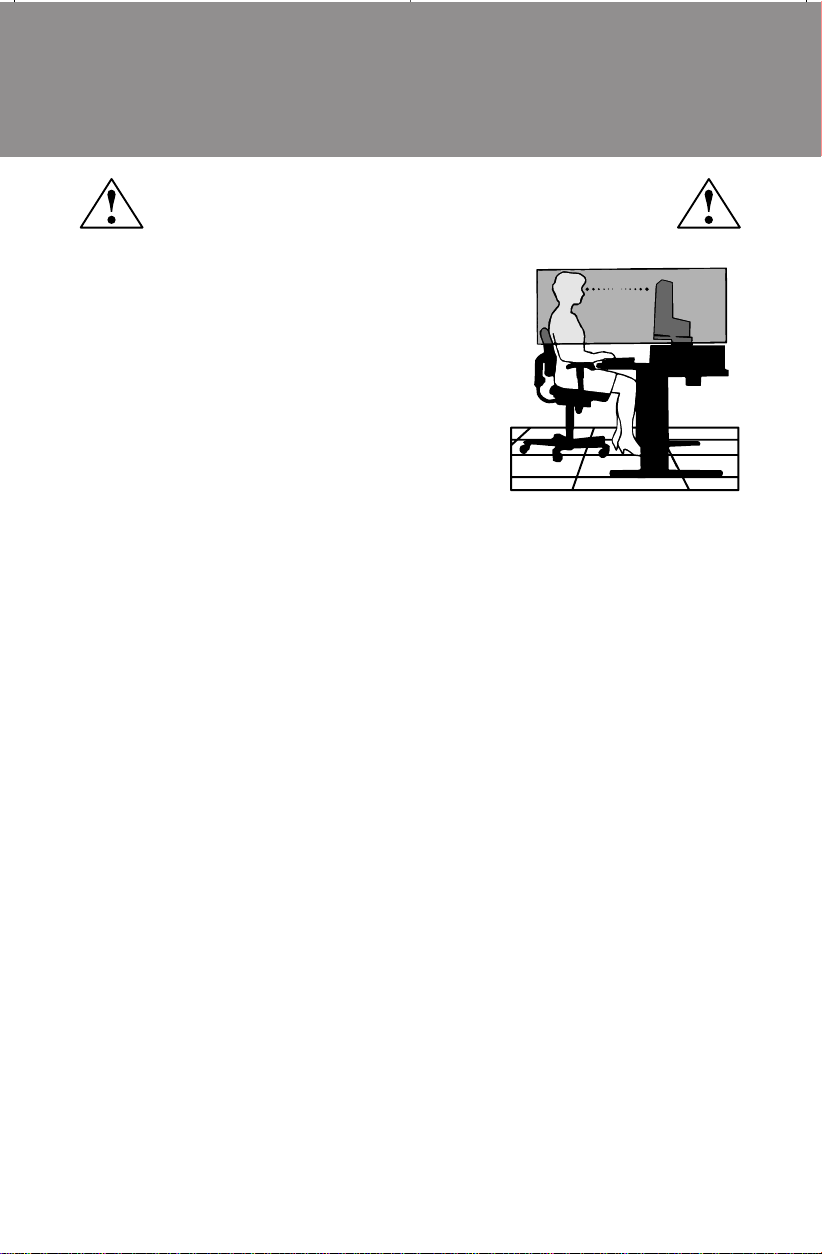
Empfehlungen für die
Verwendung
/ Fortsetzung
63
EINE KORREKTE AUFSTELLUNG UND EINRICHTUNG DES MONITORS
KANN BEIM ARBEITEN AM BILDSCHIRM AUGEN, NACKEN- UND
SCHULTERMUSKULATUR ENTLASTEN. BEACHTEN SIE BEIM
AUFSTELLEN DES MONITORS BITTE DIE FOLGENDEN PUNKTE:
• Lassen Sie den Monitor 20 Minuten lang aufwärmen, um
optimale Leistung sicherzustellen.
• Passen Sie die Höhe des Monitors so an, daß der obere
Bildschirmrand sich in oder geringfügig unter Ihrer
Augenhöhe befindet. Wenn Sie die Bildschirmmitte
betrachten, sollten Ihre Augen leicht nach unten blicken.
• Der Abstand vom Auge zum Monitor sollte nicht weniger als
40 cm und nicht mehr als 70 cm betragen. Der optimale
Abstand beträgt 58 cm beim MultiSync
®
LCD
2010X
™
.
• Entspannen Sie Ihre Augen regelmäßig durch Fixieren eines
Gegenstandes in mindestens 6 m Entfernung. Blinzeln Sie
häufig.
• Stellen Sie den Monitor in einem Winkel von 90° zum Fenster und anderen Lichtquellen auf, um
Blendungen und Reflexionen auf dem Bildschirm soweit wie möglich zu vermeiden. Stellen Sie die
Neigung Ihres Monitors so ein, daß durch Deckenbeleuchtung verursachte Spiegelungen auf dem
Bildschirm vermieden werden.
• Wenn reflektierendes Licht Ihnen das Erkennen der Bildschirmanzeige erschwert, benutzen Sie einen
Anti-Reflexionsfilter.
• Reinigen Sie Ihren Monitor regelmäßig. Verwenden Sie ein fusselfreies und nicht kratzendes Tuch
und eine nicht alkoholhältige, neutrale, nicht scheuernde Reinigungslösung bzw. einen
Glasreiniger, um den Staub zu entfernen.
• Stellen Sie die Helligkeit und den Kontrast Ihres Monitors so ein, daß die Lesbarkeit erhöht wird.
• Bringen Sie in der Nähe des Monitors einen Vorlagenhalter an.
• Plazieren Sie entweder den Monitor oder das Referenzmaterial (je nachdem, worauf Sie am
häufigsten blicken) direkt vor sich, damit Sie den Kopf beim Schreiben so wenig wie möglich
drehen müssen.
• Vermeiden Sie es, Standbilder über längere Zeiträume auf dem Monitor anzuzeigen, damit keine
Bildschatten entstehen (Nachbildwirkung).
• Lassen Sie Ihre Augen regelmäßig untersuchen.
Ergonomie
Zum Erzielen eines maximalen ergonomischen Nutzens empfehlen wir eine Berücksichtigung der
folgenden Punkte:
• Passen Sie die Helligkeit an, bis der Hintergrundraster nicht mehr sichtbar ist
• Stellen Sie den Kontrastregler nicht auf den Höchstwert ein
• Verwenden Sie bei Standardsignalen die Voreinstellungen für die Größen- und Positionsregler
• Verwenden Sie die Voreinstellungen für Color Setting und Sides Left/Right
• Verwenden Sie Signale ohne Zeilensprung mit einer vertikalen Bildauffrischrate zwischen 60 und
75 Hz
• Verwenden Sie die Primärfarbe Blau nicht vor einem dunklen Hintergrund, da sie schlecht zu
sehen wäre und aufgrund des unzureichenden Kontrasts zu einer Überanstrengung der Augen
führen könnte
Nähere Informationen über die Einrichtung einer gesunden Arbeitsumgebung erhalten Sie, wenn Sie NEC unter der
Telefonnummer (800) 820-1230 bzw. NEC FastFacts
™
unter der Telefonnummer (630) 467-4363 kontaktieren und
das Dokument # 900108 anfordern. Sie können auch über The Human Factors Society, Inc. P.O. Box 1369, Santa
Monica, California 90406, USA, die Norm American National Standard für Human Factors Engineering of Visual
Display Terminal Workstations - ANSI.-HFS Standard No. 100-1988 bestellen.
2010X.wpc 7/13/00, 5:01 PM65

64
Technische Daten MultiSync
®
Remarques
Monitor LCD2010X
™
Monitor
LCD Modul Diagonal: 51 cm (20,1 Zoll) Aktive Matrix, Dünnfilmtransistor (TFT),
Sichtbare Bildgröße: 51 cm (20,1 Zoll) Flüssigkristallanzeige (LCD), 0,31 mm,
dem Monitor entsprechende Auflösung (Pixel-Count):
Quer: 1280 x 1024 Punktabstand XtraView
™
-Technologie,
Hoch: 1024 x 1280 250 cd/m
2
, weiße Leuchtdichte,
Kontrastverhältnis 250:1, typisch.
Eingangssignal Video: ANALOG 0,7 Vp-p / 75 Ohm Digitaleingang: TMDS
™
Sync: Separate Sync. TTL-Level
Horizontal Sync. positiv / negativ
Vertikal Sync. positiv / negativ
Gesamt Sync. (positiv / negativ) (TTL-Level)
Sync on Green-Video (positiv), 0,7 Vp-p und sync.
Negativ 0,3 Vp-p
Display-Farben Analoges Eingangssignal: 16,777,216 Abhängig von der benutzten Grafikkarte und Signaltiming
Synchronisationsbereich Horizontal: 31 kHz bis 82 kHz Automatisch
Vertikal: 56 Hz bis 85 Hz Automatisch
Unterstützte Auflösungen
Quer
: 720 x 400*
1
: text
640 x 480*
1
@ 60 Hz bis 85 Hz
800 x 600*
1
@ 56 Hz bis 85 Hz
832 x 624*
1
@ 75 Hz
1024 x 768*
1
@ 60 Hz bis 85 Hz
1152 x 900*
1
*
2
@ 66 Hz (SUN)
1280 x 960*
1
*
2
@ 60 Hz bis 75 Hz
1280 x 1024 @ 60 Hz bis 76 Hz ..............
Für optimale Darstellungsleitung des Monitors und
Farben empfiehlt NEC eine
Auflösung bei 60 Hz
.
Hoch
:
480 x 640*
1
@ 60Hz bis 85Hz
600 x 800*
1
@ 56 Hz bis 85 Hz
624 x 832*
1
@ 75 Hz
768 x 1024*
1
@ 60 Hz bis 85 Hz
960 x 1280*
1
*
2
@ 60 Hz bis 75 Hz
1024 x 1280 @ 60 Hz bis 75 Hz ..............
Für optimale Darstellungsleitung des Monitors und
Farben empfiehlt NEC eine
Auflösung bei 60 Hz
.
Aktivanzeige
Quer
: Horiz.:
399 mm/15,7 Zoll
Vert.:
319 mm/12,6 Zoll
Hoch
: Horiz.:
319 mm/12,6 Zoll
Vert.:
399 mm/15,7 Zoll
Netzspannung
AC 100–120 V/220–240 V @ 50-60 Hz
Current rating 0,7 A @ 100
–
120 V/0,3 A @ 220
–
240 V
Abmessungen
Quer
:
498 mm (B) x 501 mm (H) x 246 mm (T)
19.6 Zoll (B) x 19.7 Zoll (H) x 9.6 Zoll (T)
Hoch
:
418 mm (L) x 541 mm (H) x 246 mm (P)
16.5 Zoll (B) x 21.3 Zoll (H) x 9.6 Zoll (T)
Höheneinstellung: 70 mm/2,8 Zoll
Gewicht14,2 kg
31,3 Pfund
Umweltbedingungen
Betriebstemperatur: 5° C bis +35° C/4 °F bis 95° F
Luftfeuchtigkeit: 30 % bis 80 %
Höhe: 0 bis 10,000 Fuß
Lagertemperatur: -10° C bis +60° C/14° F bis 140° F
Luftfeuchtigkeit: 10 % bis 85 %
Höhe: 0 bis 45,000 Fuß
*1 Interpolierte Auflösungen. Wenn Auflösungen angezeigt werden, die geringer als der Pixel-Count des LCD-Moduls sind, können Buchstaben „stufig“
erscheinen oder Linien fett aussehen. Das ist normal und bei allen gegenwärtig zur Verfügung stehenden Flachbildschirmtechnologien notwendig, wenn
Auflösungen, die dem Monitor nicht entsprechen, in Ganzbildschirmgröße angezeigt werden. Bei Flachbildschirmen ist jeder Punkt auf dem Bildschirm ein
Pixel, d.h. wenn man die Auflösung auf Ganzbildschirmgröße vergrößert, muß eine Interpolation der Auflösung vorgenommen werden. Wenn die
interpolierte Auflösung nicht ein ganzes Vielfaches der eigenen Auflösung des Bildschirms ist, kann die mathematische Interpolation dazu führen, daß
manche Linien dicker als andere aussehen.
*2 Die Anzahl der Farben, angezeight werden können nimmt ab.
ANMERKUNG: Technische Spezifikationen können ohne vorherige Ankündigung geändert werden.
Technische Daten
2010X.wpc 7/13/00, 5:01 PM66

65
Funktionen
ambix
™
Technology: Erlaubt sowohl analoge als auch digitale Signale am gleichen
Eingang (DVI-I) sowie einen zus ä tzlichen analogen 15pol VGA-Eingang. Bietet
MultiSync-Technologie für analoge Eingangssignale sowie digitale TMDS- Eingangssignale
(TMDS =Transition Minimized Differential Signal). Zu den digitalen TMDS-Schnittstellen
gehören DVI-D, DFP und P&D.
DVI-I: Die integrierte Schnittstelle der Digital Display Working Group (DDWG) erlaubt
sowohl digitale als auch analoge Signale am gleichen Stecker.Das “I” steht für Integration
dieser beiden Signalarten. Die digitalen Spezifikationen basieren auf TMDS.
DVI-D: Die rein digitale Version von DVI der Digital Display Working Group (DDWG) für
digitale Anschlüsse zwischen Rechnern und Monitoren. Analoge Signale werden nicht
unterstützt. Basierend auf den digitalen Spezifikationen von TMDS wird nur ein einfacher
Adapter benötigt, um den DVI-D-Anschluß mit DFP und P&D kompatibel zu machen.
DFP (Digital Flat Panel): Ein digitales Interface für Flachbildschirm-Signale kompatibel zu
DVI. Basierend auf den digitalen Spezifikationen von TMDS wird nur ein einfacher
Adapter benötigt, um den DFP-Anschluß mit DVI und P&D kompatibel zu machen.
P&D (Plug and Display): Der VESA-Standard für digitale Flachbildschirm-Schnittstellen.
Umfangreicher als DFP erlaubt es weitere Optionen in einen einzelnen Anschluß zu
integrieren (z.B.USB, Analogvideo und IEEE-1394-995). Das VESA-Komitee erkennt DFP
als Untergruppe von P&D an. Basierend auf den digitalen Spezifikationen von TMDS wird
nur ein einfacher Adapter benötigt, um den P&D-Anschluß mit DVI und DFP kompatibel
zu machen.
NuCycle
™
Plastik: Ein spezielles silizium präparat für PC Harz, welches extrem flammen
retardierend, sicher und umweltfreundlichist.
XtraView
®
Weitwinkeltechnologie: Damit kann der Benutzer den Monitor in jeder
Ausrichtung -d.h.im Hoch-oder Querformat -aus jedem Winkel (160°) betrachten. Voller
160°-Blickwinkel entweder nach oben, unten, links oder rechts.
Kleinere Standfläche: Die ideale Lösung für Situationen, in denen trotz Größen-und
Gewichtsbeschränkungen eine hervorragende Bildqualität erforderlich ist. Der Monitor
kann aufgrund seiner Kleinen Standfläche und seines niedrigen Gewichts einfach von
einem Ort zum anderen verlegt werden.
AccuColor
®
Control System: Erlaubt es Ihnen, die Farben auf Ihrem Bildschirm einzustellen
und die Farbtreue Ihres Monitors einer Vielfalt verschiedener Standards anzupassen.
OSM
™
-Einstellfunktionen (On-Screen-Manager): Erlauben es Ihnen, alle Elemente Ihres
Monitorbilds mit Hilfe einfach und rasch zu verwendender On-Screen-Menüs anzupassen.
ErgoDesign
®
: Verbessert die ergonomischen Eigenschaften, um die Arbeitsumgebung zu
verbessern, die Gesundheit des Benutzers zu schützen und Geld zu sparen. Beispielsweise
stehen OSM
™
-Einstellfunktionen für rasche und einfache Bildanpassung und ein Schwenk-
/Drehfuß für die Einstellung des bevorzugten Blickwinkels zur Verfügung. Außerdem
entspricht das Gerät den MPRII und TCO- Richtlinien für verringerte Emissionen.
Kleinere Standfläche: Erlaubt es dem Benutzer, den Monitor so zu drehen, wie es den
Anforderungen am besten entspricht, d.h.ihn entweder quer zur Anzeige breiter
Dokumente zu verwenden oder ihn in eine aufrechte Stellung zu drehen, wenn eine ganze
Seite auf einmal auf dem Bildschirm angezeigt werden soll. Das Hochformat ist auch für
Videokonferenzen mit Vollformatanzeige hervorragend geeignet.
2010X.wpc 7/13/00, 5:01 PM67

Plug-and-Play: Die Microsoft
®
-Lösung mit dem Betriebssystem Windows
®
95/98
erleichtert die Einrichtung und Installation, indem die Eigenschaften des Monitors (z.B.
Bildschirmgröße und unterstützte Auflösungen) direkt vom Monitor an den Computer
übermittelt werden, wodurch die Anzeige automatisch optimiert wird.
IPM
™
-System (Intelligent Power Manager): Bietet innovative Energiesparmethoden, die es
dem Monitor erlauben, auf einen geringeren Stromverbrauch zurückzuschalten, wenn er
zwar eingeschaltet ist, aber gerade nicht benutzt wird. So können Sie zwei Drittel der
Stromkosten für den Monitorbetrieb sparen, die Emissionen reduzieren und gleichzeitig
die Kosten für die Klimatisierung des Arbeitsplatzes verringern.
Mehrfrequenztechnologie: Der Monitor wird automatisch auf die Abtastfrequenz der
Grafikkarte eingestellt, wodurch das Bild in der erforderlichen Auflösung angezeigt wird.
FullScan
™
: Erlaubt es Ihnen, in den meisten Auflösungsbereichen die gesamte
Bildschirmfläche zu nutzen, wodurch die Bildgröße signifikant gesteigert wird.
VESA: Standardmontagevorrichtung: Damit kann der MultiSync Monitor an jedem
standardmäßigen VESA-Montagearm oder Halter von Drittlieferanten montiert werden. So
kann der Monitor unter Verwendung einer kompatiblen Montagevorrichtung eines
Drittlieferanten an einer Wand oder an einem Tragarm montiert werden.
DVI/D-SUB: Der MultiSync LCD
2010X
™
bietet zwei Signaleingänge an. Dies ermöglicht es
einen Rechner über das mitgelieferte DVI-Signalkabel und den zweiten Rechner über ein
optionales D-Sub-Signalkabel anzuschließen. Durch Tastendruck vorne an den
Bedienungselementen können Sie komfortabel zwischen den zwei Rechnern wählen.
OSM Display Screen Copyright 2000, NEC-MITSUBISHI
66
Funktionen / Fortsetzung
2010X.wpc 7/13/00, 5:01 PM68

67
Fehlerbehebung
Kein Bild
• Das Signalkabel muß ordnungsgemäß an die Grafikkarte / den Computer angeschlossen sein.
• Vergewissern Sie sich, daß die Grafikkarte vollständig eingeschoben ist.
• Vergewissern Sie sich, daß der Einschaltknopf des Monitors und der Einschaltknopf des
Computers auf ON stehen.
• Vergewissern Sie sich, daß auf der Grafikkarte oder im verwendeten System ein unterstützter
Modus ausgewählt wurde. (Nähere Informationen zur Änderung des Grafikmodus entnehmen
Sie bitte dem Handbuch zu Ihrer Grafikkarte oder zu Ihrem System.)
• Überprüfen Sie den Monitor und Ihre Grafikkarte auf Kompatibilität und vergewissern Sie sich,
daß die empfohlenen Einstellungen eingehalten werden.
• Überprüfen Sie den Signalkabelanschluß auf verbogene oder eingedrückte Kontaktstifte.
• Vergewissern Sie sich, daß sich der Schalter DVI/D-SUB in der richtigen Position befindet.
Keine Reaktion beim Drücken des Einschaltknopfes
• Ziehen Sie das Netzkabel des Monitors aus der Wechselstromsteckdose, um den Monitor
abzuschalten und zurückzusetzen, oder drücken Sie gleichzeitig die Taste RESET und den
Einschaltknopf
Nachbildwirkung
• Nachbildwirkung bedeutet, daß der „Schatten“ eines angezeigten Bilds auf dem Bildschirm
verbleibt, auch wenn der Monitor längst abgeschaltet ist. Im Gegensatz zu CRT-Monitoren sind
solche Bildschatten bei LCD-Monitoren nicht permanent. Um die Nachbildwirkung zu beseitigen
empfiehlt es sich, den Computer so lange abgeschalten zu lassen, wie ein Bild angezeigt wurde.
Wenn also ein Bild eine Stunde lang auf dem Monitor angezeigt wurde und ein Schatten dieses
Bildes auf dem Bildschirm verblieben ist, sollte der Monitor eine Stunde lang ausgeschaltet
bleiben, um den Bildschatten zu beseitigen.
HINWEIS: NEC empfiehlt, wie für alle persönlichen Anzeigegeräte, die regelmäßige
Verwendung eines Screensavers, der sich einschaltet, wenn das angezeigte Bild länger
unverändert bleibt.
Das Bild ist instabil, unscharf oder verschwimmt
• Vergewissern Sie sich, daß das Signalkabel ordnungsgemäß an den Computer angeschlossen ist.
• Verwenden Sie die OSM
™
-Bildanpassungsfunktionen, um die Anzeige scharf zu stellen und das
Bild entsprechend anzupassen, indem Sie die Feineinstellungen je nachdem höher oder niedriger
stellen. Wenn der Anzeigemodus geändert wird, müssen unter Umständen die OSM-
Bildanpassungseinstellungen nachgestellt werden.
• Überprüfen Sie Ihren Monitor und Ihre Grafikkarte auf Kompatibilität und vergewissern Sie sich,
daß das empfohlene Signaltiming eingehalten wird.
• Wenn Text verunstaltet angezeigt wird, stellen Sie den Videomodus auf ohne Zeilensprung und
verwenden Sie eine Bildauffrischrate von 60 Hz.
LED am Monitor leuchtet nicht (keine grüne oder gelbe Farbe sichtbar)
• Vergewissern Sie sich, daß der Einschaltknopf auf ON steht und daß das Netzkabel
ordnungsgemäß angeschlossen ist.
• Vergewissern Sie sich, daß sich der Computer nicht in einem Energiesparmodus befindet
(berühren Sie die Tastatur oder die Maus).
Das Bild hat nicht die richtige Größe
• Verwenden Sie die OSM-Bildanpassungsfunktionen, um die horizontale Größe zu vergrößern
oder zu verkleinern.
• Vergewissern Sie sich, daß auf der verwendeten Grafikkarte bzw. im verwendeten System ein
unterstützter Modus und unterstütztes Signaltiming ausgewählt wurde (Nähere Informationen zur
Änderung des Grafikmodus oder der Bildauffrischrate entnehmen Sie bitte dem Handbuch zu
Ihrer Grafikkarte bzw. zu Ihrem System).
Kein Bild
• Schalten Sie den Monitor einmal aus und wieder ein.
2010X.wpc 7/13/00, 5:01 PM69

68
Verweise
• BBS (978) 742-8706
Das Remote Bulletin Board System von NEC-Mitsubishi ist ein elektronischer
Service, den Sie mit Hilfe Ihres Systems und eines Modems nutzen können. Die
Kommunikationsparameter lauten: 300/1200/2400/9600/14,4k/28,8k/
33.6 k bps, keine Parität, 8 Datenbits, 1 Stopbit
• Kundendienst/
Technischer Support (800) 632-4662
Fax (978) 742-7049
• Elektronische Kommunikationskanäle:
Internet E-mail: [email protected]
Internet ftp-Site: ftp.nectech.com
World Wide Web: http://www.necmitsubishi.com
Product Registration: http://www.necmitsubishi.com/productregistration
Windows
®
95/98-INF File: http://cssweb.necmitsubishi.com/common/
drivers.htm
Laden Sie die Datei NECMSINF.ZIP herunter
• FastFacts
™
-Information (630) 467-4363
INFORMATION BESCHREIBUNG DOKUMENT Nr.
Glossar Definition von Ausdrücken in 900203
bezug auf Funktionen,
Eigenschaften und die
Installation des MultiSync
®
Monitors
Weitere Informationen Namen und Adressen anderer 900204
Gruppen, die in bezug auf die
Standards und Eigenschaften des
MultiSync Monitors kontaktiert
werden können
Anschluß an Macintosh-Geräte Detaillierte Informationen über 153006
den Anschluß von MultiSync
Monitoren an Macintosh-Computer
Gesundes Arbeitsumfeld Detaillierte Informationen über 900108
die Einrichtung eines gesunden
Arbeitsumfelds
• Literatur & Vertriebs-
informationen (800) NEC-INFO [(800) 632-4636]
• MultiSync Bestellungen (800) 820-1230
[Software und Zubehör]
• Tele-Vertrieb (800) 284-4484
2010X.wpc 7/13/00, 5:01 PM70

69
Beschränkte Gewährleistung
NEC-Mitsubishi Electronics Display of America, Inc. (nachstehend als “NEC-MITSUBISHI“ bezeichnet) garantiert
hiermit, daß dieses Produkt keinerlei Material- und Verarbeitungsfehler aufweist, und verpflichtet sich unter den
nachstehenden Bedingungen dazu, innerhalb eines Zeitraums von drei (3) Jahren nach dem Datum des ersten
Erwerbs durch einen Verbraucher jedweden Teil des gegenständlichen Produkts, der sich als defekt erweist, (nach
alleinigem Ermessen von NEC-MITSUBISHI) entweder zu reparieren oder zu ersetzen. Auf Ersatzteile werden neunzig
(90) Tage Garantie gewährt. Die als Ersatz zur Verfügung gestellten Teile und Einheiten, bei denen es sich um neue
oder um gebrauchte, wiederinstandgesetzte Komponenten handeln kann, werden bezüglich ihrer technischen Daten
den ursprünglichen Teilen oder Einheiten entsprechen.
Diese Garantie gewährt Ihnen bestimmte Rechte. Darüber hinaus haben Sie möglicherweise weitere Rechte, die
sich jedoch von Bundesstaat zu Bundesstaat unterscheiden. Diese Garantie beschränkt sich auf den ursprünglichen
Käufer des Produkts und ist nicht übertragbar. Sie erstreckt sich lediglich auf Komponenten, die von NEC-MITSUBISHI
geliefert wurden. Service, der aufgrund von Komponenten erforderlich wird, die von Dritten geliefert wurden, ist
von der gegenwärtigen Garantie ausgeschlossen. Um unter die gegenwärtige Garantie zu fallen, muß das Produkt
vom ursprünglichen Käufer in den USA oder in Kanada erworben worden sein. Diese Garantie erstreckt sich nur
auf von NEC-MITSUBISHI in den USA oder in Kanada vertriebene Produkte. Außerhalb der USA bzw. Kanadas
werden keine Garantieleistungen erbracht. NEC-MITSUBISHI wird einen Kaufnachweis fordern, um das Kaufdatum
zu überprüfen. Als Kaufnachweis ist eine Originalrechnung oder -quittung erforderlich, auf der der Name und die
Anschrift des Verkäufers und des Käufers sowie die Seriennummer des Produkts vermerkt sind.
Um Garantieleistungen unter der vorliegenden Garantie in Anspruch zu nehmen, sind Sie verpflichtet, das Produkt
entweder in der Originalverpackung oder einer gleichwertigen Art von Verpackung, die gleichwertigen Schutz
bietet, auf eigene Kosten an den lizenzierten Händler, bei dem Sie das Produkt erworben haben, oder an jede
sonstige von NEC-MITSUBISHI genehmigte Einrichtung zu senden (Postgebühren sind im voraus zu entrichten) oder
liefern zu lassen. Produkte dürfen nur nach vorheriger Genehmigung zu Servicezwecken an NEC-MITSUBISHI
übermittelt werden. Diese Genehmigung ist unter der Telefonnummer 1-800-632-4662 einzuholen. Das betreffende
Produkt darf zuvor lediglich von Serviceeinrichtungen, die von NEC-MITSUBISHI zur Erbringung derartiger Leistungen
autorisiert wurden, verändert, repariert oder gewartet worden sein. Die Seriennummer des Produkts darf nicht
geändert oder entfernt worden sein.
Produkte, die dazu verwendet wurden, Standbilder über längere Zeiträume anzuzeigen, und die dadurch einen
Bildschatten (Nachbildwirkung) erlitten haben, sowie Geräte die durch Unfälle, Mißbrauch oder unsachgemäße
Verwendung geschädigt oder entgegen der im Benutzerhandbuch enthaltenen Anweisungen verwendet wurden,
sind von der vorliegenden Garantie ausgeschlossen.
Jedwede derartigen Umstände machen die vorliegende Garantie null und nichtig.
NEC-MITSUBISHI ÜBERNIMMT ÜBER DIE OBENGENANNTE HAFTUNG HINAUS KEINERLEI HAFTUNG FÜR DIREKTE
ODER INDIREKTE SCHÄDEN, BEGLEIT- ODER FOLGESCHÄDEN ODER JEGLICHE SONSTIGE ART VON SCHÄDEN,
DIE AUF DEN GEBRAUCH JEDWEDEN PRODUKTS VON NEC-MITSUBISHI ZURÜCKZUFÜHREN SIND. DIESE
GARANTIE ERSETZT SÄMTLICHE SONSTIGEN AUSDRÜCKLICHEN ODER IMPLIZITEN GARANTIEN. DIES SCHLIESST
UNTER ANDEREN DIE IMPLIZITE GARANTIE DER VERMARKTBARKEIT ODER DER EIGNUNG FÜR EINEN
BESTIMMTEN ZWECK MIT EIN. IN EINIGEN BUNDESSTAATEN IST DER AUSSCHLUSS IMPLIZITER GARANTIEN
ODER DIE BESCHRÄNKUNG ODER DER AUSSCHLUSS DER HAFTUNG FÜR BEGLEIT- ODER FOLGESCHÄDEN
NICHT ZULÄSSIG, D.H. DIE OBENGENANNTEN AUSSCHLÜSSE ODER BESCHRÄNKUNGEN GELTEN FÜR SIE
UNTER UMSTÄNDEN NICHT.
Die Gewährleistung für dieses Produkt wird gemäß der Bestimmungen der vorliegenden beschränkten Gewährleistung
übernommen. Die Verbraucher werden hiermit darauf aufmerksam gemacht, daß die Leistung des Produkts von der
Systemkonfiguration, der Software, der Anwendung, den Kundendaten und der Steuerung des Systems seitens des
Bedieners sowie von anderen Faktoren beeinflußt wird.
NEC-MITSUBISHI -Produkte gelten als mit vielen Systemen kompatibel, doch können spezifische funktionelle
Anwendungen des Produkts seitens des Käufers variieren. Deshalb muß die Eignung eines Produktes für einen
spezifischen Zweck oder eine spezifische Anwendung vom Käufer festgestellt werden und wird von NEC-MITSUBISHI
nicht gewährleistet.
Den Namen der nächstgelegenen lizenzierten NEC-MITSUBISHI -Servicestelle erfahren Sie bei NEC-MITSUBISHI
unter der Nummer 1-800-632-4662.
2010X.wpc 7/13/00, 5:01 PM71

70
TCO’95
LH-20S01-BK
Herzliche Gratulation! Sie haben gerade eines der unter TCO’95 zugelassenen
und zertifizierten Produkte erworben. Damit steht Ihnen ein Produkt zur
Verfügung, das für die gewerbliche Anwendung entwickelt wurde. Ihr Kauf
hat außerdem dazu beigetragen, die Umweltbelastung zu reduzieren und die
weitere Entwicklung umweltgerechter Elektronikprodukte zu fördern.
Warum haben wir umweltzertifizierte Computer?
In vielen Ländern ist die Umweltzertifizierung mittlerweile zu einer etablierten Methode geworden,
die Anpassung von Gütern und Dienstleistungen an die Bedürfnisse unserer Umwelt zu fördern. Das
Hauptproblem im Bereich der Computer und sonstigen elektronischen Geräte besteht darin, daß
sowohl in den Produkten als auch während ihrer Herstellung umweltschädliche Substanzen zur
Anwendung gelangen. Da die Mehrzahl der elektronischen Geräte nicht auf zufriedenstellende Art
und Weise wiederverwertet werden kann, landen die meisten dieser potentiell schädlichen
Substanzen früher oder später in der Natur.
Darüber hinaus haben Computer noch weitere Eigenschaften - wie beispielsweise den Stromverbrauch
- die sowohl vom inneren Standpunkt (des Arbeitsumfeldes) als auch vom äußeren Standpunkt (der
Umwelt) her bedeutsam sind. Da alle Methoden der konventionellen Elektrizitätserzeugung
negative Auswirkungen auf die Umwelt haben (saurer Regen, klimabeeinflussende Emissionen,
radioaktiver Müll etc.) muß unbedingt Energie eingespart werden. Elektronische Geräte in Büros
verbrauchen Unmengen von Energie, da sie oft ohne Unterbrechung eingeschaltet bleiben.
Worum geht es bei der Zertifizierung?
Dieses Produkt erfüllt die Erfordernisse des Systems TCO’95 für die internationale Zertifizierung und
Umweltzertifizierung von Personalcomputern. Das Zertifizierungssystem wurde im Rahmen einer
Zusammenarbeit zwischen dem TCO (Schwedischer Arbeitnehmerbund), dem Verband
Naturskyddsforeningen (Schwedische Gesellschaft für die Erhaltung der Natur) und der Vereinigung
NUTEK (Nationaler Verband für industrielle und technische Entwicklung in Schweden) entwickelt.
Die Erfordernisse, die ein Produkt für eine Zertifizierung erfüllen muß, decken zahlreiche
verschiedene Bereiche ab: Umwelt, Ergonomie, Verwendbarkeit, Emission magnetischer und
elektrischer Felder, Energieverbrauch, elektrische Sicherheit und Brandschutz.
Die Umwelterfordernisse betreffen unter anderem Einschränkungen bezüglich des Vorhandenseins
und der Verwendung von Schwermetallen, bromierten und chlorierten Entflammungsverzögerern,
Fluorchlorkohlenwasserstoffen (Freone) und chlorierten Lösungsmitteln. Das Produkt muß für eine
Wiederverwertung geeignet sein, und der Hersteller muß einen Umweltplan haben, der in jedem
Land, in dem die Gesellschaft ihre Betriebsstrategie implementiert, eingehalten werden muß. Die
Erfordernisse in bezug auf die Energie besagen, daß der Computer und/oder das Display nach
einer bestimmten Inaktivitätsdauer seinen Stromverbrauch in einer oder mehreren Stufen herabschalten
muß. Die für eine Reaktivierung des Computers erforderliche Zeitspanne muß für den Benutzer
annehmbar sein. Zertifizierte Produkte müssen strenge Umweltauflagen erfüllen, beispielsweise in
Zusammenhang mit einer Reduzierung von elektrischen und magnetischen Feldern, ihren
ergonomischen Eigenschaften in bezug auf den gesamten Körper sowie die Augen und guten
Verwendungseigenschaften.
TCO’95 ist ein Kooperationsprojekt zwischen dem TCO (Schwedischer Arbeitnehmerbund), dem
Verband Naturskyddsforeningen (Schwedische Gesellschaft für die Erhaltung der Natur) und der
Vereinigung NUTEK (Nationaler Verband für industrielle und technische Entwicklung in Schweden).
Umweltkriterien
Bromierte Entflammungsverzögerer
Bromierte Entflammungsverzögerer sind in Leiterplatten, Kabeln, Drähten, Gehäusen und Außenhüllen
enthalten. Ihre Funktion besteht darin, die Ausbreitung von Flammen zu verzögern. Bis zu dreißig
Prozent des Kunststoffs eines Computergehäuses können aus entflammungsverzögernden Substanzen
2010X.wpc 7/13/00, 5:01 PM72

71
TCO’95 / Fortsetzung
bestehen. Diese sind verwandt mit einer weiteren Gruppe von Umweltgiften, den PCBs (polychlorierten
Biphenylenen), die im Verdacht stehen, ähnlich schädlich zu sein und unter anderem aufgrund
bioakkumulativer Prozesse* auch negative Auswirkungen auf die Vermehrung fischfressender
Vögel und Säugetiere zu haben. Entflammungsverzögerer wurden auch im menschlichen Blut
gefunden, und die Wissenschaftler fürchten, daß sie Störungen der fetalen Entwicklung zur Folge
haben könnten.
TCO’95 verlangt, daß Plastikkomponenten, die mehr als 25 Gramm wiegen, kein organisch
gebundenes Chlor oder Brom enthalten dürfen.
Blei**
Blei findet sich in Bildröhren, Anzeigebildschirmen, Lötmetallen und Kondensatoren. Blei schädigt
das Nervensystem und verursacht in höheren Dosen Bleivergiftungen.
TCO’95 erlaubt die Verwendung von Blei, da bisher noch kein Ersatz dafür entwickelt wurde.
Kadmium**
Kadmium ist in wiederaufladbaren Batterien und in den farbgenerierenden Schichten bestimmter
Computerdisplays enthalten. Kadmium schädigt das Nervensystem und ist in hohen Dosen giftig.
TCO’95 fordert, daß Batterien einen Kadmiumgehalt von nicht mehr als 25 ppm (Teile pro Million)
aufweisen dürfen. Die farbgenerierenden Schichten von Anzeigebildschirmen dürfen überhaupt
kein Kadmium enthalten.
Quecksilber**
Quecksilber findet sich mitunter in Batterien, Relais und Schaltern. Quecksilber schädigt das
Nervensystem und ist in hohen Dosen giftig.
TCO’95 besagt, daß der Quecksilbergehalt von Batterien 25 ppm (Teile pro Million) nicht
übersteigen darf. Darüber hinaus dürfen auch die mit der Displayeinheit zusammenhängenden
elektrischen oder elektronischen Komponenten keinerlei Quecksilber enthalten mit Ausnahme des
Hintergrundlichts.
FCKWs (Freone)
FCKWs (Freone) werden manchmal zum Waschen von Leiterplatten und zur Herstellung von
Schaumstoff für Verpackungszwecke verwendet. FCKWs bauen jedoch Ozon ab und schädigen
damit die Ozonschicht der Stratosphäre, wodurch vermehrt ultraviolettes Licht auf die Erde gelangt,
wodurch wiederum das Hautkrebsrisiko (malignes Melanom) steigt.
Das relevante TCO‘95-Kriterium sieht vor, daß zur Herstellung des Produkts oder seiner Verpackung
weder Fluorchlorkohlenwasserstoffe noch halogenierte Fluorchlorkohlenwasserstoffe verwendet
werden dürfen.
* “Bioakkumulativ“ bezieht sich auf Substanzen, die sich in lebenden Organismen anreichern.
** Blei, Kadmium und Quecksilber sind bioakkumulative Schwermetalle.
Nähere Informationen über das die Umweltkriterien darlegende Dokument erhalten Sie bei:
TCO Development Unit
S-114 94 Stockholm
Schweden
Faxnummer: +46 8 782 92 07
E-mail (Internet): [email protected]
Informationen über die gemäß TCO’95 zertifizierten und zugelassenen Produkte finden Sie
auch auf der TCO-Webseite: http://www.tco-info.com/
2010X.wpc 7/13/00, 5:01 PM73

72
TCO’99
LH-20S01
Herzliche Gratulation! Sie haben gerade eines der unter TCO’99
zugelassenen und zertifizierten Produkte erworben. Damit steht lhnen ein
Produkt zur Verfügung, das für die gewerbliche Anwendung entwickelt
wurde. Ihr Kauf hat außerdem dazu beigetragen, die Umweltbelastung zu
reduzieren und die weitere Entwicklung umweltgerechter Elektronikprodukte
zu fördern.
Warum haben wir umweltzertifizierte Computer?
In vielen Ländern ist die Umweltzertifizierung mittlerweile zu einer etablierten Methode geworden,
die Anpassung von Gütern und Dienstleistungen an die Bedürfnisse unserer Umwelt zu fördern.
Das Hauptproblem im Bereich der Computer und sonstigen elektronischen Geräte besteht darin,
daß sowohl in den Produkten als auch während ihrer Herstellung umweltschädliche Substanzen
zur Anwendung gelangen. Da die Mehrzahl der elektronischen Geräte nicht auf zufriedenstellende
Art und Weise wiederverwertet werden kann, landen die meisten dieser potentiell schädlichen
Substanzen früher oder später in der Natur.
Darüber hinaus haben Computer noch weitere Eigenschaften - wie beispielsweise den
Stromverbrauch - die sowohl vom inneren Standpunkt (des Arbeitsumfeldes) als auch vom äußeren
Standpunkt (der Umwelt) her bedeutsam sind. Da alle Methoden der konventionellen
Elektrizitätserzeugung negative Auswirkungen auf die Umwelt haben (sauer Regen,
klimabeeinflussende Emissionen, radioaktiver Müll etc.) muß unbedingt Energie eingespart werden.
Elektronische Geräte in Büros verbrauchen Unmengen von Energie, da sie oft ohne Unterbrechung
eingeschaltet bleiben.
Worum geht es bei der Zertifizierung?
Dieses Produkt erfüllt die Erfordernisse des Systems TCO’99 für die internationale Zertifizierung
und Umweltzertifizierung von Personalcomputern. Das Zertifizierungssystem wurde im Rahmen
einer Zusammenarbeit zwischen dem TCO (Schwedischer Arbeitnehmerbund), dem Svenska
Svenska Naturskyddsforeningen (Schwedische Geselischaft für die Erhaltung der Natur) und dem
Statens Energimyndighet (Nationale Verwaltungsbehörde für Energie in Schweden) entwickelt.
Die Erfordernisse, die ein Produkt für eine Zertifizierung erfüllen muß, decken zahlreiche
verschiedene Bereiche ab: Umwelt, Ergonomie, Verwendbarkeit, Emission magnetischer und
elektrischer Felder, Energieverbrauch, elektrische Sicherheit und Brandschutz.
Die Umwelterfordernisse betreffen unter anderem Einschränkungen bezüglich des Vorhandenseins
und der Verwendung von Schwermetallen, bromierten und chlorierten Entflammungsverzögerern,
Fluorchlorkohlenwasserstoffen (Freone) und chlorierten Lösungsmitteln. Das Produkt muß für eine
Wiederverwertung geeignet sein, und der Hersteller muß einen Umweltplan haben, der in jedem
Land, in dem die Gesellschaft ihre Betriebsstrategie implementiert, eingehalten werden muß. Die
Erfordernisse in bezug auf die Energie besagen, daß der Computer und/oder das Display nach
einer bestimmten Inaktivitätsdauer seinen Stromverbrauch in einer oder mehreren Stufen
herabschalten muß. Die für eine Reaktivierung des Computers erforderliche Zeitspanne muß für
den Benutzer annehmbar sein. Zertifiziete Produkte müssen strenge Umweltauflagen erfüllen,
beispielsweise in Zusammenhang mit einer Reduzierung von elektrischen und magnetischen Feldern,
ihren ergonomischen Eigenschaften in bezug auf den gesamten Körper sowie die Augen und
guten Verwendungseigenschaften.
Umweltkriterien
Entflammungsverzögerer
Entflammungsverzögerer sind in Leiterplatten, Kabeln, Drähten, Gehäusen und Außenhüllen
enthalten. Ihre Funktion besteht darin, die Ausbreitung von Flammen zu verzögern. Bis zu dreißig
Prozent des Kunststoffs eines Computergehäuses können aus entflammungsverzögernden
Substanzen bestehen. Die meisten Entflammungsverögerer enthalten Brom oder Chlor und sind
verwandt mit einer weiteren Gruppe von Umweltgiften, den PCBs (polychlorierten Biphenylenen),
die im Verdacht stehen, schwere Gesundheitsstörungen zu verursachen und unter anderem aufgrund
2010X.wpc 7/13/00, 5:01 PM74

73
TCO’99 / Fortsetzung
bioakkumulativer Prozesse* auch negative Auswirkungen auf die Vermehrung fischfressender Vögel
und Säugetiere zu haben. Entflammungsverzögerer wurden auch im menschlichen Blut gefunden,
und die Wissenschaftler fürchten, daß sie Störungen der fetalen Entwicklung zur Folge haben
könnten.
TCO’99 verlangt, daß Plastikkomponenten, die mehr als 25 Gramm wiegen, keine
Entflammungsverzögerer mit organisch gebundenem Chlor oder Brom enthalten dürfen. In
Leiterplatten sind Entflammungsverzögerer zulässig, da es noch keinen Ersatz gibt.
Blei**
Blei findet sich in Bildröhren, Anzeigebildschirmen, Lötmetallen und Kondensatoren. Blei schädigt
das Nervensystem und verursacht in höheren Dosen Bleivergiftungen.
TCO’99 erlaubt die Verwendung von Blei, da bisher noch kein Ersatz dafür entwickelt wurde.
Kadmium**
Kadmium ist in wiederaufladbaren Batterien und in den farbgenerierenden Schichten bestimmter
Computerdisplays enthalten. Kadmium schädigt das Nervensystem und ist in hohen Dosen giftig.
TCO’99 fordert, daß Batterien, die farbgenerierenden Schichten von Anzeigebildschirmen und
die elektrischen oder elektronischen Komponenten überhaupt kein Kadmium enthalten dürfen.
Quecksilber**
Quecksilber findet sich mitunter in Batterien, Relais und Schaltern. Quecksilber schädigt das
Nervensystem und ist in hohen Dosen giftig.
TCO’99 besagt, daß Batterien überhaupt kein Quecksilber enthalten dürfen. Darüber hinaus dürfen
auch die mit der Displayeinheit zusammenhängenden elektrischen oder elektronischen Komponenten
keinerlei Quecksilber enthalten.
FCKWs (Freone)
FCKWs (Freone) werden manchmal zum Waschen von Leiterplatten verwendet. FCKWs bauen
jedoch Ozon ab und schädigen damit die Ozonschicht der Stratosphäre, wodurch vermehrt
ultraviolettes Licht auf die Erde gelangt, wodurch wiederum das Hautkrebsrisiko (malignes Melanom)
steigt.
Das relevante TCO’99-Kriterium sieht vor, daß zur Herstellung oder zum Zusammenbau des Produkts
sowie zu seiner Verpackung weder Fluorchlorkohlenwasserstoffe noch halogenierte
Fluorchlorkohlenwasserstoffe verwendet werden dürfen.
* “Bioakkumaltiv” bezieht sich auf Substanzen, die sich in lebenden Organismen anreichern.
**Blei, Kadmium und Quecksilber sind bioakkumulative Schwermetalle.
Nähere Informationen über das die Umweltkriterien darlegende Dokument erhalten Sie bei:
TCO Development Unit
SE 114 94 Stockholm
Schweden
Faxnummer: +46 8 782 92 07
E-mail (Internet): [email protected]
Information über die gemäß TCO’99 zertifizierten und zugelassenen Produkte finden Sie auch
auf der TCO-Webseite: http://www.tco-info.com/
2010X.wpc 7/13/00, 5:01 PM75
74
Erklärung des Herstellers
Wir bestätigen hiermit, daß der Farbmonitoren
MultiSync
®
LCD
2010X
™
(LH-20S01)
MultiSync LCD
2010X
(LH-20S01-BK)
den folgenden Richtlinien entspricht:
Richtlinie des Rates 73/23/EEC:
– EN 60950
Richtlinie des Rates 89/336/EEC:
– EN 55022
– EN 55024
– EN 61000-3-2
– EN 61000-3-3
und folgende Kennzeichnung trägt
NEC-Mitsubishi Electric Visual Systems, Corp.
686-1, NISHIOI OI-MACHI,
ASHIGARAKAMI-GUN
KANAGAWA 258-8533, JAPAN
2010X.wpc 7/13/00, 5:01 PM76
EIGENTUMSRECHTE UND HAFTUNGSAUSSCHLUSS
Die in diesem Dokument veröffentlichten Informationen einschließlich sämtlicher Muster und verwandten Materialien sind
Eigentum der Firma NEC-Mitsubishi und/oder ihrer Lizenzgeber. NEC-Mitsubishi bzw. die betreffenden Lizenzgeber
behalten sich sämtliche Patentrechte, Urheberrechte und sonstigen Eigentumsrechte am vorliegenden Dokument
einschließlich sämtlicher Muster-, Herstellungs-, Reproduktions-, Nutzungs- und Verkaufsrechte vor, sofern die besagten
Rechte nicht ausdrücklich Dritten gewährt werden.
Auf die im vorliegenden Dokument genannten Produkte von NEC-Mitsubishi wird eine Garantie gemäß des Dokuments
„Beschränkte Gewährleistung“, das dem betreffenden Produkt beiliegt, geleistet. Die tatsächliche Leistung jedes
derartigen Produkts hängt jedoch von verschiedenen Faktoren wie beispielsweise der Systemkonfiguration, den
Kundendaten und der Bedienung durch den Benutzer ab. Da die Verwendung des Produkts von einem Käufer zum
anderen variieren kann, muß die Eignung eines Produktes für einen spezifischen Zweck oder eine spezifische
Anwendung vom Käufer festgestellt werden und wird von NEC-Mitsubishi nicht gewährleistet.
Um Verbesserungen der Konstruktion und der technischen Daten zu ermöglichen, behält sich der Hersteller das Recht
vor, die im vorliegenden Dokument enthaltenen Informationen jederzeit ohne vorherige Ankündigung zu ändern. Eine
Reproduktion des vorliegenden Dokuments oder von Teilen desselben ist ohne die vorherige Genehmigung der Firma
NEC-Mitsubishi nicht gestattet.
KONFORMITÄTSERKLÄRUNG
Dieses Gerät entspricht Abschnitt 15 der FCC-Bestimmungen. Die Benutzung unterliegt den beiden folgenden
Bedingungen: (1) Das Gerät darf keine störenden Interferenzen erzeugen. (2) Das Gerät darf nicht für Interferenzen
empfänglich sein. Dies schließt Interferenzen mit ein, die eine unerwünschte Funktionsweise bewirken könnten.
Verantwortlich in den U.S.A.: NEC-Mitsubishi Electronics Display of America, Inc.
Anschrift: 1250 N. Arlington Heights Road
Itasca, Illinois 60143
Telefonnummer: (630) 467-5000
Art des Produkts: Computermonitor
Ausrüstungskategorie: Klasse B, Peripherie
Modelle: LH-20S01
LH-20S01-BK
Wir erklären hiermit, daß die obengenannte Ausrüstung den in den
FCC-Bestimmungen enthaltenen technischen Standards entspricht.
Schalter ist ein eingeschriebenes Warenzeichen von Microsoft Gesellschaft. NEC ist ein eingeschriebenes Warenzeichen von NEC
Gesellschaft. Schaffensdrang
SPIELEN, HAUPTROLLE ist Ihnen. pro S. Habt Warenzeichen eingeschrieben. Nennt, aller other und Produkt
sind Warenzeichen oder eingeschriebene Warenzeichen von ihren jeweiligen Haltern.
ENERGY STAR
®
: NEC-Mitsubishi hat festgestellt, daß dieses Produkt den ENERGY STAR-Richtlinien für Energieeffizienz entspricht. Das
ENERGY STAR-Emblem bedeutet nicht, daß die EPA jegliches Produkt oder jegliche Dienstleistung unterstützt.
NEC LCD Series
Teile Nr.
Gedruckt in Japan
2010X.wpc 7/13/00, 5:01 PM77
Part No.
Printed in Japan
NEC LCD Series
PROPRIETARY NOTICE AND LIABILITY DISCLAIMER
The information disclosed in this document, including all designs and related materials, is the valuable property of NEC-
Mitsubishi and/or its licensors, as appropriate, reserve all patent, copyright and other proprietary rights to this document,
including all design, manufacturing, reproduction, use and sales rights thereto, except to the extent said rights are
expressly granted to others.
The NEC-Mitsubishi product(s) discussed in this document are warranted in accordance with the terms of the Limited
Warranty Statement accompanying each product. However, actual performance of each such product is dependent upon
factors such as system configuration, customer data and operator control. Since implementation by customers of each
product may vary, the suitability of specific product configurations and applications must be determined by the customer
and is not warranted by NEC-Mitsubishi.
To allow for design and specification improvements, the information in this document is subject to change at any time
without notice. Reproduction of this document or portions thereof without prior approval of NEC-Mitsubishi is prohibited.
DECLARATION OF CONFORMITY
This device complies with Part 15 of FCC Rules. Operation is subject to the following two conditions. (1) This device may
not cause harmful interference, and (2) this device must accept any interference received, including interference that may
cause undesired operation.
U.S. Responsible Party: NEC-Mitsubishi Electronics Display of America, Inc.
Address: 1250 North Arlington Heights Road
Itasca, Illinois 60143-1248
Tel. No.: (630) 467-5000
Type of Product: Computer Monitor
Equipment Classification: Class B Peripheral
Model: LH-20S01
LH-20S01-BK
We hereby declare that the equipment specified above
conforms to the technical standards as specified in the FCC Rules.
Windows is a registered trademark of Microsoft Corporation. NEC is a registered trademark of NEC Corporation. ENERGY STAR is a U.S.
registered trademark. All other brands and product names are trademarks or registered trademarks of their respective owners.
As an
ENERGY STAR
®
Partner, NEC-Mitsubishi has determined that this product meets the ENERGY STAR guidelines for energy efficiency.
The
ENERGY STAR emblem does not represent EPA endorsement of any product or service.
2010X.wpc 7/13/00, 5:01 PM78