
1
NT6X4Elite Series User’s Manual_English_V1.03
Trademarks
FOXWELL is the trademark of Shenzhen Foxwell Technology Co., Ltd.
All other marks are trademarks or registered trademarks of their respective holders.
Copyright Information
©2022 Shenzhen Foxwell Technology Co., Ltd.
All rights reserved.
Disclaimer
The information, specifications and illustrations in this manual are based on the latest information available
at the time of printing.
Foxwell reserves the right to make changes at any time without notice.
Visit our website at
www.foxwelltech.us
For Technical Assistance, send us email at
support@foxwelltech.com

2
NT6X4Elite Series User’s Manual_English_V1.03
One-Year Limited Warranty
Subject to the conditions of this limited warranty, Shenzhen Foxwell Technology Co., Ltd
(“FOXWELL”) warrants its customer that this product is free of defects in material and workmanship
at the time of its original purchase for a subsequent period of one (1) year.
In the event this product fails to operate under normal use, during the warranty period, due to
defects in materials and workmanship, FOXWELL will, at its sole option, either repair or replace the
product in accordance with the terms and conditions stipulated herein.
Terms and Conditions
1 If FOXWELL repairs or replaces the product, the repaired or replaced product shall be warranted
for the remaining time of the original warranty period. No charge will be made to the customer for
replacement parts or labor charges incurred by FOXWELL in repairing or replacing the defective
parts.
2 The customer shall have no coverage or benefits under this limited warranty if any of the following
conditions are applicable:
a) The product has been subjected to abnormal use, abnormal conditions, improper storage,
exposure to moisture or dampness, unauthorized modifications, unauthorized repair, misuse,
neglect, abuse, accident, alteration, improper installation, or other acts which are not the fault of
FOXWELL, including damage caused by shipping.
b) The Product has been damaged from external causes such as collision with an object, or from fire,
flooding, sand, dirt, windstorm, lightning, earthquake or damage from exposure to weather
conditions, an Act of God, or battery leakage, theft, blown fuse, improper use of any electrical source,
or the product was used in combination or connection with other product, attachments, supplies or
consumables not manufactured or distributed by FOXWELL.
3 The customer shall bear the cost of shipping the product to FOXWELL. And FOXWELL shall bear
the cost of shipping the product back to the customer after the completion of service under this
limited warranty.
4 FOXWELL does not warrant uninterrupted or error-free operation of the product. If a problem
develops during the limited warranty period, the consumer shall take the following step-by-step
procedure:
a) The customer shall return the product to the place of purchase for repair or replacement
processing, contact your local FOXWELL distributor or visit our website www.foxwelltech.us to get
further information.
b) The customer shall include a return address, daytime phone number and/or fax number, complete
description of the problem and original invoice specifying date of purchase and serial number.
c) The customer will be billed for any parts or labor charges not covered by this limited warranty.
d) FOXWELL will repair the Product under the limited warranty within 30 days after receipt of the
product. If FOXWELL cannot perform repairs covered under this limited warranty within 30 days, or
after a reasonable number of attempts to repair the same defect, FOXWELL at its option, will
provide a replacement product or refund the purchase price of the product less a reasonable amount
for usage.
e) If the product is returned during the limited warranty period, but the problem with the product is
not covered under the terms and conditions of this limited warranty, the customer will be notified and
given an estimate of the charges the customer must pay to have the product repaired, with all
shipping charges billed to the customer. If the estimate is refused, the product will be returned freight
collect. If the product is returned after the expiration of the limited warranty period, FOXWELL’
normal service policies shall apply and the customer will be responsible for all shipping charges.
5 ANY IMPLIED WARRANTY OF MERCHANTABILITY, OR FITNESS FOR A PARTICULAR
PURPOSE OR USE, SHALL BE LIMITED TO THE DURATION OF THE FOREGOING LIMITED
WRITTEN WARRANTY. OTHERWISE, THE FOREGOING LIMITED WARRANTY IS THE
CONSUMER’S SOLE AND EXCLUSIVE REMEDY AND IS IN LIEU OF ALL OTHER WARRANTIES,
EXPRESS OR IMPLIED. FOXWELL SHALL NOT BE LIABLE FOR SPECIAL, INCIDENTAL,
PUNITIVE OR CONSEQUENTIAL DAMAGES, INCLUDING BUT NOT LIMITED TO LOSS OF

3
NT6X4Elite Series User’s Manual_English_V1.03
ANTICIPATED BENEFITS OR PROFITS, LOSS OF SAVINGS OR REVENUE, LOSS OF DATA,
PUNITIVE DAMAGES, LOSS OF USE OF THE PRODUCT OR ANY ASSOCIATED EQUIPMENT,
COST OF CAPITAL, COST OF ANY SUBSTITUTE EQUIPMENT OR FACILITIES, DOWNTIME,
THE CLAIMS OF ANY THIRD PARTIES, INCLUDING CUSTOMERS, AND INJURY TO PROPERTY,
RESULTING FROM THE PURC HASE OR USE OF THE PRODUCT OR ARISING FROM BREACH
OF THE WARRANTY, BREACH OF CONTRACT, NEGLIGENCE, STRICT TORT, OR ANY OTHER
LEGAL OR EQUITABLE THEORY, EVEN IF FOXWELL KNEW OF THE LIKELIHOOD OF SUCH
DAMAGES. FOXWELL SHALL NOT BE LIABLE FOR DELAY IN RENDERING SERVICE UNDER
THE LIMITED WARRANTY, OR LOSS OF USE DURING THE PERIOD THAT THE PRODUCT IS
BEING REPAIRED.
6. Some states do not allow limitation of how long an implied warranty lasts, so the one-year
warranty limitation may not apply to you (the Consumer). Some states do not allow the exclusion or
limitation of incidental and consequential damages, so certain of the above limitations or exclusions
may not apply to you (the Consumer). This limited warranty gives the Consumer specific legal rights
and the Consumer may also have other rights which vary from state to state.
4
NT6X4Elite Series User’s Manual_English_V1.03
Safety Information
For your own safety and the safety of others, and to prevent damage to the equipment and vehicles,
read this manual thoroughly before operating your scanner. The safety messages presented below
and throughout this user’s manual are reminders to the operator to exercise extreme care when using
this device. Always refer to and follow safety messages and test procedures provided by vehicle
manufacturer. Read, understand and follow all safety messages and instructions in this manual.
Safety Message Conventions Used
We provide safety messages to help prevent personal injury and equipment damage. Below are
signal words we used to indicate the hazard level in a condition.
Indicates an imminently hazardous situation which, if not avoided, will result in death or serious injury
to the operator or to bystanders.
Indicates a potentially hazardous situation which, if not avoided, could result in death or serious injury
to the operator or to bystanders.
Indicates a potentially hazardous situation which, if not avoided, may result in moderate or minor
injury to the operator or to bystanders.
Important Safety Instructions
And always use your scanner as described in the user’s manual, and follow all safety messages.
●
Do not route the test cable in a manner that would interfere with driving controls.
● Do not exceed voltage limits between inputs specified in this user’s manual.
●
Always wear ANSI approved goggles to protect your eyes from propelled objects as well as hot or
caustic liquids.
● Fuel, oil vapors, hot steam, hot toxic exhaust gases, acid, refrigerant and other debris produced by
a malfunction engine can cause serious injury or death. Do not use the scanner in areas where
explosive vapor may collect, such as in below-ground pits, confined areas, or areas that are less
than 18 inches (45 cm) above the floor.
●
Do not smoke, strike a match, or cause a spark near the vehicle while testing and keep all sparks,
heated items and open flames away from the battery and fuel / fuel vapors as they are highly
flammable.
●
Keep a dry chemical fire extinguisher suitable for gasoline, chemical and electrical fires in work area.
●
Always be aware of rotating parts that move at high speed when an engine is running and keep a
safe distance from these parts as well as other potentially moving objects to avoid serious injury.
●
Do not touch engine components that get very hot when an engine is running to avoid severe burns.
●
Block drive wheels before testing with engine running. Put the transmission in park (for automatic
transmission) or neutral (for manual transmission). And never leave a running engine unattended.
●
Do not wear jewelry or loose fitting clothing when working on engine.
●
Don't connect or disconnect the equipment while the ignition is on or the engine is running.

5
NT6X4Elite Series User’s Manual_English_V1.03
Table of Contents
ONE-YEAR LIMITED WARRANTY .............................................................................................................. 2
SAFETY INFORMATION .............................................................................................................................. 4
SAFETY MESSAGE CONVENTIONS USED .......................................................................................................4
IMPORTANT SAFETY INSTRUCTIONS .............................................................................................................. 4
1 USING THIS MANUAL .............................................................................................................................. 7
1.1 BOLD TEXT ...........................................................................................................................................7
1.2 SYMBOLS AND ICONS ............................................................................................................................ 7
1.2.1 Solid Spot.................................................................................................................................... 7
1.2.2 Arrow Icon ................................................................................................................................... 7
1.2.3 Note and Important Message ...................................................................................................... 7
2 INTRODUCTIONS ..................................................................................................................................... 7
2.1 SCANNER DESCRIPTIONS ...................................................................................................................... 8
2.2 ACCESSORY DESCRIPTIONS ...................................................................................................................8
2.3 TECHNICAL SPECIFICATIONS .................................................................................................................. 8
3 GETTING STARTED ..................................................................................................................................9
3.1 PROVIDING POWER TO SCANNER ...........................................................................................................9
3.1.1 Connecting to Vehicle Power .......................................................................................................9
3.1.2 Connecting to Computer with USB Cable....................................................................................9
3.2 APPLICATION OVERVIEW ........................................................................................................................ 9
3.3 INPUT DIALOG BOX ............................................................................................................................. 10
4.VEHICLE IDENTIFICATION .....................................................................................................................11
4.1 AUTO VIN ...........................................................................................................................................11
4.1.1 Automatic VIN Acquisition ..........................................................................................................11
4.1.2 Manual VIN Entry ...................................................................................................................... 13
4.2 MANUAL VEHICLE SELECTION .............................................................................................................. 14
4.2.1 Smart VIN ..................................................................................................................................14
4.2.2 Manual Selection .......................................................................................................................16
5 DIAGNOSTIC OPERATIONS.................................................................................................................. 17
5.1 CONTROL MODULE SELECTION ............................................................................................................ 17
5.1.1 Quick Scan................................................................................................................................ 17
5.1.2 Control Modules ........................................................................................................................ 19
5.2 DIAGNOSTIC OPERATIONS ................................................................................................................... 20
5.2.1 ECU Information........................................................................................................................20
5.2.2 Read Codes.............................................................................................................................. 20
5.2.3 Clear Codes.............................................................................................................................. 22
5.2.4 Live Data................................................................................................................................... 23
5.2.4.1 Complete List ..................................................................................................................... 23
5.2.4.2 Custom List ........................................................................................................................ 25

6
NT6X4Elite Series User’s Manual_English_V1.03
MAINTENANCE ..........................................................................................................................................27
6 MAINTENANCE .......................................................................................................................................28
6.1 OIL SERVICE RESET ............................................................................................................................28
6.2 ELECTRONIC PARKING BRAKE ..............................................................................................................29
6.3 BATTERY REPLACEMENT (BRT)........................................................................................................... 30
6.4 DIESEL PARTICULATE FILTER (DPF) REGENERATION ............................................................................. 30
6.5 THROTTLE BODY ALIGNMENT (TPS/TBA).............................................................................................30
6.6 STEERING ANGLE SENSOR (SAS) CALIBRATION ....................................................................................30
6.7 CONTINUOUS VARIABLE TRANSMISSION (CVT)..................................................................................... 30
6.8 GEAR LEARNING ................................................................................................................................. 30
6.9 TIRE PRESSURE MONITORING SYSTEM PROGRAMMING ......................................................................... 31
6.10 ODOMETER .......................................................................................................................................31
6.11 INJECTOR CODING .............................................................................................................................31
7 OBDII/EOBD OPERATIONS....................................................................................................................31
8 SYSTEM SETUP......................................................................................................................................32
8.1 SELECT LANGUAGE ............................................................................................................................. 32
8.2 CHANGE UNITS ................................................................................................................................... 33
8.3 CONFIGURE SHORTCUT KEYS ..............................................................................................................33
8.4 CONFIGURE BEEPER ........................................................................................................................... 34
8.5 DISPLAY TEST .....................................................................................................................................35
8.6 KEYPAD TEST ..................................................................................................................................... 36
8.7 TOOL INFORMATION .............................................................................................................................36
9 UPDATE ...................................................................................................................................................37
9.1 CREATE A FOXWELL ID ........................................................................................................................38
9.1.1 Register Through Website ......................................................................................................... 38
9.1.2 Register With FoxAssist ............................................................................................................ 41
9.2 REGISTER YOUR SCANNER ..................................................................................................................42
9.2.1 Register Through Website ......................................................................................................... 42
9.2.2 Register With FoxAssist ............................................................................................................ 43
9.3 UPDATE THE SCANNER ....................................................................................................................... 44

7
NT6X4Elite Series User’s Manual_English_V1.03
1 Using This Manual
We provide tool usage instructions in this manual. Below is the conventions we used in the manual.
1.1 Bold Text
Bold text is used to highlight selectable items such as buttons and menu options.
Example:
Press the ENTER button to select.
1.2 Symbols and Icons
1.2.1 Solid Spot
Operation tips and lists that apply to specific tool are introduced by a solid spot ●.
Example:
When Settings is selected, a menu that lists all available options displays. Menu options include:
● Language
●
Unit
●
Shortcuts
● Beep Set
●
Display Test
●
Keypad Test
● About
1.2.2 Arrow Icon
An arrow icon indicates a procedure.
Example:
To change menu language:
1. Scroll with the arrow keys to highlight Language on the menu.
2. Press the ENTER button to select.
1.2.3 Note and Important Message
Note
A NOTE provides helpful information such as additional explanations, tips, and comments.
Example:
NOTE
Test results do not necessarily indicate a faulty component or system.
Important
IMPORTANT indicates a situation which, if not avoided, may result in damage to the test equipment
or vehicle.
Example:
IMPORTANT
Do not soak keypad as water might find its way into the scanner.
2 Introductions
This series of scanners from Foxwell are innovative diagnostic tools for most vehicles on the road
today.
8
NT6X4Elite Series User’s Manual_English_V1.03
With the tool properly connected to the vehicle’s data link connector (DLC), you can use the scanner
to read diagnostic trouble codes and view “live” data readings from a variety of control systems. You
can also save “recordings” of the data readings, and print stored information.
2.1 Scanner Descriptions
This section illustrates external features, ports and connectors of the scanner.
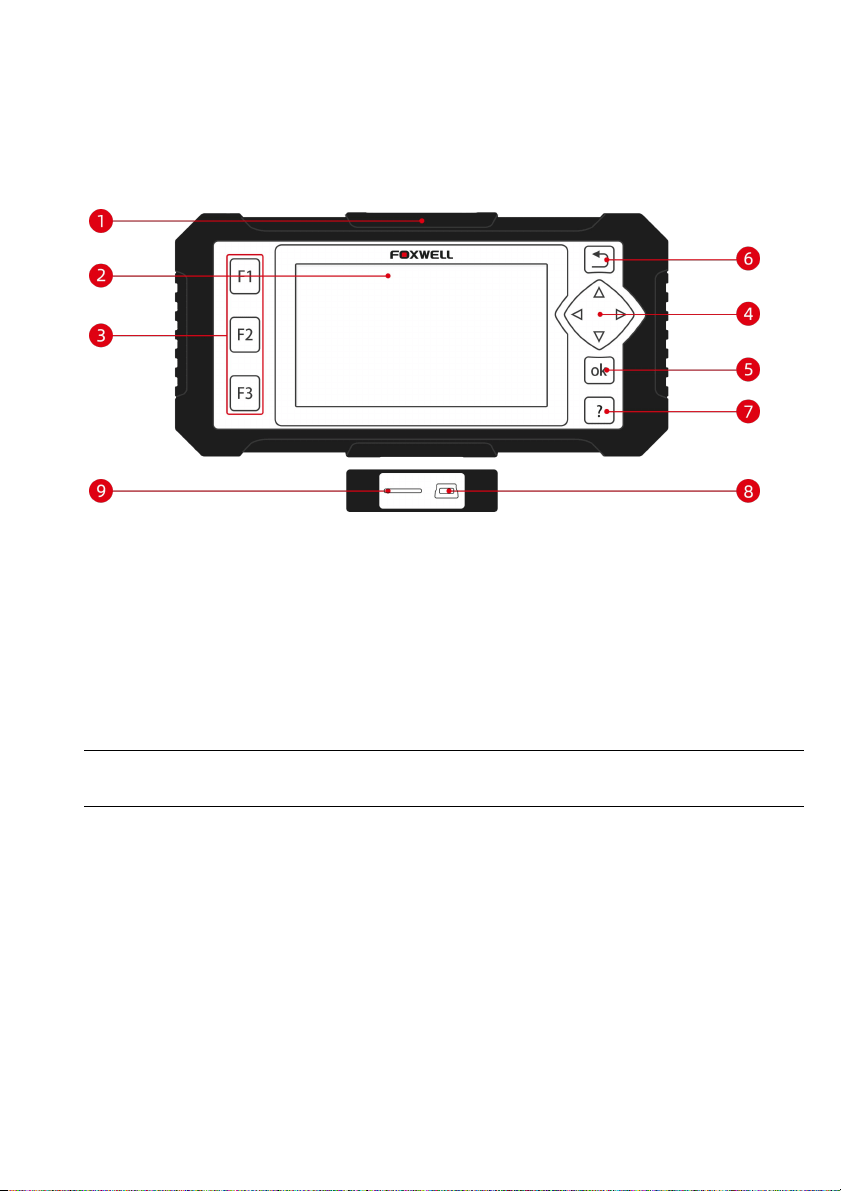
Figure 2-1 Front View
1 Diagnostic Port - provides connection between vehicle and the scanner.
2 LCD Display - shows menus, test results and operation tips.
3 Function Keys / Shortcut keys - three keys that correspond with “buttons” on some screens for
executing special commands or provide quick access to most frequently used applications or
functions.
4 Direction Keys - select an option or scroll through a screen of data or text.
5 OK Key - executes a selected option and generally goes to the next screen.
6 BACK Key - exits a screen and generally returns to previous screen.
7 HELP Key - displays helpful information.
8 USB Port - provides USB power connection between the scanner and PC/laptop.
9 TF Card Port - holds the TF memory card for data backup and software update.
IMPORTANT
Do not use solvents such as alcohol to clean keypad or display. Use a mild nonabrasive detergent
and a soft cotton cloth.
2.2 Accessory Descriptions
This section lists the accessories that go with the scanner. If you find any of the following items
missing from your package, contact your local dealer for assistance.
1 User’s Guide - provides operation instructions for the usage of the scanner.
2 Diagnostic Cable - provides connection between the scanner and a vehicle.
3 USB Cable - provides connection between the scanner and a computer to update and print data.
4 Warranty Card - A warranty card is required if you need any repair or replacement from us.
5 Blower Molding Case - stores the scanner and its accessories.
2.3 Technical Specifications
Display: Backlit, 4.3’’ TFT color display
Working Temperature: 0 to 60 ℃ (32 to 140℉)
Storage Temperature: -20 to 70℃ (-4 to 158℉)

9
NT6X4Elite Series User’s Manual_English_V1.03
Power Supply: 8-18V vehicle power and 3.3V USB power
Dimensions: (L*W*H): 200*110*30mm
Weight: 1.8 Kgs
3 Getting Started
This section describes how to provide power to the scanner, provides brief introductions of
applications loaded on the scanner and display screen layout and illustrates how to input text and
numbers with the scan tool.
3.1 Providing Power to Scanner
Before using the scanner, make sure to provide power to the scanner.
The unit operates on any of the following sources:
● 12-volt vehicle power
●
USB connection to computer
3.1.1 Connecting to Vehicle Power
The scanner normally powers on whenever it is connected to the data link connector (DLC).
To connect to vehicle power:
1. Locate the data link connector (DLC). The DLC is generally located under the dash on the driver
side of the vehicle.
2. Attached the Diagnostic cable to the scanner and tighten the captive screws to ensure good
connection.
3. Connect a correct adapter to the data cable according to the vehicle being serviced and plug it into
the vehicle DLC.
4. Switch the ignition key to the ON position.
5. The scanner automatically boots up.
IMPORTANT
Never try to provide power for the scan tool from USB connection when the scan tool is
communicating with a vehicle.
3.1.2 Connecting to Computer with USB Cable
The scan tool also receives power through the USB port when it is connected to a computer for
software updates and printing of data.
To connect to computer:
1. Connect the scanner to a computer with the USB cable provided.
3.2 Application Overview
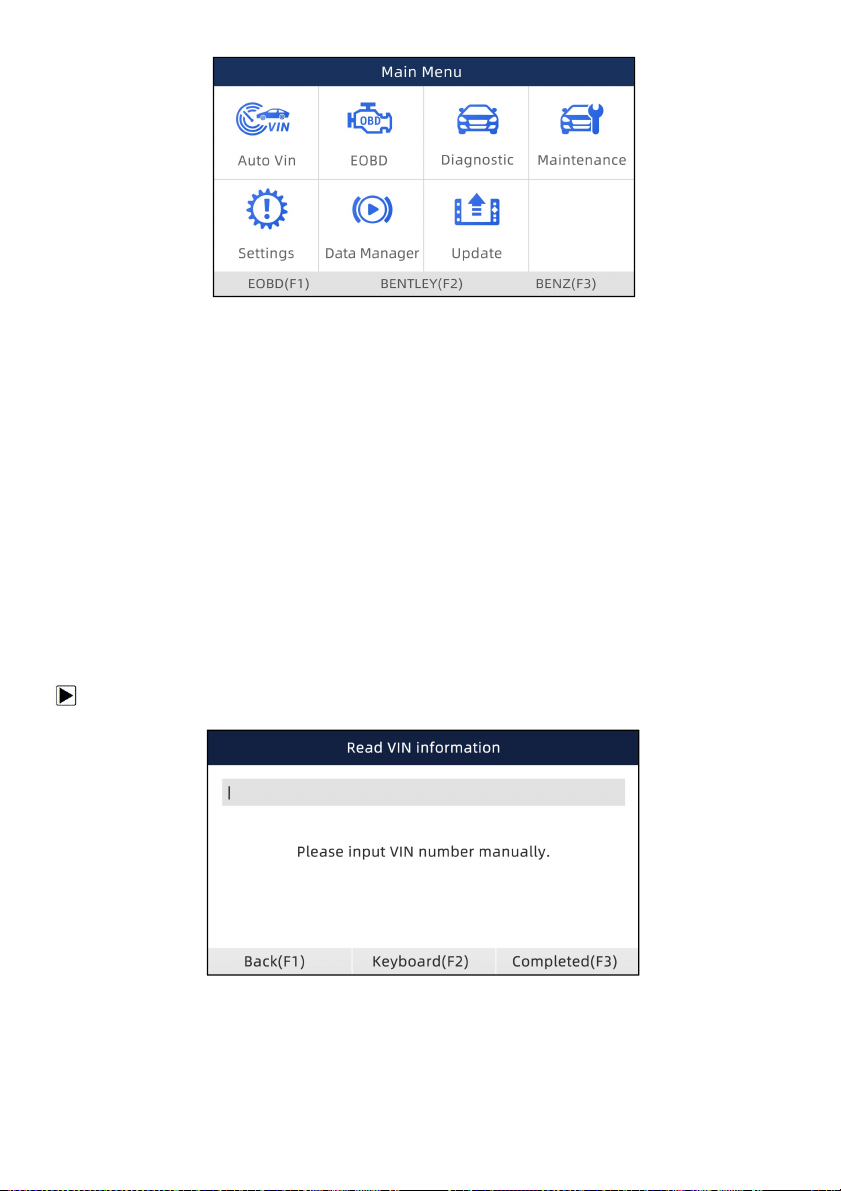
When the scan tool boots up, the Home screen opens. This screen shows all applications loaded on
the unit. The available vehicle applications may vary depending on software configuration.
●
Auto VIN - leads to screens for identifying a car by VIN reading.
● OBDII/EOBD - leads to OBDII screens for all 9 generic OBD system tests.
● Diagnostic - leads to screens for diagnostic trouble code information, live data stream, ECU
information of a variety of vehicles.
● Maintenance - leads to screens of tests of the most frequently required service features.
● Settings - leads to screens for adjusting default settings to meet your own preference and view
information about the scanner.
● Data Manager - leads to screens for access to data records.
● Update - leads to screen for updating the scanner.
10
NT6X4Elite Series User’s Manual_English_V1.03
Figure 3-1 Sample Home Screen
3.3 Input Dialog Box
This section illustrates how to use the scan tool to input letters and numbers, such as VIN number,
channel number, test values and DTC number. Typically, you may be required to input letters or
numbers when you are doing any of the following operations.
●
VIN entry
● input channel number
● set adaptation value
●
enter block number
● enter login code
● key matching
●
look up DTCs
The scan tool provides 4 different types of keyboard to meet your specific needs. Depending on the
needs of text entry, it automatically shows the most suitable keypad.
●
classic QWERTY keyboard for input of texts that contain both letters and numbers
● numeric keyboard for input of numbers
● alphabet keyboard for input of letters
●
hexadecimal keyboard for special functions, such as key matching, UDS coding
To input text with the scan tool:
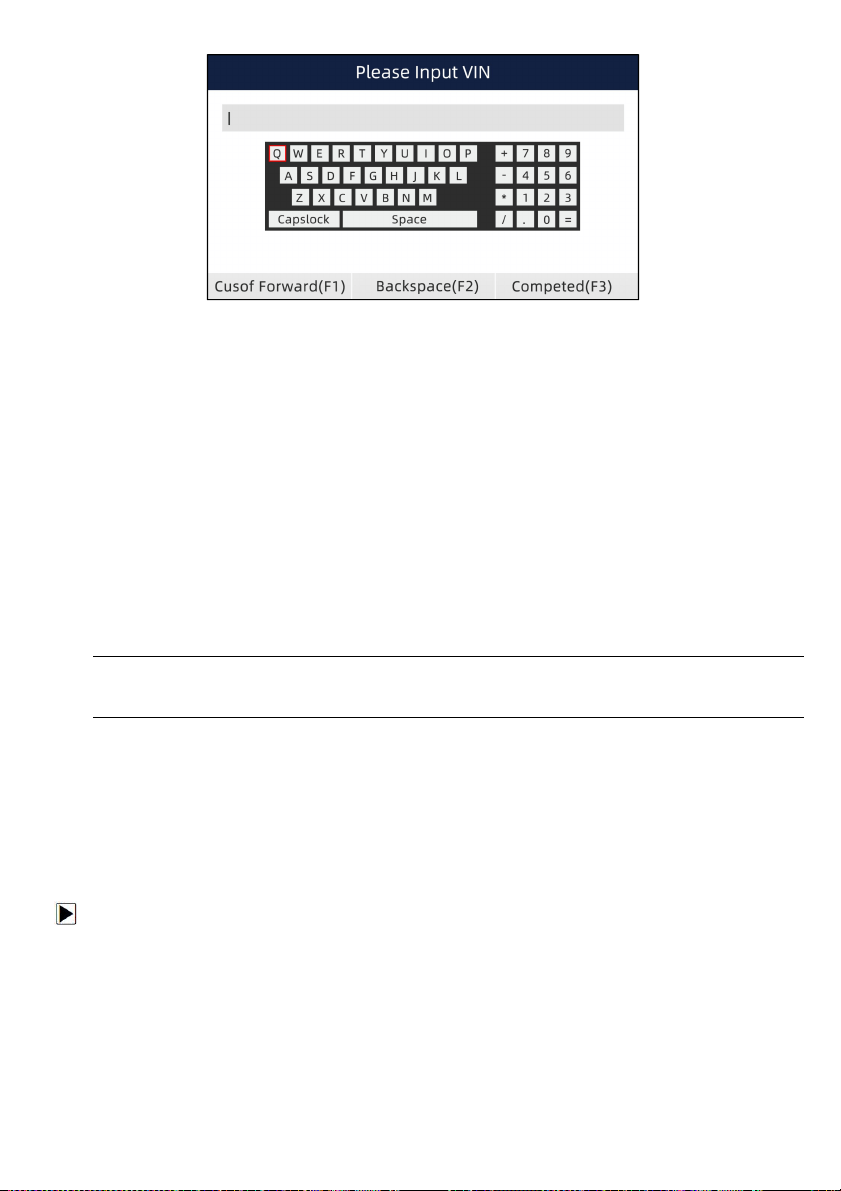
1. When you are requested to input text, press the function key Keyboard.
Figure 3-2 Sample Input Text Screen
2. Scroll with the arrow keys to highlight your desired letter or number and press the ENTER key to
confirm.
11
NT6X4Elite Series User’s Manual_English_V1.03
Figure 3-3 Sample Numeric Keyboard Screen
3. To delete a letter or number, use the function key Cursor Forward to move the cursor to it and
then press the Backspace button.
4. When finished the entry, press Completed key to continue.
4.Vehicle Identification
This section illustrates how to use the scanner to identify the specifications of the vehicle under test.
The vehicle identification information presented is provided by the ECM of the vehicle being tested.
Therefore, certain attributes of the test vehicle must be entered into the scan tool to ensure the data
displays correctly. The vehicle identification sequence is menu driven, you simply follow the screen
prompts and make a series of choices. Each selection you make advances you to the next screen.
Exact procedures may vary somewhat by vehicle. It typically identifies a vehicle by any of the
following means:
● Automatic VIN reading
● Manual VIN entry
●
Manual vehicle selection
NOTE
Not all identification options listed above are applicable to all vehicles. Available options may vary by
vehicle manufacturer.
4.1 Auto VIN
Auto VIN is a shortcut for VIN reading menu which typically includes following options:
● Automatic VIN acquisition
●
Manual input VIN
4.1.1 Automatic VIN Acquisition
Automatic VIN Acquisition allows to identify a vehicle by automatically reading the vehicle
identification number (VIN).
To identify a vehicle automatic VIN reading:
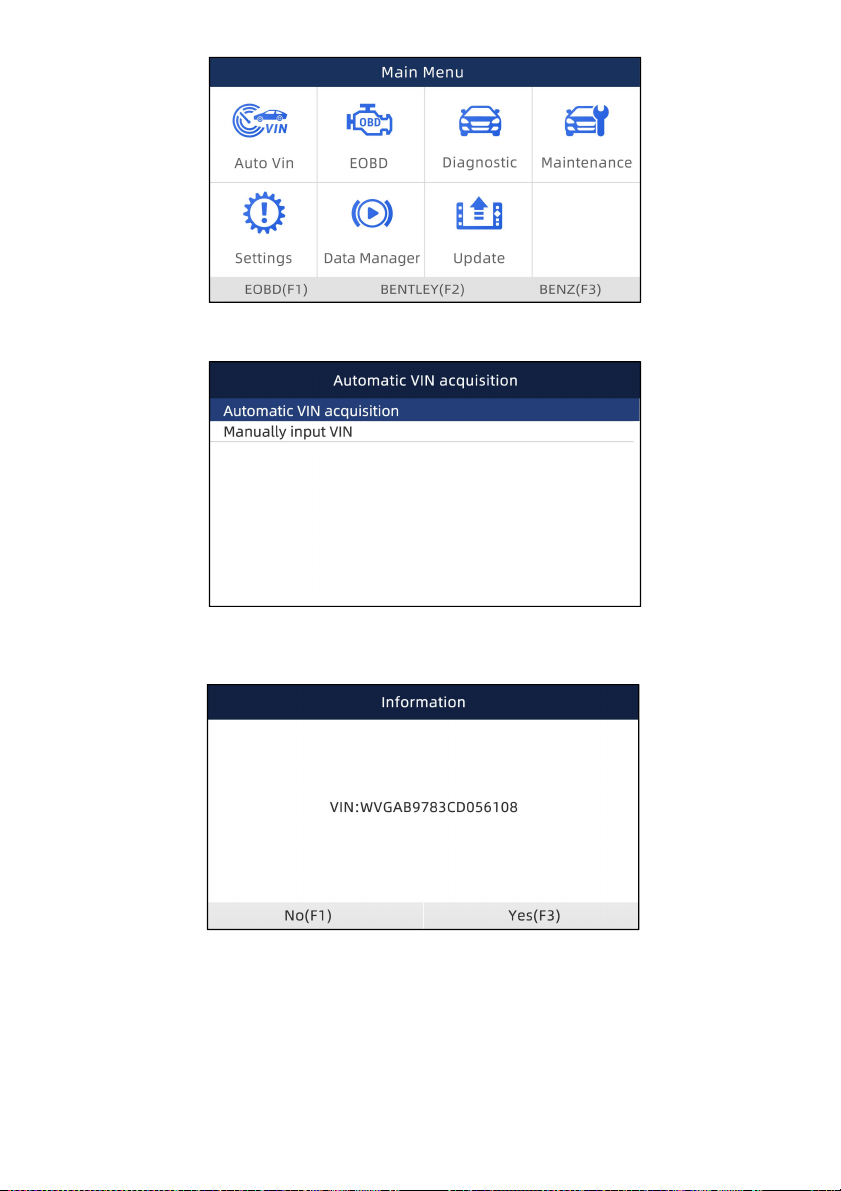
1. Scroll with the arrow keys to highlight Auto VIN from the main menu and press the ENTER key.
12
NT6X4Elite Series User’s Manual_English_V1.03
Figure 4-1 Sample Main Menu Screen
2. Select Automatic VIN Acquisition from the menu, and press the ENTER key.
Figure 4-2 Sample VIN Reading Screen
3. The scan tool starts to communicate with the vehicle and read the Vehicle Specification or VIN
Code automatically.
Figure 4-3 Sample Automatic VIN Reading Screen
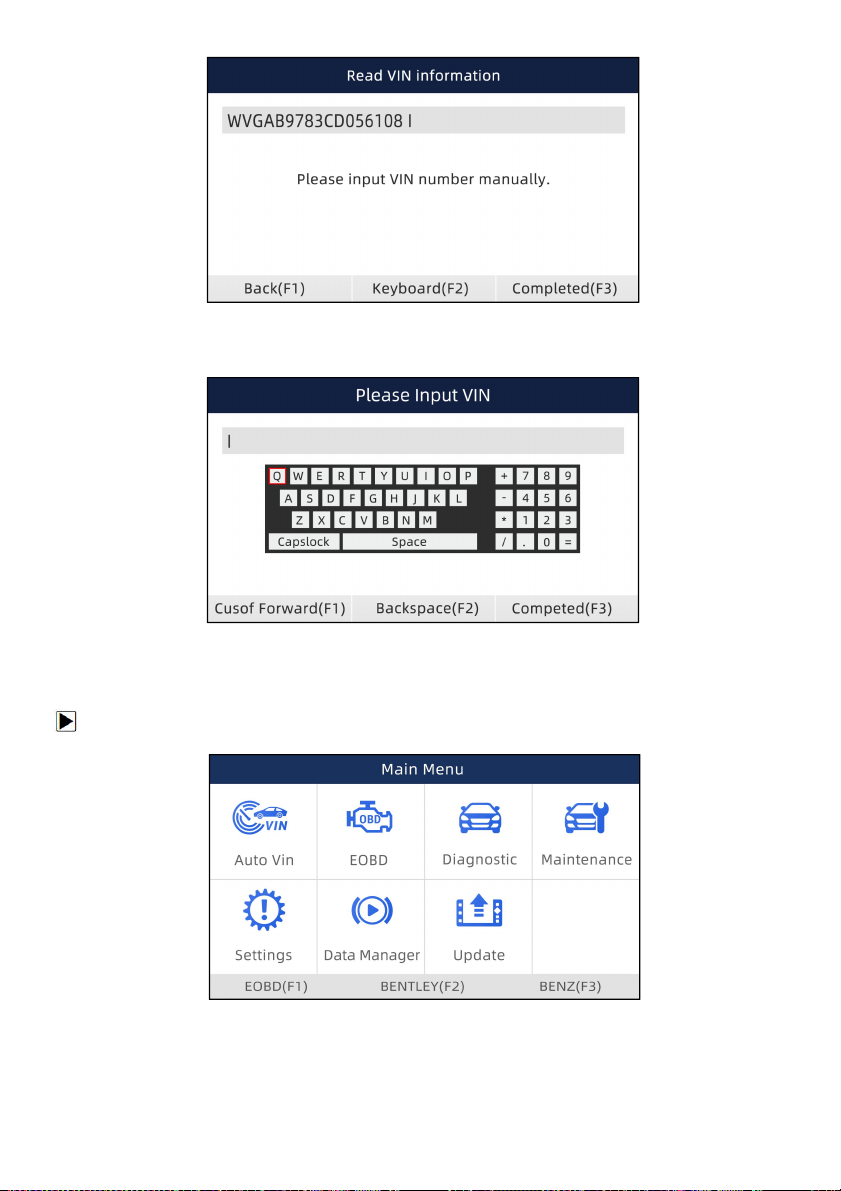
4. Answer YES if the Vehicle Specification or VIN code is correct and a menu of controller selection
displays. Answer NO if it is incorrect, and you are required to enter the correct VIN number
manually.
13
NT6X4Elite Series User’s Manual_English_V1.03
Figure 4-4 Sample Manual VIN Entry Screen
5. If it takes too long to get the VIN code, press Cancel to stop and input the VIN manually. Or if failed
to identify the VIN, please input the VIN manually or click Cancel to quit.
Figure 4-5 Sample Manual Entry Screen
4.1.2 Manual VIN Entry
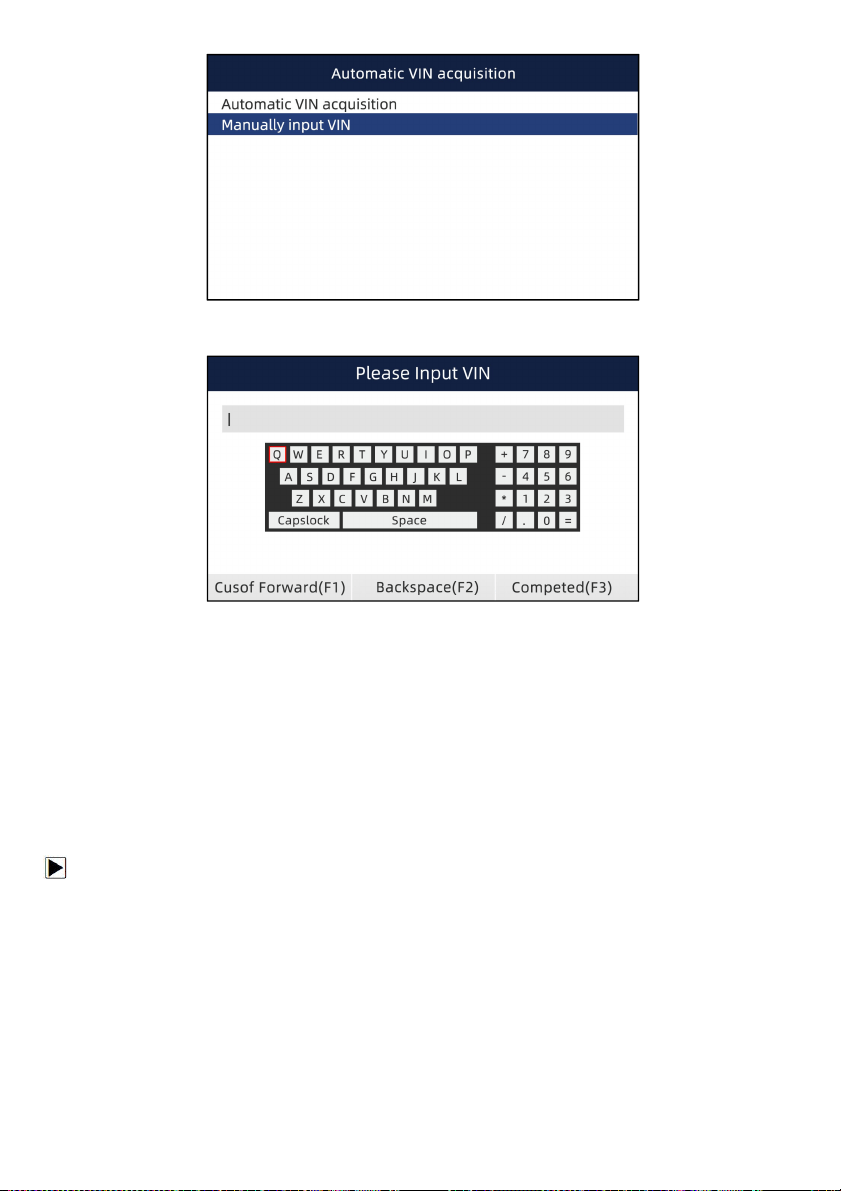
Manual VIN Entry identifies a vehicle by manually inputting a 17-digit VIN code.
To identify a vehicle by manual VIN entry:
1. Scroll with the arrow keys to highlight Auto VIN from the main menu and press the ENTER key.
Figure 4-6 Sample Main Menu Screen
2. Select Manually input VIN from the menu, and press the ENTER key.
14
NT6X4Elite Series User’s Manual_English_V1.03
Figure 4-7 Sample VIN Reading Screen
3. Press the function key Keyboard and a virtual keyboard opens for VIN entry.
Figure 4-8 Sample Manual VIN Entry Screen
4. Input a valid VIN code and use the function key Completed to confirm. The scan tool starts to
identify the vehicle.
4.2 Manual Vehicle Selection
Select vehicle brand you are to test, and two ways of getting to the diagnostic operations are
available.
●
SmartVIN
● Manual Selection
4.2.1 Smart VIN
Smart VIN allows to identify a vehicle by automatically reading the vehicle identification number (VIN).
To identify a vehicle by SmartVIN:
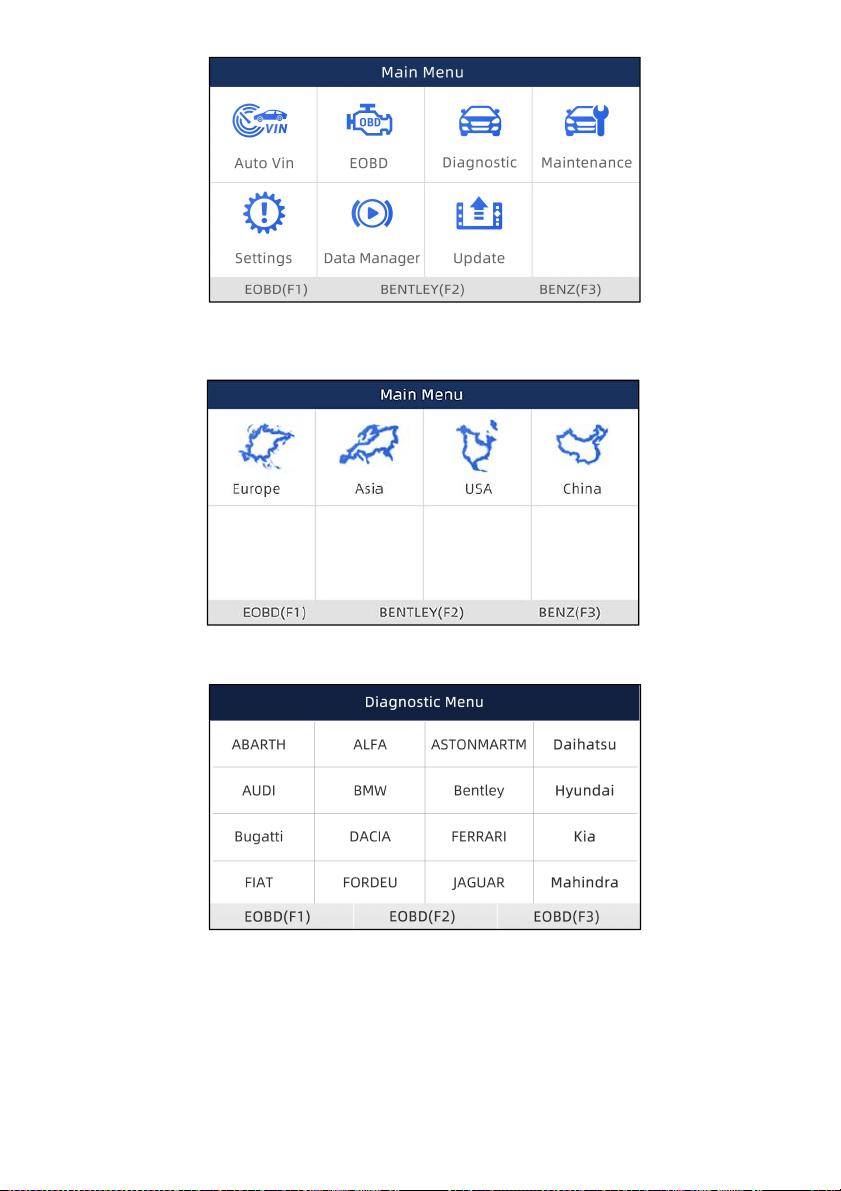
1. Scroll with the arrow keys to highlight Diagnostic from main menu and press the ENTER key to
start. If you have the application assigned to one of the function keys at the bottom of the screen,
you can alternatively press the function key to start the application.
15
NT6X4Elite Series User’s Manual_English_V1.03
Figure 4-9 Sample Main Menu Screen
2. A screen with vehicle manufacturer areas displays. Select the area where the car brand is
originated. A list of vehicle makes display.
Figure 4-10 Sample Vehicle Manufacturer Area Selection Screen
3. Select the vehicle manufacturer. A list of vehicle identification options displays.
Figure 4-11 Sample Vehicle Selection Screen
4. Select SmartVIN from the menu, and press the ENTER key.
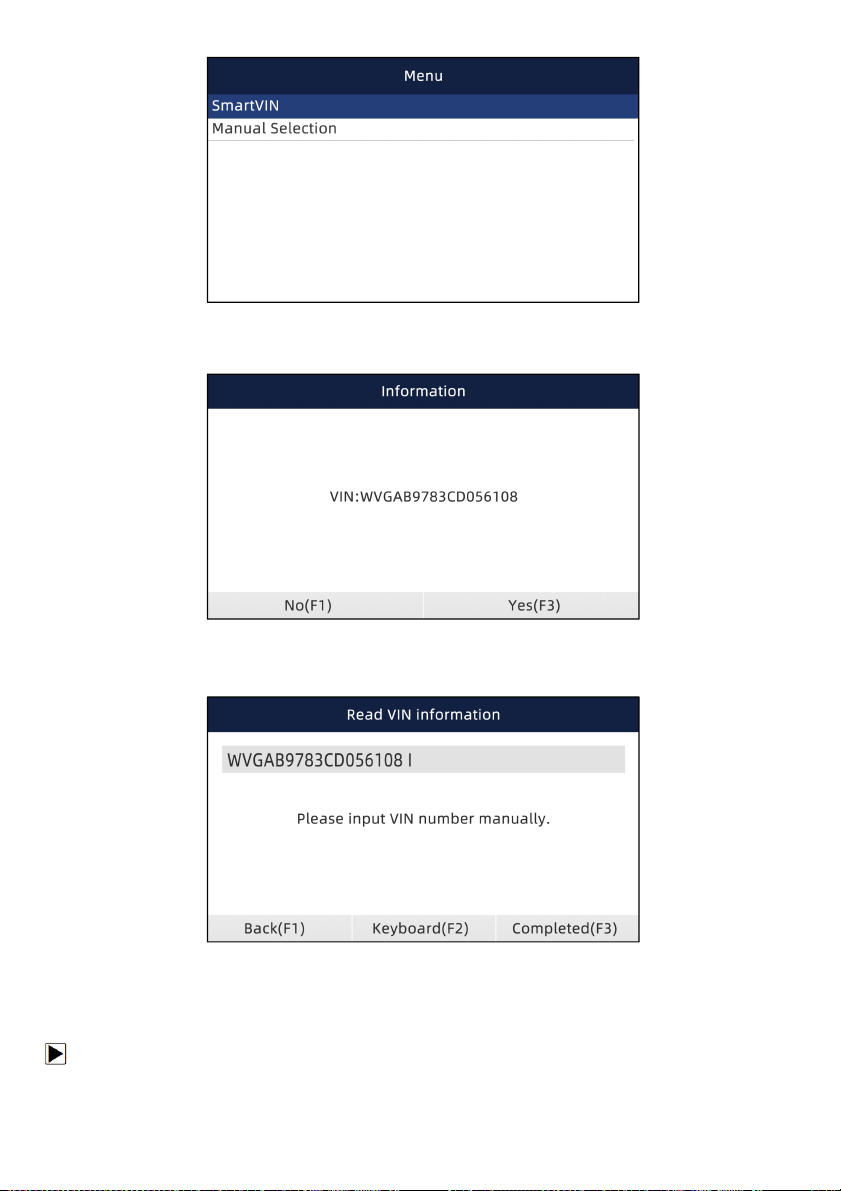
16
NT6X4Elite Series User’s Manual_English_V1.03
Figure 4-12 Sample VIN Reading Screen
5. The scan tool starts to communicate with the vehicle and read the Vehicle Specification or VIN
Code automatically.
Figure 4-13 Sample Automatic VIN Reading Screen
6. Answer YES if the Vehicle Specification or VIN code is correct and a menu of controller selection
displays. Answer NO if incorrect, and you are required to enter the correct VIN number manually.
Figure 4-14 Sample Manual VIN Entry Screen
4.2.2 Manual Selection
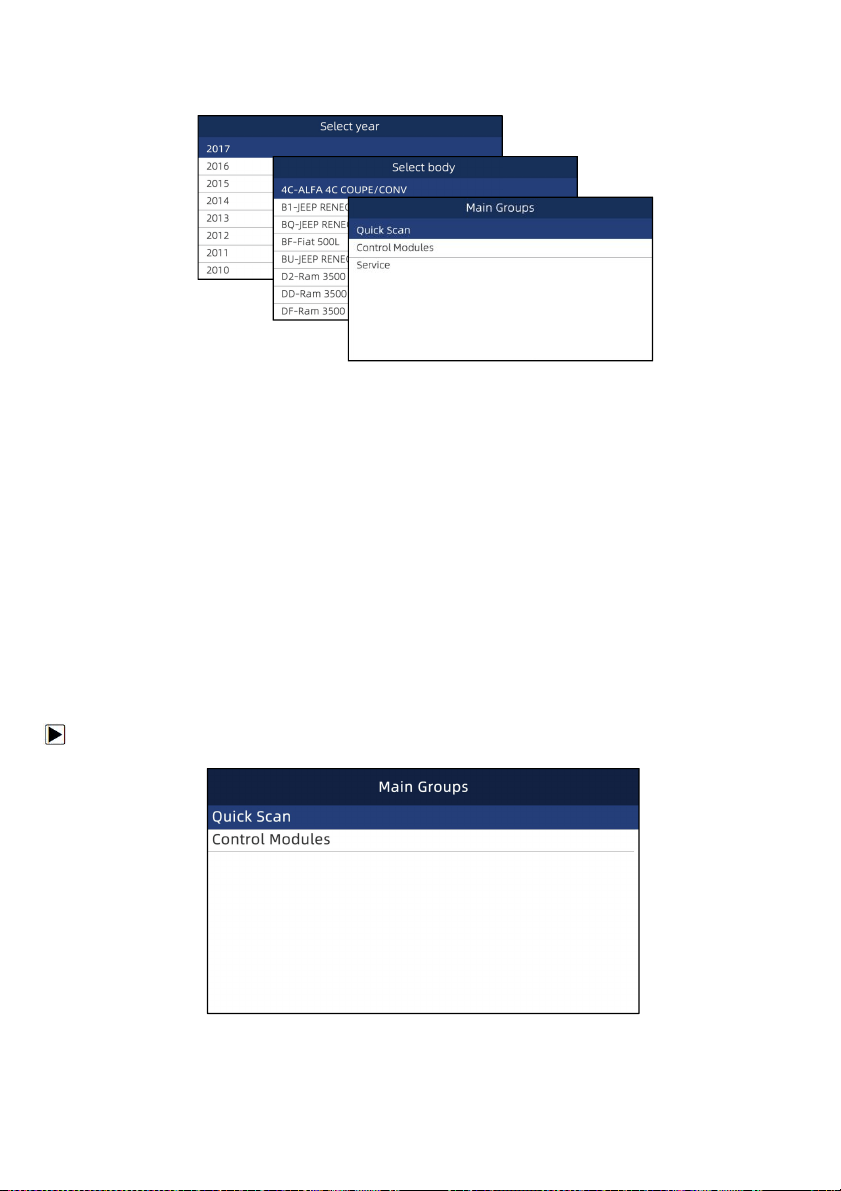
Manual Selection identifies a vehicle by making several selections according to certain VIN
characters, such as model year, and engine type.
To identify a vehicle by manual vehicle selection:
17
NT6X4Elite Series User’s Manual_English_V1.03
1. Refer to step 1-3 of 4.2.1 SmartVIN.
2. On each screen that appears, select the correct option and then press the ENTER key. Do this until
the complete vehicle information is entered and the menu of controller selection displays.
Figure 4-15 Sample Manual Vehicle Selection Screen
5 Diagnostic Operations
This section illustrates how to use the scanner to read and clear diagnostic trouble codes, and view
“live” data readings and ECU information on controllers installed on a variety of vehicles and also
save “recordings” of the data readings.
5.1 Control Module Selection
When you completed the identification of vehicle, you have to identify the control modules installed in
the vehicle. There are two ways to identify the controllers installed in a car:
● Quick Scan
● Control Modules
5.1.1 Quick Scan
Quick Scan performs an automatic system test to determine which control modules are installed on
the vehicle and provides diagnostic trouble codes (DTCs) overview. Depending on the number of
control modules, it may take 10 minutes or longer to complete the test.
To perform an automatic system scan:
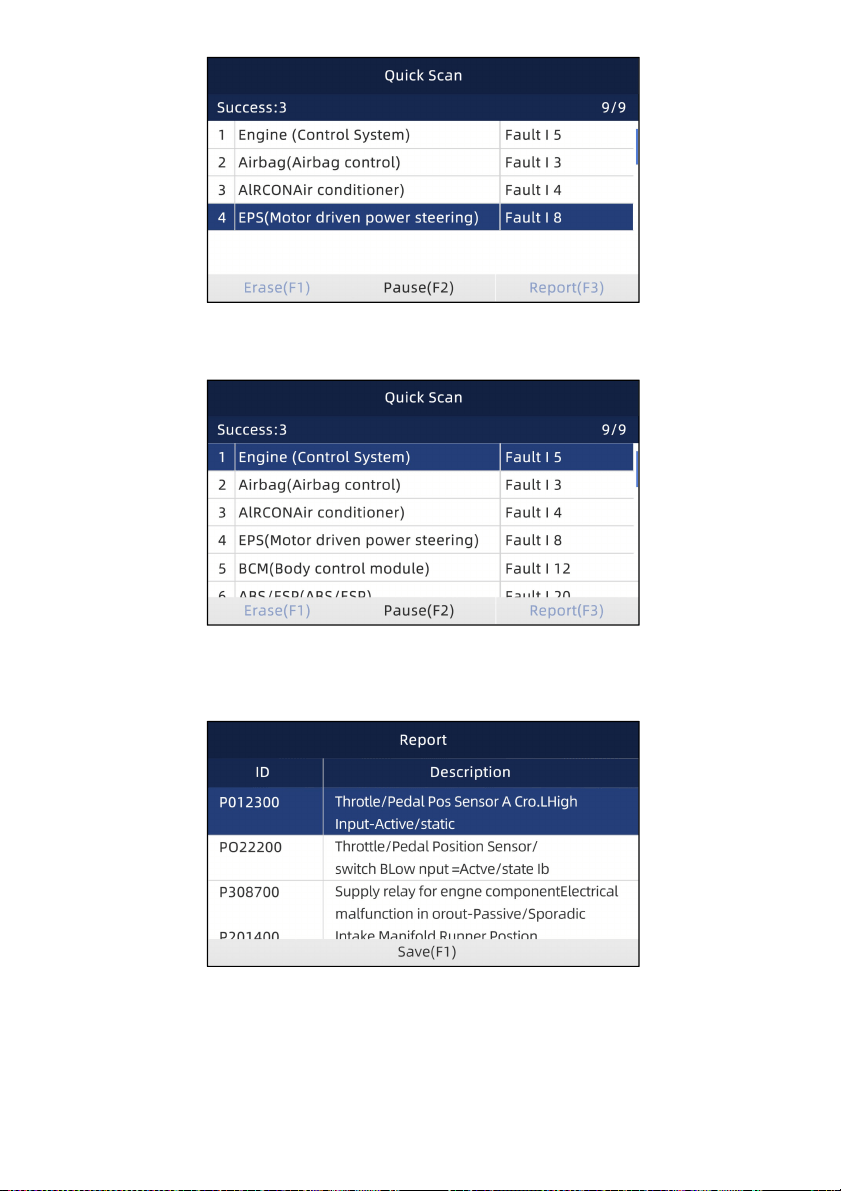
1. Scroll with the arrow keys to highlight Quick Scan from the menu and press ENTER to start.
Figure 5-1 Sample Quick Scan Screen
2. To pause the scan, press the function key corresponding with Pause on the screen.
18
NT6X4Elite Series User’s Manual_English_V1.03
Figure 5-2 Sample Quick Scan Screen
3. At the end of successful automatic controller scan, a menu with a list of installed controllers
together with their DTC overview displays.
Figure 5-3 Sample Quick Scan Screen
4. If there is diagnostic trouble code(s) detected in a control unit, press the function key
corresponding with Report on the screen to view details of code information. Or press the function
key Erase to clear them.
Figure 5-4 Sample DTC Screen
5. Press function key F1 to save the trouble code information.
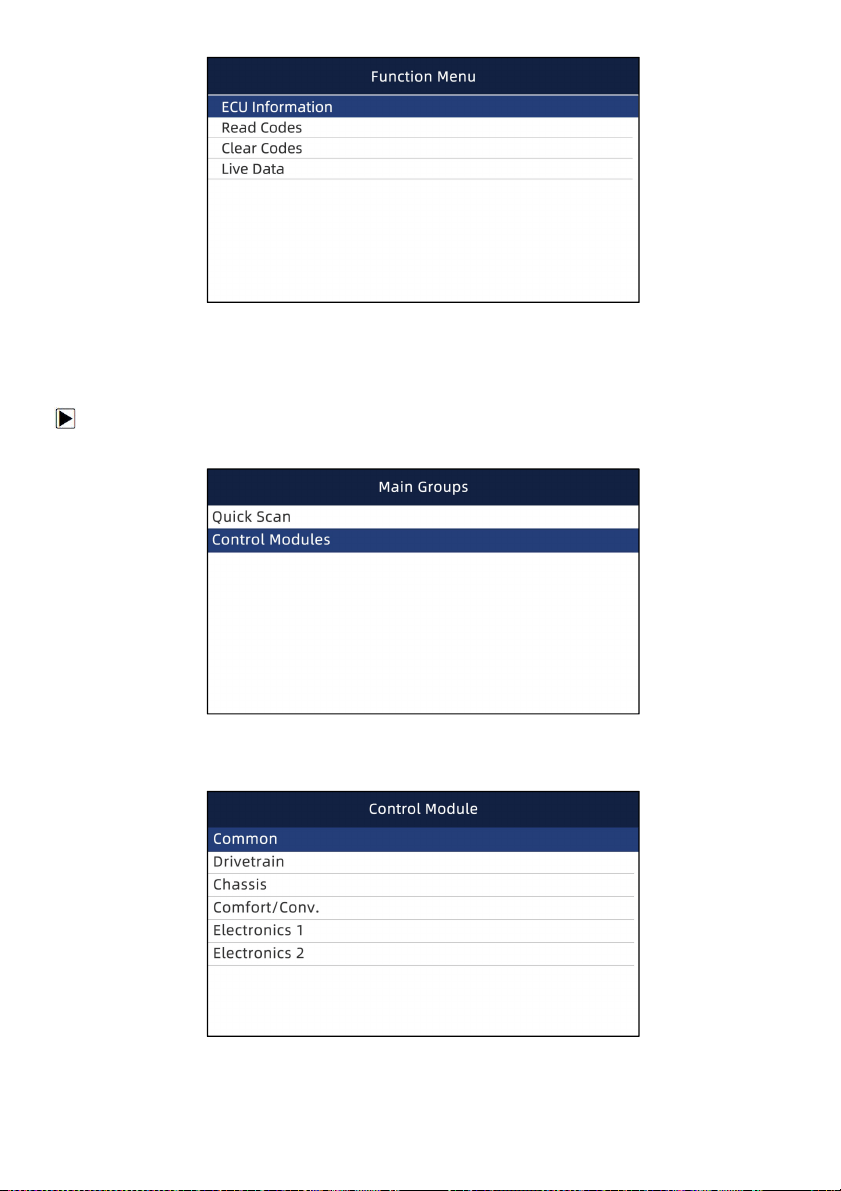
6. Select the system you would like to test, and press the ENTER key. When the scanner has
established connection with the vehicle, the Function Menu displays.
19
NT6X4Elite Series User’s Manual_English_V1.03
Figure 5-5 Function Menu screen
5.1.2 Control Modules
Control Modules screen displays all controllers available on the vehicles. The controllers listed on
the menu do not mean that they are installed on the vehicle.
To select a system for testing:
1. Scroll with the arrow keys to highlight Control Modules from the menu and press the ENTER key.
A controller menu displays.
Figure 5-6 Sample Control Module Screen
2. Select the system you would like to test. When the scanner has established connection with the
vehicle, the Control Module menu displays.
Figure 5-7 Sample Control Module Menu Screen
20
NT6X4Elite Series User’s Manual_English_V1.03
5.2 Diagnostic Operations
After a system is selected and the scanner establishes communication with the vehicle, the Function
Menu displays. The menu options may include:
● ECU information
● Read Codes
●
Clear Codes
● Live Data
NOTE
Not all function options listed above are applicable to all vehicles. Available options may vary by the
year, model, and make of the test vehicle.
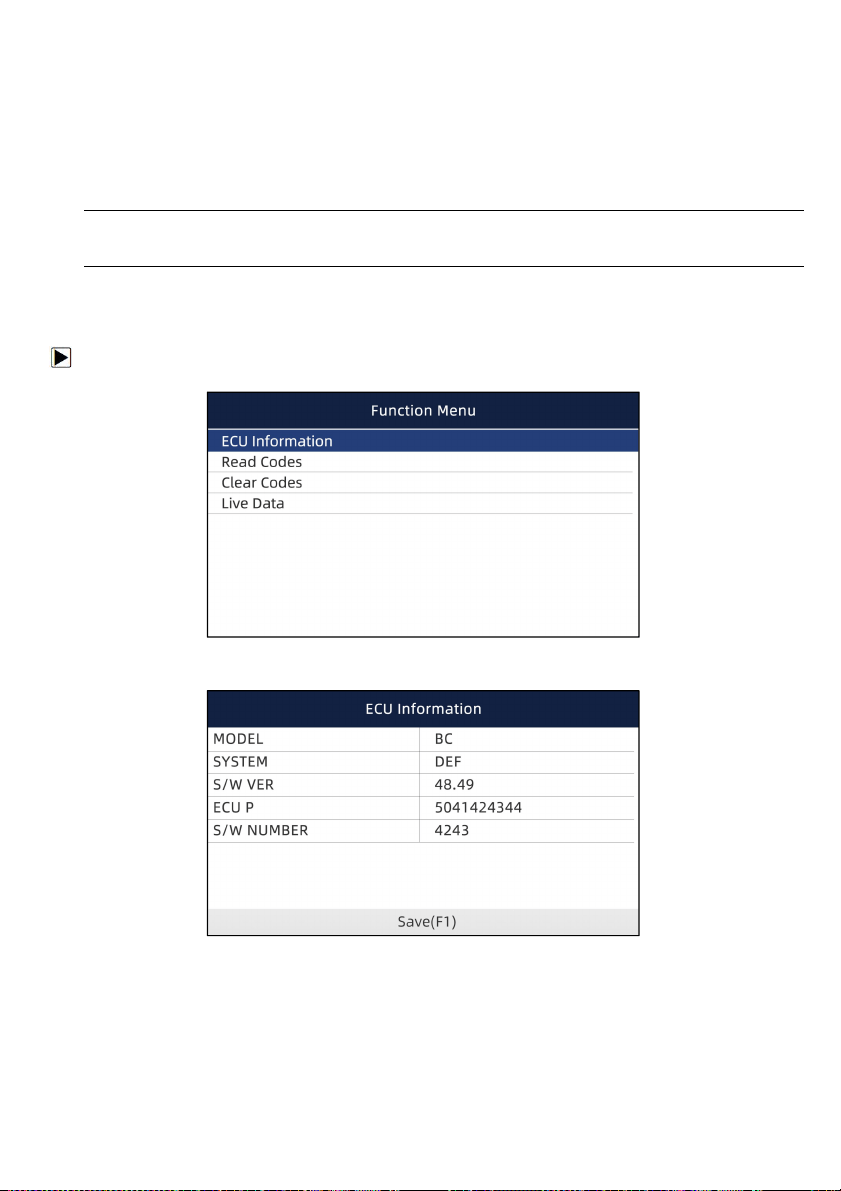
5.2.1 ECU Information
ECU Information screen displays the identification data of the control module under test, such as the
control module identification string, the control module coding, and Work Shop Code.
To read ECU information:
1. Select ECU Information from the menu and press the ENTER key.
Figure 5-8 Sample Function Menu Screen
2. A screen with detailed information of the selected control module displays.
Figure 5-9 Sample ECU Information Screen
3. Press function key Save to store ECU information. Or use the BACK key to exit.
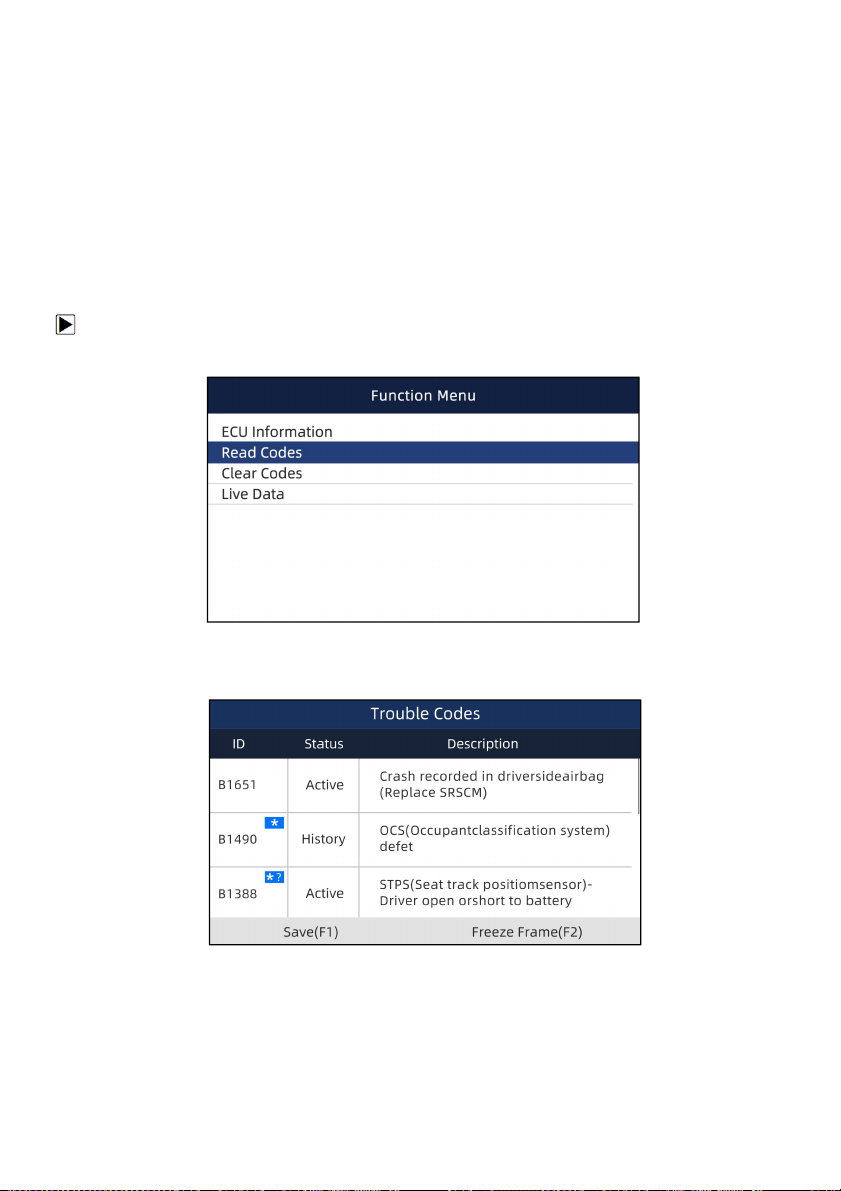
5.2.2 Read Codes
Read Codes menu lets you read trouble codes found in the control unit.
Typical code status include:
21
NT6X4Elite Series User’s Manual_English_V1.03
●
Present/Permanent/Current Codes
● Pending Codes
●
History Codes
Present/Permanent/Current codes stored in a control module are used to help identify the cause of a
trouble or troubles with a vehicle. These codes have occurred a specific number of times and indicate
a problem that requires repair.
Pending codes are also referred to as maturing codes that indicate intermittent faults. If the fault does
not occur within a certain number of drive cycles (depending on vehicle), the code clears from
memory. If a fault occurs a specific number of times, the code matures into a DTC and the MIL
illuminates or blinks.
History codes are also referred to as past codes that indicate intermittent DTCs that are not currently
active.
To read codes from a vehicle:
1. Scroll with the arrow keys to highlight Read Codes from Function Menu and press the ENTER key.
A code list including code number and its description displays.
Figure 5-10 Sample Function Menu Screen
2. Use the up and down arrow keys to scroll through data to select lines, and left and right arrow keys
to scroll back and forth through different screens of data.
Figure 5-11 Sample Code Screen
3. Press function key Save to store DTC information. Press function key Freeze Frame to view
freeze data.
22
NT6X4Elite Series User’s Manual_English_V1.03
Figure 5-12 Freeze Data screen
Freeze Frame Data: a snapshot of critical vehicle operating conditions automatically recorded
by the on-board computer at the time of the DTC set. It is a good function to help determine what
caused the fault.
4. Use left and right arrow keys to scroll back and forth through different screens of data.
5. Press function key Save to store freeze frame information. Or use the BACK key to exit.
5.2.3 Clear Codes
Clear Codes menu lets you to clear all current and stored DTCs from a selected control module. Also
it erases all temporary ECU information, including freeze frame. So make sure that the selected
system is completely checked and serviced by technicians and no vital information will be lost before
clearing codes.
NOTE
● To clear codes, make sure that the ignition key is switched to ON with the engine off.
● Clear Codes does not fix the problem that caused the fault! DTCs should only be erased after
correcting the condition(s) that caused them.
To clear codes:
1. Scroll with the arrow keys to highlight Clear Codes from Function Menu and press the ENTER key.
Figure 5-13 Sample Function Menu Screen
2. Follow the on-screen instructions and answer questions about the vehicle being tested to complete
the procedure.
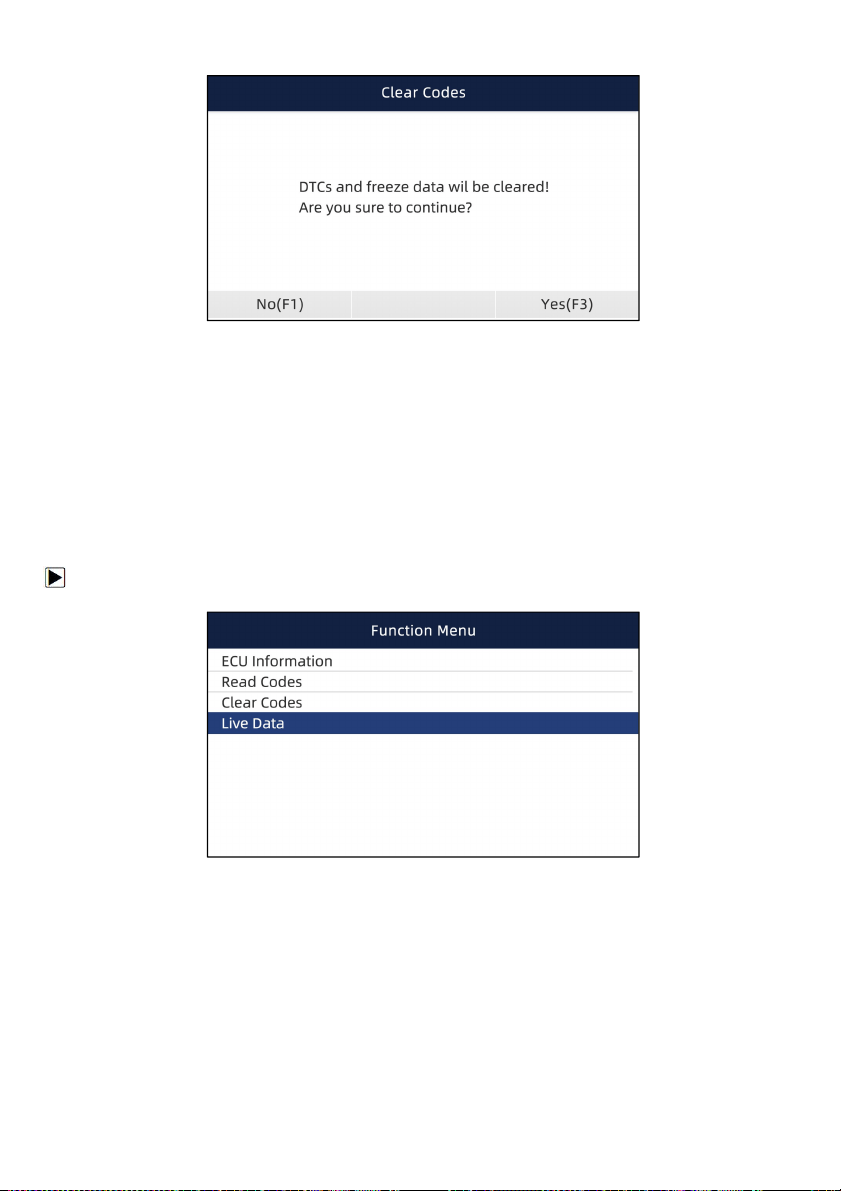
23
NT6X4Elite Series User’s Manual_English_V1.03
Figure 5-14 Sample Clear Codes Screen
3. Check the codes again. If any codes remain, repeat the Clear Codes steps.
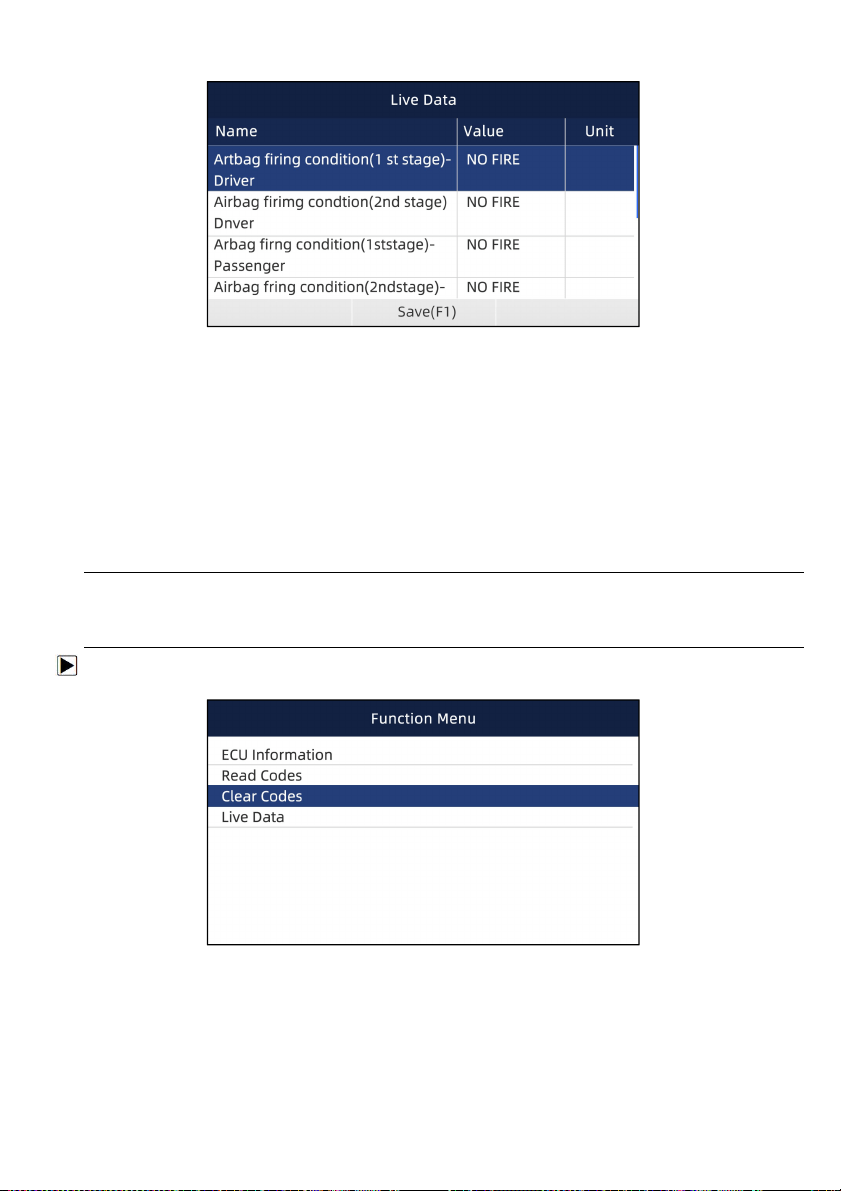
5.2.4 Live Data
Live Data menu lets you view and record real time PID data from a selected vehicle electronic control
module.
Menu options typically include:
● Complete List
● Custom List
5.2.4.1 Complete List
Complete List menu lets you view all live PID data from a selected system.
To view live PID data:
1. Scroll with the arrow keys to highlight Live Data from the menu and press the ENTER key.
Figure 5-15 Sample Function Menu Screen
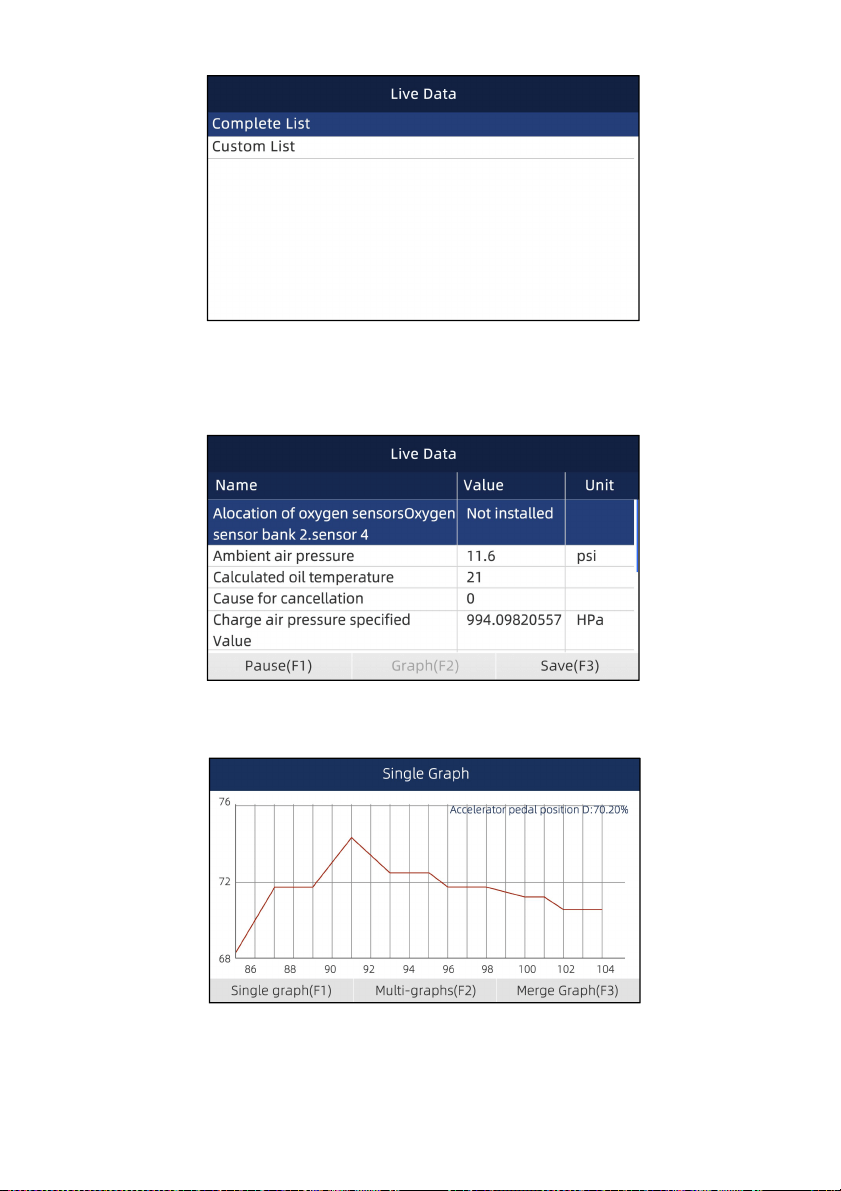
2. Select the Complete List from the menu and press the ENTER key to display the data screen.
24
NT6X4Elite Series User’s Manual_English_V1.03
Figure 5-16 Sample Live Data Menu Screen
3. Scroll with the up and down arrow keys to highlight a line, and left and right arrow keys to scroll
back and forth through different screens of data. Press function key Pause to suspend collecting
data from the vehicle and use the Start key to resume collecting data. To record data to memory of
the scanner, use the function key SAVE, and press Stop Saving to stop recording at any time.
Figure 5-17 Sample Live Data Screen
4. Use up and down arrow key to select line. If Graph is highlighted, it indicates graphing is available
for the selected line. Press the function key Graph to display the PID graph.
Figure 5-18 Sample PID Graph Screen
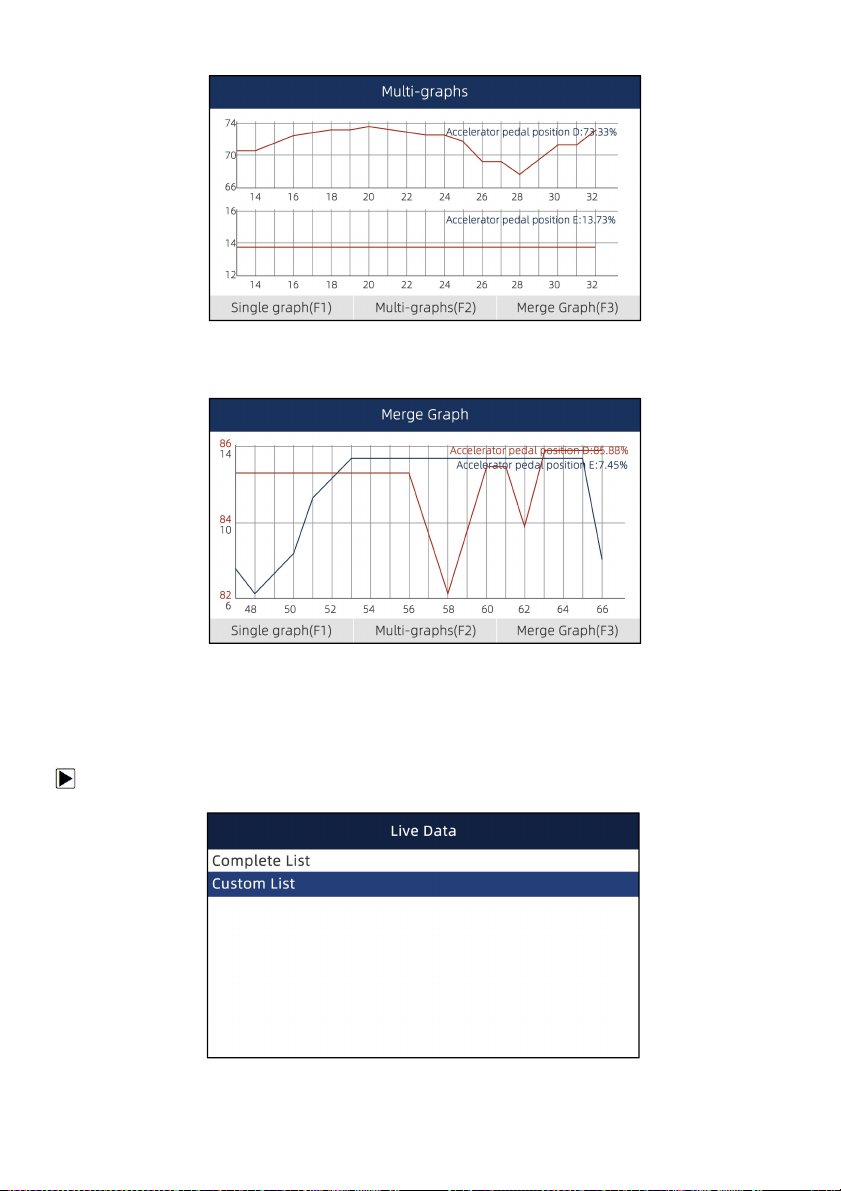
5. Press the function key Multi-graphs to display two PID graphs in one screen. Press Single graph
to view one plot.
25
NT6X4Elite Series User’s Manual_English_V1.03
Figure 5-19 Sample Two PID Graph Screen
6. Press the function key Merge Graph to display two PID plots in one coordinate to check how they
affect each other.
Figure 5-20 Sample Merge Graph Screen
7. Press the Back key to return to the previous menu.
5.2.4.2 Custom List
Custom List menu lets you to minimize the number of PIDs on the data list and focus on any
suspicious or symptom-specific data parameters.
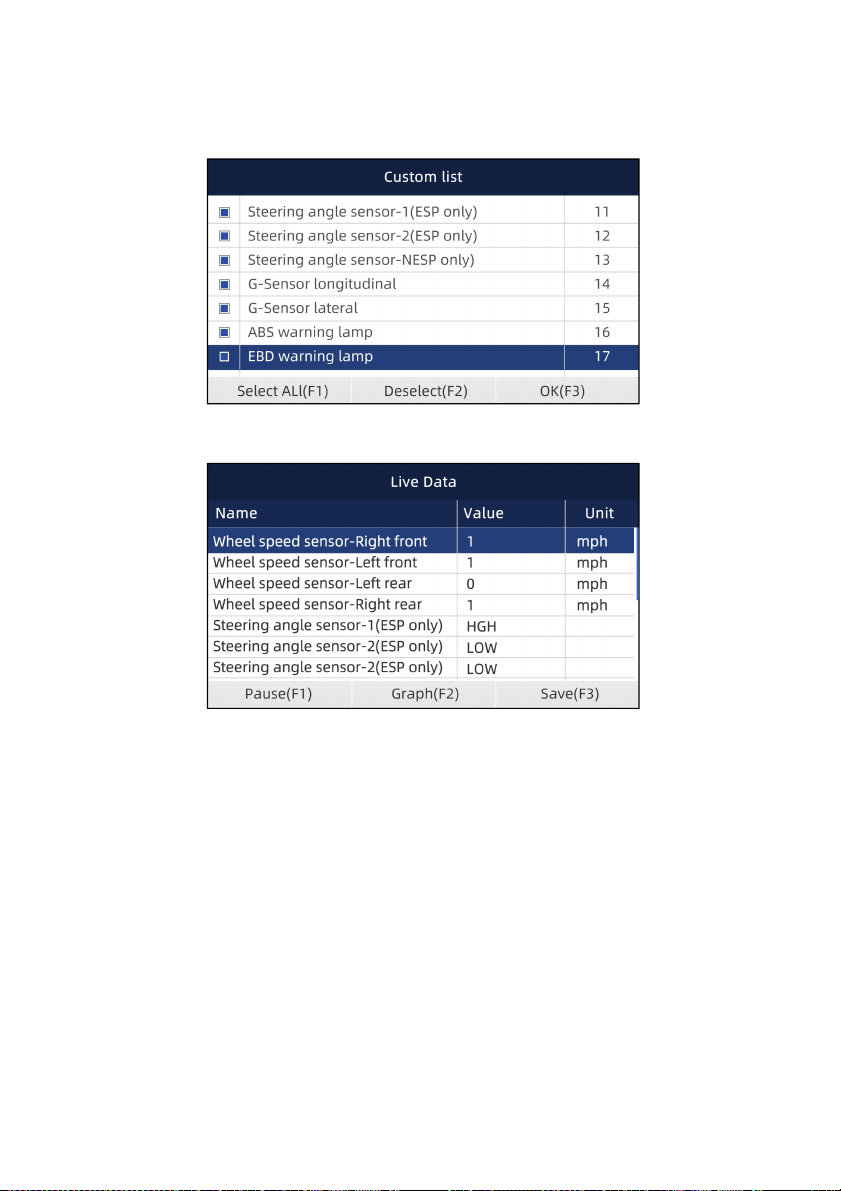
To create a custom data list:
1. Select Custom List from the menu and press the ENTER key.
Figure 5-21 Sample Live Data Menu Screen
26
NT6X4Elite Series User’s Manual_English_V1.03
2. The custom data selection screen displays. Scroll with the up and down arrow keys to highlight a
line, press the ENTER key and then repeat the action to make more selections. To deselect an item,
select it again and then press the ENTER key. Alternatively, use the function keys Select All and
Deselect to select or deselect all items at once.
Figure 5-22 Sample Custom List Selection Screen
3. When finished selection, use the function key OK to display selected items.
Figure 5-23 Sample Live Data Screen

27
NT6X4Elite Series User’s Manual_English_V1.03
Maintenance
NOTE
NT614 Elite support Oil Light
Reset and EPB Service;
NT624 Elite support
● BLEEDING
● EPB
● OILRESET
● SAS
● TPS
NT644 Elite and NT634
supports all of the following
service and maintenance
operations。
● Oil Light Reset
● EPB Service
● Battery Configuration
● DPF Regeneration
● TPS/TBA
● SAS Calibration
● CVT
● Gear Learn
● TPMS Relearn
● Odometer
28
NT6X4Elite Series User’s Manual_English_V1.03
6 Maintenance
This section gives brief instructions of the most commonly required service and maintenance
operations. Typical service operation screens are a series of menu driven executive commands.
Follow on-screen instructions to complete the operation.
Available service and maintenance options include:
●
Oil Light Reset
●
EPB Service
● Battery Configuration
●
DPF Regeneration
●
TPS/TBA
● SAS Calibration
●
CVT
●
Gear Learn
● TPMS Programming Service
●
Odometer
●
Injector coding
NOTE
NT614 Elite support Oil Light Reset and EPB Service; NT624 Elite support BLEEDING,EPB,
OILRESET,SAS,TPS;NT644 Elite and NT634 supports all above listed service and maintenance
operations.
To start a test:
1. Scroll with the arrow keys to highlight Maintenance from the main menu and press the ENTER key.
A list of available services display.
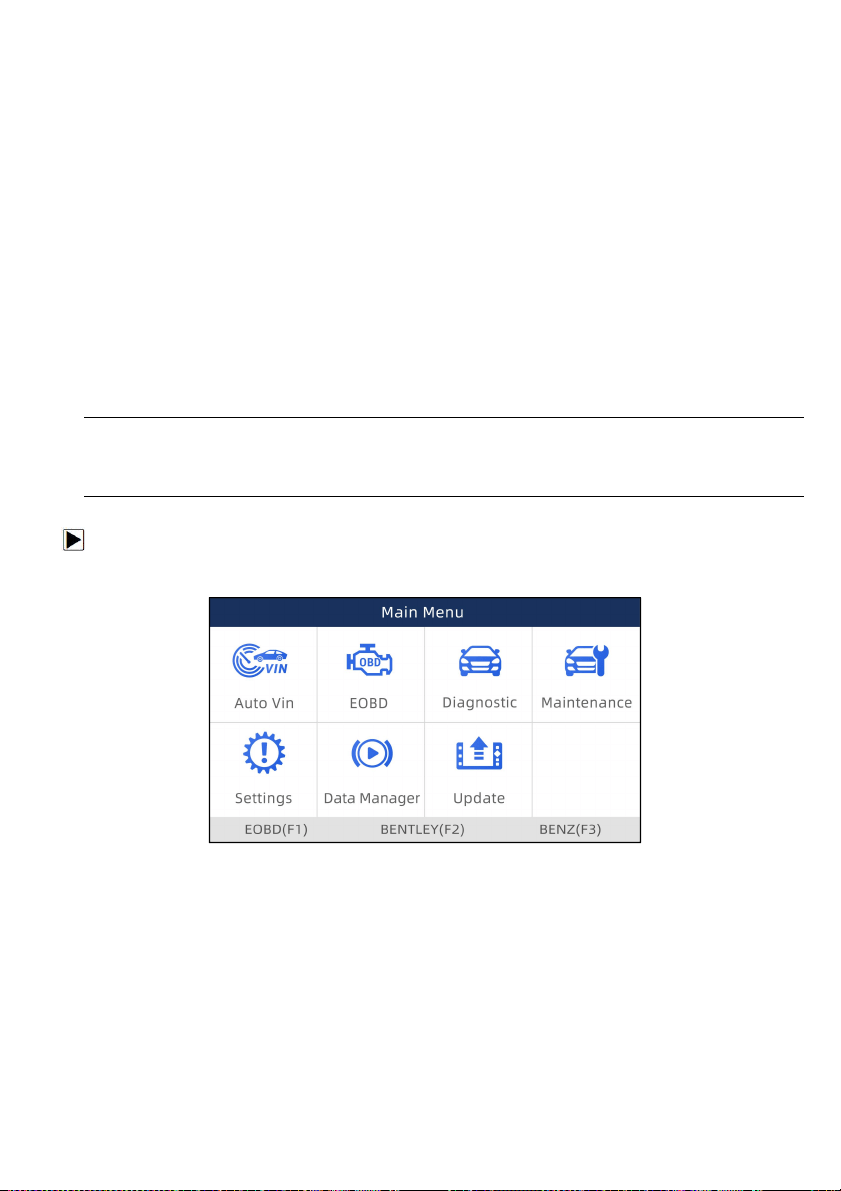
Figure 6-1 Sample Main Menu Screen
2. Select a service to test and press ENTER key to start.
6.1 Oil Service Reset
Oil Light Reset menu allows you to reset the service lamps on the instrument cluster. The Service
Indicator System is designed to alert the driver when the vehicle is due for a service.
Oil service reset methods are determined by the vehicle being tested.
● Oil Reset With One Button - applicable to GM models only. It offers quick and simple oil service
reset with the click of one button.

29
NT6X4Elite Series User’s Manual_English_V1.03
● Manual Reset - almost all Asian vehicles and most American and European vehicles have
mechanical oil service indicator reset. The service tool does not have to communicate with the
vehicle being tested, but guides you to complete the service manually by providing step-by-step
on-screen instructions. When Manual Reset is selected and the vehicle being tested identified, a
procedure opens on the screen. Scroll with arrow keys to read the entire procedure and
performing the necessary steps as directed by the on-screen instructions. The exact order of the
test operation steps may vary depending on the test vehicle. Be sure to follow all on-screen
instructions. The manual reset procedure can be interrupted and aborted if the ignition key
position is changed.
● Auto Reset - Auto Reset is a bi-directional communication procedure directed by the service tool.
The service tool displays guides for you through the process. A number of instructions that
require a response to continue display, including an option to clear any stored codes once the
interval has been reset. Follow the on-screen instructions.
6.2 Electronic Parking Brake
EPB Service menu allows you to perform the service and maintenance of brake systems, including
deactivation and activation of the brake control system, bleeding brake fluid, opening and closing
brake pads, and setting brakes after disc or pad replacement, on multiple brands of vehicles where
electronic brake systems are fitted.
Some tests display a command to the operator. For example, if “Pressing Brake Pedal” displays, the
operator has to press and hold the brake pedal and then continue. Actual tests vary by vehicle
manufacturer, year, make.
Typical special test options include:
●
Deactivate/Activate SBC/EPB systems - allows to deactivate brakes for further service or
maintenance work on brake systems or activate brakes when service or maintenance work on
brake systems are completed.
●
Adaptation on Audi A8 - allows to set new pad thickness of rear brakes calipers after changing
brake discs & pads on Audi A8 models.
● Replace hydraulic brake systems fluid/bleed brake system on Mercedes SBC vehicles -
allows to change brake fluid/bleed brake system.
● Perform service reset and service position on BMW EPB vehicles - allows to do the CBS
reset and CBS correction for front brake and rear brake.
●
Perform activation/service work on Volvo PBM vehicles - allows to perform installation check,
applying parking brake, releasing parking brake, activating service mode and exiting service
mode.
●
Reset memory on Toyota EPB vehicles - allows to clear the learned memory of the EPB ECU.
● Perform brake cable replacement and electric parking brake replacement - allows to fit in or
remove the brake cable safely, adjust brake cable’s tension and calibrate the electric parking
brake replacement.
● Save and write clutch pedal programming on Renault EPB vehicles - allows to save clutch
pedal programming on Renault vehicles fitted with manual gearbox. After this command is
activated, the tool allows to "flash" the electric parking brake unit with the saved clutch data.
● Perform control function and reset function on Opel EPB vehicles - allows to apply/release
park brake cable service, provide park brake cable service replacement procedures and calibrate
the parking brake systems after brake service.
● Sensor calibration on Honda EPB vehicles - allows to program the current output value of each
sensor into the electric parking brake unit.
●
Provides parking brake unjam procedure and perform longitudinal accelerometer
calibration on Land Rover EPB vehicles - allows to drive the electronic park brake so it is
unjamed in the releasing direction and then drive it into mounting position or the latching position;
also allows to perform longitudinal accelerometer calibration.

30
NT6X4Elite Series User’s Manual_English_V1.03
● EPB systems must be deactivated before carrying out any maintenance/service work on the
brakes such as changing of pads, discs and calipers.
● Use proper tools to avoid the risk of body injuries of mechanics and technicians and damage to
the brake system.
●
Make sure the vehicle is properly blocked after deactivation of the systems.
6.3 Battery Replacement (BRT)
BRT menu lets you to n to validate new battery, clear faults from the dashboard and display current
battery details of the vehicle such as Audi, BMW, Citroen, Peugeot, Seat, Skoda, Volvo, VW and Ford.
1. Replace the old battery with the new one. Ensure the key is not in the ignition.
2. Connect the scanner to the vehicle’s 16 pin Data Link Connector (DLC) with the diagnostic cable.
3. Boost the device and select BRT; it will display all the vehicle makes available. Choose your
vehicle make and follow the scanner instruction to start.
● Sensor calibration on Honda EPB vehicles - allows to program the current output value of
each sensor into the electric parking brake unit.
● Perform BRT on Citroen/Peugeot cars – make several selections to confirm your car model,
and then complete the battery replacement following on-screen instructions.
●
Perform BRT on Audi/VW/Seat/Skoda cars - after communicating with vehicles, there’s two
options under Replace battery menu - Validate battery and Display data.
- Validate battery menu lets you to recode the new battery to the vehicle’s ECU and to turn
off dashboard warning lights. The on-screen instructions would guide you step by step to
complete the replacement.
- Display Data menu lets you to check the battery information or battery replacement records
●
Perform BRT on BMW/Volvo cars – after making several selections to confirm your vehicle
model, you can select Display data, Validate Battery or Clear codes from Function menu.
6.4 Diesel Particulate Filter (DPF) Regeneration
DPF Regeneration menu lets you perform the DPF cleaning to clear the blockage through
continuous burning of the particulates captured in the DPF filter. When a DPF regeneration cycle is
completed, the DPF light automatically goes off.
6.5 Throttle Body Alignment (TPS/TBA)
It’s very common to see a customer pull into the shop with a Volkswagen or Audi that just will not idle
correctly. One of the possible causes is that the throttle position is not known. When the motion range
is not known, the ECU simply has no idea where to set the throttle. The ECU must know the full range
of motion of the throttle in order for it to properly control the engine. Using the throttle position sensors
in the throttle body, the ECU learns the full open and full closed positions through various states (idle,
part throttle, WOT) known as a Throttle Body Alignment (TBA).
6.6 Steering Angle Sensor (SAS) Calibration
SAS Calibration menu let you perform calibration of the Steering Angle Sensor, which permanently
stores the current steering wheel position as straight-ahead in the sensor EEPROM. On successful
calibration of the sensor, its fault memory is automatically cleared.
6.7 Continuous Variable Transmission (CVT)
This function is used to reset the compensation code and initialize the ECT after a solenoid valve or
valve body assembly has been replaced.
6.8 Gear Learning
The crankshaft position sensor learns crankshaft tooth machining tolerance and save to the computer
to more accurately diagnose engine misfires. If tooth learning is not performed for a car equipped with
Delphi engine, the MIL turns on after the engine is started. The diagnostic device detects the DTC P

31
NT6X4Elite Series User’s Manual_English_V1.03
1336 'tooth not learned'. In this case, you must the diagnostic device to perform tooth learning for the
car. After tooth learning is successful, the MIL turns off.
After the engine ECU, crankshaft position sensor, or crankshaft flywheel is replaced, or the DTC
'tooth not learned' is present, tooth learning must be performed.
6.9 TPMS Relearn
After the tire pressure MIL turns on and maintenance is performed, the tire pressure resetting function
must be performed to reset tire pressure and turn off the tire pressure MIL.
6.10 Odometer
This function allows you to revise the date of odometer and write the original date into new odometer.
6.11 Injector Coding
Write injector actual code or rewrite code in the ECU to the injector code of the corresponding
cylinder so as to more accurately control or correct cylinder injection quantity. After the ECU or
injector is replaced, injector code of each cylinder must be confirmed or re-coded so that the cylinder
can better identify injectors to accurately control fuel injection.
7 OBDII/EOBD Operations
OBDII/EOBD menu lets you access all OBD service modes. According to ISO 9141-2, ISO 14230-4,
and SAE J1850 standards, the OBD application is divided into several sub programs, called ‘Service
$xx’. Below is a list of OBD diagnostic services:
●
Service $01 - request current powertrain diagnostic data
● Service $02 - request powertrain freeze frame data
●
Service $03 - request emission-related diagnostic trouble codes
●
Service $04 - clear/reset emission-related diagnostic information
● Service $05 - request oxygen sensor monitoring test results
●
Service $06 - request on-board monitoring test results for specific monitored systems
● Service $07 - request emission-related diagnostic trouble codes detected during currentor
last completed driving cycle
●
Service $08 - request control of on-board system, test or component
● Service $09 - request Vehicle Information
When OBDII/EOBD application is selected from Home screen, the scanner starts to detect the
communication protocol automatically. Once the connection has established, a menu that lists all of
the tests available on the identified vehicle displays. Menu options typically include:
● System Status
●
Read Codes
● Freeze Frame Data
● Clear Codes
●
Live Data
● I/M Readiness
● O2 Sensor Test
●
On-board Monitor Test
● Component Test
● Vehicle Information
●
Modules Present
● Code Lookup
NOTE
Not all function options listed above are applicable to all vehicles. Available options may vary by the
year, model, and make of the test vehicle. A “Not supported the mode!” message displays if the option
is not applicable to the vehicle under test.
32
NT6X4Elite Series User’s Manual_English_V1.03
8 System Setup
This section illustrates how to program the scanner to meet your specific needs.
When Settings is selected, a menu with available service options displays. Menu options typically
include:
● Language
● Unit
●
Shortcuts
● Beep Set
● Display Test
●
Keypad Test
● About
8.1 Select Language
Selecting Language opens a screen that allows you to choose system language. The scan tool is set
to display English menus by default.
To configure system language:
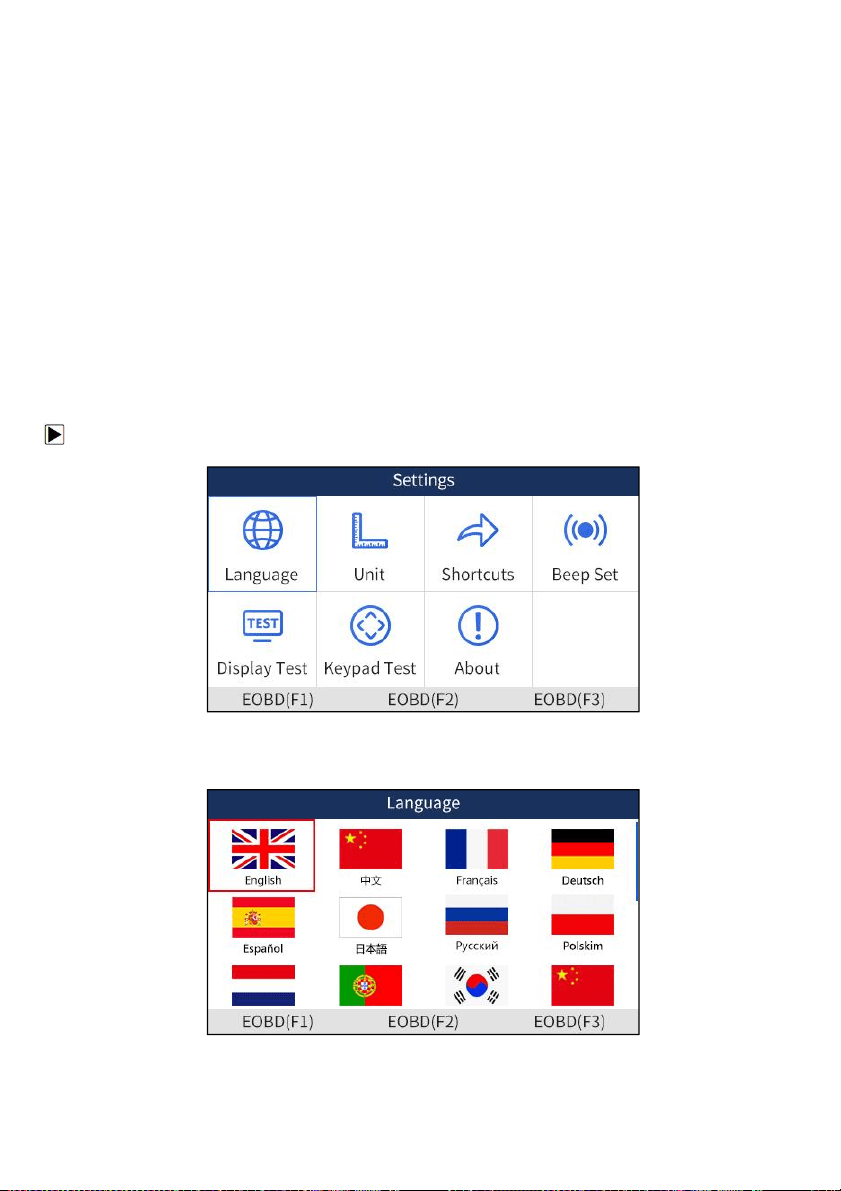
1. Scroll with the arrow keys to highlight Language from Settings menu and press ENTER key.
Figure 8-1 Sample Settings Screen
2. Press left and right arrow key select a language and press the ENTER key to confirm. Press the
Back key to exit and return.
Figure 8-2 Sample Language Selection Screen
33
NT6X4Elite Series User’s Manual_English_V1.03
8.2 Change Units
Selecting Unit opens a dialog box that allows you to choose units of measure.
To change the unit setup:
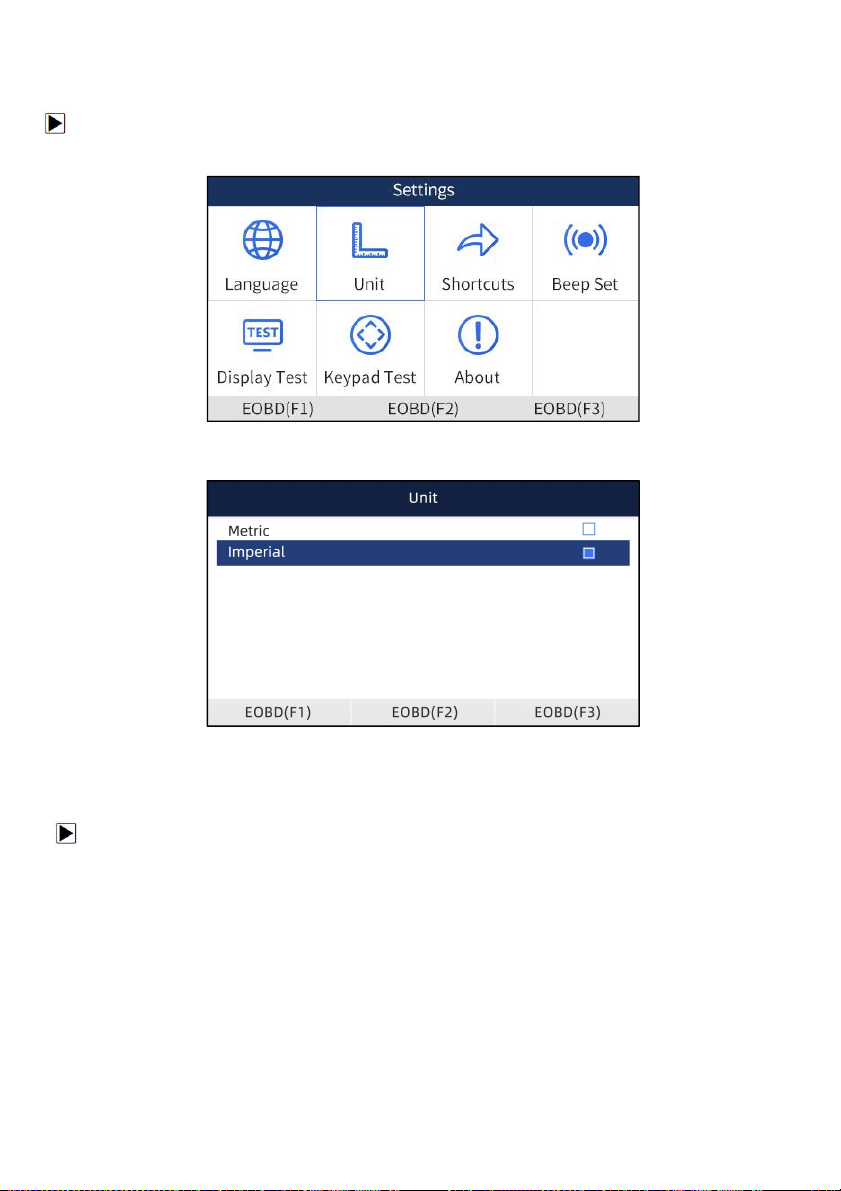
1. Scroll with the arrow keys to highlight Units from Settings menu and press the ENTER key.
Figure 8-3 Sample Settings Screen
2. Press the up and down arrow key select an item and press the ENTER key to save and return.
Figure 8-4 Sample Unit Selection Screen
8.3 Configure Shortcut Keys
Selecting Shortcuts option lets you to change the functionality of the shortcut buttons.
To assign a function to a shortcut button:
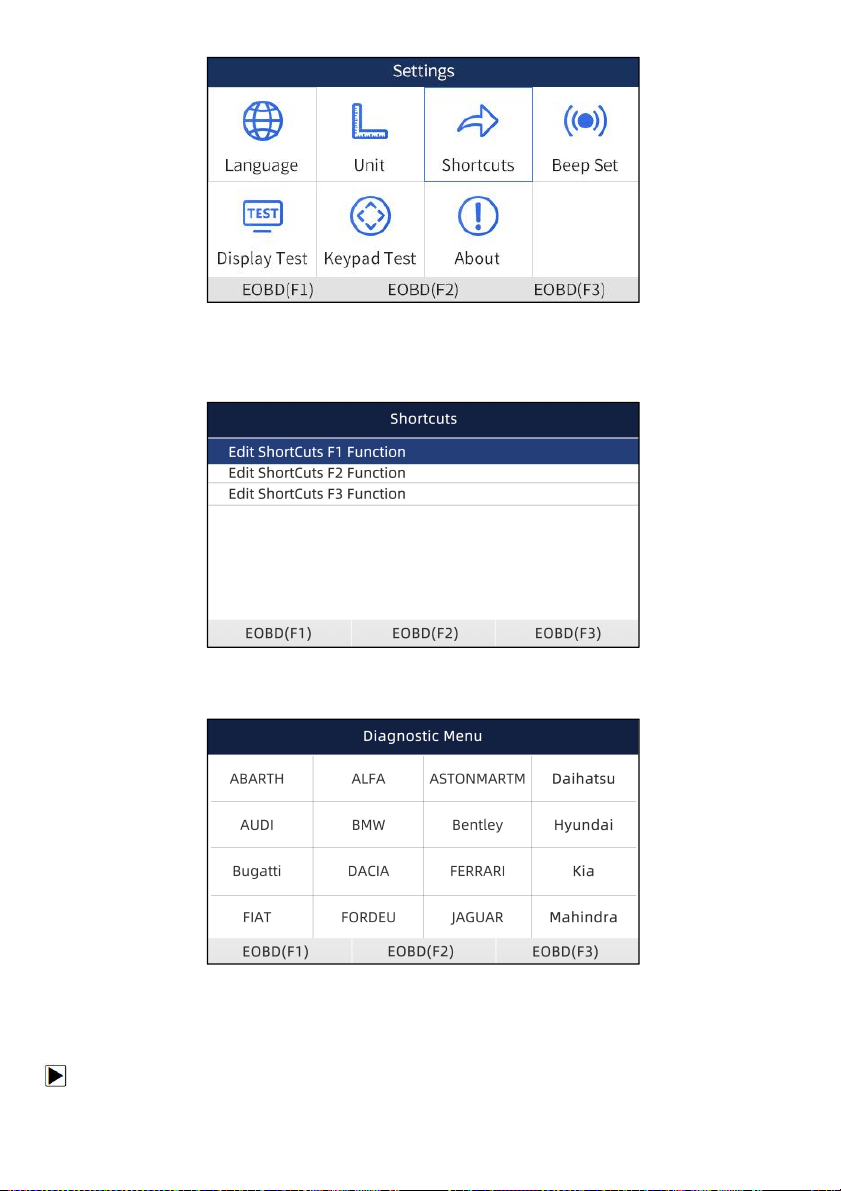
1. Scroll with the arrow keys to highlight Shortcuts from Settings menu and press the ENTER key. A
screen with available shortcut keys displays.
34
NT6X4Elite Series User’s Manual_English_V1.03
Figure 8-5 Sample Settings screen
2. Press the up and down arrow key select a shortcut key and press the ENTER key. A screen with a
list of loaded applications displays.
Figure 8-6 Sample Shortcuts Screen
3. Scroll with the arrow keys to highlight an application and press the ENTER key to assign the
application to the shortcut key.
Figure 8-7 Sample Shortcuts Screen
8.4 Configure Beeper
Selecting Beep Set opens a dialog box that allows you to turn on/off the beeper.
To turn on/off the beeper:
35
NT6X4Elite Series User’s Manual_English_V1.03
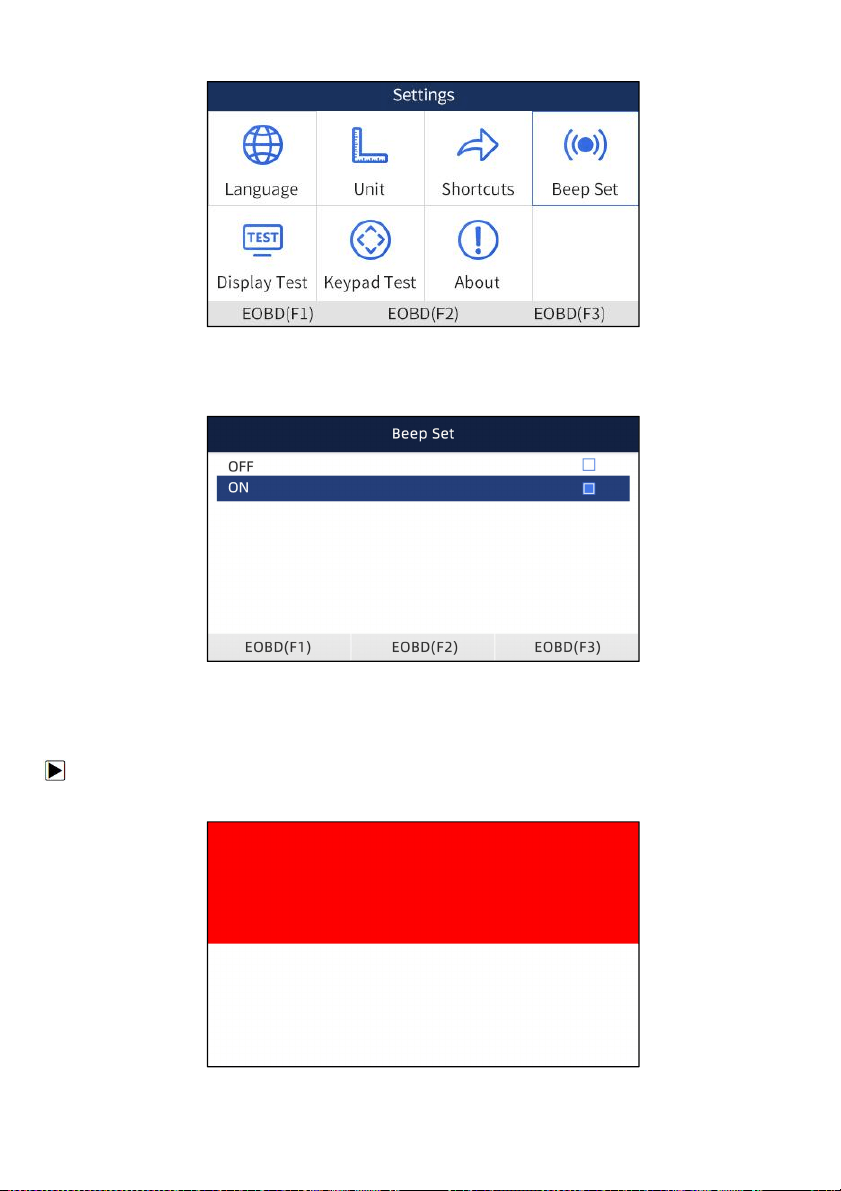
1. Scroll with the arrow keys to highlight Beep Set from Settings menu and press ENTER key.
Figure 8-8 Sample Settings Screen
2. Press the up and down arrow key select an item and press the ENTER key to save and return.
Figure 8-9 Sample Beeper On/Off Screen
8.5 Display Test
Selecting Display Test option opens a screen that allows you to check the functionality of the display.
To test the display:
1. Scroll with the arrow keys to highlight Display Test from Settings menu and press the ENTER key
to start test. Check if there are any missing spots in the LCD screen.
Figure 8-10 Sample LCD Test Screen
36
NT6X4Elite Series User’s Manual_English_V1.03
2. To quit the test, press the Back key.
8.6 Keypad Test
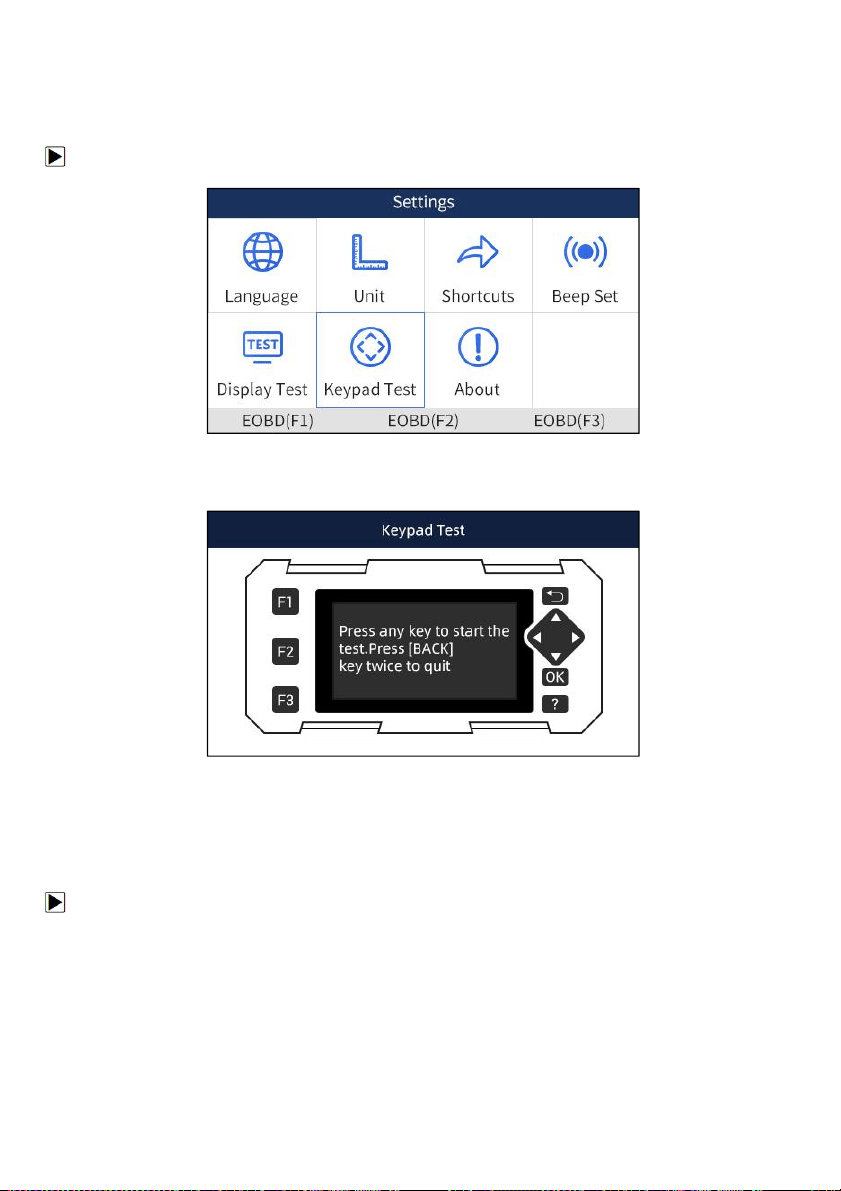
Selecting Keypad Test option opens a screen that allows you to check the functionality of the keypad.
To test the keypad:
1. Scroll with the arrow keys to highlight Keypad Test from Settings menu and press ENTER key.
Figure 8-11 Sample Settings Screen
2. Press any key to start test. The virtue key corresponding with the key you pressed will be
highlighted on the screen if it works correctly.
Figure 8-12 Sample Keypad Test Screen
3. To quit the test, press Back key twice.
8.7 Tool Information
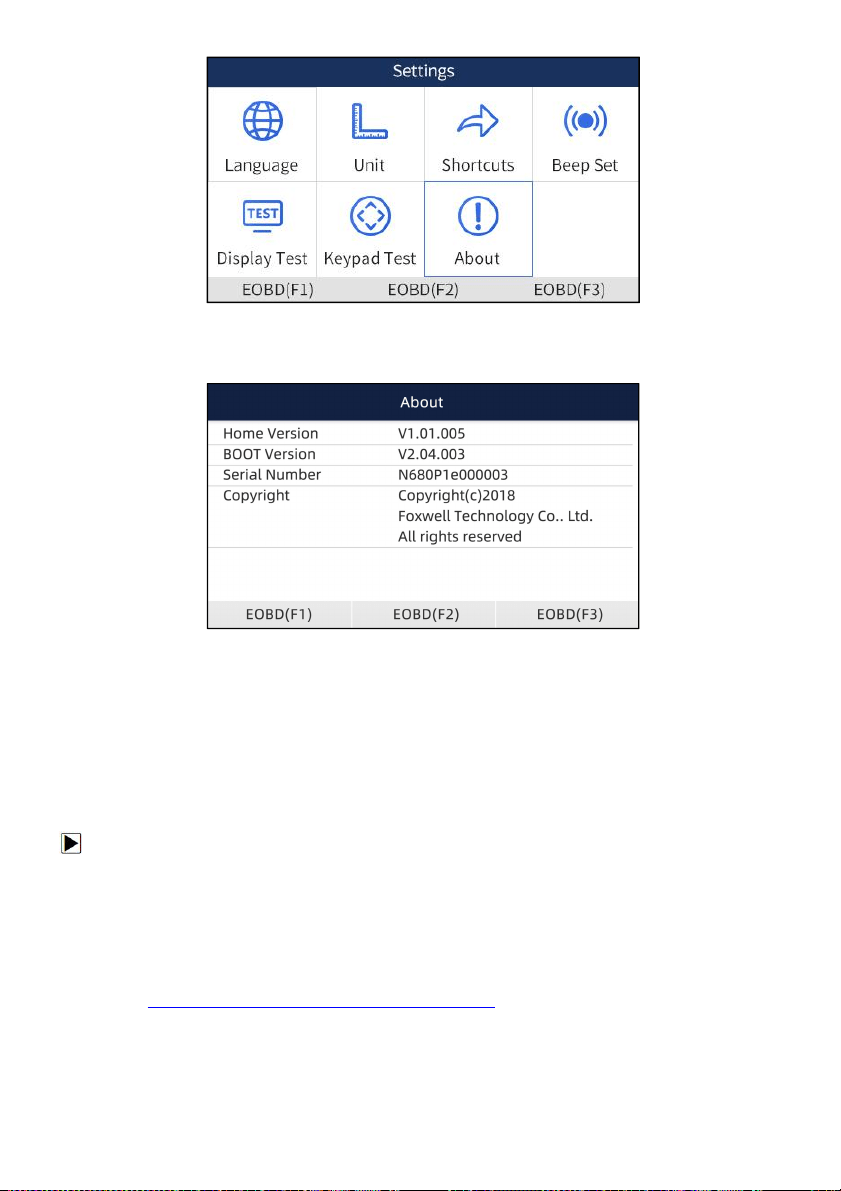
Selecting About option opens a screen that shows information about your scan tool, such as serial
number, which may be required for product registration.
To view information of your scan tool:
1. Scroll with the arrow keys to highlight About from Settings menu and press the ENTER key.
37
NT6X4Elite Series User’s Manual_English_V1.03
Figure 8-13 Sample Settings Screen
2. A screen with detailed information of the scanner displays.
Figure 8-14 Sample Tool Information Screen
3. Press the Back key to exit.
9 Update
The scanner can be updated to keep you stay current with the latest development of diagnosis. This
section illustrates how to register and update your scan tool.
To update your scanner, please follow the three steps as below:
Step1: Obtain an FOXWELL ID.
Step2: Register the product with the product serial number.
Step3: Update the product by the update application FoxAssist.
For step 1 and 2, you can also go to our site with the link below.
Step 1: http://www.foxwelltech.us/support-detail-216.html
Step 2: http://www.foxwelltech.us/support-detail-621.html
38
NT6X4Elite Series User’s Manual_English_V1.03
9.1 Create a Foxwell ID
9.1.1 Register Through Website
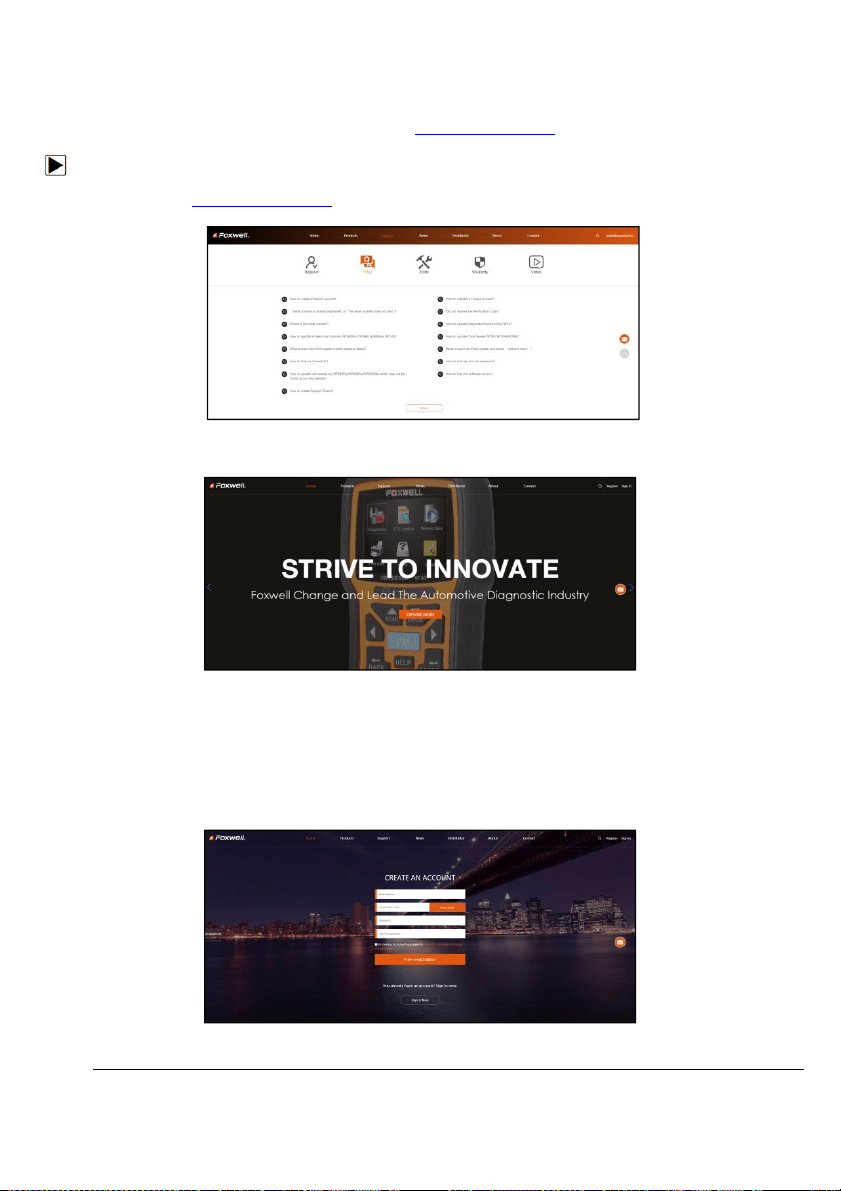
If you are new to FOXWELL, please register on www.foxwelltech.us and create a FOXWELL ID first. If
you have installed the update application FoxAssist, please refer to the registration guide on 9.1.2.
1. To register through website:
To create a Foxwell ID and register your scan tool
a. Visit our site www.foxwelltech.us and then select Support>Register.
Figure 9-1 Sample Register Screen
b. Click Register link at the top right of the website or at the lower side of home page.
Figure 9-2 Sample Register Screen
2. Enter your own email address and click “Send code” to find the verification code in your mailbox.
Create a unique password, confirm password and then click “Free registration” to complete. When
your ID has been created, you are allowed to view all programs associated with your tool,
download updates, edit your profile, submit feedback and join our community to share your ideas
and your stories about our products. Note: Please always remember your FOXWELL ID and
Password, as it’s important for your to manage your product and updates.
Figure 9-3 Sample Registration Form Filling Screen
IMPORTANT
39
NT6X4Elite Series User’s Manual_English_V1.03
User name is limited to Email address and please always find the Verification Code in your
registered email.
3. A Registration success message will appear if you registered successfully.
IMPORTANT
Please always remember your FOXWELL ID and Password as it’s important for you to manager
your product and updates.
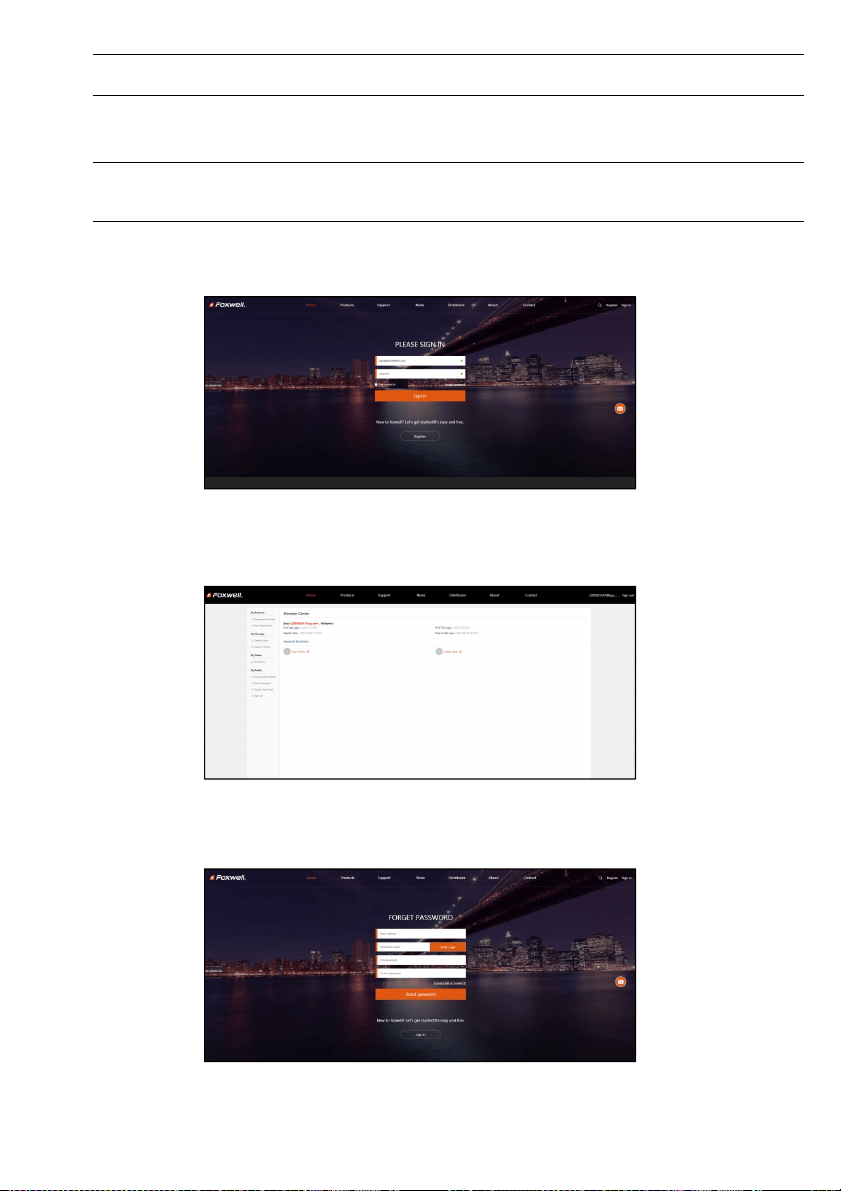
4. The registration page will be bypassed, skipping to the log in page. Just input your FOXWELL ID
and Password to sign in.
Figure 9-4 Sample Sign in Screen
5. When log in successfully, the Member Center will show as below. This platform enables you to
review the registered products, register new products, modify personal information or reset the
password.
Figure 9-5 Sample Member Center Screen
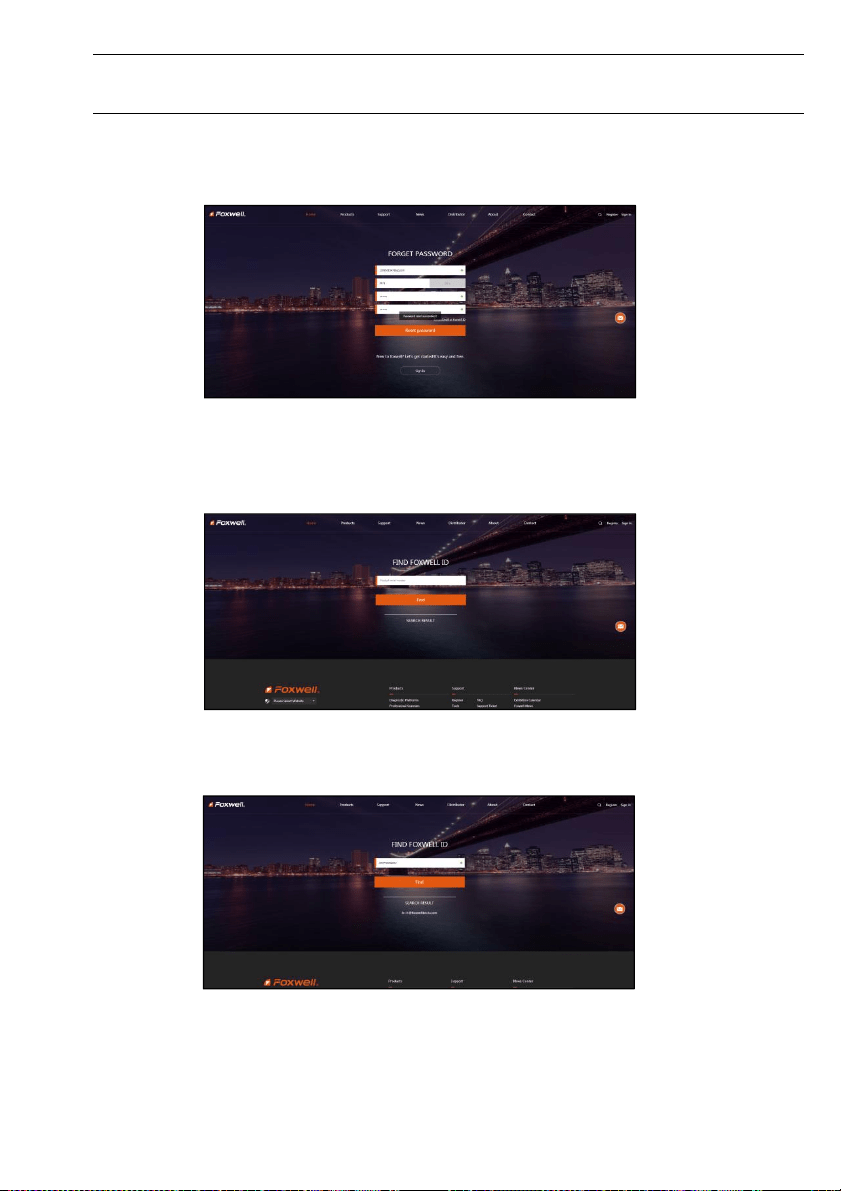
6. If you forget your password, just click Sign in at the top right of the website, then click Forget
password, You are required to input your registered email address, verification code, new
password and confirmed password, click Reset password.
Figure 9-6 Sample User ID and/or Password Retrieve Screen
40
NT6X4Elite Series User’s Manual_English_V1.03
IMPORTANT
Before enter new password or confirm password, please enter the correct Verification Code in your
registered email.
7. A Password reset succeeded message will appear if you rest password successfully.
Now you are able to log in with your ID and the new password. If you want to change the password,
please sign in with your user name and password, then select My Profile/Reset Password.
Figure 9-7 Sample Password Reset Succeeded Screen
8. If you forget your email or Foxwell ID, just click Sign in at the top right of the website, then click
Forgot password, and click Forget Email or Foxwell ID. You are required to input your registered
serial number.
Figure 9-8 Sample Product Serial Number Required Screen
9. Your Registered email or Foxwell ID will appear under SEARCH RESULT.
Figure 9-9 Sample FOXWELL Search Result Screen
41
NT6X4Elite Series User’s Manual_English_V1.03
9.1.2 Register With FoxAssist
You are also allowed to register and create a Foxwell ID with the update client FoxAssist.
To register through website:
1. Visit our site www.foxwelltech.us and go the Product page. Find your product model and click it to
view the product profile. Or Find the update tool under Tools in the Support page. Select
Download tab to download the PC application file.
2. Unzip the application file. Follow instructions on computer screen to install the application and
driver.
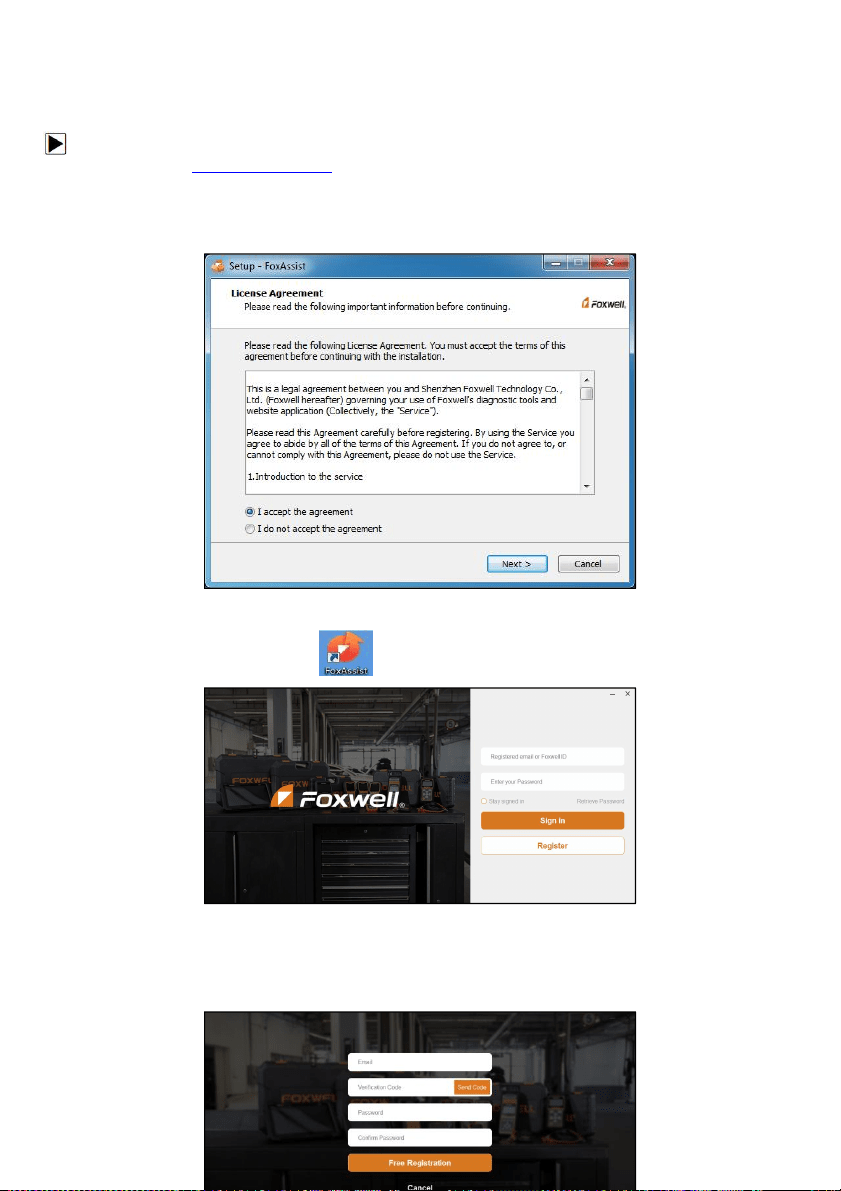
Figure 9-10 Sample FoxAssist Installation Screen
3. Double click the desktop icon to launch the application.
Figure 9-11 Sample FoxAssist Main Screen
4. Click Register button, a Register window will pop up. Enter your own email address and click
“Send code” to find the verification code in your mailbox . Create a unique password, confirm
password and then click “Free registration” to complete.
42
NT6X4Elite Series User’s Manual_English_V1.03
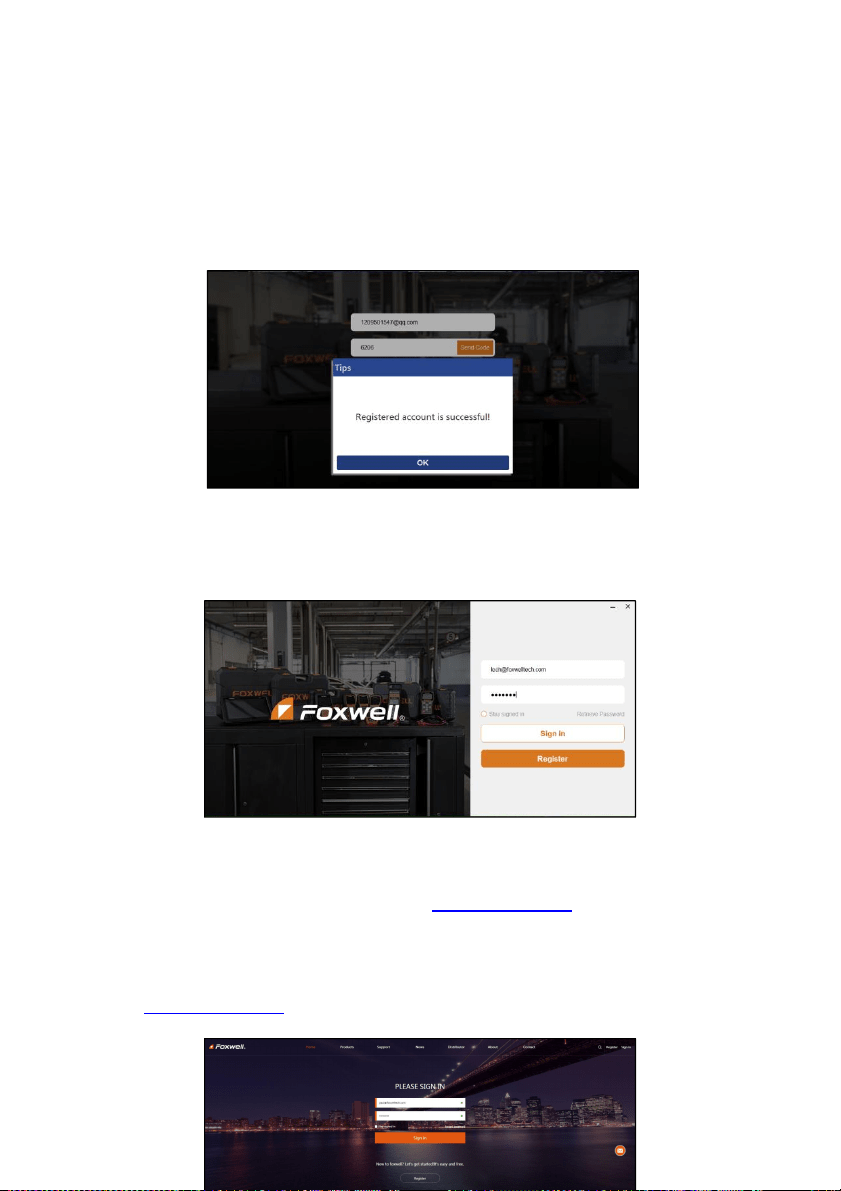
Figure 9-12 Sample Register Screen
5. A Registered account is successful message will appear if you registered successfully.
Figure 9-13 Sample Registration Success Screen
6. Click OK. It skips to the login page automatically. You can input your FOXWELL ID and Password
to sign in.
Figure 9-14 Sample Sign in Screen
9.2 Register Your Scanner
To register a scanner , you can either register on www.foxwelltech.us or by the update PC application
FoxAssist.
9.2.1 Register Through Website
1. Open www.foxwelltech.us main page and click Sign in. Input your FOXWELL ID/registered email
and password.
43
NT6X4Elite Series User’s Manual_English_V1.03
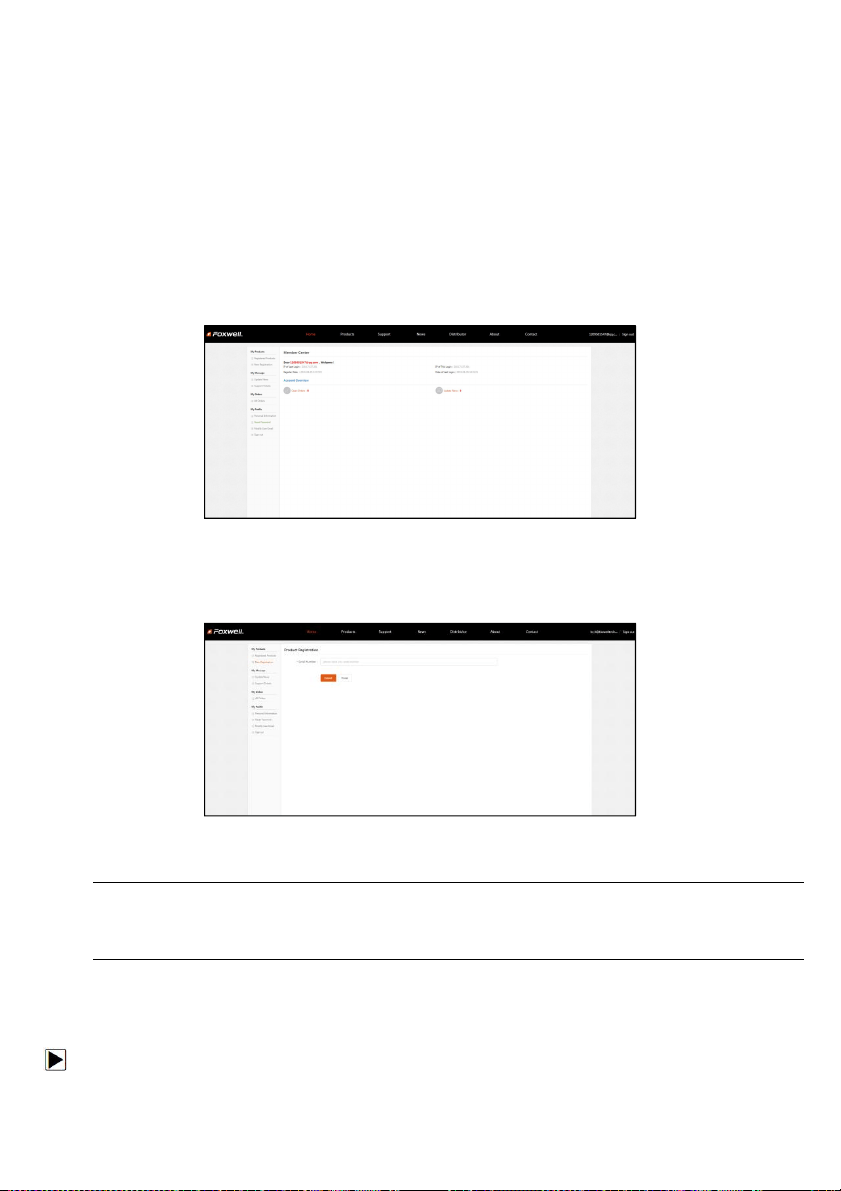
Figure 9-15 Sample Sign in Screen
2. When log in successfully, the Member Center will show as below. This platform enables you to
review the registered products, register new products, modify personal information or reset the
password.
Figure 9-16 Sample Member Center Screen
3. To register a product, please click My Products>New Registration. Input correct serial number
and click the Submit button to complete product registration. Please repeat the process if you have
more products.
Figure 9-17 Sample New Product Registration Screen
NOTE
To check the serial number of a device, please boot it up, and select Setting>About. The serial
number is right on the About page. You can also find the serial number on the back of main unit or
Warranty Card.
9.2.2 Register With FoxAssist
To register with FoxAssist:
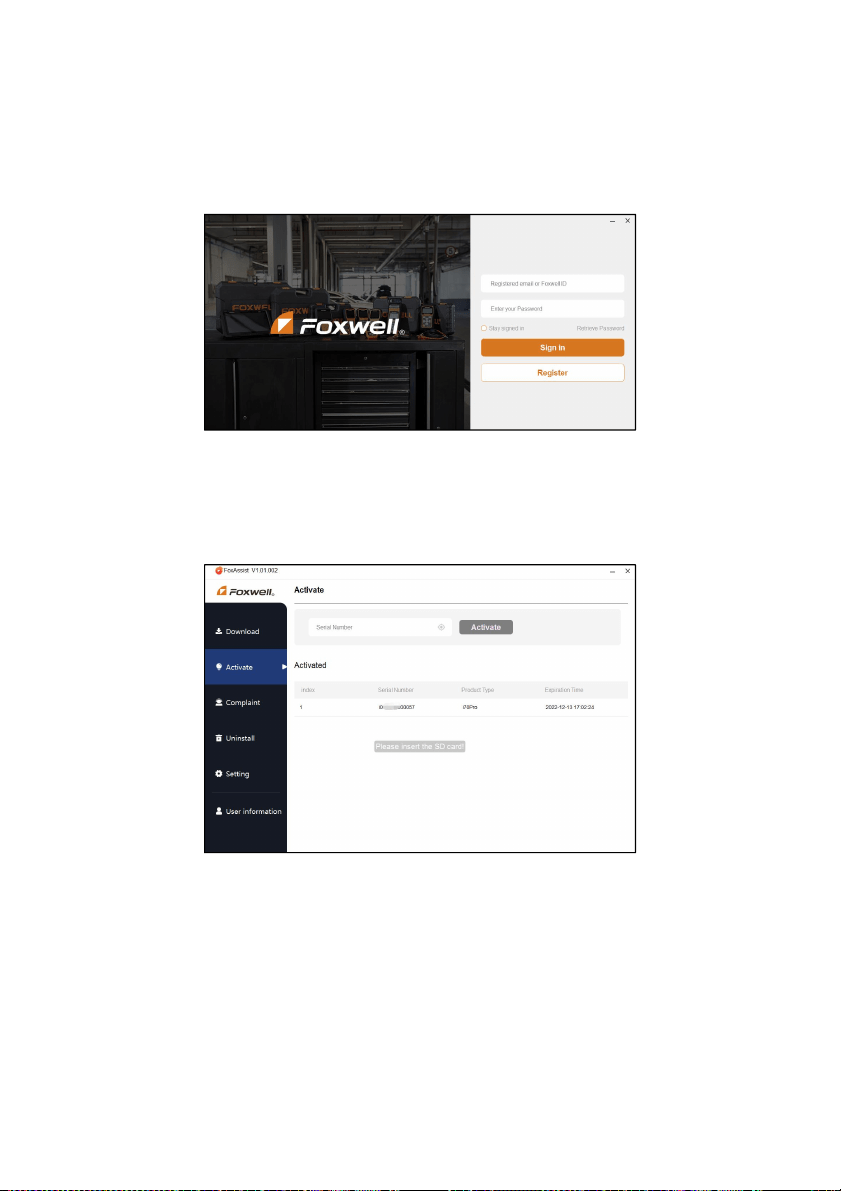
1. Launch the PC application FoxAssist. Sign in with your Foxwell ID/ registered email and password.
44
NT6X4Elite Series User’s Manual_English_V1.03
Figure 9-18 Sample Sign in Screen
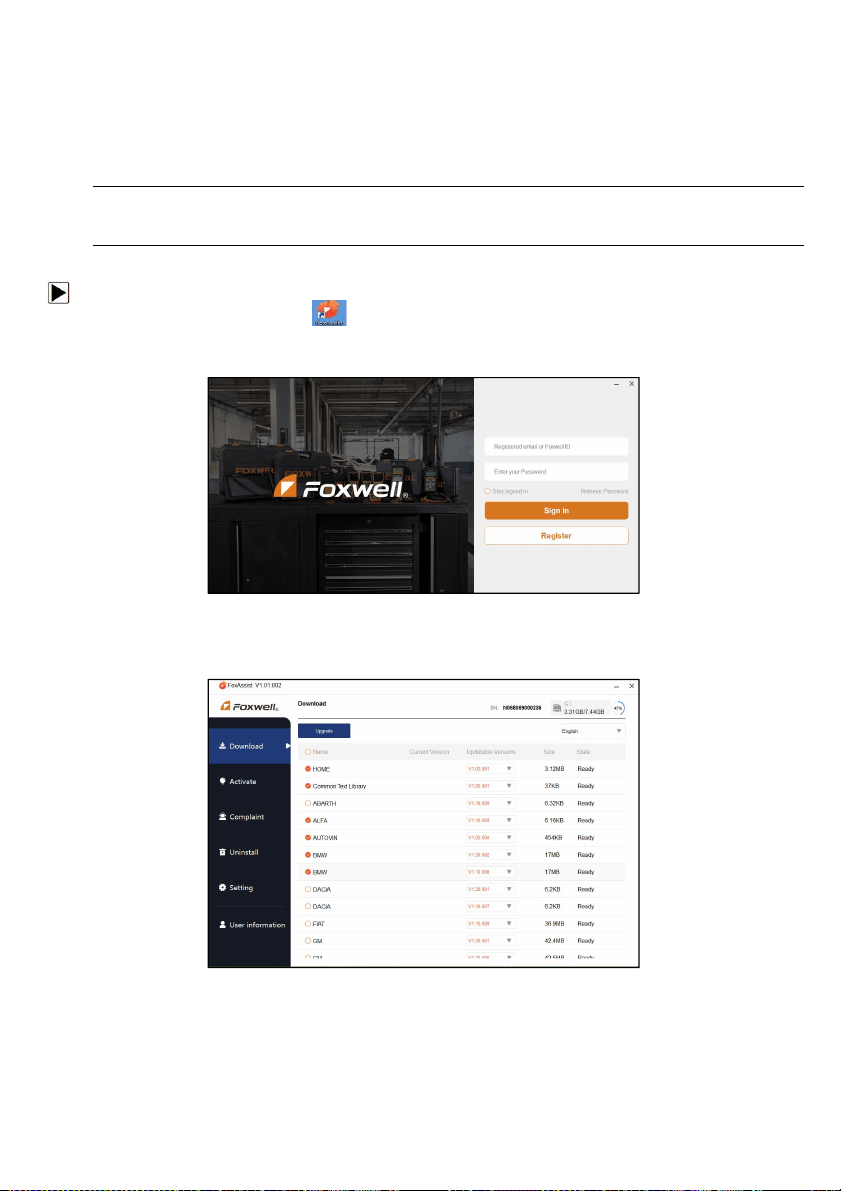
2. Select Activate and input serial number to complete product registration. If you have multiple
scanners to be registered, please enter all serial numbers you wish to activate. Or you can also
connect the scanner with your PC via USB cable, choose the Update icon and press the Enter Key
on the scanner, then your serial number will be automatically acquired by the FoxAssist and please
click Activate to complete.
Figure 9-19 Sample New Product Activate Screen
9.3 Update The Scanner
To update scanner, you need the following tools:
●
The scan tool
●
PC application FoxAssist
●
PC or laptop with USB ports
●
Internet service
To be able to use update tool, PC or laptop must meet the following minimum requirements:
●
Operation System: Windows 7, Windows 8 and Windows 10.
45
NT6X4Elite Series User’s Manual_English_V1.03
● CPU: Intel PⅢ or better
● RAM: 64MB or better
● Hard Disk Space: 30MB or better
● Display: 800*600 pixel, 16 byte true color display or better
● Internet Explorer 4.0 or newer
NOTE
Before updating, please make sure your network works correctly.
Before updating, please make sure you have already created a Foxwell ID.
To update your scanner:
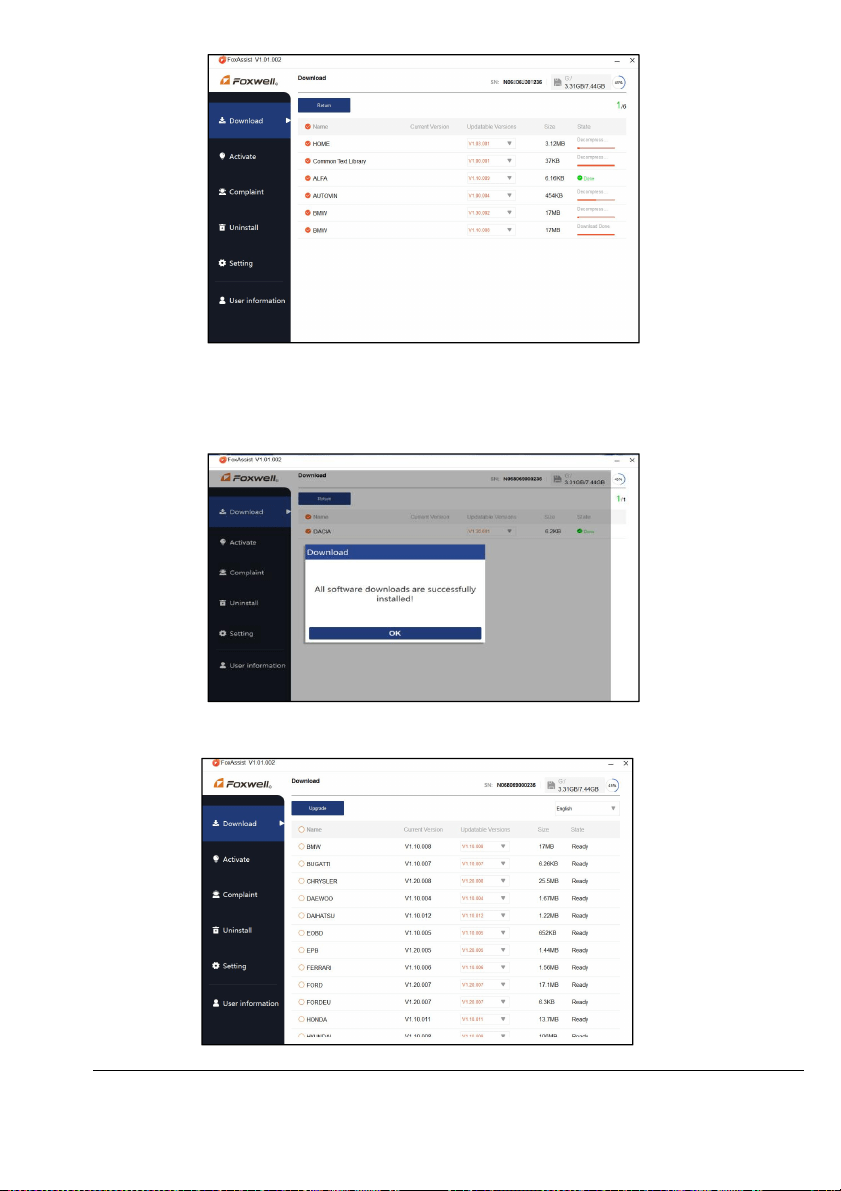
1. Double click the desktop icon to launch the application.
2. Remove the TF card from the tool, and connect it to the PC with the TF Card Reader.
3. Log in with your Foxwell ID and password.
Figure 9-20 Sample Sign in FoxAssist Screen
4. In the Download tab, click the check box(es) in front of the software(s) you wish to update and
then click the Upgrade button on the top of the software(s) to download.
Figure 9-21 Sample Upgrade Check Screen
5. When Upgrade button is clicked, it begins to download. And you can check the Current Status. If
the Current Status shows Downloading, please do not close the update application.
46
NT6X4Elite Series User’s Manual_English_V1.03
Figure 9-22 Sample Updating Screen
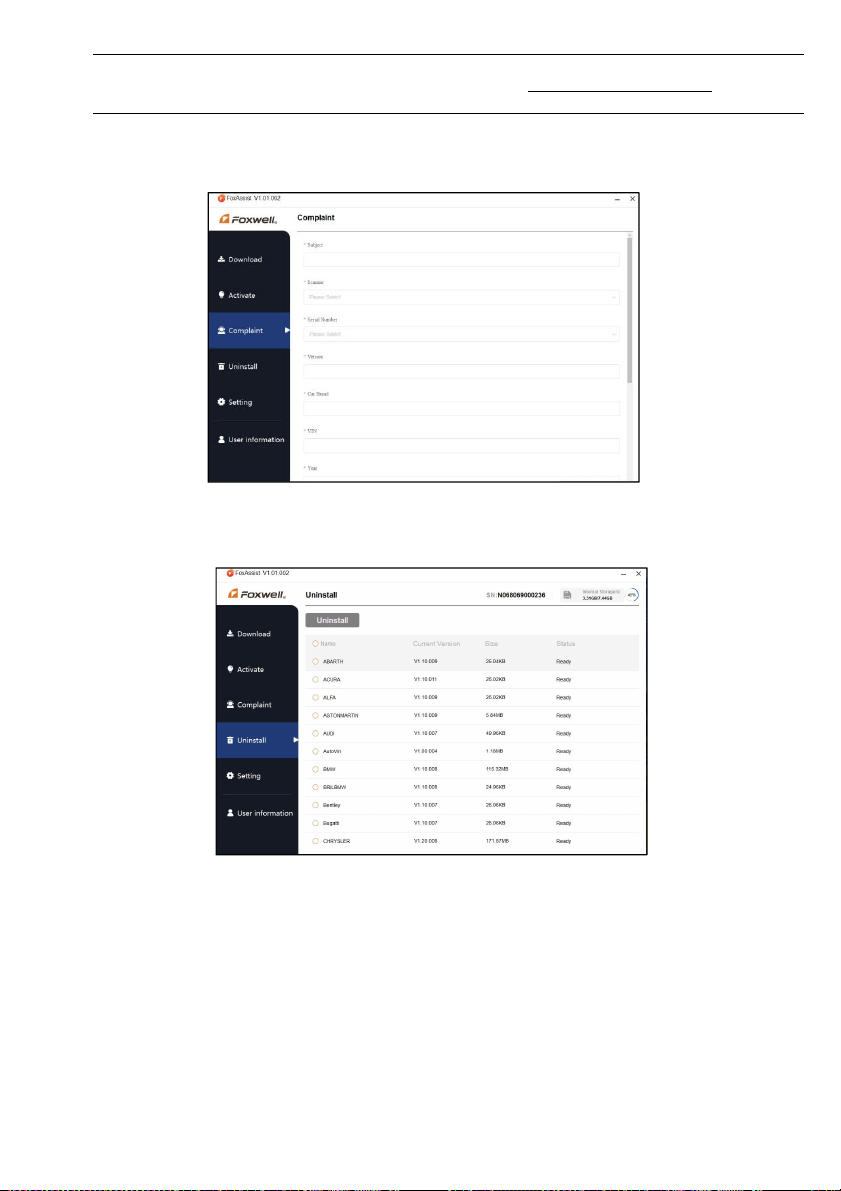
6. When all the items are updated, an “All software downloads are successfully installed!”
message displays. Please click OK to confirm.
Figure 9-23 Sample Update Completed Screen
7. Please click Return to review all the software status.
Figure 9-24 Sample Software Management Screen
NOTE
47
NT6X4Elite Series User’s Manual_English_V1.03
If “Update Failed” dialog comes up, it indicates that the software updates failed. Please check the
network connection. If the problem still exists, please contact support@foxwelltech.com or your local
dealer for assistance.
8. Should you have any questions regarding the product, please click Complaint, fill in all required
information and click Submit to send us your issue.
Figure 9-25 Sample Complaint Screen
9. To uninstall a software or all software, select them on the Uninstall tab and click the Uninstall
button. And the uninstalled items can be found in the Uninstall screen.
Figure 9-26 Sample Software Uninstallation Screen
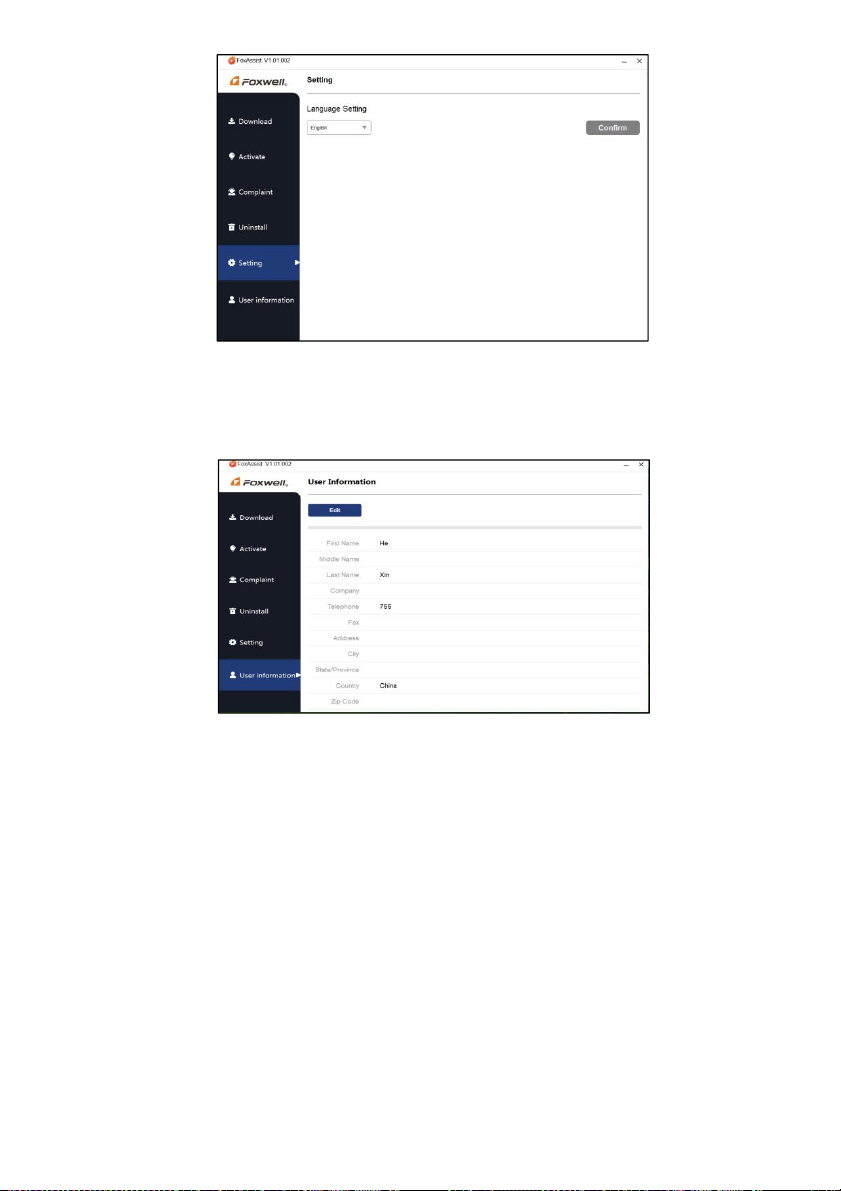
10. Please click Setting to change the update tool language.
48
NT6X4Elite Series User’s Manual_English_V1.03
.
Figure 9-27 Sample FoxAssist Setting Screen
11. Please click User Information to view your personal information. To modify your personal
information, just click the Edit and type in the message box and click Confirm. To help us
provide better sales, please make sure that the telephone, email and country are correctly
entered.
Figure 9-28 Sample User Information Screen

