EN-1
Overview and Setup EN-2
General Guide. . . . . . . . . . . . . . . . . . . . . . . . . . . . . EN-2
Preparing a Power Supply . . . . . . . . . . . . . . . . . . . EN-3
Turning Power On or Off . . . . . . . . . . . . . . . . . . . . . EN-5
Returning the Digital Piano to Its Factory
Default Settings . . . . . . . . . . . . . . . . . . . . . . . . . . EN-6
Connecting a Pedal. . . . . . . . . . . . . . . . . . . . . . . . . EN-6
Using Headphones . . . . . . . . . . . . . . . . . . . . . . . . . EN-6
Digital Piano Operation EN-7
Listening to Demo Play . . . . . . . . . . . . . . . . . . . . . . EN-7
Demo Song List. . . . . . . . . . . . . . . . . . . . . . . . . . . . EN-7
Selecting a Tone . . . . . . . . . . . . . . . . . . . . . . . . . . . EN-7
Using Effects. . . . . . . . . . . . . . . . . . . . . . . . . . . . . . EN-9
Using the Metronome . . . . . . . . . . . . . . . . . . . . . . EN-10
Linking with a Smart Device (APP Function) . . . . EN-11
Configuring Settings EN-11
Changing the Keyboard Touch Response . . . . . . EN-11
Changing the Pitch in Semitone Steps
(Transpose) . . . . . . . . . . . . . . . . . . . . . . . . . . . . EN-12
Fine Tuning a Pitch (Tuning). . . . . . . . . . . . . . . . . EN-13
Changing the Beep Setting . . . . . . . . . . . . . . . . . . EN-14
Configuring MIDI Settings . . . . . . . . . . . . . . . . . . . EN-15
Connecting External Devices EN-16
Connecting to Audio Equipment . . . . . . . . . . . . . . EN-16
Connecting a Computer . . . . . . . . . . . . . . . . . . . . EN-17
Reference EN-18
Troubleshooting . . . . . . . . . . . . . . . . . . . . . . . . . . EN-18
Product Specifications. . . . . . . . . . . . . . . . . . . . . . EN-20
Tone List . . . . . . . . . . . . . . . . . . . . . . . . . . . . . . . . EN-21
Keyboard Function List . . . . . . . . . . . . . . . . . . . . . EN-22
MIDI Implementation Chart
Contents
Included and Optional Accessories
Use only accessories that are specified for use with this
Digital Piano.
Use of unauthorized accessories creates the risk of fire,
electric shock, and personal injury.
• You can get information about accessories that are sold
separately for this product from the CASIO catalog
available from your retailer, and from the CASIO
website.
https://support.casio.com/global/en/emi/manual/CDP-S110/
• Any reproduction of the contents of this manual, either in part or its entirety, is prohibited. Except for your own, personal
use, any other use of the contents of this manual without the consent of CASIO is prohibited under copyright laws.
• IN NO EVENT SHALL CASIO BE LIABLE FOR ANY DAMAGES WHATSOEVER (INCLUDING, WITHOUT LIMITATION,
DAMAGES FOR LOSS OF PROFITS, BUSINESS INTERRUPTION, LOSS OF INFORMATION) ARISING OUT OF THE
USE OF OR INABILITY TO USE THIS MANUAL OR PRODUCT, EVEN IF CASIO HAS BEEN ADVISED OF THE
POSSIBILITY OF SUCH DAMAGES.
• The contents of this manual are subject to change without notice.
• The actual appearance of the product may be different from that shown in the illustrations in this User’s Guide.
• Company and product names used in this manual may be registered trademarks of others.
EN-2
Overview and Setup
General Guide
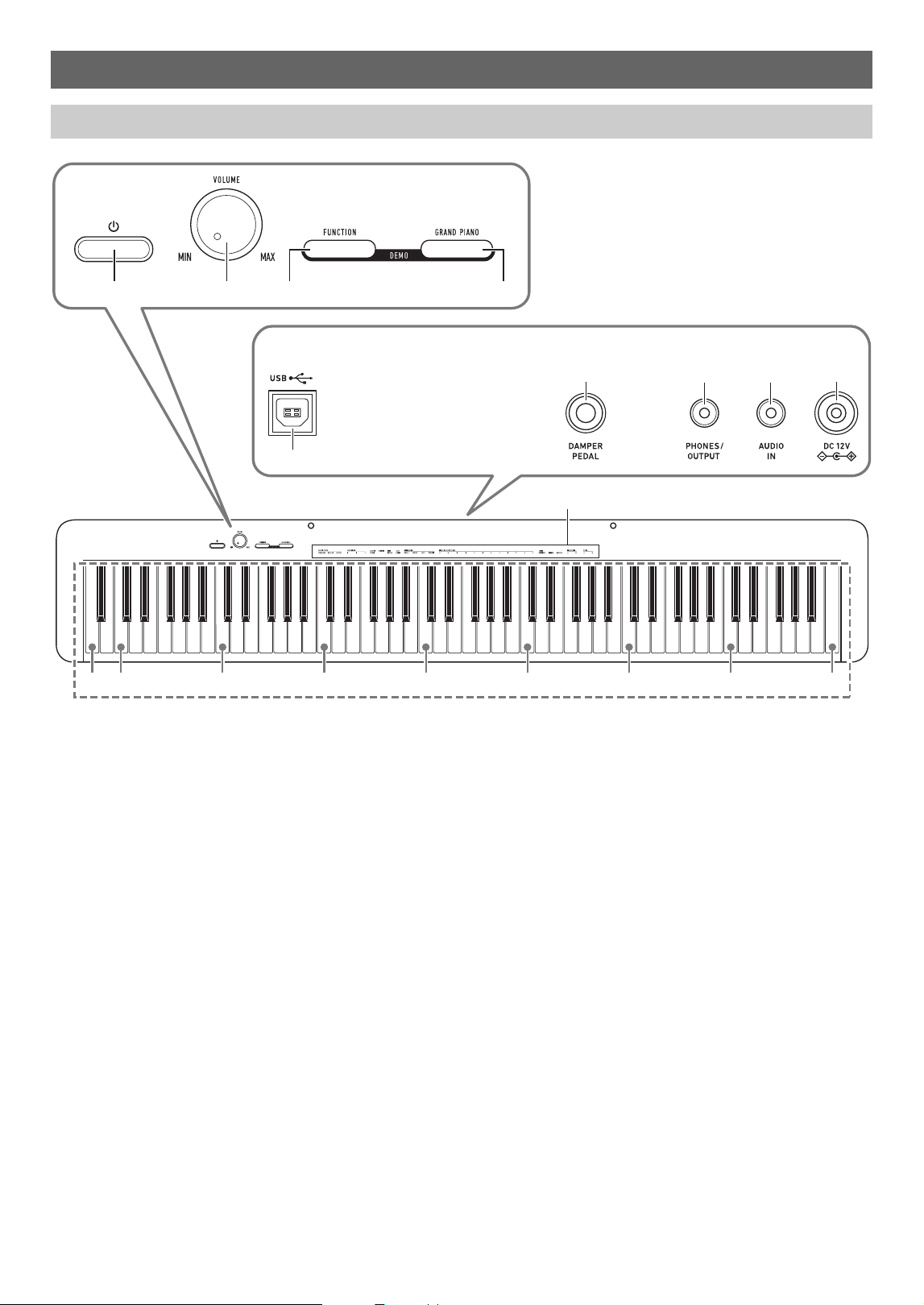
1 P (Power) button
2 VOLUME knob
3 FUNCTION button
4 GRAND PIANO button
5 USB Type B port
6 DAMPER PEDAL jack
7 PHONES/OUTPUT jack
8 AUDIO IN jack
9 DC 12V terminal
bk Functions assigned to keys*
2
5
bk
C1 C2 C3 C4 C5 C6 C7 C8A0
1 2 3 4
6 7 8 9
Back
*
1
EN-3
Overview and Setup
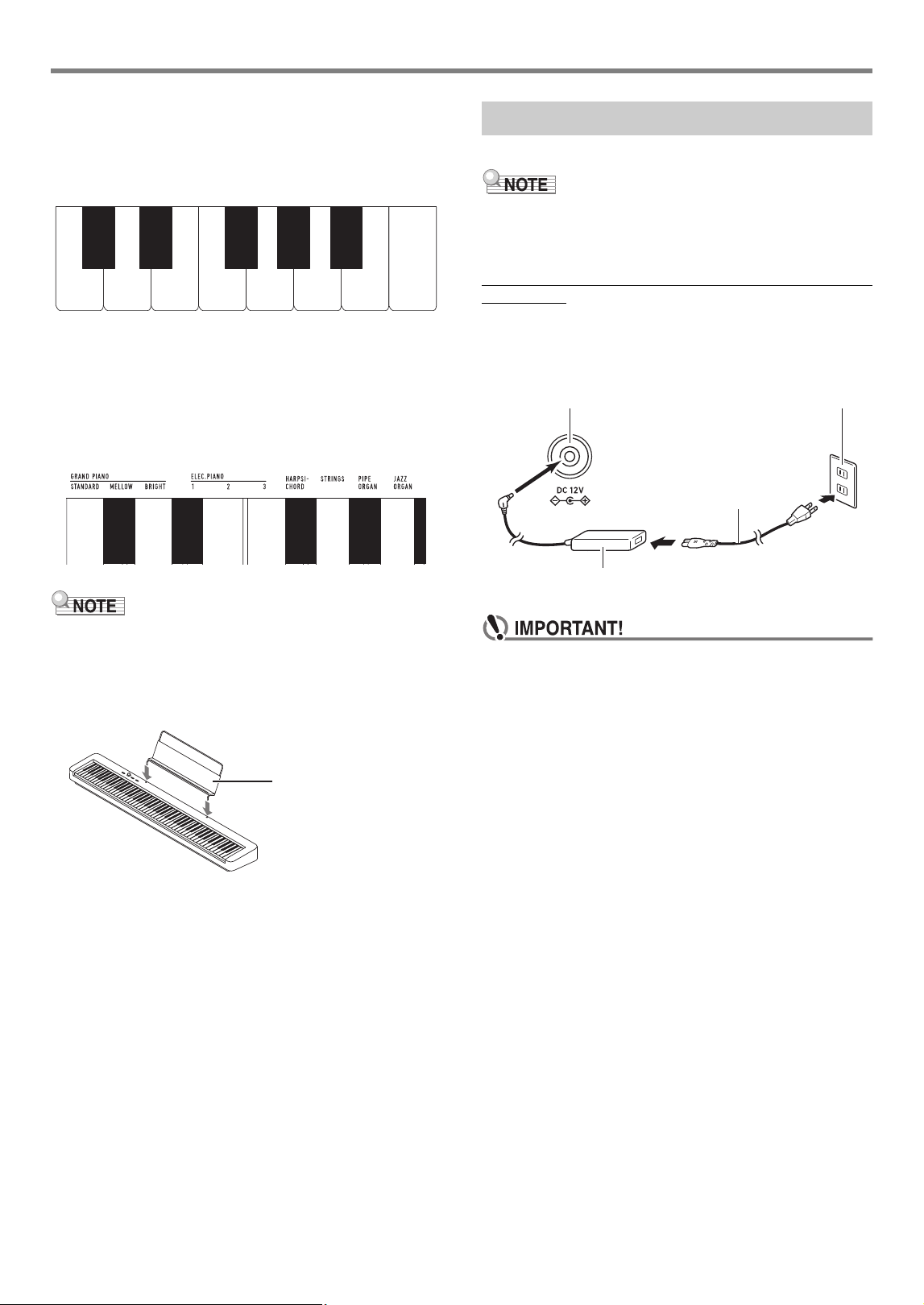
*1 Keyboard note names and pitches
The keyboard note names and pitches used in this manual
follow the international standard. Middle C is C4, the lowest C
is C1, and the highest C is C8. The illustration below (C4
through C5) shows keyboard key note names.
*2 Functions assigned to keys
While holding down the 3 FUNCTION button, you can use
these keys to change settings, such as the currently selected
tone, etc. Most of the functions that can be changed using
keyboard keys are marked above the keyboard. For example,
tone names assigned to the TONE setting keys (C3 to A3) are
marked above the keys.
• Note that some assigned functions are not marked above
the keys. For information about all of the functions that are
assigned to keyboard keys, refer to the “Keyboard Function
List” (page EN-22).
■ Preparing the Music Stand
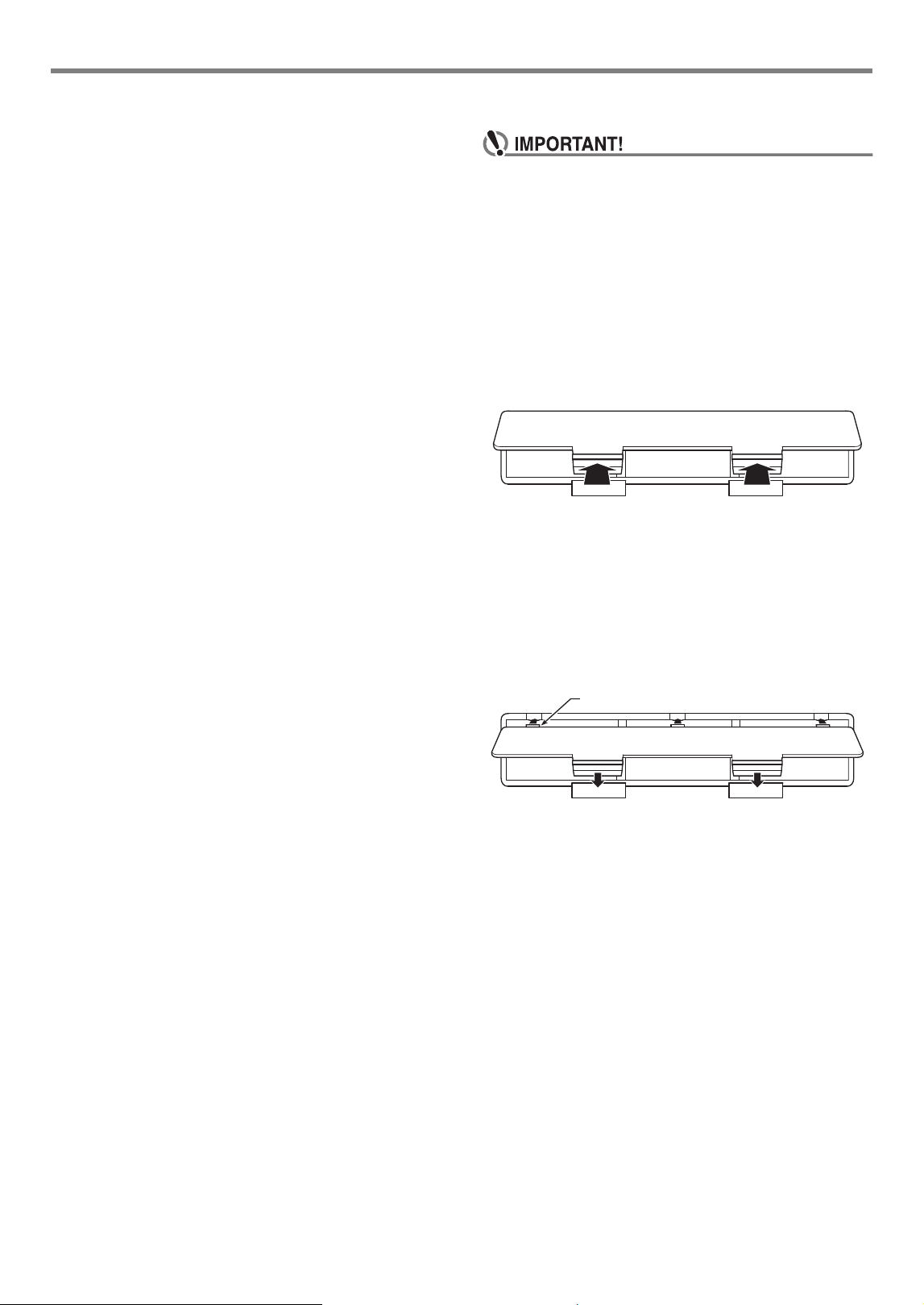
Your Digital Piano uses an AC adaptor for power.
• Though this Digital Piano supports battery operation, use of
an AC adaptor is generally recommended.
■ Using the AC Adaptor
Make sure that you use only the AC adaptor specified for this
Digital Piano. Use of a different type AC adaptor can cause
smoking or malfunction.
• Never connect the AC adaptor (JEITA Standard, with
unified polarity plug) that comes with this Digital Piano
to any other device besides this Digital Piano. Doing so
creates the risk of malfunction.
• Be sure to turn off Digital Piano power before
connecting or disconnecting the AC adaptor.
• The AC adaptor will become warm to the touch after
very long use. This is normal and does not indicate
malfunction.
C4 D4 E4 F4 G4 A4 B4 C5
C
4E
D
4F
4A
D
4B
D
4
Music stand
Preparing a Power Supply
Specified AC Adaptor: AD-A12150LW
(JEITA Standard plug)
Household power outlet
AC adaptor
9 DC 12V
Power cord
Overview and Setup
EN-4
• Note the important precautions below to avoid damage
to the power cord.
During Use
• Never pull on the cord with excessive force.
• Never repeatedly pull on the cord.
• Never twist the cord at the base of the plug or connector.
During Movement
• Before moving the Digital Piano, be sure to unplug the
AC adaptor from the power outlet.
During Storage
• Loop and bundle the power cord, but never wind it
around the AC adaptor.
• Never insert metal, pencils, or any other objects into
the product’s DC12V terminal. Doing so creates the risk
of accident.
• Do not try to use the power cord that comes with the
product with another device.
• Plug the AC adaptor into a power outlet that is close to
the Digital Piano. This lets you immediately unplug
from the power outlet should any problem occur.
• The AC adaptor is intended for indoor use only. Do not
leave it in a location where it can become wet. Also, do
not place a vase or any other container of liquid on the
AC adaptor.
• Make sure that the AC adaptor does not become
covered with a newspaper, table cloth, curtain, or any
other type of fabric.
• If you do not plan to use the Digital Piano for a long
time, unplug the AC adaptor from the power outlet.
• The AC adaptor cannot be repaired. If your AC adaptor
malfunctions or becomes damaged, you need to
purchase a new one.
• AC Adaptor Usage Environment
Temperature: 0 to 40°C
Humidity: 10% to 90%RH
• Output Polarity: &
■ Using Batteries
• Be sure to turn off power before loading batteries.
• It is up to you to prepare six commercially available
alkaline batteries.
• Note the precautions below while the Digital Piano is
turned upside down to load batteries.
− Take care to avoid injury due to pinching your
fingers under the Digital Piano.
− Do not allow the Digital Piano to tip over or otherwise
be subjected to strong impact. Impact can damage
the volume knob and keyboard keys.
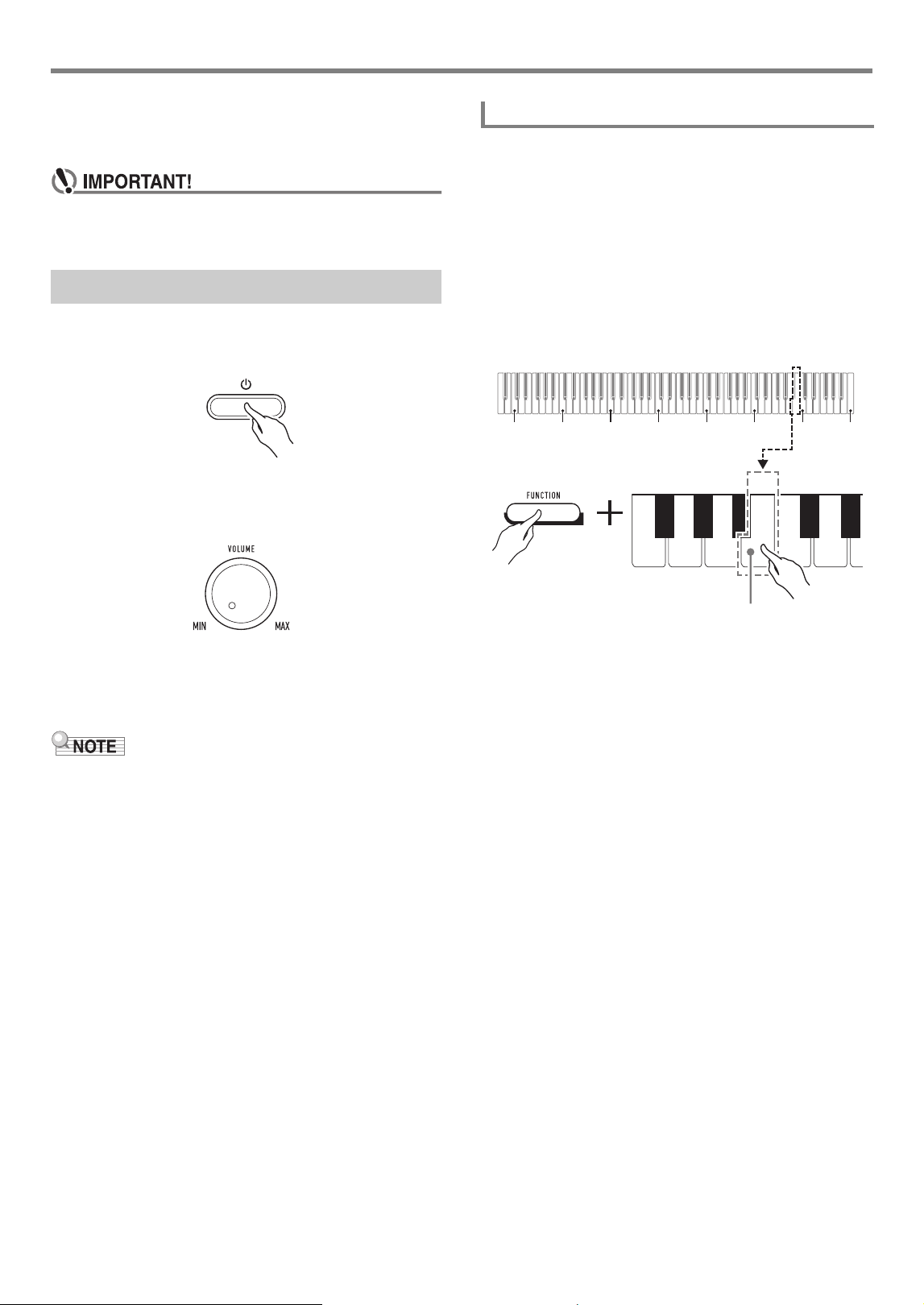
1.
Open the battery cover on the bottom of the
Digital Piano.
2.
Load six AA-size batteries into the battery
compartment.
Make sure the positive + and negative - ends of the
batteries are facing as marked on the Digital Piano.
3.
Insert the tabs of the battery cover into the
holes along the side of the battery
compartment, and close the cover.
Tabs
EN-5
Overview and Setup
■ Low Battery Indication
Low batteries are indicated by the 1P(Power) button lamp
flashing. When this happens, replace batteries.
• Using the Digital Piano while batteries are very low can
cause it to turn off suddenly. This can cause data
stored in Digital Piano memory to be corrupted or lost.
1.
Press the 1P(Power) button to turn on Digital
Piano power.
• The power lamp lights and the Digital Piano powers
up. The power up operation takes a few seconds.
•Use 2 VOLUME to adjust volume.
2.
To turn off the Digital Piano, hold down the
1P(Power) button until the power lamp goes
out.
• Pressing the 1P(Power) button to turn off power actually
puts the Digital Piano into a standby state. Minute amounts
of current continue to flow within the Digital Piano in the
standby state. If you do not plan to use the Digital Piano for
a long time or if there is a lightning storm in your area, be
sure to unplug the AC adaptor from the power outlet.
• Turning off power causes the Digital Piano settings to
return to their initial defaults. The tuning setting (page
EN-13), however, is retained.
This Digital Piano is designed to turn off automatically to avoid
wasting power after no operation is performed for a preset
amount of time. The Auto Power Off trigger time is about four
hours when power is being supplied by the AC adaptor, or six
minutes under battery power.
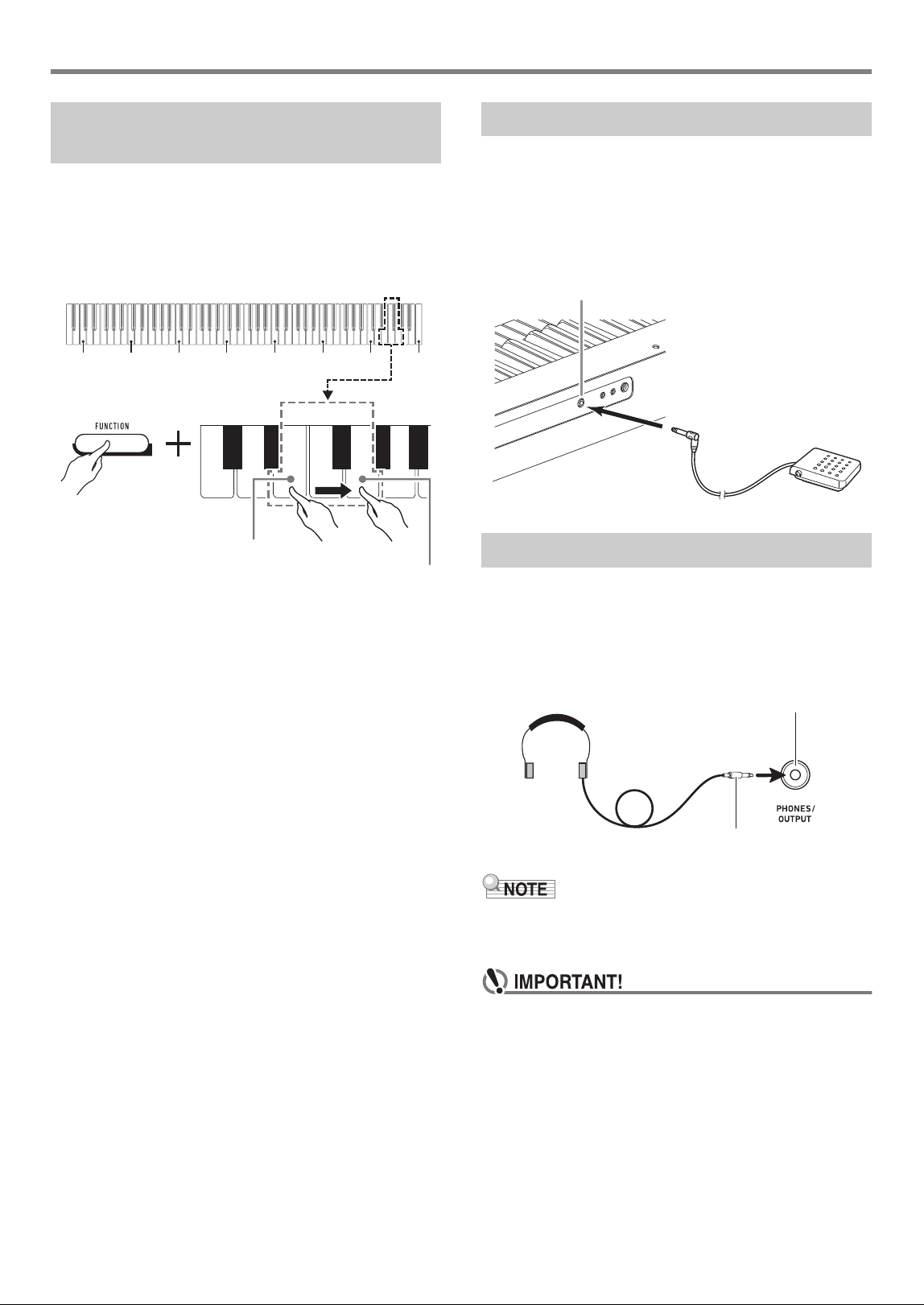
• You can use the procedure below to enable or disable Auto
Power Off.
■ To enable or disable Auto Power Off
1.
While holding down 3 FUNCTION, press the
B6 (Auto Power Off) keyboard key.
• Each press of the B6 keyboard key causes a short
beep to sound. A low beep sounds when Auto Power
Off is disabled, and a high beep sounds when it is
enabled.
2.
After the setting is the way you want, release
3 FUNCTION.
Turning Power On or Off
Auto Power Off
C1 C2 C3 C4 C5 C6 C7 C8
B6 (Auto Power Off) key
Overview and Setup
EN-6
Perform the procedure below when you want to return the
Digital Piano’s stored data and settings to their initial factory
defaults.
1.
While holding down 3 FUNCTION, perform
steps (1) and (2) below.
(1) Press the E7 (Factory Reset) keyboard key.
• This will cause a short beep to sound.
• Performing step (2) below will initialize the Digital
Piano and return it to its factory default settings. If
you want to cancel initialization at this point,
release 3 FUNCTION.
(2) Press the G7 (Execute) keyboard key.
• This causes a short and then long beep to sound,
indicating that the operation is complete and that
initialization has started.
• The initialization takes some time to complete.
• After settings are returned to their initial factory
defaults, Digital Piano power will turn off
automatically.
2.
Release 3 FUNCTION.
Connecting the supplied pedal (SP-3) to the 6 DAMPER
PEDAL jack makes it possible to use the pedal as a damper
pedal.
Pressing the damper pedal while playing will cause the notes
you play to reverberate.
Back
Using headphones cuts off output from the built-in speakers,
which means you can practice playing even late at night
without disturbing others.
• Be sure to turn down the volume level before connecting
headphones.
• Headphones do not come with the Digital Piano.
• Use commercially available headphones. See page EN-1
for information about options.
• Do not listen to very high volume output over
headphones for long period. Doing so creates the risk
of hearing damage.
• If you are using headphones that require an adaptor
plug, make sure you do not leave the adaptor plugged
in when you unplug the headphones. If you do, nothing
will sound from the speakers when you play.
Returning the Digital Piano to Its
Factory Default Settings
C1 C2 C3 C4 C5 C6 C7 C8
E7 (Factory Reset) key
G7 (Execute) key
Connecting a Pedal
Using Headphones
6 DAMPER PEDAL jack (Standard jack (6.3mm))
SP-3
7 PHONES/OUTPUT jack
(Stereo mini jack (3.5mm))
Stereo mini plug
EN-7
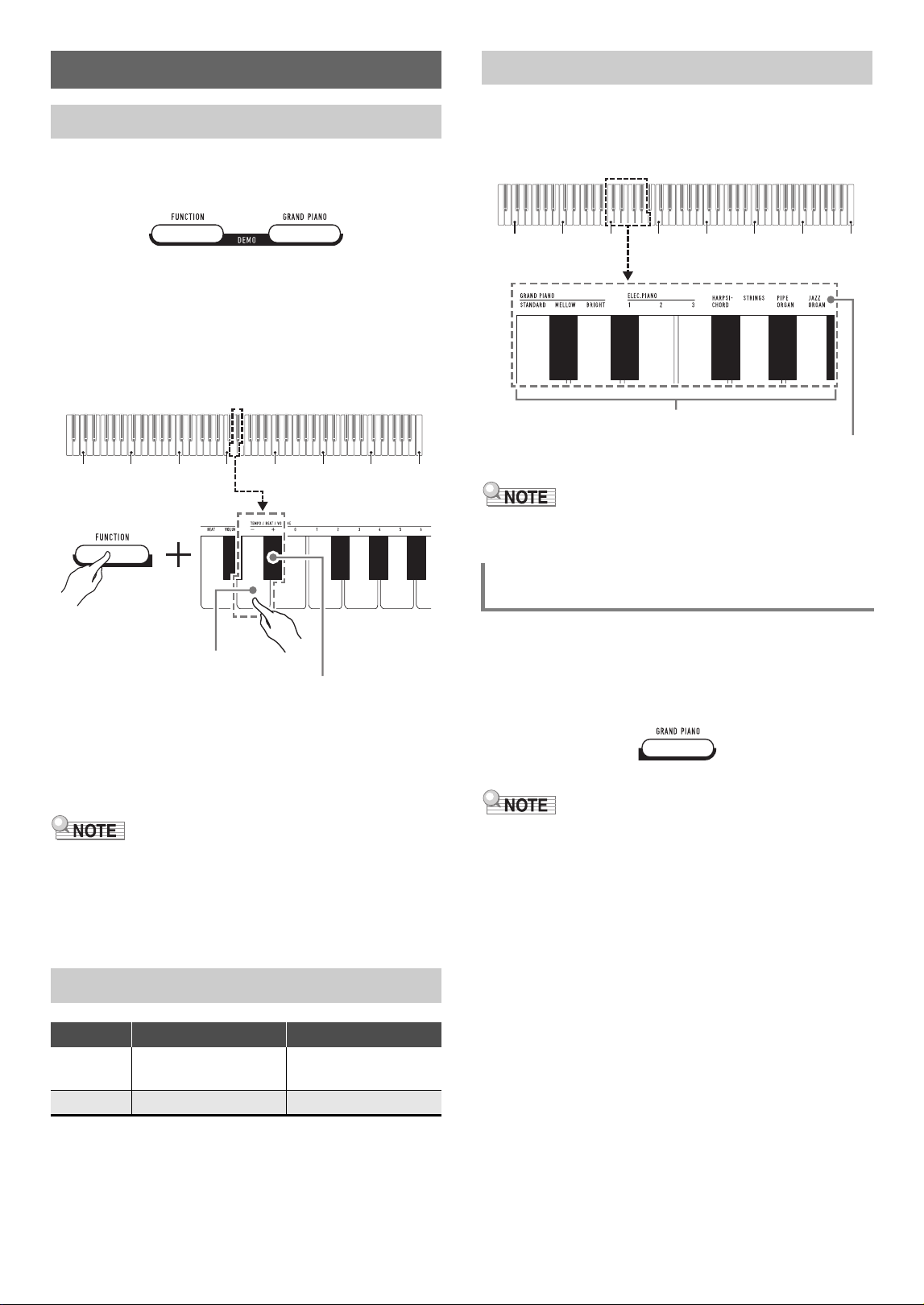
1.
Press 3 FUNCTION and 4 GRAND PIANO
at the same time.
This starts playback of the two demo songs.
• For demo song play, the Digital Piano setup is
changed automatically to optimize it for the demo song
being played.
• To toggle between demo songs during playback, hold
down 3 FUNCTION and press the [–] (D4) or [+]
(E}4) keyboard key.
• Demo song play will repeat until you perform the
operation in step 2 below.
2.
To stop demo song play, press 3 FUNCTION
or 4 GRAND PIANO.
• If Auto Power Off is enabled, power will turn off
automatically at the applicable trigger time after a period of
non-use, even if demo play is being performed. You can
disable Auto Power Off, if you want, by performing the
operation under “To enable or disable Auto Power Off”
(page EN-5).
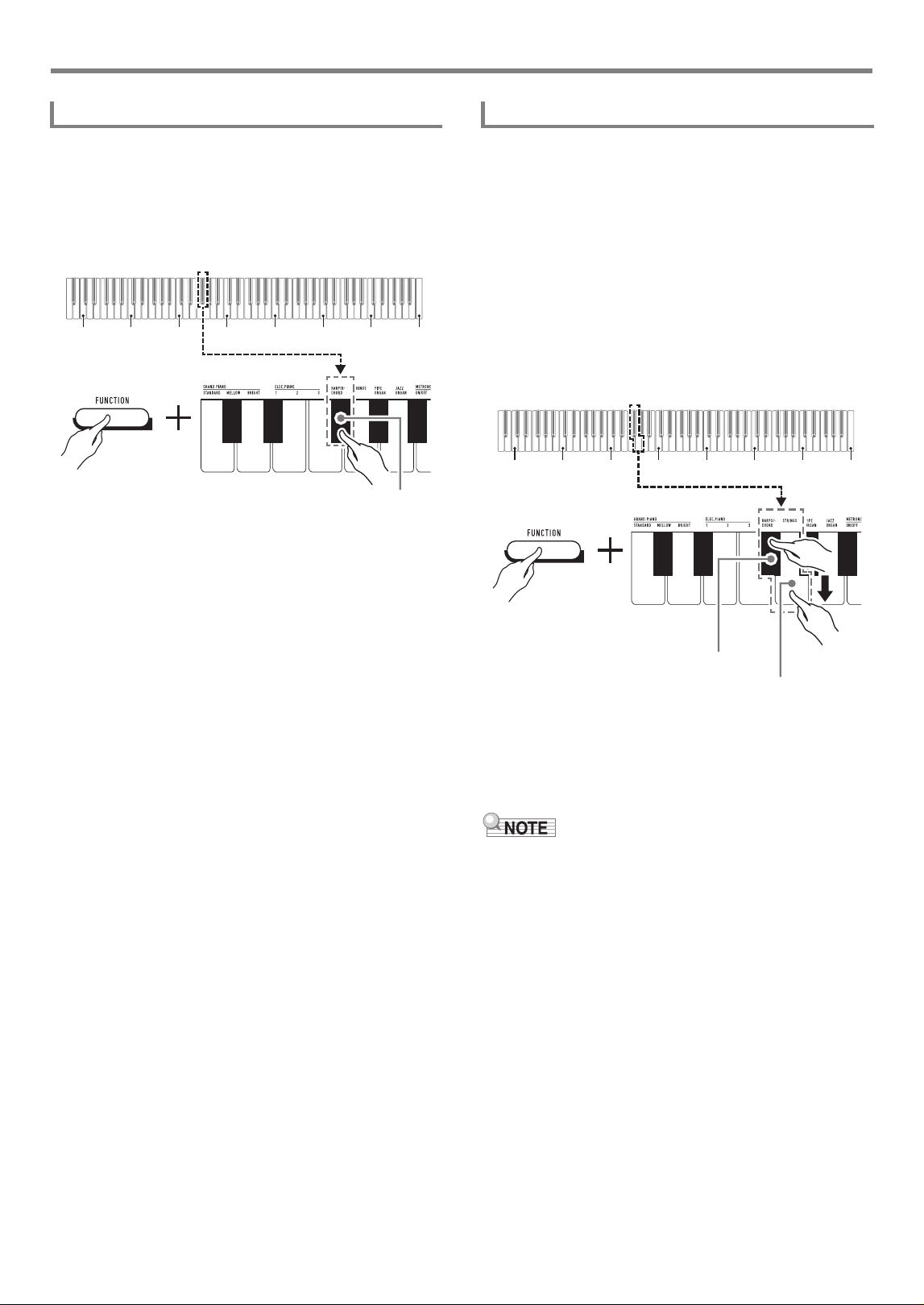
The Digital Piano has 10 built-in tones. In addition to using a
single tone, you can also select two different tones and sound
them together.
Use the Tone keyboard keys (C3 through A3) to select a tone.
• For information about tone names, refer to the “Tone List”
(page EN-21) and “Keyboard Function List” (page EN-22).
Press 4 GRAND PIANO. You can also select the GRAND
PIANO STANDARD tone using the operation under “To select
a single tone” (page EN-8).
Selecting this tone causes the 4 GRAND PIANO button
lamp to light.
• The GRAND PIANO STANDARD tone is the default tone
when the Digital Piano is turned on.
• The 4 GRAND PIANO button lamp is unlit during demo
song play.
Digital Piano Operation
Listening to Demo Play
Demo Song List
Song No. Song Name Tone Name
1 Prélude
[Suite bergamasque]
GRAND PIANO
STANDARD
2 Original ELEC.PIANO 1
C1 C2 C3 C4 C5 C6 C7 C8
[–] key (D4)
[+] key (E}4)
Selecting a Tone
Selecting the GRAND PIANO STANDARD
Tone
C1 C2 C3 C4 C5 C6 C7
C8
Tone keys (C3 through A3)
Tone names
Digital Piano Operation
EN-8
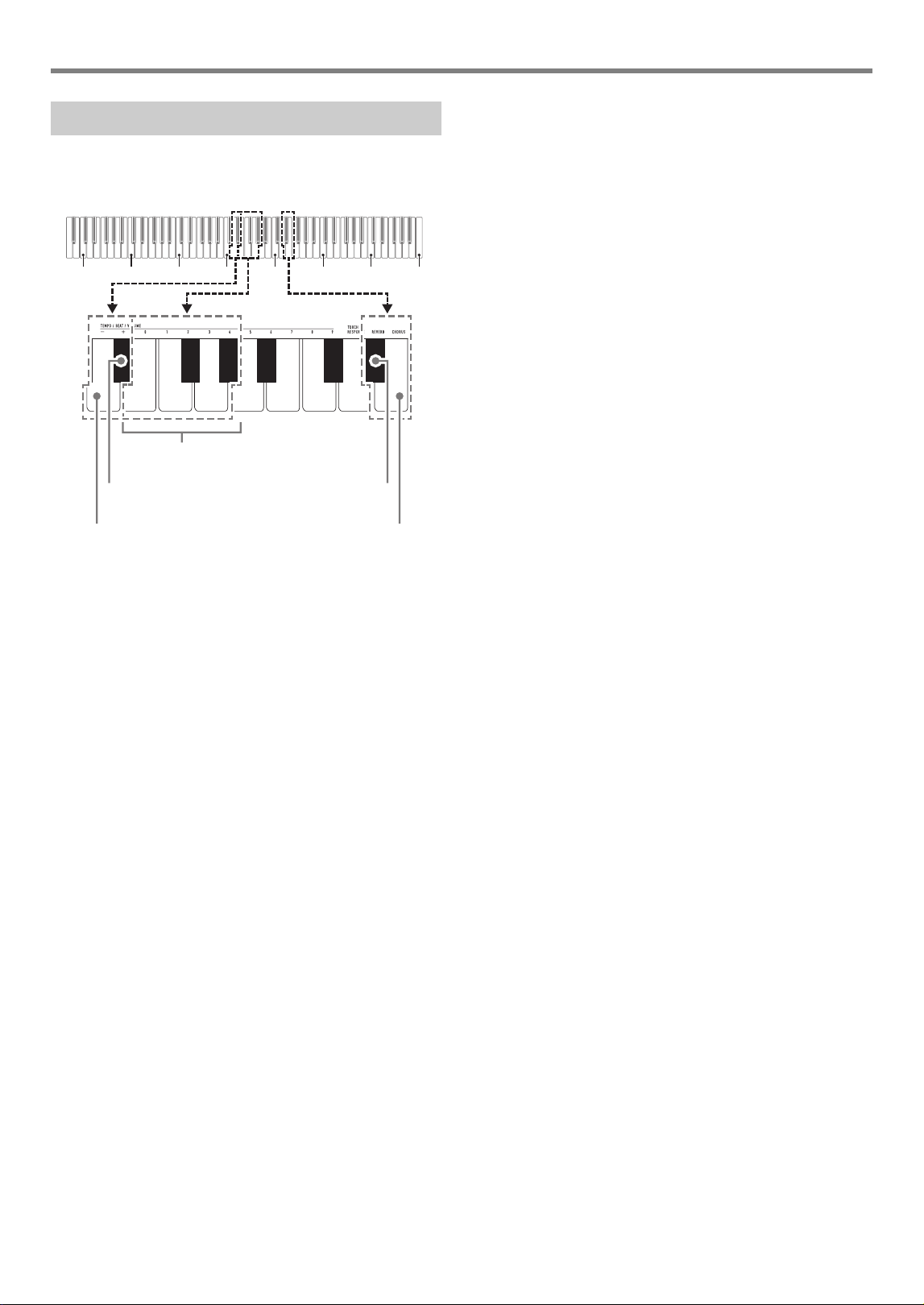
1.
While holding down 3 FUNCTION, press one
of the Tone keyboard keys (C3 through A3).
• To select HARPSICHORD, for example, hold down
3 FUNCTION and press the HARPSICHORD
keyboard key (F{3). A short beep will sound to confirm
the setting.
2.
Release 3 FUNCTION.
1.
While holding down 3 FUNCTION, press the
Tone keyboard keys (C3 through A3) of the first
tone and then the second tone you want to
layer.
• To layer HARPSICHORD and STRINGS, for example,
hold down 3 FUNCTION and press the
HARPSICHORD keyboard key (F{3), and then the
STRINGS key (G3).
• Pressing the first keyboard key for the first tone will
cause a short beep to sound, and press the key for the
second tone will cause a short and then long beep to
sound, indicating that the tones whose keys you
pressed have been layered.
2.
Release 3 FUNCTION.
• Now pressing a single keyboard key will sound both
the HARPSICHORD and STRINGS tones at the same
time.
• To cancel tone layering, perform the procedure under “To
select a single tone” (page EN-8). Or you could press
4 GRAND PIANO, which changes the keyboard tone to
GRAND PIANO STANDARD only.
To select a single tone
C1 C2 C3 C4 C5 C6 C7 C8
HARPSICHORD key (F{3)
To layer two tones
C1 C2 C3 C4 C5 C6 C7 C8
HARPSICHORD key (F{3)
STRINGS key (G3)
EN-9
Digital Piano Operation
Your Digital Piano has a number of effects that change the
reverberation of notes (reverb), and effects that make note
deeper and more expansive (chorus).
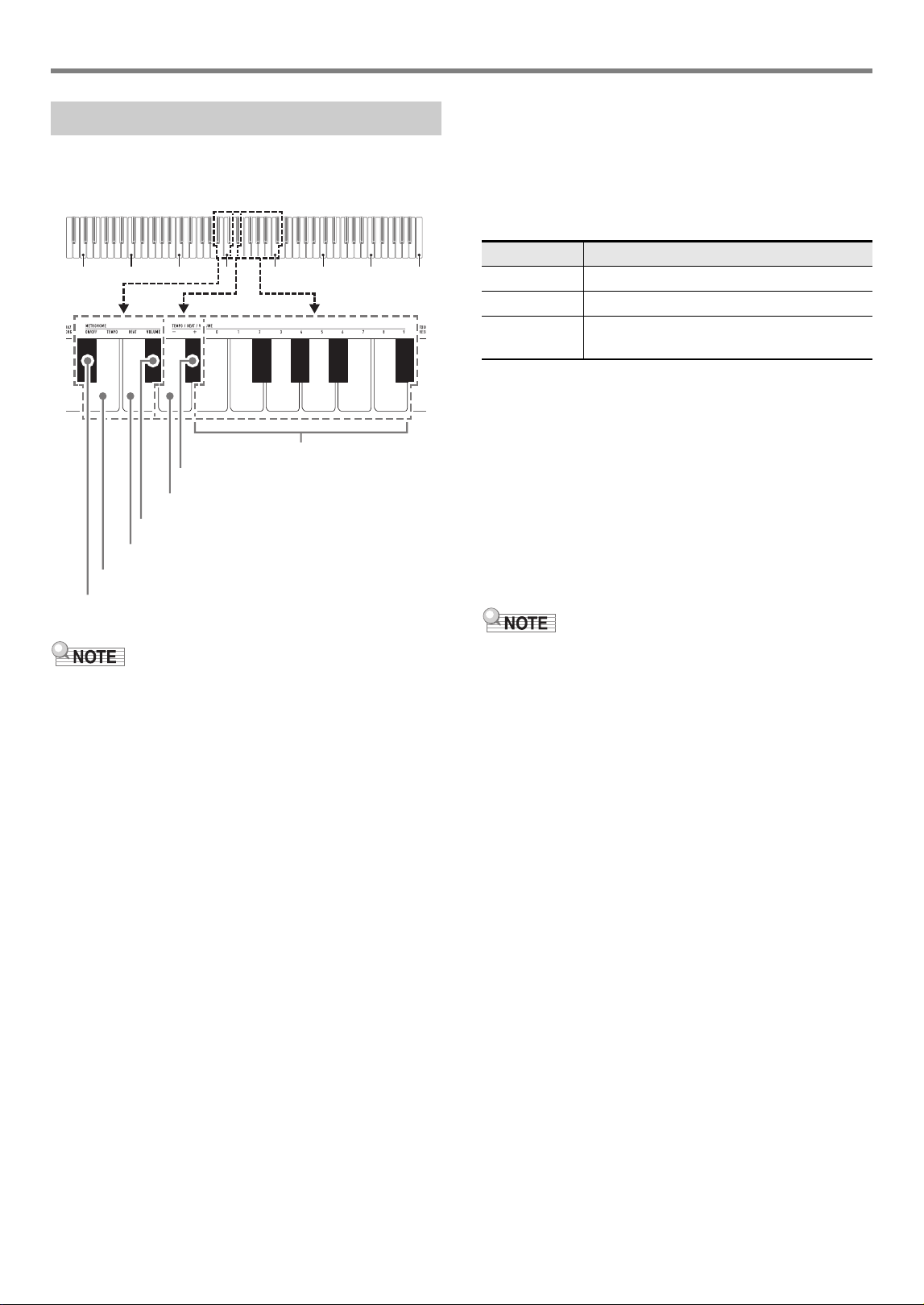
■ To add reverb to notes
1.
While holding down 3 FUNCTION button,
perform procedure (A) or (B) below.
(A) Press the REVERB keyboard key (E}5) to cycle
through available settings.
• Each press changes the setting. Beeps will sound
indicating the setting selected by a key press, as
described below.
1 time low: Reverb off.
1 to 4 times high: Number of beeps indicates the
reverb type selected. Four high beeps indicate
that Virtual Hall* is selected.
* Acoustic effect that creates the feel of playing in
a classic concert hall.
• You can also change the setting by pressing the
keyboard [+] key (E}4) or [–] key (D4).
• To return to the initial default setting, hold down
the keyboard [+] (E}4) and [–] (D4) keys at the
same time until a long beep sounds.
(B) Press the REVERB keyboard key (E}5), and then
press a keyboard key within the range of [0] (E4:
OFF) to [4] (A}4: Virtual Hall).
• This will cause a short and then long beep to
sound, indicating that the operation is complete
and that the reverb setting that corresponds to the
key you pressed is now enabled.
• Pressing a keyboard key outside the range of
setting keys will cause a high and then low beep to
sound, indicating that the setting was not changed.
2.
Release 3 FUNCTION.
■ To add the chorus effect to notes
1.
While holding down the 3 FUNCTION button,
perform procedure (A) or (B) below.
(A) Press the CHORUS keyboard key (E5) to cycle
through available settings.
• Each press changes the setting. Beeps will sound
indicating the setting selected by a key press, as
described below.
1 time low: Chorus off.
1 to 4 times high: Number of beeps indicates the
chorus type selected.
• You can also change the setting by pressing the
keyboard [+] key (E}4) or [–] key (D4).
• To return to the initial default setting, hold down
the keyboard [+] (E}4) and [–] (D4) keys at the
same time until a long beep sounds.
(B) Press the CHORUS keyboard key (E5), and then
press a keyboard key within the range of [0] (E4:
OFF) to [4] (A}4: Chorus 4).
• This will cause a short and then long beep to
sound, indicating that the operation is complete
and that the chorus setting that corresponds to the
key you pressed is now enabled.
• Pressing a keyboard key outside the range of
setting keys will cause a high and then low beep to
sound, indicating that the setting was not changed.
2.
Release 3 FUNCTION.
Using Effects
C1 C2 C3 C4 C5 C6 C7
C8
013
24
[0] (E4) to [4] (A}4) keys
[+] key (E}4)
[–] key (D4)
REVERB key (E}5)
CHORUS key (E5)
Digital Piano Operation
EN-10
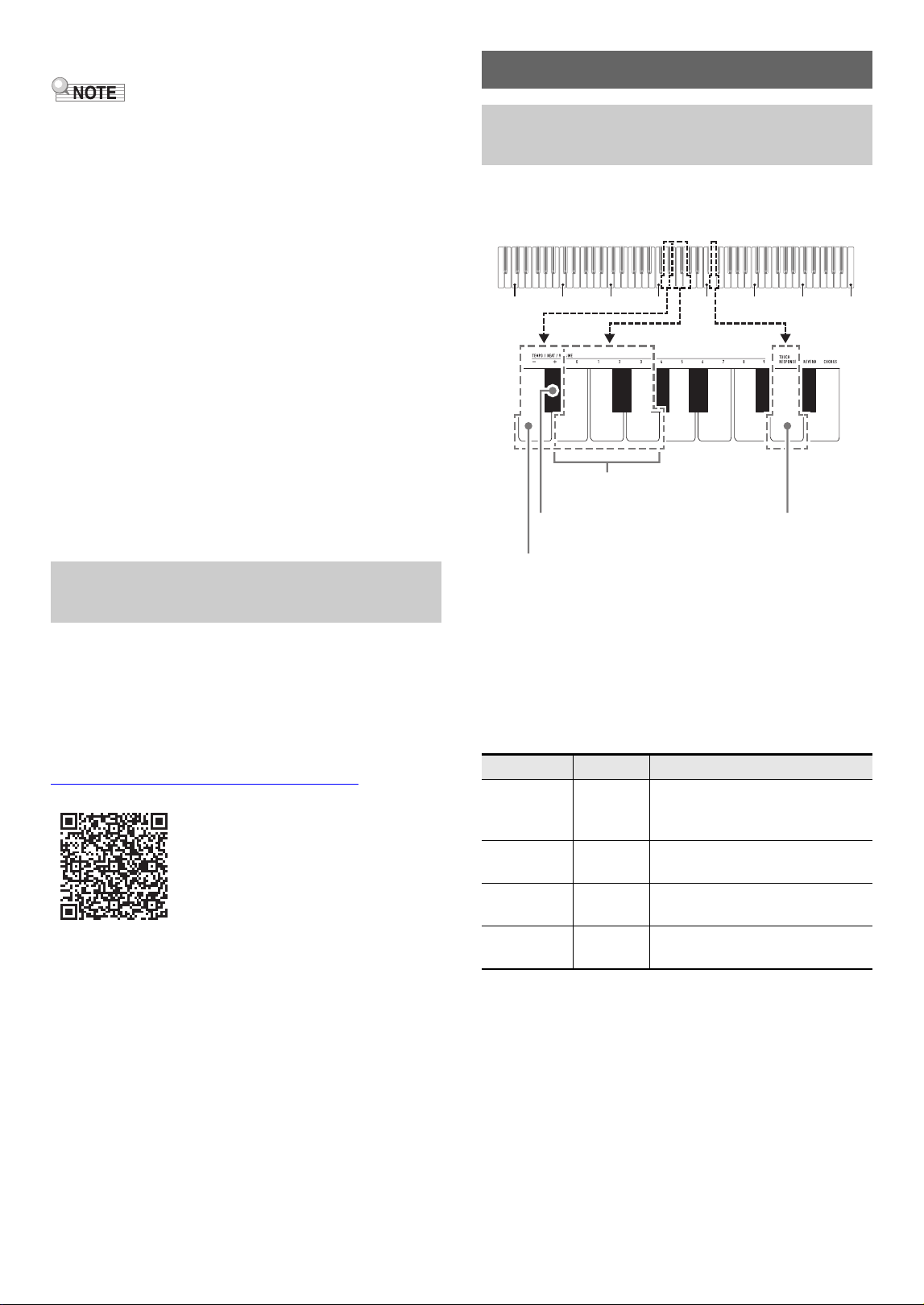
The metronome sounds a regular tone to mark time. Use the
metronome when you want to practice playing at a regular
tempo.
• Metronome settings (beat, tempo, volume) can be changed
while the metronome is sounding or stopped.
■ To start or stop the metronome
1.
While holding down 3 FUNCTION, press the
METRONOME ON/OFF keyboard key (B}3).
■ To change the metronome beat
1.
While holding down 3 FUNCTION, perform
steps (1) and (2) below.
(1) Press the METRONOME BEAT keyboard key (C4).
(2) Press a keyboard key within the range of [0] (E4) to
[9] (C{5) to specify the beat you want.
• You can also raise or lower the beat by pressing
the keyboard [+] key (E}4) or [–] key (D4).
If a key operation would cause the setting to
exceed its upper or lower maximum limit, a high
and then low beep will sound to indicate that the
setting cannot be changed further.
• To return to the initial default setting, hold down
the keyboard [+] (E}4) and [–] (D4) keys at the
same time until a long beep sounds.
2.
Release 3 FUNCTION.
■ To change the metronome tempo
• You can specify a metronome tempo in the range of 20 to
255 beats per minute (bpm). Always input three digits. To
specify a two-digit value, input zero (0) for the unused
leading digit.
1.
While holding down 3 FUNCTION, perform
steps (1) and (2) below.
(1) Press the METRONOME TEMPO keyboard key
(B3).
(2) Use the [0] (E4) through [9] (C{5) keyboard keys to
input the three-digit tempo value.
For example, to specify a tempo of 80 bpm, press
keyboard keys in the following sequence: [0] (E4) 3
[8] (C5) 3 [0] (E4). Inputting the third and final digit
will cause a short and then long beep to sound,
indicating that the value you input was applied.
• You can also raise or lower the tempo by pressing
the keyboard [+] key (E}4) or [–] key (D4).
• To return to the initial default setting (120 bpm),
hold down the keyboard [+] (E}4) and [–] (D4)
keys at the same time until a long beep sounds.
2.
Release 3 FUNCTION.
Using the Metronome
C1 C2 C3 C4 C5 C6 C7 C8
013578
246 9
[0] (E4) to [9] (C{5) keys
[+] key (E}4)
[–] key (D4)
METRONOME VOLUME key (C{4)
METRONOME BEAT key (C4)
METRONOME TEMPO key (B3)
METRONOME ON/OFF key (B}3)
Setting Description
0 All beats unaccented.
1 All beats accented.
2-9
(Default: 4)
Specifies beats per measure value from 2 to
9. An accent sounds on the first beat only.
EN-11
■ To adjust the metronome volume
• You can adjust the metronome value within the range of 0
(muted) and 42 (maximum). Always input two digits. To
specify a one-digit value, input zero (0) for the unused
leading digit.
1.
While holding down 3 FUNCTION, perform
steps (1) and (2) below.
(1) Press the METRONOME VOLUME keyboard key
(C{4).
(2) Use the [0] (E4) through [9] (C{5) keyboard keys to
input a two-digit volume value.
For example, to specify a volume value of 8, press
keyboard keys in the following sequence: [0] (E4) 3
[8] (C5). Inputting the second and final digit will
cause a short and then long beep to sound,
indicating that the value you input was applied.
• You can also raise or lower the volume by
pressing the keyboard [+] key (E}4) or [–] key
(D4).
• To return to the initial default setting (36), hold
down the keyboard [+] (E}4) and [–] (D4) keys at
the same time until a long beep sounds.
2.
Release 3 FUNCTION.
After you link the Digital Piano with a smartphone, tablet, or
other smart device, you can control the Digital Piano with the
linked smart device (Piano Remote Controller).
■ To download the smart device app
Download the smart device app from the CASIO website and
install it on the smart device you want to use.
https://support.casio.com/global/en/emi/manual/CDP-S110/
■ To link to a smart device
After installing the app on a smart device, use a commercially
available USB cable to connect the smart device’s USB port
with the Digital Piano’s USB Type B port.
After connecting the smart device to the Digital Piano, use the
smart device app to perform operations. For details about
operations, refer to the user documentation of the app.
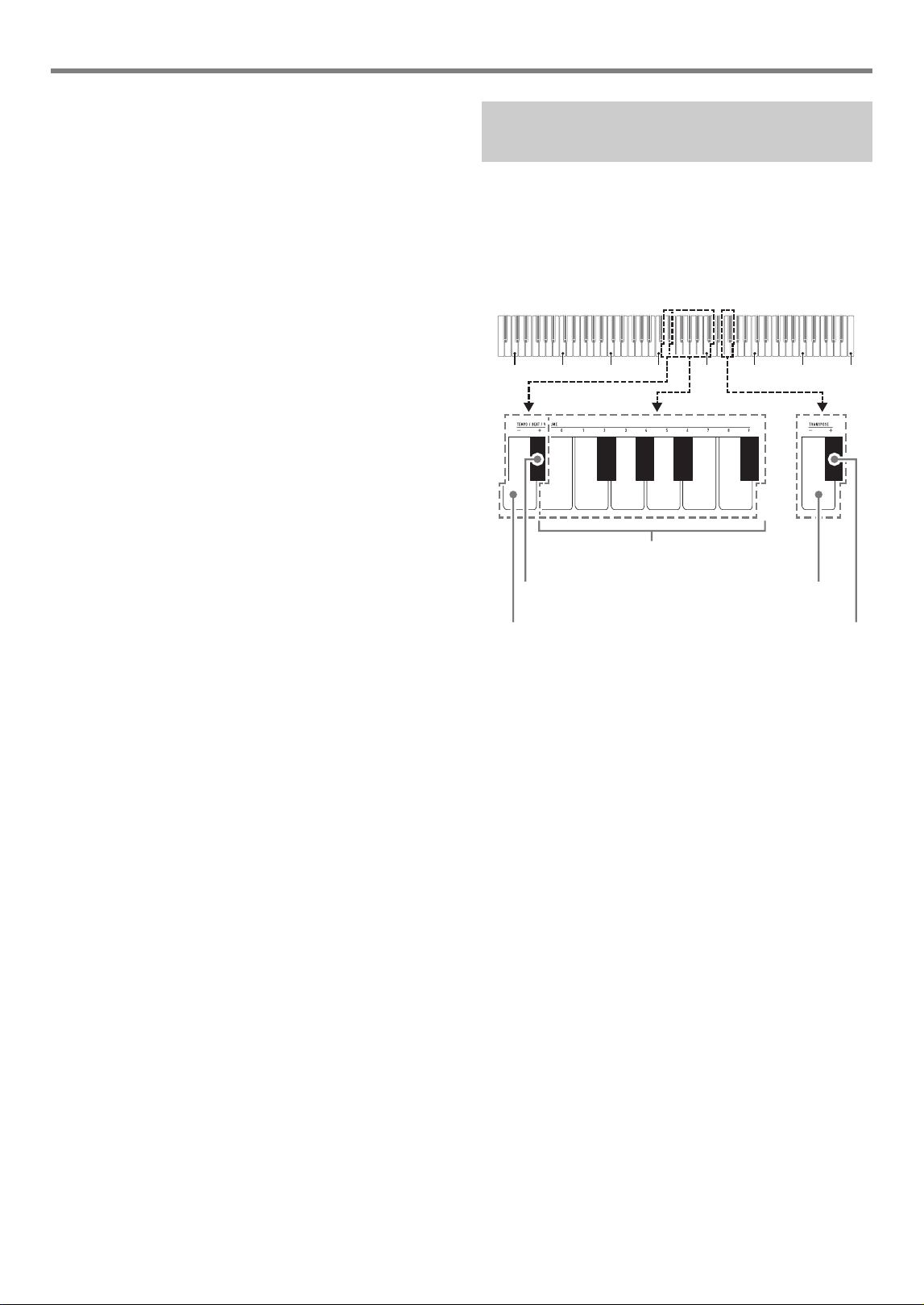
You can select from among four Touch Response settings,
which determine how Digital Piano volume changes in
accordance with how strongly keyboard keys are pressed.
■ To change the Touch Response setting
1.
While holding down 3 FUNCTION, perform
procedure (A) or (B) below.
(A) Press the TOUCH RESPONSE keyboard key (D5).
• Each press changes the setting. A beep will sound
indicating the setting selected by a key press.
• You can also change the setting by pressing the
keyboard [+] key (E}4) or [–] key (D4).
• To return to the initial default setting, hold down
the keyboard [+] (E}4) and [–] (D4) keys at the
same time until a long beep sounds.
Linking with a Smart Device (APP
Function)
Configuring Settings
Changing the Keyboard Touch
Response
Beep Setting Description
Once low Off Touch Response is turned off.
Sound volume is fixed,
regardless of key press speed.
Once high Light Strong sound, even with light
pressure
Twice high Normal
(Default)
Normal Touch Response
Three times
high
Heavy Normal sound, even with strong
pressure
C1 C2 C3 C4 C5 C6 C7 C8
013
2
[0] (E4) to [3] (G4) keys
[+] key (E}4)
[–] key (D4)
TOUCH RESPONSE key (D5)
Configuring Settings
EN-12
(B) Press the TOUCH RESPONSE keyboard key (D5),
and then press a keyboard key within the range of [0]
(E4: OFF) to [3] (G4: Heavy).
• This will cause a short and then long beep to
sound, indicating that the operation is complete
and that the touch response setting that
corresponds to the key you pressed is now
enabled.
• Pressing a keyboard key outside the range of
setting keys will cause a high and then low beep to
sound, indicating that the setting was not changed.
2.
Release 3 FUNCTION.
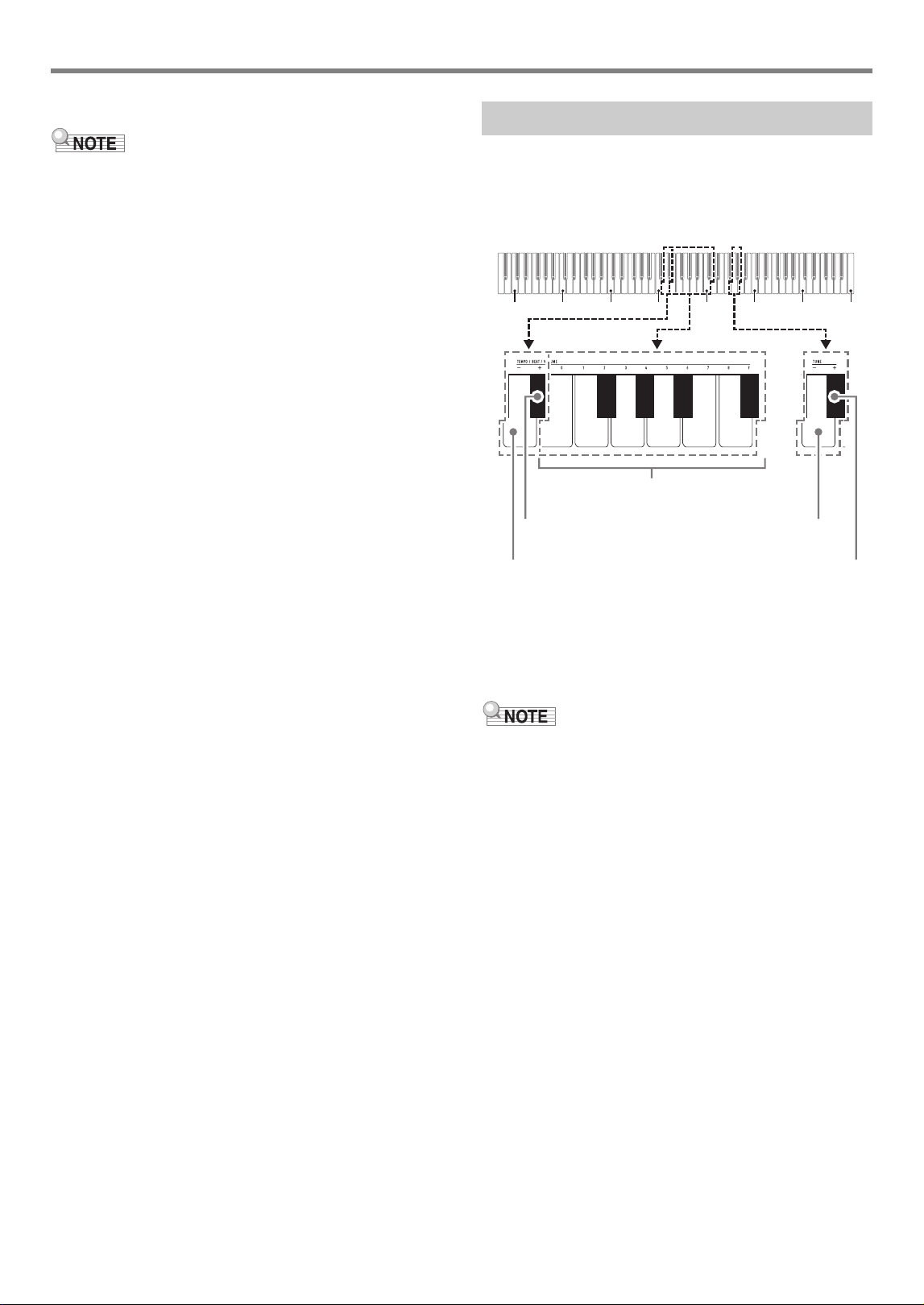
The transpose feature lets you raise or lower the overall pitch
of the Digital Piano in semitone steps. You can use this
feature to raise or lower the keyboard key and to play a piece
in a key that is more comfortable for you, or to adjust to a key
that better matches a vocalist, etc.
You can change the transpose setting within the range of –12
semitones to 0 to +12 semitones.
■ To change the transpose setting in semitone
steps
1.
While holding down 3 FUNCTION, press the
TRANSPOSE– keyboard key (F5) to lower the
pitch by one semitone or the TRANSPOSE+
keyboard key (F{5) to raise it by one semitone.
• Each press of the keyboard key causes a short high
tone to sound. A low tone will sound when a key press
causes the transpose setting to become zero (0).
• If a key operation would cause the setting to exceed its
upper or lower maximum limit, a high and then low
beep will sound to indicate that the setting cannot be
changed further.
• You can also raise or lower the setting value by
pressing the keyboard [+] key (E}4) or [–] key (D4).
• To return to zero (0), hold down the keyboard
TRANSPOSE– (F5) and TRANSPOSE+ (F{5) keys at
the same time until a long beep sounds.
2.
Release 3 FUNCTION.
Changing the Pitch in Semitone
Steps (Transpose)
C1 C2 C3 C4 C5 C6 C7 C8
013578
246 9
[0] (E4) to [9] (C{5) keys
[+] key (E}4)
[–] key (D4)
TRANSPOSE– key (F5)
TRANSPOSE+ key (F{5)
EN-13
Configuring Settings
■ To use a value to specify the transpose setting
• While the setting value is within the range of 0 to +12
semitones, you can use the procedure below to directly
input a desired setting value.
1.
While holding down 3 FUNCTION, perform
steps (1) and (2) below.
(1) Press the TRANSPOSE– keyboard key (F5) or the
TRANSPOSE+ keyboard key (F{5).
(2) Use the [0] (E4) through [9] (C{5) keyboard keys to
input a two-digit transpose value.
For example, to specify a setting 8 semitones, press
keyboard keys in the following sequence: [0] (E4) 3
[8] (C5). Inputting the second and final digit will
cause a short and then long beep to sound,
indicating that the value you input was applied.
2.
Release 3 FUNCTION.
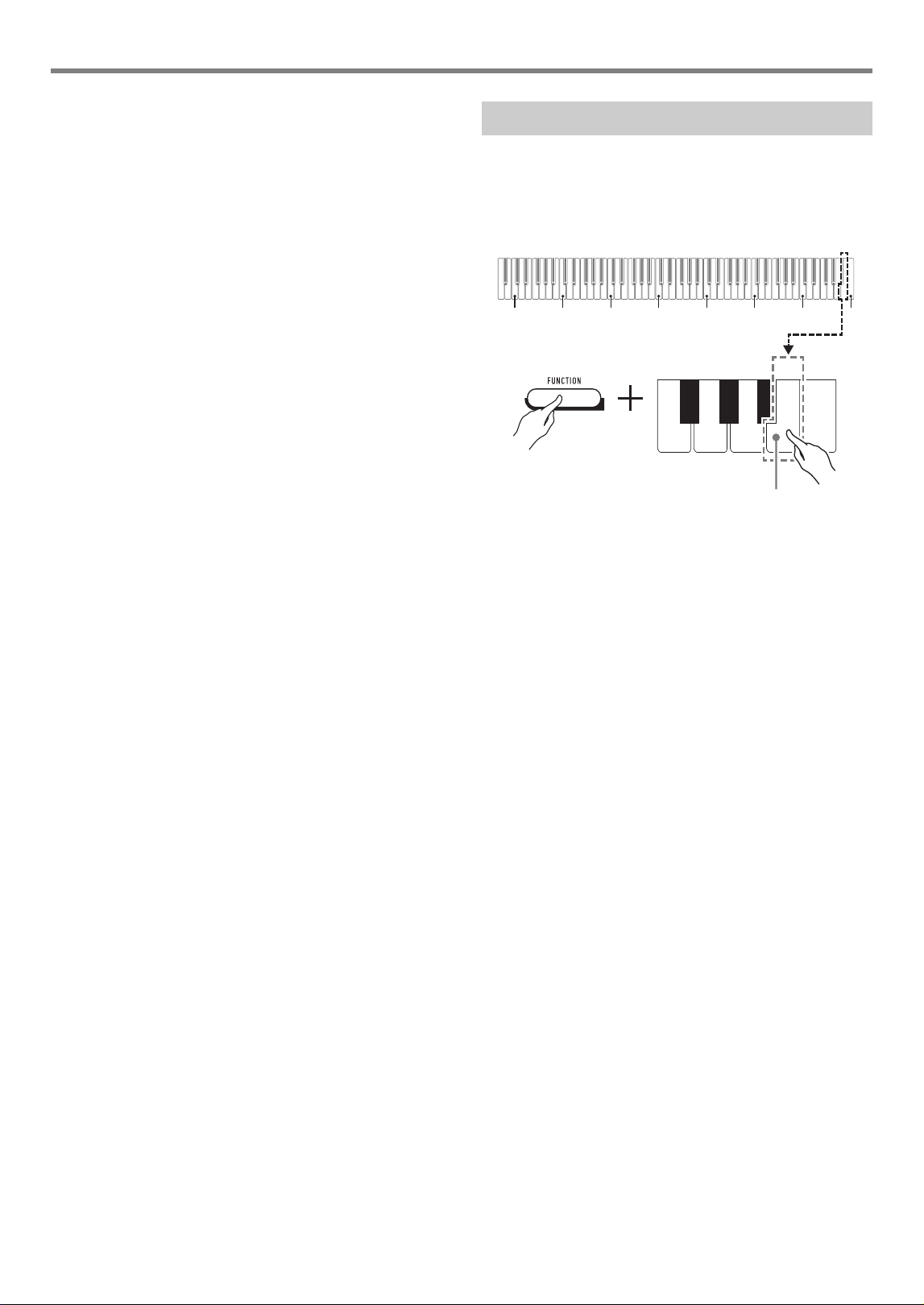
The tuning feature specifies the frequency of the A4 note. You
can set a frequency within the range of 415.5 to 465.9 Hz. The
initial default setting is 440.0 Hz.
The setting you configure is retained even if you turn off the
Digital Piano.
■ To change the tuning setting
1.
While holding down 3 FUNCTION, perform
steps (1) through (3) below.
• If a key operation during steps (1) through (3) would cause
the setting to exceed its upper or lower maximum limit, a
high and then low beep will sound to indicate that the
setting cannot be changed further.
(1) Press the TUNE– keyboard key (G5) or the TUNE+
keyboard key (A}5).
• Pressing the TUNE– key (G5) will lower the
current pitch setting by 0.1 Hz, while pressing
TUNE+ (A}5) will raise it by 0.1 Hz.
• If you just want to fine tune the current pitch
setting, go directly to step (3) below.
Fine Tuning a Pitch (Tuning)
C1 C2 C3 C4 C5 C6 C7 C8
013578
246 9
[0] (E4) to [9] (C{5) keys
[+] key (E}4)
[–] key (D4)
TUNE– key (G5)
TUNE+ key (A}5)
Configuring Settings
EN-14
(2) To input a pitch value, use the [0] (E4) through [9]
(C{5) keyboard keys to input an integer that
specifies the frequency (Hz) of the A4 note.
• For example, to specify a frequency of 442 Hz,
press keyboard keys in the following sequence:
[4] (A}4) 3 [4] (A}4) 3 [2] (F{4). Inputting the
third and final digit will cause a short and then long
beep to sound, indicating that the value you input
was applied.
• You can specify a value in the range of 416
through 465 Hz.
(3) To fine tune by 0.1 Hz increments, press the TUNE–
keyboard key (G5) to lower the pitch by 0.1 Hz or the
TUNE+ keyboard key (A}5) to raise the pitch by
0.1 Hz.
• Each press of the keyboard key causes a beep to
sound. The beep becomes higher whenever a key
operation causes the setting value to become an
integer.
• You can specify a value in the range of 415.5
through 465.9 Hz.
• To return to the initial default setting, hold down
the keyboard TUNE– (G5) and TUNE+ (A}5) keys
at the same time until a long beep sounds.
2.
Release 3 FUNCTION.
You can use the 3 FUNCTION button operation below to
toggle the beep tone between enabled and disabled.
1.
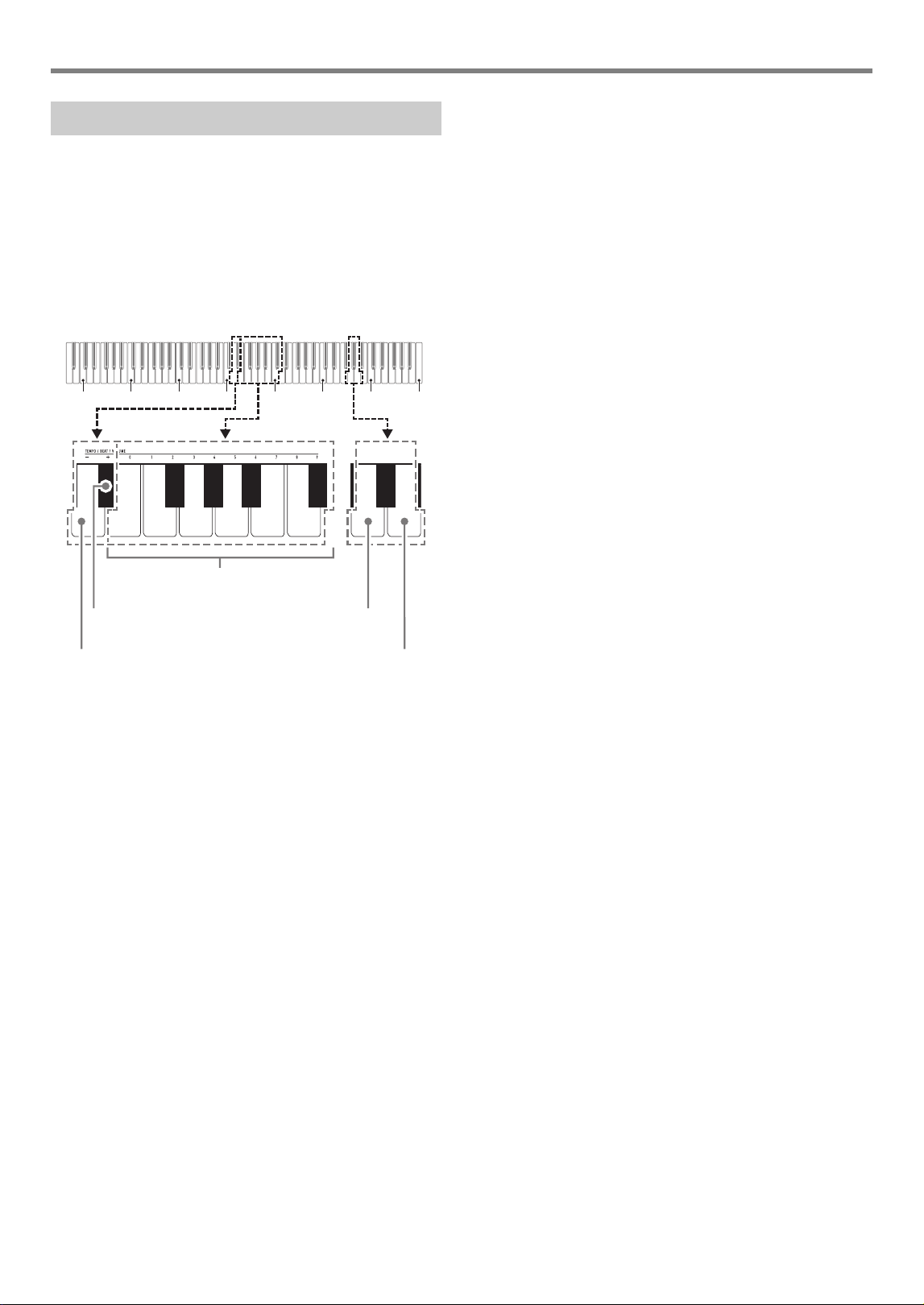
While holding down 3 FUNCTION, press the
B7 (Beep) keyboard key.
• Each press of the B7 keyboard key will cause a short
beep to sound. A low beep sounds when the key
operation disables the beep, while a high beep sounds
when the key operation enables the beep.
2.
After the setting is the way you want, press
3 FUNCTION.
Changing the Beep Setting
C1 C2 C3 C4 C5 C6 C7 C8
B7 (Beep) keyboard key
EN-15
Configuring Settings
Keyboard Channel
This setting specifies a channel from 1 through 16 as the MIDI
channel that can be used for sending data to an external
device (Default: Ch 1).
Local Control
When this setting is turned off, performance information (MIDI
data) is sent from the Digital Piano, but no Digital Piano sound
is output. This setting is for when you only want to send MIDI
data to an external device (Default: On).
■ To change the Keyboard Channel
1.
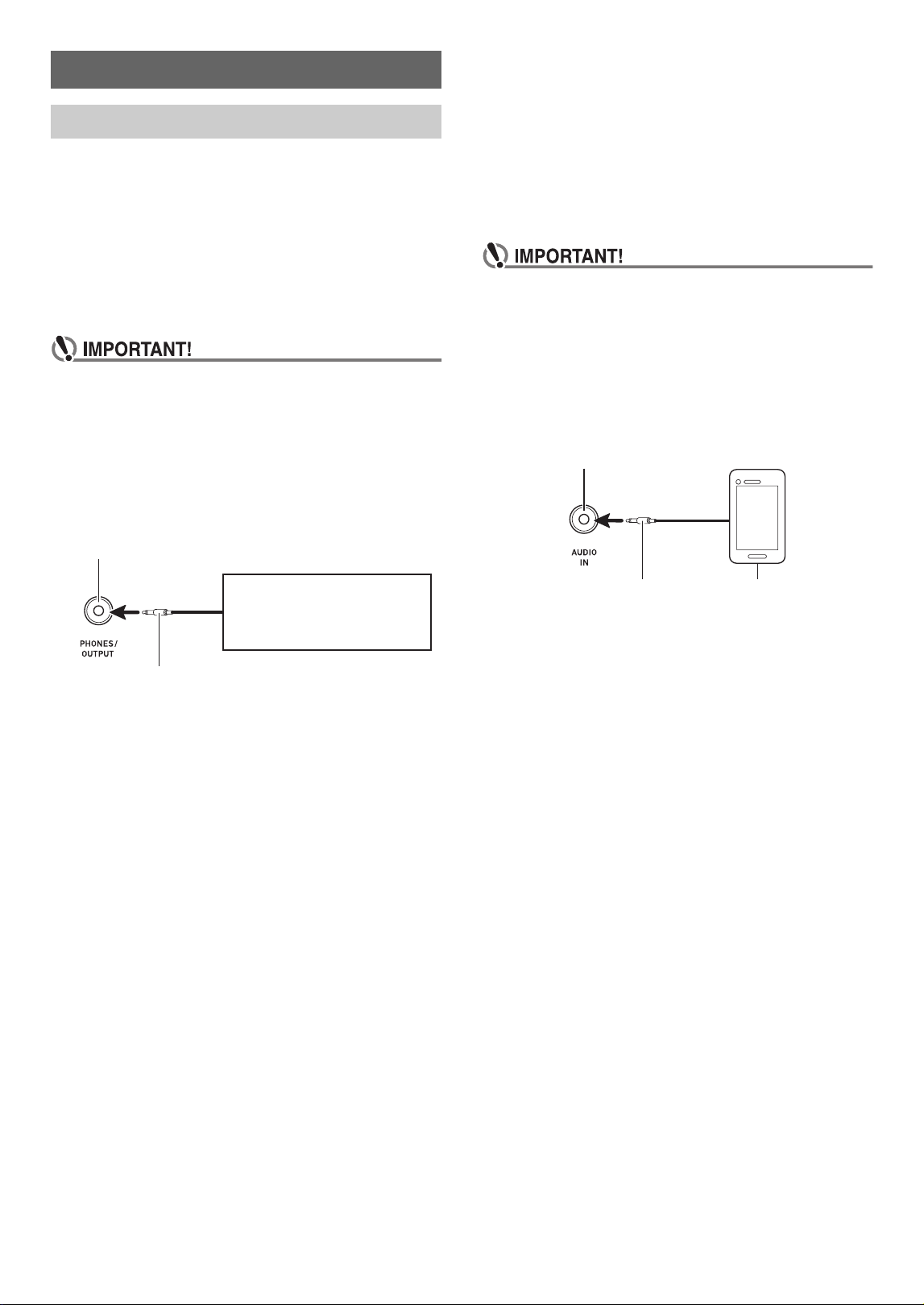
While holding down 3 FUNCTION, perform
steps (1) and (2) below.
(1) Press the G6 (Keyboard Channel) keyboard key.
(2) Use the [0] (E4) through [9] (C{5) keyboard keys to
input a two-digit keyboard channel number.
For example, to specify a keyboard channel 8, press
keyboard keys in the following sequence: [0] (E4) 3
[8] (C5). Inputting the second and final digit will
cause a short and then long beep to sound,
indicating that the value you input was applied.
• You can also raise or lower the channel number by
pressing the keyboard [+] key (E}4) or [–] key
(D4).
• To return to the initial default setting, hold down
the keyboard [+] (E}4) and [–] (D4) keys at the
same time until a long beep sounds.
2.
Release 3 FUNCTION.
■ To toggle Local Control between on and off
1.
While holding down 3 FUNCTION, press the
A6 (Local Control) keyboard key.
• Each press of the A6 keyboard key will cause a short
beep to sound. A low beep sounds when the key
operation turns off Local Control, while a high beep
sounds when the key operation turns on Local Control.
2.
After the setting is the way you want, press
3 FUNCTION.
Configuring MIDI Settings
C1 C2 C3 C4 C5 C6 C7 C8
013578
246 9
[0] (E4) to [9] (C{5) keys
[+] key (E}4)
[–] key (D4)
G6 (Keyboard Channel) key
A6 (Local Control) key
EN-16
This Digital Piano can be connected to commercially available
stereo, amplifier, or recording equipment, to a portable audio
player or other equipment.
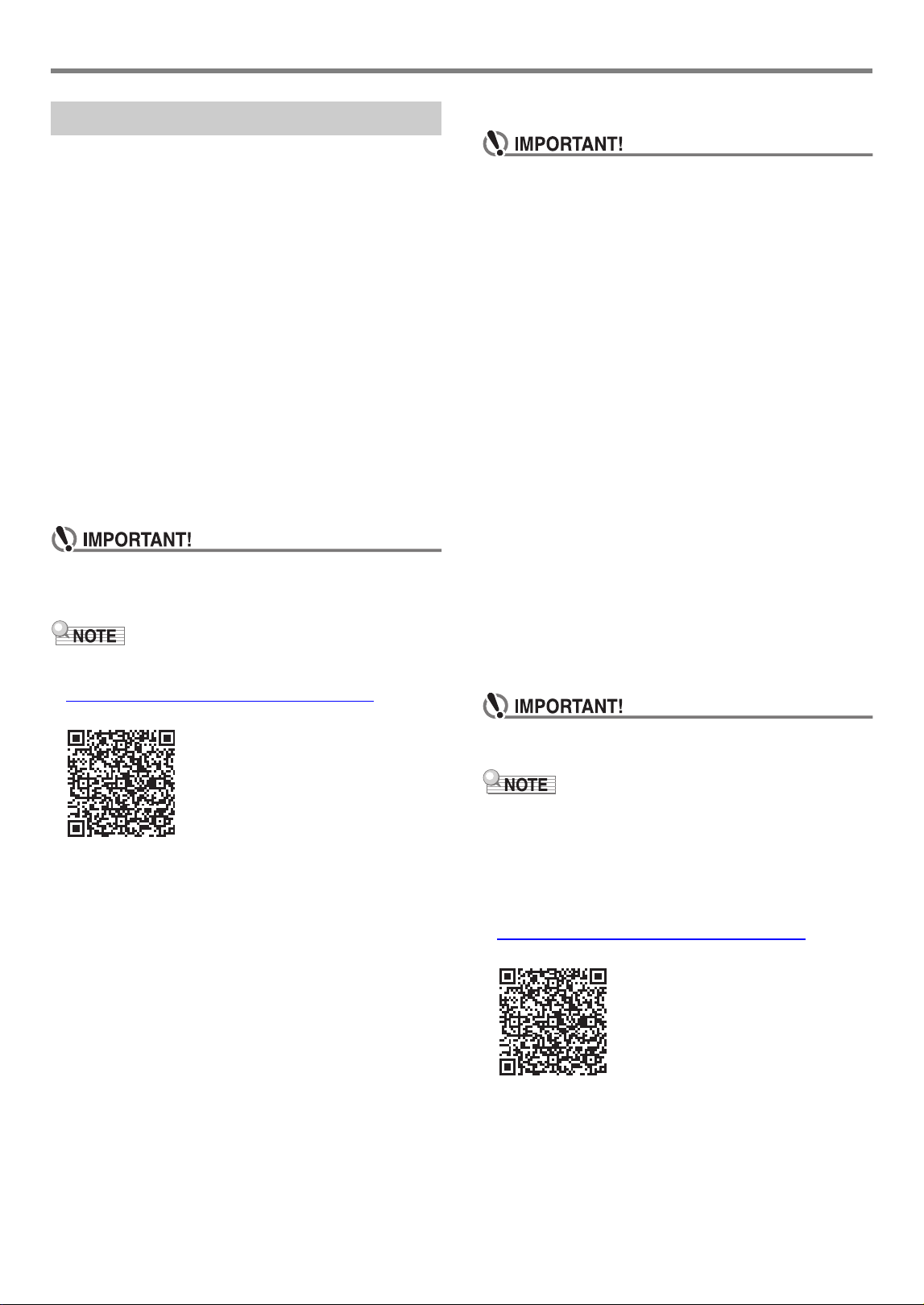
■ Outputting Keyboard Notes to Audio Equipment
Connection requires commercially available connecting cords,
supplied by you.
• The connecting cords should have a stereo mini plug on
one end and a plug that matches the configuration of the
external device on the other end.
• Turn off the external device when making connections.
After connecting, turn down the Digital Piano and
external device volume levels whenever turning power
on or off.
• After connecting, turn on the Digital Piano and then the
external device.
• If keyboard notes are distorted when they are sounded
from external audio equipment, lower the Digital
Piano’s volume setting.
■ Playing an External Device from the Digital Piano
Connection requires commercially available connecting cords,
supplied by you.
• The connecting cords should have a 3-pole stereo mini plug
on one end and a plug that matches the configuration of the
external device on the other end.
• When sounding audio on the Digital Piano that is input from
an external device, use the external device to adjust the
volume level. You cannot adjust the volume level on the
Digital Piano.
• Turn off the Digital Piano when making connections.
After connecting, turn down the Digital Piano and
external device volume levels whenever turning power
on or off.
• After connecting, turn on the external device and then
the Digital Piano.
• If external device notes that sound through the Digital
Piano speakers are distorted, lower the external
device’s volume level setting.
Connecting External Devices
Connecting to Audio Equipment
Digital Piano 7 PHONES/OUTPUT jack (Stereo mini jack (3.5mm))
Stereo mini plug
Audio equipment, amplifier, etc.
3-pole stereo mini plug
Digital Piano 8 AUDIO IN jack (Stereo mini jack (3.5mm))
Portable audio player, etc.
EN-17
Connecting External Devices
You can connect the Digital Piano to a computer and
exchange MIDI data between them. You can send play data
from the Digital Piano to music software running on your
computer, or you can send MIDI data from your computer to
the Digital Piano for playback.
■ Minimum Computer System Requirements
The minimum computer system requirements for sending and
receiving MIDI data are shown below. Check to make sure
that your computer complies with these requirements before
connecting the Digital Piano to it.
● Operating System
Windows 8.1 *
1
Windows 10 *
2
macOS (OS X/Mac OS X) 10.7, 10.8, 10.9, 10.10, 10.11,
10.12, 10.13, 10.14, 10.15, 11.0
*1 Windows 8.1 (32-bit, 64-bit)
*2 Windows 10 (32-bit, 64-bit)
● USB port
• Never connect to a computer that does not conform to
the above requirements. Doing so can cause problems
with your computer.
• For the latest news about supported operating systems,
visit the website at the URL below.
https://support.casio.com/global/en/emi/manual/CDP-S110/
■ To connect the Digital Piano to your computer
• Make sure you follow the steps of the procedure below
exactly. Connecting incorrectly can make data send
and receive impossible.
1.
Turn off the Digital Piano and then start up
your computer.
• Do not start up the music software on your computer
yet!
2.
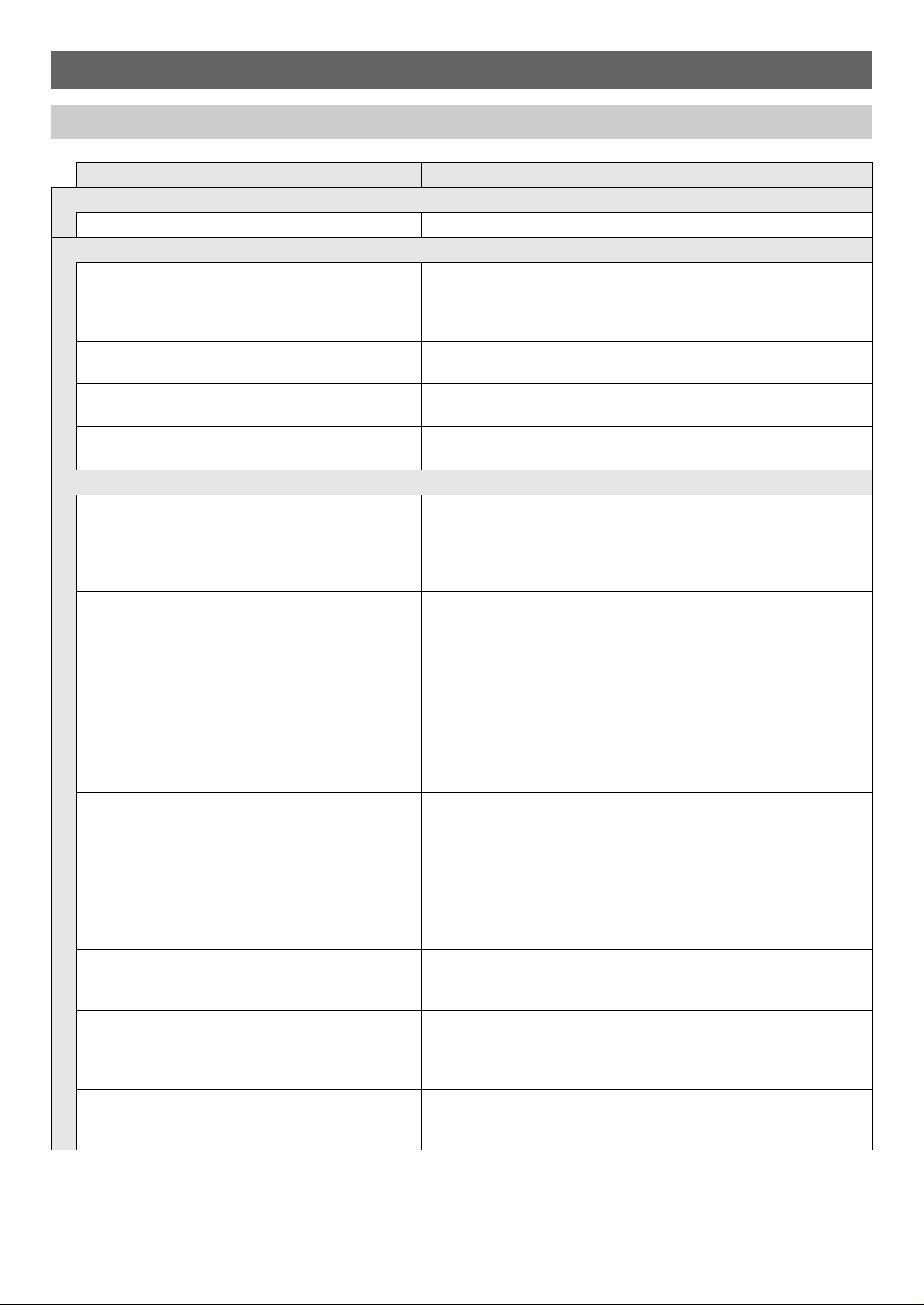
After starting up your computer, use a
commercially available USB cable to connect it
to the Digital Piano.
• Use a USB 2.0 or 1.1 A-B connector type USB cable.
3.
Turn on the Digital Piano.
• If this is the first time you are connecting the Digital
Piano to your computer, the driver software required to
send and receive data will be installed on your
computer automatically.
4.
Start up commercially available music software
on your computer.
5.
Configure the music software settings to select
“CASIO USB-MIDI” as the MIDI device.
• For information about how to select the MIDI device,
see the user documentation that comes with the music
software you are using.
• Be sure to turn on the Digital Piano first before starting
up your computer’s music software.
• Once you are able to connect successfully, there is no
problem with leaving the USB cable connected when you
turn off or turn on your computer and/or Digital Piano.
• For detailed specifications and connections that apply to
MIDI data send and receive by this Digital Piano, see the
latest support information provided by the website at the
URL below.
https://support.casio.com/global/en/emi/manual/CDP-S110/
• For information about MIDI settings, see “Configuring MIDI
Settings” (page EN-15).
Connecting a Computer
EN-18
Reference
Troubleshooting
Symptom Action
Included Accessories
I can’t find something that should be here. Carefully check inside all of the packing materials.
Power Requirements
Power will not turned on. • Check the AC adaptor or make sure that the batteries are facing
correctly (page EN-3).
• Replace the batteries with new ones or switch over to AC adaptor
power (page EN-3).
Power does not turn on when I press the 1P
(Power) button.
Press 1P (Power) firmly and completely to turn on power.
The Digital Piano outputs a loud sound and then
suddenly powers down.
Replace the batteries with new ones or switch over to AC adaptor
power (page EN-3).
The Digital Piano suddenly turns off after some time
when power is left on.
Auto Power off (page EN-5) may have been triggered. Press the
1P (Power) button to turn power back on.
Sound
Nothing happens when I press any keyboard key. • Adjust the volume setting (page EN-5).
• Check if something is plugged into 7 PHONES/OUTPUT jack on
the back of the Digital Piano.
• Turn power off and then back on to initialize all Digital Piano
settings (page EN-5).
The metronome does not sound. • Check and adjust the metronome volume setting (page EN-11).
• Turn power off and then back on to initialize all Digital Piano
settings (page EN-5).
Notes keep sounding, without stopping. • Turn power off and then back on to initialize all Digital Piano
settings (page EN-5).
• Replace the batteries with new ones or switch over to AC adaptor
power (page EN-3).
Some notes are cut off while they are playing. Notes are cut off whenever the number of notes being sounded
exceeds the maximum polyphony value of 64 (32 for some tones).
This does not indicate malfunction.
The volume or tone setting I made has changed. • Adjust the volume setting (page EN-5).
• Turn power off and then back on to initialize all Digital Piano
settings (page EN-5).
• Replace the batteries with new ones or switch over to AC adaptor
power (page EN-3).
Output volume does not change even though I
change my keyboard touch.
• Change the Touch Response setting (page EN-11).
• Turn power off and then back on to initialize all Digital Piano
settings (page EN-5).
In certain keyboard ranges, the volume and tone
quality sound are slightly different from those in other
keyboard ranges.
This is due to system limitations. It does not indicate malfunction.
The pitch of the notes does not match other
accompanying instruments or sounds strange when
played along with other instruments.
• Check and adjust the transpose (page EN-12) and tuning settings
(page EN-13).
• Turn power off and then back on to initialize all Digital Piano
settings (page EN-5).
The reverb of notes seems to change suddenly. • Check and adjust the reverb setting (page EN-9).
• Turn power off and then back on to initialize all Digital Piano
settings (page EN-5).

EN-19
Reference
Computer Connection
I can’t exchange data between the Digital Piano and
a computer.
• Check to make sure that the USB cable is connected to the Digital
Piano and computer, and that the device is selected correctly with
your computer’s music software settings (page EN-17).
• Turn off the Digital Piano and then exit the music software on your
computer. Next, turn the Digital Piano back on and then restart the
music software on your computer.
Symptom Action
EN-20
Reference
• Specifications and designs are subject to change without notice.
Product Specifications
Model CDP-S110BK/CDP-S110WE
Keyboard 88-key piano keyboard, with Touch Response
Maximum Polyphony 64 notes
Tones 10, Layer
Effects Reverb (4 types), Chorus (4 types)
Metronome • Beat bell: 0 (Off), 1 to 9 (beats)
• Tempo Range: 20 to 255
Demo Songs 2
Pedals Damper
Other Functions • Touch Response: 3 types, Off
• Transpose: –12 to 0 to 12 semitones
• Tuning: A4 = 415.5 Hz to 465.9 Hz (Initial Default: 440.0 Hz), variable in 0.1 Hz steps
MIDI 16-channel multi-timbre receive
Inputs/Outputs • PHONES/OUTPUT jack: Stereo mini jack (3.5mm)
Output Voltage: 1.2V (RMS) MAX
• Power: 12V DC
• AUDIO IN jack: Stereo mini jack (3.5mm)
Input impedance: 10k
Ω
Input voltage: 200mV
• USB port: Type B
• DAMPER PEDAL jack: Standard jack (6.3mm)
Speakers 12cm × 6cm (Oval) × 2 (Output 8W + 8W)
Power Supply 2-way
Batteries 6 AA-size alkaline batteries
Battery Life Approximately 13 hours continuous operation on alkaline batteries
AC Adaptor AD-A12150LW
Auto Power Off Approximately 4 hours (AC Adaptor) / 6 minutes (batteries) after last operation; can be disabled.
Power Consumption 12V = 8W
Dimensions 132.2 (W) × 23.2 (D) × 9.9 (H) cm (52 1/16 × 9 1/8 × 3 7/8 inch)
Weight Approximately 10.5kg (23.1 lbs) (without batteries)
EN-21
Reference
Tone List
Tone Name
Program
Change
Bank
Select MSB
GRAND PIANO STANDARD 0 0
GRAND PIANO MELLOW 1 0
GRAND PIANO BRIGHT 2 0
ELEC.PIANO 1 3 0
ELEC.PIANO 2 4 0
ELEC.PIANO 3 5 0
HARPSICHORD 6 0
STRINGS 7 0
PIPE ORGAN 8 0
JAZZ ORGAN 9 0
EN-22
Reference
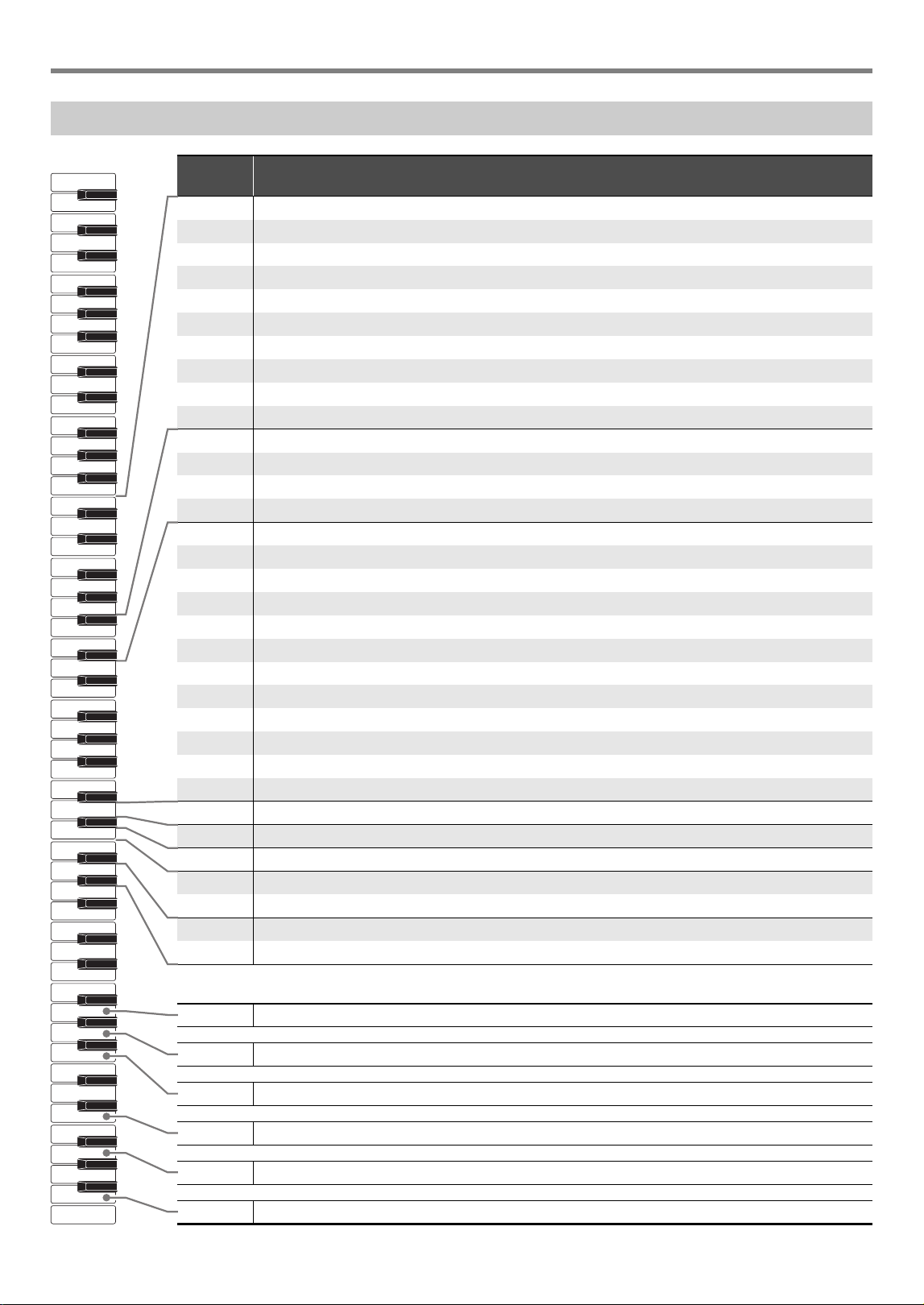
Keyboard Function List
Note
name
Assigned function (marked above the keyboard key)
C3 Grand Piano (GRAND PIANO) Standard (STANDARD)
C{3 Grand Piano (GRAND PIANO) Mellow (MELLOW)
D3 Grand Piano (GRAND PIANO) Bright (BRIGHT)
E}3 Elec. Piano (ELEC. PIANO) 1
E3 Elec. Piano (ELEC. PIANO) 2
F3 Elec. Piano (ELEC. PIANO) 3
F{3 Harpsichord (HARPSICHORD)
G3 Strings (STRINGS)
A}3 Pipe Organ (PIPE ORGAN)
A3 Jazz Organ (JAZZ ORGAN)
B}3 Metronome (METRONOME) On/Off (ON/OFF)
B3 Tempo (TEMPO)
C4 Beat (BEAT)
C{4 Volume (VOLUME)
D4 Tempo/Beat/Volume (TEMPO/BEAT/VOLUME) –
E}4 +
E4 0
F4 1
F{42
G4 3
A}44
A4 5
B}46
B4 7
C5 8
C{5 9
D5 Touch Response (TOUCH RESPONSE)
E}5 Reverb (REVERB)
E5 Chorus (CHORUS)
F5 Transpose (TRANSPOSE) –
F{5+
G5 Tune (TUNE) –
A}5+
The functions below are not marked above the keyboard keys.
G6 Keyboard Channel
A6 Local Control
B6 Auto Power Off
E7 Factory Reset
G7 Execute
B7 Beep
A0
C1
C2
C3
C4
C5
C6
C7
C8
Function Transmitted Recognized Remarks
Basic
Channel
1
1 - 16
1 - 16
1 - 16
Default
Changed
Note
Number
0 - 127
0 - 127
*
1
21 - 108
True voice
After
Touch
Control
Change
X
X
X
O
Pitch Bender
OX
Key’s
Ch’s
Velocity
O
9nH v = 1 - 127
O 9nH v = 0, 8nH v =
**
O 9nH v = 1 - 127
O 8nH v = 64
Note ON
Note OFF
Mode
Mode 3
X
Mode 3
X
Default
Messages
Altered
0
1
5
6, 38
7
10
11
64
65
66
Bank select
Modulation
Portamento Time
Data entry LSB/MSB
Volume
Pan
Expression
Hold 1
Portamento Switch
Sostenuto
Model: CDP-S110 Version : 1.0
O
X
X
X
X
X
X
O
X
X
*
2
*
3
O
O
O
O
O
O
O
O
O
O
*
2
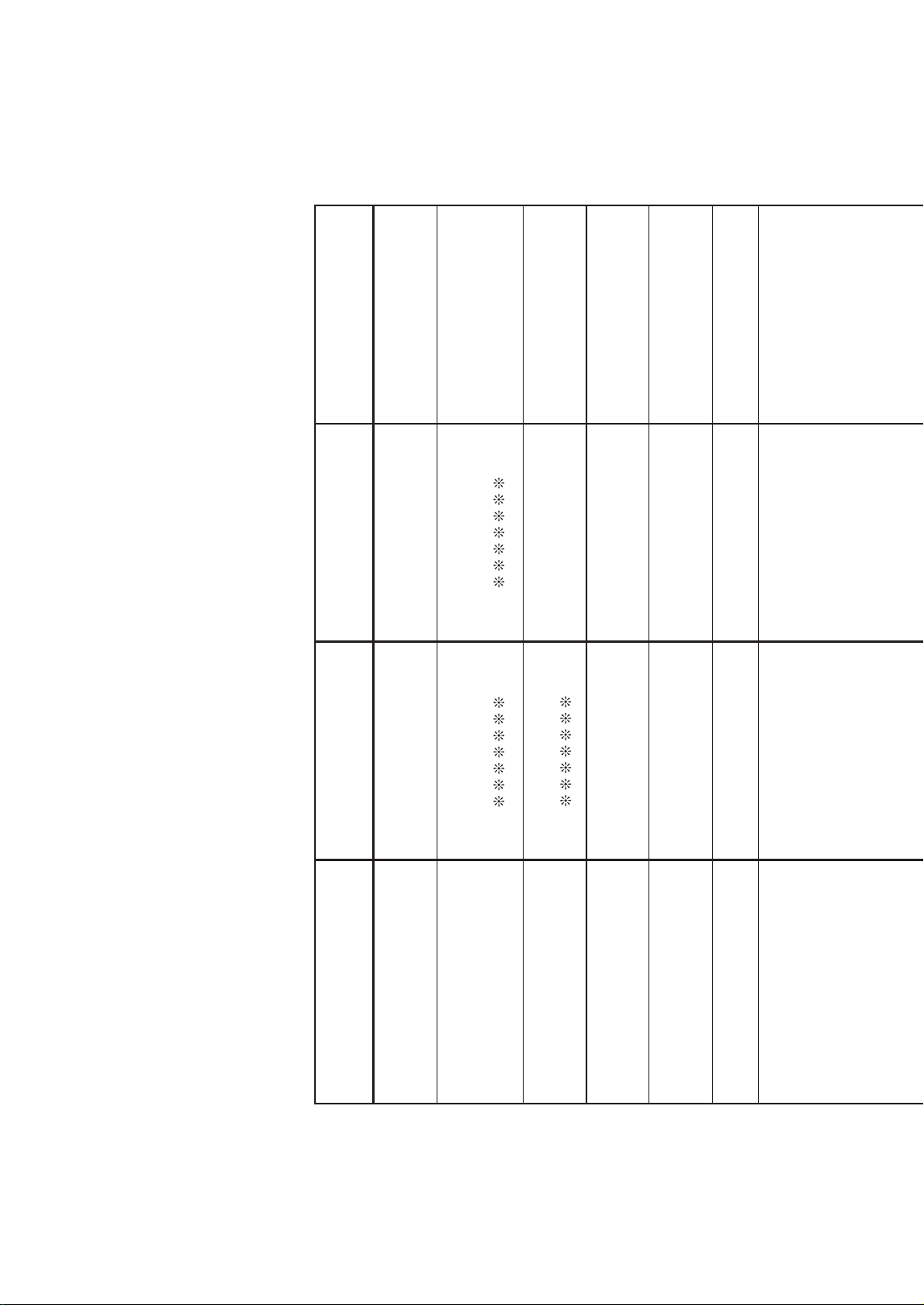
MIDI Implementation Chart
**: no relation
Program
Change
True #
Exclusive
O
*
2
O
*
2
System
Common
X
X
X
X
X
X
Song Pos
Song Sel
Tune
Aux
Messages
Remarks
X
X
X
X
X
X
O
O
X
O
O
X
All sound off
Reset all controller
Local ON/OFF
All notes OFF
Active Sense
System Reset
System
Real Time
X
X
X
X
Clock
Commands
67
71
72
73
74
84
91
93
100, 101
Soft pedal
Filter resonance
Release time
Attack time
Brightness
Portamento Control
Reverb send level
Chorus send level
RPN LSB/MSB
Mode 1 : OMNI ON, POLY
Mode 3 : OMNI OFF, POLY
Mode 2 : OMNI ON, MONO
Mode 4 : OMNI OFF, MONO
O : Yes
X : No
X
X
X
X
X
X
X
X
X
*
3
*
2
*
3
O
O
O
O
O
O
O
O
O
*
2
OO
0 - 127
*1: Depends on tone.
*2: For details about RPN and system exclusive messages, see MIDI Implementation at
https://support.casio.com/global/en/emi/manual/CDP-S110/
*3: Output along with certain operations.

MA2106-A