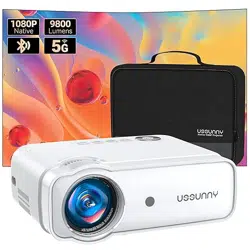
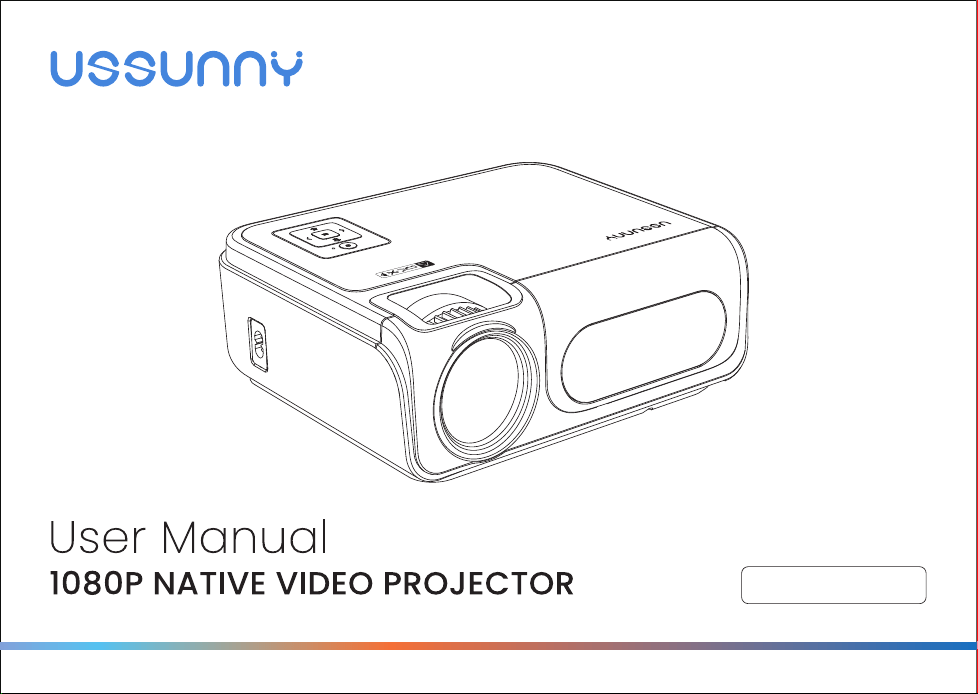
Model No.: C50
Made in China
株式会社成洋
Manufacturer: Cheerlux(Shenzhen)Electronic Technology Co., Ltd.
Address: 3th Floor Building B HOngYi Industrial Area Bantian,Longgang District, Shenzhen, China
Designed by: Shenzhen Zestnation Technology Co.,Ltd.
Address: 202, 2/FWestBlk, LaobingHengfangIndustrial Park,
XingyeRoad, LaodongCommunity, Xixiang Bao'an Dist.,Shenzhen CHINA 518000

01~24
25~48
English - - - - - - - - - - - - - - - - - - - - - - - - - - - - - - - - - - - - - - - - - - - - - - - - - - - -
日本語 - - - - - - - - - - - - - - - - - - - - - - - - - - - - - - - - - - - - - - - - - - - - - - - - - - - - -
CONTENTS

- 01 -
SAFETY PRECAUTIONS
If the cord is damaged, have it repaired by the manufacturer, its service personnel,or a similarly qualified person in order to
avoid any hazard.
The cord should always be readily accessible.
The apparatus shall not be exposed to dripping or splashing of water or liquids and not allowed to have objects filled with
liquids placed on the top of product, such as flowers vases.
The normal ventilation of the product shall not be impended for the intended use.
Always leave a minimum distance of 10 cm around the unit to ensure sufficient ventilation.
Open flame sources, such as candles, should not be placed on top of the device.
The device is intended for use only in a temperate climate.
The ventilation should not be impeded by covering the ventilation openings with items, such as newspapers, table-cloths,
curtains, etc.
CAUTION: To avoid accidents, this appliance must be fixed properly according to instructions for Installation on the floor or
on the wall.
CAUTION: Danger of explosion if incorrectly replaced or not replaced by the same type or equivalent batteries.
Don't look straight into the light from the projector lens.
The direct burst of intensive light may cause severe damage to infants' eyes or your eyes.
INTERFERENCE All wireless devices are susceptible to interference which may affect the performance of mirror screen.
AUTHORIZED PERSONNEL Only qualified people are authorized to install or repair this product.
ACCESSORIES Only use batteries, chargers and other accessories which are compatible with this equipment. Do not
connect incompatible products.
Read these safety instructions before using your device and store them for possible future reference.
●
●
●
●
●
●
●
●
●
●
●
●
●
●
●

- 02 -
CONTENTS
VISUAL INSTRUCTIONS - - - - - - - - - - - - - - - - - - - - - - - - - - - - - - - - - - - - - - - - - -
PROJECTION DISTANCE AND SIZE - - - - - - - - - - - - - - - - - - - - - - - - - - - - - - - - - -
HOW TO USE - - - - - - - - - - - - - - - - - - - - - - - - - - - - - - - - - - - - - - - - - - - - - - - - - -
MULTIMEDIA FILE SPECIFICATION - - - - - - - - - - - - - - - - - - - - - - - - - - - - - - - - - -
MULTIMEDIA CONNECTION - - - - - - - - - - - - - - - - - - - - - - - - - - - - - - - - - - - - - - -
ACCESSORIES LIST - - - - - - - - - - - - - - - - - - - - - - - - - - - - - - - - - - - - - - - - - - - - -
TECHNOLOGY FEATURES - - - - - - - - - - - - - - - - - - - - - - - - - - - - - - - - - - - - - - - -
FAQ - - - - - - - - - - - - - - - - - - - - - - - - - - - - - - - - - - - - - - - - - - - - - - - - - - - - - - - - -
WARRANTY CARD - - - - - - - - - - - - - - - - - - - - - - - - - - - - - - - - - - - - - - - - - - - - - - -
03
06
07
13
14
20
21
22
24
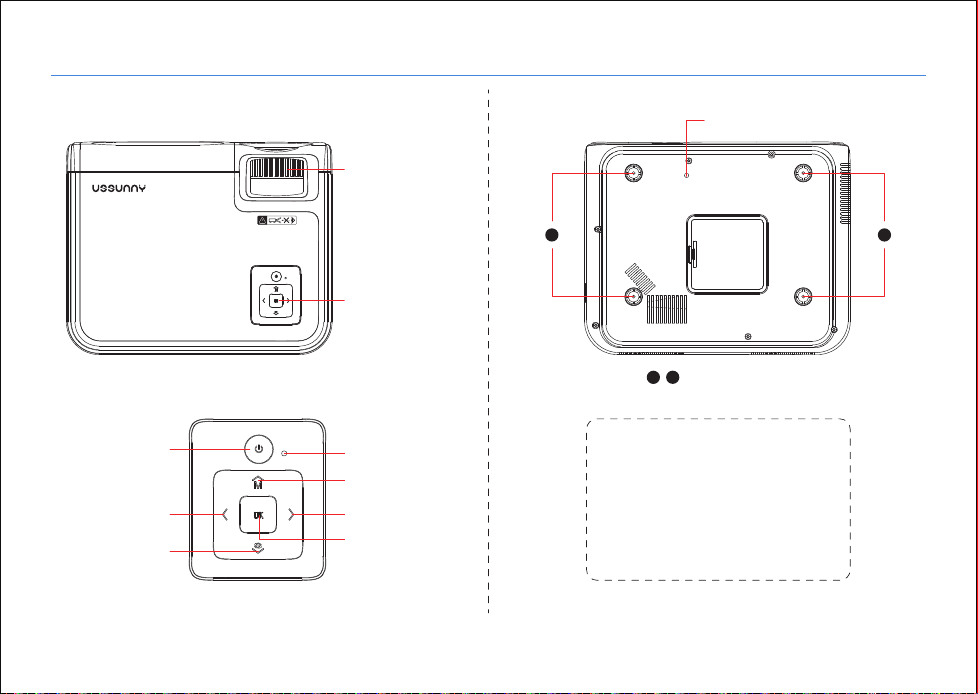
● Top View
● Control Panel
● Bottom View
Wonderful Vision, Infinite Joy
VISUAL INSTRUCTIONS
- 03 -
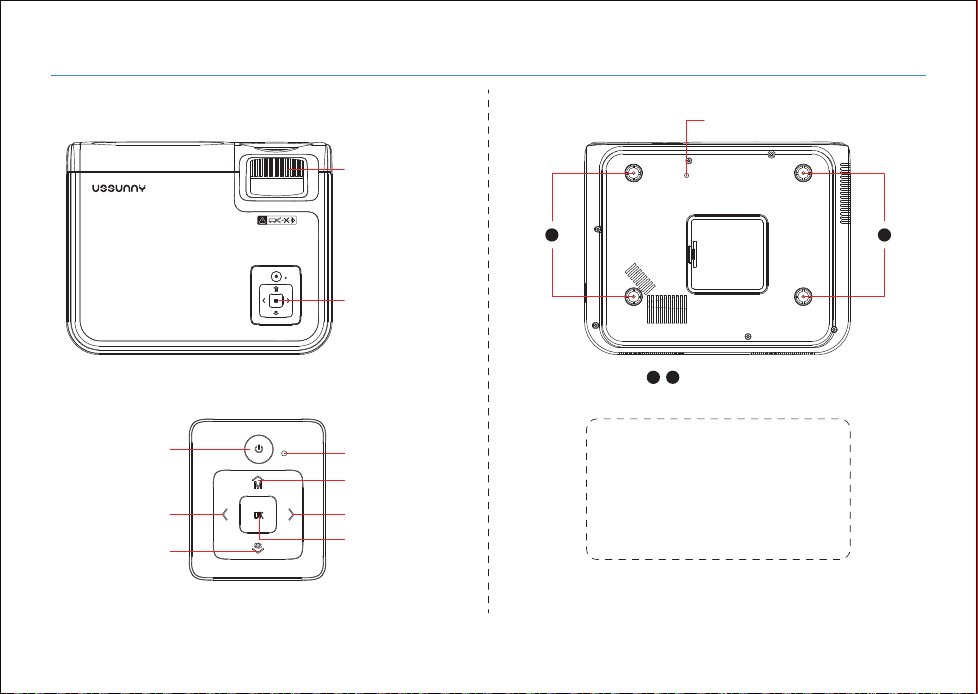
Control Panel
Support Base thread
Manual Focus
Power / Return
Indicator Light
Menu / Up
Right / Volume +
OK Button ( Select/
Confirm/Enter)
Left / Volume -
Source / Down
For Ceiling Mount
1
1
2
2
REMARK:
The adjustable support base can
assure the max projection angle by
15°, The best display effect will be
obtained by projection angle
ranges of 0° - 8°.
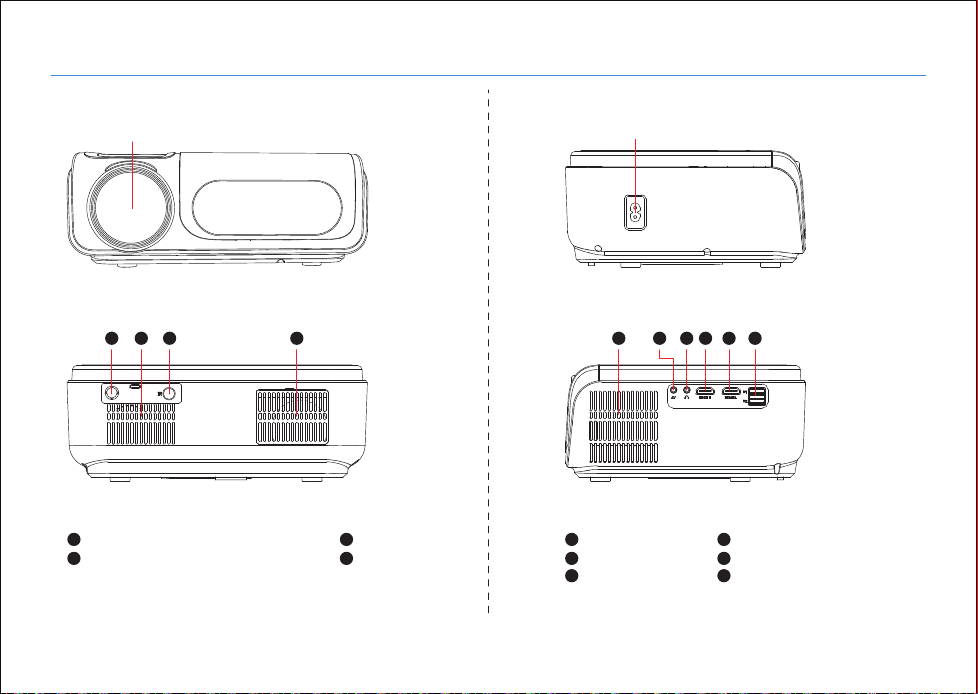
● Front View ● Side View
● Rear View
(Left Side)
(Right Side)
Wonderful Vision, Infinite Joy
VISUAL INSTRUCTIONS
- 04 -
Lens Power cable Socket
Analog TV Tuner ( Not Support )
IR Receiver
1
1 2 3 4 5 6 7 8 9 10
3
Speaker
Ventilation Inlet
2
4
Ventilation Outlet
Audio out
HDMI 2 Input
5
7
9
AV Input
HDMI 1 Input
USB 1 / USB 2
6
8
10
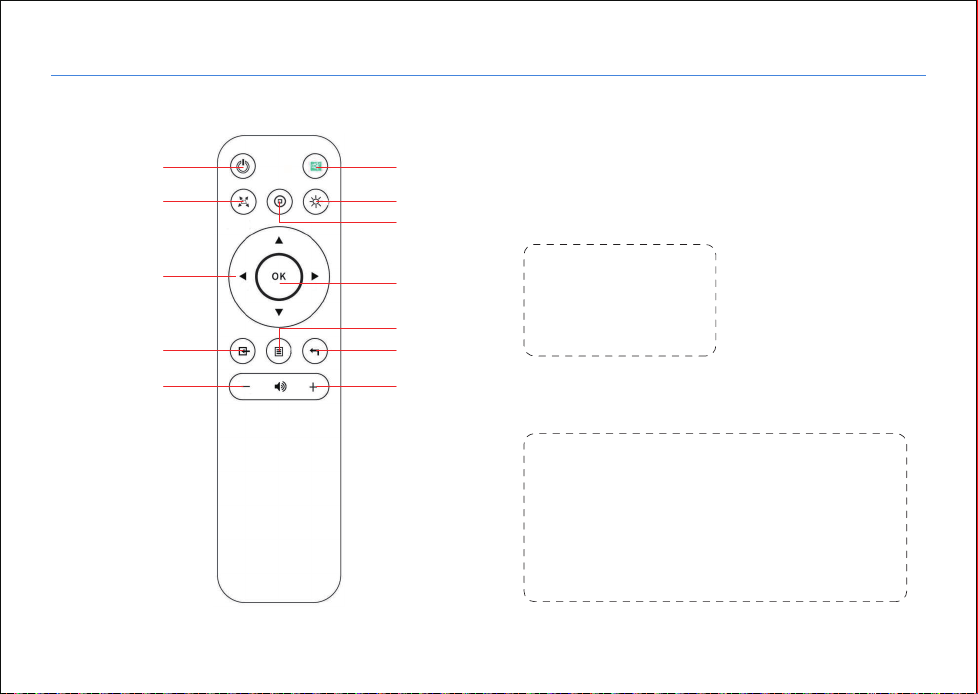
● Remote Control
Wonderful Vision, Infinite Joy
VISUAL INSTRUCTIONS
- 05 -
Power Button
Mute
Wifi
Home
Enter
Menu
Return
Voice +
Keystone
Arrow Keys
Source
Voice -
Note:
While using the remote
control, point it toward
IR receiver.
Installation And Mounting:
As the brightness of the room may affect the
quality of the image projected, before using your
device, you need to select an appropriate spot for
the projector and reduce the external brightness.
Please follow the instructions and hints below for
optimum usage.
Wonderful Vision, Infinite Joy
PROJECTION DISTANCE AND SIZE
- 06 -
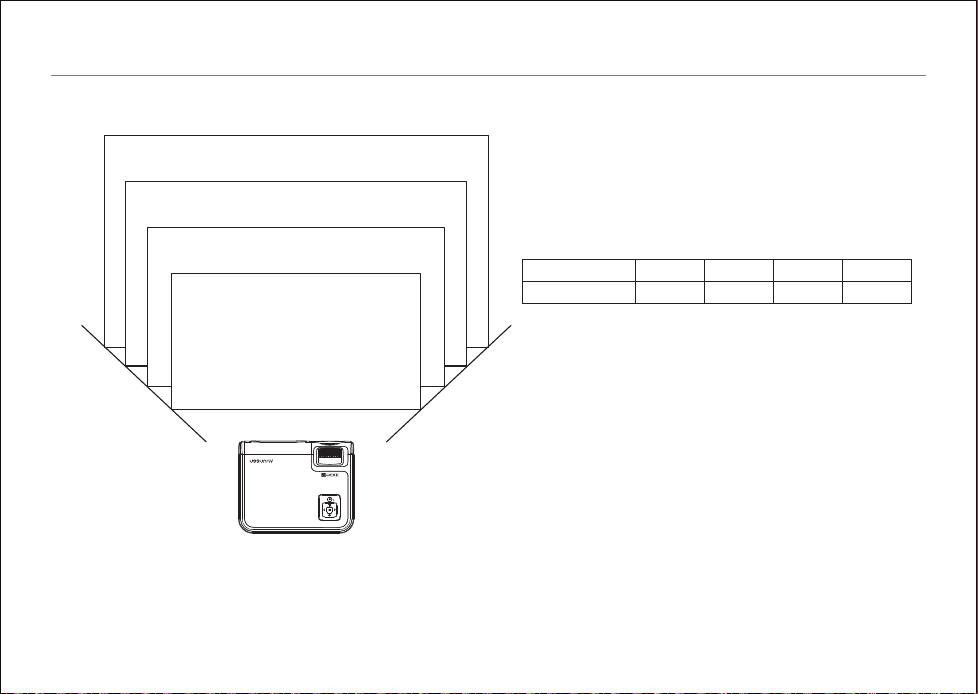
The image size depends on the distance between
projector and screen, there may be a 3% deviation among
the above-listed data. Different settings cause various
distances.
335cm
50′′
72′′
100′′
120′′
210cm
290cm
150cm
( Aspect Ratio: 16 : 9, Default )
Please follow the data in the chart below, to adjust the
image size and the distance. The distance provided is
measured from lens to projected surface.
Projection size
16 : 9
50 inch
1.50 m
72 inch
2.10 m
100 inch
2.90 m
120 inch
3.35 m
Wonderful Vision, Infinite Joy
HOW TO USE
- 07 -
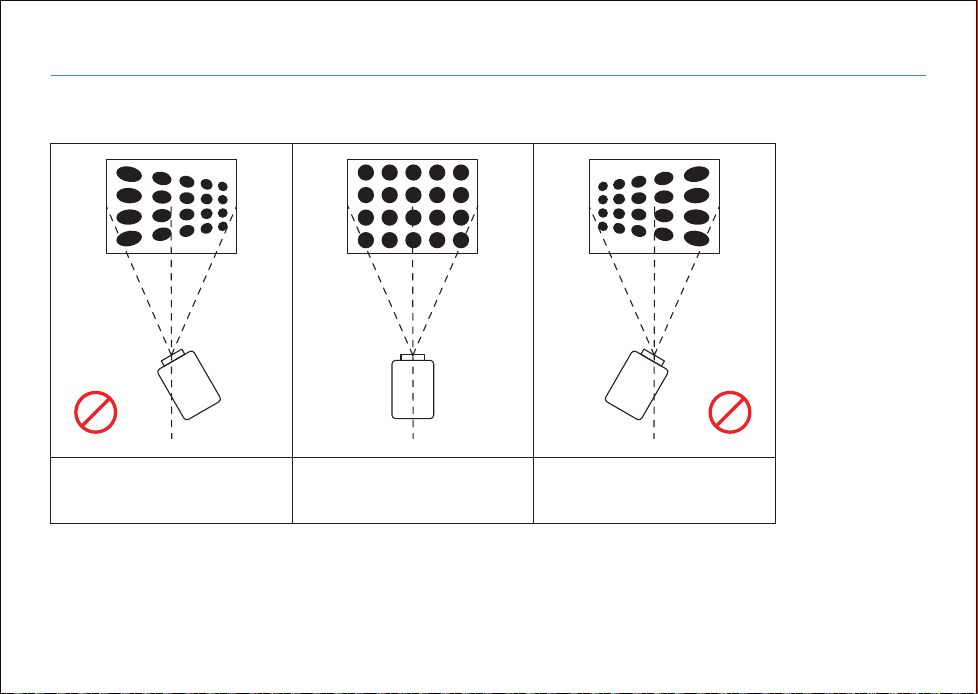
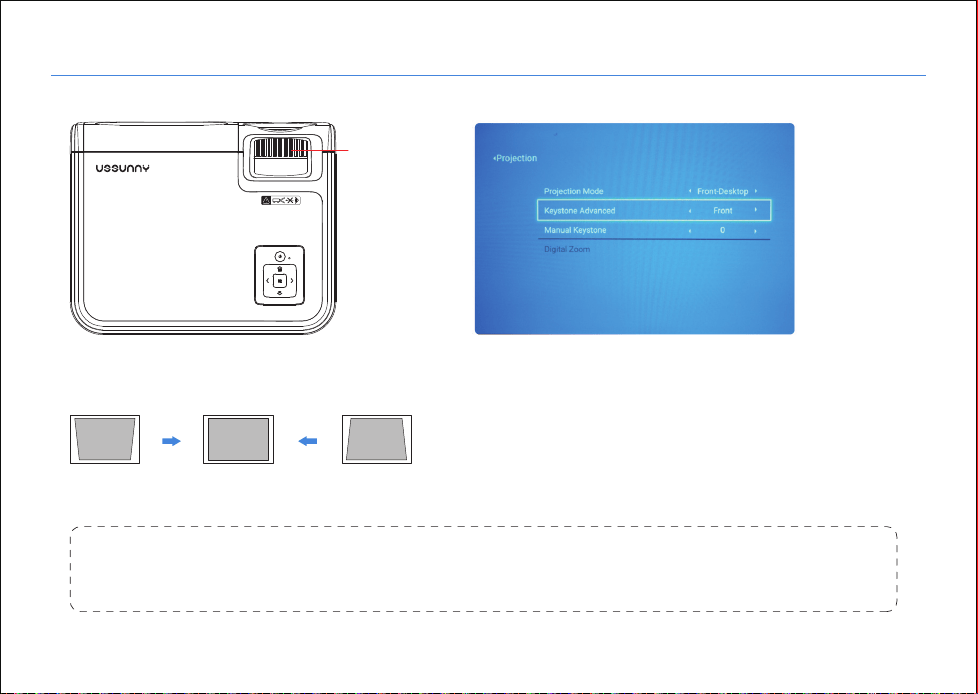
① Before starting up the projector. Follow the figure below to adjust trapezoid correction. Keep the projector vertical with a
projector screen and keep it on the same level.
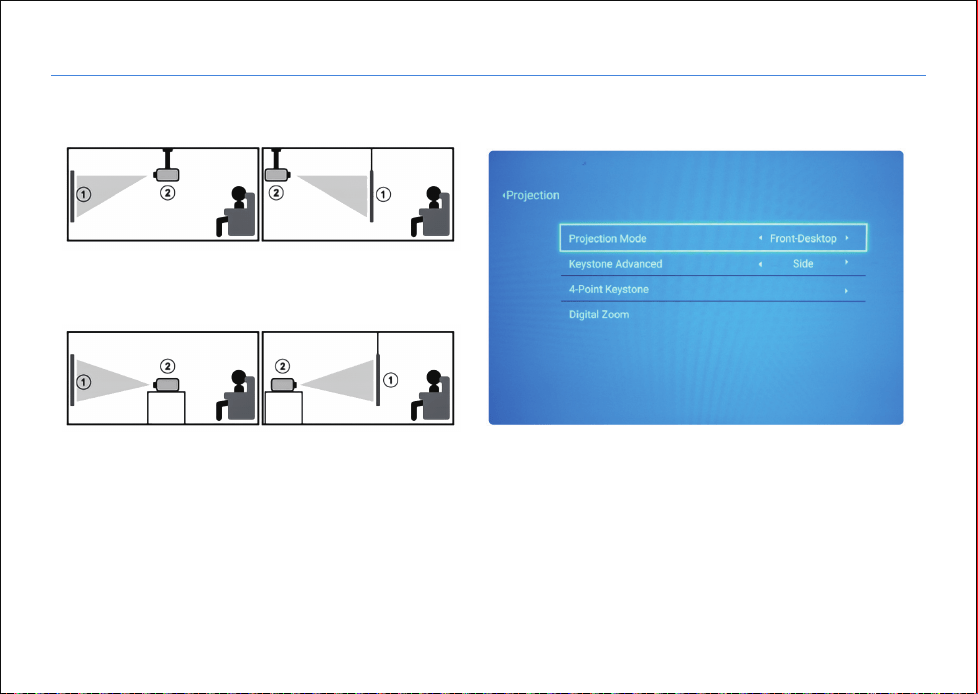
For Ceiling Mount :
Before ceiling mounting the projector, you may need a compatible mount and a special projection screen for rear projection.
Select display image rotation, options available are: front (on desk), rear, front/ceiling, rear/ceiling, see picture below:
Incorrect installation the
images left-right small
Correct installation the
images is rectangular
Incorrect installation the
images right-left small
Wonderful Vision, Infinite Joy
HOW TO USE
- 08 -
Ceiling mounted ( upside down )
Front / ceiling
Front Rear
Rear / ceiling
Table mounted
Wonderful Vision, Infinite Joy
HOW TO USE
- 09 -
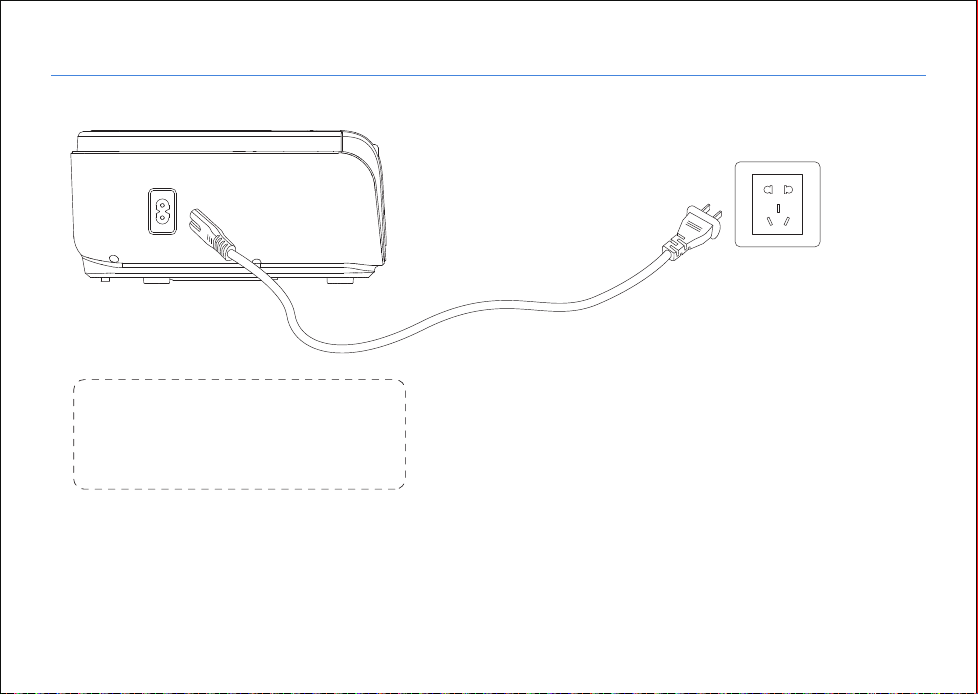
② Connect the power plug as the following picture, connect with the electricity, the indicator light will turn red.
Note:
Pictures are only for your reference, different
countries got different power plugs, please
contact your supplier for more details.
Wonderful Vision, Infinite Joy
HOW TO USE
- 10 -
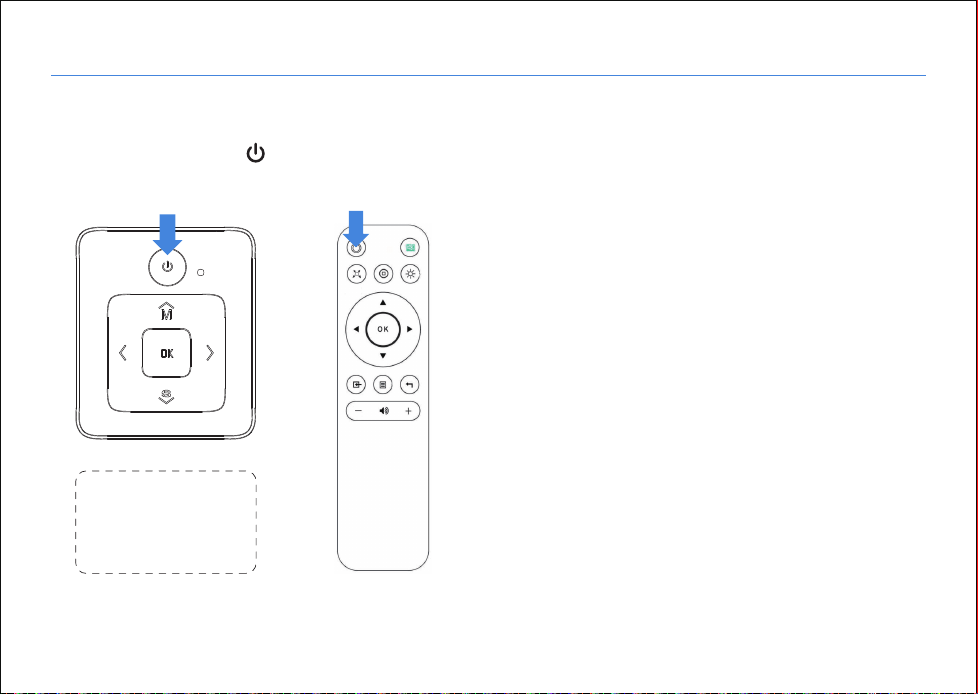
③ Connect the power cable to the projector and into the power supply socket, the indicator light will turn red, then the projector
is in standby mode, take off the lens cover.
Press the “ power ” button ( ) on the control panel or remote control to turn on the projector.
Note:
Do not guarantee
compatibility with
every external device !
A. On the control panel B. On the remote control
Wonderful Vision, Infinite Joy
HOW TO USE
- 11 -
④ Keystone and Focus
Note:
If the keystone correction fails to resolve image shape, please reduce the vertical height of the projector in relation to
the center of the screen.
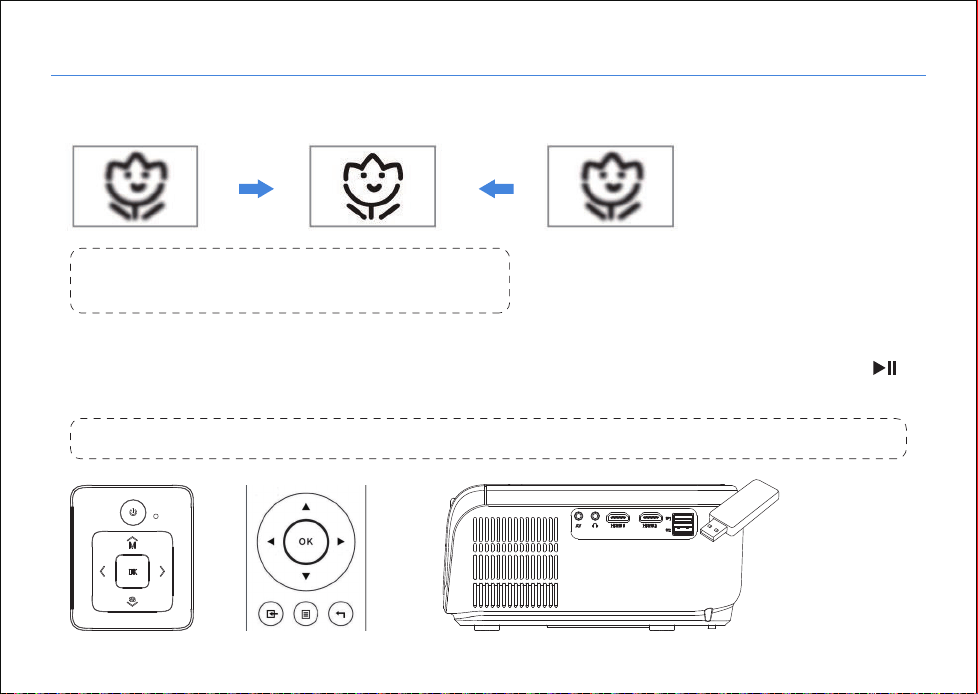
Manual Focus
A. If the projected image is in a trapezoidal shape,
it can be resolved by keystone correction.
Method 1: Vertical Keystone
Step1. “ Keystone Advanced” drop-down select “Front”
Step2. Select “Manual Keystone”, press “OK” to enter
Step3. Press the up and down buttons to adjust the vertical keystone.
Method 2: 4D Keystone
Step1. "Keystone Advanced" drop-down select “Side”
Step2. Select "4-point Keystone" and press “OK” to enter
Step3. Press "OK" to select the point to be adjusted, and press "Arrow Keys" to adjust
Wonderful Vision, Infinite Joy
HOW TO USE
- 12 -
⑤ Multimedia Connection
Note:
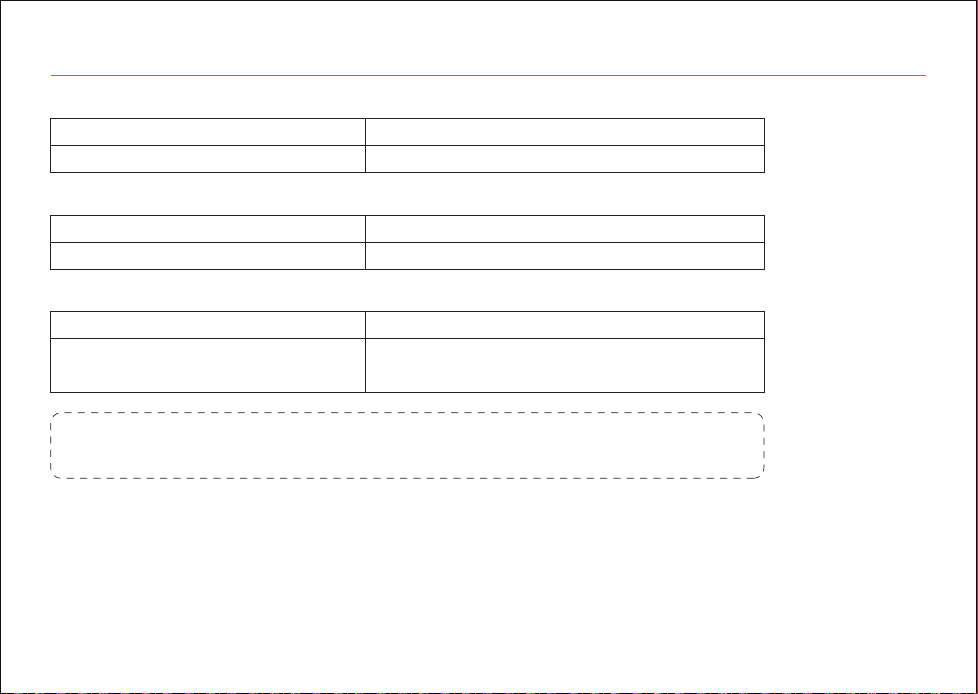
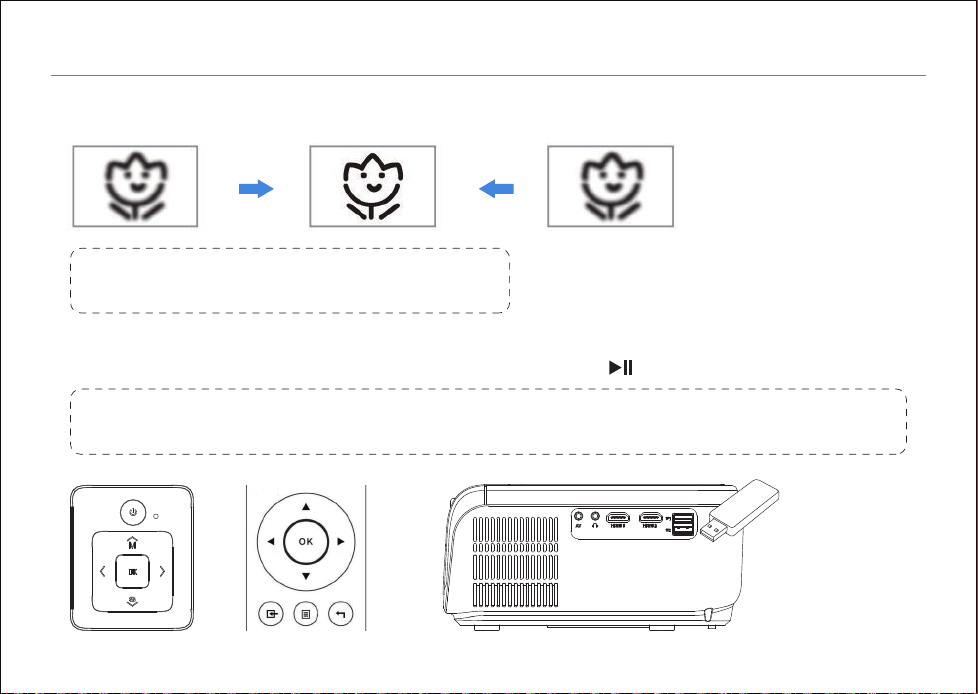
It is normal when sharpness in the central, blur in the edge.
( Press “Source” on the remote control , then there is “Input Source” on the screen, choose “ USB “ )
A.Insert the USB flash drive into the USB port and choose the right signal source, then press the Play / Pause button ( ) to
display or stop.
B. The projected image may be blurry or difficult to see, this is due to a lack of focus adjustment with the lens, please follow
the processes below to adjust the Focus. ( Do Manual Focus, find the sharpest picture on the screen )
or
Wonderful Vision, Infinite Joy
MULTIMEDIA FILE SPECIFICATION
- 13 -
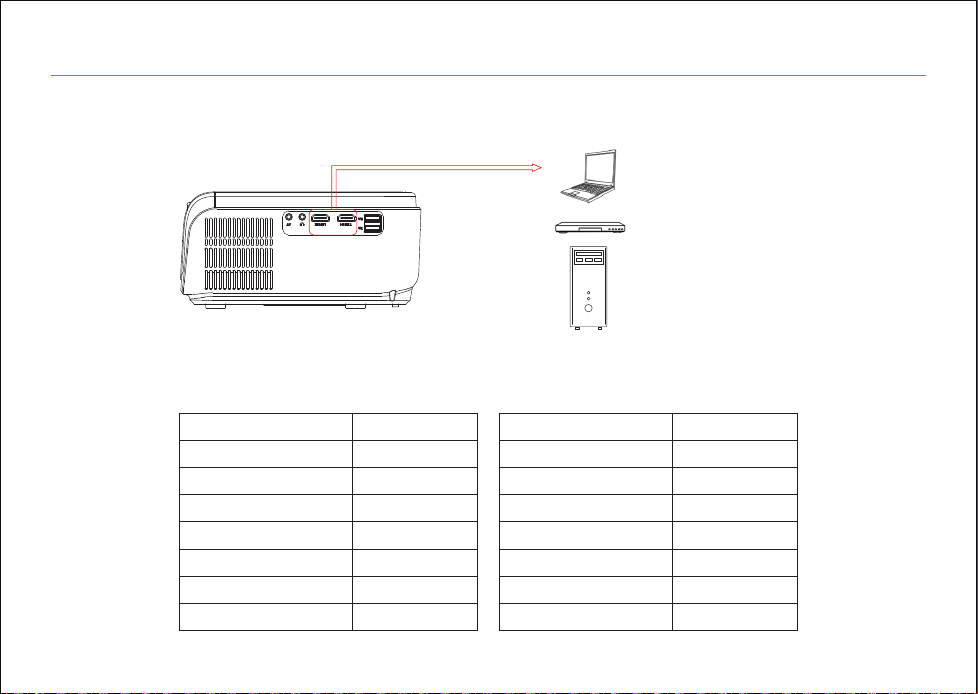
Doesn’t support :
MSVC / CRAM , MP42, GMC, IV32, RLE, cvid, RV20, DivX, RM, RMVB, VC1, FLV , etc.
Support
JEPG, PNG, BMP
File Extension
.jpg / .png / .bmp
Support
MPEG1, MPEG2, LPCM, MP3
File Extension
.avi / .ts / .dat / .vob / .wmv / .mkv / .mp3 / .mp4 / .m4a
Support File Extension
Image Format
Audio Format
Video Format ( Bit Rate up to 30~40 Mbs )
MPEG1, MPEG2, H.263, H.264, AVS,
VC1, MJPEG, RV30, RV40, HEVC
.dat / .ts / .mp4 / .mpg / .mpeg / .avi /
.mkv / .mov / .asf / .flv / .3gp. / .3gpp / .tp
Wonderful Vision, Infinite Joy
MULTIMEDIA CONNECTION
- 14 -
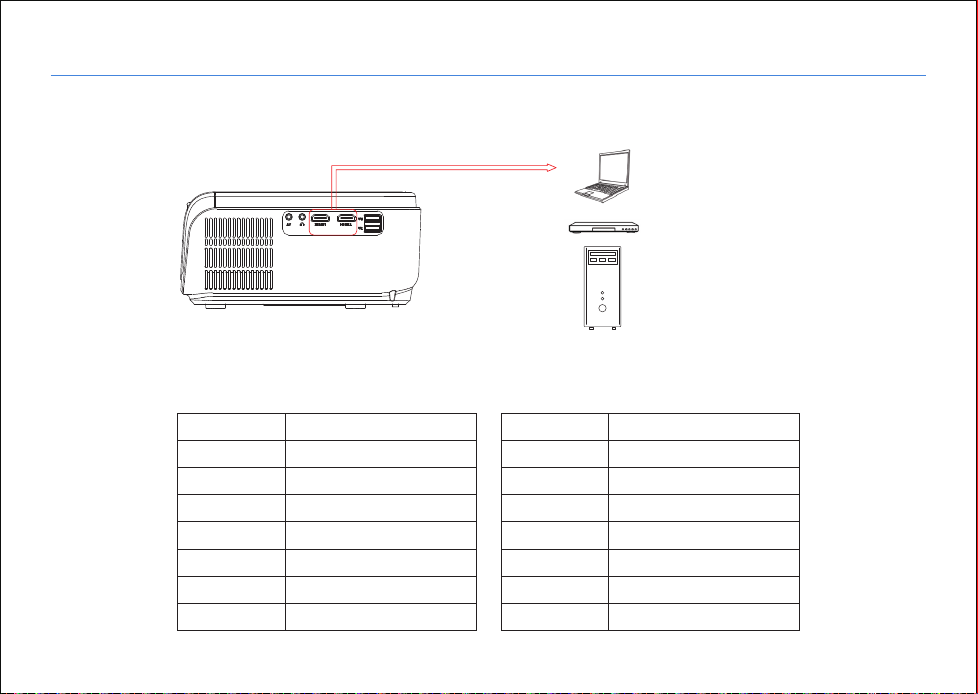
Support most device with an HDMI slot. Press "Source" on the remote control, then choose the right signal source “ HDMI “.
Here are the details for setting up some of the laptops ( please refer to your own computer manual if there is any difference )
Manufacture
Acer
Dell
Epson
Fujitsu
IBM
Hewlett-packard
Lenovo
Keys
Fn + F5
Fn + F8
Fn + F8
Fn + F10
Fn + F7
Fn + F4
Fn + F10
Manufacture
NEC
Panasonic
Sharp
Sony
Toshiba
Zotac
Keys
Fn + F3
Fn + F3
Fn + F5
Fn + F7
Fn + F5
Fn + F3 / F5
B. HDMI Connection
Laptop
DVD Player
Via HDMI Cable (Not Included )
Computer
Support the Devices which have HDMI Port ( Eg: Laptop. DVD Player, Computer , etc. )
Wonderful Vision, Infinite Joy
MULTIMEDIA CONNECTION
- 15 -
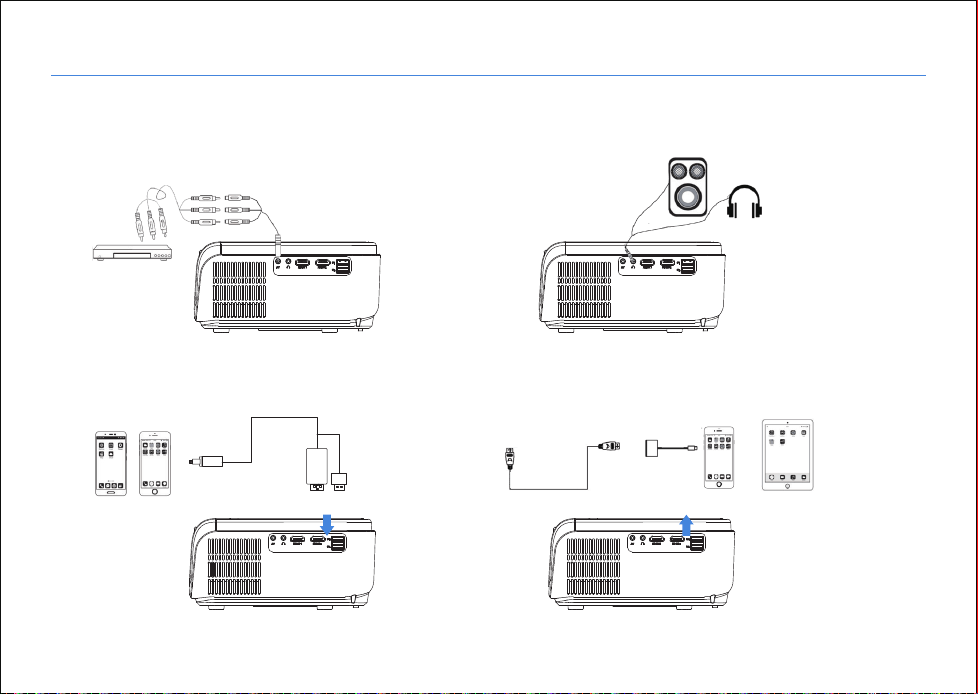
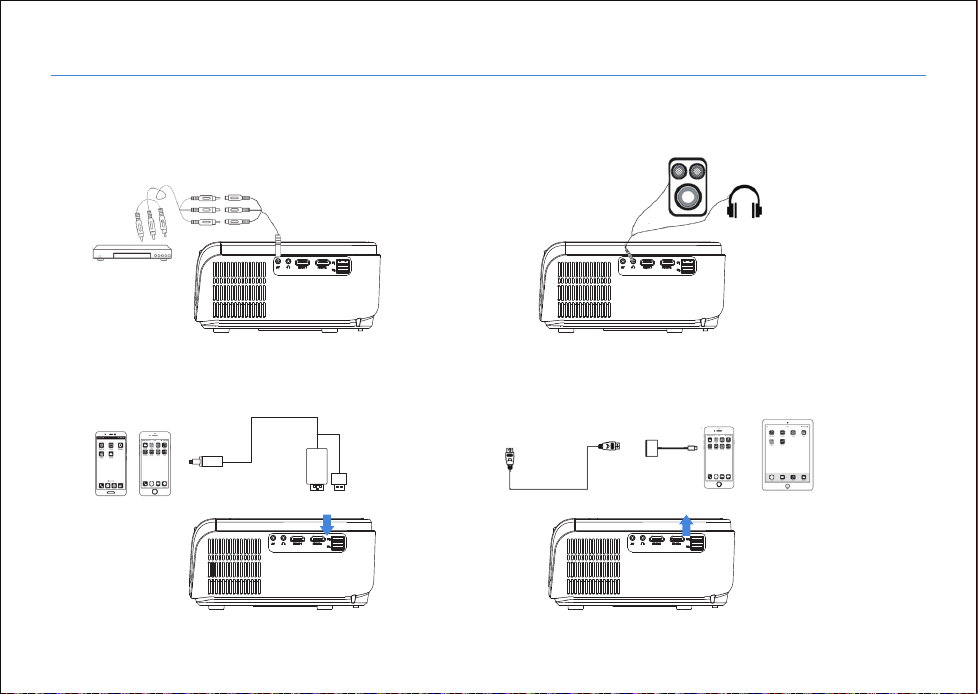
Use AV cable for connecting as follows, choose
the “AV” source input.
F.Use Lighting Digital AV Adapter.
Support iPhone, iPad, choose Input Source “HDMI”.
Users can connect the projector to an external speaker or headphones
via the headphone jack.
C. AV Connection D. Audio Out Connection
Only for MHL compatible devices
E. MHL Function
3.5mm
By HDMI Port and USB Port
MHL Cable
HDMI Cable
Note : All the cables not included
Lighting Digital AV Adapter
Wonderful Vision, Infinite Joy
MULTIMEDIA CONNECTION
- 16 -
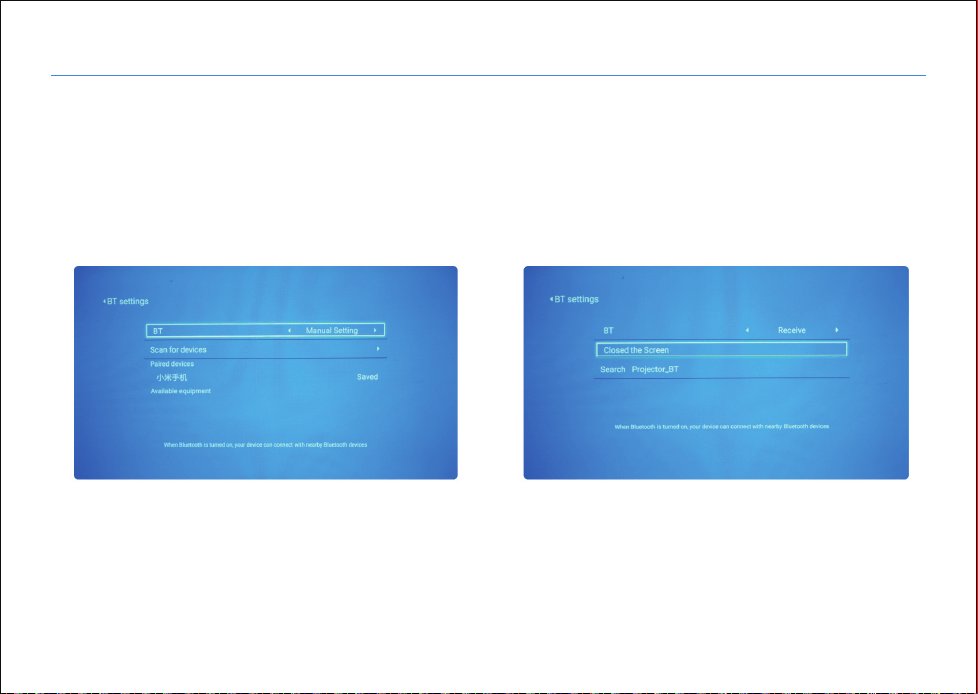
Function 1: The projector is connected to the Bluetooth speaker
Step1: Settings>BT Setting, press the left and right buttons on
“BT” to select “Manual Setting”
Step2: Select "Scan for devices" and press "OK" to confirm
Step3: In the “Available equipment” list, select your bluetooth
speaker device, and click the "OK" button to connect
Function 2: Connect the mobile phone to the projector
Step1: Setting > BT Setting >" BT" press the left and right
keys to select "Receive"
Step2: Turn on Bluetooth of the mobile phone>search and
find "Projector_BT", click the searched "PROJECTOR_BT"
on the mobile phone, then match and connect;
G. Bluetooth Operation
Wonderful Vision, Infinite Joy
MULTIMEDIA CONNECTION
- 17 -
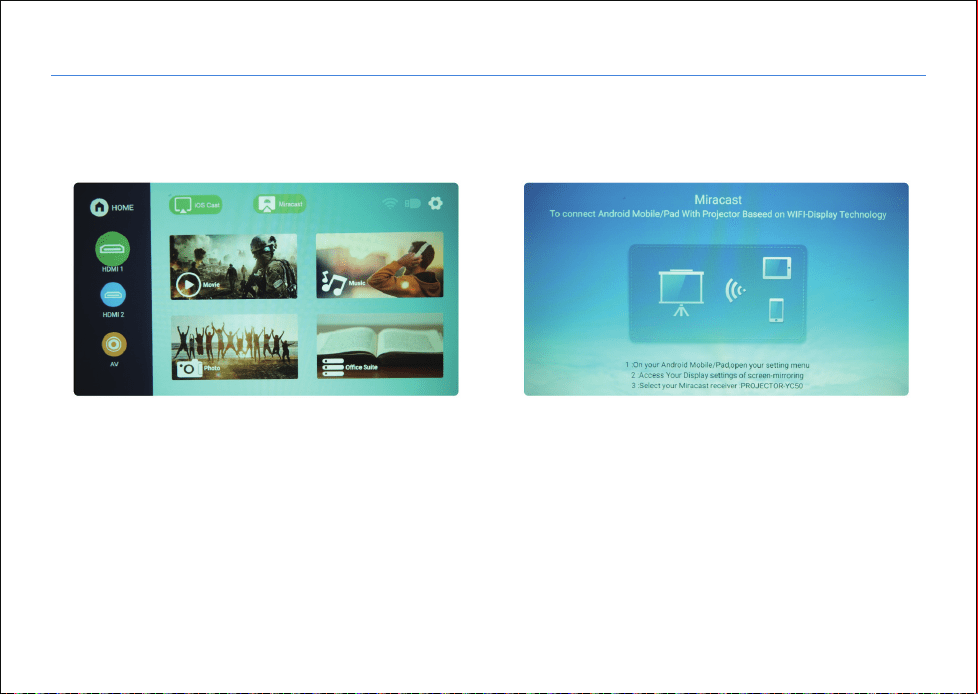
1. Android device Screen mirroring
Step1:Home page, Select “Miracast”, Press “OK” to enter;
Step2:Turn on the WLAN on the Android device
Step3:Launch the Multi-screen/ Wireless Display/Screen Mirroring/Smart View/ Cast function
Step4:Select"PROJECTOR_XXX" from the searching result list.
Please remember to keep the Miracast Page before you have finished the screen mirroring process.
H. Screen Mirroring Operation
Wonderful Vision, Infinite Joy
MULTIMEDIA CONNECTION
- 18 -
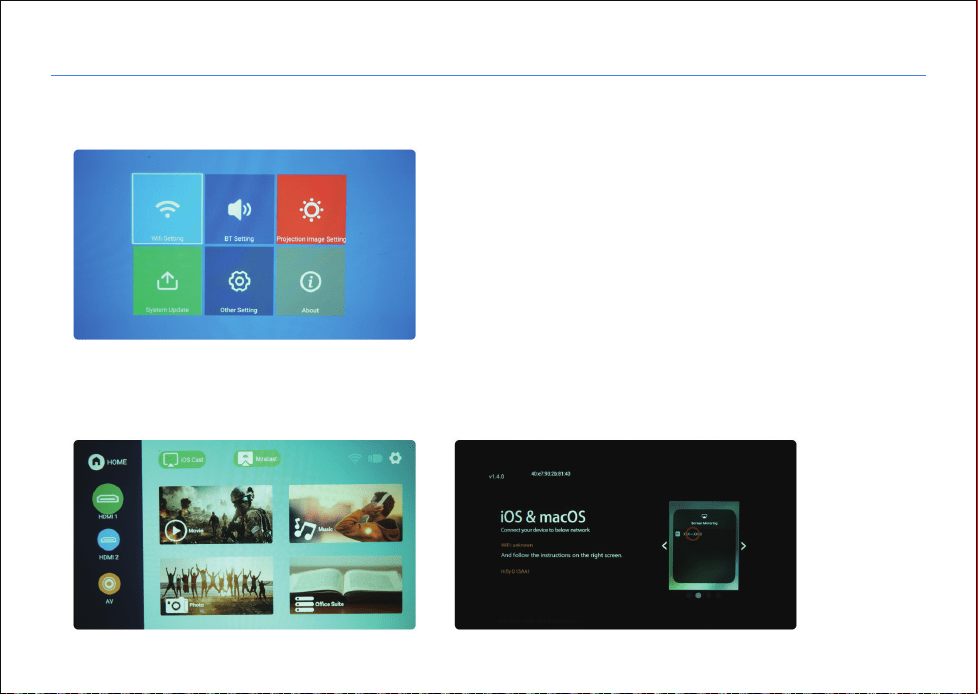
Step1:Connect the projector to a Wi-Fi router
Please remember to keep the “ IOS Cast”
Page before you have finished the IOS
device screen mirroring process.
Step2:Select IOS Screen function
Step3:Connect your iOS device to the same Wi-Fi router
Step4. Turn on Screen Mirroring on your iOS device, select the device name “Hifly-XXXX”of the projector.
2. IOS Device Screen Mirroring
Wonderful Vision, Infinite Joy
MULTIMEDIA CONNECTION
- 19 -
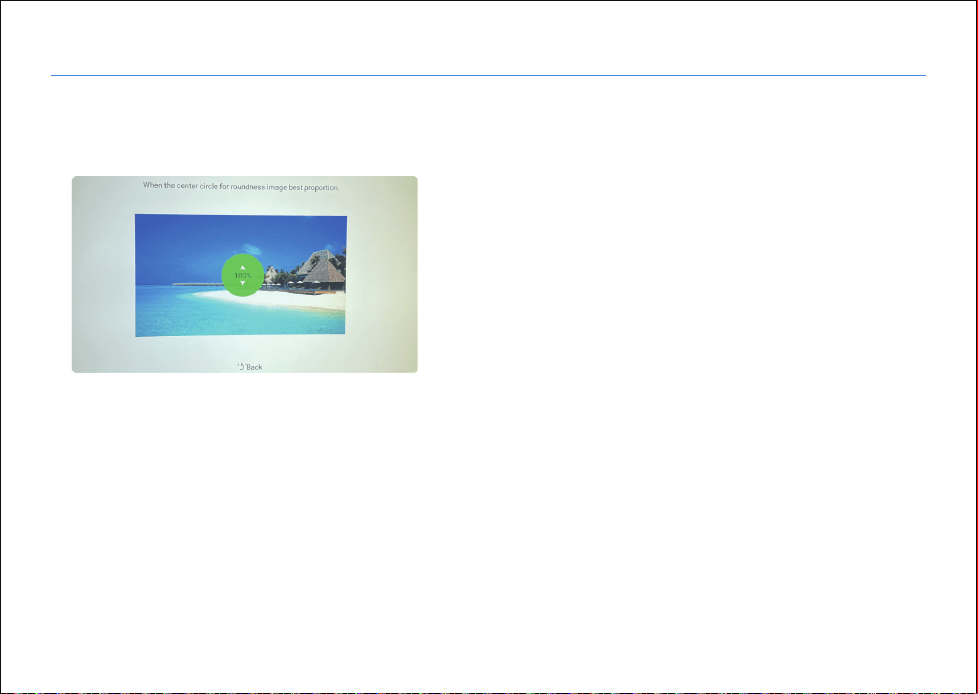
Step 1: Home page>Setting>Projection Image Setting> Digital Zoom
Step 2: Press the Up and Down button to zoom in and zoom out
I. How to realize zoom in and zoom out function?
Wonderful Vision, Infinite Joy
ACCESSORIES LIST
- 20 -
Note:
Pictures only for your reference, different countries got different power plugs, please contact your supplier for
more details.
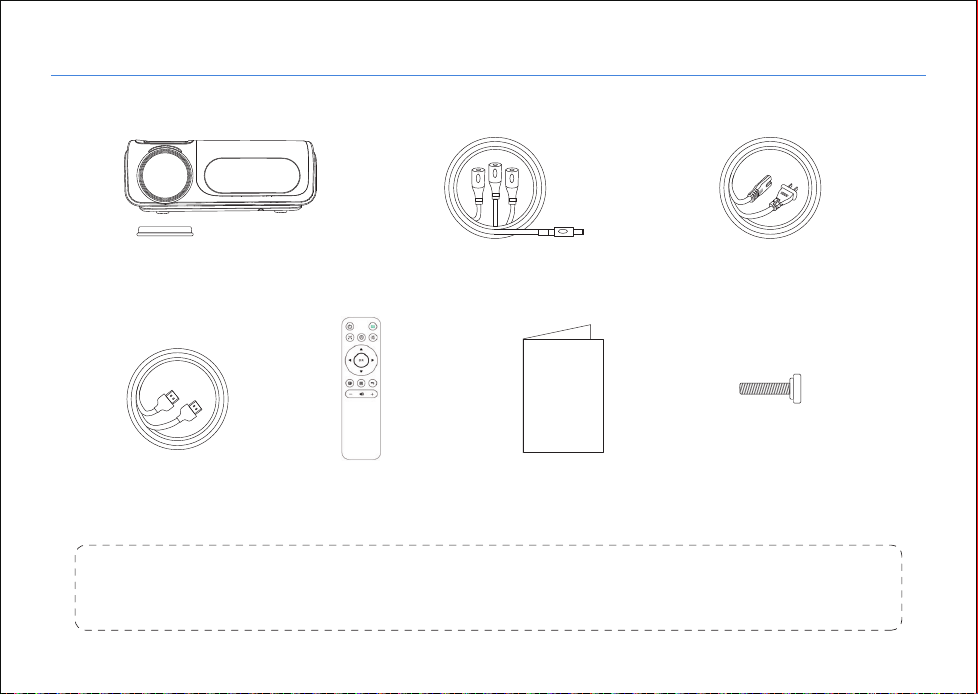
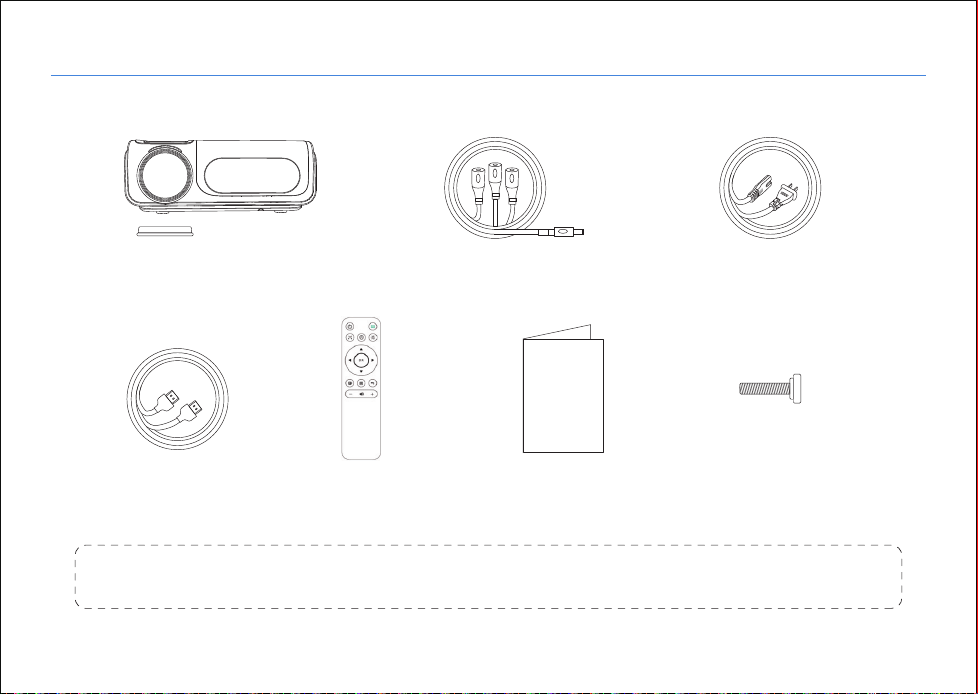
While unpacking the package, please check and confirm that all the accessories are accounted for.
User Manual
Projector ( with lens cap )
Remote Controller User Manual Support BaseCable HDMI
Cable AV Power Plug
Wonderful Vision, Infinite Joy
TECHNOLOGY FEATURES
- 21 -
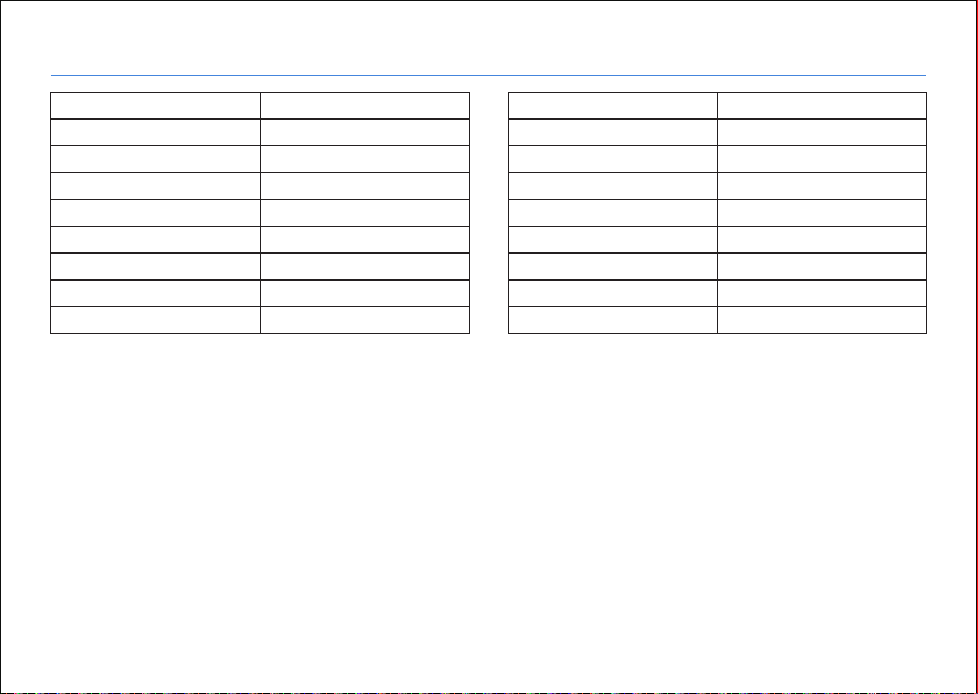
lmaging Technology
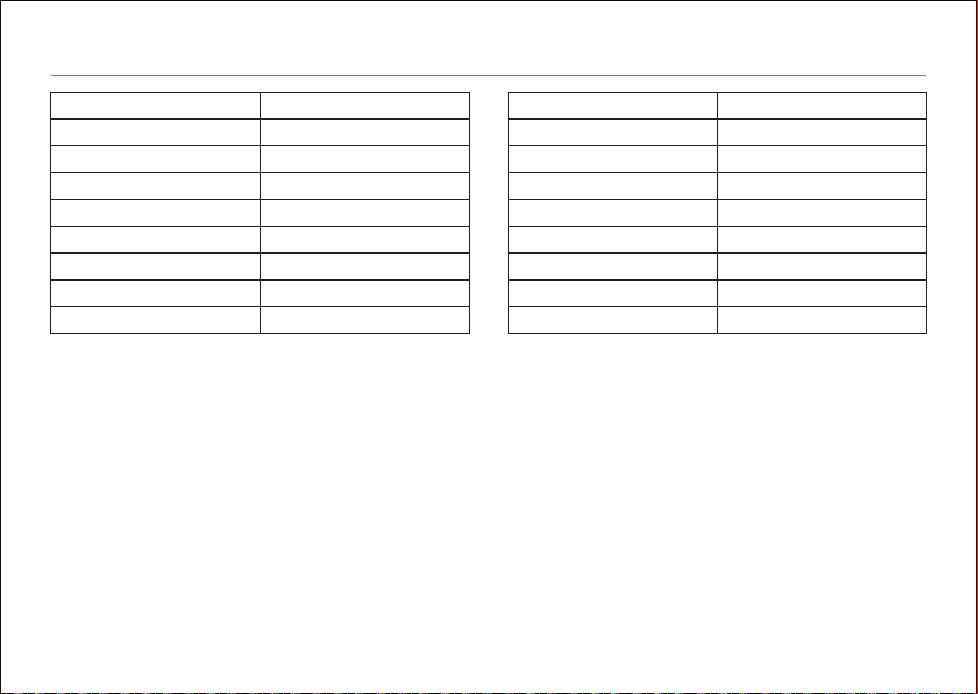
Native resolution
Support resolution
Light source technology
Light source life
Projection ratio
Projection distance
Screen size
Language support
TFT-LCD
1920*1080P
1920*1080P
LED
50000hour
1.35:1
1.5-4.8M
50-300inches
Support 20Languages
Keystone
Power Voltage
Integrated watt
Input
Output
Speaker
System Support
Unit size
Net weight
4P/4D ±50°
100-240V
110±5W
HDMI*2/USB*2/AV*1
3.5mm audio out
4Ω3w
android9.0
260*210*102 mm
1.95KG

Wonderful Vision, Infinite Joy
FAQ
- 22 -
Common problems can be found in the table below, we suggest you read the manual carefully on first-time use. If there are
questions that you couldn't solve with this manual, please contact us.
Can't play video in App
Netflix, Hulu,Amazon Prime
Those APPs are limited with HDCP. This model doesn't support this function. So it
can't support these APPs.You could use an Amazon fire stick, laptop, or PC to play.
1. Please check if the power cable is connected well.
2. Please make sure the power supply is normal.
1. Please check whether the network of your phone is well.
2. Please check whether the network of your home environment is well. The recommended
internet speed: ≥100Mbps.
3. Please make sure there are no walls and other obstructions between the projector and the router.
Wi-Fi connection
is not stable
Indicator light is off when
plug into power supply
1. The remote control's batteries are depleted.
2. Something obstructs the signal between the remote and IR.
3. Strong light on IR directly.
Press the power button on
the remote control and the
projector does not turn on
1. Please check if the channel set-up is correct?
2. Please check if there is an input signal?
3. Please check if the input cable is plugged well or in the wrong position.
No image on the screen
1. Please check if the power cable is connected well.
2. Please make sure the power supply is normal.
Indicator light is off when
plug into power supply
QUESTION SOLUTION

Wonderful Vision, Infinite Joy
FAQ
- 23 -
1. Please check if the Input cables are connected correctly?
2. Please check if the volume is at minimum or on Mute.
3. Turn off the Dolby of the input devices.
Picture right, no sound
1. Please check if there is a barrier around the ventilation.
2. Please check if it is low voltage or big voltage fluctuations.
3. Please check the over-heat protection system.
1. Re-plug the device.
2. Check if the device is broken.
3. Please check the file system format of the USB. Make sure it’s FAT32.
It will shut off automatically after
turn on for a while
1. Please check if the format of the video is right.
2. Please check if the Movie files are broken.
3. Please check if the device is broken.
Can't play the movies
Can't find devices when connected
with hard drive or flash drive?
QUESTION SOLUTION

- 24 -
Wonderful Vision, Infinite Joy
WARRANTY CARD
Thank you for purchasing our product ! Please read our warranty policy listed below:
① The projector is used under normal working conditions according to the product manual, and we provide you with a one-year
warranty service.
② The warranty period is from the date when you purchased our product.
③ Product warranty relating to the specific matters concerned, please contact our customer service at [email protected]
Ussunny is committed to creating innovative products which enhance and improve the quality of our customers' daily lives and
bring enjoyment and happiness to their lives.
We are a group of young people with a brand dream, our mission is to let our brand live in the customers' hearts - Whenever
customer thinks of the projector they would think of Ussunny immediately. We are proud to be leading the way in designing high
resolution, high definition, and high-quality projectors with the future in mind.It’s the brand dream that continues to drive our
innovation, powering each new product that we create.
We would be much thrilled if we could hear any of our customers' voices. If you've got any suggestions please free feel to contact us.
Our Brand Story:

- 25 -
安全上のこ注意
①.このたびは、本機をお買い上げいただきまして、まことにありがとうございます。
本機を安全に、また、正しくお使いいただくために、ご使用になる前に、必ずこの取扱説明書をお読みになり、取り扱い方法
をよくご理解の上でお使いください。
この取扱説明書をお読みになったあとは、必ずいつでも読める状態に保管してください。
②.電源コードが傷んだら、お買い上げの販売店に交換をご依頼ください。
③.電源コードは、常に容易に手が届くところにあるようにしてください。
④.水場や水に濡れるような場所には置かないてください。またプロジェクターの上に水の入った容器を置かないでください。
⑤.換気口の周りに障害物を置かないでください。
⑥.十分換気を確保するために、本機の周囲には必ず10cm以上の距離を空けてください。
⑦.プロジェクターの近くに可燃物を置かないでください。
⑧.本機は温帯気候での使用に適している。
⑨.新聞紙、テーブルクロス、カーテンなどで通気口を塞がないでください。
⑩.本機を安全に正しくご使用いただくために、設置工事説明書をよくお読みの上、床または壁の固定工事を行ってください。
また、しっかりと固定されていることをご確認してください。
⑪.バッテリーを交換する際は、この蓄電池盤に使用されているバッテリと同じものに交換してください。バッテリーを誤って
交換したり、不適切なタイプのバッテリーに交換すると爆発の危険があります。
⑫.プロジェクターの使用中、プロジェクターのレンズを直視しないでください。
そうしないと、目が損傷する可能性があります。特に子供たちが光を直視しないようにご注意してください。
⑬.本製品の取り付けや修理は資格のある人員のみ行うことができます。
⑭.本機と互換性のあるバッテリー、充電器、その他の付属品のみをご使用
してください。互換性のない製品を接続しないでください。

- 26 -
目次
26
29
30
36
37
44
45
46
48
製品概要 - - - - - - - - - - - - - - - - - - - - - - - - - - - - - - - - - - - - - - - - - - - - - - - - - - - - - - - - - - -
投写距離と投写サイズ - - - - - - - - - - - - - - - - - - - - - - - - - - - - - - - - - - - - - - - - - - - - - - - - -
使い方 - - - - - - - - - - - - - - - - - - - - - - - - - - - - - - - - - - - - - - - - - - - - - - - - - - - - - - - - - - - - -
マルチメディアの形式 - - - - - - - - - - - - - - - - - - - - - - - - - - - - - - - - - - - - - - - - - - - - - - - - -
マルチメディアの接続 - - - - - - - - - - - - - - - - - - - - - - - - - - - - - - - - - - - - - - - - - - - - - - - -
同梱物 - - - - - - - - - - - - - - - - - - - - - - - - - - - - - - - - - - - - - - - - - - - - - - - - - - - - - - - - - - - - -
商品仕様 - - - - - - - - - - - - - - - - - - - - - - - - - - - - - - - - - - - - - - - - - - - - - - - - - - - - - - - - - - -
FAQ - - - - - - - - - - - - - - - - - - - - - - - - - - - - - - - - - - - - - - - - - - - - - - - - - - - - - - - - - - - - - - -
保証カード - - - - - - - - - - - - - - - - - - - - - - - - - - - - - - - - - - - - - - - - - - - - - - - - - - - - - - - - - -
● 上面図
● コントロールパネル
● 底面図
Wonderful Vision, Infinite Joy
製品概要
- 27 -
本体の操作ボタン
ネジ穴
フォーカス
電源ボタン/戻る
インジケータ
メニュー/上
右/音量+
OK(選択/確認)
左/音量-
ソース/下
天井マウント用
1
1
2
2
ご注意:
チルトフットは最大15°までの投
写角度を調整できます。投写効果
を確保するために、0°~8°で調整
することをオススメします。
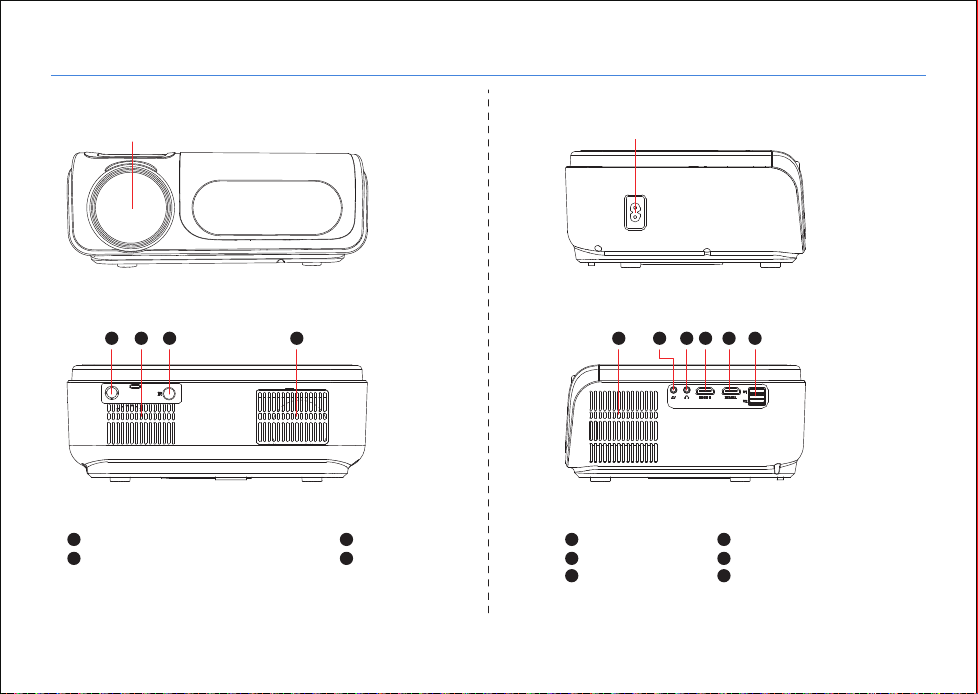
● 正面図 ● 側面図
● 背面図
左側
右側
Wonderful Vision, Infinite Joy
製品概要
- 28 -
レンズ 電源ジャック
ATV(対応できません)
IR受光部
1
1 2 3 4 5 6 7 8 9 10
3
スピーカー
吸気口
2
4
排気口
オーディオ出力
HDMI 2 入力
5
7
9
AV入力
HDMI 1 入力
USB 1 / USB 2
6
8
10
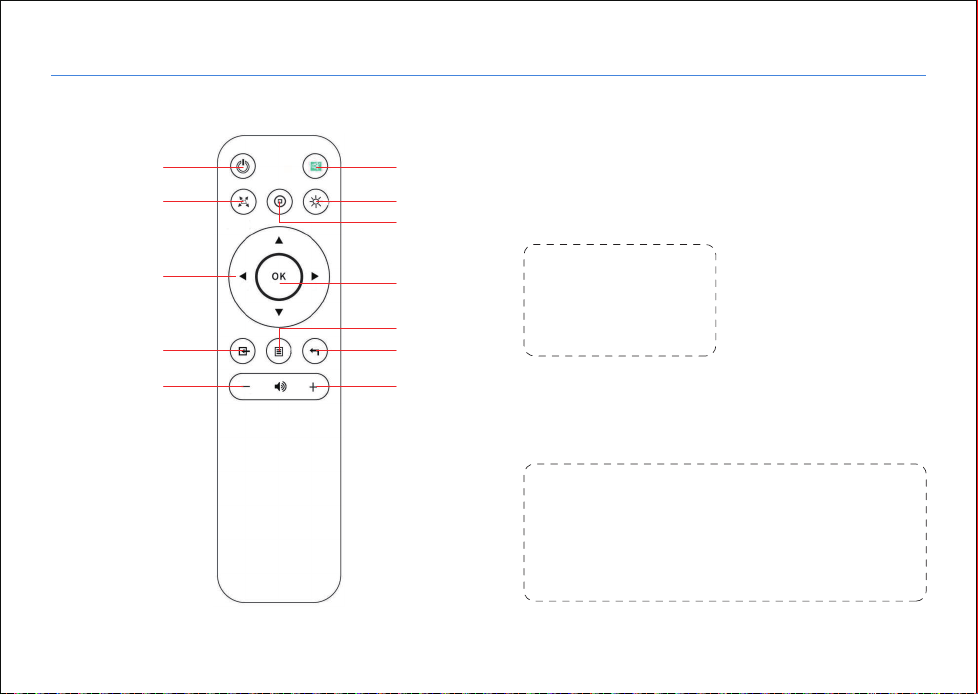
● リモコンの操作ボタン
Wonderful Vision, Infinite Joy
製品概要
- 29 -
電源スイッチ
ミュート
Wifi
ホーム/再生
Enter
メニュー
戻る
音量 +
キーストーン
矢印キー
ソース
音量 -
ご注意:
リモコンはIRレシーバ
ーに向けてご使用して
ください。
取り付け・マウント付け
本機をご使用する前に、適切な場所を選択してください。
部屋の明るさは、投影される画像の画質にとって非常に重
要です。
以下の手順に従って外部の明るさを調整してください。
Wonderful Vision, Infinite Joy
投写距離と投写サイズ
- 30 -
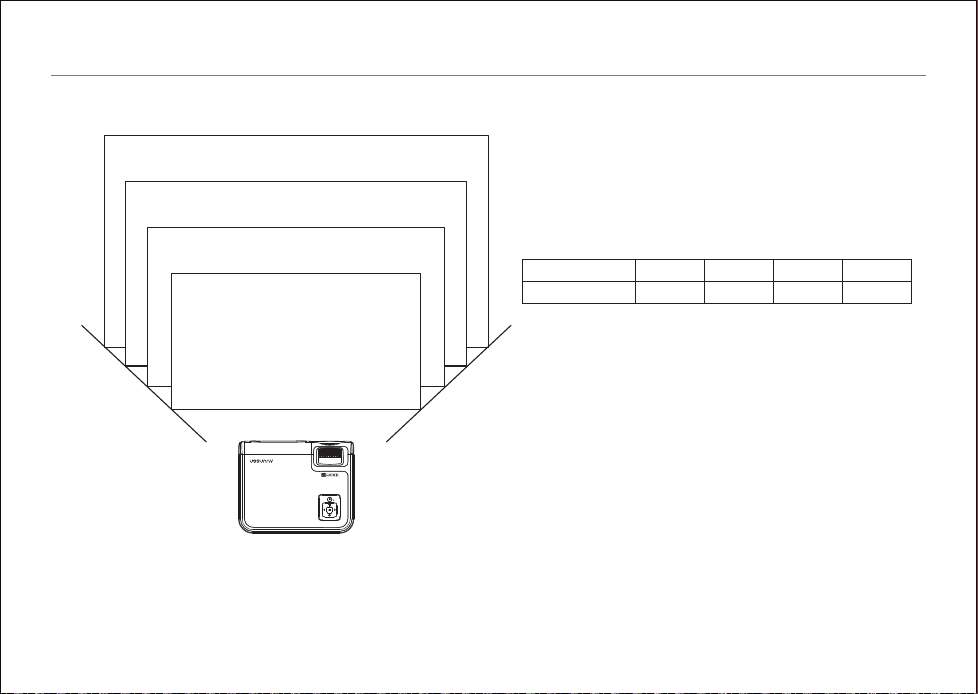
画像サイズはプロジェクタと投写画面の間の距離に依存
します、上記のデータの間で 3 %の誤差がある可能性が
あります。設定によって距離も異なります。
335cm
50′′
72′′
100′′
120′′
210cm
290cm
150cm
(アスペクト比:16:9、出荷時設定)
プロジェクターのレンズから投写画面までの距離をご
参考の上、投写画面のサイズを調整してください。
投影サイズ
16 : 9
50 inch
1.50 m
72 inch
2.10 m
100 inch
2.90 m
120 inch
3.35 m
Wonderful Vision, Infinite Joy
使い方
- 31 -
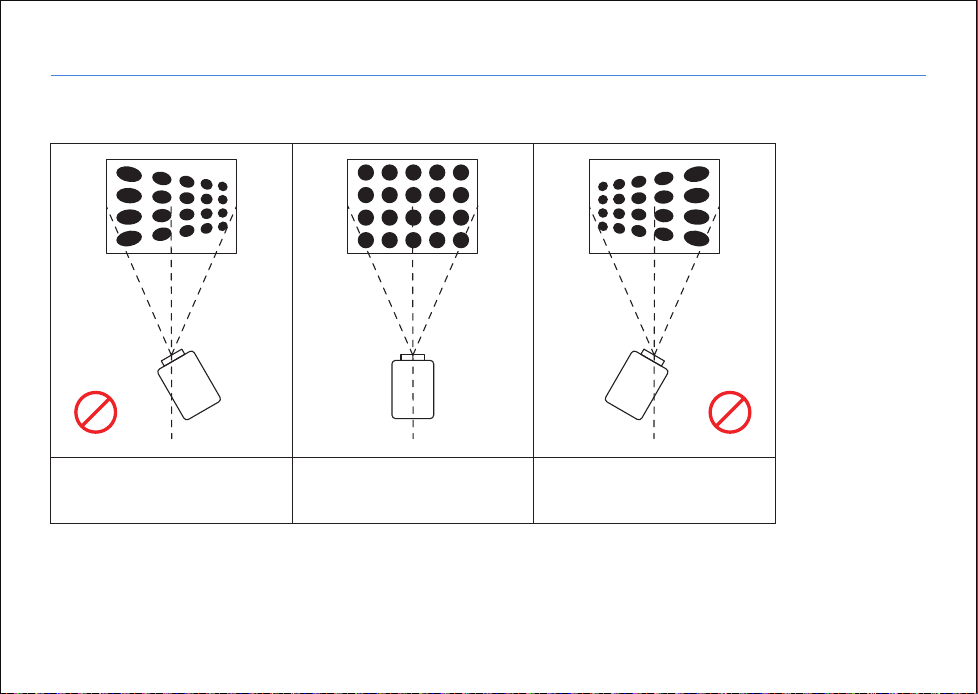
①プロジェクターを起動する前に下の画像に従って、リモコンのキーストーンボタンを使って台形歪みを調整します。スクリ
ーンに垂直になり、水平位置にプロジェクターを配置します。
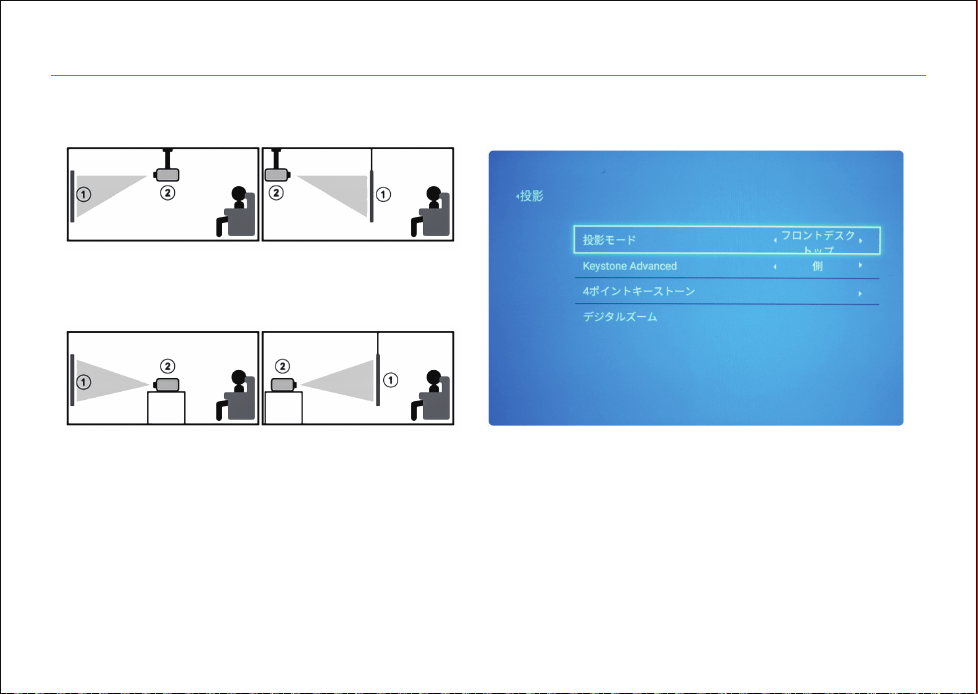
投影モード:
フロント(卓上投影), リア,フロント/天吊り投影, リア/天吊り投影,下図をご参照して、対応できるモードをご選択してください。
リア投影の場合、専用の投影スクリーンが必要です。
設置が間違った場合、投写画
面の右側が小さくなります
設置が間違った場合、投
写画面が歪みになります
設置が間違った場合、投写画
面の左側が小さくなります
Wonderful Vision, Infinite Joy
使い方
- 32 -
天吊り投影(上下反転)
フロント/天吊り
フロント リア
リア/天吊り
卓上投影
Wonderful Vision, Infinite Joy
使い方
- 33 -
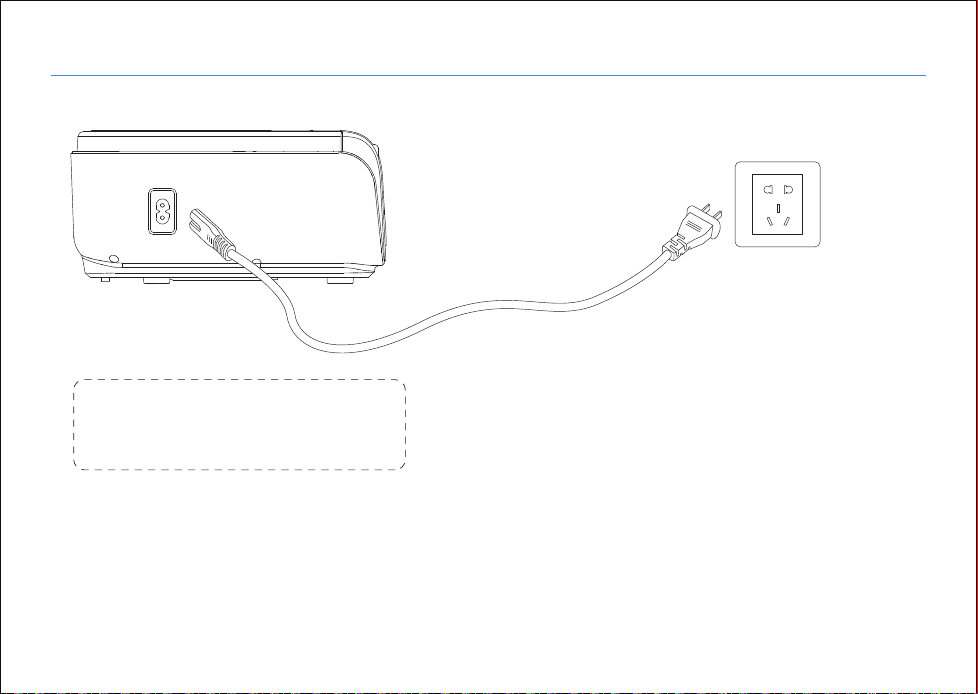
次の図のように電源コードを接続し、電源を入れると、インジケータが赤で点灯します。
ご注意:
画像はイメージです。電源プラグは国によ
って異なる場合があります。
Wonderful Vision, Infinite Joy
使い方
- 34 -
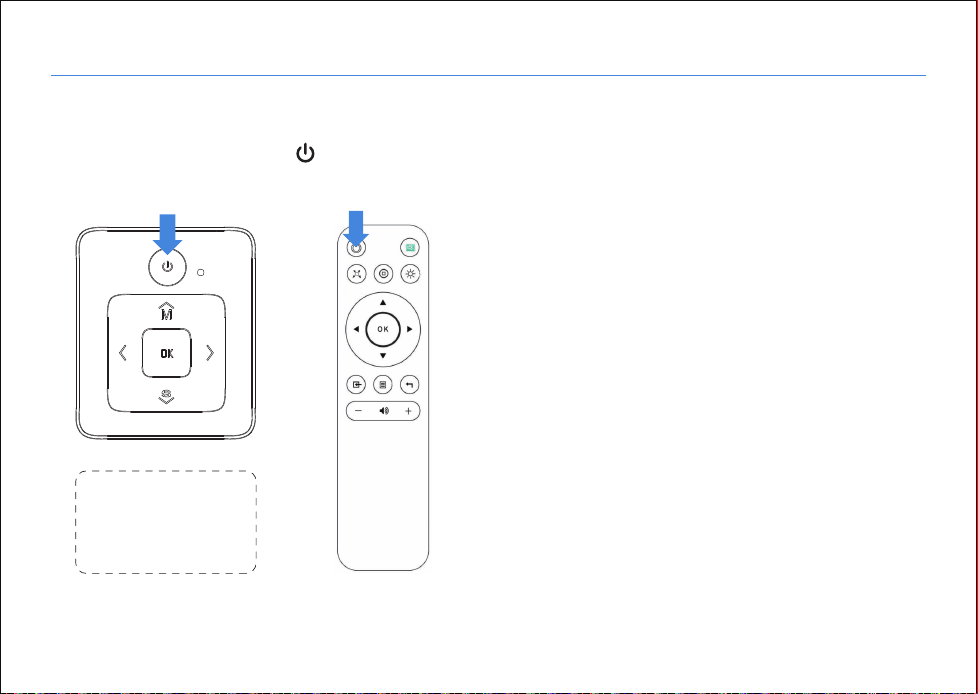
③ 電源コードをプロジェクターとコンセントに接続すると、インジケータが赤で点灯します。プロジェクターはスタンバイ状
態になり、レンズカバーを外します。
本体やリモコンの「電源」ボタン( )を押すと、 プロジェクターの電源をオンにします。
ご注意:
すべての外部デバイス
と互換性があることを
保証できかねます!
A. 本体 B. リモコン
Wonderful Vision, Infinite Joy
使い方
- 35 -
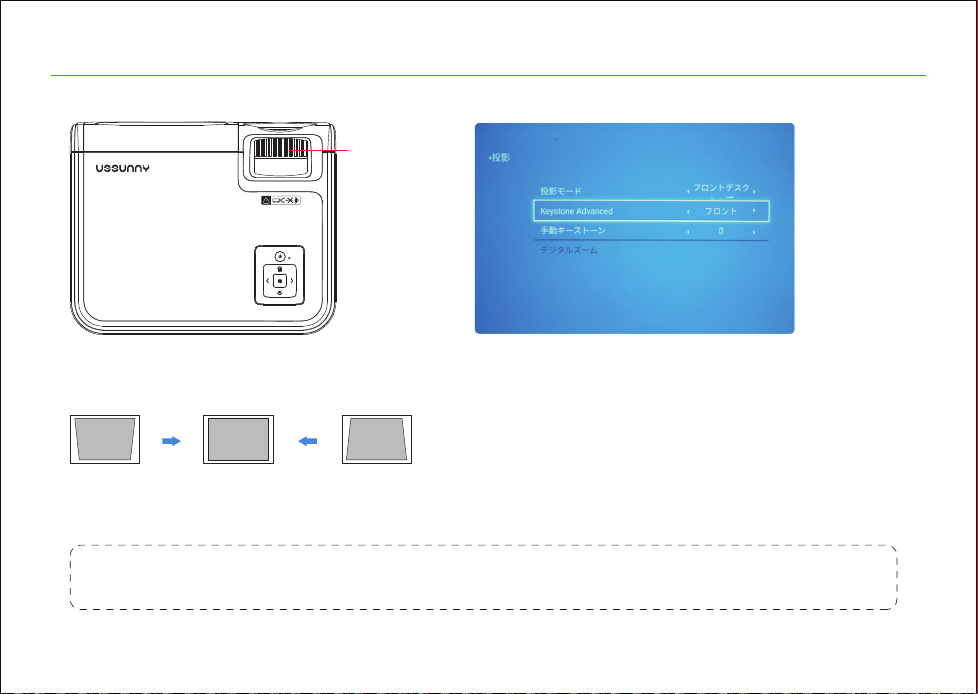
④ 台形補正とフォーカス
ご注意:
台形補正で修正できない場合は、投写画面に対するプロジェクター本機の高さを調整してください。
フォーカス
A. 投写画面が台形歪みがある場合、台形補正を調
整できます。
方法1:垂直台形補正
ステップ1:「キーストーン」で「フロント」を選択してください 。
ステップ2:「手動台形補正」を選択し、OKボタンを押してください。
ステップ3:上/下ボタンを押して垂直方向の台形補正を調整し。
方法2:4ポイントキーストーン
ステップ1:「キーストーン」で「側」を選択してください
ステップ2:「4ポイントキーストーン」を選択し、OKを押してください
ステップ3 「OK」ボタンを押して調整する点を選択し、「矢印キー」ボタンを押し
て調整してください
Wonderful Vision, Infinite Joy
使い方
- 36 -
⑤マルチメディアとの接続:
ご注意:
中央が鮮明で、端がぼやけている場合は正常です。
リモコンの「ソース」または本体の操作ボタンの「S」を押すと、投写画面で「ソース入力」が表示され、「USB」を
選択してください。
A. USBをUSBポートに挿入し、適切な信号ソースを選択し、再生/一時停止ボタ ンを押して再生または一時停止します。
B.投影された画像がぼやけたり、見づらくなったりする場合、フォーカスが合っていない可能性があります。下記の手順に
従ってフォーカスを調整してください。(フォーカスにより、スクリーン上で最も鮮明な画像を見つけます)
or
Wonderful Vision, Infinite Joy
マルチメディアの形式
- 37 -
対応できないもの:
ドルビーAC3 / AAC、DTS、WMA、DivX、VC1、RM、RMVB、FLVなど
対応できる形式
JEPG, PNG, BMP
ファイル拡張子
.jpg / .png / .bmp
対応できる形式
MPEG1, MPEG2, LPCM, MP3
ファイル拡張子
.avi / .ts / .dat / .vob / .wmv / .mkv / .mp3 / .mp4 / .m4a
対応できる形式 ファイル拡張子
画像の形式
オーディオの形式
ビデオの形式(最大30~40 Mbsのビットレート)
MPEG1, MPEG2, H.263, H.264, AVS,
VC1, MJPEG, RV30, RV40, HEVC
.dat / .ts / .mp4 / .mpg / .mpeg / .avi /
.mkv / .mov / .asf / .flv / .3gp. / .3gpp / .tp
Wonderful Vision, Infinite Joy
マルチメディアの接続
- 38 -
多数のHDMI端子を備えたデバイスに対応できます。リモコンの「ソース」ボタンを押して、適切な信号源「HDMI」を選択
してください。
各メーカーのラップトップの投写ショートカットキー(間違いがあれば、ご使用のラップトップの説明書にご参照ください。)
メーカー
Acer
Dell
Epson
富士通
IBM
HP
Lenovo
ショートカットキー
Fn + F5
Fn + F8
Fn + F8
Fn + F10
Fn + F7
Fn + F4
Fn + F10
メーカー
NEC
Panasonic
Sharp
Sony
東芝
ZOTAC
ショートカットキー
Fn + F3
Fn + F3
Fn + F5
Fn + F7
Fn + F5
Fn + F3 / F5
B. HDMI の接続
ラップトップ
DVD プレーヤー
HDMIケーブルを介してください
パソコン
多数のHDMI端子を備えたデバイスに対応できます。(例:ラップトップ、DVDプレーヤー、パソコンなど)
Wonderful Vision, Infinite Joy
マルチメディアの接続
- 39 -
次に示される通りに AV ケーブルで接続し、「 AV 」
ソース入力を選択します。
F. Lightning-Digital AVアダプタを使用してください。iPhone、iPad
に対応しており、入力ソースは「HDMI」を選択してください。
イヤホンジャックを介してプロジェクターを外部スピーカーまたはイ
ヤホンに接続できます。
C. AV の接続 D. オーディオ出力接続
MHL対応機種のみ
E. MHL の機能
3.5mm
HDMI端子とUSBポート
MHL ケーブル
HDMIケーブル
注:Lightning-Digital AVアダプタは付属しません
Lightning-Digital AVアダプタ
Wonderful Vision, Infinite Joy
マルチメディアの接続
- 40 -
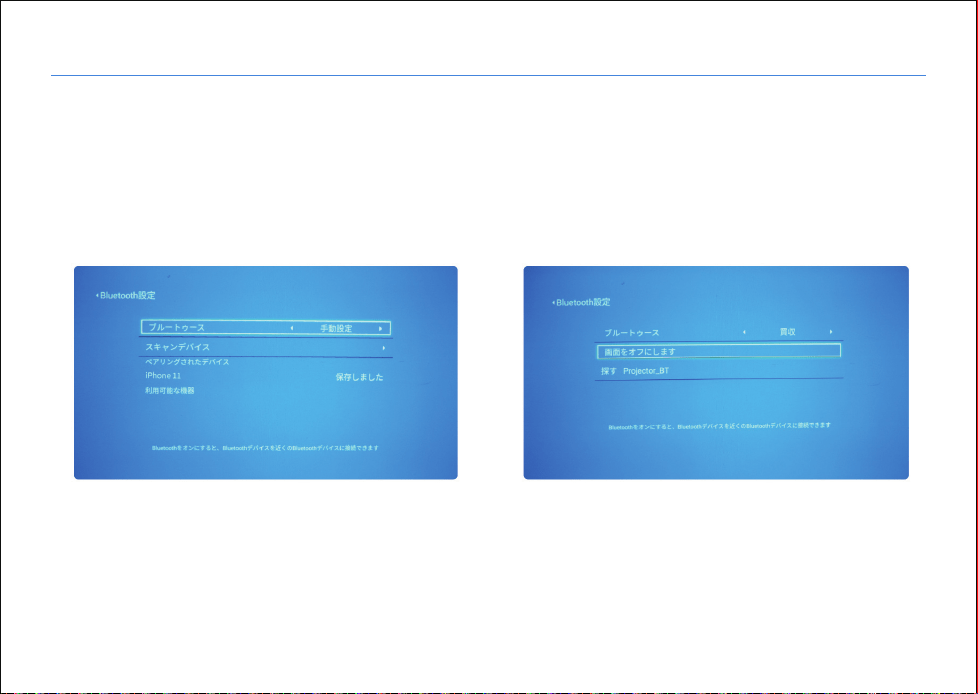
機能1:プロジェクターがBluetoothスピーカーに接続します
ステップ1:[設定]> [BT設定]>[BT]>[手動設定]を選択します
ステップ2:「デバイスをスキャン」を選択し、OKボタンを
押してください
ステップ3:[利用可能な機器]リストからBluetoothスピーカ
ーデバイスを選択し、[OK]ボタンをクリックして接続します
機能2:スマホをプロジェクターに接続します
ステップ1:[設定]>[BT設定]>[BT]>[受信]を選択します
ステップ2:スマホのBluetoothをオンにして、検索リス
トから「PROJECTOR_BT」をクリックして接続します
G.Bluetoothの操作
Wonderful Vision, Infinite Joy
マルチメディアの接続
- 41 -
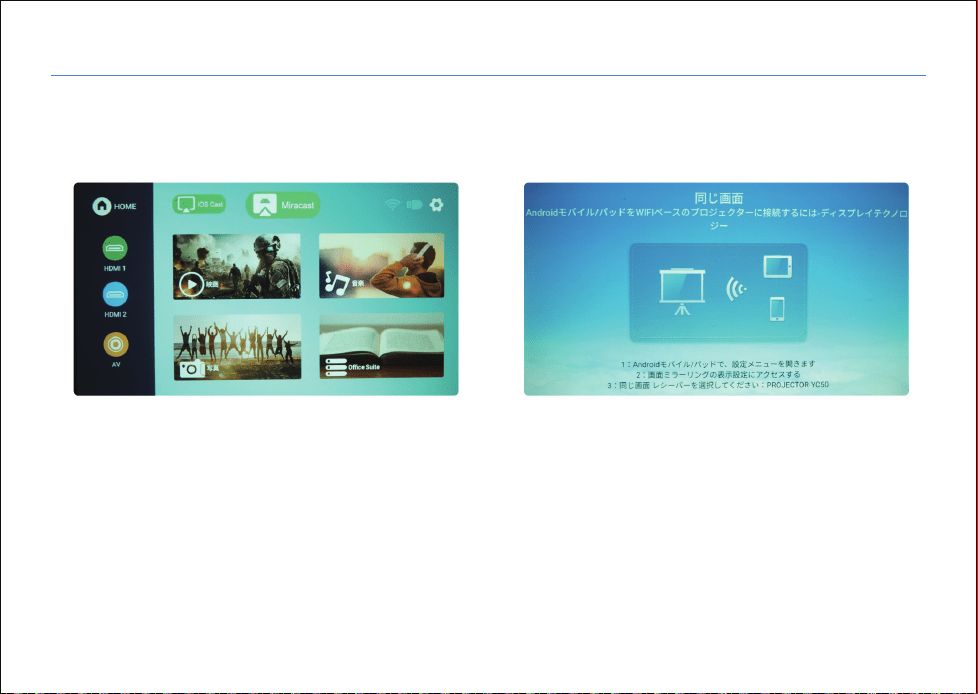
1. Androidデバイスミラーリング
ステップ1:メインメニューで「ミラキャスト」を選択し、OKボタンを押してください
ステップ2:AndroidデバイスのWLANをオンにします
ステップ3:ミラーリング機能を起動します
ステップ4:検索リストから「PROJECTOR_XXX」を選択します
H. ミラーリング操作
Wonderful Vision, Infinite Joy
マルチメディアの接続
- 42 -
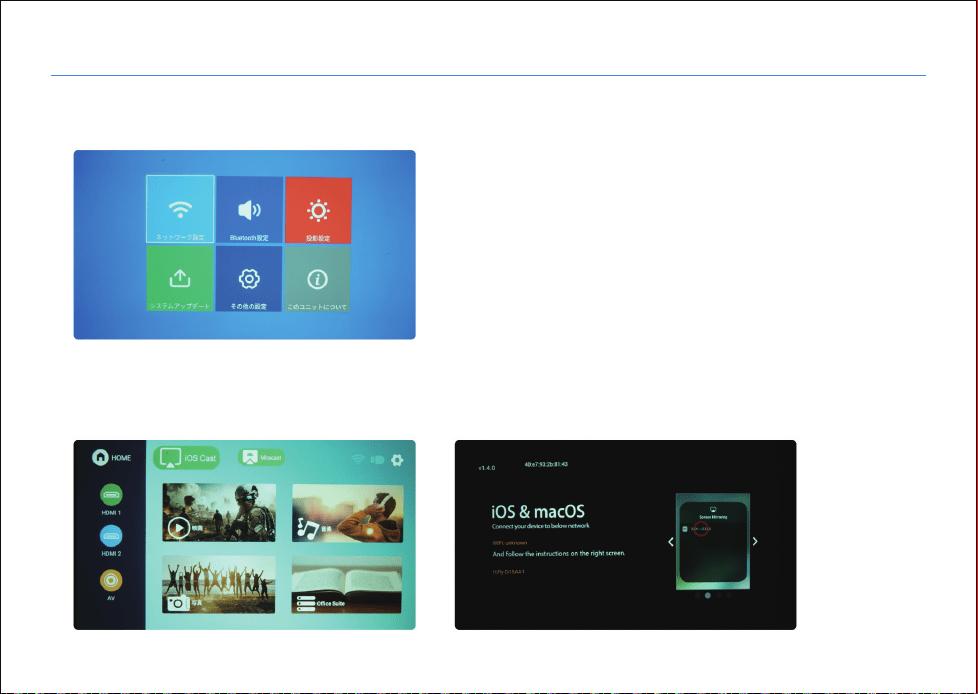
ステップ1:プロジェクターをWi-Fiに接続します
ステップ2:メインメニューで「iOSキャスト」を選択します
ステップ3:iOSデバイスを同じWi-Fiに接続します
ステップ4: iOSデバイスでミラーリング機能をオンにして、検索リストからプロジェクター名「Hifly-xxxx」を選択します。
2. IOSデバイスミラーリング
Wonderful Vision, Infinite Joy
マルチメディアの接続
- 43 -
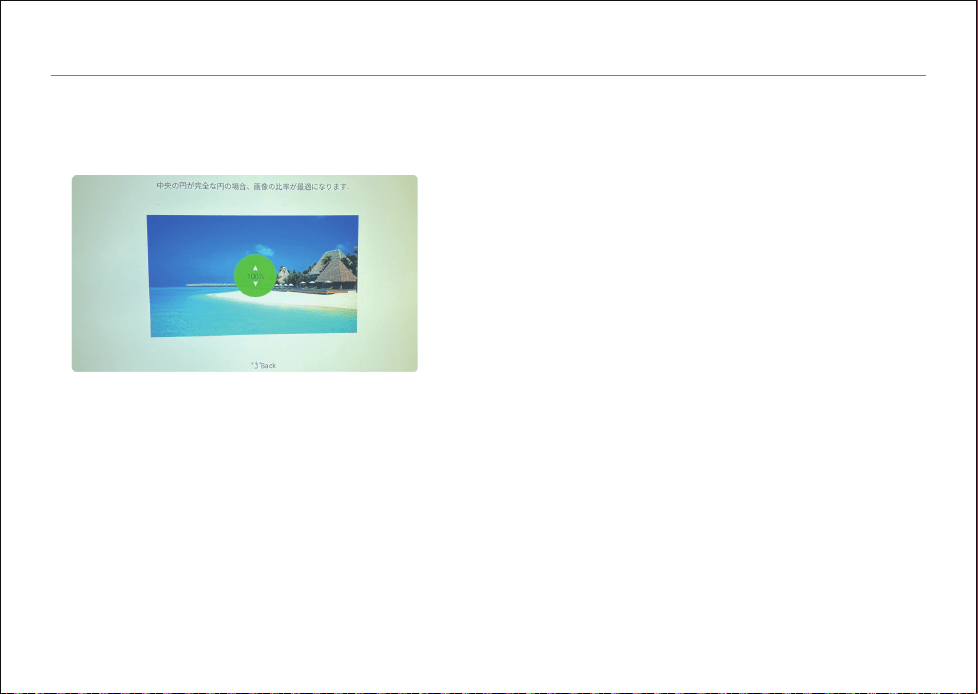
ステップ1: ホームページ>設定>投影設定>デジタルズーム
ステップ2: 上/下ボタンを押して、ズームインまたはズームアウトを調整できます
I. ズーム機能の使用方法
Wonderful Vision, Infinite Joy
同梱物
- 44 -
ご注意:
画像はイメージです。電源プラグは国によって異なる場合があります。
慎重にプロジェクターを開梱し、付属品を揃えるかご確認ください。
取扱説明書
本体(レンズカバー付属)
リモコン 日本語取扱説明書 チルトフットHDMIケーブル
AVケーブル 電源コード
Wonderful Vision, Infinite Joy
商品仕様
- 45 -
映像技術
解像度
対応する解像度
光源
光源寿命
投影率
投影距離
スクリーンサイズ
対応言語
キーストーン
電圧
パワー
入力
出力
スピーカー
対応システム
本体寸法
本体重さ
TFT-LCD
1920*1080P
1920*1080P
LED
50000hour
1.35:1
1.5-4.8M
50-300inches
Support 20Languages
4P/4D ±50°
100-240V
110±5W
HDMI*2/USB*2/AV*1
3.5mm audio out
4Ω3w
android9.0
260*210*102 mm
1.95KG

よくある質問は次の表に記載されています。初めてご使用の際は、取扱説明書をよくお読みください。このマニュアルで解決
できない質問があれば、販売店にお問い合わせください。
Netflix、Hulu、Amazon-
Primeなどのアプリで動画
を再生できません
これらのアプリは著作権保護のため無線で再生できません。ご利用したい場合はHDMIケ
ーブルでパソコンと接続し再生してください。また、Fire StickTVでの再生も可能です。
1. リモコンの電池が切れました。
2. リモコンとプロジェクターの間に障害物を置かないでください。
3. 強光がプロジェクターの受光部に当たっている。
1. スマホのネットワークをご確認ください。
2. Wi-Fi環境をご確認ください。推奨されるインターネット速度:≥100Mbps
3. プロジェクタとルーターの間に壁などの障害物がないかご確認してください。
Wi-Fi接続が安定
していません
1. チャンネル設定が正しいかご確認ください。
2. 入力信号があるかご確認ください。
3. 入力ケーブルが確実に接続されているか、又は接続を間違えないかご確認ください。
1. 入力ケーブルが正しく接続されているかご確認ください。
2. 音量が最小か無音かご確認ください。
3. 入力機器のドルビーをオフしてください。
1. 電源コードが確実に接続されているかご確認ください
2. 電源が正常であるかご確認ください。
電源に接続すると、インジ
ケータライトが消灯します
リモコンの「電源」ボタン
を押すと、プロジェクター
が起動しません
スクリーンで画像が
表示されません。
画像が表示されるが、
音が出でません
質問 解決策
Wonderful Vision, Infinite Joy
FAQ
- 46 -

電源を入れてしばらく経過
すると自動的に電源オフし
ます
ハードドライブまたはUSBメモ
リに接 続している際にデバイス
が見つかりません
動画を再生できません
1. 換気口の周りに障害物を置かないでください。
2. 低電圧または電圧変動幅が大きい
3. 過熱保護機能が動作しています。
1. デバイスを再接続します。
2. デバイスが破損していないかご確認ください。
3. USBのファイル形式がFAT32であるかご確認ください。
1. 動画の形式を確認ください。
2. 動画のファイルが破損していないかご確認ください。
3. デバイスが破損していないかご確認ください。
質問 解決策
Wonderful Vision, Infinite Joy
FAQ
- 47 -

- 48 -
Wonderful Vision, Infinite Joy
保証カード
弊社の製品をお選び頂き、誠にありがとうございます。下記に記載されいている保証サービスをお読みください。
1.本製品は説明書に記載されている通常の目的で使用されることを前提として、1年間の保証サービスを提供いたします。
2.保証期間は当社製品を購入された日から起算されます。
3.特定事項に関する製品保証については、カスタマーサービスcustomer support・[email protected]までご連絡くだ
さい。
USSUNNYでは、お客様の人生により明るく幸せにし、最高の思い出をもたらすように、高品質の製品を提供いたします。
また、弊社はサービスの向上を尽力しております。
製品に関してご不明な点やご質問、ご要望などございましたら、customer support・[email protected]までにご連絡
ください。
弊社の製品をお選び頂き、誠にありがとうございます。

Model No.: C50
Made in China
株式会社成洋
Manufacturer: Cheerlux(Shenzhen)Electronic Technology Co., Ltd.
Address: 3th Floor Building B HOngYi Industrial Area Bantian,Longgang District, Shenzhen, China
Designed by: Shenzhen Zestnation Technology Co.,Ltd.
Address: 202, 2/FWestBlk, LaobingHengfangIndustrial Park,
XingyeRoad, LaodongCommunity, Xixiang Bao'an Dist.,Shenzhen CHINA 518000